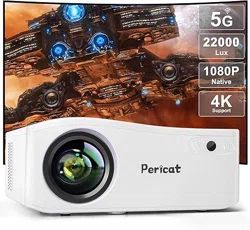
MODEL:PT01


CUSTOMER SERVICE
Our customer service team is standing by to assist
you if you have any questions or concerns.
www.pericatstore.com
1-833-300-9545

CONTENT
ATTENTIONS
PACKING LIST
INTERFACES & BUTTONS
QUICKSTART
MULTIMEDIA CONNECTIONS
CONNECT TO A BLUETOOTH SPEAKER
SCREEN MIRRORING
SPECIFICATION
TROUBLESHOOTING
1
2
3
6
8
13
14
20
22
--------------------------
-------
------------------
---------------------------------
---------------------
---------------------------------
-----------------------------------
support@pericatstore.com
www.pericatstore.com
1-833-300-9545
support@pericatstore.com
www.pericatstore.com
1-833-300-9545
-------------------------
-------------------------------
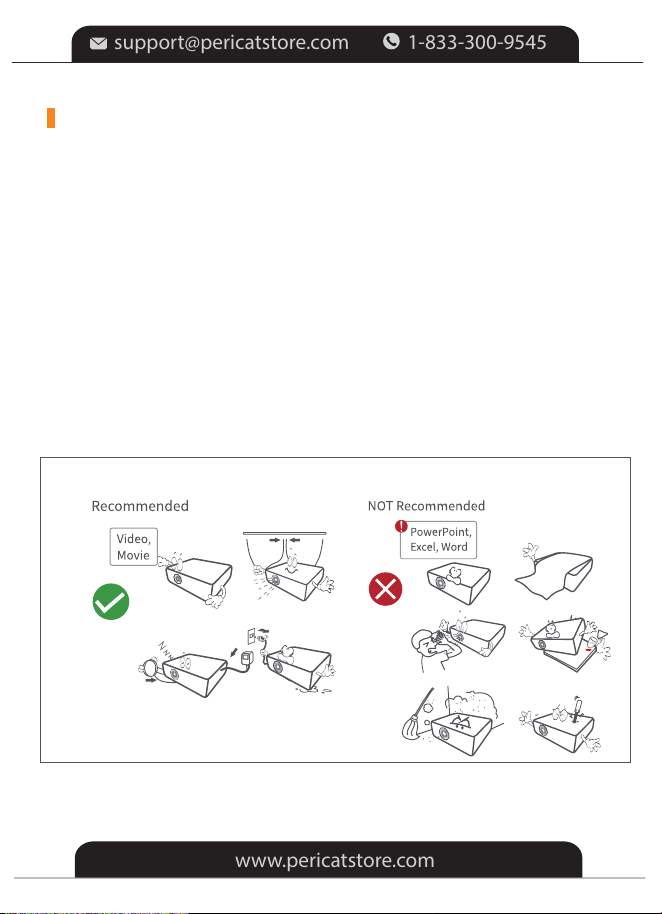
1. Please DO NOT look straight into the projector lens while it is
working to avoid burning your eyes.
2. To avoid damage to internal components, please do not place the
machine in a hot or humid place.
3. Please use a lens cleaner or special lens wipe paper when cleaning
the lens.
4. Please ensure that the projector is well ventilated when using it. Do
not touch carpets and woolen knitwear.
5. Do not disassemble this machine. We will offer you professional
warranty services.
TIPS
ATTENTIONS
-1-
support@pericatstore.com
www.pericatstore.com
1-833-300-9545
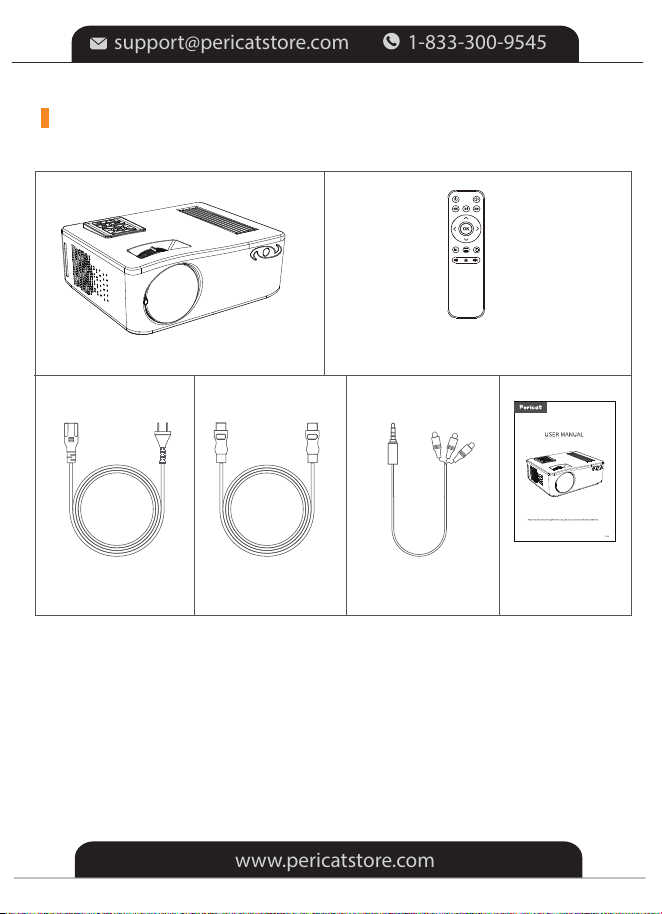
PACKING LIST
Remote
(Batteries Not Included)
Projector
AC Power Cable HDMI Cable AV Cable USER MANUAL
MODEL:PT01
-2-
support@pericatstore.com
www.pericatstore.com
1-833-300-9545
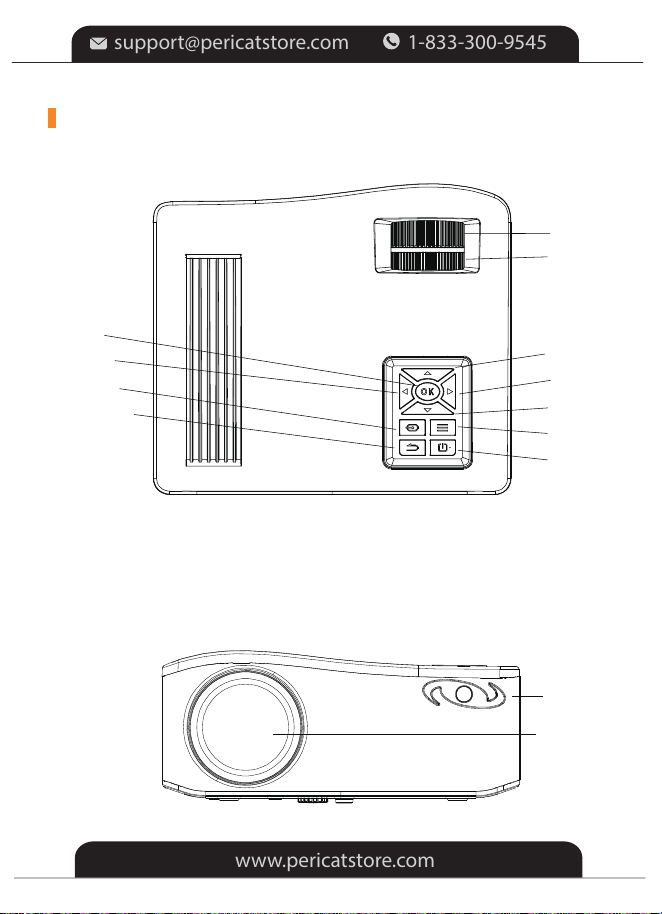
INTERFACES & BUTTONS
Focus
Keyston
Up
Right
Down
Menu
Power
Ok
Left
Input
Return
Infrared
Lens
-3-
support@pericatstore.com
www.pericatstore.com
1-833-300-9545
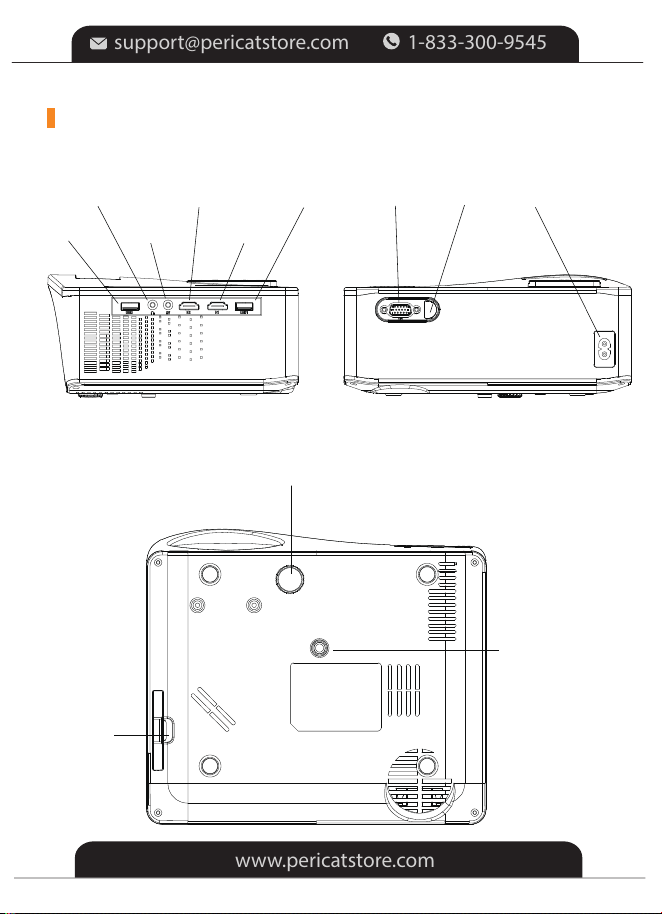
INTERFACES & BUTTONS
Audio Out HDMI2 USB1
USB2 AV HDMI1
VGA Infrared AC
Kickstand
0.25in Mounting
Screw Hole
Dust Cap
-4-
support@pericatstore.com
www.pericatstore.com
1-833-300-9545
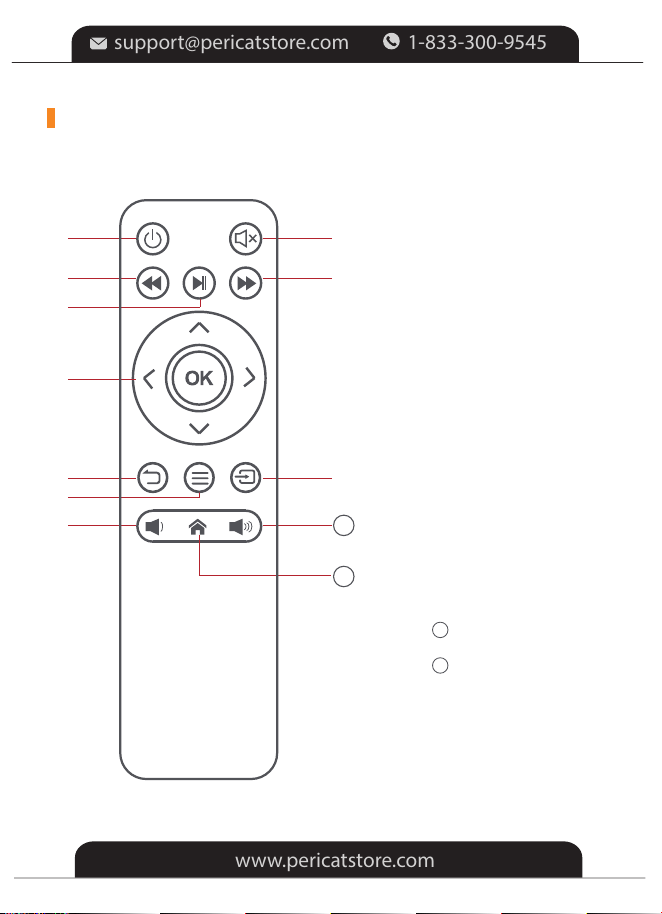
INTERFACES & BUTTONS
Power On/Off
Mute
Rewind
Play / Pause
Fast Forward
Left/Right/Up/Down
Back
Menu
Source
Volume-
Volume +
Home
①
②
③
④
⑤
⑥
⑦
⑧
⑨
⑩
①
③
④
⑥
⑦
⑧
⑩
②
⑤
⑨
12
11
12
11
-5-
support@pericatstore.com
www.pericatstore.com
1-833-300-9545
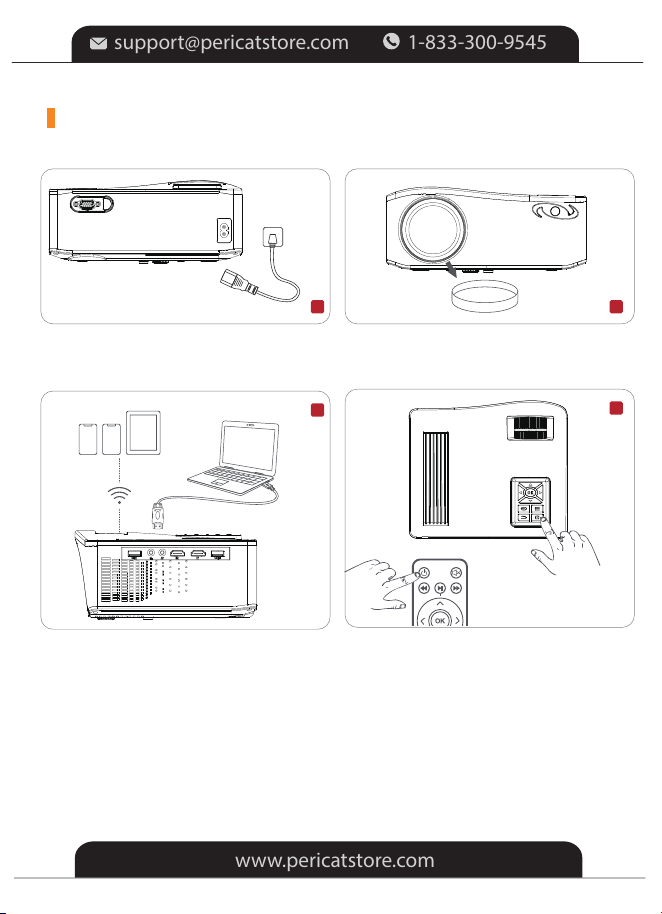
1.Plug the power cord into an outlet.
3.Connect your device to the
projector with the correct cables.
4.Press the power button to
turn it on.
2.Take off the lens cover.
1 2
3
4
QUICKSTART
-6-
support@pericatstore.com
www.pericatstore.com
1-833-300-9545
Setting
Screen Mirroring
PHOTO
MOVIE MUSIC
TEXT
HOME
AV
BT
Setting
VGA
HDMI2
HDMI1
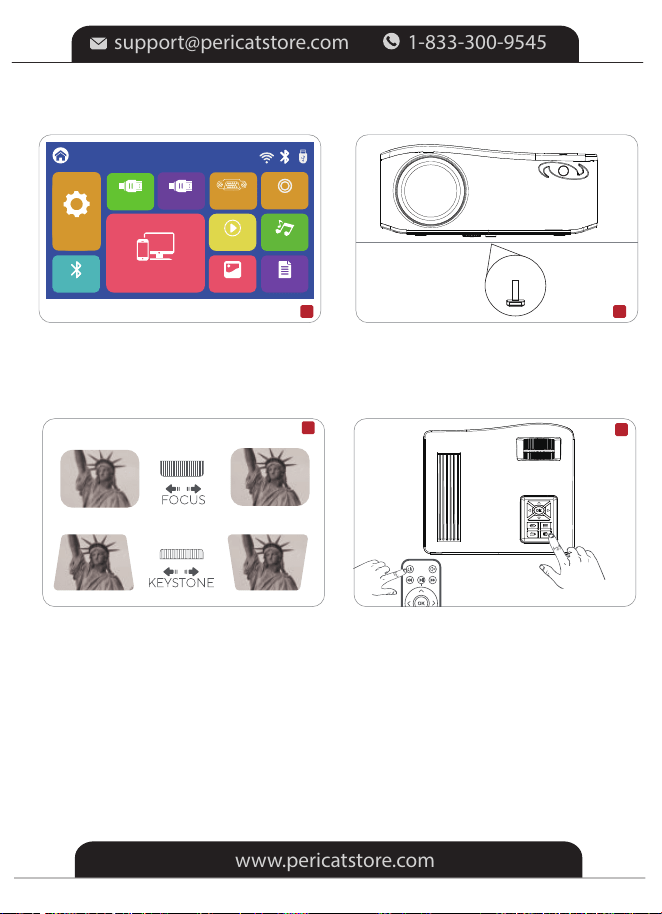
5.Select the correct input source on
the projector or remote to project your
device
7.Adjust the keystone to make the
projection screen rectangular at first,
then adjust the focus wheel slowly
to make the center clear. (Please
use it in a dark environment.)
8.Press the power button to turn
off the projector
6.Adjust the kickstand accordingly
AV
5 6
7
8
-7-
support@pericatstore.com
www.pericatstore.com
1-833-300-9545
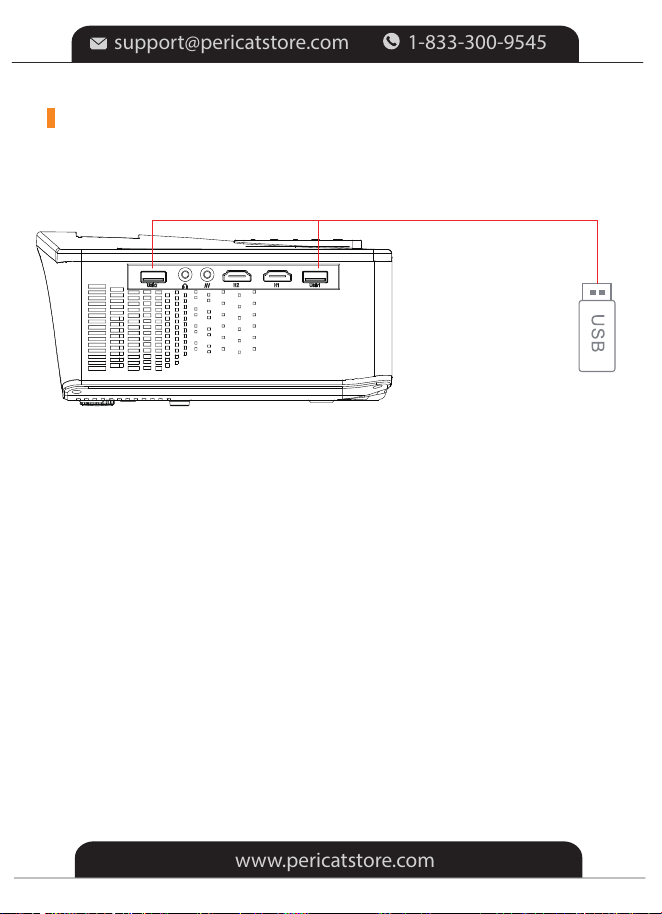
Step 1: Turn on the projector and insert your USB disk into the USB port slot.
Step 2: Go to the Homepage and select the file category you would like to
display among MOVIE, MUSIC, PHOTO, and TEXT, then enter the
inserted USB disk to check all files stored.
*Video files
①Select "MOVIE" to correspondingly read video files stored.
②Tap OK on the projector or Press OK on the remote to open the video file to
enter the full-screen display.
Video Format Supported:
AVI/MP4/MKV/FLV/MOV/RMVB/3G2/MPG/VOB/SWF/MPG/H.264/TS/WMV
* Audio files
①Select "MUSIC" to correspondingly read audio files stored.
②Tap OK on the projector or remote for a certain audio file to enter full-screen
display, then press on the remote to start/pause playing.
Audio Format Supported: AAC/MP3/FLAC/OGG/APE/AMR/WAV/MP2
USB Connection
MULTIMEDIA CONNECTIONS
-8-
support@pericatstore.com
www.pericatstore.com
1-833-300-9545
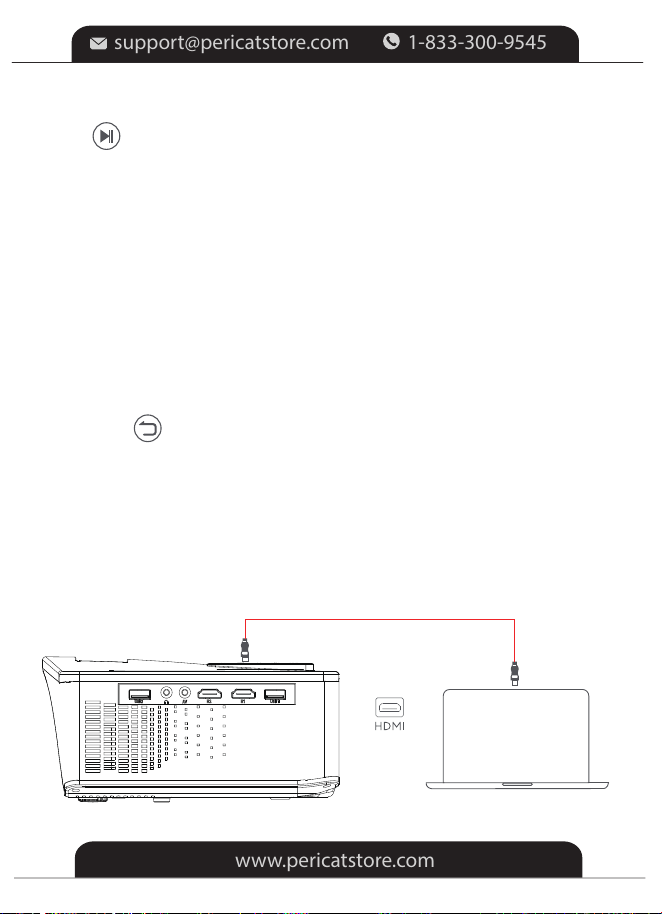
Step 1: Turn on the projector and connect your device to the HDMI1or
HDMI2 Port of the projector with the provided HDMI cable.
* Photo files
①Select "PHOTO" to correspondingly read photo files stored.
②Tap OK on the projector or remote for a photo file to enter
the full-screen display.
Image Format Supported: JPEG/BMP/PNG
* Document files
①Select Office Suite to correspondingly read document files stored.
②Tap OK on the projector or remote to view the contents of a file.
press on the remote to start/pause playing.
Audio Format Supported: AAC/MP3/FLAC/OGG/APE/AMR/WAV/MP2
HD Connection
Step 3: Tap on the projector or press on the remote to go back to
Homepage.
-9-
support@pericatstore.com
www.pericatstore.com
1-833-300-9545
Setting
Screen Mirroring
PHOTO
MOVIE MUSIC
TEXT
HOME
AV
BT
Setting
VGA
HDMI2
HDMI1
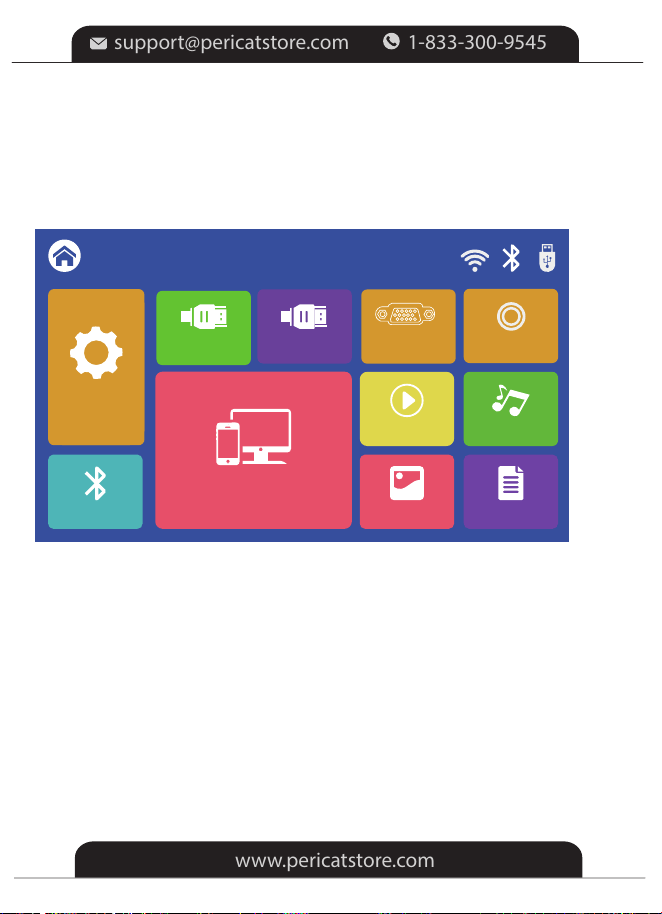
Step 2: Select HDMI1 or HDMI 2 on the left side of the Homepage as the
input source, then the contents of your device will be projected to the
screen/wall.
*For Windows Laptop
For Windows 7 or higher system, press the "Windows Logo + P" key
combination to access four display modes.
①PC screen only option displays contents on a computer screen only.
②Duplicate option displays the same contents on both the computer screen
and projected screen.
③Extend option splits the display between the computer screen and the
projected screen.
④Second screen only option displays contents only on the projected screen.
-10-
support@pericatstore.com
www.pericatstore.com
1-833-300-9545
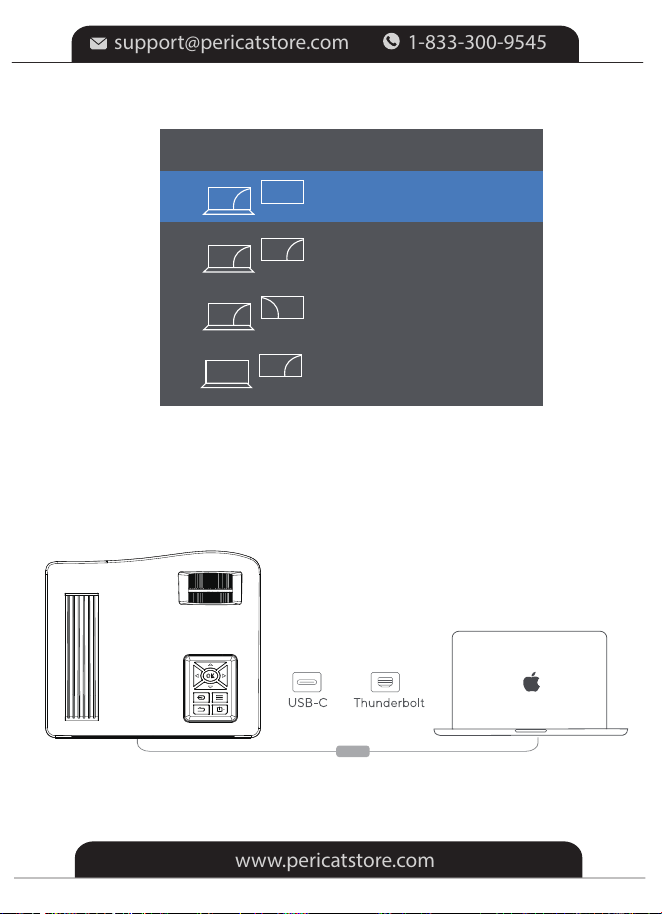
*For MacBook
To connect the MacBook, You can use an Apple MFi-certified USB C to
HDMI adapter or an Apple MFi-certified Thunderbolt to HDMI adapter.
Project
PC screen only
Secend screen only
Duplicate
Extend
-11-
support@pericatstore.com
www.pericatstore.com
1-833-300-9545
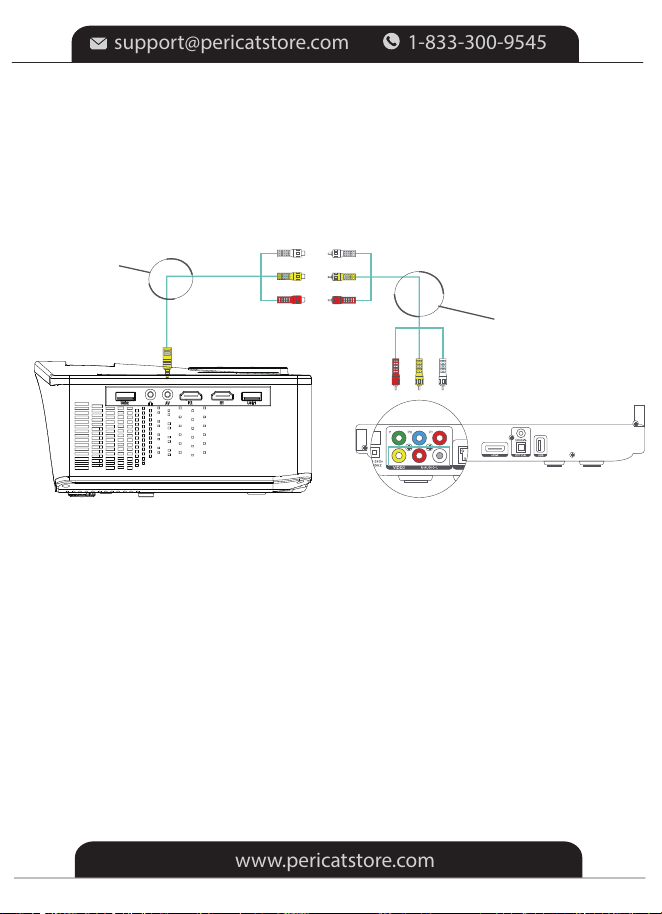
Step 1: Turn on the projector and connect your device to the AV port of the
projector with an AV cable.
(Not Included)
(Included)
Step 2: Select AV on the left side of the Homepage as the input source, then
the contents of your device will be projected to the screen/wall.
AV Connection
-12-
support@pericatstore.com
www.pericatstore.com
1-833-300-9545
Setting
Screen Mirroring
PHOTO
MOVIE MUSIC
TEXT
HOME
AV
BT
Setting
VGA
HDMI2
HDMI1
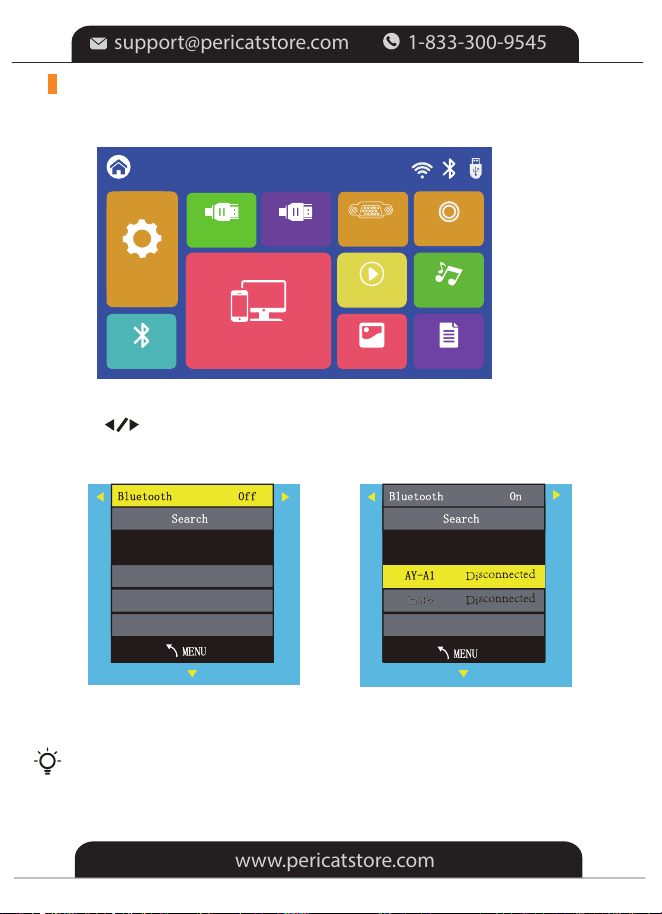
1. Select the "BT" in the HOME main menu first.
3.Select "Search" and press "OK" to scan nearby Bluetooth speakers.
2.Press“ ” key to turn Bluetooth on
CONNECT TO A BLUETOOTH SPEAKER
4.Select your Bluetooth speaker from the list, press OK key to connect (pair).
When power on the projector or turn on Bluetooth, the projector
attempts to connect the latest connected Bluetooth speaker.
Tips:
-13-
support@pericatstore.com
www.pericatstore.com
1-833-300-9545
Setting
Screen Mirroring
PHOTO
MOVIE MUSIC
TEXT
HOME
AV
BT
Setting
VGA
HDMI2
HDMI1
-
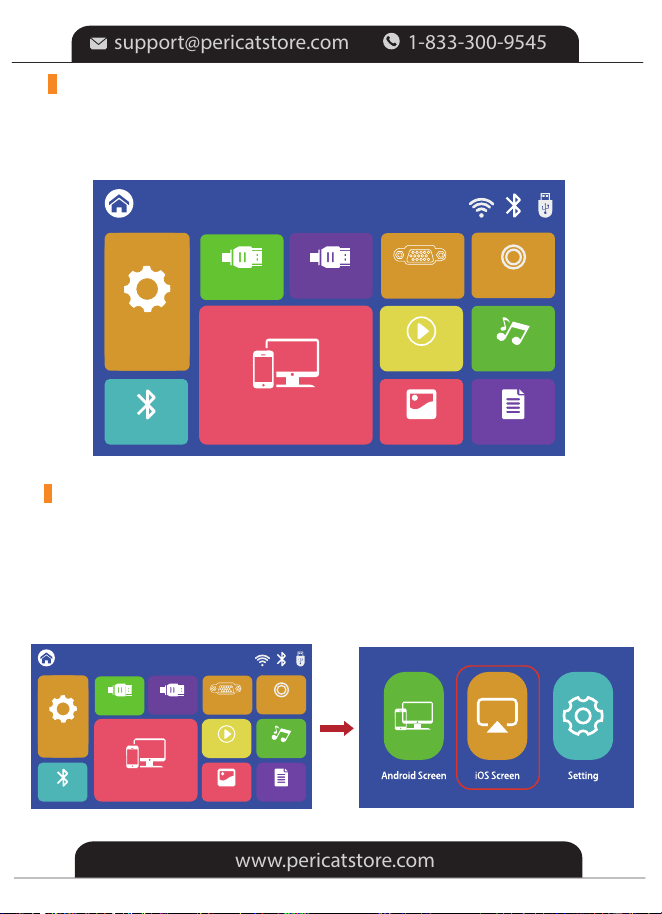
*Important: Before screen mirroring, please select “Screen Mirroring”
in the HOME main menu first.
SCREEN MIRRORING
*Method A Streaming with Cellular Date
1.Turn on the projector, select “Screen Mirroring" in the HOME main menu,
and then choose "iOS Screen".
For iOS devices, there are three ways to connect as follows.
For iOS System
Setting
Screen Mirroring
PHOTO
MOVIE MUSIC
TEXT
HOME
AV
BT
Setting
VGA
HDMI2
HDMI1
-14-
support@pericatstore.com
www.pericatstore.com
1-833-300-9545
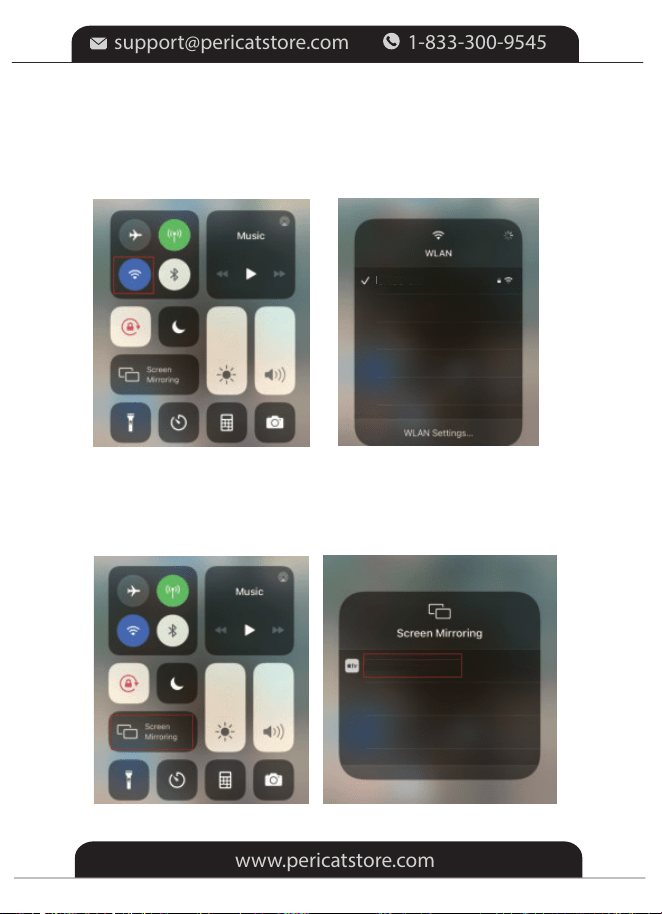
2.Turn on the WLAN of your iOS device and join the network "PT01-XXXX"
of the projector.
(pwd: 12345678)
PT01-xxxx
3.Then go to the "Screen Mirroring" of the iOS device and select
"PT01-XXXX" of the projector to connect.
PT01-xxxx
-15-
support@pericatstore.com
www.pericatstore.com
1-833-300-9545
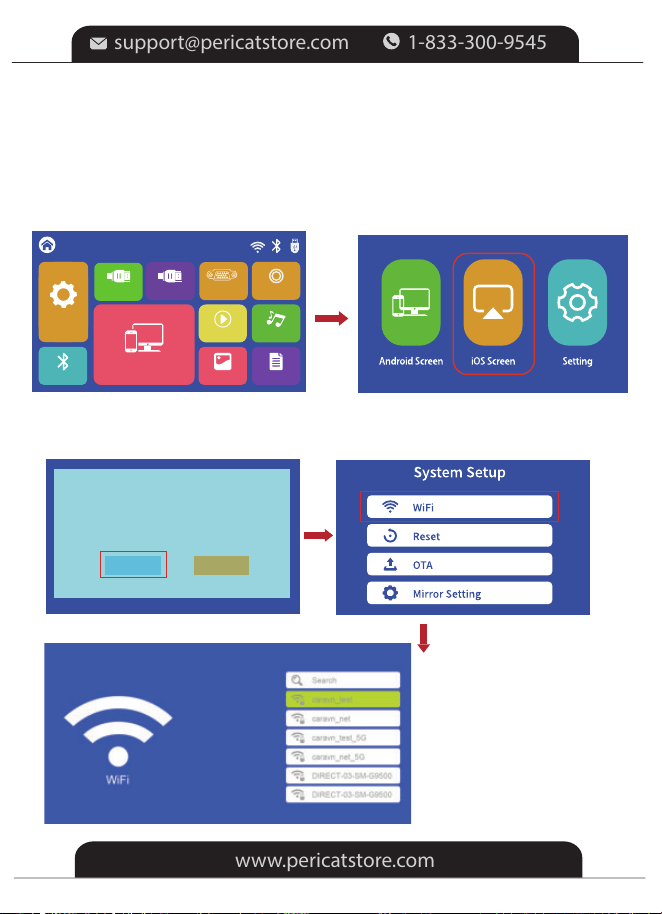
4.The connection success
1.Turn on the projector, select “Screen Mirroring" in the HOME main menu,
and then choose "iOS Screen".
*Method B Streaming with Your router's WiFi
2.Press “OK” on the remote or projector to connect your Router's WiFi.
Please connect to Wi-Fi first
OK Cancel
Setting
Screen Mirroring
PHOTO
MOVIE MUSIC
TEXT
HOME
AV
BT
Setting
VGA
HDMI2
HDMI1
-16-
support@pericatstore.com
www.pericatstore.com
1-833-300-9545
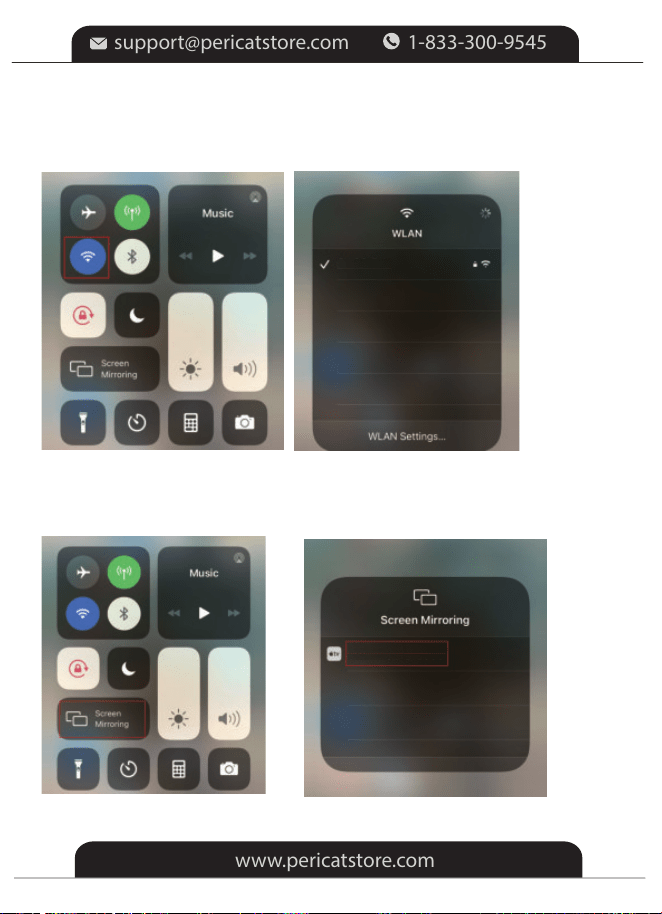
3.Turn on the WLAN of your iOS device and connect to the same Router's
WiFi above.
4.Then go to the "Screen Mirroring" of the iOS device and select
"PT01-XXXX" to connect.
caravn_test
-17-
support@pericatstore.com
www.pericatstore.com
1-833-300-9545
PT01-xxxx
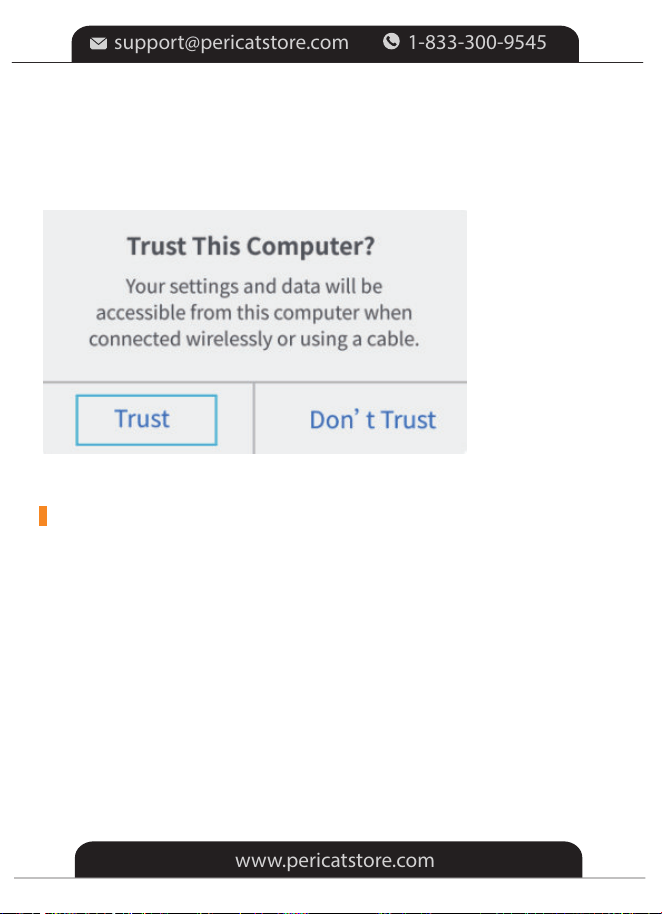
5. The WiFi connection success
1.Prepare an official Apple Lightning to USB Cable.
2.After plugging the cable, please click “Trust” on your phone.
1.Please confirm your Android phone has the "Screen Casting" function in
Settings first.
2.Turn on the phone's WLAN.
3.Turn on "Screen Casting"/"Cast" in the phone's Settings, then select
"PT01-XXXX" to connect.
4.The connection success
Tip: You can use router WiFi or Android phone's data to connect the projector
by the above steps as needed.
3. The wired connection success.
*Method C Lightning to USB Cable for iPhone
Wireless Connection for Android
For Android System
-18-
support@pericatstore.com
www.pericatstore.com
1-833-300-9545

1. The smoothness of the projector connection is affected by the strength
of your WiFi signal. Please make sure that the WiFi signal is good enough.
2. If you connect the projector via a new WiFi the first time, please enter the
WiFi password in the projector.
3. If your phone cannot recognize the projector, please reset the projector.
4. Some videos or streaming software(Netflix, Amazon Prime, Disney, Hulu,
etc) themselves are protected by the creator's copyright so do not support
Screen Mirroring. This is a common phenomenon in the market. It's not the
problem with the projector.
HDMI connections help Pericat PT01 projector on this issue:
(1)For iPhone, please use an official Apple Lightning Digital AV Adapter.
(2)For PC/Laptop, please use the HDMI cable(included) to connect.
(3)For TV stick, streaming software will work well.
*Notes for Screen Mirroring
-19-
support@pericatstore.com
www.pericatstore.com
1-833-300-9545
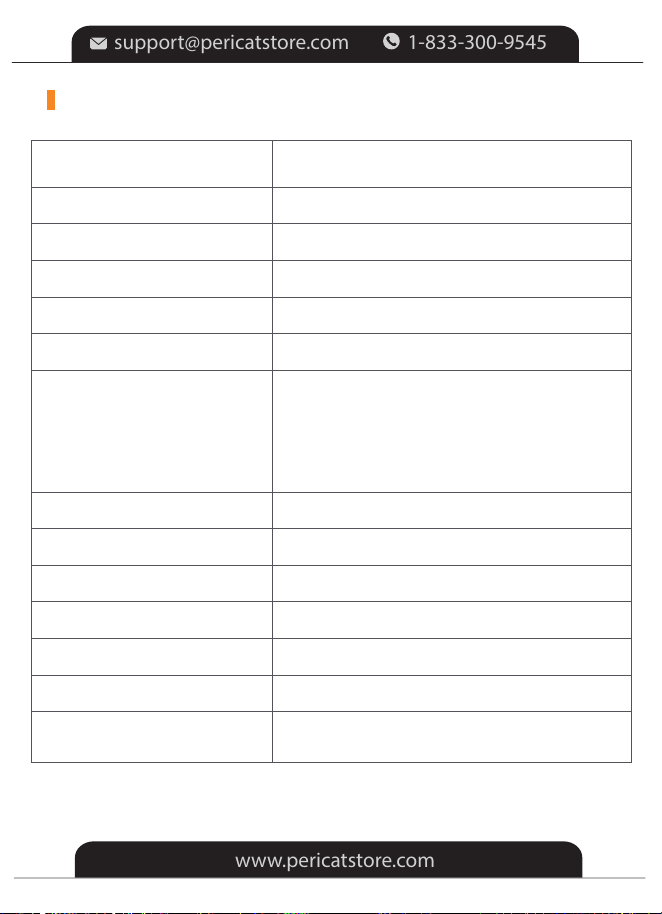
Imaging Technology
Light Source
Resolution
Supported Video Resolution
Focus
Keystone
Input
Output
Input Voltage (V)
Built-in Speaker
Power Consumption(W)
Projector Size
Projector Weight
USB*2, HDMI*2, AV*1
3.5mm Audio Port
AC 100-240V 50/60Hz
4Ω3W
Operating 70W
234.5*187.6*96.1 mm
2kg
LCD
LED
1920*1080
4K, 1080P, 1080i, 720P, 576i, 480P, 480i
Manual
Vertical ±15°
AVI/TS/TP/MOV/DAT/MPG/MPEG/MKV/
3GP/MP4/VOB/M2TS/VID/3GP2/MPEG1
/MPEG2/MPEG3/MPEG4/H263/H264/
H265/VP8/RV30/RV40
SPECIFICATION
Video Format
Supported
-20-
support@pericatstore.com
www.pericatstore.com
1-833-300-9545
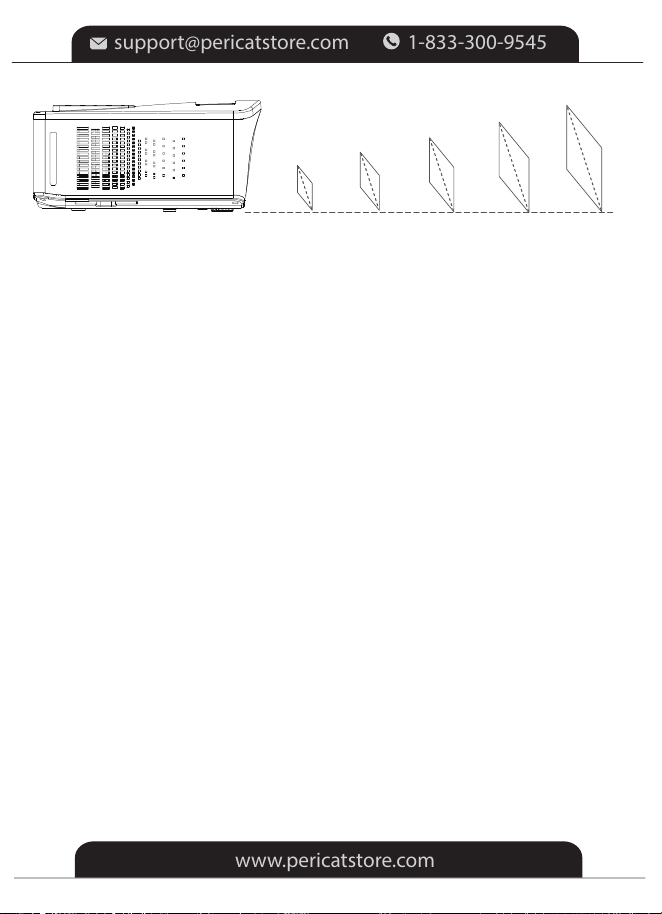
*The recommended projection distance varies with different projection contents. Please
adjust the distance between the wall/screen and the projector properly as needed.
(1.5m-3m recommended)
*Ambient darkness will improve the clarity of the projected images.
4.59ft
(1.4m)
41''
60''
100''
200''
300''
6.71ft
(2.04m)
11.19ft
(3.41m)
22.38ft
(6.82m)
33.58ft
(10.23m)
-21-
support@pericatstore.com
www.pericatstore.com
1-833-300-9545

Q: There is no sound when playing Netflix videos?
A: Due to copyright reasons, some videos or streaming software(e.g Netflix,
Disney+, Hulu, etc.) themselves do not support Screen Mirroring. This is a
common phenomenon in the market.
*HDMI connections help projector on this issue:
①For iPhone, you can use an Apple Lightning Digital AV Adapter. Most
streaming software works well via this adapter.
②Connect the PC or laptop via the HDMI cable included.
③For fire stick, Roku, and Chromecast, streaming software will also work well.
Q: How to upside down the picture?
A: Please go to Menu > Setting > Rotate to flip the projection picture as your
needs.
Q: Why the projector is not bright enough?
A: Please use all home projectors in a dark environment.
Q: Why the image is so blurry?
A: Please move the projector to get suitable screen size and keep the
optimum projection distance is 1.5m-3m. Adjust the keystone to make the
projection image rectangular then adjust the focus wheel slowly to make the
center area clear. (For all home projectors, the projection edge is not as clear
as the center.)
TROUBLESHOOTING
-22-
support@pericatstore.com
www.pericatstore.com
1-833-300-9545