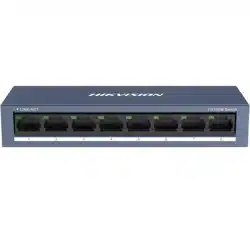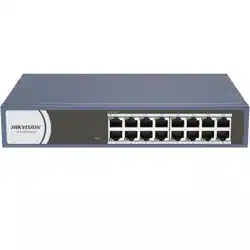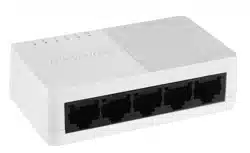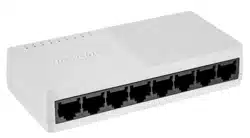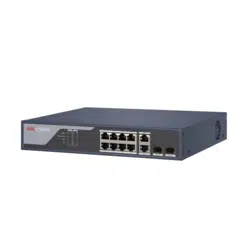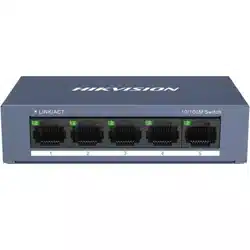

100 Mbps Ethernet Switch
Quick Start Guide
UD28245B-A

i
Preface
Applicable Models
This manual is applicable to 0100 series 100 Mbps Ethernet
switches.
Symbol Conventions
The symbols that may be found in this document are defined as
follows.
Symbol
Description
Provides additional information to emphasize
or supplement important points of the main
text.
Indicates a potentially hazardous situation,
which if not avoided, could result in
equipment damage, data loss, performance
degradation, or unexpected results.
Indicates a hazard with a high level of risk,
which if not avoided, will result in death or
serious injury.
Safety Instructions
Danger
This is a class A product and may cause radio interference in
which case the user may be required to take adequate
measures.
Ensure that your devices powered via the PoE port have their
shells protected and fire-proofed, because the switches are not
compliant with the Limited Power Source (LPS) standard.
In the use of the product, you must be in strict compliance with
the electrical safety regulations of the nation and region.
The socket-outlet shall be installed near the device and shall be
easily accessible.
The device must be connected to an earthed mains socket-
outlet.
Install the device according to the instructions in this manual.
indicates hazardous live and the external wiring connected
to the terminals requires installation by an instructed person.
Keep body parts away from fan blades. Disconnect the power
source during servicing.
Never place the device in an unstable location. The device may
fall, causing serious personal injury or death.
This device is not suitable for use in locations where children
are likely to be present.
Caution
CAUTION: Double pole/Neutral fusing. After operation of the
fuse, parts of the device that remain energized might represent
a hazard during servicing.
The device has been designed, when required, modified for
connection to an IT power distribution system.
This device is suitable for mounting on concrete or other non-
combustible surface only.

ii
The ventilation should not be impeded by covering the
ventilation openings with items, such as newspapers, table-
cloths, curtains, etc. The openings shall never be blocked by
placing the device on a bed, sofa, rug or other similar surface.
No naked flame sources, such as lighted candles, should be
placed on the device.
The device shall not be exposed to dripping or splashing and
that no objects filled with liquids, such as vases, shall be placed
on the device.
Burned fingers when handling the cover area of the device.
Wait one-half hour after switching off before handling the parts.
CLASS 1 LASER PRODUCT
1
1 Introduction
1.1 Product Introduction
0100 series 100 Mbps Ethernet switches are layer 2 switches,
providing five, eight, or sixteen 10/100 Mbps Ethernet ports to
upload data via aggregation switches. The devices are reliable, easy
to install and maintain, and equipped with rapid switching
functions. With multiple access ports, the devices are suitable for
small-scale LAN device access.
1.2 Packing List
Accessory
0105
Series
0108
Series
0116
Series
Switch
× 1
× 1
× 1
Power Adapter
× 1
× 1
-
Power Cord
-
-
× 1
L-Shaped Bracket
-
-
× 2
Screw
-
-
× 4
Quick Start Guide
× 1
× 1
× 1
Multilingual Quick Start Guide
× 1
× 1
× 1
1.3 Appearance
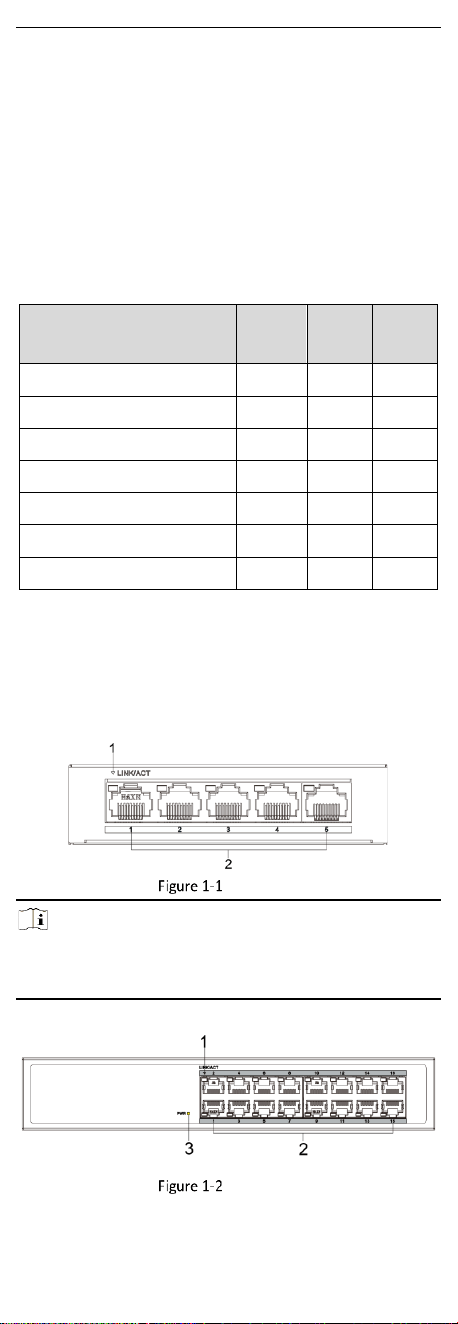
Device appearances vary with different models. The actual device
prevails.
Front Panel
0105 series switches feature five 10/100 Mbps RJ45 ports.
0105 Series
Note
The front panel of 0108 series switches is similar to that of 0105
series switches. The only difference is that 0108 series switches
feature eight 10/100 Mbps RJ45 ports.
0116 series switches feature sixteen 10/100 Mbps RJ45 ports.
0116 Series
2
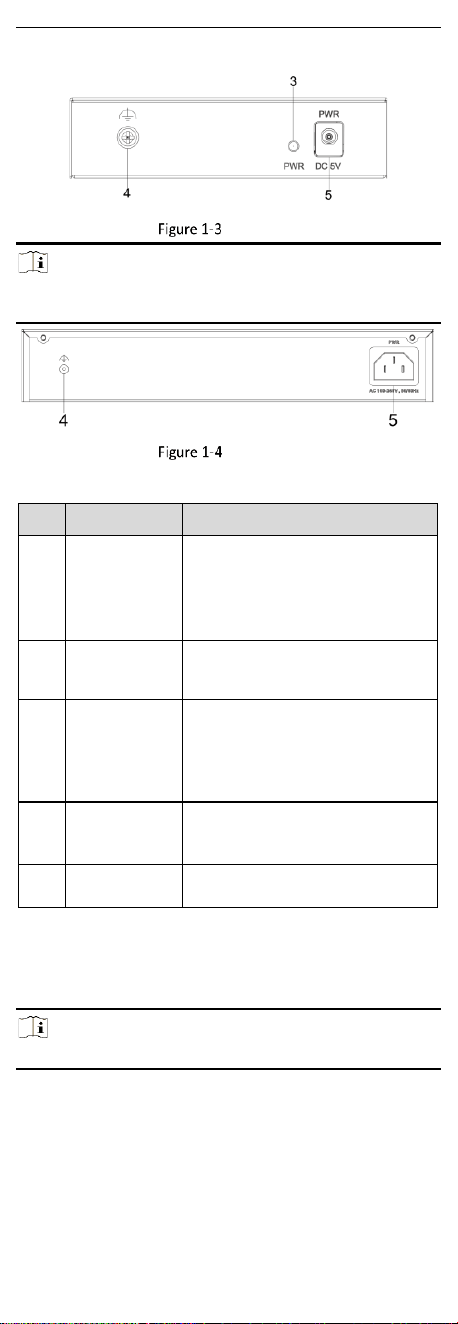
Rear Panel
0105 Series
Note
The rear panel of 0108 series switches is the same as that of 0105
series switches.
0116 Series
Port/Indicator Description
No.
Indicator/Port
Description
1
LINK/ACT
Indicator
● Solid on: The port is connected.
● Flashing: The port is transmitting
data.
● Unlit: The port is disconnected or
connection is abnormal.
2
10/100 Mbps
RJ45 Port
Used for connection to another
device via a network cable.
3
PWR Indicator
● Solid on: The switch is powered
on normally.
● Unlit: No power supply is
connected or power supply is
abnormal.
4
Grounding
Terminal
Used for connecting to the
grounding cable to protect the
switch from lightning.
5
Power Supply
Use the attached power cord to
connect the switch to a socket.
2 Installation
Please select the appropriate installation method according to the
actual needs.
Note
If screws are not provided in the package, prepare them yourself.
Before You Start
Ensure that the desktop, wall, rack, or rail is stable and firm
enough.
Keep the room well-ventilated. Leave at least 10 cm of heat
dissipation space around the device.
Keep at least 1.5 cm vertical distance between two adjacent
devices for rack-mounted installation.
3
2.1 Desktop Installation
Place the device on the desk.
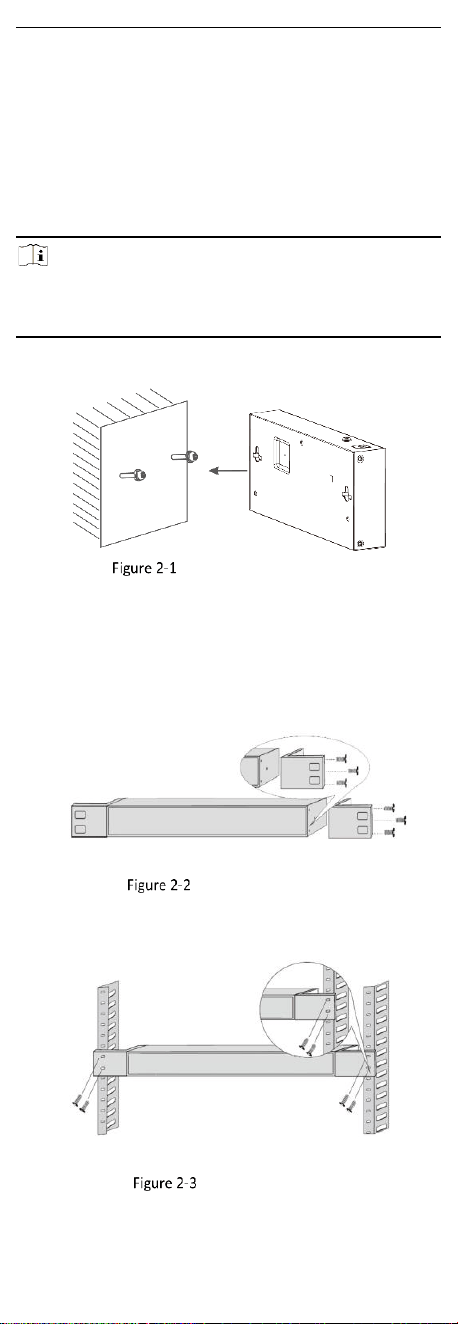
2.2 Wall-Mounted Installation
Steps
1. Check the distance between the two hanging holes on the rear
cover of the device.
2. Insert two M4 screws into the wall.
Note
● Ensure that the distance between the two screws equals to the
distance between the two hanging holes.
● Set aside at least 4 mm of the screw bodies outside the wall.
3. Align the hanging holes with the screws, and hang the device on
the screws.
Wall-Mounted Installation
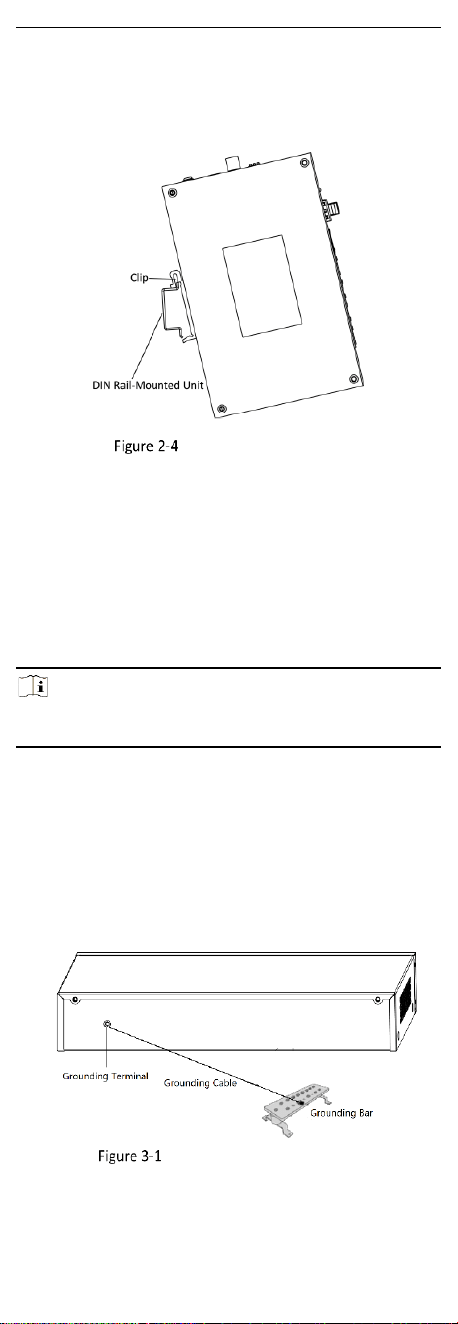
2.3 Rack-Mounted Installation
Steps
1. Check the grounding and stability of the rack.
2. Use screws to fix the two L-shaped brackets to both sides of the
device.
Fix L-Shaped Brackets
3. Place your device against the rack, and fix the brackets to the
rack with screws to stably install your device.
Fix Brackets to Rack
4
2.4 Rail-Mounted Installation
Steps
1. Fix the clip to the device. Insert the end of the DIN rail-mounted
unit into the notch under the clip.
Rail-Mounted Installation
2. Press the DIN rail-mounted unit in quickly.
3 Grounding
3.1 Connect Grounding Cable
Grounding is used to quickly release overvoltage and overcurrent
induced by lightening on the device, and to protect personal safety.
Select an appropriate grounding method according to the
installation conditions.
Note
The grounding terminal is on the rear panel or side panel of the
device. The actual device prevails.
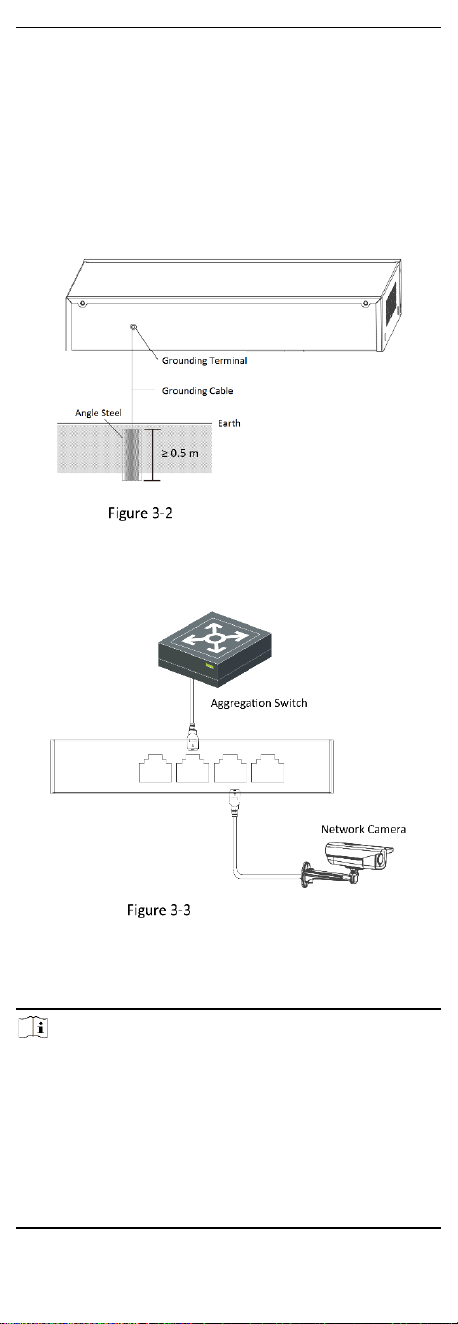
3.1.1 With Grounding Bar
If a grounding bar is available at the installation site, follow the
steps below.
Steps
1. Connect one end of the grounding cable to the binding post on
the grounding bar.
2. Connect the other end of the grounding cable to the grounding
terminal of the device and tighten the screw.
Grounding with Grounding Bar
5
3.1.2 Without Grounding Bar
If there is no grounding bar but the earth is nearby and the
grounding body is allowed to be buried, follow the steps below.
Steps
1. Bury an angle steel or steel pipe (≥ 0.5 m) into the earth.
2. Weld one end of the grounding cable to the angle steel or steel
pipe and embalm the welding point via electroplating or coating.
3. Connect the other end of the grounding cable to the grounding
terminal.
Grounding with Angle Steel
3.2 Connect RJ45 Port
Use a network cable to connect the device to the RJ45 port of a
peer device such as network camera, NVR, switch, etc.
RJ45 Port Connection
3.3 Connect SFP Optical Module
Connecting an SFP optical module is supported when the device
has a fiber optical port or a combo interface.
Note
A combo interface consists of a RJ45 port and a fiber optical port.
You can use either the RJ45 port or the fiber optical port of a combo
interface, but cannot use them at the same time.
- When connected to a network cable, the combo interface is a
RJ45 port.
- When plugged into with an optical module and connected to an
optical fiber, the combo interface functions as a fiber optical port.
- When connected to both a network cable and an optical fiber,
the combo interface works as a fiber optical port.

6
Steps
Caution
● Single-Mode optical module needs to be paired for use.
● Do not bend an optical fiber (curvature radius ≥ 10 cm) overly.
● Do not look directly at an optical fiber connector because the
laser generated is harmful to eyes.
1. Connect the two paired SFP optical modules with an optical fiber.
2. Hold the SFP optical module from one side, and smoothly plug it
into the device along the SFP port slot until the optical module
and the device are closely attached.
3. After powering on the device, check the status of the optical port
indicator.
- If the indicator is lit, the link is connected.
- If the indicator is unlit, the link is disconnected.
4. Check the line, and make sure that the peer device has been
enabled.
4 Device Powering-On
Please use the attached power adapter or power cord to power on
the device.
Before powering on your device, make sure that:
• The operating power supply is compliant with rated input
standard.
• Port cables and grounding cables are correctly connected.
• If there is outdoor cabling, connect a lightning rod and a
lightening arrester to the cable.
Caution
Power supply lines and strong current wires cannot be wired
together, otherwise PDs or switch ports will be burnt.