
User Guide
FCTP-GM1903
FCTP-GM2003
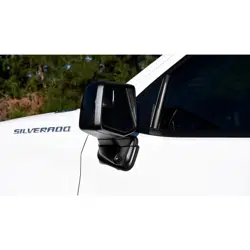
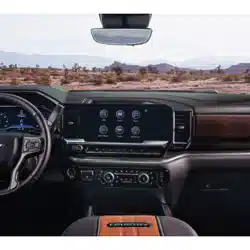
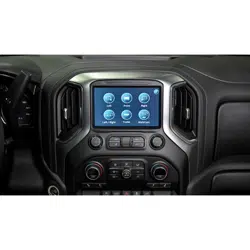
Silverado/Sierra Light Duty Trucks (2019-Present)
Silverado/Sierra Heavy Duty Trucks (2020-Present)
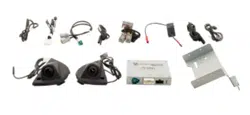
Trailering Camera System
2
User Guide
FCTP-GM1903/2003
Trailering Camera System
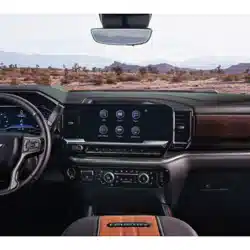
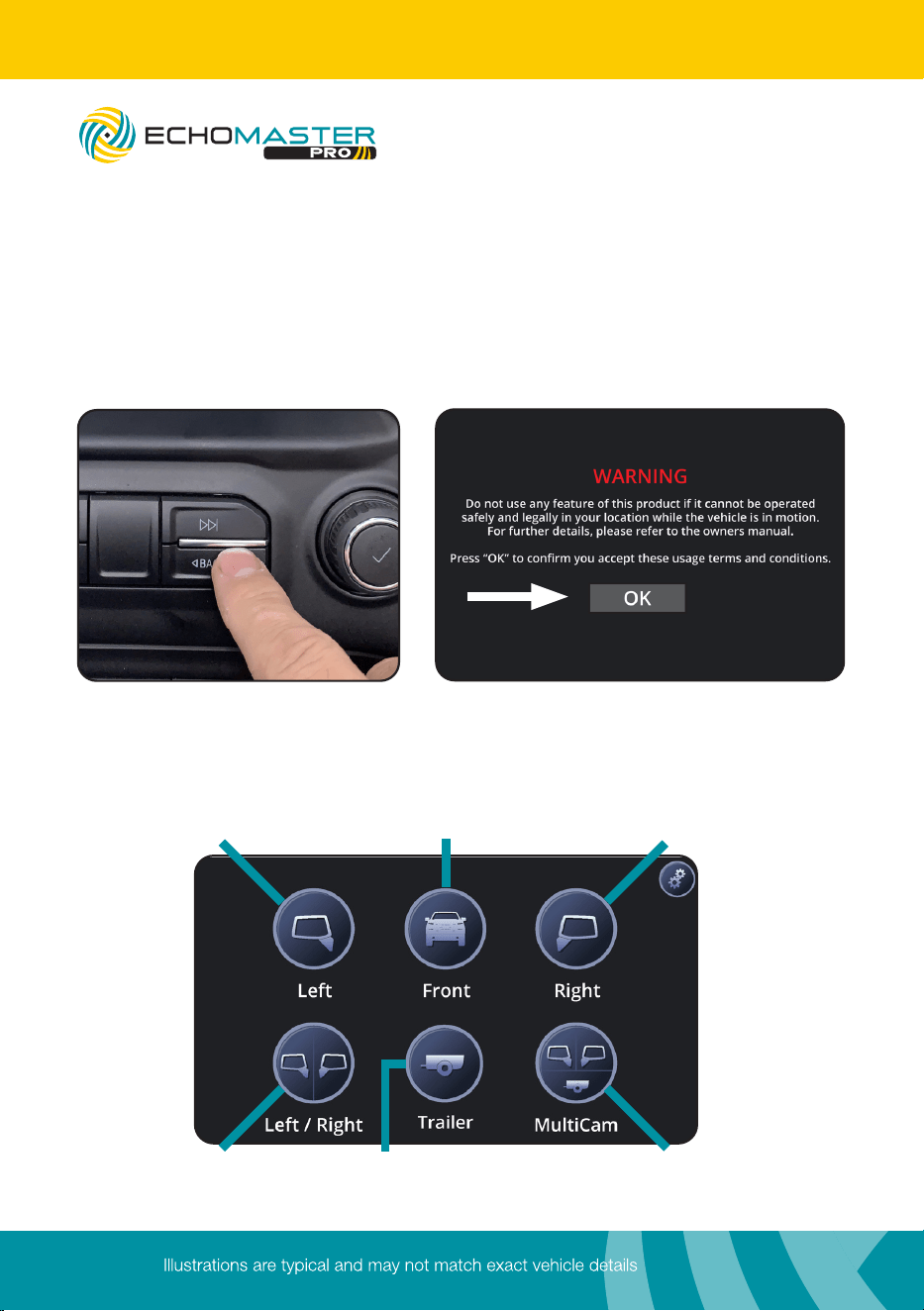
Press and hold the “BACK” button on the factory dash panel (Fig. A) for
three seconds to enter the camera menu. Press OK to accept the terms and
continue (Fig B.). Use the touch screen to select the desired view (Fig C.).
Press the “BACK” button to return to the previous screen.
To Access the Menu
Using the Touch screen user interface, select your desired view.
Use this button
to see left/right view
Use this button
to see multicam view
Use this button
to see the optional
camera (if installed)
Use this button to
see the left side
camera
Use this button to
see the right side
camera
Use this button to see the
wireless trailer camera
Fig A. Fig B.
Fig C.
3
User Guide
FCTP-GM1903/2003
Trailering Camera System
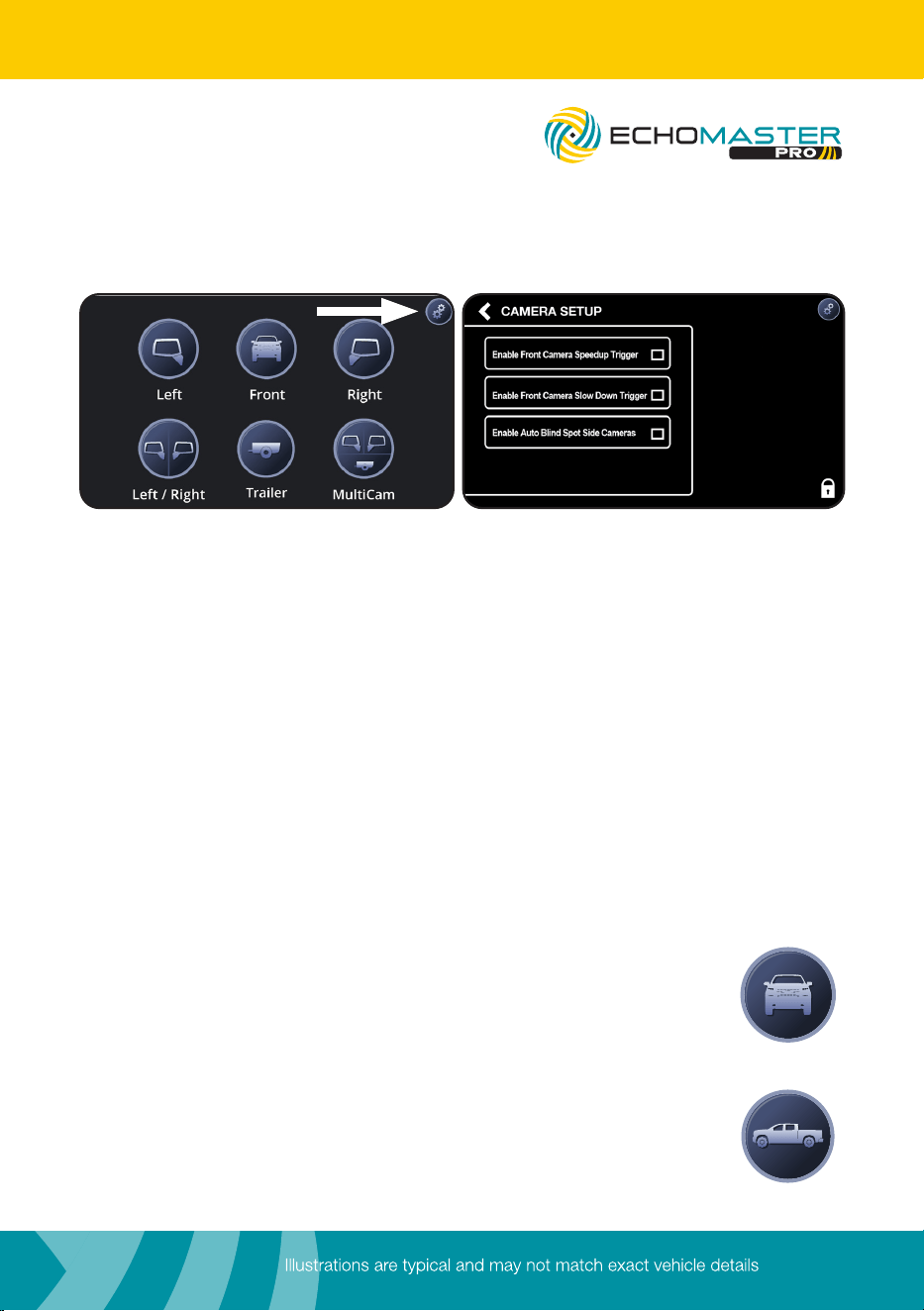
Press the gear icon in the top right corner (Fig A.) to enter the camera setup
menu. From here you can enable / disable GMS3 functions (Fig B.).
1. Enable Front Camera Speedup Trigger - When enabled, the front camera
will display when exiting reverse and turn off after 8 MPH.
2. Enable Front Camera Slow Down Trigger - When enabled, the front
camera will display when speed is reduced below 10MPH and the steering
wheel is turned more than 15 degrees. This prevents unwanted front camera
activation in stop and go traffic. (Note: Vehicle speed must first exceed 15
MPH to activate this feature)
3. Enable Auto Blind Spot Side Cameras - When enabled, blind spot
cameras will display on the screen when the turn signals are activated.
Camera Setup
If either of the Front camera features are selected on
the camera setup screen the “Front” icon (shown to the
right) will be displayed on the camera menu.
Fig A. Fig B.
Other
Front
If neither of the Front camera features are selected on
the camera setup screen the “Other” icon (shown to the
right) will be displayed on the camera menu.
4
User Guide
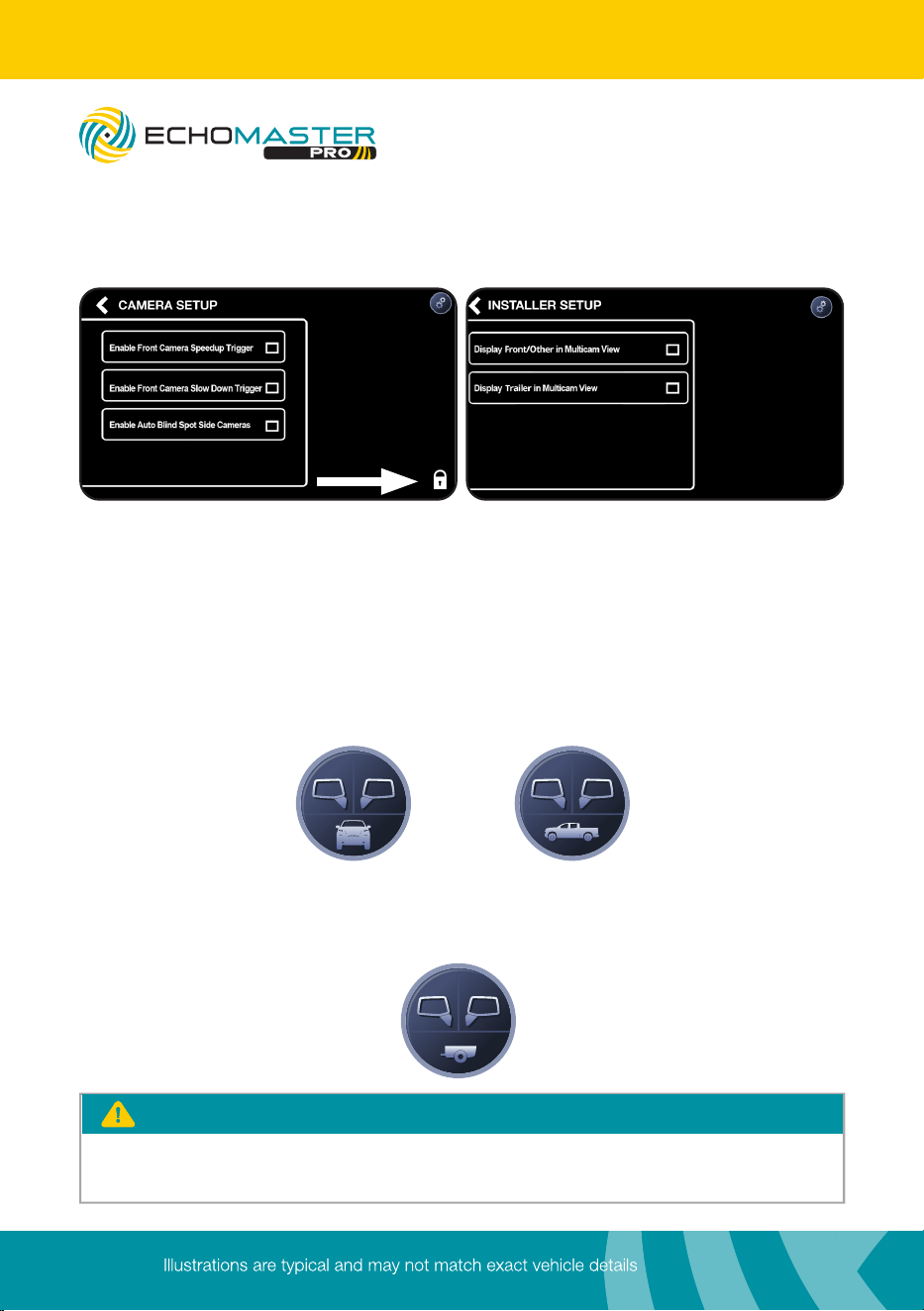
Press and hold the small lock icon in the bottom right corner (Fig A.) of the
camera setup menu to access the Installer setup. In this menu you can adjust
the following items:
1. Display Front/Other in Multicam View - This option displays the Front/
Other camera in 3-way split view. This will change the icon on the camera
menu to one of these two icons depending on the selections made in the
Camera Setup menu.
2. Display Trailer in Multicam View - This option displays the Trailer
camera in 3-way split view. This will change the icon on the camera menu to
the following icon.
Installer Setup
FCTP-GM1903/2003
Trailering Camera System
Fig A. Fig B.
The Intellihaul cameras are accessible after 7 seconds while in reverse. Press
and hold the “BACK” button to access.
PLEASE NOTE

5
User Guide
Notes:
FCTP-GM1903/2003
Trailering Camera System

Clearwater Florida 33760
EchoMaster is a brand of AAMP Global.
www.echomaster.com
email - gmsupport@echomaster.com - tel - 866-766-2267 (US)
AGREEMENT: End user agrees to use this product in compliance with the instructions and terms of
use above and with all State and Federal laws. EchoMaster provides instructions and safety warnings
with respect to this product and disclaims all liability for any use not in conformity with those
instructions or other misuse of its product. If you do not agree, please discontinue use immediately
and contact EchoMaster. This product is intended for off-road use and passenger use only.
REV. 012121