
Digital Storage Oscilloscope
GDS-3000 Series
USER MANUAL
GW INSTEK PART NO. 82DS-33040MA1
ISO-9001 CERTIFIED MANUFACTURER

This manual contains proprietary information, which is protected by
copyright. All rights are reserved. No part of this manual may be
photocopied, reproduced or translated to another language without
prior written consent of Good Will company.
The information in this manual was correct at the time of printing.
However, Good Will continues to improve products and reserves the
rights to change specification, equipment, and maintenance
procedures at any time without notice.
Good Will Instrument Co., Ltd.
No. 7-1, Jhongsing Rd., Tucheng Dist., New Taipei City 236, Taiwan

TABLE OF CONTENTS
3
Table of Contents
SAFETY INSTRUCTIONS .................................................. 5
GETTING STARTED ........................................................ 10
GDS-3000 Series Overview ................... 11
Appearance .......................................... 17
Set Up .................................................. 28
QUICK REFERENCE ....................................................... 36
Menu Tree / Operation Shortcuts ........ 38
Default Settings ................................... 52
Built-in Help ........................................ 54
MEASUREMENT ............................................................ 55
Basic Measurement ............................. 57
Cursor Measurement ........................... 76
Math Operation ................................... 82
Applications ......................................... 87
Using Go_NoGo .................................. 90
Power Analysis ..................................... 95
Serial Bus ............................................ 96
CONFIGURATION .......................................................... 98
Acquisition ........................................ 100
Display............................................... 106
Horizontal View ................................. 112
Vertical View (Channel) ...................... 117
Trigger ............................................... 125
System Info / Language / Clock ......... 142
SAVE/RECALL ............................................................... 146
File Format/Utility ............................. 147

GDS-3000 Series User Manual
4
Create/Edit file labels ......................... 151
Save ................................................... 153
Recall ................................................. 160
Reference Waveforms ......................... 165
FILE UTILITIES ............................................................. 167
PRINT OUT .................................................................. 174
REMOTE CONTROL CONFIG ........................................ 177
Interface Configuration ...................... 178
Web Server ......................................... 184
MAINTENANCE ............................................................ 187
FAQ .............................................................................. 194
APPENDIX .................................................................... 197
GDS-3000 Specifications .................... 197
Probe Specifications .......................... 202
GDS-3000 Dimensions ....................... 204
Declaration of Conformity .................. 205
INDEX .......................................................................... 206

SAFETY INSTRUCTIONS
5
SAFETY INSTRUCTIONS
This chapter contains important safety
instructions that you must follow during
operation and storage. Read the following before
any operation to insure your safety and to keep
the instrument in the best possible condition.
Safety Symbols
These safety symbols may appear in this manual or on the GDS-
3000.
WARNING
Warning: Identifies conditions or practices that
could result in injury or loss of life.
CAUTION
Caution: Identifies conditions or practices that
could result in damage to the GDS-3000 or to other
properties.
DANGER High Voltage
Attention Refer to the Manual
Protective Conductor Terminal
Earth (ground) Terminal
GDS-3000 Series User Manual
6
Do not dispose electronic equipment as unsorted
municipal waste. Please use a separate collection
facility or contact the supplier from which this
instrument was purchased.
Safety Guidelines
General
Guideline
CAUTION
Make sure the BNC input voltage does not
exceed 300V peak.
Never connect a hazardous live voltage to the
ground side of the BNC connectors. It might
lead to fire and electric shock.
Do not place any heavy object on the GDS-3000.
Avoid severe impact or rough handling that
leads to damaging the GDS-3000.
Do not discharge static electricity to the GDS-
3000.
Use only mating connectors, not bare wires, for
the terminals.
Do not block the cooling fan opening.
Do not perform measurement at a power source
or building installation site (Note below).
Do not disassemble the GDS-3000 unless you
are qualified.
(Measurement categories) EN 61010-1:2001 specifies the
measurement categories and their requirements as follows. The
GDS-3000 falls under category II.
Measurement category IV is for measurement performed at the
source of low-voltage installation.
Measurement category III is for measurement performed in the
building installation.
Measurement category II is for measurement performed on the
circuits directly connected to the low voltage installation.
Measurement category I is for measurements performed on
circuits not directly connected to Mains.
SAFETY INSTRUCTIONS
7
Power Supply
WARNING
AC Input voltage: 100 ~ 240V AC, 48 ~ 63Hz,
auto selection. Power consumption: 96VA.
Connect the protective grounding conductor of
the AC power cord to an earth ground, to avoid
electrical shock.
Cleaning the
GDS-3000
Disconnect the power cord before cleaning.
Use a soft cloth dampened in a solution of mild
detergent and water. Do not spray any liquid.
Do not use chemical containing harsh material
such as benzene, toluene, xylene, and acetone.
Operation
Environment
Location: Indoor, no direct sunlight, dust free,
almost non-conductive pollution (Note below)
Relative Humidity: < 80%
Altitude: < 2000m
Temperature: 0°C to 50°C
(Pollution Degree) EN 61010-1:2001 specifies the pollution degrees
and their requirements as follows. The GDS-3000 falls under degree
2.
Pollution refers to “addition of foreign matter, solid, liquid, or
gaseous (ionized gases), that may produce a reduction of dielectric
strength or surface resistivity”.
Pollution degree 1: No pollution or only dry, non-conductive
pollution occurs. The pollution has no influence.
Pollution degree 2: Normally only non-conductive pollution
occurs. Occasionally, however, a temporary conductivity caused
by condensation must be expected.
Pollution degree 3: Conductive pollution occurs, or dry, non-
conductive pollution occurs which becomes conductive due to
condensation which is expected. In such conditions, equipment
is normally protected against exposure to direct sunlight,
precipitation, and full wind pressure, but neither temperature
nor humidity is controlled.
Storage
environment
Location: Indoor
Temperature: -10°C to 60°C
40°C /93% RH 41°C ~60°C /65% RH
GDS-3000 Series User Manual
8
Disposal
Do not dispose this instrument as unsorted
municipal waste. Please use a separate collection
facility or contact the supplier from which this
instrument was purchased. Please make sure
discarded electrical waste is properly recycled to
reduce environmental impact.
SAFETY INSTRUCTIONS
9
Power cord for the United Kingdom
When using the oscilloscope in the United Kingdom, make sure the
power cord meets the following safety instructions.
NOTE: This lead/appliance must only be wired by competent persons
WARNING: THIS APPLIANCE MUST BE EARTHED
IMPORTANT: The wires in this lead are coloured in accordance with the
following code:
Green/ Yellow:
Earth
Blue:
Neutral
Brown:
Live (Phase)
As the colours of the wires in main leads may not correspond with
the coloured marking identified in your plug/appliance, proceed
as follows:
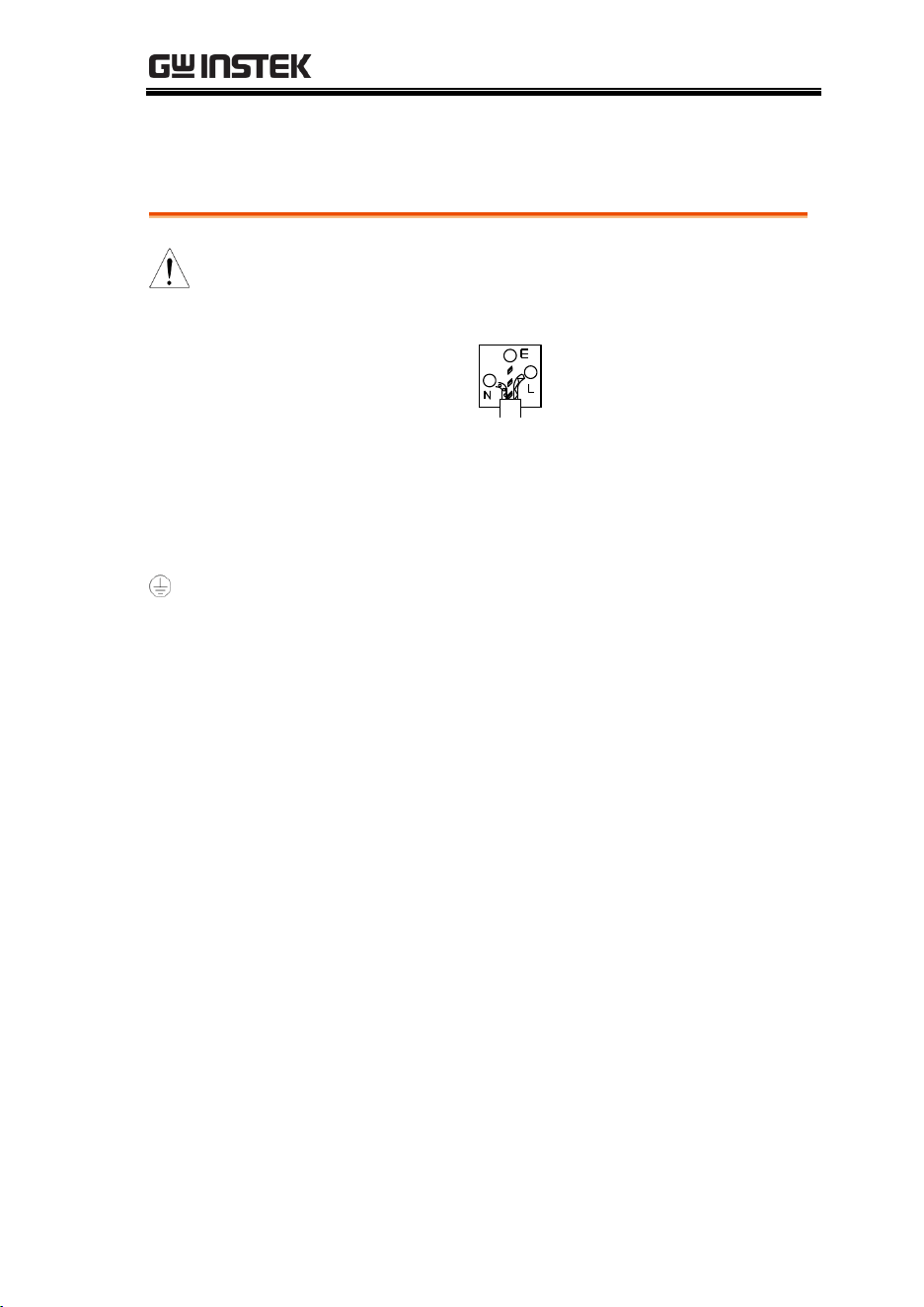
The wire which is coloured Green & Yellow must be connected to
the Earth terminal marked with either the letter E, the earth symbol
or coloured Green/Green & Yellow.
The wire which is coloured Blue must be connected to the terminal
which is marked with the letter N or coloured Blue or Black.
The wire which is coloured Brown must be connected to the
terminal marked with the letter L or P or coloured Brown or Red.
If in doubt, consult the instructions provided with the equipment
or contact the supplier.
This cable/appliance should be protected by a suitably rated and
approved HBC mains fuse: refer to the rating information on the
equipment and/or user instructions for details. As a guide, a cable
of 0.75mm
2
should be protected by a 3A or 5A fuse. Larger
conductors would normally require 13A types, depending on the
connection method used.
Any exposed wiring from a cable, plug or connection that is
engaged in a live socket is extremely hazardous. If a cable or plug is
deemed hazardous, turn off the mains power and remove the cable,
any fuses and fuse assemblies. All hazardous wiring must be
immediately destroyed and replaced in accordance to the above
standard.
GDS-3000 Series User Manual
10
GETTING STARTED
This chapter describes the GDS-3000 in a nutshell,
including its main features and front / rear panel
introduction. After going through the overview,
follow the Set Up section to properly set up the
oscilloscope for first-time use. The Set Up section
also includes a starter on how to use this manual
effectively.
GDS-3000 Series Overview .............................................. 11
Series lineup ............................................................................ 11
Main Features ......................................................................... 12
Accessories.............................................................................. 13
Package Contents .................................................................. 16
Appearance ..................................................................... 17
GDS-3504/3354/3254/3154 Front Panel ........................ 17
GDS-3502/3352/3252/3152 Front Panel ........................ 17
Rear Panel ............................................................................... 23
Display ..................................................................................... 25
Set Up ............................................................................ 28
Tilt Stand ................................................................................. 28
Power Up ................................................................................ 29
First Time Use........................................................................ 30
How to Use This Manual ..................................................... 32

GETTING STARTED
11
GDS-3000 Series Overview
Series lineup
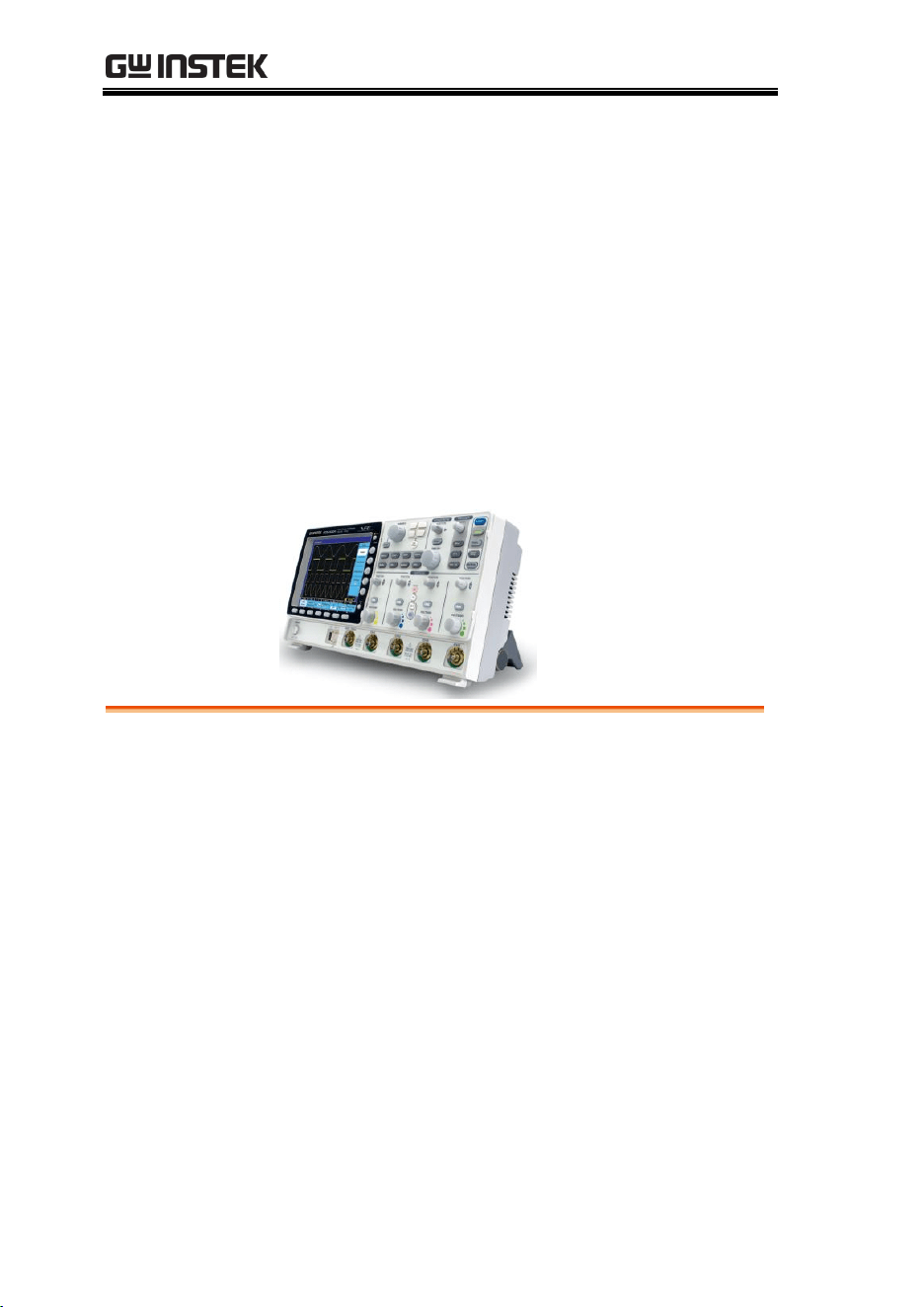
The GDS-3000 series consists of 8 models, divided into 2-channel
and 4-channel versions.
Model name
Frequency
bandwidth
Input channels
Real-time
Sampling Rate
GDS-3152
150MHz
2
2.5GSa/s
GDS-3252
250MHz
2
2.5GSa/s
GDS-3352
350MHz
2
5GSa/s
GDS-3502
500MHz
2
4GSa/s
GDS-3154
150MHz
4
5GSa/s
GDS-3254
250MHz
4
5GSa/s
GDS-3354
350MHz
4
5GSa/s
GDS-3504
500MHz
4
4GSa/s
GDS-3000 Series User Manual
12
The 2 channel and 4 channel models differ in the position of the
horizontal controls, the math, reference and bus keys as well as the
position of the EXT trigger.
2-Channel models
VOLTS/DIV VOLTS/DIV
POSITION
POSITION
TIME/DIV
HORIZONTAL
VARIABLE
W
AC
BW
50
W
75
VERTICAL
LEVEL
POSITION
TRIGGER
W
AC
BW
50
W
75
CH2CH1 EXT TRIG
Window
Split
Select
Zoom
CH1 CH2
Measure Cursor
Display Help
Test
Save/Recall Utility
Menu
50 %
Force - Trig
Autoset
Single
Run/Stop
Setup
Auto-Range
Default
Acquire
CAT
M
W
15pF
300Vpk MAX.
1
5 Vrms MAX.
W
50
W
75&
CAT
M
W
15pF
300Vpk MAX.
1
5 Vrms MAX.
W
50
W
75&
R
B1
M
B2
MATH
REF
BUS
CH1
input
CH2
input
EXT
trigger
Horizontal
controls
Math,
Reference
Bus keys
4-Channel models
VOLTS/DIV VOLTS/DIV VOLTS/DIV VOLTS/DIV
POSITION POSITION POSITION
TIME/DIV
POSITION
HORIZONTAL
VARIABLE
W
AC
BW
50
W
75
VERTICAL
LEVEL
POSITION
TRIGGER
W
AC
BW
50
W
75
W
AC
BW
50
W
75
W
AC
BW
50
W
75
CH4CH3CH2CH1
Window
Split
Select
Zoom
CH1 CH2 CH3 CH4
R
B1
Measure Cursor
Display Help
Test
Save/Recall Utility
Menu
50 %
Force - Trig
Autoset
Single
Run/Stop
Setup
Auto-Range
Default
Acquire
CAT
M
W
15pF
300Vpk MAX.
1
5 Vrms MAX.
W
50
W
75&
M
B2
MATH
REF
BUS
CH1
input
CH2
input
CH3
input
CH4
input
Horizontal
controls
Math, Reference
Bus keys
Main Features
Performance
High sampling rate: up to 5GSa/s real-time
(4GSa/s GDS-350X), 100GSa/s equivalent-time
Deep memory: 25k points record length
Minimum 2ns peak detection
Features
2 and 4 channel models
Bandwidth up to 500 MHz
5GSa/s (200ps resolution) real-time sampling
rate (4GSa/s, 250ps resolution for GDS-350X)
100GSa/s equivalent sample rate
VPO waveform processing
Large 8’’ 800 x 600 high-resolution TFT LCD
Unique split window function
Flexible application modules
GETTING STARTED
13
Three standard input impedances
(50Ω/75Ω/1MΩ)
Optional power measurement functions are
available for fast analysis of power quality tests
Optional analysis software for I
2
C, SPI and
UART serial signal triggering and decoding
2 and 4 channel models available up to 500 MHz
Large 8” color TFT LCD, supporting a large 8 x
10 graticule
On-screen Help
64 MB internal flash memory.
FreeWave remote control software (free
download)
Interface
USB host port: front and rear panel, for storage
devices
USB slave port(Optional GPIB to USB), RS-232C
port: for remote control
Calibration output
Go-No Go output
Trigger output
Ethernet port
Accessories
Standard
Accessories
Part number
Description
82DS-33040MA1
User manual
N/A region dependent
Power cord
Options
Option Number
Description
DS3-PWR
Power analysis software
DS3-SBD
Series Bus analysis
software
GDS-3000 Series User Manual
14
GPIB to USB adapter
GPIB Interface
Optional
Accessories
Part number
Description
GTC-001
Instrument cart, 470(W)x430(D)mm
(U.S. type input socket)
GTC-002
Instrument cart, 330(W)x430(D)mm
(U.S. type input socket)
GTL-110
test lead, BNC to BNC heads
GTL-232
RS-232C cable, 9-pin Female to 9-pin
female, Null modem for computer
GTL-246
USB cable, USB2.0A-B type cable 4P
GDB-03
Demoboard for the GDS-3000 Series
DSO
GDP-025
25MHz high voltage differential
probe
GDP-050
50MHz high voltage differential
probe
GDP-100
100MHz high voltage differential
probe
GCP-005
5A/ 40Hz~1kHz current probe
GCP-020
200A/40Hz~10kHz current probe
GCP-100
100A/DC~100kHz current probe
GCP-530
50MHz/ 30A current probe
GCP-1030
100MHz/ 30A current probe
GCP-206P
Power supply for current probe
(2 input channels)
GCP-425P
Power supply for current probe
(4 input channels)
GTP-151R
Passive probe; 150 MHz,10X with
readout
GTP-251R
Passive probe; 250 MHz, 10X with
readout

GETTING STARTED
15
GTP-351R
Passive probe; 350 MHz, 10X with
readout
GTP-501R
Passive probe, 500MHz, 10X with
readout
Drivers
USB driver
LabVIEW driver
GDS-3000 Series User Manual
16
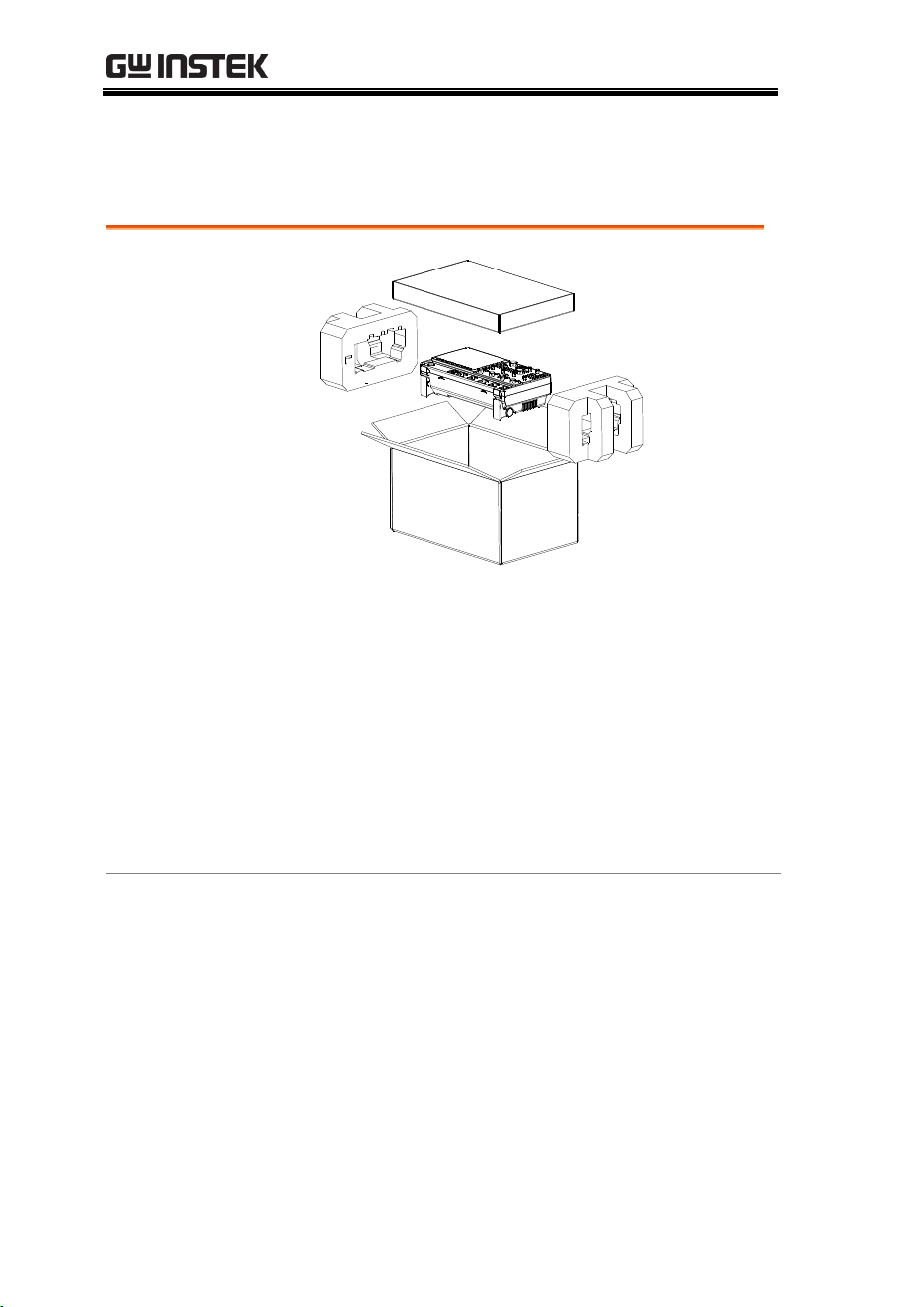
Package Contents
Check the contents before using the GDS-3000.
Opening the Box
Contents
Main unit
Probe set
GTP-151R for GDS-3152 / GDS-3154
GTP-251R for GDS-3252 / GDS-3254
GTP-351R for GDS-3352 / GDS-3354
GTP-501R for GDS-3502 / GDS-3504
Power cord
User manual (this document)
Note
For detailed probe specifications, see page 202.
The programming manual, PC software, and
USB driver are downloadable from the GW
Instek website. Visit www.gwinstek.com, in the
oscilloscope section.
GETTING STARTED
17
Appearance
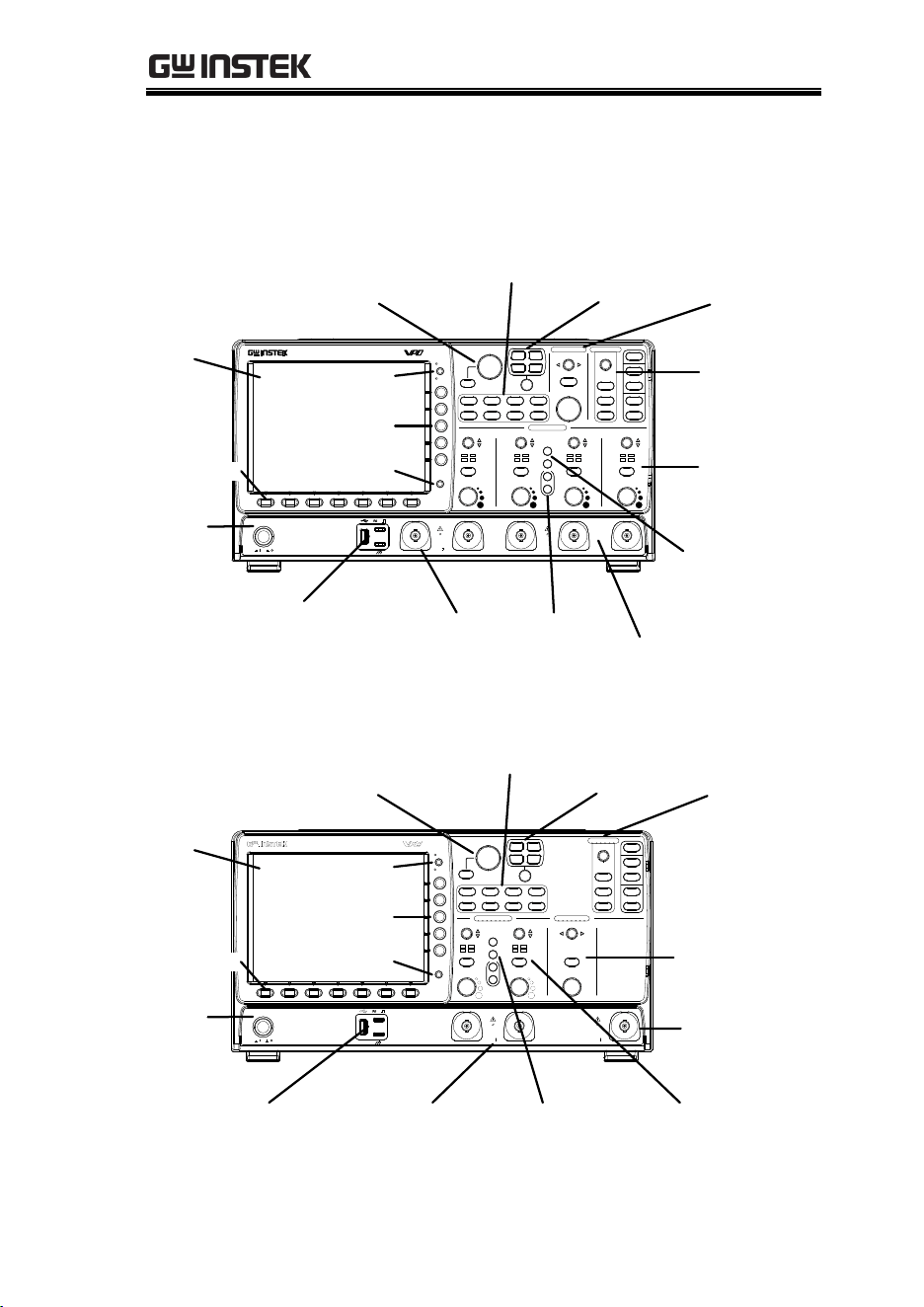
GDS-3504/3354/3254/3154 Front Panel
VOLTS/DIV VOLTS/DIV VOLTS/DIV VOLTS/DIV
POSITION
POSITION POSITION
TIME/DIV
POSITION
HORIZONTAL
VARIABLE
W
AC
BW
50
W
75
VERTICAL
LEVEL
POSITION
TRIGGER
W
AC
BW
50
W
75
W
AC
BW
50
W
75
W
AC
BW
50
W
75
CH4CH3CH2CH1EXT TRIG
POWER
2V
Window
Split
Select
Zoom
CH1 CH2 CH3 CH4
R
B1
Measure Cursor
Display Help
Test
Save/Recall Utility
Menu
50 %
Force - Trig
Autoset
Single
Run/Stop
Setup
Auto-Range
Default
Acquire
CAT
M
W
15pF
300Vpk MAX.
1
5 Vrms MAX.
W
50
W
75&
CAT
M
W
15pF
300Vpk MAX.
1
5 Vrms MAX.
W
50
W
75&
M
B2
MATH
REF
BUS
Off
Menu
Print
Save
Digital Storage Oscilloscope
GDS-3354
350 MHz 5 GS/s
Visual Persistence Oscilloscope
LCD
Print key
Variable knob
and select key
Split window
cluster
Horizontal
controls
Trigger
controls
CH1~4
input
Vertical
controls
Math and
Reference
keys
Function
keys
Ext trigger
input
USB
Probe compensation,
Ground port
Power
button
Menu key
Bus keys
Bottom
menu keys
Side menu keys
Print/Save key
Print/Save key
GDS-3502/3352/3252/3152 Front Panel
VOLTS/DIV VOLTS/DIV
POSITION
POSITION
TIME/DIV
HORIZONTAL
VARIABLE
W
AC
BW
50
W
75
VERTICAL
LEVEL
POSITION
TRIGGER
W
AC
BW
50
W
75
Print
Save
CH2CH1 EXT TRIG
POWER
2V
Window
Split
Select
Zoom
CH1 CH2
Measure Cursor
Display Help
Test
Save/Recall Utility
Menu
50 %
Force - Trig
Autoset
Single
Run/Stop
Setup
Auto-Range
Default
Acquire
CAT
M
W
15pF
300Vpk MAX.
1
5 Vrms MAX.
W
50
W
75&
CAT
M
W
15pF
300Vpk MAX.
1
5 Vrms MAX.
W
50
W
75&
R
B1
M
B2
MATH
REF
BUS
Off
Menu
Digital Storage Oscilloscope
GDS-3352
350 MHz 5 GS/s
Visual Persistence Oscilloscope
LCD
Print key
Variable knob
and select key
Split window
cluster
Trigger
controls
Vertical
controls
Horizontal
controls
Ext trigger
input
Function
keys
CH1~4
input
USB, Probe compensation
Ground port
Power
button
Menu key
Math, Reference
and Bus keys
Bottom
menu keys
Side menu keys
Print/Save key
Print/Save key
GDS-3000 Series User Manual
18
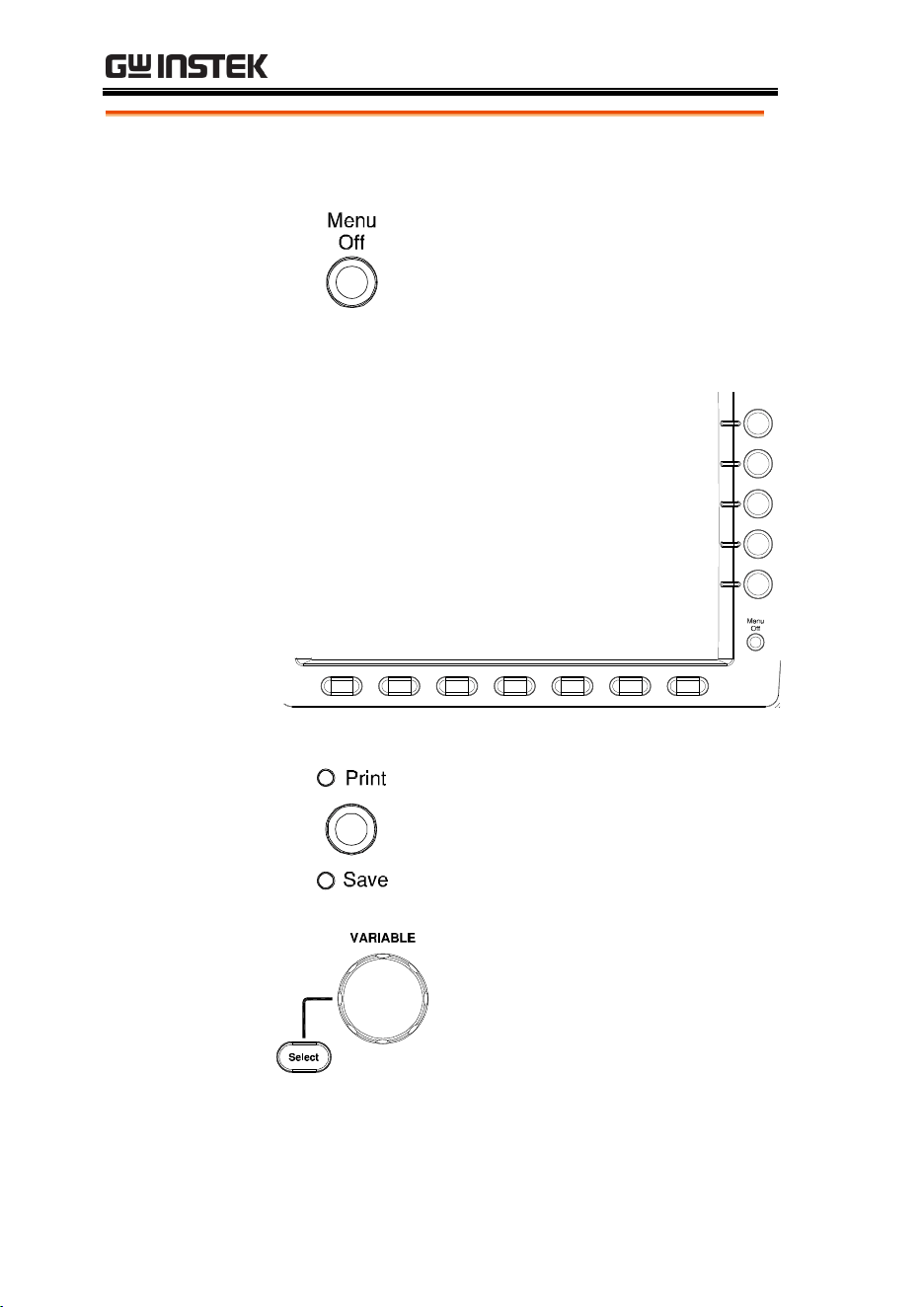
LCD Display
8” SVGA TFT color LCD. 800 x 600 resolution,
wide angle view display.
Menu Key
Use the Menu Off key to hide the
onscreen menu system.
Side Menu Keys
The Side menu and Bottom menu keys are used to
make selections from the soft-menus on the LCD
user interface.
To choose menu items, use the 7 Bottom
menu keys located on the bottom of the
display panel.
To select a variable or option from a menu,
use the Side menu keys on the side of the
panel. See page 32 for details.
Bottom Menu
Keys
Print/Save Key
The print/save key is a quick save
or quick print key, depending on
its configuration. For more
information see pages 155(save) or
175(print).
Variable Knob
and Select Key
The Variable knob is used to
increase/decrease values or to
move between parameters.
The select key is used to make
selections.
GETTING STARTED
19
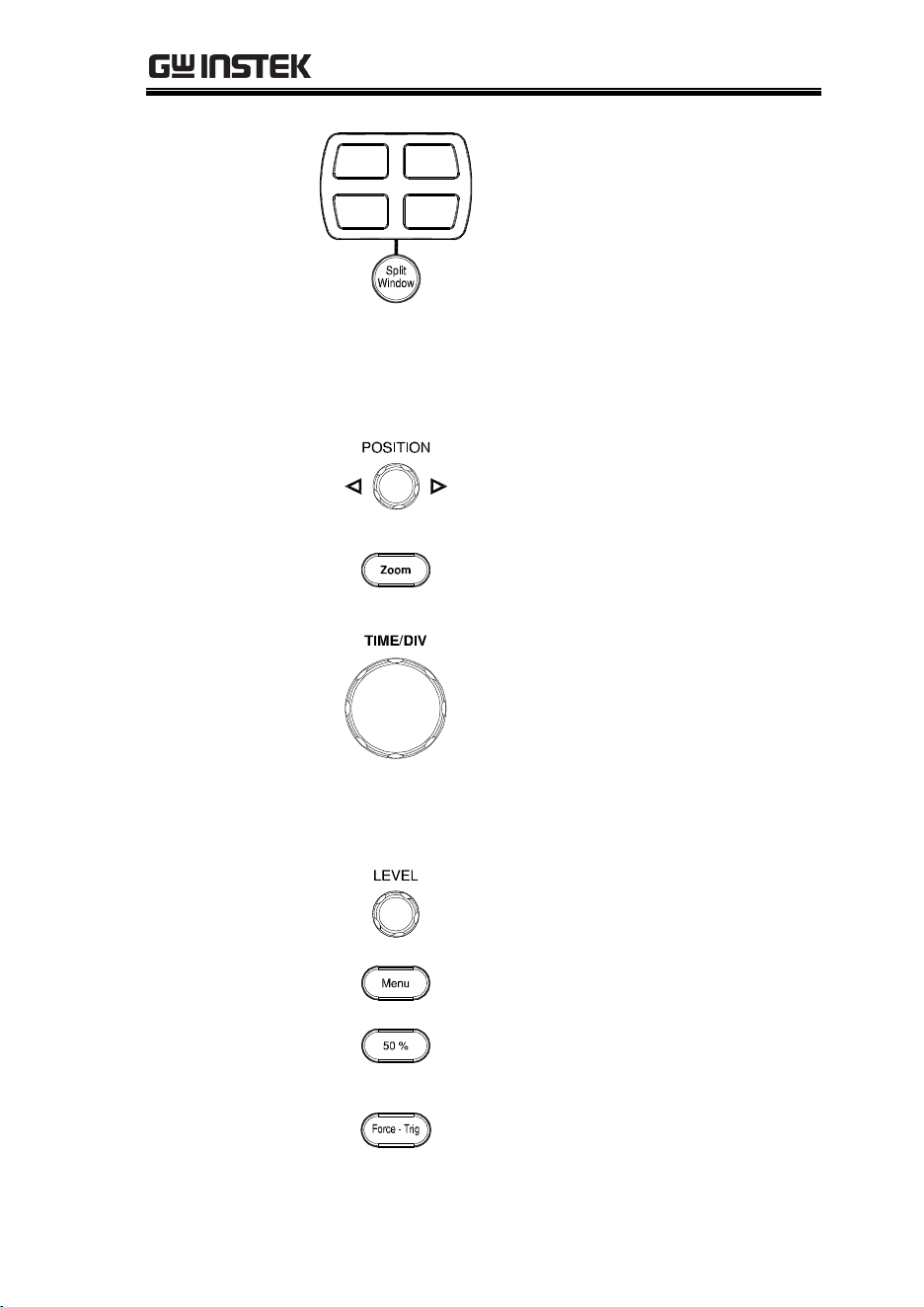
Split Window
Cluster
Use the Split Window key to cycle
between single and split screen
mode. For more details on
windowing, see page 66.
Horizontal
Controls
The horizontal controls are used to change the
position of the cursor, set the time base settings,
and to zoom into the waveforms.
Horizontal
Position
The Position knob is used to
position the waveforms
horizontally on the display screen.
Zoom
Press Zoom in combination with
the horizontal POSITION knob.
TIME/DIV
The Time/Div knob is used to
change the horizontal scale.
Trigger Controls
The trigger controls are used to control the trigger
level and options.
Level Knob
Used to set the trigger level.
Trigger Menu Key
Used to bring up the trigger menu.
50% Key
Sets the trigger level to the half
way point (50%).
Force - Trig
Press to force an immediate trigger
of the waveform.
GDS-3000 Series User Manual
20
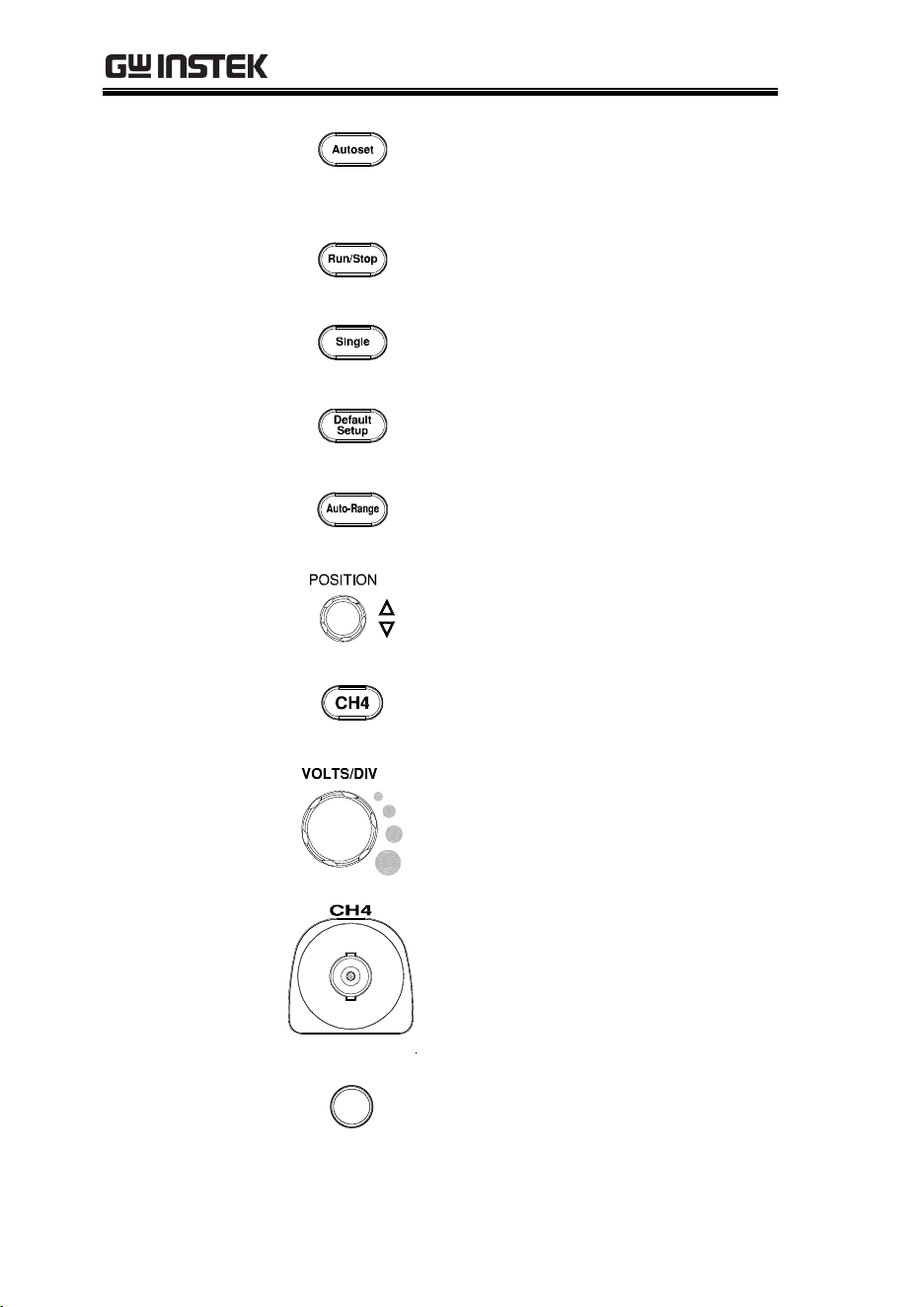
Autoset
Press the Autoset key to
automatically set the trigger,
horizontal scale and vertical scale.
Run/Stop Key
Press to freeze (Stop) or continue
(Run) signal acquisition (page59).
Single
Sets the acquisition mode to single
triggering mode.
Default Setup
Resets the oscilloscope to default
settings.
Auto-Range
Sets the oscilloscope range
automatically.
Vertical
POSITION
Sets the vertical position of the
waveform.
Channel Menu
Key
Press the CH1~4 key to set the
channel.
VOLTS/DIV Knob
Sets the vertical scale.
Input Terminals
Accepts input signals. Input
impedance, selectable: 50Ω, 75Ω,
1MΩ.
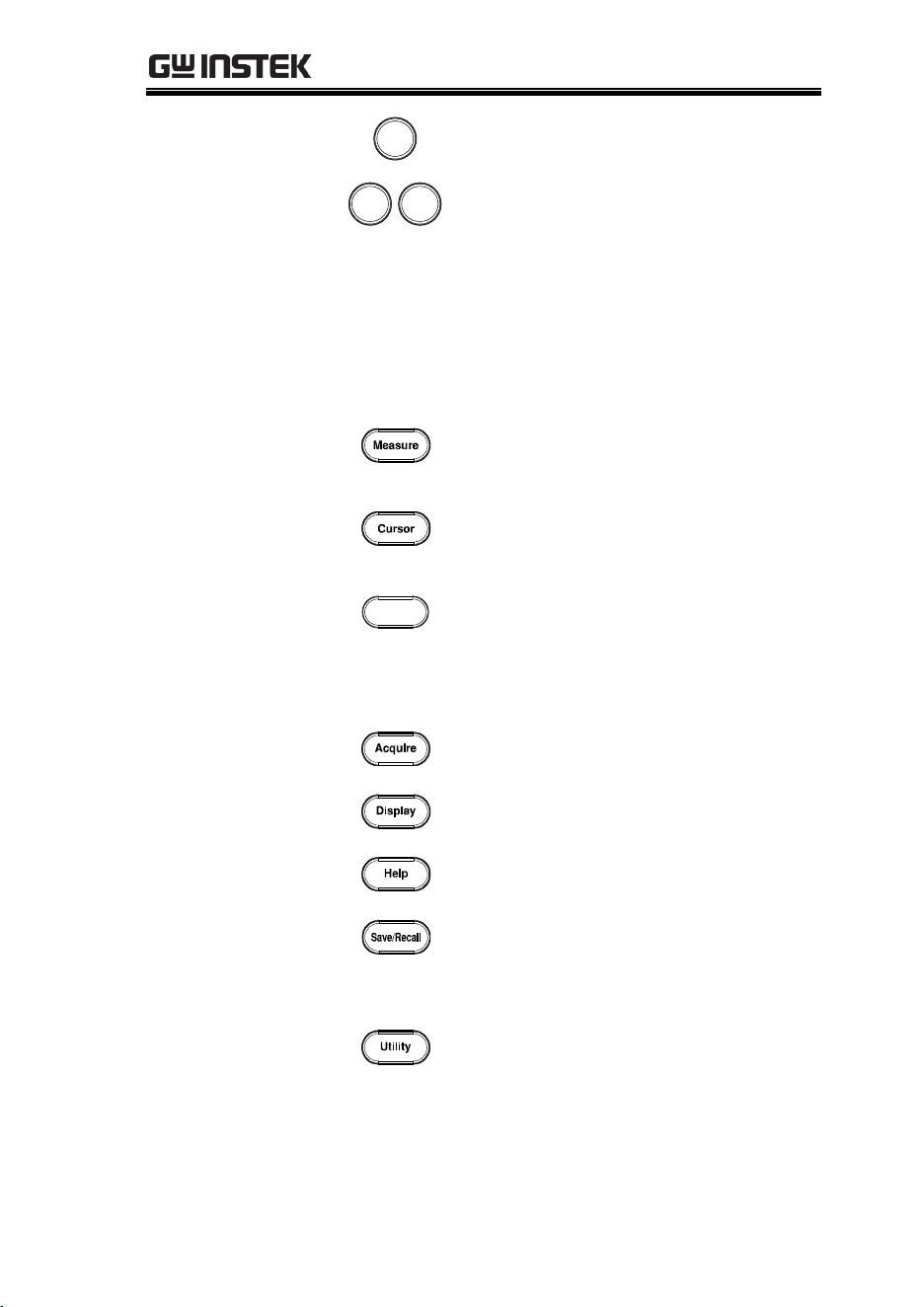
Math Key
M
Use the math key to set and
configure math functions.
GETTING STARTED
21
Reference Key
R
Press the Reference key to set or
remove reference waveforms.
BUS Keys
B1
B2
The Serial bus decode keys are
used for UART, I
2
C and SPI serial
bus interface decoding. The serial
bus decode function is an optional
extra. See page 95 for details.
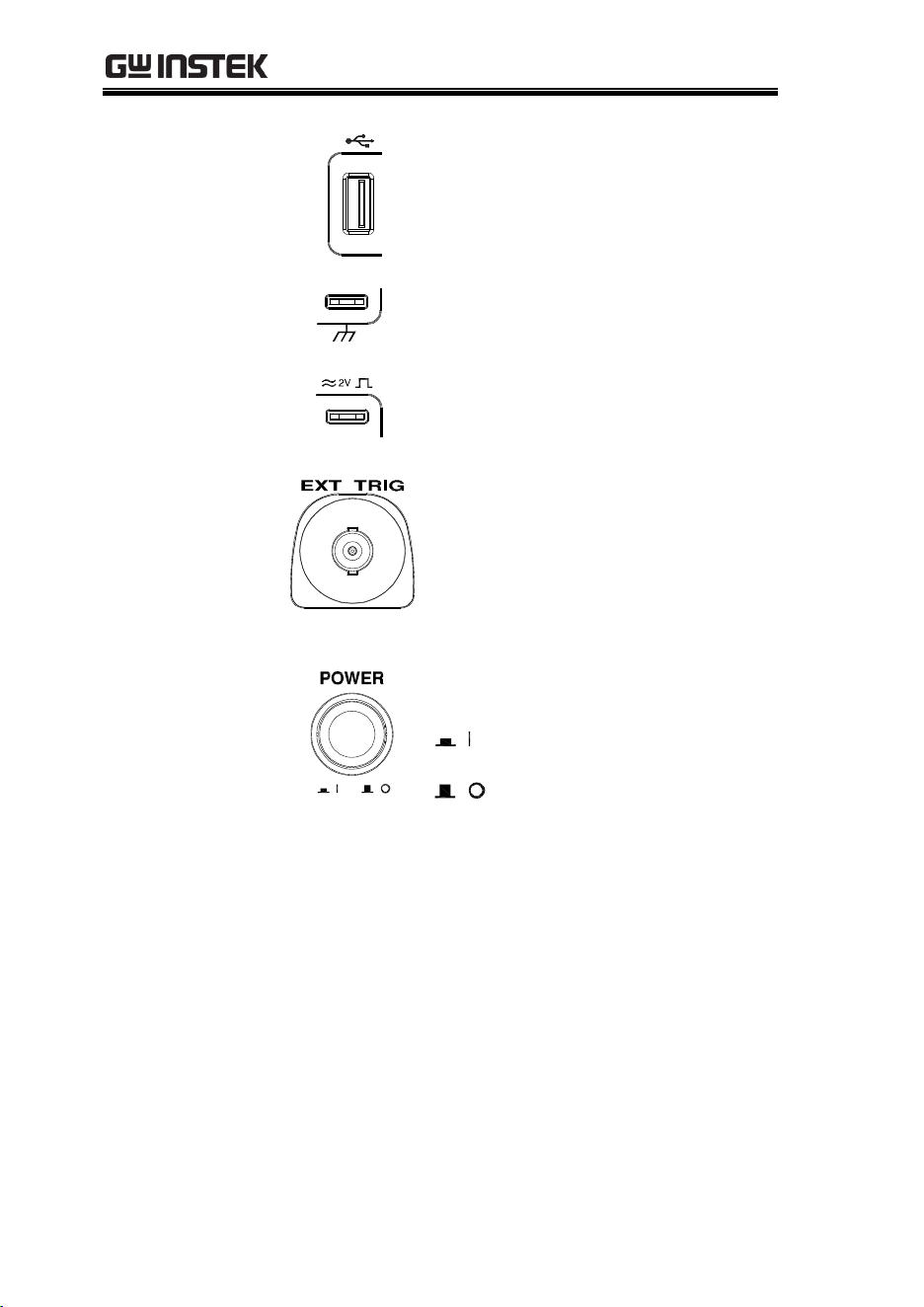
Function Keys
The Function Keys are used to enter and configure
different functions on the GDS-3000.
Measure
Configures and runs automatic
measurements.
Cursor
Configures and runs cursor
measurements.
Test
Test
Configures and runs GW Instek
applications and optional
functions such as the Power
Analysis measurement software.
Acquire
Configures the Acquisition mode.
Display
Configures the display settings.
Help
Shows the Help menu.
Save/Recall
Used to save and recall
waveforms, images and panel
settings.
Utility
Configures the print/save key,
display time, language and
calibration.
GDS-3000 Series User Manual
22
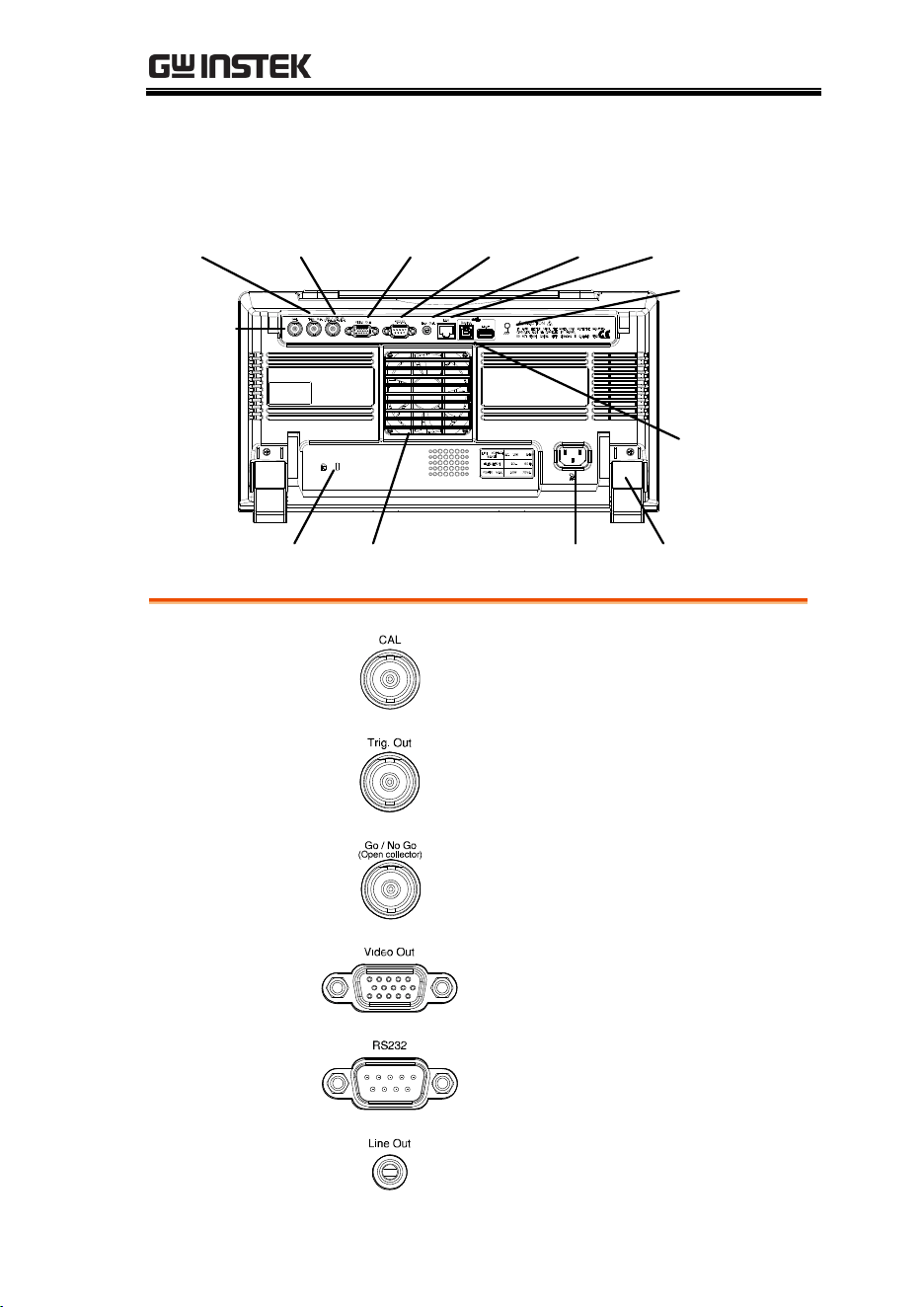
USB Host Port
TypeA, 1.1/2.0 compatible. Used
for data transfer.
Ground Terminal
Accepts the DUT ground lead for
common ground.
Probe
Compensation
Output
Outputs 2Vp-p, square wave
signal for probe compensation
(page 190).
External Trigger
Input
Accepts external trigger signals
(page 125).
Input impedance: 1MΩ±3%,
Voltage input: ±15V(peak), EXT
trigger capacitance:~16pF.
Power Switch
Used to turn the power on/off.
: ON
: OFF
GETTING STARTED
23
Rear Panel
Calibration
output
Video
Out
RS232C
Output
Line
out
LAN
Port
USB
Device/
Host port
Rear
stand
Power input
socket
FanKey lock
Go/No Go
output
Trigger
output
Ground
strap
connector
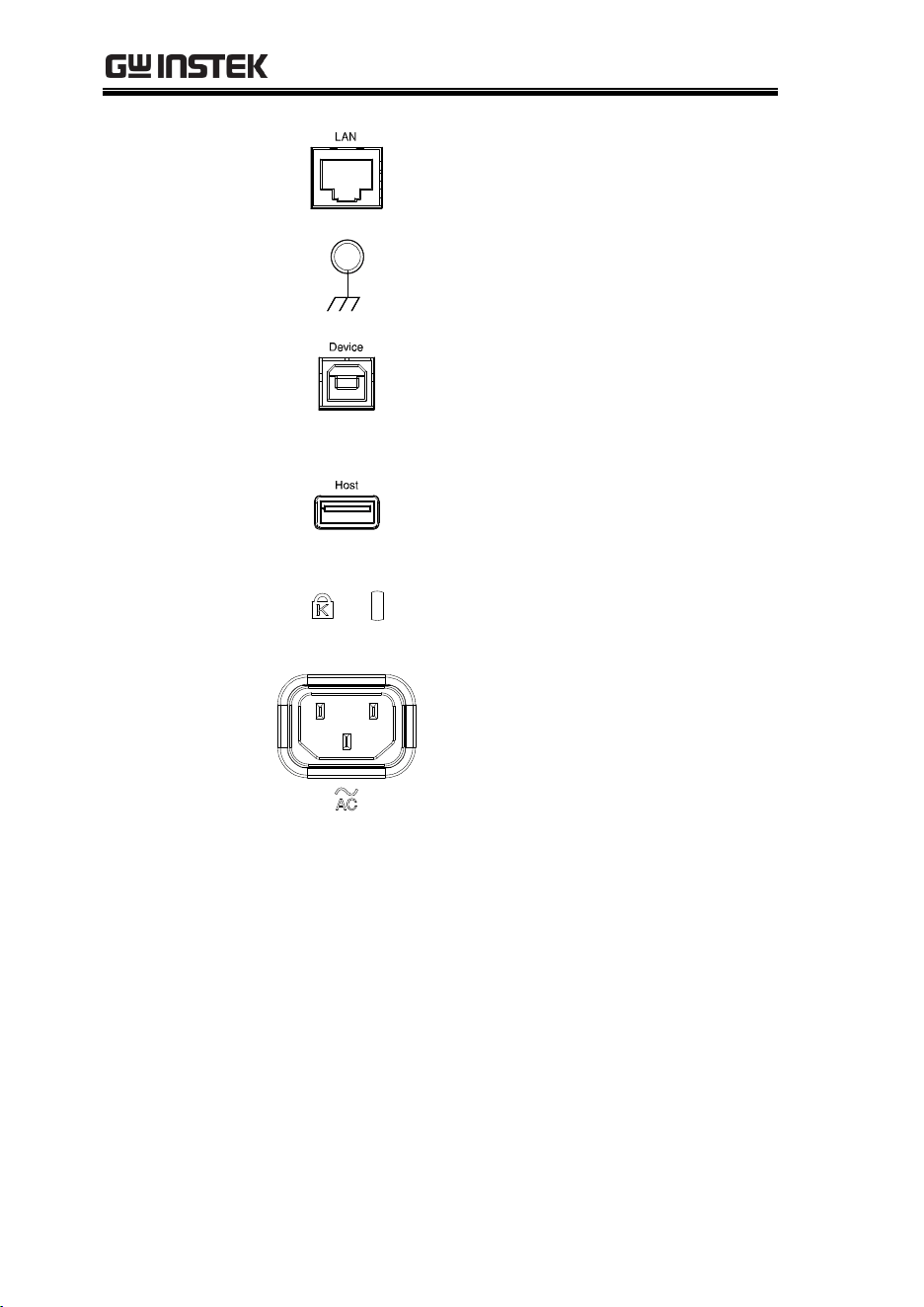
Calibration
Output
Outputs the signal for vertical scale
accuracy calibration (page 187).
Trigger Output
Outputs the trigger timing.
Go-No Go
Output
Outputs Go-No Go test results
(page 87) as 500us pulse signal.
Video Out
Outputs SVGA resolution to an
external display.
RS232
RS232 remote control.
Line Out
Audio line out.
GDS-3000 Series User Manual
24
LAN Port
Ethernet port.
Ground Strap
Connector
For use with a grounding strap.
USB Device Port
The USB device port is used for
remote control and for the
FreeWave remote control software.
USB 1.1/2.0 high speed compatible.
USB Host
The USB host port supports USB
flash drives for external memory.
USB 1.1/2.0 high speed compatible.
Security Slot
Kensington security slot
compatible.
Power Input
Socket
Power cord socket accepts AC
mains, 100 ~ 240V, 50/60Hz.
For power up sequence, see page
29.
GETTING STARTED
25
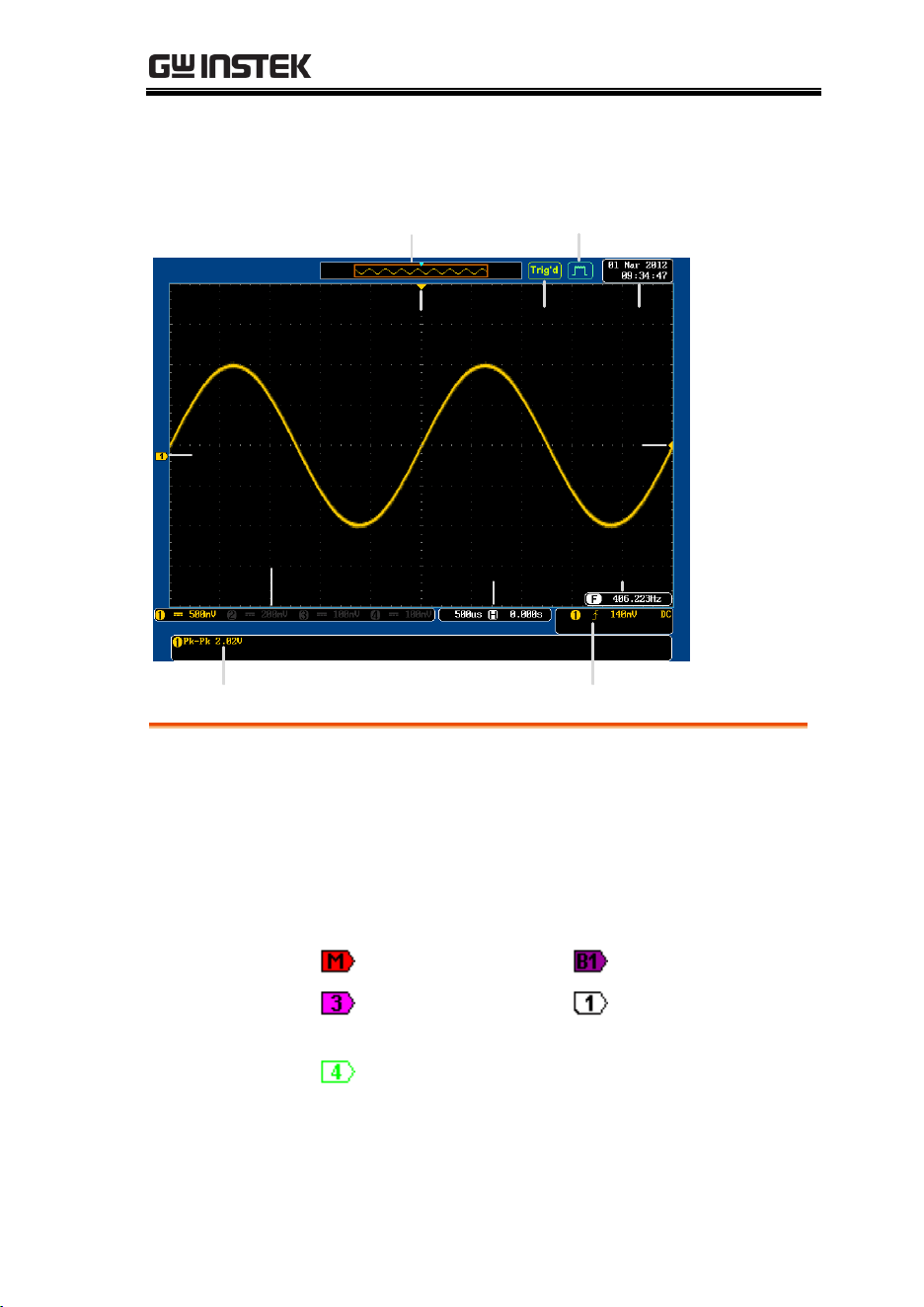
Display
Memory bar
Trigger
status
Acquistion mode
Date and
time
Waveform
Channel status
Horizontal
status
Signal
frequency
Channel
indicator
Trigger
level
Trigger
position
Automatic measurements Trigger configuration
Waveforms
Shows input signal waveforms.
Channel 1: Yellow
Channel 2: Blue
Channel 3: Pink
Channel 4: Green
Channel Indicator
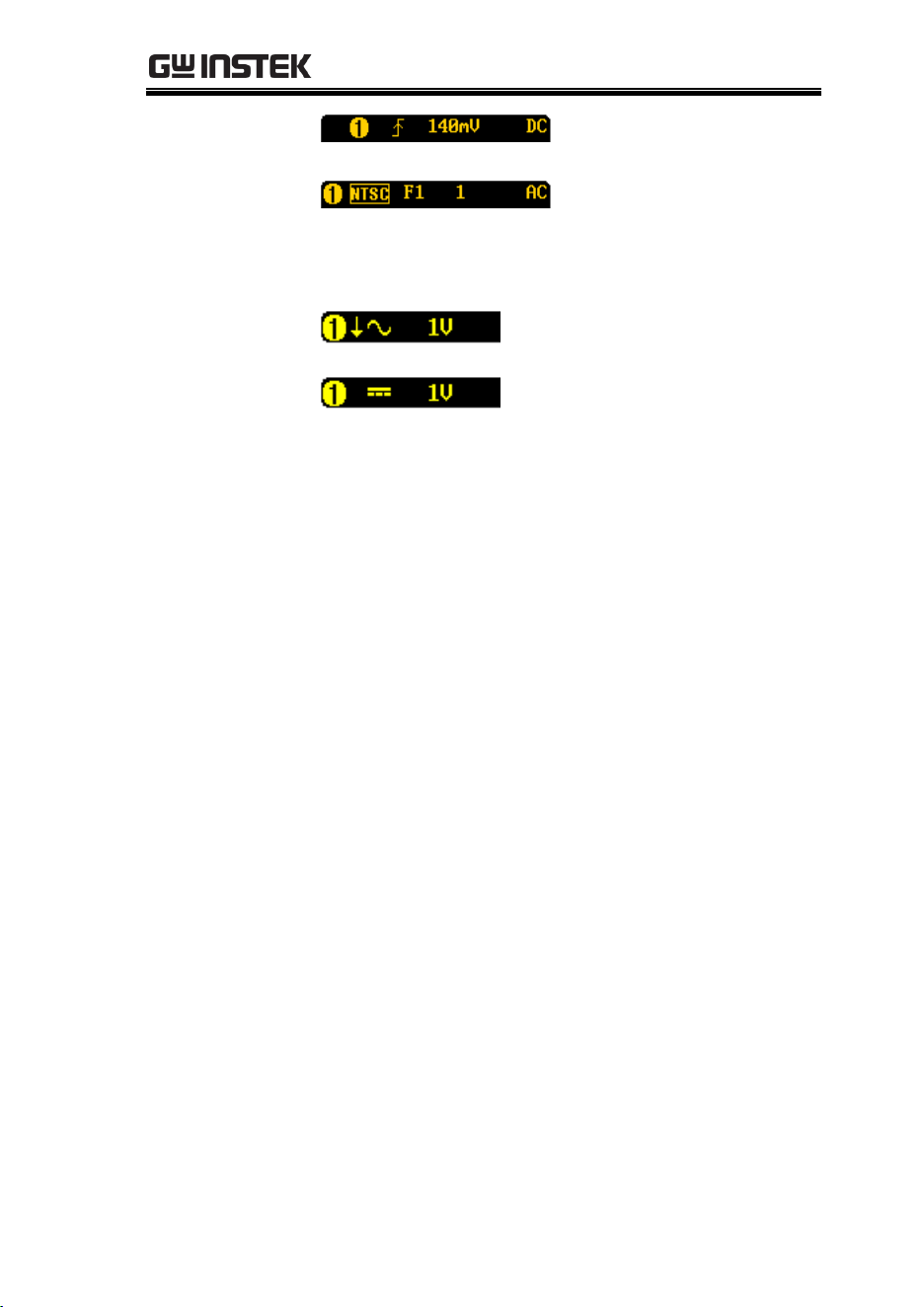
The channel indicator shows the zero volt level of
the signal waveform for each activated channel.
The active channel is shown with a solid color.
Math
Bus (B1)
Active channel
(CH3)
Reference waveform
(Ref1)
Activated channel
(CH4)
Trigger Position
Shows the position of the trigger.
Horizontal Status
Shows the horizontal scale and position.
GDS-3000 Series User Manual
26
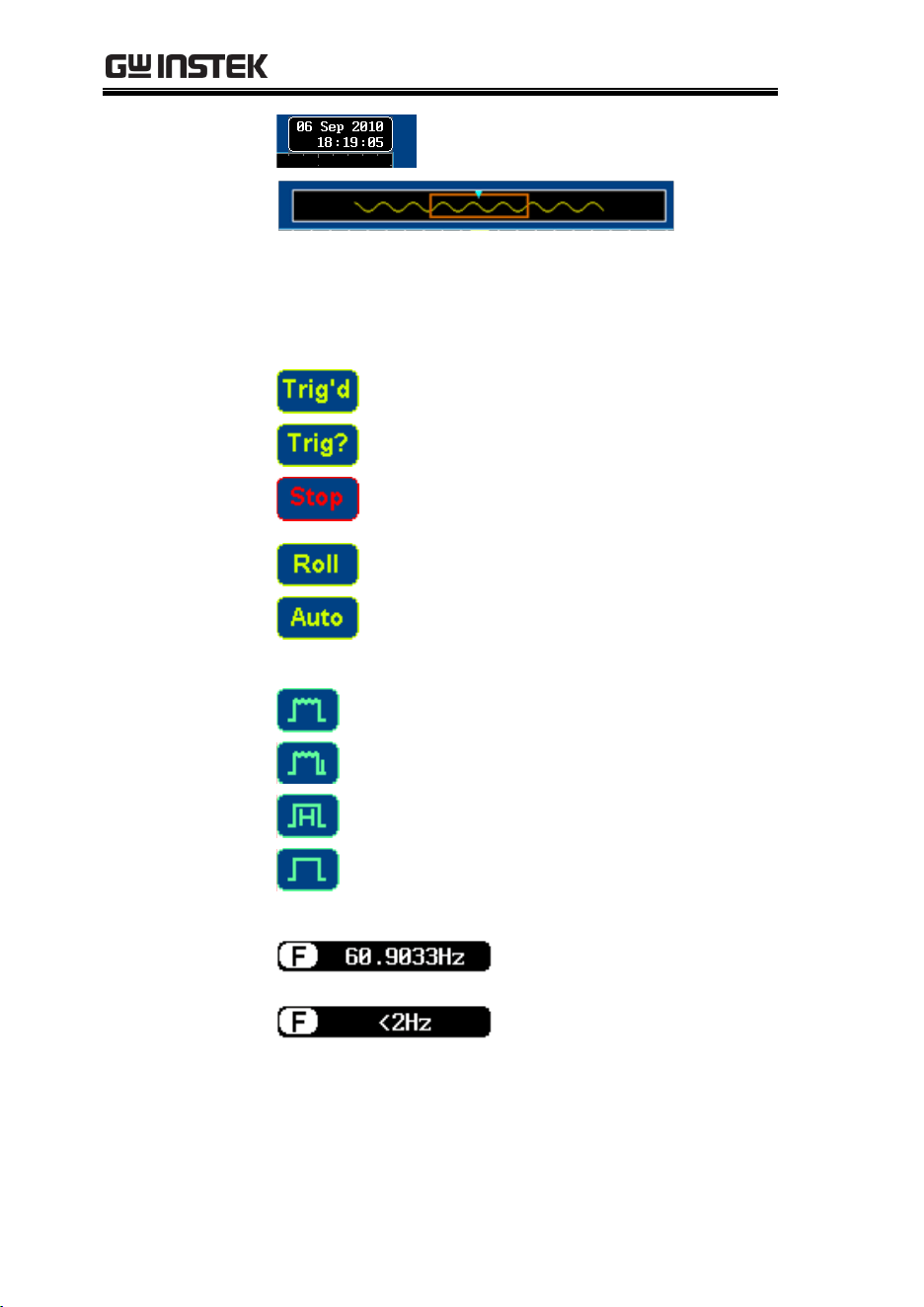
Date and Time
Current date and time (page 144).
Memory Bar
The ratio and the position of the
displayed waveform compared
with the internal memory (page
112).
Trigger Status
Triggered.
Not triggered, display not updated.
Trigger stopped. Also appears in
Run/Stop (page59).
Roll mode.
Auto trigger mode.
For trigger details, see page 125.
Acquisition Mode
Normal mode
Peak detect mode
Hi Resolution
Average mode
For acquisition details, see page 100.
Signal Frequency
Shows the trigger source
frequency.
Indicates the frequency is
less than 2Hz (lower
frequency limit).
GDS-3000 Series User Manual
28
Set Up
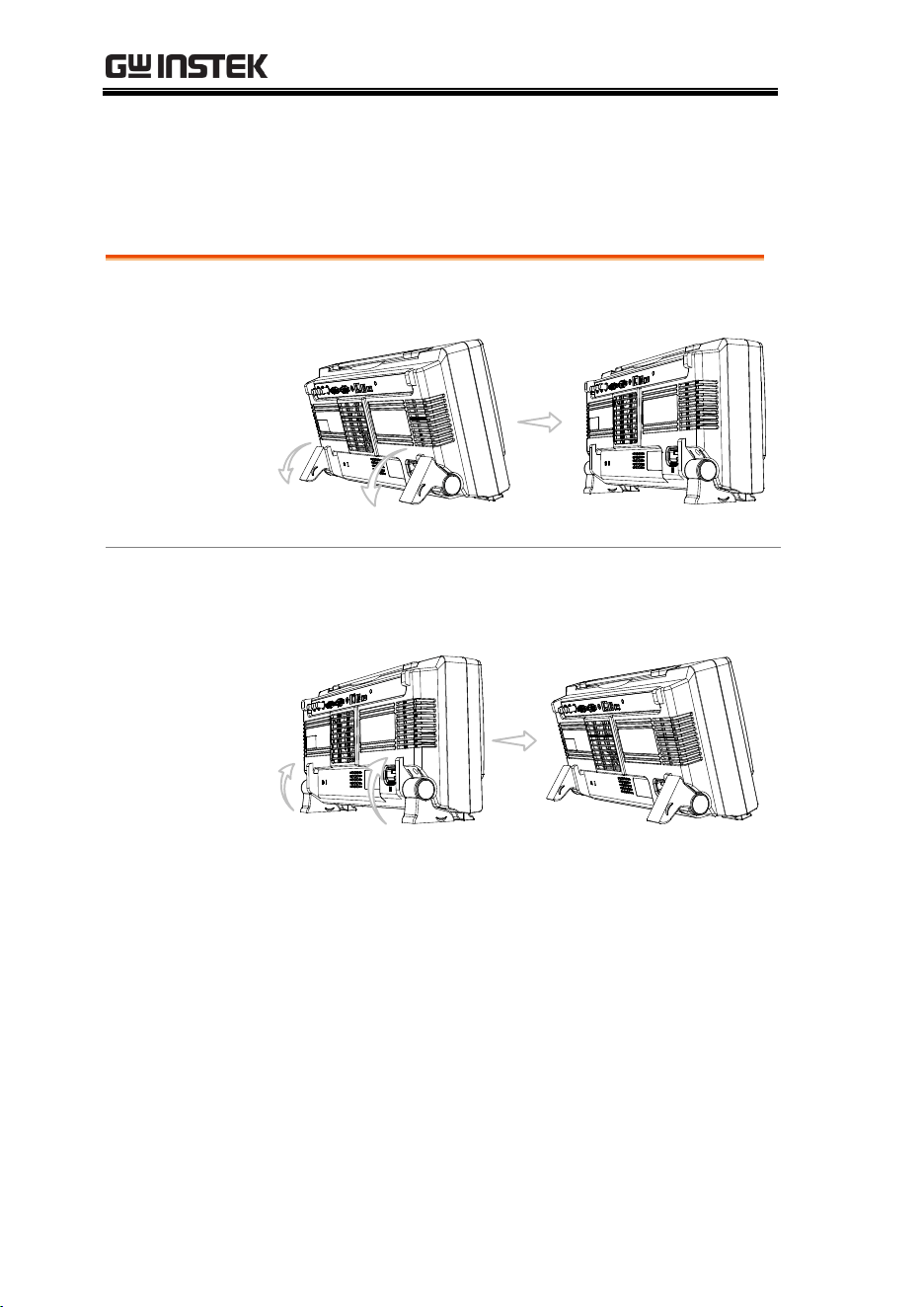
Tilt Stand
Upright
Turn the legs under the casing as shown below to
have the instrument sit upright.
Tilt
To tilt, tilt the legs back behind the casing, as
shown below.
GETTING STARTED
29
Power Up
Step
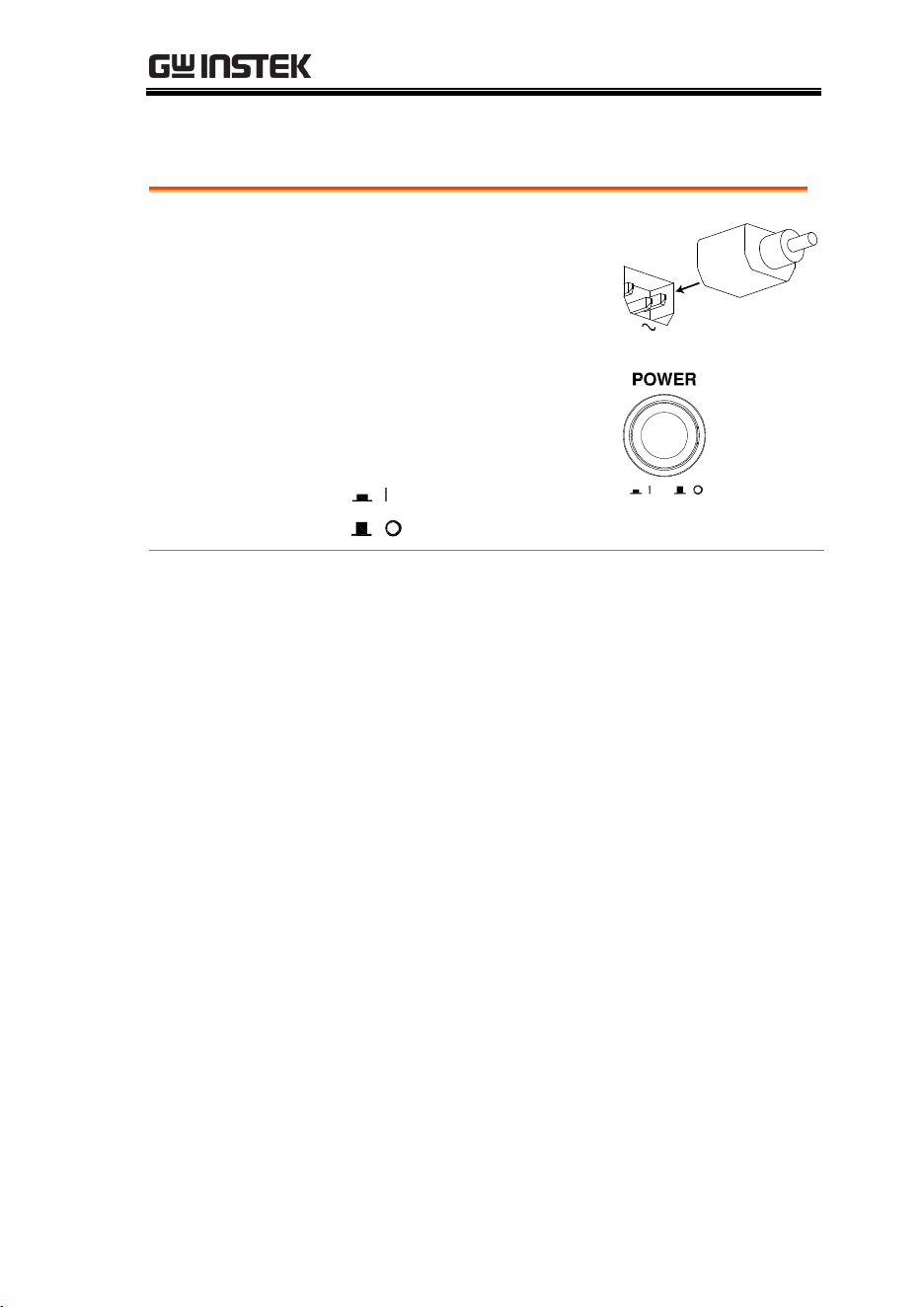
1. Connect the power cord to
the rear panel socket.
AC
2. Press the POWER key. The
display becomes active in
~ 30 seconds.
: ON
: OFF
Note
The GDS-3000 recovers the state right before the
power is turned OFF. The default settings can be
recovered by pressing the Default key on the front
panel. For details, see page 160.
GDS-3000 Series User Manual
30
First Time Use
Background
This section describes how to connect a signal,
adjust the scale, and compensate the probe. Before
operating the GDS-3000 in a new environment,
run these steps to make sure the instrument
performs at its full potential.
1. Power On
Follow the procedures on the previous page.
2. Set the Date
and Time
Set the date and time.
Page 144
3. Reset System
Reset the system by recalling the
factory settings. Press the Default
Setup key on the front panel. For
details, see page 160.
Default
Setup
4. Install Optional
Software
The optional software packages
(Power Analysis, Serial Bus Decode)
can be activated.
Page 192
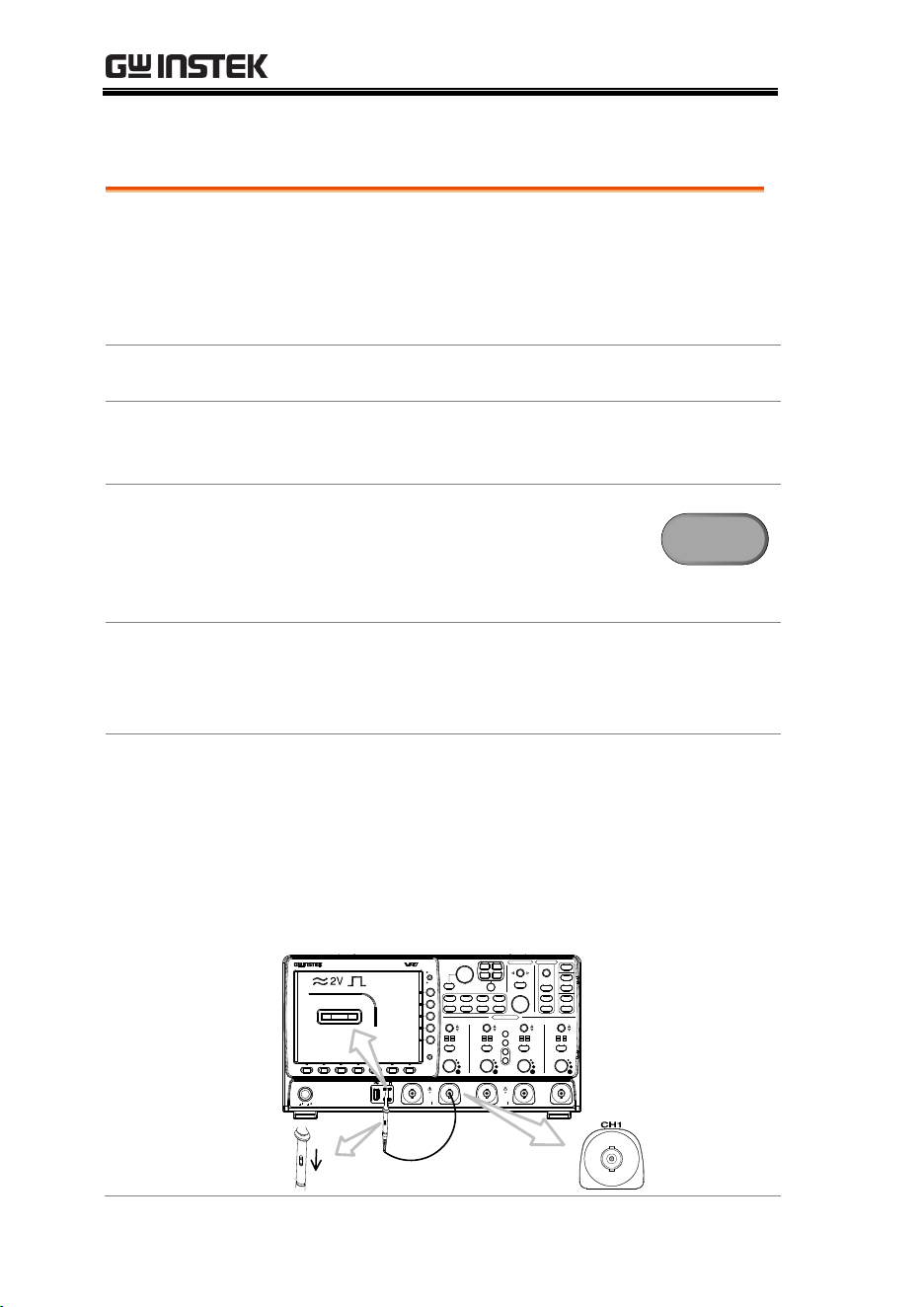
5. Connect Probe
Connect the probe to the CH1 input terminal and
probe compensation signal output (2Vp-p, 1kHz
square wave).
Set the probe attenuation to x10 if the probe has
adjustable attenuation.
VOLTS/DIV VOLTS/DIV VOLTS/DIV VOLTS/DIV
POSITION
POSITION POSITION
TIME/DIV
POSITION
HORIZONTAL
VARIABLE
W
AC
BW
50
W
75
VERTICAL
LEVEL
POSITION
TRIGGER
W
AC
BW
50
W
75
W
AC
BW
50
W
75
W
AC
BW
50
W
75
CH4CH3CH2CH1EXT TRIG
POWER
2V
Window
Split
Select
Zoom
CH1 CH2 CH3 CH4
R
B1
Measure Cursor
Display Help
Test
Save/Recall Utility
Menu
50 %
Force - Trig
Autoset
Single
Run/Stop
Setup
Auto-Range
Default
Acquire
CAT
M
W
15pF
300Vpk MAX.
1
5 Vrms MAX.
W
50
W
75&
CAT
M
W
15pF
300Vpk MAX.
1
5 Vrms MAX.
W
50
W
75&
M
B2
MATH
REF
BUS
Off
Menu
Print
Save
Digital Storage Oscilloscope
GDS-3354
350 MHz 5 GS/s
Visual Persistence Oscilloscope
x1
x10
X10
X1
GETTING STARTED
31
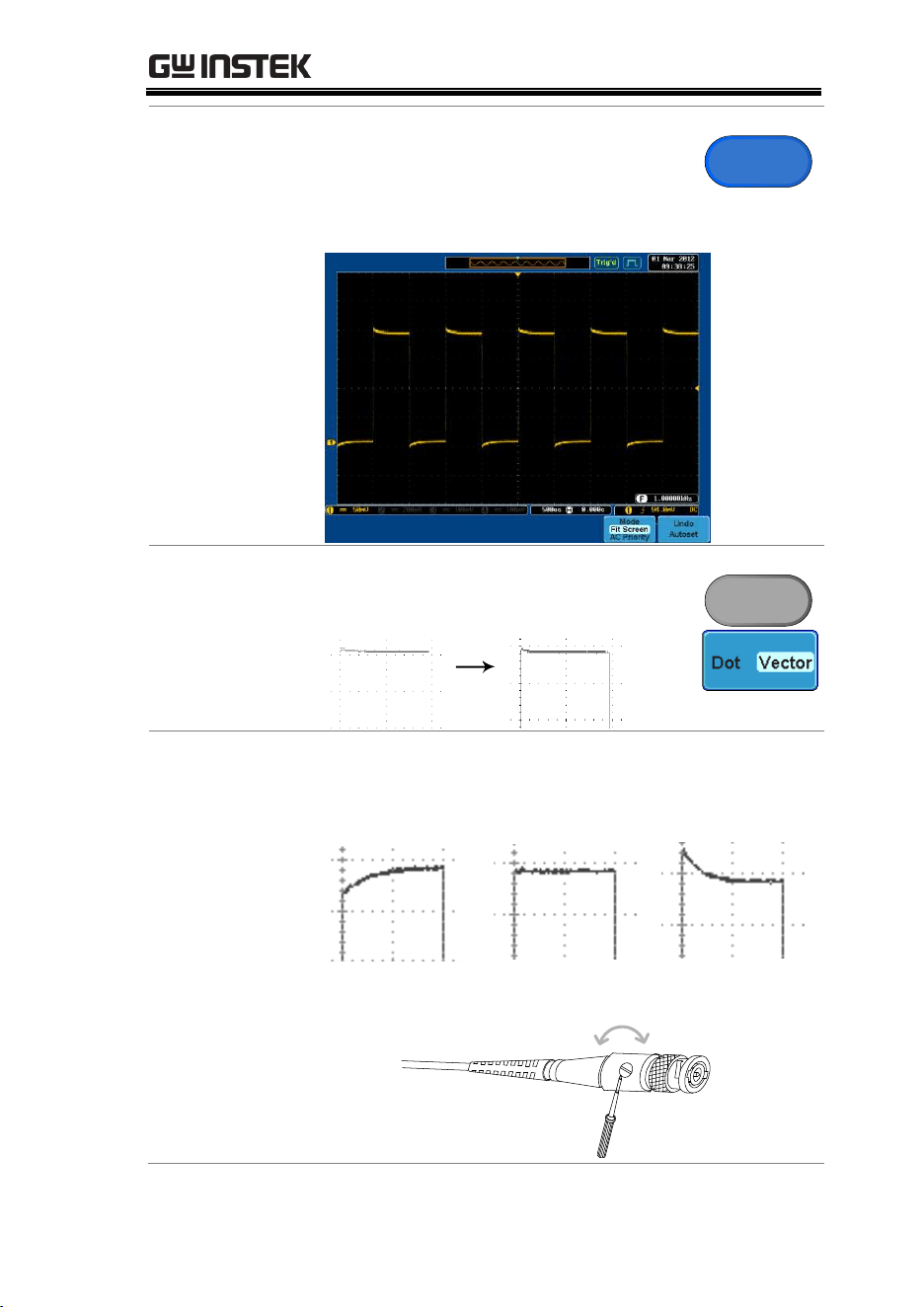
6. Capture Signal
(Autoset)
Press the Autoset key. A square
waveform appears on the center of
the screen. For Autoset details, see
page 58.
Autoset
7. Select Vector
Waveform
Press the Display key, and set the
display to Vector on the bottom menu.
Display
8. Compensate
Probe
Turn the adjustment point on the probe to make
the square waveform edge flat.
Under
Compensation
Normal
Over
Compensation
GDS-3000 Series User Manual
32
9. Start Operation
Continue with the other operations.
Measurement: page 55
Configuration: page 87
Save/Recall page 146
File Utilities page 166
Print Out 174
Remote Control
page 177
How to Use This Manual
Background
This section describes the conventions used in this
manual to operate the GDS-3000.
Throughout the manual any reference to pressing
a menu key refers to the keys directly below or
beside any menu icons or parameters.
When the user manual says to “toggle” a value or
parameter, press the corresponding menu item.
Pressing the item will toggle the value or
parameter.
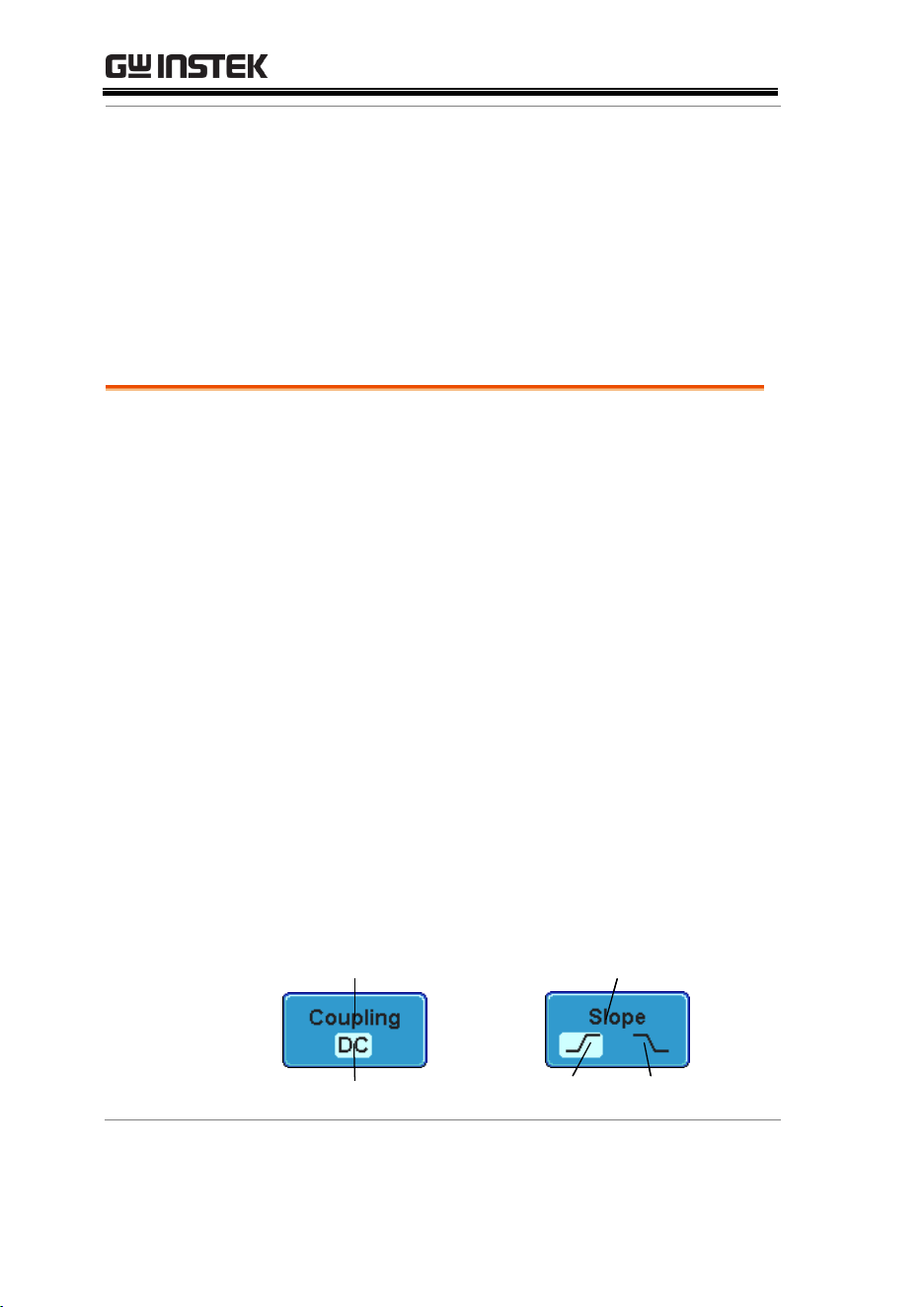
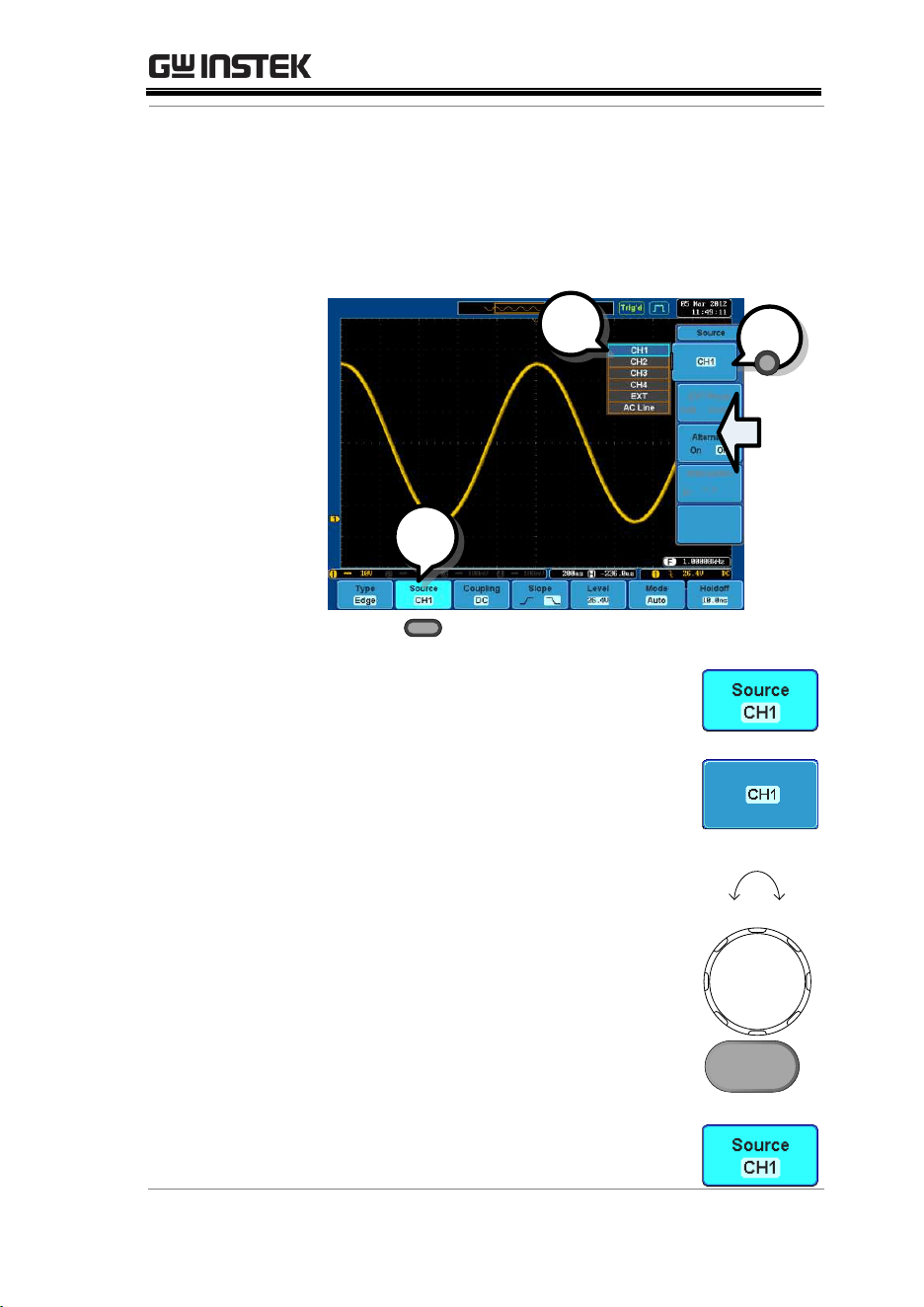
Active parameters are highlighted for each menu
item. For example in the example below, Coupling
is currently set to DC.
If a menu item can be toggled from one value or
parameter to another, both options will be visible,
with the current option highlighted. In the
example below the slope can be toggled from a
rising slope to a falling slope.
Menu item
Parameter
Menu item
Active
parameter
Optional
parameter
Menu item
Active
parameter
Optional
parameter
GETTING STARTED
33
Selecting a Menu
Item or Parameter
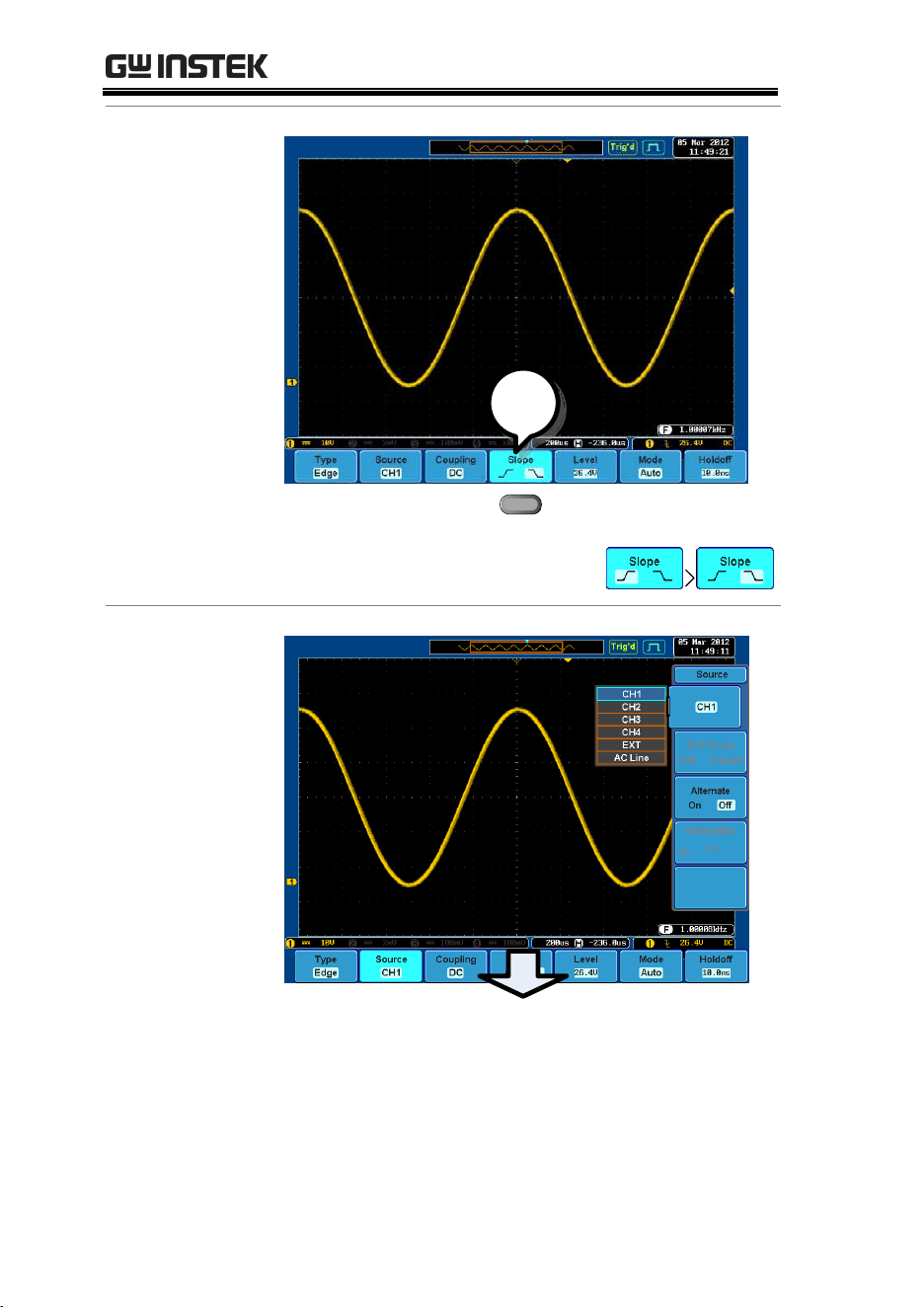
When the user manual says to “select” a value
from one of the side menu parameters, first press
the corresponding menu key and use the variable
knob to either scroll through a parameter list or to
increase or decrease a variable.
1
2
3
Example
1. Press a bottom menu key to access
the side menu.
2. Press a side menu key to either set
a parameter or to access a sub
menu.
3. If accessing a sub menu or setting
a variable parameter, use the
variable knob to scroll through
menu items or variables. Use the
select key to confirm and exit.
VARIABLE
Up Down
Select
4. Press the same bottom menu key
again to reduce the side menu.
GDS-3000 Series User Manual
34
Toggling a Menu
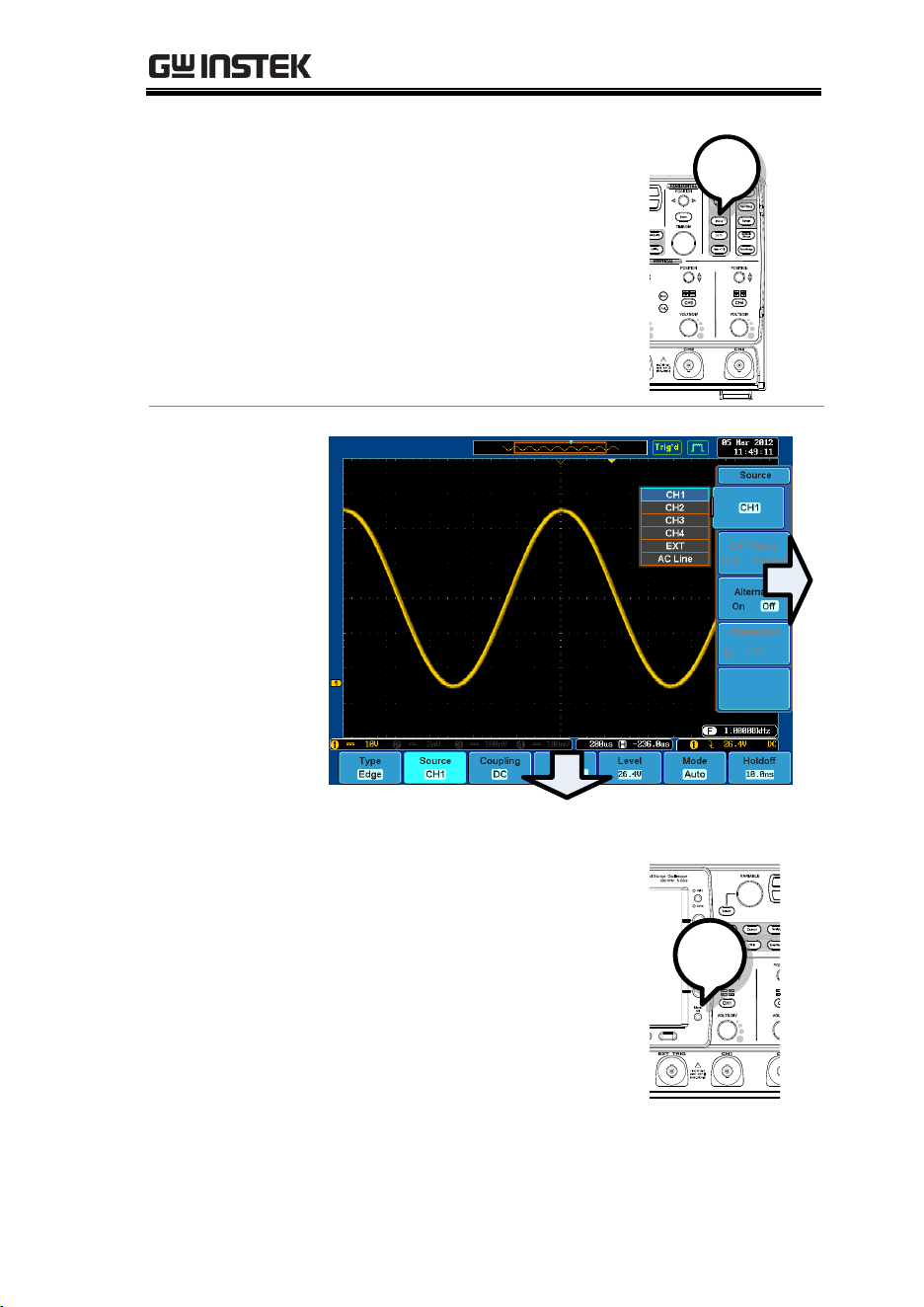
Parameter
1
1. Press the bottom menu key
to toggle the parameter.
Reduce Lower
Menu
GETTING STARTED
35
1. Press the relevant function
key again to reduce the
bottom menu. For example:
press the trigger menu key to
reduce the trigger menu.
1
Remove All
Menus
1. Press the Menu Off key to
reduce each menu level.
1

GDS-3000 Series User Manual
36
QUICK REFERENCE
This chapter describes the GDS-3000 menu tree,
shortcuts to major operations, built-in Help
access, and default factory settings. Use them as a
handy reference to get a quick access to the
functionality.
Menu Tree / Operation Shortcuts .................................... 38
Convention ............................................................................. 38
Acquire Key ............................................................................ 39
Autoset Key ............................................................................ 39
Auto-Range ............................................................................. 40
CH1 ~ 4 Key .......................................................................... 40
Cursor Key .............................................................................. 41
Display Key ............................................................................ 41
Help Key ................................................................................. 41
Math Key................................................................................. 42
Measure Key ........................................................................... 43
Print/Save Key....................................................................... 44
Run/Stop Key ........................................................................ 44
REF Key ................................................................................. 44
Save/Recall Key ..................................................................... 45
Test Key .................................................................................. 46
Test Key – Go-NoGo .......................................................... 46
Trigger Type Menu................................................................ 47
Trigger Edge Menu ............................................................... 47
Trigger Delay Menu .............................................................. 47
Trigger Pulse Width Menu ................................................... 48
Trigger Video Menu .............................................................. 48
Trigger Pulse Runt Menu ..................................................... 49
Trigger Rise & Fall Menu ..................................................... 49
Utility Key ............................................................................... 50
Utility Key – I/O ................................................................... 50
Utility Key – File Utilities ..................................................... 51
Zoom Key ............................................................................... 51

GDS-3000 Series User Manual
38
Menu Tree / Operation Shortcuts
Convention
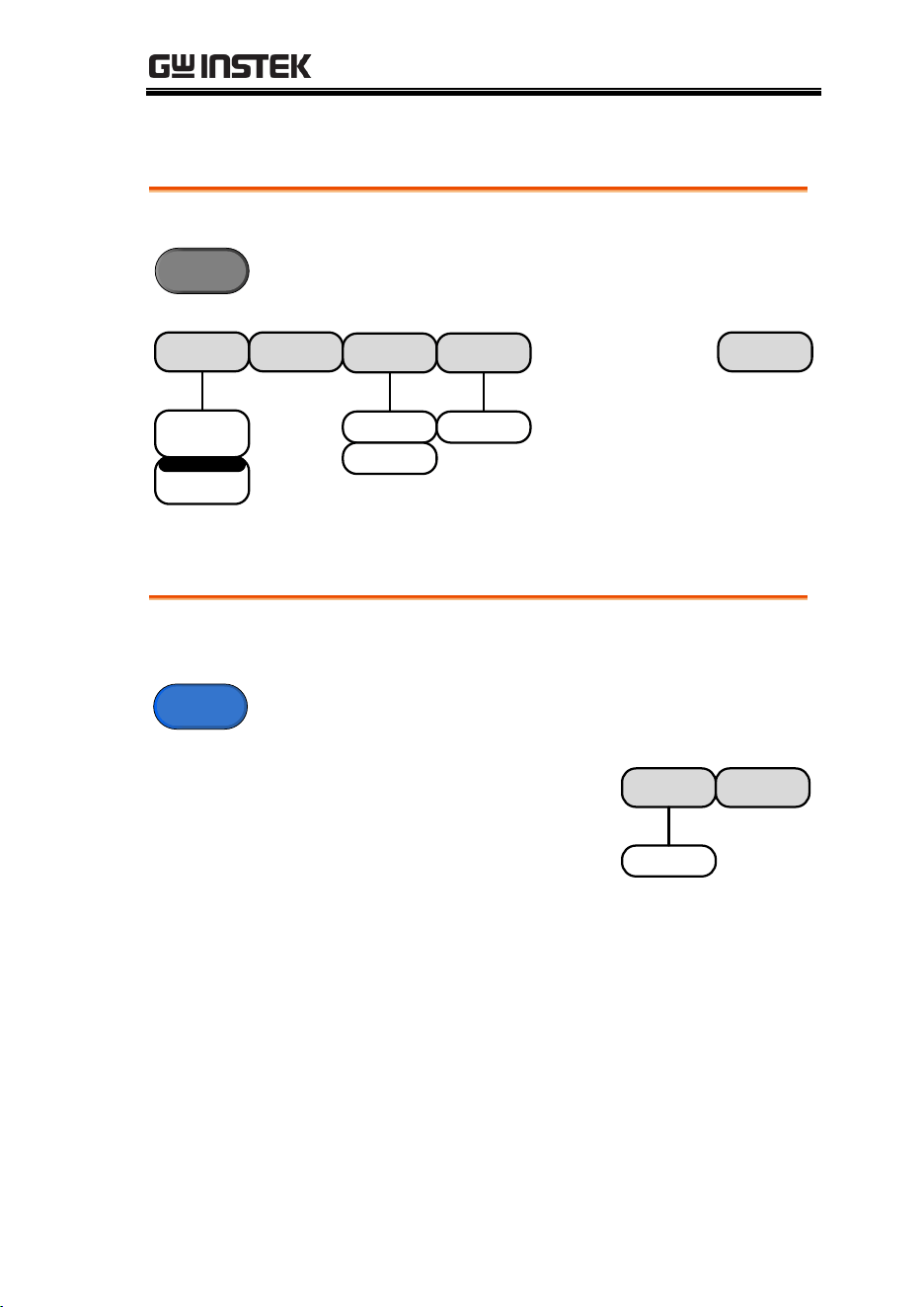
For all menu trees, bottom menu keys are shown
as grey icons and side menu keys are shown in
white. All menu tree operations are shown in
order from top to bottom.
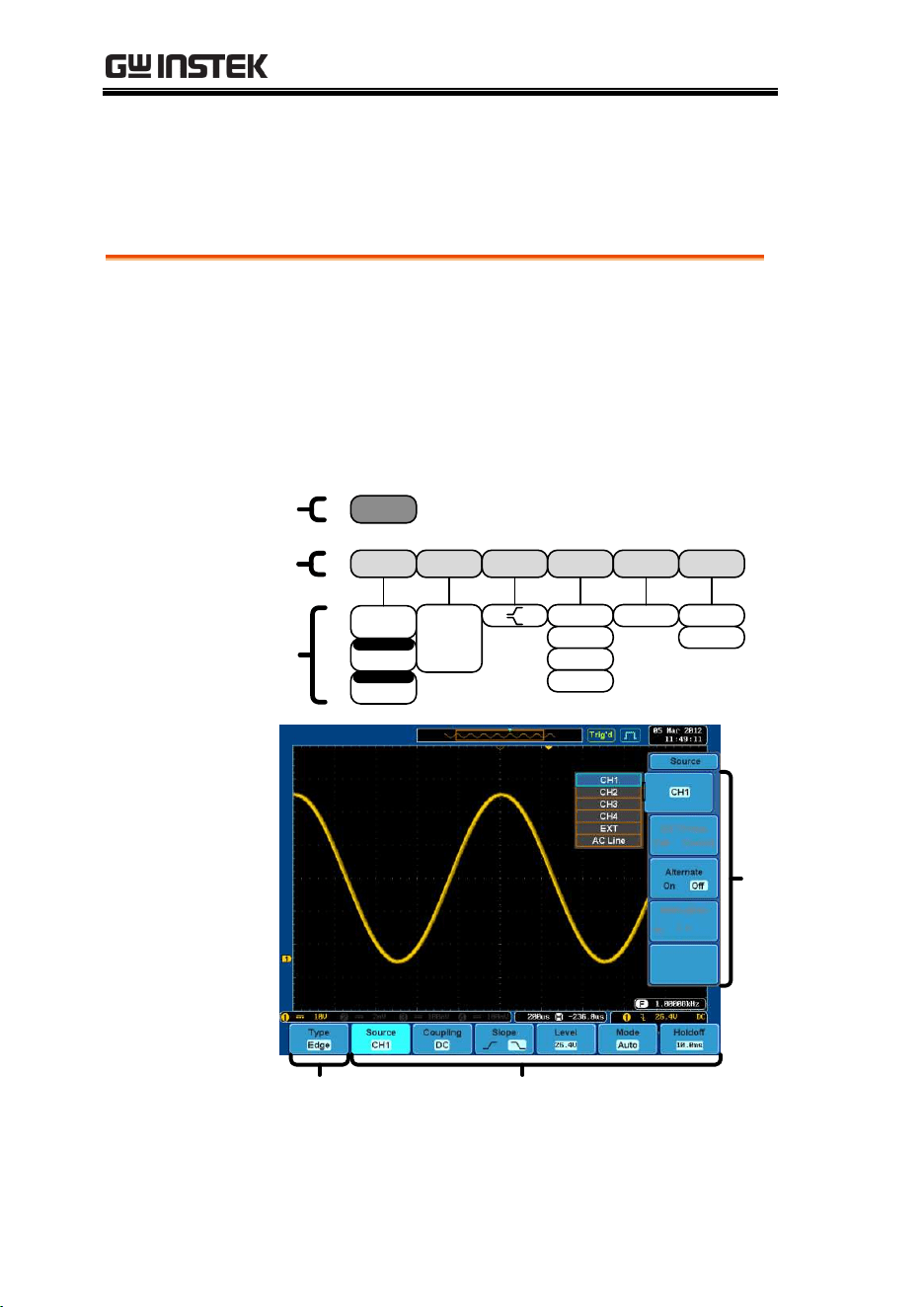
Below is an example of the menu tree operation for
the trigger source menu and a comparison to the
operation on the DSO screen.
Menu Tree
Type
Edge
Source Coupling Slope Level Mode Holdoff
CH1~ CH4
EXT
AC Line
EXT Probe
Volt
Current
DC
AC
HF Reject
LF Reject
Noise Reject
0.00V~ XX.XV
Set to TTL
1.4V
Set to ECL
-1.3V
Set to 50%
Auto
Normal
00.0ns~
Xxx.xxns
Set to
Minimum
EXT Probe
On
Off
Alternate
1
2
3
On Screen Menu
1 2
3
QUICK REFERENCE
39
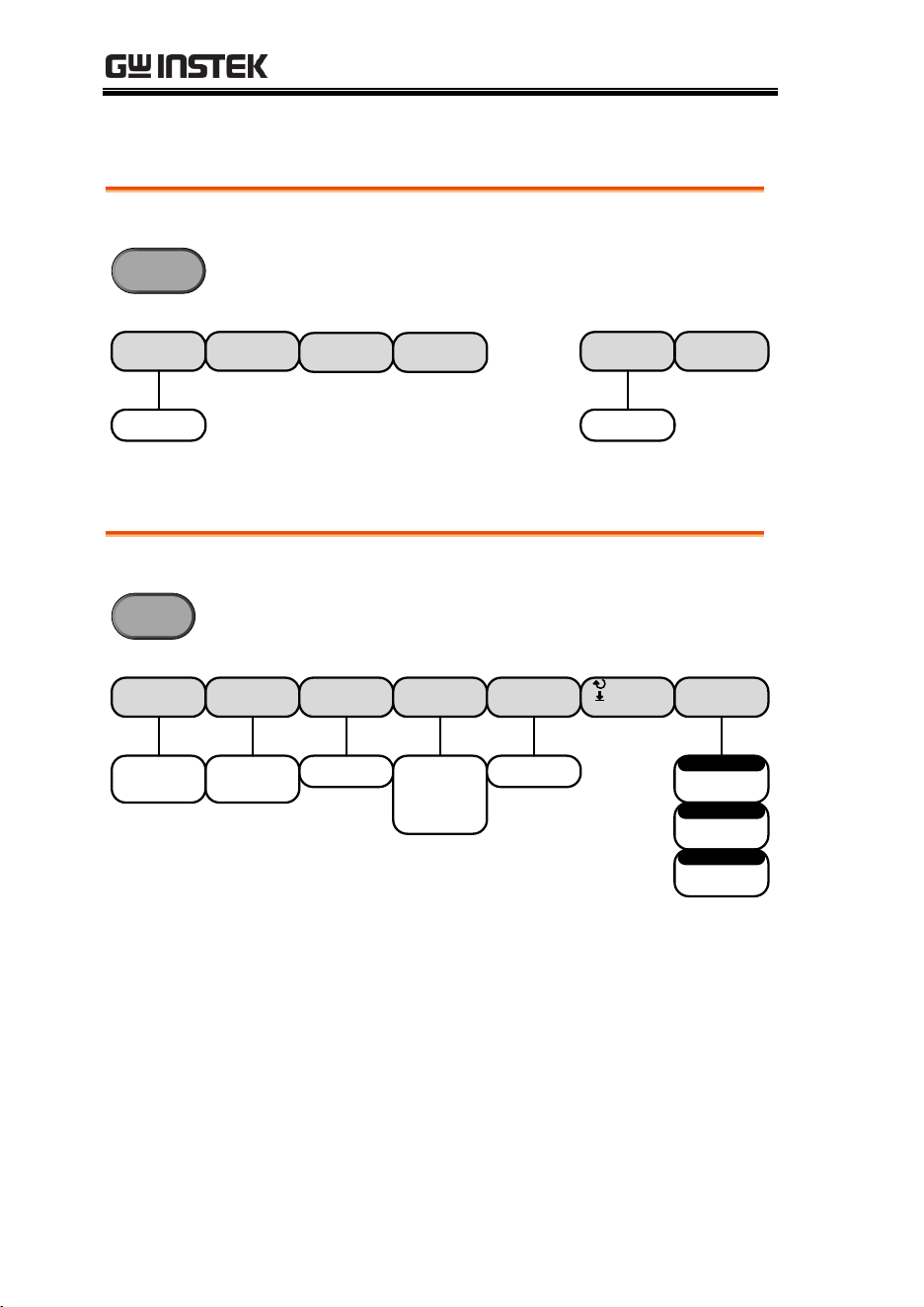
Acquire Key
Sets the acquisition mode.
Acquire
Reset H
Position to 0s
XY ET
Sample rate
XXXMSPS
OFF'YT(
Triggered
XY
ET
Sin(x)/x
Mode
Sample
Peak Detect
Hi Resolution
2,4,8,16,32,64,
128,256
Average
Autoset Key
Automatically finds the signal and sets the horizontal and vertical
scale.
Autoset
Undo AutosetMode
Fit Screen
AC Priority
GDS-3000 Series User Manual
40
Auto-Range
Constantly adjusts the vertical and or horizontal scale.
Auto-Range
Vertical
Only
Vertical
And
Horizontal
Horizontal
Only
Undo
Autoranging
Autoranging
ON
OFF
Mode
Fit Screen
AC Priority
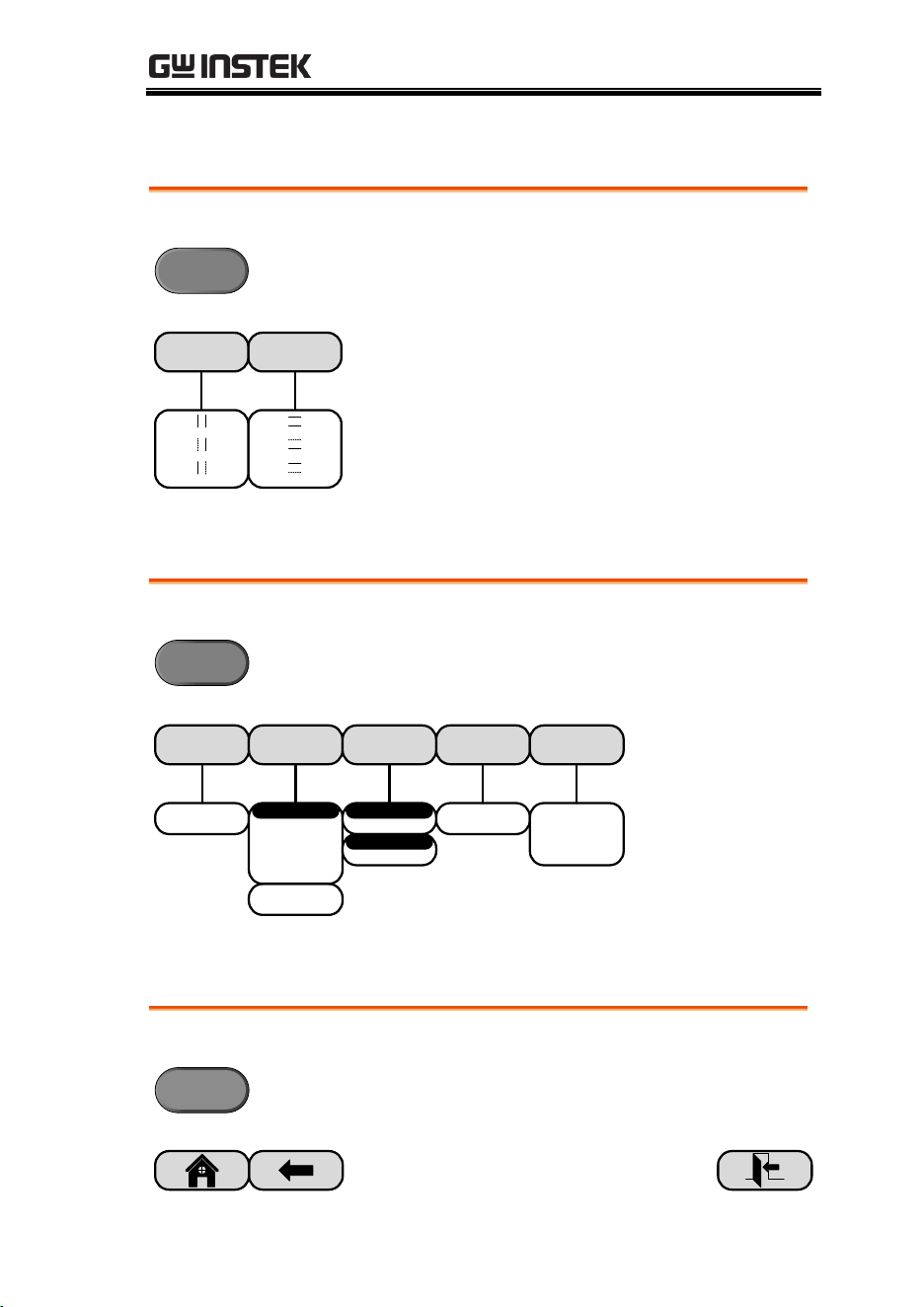
CH1 ~ 4 Key
Set the channel input parameters.
Voltage
Current
Probe
Impedence Invert Bandwidth Expand by
Position/
Set to 0
xxxV
Probe
On
Off
Coupling
AC
DC
GND
Full
20MHz
100MHz
200MHz
350MHz
CH1
1MΩ
75Ω
50Ω
1mX ~ 1kX
Set to 10X
Attenuation
-50ns~50ns
Set to 0s
Deskew
Ground
Center
QUICK REFERENCE
41
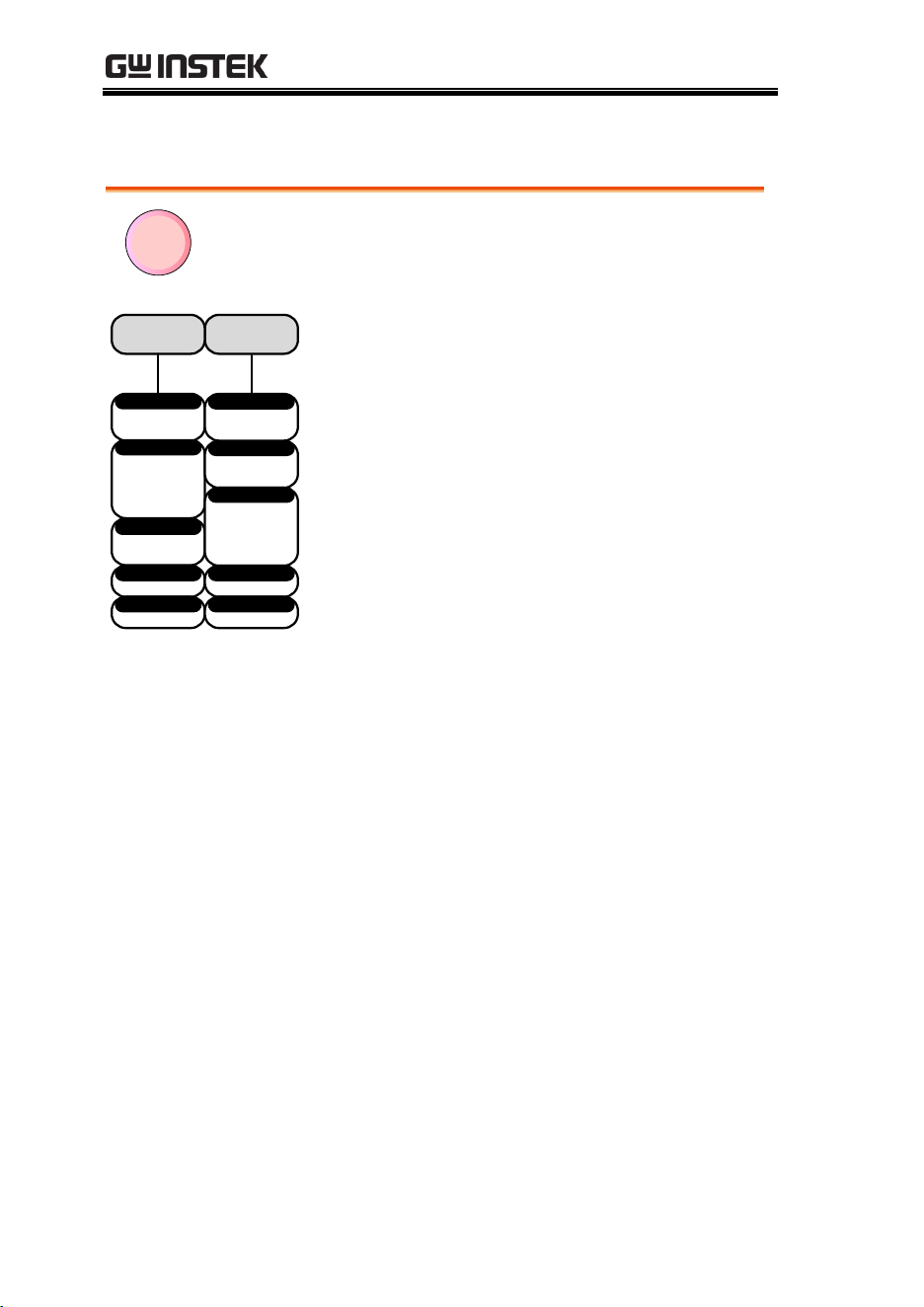
Cursor Key
Set cursor positions.
Cursor
V CursorH Cursor
Display Key
Set the display properties.
Display
Dot Vector Persistence
Dot
Vector
Clear
Persistence
Auto
100ms~10s
Infinite
VPO Off
Time
Intensity
0%~100%
Waveform Intensity
10%~100%
Graticule Intensity
Waveform
Gray
Color
Graticule
Full
Grid
Cross Hair
Frame
Help Key
Turn help mode On/Off.
Menu
GDS-3000 Series User Manual
42
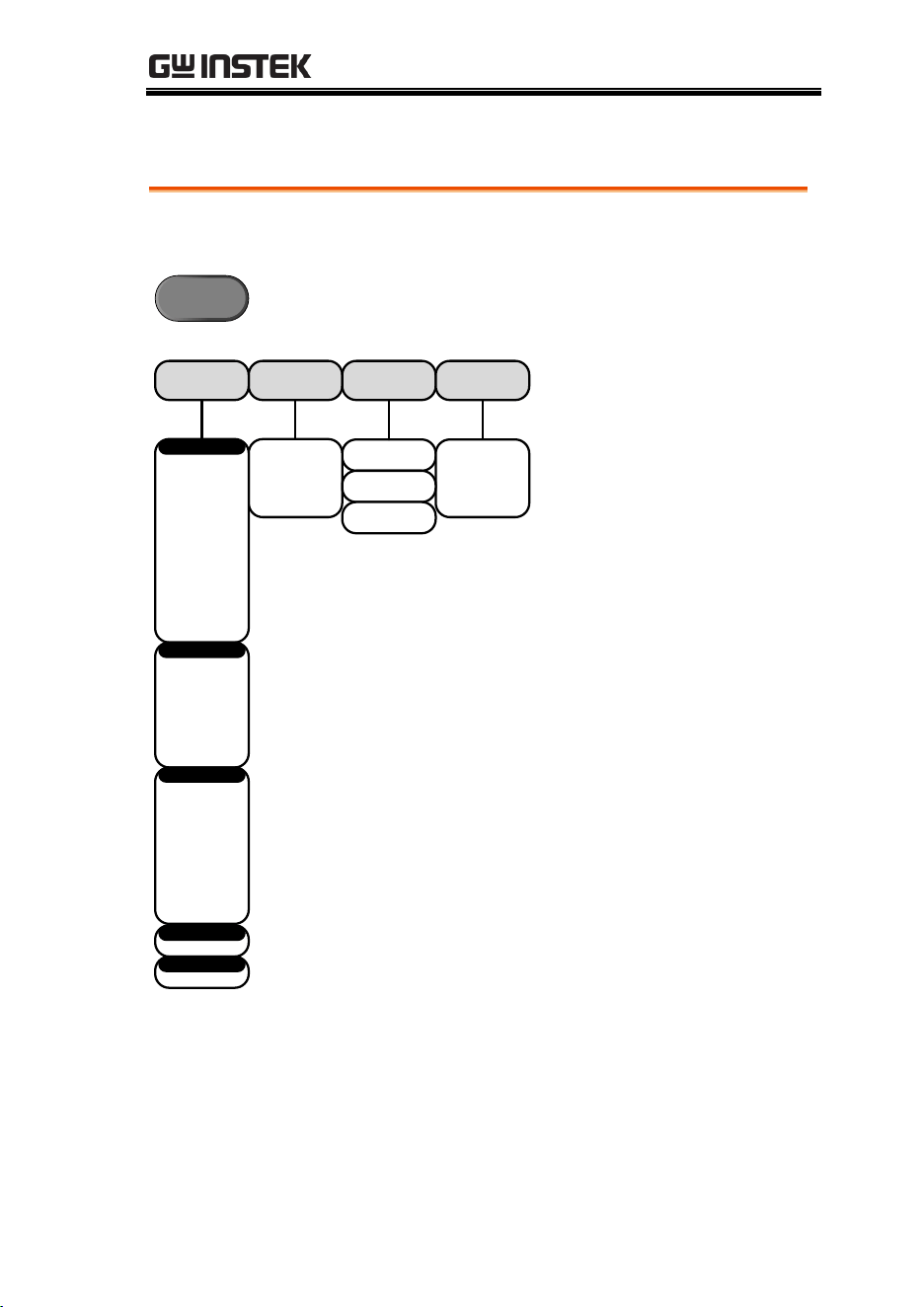
Math Key
M
FFTMath
CH1~CH4
Ref1~Ref4
Source 1
XXDiv
Position
+
-
×
÷
Operator
CH1~CH4
Ref1~Ref4
Source 2
XX~XXV
Unit/Div
dBV RMS
Linear RMS
Vertical Units
Hanning
Rectangular
Hamming
Blackman
Window
CH1~CH4
Ref1~Ref4
Source
XXDiv
Position
XX~XXdB/V
Unit/Div
Standard math and FFT functions.
QUICK REFERENCE
43
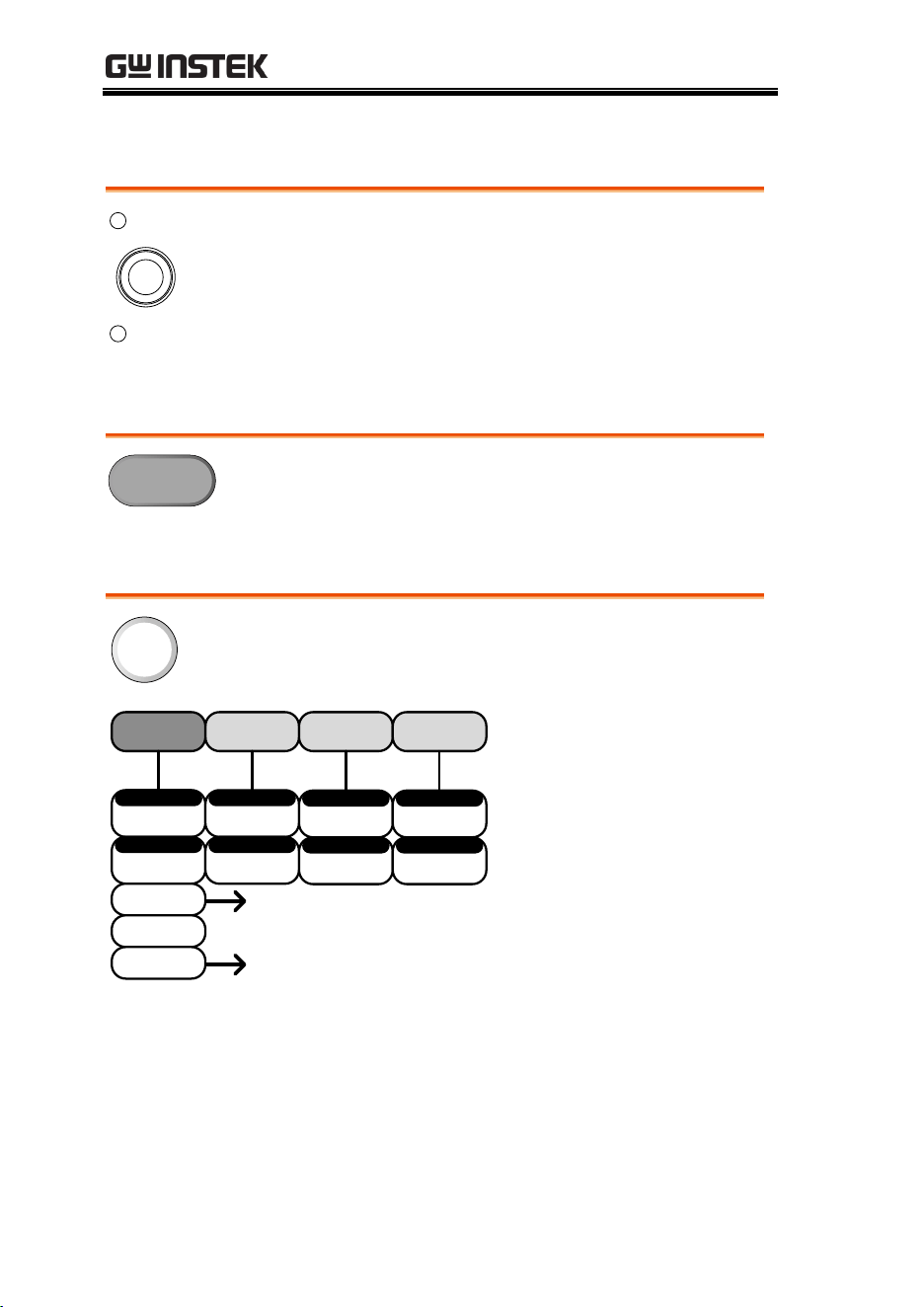
Measure Key
Display automatic measurements either individually or as
voltage/current, time or delay measurement groups.
Measure
Remove
Measurement
Gating Display All
Off
(Full Record)
Add
Measurement
CH1
CH2
CH3
CH4
Off
Window 1
Window 2
Window 3
Window 4
Remove All
Pk-Pk
Max
Min
Amplitude
High
Low
Average
RMS
ROVShoot
FOVShoot
RPREShoot
FPREShoot
V/I
Frequency
Period
RiseTime
FallTime
+Width
-Width
Dutycycle
Time
FRR
FRF
FFR
FFF
LRR
LRF
LFR
LFF
Phase
Delay
Screen
Between
Cursors
CH1~CH4
Source 1
CH1~CH4
Source 2
GDS-3000 Series User Manual
44
Print/Save Key
Print
Save
Print or save screen images.
Run/Stop Key
Run/Stop
Freeze/unfreeze signal acquisition
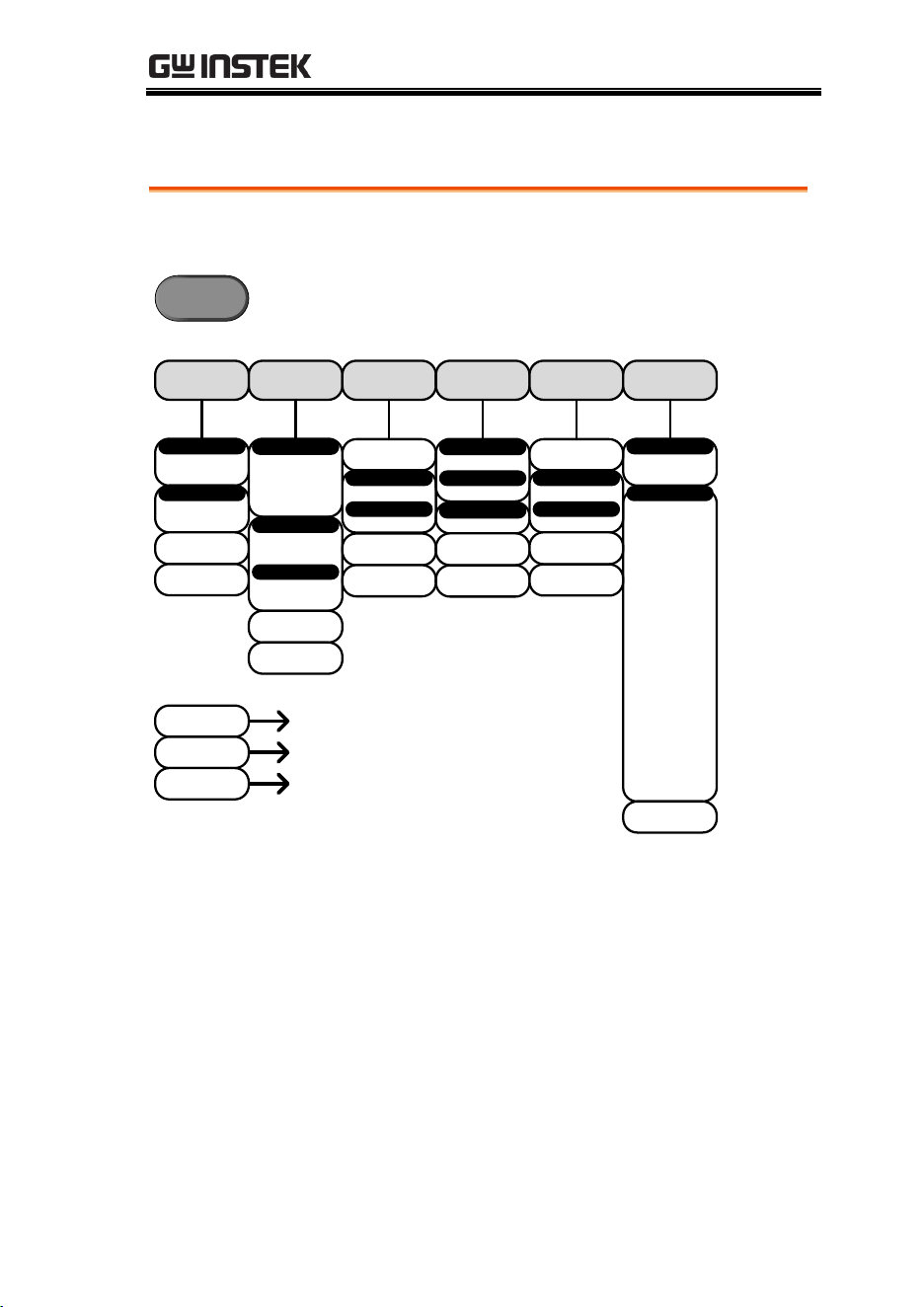
REF Key
R
R2ON/OFF R3ON/OFF R4ON/OFFR1ON/OFF
Vertical scale
Vertical position
Vertical
Horizontal scale
Horizontal position
Horizontal
Edit Labels
Ref Details
Save To File
Goes to the Save Waveform
menu (Save/Recall)
Goes to the Edit Labels menu
(Save/Recall)
Vertical scale
Vertical position
Vertical
Horizontal scale
Horizontal position
Horizontal
Vertical scale
Vertical position
Vertical
Horizontal scale
Horizontal position
Horizontal
Vertical scale
Vertical position
Vertical
Horizontal scale
Horizontal position
Horizontal
QUICK REFERENCE
45
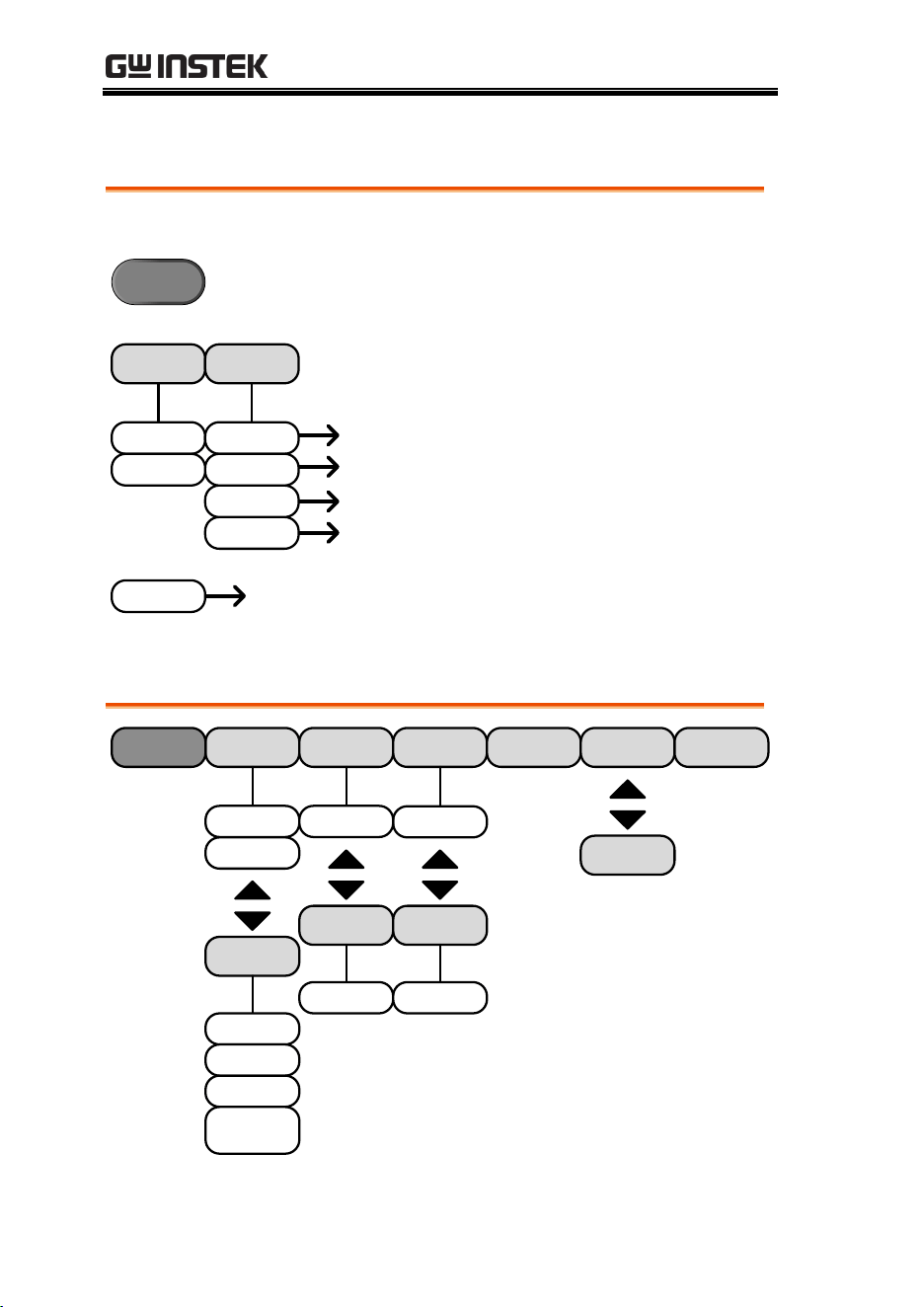
Save/Recall Key
Save and recall images, waveforms and panel setups. Edit labels for
reference and setup files.
Save Waveform Save Setup
Recall
Waveform
Recall
Setup
Edit File
Label
Edit Label
Save Image
Png
Bmp
File Format
On
Off
Ink Saver
Save Now
File Utilites
Set1~Set20
Filename.set
Ref1~4
Set1~20
Label For
ACK
AD0
ADDR
ANALOG
BIT
CAS
CLK
CLOCK
CLR
COUNT
DATA
DTACK
ENABLE
HALT
INT
IN
IRQ
LATCH
LOAD
NMI
User Preset
Edit Character
CH1~CH4
Math
Ref1~4
All Displayed
From
Ref 1 ~ Ref4
Wave1~20
Filename.LSF
Filename.CSV
To
To File
Save Now
File Utilites
Save Now
File Utilites
To File
To
Ref1~Ref4
To
Wave1~20
Filename.LSF
From
From File
Recall Now
File Utilites
Edit Label
Set1~Set20
Filename.set
From File
From
Recall Now
File Utilites
Goes to the File Utilities menu
File Utilites
Goes to the Keypad menuEdit Character
Goes to the Edit label menuEdit Label
Save/Recall
GDS-3000 Series User Manual
46
Test Key
Use the Go-NoGo application as well as additional optional software such as
the Power Analysis software.
Test
APP.
Go-NoGo
Goes to the Power Quality
menu
Goes to the Harmonics menu
Power Analysis
Power Quality
Inrush Current
Ripple
Harmonics
Goes to the Riple menu
Goes to the Inrush Current
menu
Go-NoGo
Goes to the Go-NoGo menu
Unistall
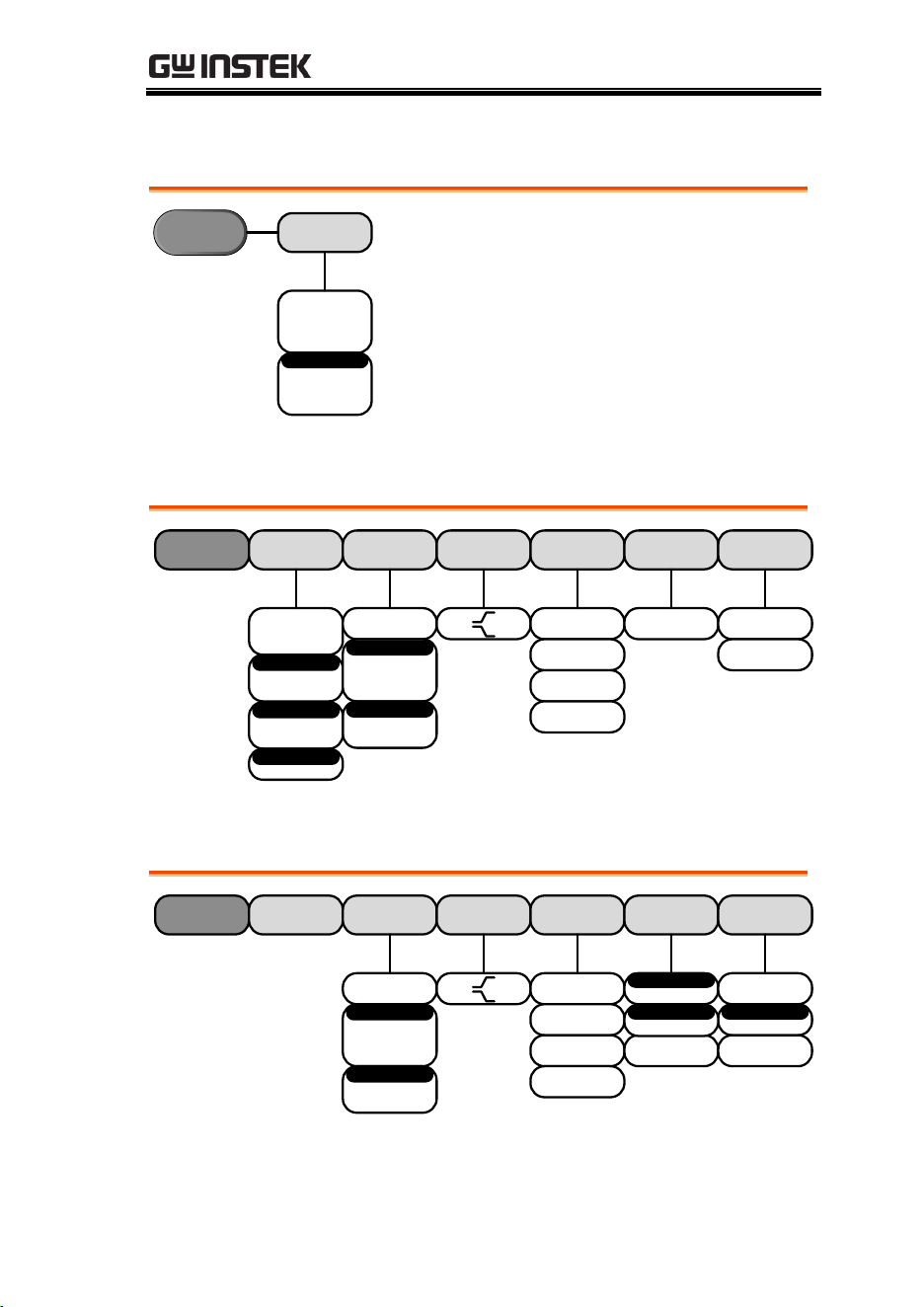
Test Key – Go-NoGo
When
Compare
Source
Maximum
Position
Save Operation
EnableGoNo
XX div
Exits CH1~CH4
Violating
Set violation
STOP
Set violation
STOP_BEEP
Set violation
CONTINUE
Set violation
CONTINUE_
BEEP
Enters
Auto Tolerance
0.4%~40%
Minimum
Position
XX div
Break
Disable
QUICK REFERENCE
47
Trigger Type Menu
Menu
Type
Pulse Runt
Rise & Fall
Bus
Others
Edge
Delay
Pulse Width
Video
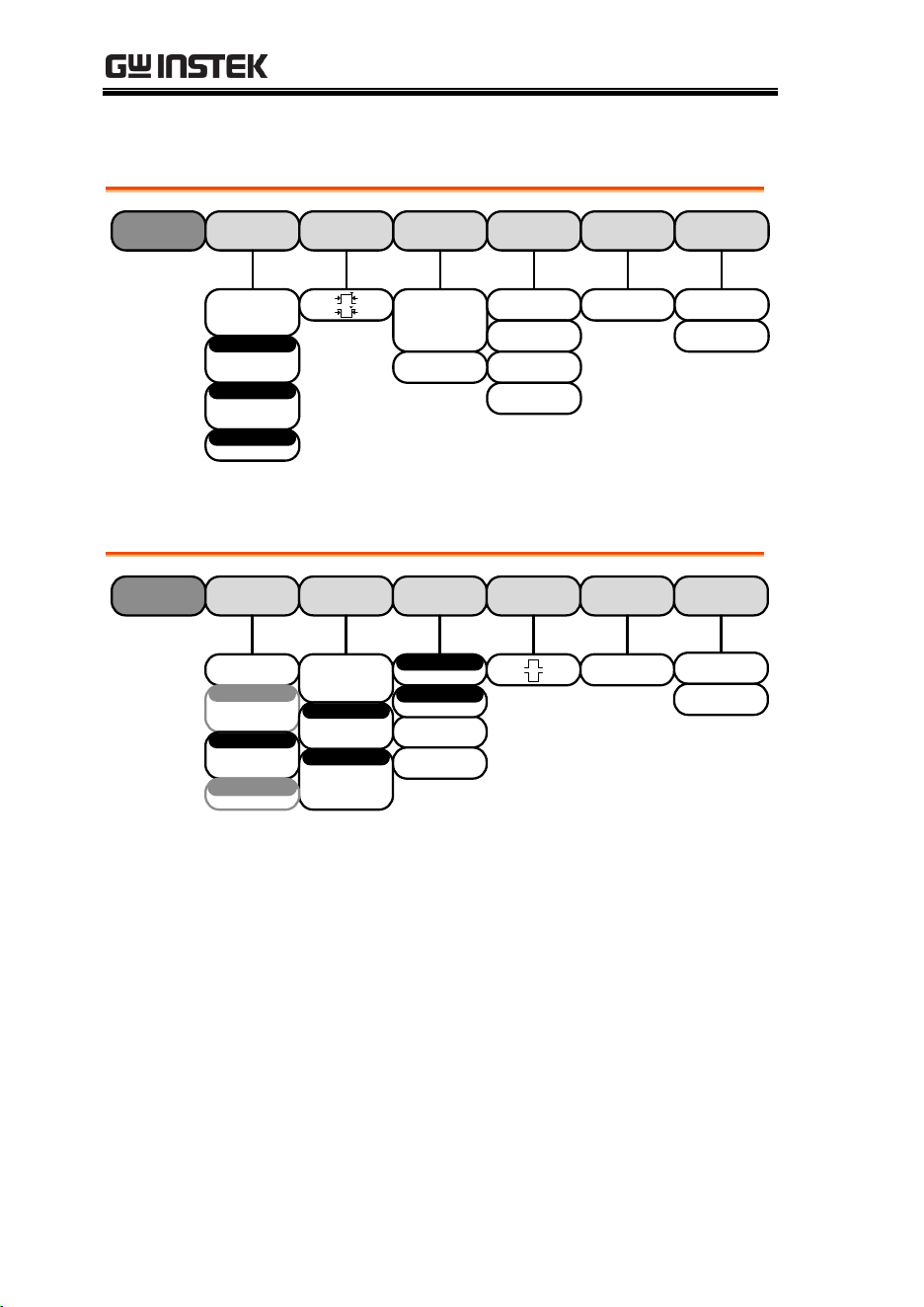
Trigger Edge Menu
Type
Edge
Source Coupling Slope Level Mode Holdoff
CH1~ CH4
EXT
AC Line
EXT Probe
Volt
Current
DC
AC
-XX~XXV
Set to TTL
1.4V
Set to ECL
-1.3V
Set to 50%
Auto
Normal
10.0ns~
10.0s
Set to
Minimum
EXT Probe
Off
HF
LF
Reject
On
Off
Noise Reject
On
Off
Alternate
1mX ~ 1kX
Attenuation
Trigger Delay Menu
DC
AC
Off
HF
LF
Reject
On
Off
Noise Reject
Type
Delay
Source Coupling Slope Level Delay Mode / Holdof
-XX~XXV
Set to TTL
1.4V
Set to ECL
-1.3V
Set to 50%
10.0ns ~ 10.0s
Auto
Normal
Holdoff
10.00ns ~ 10.0s
Set to
Minimum
Time
1~65535
Event Holdoff
Set to
Minimum
GDS-3000 Series User Manual
48
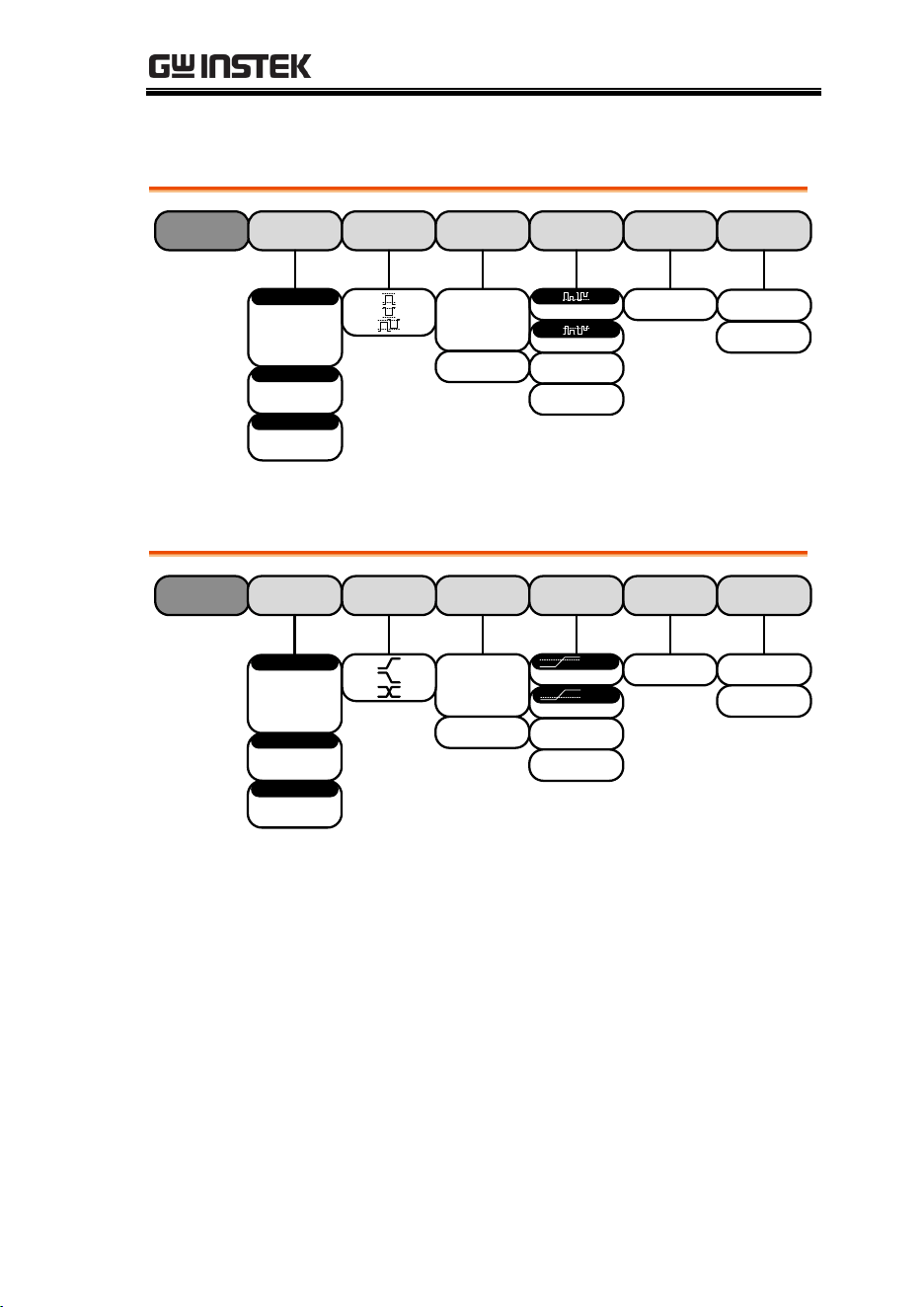
Trigger Pulse Width Menu
Type
Pulse Width
Source Polarity When Threshold Mode Holdof
CH1~ CH4
EXT
AC Line
>
<
=
≠
-XX~XXV
Set to TTL
1.4V
Set to ECL
-1.3V
Set to 50%
Auto
Normal
10.0ns ~ 10.0s
> 4.00ns~10.0S
EXT Probe
Volt
Current
EXT Probe
Set to
Minimum
On
Off
Alternate
1mX ~ 1kX
Attenuation
Trigger Video Menu
Type
Video
Source Standard Trigger On Polarity Mode Holdof
CH1~ CH4
NTSC
PAL
SECAM
1~XXXX
Auto
Normal
All Fields
All Lines
EXT Probe
Volt
Current
EXT Probe
Field 1
1~XXXX
Field 2
10.0ns ~ 10.0s
Set to
Minimum
480P
576P
EDTV
720P
1080i
1080P
HDTV
On
Off
Alternate
1mX ~ 1kX
Attenuation
QUICK REFERENCE
49
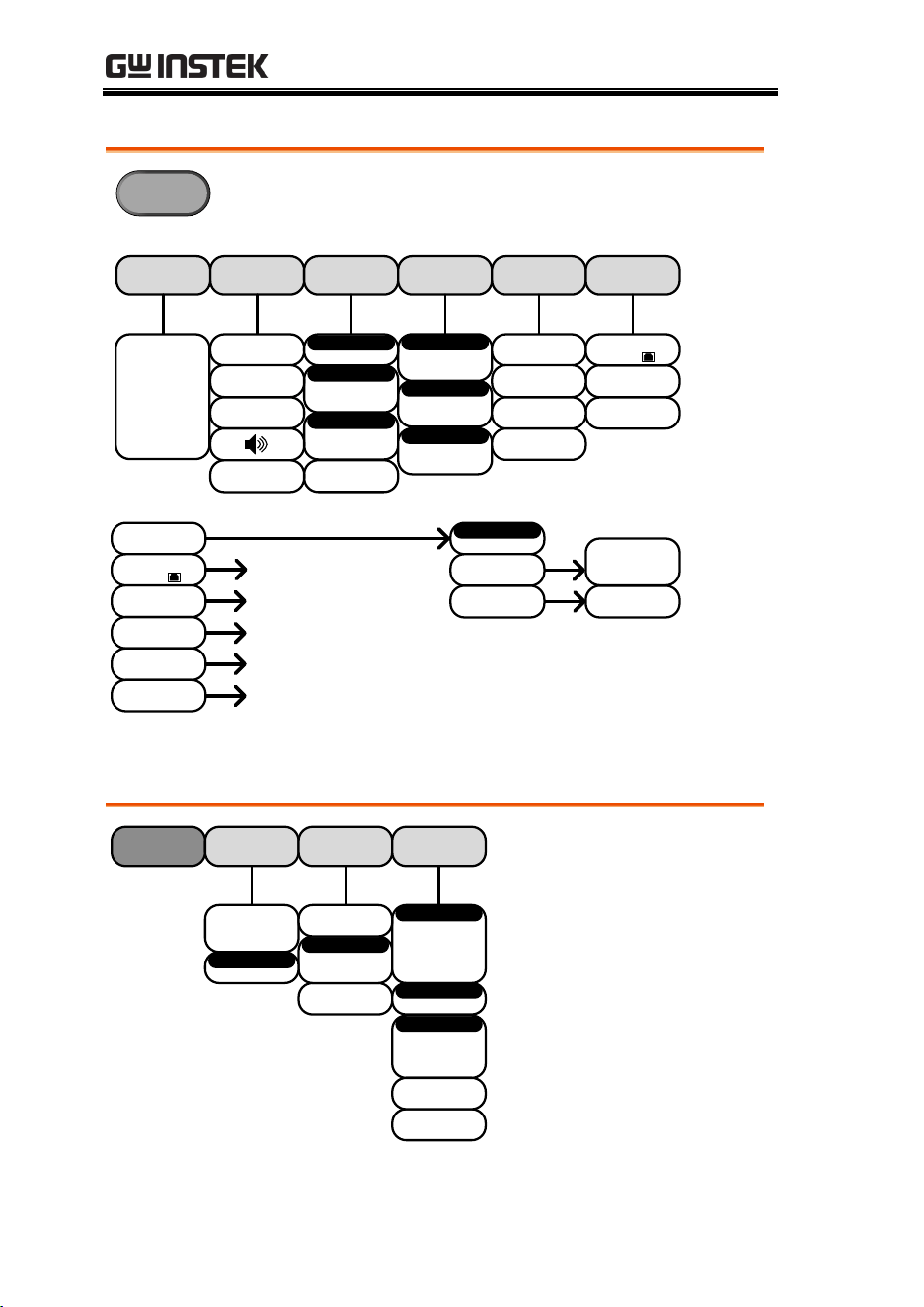
Trigger Pulse Runt Menu
Type
Pulse Runt
Source Polarity Mode Holdof
Auto
Normal
Input
CH1
CH2
CH3
CH4
EXT Probe
Volt
Current
When
>
<
=
≠
> 4.00ns~10.0s
Threshold
Set to TTL
1.4V
Set to ECL
-1.3V
-XX~XXV
-XX~XXV
10.0ns~10.0s
Set to
Minimum
On
Off
Alternate
Trigger Rise & Fall Menu
Type
Rise & Fall
Source Mode Holdof
Auto
Normal
Input
CH1
CH2
CH3
CH4
When
>
<
=
≠
> 4.00ns~10.0s
Threshold
Set to TTL
1.4V
Set to ECL
-1.3V
-XX~XXV
-XX~XXV
Slope
High
Low
10.0ns~10.0s
Set to
Minimum
EXT Probe
Volt
Current
On
Off
Alternate
GDS-3000 Series User Manual
50
Utility Key
Utility
System
Date &
Time
Printout
File Utilities
I/OLanguage
English
Trad. Chinese
Simp. Chinese
Korean
Japanese etc.
Polish
French
and German
Ethernet
RS-232C
System
Info
On
Off
Ink Saver
Print
Save
Function
Create Folder
Rename
Delete
2XXX
Year
Jan~Dec
01~31
Month Day
0~59
0~59
Hour Minute
Save Now
More 1 of 2
USB Device
Port
Ethernet
RS-232C
USB Device
Port
Goes to the I/O USB Device
Port menu
Goes to the I/O Ethernet menu
Goes to the I/O RS232 menu
Create Folder
Rename
Goes to the File Utilities
Goes to the File Utilities
Bmp
Png
File Format
Copy To USB
Go to System
menu
Vertical
Self Cal
Option uninstall
Power Analysis
BUS
Etc.
More 2 of 2
More 1 of 2
Erase Memory
More 1 of 2
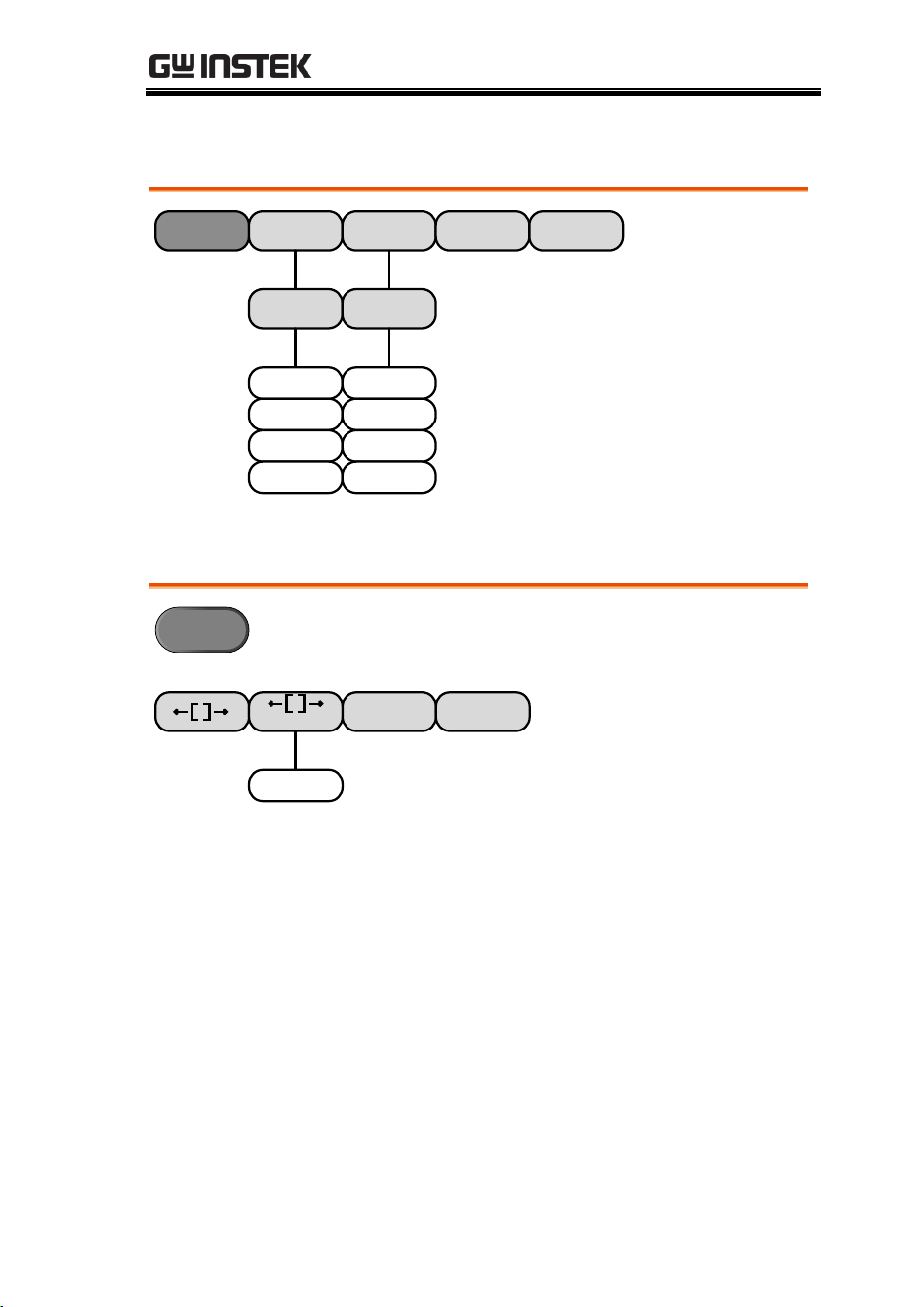
Utility Key – I/O
I/O
USB Device
Port
Ethernet
RS-232
Computer
Printer
GPIB
Go Back
Save Now
On
Off
DHCP/BOOTP
1~30
GPIB Address
2400, 4800,
9600, 19200,
38400, 57600,
115200
Baud Rate
1, 2
Stop Bit
Odd
Even
None
Parity
Back Space
Save Now
QUICK REFERENCE
51
Utility Key – File Utilities
File Utilities Create Folder
Rename
Delete
Keypad
Enter Character
Back Space
Editing
Completed
Cancel
Keypad
Enter Character
Back Space
Editing
Completed
Cancel
Copy To USB
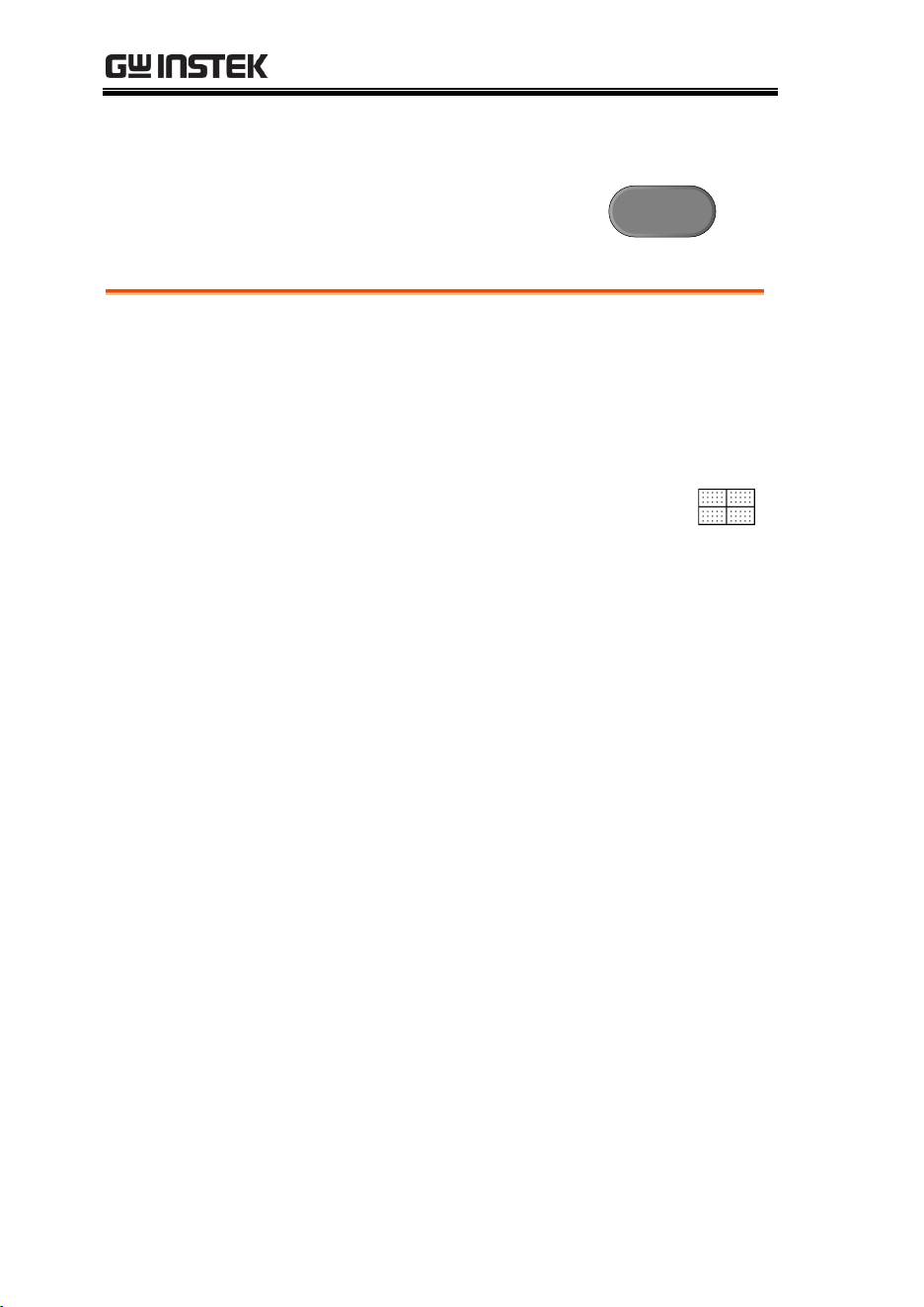
Zoom Key
Zoom
Fine Coarse
Reset Zoom
Position to 0s
Reset H Position
to 0s
Fine
Coarse
GDS-3000 Series User Manual
52
Default Settings
The default factory installed settings can be
recalled at any time by pressing the Default Setup
key.
Default
Setup
Acquire
Mode: Sample
XY: OFF
Interpolation: Sin(x)/x
Sample rate: 250MSPS
(200MSPS GDS350X)
Display
Mode: Vector
Persistence: Auto
Waveform intensity: 50%
Graticule intensity: 50%
Waveform visuals: Gray
Graticule: full
Channel
Scale: 100mV/Div
CH1: On
Coupling: DC
Impedance: 1MΩ
Invert: Off
Bandwidth: full
Expand: By ground
Position: 0.00V
Probe: voltage
Probe attenuation: 1x
Deskew: 0s
Cursor
Horizontal cursor: Off
Vertical Cursor: Off
Measure
Source1: CH1
Source2: CH2
Gating: Off
Display: Off
Horizontal
Scale: 10us/Div
Math
Source1: CH1
Operator: +
Source2: CH2
Position: 0.00 Div
Unit/Div: 200mV
Math Off
Test
App: Go-NoGo
Trigger
Type: Edge
Source: CH1
Coupling: DC
Alternate: Off
Rejection: Off
Noise Rejection: Off

QUICK REFERENCE
53
Slope: positive
Level: 0.00V
Mode: Auto
Holdoff: 10.0ns
Utility
Print key: Save
Ink Saver: Off
Save Recall
Image file format: Bmp
Data file format: LSF
GDS-3000 Series User Manual
54
Built-in Help
The Help key accesses a context sensitive help menu. The help menu
contains information on how to use the front panel keys.
Panel Operation
1. Press the Help key. The
display changes to Help
mode.
Help
2. Use the Variable knob to scroll up and down
through the Help contents. Press Select to view
the help on the selected item.
Home Key
Press the Home key to return to
the main help screen.
Go Back
Press the Back key to go to the
previous menu page.
Exit
Press the Help key again or press
the Exit key to exit the Help
mode.
Help

MEASUREMENT
55
MEASUREMENT
Basic Measurement ........................................................ 57
Channel Activation.................................................................57
Autoset .....................................................................................58
Auto-Range..............................................................................60
Run/Stop .................................................................................62
Horizontal Position/Scale ....................................................63
Vertical Position/Scale ..........................................................65
Split Window Mode ...............................................................66
Automatic Measurement .......................................................68
Measurement Items ................................................................68
Individual Mode .....................................................................71
Remove Measurement ...........................................................72
Gated mode .............................................................................73
Display All mode ....................................................................74
Cursor Measurement ...................................................... 76
Use Horizontal Cursors.........................................................76
Use Vertical Cursors ..............................................................79
Math Operation ............................................................. 82
Overview ..................................................................................82
Addition/Subtraction/Multiplication/Division ...............83
FFT ...........................................................................................85
Applications................................................................... 87
Overview ..................................................................................87
Running Applications ............................................................87
Uninstalling Applications ......................................................88
Using Go_NoGo ............................................................ 90
Power Analysis ............................................................... 95
Power Analysis Overview .....................................................95
Serial Bus ...................................................................... 96

MEASUREMENT
57
Basic Measurement
This section describes the basic operations required in capturing
and viewing the input signal. For more detailed operations, see the
following chapters.
Cursor Measurement → from page 76
Configuration → from page 87
Before operating the oscilloscope, please see the Getting Started
chapter, page 10.
Channel Activation
Activate Channel
To activate an input channel,
press a channel key.
When activated, the channel
key will light up. The
corresponding channel menu
will also appear.
CH1 CH1
à
Each channel is associated with the color shown
beside the VOLTS/DIV dial: CH1: yellow, CH2:
blue, CH3: pink and CH4: green.
When a channel is activated, it is shown above the
bottom menu system.
CH1 CH3CH2 CH4
De-activate
Channel
To de-activate a channel, press
the corresponding channel key
again. If the channel menu is
not open, press the channel key
twice (the first press shows the
Channel menu).
CH1 CH1
à
GDS-3000 Series User Manual
58
Default Setup
To activate the default state,
press Default Setup.
Default
Setup
Autoset
The Autoset key (page 58) does NOT automatically
activate the channels to which input signals are
connected.
Autoset
Background
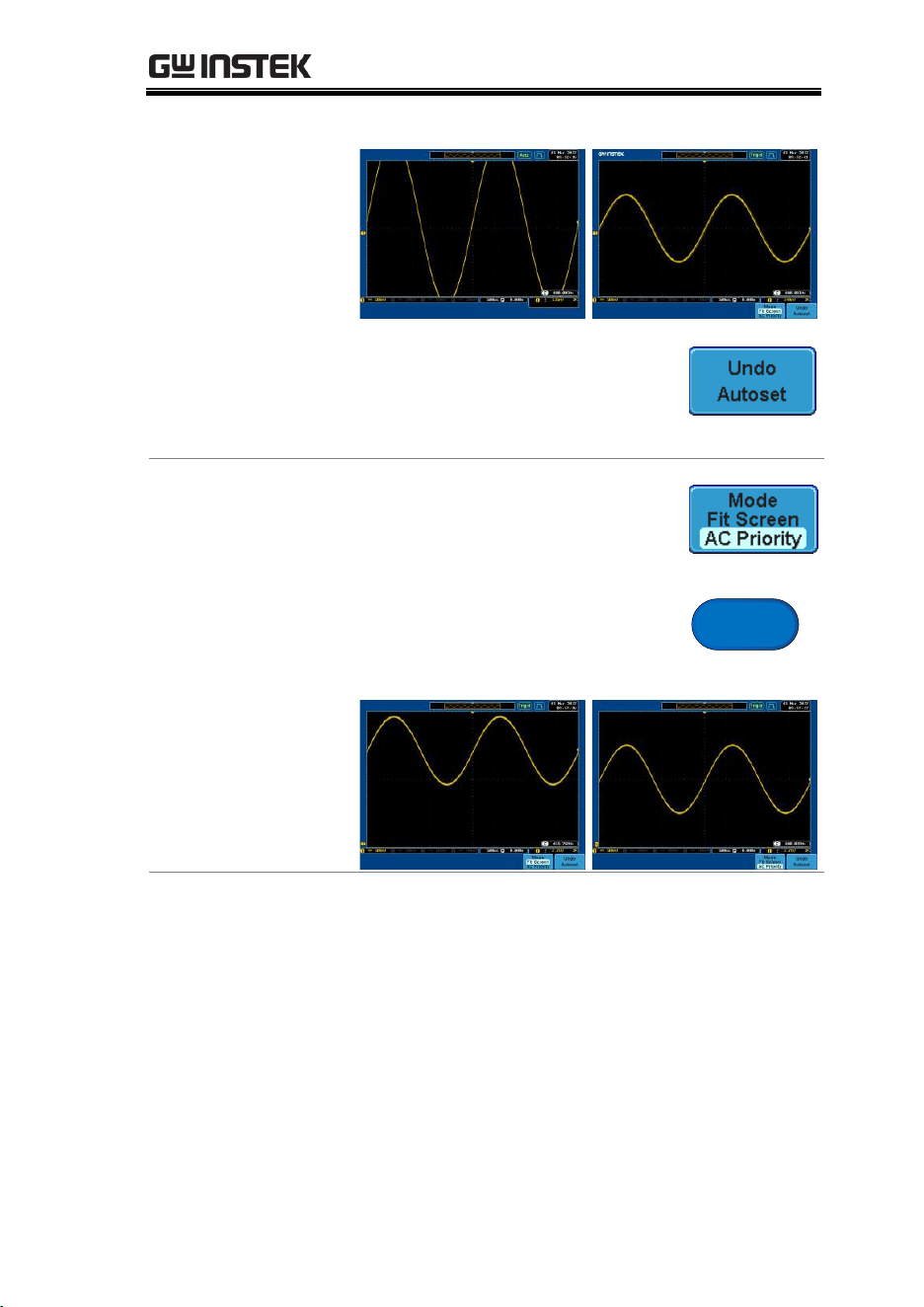
The Autoset function automatically configures the
panel settings to position the input signal to the
best viewing condition. The GDS-3000
automatically configures the following parameters.
Horizontal scale
Vertical scale
Trigger source channel
There are two operating modes for Autoset
function: Fit Screen Mode and AC Priority Mode.
Fit Screen Mode will fit the waveform to the best
scale, including any DC components (offset). AC
priority mode will scale the waveform to the
screen removing any DC component.
Panel Operation
1. Connect the input signal to the
GDS-3000 and press the Autoset
key.
Autoset
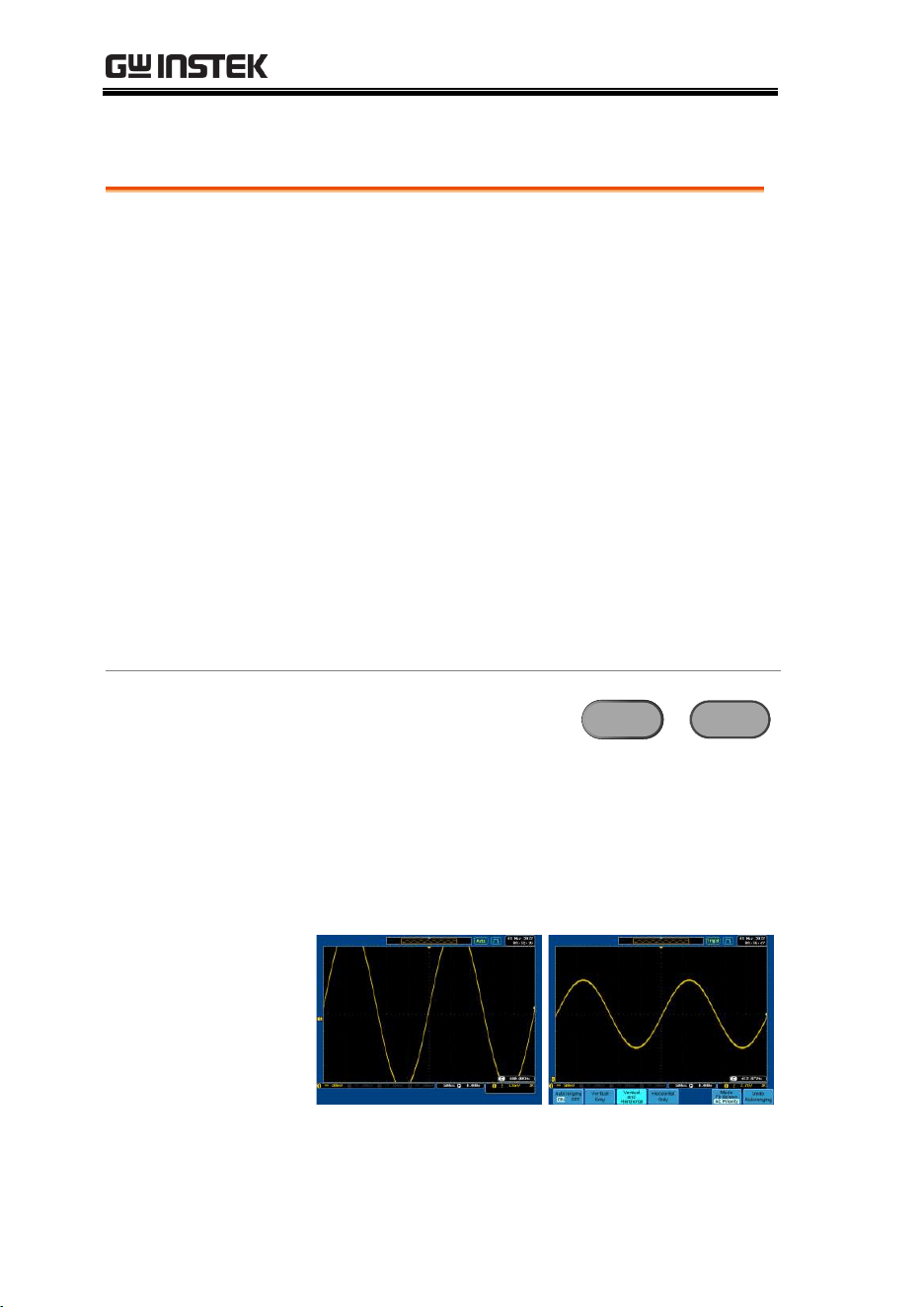
2. The waveform appears in the center of the
display.
MEASUREMENT
59
Before
After
3. To undo Autoset, press Undo
Autoset from the bottom menu.
To remove the Undo Autoset
softkey, press any other key.
Change modes
1. Choose between Fit Screen Mode
and AC Priority Mode from the
bottom menu.
2. Press the Autoset key again to use
Autoset in the new mode.
Autoset
Fit Screen Mode
AC Priority
Limitation
Autoset does not work in the following situations.
Input signal frequency is less than 20Hz
Input signal amplitude is less than 30mV
GDS-3000 Series User Manual
60
Auto-Range
Background
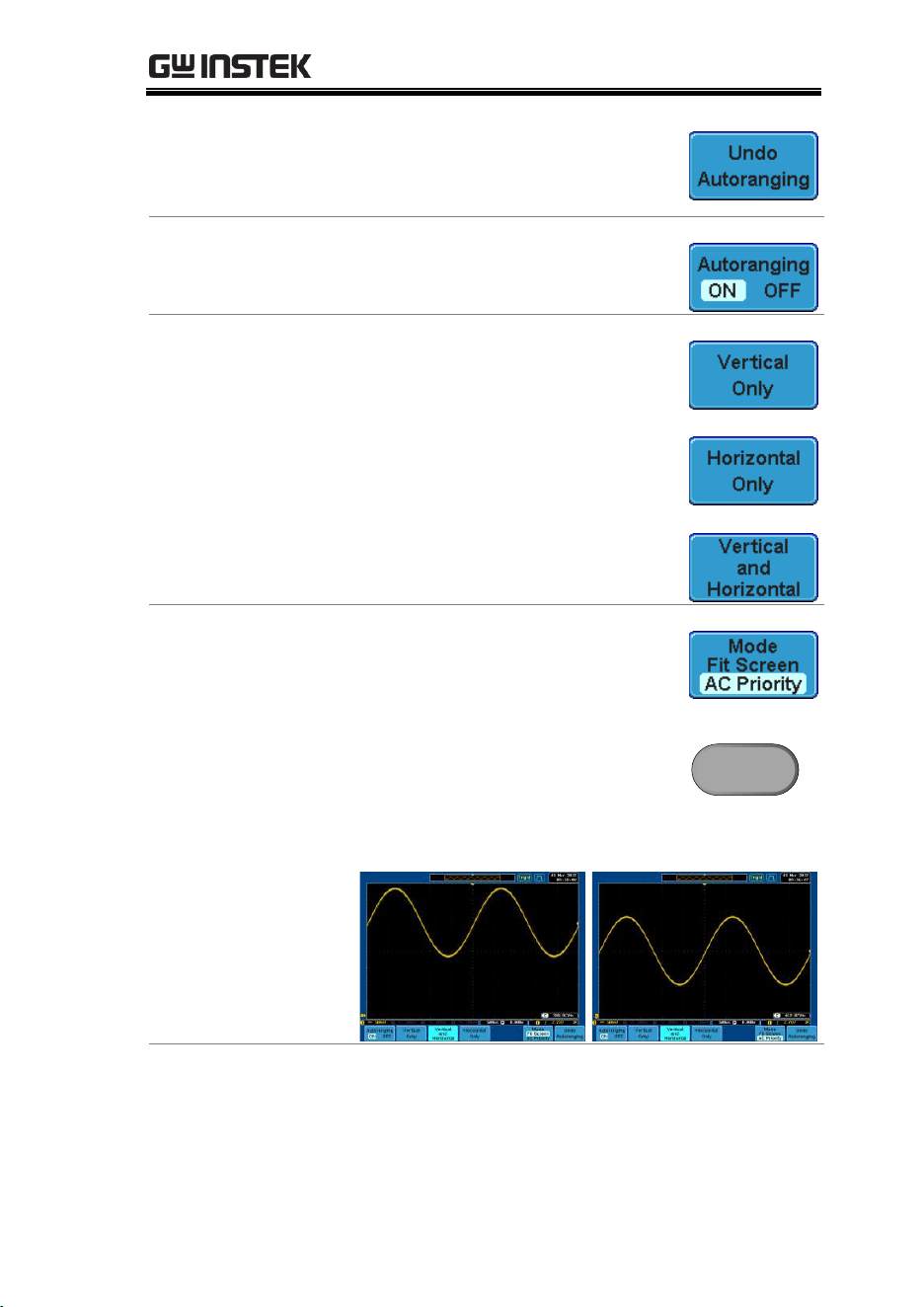
The Auto-Range function works similarly to the
Autoset function, except the Auto-Range function
works continuously when it is on. The Auto-Range
function will continuously monitor the input
signal and adjust the horizontal and vertical scale
of a displayed signal so that waveform(s) are
displayed at the best possible scale.
In addition, the Auto-Range function can also be
configured to only adjust the vertical or horizontal
scale.
There are two operating modes for the Auto-Range
function: Fit Screen Mode and AC Priority Mode.
Fit Screen Mode will fit the waveform to the best
scale, including any DC components (offset). AC
priority mode will scale the waveform to the
screen removing any DC component.
Panel Operation
1. After a signal has already
been triggered, press the
Auto-Range key. The Auto-
Range key lights up.
Auto-Range
à
Auto-Range
2. The waveform appears in the center of the
display.
Before
After
MEASUREMENT
61
3. To undo Auto-Range, press Undo
Autoranging from the bottom
menu.
Disable Auto-
Range
Press Autoranging from the bottom
menu to turn Auto-Range On/Off.
Configure Auto-
Range
Press Vertical Only for vertical
autoranging only.
Press Horizontal Only for horizontal
autoranging only.
Press Horizontal and Vertical for
autoranging on both axes.
Change modes
1. Choose between Fit Screen Mode
and AC Priority Mode from the
bottom menu.
2. Press the Auto-Range key twice to
reset the Auto-Range function.
Auto-Range
x2
Fit Screen Mode
AC Priority
Limitation
Auto-Range does not work in the following
situation.
Input signal frequency is less than 20Hz
Input signal amplitude is less than 30mV
GDS-3000 Series User Manual
62
Run/Stop
Background
By default, the waveform on the display is
constantly updated (Run mode). Freezing the
waveform by stopping signal acquisition (Stop
mode) allows flexible observation and analysis. To
enter Stop mode, two methods are available:
pressing the Run/Stop key or using the Single
Trigger mode.
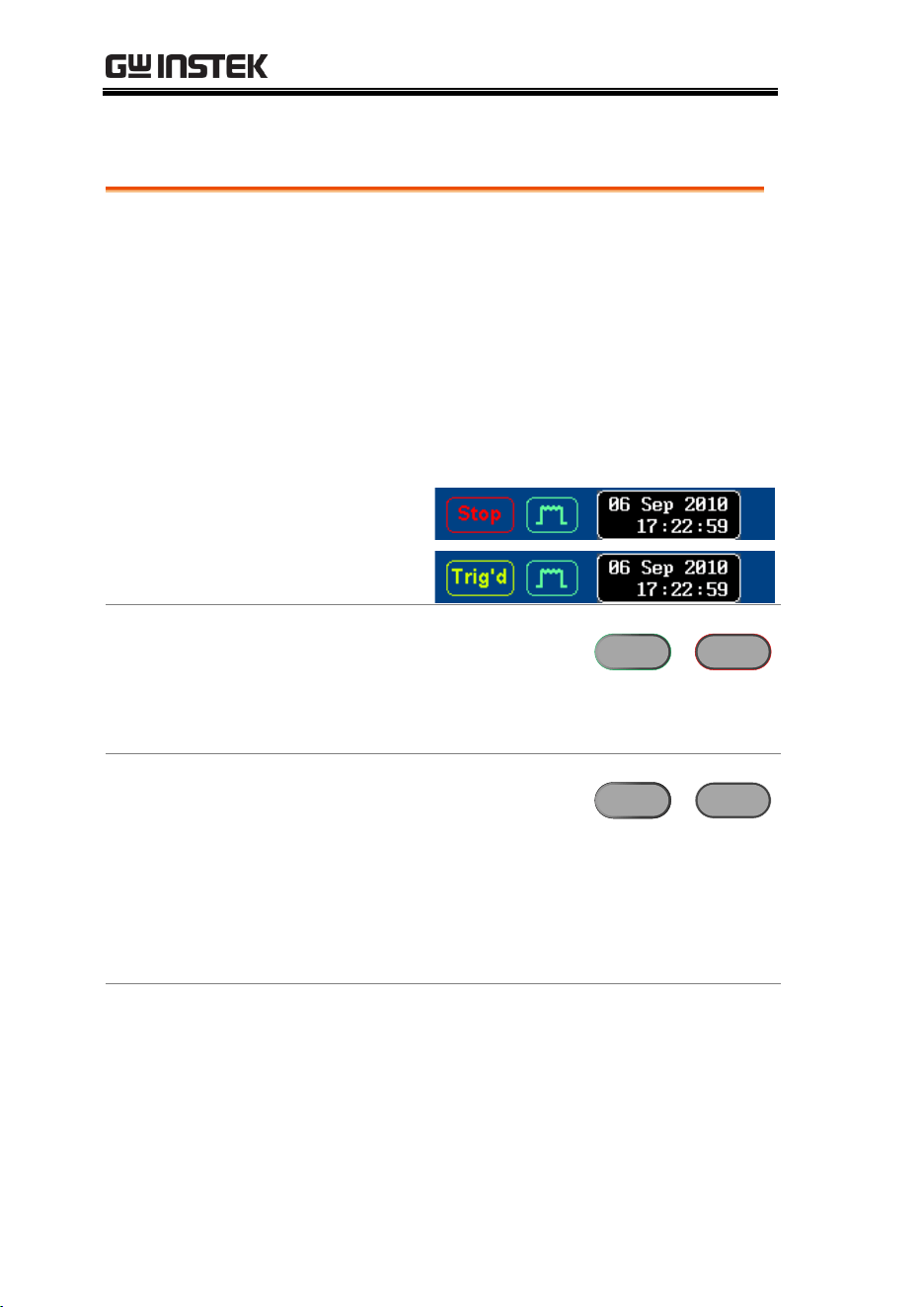
Stop mode icon
When in Stop mode, the Stop icon
appears at the top of the display.
Triggered icon
Freeze Waveform
by Run/Stop Key
Press the Run/Stop key once.
The waveform and signal
acquisition freezes. To
unfreeze, press the Run/Stop
key again.
Run/Stop
à
Run/Stop
Freeze Waveform
by Single Trigger
Mode
In the Single Trigger mode, the
waveform always stays in the
Stop mode, and is updated
only when the Single key is
pressed. When the single key is
pressed, the Run/Stop key
turns red. For details, see page
125.
Single
à
Single
Waveform
Operation
The waveform can be moved or scaled in both Run
and Stop mode, but in different manners. For
details, see page 112 (Horizontal position/scale)
and page 117 (Vertical position/scale).
MEASUREMENT
63
Horizontal Position/Scale
For more detailed configuration, see page 112.
Set Horizontal
Position
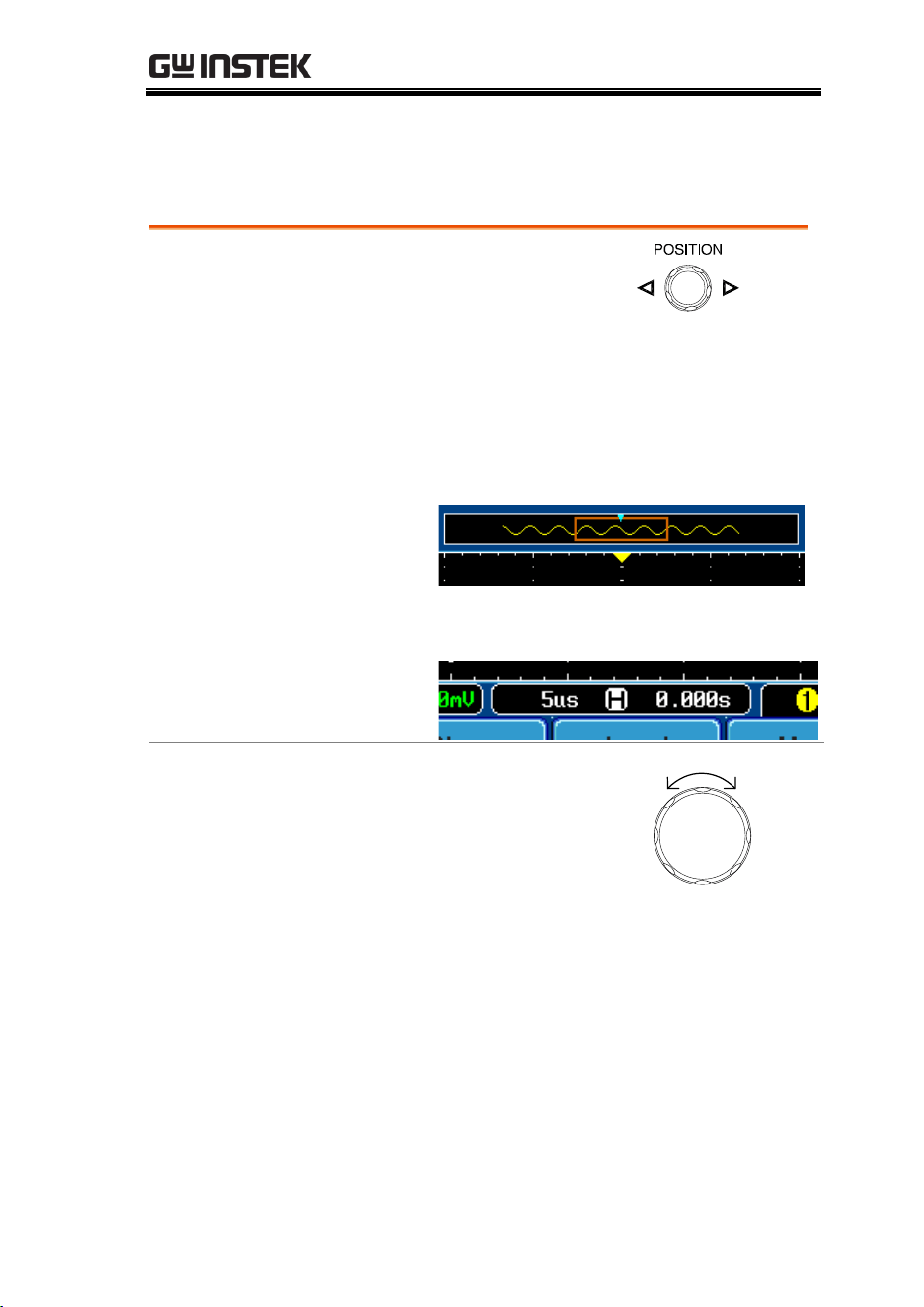
The horizontal position knob
moves the waveform left and
right.
As the waveform moves, the memory bar on the
top of the display indicates the portion of the
waveform currently shown on the display and the
position of the horizontal marker on the
waveform.
Position Indicator
The horizontal position is shown at the bottom of
the display grid to the right of H icon.
Select Horizontal
Scale
To select the timebase (scale),
turn the TIME/DIV knob; left
(slow) or right (fast).
TIME/DIV
Left Right
Range
1ns/div ~ 100s/div, 1-2-5 increments
(1-2.5-5 for GDS350X.
GDS-3000 Series User Manual
64
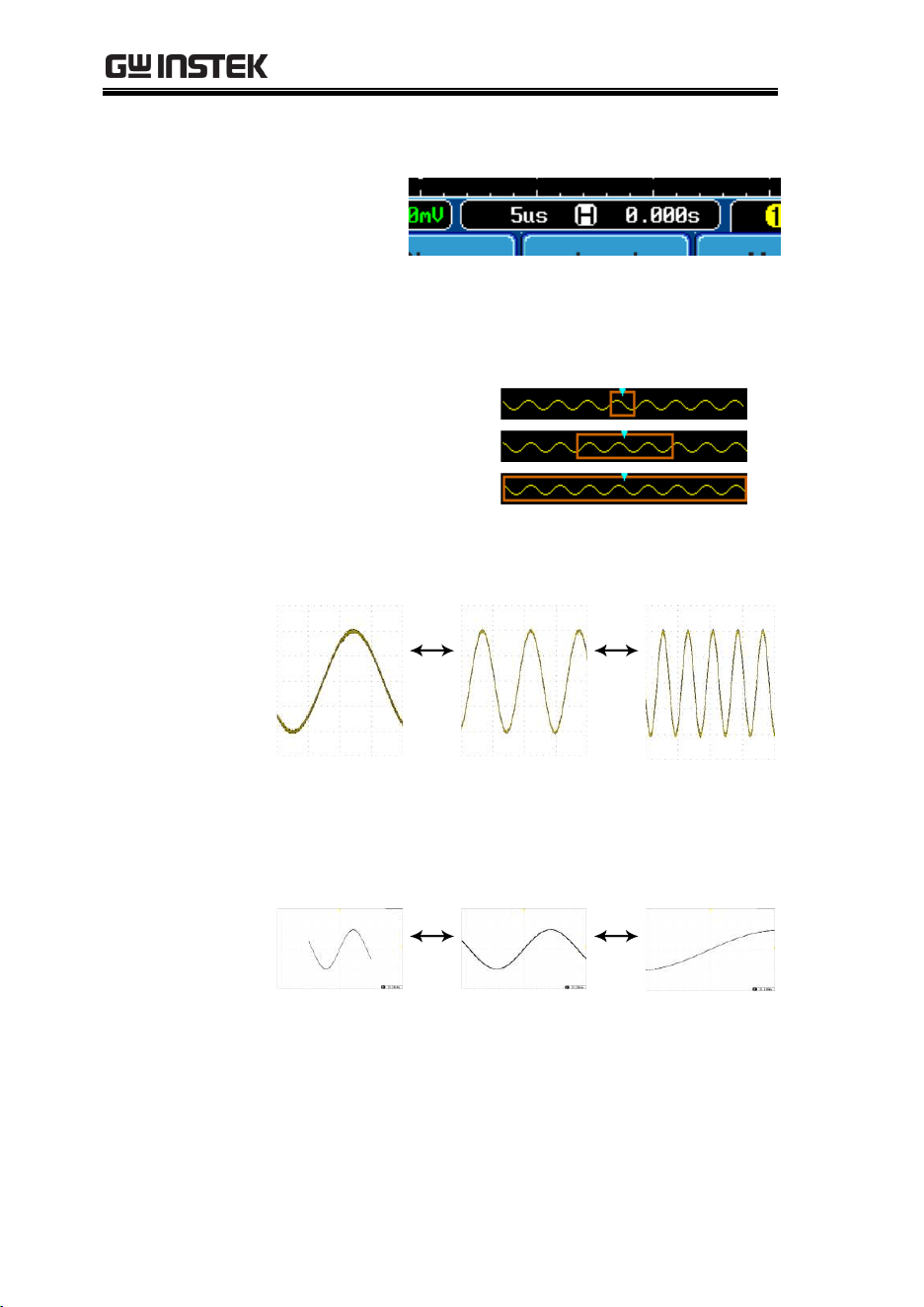
The Time/Division rate is displayed to the left of the H
icon at the bottom of the screen.
Memory bar
The size of the memory bar changes
to reflect the timebase and the section
of the waveform that is displayed on
screen.
Fast
Medium
Slow
The Sample rate changes according to the
time/division. For example the sample rate of the
GDS-3304 at different time bases is shown below.
10ms
250KPS
5ms
500KSPS
2ms
1MSPS
Stop mode
In the Stop mode, the waveform size
changes according to the scale.
MEASUREMENT
65
Vertical Position/Scale
For more detailed configuration, see page117.
Set Vertical
Position
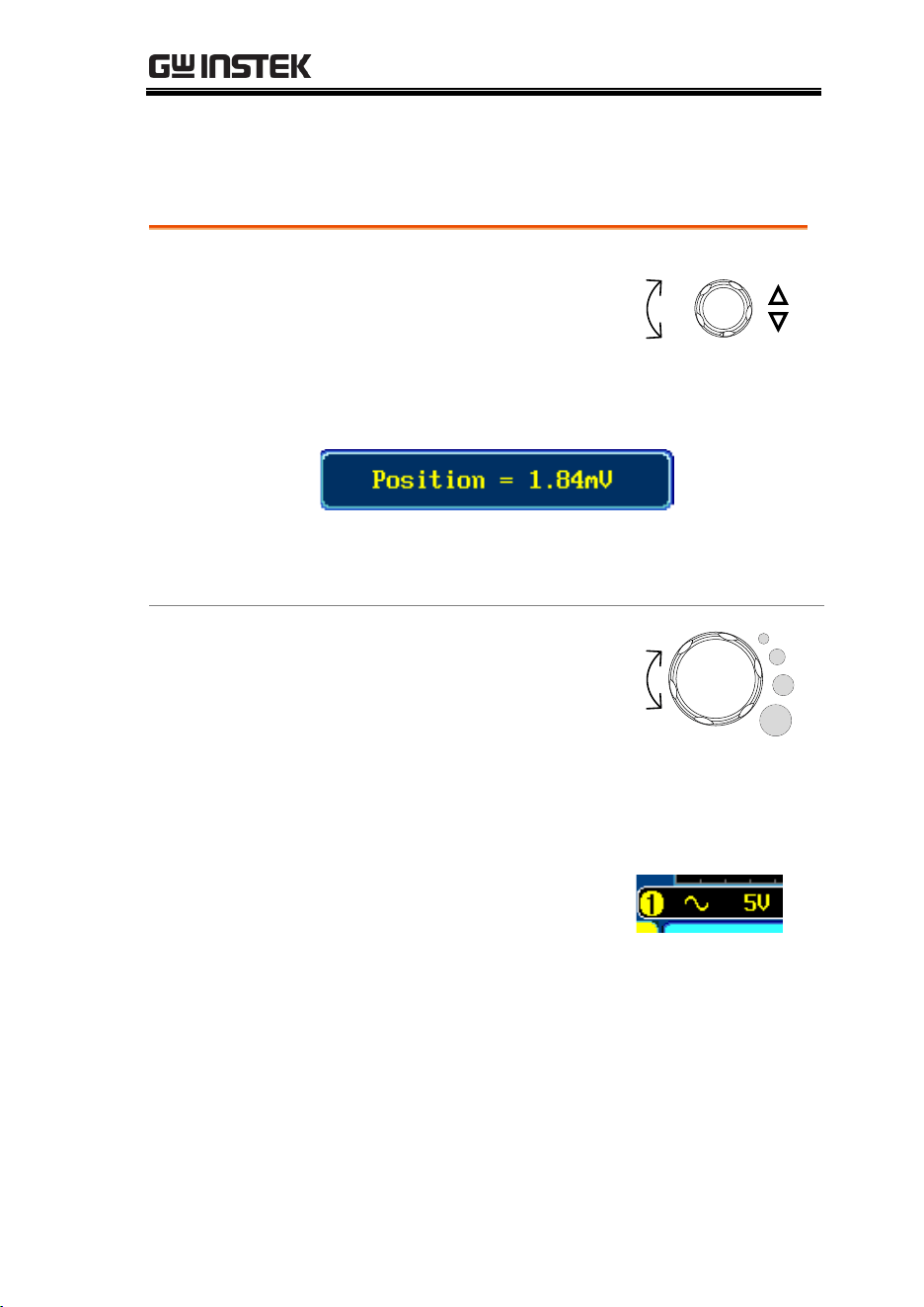
To move the waveform up or
down, turn the vertical position
knob for each channel.
POSITION
Down
Up
As the waveform moves, the vertical position of
the cursor appears on the display.
Run/Stop
mode
The waveform can be moved
vertically in both Run and Stop
mode.
Select Vertical
Scale
To change the vertical scale,
turn the VOLTS/DIV knob; left
(down) or right (up).
Down
Up
Range
2mV/div ~ 1V/div (50Ω/75Ω)/,
2mV/div ~ 5V/div (1MΩ)
1-2-5 increments
The vertical scale indicator for
each channel on the bottom of
the display changes
accordingly.
GDS-3000 Series User Manual
66
Split Window Mode
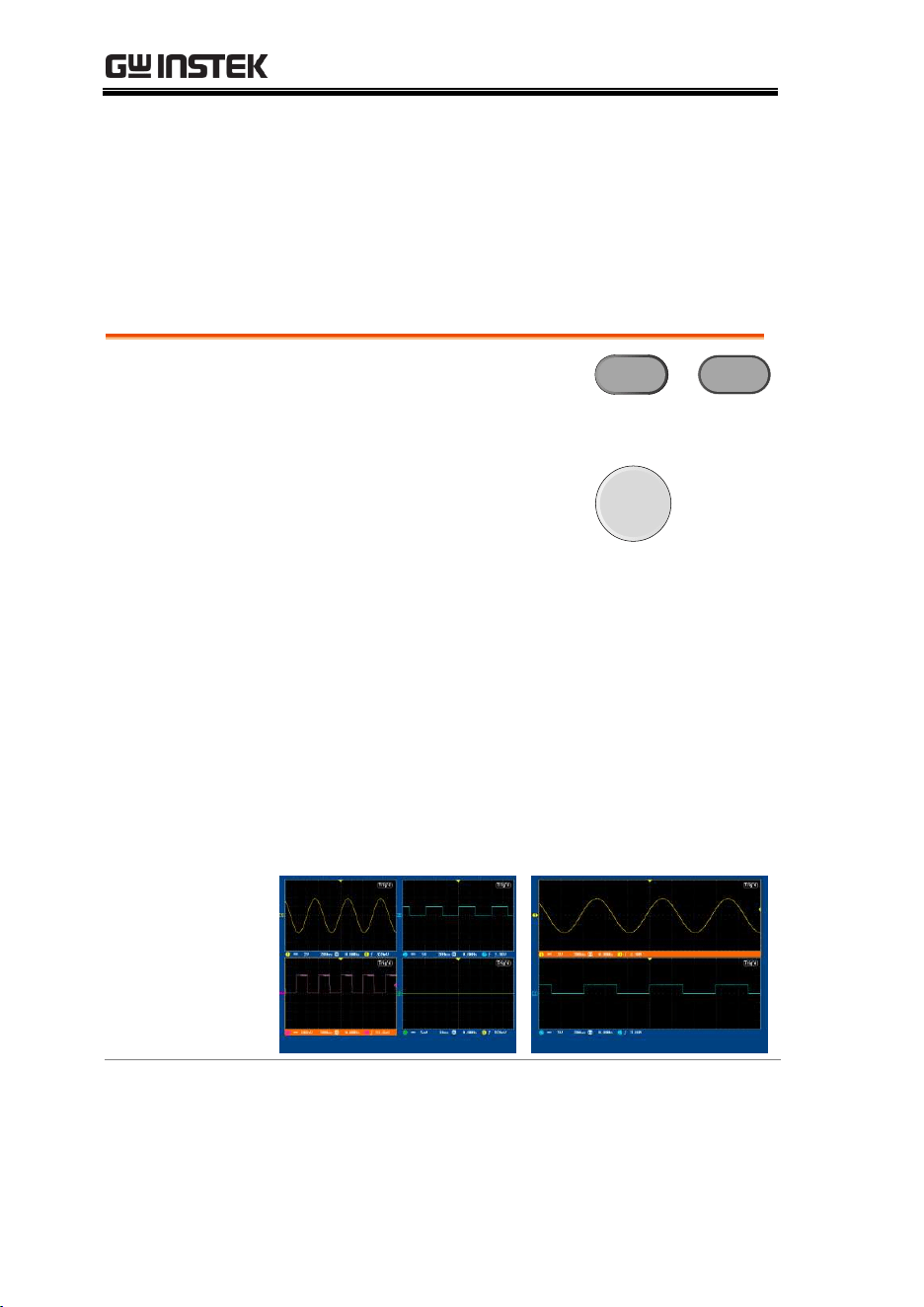
The split window mode is able to display and trigger each active
channel independently. The split window mode is especially useful
for signal comparisons. Reference waveforms can also be used in
this mode. Most functions and features can be used with split
screen mode except for the Math, XY display and Zoom mode.
Enter Split Screen
Mode
1. Activate each channel that is
to be used in the split screen
mode.
CH1 CH1
à
page 57
2. Press the Split Window key
to enter the split screen
mode.
Split
Window
3. Split window mode appears. The number of
windows depends on the number of active
channels. 1-2 active channels will produce 2
split windows, while 3-4 active channels will
produce 4 split windows.
The split window that has the active channel is
shown with an orange border.
Example
4 channel split window
Active
window
2 channel split window
Active
window
MEASUREMENT
67
Select Active
Channel
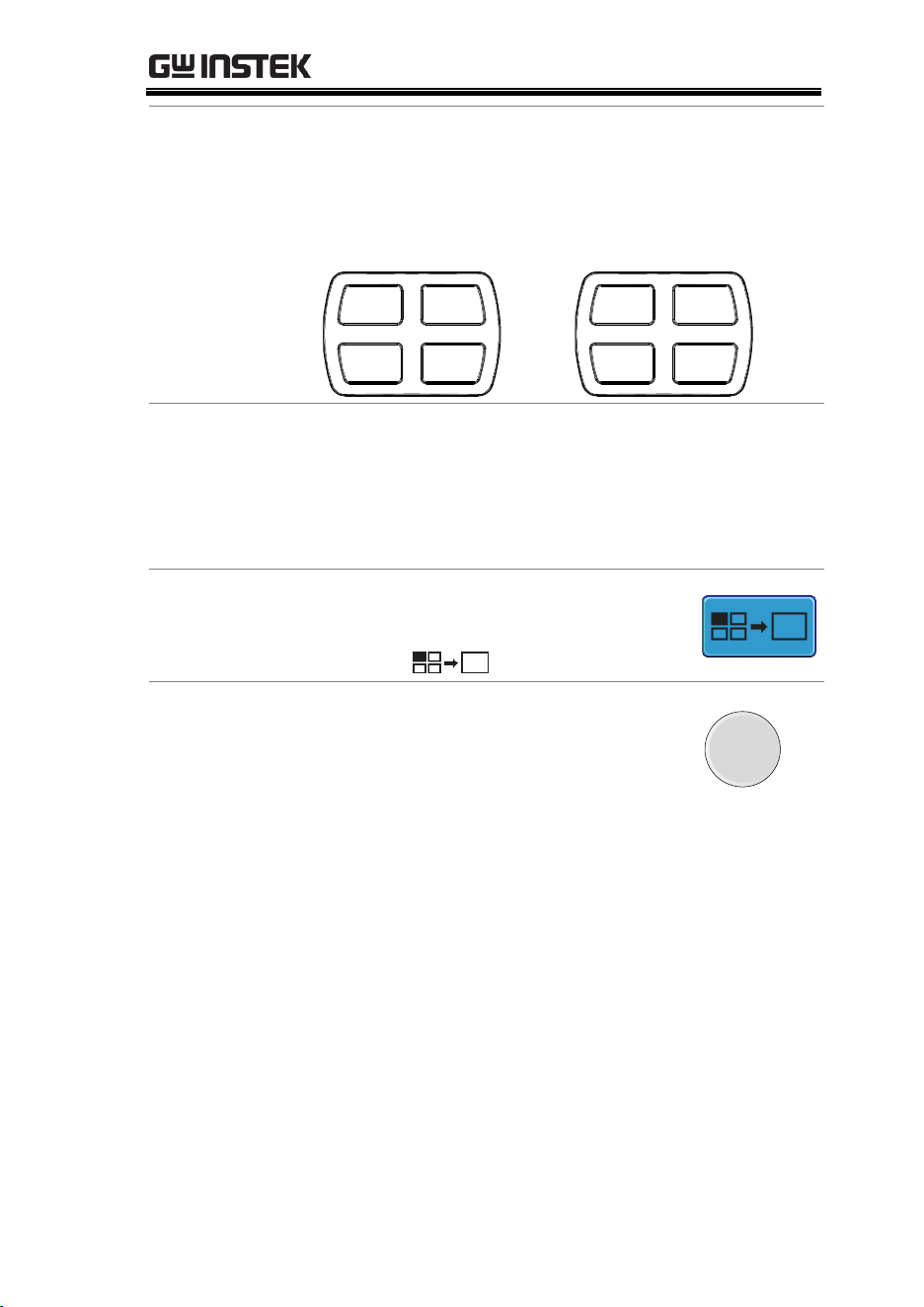
To select the active channel, press the
corresponding split window key:
4 Window split screen:
Window
1
Window
2
Window
3
Window
4
2 window split screen:
Window
1
Window
1
Window
2
Window
2
Reference
Waveforms
Reference waveforms can also be used in this
mode. Each reference waveform will be recalled to
the corresponding split window number. I.e., Ref1
will be recalled to the first split window, Ref2 to
the second window and so on.
Use Active
Channel Settings
To return to full screen mode using
the settings of the active channel,
press the
button.
Exit Split Window
mode
To exit split window mode, press the
Split Window key again.
Split
Window
GDS-3000 Series User Manual
68
Automatic Measurement
The automatic measurement function measures and updates major
items for Voltage/Current, Time, and Delay type measurements.
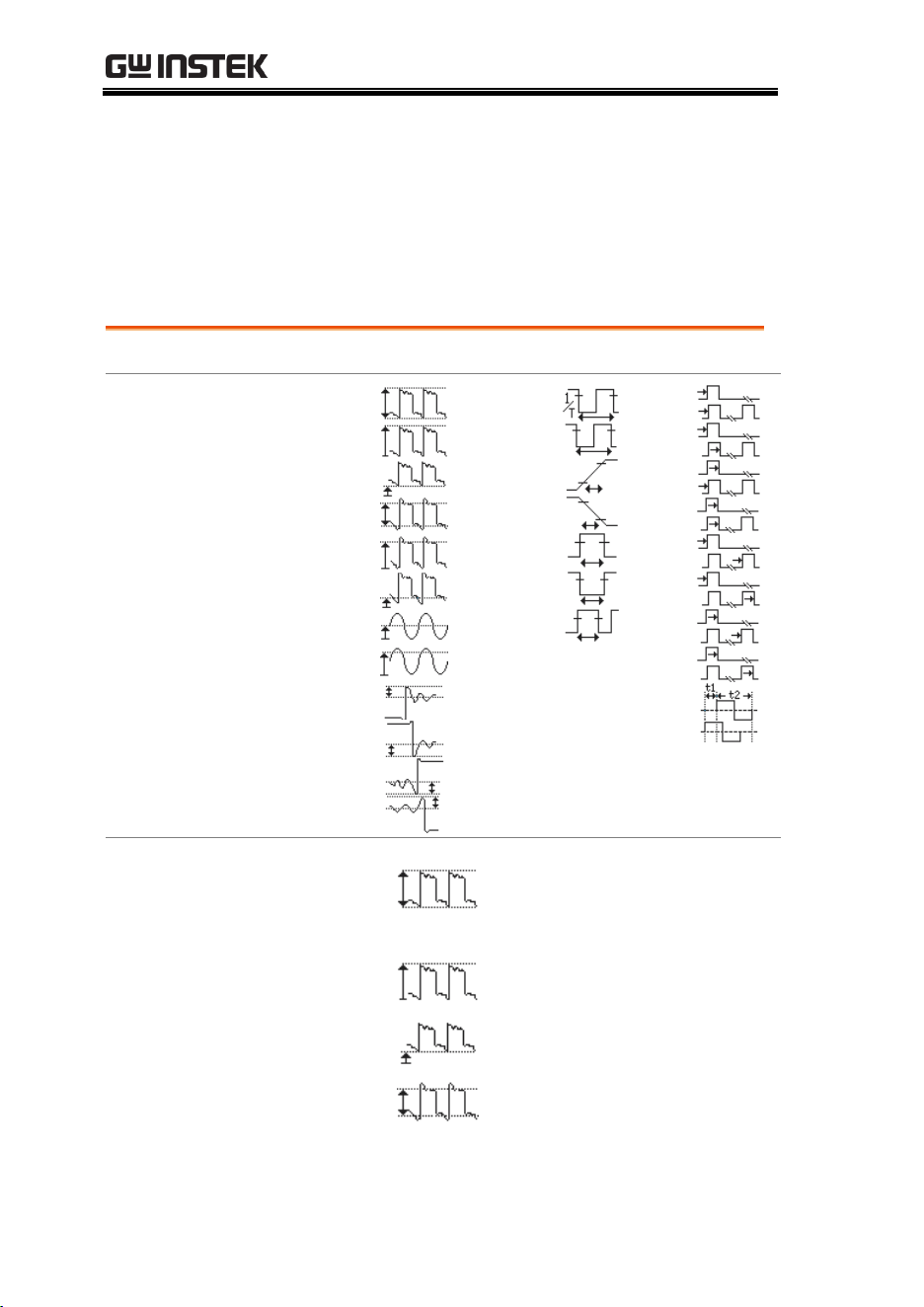
Measurement Items
V/I Measurements
Time Meas.
Delay Meas.
Overview
Pk-Pk
Max
Min
FOVShoot
ROVShoot
RMS
Average
Low
High
Amplitude
RPREShoot
FPREShoot
Frequency
Dutycycle
-Width
+Width
FallTime
RiseTime
Period
FRR
FRF
FFR
Phase
LFF
LFR
LRF
LRR
FFF
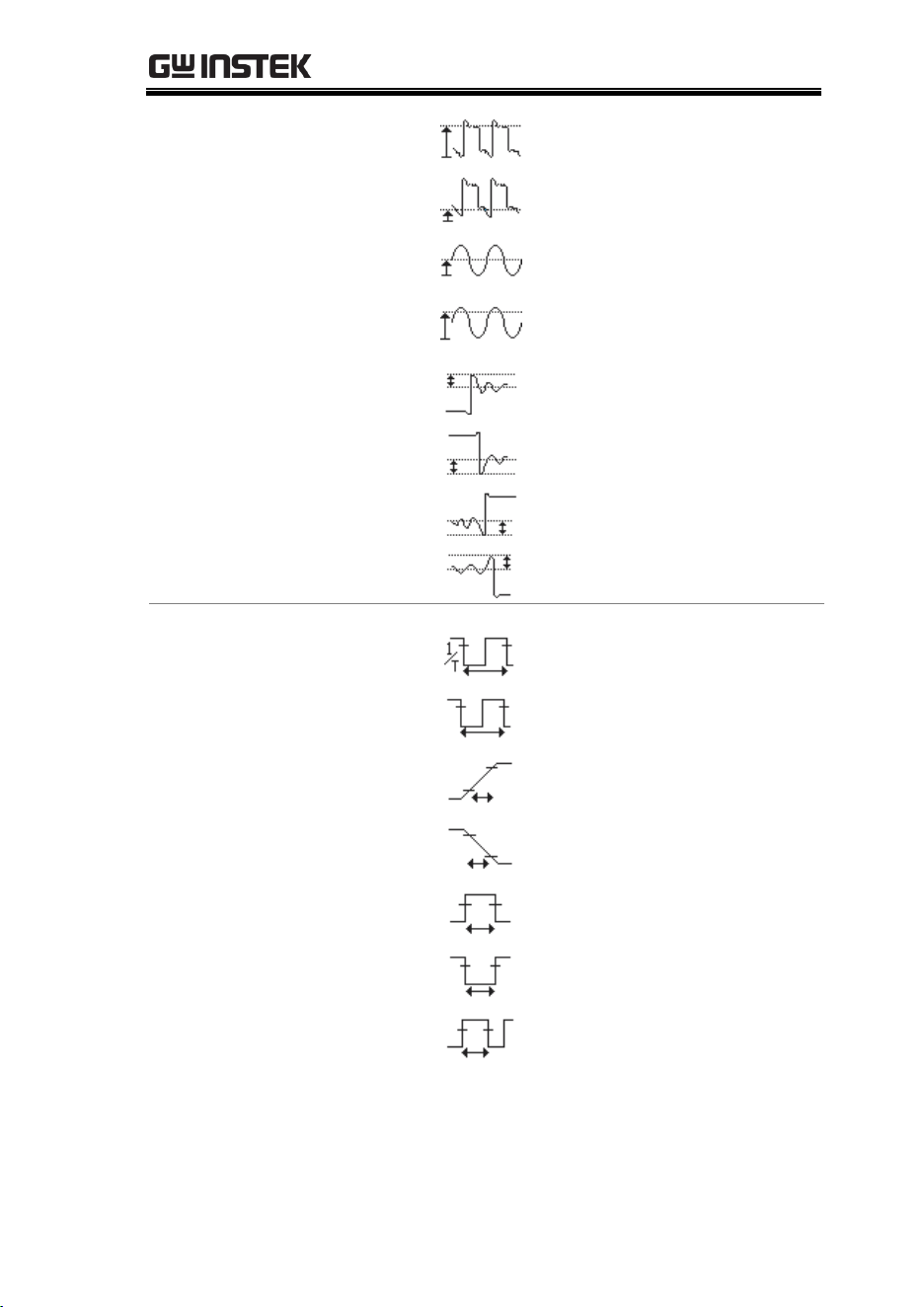
Voltage/Current
Measurement
Pk-Pk
(peak to
peak)
Difference between positive
and negative peak voltage
(=Vmax − Vmin)
Max
Positive peak voltage
Min
Negative peak voltage
Amplitude
Difference between global
high and global low voltage
(=Vhi − Vlo)
MEASUREMENT
69
High
Global high voltage
Low
Global low voltage
Average
Averaged voltage of the first
cycle
RMS
RMS (root mean square)
voltage
ROVShoot
Rise overshoot voltage
FOVShoot
Fall overshoot voltage
RPREShoot
Rise preshoot voltage
FPREShoot
Fall preshoot voltage
Time
Measurement
Frequency
Frequency of the waveform
Period
Waveform cycle time
(=1/Freq)
RiseTime
Rising time of the pulse
(~90%)
FallTime
Falling time of the pulse
(~10%)
+Width
Positive pulse width
–Width
Negative pulse width
Duty Cycle
Ratio of signal pulse
compared with whole cycle
=100x (Pulse Width/Cycle)
GDS-3000 Series User Manual
70
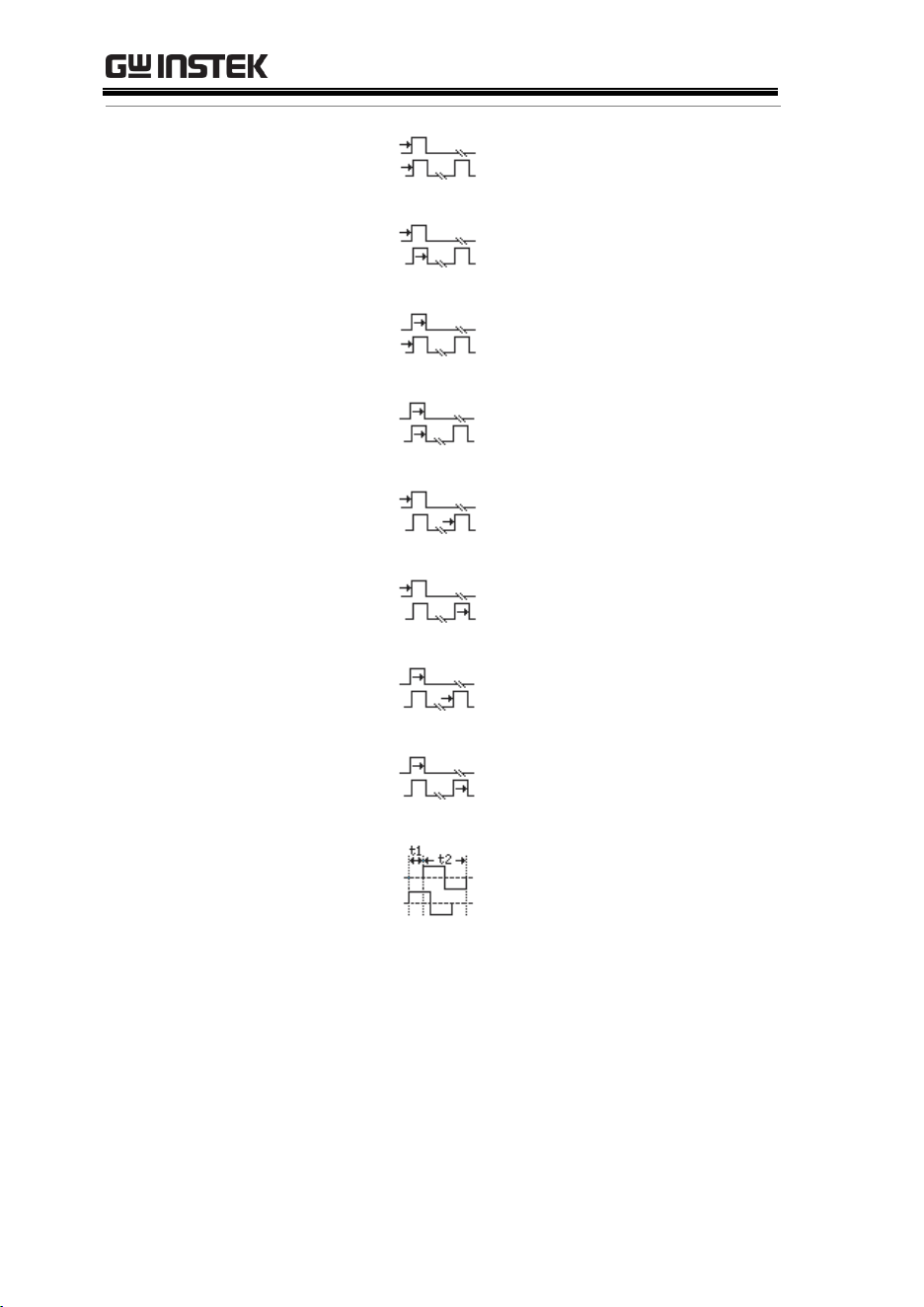
Delay
Measurement
FRR
Time between:
Source 1 first rising edge and
Source 2 first rising edge
FRF
Time between:
Source 1 first rising edge and
Source 2 first falling edge
FFR
Time between:
Source 1 first falling edge and
Source 2 first rising edge
FFF
Time between:
Source 1 first falling edge and
Source 2 first falling edge
LRR
Time between:
Source 1 first rising edge and
Source 2 last rising edge
LRF
Time between:
Source 1 first rising edge and
Source 2 last falling edge
LFR
Time between:
Source 1 first falling edge and
Source 2 last rising edge
LFF
Time between:
Source 1 first falling edge and
Source 2 last falling edge
Phase
The phase difference of two
signals, calculated in degrees.
T1÷T2×360.
MEASUREMENT
71
Individual Mode
Individual mode shows up to eight selected measurement items on
bottom of the screen from any channel source.
Add
Measurement
Item
1. Press the Measure key.
Measure
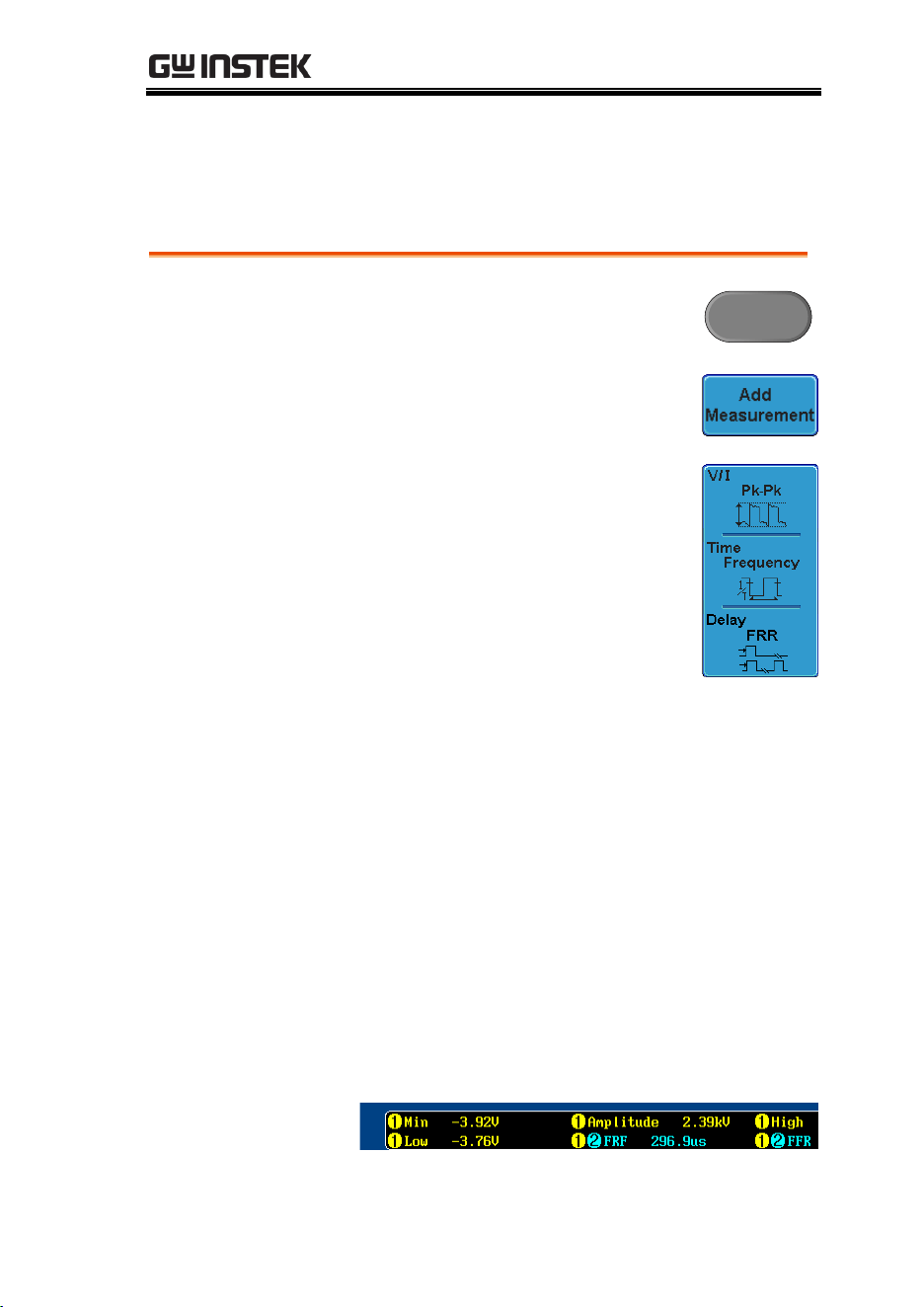
2. Press Add Measurement from the
bottom menu.
3. Choose either a V/I, Time or Delay
measurement from the side menu.
V/I
(Voltage/
Current)
Pk-Pk, Max, Min, Amplitude, High,
Low, Average, RMS, ROVShoot,
FOVShoot, RPREShoot, FPREShoot
Time
Frequency, Period, RiseTime,
FallTime, +Width, –Width, Duty
Cycle
Delay
FRR, FRF, FFR, FFF, LRR, LRF, LFR,
LFF, Phase
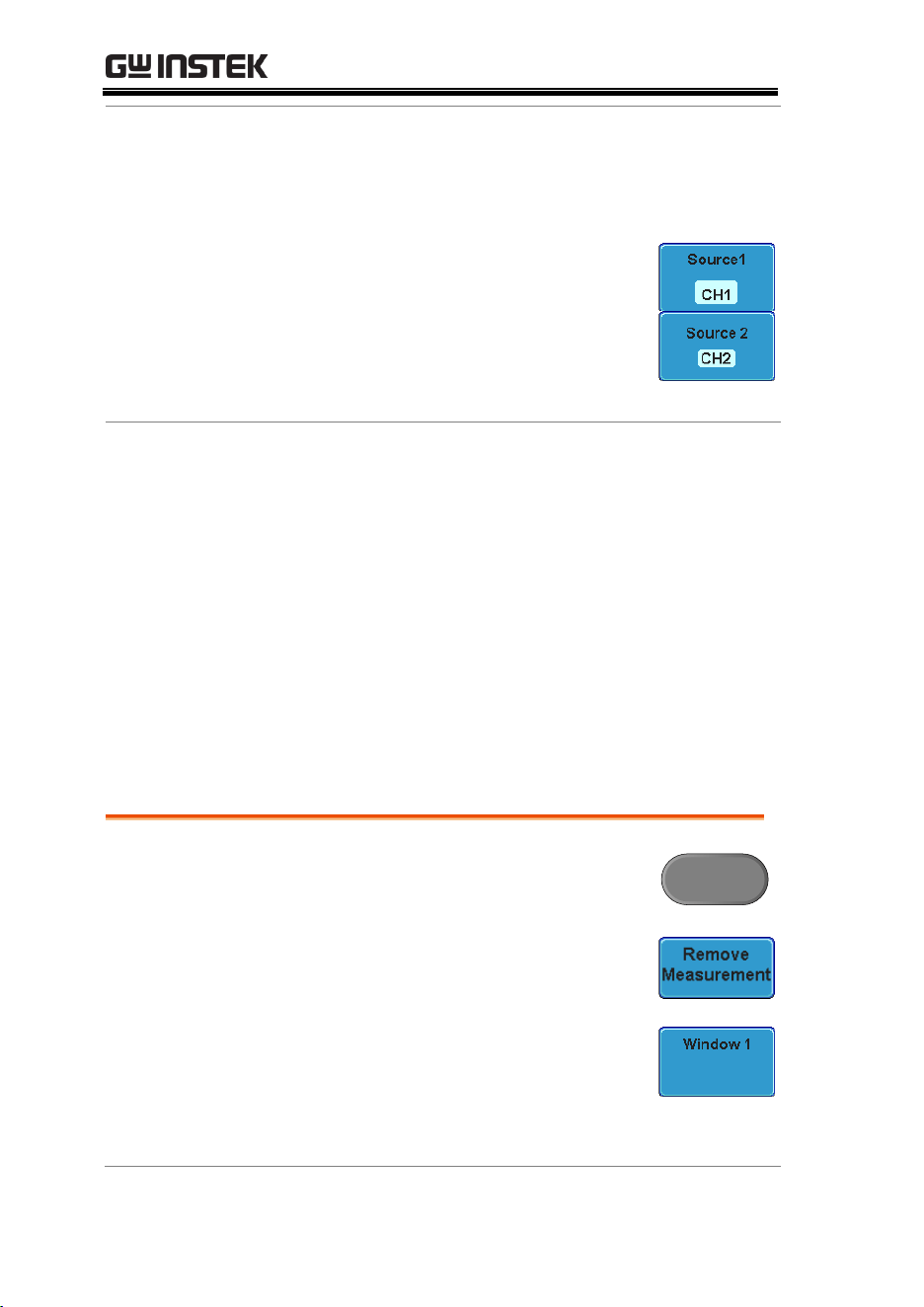
4. All individual measurements will be displayed
in a window on the bottom of the screen. The
channel number and channel color indicate the
measurement source: yellow = CH1, blue =
CH2, pink = CH3, green = CH4.
GDS-3000 Series User Manual
72
Choose a Source
The channel source for measurement items can be
set either before or when selecting a measurement
item.
1. To set the source, press either the
Source1 or Source2 key from the
side menu and choose the source.
Source 2 is only for delay
measurements.
Range
CH1, CH2, CH3, CH4
Split Window
Mode
Individual mode can be used with the split
window mode. Each individual measurement will
be displayed in the split window that houses the
source of the measurement.
Delay measurements are not supported as only
one source can be used for each measurement in
split window mode.
Remove Measurement
Individual measurements can be removed at any time using the
Remove Measurement function.
Remove
Measurement
Item
1. Press the Measure key.
Measure
2. Press Remove Measurement from the
bottom menu.
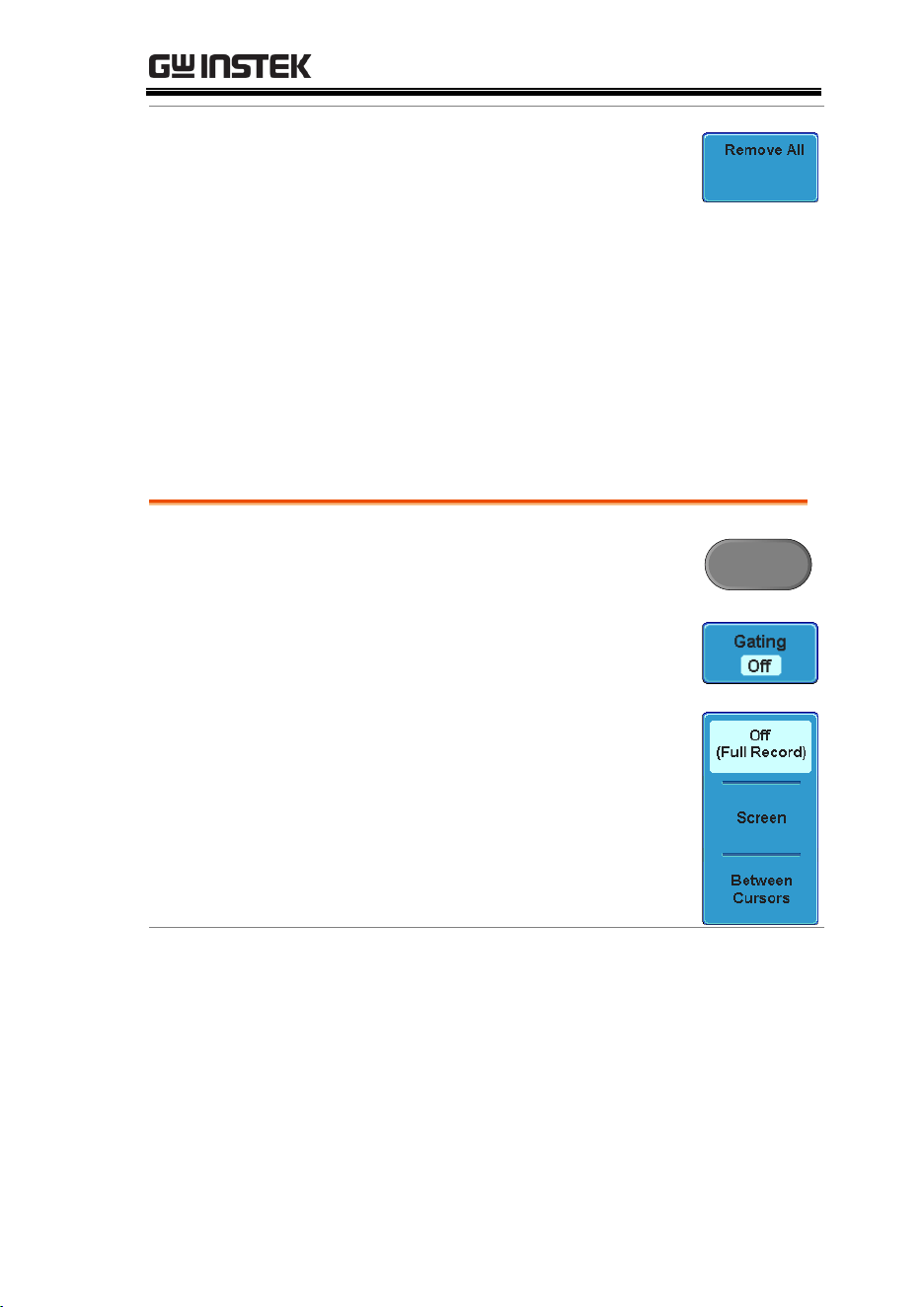
3. Choose which measurement
window (if in split window mode)
the item is located in (Window 1~4)
and use the variable knob to
remove an item.
MEASUREMENT
73
Remove All Items
Press Remove All to remove all the
measurement items in full screen
mode, or to remove all the
measurement items for the active
window in split screen mode.
Gated mode
Some automatic measurements can be limited to a “gated” area
between cursors. Gating is useful for measuring a magnified
waveform or when using a fast time base. The Gated mode has
three possible configurations: Off (Full Record), Screen and
Between Cursors.
Set Gating Mode
1. Press the Measure key.
Measure
2. Press Gating from the bottom
menu.
3. Choose one of the gating modes
from the side menu: Off (Full
Record), Screen, Between Cursors
Cursors On
Screen
If Between Cursors is selected, the
cursor positions can be edited by
using the cursor menu.
Page 76
GDS-3000 Series User Manual
74
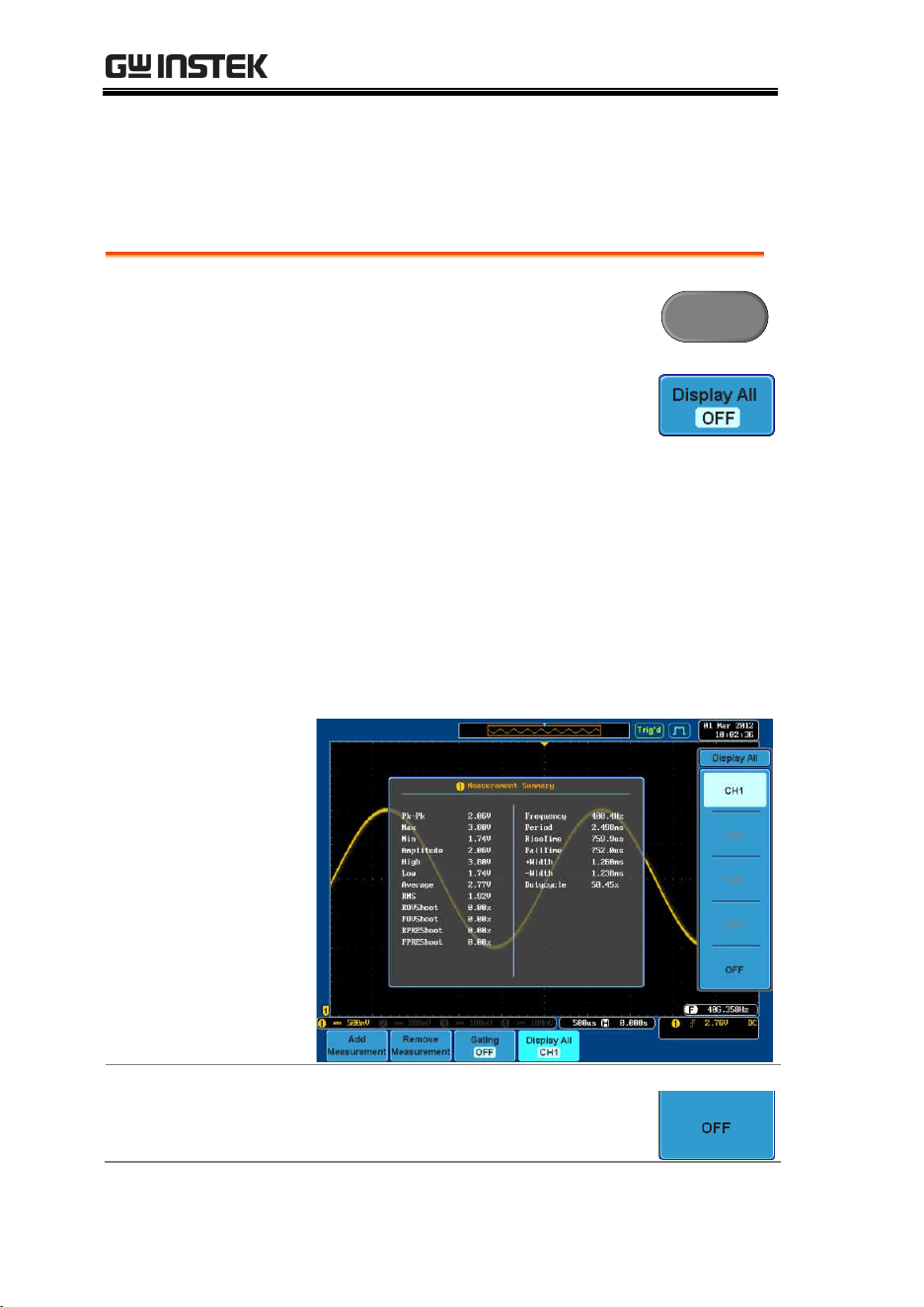
Display All mode
Display All mode shows and updates all items from Voltage and
Time type measurements.
View
Measurement
Results
1. Press the Measure key.
Measure
2. Press Display All from the bottom
menu.
3. Choose a channel (CH1, CH2, CH3, CH4) from
the side menu to display auto measurement
items.
Note: only the channels that are activated are
available.
4. The results of Voltage and Time type
measurements appear on the display.
Remove
Measurements
To remove the measurement results,
press OFF.

GDS-3000 Series User Manual
76
Cursor Measurement
Horizontal or vertical cursors are used to show the position and
values of waveform measurements and math operation results.
These results cover voltage, time, frequency and other math
operations. When the cursors (horizontal, vertical or both) are
activated, they will be shown on the main display unless turned off.
(page 111).
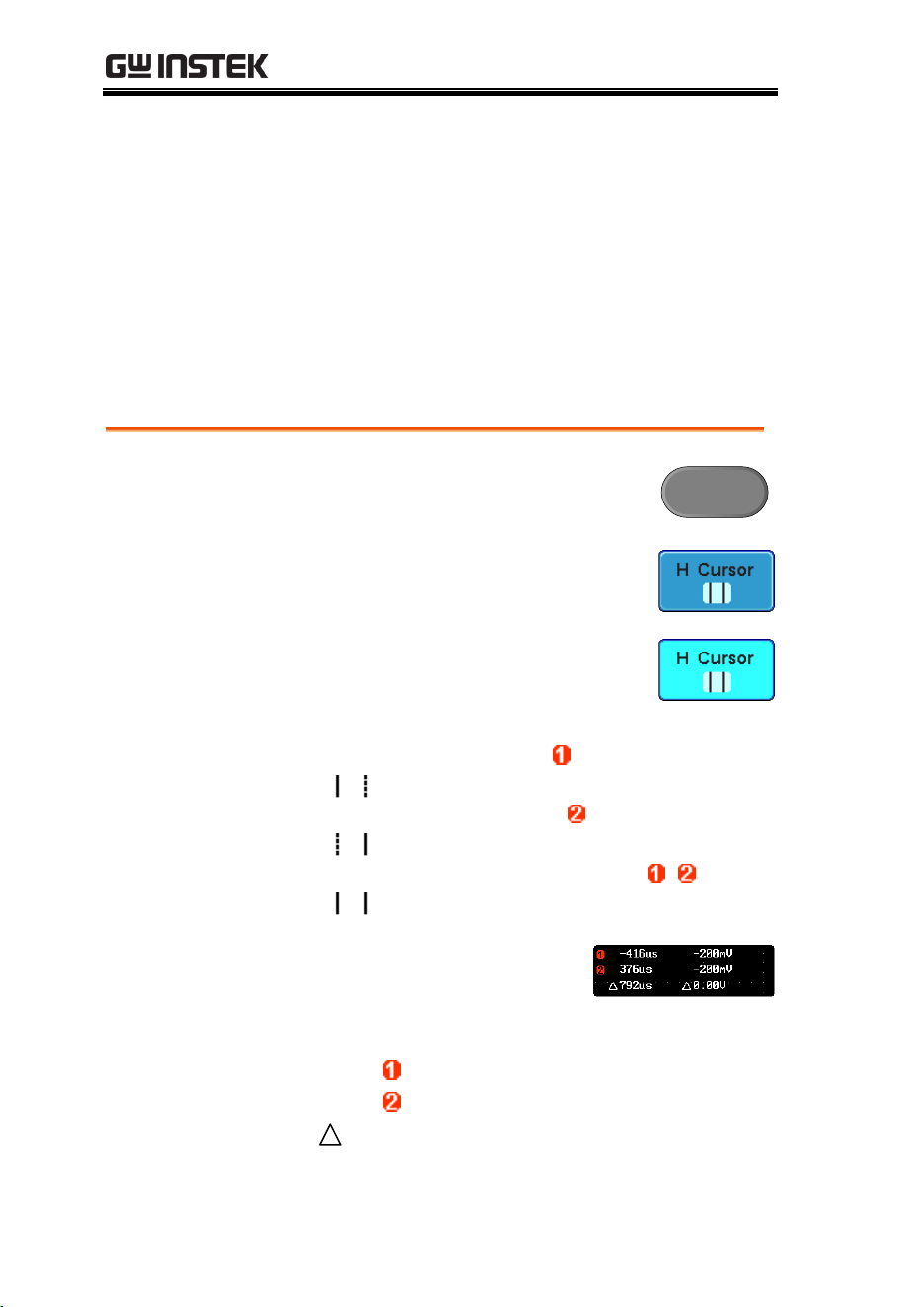
Use Horizontal Cursors
Panel Operation/
Range
1. Press the Cursor key once.
Cursor
2. Press H Cursor from the bottom
menu.
3. Press H Cursor repeatedly to
toggle the cursor type.
Range
Left cursor ( ) movable, right
cursor position fixed
Right cursor ( ) movable, left
cursor position fixed
Left and right cursor ( + )
movable together
4. The cursor position
information appears on the
top left hand side of the
screen
Cursor
Time, Voltage/Current
Cursor
Time, Voltage/Current
Delta (difference between cursors)
MEASUREMENT
77
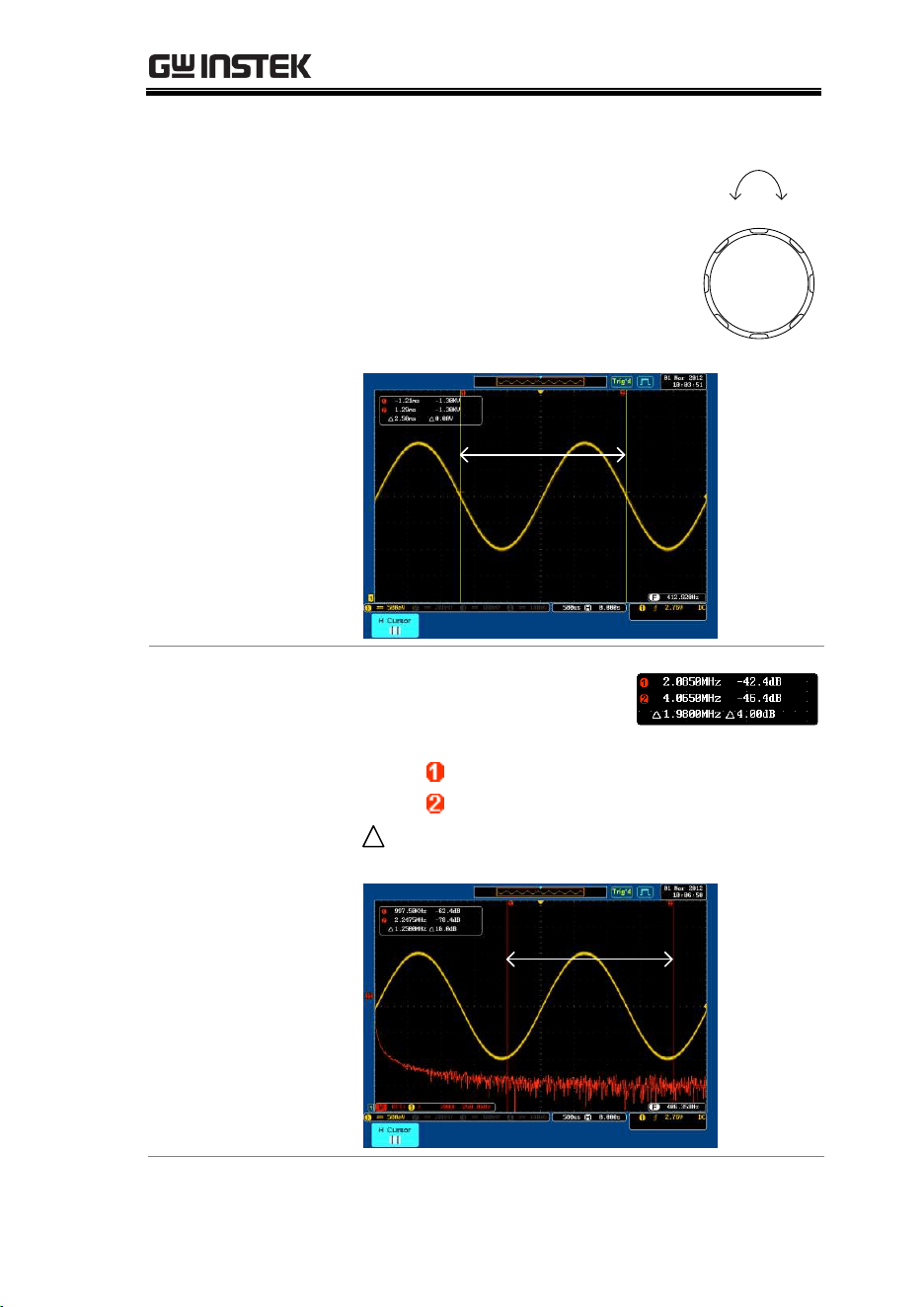
5. Use the Variable knob to move the
movable cursor(s) left or right.
VARIABLE
Left Right
Example
Horizontal
cursors
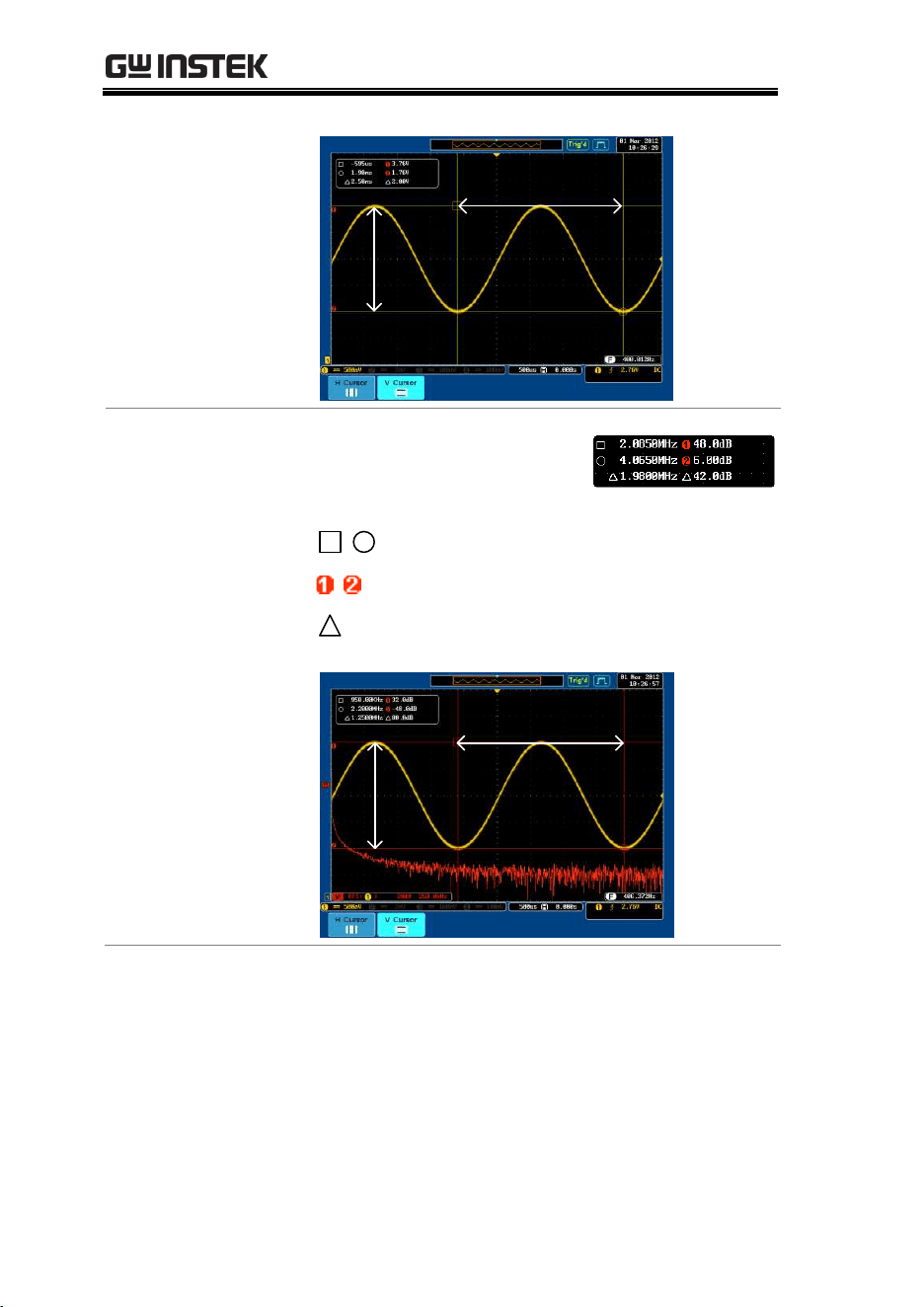
FFT Math
FFT Math has different content.
For FFT math details, see page
85.
Cursor
Frequency, dB/V
Cursor
Frequency, dB/V
Delta (difference between cursors)
Example
Horizontal
cursors
GDS-3000 Series User Manual
78
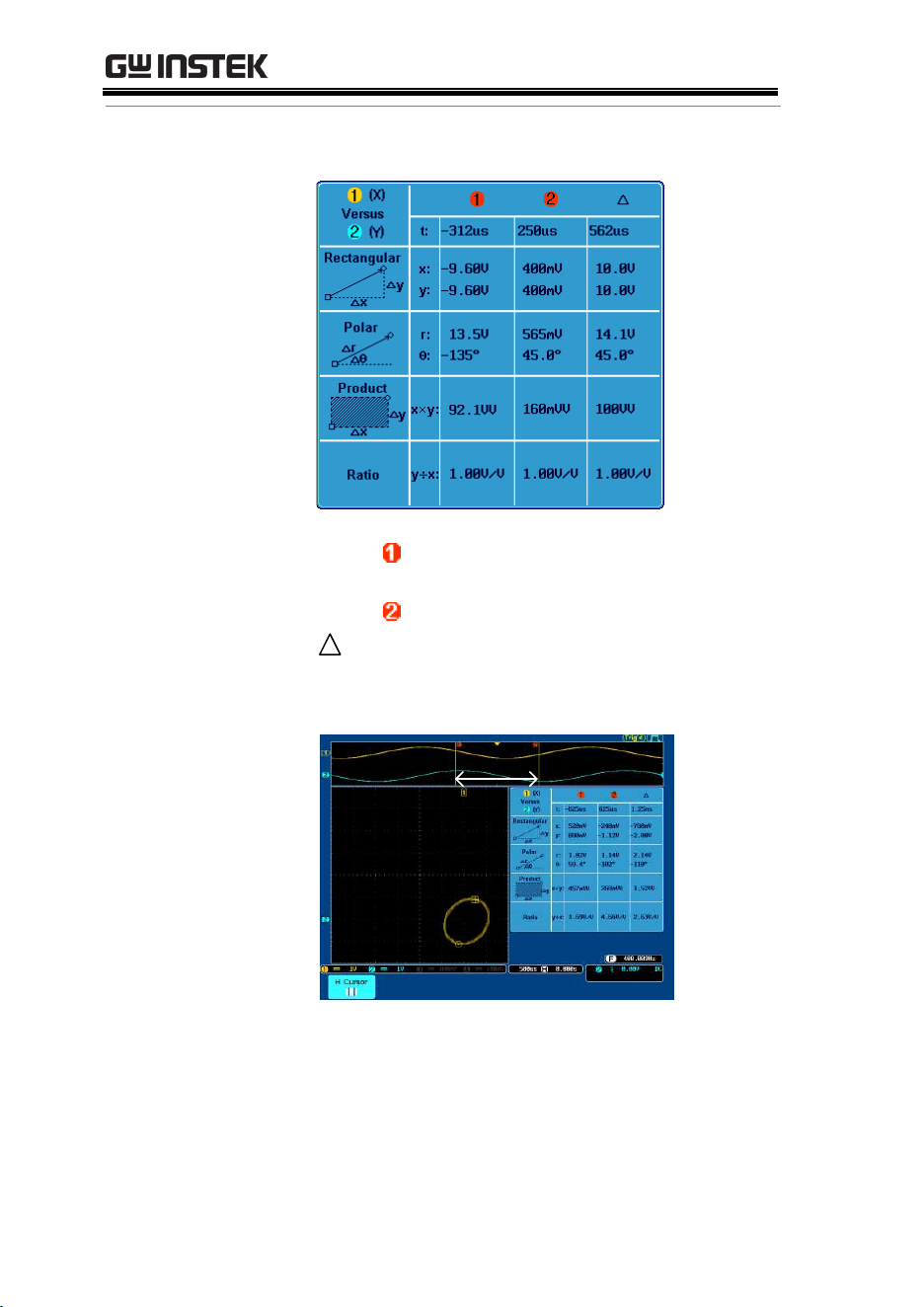
XY Mode
XY mode cursors measure a number of X by Y
measurements.
Cursor
Time, rectangular, polar
co-ordinates, product, ratio.
Cursor
Time, rectangular, polar
co-ordinates, product, ratio.
Delta (difference between cursors)
Example
Horizontal
cursors
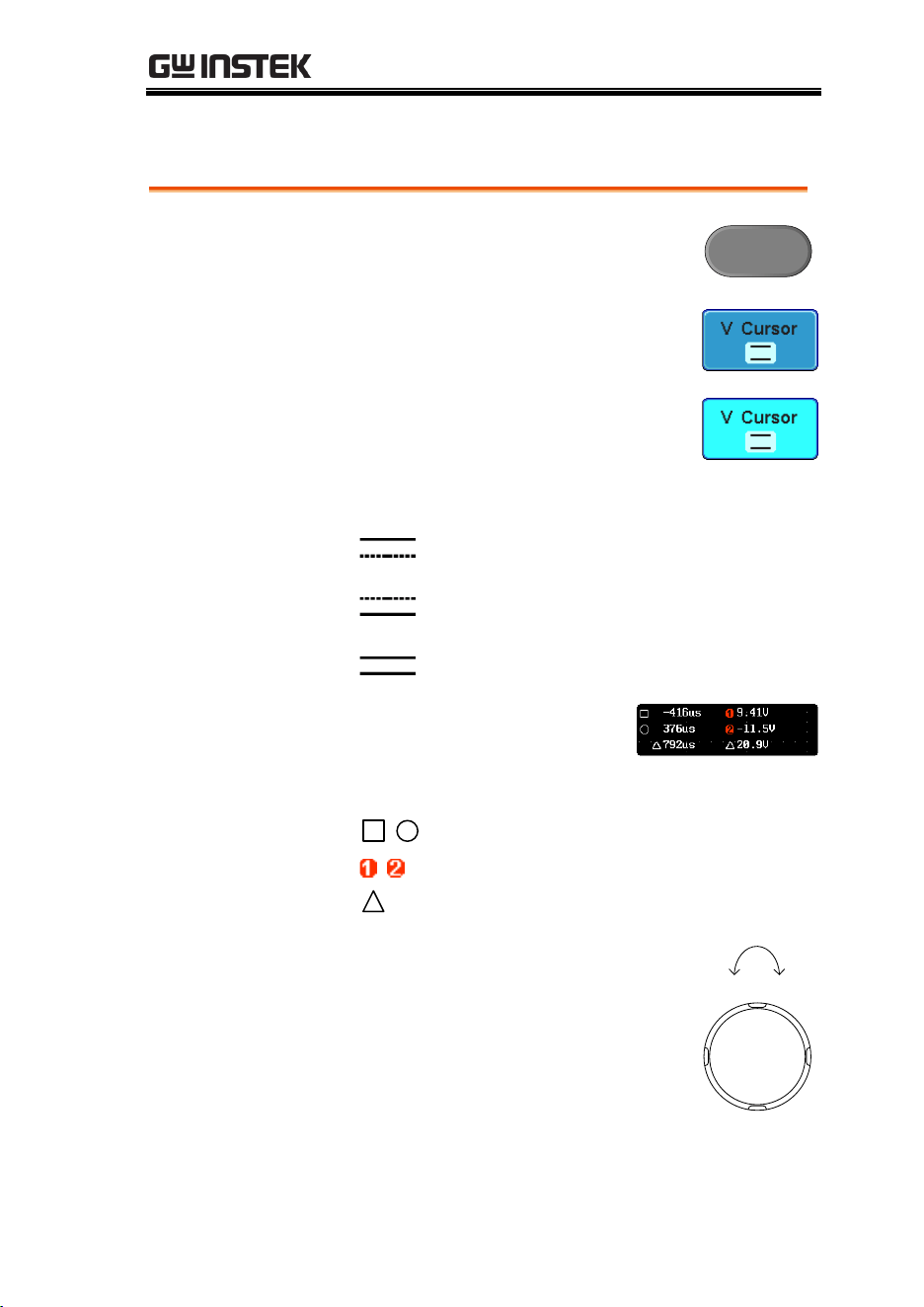
MEASUREMENT
79
Use Vertical Cursors
Panel Operation/
Range
1. Press the Cursor key twice.
Cursor
2. Press V Cursor from the bottom
menu.
3. Press V Cursor repeatedly to toggle
the cursor type.
Range
Upper cursor movable, lower
cursor position fixed
Lower cursor movable, upper
cursor position fixed
Upper and lower cursor movable
together
4. The cursor position
information appears on the
top left hand side of the
screen.
,
Time: cursor 1, cursor 2
,
Voltage/Current: cursor1, cursor2
Delta (difference between cursors)
5. Use the Variable knob to move the
cursor(s) up or down.
VARIABLE
Up Down

MEASUREMENT
81
XY Mode
XY mode cursors measure a number of X by Y
measurements.
Cursor
Rectangular, polar co-ordinates,
product, ratio.
Cursor
Rectangular, polar co-ordinates,
product, ratio.
Delta (difference between cursors)
Example
Horizontal
cursors
Vertical
cursors
GDS-3000 Series User Manual
82
Math Operation
Overview
Background
Math operation runs addition, subtraction,
multiplication, division or FFT using the input
signals or reference waveforms (Ref1~4) and
shows the result on the display. The resulted
waveform characteristics can be measured using
the cursors.
Addition (+)
Adds the amplitude of two signals.
Source
CH1~4, Ref1~4
Subtraction (–)
Extracts the amplitude difference between two
signals.
Source
CH1~4, Ref1~4
Multiplication (×)
Multiplies the amplitude of two signals.
Source
CH1~4, Ref1~4
Division (÷)
Divides the amplitude of two signals.
Source
CH1~4, Ref1~4
FFT
Runs FFT calculations on a signal. Four types of
FFT windows are available: Hanning, Hamming,
Rectangular, and Blackman.
Source
CH1~4, Ref1~4
Hanning FFT
Window
Frequency resolution
Good
Amplitude resolution
Not good
Suitable for....
Frequency measurement on
periodic waveforms

MEASUREMENT
83
Hamming FFT
Window
Frequency resolution
Good
Amplitude resolution
Not good
Suitable for....
Frequency measurement on
periodic waveforms
Rectangular FFT
Window
Frequency resolution
Very good
Amplitude resolution
Bad
Suitable for....
Single-shot phenomenon
(this mode is the same as
having no window at all)
Blackman FFT
Window
Frequency resolution
Bad
Amplitude resolution
Very good
Suitable for....
Amplitude measurement on
periodic waveforms
Addition/Subtraction/Multiplication/Division
Panel Operation
1. Press the Math key.
M
2. Press the Math key on the lower
bezel.
3. Select Source 1 from the side menu
Range
CH1~4, Ref~4
4. Press Operator to choose the math
operation.
Range
+, -, ×, ÷
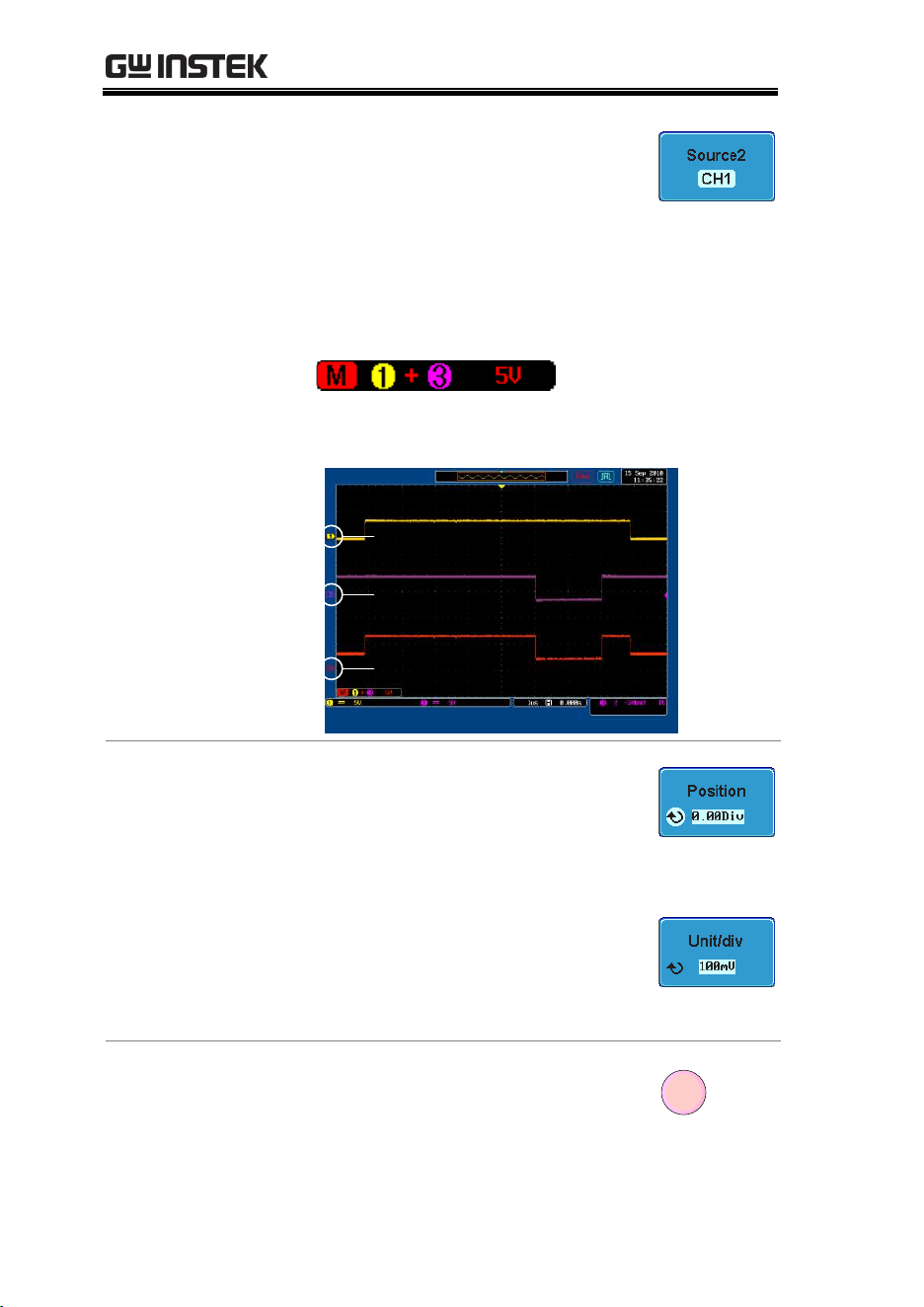
GDS-3000 Series User Manual
84
5. Select Source 2 from the side menu.
Range
CH1~4, Ref~4
6. The math measurement result appears on the
display. The vertical scale of the math
waveform appears at the bottom of the screen.
From left: Math function, source1, operator,
source2, Unit/div
Example
Math
Source 2
Source 1
Position and Unit
To move the math waveform
vertically, press the Position key from
the side menu and use the variable
knob to set the position.
To change the unit/div settings, press
Unit/div, then use the variable knob
change the unit/div.
Range
2mV~1kV (1-2-5 steps)
Turn Off Math
To turn off the Math result from the
display, press the Math key again.
M
MEASUREMENT
85
FFT
Panel Operation
1. Press the Math key.
M
2. Press FFT from the bottom menu.
3. Select the Source from the side
menu.
Range
CH1~4, Ref~4
4. Press the Vertical Units key from
the side menu to select the vertical
units used.
Range
Linear RMS, dBV RMS
5. Press the Window key from the side
menu and select the window type.
Range
Hanning, Hamming, Rectangular,
and Blackman.
6. The FFT result appears. For FFT, the horizontal
scale changes from time to frequency, and the
vertical scale from voltage/current to dB/RMS.
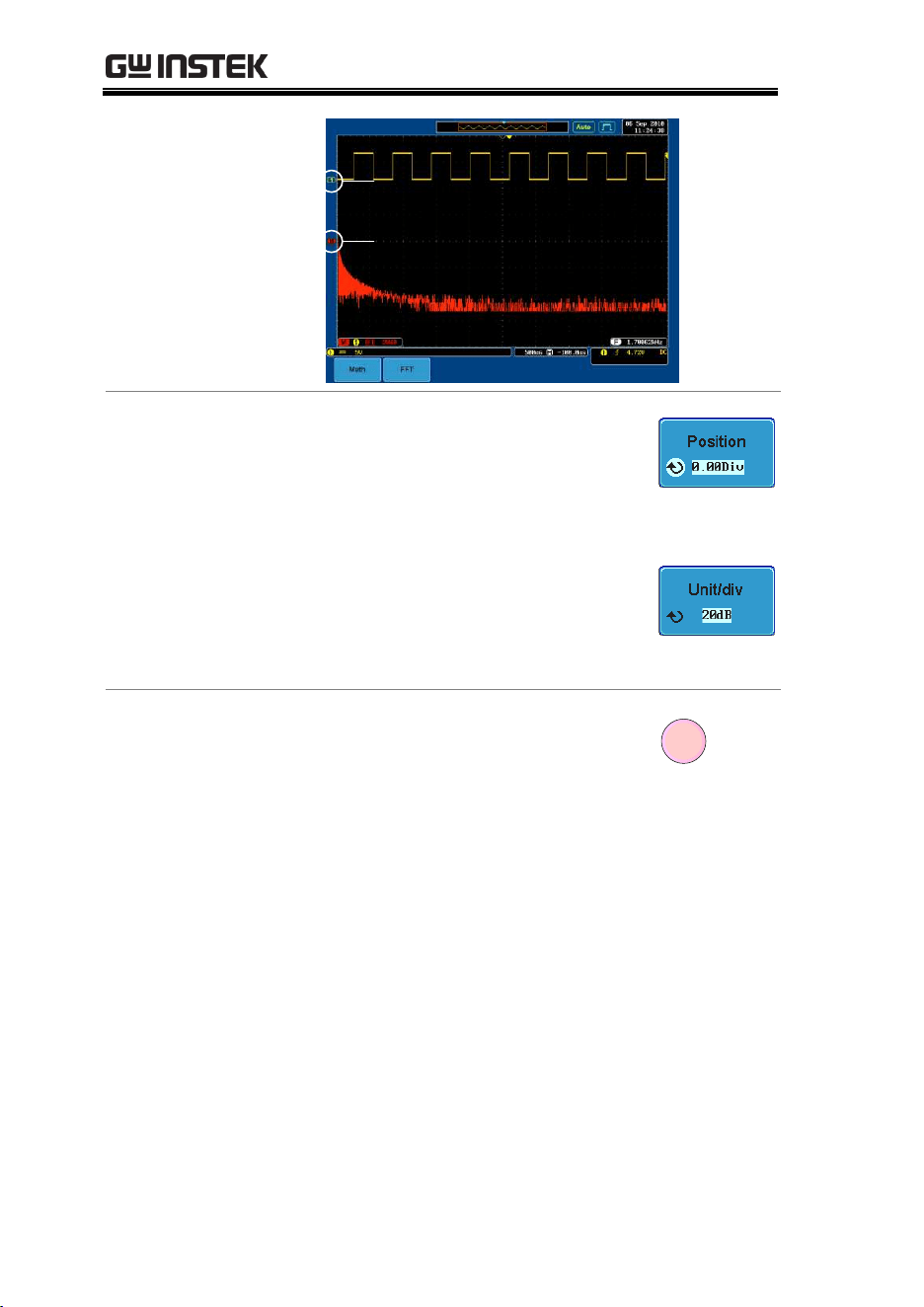
GDS-3000 Series User Manual
86
Math
Source
Position and Unit
To move the FFT waveform vertically,
press Position and use the variable
knob.
Range
–12.00 Div ~ +12.00 Div
To select the vertical scale of FFT
waveform, press Unit/div and use the
variable knob.
Range
2mV~1kV RMS, 1~20 dB
Clear FFT
To clear the FFT result from the
display, press the Math key again.
M
MEASUREMENT
87
Applications
Overview
Background
The APP. function allows different applications to
be run. Applications can be downloaded from the
GW Instek website.
Included
Applications
GO-NOGO
The GO_NOGO application can be
used to set threshold boundaries
for input signals. GO-NOGO
checks if a waveform fits inside a
user-specified maximum and
minimum amplitude boundary
(template).
Running Applications
Background
The APP. function can host a number of different
applications that can be downloaded from the GW
Instek website.
Panel Operation
1. Press the Test key.
Test
2. Press APP. from the bottom menu.
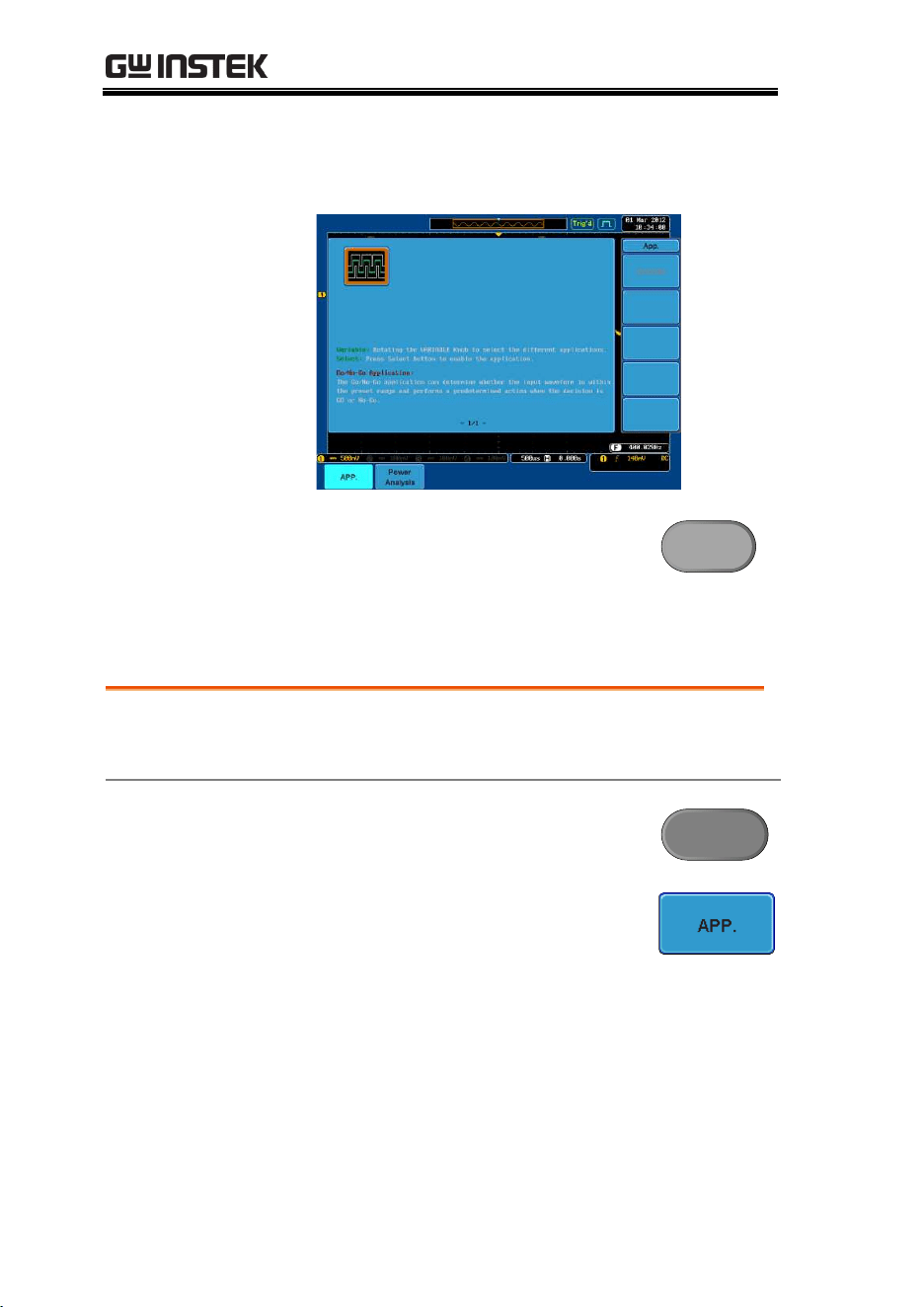
GDS-3000 Series User Manual
88
3. Scroll through each Application using the
Variable knob.
4. Select an application by pressing
the Select key twice.
Select
×2
Uninstalling Applications
Background
Any APP. function can be easily uninstalled using
the Uninstall function.
Panel Operation
1. Press the Test key.
Test
2. Press APP. from the bottom menu.
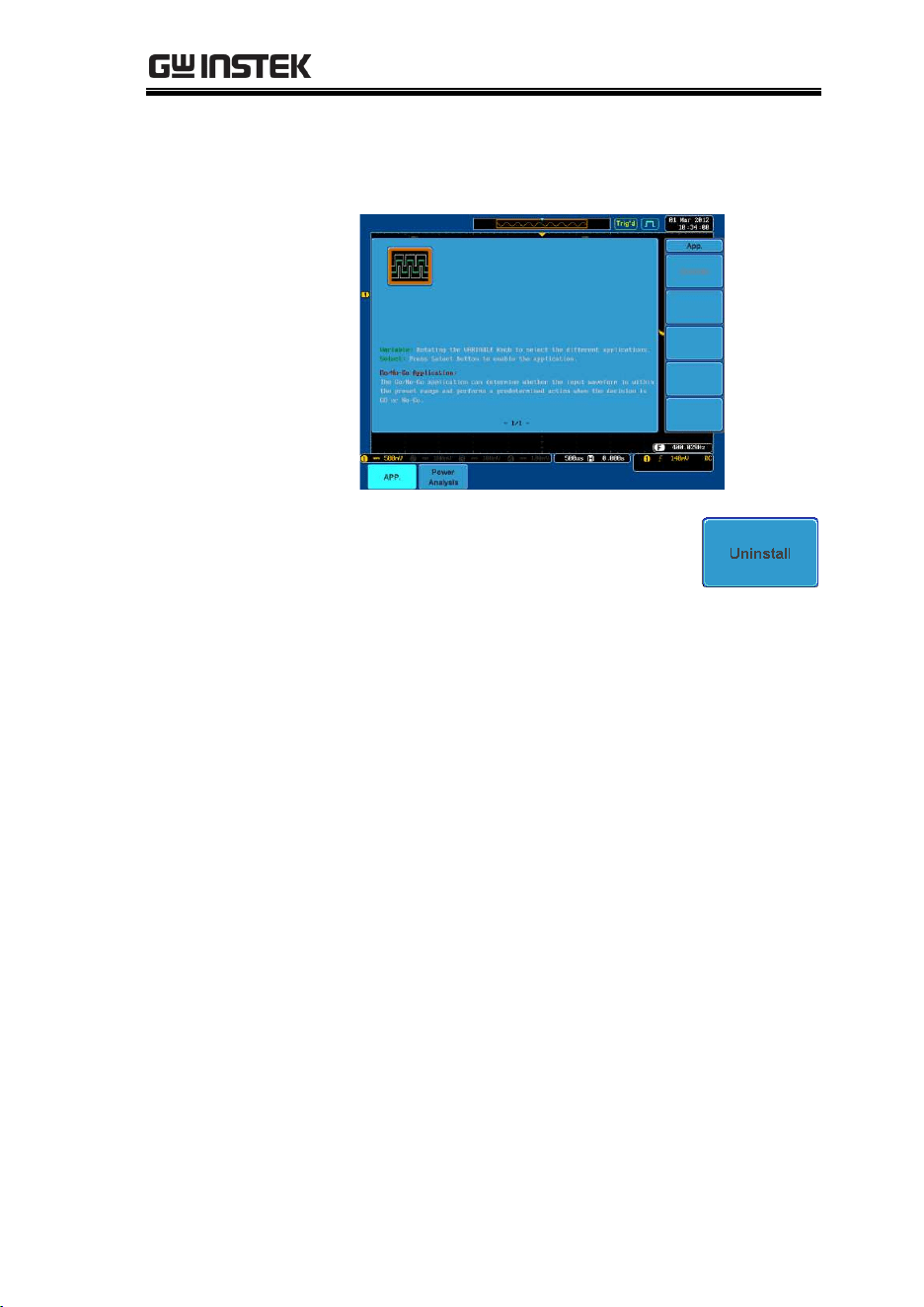
MEASUREMENT
89
3. Scroll through each Application using the
Variable knob.
4. When the desired application is
highlighted, press Uninstall to
begin the uninstallation. Press
again to confirm.
×2
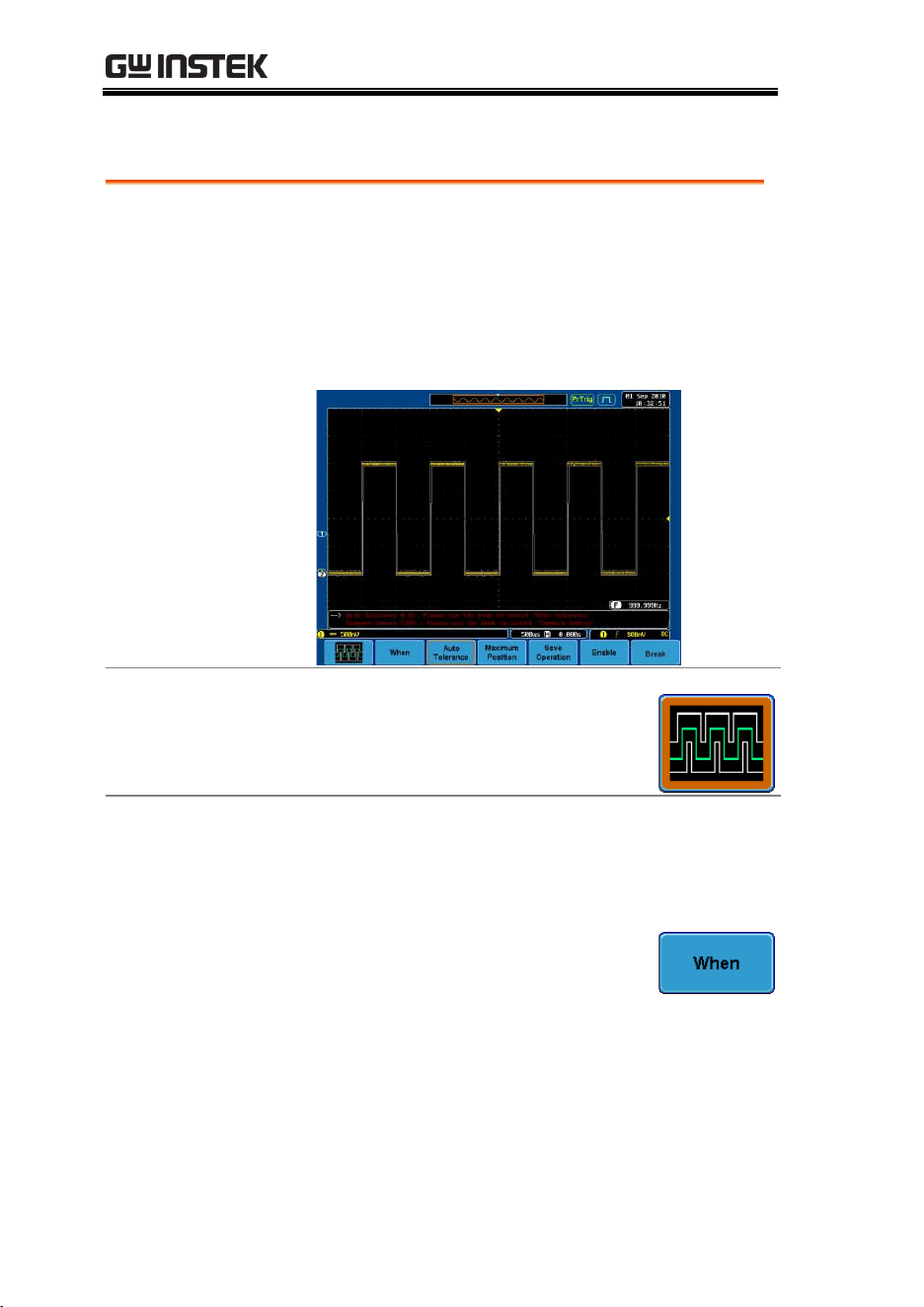
GDS-3000 Series User Manual
90
Using Go_NoGo
Background
The Go-NoGo test checks if a waveform fits inside
a user-specified maximum and minimum
boundary (boundary template). Boundary
templates are automatically created from a source
channel. Boundary tolerance and violation
conditions can be set.
Choose the Go_NoGo application
from the APP. menu. See page 87.
Go-NoGo
Conditions
Select the Go-NoGo conditions (When) and actions
when a Go-NoGo condition has been met
(Violating).
1. Press When from the bottom menu
and use the Variable knob to select
the When condition.
When
Exits: Sets the NoGo condition to
when the input signal exceeds the
limit boundary.
MEASUREMENT
91
Enters: Sets the NoGo condition to
when the input signal stays within
the limit boundary.
2. Press When again to change the
menu to Violating. Use the Variable
knob to choose the action for when
a violation occurs.
Violating
Stop: The waveform will be frozen.
Stop_Beep: The waveform will be
frozen and a beep will be output.
Continue: Ignore the violation.
Continue_Beep: Output a beep, but
continue to monitor the signal.
Source
1. Press Compare Source from the
bottom menu and use the Variable
knob to select the source.
Source
CH1, CH2, CH3, CH4
Tolerance
Boundary
1. To set a tolerance, press Compare
Source again to toggle the menu to
Auto Tolerance. Use the Variable
knob to choose the tolerance as a
percentage.
Violating
0.4% ~ 40% (.4% steps)
Note
If a tolerance is set, the maximum
and minimum boundary is reset as
the tolerance boundary.
GDS-3000 Series User Manual
92
Maximum and
Minimum
1. To set a maximum and minimum
boundary, press Minimum Position
from the bottom menu and use the
Variable knob to select the absolute
minimum position.
Position
Voltage division range
2. Press Minimum Position again to
toggle the menu to Maximum
Position. Choose the maximum
position.
Position
Voltage division range
Note
If a maximum and minimum
boundary is set, the tolerance will
be disabled.
Save Boundary
Limits
1. Select a Maximum Position or a
Tolerance from the lower menu.
2. To save the Go-NoGo test
parameters, press Save Operation.
The Maximum position will be
saved to R1. The tolerance
waveforms will be saved to R1 and
R2.
3. If a Maximum Position was saved,
repeat the save procedure for
Minimum Position. The Minimum
position waveform will be saved to
R2.
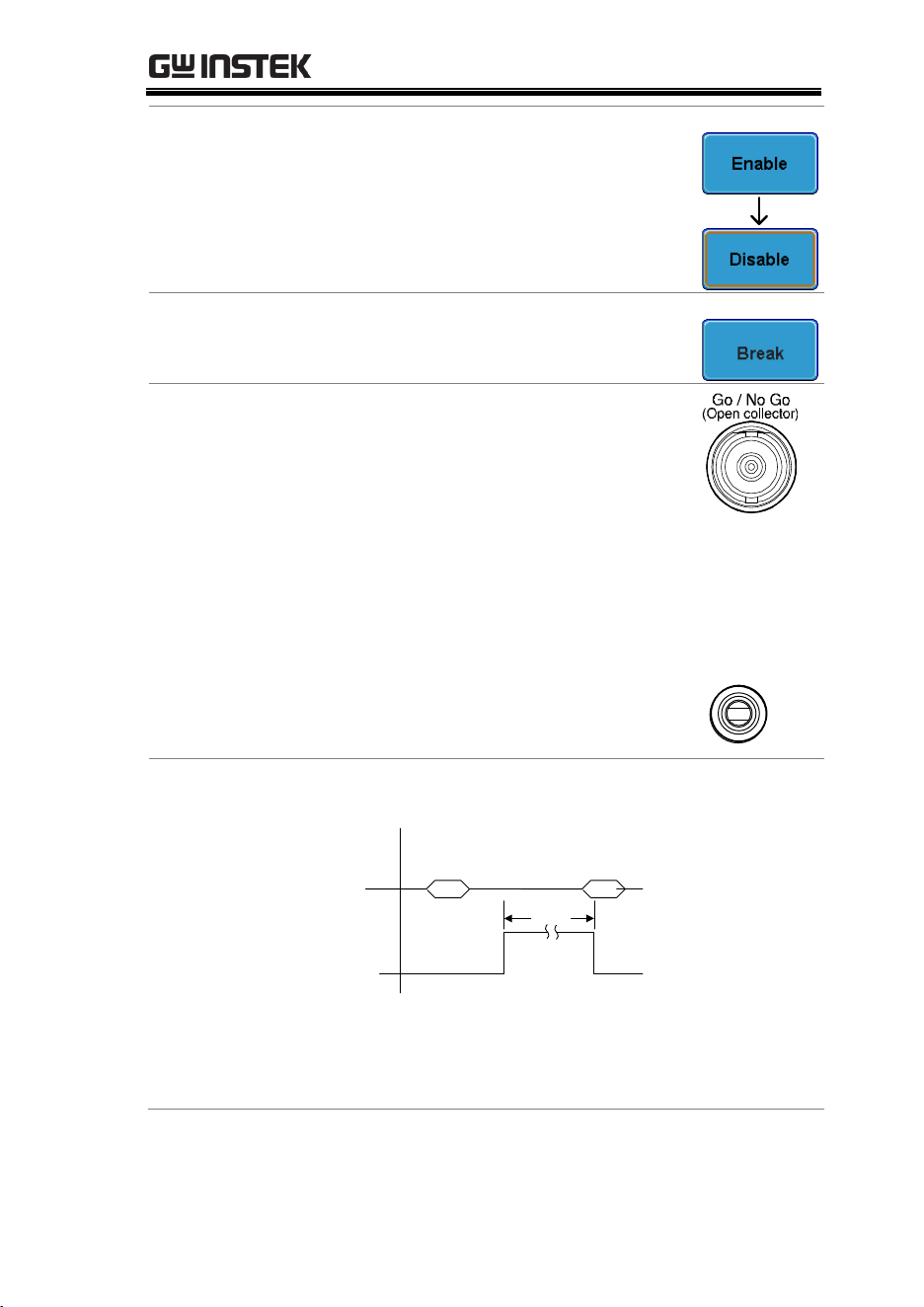
MEASUREMENT
93
Start Go-NoGo
Press Enable to start the Go-NoGo test.
The Enable button will change to
Disable. Pressing Disable will stop the
Go-NoGo test and toggle the button
back to Enable.
Exit the
Application
To exit the application, press Break.
Using the Go-
NoGo Output
To output the Go-NoGo results to an
external device, the Go-NoGo rear
panel terminal (open collector) can be
used. The Go-NoGo terminal will
output a positive pulse each time a
NoGo violation has occurred for a
minimum of 10us. The voltage of the
pulse depends on the external pull-up
voltage.
The line out socket can also be used to
connect directly to a buzzer.
Line Out
Timing Diagram
Output timing
Enable
Go-NoGo
Output
500us
Waveform
acquisition
When a No-Go violation occurs the Go-NoGo output
will go from a low level to a high level for a minimum
of 500us.
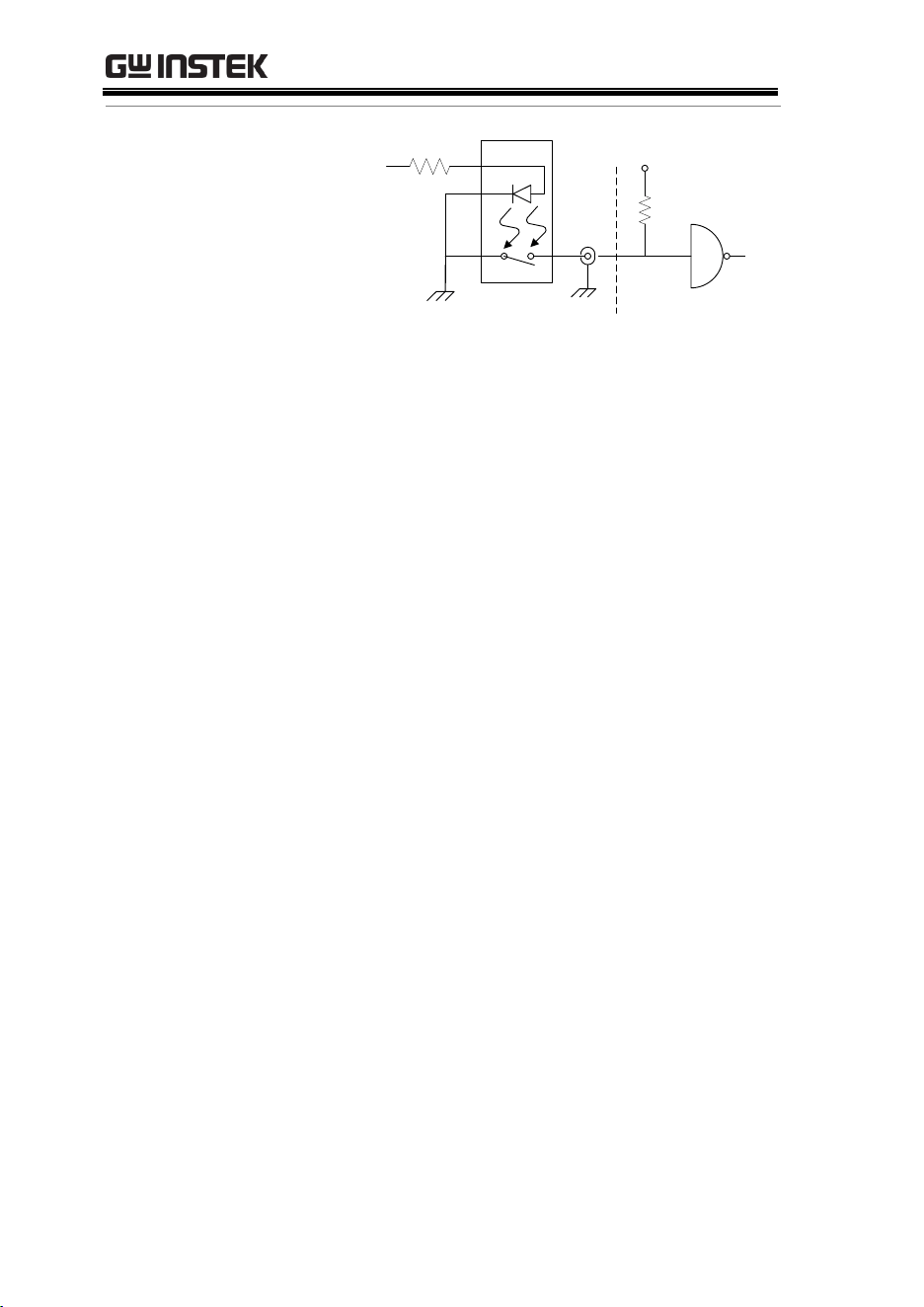
GDS-3000 Series User Manual
94
Circuit Diagram
Go-NoGo signal
220Ω
Go-NoGo
BNC
B+ CMOS (Max 16V)
Or TTL (Max 5V)
MEASUREMENT
95
Power Analysis
Power analysis provides automatic measurement for a number of
advanced measurement types such as power quality, harmonics,
ripple and inrush current. The Power analysis software is an
optional software module, for details please see page 192. Please
see the Power Analysis manual for more details on using the power
analysis software.
Power Analysis Overview
Power Quality
Power quality measures the power of a signal
using the measured voltage and current of a signal.
Harmonics
The harmonics function shows signal harmonics
up to the 400th harmonic. Harmonic tests can be
user defined and common harmonic standards
such as IEC 61000-3-2 can also be tested for.
Ripple
The ripple function calculates the ripple and noise
of the waveform.
Inrush Current
The inrush function automatically calculates the
first peak and second peak inrush current.
GDS-3000 Series User Manual
96
Serial Bus
The serial bus trigger and decode software includes support for 3
common serial interfaces, SPI (4 channel models only), UART and
I
2
C. Each interface is fully configurable to accommodate a wide
range of protocol variation.
Each input can be displayed as binary or hexadecimal. An event
table can also be created to aid in debugging.
Note that the Serial bus trigger and decode software is an optional
extra. An activation key is required to activate the software, for
details please see page 192. Please see the Serial Bus Decode
manual for more details on using the serial bus software.
Serial Bus Overview
UART
Universal Asynchronous Receiver Transmitter.
The UART bus is able to accommodate a wide
range of various common UART serial
communications.
The UART serial bus software is suitable for a
number of RS-232 protocol variants.
Inputs
Tx, Rx
Threshold
Tx, Rx
Configuration
Baud rate, Parity, Packets, End of
packets, Input polarity
Trigger On
Tx Start Bit, Rx Start Bit, Tx End of
Packet, Rx End of Packet, Tx Data,
Rx Data, Tx Parity Error, Rx Parity
Error
I
2
C
Inter Integrated Circuit is a two line serial data
interface with a serial data line (SDA) and serial
clock line (SCLK). The R/W bit can be configured.
Inputs
SCLK, SDA

MEASUREMENT
97
Threshold
SCLK, SDA
Configuration
Addressing mode, Read/Write in
address
Trigger On
Start, Repeat Start, Stop, Missing
Ack, Address, Data, Address/Data
SPI
The SPI (Serial Interface Peripheral) bus is fully
configurable to accommodate the wide variety of
SPI interfaces. This bus is only available on 4
channel models.
Inputs
SCLK, SS, MOSI, MISO
Threshold
SCLK, SS, MOSI, MISO
Configuration
SCLK edge, SS logic level, Word
size, Bit order
Trigger On
SS Active, MOSI, MISO,
MOSI&MISO

GDS-3000 Series User Manual
98
CONFIGURATION
Acquisition ................................................................... 100
Select Acquisition Mode ..................................................... 100
Show Waveform in XY Mode........................................... 102
Set the Sampling Mode ....................................................... 104
Real time vs Equivalent Time Sampling Mode .............. 105
Display ......................................................................... 106
Display Waveform as Dots or Vectors ............................ 106
Set the Level of Persistence ............................................... 107
Set the Intensity Level ........................................................ 107
Set the Waveform Intensity Type ..................................... 109
Select Display Graticule...................................................... 110
Freeze the Waveform (Run/Stop).................................... 111
Turn Off Menu .................................................................... 111
Horizontal View ............................................................ 112
Move Waveform Position Horizontally .......................... 112
Select Horizontal Scale ....................................................... 113
Select Waveform Update Mode ........................................ 114
Zoom Waveform Horizontally ......................................... 115
Vertical View (Channel) ................................................. 117
Move Waveform Position Vertically ................................ 117
Select Vertical Scale ............................................................. 117
Select Coupling Mode ......................................................... 118
Set the Impedance ............................................................... 119
Invert Waveform Vertically ............................................... 119
Limit Bandwidth .................................................................. 120
Expand by Ground/Center ............................................... 121
Select Probe Type ................................................................ 122
Select Probe Attenuation Level ......................................... 123
Set the Deskew ..................................................................... 124

CONFIGURATION
99
Trigger .......................................................................... 125
Trigger Type Overview ...................................................... 125
Trigger Parameter Overview ............................................. 127
Setup Holdoff Level ........................................................... 131
Setup Trigger Mode ............................................................ 132
Using the Edge Trigger ...................................................... 132
Using Advanced Delay Trigger ......................................... 134
Using Pulse Width Trigger................................................. 135
Using Video Trigger ............................................................ 137
Pulse Runt trigger ................................................................ 138
Using Rise and Fall Trigger ............................................... 140
System Info / Language / Clock ..................................... 142
Select Menu Language ........................................................ 142
View System Information .................................................. 142
Erase Memory ...................................................................... 143
Set the Buzzer Volume ....................................................... 144
Set Date and Time ............................................................... 144
GDS-3000 Series User Manual
100
Acquisition
The Acquisition process samples the analog input signals and
converts them into digital format for internal processing.
Select Acquisition Mode
Background
The acquisition mode determines how the samples
are used to reconstruct a waveform.
Sample
This is the default acquisition
mode. Every sample from each
acquisition is used.
Peak detect
Only the minimum and maximum
value pairs for each acquisition
interval (bucket) are used. This
mode is useful for catching
abnormal glitches in the signal.
Hi Resolution
Performs boxcar averaging on the
samples. This reduces white noise
and increases the vertical
resolution of the waveform.
Average
Multiple acquired data is
averaged. This mode is useful for
drawing a noise-free waveform.
To select the average number, use
the Variable knob.
Average number: 2, 4, 8, 16, 32, 64,
128, 256
Panel Operation
1. Press the Acquire key.
Acquire

CONFIGURATION
101
2. To set the Acquisition mode, press
Mode on the bottom menu.
3. Select an acquisition mode from
the side menu.
Mode
Sample, Peak Detect,
Hi Resolution, Average
Average
sample
2, 4, 8, 16, 32, 64, 128,
256
Example
Sample
Peak Detect
High Resolution
Average (256 times)

GDS-3000 Series User Manual
102
Show Waveform in XY Mode
Background
The XY mode maps the voltage of channel 1 to the
voltage of channel 2. In 4 channel models, the
voltage of channel 3 is mapped to the voltage of
channel 4. This mode is useful for observing the
phase relationship between waveforms.
Reference waveforms can also be used in XY
mode. Ref1 is mapped to Ref2 and Ref3 is mapped
to Ref4. Using the reference waveforms is the same
as using the channel input waveforms.
Connection
1. Connect the signals to
Channel 1 (X-axis) and
Channel 2 (Y-axis) or
Channel 3 (X2-axis) and
Channel 4 (Y2-axis).
2. Make sure a channel pair is active
(CH1&CH2 or CH3&CH4). Press
the Channel key if necessary. A
channel is active if the channel key
is lit.
CH1 CH1
à
CH2 CH2
à
Panel Operation
1. Press the Acquire menu key.
Acquire
2. Press XY from the bottom menu.
3. Choose Triggered XY from the side
menu.
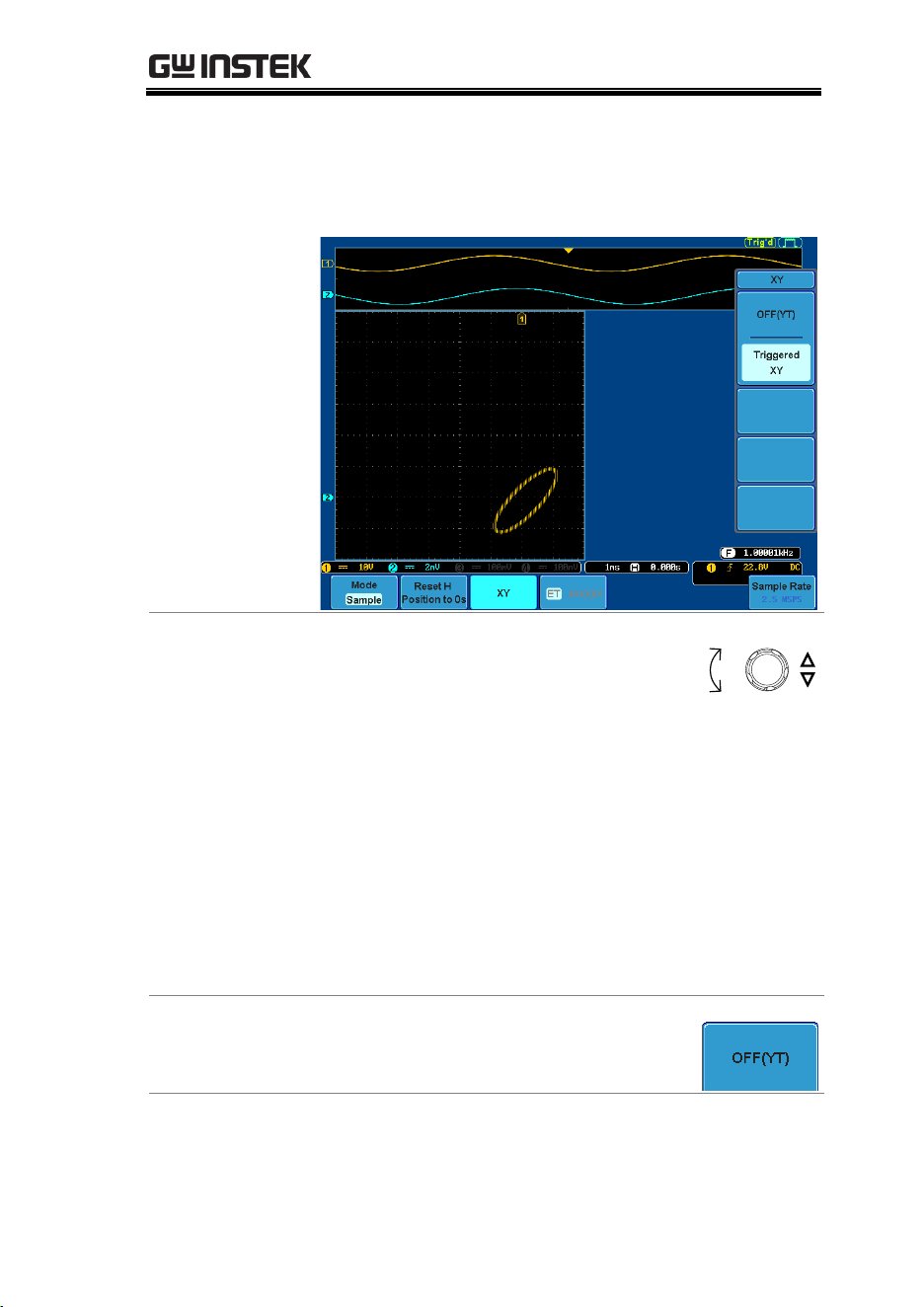
CONFIGURATION
103
X-Y mode is split into two windows. The top window
shows the signals over the full time range. The bottom
window shows XY mode.
To move the X Y waveform position,
use the vertical position knob:
Channel 1 knob moves the X Y
waveform horizontally, Channel 2
knob moves the X Y waveform
vertically. Similarly, the X2 and Y2
axis can be positioned using the
channel 3 and channel 4 vertical
position knobs.
The horizontal position knob and
Time/Div knob can still be used
under the XY mode.
POSITION
Down
Up
Turn Off XY Mode
To turn off XY mode, choose OFF (YT)
mode.
XY Mode
Cursors can be used with XY mode.
See the Cursor chapter for details.
Page 76
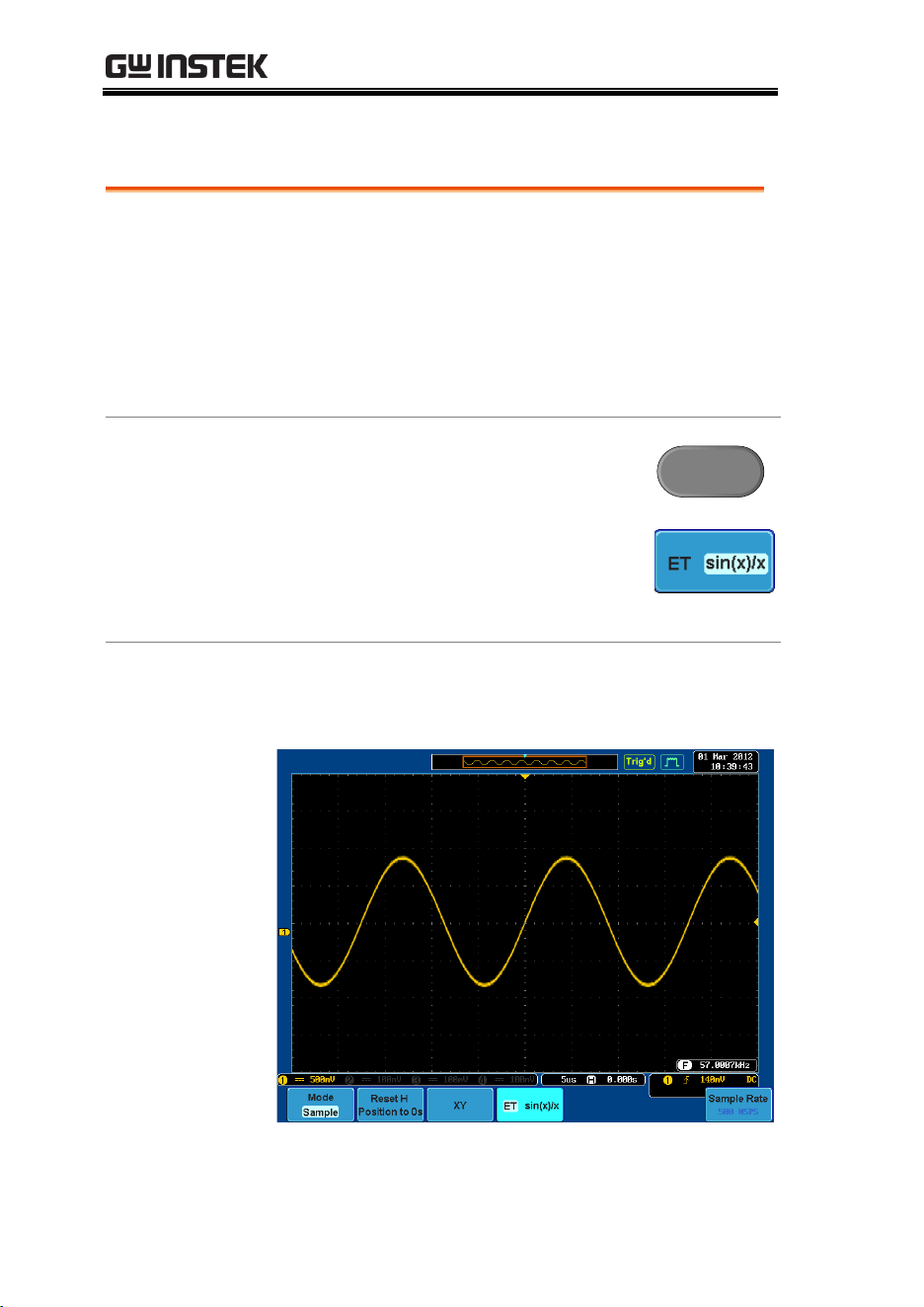
GDS-3000 Series User Manual
104
Set the Sampling Mode
Background
The GDS-3000 has two types of sampling modes:
ET (Equivalent Time) and Sin(x)/x interpolation.
Equivalent time sampling is able to achieve a
sample rate of 100GSa/s when sampling periodic
waveforms. Sin(x)/x interpolation uses a sinc
interpolation formula to reconstruct a continuous
signal between sampled points.
Panel Operation
1. Press the Acquire key.
Acquire
2. Press the ET/sin(x)/x key on the
bottom menu to toggle between
equivalent time sampling (ET) and
sin(x)/x interpolation.
The sampling rate will be shown on the bottom right-
hand corner
CONFIGURATION
105
Real Time vs Equivalent Time Sampling Mode
Background
The sampling mode on the GDS-3000 can be
switched between two sampling modes: Real-time
and Equivalent-time. The number of active
channels in operation will determine the sampling
rate of the DSO. The sampling rate and mode
depends on the number of active channels and
whether the oscilloscope model has 2 or 4
channels.
Parameter
Real-time
sampling
One sample of data is used to
reconstruct a single waveform.
Real-time sampling is used when
the time base is relatively slow or if
single shot events need to be
captured.
Equivalent-
time sampling
Sampled data is accumulated a
number of times to reconstruct a
single waveform. This increases the
sampling rate, but can only be used
for repetitive signals. This mode is
usually used when the time base is
too fast for real-time sampling.
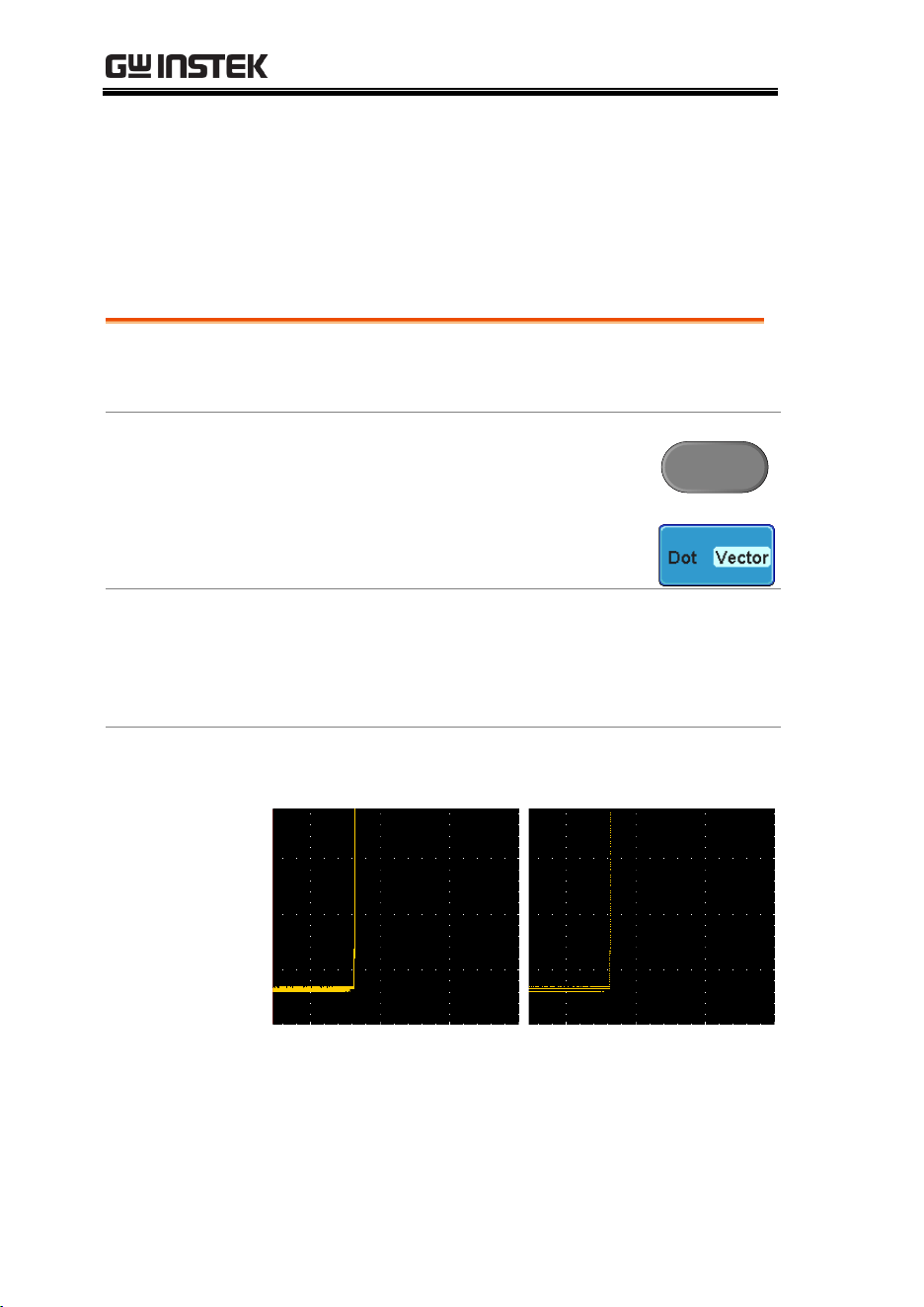
GDS-3000 Series User Manual
106
Display
The Display menu defines how the waveforms and parameters
appear on the main LCD display.
Display Waveform as Dots or Vectors
Background
When the waveform is displayed on screen, it can
be displayed as dots or vectors.
Panel Operation
1. Press the Display menu key.
Display
2. Press Dot Vector to toggle between
Dot and Vector mode.
Range
Dots
Only the sampled dots are displayed.
Vectors
Both the sampled dots and the
connecting line are displayed.
Example:
Vectors (square wave)
Dots (square wave)
CONFIGURATION
107
Set the Level of Persistence
Background
The persistence function allows the GDS-3000 to
mimic the trace of a traditional analog oscilloscope.
A waveform trace can be configured to “persist”
for designated amount of time.
Panel Operation
1. Press the Display menu key.
Display
2. To set the persistence time, press
the Persistence menu button on the
bottom bezel.
3. Use the variable knob to select a
persistence time.
Time
Auto, 100ms~10s, Infinite, VPO Off
Clear
To clear persistence, press Clear
Persistence.
Set the Intensity Level
Background
The intensity level of a signal can also be set to
mimic the intensity of an analog oscilloscope by
setting the digital intensity level.
Panel Operation
1. Press the Display menu key.
Display
2. Press Intensity from the bottom
menu.
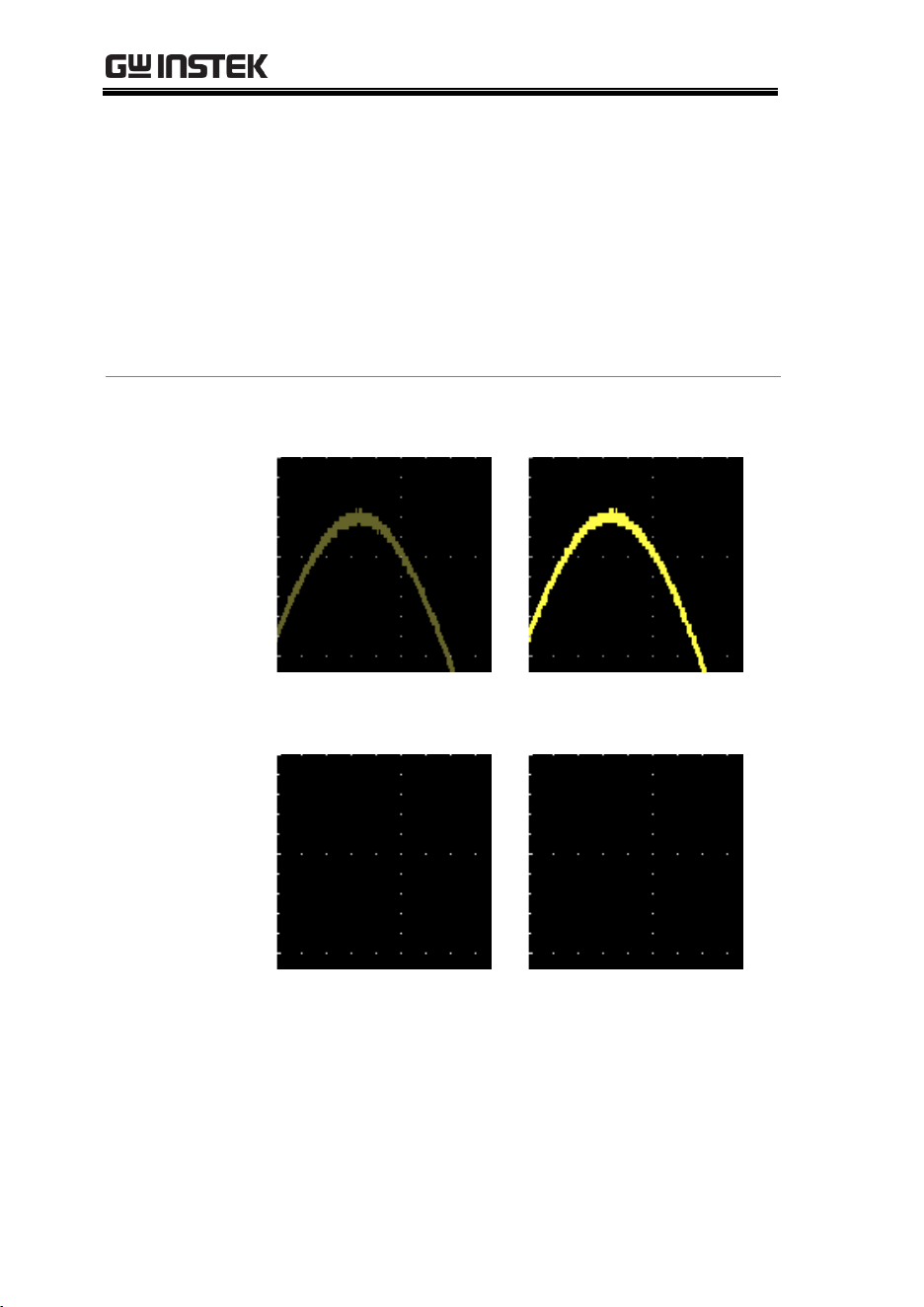
GDS-3000 Series User Manual
108
Waveform
Intensity
3. To set the waveform intensity, press Waveform
Intensity and edit the intensity.
Range
0~100%
Graticule
Intensity
4. To set the graticule intensity, press Graticule
Intensity from the side menu and edit the
intensity value.
Range
10~100%
Example
Waveform Intensity 0%
Waveform Intensity 100%
Graticule Intensity 10%
Graticule Intensity 100%
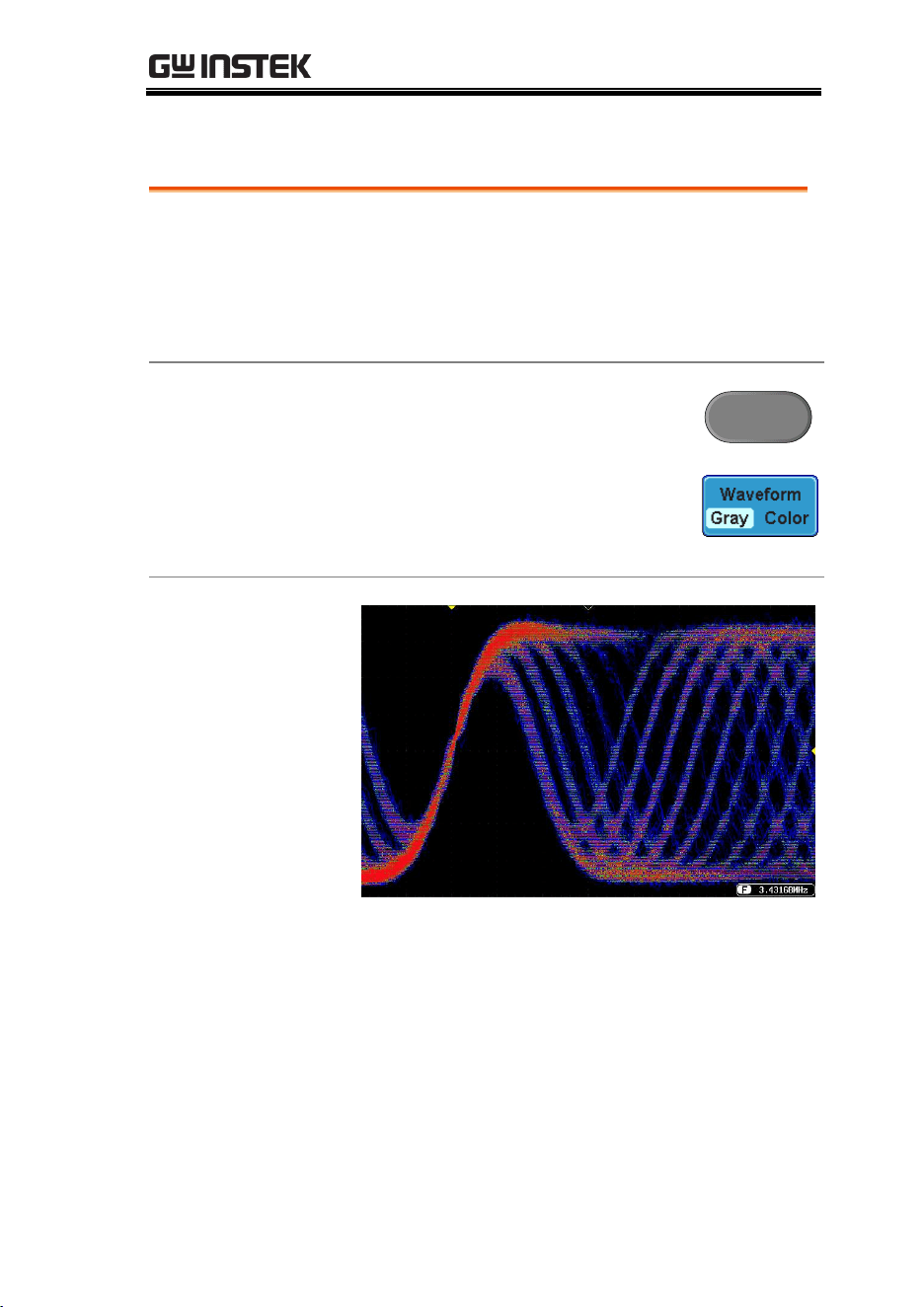
CONFIGURATION
109
Set the Waveform Intensity Type
Background
The intensity gradient of a signal can be set to
grayscale or color. If intensity is set to color, the
intensity gradient is analogous to a thermal color
gradient where high intensity areas are colored red
and low intensity areas are colored blue.
Panel Operation
1. Press the Display menu key.
Display
2. Press Waveform from the bottom
menu to toggle the intensity type.
Range
Gray, Color
Example
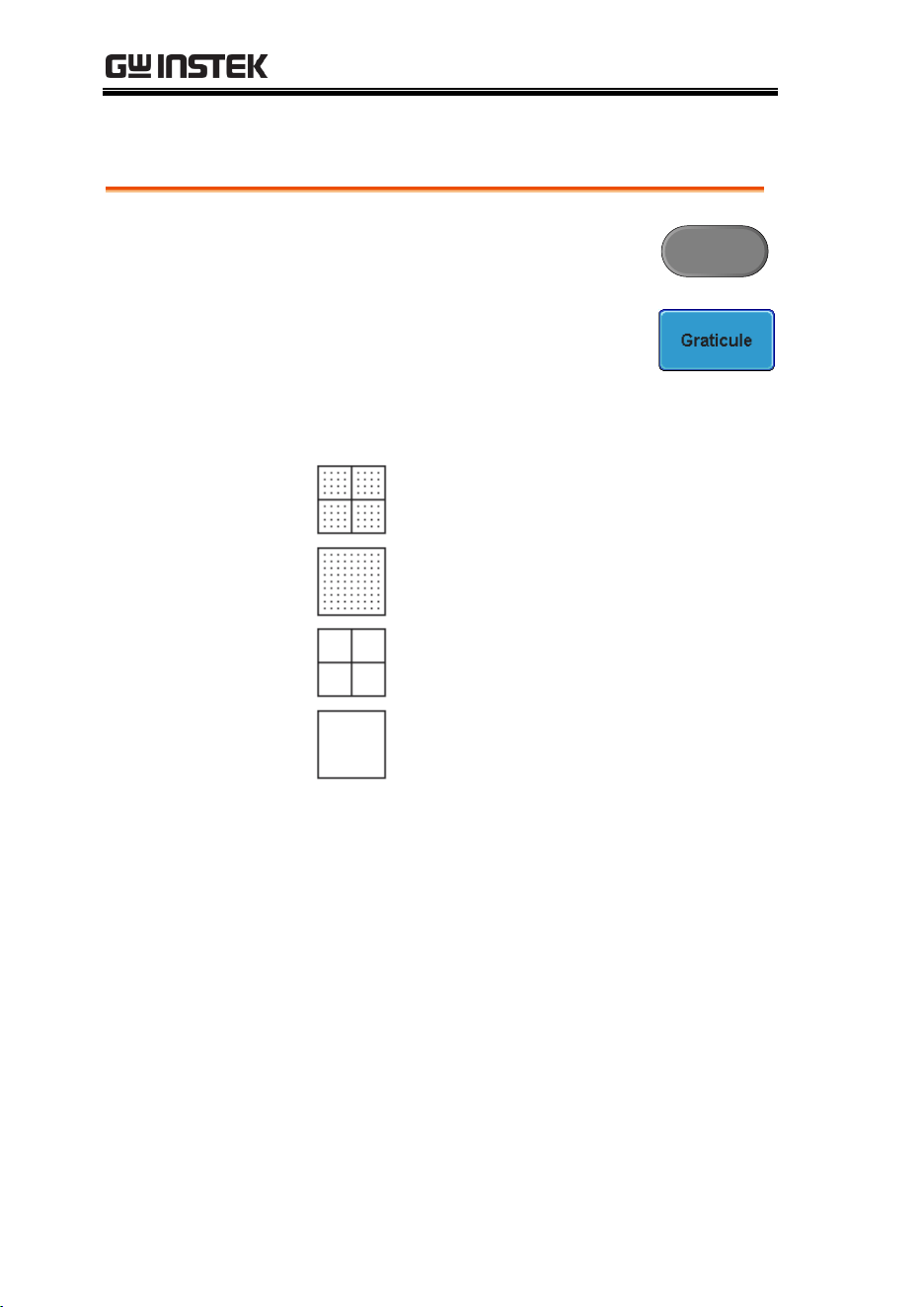
GDS-3000 Series User Manual
110
Select Display Graticule
Panel Operation
1. Press the Display menu key.
Display
2. Press Graticule from the bottom
menu.
3. From the side menu choose the
graticule display type.
Full
: Shows the full grid; X and Y axis
for each division.
Grid
: Show the full grid without the X
and Y axis.
Cross Hair
: Shows only the center X
and Y frame.
Frame
: Shows only the outer frame.
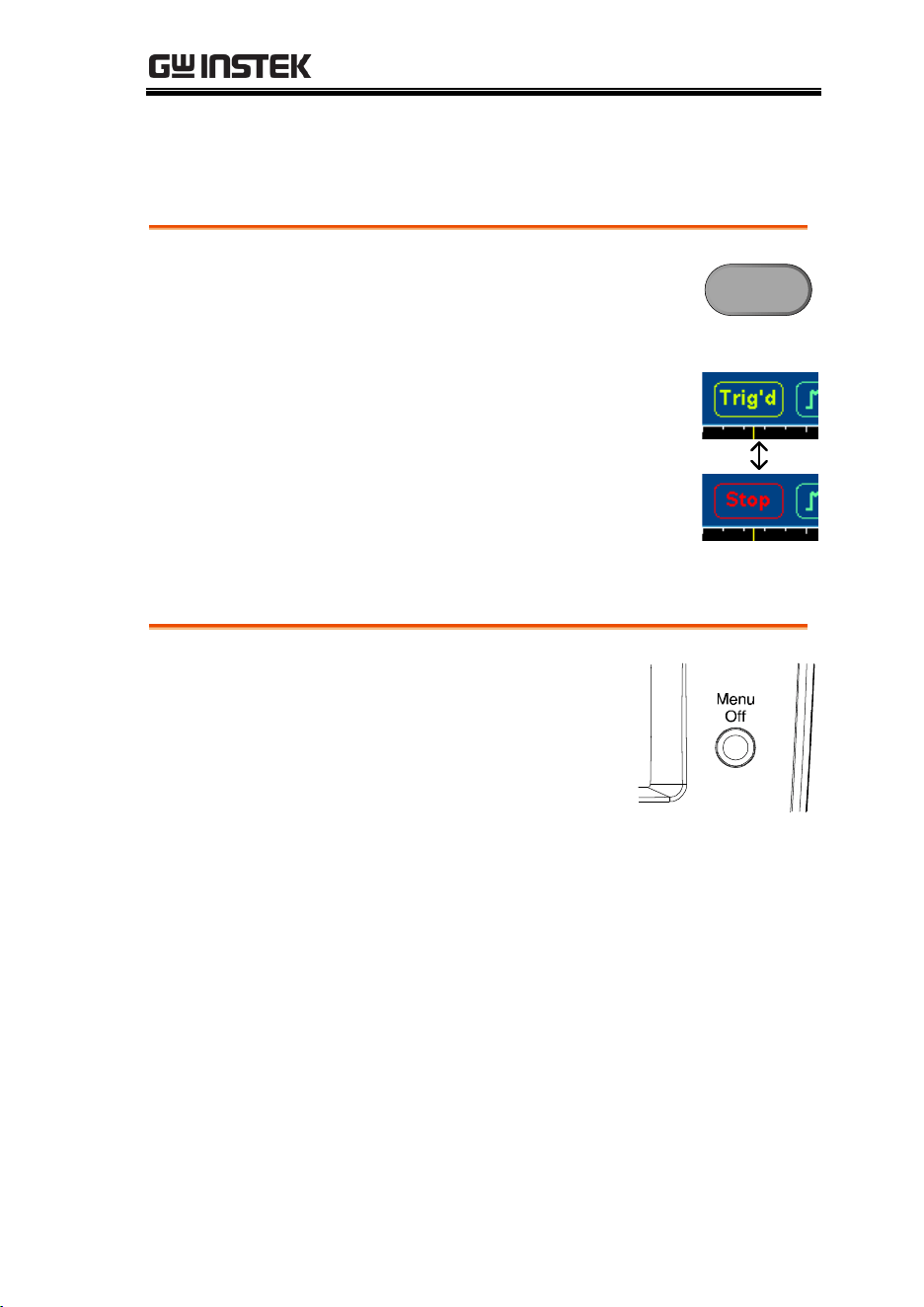
CONFIGURATION
111
Freeze the Waveform (Run/Stop)
For more details about Run/Stop mode, see page 59.
Panel Operation
1. Press the Run/Stop key. To
unfreeze the waveform, press the
Run/Stop key again.
Run/Stop
2. The waveform and the trigger
freezes. The trigger indicator on
the top right of the display shows
Stop.
Turn Off Menu
Panel Operation
1. Press the Menu Off key
below the side menu keys to
reduce a menu. The menu
key needs to be pressed
each time to reduce one
menu.
See page 32 for more
information.
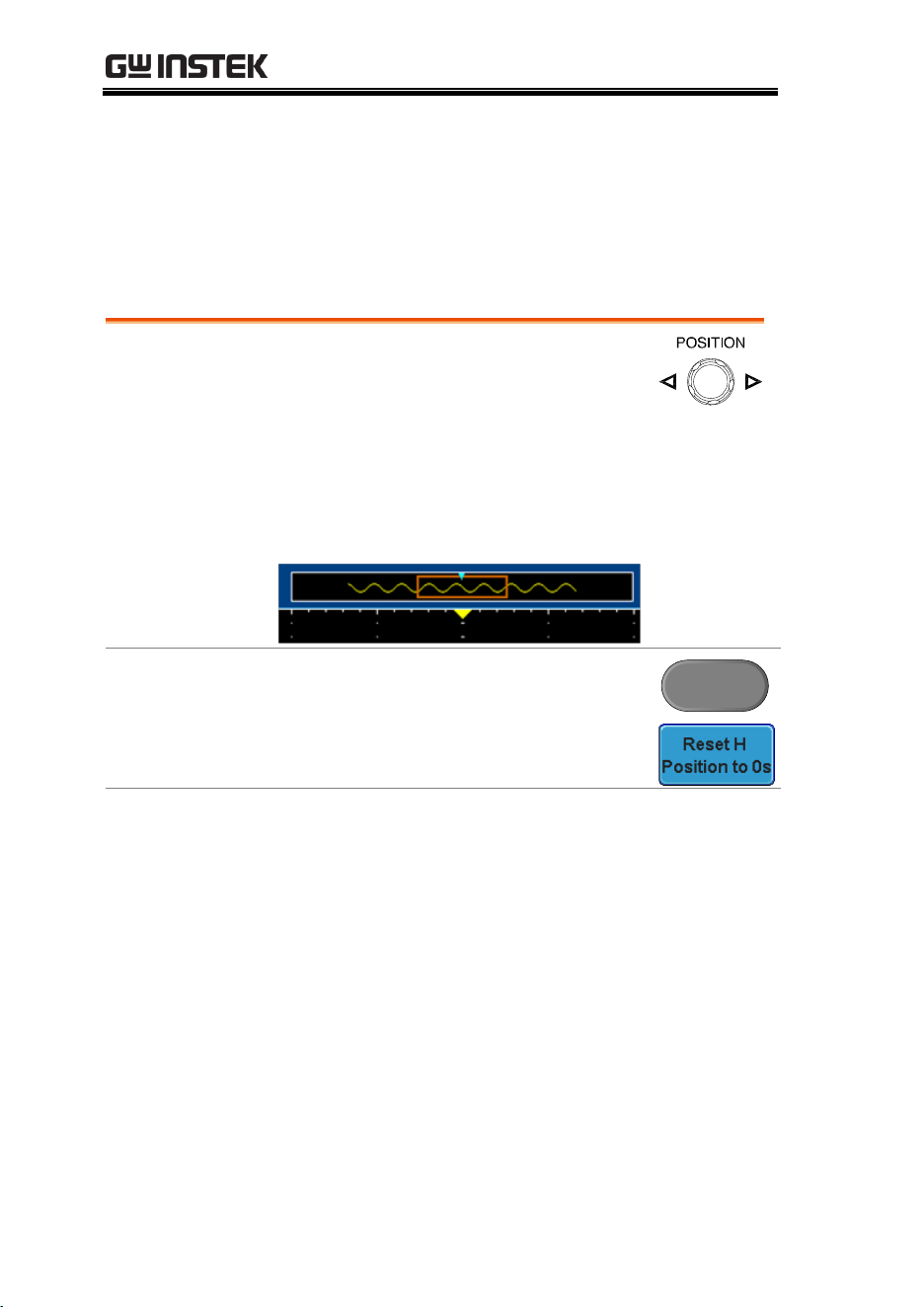
GDS-3000 Series User Manual
112
Horizontal View
This section describes how to set the horizontal scale, position, and
waveform display mode.
Move Waveform Position Horizontally
Panel Operation
The horizontal position knob moves
the waveform left/right.
As the waveform moves, a position indicator on
the on the top of the display indicates the
horizontal position of the waveform in memory.
Reset Horizontal
Position
1. To reset the horizontal position,
press the Acquire key and then
press Reset H Position to 0s from the
bottom menu.
Acquire
Run Mode
In Run mode, the memory bar keeps its relative
position in the memory since the entire memory is
continuously captured and updated.
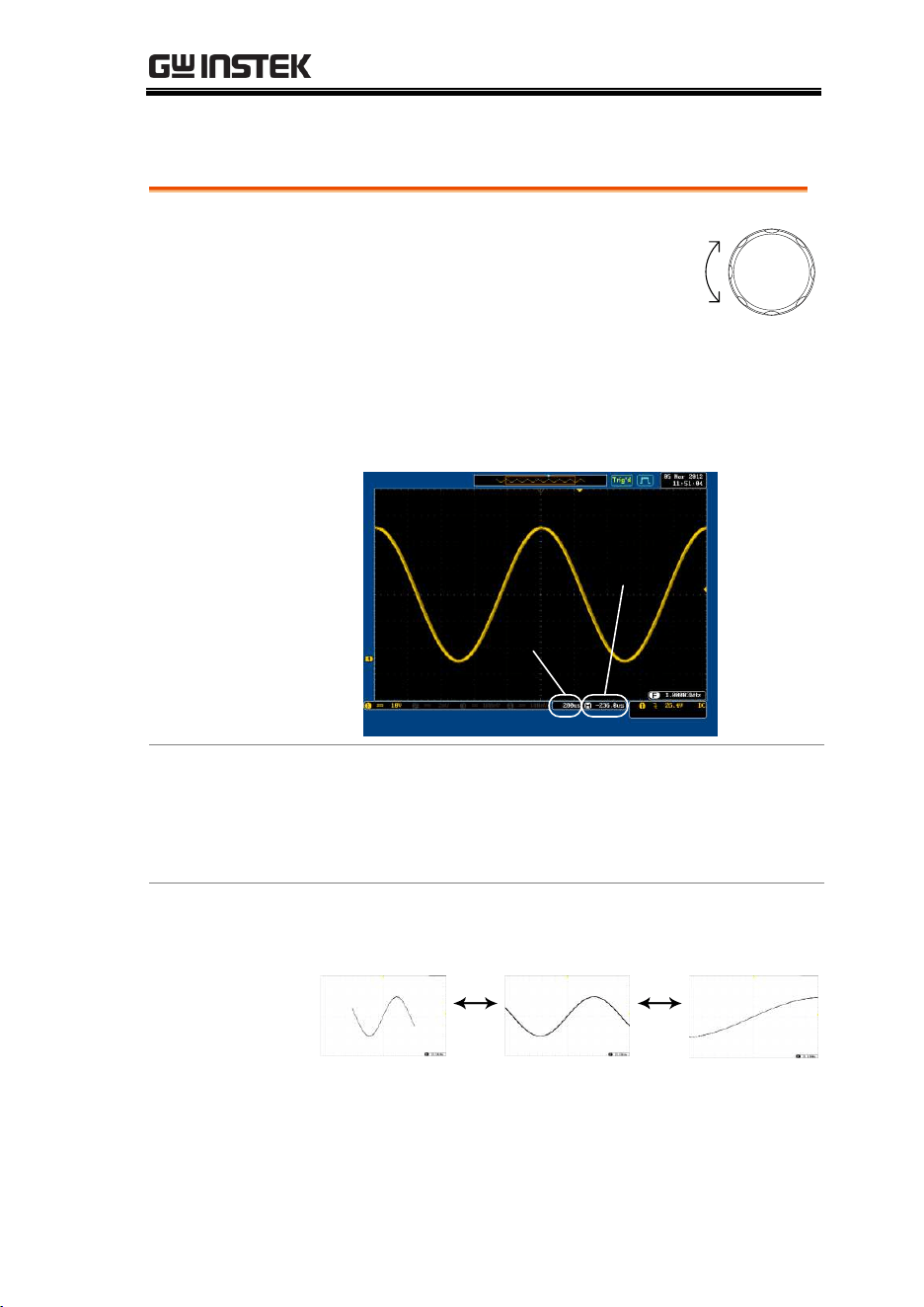
CONFIGURATION
113
Select Horizontal Scale
Select Horizontal
Scale
To select the timebase (scale), turn the
TIME/DIV knob; left (slow) or right
(fast).
TIME/DIV
Up
Down
Range
1ns/div ~ 100s/div, 1-2-5 increment
(1-2.5-5 for GDS-350X)
The timebase indicator updates as the TIME/DIV
is adjusted.
Time base
Horizontal
position
Run Mode
In Run mode, the memory bar and waveform size
keep their proportion. When the time base
becomes slower, roll mode is activated (if trigger is
set to Auto).
Stop Mode
In Stop mode, the waveform size changes
according to the scale.
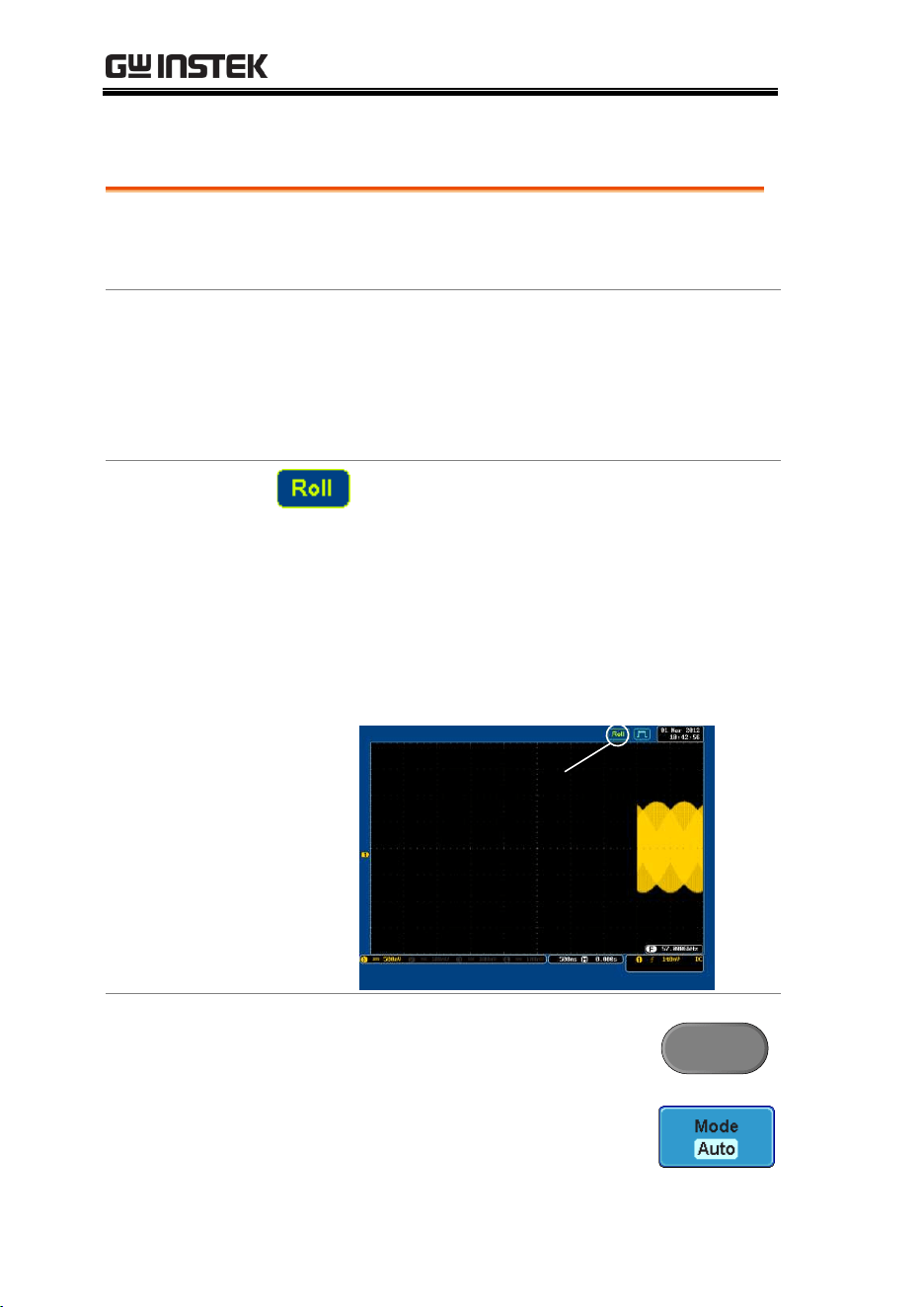
GDS-3000 Series User Manual
114
Select Waveform Update Mode
Background
The display update mode is switched
automatically or manually according to the
timebase and trigger.
Normal
Updates the whole displayed waveform at
once. Automatically selected when the
timebase (sampling rate) is fast.
Timebase
≤50ms/div (≥50kSa/s)
Trigger
all modes
Roll Mode
Updates and moves the waveform
gradually from the right side of the
display to the left. Automatically selected
when the timebase (sampling rate) is slow.
Timebase
≥100ms/div
(≤25kSa/S) 350MHz models
(≤20kSa/S) 500MHz models
Trigger
all modes
Roll
Select Roll Mode
Manually
1. Press the Trigger Menu key.
Menu
2. Press Mode from the bottom menu
and select Auto (Untriggered Roll)
from the side menu.
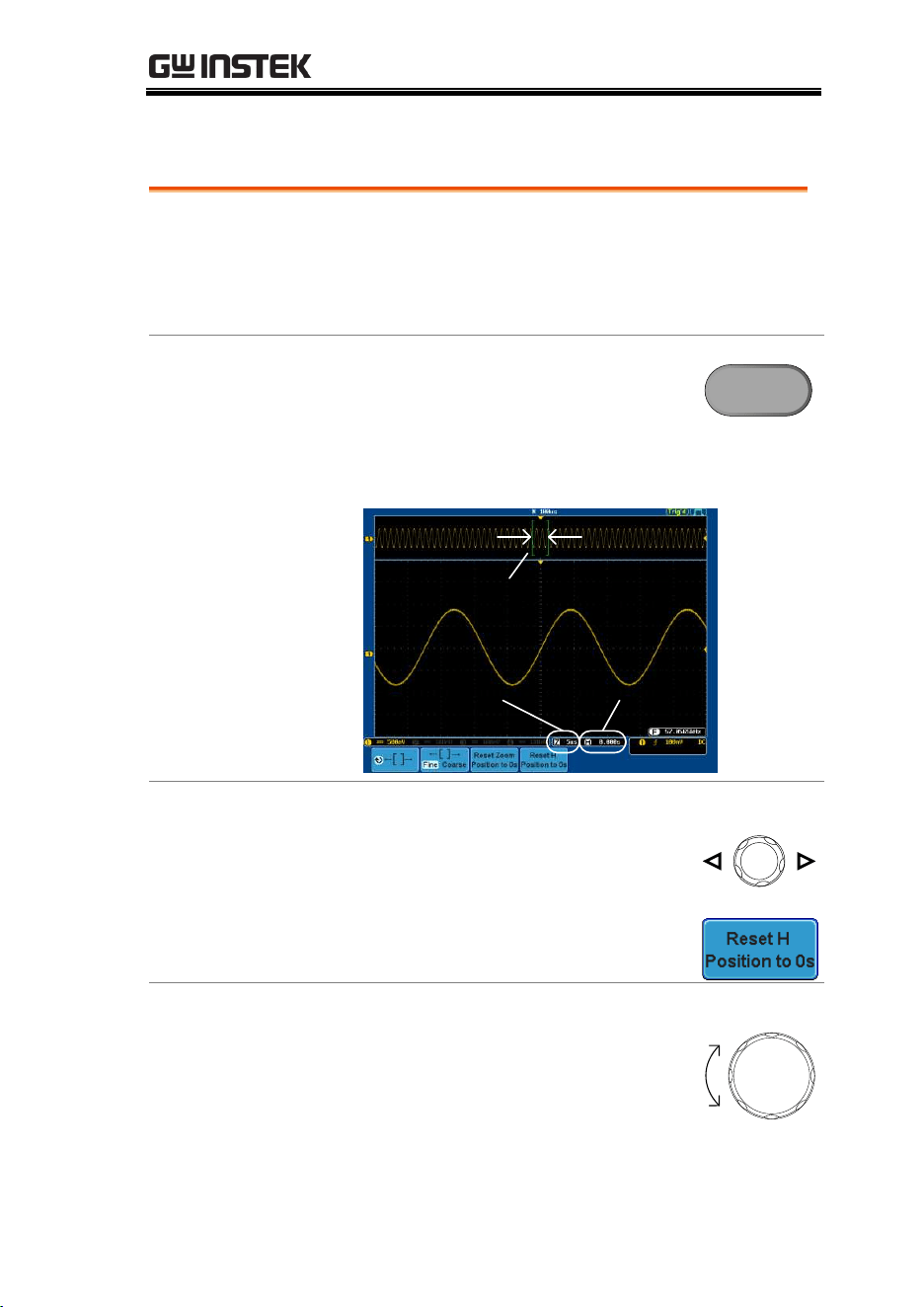
CONFIGURATION
115
Zoom Waveform Horizontally
Background
When in Zoom mode the screen is split into 2
sections. The top of the display shows the full
record length, with the bottom of the screen
showing the normal view.
Panel Operation
1. Press the Zoom key.
Zoom
2. The Zoom mode screen appears.
Zoom time
base
Horizontal
position
Zoom
window
Horizontal
Navigation
To scroll the waveform left or right,
use the Horizontal Position knob.
POSITION
To reset the horizontal position, press
Reset H Position to 0s.
Zoom
To increase the zoom range, use the
TIME/DIV knob.
TIME/DIV
Up
Down
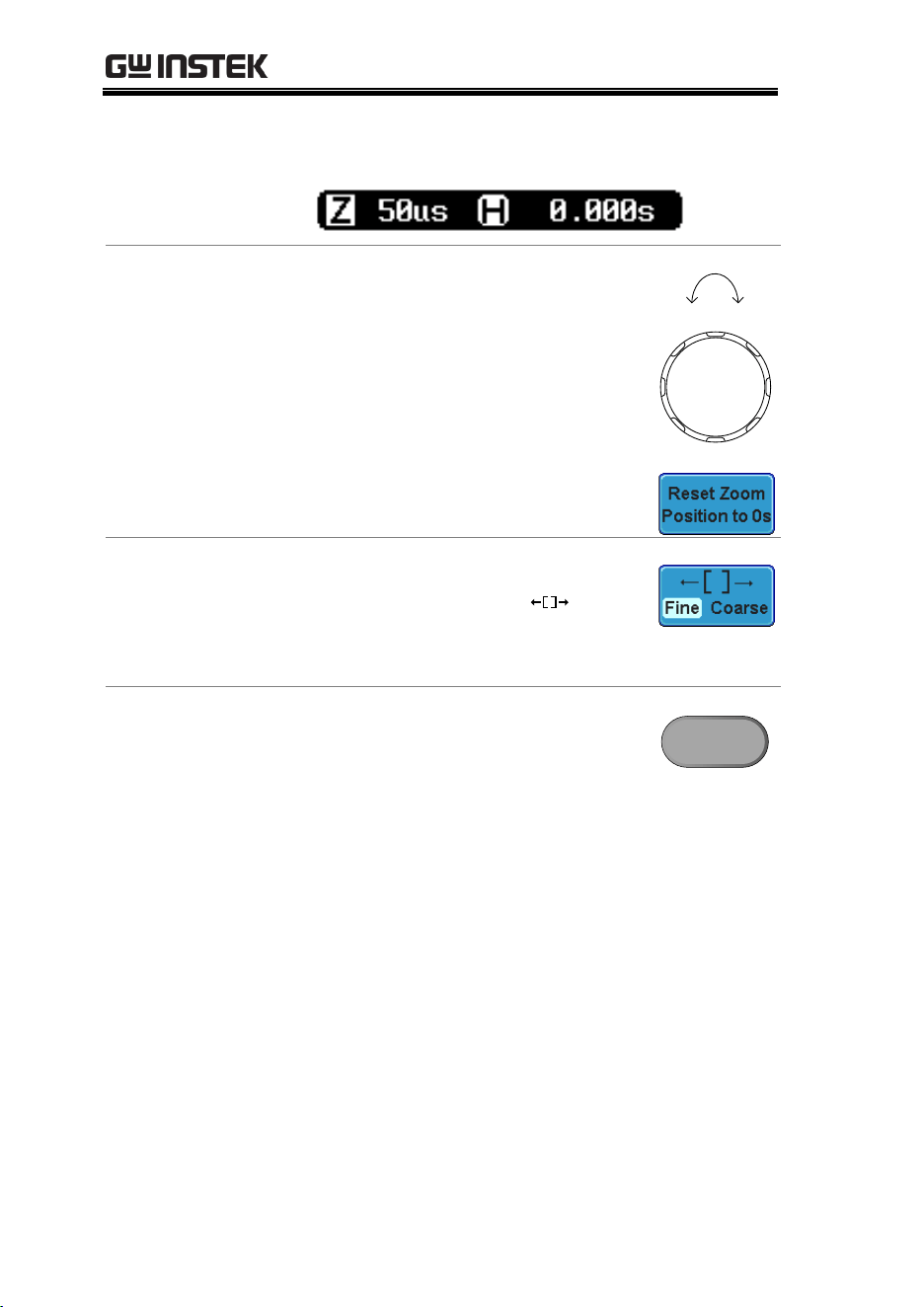
GDS-3000 Series User Manual
116
The zoom time base (Z) at the bottom of the screen
will change accordingly.
Move the Zoom
Window
Use the Variable knob to pan the zoom
window horizontally.
VARIABLE
Left Right
To reset the Zoom position, press
Reset Zoom Position to 0s.
Scroll Sensitivity
To alter the scrolling sensitivity of the
Zoom Window, press the
key to
toggle the scrolling sensitivity.
Sensitivity
Fine, Coarse
Exit
To go back to the original view, press
the Zoom key again.
Zoom
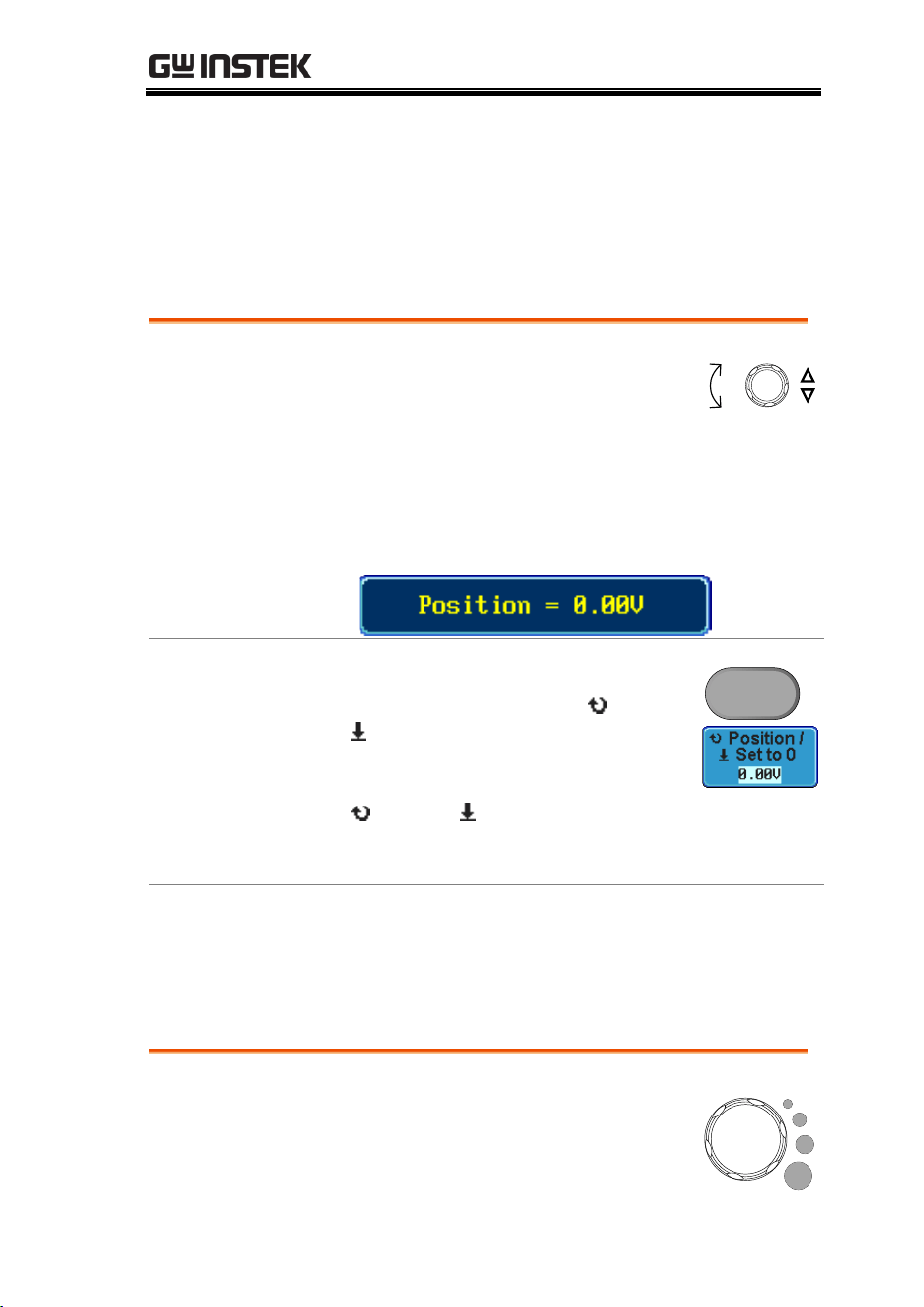
CONFIGURATION
117
Vertical View (Channel)
This section describes how to set the vertical scale, position, and
coupling mode.
Move Waveform Position Vertically
Panel Operation
1. To move the waveform up or
down, turn the vertical position
knob for each channel.
POSITION
Down
Up
2. As the waveform moves, the vertical position of
the cursor appears at the bottom half of the
display.
View or Reset
Vertical Position
1. Press a channel key. The vertical
position is shown in the
Position /
Set to 0 soft key.
2. To change the position, press
Position / Set to 0 to reset the
vertical position or turn the vertical
position knob to the desired level.
CH1
Run/Stop Mode
The waveform can be moved vertically in both
Run and Stop mode.
Select Vertical Scale
Panel Operation
To change the vertical scale, turn the
VOLTS/DIV knob; left (down) or
right (up).
VOLTS/DIV
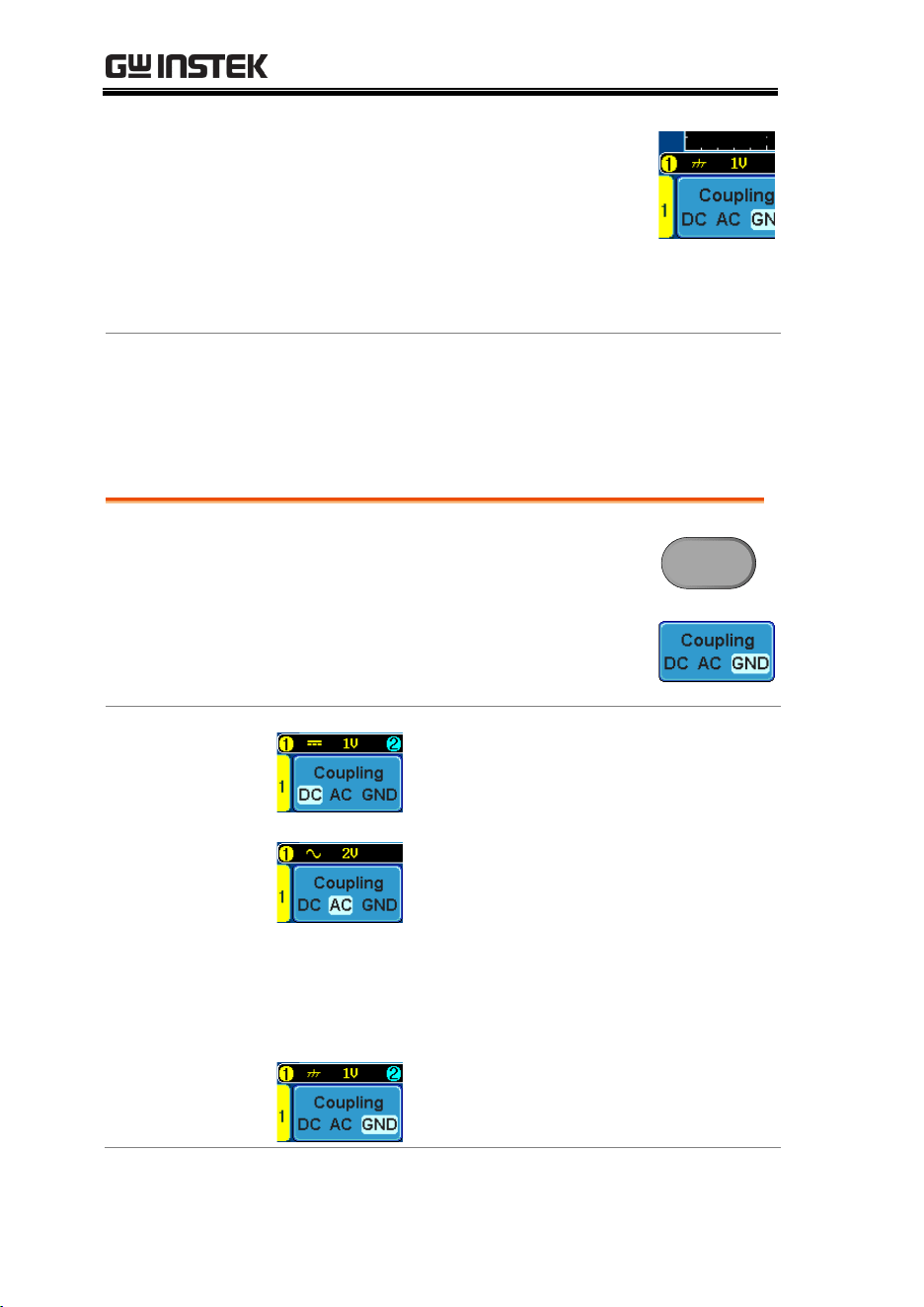
GDS-3000 Series User Manual
118
The vertical scale indicator on the
bottom left of the display changes
accordingly for the specific channel.
Range
2mV/div ~ 1V/div (50Ω/75Ω),
2mV/div ~ 5V/div (1MΩ). 1-2-5
increments
Stop Mode
In Stop mode, the vertical scale setting can be
changed.
Select Coupling Mode
Panel Operation
1. Press a channel key.
CH1
2. Press Coupling repeatedly to toggle
the coupling mode for the chosen
channel.
Range
DC coupling mode. The whole
portion (AC and DC) of the signal
appears on the display.
AC coupling mode. Only the AC
portion of the signal appears on the
display. This mode is useful for
observing AC waveforms mixed with
DC signals. AC coupling is not
available with input impedances of
75Ω or 50Ω.
Ground coupling mode. The display
shows only the zero voltage level as a
horizontal line.
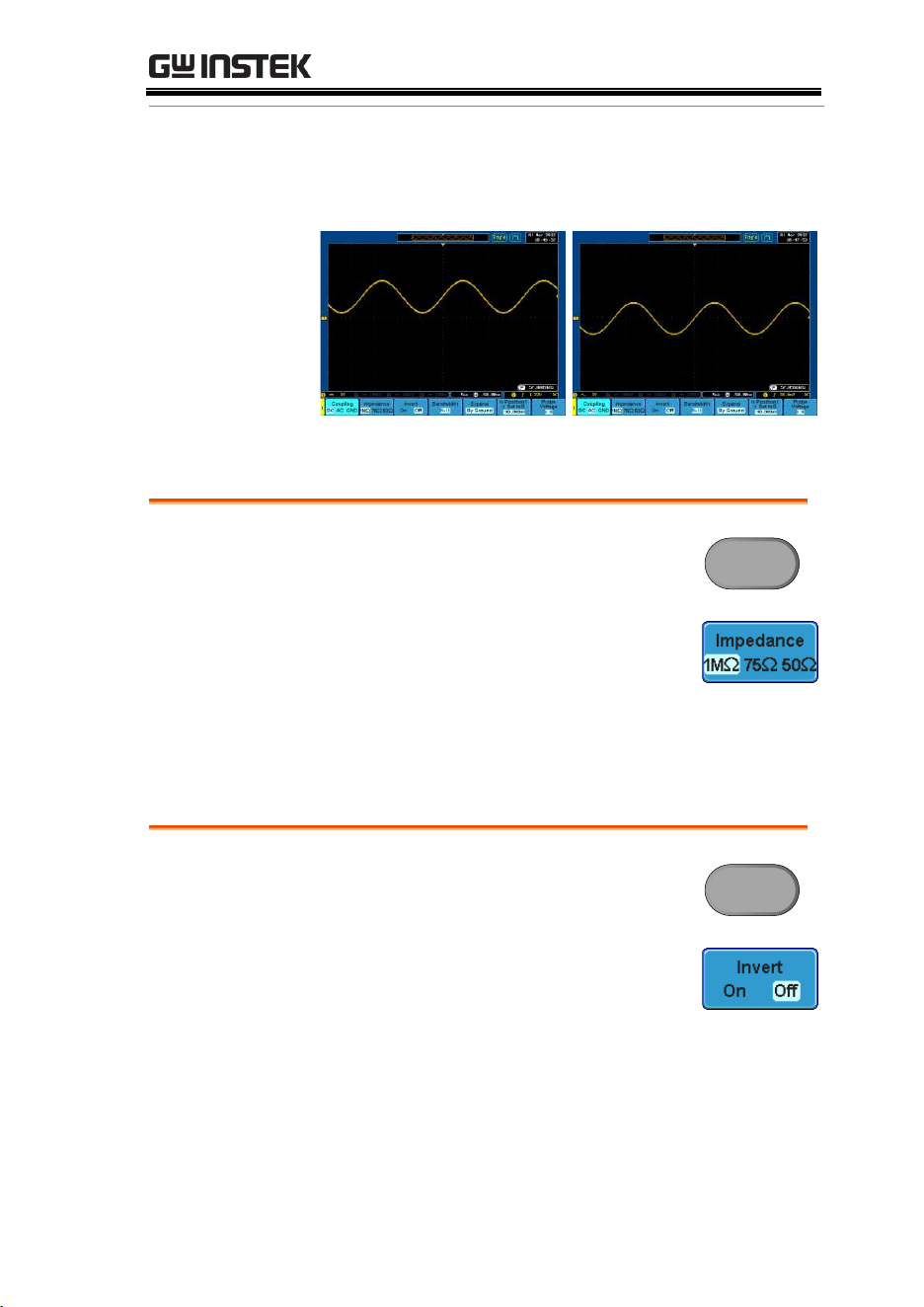
CONFIGURATION
119
Example
Observing the AC portion of the waveform using AC
coupling
DC coupling
AC coupling
Set the Impedance
Panel Operation
1. Press the Channel key.
CH1
2. Press Impedance repeatedly to
toggle between the impedance
settings.
Impedance
1MΩ, 75Ω, 50Ω
Invert Waveform Vertically
Panel Operation
1. Press the Channel key.
CH1
2. Repeatedly press Invert to toggle
Invert On or Off.
GDS-3000 Series User Manual
120
Limit Bandwidth
Background
Bandwidth limitation puts the input signal into a
selected bandwidth filter.
This function is useful for cutting out high
frequency noise to see a clear waveform shape.
The bandwidth filters available are dependent on
the bandwidth of the oscilloscope model.
Panel Operation
1. Press the Channel key.
CH1
2. Press Bandwidth from the bottom
menu.
3. Choose a bandwidth* from the side menu
(depending on the bandwidth of the
oscilloscope).
Range
150MHz models: Full, 20MHz
250MHz models: Full, 20MHz,
100MHz
350MHz models: Full, 20MHz,
100MHz, 200MHz
500MHz models: Full, 20MHz,
100MHz, 200MHz, 350MHz
Note
When the input impedance is set to 75Ω, the
bandwidth is limited to a maximum of 150MHz.
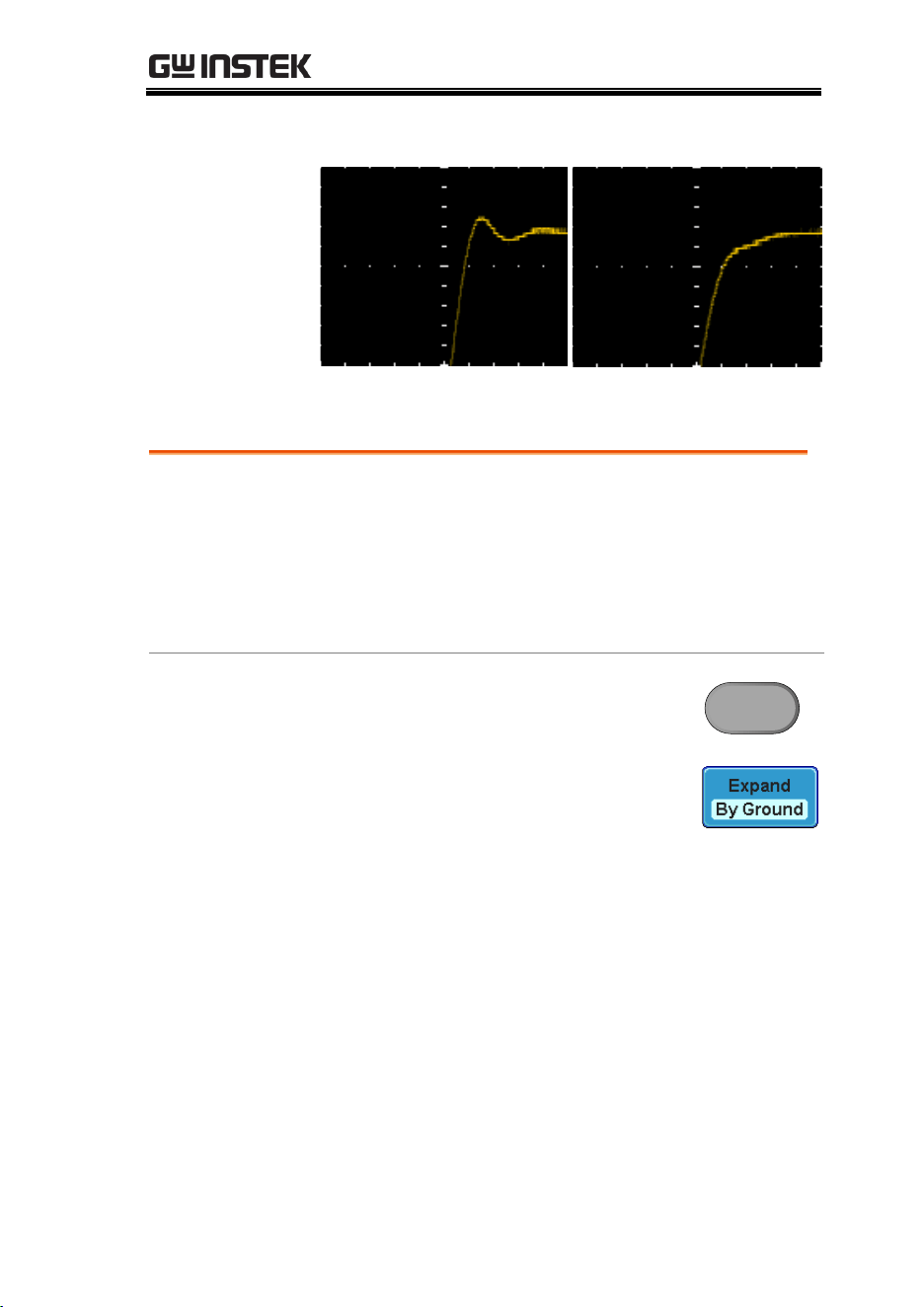
CONFIGURATION
121
Example
BW Full
BW Limit 20MHz
Expand by Ground/Center
Background
When the voltage scale is changed, the Expand
function designates whether the signal expands
from the center of the signal or from the signal
ground level. Expand by center can be used to
easily see if a signal has a voltage bias. Expand by
ground is the default setting.
Panel Operation
1. Press a channel key.
CH1
2. Press Expand repeatedly to toggle
between expand By Ground and
Center.
Range
By Ground, By Center
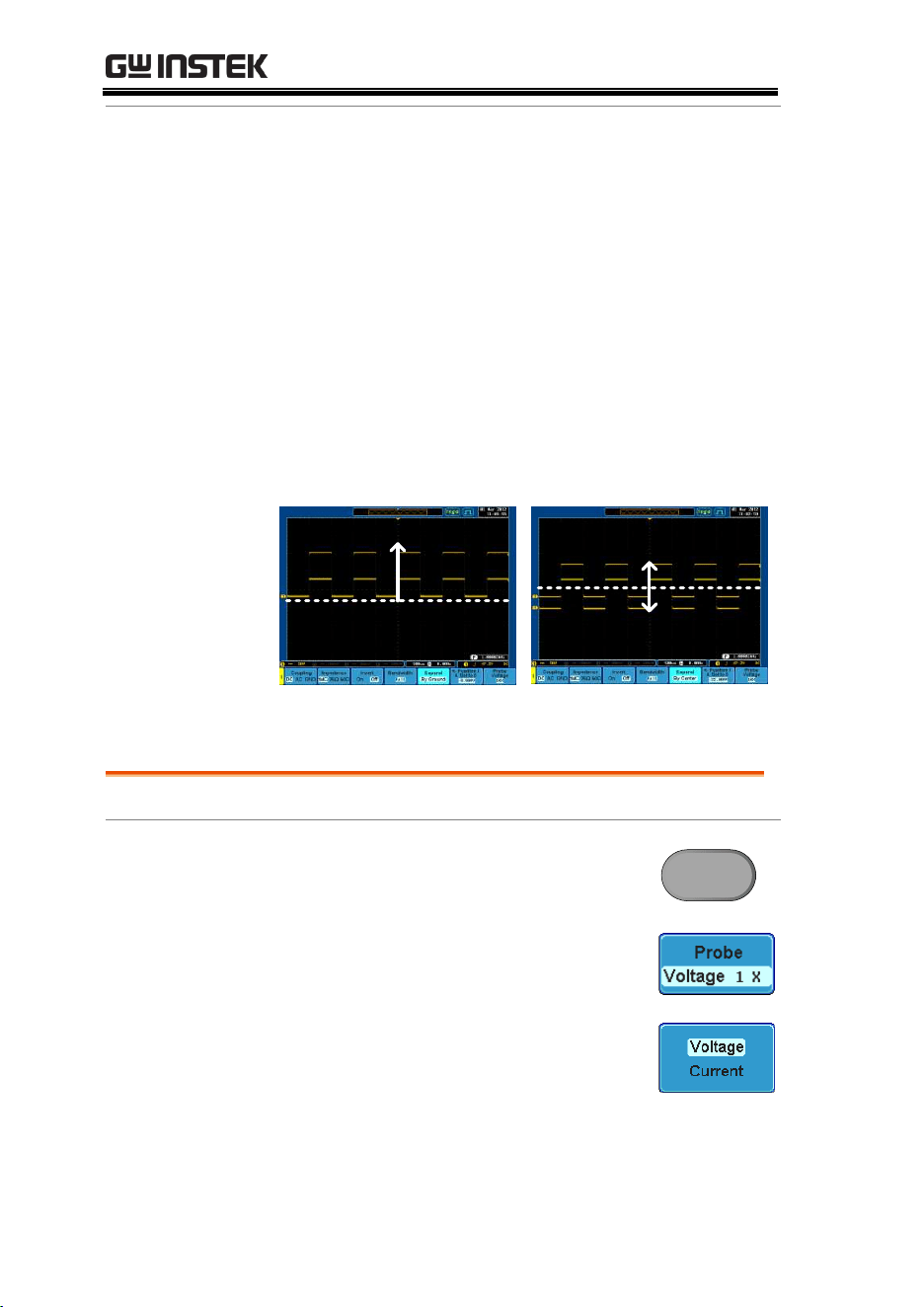
GDS-3000 Series User Manual
122
Example
If the vertical scale is changed when the Expand
function is set to ground, the signal will expand
from the ground level*. The ground level does not
change when the vertical scale is changed.
If the vertical scale is changed when the Expand
function is set to center, the signal will expand
from the center of the signal. The ground level will
suit to match the signal position.
*Or from the upper or lower edge of the screen if
the ground level is off screen.
Expand by Ground
Expand by Ground
Expand by Center
Expand by Center
Select Probe Type
Background
A signal probe can be set to voltage or current.
Panel Operation
1. Press the Channel key.
CH1
2. Press Probe from the bottom menu.
3. Press the Voltage/Current softkey to
toggle between voltage and
current.
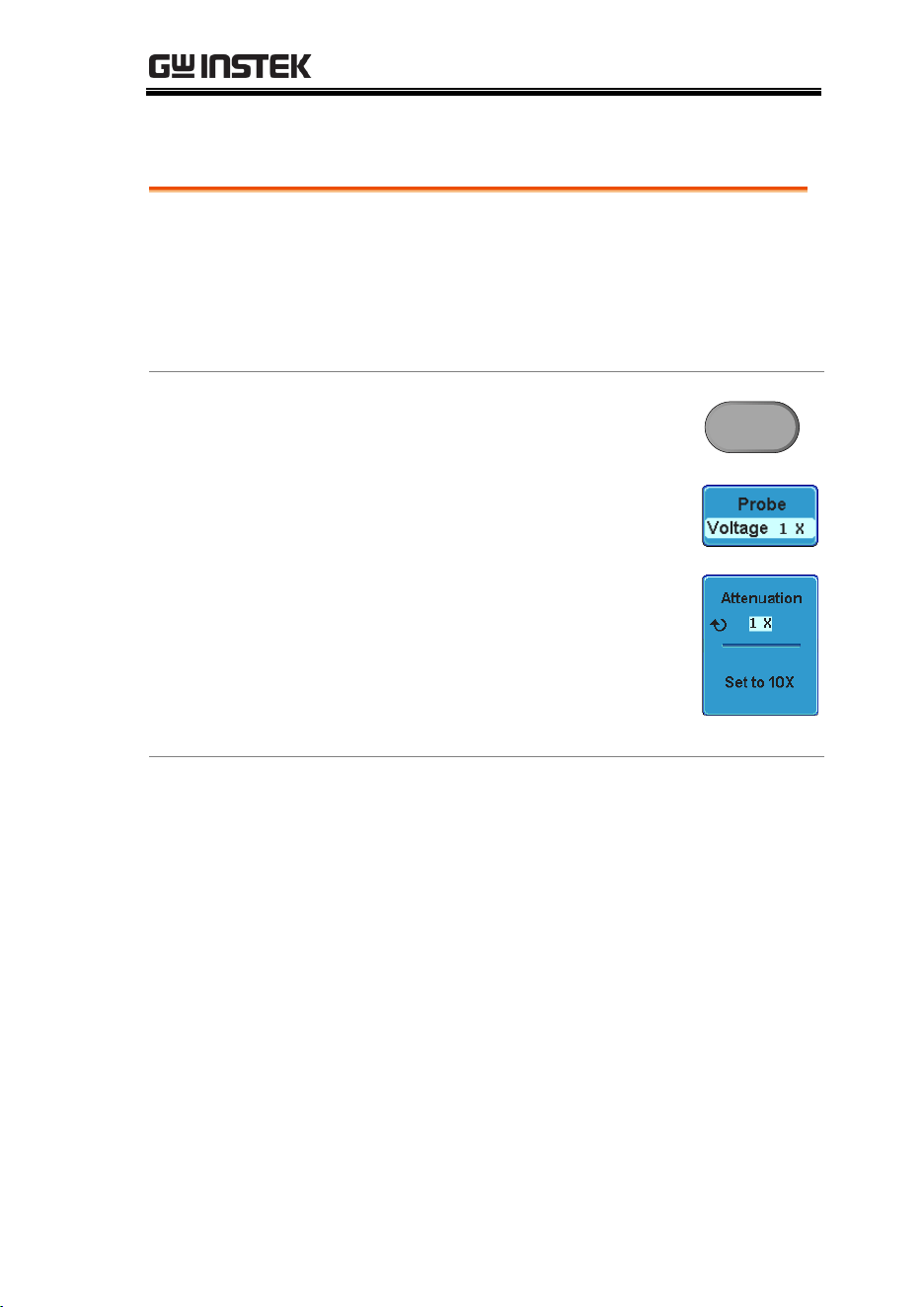
CONFIGURATION
123
Select Probe Attenuation Level
Background
A signal probe has an attenuation switch to lower
the original DUT signal level to the oscilloscope
input range, if necessary. The probe attenuation
selection adjusts the vertical scale so that the
voltage level on the display reflects the real value
on a DUT.
Panel Operation
1. Press the Channel key.
CH1
2. Press Probe from the bottom menu.
3. Press Attenuation on the side menu
and use the variable knob to set the
attenuation.
Alternatively, press Set to 10X.
Range
1mX ~1kX (1-2-5 step)
Note
The attenuation factor adds no influence on the
real signal. It just changes the voltage/current
scale on the display.
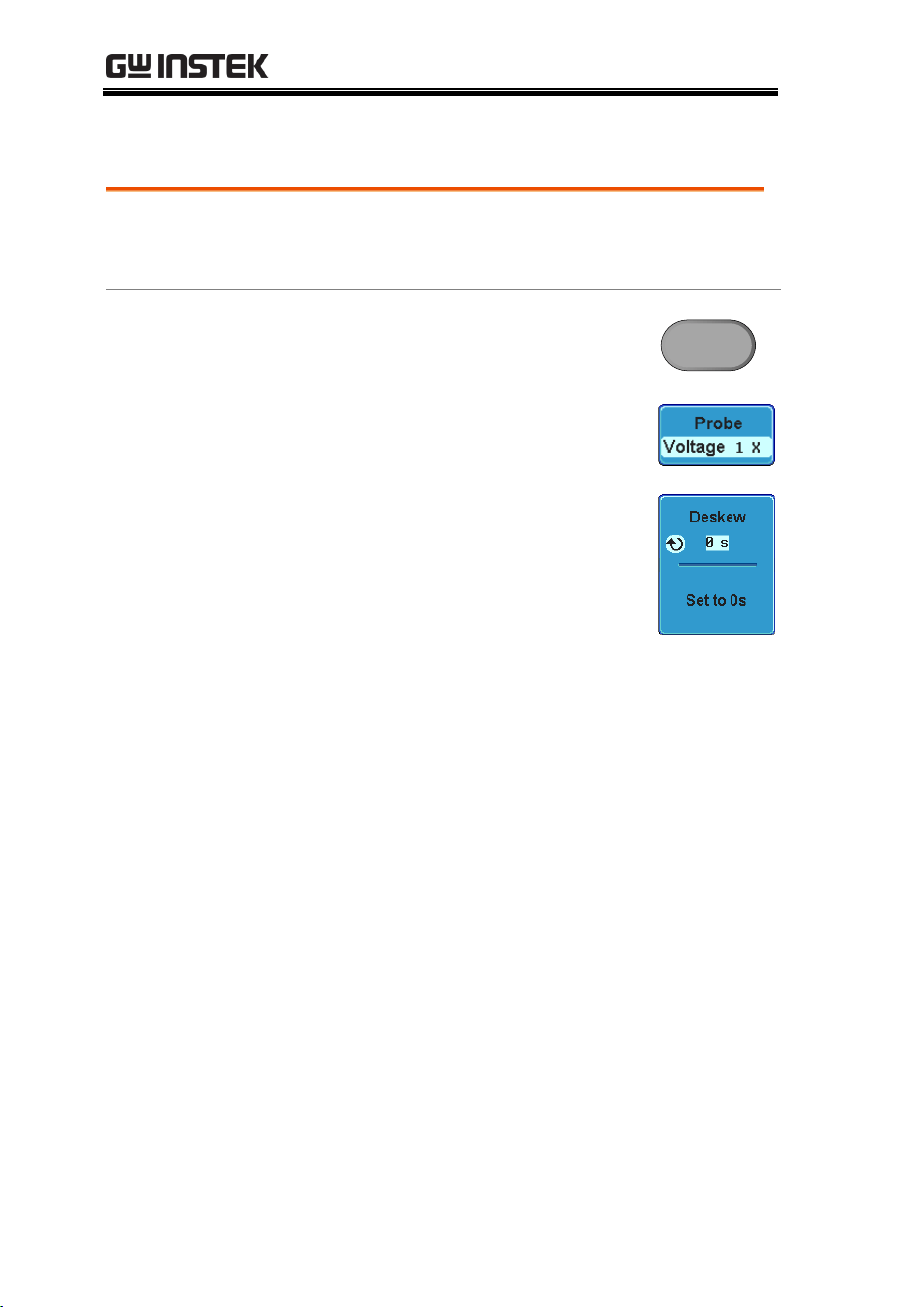
GDS-3000 Series User Manual
124
Set the Deskew
Background
The deskew function is used to compensate for the
propagation delay between the oscilloscope and
the probe.
Panel Operation
1. Press one of the Channel keys.
CH1
2. Press Probe from the bottom menu.
3. Press Deskew on the side menu and
use the variable knob to set the
deskew time.
Alternatively, press Set to 0s to
reset the deskew time.
Range
-50ns~50ns, 10ps increments
4. Repeat the procedure for another channel if
necessary.
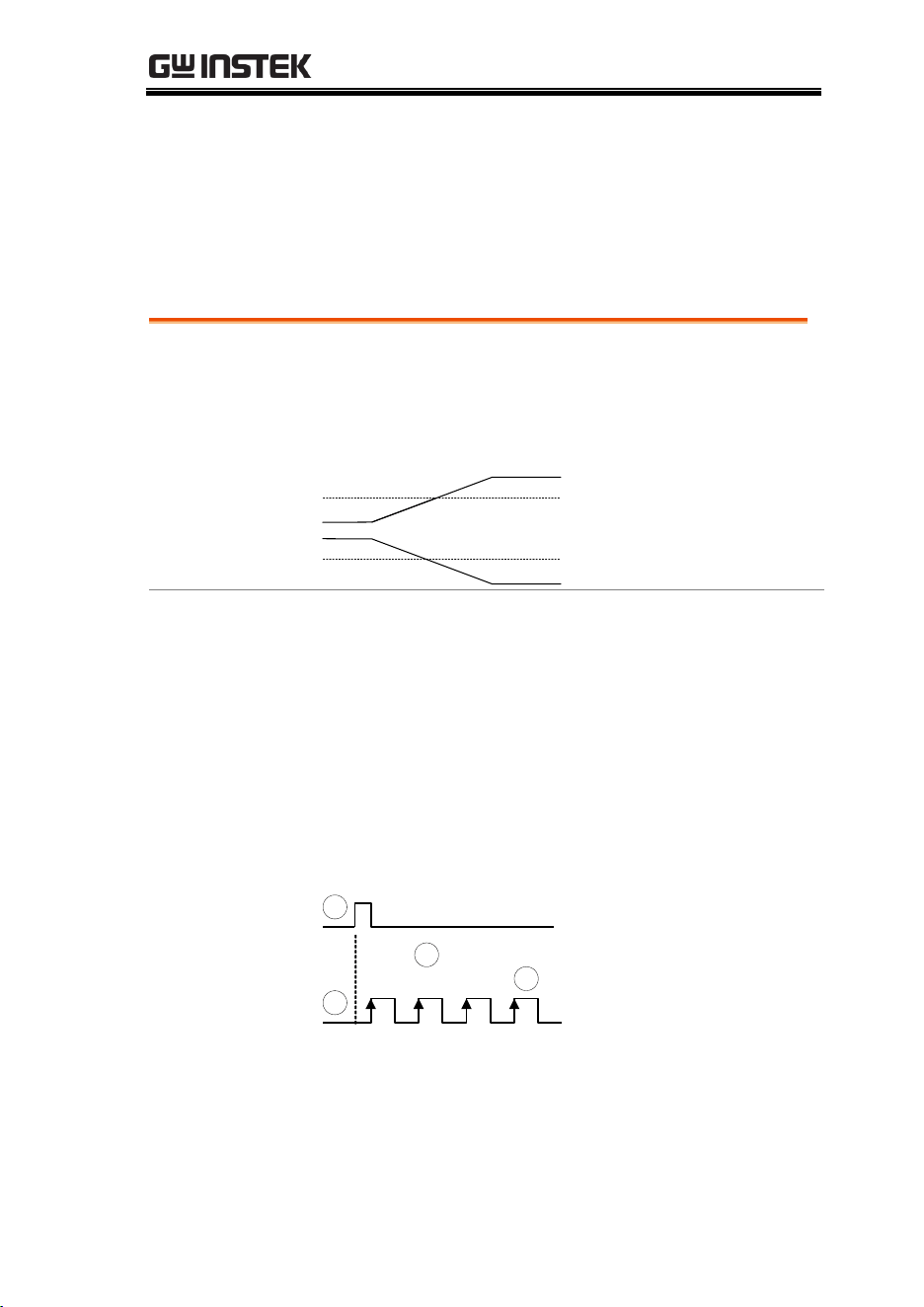
CONFIGURATION
125
Trigger
The trigger configures the conditions for when the GDS-3000
captures a waveform.
Trigger Type Overview
Edge
The edge trigger is the simplest trigger type. An
edge trigger triggers when the signal crosses an
amplitude threshold with either a positive or
negative slope.
Rising edge trigger
Falling edge trigger
Delay
The Delay trigger works in tandem with the edge
trigger, by waiting for a specified time or number
of events before the edge trigger starts. This
method allows pinpointing a location in a long
series of trigger events.
Note: when using the delay trigger, the edge
trigger source can be any one of the channel
inputs, the EXT input or the AC line.
Delay trigger example (by event)
1 2 3
A
B
C
D
A
Ext. trigger input
(Delay trigger)
B
Source (Edge trigger)
C
Delay event count (3)
D
First triggering point
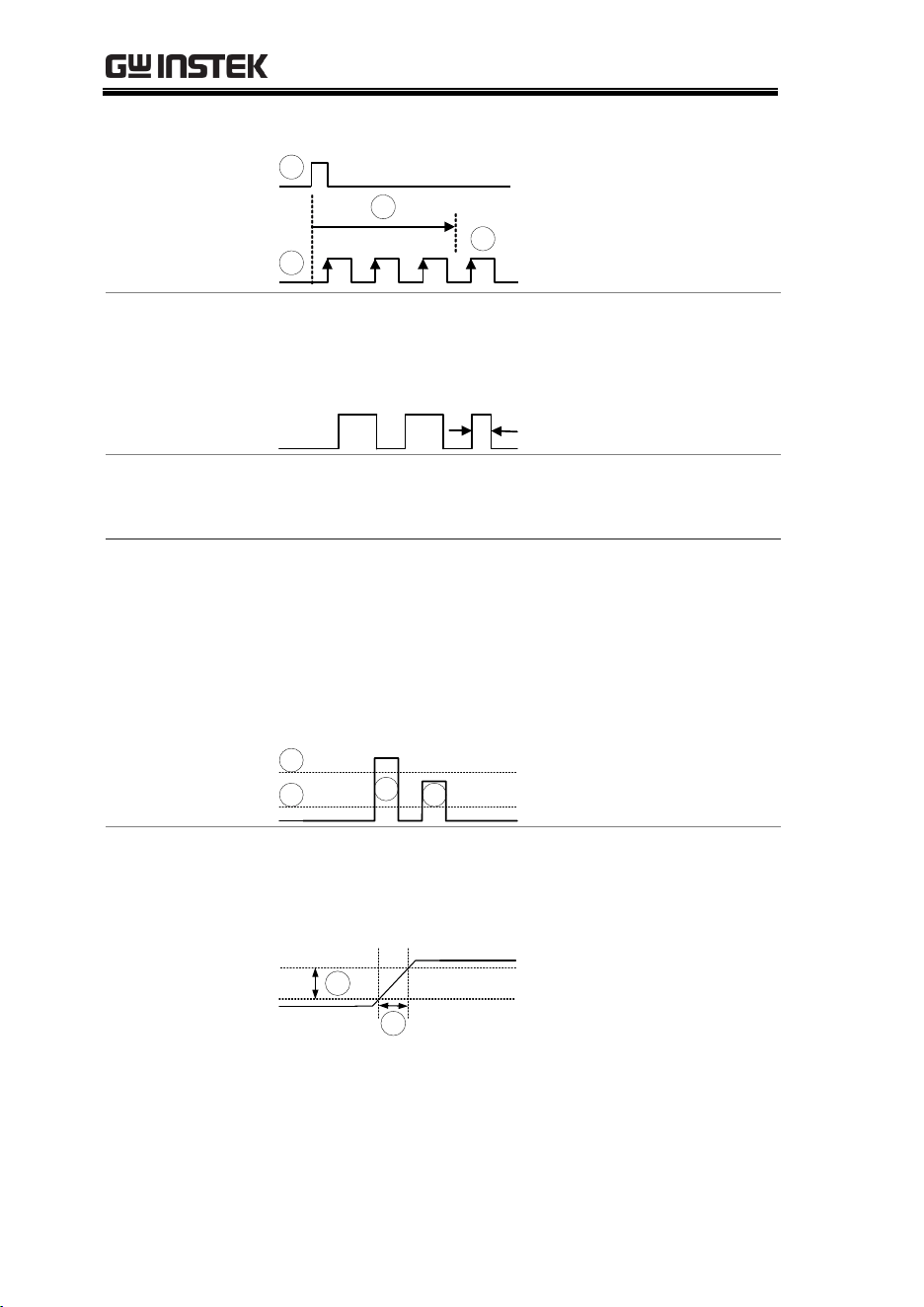
GDS-3000 Series User Manual
126
Delay trigger example (by time)
A
B
C
D
A
Ext. trigger input
B
Source
C
Delay time length
D
First triggering point
Pulse Width
Triggers when the pulse width of the signal is less
than, equal, not equal or greater than a specified
pulse width.
Pulse width
Video
Extracts a sync pulse from a video format signal,
and triggers on a specific line or field.
Pulse and Runt
Triggers on a “runt”. A runt is a pulse that passes a
specified threshold but fails to pass a second
threshold. Both positive and negative runts can be
detected.
A
B
C
D
A
Pulse
B
Runt
C
High threshold
D
Low threshold
Rise and Fall
Trigger on rising and or falling edges, below or
over a specified rate. The threshold can also be
specified.
B
A
A
Thresholds
B
Rate (time)
CONFIGURATION
127
Trigger Parameter Overview
All the following parameters are common for all
the trigger types unless stated otherwise.
Trigger Source
CH1 ~ 4
Channel 1 ~ 4 input signals
EXT
External trigger input
signal
EXT TRIG
AC Line
AC mains signal
Alternate
Alternate between channel sources for
the trigger source.
EXT Probe
Probe trigger source. Set the probe as
either current or voltage.
Trigger Mode
Auto
(un-
triggered
roll)
The GDS-3000 generates an internal
trigger if there is no trigger event, to
make sure waveforms are constantly
updated regardless of trigger events.
Select this mode especially when
viewing rolling waveforms at slower
timebases.
Normal
The GDS-3000 acquires a waveform
only when a trigger event occurs.
Single
The GDS-3000 acquires a
waveform once when a
trigger event occurs, then
stops acquiring. Press the
Single key to acquire a
waveform again.
Single
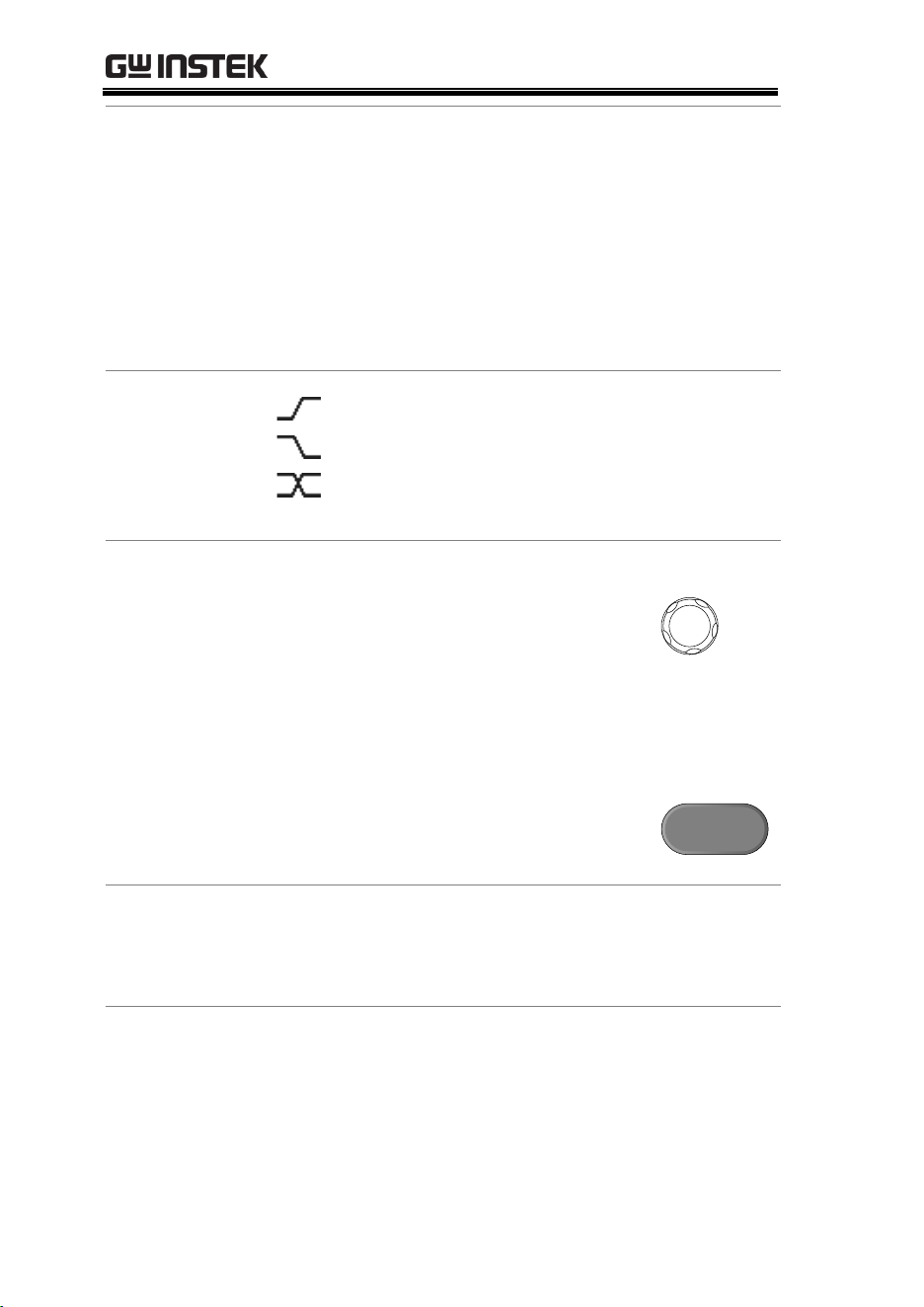
GDS-3000 Series User Manual
128
Coupling
(Edge, Delay)
DC
DC coupling.
AC
AC coupling. Blocks DC components
from the trigger circuits.
HF reject
High frequency filter above 50kHz
LF reject
Low frequency filter below 50kHz
Reject noise
DC coupling with low sensitivity to
reject noise.
Slope
(Edge, Delay, Rise
& Fall)
Trigger on a rising edge.
Trigger on a falling edge.
Don’t care.
(Rise & Fall trigger type only)
Trigger Level
(Edge, Delay)
Level
Adjusts the trigger
manually using the
Trigger LEVEL knob.
LEVEL
Set to TTL
1.4V
Sets the trigger level to 1.4V, suitable
for triggering on TTL signals.
Set to ECL -
1.3V
Sets the trigger to -1.3V. This is
suitable for ECL circuits.
Set to 50%
Sets the trigger level to
50% of the waveform
amplitude.
50%
Holdoff
Holdoff
Sets the holdoff time.
Set to
Minimum
Set the holdoff time to the minimum.
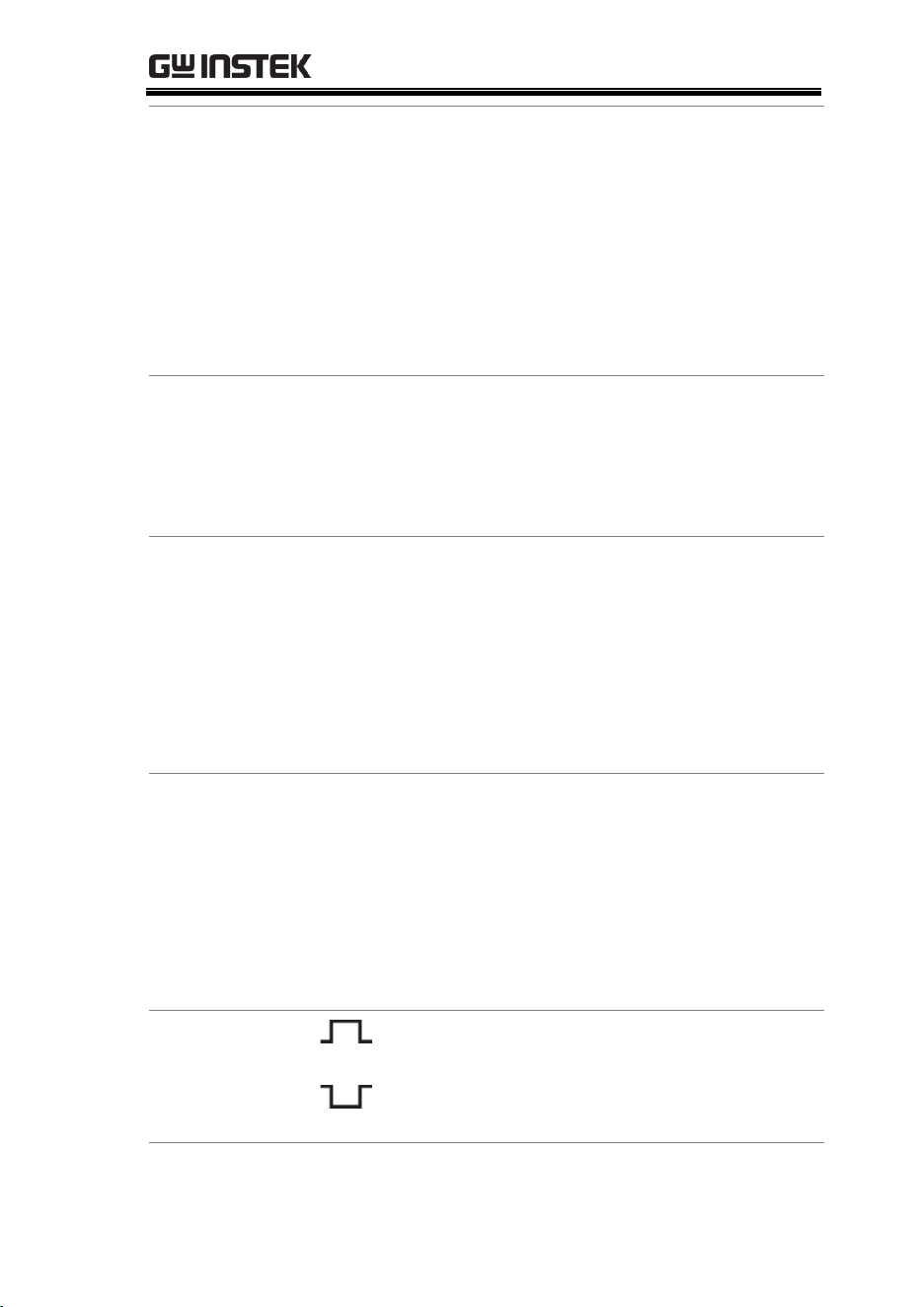
CONFIGURATION
129
Delay
(Delay)
Time
Sets the delay time (10ns ~ 10s)
between the trigger event and the real
trigger timing.
Event
Sets the number of events (1 ~ 65535)
passed after the trigger event, until the
real trigger timing.
Set to
Minimum
Sets the source trigger to the minimum
time.
When
(Pulse Width)
Sets the pulse width (4ns ~ 10s) and the triggering
condition.
>
Longer than
=
Equal to
<
Shorter than
≠
Not equal to
Threshold
(Pulse Width)
Sets the amplitude threshold level for the pulse
widths.
Threshold
–XXV ~ +XXV, user-set level
Set to TTL
1.4V
Set to ECL
-1.3V
Set to 50%
Sets the threshold to 50%
Standard
(Video)
NTSC
National Television System
Committee
PAL
Phase Alternate by Line
SECAM
SEquential Couleur A Memoire
EDTV
480P (NTSC) (576p PAL)
HDTV
720P, 1080i, 1080P signals
Polarity
(Edge, Video)
Positive polarity (triggered on the high
to low transition)
Negative polarity (triggered on the
low to high transition)
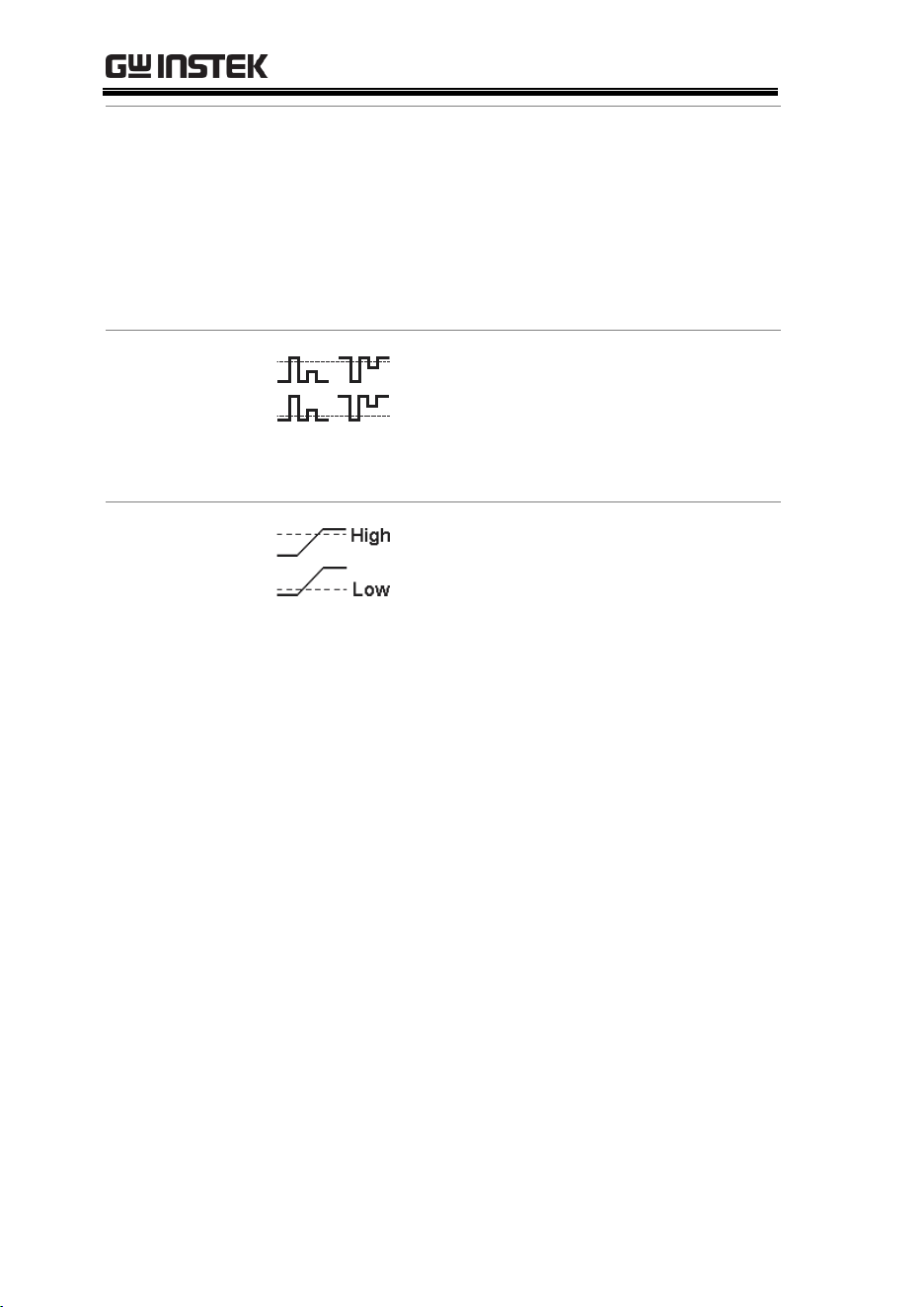
GDS-3000 Series User Manual
130
Trigger On
(Video)
Selects the trigger point in the video signal.
Field
1 or 2 or all.
Line
1~263 for NTSC, 1~313 for
PAL/SECAM, 1~ 525/625 for EDTV,
1~562/750/1125 for HDTV or all.
Threshold
(Pulse Runt)
Sets the upper threshold limit.
Sets the lower threshold limit.
Set to TTL
1.4V
Set to ECL
-1.3V
Threshold
(Rise & Fall)
Sets the High threshold.
Sets the Low threshold.
Set to TTL
1.4V
Set to ECL
-1.3V
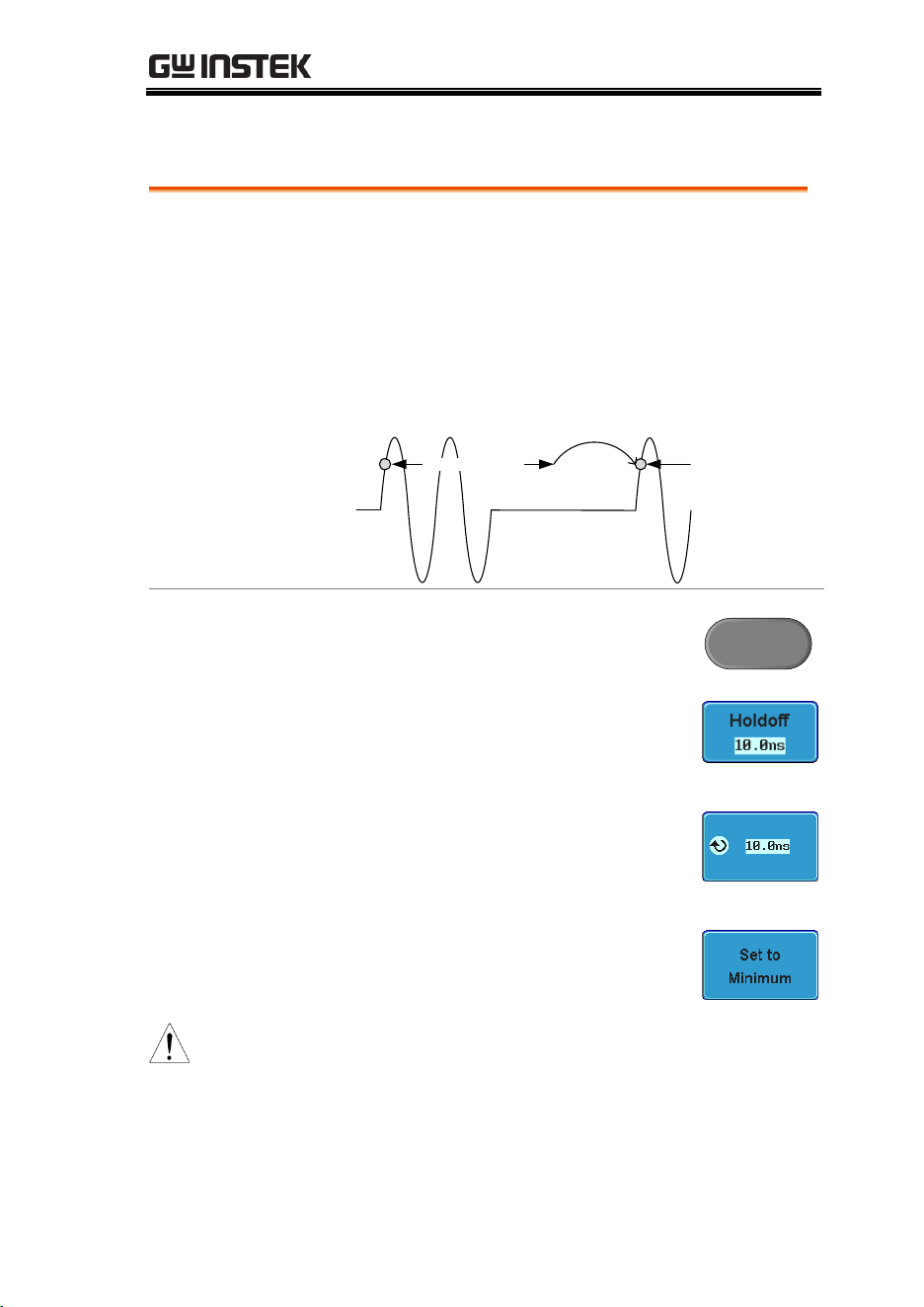
CONFIGURATION
131
Setup Holdoff Level
Background
The holdoff function defines the waiting period
before the GDS-3000 starts triggering again after a
trigger point. The holdoff function ensures a stable
display if there are a number points in a periodic
waveform that can be triggered. Holdoff applies to
all the triggering types.
Holdoff time
Trigger point
Panel Operation
1. Press the trigger Menu key.
Menu
2. To set the Holdoff time, press the
Holdoff (or Mode/Holdoff) menu
button on the bottom bezel.
3. Use the side menu to set the
Holdoff time.
Range
10ns~10s
Pressing Set to Minimum sets the
Holdoff time to the minimum,
10ns.
Note: The holdoff function is automatically
disabled when the waveform update mode is
in roll mode (page114).
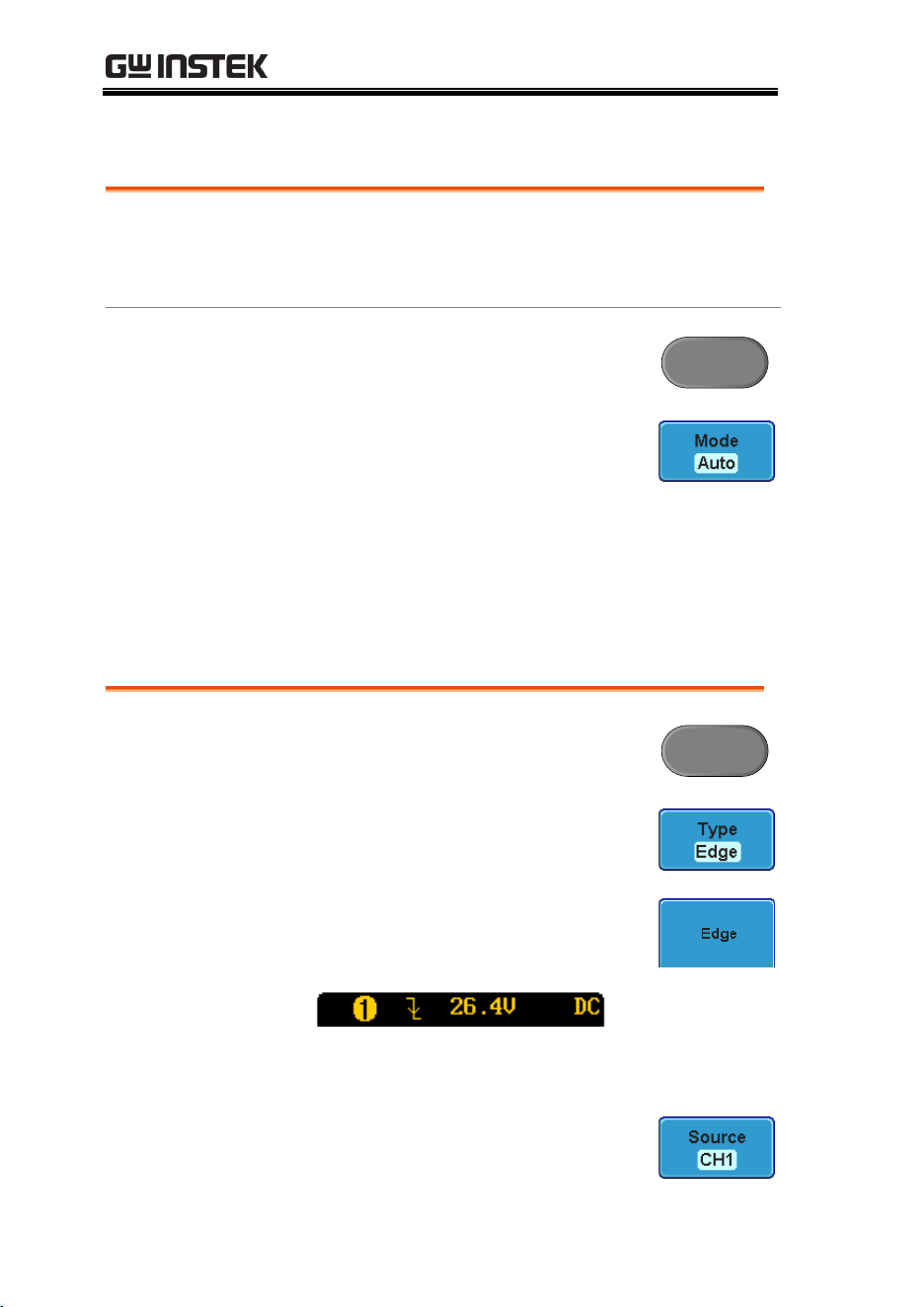
GDS-3000 Series User Manual
132
Setup Trigger Mode
Background
The trigger mode can be set to Normal or Auto
(untriggered roll). The triggering mode applies to
all the trigger types. See page 114.
Panel Operation
1. Press the Trigger menu key.
Menu
2. Press Mode from the bottom menu
to change the triggering mode.
3. Use the side panel to select Auto or
Normal triggering modes.
Range
Auto, Normal
Using the Edge Trigger
Panel Operation
1. Press the Trigger menu key.
Menu
2. Press Type from the lower bezel
menu.
3. Select Edge from the side menu.
The edge trigger indicator appears
at the bottom of the display.
From left: trigger source, slope, trigger level,
coupling
4. Press Source to change the trigger
source.
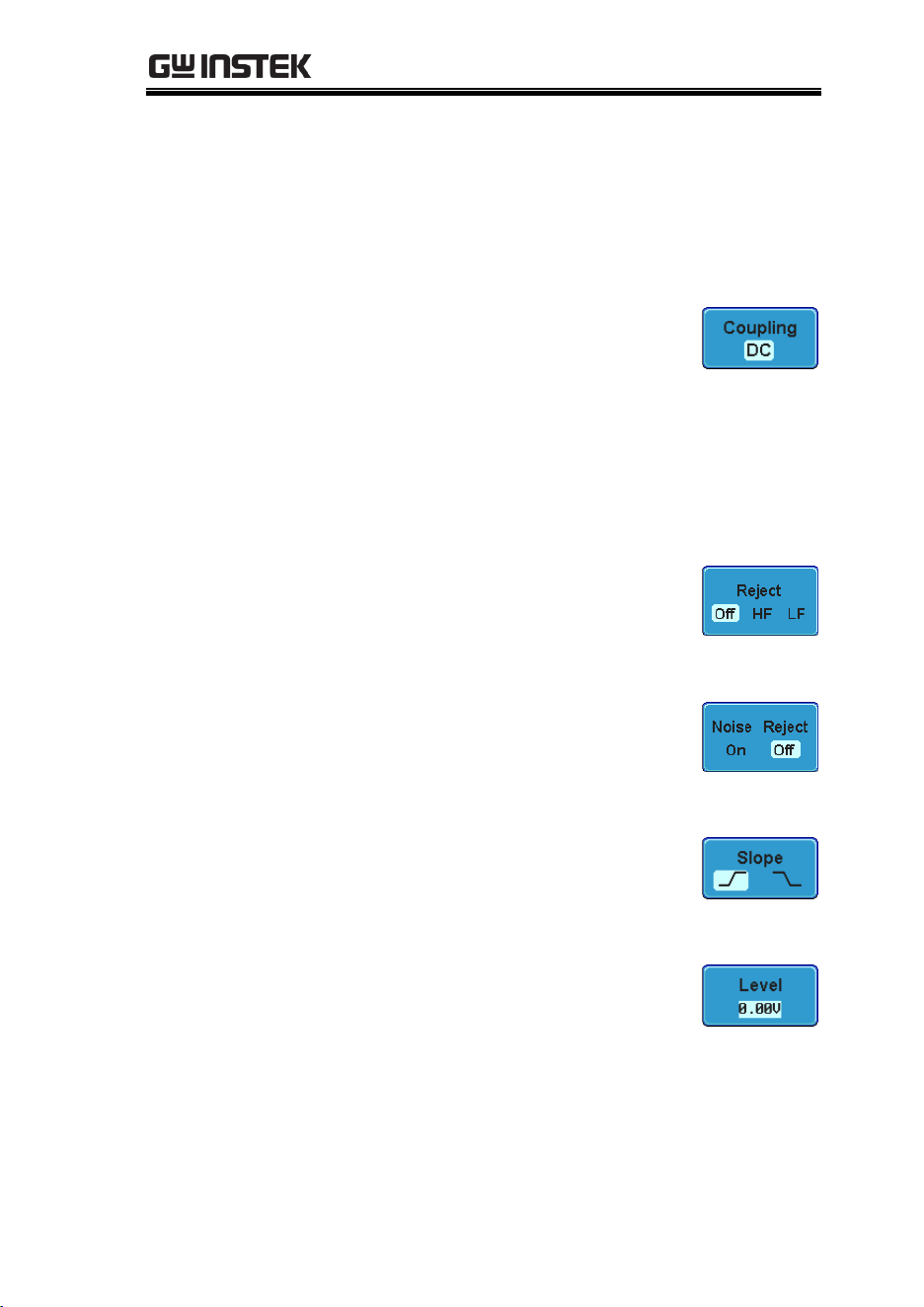
CONFIGURATION
133
5. Use the side menu to select the trigger source
type.
Range
Channel 1 ~ 4 (Alternate On/Off),
Line, EXT (Ext Probe: Volt/Current,
Attenuation: 1mX~1kX ), AC Line
6. Press Coupling from the bottom
bezel menu to select the trigger
coupling or frequency filter
settings.
7. Choose the coupling from the side
menu.
Range
DC, AC
8. Press Reject to toggle the rejection
filter from the side menu.
Range
HF Reject, LF Reject, Off
9. Toggle Noise Rejection On or Off
from the side menu.
Range
On, Off
10. From the bottom menu press Slope
to toggle the slope type.
Range
Rising edge, falling edge
11. To set the external trigger level,
select Level from the bottom bezel
menu.

GDS-3000 Series User Manual
134
12. Set the external trigger level using
the side menu.
Range
00.0V~ 5 screen divisions
Set to TTL 1.4V
Set to ECL -1.3V
Set to 50%
Using Advanced Delay Trigger
Background
The EXT trigger source is always used as the delay
triggering source.
Panel Operation
1. Press the trigger Menu key.
Menu
2. Press Type from the lower bezel
menu.
3. Select Delay from the side menu.
The delay + edge trigger indicator
appears at the bottom of the
display.
From left: external source, slope, trigger level,
delay + external source
4. To set the delay press Delay from
the bottom bezel.
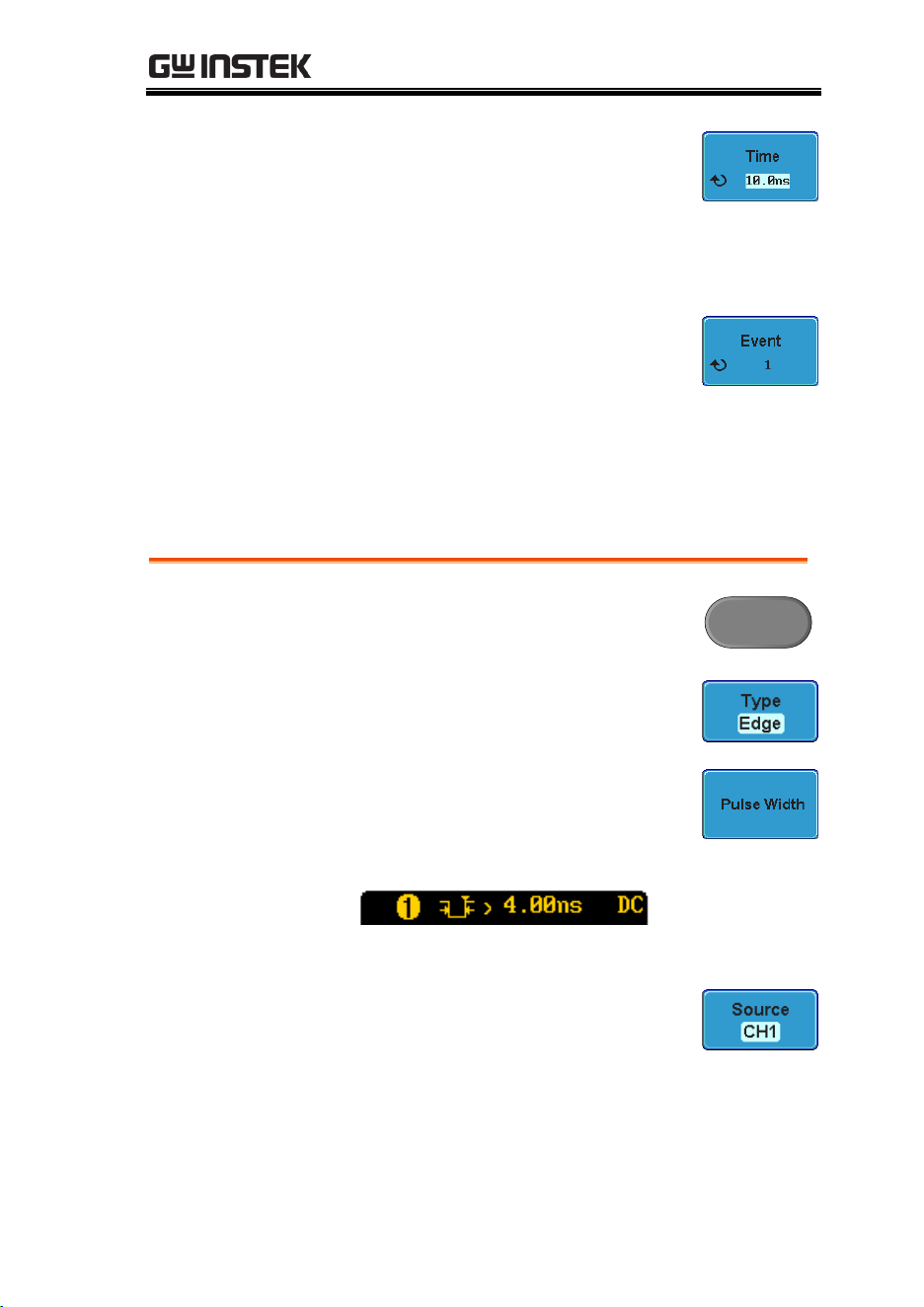
CONFIGURATION
135
5. To Delay by Time, press Time from
the side menu and set the delay
time.
Range
10ns ~ 10s (by time)
Set to minimum
6. To Delay by Event, press Event
from the side menu and set the
number of events.
Range
1 ~ 65535 events
Set to Minimum
Using Pulse Width Trigger
Panel Operation
1. Press the trigger Menu key.
Menu
2. Press the Type key from the lower
bezel menu.
3. Select Pulse Width from the side
menu. The pulse width trigger
indicator appears at the bottom of
the display.
From left: external source, polarity, when
4. Press Source from the lower bezel.
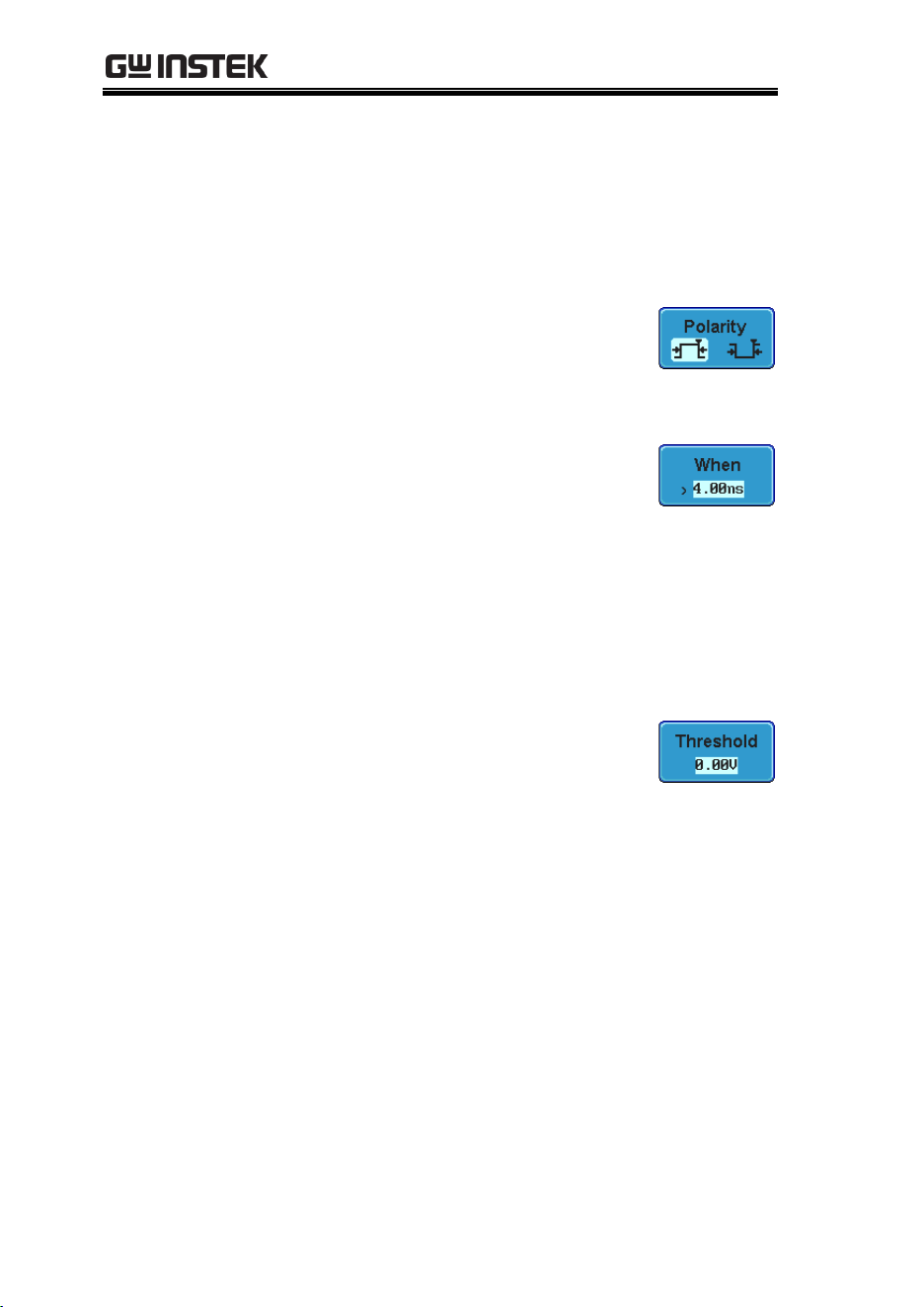
GDS-3000 Series User Manual
136
5. Use the side menu to select the
pulse width trigger source.
Range
Channel 1 ~ 4 (Alternate On/Off),
Line, EXT (Ext Probe: Volt/Current,
Attenuation: 1mX~1kX ), AC Line
6. Press Polarity to toggle the polarity
type.
Range
Positive (high to low transition)
Negative (low to high transition)
7. Press When from the lower bezel.
8. Then use the side menu to select
the pulse width condition and
width.
Condition
> , < , = , ≠
Width
4ns ~ 10s
9. Press Threshold from the lower
bezel to edit the pulse width
threshold.
10. Use the side menu to set the
threshold.
Range
-XXV~XXV
Set to TTL 1.4V
Set to ECL -1.3V
Set to 50%
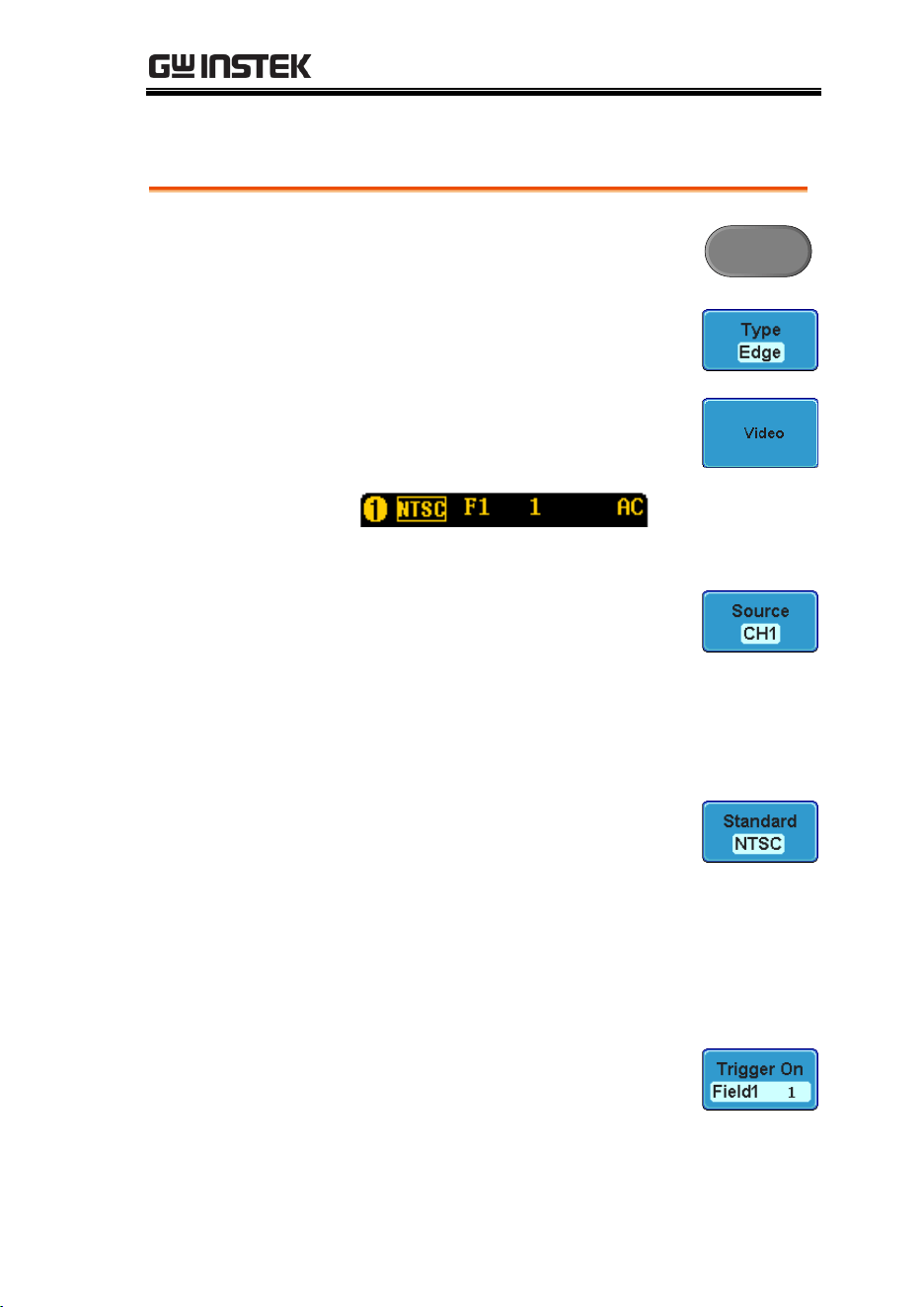
CONFIGURATION
137
Using Video Trigger
Panel Operation
1. Press the trigger Menu key.
Menu
2. Press the Type key from the lower
bezel menu.
3. Select Video from the side menu.
The video trigger indicator appears
at the bottom of the display.
From left: channel, video standard, field, line
4. Press Source from the lower bezel.
5. Use the side menu to select the
video trigger source.
Range
Channel 1 ~ 4
6. Press Standard on the bottom bezel.
7. Use the side menu to select the
video standard.
Range
NTSC, PAL, SECAM, EDTV
(480P/576P), HDTV
(720P/1080i/1080P)
8. Press Trigger On to edit the video
field and line.
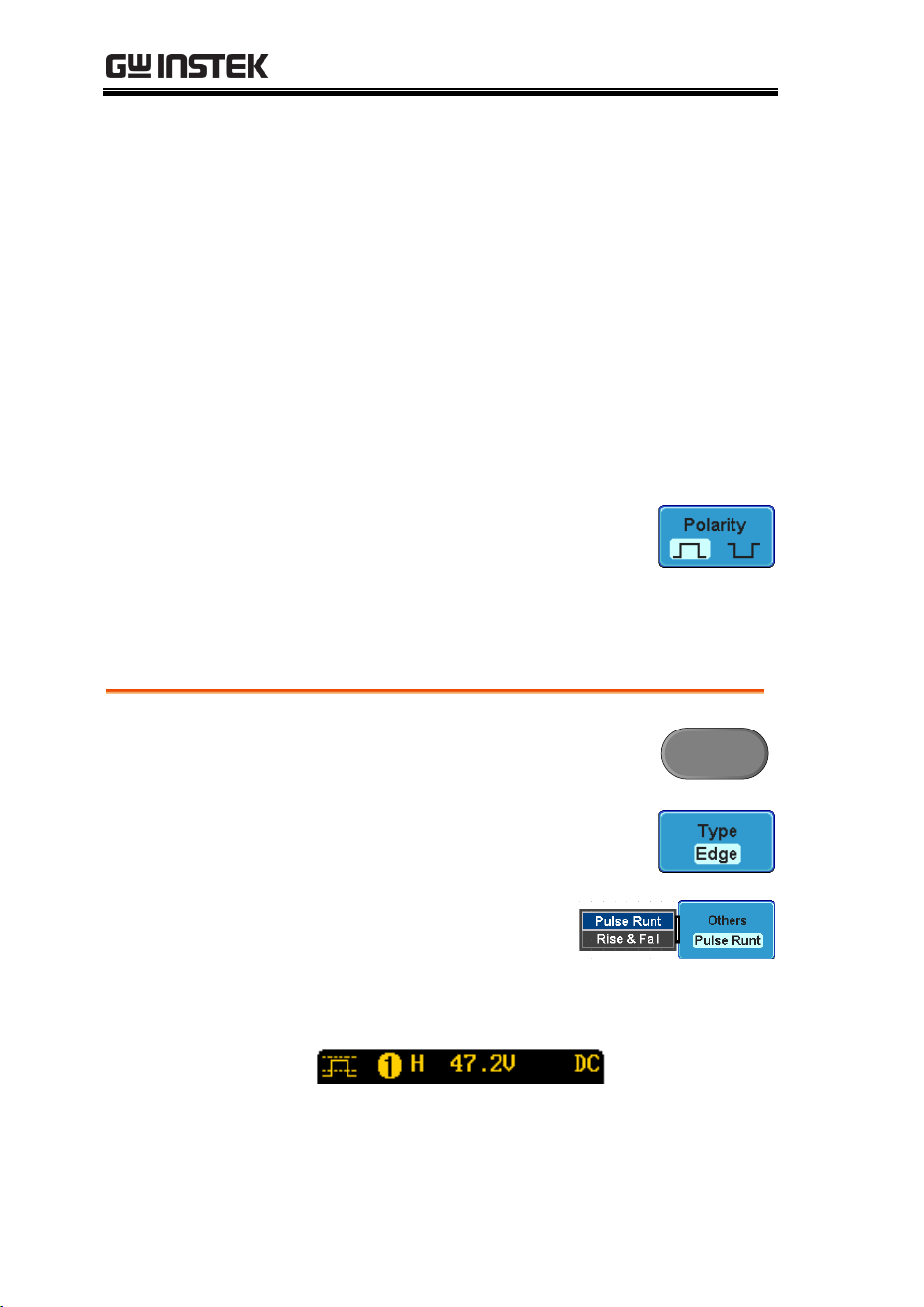
GDS-3000 Series User Manual
138
9. Use the side menu to select the
field and line.
Field
1, 2, All
Video line
NTSC: 1 ~ 262 (Even), 1 ~ 263 (Odd)
PAL/SECAM: 1 ~ 312 (Even),
1 ~ 313 (Odd),
EDTV(480P): 1~ 525, EDTV(576P):
1~ 625
HDTV(720P): 1~ 750, HDTV (1080i):
1 ~ 562 (even), 1~563 (odd), HDTV
(1080P): 1~1125, All
10. Press Polarity to toggle the polarity
type.
Range
positive, negative
Pulse Runt trigger
Panel Operation
1. Press the trigger Menu key.
Menu
2. Press the Type key from the lower
bezel menu.
3. Select Others → Pulse Runt
from the side menu. The
Pulse and Runt indicator
appears at the bottom of
the display.
From left: Polarity, source, high/low
threshold, threshold level

CONFIGURATION
139
4. Press Source from the lower menu.
5. Use the side menu to select a
source.
Range
Channel 1 ~ 4
6. Press Polarity to toggle the polarity.
Range
Rising edge, falling edge, either.
7. Press When from the lower menu.
8. Then use the side menu to select
the condition and width.
Condition
> , < , = , ≠
Width
4ns ~ 10s
9. Press Threshold from the lower
bezel to edit the threshold for each
input source.
10. Use the side menu to set the upper
threshold.
Range
-XXV~XXV
Set to TTL 1.4V
Set to ECL -1.3V
GDS-3000 Series User Manual
140
11. Use the side menu to set the lower
threshold.
Range
-XXV~XXV
Set to TTL 1.4V
Set to ECL -1.3V
Using Rise and Fall Trigger
Panel Operation
1. Press the trigger Menu key.
Menu
2. Press the Type key from the lower
bezel menu.
3. Select Others
à
Rise and
Fall from the side menu.
The Rise and Fall indicator
appears at the bottom of
the display.
From left: rise and fall, source, high/low
threshold, threshold level
4. Press Source from the lower menu.
5. Use the side menu to select a
source.
Range
Channel 1 ~ 4
CONFIGURATION
141
6. Press Slope from the bottom menu
to toggle the slope.
Range
Rising edge, falling edge, either
7. Press When from the lower menu.
8. Then use the side menu to select
the logic conditions and true or
false status.
Condition
> , < , = , ≠
Width
4ns ~ 10s
9. Press Threshold from the lower
bezel to edit the threshold for each
input source.
10. Use the side menu to set the
threshold for the current input.
Range
High: -XXV~XV
Low: -XXV~XXV
Set to TTL 1.4V
Set to ECT -1.3V
GDS-3000 Series User Manual
142
System Info / Language / Clock
This section describes how to set the interface, beeper, language,
time/date, and probe compensation signal.
Select Menu Language
Parameter
The following is a list of language available by
default. Language selection may differ according
to the region to which the GDS-3000 is shipped.
English
Chinese (traditional)
Chinese (simplified)
Korean
Japanese
Polish
French
Russian
German
Panel Operation
1. Press the Utility key.
Utility
2. Select the language from the side
menu.
Range*
English, Trad. Chinese, Simp.
Chinese, Korean, Japanese, Polish,
French, Russian, German.
*Language selection may differ based on
region.
View System Information
Panel Operation
1. Press the Utility key.
Utility

CONFIGURATION
143
2. Press System from the lower menu.
3. Press System Info from the side
menu. A display panel will appear
showing:
Manufacturer name
Model name
Serial number
Firmware version
Manufacturer URL
App download
location
Erase Memory
Background
The Erase Memory function will erase all internal
waveforms, setup files and labels from internal
memory.
Erased Items
Waveform 1~20, Setting memory 1~20, Reference
1~4, Labels
Panel Operation
1. Press the Utility key.
Utility
GDS-3000 Series User Manual
144
2. Press System from the lower menu.
3. Press Erase Memory from the side
menu.
A message will prompt you to press Erase
Memory again to confirm the process.
4. Press Erase Memory.
Set the Buzzer Volume
Panel Operation
1. Press the Utility key.
Utility
2. Press System from the lower menu.
3. Press the buzzer icon on the side
panel. Use the variable knob to set
the volume.
Set Date and Time
Panel Operation/
Parameter
1. Press the Utility key.
Utility
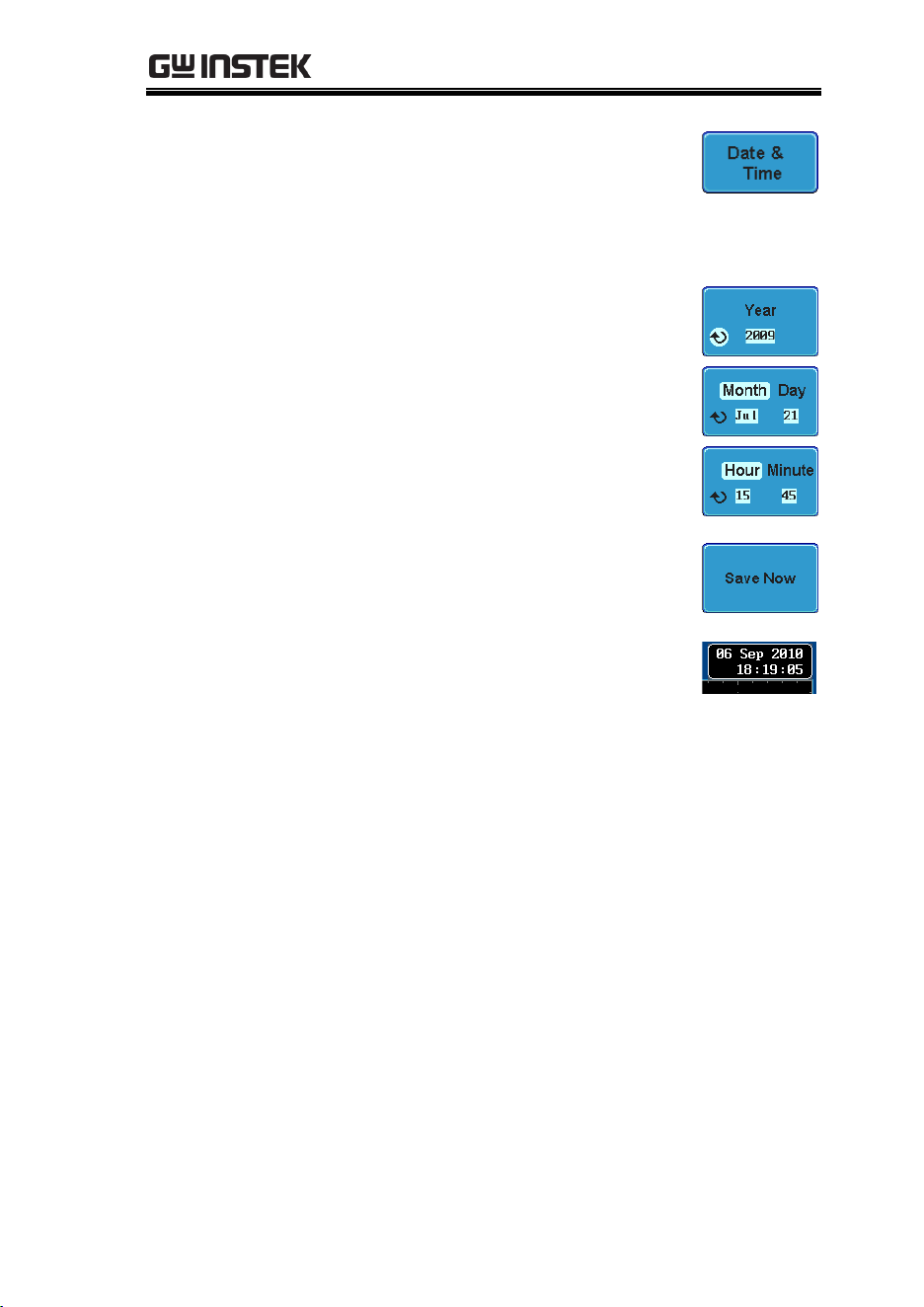
CONFIGURATION
145
2. Press Date & Time on the lower
menu.
3. Set the Year, Month, Day, Hour and Minute from
the side menu.
Year
2000 ~ 2037
Month
1 ~ 12
Day
1 ~ 31
Hour
1~23
Minute
0~59
4. Press Save Now from the side menu
to save the date and time.
5. Make sure the date/time setting is
correctly reflected at the top of the
display.

GDS-3000 Series User Manual
146
SAVE/RECALL
File Format/Utility ........................................................ 147
Image File Format ............................................................... 147
Waveform File Format ....................................................... 147
Spreadsheet File Format ..................................................... 148
Setup File Format ................................................................ 149
Create/Edit file labels .................................................... 151
Save ............................................................................. 153
File Type/Source/Destination .......................................... 153
Save Image ............................................................................ 154
Save Image - Print/Save Key ............................................ 155
Save Waveform .................................................................... 157
Save Setup ............................................................................. 158
Recall ........................................................................... 160
File Type/Source/Destination .......................................... 160
Recall Default Panel Settings ............................................. 160
Recall Waveform ................................................................. 162
Recall Setup .......................................................................... 163
Reference Waveforms .................................................... 165
Recall and Display Reference Waveforms ...................... 165
SAVE/RECALL
147
File Format/Utility
Image File Format
Format
DSxxxx.bmp or DSxxxx.png
Contents
The current display image is 800 by 600 pixels. The
background color can be inverted (Ink saver
function). Each image file is numbered
consecutively from DS0001 to DS9999.
Waveform File Format
Format
DSxxx.lsf, CH1~CH4.lsf
The LSF file format efficiently stores waveforms.
This is the file format that is used for storing and
recalling waveforms for measurement with the
GDS-3000 series osciloscopes.
Waveform Type
CH1 ~ 4
Input channel signal
Math
Math operation result (page 82)
Storage Location
Wave1 ~
Wave20
Waveform files stored to the internal
memory. Stored waveforms can be
copied to Ref. 1 ~ 4 to be viewed on
the display. (W1 ~ W20 waveforms
cannot be directly recalled on the
display).
GDS-3000 Series User Manual
148
Ref 1~4
Reference waveforms stored in the
internal memory, separate from W1 ~
W20. Reference waveforms (Ref 1 ~ 4)
can be displayed directly onto the
display with amplitude and frequency
information. Ref 1~4 are useful for
reference purposes. Other waveforms (
LSF and W1~20) must be recalled to
R1~4 before being displayed.
Contents:
Waveform Data
The waveform data can be used for detailed
analysis. It consists of the horizontal and vertical
data used by the waveform for the entire memory
length.
Spreadsheet File Format
Format
DSxxxx.csv (Comma-separated values format, can
be opened in spreadsheet applications such as
Microsoft Excel). CSV files cannot be recalled onto
the GDS-3000 series of oscilloscopes.
Waveform Type
CH1 ~ 4
Input channel signal
Math
Math operation result (page82)
Contents:
Waveform Data
Digital waveform data containing the channel
information such as vertical and horizontal
position of a signal for the entire memory length.
Contents: Other
Data
The following information is also included in the
waveform file.
Firmware version
Time of acquisition
Horizontal mode
Memory length
Trigger level
Vertical units
Vertical scale
Probe level
Vertical position
Horizontal units
SAVE/RECALL
149
Horizontal scale
Horizontal scale
Horizontal position
Sampling period
Time (of points)
Channel
Setup File Format
Format
DSxxxx.set (proprietary format)
The setup file saves or recalls the following
settings.
Contents
Acquire
Mode
Sample rate
XY
Sample mode
Display
Mode
Persistence
Waveform
intensity
Graticule
intensity
Waveform
visuals
Graticule
Channel
Scale
Channel
Coupling
Impedance
Invert
Bandwidth
Expand
Position
Probe
Probe
attenuation
Deskew
Cursor
Horizontal
cursor
Vertical cursor
Measure
Source
Gating
Display
Horizontal
Scale
Math
Source1
Operator
Source2
Position
Unit/Div
Math Off

GDS-3000 Series User Manual
150
Trigger
Type
Source
Coupling
Alternate
Rejection
Noise Rejection
Slope
Level
Mode
Holdoff
Utility
Language
Print key
Ink Saver
Save/
recall
Image file
format
Data file format
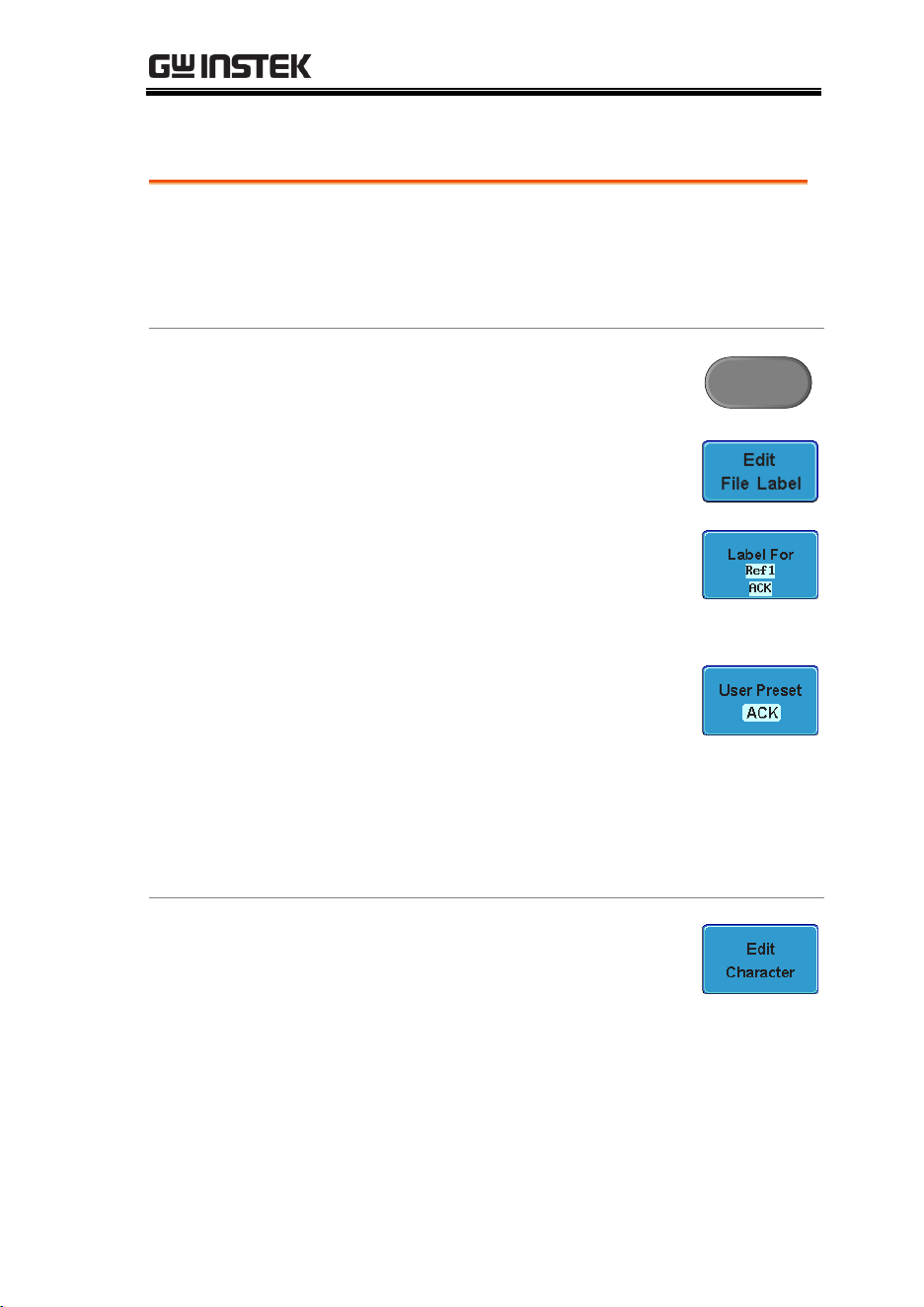
SAVE/RECALL
151
Create/Edit file labels
Format
Reference files and Setup files stored in internal
memory can have individual labels set. The labels
are used on the reference waveform and setup file
icons.
Panel Operation
1. Press the Save/Recall key from the
front panel.
Save/Recall
2. Press Edit File Label from the
bottom menu.
3. Press Label For to choose a
Reference or Setup file.
Label For
Ref1~4, Set1~20
4. To choose a preset label, Press User
Preset from the side menu and
choose a label.
Labels
ACK, AD0, ANALOG, BIT, CAS,
CLK, CLOCK, CLR, COUNT,
DATA, DTACK, ENABLE, HALT,
INT, IN, IRQ, LATCH, LOAD,
NMI
Edit Label
1. Press Edit Character to edit the
current label.
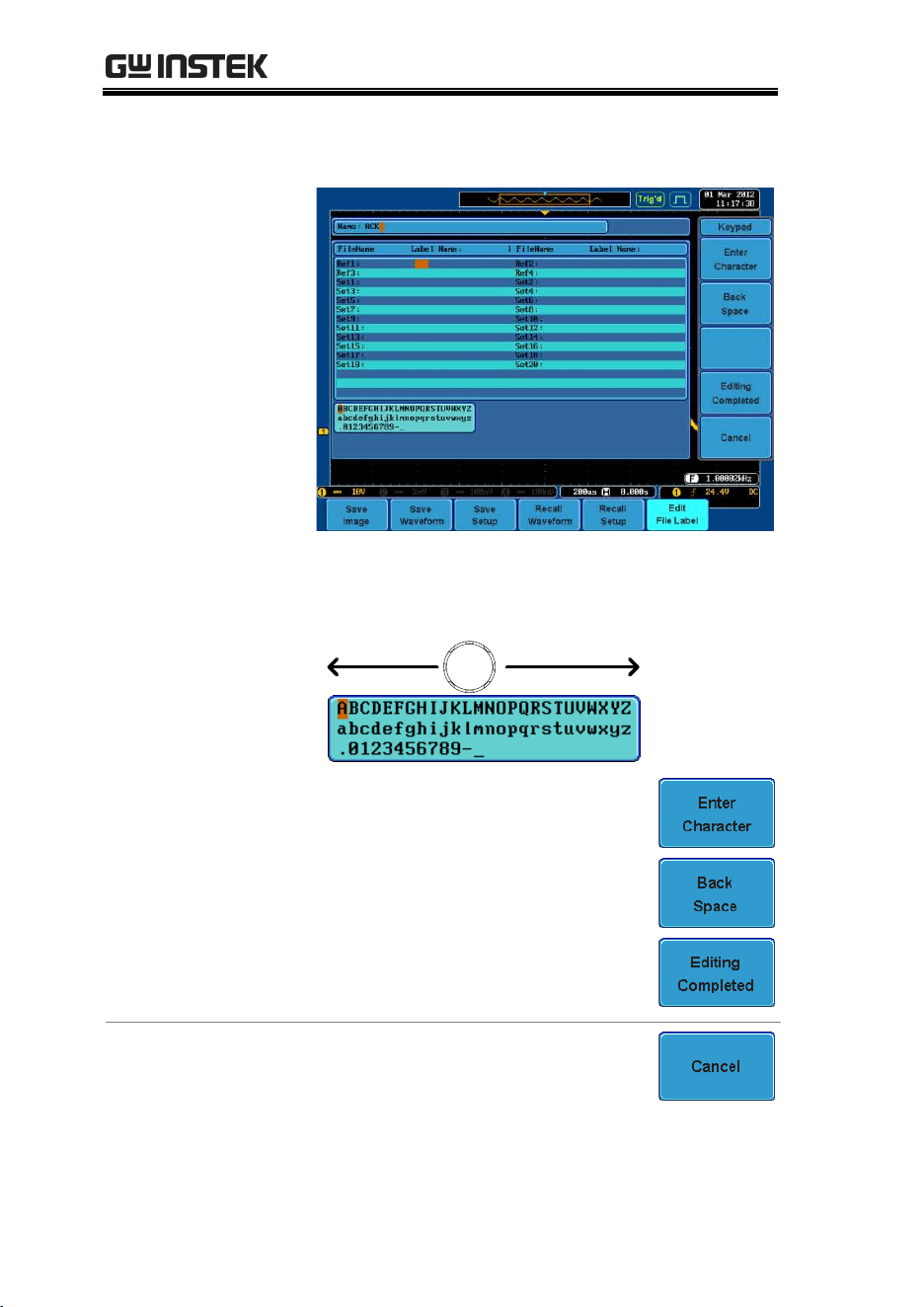
GDS-3000 Series User Manual
152
2. The Edit Label window appears.
3. Use the Variable knob to highlight
a character.
VARIABLE
Press Enter Character to select a
number or letter.
Press Back Space to delete a
character.
Press Editing Completed to create
the new label and return to the
previous menu.
Cancel
Press Cancel to cancel the operation
and return to the previous menu.

SAVE/RECALL
153
Save
File Type/Source/Destination
Item
Source
Destination
Panel Setup
(DSxxxx.set)
Front panel settings
Internal memory: Set1 ~
Set20
File system: Disk, USB
Waveform Data
(DSxxxx.csv)
(DSxxxx.lsf)
(CH1~CH4.lsf,
Ref1~Ref4.lsf,
Math.lsf)*
ALLxxxx.csv
Channel 1 ~ 4
Math operation
result
Reference
waveform Ref1~4
All displayed
waveforms
Internal memory:
Reference waveform
Ref1~4, Wave1 ~ Wave20
File system: Disk, USB
Display Image
(DSxxxx.bmp)
(DSxxxx.png)
Display image
File system: Disk, USB
*Stored in ALLXXX directories when All Displayed waveforms are
saved
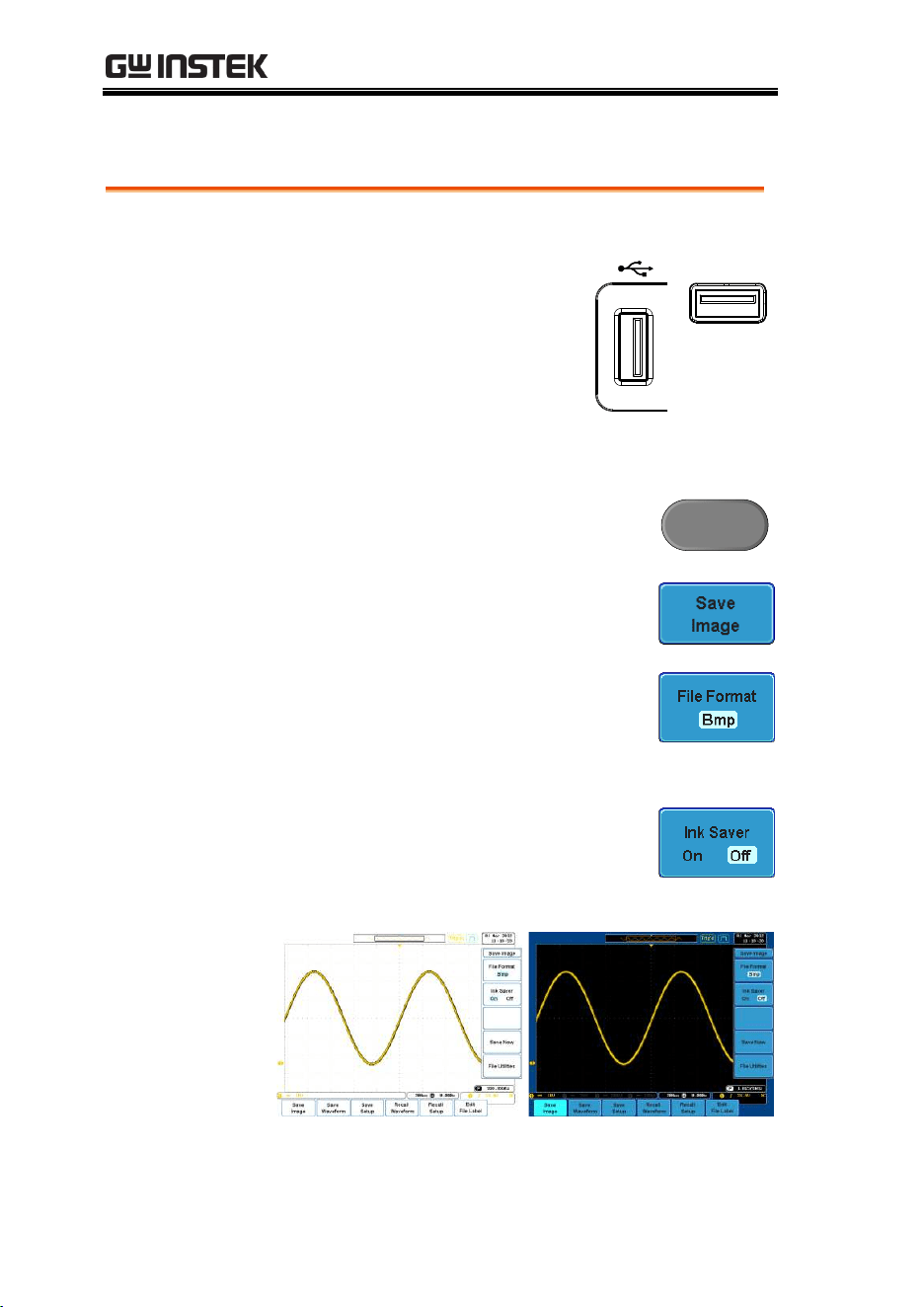
GDS-3000 Series User Manual
154
Save Image
Panel Operation
1. To save to USB, connect a
USB drive to the front or
rear panel USB port. If a
USB drive is not connected,
images will be saved to the
internal memory.
Note: Only one host
connection, front or rear, is
allowed at a time.
Front
Rear
Host
2. Press the Save/Recall key from the
front panel.
Save/Recall
3. Pres Save Image from the bottom
menu.
4. Press File Format to choose PNG or
BMP file types.
Range
DSxxxx.bmp, DSxxxx.png
5. Press Ink Saver to toggle Ink Saver
On or Off.
Ink Saver On
Ink Saver Off
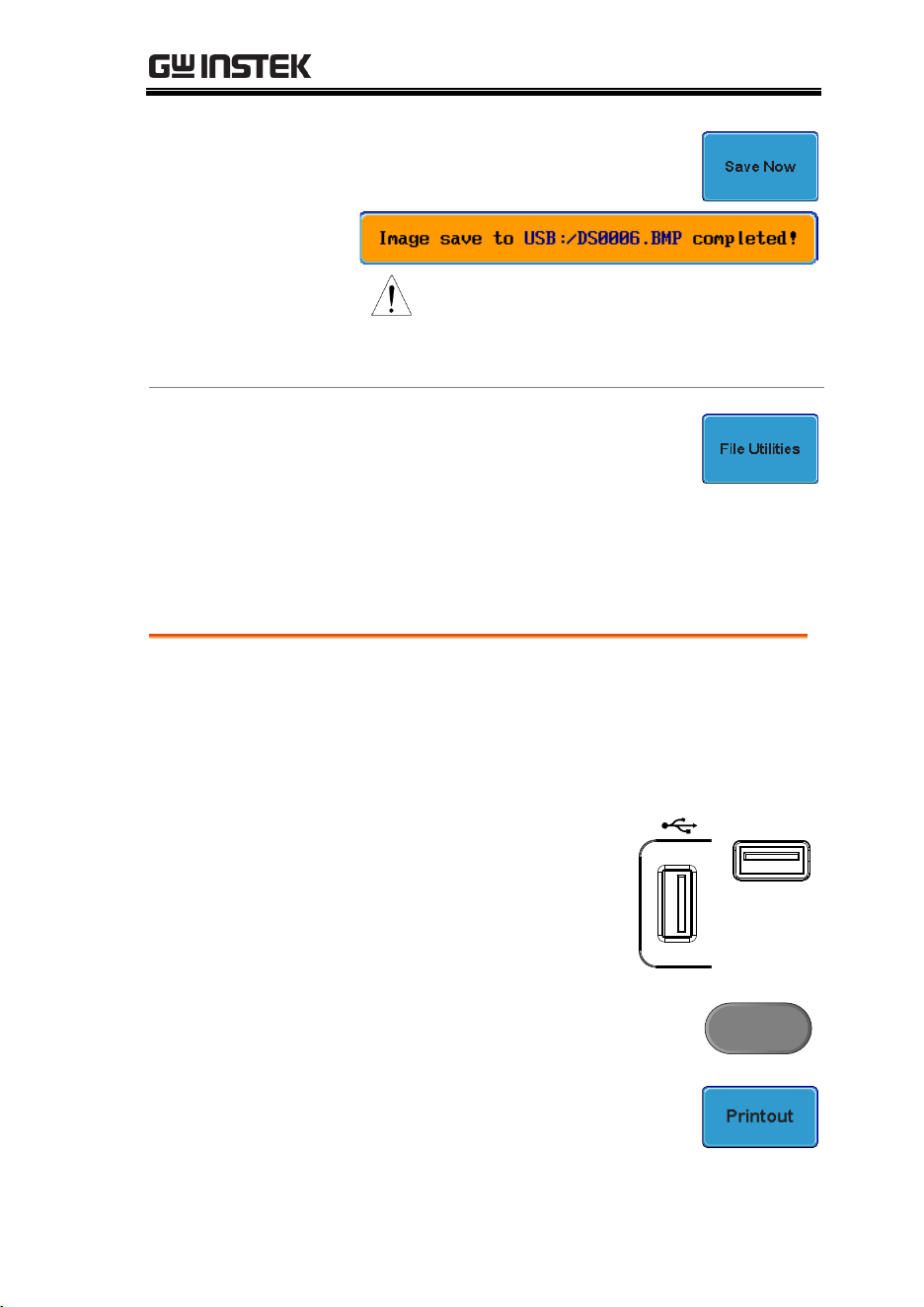
SAVE/RECALL
155
6. Press Save Now from the side menu
to save the display as an image file.
Note
The file will not be saved if the
power is turned Off or the USB
drive is taken out before the
message ends.
USB File Utility
To edit the USB flash drive contents
(create/ delete/ rename files and
folders) or to edit the default file path,
press File Utilities from the side menu.
See page 166 for details.
Save Image - Print/Save Key
Background
The Print/Save key can be assigned to Print or to
Save. When assigned to Save, pressing the
Print/Save key will save a screen image to USB.
Panel Operation
1. Connect a USB drive to the
front or rear panel USB port.
Note: Only one host
connection, front or rear, is
allowed at a time.
Front
Rear
Host
2. Press the Utility key.
Utility
3. Press Printout from the bottom
menu.
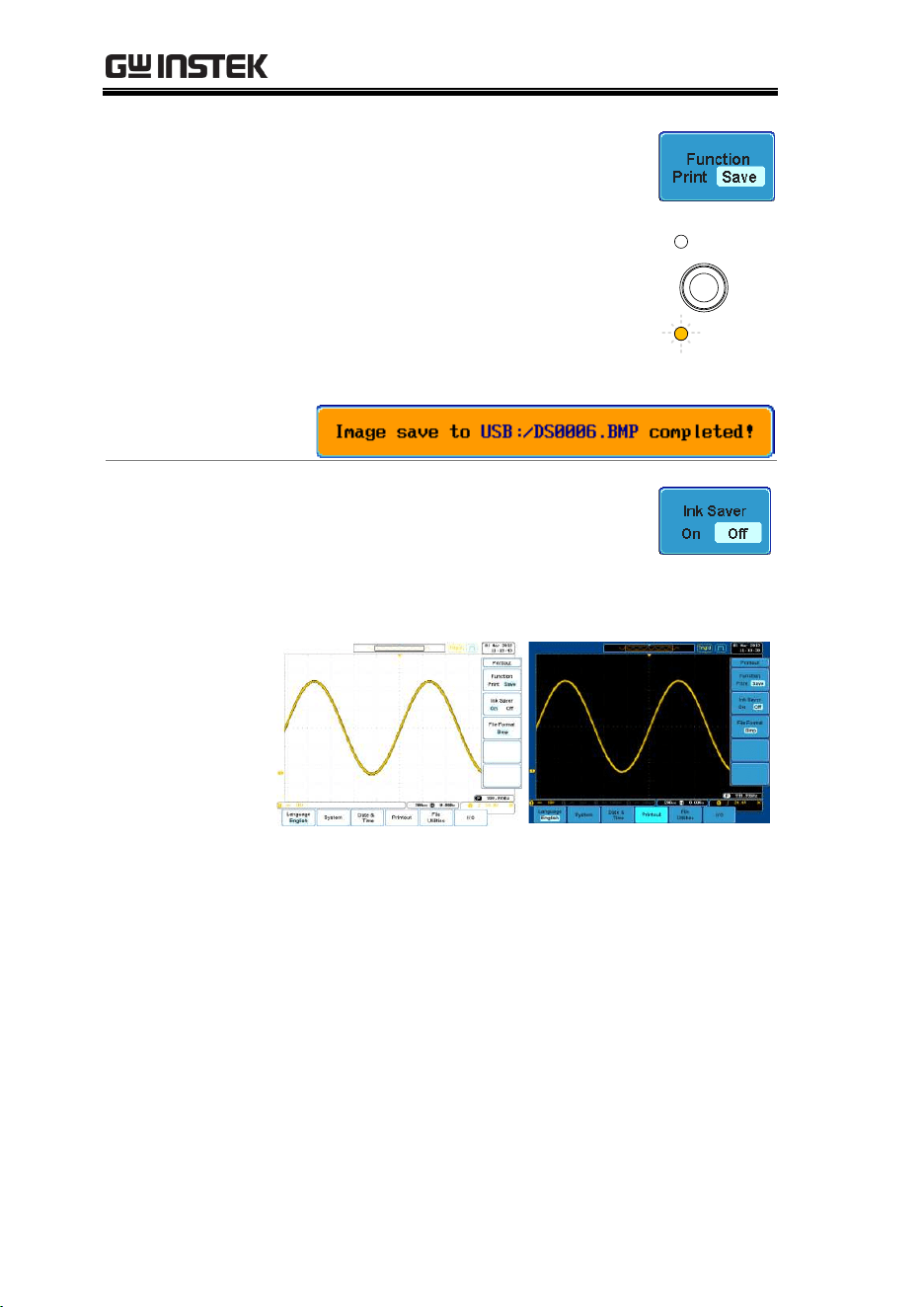
GDS-3000 Series User Manual
156
4. On the side menu, press Function
repeatedly to select Save.
The Save led on the screen bezel
will be lit when the printout
function is set to Save.
Print
Save
5. Press the Print/Save key to save to
USB.
Ink Saver
To invert the color for the saved or
printed display image, press Ink Saver
repeatedly to toggle Ink Saver On or
Off from the side menu.
Ink Saver On (Inverted)
Ink Saver Off (Normal)
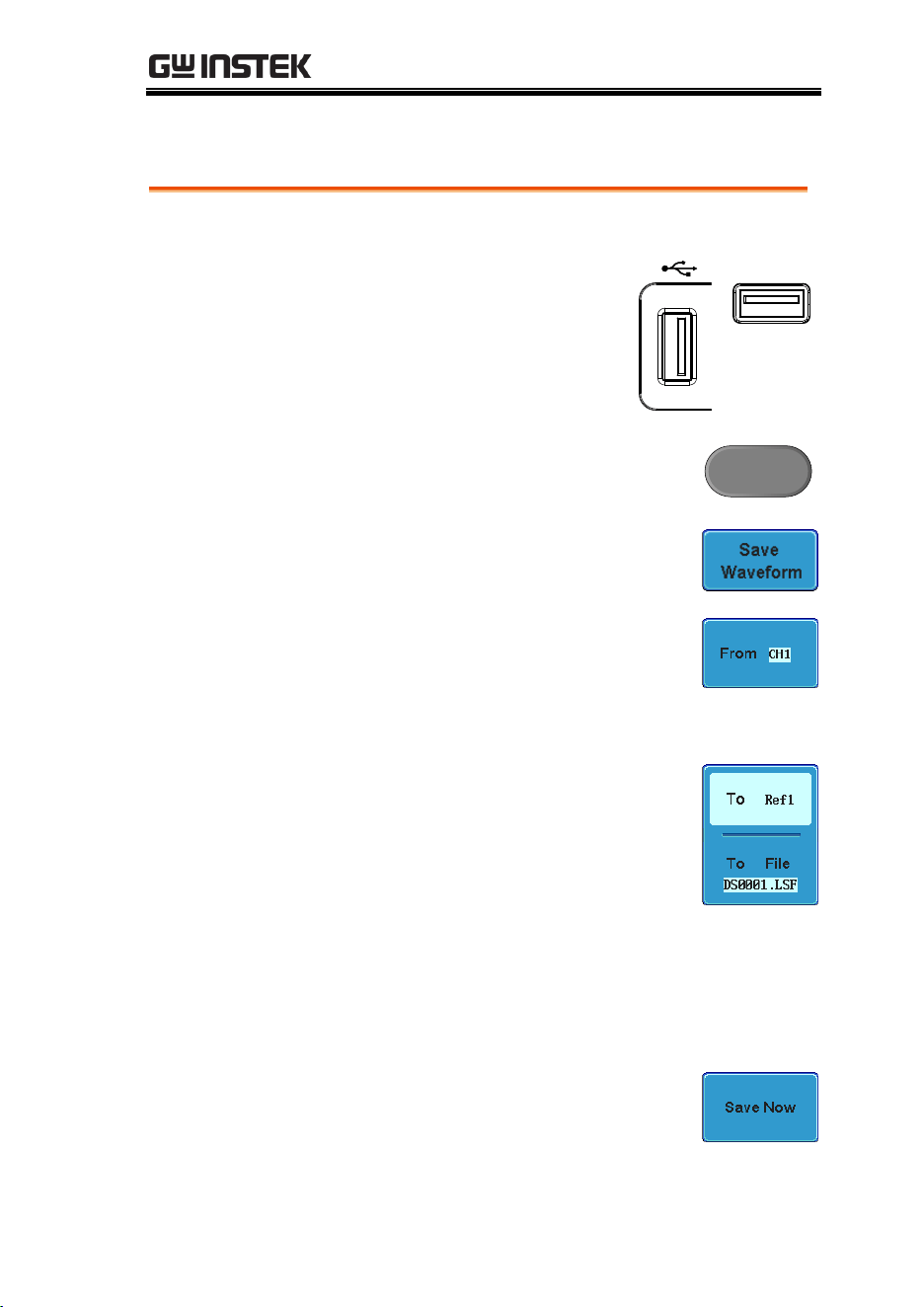
SAVE/RECALL
157
Save Waveform
Panel Operation
1. (For saving to an external
USB flash drive) Connect
the drive to the front or rear
panel USB port.
Note: Only one host
connection, front or rear, is
allowed at a time.
Front
Rear
Host
2. Press the Save/Recall key from the
front panel.
Save/Recall
3. Press Save Waveform from the
bottom menu.
4. Choose the From waveform on the
side menu.
Source
CH1~4, Math, Ref1~4, All
Displayed
5. Press To (internal memory) or To
File and choose a destination to
save.
To
Ref1~4, Wave1~4
To File
DSxxxx.csv, DSxxxx.lsf,
CH1~CH4.lsf*
*(saved to an ALLxxx directory)
6. Press Save Now to confirm saving.
When completed, a message
appears at the bottom of the
display.
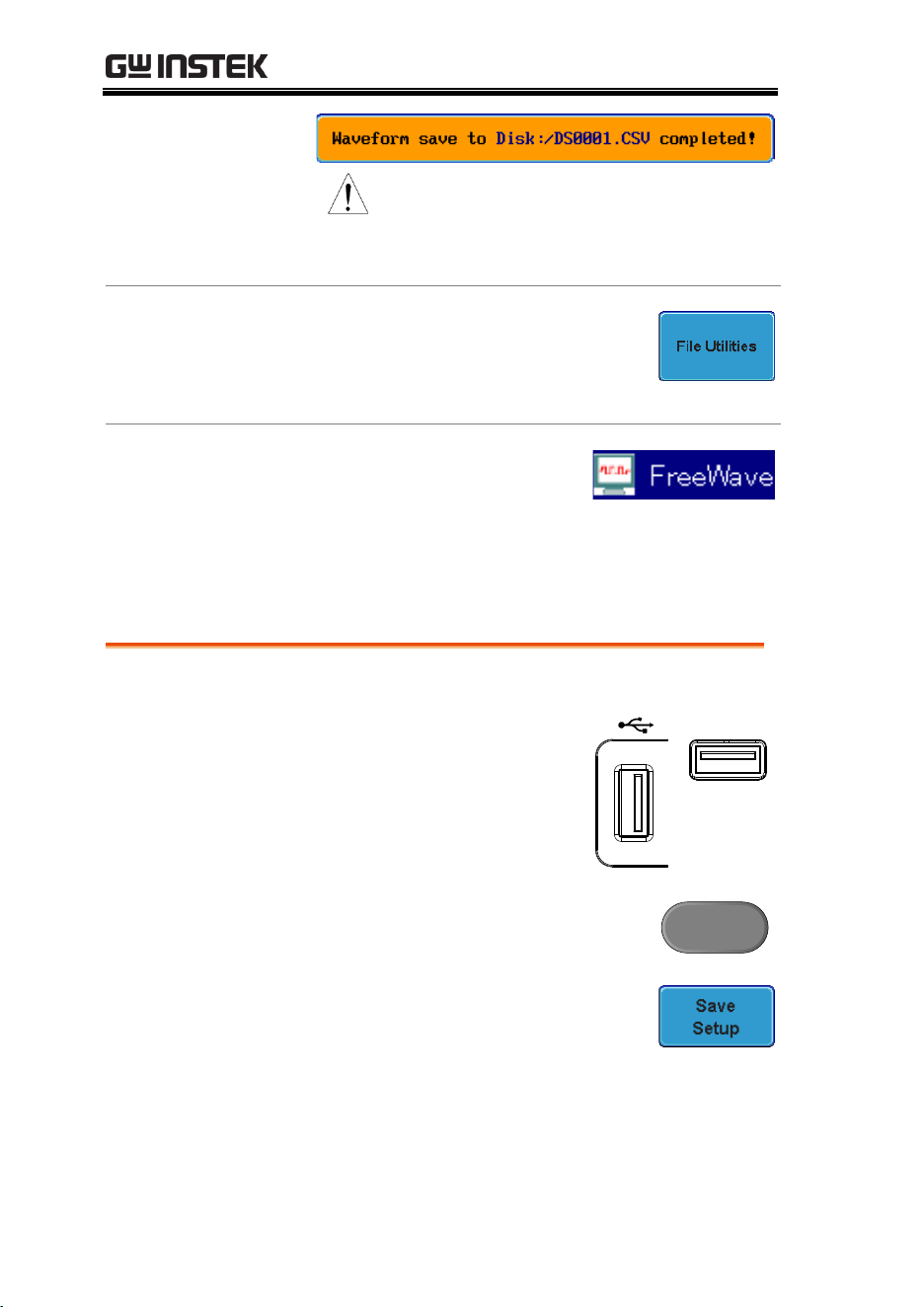
GDS-3000 Series User Manual
158
Note
The file will not be saved if the
power is turned Off or the USB
drive is taken out before the
message ends.
USB File Utility
To edit USB flash drive contents
(create/ delete/ rename files and
folders), press File Utilities. For details,
see page 166.
PC Software
(FreeWave)
Saving waveforms can also be
accomplished using FreeWave,
downloadable from GWInstek
website.
Save Setup
Panel Operation
1. (For saving to an external
USB flash drive) Connect
the drive to the front or rear
panel USB port.
Note: Only one host
connection, front or rear, is
allowed at a time.
Front
Rear
Host
2. Press the Save/Recall key from the
front panel.
Save/Recall
3. Press Save Setup from the bottom
menu.
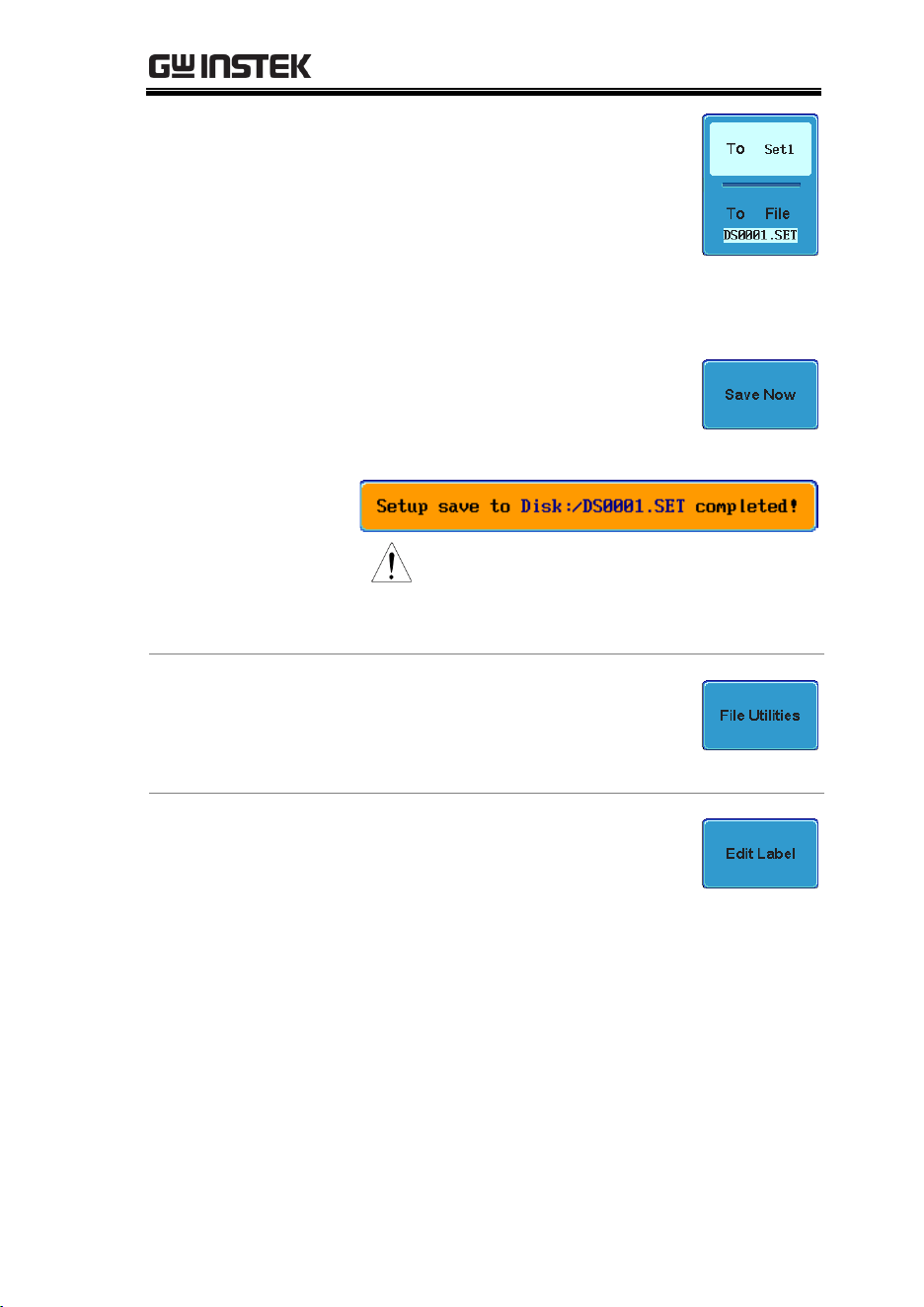
SAVE/RECALL
159
4. Press To (internal memory) or To
File and choose a destination to
save.
To
Set1~Set20
To File
DSxxxx.set
5. Press Save Now to confirm saving.
When completed, a message
appears at the bottom of the
display.
Note
The file will not be saved if the
power is turned Off or the USB
drive is taken out before the
message ends.
USB File Utility
To edit USB flash drive contents
(create/ delete/ rename files and
folders) or to set the file path, press
File Utilities. For details, see 166.
Edit Label
To edit labels for Setup files, press Edit
Label. For more details on editing
labels, see page 151.
GDS-3000 Series User Manual
160
Recall
File Type/Source/Destination
Item
Source
Destination
Default Panel
Setup
Factory installed
setting
Current front panel
Reference
Waveform
Internal memory:
Ref1~4
Current front panel
Panel Setup
(DSxxxx.set)
Internal memory: S1 ~
S20
File system: Disk, USB
Current front panel
Waveform Data
(DSxxxx.lsf)
(CH1~CH4.lsf,
Ref1~Ref4.lsf,
Math.lsf)*
Internal memory: Wave
1 ~ Wave20
File system: Disk, USB
Reference waveform
1 ~ 4
*Recalled from ALLXXX directories.
Recall Default Panel Settings
Panel Operation
1. Press the Default Setup key.
Default
Setup
2. The screen will update with the default panel
settings.
Setting Contents
The following is the default (factory) setting
contents.
SAVE/RECALL
161
Acquire
Mode: Sample
XY: OFF
Sample mode: Sinc
Sample rate: 250MSPS
(200MSPS GDS350X)
Display
Mode: Vector
Persistence: Auto
Waveform intensity: 50%
Graticule intensity: 50%
Waveform visuals: Gray
Graticule: full
Channel
Scale: 100mV/Div
CH1: On
Coupling: DC
Impedance: 1MΩ
Invert: Off
Bandwidth: full
Expand: By ground
Position: 0.00V
Probe: voltage
Probe attenuation: 1x
Deskew: 0s
Cursor
Horizontal cursor: Off
Vertical Cursor: Off
Measure
Source1: CH1
Source2: CH2
Gating: Off
Display: Off
Horizontal
Scale: 10us/Div
Math
Source1: CH1
Operator: +
Source2: CH2
Position: 0.00 Div
Unit/Div: 200mV
Math Off
Test
App: Go-NoGo
Trigger
Type: Edge
Source: CH1
Coupling: DC
Alternate: Off
Rejection: Off
Noise Rejection: Off
Slope: positive
Level: 0.00V
Mode: Auto
Holdoff: 10.0ns
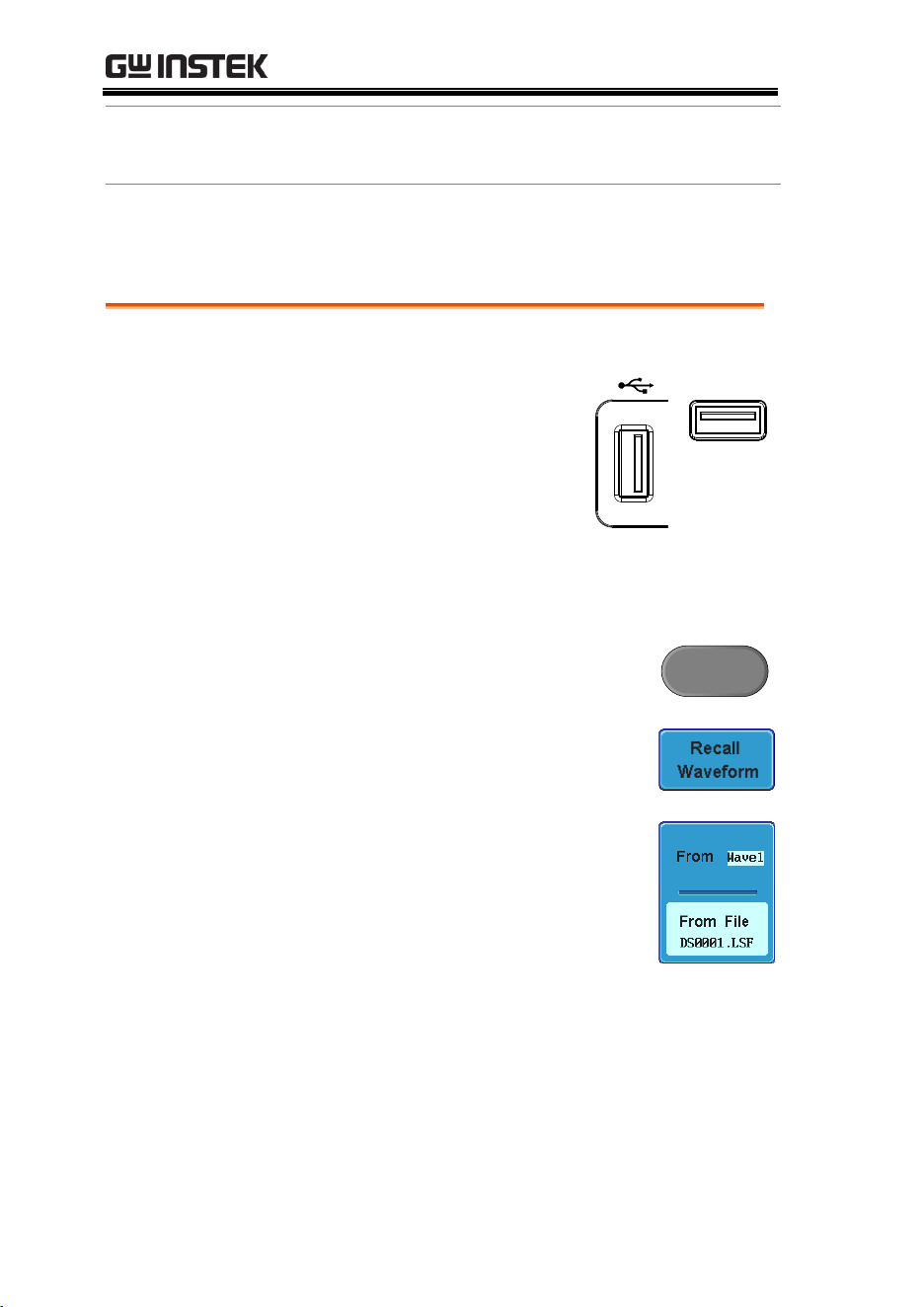
GDS-3000 Series User Manual
162
Utility
Language: English
Print key: Save
Ink Saver: Off
Save Recall
Image file format: Bmp
Data file format: LSF
Recall Waveform
Panel Operation
1. (For recalling from an
external USB flash drive)
Connect the drive to the
front or rear panel USB port.
Note: Only one host
connection, front or rear, is
allowed at a time.
Front
Rear
Host
2. The waveform must be stored in advance. See
page 155 for waveform store details.
3. Press the Save/Recall key.
Save/Recall
4. Press Recall Waveform from the
bottom menu. The Recall menu
appears.
5. Press From (internal memory) or
From File and choose a source to
recall from.
From
Wave1~20
From File*
DSxxxx.lsf, CH1~CH4.lsf
*Only files in the current file path will be
available, this includes files saved in the
ALLXXX directories.
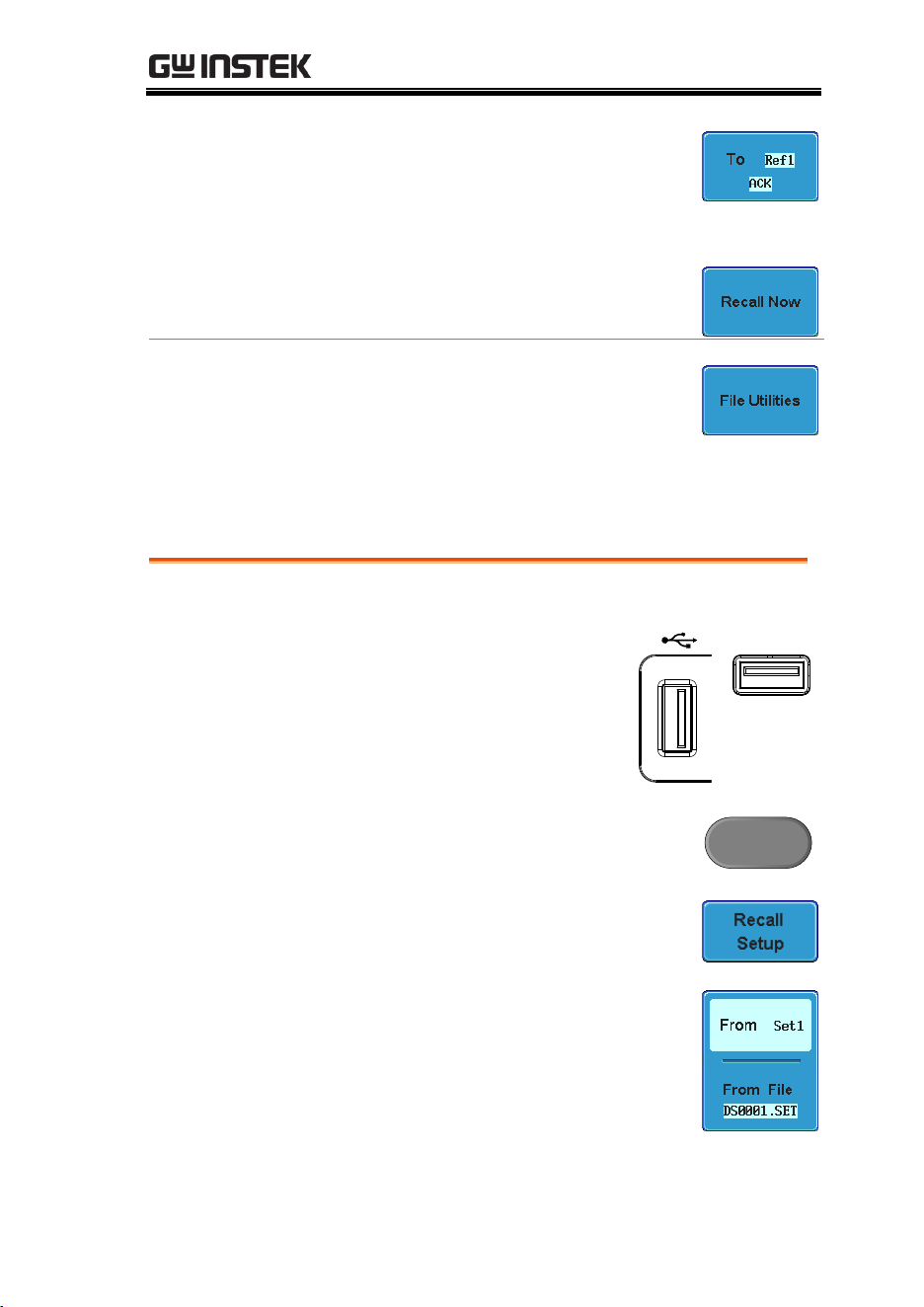
SAVE/RECALL
163
6. Press To and select the reference
waveform to recall to.
To
Ref1~4
7. Press Recall Now to recall the
waveform.
USB File Utility
To edit USB flash drive contents
(create/ delete/ rename files and
folders) or to set the file path, press
File Utilities. For details, see page 166.
Recall Setup
Panel Operation
1. (For recalling from an
external USB flash drive)
Connect the drive to the
front or rear panel USB port.
Note: Only one host
connection, front or rear, is
allowed at a time.
Front
Rear
Host
2. Press the Save/Recall key.
Save/Recall
3. Press Recall Setup from the bottom
menu.
4. Press From (internal memory) or
From File and choose a source to
recall from.
From
Set1~20

GDS-3000 Series User Manual
164
From File
DSxxxx.set (USB, Disk)*
* Only files in the current file path will be
available.
5. Press Recall Now to confirm
recalling. When completed, a
message appears at the bottom of
the display.
Note
The file will not be recalled if the
power is turned Off or the USB
drive is taken out before the
message ends.
USB File Utility
To edit USB flash drive contents
(create/ delete/ rename files and
folders) or to set the file path, press
File Utilities. For details, see page 166.
Edit Label
To edit labels for Setup files, press Edit
label. For more details on editing
labels, see page 151.
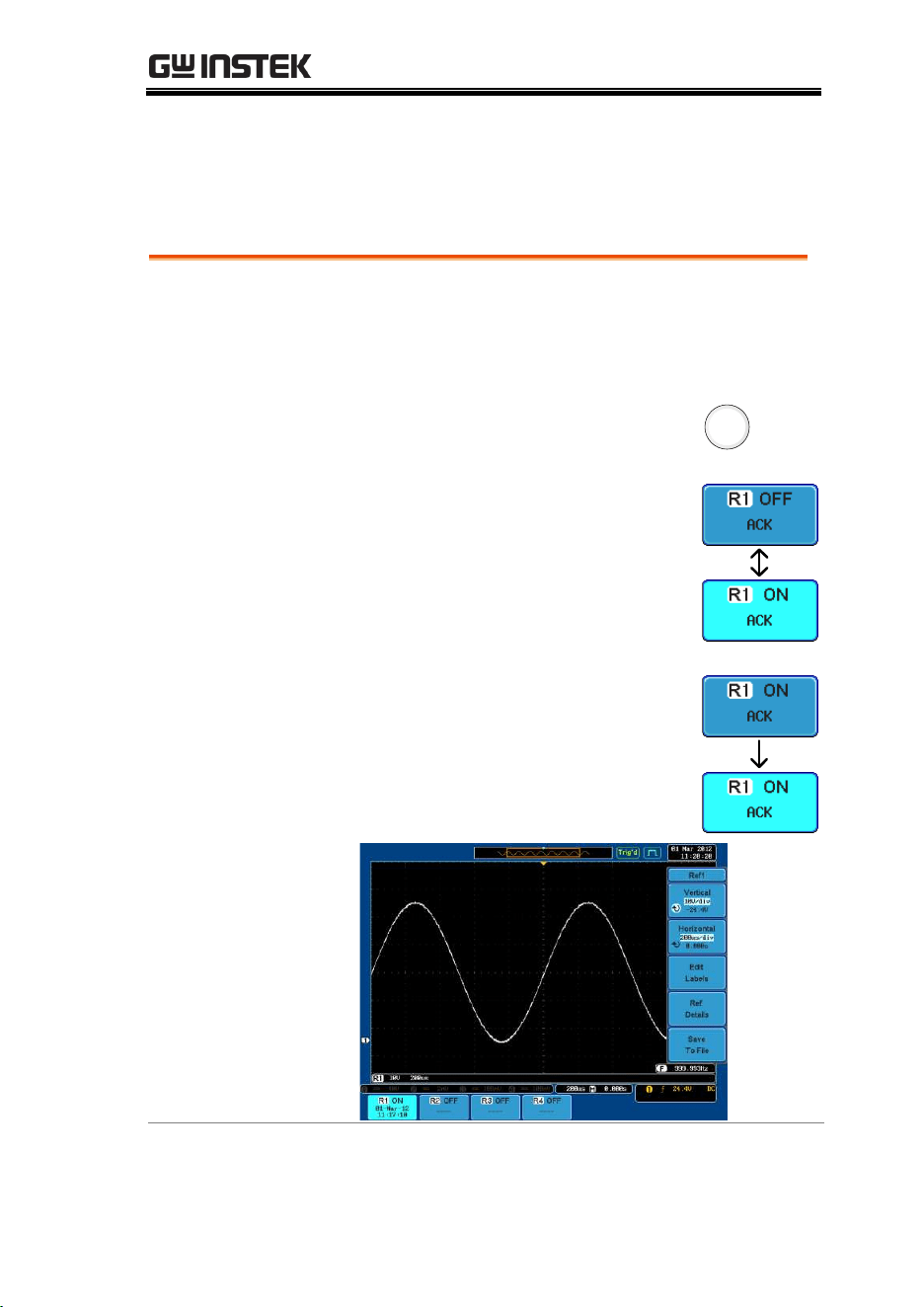
SAVE/RECALL
165
Reference Waveforms
Recall and Display Reference Waveforms
Panel Operation
A reference waveform must be stored in advance.
See page 155 to store waveforms as reference
waveforms.
1. Press the REF key on the front
panel.
R
2. Pressing R1~R4 repeatedly will
toggle the corresponding reference
waveform OFF/ON.
Turning R1~R4 ON will open the
corresponding reference menu.
3. If a reference waveform is ON but
not active, its reference menu can
be opened by pressing the
corresponding R1~R4 key from the
bottom menu.
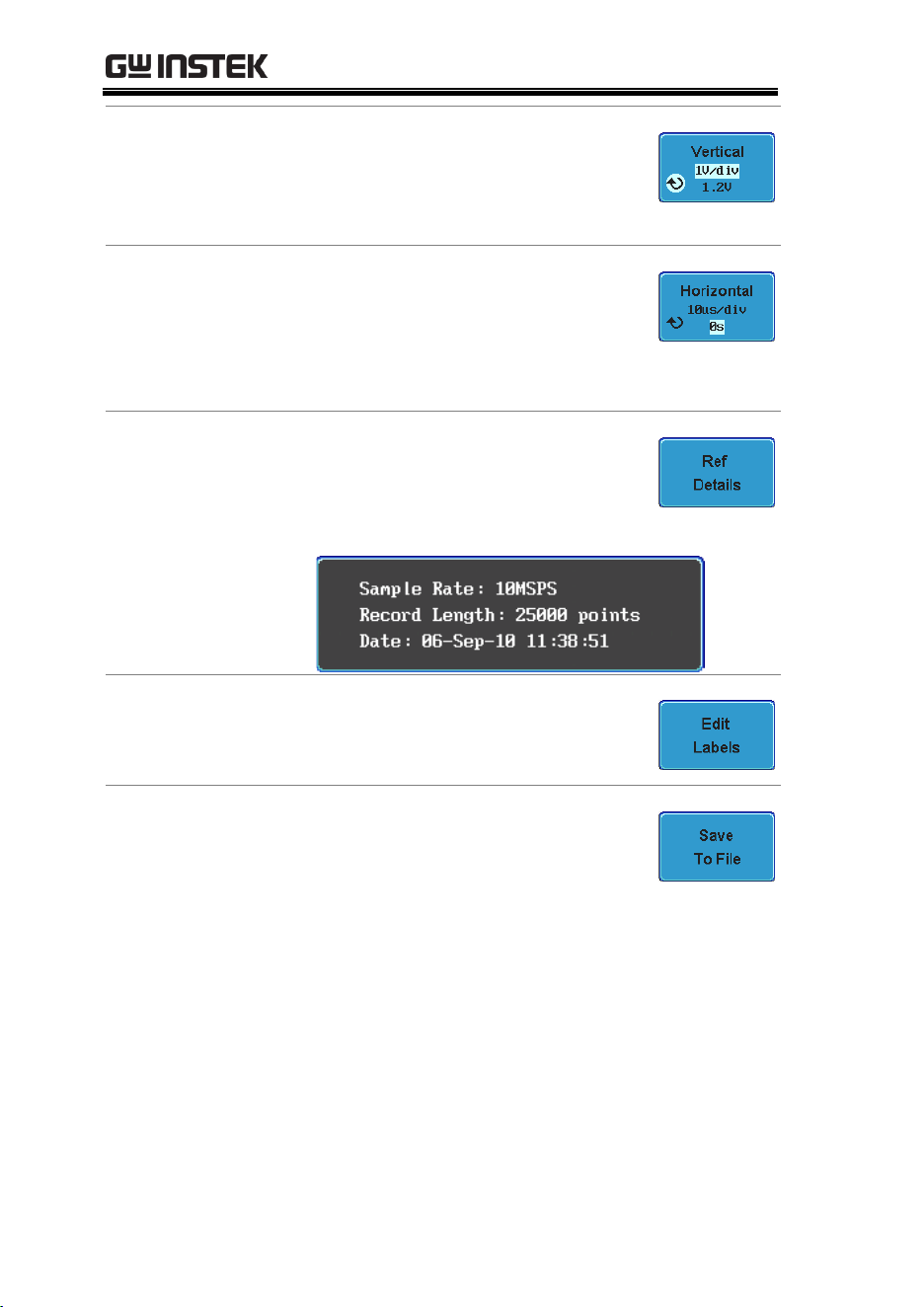
GDS-3000 Series User Manual
166
Vertical
Navigation
Press Vertical repeatedly from the side
menu to choose to edit the vertical
position or Volts/Div. Use the
Variable knob to edit the values.
Horizontal
Navigation
Press Horizontal repeatedly from the
side menu to choose to edit the
Time/Div or the horizontal position.
Use the Variable knob to edit the
value.
View Reference
Waveform Details
Pressing Ref Details will display the
reference waveform details.
Details
Sample Rate, Record Length, Date
Edit Labels
To edit labels for Setup files, press Edit
labels. For more details on editing
labels, see page 151.
Save Reference
Waveforms
To save reference waveforms, press
Save to File. For more Details on saving
waveforms, see page 147.

FILE UTILITIES
167
FILE UTILITIES
The file utilities are used each time files need to be saved to internal
or external memory. The file utilities can create directories, delete
directories and rename files. BMP and PNG image files can be
previewed in the file system. The File Utilities menu also sets the
file path for saving and recalling files from the Save/Recall menu.
File Navigation ..................................................................... 168
Create Folder ........................................................................ 169
Rename File .......................................................................... 170
Delete File ............................................................................. 172
Copy File to USB ................................................................ 173
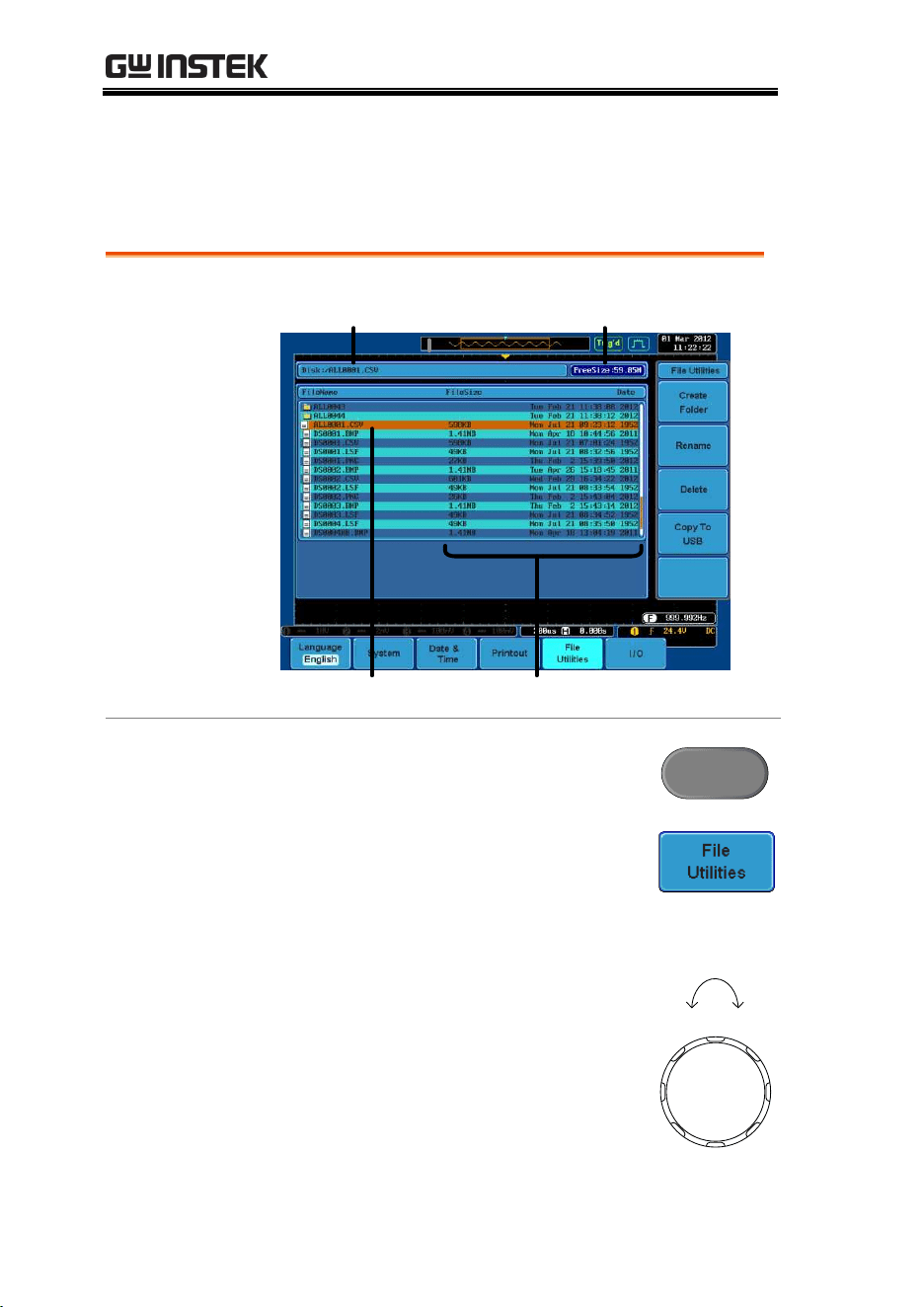
GDS-3000 Series User Manual
168
File Navigation
The File Utilities menu can be used to choose files or to set the file
path for saving/recalling files.
File System
File path Drive space
File cursor File attributes
Panel Operation
1. Press the Utility key.
Utility
2. Press File Utilities from the bottom
menu.
3. The file system appears.
4. Use the Variable knob to move the
file cursor up and down.
Use the Select key to choose a file
or directory or to set the file path.
VARIABLE
Left Right
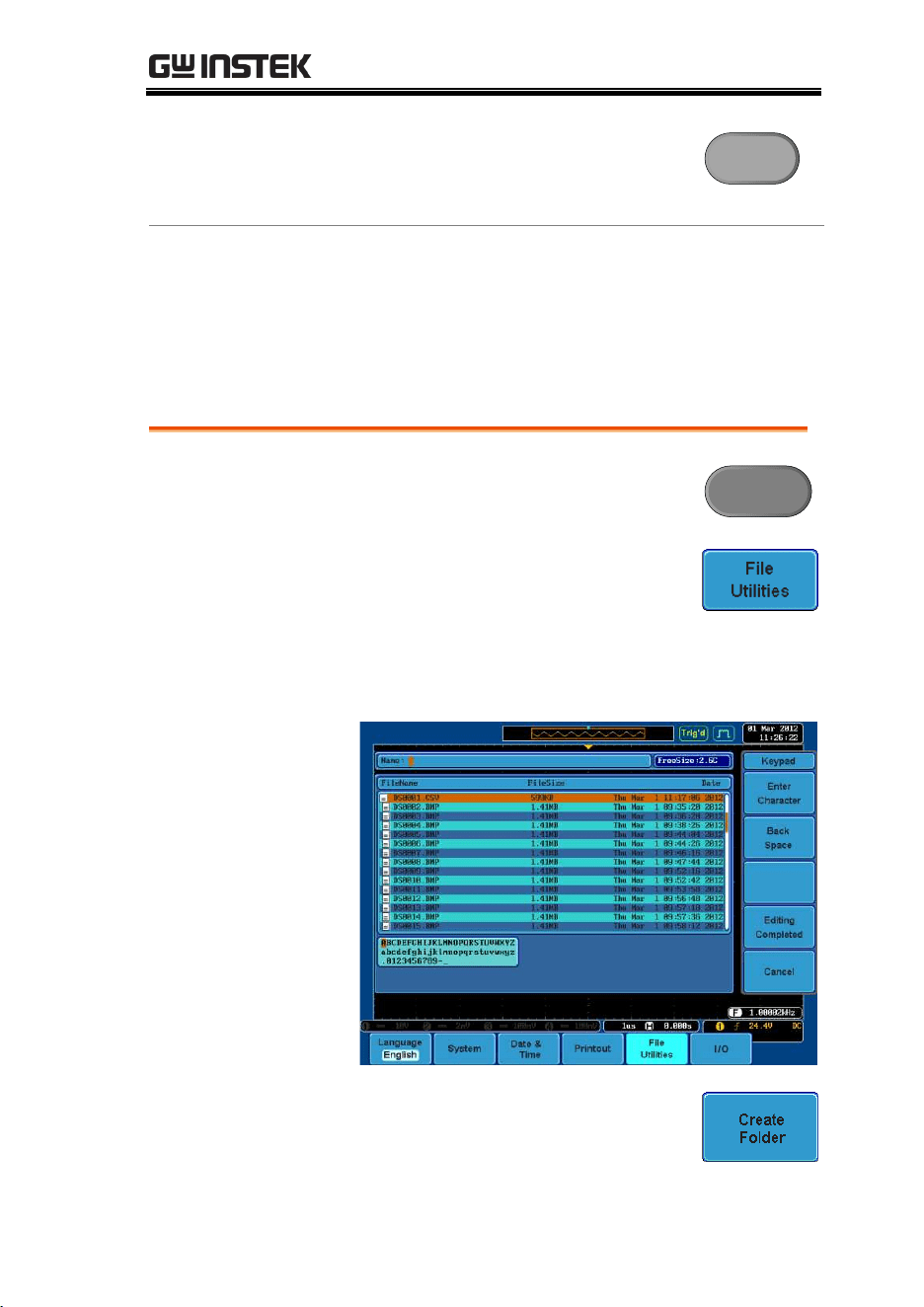
FILE UTILITIES
169
The file path can be set to internal
memory or to a directory on a
USB memory stick.
Select
Note
Selecting a waveform file will cause that file to be
recalled to the currently configured reference
waveform.
Create Folder
Panel Operation
1. Press the Utility key.
Utility
2. Press File Utilities from the bottom
menu.
3. Use the variable knob and select
key to navigate the file system.
Create Folder
4. Press Create Folder to make a new
directory at the selected location.
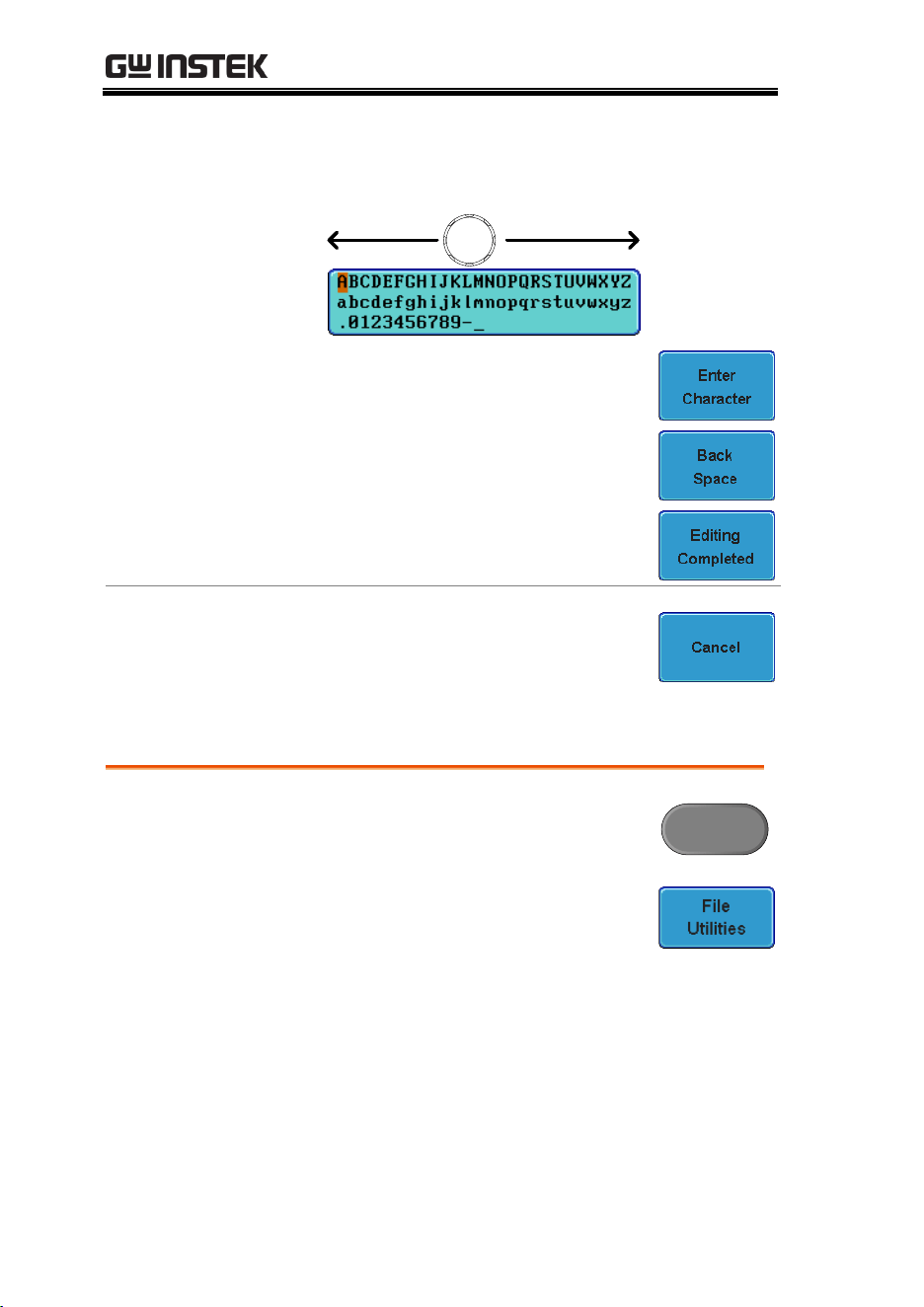
GDS-3000 Series User Manual
170
5. Use the Variable knob to highlight a
character.
VARIABLE
Press Enter Character to select a
number or letter.
Press Back Space to delete a
character.
6. Press Editing completed to create the
folder name.
Cancel
Press Cancel to cancel the operation.
Rename File
Panel Operation
1. Press the Utility key.
Utility
2. Press File Utilities from the bottom
menu.
3. Use the variable knob and select
key to choose a file to rename.
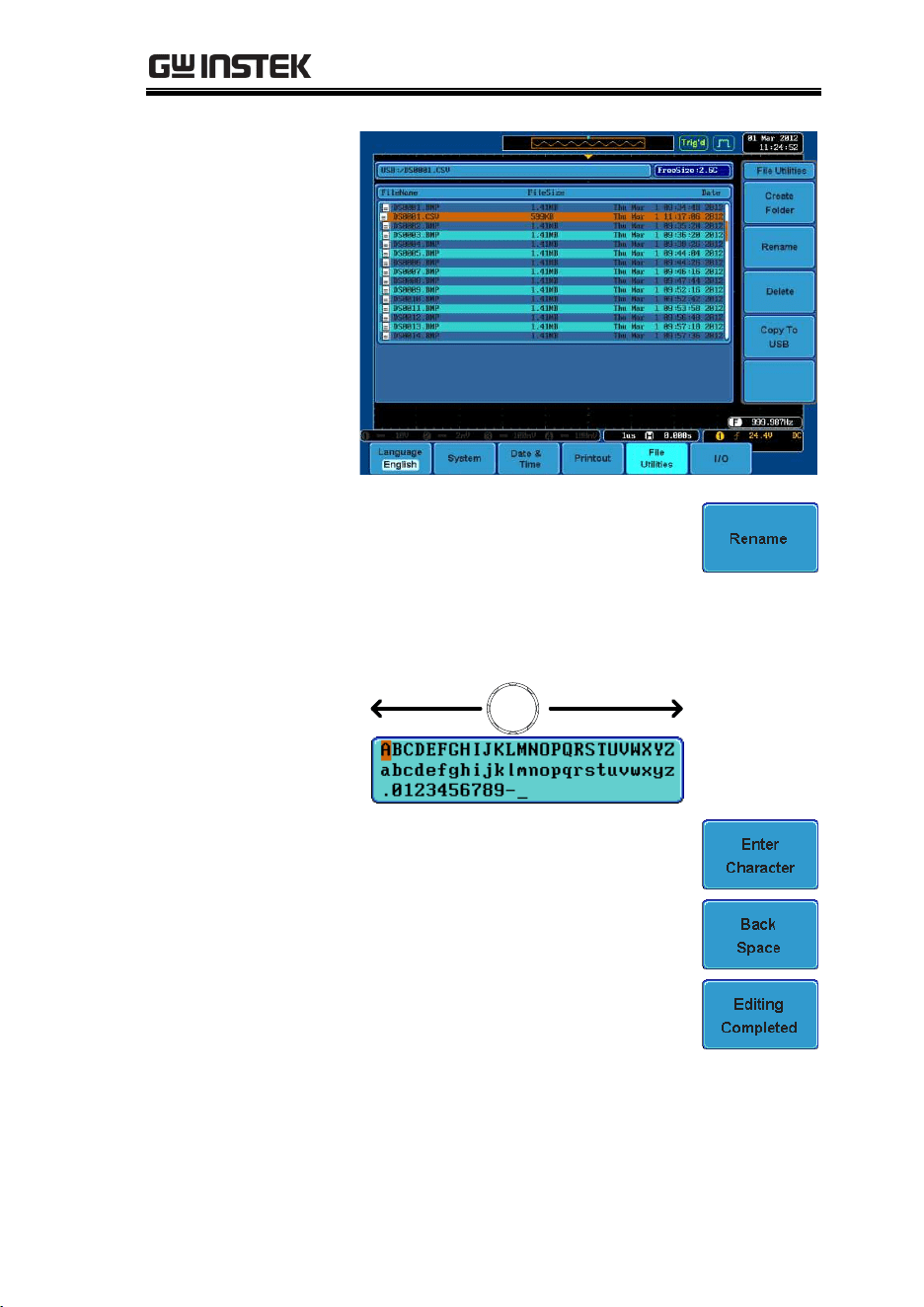
FILE UTILITIES
171
4. Press Rename when a file is
chosen.
5. Use the Variable knob to highlight
a character.
VARIABLE
Press Enter Character to select a
number or letter.
Press Back Space to delete a
character.
6. Press Editing completed to create
the folder or file name.
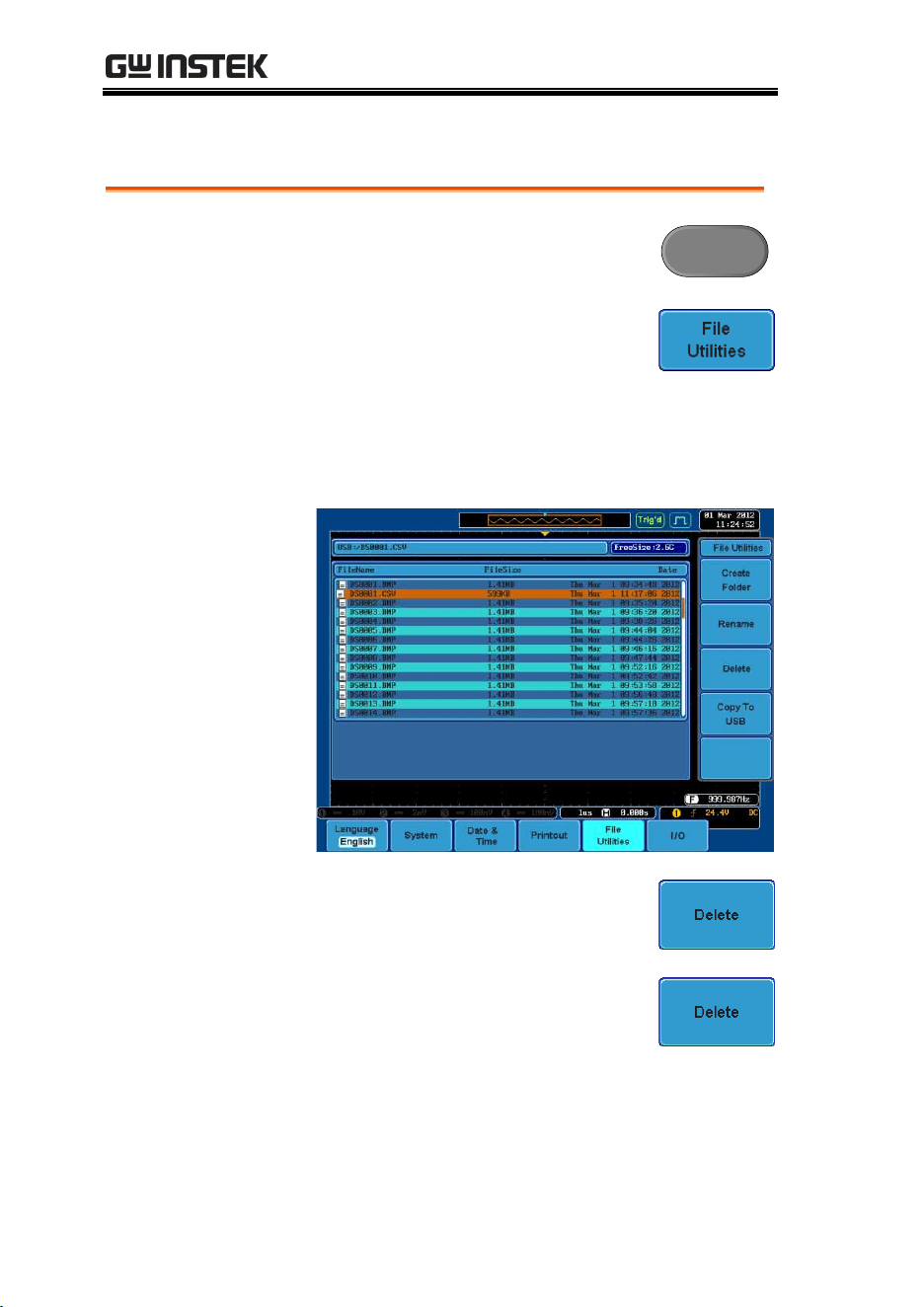
GDS-3000 Series User Manual
172
Delete File
Panel Operation
1. Press the Utility key.
Utility
2. Press File Utilities from the bottom
menu.
3. Use the variable knob and select
key to navigate the file system to
choose a file.
4. Press Delete to delete the selected
file.
5. Press Delete again to confirm the
deletion.
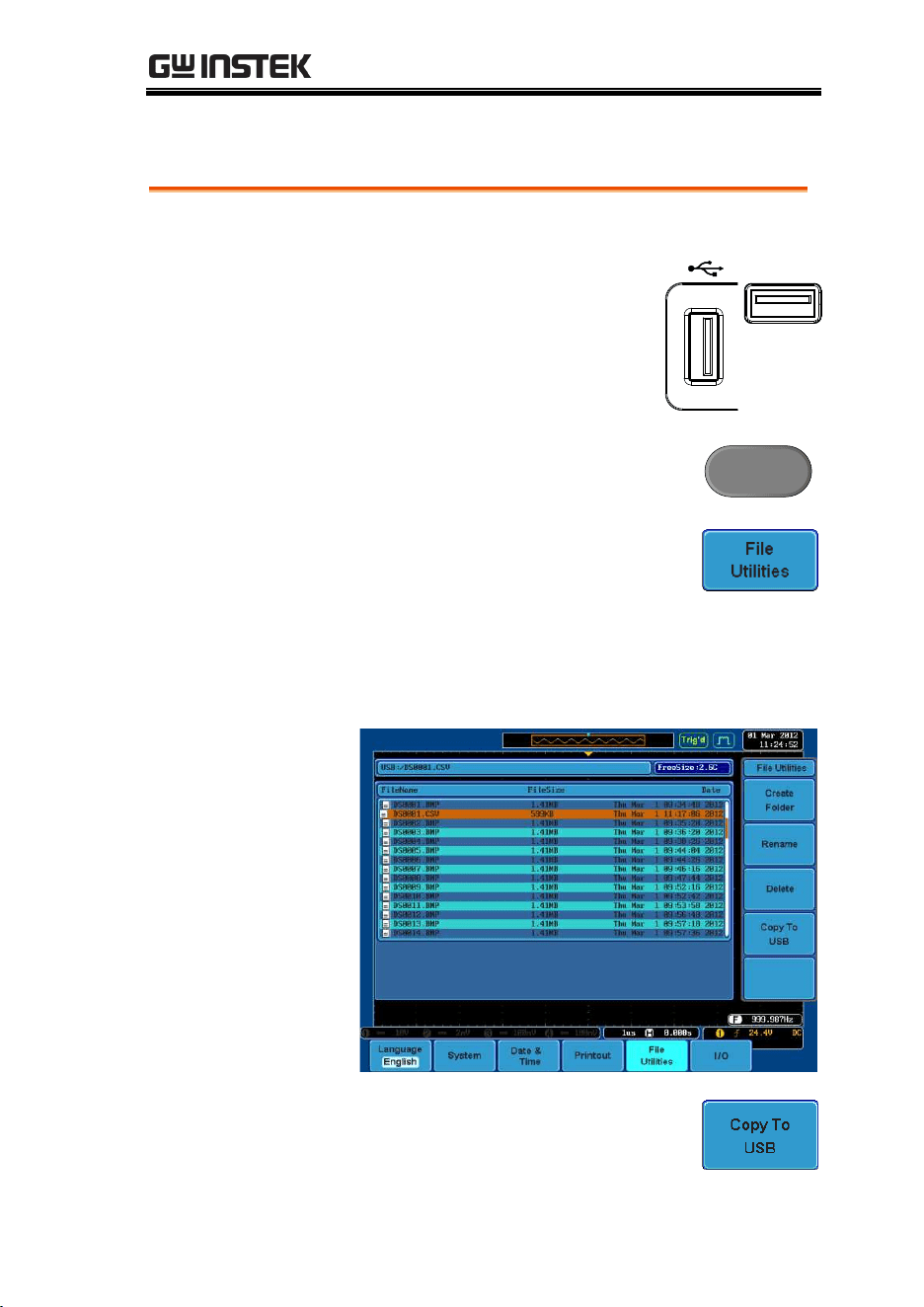
FILE UTILITIES
173
Copy File to USB
Panel Operation
1. Connect a USB drive to the
front or rear panel USB port.
Note: Only one host
connection, front or rear, is
allowed at a time.
Front
Rear
Host
Panel Operation
2. Press the Utility key.
Utility
3. Press File Utilities from the bottom
menu.
4. Use the variable knob and select key to
navigate the file system to choose a file from
internal memory.
5. Press Copy to USB to copy the
selected file to the USB drive.
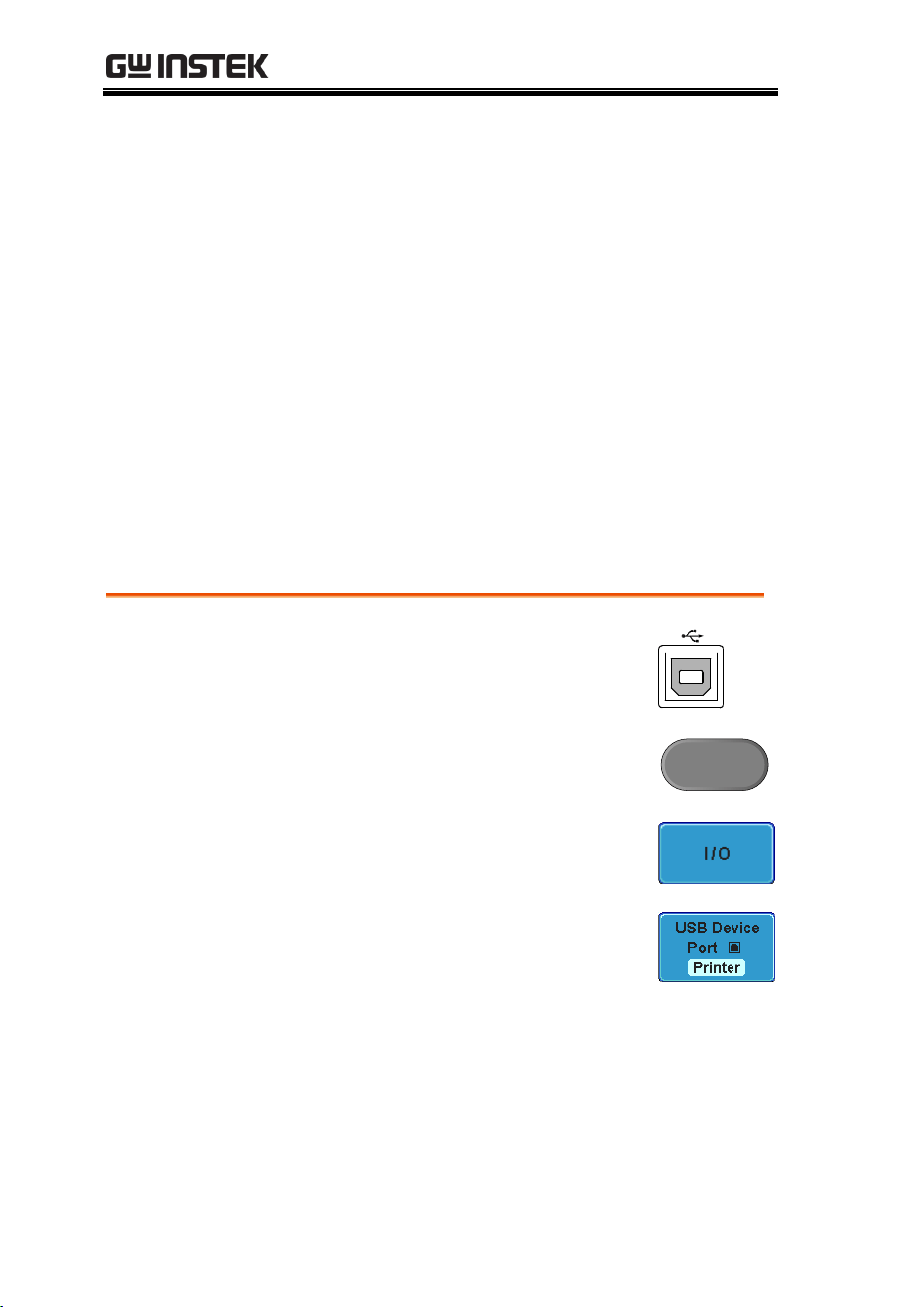
GDS-3000 Series User Manual
174
PRINT OUT
Screen images can be printed to some PictBridge compatible
printers using the USB device port. The GDS-3000 has a dedicated
Print/Save key for quick and easy printing. To reduce the amount
of printer ink used for each print, images can be printed using the
Ink Saver function.
Screen images can also be printed using the remote control
software, FreeWave, downloadable from the GWInstek website.
Printer I/O Configuration
Panel Operation
1. Connect a PictBridge printer to the
USB device port on the rear panel.
2. Press the Utility key.
Utility
3. Press I/O from the bottom menu.
4. Press USB Device Port from the side
menu and select Printer.

PRINT OUT
175
Print Output
Ensure the USB port has been configured to Printer before trying to
print, see page 174.
Panel Operation
1. Press the Utility key.
Utility
2. Press Printout from the bottom
menu.
3. On the side menu, press Function
repeatedly to select Print.
4. The Print led on the screen bezel
will be lit when the printout
Function is set to Print.
Print
Save
5. Press the Print/Save key located
on the screen bezel. The display
image is printed out.
Print
Save
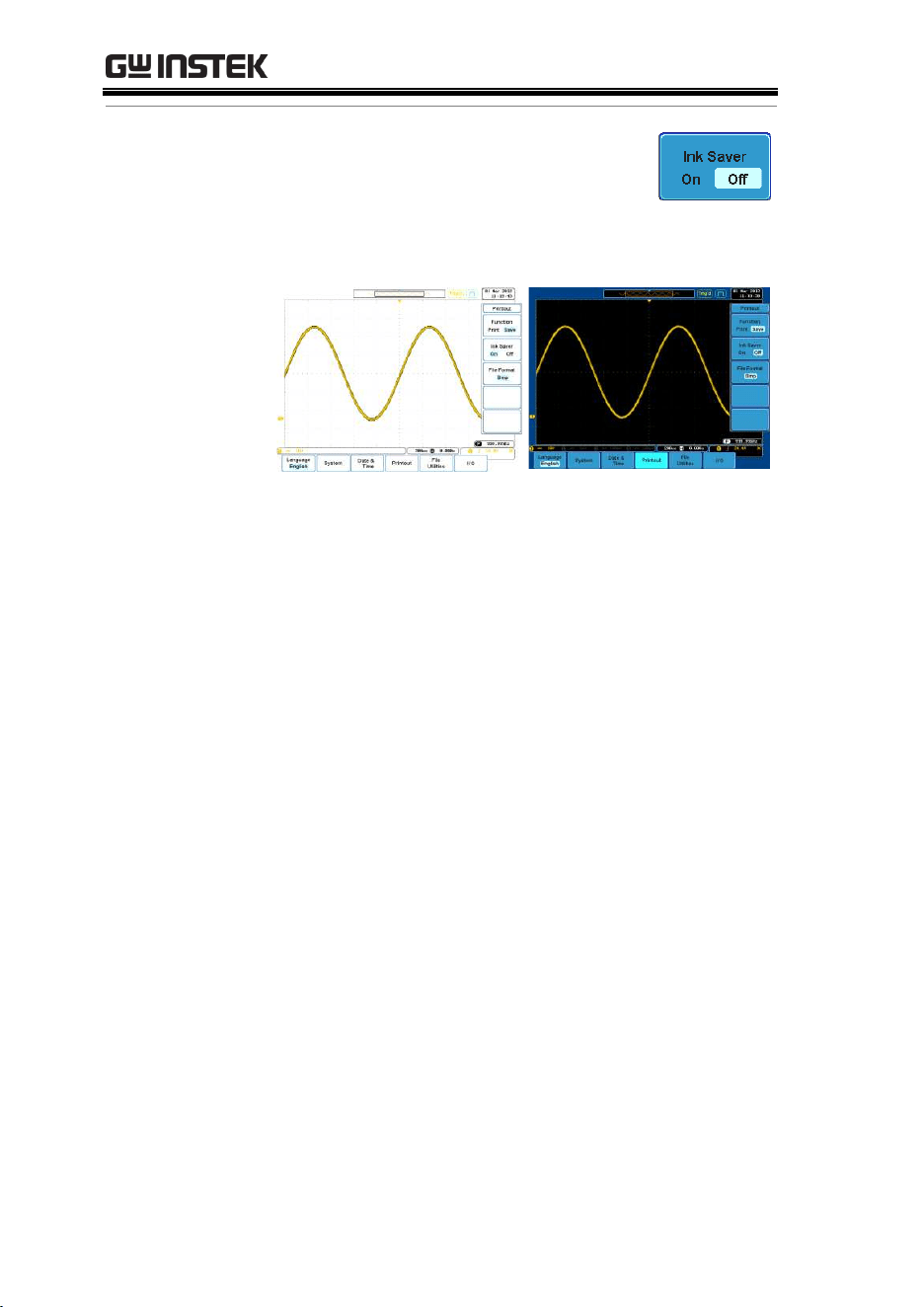
GDS-3000 Series User Manual
176
Ink Saver
To have a white background on the
saved or printed display image, press
Ink Saver repeatedly to toggle Ink
Saver On or Off from the side menu.
Ink Saver On
Ink Saver Off

REMOTE CONTROL CONFIG
177
REMOTE CONTROL
CONFIG
This chapter describes basic configuration for
remote control. For a command list, refer to the
programming manual downloadable from
GWInstek website, www.gwinstek.com
Interface Configuration ................................................. 178
Configure USB Interface.................................................... 178
Configure RS-232C Interface ............................................ 179
Configure the Ethernet Interface ..................................... 180
Configure GPIB Interface ................................................. 183
USB/RS-232C Remote Control Software ...................... 184
Web Server .................................................................... 184
Web Server Overview ......................................................... 184
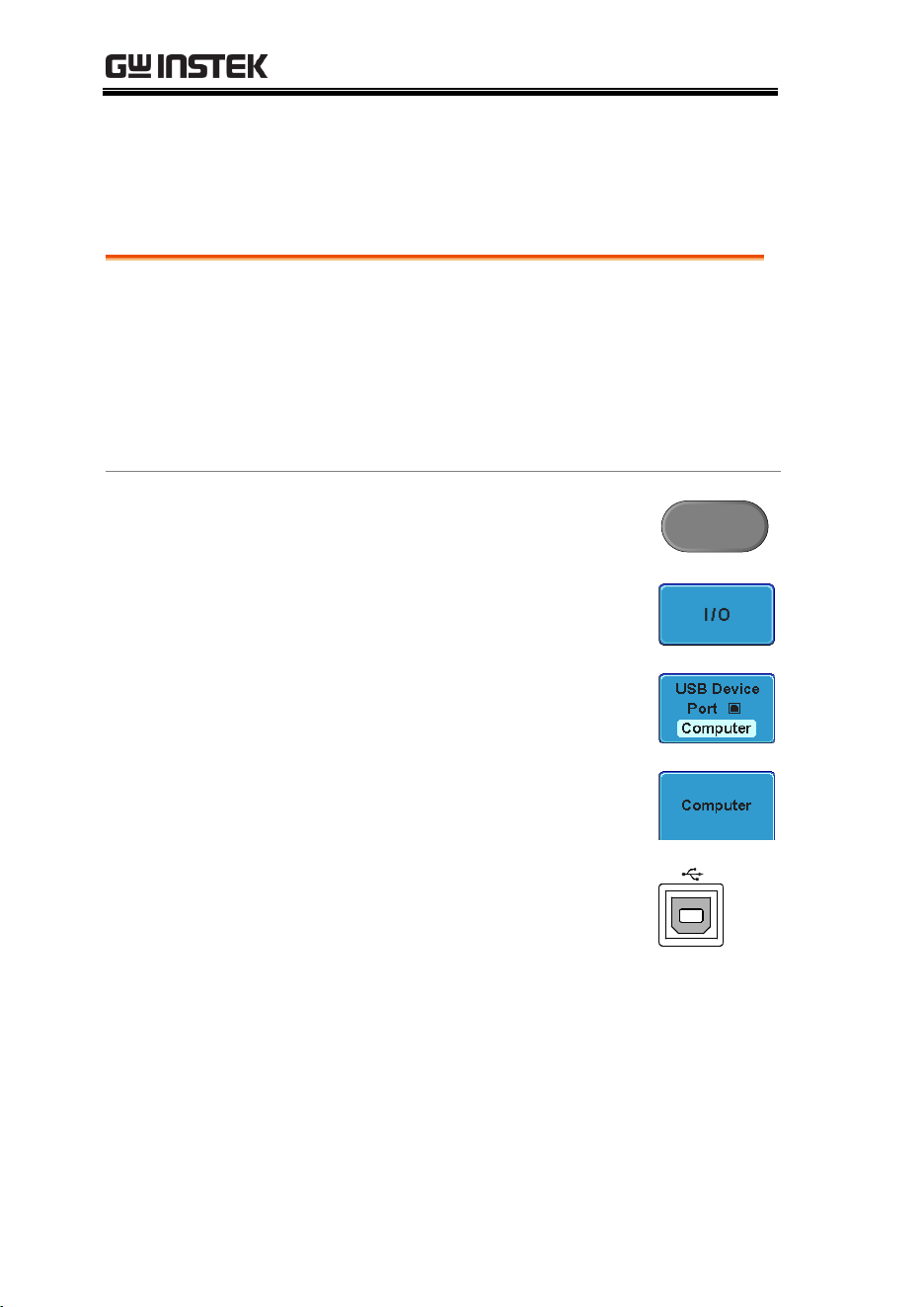
GDS-3000 Series User Manual
178
Interface Configuration
Configure USB Interface
USB
Configuration
PC side connector
Type A, host
GDS-3000 side
connector
Type B, slave
Speed
1.1/2.0 (high speed)
USB Class
CDC (communications device
class)
Panel Operation
1. Press the Utility key.
Utility
2. Press I/O from the bottom menu.
3. Press USB Device Port from the
side menu.
4. Press Computer from the side
menu.
5. Connect the USB cable to the rear
panel slave port.
6. When the PC asks for the USB driver, select the
USB driver included in the FreeWave software
package. The driver file automatically sets the
GDS-3000 to a serial COM port. The Freewave
software package is downloadable from GDS-
3000 product section of the GW Instek website,
www.gwinstek.com.
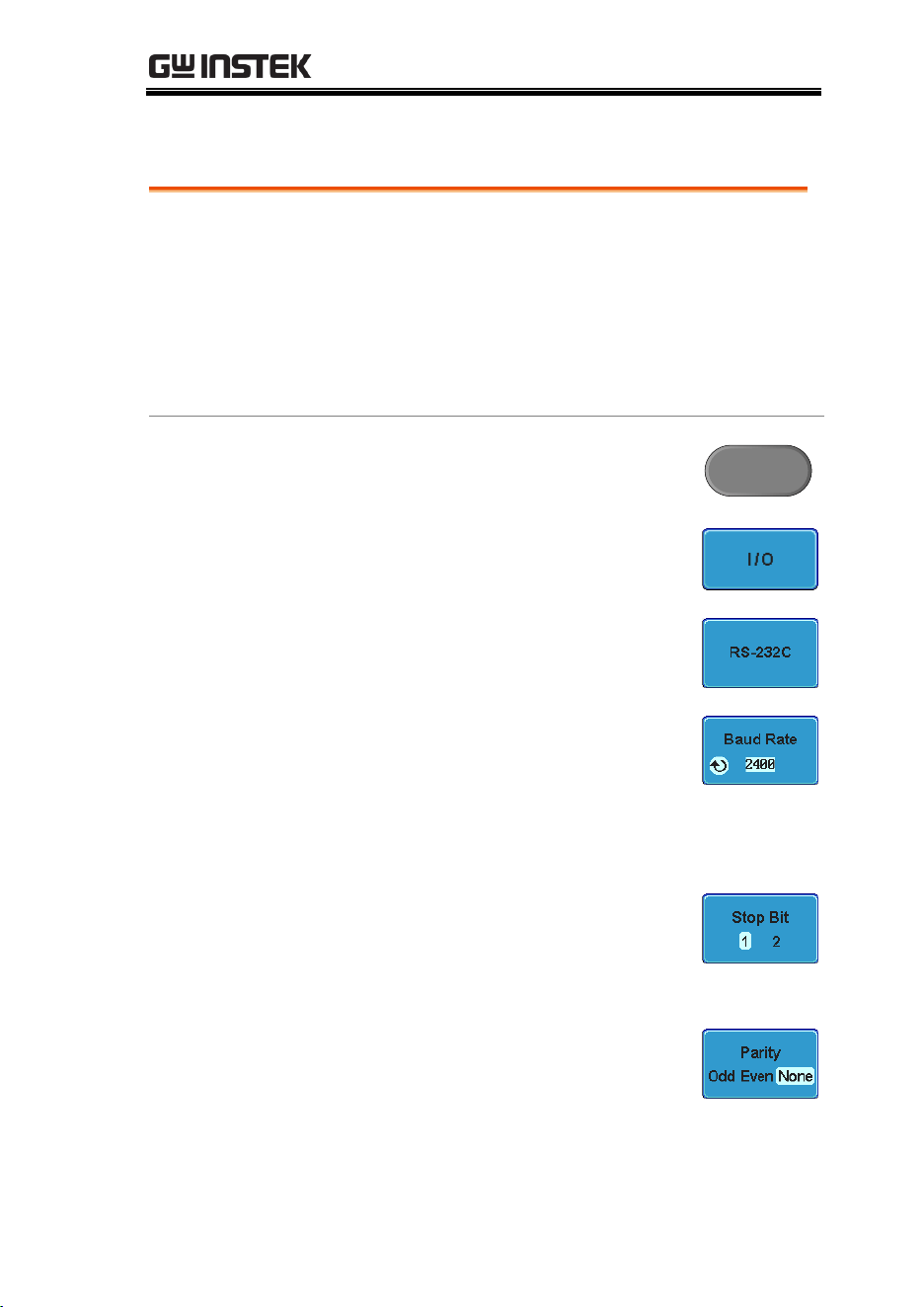
REMOTE CONTROL CONFIG
179
Configure RS-232C Interface
RS-232C
Configuration
Connector
DB-9, Male
Baud rate
2400, 4800, 9600, 19200, 38400,
57600, 115200
Parity
None, Odd, Even
Data bit
8 (fixed)
Stop bit
1, 2
Panel Operation
1. Press the Utility key.
Utility
2. Press I/O from the bottom menu.
3. Press RS-232C from the side menu.
4. Use the side menu to set the Baud
Rate.
Baud Rate
2400, 4800, 9600, 19200, 38400,
57600, 115200
5. Press Stop Bit to toggle the number
of stop bits.
Stop Bits
1, 2
6. Press Parity to toggle the parity.
Parity
Odd, Even, None
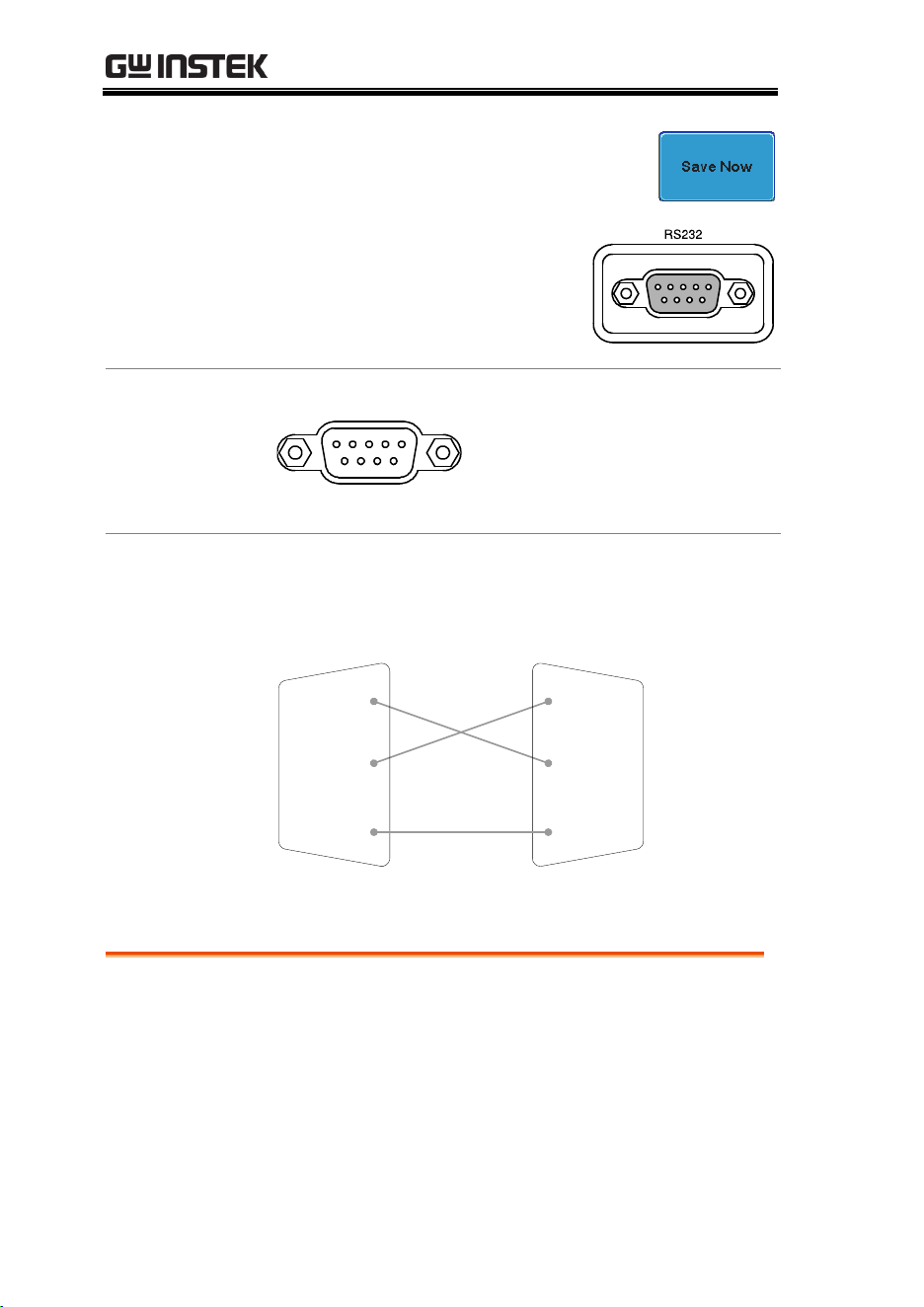
GDS-3000 Series User Manual
180
7. Press Save Now to save the settings.
8. Connect the RS-232C cable
to the rear panel port: DB-9
male connector. For a
functionality check, see page
184.
Pin Assignment
1 2 3 4 5
6 7 8 9
2: RxD (Receive data)
3: TxD (Transmit data)
5: GND
4, 6 ~ 9: No connection
PC Connection
Use the Null Modem connection as in the below
diagram.
GDS-3000 PC
RxDPin2 RxD Pin2
GNDPin5 GND Pin5
TxD Pin3TxDPin3
Configure the Ethernet Interface
Ethernet
Configuration
MAC Address
Domain Name
Instrument Name
DNS IP Address
User Password
Gateway IP Address
Instrument IP
Address
Subnet Mask
HTTP Port 80 (fixed)
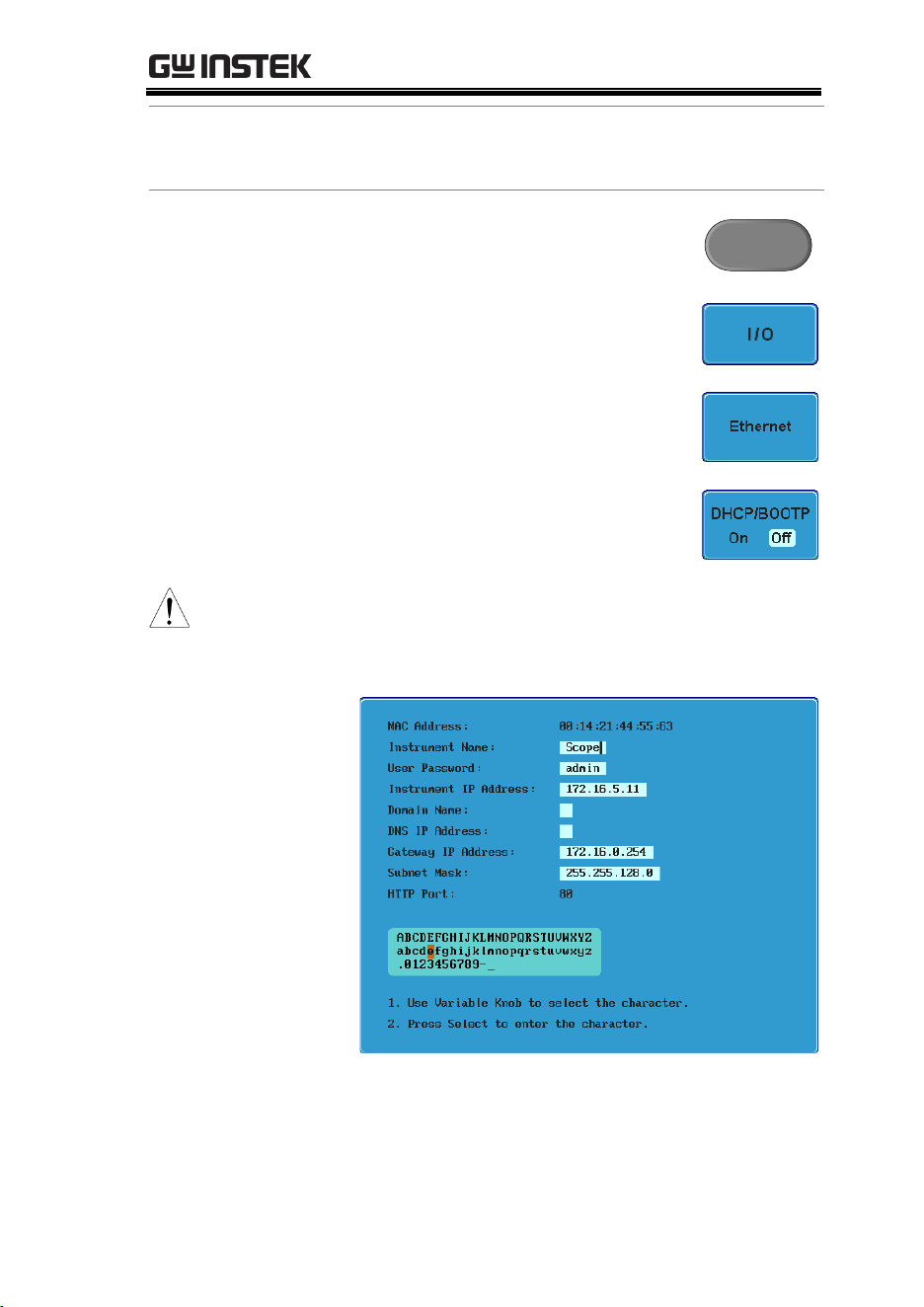
REMOTE CONTROL CONFIG
181
Background
The Ethernet interface is used for remote control
over a network.
Panel Operation
1. Press the Utility key.
Utility
2. Press I/O from the bottom menu.
3. Press Ethernet from the side menu.
4. Set DHCP/BOOTP to On or Off
from the side menu.
Note
IP addresses will automatically be assigned with
DHCP/BOOTP set to on. For Static IP Addresses,
DHCP/BOOTP should be set to off.
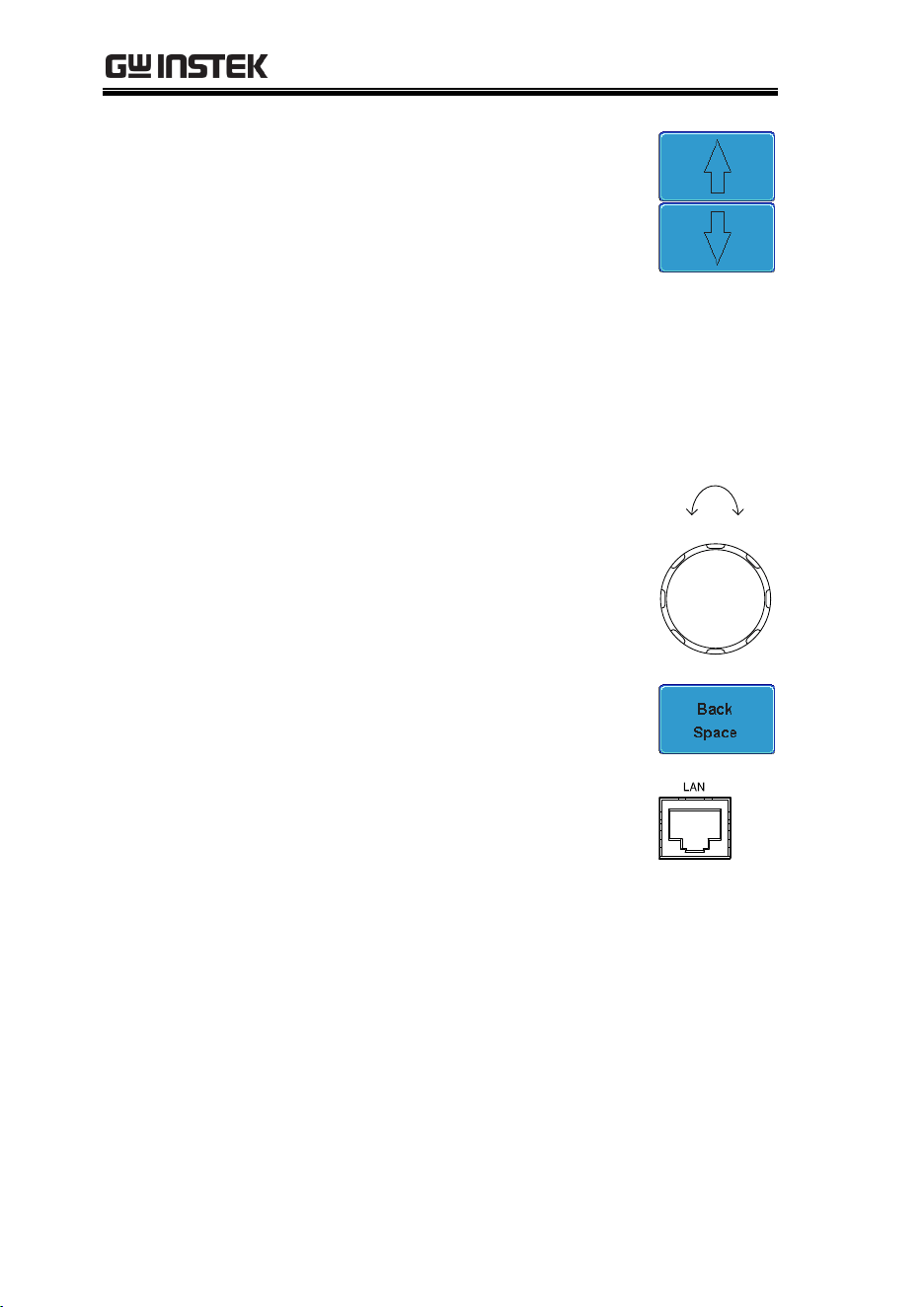
GDS-3000 Series User Manual
182
5. Use the Up and Down arrows on
the side menu to navigate each
Ethernet configuration item.
Items
MAC Address, Instrument Name,
User Password, Instrument IP
Address, Domain Name, DNS IP
Address, Gateway IP Address,
Subnet Mask
Note: HTTP Port is fixed at 80.
6. Use the Variable knob to highlight
a character and use the Select key
to choose a character.
VARIABLE
Left Right
Press Backspace to delete a
character.
7. Connect the Ethernet cable to the
rear panel of the GDS-3000.
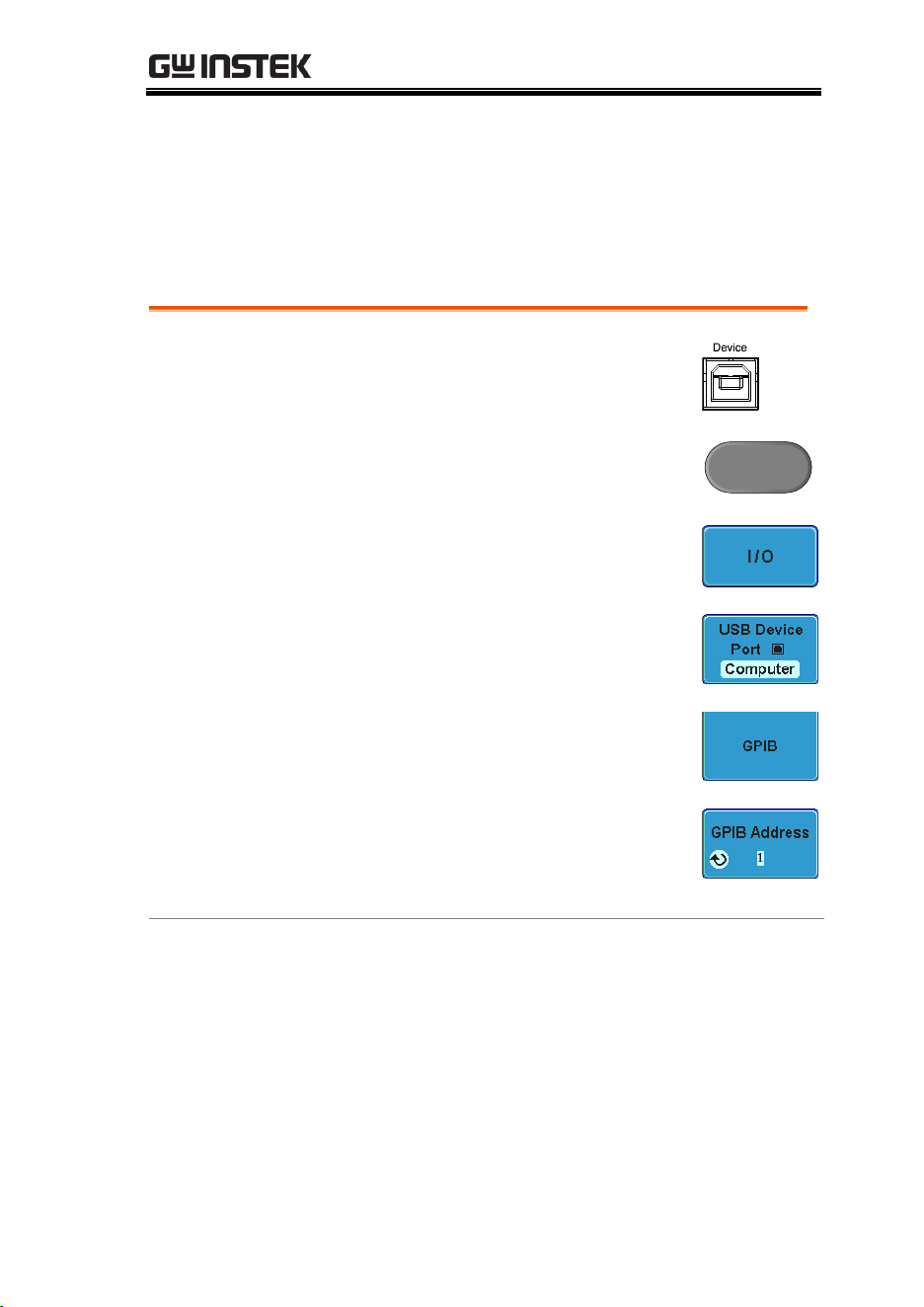
REMOTE CONTROL CONFIG
183
Configure GPIB Interface
To use GPIB, the optional GPIB to USB (GUG-001) adapter must be
used. The GPIB address can be configured for the GUG-001 from
the utility menu. See the GUG-001 user manual for more
information.
Configure GPIB
1. Insert the GUG-001 USB cable into
the rear panel USB device port.
2. Press the Utility key.
Utility
3. Press I/O from the bottom menu.
4. Press USB Device Port from the
side menu.
5. Press GPIB from the side menu.
6. Use the variable knob to set the
GPIB Address from the side menu.
Range
1 ~ 30
GPIB Constraints
Maximum 15 devices altogether, 20m cable
length, 2m between each device
Unique address assigned to each device
At least 2/3 of the devices turned On
No loop or parallel connection
GDS-3000 Series User Manual
184
USB/RS-232C Remote Control Software
Terminal
Application
(USB/RS-232C)
Invoke the terminal application such as telnet. For
RS-232C, set the COM port, baud rate, stop bit,
data bit, and parity accordingly.
To check the COM port No, see the Device
Manager in the PC. For WinXP, Control panel →
System → Hardware tab.
Functionality
Check
Key in this query command via the terminal.
*idn?
This should return the Manufacturer, Model
number, Serial number, and Firmware version in
the following format.
GW, GDS-3152, EK0000001, V1.00
Note: remember to use the appropriate terminal
character when entering the command.
PC Software
(USB only)
The proprietary PC software FreeWave is
downloadable from the GWInstek website for
remote control.
Web Server
Web Server Overview
Background
The GDS-3000 has an inbuilt web server that can
be used to:
view the system information (Welcome Page)
set/view the network configuration settings
(Network Configuration)
remotely view the current display image on the
unit (Get Display Image)
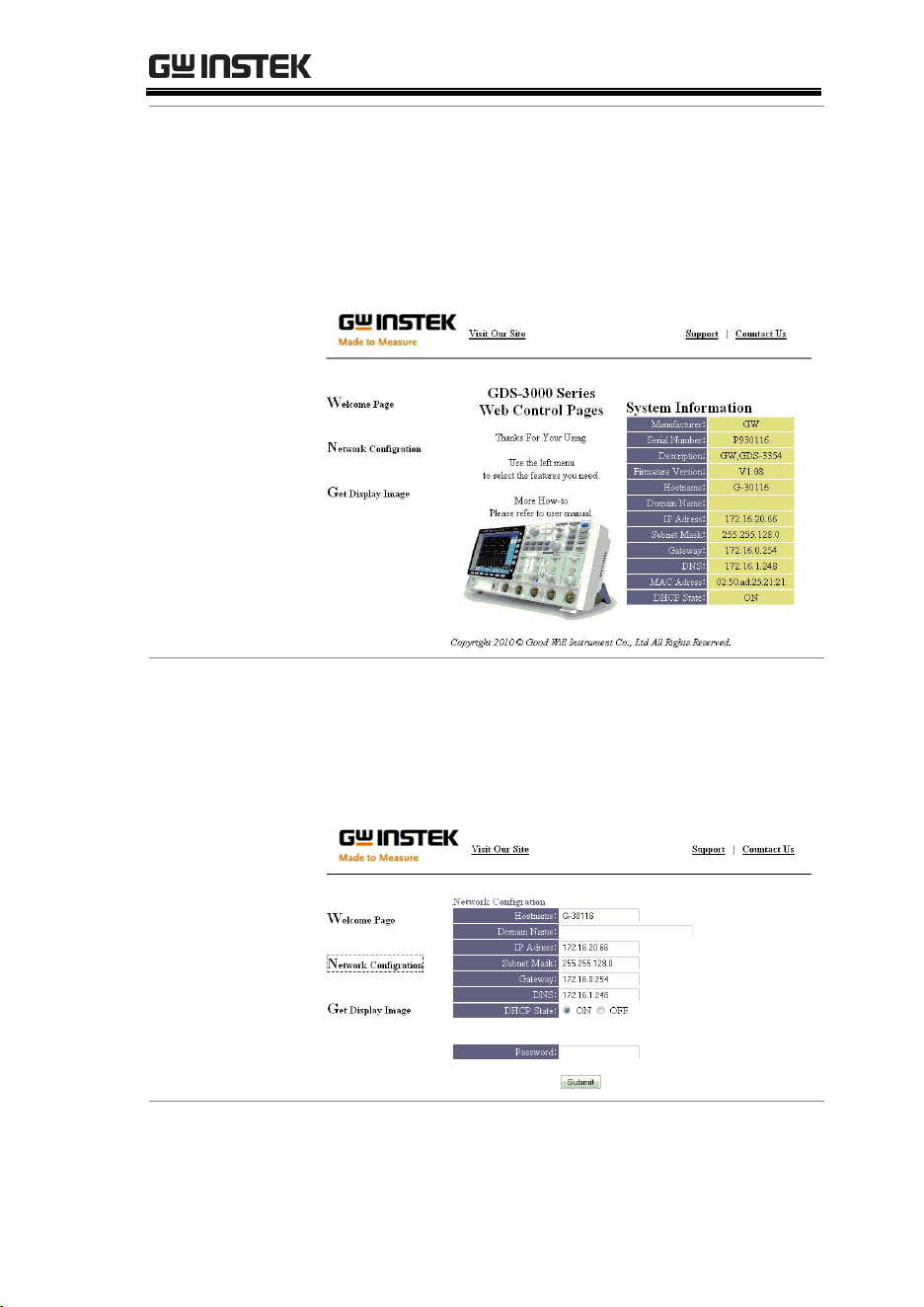
REMOTE CONTROL CONFIG
185
System
Information:
Manufacturer
Serial Number
Firmware version
Hostname
Domain name
IP Address
Subset Mask
DNS
MAC Adress
DHCP State
Network
Configuration
Hostname
Domain name
IP Address
Subnet mask
Gateway
DNS
DHCP State
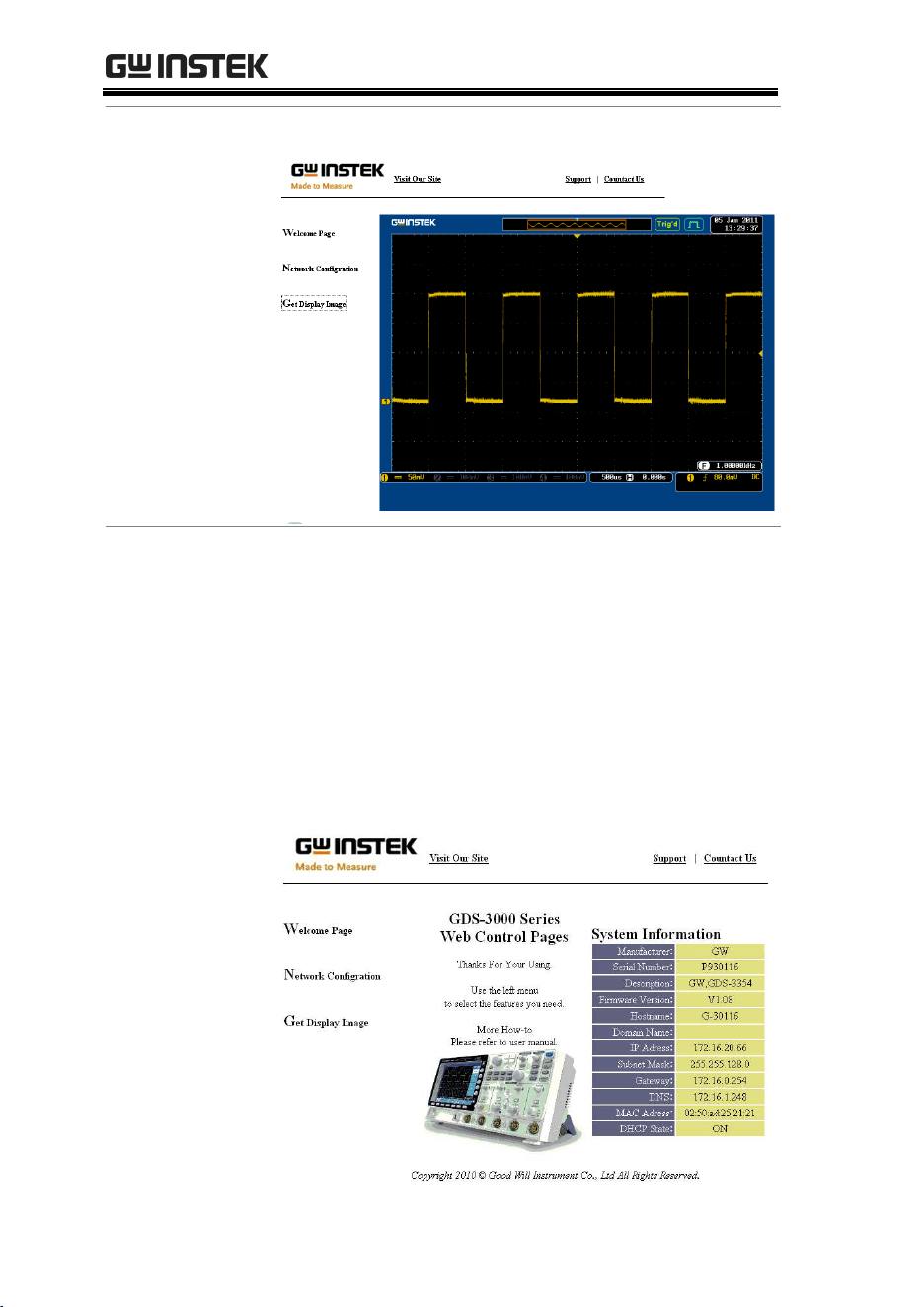
GDS-3000 Series User Manual
186
Get Display
Image
Current display image
Panel Operation
1. Configure the Ethernet interface.
Page 180
2. Enter the IP address of the GDS-3000 unit into
the address bar of a web browser.
For example:
http://172.16.20.255
3. The GDS-3000 web browser welcome page
appears.

MAINTENANCE
187
MAINTENANCE
Three types of maintenance operations are
available: signal path compensation, vertical
accuracy calibration and probe compensation.
Run these operations when using the GDS-3000
in a new environment. The maintenance chapter
also includes instruction on how to install and
uninstall optional software applications.
How to use SPC function .................................................. 188
Vertical Accuracy Calibration ............................................ 189
Probe Compensation .......................................................... 190
Activating Optional Software ............................................ 192
Uninstalling Optional Software ........................................ 192
GDS-3000 Series User Manual
188
How to use SPC function
Background
Signal Path Compensation (SPC) is used to
compensate the internal signal path due to
ambient temperature. SPC is able to optimize the
accuracy of the oscilloscope with respect to the
ambient temperature.
Panel Operation
1. Press the Utility key.
Utility
2. Press System from the bottom
menu.
3. Press SPC from the side menu. A
message showing a brief
introduction to SPC appears on the
screen.
Note
Disconnect all probes and cables from all channels
before calibrating.
4. Press Start on the side menu to
start SPC calibration.
Note
The DSO needs to be warmed up for at least 30
minutes before using the SPC function.
5. The SPC Calibration will proceed
one channel at a time, from
channel 1 to channel 4.
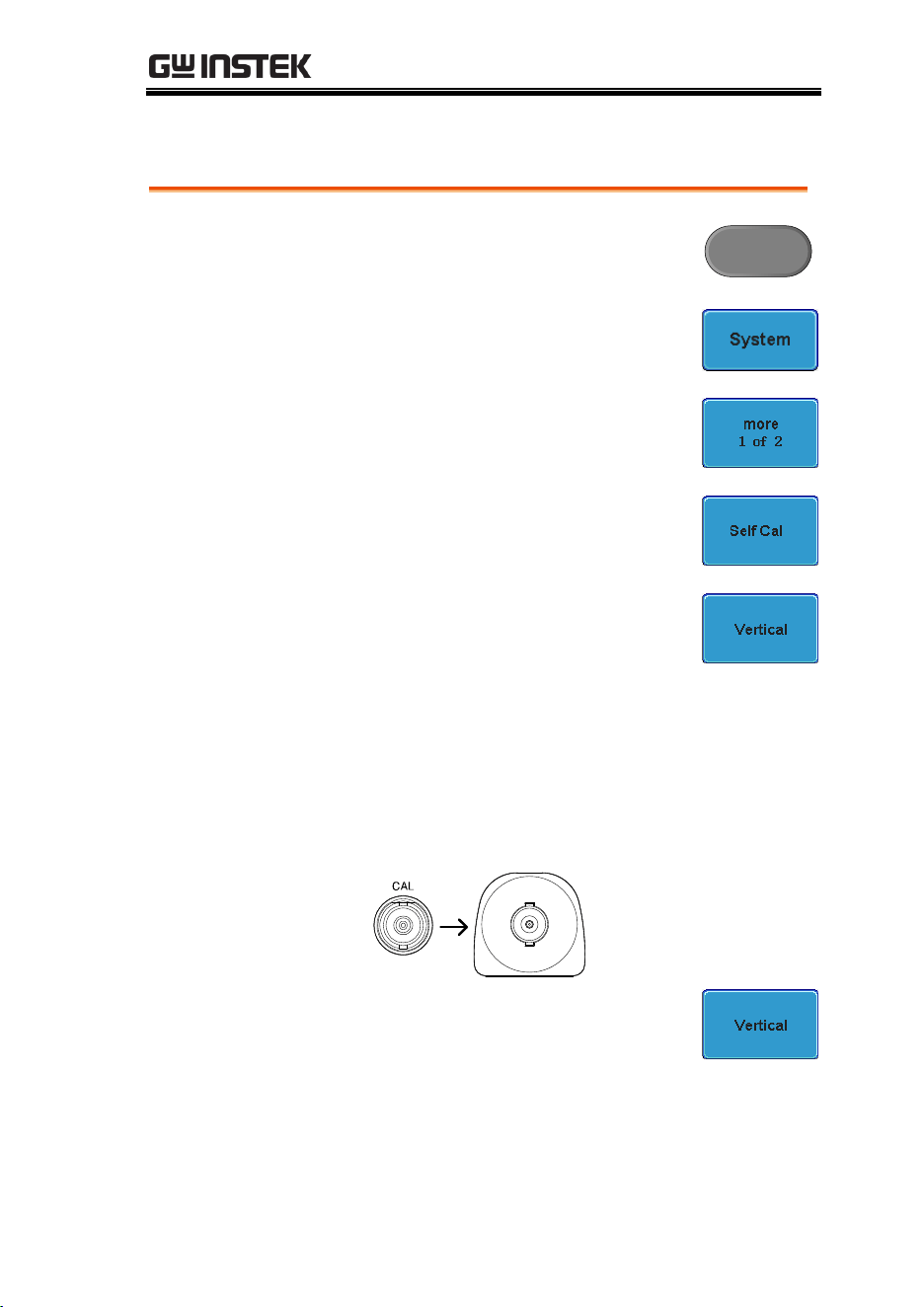
MAINTENANCE
189
Vertical Accuracy Calibration
Panel Operation
1. Press the Utility key.
Utility
2. Press System from the bottom
menu.
3. Press more 1 of 2 from the side
menu.
4. Press Self Cal on the side menu.
5. Press Vertical on the side menu.
6. A message appears to “Set CAL to CH1, then
press F1”.
7. Connect the calibration signal from the rear
panel to the Channel1 input with a BNC cable.
CH1
8. Press Vertical again after
connecting CAL to the channel 1
input.
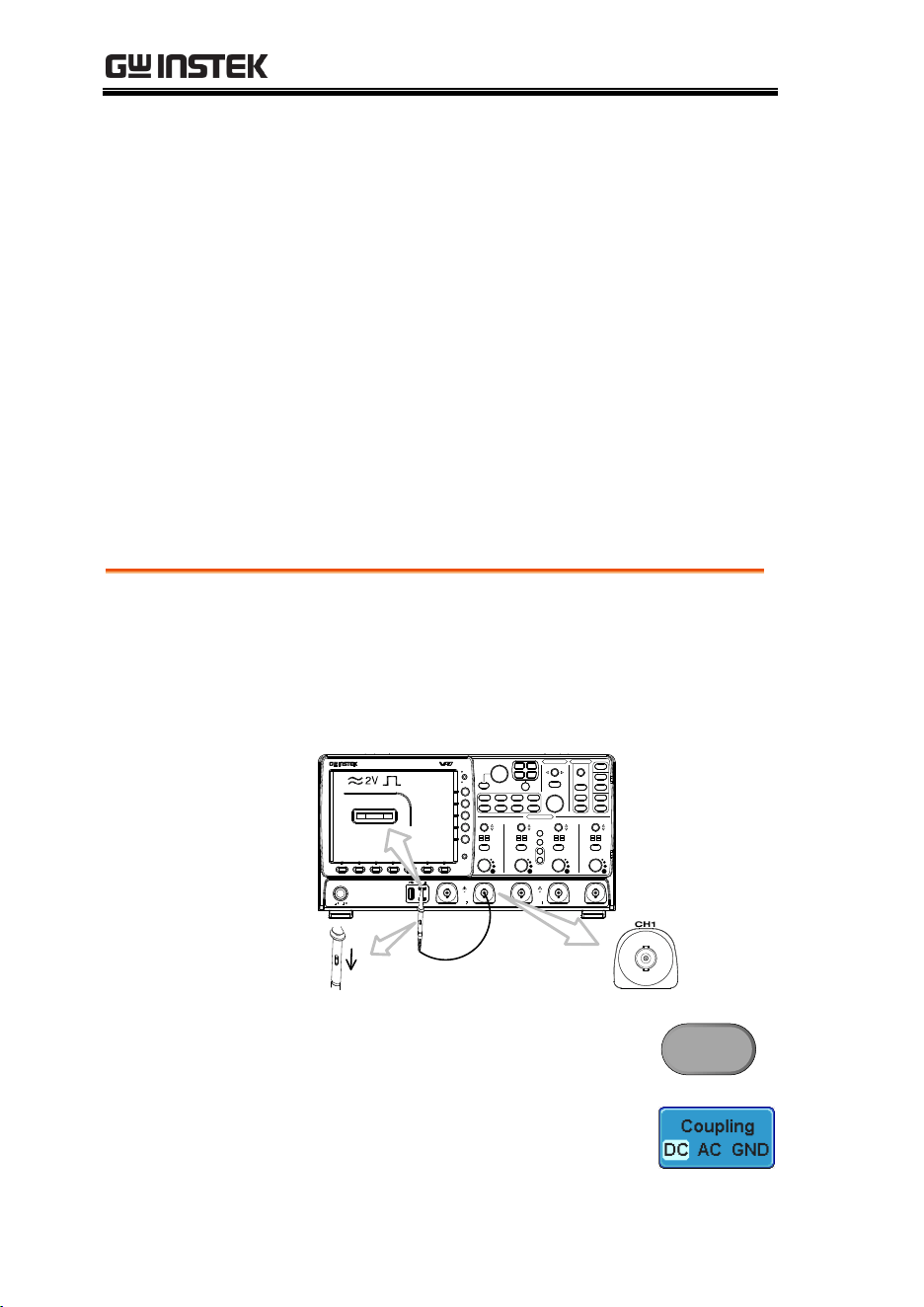
GDS-3000 Series User Manual
190
The calibration for Channel1 starts and ends
automatically, in less than 5 minutes. A
message is displayed when the calibration
procedure has ended.
9. Repeat the above step for Channel 2, 3* and 4*
when prompted.
*4 channel models.
10. When the calibration for all channels has
completed, the display goes back to the default
state.
Probe Compensation
Panel Operation
1. Connect the probe between the Channel1 input
and the probe compensation output (2Vp-p,
1kHz square wave) on the front panel. Set the
probe attenuation to x10 (GDP probes are fixed
at x10).
VOLTS/DIV VOLTS/DIV VOLTS/DIV VOLTS/DIV
POSITION
POSITION POSITION
TIME/DIV
POSITION
HORIZONTAL
VARIABLE
W
AC
BW
50
W
75
VERTICAL
LEVEL
POSITION
TRIGGER
W
AC
BW
50
W
75
W
AC
BW
50
W
75
W
AC
BW
50
W
75
CH4CH3CH2CH1EXT TRIG
POWER
2V
Window
Split
Select
Zoom
CH1 CH2 CH3 CH4
R
B1
Measure Cursor
Display Help
Test
Save/Recall Utility
Menu
50 %
Force - Trig
Autoset
Single
Run/Stop
Setup
Auto-Range
Default
Acquire
CAT
M
W
15pF
300Vpk MAX.
1
5 Vrms MAX.
W
50
W
75&
CAT
M
W
15pF
300Vpk MAX.
1
5 Vrms MAX.
W
50
W
75&
M
B2
MATH
REF
BUS
Off
Menu
Print
Save
Digital Storage Oscilloscope
GDS-3354
350 MHz 5 GS/s
Visual Persistence Oscilloscope
x1
x10
X10
X1
2. Press the CH1 key to activate CH1.
CH1
3. Set the Coupling to DC from the
bottom menu.
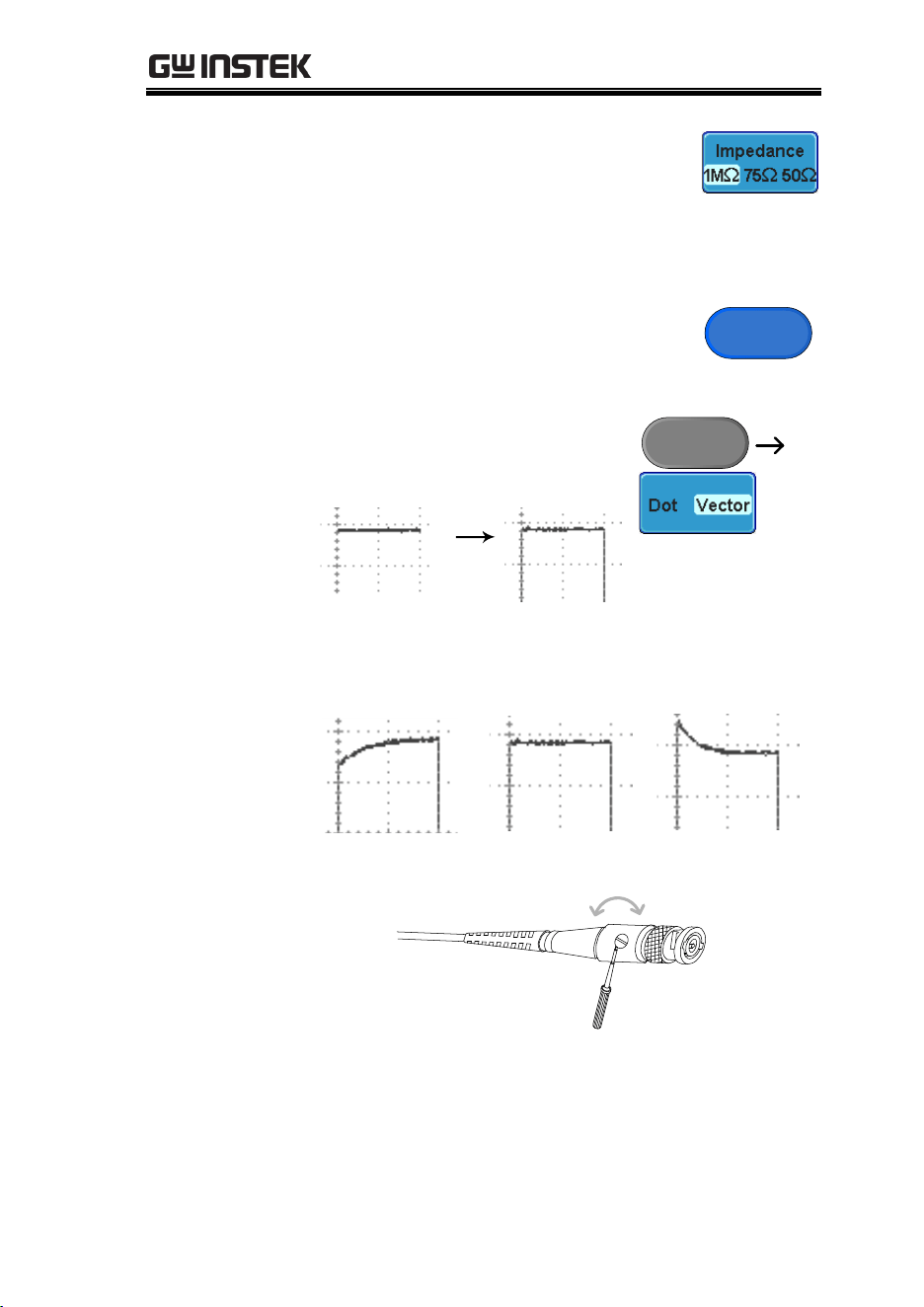
MAINTENANCE
191
4. Set Impedance to 1MΩ from the
bottom menu.
5. Set the Probe attenuation to
Voltage, 10X.
Page 123
6. Press the Autoset key. The
compensation signal appears on
the display.
Autoset
7. Press the Display key, then
set the display type to
Vector.
Display
8. Turn the adjustment point on the probe to
make the waveform as square as possible.
Under
Compensation
Normal
Over
Compensation
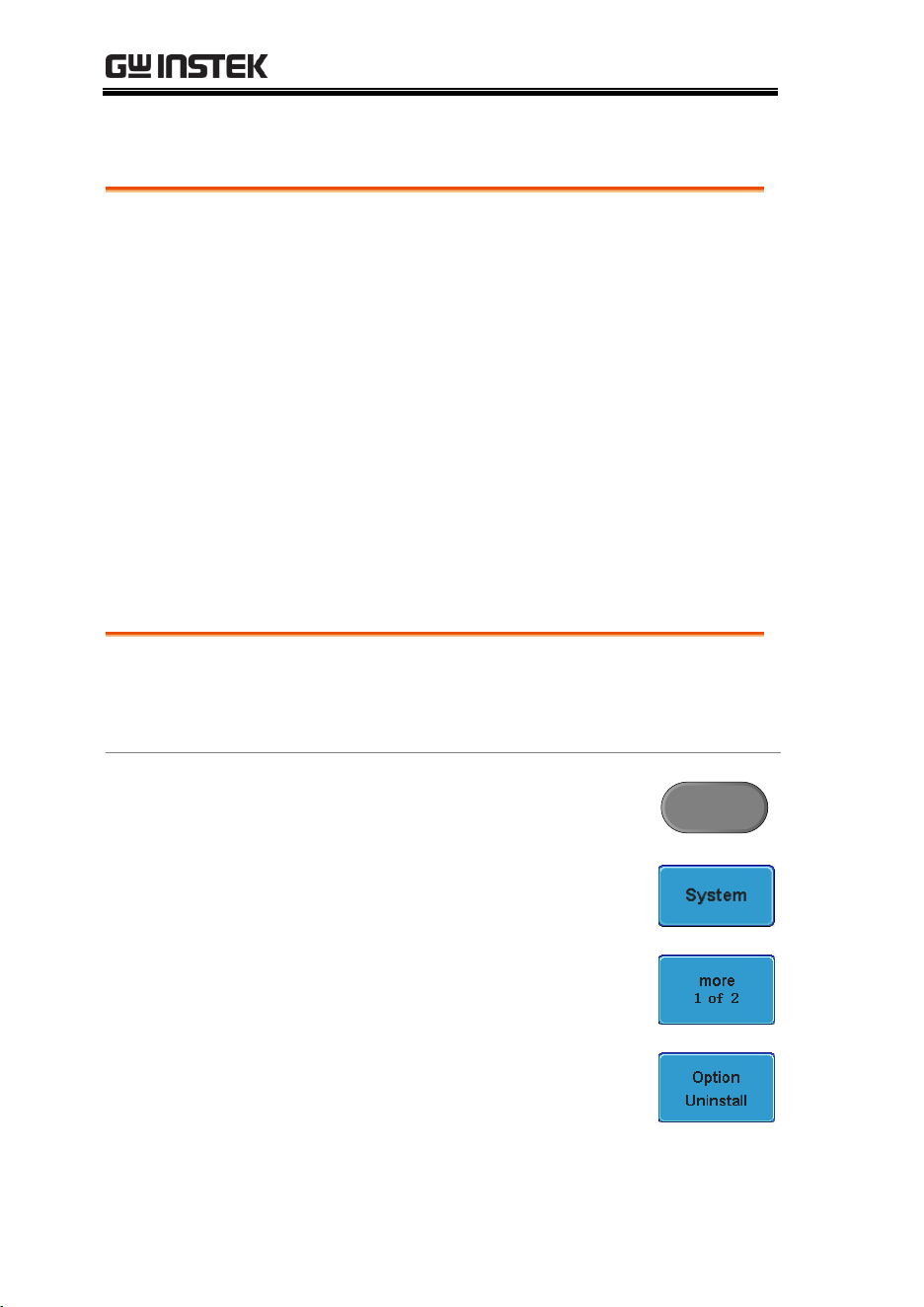
GDS-3000 Series User Manual
192
Activating Optional Software
Background
The GDS-3000 has power analysis software (page
95), serial bus decoding software (page 96) and
other GW Instek applications as optional extras.
GW Instek supplies both free-of-charge and paid-
for applications.
Note: An activation key is required to activate each
optional software application.
For the latest files and information regarding the
optional software packages, see the GW Instek
website: www.gwinstek.com
Uninstalling Optional Software
Background
Optional software packages such as the power
analysis software or the serial bus decode software
can be uninstalled from the system menu.
Panel Operation
1. Press the Utility key.
Utility
2. Press System from the bottom
menu.
3. Press more 1 of 2 from the side
menu.
4. Press Option Uninstall on the side
menu.
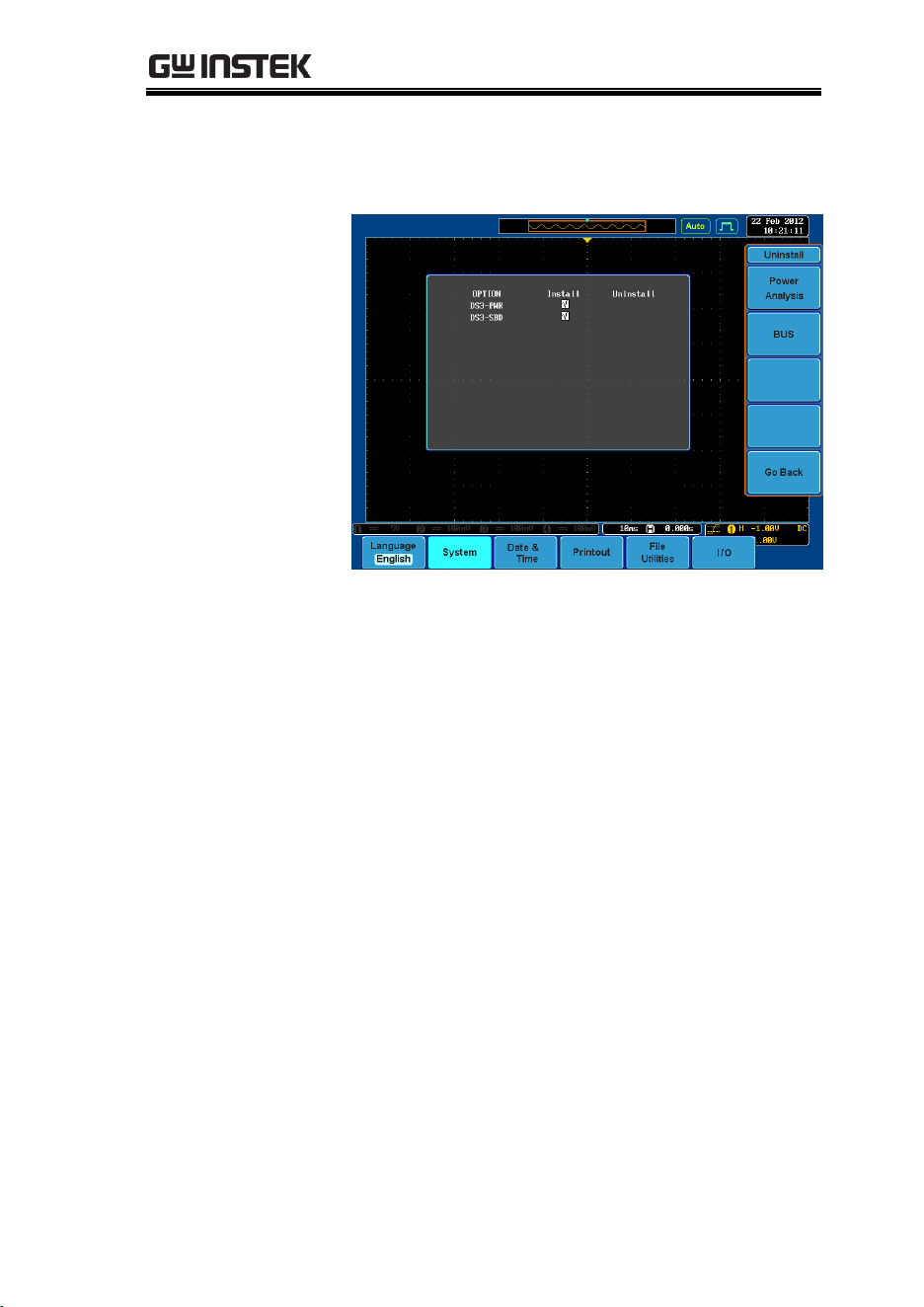
MAINTENANCE
193
5. Select the optional software packages that you
wish to uninstall from the side menu.

GDS-3000 Series User Manual
194
FAQ
•
I connected the signal but it does not appear on the display.
•
I want to remove the (Measurement result / FFT result / Help
contents) from the display.
•
The waveform does not update (frozen).
•
The probe waveform is distorted.
•
Autoset does not catch the signal well.
•
I can’t save files to the internal memory.
•
The display image printout is too dark on the background.
•
The date and time setting are not correct.
•
The accuracy does not match the specification.
I connected the signal but it does not appear on the display.
Make sure you have activated the channel by pressing the Channel
key (the channel key lights up).

FAQ
195
I want to remove the (Measurement result / FFT result /
Help contents) from the display.
To clear automatic measurement results, press the Measure key,
Select Remove Measurement and choose Remove All. See page 72.
To clear individual measurements from the screen, press the
Measure key, select Display All and choose Display None. See page
74.
To clear FFT result, press the Math key twice. See page82 for details.
To clear Help result, press the Help key again. See page54 for
details.
The waveform does not update (frozen).
Press the Run/Stop key to unfreeze the waveform. See page 59 for
details.
If this does not help, the trigger mode might be set to Single. Press
the Single key to exit Single mode. See page 59 for trigger setting
details.
The probe waveform is distorted.
You might need to compensate the probe. The input impedance
may also have to be changed to suit your probe. For details, see
page 190. Note that the frequency accuracy and duty factor are not
specified for the probe compensation waveform and therefore it
should not be used for other reference purposes. Also remember to
set the impedance to 1MΩ.
Autoset does not catch the signal well.
The Autoset function cannot catch signals under 30mV or 20Hz.
Please use the manual operation. See page 58 for Autoset details.

GDS-3000 Series User Manual
196
I can’t save files to the internal memory.
If a USB stick is inserted into one of the USB slots and you wish to
save to the scope internal memory, press the Utilities key and set
the file path to internal memory. Note however that image files can
only be saved to USB when using the Print key.
The display image printout is too dark on the background.
Use the Ink Saver function which reverses the background color.
For details, see page 174.
The date and time setting are not correct.
For date and time setting details, please see page 144. If it does not
help, the internal battery controlling the clock might be worn out.
Contact your dealer or GWInstek.
The accuracy does not match the specification.
Make sure the device is powered On for at least 30 minutes, within
+20°C~+30°C. This is necessary to stabilize the unit to match the
specification.
For more information, contact your local dealer or GW Instek at
www.gwinstek.com/marketing@goodwill.com.tw.
APPENDIX
197
APPENDIX
GDS-3000 Specifications
The specifications apply when the GDS-3000 is powered on for at
least 30 minutes under +20°C~+30°C.
Model-specific
GDS-3152
Channels
2 + Ext
Bandwidth
DC ~ 150MHz (–3dB)
Rise time
2.3ns
GDS-3154
Channels
4 + Ext
Bandwidth
DC ~ 150MHz (–3dB)
Rise time
2.3ns
GDS-3252
Channels
2 + Ext
Bandwidth
DC ~ 250MHz (–3dB)
Rise time
1.4ns
GDS-3254
Channels
4 + Ext
Bandwidth
DC ~ 250MHz (–3dB)
Rise time
1.4ns
GDS-3352
Channels
2 + Ext
Bandwidth
DC ~ 350MHz (–3dB)
Rise time
1ns
GDS-3354
Channels
4 + Ext
Bandwidth
DC ~ 350MHz (–3dB)
Rise time
1ns
GDS-3502
Channels
2 + Ext
Bandwidth
DC ~ 500MHz (–3dB)
Rise time
700ps
GDS-3504
Channels
4 + Ext
Bandwidth
DC ~ 500MHz (–3dB)
Rise time
700ps
The bandwidth of the 75Ω input impedance is limited to 150MHz only.
GDS-3000 Series User Manual
198
Common
Vertical
Resolution
8 bit
@1MΩ: 2mV~5V/div
@50/75Ω: 2mV~1V/div
Input Coupling
AC, DC, GND
Input
Impedance
1MΩ// 15pF
DC Gain
Accuracy
±(3% X |Readout| + 0.1div + 1mV)
Polarity
Normal & Invert
Maximum
Input Voltage
@1 MΩ: 300V (DC+AC Peak), CAT I
@50/75Ω: 5 VRMS max
Offset Position
Range
2mV/div ~ 100mV/div : ±0.5V
200mV/div ~ 5V/div : ±25V
Bandwidth
Limit
Dependent on the oscilloscope bandwidth (BW.
BW=150: Full/20MHz
BW=250: Full/20MHz/100MHz
BW=350: Full/20MHz/100MHz/200MHz
BW=500: Full/20MHz/100MHz/200MHz/350MHz
Waveform
Signal Process
Add, subtract, multiply, and divide waveforms, FFT,
FFTrms
FFT:Spectral magnitude. Set FFT Vertical Scale to
Linear RMS or dBV RMS, and FFT Window to
Rectangular, Hamming, Hanning, or Blackman-
Harris.
Trigger
Sources
CH1, CH2, CH3, CH4, Line, EXT
Modes
Auto (supports Roll Mode for 100 ms/div and
slower), Normal, Single
Type
Edge, Pulse Width, Video, Pulse Runt, Rise & Fall,
Alternate, Event-Delay(1~65535 events), Time-
Delay(10nS~10S), I
2
C*, SPI*, UART*
*optional
Runt:Trigger on a pulse that crosses one threshold
but fails to cross a second threshold before
crossing the first again.
SPI (optional):Trigger on SS, MOSI, MISO, or
MOSI and MISO on SPI buses.
I
2
C (optional):Trigger on Start, Repeated Start,
Stop, Missing ACK, Address (7 or 10 bit), Data, or
Address and Data on I
2
C buses.
APPENDIX
199
UART (optional):
Trigger on Tx Start Bit, Rx Start Bit, Tx End of
Packet, Rx End of Packet, Tx Data, Rx Data, Tx
Parity Error, and Rx Parity Error.
Holdoff range
10nS to 10S
Coupling
AC, DC, LF rej., Hf rej., Noise rej.
Sensitivity
GDS-31XX ~ GDS-33XX:
DC ~ 50MHz Approx. 1div or 10mV
50MHz ~ 150MHz Approx. 1.5div or 15mV
150MHz ~ 350MHz Approx. 2div or 20mV
GDS-350X:
DC ~ 50MHz Approx. 1div or 1.0mV
50MHz ~ 150MHz Approx. 1.5div or 15mV
150MHz ~ 350MHz Approx. 2div or 20mV
350MHz ~ 500MHz Approx. 2.5div or 25mV
External
Trigger
Range
±15V
Sensitivity
GDS-31XX ~ GDS-33XX:
DC ~ 150MHz Approx. 100mV
150MHz ~ 250MHz Approx. 150mV
250MHz ~ 350MHz Approx. 150mV
350MHz ~ 500MHz Approx. 200mV
Input
Impedance
1MΩ±3%, ~16pF
Horizontal
Range
GDS-31XX, GDS-32XX, GDS-33XX:
1ns/div ~ 100s/div (1-2-5 increments); ROLL :
100ms/div ~ 100s/div
GDS-350X:
1ns/div ~ 100s/div (1-2.5-5 increments); ROLL :
100ms/div ~ 100s/div
Pre-trigger
10 div maximum
Post-trigger
1000 div maximum. The number of divisions
depends on the time division.
Accuracy
±20 ppm over any ≧1 ms time interval
X-Y Mode
X-Axis Input
Channel 1; Channel 3
Y-Axis Input
Channel 2; Channel 4
Phase Shift
±3° at 100kHz
Signal
Acquisition
Real Time
Sample Rate
150/250/300MHz models: 5GSa/s (MAX)
150/250MHz models with 2CH: 2.5GSa/s
500MHz models: 4GSa/s (MAX), 2GSa/s per
channel
ET Sample
Rate
100GSa/s maximum for all models
Record Length
25k points / channel
GDS-3000 Series User Manual
200
Acquisition
Mode
Normal, Average, Peak Detect, High Resolution,
Single
Peak
Detection
2nS (MAX)
Normal: Acquire sampled values.
Average: From 2 to 256 waveforms included in
average.
Peak Detect: Captures glitches as narrow as 2 ns at
all sweep speeds
Hi Res: Real-time boxcar averaging reduces
random noise and increases vertical resolution
Cursors and
Measurement
Cursors
Amplitude, Time, Gating available
Automatic
Measurement
28 sets: Vpp, Vamp, Vavg, Vrms, Vhi, Vlo, Vmax,
Vmin, Rise Preshoot/Overshoot, Fall
Preshoot/Overshoot, Freq, Period, Rise Time, Fall
Time, Positive Width, Negative Width, Duty Cycle,
and nine different delay measurements (FRR, FRF,
FFR, FFF, LRR, LRF, LFR, LFF, Phase)
Cursors
measurement
Voltage difference between cursors ( ∆V) Time
difference between cursors ( ∆T)
Auto counter
6 digits, range from 2Hz minimum to the rated
bandwidth
Power
Measurements
(Option)
Power Quality
Measurements
V RMS, I RMS, True Power, Apparent Power,
Reactive Power, Frequency, Power Factor, Phase
Angle, V Crest Factor, I Crest Factor, (+)V Peak,
(-)V Peak, (+)I Peak, (-)I Peak, DC Voltage, DC
Current, Impedance, Resistance, Reactance
Harmonics
Frequency (Hz), Magnitude (%), Mag. RMS (A),
Phase (˚), Limit (A), Limit (%), Pass | Fail, Max all ,
Windows (A), 200% Limit, POHC Limit, THD-F,
THD-R, RMS, Overall, POHC, POHL, Input Power,
Power Factor, Fundamental Current, Harmonic 3,
Harmonic 5
Ripple
Measurements
Ripple, Noise
In-rush current
First peak, Second peak
Control Panel
Function
Autoset
Single-button, automatic setup of all channels for
vertical, horizontal and trigger systems, with undo
autoset
Auto-Range
allow you to quickly move from test point to test
point without having to reset the oscilloscope for
each test point
Save Setup
20 sets
Save
Waveform
24 sets
Display
TFT LCD Type
8" TFT LCD SVGA color display
APPENDIX
201
Display
Resolution
800 horizontal × 600 vertical pixels (SVGA)
Interpolation
Sin(x)/x & Equivalent Time Sampling
Waveform
Display
Dots, vectors, variable persistence, infinite
persistence
Display
Graticule
8 x 10 divisions
Interface
RS232C
DB-9 male connector
USB Port
2 sets USB 2.0 High-speed host port
1 set USB High-speed 2.0 device port
Ethernet Port
RJ-45 connector, 10/100Mbps
SVGA Video
Port
DB-15 female connector, monitor output for
display on SVGA monitors
GPIB
GPIB to USB adapter (Option)
Go-NoGo
BNC
5V Max, 10mA CMOS open collector output
Internal flash
disk
64MB
Kensington
Style Lock
Rear-panel security slot connects to standard
Kensington-style lock.
Line output
3.5mm stereo jack for Go/NoGo audio alarm
Power Source
Line Voltage
Range
AC 100V ~ 240V , 48Hz ~ 63Hz , Auto selection
Power
Consumption
96VA
Miscellaneous
Multi-
language
menu
Available
On-line help
Available
Time clock
Time and Date ,Provide the Date/Time for saved
data
Dimensions
400W X 200H X 130D, Approx. 4kg
GDS-3000 Series User Manual
202
Probe Specifications
Model-specific Probe Specifications
GTP-151R
Applicable to
GDS-3152 / GDS-3154
Bandwidth
DC ~ 150MHz
Rise time
2.3ns
Input
Capacitance
~12pF
Compensation
Range
10 ~ 30pF
GTP-251R
Applicable to
GDS-3252 / GDS-3254
Bandwidth
DC ~ 250MHz
Rise time
1.4ns
Input
Capacitance
~12pF
Compensation
Range
10 ~ 30pF
GTP-351R
Applicable to
GDS-3352 / GDS-3354
Bandwidth
DC ~ 350MHz
Rise time
1.0ns
Input
Capacitance
~12pF
Compensation
Range
10 ~ 30pF
GTP-501R
Applicable to
GDS-3502 / GDS-3504
Bandwidth
DC ~ 500MHz
Rise time
0.7ns
Input
Capacitance
~11.5pF @ 100MHz
Compensation
Range
8 ~ 20pF
APPENDIX
203
Common Probe Specifications
Position x 10
Attenuation Ratio
10:1 (fixed) with readout pin
Input Resistance
10MΩ when used with 1MΩ input
oscilloscope
Maximum Input
Voltage
500V CAT I, 300V CAT II (DC+Peak AC)
derating with frequency
Operating
Condition
Temperature
–0°C ~ 50°C
Relative Humidity
≤85% @35°C
Safety Standard
EN61010-031 CAT II
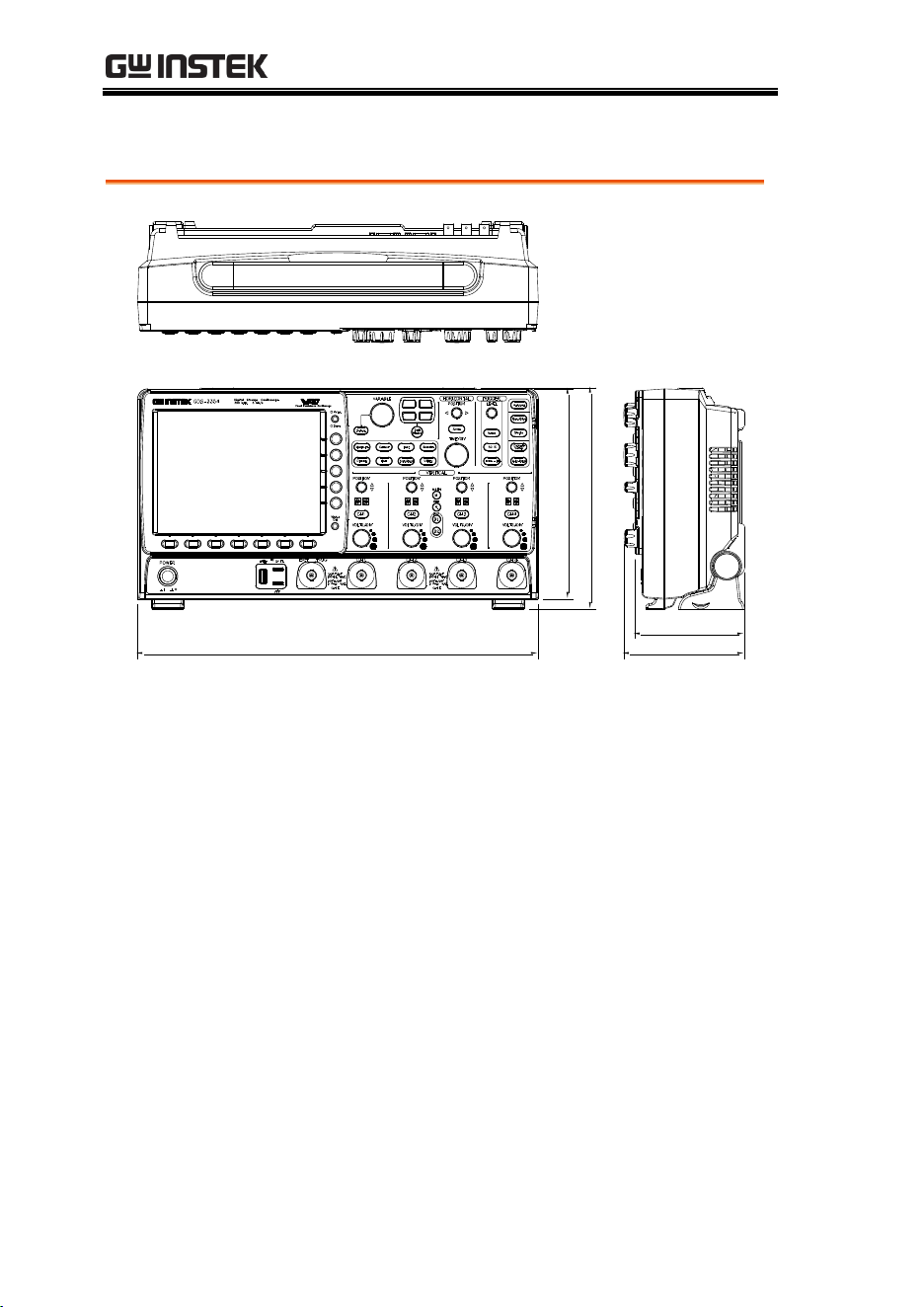
GDS-3000 Series User Manual
204
GDS-3000 Dimensions
400.0
210.0
221.0
109.6
120.5
APPENDIX
205
Declaration of Conformity
We
GOOD WILL INSTRUMENT CO., LTD.
No. 7-1, Jhongsing Rd, Tucheng Dist., New Taipei City 236. Taiwan.
GOOD WILL INSTRUMENT (SUZHOU) CO., LTD.
No. 69 Lushan Road, Suzhou New District Jiangsu, China.
declare that the below mentioned product
Type of Product: Digital Storage Oscilloscope
Model Number: GDS-3152, GDS-3252, GDS-3352, GDS-3154, GDS-3254,
GDS-3354, GDS-3502, GDS-3504
are herewith confirmed to comply with the requirements set out in the
Council Directive on the Approximation of the Law of Member States
relating to Electromagnetic Compatibility (2004/108/EEC) and Low
Voltage Directive (2006/95/EEC).
For the evaluation regarding the Electromagnetic Compatibility and Low
Voltage Directive, the following standards were applied:
◎ EMC
EN 61326-1:
EN 61326-2-1:
Electrical equipment for measurement, control and
laboratory use –– EMC requirements (2006)
Conducted & Radiated Emission
EN 55011: 2009+A1: 2010
Electrostatic Discharge
EN 61000-4-2: 2009
Current Harmonics
EN 61000-3-2: 2006+A1: 2009+A2: 2009
Radiated Immunity
EN 61000-4-3: 2006+A1: 2008
+A2:2010
Voltage Fluctuations
EN 61000-3-3: 2008
Electrical Fast Transients
IEC 61000-4-4: 2004+A1:2010
-------------------------
Surge Immunity
EN 61000-4-5: 2006
-------------------------
Conducted Susceptibility
EN 61000-4-6: 2009
-------------------------
Power Frequency Magnetic Field
EN 61000-4-8: 2010
-------------------------
Voltage Dip/ Interruption
EN 61000-4-11: 2004
Low Voltage Equipment Directive 2006/95/EEC
Safety Requirements
EN 61010-1: 2010
EN 61010-2-030: 2010

GDS-3000 Series User Manual
206
INDEX
2-4 channel differences ............. 11
AC coupling ............................. 118
AC Priority mode ...................... 59
AC Priority mode ...................... 61
Acquisition ............................... 100
indicator ........................................ 26
Sampling mode........................... 104
specification ................................ 199
XY mode ...................................... 102
APP.
Go-NoGo ....................................... 90
overview ........................................ 87
run .................................................. 87
uninstall ......................................... 88
Auto trigger .............................. 127
Automatic measurement
display all ...................................... 74
gated mode ................................... 73
individual mode ........................... 71
overview ........................................ 68
remove measurement .................. 72
Auto-range ................................. 60
AC Priority mode ......................... 61
exception ....................................... 61
Fit Screen mode ............................ 61
Autoset ........................................ 58
AC Priority mode ......................... 59
effect on channel ........................... 58
exception ....................................... 59
Fit Screen mode ............................ 59
Average voltage measure ......... 69
Bandwidth filter ...................... 120
Blackman window..................... 83
Built-in help................................ 54
Buzzer ....................................... 144
Calibration, accuracy resolution189
Caution symbol ........................... 5
Channel ....................................... 57
status indicator ............................. 27
Cleaning the instrument ............. 7
Control panel function
specification ................................ 200
Convention
menu tree ...................................... 38
Conventions ............................... 32
Coupling mode ........................ 118
Cursor
horizontal ...................................... 76
specification ................................ 200
vertical ........................................... 79
Cycle time measure ................... 69
Date setting ............................... 144
indicator ........................................ 26
DC coupling ............................. 118
Declaration of conformity ....... 205
Default setup ............................ 160
contents .......................... 52, 149, 161
effect on channel .......................... 58
Delay measure ............................ 70
Delay trigger ............................. 134
Deskew ...................................... 124
Dimensions
diagram ....................................... 204
specification ................................ 201
Display
diagram ......................................... 25
specification ................................ 200
Disposal instructions ................... 8
Dots............................................ 106
Download information ............. 16
Duty cycle measure ................... 69
Edge Trigger ............................. 132
EN61010
measurement category .................. 6
pollution degree ............................. 7
Environment

INDEX
207
safety instruction ............................7
Equivalent time sampling ....... 105
Erase memory .......................... 143
Ethernet
interface ....................................... 180
Expand by ground/center ...... 121
External trigger ........................ 127
input terminal ...............................22
specification................................. 199
Falling time measure ................. 69
FAQ ........................................... 194
FFT ............................................... 85
horizontal cursor ..........................77
Overview .......................................82
vertical cursor ...............................80
File
copy .............................................. 173
create folder ................................. 169
delete ............................................ 172
rename ......................................... 170
File navigation .......................... 168
File path .................................... 168
Firmware version ..................... 143
First time use .............................. 30
Fit Screen mode .......................... 59
Fit Screen mode .......................... 61
Frequency measure ................... 69
Front panel diagram .................. 17
Go-NoGo ..................................... 90
circuit diagram ..............................94
timing .............................................93
GPIB
interface ....................................... 183
Ground
coupling ....................................... 118
symbol..............................................5
terminal ..........................................22
Hamming window .................... 83
Hanning window ....................... 82
High voltage measure ............... 69
Holdoff .............................. 101, 131
Horizontal
basic operation ..............................63
position ........................................ 112
scale .............................................. 113
specification................................. 199
Image file format ...................... 147
Impedance................................. 119
Initialization ................................ 30
Input frequency indicator ......... 26
Intensity..................................... 107
color ............................................. 109
gray .............................................. 109
Interface ..................................... 178
specification ................................ 201
Invert waveform ...................... 119
Keys overview ............................ 18
Labels ......................................... 151
Language selection .................. 142
List of features ............................ 12
Logic trigger ............................. 140
Low voltage measure ................ 69
Math ............................................. 82
basic ............................................... 83
FFT ................................................. 85
Memory bar
indicator ........................................ 26
Menu on/off ............................. 111
Miscellaneous
specification ................................ 201
Model difference ........................ 11
Normal trigger.......................... 127
NTSC ......................................... 129
On-screen help ........................... 54
Optional software
activation ..................................... 192
uninstall....................................... 192
Overshoot voltage measure ...... 69
Package contents ........................ 16
PAL ............................................ 129
Pc software download ............... 16
PC software download ............ 184
Peak voltage measure ................ 68
Persistence ................................ 107
Power Analysis .......................... 95
overview ....................................... 95
Power measurements
specification ................................ 200
Power on/off
safety instruction ............................ 7
Power source
specification ................................ 201

GDS-3000 Series User Manual
208
Preshoot voltage measure ........ 69
Printing
connection ................................... 174
ink saver ...................................... 176
print/save key ............................ 175
Printing ..................................... 174
Probe
attenuation level ......................... 123
attenuation type ......................... 122
deskew ......................................... 124
package list.................................... 16
specification ................................ 202
Probe compensation ................ 190
Program manual download ..... 16
Pulse runt trigger .................... 138
Pulse time measure ................... 69
Pulse width trigger .................. 135
Real time sampling .................. 105
Rear panel diagram ................... 23
Recall ......................................... 160
default setup ............................... 160
reference ...................................... 165
setup .................................... 162, 163
waveform .................................... 162
Rectangular window ................. 83
Reduce menu ............................. 34
Remote control ......................... 177
interface configuration .............. 178
webserver .................................... 184
Rising time measure .................. 69
Roll mode ................................. 114
RS-232C
interface ....................................... 179
Run/stop .................................... 62
Run/Stop .................................. 111
horizontal position ..................... 112
Horizontal scale .......................... 113
Save ........................................... 153
image ........................................... 154
print/save key ............................ 155
setup ............................................ 158
waveform .................................... 157
SECAM ..................................... 129
Serial bus
overview ........................................ 96
Serial Bus .................................... 96
Serial number ........................... 143
Service operation
about disassembly ......................... 6
contact ......................................... 196
Setup
default contents ............................ 52
file format ................................... 149
Signal path comensation ......... 188
Single trigger mode ................. 127
with run/stop ............................... 62
Software activation .................. 192
SPC ............................................ 188
Specifications ............................ 197
Split Window
active window .............................. 67
operation ....................................... 66
reference position ........................ 67
Spreadsheet file format ........... 148
Stop icon ..................................... 62
System information ................. 142
Tilt stand ..................................... 28
Time setting .............................. 144
indicator ........................................ 26
Trigger ....................................... 125
delay ............................................ 134
edge ............................................. 132
holdoff ......................................... 131
indicator ........................................ 26
Logic ............................................ 140
mode ............................................ 132
parameters .................................. 127
pulse runt ................................... 138
pulse width ................................. 135
single trigger with run/stop....... 62
specification ................................ 198
status indicator ............................. 27
video ............................................ 137
UK power cord ............................. 9
Uninstall applications ............... 88
Uninstall optional software .... 192
USB
driver download .......................... 16
remote control interface ............ 178
Vectors....................................... 106
Vertical ...................................... 117
accuracy calibration ................... 189
basic operation ............................. 65
position ....................................... 117

INDEX
209
scale .............................................. 117
specification................................. 198
Video trigger ............................ 137
Warning symbol .......................... 5
Waveform
data contents ............................... 148
file contents ................................. 148
how to recall ................................ 162
how to save.................................. 157
invert waveform ......................... 119
roll mode ..................................... 114
zoom mode ................................. 115
Waveform color .......................... 25
Waveform file format .............. 147
XY
specification ................................ 199
Zoom waveform ....................... 115