Stem Room
Setup Guide
Stem Room Set Up online user guide.
Version: 1.0 (2021-I)

Shure Incorporated
3/5
•
•
•
•
•
•
•
◦
◦
◦
•
•
•
•
Stem Room
Setup Guide
Setting Up Your First Room
Stem Ecosystem Devices are designed as a complete solution by pairing hardware with the Stem Ecosystem Platform.Tocre
ate your ideal setup, mix and match devices and set up your room to best meet your needs.
① Locate Ethernet and existing enterprise network hardware
Locate the established enterprise network or routing device.
Identify available PoE+ port(s) or PoE+ switch.
Connect your PoE+ switch between the network and your Stem device(s).
Note: All Stem devices must be connected to an existing established network or routing device for DHCP IP address assignment.
② Wait for your devices to fully boot up
When Wall and Table are fully booted, you will hear an audible chime.
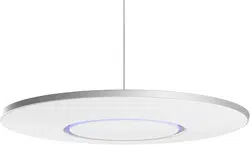
When Ceiling, Hub, and Hub Express are fully booted, you will see a solid blue light.
③ Find your IP address
Upon boot up, your device(s) will receive an IP address from the DHCP server.
To locate your device's IP address:
Filter the MAC address within your DHCP server (MAC addresses for all Stem Ecosystem Devices begins with
D8:34:EE).
Use the Stem Upgrader app available in the Microsoft Store (Windows 10 and later)
For Table and Wall devices, press the Vol+ and Vol- simultaneously for 5 seconds and the device will read out its IP
address (firmware 1.4.0 and later).
④ Access the Stem Ecosystem Platform
Enter the IP address from any of your Stem devices in your web browser to access the Stem Ecosystem Platform.
Logging into the HTML interface using the IP address of any one Stem device allows you to make configuration changes
to your Stem Ecosystem Network.
Note: Make sure the computer used to access the HTML interface is on the same network (subnet) as your Stem devices.
⑤ Create an Organization
When you access the HTML interface for the first time, a pop-up message will appear asking if you want to create an Or
ganization. This can add an additional layer of security by keeping your rooms and devices password protected to prevent
unauthorized access to your Stem Ecosystem.
Name your Organization and create a password of your choice using numbers, upper-case letters, and lower-case letters.
Save your password for future use.
Note: If you forget your Organization password, contact Stem customer service.
Shure Incorporated
4/5
•
•
◦
◦
◦
•
•
◦
◦
◦
◦
•
•
•
◦
◦
•
•
◦
◦
◦
◦
◦
•
⑥ Add all devices to your Organization
You can add the rest of your devices to your Organization from the same HTML interface you used to create it.
To add devices to the Organization:
Go to Ecosystem > Devices.
Select a device with red text (red text indicates a device does not belong to an Organization) and type in the Organiza
tion password. Do this for each device outside of the Organization.
Get more information about how devices are displayed in the Devices list.
⑦ Create a Room
Now that all your devices have joined your Organization,youcancreatearoom.Thisallowsyourdevicestoworkinuni
son as a single audio endpoint.
To create a room:
Go to Ecosystem > Add Room.
To name your room, click .
Once you've renamed your room, click Add Devices and select all of the devices you want to add.
To confirm your selection, click .
⑧ RoomAdapt
Once your room is created and devices are assigned, run RoomAdapt.
Eachdevicesendsoutanaudiosignalthatwillhelpthemanalyzetheroom’sacoustics.Devicesautomaticallyselfcali
brate for optimal performance based on their placement in the room.
To run RoomAdapt:
Go to Ecosystem > Rooms and select the room you want to adapt.
Click in the room's function menu.
Note: Make sure devices are set up in their desired locations before running RoomAdapt, and make sure to run it again any time a device is moved to a
new location.
⑨ RoomCheck
After running RoomAdapt, you can use RoomCheck, a 5-second test that analyzes the clarity of your voice from anywhere
in the room.
To run RoomCheck:
Go to Ecosystem > Rooms and select the room you want to check.
Select Edit Layout by the room's design. If there is no RoomDesign created, add the room's design and drag-and-drop
the devices into the room. Make sure the devices in the design are placed in the same physical location as they are in
the room.
With somebody in the room, click and ask them to speak for 5 seconds.
Once the recording is complete, a color-coordinated heatmap highlighting the audio quality for different areas in the
room appears.
Ifyourheatmapshowsinadequatecoverage,youcanchecktheroomagain,orconsidermovingyourdevicesforbet
ter audio pickup.
⑩ Test your Stem Room setup
Connect your Stem device to your PC using the provided USB-A to USB-B cable.
Shure Incorporated
5/5
•
•
When using more than one Stem device in your room, you must use a Stem Hub or Stem Hub Express.TheUSBconnec
tion will be between the Hub and computer.
Using your preferred conferencing software, start a test call. The Stem Customer Happiness teamisavailabletohelpcar
ry out your test call, and to answer any other questions you may have.
Need Some Help?
Website: shure.com/stem
Email: [email protected]
Telephone: (949) 877-STEM (7836)
Setup Videos: youtube.com/shuresystems
Product Guides: stemaudio.com/product-resources
Additional Installation Resources: stemaudio.com/installation-resources