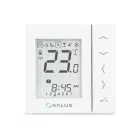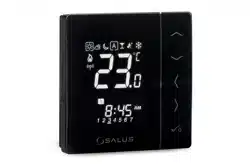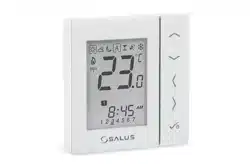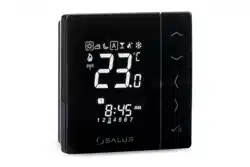
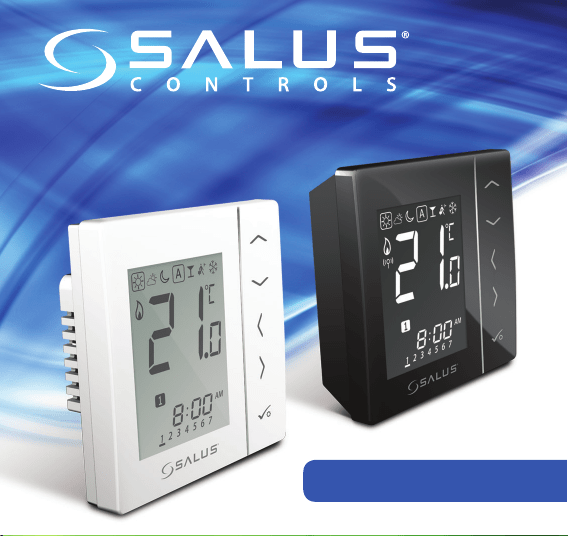
4 in 1 Digital Thermostat RF
Models: VS20WRF and VS20BRF
VS10WRF and VS10BRF
INSTALLER / USER MANUAL
02 VS20WRF and VS20BRF Installer Manual
Contents
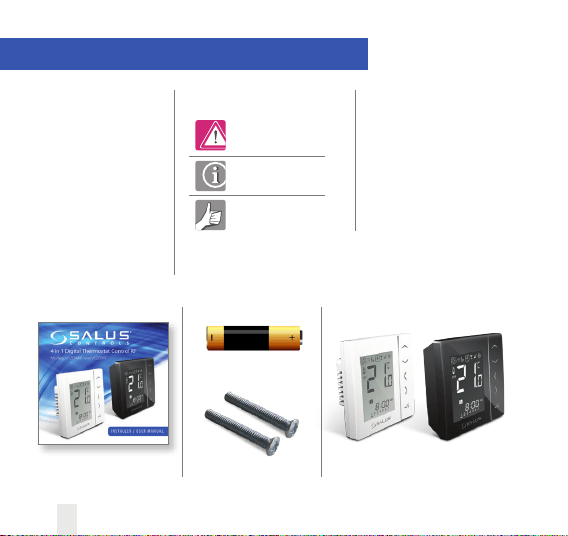
1 x Installer / User manual VS10WRF
4x AAA Batteries
VS20BRFFixing screws
Contents
Box contents
Introduction
Product Compliance
System options overview
Installation
Parameter Settings
Error Codes
User Guide
Installers notes
Warranty
Box Contents
Icons used in this manual:
Safety
Important info
Your benefit
For latest PDF installation
guide please go to
www.salus-controls.com
Product Compliance & Safety Information
INTRODUCTION
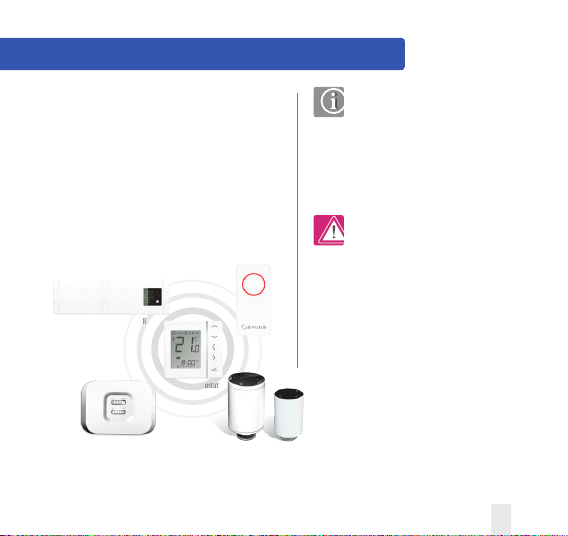
Thank you for purchasing the SALUS 4 in 1 room
thermostat it must be used with the CO10RF
Zigbee Coordinator. The Zigbee coordinator
allows communication with other devices in the
iT600 RF system range. Other Zigbee devices
include wiring centre, system receiver & TRV.
iT600RF Range
Product Compliance
This product is CE compliant and meets the
following EC Directives Electro-Magnetic
Compatibility directive 2004/108/EC
Low voltage Directive 2006/95/EC
Safety Information
Use in accordance with the regulations
The SALUS VS10/20RF is to be used for room
control of heating and hot water systems
inside the house.
SALUS Wiring Centre KL10RF
RX10RF
We hope you enjoy this product...
VS20WRF and VS20BRF Installer Manual 03
VS20 Thermostat
CO10RF
TRV10RFM
TRV10RF
These instructions are applicable to the SALUS
model stated on the front cover of this manual only.
Warning
This product must be fitted by a competent person,
and installation must comply with the guidance,
standards and regulations applicable to the city,
country or state where the product is installed.
Failure to comply with the requirements of the
relevant guidance, standards and regulations could
lead to injury, death or prosecution.
Product Compliance & Safety Information
Installer parameter settings
The SALUS VS10 and VS20 are equipped with
installer parameter section (see page 57)
this must only be entered by the installer
or competent person. Changing these
parameters can have a serious effect on your
heating system
For the installer
Please enter any parameter changes in the
installer notes section (pages 90)
230V AC
Sources of danger
The thermostat must be disconnected from mains
supply before removing the cover.
Emergency
Switch off the voltage to the individual thermostat
wring centre or complete system.
04 VS20WRF and VS20BRF Installer Manual
Warning
Always isolate the AC Mains supply before
installing or working on any components
that require 230 VAC 50Hz supply.
VS20WRF and VS20BRF Installer Manual 05
System Overview - Configuration Options
Programmable Room
Thermostat (PRT)
* Grouping and timer option only available
when used with wiring centre.
1
UFH Manifold
Wiring Centre
Radiator
Boiler
Hot Water
TRV
Towel Rails
Group Control
Thermostat*
2
Group
Thermostat*
3
Timer
4
SYSTEM
OVERVIEW
The unit can be configured to
either one of the following

System Overview - Configuration Options
06 VS20WRF and VS20BRF Installer Manual
Programmable Room Thermostat (PRT)
When configured for PRT (see page 32) it mainly works by itself and allows the user to have separate Time
and Temperature control of each zone on the wiring centre, radiator valve or system receiver. Features
like Vacation , Party frost mode have to set on each individual thermostat. All PRTs paired with a wiring
centre can also use the global heat/cool changeover function if the your system supports this. This is
achieved by using the heat/cool changeover connection on the wiring centre (see note 8 on wiring centre
guide).
Group Control Thermostat
When configured for a PRT (see page 32) it can operate as a group control thermostat by assigning a
group when pairing with the wiring centre this allows central control of up to 7 group thermostats see
below, there can be a maximum of 2 groups per 8 zone wiring centre. Permanent temperature override,
Holiday, Party, Frost modes, can be selected centrally from the Group Control Thermostat. Holiday will also
be applied to a timer if applicable. The group thermostats can be also globally changed from heating to
cooling thermostats if you system supports this by using the switched input connection on the WC (see
note 8 on the wiring centre guide).
Group Thermostat
When configured as a digital thermostat and assigning a group when pairing with a WC it can operate as
a group thermostat (see page 31), in group mode the group thermostat will follow the time schedule and
any override modes of the group control thermostat. At least one group control thermostat is required for
grouping see above. The group thermostat can have its own programmed temperatures, manual override
and also be removed from the group temporarily or permanently.
Timer
When configured to timer (see page 32) the unit will operate as a timer with no temp control. This can
be used for hot water control. The timer will also follow Holiday mode from the group control thermostat
if applicable.
System Overview - Zigbee Coordinator
VS20WRF and VS20BRF Installer Manual 07
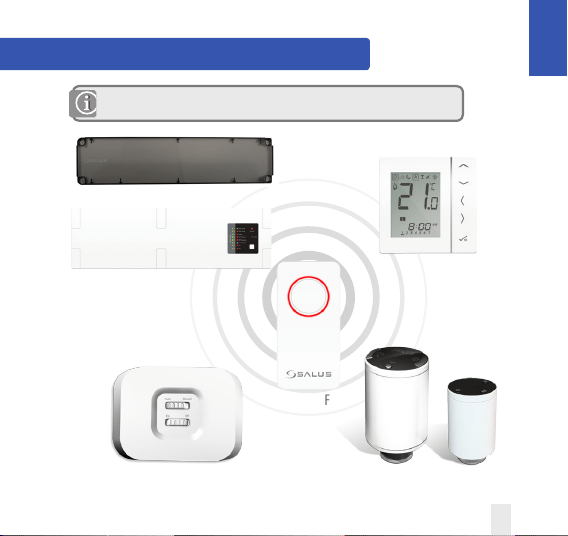
Zigbee coordinator required for communication between these devices.
SYSTEM
OVERVIEW
KL10RF
RX10RF
CO10RF
WBTRV10RF
WBTRV10RFM
KL08RF
VS10 / VS20RF
08 VS20WRF and VS20BRF Installer Manual
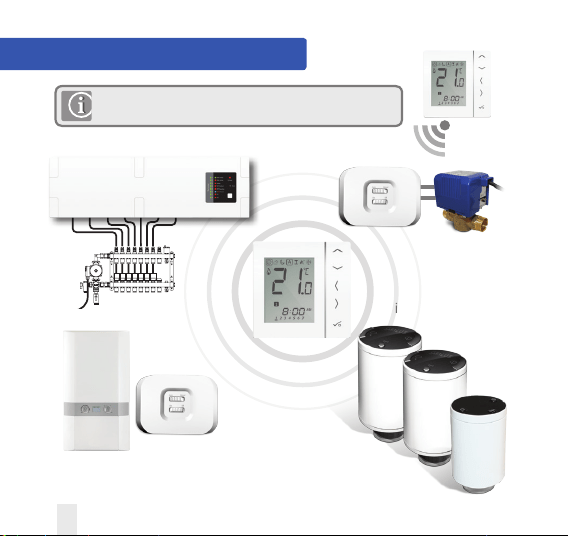
System Overview - iT600 System
The thermostat can communicate with all these iT600 devices.
System Receiver configured to boiler receiver.
Refer to system receiver manual RX10RF.
System Receiver
configured to one
room receiver RX2.
Refer to system
receiver RX10RF.
UNDERFLOOR HEATING MANIFOLD
Max 6 TRV per thermostat
KL08 or KL10 can be used
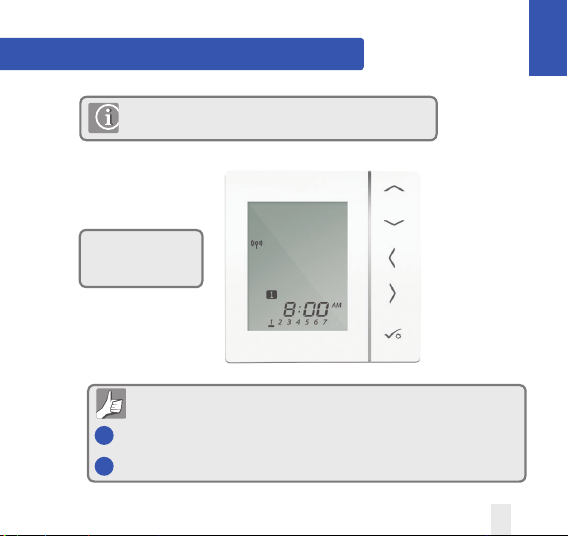
System Overview - Hot Water Option
Unit configured to
Hot Water Timer.
When the unit is configured as a hot water timer (see page 32)
there are two methods of connecting the cylinder thermostat.
Cylinder thermostat options
1 Connected direct to WC (Default)
2 Connected direct to VS10/20RF (requires additional parameter change. See page 57)
VS20WRF and VS20BRF Installer Manual 09
SYSTEM
OVERVIEW
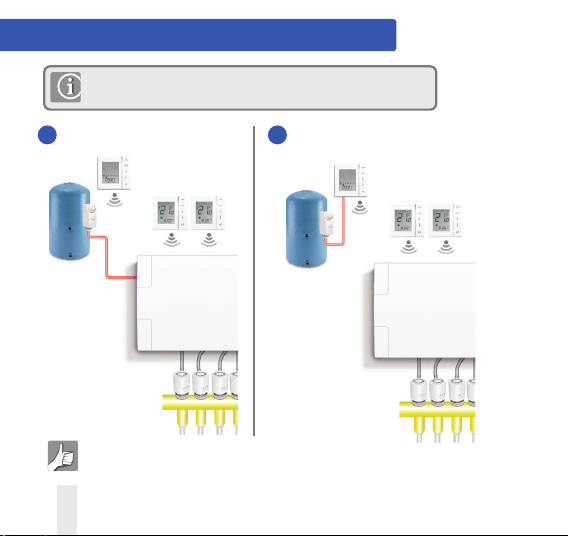
System Overview - Hot Water Option
1 Connected direct to WC (Default)
For convenience there is a unique built in option allowing the cylinder
thermostat to be connected to either the HW Timer or Wiring Centre.
Please refer to note 1 on Wiring Centre guide and pages 15 and 20 for more information.
10 VS20WRF and VS20BRF Installer Manual
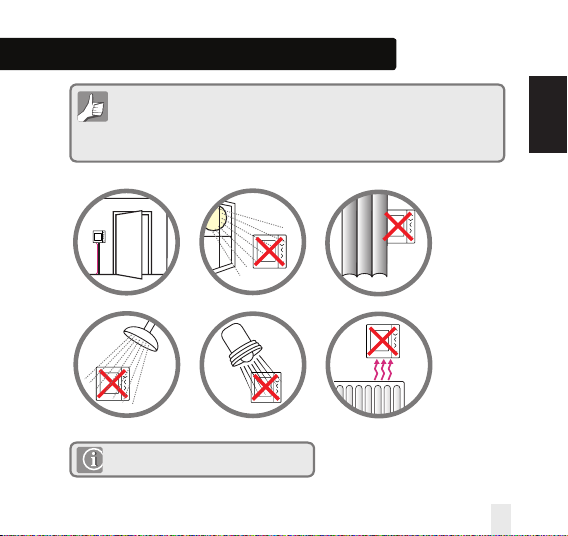
2 Connected direct to VS10RF/20RF
(requires additional parameter change see page 37)
VS20WRF and VS20BRF Installer Manual 11
Installation – Thermostat Mounting
Not to be positioned on an exterior wall.
For your benefit symbol
To ensure trouble free operation and efficient control. the room thermostat Nea
is best positioned behind a door and at 130cm from the floor.
(Pic)
Do not position the thermostat:
1. Near any heat source (pics)
2. Behind curtains(pic)
3. Direct Sunlight(pic)
4. In a bathroom or area of high humidity(pic)
Info symbol
· Not to be positioned on exterior wall
· Do not install the remote sensor (if applicable) in an empty tube
· Only the temperature at the position of remote sensor (if applicable) is measured
130cm
130cm
For your benefit symbol
To ensure trouble free operation and efficient control. the room thermostat Nea
is best positioned behind a door and at 130cm from the floor.
(Pic)
Do not position the thermostat:
1. Near any heat source (pics)
2. Behind curtains(pic)
3. Direct Sunlight(pic)
4. In a bathroom or area of high humidity(pic)
Info symbol
· Not to be positioned on exterior wall
· Do not install the remote sensor (if applicable) in an empty tube
· Only the temperature at the position of remote sensor (if applicable) is measured
130cm
130cm
For your benefit symbol
To ensure trouble free operation and efficient control. the room thermostat Nea
is best positioned behind a door and at 130cm from the floor.
(Pic)
Do not position the thermostat:
1. Near any heat source (pics)
2. Behind curtains(pic)
3. Direct Sunlight(pic)
4. In a bathroom or area of high humidity(pic)
Info symbol
· Not to be positioned on exterior wall
· Do not install the remote sensor (if applicable) in an empty tube
· Only the temperature at the position of remote sensor (if applicable) is measured
130cm
130cm
For your benefit symbol
To ensure trouble free operation and efficient control. the room thermostat Nea
is best positioned behind a door and at 130cm from the floor.
(Pic)
Do not position the thermostat:
1. Near any heat source (pics)
2. Behind curtains(pic)
3. Direct Sunlight(pic)
4. In a bathroom or area of high humidity(pic)
Info symbol
· Not to be positioned on exterior wall
· Do not install the remote sensor (if applicable) in an empty tube
· Only the temperature at the position of remote sensor (if applicable) is measured
130cm
130cm
For your benefit symbol
To ensure trouble free operation and efficient control. the room thermostat Nea
is best positioned behind a door and at 130cm from the floor.
(Pic)
Do not position the thermostat:
1. Near any heat source (pics)
2. Behind curtains(pic)
3. Direct Sunlight(pic)
4. In a bathroom or area of high humidity(pic)
Info symbol
· Not to be positioned on exterior wall
· Do not install the remote sensor (if applicable) in an empty tube
· Only the temperature at the position of remote sensor (if applicable) is measured
130cm
130cm
For your benefit symbol
To ensure trouble free operation and efficient control. the room thermostat Nea
is best positioned behind a door and at 130cm from the floor.
(Pic)
Do not position the thermostat:
1. Near any heat source (pics)
2. Behind curtains(pic)
3. Direct Sunlight(pic)
4. In a bathroom or area of high humidity(pic)
Info symbol
· Not to be positioned on exterior wall
· Do not install the remote sensor (if applicable) in an empty tube
· Only the temperature at the position of remote sensor (if applicable) is measured
130cm
130cm
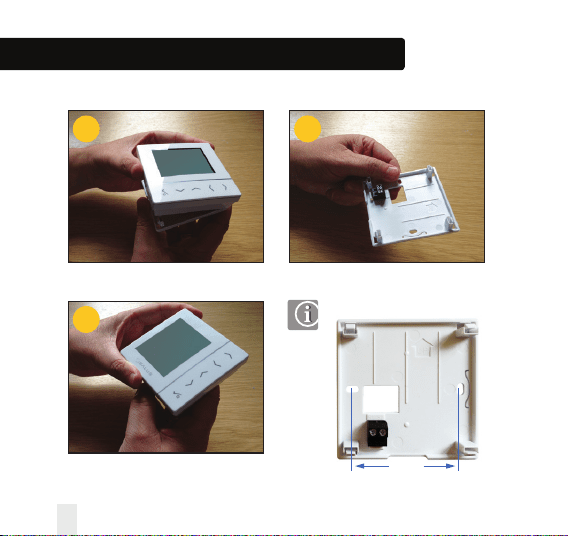
Mounting position and installation
To ensure trouble free operation and efficient control, the unit is best positioned
in a draft free area and at 130cm from the floor. Do not position the thermostat
near any heat source, behind curtains, direct sunlight or an area of high humidity.
INSTALLATION
12 VS20WRF and VS20BRF Installer Manual
Carefully remove the front housing.
Installation – Thermostat Mounting VS20WRF
1 3
2
60mm
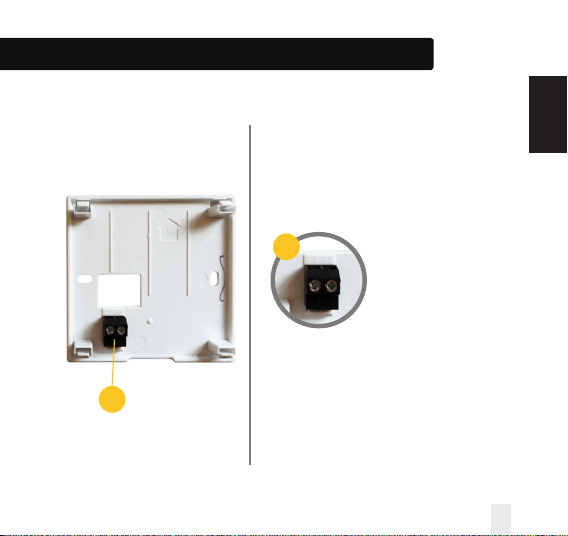
Installation – Terminal Connections VS20WRF
Understanding your terminal connections
Rear of unit
Sensor Terminals
Can be used for external AIR,
Floor sensor when configured
as thermostat. Can also be
used for Cylinder thermostat
when configured for HW.
See page 57.
1
1
VS20WRF and VS20BRF Installer Manual 13
INSTALLATION
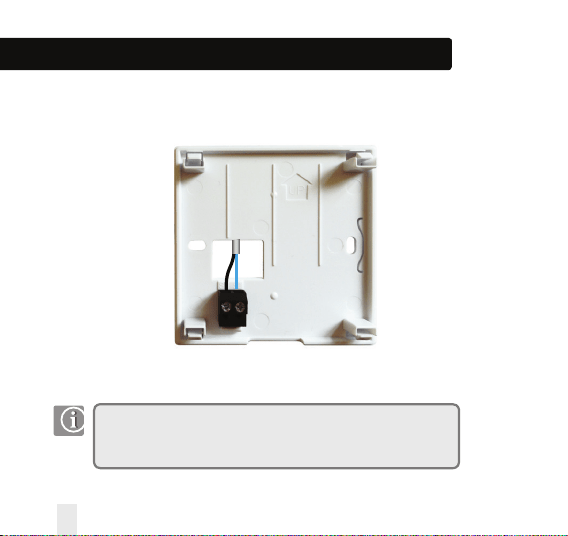
Installation – Thermostat External Sensor VS20WRF
Note: If you are using an external sensor, the unit has to be configured for
External Air Sensor or Floor Protection Sensor please see device parameter
setting page 57.
SALUS External sensor (Sold separately)
14 VS20WRF and VS20BRF Installer Manual
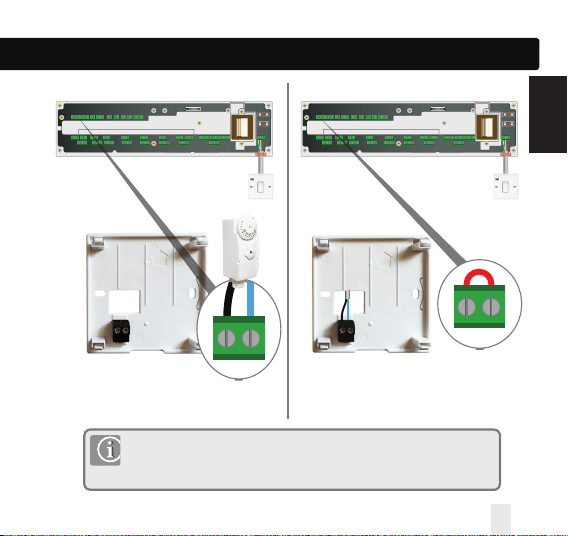
Installation – Hot Water Timer Cylinder Thermostat VS20WRF
Note: The unit can be configured for Cylinder thermostat or connected to the
Hot Water Timer. Please see device parameters page 57. For additional Wiring
Centre information refer to note 1 on Wiring Centre guide.
HW Timer connected cylinder thermostatWC connected cylinder thermostat (Default)
ZONE 1
SL N L SL N L SL N L SL N L SL N L SL N L SL N LSL N L
ZONE 2ZONE 3ZONE 4ZONE 5
ZONE 6ZONE 7
ZONE 8
5 x 20mm
5 x 20mm
Link must be fitted
ZONE 1
SL N L SL N L SL N L SL N L SL N L SL N L SL N LSL N L
ZONE 2ZONE 3ZONE 4ZONE 5
ZONE 6ZONE 7
ZONE 8
5 x 20mm
5 x 20mm
Cylinder
thermostat
SALUS CT100
IN OUT
VS20WRF and VS20BRF Installer Manual 15
INSTALLATION
IN OUT
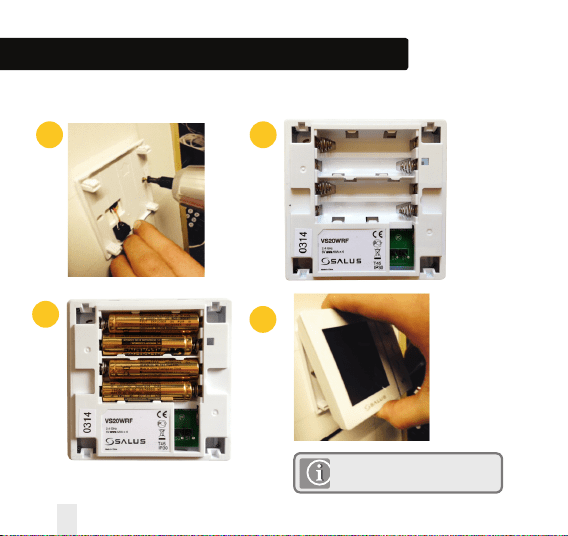
Installation – Thermostat Mounting VS20WRF
1 2
3
4
Once you have connected your choice of external sensor (if applicable)
Insert batteries
Note: Please proceed to page 23
16 VS20WRF and VS20BRF Installer Manual
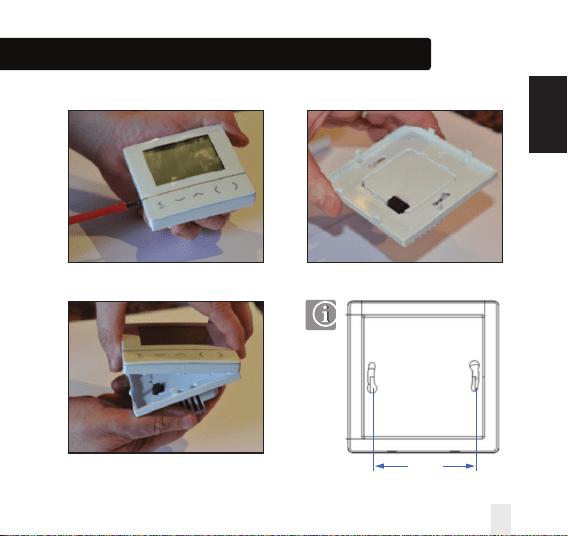
Carefully remove the front housing.
1 3
2
Installation – Thermostat Mounting VS10WRF
60mm
VS20WRF and VS20BRF Installer Manual 17
INSTALLATION
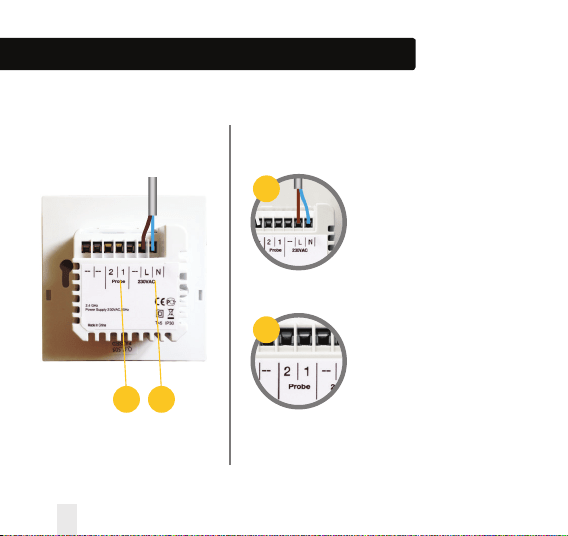
Installation – Terminal Connections VS10WRF
Understanding your terminal connections
Rear of unit
Power Terminals 230 Vac
Used for supplying power
to the unit. 230V supply can
be sourced from the wiring
centre or any convenient
source.
Sensor Terminals
Can be used for external AIR,
Floor sensor when configured
as thermostat. Can also be
used for Cylinder thermostat
when configured for HW.
1
2
12
18 VS20WRF and VS20BRF Installer Manual
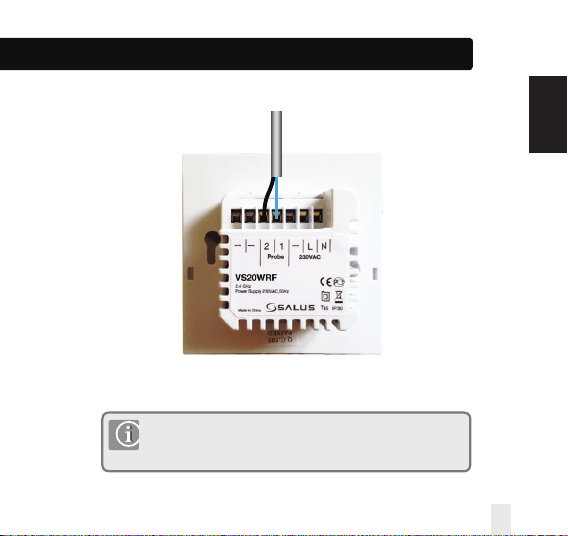
Installation – Thermostat External Sensor VS10WRF
Note: If you are using an external sensor, the unit has to be
configured for External Air Sensor or Floor Protection Sensor please
see device parameter setting page 57.
VS20WRF and VS20BRF Installer Manual 19
SALUS External sensor (Sold separately)
INSTALLATION
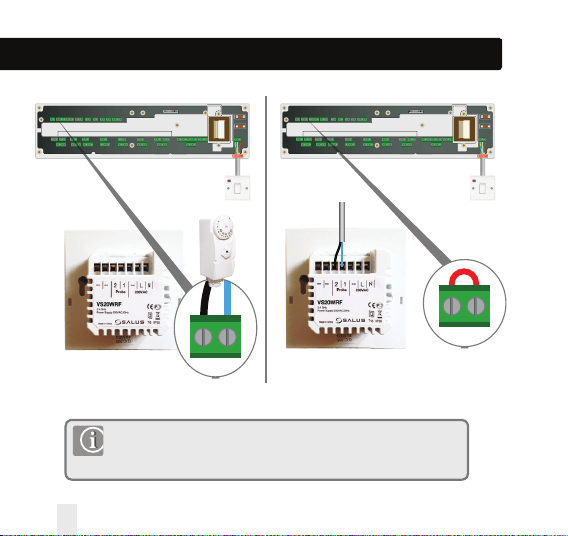
Installation – Hot Water Timer Cylinder Thermostat
VS10WRF
Note: The unit can be configured for Cylinder thermostat or connected to
the Hot Water Timer. Please see device parameters page 57. For additional
Wiring Centre information refer to note 1 on Wiring Centre guide.
HW Timer connected cylinder thermostatWC connected cylinder thermostat (Default)
20 VS20WRF and VS20BRF Installer Manual
ZONE 1
SL N L SL N L SL N L SL N L SL N L SL N L SL N LSL N L
ZONE 2ZONE 3ZONE 4ZONE 5
ZONE 6ZONE 7
ZONE 8
5 x 20mm
5 x 20mm
Link must be fitted
ZONE 1
SL N L SL N L SL N L SL N L SL N L SL N L SL N LSL N L
ZONE 2ZONE 3ZONE 4ZONE 5
ZONE 6ZONE 7
ZONE 8
5 x 20mm
5 x 20mm
Cylinder
thermostat
SALUS CT100
IN OUT
IN OUT
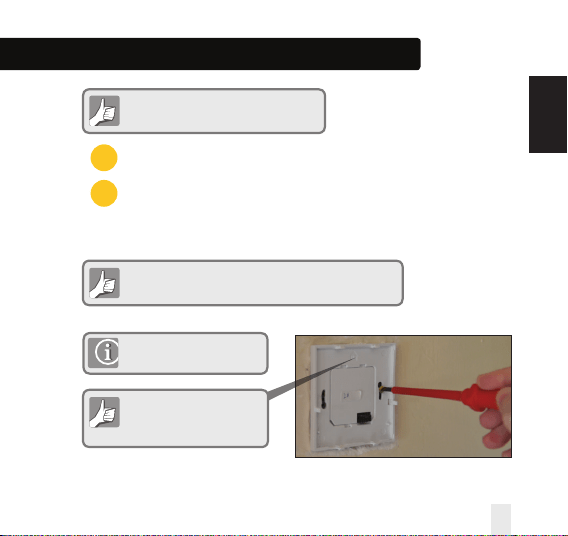
Installation – Thermostat Mounting VS10RF
Check that the wiring is completed for:
1
2
Please use the screws
provided
Ensure the orientation
arrow is pointing upwards.
Power Terminals
Sensor Terminals (if applicable)
You are ready to secure the rear housing to the wall box
VS20WRF and VS20BRF Installer Manual 21
INSTALLATION
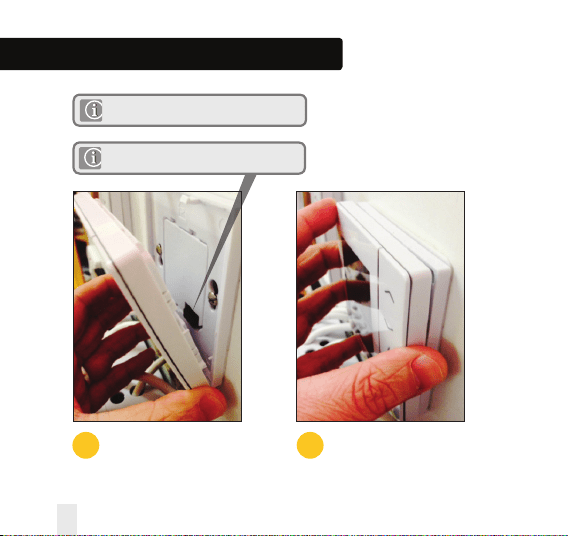
Installation – Thermostat Mounting
1
Fit the front housing to the rear housing
Align the front housing
at the bottom edge.
2
Lightly press until you
hear a positive click.
Ensure the pin connections are aligned
22 VS20WRF and VS20BRF Installer Manual
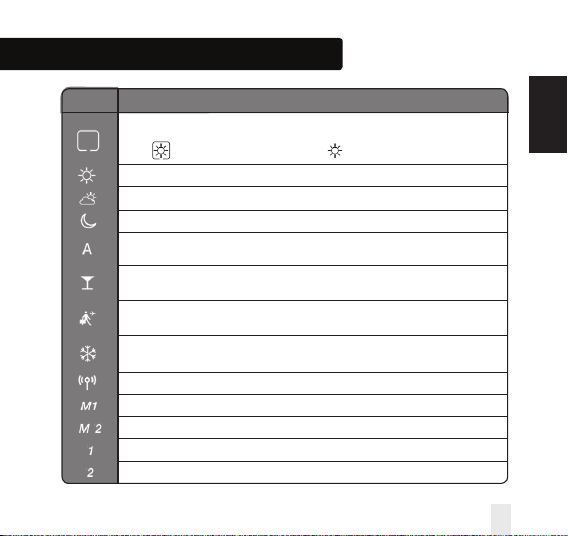
Installation – LCD Graphics
ICON FUNCTION
BOX means to select the mode
e.g. means the current setpoint is Hi temp, means the Hi temp is not selected.
Sunny: Hi comfortable temperature.
Cloudy: Middle comfortable temperature.
Moon: Low comfortable temperature.
Programmable thermostat Program mode indicator: Indicates program is
running, Auto On or Auto Off. For group thermostat this indicates that it is a member of a group.
Party indicator:
When Party mode is active.
Vacation indicator:
When Vacation mode is active
Frost protection indicator:
Frost protection is active, not available in cooling mode (if applicable)
RF Transmission is active
Group 1 Control Thermostat
Group 2 Control Thermostat
Group 1 Thermostat
Group 2 Thermostat
VS20WRF and VS20BRF Installer Manual 23
INSTALLATION
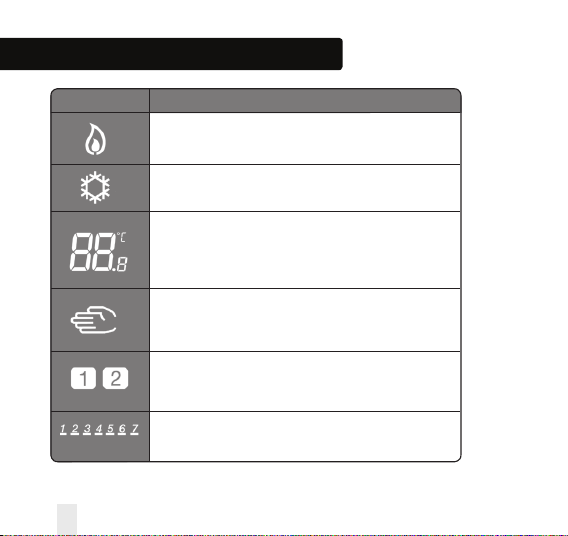
Installation – LCD Graphics
ICON FUNCTION
Heat indicator:
Indicates heat is required.
Cool mode indicator:
Indicates cooling is required (if applicable)
Temperature indicator:
Display the room temperature.
Display the set-temp.
Also used to show the other information.
Temporary manual override indicator:
If the set temperature is changed when in program mode,
the hand will appear until the next program start time.
Programs number indicator:
In AUTO program mode or Temporary override is running,
it means the current program running.
Day indication:
1 = Monday
24 VS20WRF and VS20BRF Installer Manual
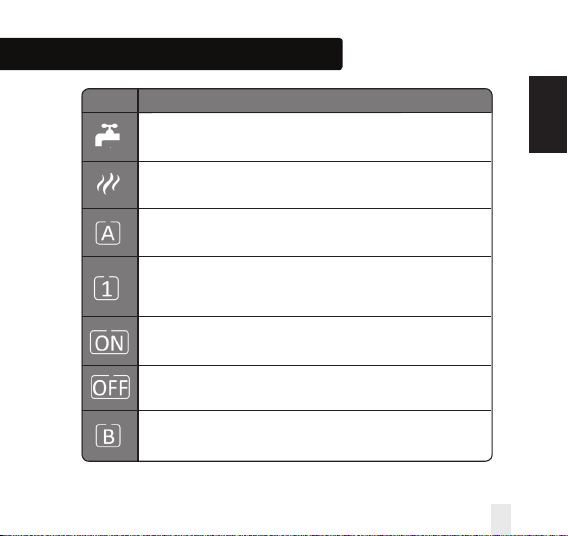
Installation – LCD Graphics
ICON FUNCTION
Hot Water (HW) indicator:
Unit has been configured for HW Timer.
Hot Water (HW) indicator:
Indicates that there is Hot Water demand.
HW Program mode indicator:
Indicates program is running.
HW Mode indicator:
Mode for 1 period of HW a day, from Program 1 ON
to Program 3 OFF.
HW Mode indicator:
Indicates continuously On.
HW Mode indicator:
Indicates continuously Off.
HW Mode indicator:
Indicates Boost +1hr override.
VS20WRF and VS20BRF Installer Manual 25
INSTALLATION
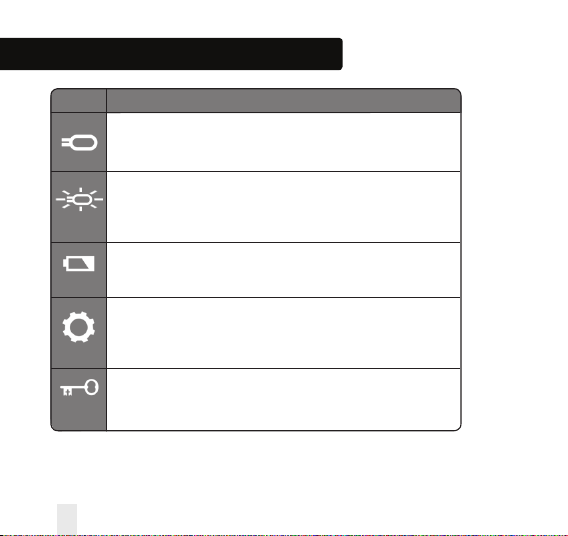
Installation – LCD Graphics
ICON FUNCTION
Floor sensor probe indicator
Show only when Air + Floor sensor is connected.
Floor sensor probe flashing
Indicates that heating of the zone has been halted to protect the
floor from over-heating.
Low battery indicator:
Batteries need to be replaced.
Setting indicator:
Indicate the unit is in setting mode when program setting.
Indicate the manual mode.
Keylock indicator:
Shows that keys are inactive.
26 VS20WRF and VS20BRF Installer Manual
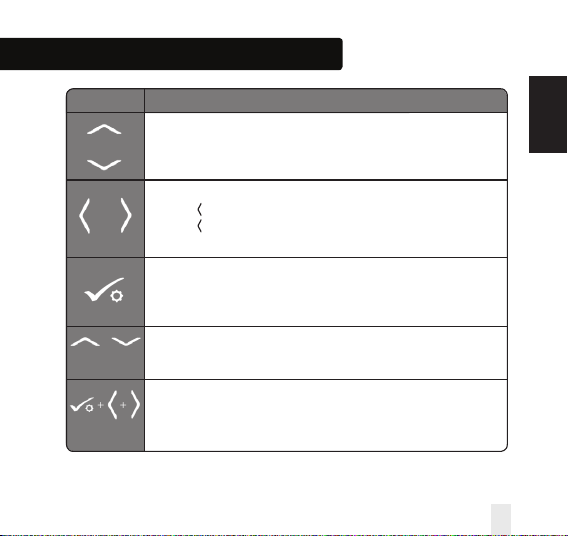
Installation – User Interface
KEY FUNCTION
1. Increase or decrease setpoint temperature.
2. Increase or decrease Day, Clock, Timer, Party, Holiday and Boost.
3. Select installer parameter value.
1. Mode selection.
2. Long press to return to home display without saving.
3. Short press to return to the previous screen when it is in
user/installer setting mode.
1. OK key: Short press to confirm selection.
2. Long press to save and exit.
3. Long press to enter the user settings.
Lock/Unlock
Enter Installer parameter settings
+ +
LONG PRESS
OR
VS20WRF and VS20BRF Installer Manual 27
INSTALLATION
OR
+
LONG PRESS
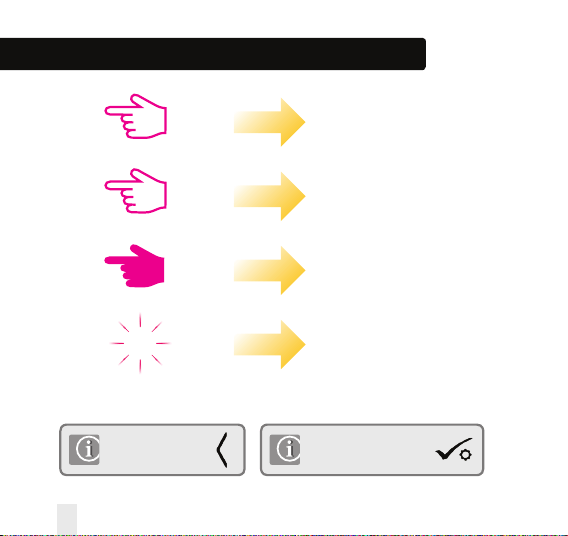
Installation - Graphics Key
28 VS20WRF and VS20BRF Installer Manual
Press once
Press x amount of times
Hold for five seconds
Flashing
xx
Short press to save and
long press to save and exit
Short press to back up
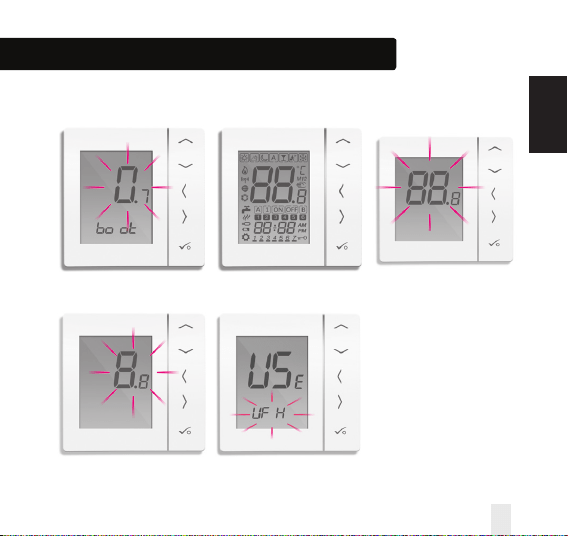
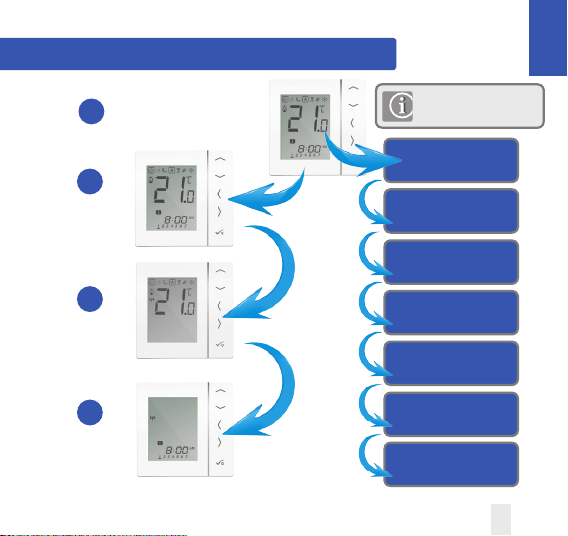
Installation – First Power Up
VS20WRF and VS20BRF Installer Manual 29
INSTALLATION
The following screens show examples only
MCU software version
will be shown
ZIGBEE software version
will be shown
*Please note that 88.8
and 8.8 are a reference
to the software version.
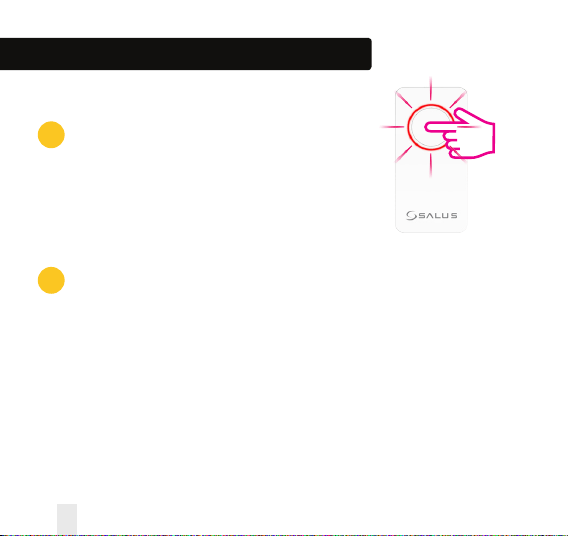
Installation - System Setup
System setup checklist
1
The Zigbee coordinator must be in pairing mode.
Before starting the pairing, make sure the light is flashing on
the coordinator by holding the button for 5 seconds. For more
information refer to the coordinator instruction manual.
2
The device that you intend to pair with must be ready
to accept pairing.
Please refer to pages 33-45 and the relevant device installation guides.
30 VS20WRF and VS20BRF Installer Manual
VS20WRF and VS20BRF Installer Manual 31
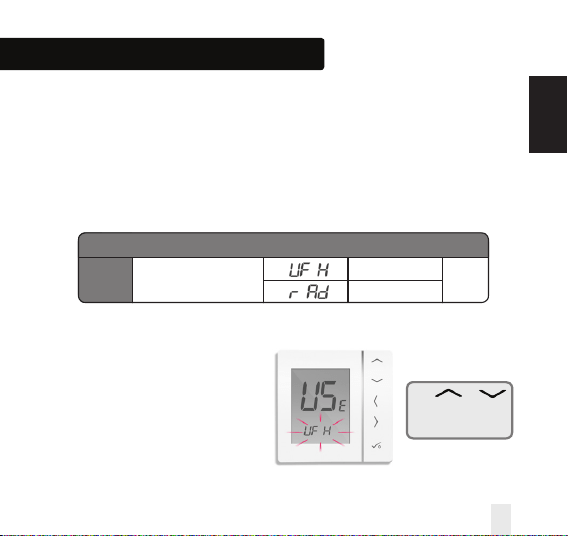
You are now ready to configure the unit using the system parameter
table below.
NOTE: This unit is already pre-configured as a programmable thermostat.
To configure this differently refer to table below and instructions on following pages.
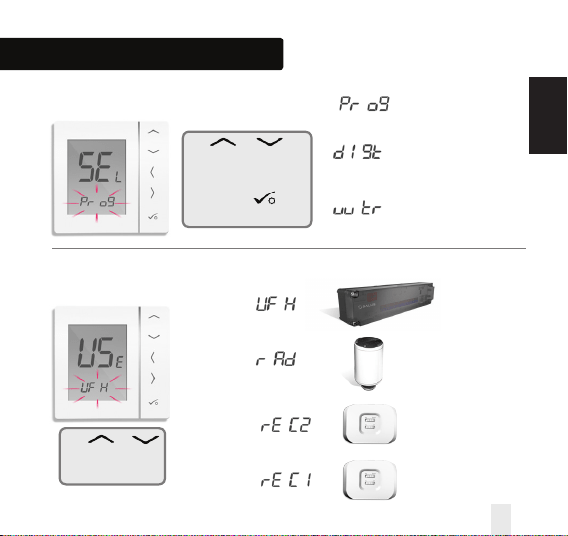
FUNCTION SYSTEM SETTING DEFINITION DEFAULT
USE What does unit Communicate It600 Wiring Centre*
within the iT600? RAD It600 radiator valve
UFH
Use or
to select the type of
unit to pair with.
*If you have made an error please
go to page 47 from the main
manual. You will see the following
screen.
Installation – System Parameters
INSTALLATION
Installation – System Parameters
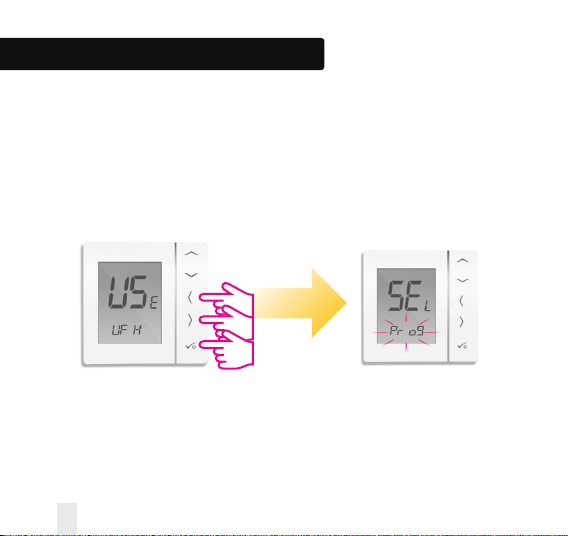
If the pre-configured program is not suitable for your application,
hold down the bottom three keys for a short time, until the display shows
SEL PROG.
32 VS20WRF and VS20BRF Installer Manual
Installation - System Setup
Selecting what type of unit
Selecting what unit
to pair with
Use or
to select the type of unit.
After selection has been
made, press to
confirm.
PROG
DGT
WTR
Wiring
Centre.
Page 33
Radiator Valve.
Page 37
System Receiver
Configured RX2.
Page 41
System Receiver
Only configure RX1.
Page 44
Use or
to select the type of
unit to pair with.
Programmable
Thermostat
Digital Thermostat
Hot water timer
VS20WRF and VS20BRF Installer Manual 33
INSTALLATION
Installation - Pairing with Wiring Centre
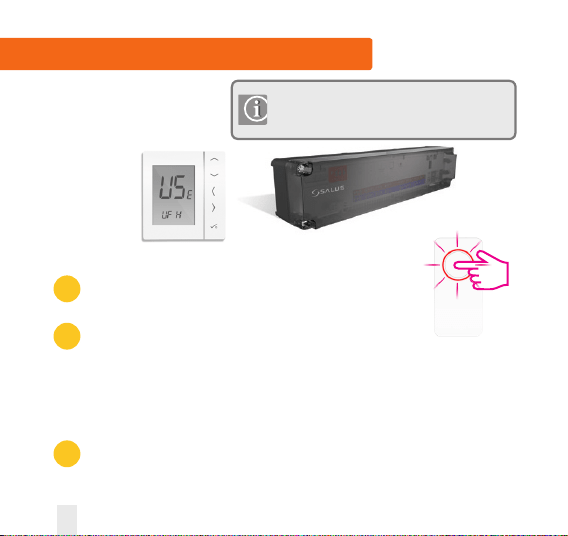
Wiring
Centre
Checklist
1
The Zigbee coordinator must be in pairing mode.
Hold the button for five seconds until it flashed red.
2
Ensure the wiring centre and optional system receiver
(Configured to RX1) for remote boiler switch are powered up.
Note: The wiring centre and system receivers will automatically join Zigbee network when
powered up and the Zigbee coordinator is in pair mode. Green LED on Wiring Centre and
Red LED on RX1 will go steady when the devices have joined the Zigbee network.
3
If more than one wiring centre is in the system, establish and note the wiring
centre number by pressing the pair key for 1 second. The wiring centre number
will flash.
If you have the KL08RF wiring centre, the CO10RF
coordinator plugs directly into the wiring centre or
into the G30 gateway.
*Set your system parameters by
following the steps on pages 3-5.
34 VS20WRF and VS20BRF Installer Manual
Installation - Pairing with Wiring Centre
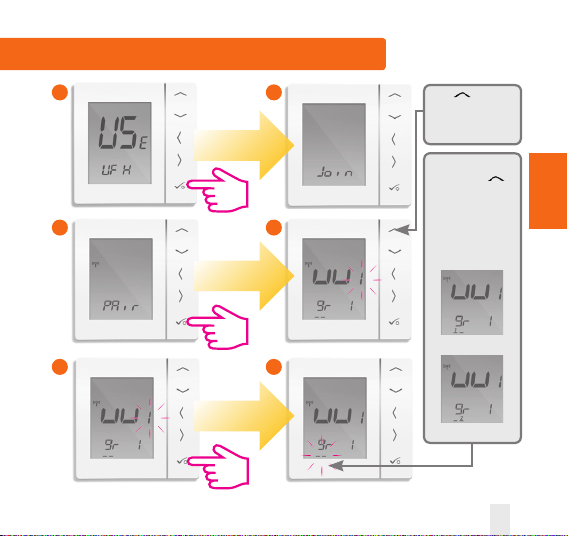
Use to select
the wiring centre
number to pair
with.
If you are using
groups, use
to select group
number of each
group required.
If unit is stand
alone then please
select --
Group 1
Group 2
1
3
5
2
4
6
PAIRING
WITH WC
VS20WRF and VS20BRF Installer Manual 35
Installation - Pairing with Wiring Centre
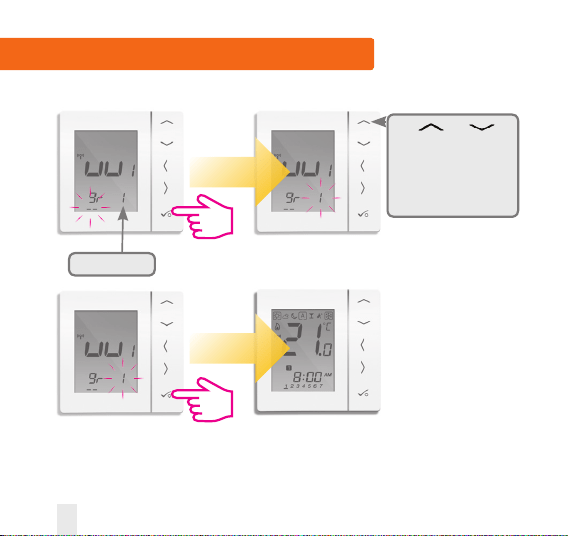
Use or to
select the wiring centre
zone number 1 to 8. If
you add a KL04RF to your
KL08RF you will be able
to add up to 12 zones.
Zone number
36 VS20WRF and VS20BRF Installer Manual
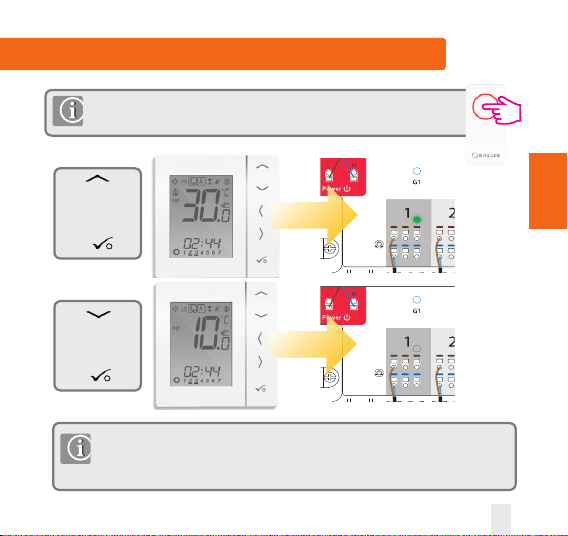
Installation - Testing the pairing with the RF WC
NL
NL
SUPPLIED CABLES
230V TO UFH PUMP
UNDERFLOOR HEATING MANIFOLD
1.5MMCABLE
(INSTALLER SUPPLIED)
External power supply
Optional boiler connection
Heat / cool changeover
(open = heat, closed = cool)
Dew point sensor
NL
NL
SUPPLIED CABLES
230V TO UFH PUMP
UNDERFLOOR HEATING MANIFOLD
1.5MMCABLE
(INSTALLER SUPPLIED)
External power supply
Optional boiler connection
Heat / cool changeover
(open = heat, closed = cool)
Dew point sensor
Use to
increase
temperature to
30ºC and then
press
If you are using the optional system receiver configured to RX1 please check that the
green light goes on when the temperature is raised and off when reduced. The boiler
and the pump have the ON/OFF Delay function. For more details please see page 2,
section 14 of the KL08RF manual.
If pairing for your system is complete, please take the coordinator out of pair
mode. Press for 5 seconds and light will stop flashing-goes to solid red.
Use to
decrease
temperature to
10ºC and then
press
VS20WRF and VS20BRF Installer Manual 37
PAIRING
WITH WC
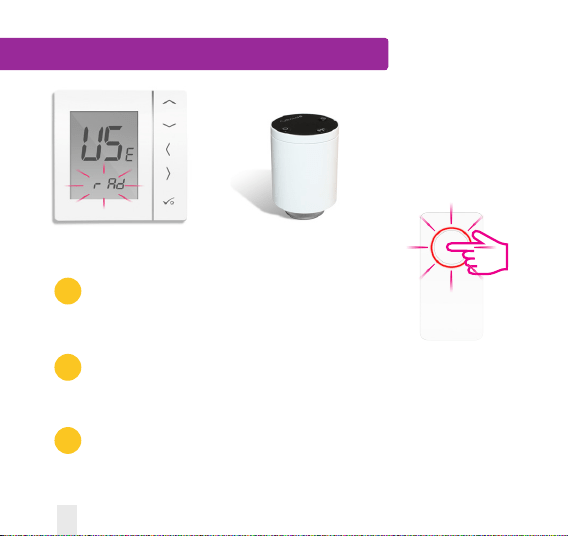
Installation - Pairing the Radiator Valve(s)
Radiator
Valves
Checklist
1
The Zigbee coordinator must be in pairing mode.
Hold the button for five seconds until it flashed red.
2
Ensure that the radiator valves are in pairing mode (Refer to TRV manual).
A maximum of 6 radiator valves can be used with 1 thermostat. Pairing of
radiator valve. Please pair TRVs on a room by room basis.
3
If you are using the optional system receiver configured to RX1 for remote
boiler switching, ensure this has been powered up and the red flashing LED
has gone steady.
Set your system
parameters by following
the steps on pages 3-5.
38 VS20WRF and VS20BRF Installer Manual
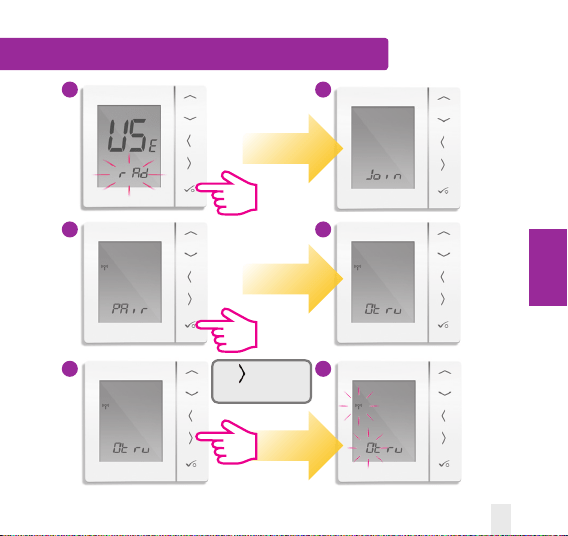
Installation - Pairing with Radiator Valve
Tap to start the
pairing process.
5
1
3
2
4
6
PAIRING
WITH TRV
VS20WRF and VS20BRF Installer Manual 39
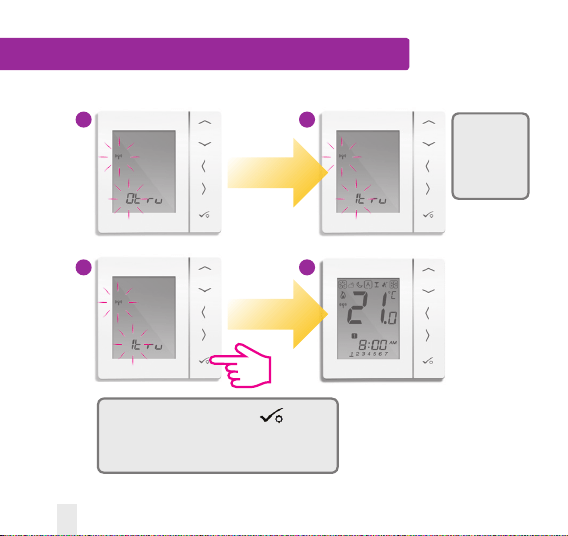
Installation - Pairing with the Radiator Valve
Once all TRV’s have paired press
If you use the maximum number of TRVs it will
automatically take you to the Mainscreen.
The pre fix
number on
the TRV will
change as the
TRV(s) pair.
1
3
2
4
40 VS20WRF and VS20BRF Installer Manual
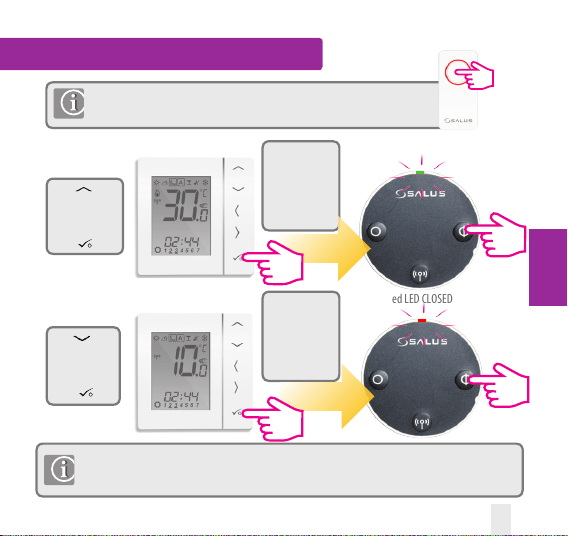
Installation - Testing RF Pairing
Use to
increase
temperature to
30ºC and then
press
Use to
decrease
temperature to
10ºC and then
press
If you are using the optional system receiver configured to RX1 please check that the green light goes
on when the temperature is raised and off when reduced.
For more details please see the RX10RF
manual.
If pairing of your system is complete, please take the coordinator out of
pair mode. Press for 5 seconds and light will stop flashing.
You should hear
the valve open.
Once complete,
press ON or OFF
key on TRV for 1
second.
You should hear
the valve close.
Once complete,
press ON or OFF
key on TRV for 1
second.
Green LED OPEN
Red LED CLOSED
PAIRING
WITH TRV
VS20WRF and VS20BRF Installer Manual 41
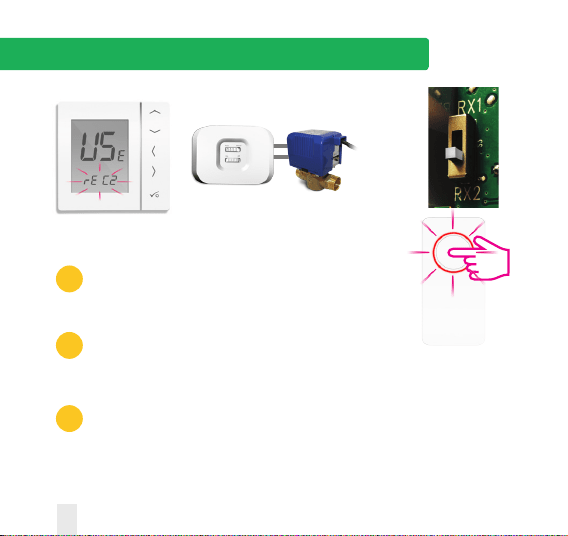
Installation - Pairing with System Receiver RX2
System
Receiver
Configured
to RX2
single room
receiver.
Checklist
1
The coordinator must be in pairing mode.
Hold the button for five seconds until it flashed red.
2
The system receiver (RX2) is powered up and the red LED will flash
when the pairing is in process and will be steady when the pairing is
complete. Refer to RX10RF manual.
3
If you are using the optional system receiver configured to RX1 for
remote boiler switching. Ensure this has been powered up and the red
flashing LED has gone steady. Refer to RX10RF manual.
Refer to system receiver manual.
*Set your system parameters by following the steps on pages 3-5.
42 VS20WRF and VS20BRF Installer Manual
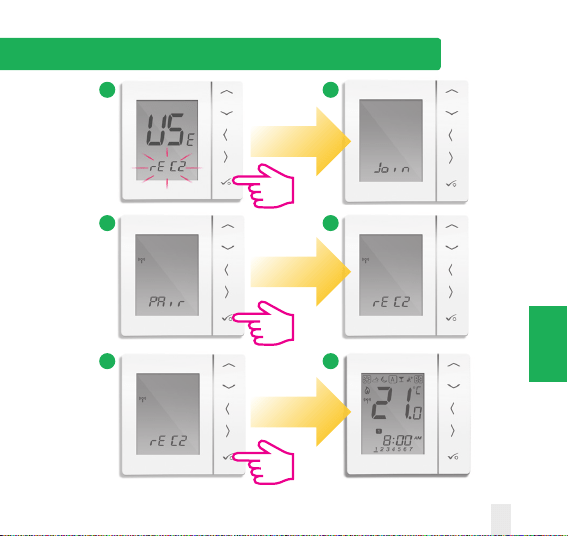
Installation - Pairing with System Receiver RX2
4
5
1
3
2
6
PAIRING
WITH RX2
VS20WRF and VS20BRF Installer Manual 43
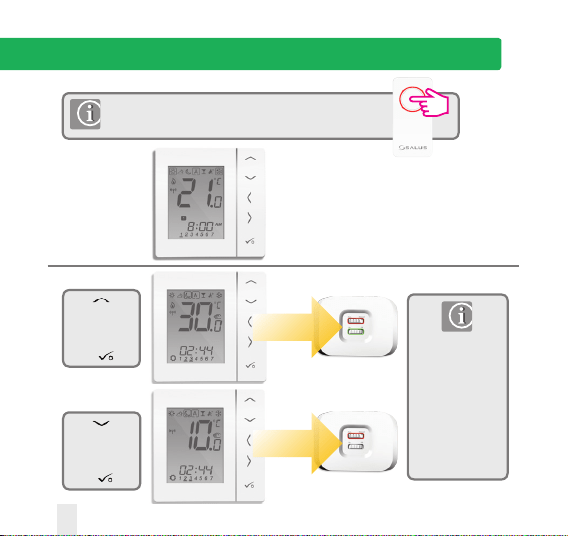
Installation - Testing Pairing with System Receiver RX2
Use to
increase
temperature to
30ºC and then
press
Green LED on
Green LED off
Use to
decrease
temperature to
10ºC and then
press
If you are using
the optional system
receiver configured
to RX1 please check
that the green light
goes on when the
temperature is
raised and off
when reduced.
If pairing for your system is complete, please take the coordinator
out of pair mode. Press for 5 seconds and light will stop flashing.
44 VS20WRF and VS20BRF Installer Manual
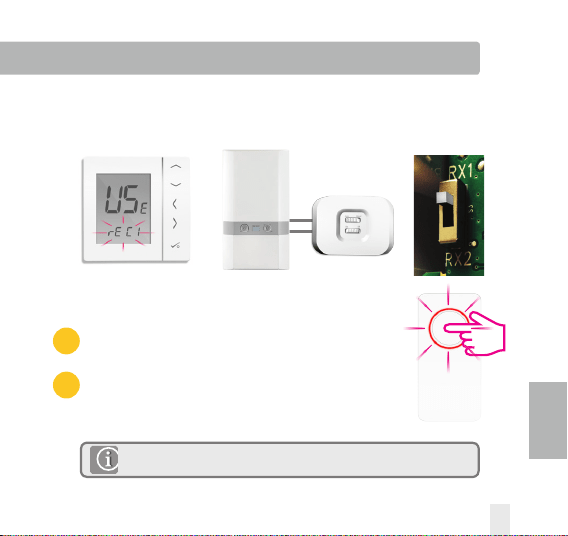
Installation - Pairing with System Receiver RX1 only
Checklist
1
The coordinator must be in pairing mode.
2
The system receiver (Configured to RX1) is powered up
and the red LED will flash when the pairing is in process
and will be steady when the pairing is complete.
System Receiver configured to boiler receiver RX1.
Refer to system receiver manual.
Used when you want multiple thermostats to activate the same receiver
Used if system receiver is used on its own.
*Set your system parameters by following the steps on pages 3-5.
VS20WRF and VS20BRF Installer Manual 45
PAIRING
WITH RX1
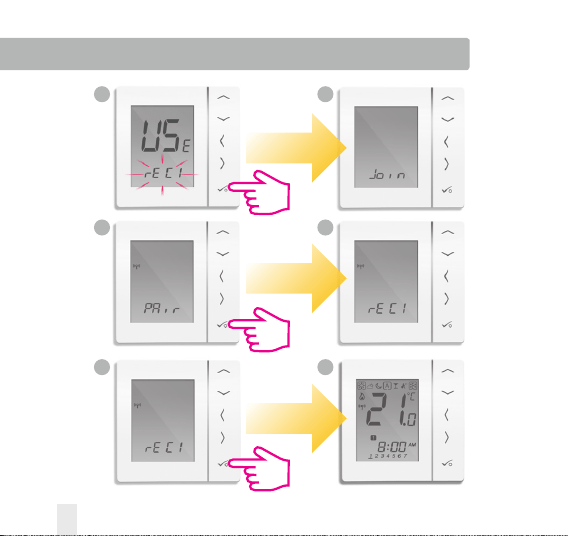
Installation - Pairing with System Receiver RX1 only
5
1
3 4
2
6
46 VS20WRF and VS20BRF Installer Manual
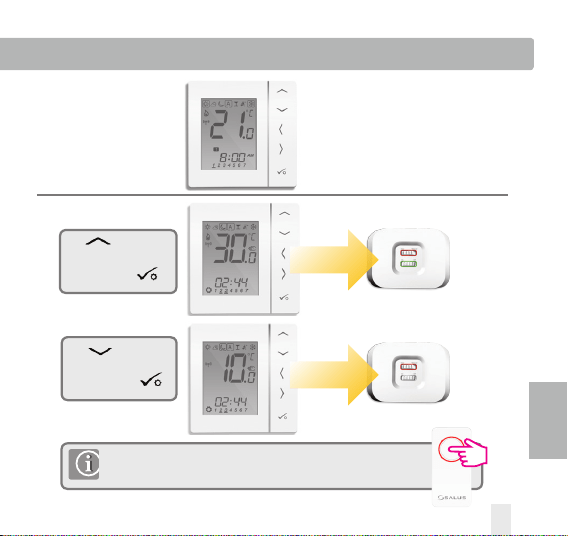
Installation - Testing Pairing with System Receiver RX1 only
Use to increase
temperature to 30ºC
and then press
Green LED on
Green LED off
If pairing for your system is complete, please take the coordinator
out of pair mode. Press for 5 seconds and light will stop flashing.
Use to decrease
temperature to 10ºC
and then press
PAIRING
WITH RX1
VS20WRF and VS20BRF Installer Manual 47
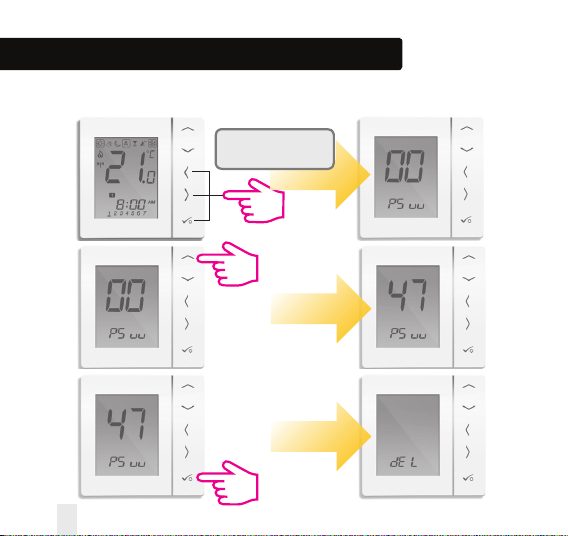
Installation - Modifying System Parameters
If you have made an error or need to change your system parameters
please follow steps below. This should only be done by your installer.
Press all three buttons
simultaneously
48 VS20WRF and VS20BRF Installer Manual
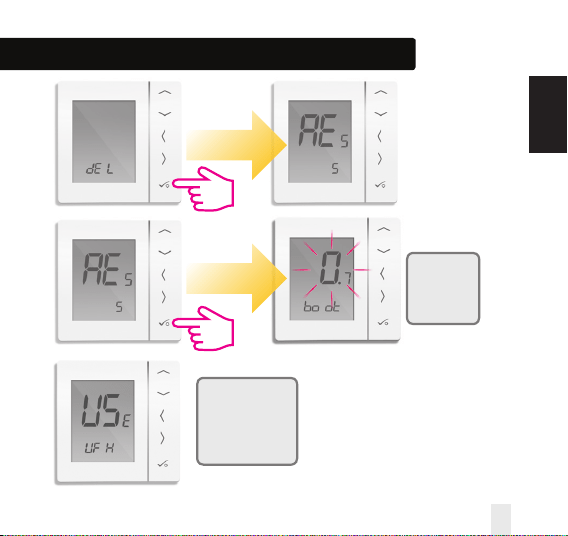
Unit will
follow power
up sequence
on page 29.
You are now ready
to enter or change
your system
parameters.
Refer to page 31.
Installation - Modifying System Parameters
INSTALLATION
VS20WRF and VS20BRF Installer Manual 49
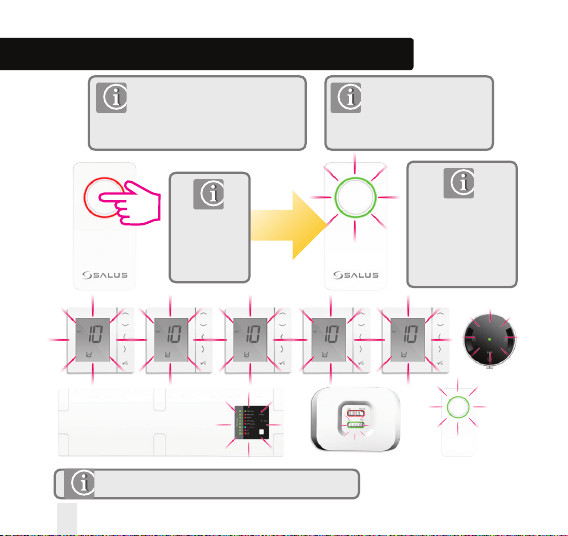
Press again for 1
second to cancel
identify. Identify
mode will time out
after 10 minutes.
To check that the complete system
is communicating and has been
configured correctly, you can use
identify mode.
Using identify from the
coordinator will show
all products that are
connected to your system.
Installation - Checking System Configuration
Press for 1
second
to activate
identify mode.
The LEDs are different on the KL08RF wiring centre.
50 VS20WRF and VS20BRF Installer Manual
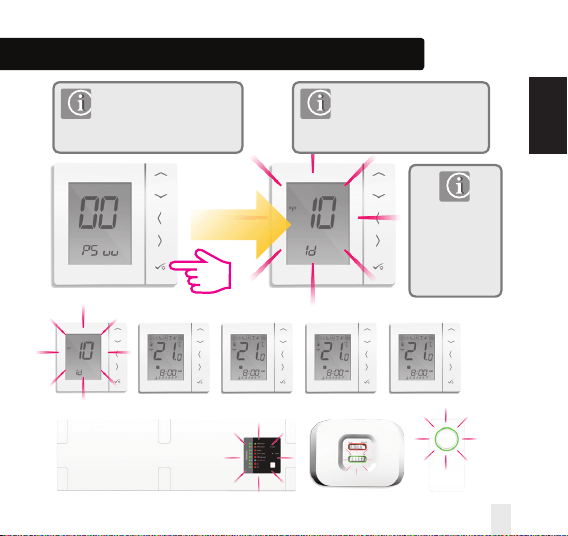
Installation - Checking System Configuration
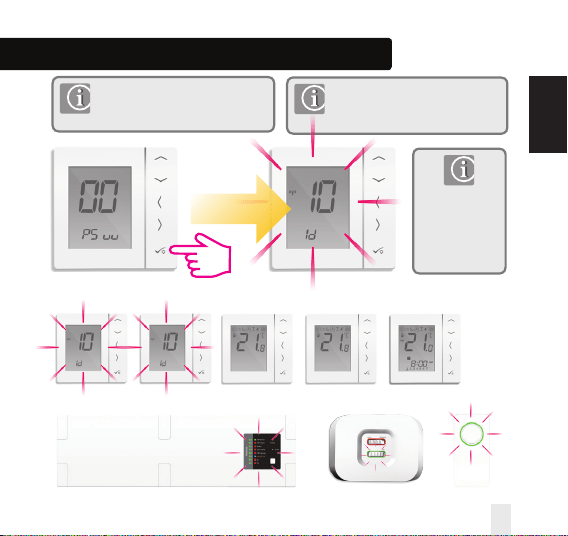
PRT
Press tick to
cancel identify.
Identify mode
will time out
after 10 minutes.
To check that the relevant system
is communicating and has been
configured correctly, you can use
identify mode.
PRT
System has no grouping
PRT PRT PRT PRT
Please follow step 1 on page 47.
When in identify mode all receivers
and the coordinator related to the
individual PRT will flash.
INSTALLATION
VS20WRF and VS20BRF Installer Manual 51
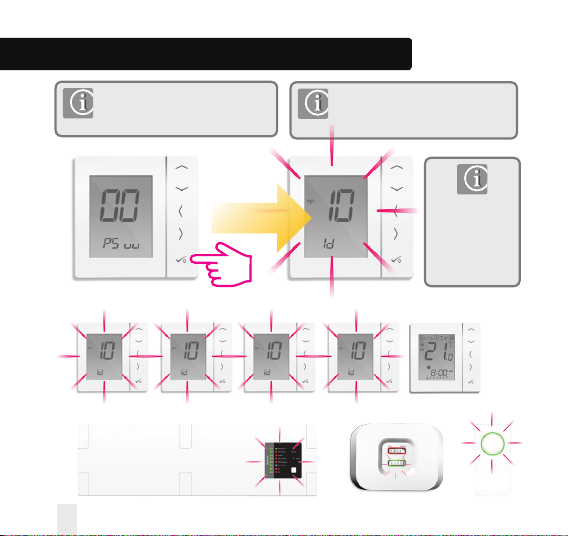
Please follow step 1 on page 47. When
in identify mode all receivers, group
thermostats and the coordinator will flash.
Group Control Thermostat
System has grouping
PRT
Group Control
Thermostat
Group
Thermostat
Group
Thermostat
Group
Thermostat
Press tick to
cancel identify.
Identify mode
will time out
after 10 minutes.
To check that the relevant system is
communicating and has been configured
correctly, you can use identify mode.
Installation - Checking System Configuration
52 VS20WRF and VS20BRF Installer Manual
Group Thermostat
System has grouping
PRT
Please follow step 1 on page 47. When in
identify mode all receivers, control group
thermostat and the coordinator will flash.
Group Control
Thermostat
Group
Thermostat
Group
Thermostat
Group
Thermostat
Press tick to
cancel identify.
Identify mode
will time out
after 10 minutes.
To check that the relevant system is
communicating and has been configured
correctly, you can use identify mode.
Installation - Checking System Configuration
INSTALLATION
VS20WRF and VS20BRF Installer Manual 53
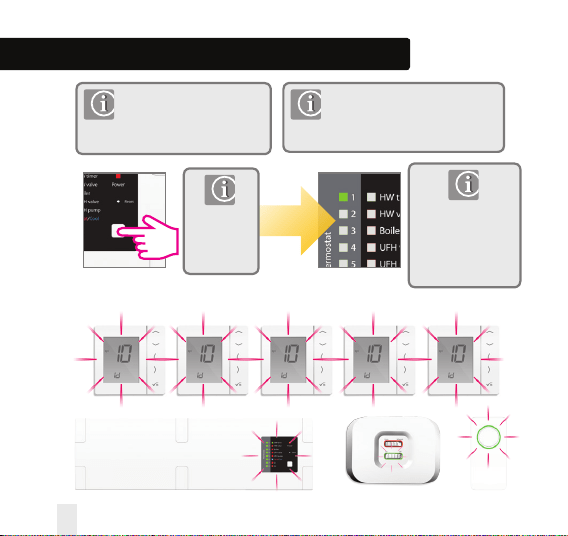
Press again for 5
second to cancel
identify. Identify
mode will time out
after 10 minutes.
To check that the complete system
is communicating and has been
configured correctly, you can use
identify mode.
Using identify from the wiring centre will
show all products that are connected to
your wiring centre. Then wiring centre
number will also be shown.
Installation - Checking System Configuration
Press for 5
second
to activate
identify mode.
54 VS20WRF and VS20BRF Installer Manual
Installation - Checking System Configuration
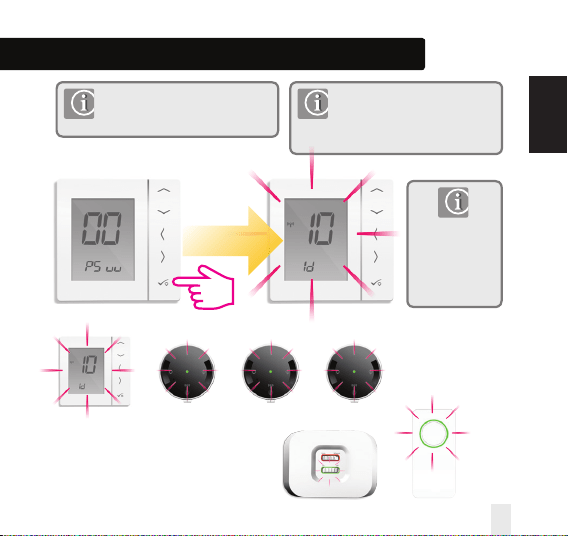
PRT
System has no grouping
Press tick to
cancel identify.
Identify mode
will time out
after 10 minutes.
To check that the relevant system is
communicating and has been configured
correctly, you can use identify mode.
PRT PRT PRT PRT
Please follow step 1 on page 47.
When in identify mode all radiator
valves, receivers and the coordinator
related to the individual PRT will flash.
INSTALLATION
VS20WRF and VS20BRF Installer Manual 55
Installation - Replacing product
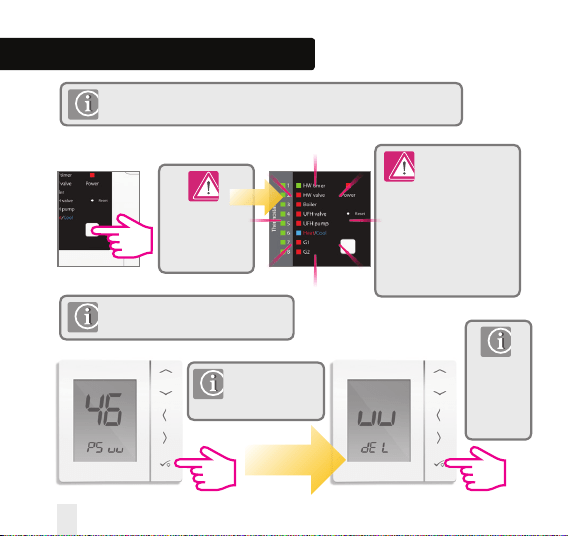
Deleting Wiring Centre from the network.
Press for 15
seconds to delete
the wiring centre
from the network.
All LED’s will flash
momentarily
and then the wiring centre
will be deleted from the
network. All thermostats
relating to the wiring centre
will need to be reconfigured
and paired with the new
wiring centre.
If the wiring centre cannot be deleted
as above, use the method below.
Please follow step 1
on page 47. Select
password 46.
You are now
ready to
install your
new wiring
centre.
Before replacing any device it must be removed from the Zigbee network.
Please ensure the Zigbee coordinator is also in pairing mode.
56 VS20WRF and VS20BRF Installer Manual
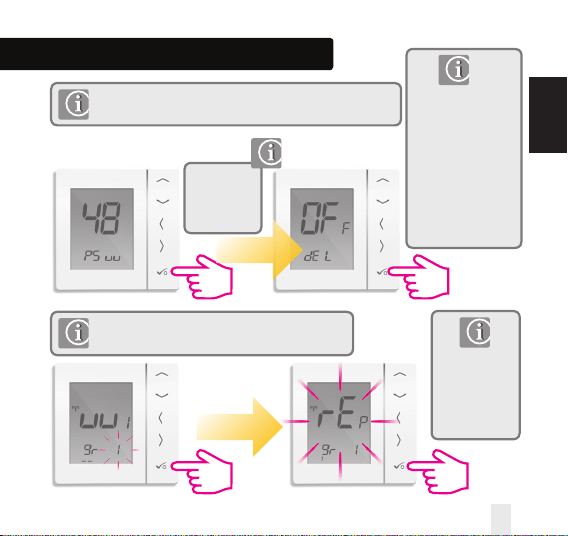
Installation - Replacing product
Before replacing any device it must be removed from the Zigbee network.
Please ensure the Zigbee coordinator is also in pairing mode.
Note: If replacing a thermostat connected to the
wiring centre, you can use the replacement method.
Deleting thermostat from the network.
Your thermostat will
now be deleted from
the network.
You are now ready
to install your new
thermostat.
Please note password
48 can also be used to
delete other devices
that are offline.
Please follow
step 1 on page
47. Select
password 48.
The unit
previously
connected to the
wiring centre
will be replaced.
INSTALLATION
VS20WRF and VS20BRF Installer Manual 57
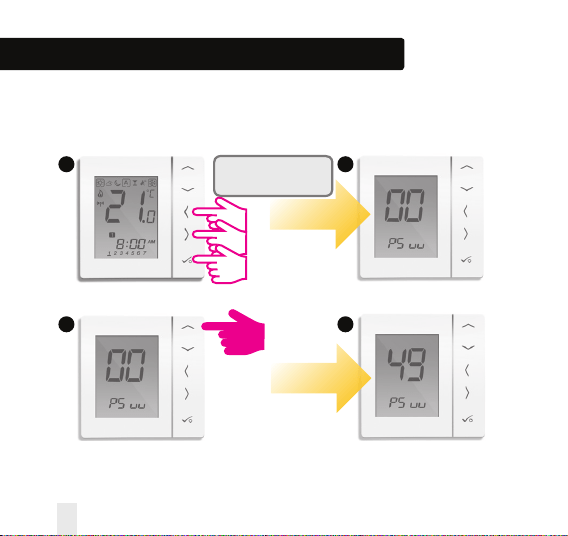
If you have made an error or need to change your system parameters please follow steps
below. This should only be done by your installer.
Press all three buttons
simultaneously
1
3 4
2
Installation - Modifying Device Parameters
58 VS20WRF and VS20BRF Installer Manual
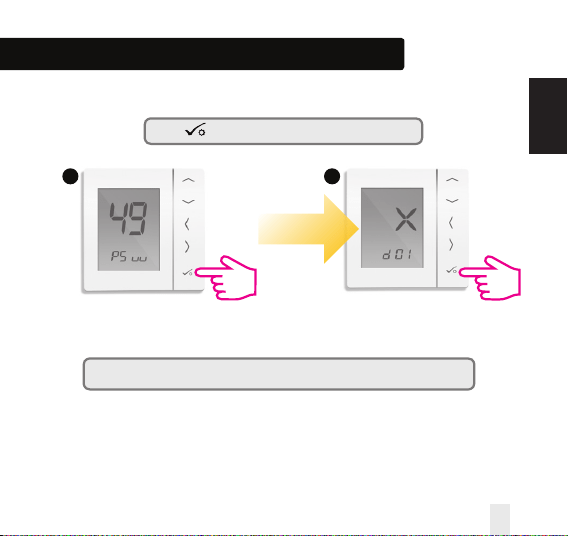
Installation - Modifying Device Parameters
Press repeatedly until you reach the d01 screen.
Note: You can see the Installer Mode Parameters on page 58 in the Manual.
*Please note that x=1,2, 3 or any °C value.
5 6
INSTALLATION
VS20WRF and VS20BRF Installer Manual 59
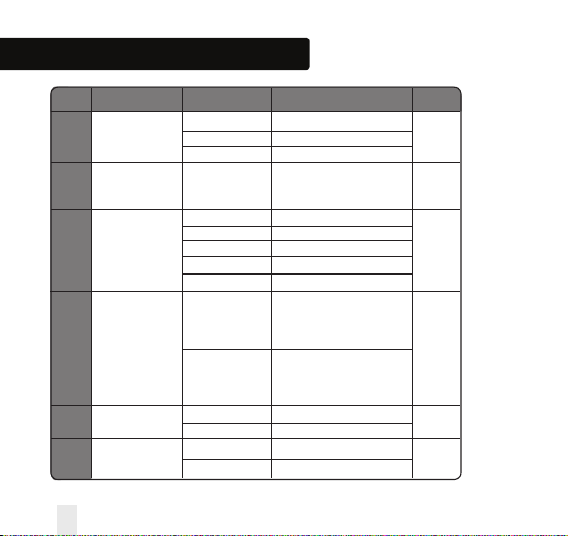
Installation - Device Parameters
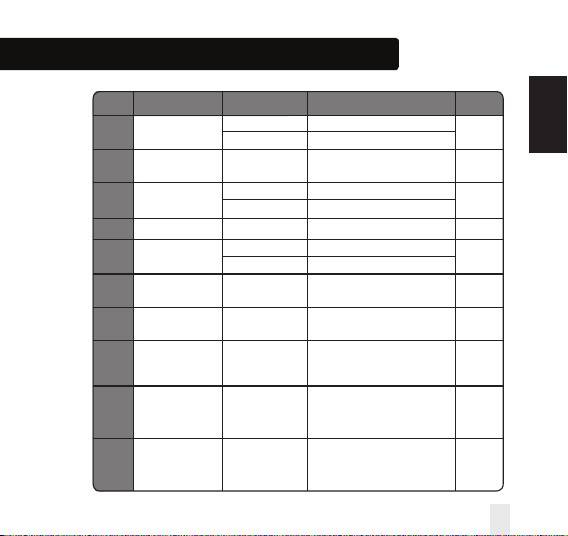
DX FUNCTION SYSTEM SETTING DEFINITION DEFAULT
D01 Heating 0 Pulse Width Modulation
Control 1* On-Off 0.5 Deg C +/- 0.25 Deg C 0
2 On-Off 1.0 Deg C +/- 0.5 Deg C
D02 Room -3.0 to 3.0 Temperature Offset from
Temperature Deg C Measured Temperature to 0 Deg C
Offset Compensate for any error
D03 Sensor probe or 0 Sensor/Cyl stat not Connected
Cylinder thermostat 1 Sensor/Cyl stat Connected
connection 2 DEW point sensor connected 0
0 Cylinder probe not connected
1 Cylinder probe connected
D04 Sensor probe 0 D03 must be set to 1 then
used as air sensor external sensor be used as
or floor sensor Air sensor. There will be no
internal temp measurement
0
1 D03 must be set to 1 then
external sensor used for floor
protection. Internal temp is
measured by stat
D05 Cooling Control 1 On-Off 0.5 Deg C +/- 0.25 Deg C
2
2 On-Off 1.0 Deg C +/- 0.5 Deg C
D06 Actuator type 0 NO Normally Open
1
1 NC Normally Closed
* When thermostat is paired with TRV then D01 default will be “1”
60 VS20WRF and VS20BRF Installer Manual
Installation - Device Parameters continued
DX FUNCTION SYSTEM SETTING DEFINITION DEFAULT
D07 Valve protection 0 Disable
1
1 Enable
D08 Frost Set point 5-17 Deg C Required Temperature for frost 5 Deg
Temperature protection and holiday mode
D09 Hour Format 0 12
1
1 24
D10 N/A N/A N/A N/A
D11 Daylight Saving 0 OFF
1
Time (DST) 1 ON
D12 Heating Set point
5-35 Deg C
Maximum temp that can
35 Deg C
Limit be set for heating
D13 Cooling Set point
5-40 Deg C
Maximum temp that can
5 Deg C
Limit be set for Cooling
D14 Floor sensor High Output relay will be switched off
Limit Temperature 6-40 Deg C when temp is reached for 27 Deg C
floor protection
D15 Floor sensor Low Output relay will be switched on
Limit Temperature 6-40 Deg C when temp is reached for 10 Deg C
floor protection
D16 Floor sensor Limit Output relay will be switched off
for cooling 6-40 Deg C when temp is reached for 6 Deg C
floor protection
INSTALLATION
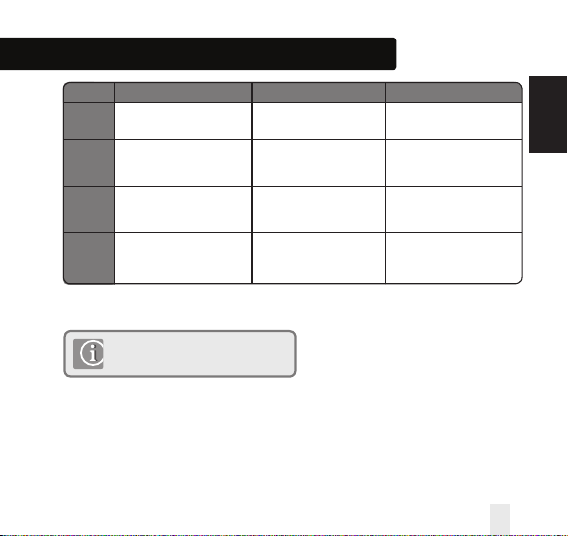
VS20WRF and VS20BRF Installer Manual 61
Installation - Error Codes
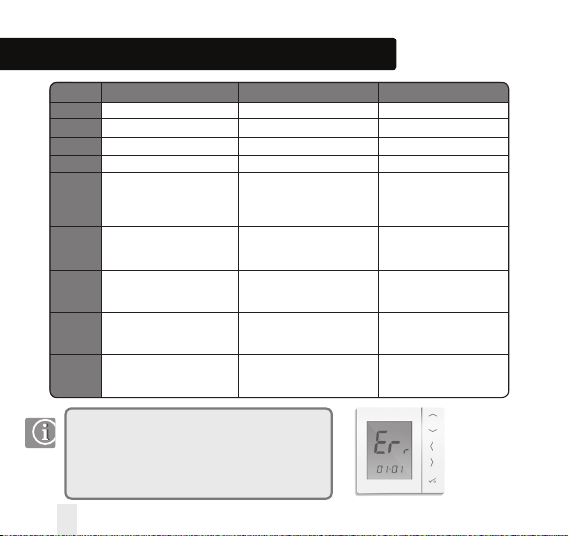
Error Code Prog Non-Prog HW
01 Comm Connection link failure Comm Connection link failure Comm Connection link failure
02
Floor sensor: overheated or overcooled
Floor sensor: overheated or overcooled
Comm Connection link failure
03 Floor sensor open Floor sensor open -
04 Floor sensor short Floor sensor short -
05 Prog/Non-prog/HW thermostat lost Prog/Non-prog/HW thermostat lost HW lost link with Coordinator
link with Coordinator (Displayed link with Coordinator (Displayed
on related Thermostat) Comm on related Thermostat) Comm
Connection link failure Connection link failure
06 Prog/Non-prog/HW thermostat Prog/Non-prog/HW thermostat HW lost link with WC
lost link with WC lost link with WC
(Displayed on related Thermostat) (Displayed on related Thermostat)
07 Prog/Non-prog Thermostat Prog/Non-prog Thermostat -
lost link with TRV lost link with TRV
(Displayed on related Thermostat) (Displayed on related Thermostat)
08 Prog/Non-prog Thermostat Prog/Non-prog Thermostat -
lost link with Receiver RX 1 lost link with Receiver RX 1
(Displayed on related Thermostat) (Displayed on related Thermostat)
09 Prog/Non-prog Thermostat Prog/Non-prog Thermostat -
lost link with Receiver RX 2 lost link with Receiver RX 2
(Displayed on related Thermostat) (Displayed on related Thermostat)
If there is more than 1 error, then on Error page, press UP to show other error codes.
e.g. Err 03 05 ===> 3 errors Error code 05 ( 1st one )
Press Up to show Err 03 08 ===> 3 errors Error code 08 ( 2nd one )
Press Up again to show Err 03 09 ===> 3 errors Error code 09 ( 3rd one )
Press Up again to show Err 03 05 again......
Press OK to exit Error page back to Home display.
62 VS20WRF and VS20BRF Installer Manual
Installation - Error Codes
INSTALLATION
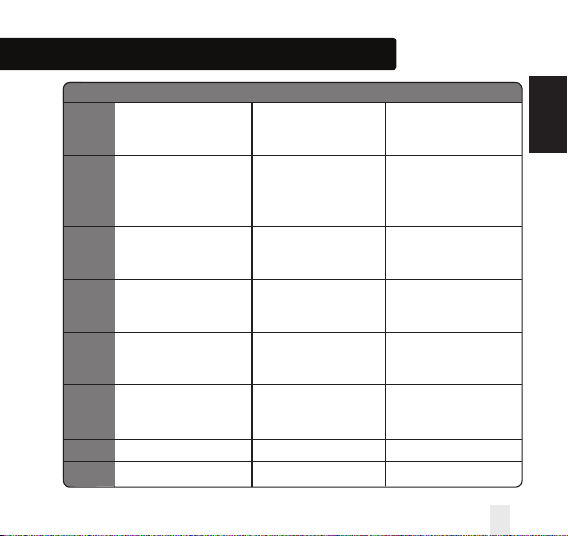
Error Code Prog Non-Prog HW
10 WC lost link with hot water timer WC lost link with hot water timer WC lost link with hot water timer
(Displayed on all relevant thermostats (Displayed on all relevant thermostats (Displayed on all relevant thermostats
and also hot water timer) and also hot water timer) and also hot water timer)
11-18 WC lost link with zone Comm Connection link failure -
11=Zone 1, 12=Zone 2 etc 11=Zone 1, 12=Zone 2 etc
Displayed on all Displayed on all
connected thermostats connected thermostats
19 WC lost link with coordinator WC lost link with coordinator WC lost link with coordinator
(Displayed on all connected (Displayed on all connected (Displayed on all connected
thermostats and hot water timer) thermostats and hot water timer) thermostats and hot water timer)
20 WC lost link with receiver RX1 WC lost link with receiver RX1 WC lost link with receiver RX1
(Displayed on all connected (Displayed on all connected (Displayed on all connected
thermostats and hot water timer) thermostats and hot water timer) thermostats and hot water timer)
21 TRV lost link with coordinator TRV lost link with coordinator -
(Displayed on all connected (Displayed on all connected
thermostats) thermostats)
22 TRV low battery TRV low battery -
(Displayed on all connected (Displayed on all connected
thermostats) thermostats)
23 Invalid TRV Invalid TRV -
24 Unit is rejected by wiring centre Unit is rejected by wiring centre -
VS20WRF and VS20BRF Installer Manual 63
Installation - Error Codes
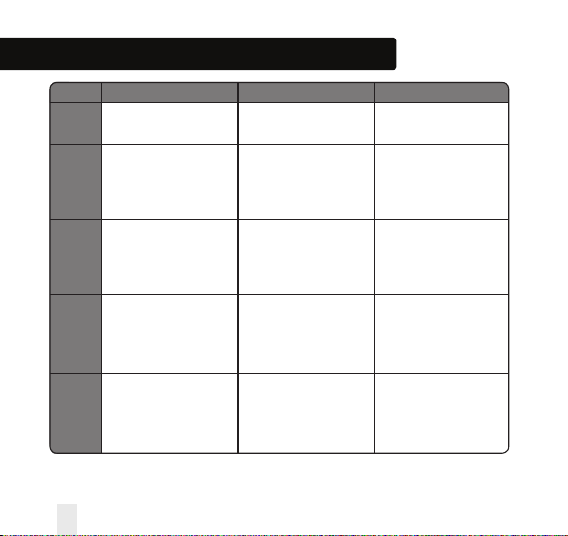
Error Code Prog Non-Prog HW
25
26
27
28
29
Thermostat lost link with parent
(including any iT600 device)
WC lost link with zone 9 prog/
non-prog thermostat (displayed
on all connected thermostats)
WC lost link with zone 10 prog/
non-prog thermostat (displayed
on all connected thermostats)
WC lost link with zone 11 prog/
non-prog thermostat (displayed
on all connected thermostats)
WC lost link with zone 12 prog/
non-prog thermostat (displayed
on all connected thermostats)
Thermostat lost link with parent
(including any iT600 device)
WC lost link with zone 9 prog/
non-prog thermostat (displayed
on all connected thermostats)
WC lost link with zone 10 prog/
non-prog thermostat (displayed
on all connected thermostats)
WC lost link with zone 11 prog/
non-prog thermostat (displayed
on all connected thermostats)
WC lost link with zone 12 prog/
non-prog thermostat (displayed
on all connected thermostats)
Thermostat lost link with parent
(including any iT600 device)
-
-
-
-
64 VS20WRF and VS20BRF Installer Manual
Error Code Prog Non-Prog HW
30
31
32
33
Installation - Error Codes
INSTALLATION
TRV gear issue
TRV adaptation issue
Reserved for future use
Receiver lost link with devices
TRV gear issue
TRV adaptation issue
Reserved for future use
Receiver lost link with devices
-
-
Reserved for future use
Receiver lost link with devices
Error 33 is displayed in the app.
VS20WRF and VS20BRF Installer Manual 65
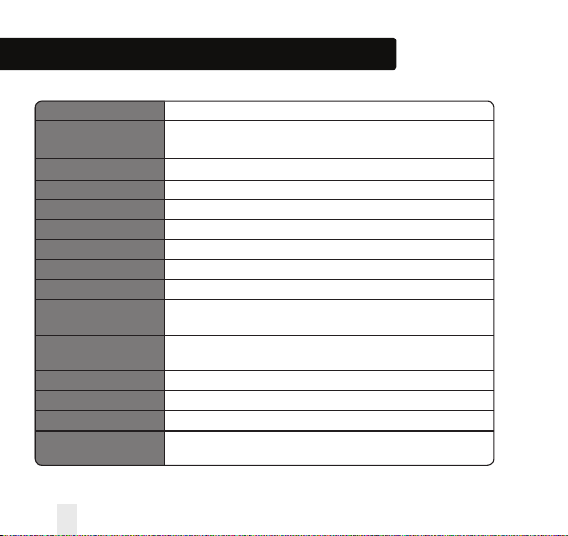
Installation - Technical Detail
Model VS10RF / VS20RF
Type Electronic programmable room thermostat, digital room thermostat
and hot water RF
Programming Modes User selectable for 5/2, ALL and Individual day options
Program Number 1-6 Selectable
Modes Party, Vacation, Program and Frost
Override Permanent and temporary
Frost Protection 5ºC Adjustable
Power Source 230V AC 50Hz VS10RF - 4 x AAA VS20RF
Temperature Scale 5 to 35ºC, tolerance 0.5ºC
Heat/Cool Global changeover using communication bus and external input to
the wiring centre
Sensor Air or floor protection. Cylinder thermostat when configured for
hot water timer.
Device Parameters See page 57
Operating Temperature 0 to 45ºC
Storage Temperature -20 to 60ºC
Frequency 2.4GHz Zigbee
66 VS20WRF and VS20BRF Installer Manual
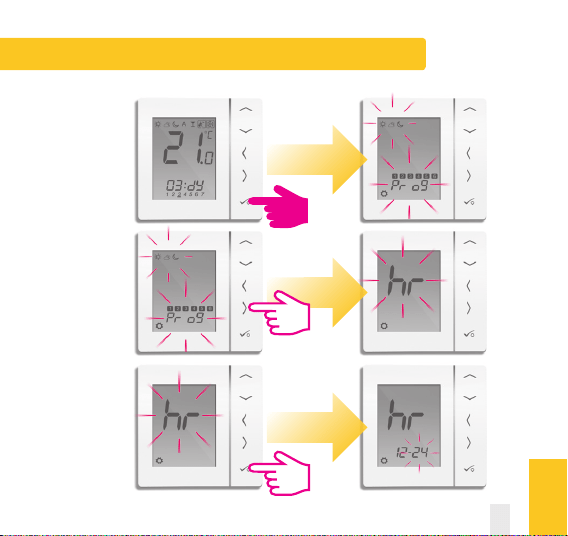
User Guide - Setting time and date
PRT and Group Control Thermostat
USER GUIDE
VS20WRF and VS20BRF Installer Manual 67
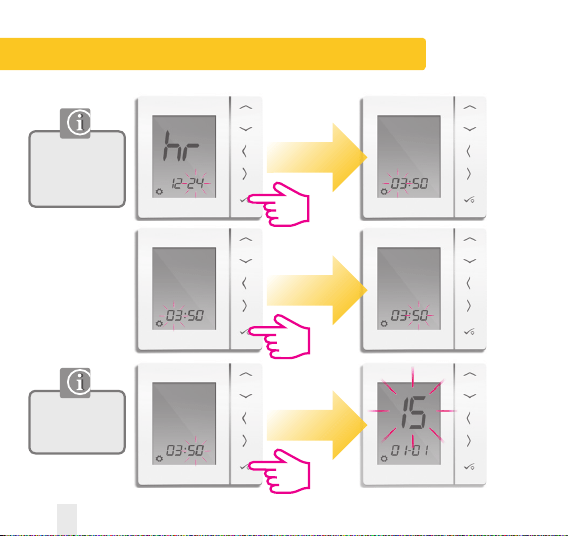
User Guide - Setting time and date
Use Left to select
12 hour and right
to select
24 hour.
Adjust the time
using the up or
down arrow key.
PRT and Group Control Thermostat
Hour
Minutes
68 VS20WRF and VS20BRF Installer Manual
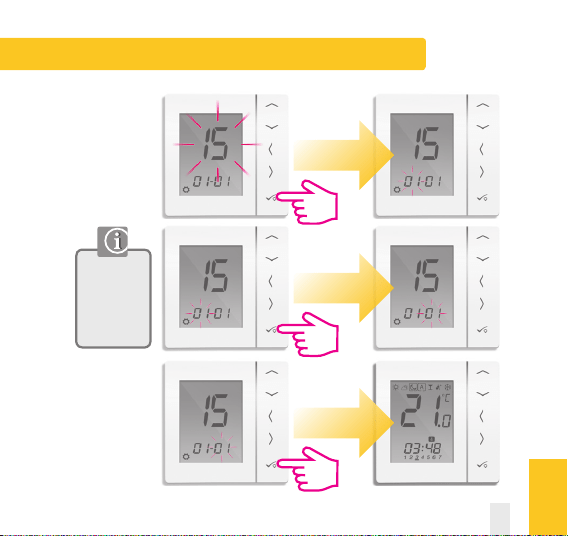
User Guide - Setting time and date
PRT and Group Control Thermostat
Month
Year
Day
USER GUIDE
Adjust the
year/month/
day using the
up or down
arrow key.
VS20WRF and VS20BRF Installer Manual 69
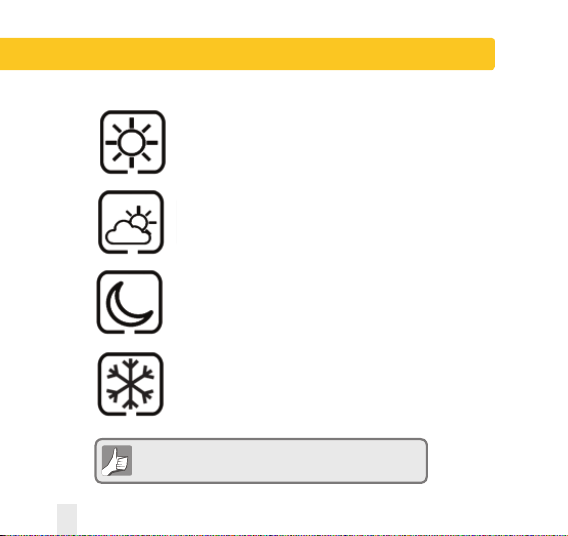
User Guide - Understanding Temperature Levels Heating
Highest Temperature typically used for
early morning and early evening.
Typically 21 Deg C
Mid Temperature typically used for times of
day when you are active around the home
Typically 19 Deg C
Lower Temperature typically used for
unoccupied or sleep times. Typically 17 Deg
C for UFH or 15 Deg C for radiators
Frost Temperature typically used for
Periods of long absence or
holidays. Typically 5 Deg
Your thermostat comes preset for the above temperatures.
These can be adjusted please see page 71
PRT, Group Control Thermostat and Group Thermostat
70 VS20WRF and VS20BRF Installer Manual
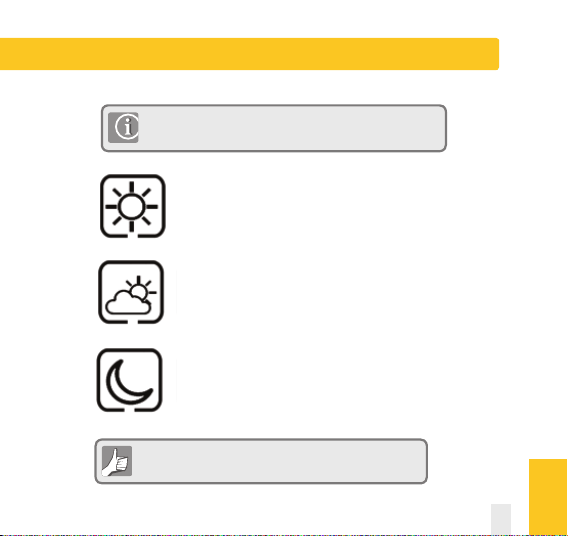
User Guide - Understanding Temperature Levels Cooling
Occupied Temperature. Typically 22ºC
Unoccupied Temperature Typically 40ºC
This avoids cooling being active when the property is unoccupied.
Evening Temperature Typically 24ºC
Your thermostat comes preset for the above temperatures.
These can be adjusted please see page 71
Cooling is only available if your system supports this and the relevant
configurations and connections have been made to the unit.
PRT, Group Control Thermostat and Group Thermostat
USER GUIDE
VS20WRF and VS20BRF Installer Manual 71
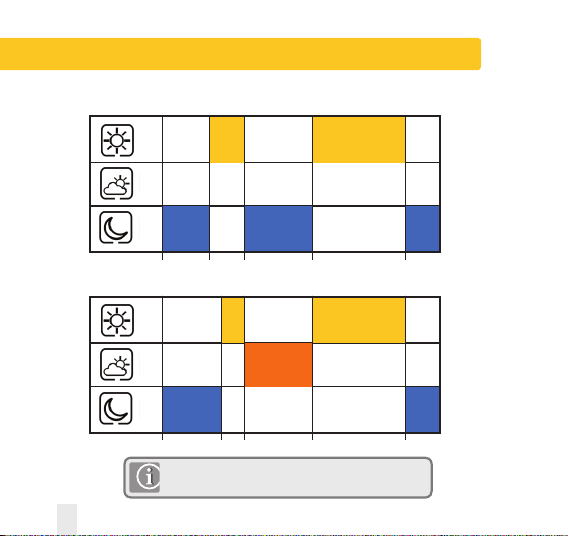
User Guide - Default Heating Schedule
Monday to Friday
22
19
17
12.00 7.00 9.00 17.00 23.00
22
19
17
12.00 8.00 9.00 17.00 23.00
Saturday to Sunday
PRT and Group Control Thermostat
If using grouping, the schedule from the group control
thermostat will be applied to group members.
72 VS20WRF and VS20BRF Installer Manual
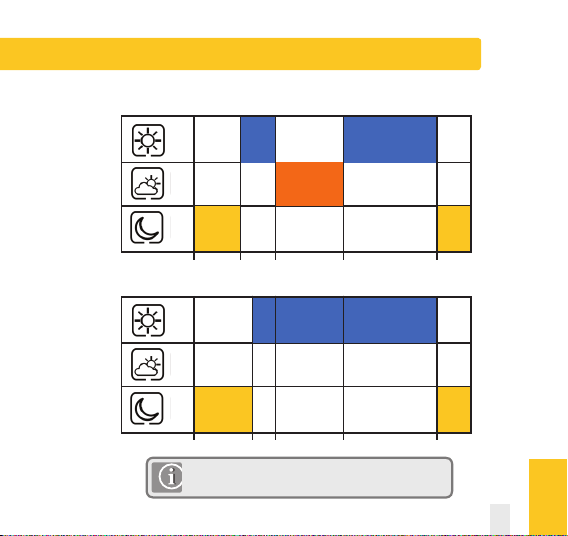
User Guide - Default Cooling Schedule
22
40
24
12.00 7.00 9.00 17.00 23.00
Monday to Friday
22
40
24
12.00 8.00 9.00 17.00 23.00
Saturday to Sunday
PRT and Group Control Thermostat
If using grouping, the schedule from the group control
thermostat will be applied to group members.
USER GUIDE
VS20WRF and VS20BRF Installer Manual 73
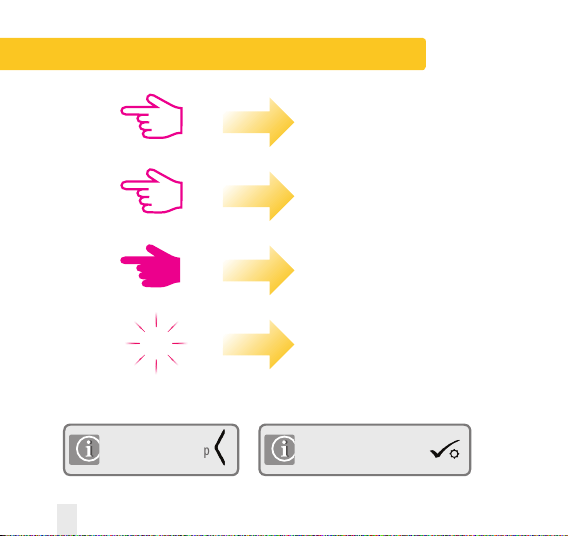
User Guide - Graphics Key
Press once
Press x amount of times
Hold for five seconds
Flashing
xx
Short press to save and
long press to save and exit
Short press to back up
74 VS20WRF and VS20BRF Installer Manual
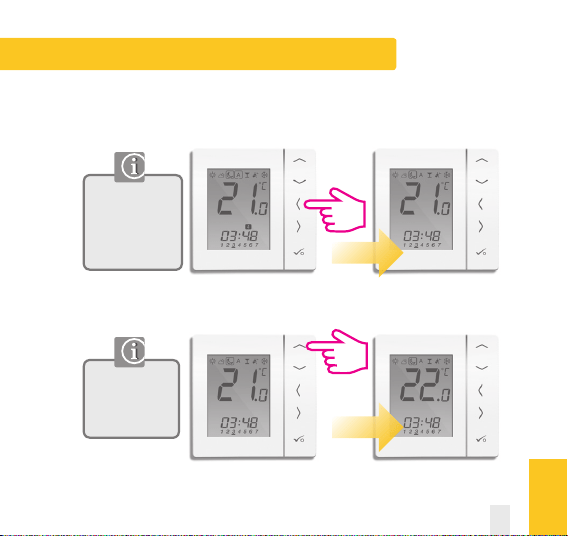
User Guide - Setting required temp levels
By setting the low
temperature the
program schedule
will use this as the
low setting.
The temperature
set are applicable
to the individual
thermostat.
PRT, Group Control Thermostat and Group Thermostat
Setting the low temperature
USER GUIDE
VS20WRF and VS20BRF Installer Manual 75
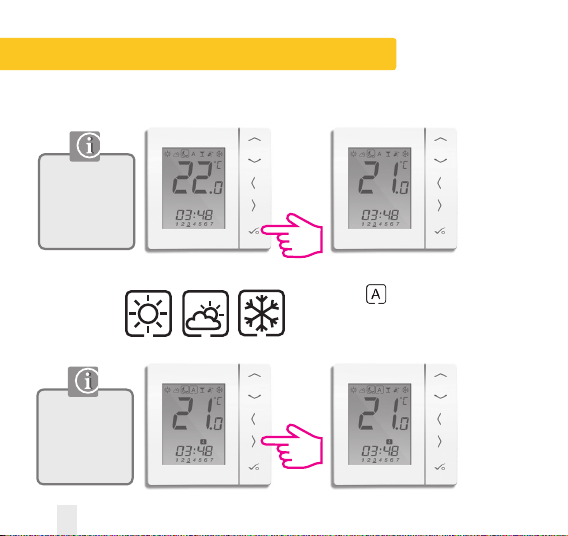
User Guide - Setting required temp levels
Repeat for
By setting the
low temperature
the programs
will use this as
the low setting.
The temperature
set are applicable
to the individual
thermostat.
PRT, Group Control Thermostat and Group Thermostat
Move back to once
temperature levels have
been chosen.
76 VS20WRF and VS20BRF Installer Manual
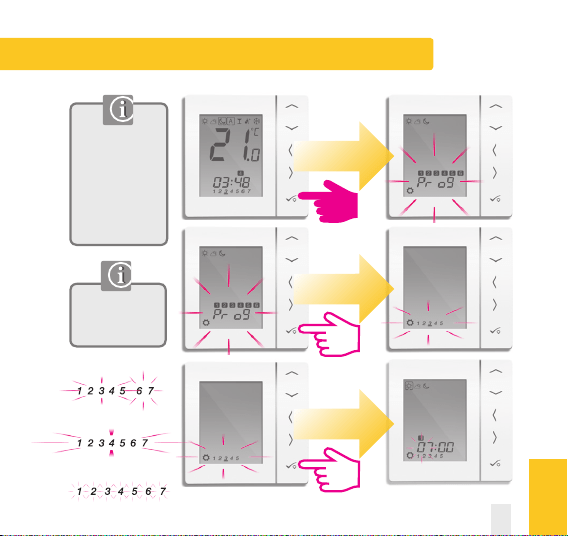
User Guide – Setting the Temperature Schedule
Use right and left
to select the day
of the programs.
5/2
7 Days
Individual
If using grouping,
the schedule from
the group control
thermostat will be
applied to group
members.
USER GUIDE
VS20WRF and VS20BRF Installer Manual 77
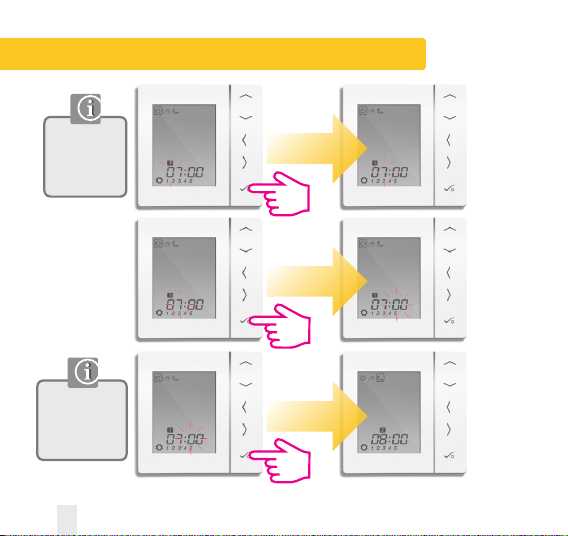
User Guide – Setting the Temperature Schedule
Adjust the
time using the
up or down
arrow key.
Use right and
left to select the
Hi/Mid or low
temp.
78 VS20WRF and VS20BRF Installer Manual
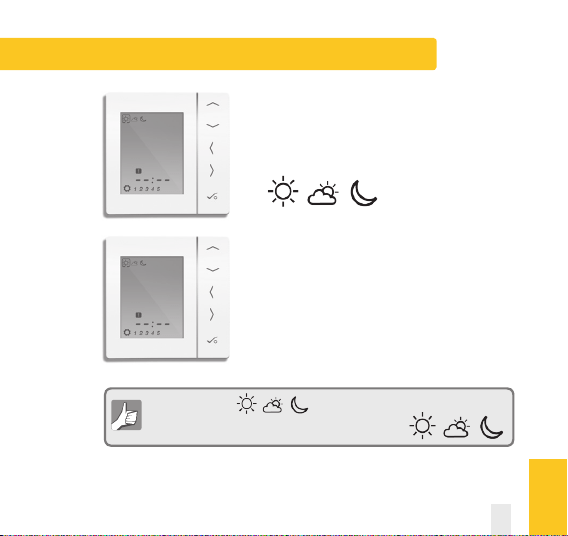
User Guide – Setting the Temperature Schedule
To remove a program out set the time to --:--.
When you set the temperature the schedule will respond
to those temperatures see page 71 on how to change
Repeat through to program 4.
If you require a 5th or 6th program enter
a time and select your temperature
USER GUIDE
VS20WRF and VS20BRF Installer Manual 79
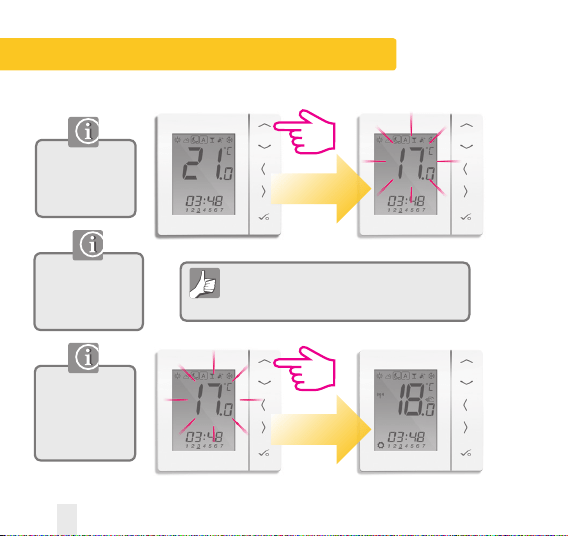
User Guide - Temporary Override
Use the up or
down arrow key to
view your program
set temperature.
The temporary
override is applicable
to the thermostat
being changed only.
Use the up or down
arrow key to adjust
the temperature
to the setting you
desire.
Temporary override allows you to increase the
temperature or decrease it to the desired setting
until it reverts back on the next program time.
PRT, Group Control Thermostat and Group Thermostat
80 VS20WRF and VS20BRF Installer Manual
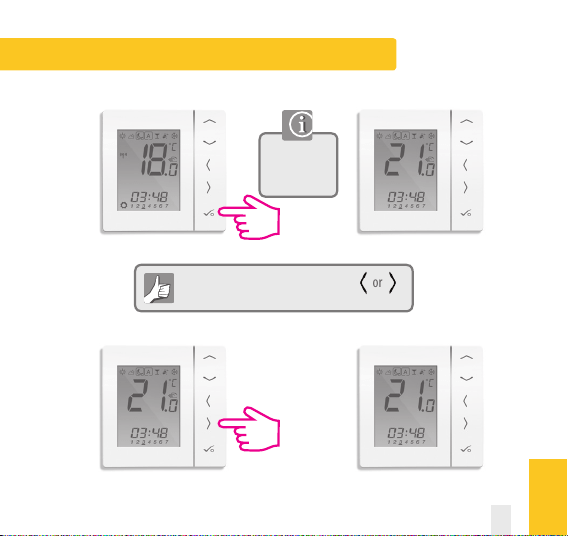
User Guide - Temporary Override
To cancel temporary override press or
See below.
PRT, Group Control Thermostat and Group Thermostat
Confirm the
temporary set
temperature.
USER GUIDE
VS20WRF and VS20BRF Installer Manual 81
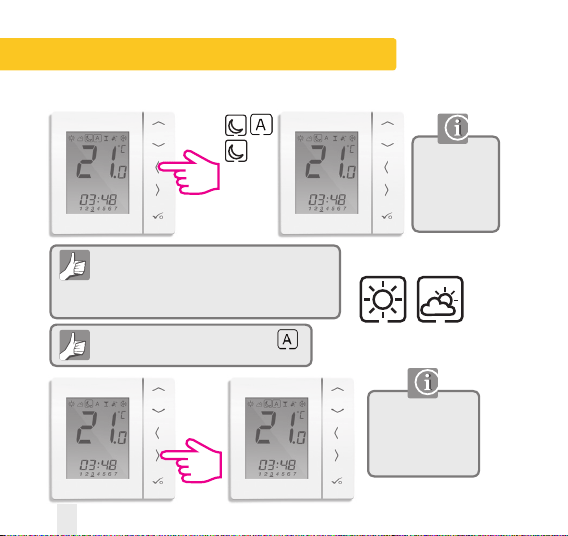
User Guide - Permanent Override
Permanent override in a control group
thermostat will also affect the group thermostats
unless they are removed from the group.
See page 64.
To cancel permanent override select
See below.
Use the up or
down arrow key
to view your set
temperature.
See page 71.
To adjust your
permanent override
temperature, follow
the steps on page 71.
Move
from
To
Repeat for
if required
PRT and Group Control Thermostat
Setting permanent low temperature
82 VS20WRF and VS20BRF Installer Manual
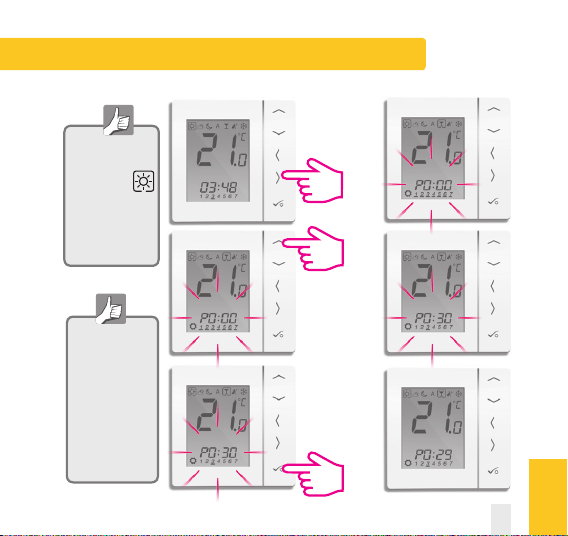
User Guide - Party Mode
The party mode
is an option that
enables
temperature
for a period of
time you select
up to 9hr 50min.
Use the right
arrow to select
the party mode.
Use the up
arrow to select
the hr/min.
Press tick to
confirm and
it will start to
count down .
Party Mode set in
a Control Group
Thermostat will
also affect group
thermostats
unless they are
removed from
the group.
See page 82.
PRT and Group Control Thermostat
USER GUIDE
VS20WRF and VS20BRF Installer Manual 83
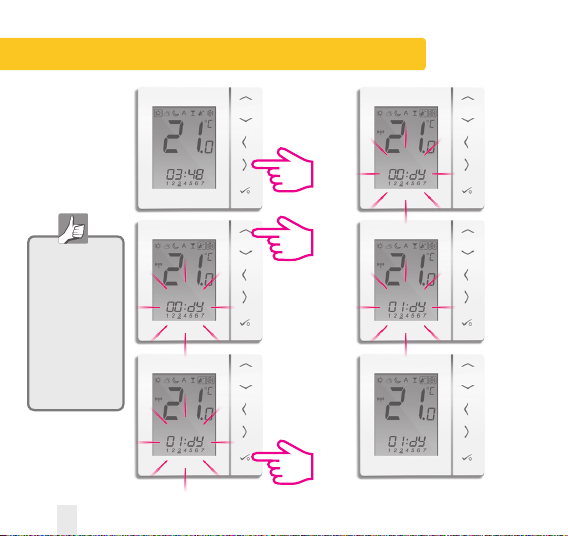
User Guide - Holiday Mode
Use the right
arrow to select
the holiday
mode.
Use the up
arrow to select
how many days
to be off for .
Press tick to
confirm and it
will start the
holiday count
down.
Holiday set in a
Control Group
Thermostat will
also affect group
thermostats
unless they are
removed from
the group.
See page 82.
84 VS20WRF and VS20BRF Installer Manual
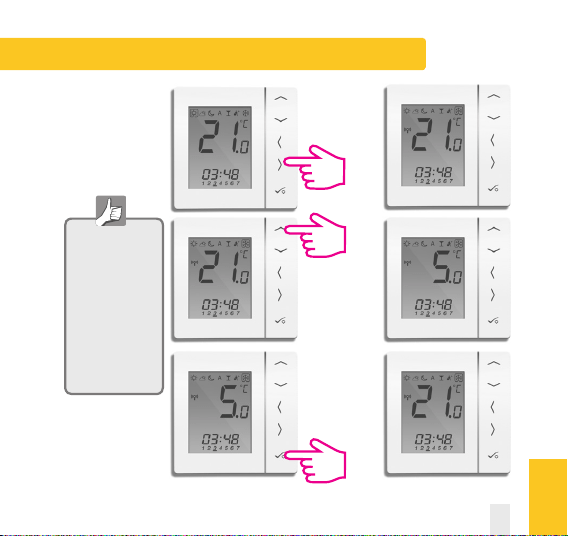
User Guide - Frost Protection
Use the right
arrow to select
the frost mode.
Use the up
arrow to select
the frost
protection
temperature.
Press tick to
confirm the
temperature
that has been
set to.
Frost protection
set in a Control
Group Thermostat
will also affect
group thermostats
unless they are
removed from the
group.
See page 82.
USER GUIDE
VS20WRF and VS20BRF Installer Manual 85
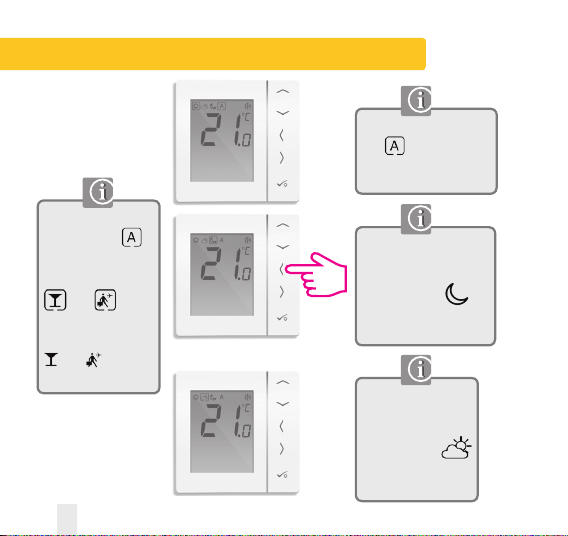
User Guide - Group Thermostat Overview
When a group thermostat
is in it will follow the
mode status of the group
control thermostat.
When a group
thermostat is in
and the group control
thermostat is in
or then
the group thermostat
will follow this mode.
or will be
displayed.
The group thermostat has
now left the group and is
in permanent
To adjust the set
temperature, please refer
to page 71.
The group thermostat
has now left the group
and is in permanent
To adjust the set
temperature, please
refer to page 71.
86 VS20WRF and VS20BRF Installer Manual
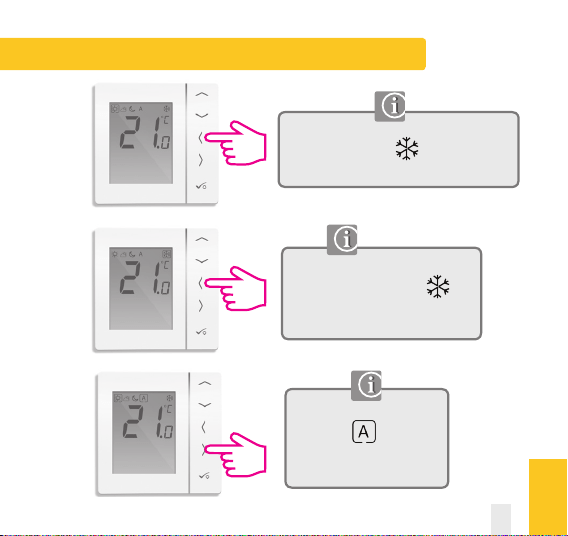
User Guide - Group Thermostat Overview
The group thermostat has now left the
group and is in permanent To
adjust the set temperature,
please refer to page 71.
The group thermostat has now left the group
and is in permanent To adjust the set
temperature, please refer to page 71.
The group thermostat has been
returned to it will follow
the mode status of the group
control thermostat.
USER GUIDE
VS20WRF and VS20BRF Installer Manual 87
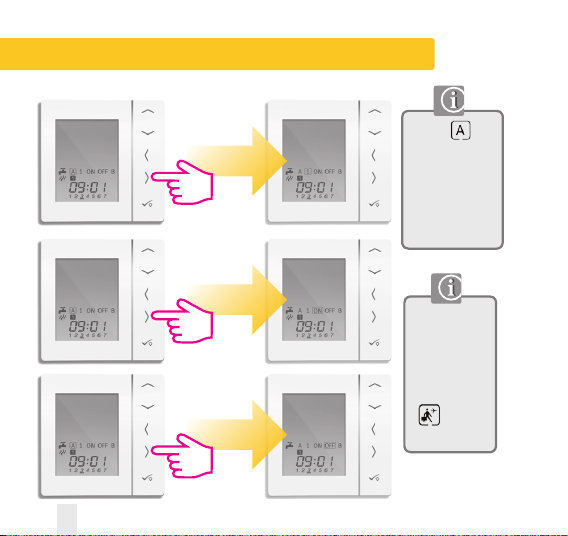
User Guide - Hot Water (Optional) Mode Selection
2
3
Mode selection
When is
selected, the
hot water timer
will follow the
program schedule.
See page 86.
Hot water will be
on once per day.
Hot water will be
continuously on.
Hot water will be
continuously off.
Hot water will
follow Holiday
mode from the
group control
thermostat.
will be
displayed.
88 VS20WRF and VS20BRF Installer Manual
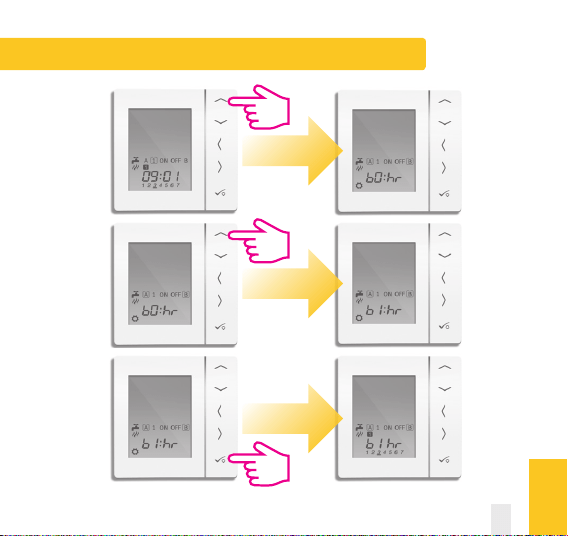
User Guide - Hot Water Boost
USER GUIDE
VS20WRF and VS20BRF Installer Manual 89
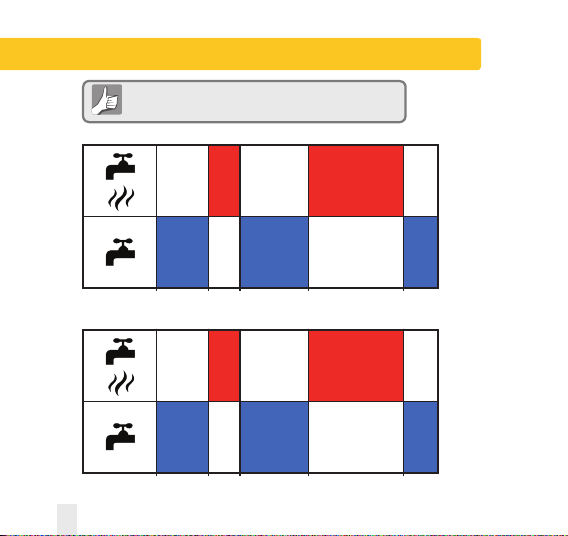
User Guide - Default Hot Water Schedule
12.00 6.00 8.00 18.00 22.00
ON ON
OFFOFF OFF
12.00 6.00 8.00 18.00 22.00
Saturday and Sunday
Monday to Friday
ON ON
OFFOFF OFF
Your hot water timer comes preset with the times below.
These can be adjusted. See next page.
90 VS20WRF and VS20BRF Installer Manual

User Guide - Setting Hot Water Times
5/2
7 Days
Individual
USER GUIDE
VS20WRF and VS20BRF Installer Manual 91
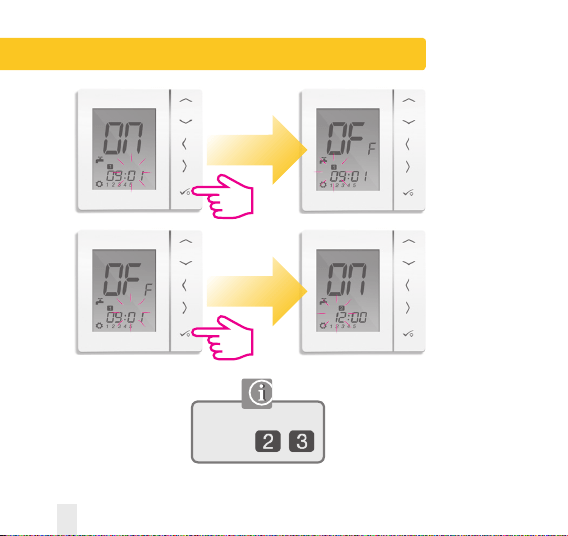
User Guide - Setting Hot Water Times
Repeat these steps for
programs
92 VS20WRF and VS20BRF Installer Manual
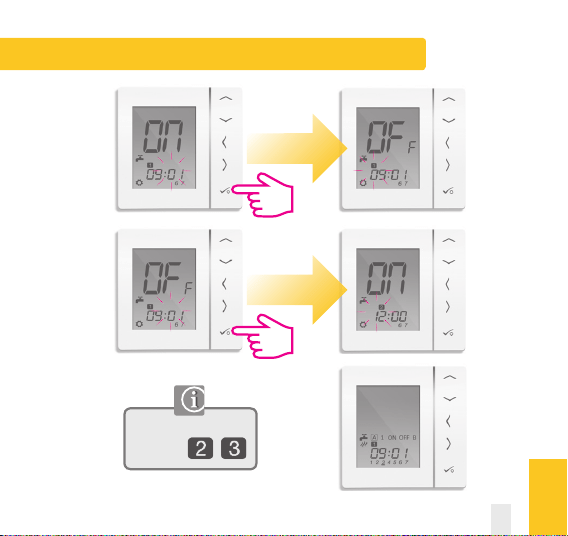
User Guide - Setting Hot Water Times
USER GUIDE
Repeat these steps for
programs
VS20WRF and VS20BRF Installer Manual 93
Installer Notes
94 VS20WRF and VS20BRF Installer Manual

SALUS Controls warrants that this product will be free from any defect in materials or
workmanship, and shall perform in accordance with its specification, for a period of five years
from the date of installation. SALUS Controls sole liability for breach of this warranty will be
(at its option) to repair or replace the defective product.
Customer Name: ..................................................................................................................
Customer Address: ...............................................................................................................
......................................................................... Post Code: ..................................................
Tel No: ..................................................... Email: .................................................................
Engineers Company: ............................................................................................................
Tel No: ....................................................... Email: ...............................................................
Instalation Date: ..................................................................................................................
Engineers Name: .................................................................................................................
Engineers Signature: ...........................................................................................................
VS20WRF and VS20BRF Installer Manual 95
Warranty

www.saluscontrols.com
SALUS Controls plc
SALUS House
Dodworth Business Park South,
Whinby Road,
Dodworth, Barnsley S75 3SP, UK.
SALES:
T: +44 (0) 1226 323961
TECHNICAL: T: +44 (0) 1226 323961
SALUS Controls is a member of the Computime Group
Maintaining a policy of continuous product development SALUS Controls plc reserve the right to
change specification, design and materials of products listed in this brochure without prior
notice.
00086/2 Issue Date: June 2014