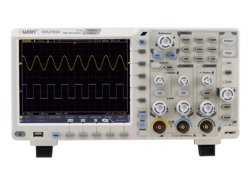

XDS4000 Series
Digital Storage Oscilloscopes
User Manual
www.owon.com

Sep. 2020 edition V1.0.0
Copyright © LILLIPUT Company. All rights reserved.
The LILLIPUT's products are under the protection of the patent rights, including ones which
have already obtained the patent rights and those which are applied for. The information in this
manual will replace all materials published.
The information in this manual was correct at the time of printing. However, LILLIPUT will
continue to improve products and reserves the rights to change specification at any time
without notice.
is the registered trademark of the LILLIPUT Company.
Fujian LILLIPUT Optoelectronics Technology Co., Ltd.
No. 19, Heming Road
Lantian Industrial Zone, Zhangzhou 363005 P.R. China
Tel: +86-596-2130430 Fax: +86-596-2109272
Web: www.owon.com E-mail: info@owon.com.cn

General Warranty
We warrants that the product will be free from defects in materials and
workmanship for a period of 3 years from the date of purchase of the product by
the original purchaser from the our Company. The warranty period for accessories
such as probes, adapter is 12 months. This warranty only applies to the original
purchaser and is not transferable to a third party.
If the product proves defective during the warranty period, we will either repair the
defective product without charge for parts and labour, or will provide a replacement
in exchange for the defective product. Parts, modules and replacement products
used by our company for warranty work may be new or reconditioned like new. All
replaced parts, modules and products become the property of our company.
In order to obtain service under this warranty, the customer must notify our
company of the defect before the expiration of the warranty period. Customer shall
be responsible for packaging and shipping the defective product to the designated
service centre, a copy of the customers proof of purchase is also required.
This warranty shall not apply to any defect, failure or damage caused by improper
use or improper or inadequate maintenance and care. We shall not be obligated to
furnish service under this warranty a) to repair damage resulting from attempts by
personnel other than our company representatives to install, repair or service the
product; b) to repair damage resulting from improper use or connection to
incompatible equipment; c) to repair any damage or malfunction caused by the use
of not our supplies; or d) to service a product that has been modified or integrated
with other products when the effect of such modification or integration increases
the time or difficulty of servicing the product.
Please contact the nearest Sales and Service Offices for services.
Excepting the after-sales services provided in this summary or the
applicable warranty statements, we will not offer any guarantee for
maintenance definitely declared or hinted, including but not limited to the
implied guarantee for marketability and special-purpose acceptability. We
should not take any responsibilities for any indirect, special or consequent
damages.

i
Table of Contents
1. General Safety Requirements .......................................................................................... 1
2. Safety Terms and Symbols ............................................................................................... 2
3. Junior User Guidebook ................................................................................................... 4
Introduction to the Structure of the Oscilloscope .................................................................... 5
Front Panel ........................................................................................................................................... 5
Rear Panel ............................................................................................................................................ 6
Side Panel ............................................................................................................................................. 7
Control Area ......................................................................................................................................... 7
User Interface Introduction ....................................................................................................... 9
How to Implement the General Inspection ............................................................................. 11
How to Implement the Function Inspection ........................................................................... 11
How to Implement the Probe Compensation ......................................................................... 12
How to Set the Probe Attenuation Coefficient ....................................................................... 13
How to Use the Probe Safely .................................................................................................... 14
How to Implement Self-calibration ......................................................................................... 15
Introduction to the Vertical System ........................................................................................ 15
Introduction to the Horizontal System ................................................................................... 16
Introduction to the Trigger System ......................................................................................... 17
Touchscreen Controls .............................................................................................................. 18
4. Advanced User Guidebook ............................................................................................ 24
How to Set the Vertical System ............................................................................................... 25
Use Mathematical Manipulation Function ............................................................................. 27
Waveform math .............................................................................................................................. 29
User defined function ......................................................................................................................... 29
Digital Filter ....................................................................................................................................... 30
Using FFT function ............................................................................................................................ 30
Use Vertical Position and Scale Knobs ................................................................................... 36
How to Set the Horizontal System ........................................................................................... 37
Waveform Horizontal Zooming .......................................................................................................... 37
How to Set the Trigger/Decoding System ............................................................................... 38
Single Trigger ..................................................................................................................................... 38
Logic Trigger ..................................................................................................................................... 48
Bus Trigger ........................................................................................................................................ 49
Bus Decoding (Optional) .................................................................................................................... 55
How to Operate the Function Menu ....................................................................................... 60
How to Implement Sampling Setup .................................................................................................... 60
How to Set the Display System ........................................................................................................... 62
How to Save and Recall a Waveform .................................................................................................. 65

ii
How to Record/Playback Waveforms ................................................................................................. 72
How to Clone and Recall a waveform ................................................................................................. 76
How to Implement the Auxiliary System Function Setting .................................................................. 80
How to Update your Instrument Firmware .......................................................................................... 85
How to Measure Automatically .......................................................................................................... 86
How to customize an automatic measurement ..................................................................................... 91
How to Measure with Cursors............................................................................................................. 91
How to Use Autoscale ........................................................................................................................ 95
How to Use Built-in Help ................................................................................................................... 96
How to Use Executive Buttons ........................................................................................................... 97
How to Print the Screen Image ........................................................................................................... 99
5. Use the Arbitrary Function Generator ............................................................................. 100
Output Connection ................................................................................................................. 100
To Set Channels ...................................................................................................................... 100
To Set Signals .......................................................................................................................... 101
To Output Sine Signals ..................................................................................................................... 101
To Set the Frequency .......................................................................................................................................... 101
To Set the Period .................................................................................................................................................. 102
To Set the Start Phase ........................................................................................................................................ 102
To Set the Amplitude............................................................................................................................................ 102
To Set the Offset ................................................................................................................................................... 102
To Set the High Level .......................................................................................................................................... 102
To Set the Low Level ........................................................................................................................................... 102
To Output Square Signals ................................................................................................................. 102
To Output Ramp Signals................................................................................................................... 103
To Set the Symmetry of Ramp........................................................................................................................... 103
To Output Pulse Signals ................................................................................................................... 103
To Set the Pulse Width of Pulse ........................................................................................................................ 103
To Set the Duty Cycle of Pulse .......................................................................................................................... 103
To Output Arbitrary Signals ............................................................................................................. 103
Create a New Waveform .................................................................................................................................... 103
File Browse ............................................................................................................................................................ 105
Built-in Waveform ................................................................................................................................................. 105
Frequency Response Analysis ................................................................................................ 107
6. Use the Multimeter (Optional) .................................................................................... 109
Input Terminals ...................................................................................................................... 109
DMM Menu ............................................................................................................................ 109
DMM Information Window .................................................................................................. 110
Making Multimeter Measurements ...................................................................................... 111
Measuring AC or DC Current ........................................................................................................... 111
Measuring AC or DC Voltage........................................................................................................... 111
Measuring Resistance ....................................................................................................................... 111
Testing Diodes.................................................................................................................................. 112

iii
Testing for Continuity....................................................................................................................... 112
Measuring Capacitance ..................................................................................................................... 112
Multimeter Features ............................................................................................................... 112
Data Hold Mode ............................................................................................................................... 112
Making Relative Measurements ........................................................................................................ 113
Information Display .......................................................................................................................... 113
Auto or Manual Range...................................................................................................................... 113
Multimeter Recorder.............................................................................................................. 113
7. Communication with PC ..............................................................................................116
Using USB Port ....................................................................................................................... 116
Using LAN Port ...................................................................................................................... 117
Connect directly ............................................................................................................................... 117
Connect through a router .................................................................................................................. 118
8. Demonstration ............................................................................................................. 121
Example 1: Measurement a Simple Signal ........................................................................... 121
Example 2: Gain of a Amplifier in a Metering Circuit ........................................................ 122
Example 3: Capturing a Single Signal .................................................................................. 123
Example 4: Analyze the Details of a Signal .......................................................................... 125
Example 5: Application of X-Y Function ............................................................................. 126
Example 6: Video Signal Trigger .......................................................................................... 128
9. Troubleshooting ........................................................................................................... 129
10. Technical Specifications ............................................................................................ 130
Oscilloscope ............................................................................................................................. 130
Trigger ............................................................................................................................................. 133
Waveform Generator ............................................................................................................. 134
Multimeter (Optional) ............................................................................................................ 136
General Technical Specifications .......................................................................................... 136
11. Appendix ..................................................................................................................... 138
Appendix A: Enclosure .......................................................................................................... 138
Appendix B: General Care and Cleaning ............................................................................. 138

1.General Safety Requirements
1
1. General Safety Requirements
Before use, please read the following safety precautions to avoid any
possible bodily injury and to prevent this product or any other connected
products from damage. In order to avoid any contingent danger, ensure this
product is only used within the range specified.
Only the qualified technicians can implement the maintenance.
To avoid Fire or Personal Injury:
◼ Connect the probe correctly. The grounding end of the probe
corresponds to the grounding phase. Please don't connect the
grounding end to the positive phase.
◼ Use Proper Power Cord. Use only the power cord supplied with the product
and certified to use in your country.
◼ Connect or Disconnect Correctly. When the probe or test lead is connected
to a voltage source, please do not connect and disconnect the probe or test
lead at random.
◼ Product Grounded. This instrument is grounded through the power cord
grounding conductor. To avoid electric shock, the grounding conductor must be
grounded. The product must be grounded properly before any connection with
its input or output terminal.
When powered by AC power, it is not allowed to measure AC power
source directly, because the testing ground and power cord ground
conductor are connected together, otherwise, it will cause short circuit.
◼ Check all Terminal Ratings. To avoid fire or shock hazard, check all ratings
and markers of this product. Refer to the user's manual for more information
about ratings before connecting to the instrument.
◼ Do not operate without covers. Do not operate the instrument with covers or
panels removed.
◼ Use Proper Fuse. Use only the specified type and rating fuse for this
instrument.
◼ Avoid exposed circuit. Do not touch exposed junctions and components
when the instrument is powered.
◼ Do not operate if in any doubt. If you suspect damage occurs to the
instrument, have it inspected by qualified service personnel before further
operations.
◼ Use your Oscilloscope in a well-ventilated area. Make sure the instrument
installed with proper ventilation, refer to the user manual for more details.
◼ Do not operate in wet conditions.
◼ Do not operate in an explosive atmosphere.
◼ Keep product surfaces clean and dry.
2.Safety Terms and Symbols
2
2. Safety Terms and Symbols
Safety Terms
Terms in this manual. The following terms may appear in this manual:
Warning: Warning indicates the conditions or practices that could result
in injury or loss of life.
Caution: Caution indicates the conditions or practices that could result in
damage to this product or other property.
Terms on the product. The following terms may appear on this product:
Danger: It indicates an injury or hazard may immediately happen.
Warning: It indicates an injury or hazard may be accessible potentially.
Caution: It indicates a potential damage to the instrument or other property might
occur.
Safety Symbols
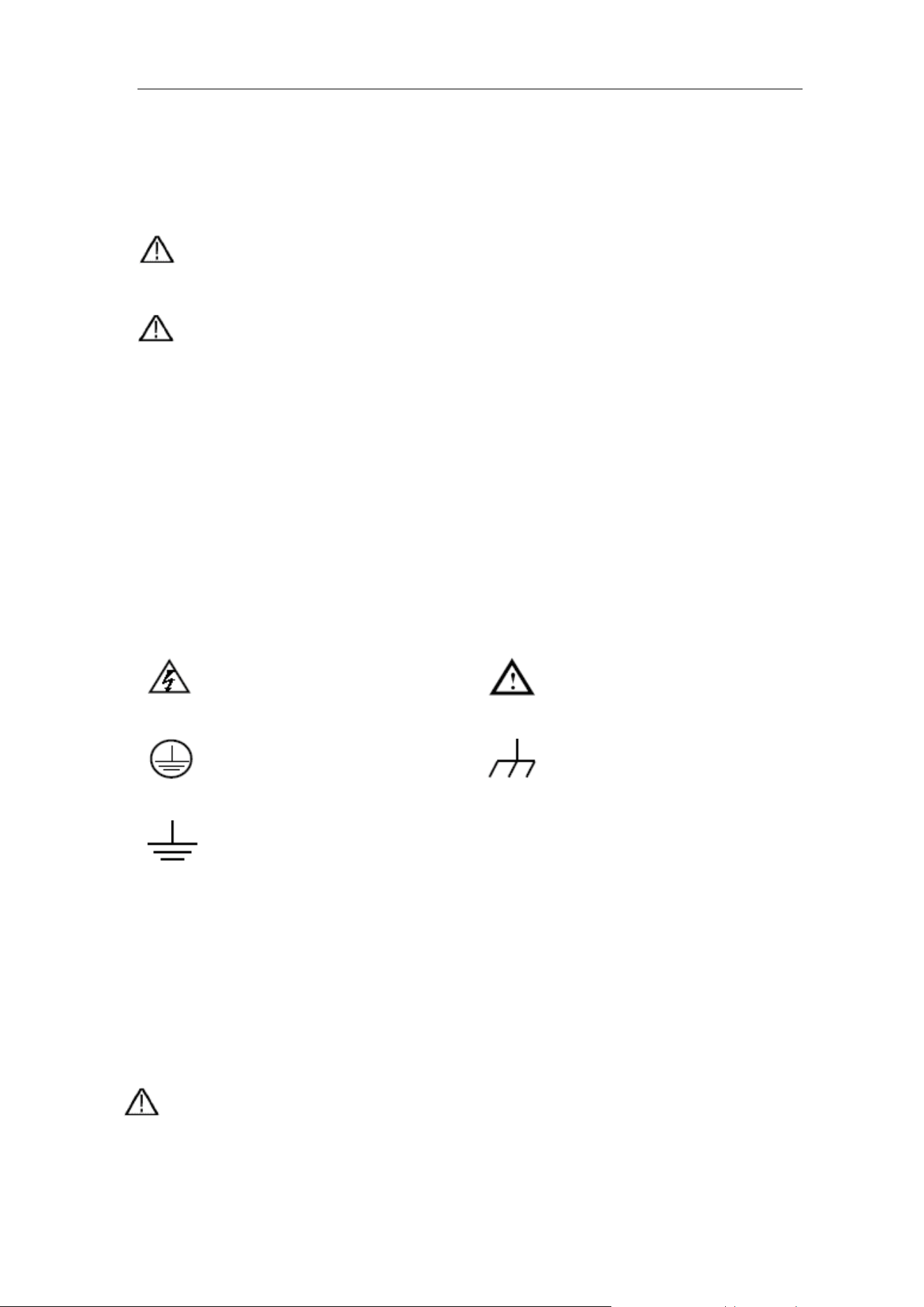
Symbols on the product. The following symbol may appear on the product:
Hazardous Voltage
Refer to Manual
Protective Earth Terminal
Chassis Ground
Test Ground
To avoid body damage and prevent product and connected equipment damage,
carefully read the following safety information before using the test tool. This
product can only be used in the specified applications.
Warning:
The four channels of the oscilloscope are not electrically isolated. The
channels should adopt a common ground during measuring. To prevent
short circuits, the 2 probe grounds must not be connected to 2 different
2.Safety Terms and Symbols
3
non-isolated DC levels.
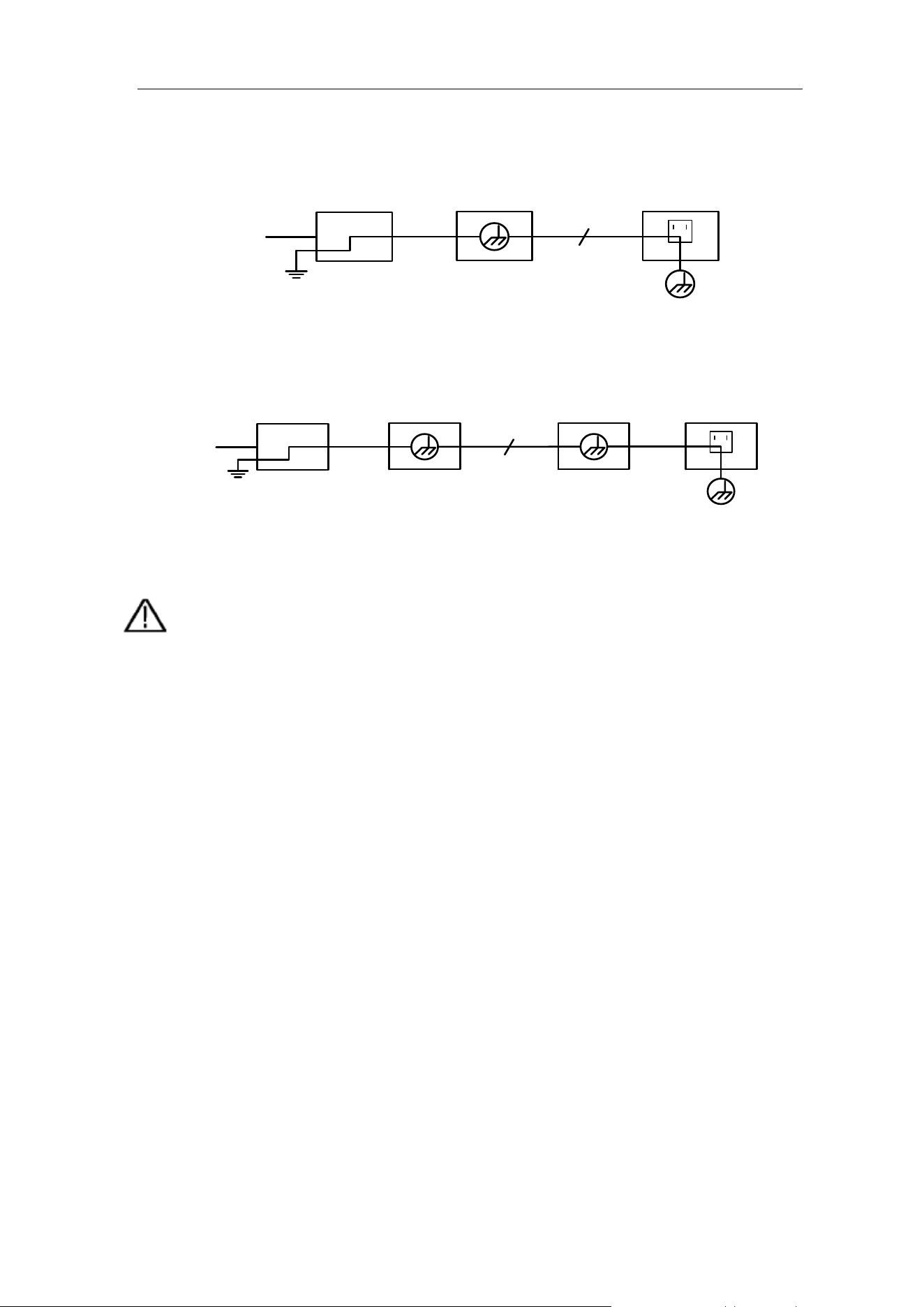
The diagram of the oscilloscope ground wire connection:
Ground Clip
Signal Input
Oscilloscope
Electrical OutletProbe
Power Cord
The diagram of the ground wire connection when the oscilloscope is
connected to the AC-powered PC through the ports:
Ground Clip
Signal Input
Oscilloscope
PC Electrical OutletProbe
USB/LAN/COM/
LAN Cable
It is not allowed to measure AC power when the AC powered oscilloscope is
connected to the AC-powered PC through the ports.
Warning:
To avoid fire or electrical shock, when the oscilloscope input
signal connected is more than 42V peak (30Vrms) or on circuits of
more than 4800VA, please take note of below items:
⚫ Only use accessory insulated voltage probes and test lead.
⚫ Check the accessories such as probe before use and
replace it if there are any damages.
⚫ Remove probes, test leads and other accessories
immediately after use.
⚫ Remove USB cable which connects oscilloscope and
computer.
⚫ Do not apply input voltages above the rating of the
instrument because the probe tip voltage will directly
transmit to the oscilloscope. Use with caution when the
probe is set as 1:1.
⚫ Do not use exposed metal BNC or banana plug connectors.
⚫ Do not insert metal objects into connectors.

3.Junior User Guidebook
4
3. Junior User Guidebook
This chapter deals with the following topics mainly:
⚫Introduction to the structure of the oscilloscope
⚫Introduction to the user interface
⚫How to implement the general inspection
⚫How to implement the function inspection
⚫How to make a probe compensation
⚫How to set the probe attenuation coefficient
⚫How to use the probe safely
⚫How to implement an self-calibration
⚫Introduction to the vertical system
⚫Introduction to the horizontal system
⚫Introduction to the trigger system
⚫Touchscreen Controls
Note: The following operations and pictures are based on the four-channel
model. For the operation of the two-channel model, please refer to
the four-channel model.
3.Junior User Guidebook
5
Introduction to the Structure of the Oscilloscope
This chapter makes a simple description of the operation and function of the front
panel of the oscilloscope, enabling you to be familiar with the use of the
oscilloscope in the shortest time.
Front Panel
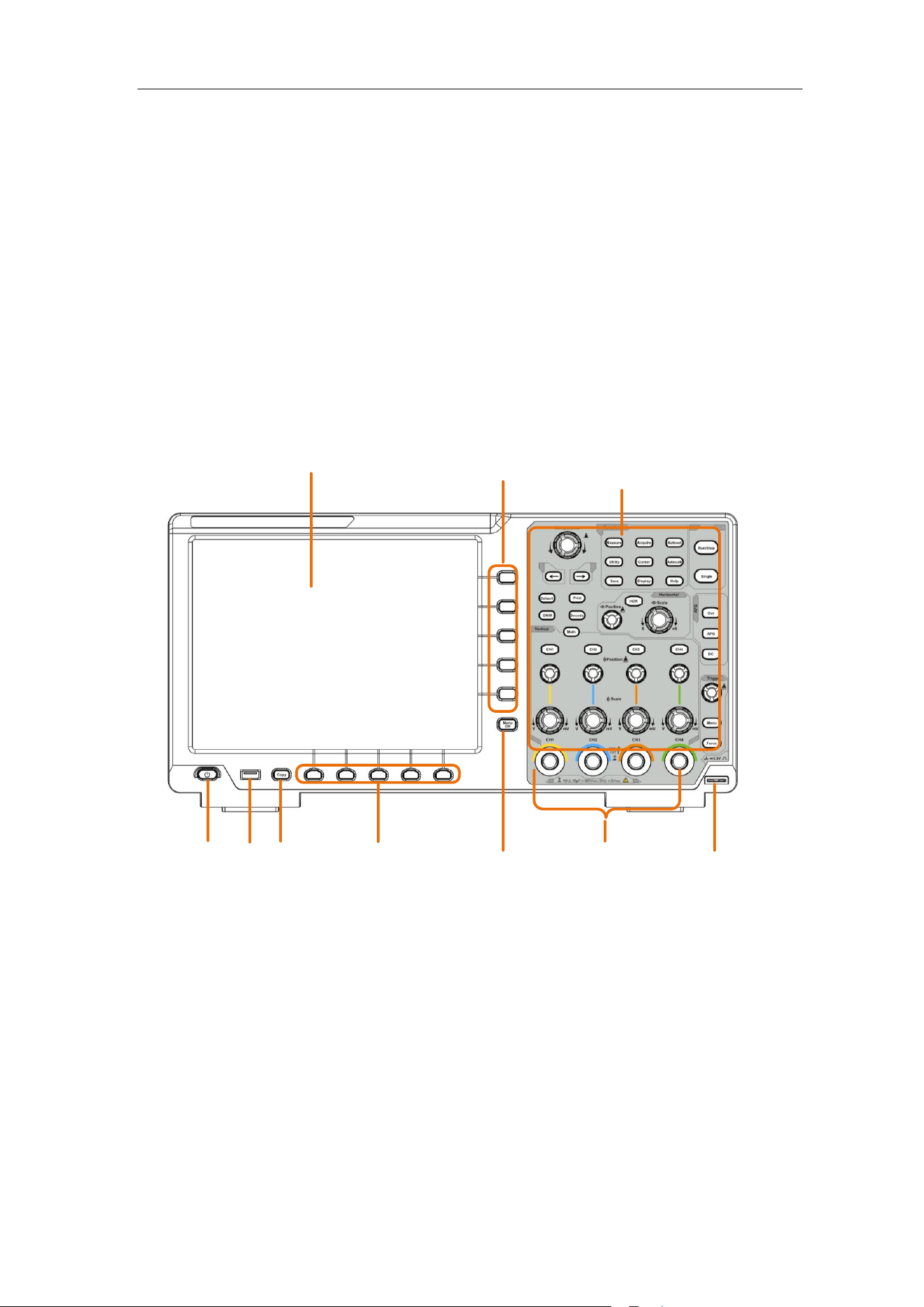
The front panel has knobs and function buttons. The 5 buttons in the column on
the right side of the display screen or in the row under the display screen are menu
selection buttons, through which, you can set the different options for the current
menu. The other buttons are function buttons, through which, you can enter
different function menus or obtain a specific function application directly.
10
3
5
4
9
8
1
6
2
7
Figure 3-1 Front panel
1. Display area
2. Select the right menu item
3. Control (button and knob) area
4. Probe Compensation: Measurement signal (3.3V/1kHz) output.
5. Input connectors of four channels
6. Remove the left and right menu
7. Select the bottom menu item
8. Copy button: You can save the waveform by just pressing this button in any
user interface.
3.Junior User Guidebook
6
9. USB Host port: It is used to transfer data when external USB equipment
connects to the oscilloscope regarded as "host device". For example: Saving
the waveform to USB flash disk needs to use this port.
10. Power on/off switch: With memory (self-locking) switch, it will automatically
remember the last shutdown operation. If the last time the power was turned off,
the power will be turned on next time without pressing the switch, and it will
automatically turn on. If the switch button was pressed last time, the next time
press the switch button to switch on.
Rear Panel
1
2
3
4
5
7
6
8
9
11
10
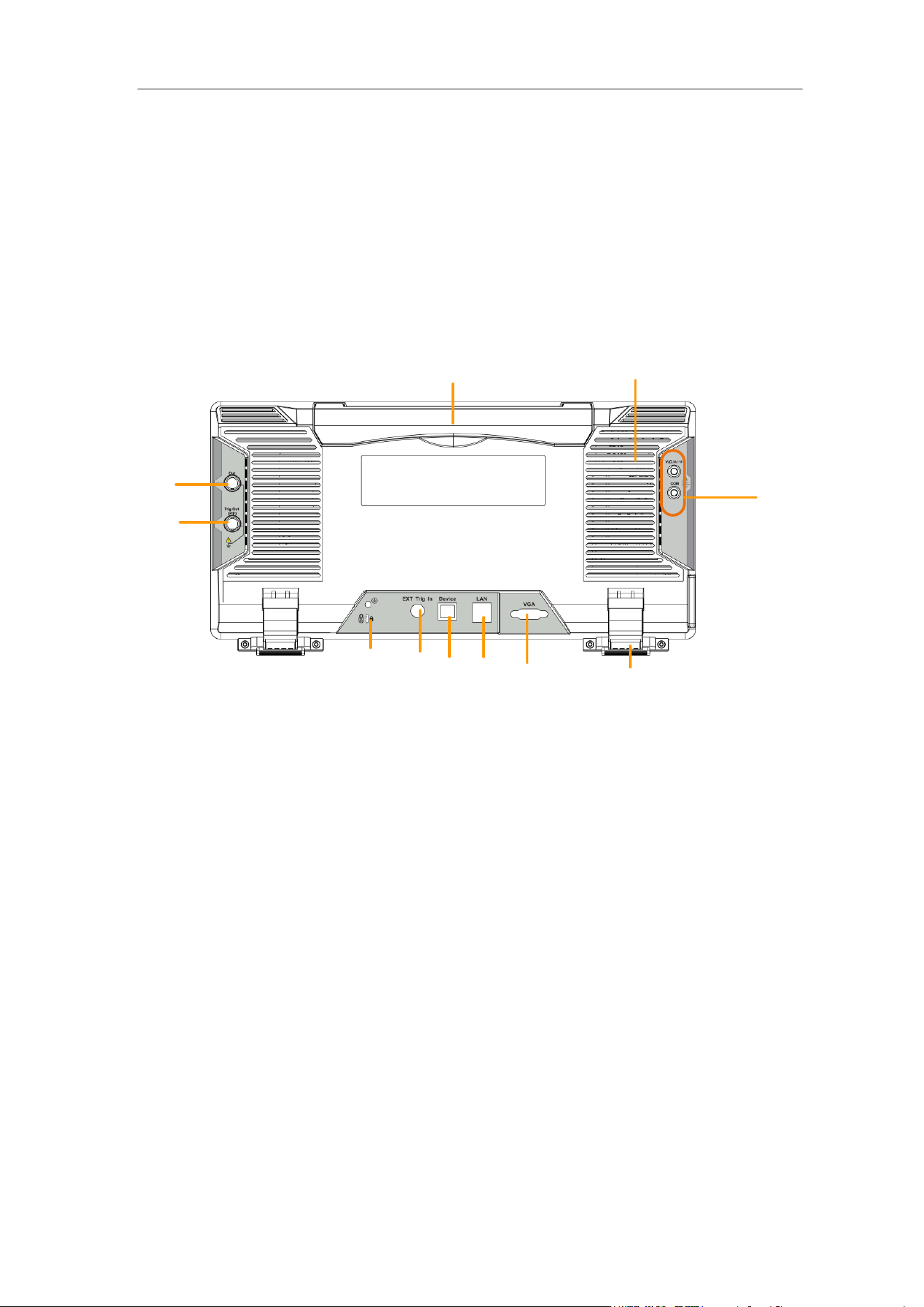
Figure 3-2 Rear Panel
1. Handle
2. Air vents
3. Input terminals of multimeter (optional)
4. Foot stool: Adjust the tilt angle of the oscilloscope.
5. VGA port: To connect the oscilloscope with a monitor or a projector as VGA
output.
6. LAN port: the network port which can be used to connect with PC.
7. USB Device port: It is used to transfer data when external USB equipment
connects to the oscilloscope regarded as "slave device". For example: to use
this port when connect PC to the oscilloscope by USB.
8. External trigger input port.
9. Lock Hole: You can lock the oscilloscope to a fixed location using the security
lock (please buy it yourself) to secure the oscilloscope.
10. Trig Out(P/F) port: Trigger signal output or Pass/Fail output. The output type
can be set on the menu (Utility menu→Output→Output).
11. Out port: Output port of the waveform generator.
3.Junior User Guidebook
7
Side Panel
AC power
input jack
Air vents
Fuse
Control Area
1
2
3
8
4
5
6
7
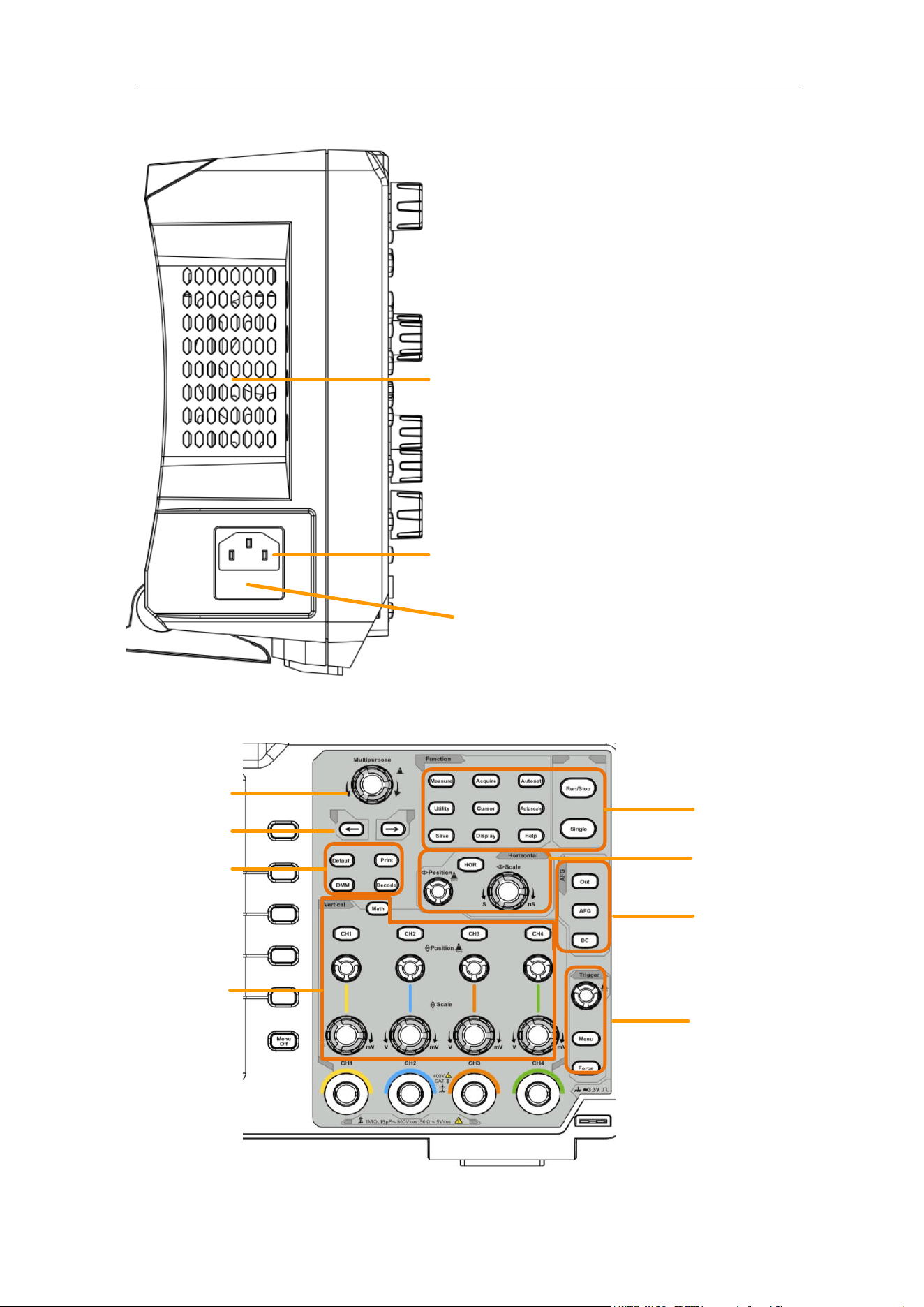
Figure 3-3 Control Area Overview

3.Junior User Guidebook
8
1. Function button area: Total 11 buttons
2. Waveform generator controls (optional)
or
DAQ: Multimeter Recorder (see "Multimeter Recorder" on P113)
P/F: Pass/Fail (see "Pass/Fail" on P82)
W.REC: Waveform Record (see "How to Record/Playback Waveforms" on P72)
3. Trigger control area with 2 buttons and 1 knob.
The Trigger Level knob is to adjust trigger voltage. Other 2 buttons refer to
trigger system setting.
4. Horizontal control area with 1 button and 2 knobs.
"HOR" button refer to horizontal system setting menu, "Horizontal Position"
knob control trigger position, "Horizontal Scale" control time base.
5. Vertical control area
For Four-Channel
with 5 buttons and 8 knobs.
CH1 - CH4 buttons correspond to setting menu in CH1 - CH4. "Math" button
provides access to math waveform functions (+, -, ×, /, FFT, user function,
digital filter). The "Vertical Position" knob control the vertical position of current
channel, and the "Scale" knob control voltage scale of current channel.
For Dual-Channel
with 3 buttons and 4 knobs.
CH1 – CH2 buttons correspond to setting menu in CH1 – CH2. "Math" button
provides access to math waveform functions (+, -, ×, /, FFT, user function,
digital filter). The "Vertical Position" knob control the vertical position of current
channel, and the "Scale" knob control voltage scale of current channel.
6. Default: Call out the factory settings.
Print: Print an image of what appears on the instrument screen.
Decode(optional): Turn on/off Decode function.
DMM (Multimeter, optional) or Snap (Shortcut button for measurement
snapshot)
7. Direction key: Move the cursor of the focused parameter.
8. M knob (Multipurpose knob): when a symbol appears on the menu, it
indicates you can turn the M knob to select the menu or set the value. You can
push it to close the menu on the left and right.
3.Junior User Guidebook
9
User Interface Introduction
1
3
9
28
25
6
8
10
23
29
31
7
11
26
2
4
5
24
5
30
22
27
20
19
14
15
16
21
12
13
17
18
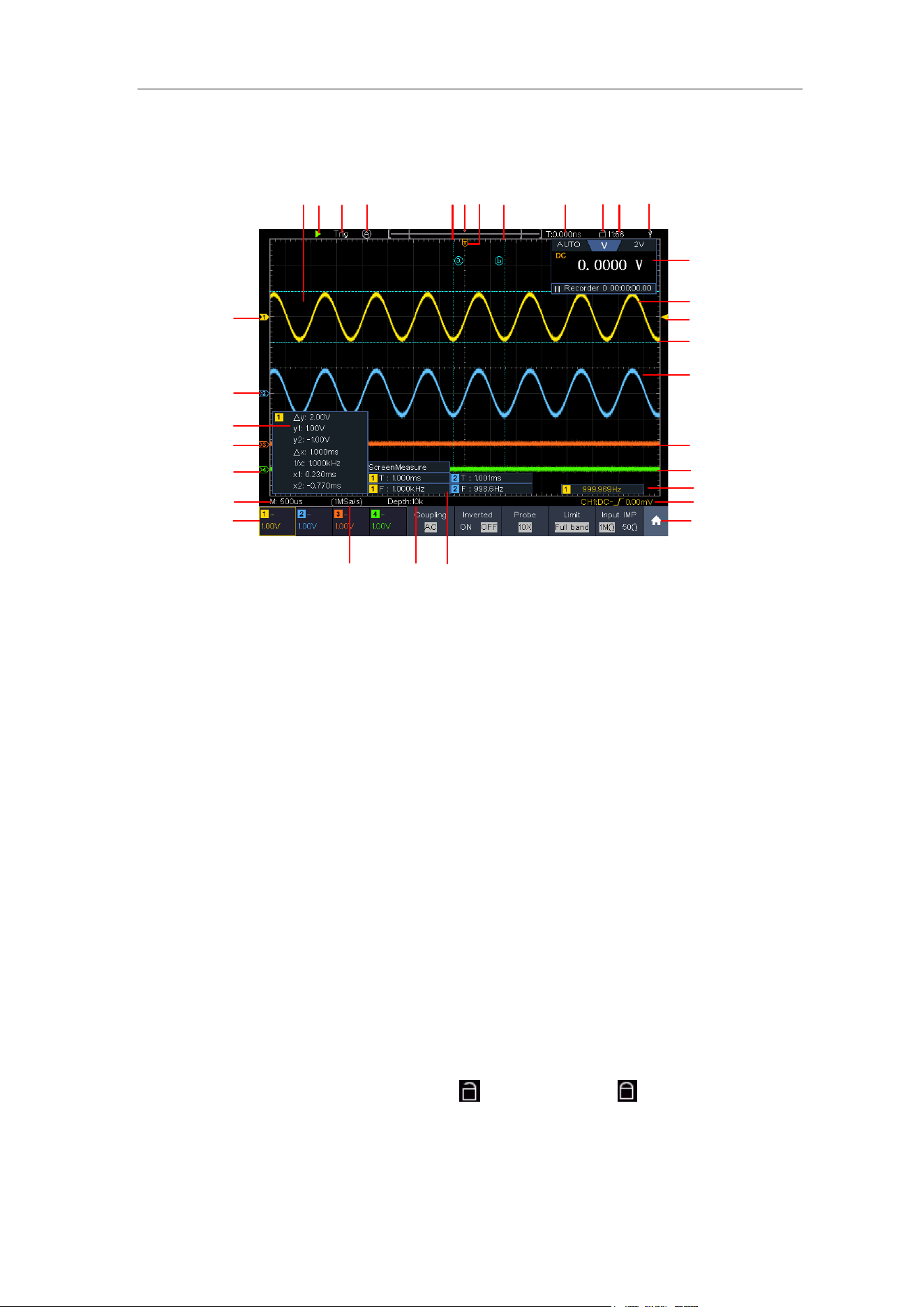
Figure 3-4 Illustrative Drawing of Display Interfaces
1. Waveform Display Area.
2. Run/Stop (touchable on touchscreen) (see "How to Use Executive
Buttons" on P97)
3. The state of trigger, including:
Auto: Automatic mode and acquire waveform without triggering.
Trig: Trigger detected and acquire waveform.
Ready: Pre-triggered data captured and ready for a trigger.
Scan: Capture and display the waveform continuously.
Stop: Data acquisition stopped.
4. Click to auto set.
5. The two blue dotted lines indicates the vertical position of cursor
measurement.
6. The pointer indicates the trigger position in the record length.
7. The T pointer indicates the horizontal position for the trigger.
8. It shows present triggering value and displays the site of present window in
internal memory.
9. Touchable icon is to enable (
) or disable (
) the touchscreen
controls.
10. It shows setting time (see "Config" on P80).
11. It indicates that there is a USB disk connecting with the oscilloscope.

3.Junior User Guidebook
10
12. Multimeter window.
13. The waveform of CH1.
14. The pointer shows the trigger level position of the source in trigger menu.
15. The two blue dotted lines indicate the horizontal position of cursor
measurement.
16. The waveform of CH2.
17. The waveform of CH3.
18. The waveform of CH4.
19. The frequency of the trigger signal.
20. The icon shows the selected trigger type, e.g. represents triggering on
the rising edge for an Edge trigger. The reading shows the trigger level
value of the corresponding channel.
21. Click to show/hide the touchable shortcut menu.
22. It indicates the measured type and value of the corresponding channel. "T"
means period, "F" means frequency, "V" means the average value, "Vp"
the peak-peak value, "Vr" the root-mean-square value, "Ma" the maximum
amplitude value, "Mi" the minimum amplitude value, "Vt" the Voltage value
of the waveform's flat top value, "Vb" the Voltage value of the waveform's
flat base, "Va" the amplitude value, "Os" the overshoot value, "Ps" the
Preshoot value, "RT" the rise time value, "FT" the fall time value, "PW" the
+width value, "NW" the -Width value, "+D" the +Duty value, "-D" the -Duty
value, "FRR" the FRR, "FRF" the FRF, "FFR" the FFR, "FFF" the FFF,
"LRR" the, "LRF" the LRF, "LFR" the LFR, "LFF" the LFF,"PD" the Delay
A->B value, "ND" the Delay A->B value, "TR" the Cycle RMS, "CR"
the Cursor RMS, "WP" the Screen Duty, "RP" the Phase A->B , "FP" the
Phase A->B , "+PC" the +Pulse count, "-PC" the - Pulse count, "+E" the
Rise edge count, "-E" the Fall edge count, "AR" the Area, "CA" the Cycle
area.
23. The readings show the record length.
24. The readings show current sample rate.
25. The readings indicate the corresponding Voltage Division of the channels.
"BW" indicates bandwidth limit.
The icon shows the coupling mode of the channel.
"—" indicates direct current coupling
"~" indicates AC coupling
" " indicates GND coupling
26. The reading shows the setting of main time base.
27. The green pointer indicates the grounding datum point (zero point position)
of the waveform of the CH1 channel.
28. The orange pointer indicates the grounding datum point (zero point
position) of the waveform of the CH1 channel.
29. It is cursor measure window, showing the absolute values and the
readings of the cursors.

3.Junior User Guidebook
11
30. The blue pointer indicates the grounding datum point (zero point position)
of the waveform of the CH1 channel.
31. The yellow pointer indicates the grounding datum point (zero point position)
of the waveform of the CH1 channel.
How to Implement the General Inspection
After you get a new oscilloscope, it is recommended that you should make a
check on the instrument according to the following steps:
1. Check whether there is any damage caused by transportation.
If it is found that the packaging carton or the foamed plastic protection cushion
has suffered serious damage, do not throw it away first till the complete device
and its accessories succeed in the electrical and mechanical property tests.
2. Check the Accessories
The supplied accessories have been already described in the "Appendix A:
Enclosure" of this Manual. You can check whether there is any loss of
accessories with reference to this description. If it is found that there is any
accessory lost or damaged, please get in touch with our distributor responsible
for this service or our local offices.
3. Check the Complete Instrument
If it is found that there is damage to the appearance of the instrument, or the
instrument can not work normally, or fails in the performance test, please get in
touch with our distributor responsible for this business or our local offices. If
there is damage to the instrument caused by the transportation, please keep
the package. With the transportation department or our distributor responsible
for this business informed about it, a repairing or replacement of the instrument
will be arranged by us.
How to Implement the Function Inspection
Make a fast function check to verify the normal operation of the instrument,
according to the following steps:
1. Connect the power cord to a power source. Long press the
button
on the bottom left of the instrument.
The instrument carries out all self-check items and shows the Boot Logo. Push
the Utility button, select Function in the bottom menu. Select Adjust in the
left menu, select Default in the bottom menu. The default attenuation
coefficient set value of the probe on the menu is 10X.
2. Set the Switch in the Oscilloscope Probe as 10X and Connect the
3.Junior User Guidebook
12
Oscilloscope with CH1 Channel.
Align the slot in the probe with the plug in the CH1 connector BNC, and then
tighten the probe with rotating it to the right side.
Connect the probe tip and the ground clamp to the connector of the probe
compensator.
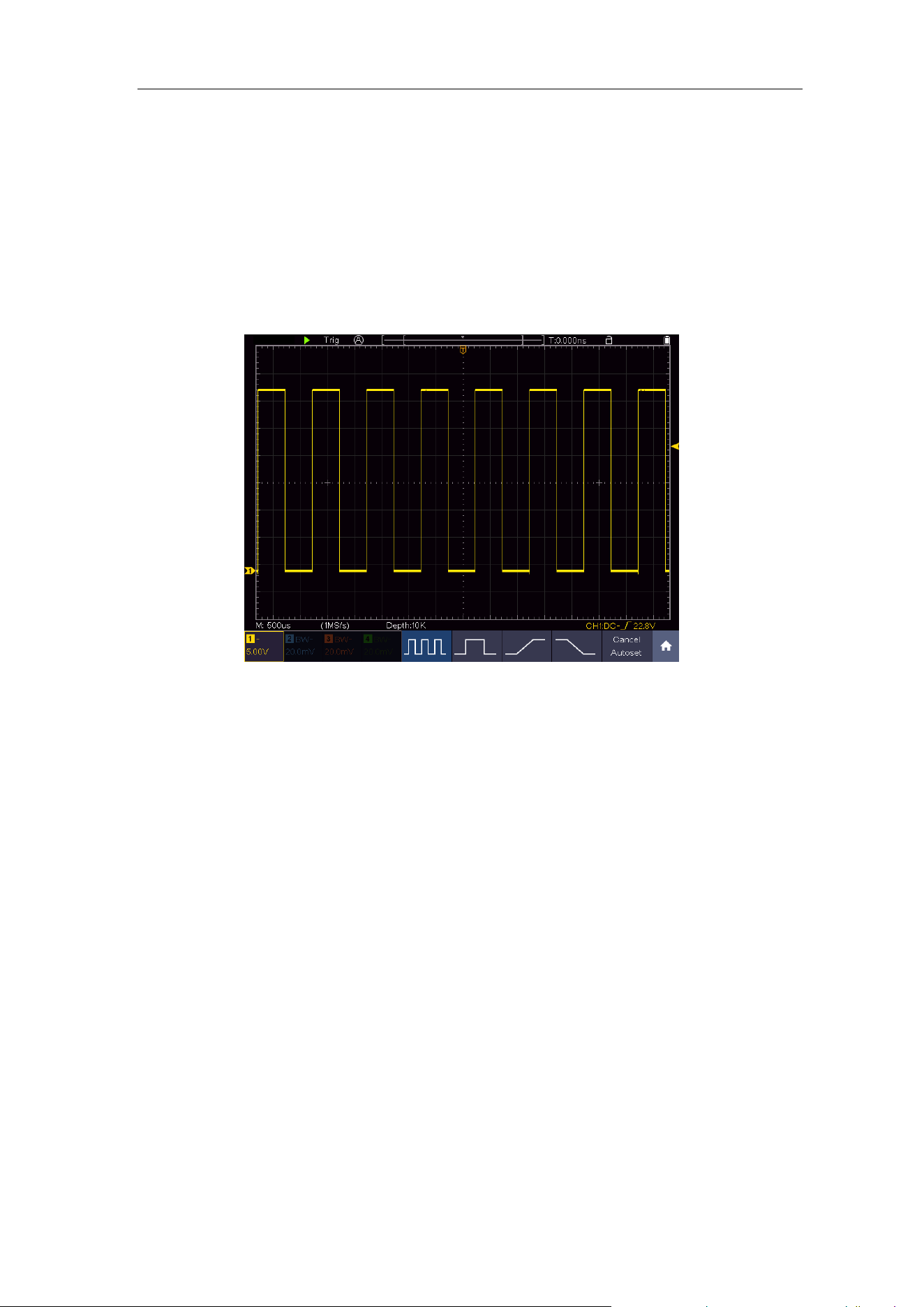
3. Push the Autoset Button on the front panel.
The square wave of 1 KHz frequency and 3.3V peak-peak value will be
displayed in several seconds (see Figure 3-5).
Figure 3-5 Auto set
Check CH2, CH3 and CH4 by repeating Step 2 and Step 3.
How to Implement the Probe Compensation
When connect the probe with any input channel for the first time, make this
adjustment to match the probe with the input channel. The probe which is not
compensated or presents a compensation deviation will result in the
measuring error or mistake. For adjusting the probe compensation, please
carry out the following steps:
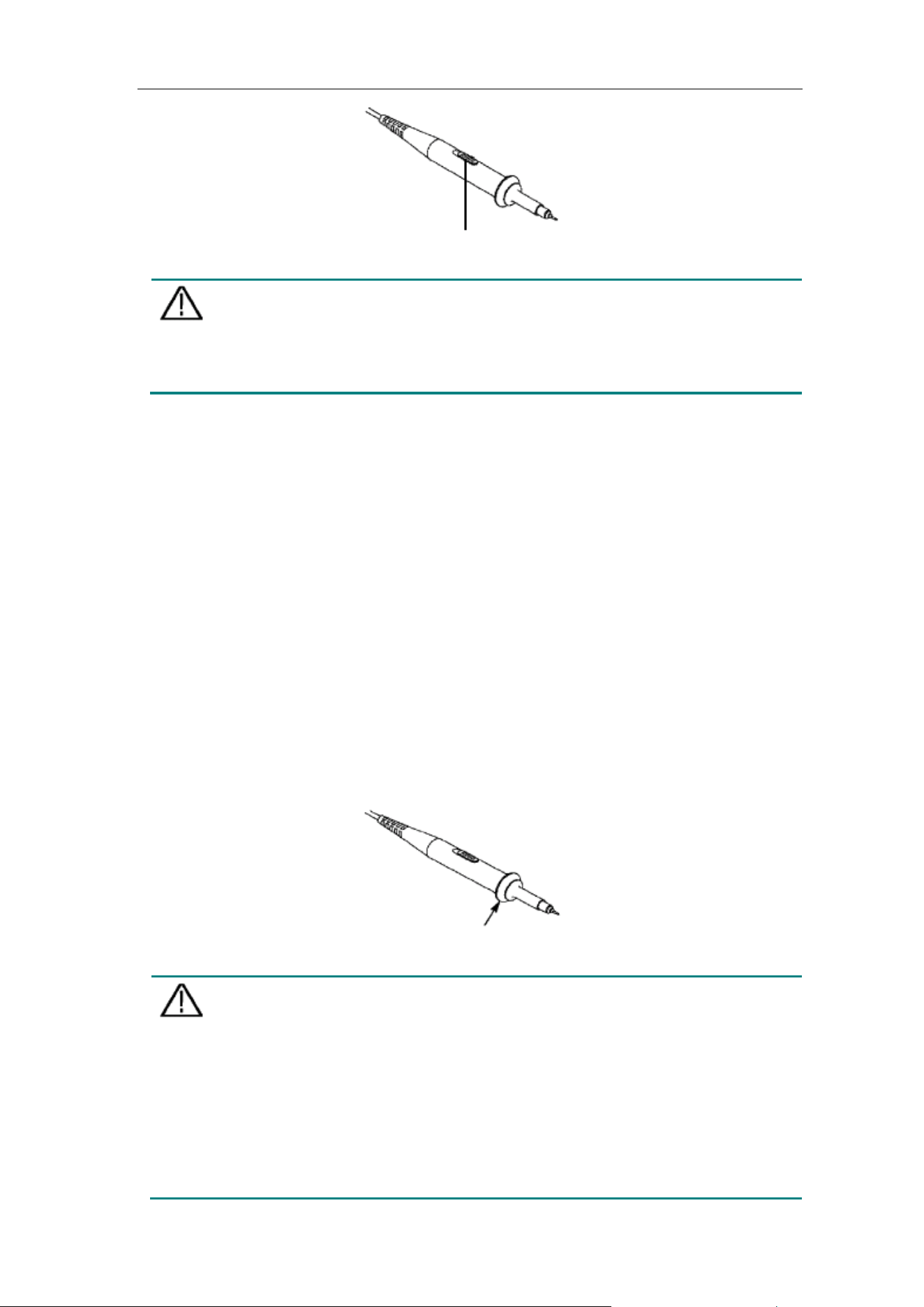
1. Set the attenuation coefficient of the probe on the menu as 10X and that of
the switch in the probe as 10X (see "How to Set the Probe Attenuation
Coefficient" on P13), and connect the probe with the CH1 channel. If a
probe hook tip is used, ensure that it keeps in close touch with the probe.
Connect the probe tip with the signal connector of the probe compensator
and connect the reference wire clamp with the ground wire connector of
the probe connector, and then push the Autoset button on the front panel.
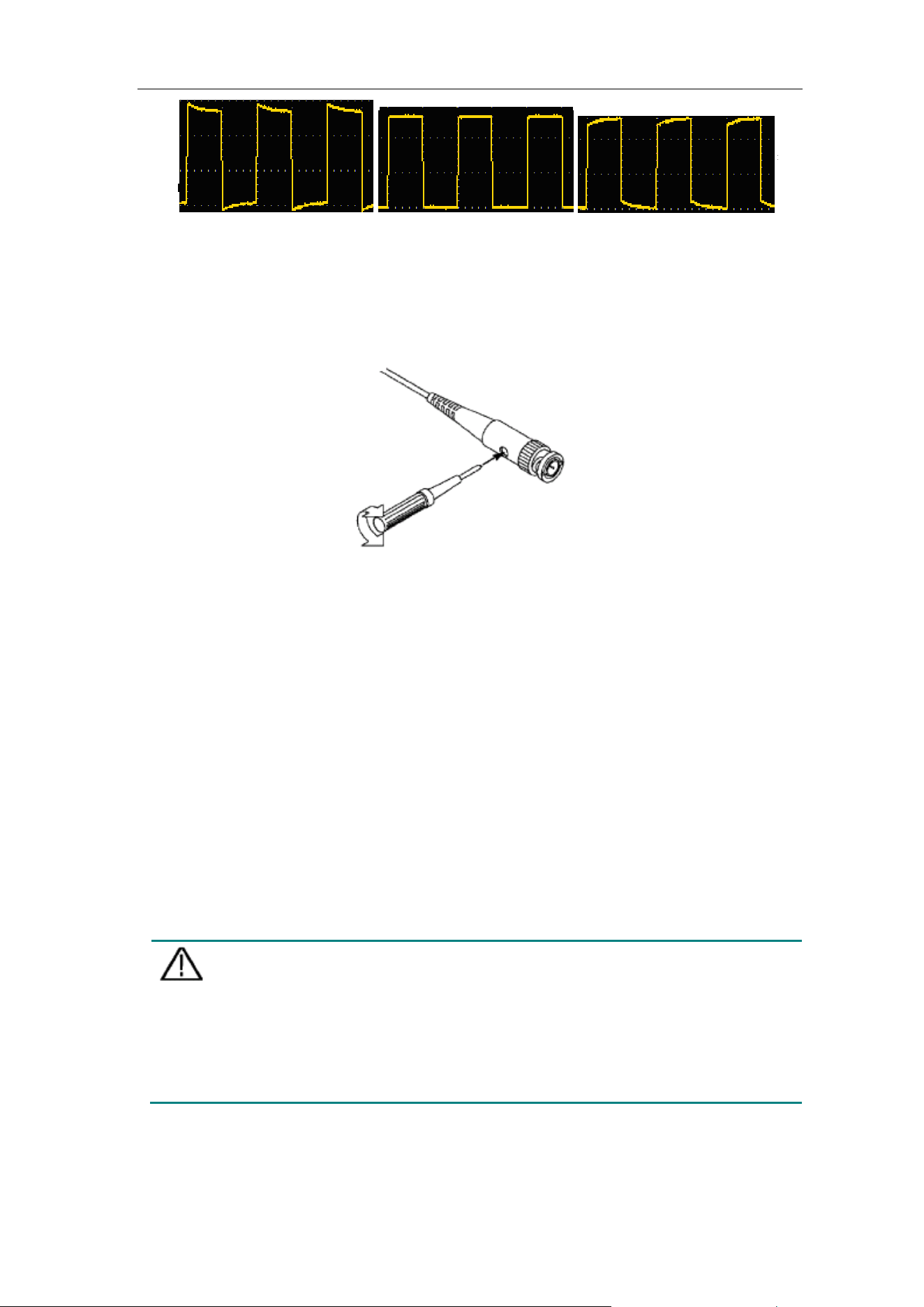
2. Check the displayed waveforms and regulate the probe till a correct
compensation is achieved (see Figure 3-6 and Figure 3-7).
3.Junior User Guidebook
13
Overcompensated Compensated correctly Under
compensated
Figure 3-6 Displayed Waveforms of the Probe Compensation
3. Repeat the steps mentioned if needed.
Figure 3-7 Adjust Probe
How to Set the Probe Attenuation Coefficient
The probe has several attenuation coefficients, which will influence the vertical
scale factor of the oscilloscope.
To change or check the probe attenuation coefficient on the menu of
oscilloscope:
(1) Push the function menu button of the used channels (CH1 – CH2 button or
CH1 - CH4 button).
(2) Select Probe in the bottom menu; select Attenu in the right menu, turn the
M knob to select the proper value corresponding to the probe.
This setting will be valid all the time before it is changed again.
Caution:
The default attenuation coefficient of the probe on the instrument is
preset to 10X.
Make sure that the set value of the attenuation switch in the probe is
the same as the menu selection of the probe attenuation coefficient in
the oscilloscope.
The set values of the probe switch are 1X and 10X (see Figure 3-8).
3.Junior User Guidebook
14
Figure 3-8 Attenuation Switch
Caution:
When the attenuation switch is set to 1X, the probe will limit the
bandwidth of the oscilloscope in 5MHz. To use the full bandwidth of
the oscilloscope, the switch must be set to 10X.
Identify the Probe Attenuation Coefficient Automatically
The oscilloscope can identify the probe attenuation coefficient of the 100:1
(impedance 5K±20%) or 10:1 (impedance 10K±20%) probe with the identifying
pin. When you attach the probe, the oscilloscope set the attenuation
automatically on the oscilloscope vertical menu for the channel to match the
probe.
For example, if you attach a 10:1 probe with the identifying pin, the screen will
prompt "The probe attenuation factor is X10", and set the attenuation to 10X
automatically on the oscilloscope vertical menu for the channel.
How to Use the Probe Safely
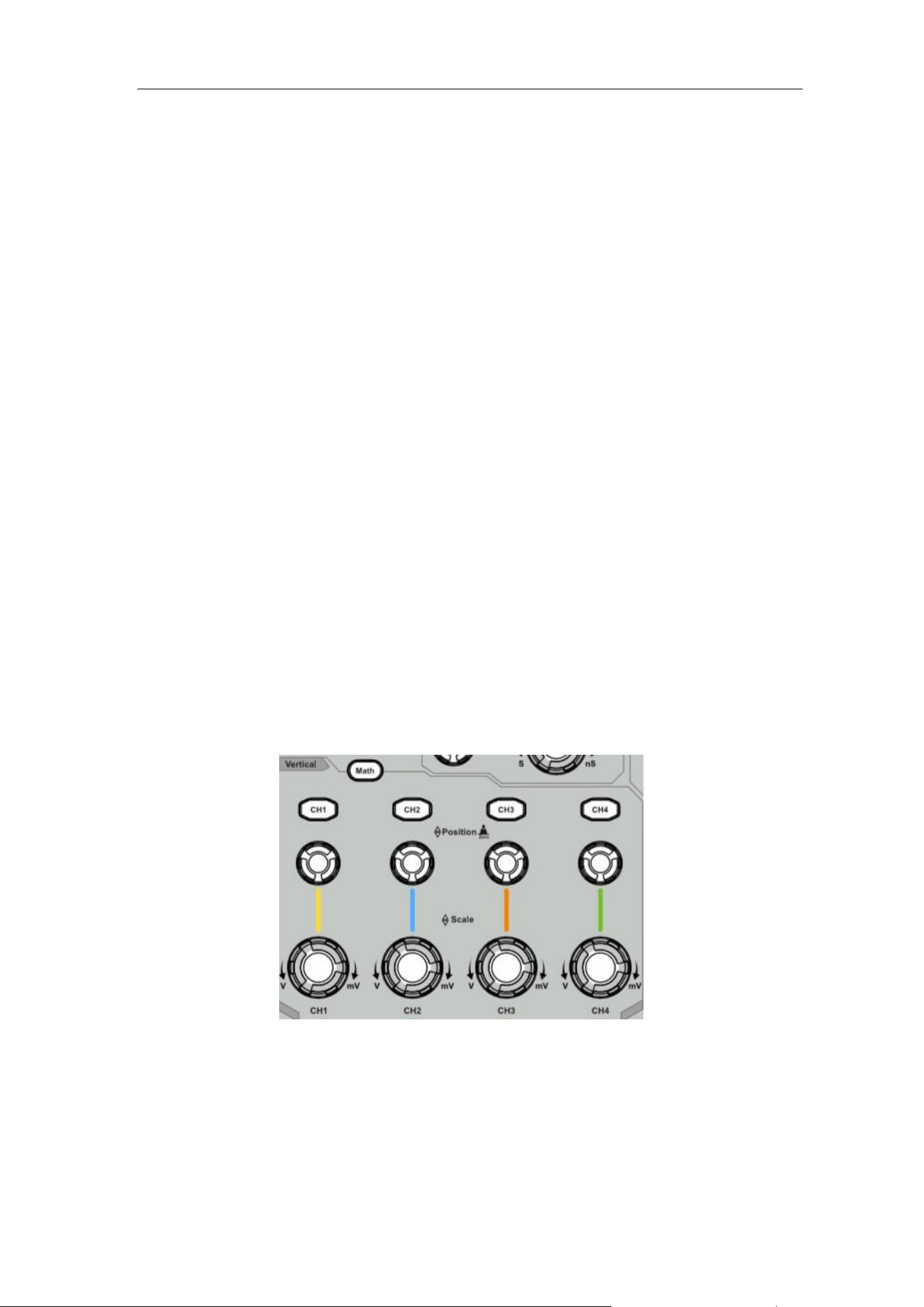
The safety guard ring around the probe body protects your finger against any
electric shock, shown as Figure 3-9.
Figure 3-9 Finger Guard
Warning:
To avoid electric shock, always keep your finger behind the safety
guard ring of the probe during the operation.
To protect you from suffering from the electric shock, do not touch any
metal part of the probe tip when it is connected to the power supply.
Before making any measurements, always connect the probe to the
instrument and connect the ground terminal to the earth.
3.Junior User Guidebook
15
How to Implement Self-calibration
The self-calibration application can make the oscilloscope reach the optimum
condition rapidly to obtain the most accurate measurement value. You can
carry out this application program at any time. This program must be executed
whenever the change of ambient temperature is 5℃ or over.
Before performing a self-calibration, disconnect all probes or wires from the
input connector. Push the Utility button, select Function in the bottom menu,
select Adjust. in the left menu, select Self Cal in the bottom menu; run the
program after everything is ready.
Introduction to the Vertical System
As shown in Figure 3-10, there are a few of buttons and knobs in Vertical
Controls.
CH1 - CH4 buttons, press one of the channel buttons to open the corresponding
channel menu, press again to turn off the channel.
Press the Math button to display the math menu in the bottom. The pink M
waveform appears on the screen. Press again to turn off the math waveform.
Each channel has a set of Vertical Position and Vertical Scale knob. The two
knobs are marked by different colors which are also used to mark the
waveforms on the screen and the channel input connectors. To set the vertical
position and vertical scale of a channel, please press CH1, CH2, CH3 or CH4 to
select the desired channel, and then turn the corresponding Vertical Position
and Vertical Scale knobs to set the values.
Figure 3-10 Vertical Control Zone
The following practices will gradually direct you to be familiar with the using of the
vertical setting.
1. Press CH1, CH2, CH3 or CH4 to select the desired channel.
2. Use the Vertical Position knob to show the selected channel waveform in the
center of the waveform window. The Vertical Position knob functions the
3.Junior User Guidebook
16
regulating of the vertical display position of the selected channel waveform.
Thus, when the Vertical Position knob is rotated, the pointer of the earth
datum point of the selected channel is directed to move up and down following
the waveform, and the position message at the center of the screen would
change accordingly.
Measuring Skill
If the channel is under the DC coupling mode, you can rapidly measure the DC
component of the signal through the observation of the difference between the
wave form and the signal ground.
If the channel is under the AC mode, the DC component would be filtered out.
This mode helps you display the AC component of the signal with a higher
sensitivity.
Vertical offset back to 0 shortcut key
Turn the Vertical Position knob to change the vertical display position of the
selected channel, and push the position knob to set the vertical display
position back to 0 as a shortcut key, this is especially helpful when the trace
position is far out of the screen and want it to get back to the screen center
immediately.
3. Change the Vertical Setting and Observe the Consequent State Information
Change.
With the information displayed in the status bar at the bottom of the waveform
window, you can determine any changes in the channel vertical scale factor.
Turn the Vertical Scale knob and change the "Vertical Scale Factor (Voltage
Division)" of the selected channel, it can be found that the scale factor of the
selected channel in the status bar has been changed accordingly.
Introduction to the Horizontal System
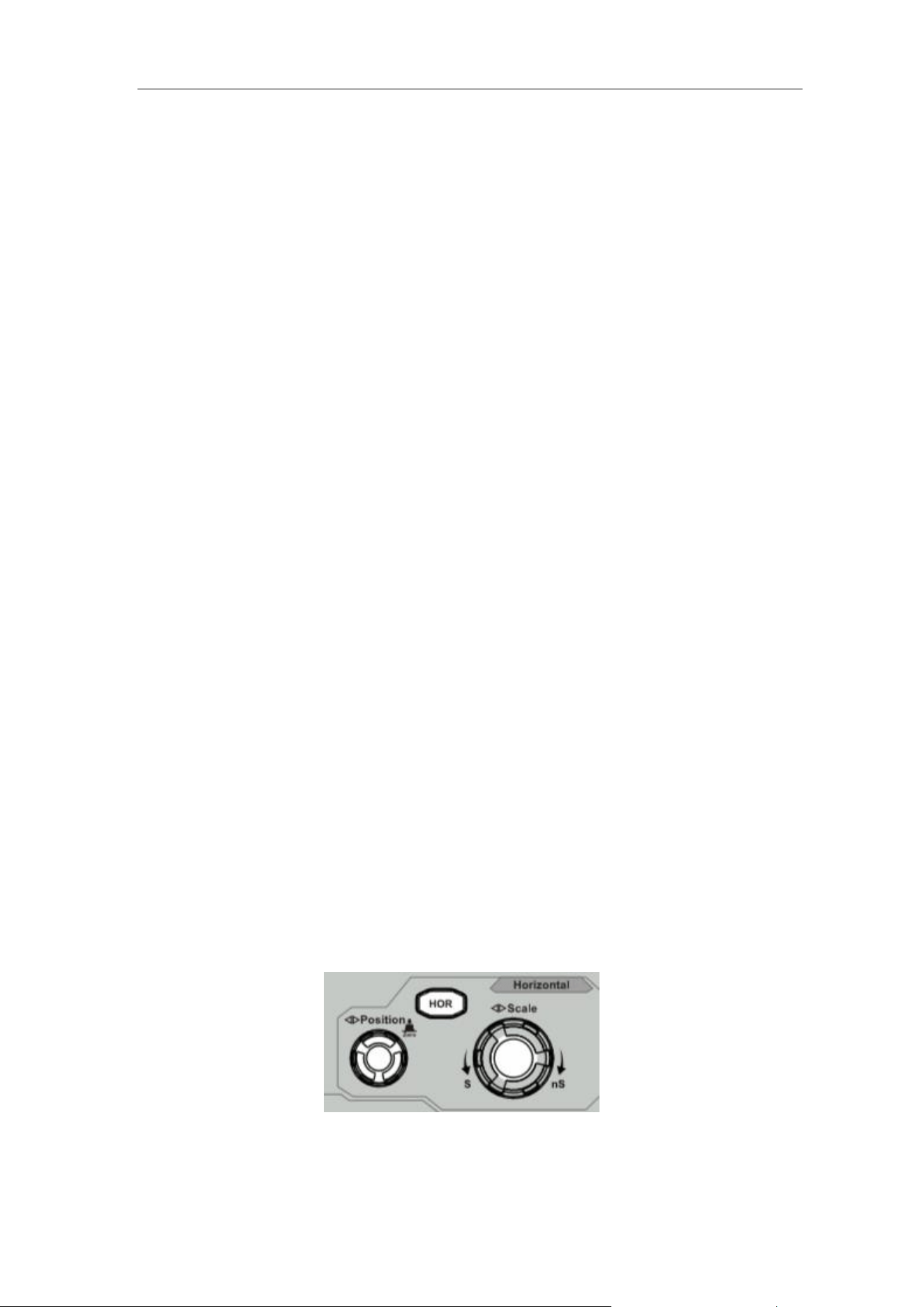
Shown as Figure 3-11, there are a button and two knobs in the Horizontal
Controls. The following practices will gradually direct you to be familiar with
the setting of horizontal time base.
Figure 3-11 Horizontal Control Zone
1. Turn the Horizontal Scale knob to change the horizontal time base setting
and observe the consequent status information change. Turn the
3.Junior User Guidebook
17
Horizontal Scale knob to change the horizontal time base, and it can be
found that the Horizontal Time Base displayed in the status bar changes
accordingly.
2. Use the Horizontal Position knob to adjust the horizontal position of the
signal in the waveform window. The Horizontal Position knob is used to
control the triggering displacement of the signal or for other special
applications. If it is applied to triggering the displacement, it can be
observed that the waveform moves horizontally with the knob when you
rotate the Horizontal Position knob.
Triggering displacement back to 0 shortcut key
Turn the Horizontal Position knob to change the horizontal position of
channel and push the Horizontal Position knob to set the triggering
displacement back to 0 as a shortcut key.
3. Push the Horizontal HOR button to switch between the normal mode and
the wave zoom mode.
Introduction to the Trigger System
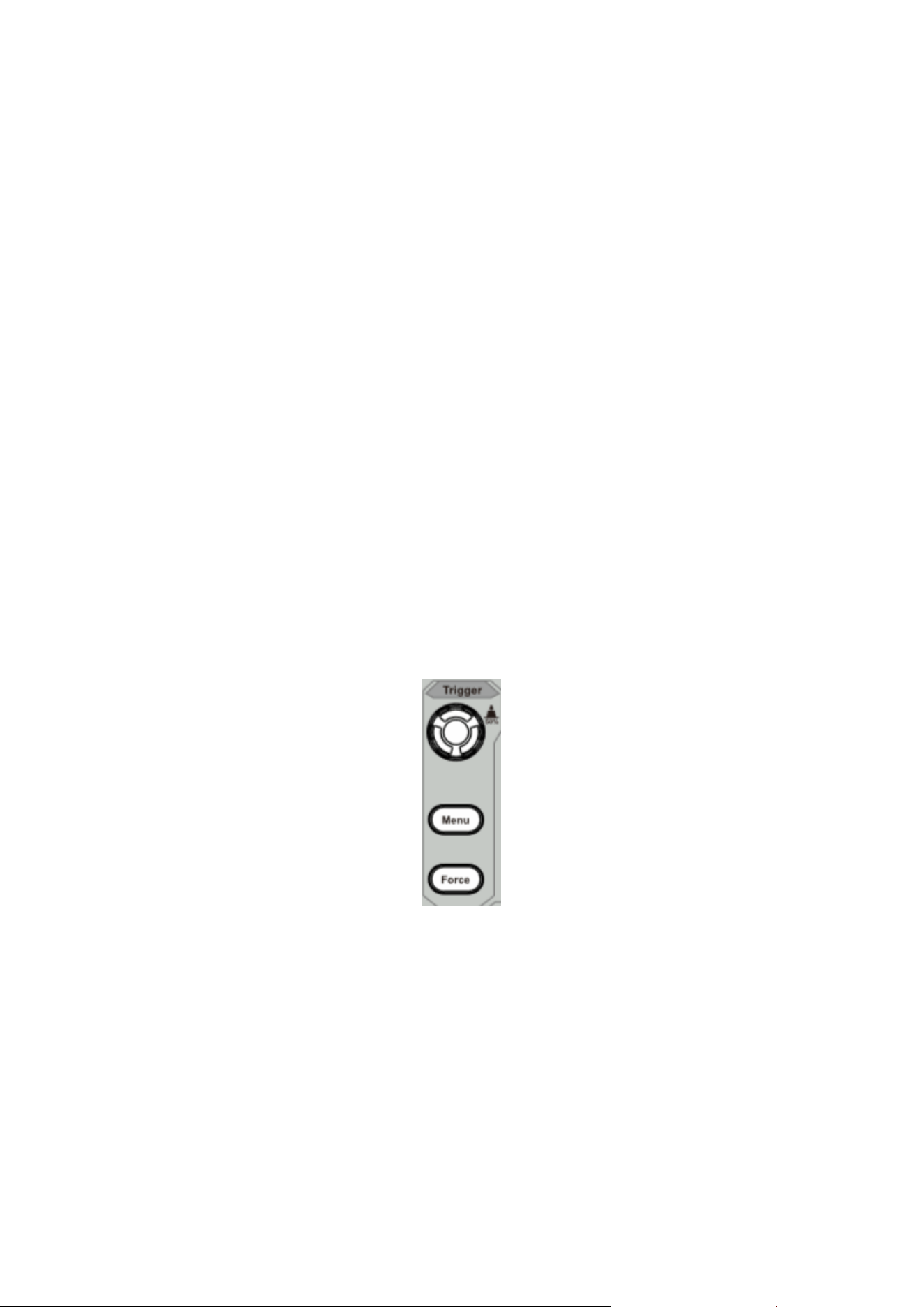
As shown in Figure 3-12, there are one knob and three buttons make up
Trigger Controls. The following practices will direct you to be familiar with the
setting of the trigger system gradually.
Figure 3-12 Trigger Control Zone
1. Push the Trigger Menu button and call out the trigger menu. With the
operations of the menu selection buttons, the trigger setting can be
changed.
2. Use the Trigger Level knob to change the trigger level setting.
By turning the Trigger Level knob, the trigger indicator in the screen will
move up and down. With the movement of the trigger indicator, it can be
observed that the trigger level value displayed in the screen changes
accordingly.
Note: Turning the Trigger Level knob can change trigger level value and
it is also the hotkey to set trigger level as the vertical mid point values of
3.Junior User Guidebook
18
the amplitude of the trigger signal.
3. Push the Force button to force a trigger signal, which is mainly applied to
the "Normal" and "Single" trigger modes.
Touchscreen Controls
The LCD is touchscreen, you can control the oscilloscope by different gestures.
The touchable icon at the top right of the screen is used to enable (
) or disable
(
) the touchscreen controls.
The instruction of touchscreen controls is as below.
⚫ Run/Stop: Click the or on the left top of the display area to run or stop
the waveform sampling.
⚫ Autoset: Click the on the left top of the display area to auto set.
⚫ Select a menu item: Touch the menu items in the bottom menu, or in the right
menu, or in the left menu.
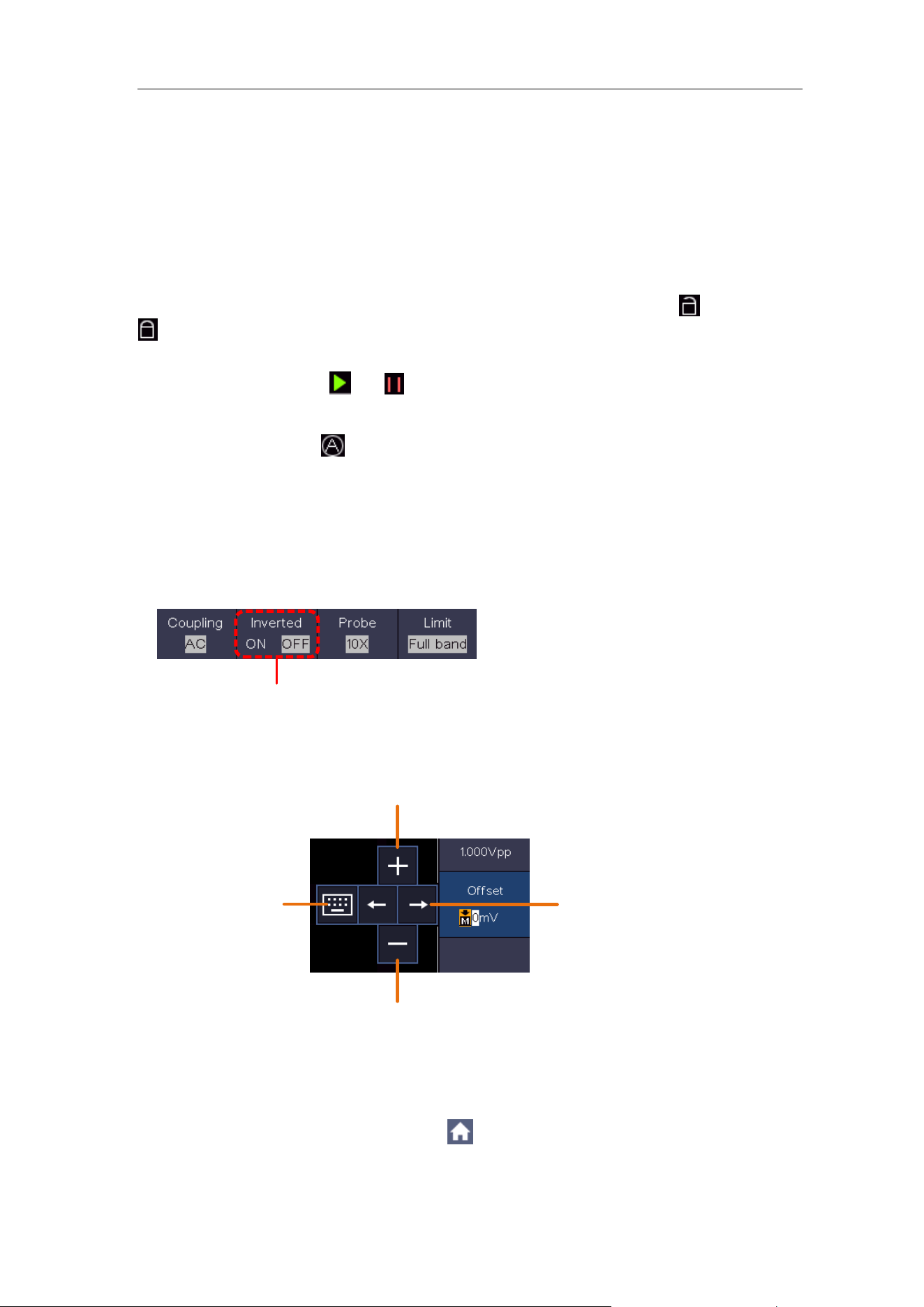
⚫ Switch menu items: If there are options that can be switched on the menu,
you can repeatedly touch the area of the menu item to switch, or push the
corresponding button to switch. See figure below:
Press repeatedly to
switch the options
⚫ Adjust value on the menu item:
Click to increase the
value of cursor position
Move the cursor
Click to decrease the
value of cursor position
Click to show the
soft keyboard
⚫ Scroll the list: If there is a scroll bar in the left menu or in the file system
window, you can swipe up and down to scroll the list.
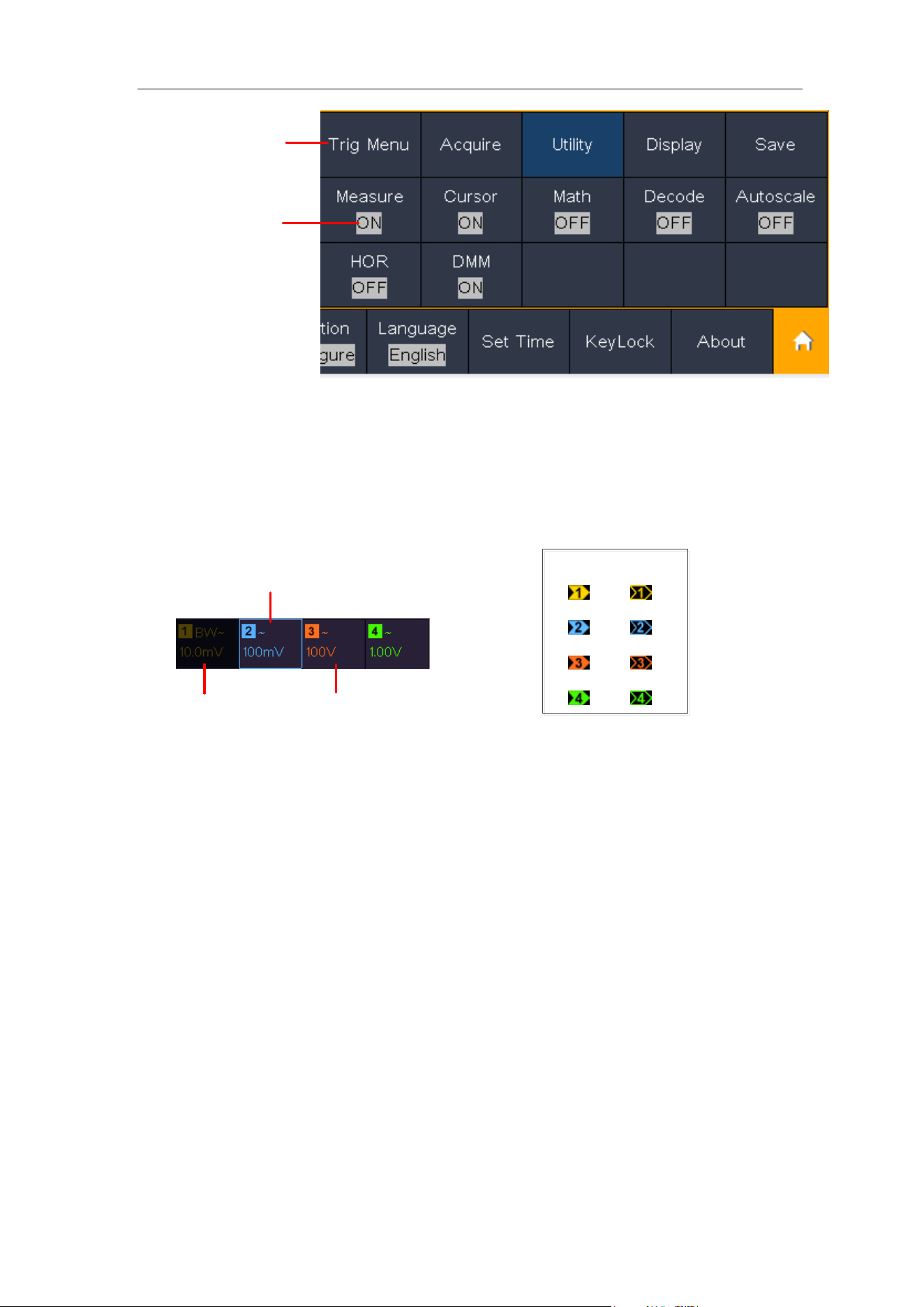
⚫ Touchable menu pane: Click the
icon on the right bottom of the display
area, a shortcut menu will be shown. Click to enter the corresponding function
menu.
3.Junior User Guidebook
19
Click to enter
the function
menu
Click on turn
on/off
⚫ Set the channel status: Click the channel on the left bottom of the display
area, you can turn on, select or turn off the channel. You can also touch the
channel pointer on the left side of the display area to make it in selected state.
Channel is off
Channel is on and selected
Channel is on
Selected
Unselected
Channel pointer
⚫ Set the horizontal and vertical position
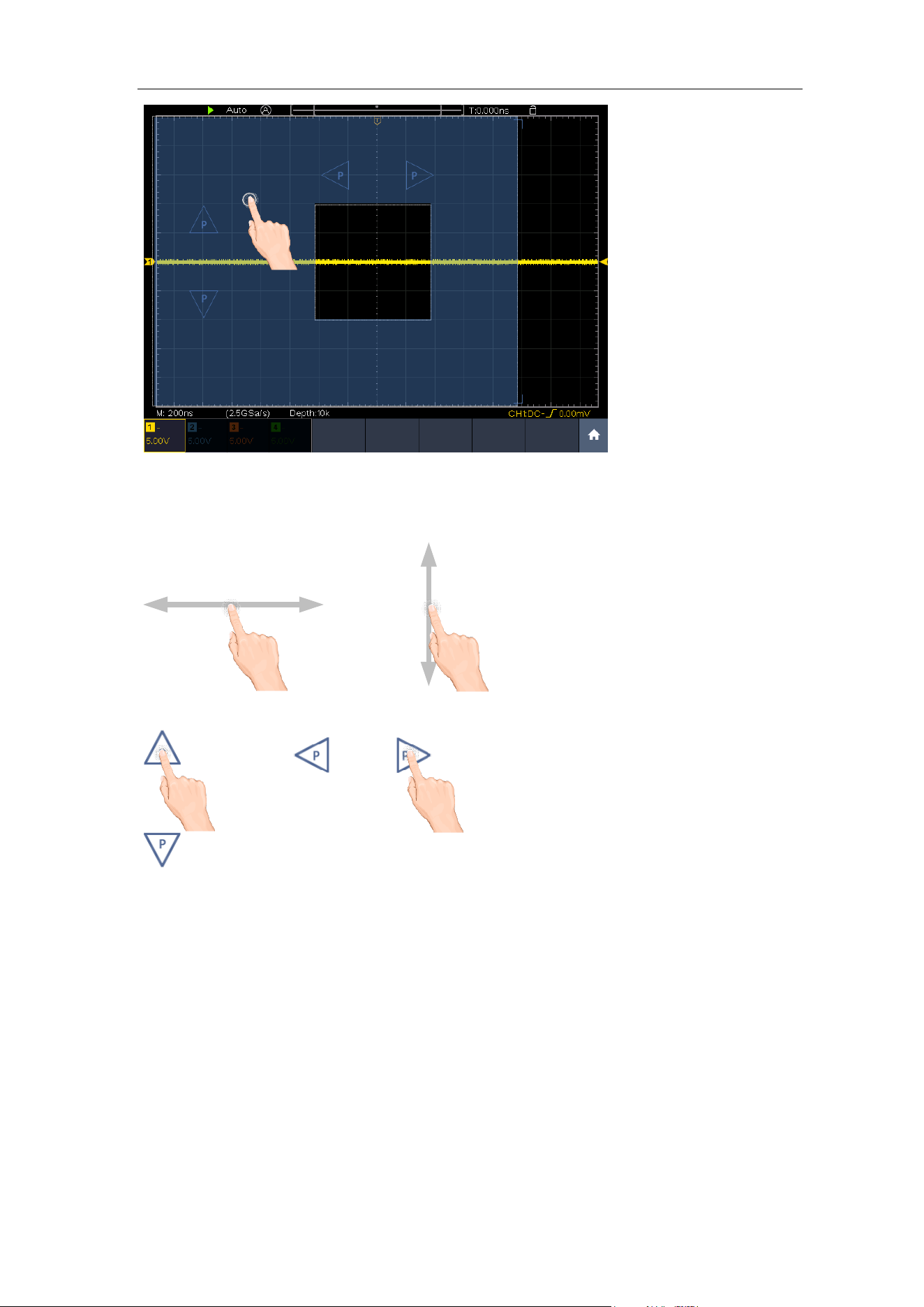
Click in the area as shown in the figure below, the P icon will appear. Click
anywhere outside the icon to hide it.
Note: Swipe up/down or left/right in this area, you can make the icon appear and
control it.
3.Junior User Guidebook
20
When the P icon appears, in the full screen, swipe left/right to control the
horizontal position, swipe up/down to control the vertical position of the selected
channel.
Control the
horizontal position
Control the vertical position
of the selected channel
Click the P icon to fine-turn, long-press to adjust continuously.
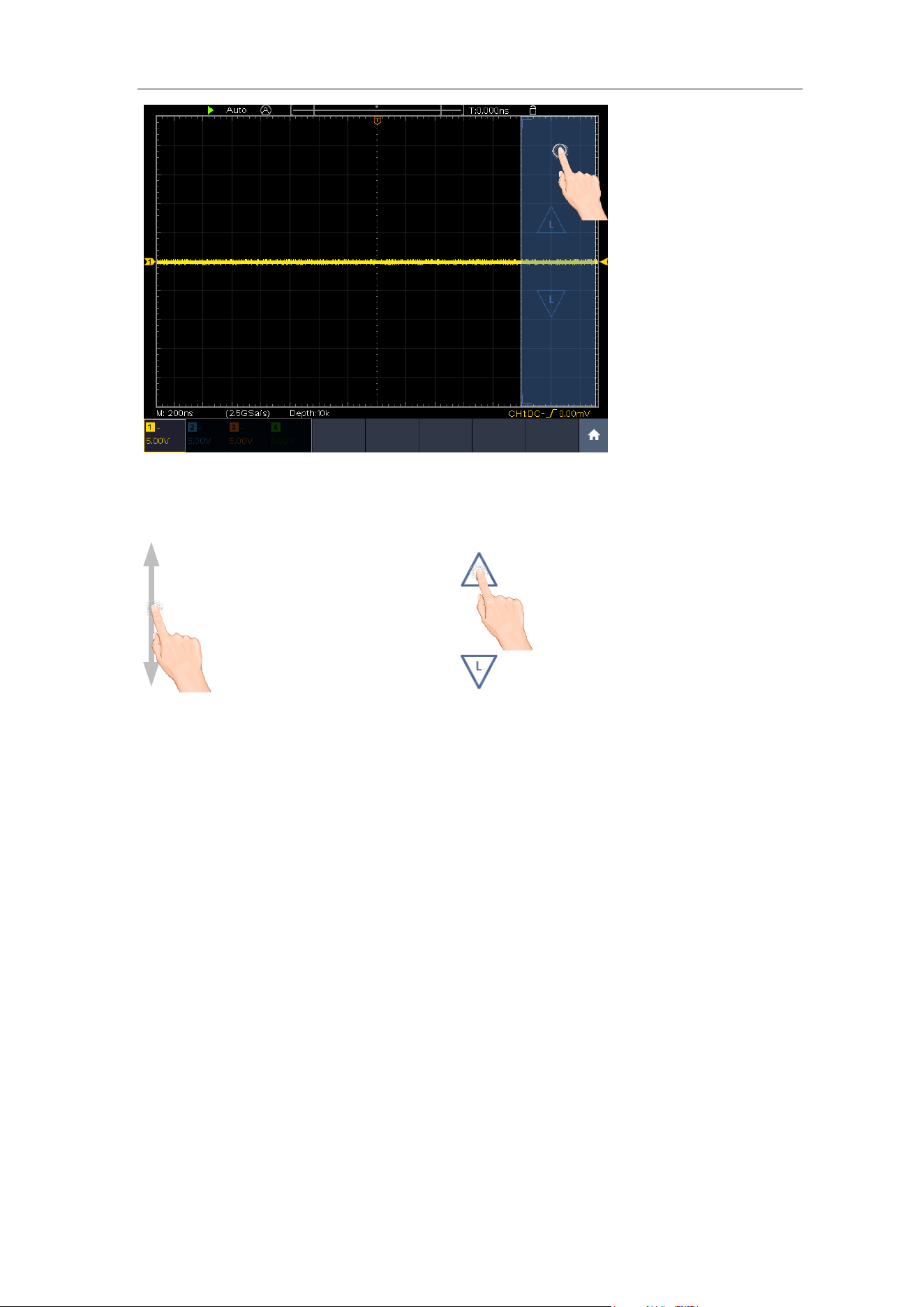
⚫ Set the trigger level
Click in the area as shown in the figure below, the L icon will appear. Click
anywhere outside the icon to hide it.
Note: Swipe up/down in this area, you can make the icon appear and control it.
3.Junior User Guidebook
21
When the L icon appears, in the full screen, swipe up/down to control the trigger
level of the source in the trigger menu.
Click the L icon to fine-turn, long-press to adjust continuously.
Control the trigger level of the
source in the trigger menu
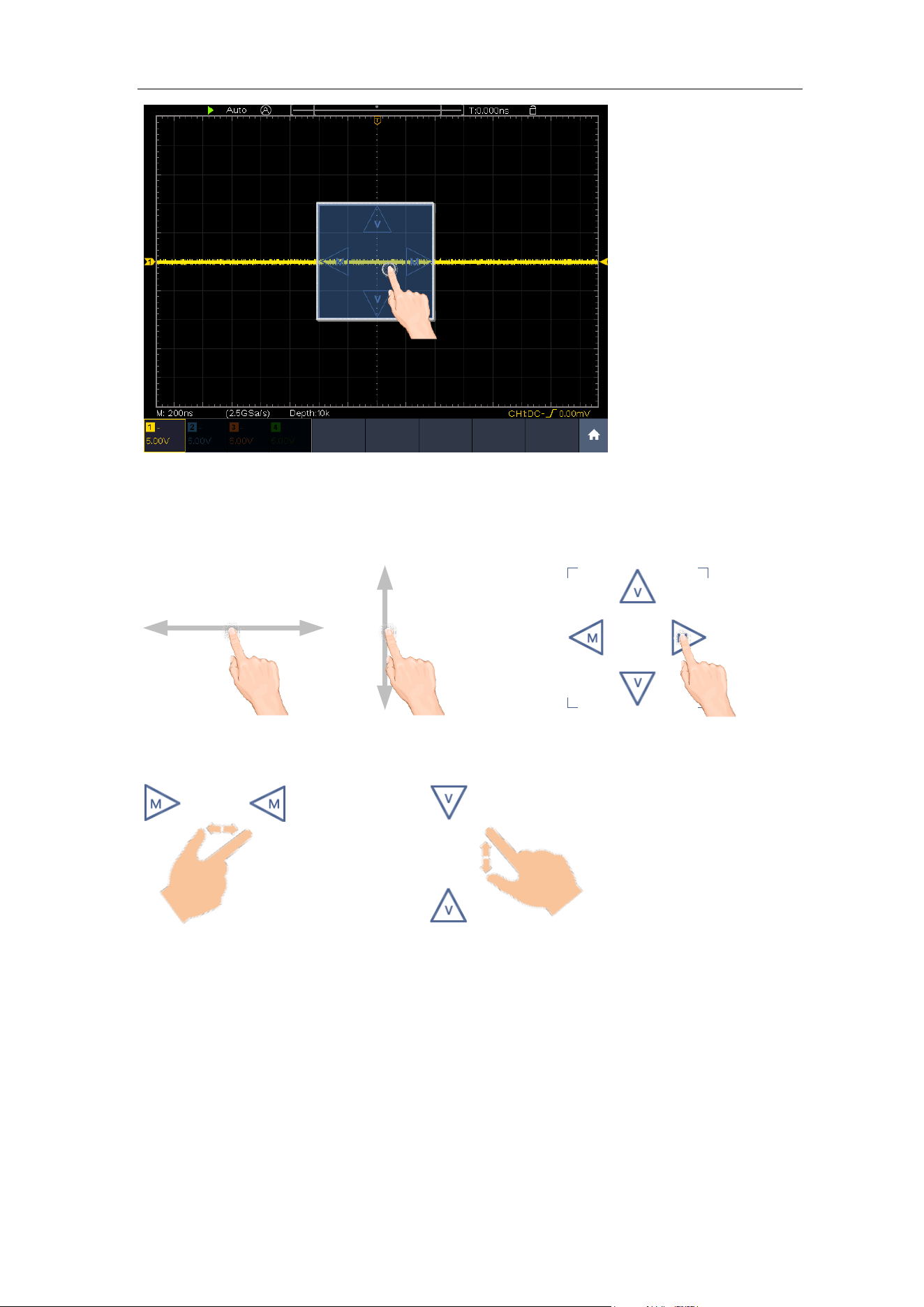
⚫ Set the time base and the voltage division
Click in the area as shown in the figure below, the M and V icons will appear.
Click anywhere outside the icon to hide it.
Note: Swipe up/down or left/right in this area, you can make the icon appear and
control it.
3.Junior User Guidebook
22
When the M and V icons appear, in the full screen, swipe left/right to change the
time base, swipe up/down to change the voltage division of the selected
channel.
Click the icons to fine-turn, long-press to adjust continuously.
Control the
time base
Control the
voltage division
In the full screen, pinch and spread horizontally to change the time base; pinch
and spread vertically to change the voltage division of the selected channel.
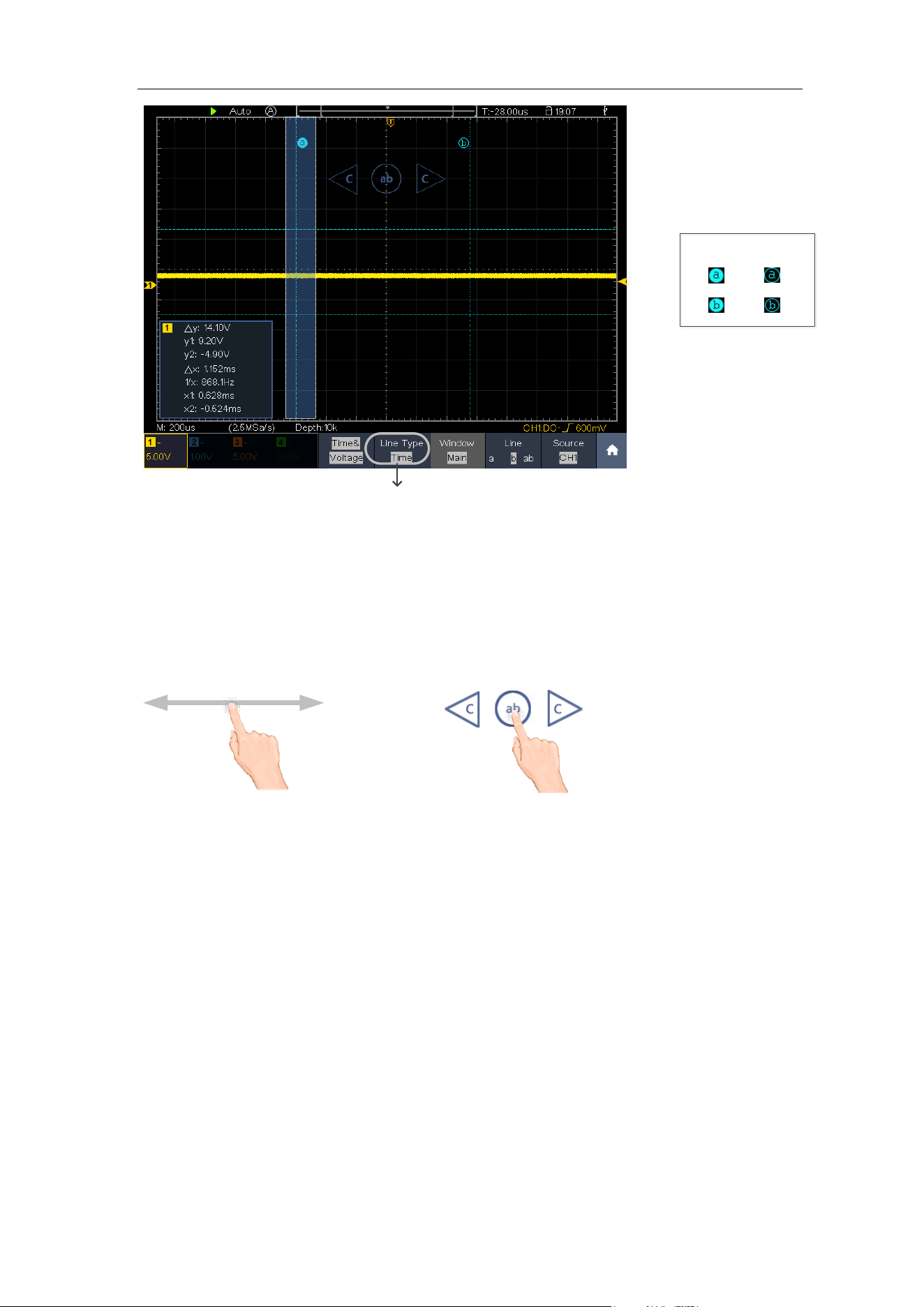
⚫ Measure with Cursors
Click nearby a cursor line as shown in the figure below, the line will be selected,
and the C icon will appear. Click anywhere outside the icon to hide it.
Note: Swipe in this area, you can make the icon appear and control it.
3.Junior User Guidebook
23
Cursor line
Switch horizontal or vertical lines
If vertical lines are selected, drag up and down.
Selected
Unselected
When the C icon appears, in the full screen, swipe left/right to move the selected
line.
Click the direction buttons of the C icon to fine-turn, long-press to move
continuously. Click the center "ab" button to select a, b, or a&b.
Control the vertical
cursor line
Switch to select the lines

4.Advanced User Guidebook
24
4. Advanced User Guidebook
Up till now, you have already been familiar with the basic operations of the function
areas, buttons and knobs in the front panel of the oscilloscope. Based the
introduction of the previous Chapter, the user should have an initial knowledge of
the determination of the change of the oscilloscope setting through observing the
status bar. If you have not been familiar with the above-mentioned operations and
methods yet, we advise you to read the section of Chapter 3 "Junior User
Guidebook".
This chapter will deal with the following topics mainly:
⚫ How to Set the Vertical System
⚫ How to Set the Horizontal System
⚫ How to Set the Trigger/Decoding System
⚫ How to Implement the Sampling Setup
⚫ How to Set the Display System
⚫ How to Save and Recall Waveform
⚫ How to Record/Playback Waveforms
⚫ How to Clone and Recall a waveform
⚫ How to Implement the Auxiliary System Function Setting
⚫ How to Update your Instrument Firmware
⚫ How to Measure Automatically
⚫ How to customize an automatic measurement
⚫ How to Measure with Cursors
⚫ How to Use Autoscale
⚫ How to Use Built-in Help
⚫ How to Use Executive Buttons
⚫ How to Print the Screen Image
It is recommended that you read this chapter carefully to get acquainted the
various measurement functions and other operation methods of the oscilloscope.
Note: The following operations and pictures are based on the four-channel
model. For the operation of the two-channel model, please refer to
the four-channel model.
4.Advanced User Guidebook
25
How to Set the Vertical System
The VERTICAL CONTROLS includes three menu buttons such as CH1, CH2, CH3, CH4 and
Math, and Vertical Position, Vertical Scale for each channel.
Setting of CH1 - CH4
Each channel has an independent vertical menu and each item is set respectively
based on the channel.
To turn waveforms on or off (channel, math)
Pushing the CH1, CH2, CH3, CH4, or Math buttons have the following effect:
• If the waveform is off, the waveform is turned on and its menu is displayed.
• If the waveform is on and its menu is not displayed, its menu will be displayed.
• If the waveform is on and its menu is displayed, the waveform is turned off and its
menu goes away.
The description of the Channel Menu is shown as the following list:
Functio
n Menu
Setting
Description
Coupling
DC
AC
GROUND
Pass both AC and DC components of the input
signal.
Block the DC component of the input signal.
Disconnect the input signal.
Inverted
ON
OFF
Display inverted waveform.
Display original waveform.
Probe
Attenu
0.001
X to
1000X
Step by 1 – 2 – 5. Match this to the probe
attenuation factor to have an accurate reading of
vertical scale.
MeasCurr
YES
NO
If you are measuring current by probing the
voltage drop across a resistor, choose YES.
A/V (mA/V)
V/A (mV/A)
Turn the M knob to set the Amps/Volts ratio. The
range is 100 mA/V - 1 KA/V.
Amps/Volts ratio = 1/Resistor value
Volts/Amp ratio is automatically calculated.
Limit
Full band
20M
Get full bandwidth.
Limit the channel bandwidth to 20MHz to reduce
display noise.
Input
IMP
1MΩ
50Ω
It can reduce the circuit load caused by the
interaction between the oscilloscope and the
circuit under test.
1. To set channel coupling
Taking the Channel 1 for example, the measured signal is a square wave signal

4.Advanced User Guidebook
26
containing the direct current bias. The operation steps are shown as below:
(1) Push the CH1 button to show the CH1 SETUP menu.
(2) Select Coupling in the bottom menu.
(3) Select DC in the right menu. Both DC and AC components of the signal are
passed.
(4) Select AC in the right menu. The direct current component of the signal is
blocked.
2. To adjust the probe attenuation
For correct measurements, the attenuation coefficient settings in the operating
menu of the Channel should always match what is on the probe (see "How to Set
the Probe Attenuation Coefficient" on P13). If the attenuation coefficient of the
probe is 1:1, the menu setting of the input channel should be set to X1.
Take the Channel 1 as an example, the attenuation coefficient of the probe is
10:1, the operation steps are shown as follows:
(1) Push the CH1 button to show the CH1 SETUP menu.
(2) Select Probe in the bottom menu. Select Attenu in the right menu, turn the
M knob to set it as 10×.
3. To measure current by probing the voltage drop across a resistor
Take the Channel 1 as an example, if you are measuring current by probing the
voltage drop across a 1Ω resistor, the operation steps are shown as follows:
(1) Push the CH1 button to show CH1 SETUP menu.
(2) Select Probe in the bottom menu. In the right menu, set MeasCurr as YES,
the A/V radio menu will appear below. Select it; turn the M knob to set the
Amps/Volts ratio. Amps/Volts ratio = 1/Resistor value. Here the A/V radio
should be set to 1.
4. To invert a waveform
Waveform inverted: the displayed signal is turned 180 degrees against the
phase of the earth potential.
Taking the Channel 1 for example, the operation steps are shown as follows:
(1) Push the CH1 button to show the CH1 SETUP menu.
(2) Select Inverted in the bottom menu, switch to ON. the waveform is inverted.
Push again to switch to OFF, the waveform goes back to its original one.
5. To set bandwidth limit
When high frequency components of a waveform are not important to its
analysis, the bandwidth limit control can be used to reject frequencies above 20
MHz.
Taking the Channel 1 for example, the operation steps are shown as below:
4.Advanced User Guidebook
27
(1) Push the CH1 button to show CH1 SETUP menu.
(2) Select Limit in the bottom menu.
(3) Select Full band in the right menu. The high frequency of the signal will be
allowed to pass.
(4) Select 20M in the right menu. The bandwidth is limited to 20 MHz. The
frequencies above 20MHz will be rejected.
6. To set input impedance
Setting the input impedance can reduce the circuit load caused by the interaction
between the oscilloscope and the circuit under test.
Taking CH1 as an example, the operation steps are as follows:
(1) Push the CH1 button to show the CH1 SETUP menu.
(2) Select Input IMP in the bottom menu. Press again to switch between 1MΩ
or 50Ω.
1MΩ:At this time, the input impedance of the oscilloscope is very high, and
the current flowing into the oscilloscope from the circuit under test is
negligible.
50Ω:Match the oscilloscope with the equipment with an output impedance
of 50Ω. The maximum input voltage cannot exceed 5 Vrms.
Use Mathematical Manipulation Function
The Mathematical Manipulation function is used to show the results of the
addition, multiplication, division and subtraction operations between two channels,
the FFT operation for a channel, advanced math feature including Intg, Diff, Sqrt,
user defined function, and digital filter. Press the Math button to display the menu
on the bottom.
The Waveform Calculation menu:
Function Menu
Setting
Description
Wavefor
m Math
Factor1
CH1
CH2
CH3
CH4
Select the signal source of the factor1
Sign
+ - * /
Select the sign of mathematical
manipulation
Factor2
CH1
CH2
CH3
CH4
Select the signal source of the factor2
Vertical
(div)
Turn the M knob to adjust the vertical position of the
Math waveform
4.Advanced User Guidebook
28
Vertical
(V/div)
Turn the M knob to adjust the vertical division of the
Math waveform
FFT
Source
CH1
CH2
CH3
CH4
Select the FFT source.
Window
Hamming
Rectangle
Blackman
Hanning
Kaiser
Bartlett
Select window for FFT.
Format
V RMS
Decibels
Radian
Degrees
V RMS and Decibels are
Hori
(Hz)
Position value
Time base
value/
Switch to select the horizontal position
or time base of the FFT waveform, turn
the M knob to adjust it
Vertical
Position value
Division value/
Switch to select the vertical position or
voltage division of the FFT waveform,
turn the M knob to adjust it
User
Function
Edit
Intg, Diff, Sqrt, and user defined function
Vertical
(div)
Turn the M knob to adjust the vertical position of the
Math waveform
Vertical
(V/div)
Turn the M knob to adjust the vertical division of the
Math waveform
DIR
channel
CH1
CH2
Select channel
type
low-pass
Only the signals whose frequencies
are lower than the current cut-off
frequency can pass the filter.
high-pass
Only the signals whose frequencies
are greater than the current cutoff
frequency can pass the filter.
band-pass
Only the signals whose frequencies
are greater than the cutoff frequency
down and lower than the current cutoff
frequency upper can pass the filter.
band-reject
Only the signals whose frequencies
are lower than the current cutoff
frequency down or greater than the
current cutoff frequency upper can
pass the filter.
4.Advanced User Guidebook
29
window
Retangular
Tapered
Triangular
Hanning
Hamming
Blackman
Select window for digital filter
cut-off
fre
or
upper down
Turn the M knob to set cut-off
frequency
Vertical
(div)
Turn the M knob to adjust the vertical
position of Math waveform
FFT
Peak
ON
OFF
Enable or disable FFT peak search.
Dynamic marker ▽ marks the FFT
peak.
Waveform math
Taking the additive operation between Channel 1 and Channels 2 for example, the
operation steps are as follows:
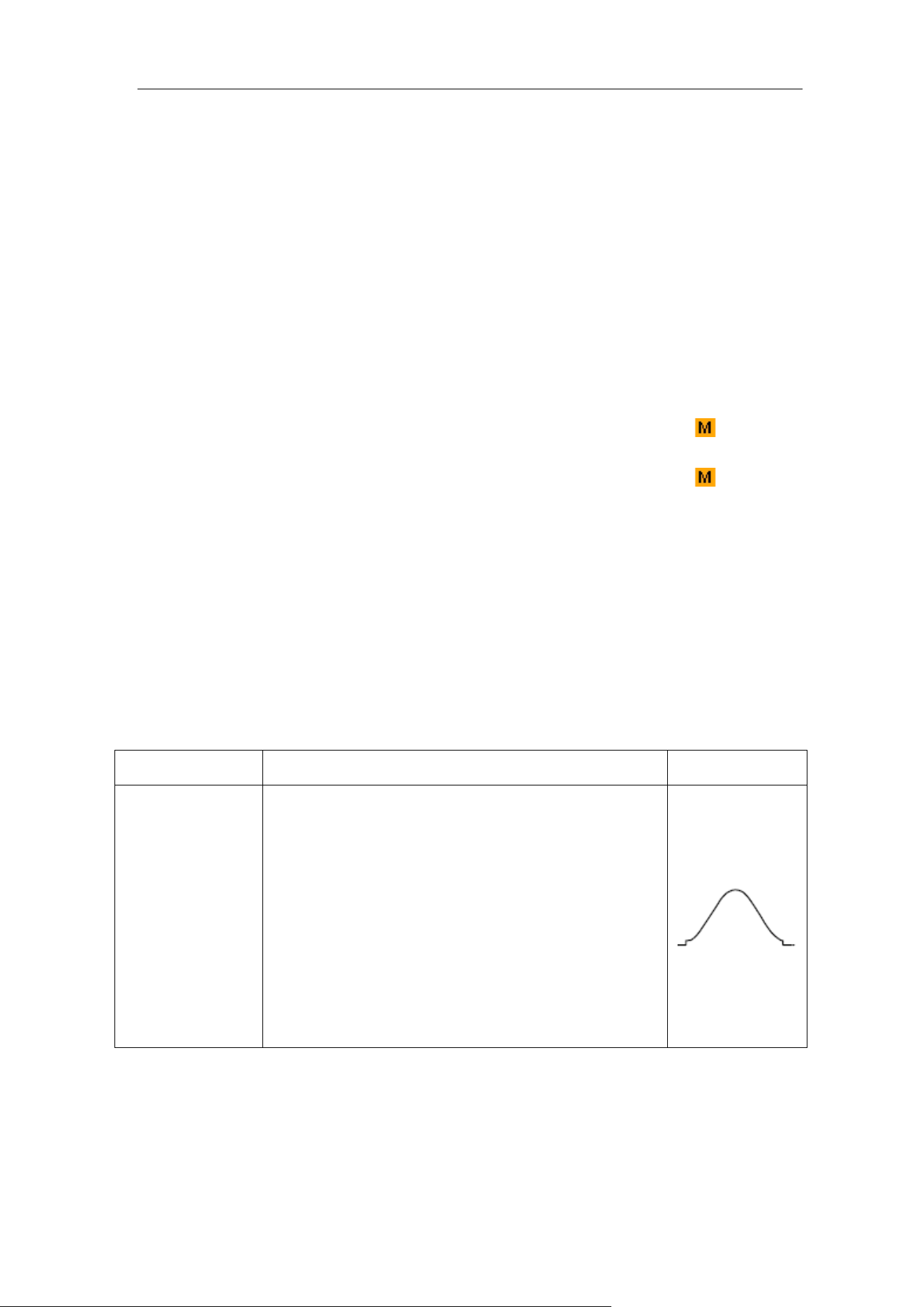
1. Press the Math button to display the math menu in the bottom. The pink M
waveform appears on the screen.
2. Select Waveform Math in the bottom menu.
3. In the right menu, select Factor1 as CH1.
4. Select Sign as + in the right menu.
5. In the right menu, select Factor2 as CH2.
6. Select Vertical (div) in the right menu, turn the M knob to adjust the vertical
position of Math waveform.
7. Select Vertical (V/div) in the right menu, turn the M knob to adjust the vertical
division of Math waveform.
User defined function
1. Press the Math button to display the math menu in the bottom.
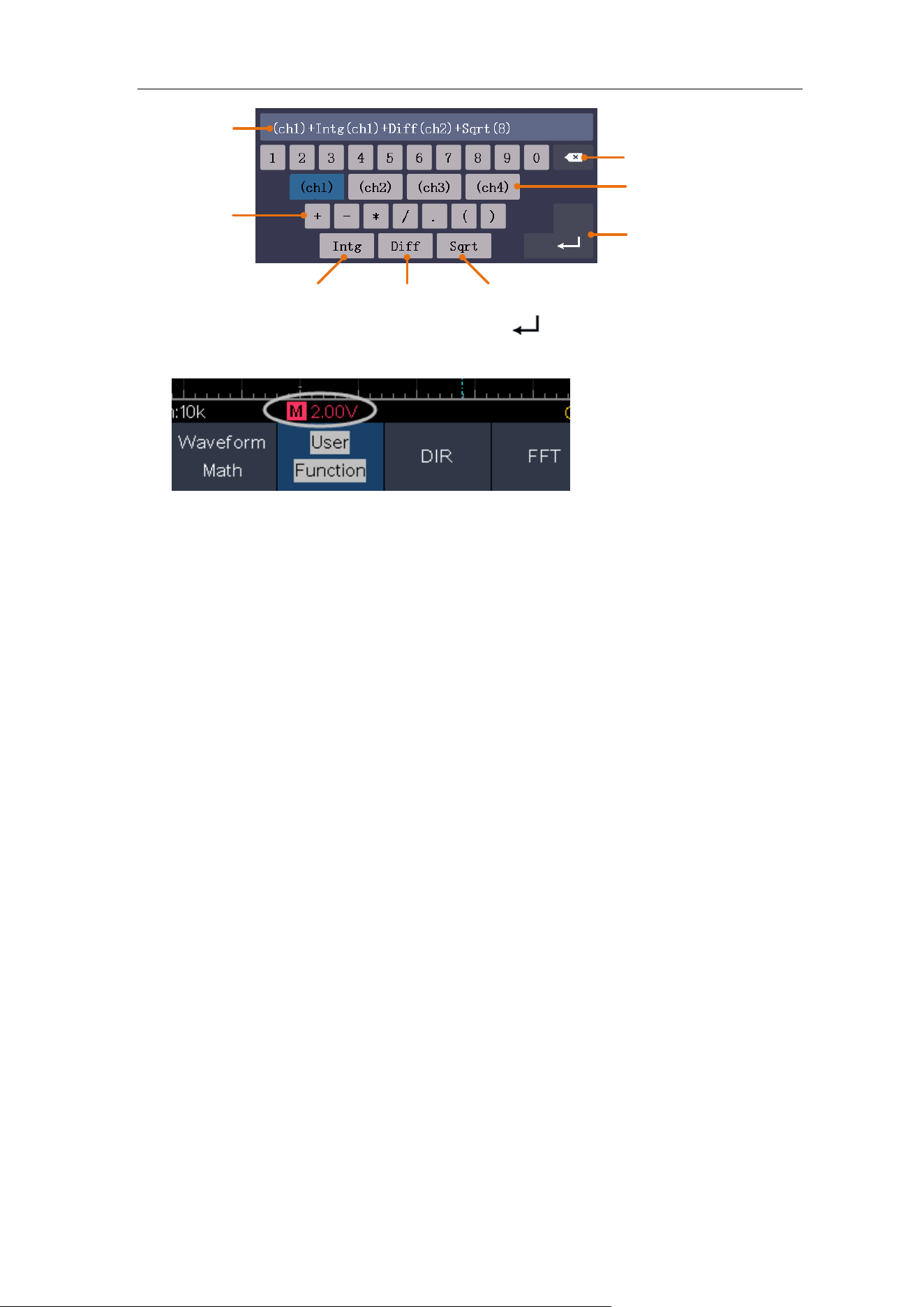
2. Select User Function in the bottom menu, an expression input keyboard pops
up.
4.Advanced User Guidebook
30
Channel
Confirm
Clear
Operators
Integral Differential Square root
Expression
3. Create an expression. When done, choose
in the keyboard to confirm
. The
division of Math waveform is displayed at the left bottom of screen.
Digital Filter
Digital filter provides 4 types of filters (low pass, high pass, band pass and band
reject). The specified frequencies can be filtered by setting the cut-off frequency.
Digital filter can only apply to CH1 or CH2.
1. Press the Math button to display the math menu in the bottom.
2. Select DIR in the bottom menu.
3. In the right menu, select channel as CH1 or CH2.
4. In the right menu, select type, select the desired filter type.
5. In the right menu, select window, select the desired window.
6. When low-pass or high-pass type is selected, select cut-off fre in the right
menu.
When band-pass or band-reject type is selected, select upper or down in the
right menu. Turn M knob to adjust the frequency.
7. In the right menu, select Vertical (div), turn M knob to adjust the vertical
position of Math waveform. The voltage division of Math waveform is the same
as the selected channel.
Note: On the Scan format, digital filter is disabled.
Using FFT function
The FFT (fast Fourier transform) math function mathematically converts a
time-domain waveform into its frequency components. It is very useful for
analyzing the input signal on Oscilloscope. You can match these frequencies with
known system frequencies, such as system clocks, oscillators, or power supplies.
FFT function in this oscilloscope transforms 8192 data points of the time-domain
4.Advanced User Guidebook
31
signal into its frequency components mathematically (the record length should be
10K or above). The final frequency contains 4096 points ranging from 0Hz to
Nyquist frequency.
Taking the FFT operation for example, the operation steps are as follows:
1. Press the Math button to display the math menu in the bottom.
2. Select FFT in the bottom menu.
3. In the right menu, select Source as CH1.
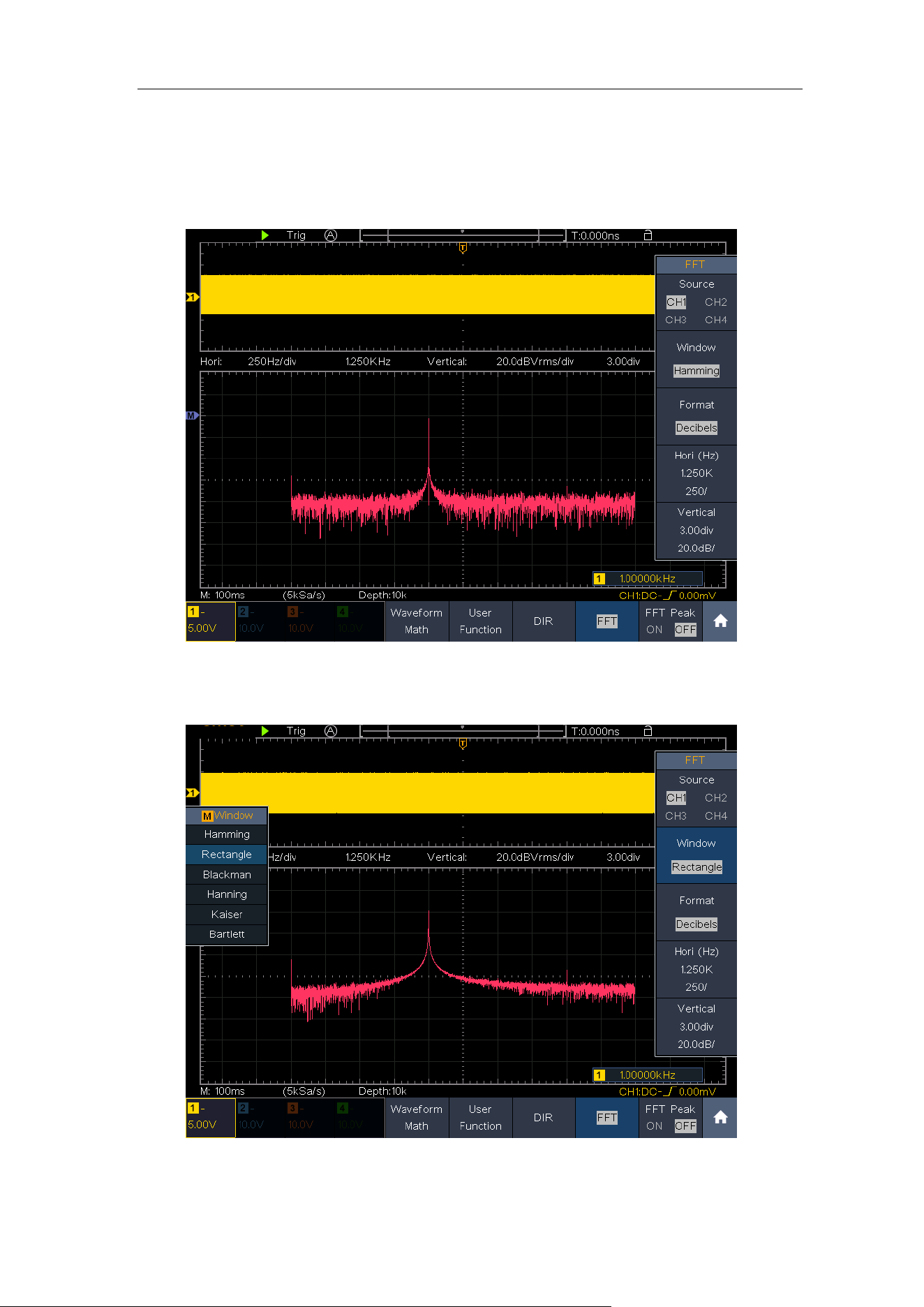
4. In the right menu, select Window. In the left menu, turn the M knob to select
the proper window type.
5. In the right menu, select Format. In the left menu, turn the M knob to select
amplitude unit (V RMS, Decibels) or phase unit (Radian, Degrees).
6. Select Hori (Hz) in the right menu; select repeatedly to make the symbol in
front of the horizontal position value (the upper one), turn the M knob to adjust
the horizontal position of FFT waveform; then select to make the symbol in
front of the time base value below, turn the M knob to adjust the time base of
FFT waveform.
7. Select Vertical in the right menu; do the same operations as above to set the
vertical position and vertical division.
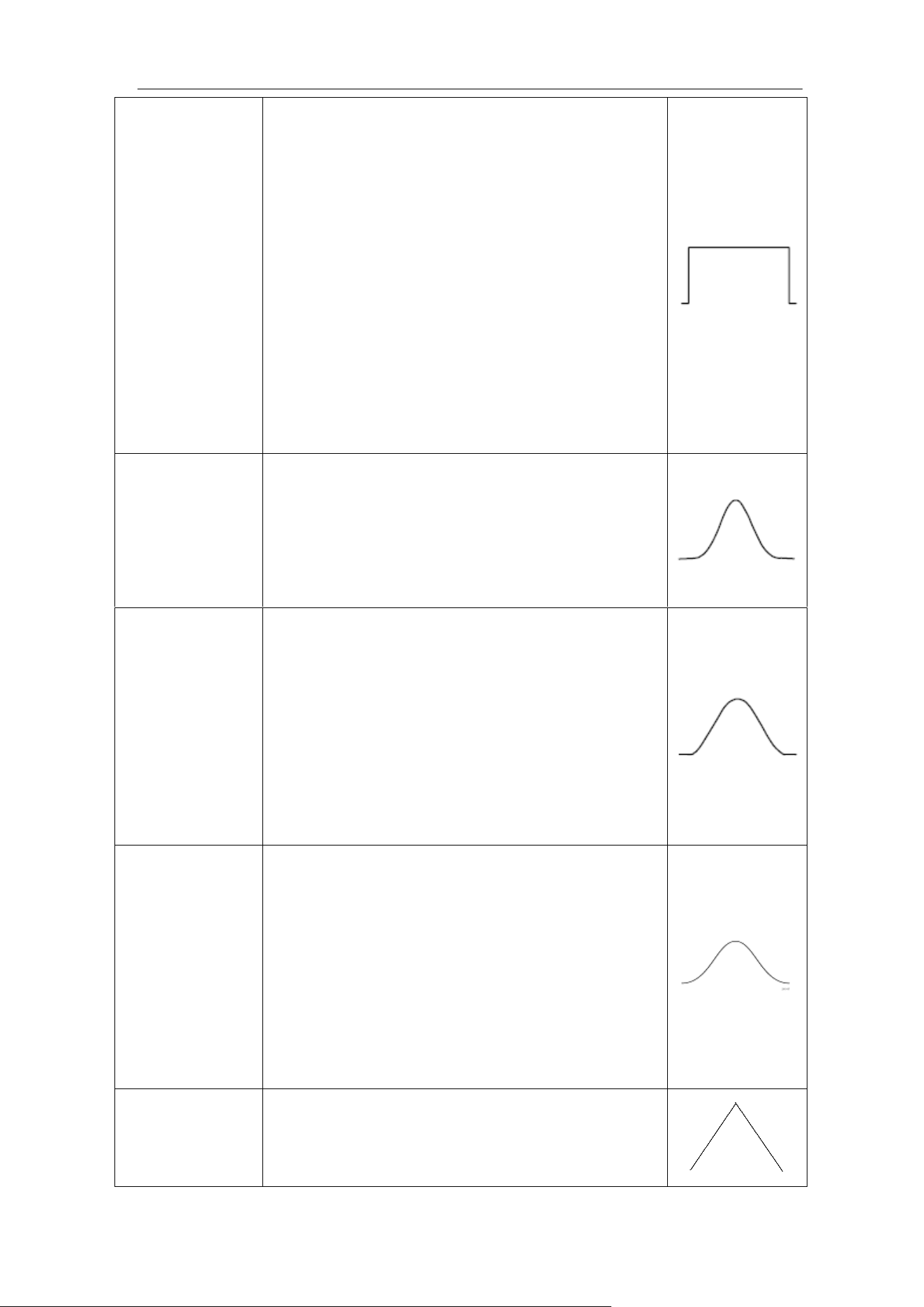
To select the FFT window
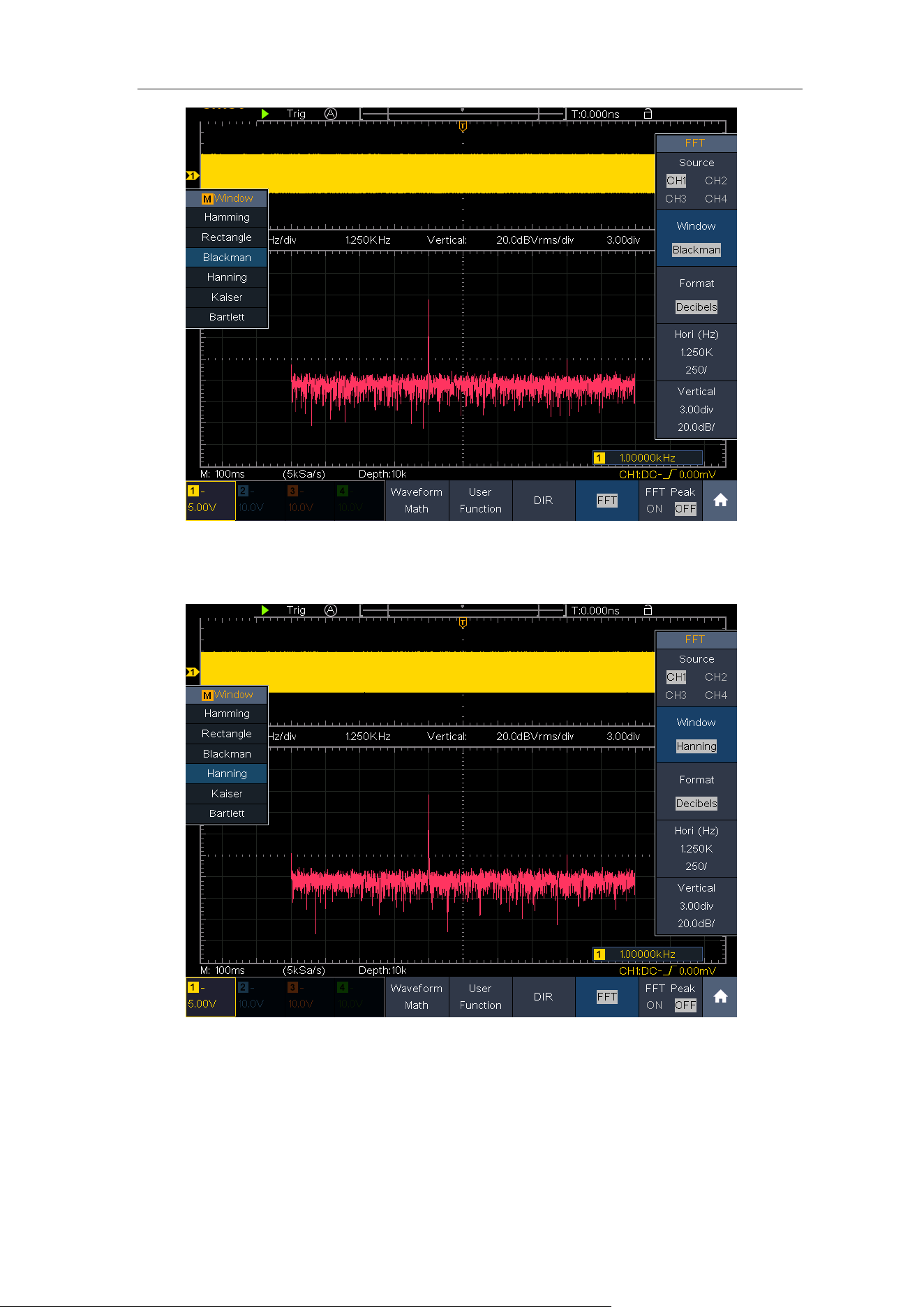
■ There are 6 FFT windows. Each one has trade-offs between frequency
resolution and magnitude accuracy. What you want to measure and your source
signal characteristics help you to determine which window to use. Use the
following guidelines to select the best window.
Type
Characteristics
Window
Hamming
Better solution for magnitude than Rectangle,
and good for frequency as well. It has slightly
better frequency resolution than Hanning.
Recommend to use for:
⚫ Sine, periodic and narrow band random
noise.
⚫ Transients or bursts where the signal levels
before and after the event are significantly
different.
4.Advanced User Guidebook
32
Rectangle
Best solution for frequency, worst for
magnitude.
Best type for measuring the frequency
spectrum of nonrepetitive signals and
measuring frequency components near DC.
Recommend to use for:
⚫ Transients or bursts, the signal level before
and after the event are nearly equal.
⚫ Equal-amplitude sine waves with
frequencies those are very close.
⚫ Broadband random noise with a relatively
slow varying spectrum.
Blackman
Best solution for magnitude, worst for
frequency.
Recommend to use for:
⚫ Single frequency waveforms, to find higher
order harmonics.
Hanning
Good for magnitude, but poorer frequency
resolution than Hamming.
Recommend to use for:
⚫ Sine, periodic and narrow band random
noise.
⚫ Transients or bursts where the signal levels
before and after the event are significantly
different.
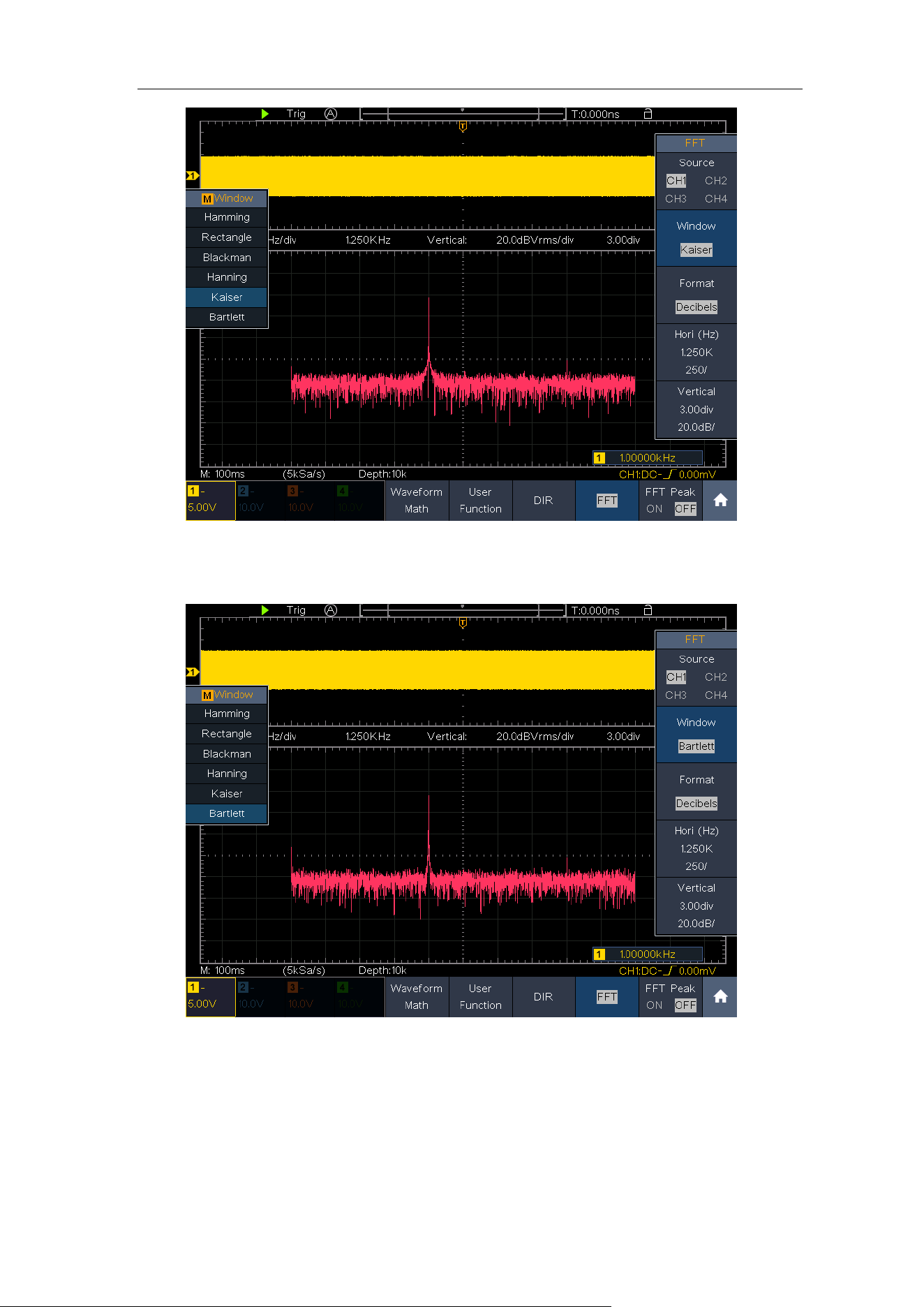
Kaiser
The frequency resolution when using the
Kaiser window is fair; the spectral leakage and
amplitude accuracy are both good.
The Kaiser window is best used when
frequencies are very close to the same value
but have widely differing amplitudes (the side
lobe level and shape factor are closest to the
traditional Gaussian RBW). This window is also
good for random signals.
Bartlett
The Bartlett window is a slightly narrower
variant of the triangular window, with zero
weight at both ends.
4.Advanced User Guidebook
34
Figure 4-3 Blackman window
Figure 4-4 Hanning window
4.Advanced User Guidebook
35
Figure 4-5 Kaiser window
Figure 4-6 Bartlett window
Notes for using FFT
◼ Use the default dB scale for details of multiple frequencies, even if they have
very different amplitudes. Use the Vrms scale to compare frequencies.
◼ DC component or offset can cause incorrect magnitude values of FFT
4.Advanced User Guidebook
36
waveform. To minimize the DC component, choose AC Coupling on the source
signal.
◼ To reduce random noise and aliased components in repetitive or single-shot
events, set the oscilloscope acquisition mode to average.
What is Nyquist frequency?
The Nyquist frequency is the highest frequency that any real-time digitizing
oscilloscope can acquire without aliasing. This frequency is half of the sample rate.
Frequencies above the Nyquist frequency will be under sampled, which causes
aliasing. So pay more attention to the relation between the frequency being
sampled and measured.
Use Vertical Position and Scale Knobs
Each of the 4 channels has a set of Vertical Position and Vertical Scale knobs. If
you want to set the vertical scale and vertical position of a channel, press CH1,
CH2, CH3 or CH4 at first to select the desired channel. Then turn the Vertical
Position and Vertical Scale knobs to set the values.
1. The Vertical Position knob is used to adjust the vertical positions of the
selected waveforms.
The analytic resolution of this control knob changes with the vertical division.
When the Vertical Position knob is rotated, the pointer of the earth datum
point of the selected channel is directed to move up and down following the
waveform, and the position message at the center of the screen would change
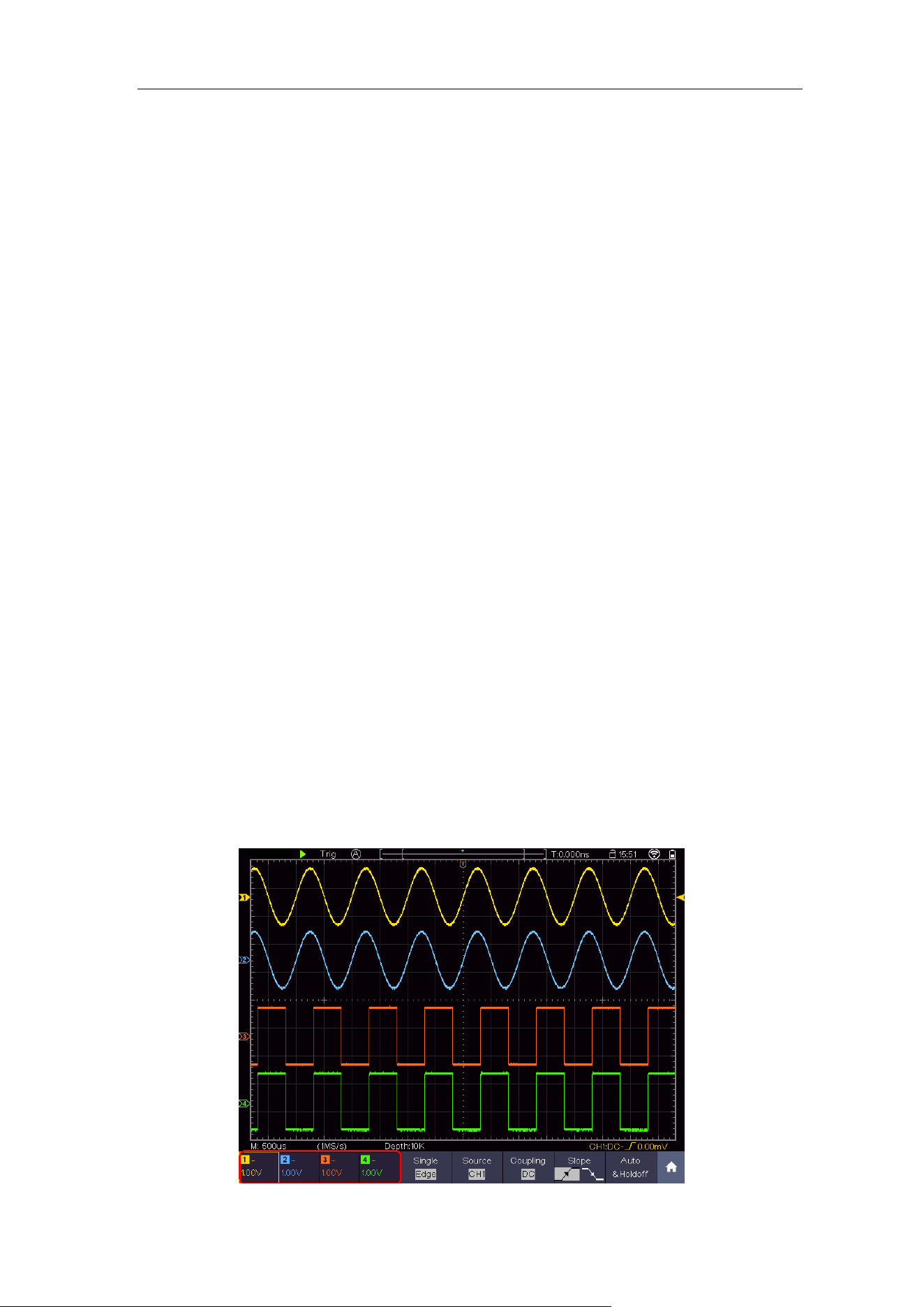
accordingly (see Figure 4-7).
2. The Vertical Scale knob is used to regulate the vertical resolution of the
selected wave forms.
The sensitivity of the vertical division steps as 1-2-5. The vertical scale is
displayed at the left bottom corner of the screen (see Figure 4-7).
4.Advanced User Guidebook
37
Figure 4-7 Information about Vertical Scale
How to Set the Horizontal System
Horizontal control system includes Horizontal HOR key, Horizontal Position
knob and Horizontal Scale knob.
⚫ Horizontal Position knob: Adjust the horizontal positions of all channels
(including mathematical operations). The resolution of this knob changes with
the time base.
⚫ Horizontal Scale knob: Adjust the horizontal scale of waveform.
⚫ Horizontal HOR key: Switch between the normal mode and the waveform
zooming mode.
Waveform Horizontal Zooming
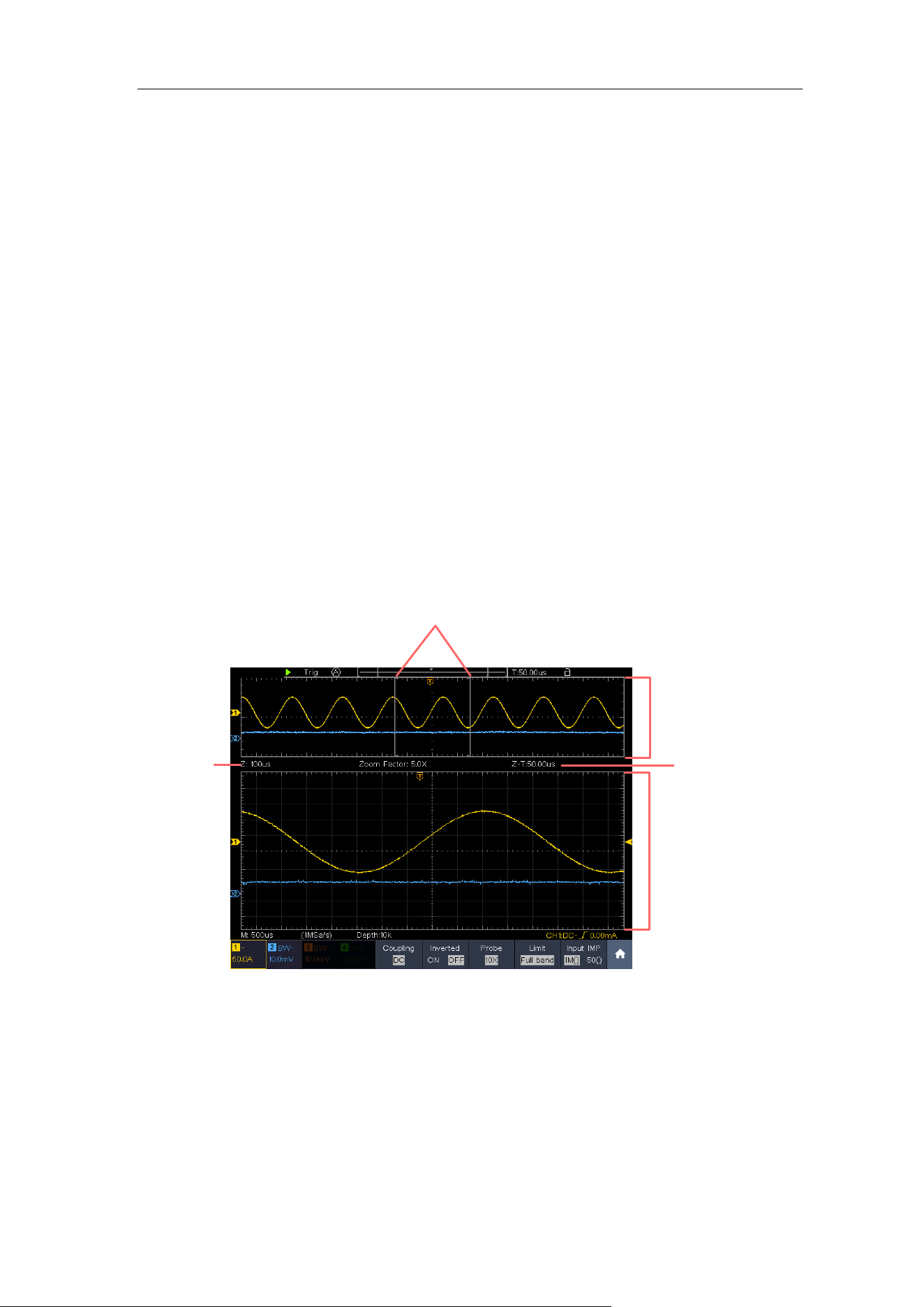
Press the Horizontal HOR button, enter the waveform horizontal zooming
mode. The upper part of the display shows the main window and the lower
part shows the horizontally zoomed window. The horizontal zoom window is
the horizontally enlarged portion of the selected area in the main window.
Main Window
Time base of
Zoom window
Selected portion
Horizontal position of
Zoom window
Zoom Window
Figure 4-8 Waveform Horizontal Zooming Mode
In horizontal zoom mode, the Horizontal Position knob adjusts the horizontal
position of the horizontal zoom window. The Horizontal Scale knob adjusts
the horizontal magnification, and the horizontal time base of the horizontal
zoom window also changes.

4.Advanced User Guidebook
38
How to Set the Trigger/Decoding System
Trigger determines when DSO starts to acquire data and display
waveform. Once trigger is set correctly, it can convert the unstable display
to meaningful waveform.
When DSO starts to acquire data, it will collect enough data to draw
waveform on left of trigger point. DSO continues to acquire data while
waiting for trigger condition to occur. Once it detects a trigger it will acquire
enough data continuously to draw the waveform on right of trigger point.
Trigger control area consists of 1 knob and 2 menu buttons.
Trigger Level: The knob that set the trigger level; push the knob and the
level will be set as the vertical mid point values of the amplitude of
the trigger signal.
Force: Force to create a trigger signal and the function is mainly used in
"Normal" and "Single" mode.
Trigger Menu: The button that activates the trigger control menu.
Trigger Control
The oscilloscope provides three trigger types: single trigger, logic trigger
and bus trigger. Each type of trigger has different sub menus.
Press Trigger Menu panel button, then bottom menu Trigger Type, select
Single, Logic or Bus Trigger on the popup right menus, turn the M knob to
choose different trigger types.
Single trigger: Use a trigger level to capture stable waveforms in two
channels simultaneously.
Logic trigger: Trigger the signal according to the condition of logic
relationship.
Bus trigger: Set bus timing trigger.
The Single Trigger, Logic Trigger and Bus Trigger menus are
described respectively as follows:
Single Trigger
Single trigger has eight types: edge trigger, video trigger, pulse trigger, slope
trigger, runt trigger, windows trigger, timeout trigger and Nth edge trigger.
Edge Trigger: It occurs when the trigger input passes through a specified
voltage level with the specified slope.
Video Trigger: Trigger on fields or lines for standard video signal.
Pulse Trigger: Find pulses with certain widths.
4.Advanced User Guidebook
39
Slope Trigger: The oscilloscope begins to trigger according to the signal rising
or falling speed.
Runt Trigger: Trigger pulses that pass through one trigger level but fail to
pass through the other trigger level.
Windows Trigger: Provide a high trigger level and low trigger level, the
oscilloscope triggers when the input signal passes through the
high trigger level or the low trigger level.
Timeout Trigger: The oscilloscope triggers when the time interval from when
the rising edge (or the falling edge) passes through the trigger
level to when the neighbouring falling edge (or the rising edge)
passes through the trigger level is greater than the timeout time
set.
Nth Edge Trigger: The oscilloscope triggers on the Nth edge that appears on
the specified idle time.
The eight trigger modes in Single Trigger are described respectively as
follows:
1. Edge Trigger
An edge trigger occurs on trigger level value of the specified edge of input
signal. Select Edge trigger mode to trigger on rising edge or falling edge.
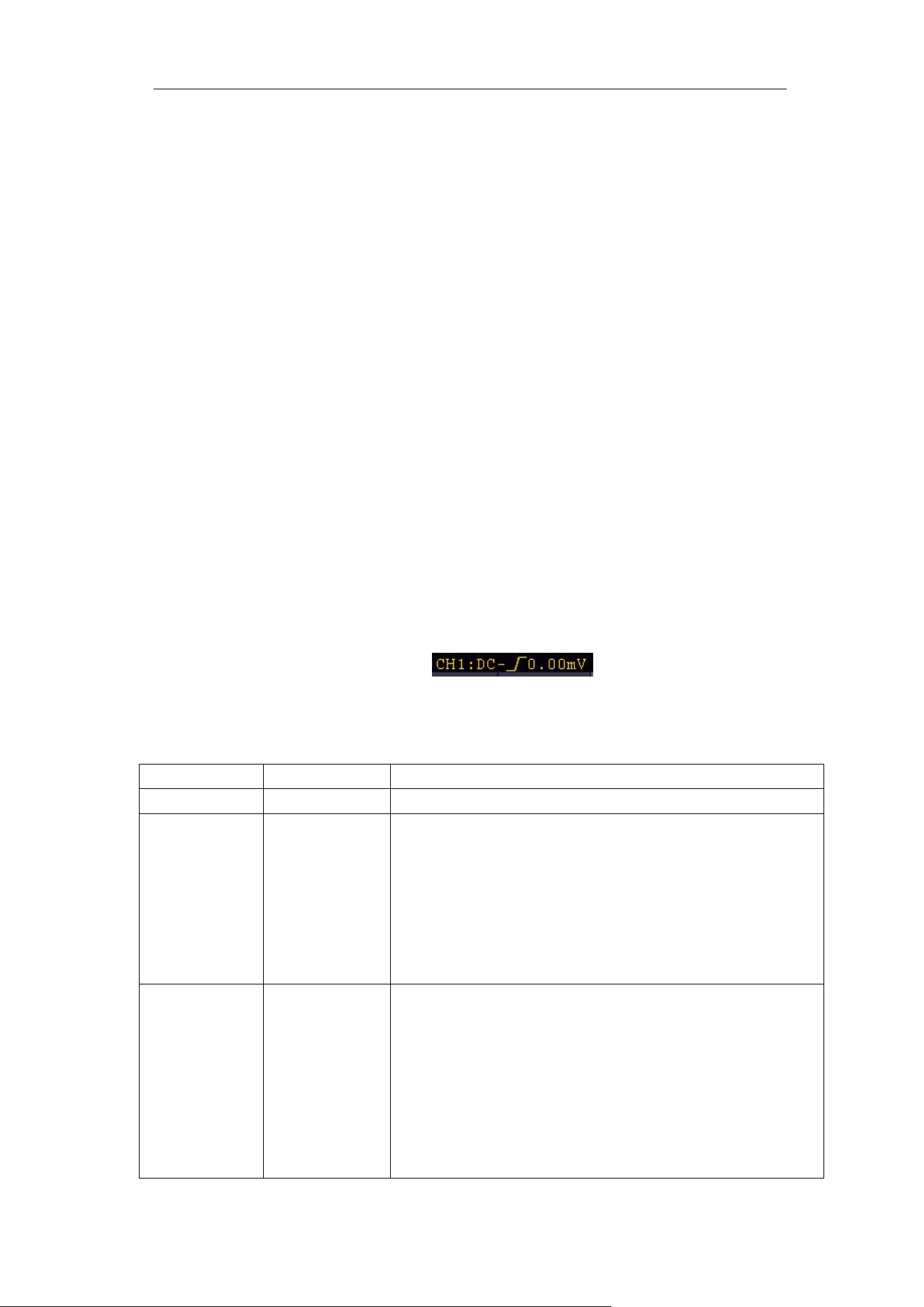
In Edge Trigger mode, the trigger setting information is displayed on bottom
right of the screen, for example, , indicates that trigger
type is edge, trigger source is CH1, coupling is DC, and trigger level is 0.00mV.
Edge menu list:
Menu
Settings
Instruction
Single Mode
Edge
Set vertical channel trigger type as edge trigger.
Source
CH1
CH2
CH3
CH4
AC Line
EXT
EXT/5
Channel 1 as trigger signal.
Channel 2 as trigger signal.
Channel 3 as trigger signal.
Channel 4 as trigger signal.
AC power line as trigger signal.
External trigger as trigger signal
1/5 of the external trigger signal as trigger signal.
Coupling
AC
DC
HF
LF
Noise Reject
ON OFF
Block the direct current component.
Allow all component pass.
Block the high-frequency signal, only
low-frequency component pass.
Block the low-frequency signal, only
high-frequency component pass.
Turn ON/OFF Noise Reject.
(Range 0.3div to10div)
4.Advanced User Guidebook
40
Slope
Trigger on rising edge
Trigger on falling edge
Mode
Holdoff
Auto
Normal
Single
Holdoff
Acquire waveform even no trigger occurs
Acquire waveform when trigger occurs
When trigger occurs, acquire one waveform then
stop
100 ns - 10 s, turn the M knob or click to set
time interval before another trigger occur, press
panel button or click to move
cursor to choose which digit to be set.
Trigger Level: trigger level indicates vertical trig position of the channel, turn
the trig level knob or slide on the touch screen upward and downward to move
trigger level, during setting, an orange red dotted line displays to show trig
position, and the value of trigger level changes at the right corner, after setting,
dotted line disappears.
2. Video Trigger
Choose video trigger to trigger on fields or lines of NTSC, PAL or SECAM
standard video signals.
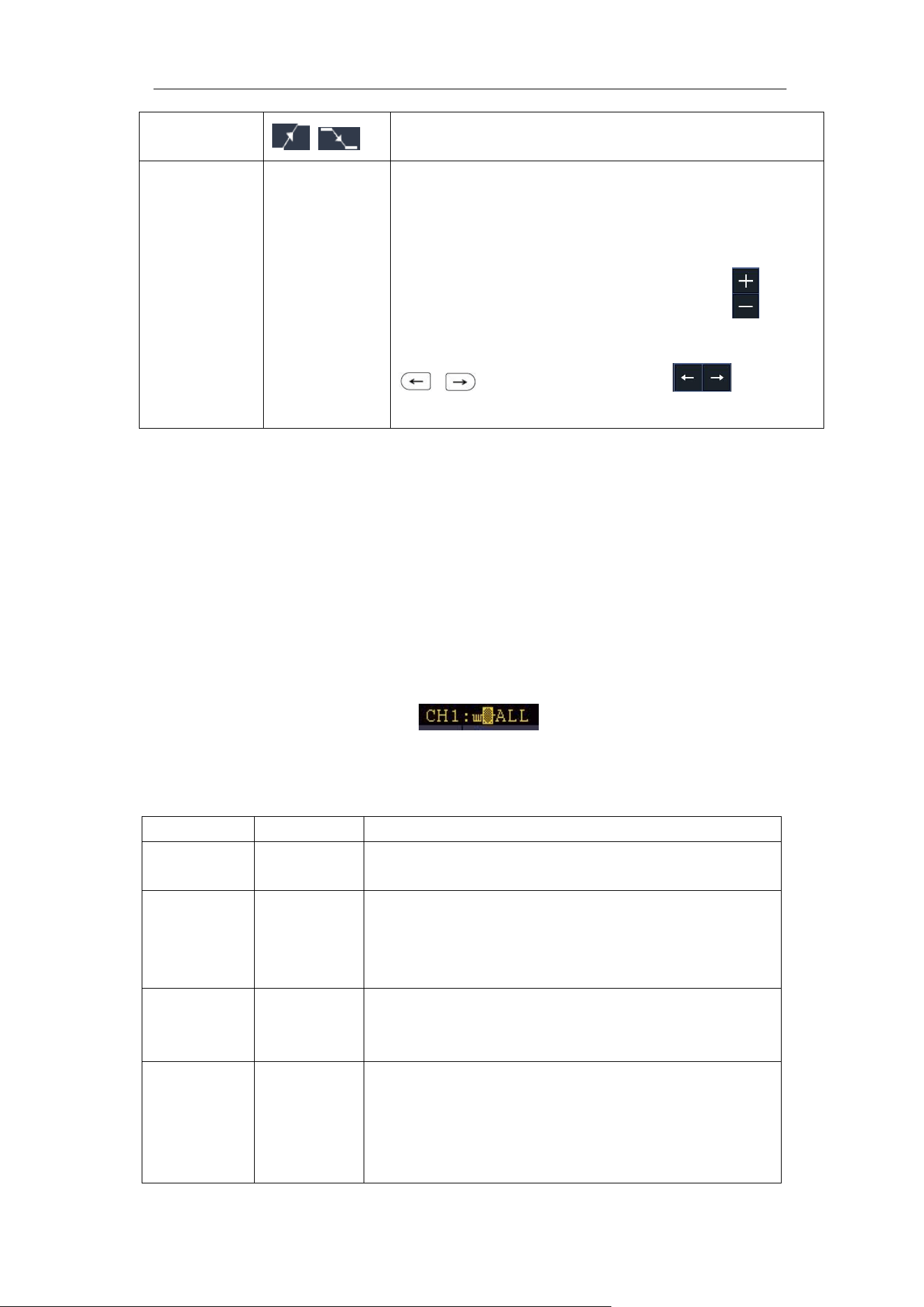
In Video Trigger mode, the trigger setting information is displayed on bottom
right of the screen, for example, , indicates that trigger type is
Video, trigger source is CH1, and Sync type is Even.
Video Trigger menu list:
MENU
SETTING
INSTRUCTION
Single
Mode
Video
Set vertical channel trigger type as video trigger
Source
CH1
CH2
CH3
CH4
Select CH1 as the trigger source
Select CH2 as the trigger source
Select CH3 as the trigger source
Select CH4 as the trigger source
Modu
NTSC
PAL
SECAM
Select video modulation
Sync
Line
Field
Odd
Even
Line NO.
Synchronic trigger in video line
Synchronic trigger in video field
Synchronic trigger in video odd filed
Synchronic trigger in video even field
Synchronic trigger in designed video line, turn
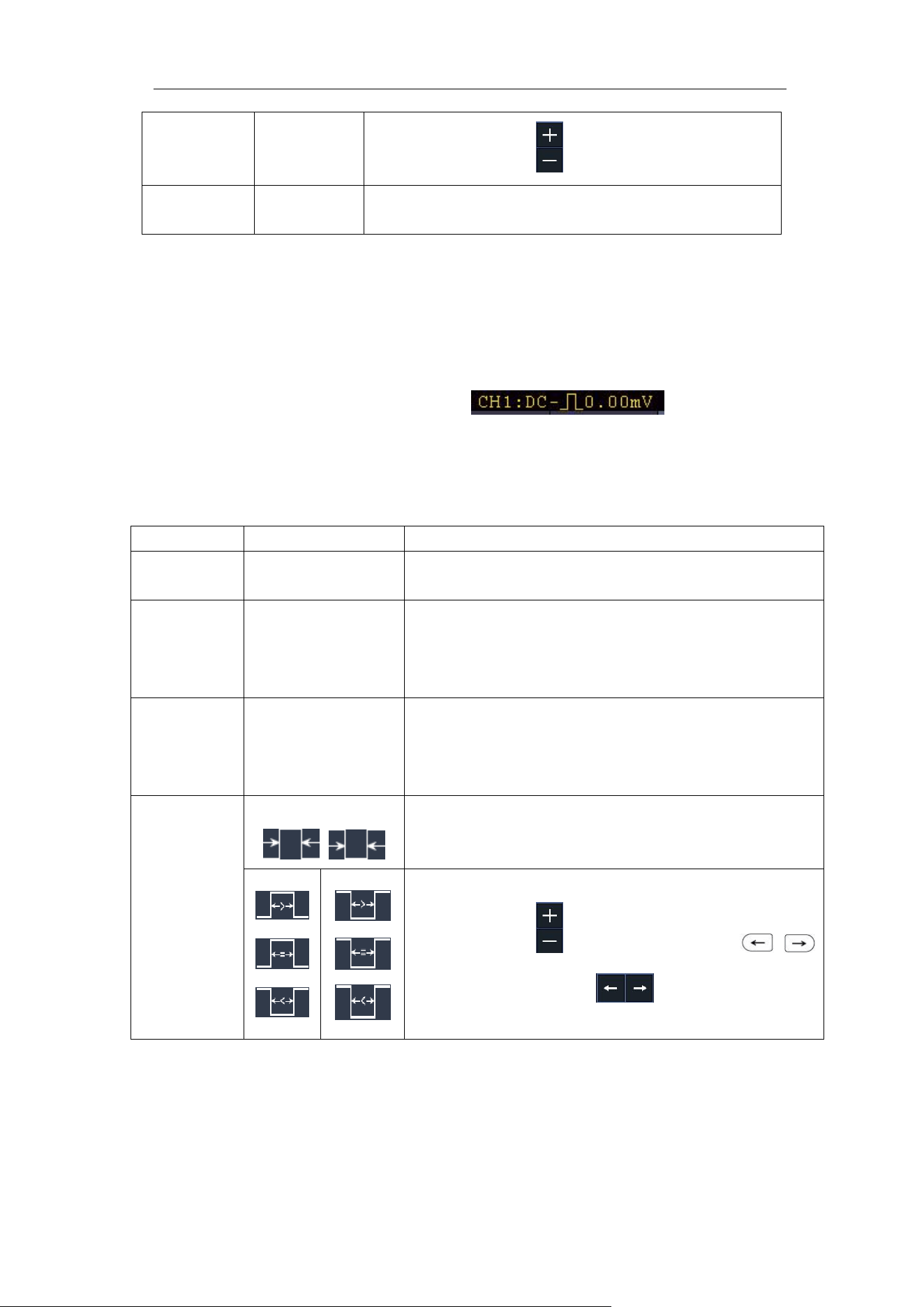
4.Advanced User Guidebook
41
the M knob or click to set the line number
Mode
Holdoff
Auto
Acquire waveform even no trigger occurred
3. Pulse Width Trigger
Pulse trigger occurs according to the width of pulse. The abnormal signals can
be detected through setting up the pulse width condition.
In Pulse Width Trigger mode, the trigger setting information is displayed on
bottom right of the screen, for example, , indicates that
trigger type is pulse width, trigger source is CH1, coupling is DC, polarity is
positive, and trigger level is 0.00mV.
Pulse Width Trigger menu list:
MENU
SETTING
INSTRUCTION
Single
Mode
Pulse
Set vertical channel trigger type as pulse trigger.
Source
CH1
CH2
CH3
CH4
Select CH1 as the trigger source
Select CH2 as the trigger source
Select CH3 as the trigger source
Select CH4 as the trigger source
Coupling
AC
DC
Noise Reject
ON OFF
Not allow DC portion to pass.
Allow all portion pass.
Turn ON/OFF Noise Reject.
(Range 0.3div to10div)
when
Polarity
Choose the polarity
Select pulse width condition and adjust the M
knob or click to set time, press
panel button or click to move cursor to
choose which digit to be set.
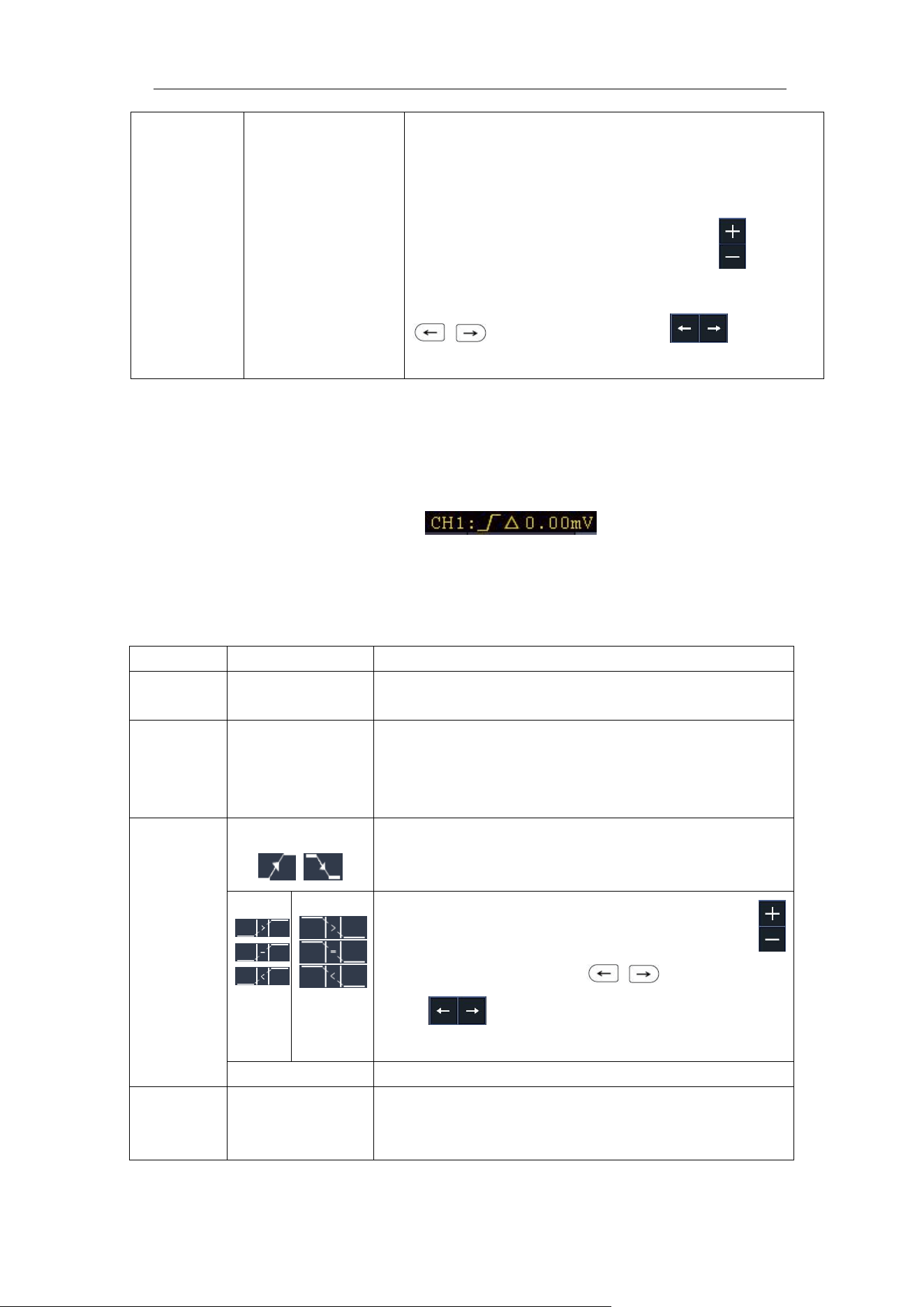
4.Advanced User Guidebook
42
Mode
Holdoff
Auto
Normal
Single
Holdoff
Acquire waveform even no trigger occurred
Acquire waveform when trigger occurred
When trigger occurs, acquire one waveform then
stop
100 ns - 10 s, adjust M knob or click to set
time interval before another trigger occur, press
panel button or click to move
cursor to choose which digit to be set.
4. Slope Trigger
Slope trigger sets the oscilloscope as the positive/negative slope trigger within
the specified time.
In Slope Trigger mode, the trigger setting information is displayed on bottom
right of the screen, for example, , indicates that trigger
type is slope, trigger source is CH1, slope is rising, 0.00mV is the differential
between up level and low level threshold.
Slope trigger menu list:
MENU
SETTING
INSTRUCTION
Single
Mode
Slope
Set vertical channel trigger type as slope trigger.
Source
CH1
CH2
CH3
CH4
Select CH1 as the trigger source
Select CH2 as the trigger source
Select CH3 as the trigger source
Select CH4 as the trigger source
When
slope
Slope selecting
Set slope condition; turn the M knob or click
to set slope time, press panel button or
click to move cursor to choose which
digit to be set.
Slew rate
Slew rate = (High level - Low level) / Settings
Threshold
&SlewRate
High level
Low level
Slew rate
Adjust M knob to set the High level upper limit.
Adjust M knob to set Low level lower limit.
Slew rate = (High level - Low level) / Settings
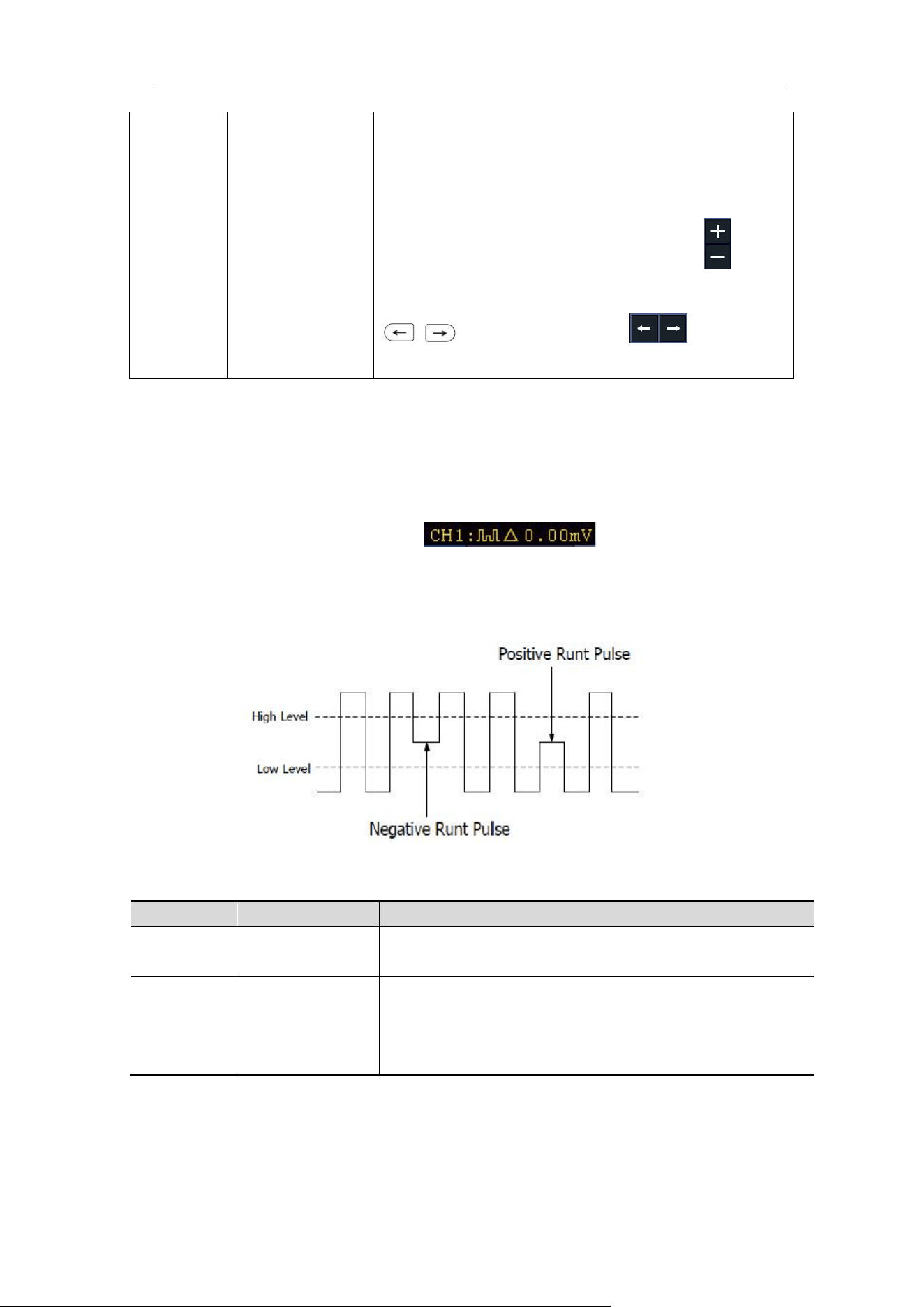
4.Advanced User Guidebook
43
Mode
Holdoff
Auto
Normal
Single
Holdoff
Acquire waveform even no trigger occurred
Acquire waveform when trigger occurred
When trigger occurs, acquire one waveform then
stop
100 ns – 10 s, turn the M knob or click to set
time interval before another trigger occur, press
panel button or click to move
cursor to choose which digit to be set.
5.Runt Trigger
Trigger pulses that pass through one trigger level but fail to pass through the
other trigger level. Shown as below figure,
In Runt Trigger mode, the trigger setting information is displayed on bottom
right of the screen, for example, , indicates that trigger
type is runt, trigger source is CH1, polarity is positive, 0.00mV is the differential
between up level and low level threshold.
Runt Trigger
Runt Trigger menu list:
MENU
SETTING
INSTRUCTION
Single
Mode
Runt
Set vertical channel trigger type as runt trigger.
Source
CH1
CH2
CH3
CH4
Select CH1 as the trigger source
Select CH2 as the trigger source
Select CH3 as the trigger source
Select CH4 as the trigger source
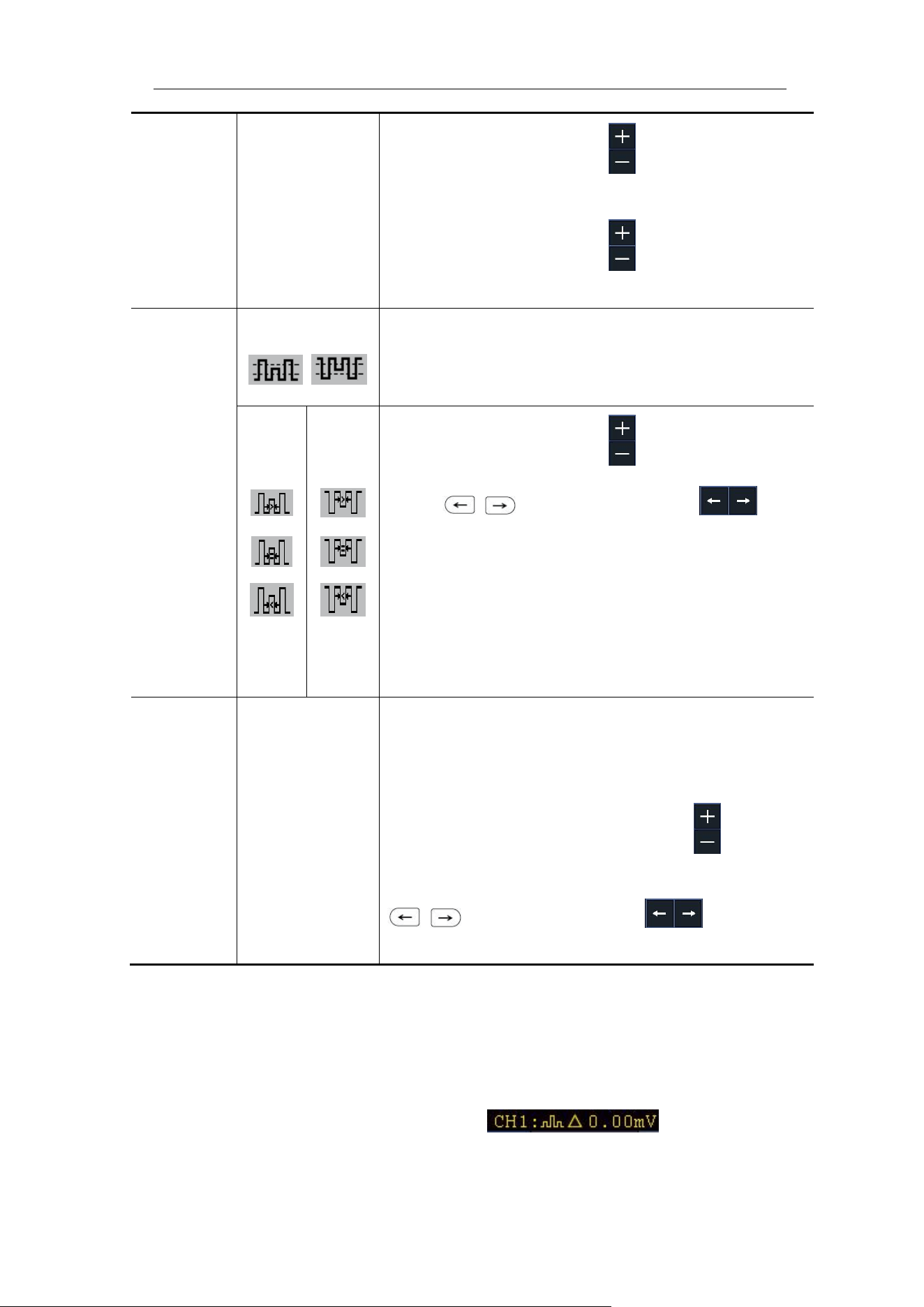
4.Advanced User Guidebook
44
Threshold
Up Level
Low Level
Adjust the M knob or click to set the up level
threshold.
Adjust the M knob or click to set the low level
threshold.
Condition
Polarity
Positive Polarity, the oscilloscope triggers on the
positive runt pulse.
Negative Polarity, the oscilloscope triggers on the
negative runt pulse.
Adjust the M knob or click to set pulse width,
press panel button or click to
move cursor to choose which digit to be set.
Trigger when runt pulse is greater than the set
pulse width.
Trigger when runt pulse equals to the set pulse
width.
Trigger when runt pulse is lower than the set pulse
width.
Mode
Holdoff
Auto
Normal
Single
Holdoff
Acquire waveform even no trigger occurred
Acquire waveform when trigger occurred
When trigger occurs, acquire one waveform then
stop
100 ns - 10 s, adjust M knob or click to set
time interval before another trigger occur, press
panel button or click to move
cursor to choose which digit to be set.
6.Windows Trigger
Provide a high trigger level and low trigger level, the oscilloscope triggers when
the input signal passes through the high trigger level or the low trigger level.
In Windows Trigger mode, the trigger setting information is displayed on
bottom right of the screen, for example, , indicates that
trigger type is windows, trigger source is CH1, polarity is positive, 0.00mV the
differential between up level and low level threshold.
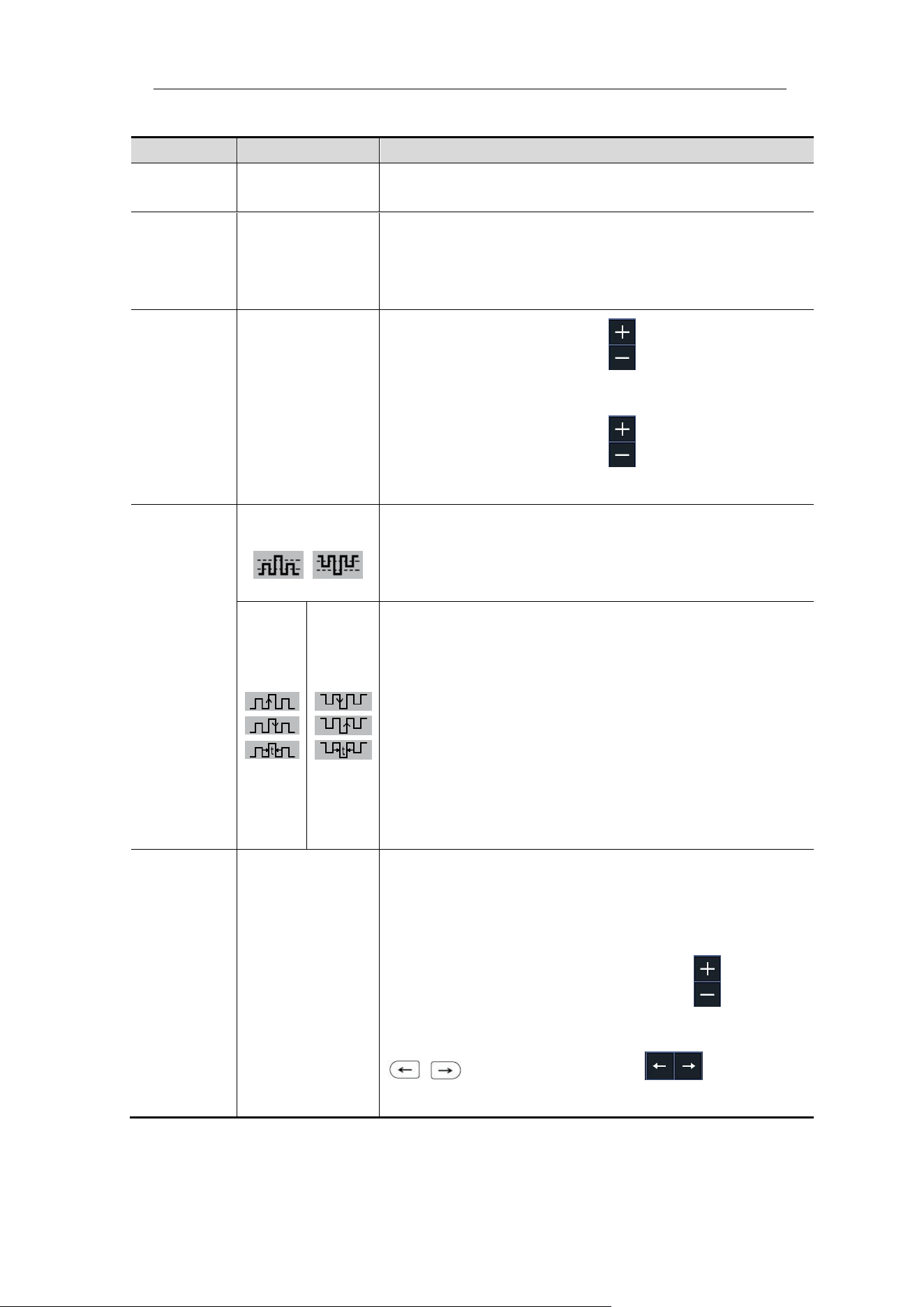
4.Advanced User Guidebook
45
Windows Trigger menu list:
MENU
SETTING
INSTRUCTION
Single
Mode
Windows
Set vertical channel trigger type as Windows
trigger.
Source
CH1
CH2
CH3
CH4
Select CH1 as the trigger source
Select CH2 as the trigger source
Select CH3 as the trigger source
Select CH4 as the trigger source
Threshold
Up Level
Low Level
Adjust the M knob or click to set the up level
threshold.
Adjust the M knob or click to set the low level
threshold.
Condition
Polarity
Positive Polarity, the oscilloscope triggers on the
positive Windows pulse.
Negative Polarity, the oscilloscope triggers on the
negative Windows pulse.
Enter: Triggers when the trigger signal enters the
specified trigger level range.
Exit: Triggers when the trigger signal exits the
specified trigger level range.
Time: Specify the hold time of the input signal after
entering the specified trigger level. The
oscilloscope triggers when the accumulated hold
time is greater than the windows time. Available
range is 30ns-10s, default 100ns.
Mode
Holdoff
Auto
Normal
Single
Holdoff
Acquire waveform even no trigger occurred
Acquire waveform when trigger occurred
When trigger occurs, acquire one waveform then
stop
100 ns - 10 s, adjust M knob or click to set
time interval before another trigger occur, press
panel button or click to move
cursor to choose which digit to be set.
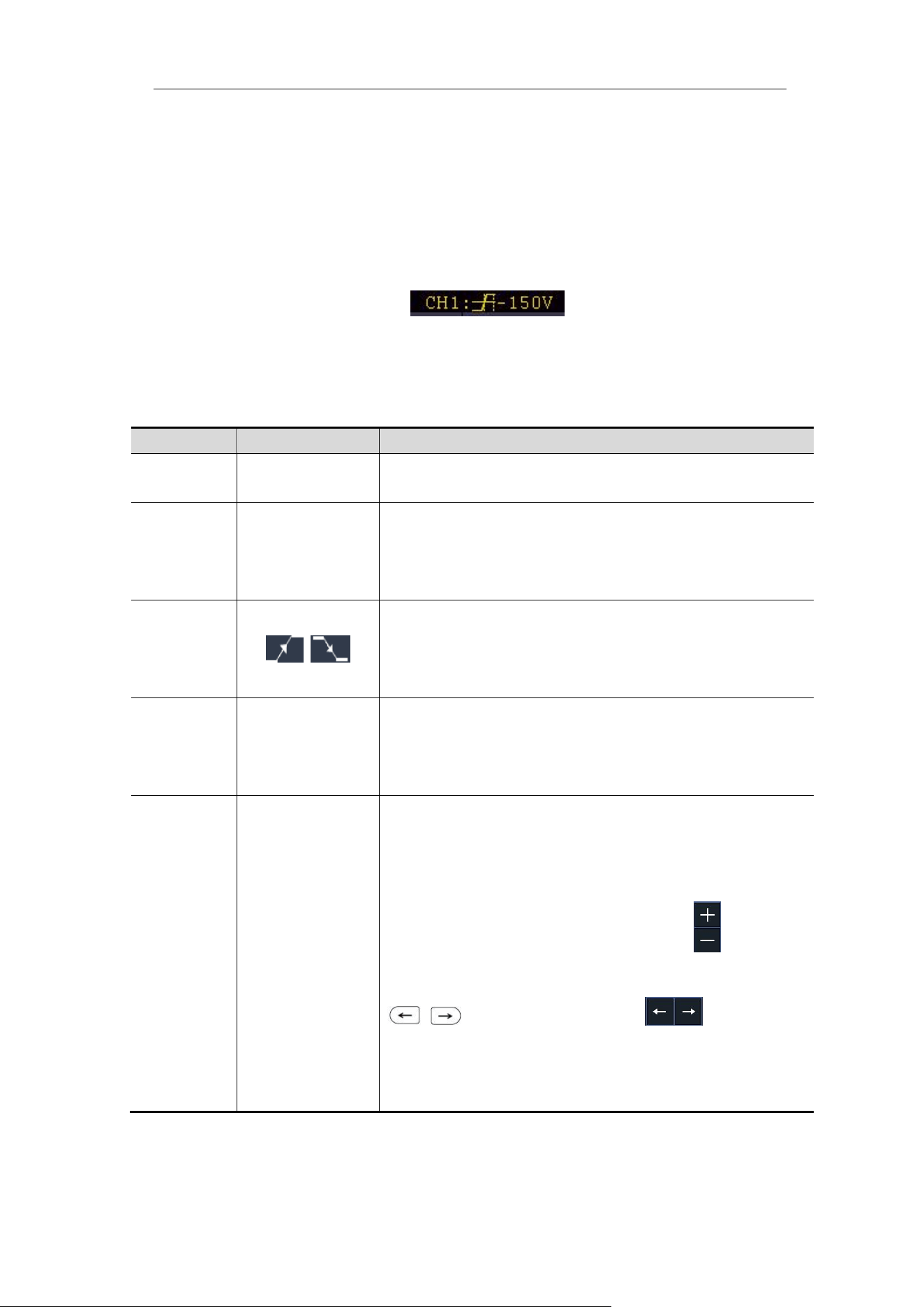
4.Advanced User Guidebook
46
7.Timeout Trigger
The oscilloscope triggers when the time interval from when the rising edge (or
the falling edge) passes through the trigger level to when the neighbouring
falling edge (or the rising edge) passes through the trigger level is greater than
the timeout time set.
In Timeout Trigger mode, the trigger setting information is displayed on bottom
right of the screen, for example, , indicates that trigger type
is Timeout, trigger source is CH1, edge is positive, 0.00mV is up level or low
level threshold.
Timeout Trigger menu list:
MENU
SETTING
INSTRUCTION
Single
Mode
Timeout
Set vertical channel trigger type as Timeout trigger.
Source
CH1
CH2
CH3
CH4
Select CH1 as the trigger source
Select CH2 as the trigger source
Select CH3 as the trigger source
Select CH4 as the trigger source
Edge
Edge
Start timing when the rising edge of the input signal
passes through the trigger level.
Start timing when the falling edge of the input
signal passes through the trigger level.
Configure
Idle Time
Set idle time. Idle time means the minimum time of
idle clock before searching data that can meet
trigger conditions. Available range is 30ns-10s,
default 100ns.
Mode
Holdoff
Auto
Normal
Single
Holdoff
Noise Reject
ON OFF
Acquire waveform even no trigger occurred
Acquire waveform when trigger occurred
When trigger occurs, acquire one waveform then
stop
100 ns - 10 s, adjust M knob or click to set
time interval before another trigger occur, press
panel button or click move
cursor to choose which digit to be set.
Turn ON/OFF Noise Reject.
(Range 0.3div to10div)
8.Nth Edge trigger
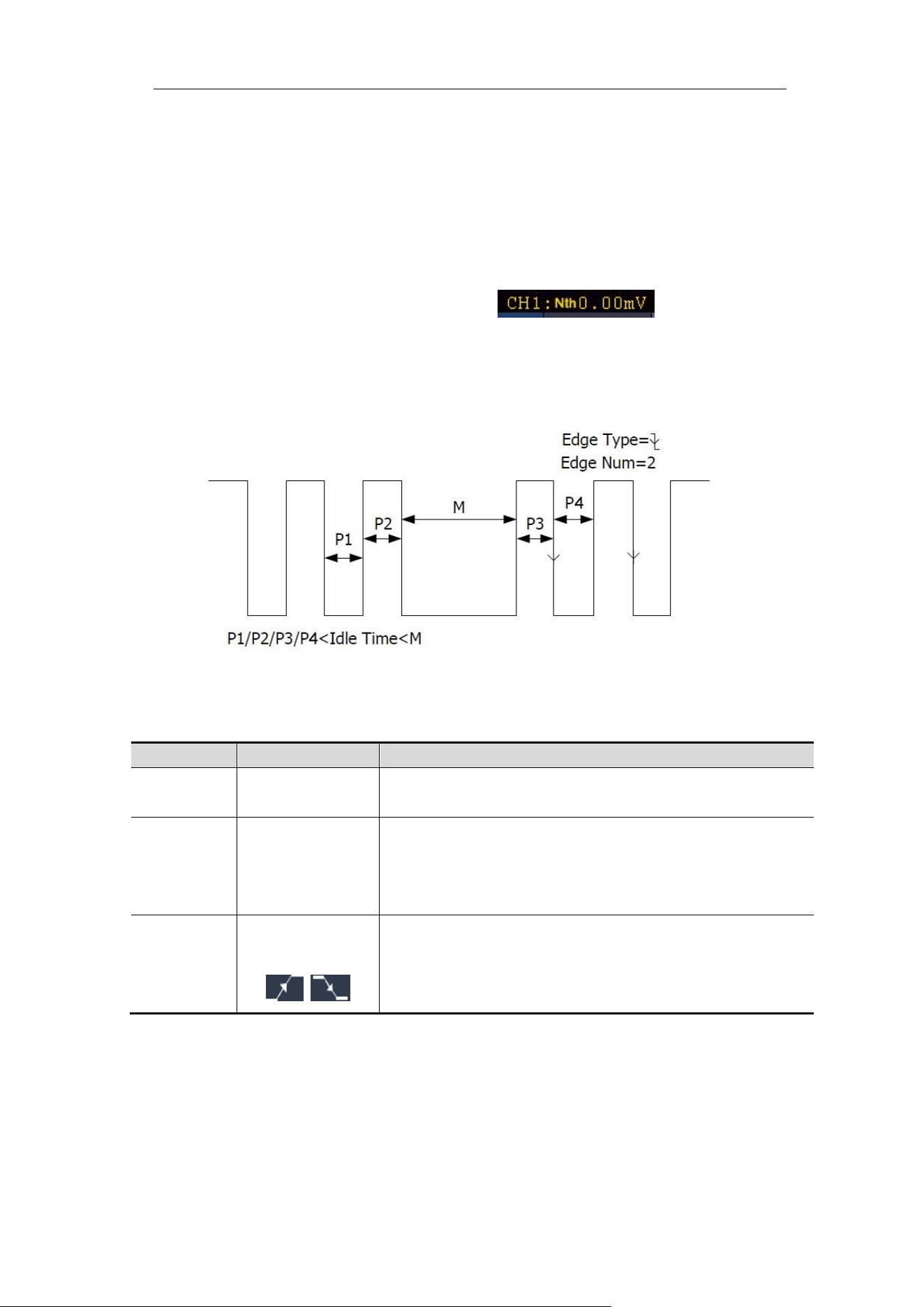
4.Advanced User Guidebook
47
The oscilloscope triggers on the Nth edge that appears on the specified idle
time. As figure shown below, the oscilloscope should trigger on the second
falling edge after the specified idle time and the idle time should be set to
P1/P2/P3/P4 < Idle Time < M. Wherein, M, P1, P2, P3 and P4 are positive or
negative pulse width participating in the counting.
In Nth Edge Trigger mode, the trigger setting information is displayed on
bottom right of the screen, for example, , indicates that
trigger type is Nth Edge, trigger source is CH1, -150V is up level or low level
threshold.
Nth Edge Trigger
Nth Edge Trigger menu list:
MENU
SETTING
INSTRUCTION
Single
Mode
Nth Edge
Set vertical channel trigger type as Nth Edge
trigger.
Source
CH1
CH2
CH3
CH4
Select CH1 as the trigger source
Select CH2 as the trigger source
Select CH3 as the trigger source
Select CH4 as the trigger source
Edge
Edge
Trigger on the rising edge of the input signal when
voltage level meets the specified trigger level.
Trigger on the falling edge of the input signal when
voltage level meets the specified trigger level.
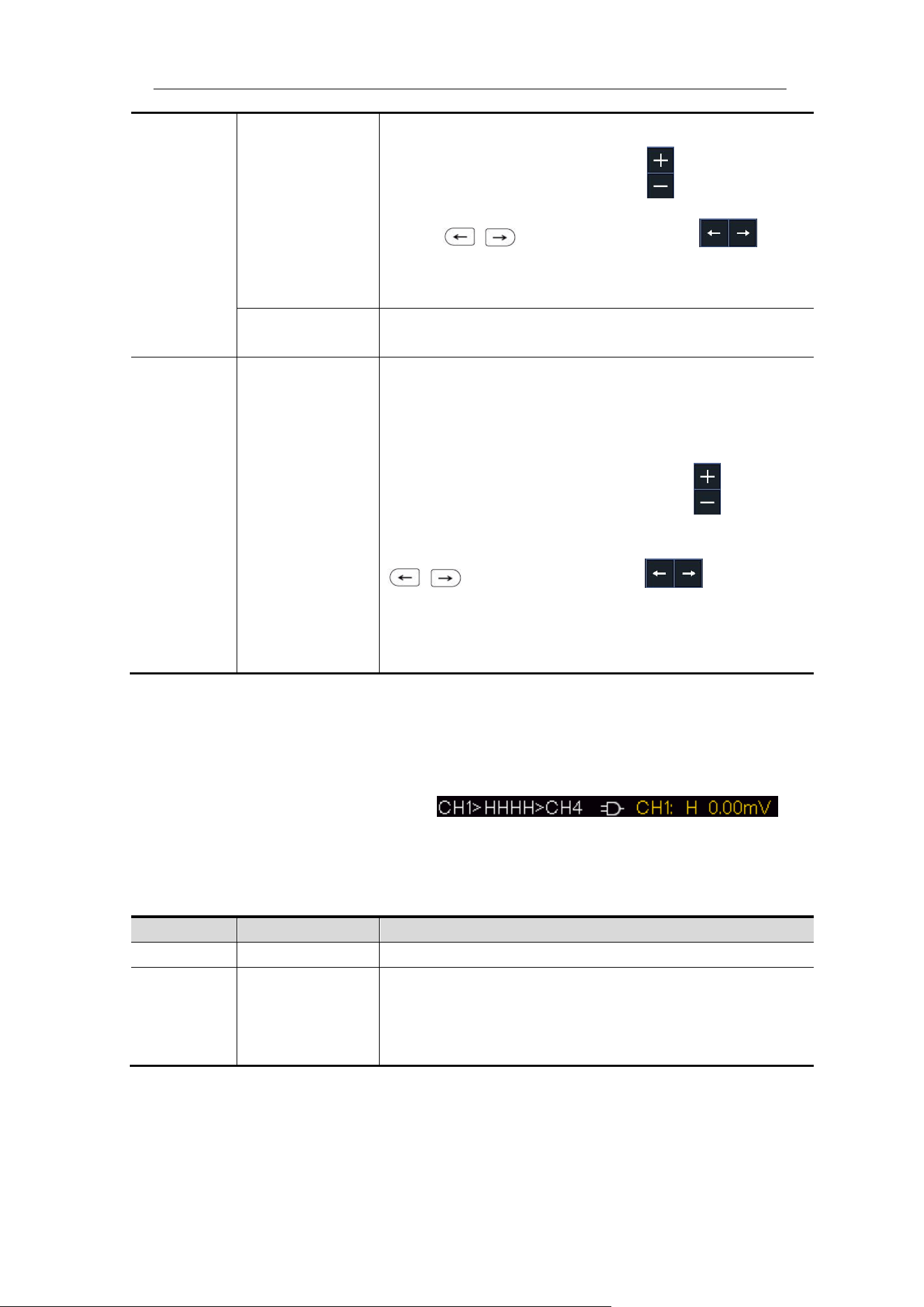
4.Advanced User Guidebook
48
Configure
Idle Time
Set idle time before the edge counting in Nth Edge
Trigger. Adjust M knob or click to set idle time
press panel button or click to
move cursor to choose which digit to be set.
Available range is 30ns-10s, default 100ns.
Edge Num
Set the edge number value of “N” in Nth Edge
trigger.
Mode
Holdoff
Auto
Normal
Single
Holdoff
Noise Reject
ON OFF
Acquire waveform even no trigger occurred
Acquire waveform when trigger occurred
When trigger occurs, acquire one waveform then
stop
100 ns - 10 s, adjust M knob or click to set
time interval before another trigger occur, press
panel button or click move
cursor to choose which digit to be set.
Turn ON/OFF Noise Reject.
(Range 0.3div to10div)
Logic Trigger
Trigger according to logic relation.
In Logic Trigger mode, the trigger setting information is displayed on bottom
right of the screen, for example,
,
indicates that trigger type is Logic, logic mode is AND, CH1 high level and
trigger level is 0.00mV.
Logic Trigger menu list:
MENU
SETTING
INSTRUCTION
Mode
Logic
Set vertical channel trigger type as Logic trigger.
Logic
Mode
AND
OR
XNOR
XOR
Set logic mode as AND.
Set logic mode as OR.
Set logic mode as XNOR.
Set logic mode as XOR.
4.Advanced User Guidebook
49
Input
Mode
CH1
CH2
CH3
CH4
Set CH1 as High Level, Low level, high or low
level, Rise and Fall.
Set CH2 as High Level, Low level, high or low
level, Rise and Fall.
Set CH3 as High Level, Low level, high or low
level, Rise and Fall.
Set CH4 as High Level, Low level, high or low
level, Rise and Fall.
Note
:
When input mode of one channel is set as
Rise or Fall, the other channel could not be set as
Rise and Fall at the same time.
Out Mod
Goes True
Trigger when condition turns True from False.
Goes False
Trigger when condition turns False from True.
Is True >
Trigger when the time of true condition is greater
than the set time
Is True =
Trigger when the time of true condition is equal to
the set time
Is True <
Trigger when the time of true condition is lower
than the set time
Mode
Holdoff
Auto
Normal
Single
Holdoff
Noise Reject
ON OFF
Acquire waveform even no trigger occurred
Acquire waveform when trigger occurred
When trigger occurs, acquire one waveform then
stop
100 ns - 10 s, adjust M knob or click to set
time interval before another trigger occur, press
panel button or click move
cursor to choose which digit to be set.
Turn ON/OFF Noise Reject.
(Range 0.3div to10div)
Bus Trigger
1. UART/RS232 Trigger
UART/RS232 is a serial communication mode used in the data transmission
between PCs or between PC and Terminal. A character is transmitted as a
frame of data which consist of 1bit start bit, 5-8bits data bits, 1bit check bit and
1-2 stop bits.
In UART/RS232 bus trigger mode, the trigger setting information is displayed
on bottom right of the screen, for example, ,
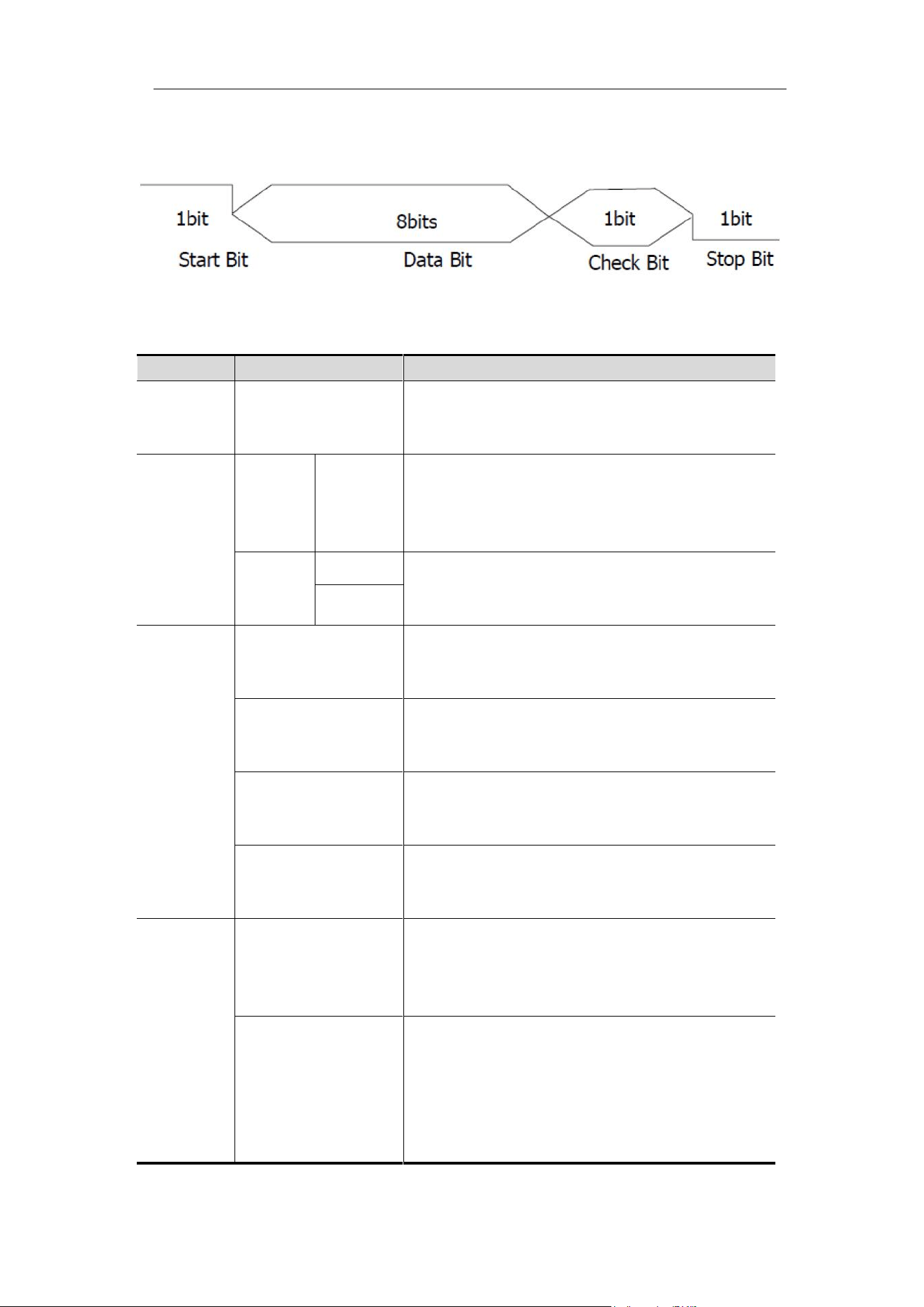
4.Advanced User Guidebook
50
indicates that trigger type is UART/RS232, CH1 trigger level is 1.80V.
Format as shown in the figure below,
UART/RS232 Trigger
UART/RS232 Trigger menu list:
MENU
SETTING
INSTRUCTION
Bus Type
UART
Set vertical channel bus type as
UART/RS232 trigger.
Input
Source
CH1
CH2
CH3
CH4
Select CH1 as the trigger source.
Select CH2 as the trigger source.
Select CH3 as the trigger source.
Select CH4 as the trigger source.
Polarity
Normal
Select polarity of data transmission as
Normal. Select polarity of data
transmission as Inverted.
Inverted
When
Start
Trigger on the start frame of position. After
choosing this condition, press Configure to
enter detailed settings.
Error
Trigger when error frame is detected. After
choosing this condition, press Configure to
enter detailed settings.
Chk Error
Trigger when Chk Error is detected. After
choosing this condition, press Configure to
enter detailed settings.
Data
Trigger on the last bit of the preset data.
After choosing this condition, press
Configure to enter detailed settings.
Configure
Start
Common Baud: adjust M knob to choose
common baud.
Custom Baud: adjust M knob to choose
baud, ranges from 50 to 10,000,000.
Error
Stop Bit:Select “1”or ”2”.
Parity: “NO””EVEN””ODD”
Common Baud: adjust M knob to choose
common baud.
Custom Baud: adjust M knob to choose
baud, ranges from 50 to 10,000,000.
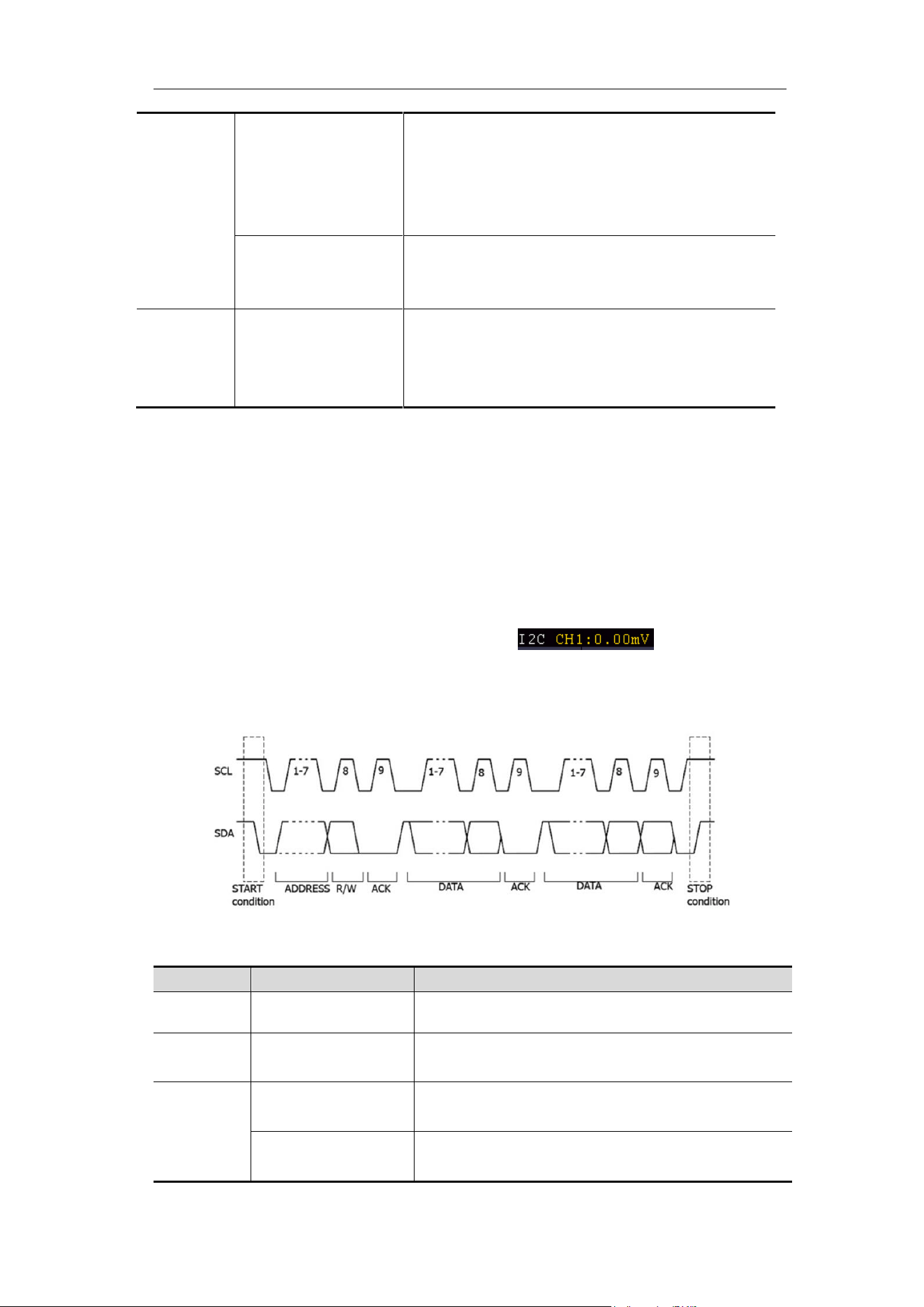
4.Advanced User Guidebook
51
Chk Error
Even-Odd:Select Even or Odd.
Common Baud: adjust M knob to choose
common baud.
Custom Baud: adjust M knob to choose
baud, ranges from 50 to 10,000,000.
Data
Data Bits:Set as 5、6、7、8 bits.
Data:Set data according to data bits,
ranges from 0-31, 0-63, 0-127 or 0-255.
Mode
Holdoff
Auto
Normal
Single
Acquire waveform even no trigger occurred
Acquire waveform when trigger occurred
When trigger occurs, acquire one
waveform then stop
2. I2C Trigger
The I2C serial bus consists of SCL and SDA. The transmission rate is
determined by SCL, and the transmission data is determined by SDA. As
shown in below figure, oscilloscope can trigger on the start, restart, stop, ack
lost, specific device address or data value, also device address and data
value at the same time.
In I2C bus trigger mode, the trigger setting information is displayed on
bottom right of the screen, for example,
, indicates that
trigger type is I2C, CH1 trigger level is 0.00mV.
I2C Trigger menu list:
MENU
SETTING
INSTRUCTION
Bus Type
I2C
Set vertical channel bus type as I2C trigger.
Source
SCL
SDA
Set SCL.
Set SDA.
When
Start
Trigger when SDA data transitions from
high to low while SCL is high.
Restart
When another start condition occurs before
a stop condition.
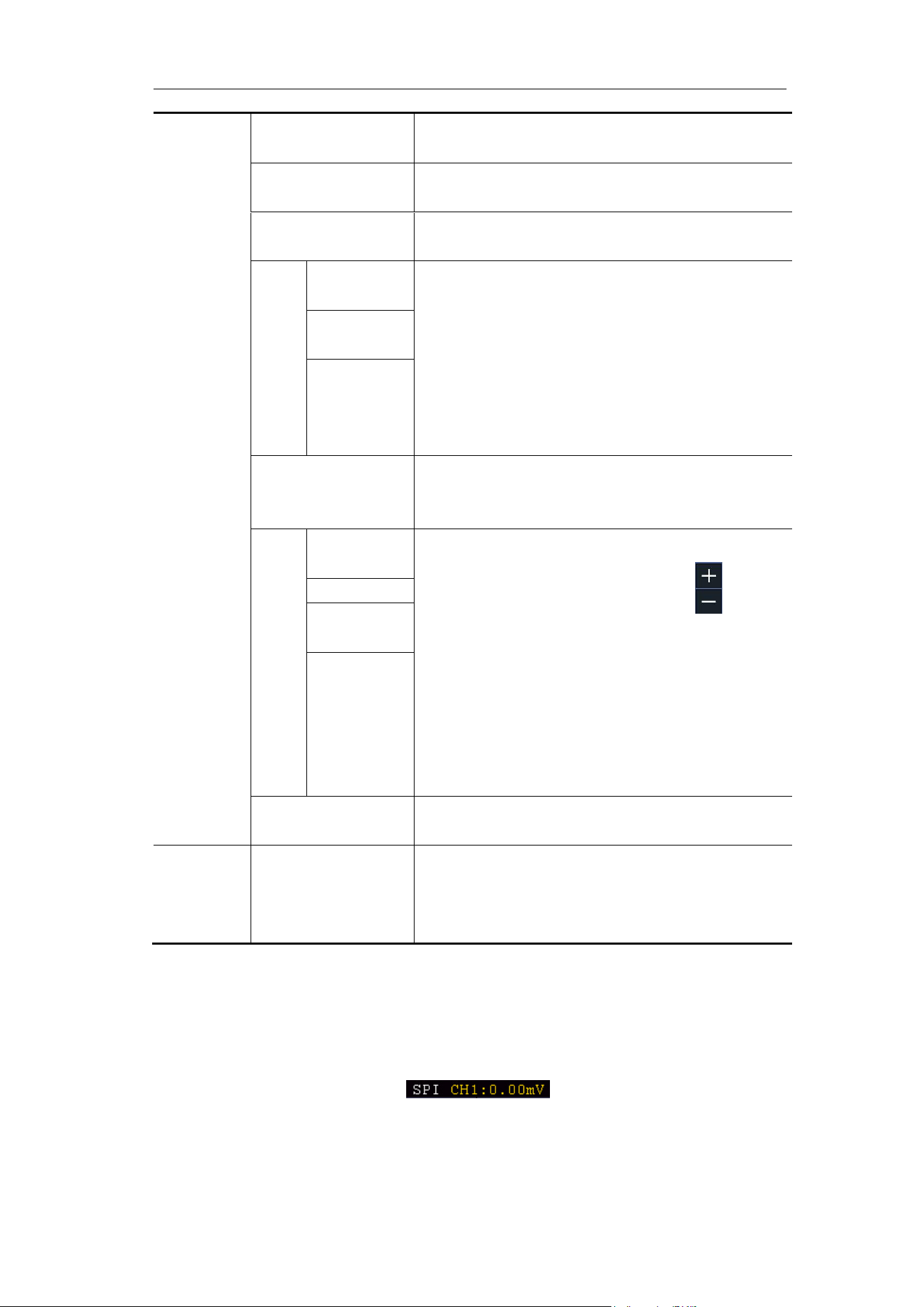
4.Advanced User Guidebook
52
Stop
Trigger when SDA data transitions from low
to high while SCL is high.
Ack Lost
Trigger when SDA data is high during any
acknowledgement of SCL clock position.
Address
Trigger on the read or write bit when the
preset address is met.
Adr
For
mat
Addr
Bits
Set Address Bits to be “7”、“8”or“10”.
Set address according to the preset
address bits, address range is 0-127,
0-255, 0-1023 respectively.
Set Data Direction to be Read or Write.
Note: The set is not available when Address
bits is set to “8”.
Address
Direction
Data
Search for the preset data value on SDA
and trigger on the dump edge of SCL of the
last bit of the data area.
Dat
For
mat
Byte
length
Set data byte length, available range 1-5
bytes. Adjust M knob or click to set
byte length.
Select the data bit, ranges from 0 to (byte
length*8 -1).
Set data to be H, L or X (H or L)
Set all the data bits to be the specified value
in Data
CurrentBit
Data
All Bits
Addr / Data
Trigger when Address and Data conditions
are met at the same time .
Mode
Holdoff
Auto
Normal
Single
Acquire waveform even no trigger occurred
Acquire waveform when trigger occurred
When trigger occurs, acquire one waveform
then stop
3. SPI Trigger
Trigger on the specified data when the timeout condition is meet. When using
SPI trigger, you need to specify the SCL and SDA data sources.
In SPI bus trigger mode, the trigger setting information is displayed on bottom
right of the screen, for example, , indicates that trigger type is
SPI, CH1 trigger level is 0.00mV.
SPI Trigger menu list:
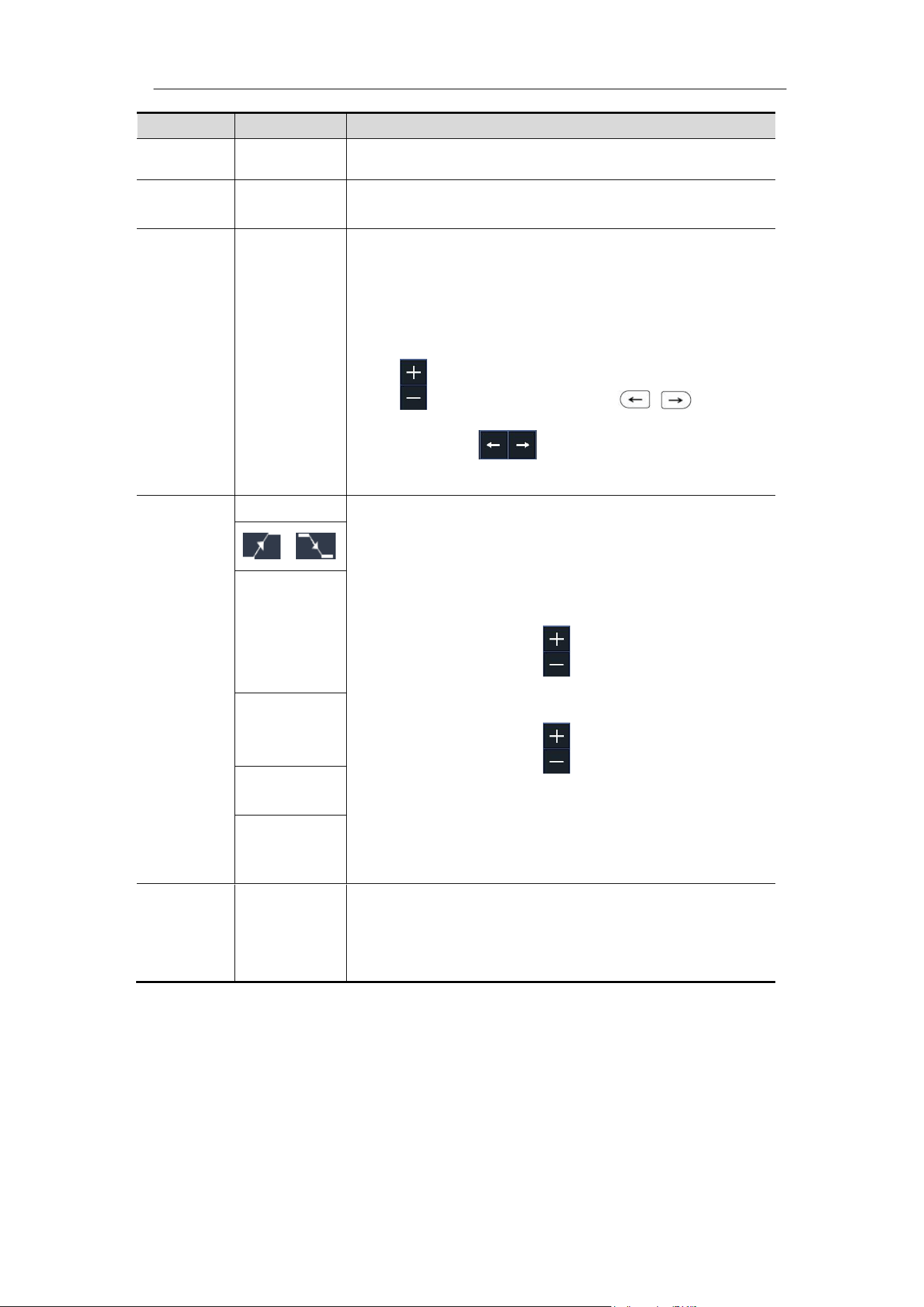
4.Advanced User Guidebook
53
MENU
SETTING
INSTRUCTION
Bus Type
SPI
Set vertical channel bus type as SPI trigger.
Source
SCL
SDA
Set SCL.
Set SDA.
Time Out
Time out
Set the minimum time that SCL must be idle, that
is a period of SCL, available range 100ns-10s.
Time out means SCL keeps idle for a specified
time before oscilloscope starts to search for the
data(SDA) on which to trigger. adjust M knob or
click to set time out, press panel
button or click move cursor to choose
which digit to be set.
ClockEdg
e&Data
Clock Edge
Set Edge Clock as Rising edge or Falling edge.
Means sample the SDA data on the rising edge or
falling edge of the clock.
Set the number of bits of the serial data character
string. It can be set to any integer between 4-32.
adjust M knob or click to set Data Bits.
Set the number of the data bits, ranges from 0-31,
adjust M knob or click to set Current Bit.
Set the value of the current data bit as H,L or X (H
or L).
Set all the data bits to be the specified value in
Data.
Data Bits
Current Bit
Data
All Bits
Mode
Holdoff
Auto
Normal
Single
Acquire waveform even no trigger occurred
Acquire waveform when trigger occurred
When trigger occurs, acquire one waveform then
stop
4. CAN Trigger (Optional)
CAN (Controller Area Network) is a serial communication protocol of the ISO
international standardization.
By using the CAN bus trigger, you can trigger on Start of Frame, Type of
Frame, Identifier, Data, ID & Data, End of Frame, Missing Ack, or Bit
Stuffing Error. You need to specify the signal source, trigger signal type,
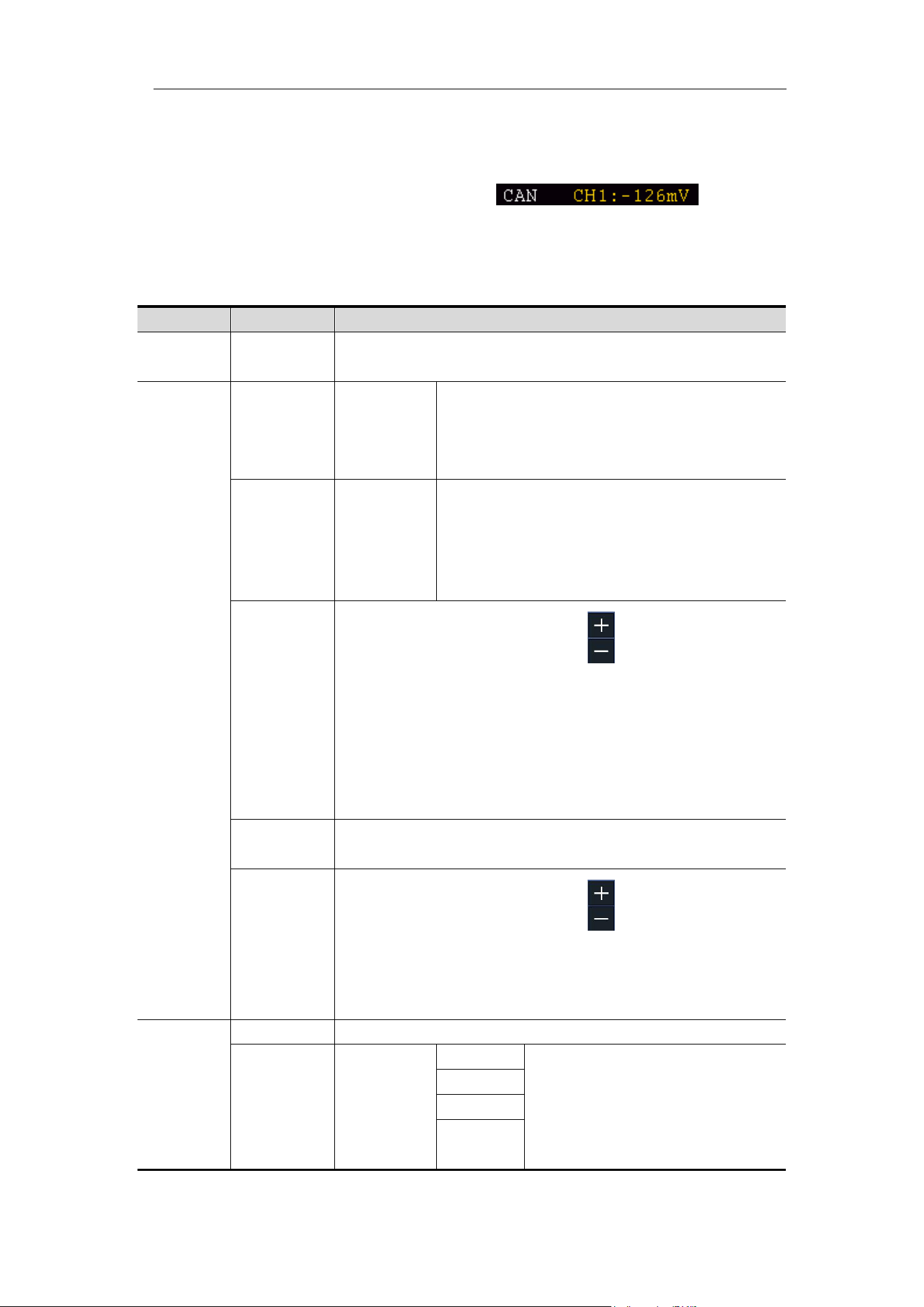
4.Advanced User Guidebook
54
sample point, and signal rate of the CAN signal.
In CAN bus trigger mode, the trigger setting information is displayed on
bottom right of the screen, for example, , indicates
that trigger type is CAN, CH1 trigger level is -126 mV.
CAN Trigger menu list:
MENU
SETTING
INSTRUCTION
Bus
Type
CAN
Set vertical channel bus type as CAN trigger.
Input
Source
CH1
CH2
CH3
CH4
Select CH1 as the trigger source.
Select CH2 as the trigger source.
Select CH3 as the trigger source.
Select CH4 as the trigger source.
Type
CAN_H
CAN_L
TX
RX
Actual CAN_H bus signal.
Actual CAN_L bus signal.
Transmission signal on the CAN signal
line.
Received signal on the CAN signal line.
Sample
Point
Turn the M knob (or tap on in touchscreen) to
set the Sample point, which is a point within a bit’s
time. The oscilloscope samples the bit level at this
point. “Sample point” is represented by the
percentage of “the time from the start of the bit’s time
to the sample point time” in the “bit’s time”. The
range is 5% to 95%.
Common
Baud
Turn the M knob to select from the Baud list on the
left.
Custom
Baud
Turn the M knob (or tap on in touchscreen) to
set the Baud. The range is 10,000 to 1,000,000.
Tip: You can select the nearest value in Common
Baud, and then adjust it in this menu.
Conditio
n
Start
Trigger on the start frame of the data frame.
Type
Type
(Bottom
menu)
Data
Trigger on the selected
frame.
Remote
Error
Overloa
d
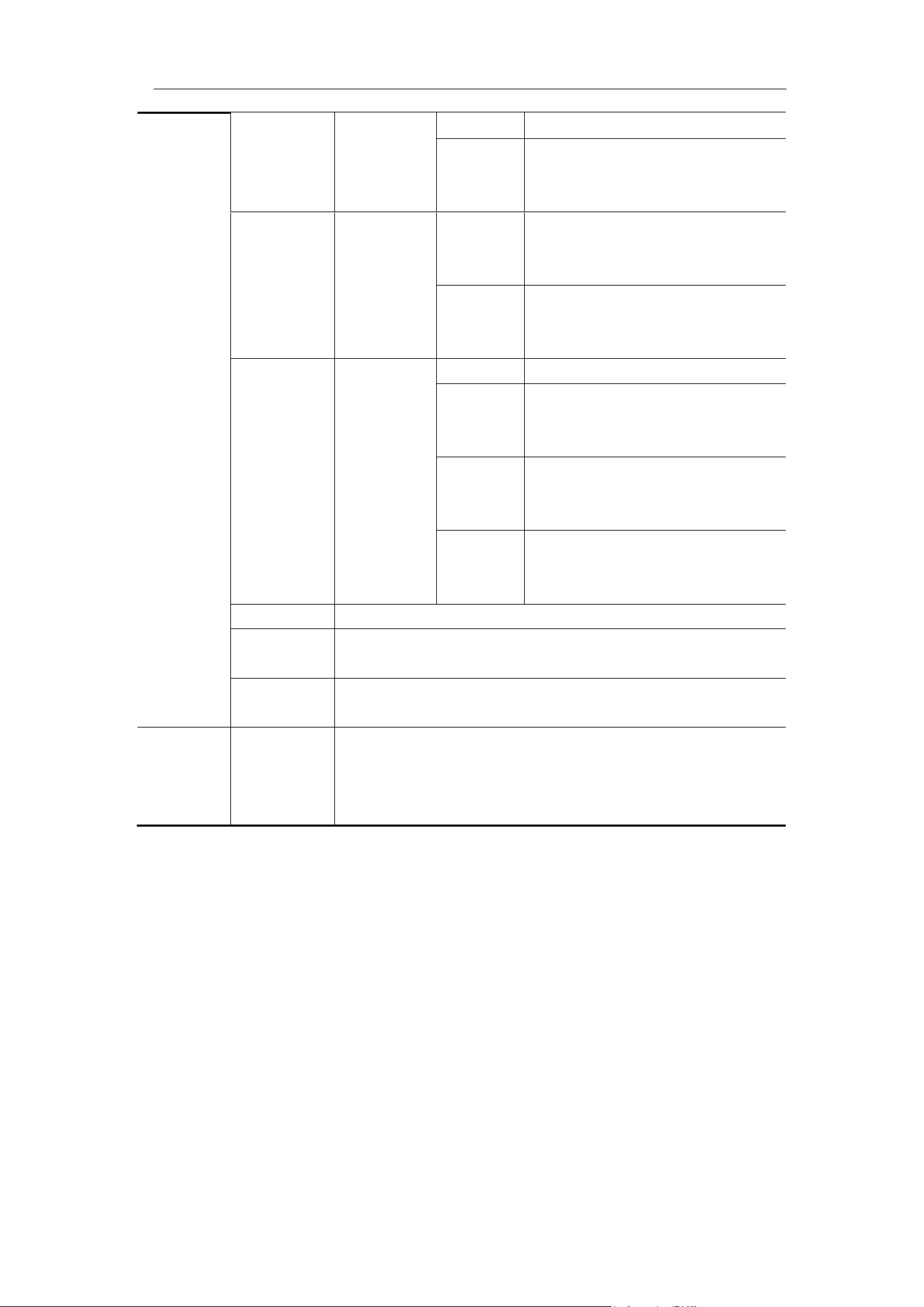
4.Advanced User Guidebook
55
ID
Configure
(Bottom
menu)
Format
Select Standard or Extended.
ID
Use the M knob and
Direction key on the front
panel to set.
Data
Configure
(Bottom
menu)
Byte
Length
Set the number of bytes with
the M knob. The range is 1 to
8.
Data
Set the data with the M knob
and Direction key on the
front panel.
ID&Data
Configure
(Bottom
menu)
Format
Select Standard or Extended.
ID
Use the M knob and
Direction key on the front
panel to set.
Byte
Length
Set the number of bytes with
the M knob. The range is 1 to
8.
Data
Set the data with the M knob
and Direction key on the
front panel.
End
Trigger on the end frame of the data frame.
Missing
Ack
Trigger on Missing Ack.
Bit
Stuffing
Trigger on Bit Stuffing Error.
Mode
Holdoff
Auto
Normal
Single
Acquire waveform even no trigger occurred
Acquire waveform when trigger occurred
When trigger occurs, acquire one waveform then
stop
Bus Decoding (Optional)
1. UART/RS232 Decoding
To decode UART/RS232 signal:
(1) Connect the UART/RS232 signal to the Signal Input Channel of the
oscilloscope.
(2) Adjust to the proper time base and voltage division.
(3) In trigger menu, select Bus trigger, and select bus type as UART, set
parameters based on the characteristics of the signal, trigger the signal
correctly and obtain stable display. Refer to "UART/RS232 Trigger" on
page 49.
(4) Push the Decode button on the front panel. Select bus type as UART. set
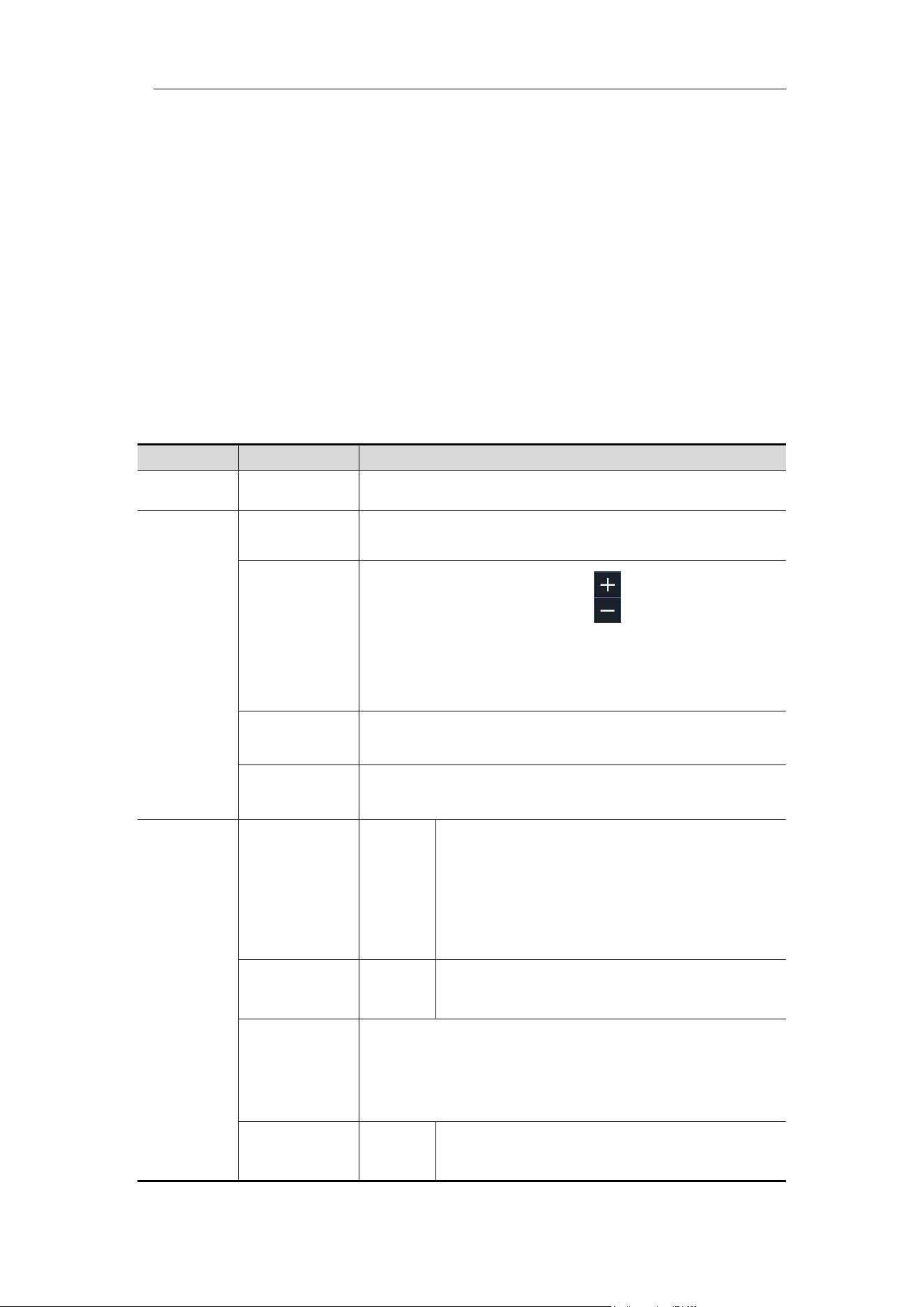
4.Advanced User Guidebook
56
parameters based on the characteristics of the signal. When the
parameters are set correctly, the information carried by the signal will be
displayed.
Tip: If there are repetitive menu items in both trigger menu and decoding menu,
you can set anyone of them, the other will be changed synchronously.
Note:
⚫ Use the Trigger Level knob to adjust the thresholds of bus trigger and bus
decoding.
⚫ When decoding, if "Parity" is not set to "None", and the check bit error is
detected, two red error marks will be displayed in the corresponding
position in the waveform.
UART/RS232 Decoding menu list:
MENU
SETTING
INSTRUCTION
Bus Type
UART
Set bus type of decoding as UART/RS232.
Configure
Common
Baud
Turn the M knob to select from the Baud list on
the left.
Custom
Baud
Turn the M knob (or tap on in touchscreen) to
set the Baud. The range is 50 to 10,000,000.
Tip: You can select the nearest value in Common
Baud, and then adjust it in this menu.
Data Bits
Set the data width of each frame to match the
signal. It can be set to 5, 6, 7 or 8.
Parity
set the even-odd check mode to match the
polarity used by the signal.
Display
Format
Binary
Decim
al
Hex
ASCII
Set the display format of the bus.
EventTable
ON
OFF
Select "ON" to display the event table.
Save
EventTable
If a USB storage device is currently connected to
the instrument, save the event table data in a .csv
(spreadsheet) formatted file on the external USB
storage device.
ASCII Table
ON
OFF
Select "ON" to display the ASCII table.
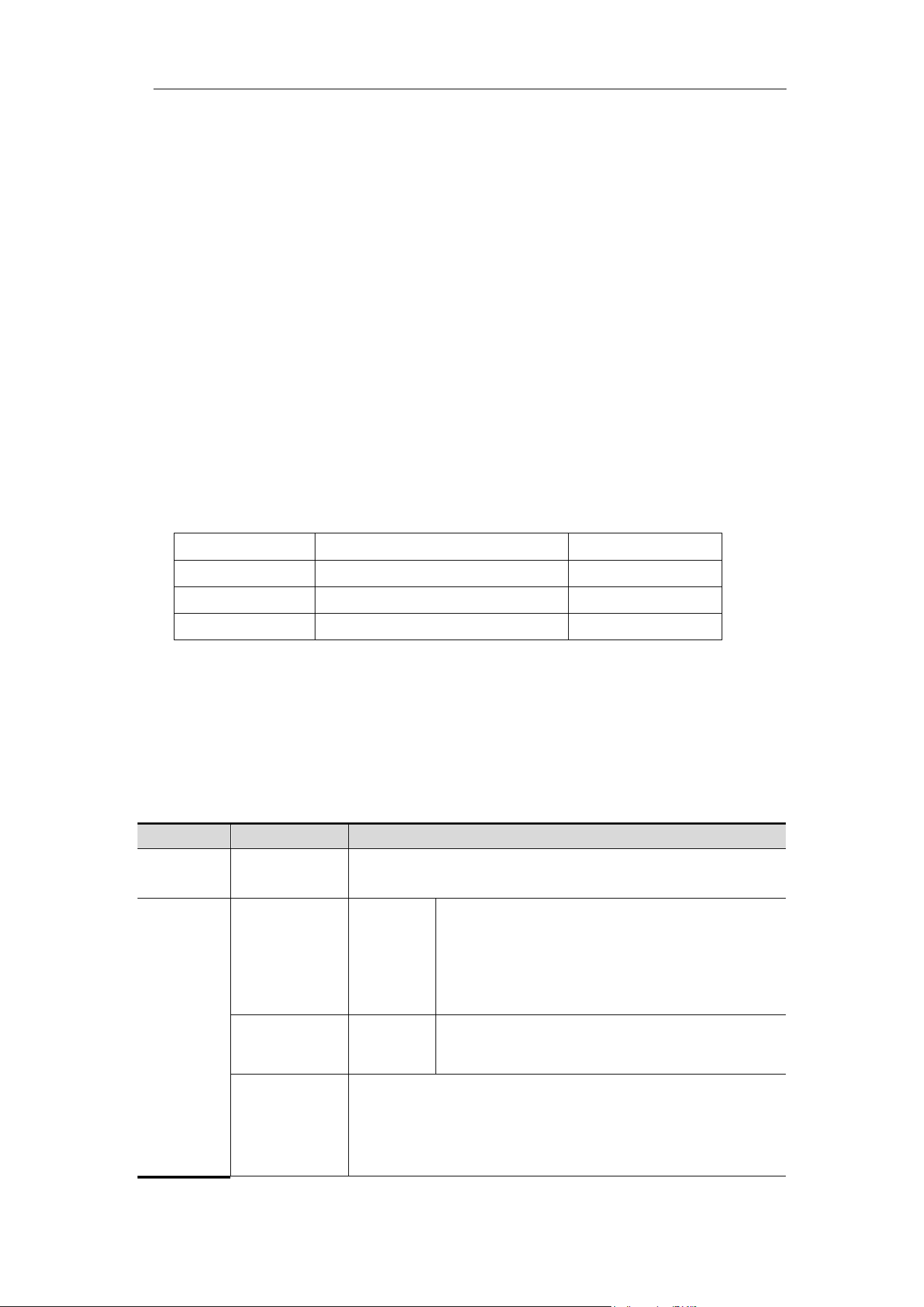
4.Advanced User Guidebook
57
2. I2C Decoding
To decode I2C signal:
(1) Connect the clock line (SCLK) and the data line (SDA) of the I2C signal to
the Signal Input Channels of the oscilloscope.
(2) Adjust to the proper time base and voltage division.
(3) In trigger menu, select Bus trigger, and select bus type as I2C, set
parameters based on the characteristics of the signal, trigger the signal
correctly and obtain stable display. Refer to "I2C Trigger" on page 51.
(4) Push the Decode button on the front panel. Select bus type as I2C. set
parameters based on the characteristics of the signal. When the
parameters are set correctly, the information carried by the signal will be
displayed.
Tip: If there are repetitive menu items in both trigger menu and decoding menu,
you can set anyone of them, the other will be changed synchronously.
Decoded information interpretation:
Information
Abbreviation
Background
Read Address
R, Read, or do not display
Green
Write Address
W, Write, or do not display
Green
Data
D, Data, or do not display
Black
Note:
⚫ Use the Trigger Level knob to adjust the thresholds of bus trigger and bus
decoding.
⚫ When the ACK (ACKnowledge Character) is not met, two red error marks
will be displayed in the corresponding position in the waveform.
I2C Decoding menu list:
MENU
SETTING
INSTRUCTION
Bus
Type
I2C
Set bus type of decoding as I2C.
Display
Format
Binary
Decimal
Hex
ASCII
Set the display format of the bus.
EventTable
ON
OFF
Select "ON" to display the event table.
Save
EventTable
If a USB storage device is currently connected to
the instrument, save the event table data in a .csv
(spreadsheet) formatted file on the external USB
storage device.
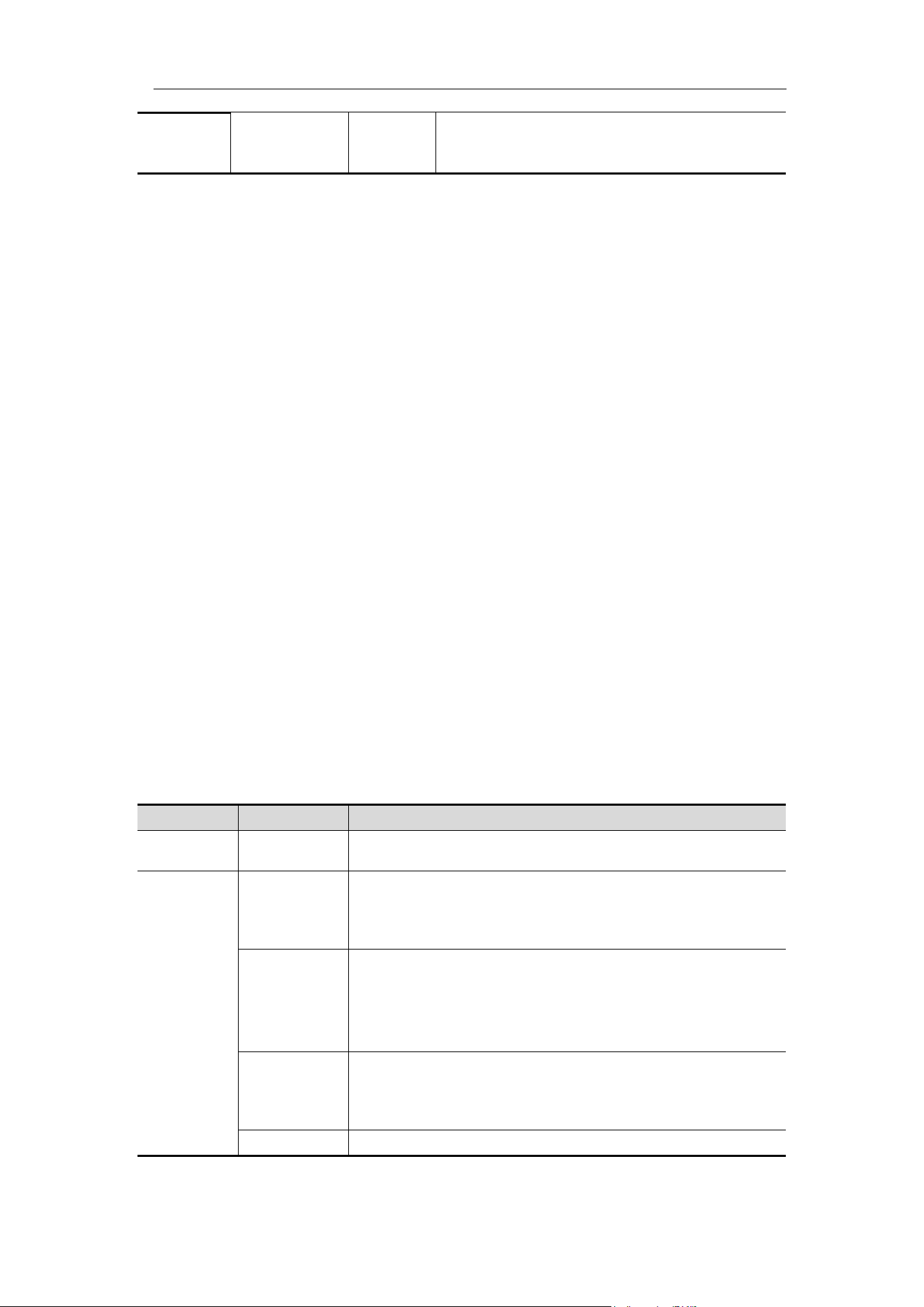
4.Advanced User Guidebook
58
ASCII Table
ON
OFF
Select "ON" to display the ASCII table.
3. SPI Decoding
To decode SPI signal:
(1) Connect the clock line (SCLK) and the data line (SDA) of the SPI signal to
the Signal Input Channels of the oscilloscope.
(2) Adjust to the proper time base and voltage division.
(3) In trigger menu, select Bus trigger, and select bus type as SPI, set
parameters based on the characteristics of the signal, trigger the signal
correctly and obtain stable display. Refer to "SPI Trigger" on page 52.
(4) Push the Decode button on the front panel. Select bus type as SPI. set
parameters based on the characteristics of the signal. When the
parameters are set correctly, the information carried by the signal will be
displayed.
Tip: If there are repetitive menu items in both trigger menu and decoding menu,
you can set anyone of them, the other will be changed synchronously.
Note:
⚫ Use the Trigger Level knob to adjust the thresholds of bus trigger and bus
decoding.
⚫ LS First in Bit Order menu item (Least Significant Bit First) means that the
least significant bit will arrive first: hence e.g. the hexadecimal number
0x12, will arrive as the sequence 01001000 in binary representation, will
be decoded as the reversed sequence 00010010.
SPI Decoding menu list:
MENU
SETTING
INSTRUCTION
Bus Type
SPI
Set bus type of decoding as SPI.
Configure
SCLK
Select the clock edge to match the signal, sample
the SDA data on the rising or falling edge of the
clock.
Time Out
Set the minimum time that the clock (SCL) signal
must be idle before the oscilloscope starts to
search for the data (SDA) on which to trigger. The
range is 30 ns to 10 s.
Data Bits
Set the data width of each frame to match the
signal. It can be set to any integer between 4 and
32.
Bit Order
Select LS First or MS First to match the signal.
4.Advanced User Guidebook
59
Display
Format
Binary
Decimal
Hex
ASCII
Set the display format of the bus.
EventTabl
e
ON
OFF
Select "ON" to display the event table.
Save
EventTabl
e
If a USB storage device is currently connected to
the instrument, save the event table data in a .csv
(spreadsheet) formatted file on the external USB
storage device.
ASCII
Table
ON
OFF
Select "ON" to display the ASCII table.
4. CAN Decoding
To decode CAN signal:
(1) Connect the CAN signal to the Signal Input Channel of the oscilloscope.
(2) Adjust to the proper time base and voltage division.
(3) In trigger menu, select Bus trigger, and select bus type as CAN, set
parameters based on the characteristics of the signal, trigger the signal
correctly and obtain stable display. Refer to "CAN Trigger" on page 53.
(4) Push the Decode button on the front panel. Select bus type as CAN. set
parameters based on the characteristics of the signal. When the
parameters are set correctly, the information carried by the signal will be
displayed.
Tip: If there are repetitive menu items in both trigger menu and decoding menu,
you can set anyone of them, the other will be changed synchronously.
Decoded information interpretation:
Information
Abbreviation
Background
Identifier
I, ID, or do not display
Green
Overload Frame
OF
Green
Error Frame
EF
Green
Data Length code
L, DLC, or do not display
Blue
Data
D, Data, or do not display
Black
Cyclic Redundancy Check
C, CRC, or do not display
Valid: Purple
Error: Red
Note:
⚫ Use the Trigger Level knob to adjust the thresholds of bus trigger and bus
decoding.
⚫ When the ACK (ACKnowledge Character) of Data Frame or Remote
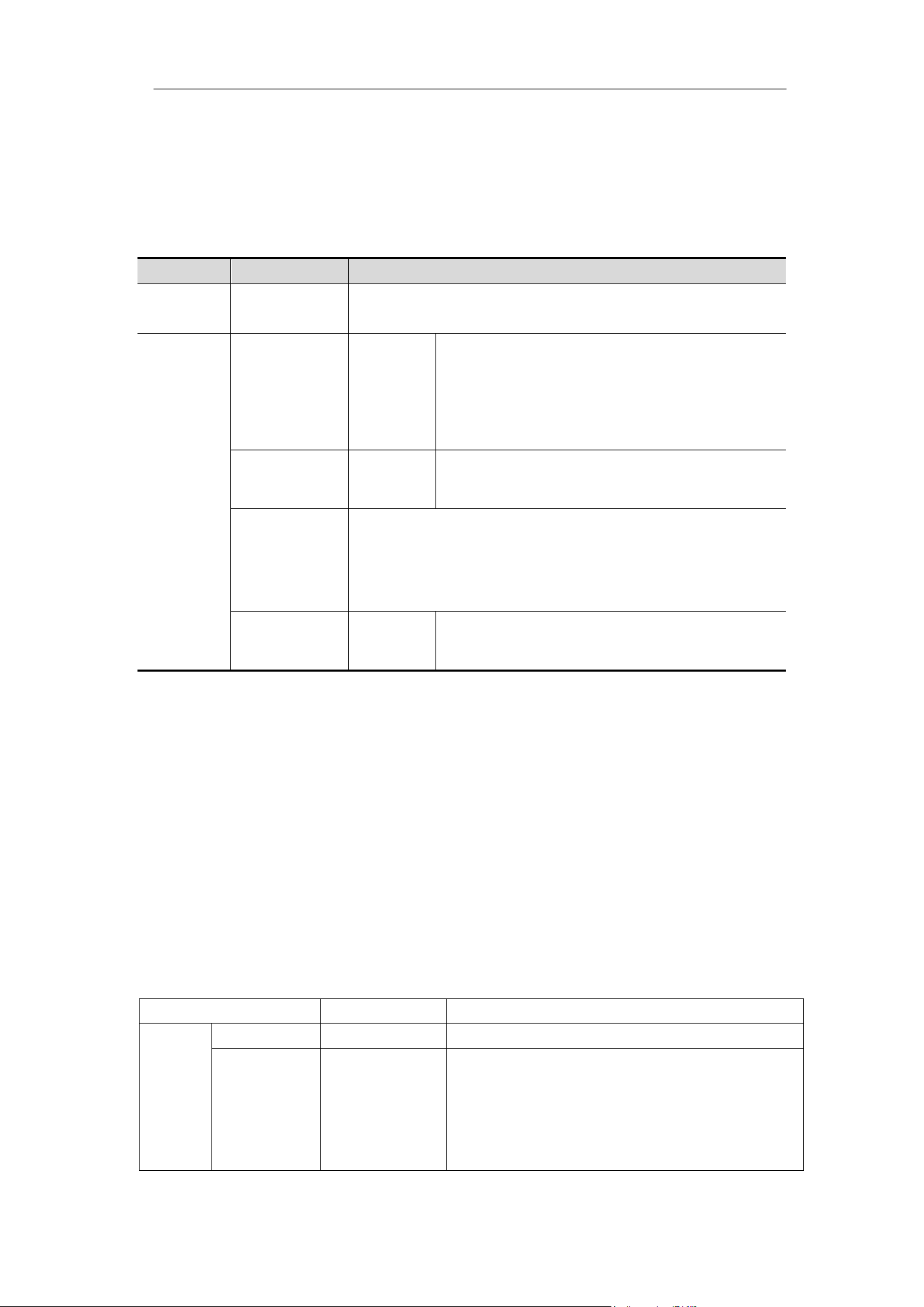
4.Advanced User Guidebook
60
Frame is not met, two red error marks will be displayed in the
corresponding position in the waveform.
⚫ Error Frame, Remote Frame, and Overload Frame will be identified in the
"Data" column in the event table (Data Frame will not be identified).
CAN Decoding menu list:
MENU
SETTING
INSTRUCTION
Bus
Type
CAN
Set bus type of decoding as CAN.
Display
Format
Binary
Decimal
Hex
ASCII
Set the display format of the bus.
EventTable
ON
OFF
Select "ON" to display the event table.
Save
EventTable
If a USB storage device is currently connected to
the instrument, save the event table data in a .csv
(spreadsheet) formatted file on the external USB
storage device.
ASCII Table
ON
OFF
Select "ON" to display the ASCII table.
How to Operate the Function Menu
The function menu control zone includes 8 function menu buttons: Measure,
Acquire, Utility, Cursor, Autoscale, Save, Display, Help and 3
immediate-execution buttons: Autoset, Run/Stop, Single.
How to Implement Sampling Setup
Push the Acquire button, Acqu Mode, Length and Intrpl is shown in the
bottom menu.
The description of the Acqu Mode menu is shown as follows:
Function Menu
Setting
Description
Acqu
Mode
Sample
Normal sampling mode.
Peak
Detect
Use to capture maximal and minimal
samples. Finding highest and lowest
points over adjacent intervals. It is used
for the detection of the jamming burr and
the possibility of reducing the confusion.
4.Advanced User Guidebook
61
Average
4, 16, 64,
128
It is used to reduce the random and
don't-care noises, with the optional
number of averages.
Refresh
Rate
□ Low
Set the waveform refresh rate, you can
turn on this mode when you need to
observe a single waveform.
The description of the Record Length menu is shown as follows:
Function Menu
Setting
Description
Length
1K
Choose the record length
Note: When four channels are turned
on, the max record length is 100M; and
max 200M for two channels
(Need to meet either condition:
CH1&CH3 on, CH2&CH4 off;
CH2&CH4 on, CH1&CH3 off. ) ; max
400M for one channel.
10K
100K
1M
10M
100M
200M
400M
The description of the Intrpl menu is shown as follows:
Function Menu
Setting
Description
Intrpl
Sinx/x
Use sine(x)/x interpolation
x
Use linear interpolation
Interpolation method is a processing method to connect the sampled points,
using some points to calculate the whole appearance of the waveform. Select
the appropriate interpolation method according to the actual signal.
Sine(x)/x interpolation: Connect the sampled points with curved lines.
Linear interpolation: Connect the sampled points with straight lines. This
method is suitable to rebuild the straight-edged signals, such as square or
pulse wave.
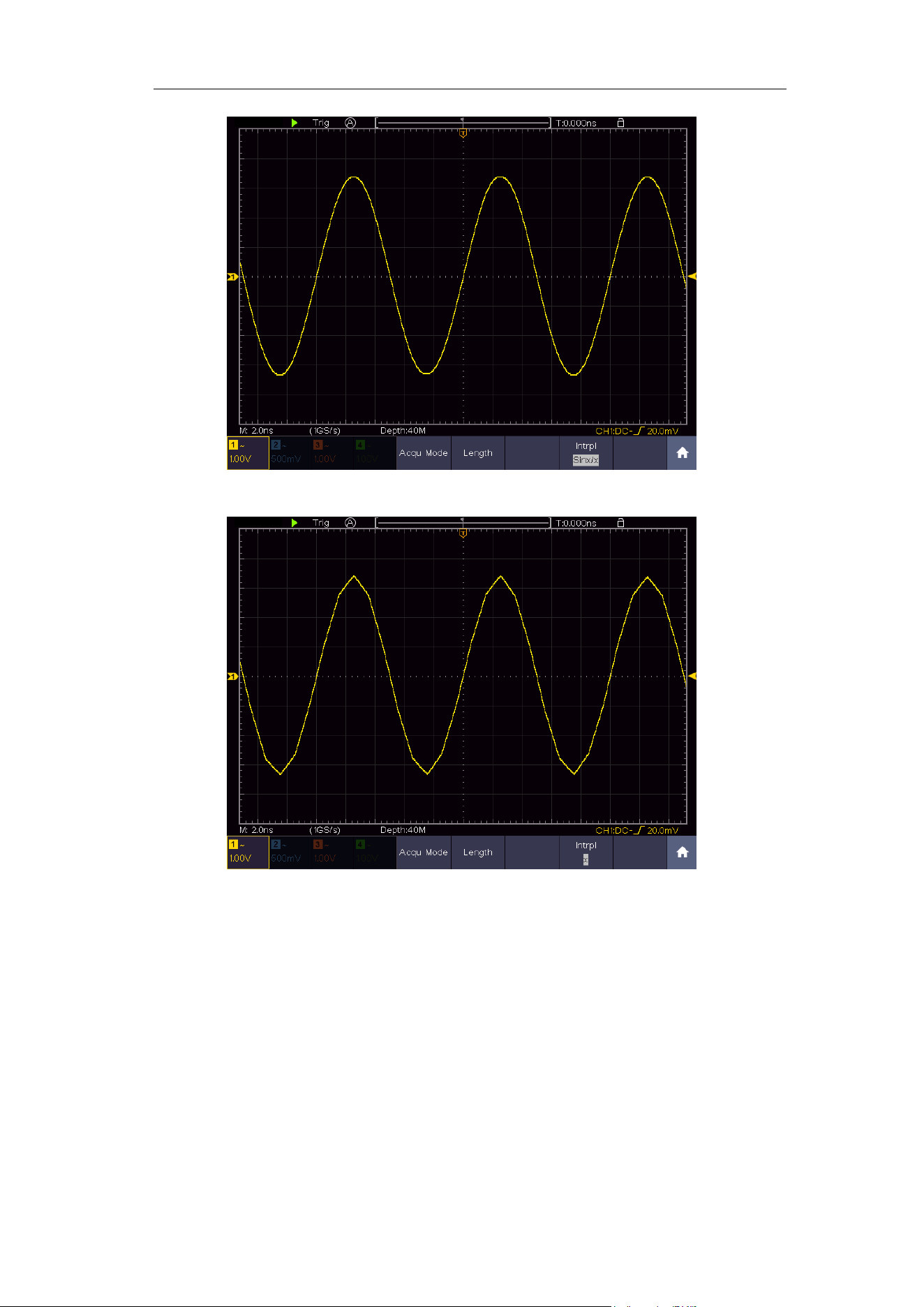
4.Advanced User Guidebook
62
Figure 4-9 Sine(x)/x interpolation
Figure 4-10 Linear interpolation
How to Set the Display System
Push the Display button and the Display menu is shown as follows:
4.Advanced User Guidebook
63
Persist
When the Persist function is used, the persistence display effect of the picture
tube oscilloscope can be simulated. The reserved original data is displayed in
fade color and the new data is in bright color.
(1) Push the Display button.
(2) Select Persist&Color in the bottom menu.
(3) Select Persist in the right menu.
(4) In the Time menu, select the persist time, including Auto, 50ms—10s and
Infinity.
When the "Auto" option is set for Persist Time, the oscilloscope automatically
determines the persist time.
When the "Infinity" option is set for Persist Time, the measuring points will be stored
till the controlling value is changed.
(5) Select Clear in the bottom menu to erase the results of previous
acquisitions from the display. The oscilloscope will start to accumulate
acquisitions again.
Function
Menu
Setting
Description
Type
Dots
Vect
Only the sampling points are displayed.
The space between the adjacent sampling
points in the display is filled with the vector
form.
Persist
&Color
Persist
ON
OFF
Turn on/off the Persist function.
Time
Auto
50ms-10s
Infinity
Set the persistence mode or time.
Clear
Erase the results of previous acquisitions
from the display. The oscilloscope will start
to accumulate acquisitions again.
Color
ON
OFF
Turn on/off the color temperature function
XY Mode
Enable
ON
OFF
Turn on/off XY display function
Full
Screen
ON
OFF
Turn on/off the full screen view in XY mode
Counter
ON
OFF
Turn on/off counter
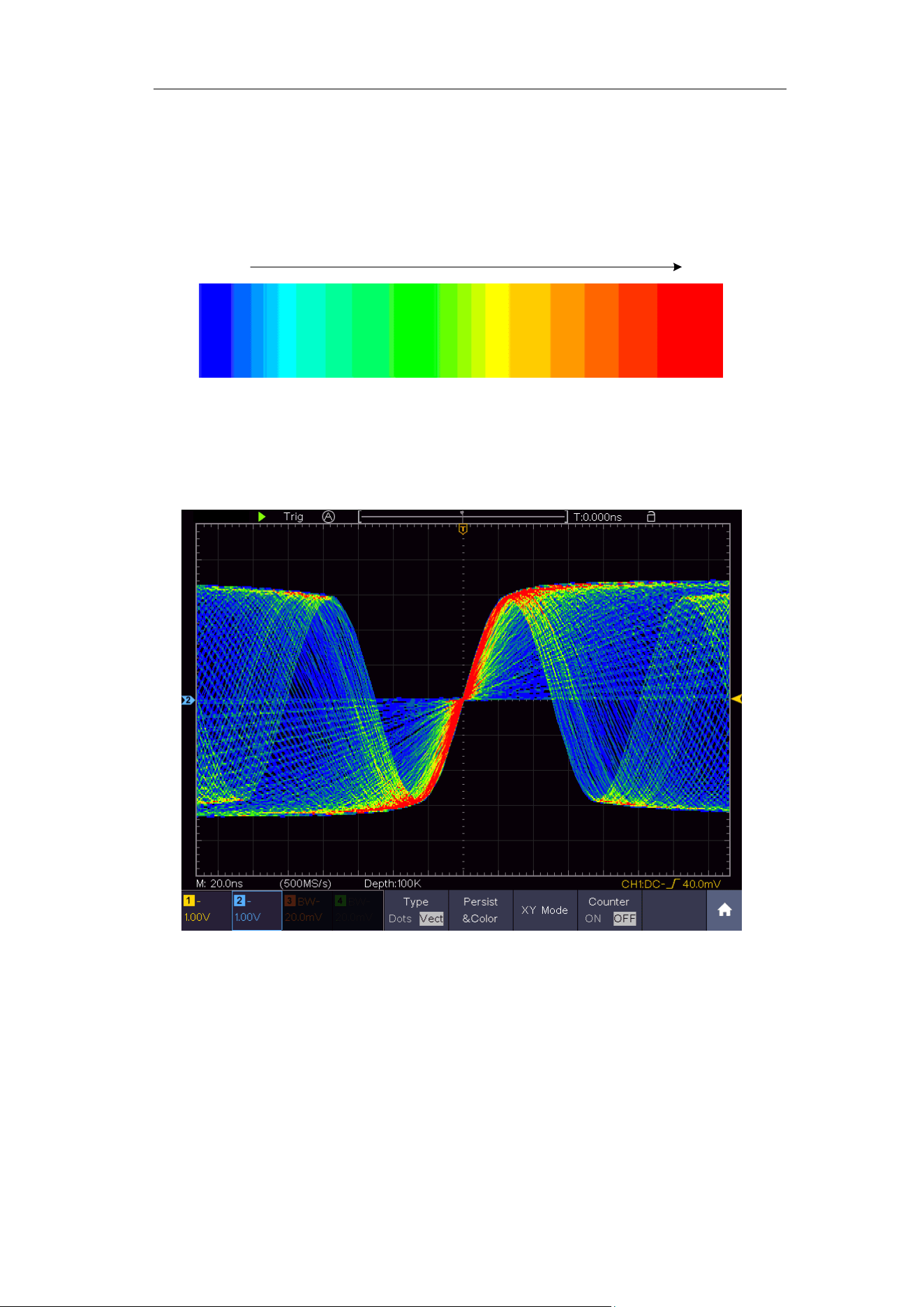
4.Advanced User Guidebook
64
Color
Color temperature function uses color-grading to indicate frequency of
occurrence. The hot colors like red/yellow indicate frequently occurring events,
and the colder colors like blue/green indicate rarely occurring events.
Cold Hot
(1) Push the Display button.
(2) Select Persist&Color in the bottom menu.
(3) Select Color in the right menu, choose between ON/OFF.
Figure 4-11 The color temperature function is on
XY Format
This format is only applicable to Channel 1 and Channel 2. After the XY display
format is selected, Channel 1 is displayed in the horizontal axis and Channel 2
in the vertical axis; the oscilloscope is set in the un-triggered sample mode: the
data are displayed as bright spots.
The operations of all control knobs are as follows:
◼ The Horizontal Scale and the Horizontal Position knobs are used to set
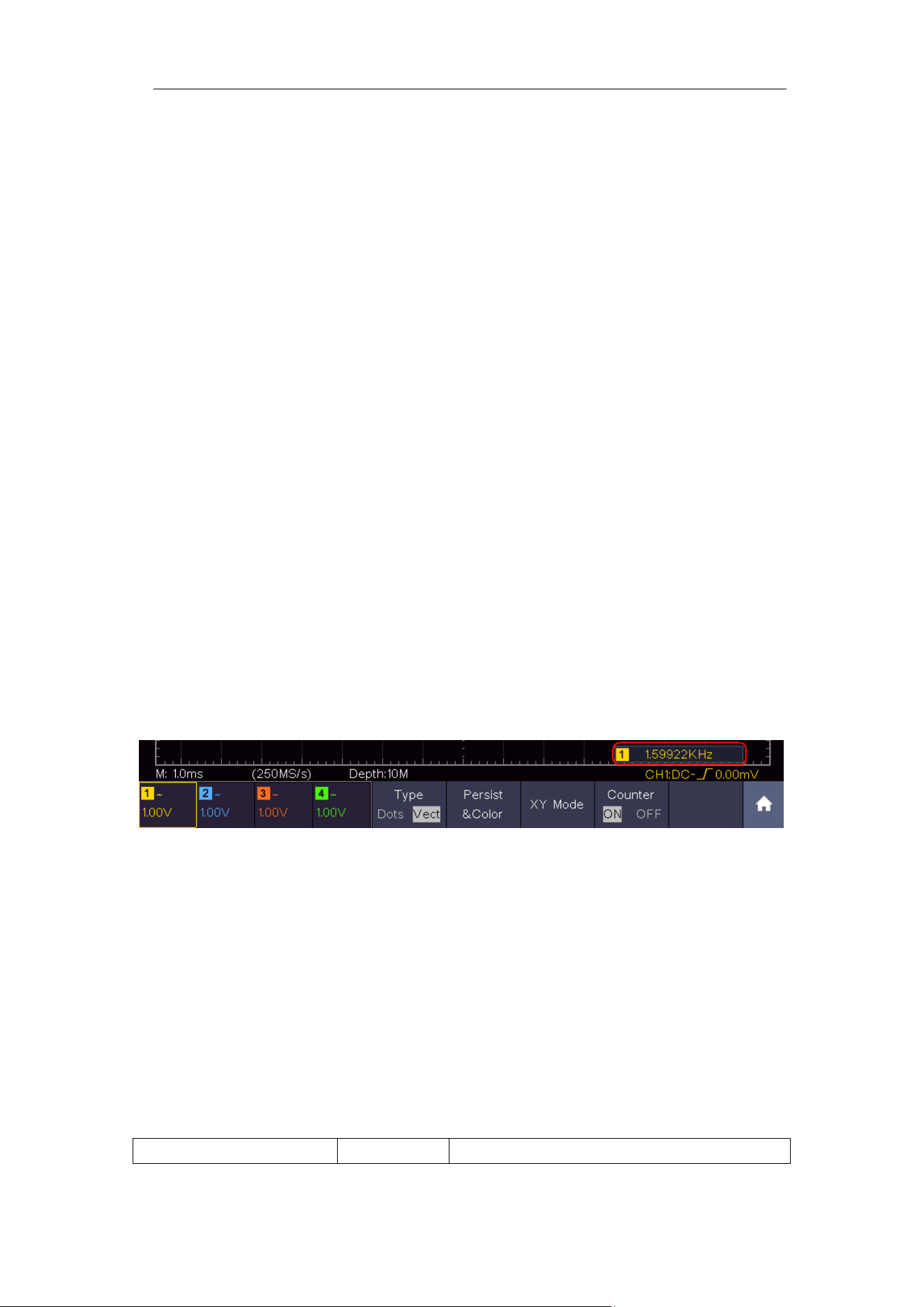
4.Advanced User Guidebook
65
the horizontal scale and position.
◼ The Vertical Scale and the Vertical Position knobs are used to set the
vertical scale and position.
The following functions can not work in the XY Format:
◼ Reference or digital wave form
◼ Cursor
◼ Trigger control
◼ FFT
Operation steps:
1. Push the Display button.
2. Select XY Mode in the bottom menu. Select Enable as ON in the right
menu.
3. To make the XY view full screen, select Full Screen as ON in the right
menu.
Counter
It is a 6-digit single-channel counter. The counter can only measure the
frequency of the triggering channel. The frequency range is from 2Hz to the full
bandwidth. Only if the measured channel is in Edge mode of Single trigger
type, the counter can be enabled. The counter is displayed at the right bottom
of the screen.
Operation steps:
1. Push Trigger Menu button, set the trigger type to Single, set the trigger
mode to Edge, select the signal source.
2. Push the Display button.
3. Select Counter as ON or OFF in the bottom menu.
How to Save and Recall a Waveform
Push the Save button, you can save the waveforms, configures, screen
images, record or clone the waveform.
The description of the Save Function Menu is shown as the following table:
Function Menu
Setting
Description
4.Advanced User Guidebook
66
Type
Wave
Configure
Image
Record
Clone
Choose the saving type.
About the Record type, see "How to
Record/Playback Waveforms" on P72.
About the Clone type, see “How to
Clone and Recall a waveform” on P76.
When the type is Wave, the menu shows as following:
Type
Wave
Format
(Right menu)
For internal storage, only BIN can be
selected. For external storage, the
format can be BIN, TXT or CSV.
Source
CH1
CH2
CH3
CH4
Math
(or MathFFT)
Check the waveform to be saved. (If
certain channel is off, the
corresponding menu item will be
disabled.)
Object &
Show
Objec
t
Wave0 to
Wave99
Choose the address which the
waveform is saved to or recall from.
Show
ON
OFF
Recall or close the waveform stored in
the current object address. When the
show is ON, if the current object
address has been used, the stored
waveform will be shown, the address
number and relevant information will be
displayed at the top left of the screen; if
the address is empty, it will prompt
"None is saved".
Close All
Close all the waveforms stored in the
object address.
Save
Save the waveform of the source to the
selected address. Whatever the Type
of save menu is set, you can save the
waveform by just pressing the Copy
panel button in any user interface.
Select Type in the bottom menu, in the
right Format menu, you can select the
storage format.
Storage
Internal
External
Save to internal storage or USB
storage. When External is selected,
save the waveform according to the
current record length (see "Record
Length menu" on P61); the file name is
editable. The BIN waveform file could
be open by waveform analysis software
(on the supplied CD).
4.Advanced User Guidebook
67
When the type is Configure, the menu shows as following:
Configure
Setting0
…..
Setting19
The setting address
Save
Save the current oscilloscope configure
to the internal storage
Load
Recall the configure from the selected
address
When the type is Image, the menu shows as following:
Save
Save the current display screen. The
file can be only stored in a USB
storage, so a USB storage must be
connected first. The file name is
editable. The file is stored in BMP
format.
Save and Recall the Waveform
The oscilloscope can store 100 waveforms, which can be displayed with the
current waveform at the same time. The stored waveform called out can not be
adjusted.
In order to save the waveform of CH1, CH2 and Math into the address 1, the
operation steps should be followed:
1. Turn on CH1, CH2 and Math channels.
2. Push the Save button.
3. Saving: Select Type in the bottom menu, select Wave in the left menu.
4. Select Storage in the bottom menu, select Internal in the right menu.
5. Select Source in the bottom menu, check CH1, CH2, Math in the right
menu for Source.
6. Select Object & Show in the bottom menu, select Wave1 as object
address in the left menu.
7. Select Save in the bottom menu to save the waveform.
8. Recalling: Select Object & Show in the bottom menu, select Wave1 in
the left menu. In the right menu, select Show as ON, the waveform stored
in the address will be shown, the address number and relevant information
will be displayed at the top left of the screen.
In order to save the waveform of CH1 and CH2 into the USB storage as a BIN
file, the operation steps should be followed:

4.Advanced User Guidebook
68
1. Turn on CH1 and CH2 channels.
2. Push the Save button.
3. Saving: Select Type in the bottom menu, select Wave in the left menu.
4. Select Storage in the bottom menu, select External in the right menu.
5. Select Type in the bottom menu, select BIN in the right menu as the
storage format.
6. Select Source in the bottom menu, check CH1, CH2 in the right menu for
Source.
7. Select Save in the bottom menu, an input keyboard used to edit the file
name will pop up. The default name is current system date and time.
Select the key in the keyboard to confirm.
8. Recalling: The BIN waveform file could be open by waveform analysis
software (on the supplied CD).
Tip:
Whatever the Type of save menu is set, you can save the waveform by just
pressing the Copy panel button in any user interface. If the Storage of the
save menu is set as "External", you should install the USB disk. Please refer
to the contents below to install the USB disk and name the file to be saved.
Save the current screen image:
The screen image can only be stored in USB disk, so you should connect a
USB disk with the instrument.
1. Install the USB disk: Insert the USB disk into the "USB Host port" of
"Figure 3-1 Front panel". If an icon appears on the top right of the
screen, the USB disk is installed successfully. If the USB disk cannot be
recognized, format the USB disk according to the methods in "USB disk
Requirements" on P68.
2. After the USB disk is installed, push the Save panel button, the save menu
is displayed at the bottom of the screen.
3. Select Type in the bottom menu, select Image in the left menu.
4. Select Save in the bottom menu, an input keyboard used to edit the file
name will pop up. The default name is current system date and time.
Select the key in the keyboard to confirm.
USB disk Requirements
The supported format of the USB disk: FAT32 file system, the allocation unit
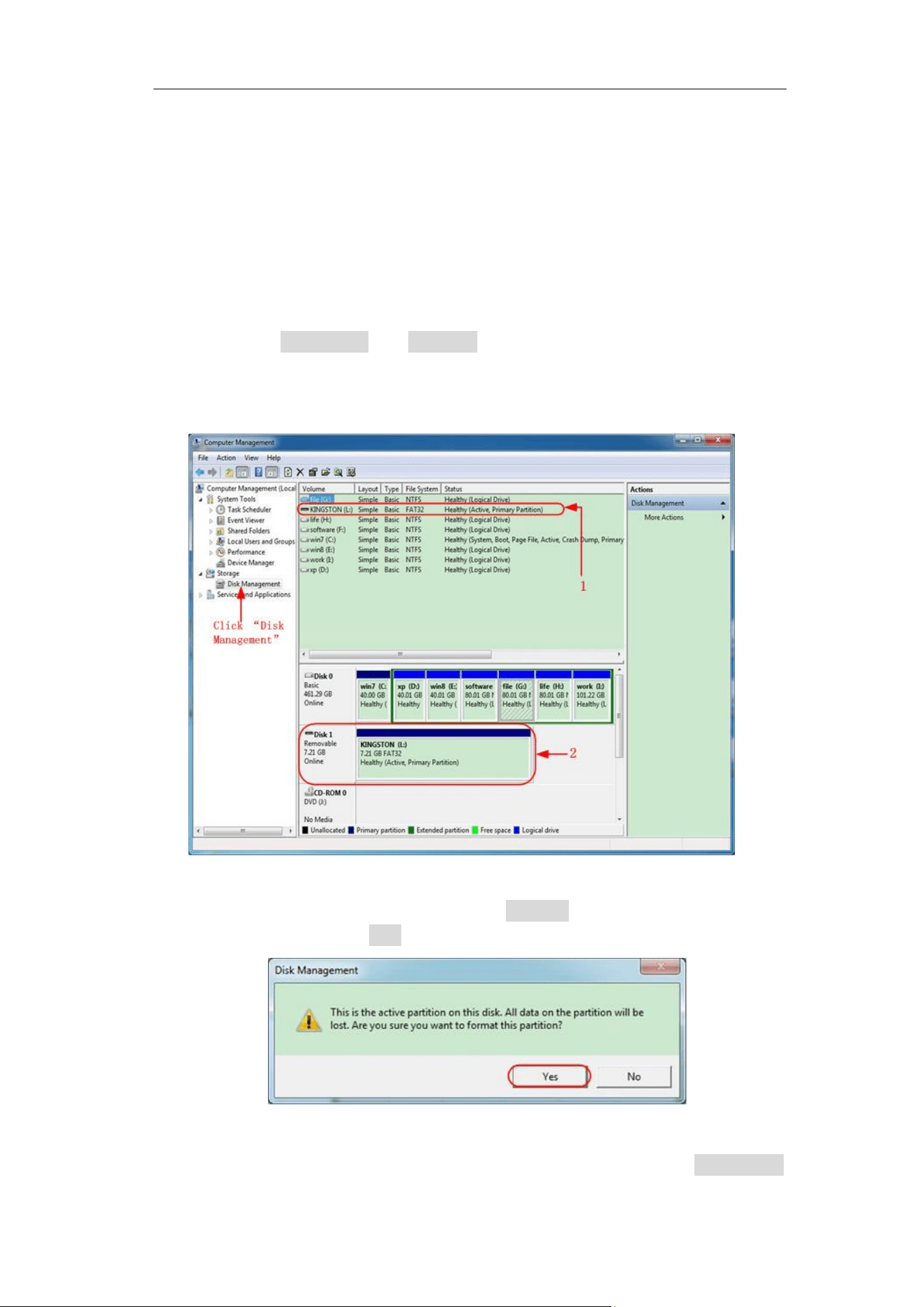
4.Advanced User Guidebook
69
size cannot exceed 4K, mass storage USB disk is also supported. If the USB
disk doesn't work properly, format it into the supported format and try again.
Follow any of the following two methods to format the USB disk: using
system-provided function and using the formatting tools. (The USB disk of 8 G
or 8 G above can only be formatted using the second method – using the
formatting tools.)
Use system-provided function to format the USB disk
1. Connect the USB disk to the computer.
2. Right click Computer-→ Manage to enter Computer Management
interface.
3. Click Disk Management menu, and information about the USB disk will
display on the right side with red mark 1 and 2.
Figure 4-12: Disk Management of computer
4. Right click 1 or 2 red mark area, choose Format. And system will pop up a
warning message, click Yes.
Figure 4-13: Format the USB disk warning
5. Set File System as FAT32, Allocation unit size 4096. Check "Perform a
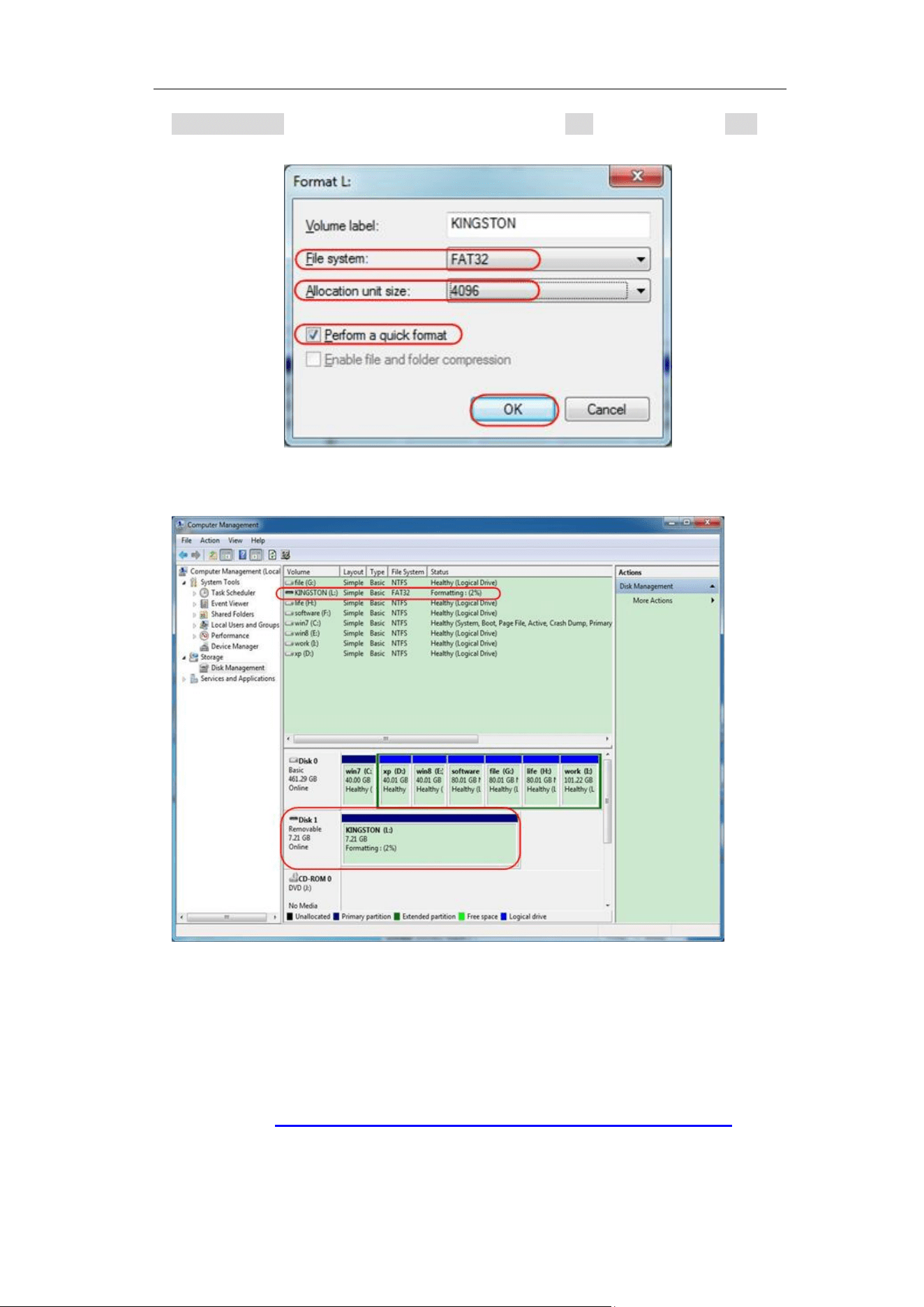
4.Advanced User Guidebook
70
quick format" to execute a quick format. Click OK, and then click Yes on
the warning message.
Figure 4-14: Formatting the USB disk setting
6. Formatting process.
Figure 4-15: Formatting the USB disk
7. Check whether the USB disk is FAT32 with allocation unit size 4096 after
formatting.
Use Minitool Partition Wizard to format
Download URL: http://www.partitionwizard.com/free-partition-manager.html
Tip: There are many tools for the USB disk formatting on the market, just take
Minitool Partition Wizard for example here.
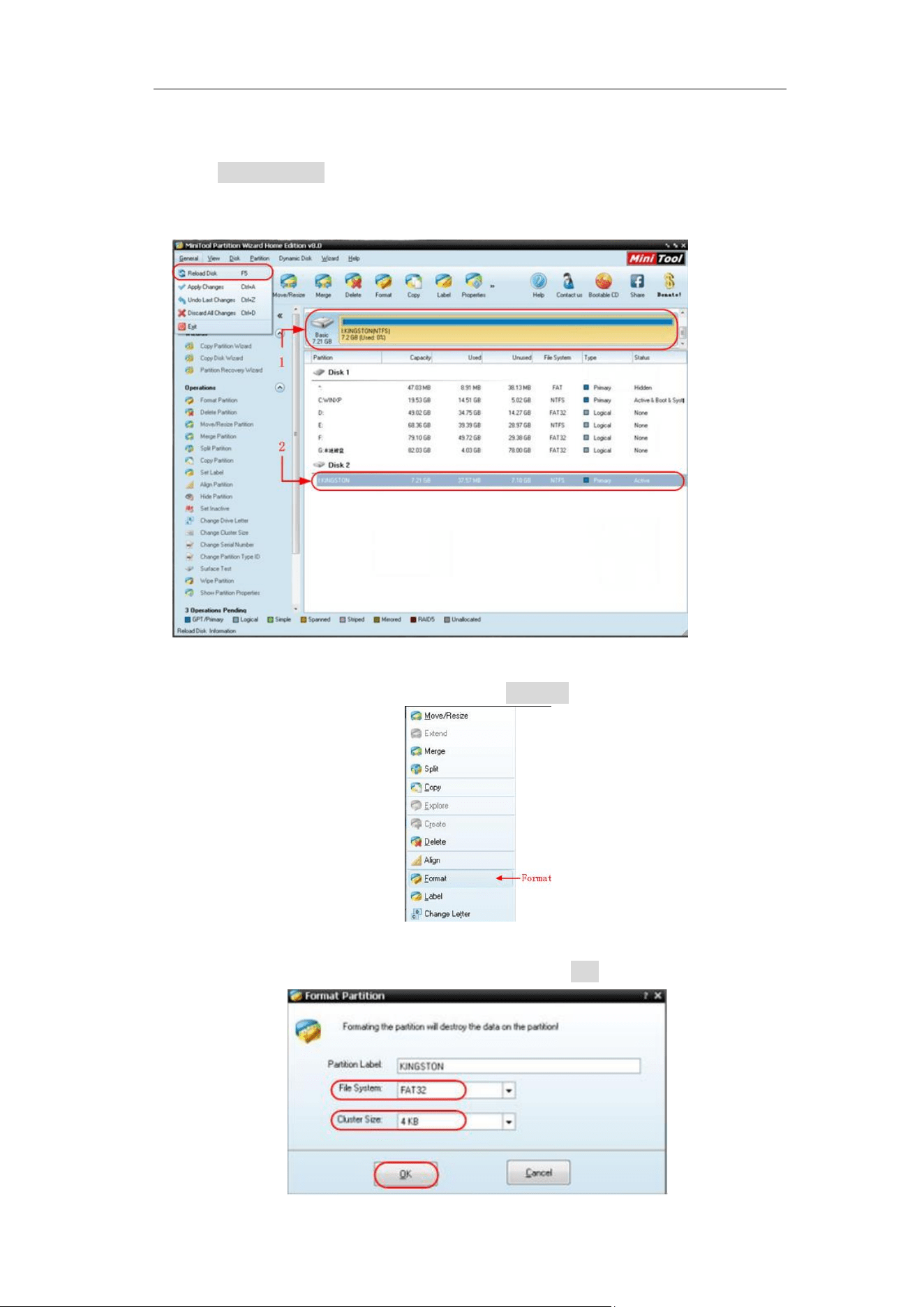
4.Advanced User Guidebook
71
1. Connect the USB disk to the computer.
2. Open the software Minitool Partition Wizard.
3. Click Reload Disk on the pull-down menu at the top left or push keyboard
F5, and information about the USB disk will display on the right side with
red mark 1 and 2.
Figure 4-16: Reload Disk
4. Right click 1 or 2 red mark area, choose Format.
Figure 4-17: Choose format
5. Set File System FAT32, Cluster size 4096. Click OK.
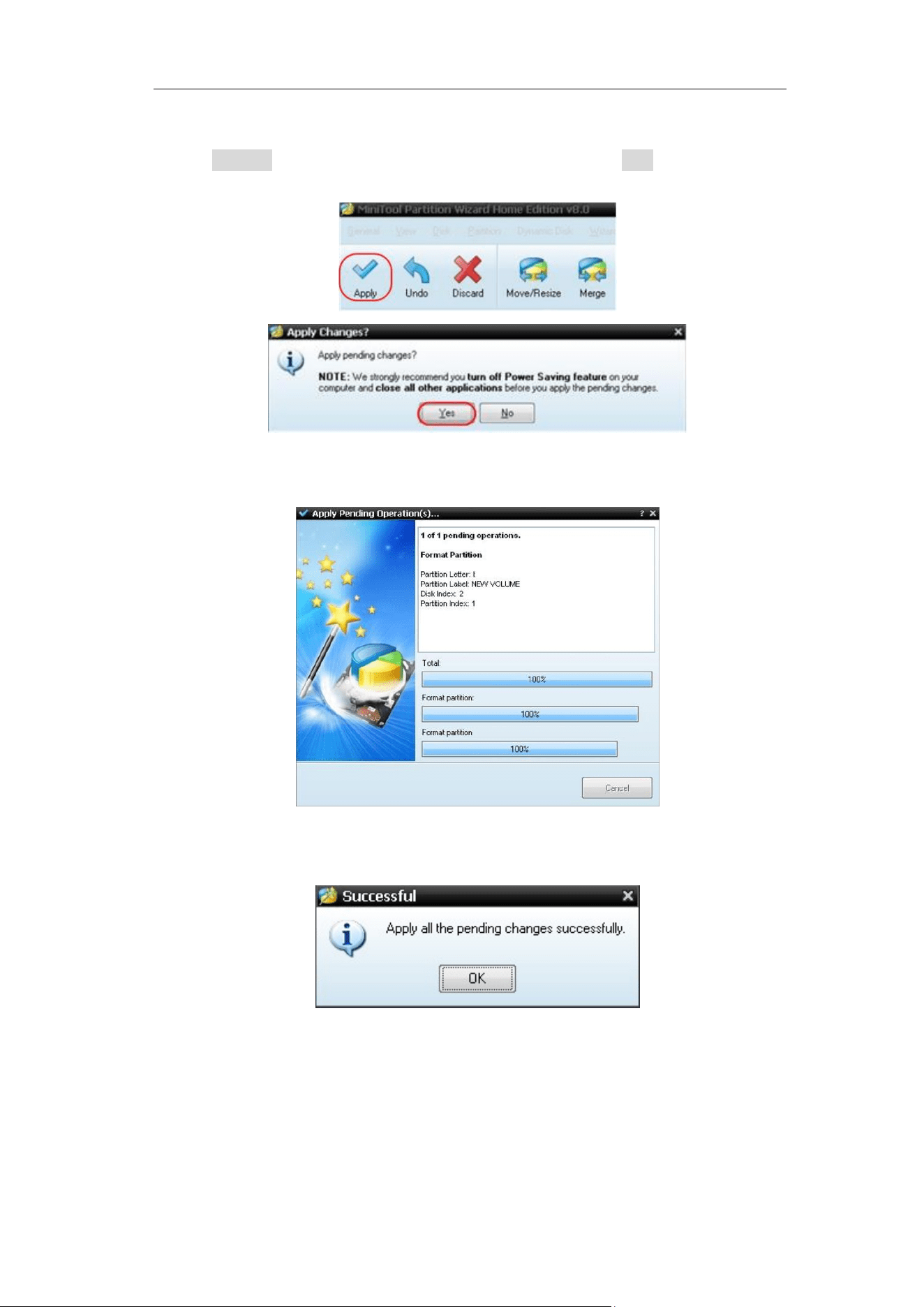
4.Advanced User Guidebook
72
Figure 4-18: Format setting
6. Click Apply at the top left of the menu. Then click Yes on the pop-up
warning to begin formatting.
Figure 4-19: Apply setting
7. Formatting process
Figure 4-20: Format process
8. Format the USB disk successfully
Figure 4-21: Format successfully
How to Record/Playback Waveforms
Push Save button. Select Type in the bottom menu, in the left menu, turn the
M knob to select Record.
Wave Record function can record the input current wave. You can set the
4.Advanced User Guidebook
73
interval between recorded frames in the range of 10 ms - 10 s. The max frame
number reaches 1000, and you can get better analysis effect with playback
and storage function. The storage medium contains two kinds: Internal and
External.
When the storage medium is Internal, Wave Record contains four modes: OFF,
Record, Playback and Storage.
When storage medium is External, Wave Record contains two modes: OFF,
Record.
Record: To record wave according to the interval until it reaches the end frame
set.
Record menu (Internal Storage) shows as follows:
Menu
Setting
Instruction
Mode
OFF
Record
Playback
Storage
Close wave record function
Set record menu
Set playback menu
Set storage menu
Record
mode
FrameSet
End
frame
Turn the M knob to select the number of frames
to record (1 - 1000)
Interval
Turn the M knob to select the interval between
recorded frames (10ms - 10s)
Refresh
ON
OFF
Refresh wave during recording
Stop refreshing
Operate
Play
Stop
Begin to record
Stop recording
Note:
Both of the waveforms of Channel 1 and Channel 2 will be recorded. If a
Channel is turned off while recording, the waveform of the channel is invalid in
the playback mode.
Playback: Play back the wave recorded or saved.
Playback menu shows as follows:
Menu
Setting
Instruction
Playback
Mode
FrameSet
Start
frame
End
frame
Cur frame
Interval
Turn the M knob to select the number of start
frame to playback (1 - 1000)
Turn the M knob to select the number of end
frame to playback (1 - 1000)
Turn the M knob to select the number of current
frame to playback (1 - 1000)
Turn the M knob to select the interval between
played back frames (10ms - 10s)
Play mode
Loop
Play back the wave continuously
4.Advanced User Guidebook
74
Once
Play back the wave just one time
Operate
Play
Stop
Begin to record
Stop recording
Storage: Save the current wave according to the start frame and end frame
set.
Storage menu shows as follows:
Menu
Setting
Instruction
Storage
Mode
Frame Set
Start frame
Turn the M knob to select the number of start
frame to store (1 - 1000)
End frame
Turn the M knob to select the number of end
frame to store (1 - 1000)
Save
Save the waveform record file to the internal
memory
Load
Load the waveform record file from the memory
To use wave record function, do as follows:
(1) Push Save button.
(2) Select Type in the bottom menu, in the left menu, turn the M knob to select
Record.
(3) Select Mode in the bottom menu, select OFF in the right menu.
(4) In the bottom menu, select Storage as Internal.
(5) Select Mode in the bottom menu, select Record in the right menu.
(6) Select FrameSet in the bottom menu, set End frame and Interval in the
right menu.
(7) In the bottom menu, set Refresh.
(8) In the bottom menu, select Operate as Play.
(9) Select Mode in the bottom menu, select Playback in the right menu. Set
FrameSet and Playmode, select Operate as Play.
(10) To save the wave recorded, select Mode in the bottom menu, select
Storage in the right menu. Select FrameSet in the bottom menu to set the
range of frames to store, select Save in the bottom menu.
(11) To load the waveform from the internal memory, select Load in the bottom
menu, then enter the Playback of the Mode to analyze the wave.
Note: When playbacking the waveform, the sampling, trigger, or display
function is not available.
When storage medium is External, Wave Record contains two modes:
OFF, Record.
Record menu (External Storage) shows as follows:
Menu
Setting
Instruction
Mode
OFF
Record
Close wave record function
Set record menu
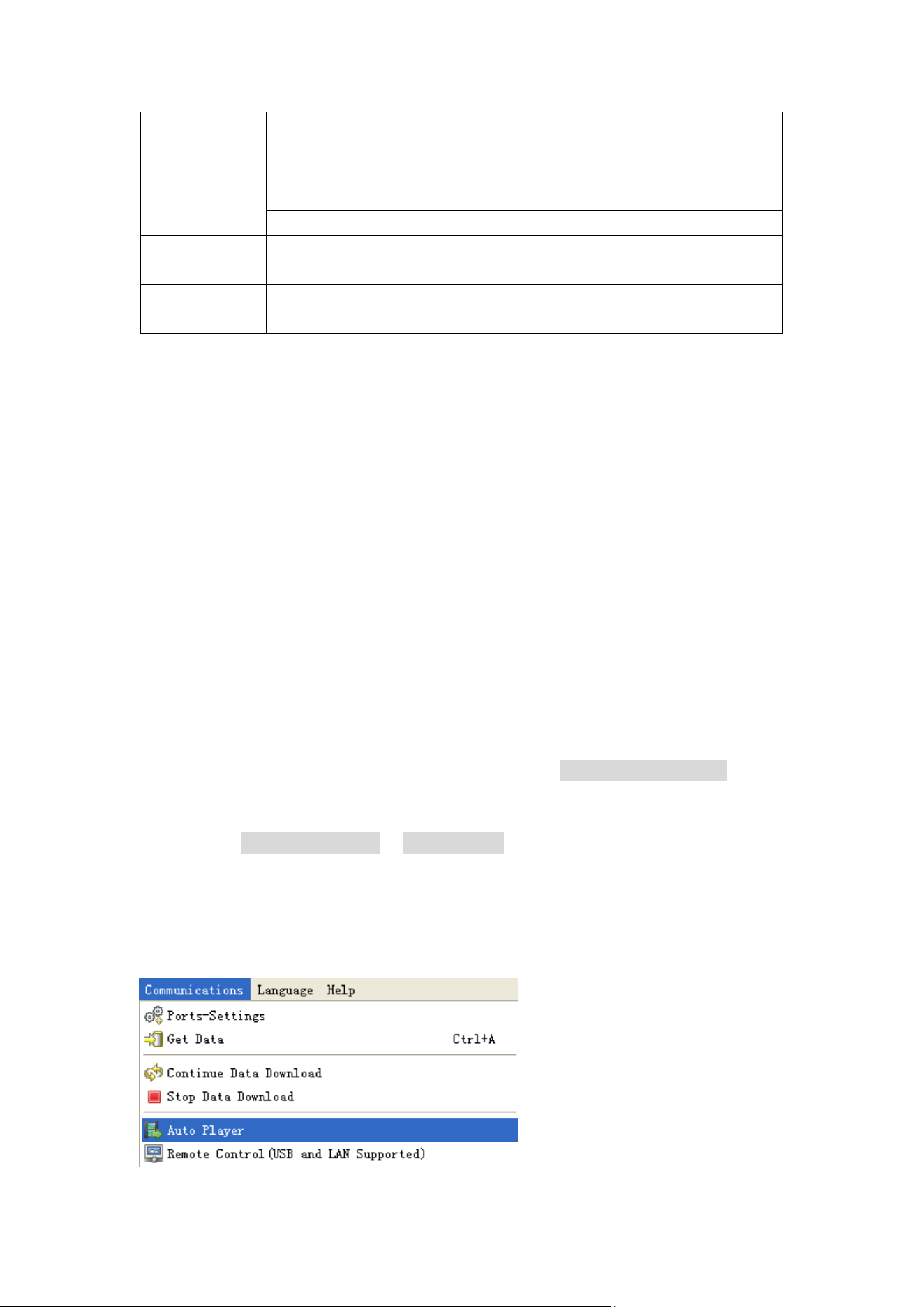
4.Advanced User Guidebook
75
Record
mode
FrameSet
End
frame
Turn the M knob to select the number of frames
to record (1 – 900,000)
Interval
Turn the M knob to select the interval between
recorded frames (10ms - 10s)
Infinity
Record infinitely until the storage medium is full
Refresh
ON
OFF
Refresh wave during recording
Stop refreshing
Operate
Play
Stop
Begin to record
Stop recording
Note:
Both of the waveforms of Channel 1 and Channel 2 will be recorded. If a
Channel is turned off while recording, the waveform of the channel is invalid in
the playback mode.
To use wave record to external, do as follows:
1. Push Save button.
2. Select Type in the bottom menu, in the left menu, turn the M knob to select
Record.
3. Select Mode in the bottom menu, select OFF in the right menu.
4. In the bottom menu, select Storage as External.
5. Select Mode in the bottom menu, select Record in the right menu.
6. Select FrameSet in the bottom menu, set End frame and Interval in the
right menu. If you want to record wave to external infinitely, select Infinity
in the right menu, the End frame will display “-”.
7. In the bottom menu, set Refresh.
8. In the bottom menu, select Operate as Play.
Connect external device to the computer, and wave_record_0.bin is the
recorded file. Open the software, and do as follows to play back the
waveform.
1. Choose Communications →Auto Player.
2. Transform recording waveform from machine.
3. Add the well transformed files.
4. Set play mode and time delay.
5. Click the green button on the left corner to begin playing back the
waveform.
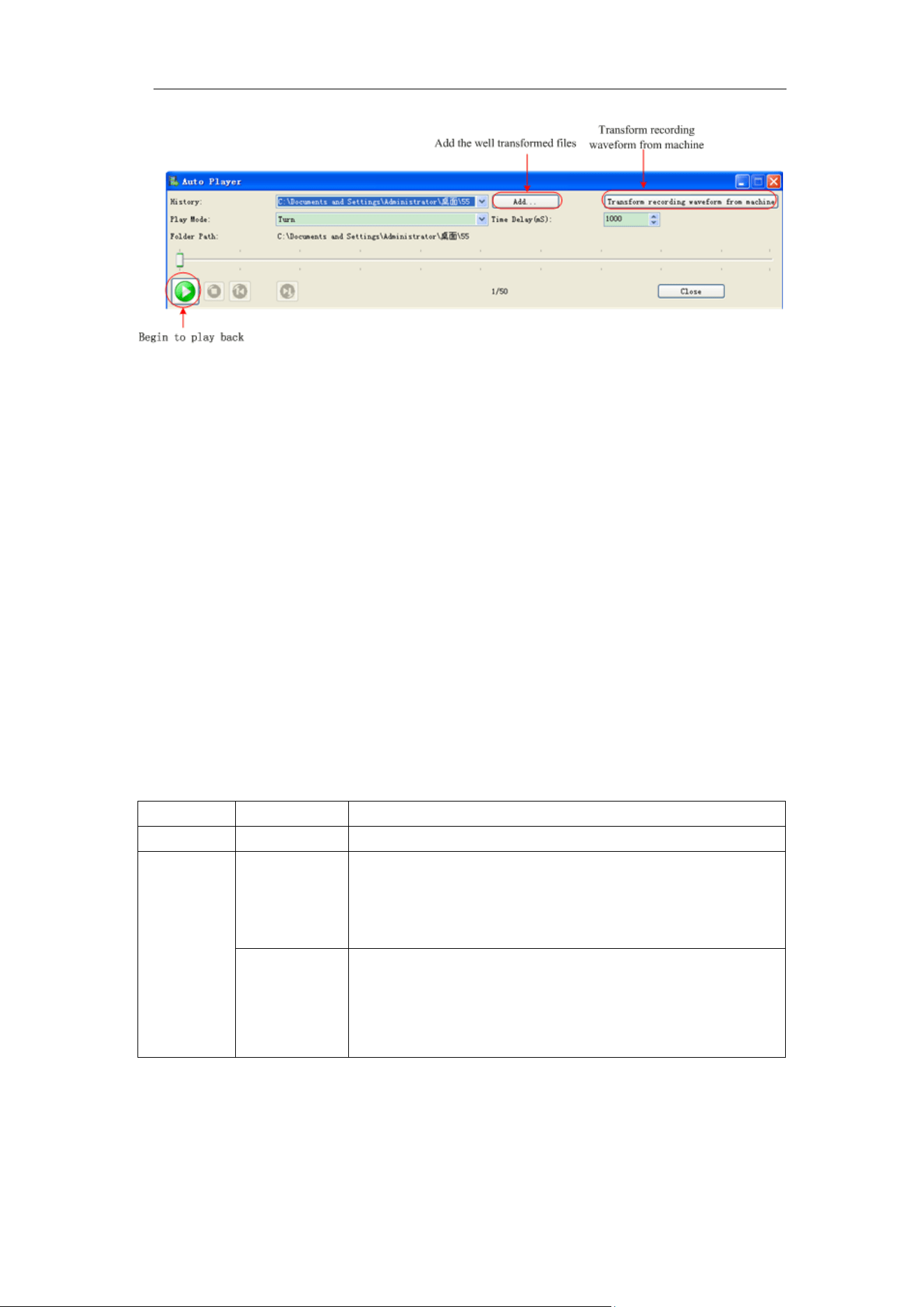
4.Advanced User Guidebook
76
Figure 4-22: Play back waveform by software
How to Clone and Recall a waveform
Push Save button. Select Type in the bottom menu, in the left menu, turn the
M knob to select Clone.
You can clone one or two channel waveforms between two cursors, and save
it as a cloned waveform into the internal memory or a USB memory device.
You can save four cloned waveforms in the instrument internal memory. The
cloned waveform files saved to a USB memory device are saved with the
extension "ota".
If the optional Arbitrary Function Generator is available in your instrument, you
can output the stored waveform from a file in the internal memory or in a USB
memory device; and the waveform between two cursors can be output directly
without save operation.
The signal generator manufactured by our company can be used to read *.ota
files and recall the cloned waveforms.
Clone Wave menu shows as follows:
Menu
Setting
Instruction
Type
Clone
Select the clone function.
Source
Mode
Out1
Out2
Out1&Out2
Source mode.
AG Output
Out1
CH1 CH2
CH3 CH4
Select the source.
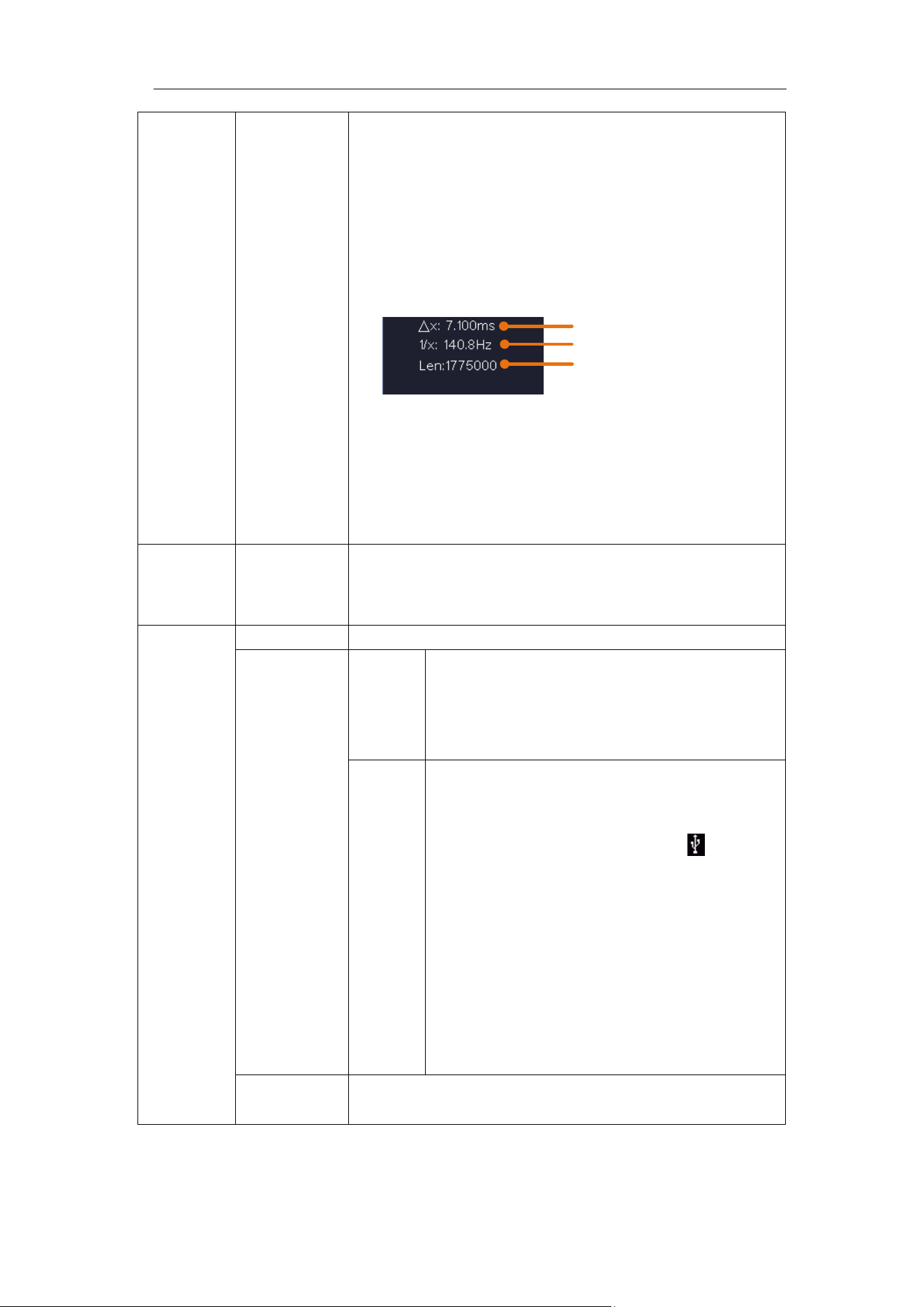
4.Advanced User Guidebook
77
Line
a
b
ab
x
Turn the M knob to move line a.
Turn the M knob to move line b.
Two cursors are linked. Turn the M knob to move
the pair of cursors.
Set the cursors to select the entire screen
automatically.
The waveform information is displayed at the left
bottom corner of the screen.
Length
Frequency
Time
Note: If "Out Of Limits" appears in the information
or a message "Waveform points beyond the
limit." appears on the screen, that means the length
of the cloned waveform exceeds the limit. In source
mode the maximum length is 2M. Push the Acquire
button, select Length in the bottom menu, and set
the record length to a smaller value.
Clone
(When the
generator is
available)
Clone the waveform between two cursors, and
output it through the built-in generator.
Save
Save
Save the waveform between two cursors
Storage
Internal
Save to internal memory. When selecting
an object, a message will appear in the
screen center, show the information of the
selected object.
Externa
l
Save the waveform onto a USB memory
device
Insert a USB memory device into the port
on the front panel. If the icon appears
on the top right of the screen, the USB
memory device is installed successfully. If
the USB memory device cannot be
recognized, format the USB memory
device according to the methods in "USB
disk Requirements" on P68. The name is
default as current system date and time.
The cloned waveform will be saved onto
the USB memory device as a OTA file.
Output
(Generator is available and internal storage is selected)
Output the waveform stored in the selected object.
The following steps take the oscilloscope with waveform generator for

4.Advanced User Guidebook
78
instance.
To clone the waveform and save to the internal/external memory:
(1) Push Save button.
(2) Select Type in the bottom menu, turn the M knob to select Clone in the left
menu.
(3) Select Source in the bottom menu, select Mode as Out1. in the right
menu.
(4) Select AG Output Out1 as CH1. in the right menu.
(5) Select Line in the bottom menu. If a or b is selected, turn the M knob to
move the cursor. If ab is selected, turn the M knob to move the pair of
cursors. If x is selected, the entire screen will be selected automatically.
(6) Select Save in the bottom menu.
⚫ To save the waveform to internal memory, select Storage in the right
menu as Internal. Turn the M knob to select an object in the left menu,
select Save in the right menu.
⚫ To save the waveform onto a USB memory device, select Storage in
the right menu as External. Select Save in the right menu. An input
keyboard used to edit the file name will pop up. Turn the M knob to
select the keys, push the knob to input. Select the key in the
keyboard to confirm. The cloned waveform will be saved onto the USB
memory device as a OTA file.
To output the waveform stored in the internal memory through the
generator: (The generator is optional.)
(1) Push Save button.
(2) Select Type in the bottom menu, turn the M knob to select Clone in the left
menu.
(3) Select Save in the bottom menu, select Storage as Internal in the right
menu.
(4) Turn the M knob to select an object in the left menu.
(5) Select Output in the right menu.
To output the waveform stored in the USB memory device through the
generator: (The generator is optional.)
(1) Push button.
(2) Select Arb in the bottom menu, select Others in the right menu, and select
File Browse.
(3) select Memory in the right menu as USB. The instrument lists a directory
of the folders and files on the USB memory device. Select a folder or file
using the M knob to scroll up and down the list. To enter the current folder,
select Change Dir in the right menu, select it again to return to the upper
directory.
4.Advanced User Guidebook
79
(4) Select the desired ota file, select Read in the right menu.
To output the CH1 and CH2 waveforms through the generator directly:
(The generator is optional.)
(1) Push Save button.
(2) Select Type in the bottom menu, turn the M knob to select Clone in the left
menu.
(3) Select Source in the bottom menu, select Mode as Out1&Out2 in the right
menu.
(4) In the right menu, select AG Output Out1 as CH1; select AG Output Out2
as CH2.
(5) Select Line in the bottom menu. Select the cursor and move it to select the
desired waveform.
(6) Select Clone in the bottom menu. The generator will output the waveform
between two cursors.
Data format description of OTA waveform file
OTA file consists of two parts: the file header and the channel data. The file header
represents the parameter of file data, which is expressed in "parameter name + value".
Each parameter name is a case-sensitive string of 4 bytes. The parameter value is at least
4 bytes.
1.Format description of the file header:
1) HEAD
Parameter
name
Meaning
Value
Comment
HEAD
Header size
4 bytes int
2) TYPE
Parameter
name
Meaning
Value
Comment
TYPE
Model
12 bytes char
3) BYTE
Parameter
name
Meaning
Value
Comment
BYTE
Data length in bit
4 bytes int
4) SIZE
Parameter
name
Meaning
Value
Comment
SIZE
File size
4 bytes int
Used to check the file
integrity
5) VOLT
Parameter
Meaning
Value
Comment
4.Advanced User Guidebook
80
name
VOLT
Voltage division,
divided by 400 is
ADC resolution.
4 bytes float
The value indicates
voltage (the unit is mV),
such as 200 mV.
6) SAMP
Parameter
name
Meaning
Value
Comment
SAMP
Sample rate
4 bytes float
The unit is Sa/s.
7) ADCB
Parameter
name
Meaning
Value
Comment
ADCB
ADC bit, ADC
resolution
4 bytes int
8-bit or 12-bit
8) CHAN
Parameter
name
Meaning
Value
Comment
CHAN
Number of
channels
4 bytes int
1 or 2
9) VOL2
Parameter
name
Meaning
Value
Comment
VOL2
Voltage division,
divided by 400 is
ADC resolution.
4 bytes float
The value indicates
voltage (the unit is mV),
such as 200 mV.
2.Data
The data type is signed integer. You can determine the data type (char, short int or int)
based on the BYTE parameter. The valid range is determined by the ADCB parameter,
e.g. the valid range for 8-bit ADC is -127 to +127.
How to Implement the Auxiliary System Function
Setting
●Config
Push the Utility button, select Function in the bottom menu, select
Configure in the left menu.
The description of Configure Menu is shown as the follows:
4.Advanced User Guidebook
81
●Display
Push the Utility button, select Function in the bottom menu, select Display
in the left menu.
The description of Display Menu is shown as the follows:
●Adjust
Push the Utility button, select Function in the bottom menu, select Adjust
in the left menu.
The description of Adjust Menu is shown as the follows:
Function Menu
Description
Self Cal
Carry out the self-calibration procedure.
Default
Call out the factory settings.
ProbeCh.
Check whether probe attenuation is good.
Function
Menu
Setting
Description
Language
Choose the display language of the
operating system.
Set Time
Display
ON
OFF
On/Off the date display
Hour Min
Setting Hour/Minute
Day Month
Setting Date/Month
Year
Setting Year
KeyLock
Lock all keys. Unlock method: push
Trigger Menu button in trigger control
area, then push Force button, repeat 3
times.
About
Version number and serial number
showing
Function
Menu
Setting
Description
BackLight
0% - 100%
Turn the M knob to adjust the backlight.
Graticule
Select the grid type
Menu Time
OFF, 5s -
30s
Set the disappear time of menu
4.Advanced User Guidebook
82
Do Self Cal (Self-Calibration)
The self-calibration procedure can improve the accuracy of the oscilloscope
under the ambient temperature to the greatest extent. If the change of the
ambient temperature is up to or exceeds 5℃, the self-calibration procedure
should be executed to obtain the highest level of accuracy.
Before executing the self-calibration procedure, disconnect all probes or
wires from the input connector. Push the Utility button, select Function in
the bottom menu, the function menu will display at the left, select Adjust. If
everything is ready, select Self Cal in the bottom menu to enter the
self-calibration procedure of the instrument.
Probe checking
To check whether probe attenuation is good. The results contain three
circumstances: Overflow compensation, Good compensation, Inadequate
compensation. According to the checking result, users can adjust probe
attenuation to the best. Operation steps are as follows:
1. Connect the probe to CH1, adjust the probe attenuation to the maximum.
2. Push the Utility button, select Function in the bottom menu, select Adjust
in the left menu.
3. Select ProbeCh. in the bottom menu, tips about probe checking shows on
the screen.
4. Select ProbeCh. again to begin probe checking and the checking result
will occur after 3s; push any other key to quit.
● Pass/Fail
The Pass/Fail function monitors changes of signals and output pass or fail
signals by comparing the input signal that is within the pre-defined mask.
Push the Utility button, select Function in the bottom menu, select Pass/fail
in the left menu.
Function
Menu
Setting
Description
operate
Enable
Operate
Control enable switch
Control operate switch
Output
Stop
ON
OFF
hen turned on, stop once the set rules are
met
Info
ON
OFF
Turn on/off display information
Beep
ON
OFF
When turned on, beep once the set rules are
met
Type
Pass
Fail
The measured signal conforms to the set
type, and the corresponding output is
generated

4.Advanced User Guidebook
83
Rule
Source
Horizontal
Vertical
Create
Select the source as CH1, CH2, CH3 or CH4
Change the Horizontal tolerance value by
turning the M knob
Change the Vertical tolerance value by
turning the M knob
Use the rule set as testing rule
SaveRule
Number
Save
Load
Select any one from Rule1 - Rule8 as your
rule name
Select Save to save the rule
Load some rule as the testing rule
The description of Pass/fail Menu is shown as the follows:
Pass/Fail test:
Detect whether the input signal is within the limits of the rule, if it exceeds limits
of the rule, it is "Fail"; otherwise it is "Pass". Also it can output fail or pass
signal by built-in and configurable output port. To run the test, read the
following steps:
1. Push the Utility button, select Function in the bottom menu, select
Pass/fail in the left menu.
2. Enable switch on: Select Operate in the bottom menu, select Enable in
the right menu as ON.
3. Create rule: Select Rule in the bottom menu. Select Source in the right
menu, select the source in the left menu. Set Horizontal tolerance and
Vertical tolerance in the right menu. Select Create in the right menu to
create the rule.
4. Set output type:
1) Select Output in the bottom menu to enter output settings.
2) Set Type in the right menu to Pass or Fail.
3) When the Stop in the right menu is set to ON, and the measured signal
meets the set rules, the acquisition will stop.
4) When the Beep in the right menu is set to ON, and the measured
signal meets the set rules, the buzzer will beep.
5. Begin to test: Select Operate in the bottom menu, select Operate in the
right menu as Start, the test will begin.
6. Save rule: Select SaveRule in the bottom menu. Select the save location
in the left menu, and then select Save in the right menu to save the rules,
which could be called up at once when need. Select Load to call up the rule
saved.
Note:
1. When Pass/Fail is ON, if XY or FFT is ready to run, then Pass/Fail will be
closed; under the mode of XY or FFT, Pass/Fail is unable.
2. Under the mode of Factory, Auto Scale and Auto Set, Pass/Fail will be
closed.
3. When no save setting left in the rule save, tip will be given to show "NO
4.Advanced User Guidebook
84
RULE SAVED".
4. Under the status of stop, data comparing will stop, and when it goes on
running, the number of Pass/Fail will increase from the former number, not
from zero.
5. When the waveform playback mode is on, Pass/Fail is used to test the
played-back waveform specially.
● Output
Push the Utility button, select Function in the bottom menu, select Output in
the left menu.
Output menu item in the bottom menu sets the output type of Trig Out(P/F)
port on Rear Panel. In the bottom menu, select Output. The description of
Output menu is shown as the follows:
VGA menu item in the bottom menu sets the output of VGA port. Connect the
VGA port to an external monitor or projector. Turn on the VGA port in this
menu, the oscilloscope display can be shown on an external monitor or
projector.
Device and Print Setup menu items set the print output, refer to "How to Print
the Screen Image" on page 99.
● LAN Set
Using the LAN port the oscilloscope can be connected with a computer.
● Update
Use the front-panel USB port to update your instrument firmware using a USB
memory device. Refer to "How to Update your Instrument Firmware" on page
85.
● DAQ
You can use the multimeter data recorder to record the measurements when
measuring current/voltage by multimeter (optional). Refer to "Multimeter
Recorder" on page 113.
Function
Menu
Setting
Description
Type
Trig level
Output trig signal synchronously
Pass/fail
Output High Level when Pass , and Low Level when
Fail
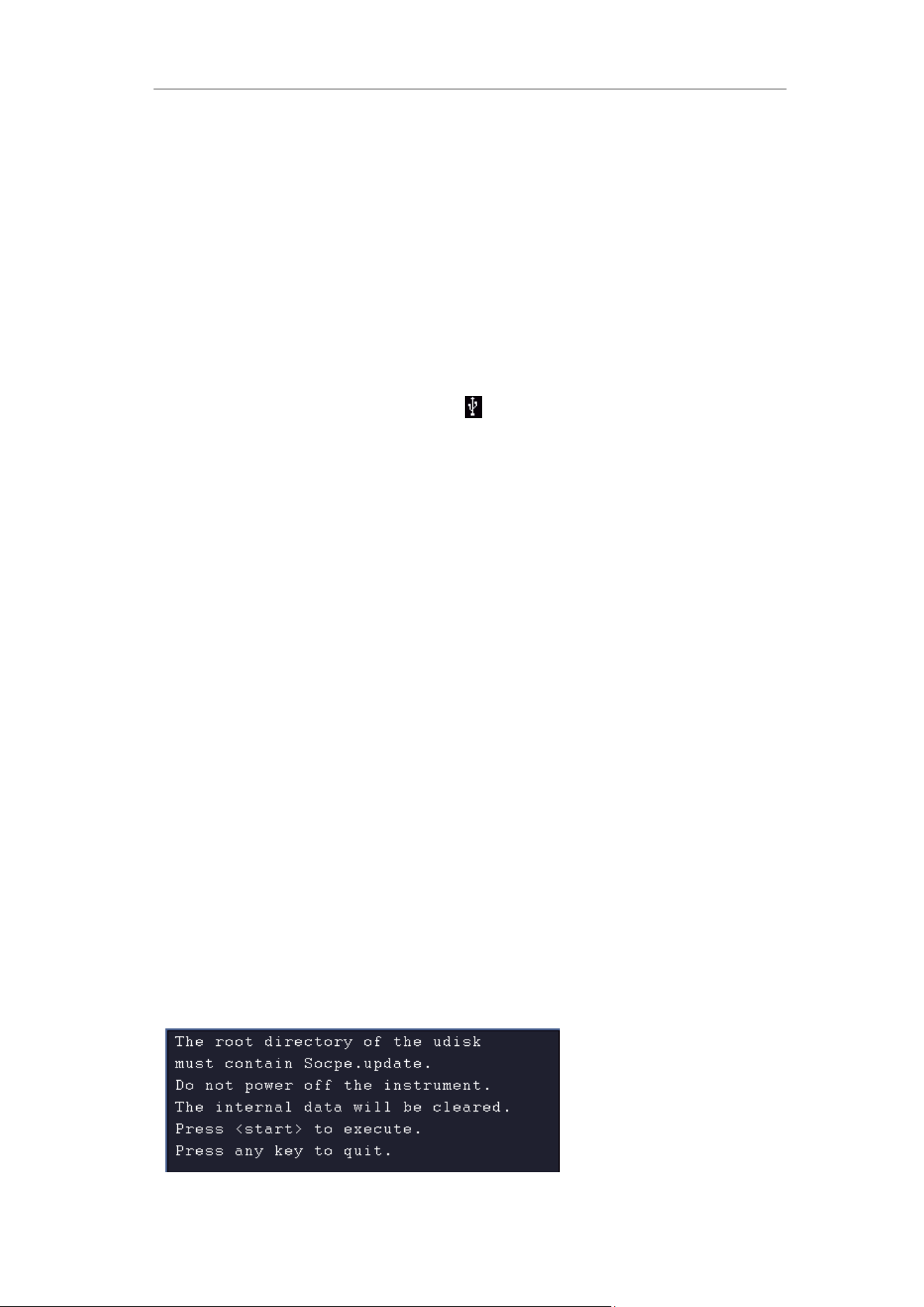
4.Advanced User Guidebook
85
● FRA (Frequency Response Analysis)
If there is a built-in arbitrary function generator (optional), you can use the
frequency response analysis. Refer to "Frequency Response Analysis" on
page 107.
How to Update your Instrument Firmware
Use the front-panel USB port to update your instrument firmware using a USB
memory device.
USB memory device requirements: Insert a USB memory device into the
USB port on the front panel. If the icon appears on the top right of the
screen, the USB memory device is installed successfully. If the USB memory
device cannot be detected, format the USB memory device according to the
methods in "USB disk Requirements" on P68.
Caution: Updating your instrument firmware is a sensitive operation, to
prevent damage to the instrument, do not power off the instrument or remove
the USB memory device during the update process.
To update your instrument firmware, do the following:
1. Push the Utility button, select Function in the bottom menu, select
Configure in the left menu, select About in the bottom menu. View the
model and the currently installed firmware version.
2. From a PC, visit the website and check if the website offers a newer
firmware version. Download the firmware file. The file name must be
Scope.update. Copy the firmware file onto the root directory of your USB
memory device.
3. Insert the USB memory device into the front-panel USB port on your
instrument.
4. Push the Utility button, select Function in the bottom menu, select Update
in the left menu.
5. Press Open in the lower menu to display a list of folders for USB storage
devices.Rotate the M knob to select a folder, and press Open in the menu
below to enter this folder.After entering the folder where the firmware file is
located, select the firmware file.
6. In the bottom menu, select Start, the messages below will be shown.
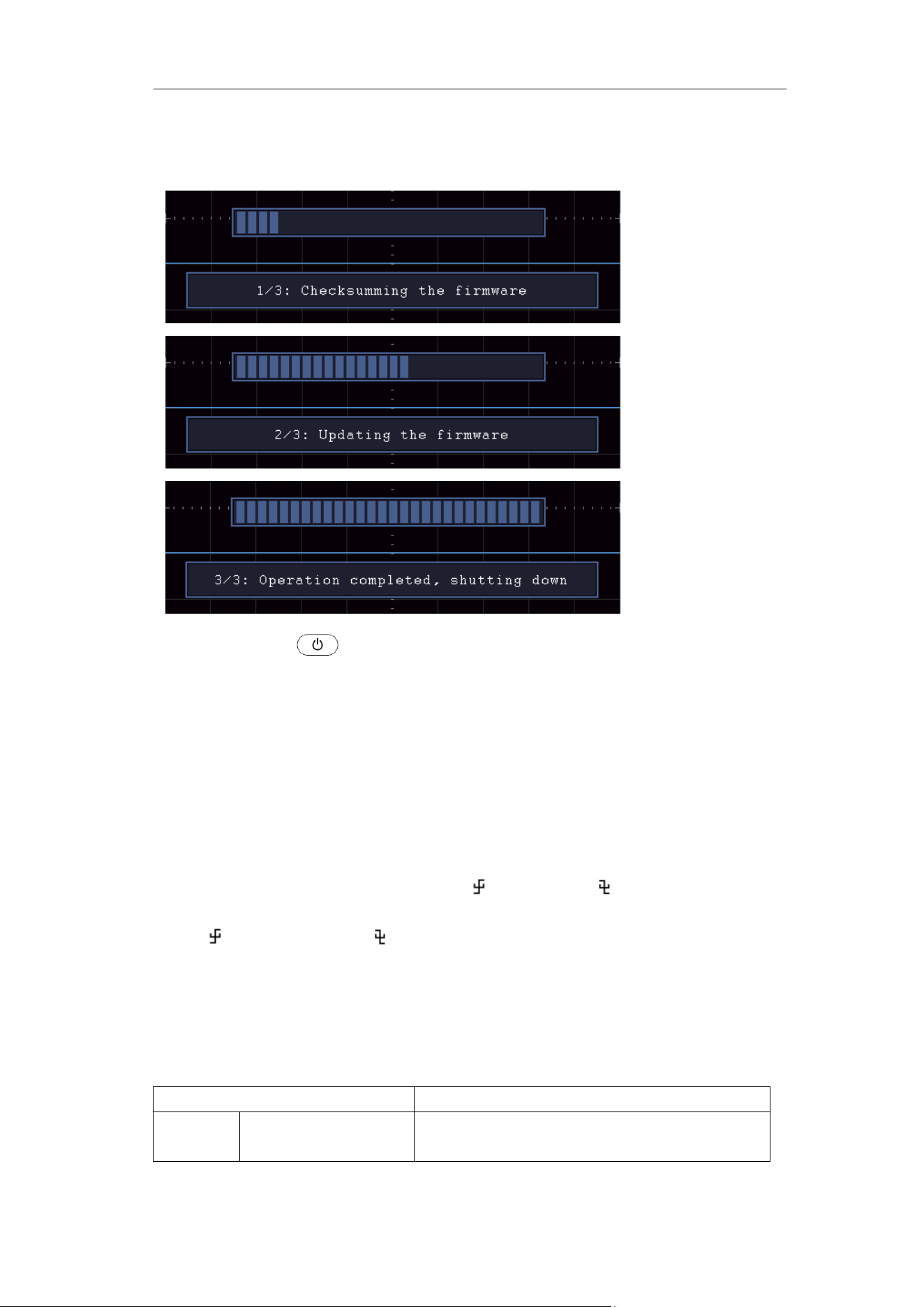
4.Advanced User Guidebook
86
7. In the bottom menu, select Start again, the interfaces below will be
displayed in sequence. The update process will take up to three minutes.
After completion, the instrument will be shut down automatically.
8. Long press the
button to power on the instrument.
How to Measure Automatically
Push the Measure button to display the menu for the settings of the
Automatic Measurements. At most 8 types of measurements could be
displayed on the bottom left of the screen.
The oscilloscopes provide 39 parameters for auto measurement, including
Period, Frequency, Mean, PK-PK, RMS, Max, Min, Top, Base, Amplitude,
Overshoot, Preshoot, Rise Time, Fall Time, +PulseWidth, -PulseWidth,
+Duty Cycle, -Duty Cycle, Delay A→B , Delay A→B
,
Cycle RMS, Cursor
RMS, Screen Duty, FRR, FRF, FFR, FFF, LRR, LRF, LFR, LFF,Phase
A→B , Phase A→B , +PulseCount, -PulseCount, RiseEdgeCnt,
FallEdgeCnt, Area, and Cycle Area.
The "Automatic Measurements" menu is described as the following table:
Function Menu
Description
Add
Meas Type
(left menu)
Select the measure types
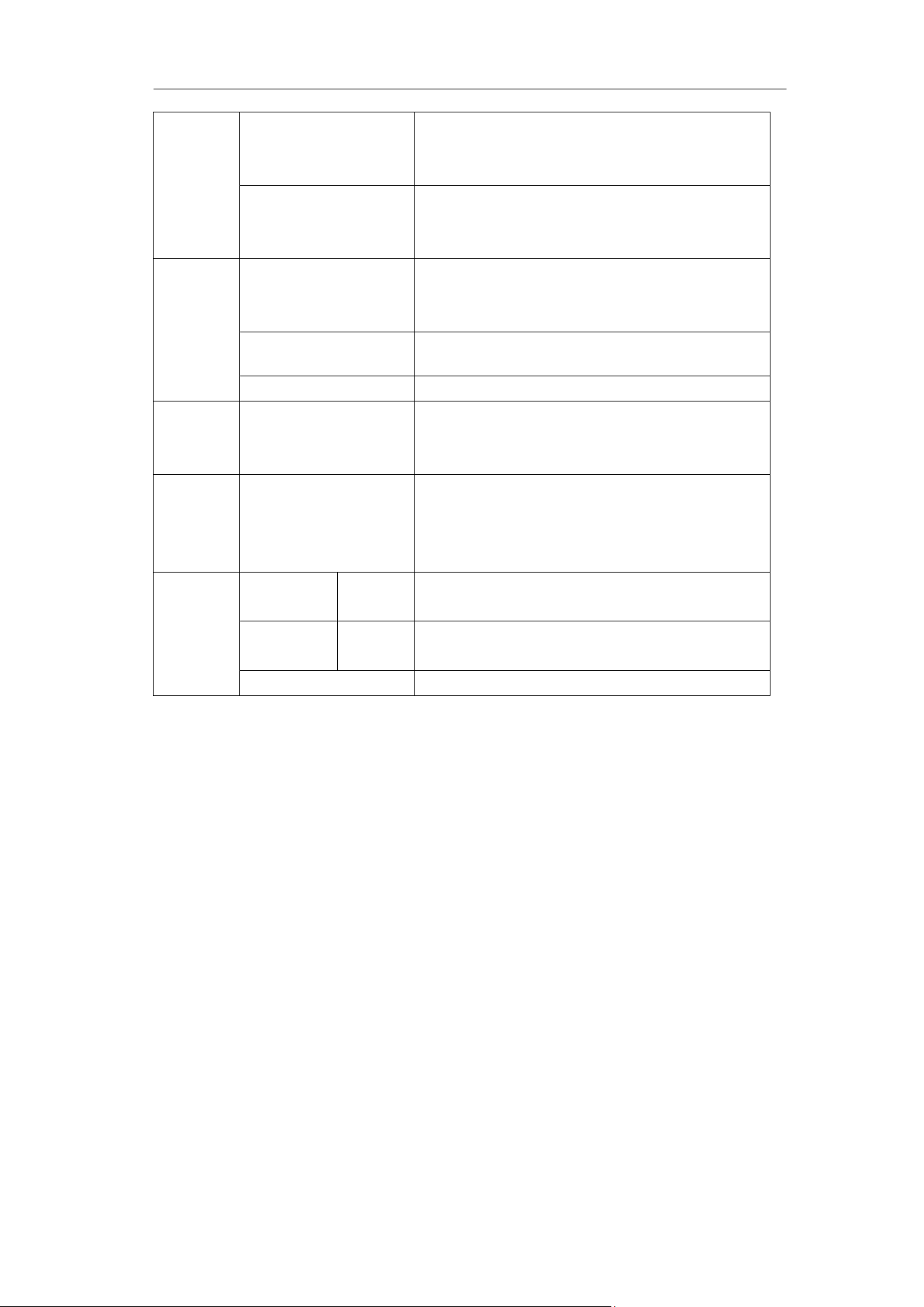
4.Advanced User Guidebook
87
Source
CH1 CH2
CH3 CH4
Select the source
Add
Add the selected measure types (shown
at the left bottom, you could only add 8
types at most)
Remove
Meas Type
(left menu)
Select the types need to be deleted.
The selected type and source are shown
in the Remove menu on the right.
Remove
Remove the selected measure type
Remove All
Remove all the measures
Snapsh
ot
ON
OFF
Show all the measures of the snapshot
source
Turn off the snapshot
Source
CH1
CH2
CH3
CH4
Select the snapshot source
Set
Gating
Screen
Cursor
Select "Screen" or "Cursor" to set the cur
sor range
Statistics
ON
OFF
select "ON" or "OFF" for measurement v
alue statistics
Reset
Restart statistics on statistics
Measure
Only if the waveform channel is in the ON state, the measurement can be
performed. The automatic measurement can not be performed in the
following situation: 1) On the saved waveform. 2) On Waveform Math
waveform. 3) On the Video trigger mode.
On the Scan format, period and frequency can not be measured.
Measure the period, the frequency of the CH1, following the steps below:
1. Push the Measure front panel button to show the Measure menu.
2. Select Add in the bottom menu.
3. In the left Type menu, turn the M knob to select Period.
4. In the right menu, select CH1 in the Source menu item.
5. In the right menu, select Add. The period type is added.
6. In the left Type menu, turn the M knob to select Frequency.
7. In the right menu, select CH1 in the Source menu item.
8. In the right menu, select Add. The frequency type is added.
The measured value will be displayed at the bottom left of the screen
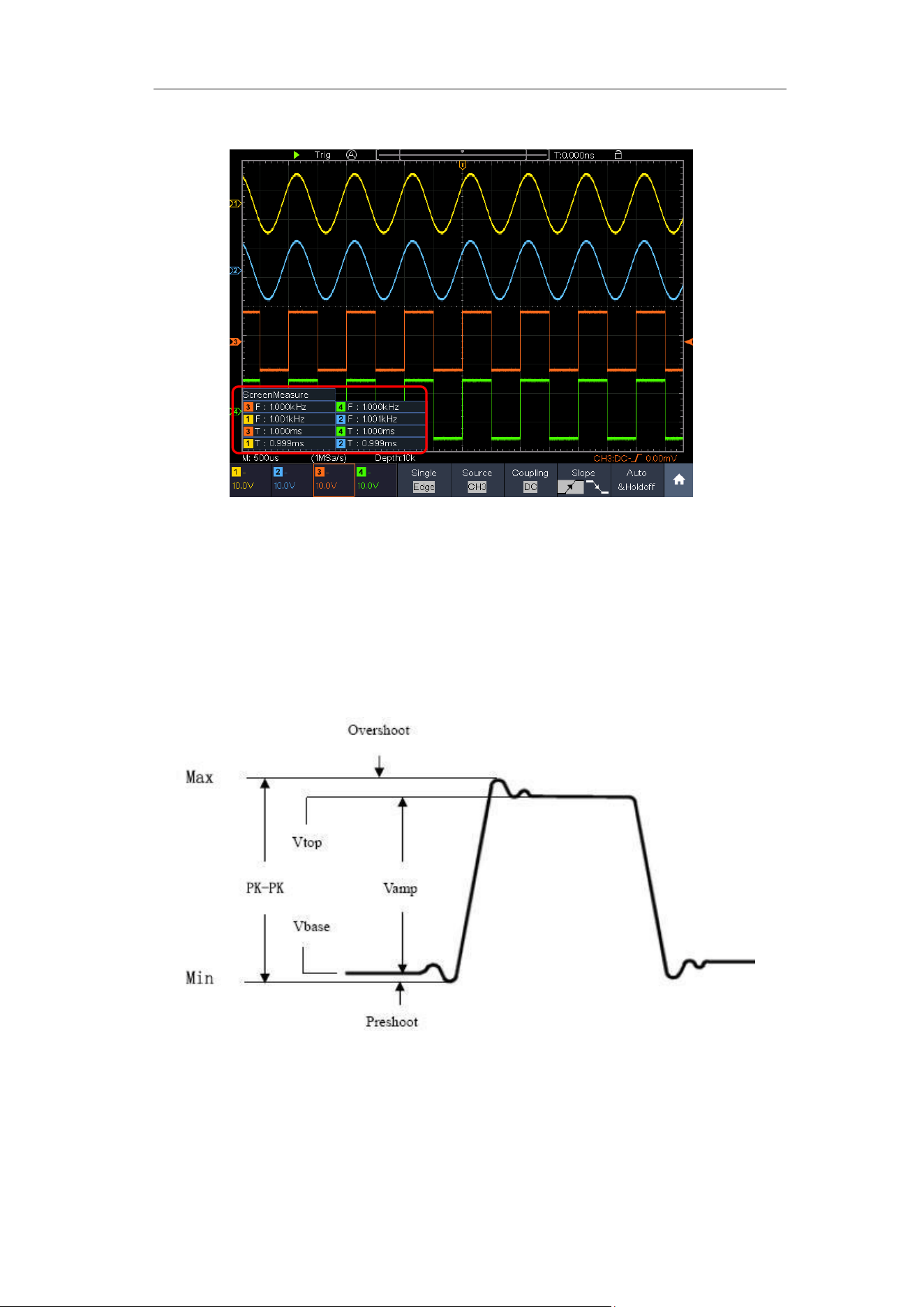
4.Advanced User Guidebook
88
automatically (see Figure 4-23).
Figure 4-23 Automatic measurement
The automatic measurement of voltage parameters
The oscilloscopes provide automatic voltage measurements including Mean,
PK-PK, RMS, Max, Min, Vtop, Vbase, Vamp, OverShoot, PreShoot, Cycle
RMS, and Cursor RMS. Figure 4-24 below shows a pulse with some of the
voltage measurement points.
Figure 4-24
Mean: The arithmetic mean over the entire waveform.
PK-PK: Peak-to-Peak Voltage.
RMS: The true Root Mean Square voltage over the entire waveform.
Max: The maximum amplitude. The most positive peak voltage measured
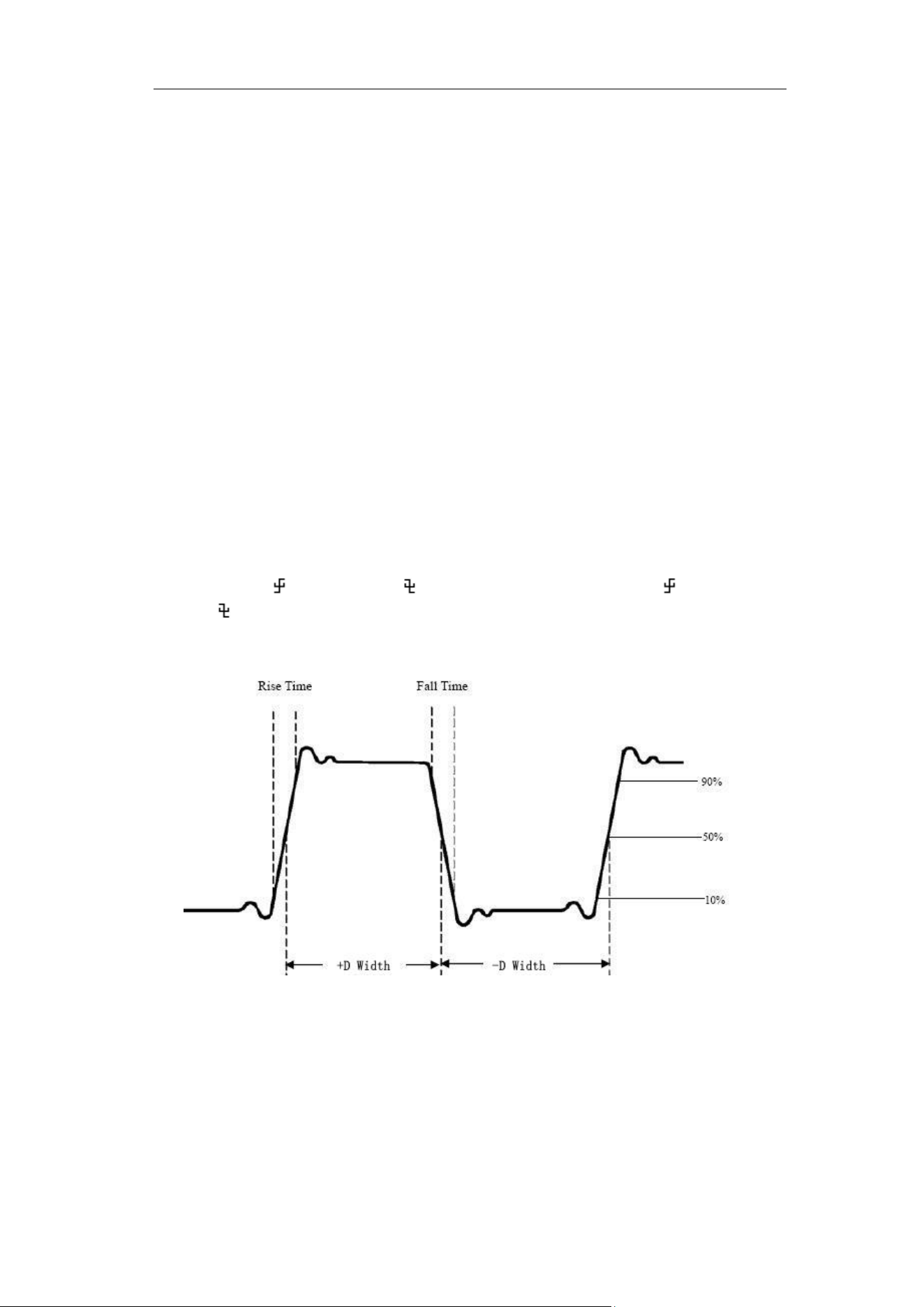
4.Advanced User Guidebook
89
over the entire waveform.
Min: The minimum amplitude. The most negative peak voltage measured
over the entire waveform.
Vtop: Voltage of the waveform's flat top, useful for square/pulse waveforms.
Vbase: Voltage of the waveform's flat base, useful for square/pulse
waveforms.
Vamp: Voltage between Vtop and Vbase of a waveform.
OverShoot: Defined as (Vmax-Vtop)/Vamp, useful for square and pulse
waveforms.
PreShoot: Defined as (Vmin-Vbase)/Vamp, useful for square and pulse
waveforms.
Cycle RMS: The true Root Mean Square voltage over the first entire period
of the waveform.
Cursor RMS: The true Root Mean Square voltage over the range of two
cursors.
The automatic measurement of time parameters
The oscilloscopes provide time parameters auto-measurements include
Period, Frequency, Rise Time, Fall Time, +D width, -D width, +Duty, -Duty,
Delay A→B , Delay A→B , Screen Duty , Phase A→B
,
and Phase
A→B .
Figure 4-25 shows a pulse with some of the time measurement points.
Figure 4-25
Rise Time: Time that the leading edge of the first pulse in the waveform
takes to rise from 10% to 90% of its amplitude.
Fall Time: Time that the falling edge of the first pulse in the waveform
takes to fall from 90% to 10% of its amplitude.
+D width: The width of the first positive pulse in 50% amplitude points.
4.Advanced User Guidebook
90
-D width: The width of the first negative pulse in the 50% amplitude points.
+Duty: +Duty Cycle, defined as +Width/Period.
-Duty:-Duty Cycle, defined as -Width/Period.
Delay A→B : The delay between the two channels at the rising edge.
Delay A→B : The delay between the two channels at the falling edge.
Screen Duty: Defines as (the width of the positive pulse)/(Entire period)
Phase A→B : Phase difference calculated according to " Delay A→B "
and the period of source A, expressed in degree. The calculation formula
is as shown below:
Phase A→B = (Delay A→B
÷ Period of source A) × 360°
Phase A→B : Phase difference calculated according to " Delay A→B "
and the period of source A, expressed in degree. The calculation formula
is as shown below:
Phase A→B = (Delay A→B
÷ Period of source A) × 360°
Note for the following delay measurements:
Source A and Source B can be set in the automatic measurement function menu.
FRR: Time between Source A first rising edge and Source B first rising edge.
FRF: Time between Source A first rising edge and Source B first falling edge.
FFR: Time between Source A first falling edge and Source B first rising edge.
FFF: Time between Source A first falling edge and Source B first falling edge.
LRR: Time between Source A first rising edge and Source B last rising edge.
LRF: Time between Source A first rising edge and Source B last falling edge.
LFR: Time between Source A first falling edge and Source B last rising edge.
LFF: Time between Source A first falling edge and Source B last falling edge.
Other measurements
+PulseCount : The number of positive pulses that rise above the
mid reference crossing in the waveform.
-PulseCount
: The number of negative pulses that fall below the
mid reference crossing in the waveform.
RiseEdgeCnt
: The number of positive transitions from the low
reference value to the high reference value in the waveform.
FallEdgeCnt
: The number of negative transitions from the high
reference value to the low reference value in the waveform.
4.Advanced User Guidebook
91
Area : The area of the whole waveform within the screen and the
unit is voltage-second. The area measured above the zero reference
(namely the vertical offset) is positive; the area measured below the zero
reference is negative. The area measured is the algebraic sum of the area
of the whole waveform within the screen.
Cycle Area : The area of the first period of waveform on the screen
and the unit is voltage-second. The area above the zero reference (namely
the vertical offset) is positive and the area below the zero reference is
negative. The area measured is the algebraic sum of the area of the whole
period waveform.
Note: When the waveform on the screen is less than a period, the period
area measured is 0.
How to customize an automatic measurement
You can customize automatic measurements by using gating and statistics.
Gating
⚫ Press the Measure button, and the automatic measurement function menu
is displayed at the bottom of the screen;
⚫ Press the Set softkey at the bottom of the screen, the setting menu
appears on the right side of the screen;
⚫ Select the Gating menu. There are two menus: Screen and Cursor under
the range. Click the Screen and then click the Cursor, or press the right
Screen menu button twice to set the cursor range.
Statistics
Select Statistics, you can choose On or Off to enable or disable statistics on
the measurement value.
Statistics reset: Restart statistics on statistics.
How to Measure with Cursors
Push the Cursor button to turn cursors on and display the cursor menu.
Push it again to turn cursors off.
The Cursor Measurement for normal mode:
The description of the cursor menu is shown as the following table:
Function
Menu
Setting
Description
Type
Voltage
Time
Time&Voltag
e
AutoCursr
Display the voltage measurement cursor and
menu.
Display the time measurement cursor and
menu.
Display the time and voltage measurement
cursor and menu.
4.Advanced User Guidebook
92
The horizontal cursors are set as the
intersections of the vertical cursors and the
waveform
Line
Type
(Time&Volt
age type)
Time
Voltage
Makes the vertical cursors active.
Makes the horizontal cursors active.
Window
(Wave
zoom
mode)
Main
Extension
Measure in the main window.
Measure in the extension window.
Line
a
b
ab
Turn the M knob to move line a.
Turn the M knob to move line b.
Two cursors are linked. Turn the M knob to
move the pair of cursors.
Source
CH1 to CH4
Display the channel to which the cursor
measurement will be applied.
Perform the following operation steps for the time and voltage cursor
measurement of the channel CH1:
1. Push Cursor to display the cursor menu.
2. Select Source in the bottom menu, select CH1 in the right menu.
3. Select the first menu item in the bottom menu, the Type menu will
display at the right of the screen. In the right menu, select
Time&Voltage for Type, two blue dotted lines displayed along the
horizontal direction of the screen, two blue dotted lines displayed along
the vertical direction of the screen. Cursor measure window at the left
bottom of the screen shows the cursor readout.
4. In the bottom menu, select Line Type as Time to make the vertical
cursors active. If the Line in the bottom menu is select as a, turn the M
knob to move line a to the right or left. If b is selected, turn the M knob
to move line b.
5. In the bottom menu, select Line Type as Voltage to make the
horizontal cursors active. Select Line in the bottom menu as a or b,
turn the M knob to move it.
6. Push the Horizontal HOR button to enter wave zoom mode. In the
bottom cursor menu, select Window as Main or Extension to make
the cursors shown in the main window or zoom window.
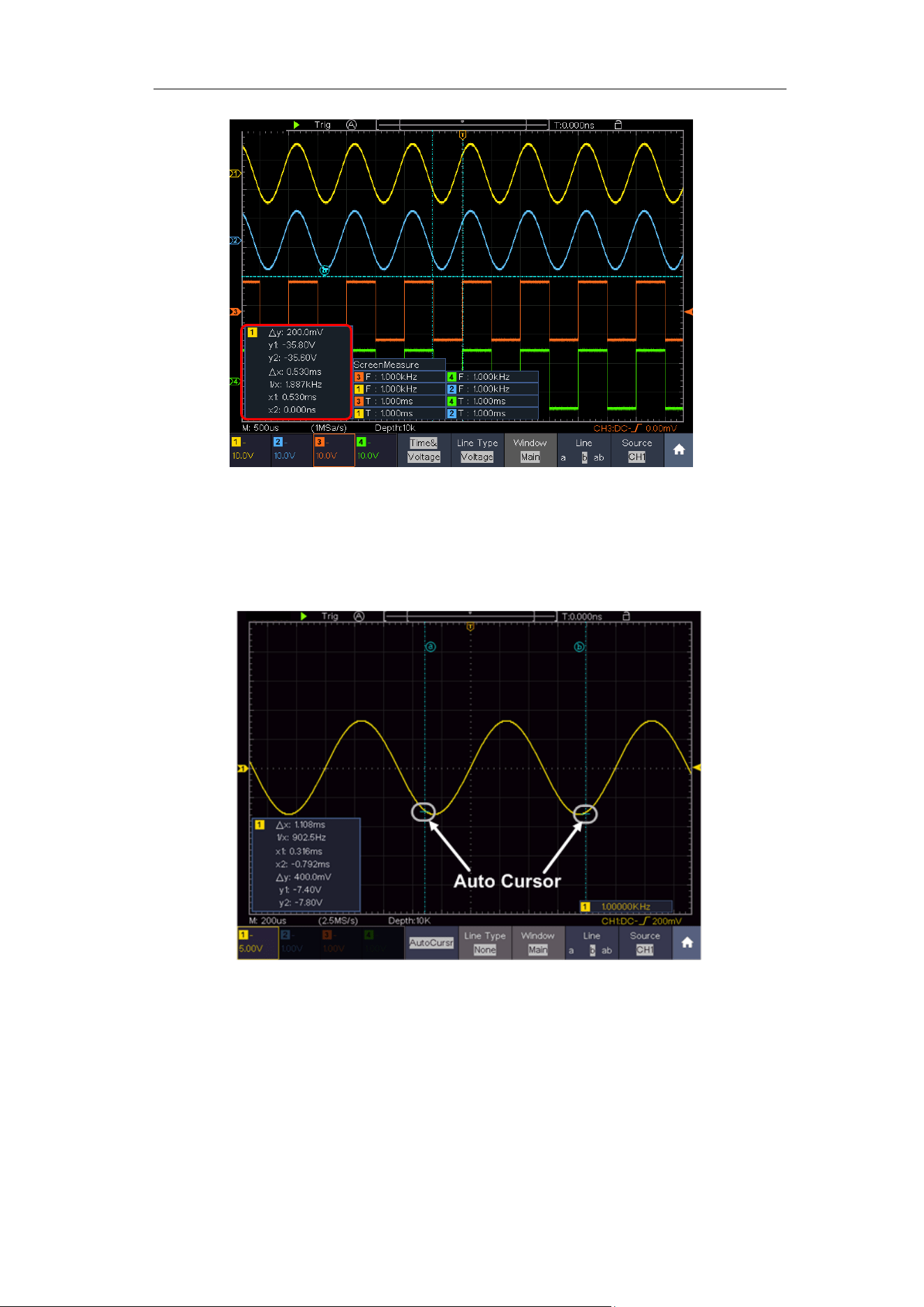
4.Advanced User Guidebook
93
Figure 4-26 Time&Voltage Cursor Measurement
Auto Cursor
For the AutoCursr type, the horizontal cursors are set as the intersections of
the vertical cursors and the waveform.
Figure 4-27 Auto Cursor
The Cursor Measurement for FFT mode
In FFT mode, push the Cursor button to turn cursors on and display the cursor
menu.
The description of the cursor menu in FFT mode is shown as the following
table:
4.Advanced User Guidebook
94
Function
Menu
Setting
Description
Type
Vamp (or
Phase)
Display the Vamp (or Phase) measurement
cursor and menu.
Freq
Display the Freq measurement cursor and
menu.
Freq&Vamp
(or
Freq&Phase)
Display the corresponding measurement
cursor and menu.
AutoCursr
The horizontal cursors are set as the
intersections of the vertical cursors and the
waveform
Line Type
(Freq&Vam
p or
Freq&Phase
type)
Freq
Makes the vertical cursors active.
Vamp (or
Phase)
Makes the horizontal cursors active.
Window
(Wave zoom
mode)
Main
Extension
Measure in the main window.
Measure in the FFT extension window.
Line
a
Turn the M knob to move line a.
b
Turn the M knob to move line b.
ab
Two cursors are linked. Turn the M knob to
move the pair of cursors.
Source
Math FFT
Display the channel to which the cursor
measurement will be applied.
Perform the following operation steps for the amplitude and frequency cursor
measurement of math FFT:
1. Press the Math button to display the math menu in the bottom. Select
FFT. In the right menu, select Format. In the left menu, turn the M
knob to select amplitude unit (V RMS or Decibels).
2. Push Cursor to display the cursor menu.
3. In the bottom menu, select Window as Extension.
4. Select the first menu item in the bottom menu, the Type menu will
display at the right of the screen. In the right menu, select Freq&Vamp
for Type, two blue dotted lines displayed along the horizontal direction
of the screen, two blue dotted lines displayed along the vertical
direction of the screen. Cursor measure window at the left bottom of
the screen shows the cursor readout.
5. In the bottom menu, select Line Type as Freq to make the vertical
cursors active. If the Line in the bottom menu is select as a, turn the M
knob to move line a to the right or left. If b is selected, turn the M knob
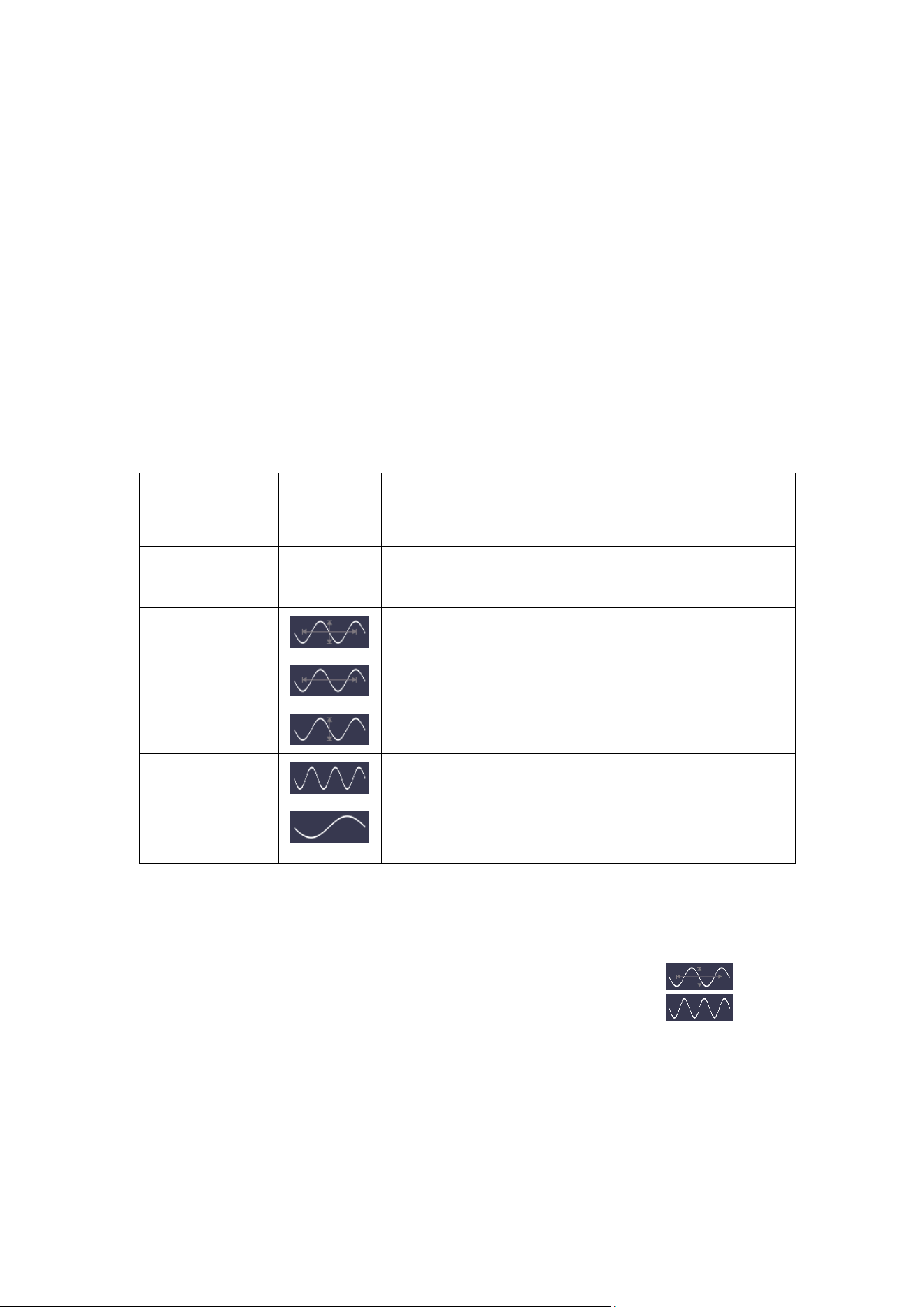
4.Advanced User Guidebook
95
to move line b.
6. In the bottom menu, select Line Type as Vamp to make the horizontal
cursors active. Select Line in the bottom menu as a or b, turn the M
knob to move it.
7. In the bottom cursor menu, you can select Window as Main to make
the cursors shown in the main window.
How to Use Autoscale
This is a very useful function for first time users to carry out a simple and quick
test on the input signal. The function is applied to follow-up signals
automatically even if the signals change at any time. Autoscale enables the
instrument to set up trigger mode, voltage division and time scale automatically
according to the type, amplitude and frequency of the signals.
The menu is as follows:
Function
Menu
Setting
Instruction
Autoscale
ON
OFF
Turn on Autoscale.
Turn off Autoscale.
Mode
Follow-up and adjust both vertical and horizontal
settings.
Follow-up and only adjust horizontal scale.
Follow-up and only adjust vertical scale.
Wave
Show Multi-period waveforms.
Only show one or two periods.
To measure the signal using autoscale, you can do as the follows:
1. Push the Autoscale button, the function menu will appear.
2. In the bottom menu, select ON in the Autoscale menu item.
3. In the bottom menu, Select Mode. In the right menu, select
.
4. In the bottom menu, Select Wave. In the right menu, select
.
Then the wave is displayed in the screen, shown as Figure 4-28.
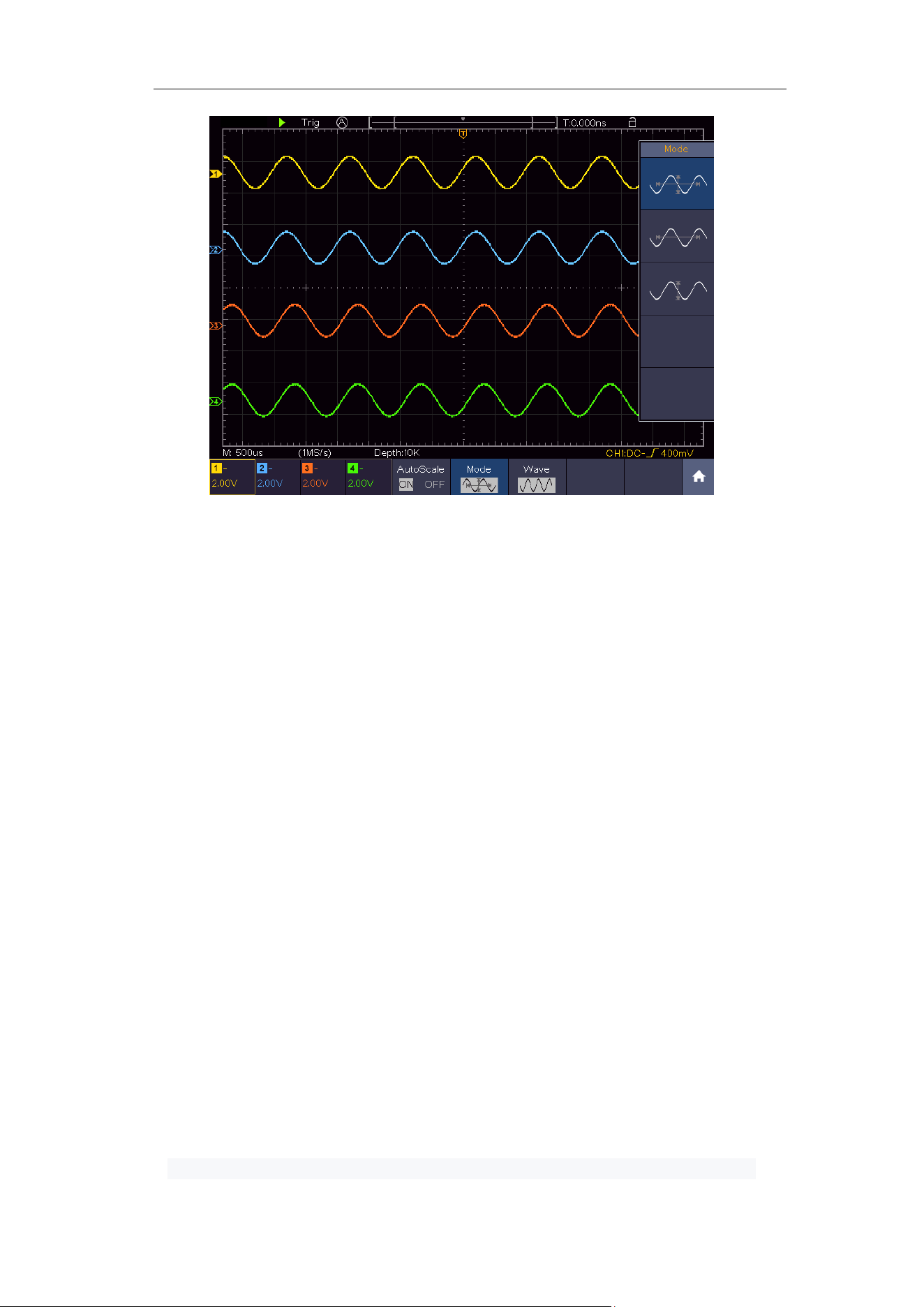
4.Advanced User Guidebook
96
Figure 4-28 Autoscale Horizontal-Vertical multi-period waveforms
Note:
1. When entering into Autoscale function, a autoscale indicator will be
flickering on the top left of the screen.
2. In the mode of Autoscale, the oscilloscope can self-estimate Trigger Mode
(Edge, Video). At this point, the trigger menu is not available.
3. When the input signal contains the DC component, the coupling will be set
to AC, the amplitude of the input signal should be greater than 5mV, and
the frequency should be greater than 20Hz.
4. At the mode of Autoscale, DSO is always set as DC coupling with AUTO
triggering, the holdoff is set to 100ns.
5. At the mode of Autoscale, if adjust the vertical position, voltage division,
trigger level or time scale, the oscilloscope will pause the Autoscale
function. To resume Autoscale, push the Autoset front panel button.
6. When video triggering, the horizontal time scale is 50us.
7. While the Autoscale is working, the settings below will be made forcibly:
The DSO will switch from the wave zoom mode to the normal mode.
In the decoding, pass/fail or XY mode, when entering into Autoscale, these
modes will be turned off.
In the STOP status, when entering into Autoscale, the status will be set to
RUN.
How to Use Built-in Help
1. Push Help button, the catalog will display in the screen.
2. In the bottom menu, press Prev Page or Next Page to choose help topic,
or just turn the M knob to choose.
3. Press OK to view the details about the topic, or just push the M knob.
4. Press Return to go directly to the directory menu while viewing the content of the
4.Advanced User Guidebook
97
theme.
5. Press Quit to exit the help, or just do other operations.
How to Use Executive Buttons
Executive Buttons include Autoset, Run/Stop, Single, Copy.
Autoset
It's a very useful and quick way to apply a set of pre-set functions to the
incoming signal, and display the best possible viewing waveform of the
signal.
The details of functions applied to the signal when using Autoset are
shown as the following table:
Function Items
Setting
Channel
Coupling
DC
Vertical Scale
Adjust to the proper division.
Vertical Position
Adjust to the proper position.
Bandwidth
Full
Horizontal Level
Middle
Horizontal Sale
Adjust to the proper division
Trigger Type
Slope or Video
Trigger Source
The previous source before autoseting.
When the previous source has no input signal, the
source will be set to the minimum channel which
has input signal.
When all the channels have no input signal, the
source will be set to CH1.
Trigger Coupling
DC
Trigger Slope
Rising edge
Trigger Level
3/5 of the Vpk-pk
Trigger Mode
Auto
Display Format
YT
Force
Stop
Help
Exit
Pass/Fail
Off
Inverted
Off
Zoom Mode
Exit
Record Length
If greater than 10M, it will be set to 10M
Waveform Math
or FFT
Off
Waveform
Record
Off
Slow-scan
Off
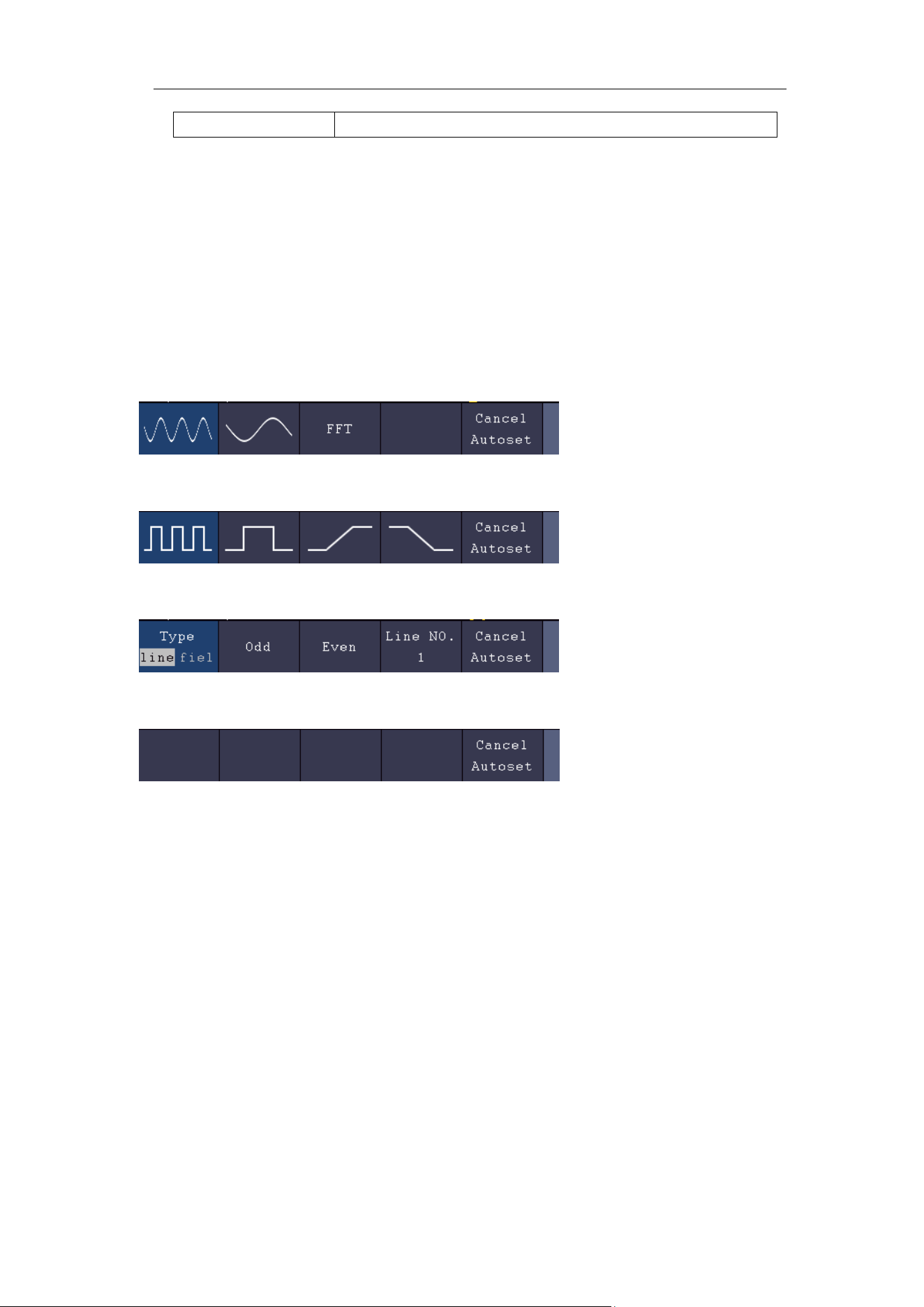
4.Advanced User Guidebook
98
Persist
Off
Note: When the autoscale is turned on and running, the Autoset button is
invalid.
Judge waveform type by Autoset
Five kinds of types: Sine, Square, video signal, DC level, Unknown
signal.
Menu as follow:
Sine: (Multi-period, Single-period, FFT, Cancel Autoset)
Square: (Multi-period, Single-period, Rising Edge, Falling Edge, Cancel Autoset)
Video signal:
DC level, Unknown signal:
Description for some icons:
Multi-period: To display multiple periods
Single-period: To display single period
FFT: Switch to FFT mode
Rising Edge: Display the rising edge of square waveform
Falling Edge: Display the falling edge of square waveform
Cancel Autoset: Go back to display the upper menu and waveform
information
Note: The Autoset function requires that the frequency of signal should be no
lower than 20Hz, and the amplitude should be no less than 5mv. Otherwise,
the Autoset function may be invalid.
Run/Stop: Enable or disable sampling on input signals.
Notice: When there is no sampling at STOP state, the vertical division

4.Advanced User Guidebook
99
and the horizontal time base of the waveform still can be adjusted
within a certain range, in other words, the signal can be expanded in
the horizontal or vertical direction.
When the horizontal time base is ≤50ms, the horizontal time base can
be expanded for 4 divisions downwards.
Single: Push this button you can set the trigger mode as single directly, so
when trigger occurs, acquire one waveform then stop.
Copy: You can save the waveform by just pushing the Copy panel button in
any user interface. The source wave and the storage location are
according to the settings of the Save function menu when the Type is
Wave. For more details, please see "Save Function Menu" on P65.
How to Print the Screen Image
To print an image of what appears on the oscilloscope screen, do as the
follows:
(1) Connect the printer to the USB Device port on the rear panel of the
oscilloscope.
Note: The USB Device port supports PictBridge compatible printers.
(2) Push the Utility button, select Function in the bottom menu, select
Output in the left menu.
(3) In the bottom menu, select Device as PICT. (When PC is selected, you
can get an image by Oscilloscope software.)
(4) In the bottom menu, select Print Setup. In the right menu, set up print
parameters. The On selection of Ink Saver will print out a copy with a
white background.
(5) Once you have connected a printer to your oscilloscope and set up print
parameters, you can print current screen images with a single push of the
Print button on the front panel.
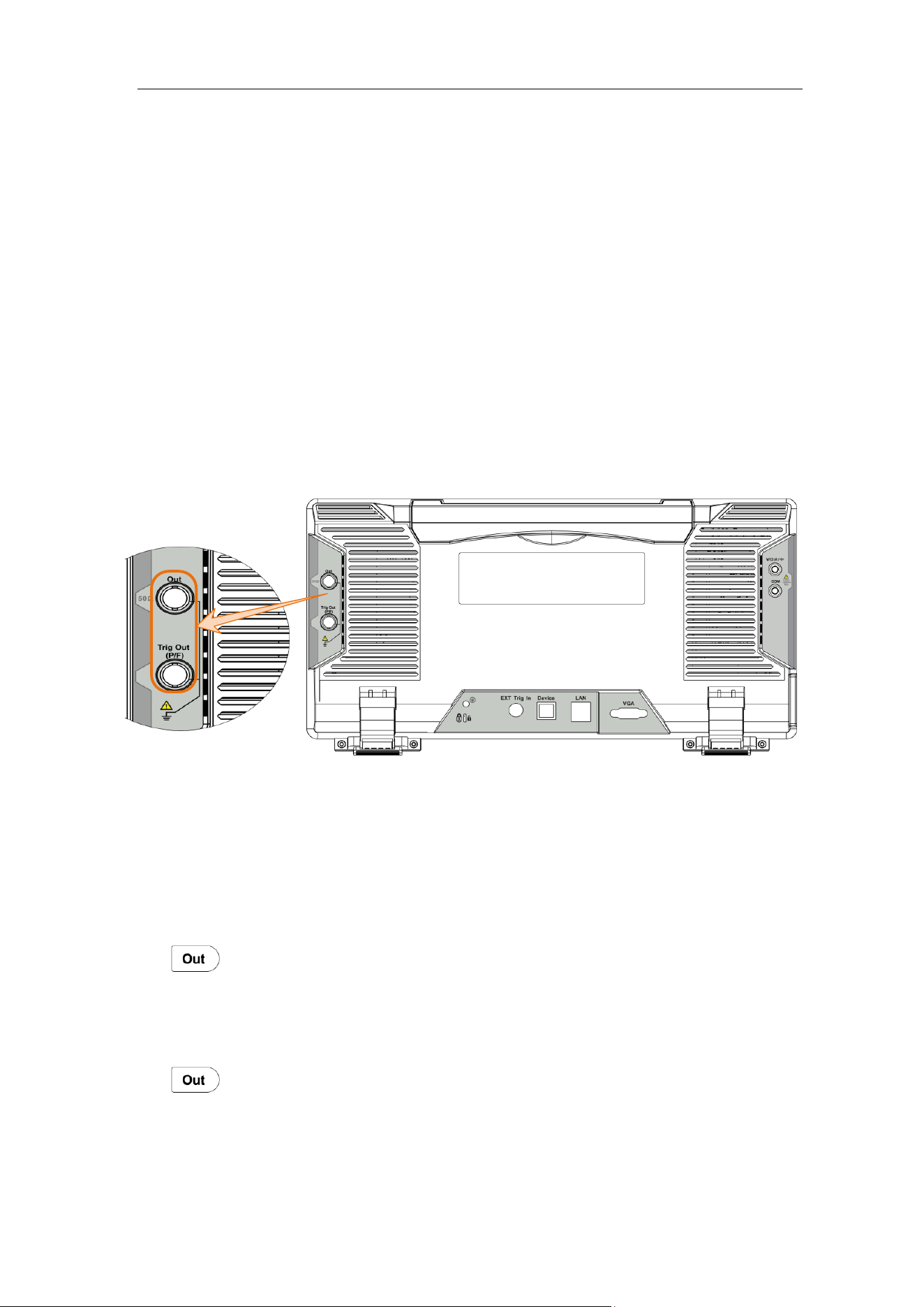
5.Use the Arbitrary Function Generator
100
5. Use the Arbitrary Function
Generator
The function generator provides 4 basic waveforms (sine, square, ramp, and pulse)
and 46 built-in arbitrary waveforms (Noise, Exponential rise, Exponential fall,
Sin(x)/x, Staircase, etc.). You can create a user-definable waveform and save it to
internal storage or USB device.
Output Connection
Push the Utility button, select Function in the bottom menu, select Output in the
left menu. In the bottom menu, select Output, in the right menu, select AG
Output.
Connect the BNC cable to the port marked Out in the back of the oscilloscope.
Figure 5-1 Generator Output Ports
To see the output of the generator, connect the other end of the BNC cable to one
of the input channels on the front of the oscilloscope.
To Set Channels
Push to turn on/off the channel output. The indicator will be lighted when the
corresponding channel is tuned on.
⚫ To Turn On/Off Output of Channels
Push to turn on/off output of the corresponding channel. The indicator will
be lighted when the corresponding channel is tuned on.
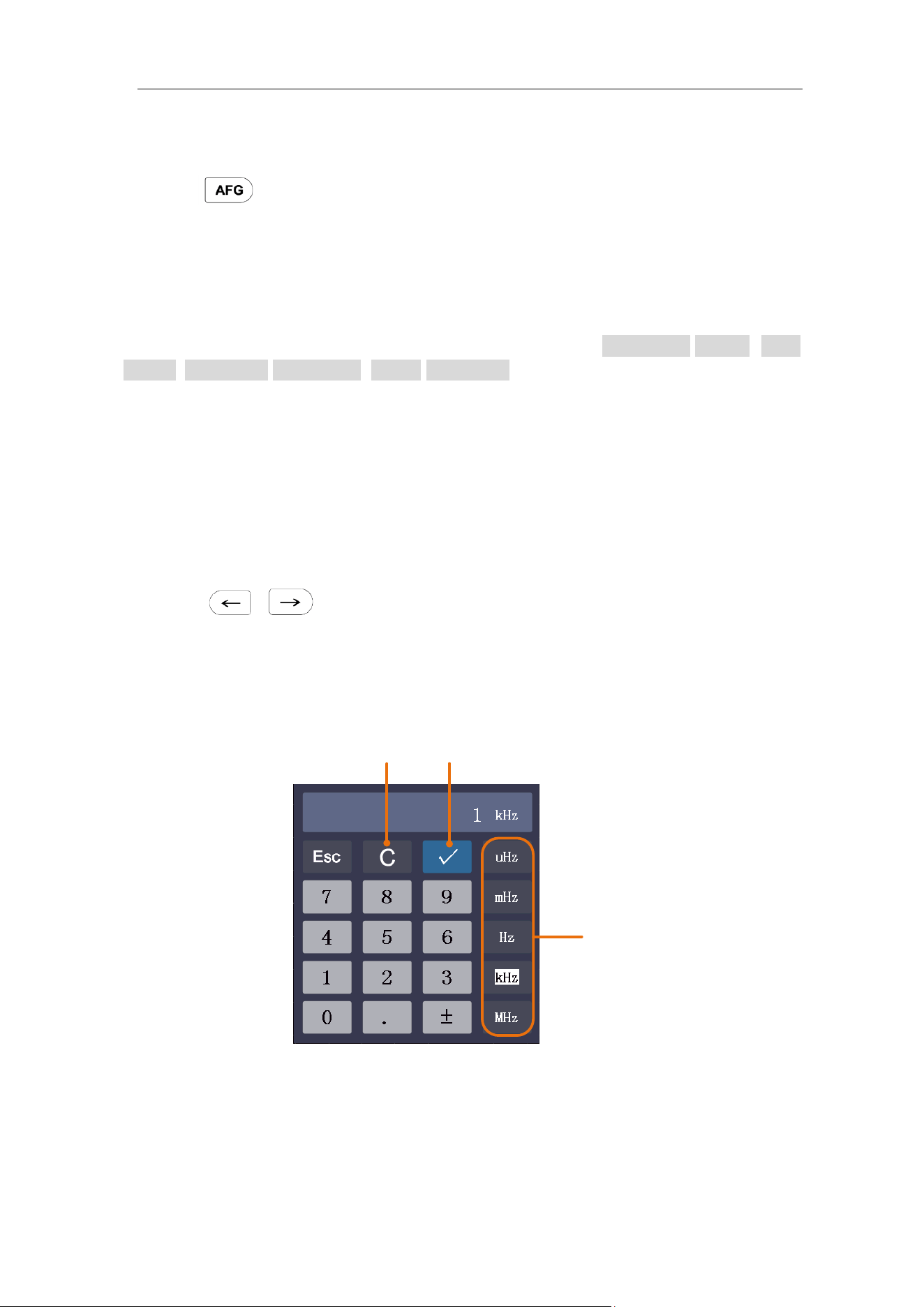
5.Use the Arbitrary Function Generator
101
To Set Signals
(1) Push button to show the bottom menu of generator.
(2) Select the desired waveform in the bottom menu, the corresponding menu is
displayed on the right.
(3) The parameters can be set in the right menu.
To Output Sine Signals
The parameters of Sine waveform in the right menu are: Frequency/Period, Start
Phase, Amplitude/High Level, Offset/Low Level.
To Set the Frequency
Select Frequency in the right menu (if Frequency is not displayed, select Period
and push it again to switch to Frequency). Set the parameter in the right menu,
see below.
Three methods to change the chosen parameter:
⚫ Turn the M knob to change the value of cursor position.
Press / direction key to move the cursor.
⚫ Use the input keyboard: Push the M knob, an input keyboard will pop up.
Turn the M knob to move between the keys. Push the M knob to input the
chosen key.
Units
Clear
OK
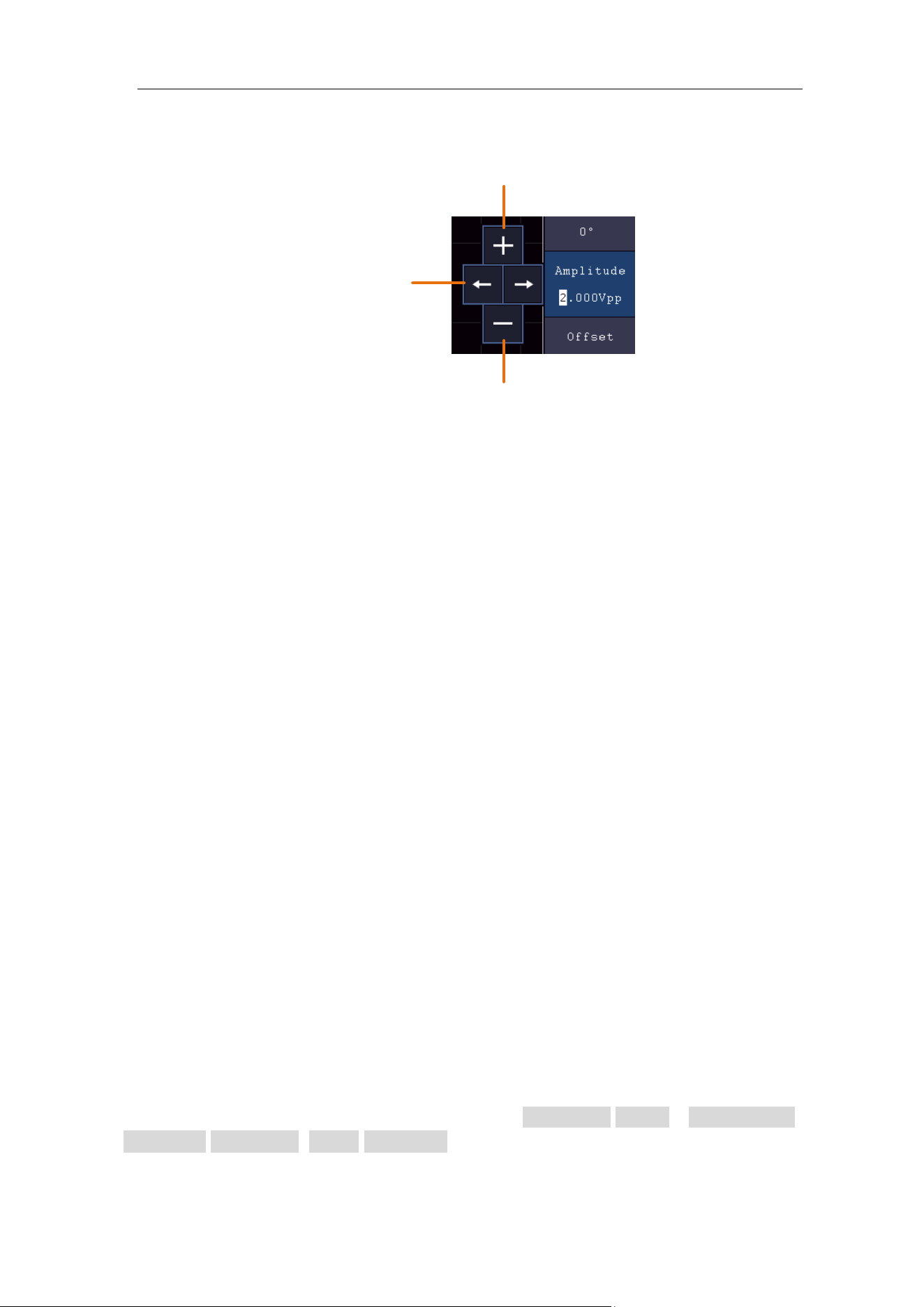
5.Use the Arbitrary Function Generator
102
⚫ Use the touchscreen:
Click to increase the
value of cursor position
Move the cursor
Click to decrease the
value of cursor position
To Set the Period
Select Period in the right menu (if Period is not displayed, select Frequency and
select it again to switch to Period). Set the parameter in the right menu.
To Set the Start Phase
Select StartPhase in the right menu. Set the parameter in the right menu.
To Set the Amplitude
Select Amplitude in the right menu (if Amplitude is not displayed, select High
Level and select it again to switch to Amplitude). Set the parameter in the right
menu.
To Set the Offset
Select Offset in the right menu (if Offset is not displayed, select Low Level and
select it again to switch to Offset). Set the parameter in the right menu.
To Set the High Level
Select High Level in the right menu (if High Level is not displayed, select
Amplitude and select it again to switch to High Level). Set the parameter in the
right menu.
To Set the Low Level
Select Low Level in the right menu (if Low Level is not displayed, select Offset
and select it again to switch to Low Level). Set the parameter in the right menu.
To Output Square Signals
The parameters of Square waveform are: Frequency/Period, Start Phase,
Amplitude/High Level, Offset/Low Level.
To set the Frequency/Period, Start Phase, Amplitude/High Level, Offset/Low Level,
please refer to To Output Sine Signals on page 101.

5.Use the Arbitrary Function Generator
103
To Output Ramp Signals
The parameters of Ramp waveform are: Frequency/Period, Start Phase,
Amplitude/High Level, Offset/Low Level, Symmetry.
To set the Frequency/Period, Start Phase, Amplitude/High Level, Offset/Low Level,
please refer to To Output Sine Signals on page 101.
To Set the Symmetry of Ramp
Select Symmetry in the right menu of Ramp. Set the parameter in the right menu.
To Output Pulse Signals
The parameters of Pulse waveform are: Frequency/Period, Start Phase,
Amplitude/High Level, Offset/Low Level, Width/Duty Cycle.
To set the Frequency/Period, Start Phase, Amplitude/High Level, Offset/Low Level,
please refer to To Output Sine Signals on page 101.
To Set the Pulse Width of Pulse
Select Width in the right menu (if Width is not displayed, select Duty Cycle and
select it again to switch to Width). Set the parameter in the right menu.
To Set the Duty Cycle of Pulse
Select Duty Cycle in the right menu (if Duty Cycle is not displayed, select Width
and select it again to switch to Duty Cycle). Set the parameter in the right menu.
To Output Arbitrary Signals
The menu items of Arbitrary waveform are: Frequency/Period, Start Phase,
Amplitude/High Level, Offset/Low Level, New, File Browse, Built-in. You can
operate the menu by using the menu selection buttons on the right.
To set the Frequency/Period, Start Phase, Amplitude/High Level, Offset/Low Level,
please refer to To Output Sine Signals on page 101.
The Arbitrary signal consists of two types: the user-definable waveform and the
system built-in waveform.
Create a New Waveform
(1) Enter the operation menu: Push button. Select Arb in the bottom
menu, select Others in the right menu, and select New.
(2) Set the number of waveform points: Select Points in the right menu, turn
the M knob to change the value, or use the input keyboard (push the M knob to
show it) to input the value and choose the unit. X1, X1000, Xle6, Xle9 in the
keyboard respectively represent 1, 1000, 1000000, 1000000000. The
waveform points range is 2 - 8192.
(3) Set the interpolation: Select Intrpl in the right menu, choose between On/Off.
If you choose On, the points will be connected with beelines; otherwise, the
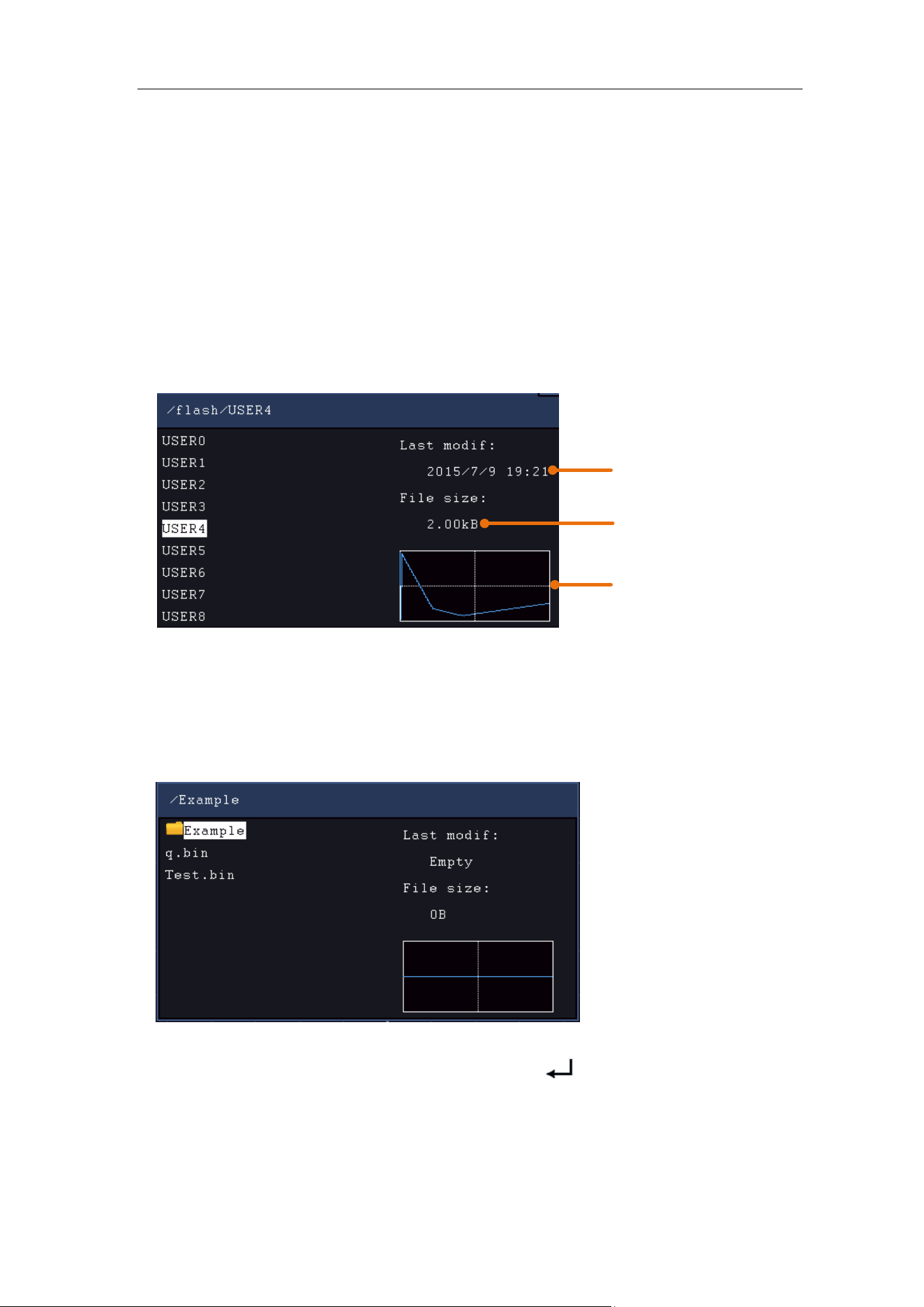
5.Use the Arbitrary Function Generator
104
voltages between two consecutive points will not change, and the waveform
looks like a step-up one.
(4) Edit the waveform points: Select Edit Points in the right menu.
⚫ Select Point, input the number of the point to be edited.
⚫ Select Voltage, input the voltage for the current point.
⚫ Repeat the step above, set all the points to your needs.
⚫ Select Save, enter the file system.
If you want to save the waveform to internal memory, select Memory in the
right menu as Internal. Turn the M knob to select a file from USER0 through
USER31. Select Save in the right menu.
File size
Last modification time
Waveform graph
If a USB device is connected, and you want to save the waveform to it, select
Memory in the right menu as USB. The instrument lists a directory of the
folders and files on the USB memory device. Select a folder or file using the M
knob to scroll up and down the list. To enter the current folder, select Change
Dir in the right menu, select it again to return to the upper directory.
Enter the desired storage path, select Save in the right menu, an input
keyboard pops up, input the file name, choose
in the keyboard to confirm
.
The waveform is saved as BIN file in the folder.
Note: The input length can have up to 35 characters.
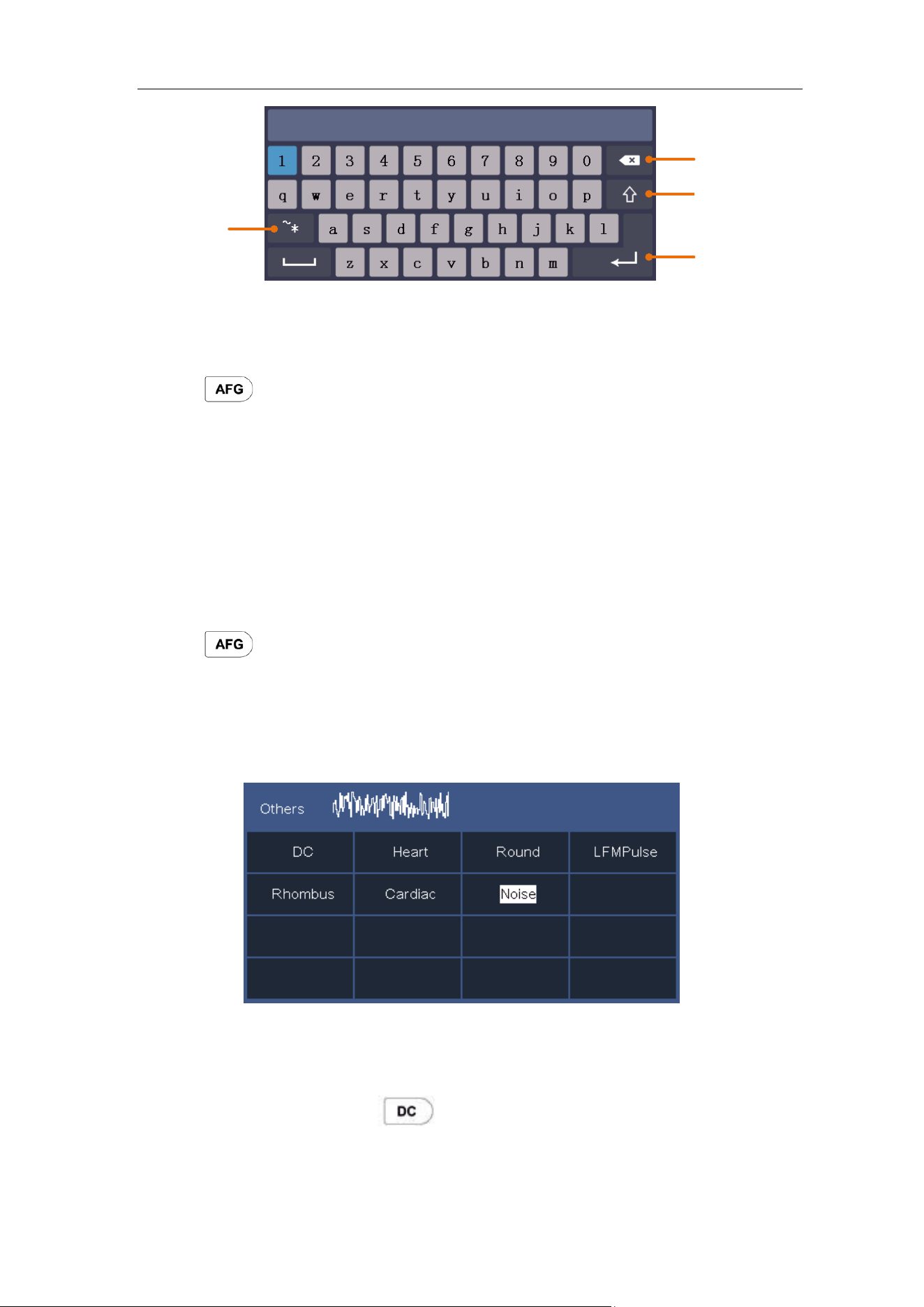
5.Use the Arbitrary Function Generator
105
Confirm
Clear
Switch the case
Switch to
symbol
keyboard
File Browse
To read a waveform stored in internal storage or USB device:
(1) Push button. Select Arb in the bottom menu, select Others in the right
menu, and select File Browse.
(2) Select the desired waveform file in internal storage (FLASH) or USB device
(USBDEVICE).
(3) Select Read in the right menu.
Built-in Waveform
There are 46 built-in Arbitrary waveforms.
Steps for selecting the built-in waveform:
(1) Push button to show the bottom menu of generator.
(2) Select Arb in the bottom menu, select Others in the right menu, and select
Built-in.
(3) Select Common, Math, Window or Others in the right menu. E.g. select
Others to enter the following interface.
(4) Turn the M knob to select the desired waveform (or touch if the LCD is
touchscreen). E.g. select Noise. Select Select to output the noise waveform.
(5) Push the front panel button to directly output DC or quickly switch to the
arbitrary waveform setting interface.
5.Use the Arbitrary Function Generator
106
Built-in Waveform Table
Name
Explanation
Common
StairD
Stair-down waveform
StairU
Stair-up waveform
StairUD
Stair-up and stair-down waveform
Trapezia
Trapezoid waveform
RoundHalf
RoundHalf wave
AbsSine
Absolute value of a Sine
AbsSineHalf
Absolute value of half a Sine
SineTra
Sine transverse cut
SineVer
Sine vertical cut
NegRamp
Negative ramp
AttALT
Gain oscillation curve
AmpALT
Attenuation oscillation curve
CPulse
Coded pulse
PPulse
Positive pulse
NPulse
Negative pulse
Maths
ExpRise
Exponential rise function
ExpFall
Exponential fall function
Sinc
Sinc function
Tan
Tangent
Cot
Cotangent
Sqrt
Square root
XX
Square function
HaverSine
HaverSine function
Lorentz
Lorentz function
ln
Natural logarithm function
Cubic
Cubic function
Cauchy
Cauchy distribution
Besselj
BesselI function
Bessely
BesselII function
Erf
Error function
Airy
Airy function
Windows
Rectangle
Rectangle window
Gauss
Gauss distribution
Hamming
Hamming window
Hann
Hanning window
Bartlett
Bartlett window
Blackman
Blackman window
5.Use the Arbitrary Function Generator
107
Laylight
Laylight window
Triang
Triangle window (Fejer window)
Others
DC
DC signal
Heart
Heart signal
Round
Round signal
LFMPulse
Linear FM pulse
Rhombus
Rhombus signal
Cardiac
Cardiac signal
Noise
Noise signal
Frequency Response Analysis
The Frequency Response Analysis (FRA) feature controls the built-in waveform
generator to sweep a sine wave across a range of frequencies while measuring
the input to and output from a device under test. At each frequency, gain and
phase are measured and plotted on a frequency response Bode chart. When the
frequency response analysis completes, you can move a marker across the chart
to see the measured gain and phase values at each frequency point. You can also
adjust the chart's scale and offset settings for the gain and phase plots.
Note: If the signal is disturbed seriously, it is recommended to select Average in
Acquire Mode before running the analysis, the averages can only be set as 4 or 16,
and then run the analysis.
Push the Utility button, select Function in the bottom menu, select FRA in the left
menu.
The description of FRA Menu is shown as the follows:
Function
Menu
Setting
Description
FRA
FRA
Check to enable FRA function and show FRA
scale line and chart.
Transparent
When unchecked, FRA information is shown on
the FRA window.
When checked, FRA information is shown on the
waveform display area.
Marker
Turn Multipurpose knob to move the marker, view
measured gain and phase values.
Sweep Step
Fine
When unchecked, the sweep step is 0.1dB.
When checked, the sweep step is 0.01dB.
Setup
Input V
CH1
Input V is input from CH1.
Output V is input from CH2.
5.Use the Arbitrary Function Generator
108
Output V
CH2
(Note: The menus are not for selecting menu items,
only for showing information.)
Min Freq
Fine
Turn Multipurpose knob to set frequency sweep
min value. Check to enable fine-tuning.
Max Freq
Fine
Turn Multipurpose knob to set frequency sweep
max value. Check to enable fine-tuning.
Amplitude
Fine
Turn Multipurpose knob to set waveform
generator amplitude. Check to enable fine-tuning.
Note: The amplitude range is 2 mVpp to 6 Vpp.
Chart
Gain Scale
Adjust scale of gain plot, range from 5dB to
500dB.
Gain Offset
Adjust offset of gain plot, range from -250dB to
250dB.
Phase Scale
Adjust scale of phase plot, range from 5° to 180°.
Phase Offset
Adjust offset of phase plot, range from -180° to
180°.
Autoscale
Autoscale gain and phase plots.
Analysis
Run/stop the analysis.
F: Frequency; G: Gain; P: Phase.
To run the frequency response analysis, do the following:
1. The waveform generator output is connected to a device under test. The input
to the device is probed by CH1of the oscilloscope. The output from the device
is probed by CH2of the oscilloscope.
2. Push the Utility button, select Function in the bottom menu, select FRA in the
left menu
3. In the bottom menu, select FRA. In the right menu, check FRA, and set
other menu items.
4. In the bottom menu, select Setup or Chart. In the right menu, set the menu
items.
5. In the bottom menu, check Analysis to run the analysis.
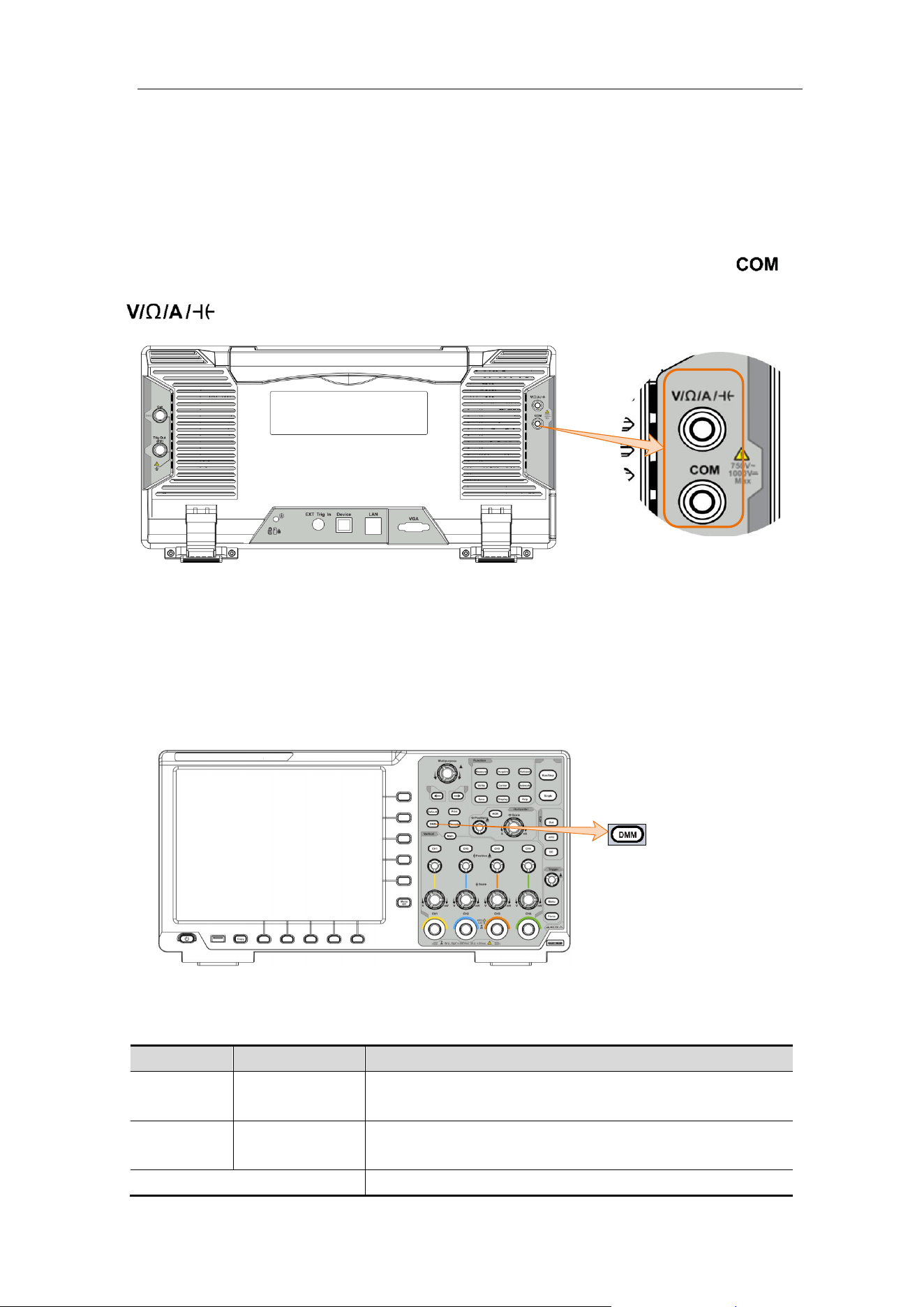
6.Use the Multimeter (Optional)
109
6. Use the Multimeter (Optional)
Input Terminals
The input terminals are on the back of the oscilloscope, which marked as 、
.
Figure 6-1 Multimeter Input Terminals
DMM Menu
Push DMM button on the front panel to enter/exit the multimeter function. The
button backlight will be lighted when the multimeter function is enabled.
Figure 6-2 Multimeter Button
The bottom menu of multimeter is as below:
Menu
Setting
Description
Current
ACA
DCA
Measuring AC current
Measuring DC current
Voltage
ACV
DCV
Measuring AC voltage
Measuring DC voltage
R
Measuring resistance
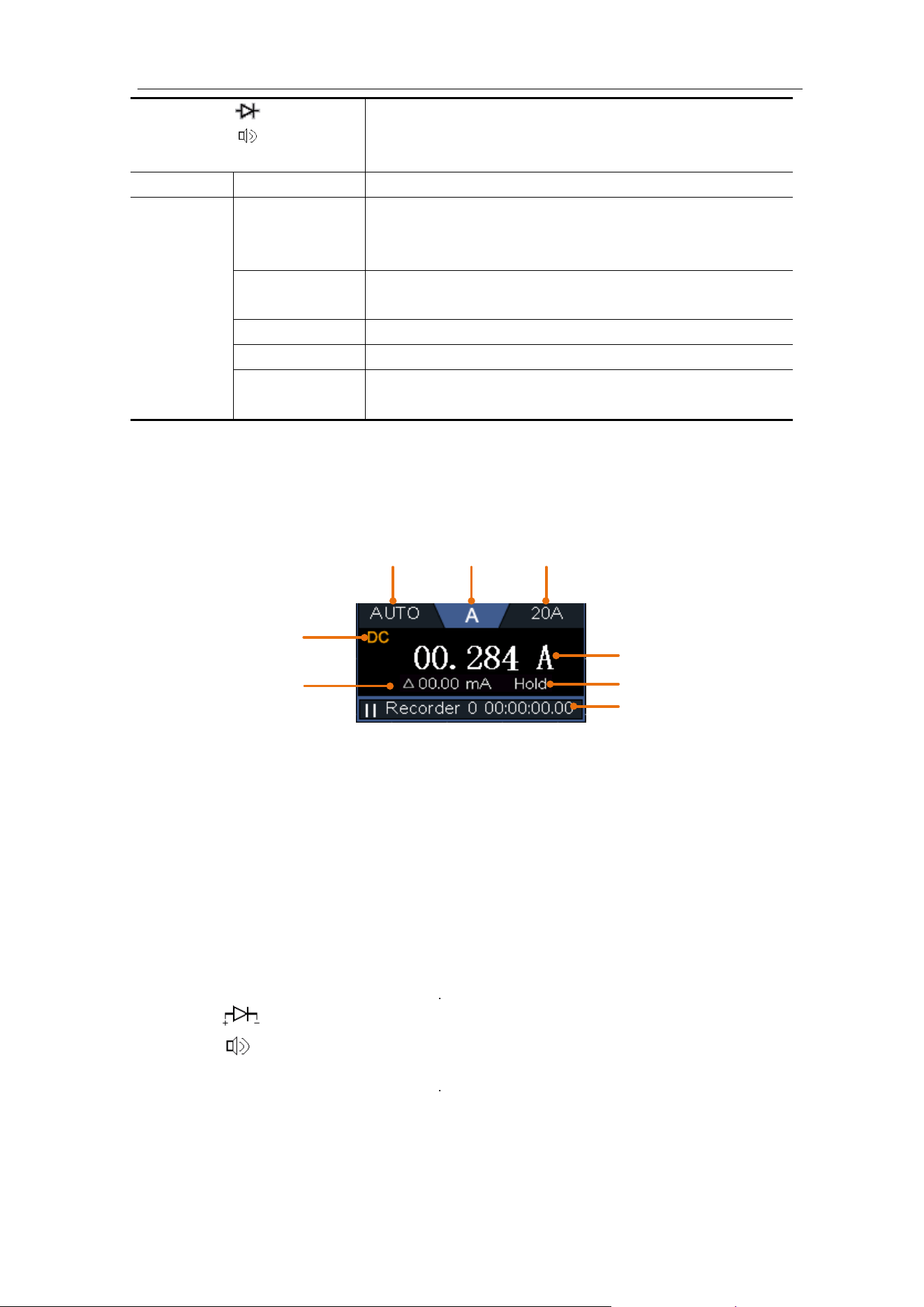
6.Use the Multimeter (Optional)
110
C
Testing diode
Testing for continuity
Measuring capacitance
Hold
ON OFF
Freeze the display during measurement.
Configure
Relative
When making relative measurements, reading is
the difference between a stored reference value
and the input signal.
Show Info
ON OFF
Show/Hide the information window
Auto Range
Select auto range mode
Alte Range
Select manual range mode, press to switch range
Voltage
mV V
Select the voltage range.
DMM Information Window
The Multimeter Information Window is displayed on the top right of the screen.
4
1 2
8
3
6
7
5
Figure 6-3 Multimeter Information Window
Description
1. Manual/Auto range indicators, MANUAL refers to the measuring range in
manual operation mode and AUTO refers to the measuring range in automatic
operation mode.
2. Measurement mode indicators:
A
------
Current measurement
V
------
Voltage measurement
R
------
Resistance
measurement
------
Diode measurement
------
Continuity test
C
------
Capacitance
measurement
3. Range.
4. Measurement display ("OL" is short for overload, indicates the reading
exceeds the display range)
5. Data hold mode is enabled.
6.Use the Multimeter (Optional)
111
6. Multimeter recorder (See "Multimeter Recorder" on page 113).
7. The reference value of the relative measurement.
8. AC or DC when measuring current or voltage.
Making Multimeter Measurements
Measuring AC or DC Current
(1) Insert the current measurement module attached to the instrument into the
COM terminal and input terminal on the back of the oscilloscope .
(2) Push DMM button on the front panel. Select Current in the bottom menu,
select it again to switch between ACA (AC current ) or DCA (DC current).
(3) Connect the black test lead to the module jack corresponding to the ter
minal on the back of the oscilloscope. Connect the red test lead to the module
jack corresponding to the terminal on the back of the oscilloscope.
(4) Turn off the power of the measured circuit. Discharge all high- voltage
capacitors.
(5) Disconnect the circuit path to be tested. Connect the black test lead to one
side of the circuit (with a lower voltage); connect the red test lead to the other
side (with a higher voltage). Reversing the leads will produce a negative
reading, but will not damage the multimeter.
(6) Turn on the power of the measured circuit, and read the display.
(7) Turn off the power of the measured circuit and discharge all high-voltage
capacitors. Remove the test leads and restore the circuit to the original
condition.
Measuring AC or DC Voltage
(1) Push DMM button on the front panel. Select Current in the bottom menu,
select it again to switch between ACA (AC current ) or DCA (DC current).
(2) Connect the black test lead to the COM terminal on the back of the
oscilloscope and the red test lead to the terminal.
(3) Probe the test points and read the display.
(4) Press the SET key at the bottom of the screen, select the voltage range as mV
or V, and read the displayed value in the menu.
Measuring Resistance
(1) Push DMM button on the front panel. Select in the bottom menu, select
R.
(2) Connect the black test lead to the COM terminal on the back of the
6.Use the Multimeter (Optional)
112
oscilloscope and the red test lead to the terminal.
(3) Probe the test points and read the display.
Testing Diodes
(1) Push DMM button on the front panel. Select in the bottom menu, select
it until switching to .
(2) Connect the black test lead to the COM terminal on the back of the
oscilloscope and the red test lead to the terminal.
(3) Connect the red test lead to the positive terminal (anode) of the diode and the
black test lead to the negative terminal (cathode). The cathode of a diode is
indicated with a band. Read the diode forward bias.
Testing for Continuity
(1) Push DMM button on the front panel. Select in the bottom menu, select
it until switching to .
(2) Connect the black test lead to the COM terminal on the back of the
oscilloscope and the red test lead to the terminal.
(3) Probe the test points to measure the resistance in the circuit. If the reading is
below 50 , the multimeter will beep.
Measuring Capacitance
(1) Push DMM button on the front panel. Select in the bottom menu, select
it until switching to C.
(2) Insert the supplied capacitance measurer to the COM terminal and the
terminal on the back of the oscilloscope.
(3) Insert the capacitance to the capacitance measurer, then screen shows the
capacitance reading.
Note: when measuring the capacitance which is less than 5 nF, please use relative
value measuring mode to improve measuring precision.
Multimeter Features
Data Hold Mode
You can freeze the display for any function.
(1) Select Hold in the bottom menu as ON. HOLD will be shown on the display.
(2) Select OFF to exit this mode.

6.Use the Multimeter (Optional)
113
Making Relative Measurements
When making relative measurements, reading is the difference between a stored
reference value and the input signal.
(1) Select Configure in the bottom menu, select Relative in the right menu to
enter the relative mode.
The measurement value at this time is stored as the reference value, and
displayed behind △.
In this mode, current reading = input value - reference value.
(2) Press it again to exit the mode.
Note: This function is not available when measuring resistance, diodes, and
testing for continuity.
Information Display
Show/hide the information window on the top right of the display.
(1) Select Configure in the bottom menu, select Show Info in the right menu as
ON. The information window
will be shown on the display.
(2) Select OFF to hide.
Auto or Manual Range
Auto range is set as default. To switch auto or manual range, do the following
steps:
(1) Select Configure in the bottom menu.
(2) Select Auto Range in the right menu, AUTO will be shown on the display.
(3) Select Switch Range in the right menu, MANUAL will be shown on the display.
Press this softkey to switch range.
Note: When testing diode, testing continuity, and measuring capacitance, manual
range is disabled.
Multimeter Recorder
You can use the multimeter data recorder to record the measurements when
measuring current/voltage by multimeter (optional).
Push the Utility button, select Function in the bottom menu, select DAQ in the left
menu.
The description of DAQ Menu is shown as the follows:
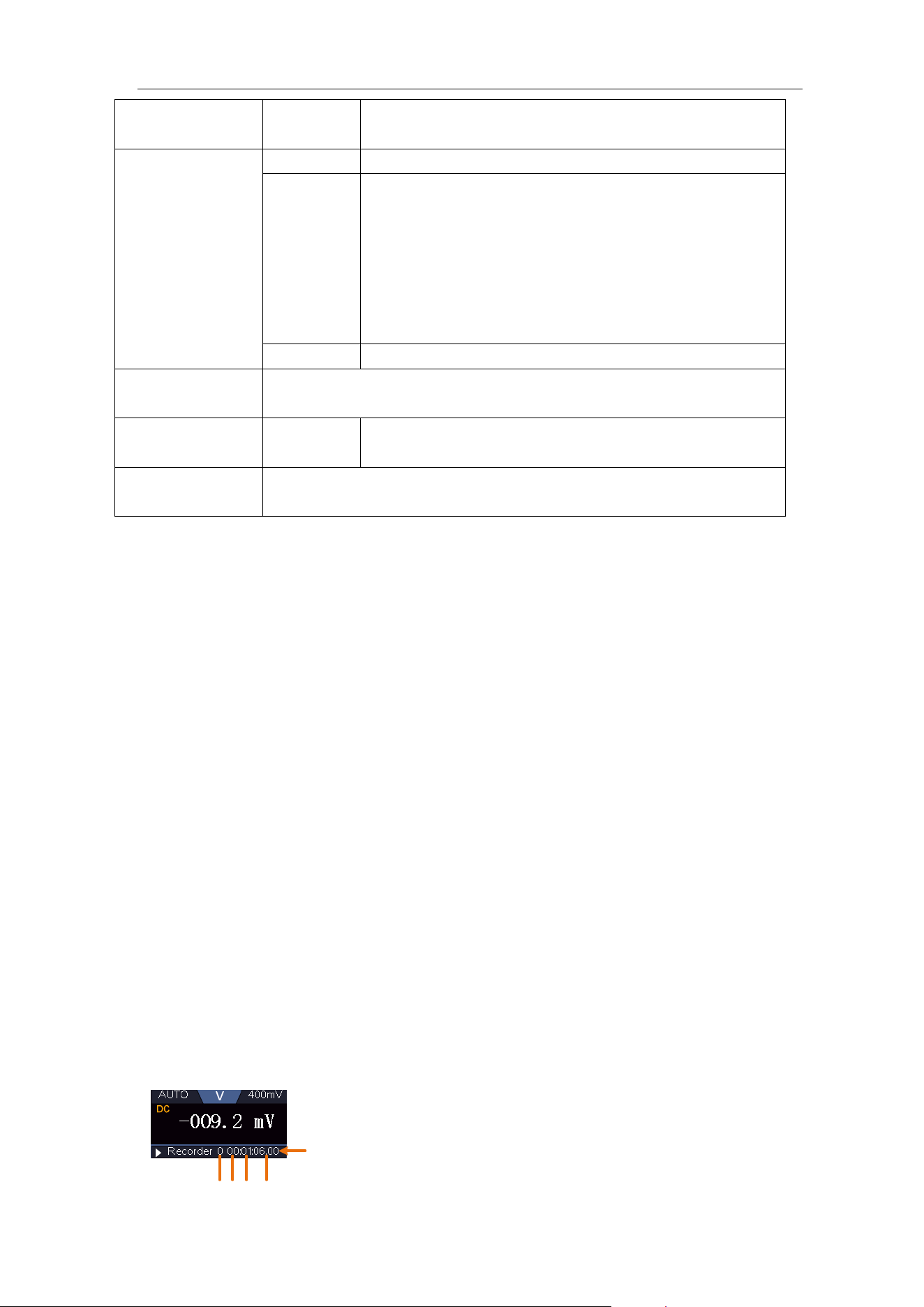
6.Use the Multimeter (Optional)
114
To record the current/voltage measurements in the multimeter, do the
following:
1. Push DMM button on the front panel to enter the multimeter function. Select
Current or Voltage in the bottom menu.
If you want to enter the relative mode, select Configure in the bottom menu,
select Relative in the right menu.
2. Push the Utility button, select Function in the bottom menu, select DAQ in the
left menu.
3. Select Storage in the bottom menu, select Internal or External in the right
menu. If you select External, insert the USB memory device into the front-panel
USB port on your instrument.
4. Select Set in the bottom menu, select Enable in the right menu as ON.
5. Select Interval in the right menu, turn the M knob to set it.
6. Select Duration in the right menu, push it to switch between the time unit, turn
the M knob to set the corresponding value.
7. Select STRT in the bottom menu.
8. When external storage is selected: The instructions will be shown on the
screen. The record file will be named as "Multimeter_Recorder.csv". If a file
with the same name already exists in the USB memory device, it will be
overwritten. (If you want to keep the existing file, back up it to other location in
advance.) Select STRT in the bottom menu to start recording.
9. When the record time gets to the defined duration, the recording will be ended.
If you want to end recording prematurely, select STOP in the bottom menu.
Day H M S
Record time, use the defined
interval as its refresh interval
Function
Menu
Setting
Description
Set
Interval
Set the record interval (0.5s - 10s, step by 0.5s)
Duration
"d h m s" represents day, hour, minute, second.
E.g. "1 02:50:30" represents a day and 2 hours,
50 minutes and 30 seconds.
Press Duration to switch between the time unit,
turn the M knob to set the value. Max duration: 3
days for internal storage, 10 days for external
storage.
Enable
Turn on or off the recorder.
STRT
STOP
Start or stop recording.
Storage
Internal
External
Save to internal storage or USB memory device.
Export
When internal storage is selected, you can export the internal
record file to a USB memory device.
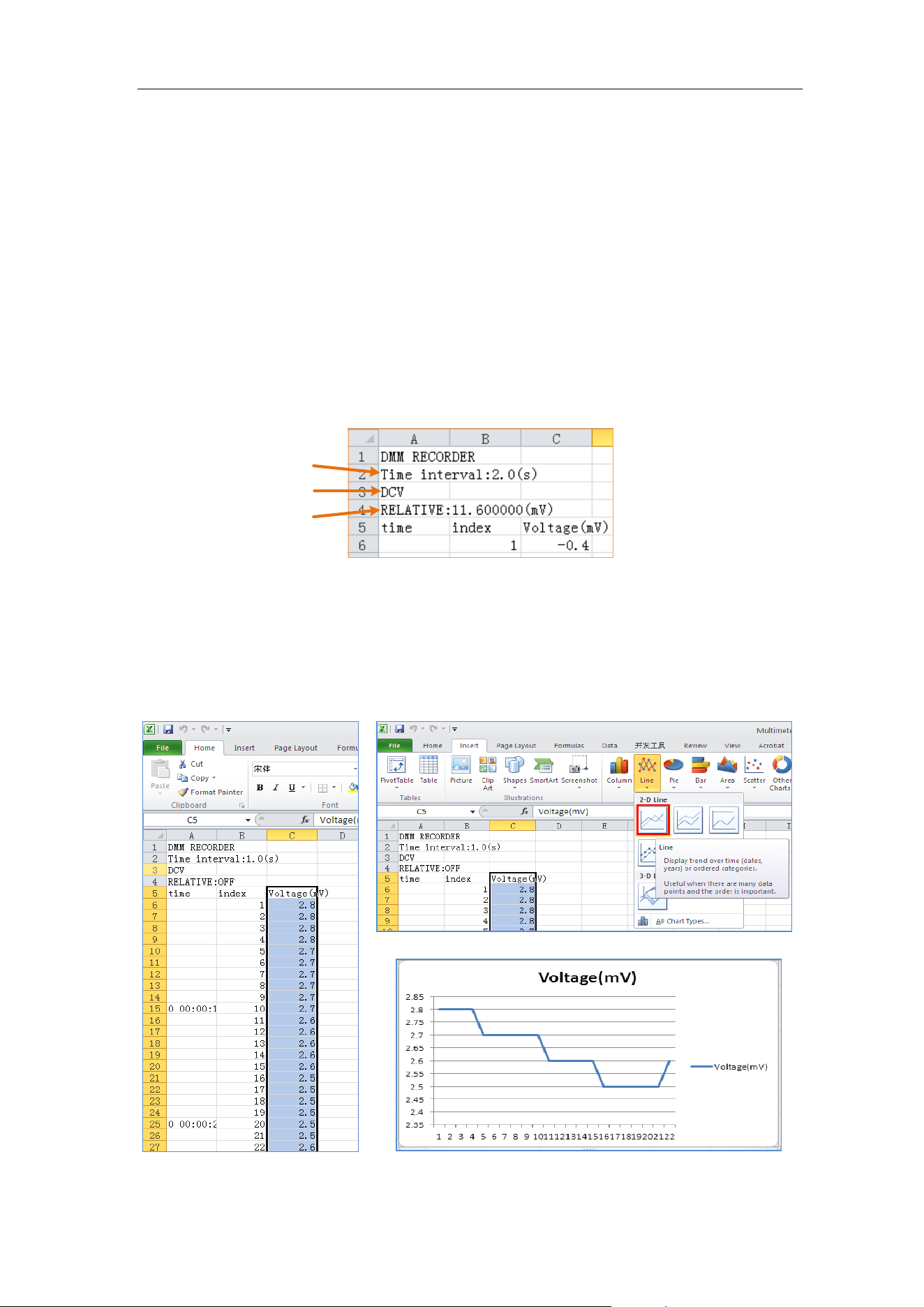
6.Use the Multimeter (Optional)
115
10. When internal storage is selected: You can export the internal record file to a
USB memory device. Insert the USB memory device into the front-panel USB
port on your instrument. Select Export in the bottom menu. The instructions
will be shown on the screen. The export file will be named as
"Multimeter_Recorder.csv". If a file with the same name already exists in the
USB memory device, it will be overwritten. (If you want to keep the existing file,
back up it to other location in advance.) Select Export in the bottom menu to
export.
How to chart the data
You can open the CSV file using Microsoft Excel, or your favorite spreadsheet
application, and create charts based on the data.
In the following steps, Microsoft Excel 2010 is used as an example.
1. Open Multimeter_Recorder.csv in Excel.
Interval
Measurement mode
Reference value of the
relative measurements
2. Select the data that you want to chart (see Figure 6-4).
3. On the Insert tab, in the Charts group, click Line, and then click Line in 2-D
Line (see Figure 6-5).
4. The chart will be displayed (see Figure 6-6). If you want to keep the chart, save
the file to XLS format.
Figure 6-4
Figure 6-5
Figure 6-6
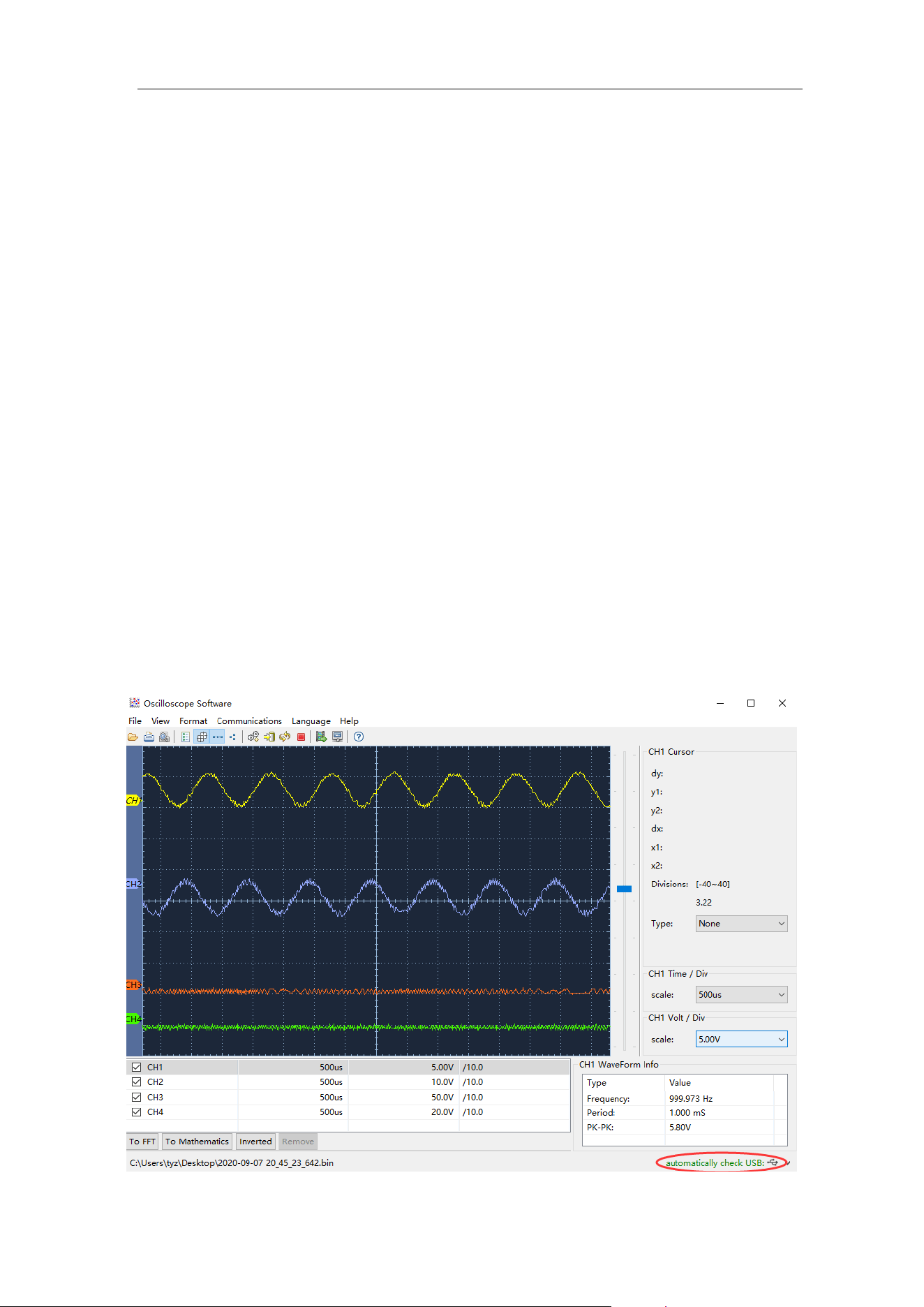
7.Communication with PC
116
7. Communication with PC
The oscilloscope supports communications with a PC through USB, LAN port. You
can use the Oscilloscope communication software to store, analyze, display the
data and remote control.
To learn about how to operate the software, you can push F1 in the software to
open the help document.
Here is how to connect with PC. First, install the Oscilloscope communication
software on the supplied CD. Then there are several ways of connection to choose
from.
Using USB Port
(1) Connection: Use a USB data cable to connect the USB Device port in the
back panel of the Oscilloscope to the USB port of a PC.
(2) Install the driver: Run the Oscilloscope communication software on PC, push
F1 to open the help document. Follow the steps of title "I. Device connection"
in the document to install the driver.
(3) Port setting of the software: Run the Oscilloscope software; click
"Communications" on the menu bar, choose "Ports-Settings", in the setting
dialog, choose "Connect using" as "USB". After connect successfully, the
connection information in the bottom right corner of the software will turn
green.
Figure 7-1 Connect with PC through USB port
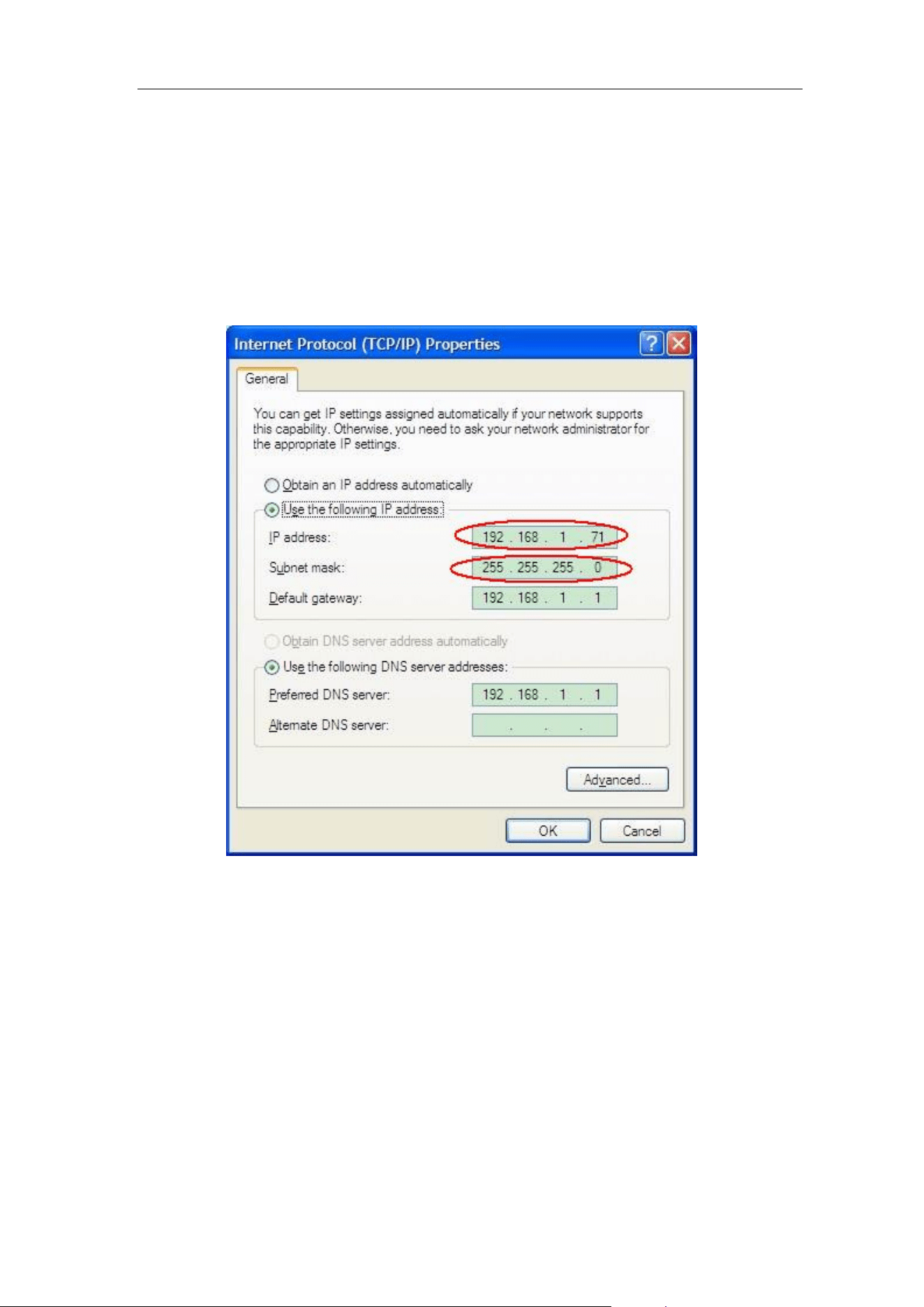
7.Communication with PC
117
Using LAN Port
Connect directly
(1) Connection. Plug in the LAN cable to the LAN port in the back of the
oscilloscope; plug the other end into the LAN interface of the computer.
(2) Set the network parameters of the computer. Since the oscilloscope can
not support obtaining an IP address automatically, you should assign a static
IP address. Here we set the IP address to 192.168.1.71.
Figure 7-2 Set the network parameters of the computer
(3) Set the network parameters of the Oscilloscope Software. Run the
software on the computer; choose the "Ports-settings" of the
"Communications" menu item. Set "Connect using" to LAN. About the IP, the
first three bytes is same as the IP in the step (2), the last byte should be
different. Here, we set it to 192.168.1.72. The range of the port value is 0 -
4000, but the port which under 2000 is always used, so it is suggested to set it
to the value above 2000. Here, we set it to 3000.
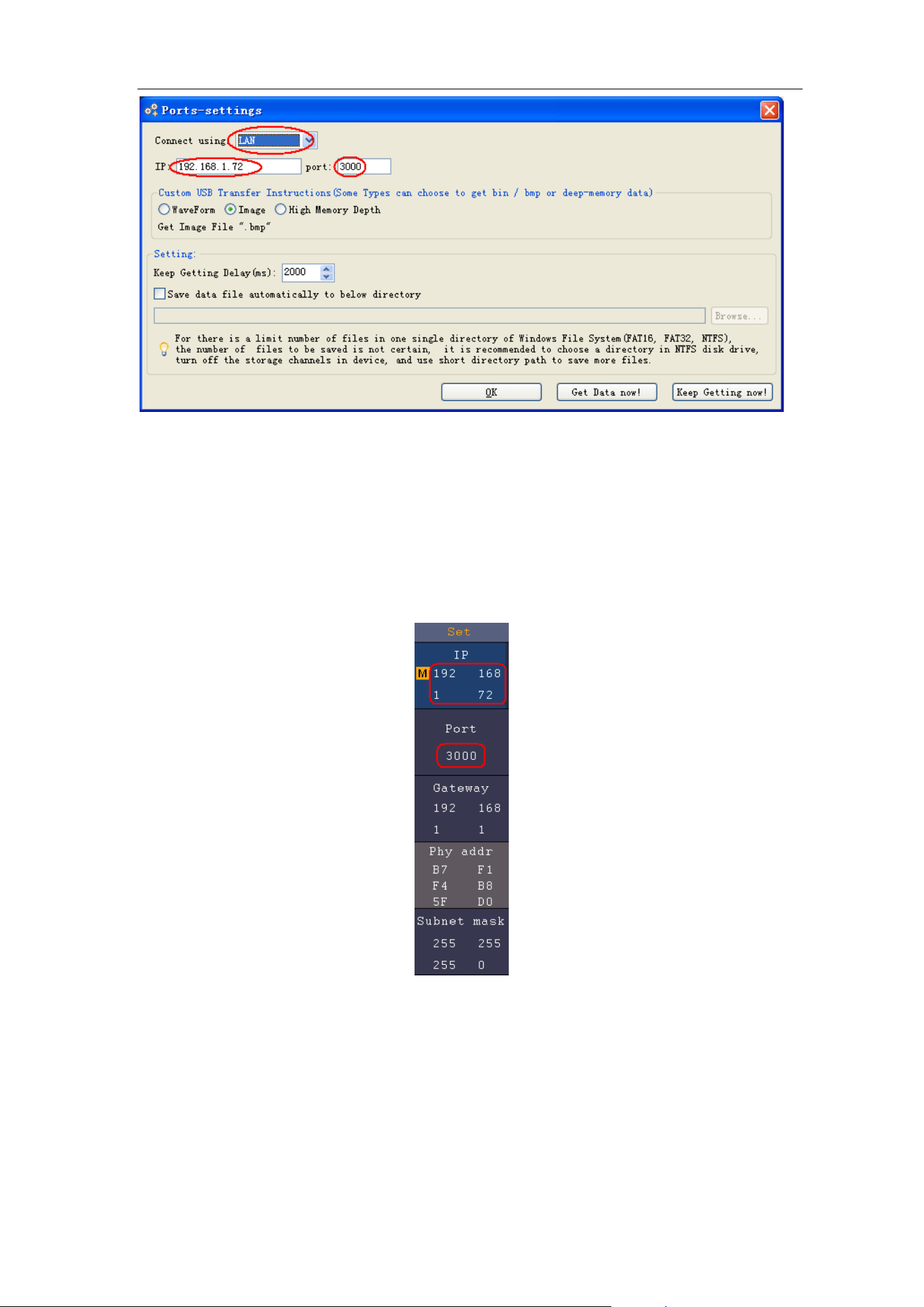
7.Communication with PC
118
Figure 7-3 Set the network parameters of the Oscilloscope Software
(4) Set the network parameters of the oscilloscope. In the oscilloscope, push
the Utility button. Select Function in the bottom menu. Select LAN Set in the
left menu. In the bottom menu, set the Type item as LAN, and select Set. In
the right menu, set IP and Port to the same value as the "Ports-settings" in the
software in step (3). Select Save set in the bottom menu, it prompts "Reset to
update the config". After resetting the oscilloscope, if you can get data normally
in the oscilloscope software, the connection is successful.
Figure 7-4 Set the network parameters of the oscilloscope
Connect through a router
(1) Connection. Use a LAN cable to connect the oscilloscope with a router, the
LAN port of the oscilloscope is in the right side panel; the computer should be
connected to the router too.
(2) Set the network parameters of the computer. Since the oscilloscope can
not support obtaining an IP address automatically, you should assign a static
IP address. The Default gateway and Subnet mask should be set according to
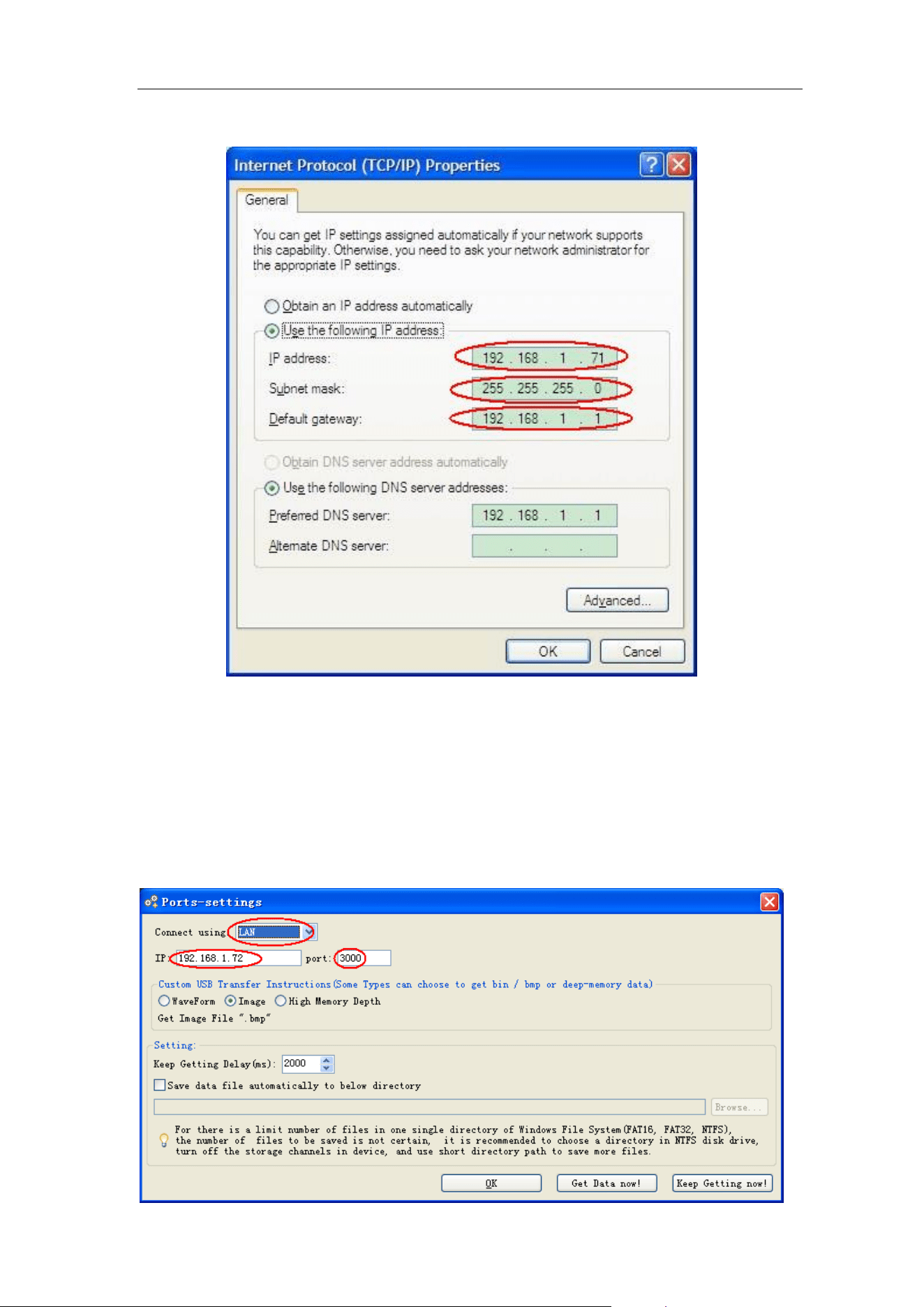
7.Communication with PC
119
the router. Here we set the IP address to 192.168.1.71, Subnet mask is
255.255.255.0, Default gateway is 192.168.1.1.
Figure 7-5 Set the network parameters of the computer
(3) Set the network parameters of the Oscilloscope Software. Run the
software on the computer; choose the "Ports-settings" of the
"Communications" menu item. Set "Connect using" to LAN. About the IP, the
first three bytes is same as the IP in the step (2), the last byte should be
different. Here, we set it to 192.168.1.72. The range of the port value is 0 -
4000, but the port which under 2000 is always used, so it is suggested to set it
to the value above 2000. Here, we set it to 3000.
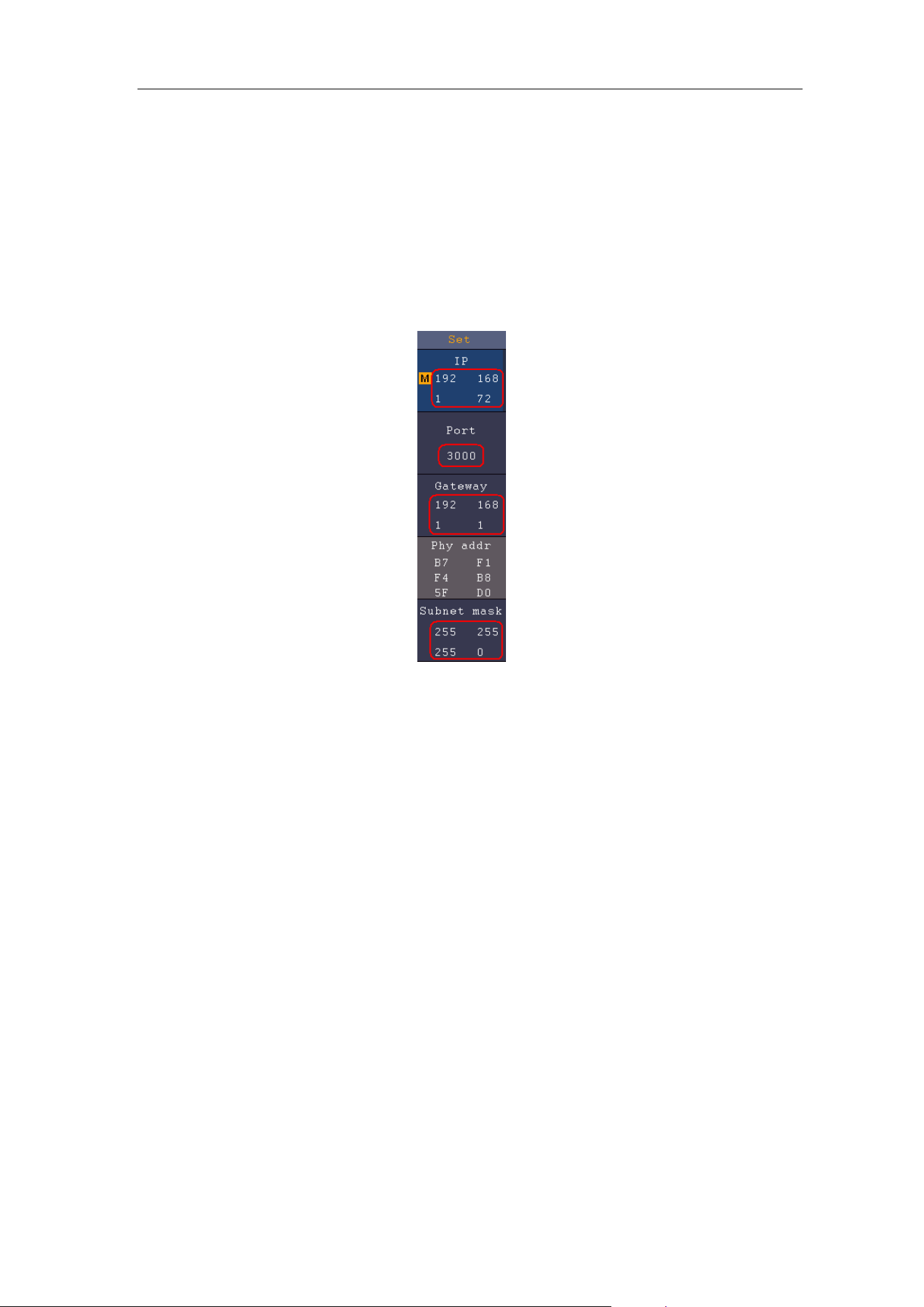
7.Communication with PC
120
Figure 7-6 Set the network parameters of the Oscilloscope Software
(4) Set the network parameters of the oscilloscope. In the oscilloscope, push
the Utility button. Select Function in the bottom menu. Select LAN Set in the
left menu. In the bottom menu, set the Type item as LAN, and select Set. In
the right menu, set IP and Port to the same value as the "Ports-settings" in the
software in step (3). The Netgate and Net mask should be set according to the
router. Select Save set in the bottom menu, it prompts "Reset to update the
config". After resetting the oscilloscope, if you can get data normally in the
oscilloscope software, the connection is successful.
Figure 7-7 Set the network parameters of the oscilloscope

8.Demonstration
121
8. Demonstration
Example 1: Measurement a Simple Signal
The purpose of this example is to display an unknown signal in the circuit, and
measure the frequency and peak-to-peak voltage of the signal.
1. Carry out the following operation steps for the rapid display of this
signal:
(1) Set the probe menu attenuation coefficient as 10X and that of the switch in
the probe switch as 10X (see "How to Set the Probe Attenuation
Coefficient" on P13).
(2) Connect the probe of Channel 1 to the measured point of the circuit.
(3) Push the Autoset button.
The oscilloscope will implement the Autoset to make the waveform optimized,
based on which, you can further regulate the vertical and horizontal divisions
till the waveform meets your requirement.
2. Perform Automatic Measurement
The oscilloscope can measure most of the displayed signals automatically. To
measure the period, the frequency of the CH1, following the steps below:
(1) Push the Measure front panel button to show the Measure menu.
(2) Select Add in the bottom menu.
(3) In the left Type menu, turn the M knob to select Period.
(4) In the right menu, select CH1 in the Source menu item.
(5) In the right menu, select Add. The period type is added.
(6) In the left Type menu, turn the M knob to select Frequency.
(7) In the right menu, select CH1 in the Source menu item.
(8) In the right menu, select Add. The frequency type is added.
The measured value will be displayed at the bottom left of the screen
automatically (see Figure 8-1).
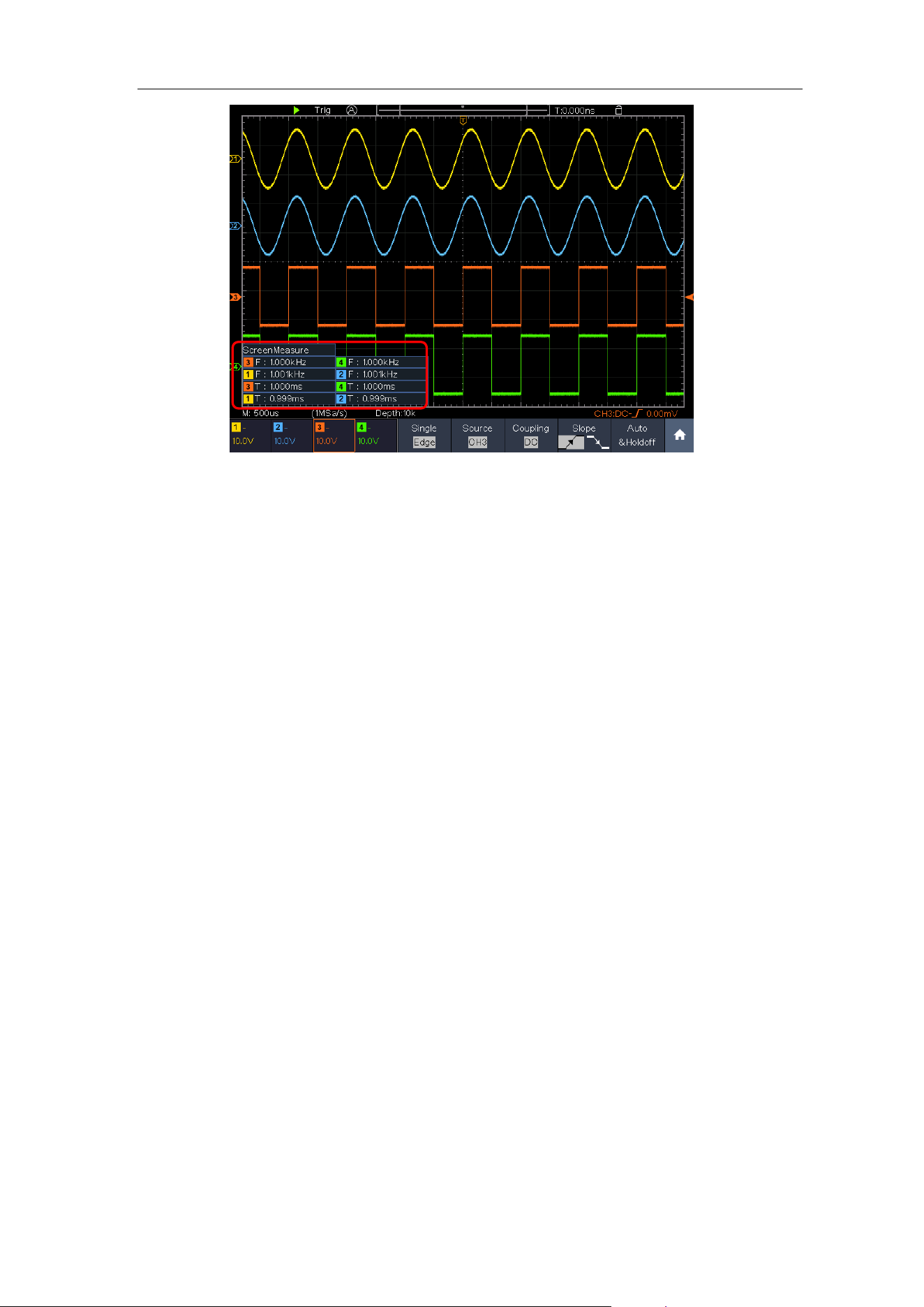
8.Demonstration
122
Figure 8-1 Measure period and frequency value for a given signal
Example 2: Gain of a Amplifier in a Metering Circuit
The purpose of this example is to work out the Gain of an Amplifier in a
Metering Circuit. First we use Oscilloscope to measure the amplitude of input
signal and output signal from the circuit, then to work out the Gain by using
given formulas.
Set the probe menu attenuation coefficient as 10X and that of the switch in the
probe as 10X (see "How to Set the Probe Attenuation Coefficient" on P13).
Connect the oscilloscope CH1 channel with the circuit signal input end and the
CH2 channel to the output end.
Operation Steps:
(1) Push the Autoset button and the oscilloscope will automatically adjust the
waveforms of the two channels into the proper display state.
(2) Push the Measure button to show the Measure menu.
(3) Select Add in the bottom menu.
(4) In the left Type menu, turn the M knob to select PK-PK.
(5) In the right menu, select CH1 in the Source menu item.
(6) In the right menu, select Add. The peak-to-peak type of CH1 is added.
(7) In the left Type menu, turn the M knob to select PK-PK.
(8) In the right menu, select CH2 in the Source menu item.
(9) In the right menu, select Add. The peak-to-peak type of CH2 is added.
(10) Read the peak-to-peak voltages of Channel 1 and Channel 2 from the
bottom left of the screen (see Figure 8-2).
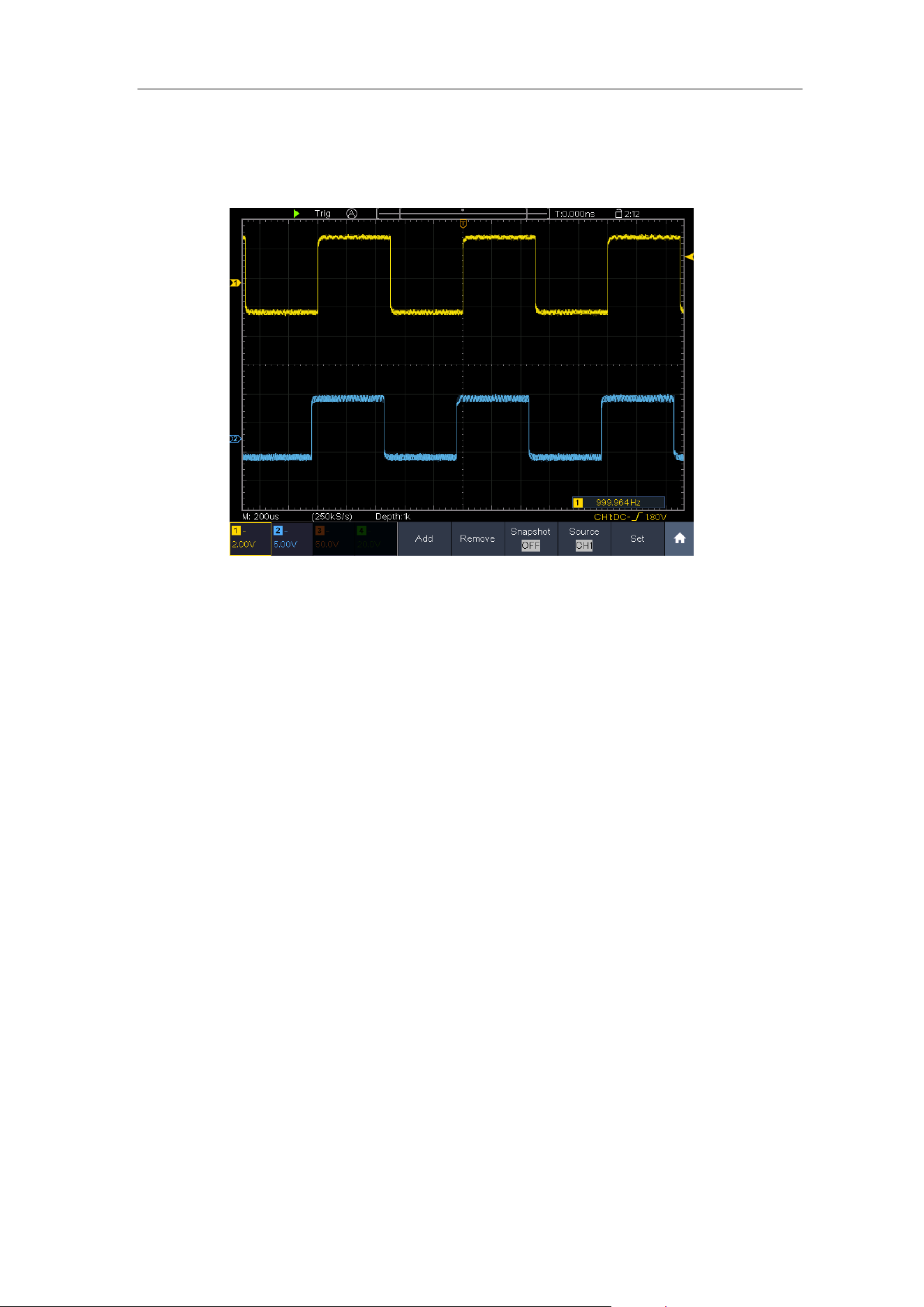
8.Demonstration
123
(11) Calculate the amplifier gain with the following formulas.
Gain = Output Signal / Input signal
Gain (db) = 20×log (gain)
Figure 8-2 Waveform of Gain Measurement
Example 3: Capturing a Single Signal
It's quite easy to use Digital Oscilloscope to capture non-periodic signal, such
as a pulse and burr etc. But the common problem is how to set up a trigger if
you have no knowledge of the signal? For example, if the pulse is the logic
signal of a TTL level, the trigger level should be set to 2 volts and the trigger
edge be set as the rising edge trigger. With various functions supported by our
Oscilloscope, user can solve this problem by taking an easy approach. First to
run your test using auto trigger to find out the closest trigger level and trigger
type, this helps user to make few small adjustments to achieve a proper trigger
level and mode. Here is how we achieve this.
The operation steps are as follows:
(1) Set the probe menu attenuation coefficient to 10X and that of the switch in
the probe to 10X (see "How to Set the Probe Attenuation Coefficient" on
P13).
(2) Push CH1 button to select CH1, adjust the Vertical Scale and Horizontal
Scale knobs to set up a proper vertical and horizontal ranges for the signal
to be observed.
(3) Push the Acquire button to display the Acquire menu.
(4) Select Acqu Mode in the bottom menu. Select Peak Detect in the right
menu.
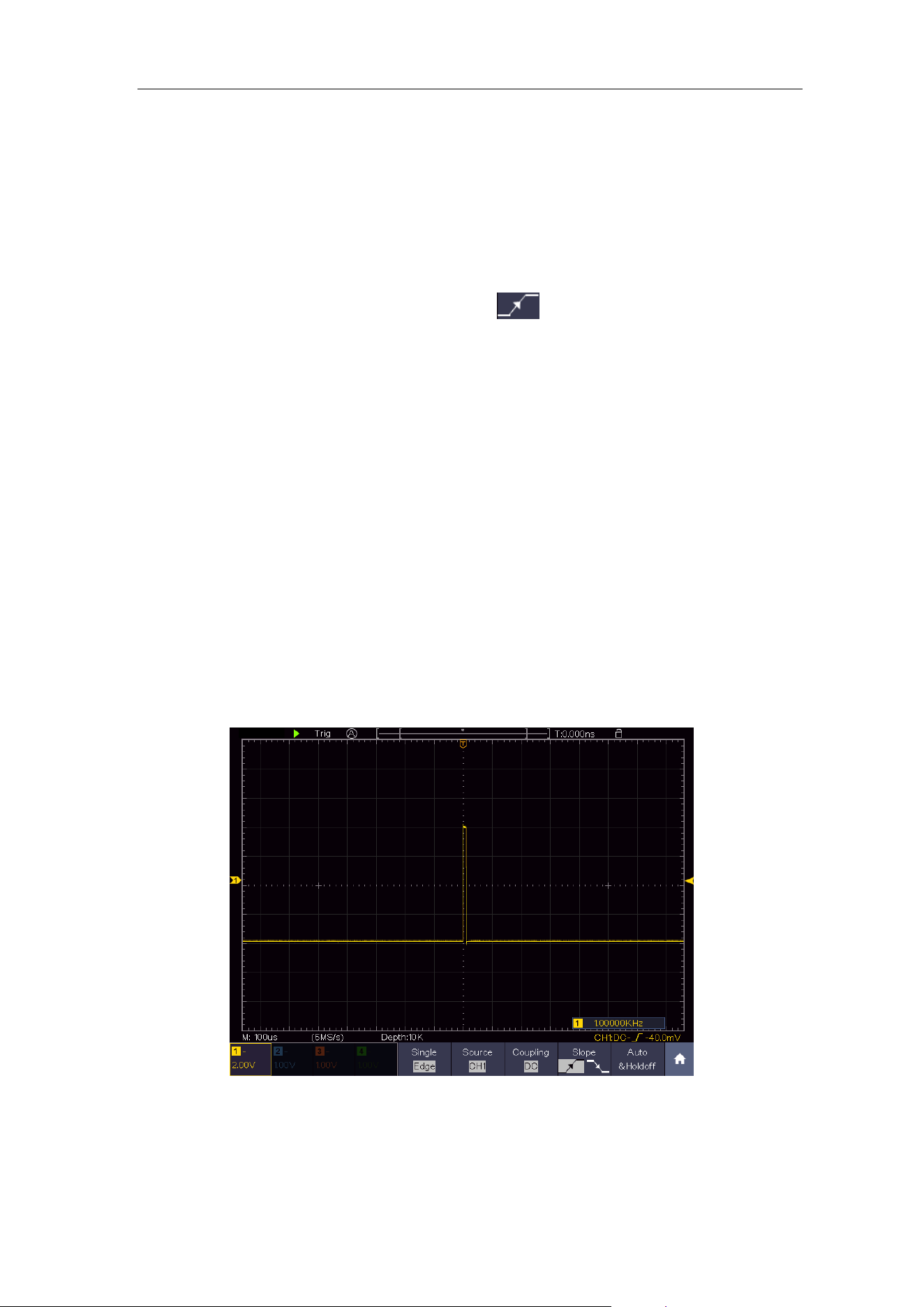
8.Demonstration
124
(5) Push the Trigger Menu button to display the Trigger menu.
(6) Select the first menu item in the bottom menu. Select Single in the right
menu.
(7) In the left menu, select Edge as the mode.
(8) Select Source in the bottom menu. Select CH1 in the right menu.
(9) Select Coupling in the bottom menu. Select DC in the right menu.
(10) In the bottom menu, select Slope as (rising).
(11) Turn the Trigger Level knob and adjust the trigger level to the roughly
50% of the signal to be measured.
(12) Check the Trigger State Indicator on the top of the screen, if it is not Ready,
push down the Run/Stop button and start acquiring, wait for trigger to
happen. If a signal reaches to the set trigger level, one sampling will be
made and then displayed in the screen. By using this approach, a random
pulse can be captured easily. For instance, if we want to find a burst burr of
high amplitude, set the trigger level to a slightly higher value of the average
signal level, push the Run/Stop button and wait a trigger. Once there is a
burr occurring, the instrument will trigger automatically and record the
waveform during the period around the trigger time. By turning the
Horizontal Position knob in the horizontal control area in the panel, you
can change the horizontal triggering position to obtain the negative delay,
making an easy observation of the waveform before the burr occurs (see
Figure 8-3).
Figure 8-3 Capturing a Single Signal
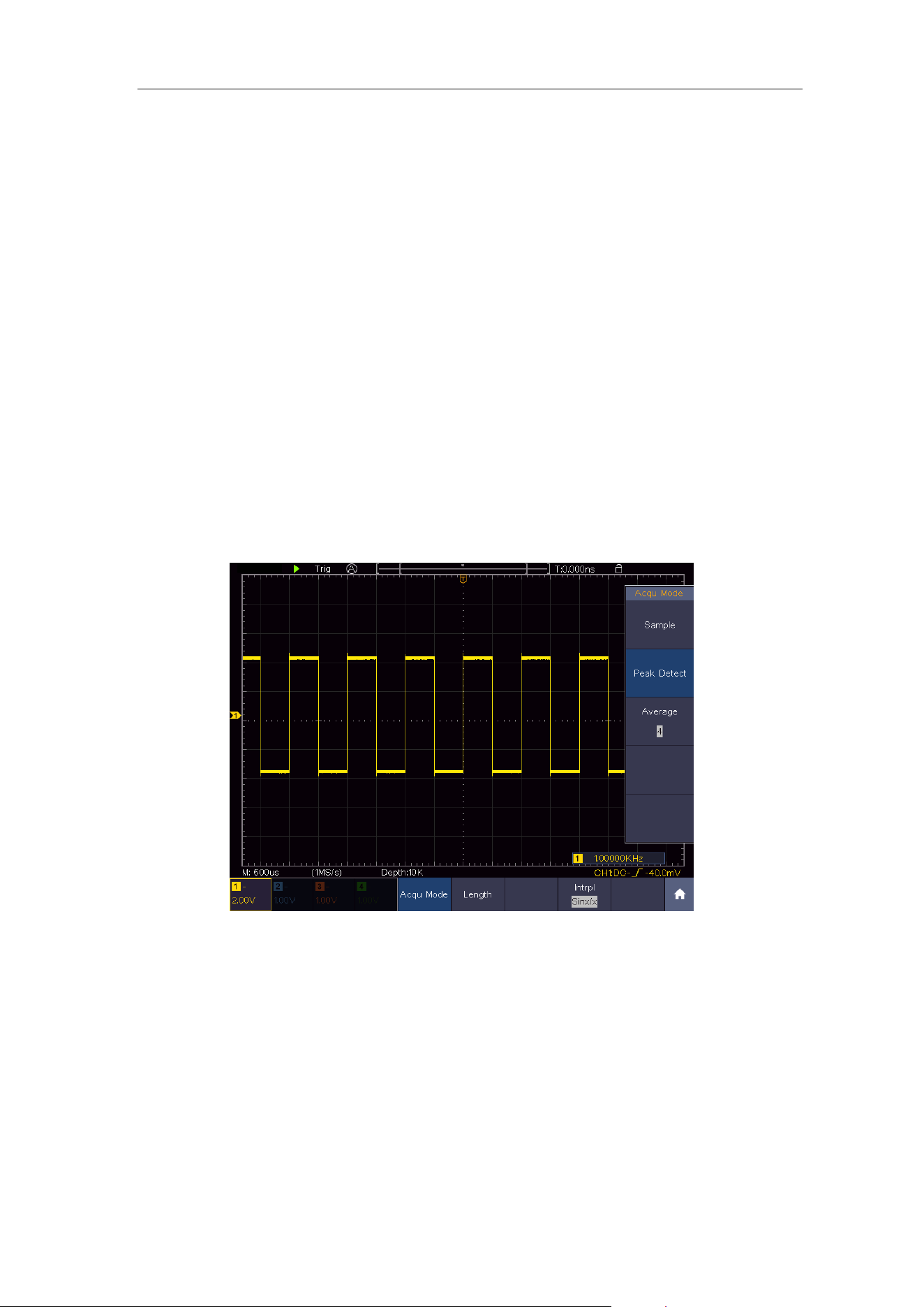
8.Demonstration
125
Example 4: Analyze the Details of a Signal
Noise is very common inside most of the electronic signal. To find out what's
inside the noise and reduce the level of noise is very important function our
oscilloscope is capable to offer.
Noise Analysis
The level of noise sometime indicates a failure of electronic circuit. The Peak
Detect functions acts an important role to help you to find out the details of
these noise. Here is how we do it:
(1) Push the Acquire button to display the Acquire menu.
(2) Select Acqu Mode in the bottom menu.
(3) Select Peak Detect in the right menu.
The signal displayed on the screen containing some noise, by turning on Peak
Detect function and changing time base to slow down the incoming signal, any
peaks or burr would be detected by the function (see Figure 8-4).
Figure 8-4 Signal with Noises
Separate Noises from the Signal
When focusing on signal itself, the important thing is to reduce the noise level
as lower as possible, this would enable user to have more details about the
signal. The Average function offered by our Oscilloscope can help you to
achieve this.
Here are the steps for how to enable Average function.
(1) Push the Acquire button to display the Acquire menu.
(2) Select Acqu Mode in the bottom menu.
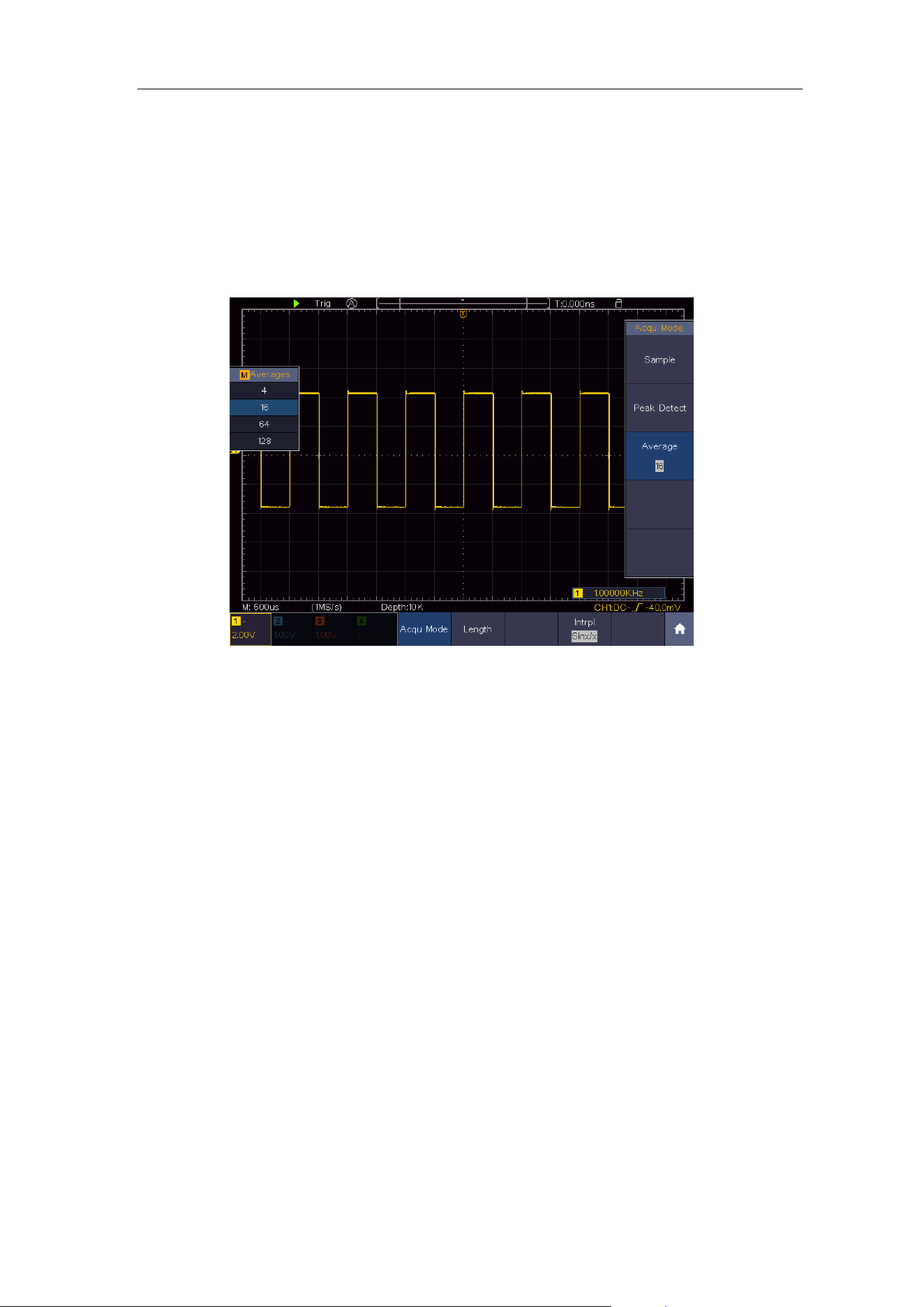
8.Demonstration
126
(3) Select Average in the right menu, turn the M knob and observe the
waveform obtained from averaging the waveforms of different average
number.
User would see a much reduced random noise level and make it easy to see
more details of the signal itself. After applying Average, user can easily identify
the burrs on the rising and falling edges of some part of the signal (see Figure
8-5).
Figure 8-5 Reduce Noise level by using Average function
Example 5: Application of X-Y Function
Examine the Phase Difference between Signals of two Channels
Example: Test the phase change of the signal after it passes through a circuit
network.
X-Y mode is a very useful when examining the Phase shift of two related
signals. This example takes you step by step to check out the phase change of
the signal after it passes a specified circuit. Input signal to the circuit and
output signal from circuit are used as source signals.
For the examination of the input and output of the circuit in the form of X-Y
coordinate graph, please operate according to the following steps:
(1) Set the probe menu attenuation coefficient for 10X and that of the switch in
the probe for 10X (see "How to Set the Probe Attenuation Coefficient" on
P13).
(2) Connect the probe of channel 1 to the input of the network and that of
Channel 2 to the output of the network.
(3) Push the CH1 to CH4 button to turn on CH1 and CH2, turn off CH3 and
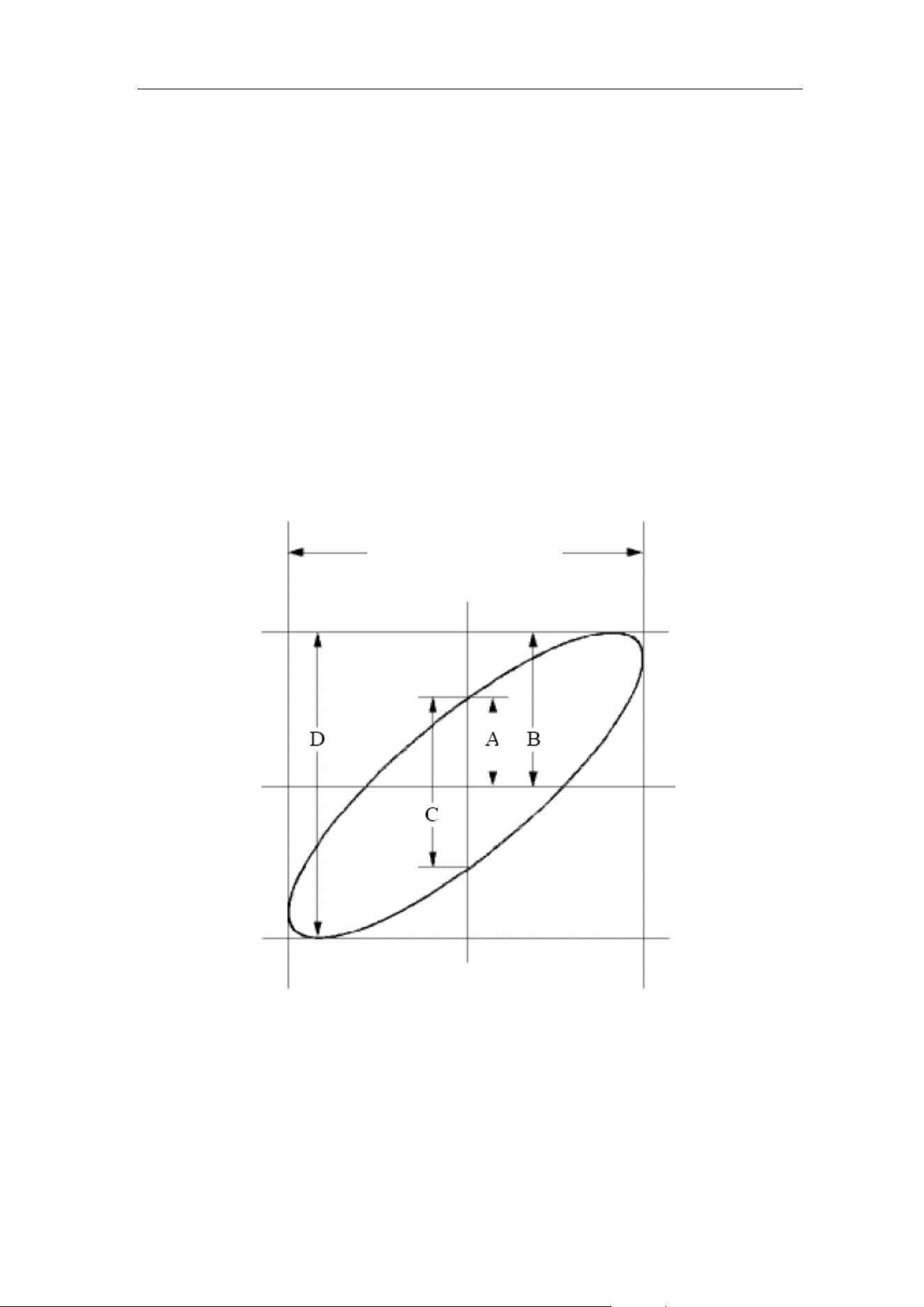
8.Demonstration
127
CH4.
(4) Push the Autoset button, with the oscilloscope turning on the signals of
the two channels and displaying them in the screen.
(5) Push CH1 button to select CH1, turn the Vertical Scale knob, and then
push CH2 button to select CH2, turn the Vertical Scale knob, making the
amplitudes of two signals equal in the rough.
(6) Push the Display button and recall the Display menu.
(7) Select XY Mode in the bottom menu. Select Enable as ON in the right
menu. The oscilloscope will display the input and terminal characteristics
of the network in the Lissajous graph form.
(8) Turn the Vertical Scale and Vertical Position knobs, optimizing the
waveform.
(9) With the elliptical oscillogram method adopted, observe and calculate the
phase difference (see Figure 8-6).
Figure 8-6 Lissajous Graph
Based on the expression sin (q) =A/B or C/D, thereinto, q is the phase
difference angle, and the definitions of A, B, C, and D are shown as the graph
above. As a result, the phase difference angle can be obtained, namely, q =±
arcsin (A/B) or ± arcsin (C/D). If the principal axis of the ellipse is in the I and
III quadrants, the determined phase difference angel should be in the I and IV
quadrants, that is, in the range of (0 - π /2) or (3π / 2 - 2π). If the principal axis
of the ellipse is in the II and IV quadrants, the determined phase difference
The signal must be
centered and kept in the
horizontal direction.
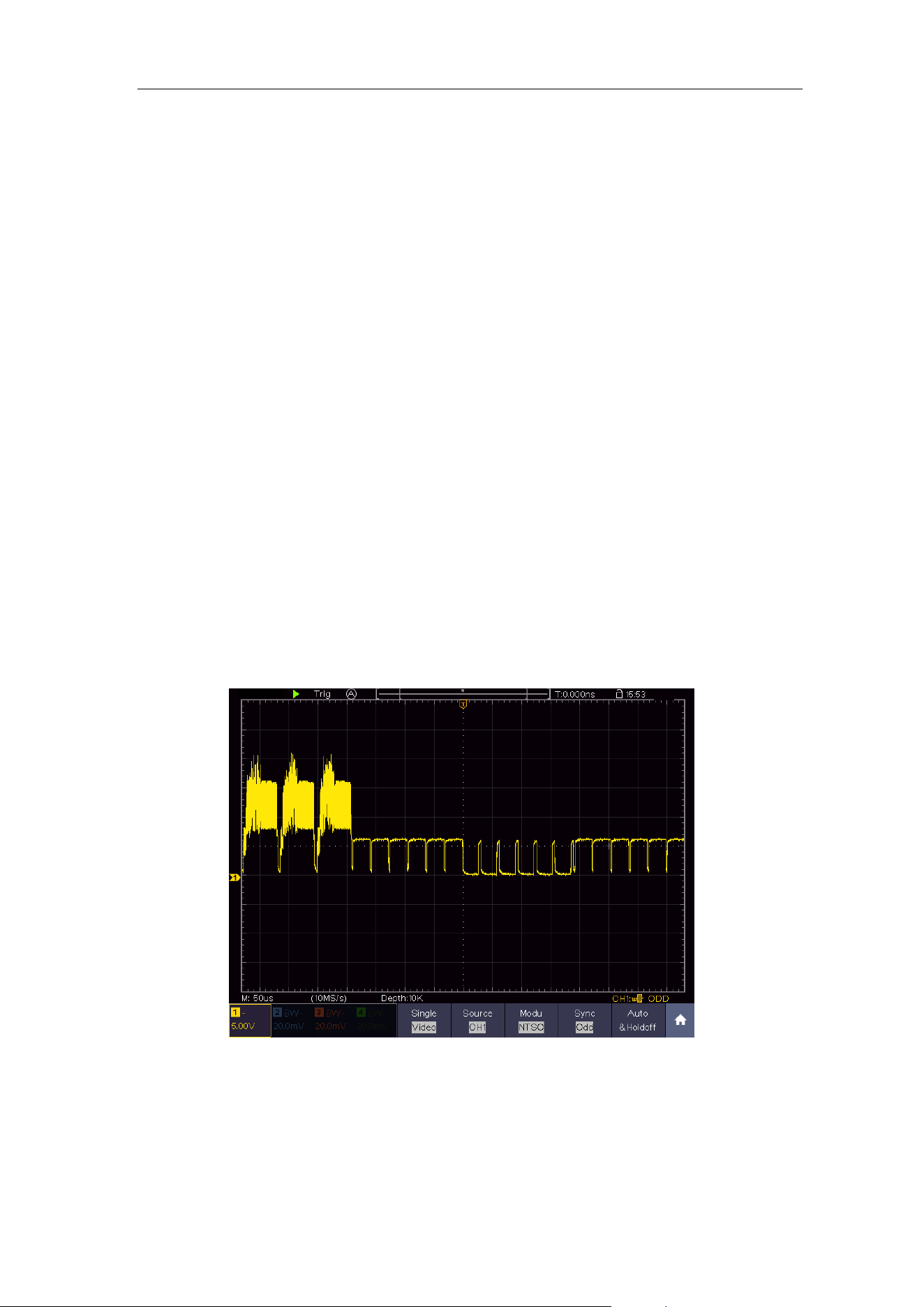
8.Demonstration
128
angle is in the II and III quadrants, that is, within the range of (π / 2 - π) or (π -
3π /2).
Example 6: Video Signal Trigger
Observe the video circuit of a television, apply the video trigger and obtain the
stable video output signal display.
Video Field Trigger
For the trigger in the video field, carry out operations according to the following
steps:
(1) Push the Trigger Menu button to display the trigger menu.
(2) Select the first menu item in the bottom menu. Select Single in the right
menu.
(3) In the left menu, select Video as the mode.
(4) Select Source in the bottom menu. Select CH1 in the right menu.
(5) Select Modu in the bottom menu. Select NTSC in the right menu.
(6) Select Sync in the bottom menu. Select Field in the right menu.
(7) Turn the Vertical Scale, Vertical Position and Horizontal Scale knobs to
obtain a proper waveform display (see Figure 8-7).
Figure 8-7 Waveform Captured from Video Field Trigger

9.Troubleshooting
129
9. Troubleshooting
1. Oscilloscope is powered on but no Display.
⚫ Check whether the power connection is connected properly.
⚫ Check whether the fuse which is beside the AC power input jack is blew
(the cover can be pried open with a straight screwdriver).
⚫ Restart the instrument after completing the checks above.
⚫ If the problem persists, please contact us and we will be under your
service.
2. After acquiring the signal, the waveform of the signal is not displayed in
the screen.
⚫ Check whether the probe is properly connected to the signal connecting
wire.
⚫ Check whether the signal connecting wire is correctly connected to the
BNC (namely, the channel connector).
⚫ Check whether the probe is properly connected with the object to be
measured.
⚫ Check whether there is any signal generated from the object to be
measured (the trouble can be shot by the connection of the channel from
which there is a signal generated with the channel in fault).
⚫ Make the signal acquisition operation again.
3. The measured voltage amplitude value is 10 times or 1/10 of the actual
value.
Look at the attenuation coefficient for the input channel and the attenuation
ration of the probe, to make sure they are match (see "How to Set the Probe
Attenuation Coefficient" on P13).
4. There is a waveform displayed, but it is not stable.
⚫ Check whether the Source item in the TRIG MODE menu is in conformity
with the signal channel used in the practical application.
⚫ Check on the trigger Type item: The common signal chooses the Edge
trigger mode for Type and the video signal the Video. Only if a proper
trigger mode is applied, the waveform can be displayed steadily.
⚫ Try to change the trigger coupling into the high frequency suppress to
smooth the high frequency noise triggered by the interference.
5. No Display Responses to the Push-down of Run/Stop.
Check whether Normal or Single is chosen for Polarity in the TRIG MODE
menu and the trigger level exceeds the waveform range.
If it is, make the trigger level is centered in the screen or set the trigger mode as
Auto. In addition, with the Autoset button pressed, the setting above can be
completed automatically.
6. The displaying of waveform seems getting slow after increasing
AVERAGE value in Acqu Mode (see "How to Implement Sampling Setup" on
P60 ), or a longer duration is set in the Persist in Display (see "Persist" on
P63).
It's normal as the Oscilloscope is working hard on many more data points.
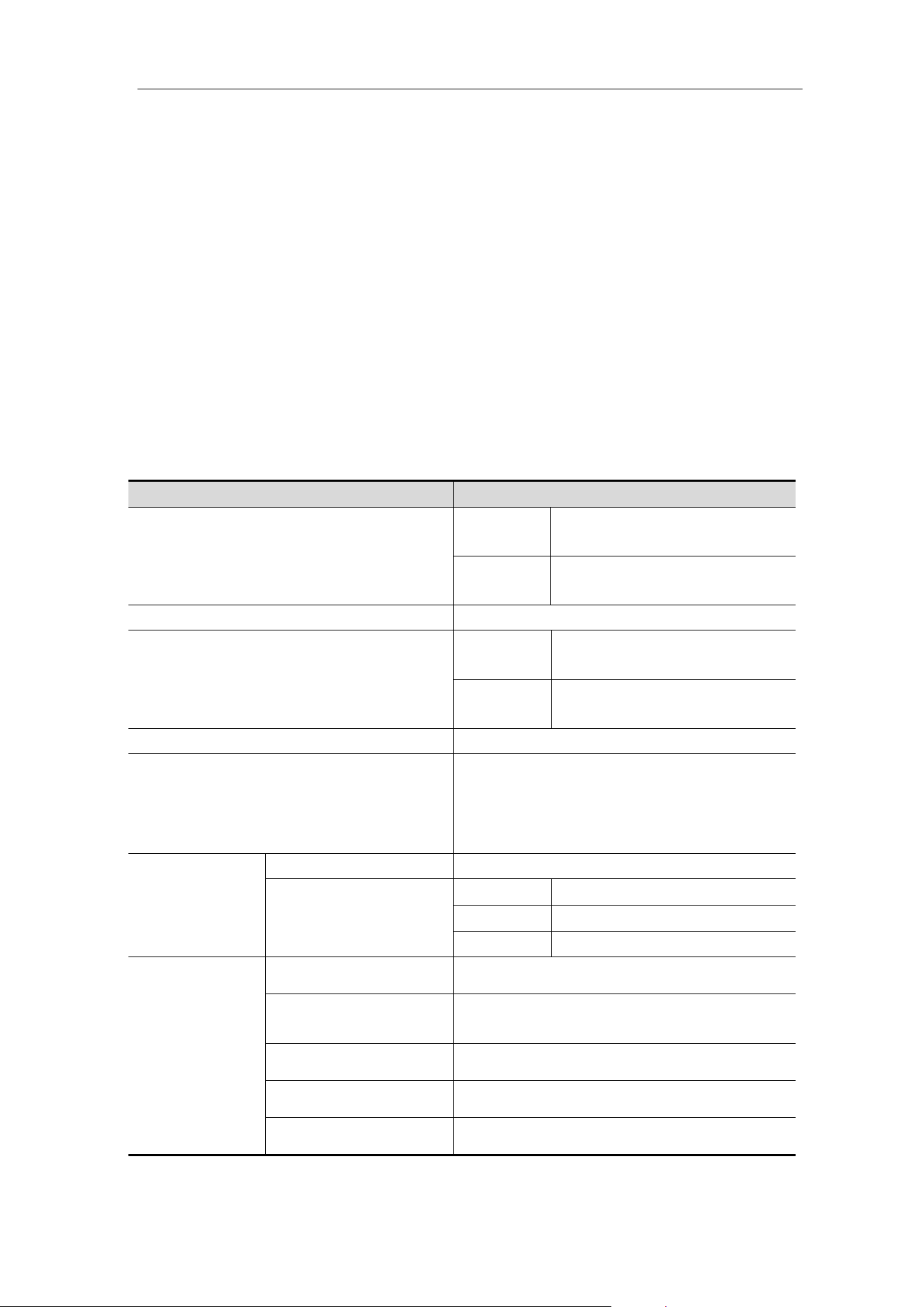
10.Technical Specifications
130
10. Technical Specifications
Unless otherwise specified, the technical specifications applied are for the oscilloscopes only,
and Probes attenuation set as 10X. Only if the oscilloscope fulfills the following two conditions
at first, these specification standards can be reached.
◼ This instrument should run for at least 30 minutes continuously under the
specified operating temperature.
◼ If change of the operating temperature is up to or exceeds 5℃, do a
"Self-calibration" procedure (see "How to Implement Self-calibration" on
P15).
All specification standards can be fulfilled, except one(s) marked with the word
"Typical".
Oscilloscope
Performance Characteristics
Instruction
Bandwidth
XDS4504
XDS4502
500 MHz
XDS4354
XDS4352
350 MHz
Vertical Resolution (A/D)
8 bits
Channel
XDS4502
XDS4352
2
XDS4504
XDS4354
4
Waveform Capture Rate
600,000 wfms/s
Multi-level Gray Scale Display &
Color Temperature Display
(Use gray scale to indicate frequency of
occurrence, where frequently occurring
waveform are bright.)
Support
Acquisition
Mode
Normal, Peak detect, Averaging
Sample rate
(real time)
Four CH
1 GSa/s
Dual CH*
2.5 GSa/s
Single CH
5 GSa/s
Input
Input coupling
DC, AC , Ground
Input impedance
1 MΩ±2%, in parallel with 15 pF±5 pF,
50Ω±2%
Input coupling
0.001X - 1000X, step by 1 – 2 - 5
Max input voltage
400 V (DC + AC Peak)
Bandwidth limit
20 MHz, full bandwidth
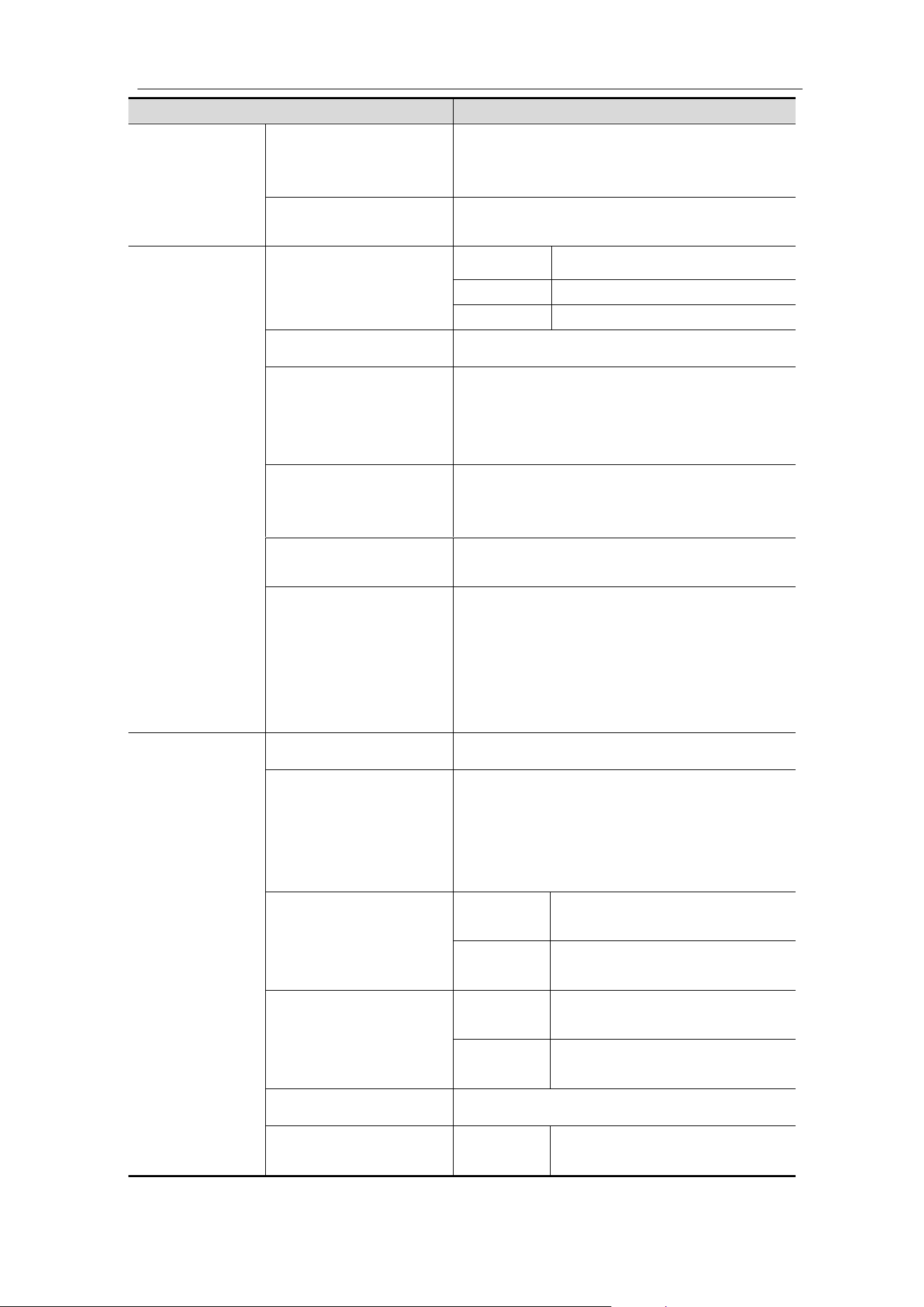
10.Technical Specifications
131
Performance Characteristics
Instruction
Channel –channel
isolation
50Hz: 100 : 1
10MHz: 40 : 1
500MHz: 20 : 1
Time delay between
channel(typical)
150ps
Horizontal
System
Sampling rate range
Four CH
0.05 Sa/s - 1 GSa/s
Dual CH*
0.05 Sa/s – 2.5 GSa/s
Single CH
0.05 Sa/s - 5 GSa/s
Interpolation
(Sinx)/x, x
Max Record length
When four channels are turned on, the
max record length is 100M; and max
200M for two channels; max 400M for
one channel.
Scanning speed
(S/div)
500ps/div - 1000s/div,
step by 1 – 2 - 5
Sampling rate / relay
time accuracy
±2.5 ppm max (Ta = +25℃±5℃)
Interval(△T)
accuracy
(DC - 100MHz)
Single:
±(1 interval time+1 ppm×reading+0.6
ns);
Average>16:
±(1 interval time +1 ppm×reading+0.4
ns)
Vertical
system
Sensitivity
1 mV/div - 10 V/div
Displacement
±1V(1mV/div);
±2V(2mV/div~50mV/div);
±20V(100mV/div~500mV/div);
±200V(1V/div~5V/div);
±100V(10V/div);
Analog bandwidth
XDS4504
XDS4502
500 MHz
XDS4354
XDS4352
350 MHz
Single bandwidth
XDS4504
XDS4502
DC to 500 MHz
XDS4354
XDS4352
DC to 350 MHz
Low Frequency
≥10 Hz (On the BNC )
Rise time (at input,
Typical)
XDS4504
XDS4502
≤0.7 ns
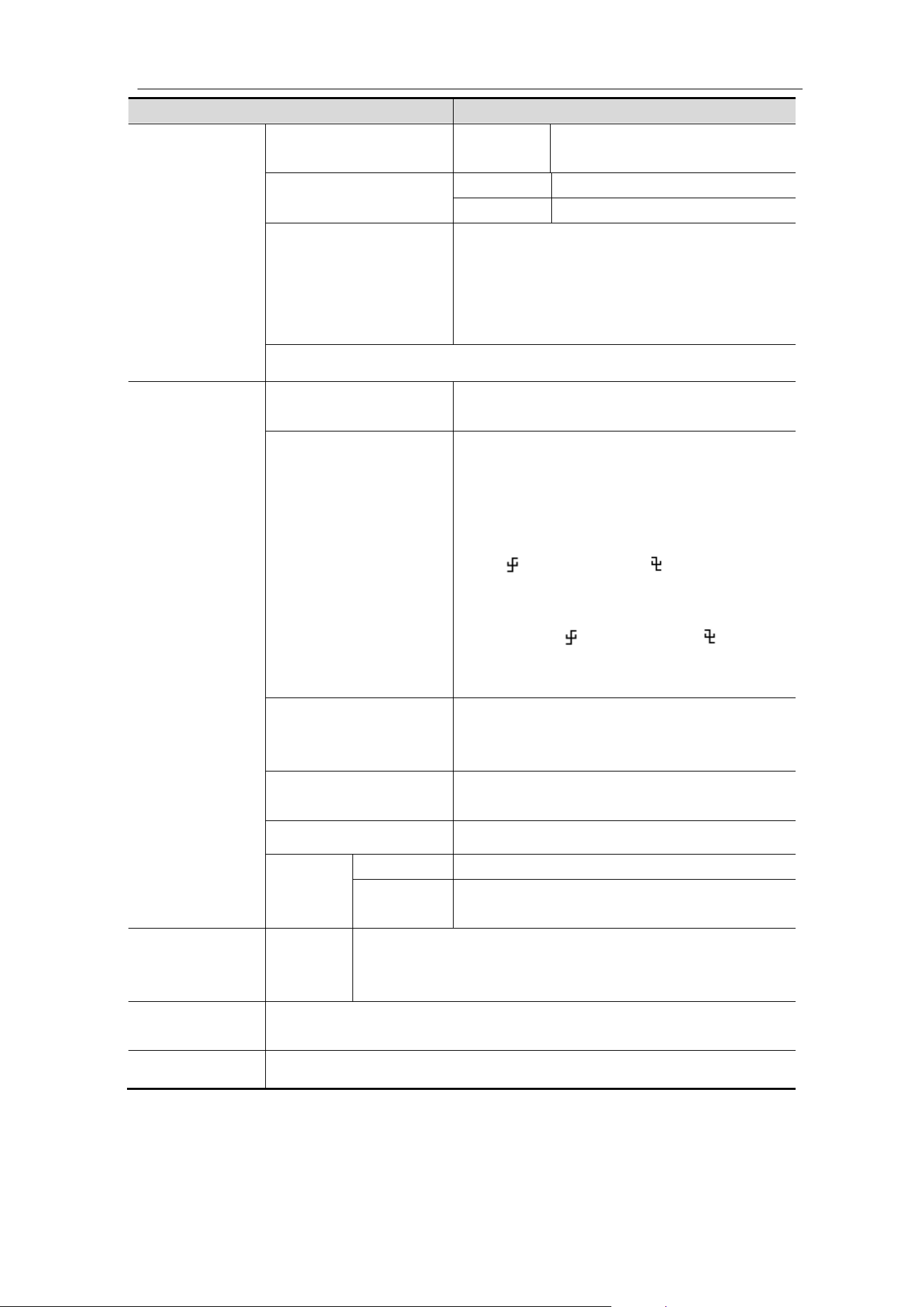
10.Technical Specifications
132
Performance Characteristics
Instruction
XDS4354
XDS4352
≤ 1 ns
DC gain accuracy
1 mV
±3%
≥2 mV
±2%
DC accuracy
(average)
Delta Volts between any two averages of
≥16 waveforms acquired with the same
scope setup and ambient conditions
(△V):
±(3% rdg + 0.05 div)
Waveform inverted ON/OFF
Measurement
Cursor
△V, △T, △T&△V between cursors,
auto cursor
Automatic
Period, Frequency, Mean, PK-PK, RMS,
Max, Min, Top, Base, Amplitude,
Overshoot, Preshoot, Rise Time, Fall
Time, +Pulse Width, -Pulse Width,
+Duty Cycle, -Duty Cycle, Delay
A→B , Delay A→B , Cycle RMS,
Cursor RMS, Screen Duty, FRR、FRF、
FFR、FFF、LRR、LRF、LFR、LFF、
Phase A→B , Phase A→B , +Pulse
Count, -Pulse Count, Rise Edge Count,
Fall Edge Count, Area, and Cycle Area.
Waveform Math
+, -, *, / ,FFT, FFTrms, Intg, Diff, Sqrt,
User Defined Function, digital filter (low
pass, high pass, band pass, band reject)
Decoding Type
(optional)
UART/RS232, I
2
C, SPI, CAN
Waveform storage
100 waveforms
Lissajous
figure
Bandwidth
Full bandwidth
Phase
difference
±3 degrees
Communicati
on port
Standard
USB Host, USB Device; Trig Out(Pass/Fail); LAN
port; VGA port; EXT Trig In
Printer
Compatibility
PictBridge
Counter
Support
*(Only applicable to 4-channel models)
Max Sample rate (real time) for Dual CH should meet either following condition:
⚫ CH1&CH3 on, CH2&CH4 off;
⚫ CH2&CH4 on, CH1&CH3 off.
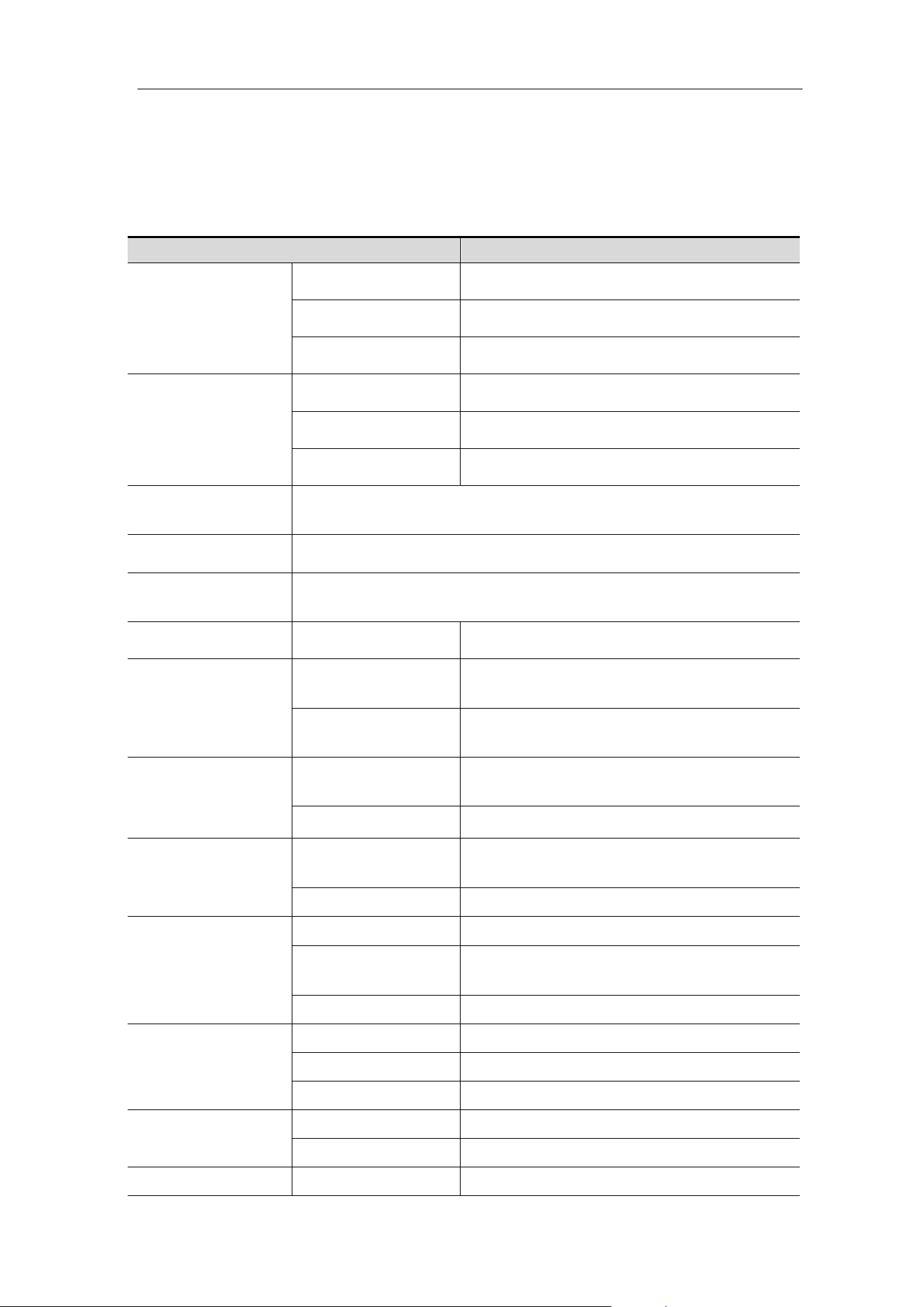
10.Technical Specifications
133
Trigger
Performance Characteristics
Instruction
Trigger level
range
Internal
±5 div from the screen center
EXT
±2V
EXT/5
±10V
Trigger level
Accuracy (typical)
Internal
±0.3 div
EXT
±(10mV+6% * value)
EXT/5
±(50mV+6% * value)
Trigger
displacement
According to Record length and time base
Trigger Holdoff
range
100 ns – 10 s
50% level setting
(typical)
Input signal frequency ≥ 50 Hz
Edge trigger
slope
Rising, Falling
Video Trigger
Modulation
Support standard NTSC, PAL and
SECAM broadcast systems
Line number
range
1-525 (NTSC) and 1-625
(PAL/SECAM)
Pulse trigger
Trigger condition
Positive pulse:>, <, =
Negative pulse:>, <, =
Pulse Width range
30 ns to 10 s
Slope Trigger
Trigger condition
Positive pulse:>, <, =
Negative pulse:>, <, =
Time setting
30 ns to 10 s
Runt Trigger
Polarity
Positive, Negative
Pulse Width
Condition
>, =, <
Pulse Width
Range
30 ns to 10 s
Windows Trigger
Polarity
Positive, Negative
Trigger Position
Enter, Exit, Time
Windows Time
30 ns to 10 s
Timeout Trigger
Edge Type
Rising, Falling
Idle Time
30 ns to 10 s
Nth Edge Trigger
Edge Type
Rising, Falling
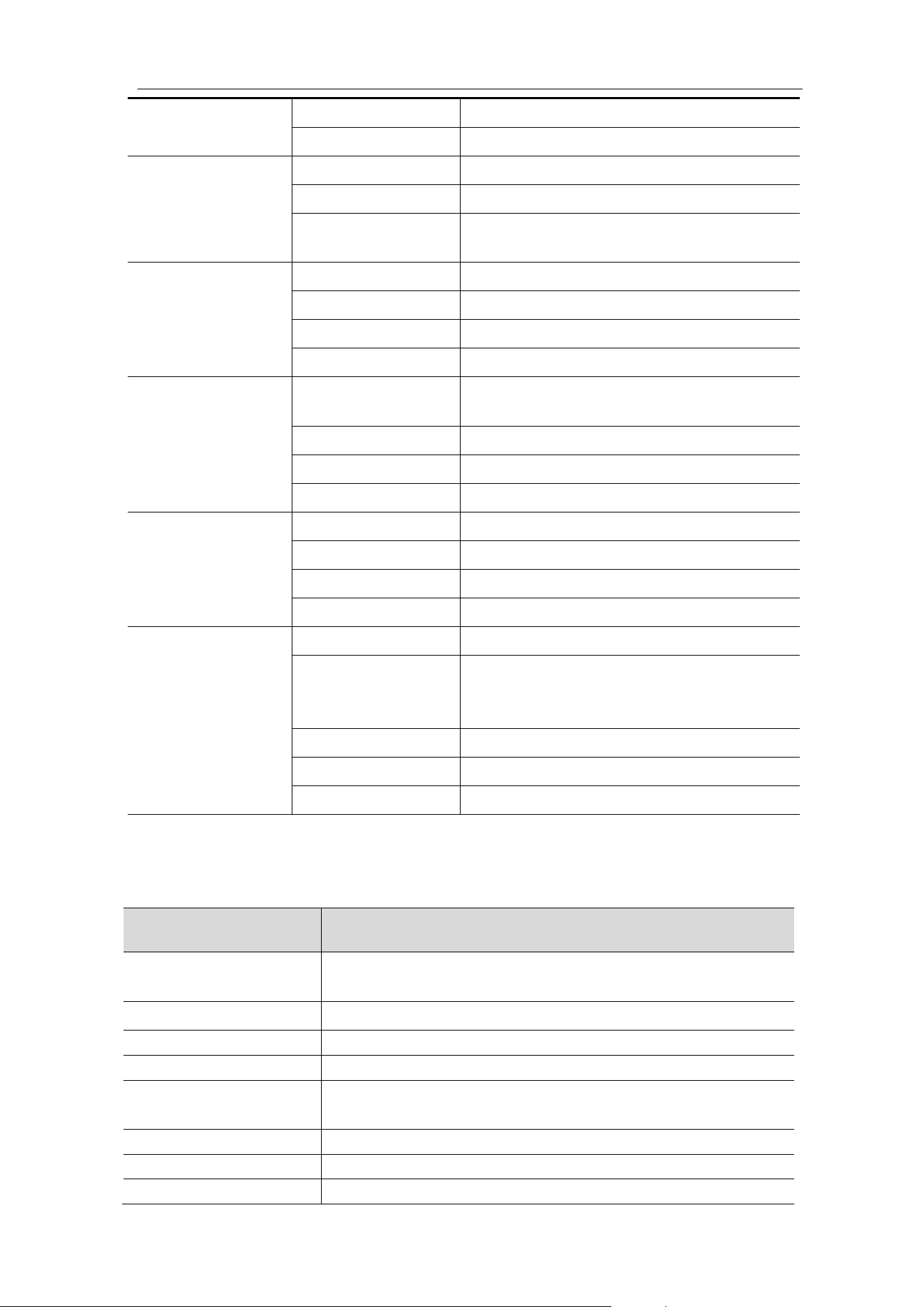
10.Technical Specifications
134
Idle Time
30 ns to 10 s
Edge Number
1 to 128
Logic Trigger
Logic Mode
AND, OR, XNOR, XOR
Input Mode
H, L, X, Rising, Falling
Output Mode
Goes True, Goes False, Is True >,
Is True <, Is True =
UART/RS232
Trigger
Polarity
Normal, Inverted
Trigger Condition
Start, Error, Check Error, Data
Baud Rate
Common, Custom
Data Bits
5 bit, 6 bit, 7 bit, 8 bit
I2C Trigger
Trigger Condition
Start, Restart, Stop, ACK Lost,
Address, Data, Addr/Data
Address Bits
7 bit, 8 bit, 10 bit
Address Range
0 to 127, 0 to 255, 0 to 1023
Byte Length
1 to 5
SPI Trigger
Trigger Condition
Timeout
Timeout Value
30 ns to 10 s
Data Bits
4 bit to 32 bit
Data Line Setting
H, L, X
CAN Trigger
(optional)
Signal Type
CAN_H, CAN_L, TX, RX
Trigger Condition
Start of Frame, Type of Frame,
Identifier, Data, ID & Data, End of
Frame, Missing Ack, Bit Stuffing Error
Baud Rate
Common, Custom
Sample Point
5% to 95%
Frame Type
Data, Remote, Error, Overload
Waveform Generator
Performance
Characteristics
Instruction
Max Frequency
Output
50 MHz
Sample Rate
250 MSa/s
Channel
1
Vertical Resolution
14 bits
Amplitude Range
2mVpp - 5Vpp(≦50MHz)
2mVpp - 20Vpp(≦25MHz)
Waveform length
16K
Output DC and offset
Vpp≤5V/±2.5V(max);Vpp>5V/±10V(max)
Standard Waveforms
Sine, Square, Ramp, and Pulse

10.Technical Specifications
135
Arbitrary Waveforms
Exponential Rise, Exponential Fall, Sin(x)/x, Step
Wave, Noise, and others, total 46 built-in waveforms,
and user-defined arbitrary waveform
10.Technical Specifications
136
Multimeter (Optional)
Performance
Characteristics
Instruction
Full scale
reading
4½ digits (Max 20000 – count)
Diode
0 V - 2 V
Input
impedance
≥10 MΩ
On/Off
measurement
<50 beeping
Capacitance
2nF – 20mF: ±(4%±10 digit)
Voltage
DCV: 20mV,200mV: ±(0.5%±10digit), 2V, 20V,
200V: ±(0.3%±5digit), 1000V: ±(0.5%±5digit)
ACV: 200mV, 2V, 20V, 200V: ±(0.8%±10digit)
750V: ±(1%±10digit)
Frequency: 40Hz - 400Hz
Current
DCA: 20A: ±(2%±10digit)
ACA: 20A: ±(2.5%±10digit)
Impedance
200Ω~2MΩ: ±(0.8%±10digit),20MΩ: ±(1%±10digit)
100MΩ: ±(5%±10digit)
General Technical Specifications
Display
Display Type
10.4" Colored LCD (Liquid Crystal Display)
Display Resolution
800 (Horizontal) × 600 (Vertical) Pixels
Display Colors
65536 colors, TFT screen
Output of the Probe Compensator
Output Voltage
(Typical)
About 3.3 V, with the Peak-to-Peak voltage ≥1 MΩ.
Frequency (Typical)
Square wave of 1 KHz
Power
Mains Voltage
100V – 240 VACRMS, 50/60 Hz, CAT Ⅱ
Power Consumption
<65 W
Fuse
2 A, T class, 250 V
Environment
Temperature
Working temperature: 0 ℃ - 40 ℃
Storage temperature: -20 ℃ - 60 ℃
Relative Humidity
≤ 90%
Height
Operating: 3,000 m

10.Technical Specifications
137
Non-operating: 15,000 m
Cooling Method
Fan cooling
Mechanical Specifications
Dimension
422 mm × 226 mm × 135 mm (L*H*W)
Weight
Approx. 5 kg (without accessories)
Interval Period of Adjustment:
One year is recommended for the calibration interval period.
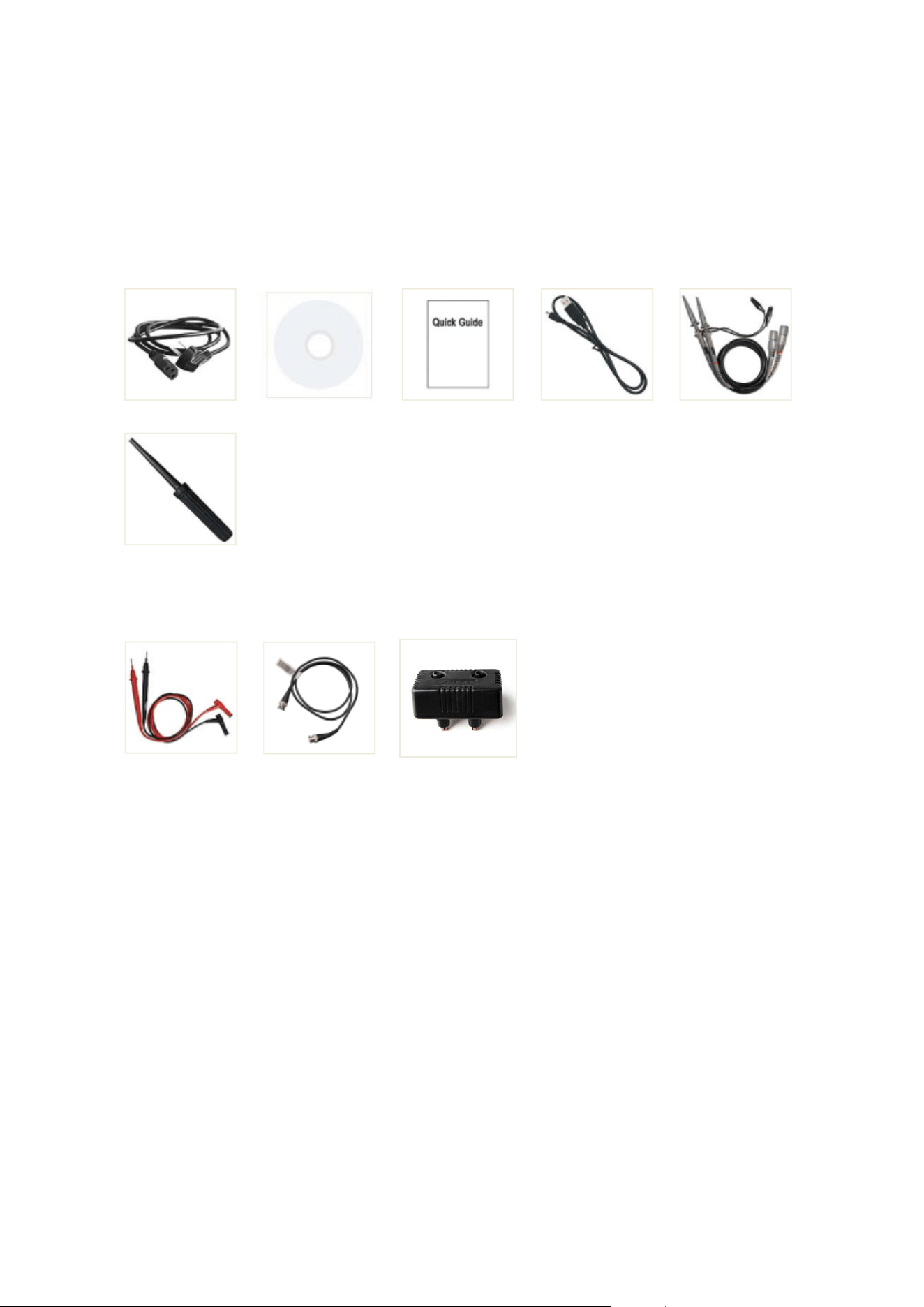
11.Appendix
138
11. Appendix
Appendix A: Enclosure
(The accessories subject to final delivery.)
Standard Accessories:
Power Cord
CD Rom
Quick Guide
USB Cable
Probe
Probe Adjust
Options:
Multimeter Lead
Q9
Current Ext
Module
Appendix B: General Care and Cleaning
General Care
Do not store or leave the instrument where the liquid crystal display will be
exposed to direct sunlight for long periods of time.
Caution: To avoid any damage to the instrument or probe, do not exposed it to
any sprays, liquids, or solvents.
Cleaning
Inspect the instrument and probes as often as operating conditions require.
To clean the instrument exterior, perform the following steps:
1. Wipe the dust from the instrument and probe surface with a soft cloth. Do
not make any scuffing on the transparent LCD protection screen when
clean the LCD screen.
11.Appendix
139
2. Disconnect power before cleaning your Oscilloscope. Clean the instrument
with a wet soft cloth not dripping water. It is recommended to scrub with
soft detergent or fresh water. To avoid damage to the instrument or probe,
do not use any corrosive chemical cleaning agent.
Warning: Before power on again for operation, it is required to confirm
that the instrument has already been dried completely,
avoiding any electrical short circuit or bodily injury resulting
form the moisture.