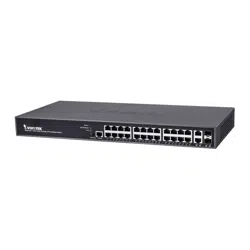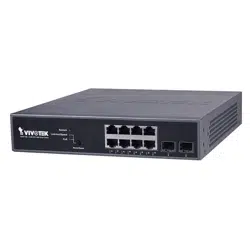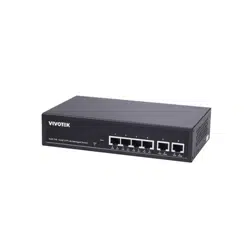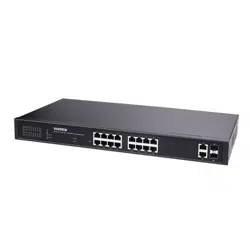


ii
About This Manual
Copyright
Copyright © 2017 VIVOTEK Inc. All rights reserved.
The products and programs described in this User Guide are licensed products of VIVOTEK Inc.,
This User Guide contains proprietary information protected by copyright, and this User Guide and
all accompanying hardware, software and documentation are copyrighted. No parts of this User
Guide may be copied, photocopied, reproduced, translated or reduced to any electronic medium
or machine-readable from by any means by electronic or mechanical. Including photocopying,
recording, or information storage and retrieval systems, for any purpose other than the
purchaser’s personal use, and without the prior express written permission of VIVOTEK Inc.
.
Purpose
This GUI user guide gives specific information on how to operate and use the management
functions of the AW-GEV series switch via HTTP/HTTPs web browser
Audience
The Manual is intended for use by network administrators who are responsible for operating and
maintaining network equipment; consequently, it assumes a basic working knowledge of general
switch functions, the Internet Protocol (IP), and Hypertext Transfer Protocol (HTTP).
CONVENTIONS
The following conventions are used throughout this manual to show information.
WARRANTY
See the Customer Support/ Warranty booklet included with the product. A copy of the specific
warranty terms applicable to your VIVOTEK products and replacement parts can be obtained
from your VIVOTEK Sales and Service Office authorized dealer.
Disclaimer
VIVOTEK does not warrant that the hardware will work properly in all environments and
applications, and marks no warranty and representation, either implied or expressed, with
respect to the quality, performance, merchantability, or fitness for a particular purpose. VIVOTEK
disclaims liability for any inaccuracies or omissions that may have occurred. Information in this
User Guide is subject to change without notice and does not represent a commitment on the
part of VIVOTEK. VIVOTEK assumes no responsibility for any inaccuracies that may be contained
in this User Guide. VIVOTEK makes no commitment to update or keep current the information in
this User Guide, and reserves the righter to make improvements to this User Guide and /or to the
products described in this User Guide, at any time without notice.
NOTE:
For users who use this switch in a surveillance application, you can go directly to Chapter 13
for information directly related to surveillance deployments.

iv
Table of Contents
ABOUT THIS MANUAL ................................................................................................................................ II
Revision History ......................................................................................................................................... vii
INTRODUCTION ........................................................................................................................................... 1
CHAPTER 1 OPERATION OF WEB-BASED MANAGEMENT ............................................................ 3
CHAPTER 2 SYSTEM ............................................................................................................................ 7
2-1 SYSTEM INFORMATION ................................................................................................................................... 7
2-2 IP ADVANCE .................................................................................................................................................. 9
2-2.1 IP Configuration ................................................................................................................................ 9
2-2.2 IP Status ............................................................................................................................................ 13
2-3 SYSTEM TIME ............................................................................................................................................... 15
2-4 LOG ............................................................................................................................................................ 19
2-4.1 Syslog Configuration ....................................................................................................................... 19
2-4.2 View Log ........................................................................................................................................... 21
2-5 LLDP .......................................................................................................................................................... 23
2-5.1 LLDP Configuration ......................................................................................................................... 23
2-5.2 LLDP-MED Configuration ............................................................................................................... 26
2-5.3 LLDP Neighbour .............................................................................................................................. 33
2-5.4 LLDP-MED Neighbour ..................................................................................................................... 35
2-5.5 LLDP Statistics .................................................................................................................................. 39
2-6 UPNP ......................................................................................................................................................... 41
CHAPTER 3 PORT MANAGEMENT .................................................................................................. 43
3-1 PORT CONFIGURATION ................................................................................................................................. 43
3-2 PORT STATISTICS .......................................................................................................................................... 46
3-3 SFP PORT INFO ........................................................................................................................................... 50
3-4 ENERGY EFFICIENT ETHERNET ....................................................................................................................... 52
3-5 LINK AGGREGATION ..................................................................................................................................... 53
3-5.1 Port ................................................................................................................................................... 53
3-5.2 Aggregator View .............................................................................................................................. 55
3-5.3 Aggregation Hash Mode ................................................................................................................. 57
3-5.4 LACP System Priority ....................................................................................................................... 59
3-6 LOOP PROTECTION ...................................................................................................................................... 60
3-6.1 Configuration ................................................................................................................................... 60
3-6.2 Status ................................................................................................................................................ 62
CHAPTER 4 POE MANAGEMENT ..................................................................................................... 64
4-1 POE CONFIGURATION .................................................................................................................................. 64
4-2 POE STATUS ................................................................................................................................................ 66
CHAPTER 5 VLAN MANAGEMENT .................................................................................................. 68
5-1 VLAN CONFIGURATION ............................................................................................................................... 68
5-2 VLAN MEMBERSHIP .................................................................................................................................... 72
5-3 VLAN PORT STATUS .................................................................................................................................... 74
CHAPTER 6 QUALITY OF SERVICE ................................................................................................... 76
6-1 GLOBAL SETTINGS........................................................................................................................................ 76
6-2 PORT SETTINGS ........................................................................................................................................... 78
6-3 PORT POLICING ........................................................................................................................................... 80
6-4 PORT SHAPER .............................................................................................................................................. 81
6-5 STORM CONTROL ........................................................................................................................................ 83
6-6 PORT SCHEDULER ........................................................................................................................................ 85

v
6-7 COS/802.1P MAPPING ............................................................................................................................... 86
6-8 COS/802.1P REMARKING ............................................................................................................................ 87
6-9 IP PRECEDENCE MAPPING ............................................................................................................................ 88
6-10 IP PRECEDENCE REMARKING ...................................................................................................................... 89
6-11 DSCP MAPPING ....................................................................................................................................... 90
6-12 DSCP REMARKING .................................................................................................................................... 91
CHAPTER 7 SPANNING TREE ........................................................................................................... 92
7-1 STATE .......................................................................................................................................................... 92
7-2 REGION CONFIG .......................................................................................................................................... 94
7-3 INSTANCE VIEW ........................................................................................................................................... 95
CHAPTER 8 MAC ADDRESS TABLES ............................................................................................. 102
8-1CONFIGURATION ........................................................................................................................................ 102
8-2 INFORMATION ........................................................................................................................................... 105
CHAPTER 9 MULTICAST ................................................................................................................. 107
9-1 IGMP SNOOPING ...................................................................................................................................... 107
9-1.1 Basic Configuration ....................................................................................................................... 107
9-1.2 VLAN Configuration ...................................................................................................................... 110
9-1.3 Status .............................................................................................................................................. 112
9-1.4 Group Information......................................................................................................................... 114
9-1.5 IGMP SFM Information .................................................................................................................. 116
CHAPTER 10 SECURITY ................................................................................................................... 118
10-1 MANAGEMENT ........................................................................................................................................ 118
10-2 IEEE 802.1X ........................................................................................................................................... 122
10-2.1 Configuration ............................................................................................................................... 122
10-2.2 Status ............................................................................................................................................ 125
10-3 PORT SECURITY ....................................................................................................................................... 127
10-3.1 Configuration ............................................................................................................................... 127
10-3.2 Status ............................................................................................................................................ 130
10-4 RADIUS ................................................................................................................................................. 132
10-4.1 Configuration ............................................................................................................................... 132
10-4.2 Status ............................................................................................................................................ 135
CHAPTER 11 DIAGNOSTICS ........................................................................................................... 140
11-1 PING ....................................................................................................................................................... 140
11-2 CABLE DIAGNOSTICS ................................................................................................................................ 142
11-3 TRACEROUTE ........................................................................................................................................... 143
11-4 MIRROR .................................................................................................................................................. 144
CHAPTER 12 MAINTENANCE ......................................................................................................... 146
12-1 CONFIGURATION ..................................................................................................................................... 146
12-1.1 Save startup-config ..................................................................................................................... 146
12-1.2 Backup config .............................................................................................................................. 148
12-1.3 Restore config .............................................................................................................................. 149
12-1.4 Activate config ............................................................................................................................. 150
12-1.5 Delete config ................................................................................................................................ 151
12-2 RESTART DEVICE ...................................................................................................................................... 152
12-3 FACTORY DEFAULTS .................................................................................................................................. 153
12-4 FIRMWARE .............................................................................................................................................. 154
12-4.1 Firmware Upgrade ...................................................................................................................... 154
CHAPTER 13 SURVEILLANCE - GRAPHICAL MONITORING ......................................................... 155
13-1 OVERVIEW ................................................................................................................................................. 155

vi
GRAPHICAL MONITORING ...................................................................................................................................... 157
TOPOLOGY VIEW .............................................................................................................................................. 157
FLOOR VIEW .................................................................................................................................................... 165
MAP VIEW ....................................................................................................................................................... 167
MANAGEMENT…………………………………………………………………………………………………………………………………………168
DEVICE LIST ..................................................................................................................................................... 168
VVTK CAMERA & ENCODER……………………………………………………………………………………………………………………….169
CAMERA CONFIGURE………………………………………………………………………………………………………………………………..170
MAINTENANCE ............................................................................................................................................ 171

vii
Revision History
Hardware Reset / Mode Button
The reset button is used to reboot the PoE switch or to restore the factory default settings. Sometimes resetting
the system can return the PoE switch to normal operation. If the system problems remain after reset, restore the
factory settings and try again.
Reboot
: Press 3~10 seconds and release the recessed reset button. Wait for the PoE Switch to reboot.
Reset to factory default
: Press longer than 10 seconds and release the recessed reset button. Wait for the PoE
Switch to reset to factory default & Reboot.
The mode button is use to switch LED indicator’s mode.
Link / ACT/ Speed
: Press shorter than 3 seconds and release the recessed mode button. The Link / ACT/ Speed
LED will on.
Green when displaying Link/ACT/Speed status of Ethernet ports.
PoE
: Press shorter than 3 seconds and release the recessed mode button. The PoE LED will turn on.
Green when displaying the PoE link status with powered devices.
Release
Date
Revision
Initial Release
2016/08/25
1.0
FW0003 Release
2017/09/05
2.0

Publication date: Jun., 2016
Revision A1
1
INTRODUCTION
Overview
In this User Guide, it will not only tell you how to install and connect your network system but
configure and monitor the AW-GEV-104B-130, AW-GEV-184B-250, or AW-GEV-264B-370 through the
web by (RJ-45) serial interface and Ethernet ports step-by-step. Many explanations in detail of
hardware and software functions are shown as well as the examples of the operation for web-based
interface.
The AW-GEV series switches are the next generation web smart+ managed switch from
VIVOTEK, is a portfolio of affordable managed switches that provides a reliable infrastructure for your
business network. These switches deliver more intelligent features you need to improve the
availability of your critical business applications, protect your sensitive information, and optimize your
network bandwidth to deliver information and applications more effectively. It provides the ideal
combination of affordability and capabilities for entry level networking includes small business or
enterprise application and helps you create a more efficient, better-connected workforce.
The AW-GEV series Web Smart+ Managed Switches provide 10/18/26 ports in a single device;
the specification is highlighted as follows.
DHCP Server & Client & Relay & Snooping
QoS Hardware Queues, Classification, Rate Limiting, Priority Queue Scheduling
Tag-Based VLAN, Port-Based VLAN, Protocol-Based VLAN, IP Subnet-Based VLAN,
MAC-Based VLAN
Private VLAN Edge (PVE), Voice VLAN, Q-in-Q VLAN, GVRP VLAN
Multicast VLAN Registration (MVR)
802.1d (STP), 802.1w (RSTP), 802.1s (MSTP) & Loop Protection
IEEE802.3ad LACP and Static Link Aggregation
IGMP Snooping v1/v2 & Querer & Proxy
SNMP v1/v2c/v3 User-Based Security Model (USM)
IEEE802.1x RADIUS & TACACS+ Authentication
IP Source Guard
IEEE802.3az Energy-Efficient Ethernet
Overview of this User Guide
Chapter 1 “Operation of Web-based Management”
Chapter 2 “System”
Chapter 3 “Port Management”
Chapter 4 “PoE Management”
Chapter 5 “VLAN Management”
Chapter 6 “Quality of Service”
Chapter 7 “Spanning tree”
Chapter 8 “MAC Address Tables”

2
Chapter 9 “Multicast”
Chapter 10 “Security”
Chapter 11 “Diagnostics”
Chapter 12 “Maintenance”
Chapter 13 "Surveillance"
Publication date: Jul., 2016
Revision A1
3
Chapter 1 Operation of Web-based Management
Initial
Configuration
IMPORTANT:
1. It is recommended to use IE10 or IE11 to open a web console with the
PoE switch.
2. This PoE switch is specifically designed for surveillance applications. It
comes with an integrated Surveillance interface for ease of
configuration. The interface is accessed through a tabbed menu, and
the configuration changes made in its window have a higher priority
than those in the Switch configuration menus.
This chapter instructs you how to configure and manage the switch through
the web user interface. With this facility, you can easily access and monitor
through any one port of the switch all the status of the switch, including
MIBs status, each port activity, Spanning tree status, port aggregation
status, multicast traffic, VLAN and priority status, even illegal access record
and so on.
The default values of the AW-GEV series switches are listed in the table
below:
IP Address
DHCP client
Subnet
Mask
255.255.255.0
Default
Gateway
N/A
Username
admin
Password
admin
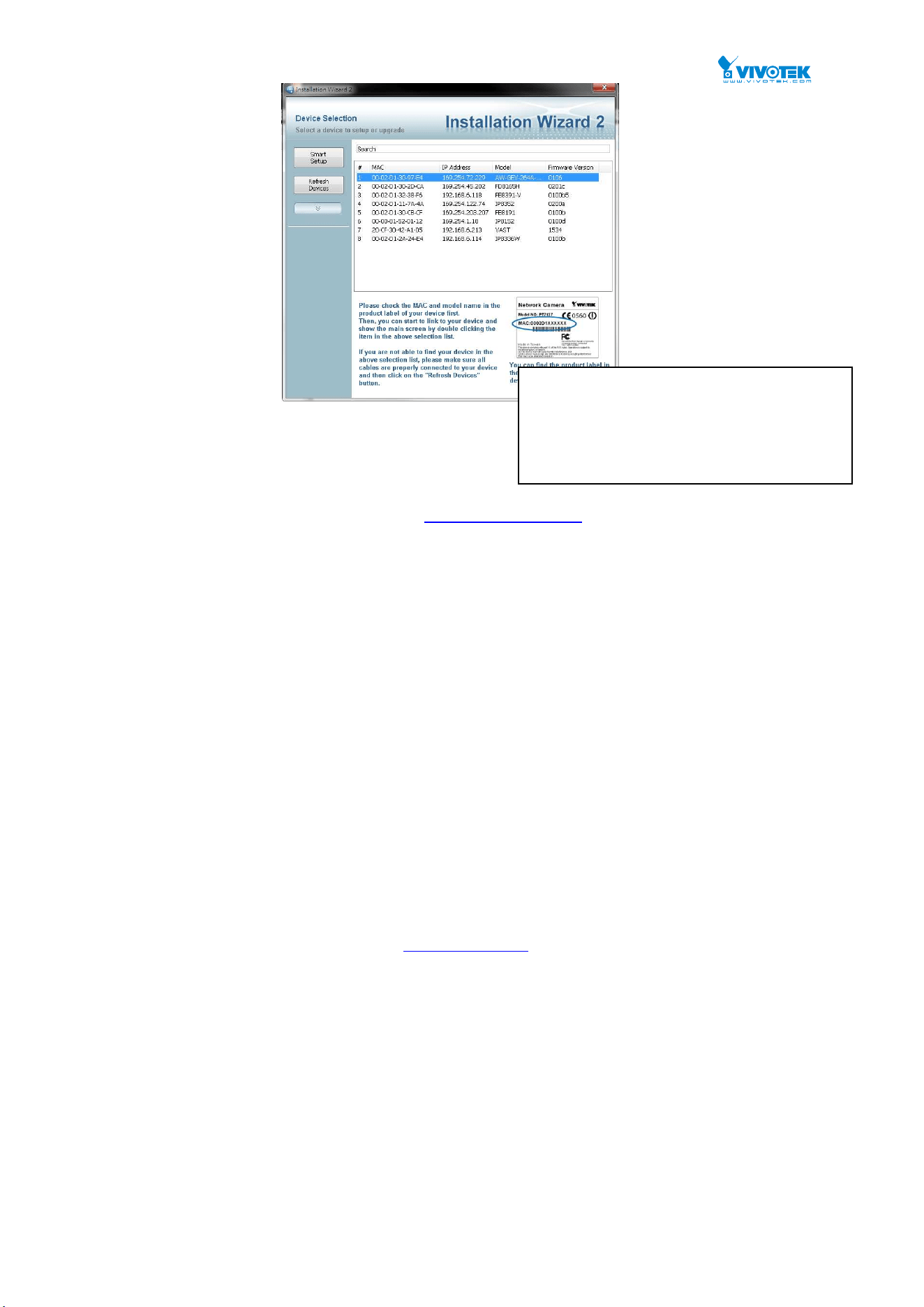
You can find the PoE switch using VIVOTEK’s IW2 utility. If network address conflicts
occur, use this utility to locate the PoE switch.
2
If you enabled the onboard DHCP server on the PoE switch, you can browse
it. For instance, type
http://192.168.1.1 in the address row in a browser,
it will display the following screen and ask you to enter a username and
password in order to login and access authentication.
The default username is “admin” and password is admin. For the first time
to use, please enter the default username and password, and then click the
<Login> button. The login process now is completed. In this login menu,
you have to input the complete username and password respectively, the
AW-GEV switch will not give you a shortcut to username automatically. This
looks inconvenient, but safer.
The AW-GEV switch allows two or more users to manage the switch using
the administrator’s identity. The configuration changes made will take effect
depending on who made the last configuration change.
This chapter instructs you how to configure and manage the AW-GEV switch
through the web user interface. With this facility, you can easily access and monitor
through any one port of the switch all the status of the switch, including MIBs status,
each port activity, Spanning tree status, port aggregation status, multicast traffic,
VLAN and priority status, even illegal access record and so on.
After the AW-GEV switch has been finished configuration it interface, you can browse
it. For instance, type http://192.168.1.1 in the address row in a browser, it will display
the following screen and ask you inputting username and password in order to login
and access authentication.
If you double-click on the entry found on the
IW2 utility, an IE console will be opened. If
you prefer using Firefox or Google Chrome,
you can manually enter the IP address in
your browser’s URL field.
2
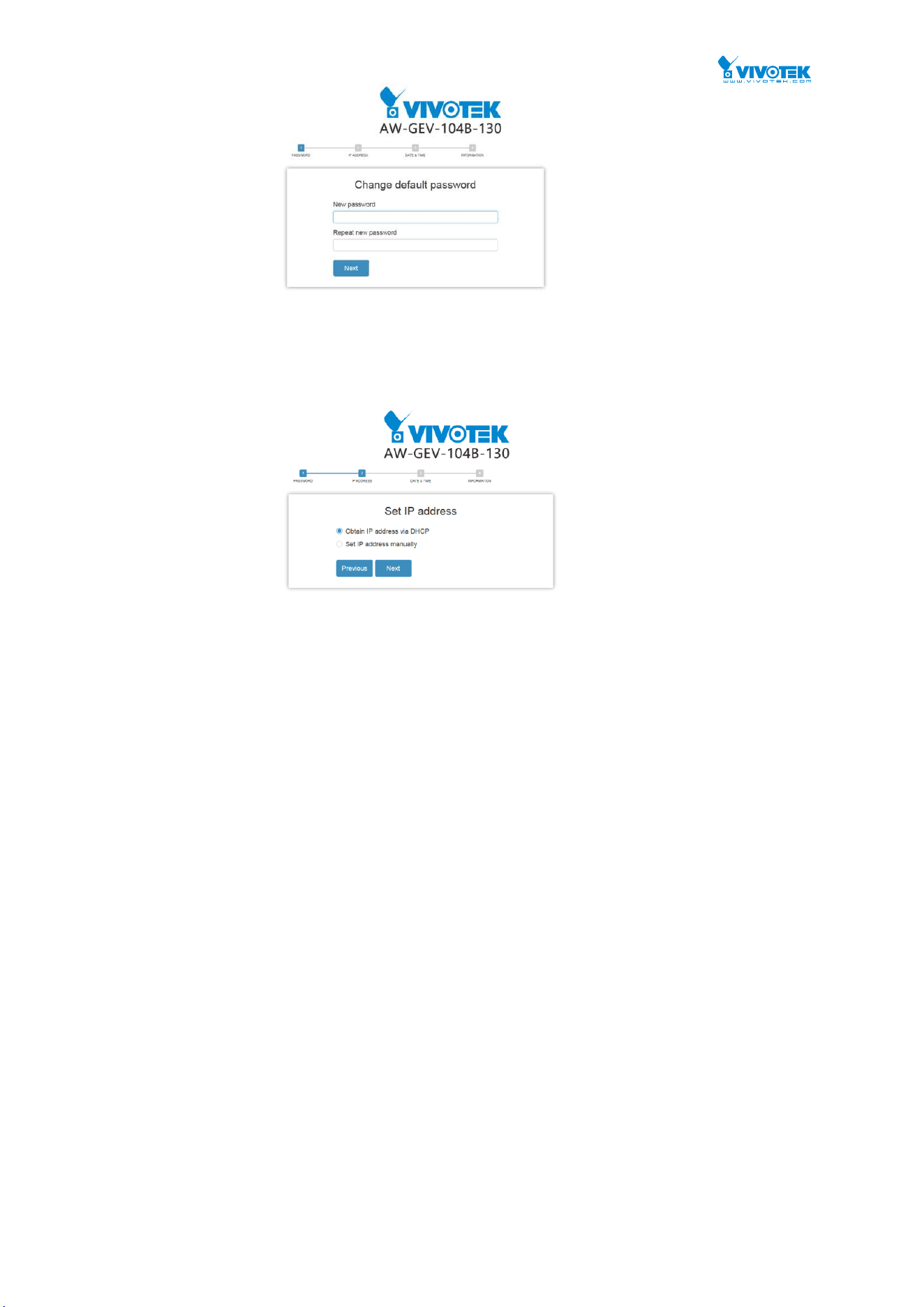
A startup wizard page will prompt the first time you access the switch. The first step is to
configure a password for access security.
If necessary, configure a static IP for the switch. Click Next to proceed.

2
You can then configuration the data and time setting for the switch either by assigning
a network time server or manually enter the values using the calendar.
You should enter additional information such as system contact and system location.
When done, click the Apply button.
The default username is
“admin” and password is empty. For the first time to use,
please enter the default username and password, and then click the <Login> button.
The login process now is completed. In this login menu, you have to input the
complete username and password respectively, the AW-GEV switch will not give you a
shortcut to username automatically. This looks inconvenient, but safer.
The AW-GEV switch allows two or more users using administrator’s identity to
manage this switch, which administrator to do the last setting, it will be an available
configuration to effect the system.
NOTE:
When you login the Switch WEB page to manage. You must first type the
Username of the admin. Password was blank, so when you type after the
end Username, please press enter. Management page to enter WEB.
When you login AW-GEV series switch Web UI management, you can use
both ipv4 ipv6 login to manage
To optimize the display effect, we recommend you use Microsoft IE 6.0
above, Netscape V7.1 above or Firefox V1.00 above and have the resolution
1024x768. The switch supported neutral web browser interface
NOTE:
AS AW-GEV switch the function enable dhcp, so If you do not have DHCP
server to provide ip addresses to the switch, the Switch default ip
192.168.1.1

6
Figure 1: The login page

7
Chapter 2 System
This chapter describes the entire basic configuration tasks which includes the System Information and any
management parameters of the Switch (e.g. Time, Account, IP, Syslog, and NTP.)
2-1 System Information
You can identify the system by configuring system name, location and the contact of the
switch.
The switch system’s contact information is provided here.
Web interface
To configure System Information in the web interface:
1. Click System and System Information.
2. Write System Name, Location, Contact information in this page.
3. Click Apply
Figure 2-1: System Information
Parameter description:
System name :
An administratively assigned name for this managed node. By convention, this is the node's
fully-qualified domain name. A domain name is a text string drawn from the alphabet (A-Z,
a-z), digits (0-9), minus sign (-). No space characters are permitted as part of a name. The
first character must be an alpha character. And the first or last character must not be a minus
sign. The allowed string length is 0 to 128.
Location :

8
The physical location of this node(e.g., telephone closet, 3rd floor). The allowed string
length is 0 to 128, and the allowed content is the ASCII characters from 32 to 1.
Contact :
The textual identification of the contact person for this managed node, together with
information on how to contact this person. The allowed string length is 0 to 128, and the
allowed content is the ASCII characters from 32 to 126.
Publication date: Jul., 2016
Revision A1
9
2-2 IP Address
2-2.1 IP Settings
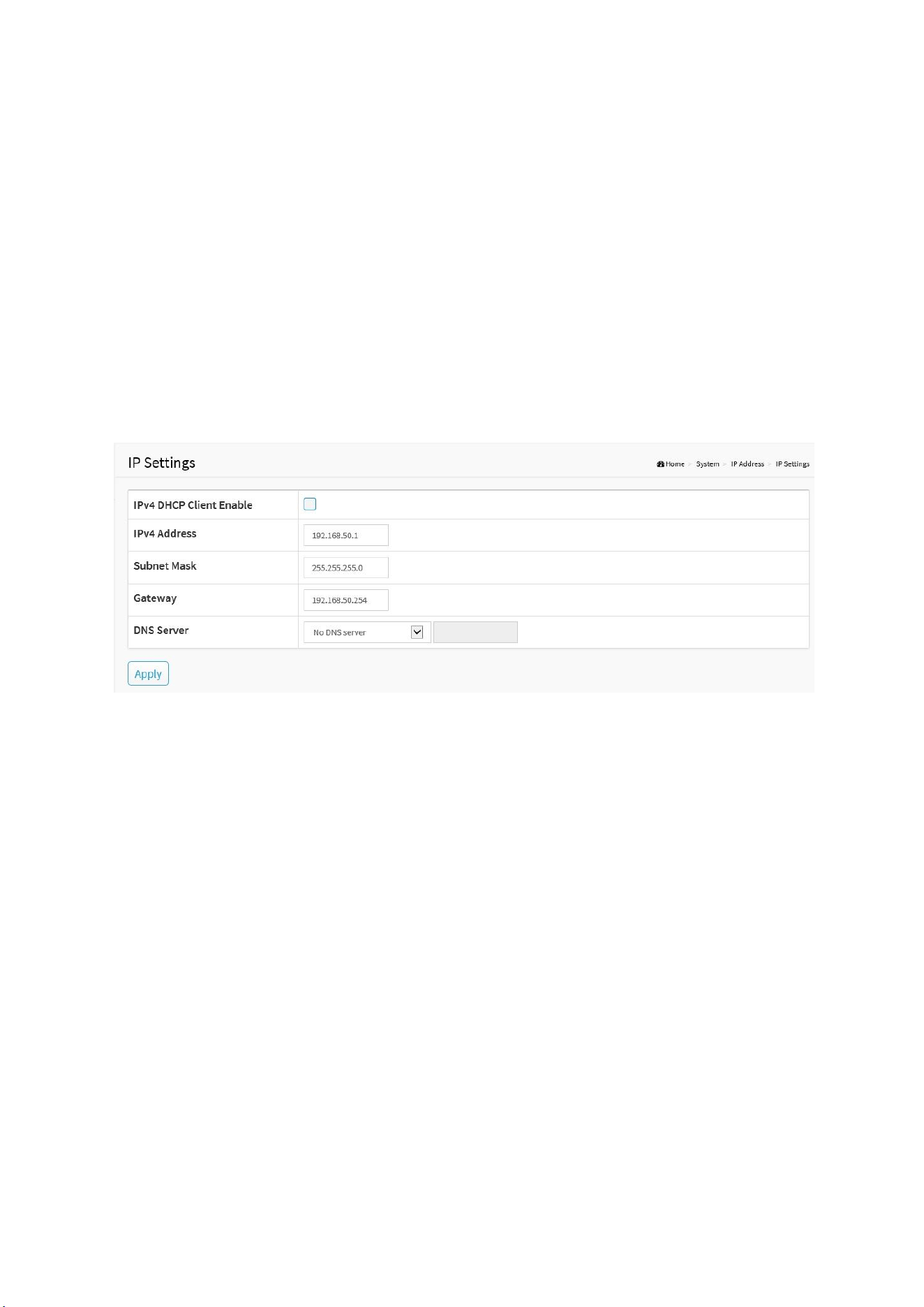
IPv4 DHCP Enable:
Enables the DHCP client mode setting for listening to a DHCP server in the local network.
IPv4 Address:
The IPv4 address of the interface VLAN1.
Subnet mask:
The IPv4 network mask of the interface VLAN1.
DNS Server:
Select the source of DNS service.
1. No DNS server.
2. Configured: User defined.
3. From any DHCP interfaces: as provided by a router offering the DHCP service
4. From this DHCP interface: If a router exists in a specific VLAN configuration, listen
to the particular router for the DNS service.
Figure 2-2.1: IP Settings
2-2.2 Advanced IP Settings
The IPv4 address for the switch could be obtained via DHCP Server for VLAN 1. To manually
configure an address, you need to change the switch's default settings to values that are
compatible with your network. You may also need to establish a default gateway between the
switch and management stations that exist on another network segment.
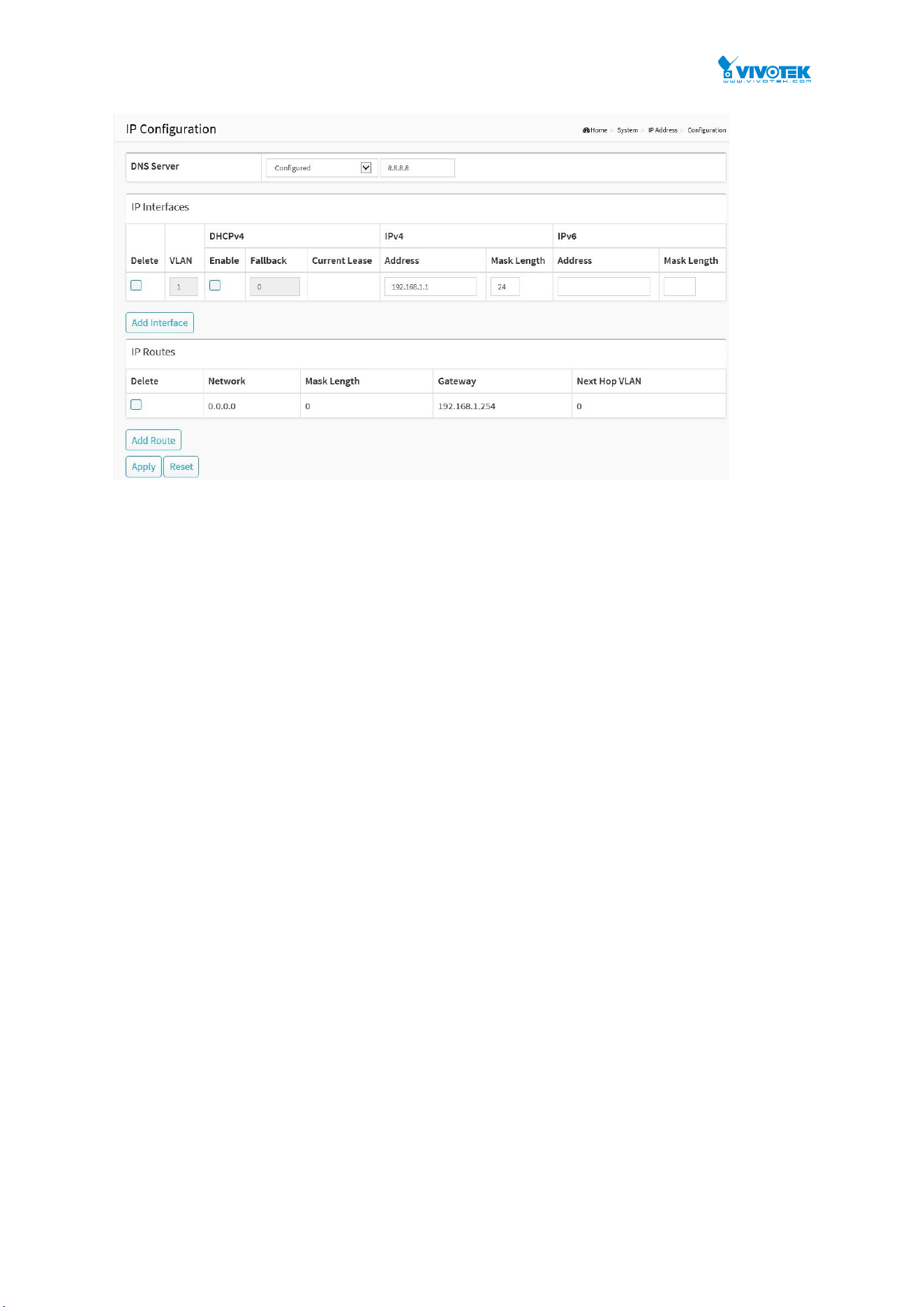
Configure the switch-managed IP information on this page
Configure IP basic settings, control IP interfaces and IP routes.
The maximum number of interfaces supported is 8 and the maximum number of routes is 8.
Web Interface
To configure an IP configuration in the web interface:
1. Click System, IP Advance and IP Configuration.
2. Click Add Interface then you can create new Interface on the switch.
3. Click Add Route then you can create new Route on the switch
4. Click Apply
10
Figure 2-2.2: The IP configuration
Parameter description:
IP Configuration
DNS Server :
This setting controls the DNS name resolution done by the switch. The following modes are
supported:
No DNS server
No DNS server will be used.
Configured
Explicitly provide the IP address of the DNS Server in dotted decimal notation.
From this DHCP interface
Specify from which DHCP-enabled interface a provided DNS server should be
preferred.
From any DHCP interfaces
The first DNS server offered from a DHCP lease to a DHCP-enabled interface will be
used.
IP Interfaces
Delete :
Select this option to delete an existing IP interface.
VLAN :
The VLAN associated with the IP interface. Only ports in this VLAN will be able to access the
IP interface. This field is only available for input when creating an new interface.
IPv4 DHCP Enabled :
Enable the DHCP client by checking this box. If this option is enabled, the system will
configure the IPv4 address and mask of the interface using the DHCP protocol. The DHCP
client will announce the configured System Name as hostname to provide DNS lookup.
IPv4 DHCP Fallback Timeout :
The number of seconds for trying to obtain a DHCP lease. After this period expires, a
configured IPv4 address will be used as IPv4 interface address. A value of zero disables the

11
fallback mechanism, such that DHCP will keep retrying until a valid lease is obtained. Legal
values are 0 to 4294967295 seconds.
IPv4 DHCP Current Lease :
For DHCP interfaces with an active lease, this column show the current interface address, as
provided by the DHCP server.
IPv4 Address :
The IPv4 address of the interface in dotted decimal notation.
If DHCP is enabled, this field is not used. The field may also be left blank if IPv4 operation
on the interface is not desired.
IPv4 Mask :
The IPv4 network mask, in number of bits (prefix length). Valid values are between 0 and 30
bits for a IPv4 address.
If DHCP is enabled, this field is not used. The field may also be left blank if IPv4 operation
on the interface is not desired.
IPv6 Address :
The IPv6 address of the interface. A IPv6 address is in 128-bit records represented as eight
fields of up to four hexadecimal digits with a colon separating each field (:). For example,
fe80::215:c5ff:fe03:4dc7. The symbol :: is a special syntax that can be used as a shorthand
way of representing multiple 16-bit groups of contiguous zeros; but it can appear only once.
It can also represent a legally valid IPv4 address. For example, ::192.1.2.34.
The field may be left blank if IPv6 operation on the interface is not desired.
IPv6 Mask :
The IPv6 network mask, in number of bits (prefix length). Valid values are between 1 and
128 bits for a IPv6 address.
The field may be left blank if IPv6 operation on the interface is not desired.
IP Routes
Delete :
Select this option to delete an existing IP route.
Network :
The destination IP network or host address of this route. Valid format is dotted decimal
notationor a valid IPv6 notation. A default route can use the value 0.0.0.0or IPv6 :: notation.
Mask Length :
The destination IP network or host mask, in number of bits (prefix length). It defines how
much of a network address that must match, in order to qualify for this route. Valid values
are between 0 and 32 bits respectively 128 for IPv6 routes. Only a default route will have a
mask length of 0 (as it will match anything).
Gateway :
The IP address of the IP gateway. Valid format is dotted decimal notationor a valid IPv6
notation. Gateway and Network must be of the same type.
Next Hop VLAN (Only for IPv6) :
The VLAN ID (VID) of the specific IPv6 interface associated with the gateway.
The given VID ranges from 1 to 4094 and will be effective only when the corresponding
IPv6 interface is valid.
If the IPv6 gateway address is link-local, it must specify the next hop VLAN for the gateway.
If the IPv6 gateway address is not link-local, system ignores the next hop VLAN for the
gateway.

12
Buttons
Add Interface :
Click to add a new IP interface. A maximum of 8 interfaces is supported.
Add Route :
Click to add a new IP route. A maximum of 8 routes is supported.
Apply :
Click to save changes.
Reset :
Click to undo any changes made locally and revert to previously saved values.
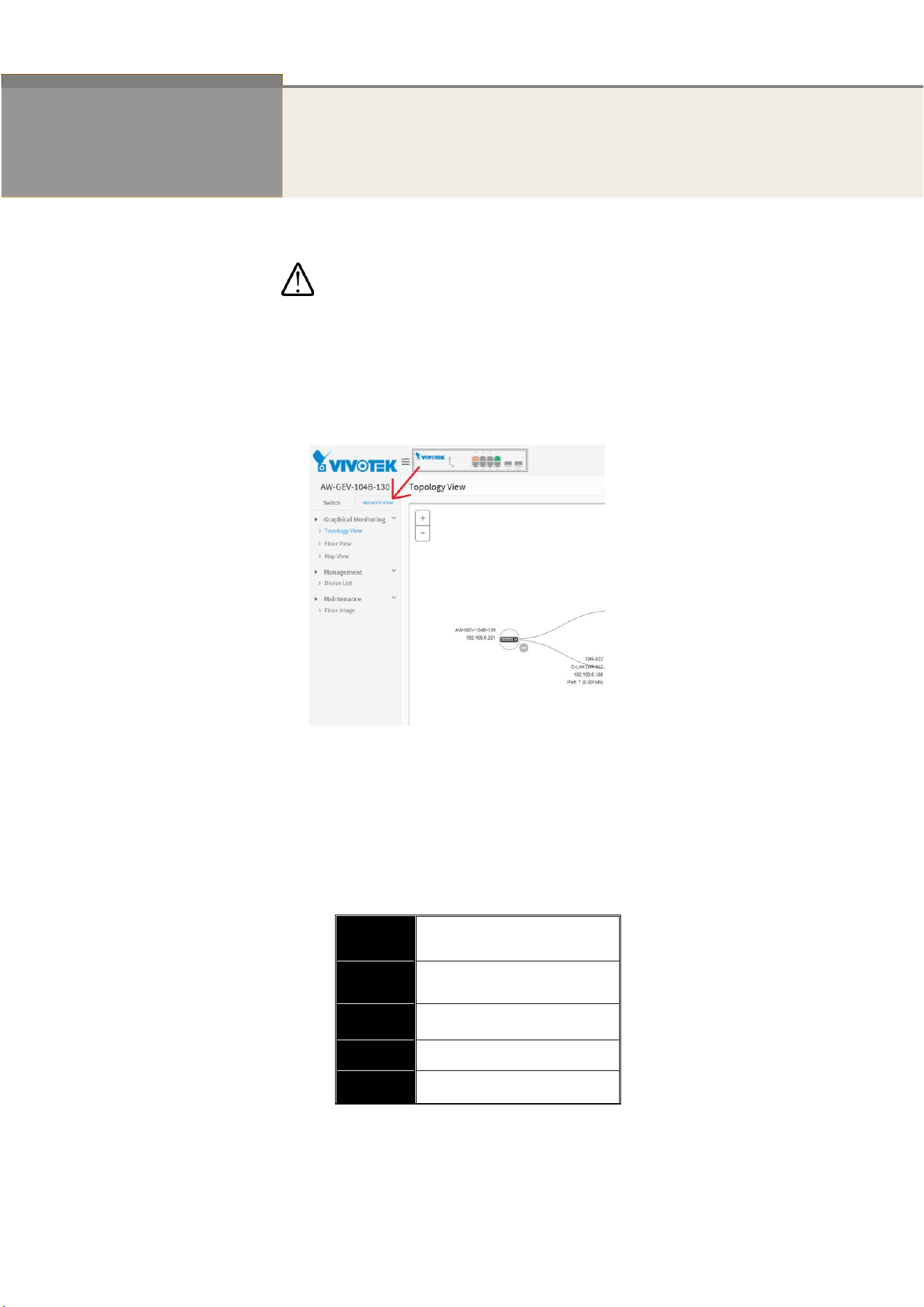
NOTE: If you configure switches and IP cameras to be using static IPs, make sure to
configure the same gateway value and subnet settings for IP cameras under IP routers for
all switches to work properly on the Topology view.
13
2-2.2 IP Status
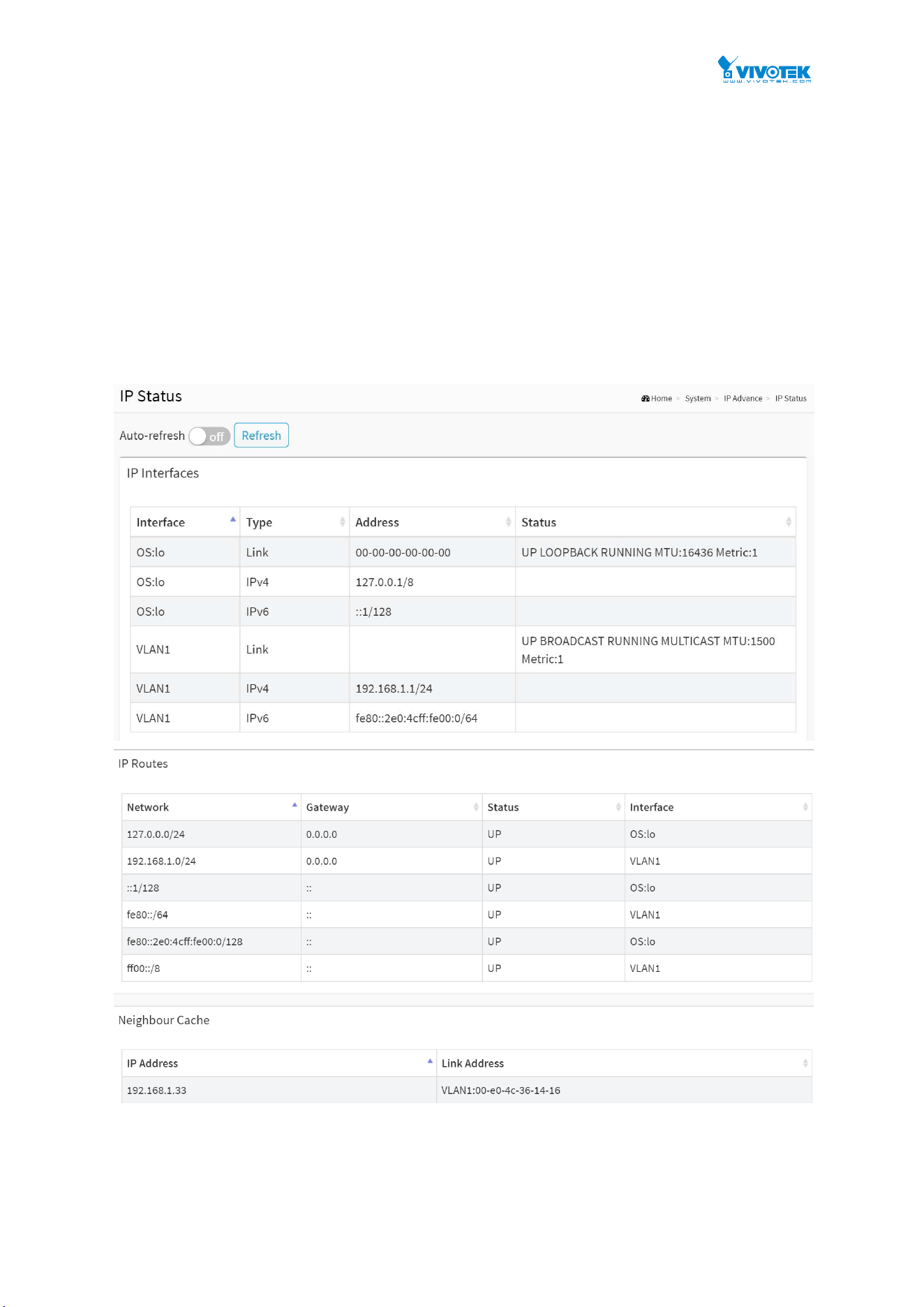
This page displays the status of the IP protocol layer. The status is defined by the IP interfaces,
the IP routes and the neighbour cache (ARP cache) status.
Web Interface
To display the log configuration in the web interface:
1. Click System, IP Advance and IP Status.
2. Display the IP Configuration information.
Figure 2-2.2: The IP Status

14
Parameter description:
IP Interfaces
Interface :
Show the name of the interface.
Type :
Show the address type of the entry. This may be LINK or IPv4.
Address :
Show the current address of the interface (of the given type).
Status :
Show the status flags of the interface (and/or address).
IP Routes
Network :
Show the destination IP network or host address of this route.
Gateway :
Show the gateway address of this route.
Status :
Show the status flags of the route.
Interface:
Show the name of the interface.
Neighbour cache
IP Address :
Show the IP address of the entry.
Link Address :
Show the Link (MAC) address for which a binding to the IP address given exist.
Buttons
Figure 2-2.2: The IP Status buttons
Auto-refresh :
Check this box to refresh the page automatically. Automatic refresh occurs every 3 seconds.
Refresh :
Click to refresh the page immediately.

15
2-3 System Time
The switch provides manual and automatic ways to set the system time via NTP. Manual
setting is simple and you just input “Year”, “Month”, “Day”, “Hour” and “Minute” within the
valid value range indicated in each item.
Web Interface
To configure Time in the web interface:
1. Click System and System Time
2. Specify the Time parameter.
3. Click Apply.
Figure 2-3: The time configuration

16
Parameter description:
Time Configuration
Clock Source :
There are two modes for configuring how the Clock Source from. Select "Local Settings" :
Clock Source from Local Time. Select "NTP Server" : Clock Source from NTP Server.
System Date :
Show the current time of the system. The year of system date limits between 2001 and 2037.
Time Zone Configuration
Time Zone :
Lists various Time Zones worldwide. Select appropriate Time Zone from the drop down and
click Apply to set.
Acronym :
User can set the acronym of the time zone. This is a User configurable acronym to identify
the time zone. (Range: Up to 16 characters)
Daylight Saving Time Configuration
Daylight Saving Time :
This is used to set the clock forward or backward according to the configurations set below
for a defined Daylight Saving Time duration. Select 'Disable' to disable the Daylight Saving
Time configuration. Select 'Recurring' and configure the Daylight Saving Time duration to
repeat the configuration every year. Select 'Non-Recurring' and configure the Daylight
Saving Time duration for single time configuration. (Default: Disabled).
Recurring Configuration
Start time settings :
Week - Select the starting week number.
Day - Select the starting day.
Month - Select the starting month.
Hours - Select the starting hour.
End time settings :
Week - Select the ending week number.
Day - Select the ending day.
Month - Select the ending month.
Hours - Select the ending hour.
Offset settings :
Offset - Enter the number of minutes to add during Daylight Saving Time. (Range: 1 to 1440)
NOTE: The under “Start Time Settings” and “End Time Settings” was
displayed what you set on the “Start Time Settings” and “End Time
Settings” field information.
Buttons
Apply :
Click to save changes.
17
Reset :
Click to undo any changes made locally and revert to previously saved values.
Figure 4-4: The Configure NTP Server button
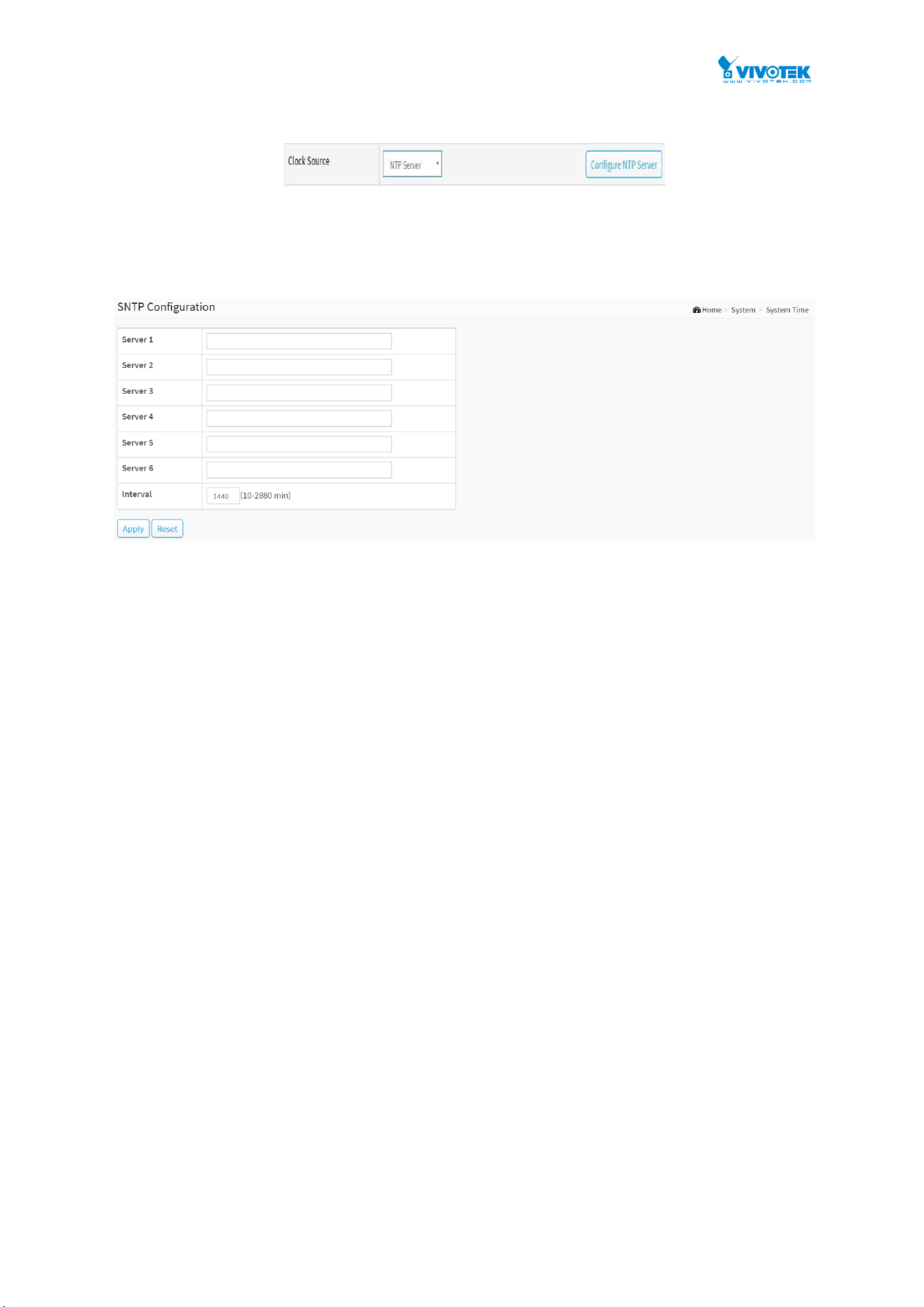
Configure NTP Server :
Click to configure NTP server, When Clock Source select from NTP Server.
Figure 4-4: The SNTP configuration
NTP is Network Time Protocol and is used to sync the network time based Greenwich Mean
Time (GMT). If use the NTP mode and select a built-in NTP time server or manually specify an
user-defined NTP server as well as Time Zone, the switch will sync the time in a short after
pressing <Apply> button. Though it synchronizes the time automatically, NTP does not update
the time periodically without user’s processing.
Time Zone is an offset time off GMT. You have to select the time zone first and then perform
time sync via NTP because the switch will combine this time zone offset and updated NTP time
to come out the local time, otherwise, you will not able to get the correct time. The switch
supports configurable time zone from –12 to +13 step 1 hour.
Default Time zone: +8 Hrs.
Parameter description :
Server 1 to 6:
Provide the NTP IPv4 or IPv6 address of this switch. IPv6 address is in 128-bit records
represented as eight fields of up to four hexadecimal digits with a colon separating each
field (:). For example, 'fe80::215:c5ff:fe03:4dc7'. The symbol '::' is a special syntax that can be
used as a shorthand way of representing multiple 16-bit groups of contiguous zeros; but it
can only appear once. It can also represent a legally valid IPv4 address. For example,
'::192.1.2.34'.
Interval
You can specify the time interval in seconds after which a time check and, in case of
deviation, a resynchronization of the internal device clock against the specified timeserver
via Network Time Protocol(NTP) should be performed.
Buttons
These buttons are displayed on the SNTP page:
Apply :
Click to save changes.

18
Reset :
Click to undo any changes made locally and revert to previously saved values.
19
2-4 Log
2-4.1 Syslog Configuration
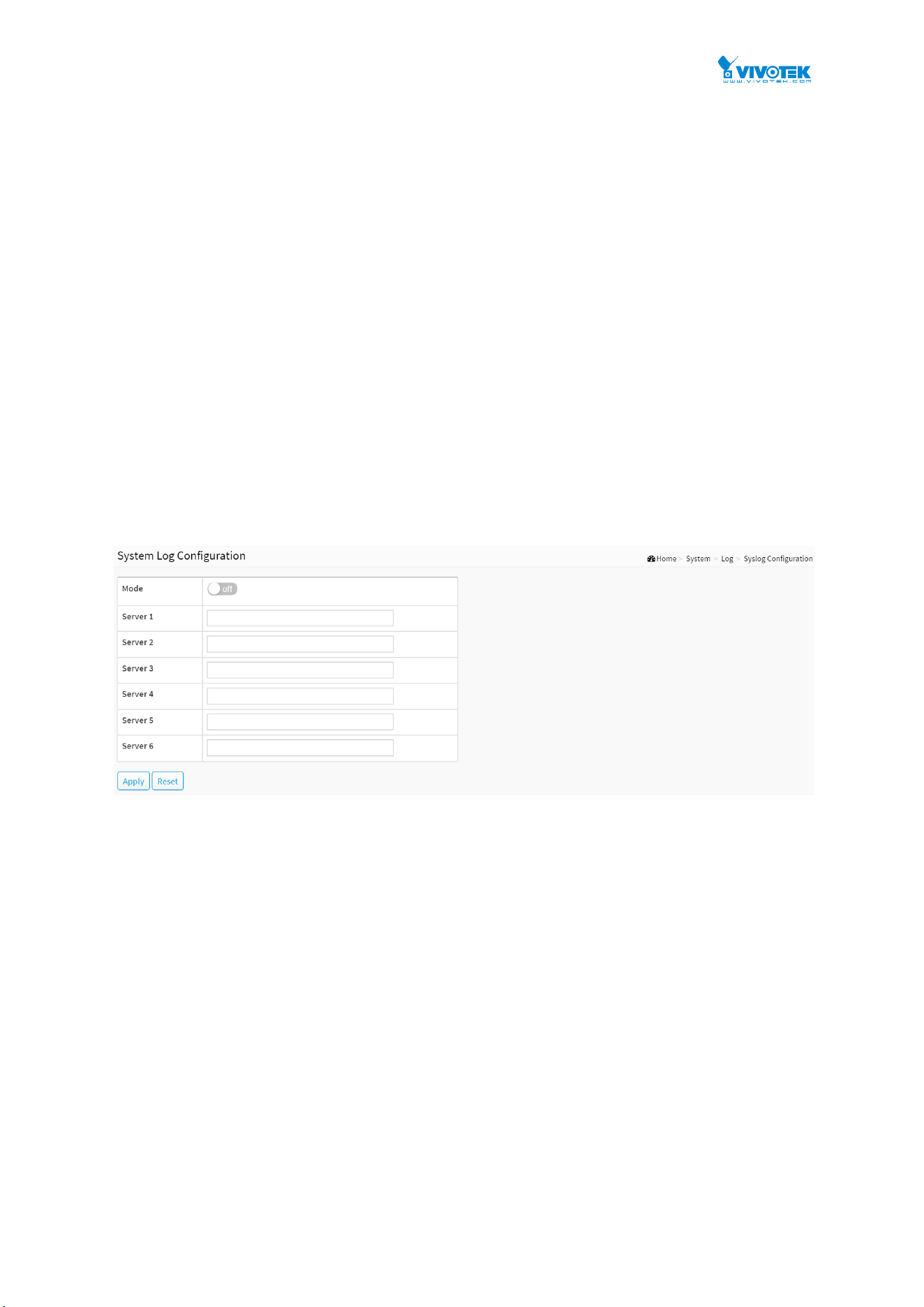
The Syslog Configuration is a standard for logging program messages . It allows separation of
the software that generates messages from the system that stores them and the software that
reports and analyzes them. It can be used as well a generalized informational, analysis and
debugging messages. It is supported by a wide variety of devices and receivers across multiple
platforms.
Web Interface
To configure Syslog Configuration in the web interface:
1. Click System, Log and Syslog Configuration.
2. Specify the syslog parameters include IP Address of Syslog server and Port number.
3. Evoke the Syslog to enable it.
4. Click Apply.
Figure 2-4.1: The System Log configuration
Parameter description:
Mode :
Indicate the server mode operation. When the mode operation is enabled, the syslog
message will send out to syslog server. The syslog protocol is based on UDP communication
and received on UDP port 514 and the syslog server will not send acknowledgments back
sender since UDP is a connectionless protocol and it does not provide acknowledgments.
The syslog packet will always send out even if the syslog server does not exist. Possible
modes are:
On: Enable server mode operation.
Off: Disable server mode operation.
Server 1 to 6 :
Indicates the IPv4 hosts address of syslog server. If the switch provide DNS feature, it also
can be a host name.
Buttons
Apply :

20
Click to save changes.
Reset :
Click to undo any changes made locally and revert to previously saved values.
21
2-4.2 View Log
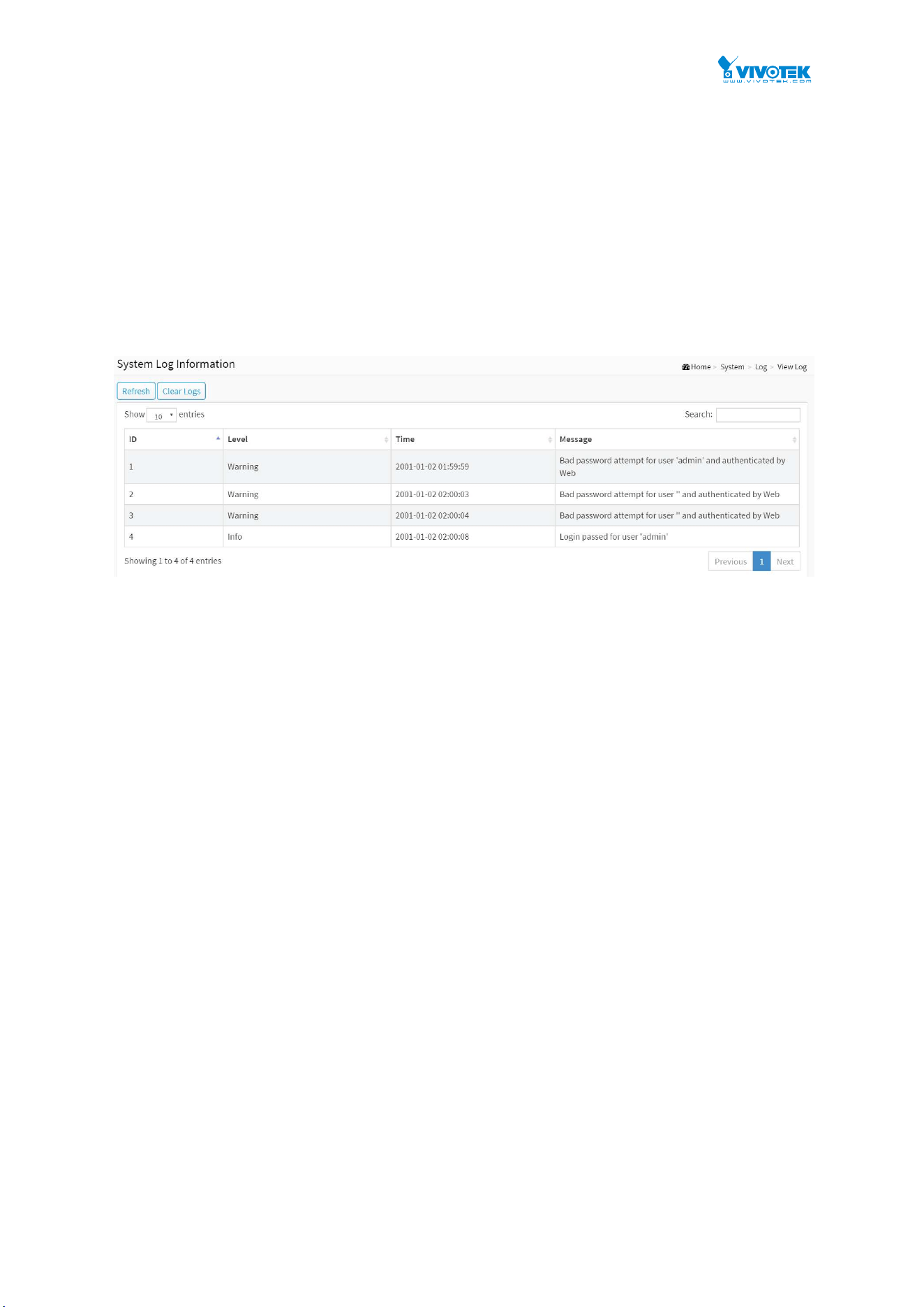
This section describes that display the system log information of the switch
Web Interface
To display the log configuration in the web interface:
1. Click System, Log and View Log.
2. Display the log information.
Figure 2-4.2: The System Log Information
Parameter description:
ID :
ID (>= 1) of the system log entry.
Level :
level of the system log entry. The following level types are supported:
Debug : debug level message.
Info : informational message.
Notice : normal, but significant, condition.
Warning : warning condition.
Error : error condition.
Crit : critical conditions.
Alert : action must be taken immediately.
Emerg : system is unusable.
Time :
It will display the log record by device time. The time of the system log entry.
Message :
It will display the log detail message. The message of the system log entry.
Search :
You can search for the information that you want to see.
Show entries :

22
You can choose how many items you want to show off.
Buttons
Refresh :
Updates the system log entries, starting from the current entry ID.
Clear Logs :
Clear all the system log entries.
Next :
Updates the system log entries, turn to the next page.
Previous :
Updates the system log entries, turn to the previous page.

23
2-5 LLDP
The switch supports the LLDP. For current information on your switch model, The Link Layer
Discovery Protocol (LLDP) provides a standards-based method for enabling switches to
advertise themselves to adjacent devices and to learn about adjacent LLDP devices. The Link
Layer Discovery Protocol (LLDP) is a vendor-neutral Link Layer protocol in the Internet Protocol
Suite used by network devices for advertising their identity, capabilities, and neighbors on a
IEEE 802 local area network, principally wired Ethernet. The protocol is formally referred to by
the IEEE as Station and Media Access Control Connectivity Discovery specified in standards
document IEEE 802.1AB.
2-5.1 LLDP Configuration
You can per port to do the LLDP configuration and the detail parameters, the settings will take
effect immediately. This page allows the user to inspect and configure the current LLDP port
settings.
Web Interface
To configure LLDP:
1. Click System, LLDP and LLDP configuration.
2. Modify LLDP timing parameters
3. Set the required mode for transmitting or receiving LLDP messages
4. Specify the information to include in the TLV field of advertised messages
5. Click Apply

24
Figure 2-5.1: The LLDP Configuration
Parameter description:
LLDP Parameters
Tx Interval :
The switch periodically transmits LLDP frames to its neighbours for having the network
discovery information up-to-date. The interval between each LLDP frame is determined by
the Tx Interval value. Valid values are restricted to 5 - 32768 seconds.
Tx Hold :
Each LLDP frame contains information about how long the information in the LLDP frame
shall be considered valid. The LLDP information valid period is set to Tx Hold multiplied by
Tx Interval seconds. Valid values are restricted to 2 - 10 times.
Tx Delay :
If some configuration is changed (e.g. the IP address) a new LLDP frame is transmitted, but
the time between the LLDP frames will always be at least the value of Tx Delay seconds. Tx
Delay cannot be larger than 1/4 of the Tx Interval value. Valid values are restricted to 1 -
8192 seconds.
Tx Reinit :
When a port is disabled, LLDP is disabled or the switch is rebooted, an LLDP shutdown
frame is transmitted to the neighboring units, signaling that the LLDP information isn't valid
anymore. Tx Reinit controls the amount of seconds between the shutdown frame and a new
LLDP initialization. Valid values are restricted to 1 - 10 seconds.
LLDP Port Configuration
The LLDP port settings relate to the currently selected, as reflected by the page header.
Port :
The switch port number of the logical LLDP port.
Mode :
Select LLDP mode.
Rx only The switch will not send out LLDP information, but LLDP information from neighbor
units is analyzed.
Tx only The switch will drop LLDP information received from neighbors, but will send out
LLDP information.
Disabled The switch will not send out LLDP information, and will drop LLDP information
received from neighbors.
Enabled the switch will send out LLDP information, and will analyze LLDP information
received from neighbors.
CDP Aware :
Select CDP awareness.

25
The CDP operation is restricted to decoding incoming CDP frames (The switch doesn't
transmit CDP frames). CDP frames are only decoded if LLDP on the port is enabled.
Only CDP TLVs that can be mapped to a corresponding field in the LLDP neighbors’ table
are decoded. All other TLVs are discarded (Unrecognized CDP TLVs and discarded CDP
frames are not shown in the LLDP statistics.). CDP TLVs are mapped onto LLDP neighbors’
table as shown below.
CDP TLV "Device ID" is mapped to the LLDP "Chassis ID" field.
CDP TLV "Address" is mapped to the LLDP "Management Address" field. The CDP address
TLV can contain multiple addresses, but only the first address is shown in the LLDP
neighbors’ table.
CDP TLV "Port ID" is mapped to the LLDP "Port ID" field.
CDP TLV "Version and Platform" is mapped to the LLDP "System Description" field.
Both the CDP and LLDP support "system capabilities", but the CDP capabilities cover
capabilities that are not part of the LLDP. These capabilities are shown as "others" in the
LLDP neighbors’ table.
If all ports have CDP awareness disabled the switch forwards CDP frames received from
neighbor devices. If at least one port has CDP awareness enabled all CDP frames are
terminated by the switch.
NOTE: When CDP awareness on a port is disabled the CDP
information isn't removed immediately, but gets when the hold time
is exceeded.
Port Descr :
Optional TLV: When checked the "port description" is included in LLDP information
transmitted.
Sys Name :
Optional TLV: When checked the "system name" is included in LLDP information transmitted.
Sys Descr :
Optional TLV: When checked the "system description" is included in LLDP information
transmitted.
Sys Capa :
Optional TLV: When checked the "system capability" is included in LLDP information
transmitted.
Mgmt Addr :
Optional TLV: When checked the "management address" is included in LLDP information
transmitted.
Buttons
Apply :
Click to save changes.
Reset :
Click to undo any changes made locally and revert to previously saved values.
26
2-5.2 LLDP-MED Configuration
Media Endpoint Discovery is an enhancement of LLDP, known as LLDP-MED that provides the
following facilities:
Auto-discovery of LAN policies (such as VLAN, Layer 2 Priority and Differentiated services
(Diffserv) settings) enabling plug and play networking.
Device location discovery to allow creation of location databases and, in the case of Voice over
Internet Protocol (VoIP), Enhanced 911 services.
Extended and automated power management of Power over Ethernet (PoE) end points.
Inventory management, allowing network administrators to track their network devices, and
determine their characteristics (manufacturer, software and hardware versions, and serial or
asset number).
This page allows you to configure the LLDP-MED. This function applies to VoIP devices which
support LLDP-MED.
Web Interface
To configure LLDP-MED:
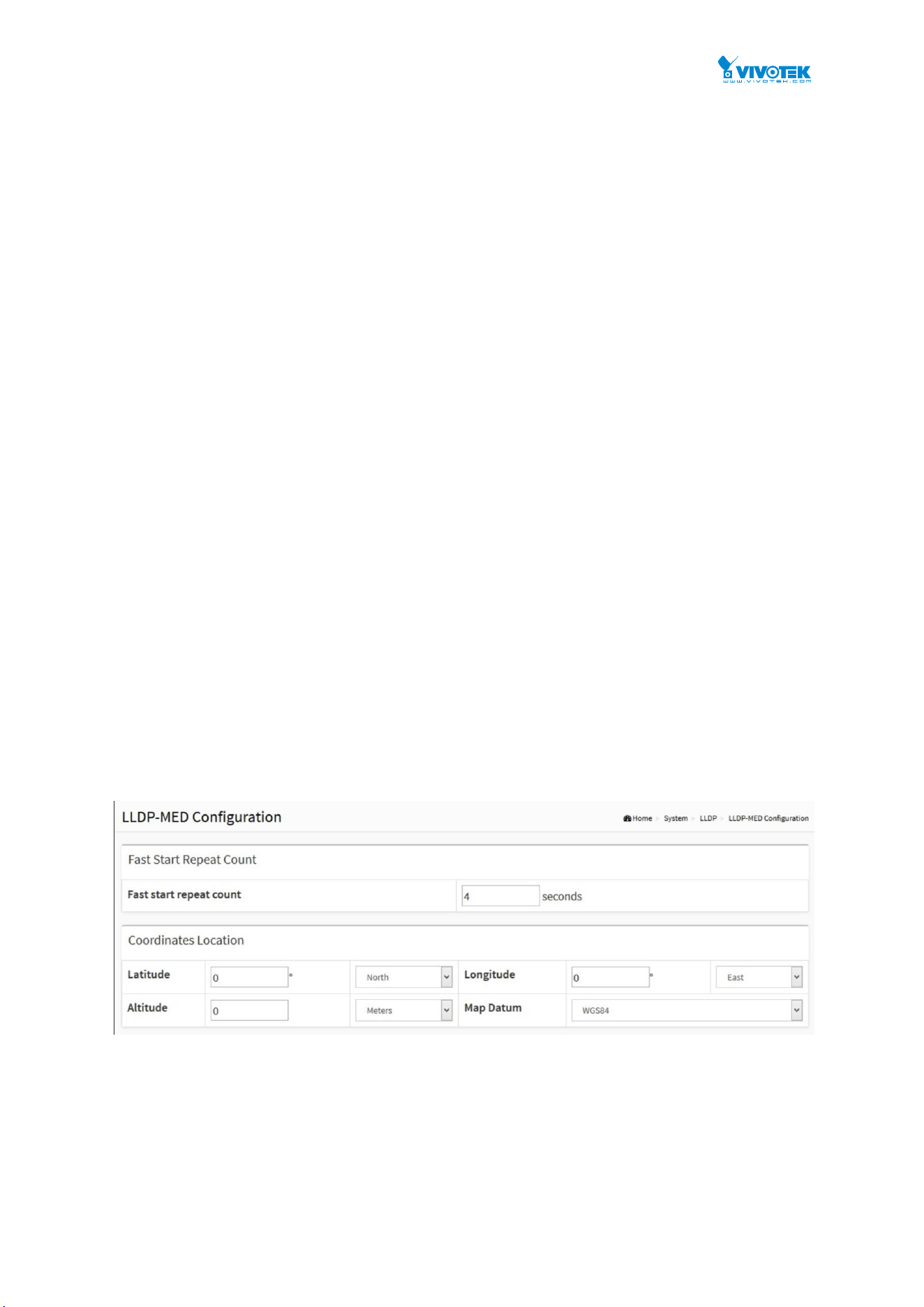
1. Click System, LLDP and LLDP-MED Configuration
2. Modify Fast start repeat count parameter, default is 4
3. Modify Coordinates Location parameters
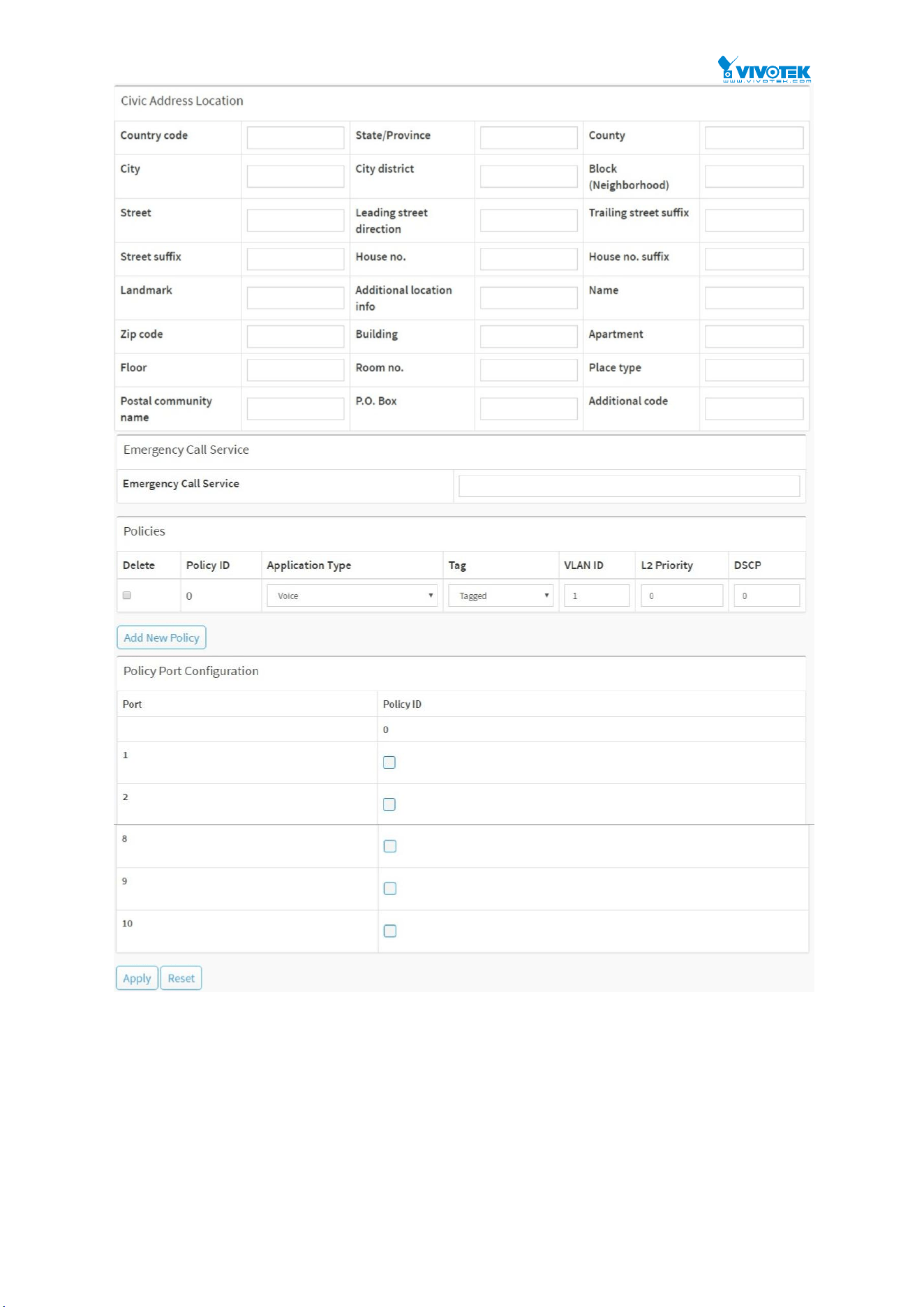
4. Fill Civic Address Location parameters
5. Add new policy
6. Click Apply, will show following Policy Port Configuration
7. Select Policy ID for each port
8. Click Apply.
27
Figure 2-5.2: The LLDP-MED Configuration
Parameter description :
Fast start repeat count
Rapid startup and Emergency Call Service Location Identification Discovery of endpoints is a
critically important aspect of VoIP systems in general. In addition, it is best to advertise only
those pieces of information which are specifically relevant to particular endpoint types (for
example only advertise the voice network policy to permitted voice-capable devices), both in
order to conserve the limited LLDPU space and to reduce security and system integrity issues

28
that can come with inappropriate knowledge of the network policy.
With this in mind LLDP-MED defines an LLDP-MED Fast Start interaction between the protocol
and the application layers on top of the protocol, in order to achieve these related properties.
Initially, a Network Connectivity Device will only transmit LLDP TLVs in an LLDPDU. Only after
an LLDP-MED Endpoint Device is detected, will an LLDP-MED capable Network Connectivity
Device start to advertise LLDP-MED TLVs in outgoing LLDPDUs on the associated port. The
LLDP-MED application will temporarily speed up the transmission of the LLDPDU to start
within a second, when a new LLDP-MED neighbour has been detected in order share
LLDP-MED information as fast as possible to new neighbours.
Because there is a risk of an LLDP frame being lost during transmission between neighbours, it
is recommended to repeat the fast start transmission multiple times to increase the possibility
of the neighbours receiving the LLDP frame. With Fast start repeat count it is possible to
specify the number of times the fast start transmission would be repeated. The recommended
value is 4 times, given that 4 LLDP frames with a 1 second interval will be transmitted, when an
LLDP frame with new information is received.
It should be noted that LLDP-MED and the LLDP-MED Fast Start mechanism is only intended
to run on links between LLDP-MED Network Connectivity Devices and Endpoint Devices, and
as such does not apply to links between LAN infrastructure elements, including Network
Connectivity Devices, or other types of links.
Coordinates Location
Latitude :
Latitude SHOULD be normalized to within 0-90 degrees with a maximum of 4 digits.
It is possible to specify the direction to either North of the equator or South of the equator.
Longitude :
Longitude SHOULD be normalized to within 0-180 degrees with a maximum of 4 digits.
It is possible to specify the direction to either East of the prime meridian or West of the
prime meridian.
Altitude :
Altitude SHOULD be normalized to within -32767 to 32767 with a maximum of 4 digits.
It is possible to select between two altitude types (floors or meters).
Meters: Representing meters of Altitude defined by the vertical datum specified.
Floors: Representing altitude in a form more relevant in buildings which have different
floor-to-floor dimensions. An altitude = 0.0 is meaningful even outside a building, and
represents ground level at the given latitude and longitude. Inside a building, 0.0 represents
the floor level associated with ground level at the main entrance.
Map Datum :
The Map Datum is used for the coordinates given in these options:
WGS84: (Geographical 3D) - World Geodesic System 1984, CRS Code 4327, and Prime
Meridian Name: Greenwich.
NAD83/NAVD88: North American Datum 1983, CRS Code 4269, Prime Meridian Name:
Greenwich; the associated vertical datum is the North American Vertical Datum of 1988
(NAVD88). This datum pair is to be used when referencing locations on land, not near tidal
water (which would use Datum = NAD83/MLLW).
NAD83/MLLW: North American Datum 1983, CRS Code 4269, Prime Meridian Name:
Greenwich; the associated vertical datum is Mean Lower Low Water (MLLW). This datum pair
is to be used when referencing locations on water/sea/ocean.

29
Civic Address Location
IETF Geopriv Civic Address based Location Configuration Information (Civic Address LCI).
Country code :
The two-letter ISO 3166 country code in capital ASCII letters - Example: DK, DE or US.
State :
National subdivisions (state, canton, region, province, prefecture).
County :
County, parish, gun (Japan), district.
City :
City, township, shi (Japan) - Example: Copenhagen.
City district :
City division, borough, city district, ward, chou (Japan).
Block (Neighbourhood) :
Neighbourhood, block.
Street :
Street - Example: Poppelvej.
Leading street direction :
Leading street direction - Example: N.
Trailing street suffix :
Trailing street suffix - Example: SW.
Street suffix :
Street suffix - Example: Ave, Platz.
House no. :
House number - Example: 21.
House no. suffix :
House number suffix - Example: A, 1/2.
Landmark :
Landmark or vanity address - Example: Columbia University.
Additional location info :
Additional location info - Example: South Wing.
Name :
Name (residence and office occupant) - Example: Flemming Jahn.
Zip code :
Postal/zip code - Example: 2791.
Building :
Building (structure) - Example: Low Library.
Apartment :
Unit (Apartment, suite) - Example: Apt 42.
Floor :

30
Floor - Example: 4.
Room no. :
Room number - Example: 450F.
Place type :
Place type - Example: Office.
Postal community name :
Postal community name - Example: Leonia.
P.O. Box :
Post office box (P.O. BOX) - Example: 12345.
Additional code :
Additional code - Example: 1320300003.
Emergency Call Service:
Emergency Call Service (e.g. E911 and others), such as defined by TIA or NENA.
Emergency Call Service :
Emergency Call Service ELIN identifier data format is defined to carry the ELIN identifier as
used during emergency call setup to a traditional CAMA or ISDN trunk-based PSAP. This
format consists of a numerical digit string, corresponding to the ELIN to be used for
emergency calling.
Policies
Network Policy Discovery enables the efficient discovery and diagnosis of mismatch issues with
the VLAN configuration, along with the associated Layer 2 and Layer 3 attributes, which apply
for a set of specific protocol applications on that port. Improper network policy configurations
are a very significant issue in VoIP environments that frequently result in voice quality
degradation or loss of service.
Policies are only intended for use with applications that have specific 'real-time' network policy
requirements, such as interactive voice and/or video services.
The network policy attributes advertised are:
1. Layer 2 VLAN ID (IEEE 802.1Q-2003)
2. Layer 2 priority value (IEEE 802.1D-2004)
3. Layer 3 Diffserv code point (DSCP) value (IETF RFC 2474)
This network policy is potentially advertised and associated with multiple sets of application
types supported on a given port. The application types specifically addressed are:
1. Voice
2. Guest Voice
3. Softphone Voice
4. Video Conferencing
5. Streaming Video
6. Control / Signalling (conditionally support a separate network policy for the media types
above)
A large network may support multiple VoIP policies across the entire organization, and
different policies per application type. LLDP-MED allows multiple policies to be advertised per
port, each corresponding to a different application type. Different ports on the same Network

31
Connectivity Device may advertise different sets of policies, based on the authenticated user
identity or port configuration.
It should be noted that LLDP-MED is not intended to run on links other than between Network
Connectivity Devices and Endpoints, and therefore does not need to advertise the multitude of
network policies that frequently run on an aggregated link interior to the LAN.
Delete :
Check to delete the policy. It will be deleted during the next save.
Policy ID :
ID for the policy. This is auto generated and shall be used when selecting the polices that
shall be mapped to the specific ports.
Application Type :
Intended use of the application types:
1. Voice - for use by dedicated IP Telephony handsets and other similar appliances
supporting interactive voice services. These devices are typically deployed on a separate
VLAN for ease of deployment and enhanced security by isolation from data applications.
2. Voice Signalling (conditional) - for use in network topologies that require a different
policy for the voice signalling than for the voice media. This application type should not be
advertised if all the same network policies apply as those advertised in the Voice application
policy.
3. Guest Voice - support a separate 'limited feature-set' voice service for guest users and
visitors with their own IP Telephony handsets and other similar appliances supporting
interactive voice services.
4. Guest Voice Signalling (conditional) - for use in network topologies that require a
different policy for the guest voice signalling than for the guest voice media. This
application type should not be advertised if all the same network policies apply as those
advertised in the Guest Voice application policy.
5. Softphone Voice - for use by softphone applications on typical data centric devices, such
as PCs or laptops. This class of endpoints frequently does not support multiple VLANs, if at
all, and are typically configured to use an 'untagged' VLAN or a single 'tagged' data specific
VLAN. When a network policy is defined for use with an 'untagged' VLAN (see Tagged flag
below), then the L2 priority field is ignored and only the DSCP value has relevance.
6. Video Conferencing - for use by dedicated Video Conferencing equipment and other
similar appliances supporting real-time interactive video/audio services.
7. Streaming Video - for use by broadcast or multicast based video content distribution and
other similar applications supporting streaming video services that require specific network
policy treatment. Video applications relying on TCP with buffering would not be an intended
use of this application type.
8. Video Signalling (conditional) - for use in network topologies that require a separate
policy for the video signalling than for the video media. This application type should not be
advertised if all the same network policies apply as those advertised in the Video
Conferencing application policy.
Tag :
Tag indicating whether the specified application type is using a 'tagged' or an 'untagged'
VLAN.
Untagged indicates that the device is using an untagged frame format and as such does not
include a tag header as defined by IEEE 802.1Q-2003. In this case, both the VLAN ID and the

32
Layer 2 priority fields are ignored and only the DSCP value has relevance.
Tagged indicates that the device is using the IEEE 802.1Q tagged frame format, and that
both the VLAN ID and the Layer 2 priority values are being used, as well as the DSCP value.
The tagged format includes an additional field, known as the tag header. The tagged frame
format also includes priority tagged frames as defined by IEEE 802.1Q-2003.
VLAN ID :
VLAN identifier (VID) for the port as defined in IEEE 802.1Q-2003.
L2 Priority :
L2 Priority is the Layer 2 priority to be used for the specified application type. L2 Priority may
specify one of eight priority levels (0 through 7), as defined by IEEE 802.1D-2004. A value of
0 represents use of the default priority as defined in IEEE 802.1D-2004.
DSCP :
DSCP value to be used to provide Diffserv node behaviour for the specified application type
as defined in IETF RFC 2474. DSCP may contain one of 64 code point values (0 through 63).
A value of 0 represents use of the default DSCP value as defined in RFC 2475.
Port Policies Configuration :
Every port may advertise a unique set of network policies or different attributes for the
same network policies, based on the authenticated user identity or port configuration.
Port :
The port number to which the configuration applies.
Policy Id :
The set of policies that shall apply to a given port. The set of policies is selected by check
marking the checkboxes that corresponds to the policies.
Buttons
Adding a new policy :
Click to add a new policy. Specify the Application type, Tag, VLAN ID, L2 Priority and DSCP
for the new policy. Click "Apply".
Apply :
Click to save changes.
Reset :
Click to undo any changes made locally and revert to previously saved values.

33
2-5.3 LLDP Neighbour
This page provides a status overview for all LLDP neighbours. The displayed table contains a
row for each port on which an LLDP neighbour is detected. The columns hold the following
information:
Web Interface
To show LLDP neighbours:
1. Click System, LLDP and LLDP Neighbour.
2. Click Refresh for manual update web screen
3. Click Auto-refresh for auto-update web screen
Figure 2-5.3: The LLDP Neighbour information
NOTE: If your network without any device supports LLDP then the
table will show “No LLDP neighbour information found”.
Parameter description:
Local Port :
The port on which the LLDP frame was received.
Chassis ID :
The Chassis ID is the identification of the neighbour's LLDP frames.
Port ID :
The Remote Port ID is the identification of the neighbour port.
Port Description :
Port Description is the port description advertised by the neighbour unit.
System Name :
System Name is the name advertised by the neighbour unit.
System Capabilities :
System Capabilities describes the neighbour unit's capabilities. The possible capabilities are:
1. Other
2. Repeater
3. Bridge
34
4. WLAN Access Point
5. Router
6. Telephone
7. DOCSIS cable device
8. Station only
9. Reserved
When a capability is enabled, the capability is followed by (+). If the capability is disabled,
the capability is followed by (-).
System Description
Displays the system description.
Management Address :
Management Address is the neighbour unit's address that is used for higher layer entities to
assist discovery by the network management. This could for instance hold the neighbour's
IP address.
Buttons
Figure 2-5.3: The LLDP Neighbor buttons
Auto-refresh :
Check this box to refresh the page automatically. Automatic refresh occurs every 3 seconds.
Refresh :
Click to refresh the page immediately.

35
2-5.4 LLDP-MED Neighbour
This page provides a status overview of all LLDP-MED neighbours. The displayed table contains
a row for each port on which an LLDP neighbour is detected. This function applies to VoIP
devices which support LLDP-MED. The columns hold the following information:
Web Interface
To show LLDP-MED neighbor:
1. Click System, LLDP and LLDP-MED Neighbour.
2. Click Refresh for manual update web screen
3. Click Auto-refresh for auto-update web screen
Figure 2-5.4: The LLDP-MED Neighbour information
NOTE: If your network without any device supports LLDP-MED
then the table will show “No LLDP-MED neighbour information
found”.
Parameter description
Port :
The port on which the LLDP frame was received.
Device Type :
LLDP-MED Devices are comprised of two primary Device Types: Network Connectivity
Devices and Endpoint Devices.
LLDP-MED Network Connectivity Device Definition
LLDP-MED Network Connectivity Devices, as defined in TIA-1057, provide access to the IEEE
802 based LAN infrastructure for LLDP-MED Endpoint Devices. An LLDP-MED Network
Connectivity Device is a LAN access device based on any of the following technologies:
1. LAN Switch/Router

36
2. IEEE 802.1 Bridge
3. IEEE 802.3 Repeater (included for historical reasons)
4. IEEE 802.11 Wireless Access Point
5. Any device that supports the IEEE 802.1AB and MED extensions defined by TIA-1057 and
can relay IEEE 802 frames via any method.
LLDP-MED Endpoint Device Definition :
LLDP-MED Endpoint Devices, as defined in TIA-1057, are located at the IEEE 802 LAN
network edge, and participate in IP communication service using the LLDP-MED framework.
Within the LLDP-MED Endpoint Device category, the LLDP-MED scheme is broken into
further Endpoint Device Classes, as defined in the following.
Each LLDP-MED Endpoint Device Class is defined to build upon the capabilities defined for
the previous Endpoint Device Class. For-example will any LLDP-MED Endpoint Device
claiming compliance as a Media Endpoint (Class II) also support all aspects of TIA-1057
applicable to Generic Endpoints (Class I), and any LLDP-MED Endpoint Device claiming
compliance as a Communication Device (Class III) will also support all aspects of TIA-1057
applicable to both Media Endpoints (Class II) and Generic Endpoints (Class I).
LLDP-MED Generic Endpoint (Class I) :
The LLDP-MED Generic Endpoint (Class I) definition is applicable to all endpoint products
that require the base LLDP discovery services defined in TIA-1057, however do not support
IP media or act as an end-user communication appliance. Such devices may include (but are
not limited to) IP Communication Controllers, other communication related servers, or any
device requiring basic services as defined in TIA-1057.
Discovery services defined in this class include LAN configuration, device location, network
policy, power management, and inventory management.
LLDP-MED Media Endpoint (Class II) :
The LLDP-MED Media Endpoint (Class II) definition is applicable to all endpoint products
that have IP media capabilities however may or may not be associated with a particular end
user. Capabilities include all of the capabilities defined for the previous Generic Endpoint
Class (Class I), and are extended to include aspects related to media streaming. Example
product categories expected to adhere to this class include (but are not limited to) Voice /
Media Gateways, Conference Bridges, Media Servers, and similar.
Discovery services defined in this class include media-type-specific network layer policy
discovery.
LLDP-MED Communication Endpoint (Class III) :
The LLDP-MED Communication Endpoint (Class III) definition is applicable to all endpoint
products that act as end user communication appliances supporting IP media. Capabilities
include all of the capabilities defined for the previous Generic Endpoint (Class I) and Media
Endpoint (Class II) classes, and are extended to include aspects related to end user devices.
Example product categories expected to adhere to this class include (but are not limited to)
end user communication appliances, such as IP Phones, PC-based softphones, or other
communication appliances that directly support the end user.
Discovery services defined in this class include provision of location identifier (including ECS
/ E911 information), embedded L2 switch support, inventory management.
LLDP-MED Capabilities :
LLDP-MED Capabilities describes the neighborhood unit's LLDP-MED capabilities. The
possible capabilities are:
1. LLDP-MED capabilities

37
2. Network Policy
3. Location Identification
4. Extended Power via MDI - PSE
5. Extended Power via MDI - PD
6. Inventory
7. Reserved
Application Type :
Application Type indicating the primary function of the application(s) defined for this
network policy, advertised by an Endpoint or Network Connectivity Device. The possible
application types are shown below.
1. Voice - for use by dedicated IP Telephony handsets and other similar appliances
supporting interactive voice services. These devices are typically deployed on a separate
VLAN for ease of deployment and enhanced security by isolation from data applications.
2. Voice Signalling - for use in network topologies that require a different policy for the
voice signalling than for the voice media.
3. Guest Voice - to support a separate limited feature-set voice service for guest users and
visitors with their own IP Telephony handsets and other similar appliances supporting
interactive voice services.
4. Guest Voice Signalling - for use in network topologies that require a different policy for
the guest voice signalling than for the guest voice media.
5. Softphone Voice - for use by softphone applications on typical data centric devices, such
as PCs or laptops.
6. Video Conferencing - for use by dedicated Video Conferencing equipment and other
similar appliances supporting real-time interactive video/audio services.
7. Streaming Video - for use by broadcast or multicast based video content distribution and
other similar applications supporting streaming video services that require specific network
policy treatment. Video applications relying on TCP with buffering would not be an intended
use of this application type.
8. Video Signalling - for use in network topologies that require a separate policy for the
video signalling than for the video media.
Policy :
Policy indicates that an Endpoint Device wants to explicitly advertise that the policy is
required by the device. Can be either Defined or Unknown
Unknown: The network policy for the specified application type is currently unknown.
Defined: The network policy is defined.
TAG :
TAG is indicative of whether the specified application type is using a tagged or an untagged
VLAN. Can be Tagged or Untagged.
Untagged: The device is using an untagged frame format and as such does not include a tag
header as defined by IEEE 802.1Q-2003.
Tagged: The device is using the IEEE 802.1Q tagged frame format.
VLAN ID :
VLAN ID is the VLAN identifier (VID) for the port as defined in IEEE 802.1Q-2003. A value of
1 through 4094 is used to define a valid VLAN ID. A value of 0 (Priority Tagged) is used if the
38
device is using priority tagged frames as defined by IEEE 802.1Q-2003, meaning that only
the IEEE 802.1D priority level is significant and the default PVID of the ingress port is used
instead.
Priority :
Priority is the Layer 2 priority to be used for the specified application type. One of the eight
priority levels (0 through 7).
DSCP :
DSCP is the DSCP value to be used to provide Diffserv node behavior for the specified
application type as defined in IETF RFC 2474. Contain one of 64 code point values (0
through 63).
Auto-negotiation
Auto-negotiation identifies if MAC/PHY auto-negotiation is supported by the link partner.
Auto-negotiation status
Auto-negotiation status identifies if auto-negotiation is currently enabled at the link
partner. If Auto-negotiation is supported and Auto-negotiation status is disabled, the
802.3 PMD operating mode will be determined the operational MAU type field value rather
than by auto-negotiation.
Auto-negotiation Capabilities
Auto-negotiation Capabilities shows the link partners MAC/PHY capabilities.
Buttons
Figure 2-5.4: The LLDP Neighbor buttons
Auto-refresh :
Check this box to refresh the page automatically. Automatic refresh occurs every 3 seconds.
Refresh :
Click to refresh the page immediately.

39
2-5.5 LLDP Statistics
Two types of counters are shown. Global counters are counters that refer to the whole switch,
while local counters refer to per port counters for the currently selected switch.
Web Interface
To show LLDP Statistics:
1. Click System ,LLDP and LLDP Statistics.
2. Click Refresh for manual update web screen.
3. Click Auto-refresh for auto-update web screen.
4. Click Clear to clear all counters.
Figure 2-5.5: The LLDP Statistics information
Parameter description:
Global Counters
Neighbour entries were last changed at :
It also shows the time when the last entry was last deleted or added. It also shows the time
elapsed since the last change was detected.
Total Neighbours Entries Added :
Shows the number of new entries added since switch reboot.
Total Neighbours Entries Deleted :
Shows the number of new entries deleted since switch reboot.
Total Neighbours Entries Dropped :
Shows the number of LLDP frames dropped due to the entry table being full.
Total Neighbours Entries Aged Out :

40
Shows the number of entries deleted due to Time-To-Live expiring.
Local Counters
The displayed table contains a row for each port. The columns hold the following information:
Local Port :
The port on which LLDP frames are received or transmitted.
Tx Frames :
The number of LLDP frames transmitted on the port.
Rx Frames :
The number of LLDP frames received on the port.
Rx Errors :
The number of received LLDP frames containing some kind of error.
Frames Discarded :
If an LLDP frame is received on a port, and the switch's internal table has run full, the LLDP
frame is counted and discarded. This situation is known as "Too Many Neighbours" in the
LLDP standard. LLDP frames require a new entry in the table when the Chassis ID or Remote
Port ID is not already contained within the table. Entries are removed from the table when a
given port's link is down, an LLDP shutdown frame is received, or when the entry ages out.
TLVs Discarded :
Each LLDP frame can contain multiple pieces of information, known as TLVs (TLV is short for
"Type Length Value"). If a TLV is malformed, it is counted and discarded.
TLVs Unrecognized :
The number of well-formed TLVs, but with an unknown type value.
Org. Discarded :
The number of organizationally received TLVs.
Age-Outs :
Each LLDP frame contains information about how long time the LLDP information is valid
(age-out time). If no new LLDP frame is received within the age out time, the LLDP
information is removed, and the Age-Out counter is incremented.
Buttons
Figure 2-5.5: The LLDP Statistics information buttons
Auto-refresh :
Check this box to refresh the page automatically. Automatic refresh occurs every 3 seconds.
Refresh :
Click to refresh the page.
Clear :
Clears the counters for the selected port.
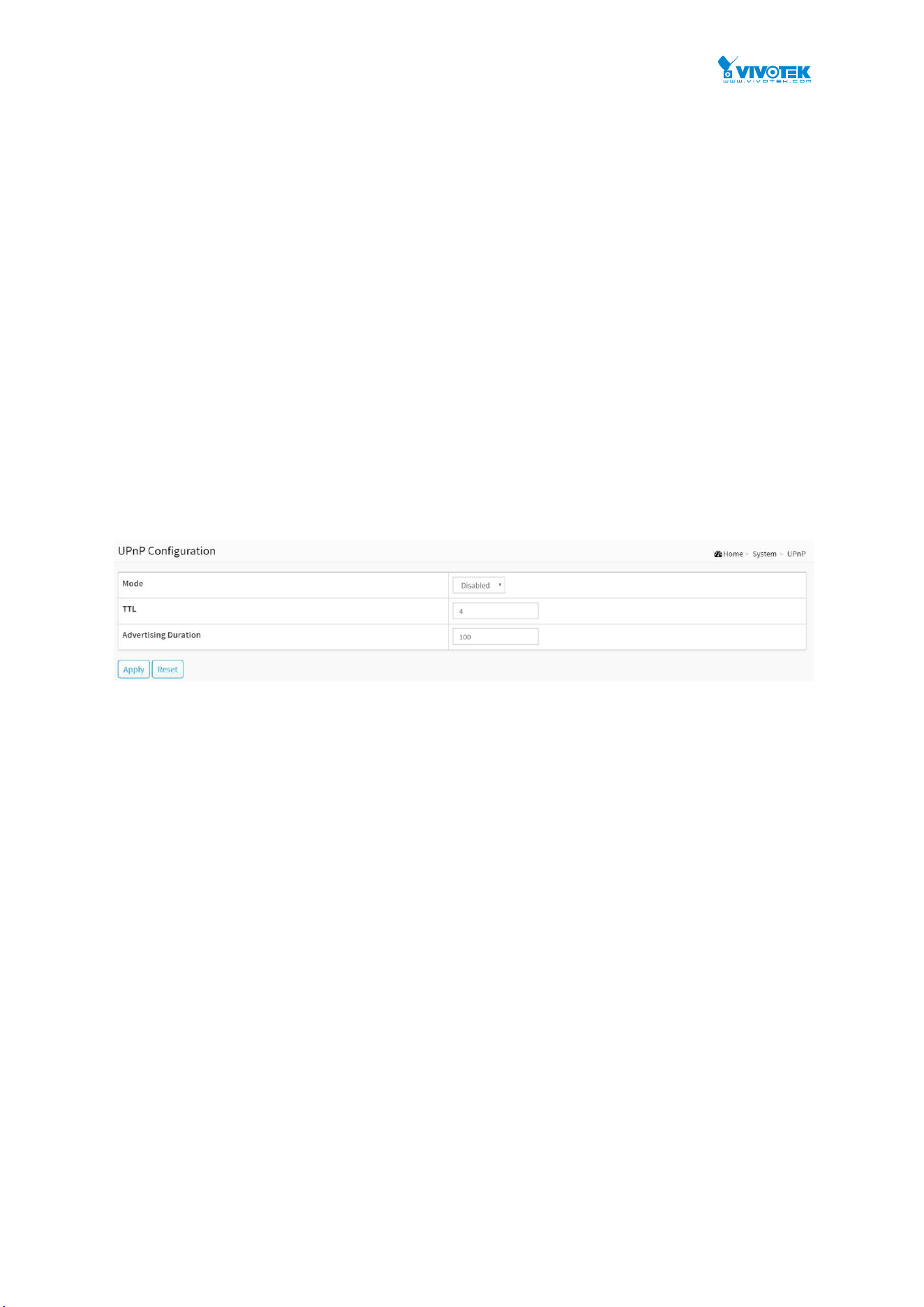
41
2-6 UPnP
UPnP is an acronym for Universal Plug and Play. The goals of UPnP are to allow devices to
connect seamlessly and to simplify the implementation of networks in the home (data sharing,
communications, and entertainment) and in corporate environments for simplified installation
of computer components
Web Interface
To configure the UPnP Configuration in the web interface:
1. Click System and UPnP.
2. Scroll to select the mode to enable or disable.
3. Specify the parameters in each blank field.
4. Click the Apply to save the setting.
5. If you want to cancel the setting then you need to click the Reset button.
6. It will revert to previously saved values.
Figure 2-6: The UPnP Configuration
Parameter description:
These parameters are displayed on the UPnP Configuration page:
Mode :
Indicates the UPnP operation mode. Possible modes are:
Enabled: Enable UPnP mode operation.
Disabled: Disable UPnP mode operation.
When the mode is enabled, two ACEs are added automatically to trap UPNP related packets
to CPU. The ACEs are automatically removed when the mode is disabled. .
TTL :
The TTL value is used by UPnP to send SSDP advertisement messages. Valid values are in the
range 1 to 255.
Advertising Duration :
The duration, carried in SSDP packets, is used to inform a control point or control points
how often it or they should receive an SSDP advertisement message from this switch. If a
control point does not receive any message within the duration, it will think that the switch
no longer exists. Due to the unreliable nature of UDP, in the standard it is recommended
that such refreshing of advertisements to be done at less than one-half of the advertising
duration. In the implementation, the switch sends SSDP messages periodically at the interval
one-half of the advertising duration minus 30 seconds. Valid values are in the range 100 to

42
86400.
Buttons
Apply :
Click to save changes.
Reset :
Click to undo any changes made locally and revert to previously saved values.
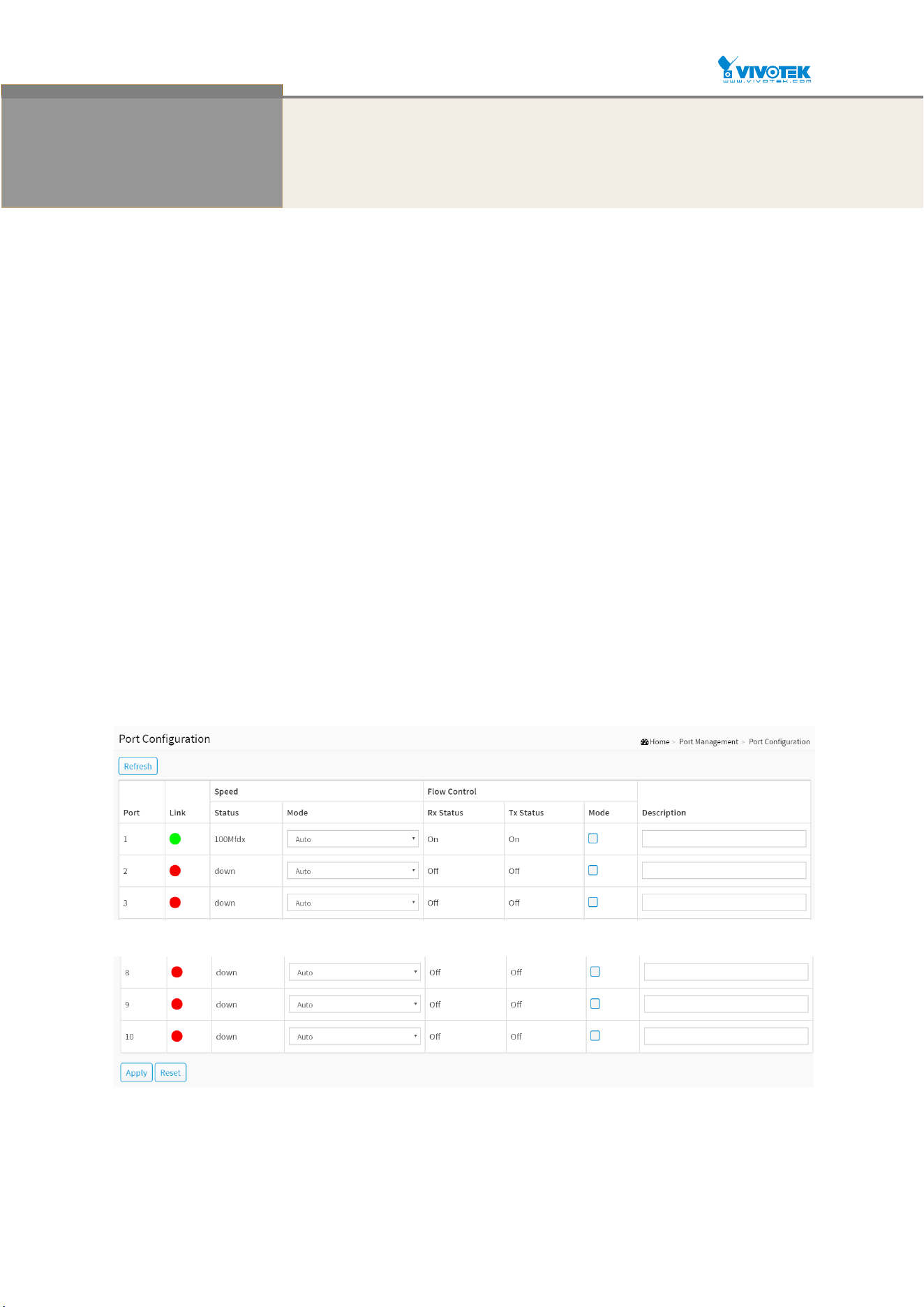
43
Chapter 3 Port Management
The section describes to configure the Port detail parameters of the switch. Others you could
using the Port configure to enable or disable the Port of the switch. Monitor the ports content
or status in the function.
3-1 Port Configuration
This page displays current port configurations. Ports can also be configured here.
Web Interface
To configure a Current Port Configuration in the web interface:
1. Click Port Management and Port Configuration.
2. Specify the Speed Configured, Flow Control.
3. Specify the detail Port alias or description an alphanumeric string describing the full name
and version identification for the system’s hardware type, software version, and
networking application.
4. Click Apply.
Figure 3-1: The Port Configuration
Parameter description:
Port :

44
This is the logical port number for this row.
Link :
The current link state is displayed graphically. Green indicates the link is up and red that it is
down.
Current Link Speed :
Provides the current link speed of the port.
Configured Link Speed :
Selects any available link speed for the given switch port. Only speeds supported by the
specific port is shown. Possible speeds are:
Disabled - Disables the switch port operation.
Auto - Port auto negotiating speed with the link partner and selects the highest speed that
is compatible with the link partner.
10Mbps HDX - Forces the cu port in 10Mbps half-duplex mode.
10Mbps FDX - Forces the cu port in 10Mbps full duplex mode.
100Mbps HDX - Forces the cu port in 100Mbps half-duplex mode.
100Mbps FDX - Forces the cu port in 100Mbps full duplex mode.
1Gbps FDX - Forces the port in 1Gbps full duplex.
2.5Gbps FDX - Forces the Serdes port in 2.5Gbps full duplex mode.
SFP_Auto_AMS - Automatically determines the speed of the SFP. Note: There is no
standardized way to do SFP auto detect, so here it is done by reading the SFP rom. Due to
the missing standardized way of doing SFP auto detect some SFPs might not be detectable.
The port is set in AMS mode. Cu port is set in Auto mode.
100-FX - SFP port in 100-FX speed. Cu port disabled.
100-FX_AMS - Port in AMS mode. SFP port in 100-FX speed. Cu port in Auto mode.
1000-X - SFP port in 1000-X speed. Cu port disabled.
1000-X_AMS - Port in AMS mode. SFP port in 1000-X speed. Cu port in Auto mode. Ports in
AMS mode with 1000-X speed has Cu port preferred. Ports in AMS mode with 100-FX speed
has fiber port preferred.
Flow Control :
When Auto Speed is selected on a port, this section indicates the flow control capability that
is advertised to the link partner. When a fixed-speed setting is selected, that is what is used.
The Current Rx column indicates whether pause frames on the port are obeyed, and the
Current Tx column indicates whether pause frames on the port are transmitted. The Rx and
Tx settings are determined by the result of the last Auto-Negotiation.
Check the configured column to use flow control. This setting is related to the setting for
Configured Link Speed.
Description :
Enter up to 47 characters to be descriptive name for identifies this port.
Buttons
Refresh :
You can click them for refresh the Port link Status manually.
Apply :
Click to save changes.

45
Reset :
Click to undo any changes made locally and revert to previously saved values.
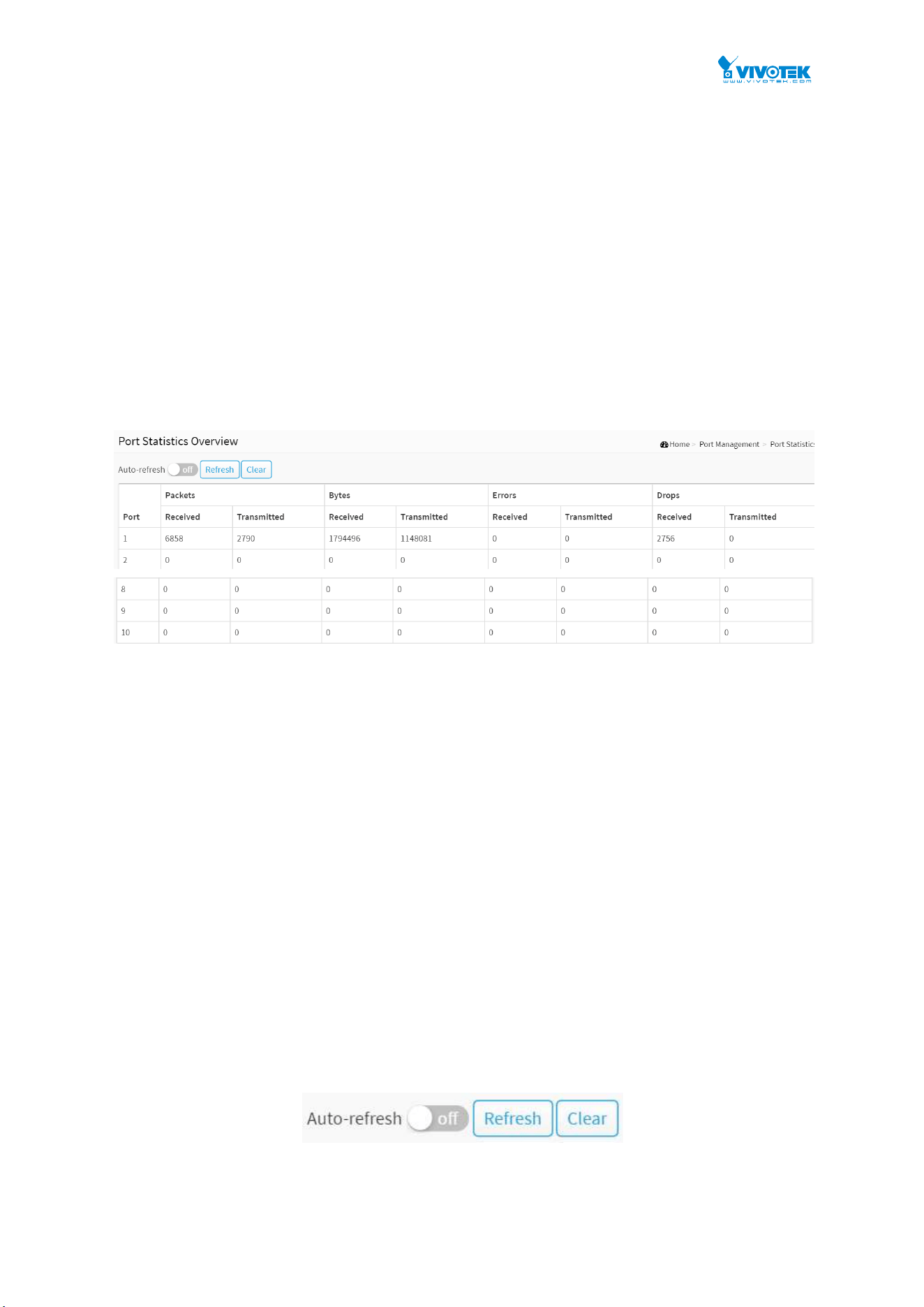
46
3-2 Port Statistics
The section describes to the Port statistics information and provides overview of general traffic
statistics for all switch ports.
Web Interface
To Display the Port Statistics Overview in the web interface:
1. Click Port Management and Port Statistics.
2. If you want to auto-refresh then you need to evoke the “Auto-refresh”.
3. Click “ Refresh“ to refresh the port statistics or clear all information when you click
“ Clear”.
4. If you want to see the detailed of port statistic then you need to click that port.
Figure 3-2: The Port Statistics Overview
Parameter description:
Port :
The logical port for the settings contained in the same row.
Packets :
The number of received and transmitted packets per port.
Bytes :
The number of received and transmitted bytes per port.
Errors :
The number of frames received in error and the number of incomplete transmissions per
port.
Drops :
The number of frames discarded due to ingress or egress congestion.
Buttons
Figure 3-2: The Port Statistics Overview buttons
Auto-refresh :
Check this box to refresh the page automatically. Automatic refresh occurs every 3 seconds.
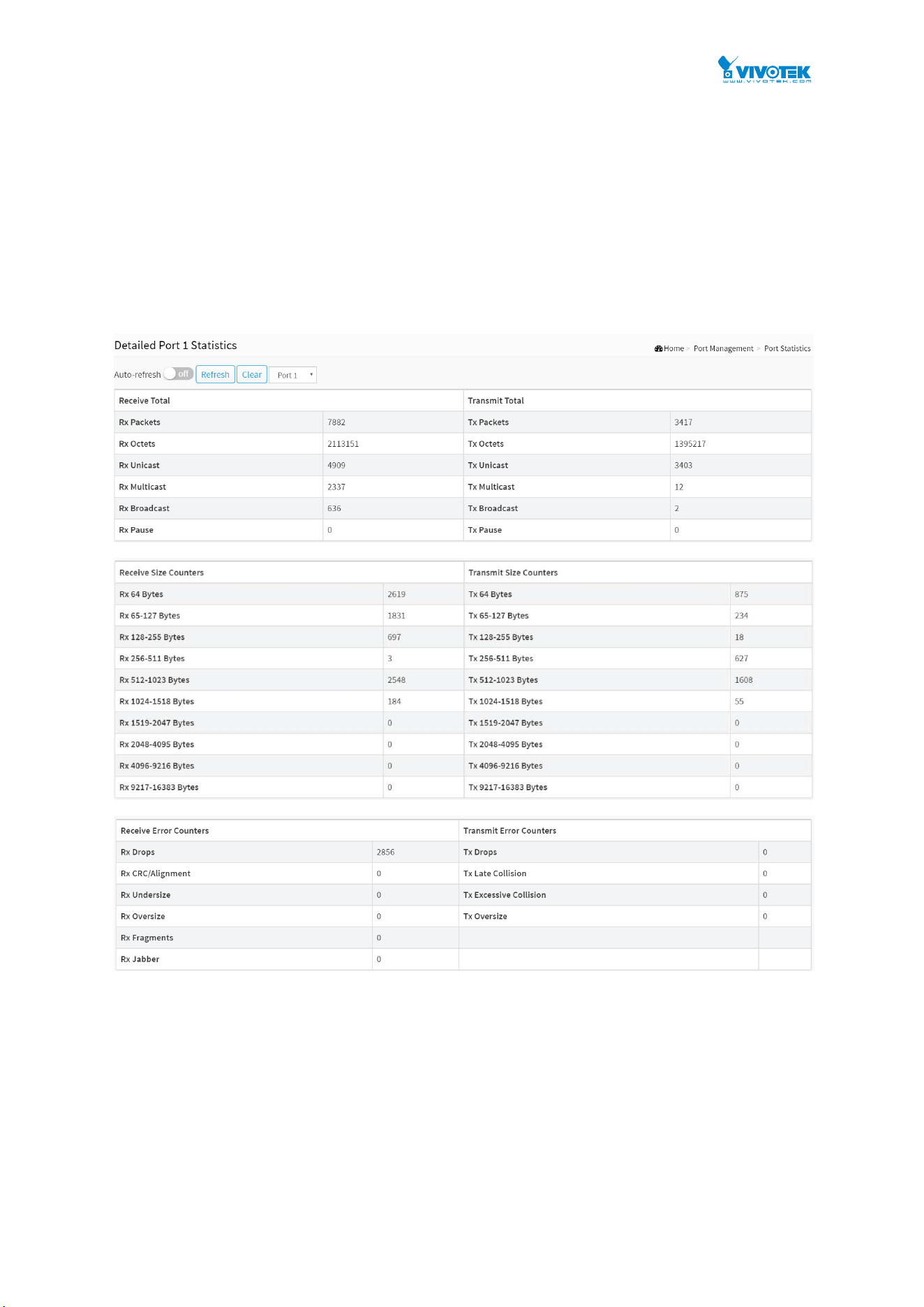
47
Refresh :
Click to refresh the page.
Clear :
Clears the counters for all ports.
If you want to see the detailed of port statistic then you need to click that port. The displayed
counters are the totals for receive and transmit, the size counters for receive and transmit, and
the error counters for receive and transmit.
Figure 3-2: The Detailed Port Statistics
Parameter description:
Upper left scroll bar:
To scroll which port to display the Port statistics with “Port-1”, “Port-2”, ...
Receive Total and Transmit Total
Rx and Tx Packets :
The number of received and transmitted (good and bad) packets.
Rx and Tx Octets :

48
The number of received and transmitted (good and bad) bytes. Includes FCS, but excludes
framing bits.
Rx and Tx Unicast :
The number of received and transmitted (good and bad) unicast packets.
Rx and Tx Multicast :
The number of received and transmitted (good and bad) multicast packets.
Rx and Tx Broadcast :
The number of received and transmitted (good and bad) broadcast packets.
Rx and Tx Pause :
A count of the MAC Control frames received or transmitted on this port that have an
opcode indicating a PAUSE operation.
Receive and Transmit Size Counters
The number of received and transmitted (good and bad) packets split into categories based on
their respective frame sizes.
Receive Error Counters
Rx Drops :
The number of frames dropped due to lack of receive buffers or egress congestion.
Rx CRC/Alignment :
The number of frames received with CRC or alignment errors.
Rx Undersize :
The number of short 1 frames received with valid CRC.
Rx Oversize :
The number of long 2 frames received with valid CRC.
Rx Fragments :
The number of short 1 frames received with invalid CRC.
Rx Jabber :
The number of long 2 frames received with invalid CRC.
Rx Filtered :
The number of received frames filtered by the forwarding process.
Short frames are frames that are smaller than 64 bytes.
Long frames are frames that are longer than the configured maximum frame length for this
port.
Transmit Error Counters
Tx Drops :
The number of frames dropped due to output buffer congestion.
Tx Late/Exc. Coll. :
The number of frames dropped due to excessive or late collisions.
Buttons

49
Figure 3-2: The Detailed Port Statistics buttons
Auto-refresh :
Check this box to refresh the page automatically. Automatic refresh occurs every 3 seconds.
Refresh :
Click to refresh the page.
Clear :
Clears the counters for the selected port.
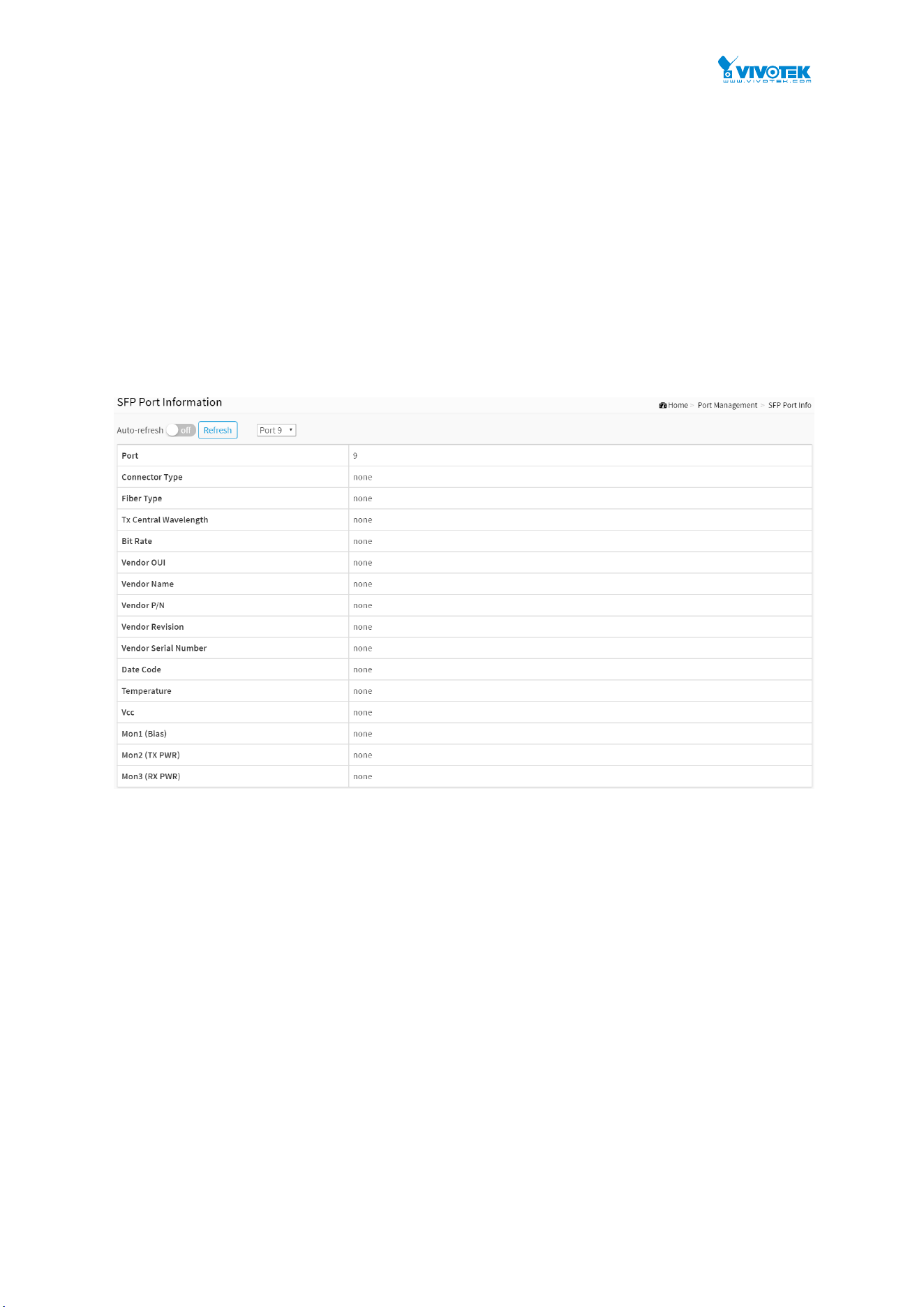
50
3-3 SFP Port Info
The section describes that switch could display the SFP module detail information which you
connect it to the switch. The information includes: Connector type, Fiber type, wavelength, bit
rate and Vendor OUI etc.
Web Interface
To Display the SFP information in the web interface:
1. Click Port Management and SFP Port Info.
2. To display the SFP Information.
Figure 3-3: The SFP Port Information
Parameter description:
Upper left scroll bar:
To scroll which port to display the Port statistics with “Port-9”, “Port-10”.
Connector Type:
Display the connector type, for instance, UTP, SC, ST, LC and so on.
Fiber Type:
Display the fiber mode, for instance, Multi-Mode, Single-Mode.
Tx Central Wavelength:
Display the fiber optical transmitting central wavelength, for instance, 850nm, 1310nm,
1550nm and so on.
Bit Rate:
Displays the nominal bit rate of the transceiver.
Vendor OUI:
51
Display the OUI code which is assigned by IEEE.
Vendor Name:
Display the company name of the module manufacturer.
Vendor P/N:
Display the product name of the naming by module manufacturer.
Vendor Rev (Revision):
Display the module revision.
Vendor SN (Serial Number):
Show the serial number assigned by the manufacturer.
Date Code:
Show the date this SFP module was made.
Temperature:
Show the current temperature of SFP module.
Vcc:
Show the working DC voltage of SFP module.
Mon1(Bias) mA:
Show the Bias current of SFP module.
Mon2(TX PWR):
Show the transmit power of SFP module.
Mon3(RX PWR):
Show the receiver power of SFP module.
Buttons
Figure 3-3: The SFP Port Information buttons
Auto-refresh :
Check this box to refresh the page automatically. Automatic refresh occurs every 3 seconds.
Refresh :
Click to refresh the page.
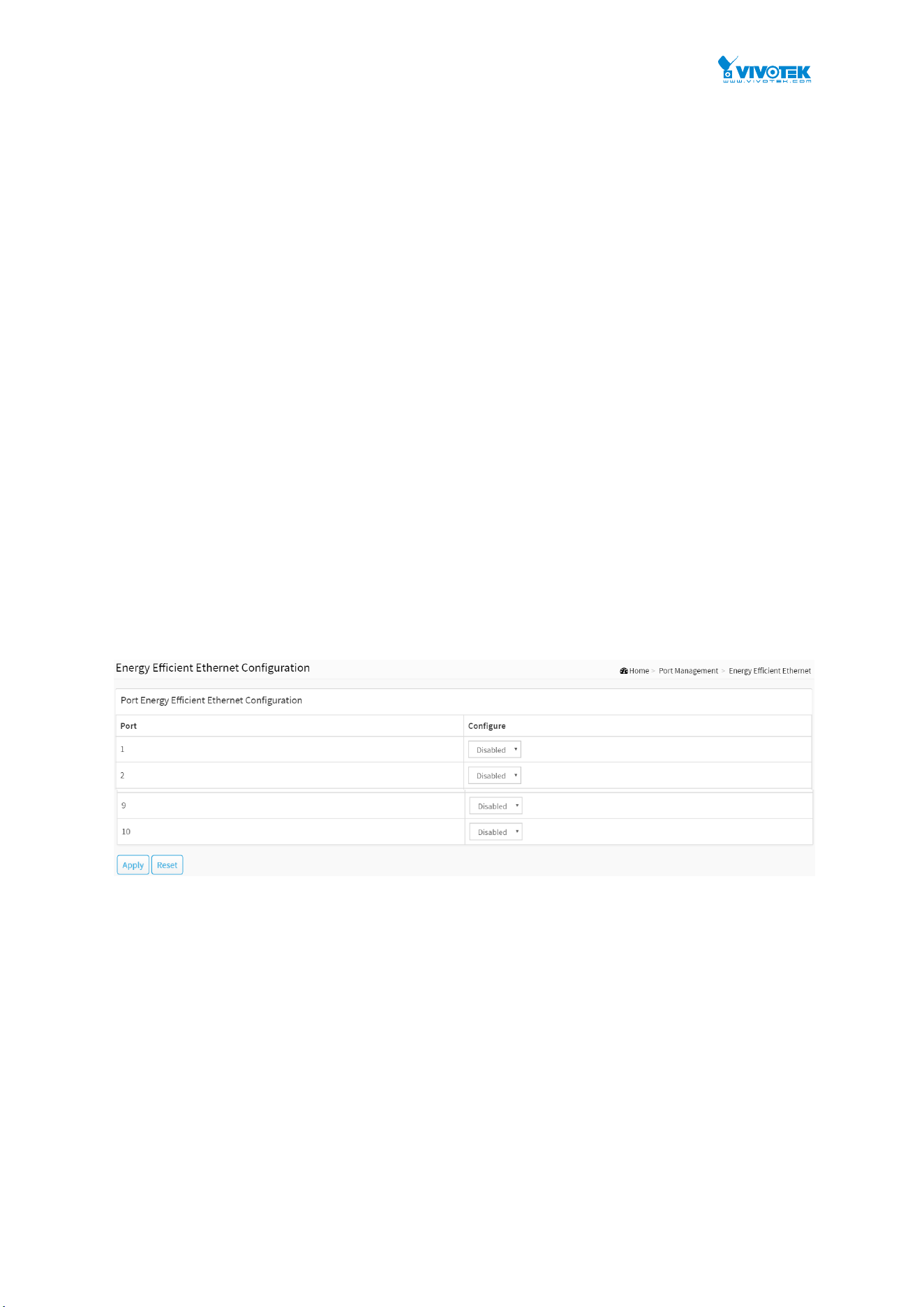
52
3-4 Energy Efficient Ethernet
EEE is an abbreviation for Energy Efficient Ethernet defined in IEEE 802.3az.
This page allows the user to inspect and configure the current EEE port settings.
EEE is a power saving option that reduces the power usage when there is very low traffic
utilization (or no traffic).
EEE works by powering down circuits when there is no traffic. When a port gets data to be
transmitted all circuits are powered up. The time it takes to power up the circuits is named
wakeup time. The default wakeup time is 17 us for 1Gbit links and 30 us for other link
speeds. EEE devices must agree upon the value of the wakeup time in order to make sure that
both the receiving and transmitting device has all circuits powered up when traffic is
transmitted. The devices can exchange information about the devices wakeup time using
the LLDP protocol.
Web Interface
To configure an Energy Efficient Ethernet in the web interface:
1. Click Port Management and Energy Efficient Ethernet..
2. The port to select enable or disable Energy Efficient Ethernet
3. Click the apply to save the setting.
4. If you want to cancel the setting then you need to click the Reset button. It will revert to
previously saved values.
Figure 3-4: The Energy Efficient Ethernet Configuration
Parameter description:
Port :
The switch port number of the logical EEE port.
Configure :
Controls whether EEE is enabled for this switch port.
Buttons
Apply :
Click to save changes.
Reset :
Click to undo any changes made locally and revert to previously saved values.
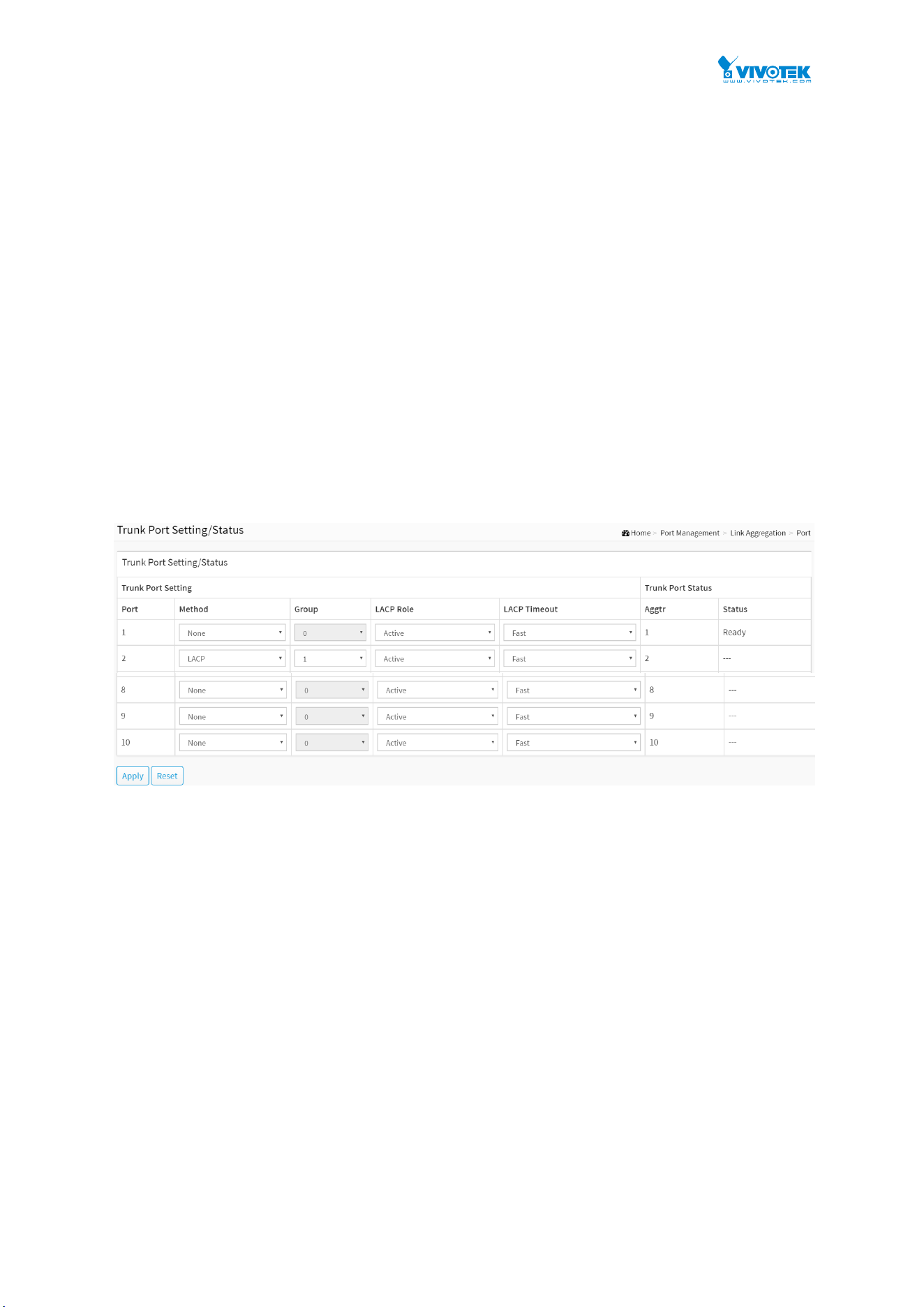
53
3-5 Link Aggregation
3-5.1 Port
This section describes that Port setting/status is used to configure the trunk property of each
and every port in the switch system.
Web Interface
To configure the trunk property of each and every port in the web interface:
1. Click Port Management, Link Aggregation and port.
2. Specify the Method, Group, LACP Role and LACP Timeout.
3. Click the apply to save the setting.
4. If you want to cancel the setting then you need to click the Reset button. It will revert to
previously saved values.
Figure 3-5.1: The trunk port setting/status
Parameter description :
Port :
The logical port for the settings contained in the same row.
Method :
This determines the method a port uses to aggregate with other ports.
None :
A port does not want to aggregate with any other port should choose this default
setting.
LACP :
A port use LACP as its trunk method to get aggregated with other ports also using
LACP.
Static :
A port use Static Trunk as its trunk method to get aggregated with other ports also
using Static Trunk.
Group :

54
Ports choosing the same trunking method other than “None” must be assigned a unique
Group number (i.e. Group ID, valid value is from 1 to 5) in order to declare that they wish to
aggregate with each other.
LACP Role:
This field is only referenced when a port’s trunking method is LACP.
Active :
An Active LACP port begins to send LACPDU to its link partner right after the LACP
protocol entity started to take control of this port.
Passive :
A Passive LACP port will not actively send LACPDU out before it receives an
LACPDU from its link partner.
LACP Timeout :
The Timeout controls the period between BPDU transmissions.
Fast :
It will transmit LACP packets each second,
Slow :
It will wait for 30 seconds before sending a LACP packet.
Aggtr :
Aggtr is an abbreviation of “aggregator”. Every port is also an aggregator, and its own
aggregator ID is the same as its own Port No. We can regard an aggregator as a
representative of a trunking group. Ports with same Group ID and using same trunking
method will have the opportunity to aggregate to a particular aggregator port. This
aggregator port is usually the port with the smallest Port No. within the trunking group.
Status :
This field represents the trunking status of a port which uses a trunking method other than
“None”. It also represents the management link status of a port which uses the “None”
trunking method. “---“ means “not ready”
Buttons
Apply :
Click to save changes.
Reset :
Click to undo any changes made locally and revert to previously saved values.

55
3-5.2 Aggregator View
To display the current port trunking information from the aggregator point of view.
Web Interface
To see the LACP detail in the web interface:
1. Click Port Management, Link Aggregation and Aggregator View.
2. Click the LACP Detail.
Figure 3-5.2: The Aggregator View
Parameter description:
Aggregator :
It shows the aggregator ID of every port. In fact, every port is also an aggregator, and its
own aggregator ID is the same as its own Port No..
Method :
Show the method a port uses to aggregate with other ports.
Member Ports :
Show all member ports of an aggregator (port).
Ready Ports :
Show only the ready member ports within an aggregator (port).
Lacp Detail :
You can select the port that you want to see the LACP Detail.
Buttons
Lacp Detail :
Click this button then you will see the aggregator information, Details will be described in
the below.
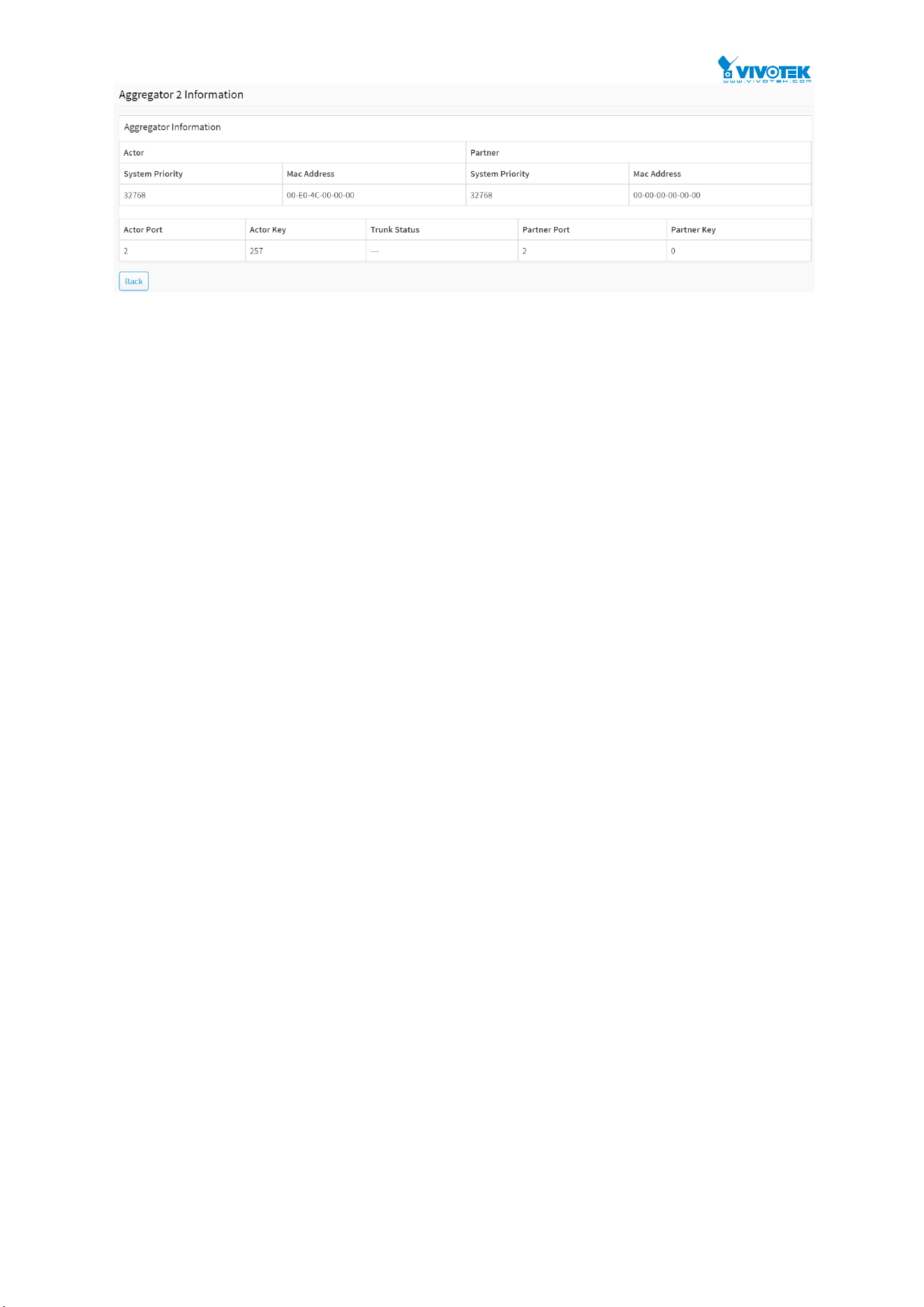
56
Figure 3-5.2: The Lacp Detail
Parameter description:
Actor
System Priority :
Show the System Priority part of the aggregation Actor. (1-65535)
Mac Address :
The system ID of the aggregation Actor.
Actor Port :
The actor's port number connected to this port.
Actor Key :
The Key that the actor has assigned to this aggregation ID.
Partner
System Priority :
Show the System Priority part of the aggregation partner. (1-65535).
Mac Address :
The system ID of the aggregation partner.
Partner Port :
The partner's port number connected to this port.
Partner Key :
The Key that the partner has assigned to this aggregation ID.
Trunk Status :
This field represents the trunking status of a port which uses a trunking method other than
“None”. It also represents the management link status of a port which uses the “None”
trunking method. “---“ means “not ready”.
Button
Back :
Click to undo any changes made locally and return to the Users.
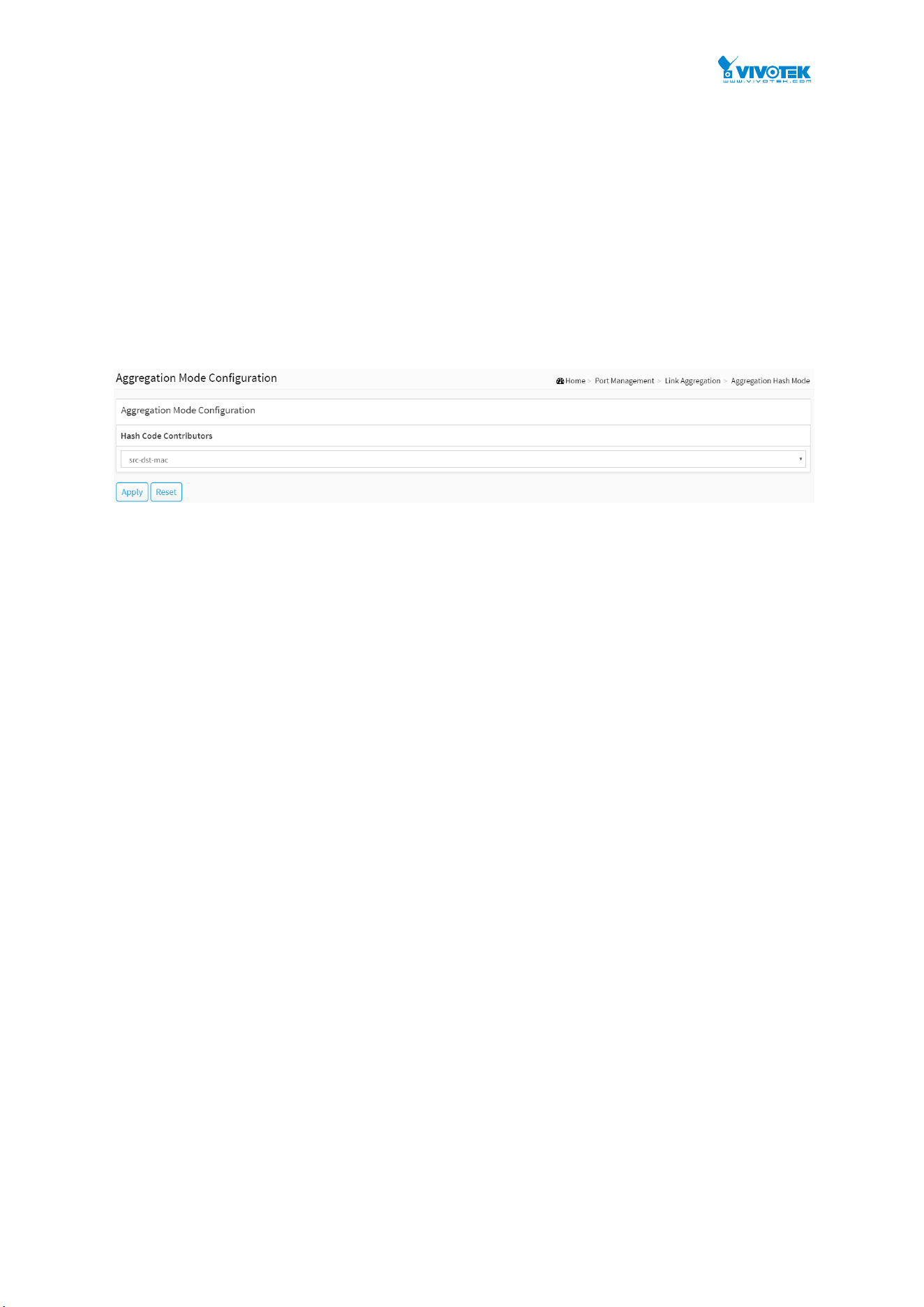
57
3-5.3 Aggregation Hash Mode
Web Interface
To configure the Aggregation hash mode in the web interface:
1. Click Port Management, Link Aggregation and Aggregator Hash Mode.
2. Click Hash Code Contributors to select the mode.
3. Click the apply to save the setting.
4. If you want to cancel the setting then you need to click the Reset button. It will revert to
previously saved values.
Figure 3-5.3: Aggregation Hash Mode
Parameter description:
Hash Code Contributors
src-mac :
Source MAC Address
The Source MAC address can be used to calculate the destination port for the frame. Check
to enable the use of the Source MAC address, or uncheck to disable. By default, Source MAC
Address is enabled.
dst-mac :
Destination MAC Address
The Destination MAC Address can be used to calculate the destination port for the frame.
Check to enable the use of the Destination MAC Address, or uncheck to disable. By default,
Destination MAC Address is disabled.
ip :
IP Address
The IP address can be used to calculate the destination port for the frame. Check to enable
the use of the IP Address, or uncheck to disable. By default, IP Address is enabled.
src-dst-mac :
Source MAC Address + Destination MAC Address.
src-ip :
Source MAC Address + IP Address.
dst-ip :
Destination MAC Address + IP Address.
src-dst-ip :
Source MAC Address + Destination MAC Address + IP Address.

58
Buttons
Apply :
Click to save changes.
Reset :
Click to undo any changes made locally and revert to previously saved values.

59
3-5.4 LACP System Priority
It is used to set the priority part of the LACP system ID. LACP will only aggregate together the
ports whose peer link partners are all on a single system. Each system supports LACP will be
assigned a globally unique System Identifier for this purpose. A system ID is a 64-bit field
comprising a 48-bit MAC Address and 16-bit priority value. The System Priority can be set by the
user. Its range is from 1 to 65535. Default: 32768.
Web Interface
To configure the LACP System Priority in the web interface:
1. Click Port Management, Link Aggregation and LACP System Priority.
2. Specify the LACP System Priority.
3. Click the apply to save the setting.
4. If you want to cancel the setting then you need to click the Reset button. It will revert to
previously saved values.
Figure 3-5.4: The Lacp System Priority
Parameter description:
System Priority:
1-65535.
Show the System Priority part of a system ID.
Buttons
Apply :
Click to save changes.
Reset :
Click to undo any changes made locally and revert to previously saved values.
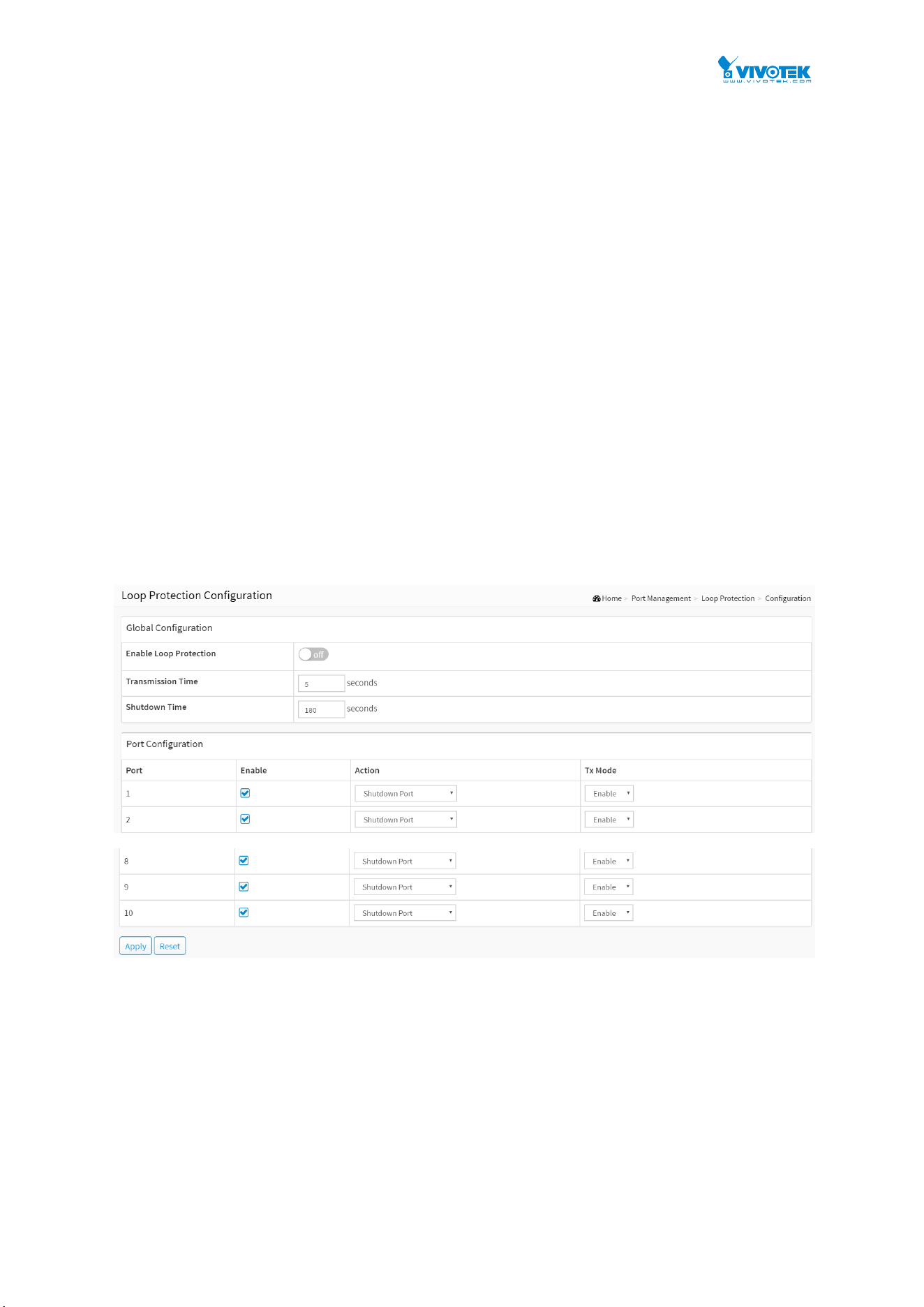
60
3-6 Loop Protection
3-6.1 Configuration
The loop Protection is used to detect the presence of traffic. When switch receives packet’s
(looping detection frame) MAC address the same as oneself from port, show Loop Protection
happens. The port will be locked when it received the looping Protection frames. If you want to
resume the locked port, please find out the looping path and take off the looping path, then
select the resume the locked port and click on “Resume” to turn on the locked ports.
Web Interface
To configure the Loop Protection parameters in the web interface:
1. Click Port Management, Loop Protection and Configuration.
2. Evoke to select enable or disable the port loop Protection.
3. Click the apply to save the setting.
4. If you want to cancel the setting then you need to click the Reset button. It will revert to
previously saved values.
Figure 3-6.1: The Loop Protection Configuration
Parameter description :
Global Configuration
Enable Loop Protection :
Controls whether loop protections is enabled (as a whole).
Transmission Time :
The interval between each loop protection PDU sent on each port. Valid values are 1 to 10
seconds.
Shutdown Time :

61
The period (in seconds) for which a port will be kept disabled in the event of a loop is
detected (and the port action shuts down the port). Valid values are 0 to 604800 seconds (7
days). A value of zero will keep a port disabled (until next device restart).
Port Configuration
Port :
The switch port number of the port.
Enable :
Controls whether loop protection is enabled on this switch port
Action:
Configures the action performed when a loop is detected on a port. Valid values are Shutdown Port,
Shutdown Port and Log or Log Only.
Tx Mode :
Controls whether the port is actively generating loop protection PDU's, or whether it is just passively
looking for looped PDU's.
Buttons
Apply :
Click to save changes.
Reset :
Click to undo any changes made locally and revert to previously saved values.
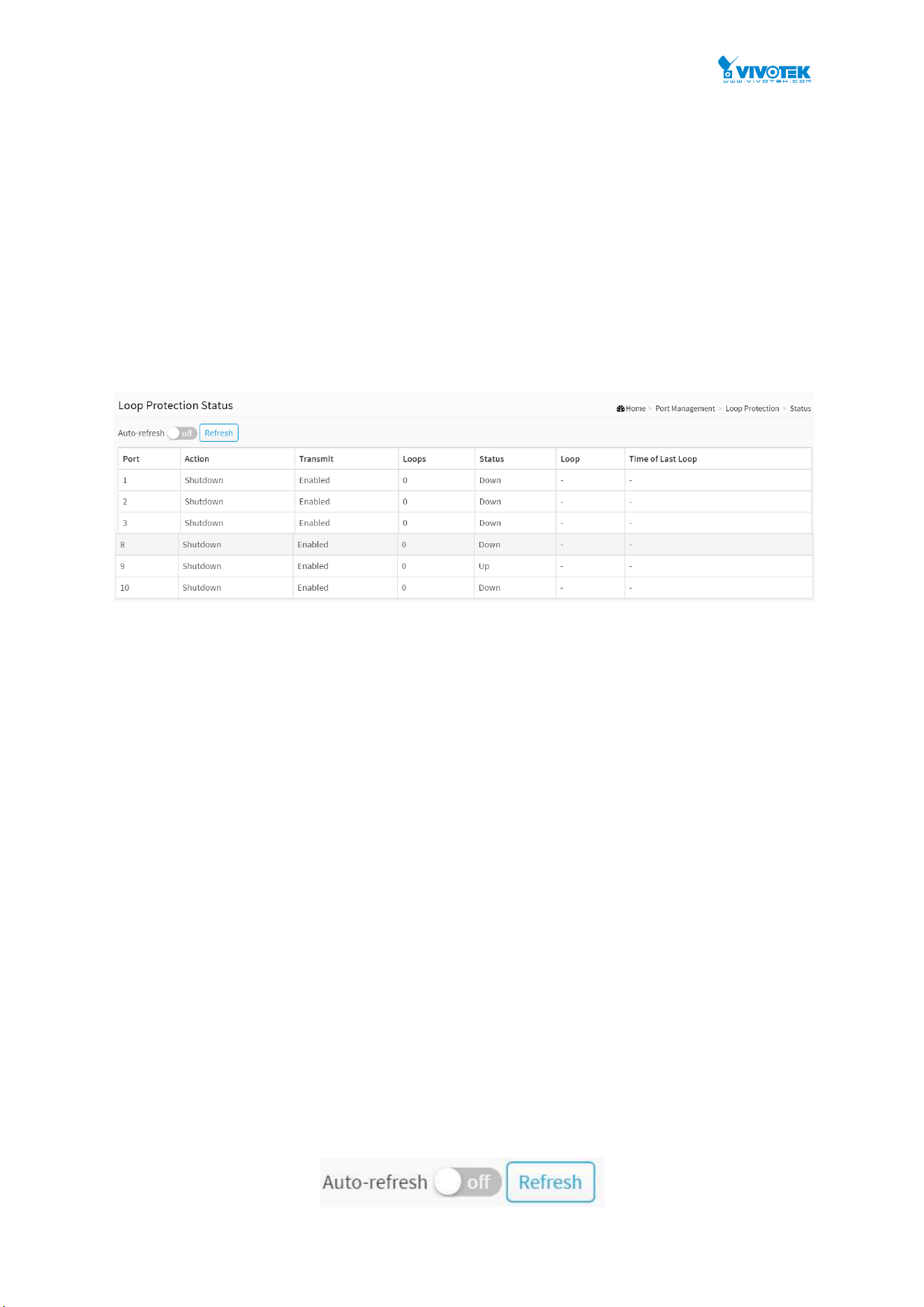
62
3-6.2 Status
This section displays the loop protection port status the ports of the currently selected switch.
Web Interface
To display the Loop Protection status in the web interface:
1. Click Port Management, Loop Protection and Status.
2. If you want to auto-refresh the information then you need to evoke the “Auto refresh”.
3. Click “Refresh” to refresh the Loop Protection Status.
Figure 3-6.2: Loop Protection Status
Parameter description:
Port
The switch port number of the logical port.
Action
The currently configured port action.
Transmit
The currently configured port transmit mode.
Loops
The number of loops detected on this port.
Status
The current loop protection status of the port.
Loop
Whether a loop is currently detected on the port.
Time of Last Loop
The time of the last loop event detected.
Buttons
Figure 3-6.2: Loop Protection Status buttons

63
Auto-refresh :
Check this box to refresh the page automatically. Automatic refresh occurs every 3 seconds.
Refresh :
Click to refresh the page immediately.

64
Chapter 4 PoE Management
PoE is an acronym for Power over Ethernet. Power over Ethernet is used to transmit electrical
power, to remote devices over standard Ethernet cable. It could for example be used for
powering IP telephones, wireless LAN access points and other equipment, where it would be
difficult or expensive to connect the equipment to main power supply.
4-1 PoE Configuration
This page allows the user to inspect and configure the current PoE port settings and show all
PoE Supply W.
Web Interface
To configure Power over Ethernet in the web interface:
1. Click PoE Management and PoE Configuration.
2. Specify the PoE or PoE+ Mode, Priority and Maximum Power(W).
3. Click Apply to save the configuration.
4. If you want to cancel the setting then you need to click the Reset button. It will revert to
previously saved values.
Figure 4-1: PoE Configuration
Parameter description:
PoE Power Supply Configuration
Primary Power Supply [W] :
To display watts for the primary power supply.
Capacitor Detection :
Click to enable or disable the capacitor configuration.
PoE Port Configuration

65
Port :
This is the logical port number for this row.
PoE Mode :
The PoE Mode represents the PoE operating mode for the port. Enable or Disable PoE.
Priority :
The Priority represents the ports priority. There are three levels of power priority named Low,
High and Critical.
The priority is used in the case where the remote devices requires more power than the
power supply can deliver. In this case the port with the lowest priority will be turn off
starting from the port with the highest port number.
Maximum Power [W] :
The Maximum Power value contains a numerical value that indicates the maximum power in
watts that can be delivered to a remote device.
The maximum allowed value is 30 W.
Buttons
Apply :
Click to save changes.
Reset :
Click to undo any changes made locally and revert to previously saved values.

66
4-2 PoE Status
This page allows the user to inspect the current status for all PoE ports.
Web Interface
To Display PoE Status in the web interface:
1. Click PoE Management and PoE Status
2. Scroll “Auto-refresh” to on/off.
3. Click “Refresh” to refresh the port detailed statistics.
Figure 4-2: The PoE Status
Parameter description:
Local Port :
This is the logical port number for this row.
PD Class :
Each PD is classified according to a class that defines the maximum power the PD will use.
The PD Class shows the PDs class.
Five Classes are defined:
Class 0: Max. power 15.4 W
Class 1: Max. power 4.0 W
Class 2: Max. power 7.0 W
Class 3: Max. power 15.4 W
Class 4: Max. power 30.0 W
Power Requested :
The Power Requested shows the requested amount of power the PD wants to be reserved.
Power Allocated :
The Power Allocated shows the amount of power the switch has allocated for the PD.
Power Used :
The Power Used shows how much power the PD currently is using.
Current Used :
The Power Used shows how much current the PD currently is using.
Priority :
The Priority shows the port's priority configured by the user.
67
Port Status :
The Port Status shows the port's status. The status can be one of the following values:
PoE not available - No PoE chip found - PoE not supported for the port.
PoE turned OFF - PoE disabled : PoE is disabled by user.
PoE turned OFF - Power budget exceeded - The total requested or used power by the PDs
exceeds the maximum power the Power Supply can deliver, and port(s) with the lowest
priority is/are powered down.
No PD detected - No PD detected for the port.
PoE turned OFF - PD overload - The PD has requested or used more power than the port
can deliver, and is powered down.
PoE turned OFF - PD is off.
Invalid PD - PD detected, but is not working correctly.
Buttons
Figure 4-2: The PoE Status buttons
Auto-refresh :
Check this box to refresh the page automatically. Automatic refresh occurs every 3 seconds.
Refresh :
Click to refresh the page immediately.
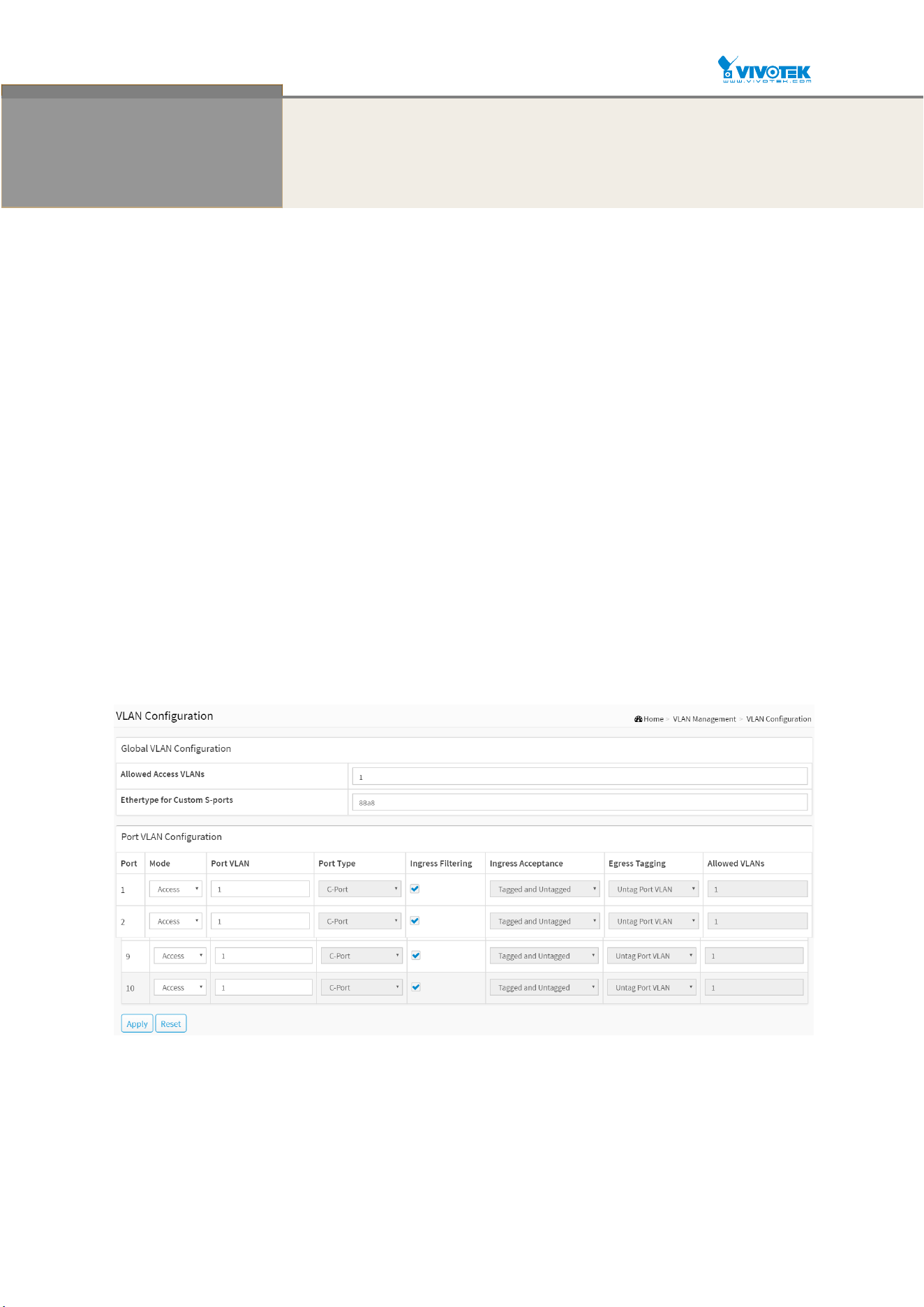
68
Chapter 5 VLAN Management
5-1 VLAN Configuration
To assign a specific VLAN for management purpose. The management VLAN is used to
establish an IP connection to the switch from a workstation connected to a port in the VLAN.
This connection supports a VSM and SNMP session. By default, the active management VLAN
is VLAN 1, but you can designate any VLAN as the management VLAN using the
Management VLAN window. Only one management VLAN can be active at a time.
When you specify a new management VLAN, your HTTP connection to the old management
VLAN is lost. For this reason, you should have a connection between your management station
and a port in the new management VLAN or connect to the new management VLAN through a
multi-VLAN route.
Web Interface
To configure VLAN membership configuration in the web interface:
1. Click VLAN Management and VLAN Configuration.
2. Specify Existing VLANs, Ether type for Custom S-ports.
3. Click Apply.
Figure 5-1: The VLAN Configuration
Parameter description:
Global VLAN Configuration
Allowed Access VLANs :
This field shows the VLANs that are created on the switch.
By default, only VLAN 1 exists. More VLANs may be created by using a list syntax where the

69
individual elements are separated by commas. Ranges are specified with a dash separating
the lower and upper bound.
The following example will create VLANs 1, 10, 11, 12, 13, 200, and 300: 1,10-13,200,300.
Spaces are allowed in between the delimiters.
Ethertype for Custom S-ports :
This field specifies the ethertype/TPID (specified in hexadecimal) used for Custom S-ports.
The setting is in force for all ports whose Port Type is set to S-Custom-Port.
Port VLAN Configuration
Port :
This is the logical port number of this row.
Mode :
The port mode (default is Access) determines the fundamental behavior of the port in question. A port
can be in one of three modes as described below.
Whenever a particular mode is selected, the remaining fields in that row will be either grayed out or
made changeable depending on the mode in question.
Grayed out fields show the value that the port will get when the mode is applied.
Access:
Access ports are normally used to connect to end stations. Dynamic features like Voice VLAN may add
the port to more VLANs behind the scenes. Access ports have the following characteristics:
• Member of exactly one VLAN, the Port VLAN (a.k.a. Access VLAN), which by default is 1,
• accepts untagged frames and C-tagged frames,
• discards all frames that are not classified to the Access VLAN,
• on egress all frames are transmitted untagged.
Trunk:
Trunk ports can carry traffic on multiple VLANs simultaneously, and are normally used to connect to
other switches. Trunk ports have the following characteristics:
• By default, a trunk port is member of all existing VLANs. This may be limited by the use of Allowed
VLANs,
• unless VLAN Trunking is enabled on the port, frames classified to a VLAN that the port is not a
member of will be discarded,
• by default, all frames but frames classified to the Port VLAN (a.k.a. Native VLAN) get tagged on
egress. Frames classified to the Port VLAN do not get C-tagged on egress,
• egress tagging can be changed to tag all frames, in which case only tagged frames are accepted on
ingress,
• VLAN trunking may be enabled.
Hybrid:
Hybrid ports resemble trunk ports in many ways, but adds additional port configuration features. In
addition to the characteristics described for trunk ports, hybrid ports have these abilities:
• Can be configured to be VLAN tag unaware, C-tag aware, S-tag aware, or S-custom-tag aware,
• ingress filtering can be controlled,
• ingress acceptance of frames and configuration of egress tagging can be configured independently.
Port VLAN :
Determines the port's VLAN ID (a.k.a. PVID). Allowed VLANs are in the range 1 through 4095, default
being 1.
On ingress, frames get classified to the Port VLAN if the port is configured as VLAN unaware, the
frame is untagged, or VLAN awareness is enabled on the port, but the frame is priority tagged (VLAN
ID = 0).
On egress, frames classified to the Port VLAN do not get tagged if Egress Tagging configuration is set
to untag Port VLAN.
The Port VLAN is called an "Access VLAN" for ports in Access mode and Native VLAN for ports in
Trunk or Hybrid mode.
Port Type :

70
Ports in hybrid mode allow for changing the port type, that is, whether a frame's VLAN tag is used to
classify the frame on ingress to a particular VLAN, and if so, which TPID it reacts on. Likewise, on
egress, the Port Type determines the TPID of the tag, if a tag is required.
Unaware:
On ingress, all frames, whether carrying a VLAN tag or not, get classified to the Port VLAN, and
possible tags are not removed on egress.
C-Port:
On ingress, frames with a VLAN tag with TPID = 0x8100 get classified to the VLAN ID embedded in the
tag. If a frame is untagged or priority tagged, the frame gets classified to the Port VLAN. If frames
must be tagged on egress, they will be tagged with a C-tag.
S-Port:
On ingress, frames with a VLAN tag with TPID = 0x8100 or 0x88A8 get classified to the VLAN ID
embedded in the tag. If a frame is untagged or priority tagged, the frame gets classified to the Port
VLAN. If frames must be tagged on egress, they will be tagged with an S-tag.
S-Custom-Port:
On ingress, frames with a VLAN tag with a TPID = 0x8100 or equal to the Ethertype configured for
Custom-S ports get classified to the VLAN ID embedded in the tag. If a frame is untagged or priority
tagged, the frame gets classified to the Port VLAN. If frames must be tagged on egress, they will be
tagged with the custom S-tag.
Ingress Filtering :
Hybrid ports allow for changing ingress filtering. Access and Trunk ports always have ingress filtering
enabled.
If ingress filtering is enabled (checkbox is checked), frames classified to a VLAN that the port is not a
member of get discarded.
If ingress filtering is disabled, frames classified to a VLAN that the port is not a member of are
accepted and forwarded to the switch engine. However, the port will never transmit frames classified
to VLANs that it is not a member of.
VLAN Trunking :
Trunk and Hybrid ports allow for enabling VLAN trunking.
When VLAN trunking is enabled, frames classified to unknown VLANs are accepted on the port
whether ingress filtering is enabled or not.
This is useful in scenarios where a cloud of intermediary switches must bridge VLANs that haven't
been created. By configuring the ports that connect the cloud of switches as trunking ports, they can
seemlessly carry those VLANs from one end to the other.
Ingress Acceptance :
Hybrid ports allow for changing the type of frames that are accepted on ingress.
Tagged and untagged
both tagged and untagged frames are accepted.
Tagged Only
Only tagged frames are accepted on ingress. Untagged frames are discarded.
Untagged Only
Only untagged frames are accepted on ingress. Tagged frames are discarded.
Egress Tagging :
Ports in Trunk and Hybrid mode may control the tagging of frames on egress.
Untag Port VLAN
Frames classified to the Port VLAN are transmitted untagged. Other frames are transmitted with the
relevant tag.
Tag All
All frames, whether classified to the Port VLAN or not, are transmitted with a tag.

71
Untag All
All frames, whether classified to the Port VLAN or not, are transmitted without a tag.
This option is only available for ports in Hybrid mode.
Allowed VLANs :
Ports in Trunk and Hybrid mode may control which VLANs they are allowed to become members of.
Access ports can only be member of one VLAN, the Access VLAN.
The field's syntax is identical to the syntax used in the Existing VLANs field. By default, a port may
become member of all possible VLANs, and is therefore set to 1-4095.
The field may be left empty, which means that the port will not be member of any of the existing
VLANs, but if it is configured for VLAN Trunking it will still be able to carry all unknown VLANs.
Buttons
Apply :
Click to save changes.
Reset :
Click to undo any changes made locally and revert to previously saved values.

72
5-2 VLAN Membership
This page provides an overview of membership status of VLAN users.
The ports belong to the currently selected stack unit, as reflected by the page header.
Web Interface
To configure VLAN membership configuration in the web interface:
1. Click VLAN Management and VLAN membership.
2. Scroll the bar to choice which VLANs would like to show up.
3. Click Refresh to update the state.
Figure 7-2: The VLAN Membership
Parameter description:
VLAN USER :
VLAN User module uses services of the VLAN management functionality to configure VLAN
memberships and VLAN port configurations such as PVID and UVID. Currently we support
the following VLAN user types:
CLI/Web/SNMP : These are referred to as static.
NAS : NAS provides port-based authentication, which involves communications between a
Supplicant, Authenticator, and an Authentication Server.
MVRP : Multiple VLAN Registration Protocol (MVRP) allows dynamic registration and
deregistration of VLANs on ports on a VLAN bridged network.
Voice VLAN : Voice VLAN is a VLAN configured specially for voice traffic typically
originating from IP phones.
MVR : MVR is used to eliminate the need to duplicate multicast traffic for subscribers in
each VLAN. Multicast traffic for all channels is sent only on a single (multicast) VLAN.
MSTP : The 802.1s Multiple Spanning Tree protocol (MSTP) uses VLANs to create multiple
spanning trees in a network, which significantly improves network resource utilization while
maintaining a loop-free environment.
VLAN ID :
VLAN ID for which the Port members are displayed.
Port Members (VLAN Configuration
功能不同要做修改)
A row of check boxes for each port is displayed for each VLAN ID.
If a port is included in a VLAN, an image will be displayed.
If a port is included in a Forbidden port list, an image will be displayed.

73
If a port is included in a Forbidden port list and dynamic VLAN user register VLAN on same
Forbidden port, then conflict port will be displayed as .
Untagged port Members :
The interface is an untagged member of the VLAN. Frames of the VLAN are sent untagged
to the interface VLAN.
VLAN Membership :
The VLAN Membership Status Page shall show the current VLAN port members for all
VLANs configured by a selected VLAN User (selection shall be allowed by a Combo Box).
When ALL VLAN Users are selected, it shall show this information for all the VLAN Users,
and this is by default. VLAN membership allows the frames classified to the VLAN ID to be
forwarded on the respective VLAN member ports.
Show entries :
You can choose how many items you want to show off.
Search :
You can search for the information that you want to see.
Buttons
Figure 5-2: The VLAN Membership buttons
Auto-refresh :
Check this box to refresh the page automatically. Automatic refresh occurs every 3 seconds.
Refresh :
Click to refresh the page.
Clear :
Click to clear the page.
Next :
Updates the system log entries, turn to the next page.
Previous :
Updates the system log entries, turn to the previous page.
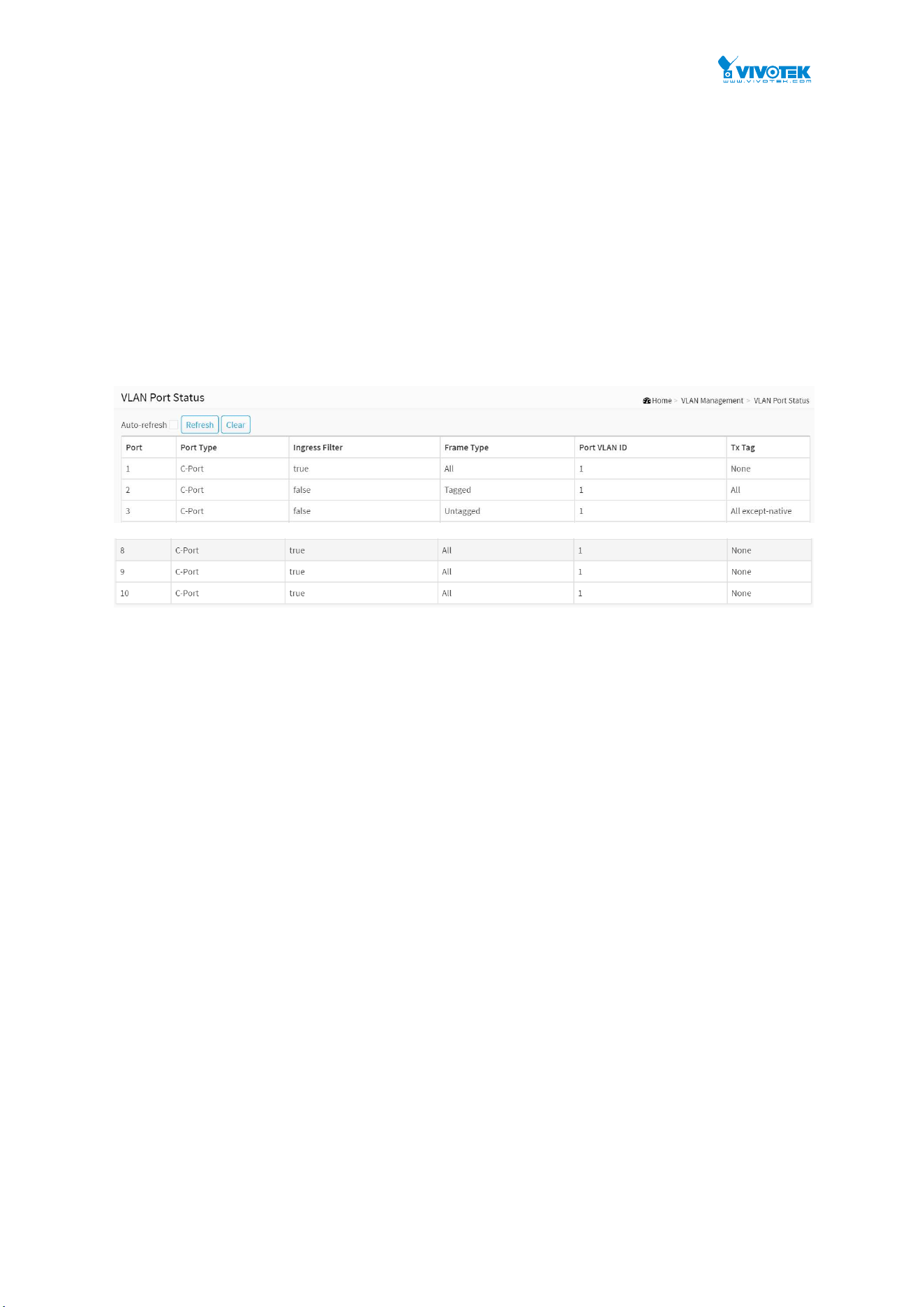
74
5-3 VLAN Port Status
The function Port Status gathers the information of all VLAN status and reports it by the order
of Static NAS MVRP MVP Voice VLAN MSTP GVRP Combined.
Web Interface
To Display VLAN Port Status in the web interface:
1. Click VLAN Management and VLAN Port Status.
2. Specify the Static NAS MVRP MVP Voice VLAN MSTP GVRP Combined.
3. Display Port Status information.
Figure 5-3: The VLAN Port Status
Parameter description:
VLAN USER
VLAN User module uses services of the VLAN management functionality to configure VLAN
memberships and VLAN port configuration such as PVID, UVID. Currently we support following
VLAN User types:
CLI/Web/SNMP : These are referred to as static.
NAS : NAS provides port-based authentication, which involves communications between a
Supplicant, Authenticator, and an Authentication Server.
Voice VLAN : Voice VLAN is a VLAN configured specially for voice traffic typically originating
from IP phones.
MVR : MVR is used to eliminate the need to duplicate multicast traffic for subscribers in each
VLAN. Multicast traffic for all channels is sent only on a single (multicast) VLAN.
MSTP : The 802.1s Multiple Spanning Tree protocol (MSTP) uses VLANs to create multiple
spanning trees in a network, which significantly improves network resource utilization while
maintaining a loop-free environment.
Port :
The logical port for the settings contained in the same row.
Port Type :

75
Shows the Port Type. Port type can be any of Unaware, C-port, S-port, Custom S-port.
If Port Type is Unaware, all frames are classified to the Port VLAN ID and tags are not
removed. C-port is Customer Port. S-port is Service port. Custom S-port is S-port with
Custom TPID.
Ingress Filtering :
Shows the ingress filtering on a port. This parameter affects VLAN ingress processing. If
ingress filtering is enabled and the ingress port is not a member of the classified VLAN, the
frame is discarded.
Frame Type :
Shows whether the port accepts all frames or only tagged frames. This parameter affects
VLAN ingress processing. If the port only accepts tagged frames, untagged frames received
on that port are discarded.
Port VLAN ID :
Shows the Port VLAN ID (PVID) that a given user wants the port to have.
The field is empty if not overridden by the selected user.
Tx Tag :
Shows egress filtering frame status whether tagged or untagged.
Buttons
Figure 5-3: The VLAN Port Status buttons
Auto-refresh :
Check this box to refresh the page automatically. Automatic refresh occurs every 3 seconds.
Refresh :
Click to refresh the page.
Clear :
Click to clear the page.
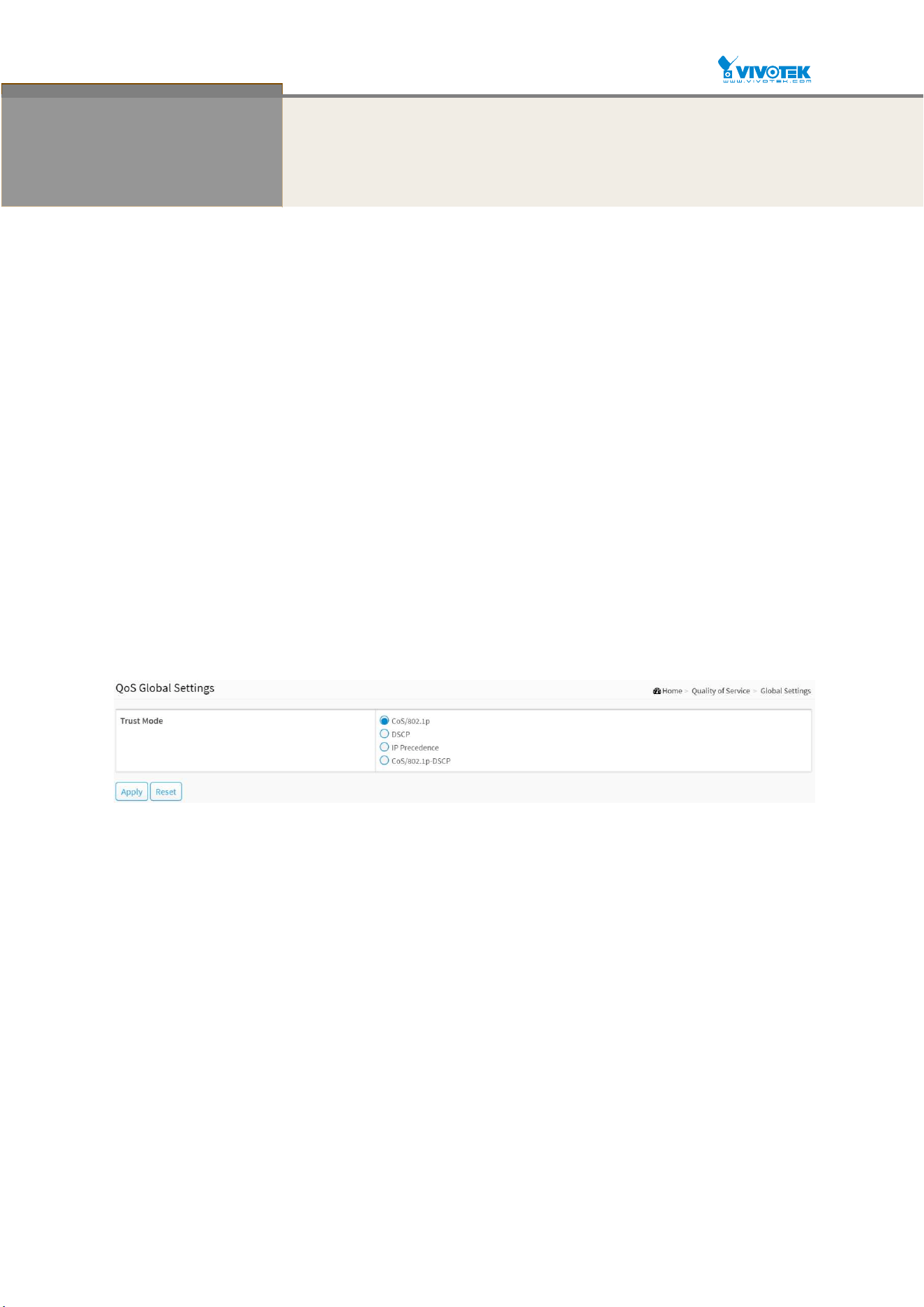
76
Chapter 6 Quality of Service
6-1 Global Settings
Use the Global Settings page to set the trust behavior for QoS basic mode. This configuration
is active when the switch is in QoS basic mode. Packets entering a QoS domain are classified at
the edge of the QoS domain.
Web Interface
To configure the Global Settings in the web interface:
1. Click Quality of Service and Global Settings.
2. Select the trust mode when the switch is in QoS basic mode. If a packet CoS level and
DSCP tag are mapped to separate queues, the trust mode determines the queue to
which the packet is assigned.
3. Click Apply to save the configuration.
4. If you want to cancel the setting then you need to click the Reset button. It will revert
to previously saved values.
Figure 6-1: The QoS Global Settings
Parameter description:
Trust Mode
CoS/802.1p :
Traffic is mapped to queues based on the VPT field in the VLAN tag, or based on the
per-port default CoS/802.1p value (if there is no VLAN tag on the incoming packet), the
actual mapping of the VPT to queue can be configured on the CoS/802.1p to Queue page.
DSCP :
All IP traffic is mapped to queues based on the DSCP field in the IP header. The actual
mapping of the DSCP to queue can be configured on the DSCP to Queue page. If traffic is
not IP traffic, it is mapped to the best effort queue.
IP Precedence :
Traffic is mapped to queues based on the IP precedence. The actual mapping of the IP
precedence to queue can be configured on the IP Precedence to Queue page.
CoS/802.1p-DSCP :
Uses the trust CoS mode for non-IP traffic and trust DSCP mode for IP traffic.

77
Buttons
Apply :
Click to save changes.
Reset :
Click to undo any changes made locally and revert to previously saved values.

78
6-2 Port Settings
Web Interface
To configure the QoS Port Setting in the web interface:
1. Click Quality of Service and Port Settings.
2. Select Mode, Default CoS, Source CoS, Remark CoS to each port.
3. Click which port need to enable the Remark Cos, Remark DSCP, Remark IP Precedence
4. Click Apply to save the configuration.
5. If you want to cancel the setting then you need to click the Reset button. It will revert
to previously saved values.
Figure 6-2: The QoS Port Settings
Parameter description:
Port :
The logical port for the settings contained in the same row.
Mode :
Untrust :
All ingress traffic on the port is mapped to the best effort queue and no
classification/prioritization takes place.
Trust :
Port prioritize ingress traffic is based on the system wide configured trusted mode, which
is either CoS/802.1p trusted mode, IP Precedence trusted mode or DSCP trusted mode.
Default CoS :
Select the default CoS value to be assigned for incoming untagged packets. The range is
0 to 7.
Source CoS :
The CoS value is determined based on C-Tag or S-Tag for incoming tagged packets.
Remark CoS :
Click the checkbox to remark the CoS/802.1p priority for egress traffic on this port.
Remark DSCP :
Click the checkbox to remark the DSCP value for egress traffic on this port.
Remark IP Precedence

79
Click the checkbox to remark the IP precedence for egress traffic on this port.
Note: The CoS/802.1p priority and IP Precedence, or the CoS/802.1p priority and DSCP value can be
remarked simultaneously for egress traffic on a port, but the DSCP value and IP Precedence cannot be
remarked simultaneously.
Buttons
Apply :
Click to save changes.
Reset :
Click to undo any changes made locally and revert to previously saved values.
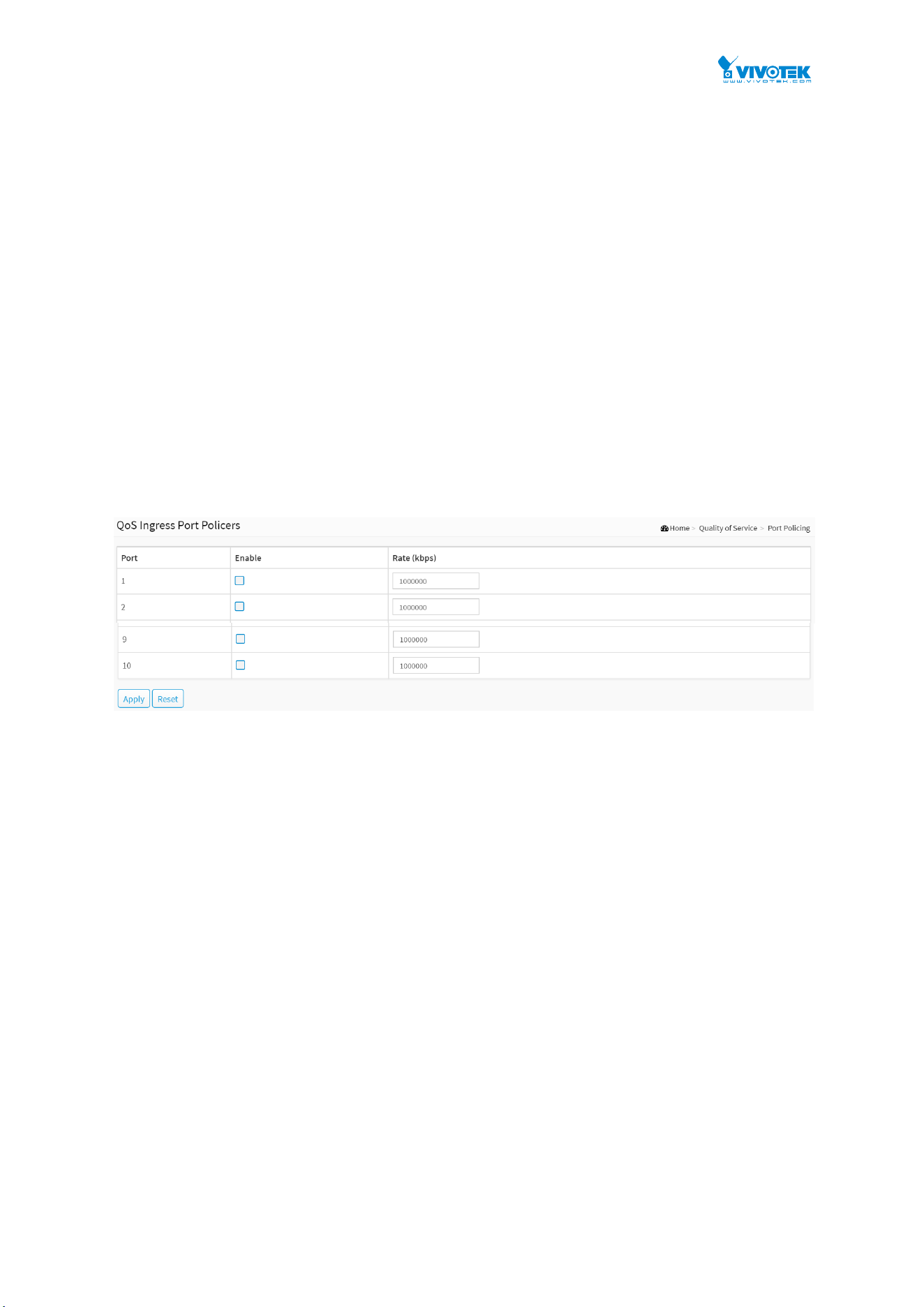
80
6-3 Port Policing
This section provides an overview of QoS Ingress Port Policers for all switch ports The Port
Policing is useful in constraining traffic flows and marking frames above specific rates. Policing
is primarily useful for data flows and voice or video flows because voice and video usually
maintains a steady rate of traffic
Web Interface
To configure the QoS Port Policers in the web interface:
1. Click Quality of Service and Port Policing.
2. Click which port need to enable the QoS Ingress Port Policers, and configure the Rate
limit condition.
3. Click Apply to save the configuration.
4. If you want to cancel the setting then you need to click the Reset button. It will revert
to previously saved values.
Figure 6-3: The QoS Ingress Port Policers Configuration
Parameter description:
Port :
The logical port for the settings contained in the same row. Click on the port number in
order to configure the schedulers.
Enabled :
To evoke which Port you need to enable the QoS Ingress Port Policers function.
Rate :
To set the Rate limit value for this port, the default is 1000000.
Buttons
Apply :
Click to save changes.
Reset :
Click to undo any changes made locally and revert to previously saved values.

81
6-4 Port Shaper
This section provides an overview of QoS Egress Port Shapers for all switch ports. Others the
user could get all detail information of the ports belong to the currently selected stack unit, as
reflected by the page header.
Web Interface
To configure the QoS Port Shapers in the web interface:
1. Click Quality of Service and Port Shaper.
2. Select which port need to configure QoS Egress Port Shaper.
3. Click which port need to enable, and configure the Rate limit condition.
4. Click Apply to save the configuration.
5. If you want to cancel the setting then you need to click the Reset button. It will revert
to previously saved values.
Figure 6-4: The QoS Egress Port Shaper
Parameter description:
Port :
The logical port for the settings contained in the same row. Click on the port number in
order to configure the shapers.
Queue Shaper
Queue :
The queue number of the queue shaper on this switch port.
Enable :
Controls whether the queue shaper is enabled for this queue on this switch port.
Rate(kbps) :
Controls the rate for the queue shaper. The default value is 1000000.

82
Port Shaper
Enable :
Controls whether the port shaper is enabled for this switch port.
Rate(kbps) :
Controls the rate for the port shaper. The default value is 1000000.
Buttons
Apply :
Click to save changes.
Reset :
Click to undo any changes made locally and revert to previously saved values.
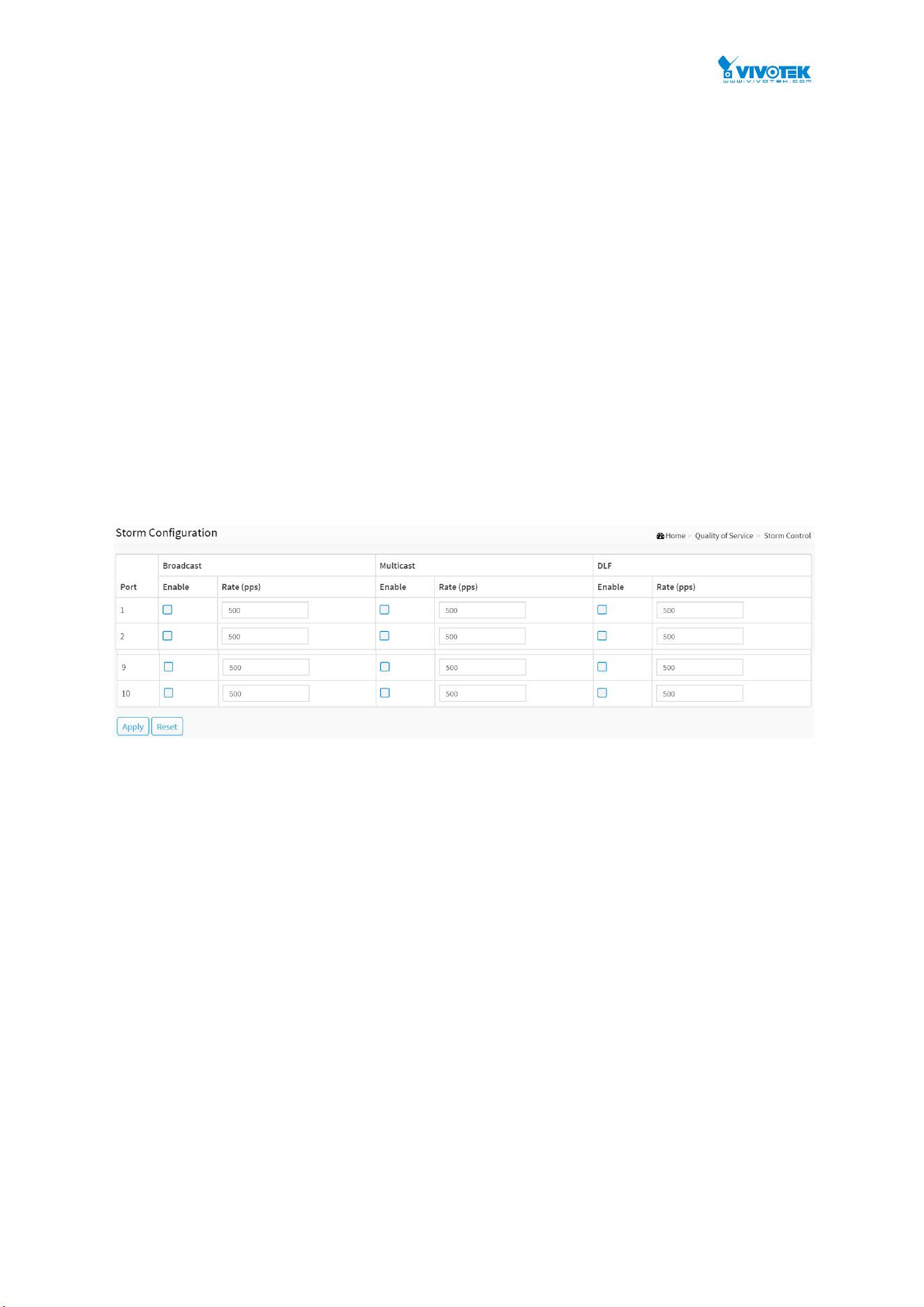
83
6-5 Storm Control
The section allows user to configure the Storm control for the switch. There is a destination
lookup failure storm rate control, multicast storm rate control, and a broadcast storm rate
control. These only affect flooded frames, i.e. frames with a (VLAN ID, DMAC) pair not present
on the MAC Address table. The configuration indicates the permitted packet rate for unicast,
multicast, or broadcast traffic across the switch.
Web Interface
To configure the Storm Control Configuration parameters in the web interface:
1. Click Quality of Service and Storm Control.
2. Click which port need to enable, and configure the Rate limit condition.
4. Click the Apply to save the setting.
5. If you want to cancel the setting then you need to click the Reset button. It will revert to
previously saved values.
Figure 6-5: The Storm Control Configuration
Parameter description:
Port :
The logical port for the settings contained in the same row. Click on the port number in
order to configure the storm control.
Frame Type :
The settings in a particular row apply to the frame type listed here: Broadcast, Multicast or
DLF(destination lookup failure).
Enable :
Enable or disable the storm control status for the given frame type.
Rate :
The rate unit is packets per second (pps). Valid values are: 1, 2, 4, 8, 16, 32, 64, 128, 256, 512,
1K, 2K, 4K, 8K, 16K, 32K, 64K, 128K, 256K, 512K or 1024K. , 1024K, 2048K, 4096K, 8192K,
16384K or 32768K. , 1024K, 2048K, 4096K, 8192K, 16384K or 32768K.
The 1 kpps is actually 1002.1 pps.
Buttons

84
Apply :
Click to save changes.
Reset :
Click to undo any changes made locally and revert to previously saved values.
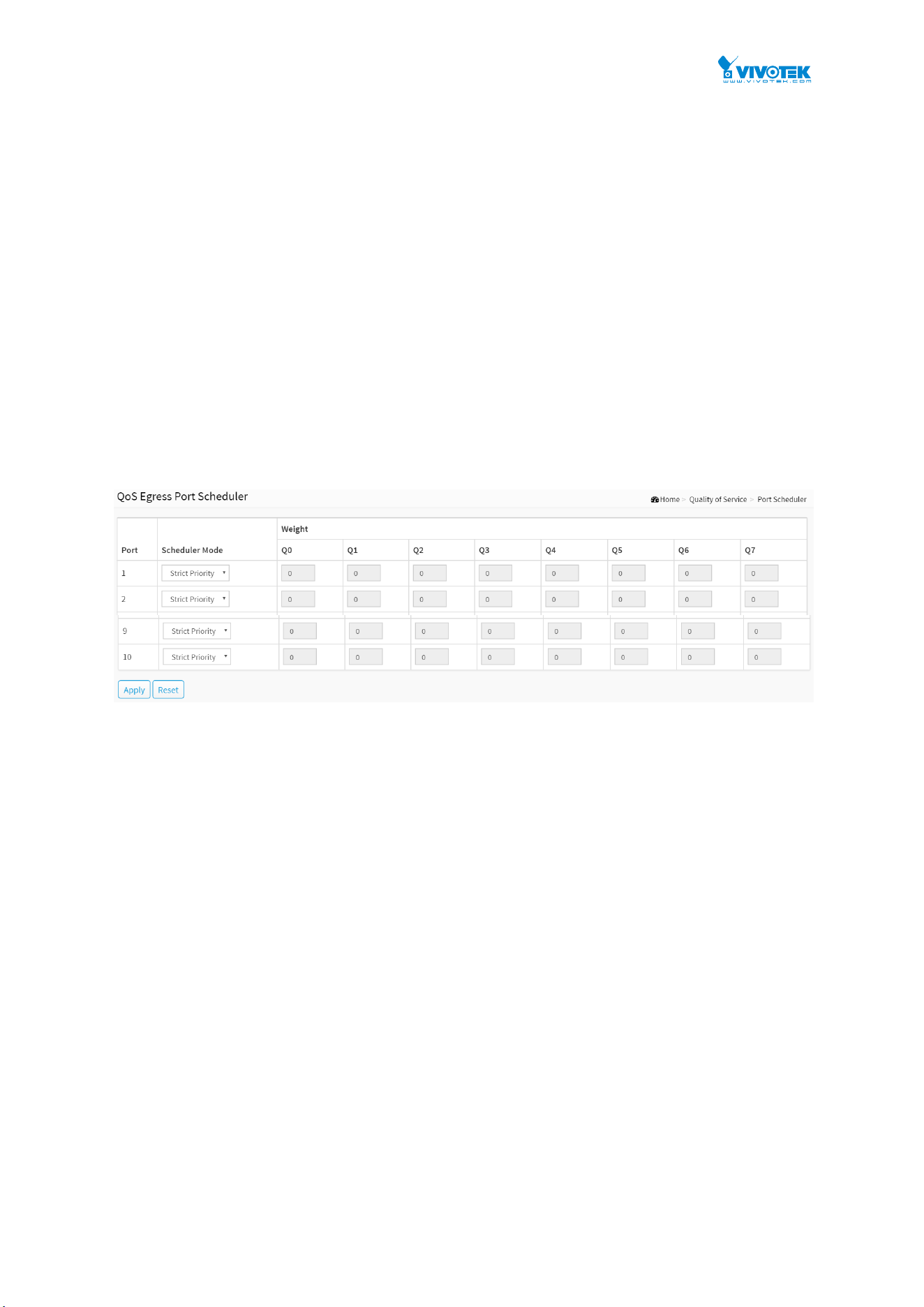
85
6-6 Port Scheduler
This section provides an overview of QoS Egress Port Scheduler for all switch ports. and the
ports belong to the currently selected stack unit, as reflected by the page header.
Web Interface
To configure the QoS Port Schedulers in the web interface:
1. Click Quality of Service and Port Scheduler.
2. Select Scheduler Mode for each port.
3. If you select WRR or WFQ, you can configure weight.
4. Click the Apply to save the setting.
5. If you want to cancel the setting then you need to click the Reset button. It will revert
to previously saved values.
Figure 6-6: The QoS Egress Port Schedules
Parameter description:
Port :
The logical port for the settings contained in the same row.
Scheduler Mode :
Controls whether the scheduler mode is "Strict Priority", "WRR" or "WFQ" on this switch
port.
Weight :
Controls the weight for this queue. The default value is "0". This value is restricted to 1-100.
This parameter is only shown if "Scheduler Mode" is set to "Weighted".
Buttons
Apply :
Click to save changes.
Reset :
Click to undo any changes made locally and revert to previously saved values.
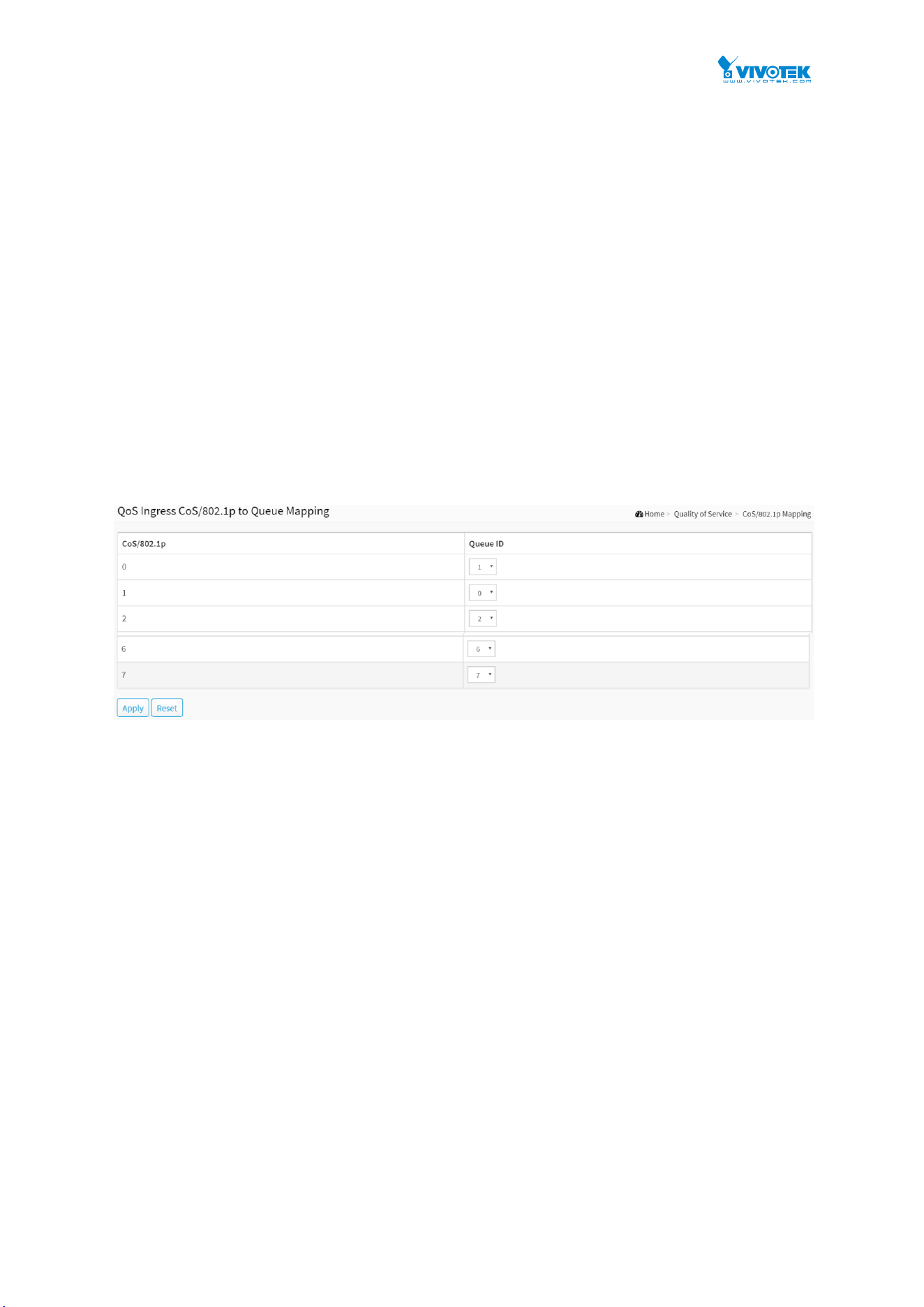
86
6-7 CoS/802.1p Mapping
Use the CoS/802.1p to Queue page to map 802.1p priorities to egress queues. The CoS/802.1p
to Queue table determines the egress queues of the incoming packets based on the 802.1p
priority in their VLAN tags. For incoming untagged packets, the 802.1p priority will be the
default CoS/802.1p priority assigned to the ingress ports.
Web Interface
To configure the Cos/802.1p Mapping in the web interface:
1. Click Quality of Service and Cos/802.1p Mapping.
2. Select Queue ID.
3. Click the Apply to save the setting.
4. If you want to cancel the setting then you need to click the Reset button. It will revert
to previously saved values.
Figure 6-7: The QoS Ingress CoS/802.1p to Queue Mapping
Parameter description:
CoS/802.1p :
Displays the 802.1p priority tag values to be assigned to an egress queue, where 0 is the
lowest and 7 is the highest priority.
Queue ID :
Select the egress queue to which the 802.1p priority is mapped. Eight egress queues are
supported, where Queue 8 is the highest priority egress queue and Queue 1 is the lowest
priority egress queue.
Buttons
Apply :
Click to save changes.
Reset :
Click to undo any changes made locally and revert to previously saved values.
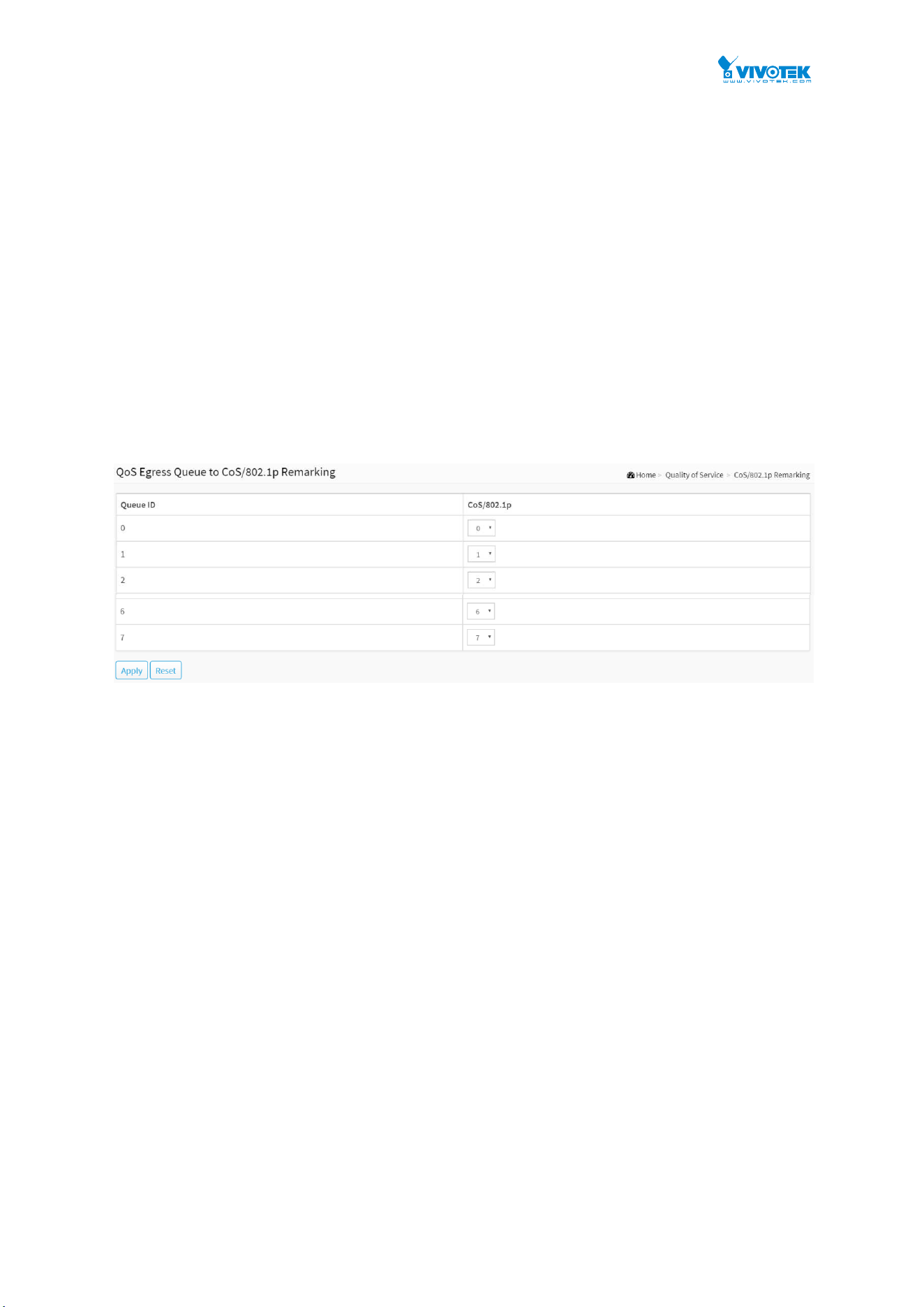
87
6-8 CoS/802.1p Remarking
Use the Queues to CoS/802.1p page to remark the CoS/802.1p priority for egress traffic from
each queue.
Web Interface
To configure the Cos/802.1p Remarking in the web interface:
1. Click Quality of Service and Cos/802.1p Remarking.
2. Select CoS/802.1p.
3. Click the Apply to save the setting.
4. If you want to cancel the setting then you need to click the Reset button. It will revert
to previously saved values.
Figure 6-8: The QoS Egress Queue to CoS/802.1p Remarking
Parameter description:
Queue ID :
Displays the Queue ID, where Queue 8 is the highest priority egress queue and Queue 1 is
the lowest priority egress queue.
CoS/802.1p :
For each output queue, select the CoS/802.1p priority to which egress traffic from the queue
is remarked.
Buttons
Apply :
Click to save changes.
Reset :
Click to undo any changes made locally and revert to previously saved values.
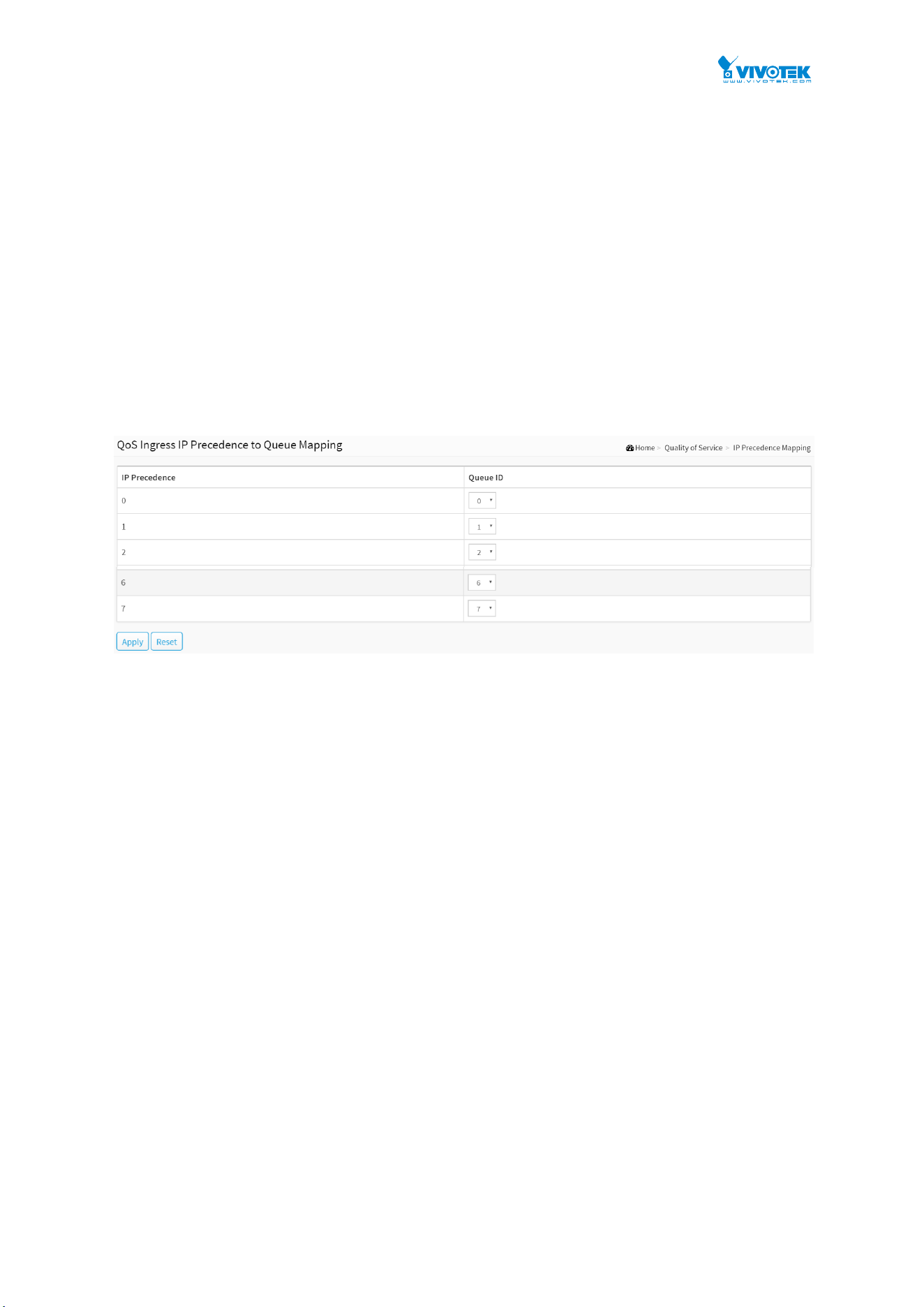
88
6-9 IP Precedence Mapping
To map IP precedence to egress queue.
Web Interface
To configure the IP Precedence Mapping in the web interface:
1. Click Quality of Service and IP Precedence Mapping.
2. Select Queue ID.
3. Click the Apply to save the setting.
4. If you want to cancel the setting then you need to click the Reset button. It will revert
to previously saved values.
Figure 6-9: The QoS Ingress IP Precedence to Queue Mapping
Parameter description:
IP Precedence :
Displays the IP Precedence priority tag values to be assigned to an egress queue, where 0 is
the lowest and 7 is the highest priority.
Queue ID :
Select the egress queue to which the IP precedence priority is mapped. Eight egress queues
are supported, where Queue 8 is the highest priority egress queue and Queue 1 is the
lowest priority egress queue.
Buttons
Apply :
Click to save changes.
Reset :
Click to undo any changes made locally and revert to previously saved values.

89
6-10 IP Precedence Remarking
To map egress queue to IP precedence.
Web Interface
To configure the IP Precedence Remarking in the web interface:
1. Click Quality of Service and IP Precedence Remarking.
2. Select IP Precedence.
3. Click the Apply to save the setting.
4. If you want to cancel the setting then you need to click the Reset button. It will revert
to previously saved values.
Figure 6-10: The QoS Egress Queue to IP Precedence Remarking
Parameter description:
Queue ID :
Displays the Queue ID, where Queue 8 is the highest priority egress queue and Queue 1 is
the lowest priority egress queue.
IP Precedence :
For each output queue, select the IP Precedence priority to which egress traffic from the
queue is remarked.
Buttons
Apply :
Click to save changes.
Reset :
Click to undo any changes made locally and revert to previously saved values.
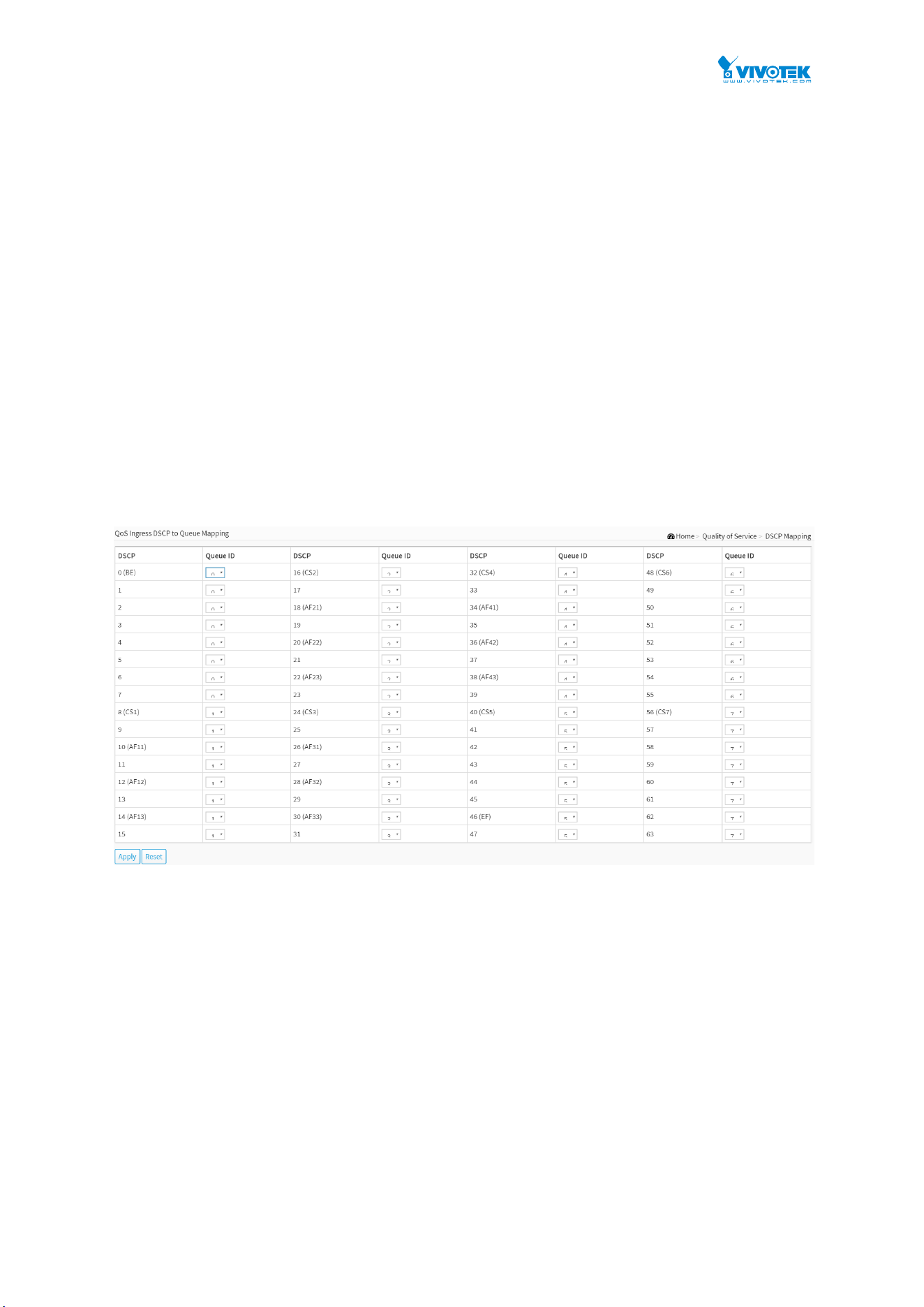
90
6-11 DSCP Mapping
Use the DSCP to Queue page to map IP DSCP to egress queues. The DSCP to Queue table
determines the egress queues of the incoming IP packets based on their DSCP values. The
original VLAN Priority Tag (VPT) of the packet is unchanged.
It is possible to achieve the desired QoS in a network by simply changing the DSCP to Queue
mapping, the queue schedule method, and bandwidth allocation.
Web Interface
To configure the DSCP Mapping in the web interface:
1. Click Quality of Service and DSCP Mapping.
2. Select Queue ID.
3. Click the Apply to save the setting.
4. If you want to cancel the setting then you need to click the Reset button. It will revert
to previously saved values.
Figure 6-11: The QoS Ingress DSCP to Queue Mapping
Parameter description:
DSCP :
Displays the DSCP value in the incoming packet and its associated class.
Queue ID :
Select the traffic forwarding queue from the Output Queue drop-down menu to which the
DSCP value is mapped.
Buttons
Apply :
Click to save changes.
Reset :
Click to undo any changes made locally and revert to previously saved values.
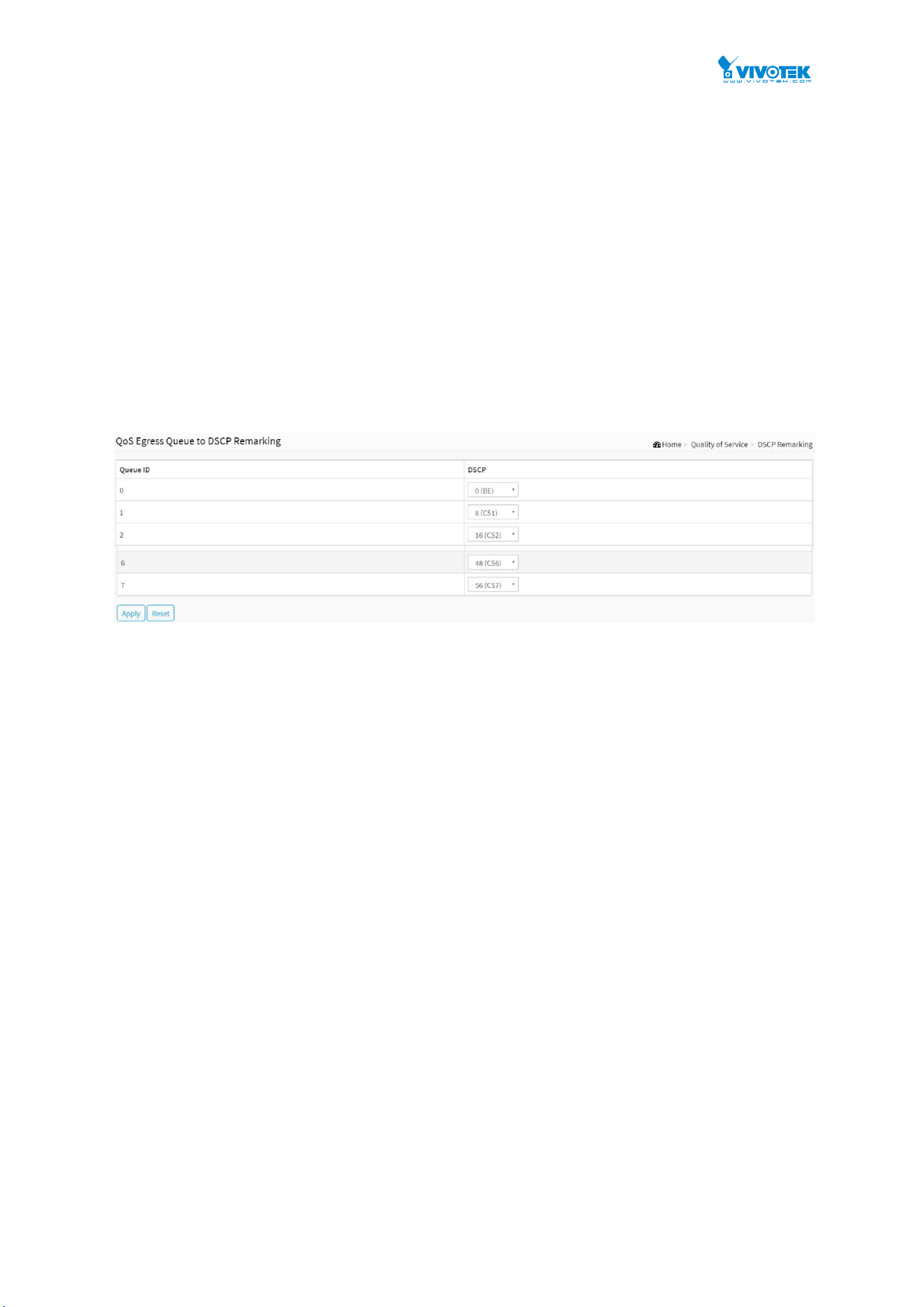
91
6-12 DSCP Remarking
Use the Queues to DSCP page to remark DSCP value for egress traffic from each queue.
Web Interface
To configure the DSCP Remarking in the web interface:
1. Click Quality of Service and DSCP Remarking.
2. Select DSCP.
3. Click the apply to save the setting.
4. If you want to cancel the setting then you need to click the Reset button. It will revert
to previously saved values.
Figure 6-12: The QoS Egress Queue to DSCP Remarking
Parameter description:
Queue ID :
Displays the Queue ID, where Queue 8 is the highest priority egress queue and Queue 1 is
the lowest priority egress queue.
DSCP :
For each output queue, select the DSCP priority to which egress traffic from the queue is
remarked.
Buttons
Apply :
Click to save changes.
Reset :
Click to undo any changes made locally and revert to previously saved values.

92
Chapter 7 Spanning tree
The Spanning Tree Protocol (STP) can be used to detect and disable network loops, and to
provide backup links between switches, bridges or routers. This allows the switch to interact
with other bridging devices (that is, an STP-compliant switch, bridge or router) in your network
to ensure that only one route exists between any two stations on the network, and provide
backup links which automatically take over when a primary link goes down.
STP - STP uses a distributed algorithm to select a bridging device (STP- compliant switch,
bridge or router) that serves as the root of the spanning tree network. It selects a root port on
each bridging device (except for the root device) which incurs the lowest path cost when
forwarding a packet from that device to the root device. Then it selects a designated bridging
device from each LAN which incurs the lowest path cost when forwarding a packet from that
LAN to the root device. All ports connected to designated bridging devices are assigned as
designated ports. After determining the lowest cost spanning tree, it enables all root ports and
designated ports, and disables all other ports. Network packets are therefore only forwarded
between root ports and designated ports, eliminating any possible network loops.
Figure 9: The Spanning Tree Protocol
Once a stable network topology has been established, all bridges listen for Hello BPDUs
(Bridge Protocol Data Units) transmitted from the Root Bridge. If a bridge does not get a Hello
BPDU after a predefined interval (Maximum Age), the bridge assumes that the link to the Root
Bridge is down. This bridge will then initiate negotiations with other bridges to reconfigure the
network to reestablish a valid network topology.
7-1 State
The section describes that you can select enable spanning tree protocol or not, and you can
select what protocol version you want.
Web Interface
To configure the Spanning Tree Protocol version in the web interface:
1. Click Spanning Tree and state.
2. Evoke to enable or disable the Spanning Tree Protocol.
3. Select the Spanning Tree Protocol version.
4. Click the apply to save the setting.
5. If you want to cancel the setting then you need to click the Reset button. It will revert to
previously saved values.

93
Figure 7-1: The Spanning Tree state
Parameter description:
Multiple Spanning Tree Protocol :
You can select enable spanning tree protocol or not.
Force Version :
The STP protocol version setting. Valid values are STP, RSTP and MSTP.
Buttons
Apply :
Click to save changes.
Reset :
Click to undo any changes made locally and revert to previously saved values.

94
7-2 Region Config
The section describes to configure the basic identification of a MSTP bridge. Bridges
participating in a common MST region must have the same Region Name and Revision Level.
Web Interface
To configure the Region Config in the web interface:
5. Click Spanning Tree and Region Config.
6. Specify the Region Name and Revision Level.
7. Click the Apply to save the setting.
8. If you want to cancel the setting then you need to click the Reset button. It will revert to
previously saved values.
Figure 7-2: The Region Configuration
Parameter description:
Configuration Name :
The name identifying the VLAN to MSTI mapping. Bridges must share the name and revision
(see below), as well as the VLAN-to-MSTI mapping configuration in order to share spanning
trees for MSTI's (Intra-region). The name is at most 32 characters.
Configuration Revision :
The revision of the MSTI configuration named above. This must be an integer between 0
and 65535.
Buttons
Apply :
Click to save changes.
Reset :
Click to undo any changes made locally and revert to previously saved values.
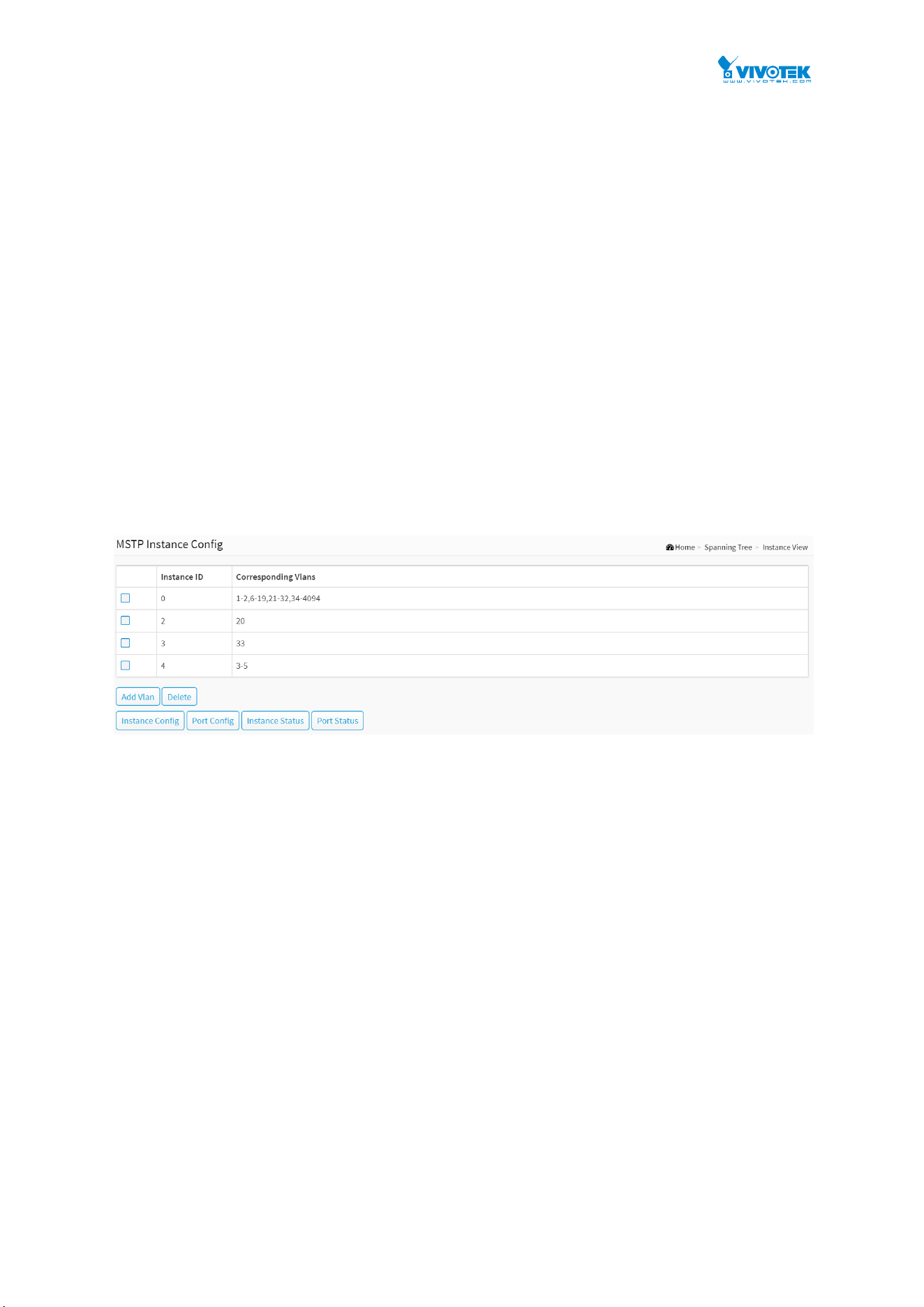
95
7-3 Instance View
The section providing an MST instance table which include information(vlan membership of a
MSTI ) of all spanning instances provisioned in the particular MST region which the bridge
belongs to. Through this table, additional MSTP configuration data can be applied and MSTP
status can be retrieved.
Web Interface
To configure the MSTP Instance in the web interface:
1. Click Spanning Tree and Instance.
2. Click to add vlan.
3. Specify the Instance and Port.
4. Click Instance Status and Port Status to see the detail.
5. If you want to cancel the setting then you need to click Delete.
Figure 7-3: MSTP Instance Config
Parameter description:
Instance ID :
Every spanning tree instance needS to have a unique instance ID within 0~4095. Instance 0
(CIST) always exists and cannot be deleted. Additional spanning instances (MSTIs) can be
added or deleted. At least one vlan must be provisioned for an MSTI to declare the need for
the MSTI to be existent.
Corresponding Vlans :
0-4095.
Multiple vlans can belong to an MSTI. All vlans that are not provisioned through this will be
automatically assigned to Instance 0(CIST).
Buttons
Add Vlan :
To add an MSTI and provide its vlan members or modify vlan members for a specific MSTI,
you can add up to 63 so that a total of 64.
Delete :
To delete an MSTI.
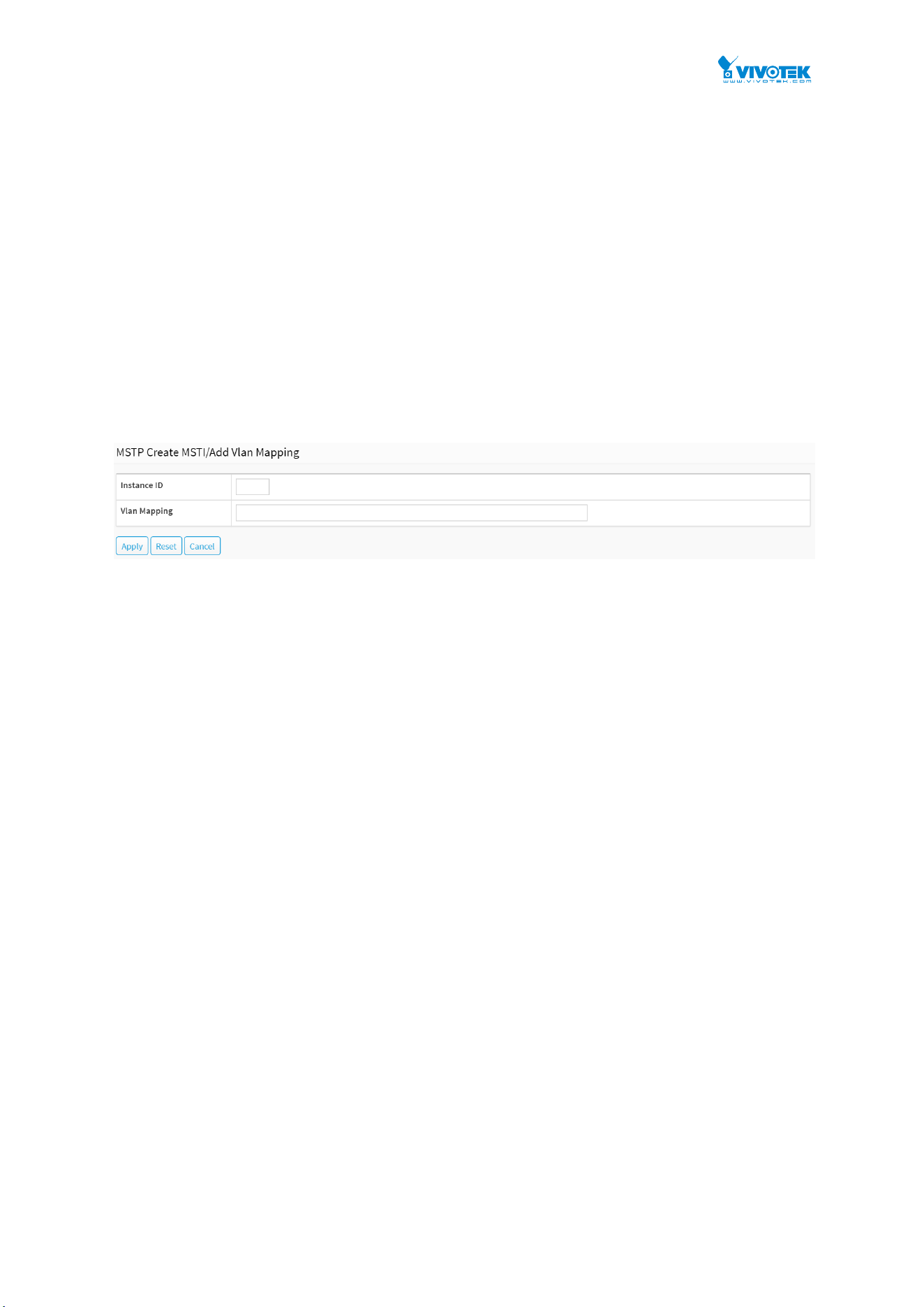
96
Instance Config :
To provision spanning tree performance parameters per instance.
Port Config :
To provision spanning tree performance parameters per instance per port.
Instance Status :
To show the status report of a particular spanning tree instance.
Port Status :
To show the status report of all ports regarding a specific spanning tree instance.
Please refer to the following introduction:
Add Vlan :
Figure 7-3: Add Vlan
Parameter description:
Instance ID :
The Range is 1-4094
Vlan Mapping :
The list of VLANs mapped to the MSTI. The VLANs can be given as a single (xx, xx being
between 1 and 4094) VLAN, or a range (xx-yy), each of which must be separated with
comma and/or space. A VLAN can only be mapped to one MSTI. An unused MSTI should
just be left empty. (I.e. not having any VLANs mapped to it.) Example: 2,5,20-40.
Buttons
Apply :
Click to save changes.
Reset :
Click to undo any changes made locally and revert to previously saved values.
Cancel :
Click to undo any changes made locally and return to the Users.
Instance Config to Instance 0 :
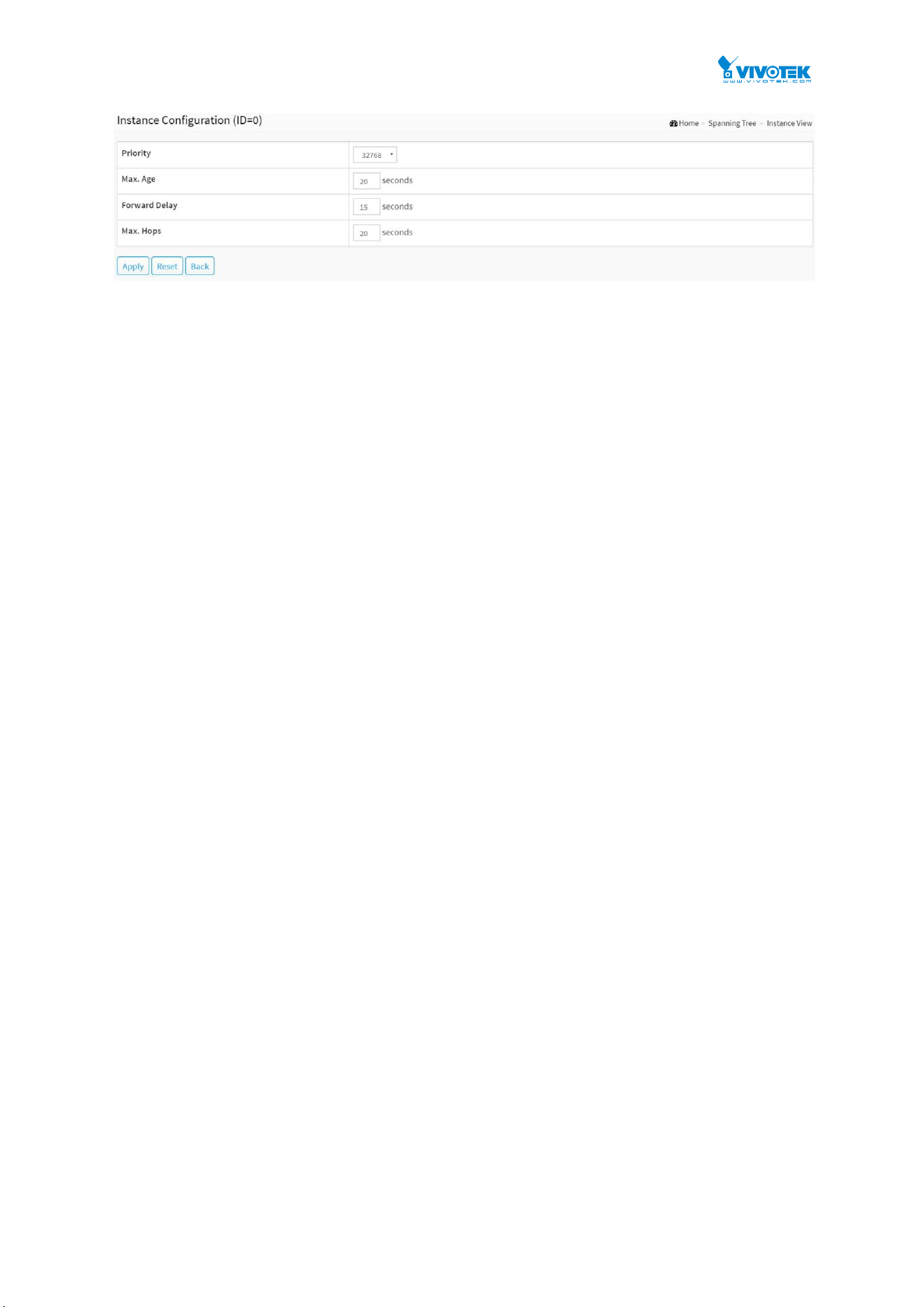
97
Figure 7-3: Instance Config to Instance 0
Parameter description:
Priority :
The priority parameter used in the CIST(Common and Internal Spanning Tree) connection.
0 / 4096 / 8192 / 12288 / 16384 / 20480 / 24576 / 28672 / 32768 / 36864 / 40960 / 45056 /
49152 / 53248 / 57344 / 61440
MAX. Age :
6-40sec. The same definition as in the RSTP protocol.
Forward Delay :
4-30sec. The same definition as in the RSTP protocol.
MAX. Hops :
6-40sec. It’s a new parameter for the multiple spanning tree protocol. It is used in the
internal spanning tree instances. “CIST Remaining Hops” or “MSTI Remaining Hops” in the
Spanning tree protocol message would decreased by one when the message is propagated
to the neighboring bridge. If the Remaining Hops in a message is zero, the message (BPDU)
would be regarded as invalid. Max Hops is used to specify the initial value of the Remaining
Hops for Regional Root Bridge (Either CIST Regional Root or MSTI Regional Root).
Buttons
Apply :
Click to save changes.
Reset :
Click to undo any changes made locally and revert to previously saved values.
Back :
Click to undo any changes made locally and return to the Users.
Port Config to Instance 0 :
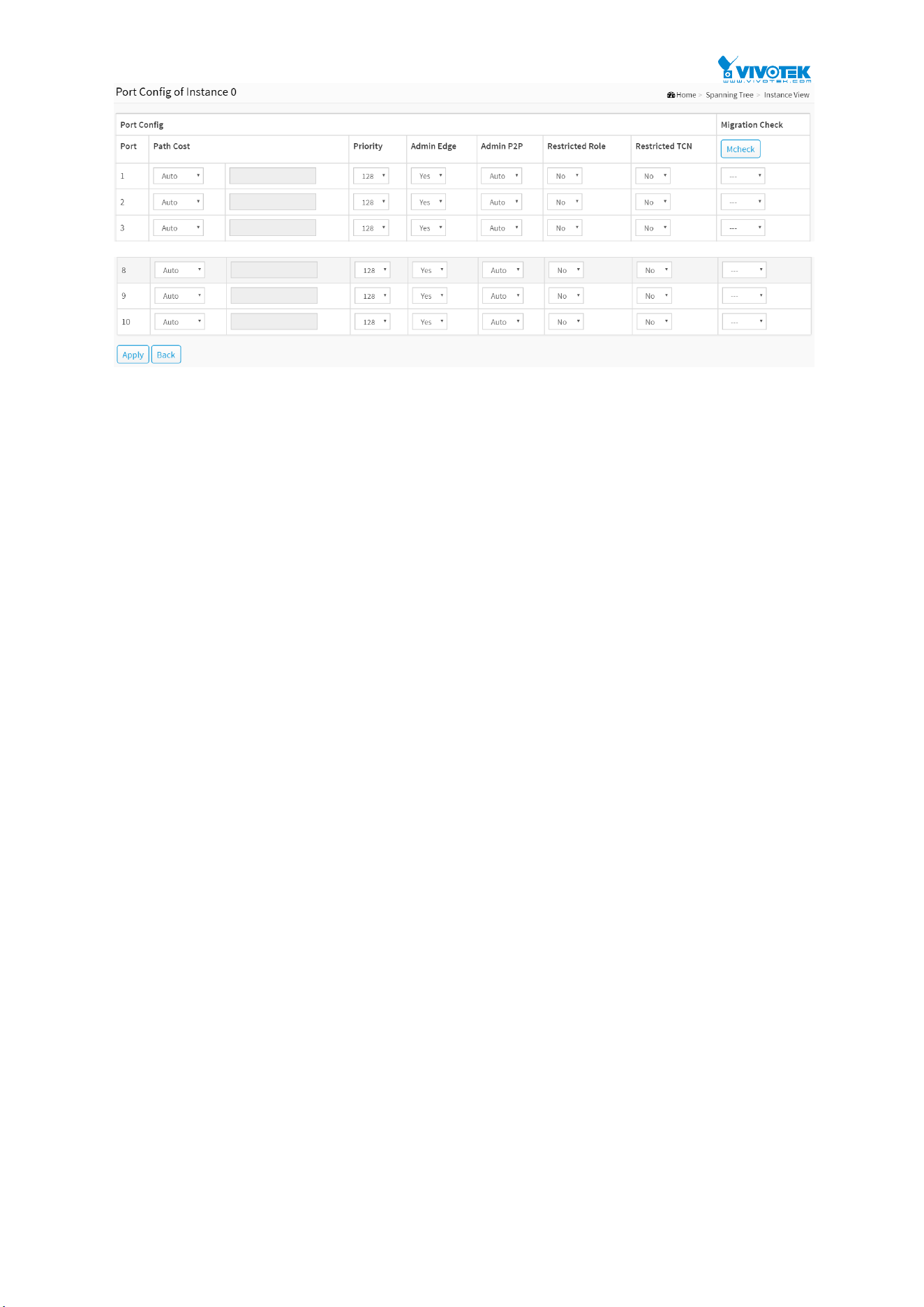
98
Figure 7-3: Port Config to Instance 0
Parameter description:
Port :
The logical port for the settings contained in the same row.
Path Cost :
1 – 200,000,000
The same definition as in the RSTP specification. But in MSTP, this parameter can be
respectively applied to ports of CIST and ports of any MSTI.
Priority :
0 / 16 / 32 / 48 / 64 / 80 / 96 / 112 / 128 / 144 / 160 / 176 / 192 / 208 / 224 / 240
The same definition as in the RSTP specification. But in MSTP, this parameter can be
respectively applied to ports of CIST and ports of any MSTI.
Admin Edge :
Yes / No
The same definition as in the RSTP specification for the CIST ports.
Admin P2P :
Auto / True / False
The same definition as in the RSTP specification for the CIST ports.
Restricted Role :
Yes / No
If “Yes” causes the Port not to be selected as Root Port for the CIST or any MSTI, even it has
the best spanning tree priority vector. Such a Port will be selected as an Alternate Port after
the Root Port has been selected. This parameter is “No” by default. If set, it can cause lack of
spanning tree connectivity. It is set by a network administrator to prevent bridges external to
a core region of the network influencing the spanning tree active topology, possibly because
those bridges are not under the full control of the administrator.
Restricted TCN :
Yes / No
If “Yes” causes the Port not to propagate received topology change notifications and
topology changes to other Ports. This parameter is “No” by default. If set it can cause

99
temporary loss of connectivity after changes in a spanning trees active topology as a result
of persistent incorrectly learned station location information. It is set by a network
administrator to prevent bridges external to a core region of the network, causing address
flushing in that region, possibly because those bridges are not under the full control of the
administrator. Or the status of MAC operation for the attached LANs transitions frequently.
Mcheck :
The same definition as in the RSTP specification for the CIST ports.
Buttons
Apply :
Click to save changes.
Back :
Click to undo any changes made locally and return to the Users.
Instance Status to Instance 0 :
Figure 7-3: Instance Status to Instance 0
Parameter description:
MSTP State :
MSTP protocol is Enable or Disable.
Force Version :
It shows the current spanning tree protocol version configured.
Bridge Max Age :
It shows the Max Age setting of the bridge itself.
Bridge Forward Delay :
It shows the Forward Delay setting of the bridge itself
.
Bridge Max Hops :
It shows the Max Hops setting of the bridge itself.
Instance Priority :
Spanning tree priority value for a specific tree instance(CIST or MSTI).

100
Bridge Mac Address :
The Mac Address of the bridge itself.
CIST ROOT PRIORITY :
Spanning tree priority value of the CIST root bridge.
CIST ROOT MAC :
Mac Address of the CIST root bridge.
CIST EXTERNAL ROOT PATH COST :
Root path cost value from the point of view of the bridge’s MST region.
CIST ROOT PORT ID :
The port ID of the bridge’s root port. In MSTP, peer port of a root port may reside in
different MST region or in the same MST region. The first case indicates that the root port’s
owner is the CIST regional root bridge.
CIST REGIONAL ROOT PRIORITY :
Spanning tree priority value of the CIST regional root bridge. Note that CIST Regional Root
bridge is different from CIST Root bridge. One exception is that when a bridge belonging to
an MST region happens to be the root bridge of the CST(Common Spanning Tree). An MST
Region in the CST can be regarded as a common RSTP bridge. The IST(Internal Spanning
Tree) and MSTIs are transparent to bridges outside this region.
CIST REGIONAL ROOT MAC :
Mac Address of the CIST regional root bridge.
CIST INTERNAL ROOT PATH COST :
Root path cost value from the point of view of the bridges inside the IST.
CIST CURRENT MAX AGE :
Max Age of the CIST Root bridge.
CIST CURRENT FORWARD DELAY :
Forward Delay of the CIST Root bridge.
TIME SINCE LAST TOPOLOGY CHANGE(SECs) :
Time Since Last Topology Change is the elapsed time in unit of seconds for a bunch of
“Topology Change and(or) Topology Change Notification receiving” to occur. When new
series of Topology Changes occur again, this counter will be reset to 0.
TOPOLOGY CHANGE COUNT(SECs) :
The per spanning tree instance Topology Change Count expresses the time spent in unit of
seconds since the beginning of the Spanning Tree Topology Change to the end of the STP
convergence. Once there is no topology change occurring and no more topology change
notification received, the Topology Change count will be reset to 0.
Buttons
Back :
Click to undo any changes made locally and return to the Users.
Refresh :
Click to refresh the page.

101
Port Status to Instance 0 :
Figure 7-3: Port Status to Instance 0
Parameter description:
Port No:
The port number to which the configuration applies.
Status:
The forwarding status. Same definition as of the RSTP specification Possible values are
“FORWARDING” , “LEARNING” , “DISCARDING”
Role:
The role that a port plays in the spanning tree topology. Possible values are “disable”(disable
port) , ”alternate”(alternate port) , “backup”(backup port) , “ROOT”(root port) ,
“DSGN”(designated port) , “MSTR”(master port). The last 3 are possible port roles for a port
to transit to FORWARDING state.
Path Cost:
Display currently resolved port path cost value for each port in a particular spanning tree
instance.
Priority:
Display port priority value for each port in a particular spanning tree instance.
Hello:
Per port Hello Time display. It takes the following form:
Current Hello Time/Hello Time Setting .
Oper. Edge:
Whether or not a port is an Edge Port in reality.
Oper. P2P:
Whether or not a port is a Point-to-Point Port in reality.
Restricted Role:
Same as mentioned in “Port Config”.
Restricted Tcn:
Same as mentioned in “Port Config”.
Buttons
Back :
Click to undo any changes made locally and return to the Users.
Refresh :
Click to refresh the page.
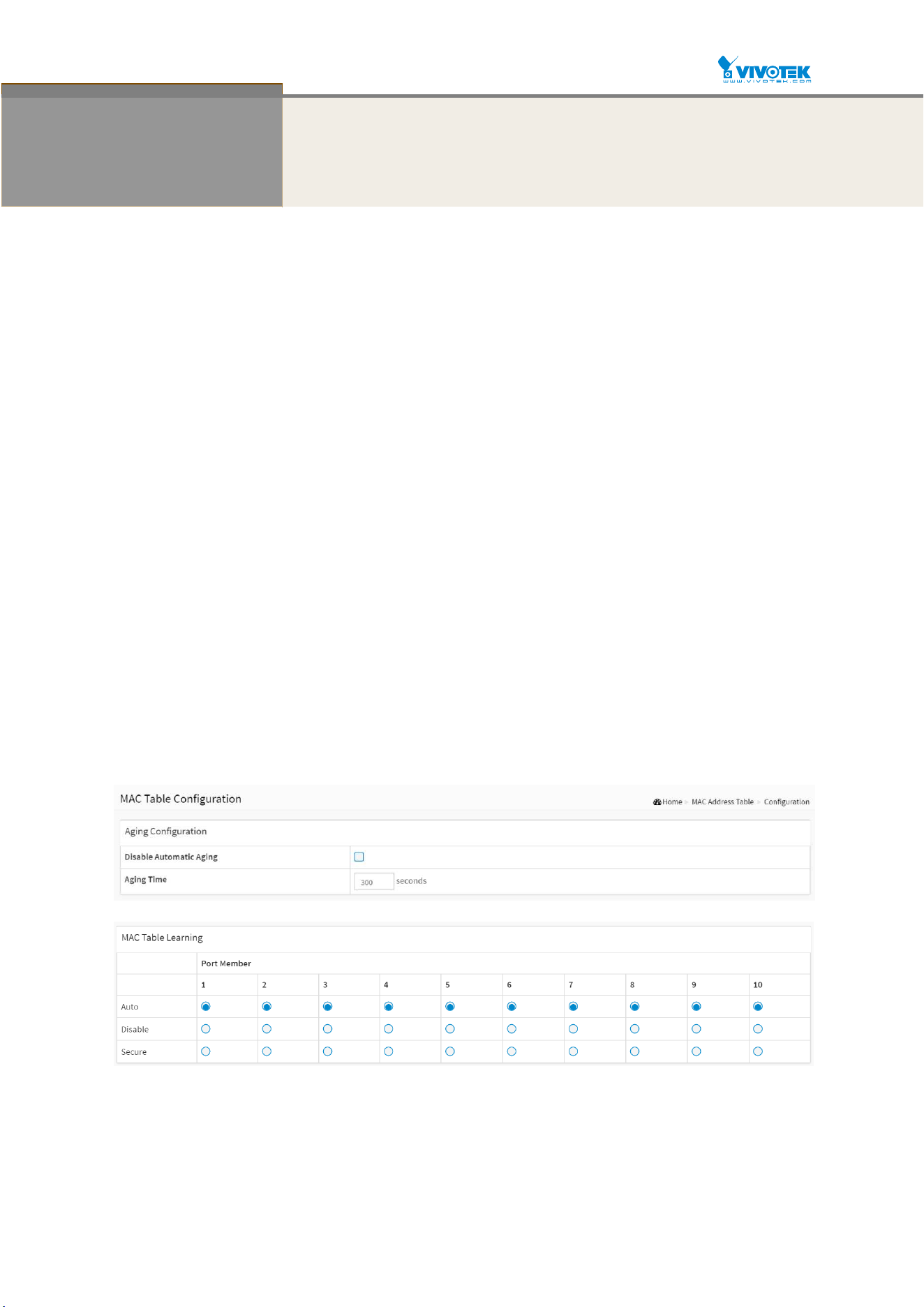
102
Chapter 8 MAC Address Tables
8-1Configuration
Switching of frames is based upon the DMAC address contained in the frame. The switch builds
up a table that maps MAC addresses to switch ports for knowing which ports the frames
should go to (based upon the DMAC address in the frame). This table contains both static and
dynamic entries. The static entries are configured by the network administrator if the
administrator wants to do a fixed mapping between the DMAC address and switch ports.
The frames also contain a MAC address (SMAC address), which shows the MAC address of the
equipment sending the frame. The SMAC address is used by the switch to automatically
update the MAC table with these dynamic MAC addresses. Dynamic entries are removed from
the MAC table if no frame with the corresponding SMAC address have been seen after a
configurable age time
Web Interface
To configure MAC Address Table in the web interface:
1. Click MAC Address Tables and Configuration.
2. Specify the Disable Automatic Aging and Aging Time.
3. Specify the Port Members (Auto, Disable, Secure).
4. Add new Static entry, Specify the VLAN IP and Mac address, Port Members, Block.
5. Click Apply.
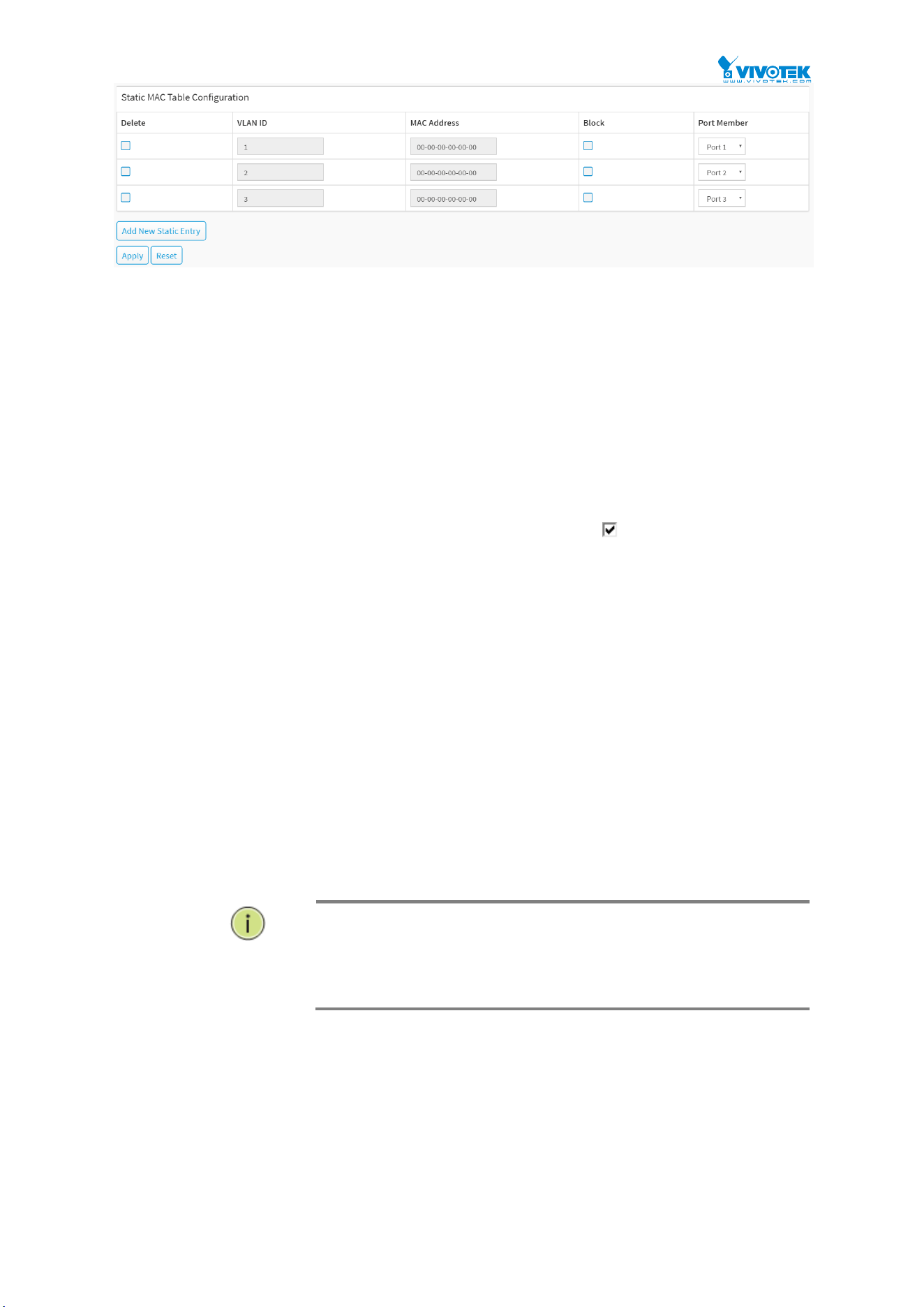
103
Figure 8-1: The MAC Address Table Configuration
Parameter description:
Aging Configuration :
By default, dynamic entries are removed from the MAC table after 300 seconds. This
removal is also called aging.
Configure aging time by entering a value here in seconds; for example, Age time seconds.
The allowed range is 10 to 1000000 seconds.
Disable the automatic aging of dynamic entries by checking
Disable automatic aging.
MAC Table Learning
If the learning mode for a given port is greyed out, another module is in control of the
mode, so that it cannot be changed by the user. An example of such a module is the
MAC-Based Authentication under 802.1X. Each port can do learning based upon the
following settings:
Auto :
Learning is done automatically as soon as a frame with unknown SMAC is received.
Disable :
No learning is done.
Secure :
Only static MAC entries are learned, all other frames are dropped.
NOTE: Make sure that the link used for managing the switch is
added to the Static Mac Table before changing to secure learning
mode, otherwise the management link is lost and can only be
restored by using another non-secure port or by connecting to the
switch via the serial interface.
Static MAC Table Configuration
The static entries in the MAC table are shown in this table. The static MAC table can contain
64 entries. The maximum of 64 entries is for the whole stack, and not per switch.
The MAC table is sorted first by VLAN ID and then by MAC address.
Delete :
Check to delete the entry. It will be deleted during the next save.
VLAN ID :

104
The VLAN ID of the entry.
MAC Address :
The MAC address of the entry.
Block :
Click it, if you want block this mac address.
Port Members :
Checkmarks indicate which ports are members of the entry. Check or uncheck as needed to
modify the entry.
Buttons
Adding a New Static Entry :
Click to add a new entry to the static MAC table. Specify the VLAN ID, MAC address, and
port members for the new entry. Click "Apply".
Apply :
Click to save changes.
Reset :
Click to undo any changes made locally and revert to previously saved values.
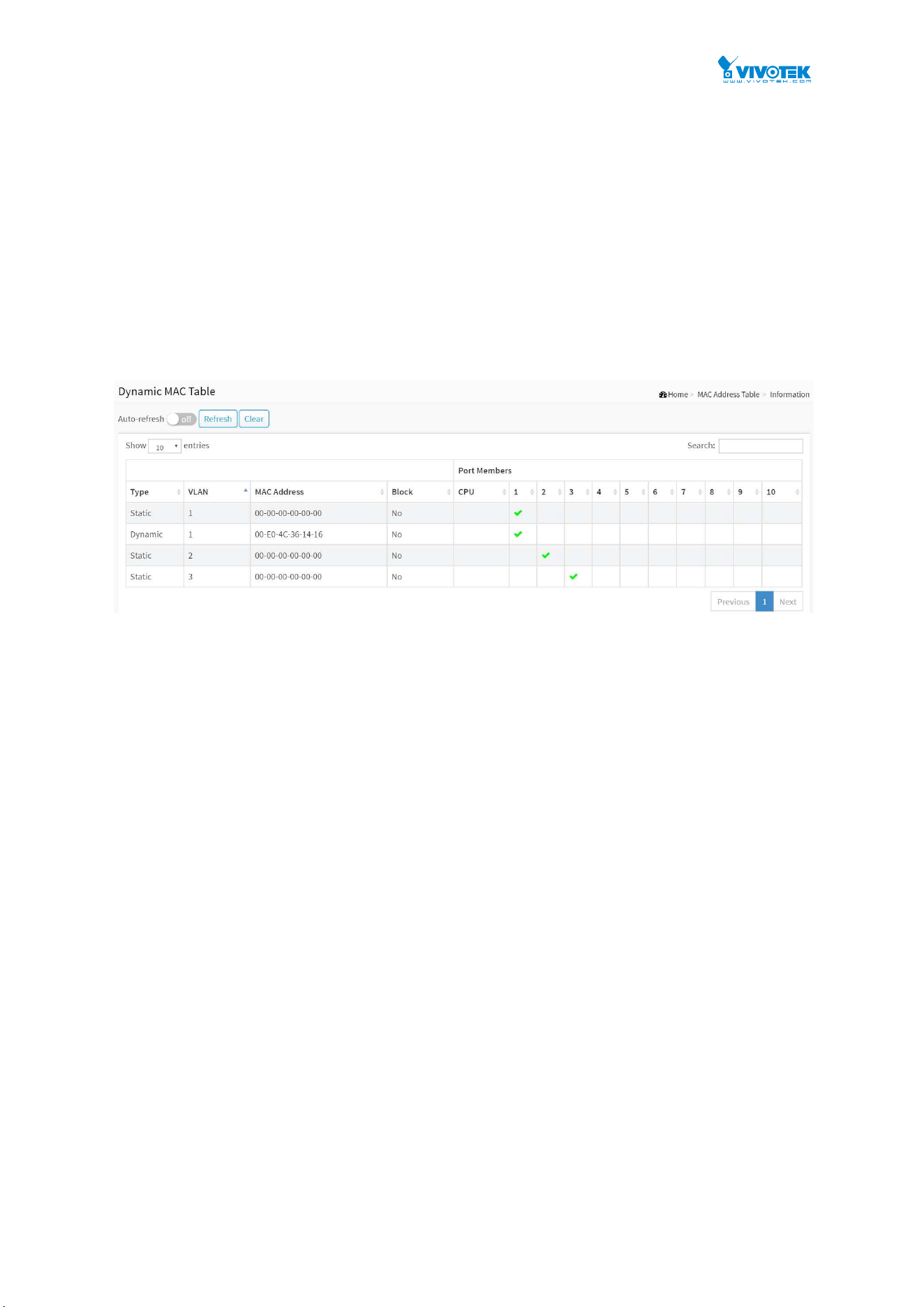
105
8-2 Information
Entries in the MAC Table are shown on this page. The MAC Table contains up to 8192 entries,
and is sorted first by VLAN ID, then by MAC address.
Web Interface
To Display MAC Address Table in the web interface:
1. Click MAC Address Table and Information.
2. Display MAC Address Table.
Figure 8-2: The MAC Address Table Information
Parameter description:
Navigating the MAC Table
Each page shows up to 999 entries from the MAC table, default being 20, selected through the
"entries per page" input field. When first visited, the web page will show the first 20 entries
from the beginning of the MAC Table. The first displayed will be the one with the lowest VLAN
ID and the lowest MAC address found in the MAC Table.
The "Start from MAC address" and "VLAN" input fields allow the user to select the starting
point in the MAC Table. Clicking the “Refresh” button will update the displayed table starting
from that or the closest next MAC Table match. In addition, the two input fields will - upon a
“Refresh” button click - assume the value of the first displayed entry, allowing for continuous
refresh with the same start address.
The >> will use the last entry of the currently displayed VLAN/MAC address pairs as a basis
for the next lookup. When the end is reached the text "No more entries" is shown in the
displayed table. Use the l<< button to start over.
Switch (stack only)
The stack unit where the entry is learned.
Type :
Indicates whether the entry is a static or a dynamic entry, 802.1x, DMS.
VLAN :
The VLAN ID of the entry.
MAC address :

106
The MAC address of the entry.
Block :
Whether the mac address is blocked or not.
Port Members :
The ports that are members of the entry.
Buttons
Figure 8-2: The MAC Address Table Information buttons
Auto-refresh :
Check this box to refresh the page automatically. Automatic refresh occurs every 3 seconds.
Refresh :
Click to refresh the page.
Clear :
Click to clear the page.
Next :
Updates the system log entries, turn to the next page.
Previous :
Updates the system log entries, turn to the previous page.
NOTE:
00-40-C7-73-01-29 : your switch MAC address (for IPv4)
33-33-00-00-00-01 : Destination MAC (for IPv6 Router Advertisement)
(reference IPv6 RA.JPG)
33-33-00-00-00-02 : Destination MAC (for IPv6 Router Solicitation)
(reference IPv6 RS.JPG)
33-33-FF-73-01-29 : Destination MAC (for IPv6 Neighbor Solicitation)
(reference IPv6 DAD.JPG)
33-33-FF-A8-01-01: your switch MAC address (for IPv6 global IP)
FF-FF-FF-FF-FF-FF: for Broadcast.

115
Chapter 9 Multicast
9-1 IGMP Snooping
The function, is used to establish the multicast groups to forward the multicast packet to the
member ports, and, in nature, avoids wasting the bandwidth while IP multicast packets are
running over the network. This is because a switch that does not support IGMP or IGMP
Snooping cannot tell the multicast packet from the broadcast packet, so it can only treat them
all as the broadcast packet. Without IGMP Snooping, the multicast packet forwarding function
is plain and nothing is different from broadcast packet.
A switch supported IGMP Snooping with the functions of query, report and leave, a type of
packet exchanged between IP Multicast Router/Switch and IP Multicast Host, can update the
information of the Multicast table when a member (port) joins or leaves an IP Multicast
Destination Address. With this function, once a switch receives an IP multicast packet, it will
forward the packet to the members who joined in a specified IP multicast group before.
The packets will be discarded by the IGMP Snooping if the user transmits multicast packets to
the multicast group that had not been built up in advance. IGMP mode enables the switch to
issue IGMP function that you enable IGMP proxy or snooping on the switch, which connects to
a router closer to the root of the tree. This interface is the upstream interface. The router on
the upstream interface should be running IGMP.
9-1.1 Basic Configuration
The section describes how to set the basic IGMP snooping on the switch, which connects to a
router closer to the root of the tree. This interface is the upstream interface. The router on the
upstream interface should be running IGMP.
Web Interface
To configure the IGMP Snooping parameters in the web interface:
1. Click Multicast, IGMP Snooping and Basic Configuration.
2. Evoke to select enable or disable which Global configuration.
3. Evoke which port wants to become a Router Port or enable/ disable the Fast Leave
function..
4. Scroll to set the Throtting and Profile.
5. Click the Apply to save the setting.
6. If you want to cancel the setting then you need to click the Reset button. It will revert to
previously saved values.

108
Figure 9-1.1: The IGMP Snooping Configuration
Parameter description:
Global Configuration
Snooping Enabled :
Enable the Global IGMP Snooping.
Unregistered IPMCv4 Flooding enabled :
Enable unregistered IPMCv4 traffic flooding.
IGMP SSM Range :
SSM (Source-Specific Multicast) Range allows the SSM-aware hosts and routers run the SSM
service model for the groups in the address range. Format: (IP address/ sub mask)
Proxy Enabled :
Enable IGMP Proxy. This feature can be used to avoid forwarding unnecessary join and leave
messages to the router side.
Port Related Configuration
Port :
It shows the physical Port index of switch.
Router Port :
Specify which ports act as router ports. A router port is a port on the Ethernet switch that
leads towards the Layer 3 multicast device or IGMP querier.
If an aggregation member port is selected as a router port, the whole aggregation will act as
a router port.
Fast Leave :
Enable the fast leave on the port.
Throttling :
Enable to limit the number of multicast groups to which a switch port can belong.
Profile:
You can select profile when you edit in Multicast Filtering Profile.
Buttons

109
Apply :
Click to save changes.
Reset :
Click to undo any changes made locally and revert to previously saved values.

110
9-1.2 VLAN Configuration
The section describes the VLAN configuration setting process integrated with IGMP Snooping
function. For Each setting page shows up to 99 entries from the VLAN table, default being 20,
selected through the "entries per page" input field. When first visited, the web page will show
the first 20 entries from the beginning of the VLAN Table. The first displayed will be the one
with the lowest VLAN ID found in the VLAN Table. The "VLAN" input fields allow the user to
select the starting point in the VLAN Table. Clicking the button will update the displayed table
starting from that or the next closest VLAN Table match.
Web Interface
To configure the IGMP Snooping VLAN Configuration in the web interface:
1. Click Multicast, IGMP Snooping and VLAN Configuration.
2. Click to add new IGMP VLAN.
3. Click the Apply to save the setting.
4. If you want to cancel the setting then you need to click the Reset button. It will revert to
previously saved values.
Figure 9-1.2: The IGMP Snooping VLAN Configuration
Parameter description:
Start from Vlan :
You can click them Refreshes the displayed table starting from the "VLAN" input fields.
Delete :
Check to delete the entry. The designated entry will be deleted during the next save.
VLAN ID :
It displays the VLAN ID of the entry.
Snooping Enabled :
Enable the per-VLAN IGMP Snooping. Only up to 32 VLANs can be selected. .
IGMP Querier :

111
Enable to join IGMP Querier election in the VLAN. Disable to act as an IGMP Non-Querier.
Compatibility :
Compatibility is maintained by hosts and routers taking appropriate actions depending on
the versions of IGMP operating on hosts and routers within a network. The allowed selection
is IGMP-Auto, Forced IGMPv1, Forced IGMPv2, Forced IGMPv3, default compatibility value is
IGMP-Auto.
Rv :
Robustness Variable. The Robustness Variable allows tuning for the expected packet loss on
a network. The allowed range is 1 to 255; default robustness variable value is 2.
QI(sec) :
Query Interval. The Query Interval is the interval between General Queries sent by the
Querier. The allowed range is 1 to 31744 seconds; default query interval is 125 seconds.
QRI(0.1 sec) :
Query Response Interval. The Max Response Time used to calculate the Max Resp Code
inserted into the periodic General Queries. The allowed range is 0 to 31744 in tenths of
seconds; default query response interval is 100 in tenths of seconds (10 seconds).
LLQI (0.1 sec) :
Last Member Query Interval. The Last Member Query Time is the time value represented by
the Last Member Query Interval, multiplied by the Last Member Query Count. The allowed
range is 0 to 31744 in tenths of seconds; default last member query interval is 10 in tenths
of seconds (1 second).
URI(sec) :
Unsolicited Report Interval. The Unsolicited Report Interval is the time between repetitions
of a host's initial report of membership in a group. The allowed range is 0 to 31744 seconds,
default unsolicited report interval is 1 second. .
Buttons
Apply :
Click to save changes.
Reset :
Click to undo any changes made locally and revert to previously saved values.
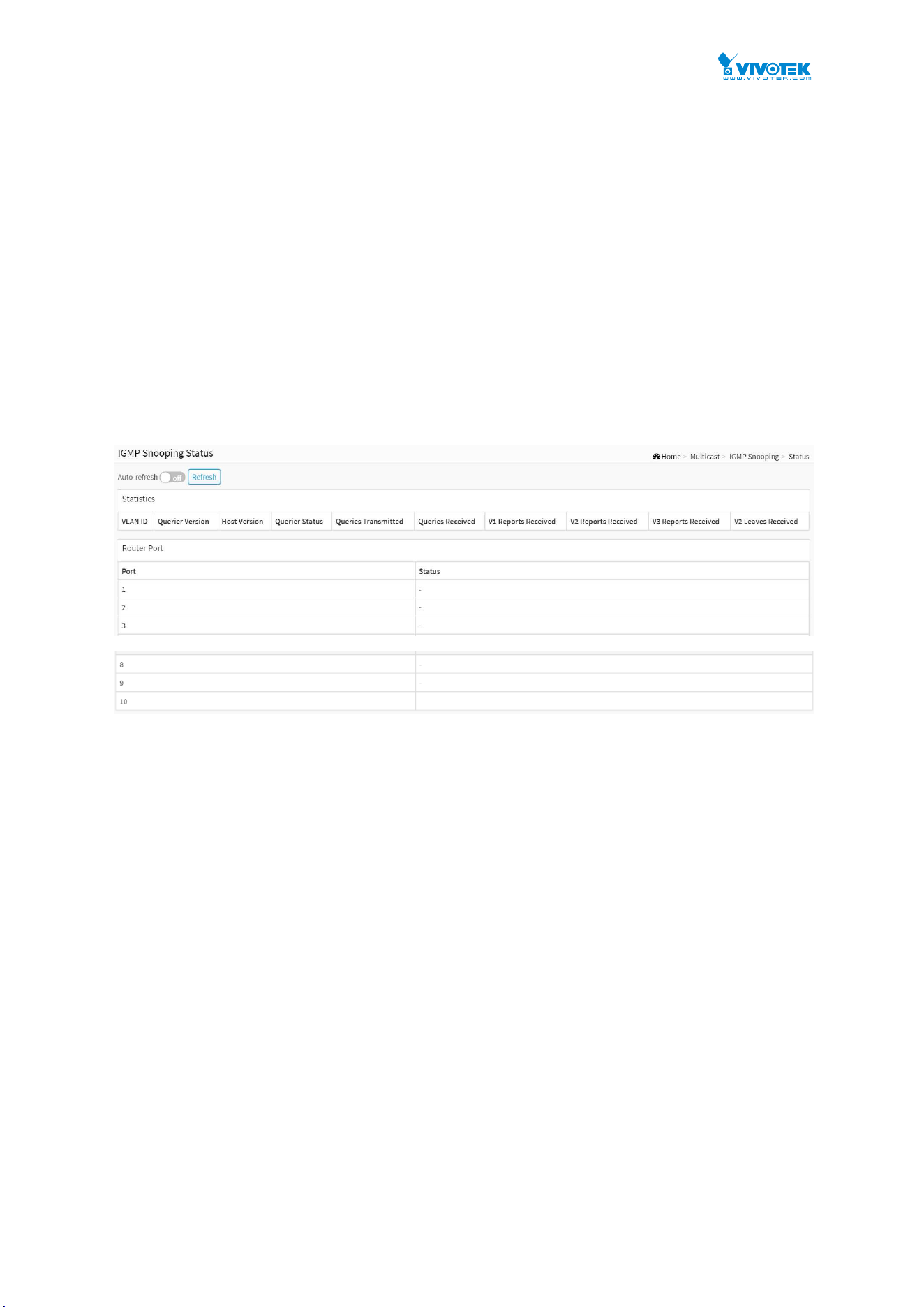
112
9-1.3 Status
After you complete the IGMP Snooping configuration, then you could to let the switch display
the IGMP Snooping Status. The Section provides you to let switch to display the IGMP
Snooping detail status.
Web Interface
To display the IGMP Snooping status in the web interface:
1. Click Multicast, IGMP Snooping and Status.
2. If you want to auto-refresh the information then you need to evoke the “Auto-refresh”.
3. Click “Refresh” to refresh the IGMP Snooping Status.
Figure 9-1.3: The IGMP Snooping Status
Parameter description:
Statistic
VLAN ID :
The VLAN ID of the entry.
Querier Version :
Working Querier Version currently.
Host Version :
Working Host Version currently.
Querier Status :
Shows the Querier status is "ACTIVE" or "IDLE".
"DISABLE" denotes the specific interface is administratively disabled.
Queries Transmitted :
The number of Transmitted Queries.
Queries Received :
The number of Received Queries.
113
V1 Reports Received :
The number of Received V1 Reports.
V2 Reports Received :
The number of Received V2 Reports.
V3 Reports Received :
The number of Received V3 Reports.
V2 Leaves Received :
The number of Received V2 Leaves.
Router Port
Display which ports act as router ports. A router port is a port on the Ethernet switch that
leads towards the Layer 3 multicast device or IGMP querier. Static denotes the specific port
is configured to be a router port. Dynamic denotes the specific port is learnt to be a router
port. Both denote the specific port is configured or learnt to be a router port.
Port
Switch port number.
Status
Indicate whether specific port is a router port or not.
Buttons
Figure 9-1.3: The IGMP Snooping Status buttons
Auto-refresh :
Check this box to refresh the page automatically. Automatic refresh occurs every 3 seconds.
Refresh :
Click to refresh the page immediately.
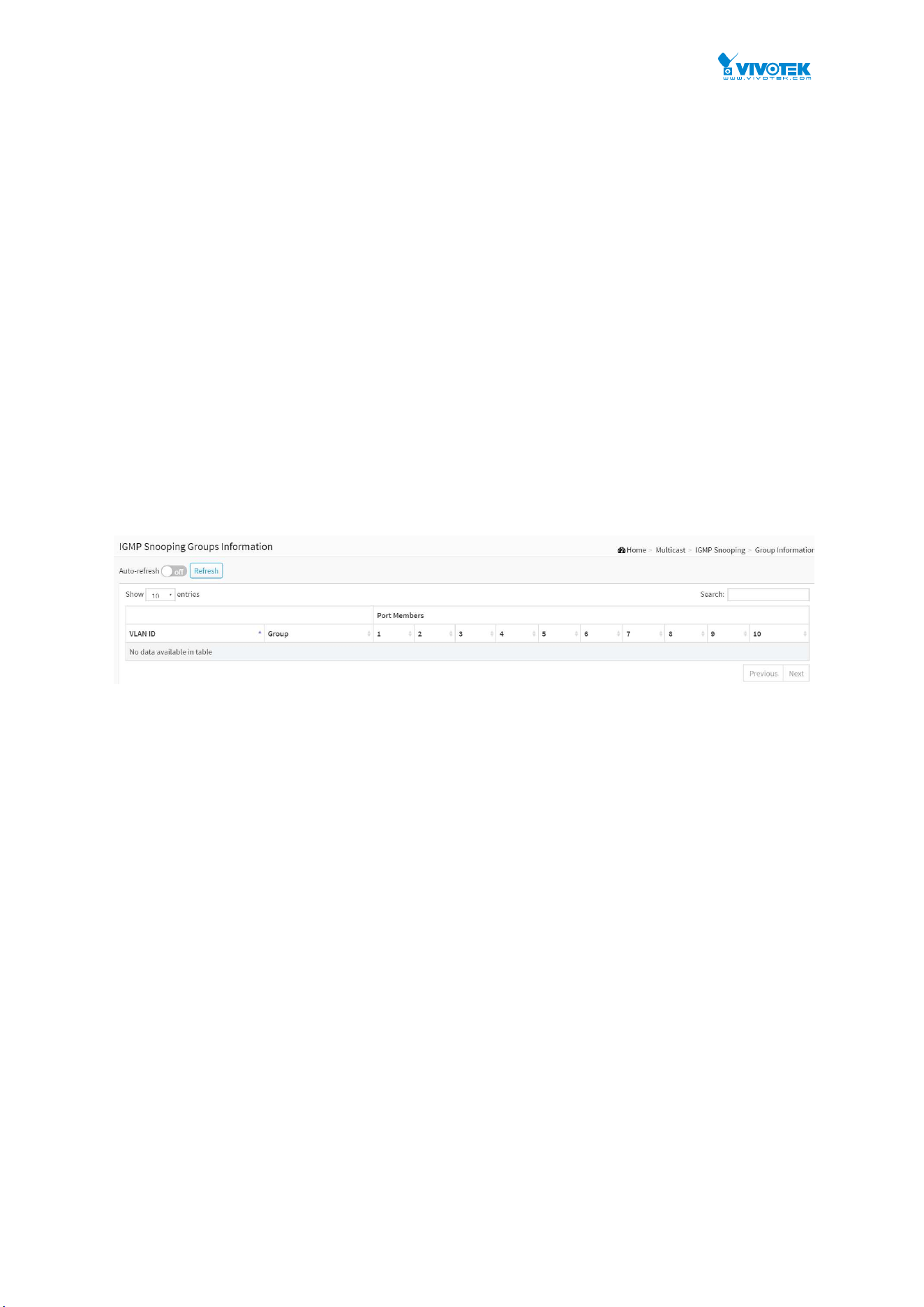
114
9-1.4 Group Information
After you complete to set the IGMP Snooping function then you could let the switch to display
the IGMP Snooping Group Information. Entries in the IGMP Group Table are shown on this
page. The IGMP Group Table is sorted first by VLAN ID, and then by group. The will use the last
entry of the currently displayed table as a basis for the next lookup. When the end is reached
the text "No more entries" is shown in the displayed table. Use the button to start over.
Web Interface
To display the IGMP Snooping Group Information in the web interface:
1. Click Multicast, IGMP Snooping and Group Information.
2. Specify how many entries to show in one page.
3. If you want to auto-refresh the information then you need to evoke the “Auto-refresh”.
4. Click “Refresh” to refresh an entry of the IGMP Snooping Groups Information.
5. Click Previous/next to change page.
Figure 9-1.4: The IGMP Snooping Groups Information
Parameter description:
Navigating the IGMP Group Table
Each page shows up to 99 entries from the IGMP Group table, default being 20, selected
through the "entries per page" input field. When first visited, the web page will show the first
20 entries from the beginning of the IGMP Group Table.
The "Start from VLAN", and "group" input fields allow the user to select the starting point in the
IGMP Group Table. Clicking the button will update the displayed table starting from that or the
closest next IGMP Group Table match. In addition, the two input fields will - upon a button
click - assume the value of the first displayed entry, allowing for continuous refresh with the
same start address.
The will use the last entry of the currently displayed table as a basis for the next lookup. When
the end is reached the text "No more entries" is shown in the displayed table. Use the button
to start over.
Search :
You can search for the information that you want to see.
Show entries :
You can choose how many items you want to show off.
VLAN ID :
VLAN ID of the group.
Groups :

115
Group address of the group displayed.
Port Members :
Ports under this group.
Buttons
Figure 9-1.4: The IGMP Snooping Groups Information buttons
Auto-refresh :
Check this box to refresh the page automatically. Automatic refresh occurs every 3 seconds.
Refresh :
Click to refresh the page immediately.
Next :
Updates the system log entries, turn to the next page.
Previous :
Updates the system log entries, turn to the previous page.

116
9-1.5 IGMP SFM Information
Entries in the IGMP SFM Information Table are shown on this page. The IGMP SFM
(Source-Filtered Multicast) Information Table also contains the SSM (Source-Specific Multicast)
information. This table is sorted first by VLAN ID, then by group, and then by Port. Different
source addresses belong to the same group are treated as single entry.
Web Interface
To display the IGMP SFM Information in the web interface:
1. Click Multicast, IGMP Snooping and IGMP SFM Information.
2. If you want to auto-refresh the information then you need to evoke the “Auto-refresh”.
3. Click “Refresh” to refresh an entry of the IGMP Snooping Groups Information.
4. Click Previous/next to change page.
Figure 9-1.5: The IGMP SFM Information
Parameter description:
Navigating the IGMP SFM Information Table
Each page shows up to 99 entries from the IGMP SFM Information table, default being 20,
selected through the "entries per page" input field. When first visited, the web page will show
the first 20 entries from the beginning of the IGMP SFM Information Table.
The "Start from VLAN", and "group" input fields allow the user to select the starting point in the
IGMP SFM Information Table. Clicking the button will update the displayed table starting from
that or the closest next IGMP SFM Information Table match. In addition, the two input fields
will - upon a button click - assume the value of the first displayed entry, allowing for
continuous refresh with the same start address.
The will use the last entry of the currently displayed table as a basis for the next lookup. When
the end is reached the text "No more entries" is shown in the displayed table. Use the button
to start over.
Search :
You can search for the information that you want to see.
Show entries :
You can choose how many items you want to show off.
VLAN ID :
VLAN ID of the group.
Group :
Group address of the group displayed.

117
Port :
Switch port number.
Mode :
Indicates the filtering mode maintained per (VLAN ID, port number, Group Address) basis. It
can be either Include or Exclude.
Source Address :
IP Address of the source. Currently, system limits the total number of IP source addresses for
filtering to be 128.
Type :
Indicates the Type. It can be either Allow or Deny.
Buttons
Figure 9-1.5: The IGMP Snooping Groups Information buttons
Auto-refresh :
Check this box to refresh the page automatically. Automatic refresh occurs every 3 seconds.
Refresh :
Click to refresh the page immediately.
Next :
Updates the system log entries, turn to the next page.
Previous :
Updates the system log entries, turn to the previous page.
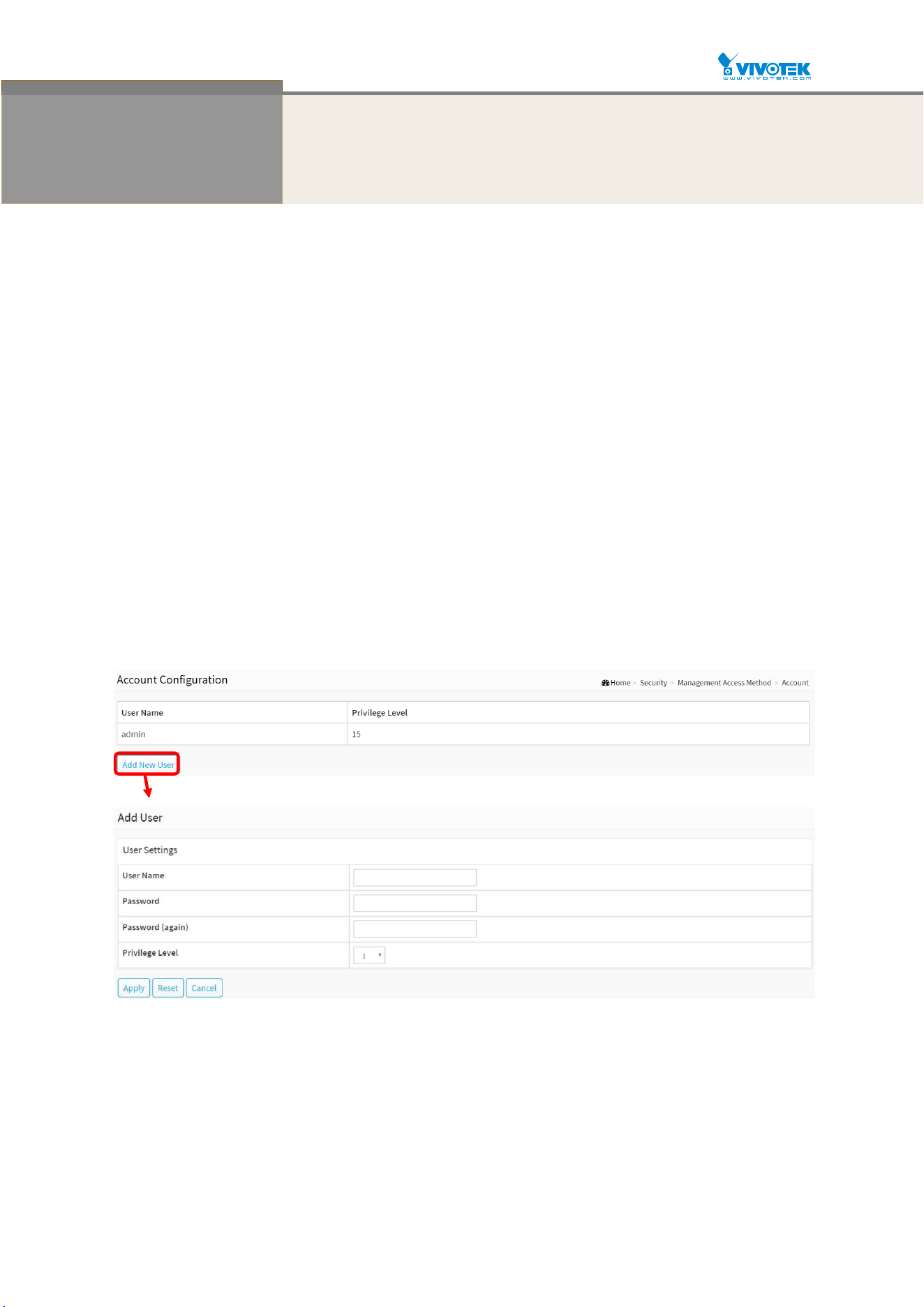
118
Chapter 10 Security
This section shows you to configure the Port Security settings of the Switch. You can use the
Port Security feature to restrict input to an interface by limiting and identifying MAC addresses.
10-1 Management
10-1.1 Account
This page provides an overview of the current users. Currently the only way to login as another
user on the web server is to close and reopen the browser.
Web Interface
To configure User in the web interface:
1. Click Security, Management and Account.
2. Click Add new user.
3. Specify the User Name parameter.
4. Click Apply.
Figure 10-1.1: The Account configuration
Parameter description:
User Name :
The name identifying the user. This is also a link to Add/Edit User.
Password :
To type the password. The allowed string length is 0 to 255, and the allowed content is the
ASCII characters from 32 to 126.

119
Password (again) :
To type the password again. You must type the same password again in the field.
Privilege Level :
The privilege level of the user. The allowed range is 1 to 15. If the privilege level value is 15, it
can access all groups, i.e. that is granted the fully control of the device. But others value
need to refer to each group privilege level. User's privilege should be same or greater than
the group privilege level to have the access of that group. By default setting, most groups
privilege level 5 has the read-only access and privilege level 10 has the read-write access.
And the system maintenance (software upload, factory defaults and etc.) need user privilege
level 15. Generally, the privilege level 15 can be used for an administrator account, privilege
level 10 for a standard user account and privilege level 5 for a guest account.
Buttons
Apply :
Click to save changes.
Reset :
Click to undo any changes made locally and revert to previously saved values.
Cancel :
Click to undo any changes made locally and return to the Users.
Delete User :
Delete the current user. This button is not available for new configurations (Add new user).
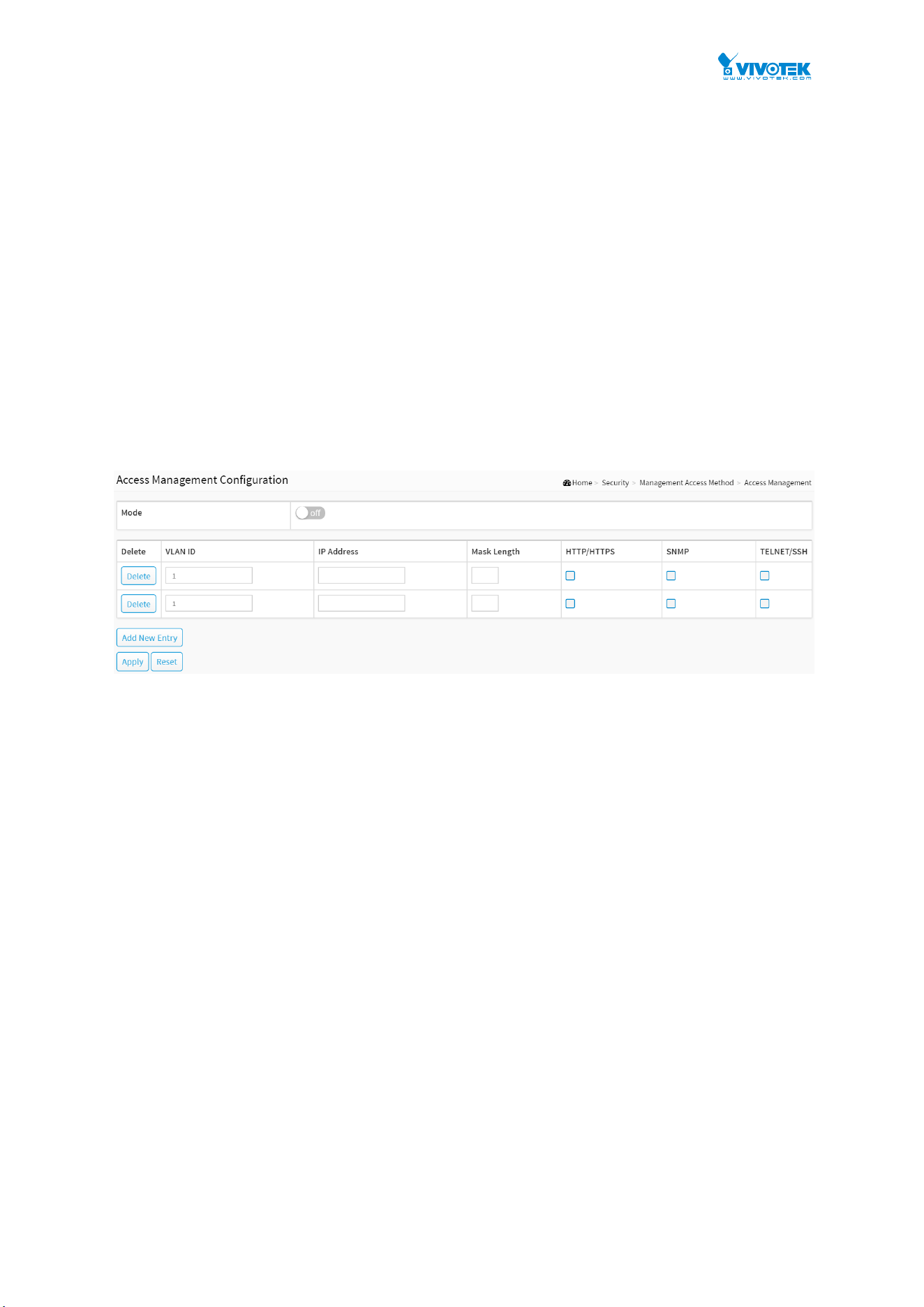
120
10-1.2 Access Management
This section shows you to configure access management table of the Switch including
HTTP/HTTPS, SNMP. You can manage the Switch over an Ethernet LAN, or over the Internet.
Web Interface
To configure an Access Management Configuration in the web interface:
1. Click Security, Management and Access Management.
2. Select “on” in the Mode of Access Management Configuration.
3. Click “Add new entry”.
4. Specify the IP Address, Mask Length.
5. Checked Access Management method (HTTP/HTTPS, SNMP) in the entry.
6. Click Apply.
Figure 10-1.2: The Access Management Configuration
Parameter description:
Mode :
Indicates the access management mode operation. Possible modes are:
On : Enable access management mode operation.
Off : Disable access management mode operation.
VLAN ID :
Indicates the VLAN ID for the access management entry.
Delete :
Check to delete the entry. It will be deleted during the next save.
IP address :
Enter the source IP address.
Mask Length :
Enter the Mask Length.
HTTP/HTTPS :
Indicates that the host can access the switch from HTTP/HTTPS interface if the host IP
address matches the IP address range provided in the entry.
SNMP :

121
Indicates that the host can access the switch from SNMP interface if the host IP address
matches the IP address range provided in the entry.
Buttons
Add New Entry :
Click to add a new access management entry.
Apply :
Click to save changes.
Reset :
Click to undo any changes made locally and revert to previously saved values.

122
10-2 IEEE 802.1X
10-2.1 Configuration
The section describes to configure the 802.1X parameters of the switch. The 802.1X can be
employed to connect users to a variety of resources including Internet access, conference calls,
printing documents on shared printers, or by simply logging on to the Internet.
Web Interface
To configure the IEEE 802.1X in the web interface:
1. Click Security, IEEE 802.1X and Configuration.
2. Select “on” in the Mode of IEEE 802.1X Configuration.
3. Checked Reauthentication Enabled.
4. Set Reauthentication Period (Default is 3600 seconds).
5. Select Admin State and displays Port State.
6. Click the Apply to save the setting.
7. If you want to cancel the setting then you need to click the Reset button. It will revert to
previously saved values.
Figure 10-2.1: The IEEE 802.1X Configuration
Parameter description:
System Configuration
Mode :
on or off.
Indicates if IEEE 802.1X is globally enabled or disabled on the switch. If globally disabled, all
ports are allowed forwarding of frames.
Reauthentication Enabled :
If checked, successfully authenticated supplicants/clients are reauthenticated after the

123
interval specified by the Reauthentication Period. Reauthentication for 802.1X-enabled ports
can be used to detect if a new device is plugged into a switch port or if a supplicant is no
longer attached.
For MAC-based ports, reauthentication is only useful if the RADIUS server configuration has
changed. It does not involve communication between the switch and the client, and
therefore doesn't imply that a client is still present on a port (see Aging Period below).
Reauthentication Period :
Determines the period, in seconds, after which a connected client must be reauthenticated.
This is only active if the Reauthentication Enabled checkbox is checked. Valid values are in
the range 1 to 3600 seconds.
EAPOL Timeout :
Determines the time for retransmission of Request Identity EAPOL frames.
Valid values are in the range 1 to 255 seconds. This has no effect for MAC-based ports.
Port Configuration
Port :
The port number for which the configuration below applies.
Admin State :
If 802.1X is globally enabled, this selection controls the port's authentication mode. The
following modes are available:
Force Authorized:
In this mode, the switch will send one EAPOL Success frame when the port link comes up,
and any client on the port will be allowed network access without authentication.
Force Unauthorized:
In this mode, the switch will send one EAPOL Failure frame when the port link comes up,
and any client on the port will be disallowed network access.
Port-based 802.1X:
In the 802.1X-world, the user is called the supplicant, the switch is the authenticator, and
the RADIUS server is the authentication server. The authenticator acts as the
man-in-the-middle, forwarding requests and responses between the supplicant and the
authentication server. Frames sent between the supplicant and the switch are special
802.1X frames, known as EAPOL (EAP Over LANs) frames. EAPOL frames encapsulate EAP
PDUs (RFC3748). Frames sent between the switch and the RADIUS server are RADIUS
packets. RADIUS packets also encapsulate EAP PDUs together with other attributes like
the switch's IP address, name, and the supplicant's port number on the switch. EAP is very
flexible, in that it allows for different authentication methods, like MD5-Challenge, PEAP,
and TLS. The important thing is that the authenticator (the switch) doesn't need to know
which authentication method the supplicant and the authentication server are using, or
how many information exchange frames are needed for a particular method. The switch
simply encapsulates the EAP part of the frame into the relevant type (EAPOL or RADIUS)
and forwards it.
When authentication is complete, the RADIUS server sends a special packet containing a
success or failure indication. Besides forwarding this decision to the supplicant, the switch
uses it to open up or block traffic on the switch port connected to the supplicant.
NOTE: Suppose two backend servers are enabled and that the server
timeout is configured to X seconds (using the AAA configuration page),
and suppose that the first server in the list is currently down (but not

124
considered dead).
Now, if the supplicant retransmits EAPOL Start frames at a rate faster than
X seconds, then it will never get authenticated, because the switch will
cancel on-going backend authentication server requests whenever it
receives a new EAPOL Start frame from the supplicant.
And since the server hasn't yet failed (because the X seconds haven't
expired), the same server will be contacted upon the next backend
authentication server request from the switch. This scenario will loop
forever. Therefore, the server timeout should be smaller than the
supplicant's EAPOL Start frame retransmission rate.
Port State :
The current state of the port. It can undertake one of the following values:
Globally Disabled: IEEE 802.1X is globally disabled.
Link Down: IEEE 802.1X is globally enabled, but there is no link on the port.
Authorized: The port is in Force Authorized or a single-supplicant mode and the supplicant
is authorized.
Unauthorized: The port is in Force Unauthorized or a single-supplicant mode and the
supplicant is not successfully authorized by the RADIUS server.
X Auth/Y Unauth: The port is in a multi-supplicant mode. Currently X clients are authorized
and Y are unauthorized.
Buttons
Apply :
Click to save changes.
Reset :
Click to undo any changes made locally and revert to previously saved values.
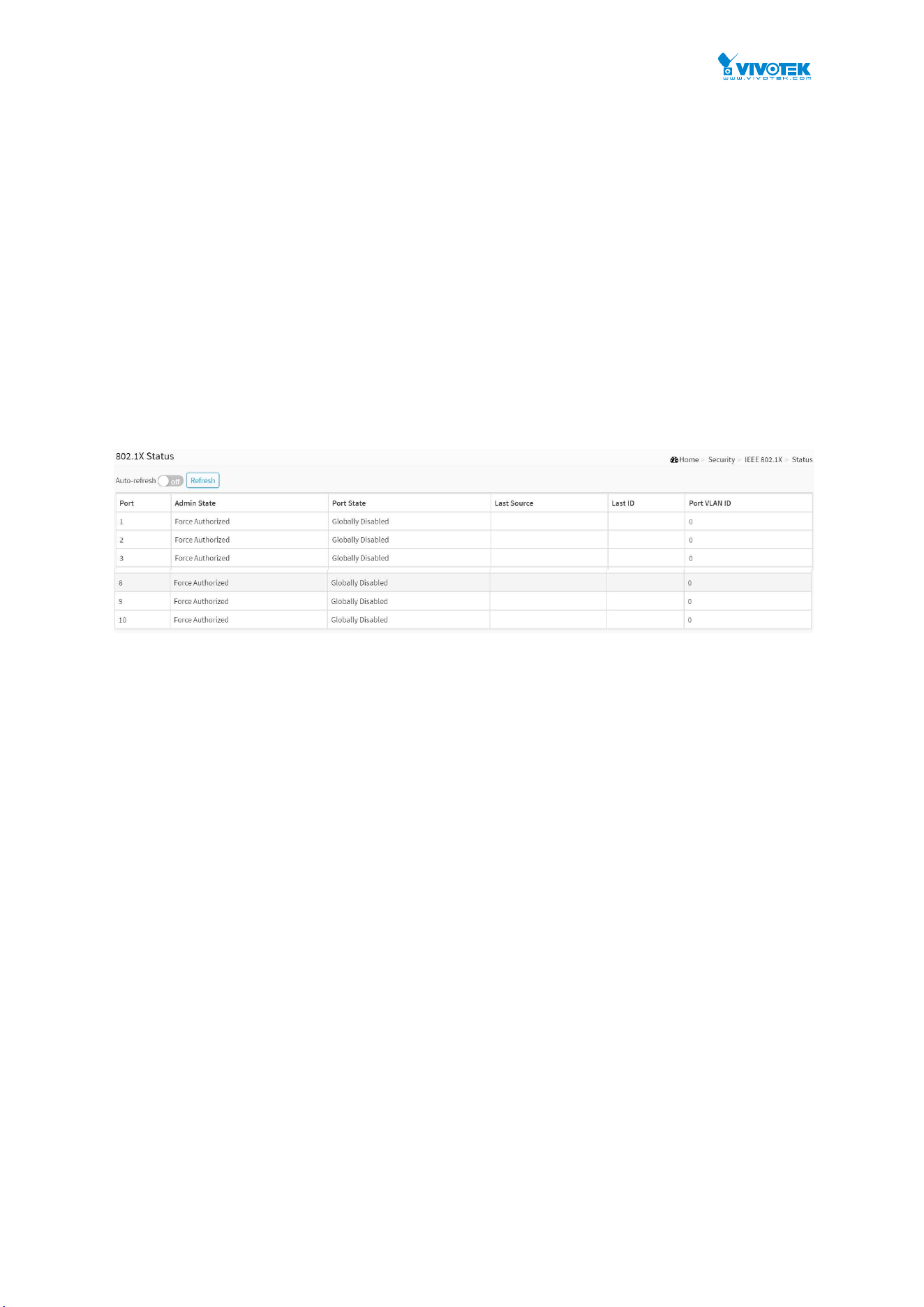
125
10-2.2 Status
The section describes to show the each port 802.1X status information of the switch. The status
includes Admin State, Port State, Last Source, Last ID and Port VLAN ID.
Web Interface
To displays 802.1X Status in the web interface:
1. Click Security, IEEE 802.1X and Status.
2. Checked “Auto-refresh”.
3. Click “Refresh” to refresh the port detailed statistics.
4. You can select which port that you want display 802.1X Statistics.
Figure 10-2.2: The IEEE 802.1X Status
Parameter description:
802.1X Status
Port :
The switch port number. Click to navigate to detailed 802.1X statistics for this port.
Admin State :
The port's current administrative state. Refer to 802.1X Admin State for a description of
possible values.
Port State :
The current state of the port. Refer to 802.1X Port State for a description of the individual
states.
Last Source :
The source MAC address carried in the most recently received EAPOL frame for
EAPOL-based authentication, and the most recently received frame from a new client for
MAC-based authentication.
Last ID :
The user name (supplicant identity) carried in the most recently received Response Identity
EAPOL frame for EAPOL-based authentication, and the source MAC address from the most
recently received frame from a new client for MAC-based authentication.
Port VLAN ID :
The VLAN ID that 802.1X has put the port in. The field is blank, if the Port VLAN ID is not

126
overridden by 802.1X.
If the VLAN ID is assigned by the RADIUS server, "(RADIUS-assigned)" is appended to the
VLAN ID. Read more about RADIUS-assigned VLANs here.
If the port is moved to the Guest VLAN, "(Guest)" is appended to the VLAN ID. Read more
about Guest VLANs here.
Buttons
Figure 10-2.2: The IEEE 802.1X Status buttons
Auto-refresh :
Check this box to refresh the page automatically. Automatic refresh occurs every 3 seconds.
Refresh :
Click to refresh the page immediately.
If you select port1 to display 802.1X Statistics.
Figure 10-2.2: The 802.1X Statistics Port 1
Parameter description:
Port :
You can select which port that you want display 802.1X Statistics.
Admin State :
The port's current administrative state. Refer to 802.1X Admin State for a description of
possible values.
Port State :
The current state of the port. Refer to 802.1X Port State for a description of the individual
states.
Buttons
Figure 10-2.2: The IEEE 802.1X Statistics Port buttons
Auto-refresh :
Check this box to refresh the page automatically. Automatic refresh occurs every 3 seconds.
Refresh :
Click to refresh the page.
Clear :
Clears the counters for the selected port.
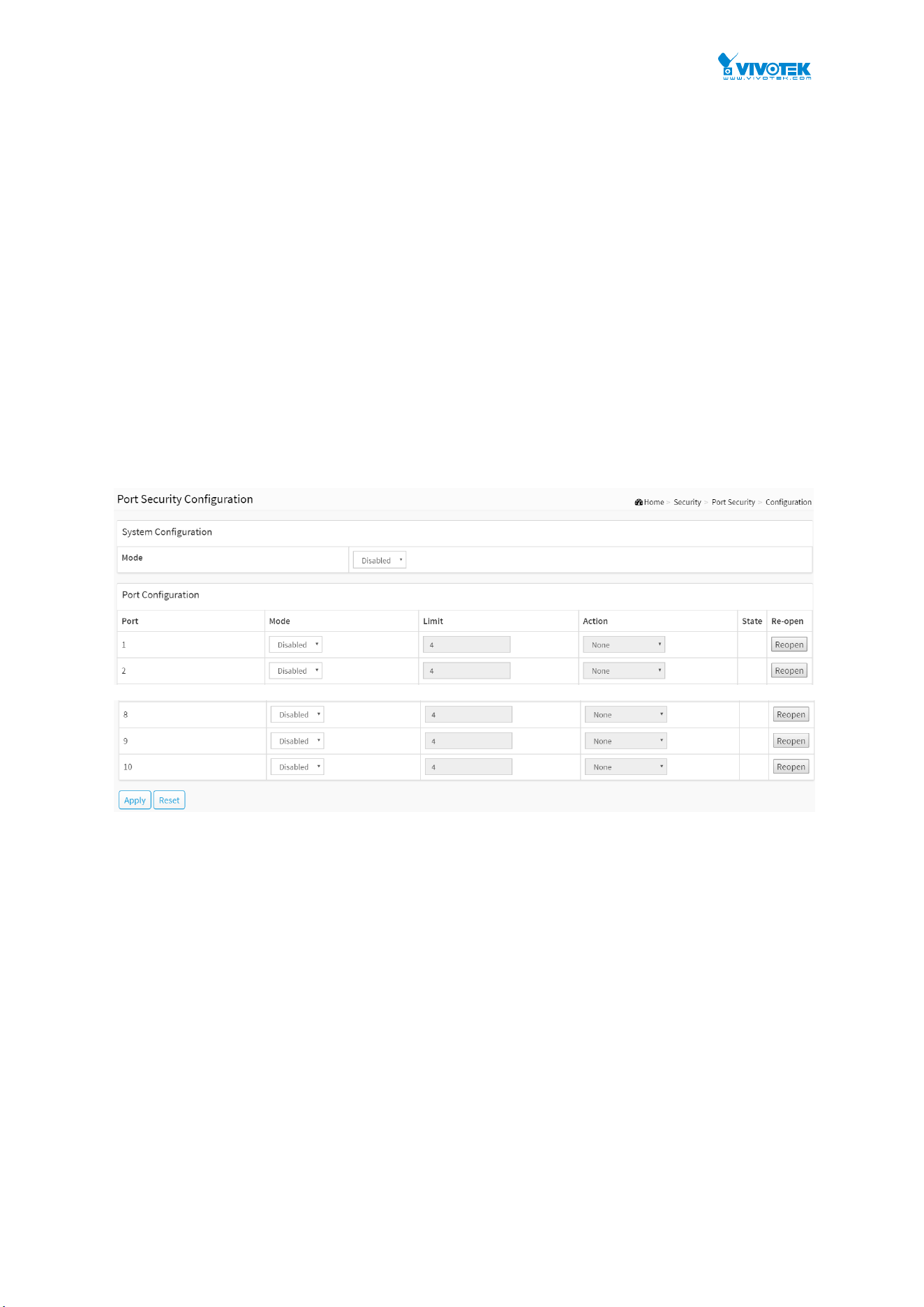
127
10-3 Port Security
10-3.1 Configuration
This section shows you to configure the Port Security settings of the Switch. You can use the
Port Security feature to restrict input to an interface by limiting and identifying MAC addresses.
Web Interface
To configure a Port Security Configuration in the web interface:
1. Click Security, Port Security and Configuration.
2. Select “Enabled” in the Mode of System Configuration.
3. Set Mode(Enabled, Disabled), Limit, Action (Trap, Shutdown, Trap & Shutdown) for each
port.
4. Click the Apply to save the setting.
5. If you want to cancel the setting then you need to click the Reset button. It will revert to
previously saved values.
Figure 10-3.1: The Port Security Configuration
Parameter description:
System Configuration
Mode :
Indicates if Limit Control is globally enabled or disabled on the switch. If globally disabled,
other modules may still use the underlying functionality, but limit checks and corresponding
actions are disabled.
Port Configuration
The table has one row for each port on the selected switch and a number of columns, which
are:
Port :
The port number to which the configuration below applies.
Mode :
Controls whether Limit Control is enabled on this port. Both this and the Global Mode must

128
be set to Enabled for Limit Control to be in effect. Notice that other modules may still use
the underlying port security features without enabling Limit Control on a given port.
Limit :
The maximum number of MAC addresses that can be secured on this port. This number
cannot exceed 1024. If the limit is exceeded, the corresponding action is taken.
The switch is "born" with a total number of MAC addresses from which all ports draw
whenever a new MAC address is seen on a Port Security-enabled port. Since all ports draw
from the same pool, it may happen that a configured maximum cannot be granted, if the
remaining ports have already used all available MAC addresses.
Action :
If Limit is reached, the switch can take one of the following actions:
None: Do not allow more than Limit MAC addresses on the port, but take no further action.
Trap: If Limit + 1 MAC addresses is seen on the port, send an SNMP trap. If Aging is
disabled, only one SNMP trap will be sent, but with Aging enabled, new SNMP traps will be
sent every time the limit gets exceeded.
Shutdown: If Limit + 1 MAC addresses is seen on the port, shut down the port. This implies
that all secured MAC addresses will be removed from the port, and no new address will be
learned. Even if the link is physically disconnected and reconnected on the port (by
disconnecting the cable), the port will remain shut down. There are three ways to re-open
the port:
1) Boot the switch,
2) Disable and re-enable Limit Control on the port or the switch,
3) Click the Reopen button.
Trap & Shutdown: If Limit + 1 MAC addresses is seen on the port, both the "Trap" and the
"Shutdown" actions described above will be taken.
State :
This column shows the current state of the port as seen from the Limit Control's point of
view. The state takes one of four values:
Disabled: Limit Control is either globally disabled or disabled on the port.
Ready: The limit is not yet reached. This can be shown for all actions.
Limit Reached: Indicates that the limit is reached on this port. This state can only be shown
if Action is set to none or Trap.
Shutdown: Indicates that the port is shut down by the Limit Control module. This state can
only be shown if Action is set to shut down or Trap & Shutdown.
Re-open Button :
If a port is shut down by this module, you may reopen it by clicking this button, which will
only be enabled if this is the case. For other methods, refer to shut down in the Action
section.
NOTE: That clicking the reopen button causes the page to be
refreshed, so non-committed changes will be lost
Buttons
Apply
Click to save changes.

129
Reset
Click to undo any changes made locally and revert to previously saved values.
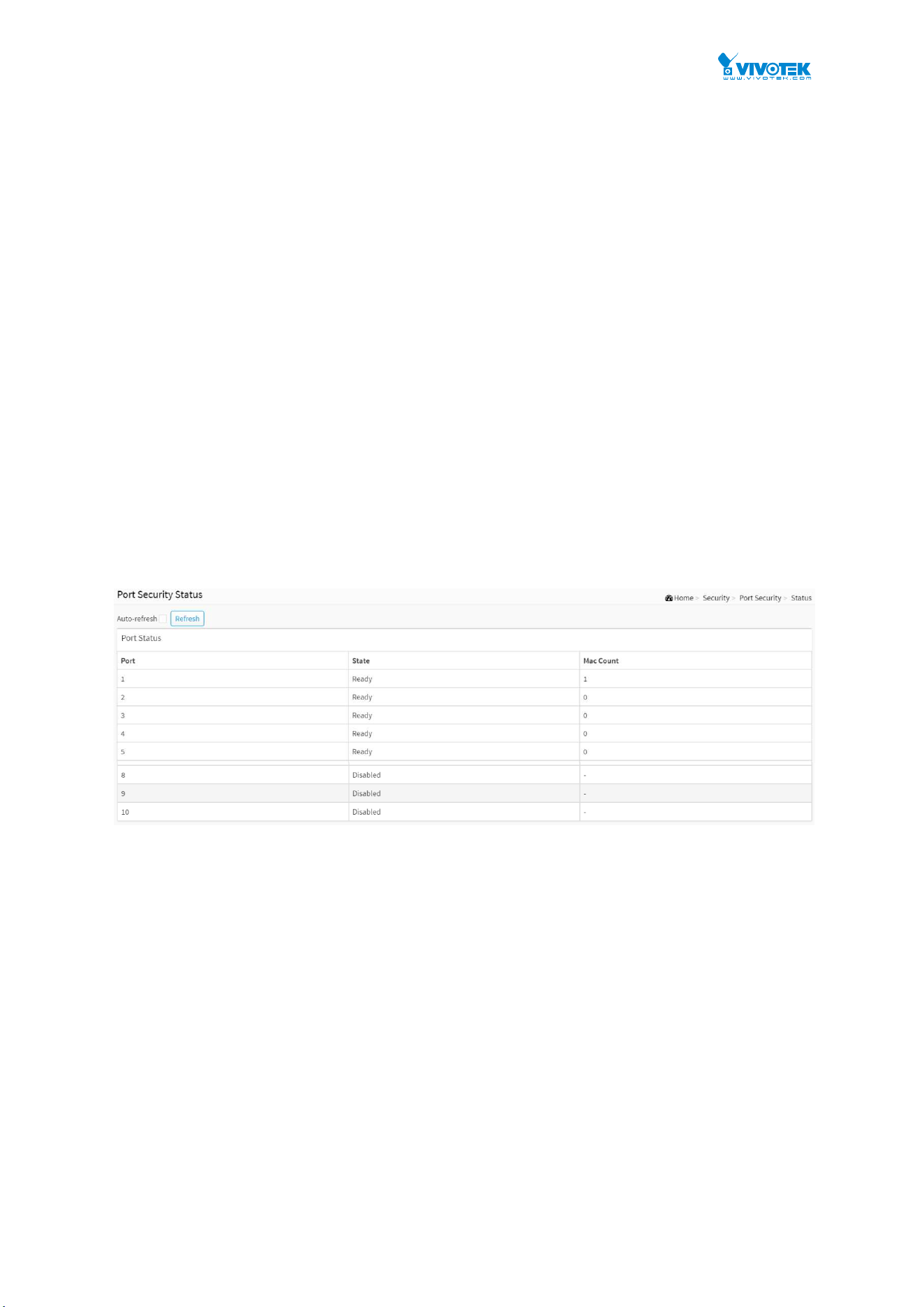
130
10-3.2 Status
This section shows the Port Security status. Port Security is a module with no direct
configuration. Configuration comes indirectly from other modules - the user modules. When a
user module has enabled port security on a port, the port is set-up for software-based learning.
In this mode, frames from unknown MAC addresses are passed on to the port security module,
which in turn asks all user modules whether to allow this new MAC address to forward or block
it. For a MAC address to be set in the forwarding state, all enabled user modules must
unanimously agree on allowing the MAC address to forward. If only one chooses to block it, it
will be blocked until that user module decides otherwise. The status page is divided into two
sections - one with a legend of user modules and one with the actual port status.
Web Interface
To displays a Port Security Status in the web interface:
1. Click Security, Port Security and status.
2. Checked “Auto-refresh”.
3. Click “Refresh” to refresh the port detailed statistics.
4. Click the port number to see the status for this particular port.
Figure 10-3.2: The Port Security Status
Parameter description:
Port :
The port number for which the status applies.
State :
Shows the current state of the port. It can take one of four values:
Disabled: No user modules are currently using the Port Security service.
Ready: The Port Security service is in use by at least one user module, and is awaiting
frames from unknown MAC addresses to arrive.
Limit Reached: The Port Security service is enabled by at least the Limit Control user
module, and that module has indicated that the limit is reached and no more MAC
addresses should be taken in.
Shutdown: The Port Security service is enabled by at least the Limit Control user module,
and that module has indicated that the limit is exceeded. No MAC addresses can be learned
on the port until it is administratively re-opened on the Limit Control configuration

131
Web-page.
MAC Count (Current, Limit) :
The two columns indicate the number of currently learned MAC addresses (forwarding as
well as blocked) and the maximum number of MAC addresses that can be learned on the
port, respectively.
If no user modules are enabled on the port, the Current column will show a dash (-).
Buttons
Figure 10-3.2: The Port Security Status buttons
Auto-refresh :
Check this box to refresh the page automatically. Automatic refresh occurs every 3 seconds.
Refresh :
Click to refresh the page immediately.

132
10-4 RADIUS
10-4.1 Configuration
Web Interface
To configure a RADIUS in the web interface:
1. Click Security, RADIUS and Configuration.
2. Set Timeout, Retransmit, Deadtime, Key, NAS-IP-Address, NAS
IPv6-Address,NAS-Identifier.
3. Click “Add New Entry”.
4. Set Hostname, Auth Port, Acct Port, Timeout, Retransmit, Key.
5. Click the Apply to save the setting.
6. If you want to cancel the setting then you need to click the Reset button. It will revert to
previously saved values.
Figure 10-4.1: The RADIUS Configuration
Parameter description:
Global Configuration
These setting are common for all of the RADIUS servers.
Timeout :
Timeout is the number of seconds, in the range 1 to 1000, to wait for a reply from a RADIUS
server before retransmitting the request.
Retransmit :
Retransmit is the number of times, in the range 1 to 1000, a RADIUS request is retransmitted
to a server that is not responding. If the server has not responded after the last retransmit it
is considered to be dead.
Deadtime :

133
Deadtime, which can be set to a number between 0 to 1440 minutes, is the period during
which the switch will not send new requests to a server that has failed to respond to a
previous request. This will stop the switch from continually trying to contact a server that it
has already determined as dead.
Setting the Deadtime to a value greater than 0 (zero) will enable this feature, but only if
more than one server has been configured.
Key :
The secret key - up to 63 characters long - shared between the RADIUS server and the
switch.
NAS-IP-Address :
The IPv4 address to be used as attribute 4 in RADIUS Access-Request packets. If this field is
left blank, the IP address of the outgoing interface is used.
NAS-IPv6-Address :
The IPv6 address to be used as attribute 95 in RADIUS Access-Request packets. If this field is
left blank, the IP address of the outgoing interface is used.
NAS-Identifier :
The identifier - up to 255 characters long - to be used as attribute 32 in RADIUS
Access-Request packets. If this field is left blank, the NAS-Identifier is not included in the
packet.
Server Configuration
The table has one row for each RADIUS server and a number of columns, which are:
Delete :
To delete a RADIUS server entry, check this box. The entry will be deleted during the next
Save.
Hostname :
The IP address or hostname of the RADIUS server.
Auth Port :
The UDP port to use on the RADIUS server for authentication.
Acct Port :
The UDP port to use on the RADIUS server for accounting.
Timeout :
This optional setting overrides the global timeout value. Leaving it blank will use the global
timeout value.
Retransmit :
This optional setting overrides the global retransmit value. Leaving it blank will use the
global retransmit value.
Key :
This optional setting overrides the global key. Leaving it blank will use the global key.
Buttons
Adding New Server Entry :
Click to add a new RADIUS server. An empty row is added to the table, and the RADIUS
server can be configured as needed. Up to 5 servers are supported.
The button can be used to undo the addition of the new server.

134
Apply :
Click to save changes.
Reset :
Click to undo any changes made locally and revert to previously saved values.

135
10-4.2 Status
This section shows you an overview/detail of the RADIUS Authentication and Accounting
servers’ status to ensure the function is workable.
Web Interface
To display a RADIUS Status in the web interface:
1. Click Security, RADIUS and Status.
2. Select server to display the detail statistics for a particular RADIUS.
Figure 10-4.2: The RADIUS Server Status Overview
Parameter description:
RADIUS Authentication Server Status
# :
The RADIUS server number. Click to navigate to detailed statistics for this server.
IP Address :
The IP address and UDP port number (in <IP Address>:<UDP Port> notation) of this server.
State :
The current state of the server. This field takes one of the following values:
Disabled :
The server is disabled.
Not Ready :
The server is enabled, but IP communication is not yet up and running.
Ready :
The server is enabled, IP communication is up and running, and the RADIUS module is
ready to accept access attempts.
Dead (X seconds left) :
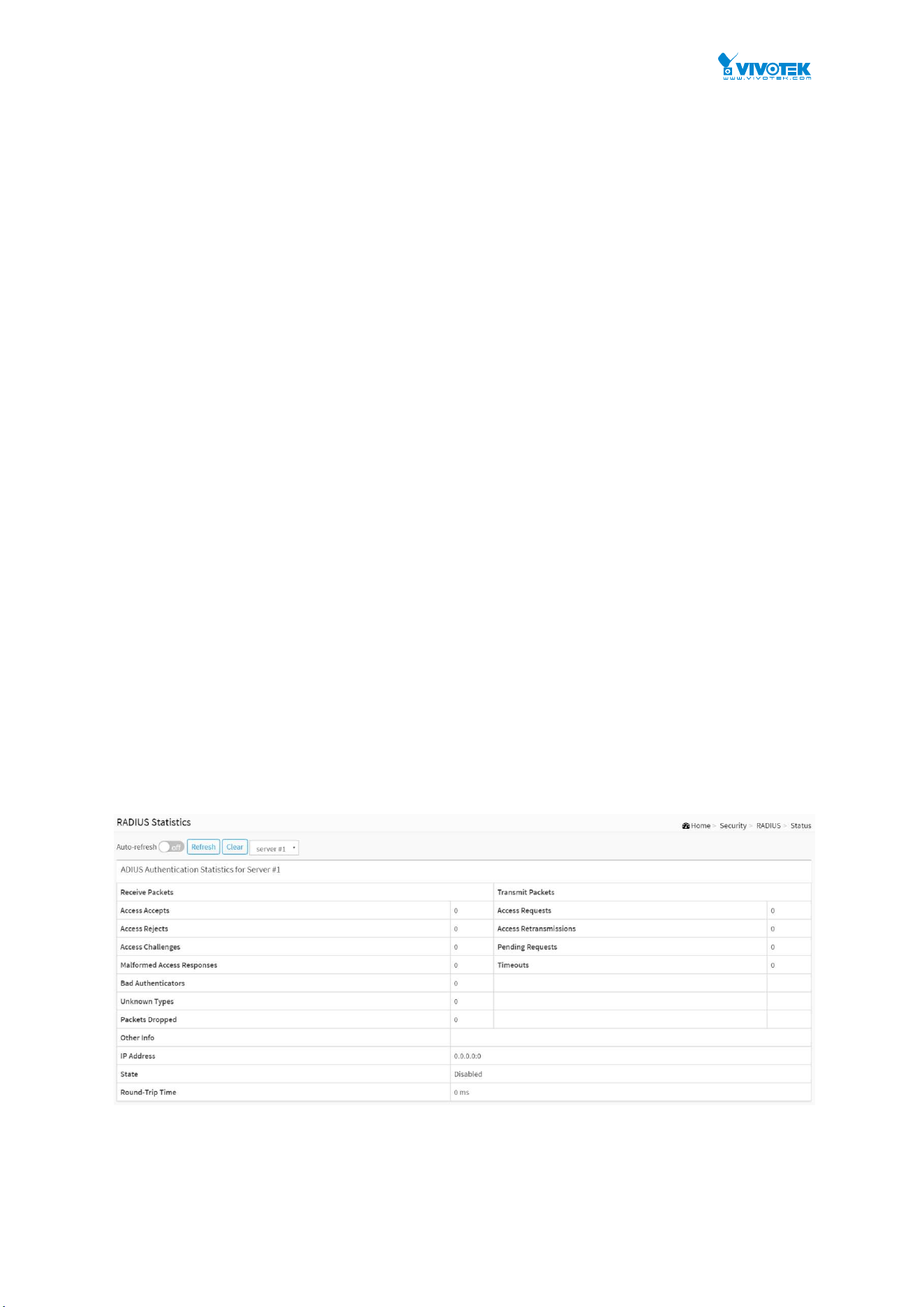
136
Access attempts were made to this server, but it did not reply within the configured
timeout. The server has temporarily been disabled, but will get re-enabled when the
dead-time expires. The number of seconds left before this occurs is displayed in
parentheses. This state is only reachable when more than one server is enabled.
RADIUS Accounting Server Status
# :
The RADIUS server number. Click to navigate to detailed statistics for this server.
IP Address :
The IP address and UDP port number (in <IP Address>:<UDP Port> notation) of this server.
State :
The current state of the server. This field takes one of the following values:
Disabled:
The server is disabled.
Not Ready:
The server is enabled, but IP communication is not yet up and running.
Ready:
The server is enabled, IP communication is up and running, and the RADIUS module is
ready to accept accounting attempts.
Dead (X seconds left):
Accounting attempts were made to this server, but it did not reply within the
configured timeout. The server has temporarily been disabled, but will get re-enabled
when the dead-time expires. The number of seconds left before this occurs is
displayed in parentheses. This state is only reachable when more than one server is
enabled.
If you select Server#1 to display RADIUS Statistics

137
Figure 10-4.2: The RADIUS Statistics Server
Parameter description:
server :
You can select which server that you want display RADIUS.
RADIUS Authentication Statistics for Server #1
The statistics map closely to those specified in RFC4668 - RADIUS Authentication Client MIB.
Use the server select box to switch between the backend servers to show details for.
Access Accepts :
The number of RADIUS Access-Accept packets (valid or invalid) received from the server.
Access Rejects :
The number of RADIUS Access-Reject packets (valid or invalid) received from the server.
Access Challenges :
The number of RADIUS Access-Challenge packets (valid or invalid) received from the server.
Malformed Access Responses :
The number of malformed RADIUS Access-Response packets received from the server.
Malformed packets include packets with an invalid length. Bad authenticators or Message
Authenticator attributes or unknown types are not included as malformed access responses.
Bad Authenticators :
The number of RADIUS Access-Response packets containing invalid authenticators or
Message Authenticator attributes received from the server.
Unknown Types :
The number of RADIUS packets that were received with unknown types from the server on
the authentication port and dropped.
Packets Dropped :
The number of RADIUS packets that were received from the server on the authentication
port and dropped for some other reason.
Access Requests :
The number of RADIUS Access-Request packets sent to the server. This does not include
retransmissions.
Access Retransmissions :
The number of RADIUS Access-Request packets retransmitted to the RADIUS authentication
server.
Pending Requests :
The number of RADIUS Access-Request packets destined for the server that have not yet

138
timed out or received a response. This variable is incremented when an Access-Request is
sent and decremented due to receipt of an Access-Accept, Access-Reject, Access-Challenge,
timeout, or retransmission.
Timeouts :
The number of authentication timeouts to the server. After a timeout, the client may retry to
the same server, send to a different server, or give up. A retry to the same server is counted
as a retransmit as well as a timeout. A send to a different server is counted as a Request as
well as a timeout.
IP Address :
IP address and UDP port for the authentication server in question.
State :
Shows the state of the server. It takes one of the following values:
Disabled :
The selected server is disabled.
Not Ready :
The server is enabled, but IP communication is not yet up and running.
Ready :
The server is enabled, IP communication is up and running, and the RADIUS module is
ready to accept access attempts.
Dead (X seconds left) :
Access attempts were made to this server, but it did not reply within the configured
timeout. The server has temporarily been disabled, but will get re-enabled when the
dead-time expires. The number of seconds left before this occurs is displayed in
parentheses. This state is only reachable when more than one server is enabled.
Round-Trip Time :
The time interval (measured in milliseconds) between the most recent
Access-Reply/Access-Challenge and the Access-Request that matched it from the RADIUS
authentication server. The granularity of this measurement is 100 ms. A value of 0 ms
indicates that there hasn't been round-trip communication with the server yet.
RADIUS Accounting Statistics for Server #1
The statistics map closely to those specified in RFC4670 - RADIUS Accounting Client MIB.
Use the server select box to switch between the backend servers to show details for.
Responses :
The number of RADIUS packets (valid or invalid) received from the server.
Malformed Responses :
The number of malformed RADIUS packets received from the server. Malformed packets
include packets with an invalid length. Bad authenticators or unknown types are not
included as malformed access responses.
Bad Authenticators :
The number of RADIUS packets containing invalid authenticators received from the server.
Unknown Types :
The number of RADIUS packets of unknown types that were received from the server on the
accounting port.
Packets Dropped :

139
The number of RADIUS packets that were received from the server on the accounting port
and dropped for some other reason.
Requests :
The number of RADIUS packets sent to the server. This does not include retransmissions
Retransmissions :
The number of RADIUS packets retransmitted to the RADIUS accounting server.
Pending Requests :
The number of RADIUS packets destined for the server that have not yet timed out or
received a response. This variable is incremented when a Request is sent and decremented
due to receipt of a Response, timeout, or retransmission.
Timeouts :
The number of accounting timeouts to the server. After a timeout, the client may retry to the
same server, send to a different server, or give up. A retry to the same server is counted as a
retransmit as well as a timeout. A send to a different server is counted as a Request as well
as a timeout.
IP Address :
IP address and UDP port for the accounting server in question.
State :
Shows the state of the server. It takes one of the following values:
Disabled :
The selected server is disabled.
Not Ready :
The server is enabled, but IP communication is not yet up and running.
Ready :
The server is enabled, IP communication is up and running, and the RADIUS module is
ready to accept accounting attempts.
Dead (X seconds left) :
Accounting attempts were made to this server, but it did not reply within the
configured timeout. The server has temporarily been disabled, but will get re-enabled
when the dead-time expires. The number of seconds left before this occurs is displayed
in parentheses. This state is only reachable when more than one server is enabled.
Round-Trip Time :
The time interval (measured in milliseconds) between the most recent Response and the
Request that matched it from the RADIUS accounting server. The granularity of this
measurement is 100 ms. A value of 0 ms indicates that there hasn't been round-trip
communication with the server yet.
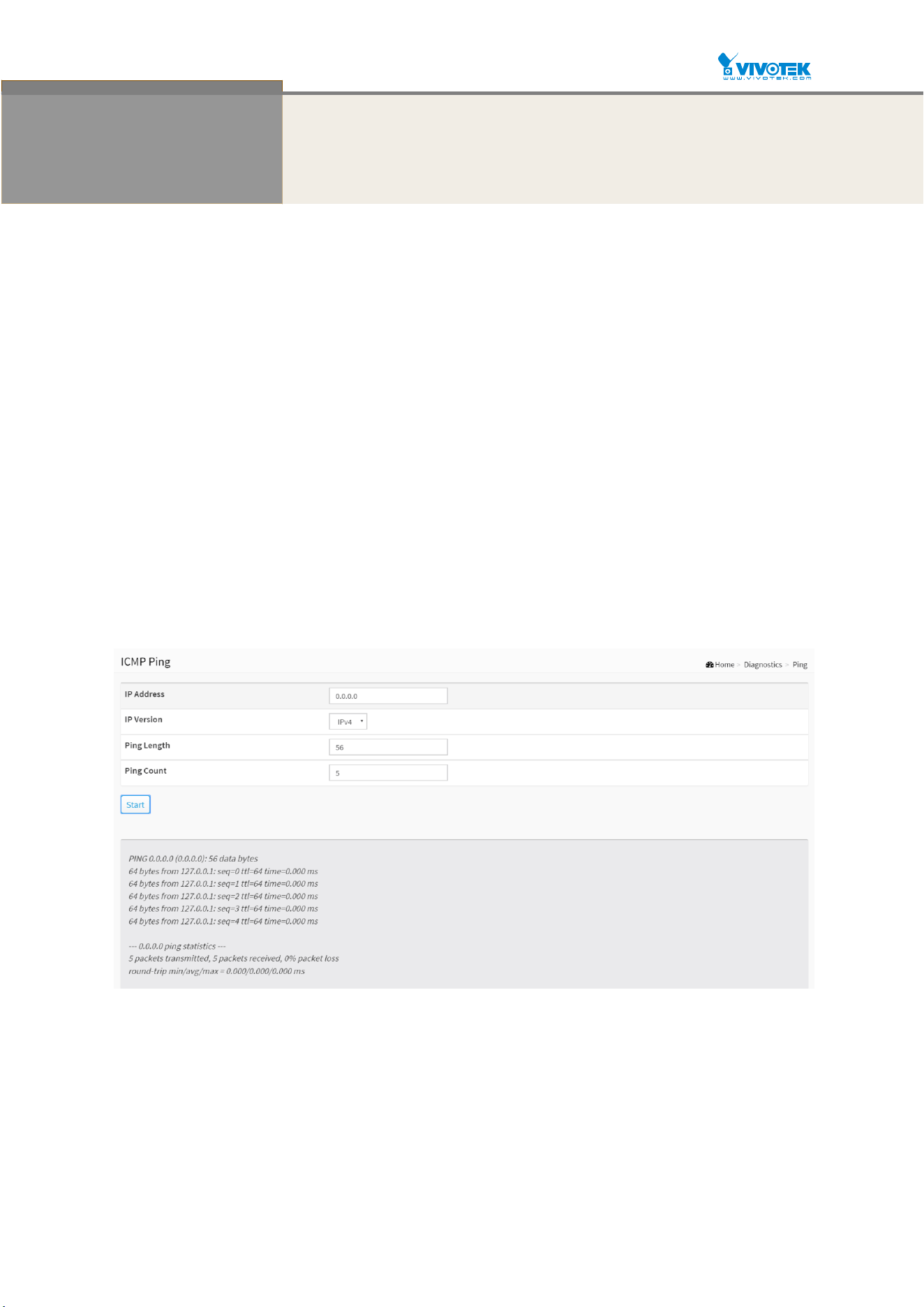
140
Chapter 11 Diagnostics
This chapter provides a set of basic system diagnosis. It let users know that whether
the system is health or needs to be fixed. The basic system check includes Ping,
Traceroute, and VeriPHY Cable Diagnostics.
11-1 Ping
This section allows you to issue ICMP PING packets to troubleshoot IPv6 connectivity issues.
Web Interface
To configure an PING in the web interface:
1. Click Diagnostics and Ping.
2. Specify IP Address, IP Version, PING Size.
3. Click Start.
Figure 11-1: The ICMP Ping
Parameter description:
IP Address :
To set the IP Address of device what you want to ping it.
IP Version :
To set the IP Version what you want.
Ping Length :

141
The payload size of the ICMP packet. Values range from 2 bytes to 1452 bytes.
Ping Count :
The count of the ICMP packet. Values range from 1 time to 60 times.
Start:
Click the “Start” button then the switch will start to ping the device using ICMP packet size
what set on the switch.
After you press , 5 ICMP packets are transmitted, and the sequence number and roundtrip
time are displayed upon reception of a reply. The page refreshes automatically until
responses to all packets are received, or until a timeout occurs.
PING6 server ::10.10.132.20
64 bytes from ::10.10.132.20: icmp_seq=0, time=0ms
64 bytes from ::10.10.132.20: icmp_seq=1, time=0ms
64 bytes from ::10.10.132.20: icmp_seq=2, time=0ms
64 bytes from ::10.10.132.20: icmp_seq=3, time=0ms
64 bytes from ::10.10.132.20: icmp_seq=4, time=0ms
Sent 5 packets, received 5 OK, 0 bad
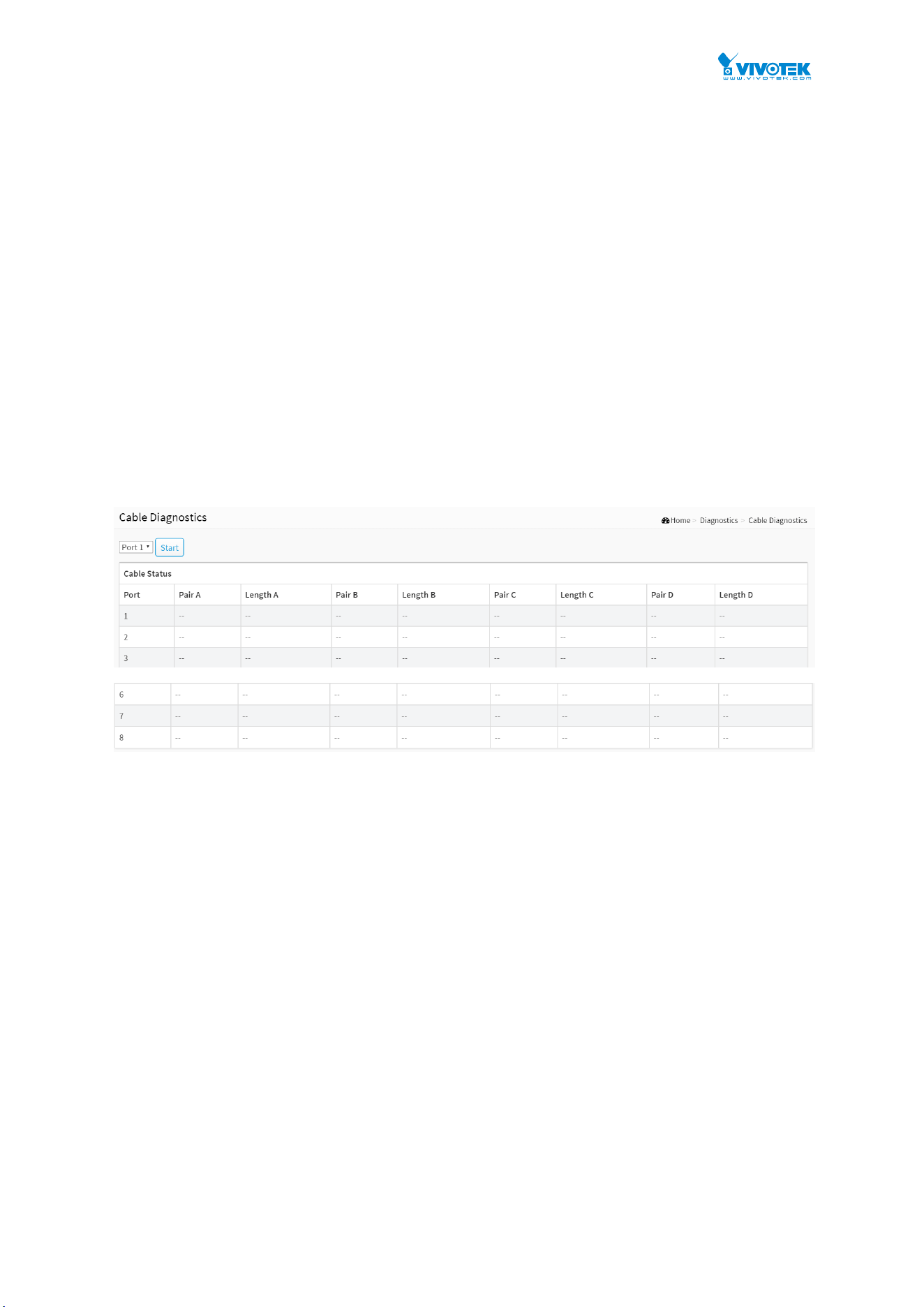
142
11-2 Cable Diagnostics
This section is used for running the VeriPHY Cable Diagnostics. Press to run the diagnostics.
This will take approximately 5 seconds. If all ports are selected, this can take approximately 15
seconds. When completed, the page refreshes automatically, and you can view the cable
diagnostics results in the cable status table. Note that VeriPHY is only accurate for cables of
length 7 -140 meters.10 and 100 Mbps ports will be linked down while running VeriPHY.
Therefore, running VeriPHY on a 10 or 100 Mbps management port will cause the switch to
stop responding until VeriPHY is complete.
Web Interface
To configure a Cable Diagnostics Configuration in the web interface:
1. Click Diagnostics and Cable Diagnostics.
2. Specify Port which you want to check.
3. Click Start.
Figure 11-2: The Cable Diagnostics
Parameter description:
Port :
The port where you are requesting Cable Diagnostics.
Cable Status
Port :
Port number.
Pair :
The status of the cable pair.
Length :
The length (in meters) of the cable pair.
Button
Start :
Start to cable diagnostics the port that you selected.

143
11-3 Traceroute
This page allows you to issue ICMP, TCP, or UDP packets to diagnose network connectivity
issues.
Web Interface
To configure a Traceroute in the web interface:
1. Click Diagnostics and Traceroute.
2. Specify IP Address, IP Version, IP Protocol, traceroute Size.
3. Click Start.
Figure 11-3: The
Traceroute
Parameter description:
IP Address :
The destination IP Address.
IP Version :
To set the IP Version what you want.
Protocol :
The protocol(ICMP, UDP, TCP) packets to send.
Wait Time :
Set the time (in seconds) to wait for a response to a probe (default 5.0 sec). Values range
from 1 to 60. The payload size of the ICMP packet. Values range from 2 bytes to 1452 bytes.
Maximum TTL :
Specifies the maximum number of hops (max time-to-live value) traceroute will probe.
Values range from 1 to 255. The default is 30.
Probe Count :
Sets the number of probe packets per hop. Values range from 1 to 10. The default is 3.
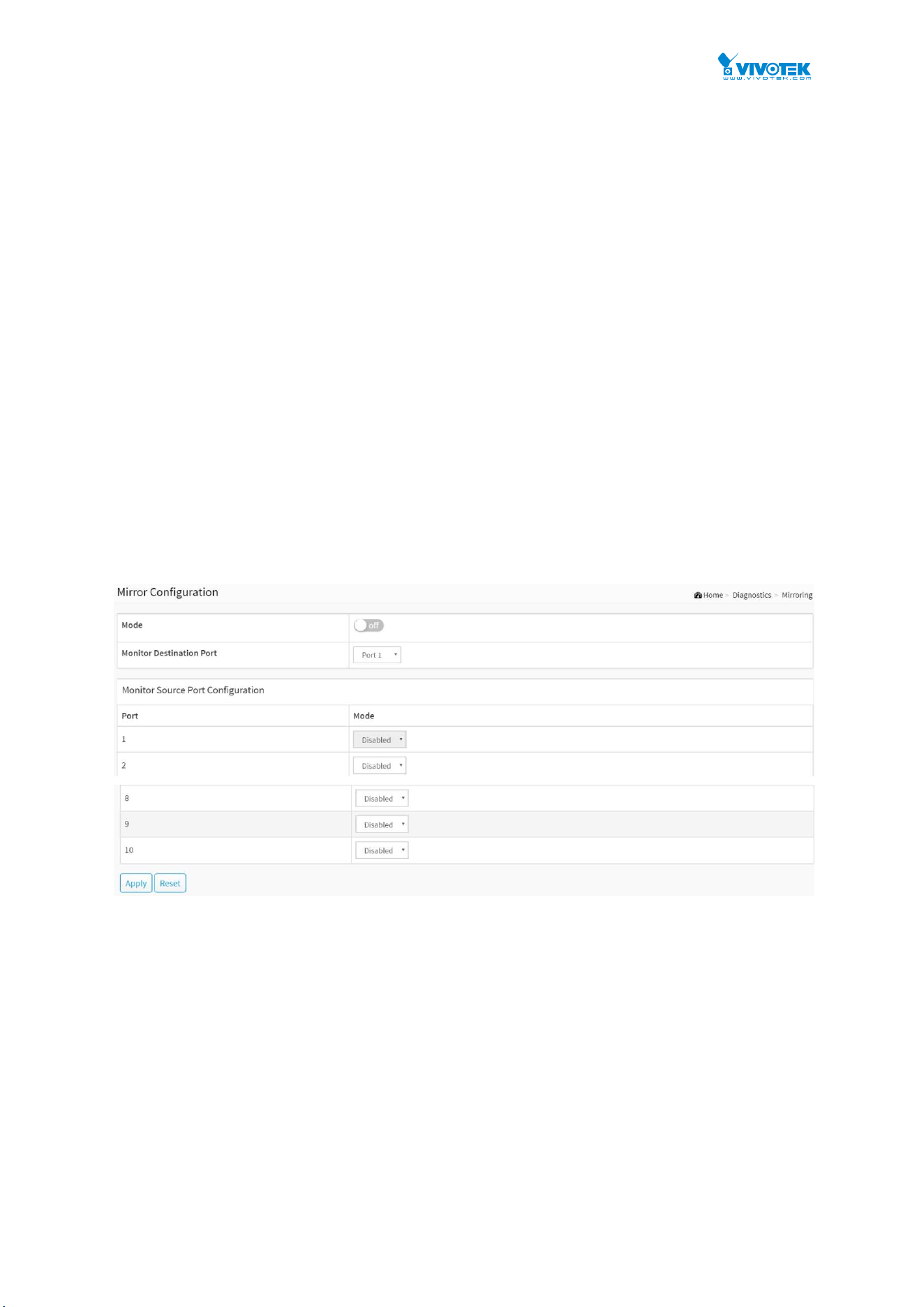
144
11-4 Mirror
You can mirror traffic from any source port to a target port for real-time analysis. You can then
attach a logic analyzer or RMON probe to the target port and study the traffic crossing the
source port in a completely unobtrusive manner.
Mirror Configuration is to monitor the traffic of the network. For example, we assume that Port
A and Port B are Monitoring Port and Monitored Port respectively, thus, the traffic received by
Port B will be copied to Port A for monitoring.
Web Interface
To configure the Mirror in the web interface:
1. Click Diagnostics and Mirroring.
2. Scroll to select Monitor Destination Port on which port.
3. Scroll to disabled, enable, TX Only and RX only to set the Port mirror mode.
4. Click the Apply to save the setting.
5. If you want to cancel the setting then you need to click the Reset button.
6. It will revert to previously saved values.
Figure 11-4: The Mirror Configuration
Parameter description:
Mode :
Indicates the Mirror mode operation. Possible modes are:
on: Enable Mirror mode operation.
off: Disable Mirror mode operation.
Monitor Destination Port :
Port to mirror also known as the mirror port. Frames from ports that have either source (rx)
or destination (tx) mirroring enabled are mirrored on this port. Disabled disables mirroring.
Mirror Source Port Configuration

145
The following table is used for Rx and Tx enabling.
Port :
The logical port for the settings contained in the same row.
Mode :
Select mirror mode.
Rx only Frames received on this port are mirrored on the mirror port. Frames transmitted are
not mirrored.
Tx only Frames transmitted on this port are mirrored on the mirror port. Frames received are
not mirrored.
Disabled neither frames transmitted nor frames received are mirrored.
Enabled Frames received and frames transmitted are mirrored on the mirror port.
NOTE: For a given port, a frame is only transmitted once. It is therefore
not possible to mirror Tx frames on the mirror port. Because of this,
mode for the selected mirror port is limited to Disabled or Rx only.
Buttons
Apply :
Click to save changes.
Reset :
Click to undo any changes made locally and revert to previously saved values.

146
Chapter 12 Maintenance
This chapter describes the entire switch Maintenance configuration tasks to enhance
the performance of local network including Save/Backup/Restore/Activate/Delete
Restart Device, Factory Defaults, Firmware upgrade.
12-1 Configuration
The switch stores its configuration in a number of text files in CLI format. The files are either
virtual (RAM-based) or stored in flash on the switch.
There are three system files:
running-config: A virtual file that represents the currently active configuration on the
switch. This file is volatile.
startup-config: The startup configuration for the switch, read at boot time.
default-config: A read-only file with vendor-specific configuration. This file is read when
the system is restored to default settings.
It is also possible to store up to two other files and apply them to running-config, thereby
switching configuration.
12-1.1 Save startup-config
This copy running-config to startup-config, thereby ensuring that the currently active
configuration will be used at the next reboot.
Web Interface
To save running configuration in the web interface:
1. Click Maintenance, Configuration and Save startup-config.
2. Click Save Configuration.

147
Figure 12-1.1: The Save Startup Configuration
Parameter description:
Button
Save Configuration :
Click to save configuration, the running configuration will be written to flash memory for
system boot up to load this startup configuration file.
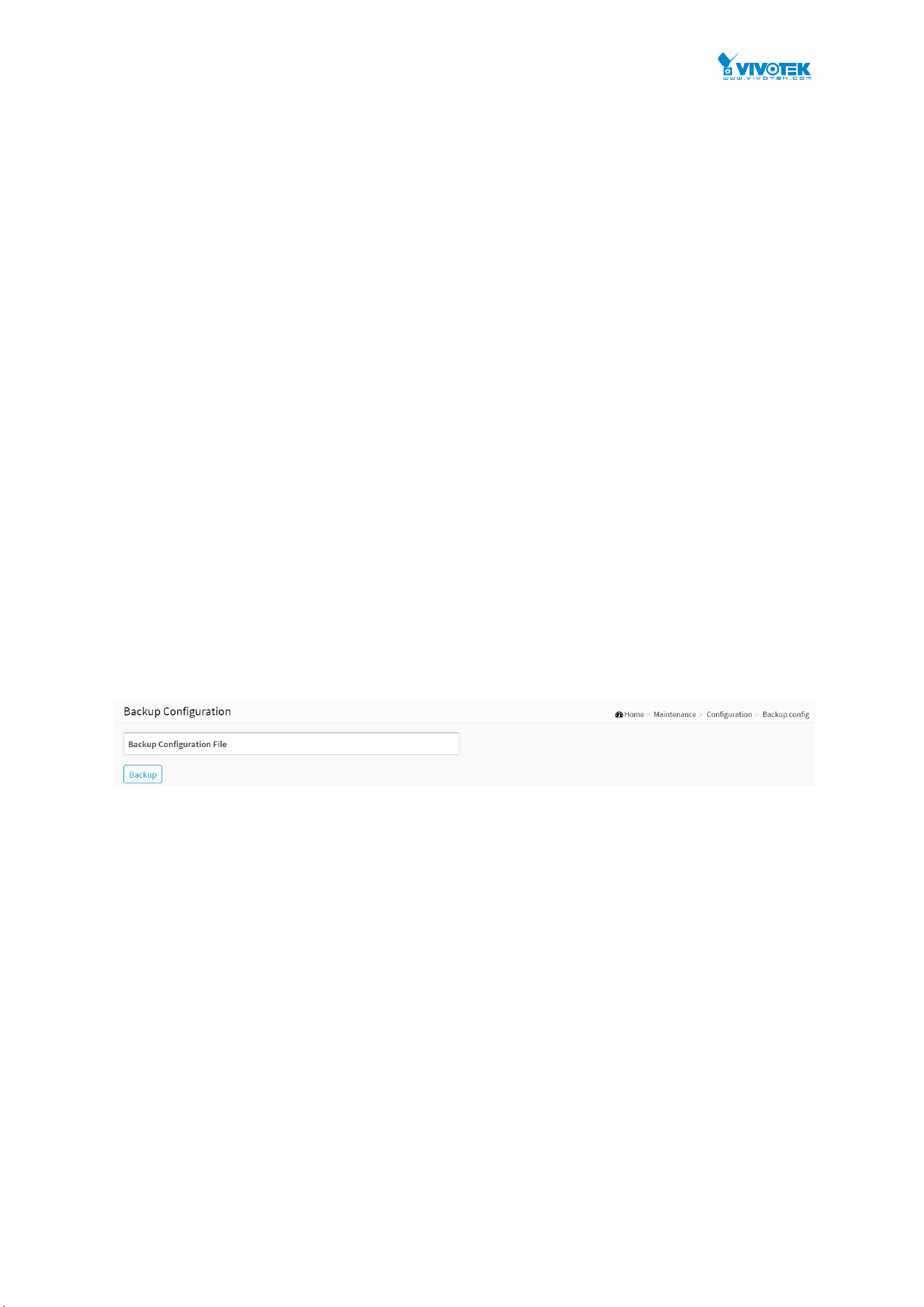
148
12-1.2 Backup config
This section describes to export the Switch Configuration for maintenance needs. Any current
configuration files will be exported as text format.
It is possible to download a file from the web browser to all the files on the switch, except
default-config, which is read-only.
Select the file to download, select the destination file on the target, and click.
If the destination is running-config, the file will be applied to the switch configuration. This
can be done in two ways:
Replace mode: The current configuration is fully replaced with the configuration in the
downloaded file.
Merge mode: The downloaded file is merged into running-config.
If the file system is full (i.e. contains the three system files mentioned above plus two other
files), it is not possible to create new files, but an existing file must be overwritten or another
deleted first.
Web Interface
To download configuration in the web interface:
1. Click Maintenance, Configuration and Backup config..
2. Click Backup.
Figure 12-1.2: Backup Config
Parameter description:
Button
Backup :
Click the “Backup” button then the switch will start to download the configuration from flash
memory to PC or Server.

149
12-1.3 Restore config
The configuration upload function will be backuped and saved configuration from the
switch’s configuration into the running web browser PC.
It is possible to upload any of the files on the switch to the web browser. Select the file and
click Upload of running-config may take a little while to complete, as the file must be
prepared for upload.
Web Interface
To restore configuration in the web interface:
1. Click Maintenance, Configuration and Restore config.
2. Click Upload.
Figure 12-1.3: Restore Config
There are three system files:
1. running-config: A virtual file that represents the currently active configuration on the switch.
This file is volatile.
2. startup-config: The startup configuration for the switch, read at boot time.
3. default-config: A read-only file with vendor-specific configuration. This file is read when the
system is restored to default settings.
Parameter description:
Button
選擇檔案 :
Click the “選擇檔案.” button to search the configuration text file and filename
Upload :
Click the “Upload” button then the running web management PC will start to upload the
configuration from the location PC configuration into the managed switch.
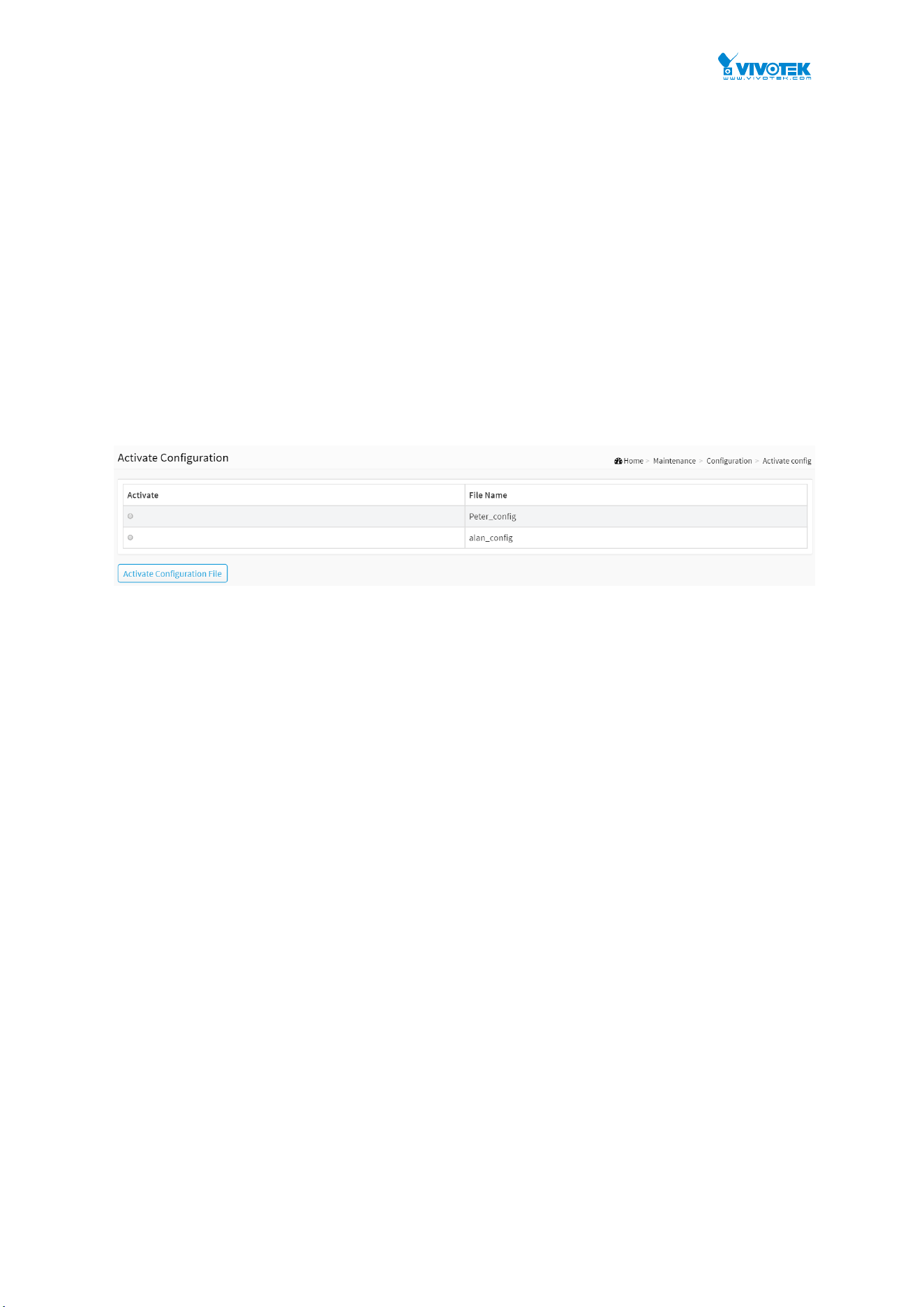
150
12-1.4 Activate config
It is possible to activate any of the configuration files present on the switch, except for
running-config which represents the currently active configuration.
Select the file to activate and click. This will initiate the process of completely replacing the
existing configuration with that of the selected file.
Web Interface
To activate configuration in the web interface:
1. Click Maintenance, Configuration and Activate config..
2. Click Activate Select.
Figure 12-1.4: Configuration Activation
There are two system files:
1. default-config: A read-only file with vendor-specific configuration. This file is read when the
system is restored to default settings.
2. startup-config: The startup configuration for the switch, read at boot time.
Parameter description:
Activate
You can select the file that you want to activate.
Buttons
Activate Configuration File:
Click the “Activate Configuration File” button then the selected file will be activated and to
be this switch's running configuration.
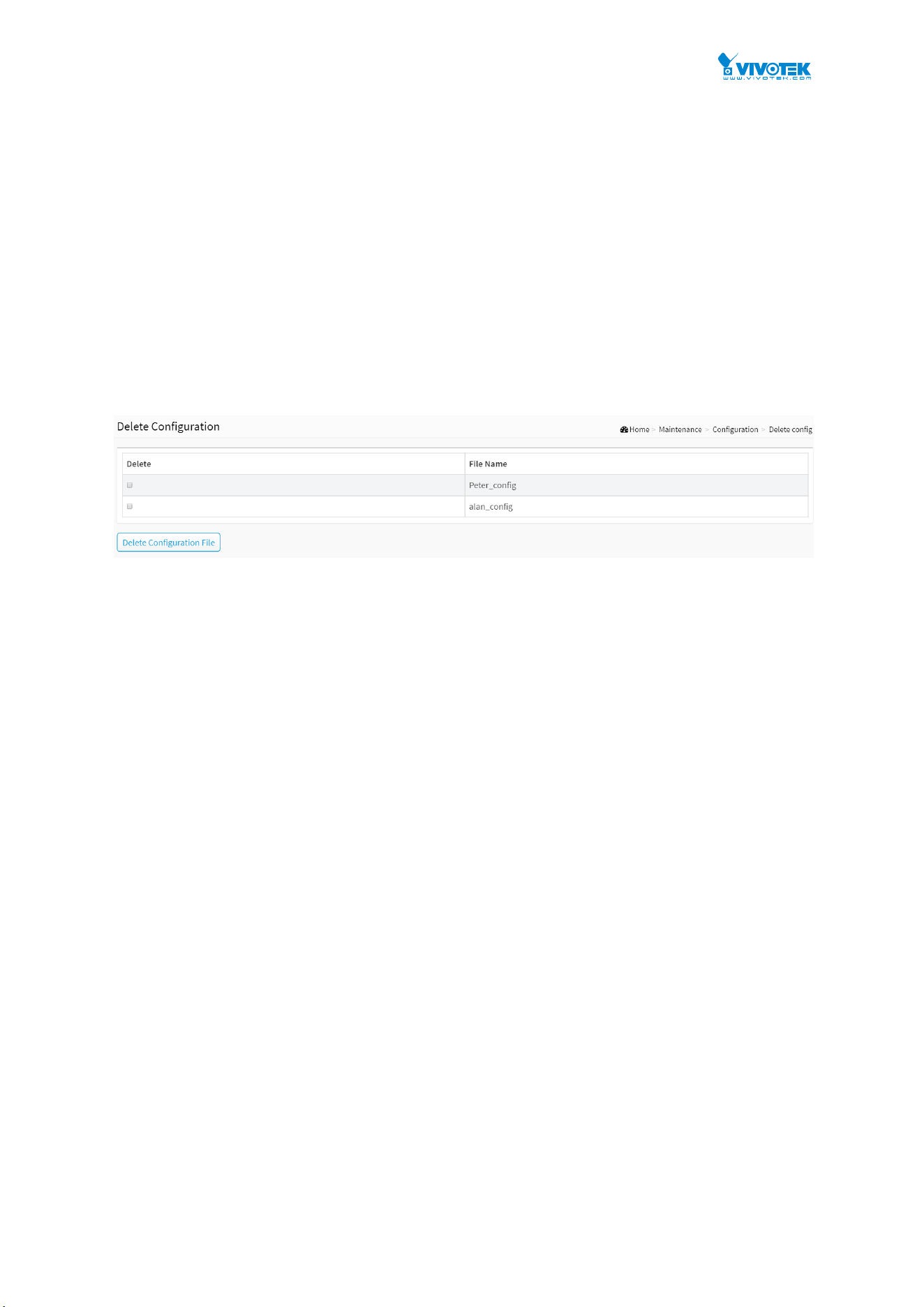
151
12-1.5 Delete config
It is possible to delete any of the writable files stored in flash, including startup-config. If this
is done and the switch is rebooted without a prior save operation, this effectively resets the
switch to default configuration.
Web Interface
To delete configuration in the web interface:
1. Click Maintenance, Configuration and Delete config.
2. Click Delete Select.
Figure 12-1.5: Delete Configuration
Parameter description:
Delete
You can select the file that you want to delete.
Buttons
Delete Configuration File:
Click the “Delete Configuration File” button then the selected file will be deleted.

152
12-2 Restart Device
This section describes how to restart switch for any maintenance needs. Any configuration files
or scripts that you saved in the switch should still be available afterwards.
Web Interface
To configure a Restart Device Configuration in the web interface:
1. Click Maintenance and Restart Device.
2. Click Yes.
Figure 12-2: Restart Device
Parameter description:
Restart Device :
You can restart the switch on this page. After restart, the switch will boot normally.
Buttons
Yes :
Click to “Yes” then the device will restart.
No :
Click to undo any restart action.

153
12-3 Factory Defaults
This section describes how to reset the Switch configuration to Factory Defaults. Any
configuration files or scripts will recover to factory default values.
Web Interface
To configure a
Factory Defaults
Configuration in the web interface:
1. Click Maintenance and Factory Defaults.
2. You can choose if you want to keep ip configuration or not.
3. Click Yes.
Figure 12-3: The Factory Defaults
Parameter description:
Buttons
Keep IP Configuration :
Choose if you want to keep ip configuration or not.
Yes :
Click to “Yes” button to reset the configuration to Factory Defaults.
No :
Click to to return to the Port State page without resetting the configuration.
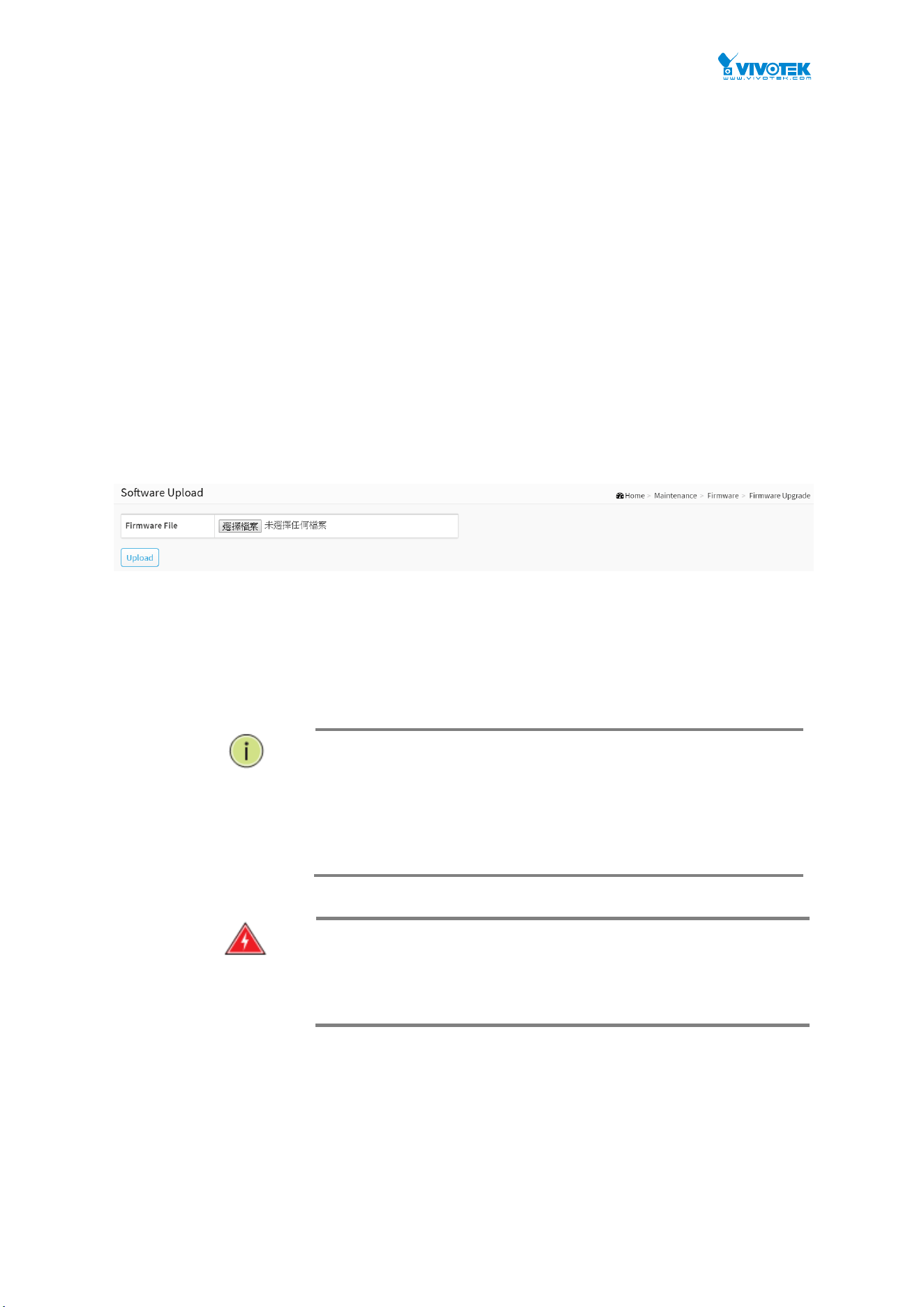
154
12-4 Firmware
This section describes how to upgrade Firmware. The Switch can be enhanced with more
value-added functions by installing firmware upgrades.
12-4.1 Firmware Upgrade
This page facilitates an update of the firmware controlling the switch..
Web Interface
To configure a Firmware Upgrade Configuration in the web interface:
1. Click Maintenance, Firmware and Firmware Upgrade.
2. Click Upload.
Figure 12-4.1 The firmware upgrade
Parameter description:
Select File :
Click the “Select File” button to search the Firmware URL and filename.
NOTE: This page facilitates an update of the firmware controlling the
switch. Uploading software will update all managed switches to the
location of a software image and click. After the software image is
uploaded, a page announces that the firmware update is initiated.
After about a minute, the firmware is updated and all managed
switches restart. the switch restarts.
W
ARNING
:
While the firmware is being updated, Web access appears
to be defunct. The front LED flashes Green/Off with a frequency of 10
Hz while the firmware update is in progress. Do not restart or power
off the device at this time or the switch may fail to function
afterwards.

155
Chapter 13 Surveillance
IMPORTANT:
1. It is recommended to use IE10 or IE11 to open a web console with the PoE switch.
2. This PoE switch is specifically designed for surveillance applications. It comes with an integrated
Surveillance interface for ease of configuration. The Surveillance interface is accessed through
a tabbed menu, and the configuration changes made in its window have a higher priority than
those in the Switch configuration menus.
Figure 13-1: The Topology View - Device List
13-1. INTRODUCTION (for the Surveillance functions):
1. All devices connected to the switches can be discovered and displayed
automatically using standard networking protocols such as LLDP, UPnP, ONVIF,
Bonjour, etc.
2. Users can operate the features below via an intuitive web GUI.
- Power down, remotely, the IP cameras, NVRs, or any PoE devices.
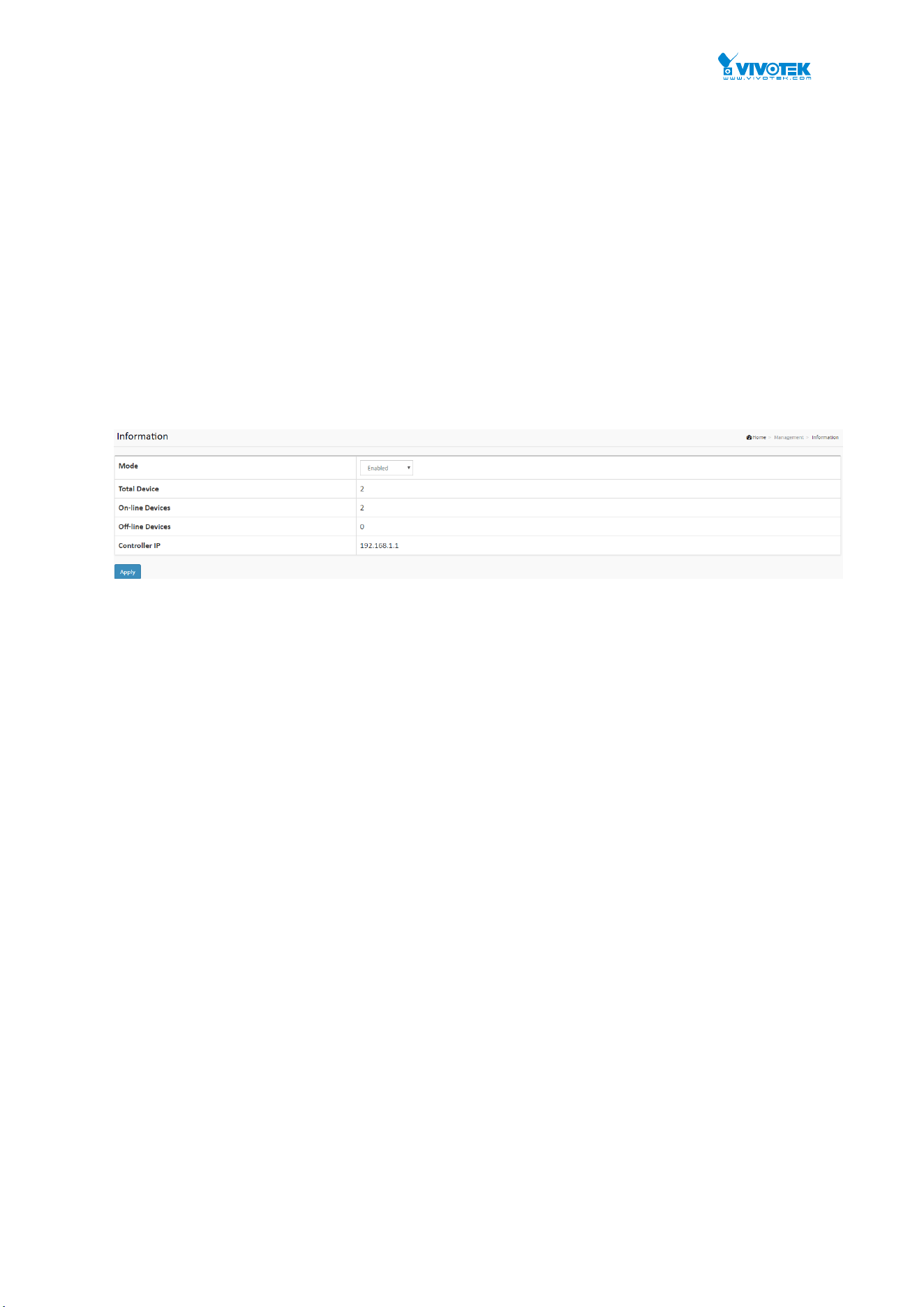
156
- Identify where exactly the broken cable is, remotely.
- Detect abnormal traffic issues on IP cameras/NVR.
- Monitor devices status intuitively, e.g., link up, PoE power, traffic, etc.
- Configure VLAN/QoS intuitively for better solution quality/reliability.
3. The interface supports up to 256 devices.
The interface is designed to be extremely easy-to-use/manage/install IP Phone, IP
Cam, or Wifi-AP for enterprise applications.
User can deploy IP Device through the Topology/ Floor/ Map View to installation
location, and through Diagnostics and Traffic Monitor, they may also check link status
and monitor throughput as well.
13-2. Surveillance Mode
13-2. The Surveillance mode
Surveillance Mode: Enable/ Disable the Surveillance function, or configure the mode with High
Priority for Master switch.
Total Device: Displays how many IP devices are detected and displayed in the topology view.
On-Line Devices: Displays how many IP devices on-line in the topology view.
Off-Line Device: Displays how many IP devices are currently off-line in the topology view.
Controller IP: Displays the Master switch IP (the IP of the PoE switch that you configure
surveillance mode as high priority)).
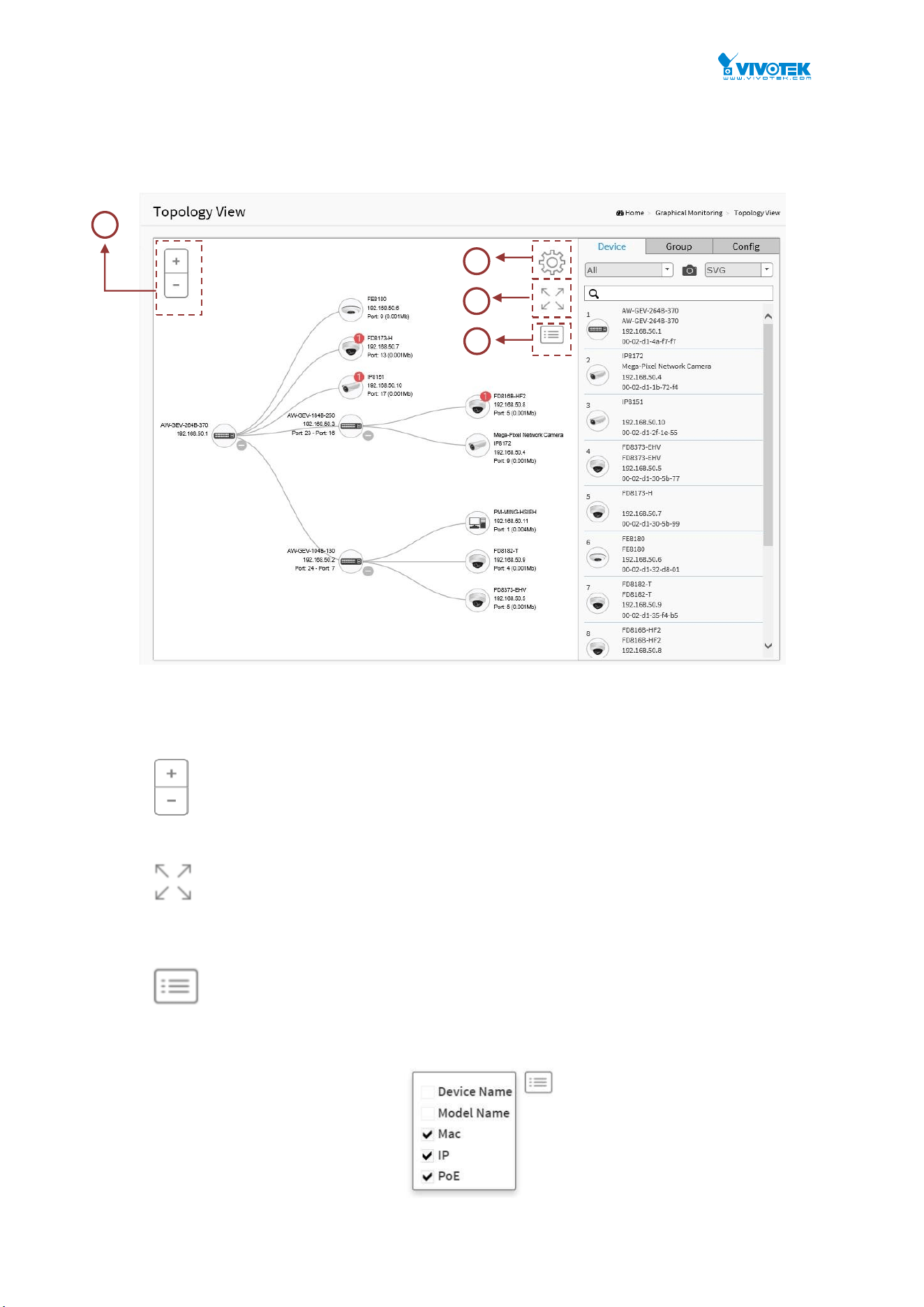
157
13-3. Graphical Monitoring - Topology View
Figure 13-3: The Topology View
Functional description:
1. Icon with plus and minus buttons: Zoom in and zoom out on the topology view,
users can scroll the mouse wheel to achieve the same purpose.
2. Icon with screen view type: Click to change to Full Screen view or click again to
return to the Normal View.
3. Icon with information list: Users can select what kind of information to be
displayed on the topology view of each device. Up to 3 options can be selected at one
time.
Figure 13-3: The Information List
1
3
2
4
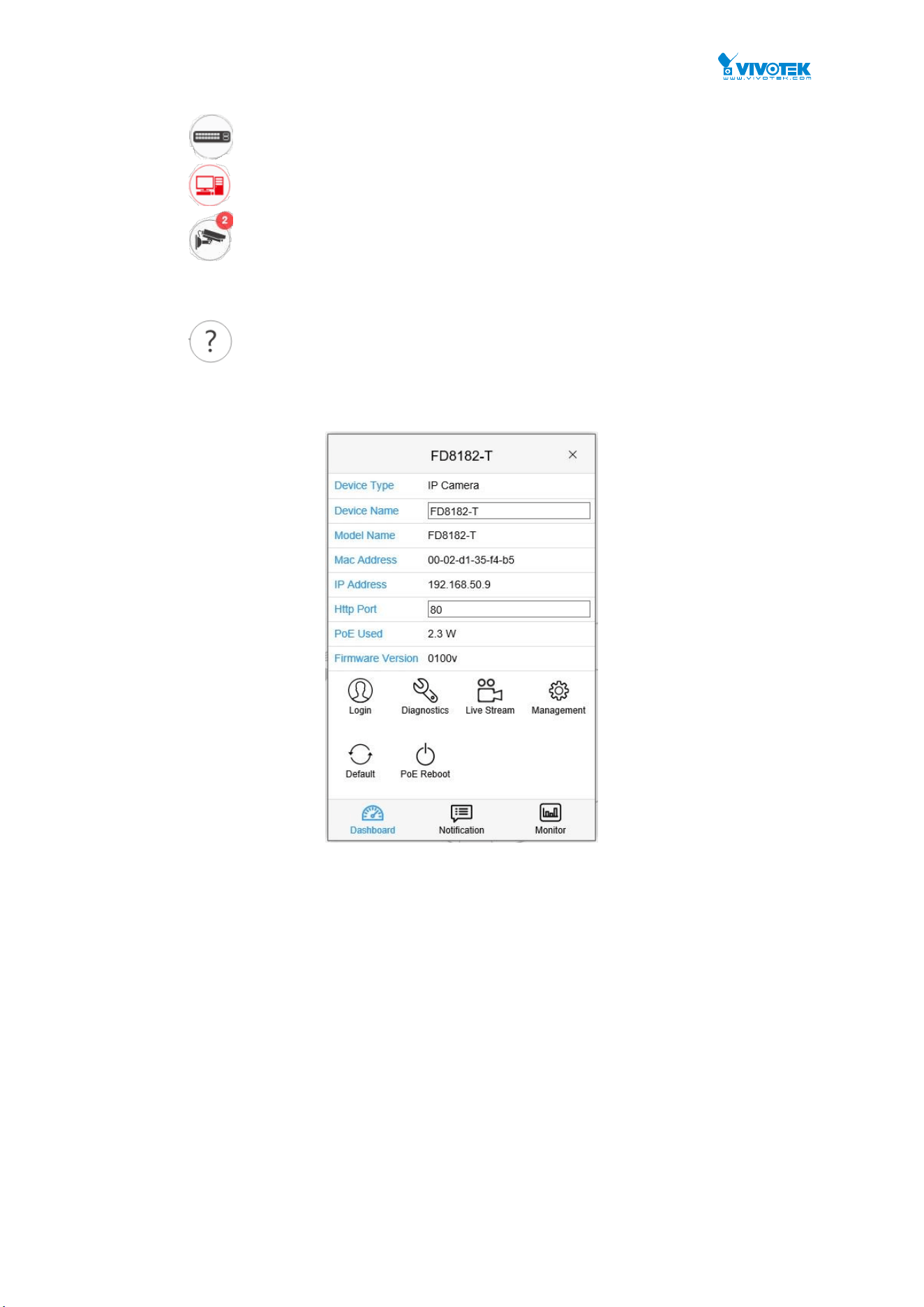
158
4. Device Icons
Icon in black: Device link up. Users can select functions and check its issues.
Icon in red: Device link down. Users can diagnose the link status.
Icon with numbers: It means some events have occurred (e.g. Device Off-line,
IP Duplicate,… etc.) on the IP device, users can click on the device icon to check
related events in the Notification window.
Icon with a question mark: It means the IP device is detected, but the device
type cannot be recognized (classified as an unknown device type).
Left-click on any device icon to display the device console for further actions:
Figure 13-3: The Device Console
Dashboard Console: it displays device information and related actions for the device.
Different device type supports different function:
- If an IP device is recognized as the PoE switch, it will support the
“Upgrade“ and “Find Switch” function.
- If an IP device is recognized as PoE device, it will support the “Reboot”
function in addition to “Upgrade” and “Find Switch”.
- If an IP device is recognized as IP cam via ONVIF protocol, it will support
“Streaming” function.
Device Type: The Device Type displays automatically. If an unknown type is
detected, users can still select type from a pre-defined list.
Device Name: Create your own Device Name or alias for easy management such
as, 1F_Lobby_Cam1.
Model Name, MAC Address, IP Address, Subnet Mask, Gateway, PoE Supply and
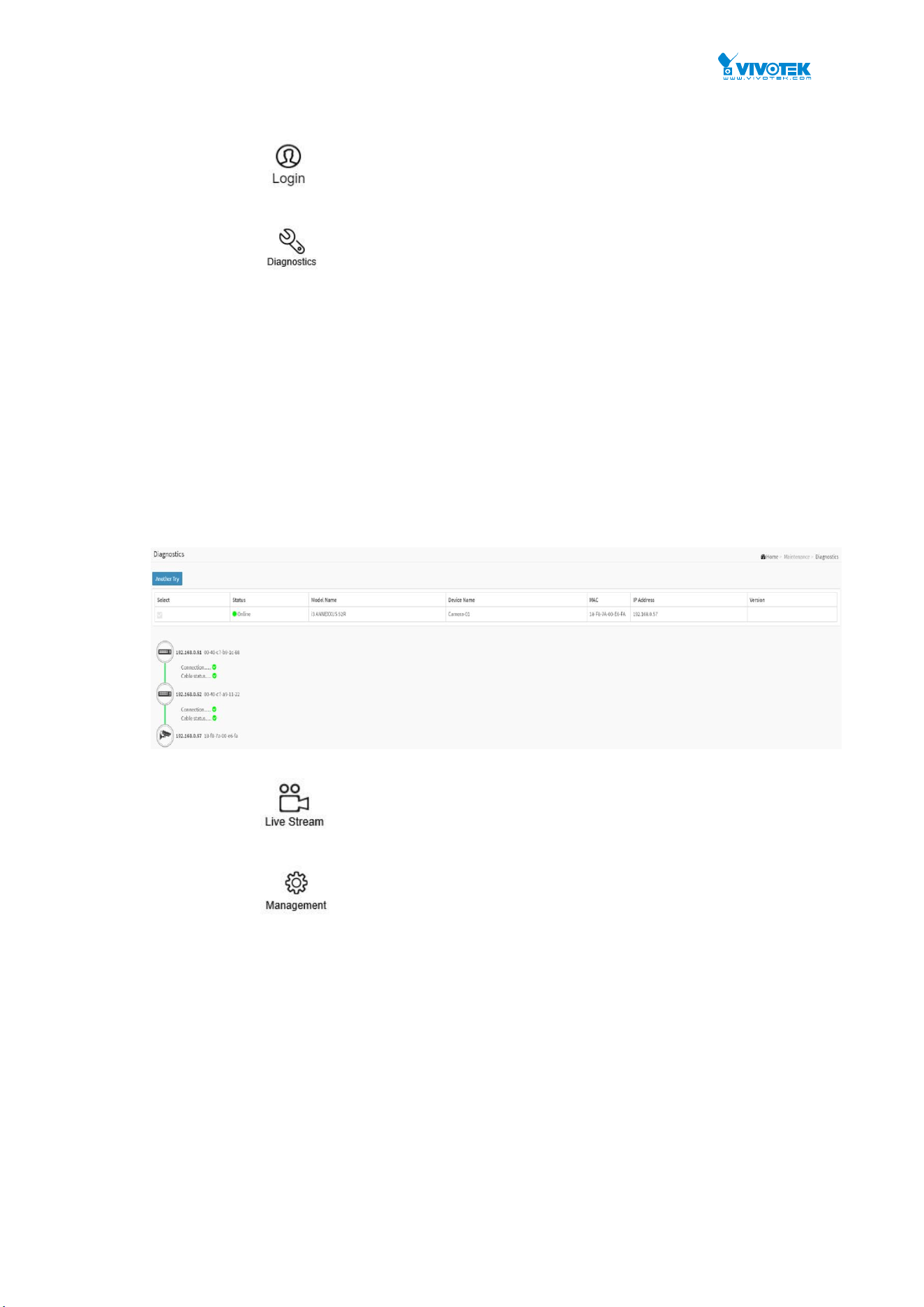
159
PoE Used are displayed automatically.
Http Port: You can re-assign http port number to the device for better security.
Login: Click the Login Action Icon to log in to the device via an http
console for further configuration or status monitoring.
Diagnostics: Click Diagnostic Action Icon to perform the cable
diagnostics, to exam where the broken cable is, and, check if the device
connection is alive or not by pinging.
Cable Status:
- Green icon: Cable is connected correctly.
- Red icon: Cable is not connected correctly. Users can check the distance info
(XX meters) to identify the location of a broken link.
Connection:
- Green icon: Device is pinged correctly.
- Red icon: Device is not transmitted /receiving data correctly, which means
the ping is not successful.
Figure 13-3: The Diagnostics
Live Stream: When connecting VIVOTEK cameras, it can support to
view live streaming via IE 11 browser with Quicktime player installed.
Management: When connecting VIVOTEK cameras, it can
support to configure camera’s network setting and password.
When enabling DHCP client, the camera will get the IP address from the
DHCP server that in the network automatically.
When disabling DHCP client, you can configure static IP for the camera.

160
Figure 13-3: Management
Default: Reset VIVOTEK cameras back to factory default settings.
PoE Reboot: Click Reboot Action Icon to reboot the device remotely so
as to recover the device back to its normal operation.
Figure 13-3: Switch Dashboard
Login: Click the Login Action Icon to log in to the device via an http
console for further configuration or status monitoring.
Find Switch: All of the Green LEDs on the switch will flash for 15
seconds. This enables an administrator to locate the switch in an equipment
room with many devices.
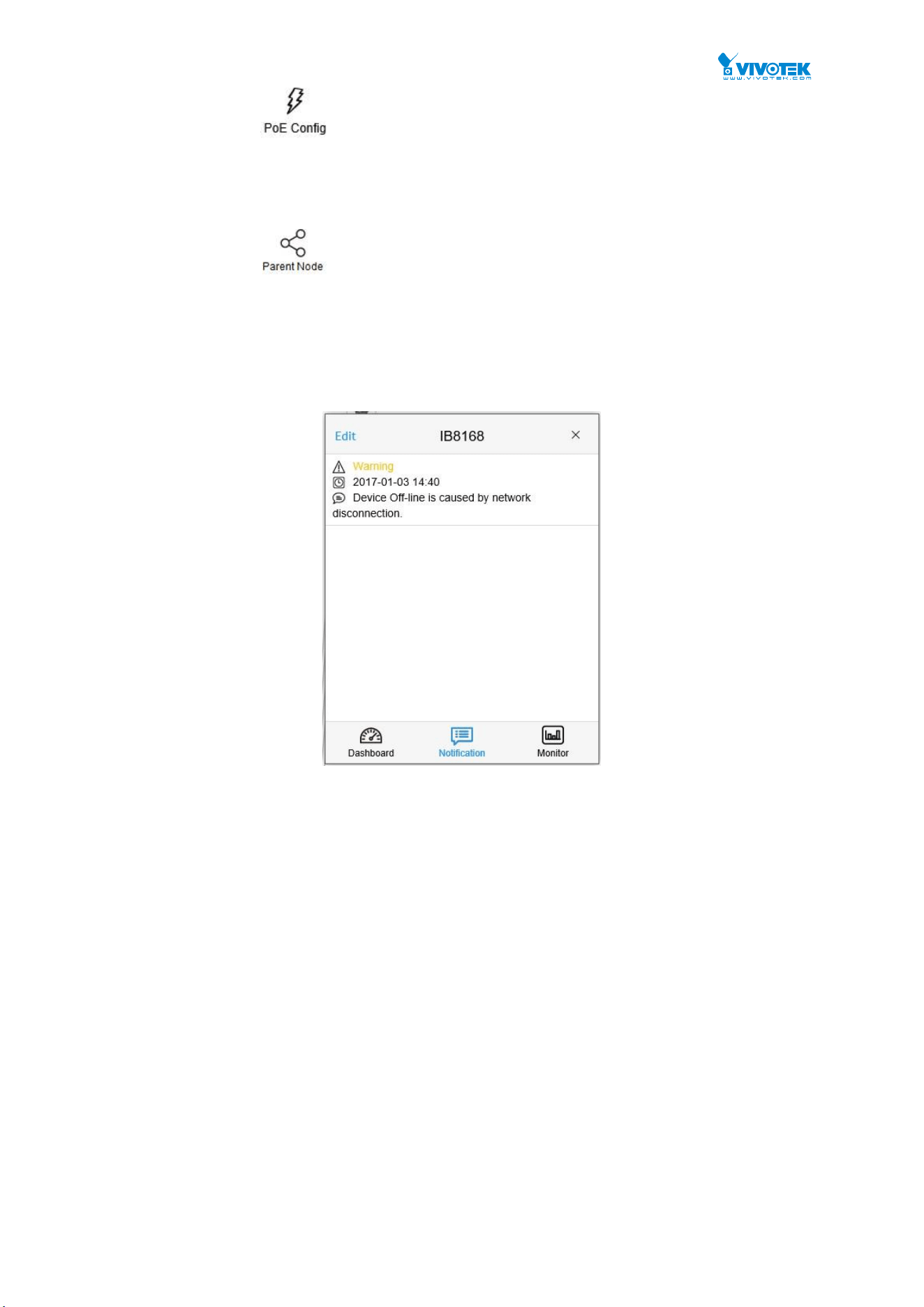
161
PoE Config: Enabling the Auto Checking function can detect the
connection between PoE port and powered device. If you disable this function,
the detection will turn off.
Icon with blank node: When the PoE switch detects more than two IP
devices from the same port, the switch cannot resolve this IP devices’ layout,
instead, it will display a blank node to present this situation. Users can use
“Parent Node” function to adjust layout on the Dashboard.
Notification Console: It displays alarms and event logs. The notifications may include: 1.
User rebooted device (e.g., PoE); 2. Device off-line caused by network disconnection; 3.
IP duplicate; 4. Authentication failed when logging in to an IP camera.
Figure 13-3: The Notification Console
Monitor Console: It displays the traffics for device health check purposes.
For each IP device except the PoE switches, users can configure a threshold of
throughput, and acquire notifications when current throughput is lower or higher
than the configured settings.
If both values are “0”, it means the function is disabled.
The default polling interval is 1 second, when the Surveillance page is closed, the
Polling interval will change to around 5 seconds.

162
Figure 13-3: The Monitor Console
5. On the upper right corner, there is a “Setting icon”. The Setting page
provides access to the Device, Group, Config, export topology view and
advanced search functions for the topology.
13-4. Device Search Console
All devices and related information will display on the list.
Figure 13-4: The Device Search Console
Function
A.
Filter devices by the Device Type
B.
Search devices by key words or using the full
text search
C.
Save the whole configuration View to SVG,
PNG or PDF
Note: IE browser can only support SVG,
Chrome can support SVG/PNG/PDF
A
B
C
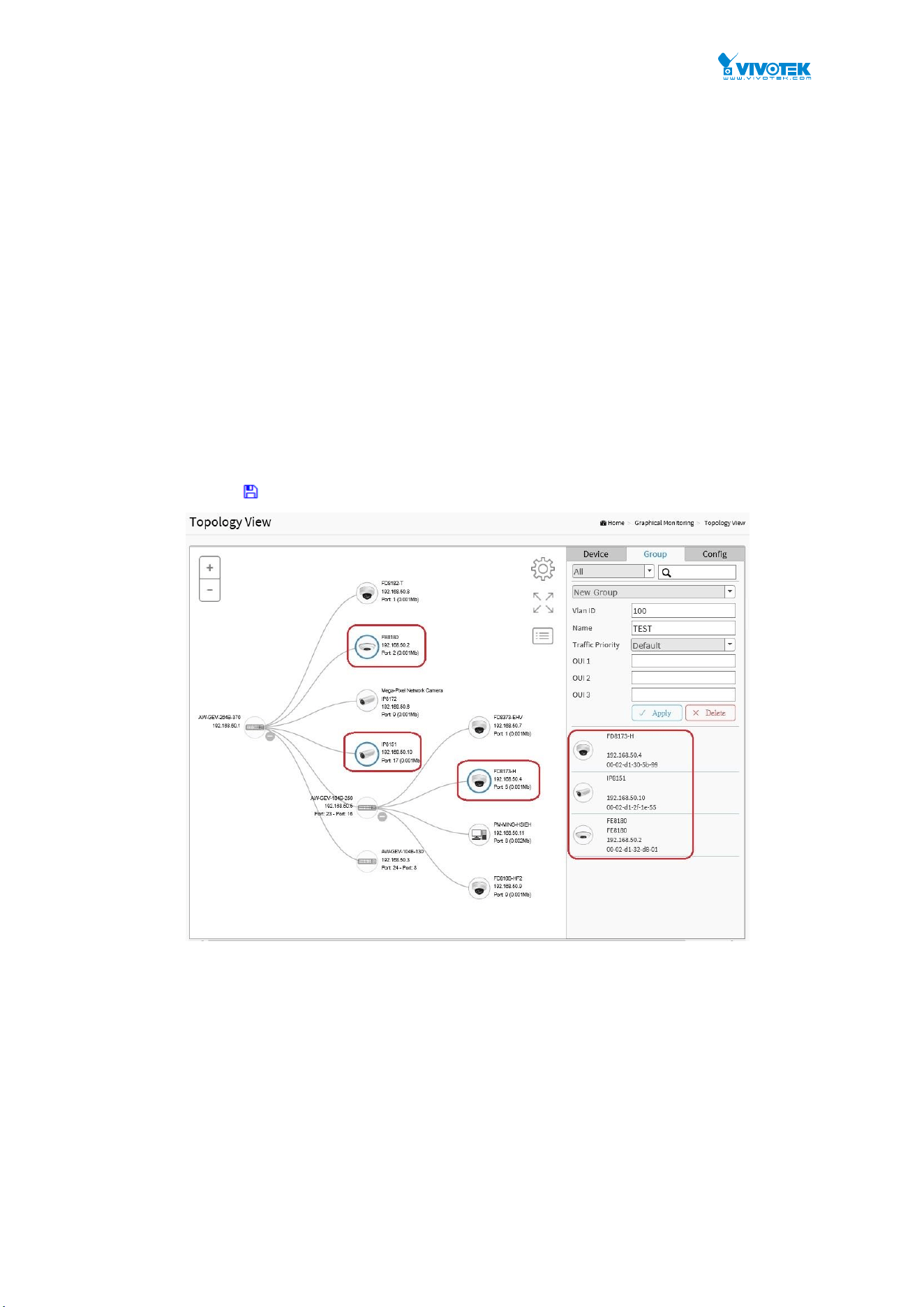
163
Group Console
You can also configure VLAN grouping in the Topology View. To configure grouping, proceed with the
following:
1. Enable the Grouping mode by selecting the “Group” menu from the Device List
menu. Select New Group from the pull-down menu. Single-click IP cameras or
servers to include them into group. When configuring an existing group, select an
existing group.
2. Select the members you prefer from the topology.
3. Enter a Group name, Description, and a unique VLAN ID. See the previous
chapter for details. VLAN ID is the VLAN identifier (VID) for the port as defined in
IEEE 802.1Q-2003. A value of 1 through 4094 is used to define a valid VLAN ID. A
value of 0 (Priority Tagged) is used if the device is using priority tagged frames as
defined by IEEE 802.1Q-2003, meaning that only the IEEE 802.1D priority level is
significant and the default PVID of the ingress port is used instead.
Organizationally Unique Identifiers (OUI) are the first three bytes of a MAC Address,
while the last three bytes contain a unique station ID. You can add a specific
manufacturer with the OUI. Enter the first 3 octets as the hexadecimal xx-xx-xx to
specify the device range.
When done, click the Apply button for the configuration to take effect. Click the Save
button to save your configuration.
Figure 13-4: Configuring Grouping in the Topology View
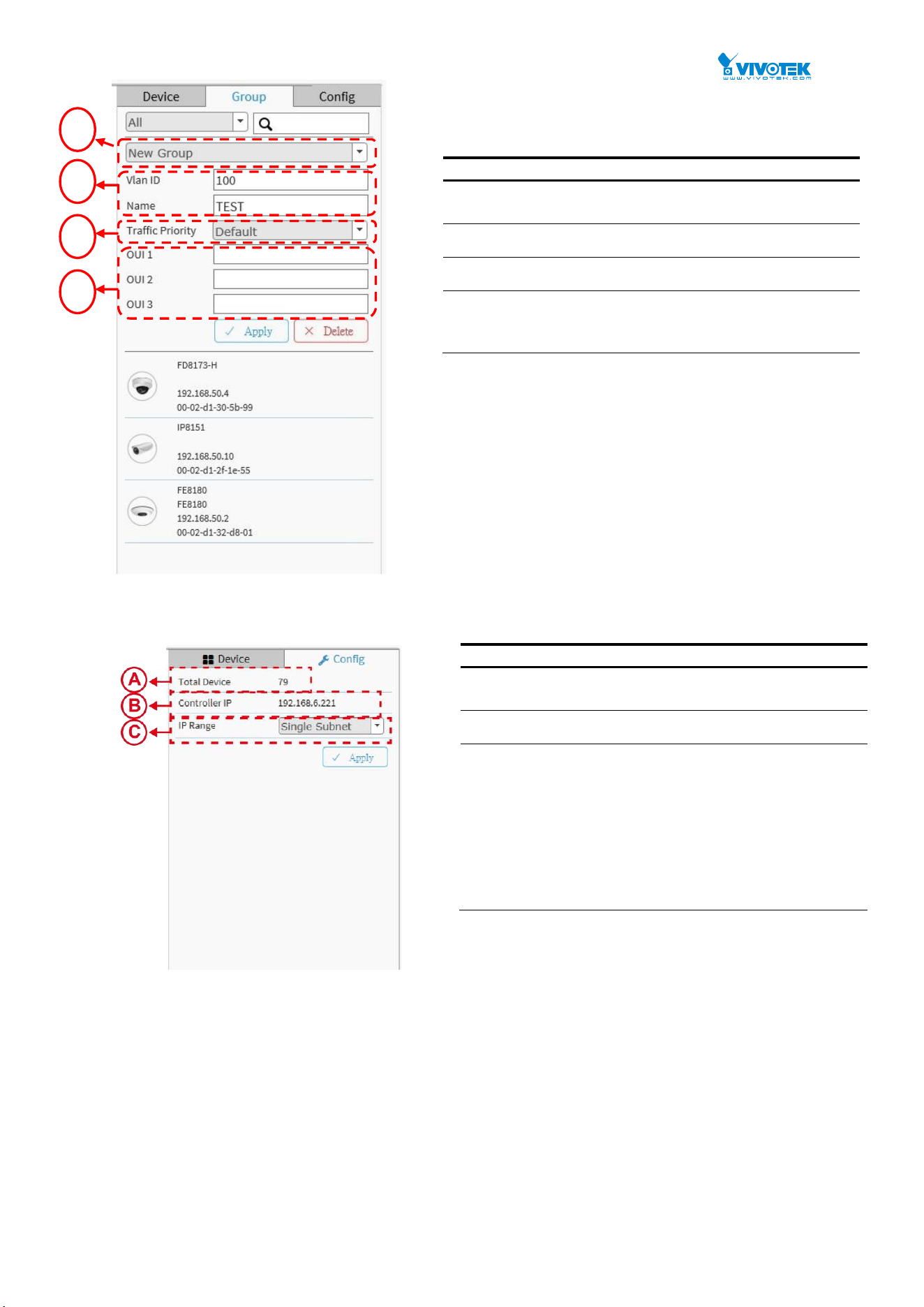
164
Figure 13-4: Group Console
System Setting Console
The System Setting Console
Function
A.
Displays the number of IP devices detected in the
topology view.
B.
Displays the controller IP.
C.
- Single Subnet: the interface will scan the local
network for devices where the PoE switch resides. The
subnet mask is “255.255.255.0”.
- Multiple Subnet: Up to 4 subnet ranges (Class C
subnets, e.g., 192.168.1.1 ~ 192.168.4.254) can be
manually assigned. (In the case, we suggest users to
adjust switch’s subnet mask to “255.255.0.0” in order
to reach for IP devices in different subnets.)
Function
A.
Group devices by filtering, searching, clicking
device icons, or specifying OUI.
B.
Assign VLAN ID or Name to Group.
C.
Configure traffic priority for the VLAN.
D.
Organizationally Unique Identifiers (OUI), enter
the first 3 octets as the hexadecimal xx-xx-xx to
specify the device range.
A
B
C
D

165
Floor View
Users can easily plan and represent IP devices at the installation sites using the
customizable floor images.
Select devices from the Entry pane on the right. When the devices appear on the
floor image, drag it to a preferred location.
Find Device Location Instantly
10 Maps can be Stored on each switch
IP Surveillance/VoIP/Wi-Fi Applications
Other Features are identical to those in the Topology View
To place and remove a device icon:
To select a device, click its icon from the Entry pane.
The device icon will display on the floor image’s default location.
Click and hold the left mouse button and drag the icon to the preferred location on
the floor view.
Click the cross sign on the Entry pane to remove a device from the floor view
image.
Test02
Test02
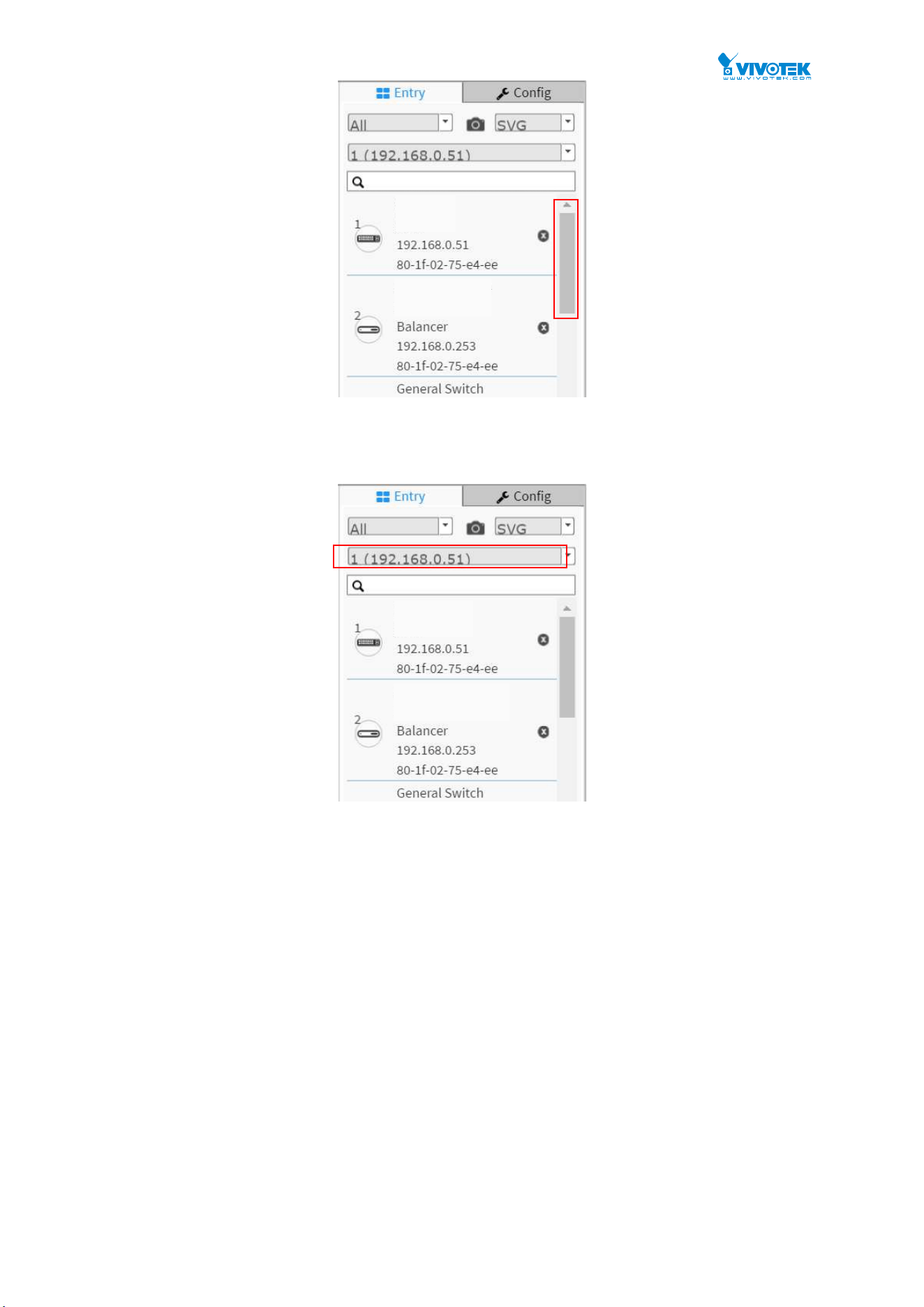
166
If there are more than two floor images, select a floor image from the pull-down
list.
Test01
Test01
Test02
Test02
Test01
Test01
Test02
Test02

167
Map View
On this page, you can view a realistic representation of devices through the
Google map. This Map View applies in wide area, outdoor deployments. The
preconditions for using this function are:
The client computer having a web session with the PoE switch must
have an Internet connection.
To configure Surveillance Map View in the web interface:
Click Surveillance > Graphic View > Google Map.
1. On the Google map, move to your location, and zoom in to a preferred view.
To move on the screen, click and hold down your left mouse button to move to a
preferred direction. You can also key in the address you have in mind in the
Search box, e.g., Sunset Boulevard, Los Angeles, etc. The GPS location of your
current position is also supported.
2. Click to select a device. The device will appear on the map.
3. Click and drag the device to a preferred location.
4. Repeat the above process to complete the map setup, and click Apply to finish
the configuration.
Figure 13-14: The Map View
To return to a location you previously visited, simply click on a camera or device (on the
Device List) you implanted on the map. The current map view will move back to the location
you previously configured.
Anchor Devices onto Google Map.
Find Devices Instantly from Map.
On-Line Search Company/Address.
Outdoor IP Cam/Wi-Fi Applications.
Other Features are identical to those on the Topology View.
Test02
Test02
Test03
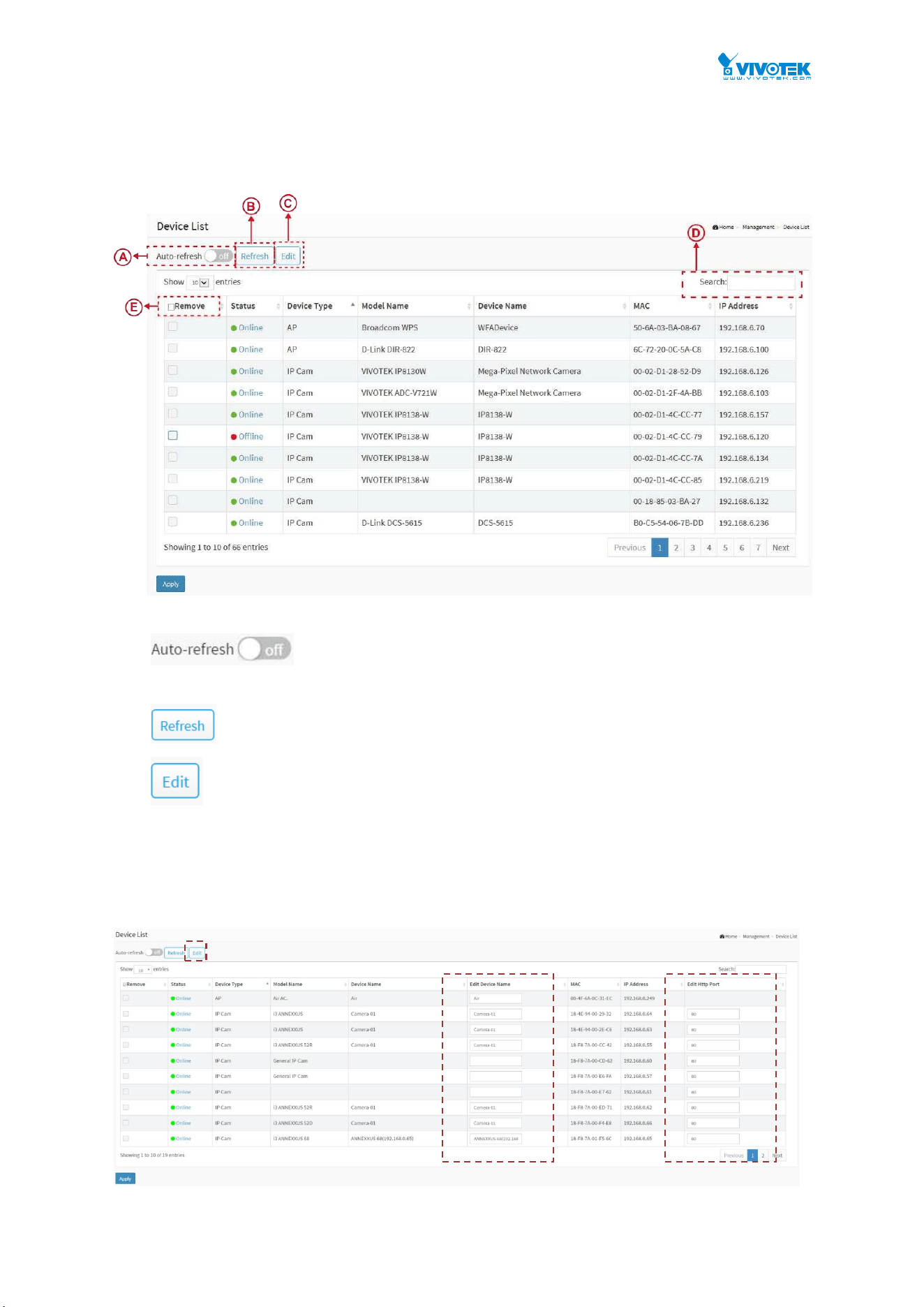
168
Management
Device List
It will show all devices and their information which are detected by Surveillance.
A. If you want the PoE switch to automatically refresh the
information then you need to evoke the “Auto refresh” function.
B.
Click this button to Refresh the status of all devices.
C.
Click this button to Edit Device Name and http Port.
User can press the “Edit” button to edit device name and HTTP port for each IP
device. This function can also be configured in the Dashboard of Topology view.
There is no HTTP connection function for Unknown Device and PC type devices,
therefore, the UI doesn’t provide “Edit HTTP port” function for them.

169
D. Search devices by keying words with full text search.
E. The Remove function only applies to the Offline devices.
Note:
The device name will not be saved until you click the Apply button. Please do not click
on the refresh, auto-refresh or edit buttons before you apply new device name.
VVTK Camera & Encoder
Camera Upgrade
This section describes how to upgrade Camera firmware. Revisions of camera firmware can
be available through time to enhance functionality. If you have multiple cameras of the same
model, you can upgrade their firmware in one process.
Web interface
To configure Surveillance Camera Upgrade in the web interface:
1. Click Surveillance > Management > Camera & Encoder > Camera Upgrade.
2. Click “Select Batch Upgrade Device” to enter the selected page.
3. Click “Choose File” to select firmware from the client computer.
4. Single or multiple clicks on their checkboxes to select cameras.
5. Click Apply to upload the firmware to the switch buffer.
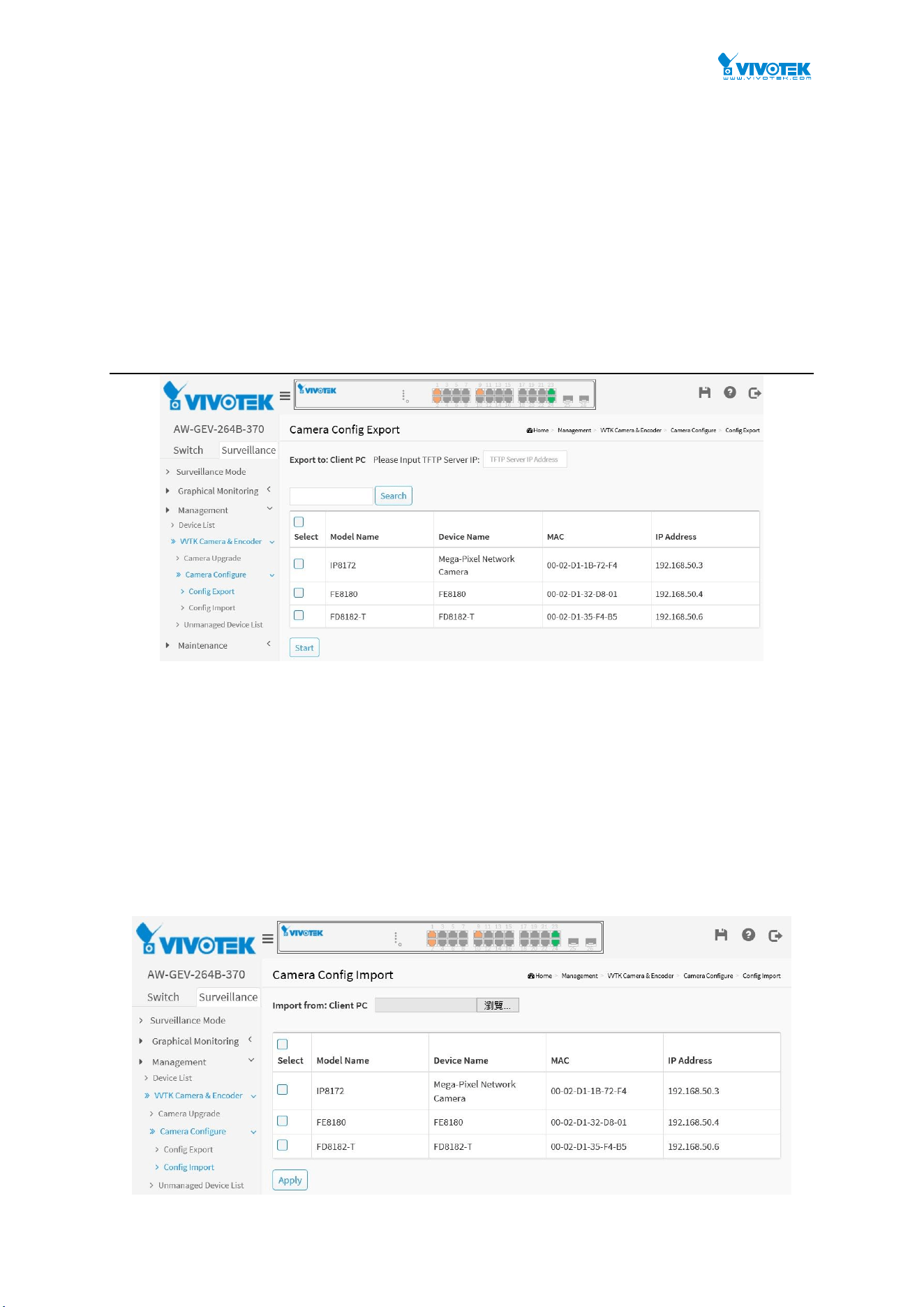
170
Camera Configure
Config Export
Web interface
To configure Surveillance Information in the web interface:
1. Click Surveillance > Management > Camera & Encoder > Config Export
2. Select the Camera to export the configuration file from. You can export the configuration to
a client computer, a TFTP server is required in your network. The configuration profile is
transported via a TFTP server.
The Search box supports filtering find of devices using Model Name, MAC address, or IP
addresses.
Config Import
Web interface
To configure Camera config. in the web interface:
1. Click Surveillance > Management > VVTK Camera & Encoder > Camera Configure >
Config Import.
2. Select the Device to import the configuration file from client PC.
3. Select the IP camera to load the configuration file to, using a single-click on its checkbox.
4. Click the Apply button.
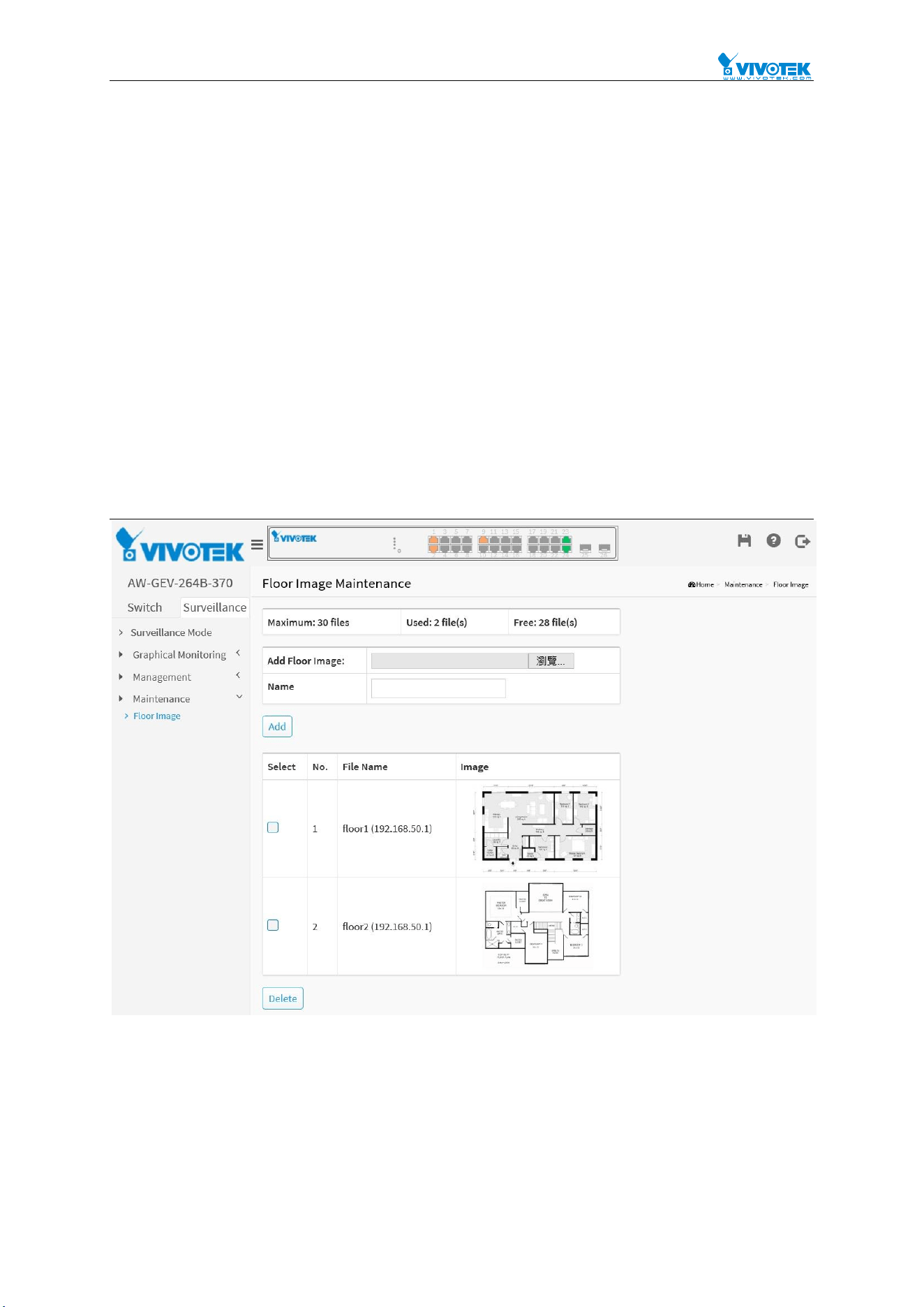
171
Maintenance
Floor Image
In this page, users can add or delete floor images.
Up to 30 image files can be uploaded to the PoE switch.
Only supports JPG and PNG formats.
The max. file size is limited to 512KB.
All floor images in the same network can be shared by multiple PoE switches.
For example:
If Switch1 has 10 floor images, Switch2 has 5 images, the total 15 floor
images can be shared and selected on different PoE switches in the same
network.
The image file name will display with its IP address to let users know which PoE
switch contains the floor image.