


Contents
Copyright, trademarks, and disclaimer 3
Supported VMS products and versions 4
Overview 5
XProtect Access (explained) 5
Licensing 6
XProtect Access licenses 6
Find license details 6
Configuration 7
Configure an integrated access control system 7
Wizard for access control system integration 7
Create access control system integration 7
Connecting to the access control system 8
Associated cameras 8
Summary 8
Access control properties 8
General Settings tab (Access Control) 8
Doors and Associated Cameras tab (Access Control) 10
Access Control Events tab (Access Control) 11
Access Request Notification tab (Access Control) 12
Cardholders tab (Access Control) 13
Configure access requests 14
Administrator manual | XProtect® Access 2023 R1
2 |

Copyright, trademarks, and disclaimer
Copyright © 2023 Milestone Systems A/S
Trademarks
XProtect is a registered trademark of Milestone Systems A/S.
Microsoft and Windows are registered trademarks of Microsoft Corporation. App Store is a service mark of
Apple Inc. Android is a trademark of Google Inc.
All other trademarks mentioned in this document are trademarks of their respective owners.
Disclaimer
This text is intended for general information purposes only, and due care has been taken in its preparation.
Any risk arising from the use of this information rests with the recipient, and nothing herein should be
construed as constituting any kind of warranty.
Milestone Systems A/S reserves the right to make adjustments without prior notification.
All names of people and organizations used in the examples in this text are fictitious. Any resemblance to any
actual organization or person, living or dead, is purely coincidental and unintended.
This product may make use of third-party software for which specific terms and conditions may apply. When
that is the case, you can find more information in the file 3rd_party_software_terms_and_conditions.txt located
in your Milestone system installation folder.
Administrator manual | XProtect® Access 2023 R1
3 | Copyright, trademarks, and disclaimer

Supported VMS products and versions
This manual describes features supported by the following XProtect VMS products:
l
XProtect Corporate
l
XProtect Expert
l
XProtect Professional+
l
XProtect Express+
l
XProtect Essential+
Milestone tests the features described in this manual with the above-mentioned XProtect VMS products in the
current release version and the two previous release versions.
If new features are only supported by the current release version and not any previous release versions, you
can find information about this in the feature descriptions.
You can find the documentation for XProtect clients and add-ons supported by the retired XProtect VMS
products mentioned below on the Milestone download page (https://www.milestonesys.com/downloads/).
l
XProtect Enterprise
l
XProtect Professional
l
XProtect Express
l
XProtect Essential
Administrator manual | XProtect® Access 2023 R1
4 | Supported VMS products and versions
Overview
XProtect Access (explained)
The use of XProtect Access requires that you have purchased a base license that allows
you to access this feature within your XProtect system. You also need an access control
door license for each door you want to control.
You can use XProtect Access with access control systems from vendors where a vendor-
specific plug-in for XProtect Access exists.
The access control integration feature introduces new functionality that makes it simple to integrate
customers’access control systems with XProtect. You get:
l
A common operator user interface for multiple access control systems in XProtect Smart Client
l
Faster and more powerful integration of access control systems
l
More functionality for the operator (see below)
In XProtect Smart Client, the operator gets:
l
Live monitoring of events at access points
l
Operator aided passage for access requests
l
Map integration
l
Alarm definitions for access control events
l
Investigation of events at access points
l
Centralized overview and control of door states
l
Cardholder information and management
The Audit log logs the commands that each user performs in the access control system from XProtect Smart
Client.
Apart from a XProtect Access base license, you need a vendor-specific integration plug-in installed on the event
server before you can start an integration.
Administrator manual | XProtect® Access 2023 R1
5 | Overview
Licensing
XProtect Access licenses
XProtect Access requires the following access control-related licenses:
l
1 base license for XProtect Access that covers an unrestricted number of access servers
l
1 access control door license per each door that you want to integrate and control in XProtect Access.
All door licenses are automatically installed when you install your XProtect Access product
The installed door licenses are disabled by default. You must enable the doors
that you want to use. You can only enable as many doors as you have door
licenses for.
Example
You want to add 10 doors, but you only have 5 access control door licenses. After you added the first 5 doors,
you cannot select any more. You must remove some of your doors before you can add another door.
Example
You have 1 door with 2 access points: an entry card reader and an exit card reader. Because you need 1 access
control door license per door, you will need 1 access control door license in this scenario.
Find license details
To find information about the current status of your access control door licenses, expand the Access Control
node.
To buy additional XProtect Access base licenses or door licenses, contact your vendor.
Administrator manual | XProtect® Access 2023 R1
6 | Licensing

Configuration
Configure an integrated access control system
Requirements
l
You have purchased the required XProtect Access licenses
l
You have installed the integration plug-in specific for your access control system on the event server
1. Add the integrated access control system to your XProtect system. See Wizard for access control system
integration on page 7. The wizard takes you through the most basic steps.
2. Specify additional properties for the access control system integration, especially the access control
events may require that you map events from the access control system with event categories that
XProtect recognizes. See Access control properties on page 8.
3. You need to create a role with permission to use access control features in XProtect Smart Client.
4. You also need to associate this role with a Smart Client profile.
5. The system provides a default rule that lets you access request notifications appear on the XProtect Smart
Client screen in case of access denied. You can add and modify access request notifications, see Access
Request Notification (properties) (see Access Request Notification tab (Access Control)on page 12).
6. You can create additional rules based on actions and events from the access control system.
7. If required, change the overall access control settings in Options > Access Control Settings.
Wizard for access control system integration
The Access control system integration wizard is for step-by-step configuration of the initial integration with
an access control system. Use the wizard to get through the most basic configuration tasks. You can do more
detailed configuration afterwards.
Before you start the access control integration wizard make sure you have the integration plug-in installed on
the event server.
Some of the fields to fill out and their default values are inherited from the integration plug-in. Therefore, the
appearance of the wizard may differ depending on the access control system you integrate with.
To start the wizard, select Access Control in the node tree, right-click, and click Create new.
Create access control system integration
Enter the name and specify the connection details for the access control system that you want to add. The
parameters that you must specify depend on the type of system, but typically, they are the network address of
the access control system server and an access control administrator user name and password.
Administrator manual | XProtect® Access 2023 R1
7 | Configuration

The video management system uses the specified user name and password to log into the access control
system for retrieving the full configuration.
The integration plug-in may also define secondary parameters which are not listed in the wizard, but you can
change these in General Settings after setting up the integration. The default values for the parameters are
supplied by the plug-in or the XProtect system.
Connecting to the access control system
When the plug-in has been successfully integrated, a summary of the retrieved access control system
configuration appears. Review the list to ensure that all items have been integrated before you continue to the
next step of the wizard.
Associated cameras
Map access points in the access control system with the cameras in the XProtect system, to show related video
for events from the doors.
You can map several cameras to one access point. The XProtect Smart Client user is then able to view video
from all the cameras when investigating events, for example.
The XProtect Smart Client user is also able to add one of the cameras when configuring Access monitor view
items.
Licensed doors are by default enabled. Clear the check box to disable a door and thereby free an access
control door license.
Summary
Your access control system integration has been successfully created in XProtect with default settings inherited
from the integration plug-in. Client users must log into XProtect Smart Client to see and use the new access
control system.
You can refine the configuration if needed.
Access control properties
General Settings tab (Access Control)
Name Description
Enable
Systems are by default enabled, meaning that they are visible in XProtect Smart
Administrator manual | XProtect® Access 2023 R1
8 | Configuration

Name Description
Client for users with sufficient permissions and that the XProtect system receives
access control events.
You can disable a system, for example during maintenance, to avoid creating
unnecessary alarms.
Name
The name of the access control integration as it appears in the management
application and in the clients. You can overwrite the existing name with a new one.
Description Provide a description of the access control integration. This is optional.
Integration
plug-in
Shows the type of access control system selected during the initial integration.
Last
configuration
refresh
Shows the date and time of the last time the configuration was imported from the
access control system.
Refresh
configuration
Click the button when you need to reflect configuration changes made in the access
control system in XProtect, for example if you have added or deleted a door.
A summary of the configuration changes from the access control system appears.
Review the list to ensure that your access control system is reflected correctly before
you apply the new configuration.
Operator login
required
Enable an additional login for the client users, if the access control system supports
differentiated user permissions. If you enable this option, the access control system
will not be available in XProtect Mobile client.
This option is only visible if the integration plug-in supports differentiated user
permissions.
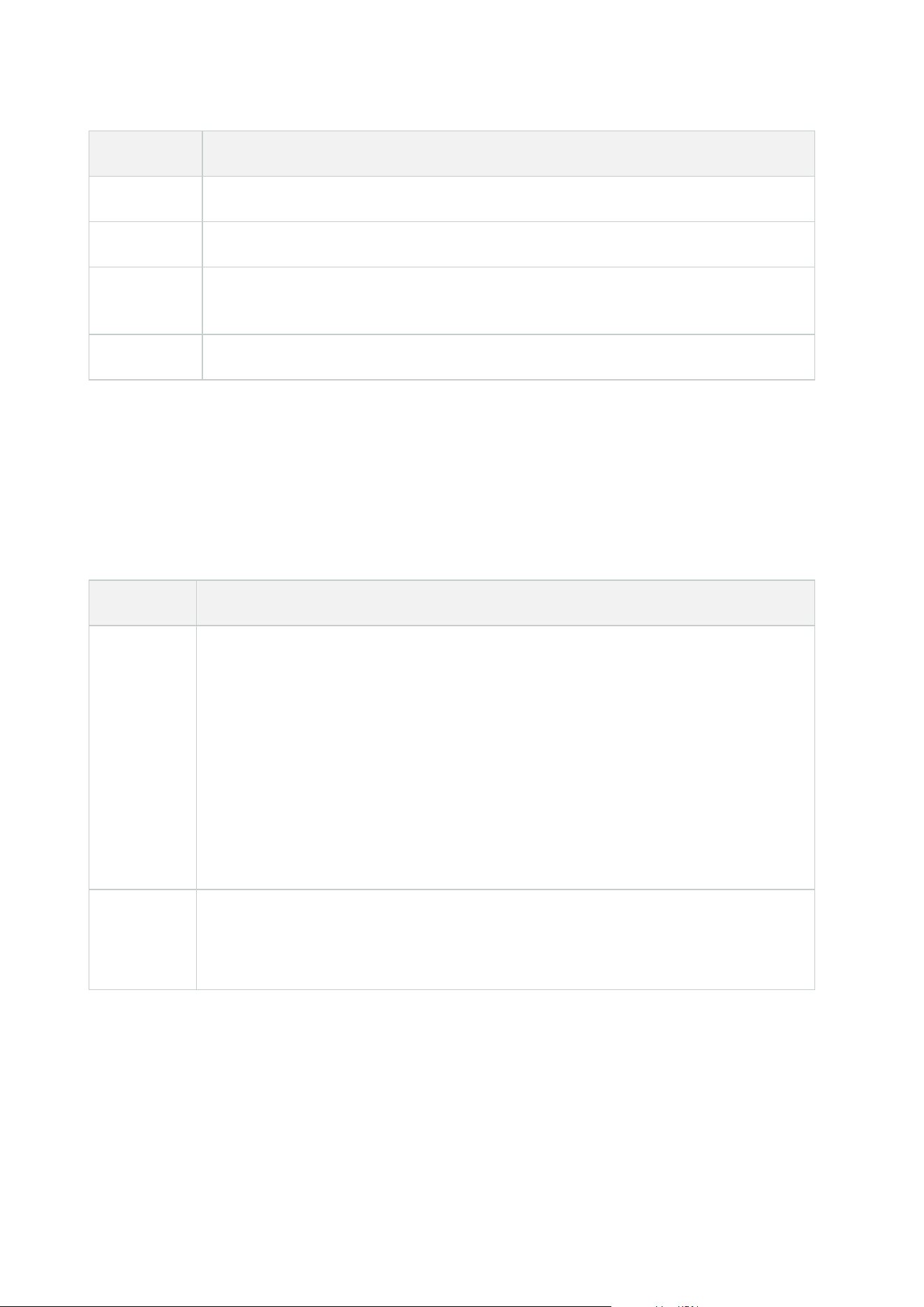
The naming and content of the following fields are imported from the integration plug-in. Below are examples
of some typical fields:
Administrator manual | XProtect® Access 2023 R1
9 | Configuration
Name Description
Address Enter the address of the server that hosts the integrated access control system.
Port Specify the port number on the server to which the access control system is connected.
User name
Enter the name of the user, as defined in the access control system, who should be
administrator of the integrated system in XProtect.
Password Specify the password for the user.
Doors and Associated Cameras tab (Access Control)
This tab provides mappings between door access points and cameras, microphones or speakers. You associate
cameras as part of the integration wizard, but you can change the setup at any time. Mappings to
microphones and speakers are implicit through the related microphone or speaker on the camera.
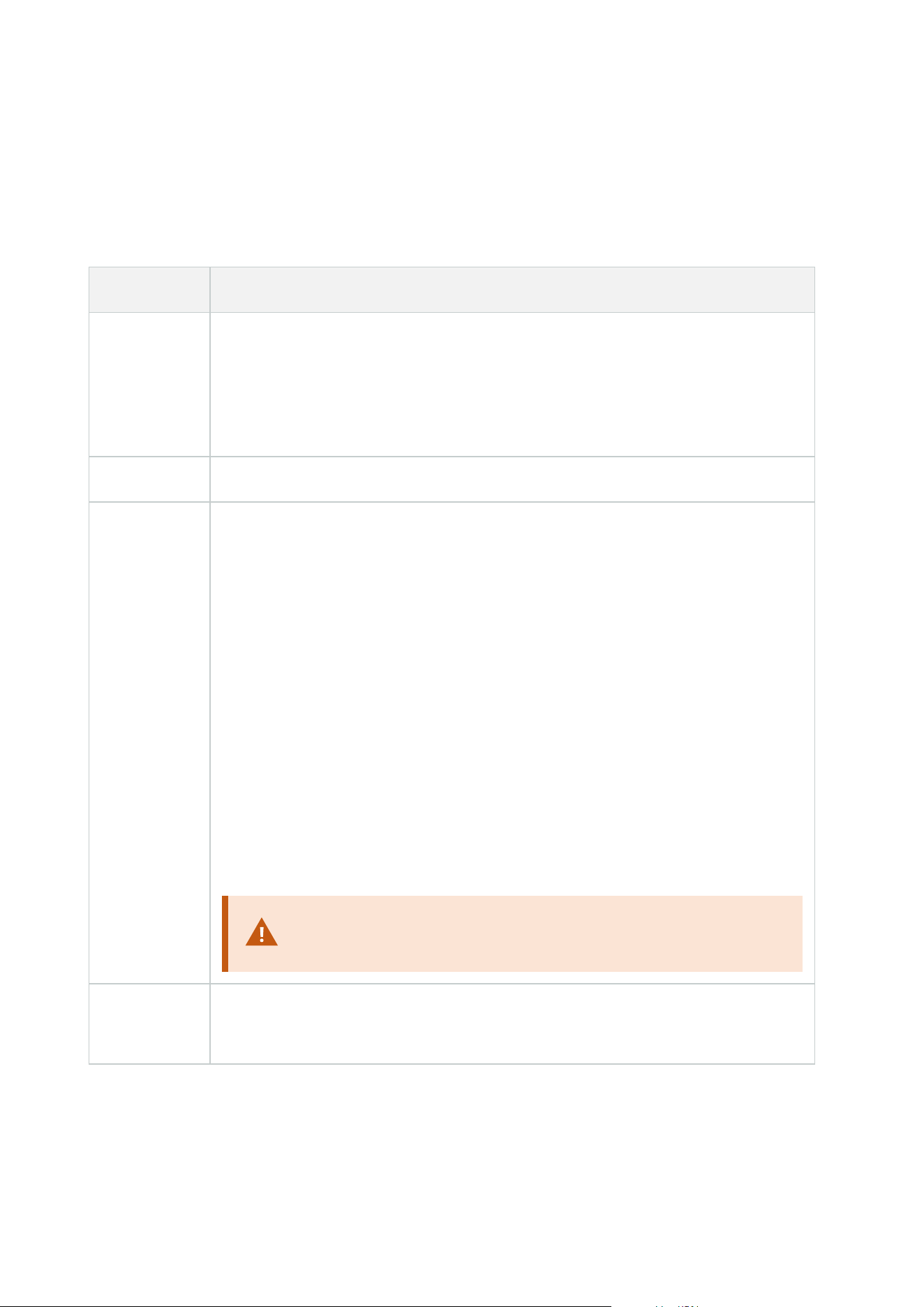
Name Description
Doors
Lists the available door access points defined in the access control system, grouped by
door.
For an easier navigation to the relevant doors, you can filter on the doors in your access
control system with the dropdown list box at the top.
Enabled: Licensed doors are by default enabled. You can disable a door to free a license.
License: Shows if a door is licensed or if the license has expired. The field is blank when
the door is disabled.
Remove: Click Remove to remove a camera from an access point. If you remove all
cameras, the check box for associated cameras is automatically cleared.
Cameras
Lists the cameras configured in the XProtect system.
Select a camera from the list and drag and drop it at the relevant access point to associate
the access point with the camera.
Administrator manual | XProtect® Access 2023 R1
10 | Configuration
Access Control Events tab (Access Control)
Event categories allow you to group events. The configuration of event categories affects the behavior of
access control in the XProtect system and allows you to, for example, define an alarm to trigger a single alarm
on multiple event types.
Name Description
Access
Control Event
Lists the access control events imported from the access control system. The integration
plug-in controls default enabling and disabling of events. You can disable or enable
events any time after the integration.
When an event is enabled, it is stored in the XProtect event database and is, for example,
available for filtering in the XProtect Smart Client.
Source Type Shows the access control unit that can trigger the access control event.
Event
Category
Assign none, one or more event categories to the access control events. The system
automatically maps relevant event categories to the events during integration. This
enables a default setup in the XProtect system. You can change the mapping at any
time.
Built-in event categories are:
l
Access denied
l
Access granted
l
Access request
l
Alarm
l
Error
l
Warning
Events and event categories defined by the integration plug-in also appear, but you can
also define your own event categories, see User-defined Categories.
If you change the event categories in XProtect Corporate, ensure
that the existing access control rules still work.
User-defined
Categories
Allows you to create, modify or delete user-defined event categories.
You can create event categories when the built-in categories do not meet your
Administrator manual | XProtect® Access 2023 R1
11 | Configuration
Name Description
requirements, for example, in connection with defining triggering events for access
control actions.
The categories are global for all integration systems added to the XProtect system. They
allow setting up cross-system handling, for example on alarm definitions.
If you delete a user-defined event category, you receive a warning if it is used by any
integration. If you delete it anyway, all configurations made with this category, for
example access control actions, do not work anymore.
Access Request Notification tab (Access Control)
You can specify access request notifications that appear on the XProtect Smart Client screen when a given
event occurs.
Name Description
Name Enter a name for the access request notification.
Add Access
Request
Notification
Click to add and define access request notifications.
To delete a notification, click X on the right-hand side.
If a user of XProtect Smart Client logs into a parent site in a
Milestone Federated Architecture hierarchy, access request
notifications from the child sites also appear in XProtect Smart
Client.
Access request
notification
details
Specify which cameras, microphones or speakers that appear in the access request
notifications when a given event occurs. Also specify the sound to alert the user when
the notification pops up.
Add command
Select which commands that should be available as buttons in the access request
notification dialogs in the XProtect Smart Client.
Related access request commands:
Administrator manual | XProtect® Access 2023 R1
12 | Configuration
Name Description
l
Enables all commands related to access request operations available on the
source unit. For example Open door
All related commands:
l
Enables all commands on the source unit
Access control command:
l
Enables a selected access control command
System command:
l
Enables a command predefined in the XProtect system
To delete a command, click X on the right-hand side.
Cardholders tab (Access Control)
Use the Cardholders tab to review information about cardholders in the access control system.
Name Description
Search cardholder Enter the characters of a cardholder name and it appears in the list, if it exists.
Name Lists the names of the cardholders retrieved from the access control system.
Type
Lists the type of cardholder, for example:
l
Employee
l
Guard
l
Guest
If your access control system supports adding/deleting pictures in the XProtect system, you can add pictures to
the cardholders. This is useful if your access control system does not include pictures of the cardholders.
Administrator manual | XProtect® Access 2023 R1
13 | Configuration
Name Description
Select
picture
Specify the path to a file with a picture of the cardholder. This button is not visible if the
access control system manages the pictures.
Allowed file-formats are .bmp, .png, and .jpg.
Pictures are resized to maximize the view.
Milestone recommends that you use a quadratic picture.
Delete
picture
Click to delete the picture. If the access control system had a picture, then this picture is
shown after deletion.
Configure access requests
There are several types of access control events, for example Access denied and Access granted. To enable
access requests notifications, you must associate the type of event with the event category Access request. By
default, Access denied is associated with Access request: Access request notifications are sent only when
someone is denied access. To change this setting, follow the steps in this topic.
Requirements: On the roles of the client users, you must enable notifications. To do this, on the role, click the
Access Control tab, select Access Control, and then select the Receive notifications check box.
Steps:
1. In the Site Navigation pane, select Access Control.
2. On the Access Control Events tab, in the Access Control Event column, locate the event type that you
want to edit.
3.
To disable access requests for an event type, in the Event Category column, click and clear the
Access request check box.
4.
To enable access requests for an additional event type, in the Event Category column, click and
select the Access request check box.
5. Save the changes.
Administrator manual | XProtect® Access 2023 R1
14 | Configuration
About Milestone
Milestone Systems is a leading provider of open platform video management software; technology that
helps the world see how to ensure safety, protect assets and increase business efficiency. Milestone
Systems enables an open platform community that drives collaboration and innovation in the development
and use of network video technology, with reliable and scalable solutions that are proven in more than
150,000 sites worldwide. Founded in 1998, Milestone Systems is a stand-alone company in the Canon
Group. For more information, visit https://www.milestonesys.com/.