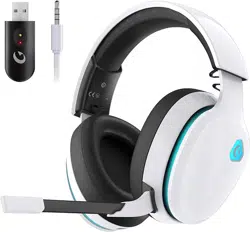
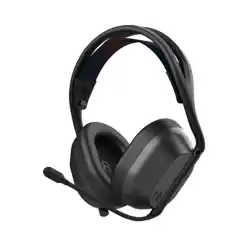
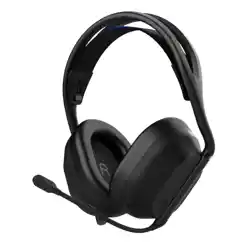
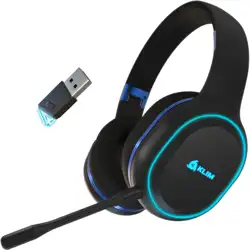
User Manual Gaming Headset Captain 300
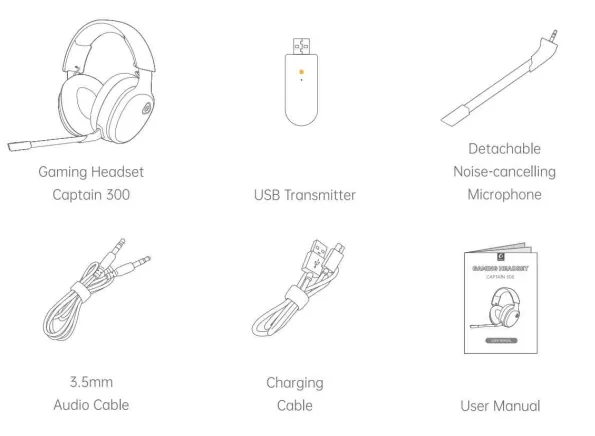
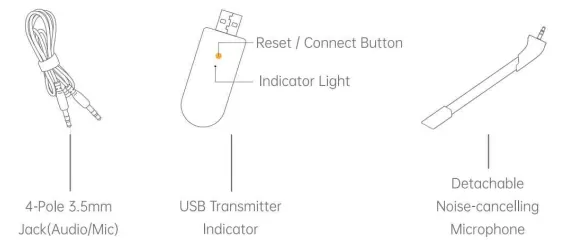
PACKING LIST
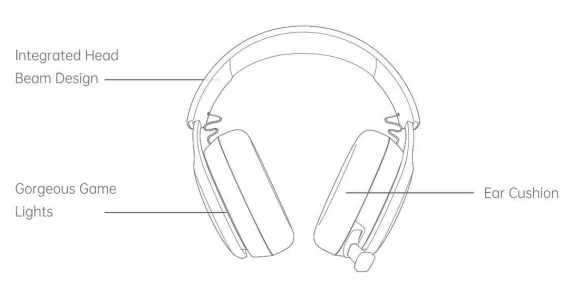
PRODUCT OVERVIEW
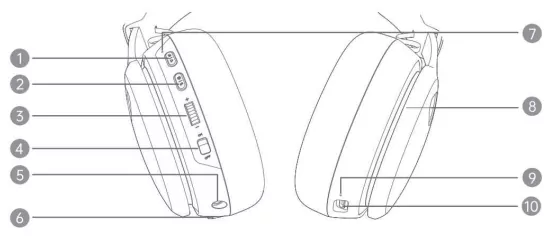
- Mute / Answer / Hang-up
- Light Control / Previous Track / Next Track / 2.4G-Bluetooth Mode Switching
- Volume Control
- On / Off Key
- 3.5mm Audio Interface
- Mic Port
- Working Status Indicator
- LED Light
- Charging Indicator / Low Battery Indicator
- Type-C Charging Interface
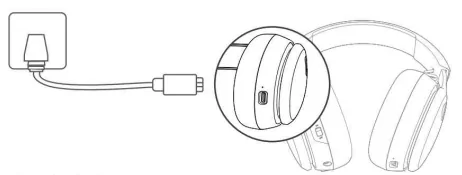
CHARGING
Step 1: Connect the Charging Cable to the Charging Port on the headset.
Step 2: Plug the other end into a USB power source.
Charging Indicator
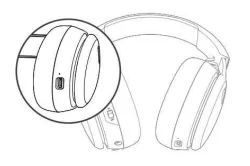
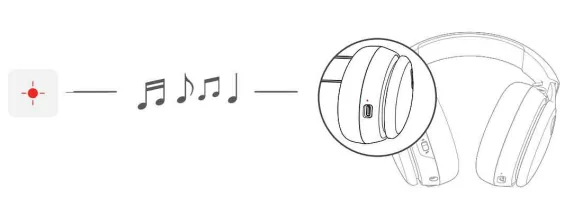
Charging: the indicator shines in red.
Fully charged: the indicator shines in blue.
Low voltage: the indicator flashes in red quickly, and the voice prompt sounds every 6 minutes.
Tips:
- It takes about 3 hours to reach a fulll charge.
- It's recommended to charge the headset in the power-off state.
- When the battery of the headset gets low, the Charging Indicator will flash red and you will hear "Low Battery" from it.
MICROPHONE INSTALLATION AND OPERATION
Install the Microphone
Step 1:
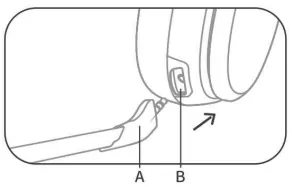
Align point A on the microphone with point B on the Mic Port of the headset, then plug into the microphone.
Step 2:
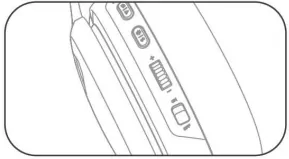
Slide the Volume Control wheel to adjust the volume to a proper level.
Multi Function Key Operation Guide
Option 1:
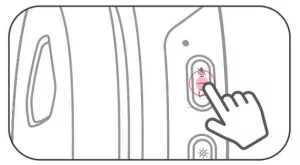
● Click the Mute key to mute the microphone, and then click again to turn on the microphone (it is default that the microphone is activated every time the headset is turned on).
●● Double click the Mute key to play, and double-click again to pause.
●● In call mode, double click the Mute key to answer, and double click again to hang up, press and hold the Mute key for 2 seconds to reject.
Option 2:
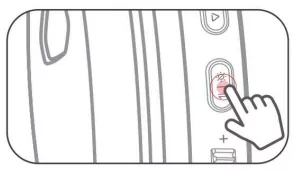
● Click the Light Control key to turn off the light and click again to turn on the light.
●● Double click the Light Control key to switch to the next track.
●●● Triple click the Light Control key to switch to the previous track. Press and hold the Light Control key for 3 seconds to switch mode (2.4G mode / Bluetooth mode).
Option 3:
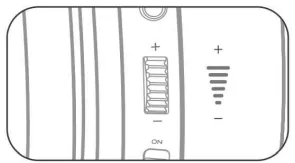
- Roll the Volume Control wheel upward for Volume "+".
- Roll the Volume Control wheel downward for Volume "-".
Option 4:
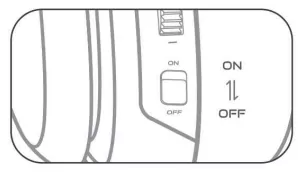
- Toggle the power switch to ON to turn "on" the device.
- Toggle the power switch to OFF to turn "off" the device.
Bluetooth Connection Operation Guide
Step 1:
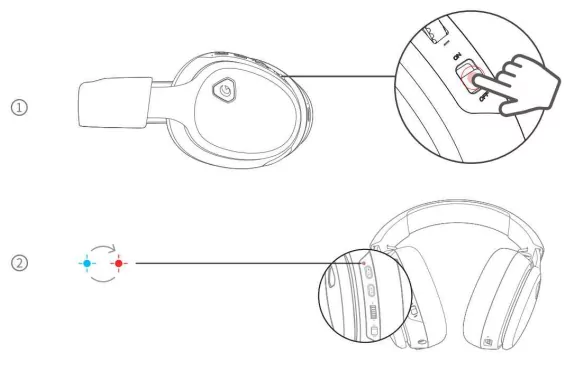
Toggle the power switch to ON position, the headset turns on and enters the pairing state, and the indicator light flashes red and blue alternately (ensure that the headset is not connected to the transmitter or other Bluetooth devices).
Step 2:
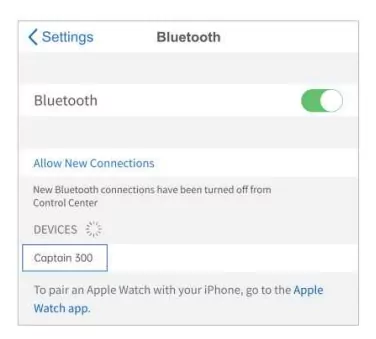
Turn on the Bluetooth of the mobile phone, find the Bluetooth option in Settings and search for "Captain 300".
Step 3:
After successful pairing, the headset is ready for playing music or making a voice call.
Tips:
- Please connect the headset with your mobile device within 5 minutes.
- If you turn off the headset, it will automatically connect to the previously connected mobile device when you turn it on again.
How To Clear Pairing
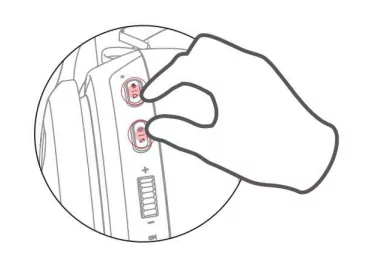
In ON state, press and hold the Light Control key and Mute key for about 5 seconds until the headset is turned off, and the pairing record can be cleared.
USING YOUR HEADSET
2.4G/Adapter Connection
Applicable Devices : PC/PS4/5"/Nintendo Switch™
Step 1: Plug the USB Transmitter into the USB Port on your PC, PS4/5"/Nintendo Switch" (Invalid microphone). Not support Xbox all series.
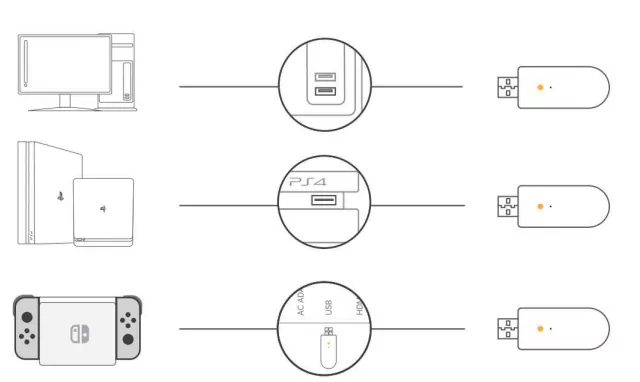
Step 2: Toggle the power key to the "ON" position, and the indicator light flashes red and blue alternately, plug in the adapter, the headset is automatically connected to it, and the blue light flashes slowly.
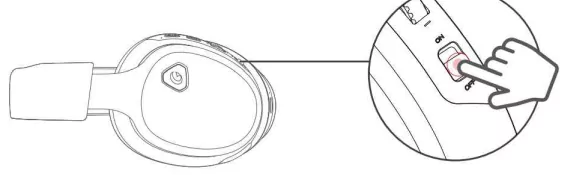
Tips: Before connecting the headset to the transmitter, the indicator light flashes red and blue fast and alternately, and when the headset is successfully paired, the indicator light flashes blue slowly. The indicator light of the transmitter changes from flashing red slowly to shine red constantly.
Wired Connection
Applicable Devices: PC/Xbox ONE/PS4/5/Nintendo Switch/Mobile Devices
1. PC
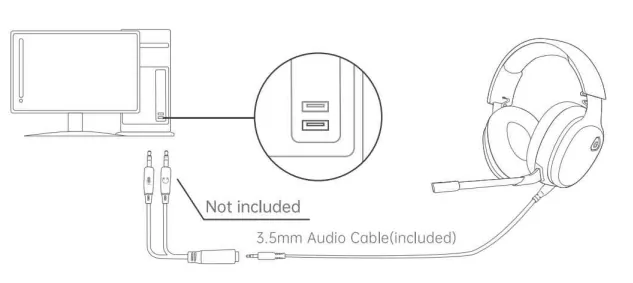
2. Xbox ONE™
Option 1: Xbox (Old Version)
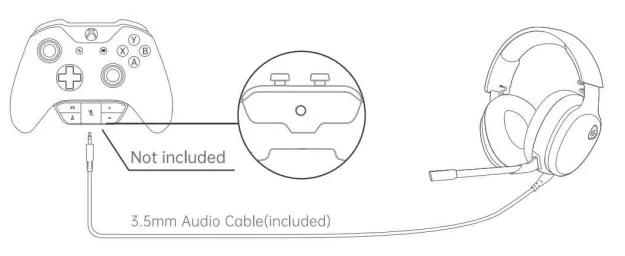
Note: The old version does not have a built-in 3.5mm audio jack. To connect with the Captain 300, please prepare a headset adapter (not included) by yourself.
Option 2: Xbox Series X/S
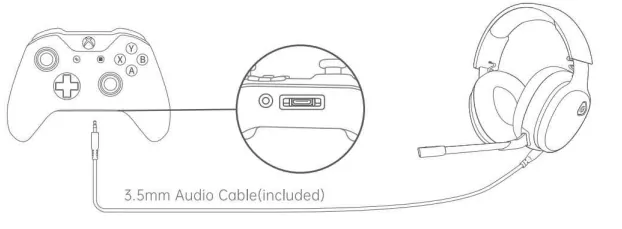
Note: The new version has a built-in 3.5mm audio jack, you can connect the Captain 300 with your Xbox series s/x directly.
3. PS4/5"
Option 1:
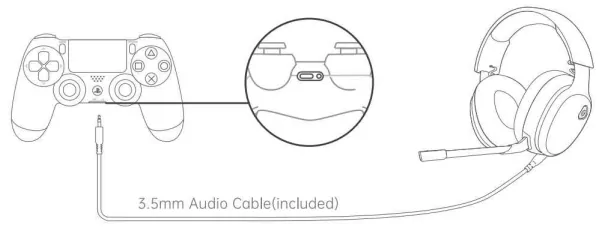
Option 2:
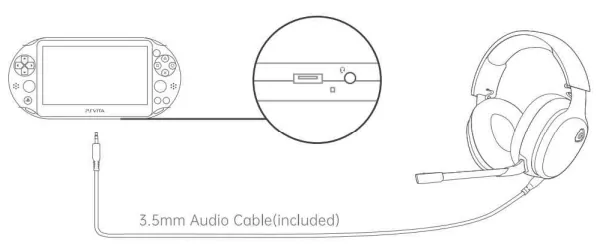
4. Nintendo Switch™
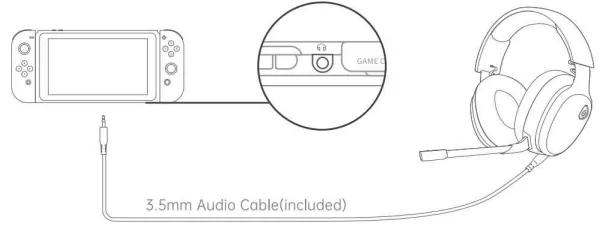 * Nintendo Switch™ doesn't support microphone input.
5. Mobile Devices
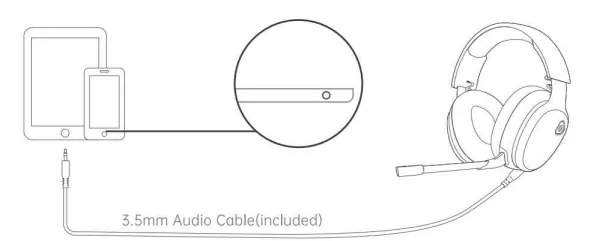
SPECIFICATIONS
| HEADSET |
Charging Time |
≈3h |
| Continuous Operating Time (LED Light Off) |
40h |
| Frequency Response |
100Hz-20KHz |
| Speaker Diameter |
50mm |
| Speaker Impedance |
32Ω |
| Operating Voltage |
3.3V-4.2V |
| MICROPHONE |
Polar Pattern |
Omni-Directional |
| Frequency Response |
100Hz-20KHz |
| Sensitivity |
-42±3db |
| USB TRANSMITTER |
Latency Time |
20ms |
| Operating Voltage |
3.3V-4.2V |
| Transmitting Power |
+1dB |
| Transmit-receive Distance |
15m |
| Receive Sensitivity |
-80dBm |
TIPS AND RECOMMENDATIONS
- Do not try to disassemble the product by yourself, please contact us for more help.
- Do not use the product in high temperature, and near heat or fire.
- Please use the charging cable provided to charge the product.
- Long exposure to loud volume may cause hearing damage. It's advised you adjust the volume to a proper level for use.
- For your safety, it's not recommended to wear the headset when driving as it may result in distractions.
- Please pay attention to the surroundings when you use the product in case of potential risks.
TROUBLESHOOTING GUIDE
Q1. My Teammate Can't Hear Me
* The connection option varies from different devices. Please make sure you have plugged in the USB Transmitter under wireless connection and the 3.5mm Audio Cable under wired connection.
* Make sure the microphone has been installed and turned on.
* Make sure the connected device is not muted.
* Please go to the sound settings of the connected device to check and verify the headset microphone has been enabled.
* Please contact us directly if this issue is unresolved.
Q2. Unable to Connect to The Transmitter
- If the headset is in 2.4G mode (Adapter mode), plug in the transmitter to the device end, and the headset will be automatically connected with the transmitter, if not connecting automatically, press and hold the pairing button on the transmitter until the connection is successful. The light of the transmitter shines red and the light of the headset flashes blue slowly.
- If the headset is in Bluetooth mode, press and hold the Light Control key for 3 seconds to switch to 2.4G mode of the corresponding transmitter until the light flashes red and blue fast and alternately. There will be voice prompt of "Adapter connection". Plug in the transmitter to the device end, and the headset will be automatically connected with the transmitter.
Q3. Unable to Connect to Bluetooth
- If the headset is in Bluetooth mode, make sure that the indicator light is flashing red and blue, and the headset plays voice prompt of "Bluetooth connection". Search Captain 300 on your mobile phone and click Connect.
- If the headset is in 2.4G mode (Adapter mode), press and hold the Light Control key for 3 seconds to switch the mode to the corresponding Bluetooth mode and ensure the indicator light flashes red and blue fast and alternately, and the headset plays voice prompt of "Bluetooth connection". Search Captain 300 on your mobile phone and click Connect.
Q4. There Is No Sound From One Side of The Headset When Connecting with PC.
* Please insert the headset into your mobile phone to check whether it works well. If yes, please restart the PC and connect the headset with PC again.
* Please go to the sound settings of your PC to check L/R balance.
* Please contact us directly if this issue is unresolved.
Q5. The Sound Crackles or Hisses.
* Excessive static electricity may cause abnormal noises in the headset, please try to remove it.
* Other sources of interference may be too close, such as TV, refrigerator, power tools etc., please be away from them when using the headset.
WARRANTY POLICIES
1. 7*24H High-priority Customer Service [[email protected]]
2. 7*24H [Amazon Message]
3. 12-month product warranty for quality problems + 45-day money back & return guarantee.
FCC Caution
Any Changes or modifications not expressly approved by the party responsible for compliance could void the user's authority to operate the equipment. This device complies with part 15 of the FCC Rules. Operation is subject to the following two conditions:
(1) This device may not cause harmful interference, and
(2) this device must accept any interference received, including interference that may cause undesired operation.
NOTE:
This equipment has been tested and found to comply with the limits for a Class B digital device, pursuant to part 15 of the FCC Rules. These limits are designed to provide reasonable protection against harmful interference in a residential installation. This equipment generates, uses and can radiate radio frequency energy and, if not installed and used in accordance with the instructions, may cause harmful interference to radio communications. However, there is no guarantee that interference will not occur in a particular installation. If this equipment does cause harmful interference to radio or television reception, which can be determined by turning the equipment off and on, the user is encouraged to try to correct the interference by one or more of the following measures:
- Reorient or relocate the receiving antenna.
- Increase the separation between the equipment and receiver.
- Connect the equipment into an outlet on a circuit different from that to which the receiver is connected.
- Consult the dealer or an experienced radio/TV technician for help. This equipment complies with FCC radiation exposure limits set forth for an uncontrolled environment. This transmitter must not be co-located or operating in conjunction with any other antenna or transmitter.
ISEDC Warning
This device complies with Industry Canada licence-exempt RSS standard(s). Operation is subject to the following two conditions:
- this device may not cause interference, and
- this device must accept any interference, including interference that may cause undesired operation of the device.
CUSTOMER SUPPORT
English [email protected]
日本 [email protected]
Deutsch [email protected]
Francais [email protected]