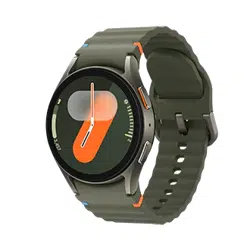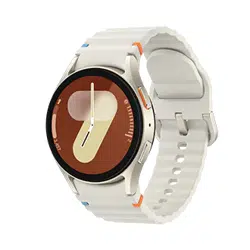

Loading page 2...
Loading page 3...

Table of Contents
4
131 Buttons and gestures
132 Health
133 Security and privacy
133 Location
133 Safety and emergency
134 Accounts and backup
134 Google
134 Advanced features
135 Device care
135 Apps
136 General
136 Accessibility
137 Software update
137 About watch
Galaxy Wearable app
138 Introduction
139 Watch faces
141 Apps screen
141 Tiles
141 Quick panel
142 Watch settings
142 Introduction
142 Samsung account
142 Modes
142 Notifications
143 Sounds and vibration
143 Display
143 Battery
143 Buttons and gestures
143 Health
143 Wallet / Pay
144 Safety and emergency
144 Accounts and backup
111 Gallery
111 Introduction
111 Managing pictures saved on your
Watch
112 Using Gallery
112 Viewing images
113 Customising a watch face
113 Deleting images
114 Samsung Find
115 Sending an SOS
115 Introduction
115 Presets the SOS request
116 Requesting an SOS
117 Requesting an SOS when you are
hurt from a fall
118 Stop sharing the location
information
119 Voice Recorder
120 Calculator
120 Compass
121 Buds Controller
121 Camera Controller
122 Samsung Global Goals
123 SmartThings
123 Google apps
123 Settings
123 Introduction
124 Samsung account
124 Connections
128 Modes
129 Notifications
129 Sounds and vibration
130 Display
131 Battery

Table of Contents
5
145 Advanced features
145 Device care
145 Apps
146 Manage content
147 Mobile plans (Mobile network
enabled models)
147 General
147 Accessibility
147 Watch software update
147 About watch
148 Find My Watch
149 Store
Usage notices
150 Precautions for using the device
152 Notes on package contents and
accessories
153 Maintaining the device’s water
and dust resistance
156 Precautions for overheating
156 Cleaning and managing the
Watch
157 Use caution if you are allergic to
any materials on the Watch
Appendix
158 Troubleshooting
162 Removing the battery

6
Getting started
About the Galaxy Watch7 / Galaxy Watch Ultra
The Galaxy Watch7 / Galaxy Watch Ultra (hereafter referred to as the Watch) is a
smartwatch that can analyse your exercise pattern, manage your health, and provide
you with a variety of convenient apps for making phone calls and playing music. You can
browse the various features by using the touch bezel and launch them by tapping the
screen, and you also can change the watch face to match your taste.
You can use your Watch after connecting it to your phone.
Getting started
7
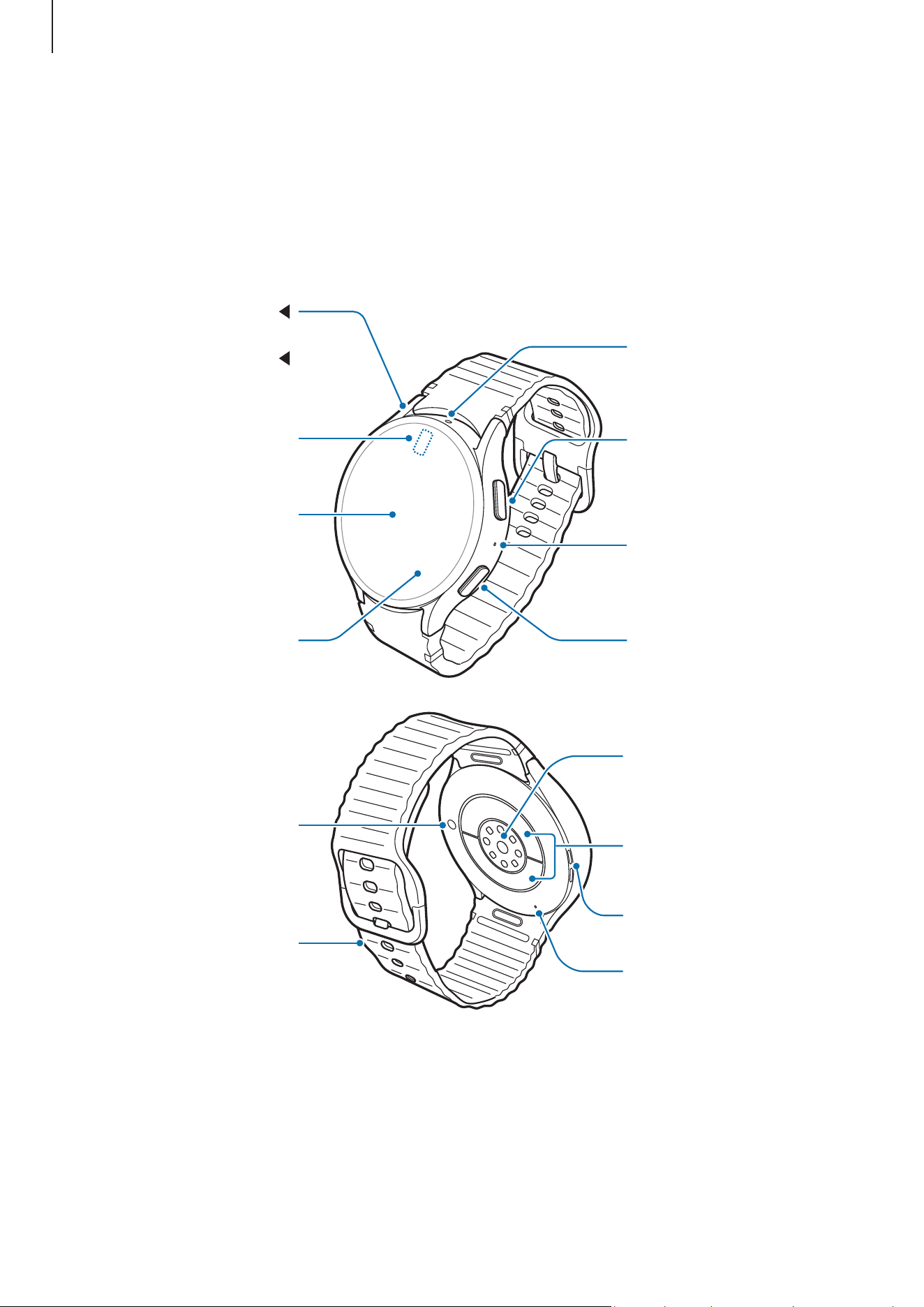
Device layout and functions
Watch
▶
Galaxy Watch7:
Home button (Power
button) / Electrical
bio-signal sensor
Back button / Electrical
bio-signal sensor
Microphone
NFC antenna
SM-L300, SM-L310:
GPS antenna
SM-L305F, SM-L315F:
LTE/GPS antenna
Atmospheric pressure
sensor
Light sensor
Screen
Optical bio-signal
sensor
Speaker
Pressure vent
Infrared temperature
sensor
Band
Electrical bio-signal
sensors
Loading page 8...
Loading page 9...
Loading page 10...
Getting started
11
Setting the Home button or Back button
Select an app or feature to launch by pressing the Home button or Back button.
On the Apps screen, tap
(
Settings
)
→
Buttons and gestures
, and then select an
option you want under
Home button
or
Back button
.
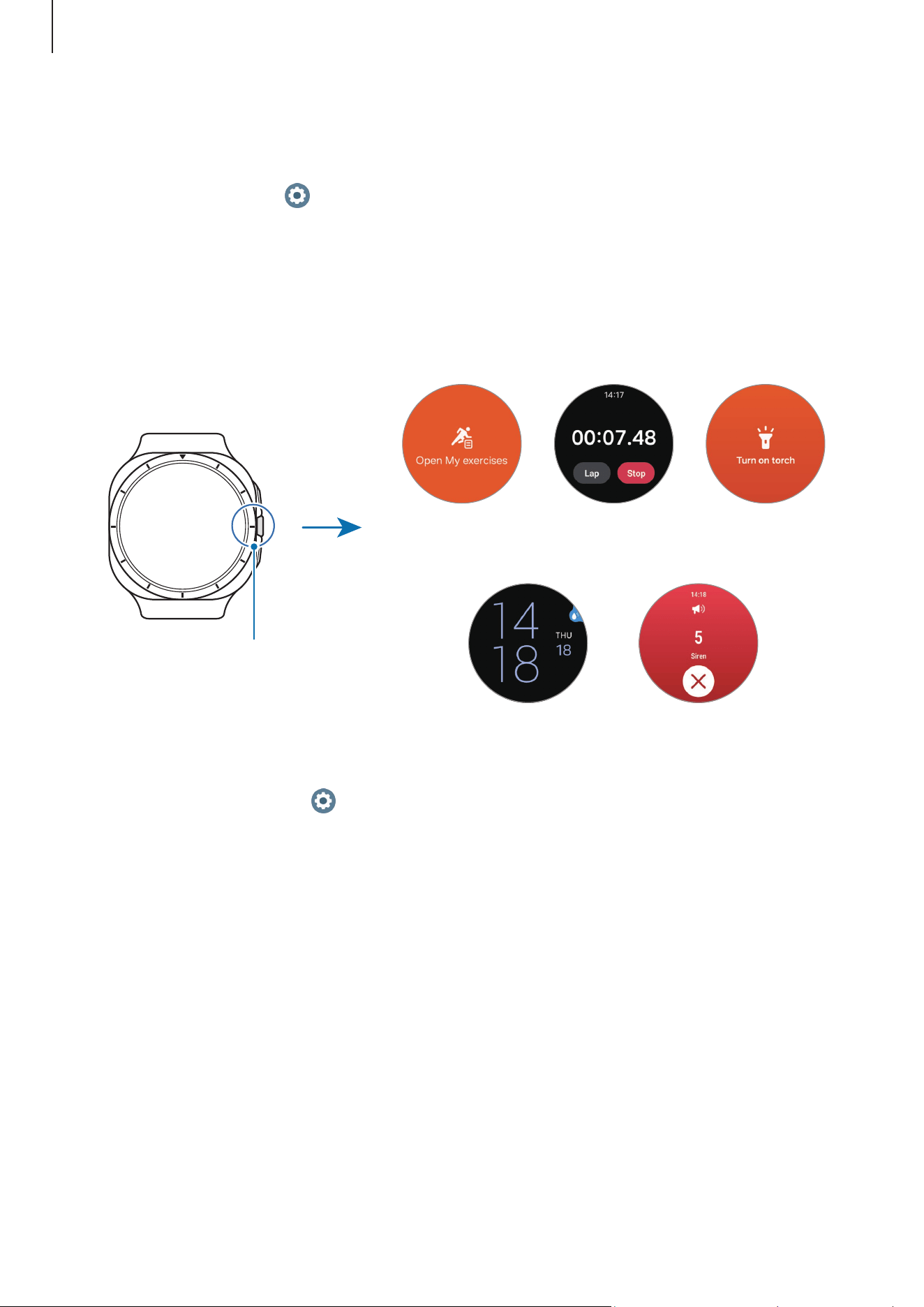
Setting the Quick button and using it (Galaxy Watch Ultra)
The Quick button is a circular button between the Home and Back buttons that you can
press to instantly launch the features you need for working out and outdoor activities.
Quick button
Open Samsung
Health exercises.
Turn on the
torch.
Turn on Water
lock mode.
Sound a siren.
Open the
stopwatch.
1 On the Apps screen, tap (
Settings
)
→
Buttons and gestures
.
2 Select a desired action under
Quick button
.
•
Action
: Set the Quick button to launch the exercise or feature. The action you
select determines what happens when you press the Quick button. If you do not
want the Quick button to launch any features when you press it, select
None
.
‒
Exercise
: You can set to open the exercise list or start a workout. During a
workout, you can pause or stop the exercise, and you can perform detailed
operations for each exercise by pressing the Quick button.
‒
Features
: You can set to open a stopwatch or turn on the torch or Water lock
mode.
Loading page 12...
Getting started
13
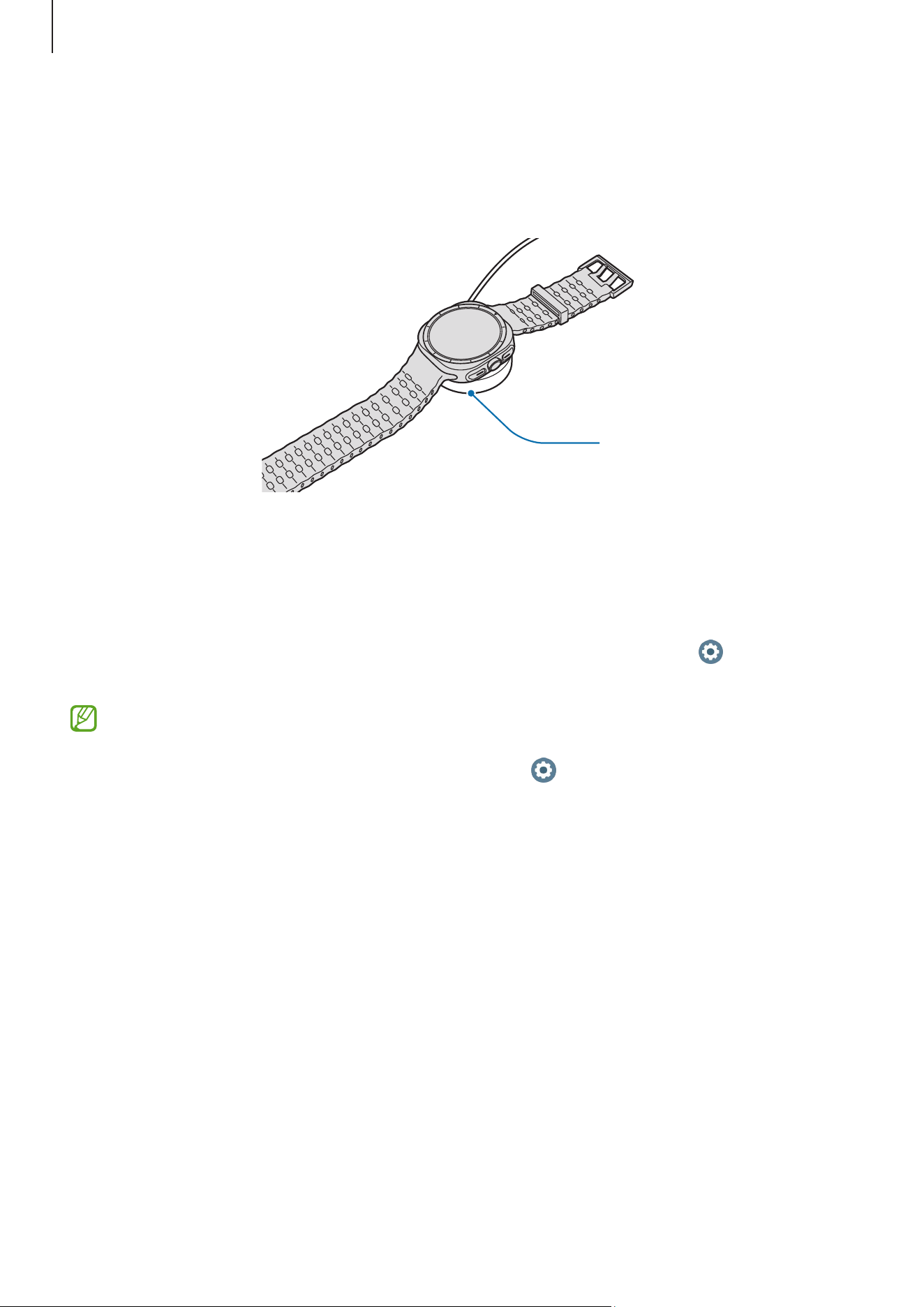
2 Place the Watch on the wireless charger aligning the centre of your Watch’s backside
with the centre of the wireless charger. Wireless charging may not work smoothly
depending on the type of accessory or cover. For stable wireless charging, it is
recommended to separate the cover or accessory from the Watch.
Wireless charger
3 After fully charging, disconnect the Watch from the wireless charger.
Checking the charging status
You can check the charging status on the screen during wireless charging. If the
charging status does not appear on the screen, on the Apps screen, tap
(
Settings
)
→
Display
and tap the
Show charging info
switch to turn it on.
The Watch will be turned on automatically when you start charging while it is
turned off and the battery is charged to more than 10%. To charge the Watch
and have it remain off, on the Apps screen, tap
(
Settings
)
→
Battery
and tap
the
Auto power on
switch to turn it off. You can check the charging status on the
screen by pressing any button when you charge the Watch while it is turned off.
Loading page 14...
Getting started
15
•
When connecting the wireless charger to another power source, such as a
computer or multi-charging hub, the Watch may not charge properly or it may
charge more slowly because of a lower electric current.
•
The Watch can be used while it is charging, but it may take longer to fully charge
the battery.
•
If the Watch’s power supply is unstable while being used and charged at the
same time, the screen may not be responsive. If this happens, disconnect the
Watch from the wireless charger.
•
While charging, the Watch may heat up. This is normal and should not affect
the Watch’s lifespan or performance. Before wearing the Watch, allow it to cool
down for a while before using it. If the battery gets hotter than usual, the charger
may stop charging.
•
If the Watch is not charging properly, take the Watch and the wireless charger to
a Samsung Service Centre or an authorised service centre.
•
Avoid using a bent or damaged wireless charger cable. If the wireless charger
cable is damaged, stop using it.
Using power saving mode
Turn on power saving mode to extend the battery’s usage time.
Open the quick panel by dragging downwards from the top edge of the screen and tap
to turn the feature on. Alternatively, on the Apps screen, tap (
Settings
)
→
Battery
and tap the
Power saving
switch to turn it on.
Power saving mode will be turned on and some features can be restricted.
If the battery power drops below a certain level, the power saving screen will
appear. Tap
Turn on
to turn power saving mode on. In this case, power saving mode
will be turned off automatically when your Watch’s battery is charged more than
15%. However, if you turn on power saving mode from Settings or quick panel,
power saving mode will not be turned off automatically, even if your Watch’s
battery is charged to more than 15%.
Loading page 16...
Loading page 17...
Getting started
18
Putting on the Watch
▶
Galaxy Watch7: Place your Watch around your wrist. Fit the band to your wrist, insert
the pin into an adjustment hole, and then secure the buckle to close it. If the band is too
tight, use a looser hole.
▶
Galaxy Watch Ultra: Adjust the loop that fits around your wrist and place your Watch
around your wrist. Fit the band to your wrist, insert the pin into the adjustment holes,
and then slide the end of the band through the loop to secure it. If the band is too tight,
use a looser hole.
Do not bend the band excessively. Doing so may damage the Watch.
•
To measure your physical condition accurately, wear the Watch firmly around
your lower arm above the wrist. Refer to How to wear the Watch for accurate
measurements for more information.
•
When certain materials come into contact with the back of the Watch, your
Watch may recognise that you are wearing it on your wrist depending on the
type of material.
•
If the sensors on the back of your Watch do not come into contact with your wrist
for more than 10 minutes, your Watch may recognise that you are not wearing it
on your wrist.
Band tips and precautions
•
For accurate measurement, you have to wear the Watch so that it fits your wrist.
After measuring, loosen the band to allow air to reach your skin. It is recommended
to wear the Watch so that it is not too loose or tight, and that it feels comfortable in
normal circumstances.
•
When you wear the Watch for a long time or do a high-intensity exercise while
wearing it, skin irritation may occur because of certain factors, such as friction,
pressure, or moisture. If you have been wearing your Watch for a long time, remove it
from your wrist for a while to keep your skin healthy and allow your wrist to rest.
•
Skin irritation may occur because of an allergy, environment factors, other factors,
or when your skin is exposed to soap or sweat for long periods. In this case, stop
using your Watch immediately and wait 2 or 3 days for the symptoms to ease. If the
symptoms persist or worsen, call your doctor.
Getting started
19
•
Make sure your skin is dry before wearing your Watch. If you wear a wet Watch for a
long time, your skin may be affected.
•
If you use your Watch in the water, remove foreign materials from your skin and
Watch and dry them thoroughly to prevent the skin irritation.
•
Do not use any accessories except the Watch in the water.
•
If you frequently find that the buttons are being pressed unintentionally because of
the thickness of your clothes, gloves, or the way your Watch fits, try employing one of
the following techniques:
‒
Refer to How to wear the Watch for accurate measurements and try wearing your
Watch again.
‒
Wear your Watch so that the buttons are facing the opposite direction. If the
screen appears reversed, on the Apps screen, tap
(
Settings
)
→
General
→
Orientation
and set the button position to match the actual orientation under
Button position
.
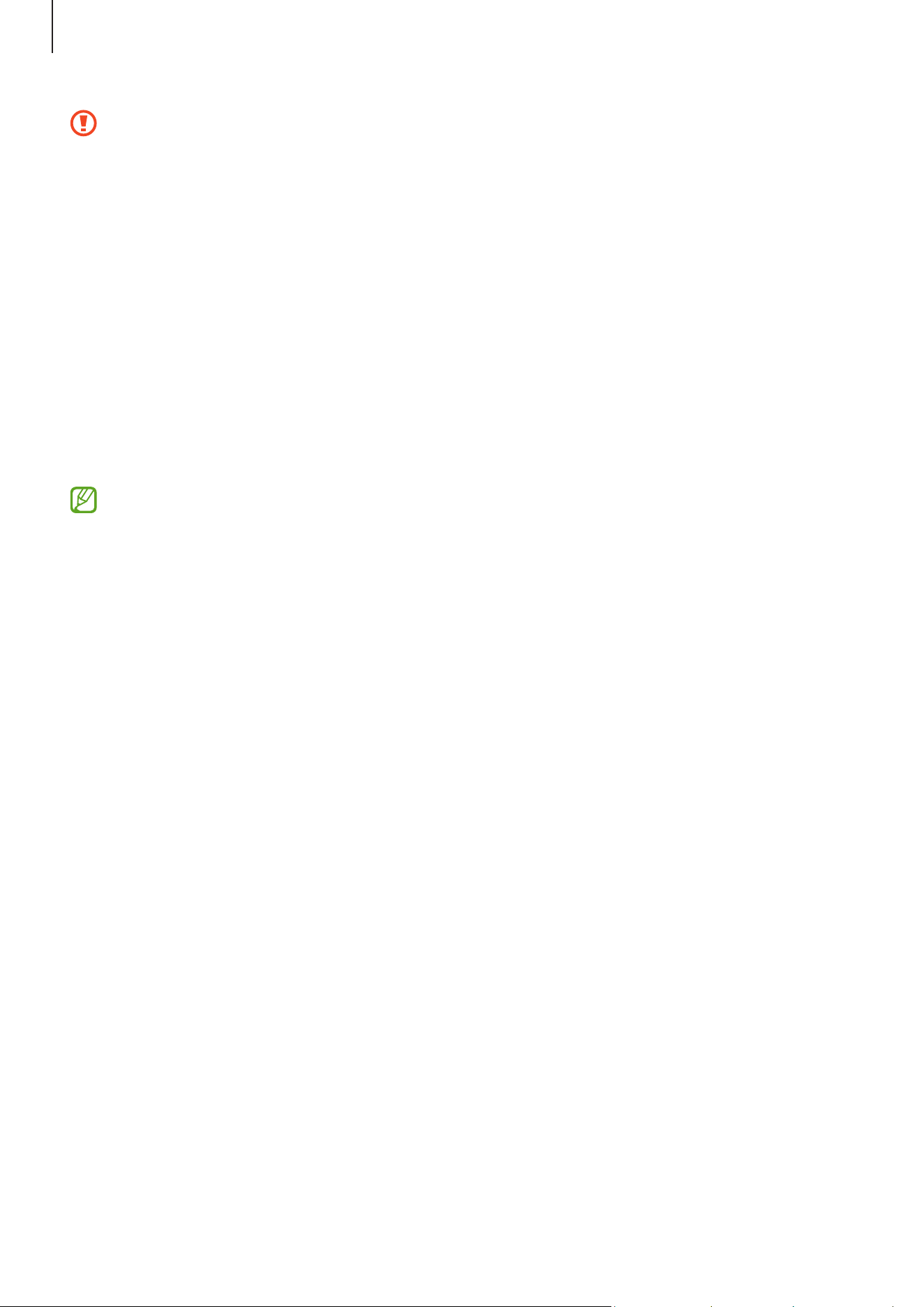
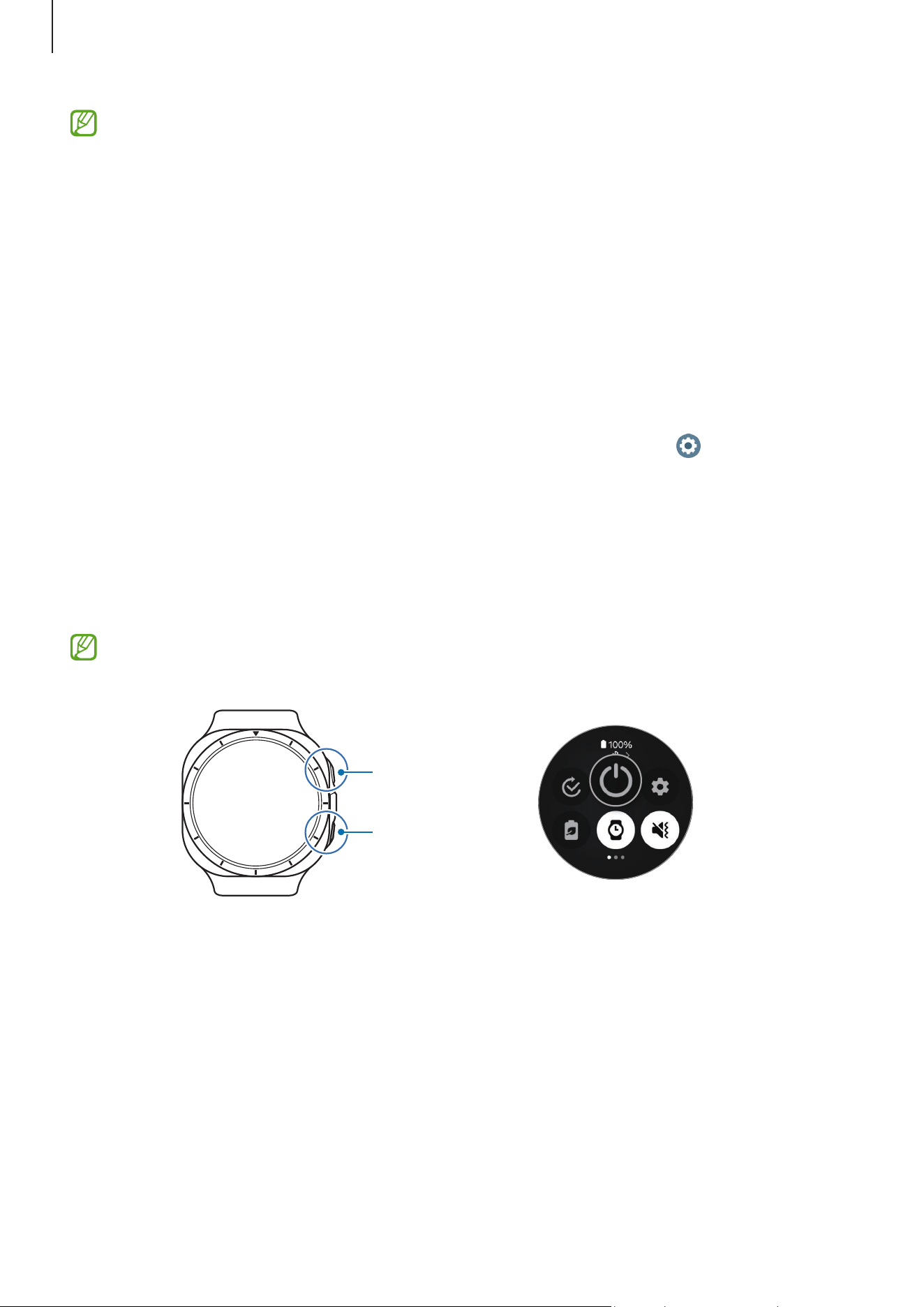
How to wear the Watch for accurate measurements
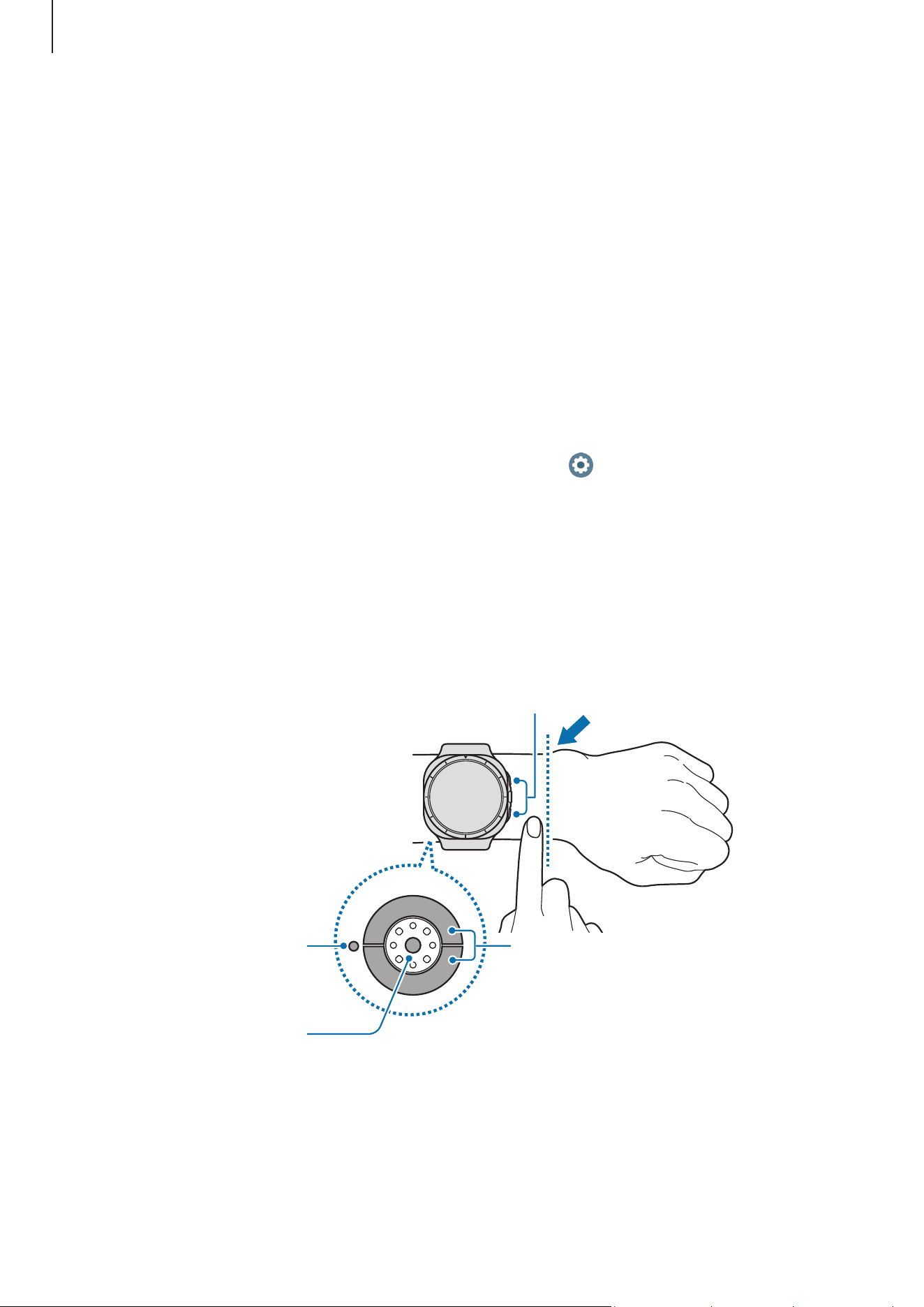
For accurate measurements, wear the Watch firmly around your lower arm above the
wrist while leaving a finger’s worth of space as shown in the figure.
Electrical bio-signal sensors
Optical bio-signal sensor
<Rear>
Infrared temperature
sensor
Electrical bio-signal
sensors
Getting started
20
•
If you fasten the Watch too tightly, skin irritation may occur, and if you fasten it
too loosely, friction may occur.
•
Do not look directly at the optical bio-signal sensor’s lights. Make sure children
do not look directly at the lights. Doing so may impair your vision.
•
If the Watch becomes hot to the touch, remove it until it cools. Exposing your
skin to the Watch’s hot surface for a long time may cause low-temperature
burns.
•
Remove all water from your Watch and the band before measuring your body
composition and ECG.
•
If any water, dust, or stains are on the infrared temperature sensor, the
measurements may be inaccurate.
•
Clean the infrared temperature sensor with a soft cloth or cotton bud.
•
Use the HR feature only for measuring your heart rate. The accuracy of the
optical bio-signal sensor may be diminished depending on the surroundings,
measurement conditions, and your physiological state.
•
As cold ambient temperatures may affect your measurement, keep yourself
warm when checking your heart rate during winter or cold weather.
•
Smoking or consuming alcohol before taking measurements may cause your
heart rate to be different from your normal heart rate.
•
Do not move, talk, yawn, or breathe deeply while taking heart rate
measurements. Doing so may cause your heart rate to be recorded inaccurately.
•
If your heart rate is extremely high or low, the measurement may not be
accurate.
•
If measuring children’s heart rates, the measurement may not be accurate.
•
If you have thin wrists, you may experience inaccurate heart rate measurements
when the Watch is loose, causing the light to be reflected unevenly. In this case,
wear the Watch on your inner arm.
•
If heart rate measurement is not working properly, adjust the position of the
Watch’s optical bio-signal sensor to the right, left, up, or down on your wrist, or
wear the Watch on your inner arm so that the sensor is in contact with your skin.
•
If the optical bio-signal sensor and the electrical bio-signal sensors are dirty,
wipe the sensors and try again. If foreign materials prevent the light from
reflecting evenly, the measurement may not be accurate.
Getting started
21
•
The optical bio-signal sensor may be affected by tattoos, marks, and hair on the
wrist you wear your Watch on. These may cause your Watch not to recognise that
you are wearing it, and the Watch’s features may not work properly. Therefore,
wear your Watch on a wrist that does not interfere with the Watch’s features.
•
The measurement features may not work properly because of certain factors,
such as the light from the optical bio-signal sensor being blocked, depending
on your skin brightness, blood flow under your skin, and the cleanliness of the
sensor area.
•
For accurate measurements, use the Ridge sport band. The Ridge sport band
may be sold separately depending on the model.
•
For accurate measurements, your wrist and the button position must be the
same as the settings on your Watch. On the Apps screen, tap
(
Settings
)
→
General
→
Orientation
and check the position of the buttons and how you are
wearing the Watch.
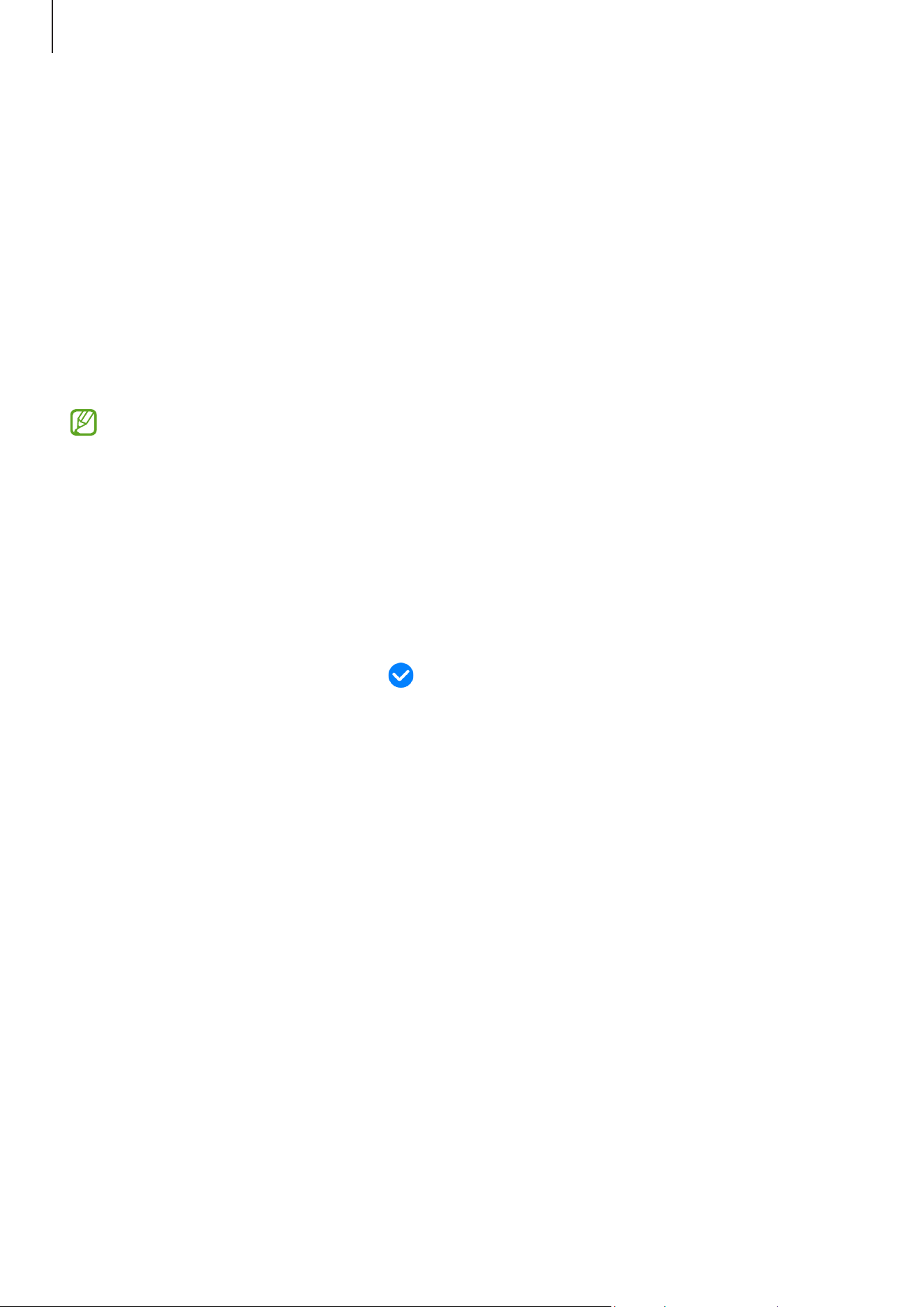
Turning the Watch on and off
Follow all posted warnings and directions from authorised personnel in areas
where the use of wireless devices is restricted, such as aeroplanes and hospitals.
Home button
Back button
Turning the Watch on
Press and hold the Home button for a few seconds to turn on the Watch.
When you turn on the Watch for the first time or reset it, on-screen instructions for
connecting the Watch to your phone will appear. Refer to Connecting the Watch to a
phone for more information.
Loading page 22...
Getting started
23
Connecting the Watch to a phone
Installing the Galaxy Wearable app
To connect your Watch to a phone, install the Galaxy Wearable app on the phone.
Depending on your phone, you can download the Galaxy Wearable app from the
following places:
•
Samsung Android phones:
Galaxy Store
•
Other Android phones:
Play Store
•
It is compatible with Android phones that support Google mobile services.
•
You cannot install the Galaxy Wearable app on the phones that do not support
Watch syncing. Ensure that your phone is compatible with a Watch.
•
You cannot connect your Watch to a tablet or a computer.
Connecting the Watch to a phone through Bluetooth
1 Turn on the Watch.
2 Select a language to use and tap .
3 Select a country or region, and tap
Restart
.
The Watch will turn off and restart, and then on-screen instructions for connecting
the Watch to your phone will appear.
4 Open the
Galaxy Wearable
app on your phone.
If the Galaxy Wearable app is not the latest version, update the Galaxy Wearable app
to the latest version.
5 Tap
More
→
Start
.
6 Select your Watch on the screen.
If you cannot find your Watch, tap
Get help
.
Loading page 24...

Getting started
25
Remote connection
Your Watch and phone are connected through Bluetooth. You can sync your phone to
your Watch when both devices are remotely connected to each other, even though a
Bluetooth connection is not available. The Remote connection uses your mobile network
or Wi-Fi.
If this feature is not turned on, open the
Galaxy Wearable
app on your phone, tap
Watch
settings
→
Advanced features
→
Remote connection
, and then tap the switch to turn it
on.
Adding the accounts to your Watch
Register your Samsung or Google account on your connected phone and add them to
your Watch to access the various Watch features.
Registering a Samsung account on your Watch
1 Open the
Galaxy Wearable
app on your phone.
2 Tap
Watch settings
→
Accounts and backup
.
3 Tap
Samsung account
and follow the on-screen instructions to sign in to your
Samsung account on your phone.
If your Samsung account is signed in, you can check the registered Samsung account.
Adding a Google Account to your Watch
1 Open the
Galaxy Wearable
app on your phone.
2 Tap
Watch settings
→
Accounts and backup
.
3 Tap
Google account
.
4 Tap
Add Google account
and follow the on-screen instructions to add your Google
Account from the phone to your Watch.
Getting started
26
Controlling the screen
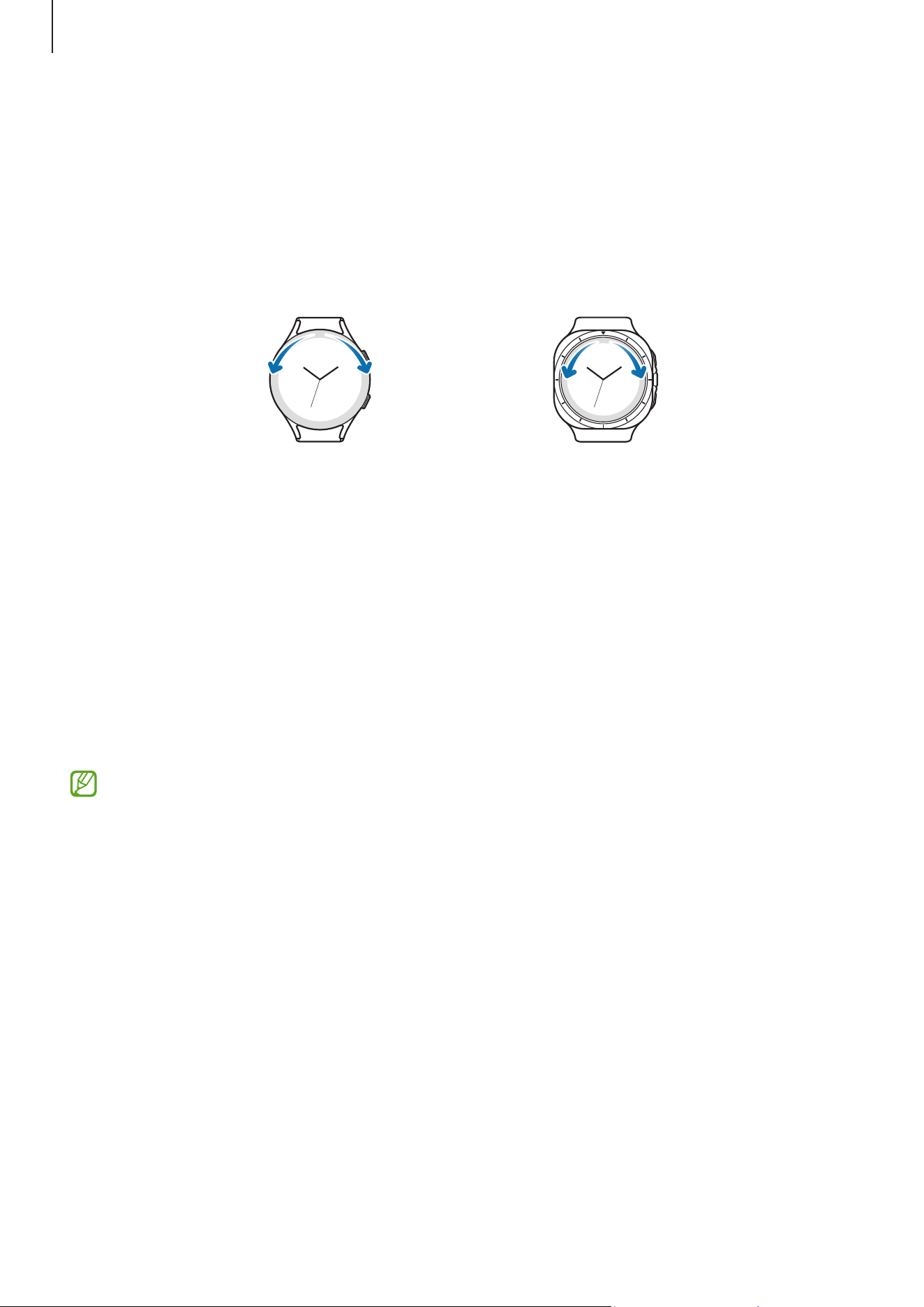
Touch bezel
Your Watch has a touch bezel around the screen. Swipe the touch bezel clockwise or
anticlockwise to control various Watch functions.
Galaxy Watch UltraGalaxy Watch7
•
Scrolling through screens: Swipe the touch bezel to move to other screens.
•
Moving from item to item: Swipe the touch bezel to move from item to item.
•
Adjusting the input value: Swipe the touch bezel to adjust the volume or brightness.
When adjusting the brightness, swipe the touch bezel clockwise to make the screen
brighter.
•
Using the phone or alarm feature: Swipe the touch bezel clockwise to receive
incoming calls or dismiss alarms. Swipe the touch bezel anticlockwise to decline
incoming calls or to turn on the snooze feature for an alarm.
If the touch bezel does not work, take the Watch to a Samsung Service Centre or an
authorised service centre without disassembling it.
Getting started
27
Screen
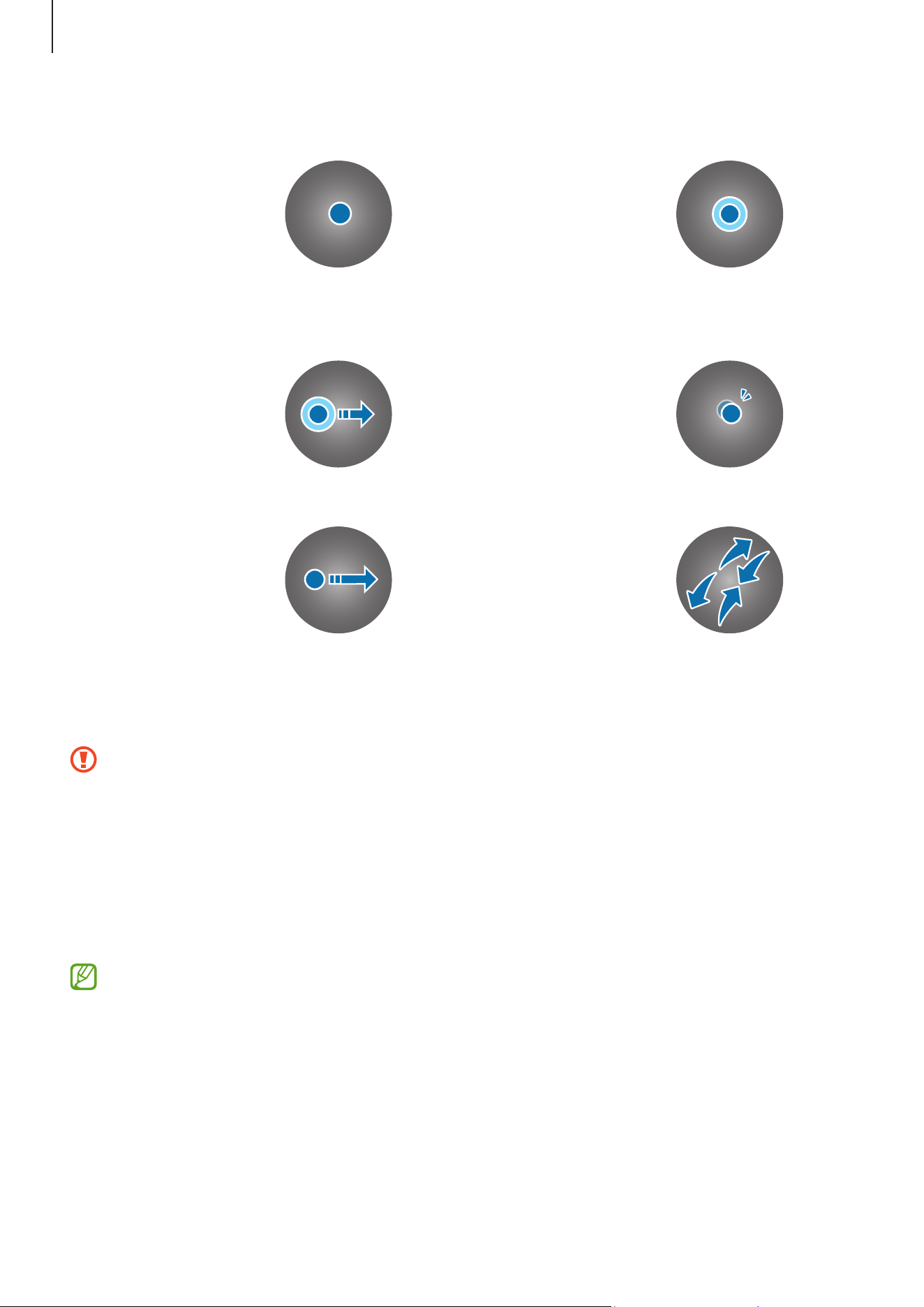
Tapping
Tap the screen.
Touching and
holding
Touch and hold
the screen for
approximately
2 seconds.
Dragging
Touch and hold
an item and drag
it to the target
position.
Double tapping
Double tap the
screen.
Swiping
Swipe upwards,
downwards, to
the left, or to the
right.
Spreading and
pinching
Spread two
fingers apart
or pinch on the
screen.
•
Do not allow the screen to come into contact with other electrical devices.
Electrostatic discharges can cause the screen to malfunction.
•
To avoid damaging the screen, do not tap it with anything sharp or apply
excessive pressure to it with your fingertips or other objects.
•
It is recommended not to use fixed graphics on part or all of the screen for
extended periods. Doing so may result in afterimages (screen burn-in) or
ghosting.
•
The Watch may not recognise touch inputs close to the edges of the screen,
which are outside of the touch input area.
•
Touch recognition may not be available when Water lock mode is turned on.
Loading page 28...
Getting started
29
Turning the screen on and off
Turning the screen on
To turn the screen on, use one of the following methods:
•
Turn the screen on with the buttons: Press the Home button or Back button.
•
Turn the screen on by raising your wrist: Raise your wrist where you wear the Watch.
If the screen does not turn on after you raise your wrist, tap
(
Settings
) on the
Apps screen, tap
Display
, and then tap the
Raise wrist to wake
switch under
Screen
wake-up
to turn it on.
•
Turn the screen on by tapping the screen: Tap the screen. If the screen does not turn
on after you tap the screen, tap
(
Settings
) on the Apps screen, tap
Display
, and
then tap the
Touch screen to wake
switch under
Screen wake-up
to turn it on.
Turning the screen off
To turn off the screen, cover it with your palm or another object. Also, the screen will
automatically turn off if the Watch is not used for a specified period.
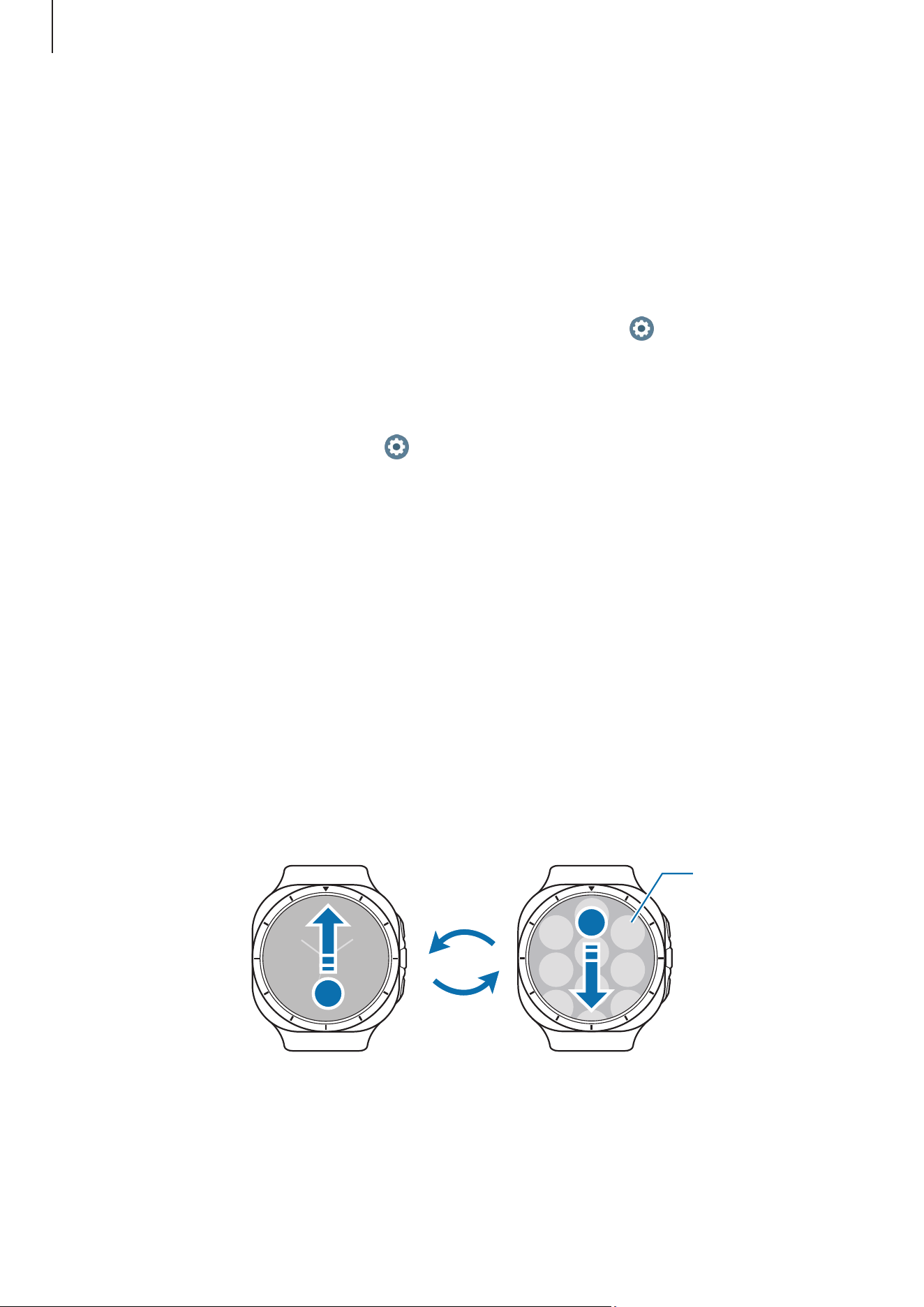
Switching the screen
Switching between the Watch and Apps screen
On the Watch screen, swipe upwards to open the Apps screen.
To return to the Watch screen, swipe downwards from the top of the Apps screen.
Alternatively, press the Home button or Back button.
Watch screen Apps screen
An app
Getting started
30
Returning to the previous screen
To return to the previous screen, swipe right on the screen or press the Back button.
Apps screen
The Apps screen displays icons for all apps installed on the Watch.
The available apps may vary depending on the software version.
Opening apps
On the Apps screen, tap an app icon to open the app.
To open an app from the list of recent apps, on the Apps screen, tap
(
Recent apps
).
Closing apps
1 On the Apps screen, tap
(
Recent apps
).
2 Use the touch bezel or swipe left or right on the screen to move to the app to close.
3 Swipe upwards on the app to close it.
To close all opened apps, tap
Close all
.
Editing the Apps screen
Moving items
Drag an item to a new location.
Loading page 31...
Getting started
32
Watch
Watch screen
You can check the current time or check other information. When you are not on the
Watch screen, press the Home button to return to the Watch screen.
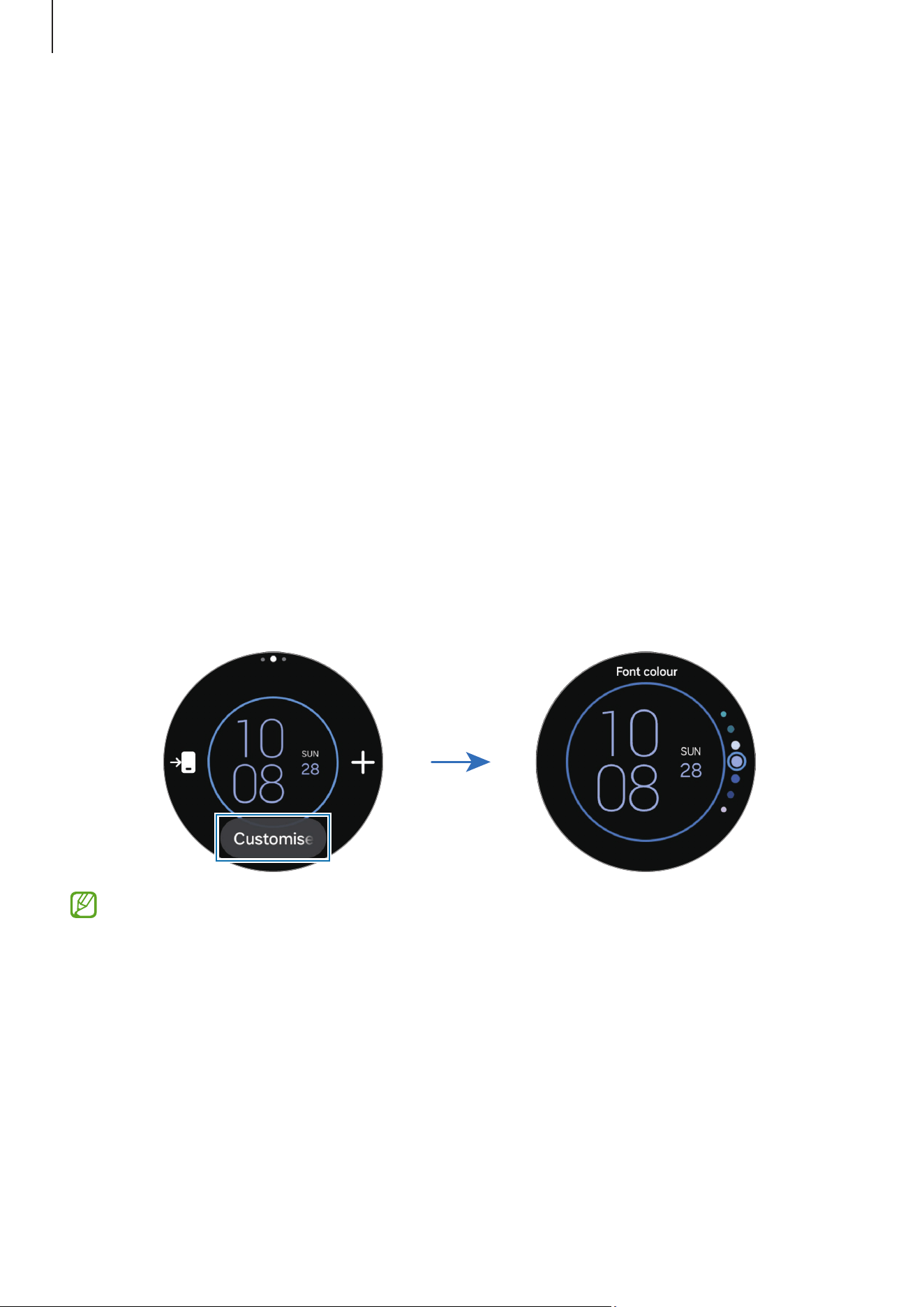
Changing the watch face
1 Touch and hold the Watch screen and tap
Add watch face
.
2 Use the touch bezel or swipe upwards or downwards on the screen, and then select a
watch face.
If you tap
More watch faces on Google Play
, you can download more watch faces.
3 Tap
Customise
to customise the watch face. Swipe left or right on the screen to move
to an item you want to customise, and then select the desired colour and other things
by using the touch bezel or swiping upwards or downwards on the screen. To set the
complications, tap each complication area you want.
You can also change the watch face and customise it from your phone. Open the
Galaxy Wearable
app on your phone and tap
Watch faces
.
Loading page 33...
Loading page 34...
Getting started
35
Notifications
Notification panel
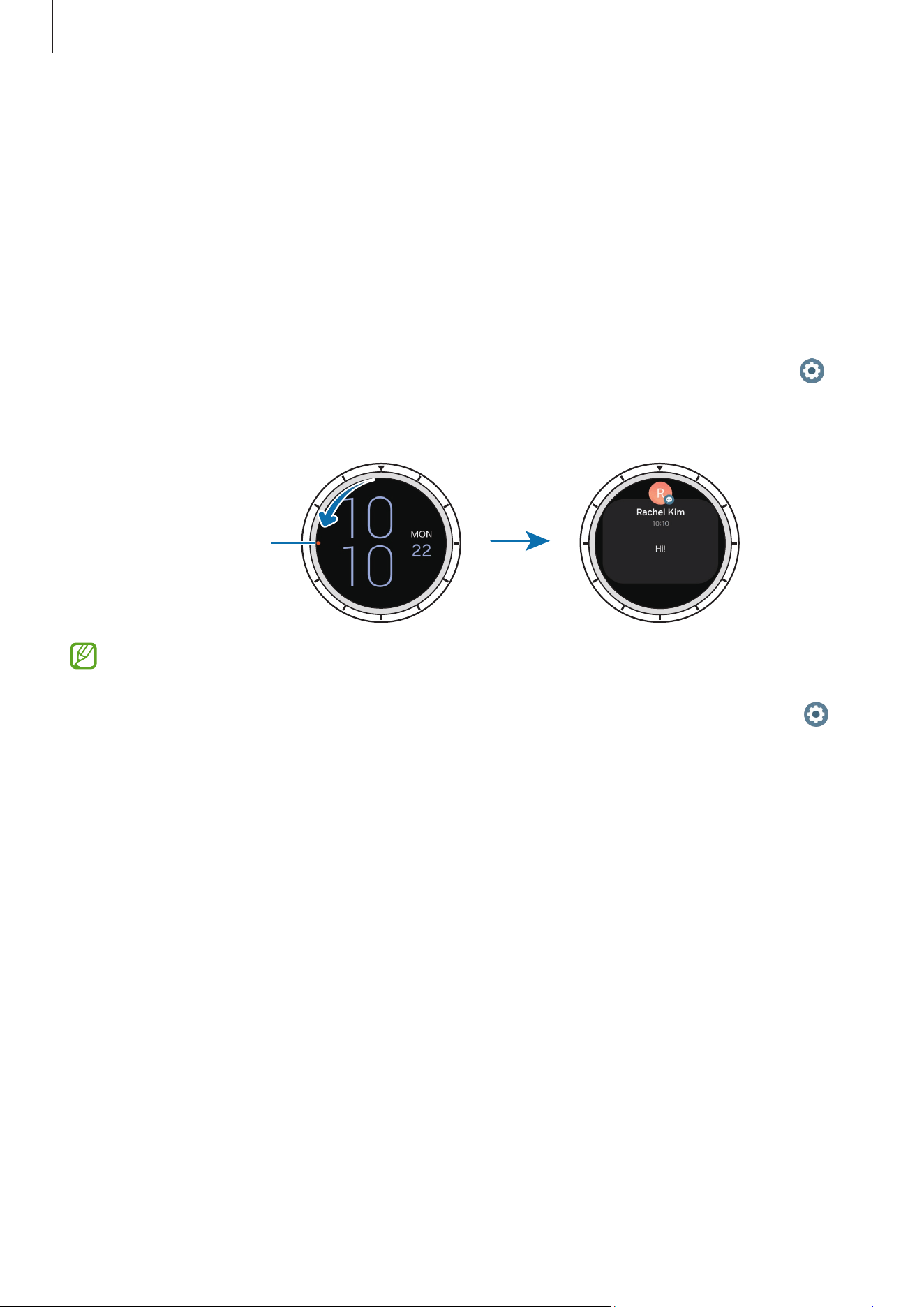
Check a notification such as a new message or a missed call on the notification panel. On
the Watch screen, swipe the touch bezel anticlockwise. Alternatively, swipe right on the
screen to open the notification panel.
When there are new notifications, an orange notification indicator will appear on the
Watch screen. If the notification indicator does not appear, on the Apps screen, tap
(
Settings
)
→
Notifications
→
Advanced settings
and tap the
New notification indicator
on watch face
switch to turn it on.
Notification
indicator
•
You can receive notifications only when wearing the Watch.
•
You cannot receive notifications on your Watch when using your phone. To
check notifications on your Watch even while you are using your phone, tap
(
Settings
) on the Apps screen, tap
Notifications
→
Show phone notifications on
watch
, and then select
Show alerts even when phone in use
.
Loading page 36...
Loading page 37...
Getting started
38
•
Some status indicator icons that show certain situations, such as when you use
some modes or charge the Watch, also appear at the top of the Watch screen.
To hide the status indicator icons on the Watch screen, tap
(
Settings
) on the
Apps screen, tap
Advanced features
→
Status indicators
, and then select
Hide
after 2 seconds
.
•
The status indicator icons may appear differently depending on the region,
carrier, or model.
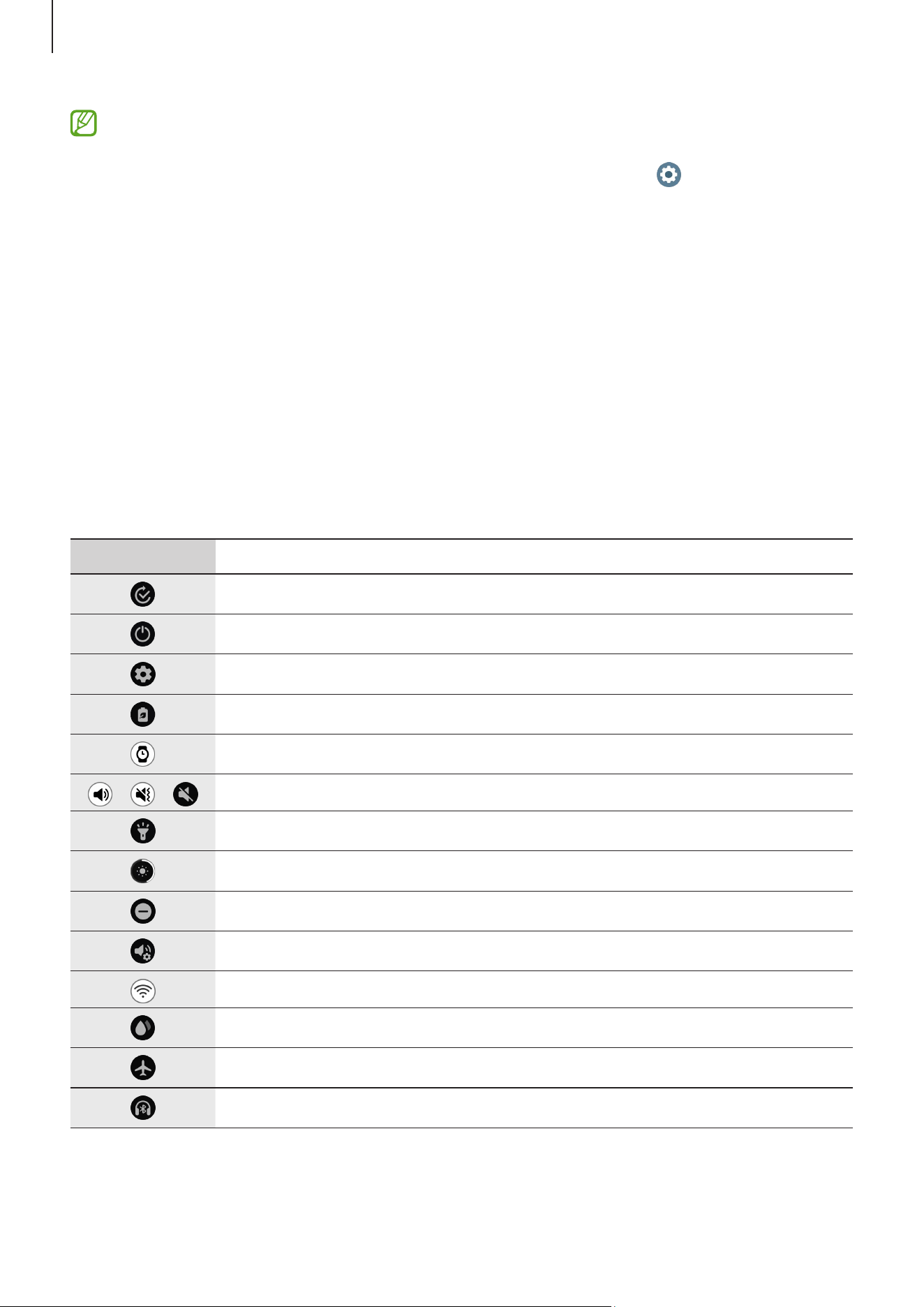
Checking quick settings icons
Quick settings icons appear on the quick panel. Tap the icon to change the basic settings
or launch the feature. To check more detailed settings, touch and hold a quick settings
icon.
Refer to Editing a quick panel for more information about adding or removing the quick
settings icons on the quick panel.
Icon Meaning
Open the Mode settings
Access the power options
Open
Settings
Turn on power saving mode
Turn on the Always On Display feature
/ /
Turn on sound, vibrate, or silent mode
Turn on the torch
Adjust the brightness
Turn on Do not disturb mode
Open the Volume settings
Connect the Wi-Fi network
Turn on Water lock mode
Turn on Flight mode
Connect the Bluetooth audio
Loading page 39...
Loading page 40...
Getting started
41
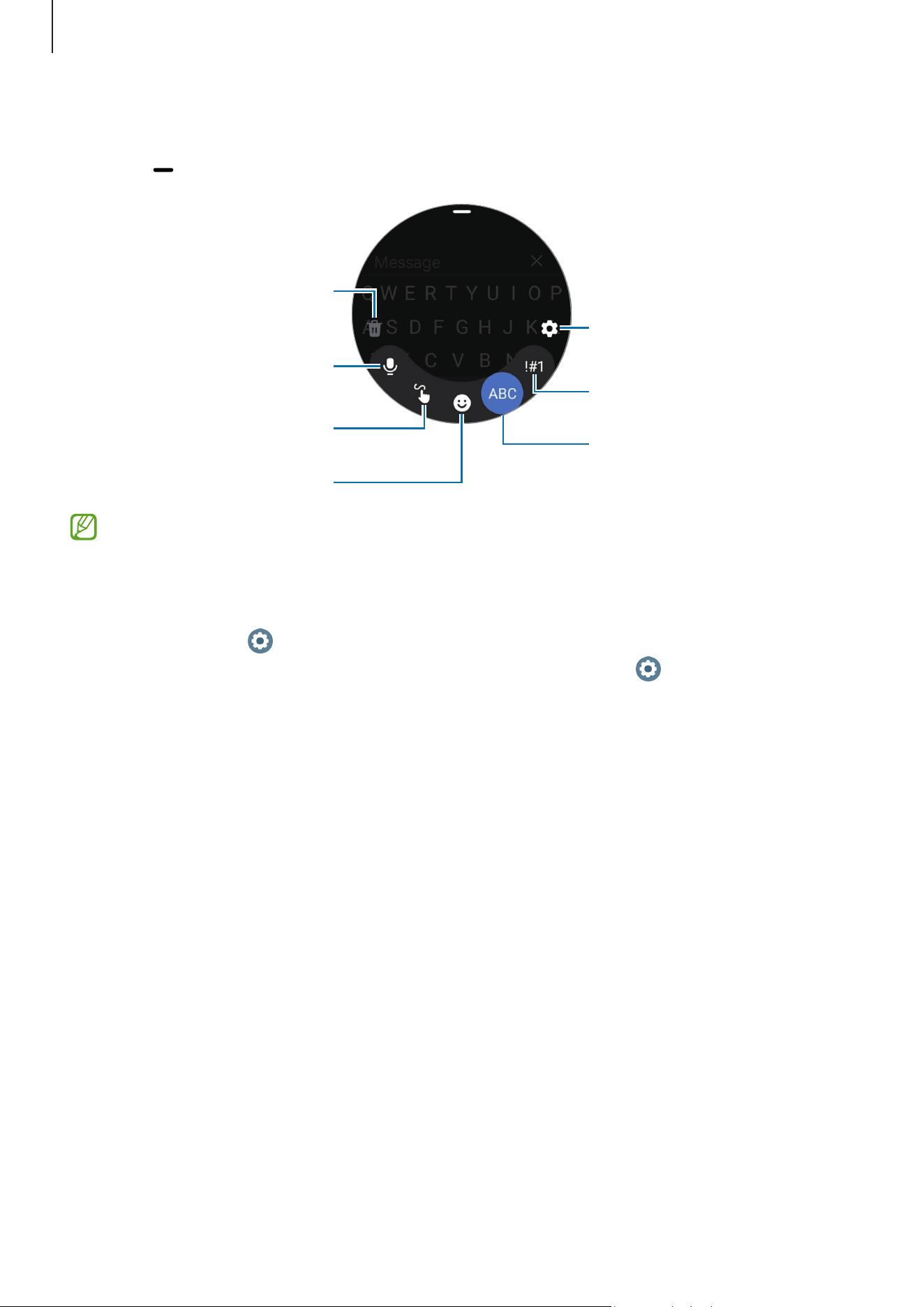
Additional keyboard functions
Drag the icon upwards on the keyboard screen to use additional keyboard functions.
Change the keyboard settings.
Enter numbers and symbols.
Enter text using the keyboard.
Enter text by handwriting.
Enter emojis.
Enter text by voice input.
Discard entered text.
•
Some features may not be available depending on the language, carrier, or
model.
•
The feature to enter text by voice input can also be launched directly from any
other text input screen by pressing and holding the Home button. To use this
feature, tap
(
Settings
)
→
Apps
→
Choose default apps
→
Digital assistant
app
→
Default app
, and select
Bixby Voice
, and also tap (
Settings
)
→
General
→
Input
→
Keyboard list and default
→
Default keyboard
and then
select
Samsung Keyboard
.
42
Apps and features
Installing and managing apps
Play Store
Purchase and download apps.
Tap
(
Play Store
) on the Apps screen. Browse apps by category or tap and search
for a keyword.
•
Register the Google Account on your Watch to use the Play Store app. Refer to
Adding a Google Account to your Watch for more information.
•
To change the auto-update settings, tap
Settings
and tap the
Auto-update apps
switch to turn it on or off.
•
When you download an app on your phone, if there is a companion app for the
Watch, it may be automatically installed on the Watch.
Managing apps
Uninstalling or disabling apps
Open the
Galaxy Wearable
app on your phone, tap
Watch settings
→
Apps
, tap an app,
and then select an option.
•
Uninstall
: Uninstall downloaded apps.
•
Disable
: Disable selected default apps that cannot be uninstalled from the Watch.
•
Some apps may not support this feature.
•
Some apps can be removed by touching and holding the app on the Watch’s
Apps screen and tapping
Uninstall
.
Loading page 43...
Apps and features
44
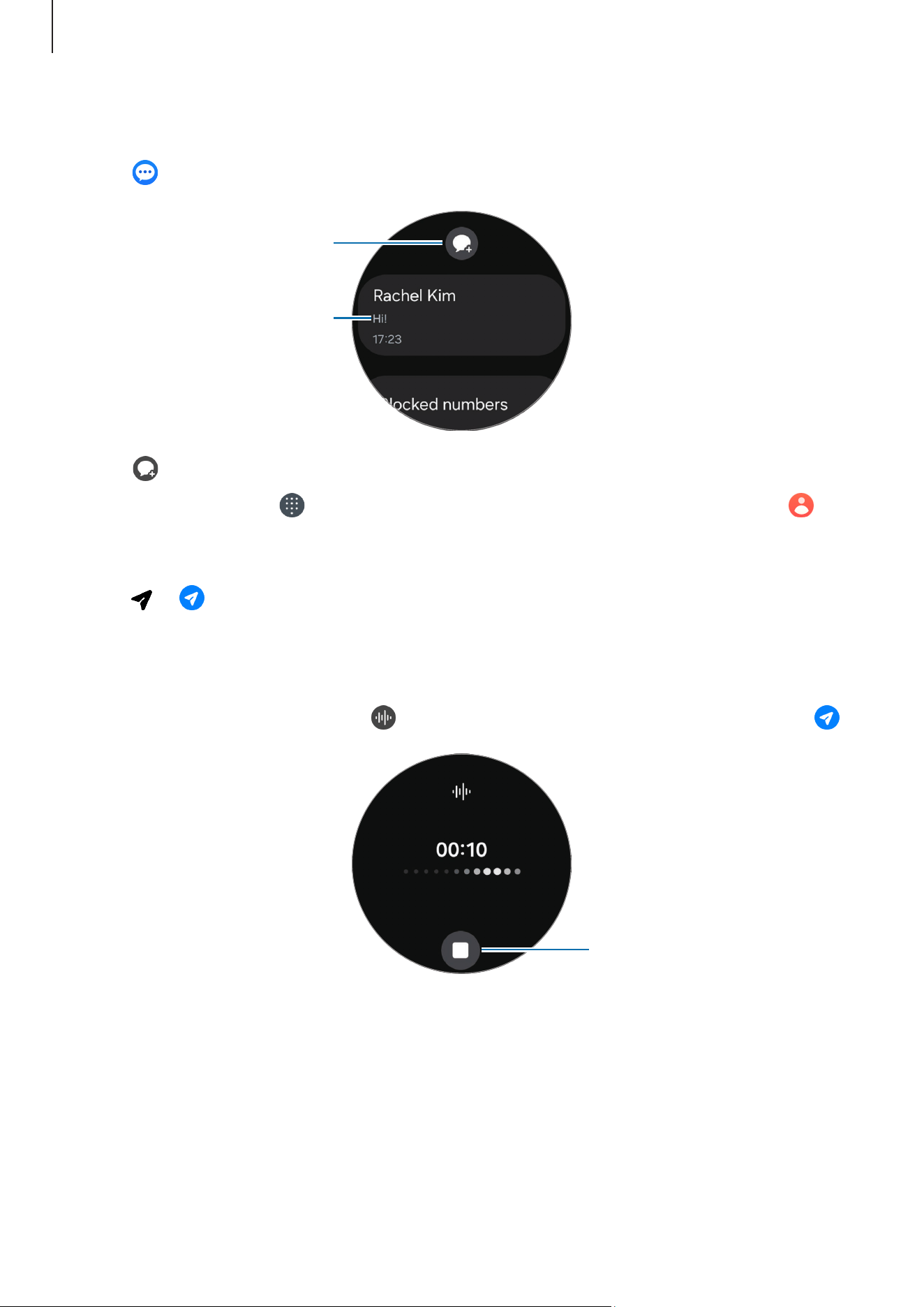
Sending message
1 Tap (
Messages
) on the Apps screen.
Create a new message.
Messages list
2 Tap .
3 Tap
Recipient
or tap to enter a message recipient or phone number. Or, tap and
select a message recipient from the contacts list.
4 Tap the message input field and enter a message or select a text template, and then
tap
or .
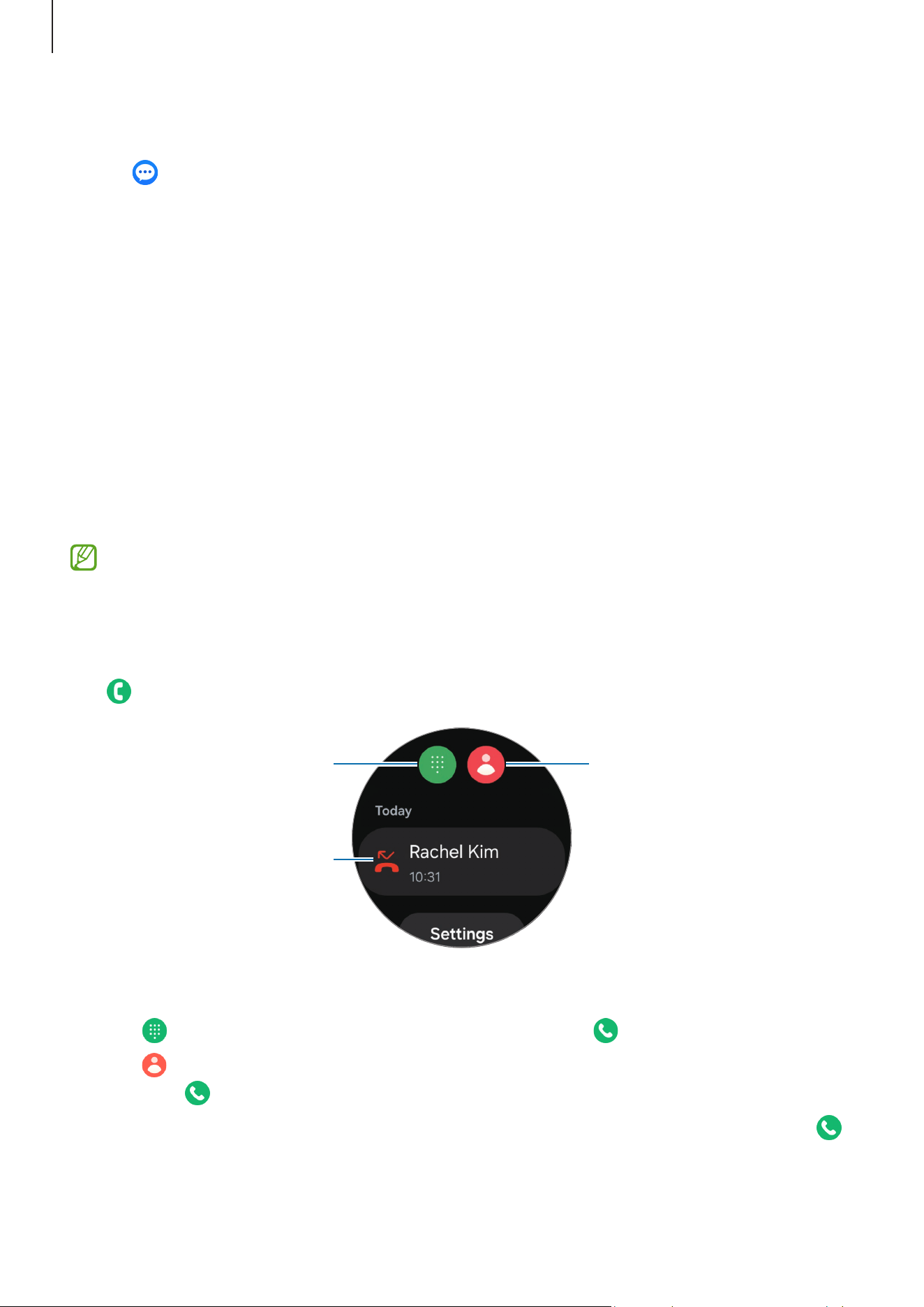
Recording and sending a voice message
You can send a voice file after recording what you want to say.
On the message input screen, tap
, record what you want to be sent, and then tap .
Stop recording.
Apps and features
45
Deleting messages
1 Tap (
Messages
) on the Apps screen.
2 Scroll through the message list or use the touch bezel, and then select a contact to
check your conversations.
3 Touch and hold a message, then tap
Delete
.
The message will be deleted both from the Watch and the connected phone.
Phone
Introduction
You can make calls and check incoming calls and receive them.
The sound may not be heard clearly during a call and only brief calls are available
in areas with weak signals.
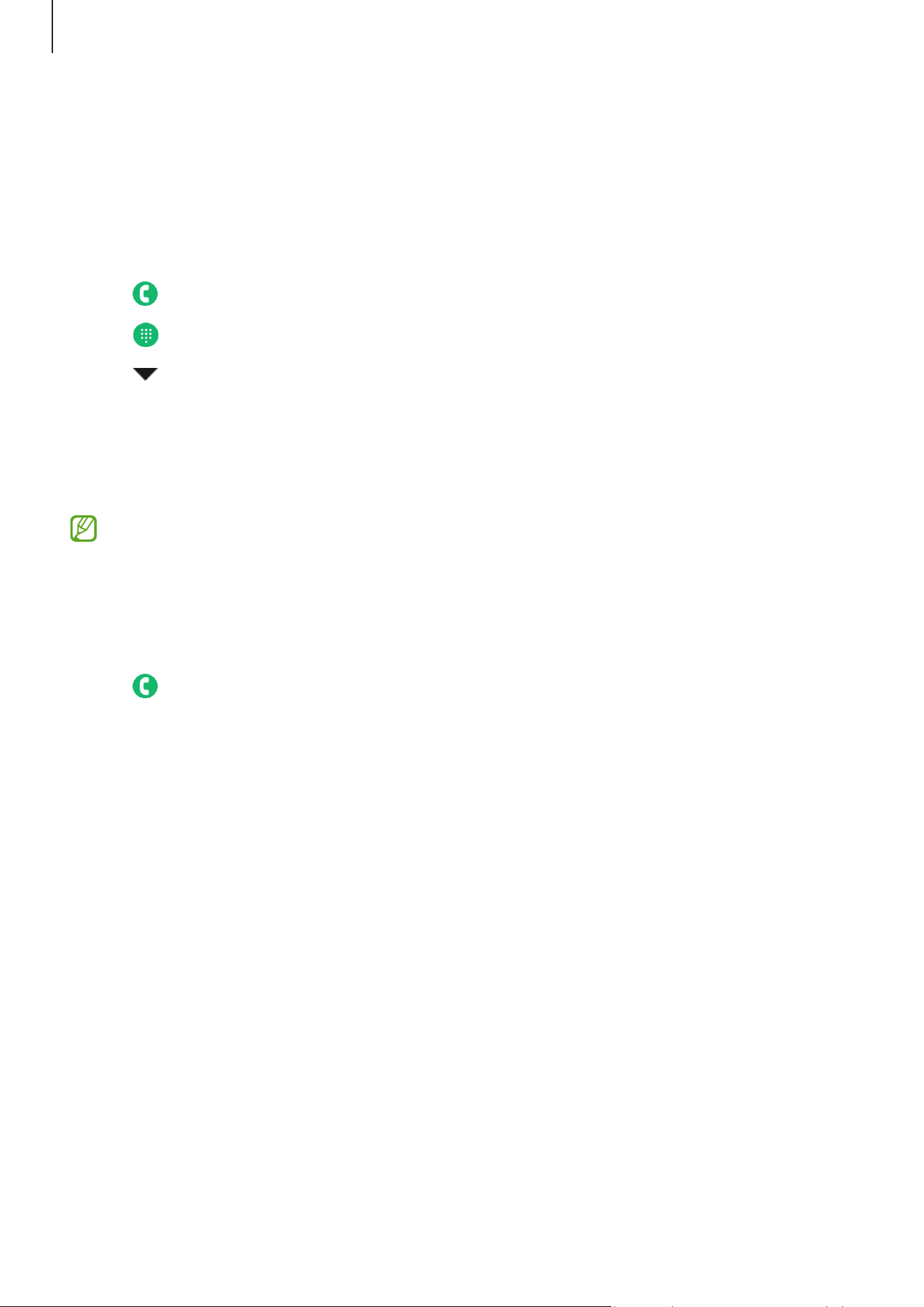
Making calls
Tap (
Phone
) on the Apps screen.
Keypad
Contacts
Log list
To make calls, use one of the following methods:
•
Tap , enter a number using the keypad, and then tap .
•
Tap , use the touch bezel or scroll through the contact list, select a contact, and
then tap
.
•
Use the touch bezel or scroll through the log list, select a log entry, and then tap .
Apps and features
46
Selecting the number to use for making calls (Mobile network enabled
models)
You can select the number you want to use between the Watch’s number and the
connected phone’s number when making calls. Also, if your Watch is connected to a
phone that supports dual SIM cards, you can select a SIM card to make calls.
1 Tap (
Phone
) on the Apps screen.
2 Tap .
3 Tap and select the option you want.
•
Phone
: Make calls with the number of the connected phone.
•
SIM 1
: Make calls with the number of the connected phone’s SIM card 1.
•
SIM 2
: Make calls with the number of the connected phone’s SIM card 2.
•
Watch
: Make calls with the Watch’s number.
•
Some features may not be available depending on the connected phone.
•
You can also select a number to use by touching and holding the call button after
selecting a log entry.
Setting a preferred number in advance (Mobile network enabled models)
1 Tap
(
Phone
) on the Apps screen.
2 Tap
Settings
.
3 Tap
Preferred number
and select the option you want.
•
Phone
: Set to make calls with the number of the connected phone.
•
Watch
: Set to make calls with the Watch’s number.
•
Always ask
: Set to always ask which number to use whenever making calls.
Apps and features
47
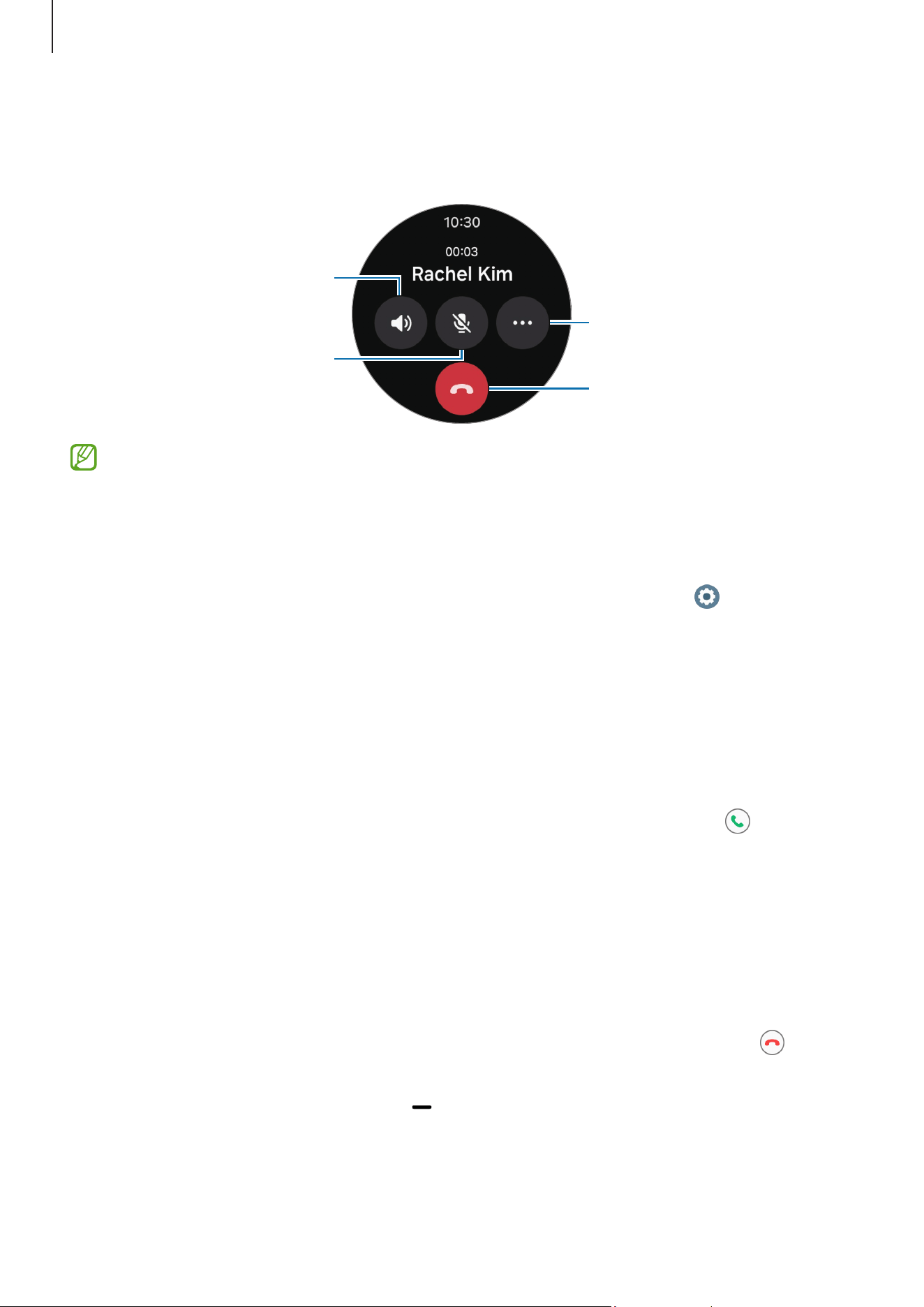
Options during calls
The following actions are available:
Turn off the microphone so
that the other party cannot
hear you.
Adjust the volume.
End the current call.
Access additional options.
The screen’s appearance may differ depending on the model.
Making a phone call with a Bluetooth headset
When a Bluetooth headset is connected, the call will be directed to it.
While the Bluetooth headset is not connected, on the Apps screen, tap
(
Settings
)
→
Connections
→
Bluetooth
. When the available Bluetooth devices list appears, select a
Bluetooth headset you want to use.
Receiving calls
Answering a call
When a call comes in, swipe the touch bezel clockwise. Alternatively, drag outside
the large circle.
You can have phone conversations using the Watch’s internal microphone, speaker, or a
connected Bluetooth headset.
Declining a call
You can decline incoming calls and send a declining message to the caller.
When a call comes in, swipe the touch bezel anticlockwise. Alternatively, drag
outside the large circle.
To send a declining message, drag the
icon upwards and select the message you
want.
Apps and features
48
Missed calls
If a call is missed, a missed call notification appears on the notification panel. On the
notification panel, check missed call notifications. Alternatively, tap
(
Phone
) on the
Apps screen to check missed calls.
Contacts
You can make a call or send a message to a contact. The contacts saved on your
connected phone will be also saved to your Watch.
Tap
(
Contacts
) on the Apps screen.
The favourite contacts list on the phone will appear on the top of the contacts list.
Use one of the following search methods:
•
Tap on the top of the contacts list and enter the search criteria.
•
Scroll through the contacts list.
•
Use the touch bezel. When you swipe the touch bezel quickly, the list scrolls by the
alphabet of the first letter.
Once a contact is selected, take one of the following actions:
•
: Make a voice call.
•
: Compose a message.
Selecting the frequently used contacts on the tile
Add the frequently used contacts from the
Contacts
tile to contact them directly
through a text message or phone call. Touch and hold the
Contacts
tile, tap
Edit
→
Add
,
select contacts you want, and then tap
Done
.
•
To use this feature, you must add the
Contacts
tile. Refer to Using tiles for more
information.
•
Up to four contacts can be added on the tile.
Apps and features
49
Samsung Wallet
Use various convenient features in Samsung Wallet. You can make a payment, check
tickets or boarding passes, and more.
Tap
(
Wallet
) on the Apps screen and select a feature you want.
•
This app may not be available depending on the region, carrier, model, or
connected phone.
•
Some features may not be available depending on the region.
•
The procedures for the initial setup may vary depending on the region or carrier.
Setting up Samsung Wallet
1 Open the
Galaxy Wearable
app on your phone.
2 Tap
Watch settings
→
Wallet
and follow the on-screen instructions to complete the
setup.
Making payments
Register cards to Samsung Pay to make payments. Refer to Samsung Pay for more
information.
Using tickets
Add boarding passes and tickets for movies, sports, and more, to access and use them in
one place.

Apps and features
50
Samsung Pay
Introduction
Register cards to Samsung Pay to make payments.
You can check out more information, such as cards that support this feature at
www.samsung.com/samsung-pay.
•
To make payments with Samsung Pay, the device may be required a connection
to a Wi-Fi or mobile network depending on the region.
•
This app may not be available depending on the region, carrier, model, or
connected phone.
•
The procedures for the initial setup and card registration may vary depending on
the region or carrier.
Setting up Samsung Pay
1 Open the
Galaxy Wearable
app on your phone.
2 Tap
Watch settings
→
Pay
and follow the on-screen instructions to complete your
card registration.
Making payments
1 To make a payment on your Watch, press and hold the Back button on the Watch
screen or on the Samsung Pay intro page.
2 Enter your PIN or draw the pattern you set.
3 Scroll through the cards list, select a card, and then tap
PAY
.
Loading page 51...

Apps and features
52
•
Samsung Health features are intended only for leisure, well-being, and fitness
purposes. They are not intended for medical use. Before using these features,
read the instructions carefully.
•
If you use the Samsung Health features while wearing another wearable device
with your Watch, such as a Galaxy Ring, it may take a while for the data from all
your wearable devices to be integrated because of the different data sync times
between each wearable device and your phone. As a result, the measurement
data you may find between the Samsung Health app on your phone and your
Watch may temporarily not match.
•
The order in which features appear in the Samsung Health app may change
depending on your set interests.
Energy score
Check your energy score based on a comprehensive analysis of daily measured sleep,
activities, and heart rate during sleep and get guidance for healthy daily living with a
balance between rest and activities from the Samsung Health app on your connected
phone.
The energy score is determined by analysing the recent trends.
1 Tap (
Health
) on the Apps screen.
Loading page 53...
Apps and features
54
Daily activity
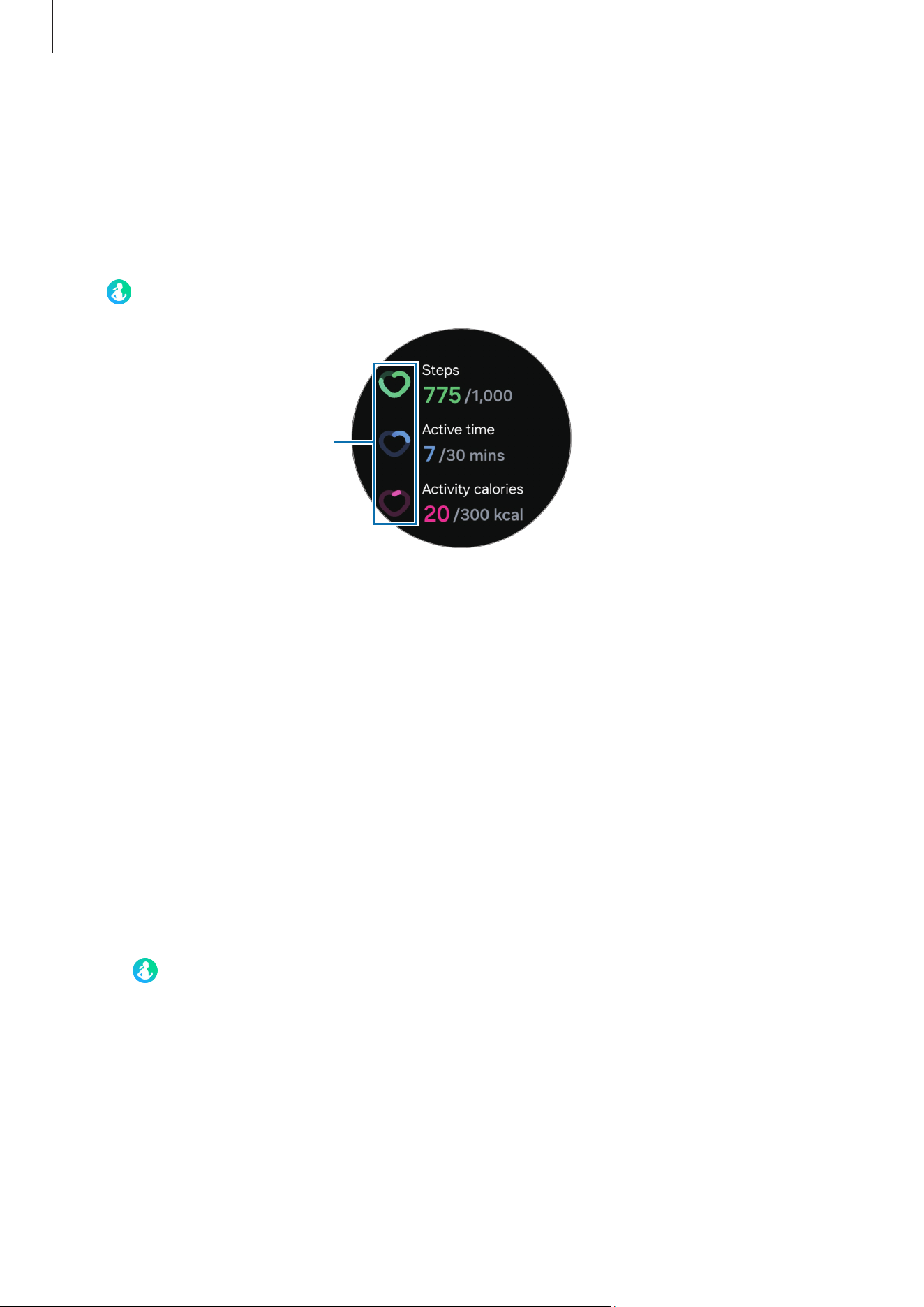
Check your current daily status, such as steps, active times, activity calories, and their
targets, and related information.
Checking your daily activity
Tap (
Health
) on the Apps screen and tap
Daily activity
.
Target achievement graphs
•
Steps
: Check the amount of steps you walk throughout the day. As you approach
your step target, the graph will increase.
•
Active time
: Check the total time you were physically active throughout the day. As
you approach your active time target by doing light activities, such as stretching, or
walking, the graph will increase.
•
Activity calories
: Check the total amount of calories you spent doing an activity
throughout the day. As you approach your activity calories target, the graph will
increase.
To check additional information which is related to your daily activity, use the touch
bezel or swipe upwards or downwards on the screen.
Setting the daily activity target
1 Tap (
Health
) on the Apps screen.
2 Tap
Daily activity
and tap
Set targets
.
3 Tap
Motion
,
Time
,
Calories
, and select an activity option you want for each target.
4 Use the touch bezel or swipe upwards or downwards on the screen to set the target.
5 Tap
Done
.
Apps and features
55
Steps
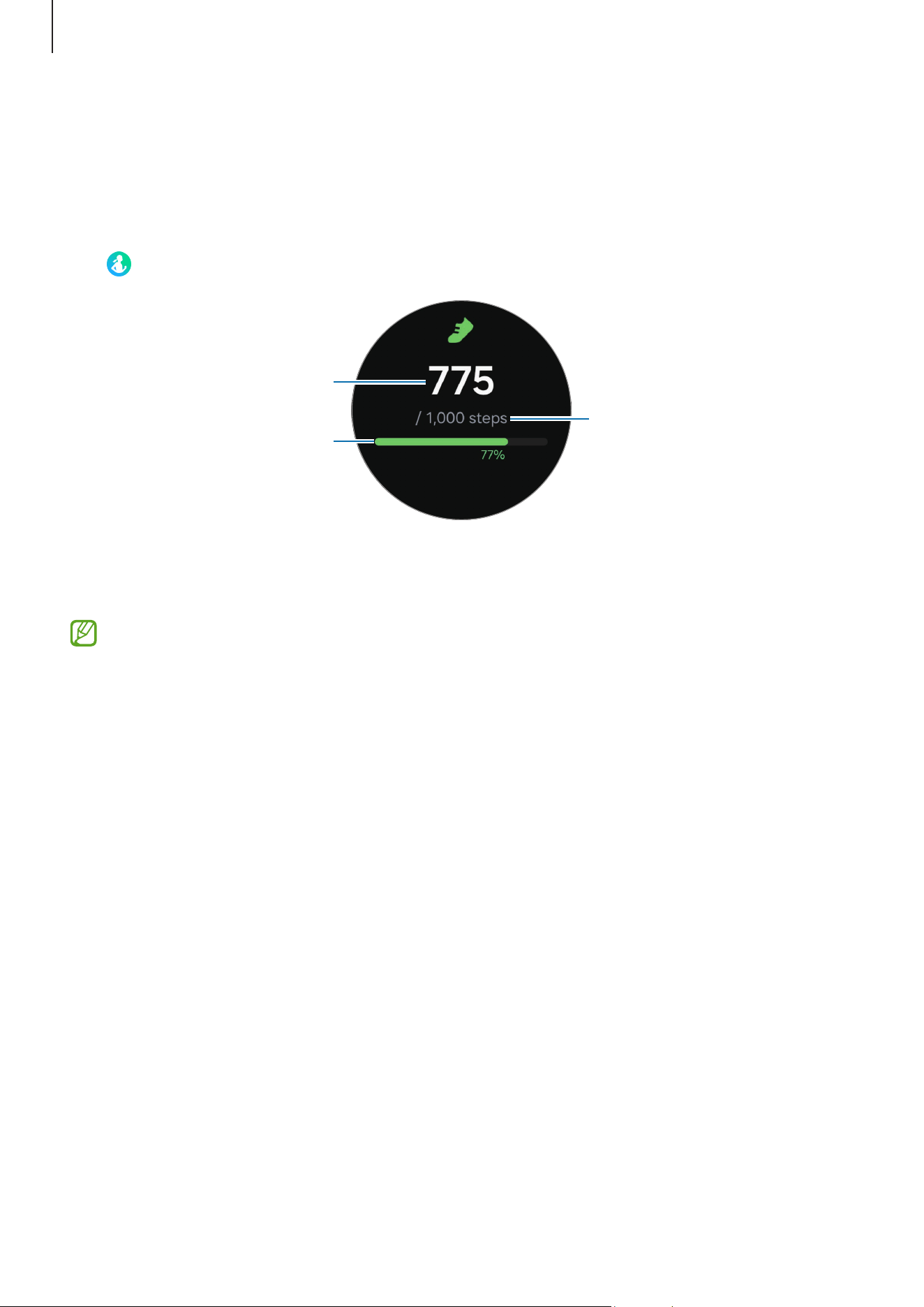
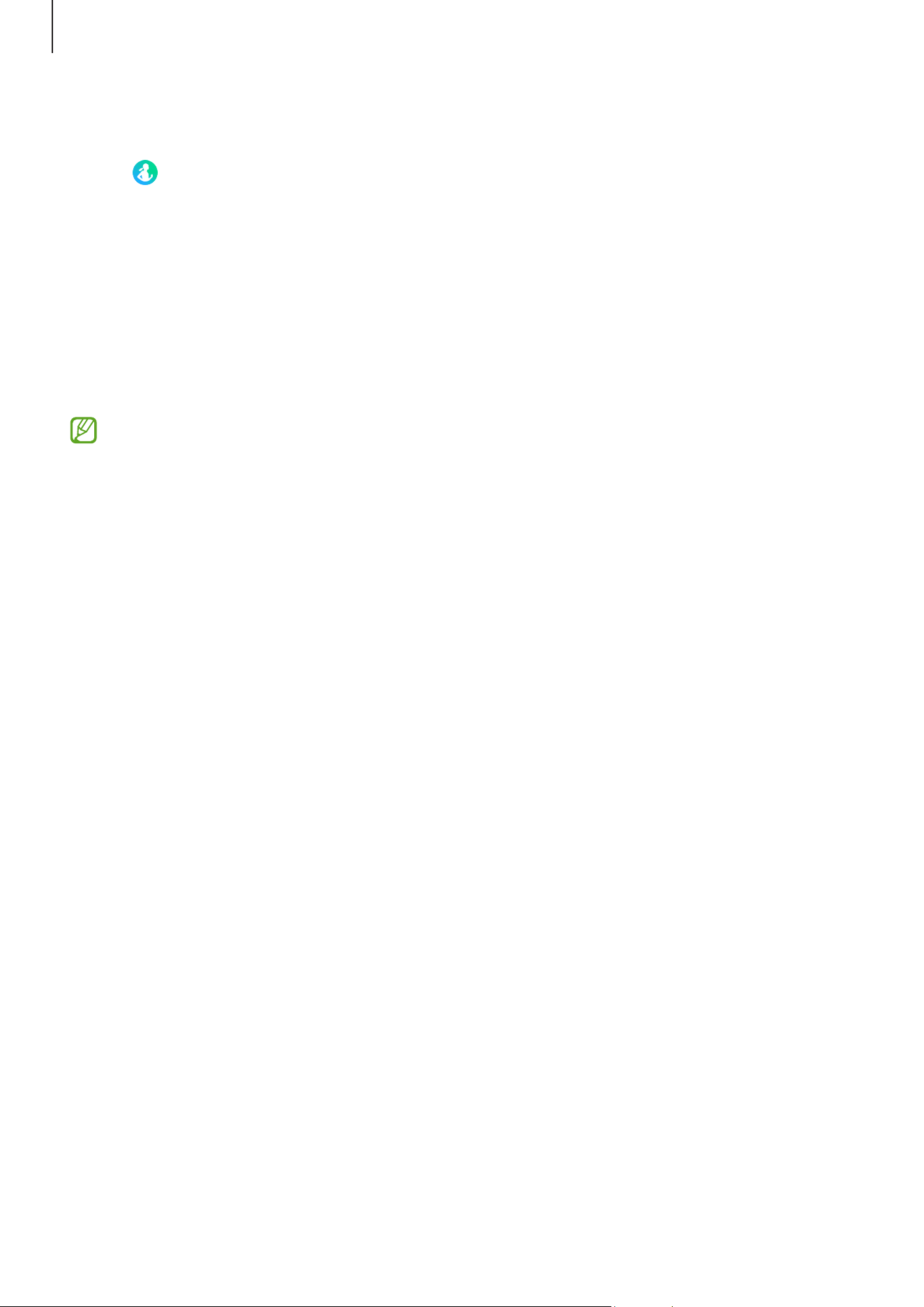
The Watch counts the number of steps you have taken.
Measuring your step count
Tap (
Health
) on the Apps screen and tap
Steps
.
Target
Target achievement graph
Current step total
To check additional information which is related to the steps, use the touch bezel or
swipe upwards or downwards on the screen.
•
When you start to measure your step count, the step tracker monitors your steps
and shows your step count after a brief delay because your Watch accurately
recognises your movement after you walk for a while. Also, for an accurate step
count, you may experience a brief delay before the notification indicates that a
certain goal has been reached and this notification will appear only when using
the Samsung Health app after downloading and installing the app.
•
If you use the steps tracker while travelling by car or train, vibration may affect
your step count.
•
One floor is calculated as approximately 3 metres. The floors measured may not
match the actual floors you climb.
•
The floors measured may not be accurate depending on the environment, your
movements, and the conditions of buildings.
•
The floors measured may not be accurate if water (shower and water activity)
or foreign materials enter the atmospheric pressure sensor. If there is any
detergent, sweat, or raindrops on the Watch, rinse it with clean water and dry the
Watch, including the atmospheric pressure sensor thoroughly before use.
Apps and features
56
Setting the step target
1 Tap (
Health
) on the Apps screen.
2 Tap
Steps
and tap
Set target
.
3 Use the touch bezel or swipe upwards or downwards on the screen to set the target.
4 Tap
Done
.
Exercise
Record your exercise information and check the results.
•
Before using this feature, seek the advice of a licensed medical professional,
such as a doctor, if any of the following apply to you:
‒
If you have a chronic medical condition, such as heart disease or high blood
pressure
‒
If you are pregnant
‒
If you are not of the appropriate age to exercise independently
•
If you feel dizzy, experience pain, or have difficulty breathing during exercise,
stop exercising immediately and seek the advice of a licensed medical
professional, such as a doctor.
•
Your heart rate is measured when you start exercising. For accurate
measurements, wear the Watch firmly around your lower arm above the
wrist. Refer to How to wear the Watch for accurate measurements for more
information.
•
Do not move until your heart rate appears on the screen so it can be measured
more accurately.
•
Your heart rate may not appear temporarily because of various conditions such
as the environment, your physical state, or how the Watch is worn.
Be aware of following conditions before exercising in cold weather:
•
Avoid using the Watch in cold weather. If possible, use the Watch indoors.
•
If you use the Watch outside in cold weather, cover the Watch with your sleeves
before using it.
Apps and features
57
Starting exercises
1 Tap (
Health
) on the Apps screen.
2 Tap
Exercise
.
You can start exercising directly from the
Exercises
tile after adding workouts to it.
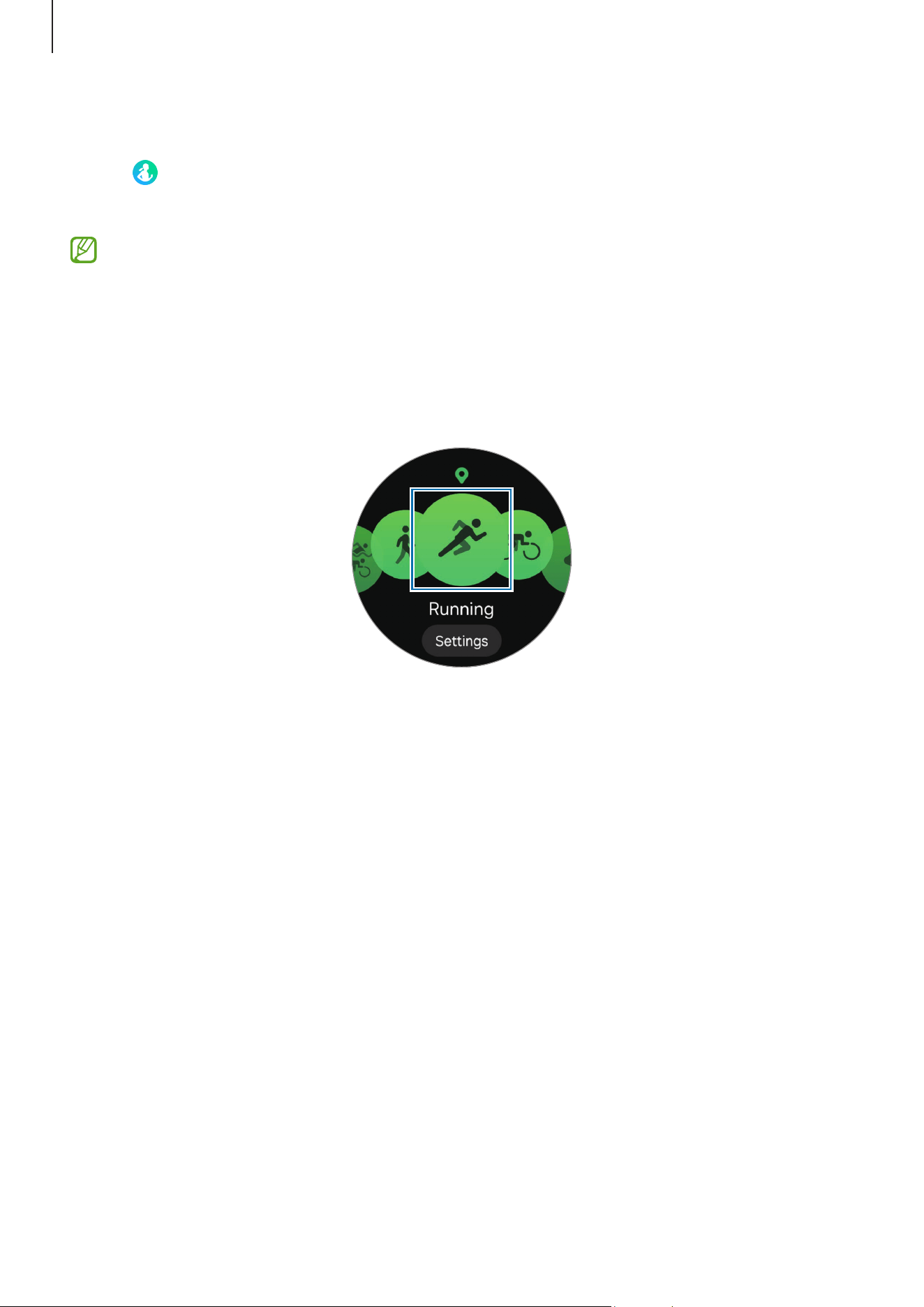
3 Use the touch bezel or swipe left or right on the screen to select an exercise type you
want.
When there is no exercise type you want, tap
Add
, and then select the exercise type
you want. Or, tap
Edit on phone
to add an exercise type from the Samsung Health app
to your phone.
The exercise will begin. For certain exercise types, tap
Start
to initiate the exercise.
Apps and features
58
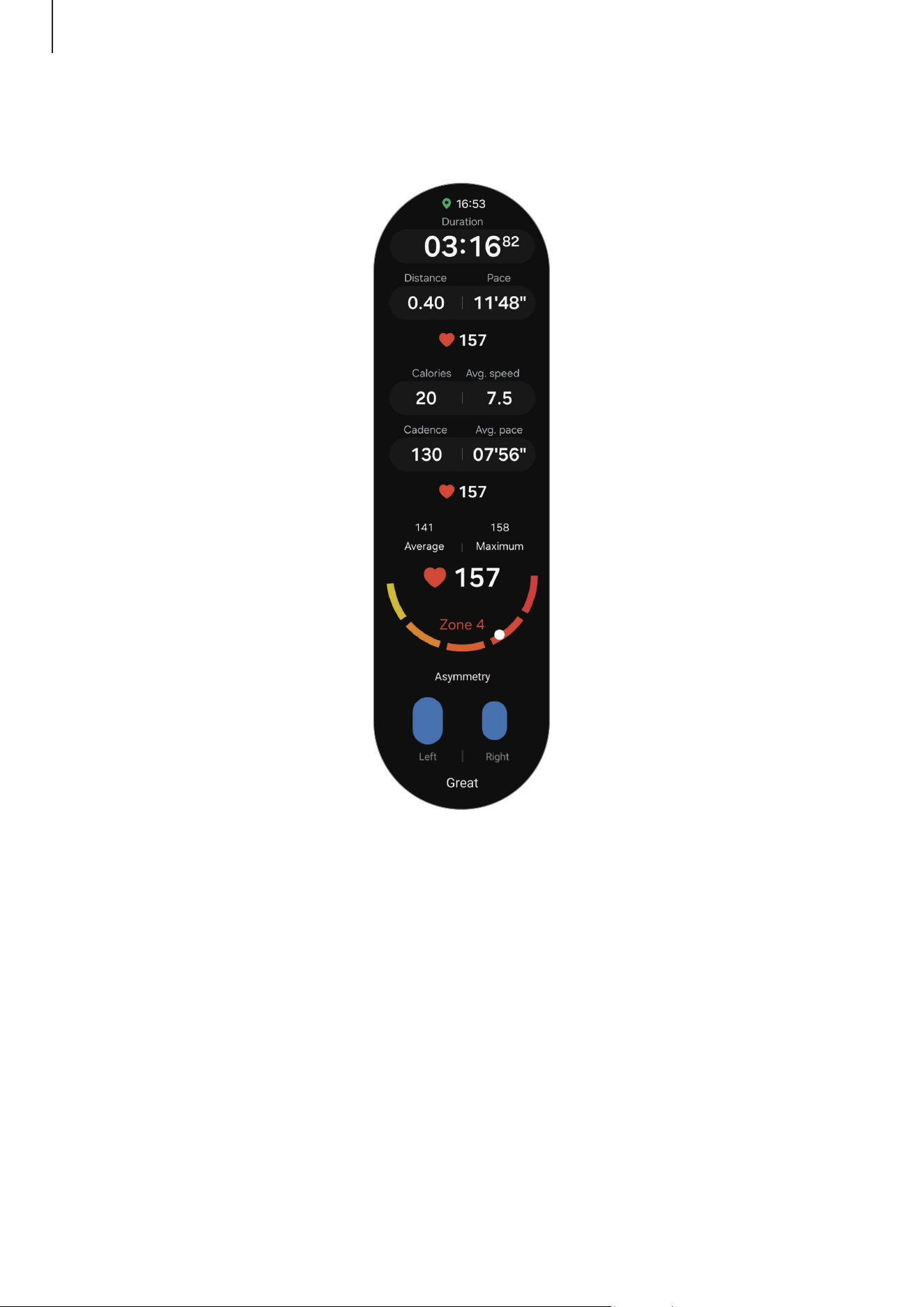
4 Use the touch bezel or swipe upwards or downwards on the screen to check exercise
information, such as your heart rate, distance, or time, on the workout screen.
You can play music by swiping left on the screen.
Apps and features
59
•
When you select a water sport (swimming, snorkelling, etc.), Water lock mode
will be automatically turned on and touch recognition may not be available.
Water lock mode prevents unintentional actions, such as tapping the screen or
making inputs, while exercising in the water.
•
When you select
Pool swim
or
Open water swim
, the recorded value may not be
accurate in following cases:
‒
If you stop swimming before reaching the completion point
‒
If you change your swimming stroke midstream
‒
If you stop moving your arms before reaching the completion point
‒
If you swim without moving your arms
‒
If you swim with only one arm
‒
If you swim under water
‒
If you get out of the water and walk after starting the exercise
‒
If you do not pause or restart the exercise, but finish the exercise while
resting
•
When Water lock mode is turned on, you can switch the workout screen by
pressing the Back button.
5 Swipe right on the screen and tap
Finish
.
To pause or restart the exercise, swipe right on the screen and tap
Pause
or
Resume
.
Alternatively, press and hold the Back button.
•
To finish swimming, first press and hold the Home button to turn off Water lock
mode, shake your Watch to completely remove any water from it to ensure that
the atmospheric pressure sensor will work properly, and then tap
OK
.
•
Music will continue to play even if you finish exercising. To stop playing music,
stop music before finishing exercising or open the
Music
app or
Media Controller
app to stop playing music.
6
Use the touch bezel or swipe upwards or downwards on the screen after finishing the
exercise to check your exercise results.
Apps and features
60
Doing multiple exercises
You can log various exercises and go straight through an entire routine by starting
another exercise right after finishing the current exercise.
Swipe right on the screen while working out, tap
New
, and then select the next exercise
type to begin.
To finish swimming, first press and hold the Home button to turn off Water lock
mode, shake your Watch to completely remove any water from it to ensure that the
atmospheric pressure sensor will work properly, and then tap
OK
.
Breaking your past records
As you run or bike on the same route, you can compare your previous and current records
to check your progress and stay motivated. This feature is only available for some
exercises, and is described here using running as an example.
1 Tap (
Health
) on the Apps screen.
2 Tap
Exercise
.
3 Use the touch bezel or swipe left or right on the screen to move to
Running
.
4 Tap
Settings
or the target on the bottom of the screen.
5 Select
Race
under
Target
.
6 Start your workout by choosing a route to run while comparing your past records
under
Recent routes
.
•
Only workouts with more than 1 km recorded are available in recent routes.
•
If you cannot find the route, tap
Refresh
or make sure you are within 30 m of
your starting point and try again.
•
To display your route history, you must start your workout after GPS is connected.
On the exercise settings screen, tap
Workout start
and select
Manual
.
•
Only the last 14 days of routes are displayed.
•
If the path deviates more than 10% from the previous record, the records will
not be compared.
Apps and features
61
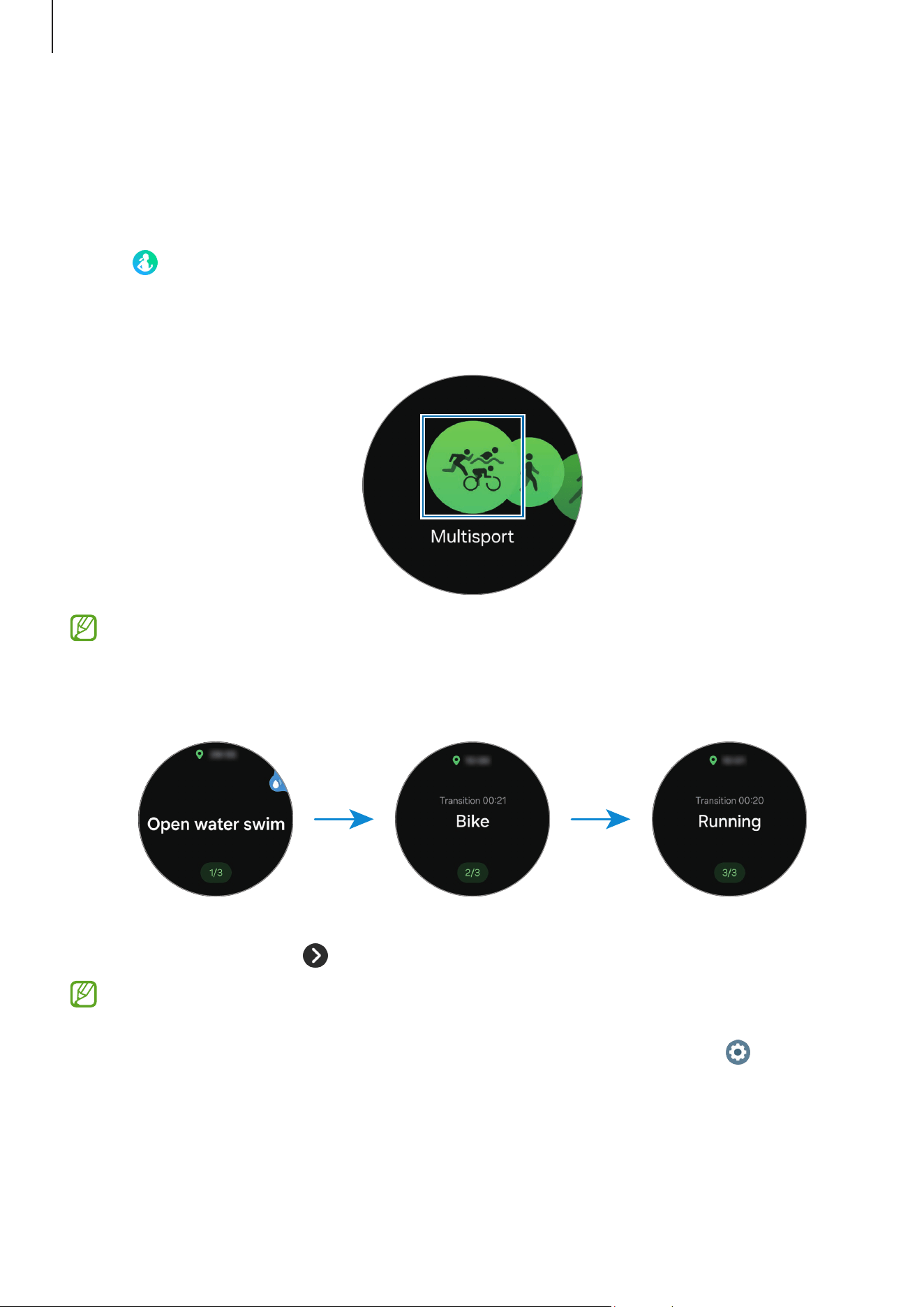
Starting multi-discipline workouts (Galaxy Watch Ultra)
You can record and check results of multi-discipline workouts, such as triathlons,
duathlons, and aquathlons, where you engage in two or three exercises from among
running, biking, and swimming in a row.
1 Tap (
Health
) on the Apps screen.
2 Tap
Exercise
.
3 Select
Multisport
.
You can start exercising directly from the
Multisport
tile.
4 Select a multi-discipline workout type and tap
Start
.
The exercise will begin.
To switch exercises, press and hold the Quick button. Alternatively, swipe right on the
screen and tap
Next
→
, or select
Multisport
and then select the next exercise.
•
If you have set targets for each exercise, you will automatically move on to the
next exercise when you reach your target.
•
To switch exercises with the Quick button, on the Apps screen, tap (
Settings
)
→
Buttons and gestures
→
Action
and select
Samsung Health
. (Galaxy Watch
Ultra)
Apps and features
62
Working out after adding your own multi-discipline workouts (Galaxy Watch Ultra)
In addition to the default multi-discipline workouts provided by your Watch, you can add
your own multi-discipline workouts by combining and changing the order of running,
cycling and swimming as you want.
1 Tap (
Health
) on the Apps screen.
2 Tap
Exercise
.
3 Select
Multisport
.
4 Tap
Add
→
Add exercises
, and select up to three exercises of your choice and tap
Add
.
5 Tap
Save
→
Start
.
The exercise will begin and your own multi-discipline workout will be added to the
list.
To switch exercises, press and hold the Quick button. Alternatively, swipe right on the
screen and tap
Next
→
, or select
Multisport
and then select the next exercise.
•
If you have set targets for each exercise, you will automatically move on to the
next exercise when you reach your target.
•
To switch exercises with the Quick button, on the Apps screen, tap (
Settings
)
→
Buttons and gestures
→
Action
and select
Samsung Health
. (Galaxy Watch
Ultra)
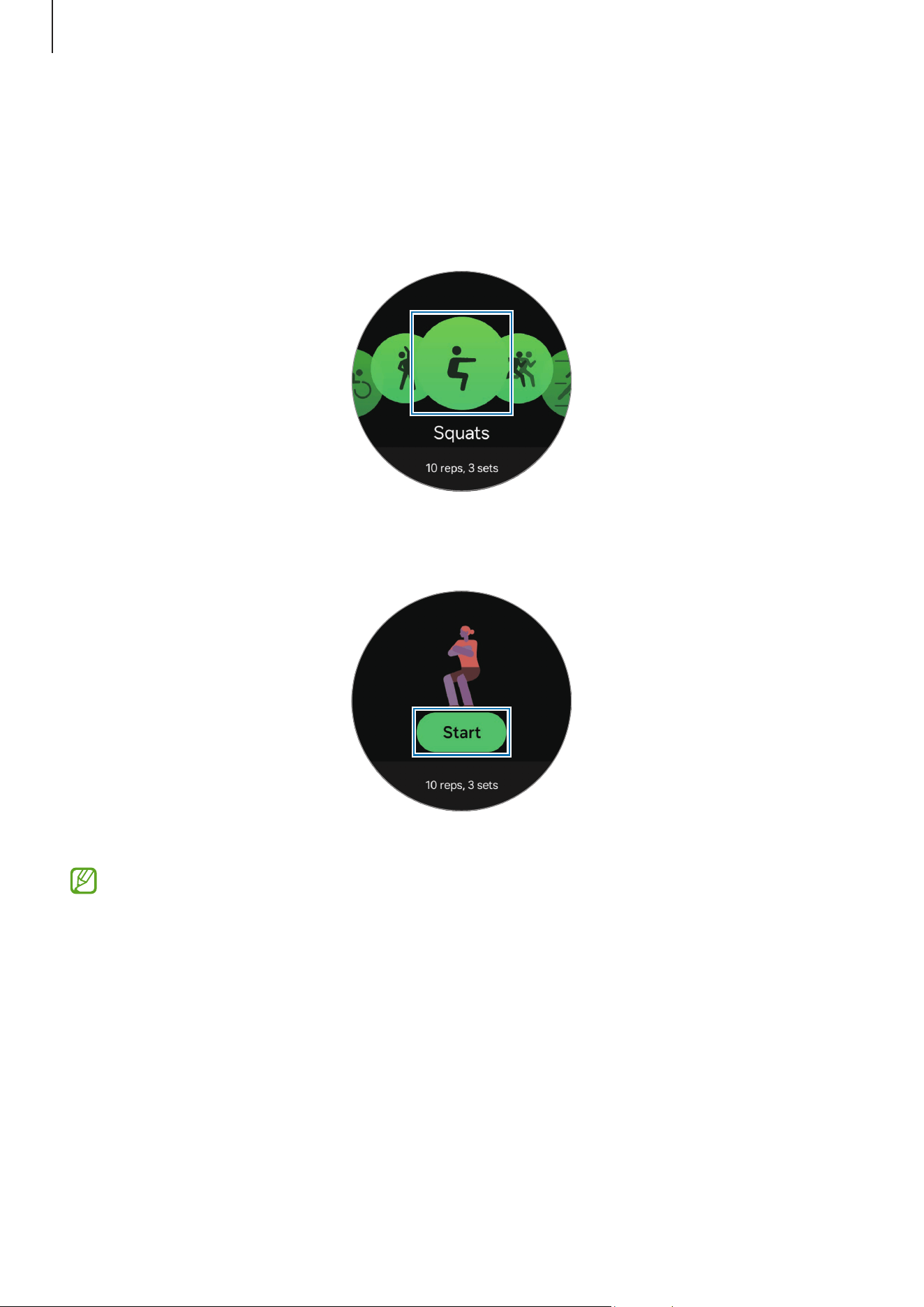
Starting repetitive exercises
When you perform repetitive exercises such as squats or deadlifts, your Watch will count
how many times you repeat the motion with beeping. Here it is described with squats
being used as an example.
1 Tap (
Health
) on the Apps screen.
2 Tap
Exercise
.
Apps and features
63
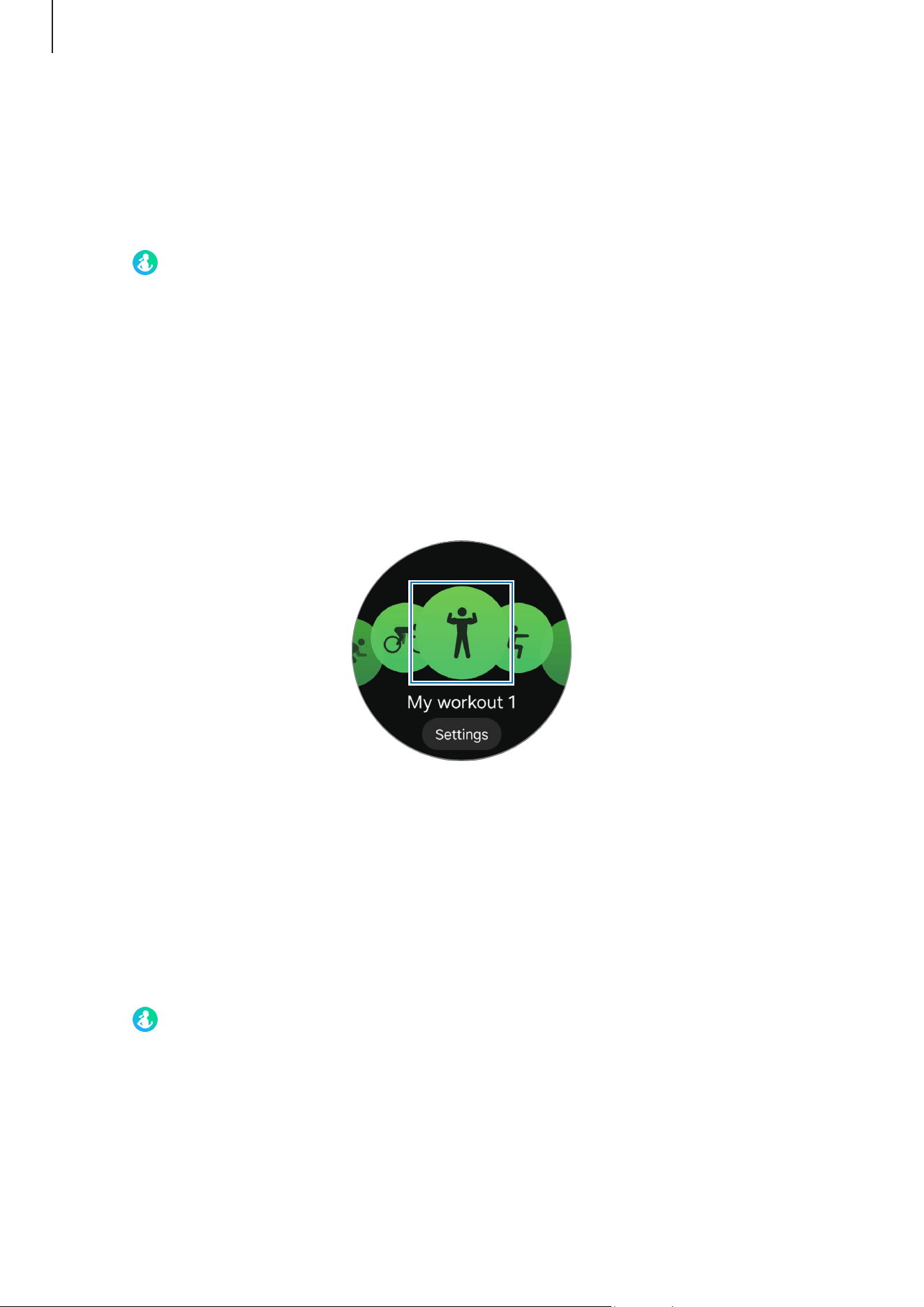
3 Use the touch bezel or swipe left or right on the screen to select a type of repetitive
exercise you want and begin.
When there is no repetitive exercise type you want, tap
Add
, and then select the
exercise type you want. Or, tap
Edit on phone
to add an exercise type from the
Samsung Health app to your phone.
4 Tap
Start
and get into the proper position to start by following the pose on the
screen.
Counting will begin with beeping.
If you do not get into the position displayed on your Watch, or if your position
changes during your exercise, the count may not start or may not count correctly.
Apps and features
64
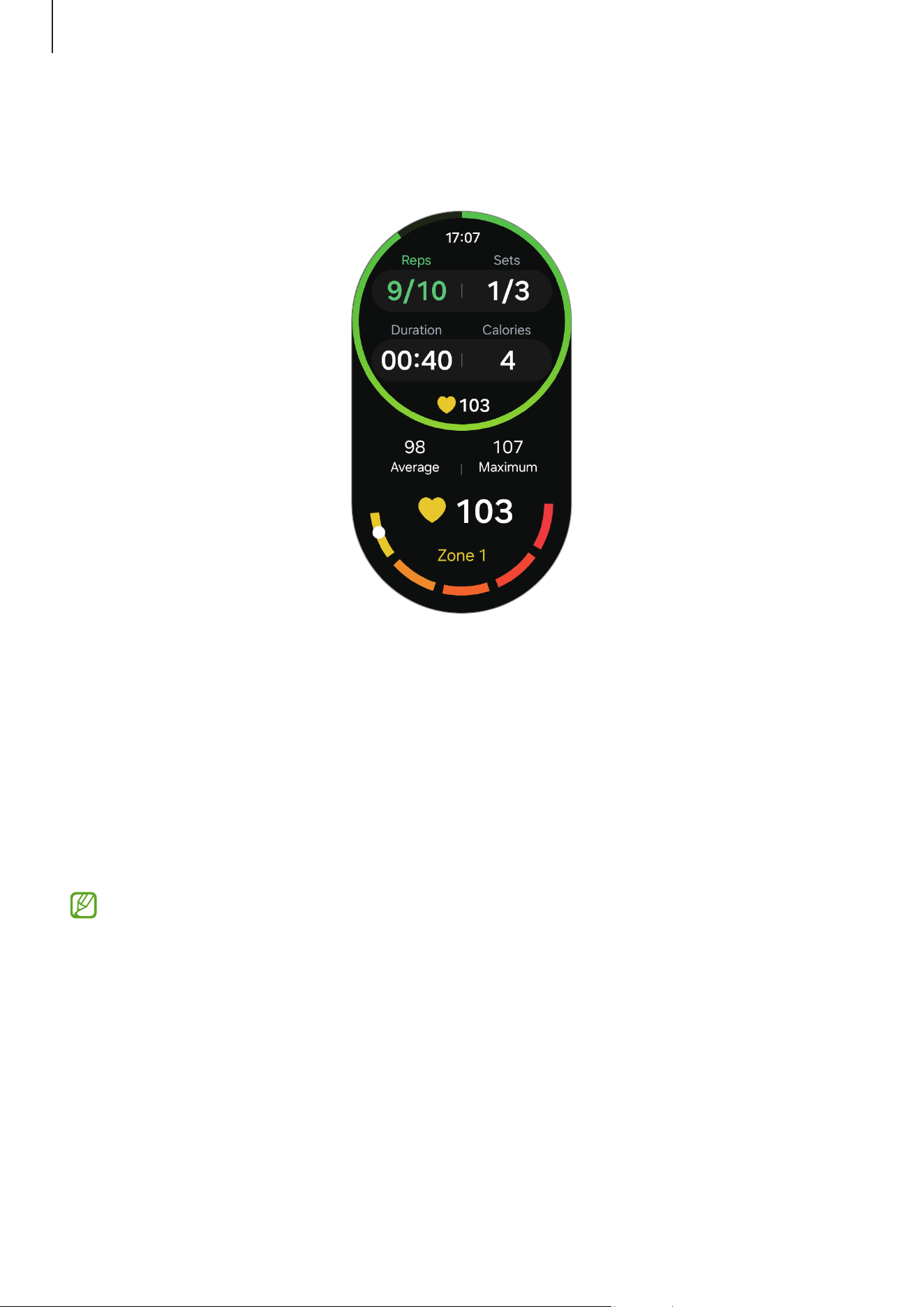
5 Use the touch bezel or swipe upwards or downwards on the screen to check exercise
information, such as your heart rate, the number of repetition, or calories, on the
workout screen.
You can play music by swiping left on the screen.
6 Take a rest after completing a set. Or, if you want to skip to the next set without
resting, tap
Skip
.
The exercise will begin after you get into the proper position to start it by following
the pose on the screen.
7 Swipe right on the screen and tap
Finish
.
To pause or restart the exercise, swipe right on the screen and tap
Pause
or
Resume
.
Alternatively, press and hold the Back button.
Music will continue to play even if you finish exercising. To stop playing music, stop
music before finishing exercising or open the
Music
app or
Media Controller
app to
stop playing music.
8
Use the touch bezel or swipe upwards or downwards on the screen after finishing the
exercise to check your exercise results.
Apps and features
65
Working out after adding your own exercise
In addition to the default exercise types provided by your Watch, you can add your own
exercises, and measure the duration and calories burned, and then check your exercise
results.
1 Tap (
Health
) on the Apps screen.
2 Tap
Exercise
.
3 Tap
Add
→
Create new exercise
.
4 Enter a name and configure your own exercise.
•
Data to record
: Select the exercise data to record.
•
Category
: Select a category for your exercise.
5 Tap
Save
.
Your exercise will be added.
6 Select the exercise you added and begin.
Creating your own routines
You can create your workout routines by combining different exercises of your choice,
including warm ups and rest periods. For example, you can create an exercise routine
that alternates between high-intensity and low-intensity exercises to create an interval
workout.
1 Tap
(
Health
) on the Apps screen.
2 Tap
Exercise
.
3 Tap
Add
→
Create workout routine
.
Loading page 66...
Loading page 67...
Apps and features
68
•
Exercise power saving
: Record your workouts for a longer amount of time by
setting your Watch to turn on the exercise power saving mode whenever you start
a workout. However, some features will be restricted. (Galaxy Watch Ultra)
•
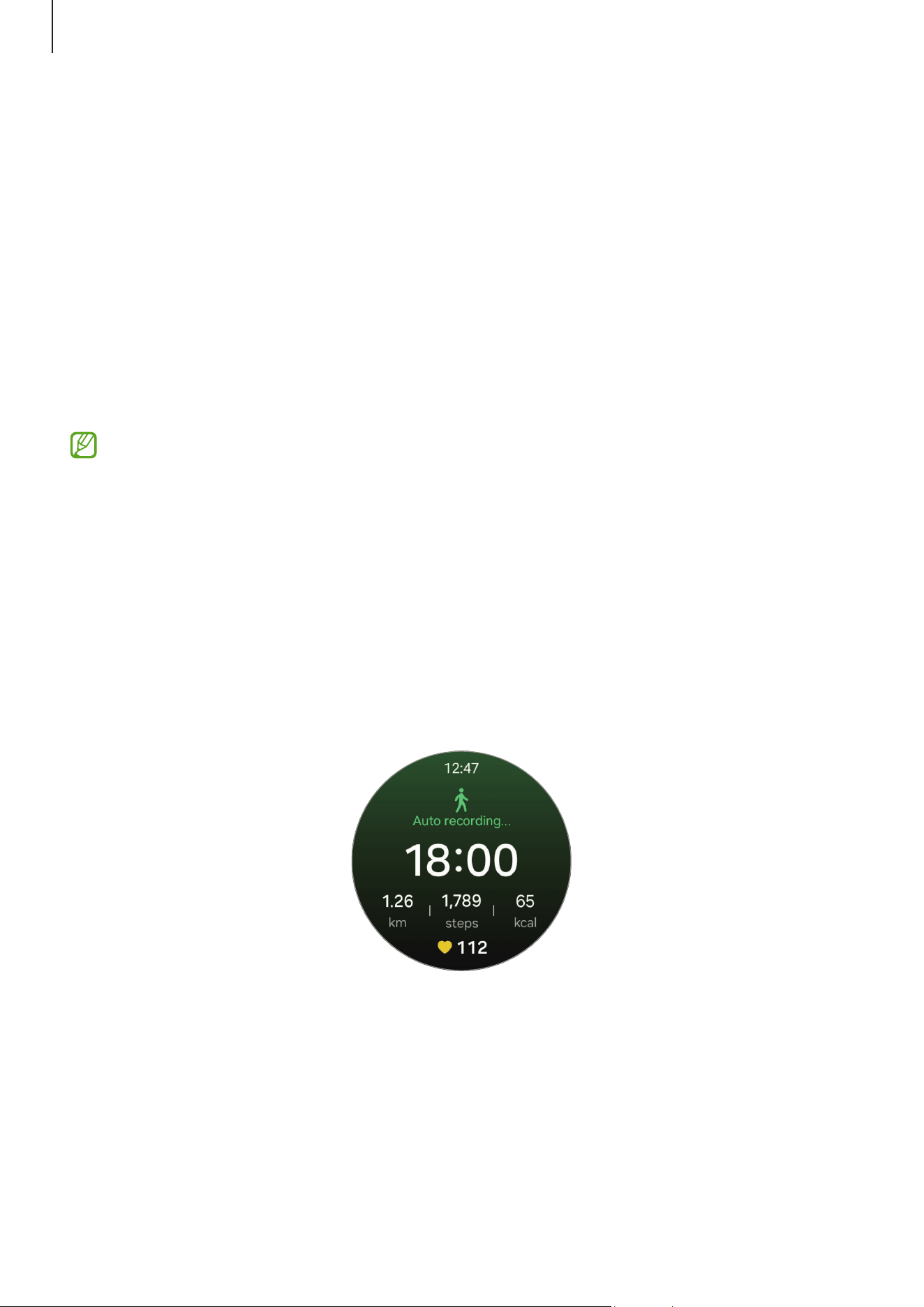
Auto detect workouts
: Turn the auto detect workouts feature on and set it. Refer
to Auto detect workouts feature for more information.
•
Coaching messages
: Set to receive coaching messages for proper pacing while
working out.
•
Lane
: Choose your lane when running on a track.
•
Pool length
: Set the pool length.
•
Check position before starting
: Turn on or off the posture check before starting a
workout.
•
You can also change certain settings right before starting the exercise or while
exercising. Before starting the exercise, tap
Settings
on the countdown screen
or GPS screen. Alternatively, while working out, swipe right on the screen and
tap
Settings
.
•
The available exercise setting options may vary depending on the exercise type.
Auto detect workouts feature
After continuously exercising for a certain period while wearing the Watch, it
automatically recognises that you are exercising and records exercise information such
as the exercise type, duration, and calories burned.
Loading page 69...
Apps and features
70
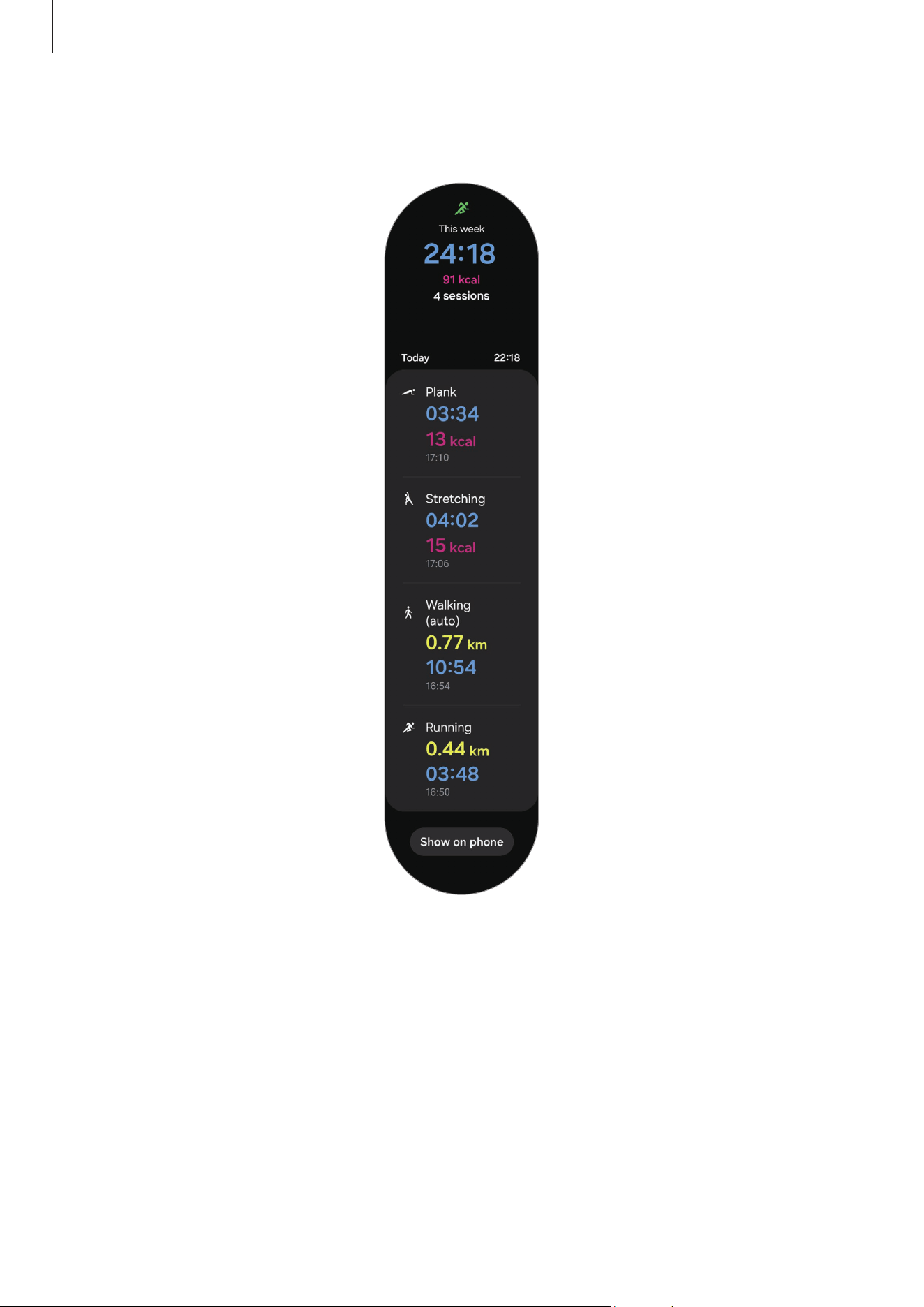
3 Use the touch bezel or swipe upwards or downwards on the screen to check all your
exercise history.
Apps and features
71
Sleep
Analyse your sleep and record it by measuring your heart rate and your movement while
you are sleeping.
This feature is only for your general wellness and fitness. Therefore, do not use it
for medical purposes, such as diagnosing the symptoms, treatment, or prevention
of disease.
•
The sleep pattern will have its four states (Awake, REM, Light, Deep) analysed by
using your movement and changes in your heart rate while you are sleeping. You
can check the recommended ranges for each measured sleep state in the graph
on your connected phone.
•
You can check the detailed sleep analysis only when your Watch is connected to
your phone.
•
Before measuring, charge the Watch’s battery so it is more than 30%.
•
For accurate measurements, wear the Watch firmly around your lower arm above
the wrist. Refer to How to wear the Watch for accurate measurements for more
information.
Measuring your sleep
1 Sleep while wearing the Watch.
The Watch will start to measure your sleep.
2 Tap (
Health
) on the Apps screen after you wake up.
3 Tap
Sleep
.
Loading page 72...
Apps and features
73
Using the snore detection feature
1 Tap (
Health
) on the Apps screen.
2 Tap
Settings
→
Sleep
.
3 Tap
Snore detection
.
The Samsung Health app will open on your phone.
4 Tap the switch to turn it on.
5 Select
Always
under
Detect snoring
to measure your snoring whenever you are
sleeping.
6 Connect your phone to the charger and place the phone’s microphone so it faces you
before sleeping.
Your snoring will be measured along with your other sleep records when you sleep
while wearing the Watch.
•
The snore detection feature can be turned on in the Samsung Health app
(version 6.18 or later) of the connected phone.
•
Snoring may not be measured if you do not set the snore detection feature to
Always
, do not connect your phone to the charger before sleeping, or do not
place the phone’s microphone so it faces you before sleeping.
Using the skin temperature during sleeping feature
Record the change in your skin temperature while you sleep and receive assistance in
creating an optimal sleeping environment.
1 Tap (
Health
) on the Apps screen.
2 Tap
Settings
→
Sleep
.
3 Tap the
Skin temperature during sleep
switch to turn it on.
Your skin temperature will be measured along with your other sleep records when you
sleep while wearing the Watch.
Apps and features
74
•
If your skin temperature is measured continuously while sleeping, the battery
will drain more quickly than normal.
•
The Watch may measure your skin temperature even if you are not sleeping
because your Watch can recognise your sleep status even while reading books or
watching TVs or movies.
•
Wear the Watch firmly to ensure that you will not create space between your
wrist and the Watch when turning over in your sleep.
•
If you are wearing another wearable device with your Watch, such as the Galaxy
Ring, the measured skin temperature data during sleep is not integrated and the
data measured with the Galaxy Ring will be displayed.
Measuring the advanced glycation end products (AGEs) during sleep
The advanced glycation end products (AGEs) are chemicals produced by combining
proteins or lipids in the body with sugar. It accumulates in most parts of the body,
including blood vessels, organs, joints, and retinas, causing aging and chronic diseases.
Also, high-sugar diets and bad lifestyles (such as smoking, lack of exercise, lack of sleep)
can accelerate AGEs production and accumulation. Recent studies have shown that
AGEs index slowly changes over 6 months, but higher index is associated with premature
aging and chronic disease. Galaxy Watch Ultra and Galaxy Watch7 can measure AGEs
index accumulated on the skin through advanced optical bio-signal sensor. Check your
AGEs index by measuring it when you sleep.
•
This feature is only for your general wellness and fitness. Therefore, do not
use it for medical purposes, such as diagnosing the symptoms, treatment, or
prevention of disease. Make sure to consult your physician for more information
about your medical condition.
•
Do not use a wrist that has skin problems or open wounds when measuring your
AGEs index.
•
The Watch uses light sensors that operate within the limits set by safety
regulations. However, individuals with photosensitive skin may have adverse
reactions to light, such as skin discolouration or rashes. Do not measure your
AGEs index if you have any symptoms of photosensitivity.
Apps and features
75
•
Cosmetics that contain the photosensitizing ingredients may make your skin
sensitive to Ultraviolet (UV) rays. Do not measure your AGEs index if you use
cosmetics that contain the following ingredients:
‒
Retinoids (for example, retinol or tretinoin)
‒
Alpha Hydroxy Acids (AHAs)
‒
Beta Hydroxy Acids (BHAs)
‒
Some essential oils (for example, citrus oil)
‒
Some medications and herbal extracts
Be aware of following conditions before measuring your AGEs index during sleep:
You can get more accurate AGEs index results when you go to bed with your Watch on if
you follow the following measurement conditions:
•
Make sure your wrist with the Watch on is dry and clean.
•
Make sure the sensors on the back of your Watch are clean.
•
The optical bio-signal sensor may be affected by tattoos, scars, and hair on the wrist.
Consider wearing your Watch in a place without these interferences or on your other
wrist.
•
Do not consume alcohol excessively before bedtime.
1 Sleep while wearing the Watch.
Your AGEs index will be measured along with your other sleep records when you sleep
while wearing the Watch.
2 Tap (
Health
) on the Apps screen after you wake up.
3 Tap
AGEs index
.
Loading page 76...
Apps and features
77
Deleting logs
1 Tap (
Health
) on the Apps screen.
2 Tap
Food
and tap
Delete
.
3 Select data to delete and tap
Delete
.
Setting your caloric intake target
1 Tap (
Health
) on the Apps screen.
2 Tap
Food
and tap
Set target
.
3 Use the touch bezel or swipe upwards or downwards on the screen to set the target.
4 Tap
Done
.
Body composition
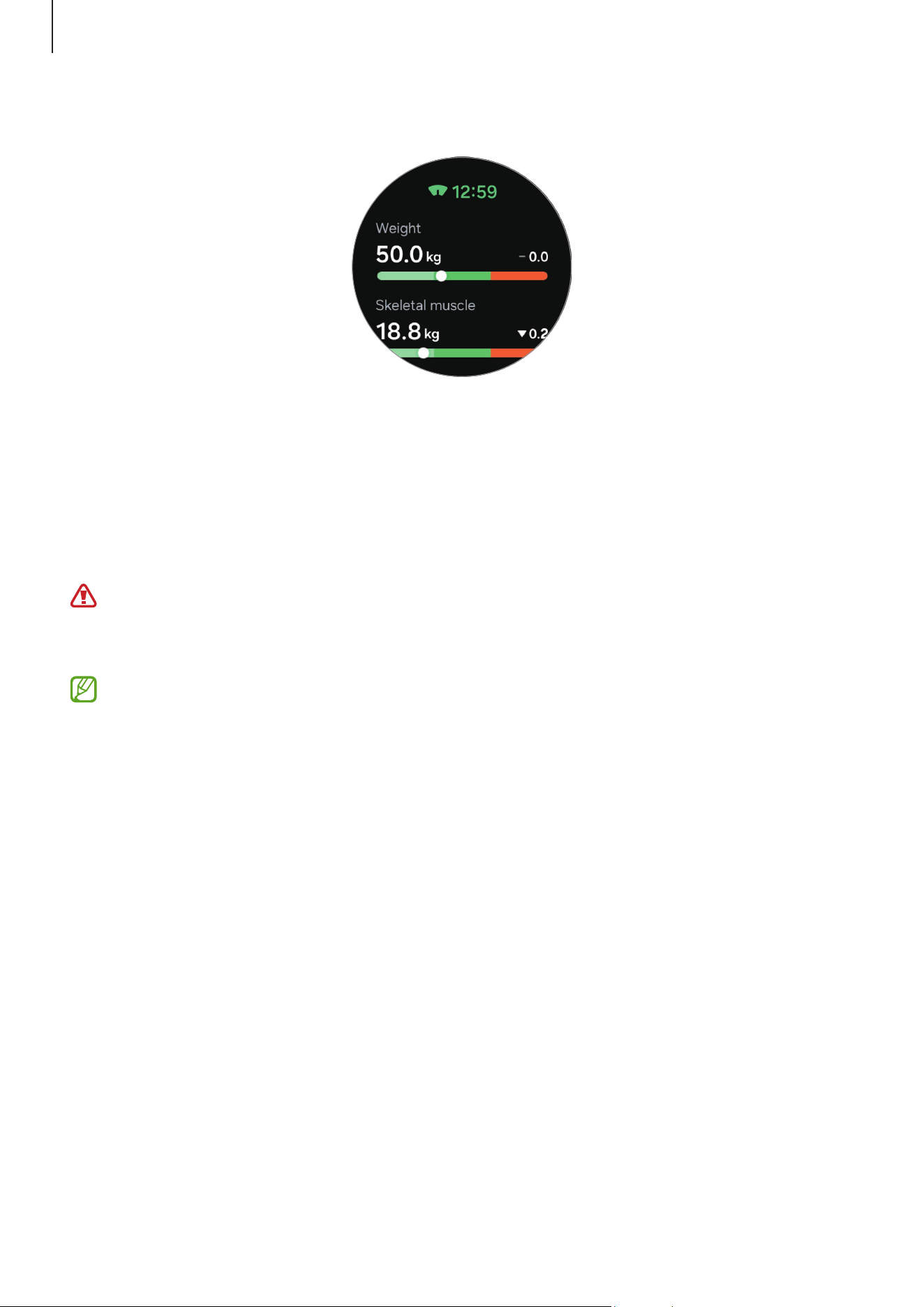
Measure your body composition, such as your skeletal muscle mass or fat mass.
•
This feature is only for your general wellness and fitness. Therefore, do not
use it for medical purposes, such as diagnosing the symptoms, treatment, or
prevention of disease.
•
If you have an implanted cardiac pacemaker, defibrillator, or if any other
electronic device is inside of your body, do not measure your body composition.
•
A low electric current goes through your body when measuring your body
composition. Although it is harmless to humans, do not measure your body
composition if you are pregnant.
Apps and features
78
•
For accurate measurements, wear the Watch firmly around your lower arm above
the wrist. Refer to How to wear the Watch for accurate measurements for more
information.
•
For accurate body composition measurements, you must enter your actual
height, weight, and gender on the Samsung Health app profile of the connected
phone, and also enter your actual birthday on your Samsung account. If the
measured body composition results are inaccurate, check your user profile in the
Samsung Health app on the phone and modify it.
•
Unlike professional body composition measuring instruments, the Watch, which
has to be worn your wrist, measures the upper body’s composition and estimates
your entire body’s composition to provide the results.
Therefore, the measured body composition results may be inaccurate in the
following cases:
‒
When your upper and lower body’s composition is too unbalanced
‒
When you are extremely obese
‒
When you are very muscular
•
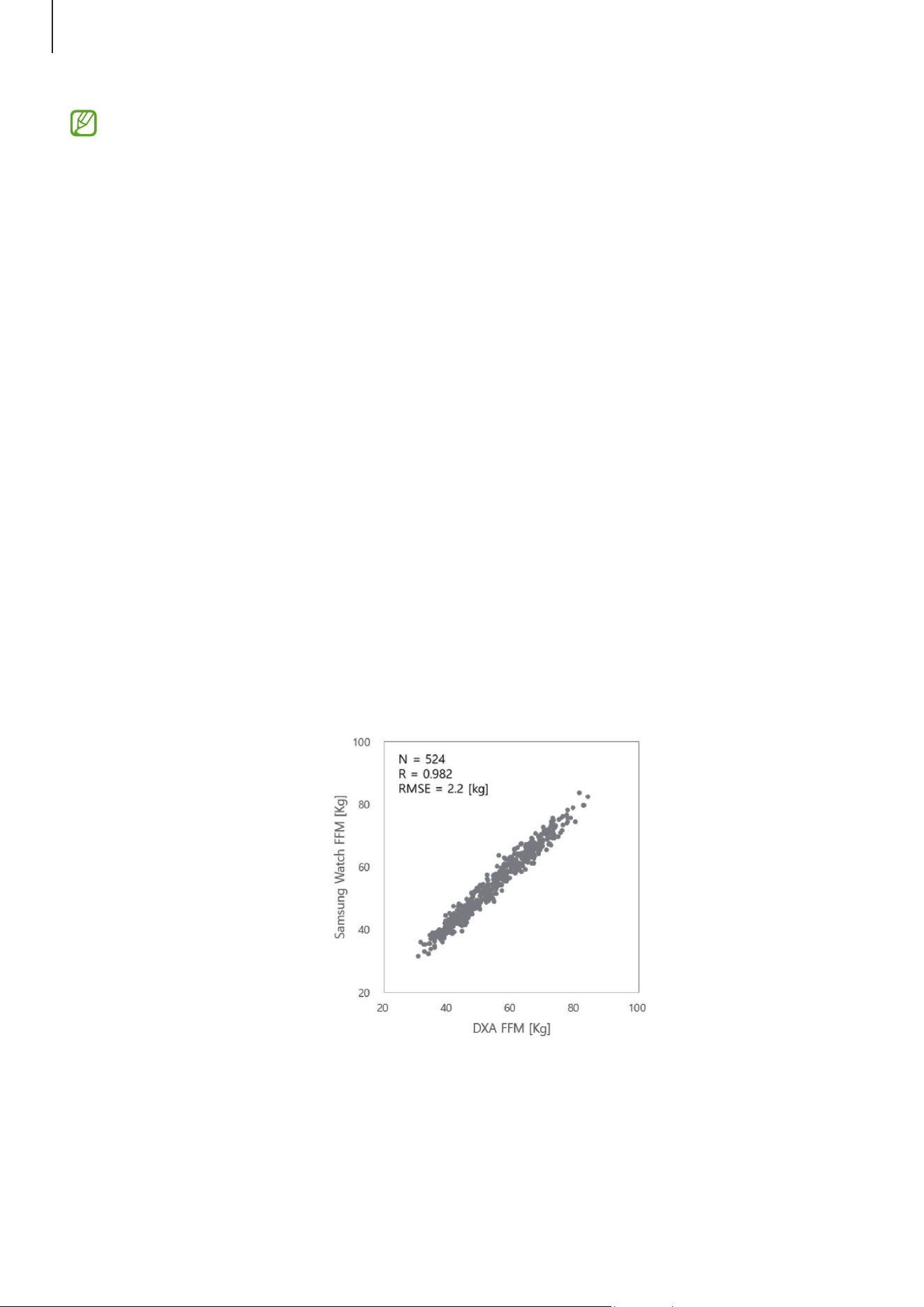
The Watch uses the Bioelectrical Impedance Analysis (BIA) method when
measuring body composition, which has more than 98% correlation compared
to the Dual-energy X-ray absorptiometry (DXA) method, which is regarded as
the golden standard.
Apps and features
79
Be aware of following conditions before measuring your body composition:
•
If you are an individual under the age of 20, the results may not be accurate when
you measure your body composition.
•
You can get more accurate body composition results if you follow the following
measurement conditions:
‒
Measuring at the same time of the day (recommended to measure in the
morning)
‒
Measuring on an empty stomach
‒
Measuring after going to the toilet
‒
Measuring when you are not having your menstrual period
‒
Measuring before doing activities that cause your body temperature to rise, such
as exercising, taking showers, or going to the sauna.
‒
Measuring after removing metal objects from your body, such as necklace
‒
Using the band included with the Watch instead of a metallic band
Measuring your body composition
1 Tap (
Health
) on the Apps screen.
2 Tap
Body composition
.
3 Tap
Measure
.
You can learn about how to measure your body composition in detail on the screen
by tapping
How to measure
.
4 Enter your weight and tap
Confirm
.
Apps and features
80
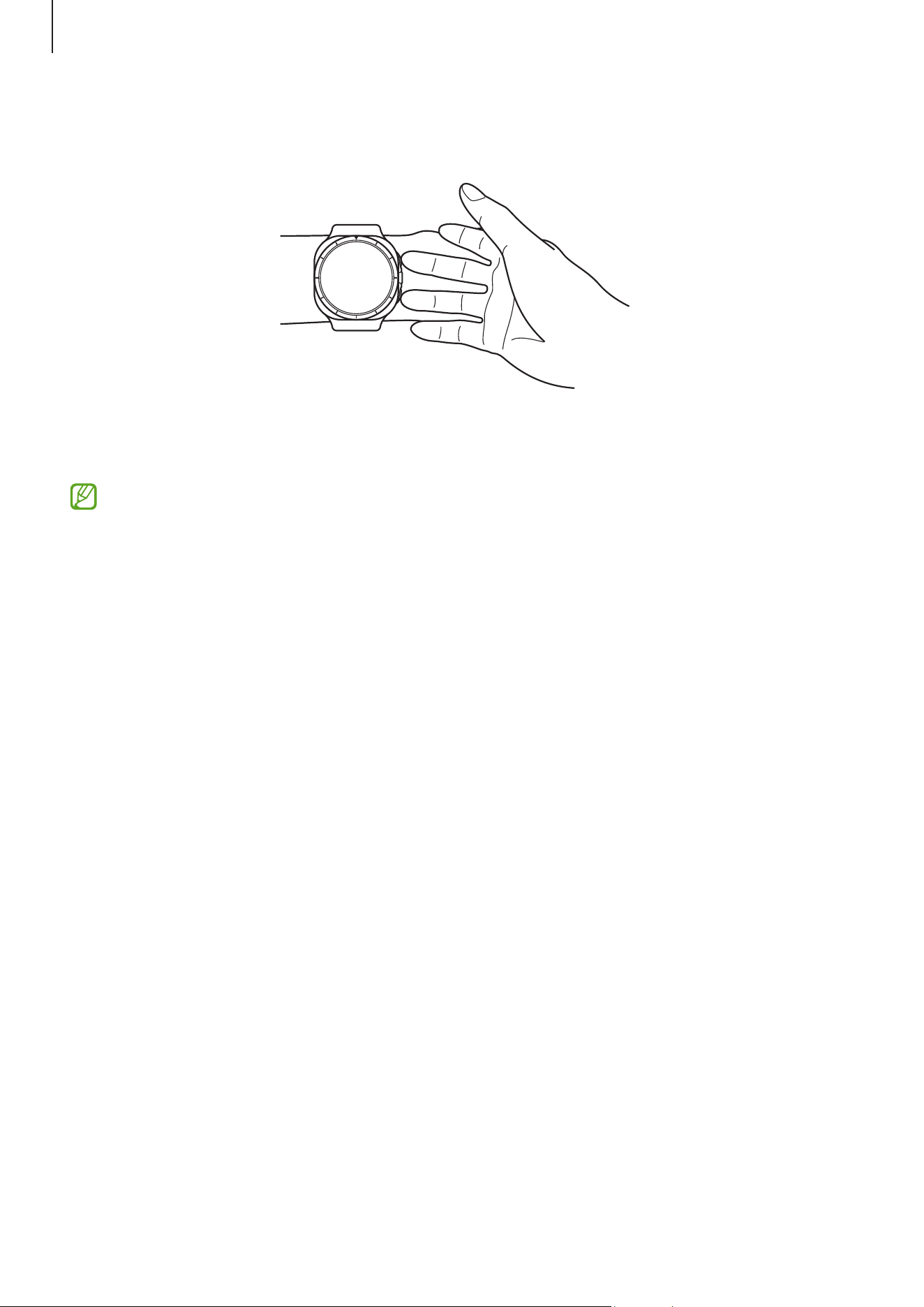
5 Place your two fingers on the Home and Back buttons by following the on-screen
instructions to begin measuring your body composition.
Correct position for measuring your body composition when
wearing the Watch on your left wrist while the buttons are
located on the right side
Correct measurement posture
•
Put both of your arms to chest level while not making contact with your body.
•
Ensure that the two fingers placed on the Home and Back buttons do not come
into contact with each other. Also, do not touch the other parts of your Watch
except the buttons.
•
Stay stable and do not move for accurate measurement results.
•
The signal may experience interruptions when your finger is dry. In this case,
measure your body composition after applying toner or lotion to make your
finger’s skin moist.
•
Measurement results may not be accurate because of the dryness of your skin or
hair.
•
Wipe the back of the Watch clean before measuring for accurate measurement
results.
Apps and features
81
Check measured body composition results on the screen.
To check the additional information which is related to the body composition, use the
touch bezel or swipe upwards or downwards on the screen.
Heart rate
Measure and record your heart rate.
The Watch’s heart rate tracker is intended for fitness and informational purposes
only and is not intended for use in the diagnosis of disease or other conditions, or in
the cure, mitigation, treatment, or prevention of disease.
For accurate measurements, wear the Watch firmly around your lower arm above
the wrist. Refer to How to wear the Watch for accurate measurements for more
information.
Be aware of following conditions before measuring your heart rate:
•
Rest for five minutes before taking measurements.
•
If the measurement is very different from the expected heart rate, rest for
30 minutes and then measure it again.
•
During winter or in cold weather, keep yourself warm when measuring your heart
rate.
•
Smoking or consuming alcohol before taking measurements increases heart rate
and may cause your heart rate to be different from your normal heart rate.
•
Do not talk, yawn, or breathe deeply while taking heart rate measurements. Doing so
may cause your heart rate to be recorded inaccurately.
Apps and features
82
•
Heart rate measurements may vary depending on the measurement method and the
environment they are taken in.
•
If the sensor is not working, check the Watch’s position on your wrist and make sure
nothing is obstructing the sensor. If the sensor continues to have the same problem,
visit a Samsung Service Centre or an authorised service centre.
Measuring your heart rate manually
1 Tap
(
Health
) on the Apps screen.
2 Tap
Heart rate
.
3 Tap
Measure
to begin measuring your heart rate.
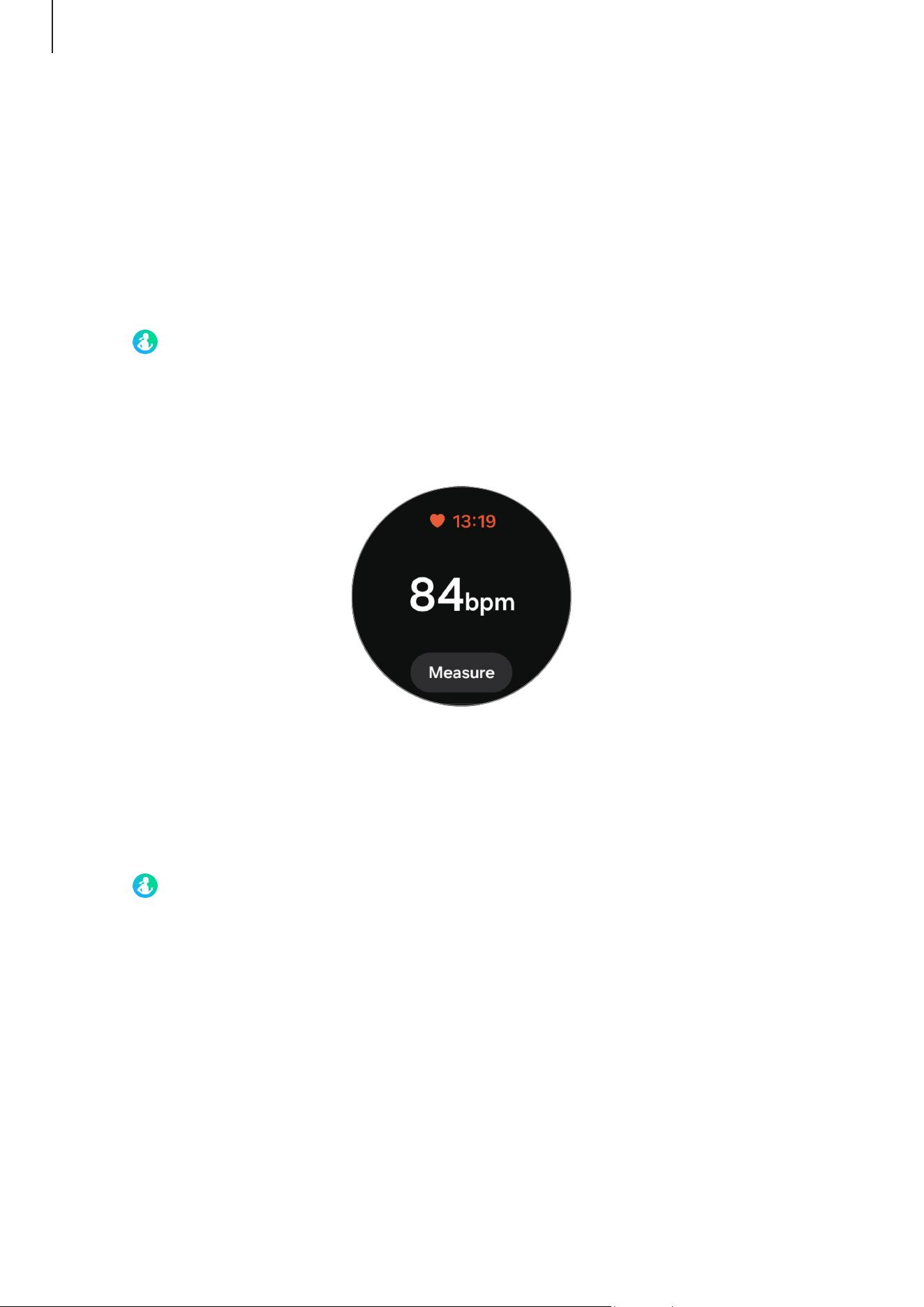
Check the measured heart rate on the screen.
To check additional information which is related to the heart rate, use the touch bezel or
swipe upwards or downwards on the screen.
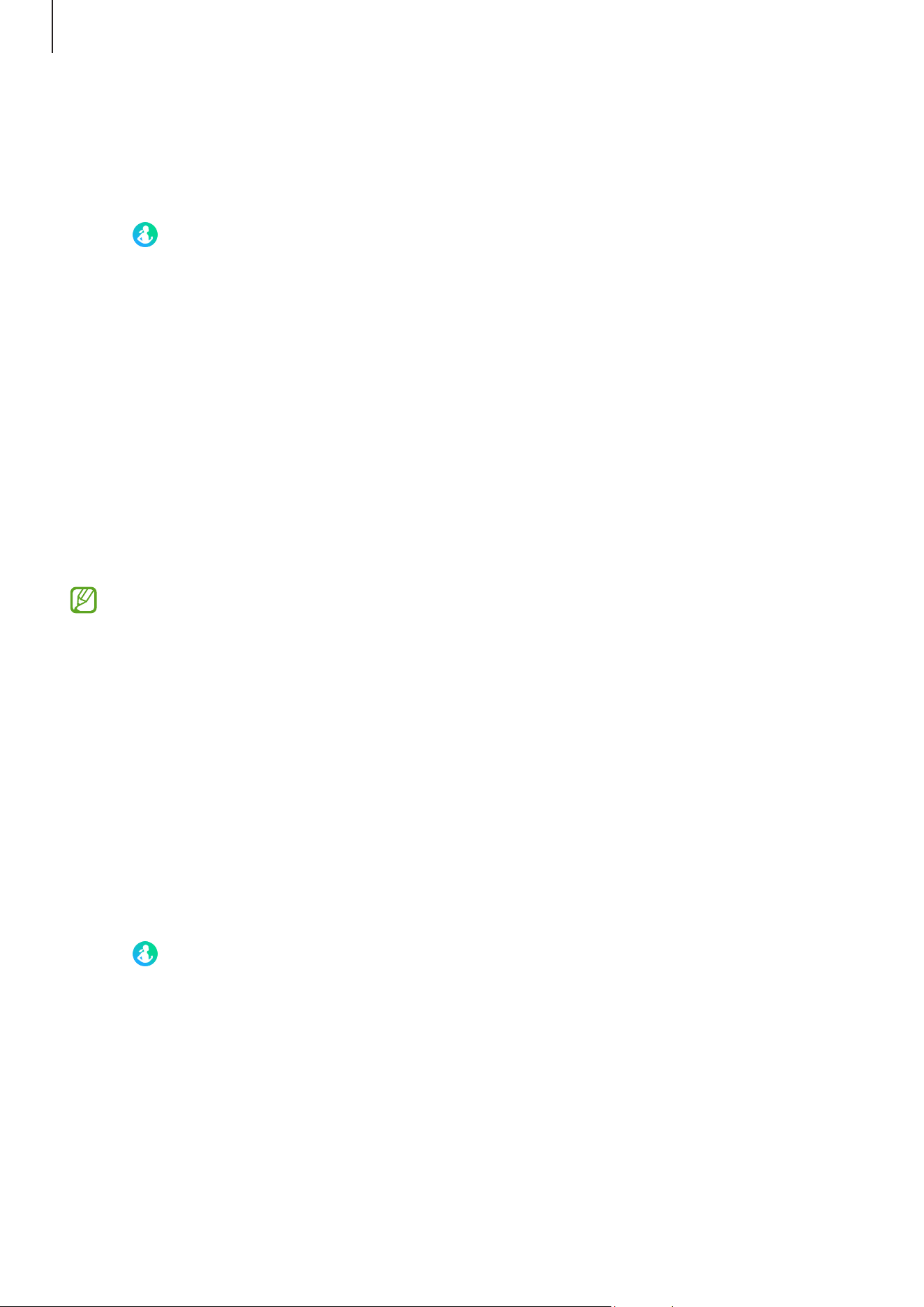
Changing the heart rate measurement settings
1 Tap (
Health
) on the Apps screen.
2 Tap
Heart rate
.
3 Tap
Settings
and select the measurement method under
Measurement
.
•
Measure continuously
: Your heart rate will be measured continuously.
•
Every 10 mins
: Your heart rate will be measured every 10 minutes while resting.
•
Manual only
: Your heart rate will be measured manually only when tapping
Measure
.
Apps and features
83
Setting the heart rate alert
You can receive an alert when your heart rate is higher or lower than the resting heart
rate value you set and it lasts more than 10 minutes.
1 Tap (
Health
) on the Apps screen.
2 Tap
Heart rate
.
3 Tap
Settings
and set the heart rate range under
Heart rate alert
.
•
High HR
: Set to receive an alert when your heart rate is consistently higher than
the heart rate value you set.
•
Low HR
: Set to receive an alert when your heart rate is consistently lower than the
heart rate value you set.
Stress
Check your stress level by utilising the bio data collected by your Watch and reduce your
stress by following the breathing exercise that the Watch provides.
•
The more frequently you measure your stress level, the more accurate your
results will be because of the accumulated data.
•
Your measured stress level is not necessarily related to your emotional state.
•
Your stress level may not be measured, while you are sleeping, working out,
moving a lot, or right after you finish a workout.
•
For accurate measurements, wear the Watch firmly around your lower arm above
the wrist. Refer to How to wear the Watch for accurate measurements for more
information.
•
This feature may not be available depending on the region.
Measuring your stress level manually
1 Tap (
Health
) on the Apps screen.
2 Tap
Stress
.
Apps and features
84
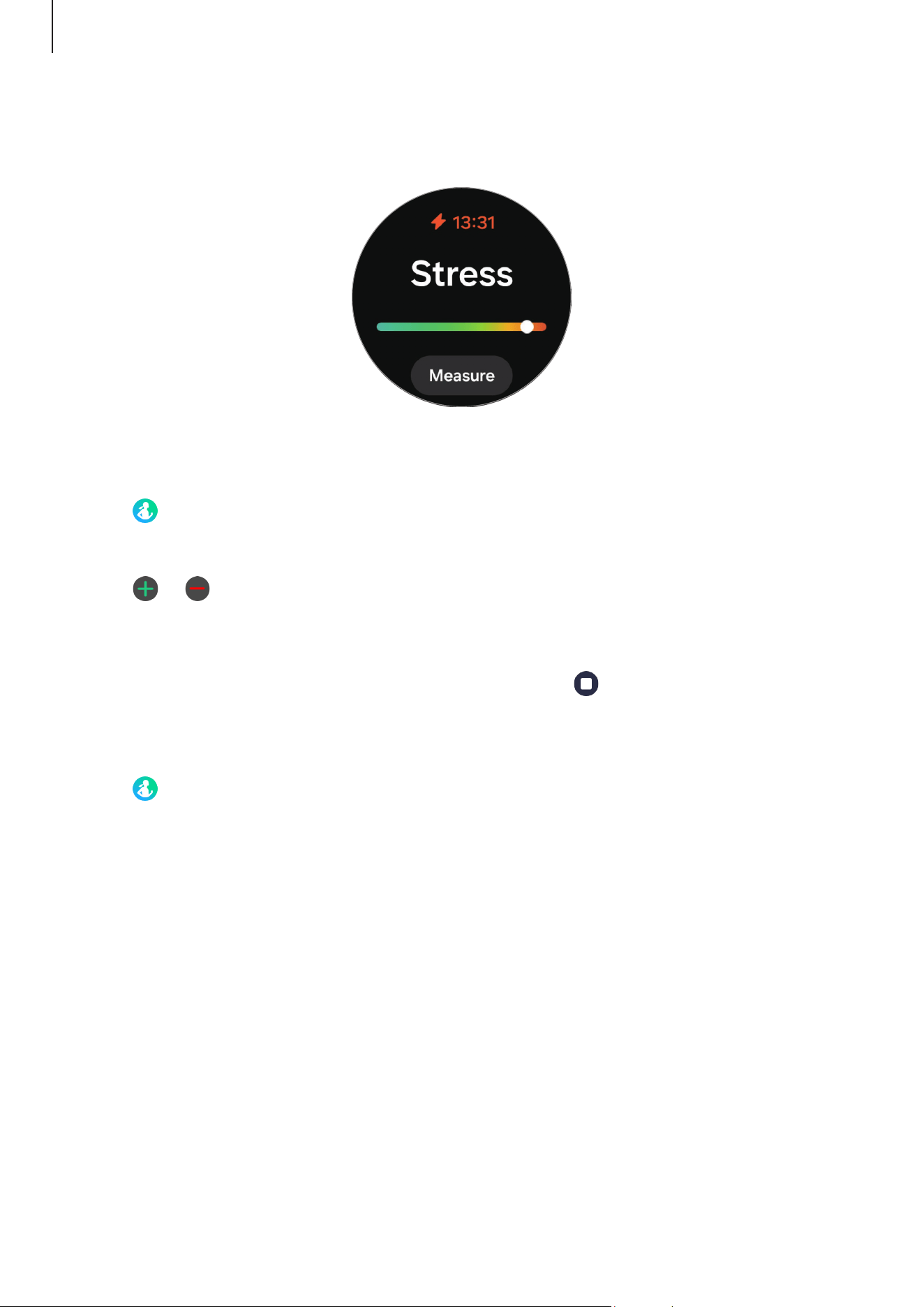
3 Tap
Measure
to begin measuring your stress level.
Check the measured stress level on the screen.
Alleviating stress with the breathing exercise
1 Tap (
Health
) on the Apps screen.
2 Tap
Stress
.
3 Tap or under
Breathe
to change the time and the number for the breath
exercise. To change the breath exercise duration, tap
Breathe duration
.
4 Tap
Start
and start breathing.
To stop the breathing exercise, tap the screen and tap
.
Changing the stress measurement settings
1 Tap (
Health
) on the Apps screen.
2 Tap
Stress
.
3 Tap
Settings
and select the measurement method under
Measurement
.
•
Measure continuously
: Your stress level will be measured continuously.
•
Manual only
: Your stress level will be measured manually only when tapping
Measure
.

Apps and features
85
Cycle tracking
Enter information about your period to begin tracking your menstrual cycle. When
you enter your information, you can get predictive data, such as your next predicted
menstrual date. Your skin temperature during sleep can be used to enhance the
prediction data if the related feature is supported in your region.
When the predict period with skin temp feature is supported
•
Cycle tracking is available for cycle and period prediction. NOT INTENDED FOR
CONTRACEPTION.
•
If you are currently using hormonal birth control or undergoing hormonal
treatment that inhibits ovulation, this feature will not be useful for tracking
ovulation.
•
This information is for personal reference only.
•
Predictions may vary depending on use of the Watch, input data, environmental
conditions, and other factors.
•
To improve the accuracy of predictions, it is recommended to wear your Watch
for at least four hours during sleep at night, five times a week.
•
Not intended for diagnosing, curing, mitigating, treating, or preventing any
disease or health conditions.
•
Do not interpret or take clinical action based on the predictions made without
consultation of a qualified healthcare professional.
•
This feature is not intended for users under 18 years of age.
•
Availability may vary by country, region, carrier, Watch model, or connected
phone.
Apps and features
86
When the predict period with skin temp feature is not supported
•
This feature is only for managing and tracking your menstrual cycle. Therefore,
do not use it for medical purposes, such as diagnosing the symptoms, or treating
or preventing disease.
•
This feature is not intended to be used for pregnancy planning or contraception
purposes.
•
Predicted dates are only for personal reference. Predicted dates may differ from
actual dates.
•
Individuals under the age of 18 should use this feature with a guardian.
•
Do not make any medical decisions based on predicted dates without consulting
a physician. Also, do not use the information provided from the Samsung Health
app or take medical action without consulting a qualified medical expert.
•
Turn on the cycle tracking feature in the Samsung Health app on your phone to
use this feature on your Watch.
•
Predicted dates may not be accurate if you are currently taking birth control or
undergoing hormone therapy to suppress ovulation. (Only when the predict with
skin temp feature is not supported)
•
Predicted dates may vary depending on the input information. (Only when the
predict with skin temp feature is not supported)
Entering your cycle information
1 Tap (
Health
) on the Apps screen.
2 Tap
Cycle tracking
.
3 Tap
Enter period
.
4 Tap the input field, use the touch bezel or swipe upwards or downwards on the screen
to set your period’s start date.
5 Tap
Save
.
To check additional information which is related to your cycle tracking, use the touch
bezel or swipe upwards or downwards on the screen.
Apps and features
87
Predicting your menstrual cycle by measuring your skin temperature
1 Tap (
Health
) on the Apps screen.
2 Tap
Settings
.
3 Tap the
Predict period with skin temp
switch to turn it on.
•
If you wear another wearable device with your Watch, such as the Galaxy Ring,
the measured skin temperature data is not integrated, and you can select which
wearable device to use to predict your menstrual cycle by measuring your skin
temperature directly in the Samsung Health app on your connected phone.
•
This feature may not be available depending on the region.
Water
Record and track how much water you have drunk.
Recording water consumption
1 Tap
(
Health
) on the Apps screen.
2 Tap
Water
.
3 Tap
+ 250 ml
every time you drink water.
If you accidentally added an incorrect value, select
Delete
, select the data to delete,
and then tap
Delete
.
To change the cup volume, tap
Set cup size
and change it to the desired volume.
Setting your target consumption
1 Tap (
Health
) on the Apps screen.
2 Tap
Water
→
Set target
.
3 Use the touch bezel or swipe upwards or downwards on the screen to set the daily
target.
4 Tap
Done
.
Apps and features
88
Blood oxygen
Measure your blood’s oxygen level to check whether your blood is properly delivering
oxygen to the different parts of your body.
This feature is only for your general wellness and fitness. Therefore, do not use it
for medical purposes, such as diagnosing the symptoms, treatment, or prevention
of disease.
Be aware of following conditions before measuring your blood oxygen level:
•
Rest for five minutes before taking measurements.
•
During winter or in cold weather, keep yourself warm when measuring your blood
oxygen level.
•
Blood oxygen level measurements may vary depending on the measurement
method and the environment they are taken in.
Measuring your blood oxygen level manually
1 Tap (
Health
) on the Apps screen.
2 Tap
Blood oxygen
.
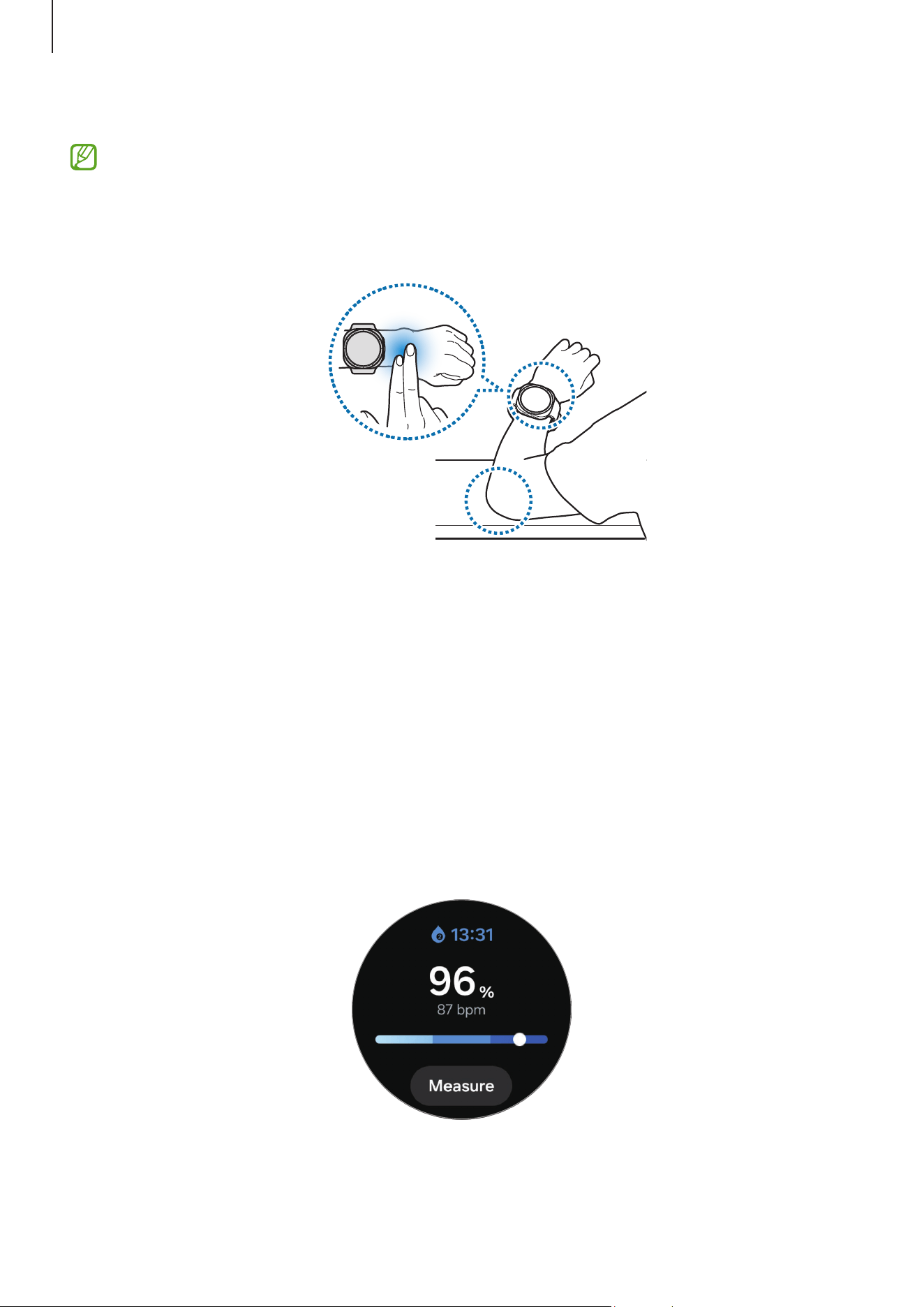
Apps and features
89
3 Tap
Measure
to begin measuring your blood oxygen level.
Correct measurement posture
•
For accurate measurements, wear the Watch firmly around your lower arm above
the wrist while leaving two fingers’ worth of space as shown in the figure. Also,
place your elbow on the table while positioning your wrist close to your heart.
•
Do not move and stay in the correct posture until finishing the measurement.
•
You can learn about how to measure your blood oxygen level in detail on the
screen by tapping
How to measure
.
•
If your blood oxygen level is not being measured properly, loosen the band one
or more of the holes and wear the Watch more close to your elbow. For accurate
measurements, wear the Watch firmly around your lower arm above the wrist.
Before measurement, ensure that the Watch is tight but that you do not feel any
discomfort.
Check the measured blood oxygen level on the screen. If your resting blood oxygen
level is between 95% and 100%, it is assumed to be within the normal range.
Apps and features
90
Measuring your blood oxygen level while sleeping
Set to measure your blood oxygen level continuously while sleeping.
1 Tap (
Health
) on the Apps screen.
2 Tap
Settings
→
Sleep
.
3 Tap the
Blood oxygen during sleep
switch to turn it on.
Your sleeping blood oxygen level will be measured along with your other sleep
records when you sleep while wearing the Watch.
•
If your blood oxygen level is measured continuously while sleeping, the battery
will drain more quickly than normal.
•
You can see the light because of the flickering optical bio-signal sensor while
measuring your blood oxygen level.
•
The Watch may measure your blood oxygen level even if you are not sleeping
because your Watch can recognise your sleep status even while reading books or
watching TVs or movies.
•
Wear the Watch firmly to ensure that you will not create space between your
wrist and the Watch when turning over in your sleep.
Together
Compare your step count records with your friends who also use the Together feature
of the Samsung Health app. When you start step challenges with your friends, you can
check the challenge status on your Watch.
1 Tap (
Health
) on the Apps screen.
2 Tap
Together
.
Tap
Show on phone
to check detailed information related to the Together feature on
your connected phone.
Turn on the Together feature in the Samsung Health app on your phone to check
the together information on your Watch.
Apps and features
91
Settings
Configure the various settings related to exercise and fitness.
Tap
(
Health
) on the Apps screen and tap
Settings
.
•
Measurement
: Set how to measure your heart rate and stress, and turn the
additional features that can be measured during sleep on or off.
•
Predict period with skin temp
: Turn on or off the feature that measures your skin
temperature while you sleep to predict your menstrual cycle.
•
Alerts
: Set to receive alerts to encourage you to reach your daily activity targets and
receive notifications when you succeed.
•
Auto detect workouts
: Turn on the auto detect workouts feature and configure the
settings, such as selecting the exercise types to be detected.
•
Inactive time
: Turn the feature on to receive alerts after 50 minutes of inactivity, and
set the time and days you want to be notified.
•
Make visible to other devices
: Give permission to other devices to find your Watch.
•
Share data with devices and services
: Set to share information with other connected
health platform apps, exercise machines, and TVs.
•
Privacy
: Select apps or service providers to share information with to display the
necessary information during exercise.
Some features may not be available depending on the region, carrier, or model.
Loading page 92...
Apps and features
93
•
For accurate measurements, wear the Watch firmly around your lower arm above
the wrist. Refer to How to wear the Watch for accurate measurements for more
information.
•
Always connect your Watch to your phone at home or in a safe place through
Bluetooth for security reasons. It is not recommended to connect to a phone in a
public place.
Precautions for measuring the blood pressure
•
Before measuring, prepare a comfortable chair and a table to rest your arm and
phone on.
•
Sit upright in the comfortable chair you prepared with your back supported.
•
Be sure to place your arm comfortably on a table when you are measuring your
blood pressure.
•
Rest for at least five minutes in a comfortable position before measuring your
blood pressure.
•
Measure your blood pressure in a quiet place indoors.
•
Do not measure your blood pressure while engaging in physical activity.
•
Stay still and do not speak once you start measuring your blood pressure, and do
not move or speak until the measurement is complete.
•
Do not measure your blood pressure when you are in close vicinity of machines
that produce strong electronic fields, such as MRIs (Magnetic Resonance
Imaging), X-ray machines, electromagnetic anti-theft systems, or metal
detectors.
•
Do not measure your blood pressure during medical treatments, such as
operations or defibrillation.
•
Measure your blood pressure in an environment where the temperature is
between 12 °C to 40 °C, and the relative humidity is between 30% to 90%.
•
Avoid consuming alcohol, food that includes caffeine, smoking, exercising, and
taking a bath 30 minutes before measuring your blood pressure.
•
Make sure your wrist is dry when measuring your blood pressure and do not
measure it when you have applied lotion or are sweating excessively.
•
Do not take a deep breath or breathe slowly on purpose, but breathe as usual
while measuring your blood pressure.

Apps and features
94
•
If you are pregnant, your results may not be accurate when you measure your
blood pressure.
•
Do not measure your blood pressure with the Samsung Health Monitor app if you
have any of the following conditions:
‒
Arrhythmia
‒
Underlying heart disease or have suffered a heart attack
‒
Circulatory or peripheral vascular disease
‒
Valvular heart disease (Aortic valve disease)
‒
Myocardiopathy
‒
Other cardiovascular disease
‒
End-stage renal disease (ESRD)
‒
Diabetes
‒
Neurological dysfunction (for example, tremors)
‒
Blood clotting dysfunction or if you are taking a blood thinner
•
Do not use a wrist that has been tattooed or has marks on it when measuring
your blood pressure because the optical bio-signal sensor may be affected by the
tattoos or marks.
•
The Samsung Health Monitor app calibrates and measures blood pressure based
on the readings from the arm that is wearing the blood pressure manometer.
If there is a large difference between the blood pressure in both of your arms
(more than 10 mmHg), you must consult your physician.
•
Do not use a Watch which has been calibrated for other people for measuring
your blood pressure.
•
The measurable reading range of the Samsung Health Monitor app for blood
pressure is as follows: In case of calibration, the systolic blood pressure range
is 80 mmHg to 170 mmHg, and the diastolic blood pressure is 50 mmHg to
110 mmHg. In case of measurement, the systolic blood pressure range is
70 mmHg to 180 mmHg, and the diastolic blood pressure is 40 mmHg to
120 mmHg.
•
The signal may be affected by the brightness of the individual’s skin, the amount
of blood under their skin, and the cleanliness of the sensor.

Apps and features
95
Precautions for measuring the ECG
•
Before measuring, prepare a comfortable chair and a table to rest your arm and
phone on.
•
Sit upright in the comfortable chair you prepared with your back supported.
•
Be sure to place your arm comfortably on a table when you taking an ECG.
•
Rest for at least five minutes in a comfortable position before taking your ECG.
•
Measure your ECG in a quiet place indoors.
•
Do not measure your ECG while engaging in physical activity.
•
Stay still and do not speak once you start taking your ECG, and do not move or
speak until the measurement is complete.
•
Do not take your ECG when you are in close vicinity of machines that produce
strong electronic fields, such as MRIs (Magnetic Resonance Imaging), X-ray
machines, electromagnetic anti-theft systems, or metal detectors.
•
Do not take your ECG during medical treatments, such as operations or
defibrillation.
•
Measure your ECG in an environment where the temperature is between 12 °C to
40 °C, and the relative humidity is between 30% to 90%.
•
Make sure your wrist is not too dry when measuring your ECG. You can get more
accurate ECG signals when your skin that comes in contact with the sensor is
moist with a moderate amount of sweat, toner, or lotion.
•
If you have an implanted cardiac pacemaker, defibrillator, or if any other
electronic device is inside of your body, do not measure your ECG.
•
If you have an arrhythmia other than atrial fibrillation, do not take your ECG with
the Samsung Health Monitor app.
•
The Samsung Health Monitor app cannot detect heart attacks. If you have
any suspicious symptoms of a heart attack, contact emergency services
immediately.
•
You can get more accurate ECG results if you follow the following measurement
conditions:
‒
Measuring after removing metal objects from your body, such as necklace
‒
Using the band included with the Watch instead of a metallic band

Apps and features
96
Precautions for using the sleep apnea feature
•
Do not use the sleep apnea feature if you have already been diagnosed with
sleep apnea.
•
Do not use the Samsung Health Monitor app’s sleep apnea feature if you have
been diagnosed with any of the following conditions:
‒
Movement-related conditions: Parkinson’s disease, tremors, or periodic limb
movement disorder during sleep (PLMS).
‒
Heart conditions: Congestive heart failure (CHF), atrial fibrillation
‒
Lung diseases: Cronic obstructive pulmonary disease (COPD), chronic
bronchitis, pulmonary emphysema, pulmonary fibrosis
•
Do not use the sleep apnea feature if you are under 22 years of age.
•
Do not use the sleep apnea feature if you are pregnant or experiencing
temporary breathing symptoms because of a cold, allergies, asthma, or other
conditions, as the results may be inaccurate.
•
Do not change your medication dosage or schedule based on the sleep apnea
risk detection results without consulting your physician.
•
The Watch cannot detect all cases of obstructive sleep apnea. The Watch detects
signs of moderate-to-severe obstructive sleep apnea but does not detect central
sleep apnea.
•
The Watch has not been cleared by regulatory authorities as a oxygen saturation
measuring instrument.
•
The Samsung Health Monitor app’s sleep apnea feature is a pre-screening tool
and is not intended to replace diagnosis or treatment by a qualified healthcare
professional. If you are not feeling well, consult your physician, even if the Watch
does not detect signs of sleep apnea.
Apps and features
97
Starting to measure blood pressure
Presets before measuring the blood pressure
Enter your profile on the Samsung Health Monitor app and calibrate your Watch before
measuring your blood pressure. If you do not enter a profile, you cannot measure your
blood pressure, and if you do not calibrate the Watch or have someone else calibrate it,
the readings will not be valid.
Be sure to calibrate the Watch with cuff-typed blood pressure manometer when
measuring your blood pressure with the Samsung Health Monitor app for the
first time after purchasing the Watch. After initial calibration, recalibrate it every
28 days. The cuff-typed blood pressure manometer is sold separately.
1 Tap (
Samsung Health Monitor
) on the Apps screen.
2 Tap
Blood pressure
→
Open phone app
.
The Samsung Health Monitor app will open on your phone.
3 Tap
Agree
.
4 Enter your profile information, such as your name, gender, and birthday, and tap
Continue
.
5 Tap
Calibrate the watch
.
6 Wear the cuff of the blood pressure manometer on the upper part of the arm not
wearing the Watch. Refer to the blood pressure manometer’s user guide for more
information about correctly wearing the cuff.
7 Follow the on-screen instructions to complete the calibration.
Loading page 98...
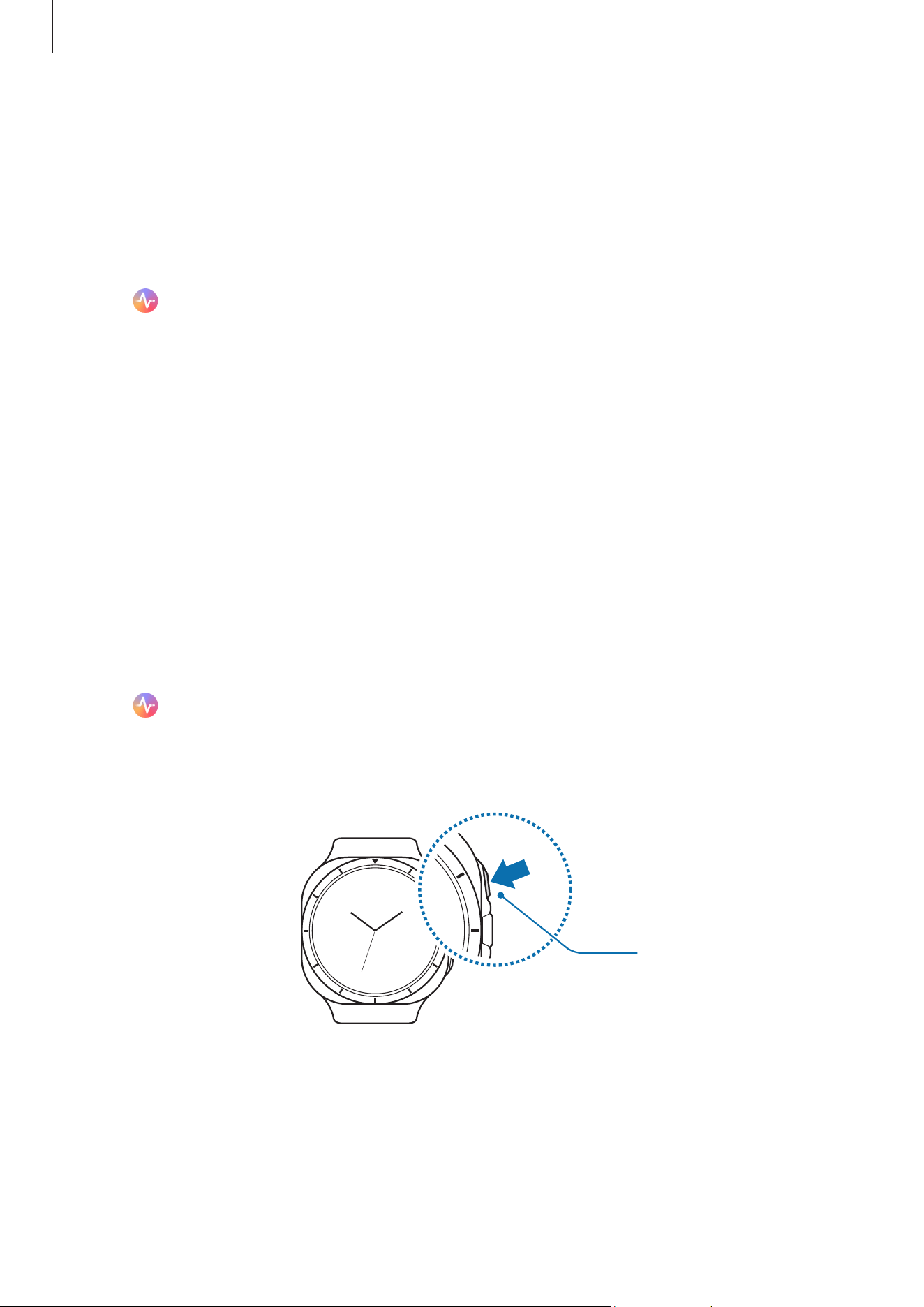
Apps and features
99
Starting to measure the ECG
Presets before measuring the ECG
Enter your profile on the Samsung Health Monitor app before measuring your ECG. If you
do not enter a profile, you cannot measure your ECG.
1 Tap (
Samsung Health Monitor
) on the Apps screen.
2 Tap
ECG
→
Open phone app
.
The Samsung Health Monitor app will open on your phone.
3 Tap
Accept
.
4 Enter your profile information, such as your name, gender, and birthday, and tap
Continue
.
5 Tap
Get started
and follow the on-screen instructions to get ready for measuring your
ECG.
Measuring the ECG
Manage your health by checking your heart status in advance through the ECG
measurement results.
1 Tap (
Samsung Health Monitor
) on the Apps screen.
2 Tap
ECG
→
OK
and place a finger lightly on the electrical bio-signal sensor. Do not
leave any space between your wrist and your Watch.
Electrical bio-signal
sensor
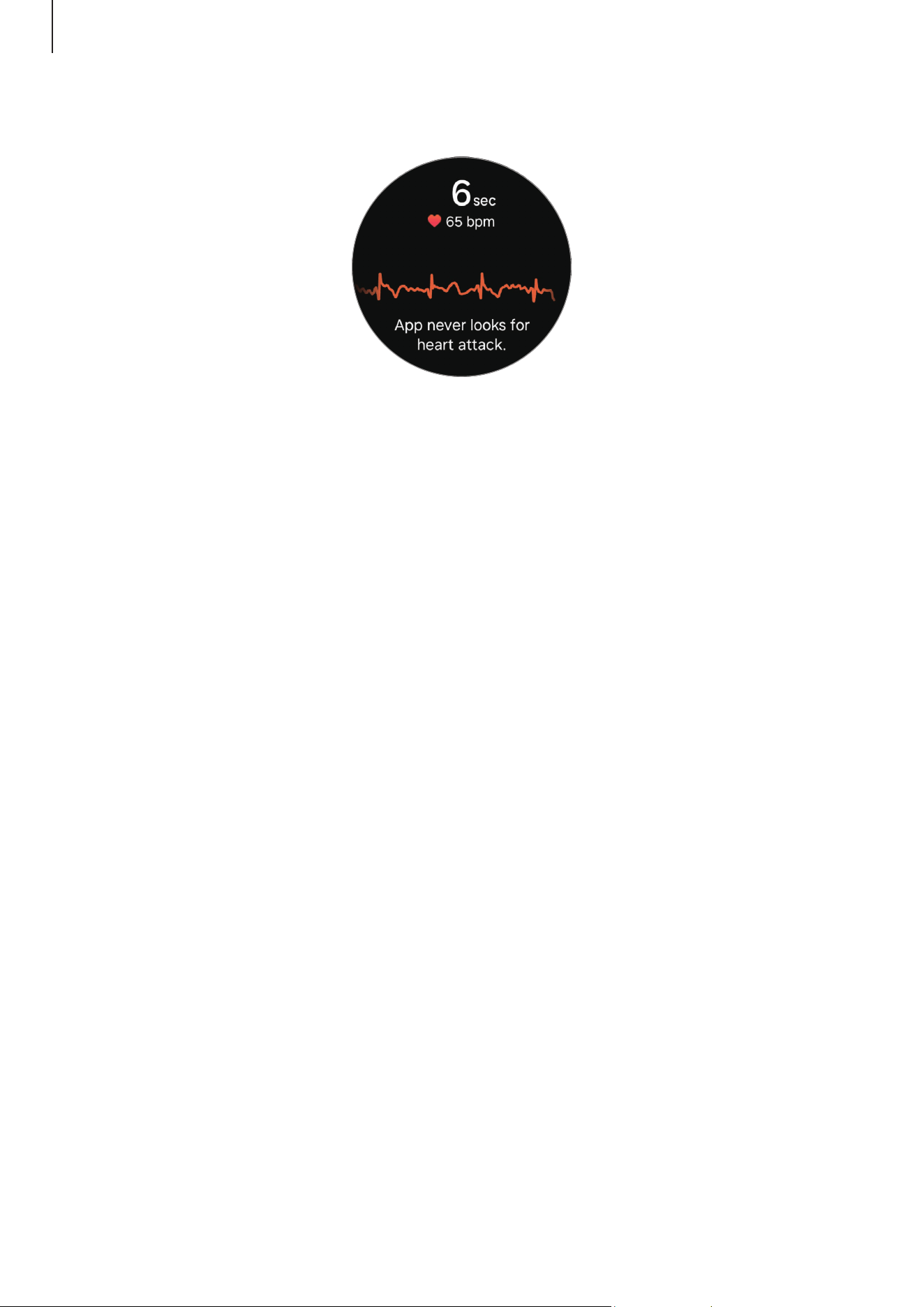
Apps and features
100
The measurement will start and the ECG wave will appear on the screen.
Check the measured ECG results on the screen.
3 Tap
Add
, select additional physical symptoms that you are currently experiencing,
and then tap
Save
.
4 Tap
Done
.
Checking the ECG results
Check the results and ECG wave on the Watch and the connected phone’s Samsung
Health Monitor app screen after taking your ECG. The ECG wave shows heart rate rhythm
and electric activities of your heart, and it is divided into several parts. Share the ECG
graph and results with your physician to get an accurate diagnosis through a more
thorough checkup when you find abnormal results from your ECG wave and readings.
You can check the previous results and information on the connected phone’s Samsung
Health Monitor app. Share, delete, and manage your results on the phone’s Samsung
Health Monitor app.
•
Sinus rhythm
: A normal heartbeat rhythm that is between 50–100 BPM.
•
AFib
: A type of arrhythmia where the heart beats irregularly. Consult your physician.
•
Inconclusive
: The result is not a type of
Sinus rhythm
nor
AFib
and falls into one of
the following conditions:
‒
When the heart rate is less than 50 or more than 100 BPM while recording the
ECG wave and there is also no
AFib
‒
When the ECG wave is not sorted as
Sinus rhythm
nor
AFib
‒
When the heart rate is more than 120 BPM and the ECG wave indicates
AFib
Loading page 101...
Apps and features
102
Using the sleep apnea feature
Manage your health by checking your condition at home for sleep apnea symptoms
without having to visit a specialist.
1 Tap (
Samsung Health Monitor
) on the Apps screen.
2 Tap
Sleep apnea
→
OK
, and sleep while wearing the Watch two nights over the next
ten days.
•
Before sleeping, charge the Watch’s battery so it is more than 30%.
•
To accurately detect sleep apnea, at least 4 hours of continuous sleep is
required.
Checking the sleep apnea risk detection results
Your Watch measures the relative decrease in blood oxygen levels during sleep and
uses this to detect breathing disruptions that may be a sign of sleep apnea. You can be
notified if your Watch detects signs of moderate-to-severe obstructive sleep apnea after
two nights of successful sleep measurements.
If you receive a notification that your Watch has detected signs of moderate-to-severe
obstructive sleep apnea, share it with your physician for further specialised testing. Even
if no signs of sleep apnea are detected, consult your doctor if you feel uncomfortable.
You can check the results on the connected phone’s Samsung Health Monitor app. Share,
delete, and manage your results on the phone’s Samsung Health Monitor app.
Do not use the sleep apnea feature again until you have consulted with your
physician.
•
Each sleep data analysis may take up to 90 minutes or more.
•
The Sleep apnea feature of the Samsung Health Monitor app is not a tool for
tracking or monitoring health conditions, so you should wait at least 30 days
before using it again, even if you think you are not experiencing any health
issues.
Loading page 103...
Apps and features
104
Managing audio files saved on your Watch
Check the audio files on your Watch, categorised by type, and manage them by adding
or removing them as desired. You can automatically sync audio files from your phone to
your Watch.
1 Open the
Galaxy Wearable
app on your phone.
2 Tap
Watch settings
→
Manage content
.
3 Select
Tracks on watch
.
The audio files saved on your Watch will appear, sorted by category.
•
To send audio files from your phone to your Watch, tap , select audio files, and
then tap
Add to watch
.
•
To delete audio files saved on your Watch, touch and hold a file you want to delete,
and tap
Delete
.
To sync audio files on your phone with your Watch every 6 hours, tap the
Auto sync
switch to turn it on. Then, tap
Playlists to sync
, select playlists to import to your Watch,
and then tap
Done
. The selected playlists will be automatically synced with your Watch
when it has more than 15% of remaining battery power and when power saving mode is
turned off on your Watch.
Media Controller
Introduction
Control the media app installed on your Watch or the connected phone to play or pause
music and video.
To open this app automatically from your Watch when you play music or videos on
the connected phone, on the Apps screen, tap
(
Settings
)
→
Advanced features
and tap the
Auto launch media controls
switch to turn it on.
Controlling the music player
1 Tap (
Media Controller
) on the Apps screen.
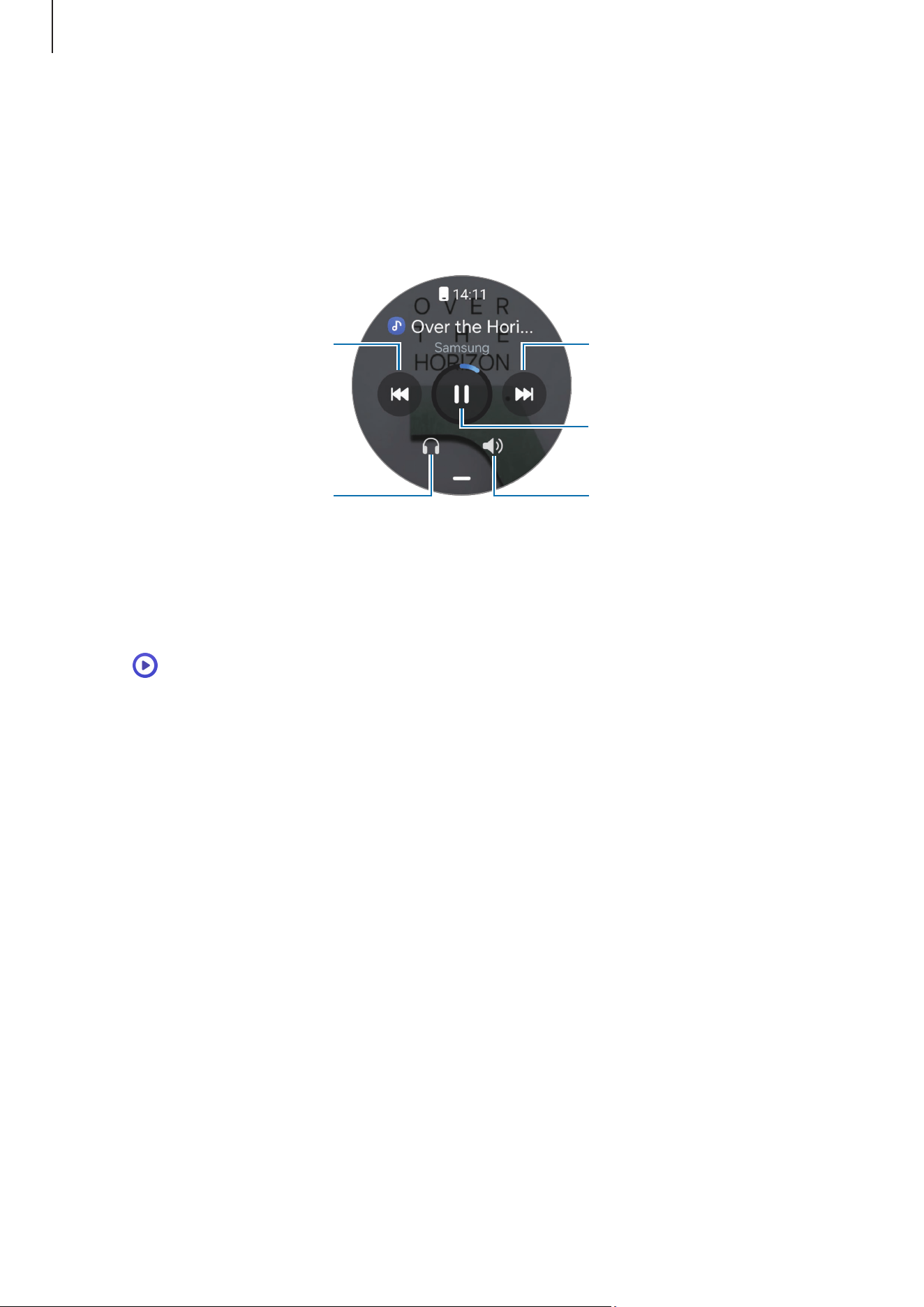
Apps and features
105
2 Select
Phone
or
Watch
.
When you select
Phone
, music will play from the connected phone’s music app and
you can control the music player with your Watch.
When you select
Watch
, music will play from your Watch’s music app and you can
listen to music with your Watch’s speaker or a connected Bluetooth headset.
Skip to the next file. Touch and
hold to move forwards quickly.
Adjust the volume.
Select the audio output.
Pause and resume playback.
Restart the currently playing
file or skip to the previous file.
Touch and hold to move
backwards quickly.
Controlling the video player
1 Play video on the connected phone.
2 Tap (
Media Controller
) on the Apps screen.
You can control the video player with your Watch.
Apps and features
106
Reminder
Register to-do items as reminders and receive notifications according to the condition
you set.
•
To receive reminder notifications in a specific place, you have to connect your
Watch to your phone through Bluetooth. However, the feature for setting you to
receive reminder notifications in a specific place is only available on your phone.
•
All reminders on your Watch will be synced with the connected phone
automatically so that you can also receive alerts and check them from the
phone.
1 Tap (
Reminder
) on the Apps screen and tap .
2 Enter the reminder.
3 Tap
Time
to set a notification.
4 Tap the input field, use the touch bezel, or swipe upwards or downwards on the
screen to set the date and time, and tap
Done
.
5 Set other notification options, such as whether to repeat the reminder or the alert
style, and tap
Save
.
The saved reminder is added to the reminders list and the reminder will appear at the
time you set with an alarm.
Completing reminders
On the reminders list, tap or select a reminder and tap
Complete
.
Restoring reminders
Restore reminders that have been completed.
1 On the reminders list, tap
→
Completed
.
2 Select a reminder to restore and tap
Restore
.
Reminders will be added to the reminders list and you will be reminded again.
Deleting reminders
Touch and hold the reminder on the reminder list, and then tap
Delete
.
Loading page 107...
Loading page 108...
Apps and features
109
Weather
Check weather information on the Watch for locations set on the connected phone.
Tap
(
Weather
) on the Apps screen.
To check the weather information, such as the time-specific weather or weekly
information, use the touch bezel or swipe upwards or downwards on the screen.
To add another city’s weather information, tap
Manage locations
→
Manage on phone
and add the city from the connected phone.
Alarm
Set and manage the Watch’s alarms and the phone’s alarms individually.
When your Watch is connected to your phone through Bluetooth, you can check all
alarm lists on your phone from the Watch.
Setting alarms
1 Tap (
Alarm
) on the Apps screen.
2 Tap
Add on watch
to set alarms that only go off on your Watch.
You can also add an alarm from the connected phone by tapping
Add on phone
.
3 Tap the input field, use the touch bezel or swipe upwards or downwards on the screen
to set the alarm time, and tap
Next
.
4 Set other alarm options, such as the date when to go off and whether to repeat the
alarm, and tap
Save
.
The saved alarm is added to the alarms list.
To turn on or off alarms, tap the switch next to the alarm in the alarms list.
Turning off alarms
Drag outside the large circle to turn off an alarm. Alternatively, swipe the touch bezel
clockwise.
If you want to use the snooze feature, drag
outside the large circle. Alternatively,
swipe the touch bezel anticlockwise.
Loading page 110...
Apps and features
111
Stopwatch
1 Tap (
Stopwatch
) on the Apps screen.
2 Select the stopwatch style you want by using the touch bezel or swiping left or right
on the screen.
To change the stopwatch style, touch and hold the screen.
3 Tap
Start
to time an event.
To record lap times while timing an event, tap
Lap
or .
4 Tap
Stop
or to stop timing.
•
To restart the timing, tap
Resume
or .
•
To clear lap times, tap
Reset
or .
On the Apps screen, tap (
Settings
)
→
Buttons and gestures
→
Action
and
select
Stopwatch
to start and control the stopwatch directly with the Quick button.
During use, press the Quick button to stop or resume the timer, and press it twice
to record the lap time. While it is stopped, press and hold the Quick button to clear
all lap times. (Galaxy Watch Ultra)
Gallery
Introduction
You can access images, albums, and stories saved on your Watch or synced with your
phone. Also, you can personalise the watch face by using pictures.
Managing pictures saved on your Watch
Check the pictures on your Watch, categorised by type, and manage them by adding or
removing them as desired. You can automatically sync pictures from your phone to your
Watch.
1 Open the
Galaxy Wearable
app on your phone.
2 Tap
Watch settings
→
Manage content
.
Loading page 112...
Apps and features
113
Zooming in or out
While checking an image, double tap the image, spread your two fingers apart, or pinch
on an image to zoom in or out.
When an image is magnified, you can view the rest of the image by scrolling around the
screen.
Customising a watch face
You can view pictures on your watch face after personalising it with pictures. Refer to
Customising a watch face with a picture for more information.
1 Tap (
Gallery
) on the Apps screen.
2 Touch and hold the image to use.
To select more images, use the touch bezel or swipe left or right on the screen and
select them.
3 Tap and select a watch face type.
Deleting images
1 Tap (
Gallery
) on the Apps screen.
2 Touch and hold the image to delete it.
To select more images you want to delete, use the touch bezel or swipe left or right on
the screen and select the other images you wish to delete.
To select all images, tap
All
.
3 Tap .
Loading page 114...

Apps and features
115
Sending an SOS
Introduction
In an emergency, including when you are hurt from a fall, make an emergency call and
send an SOS message that includes your location information to previously registered
contacts. Also, you can set up your Watch to display your medical information on it after
sending the SOS.
•
If the GPS feature of your Watch is not turned on and it is needed to send your
location information, it will be turned on automatically to determine your
location.
•
Your location information may not be sent depending on your region or situation.
Presets the SOS request
Entering medical information
Enter your medical information, such as your name and blood type. This information can
be accessed directly on your Watch during an emergency.
1 Open the
Galaxy Wearable
app on your phone and tap
Watch settings
→
Safety and
emergency
.
2 Tap
Medical info
, enter your information, and then tap
Save
.
When sending an SOS, the entered medical information will appear on your Watch’s SOS
screen.
Registering emergency contacts
Add contacts who can help you when requesting an SOS.
1 Open the
Galaxy Wearable
app on your phone and tap
Watch settings
→
Safety and
emergency
.
2 Tap
Emergency contacts
.
3 Tap
Add emergency contact
, select contacts you want from your existing contact, and
then tap
Done
.
Loading page 116...
Apps and features
117
Playing the siren (Galaxy Watch Ultra)
In an emergency, you can play a siren to get someone’s attention, inform them where
you are, and ask for help. When the SOS screen appears on your Watch after an SOS
request, tap
Siren
to play the siren.
You can also press and hold the Quick button to play the siren. Press and hold the
Quick button for 5 seconds to start a countdown before the siren sounds. To turn
off the siren during the countdown, press any button on your Watch or tap
. To
stop the siren after it starts sounding, press
or press and hold the Quick button
for more than 3 seconds. If the siren is not played, tap
(
Settings
) on the Apps
screen, tap
Buttons and gestures
, and then tap the
Siren
switch to turn it on.
Requesting an SOS when you are hurt from a fall
Setting the SOS request when you are hurt from a fall
1 Open the
Galaxy Wearable
app on your phone and tap
Watch settings
→
Safety and
emergency
.
2 Tap
Hard fall detection
, tap the switch to turn it on, and then set the SOS request to
be sent when you are hurt from a fall.
•
To set the conditions in which your Watch will determine you have been hurt from
a fall, tap
When to detect falls
.
•
To select a contact to make an emergency call, tap
Emergency number to call
and
select a contact or enter one manually.
•
To send an SOS message that includes your current location to emergency
contacts when you are hurt from a fall, tap the
Share info with emergency
contacts
switch to turn it on. Refer to Registering emergency contacts for more
information about setting the emergency contacts to send a message.
Apps and features
118
Sending an SOS request when you are hurt from a fall
When there is a large impact, the Watch will detect the hurt from a fall through your
arm’s movement. If there is no movement detected for more than 30 seconds after
the fall, it will display the alert while emitting sound and vibrating. If there is still no
response after 60 seconds, the emergency call will be placed, and the SOS message will
be sent automatically to the previously registered contact after the countdown.
•
When you are doing a high impact exercise, the Watch may believe that you have
been hurt in a fall. If it is so, cancel the alert not to send the SOS message.
•
If the
Share info with emergency contacts
feature is turned off, a message that
includes your current location will not be sent to emergency contacts.
•
If you want to manually place an emergency call and send the SOS message after
a hard fall, open the
Galaxy Wearable
app on your phone, tap
Watch settings
→
Safety and emergency
→
Hard fall detection
, and then tap the
Require swipe to
call
switch to turn it on.
Stop sharing the location information
While sharing your location information, the icon appears on the Watch screen, and
you can check the sharing status on the notification panel.
To stop sharing your location information, tap the notification panel and tap
Stop
sharing
→
.
If you do not stop sending SOS messages, additional messages that include your
location information will be continuously sent to the previously registered contacts
every 15 minutes for 24 hours after the first SOS message is sent. However, the
message will be sent only when your current location is some distance away from
the location where the last message is sent.
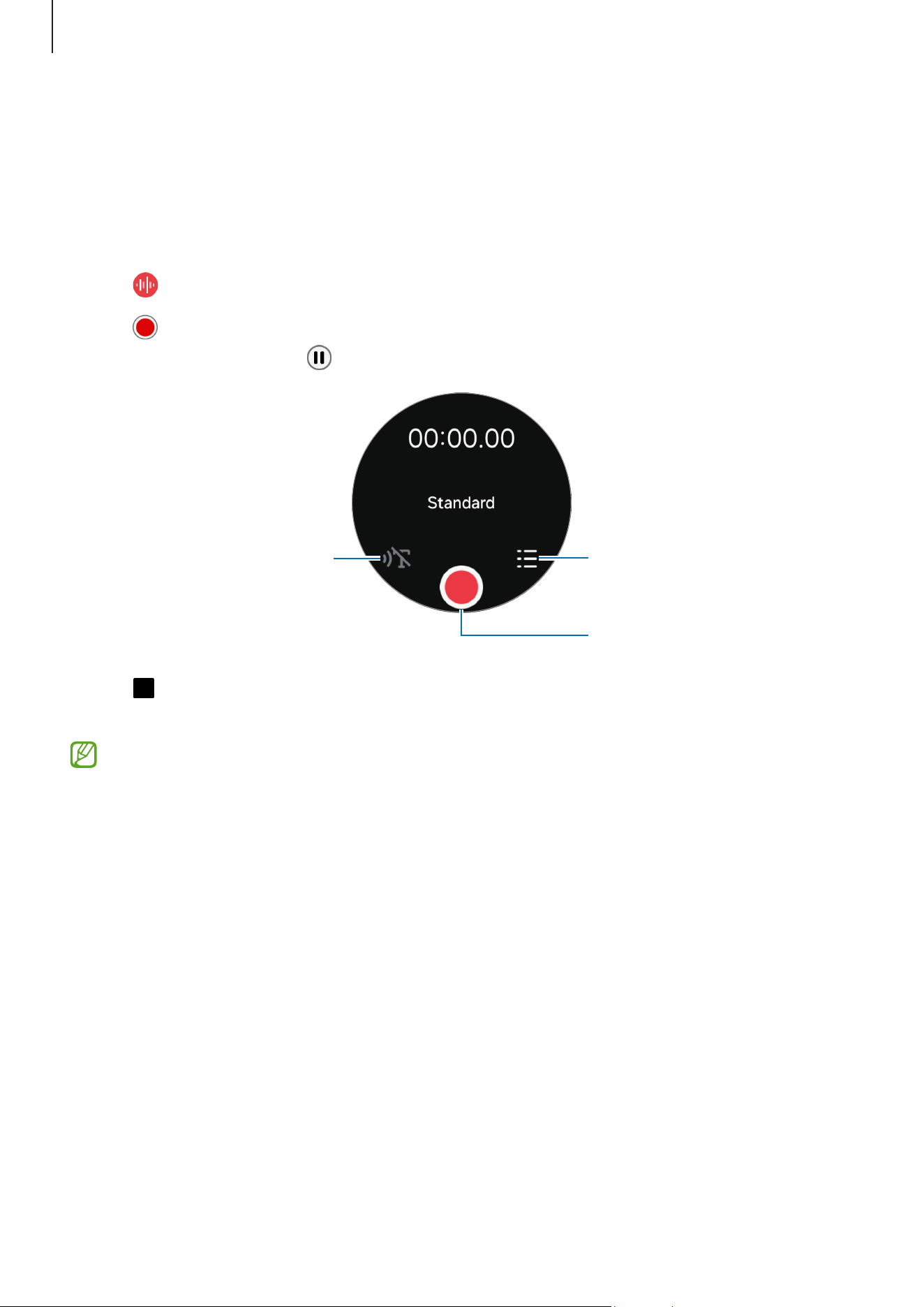
Apps and features
119
Voice Recorder
Record or play voice recordings.
Making voice recordings
1 Tap
(
Voice Recorder
) on the Apps screen.
2 Tap to start recording. Speak into the Watch’s microphone.
To pause recording, tap
.
Change the recording mode.
Start recording.
Check your saved recordings.
3 Tap to finish recording.
The recording will be saved. To listen to the recorded sound, select a recording file.
The recorded audio files from your Watch are automatically synced to your
connected phone and transcribed to text, and then you can check out a summary.
The transcribed text can also be translated into other languages. These features
may not be supported depending on the model of your connected phone.
Apps and features
120
Changing the recording mode
Tap (
Voice Recorder
) on the Apps screen.
Select a mode you want.
•
: This is the standard recording mode.
•
: The Watch records your voice for up to 10 minutes, converts it to text, and then
saves it. For best results, keep the Watch near your mouth and speak loudly and
clearly in a quiet place.
If the speech-to-text language does not match the language you are
speaking, the Watch will not recognise your voice. Before using this feature,
tap
Speech-to-text
on the voice recorder screen to set the speech-to-text
language.
Calculator
You can perform calculations.
Tap
(
Calculator
) on the Apps screen.
Tap
and check the calculation history. To clear the history, tap
Clear history
.
Drag the
icon upwards to calculate a tip or use the unit conversion tool.
Compass
You can use your Watch as a compass.
1 Tap (
Compass
) on the Apps screen.
2 Drag the icon upwards and tap
Calibrate
to calibrate the compass by swinging the
wrist you are wearing the Watch on.
After calibrating, the compass will appear.
Loading page 121...
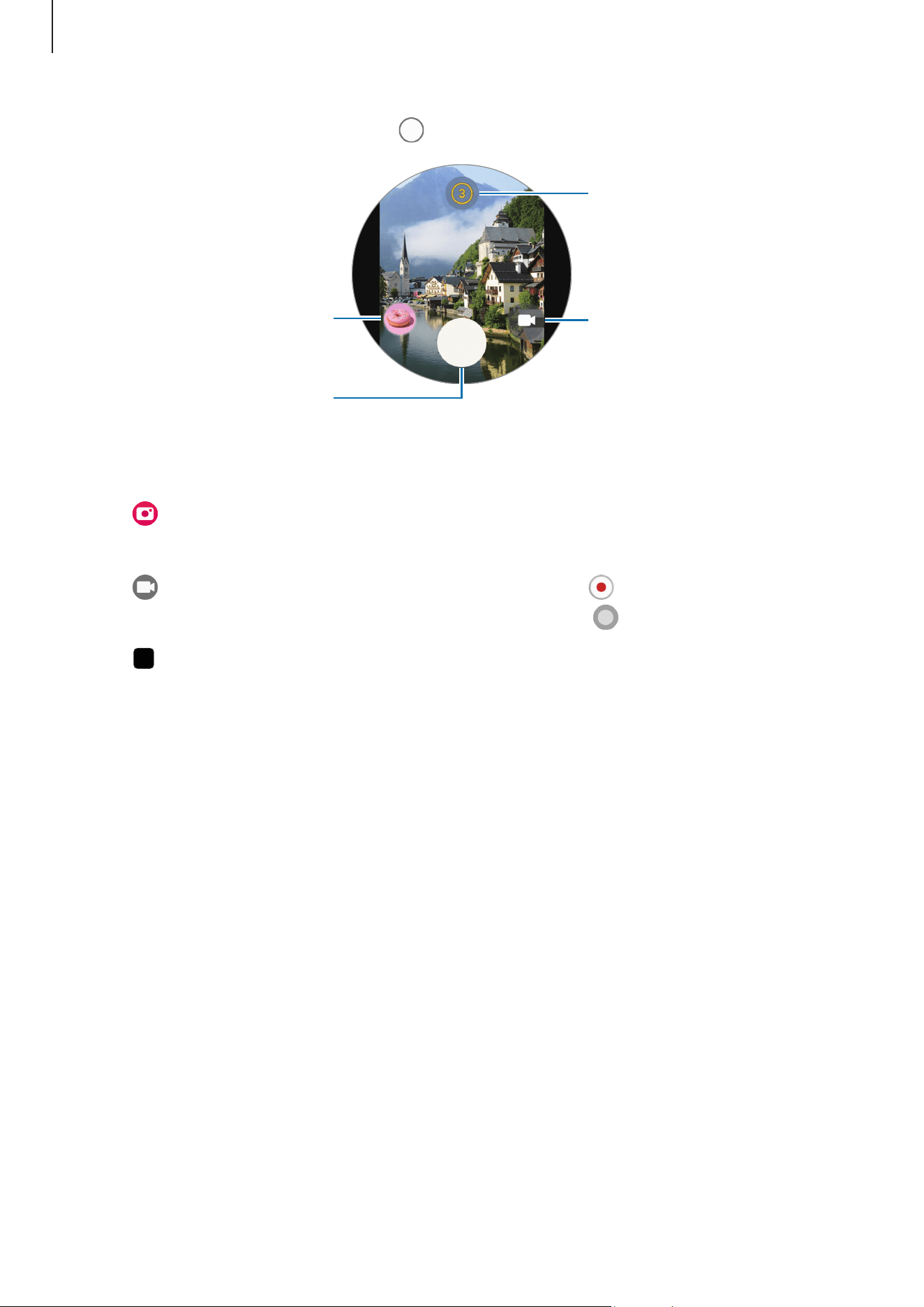
Apps and features
122
2 Check the preview screen and tap to take a picture.
Preview thumbnail
Select the length of the delay
before the camera
automatically takes a picture.
Take a picture.
Change the shooting mode.
Recording a video
1 Tap (
Camera Controller
) on the Apps screen.
The Camera app will be opened on the connected phone.
2 Tap to change the shooting mode into video and tap to record a video.
To capture an image from the video while recording, tap
.
3 Tap
to stop recording the video.
Samsung Global Goals
The Global Goals, which were set up by the United Nations General Assembly in 2015,
consist of goals that aim to create a sustainable society. These goals have the power to
end poverty, fight inequality, and stop climate change.
With Samsung Global Goals, learn more about the global goals and join the movement
for a better future.
Apps and features
123
SmartThings
You can control smart appliances and Internet of Things (IoT) products that are
connected to your phone with your Watch.
1 Tap (
SmartThings
) on the Apps screen.
2 Tap
All routines
or
All devices
, and then select a device or routine to control.
To add the routines or devices, tap
Show on phone
and add them on the connected
phone.
If you have not installed the SmartThings app on your connected phone or if the
versions of the SmartThings app on your Watch and phone do not match, you will
not be able to use this app. Download the latest version of the app on your phone
when you tap
Show on phone
.
Google apps
Google provides some apps for Watch. You may require a Google Account to access some
apps.
•
Maps
: Find your location on the map and search the map using GPS.
•
Messages
: Send and receive messages on your Watch or phone.
•
Assistant
: Use the Watch’s features or search for information using your voice.
Some apps may not be available depending on the carrier or model.
Settings
Introduction
Customise settings for functions and apps. Set your Watch depending on your usage
pattern by configuring the various settings.
Tap
(
Settings
) on the Apps screen.
Some features in Settings may not be available depending on the region, carrier, or
model.
Loading page 124...
Apps and features
125
Wi-Fi
Turn on the Wi-Fi feature to connect to a Wi-Fi network.
1 On the Settings screen, tap
Connections
→
Wi-Fi
, and tap the switch to turn it on.
2 Select a network from the Wi-Fi network list.
Networks that require a password appear with a lock icon.
3 Tap
Connect
.
•
If you cannot connect to a Wi-Fi network properly, restart your Watch’s Wi-Fi
feature or the wireless router.
•
The device is restricted to indoor use only when operating in the 5150–5350 MHz
frequency range.
NFC and contactless payments
You can use this feature to make payments and buy tickets for transportation or events
after downloading the required apps.
On the Settings screen, tap
Connections
→
NFC and contactless payments
.
The Watch contains a built-in NFC antenna. Handle the Watch carefully to avoid
damaging the NFC antenna.
Making payments with the NFC feature
Before you can use the NFC feature to make payments, you must register for the mobile
payment service. To register or get more information about the service, contact your
service provider.
1 On the Settings screen, tap
Connections
→
NFC and contactless payments
and tap
the switch to turn it on.
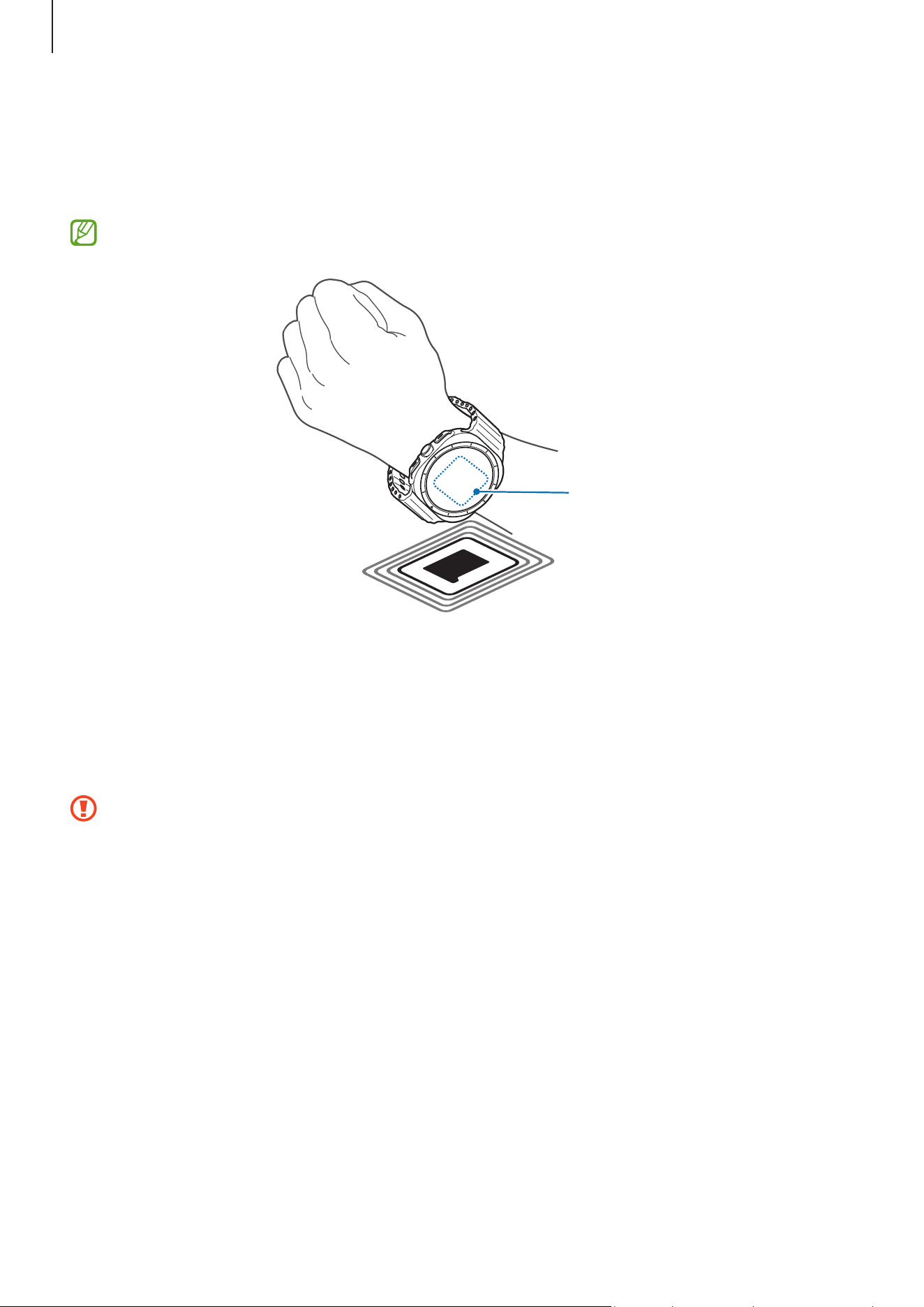
Apps and features
126
2 Touch the NFC antenna area of the Watch to the NFC card reader.
To set the default app, on the Settings screen, tap
Connections
→
NFC and contactless
payments
→
Payment
and select an app.
The payment services list may not include all available payment apps.
NFC antenna
Flight mode
Set the Watch to turn off all wireless functions on your Watch. You can use only
non-network services.
On the Settings screen, tap
Connections
and tap the
Flight mode
switch to turn it on.
Follow the regulations provided by the airline and the instructions of aircraft
personnel. In cases where it is allowed to use the device, always use it in Flight
mode.
Apps and features
127
Mobile networks (Mobile network enabled models)
Customise the settings to control mobile networks.
On the Settings screen, tap
Connections
→
Mobile networks
and select a mobile
network connection option.
•
Auto
: Set to automatically use the Watch’s mobile network when the Bluetooth
connection with your phone is disconnected.
•
When the Watch is connected to the phone through Bluetooth, the Watch’s
mobile network is turned off to save battery power. Then, you cannot receive
messages and calls made to the Watch’s number.
•
When the Bluetooth connection with your phone is disconnected, the
Watch’s mobile network will automatically connect. Then, you can receive
messages and calls made to the Watch’s number.
•
Always on
: Set to always use the Watch’s mobile network regardless of the
connection with the phone.
•
Always off
: Set not to use the Watch’s mobile network.
•
Mobile plans
: Subscribe to the carrier’s mobile plan or additional services.
•
Some services that require a network connection may not be available
depending on the carrier.
•
When you are not subscribed to the carrier’s mobile plan, the Watch’s mobile
network is turned off to save battery power and the network services may not be
available.
Data usage (Mobile network enabled models)
Keep track of your data usage amount and customise the limit settings. Set the Watch to
automatically disable the mobile data connection when you have reached your specified
mobile data limit.
On the Settings screen, tap
Connections
→
Data usage
.
•
Start billing cycle on
: Set the monthly start date of your plan’s data usage.
•
Set data limit
: Turn on or off the feature to automatically disable the mobile data
connection when you have reached your specified mobile data limit.
•
Data limit
: Set the mobile data limit.
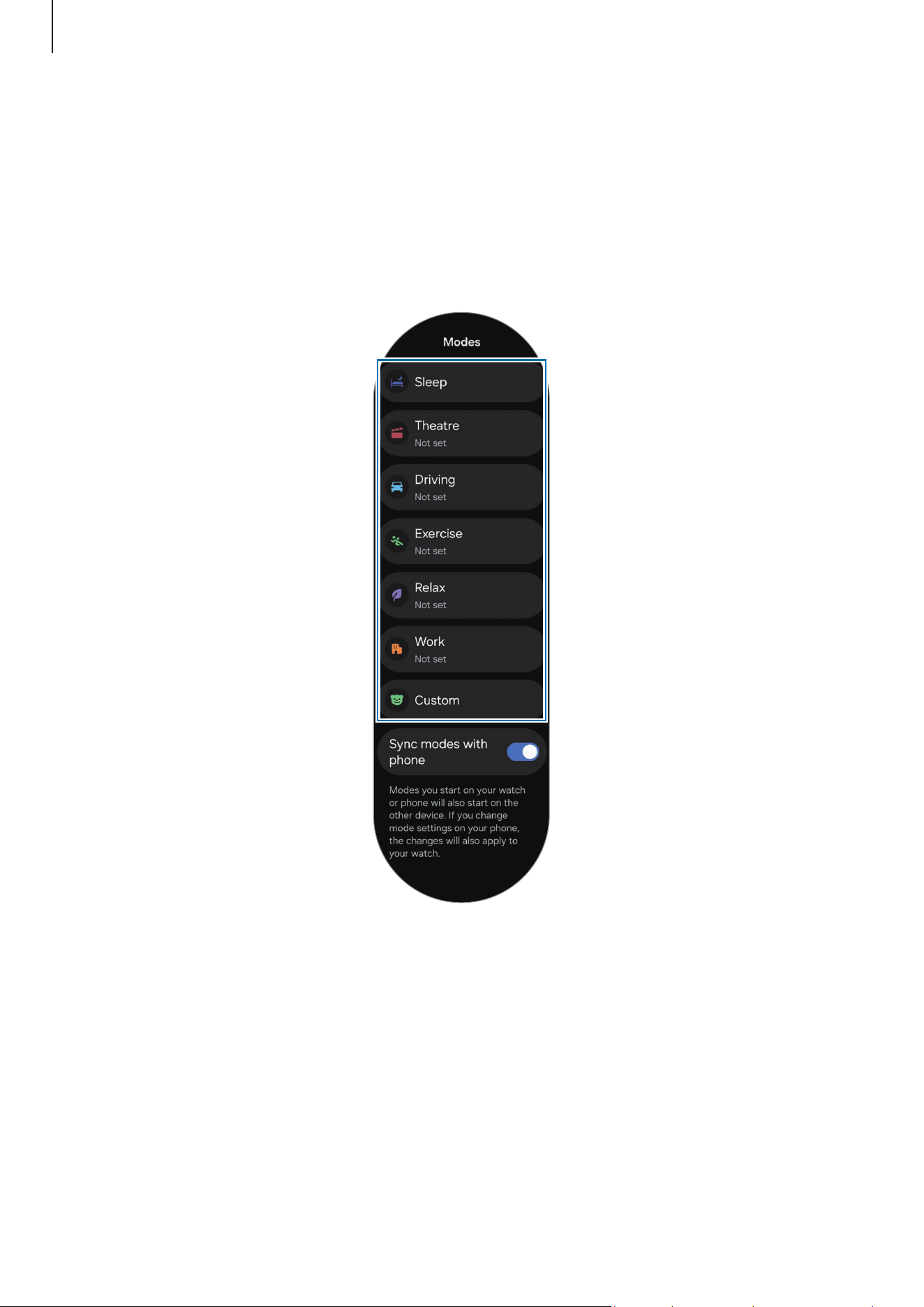
Apps and features
128
Modes
Turn modes that sync with your connected phone based on your current activity or
location on or off.
On the Settings screen, tap
Modes
.
1 Select the mode you want.
2 Tap
Turn on
.
For modes that run automatically, it will be turned on when the conditions added on
the connected phone are detected.
To change the mode settings, tap
Set on phone
and configure the settings on the
connected phone.

Apps and features
129
If mode sync is not working between your connected phone and Watch, tap the
Sync
modes with phone
switch to turn it on. Any new modes added or mode settings changed
on the connected phone are synced with the Watch, as is the running status of the
modes.
Only some modes are available if the
Sync modes with phone
feature is turned off,
or if the connected phone has a different software version.
Notifications
Change the notification settings.
On the Settings screen, tap
Notifications
.
•
App notifications
: Select a phone or Watch app to receive notifications for on your
Watch.
•
Show phone notifications on watch
: Set the Watch to display phone notifications
depending on the phone’s usage status.
•
Mute notifications on phone
: Set to mute app notifications on your phone when they
will be displayed on the Watch.
•
Do not disturb
: Set the Watch to mute all notifications except for those you allow.
•
Advanced settings
: Configure advanced settings for notifications.
•
Help with notifications
: Check more information related to the notifications.
Sounds and vibration
Change the sound and vibration settings.
On the Settings screen, tap
Sounds and vibration
.
•
Sound
/
Vibrate
/
Mute
: Set the Watch to use sound mode, vibrate mode, or silent
mode.
•
Vibrate with sound
: Set the Watch to vibrate with sound.
•
Vibration
: Set the vibration duration and intensity.
•
Call vibration
: Change the call vibration settings.
•
Notification vibration
: Change the notification vibration settings.
•
System vibration
: Select actions to receive vibration feedback.
•
Volume
: Adjust the volume level.

Apps and features
130
•
Ringtone
: Change the call ringtone.
•
Notification sound
: Change the notification sound.
•
System sounds
: Enable sounds for certain actions.
Display
Change the screen settings.
On the Settings screen, tap
Display
.
•
Brightness
: Adjust the brightness of the screen.
•
Adaptive brightness
: Set the Watch to keep track of your brightness adjustments
and apply them automatically in similar lighting conditions.
•
Always On Display
: Set the Watch screen and some apps’ screens to always stay on
while wearing your Watch. However, the battery will drain more quickly than normal
while using this feature.
•
Screen wake-up
: Select how to turn the screen on. Refer to Turning the screen on for
more information.
•
Screen timeout
: Set the length of time the Watch waits before turning off the
screen’s backlight.
•
Show last app
: Set the time to keep the last-used app on after the screen is turned
off. If you turn the screen on again within the time you set after it has been turned
off, the app screen you last used will appear instead of the Watch screen.
•
Font
: Set the font style for the screen.
•
Touch sensitivity
: Increase the touch sensitivity of the screen so it can be used with
gloves.
•
Show charging info
: Set the Watch to display the charging information when the
screen is off while charging.
Loading page 131...

Apps and features
132
•
Back button
: Select an app or feature to launch when you press the Back button.
•
Gestures
‒
Double pinch
: Set to launch the features related to running apps, such as
answering calls or dismissing alerts, when you double tap your thumb and index
finger of the hand you are wearing the Watch together.
‒
Shake to dismiss
: Set to dismiss alerts and decline calls by rotating the wrist you
are wearing your Watch on twice.
‒
Knock knock
: Set to launch the selected feature by bending the wrist you are
wearing your Watch on up and down twice within 5 seconds after turning on
the screen while closing your fist. Tap
Select an option
and set the feature to be
turned on with this method.
Health
Configure the various settings related to exercise and fitness.
On the Settings screen, tap
Health
.
•
Measurement
: Set how to measure your heart rate and stress, and turn the
additional features that can be measured during sleep on or off.
•
Predict period with skin temp
: Turn on or off the feature that measures your skin
temperature while you sleep to predict your menstrual cycle.
•
Alerts
: Set to receive alerts to encourage you to reach your daily activity targets and
receive notifications when you succeed.
•
Auto detect workouts
: Turn on the auto detect workouts feature and configure the
settings, such as selecting the exercise types to be detected.
•
Inactive time
: Turn the feature on to receive alerts after 50 minutes of inactivity, and
set the time and days you want to be notified.
•
Make visible to other devices
: Give permission to other devices to find your Watch.
•
Share data with devices and services
: Set to share information with other connected
health platform apps, exercise machines, and TVs.
•
Privacy
: Select apps or service providers to share information with to display the
necessary information during exercise.
Loading page 133...

Apps and features
134
Accounts and backup
You can use various features of the Watch after registering your Samsung or Google
account on your connected phone and add them on your Watch. You can also regularly
back up your Watch’s data and files automatically with Smart Switch on your connected
phone.
On the Settings screen, tap
Accounts and backup
.
•
Accounts
: Register your Samsung or Google account on your connected phone
and add it to your Watch. Refer to Adding the accounts to your Watch for more
information.
•
Backup
: Check the data of your Watch that is backed up automatically with Smart
Switch on your connected phone.
Google
Change the settings for Google.
On the Settings screen, tap
Google
.
•
Assistant
: Use the Watch’s features or search for information using your voice.
•
Accounts
: Check the Google Account registered on your connected phone and add it
to your Watch.
Advanced features
Turn on the advanced features.
On the Settings screen, tap
Advanced features
.
•
Disconnection alerts
: Set to receive alerts when your Watch loses its Bluetooth
connection to your phone while wearing it.
•
Water lock
: Turn on Water lock mode before entering the water. Touch recognition
may not be available when Water lock mode is turned on.
•
Status indicators
: Change the display settings for the status indicator icons at the
top of the Watch screen.
•
Auto launch media controls
: Set to automatically open the
Media Controller
app on
your Watch when music or video is played on the connected phone.
Loading page 135...
Loading page 136...
Loading page 137...
Loading page 138...
Galaxy Wearable app
139
Managing the connected device
On the Galaxy Wearable screen of the phone, tap .
Currently connected devices and previously connected devices will appear on the list.
•
To disconnect the currently connected device from the phone, tap next to the
connected device from the list.
•
To reconnect with a device you have previously connected, select the device from the
list and tap
Connect
.
Adding a new device and removing devices
1 On the Galaxy Wearable screen of the phone, tap .
2 Tap and follow the on-screen instructions to connect a new wearable device.
The new wearable device will be connected and added to the list.
To remove wearable devices from the list, tap
→
Remove device
, select a device, and
then tap
Remove
.
Watch faces
You can change the type of watch to be displayed on the Watch screen.
On the Galaxy Wearable screen of the phone, tap
Watch faces
.
Select a watch face you want and tap
Customise
or to change screen colours or
components, such as clock hands and dials, and even select items to display on the
Watch screen.
Making My style watch faces
Change your watch face into a pattern image that uses a colour combination abstracted
from the picture you took. You can match your Watch’s watch face with any fashion you
want.
This feature is only available on Samsung or Android phones.
1 On the Galaxy Wearable screen of the phone, tap
Watch faces
.
2 Select
My style
under
Motion graphics
.
Loading page 140...

Galaxy Wearable app
141
Apps screen
Rearrange apps on the Apps screen.
On the Galaxy Wearable screen of the phone, tap
Apps screen
.
To rearrange apps, touch and hold an app to move, drag it to the desired position, and
then tap
Save
.
Tiles
Customise the tiles on the Watch. You can also rearrange tiles.
On the Galaxy Wearable screen of the phone, tap
Tiles
.
Adding or removing tiles
Tap the tiles you want to add under
Add tiles
or tap on the tiles you want to remove,
and then tap
Save
.
Rearranging tiles
Touch and hold a tile you want to move, drag it to the desired position, and then tap
Save
.
Quick panel
Select the quick settings icons displayed on the quick panel of your Watch. You can also
rearrange quick settings icons.
On the Galaxy Wearable screen of the phone, tap
Quick panel
.
Adding or removing quick settings icons
Tap on the icon to add under
Available buttons
or tap on the icon to remove, and
then tap
Save
.
Rearranging quick settings icons
Touch and hold an icon to move, drag it to the desired position, and then tap
Save
.
Loading page 142...
Loading page 143...
Galaxy Wearable app
144
Safety and emergency
Manage your medical information and emergency contacts. You can also set to request
an SOS when you are in an emergency. Refer to Safety and emergency in Apps and
features or Sending an SOS for more information.
On the Galaxy Wearable screen of the phone, tap
Watch settings
→
Safety and
emergency
.
Accounts and backup
You can use various features of the Watch after registering your Samsung or Google
account on your connected phone and add them on your Watch. You can also regularly
back up your Watch’s data and files automatically with Smart Switch on your connected
phone and save the backup to Samsung Cloud.
On the Galaxy Wearable screen of the phone, tap
Watch settings
→
Accounts and
backup
.
•
Save the Watch’s data and files that are automatically backed up periodically to
Samsung Cloud, so that you can restore them if the data and files are damaged
or lost caused by an unintended factory data reset.
•
The data from your Watch will be automatically backed up between 1 AM and
5 AM if your Watch is connected to your phone, your phone has more than 30%
battery, and the screen is off.
•
Accounts
: Register your Samsung or Google account on your connected phone
and add it to your Watch. Refer to Adding the accounts to your Watch for more
information.
•
Backup
: Back up your data automatically to your connected phone, and tap the
Save
backup to Samsung Cloud
switch to turn it on to store the backup on the Samsung
Cloud.

Galaxy Wearable app
145
Advanced features
Turn on the advanced features.
On the Galaxy Wearable screen of the phone, tap
Watch settings
→
Advanced features
.
Refer to Advanced features in Apps and features for more information about other
features besides those listed.
•
Remote connection
: Set the Watch to remotely connect to your phone with the
mobile network or Wi-Fi network when a Bluetooth connection between devices is
unavailable.
Device care
The device care feature provides an overview of the status of your Watch’s battery,
storage, and memory. You can also test your Watch.
On the Galaxy Wearable screen of the phone, tap
Watch settings
→
Device care
. Refer
to Device care in Apps and features for more information about other features besides
those listed.
•
Diagnostics
: Test your Watch using Samsung Members.
Apps
Configure the settings for the Watch’s app.
On the Galaxy Wearable screen of the phone, tap
Watch settings
→
Apps
.
•
App settings
: Change the detailed settings for some of the Watch’s apps.
•
Your apps
: Manage the Watch’s apps and check each app’s usage information, or
uninstall or disable unnecessary apps.
Loading page 146...
Loading page 147...

Galaxy Wearable app
148
Find My Watch
If you misplace your Watch, you can use the Galaxy Wearable app, the SmartThings Find
feature of the SmartThings app, or the Samsung Find app installed on the connected
phone to find it.
•
Support for the SmartThings Find feature and the Samsung Find app may vary
depending on the connected phone’s software version.
•
The screen may switch automatically to find your Watch if the SmartThings Find
feature or Samsung Find app on the connected phone has those features. If both
the SmartThings Find feature and the Samsung Find app are supported, the
Samsung Find app will be opened.
Searching with the Galaxy Wearable app
1 On the Galaxy Wearable screen of the phone, tap
Find My Watch
.
2 Tap
Start
.
The Watch will make a sound and vibrate, and its screen will turn on.
To stop making sound and vibrating, drag
outside the large circle on the Watch.
Alternatively, use the touch bezel. You can also stop it by tapping
Stop
on the phone.
Controlling the Watch remotely
When your Watch is lost or stolen, tap
Find My Watch
on the Galaxy Wearable screen of
the phone, tap
Set security
, and then control your Watch remotely.
•
Lock watch
: Remotely lock the Watch to prevent unauthorised access. This feature
can be used when your phone is connected to your Watch through Bluetooth or a
remote connection. When your Watch is locked, unlock it manually by entering a
preset PIN, or connect the Watch to your phone through Bluetooth again to unlock it
automatically.
•
Reset watch
: All data stored in your Watch is deleted. After the Watch is reset, you
cannot restore the information or use the Find My Watch feature. However, data that
was backed up and stored while your Watch and phone were connected before the
reset is available on the Samsung Cloud.

Galaxy Wearable app
149
Searching with the SmartThings Find feature from the SmartThings app
or the Samsung Find app
On the Galaxy Wearable screen of the phone, tap
Find My Watch
.
The SmartThings Find screen that is available through the SmartThings app will appear
or the Samsung Find app will be opened on the phone, and you will then be able to
check the location of your misplaced Watch. Also, you can find it by following the sound
emitted from your Watch.
To find your Watch using the Samsung Find app, Samsung Find’s features related to
finding devices offline must be turned on.
Store
Download the apps and watch faces to be used on your Watch.
On the Galaxy Wearable screen of the phone, tap
Store
.

150
Usage notices
Precautions for using the device
Please read this guide when using the device to ensure safe and proper use.
•
Descriptions are based on the device’s default settings.
•
Some content may differ from your device depending on the region, service provider,
model specifications, or device’s software.
•
The device may require a connection to a Wi-Fi or mobile network when using some
apps or features.
•
Content (high quality content) that requires high CPU and memory usage will affect
the overall performance of the device. Apps related to the content may not work
properly depending on the device’s specifications and the environment that it is
used in.
•
Samsung is not liable for performance issues caused by apps supplied by providers
other than Samsung.
•
Samsung is not liable for performance issues or incompatibilities caused by edited
registry settings or modified operating system software. Attempting to customise
the operating system may cause the device or apps to work improperly.
•
Software, sound sources, wallpapers, images, and other media provided with
this device are licensed for limited use. Extracting and using these materials for
commercial or other purposes is an infringement of copyright laws. Users are
entirely responsible for illegal use of media.
•
You may incur additional charges for data services, such as messaging, uploading
and downloading, auto-syncing, or using location services depending on your data
plan. For large data transfers, it is recommended to use the Wi-Fi feature.
•
Default apps that come with the device are subject to updates and may no longer be
supported without prior notice.
•
This device’s operating system is different from some previous series of the Galaxy
Watch, and you cannot use previously purchased content because of compatibility
issues.
Usage notices
151
•
The model specifications and supported services may differ depending on the
region.
•
Modifying the device’s operating system or installing software from unofficial
sources may result in device malfunctions and data damage or loss. These actions
are violations of your Samsung licence agreement and will void your warranty.
•
Some features may not work as described in this guide depending on the maker and
model of the phone you connect to your Watch.
•
You can see the screen clearly even in strong outdoor sunlight by automatically
adjusting the contrast range based on the surrounding environment. Because of the
nature of the product, displaying fixed graphics for extended periods may result in
afterimages (screen burn-in) or ghosting.
‒
It is recommended not to use fixed graphics on part or all of the screen for
extended periods and turn off the screen when not using the device.
‒
You can set the screen to turn off automatically when you are not using it. On
the Watch’s Apps screen, tap
(
Settings
)
→
Display
→
Screen timeout
, and
then select the length of time you want the device to wait before turning off the
screen.
‒
To set the screen to automatically adjust its brightness based on the surrounding
environment, on the Watch’s Apps screen, tap
(
Settings
)
→
Display
, and then
tap the
Adaptive brightness
switch to turn it on.
•
Depending on the region or model, some devices are required to receive approval
from the Federal Communications Commission (FCC).
If your device is approved by the FCC, you can check out the FCC ID of the device. To
access the FCC ID, on the Watch’s Apps screen, tap
(
Settings
)
→
About watch
→
Status information
. If your device does not have an FCC ID, it means that the device
has not been authorised for sale in the U.S. or its territories and may only be brought
to the U.S. for the owner’s personal use.
•
Depending on the region, you can check out the regulatory information on the
device. To access the information, on the Watch’s Apps screen, tap
(
Settings
)
→
About watch
→
Regulatory information
.
•
Your device contains magnets. Keep it away from credit cards, implanted medical
devices, and other devices that may be affected by magnets. In the case of medical
devices, keep your device more than 15 cm apart. Stop using your device if you
suspect any interference with your medical device and consult your physician or your
medical device manufacturer.
Usage notices
152
Instructional icons
Warning: situations that could cause injury to yourself or others
Caution: situations that could cause damage to your device or other equipment
Notice: notes, usage tips, or additional information
Notes on package contents and accessories
Refer to the quick start guide for package contents.
•
The items supplied with the Watch and any available accessories may vary
depending on the region or carrier.
•
The supplied items are designed only for this device and may not be compatible with
other devices.
•
Appearances and specifications are subject to change without prior notice.
•
You can purchase additional accessories from your local Samsung retailer. Make sure
they are compatible with the Watch before purchase.
•
Except for the Watch, some supplied items and accessories may not have the same
water- and dust-resistance certification.
•
Use Samsung-approved accessories. Using unapproved accessories may cause the
performance problems and malfunctions that are not covered by the warranty.
•
Availability of all accessories is subject to change depending entirely on
manufacturing companies. For more information about available accessories, refer
to the Samsung website.

Usage notices
153
Maintaining the device’s water and dust
resistance
▶
Galaxy Watch7:
•
This device is water and dust resistant, and meets the following international
standards.
‒
5ATM water resistance classification certification: Was tested by submerging
the device in 50 m of fresh water for 10 minutes, leaving it still, without any
movement, to meet the requirements of ISO 22810:2010.
‒
IPX8 water resistance classification certification: Was tested by submerging
the device in 1.5 m of fresh water for 30 minutes, leaving it still, without any
movement, to meet the requirements of IEC 60529.
‒
IP6X dust resistance classification certification: Was tested to meet the
requirements of IEC 60529.
•
You can use this device when you are exercising, washing your hands or on a rainy
day.
•
You can use this device when you are swimming in a pool or the sea where the water
level is not deep.
•
The water resistance of your Galaxy device is not permanent and may diminish over
time because of normal wear and tear, depending on the usage environment or
conditions. It is recommended to have your Galaxy device’s water resistance tested
once a year at a Samsung Service Centre or an authorised service centre.
•
You must follow these guidelines to maintain the water and dust resistance of your
device.
‒
After swimming, and before the pool water or seawater has dried, rinse the device
with fresh water and dry it thoroughly with a soft, clean cloth to maintain its
water resistance. The water resistance may be affected by the disinfectants in
swimming pool water or the salt in seawater.
‒
If the device gets wet with liquid other than fresh water, such as coffee, drinks,
soapy water, oil, perfume, sunscreen, hand sanitiser, or chemical products like
cosmetics, rinse the device with fresh water and dry it thoroughly with a soft,
clean cloth to maintain its water resistance.

Usage notices
154
‒
Do not stay submerged underwater, go snorkelling, diving or scuba diving, or play
water sports like water-skiing or surfing, and do not swim in fast-moving water,
such as a river, while wearing your device. Also, do not expose it to high-pressure
cleaning machines or similar things. This would result in a dramatic rise in water
pressure which could cause the water resistance guaranteed by our company to
change.
‒
If the device is hit or damaged, its water and dust resistance may be
compromised.
‒
Do not disassemble your device without proper guidance.
‒
If you dry your device with a machine that gives off hot air, like a hair dryer, or if
you use your device in a hot environment like a sauna, the water resistance could
be damaged from a dramatic change in the air or water temperature.
▶
Galaxy Watch Ultra:
•
This device is water and dust resistant, and meets the following international
standards.
‒
10ATM water resistance classification certification: Was tested by submerging
the device in fresh water, applying pressure equivalent to 100 m and leaving
it still without any movement for 10 minutes, to meet the requirements of
ISO 22810:2010.
‒
IPX8 water resistance classification certification: Was tested by submerging
the device in 1.5 m of fresh water for 30 minutes, leaving it still, without any
movement, to meet the requirements of IEC 60529.
‒
IP6X dust resistance classification certification: Was tested to meet the
requirements of IEC 60529.
•
The device is not intended for divers.
•
You can use this device when you are exercising, washing your hands or on a rainy
day.
•
You can use this device when you are swimming in a pool or the sea where the water
level is not deep.
•
The water resistance of your Galaxy device is not permanent and may diminish over
time because of normal wear and tear, depending on the usage environment or
conditions. It is recommended to have your Galaxy device’s water resistance tested
once a year at a Samsung Service Centre or an authorised service centre.
Loading page 155...
Usage notices
156
Precautions for overheating
If you feel discomfort because of overheating while using the device, stop using it
immediately and remove it from your wrist.
•
To avoid problems, such as device malfunction, skin discomfort or damage,
and battery draining, a warning will appear on the device if it reaches a specific
temperature. When the initial warning appears, device features will be turned off
until the device cools down to a specific temperature. However, the emergency call
feature will be available on the LTE model.
•
If the device temperature continues to increase, a second warning will appear.
At this time, the device will power off. Do not use the device until the device’s
temperature is within the recommended operating temperature range. However,
when using the LTE model, the emergency call feature that has been previously
connected will remain enabled until you are finished, even though the second
warning will appear.
Recommended operating temperature range
The device’s recommended operating temperature is between 0 °C to 35 °C. Using
the device outside of the recommended temperature range may damage the
device or reduce the battery’s lifespan.
Cleaning and managing the Watch
Follow these points to ensure your Watch works correctly and maintains its appearance.
Failure to do so may damage the Watch and cause the skin irritation.
•
Turn off the Watch and remove the band before cleaning it.
•
Prevent the device from being exposed to dust, sweat, ink, oil, and chemical
products such as cosmetics, antibacterial spray, hand cleaner, detergent, and
insecticides. The Watch’s exterior and interior parts may be damaged or it could
result in poor performance. If your Watch is exposed to any of the previously
mentioned substances, use a lint-free, soft cloth to clean it.
•
Do not use soap, cleaning agents, abrasive materials and compressed air when
cleaning your Watch and do not clean it with the ultrasonic waves or the external
heat sources. Doing so may damage the Watch. Skin irritation may be caused by
soap, detergents, hand sanitisers, or cleaning agents left on the Watch.
Loading page 157...

158
Appendix
Troubleshooting
Before contacting a Samsung Service Centre or an authorised service centre, please
attempt the following solutions. Some situations may not apply to your Watch.
You can also use Samsung Members to solve any problems you might encounter while
using your device.
The Watch displays network or service error messages
•
When you are in areas with weak signals or poor reception, you may lose reception.
Move to another area and try again. While moving, error messages may appear
repeatedly.
•
Please note that models purchased in Germany cannot receive signals in LTE TDD
bands in the following countries: Belgium, Denmark, Germany, France, Luxemburg,
Netherlands, Austria, Poland, Switzerland, Czech Republic. If you are in an LTE
TDD-only service area, you may lose reception. Move to another area and try again.
•
You cannot access some options without a subscription. For more information,
contact your carrier.
Your Watch does not turn on
When the battery is completely discharged, your Watch will not turn on. Fully charge the
battery before turning on the Watch.
Touch recognition works slowly or improperly
•
Touch recognition may not work properly in the following situations:
‒
If you attach a screen protector or optional accessories to the screen
‒
If you are wearing gloves, if your hands are not clean while touching the screen, or
if you tap the screen with a sharp object or your fingertips
‒
In humid conditions or when exposed to water
Loading page 159...

Appendix
160
A Bluetooth connection is not made or your Watch and the phone
are disconnected
•
Ensure that the Bluetooth feature on both devices is turned on.
•
Ensure there are no obstacles, such as walls or electrical equipment, between the
devices.
•
Ensure that the latest version of the Galaxy Wearable app is installed on the phone.
If the Galaxy Wearable app is not the latest version, update the Galaxy Wearable app
to the latest version.
•
Ensure that your Watch and the other Bluetooth device are within the Bluetooth
connection range (10 m). The distance may vary depending on the environment the
devices are used in.
•
Restart both devices and open the
Galaxy Wearable
app on the phone again.
Calls are not connected
•
Ensure that your Watch is connected to a phone through Bluetooth.
•
Ensure that your phone and Watch have accessed the right cellular network.
•
Ensure that you have not set call barring for the phone number you are dialling on
the phone.
•
Ensure that you have not set call barring for the incoming phone number on the
phone.
•
Check if some modes are turned on. If some modes have been turned on, incoming
calls may be muted and the screen may not turn on when receiving incoming calls.
Others cannot hear you speaking on a call
•
Ensure that you are not covering the built-in microphone.
•
Ensure that the microphone is close to your mouth.
•
If using a Bluetooth headset, ensure that it is properly connected.
Loading page 161...

Appendix
162
Your Watch cannot find your current location
The Watch uses your phone’s location information. GPS signals may be obstructed in
some locations, such as indoors. Set to use Wi-Fi or a mobile network to find your current
location.
A small gap appears around the outside of the Watch case
•
This gap is a necessary manufacturing feature and some minor rocking or vibration
of parts may occur.
•
Over time, friction between parts may cause this gap to expand slightly.
There is not enough space in the Watch’s storage
Delete unnecessary data, unused apps, or files to free up storage space.
Removing the battery
•
To remove the battery, contact an authorised service centre. To obtain battery
removal instructions, please visit www.samsung.com/global/ecodesign_energy.
•
For your safety, you must not attempt to remove the battery. If the battery is not
properly removed, it may lead to damage to the battery and device, cause personal
injury, and result in the device being unsafe.
•
Samsung does not accept liability for any damage or loss (whether in contract or
tort, including negligence) which may arise from failure to precisely follow these
warnings and instructions, other than death or personal injury caused by Samsung’s
negligence.
Loading page 163...