OWNER’S MANUAL
ASSEMBLY MANUAL
MONITOR INSTRUCTIONS
WARRANTY & CONTACT INFO

2

3
TABLE OF CONTENTS
Owner’s Manual 04 – 10
Assembly Instructions 11 – 16
Troubleshooting 17
Monitor Instructions 19 – 25
Warranty Information 26

4
INTRODUCTION
Congratulations on becoming a WaterRower owner.
Rowing is universally recognized as the perfect aerobic exercise − smooth, low impact,
rhythmic and whole-body − unrivalled for its physiological benets and aesthetic pleasures.
Rowing, indoors or outdoors, at any exercise level of intensity, requires a
greater exercise expenditure than any other aerobic activity. Calories are
burned in relation to the number of muscles used and the intensity and
duration of the exercise. Rowing with a sliding seat uses a very large muscle
mass since the upper, lower and trunk muscles are used vigorously.
-Dr. C Everett Koop- Former US Surgeon General
While most rowing machines imitate the action of rowing, they do so mechanically, and
therefore lack the natural dynamics experienced when a boat and crew glide down a river.
At WaterRower, we have focused on replicating the physical dynamics of rowing, with the
knowledge that this will achieve all of its physiological benets, as well as much of the
aesthetic pleasure.
To maximize the enjoyment from using your WaterRower we recommend that you follow
our suggestions on rowing technique and training programs. We hope that some of the
discussion points in this manual will improve your knowledge about exercise in general, so
that you are better able to fulll your specic exercise objectives.
Your WaterRower has been carefully hand-crafted to give you years of trouble-free use. You
will notice that each WaterRower is unique due to the variance in color and grain that occurs
naturally in genuine hardwood. We recommend that you closely follow the assembly details
provided, particularly by assembling the machine in the correct sequence, and adhering to
the suggested maintenance schedule.
We hope you enjoy using your WaterRower for many years to come!
OWNER’S MANUAL

5
SAFETY
We recommend consulting a physician before starting out with an exercise program.
Please read all instructions before using the WaterRower. Additional information on getting
started, rowing technique and rowing training advice can be found at:
www.HowToRow.com.
CAUTION: Please keep hands away from moving parts
when rowing machine is in use. Failing to do so can lead to
injury. For further information on safety tips, please refer
to www.waterrower.com/safety.
OPERATION
The WaterRower is unique in using the eect of drag to provide an exercise which is entirely
self paced. Because drag is linked to speed, a crew rowing down a river chooses its intensity
of exercise simply by altering the pace at which they row: the faster the boat travels the
greater the drag and the harder the crew must work. There is a similar eect in swimming.
By replicating these dynamics the WaterRower does not require adjustment to increase
resistance: if a more intensive workout is required, simply row faster and harder, and the
WaterRower will respond accordingly.
WATER LEVEL
The amount of water in the Tank simulates the weight of the Boat and Crew as it glides
down the river. Changing the Water Level does not change the resistance, it simply
changes the mass which the user is trying to move. Increasing the Water Level simulates a
heavier boat and crew mass, similarly reducing the Water Level simulates a lighter boat and
crew mass.
The Water Level is adjusted according to one’s personal preference or user type; the
intensity is altered simply by moving the chosen mass faster or slower. A level gauge is
positioned on the side of the the tank. Overlling the tank could impact the warranty
coverage. Do not ll above the maximum level.
NOTE - Fill the tank with ordinary municipal water. Municipal water contains additives which
will deter the growth of algae. If municipal water is unavailable, use distilled water (do
not use well water). Unless using blue dye, add the purication tablet supplied with your
WaterRower. (For further information, refer to the section on Preventative Maintenance for
advice on Water Treatment).
FOOTPAD POSITION
The footpad has been designed to be adjusted for maximum
comfort. The foot strap is designed to cross the foot at the
pivot point of the toes (the ball of the foot). This should enable
the heel to be raised o the footboard as the user comes
forward with each stroke. The footpad can be easily adjusted to
accommodate dierent foot positions. The standard footboard
model requires pressing the Button between the Foot Straps to
move the footpad up or down.
Note: Do not tighten footboard
assembly bolts

6
MAINTENANCE
START UP MAINTENANCE
During the rst weeks of use, the wood in your WaterRower will adjust to the temperature
and humidity of the environment. During this period it is strongly advised that you GENTLY
tighten all the connecting bolts with the Allen key stored under the rear spacer. Please be
careful not to overtighten any of these bolts.
Additionally, as the drive and recoil belts loosen up with use, it may be necessary to tighten
the bungee cord. To do this, leave the handle in the full forward position and adjust the
bungee/recoil belt buckle to provide a little more tension. It may be necessary to tighten
to perform these two simple start up procedures once or twice over the rst month of use.
Please refer to Adjusting the Recoil video at:
www.waterrowerservice.com/videos.
PREVENTATIVE MAINTENANCE
Periodic maintenance is required to maintain the condition of the water in the tank. We
strongly ADVISE USING MUNICIPAL TAP WATER which contains treatments to keep it free
from bacteria and algae, etc. The water must be refreshed periodically by adding a water
purication tablet provided. The purication tablet degrades by exposure to light: this may
vary from 6 months in direct sunlight to 2 years in an articially lit environment. Generally
we suggest adding one purication tablet every six months.
If water discoloration occurs, add a purication tablet immediately. If the water does not
clear, we recommend emptying the tank, ushing it out with clean water, relling and adding
a purication tablet. NEVER USE POOL CHLORINE OR CHLORINE BLEACH in the tank as this
will irreparably damage the polycarbonate tank. The use of an alternative purication option
in the tank beyond the approved WaterRower product could void the warranty.
MAINTAINING AND CLEANING
To maintain the appearance and integrity of your WaterRower it is necessary to keep the
machine clean. It is particularly important to ensure that there is no dust build up in the
clutch and belt mechanism between the top and bottom decks. Dust can be removed by
using a cloth or vacuum cleaner.
The surface of the rails must be kept clean to prevent dust and dirt from deteriorating the
seat wheels; the rails can be cleaned by wiping with a damp cloth.
The surface of the tank can be cleaned, however, please ensure you read the instructions for
any cleaning uids prior to use.
DO NOT USE METHYLATED SPIRITS, CHLORATES, BLEACH OR AMMONIA BASED FLUIDS
WHEN CLEANING ANY PART OF YOUR WATERROWER. The use of improper cleaning products
could void the warranty.
MAINTAINING THE WOOD
The natural wood WaterRowers are nished with Danish oil which gives a deep penetrating
nish to the hardwood frame. Other than occasional dusting or polishing, the wood requires
no maintenance. If you are the owner of an Oxbridge WaterRower, you will notice that
Cherry wood is photosensitive and will develop a wonderful dark patina color over time. The
use and/or storage of the WaterRower in inclement weather, including but not limited, to
extreme temperatures and moisture could void the warranty.
7
STORAGE OF YOUR WATERROWER
Your WaterRower can be stored upright. Lift the rear spacer end, pull the WaterRower
towards you and use the momentum to stand it in an upright position. When storing the
WaterRower, please ensure the seat is in the forward position (close to the footboard). When
stored upright the WaterRower is stable and it only takes the space of a chair.
USING YOUR WATERROWER
The Rowing Action uses 84% of your muscle mass; from the tips of the ngers holding
the handle/oars, to the balls of the feet connected to the footboard/boat, all the muscles
between these 2 points contribute to the Rowing Action.
The Rowing Action is comprised of both fast (drive phase) and slow (recovery phase)
movements. It is important to combine these 2 movements into a rhythm in order to create
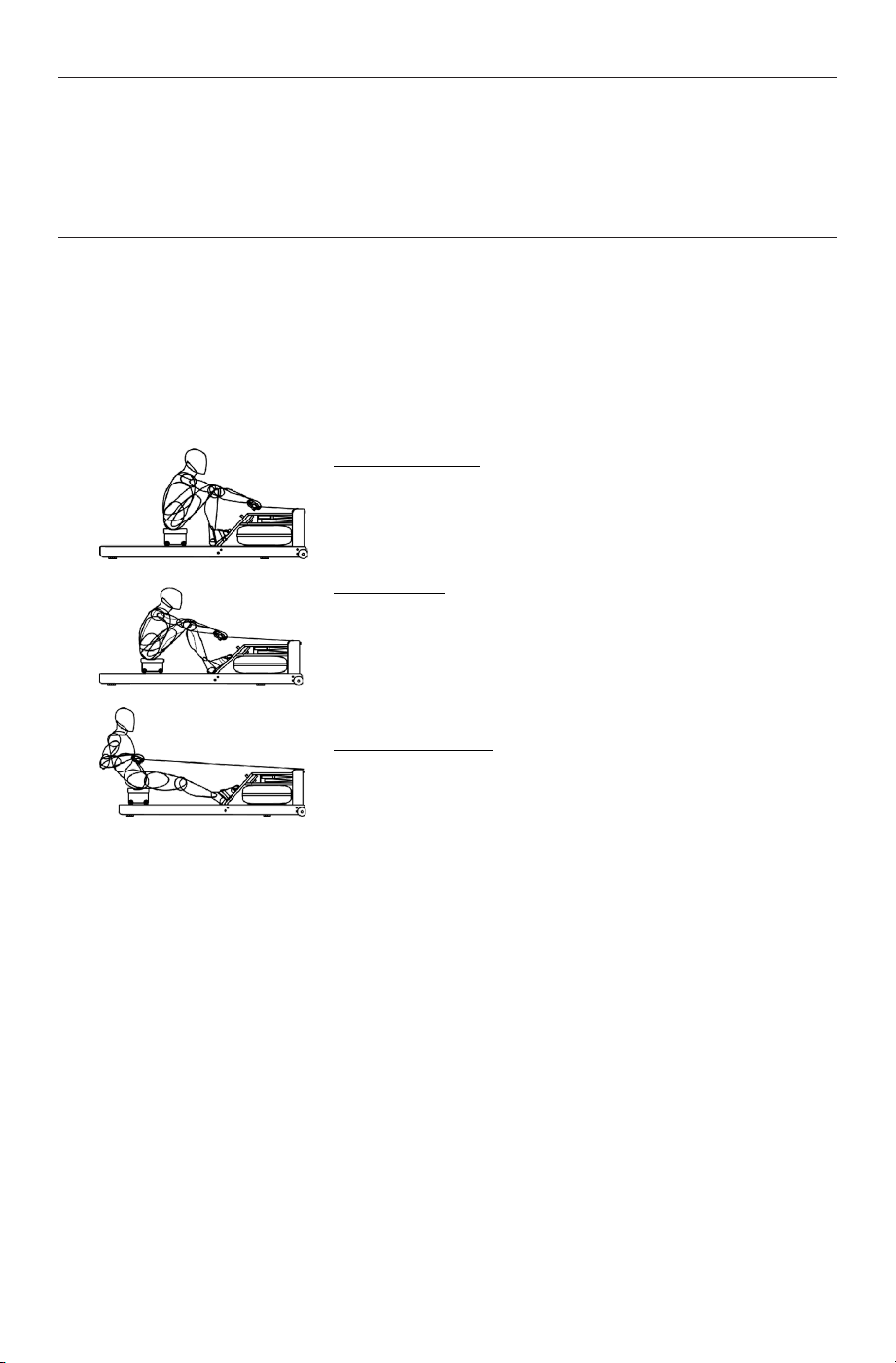
a smooth, owing, unhurried Rowing Action. The diagrams below show 3 basic movements
of the rowing action.
CATCH POSITION
Sitting tall, arms straight reaching forward,
shoulders relaxed, head up, eyes looking
forward, legs compressed and shins vertical.
DRIVE PHASE
Drive back with the legs, arms hang o the
handle and only begin to bend once handle
is above the knees, torso is strong with good
posture and body angle opens up slowly as you
drive the legs.
RELEASE POSITION
Legs straight, handle drawn to chest, sitting
back just past the vertical, torso rm, shoulders
relaxed, head up and eyes looking forward.
Allow yourself the rst few rowing sessions to practice the correct positions and phases as
well as the correct ratio and rhythm of the rowing action. With regular rowing, the technique
will become easier and you will soon experience the physiological benets of rowing.
Please visit www.HowToRow.com to learn more about the phases and positions of the
rowing technique.

8
YOUR EXERCISE PROGRAM
Most of us recognize the benet of exercise and the potential improvements to our general
health and well-being. However, few of us fully understand the physiology of exercise and
the best means of achieving our specic exercise objectives.
In order to get the most out of any exercise program, it is essential to have an understanding
of what your exercise objectives are These may include reducing or maintaining weight,
improving general strength, developing bulging muscles, improving sporting competitiveness
or simply avoiding the health consequences of a modern sedentary lifestyle.
It is important to set a few dierent types of objectives.
These are divided into:
▪ Immediate Objectives - weekly
▪ Short Term Objectives - monthly
▪ Long Term Objectives - yearly
Your long term objectives are your nal objectives, to achieve these, you need stepping
stones which are the short term objectives and immediate objectives. Objectives need to be:
▪ Specic - set goals that you would like to achieve by certain dates
▪ Realistic - do not set a standard too high or motivation will be lost
▪ Flexible - be prepared for set backs such as injuries and illness
WEIGHT MAINTENANCE
At lower intensities, our body uses a mixture of fat and carbohydrate as its source of fuel. As
the maximum aerobic output is approached, the percentage of fat consumed as fuel reduces
to zero. Also, as the duration of exercise is increased, the percentage of fat consumed tends
to increase.
If your objective is weight maintenance, then the energy (food) you consume must equal
energy used (exercise, metabolism etc.). Exercising for weight maintenance is best achieved
at lower intensities and over longer durations. A low intensity (60 - 70% of the maximum
heart rate) is typically that at which you can hold a conversation; it is by no means strenuous
and is about that achieved by a brisk walk.
AEROBIC TRAINING
A sustained exercise program will improve the eciency with which the respiratory and
cardiovascular system can supply oxygen. This improves lung function, heart function,
vascular eciency and capillary growth, leading to improved well-being and endurance. At
about 70 - 80% of the maximum heart rate, lactic acid begins to accumulate in the blood
supply at a greater rate than it can be extracted by the liver, kidneys and other organs.
Exercising above this intensity will cause progressive accumulation of lactic acid in the blood,
increased heart and breathing rates and cause muscle fatigue.
Prolonged exercise at or below this intensity will maintain lactic acid at non-fatiguing levels
and exercise duration will be limited solely to the depletion of available fuel stores. If
your exercise objective is aerobic training (cardiovascular/endurance), then it is necessary
to exercise at an intensity which will avoid fatigue due to lactic acid build up. This is best
achieved at moderate levels of intensity over medium/long durations.
A moderate exercise intensity (70-80% of the maximum heart rate) is about that achieved by
a steady jog, avoiding the onset of muscle soreness.

9
ANAEROBIC TRAINING
Anaerobic training causes the build-up of lactic acid (as rapidly as one minute after exercise
is commenced). Lactic acid saturation will necessitate either a rapid reduction in exercise
intensity or complete cessation.
The accumulation of lactic acid limits the contribution of the anaerobic process to total
energy production. Though energy may be generated rapidly, total work capacity and total
output is limited.
The level of intensity at which lactic acid begins to accumulate can be altered by training. This
is best done by improving the eciency of the aerobic process and is achieved by training at
moderate levels of intensity.
Exercising at anaerobic intensities may condition an athlete’s tolerance to fatigue, but the
benet can be more psychological than physiological. Prolonged exercise at high intensity
not only impairs the weight reduction and aerobic training eect, but the rapid onset of
fatigue can cause poor technique and increase risk of injury.
Training anaerobically is done at high intensities (80-100% of the maximum heart rate) over
a short period of time (10 seconds to a few minutes). Interval training is a form of anaerobic
training.
TRAINING GUIDELINES
To ensure you get the maximum benet from training on your WaterRower and to avoid
unnecessary problems or injuries here are a few guidelines:
▪ A health check before starting an exercise program.
▪ Use heart rate to monitor your intensity.
▪ Always warm up and cool down.
▪ Always stretch, especially at the end of your workout.
▪ Keep a record of your workouts.
▪ Keep well hydrated.
▪ Gradually increase the intensity, duration and frequency of
your workouts.
▪ Ensure you include recovery time in your training program.
▪ Add variety to your workouts. (refer toHowToRow.com/workouts)

10
WATERCOACH
WaterCoach is a rowing education program designed to broaden the knowledge of rowing as
a tness pursuit. WaterCoach consists of three programs for the WaterRower owner, tness
professional/instructor and the general rowing machine user in the gym;
▪ WaterCoach Home - a rowing education program and personal training advice for the
WaterRower owner.
▪ WaterCoach Professional - a rowing education program for the tness professional/
instructor. ACE certied course.
▪ HowToRow - a rowing education program for the rowing machine user, at a gym.
We hope that this expanded knowledge enables you to realize the unrivalled physical
benets of rowing and get the best from your WaterRower. For more information, please
visit www.HowToRow.com.
TRAINING RESOURCES
For further information on your exercise objectives and rowing training types please visit
www.HowToRow.com.
11
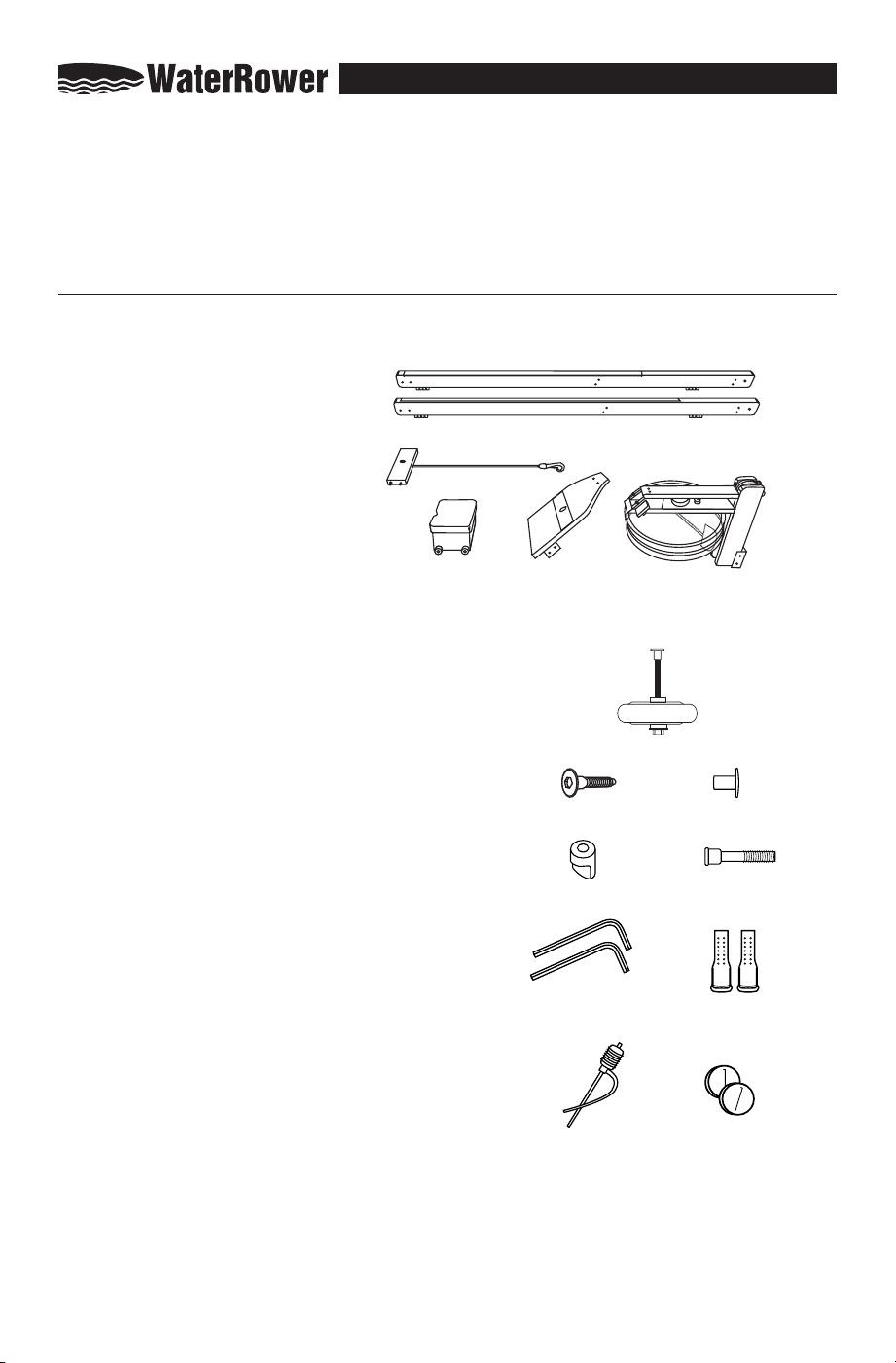
A Rails* x 2
B Rear Spacer* with Bungee
C Seat*
D Footboard*
E Tank Assembly* (with S4 monitor)
Main Parts
Other Parts
F Dolly Wheel Assembly (WRP-D100) x 2
G JCB (WRB-B711) × 8
H JCN (WRP-B700) × 12
(4 are pre-installed on Rear Spacer)
I Handle Rest (WRP-P430) × 2
J Handle Rest Bolt (WRP-P455) × 2
K 5mm Allen Key (WRP-B740) × 2
L Footpads (WRP-P700) × 2
M Syphon Pump (WRP-B405) × 1
N Purification Tablets (WRP-B960) × 2
*NOTE: Items marked above contain parts
made from genuine hardwood. Color and grain
variances are part of the uniqueness of this
product that is made from organic (not machine
made) materials.
We have done our best to keep the assembly instructions as clear and concise as possible.
Assembling your WaterRower takes about 30-45 minutes and the only tool you need is a 5mm
Allen Key that is included on the rear spacer or in the assembly bag. The WaterRower comes
partially assembled in two boxes.
PLEASE READ INSTRUCTIONS FULLY BEFORE STARTING ASSEMBLY
COMPONENTS
ASSEMBLY MANUAL
F
G H
I J
K L
M N
A
B
C D E
12
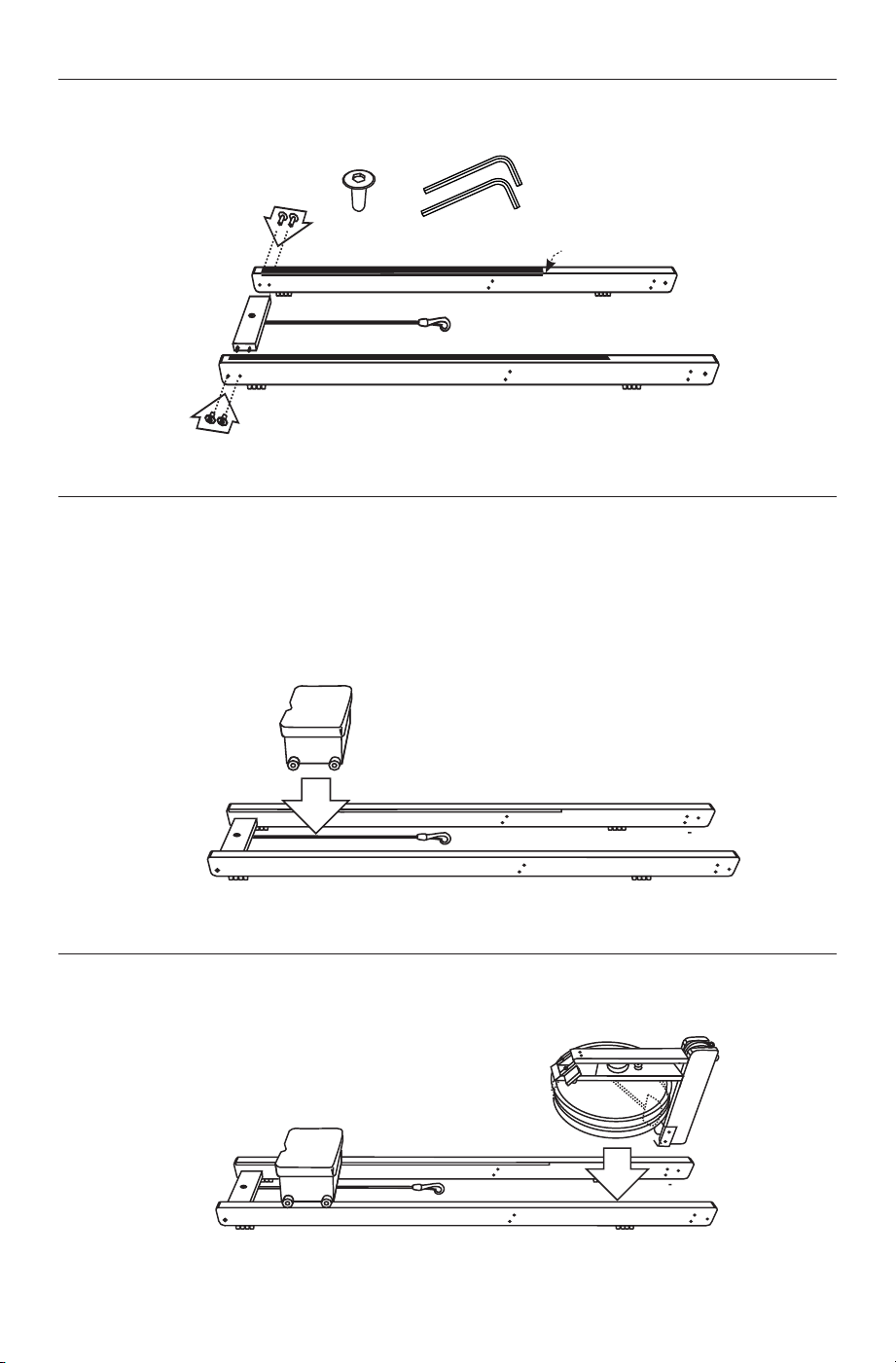
STEP 1
Lay the rails on the oor and connect the rear spacer using the female JCN nuts and the Allen
keys provided.
STEP 2
Place the seat assembly between the rails with the indent facing towards the rear spacer.
The larger vertically mounted wheels (the load wheels) should sit on the plastic extrusions on
the top of the rail. The smaller horizontal wheels below the seat (the guide wheels) should sit
between the rails. It may be necessary to separate the rails slightly to allow the guide wheels
to t down between the rails.
Rear Spacer
The black extrusions are
facing the inside of the rails.
JCN Nut (x4) Allen Keys
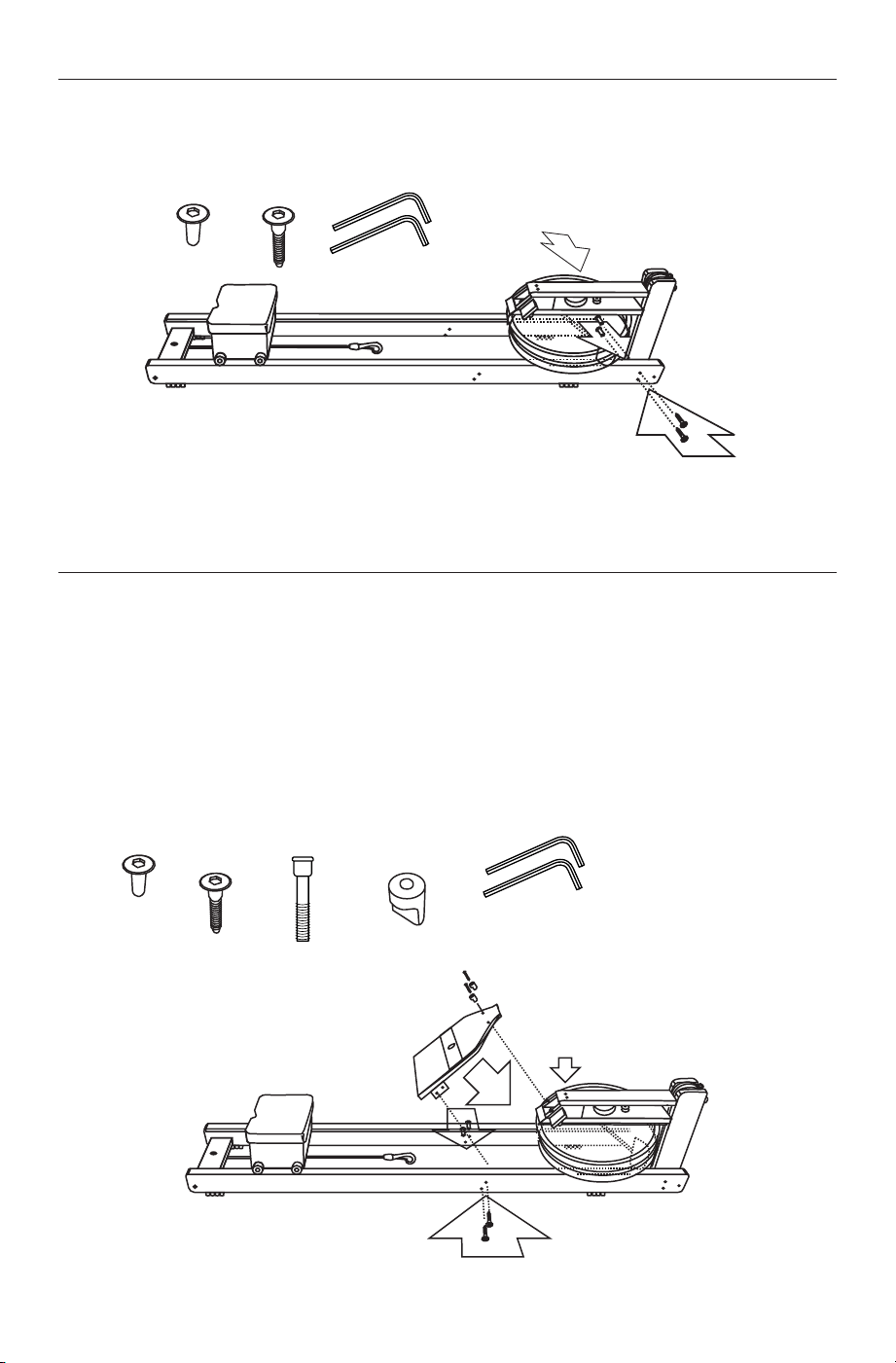
STEP 3
Place the tank assembly between the rails.
13
Insert the JCN Nuts and JCB Bolts attaching the tank to the rails at locations A & B. The nuts
should be placed on the inside and the bolts on the outside.
STEP 4
JCN Nut
(x4)
JCB Bolt
(x4)
A
B
Allen Keys
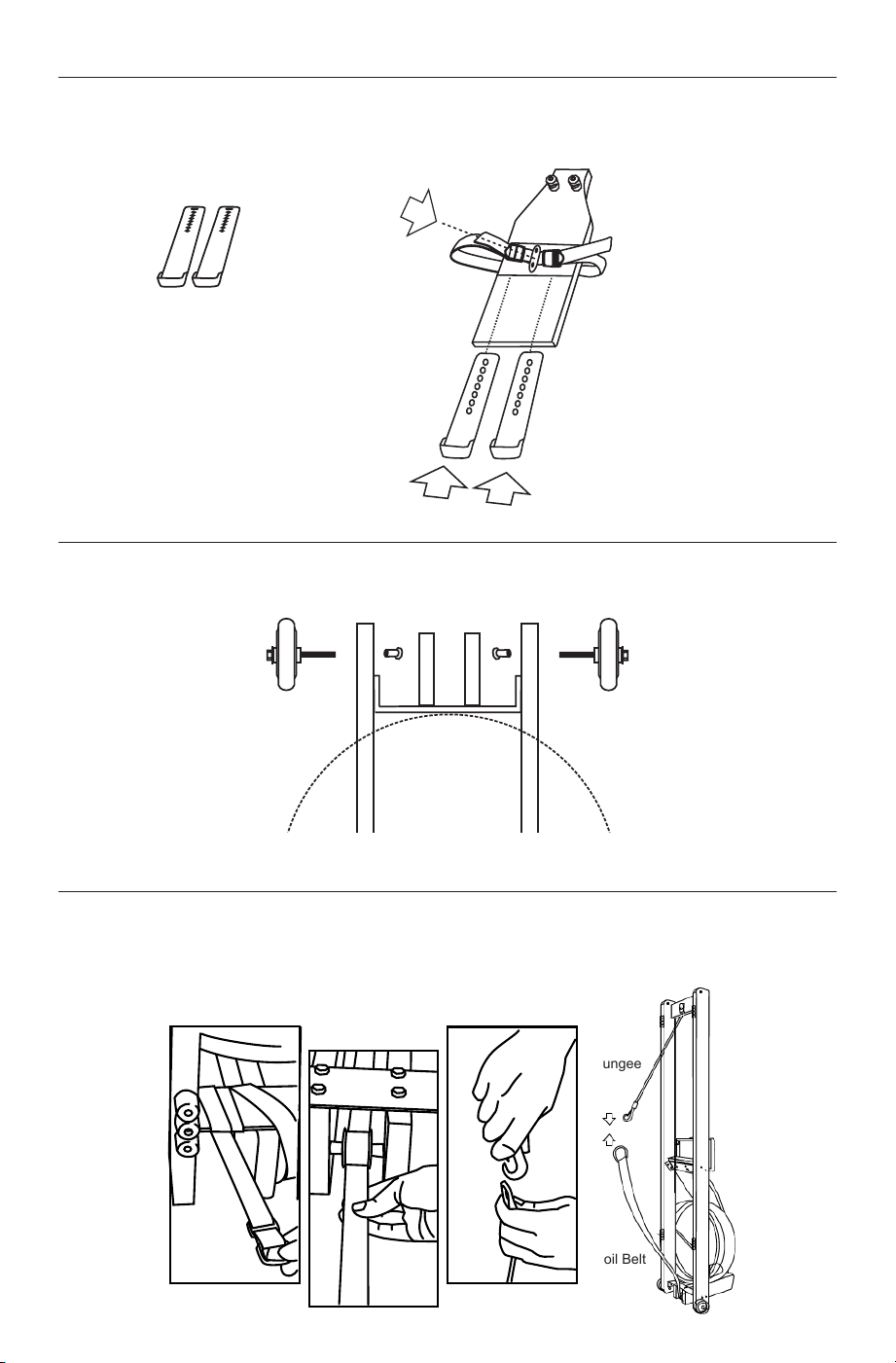
STEP 5
Place the footboard between the rails positioning the top two holes over the two threaded
holes in the tank unit. It may be necessary to slightly loosen the two bolts on the Top Deck (B)
to allow the footboard clearance. Insert the JCN Nuts and JCB Bolts attaching the Footboard
to the Rails at A. Screw the Handle Rests into position using the Handle Rest Bolts (C); do not
over tighten.
*Should you experience any problem with aligning the components, loosen all the fasteners,
align and re-tighten.
Top Deck Bolts
Handle Rest Bolt
(x2)
Handle Rest
(x2)
JCN Nut
(x4)
JCB Bolt
(x4)
B
C
A
Allen Keys
14
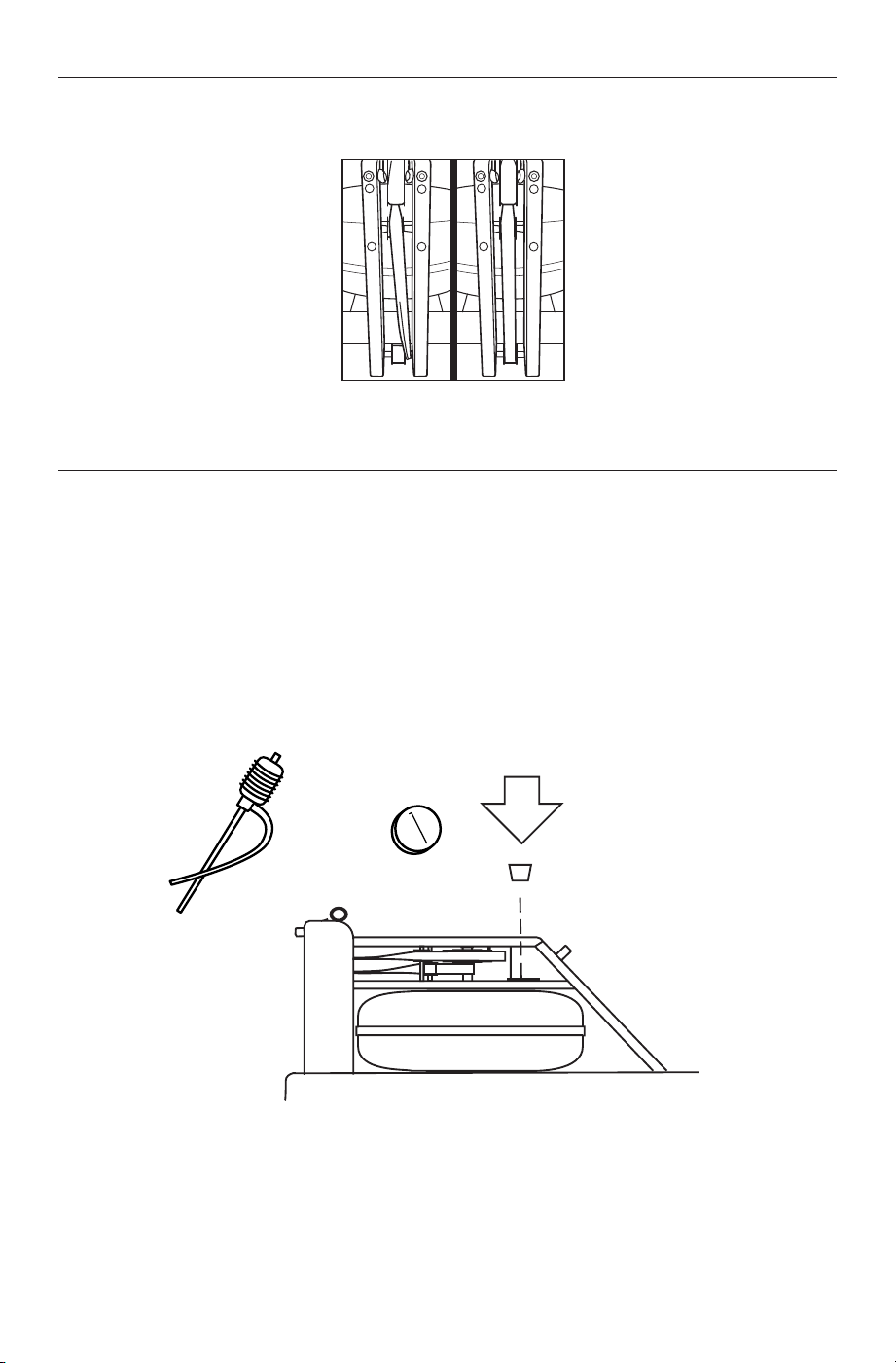
STEP 6
Press the heelrest adjustment button (A) and insert the heelrest/footpads under the
footboard cover plate (B). Release the button to ‘lock’ the heelrests rests into place. You can
adjust the height of the heelrests according to your foot size (refer to the Owner’s Manual).
Heelrests
A
B
B
Press Button
to Adjust
STEP 7
Undo the Dolley Wheel Assembly and x to the rail in the order shown and tighten.
Note - the wheel goes on the outside of the Rail.
STEP 8
Stand the WaterRower upright. Release the recoil belt (which is wrapped around the bracket
at the base of the machine). Ensure that the recoil belt is passing over all guide pulleys.
Connect the bungee to the recoil strap by hooking the bungee hook through the recoil
belt D-ring.
Bungee
Recoil Belt
15
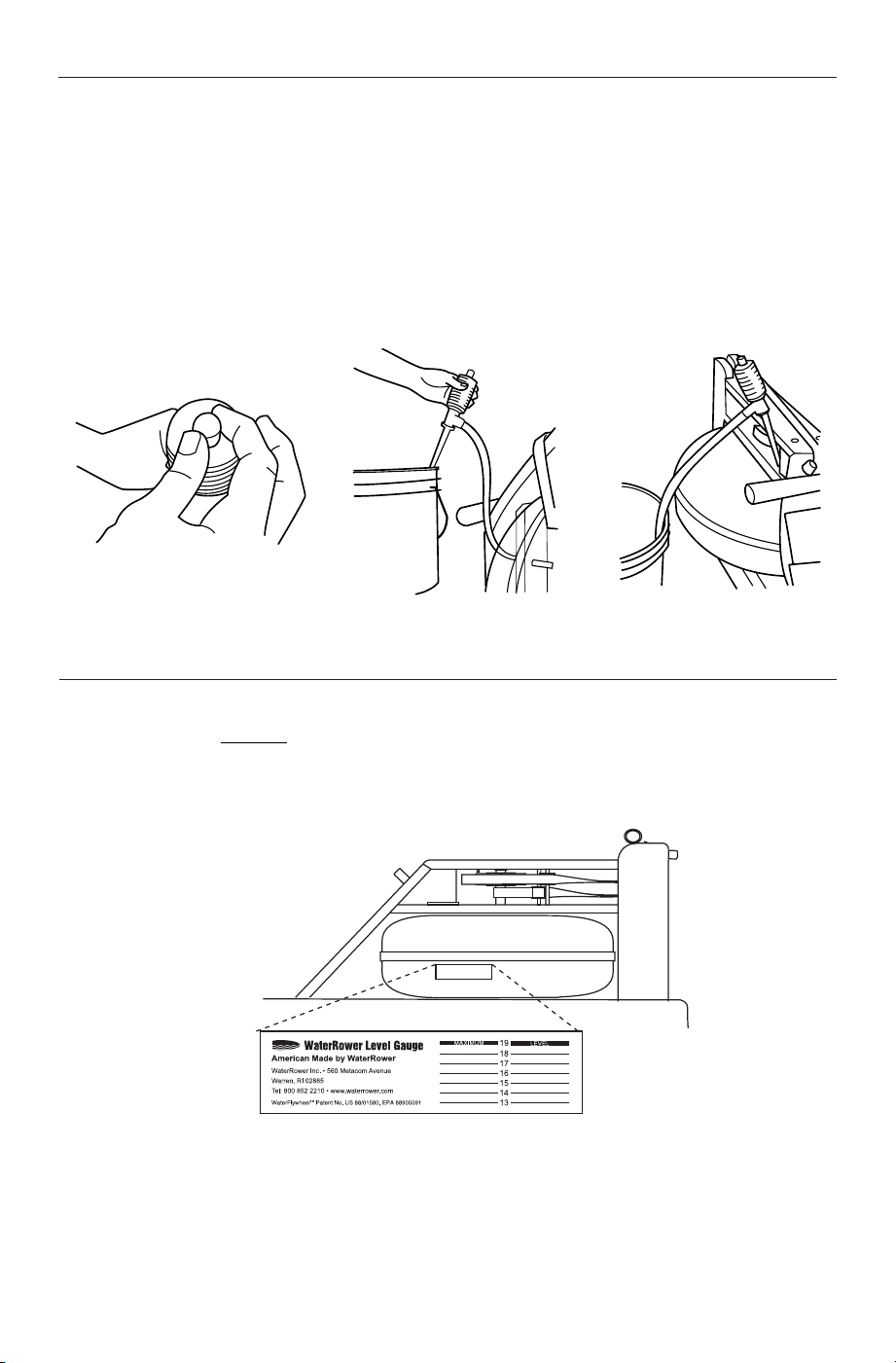
Lay the unit at and remove the tank stopper from between the top and bottom deck. Use
the included syphon pump (or a hose if available) to ll the tank to the desired level with
municipal water.
Insert one purication tablet (provided) now and every six months. Additional purication
tablets are available upon request at: www.waterrowerservice.com/puritabs
Once completed, insert the Tank Stopper; it may be necessary to moisten the Stopper to
assist with replacement.
►Please wipe excess water from wooden components after lling
STEP 9
Before lling the tank and rowing, ensure that the recoil belt passes smoothly over all pulleys.
STEP 10
Misaligned
Aligned
16
1) To pump water, turn the knob clockwise to close valve as shown in gure A
2) Locate water source above (higher than) water destination:
▪ See Figure B for lling tank
▪ See Figure C for emptying tank
3) Squeeze pump 4-5 times until water ows
4) Turn knob counter-clockwise to allow air into the pump and end syphon.
HOW TO FILL AND EMPTY THE TANK
WATER LEVEL
The Level Gauge is positioned on the side of the tank. Information on the sticker includes
WaterRower contact information and the Water Level Gauge. The maximum level to ll the
tank is Level 19. DO NOT ll above the maximum level - this could void the warranty. The
standard Calibration Level is Level 17.
A B C
17
TROUBLESHOOTING
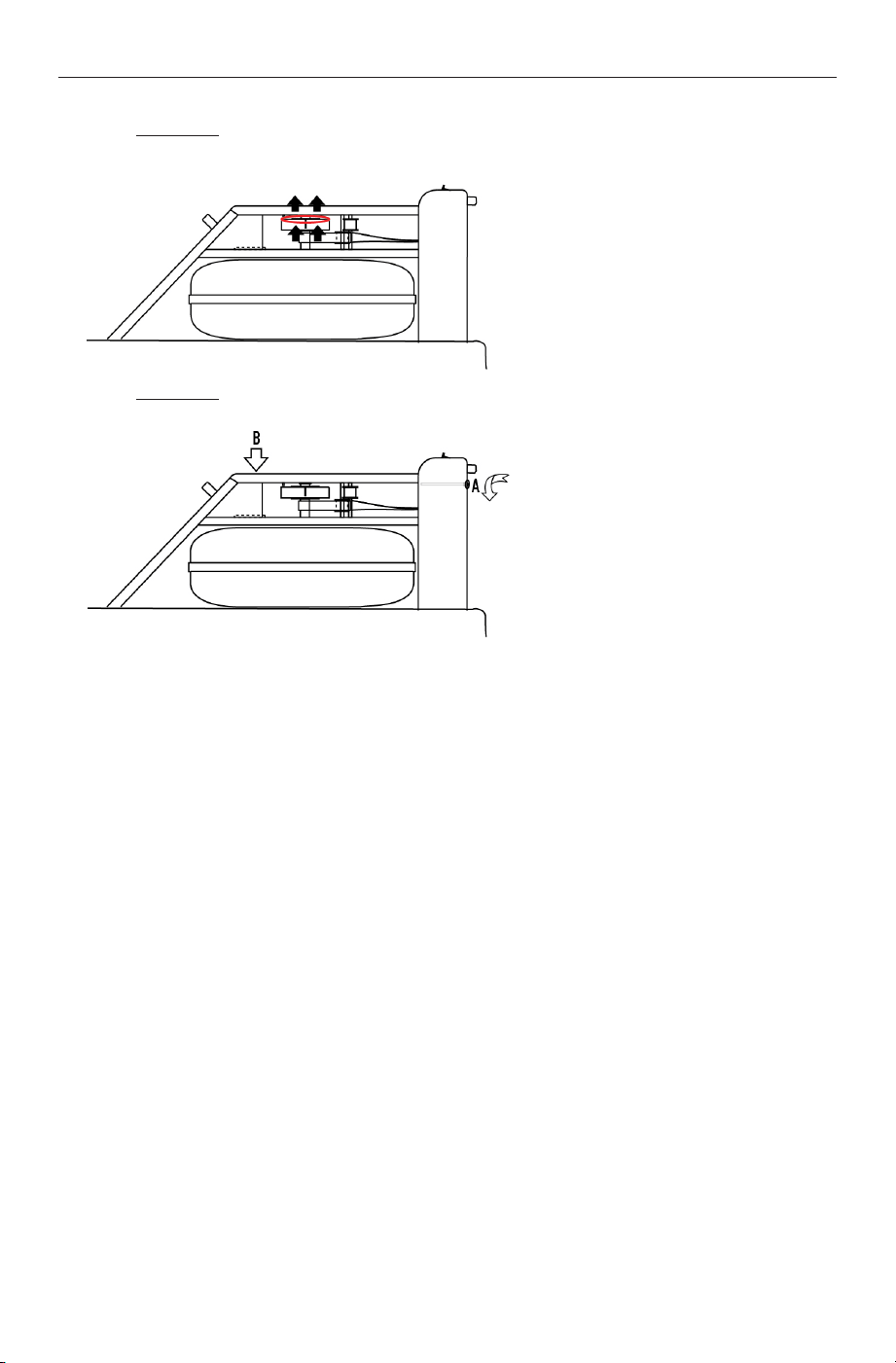
1. Monitor ashing zeros
Solution 1: Try raising the sensor disk (located on top of the clutch).
During shipment, the disk may have shifted.
Solution 2: Loosen and retighten the bolts on the upper deck and forward riser.
If these bolts are not uniformly tightened during assembly, the alignment may be o.
2. Loosening bolts - over time and with use bolts can come loose. Use the 5mm Allen
key to gently tighten the bolts. If the bolts continue to loosen use a small amount of
medium strength Loctite
®
to fasten the nuts and bolts more securely.
3. Monitor not turning on - check the batteries positioned behind the monitor.
Unscrew the monitor and gently lift to access the battery pack.
4. Monitor not counting down - check that the monitor and sensor connector are
connected. Check all wiring is intact.
5. Paddle not turning smoothly - Loosen all tank bolts and retighten. See
instructions at:
http://www.waterrowerservice.com/pdfs/troubleshooting_all_rubbing_tank.pdf
For other troubleshooting and service tips, please visit:
www.waterrowerservice.com/troubleshooting
or contact WaterRower at support@waterrower.com

18
S4 MONITOR - INTRODUCTION
The WaterRower S4 Performance Monitor has been designed to balance a high level of
technical sophistication with user friendliness.
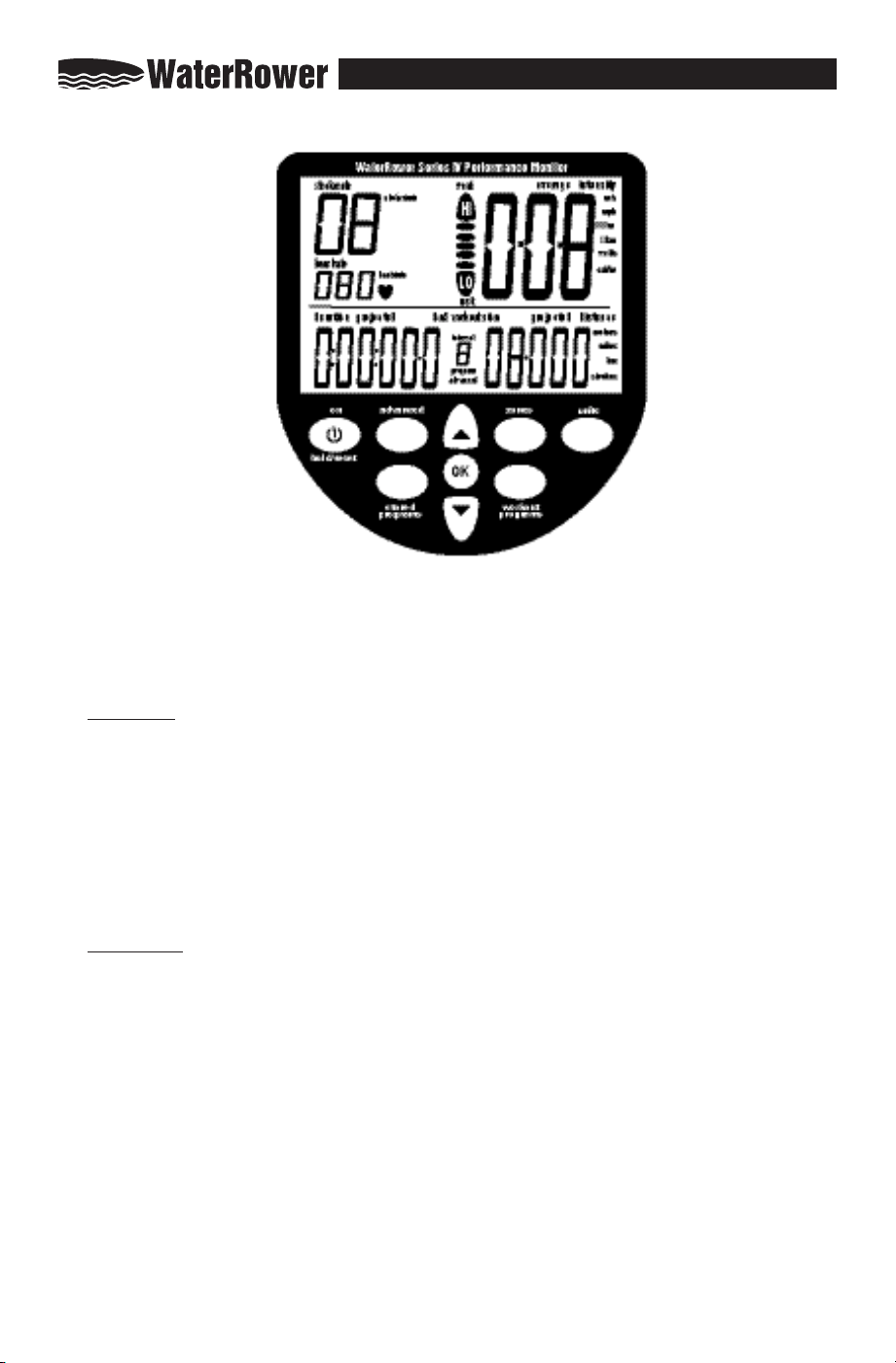
The WaterRower S4 Monitor consists of the following information buttons and windows (see
the following pages for speci c details about each button and window):
BUTTONS
On/Hold/Reset Button
Press the ON button to start up the monitor: the units will ash ready to count down as
you begin rowing. To reset the monitor, press the ON button for 2 seconds.
Programming Buttons
Zones, Workout Programs, Advanced, Stored Programs
Navigation/Select/Display Information Buttons
Up, Down, OK, Units
WINDOWS
Information/Programming Windows
Strokerate, Heart Rate, Duration, Intensity, Average Intensity, Distance
These Information and Programming Windows show your current and programmed
workout details.
Zone Bar Window
Seen in the top middle part of the screen, the Zone Hi / Zone Lo bars are used during
zone, interval and advanced workouts. They will ash and emit a high frequency tone
when your Hi or Lo limit is breached.
Stored Workout, Interval Number, Advanced Program Number
Seen in the bottom middle part of the screen, this window displays numbers to navigate
through numbered or sequenced information (stored workouts, intervals and advanced
programs).
NOTE: The WaterRower S4 Monitor automatically powers o after 2 minutes of no use.
19
S4 MONITOR - INTRODUCTION
The WaterRower S4 Performance Monitor has been designed to balance a high level of
technical sophistication with user friendliness.
The WaterRower S4 Monitor consists of the following information buttons and windows (see
the following pages for speci c details about each button and window):
BUTTONS
On/Hold/Reset Button
Press the ON button to start up the monitor: the units will ash ready to count down as
you begin rowing. To reset the monitor, press the ON button for 2 seconds.
Programming Buttons
Zones, Workout Programs, Advanced, Stored Programs
Navigation/Select/Display Information Buttons
Up, Down, OK, Units
WINDOWS
Information/Programming Windows
Strokerate, Heart Rate, Duration, Intensity, Average Intensity, Distance
These Information and Programming Windows show your current and programmed
workout details.
Zone Bar Window
Seen in the top middle part of the screen, the Zone Hi / Zone Lo bars are used during
zone, interval and advanced workouts. They will ash and emit a high frequency tone
when your Hi or Lo limit is breached.
Stored Workout, Interval Number, Advanced Program Number
Seen in the bottom middle part of the screen, this window displays numbers to navigate
through numbered or sequenced information (stored workouts, intervals and advanced
programs).
NOTE: The WaterRower S4 Monitor automatically powers o after 2 minutes of no use.
S4 MONITOR
20
OK
WaterRower Series IV Performance Monitor
workout
programs
stored
programs
zones
hold/reset
units
advanced
on
Work
Work
Rest
AVE
W
MPH
duration
distance
heartrate
strokerate
intensity
strokes/min
beats/min
m/s
meters
miles
km
strokes
watts
mph
cal/hr
/500m
/2km
W
ork
Work
Rest
AVE
W
MPH
duration projected projected
distance
HI
LO
heartrate
strokerate
intensityaverage
strokes/min
beats/min
m/s
meters
miles
km
strokes
advanced
workout
program
interval
store
load
watts
mph
cal/hr
/500m
/2km
work
rest
average
kcal
A
B
C
D
F
E
A - STROKERATE
Displays the number of strokes rowed per minute.
B - HEART RATE
Displays current heart rate (requires optional heart rate receiver and transmitter).
C - DURATION
Displays time in:
HOURS, MINUTES, SECONDS, DECIMAL SECONDS
D - INTENSITY
Displays
SPEED/POWER/ENERGY
:
•
M/S - METERS PER SECOND
•
MPH - MILES PER HOUR
•
/500M - MINUTES PER 500 METERS
•
/2KM - MINUTES PER 2 KILOMETERS
•
WATTS - WATTS
•
CAL/HR - CALORIES BURNT PER HOUR
To select desired intensity unit:
1. Press UNITS one (1) time.
2. Use ARROW buttons to scroll to the
desired intensity unit.
3. Press OK to select.
E - AVERAGE INTENSITY
Displays
AVER AGE SPEED
:
•
M/S - METERS PER SECOND
•
MPH - MILES PER HOUR
•
/500M - MINUTES PER 500 METERS
•
/2KM - MINUTES PER 2 KILOMETERS
To select desired average intensity unit:
1. Press UNITS two (2) times.
2. Use ARROW buttons to scroll to the
desired intensity unit.
3. Press OK to select.
F - DISTANCE
Displays
DISTANCE
in:
•
METERS
•
MILES
•
KILOMETERS (KM)
•
STROKES
•
CALORIES (KCAL)
To select desired distance unit:
1. Press UNITS three (3) times.
2. Use ARROW buttons to scroll to the
desired distance unit.
3. Press OK to select.
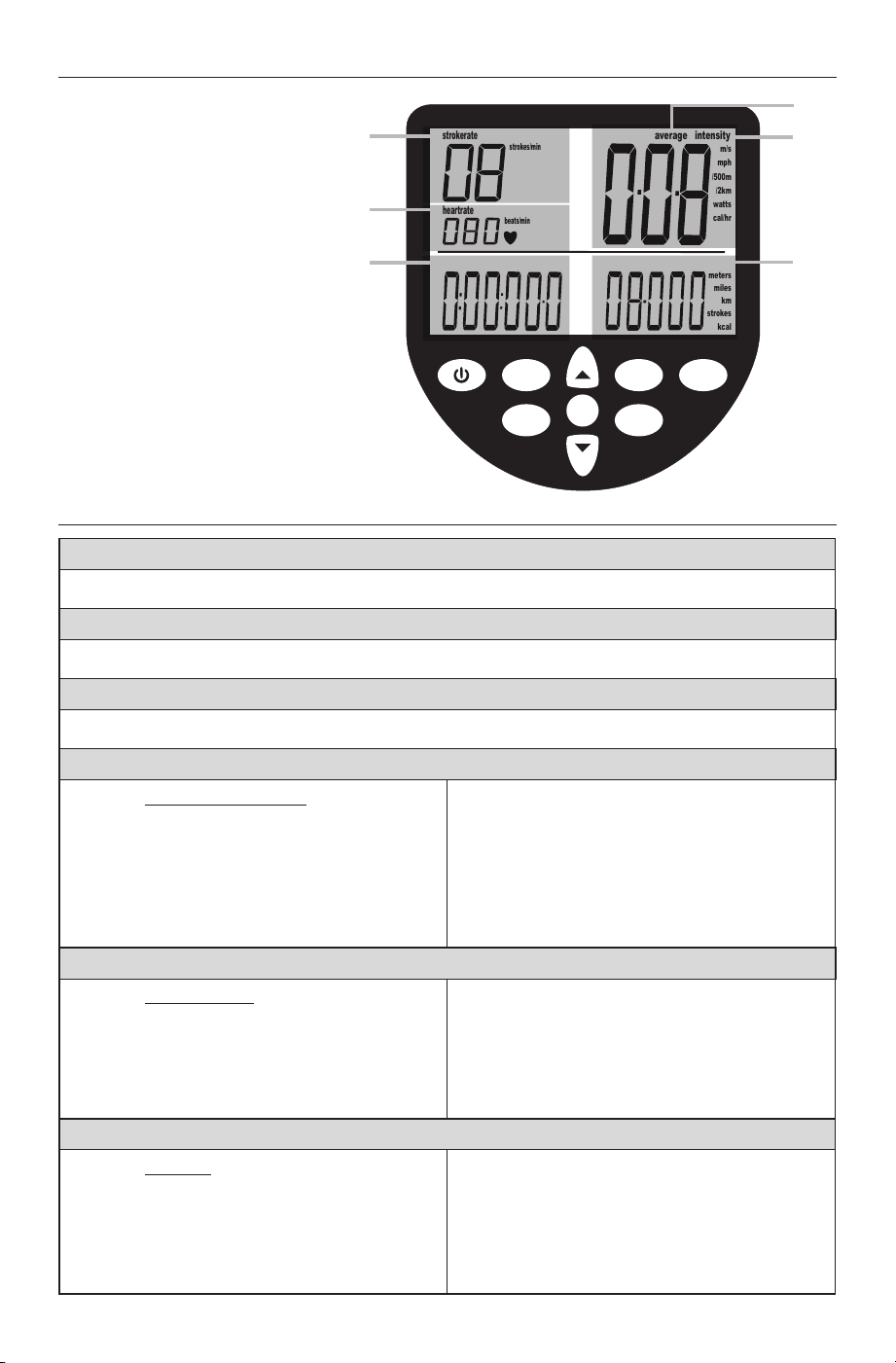
INFORMATION AND PROGRAMMING WINDOWS
The WaterRower S4 Monitor
has 6 main information
windows that will display
when the monitor is in use:
A. Strokerate
B. Heart Rate
C. Duration
D. Intensity
E. Average Intensity
F. Distance
See the chart below for the
full description on each
information window, as well
as how to select desired units.
PRIMARY INFORMATION DISPLAYED ON THE S4 MONITOR
DISTANCE WORKOUT
1. Press the Workout Programs button
one (1) time.
2. Using the Arrows, scroll to the desired
workout distance.
3. Press OK; Row.
DURATION WORKOUT
1. Press the Workout Programs button two
(2) times.
2. Using the Arrows, scroll to the desired
workout duration.
3. Press OK; Row.
WORKOUT PROGRAMS BUTTON
INTERVAL WORKOUT - DURATION
1. Press the Workout Programs button four
(4) times.
2. Using the Arrows, scroll to the desired
interval one (1) workout duration.
3. Press OK.
4. Using the Arrows, scroll to the desired
interval one (1) recovery duration*.
5. Press OK.
6. Repeat steps 2-5 (up to 9 duration
intervals may be entered.
7. Press OK two (2) times to end sequence;
Row.
Interval 1 Workout
Duration
Interval 1 Recovery
Duration*
INTERVAL WORKOUT - DISTANCE
1. Press the Workout Programs button
three (3) times.
2. Using the Arrows, scroll to the desired
interval one (1) distance.
3. Press OK.
4. Using the Arrows, scroll to the desired
interval one (1) recovery duration*.
5. Press OK.
6. Repeat steps 2-5 (up to 9 distance
intervals may be entered).
7. Press OK two (2) times to end sequence;
Row.
Interval 1 Workout
Distance
Interval 1 Recovery
Duration*
*RECOVERY DURATION OF LESS THAN 2 MINUTES MUST BE SET OR MONITOR WILL POWER OFF
21
OK
WaterRower Series IV Performance Monitor
workout
programs
stored
programs
zones
hold/reset
units
advanced
on
Work
Work
Rest
AVE
W
MPH
duration
distance
heartrate
strokerate
intensity
strokes/min
beats/min
m/s
meters
miles
km
strokes
watts
mph
cal/hr
/500m
/2km
W
ork
Work
Rest
AVE
W
MPH
duration projected projected
distance
HI
LO
heartrate
strokerate
intensityaverage
strokes/min
beats/min
m/s
meters
miles
km
strokes
advanced
workout
program
interval
store
load
watts
mph
cal/hr
/500m
/2km
work
rest
average
kcal
A
B
C
D
F
E
A - STROKERATE
Displays the number of strokes rowed per minute.
B - HEART RATE
Displays current heart rate (requires optional heart rate receiver and transmitter).
C - DURATION
Displays time in: HOURS, MINUTES, SECONDS, DECIMAL SECONDS
D - INTENSITY
Displays SPEED/POWER/ENERGY:
•
M/S - METERS PER SECOND
• MPH - MILES PER HOUR
• /500M - MINUTES PER 500 METERS
• /2KM - MINUTES PER 2 KILOMETER S
• WATTS - WATTS
• CAL/HR - CALORIES BURNT PER HOUR
To select desired intensity unit:
1. Press UNITS one (1) time.
2. Use ARROW buttons to scroll to the
desired intensity unit.
3. Press OK to select.
E - AVERAGE INTENSITY
Displays AVERAGE SPEED:
•
M/S - METERS PER SECOND
• MPH - MILES PER HOUR
• /500M - MINUTES PER 500 METERS
• /2KM - MINUTES PER 2 KILOMETER S
To select desired average intensity unit:
1. Press UNITS two (2) times.
2. Use ARROW buttons to scroll to the
desired intensity unit.
3. Press OK to select.
F - DISTANCE
Displays DISTANCE in:
•
METERS
• MILES
• KILOMETERS (KM)
•
STROKES
• CALORIES (KCAL)
To select desired distance unit:
1. Press UNITS three (3) times.
2. Use ARROW buttons to scroll to the
desired distance unit.
3. Press OK to select.
INFORMATION AND PROGRAMMING WINDOWS
The WaterRower S4 Monitor
has 6 main information
windows that will display
when the monitor is in use:
A. Strokerate
B. Heart Rate
C. Duration
D. Intensity
E. Average Intensity
F. Distance
See the chart below for the
full description on each
information window, as well
as how to select desired units.
PRIMARY INFORMATION DISPLAYED ON THE S4 MONITOR
DISTANCE WORKOUT
1. Press the Workout Programs button
one (1) time.
2. Using the Arrows, scroll to the desired
workout distance.
3. Press OK; Row.
DURATION WORKOUT
1. Press the Workout Programs button two
(2) times.
2. Using the Arrows, scroll to the desired
workout duration.
3. Press OK; Row.
WORKOUT PROGRAMS BUTTON
INTERVAL WORKOUT - DURATION
1. Press the Workout Programs button four
(4) times.
2. Using the Arrows, scroll to the desired
interval one (1) workout duration.
3. Press OK.
4. Using the Arrows, scroll to the desired
interval one (1) recovery duration*.
5. Press OK.
6. Repeat steps 2-5 (up to 9 duration
intervals may be entered.
7. Press OK two (2) times to end sequence;
Row.
Interval 1 Workout
Duration
Interval 1 Recovery
Duration*
INTERVAL WORKOUT - DISTANCE
1. Press the Workout Programs button
three (3) times.
2. Using the Arrows, scroll to the desired
interval one (1) distance.
3. Press OK.
4. Using the Arrows, scroll to the desired
interval one (1) recovery duration*.
5. Press OK.
6. Repeat steps 2-5 (up to 9 distance
intervals may be entered).
7. Press OK two (2) times to end sequence;
Row.
Interval 1 Workout
Distance
Interval 1 Recovery
Duration*
*RECOVERY DURATION OF LESS THAN 2 MINUTES MUST BE SET OR MONITOR WILL POWER OFF
22
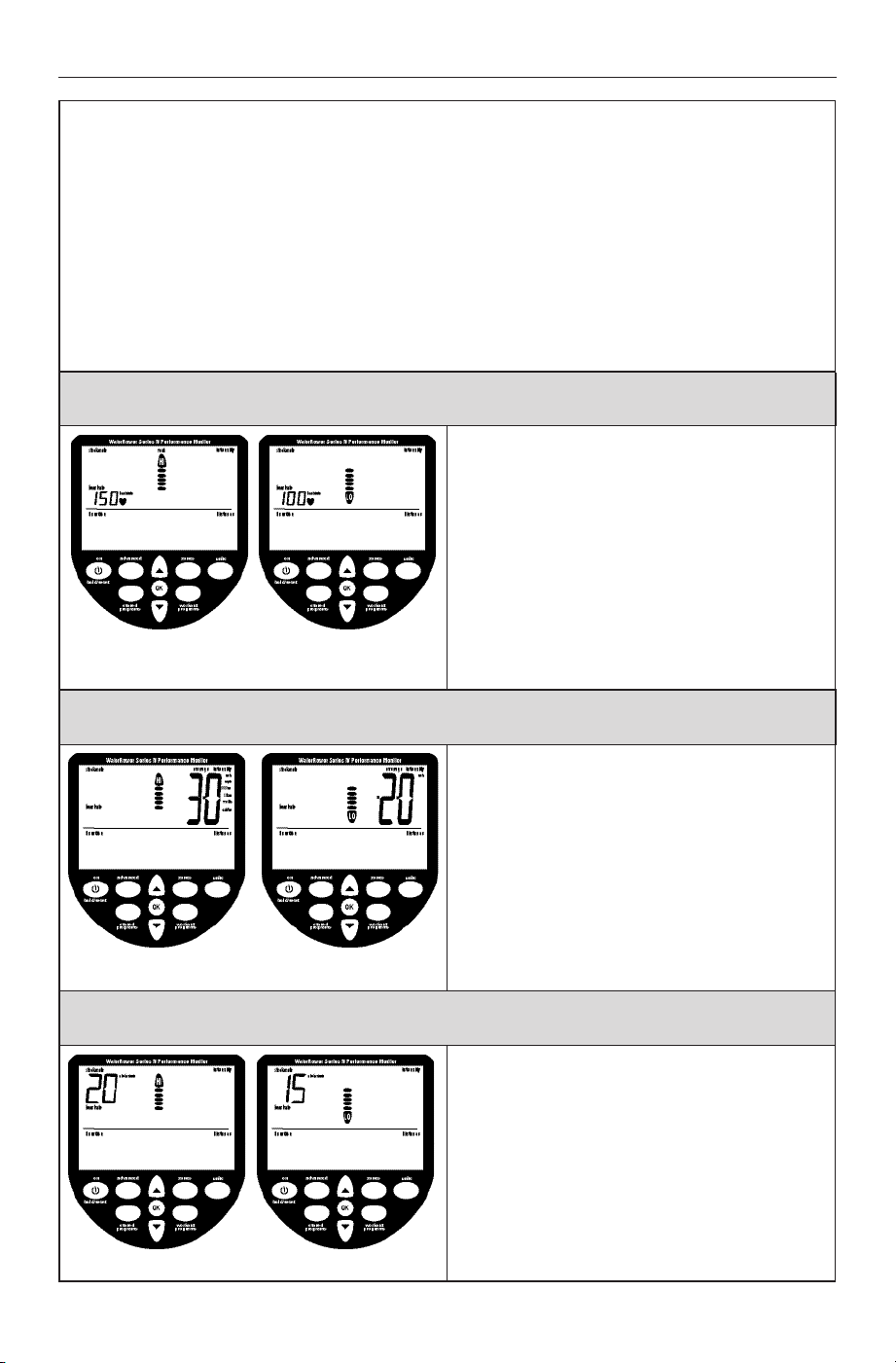
Zone setting allows the user to set upper (hi) and lower (lo) limits for heart rate, intensity
and strokerate.
• When the set zone lo limit is breached the zone bar lo ag will ash and a low
frequency tone will emit.
• When the set zone hi limit is breached the zone bar hi ag will ash and a high
frequency tone will emit.
• When operating between the upper and lower zone limits, the position in this
range will be displayed by the divisional zone bars.
HEART RATE ZONE SETTING
1. Press the Zones button one (1) time.
2. Using the Arrows, scroll to the desired
upper limit.
3. Press OK.
4. Using the Arrows, scroll to the desired
lower limit.
5. Press OK; Row.
INTENSITY ZONE SETTING
1. Press the Zones button two (2) times.
2. Using the Arrows, scroll to the desired
upper limit.
3. Press OK.
4. Using the Arrows, scroll to the desired
lower limit.
5. Press OK; Row.
STROKERATE ZONE SETTING
1. Press the Zones button three (3) times.
2. Using the Arrows, scroll to the desired
upper limit.
3. Press OK.
4. Using the Arrows, scroll to the desired
lower limit.
5. Press OK; Row.
ZONES BUTTON
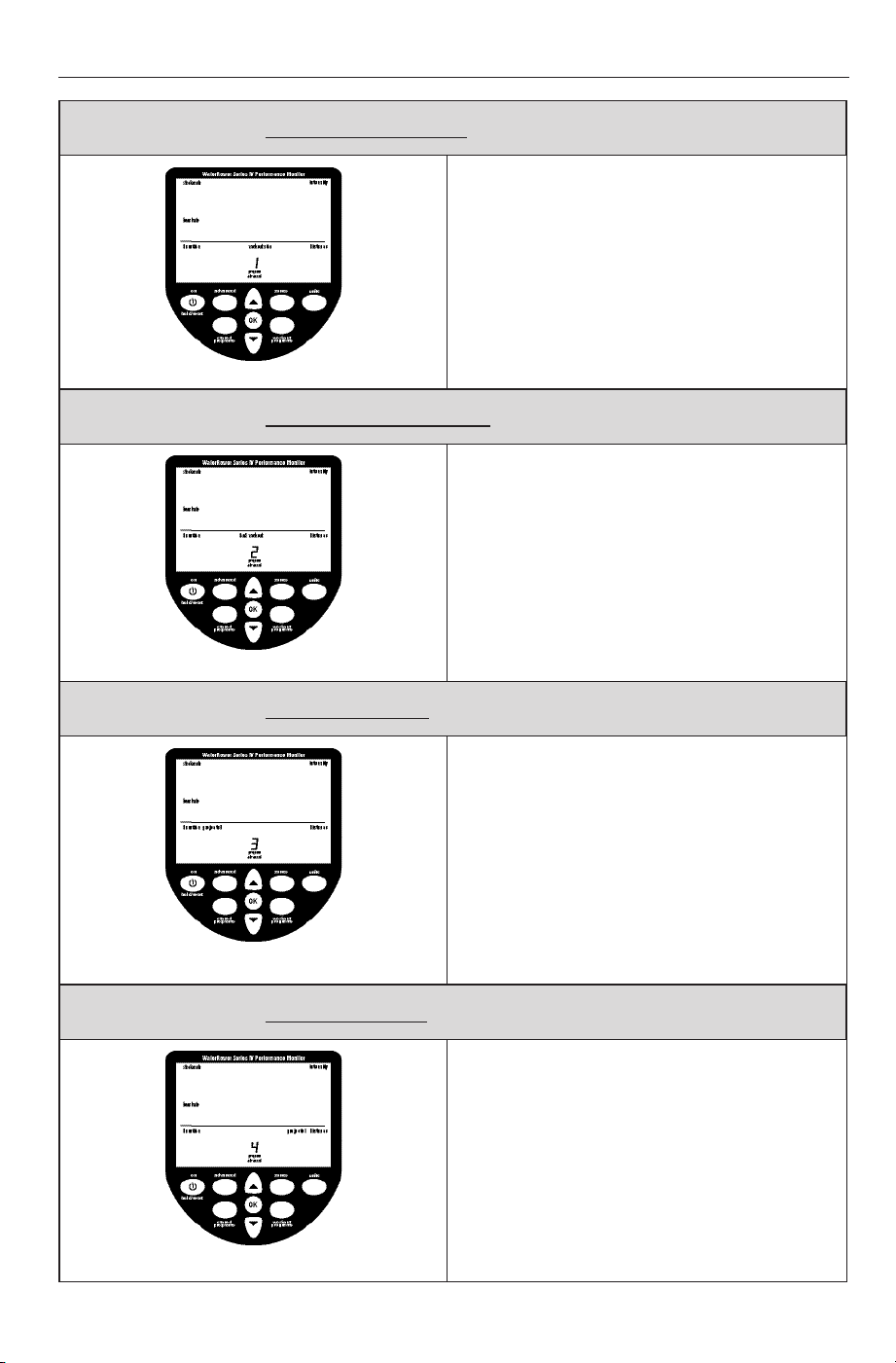
ADVANCED PROGRAM 1: STORE WORKOUT SETTINGS
This program allows manual storage of
workout settings. This is useful if the S4
monitor is used by numerous users and the
AutoStore programs are overwritten.
1. Press the Advanced button one (1) time.
2. Press OK.
3. Using the Arrows, scroll to desired
workout storage location (1-9).
4. Press OK.
ADVANCED PROGRAM 2: RETRIEVE WORKOUT SETTINGS
1. Press the Advanced button two (2) times.
2. Press OK.
3. Using the Arrows, scroll to desired
workout storage location (1-9).
4. Press OK.
5. The workout settings stored in the selected
location will be loaded.
*Retreiving workouts can also be loaded by
pressing the stored programs button (see
Autostore Programs section).
ADVANCED PROGRAM 3: PROJECTED DURATION
Projected duration is the duration projected
for the set distance given the current
intensity. Projected duration must be selected
immediately prior to the workout and is
current only for that workout.
1. Press the Advanced button three (3) times.
2. Press OK; Row.
Projected duration is now selected and will be
displayed in lieu of duration for 2 seconds out
of every 10 seconds.
ADVANCED PROGRAM 4: PROJECTED DISTANCE
Projected distance is the distance projected
for the set duration given the current
intensity. Projected distance must be selected
immediately prior to the workout and is
current only for that workout.
1. Press the Advanced button four (4) times.
2. Press OK; Row.
Projected distance is now selected and will be
displayed in lieu of distance for 2 seconds out
of every 10 seconds.
ADVANCED BUTTON
23
Zone setting allows the user to set upper (hi) and lower (lo) limits for heart rate, intensity
and strokerate.
• When the set zone lo limit is breached the zone bar lo ag will ash and a low
frequency tone will emit.
• When the set zone hi limit is breached the zone bar hi ag will ash and a high
frequency tone will emit.
• When operating between the upper and lower zone limits, the position in this
range will be displayed by the divisional zone bars.
HEART RATE ZONE SETTING
1. Press the Zones button one (1) time.
2. Using the Arrows, scroll to the desired
upper limit.
3. Press OK.
4. Using the Arrows, scroll to the desired
lower limit.
5. Press OK; Row.
INTENSITY ZONE SETTING
1. Press the Zones button two (2) times.
2. Using the Arrows, scroll to the desired
upper limit.
3. Press OK.
4. Using the Arrows, scroll to the desired
lower limit.
5. Press OK; Row.
STROKERATE ZONE SETTING
1. Press the Zones button three (3) times.
2. Using the Arrows, scroll to the desired
upper limit.
3. Press OK.
4. Using the Arrows, scroll to the desired
lower limit.
5. Press OK; Row.
ZONES BUTTON
ADVANCED PROGRAM 1: STORE WORKOUT SETTINGS
This program allows manual storage of
workout settings. This is useful if the S4
monitor is used by numerous users and the
AutoStore programs are overwritten.
1. Press the Advanced button one (1) time.
2. Press OK.
3. Using the Arrows, scroll to desired
workout storage location (1-9).
4. Press OK.
ADVANCED PROGRAM 2: RETRIEVE WORKOUT SETTINGS
1. Press the Advanced button two (2) times.
2. Press OK.
3. Using the Arrows, scroll to desired
workout storage location (1-9).
4. Press OK.
5. The workout settings stored in the selected
location will be loaded.
*Retreiving workouts can also be loaded by
pressing the stored programs button (see
Autostore Programs section).
ADVANCED PROGRAM 3: PROJECTED DURATION
Projected duration is the duration projected
for the set distance given the current
intensity. Projected duration must be selected
immediately prior to the workout and is
current only for that workout.
1. Press the Advanced button three (3) times.
2. Press OK; Row.
Projected duration is now selected and will be
displayed in lieu of duration for 2 seconds out
of every 10 seconds.
ADVANCED PROGRAM 4: PROJECTED DISTANCE
Projected distance is the distance projected
for the set duration given the current
intensity. Projected distance must be selected
immediately prior to the workout and is
current only for that workout.
1. Press the Advanced button four (4) times.
2. Press OK; Row.
Projected distance is now selected and will be
displayed in lieu of distance for 2 seconds out
of every 10 seconds.
ADVANCED BUTTON
24
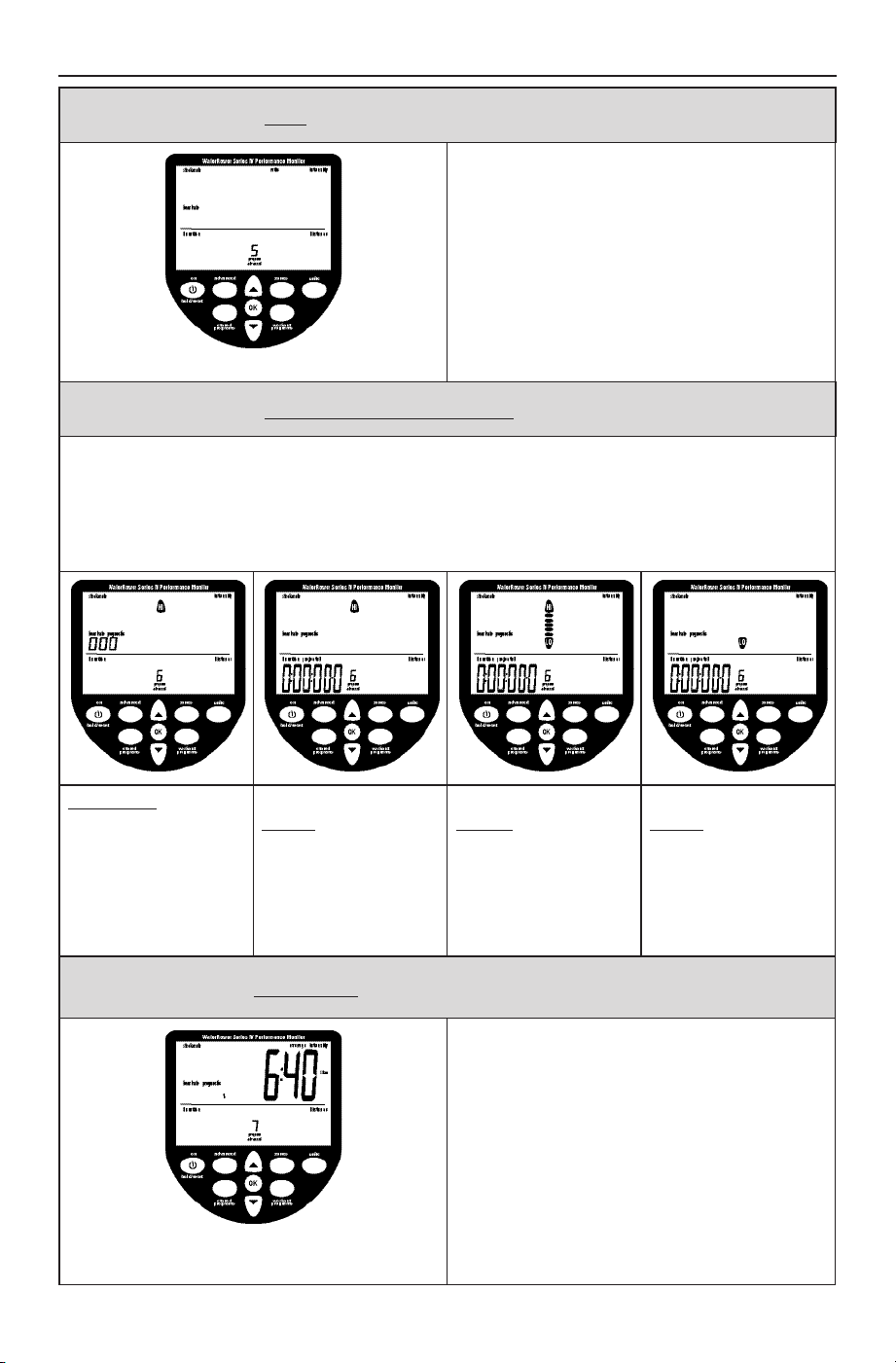
ADVANCED PROGRAM 5: RATIO
Advanced Program 5 allows you to view the
ratio between the power and recovery parts
of the stroke. The recovery ratio must be
selected immediately prior to the workout
and is current only for that workout.
1. Press the Advanced button fi ve (5) times.
2. Press OK; Row.
Power:Recovery Ratio is now selected and will
be displayed in lieu of duration for 2 seconds
out of every 10 seconds.
ADVANCED PROGRAM 6: ADVANCED HEART RATE ANALYSIS
Advanced Program 6 is available only during Heart rate Zone Workouts and must be viewed
following the workout.
1. Press the Advanced button six (6) times.
2. Press OK.
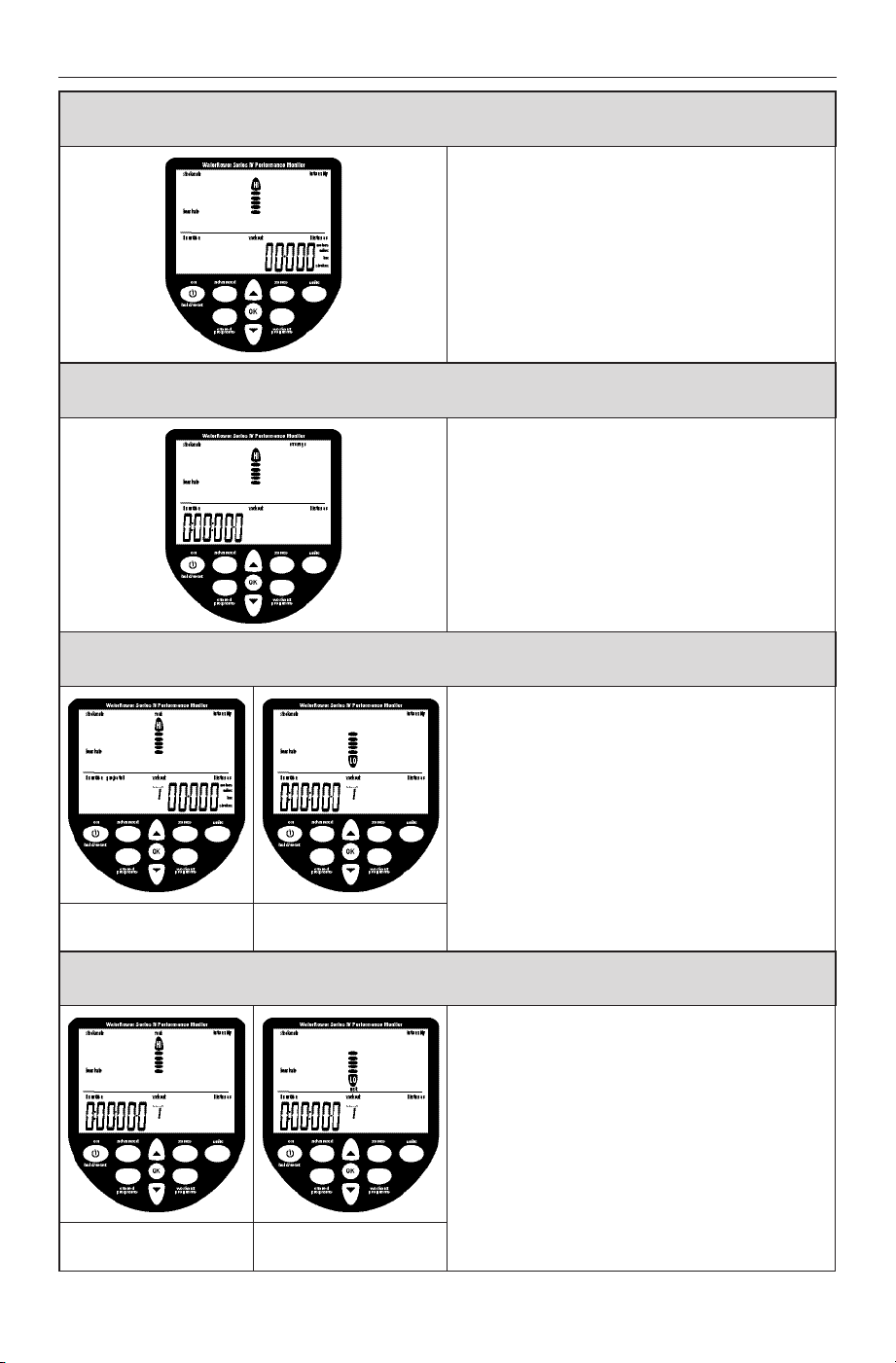
3. Heart rate statistics will display the following information:
Maximum (peak)
heart rate:
The maximum heart
rate achieved shows
in the heart rate
window.
Total time spent
above the desired
heart rate zone:
The time spent
above the heart
rate zone hi setting
shows in the time
window.
Total time spent
within the desired
heart rate zone:
The time spent
between the heart
rate zone hi and lo
shows in the time
window.
Total time spent
below the desired
heart rate zone:
The time spent
below the heart rate
lo setting shows in
the time window.
ADVANCED PROGRAM 7: PROGNOSTICS
Advanced Program 7 allows you to to view
your prognostics (the % of a de ned 2km
time). This option is available only during
2km workouts.
1. Press the Advanced button seven (7)
times.
2. Press OK.
3. Enter your expected 2km time using the
Arrows.
4. When desired 2km duration is reached,
press OK.
ADVANCED BUTTON (CONTINUED)
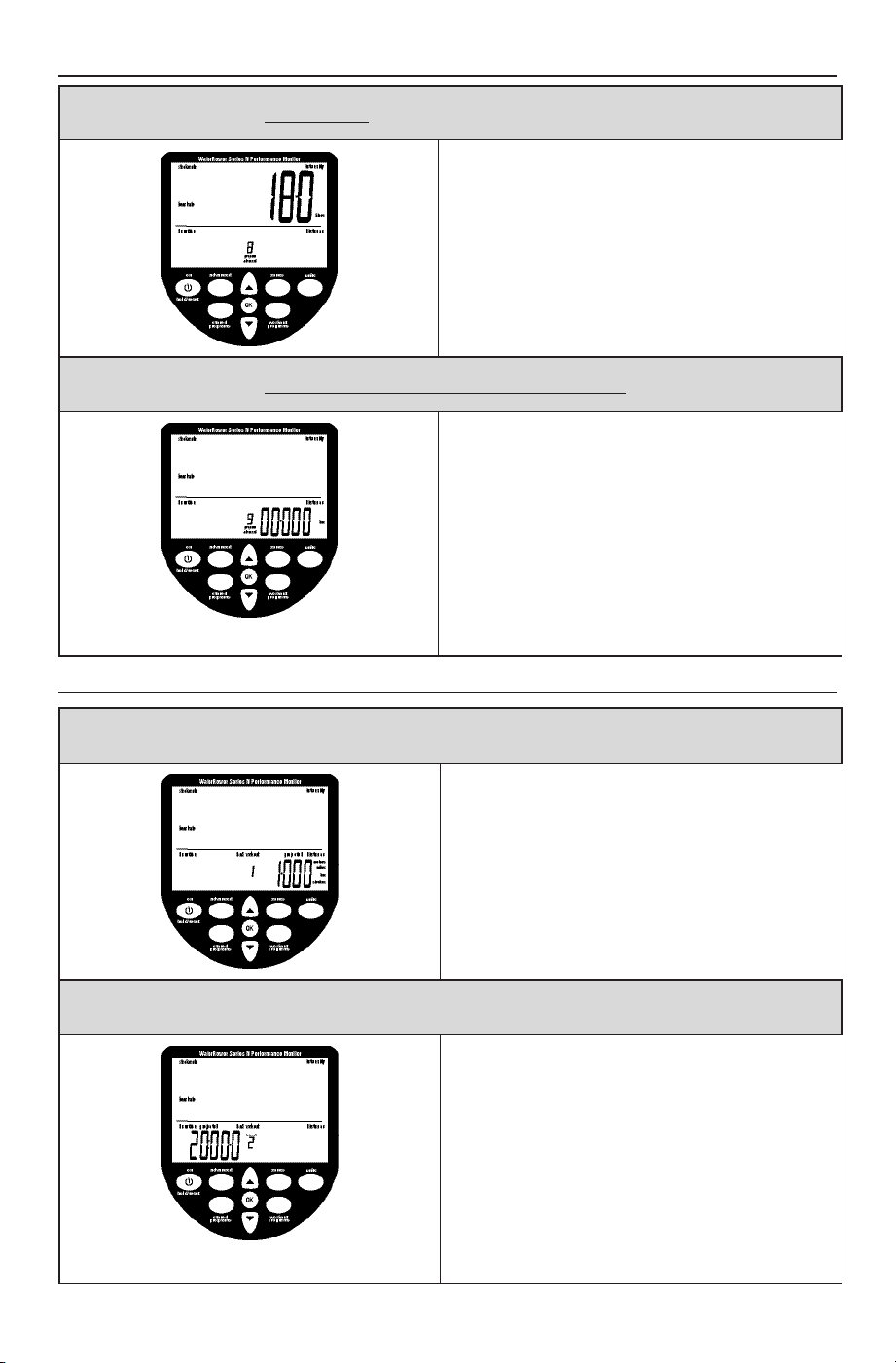
ADVANCED PROGRAM 8: TANK VOLUME
This program allows you to input the volume of
water in the tank. The tank volume is necessary
in calculation of power (watts).
1. Press the Advanced button eight (8) times.
2. Press OK.
3. Using the Arrows, enter the tank volume
(seen in the intensity window).
4. When desired volume is reached, press OK.
ADVANCED PROGRAM 9: FIRMWARE VERSION / TOTAL MACHINE DISTANCE
This program allows you to view the Firmware
Version (the version of the software that
runs the monitor) and the total distance the
machine has traveled.
1. Press the Advanced button nine (9) times.
2. The total lifetime distance (in km) will be
displayed.
3. Press OK.
4. The total lifetime distance (in km) and
Firmware version will be displayed.
ADVANCED BUTTON (CONTINUED)
AUTOSTORE PROGRAMS
The WaterRower S4 monitor includes an
AutoStore function which automatically stores
the last 9 historic workout program settings.
Note: Changing the batteries will erase stored
programs.
RETRIEVING AUTOSTORE PROGRAMS
1. Press the Stored Programs button.
2. The historic sequence of workouts (1-9) will
appear in the program window.
3. The monitor will automatically scroll
through the workout settings.
4. When desired workout is highlighted,
press OK; Row.
STORED PROGRAMS BUTTON
25
ADVANCED PROGRAM 5: RATIO
Advanced Program 5 allows you to view the
ratio between the power and recovery parts
of the stroke. The recovery ratio must be
selected immediately prior to the workout
and is current only for that workout.
1. Press the Advanced button fi ve (5) times.
2. Press OK; Row.
Power:Recovery Ratio is now selected and will
be displayed in lieu of duration for 2 seconds
out of every 10 seconds.
ADVANCED PROGRAM 6: ADVANCED HEART RATE ANALYSIS
Advanced Program 6 is available only during Heart rate Zone Workouts and must be viewed
following the workout.
1. Press the Advanced button six (6) times.
2. Press OK.
3. Heart rate statistics will display the following information:
Maximum (peak)
heart rate:
The maximum heart
rate achieved shows
in the heart rate
window.
Total time spent
above the desired
heart rate zone:
The time spent
above the heart
rate zone hi setting
shows in the time
window.
Total time spent
within the desired
heart rate zone:
The time spent
between the heart
rate zone hi and lo
shows in the time
window.
Total time spent
below the desired
heart rate zone:
The time spent
below the heart rate
lo setting shows in
the time window.
ADVANCED PROGRAM 7: PROGNOSTICS
Advanced Program 7 allows you to to view
your prognostics (the % of a de ned 2km
time). This option is available only during
2km workouts.
1. Press the Advanced button seven (7)
times.
2. Press OK.
3. Enter your expected 2km time using the
Arrows.
4. When desired 2km duration is reached,
press OK.
ADVANCED BUTTON (CONTINUED)
ADVANCED PROGRAM 8: TANK VOLUME
This program allows you to input the volume of
water in the tank. The tank volume is necessary
in calculation of power (watts).
1. Press the Advanced button eight (8) times.
2. Press OK.
3. Using the Arrows, enter the tank volume
(seen in the intensity window).
4. When desired volume is reached, press OK.
ADVANCED PROGRAM 9: FIRMWARE VERSION / TOTAL MACHINE DISTANCE
This program allows you to view the Firmware
Version (the version of the software that
runs the monitor) and the total distance the
machine has traveled.
1. Press the Advanced button nine (9) times.
2. The total lifetime distance (in km) will be
displayed.
3. Press OK.
4. The total lifetime distance (in km) and
Firmware version will be displayed.
ADVANCED BUTTON (CONTINUED)
AUTOSTORE PROGRAMS
The WaterRower S4 monitor includes an
AutoStore function which automatically stores
the last 9 historic workout program settings.
Note: Changing the batteries will erase stored
programs.
RETRIEVING AUTOSTORE PROGRAMS
1. Press the Stored Programs button.
2. The historic sequence of workouts (1-9) will
appear in the program window.
3. The monitor will automatically scroll
through the workout settings.
4. When desired workout is highlighted,
press OK; Row.
STORED PROGRAMS BUTTON

26
LIMITED WARRANTY
What This Limited Warranty Covers: In-Home and Commercial Use - WaterRower
(US) Inc. (“WaterRower”) will replace or repair at its factory or nominated service facility
any WaterRower Rowing Machine (“the Product”) found to be defective in material
or workmanship for a period of ONE (1) YEAR from the date of initial shipment of the
Product by WaterRower. This Limited Warranty is upgradeable to THREE (3) YEARS on all
components, excluding touchscreen electronics, electronics accessories and rechargeable
batteries, and FIVE (5) YEARS on the structural frame by registering the Product within the
rst year of purchase.
WaterRower warrants against defects in material or workmanship for touchscreen
electronics, electronics accessories and rechargeable batteries received from
WaterRower or any of its authorized dealers for a period of ONE (1) YEAR after the
date of shipment.
WaterRower warrants against any replacement WaterRower spare part received from
WaterRower or any of its authorized dealers for a period of NINETY (90) DAYS after the date
of shipment.
This Limited Warranty applies to the initial purchasers of the Product or spare part and is
not transferable to any other party.
How Can a Customer Obtain Warranty Service: A customer making a warranty claim
is responsible to return the defective Product or component to WaterRower’s factory
or its nominated service center, prepaying all postage or other shipping charges. The
Product or component must be returned to your nearest WaterRower oce or nominated
service center (https://www.waterrower.com/contact-us). The customer must rst
notify WaterRower of his/her intent to return the Product or component and receive a
conrmation from WaterRower before the Product is returned.
Claimant’s Responsibilities: A claimant must ensure that the defective Product or
component are properly packed to protect it from damage during shipping. WaterRower
will not be responsible for any damage that occurs to the Product or component during
shipment.
What WaterRower Will Do: WaterRower, will review, repair or replace the Product or
component at WaterRower’s discretion. WaterRower will then return the repaired or
replaced Product or component to the claimant at WaterRower’s expense. WaterRower
will ground/economy ship all replacement warranty Products or components to claimant.
Charges will apply for any alternative shipping methods requested by claimant. Product
shipped outside of its initial purchase country may be subject to additional shipping costs.
Where the product warranty has been deemed void, the costs of repair and any associated
shipping costs shall be borne by the claimant. WaterRower will contact the claimant prior to
return of the repaired Product or component.
This Limited Warranty Will be Void When: This Limited Warranty will be void if the claim
has resulted from: (a) improper assembly of the Product, (b) usage of the Product beyond
its design, (c) overlling of the Product’s water tank, as explained in the WaterRower
Assembly Manual, (d) use of a purication product in the water tank other than that
which has been approved by WaterRower, (e) use of improper cleaning materials, as
described in the preventative maintenance steps in the WaterRower Owner’s Manual, (f)
use and/or storage of Product in inclement weather, including but not limited, to extreme
temperatures and moisture; (g) accident, abuse, misuse, misapplication or as a result of
any modication other than that authorized by WaterRower, and (h) improper preventative
maintenance steps as described in the WaterRower Owner’s Manual.

27
Make note of the serial number. This number can be found on the back
of the S4 monitor and is required when contacting WaterRower for
customer support.
S/N
o
:
If you have any questions or comments about the assembly or use of this
unit, please contact [email protected] or the phone numbers on
the back of this booklet.
NOTES
Restriction on the Duration of Implied Warranties: The term of any implied warranty,
including but not limited to any implied warranty of merchantability or tness for a
particular purpose that may arise under your country province or state law is limited to the
term of the express Limited Warranty in the rst paragraph, above. Some states (countries
and provinces) do not allow limitations on how long an implied warranty lasts, so the above
limitation may not apply to you.
Restriction on Other Damages: WaterRower shall not be liable for any direct,
consequential, incidental, indirect or special damages under this Limited Warranty or
any implied warranty that may arise under your country, province or state law. Some
states (countries and provinces) do not allow the exclusion or limitation of incidental or
consequential damages, so the above limitation or exclusion may not apply to you.
Any dispute arising from the terms of this Limited Warranty must be resolved in a court
within the state of Rhode Island, USA.
Additional information on parts, assembly, preventative maintenance and manuals, as
referred to within this Limited Warranty, can be found at www.waterrower.com/warranty

UNITED STATES | www.waterrower.com
560 Metacom Avenue | Warren, RI 02885
Tel: +1 (401) 247 7742 | info@waterrower.com
UNITED KINGDOM | www.waterrower.co.uk
19 Acton Park Estate | The Vale, London W3 7QE
Tel: +44 (0)20 8749 9090 | info@waterrower.co.uk
AUSTRALIA | www.waterrower.com.au
72 South Street | Rydalmere NSW 2116 Australia
Tel: +61 (0) 2 9898 1405 | info@waterrower.com.au
WRM7060_Rev N 123119