
USER’S MANUAL
MANUEL DE L’UTILISATEUR
MANUAL DEL USUARIO
LD-3255VX


TABLE OF CONTENTS
i
English
TABLE OF CONTENTS
TABLE OF CONTENTS.................................................... i
DIGITAL TELEVISION TRANSITION NOTICE.................. 1
AVISO RELATIVO A LA TRANSICIÓN A TELEVISIÓN
DIGITAL......................................................................... 1
IMPORTANT INFORMATION .......................................... 2
Warnings.................................................................... 2
NOTICES ................................................................... 3
FCC COMPLIANCE STATEMENT ............................... 4
IMPORTANT SAFETY INSTRUCTIONS ....................... 5
Circuit Overload ......................................................... 6
Power Cord Protection ................................................ 6
Ventilation.................................................................. 6
Safety: Lamp Disposal ................................................ 6
WARNINGS AND PRECAUTIONS ............................... 7
ANTENNA INSTALLATION SAFETY............................ 8
Lightning .................................................................... 8
Power lines ................................................................ 8
CLEANING THE LED TV............................................. 9
Dolby-Digital Notice .................................................... 9
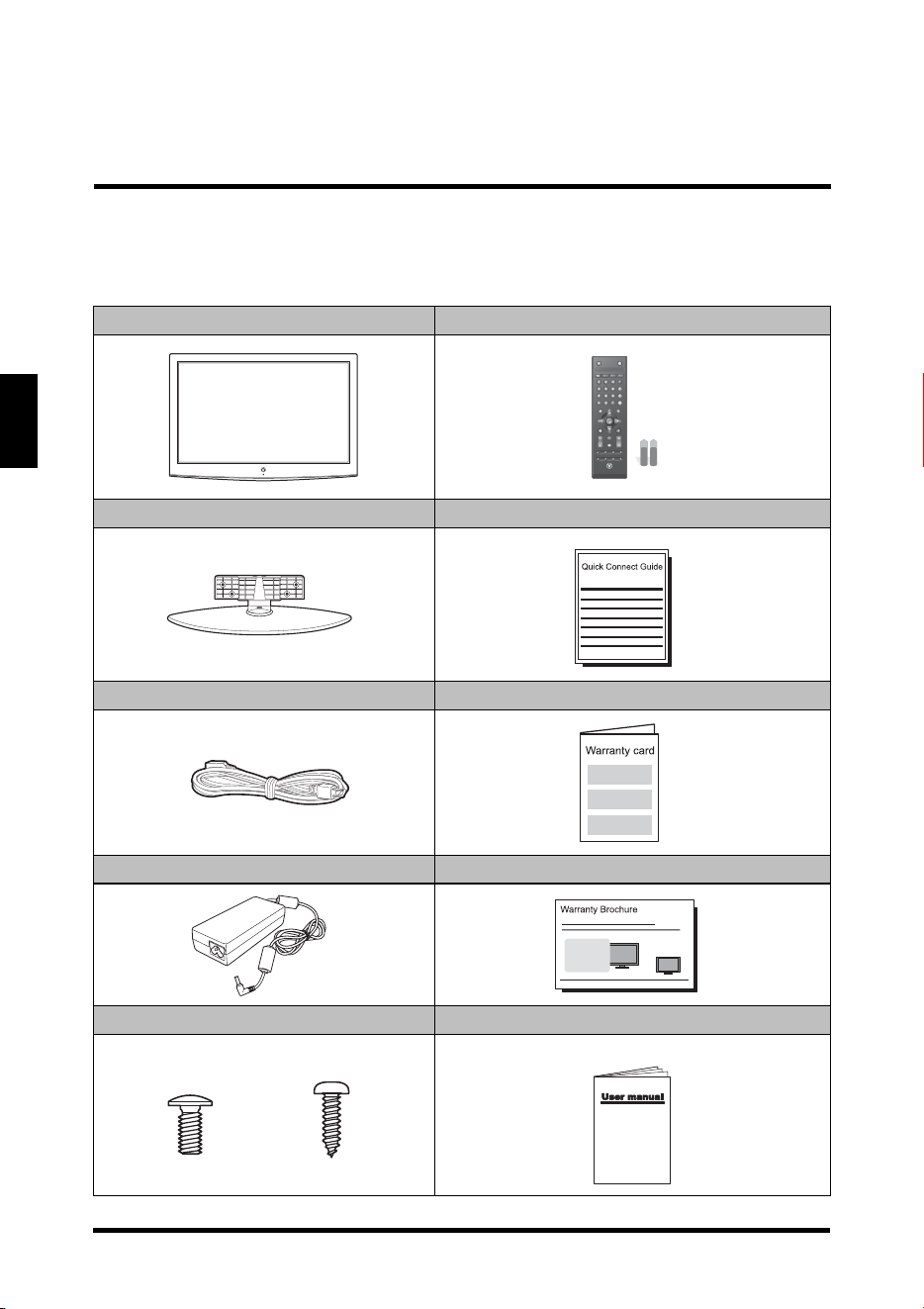
PACKAGE CONTENTS ................................................. 10
CONTROL PANEL ........................................................ 11
TERMINALS................................................................. 12
REMOTE CONTROL..................................................... 13
REMOTE CONTROL OPERATION ................................ 14
INSTALLING THE REMOTE CONTROL BATTERIES.. 14
REMOTE CONTROL TRANSMISSION RANGE .......... 14
LED TV BASE .............................................................. 15
INSTALLING THE LED TV BASE .............................. 15
REMOVING THE LED TV BASE ................................ 16
ANTENNA CONNECTION ............................................. 17
OUTDOOR ANTENNA CONNECTION ....................... 17
CABLE TV (CTV/DTV) CONNECTION ....................... 17

TABLE OF CONTENTS
ii
English
EXTERNAL DEVICE CONNECTIONS ............................ 18
POWER CONNECTION ................................................ 20
CONNECTING AC POWER ....................................... 20
INITIAL SETUP ........................................................ 20
BASIC OPERATIONS ................................................... 21
TURNING THE POWER ON AND OFF....................... 21
ADJUSTING THE VOLUME....................................... 21
CHANGING CHANNELS ........................................... 22
SELECTING THE INPUT SOURCE............................ 22
ADJUSTING THE DISPLAY FORMAT........................ 23
ADJUSTING THE LED BACKLIGHT .......................... 23
SETUP MENUS ............................................................ 24
SETUP MENU OPERATION ...................................... 24
PICTURE ................................................................. 25
AUDIO ..................................................................... 29
VIEW MODE............................................................. 32
VIEW MODE (VGA) .................................................. 32
TV PROGRAM.......................................................... 34
SETTINGS ............................................................... 38
WALL MOUNT OPTION ................................................ 49
WALL MOUNT INSTALLATION REMINDERS............. 49
TROUBLESHOOTING................................................... 50
SPECIFICATIONS ........................................................ 53

DIGITAL TELEVISION TRANSITION NOTICE
1
English
DIGITAL TELEVISION TRANSITION NOTICE
This device contains a digital television tuner, so it should receive digital over the air
TV programming, with a suitable antenna, after the end of full-power analog TV
broadcasting in the United States on June 12, 2009. The nationwide switch to digital
television broadcasting will be complete on June 12, 2009, but your local television
stations may switch sooner. After the switch, analog-only television sets that receive
TV programming through an antenna will need a converter box to continue to receive
over-the-air TV. Watch your local stations to find out when they will turn off their
analog signal and switch to digital-only broadcasting.
For more information, call the FCC at 1-888-CALL-FCC (1-888-225-5322) or see
w
ww.DTV.gov. For information on the TV Converter program, and on government
coupons that may be used toward the purchase of one, see www.dtv2009.gov, or call
the NTIA at 1-888-DTV-2009.
AVISO RELATIVO A LA TRANSICIÓN A TELEVISIÓN
DIGITAL
Este equipo incorpora un sintonizador de televisión digital, lo que le permitirá recibir
una programación digital televisada por aire, con una antena adecuada, cuando se
terminará la transmisión de alta potencia de la televisión analógica en los Estados
Unidos el 12 de Junio de 2009. Ciertos receptores de televisión antiguos, si
dependen de una antena de TV, necesitarán un conversor de TV para recibir por el
aire una programación digital, pero seguirán funcionando como antes para otros
usos (por ejemplo para ver emisoras de TV de baja potencia que todavía transmiten
en analógico, para ver películas pregrabadas, o para utilizar sus videojuegos).
Para obtener más información, llame FCC 1-888-CALL-FCC (1-888-225-5322) o
re
fiérase a www.DTV.gov. Para toda información sobre el programa de conversores
de TV, y acerca de los cupones del gobierno que se pueden usar para comprarlos,
refiérase a www.dtv2009.gov, o llame al NTIA al 1-888-DTV-2009.
IMPORTANT INFORMATION
2
English
IMPORTANT INFORMATION
Warnings
To reduce the risk of fire or electric shock:
• Do not expose this product to rain or moisture.
• Do not remove the rear cover. There are no
user-serviceable parts inside.
Refer all servicing requirements to qualified service personnel.
• The plug should be connected to a mains socket outlet with a protective
earthing connection.
The lightning flash with arrowhead inside an equilateral
tria
ngle symbol is intended to alert the user to the presence
of uninsulated dangerous voltage within the product's
enclosure that may be of sufficient magnitude to constitute a
risk of electric shock.
The exclamation inside an equilateral triangle symbol is intended to
a
lert the user to related operating and maintenance instructions in
the user documentation accompanying the product.
WARNING!
This device must be operated with the original power supply.
WARNING!
To prevent injury, this apparatus must be securely
attached to the floor/wall in
accordance with the installation instructions.
CAUTION:
The power supply outlet should be located near the LED TV and should be easily
accessible.
Always use the appropriate AC cord that is
certified for your specific country.
Some examples are listed below:
•USA – UL
• Canada – CSA
• Japan – Electric Appliance Control Act
IMPORTANT INFORMATION
3
English
NOTICES
Important Notices Concerning Power Cord Selection
The specific power cord for this LED TV is enclosed and has been selected
a
ccording to the country of destination. Use the enclosed power cord to prevent
electric shock. Observe the following guidelines if it is necessary to replace the
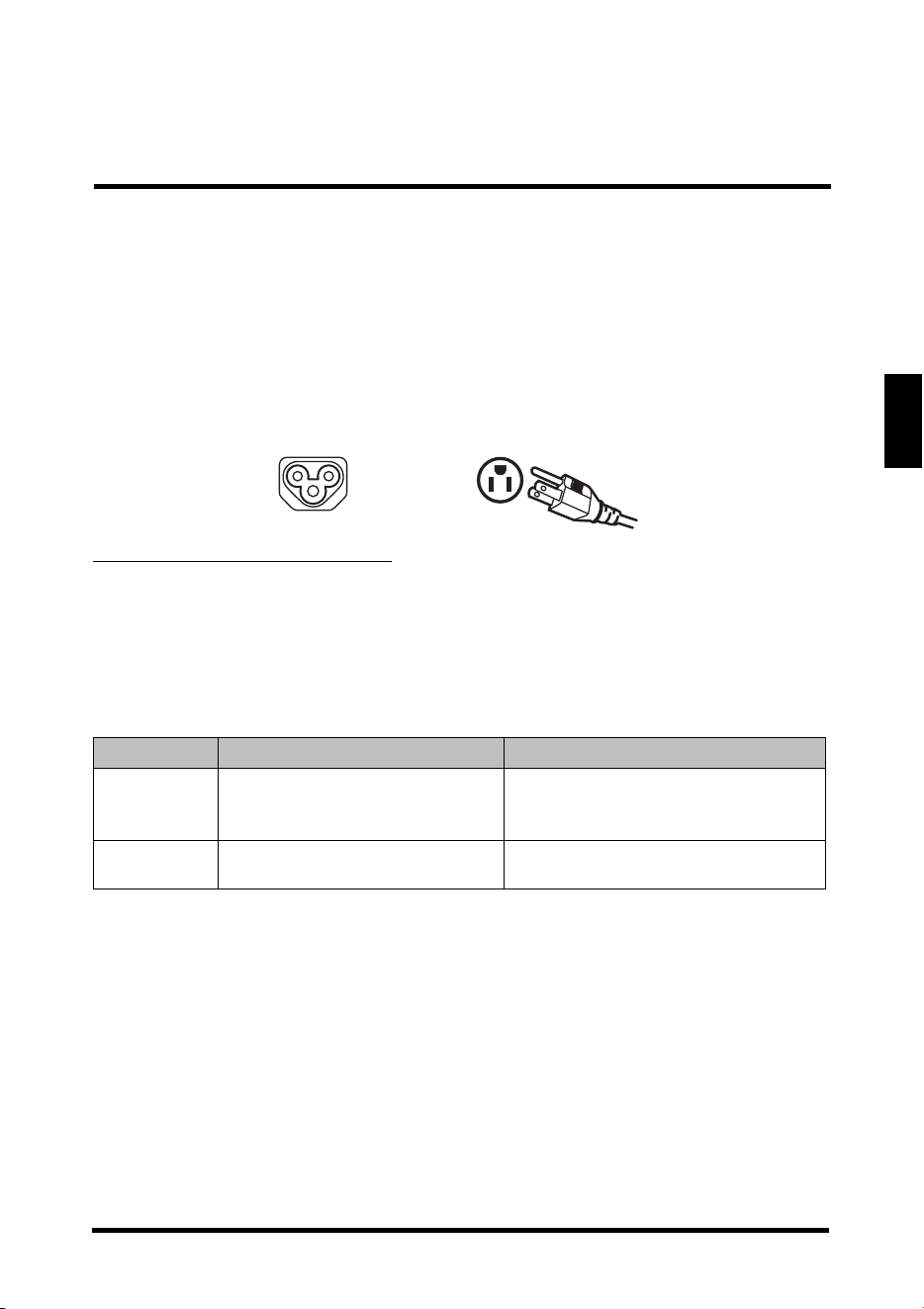
original cord set, or if there is no cord set enclosed. The female receptacle of the
cord set must meet IEC-60320 requirements and should look like Figure A1 below:
For the United States and Canada
In the United States and Canada the male plug is a NEMA5-15 style (Figure A2),
UL-listed, and CSA-labeled. For LED TVs that are to be placed on a desk or table,
type SVT or SJT cord sets may be used. For LED TVs that are to be placed directly
on the floor, only SJT type cord sets may be used. The cord set must be selected
according to the current rating for the LED TV. Consult the table below for the
selection criteria of power cords used in the United States and Canada.
Cord Type Size of Conductor in Cord Maximum Unit Current Rating
SJT
18 AWG
16 AWG
14 AWG
10 Amps
12 Amps
12 Amps
SVT
18 AWG
17 AWG
10 Amps
12 Amps
Figure A1
Figure A2

IMPORTANT INFORMATION
4
English
FCC COMPLIANCE STATEMENT
This equipment has been tested and complies with the limits for a Class B digital
device, pursuant to part 15 of the FCC Rules. These limits are designed to provide
reasonable protection against harmful interference in a residential installation. This
equipment generates, uses, and can radiate radio frequency energy, and may cause
harmful interference to radio communications if not installed and used in accordance
with the instructions. However, there is no guarantee that interference will not occur
in a particular installation. If this equipment does cause harmful interference to radio
or television reception, which can be determined by turning the equipment off and
on, the user is encouraged to try to correct the interference by one or more of the
following measures:
• Reorient or relocate the receiving antenna.
• Increase the distance between the LED TV an
d the receiver.
• Connect the LED TV to an outlet on a circuit separate from to which the
receiver is connected.
• If the interference persists even after performing the
above measures,
consult the Westinghouse Service Center or an experienced radio/TV
technician for assistance.
FCC Warning
To assure continued FCC compliance, use a grounded power supply cord and the
provided shielded video interface cable with bonded ferrite cores. If a BNC cable is
used, use only a shielded BNC (5) cable. Also, any unauthorized changes or
modifications not expressly approved by the manufacturer will void the user's
authority to operate this device.

IMPORTANT INFORMATION
5
English
IMPORTANT SAFETY INSTRUCTIONS
Make sure to note and follow all warnings and instructions marked on the LED TV.
Observe the following safety instructions.
• Read these instructions.
• Keep these instructions.
• Heed all warnings.
• Follow all instructions.
• Do not use this apparatus near water.
• Clean only with dry cloth.
• Do not block any ventilation openings. Install in
accordance with the
manufacturer’s instructions.
• Do not install near any heat sources such as radiators, heat registers,
stoves, or other apparatus (including amplifiers) that produce heat.
• Do not defeat the safety purpose of the polarized or grounding-type plug. A
polarized plug has two blades with one wider than the other. A grounding
type plug has two blades and a third grounding prong. The wide blade or the
third prong are provided for your safety. If the provided plug does not fit into
your outlet, consult an electrician for replacement of the obsolete outlet.
• Protect the power cord from being walked on or pinched particularly at plugs,
convenience receptacles, and the point where they exit from the apparatus.
• Only use attachments/accessories specified by the manufacturer.
• Use only with the cart, stand, tripod,
bracket, or table specified by the
manufacturer, or sold with the apparatus. When a cart is used, use caution
when moving the cart/apparatus combination to avoid injury from tip-over.
• Unplug this apparatus during lightning storms or when unused for long
periods of time.
• Refer all servicing to qualified service personnel. Servicing is re
quired when
the apparatus has been damaged in any way, such as power-supply cord or
plug is damaged, liquid has been spilled or objects have fallen into the
apparatus, the apparatus has been exposed to rain or moisture, does not
operate normally, or has been dropped.
IMPORTANT INFORMATION
6
English
Circuit Overload
Do not overload wall outlets, extension cords, or power strips. This can result in a fire
or electronic shock.
Power Cord Protection
Power supply cords should be routed so that they are not likely to be walked on or
pinched by items placed upon or against them. Periodically inspect the cords for
damage. Install the LED TV near a wall socket outlet where the power cord can be
readily accessed.
Ventilation
The slots and openings on the cabinet are provided for necessary ventilation. To
ensure reliable operation of the LED TV and to protect it from overheating, these
slots and openings must never be blocked or covered.
Safety: Lamp Disposal
Lamp(s) inside this product contain mercury and must be recycled or disposed of
according to local, state or federal laws. For more information, contact the electronic
industries alliance at www.eiae.org.
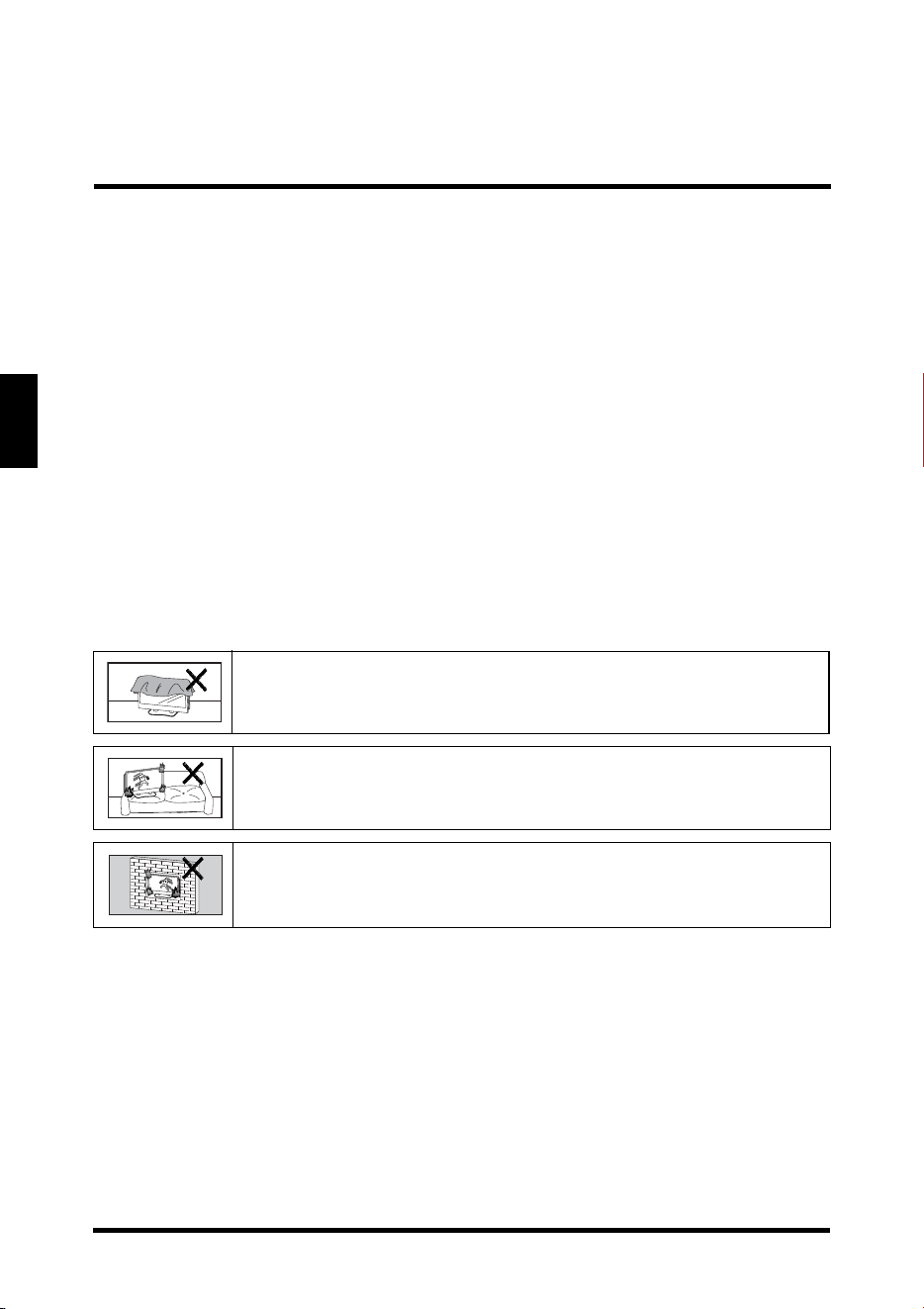
Never cover the slots and openings with a cloth or other materials.
Do not block the openings by placing the LED TV on a bed, sofa,
rug or other similar surface.
Do not place the LED TV in a built-in installation such as a
b
ookcase or a rack unless proper ventilation is provided or the
manufacturer’s instructions have been adhered to.

IMPORTANT INFORMATION
7
English
WARNINGS AND PRECAUTIONS
• Do not orient the LED TV towards direct sunlight to reduce glare.
• If the LED TV will not be used for a long period of time, unplug the unit and
remove
the batteries from the remote control.
• Avoid touching the display screen by hand or any object.
• Never remove the rear cover. The LED TV interior
contains high-voltage
parts. You may be seriously injured if you touch them.
• Always handle the LED TV with caution when moving it.
• Do not install the LED TV in airtight compartments, or in
areas where it can
be exposed to water or high temperature.
• Ensure that the area around the LED TV is clean and free of moisture.
• Do not place anything on the LED TV that can hinder heat dissipation.
• Do not place naked flame sources, such as lighted candles, on
or near the
LED TV.
• Do not place anything on the LED TV that can cause liquid to splash on it
(e.g. flower vase).
• Do not place heavy objects on the LED TV, audio/video cables, or power
cord.
• If the LED TV emits smoke, abnormal noise,
or a strange odor, immediately
turn it off and contact the Westinghouse Service Center by:
– Logging on to www.wde.com.
– Contacting the Westinghouse Customer Service at
(800) 701-0680.
– E-mailing us at [email protected].
IMPORTANT INFORMATION
8
English
ANTENNA INSTALLATION SAFETY
Outdoor Antenna Grounding
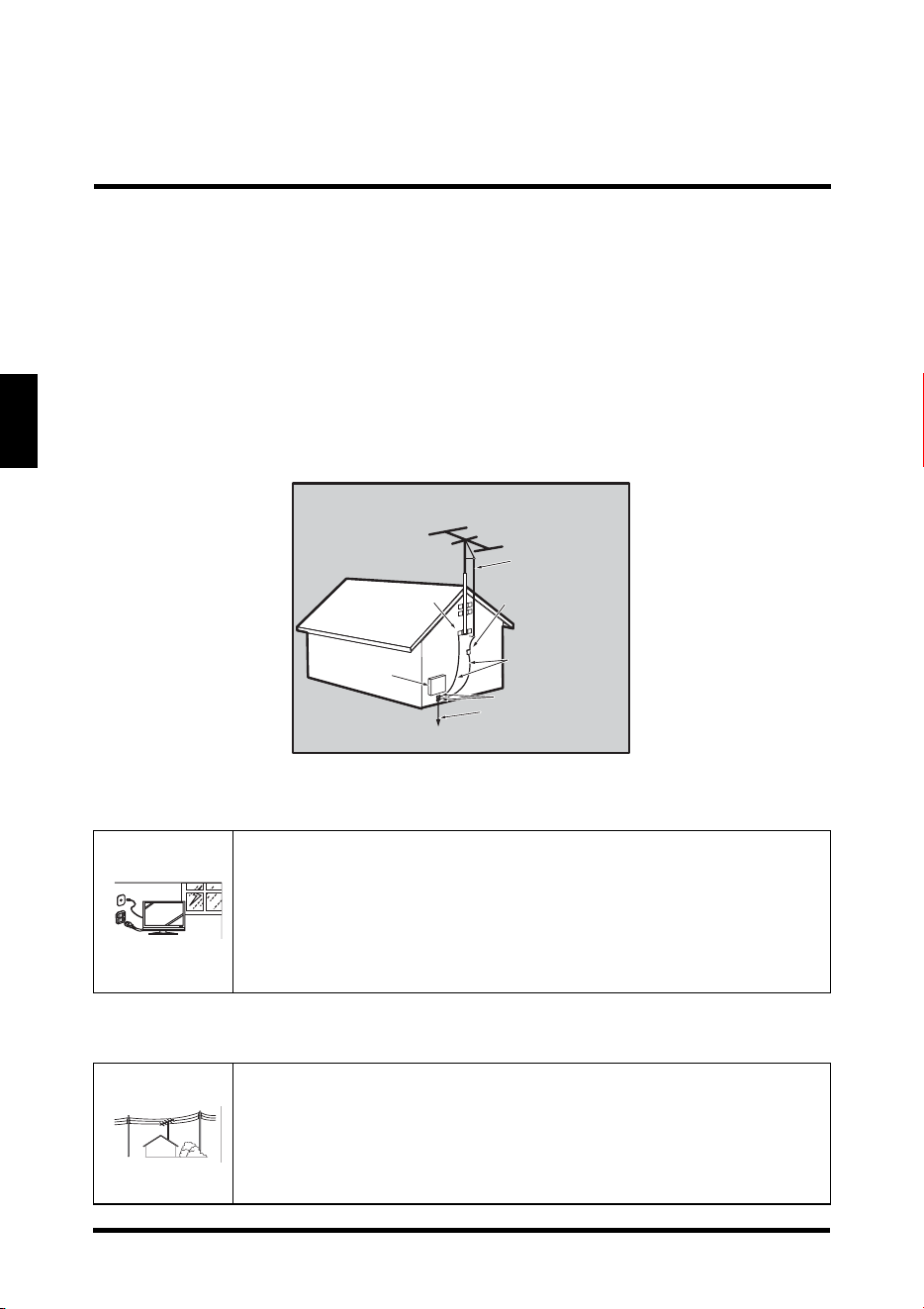
If an outside antenna or cable system is connected to the LED TV, be sure the
antenna or cable system is grounded to prevent voltage surges and built-up static
charges. Article 810 of the National Electrical Code, ANS/NFPA 70, provides
information on proper grounding of the mast and supporting structure, grounding of
the lead-in wire to an antenna discharge unit, connection to grounding electrodes,
and requirements for the grounding electrode.
Lightning
Power lines
For added protection for the LED TV during a lightning storm, or
when it is left unattended and unused for long periods of time,
unplug it from the wall outlet and disconnect the antenna or cable
system. DO NOT disconnect the antenna or the power cord during
a heavy storm—lightning may strike while you are holding the
cable cord, causing serious injury. Turn off the LED TV and wait for
the weather to improve.
An outside antenna system should not be located in the vicinity of
o
verhead power lines or other electric light or power circuits, or
where it can fall into such power lines or circuits. When installing an
outside antenna system, extreme care should be taken to keep
from touching such power lines or circuits as contact with them
might be fatal.
Antenna Grounding According to the National
Electrical Code, ANSI/NFPA 70
Antenna lead in wire
Antenna discharge unit
(NEC Section 810-20)
Grounding Conductors
(NEC Section 810-21)
Grounding clamps
Power service grounding
electrode system
(NEC Art 250 part H)
Grounding clamps
Electric service
equipment
NEC: National Electrical Code
Z
Z
Z
IMPORTANT INFORMATION
9
English
CLEANING THE LED TV
To clean the screen:
1
Wipe the screen with a clean, soft, lint-free cloth. This removes dust and other
particles.
2 If it is still not clean, apply a small amount of non-ammonia, non-alcohol
based glass cleaner onto a clean, soft, lint-free cloth, and wipe the screen.
To clean the case:
1
Wipe the case with a soft, dry cloth.
2 If it is still not clean, apply a small amount of non-ammonia, non-alcohol
based, mild non-abrasive detergent onto a clean, soft, lint-free cloth, then
wipe the surface.
Dolby-Digital Notice
Manufactured under license from Dolby Laboratories. Dolby and the double-D
symbol are registered trademarks of Dolby Laboratories.
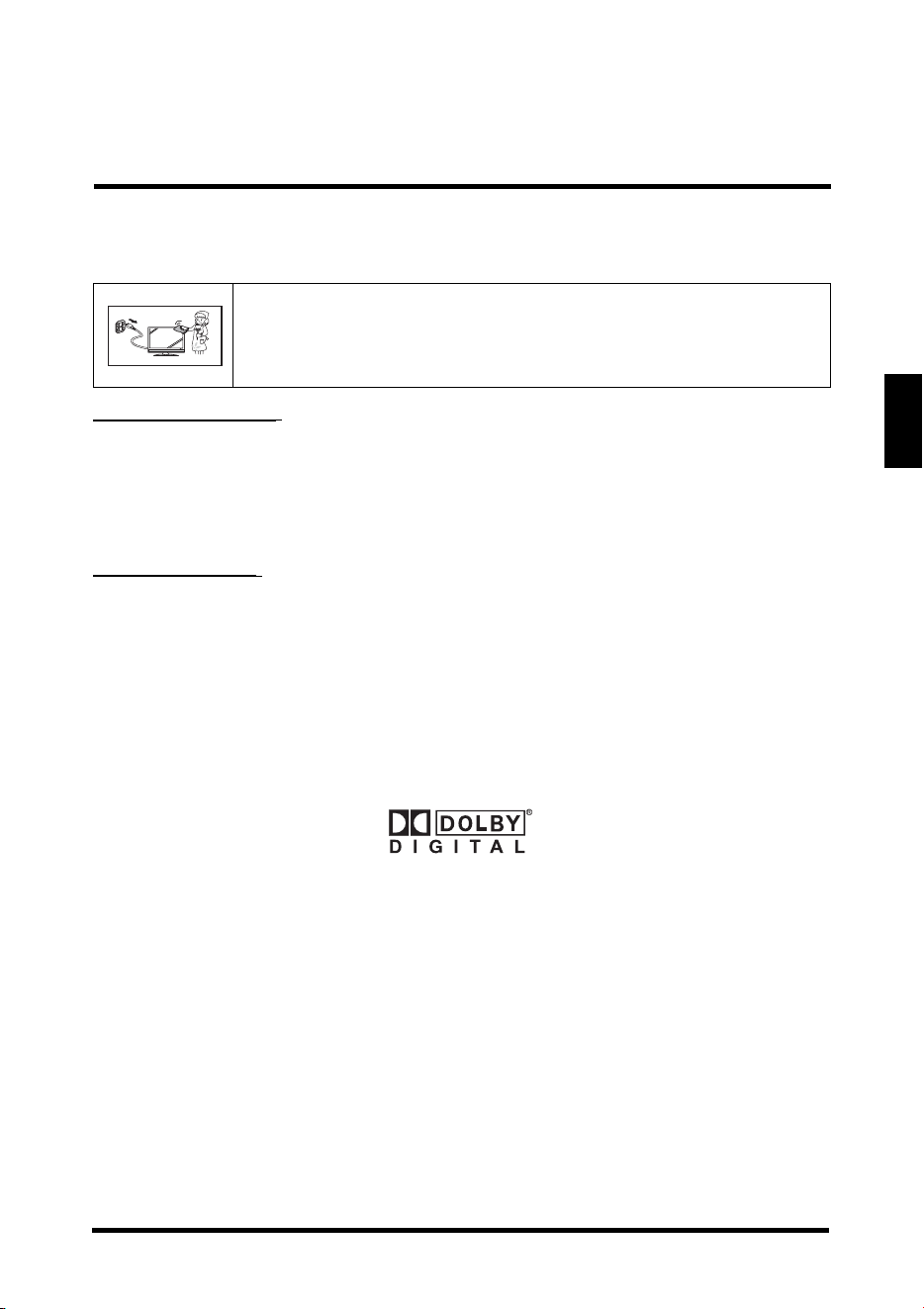
• Make sure the LED TV is turned
off and the power cord is
disconnected from the power outlet.
• Never spray or pour any liquid directly onto the screen or the
cas
e.
PACKAGE CONTENTS
10
English
PACKAGE CONTENTS
32” LED TV Unit Remote Control (with 2x AAA batteries)
LED TV Base Quick Connect Guide
Power Cord Warranty Card
AC Adapter Warranty Brochure
Screws for Base User Manual
Favorite
MTS
Z
Z
Z
C.C.
TVVideo1HDMI1YPbPr1
PCVideo2HDMI2YPbPr2
ENT D
A
B
C
Vol
Input
Ch
Enter
RMT-11
M4
x
18
*4
pcs
M5
x
16
*1
pc
Cover neck Base
CONTROL PANEL
11
English
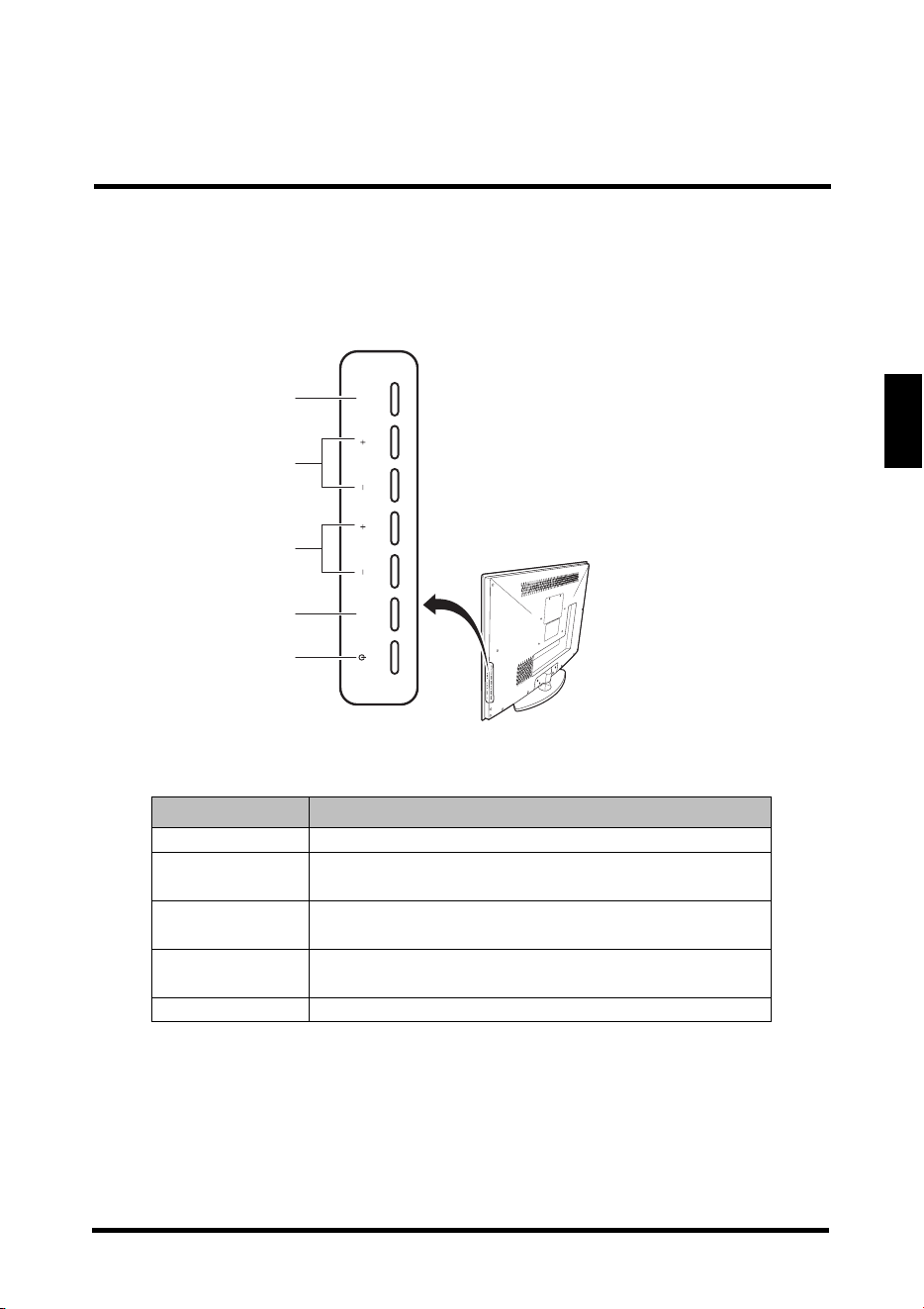
CONTROL PANEL
Item Description
1. MENU Displays the LED TV setup screen.
2. Volume +/-
• Adjusts the volume during playback.
•
Selects an item on a menu screen.
3. Channel +/-
• Switches the channel during TV viewing.
•
Selects an item on a menu screen.
4. INPUT
• Selects the video input source.
• Executes a command on a menu screen.
5. Power Toggles the power on and off.
L
R
AV 2
U
S
B
L
R
2
3
1
4
5
MENU INPUTVOL CH
TERMINALS
12
English
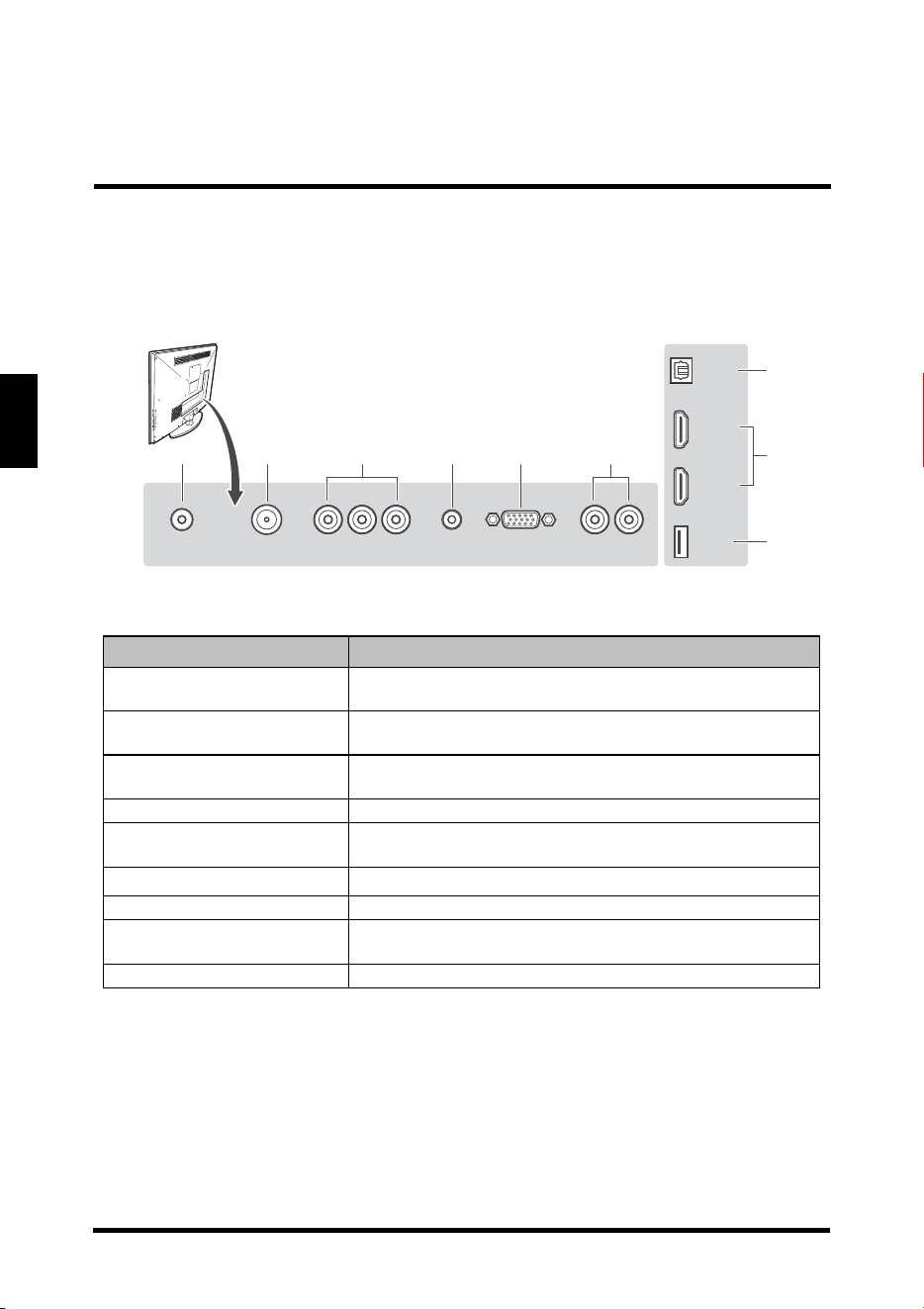
TERMINALS
Item Function
1. DC in
Connects the AC adapter from this outlet to a
power source.
2. TV tuner
Connects the LED TV to an antenna or cable
ser
vice.
3. Composite AV input
Connect to an external AV device such as a VCR,
DVD player, set-top box, or game system.
4. Audio in Connects to the audio out port of a computer.
5. VGA
Connects to a computer or other device with a
VGA outpu
t using a 15-pin VGA cable.
6. Audio out
Connect to an audio output device.
7. SPDIF audio out Connects to an external digital audio receiver.
8. HDMI 1/2
Connects to an external AV device such as a
VCR
, DVD player, set-top box, or game system.
9. USB Service port For service only.
SPDIF
L
-
RY
-
L
-
R VGAAUDIO INTUNERDC IN
HDMI 1
HDMI 2
USB
1 2 4 5
7
9
8
36
REMOTE CONTROL
13
English
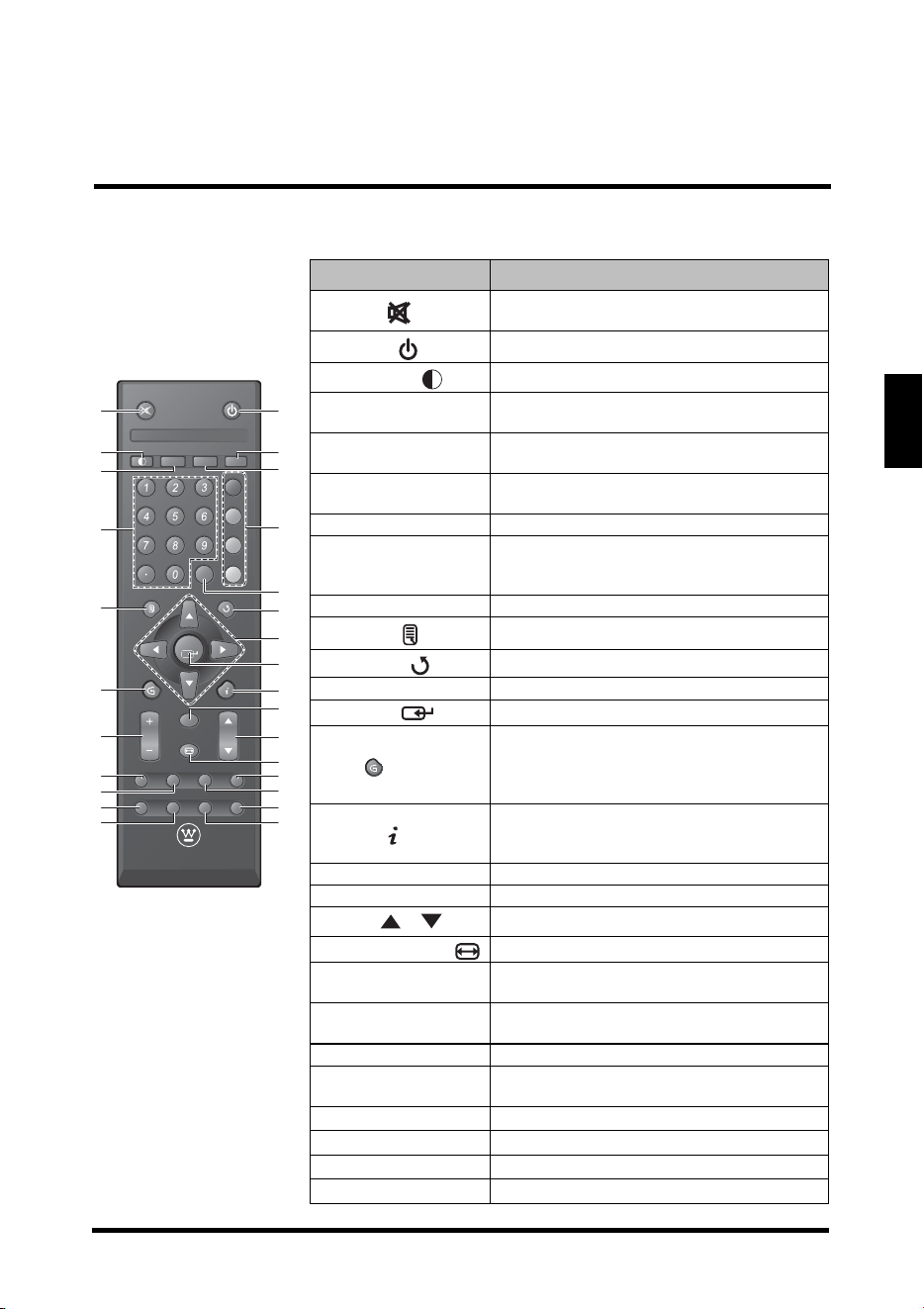
REMOTE CONTROL
Item Description
1. Mute
Mutes the sound. Press again to toggle
th
e sound back on.
2. Power
Toggles the TV power on or off.
3. Backlight
Adjusts the LED screen backlight.
4. MTS
Toggles the Multichannel Television
S
ound options.
5. CC
Toggles the closed cap
tion display on or
off.
6. Sleep z
Z
z
Sets the sleep timer for the LED TV to
tu
rn off automatically.
7. Channel keys Use to key in the channel number.
8. Favorite
Switches to the favorite channels (for
de
tails on how to save a new favorite
channel, see page 22).
9. Enter EN
T Executes a channel entry.
10. Menu
Accesses the LED TV setup menus.
11. Return
Switches to the last sele
cted channel.
12. Arrow keys Navigate through the on-screen menus.
13. Enter
Executes a command.
14. G
Displays the Electronic Program Guide
(
EPG). It contains the program
information for the channel you’re
watching.
15. Info
Displays the input sour
ce or channel
information as well as the system date
and time.
16. Input Selects the video input source.
17. Vol +/- Ajusts the system volume.
18. Ch /
Switches to other TV channels.
19. Aspect ratio
Selects the video display format.
20. YPbPr1
Selects VGA-Component as the input
sour
ce.
21. TV
Selects TV or HDTV as the input
sour
ce.
22. HDMI1 Selects HDMI1 as the input source.
23. Video1
Selects the Composite AV device as the
in
put source.
24. YPbPr2 Not supported.
25. PC Selects VGA as the input source.
26. HDMI2 Selects HDMI2 as the input source
27. Video2 Not supported.
Favorite
MTS
Z
Z
Z
C.C.
TVVideo1HDMI1YPbPr1
PCVideo2HDMI2YPbPr2
ENT D
A
B
C
Vol
Input
Ch
Enter
RMT-11
1
7
10
14
17
3
5
2
4
6
20
22
21
23
24
26
25
27
9
19
13
16
8
11
12
15
18
REMOTE CONTROL OPERATION
14
English
REMOTE CONTROL OPERATION
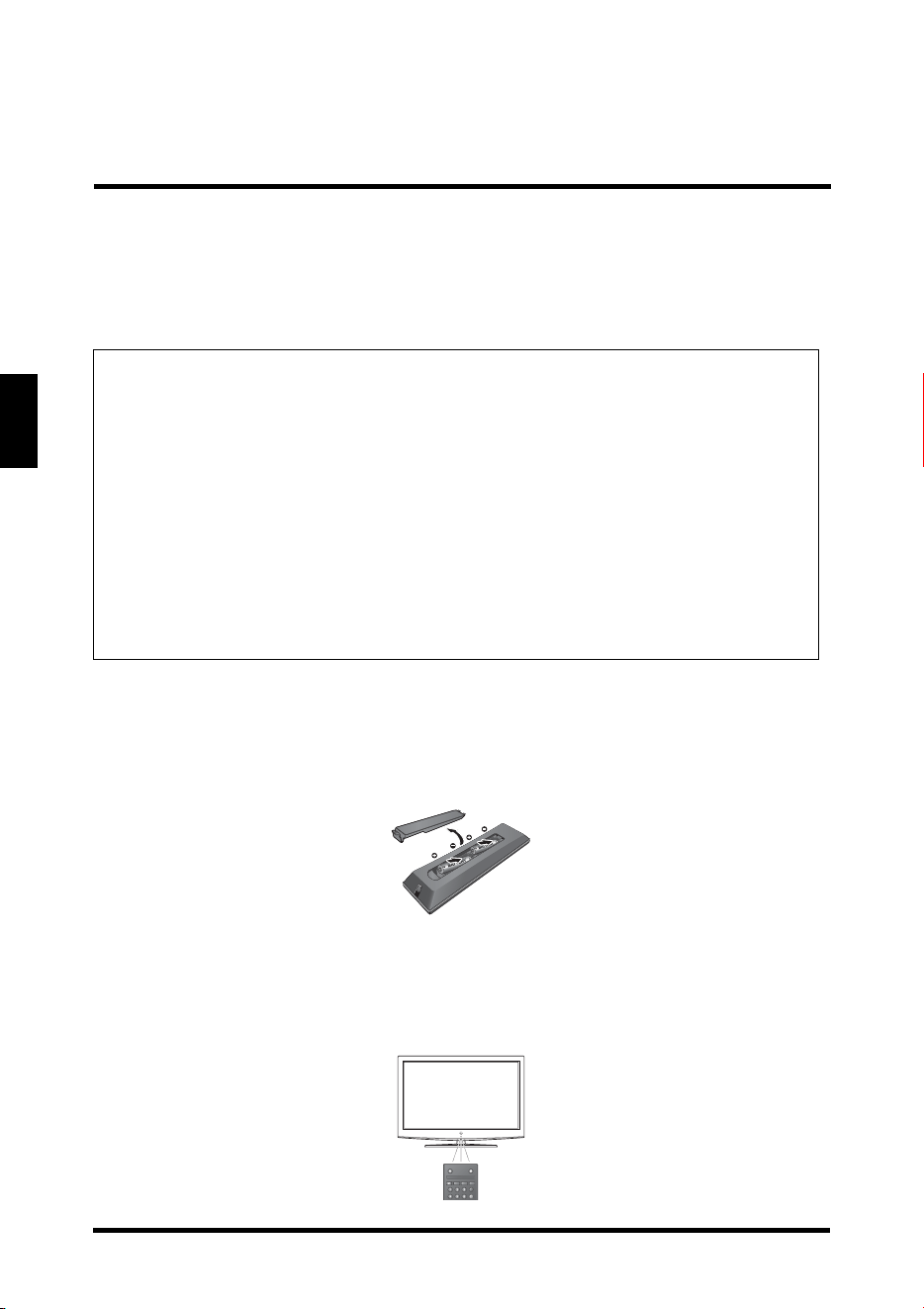
INSTALLING THE REMOTE CONTROL BATTERIES
1
Remove the battery cover.
2 Insert the batteries. Make sure the (+) and (–) marks on the batteries match
those inside the compartment.
3 Re-att
ach the battery cover.
REMOTE CONTROL TRANSMISSION RANGE
Transmission range depends upon the reception angle. The range of coverage is 20°
horizontal/vertical at a distance of 10 feet from the LED TV.
CAUTIONS:
• Only use AAA batteries.
• Do not mix new and old batteries. This may result in cracking or leakage,
which may
pose a fire risk or lead to personal injury.
• Insert batteries according to the (+) and (-) markings. Inserting the
batteries incorrectly may result in cracking or leakage, which may pose a
risk of fire or lead to physical injury.
• Dispose of used batteries in accordance with local laws and regulations.
• Keep batteries away from children and pets.
• When the remote control will not to be used for an extended period,
remove the batteries.
Favorite
MTS
Z
Z
Z
C.C.
A
B
LED TV BASE
15
English
LED TV BASE
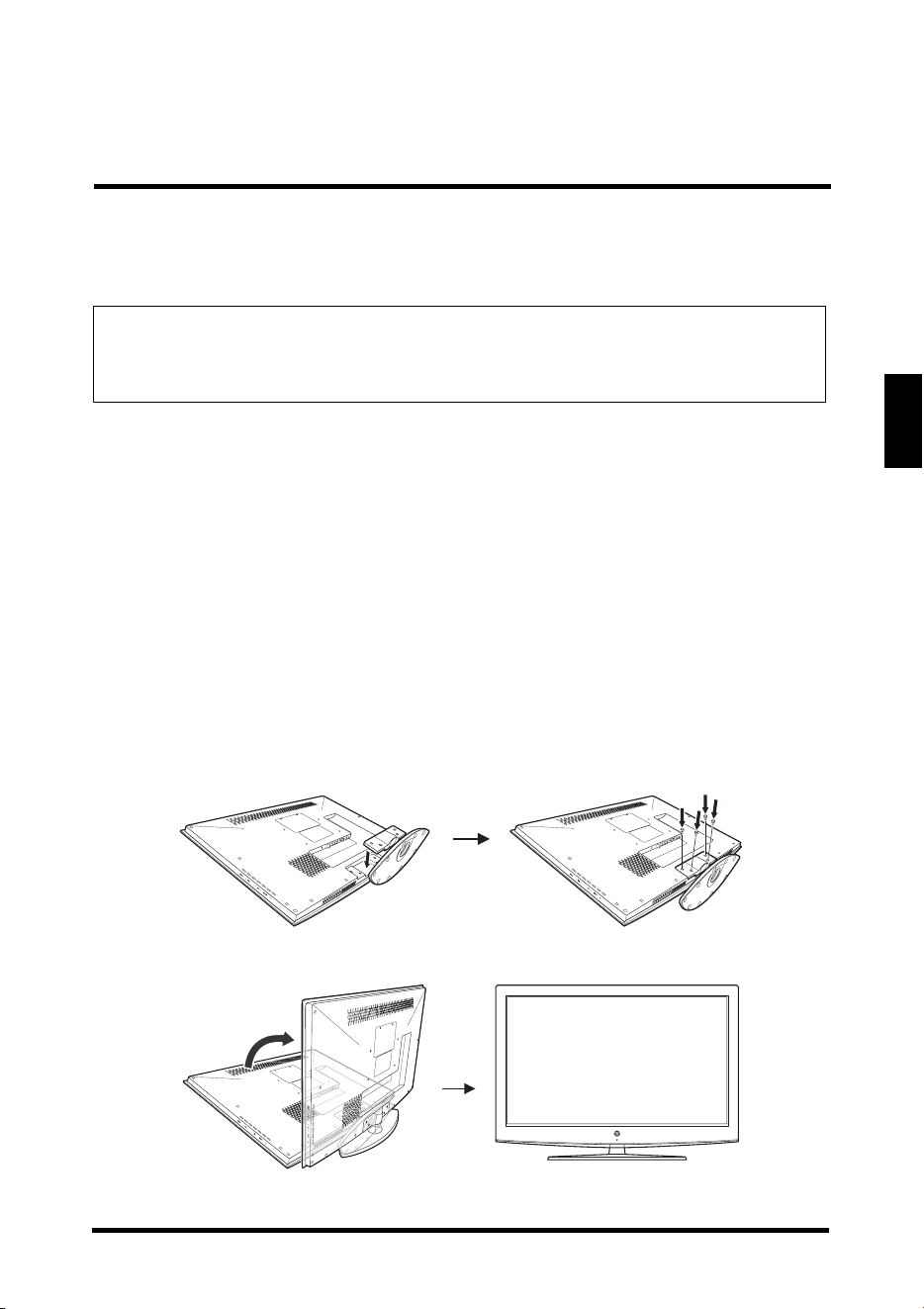
INSTALLING THE LED TV BASE
1
Open the LED TV carton box.
2 Remove the LED TV base.
3 Remove the
plastic bag.
4 Remove
the two top carton stabilizers from the LED TV.
5 Remove
the protective plastic covering the LED TV.
6 Grasp the two sides
of the LED TV and then pull it out of the carton box.
7 Remove
the two bottom carton stabilizers from the LED TV.
8 La
y the LED TV on a clear, flat, and stable surface.
9 Align the base to the bottom side
of the LED TV and use four M4 x 18 screws
to secure it.
10 Carefully
orient the LED TV in an upright position.
11 Use one
M5 x 16 screw to fix the stand base and LED TV on the desk.
CAUTION:
The LED TV unit may be too heavy for one person to lift. If this is the case,
make
sure to ask for assistance in handling the LED TV to prevent
physical injury and/or damage to the unit.
LED TV BASE
16
English
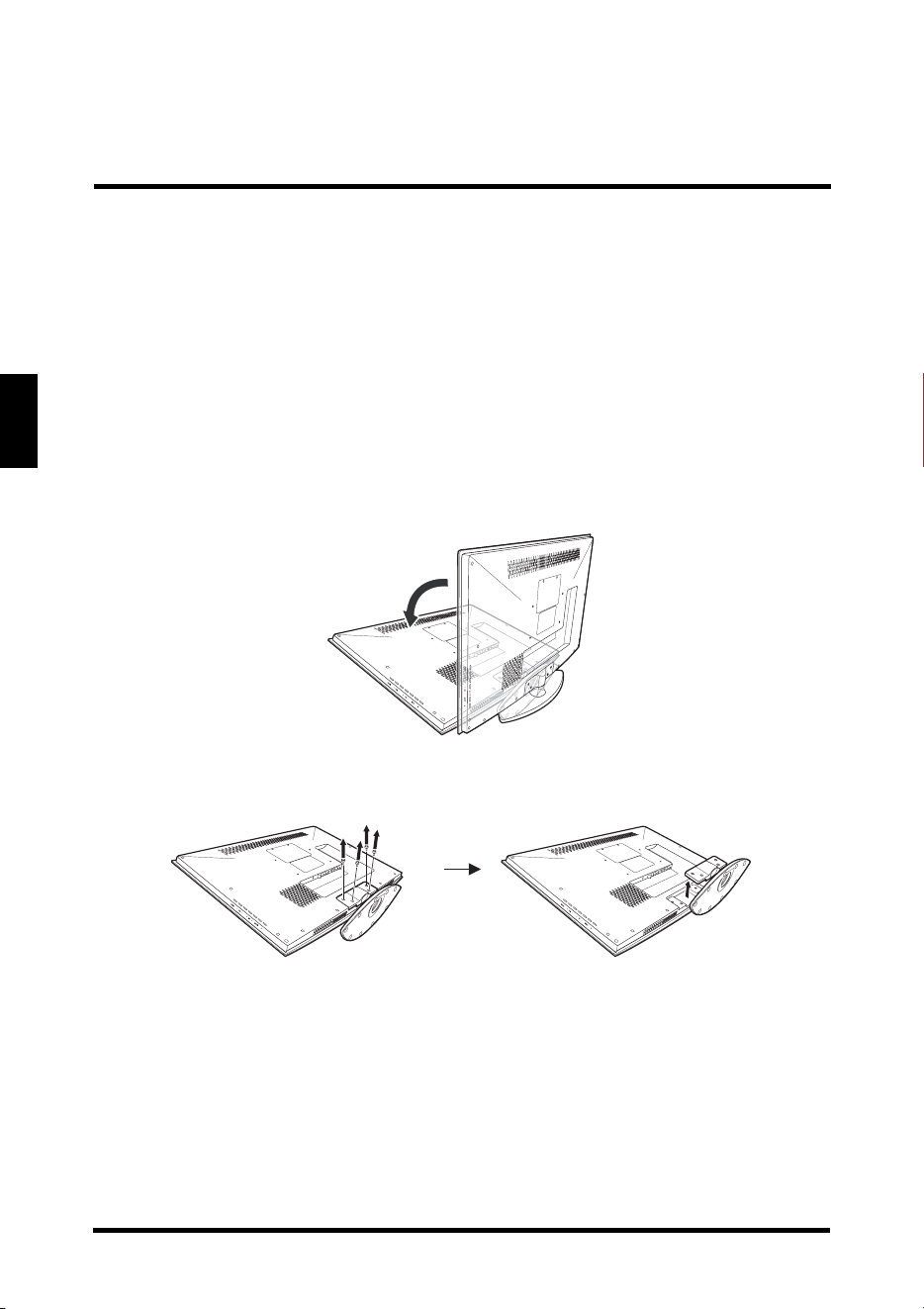
REMOVING THE LED TV BASE
If you intend to repack the LED TV unit (for shipping or storage) or you want to
change the installation to a wall mount option, you must first remove the LED TV
base.
1
Turn off the LED TV and all connected devices.
2 Disconnect the power cord from the LED TV.
3 Disconnect
all signal cables from the I/O port terminals.
4 Remove the
M5 x 16 screw securing the base to the desk.
5 La
y the LED TV on a clear, flat, and stable surface.
6 Remove the screws securing the base to the LED TV.
7 Det
ach the base from LED TV.
8 Pack the screws you removed
in step 5 together with the LED TV base for
future reassembly.
ANTENNA CONNECTION
17
English
ANTENNA CONNECTION
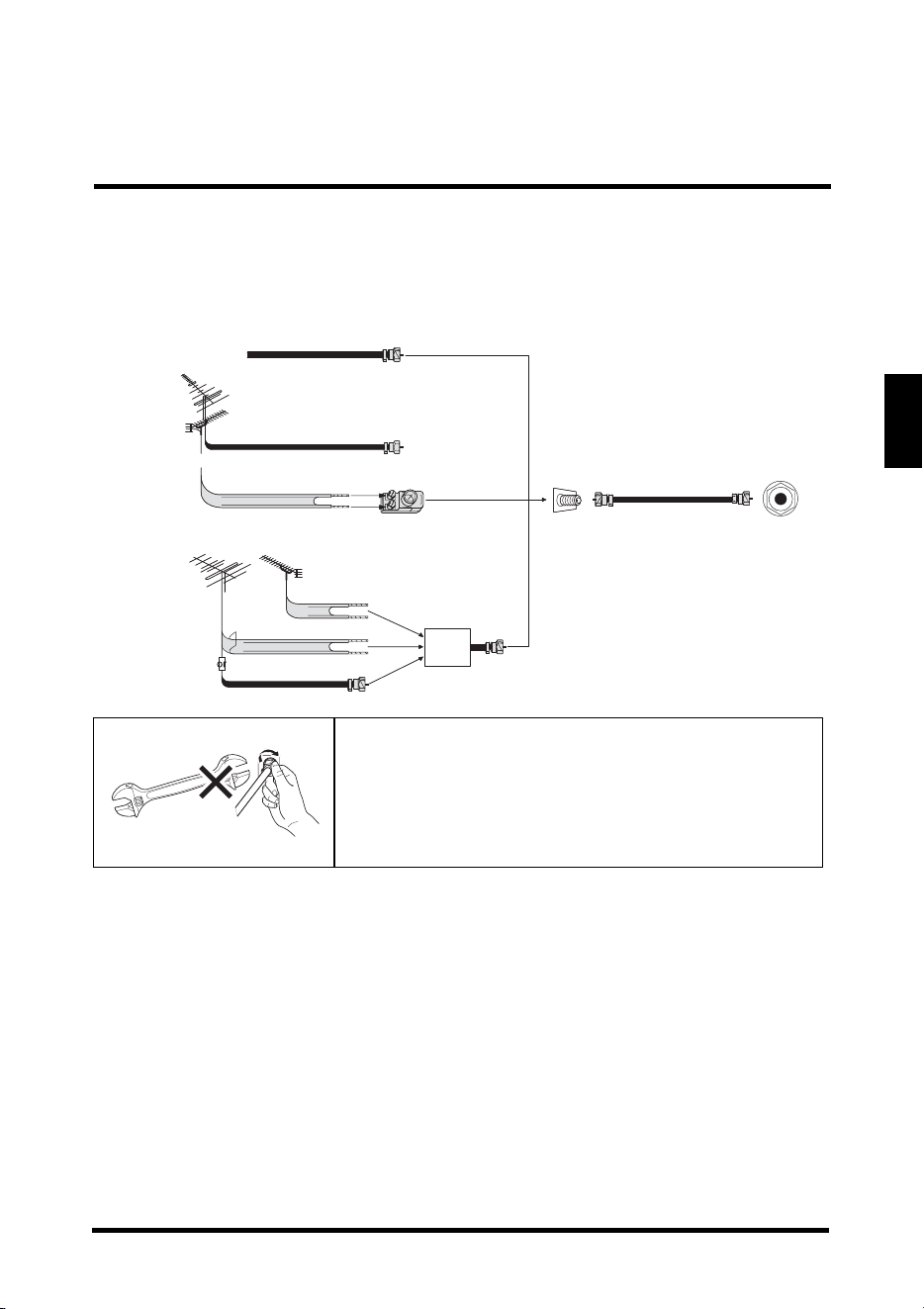
OUTDOOR ANTENNA CONNECTION
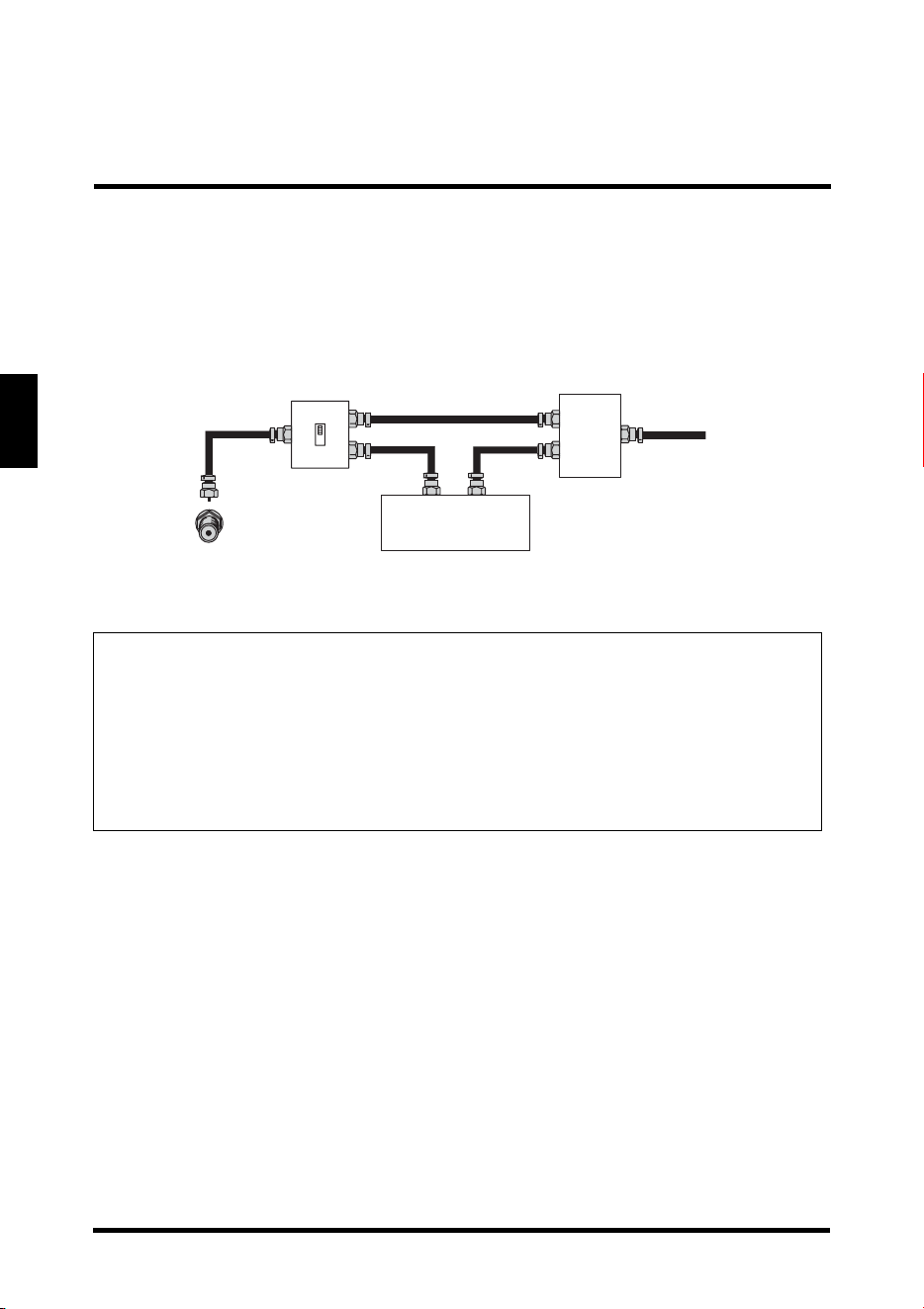
CABLE TV (CTV/DTV) CONNECTION
The unit has a TV tuner (75 ohm coaxial cable connector) located on the rear I/O
panel for easy cable hookup. When connecting the 75 ohm coaxial cable to the unit,
screw the 75 ohm cable to the TV tuner. Some cable TV companies offer premium
pay channels. Since the signals of these channels are scrambled, a cable TV
converter/descrambler is usually provided to the subscriber by the cable TV
company. This converter/descrambler is necessary for normal viewing of the
scrambled channels. (Set your TV to channel 3 or 4. Typically one of these channels
is used. If a channel is unknown, consult your cable TV company.) For more specific
instructions on installing cable TV, consult your cable TV company. One possible
method of utilizing the converter/descrambler provided by your cable TV company is
explained below.
NOTE:
The F-type connector should be finger-tightened only.
Wh
en connecting the RF cable to the LED TV, do not
tighten F-type connector with any tool. If tools are
used, it may cause damage to the LED TV (e.g.
breaking of internal circuit).
Cable TV lead in
VHF, UHF or VHF/UHF
combination antenna
75 ohm coaxial cable (round)
300 ohm twin-lead (flat)
300-75 ohm ADAPTER
(Not supplied)
Separate VHF/UHF Antenna
VHF Antenna UHF Antenna
300 ohm twin-lead
300 ohm twin-lead
75 ohm coaxial cable
COMBINER
(Not supplied)
Home Antenna
terminal (75 ohm)
RF IN
IN OUT
EXTERNAL DEVICE CONNECTIONS
18
English
• A position on the RF switch (not supplied) – You can view all unscrambled
channels by using the TV's channel keys.
• B position on the RF switch (not supplied) –
You can view the scrambled
channels via the converter/descrambler by using the converter's channel
keys.
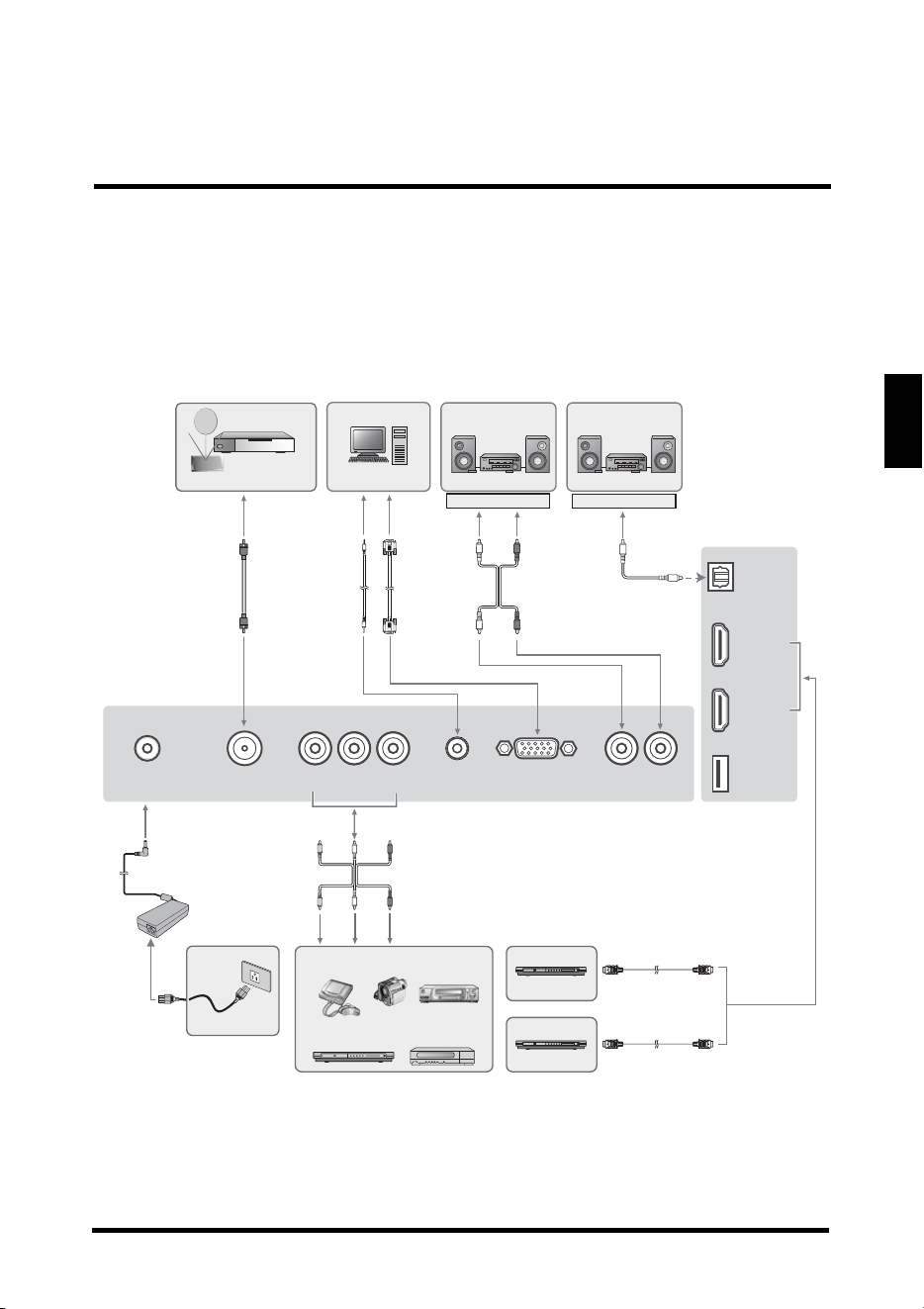
EXTERNAL DEVICE CONNECTIONS
You can enjoy picture and sound by connecting various audio-video devices to the
terminals located on the rear and side I/O panels of the LED TV.
• TV cable input – You can use a commercially available aud
io/video cable.
• Component (YPbPr) input – Picture can be displayed only when a 480i,
48
0P, 720P or 1080i signal is received.
• HDMI input – Picture can be displayed only when a 640 x 480, 480P, 720P
or 1080i signal is received. When you connect to the HDMI terminal with a
DVI-HDMI conversion cable, there is a possibility that the picture may not
display correctly.
• Audio output – You can output audio signals from the LED TV set through
the analog audio out and SPDIF terminals.
IMPORTANT:
• Turn off the LED TV first before connecting an external device to prevent
any possible damage or physical injury.
• For more information about external device connections, see the operation
manual of the external device you wish to connect to the LED TV.
• Make sure that the correct cables are connected to each terminal.
Improper cable connections may cause damage to the LED TV.
RF switch (not supplied)
Cable TV line
A
B
IN
OUT
Two-set
signal
splitter
(Not
supplied)
Cable TV
converter/descrambler
(Not supplied)
EXTERNAL DEVICE CONNECTIONS
19
English
The following diagram shows the external device connections.
SPDIF
L
-
RY
-
L
-
R VGAAUDIO INTUNERDC IN
HDMI 1
HDMI 2
USB
Antenna cable /
Cable TV line
Antenna /
Cable system
PC Audio amplifier
AUDIO OUT AUDIO OUT
3.5 mm
stereo mini
jack cable
RGB
cable
Audio
cable
SPDIF
cable
HDMI-HDMI cable
DVI-HDMI cable
DVD player
with an HDMI terminal
AC adapter
Power outlet
Home video
game system
Camcorder
VCR
DVD player Digital TV tuner
Composite AV cable
DVD player
with a DVI terminal
POWER CONNECTION
20
English
POWER CONNECTION
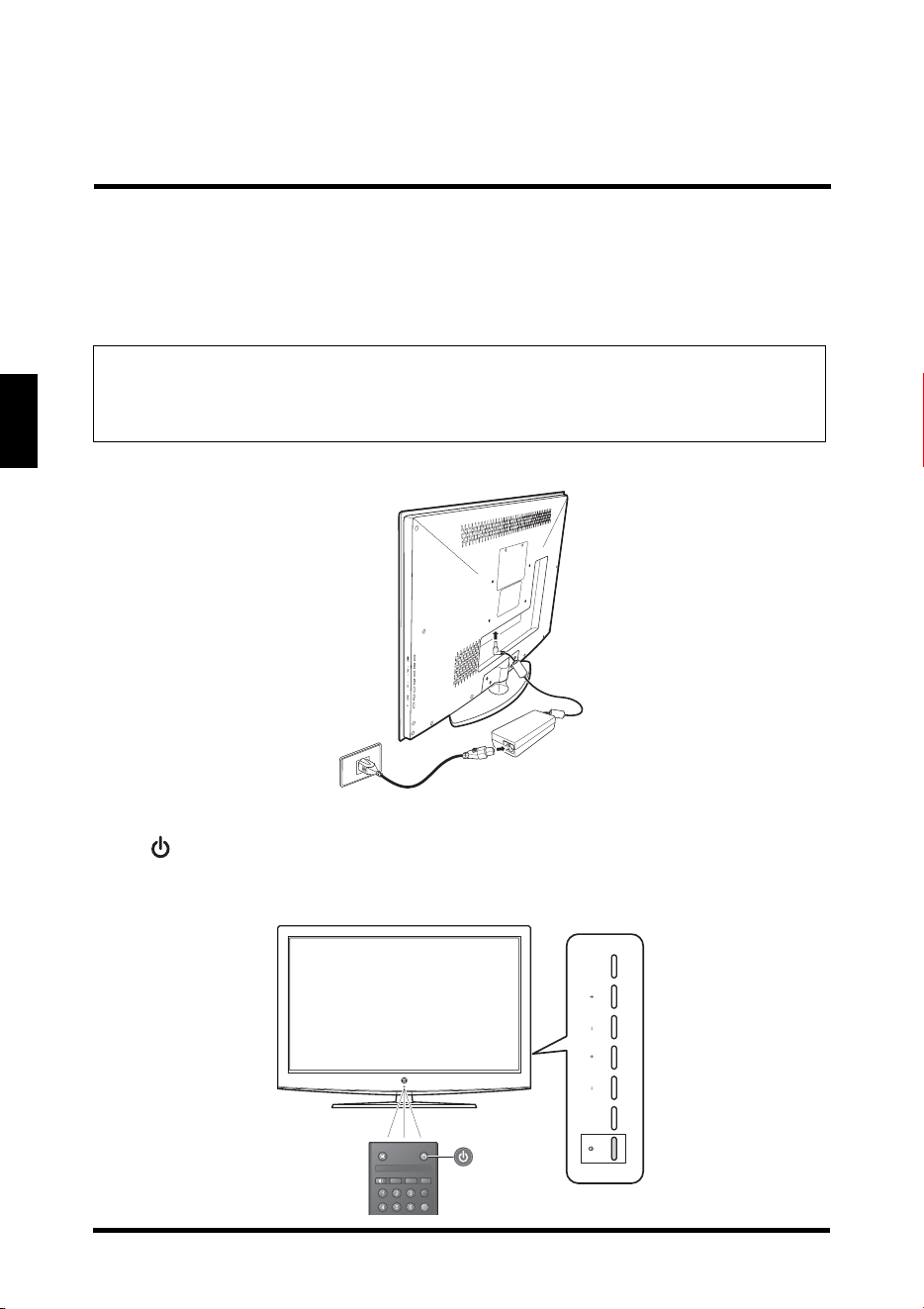
CONNECTING AC POWER
Connect the power cord of the AC adapter to the LED TV then to a proper AC outlet.
INITIAL SETUP
Press on the control panel or on the remote control to turn on the LED TV. Select
the desired language and select Ye
s to use the SetupWizard. The SetupWizard will
guide you on how to set up the LED TV’s operational settings.
IMPORTANT:
The LED TV is designed to be powered via an AC adapter. Use ONLY the
AC adapter included in the package. Turn off all connected devices before
plugging the AC adapter into the power outlet.
MENU INPUTVOL CH
Favorite
MTS
Z
Z
Z
C.C.
A
B
BASIC OPERATIONS
21
English
BASIC OPERATIONS
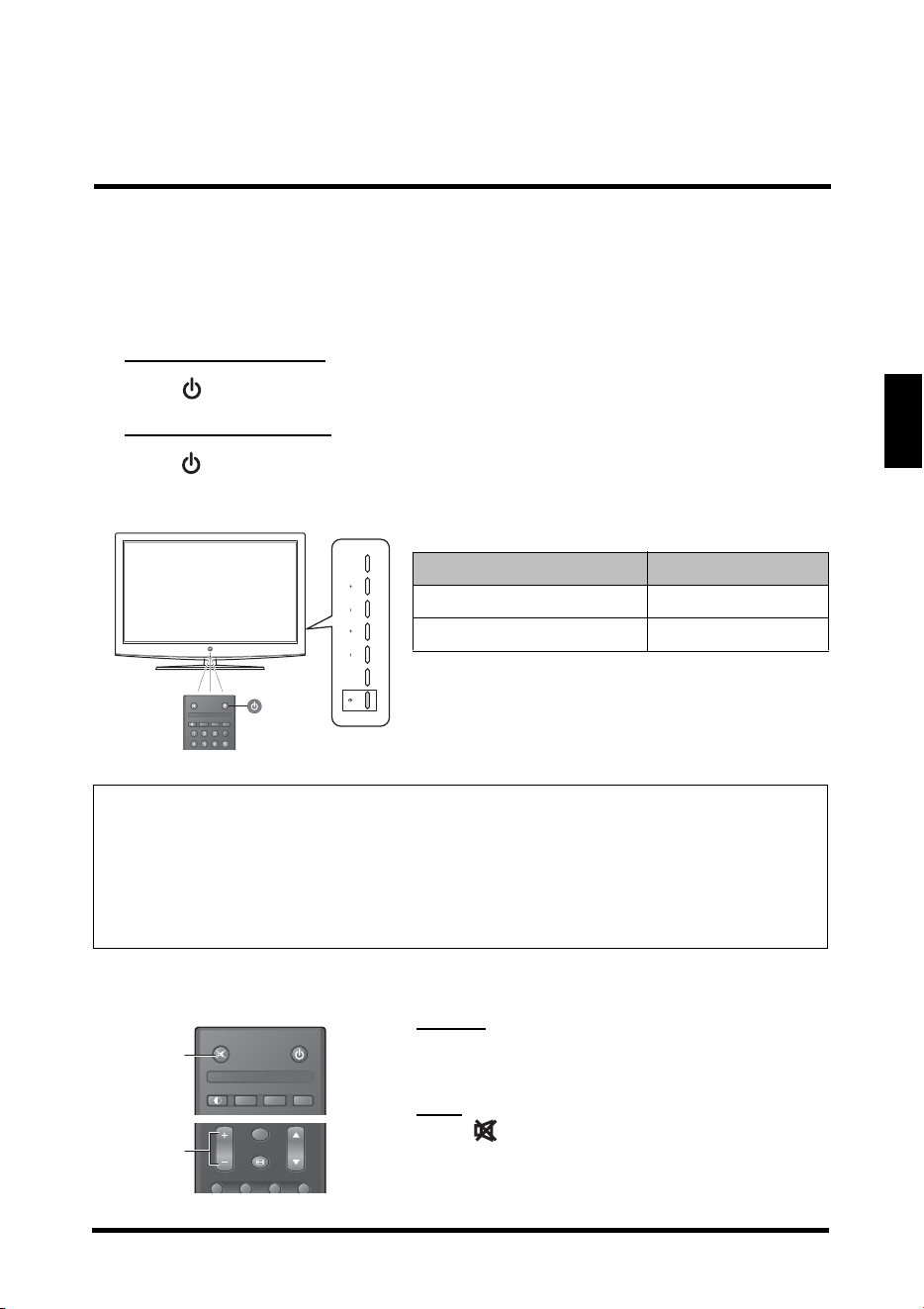
TURNING THE POWER ON AND OFF
Turning on the power
Press on the control panel or on the remote control to turn on the LED TV.
Turning off the power
Press on the control panel or on the remote control to turn off the LED TV. The
LED behavior will depend on the enabled Power settings.
ADJUSTING THE VOLUME
Volume
Press Vol+ to increase the volume; press Vol-
to decrease the volume.
Mute
Press to turn off the sound. The mute icon
appears on the screen. Press again to turn on
the sound.
LED indicator Operation
Turns from none to red. Turn the power on.
Turns from red to none. Turn the power off.
NOTES:
• If you are not going to use the TV for a long time, be sure to disconnect the
power cord
from the wall outlet and remove the batteries from the remote
control.
• In standby mode, a small amount of electricity is still consumed even when
the power is turned off.
MENU INPUTVOL CH
Favorite
MTS
Z
Z
Z
C.C.
A
B
Favorite
MTS
Z
Z
Z
C.C.
TVVideo1HDMI1YPbPr1
Vol
Input
Ch
Mute
Volume
BASIC OPERATIONS
22
English
CHANGING CHANNELS
Follow the instructions below to change channels.
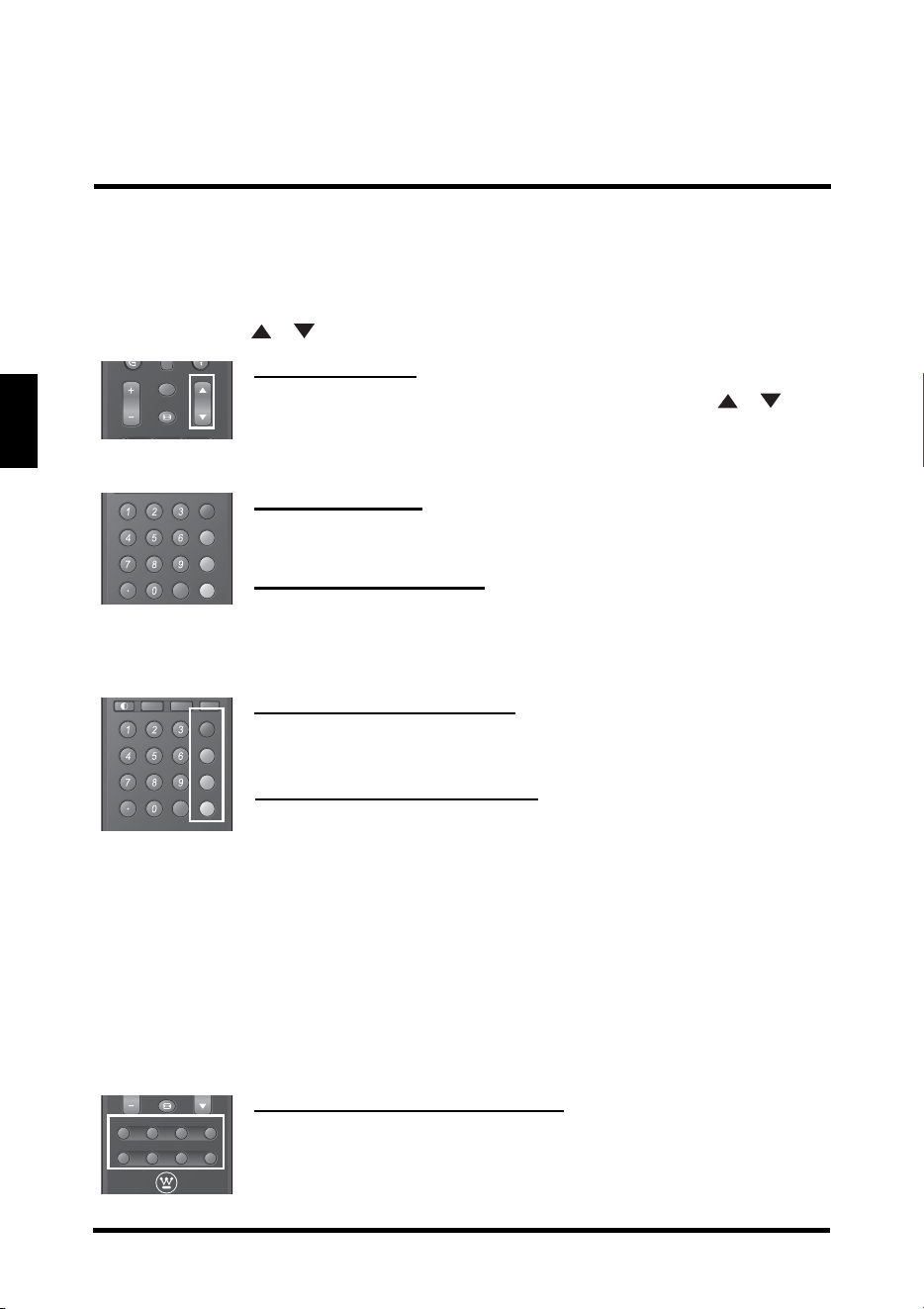
Using the Ch / Buttons
Browse channels
To browse through the available channels, press Ch / on
the remote control or on the control panel.
Using the Channel Keys
Selecting channel
To change to a certain channel, key in the channel number using
the channel keys and press ENT.
Selecting digital channel
To select a digital channel, key in the digital channel number using
the channel keys and the • key, then press ENT.
Using the Favorite Keys
Selecting favorite channels
To select a favorite channel, press the Favorite button (A, B, C, or
D) corresponding to the preferred channel.
Saving a channel as a favorite
1
Switch to the channel you want to add as a favorite.
2 Press and hold the Favorite button which you want to add
the current channel to for 3 seconds.
3 The
Channel Saved message appears to confirm the new
favorite channel item.
SELECTING THE INPUT SOURCE
There are two ways to select the video input source.
Using the Individual Input Keys
TV, PC, Video, YPbPr, HDMI Keys
Press any of the following remote control keys to change the input
source: TV, PC, Video1, Video 2, YPbPr1, YPbPr2, HDMI1, or
HDMI2.
TVVideo1HDMI1YPbPr1
Vol
Input
Ch
Favorite
ENT D
A
B
C
Favorite
MTS
Z
Z
Z
C.C.
ENT D
A
B
C
TVVideo1HDMI1YPbPr1
PCVideo2HDMI2YPbPr2
BASIC OPERATIONS
23
English
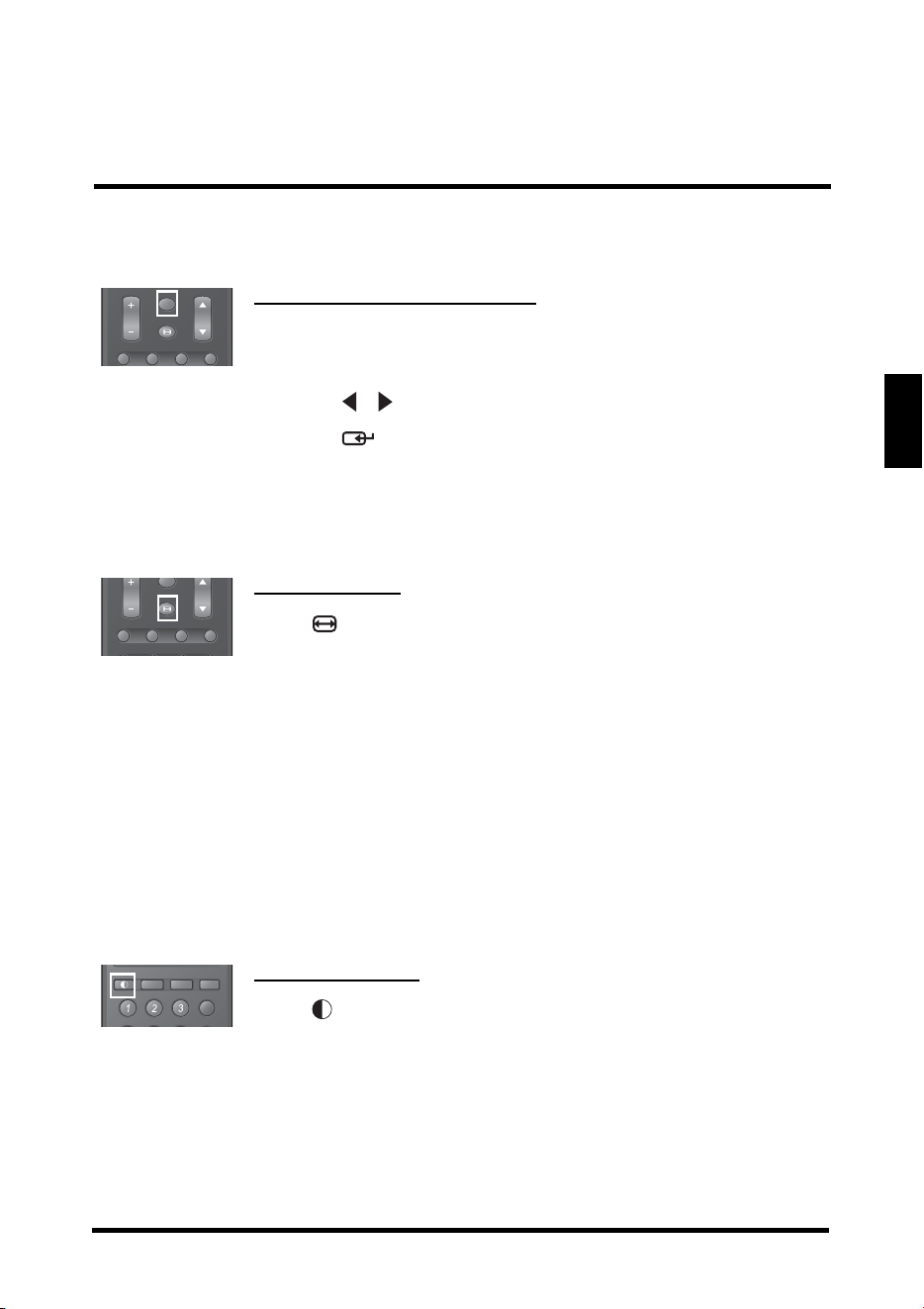
Using the Input Key
Select source using Input Key
1
Press
Input
.
2 A list of supported video sources is displayed.
3 Press / to select the preferred source.
4 Pr
ess to switch to the selected input source.
ADJUSTING THE DISPLAY FORMAT
The input source can sometimes affect the way images are displayed on-screen.
You can adjust the display format to view the image properly.
Format Options
Press repeatedly to toggle the display format. As you toggle
each option on, the actual display will change accordingly. The
available options are:
• Standa
rd: Picture is displayed in its original size.
• Fil
l: Picture is displayed to cover the entire screen.
• Overscan: Picture is scaled down to fit the display area.
• 1:1 Mod
e: Matches the incoming resolution exactly to the
pixels without any scaling.
ADJUSTING THE LED BACKLIGHT
Different viewing conditions can affect the quality of the display. You can adjust the
LED backlight to suit the current viewing condition.
Backlight options
Press repeatedly to toggle the Backlight mode. The available
options are: Bright Room, Medium Room, and Dark Room.
TVVideo1HDMI1YPbPr1
Vol
Input
Ch
TVVideo1HDMI1YPbPr1
PCVideo2HDMI2YPbPr2
Vol
Input
Ch
Favorite
MTS
Z
Z
Z
C.C.
A
SETUP MENUS
24
English
SETUP MENUS
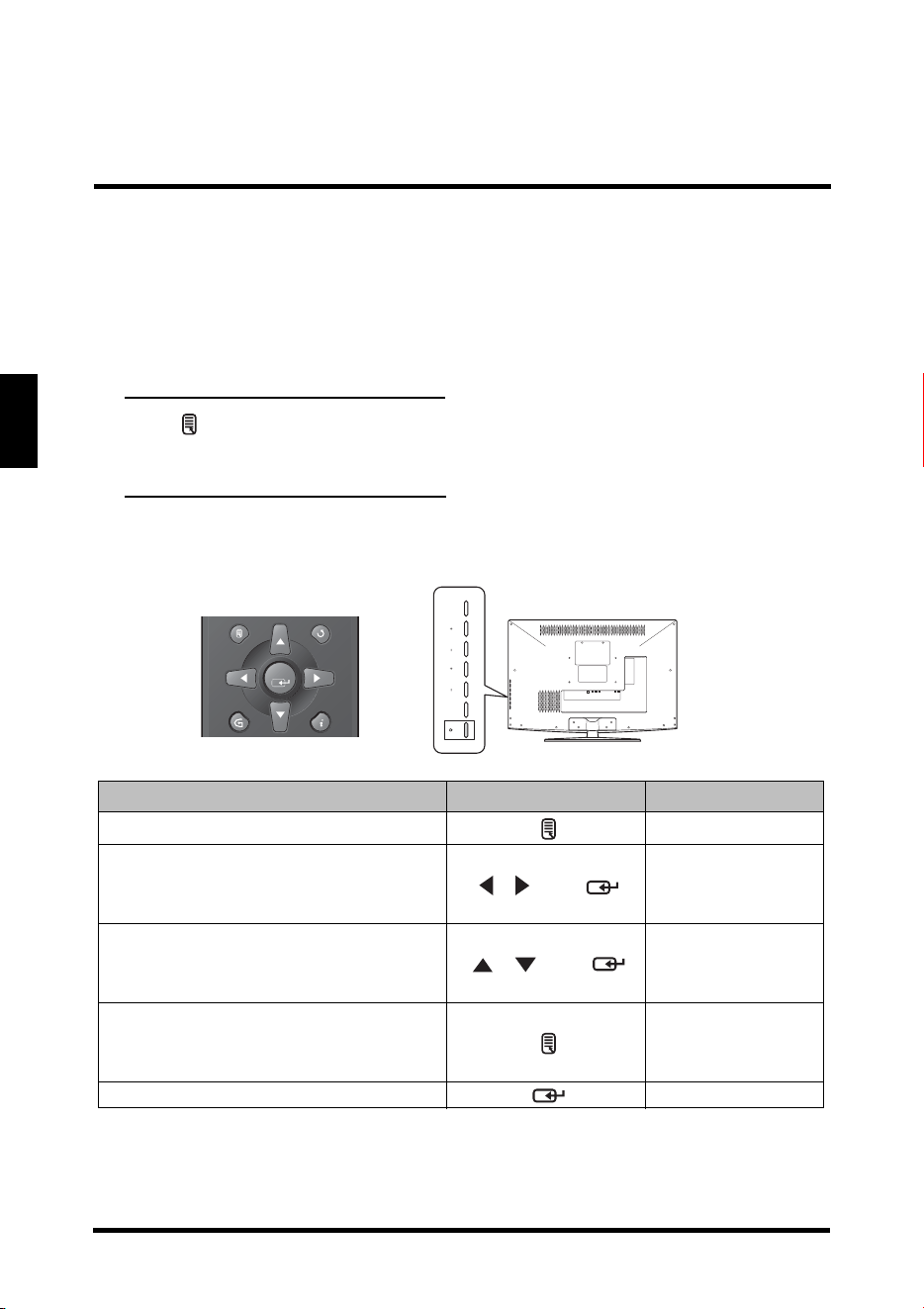
SETUP MENU OPERATION
Use the setup menus to configure the various operational settings of the LED TV.
Displaying the setup menu screen
Press on the remote control or MENU on the control panel to display the setup
menu screen.
Navigating the setup menu screen
Use the buttons on the remote control or on the control panel to navigate through
the menu screens.
Action Remote Control Control Panel
Displays or closes the menu bar. MENU
• Select and display a primary
menu.
• Adjust sub-menu options.
/ then
Volume +/- then
INPUT
• Select and display a sub-menu.
• Select a sub-menu or a sub-
menu option.
/ then
Channel +/- then
INPUT
• Returns to the primary menu tab
from a sub-menu screen.
• Returns to the previous screen.
MENU
Applies the selected menu setting. INPUT
SPDIF
L
-
RY
-
L
-
R VGAAUDIO INTUNERDC IN
HDMI 1
HDMI 2
USB
MENU INPUTVOL CH
Enter
SETUP MENUS
25
English
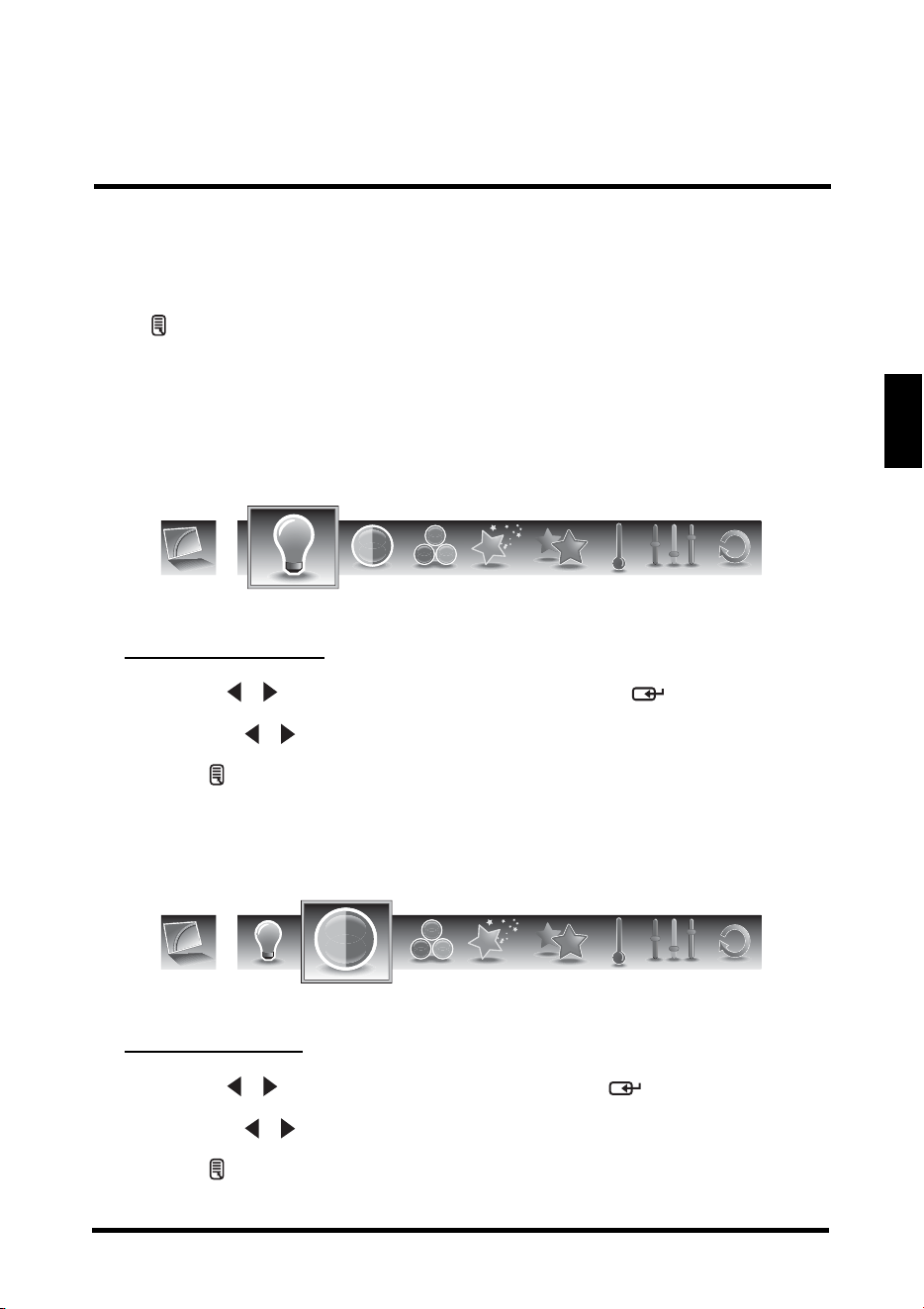
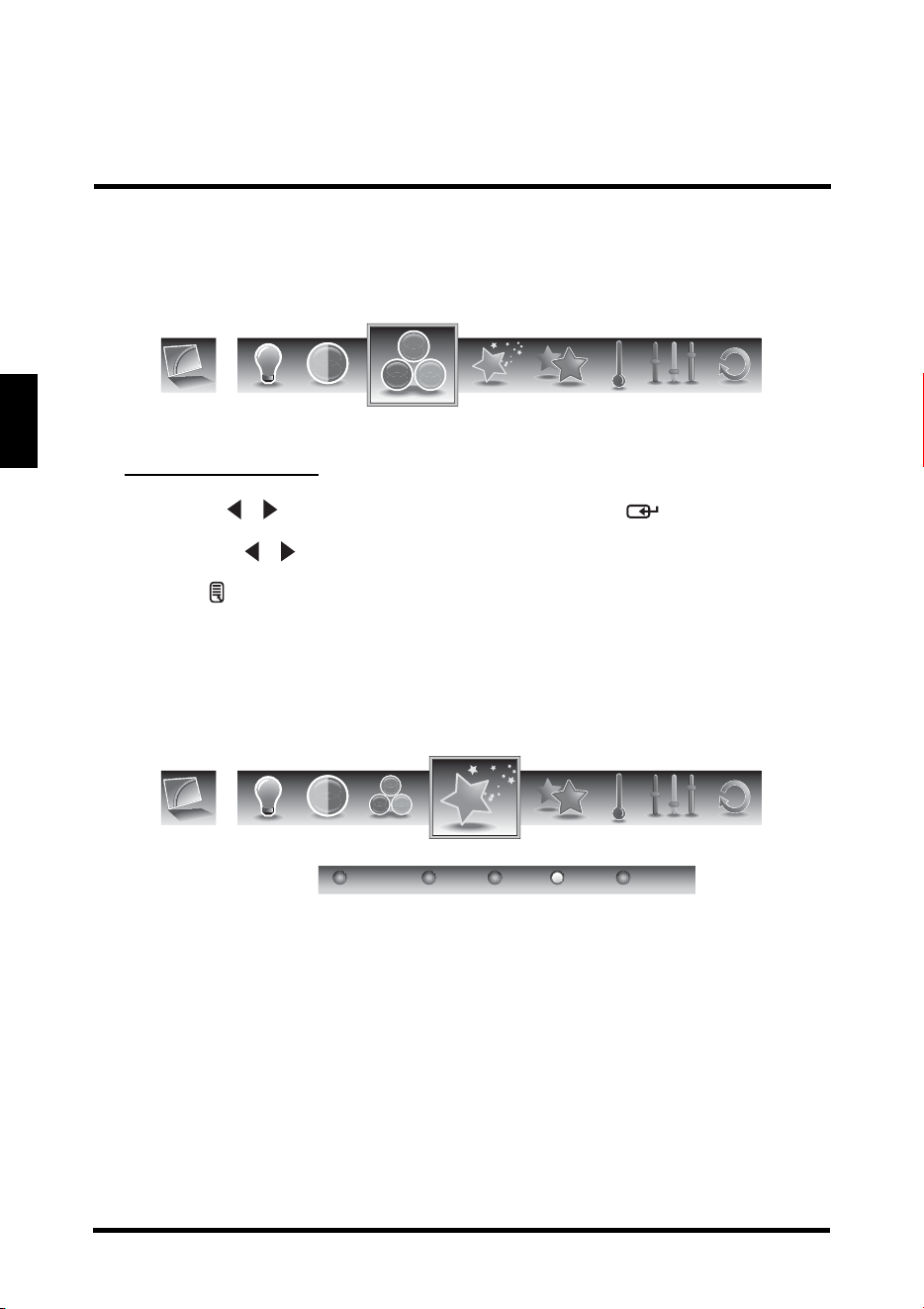
PICTURE
Use the Picture sub-menus to configure the display quality.
Press on the remote control or MENU
on the control panel to display the setup
menu screen then select Picture to display the Picture sub-menu. The following
options are available: Brightness, Contrast, Saturation, Video Presets, Sharpness,
Color temperature, Hue, and Reset.
Brightness
Use Brightness to adjust the luminance level.
Adjusting Brightness
1
Use the
/ keys to select Brightness and press .
2 Press the / keys on the remote control to adjust the brightness level.
3 Press to save and exit the screen.
Contrast
Use Contrast to adjust the brightness to darkness ratio.
Adjusting Contrast
1
Use the
/ keys to select Contrast and press .
2 Press the / keys on the remote control to adjust the contrast level.
3 Pres
s to save and exit the screen.
Brightness
Contrast
SETUP MENUS
26
English
Saturation
Use Saturation to adjust the color intensity.
Adjusting Saturation
1
Use the
/ keys to select Saturation and press .
2 Press the / keys on the remote control to adjust the saturation level.
3 Pres
s to save and exit the screen.
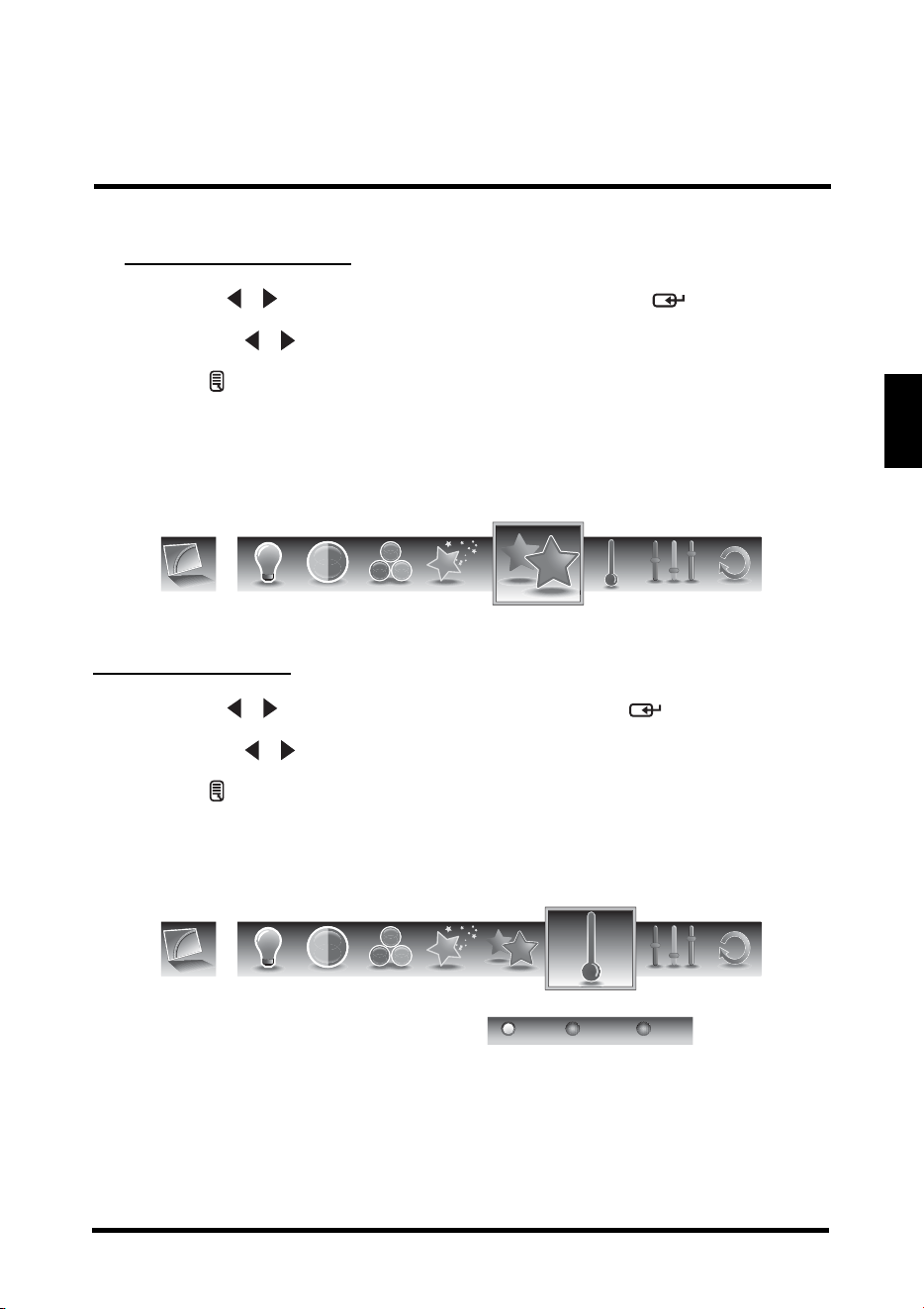
Video Presets
Use this sub-menu to select one of four preset view options optimized for different
viewing conditions.
The following options are available:
• Sh
owroom: Uses increased color and sharpness for a vibrant picture
display.
• Movie: Images are displayed as accurately near to its original recording
condition.
• Game:
Uses increased brightness and response time level for enjoying
video games.
• Sports: Uses high contrast display for clear-cut images ideal for viewing
sports events.
• Custom: Uses the customized settings.
Saturation
Video Presets
Showroom Movie CustomGame Sports
SETUP MENUS
27
English
Adjusting Video Presets
1
Use the
/
keys to select
Video Presets
and press .
2 Press the / keys on the remote control to select the desired option.
3 Pres
s to save and exit the screen.
Sharpness
Use Sharpness to adjust the sharpness or softness of the display.
Adjusting Sharpness
1
Use the
/ keys to select Sharpness and press .
2 Press the / keys on the remote control to adjust the sharpness level.
3 Pres
s to save and exit the screen.
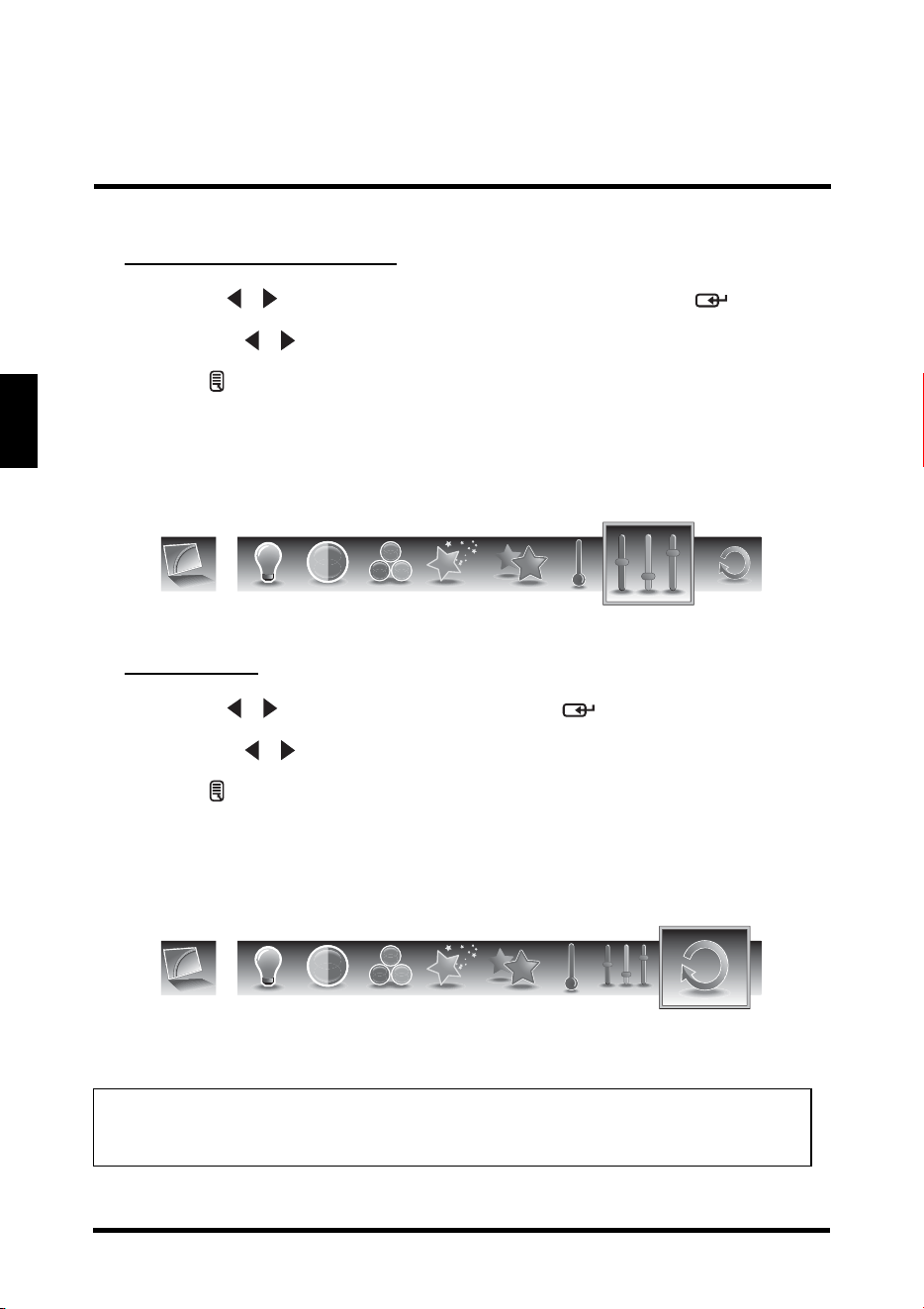
Color Temperature
Use Color temperature to adjust the level of white balance in the display.
Three settings are available:
• Warm: Pictures appear more reddish.
• Neutral:
Pictures appear more white.
• Cool: Pictures appear with a bluish tint.
Sharpness
Color Temperature
Neutral CoolWarm
SETUP MENUS
28
English
Adjusting Color Temperature
1
Use the
/
keys to select
Color temperature
and press .
2 Press the / keys on the remote control to select the desired option.
3 Pres
s to save and exit the screen.
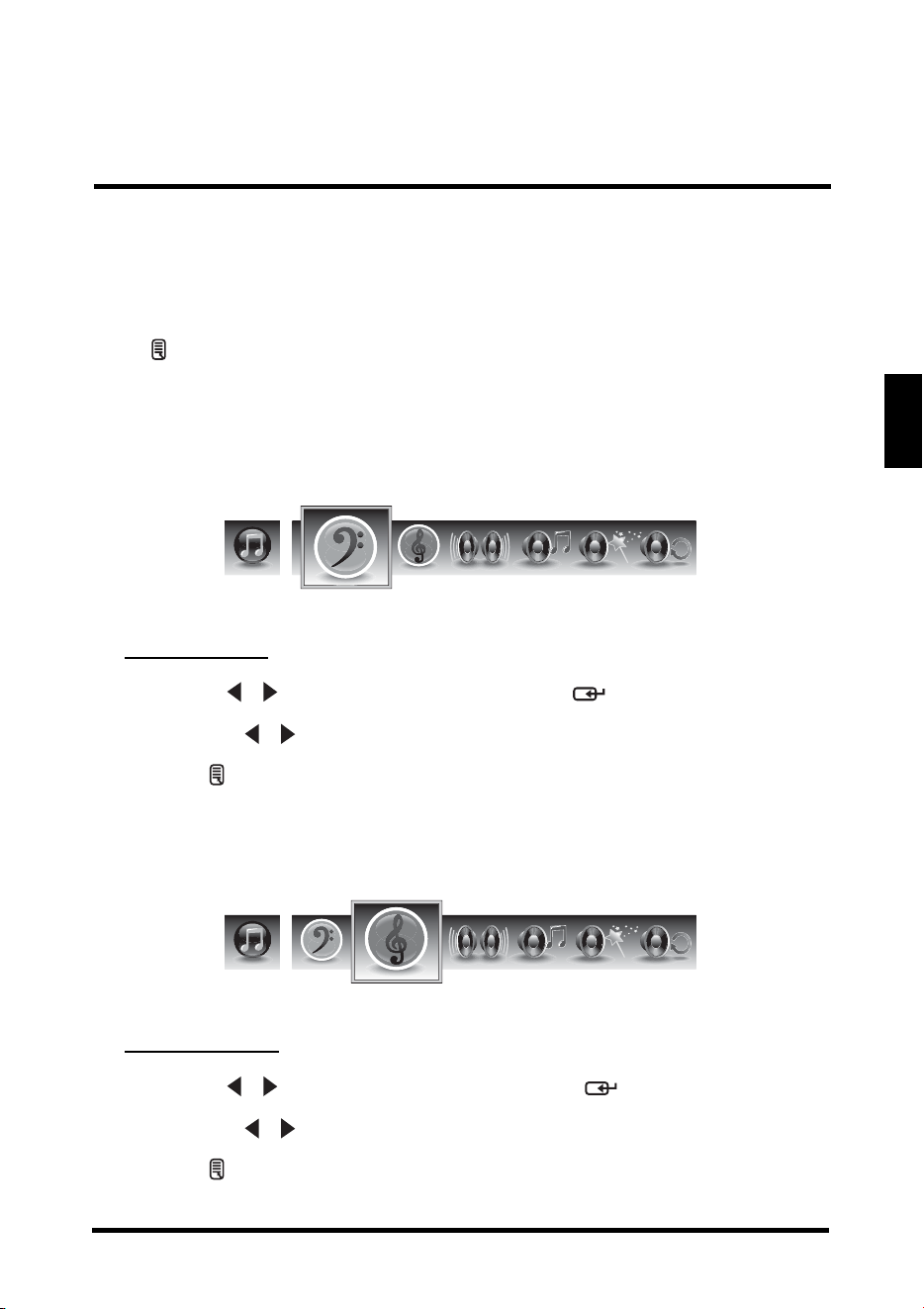
Hue
Use Hue to adjust the balance of the red, green, and blue colors in the display.
Adjusting Hue
1
Use the
/ keys to select Hue and press .
2 Press the / keys on the remote control to adjust the hue level.
3 Press to save and exit the screen.
Reset
Select Yes on this sub-menu to reset all display-related settings.
NOTE:
The configuration settings for the Picture sub-menus will only be applied to the
current input source.
Hue
Reset
SETUP MENUS
29
English
AUDIO
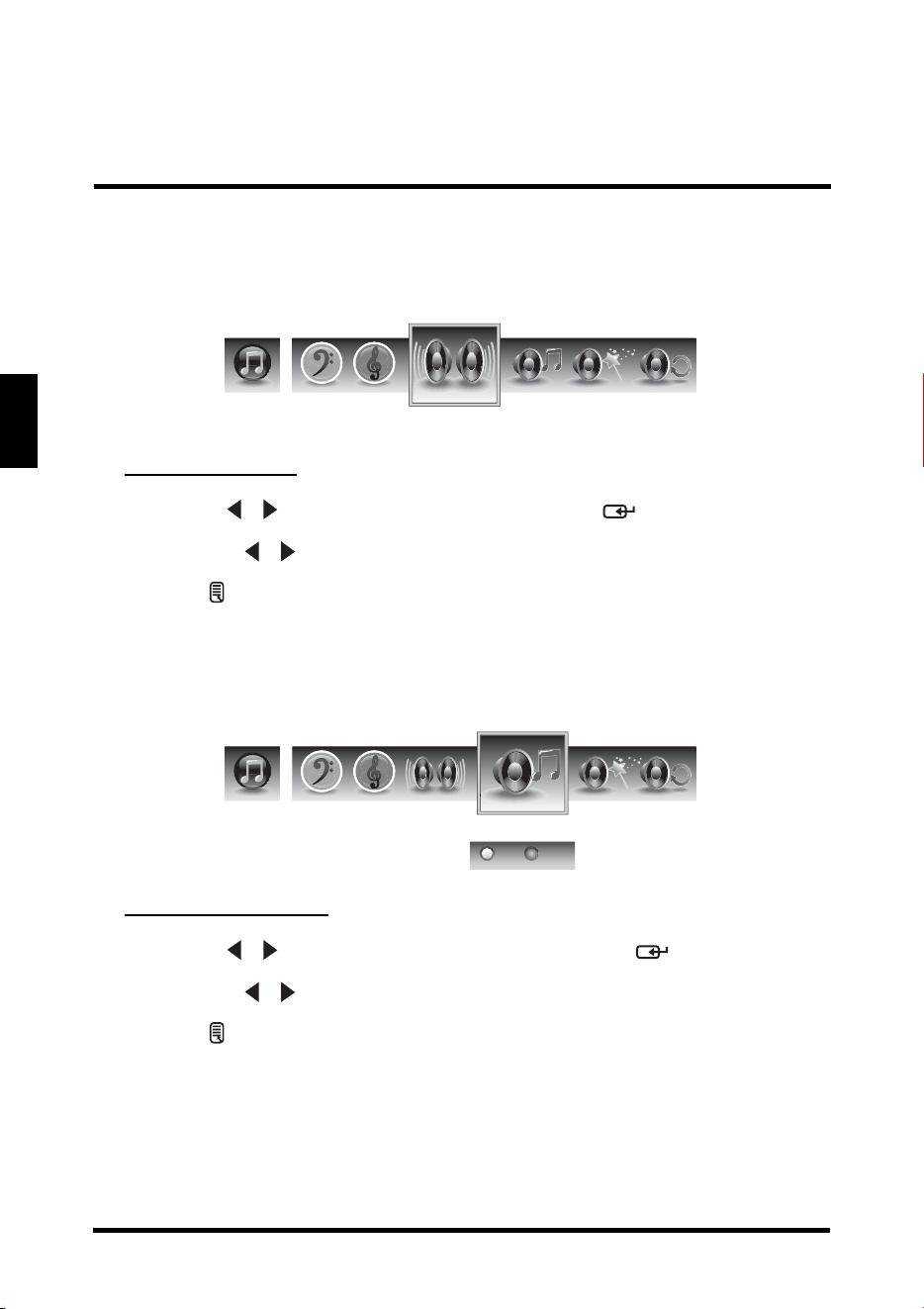
Use the Audio sub-menus to configure the audio quality. These settings apply to the
LED TV speakers only. Any connected audio devices are not affected.
Press on the remote control or MENU
on the control panel to display the setup
menu screen then select Audio to display the Audio sub-menu. The following
options are available: Bass, Treble, Balance, TV Speaker, Audio Presets, and Reset.
Bass
Use Bass to calibrate low-pitched sounds.
Adjusting Bass
1
Use the
/ keys to select Bass and press .
2 Press the / keys on the remote control to adjust the bass level.
3 Press to save and exit the screen.
Treble
Use Treble to calibrate high-pitched sounds.
Adjusting Treble
1
Use the
/ keys to select Treble and press .
2 Press the / keys on the remote control to adjust the treble level.
3 Press to save and exit the screen.
Bass
Treble
SETUP MENUS
30
English
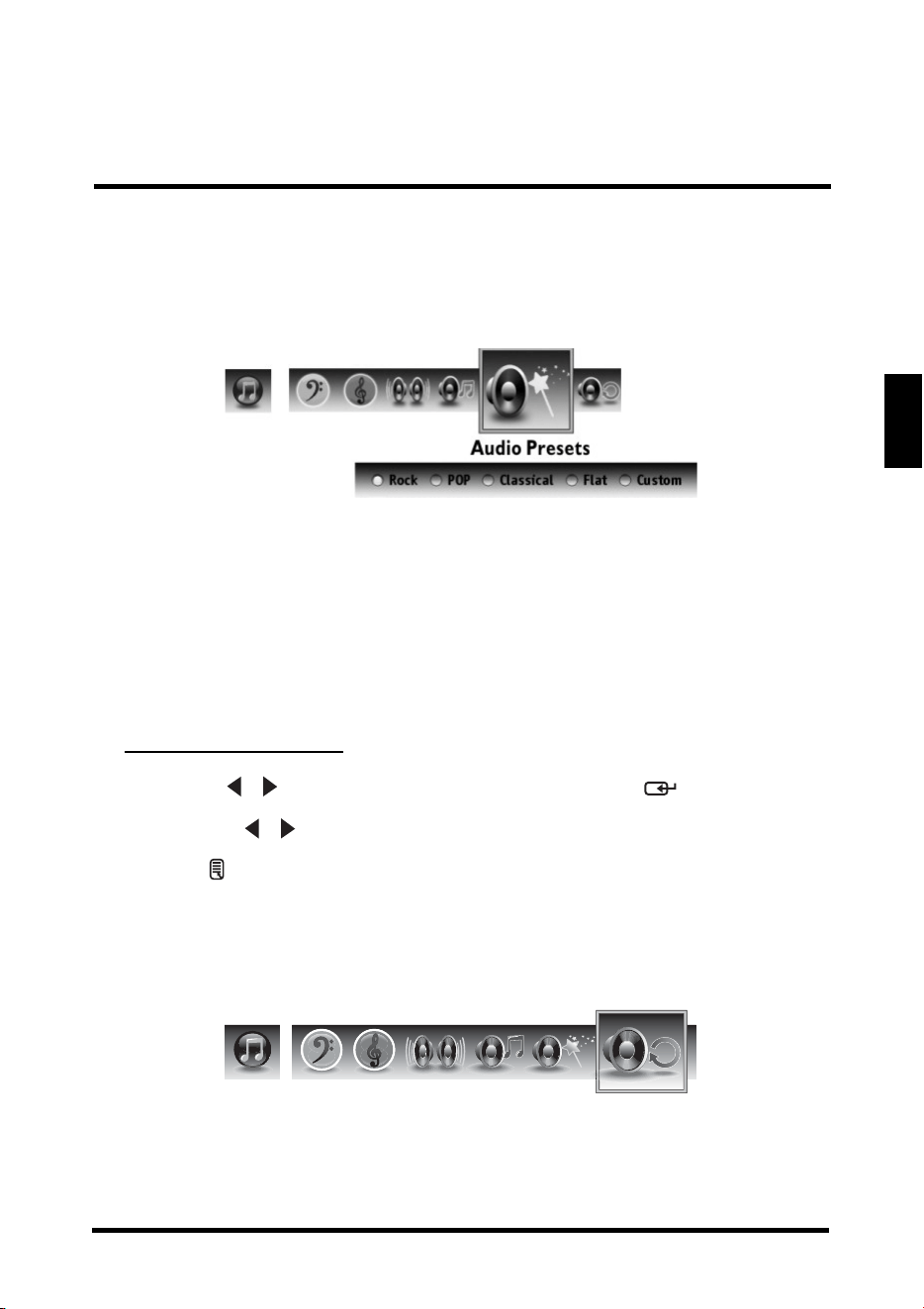
Balance
Use Balance to adjust the sound balance between the L/R speakers.
Adjusting Balance
1
Use the
/ keys to select Balance and press .
2 Press the / keys on the remote control to adjust the balance level.
3 Press to save and exit the screen.
TV Speaker
Use this sub-menu to toggle the LED TV speakers on and off.
Adjusting TV Speaker
1
Use the
/ keys to select TV Speaker and press .
2 Press the / keys on the remote control to select ON or OFF.
3 Press to save and exit the screen.
Balance
TV Speaker
ON OFF
SETUP MENUS
31
English
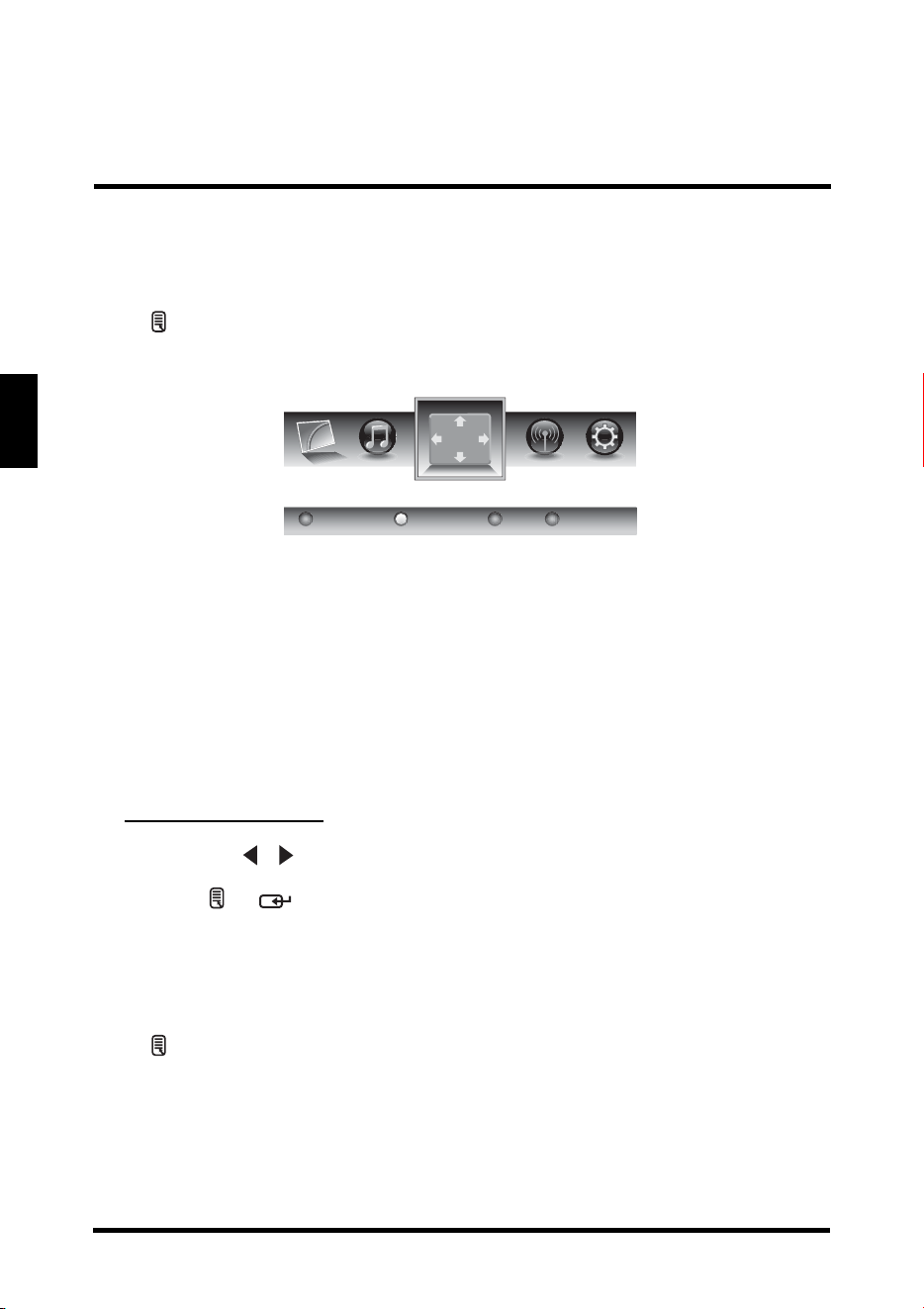
Audio Preset
Use this sub-menu to select one of four preset audio options optimized for different
sounding conditions.
The following options are available:
• Rock: Sets
the equalizer to the Rock mode.
• Pop: Sets
the equalizer to the Pop mode.
• Classical: Sets
the equalizer to the Classical mode.
• Flat: Sets the equalizer to the Flat mode.
• Custom: Uses the
customized settings.
Adjusting Audio Preset
1
Use the
/
keys to select
Audio Preset
and press .
2 Press the / keys on the remote control to select the desired option.
3 Press to save and exit the screen.
Reset
Select Yes on this sub-menu to reset all audio-related settings.
Reset
SETUP MENUS
32
English
VIEW MODE
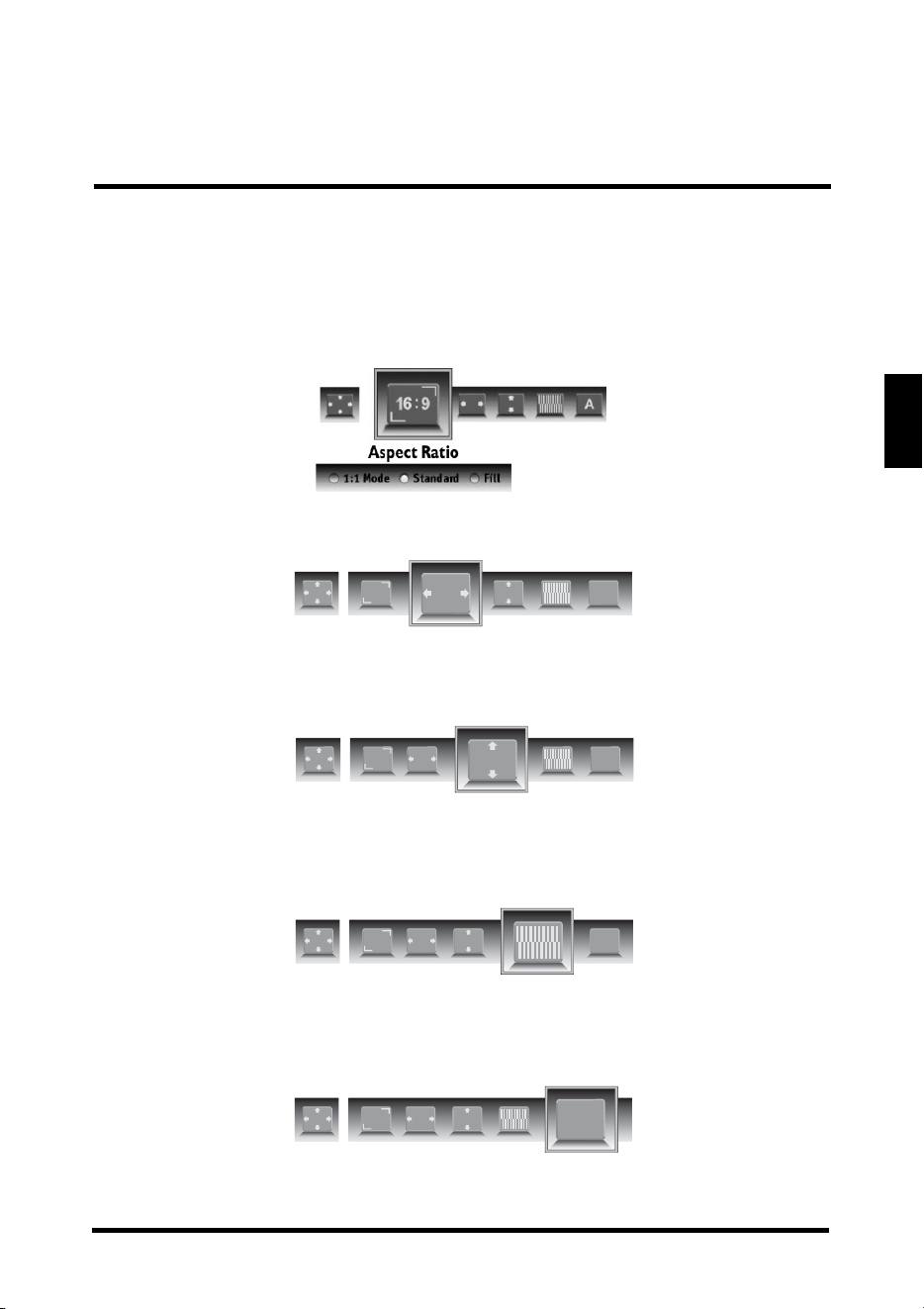
Use the View Mode sub-menu to select the aspect ratio of the display.
Press on the remote control or MENU on the control panel to display the setup
menu screen then select View Mode to display the View Mode sub-menu. The
following options are available: Standard, Fill, Overscan, and 1:1 Mode.
Standard
Picture is displayed in its original size.
Fill
Picture is displayed to cover the entire screen.
Overscan
Picture is scaled down to fit the display area.
1:1 Mode
Matches the incoming resolution exactly to the pixels without any scaling.
Adjusting View Mode
1
Press the
/
keys on the remote control to select the desired option.
2 Press or to save and exit the screen.
VIEW MODE (VGA)
Select VGA as your input source and use the View Mode sub-menu to adjust the
display in VGA mode.
Press on the remote control or MENU
on the control panel to display the setup
menu screen then select View Mode to display the View Mode sub-menu. The
following options are available: Aspect Ratio, H. Position, V. Position, Fine Tune, and
Auto Sync.
Aspect Ratio
Use this sub-menu to select the display's aspect ratio in the following options:
View Mode
1:1 Mode Fill OverscanStandard
SETUP MENUS
33
English
•1:1 Mode: Matches the incoming resolution exactly to the pixels without any
scaling.
• Standard: Picture is displayed in
its original size.
• Fill: Picture is displayed to cover the entire screen.
H. Position
Use this sub-menu to adjust the horizontal position of the display.
V. Position
Use this sub-menu to adjust the vertical position of the display.
Fine Tune
Use this sub-menu to fine tune the display.
Auto Sync
Use this sub-menu to synchronize the display automatically.
H. Position
16:9
A
V. Position
16:9
A
Fine Tune
16:9
A
Auto Sync
16:9
A
SETUP MENUS
34
English
TV PROGRAM
Use the TV Program sub-menus to manage the channel list, language sound, and to
scan for available TV channels in your area.
Press on the remote control or MENU
on the control panel to display the setup
menu screen then select TV Program to display the TV Program sub-menu. The
following options are available: Skip List, Channel Edit, MTS, Auto Search, and
Manual Add.
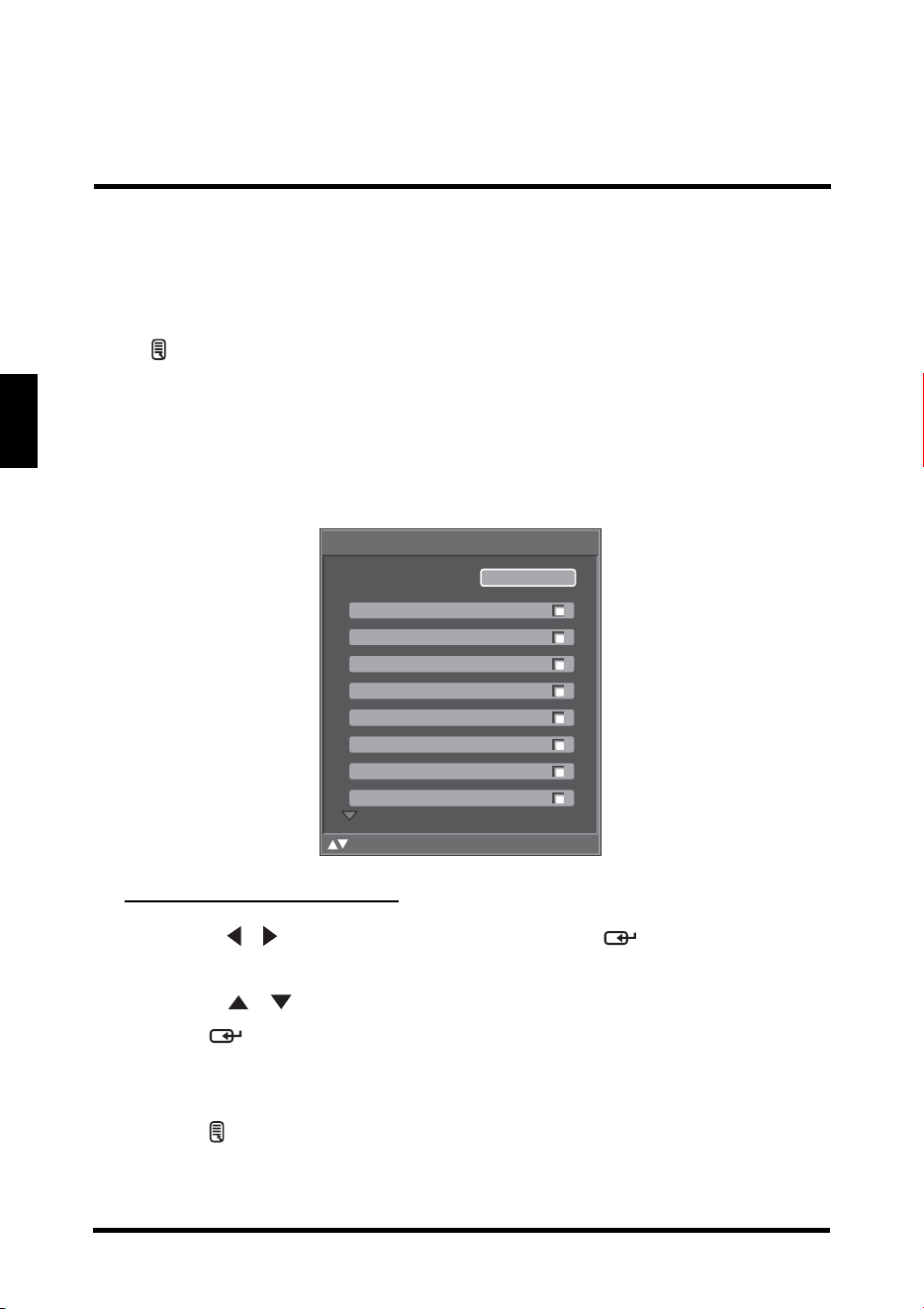
Skip List
Use Skip List to select the channels you want to skip.
Adding Channels to Skip List
1
Use the
/
keys to select
Skip List
and press . The Channel Skip
List screen appears.
2 Use the / keys to select the desired channel.
3 Pres
s repeatedly to check (add to the Skip list) or uncheck (clear to
the Skip list) the channels.
4 Repeat step
s 2 and 3 to add more channels.
5 Press to save and exit the screen.
Channel Skip List
:Select Enter: Confirm Menu: Exit
11.0
24.0
23.0
22.0
21.0
17.0
16.1
13.0
Clear List
SETUP MENUS
35
English
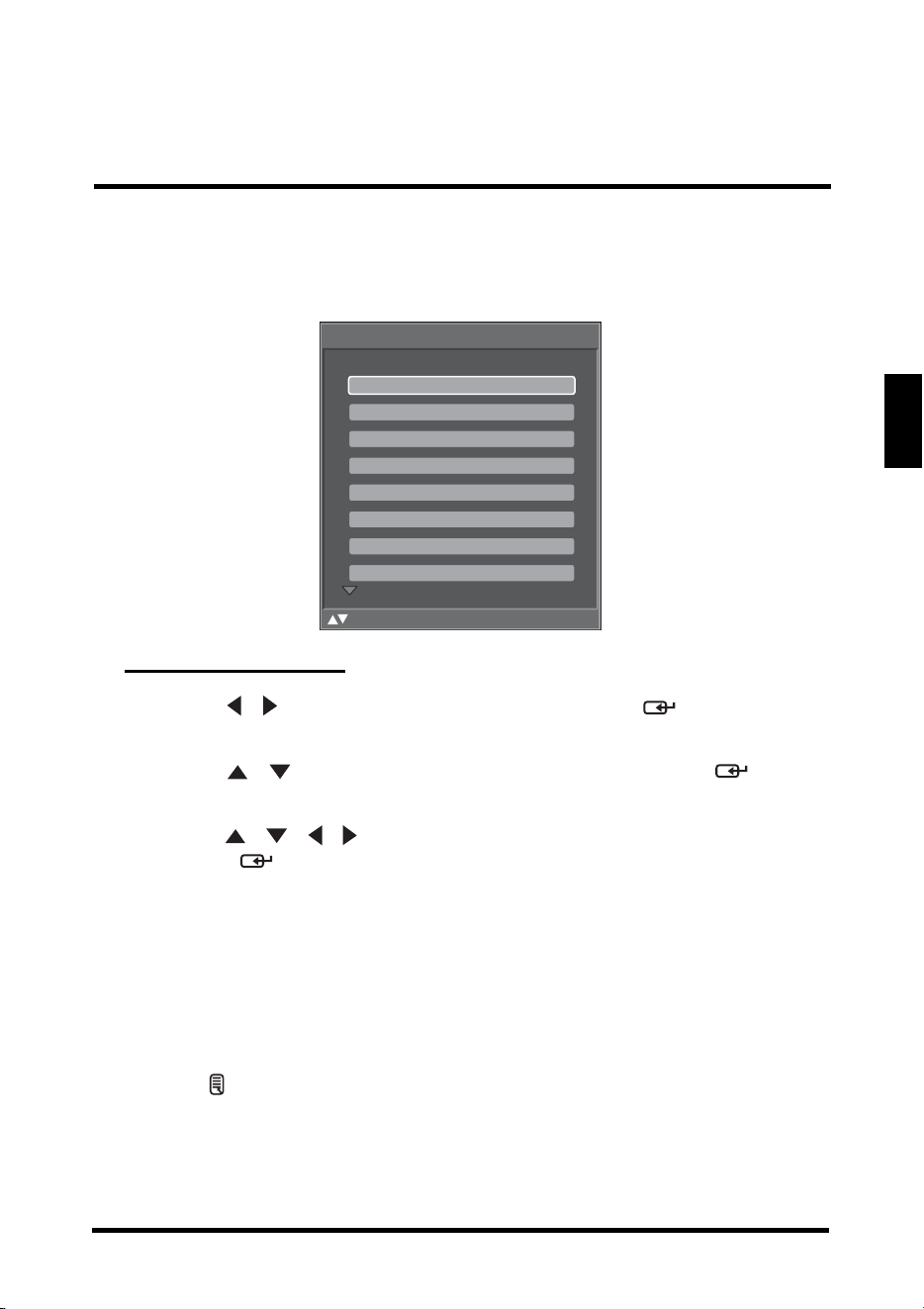
Channel Edit
Use Channel Edit to assign a name to a channel.
Editing Channel Names
1
Use the
/
keys to select
Channel Edit
and press . The Channel
Name Edit screen appears.
2 Use the / keys to select the desired channel and
press to open
the Edit Name screen.
3 Use the / / / keys to move the cursor to the desired symbol and
press the button to enter.
• Select Shif
t to toggle different symbol tables: uppercase and lowercase
letters, numerals, and special symbols.
• Select Back to backspace.
• Select Clear to delete all typed text.
4 Select Accep
t when finished.
5 Repeat step
s 2, 3, and 4 to add more channels.
6 Press to save and exit the screen.
Channel Name Edit
:Select Enter: Confirm Menu: Exit
11.0
24.0
23.0
22.0
21.0
17.0
16.1
13.0
SETUP MENUS
36
English
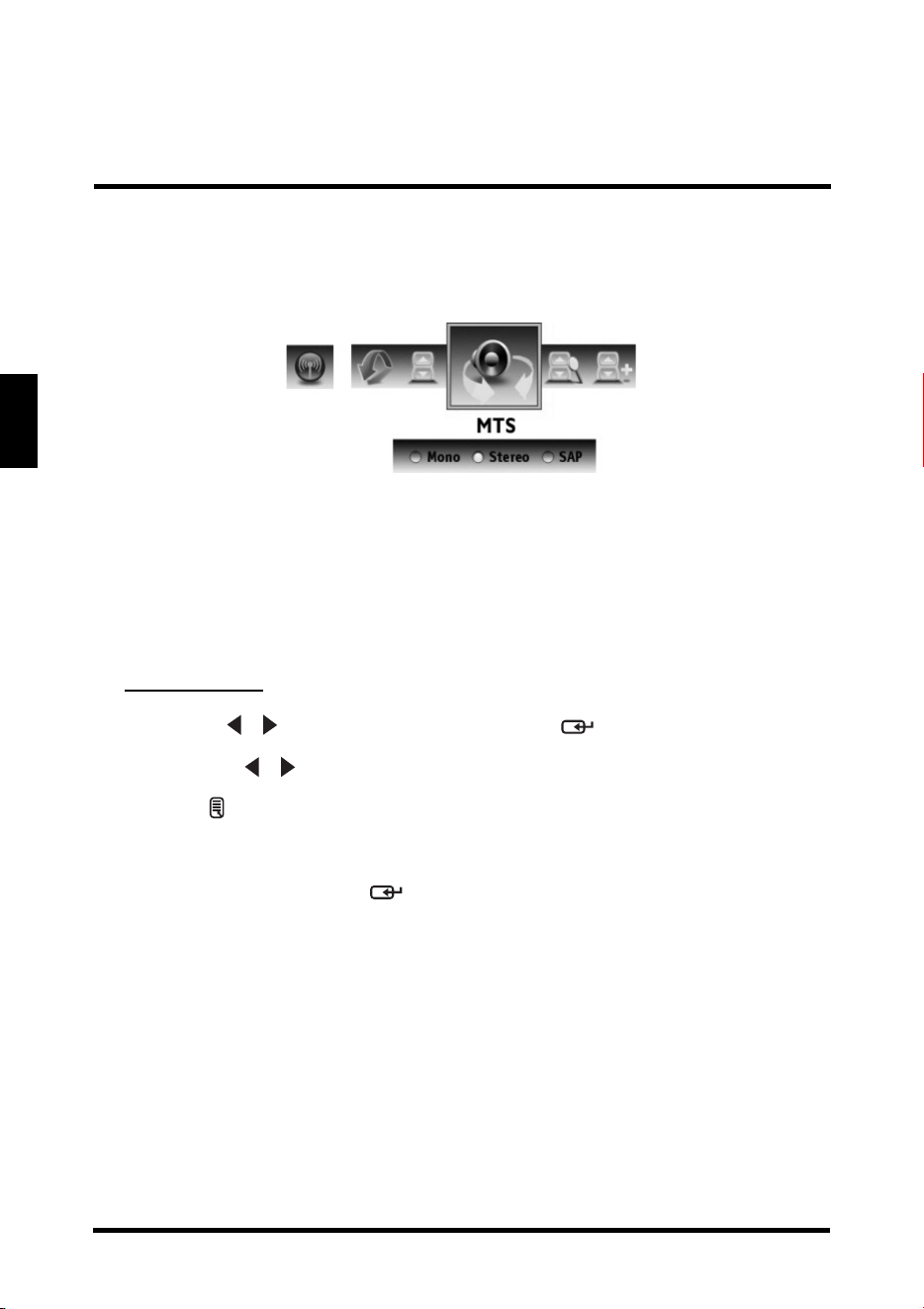
MTS
Use MTS to select multichannel television sound.
The following options are available:
• Mono:
Allows mono output (useful when stereo is noisy or inconsistent).
• Stereo: Allows stereo sound for superior TV viewing experience.
• SAP: Allows secon
d audio program from the speakers while watching a
scene in the original program.
Adjusting MTS
1
Use the
/
keys to select
MTS
and press .
2 Press the / keys on the remote control to select the desired option.
3 Press to save and exit the screen.
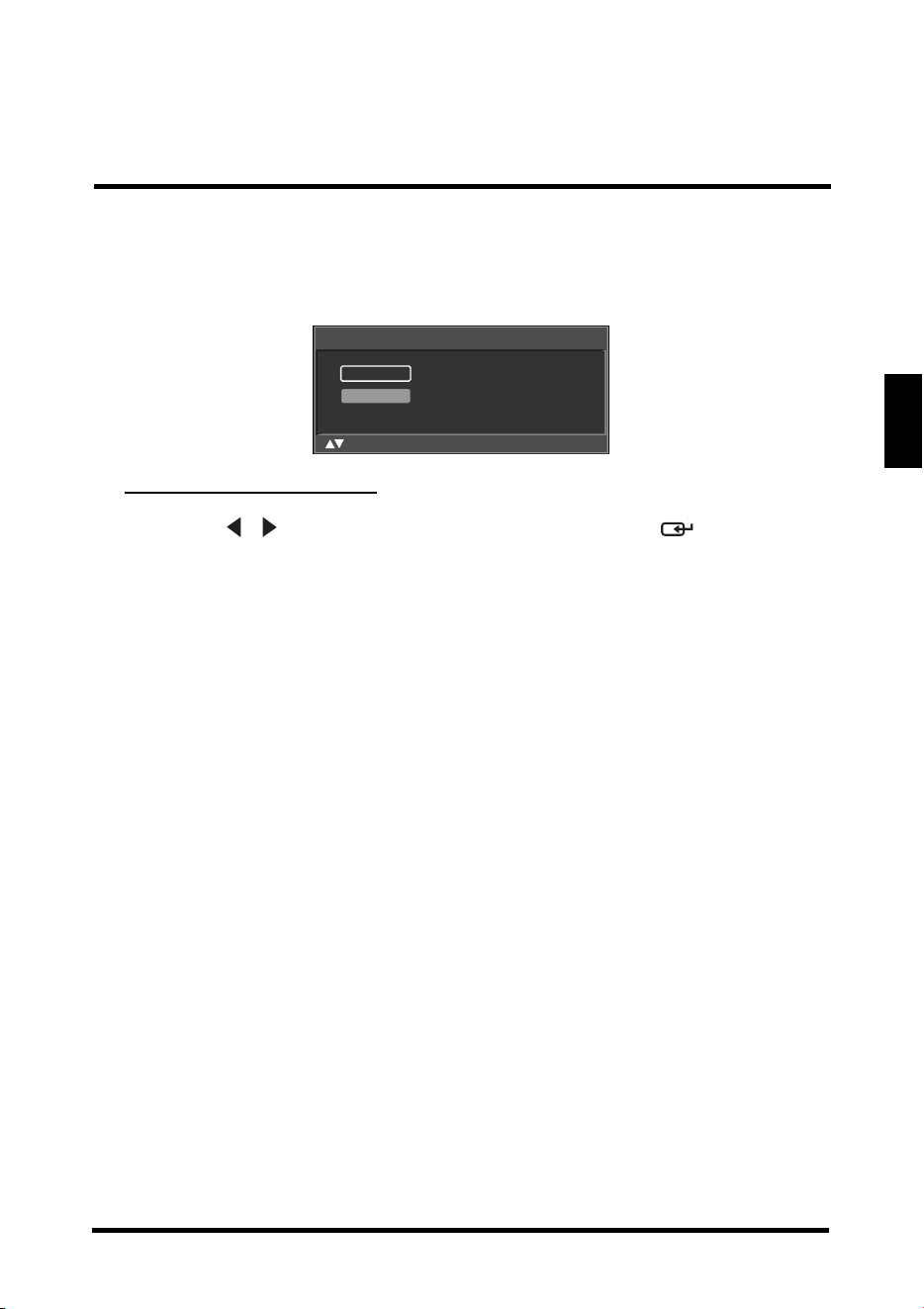
Auto Search
Select Auto Search and press . Two options are available:
• Cable:
Choose this setting if you are receiving TV channels with a CATV
(cable TV).
• AIR: Choose this setting if you are receiving TV channels with an antenna
(over the air).
Auto Search automatically creates a list of
receivable channels for the selected
source.
SETUP MENUS
37
English
Manual Add
Use Manual Add to add channels manually.
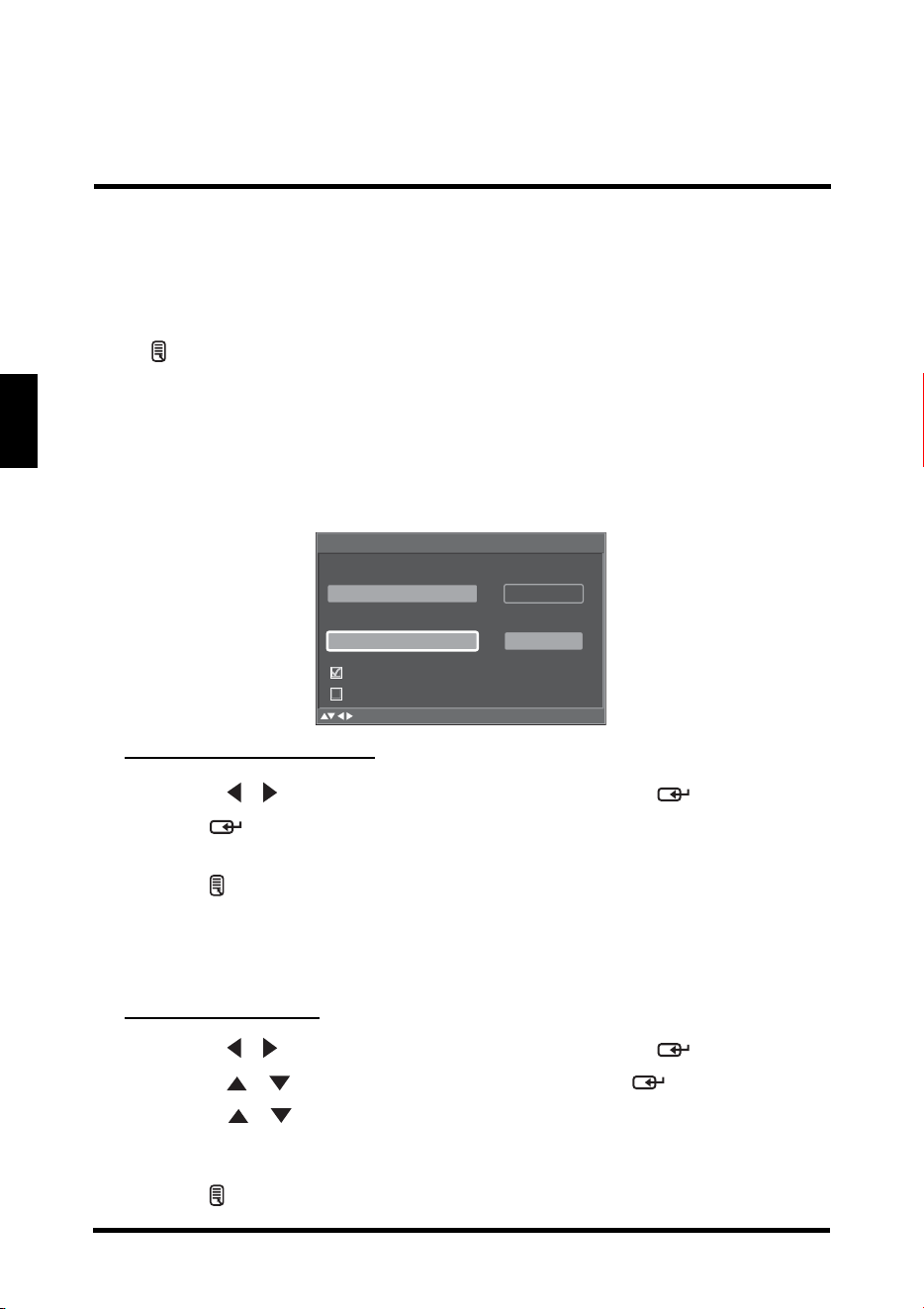
Adding Channels Manually
1
Use the
/
keys to select
Manual Search
and press . The Channel
Add screen appears.
2 Use the Channel keys on the remote control to enter the channel number
and select Enter. Wait a few moment for the TV to search for the channel.
3 When
the channel is found, you can select Add to add to channel.
Channel Add
_
Enter
:Select Enter: Confirm Menu: Exit
SETUP MENUS
38
English
SETTINGS
Use the Settings sub-menus to configure the LED TV operational setup and view the
current firmware version.
Press on the remote control or MENU
on the control panel to display the setup
menu screen then select Settings to display the Settings sub-menu. The following
options are available: Date and Time, Closed Captions, Parental Control, OSD
Timeout, OSD Language, Power settings, Reset All, and Version.
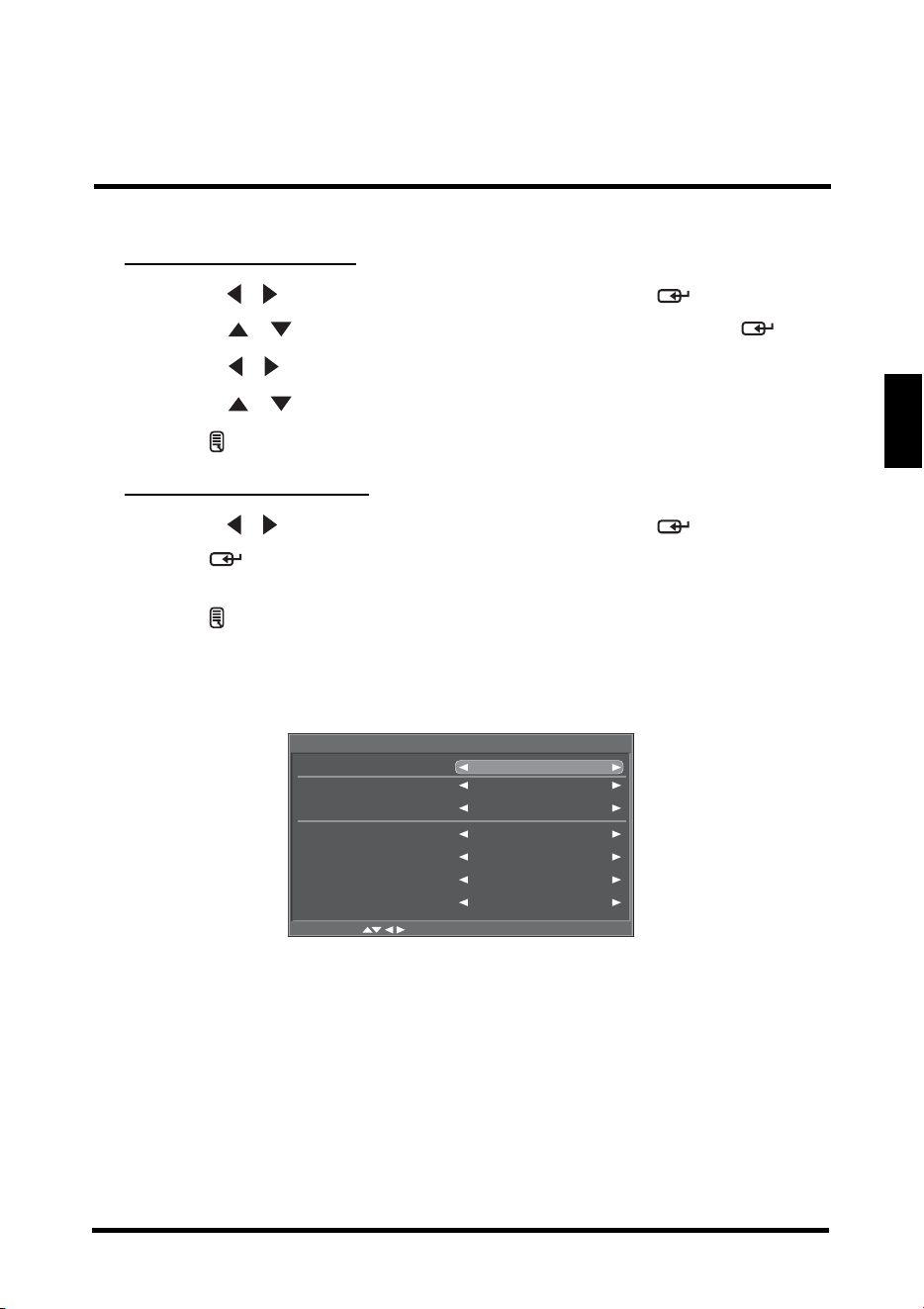
Date and Time
Use Date and Time to adjust the current date and time.
Adjusting Auto Calibration
1
Use the
/
keys to select
Date and Time
and press .
2 Press repeatedly to check (enable) or uncheck (disable) Auto
Calibration.
3 Pres
s to save and exit the screen.
• Enable this option to view the system’s current time.
•Both Date and Current Time are unavailable for adjustments when
Auto Calibration is enabled.
Adjusting Time Zone
1
Use the
/
keys to select
Date and Time
and press .
2
Use the
/
keys to select
Time Zone
and press .
3 Use the / keys to select the desired Time Zone: Samoa, Hawaii,
Alaska, Pacific, Moun
tain, Central, Eastern, Atlantic, or
Newfoundland.
4 Pres
s to save and exit the screen.
Date and Time
:Select Enter: Confirm Menu: Exit
Adjust for Daylight Saving Time
Auto Calibration
Time Zone
Eastern (UTC-5)
Date
JAN 1, 2009
Current Time
Day of Week
10:54 AM
Thursday
SETUP MENUS
39
English
Adjusting Date and Time
1
Use the
/
keys to select
Date and Time
and press .
2 Use the / keys to select Date or Current Time and press .
3 Use the / keys to select a date or time segment.
4 Use the / keys to adjust the value.
5 Pres
s to save and exit the screen.
Adjusting Daylight Saving
1
Use the
/
keys to select
Date and Time
and press .
2 Press repeatedly to check (enable) or uncheck (disable) Adjust for
Daylight Saving Time.
3 Press to save and exit the screen.
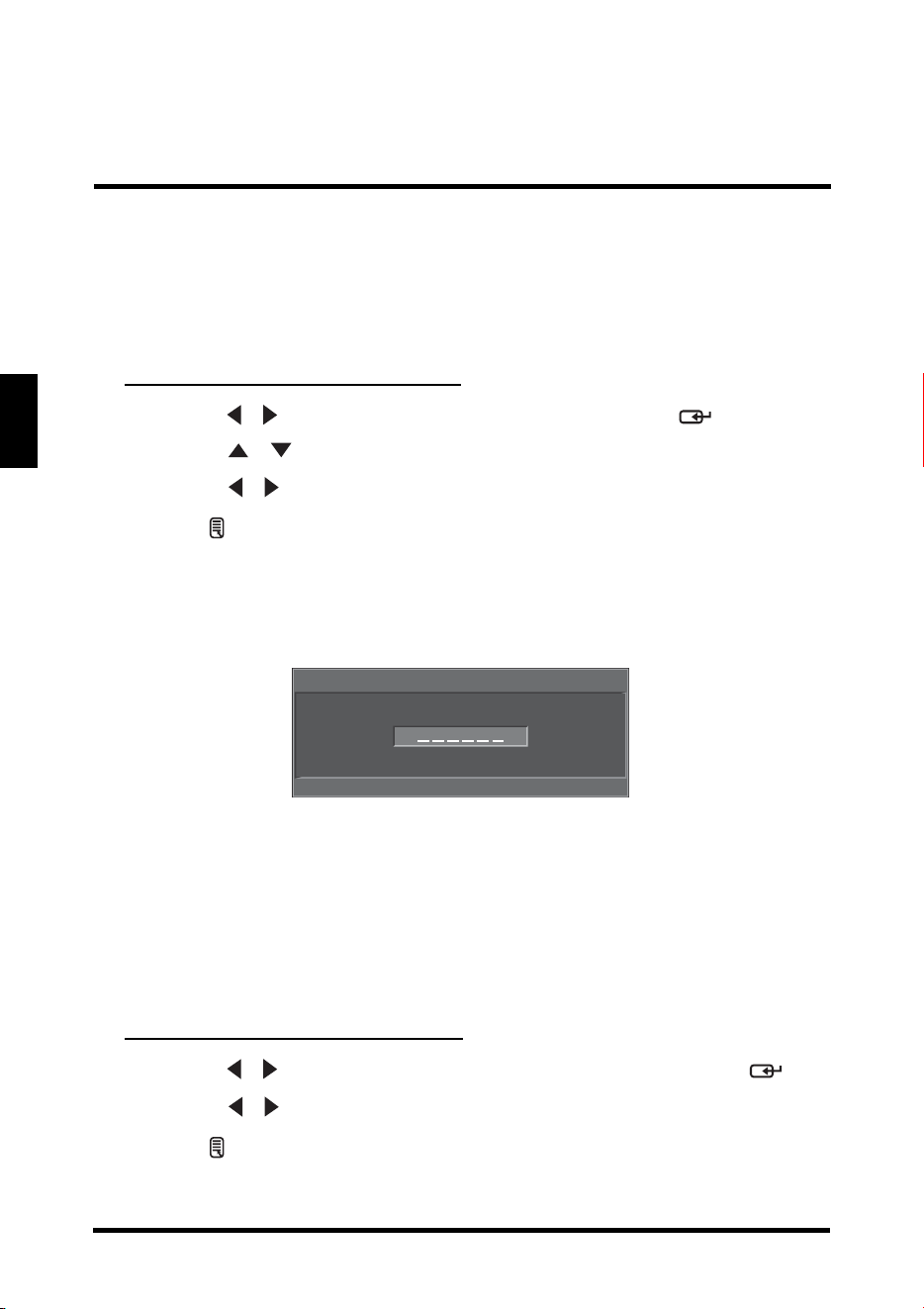
Closed Captions
Use Closed Captions to configure the settings for closed captioning in TV programs.
The following options are available:
• Closed Captions: Can
be set to ON or OFF.
• An
alog Type: Can be set to CC1,CC2, CC3, CC4, T1, T2, T3, or T4.
• Di
gital Type: Can be set to CS1, CS2, CS3, CS4, CS5, or CS6.
• Font: Can be set to As Broadcaster, Style 1, Style 2, Style 3, Style 4,
Style 5, Style 6, or Style 7.
• Siz
e: Can be set to As Broadcaster, Small, Medium, or Large.
Closed Captions
Closed Captions
ON
Analog Type CC1
Digital Type CS1
Font As Broadcaster
Size As Broadcaster
Font Color As Broadcaster
Background Color As Broadcaster
:Select Menu: Exit
SETUP MENUS
40
English
• Font Color: Can be set to As Broadcaster, Black, White, Green, Blue,
Red, Cyan, Yellow, or Magenta.
• Backg
round Color: Can be set to As Broadcaster, Black, White, Green,
Blue, Red, Cyan, Yellow, or Magenta.
Adjusting Closed Captions Settings
1
Use the
/
keys to select
Closed Captions
and press .
2 Use the / keys to select the desired Closed Captions option.
3 Use the / keys to adjust the value.
4 Pres
s to save and exit the screen.
Parental Control
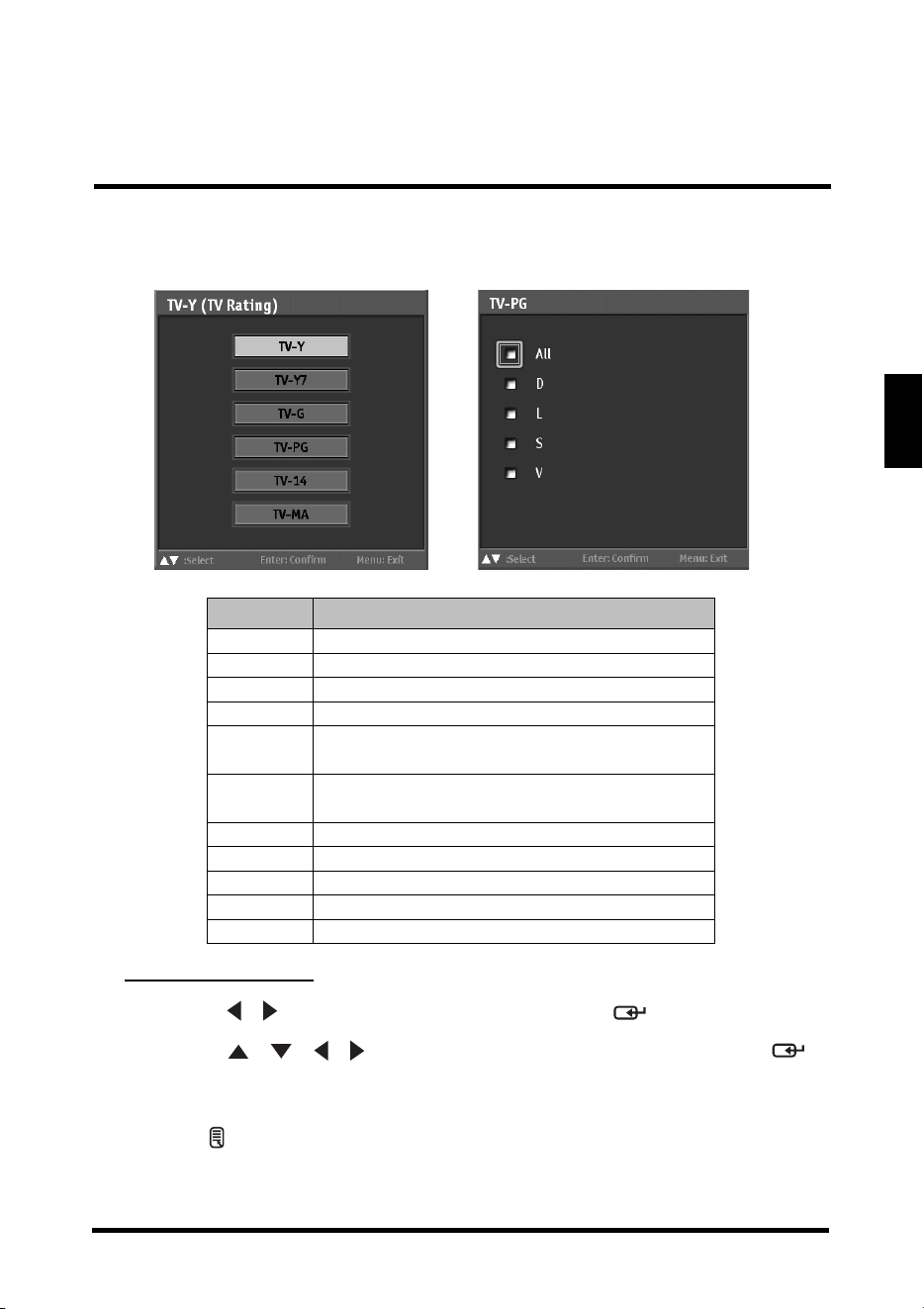
Use Parental Control to block channels and change the password. You must enter a
six-digit password to use the Parental Control. The factory password is 999999.
After you enter the correct password, the Parent
al Control menu is shown. By
default, only the Rating and Change Password submenu are displayed. To display
the hidden submenu, set Rating to ON.
The following options are available:
• Rating: Select ON/OFF to hide or display the hidden submenu.
• Block Unrated: Select ON/OF
F to block/unlock all unrated programs.
Adjusting Rating and Block Unrated
1
Use the
/
keys to select
Rating
or
Block Unrated
and press .
2 Use the / keys to select ON or OFF.
3 Press to save and exit the screen.
Enter Password
Enter: Confirm0
~
9: Key in password Menu: Exit
SETUP MENUS
41
English
• TV Rating: Use this sub-menu to customize US TV Rating programs.
Adjusting TV Rating
1
Use the
/
keys to select
TV
Rating
and press .
2 Use the / / / keys to select the desired rating and press
repeatedly to block or unblock. Y
ou can also select Lock All to block all or
Unlock All to unblock all.
3 Press to save and exit the screen.
Rating Description
TV-Y Suitable for young children.
TV-Y7 May not be suitable for children under 7.
TV-G Suitable for all audiences.
TV-PG Parental guidance suggested.
TV-14
Parental guidance suggested for children
under 14.
TV-MA
Suitable for mature audiences only; may
be unsuit
able for children under 17.
FV Fantasy violence, combative situations.
D Suggestive dialogue.
L L Coarse language.
S Sexual situations.
V Violence.
SETUP MENUS
42
English
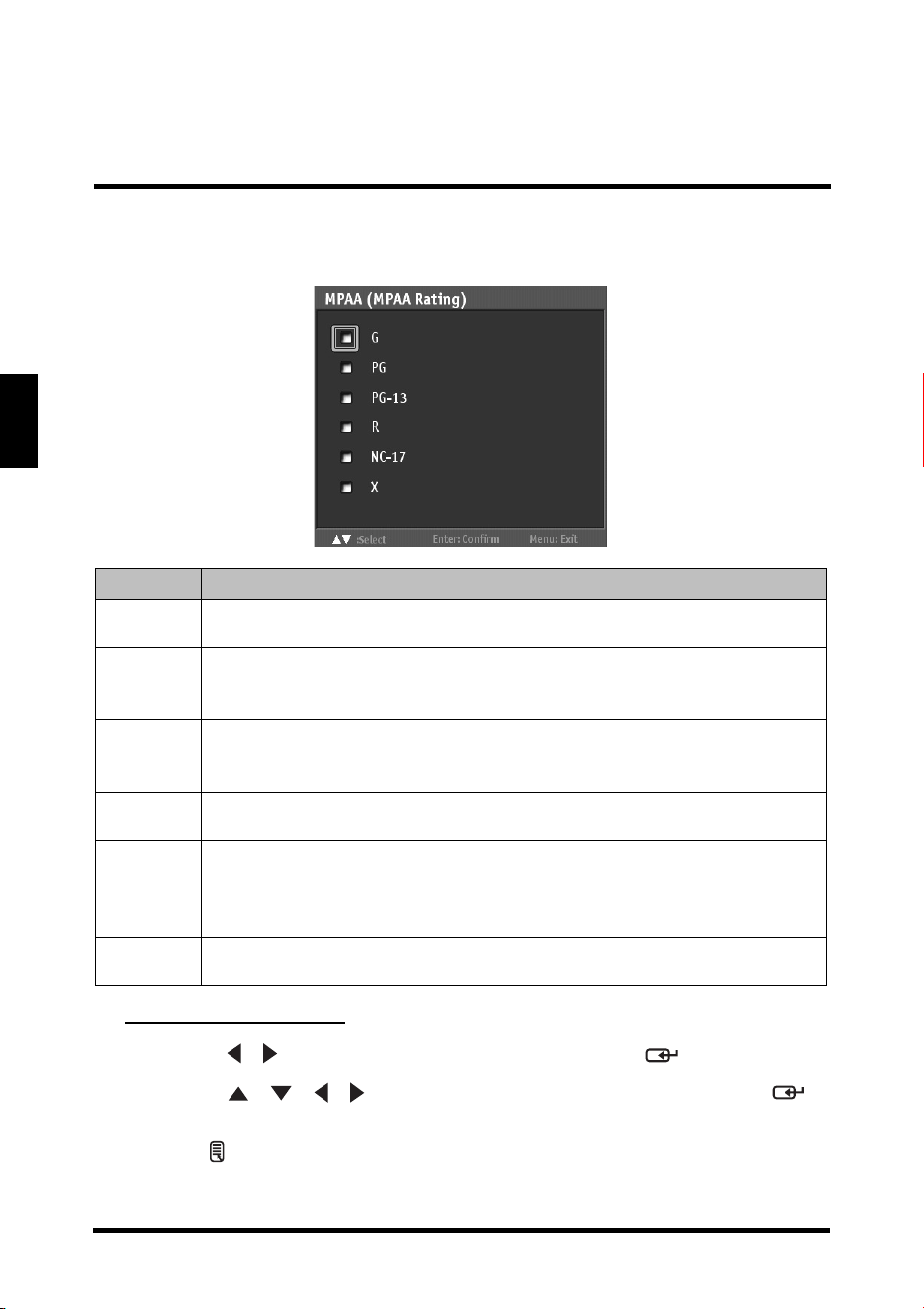
• MPAA Rating: Use this sub-menu to select the ratings of allowable movies.
Adjusting MPAA Rating
1
Use the
/
keys to select
MPAA
Rating
and press .
2 Use the / / / keys to select the desired rating and press
repeatedly to block or unblock.
3 Press to save and exit the screen.
Rating Description
G
Contains nothing most parents will
consider offensive for even
their youngest children to see or hear; suitable for young children.
PG
May contain some material parents might not like to expose to their
young
children-material that will clearly need to be examined or
inquired about before children are allowed to view the film.
PG-13
May contain some scenes of drug use; use of one
of the harsher
sexually-derived words may be heard. May be inappropriate for
preteens.
R
May contain some adult material. Parents are urged to learn more
about
the film before letting their children view it.
NC-17
May contain explicit sex scenes, an
accumulation of sexually-
oriented language, and/or scenes of excessive violence. Suitable
for adult audiences only. Rating does not signify that the film is
obscene or pornographic.
X
Contains extreme violence or explicit sex; suitable for adult
audiences only
.
SETUP MENUS
43
English
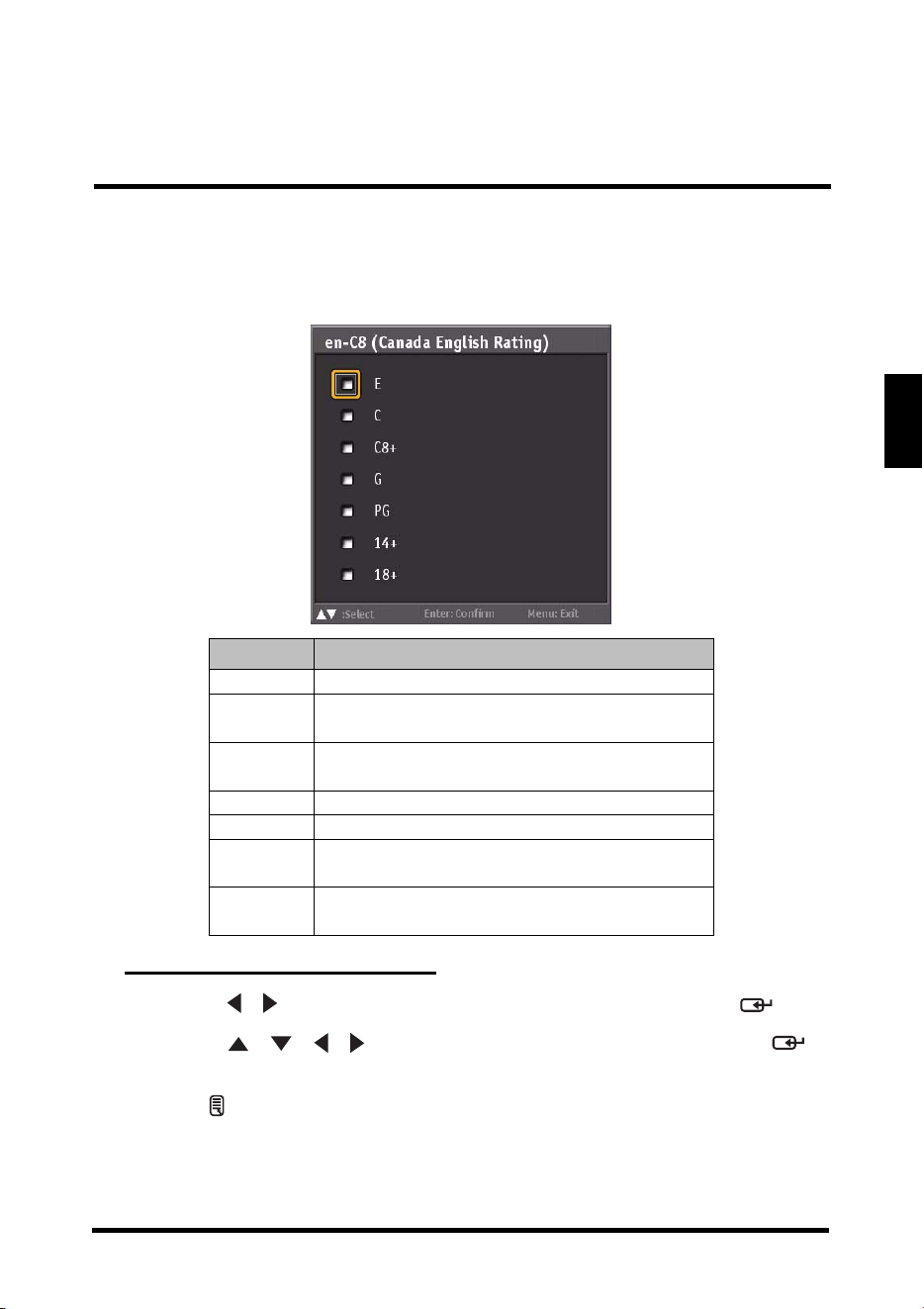
• Canada English: Use this sub-menu to select the classification categories
(based on Canadian ratings) of allowable TV programs
and movies.
Adjusting Canada English Rating
1
Use the
/
keys to select
Canada English Rating
and press .
2 Use the / / / keys to select the desired rating and press
repeatedly to block or unblock.
3 Press to save and exit the screen.
Rating Description
E Exempt shows
C
Suitable for viewing by children of all
ages.
C8+
Not suitable for children under 8 years of
age.
G Suitable for general audiences.
PG Parental guidance advised.
14+
Suitable for people 14 years of age or
older
.
18+
Suitable for people 18 years of age or
older
.
SETUP MENUS
44
English
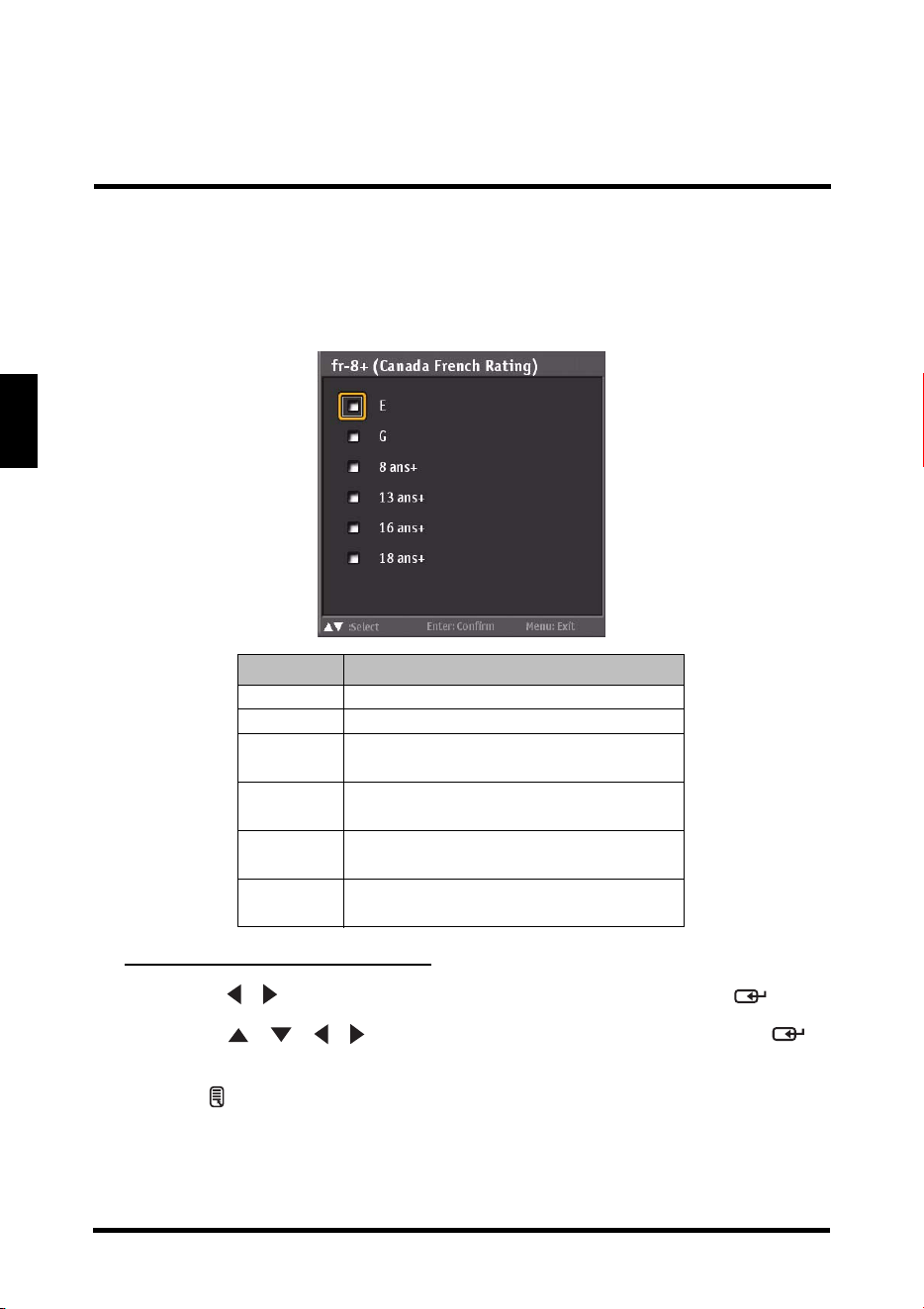
• Canada French: Use this sub-menu to select the ratings of allowable TV
programs and movies. These ratings are based on the
classification categories determined by La Régie du
cinéma du Québec.
Adjusting Canada French Rating
1
Use the
/
keys to select
Canada French Rating
and press .
2 Use the / / / keys to select the desired rating and press
repeatedly to block or unblock.
3 Pres
s to save and exit the screen.
Rating Description
E Exempt shows
G For general audiences.
8 ans +
Not suitable for children under 8
years of age.
13 ans+
Not suitable for persons under 13
years of age.
16 ans+
Not suitable for persons under 16
years of age.
18 ans+
Not suitable for persons under 18
years of age.
SETUP MENUS
45
English
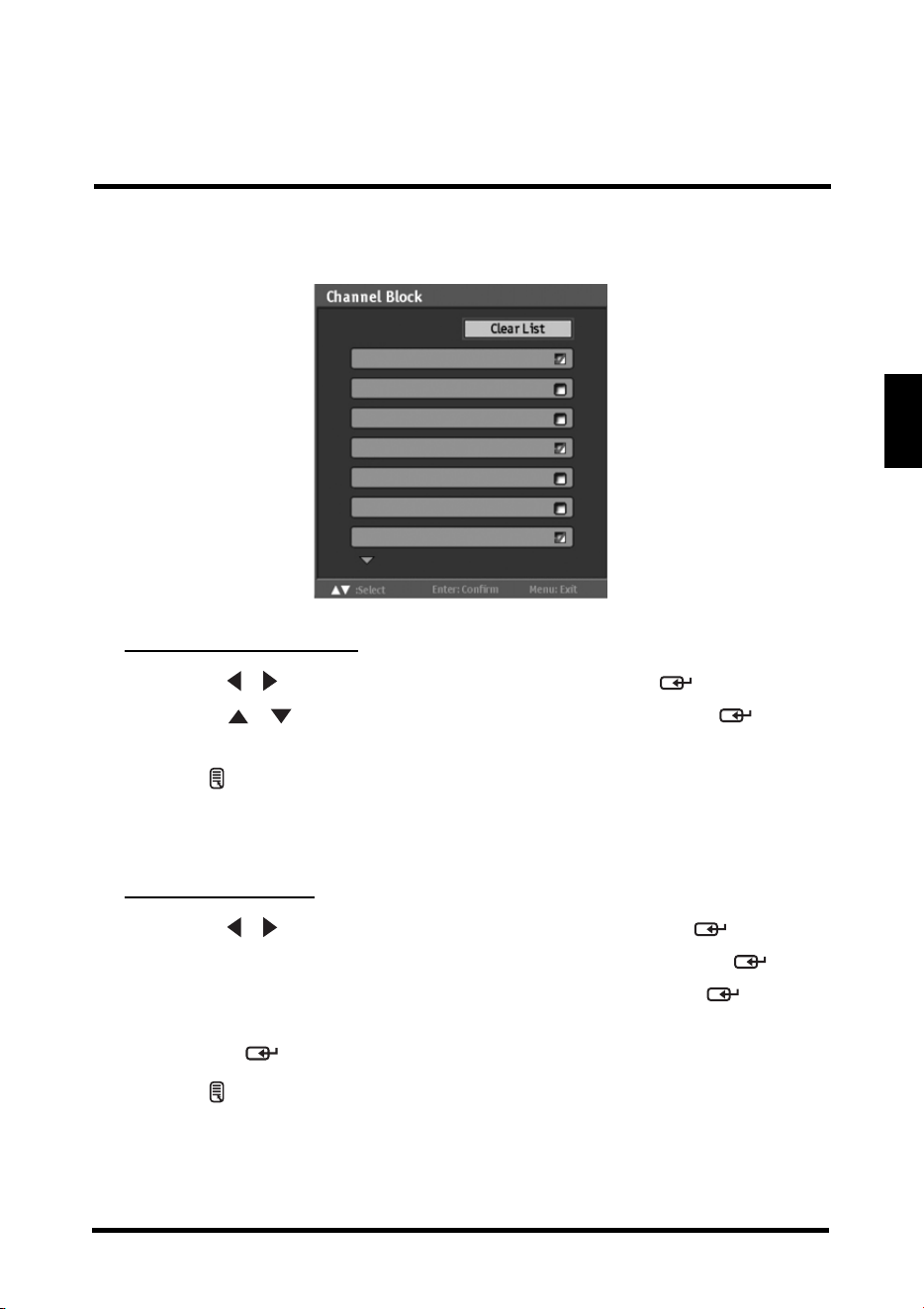
• Channel Block: Channel Block allows you to block channels.
Adjusting Channel Block
1
Use the
/
keys to select
Channel Block
and press .
2 Use the / keys to select the desired channel and press
repeatedly to block or unblock.
3 Pres
s to save and exit the screen.
• Ch
ange Password: Change Password allows you to change your current
password.
Changing Password
1
Use the
/
keys to select
Change Password
and press .
2 Use the Channel keys to enter the current password and press
.
3 Use the Channel keys to enter the new password and press
.
4 Use the Channel keys to enter the new password again for confirmation
and press
.
5 Press to save and exit the screen.
11.0
23.0
22.0
21.0
17.0
16.1
13.0
SETUP MENUS
46
English
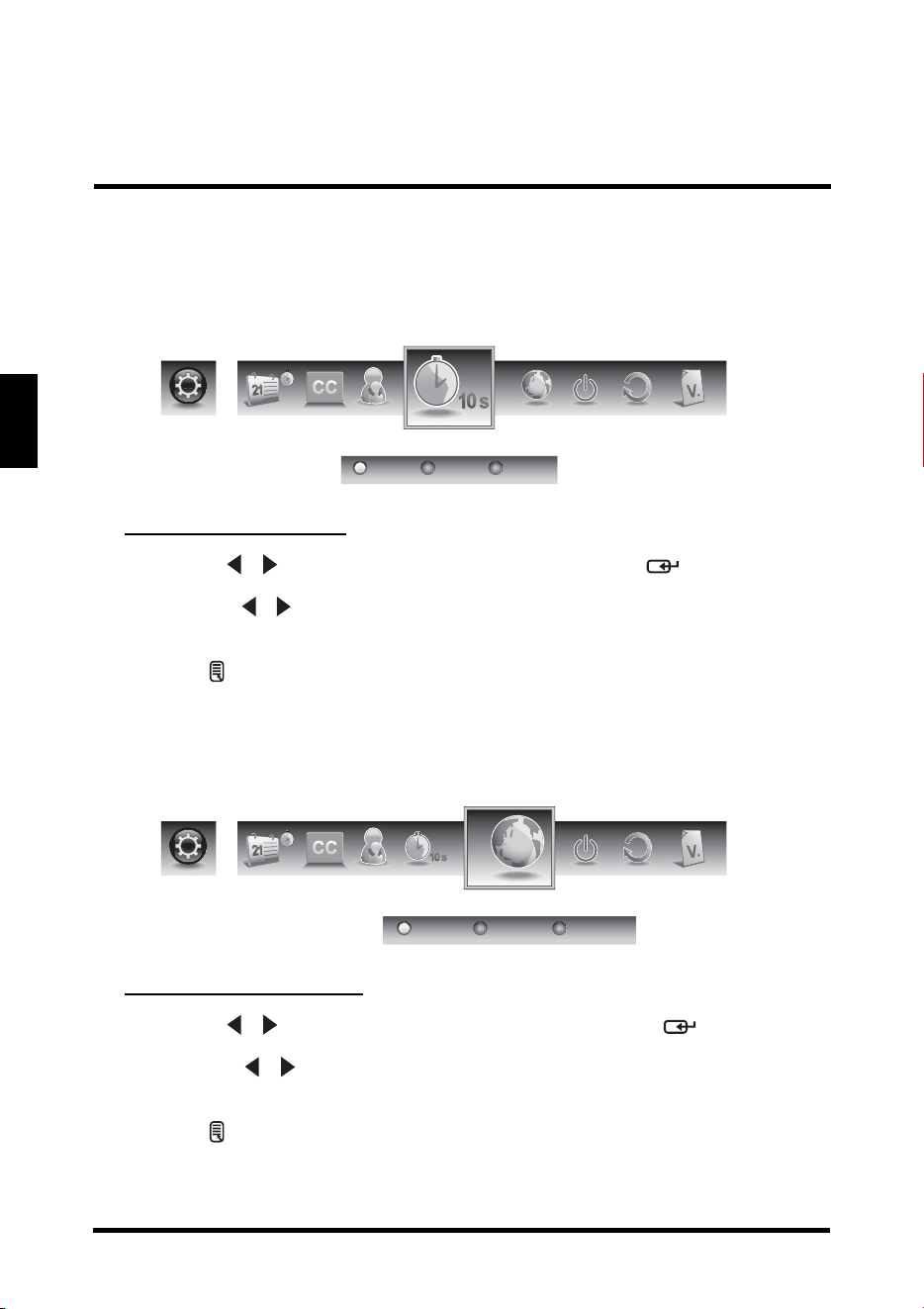
OSD Timeout
Use OSD Timeout to adjust the OSD duration on the screen: 10 sec, 20 sec, or 30
sec.
Adjusting OSD Timeout
1
Use the
/
keys to select
OSD Timeout
and press .
2 Press the / keys on the remote control to select 10 sec, 20 sec, or 30
sec.
3 Pres
s to save and exit the screen.
OSD Language
Use OSD Language to select the language to display on the screen: English,
French, or Spanish.
Adjusting OSD Language
1
Use the
/
keys to select
OSD Language
and press .
2 Press the / keys on the remote control to select English, French or
Spanish.
3 Press to save and exit the screen.
en
OSD Timeout
20 sec 30 sec10 sec
OSD Language
French SpanishEnglish
en
SETUP MENUS
47
English
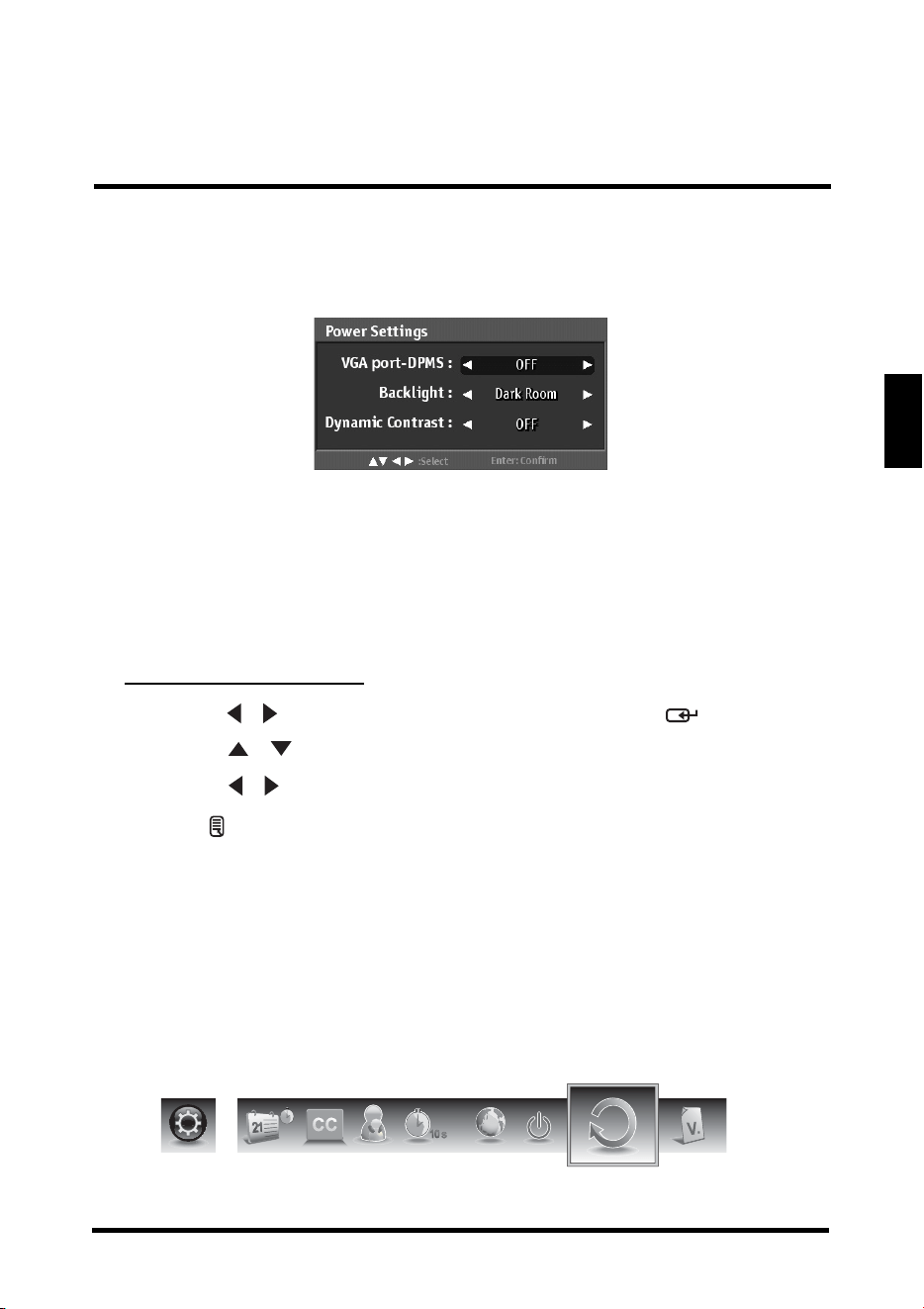
Power Settings
Use this sub-menu to configure power-related settings for the LED TV.
The following options are available:
• VGA port
-DPMS: Use this setting to enable or disable VGA port -DPMS.
• Backlight: Use this
setting to select the backlight mode: Bright Room,
Medium Room, or Dark Room.
• Dynamic Contrast: Use this setting to enable or disable Dynamic Contrast.
Adjusting Power Settings
1
Use the
/
keys to select
Power Settings
and press .
2 Use the / keys to select a desired option.
3 Use the / keys to adjust the value.
4 Press to save and exit the screen.
Reset All
Select Yes on this sub-menu to reset all LED TV operational settings. Do this only if
any of the following conditions occurs:
• The system fails to respond to the remote control
(ensure that the remote
control batteries are still working and you are within the transmission range).
• The new configuration settings cause unexpected results.
• You forget the system PIN.
en
Reset All
SETUP MENUS
48
English
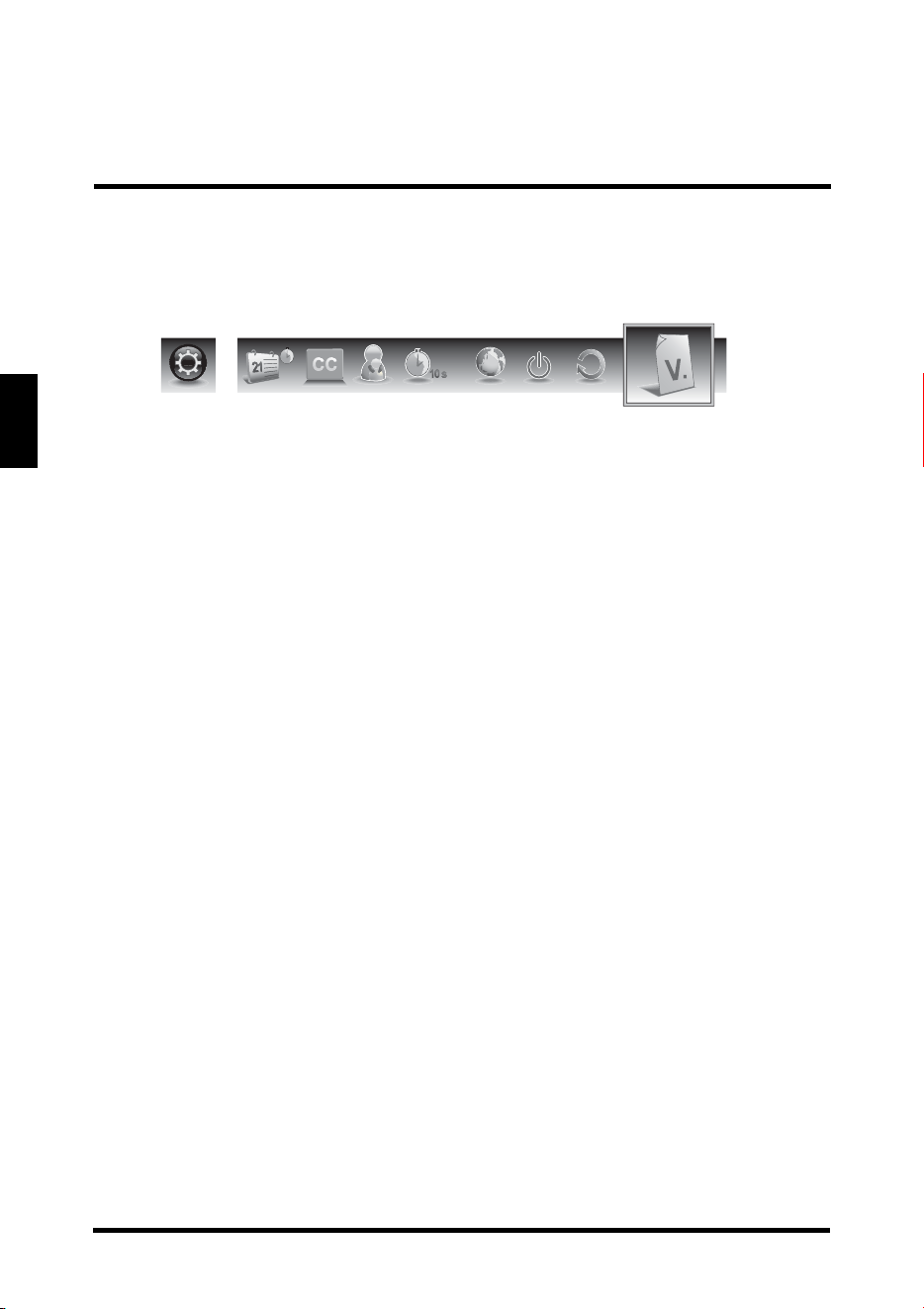
Version
Use this sub-menu to view the LED TV’s serial number and firmware version.
Version
en
WALL MOUNT OPTION
49
English
WALL MOUNT OPTION
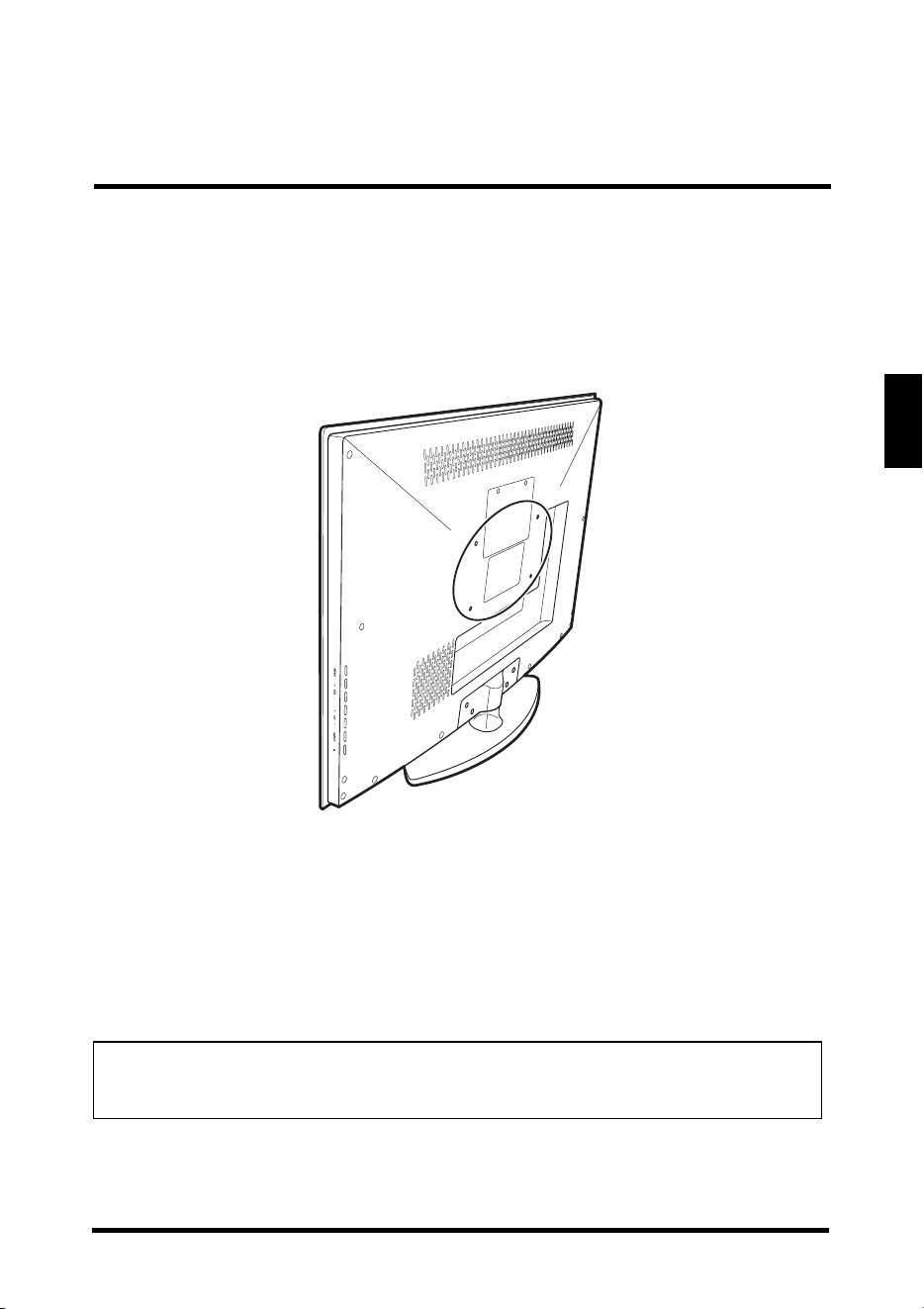
The LED TV has been fitted with VESA FPMPMI compliant mounting holes. These
200 x 100 mm mounting holes allow the unit to be mounted on a wall. Use the four
M4 x L10 mm screws to wall mount the LED TV.
WALL MOUNT INSTALLATION REMINDERS
• Remove the LED TV base first before mounting the unit on a wall.
• It is the user's responsibility to use a UL listed wall mount unit rated to
support the weight of this LED TV.
• Please consult qualified contractors for wall
mount installation.
CAUTION:
The incomplete or improper mounting of this unit to a wall may cause it to fall down
resulting to property damage and/or potentially serious injury.
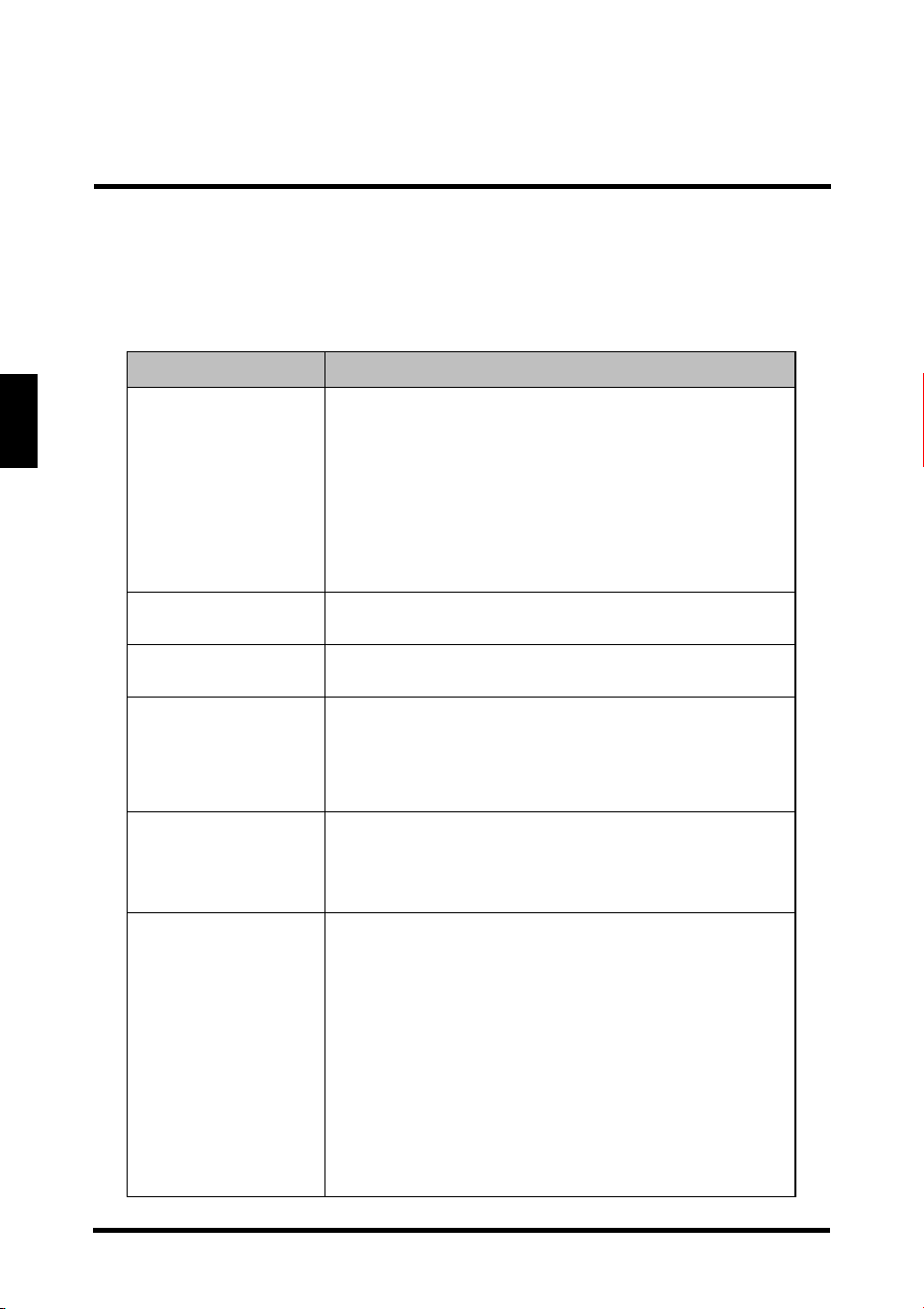
TROUBLESHOOTING
50
English
TROUBLESHOOTING
Problem Corrective Action
No power
• Make sure the power indicator is illuminated
blue.
• Make sure the power cord is securely
conne
cted to the AC-in jack and is plugged
into a functional AC outlet. You may want to
plug in another electrical device to the power
outlet to verify that it is supplying the proper
voltage.
Power is suddenly
turned of
f.
Make sure the sleep timer is turned off.
Forgotten PIN
Use Reset All in Settings menu to reset your
pa
ssword.
Remote control
does not work.
• Press only one button at a time.
• Make sure the batteries are properly inserted.
• The batteries may already be drained out.
Replace batteries with new ones.
Remote control
code cannot
be
detected by a
universal remote.
• Purchase a separate learning remote control.
• Go to www.wde.com for a list of remote
codes.
No picture
• Make sure the video input cable is properly
conne
cted to the correct terminal, and that the
correct input mode is enabled. To illustrate,
when a VGA cable is connected to display a
computer screen, the PC input mode must be
enabled.
• Verify that the antenna is properly connected
and that the preferred channel is e
nabled in
the channel list. Press and select
Channels/Channel List.
• Adjust the display settings.
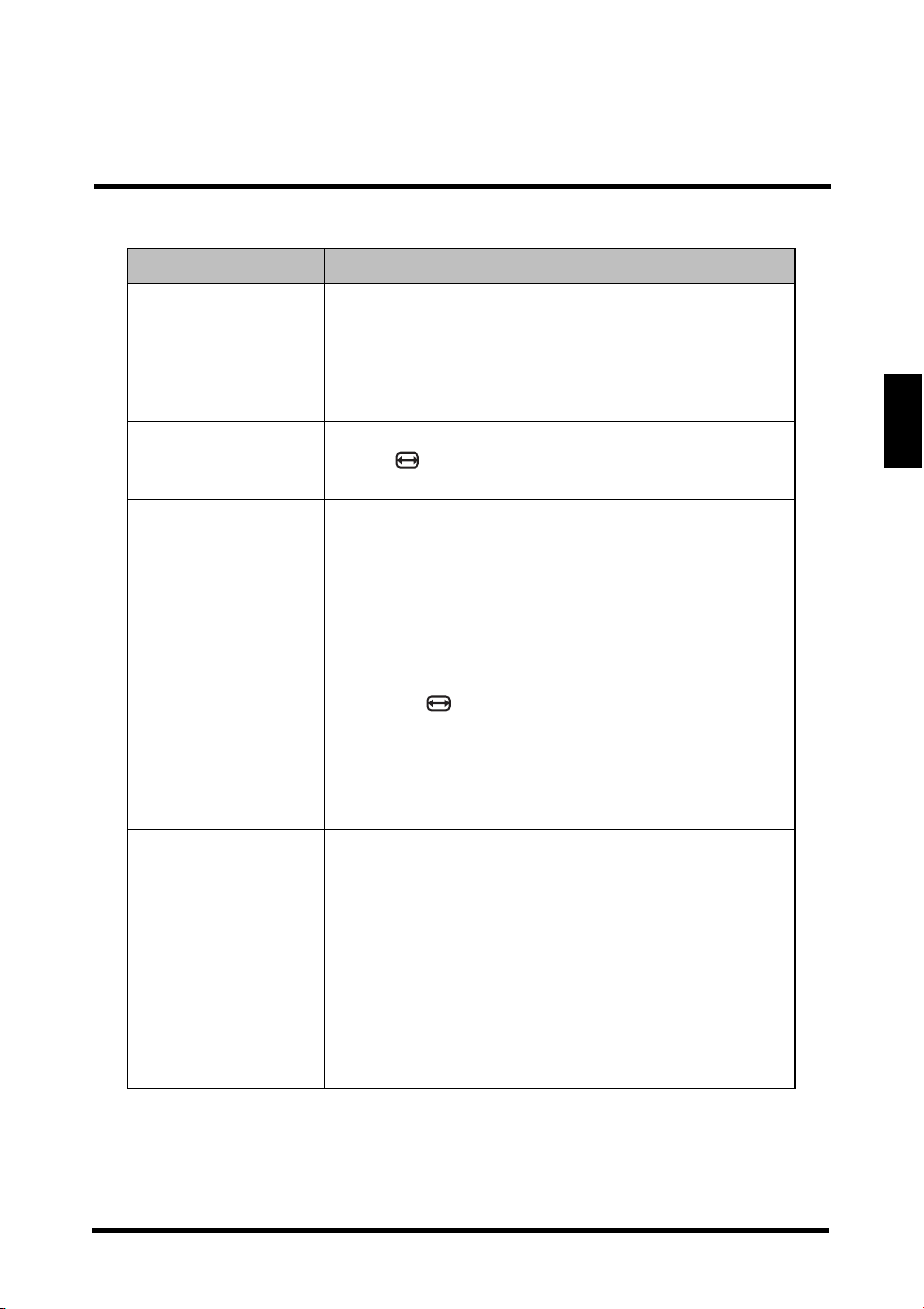
TROUBLESHOOTING
51
English
No picture or the No
Signal message
appears when a
VGA cable is
connected.
• Make sure the VGA cable is properly
conne
cted to the LED TV’s VGA port.
• Decrease the video resolution setting on the
computer a
nd try again.
• Adjust the display settings.
Picture is cut off or
appear in
a sidebar
screen.
Press to adjust the Aspect ratio.
Poor image quality
in
TV mode (cutoff
picture, snowy
images).
• Check your antenna connection. If necessary,
rotate the antenna an
d wait up to ten seconds
for a signal.
• Reduce signal splitters and excessively long
cables.
• Replace poor antenna cables and/or
connectors to improve signal quality.
•Press to adjust the Aspect ratio.
• Adjust the Noise Reduction setting in Picture
menu.
• In HDMI mode, make sure the external device
is compatible with the LED TV.
Wrong, abnormal or
mis
sing colors
• If any colors (red, green or blue) are missing,
check the video cable to make sure it is
securely connected. Loose or broken pins in
the cable connector could cause an improper
connection.
• Adjust the Hue, Saturation and Color
Temperature settings in Picture menu.
• Connect the TV to another computer and
check if the problem is with the computer
screen.
Problem Corrective Action
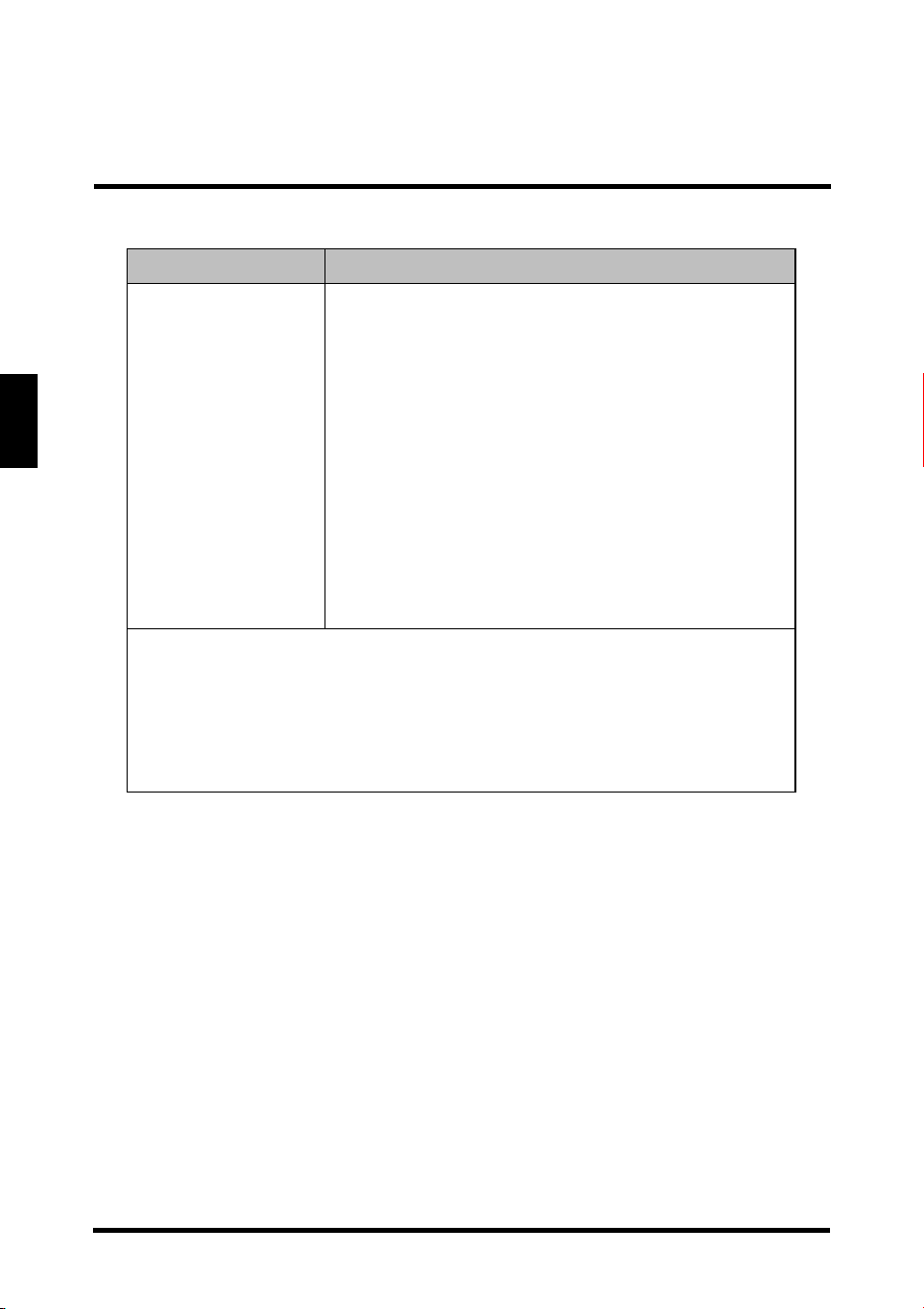
TROUBLESHOOTING
52
English
No sound
• Make sure the audio input cable is properly
connected to the correct terminal, and that the
correct input mode is enabled.
• The volume may be muted, press or Vol+ key
to turn on the volume.
• Adjust the Bass, Treble, and Balance settings
in Audio menu.
• If you are using the TV speakers, ma
ke sure
the TV Speakers option is set to On in Audio
menu.
• If you are using an external audio device,
press and select Audio to make sure the TV
Speakers option is set to Off in Audio menu.
NOTES:
If the problem condition persist
s even after performing the
recommended corrective actions, contact us by:
• Logging on to www.wde.com
• Contacting the Westinghouse Customer Service at (800) 701-0680
or e-mail us at [email protected]
Problem Corrective Action
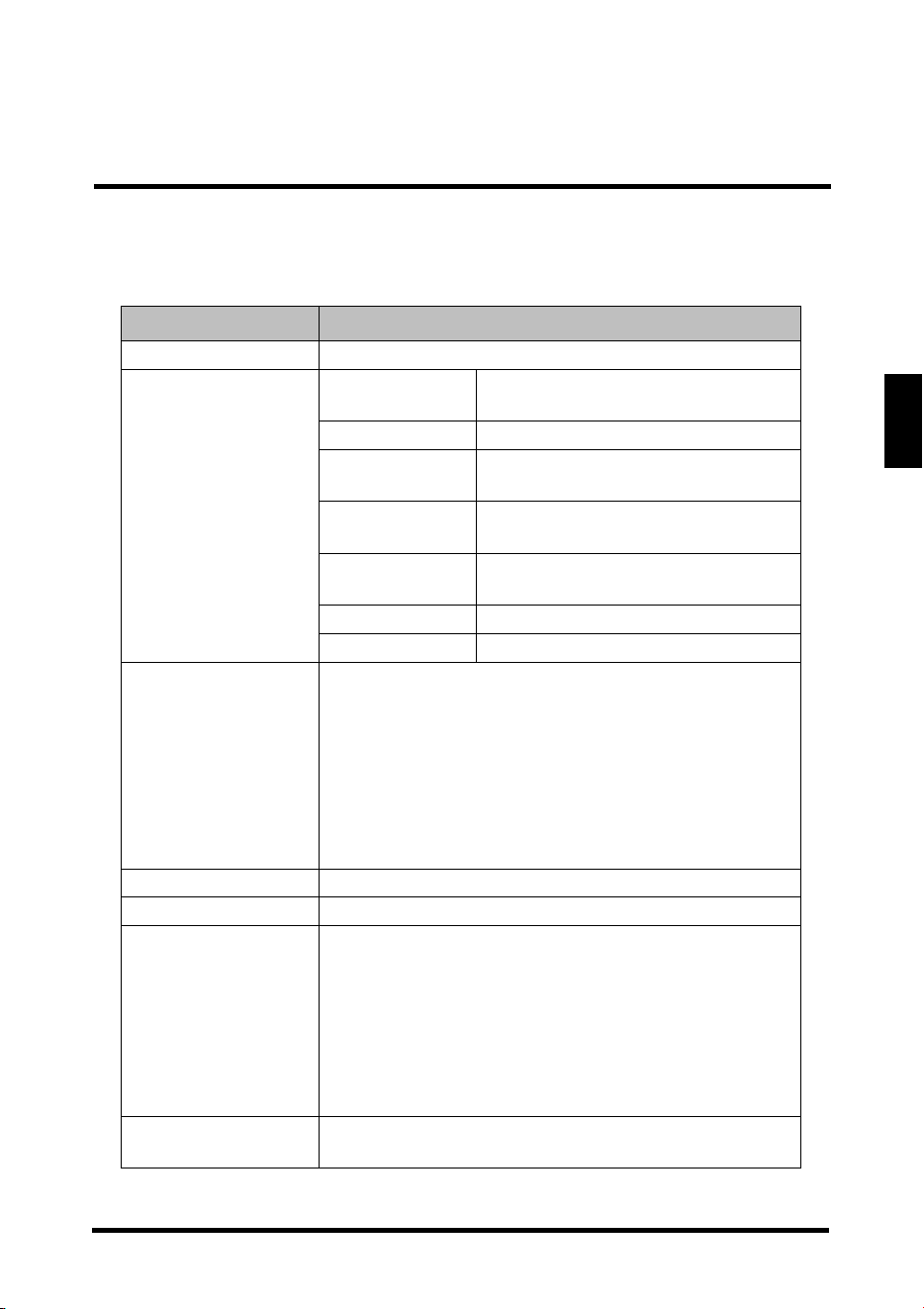
SPECIFICATIONS
53
English
SPECIFICATIONS
Item Specification
Model Name LD-3255VX
Panel
Active Area
(D
iagonal, mm)
697.685 (H) x 392.256 (V)
Resolution 1366 (H) x 768 (V)
Brightness
(N
its, typ)
250
Contrast Ratio
(m
in)
3000:1
Response Time
(m
in)
6.5ms(g-g)
Aspect Ratio 1.77 (16:9)
Display color 16.7M
Audio/Video
Input/Outpu
t
Terminals
•HDMI x2
• AV with R/L Audio x1
• VGA with 3.5 mm mini jack x1
• SPDIF Out x1
• USB for service x1
• Tuner x1
• R/L Audio Line Out X1
Speaker Out 10W (2 channels)
AV Timing 480i/p, 720p, 1080i/p
PC Timing
640 x 400 @ 85Hz,
640 x 480 @ 60Hz/75Hz,
800 x 600 @ 56Hz/60Hz/75Hz,
1024 x 768 @ 60Hz/70Hz/75Hz/85Hz,
1280 x 768 @ 60Hz,
1360 x 768 @ 60Hz,
1440 x 900 @ 60Hz,
1366 x 768 @ 60Hz
Power Consumption
(W
atts)
≤ 90W
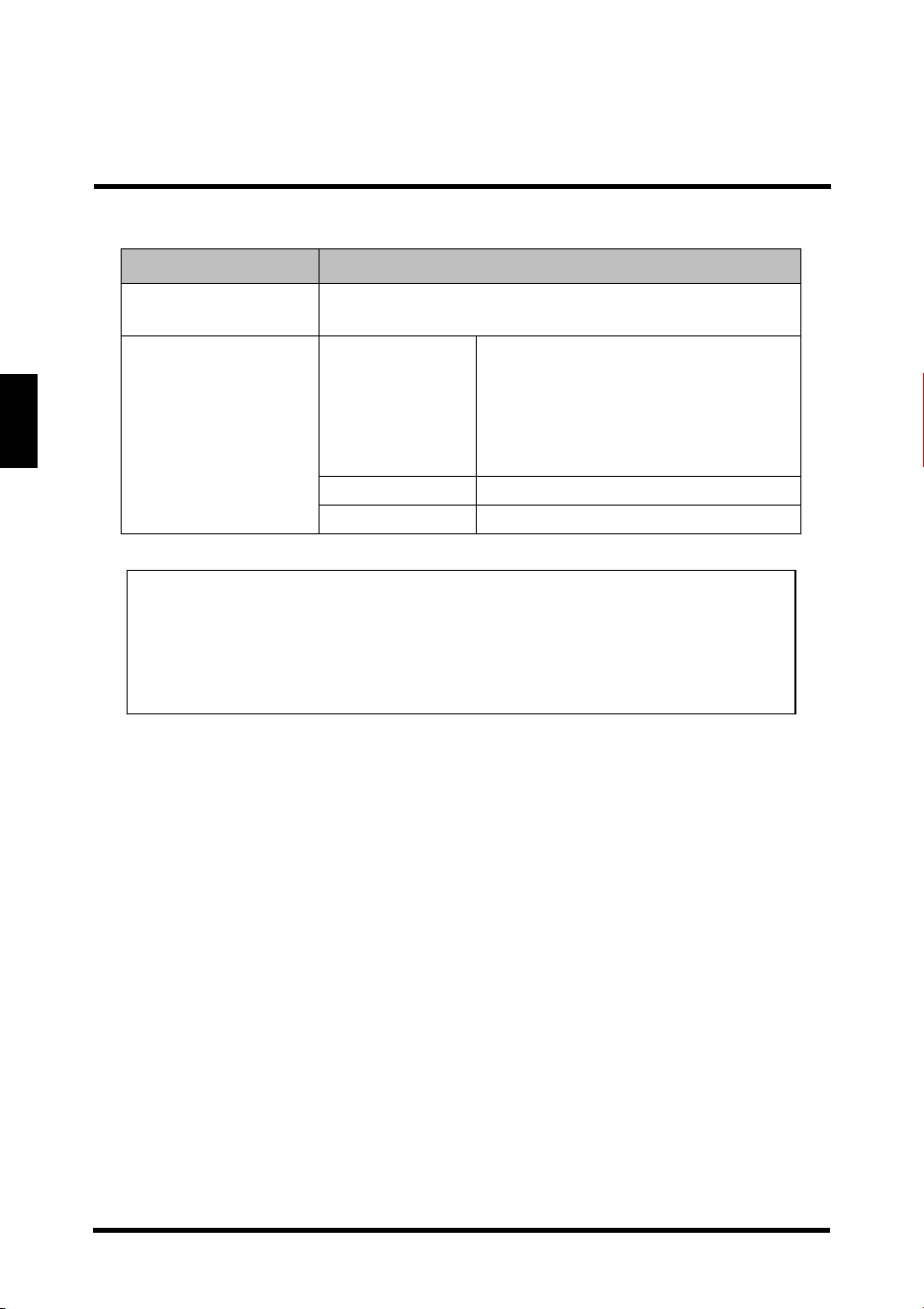
SPECIFICATIONS
54
English
Power Consumption
(Standby, Watts)
<1W
Physical
S
pecifications
Dimensions
(WxHxD)
With stand: 769 x 534 x 197 mm
30.3 x 21.0 x 7.8 inch
Without stand: 769 x 500 x 39 mm
30.3 x 19.7 x 1.5 inch
Weight (Net) 6.6 kg (14.6 lb)
Weight (Gross) 7.192 kg (15.9 lb)
NOTES:
• These product specifications are subject to
change without user
notification.
• Do not set your computer graphics card to exceed the unit’s refresh
rates; doing so may cause damage to the LED TV.
Item Specification