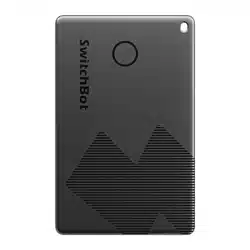
Wallet Finder Card
User Manual
Please read this user manual carefully before using your device.
Preparation
You will need:
• A smartphone or tablet using Bluetooth 4.2 or later.
• The latest version of our app, downloadable via the Apple App
Store or Google Play Store.
• A SwitchBot account, you can register via our app or sign in to
your account directly if you already have one.
Open our app and sign in. Tap the "+" icon in the top right-hand
corner of the home page, choose Add Device, select the Wallet
Finder Card icon, and follow the prompts to add your device.
iOS 14.0+ Android OS 5.0+
Add your Wallet Finder Card to our app
Functions
1. You can use the Find My app to locate your Wallet Finder Card.
When your device is within Bluetooth range, you can use the
app to make your Wallet Finder Card beep, helping you locate
it easily.
2. Alternatively, you can track the location of your Wallet Finder
Card through our app. When the device is within Bluetooth
range, our app can also make the Wallet Finder Card beep,
making it easier to locate.
Locate your SwitchBot Wallet Finder Card
You can use the Find My app to learn about a Wallet Finder Card
that’s been misplaced or lost by its owner.
Perform serial number lookup
1. Enable Find My Phone via our app.
2. Locate the round button on the front of the SwitchBot Wallet
Finder Card.
3. Quickly press the button twice. Two confirmation beeps will
sound. If your phone is nearby, it will emit a sound to help
you locate it.
Locate your phone, even in Silent Mode
1. Activate Lost Mode for your Wallet Finder Card using our app.
2. Follow the prompts to input your contact information. This
allows others to contact you by scanning the QR code on the
card and return your belongings.
Return of lost items via QR code
1. Locate the round button on the front of the SwitchBot Wallet
Finder Card.
2. Quickly press the button five times. On the fifth press, hold the
button for ten seconds. One confirmation beep will sound,
followed by two beeps.
Disable Find My network
Press the button for more than 5 times and hold it for 15s. Your
Wallet Finder Card will emit three beeps, indicating that its data
has been successfully reset.
Reset card data
1. Open the Find My app, then click the "+" icon and select Add
Other Item.
2. Press and hold the button on your Wallet Finder Card for 2
seconds until you hear a beep.
3. Name your Wallet Finder Card and then tap Continue.
4. Register your SwitchBot Wallet Finder Card with your Apple
ID, and click Continue.
Use with Apple's Find My app
Specifications
Size: 85 × 54 × 2.5 mm (3.3 × 2.1 × 0.1 in.) Weight: 12 g (0.4 oz.)
Material: ABS + PC Color: Black
Connectivity: Bluetooth Low Energy
Operating Temperature: -10 °C to 45 °C (14 °F to 113 °F)
Operating Humidity: 10% to 90% RH
Service Life: 3 years (battery non-detachable)
Power Supply: 540 mAh non-rechargeable lithium manganese
battery cell Operating Frequency: 13.56 MHz
Transmission Protocol: ISO14443A Water Resistance: IP67
System Requirements: iOS 14.0+, Android OS 5.0+
Warranty
We warrant to the original owner of the product that the product
will be free from defects in materials and workmanship. Please
note that this limited warranty does not cover:
1.
Products submitted beyond the original limited warranty period.
2. Products on which repairs or modifying have been attempted.
3. Products subjected to falls, extreme temperatures, water, or
other operating conditions outside the product specifications.
4. Damage due to natural disaster (including but not limited to
lightning, flood, tornado, earthquake, or hurricane, etc.).
5. Damage due to misuse, abuse, negligence or casualty (e.g. fire).
6. Other damage that is not attributable to defects in the
manufacture of product materials.
7. Products purchased from unauthorized resellers.
8. Consumable parts (including but not limited to batteries).
9. Natural wear of the product.
Contact & Support
Feedback: If you have any concerns or problems when using our
products, please send feedback via our app through the Profile
> Help & Feedback page.
Setup and Troubleshooting: support.switch-bot.com
Support Email: [email protected]
1. If someone uses a Wallet Finder Card to unlawfully track you
or your belongings, you will receive alerts on your Apple device
(iPhone or iPad running iOS version 14.5 or above) via the Find
My app.
2. A card that isn't with its owner for a period of time will emit
a sound when it's moved.
Anti-Tracking Mode
Troubleshooting
Press and hold the button on your Wallet Finder Card for 45
seconds. Your device is successfully reset once you hear 5 sound
confirmations.
Resetting factory settings
1. If you want to use a different Apple ID with your Wallet Finder
Card, ensure that the card has been removed from the Find
My app associated with the previous Apple ID.
2. If you encounter this problem when you add the card for the
first time, please contact us at [email protected].
Wallet Finder Card connected to another Apple ID
This product supports Near Field Communication (NFC). If
someone finds your lost item, they can tap the card with an
NFC-enabled device to get your contact information. You can
also add the card to your SwitchBot Keypad or Keypad Touch
to help you quickly unlock your door.
NFC
www.switch-bot.com
V1.0-2405
Safety Information
List of Components
• Keep this product away from heat and humidity, and make sure
it does not come into contact with fire or water.
• This product is a precision-based electronic product, please
avoid physical damage.
• Do not fold, punch holes in, or attach foreign objects to this card.
• Do not attempt to disassemble, repair, or modify this product.
• Do not use this product where wireless devices are not allowed.
• Avoid using or storing the card in areas with strong static
electricity and magnetic fields.
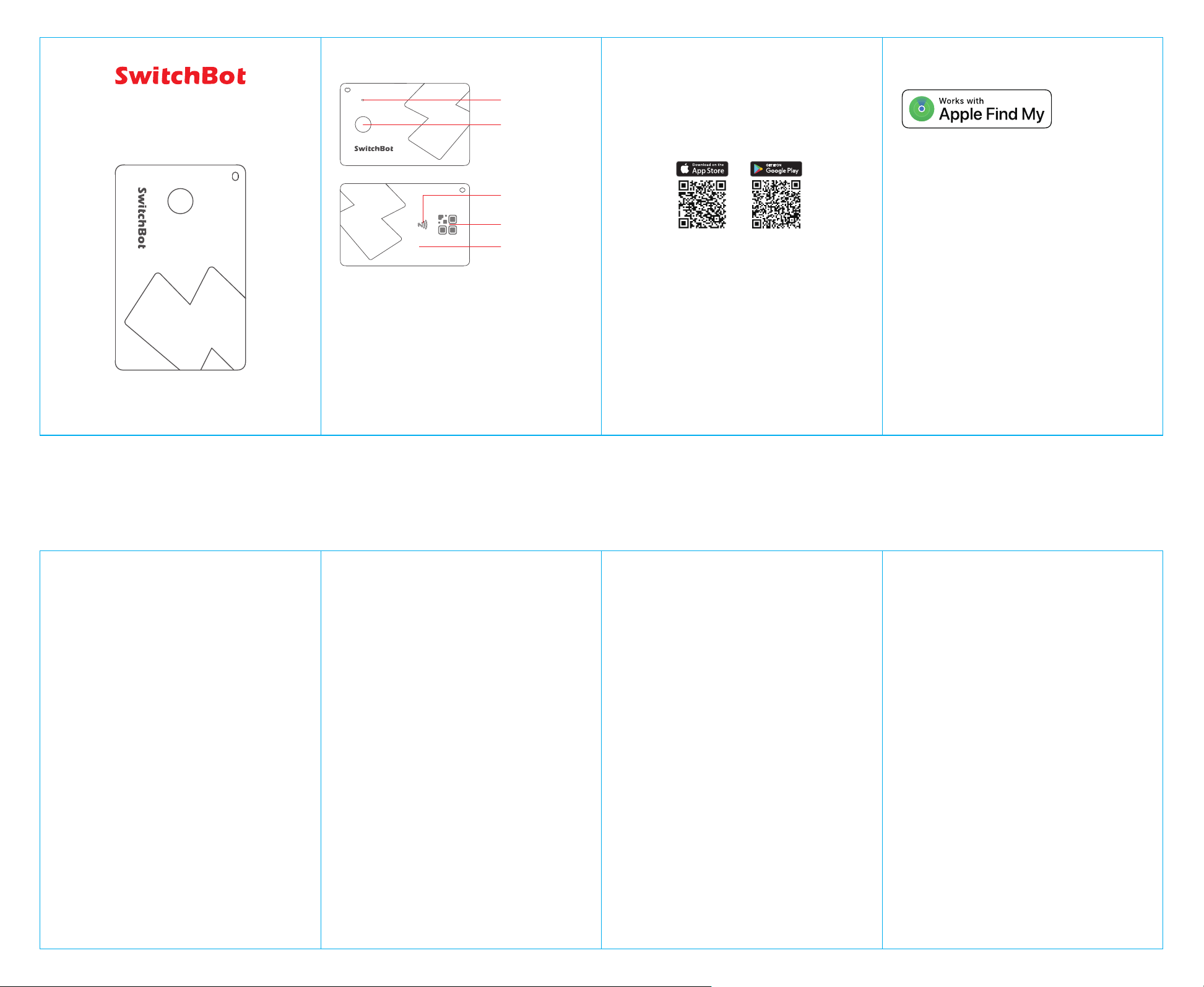
Buzzer
Button
QR Code
NFC Detection Area
Lithium battery
(Built-in)
To use the Apple Find My app to locate this item, the latest version
of iOS, iPadOS, or macOS is recommended.
Apple, Apple Find My, Apple Watch, Find My, iPhone, iPad, iPadOS,
Mac, macOS and watchOS are trademarks of Apple Inc.
Use of the Works with Apple badge means that a product has
been designed to work specifically with the technology
identified in the badge and has been certified by the product
manufacturer to meet Apple Find My network product
specifications and requirements. Apple is not responsible for the
operation of this device or use of this product or its compliance
with safety and regulatory standards.
5. Tap Finish. You can now attach the Wallet Finder Card to an
item and track its location using the Find My app.
• Open the Find My app, scroll to the bottom of the Items tab,
then tap Identify Found Item.
• Keep the card near your iPhone. Once your iPhone detects the
Wallet Finder Card, it will appear in the list of found items. Select
the Wallet Finder Card from the list.
• On the displayed page, you can connect to the card by following
these steps:
① Locate the round button on the front of the SwitchBot Wallet
Finder Card. Quickly press the button twice. Two confirmation
beeps will sound.
② After successfully connecting to the Wallet Finder Card, tap
Continue on Website.
On the website, you can view Lost Mode message left by the
owner and check the card's serial number.