
47" LCD TV
NS-L47Q09-10A
User Guide


i
www.insigniaproducts.com
Contents
CHILD SAFETY . . . . . . . . . . . . . . . . . . . . . . . . . . . . . . . . . . . . . . . . . . . . . . . . . . .1
Important safety instructions . . . . . . . . . . . . . . . . . . . . . . . . . . . . . . . . . . . . .2
Warnings . . . . . . . . . . . . . . . . . . . . . . . . . . . . . . . . . . . . . . . . . . . . . . . . . . . . . . . . 2
Cautions . . . . . . . . . . . . . . . . . . . . . . . . . . . . . . . . . . . . . . . . . . . . . . . . . . . . . . . . . 3
Introduction . . . . . . . . . . . . . . . . . . . . . . . . . . . . . . . . . . . . . . . . . . . . . . . . . . . . .4
Installing a wall-mount bracket . . . . . . . . . . . . . . . . . . . . . . . . . . . . . . . . . . .4
TV components . . . . . . . . . . . . . . . . . . . . . . . . . . . . . . . . . . . . . . . . . . . . . . . . . .4
Accessories . . . . . . . . . . . . . . . . . . . . . . . . . . . . . . . . . . . . . . . . . . . . . . . . . . . . . . 4
Front . . . . . . . . . . . . . . . . . . . . . . . . . . . . . . . . . . . . . . . . . . . . . . . . . . . . . . . . . . . . 5
Back . . . . . . . . . . . . . . . . . . . . . . . . . . . . . . . . . . . . . . . . . . . . . . . . . . . . . . . . . . . . . 5
Side . . . . . . . . . . . . . . . . . . . . . . . . . . . . . . . . . . . . . . . . . . . . . . . . . . . . . . . . . . . . . 6
Remote control . . . . . . . . . . . . . . . . . . . . . . . . . . . . . . . . . . . . . . . . . . . . . . . . . . 6
Using the remote control . . . . . . . . . . . . . . . . . . . . . . . . . . . . . . . . . . . . . . . . .7
Installing the remote control batteries . . . . . . . . . . . . . . . . . . . . . . . . . . . . 7
Aiming the remote control . . . . . . . . . . . . . . . . . . . . . . . . . . . . . . . . . . . . . . . 8
Programming a universal remote control to work with your TV . . . . 8
Making connections . . . . . . . . . . . . . . . . . . . . . . . . . . . . . . . . . . . . . . . . . . . . . .8
Connecting the power . . . . . . . . . . . . . . . . . . . . . . . . . . . . . . . . . . . . . . . . . . . 8
Connecting an outdoor antenna . . . . . . . . . . . . . . . . . . . . . . . . . . . . . . . . . 8
Connecting an indoor antenna . . . . . . . . . . . . . . . . . . . . . . . . . . . . . . . . . . . 9
Connecting cable TV . . . . . . . . . . . . . . . . . . . . . . . . . . . . . . . . . . . . . . . . . . . . . 9
Connecting satellite TV via a satellite TV box . . . . . . . . . . . . . . . . . . . . . 10
Connecting a VCR . . . . . . . . . . . . . . . . . . . . . . . . . . . . . . . . . . . . . . . . . . . . . . . 10
Connecting a camcorder or game console . . . . . . . . . . . . . . . . . . . . . . . 11
Connecting an HDMI device . . . . . . . . . . . . . . . . . . . . . . . . . . . . . . . . . . . . . 11
Connecting a component video device . . . . . . . . . . . . . . . . . . . . . . . . . . 12
Connecting an S-Video device . . . . . . . . . . . . . . . . . . . . . . . . . . . . . . . . . . . 12
Connecting a computer . . . . . . . . . . . . . . . . . . . . . . . . . . . . . . . . . . . . . . . . . 13
Connecting headphones . . . . . . . . . . . . . . . . . . . . . . . . . . . . . . . . . . . . . . . . 13
Connecting a digital audio amplifier . . . . . . . . . . . . . . . . . . . . . . . . . . . . . 13
Connecting an analog audio amplifier . . . . . . . . . . . . . . . . . . . . . . . . . . . 14
Turning on your TV for the first time . . . . . . . . . . . . . . . . . . . . . . . . . . . . 14
Understanding the basics . . . . . . . . . . . . . . . . . . . . . . . . . . . . . . . . . . . . . . 14
Turning your TV on or off . . . . . . . . . . . . . . . . . . . . . . . . . . . . . . . . . . . . . . . . 14
Selecting the video input source . . . . . . . . . . . . . . . . . . . . . . . . . . . . . . . . 15
On-screen menu overview . . . . . . . . . . . . . . . . . . . . . . . . . . . . . . . . . . . . . . 15
Navigating the menus . . . . . . . . . . . . . . . . . . . . . . . . . . . . . . . . . . . . . . . . . . 16
Selecting a channel . . . . . . . . . . . . . . . . . . . . . . . . . . . . . . . . . . . . . . . . . . . . . 16
Adjusting the volume . . . . . . . . . . . . . . . . . . . . . . . . . . . . . . . . . . . . . . . . . . . 16
Displaying additional information . . . . . . . . . . . . . . . . . . . . . . . . . . . . . . . 16
Adjusting the picture . . . . . . . . . . . . . . . . . . . . . . . . . . . . . . . . . . . . . . . . . . . 16
Adjusting the TV picture . . . . . . . . . . . . . . . . . . . . . . . . . . . . . . . . . . . . . . . . 16
Adjusting Advanced Video settings . . . . . . . . . . . . . . . . . . . . . . . . . . . . . . 17
Freezing the picture . . . . . . . . . . . . . . . . . . . . . . . . . . . . . . . . . . . . . . . . . . . . 17

ii
Contents
www.insigniaproducts.com
Adjusting the sound . . . . . . . . . . . . . . . . . . . . . . . . . . . . . . . . . . . . . . . . . . . 17
Adjusting the sound . . . . . . . . . . . . . . . . . . . . . . . . . . . . . . . . . . . . . . . . . . . . 17
Playing TV audio only . . . . . . . . . . . . . . . . . . . . . . . . . . . . . . . . . . . . . . . . . . . 18
Changing channel settings . . . . . . . . . . . . . . . . . . . . . . . . . . . . . . . . . . . . . 19
Automatically scanning for channels . . . . . . . . . . . . . . . . . . . . . . . . . . . . 19
Hiding channels . . . . . . . . . . . . . . . . . . . . . . . . . . . . . . . . . . . . . . . . . . . . . . . . 19
Setting up a favorite channel list . . . . . . . . . . . . . . . . . . . . . . . . . . . . . . . . 20
Viewing a favorite channel . . . . . . . . . . . . . . . . . . . . . . . . . . . . . . . . . . . . . . 20
Adding or changing a channel label . . . . . . . . . . . . . . . . . . . . . . . . . . . . . 21
Checking the DTV signal strength . . . . . . . . . . . . . . . . . . . . . . . . . . . . . . . 21
Setting parental controls . . . . . . . . . . . . . . . . . . . . . . . . . . . . . . . . . . . . . . . 22
Setting or changing the password . . . . . . . . . . . . . . . . . . . . . . . . . . . . . . . 22
Setting parental control levels . . . . . . . . . . . . . . . . . . . . . . . . . . . . . . . . . . . 22
Blocking unrated TV . . . . . . . . . . . . . . . . . . . . . . . . . . . . . . . . . . . . . . . . . . . . 24
Downloading rating information . . . . . . . . . . . . . . . . . . . . . . . . . . . . . . . . 25
Locking control buttons . . . . . . . . . . . . . . . . . . . . . . . . . . . . . . . . . . . . . . . . . 25
Using closed captioning . . . . . . . . . . . . . . . . . . . . . . . . . . . . . . . . . . . . . . . . 26
Viewing closed captioning . . . . . . . . . . . . . . . . . . . . . . . . . . . . . . . . . . . . . . 26
Selecting the closed captioning mode . . . . . . . . . . . . . . . . . . . . . . . . . . . 26
Customizing DTV closed captioning styles . . . . . . . . . . . . . . . . . . . . . . . 26
Adjusting time settings . . . . . . . . . . . . . . . . . . . . . . . . . . . . . . . . . . . . . . . . . 27
Setting the clock . . . . . . . . . . . . . . . . . . . . . . . . . . . . . . . . . . . . . . . . . . . . . . . . 27
Setting the sleep timer . . . . . . . . . . . . . . . . . . . . . . . . . . . . . . . . . . . . . . . . . . 28
Adjusting menu settings . . . . . . . . . . . . . . . . . . . . . . . . . . . . . . . . . . . . . . . 28
Selecting the menu language . . . . . . . . . . . . . . . . . . . . . . . . . . . . . . . . . . . 28
Changing the menu transparency . . . . . . . . . . . . . . . . . . . . . . . . . . . . . . . 29
Labeling an input source . . . . . . . . . . . . . . . . . . . . . . . . . . . . . . . . . . . . . . . . 29
Resetting settings to the defaults . . . . . . . . . . . . . . . . . . . . . . . . . . . . . . . . 30
Maintaining . . . . . . . . . . . . . . . . . . . . . . . . . . . . . . . . . . . . . . . . . . . . . . . . . . . . 31
Cleaning the TV cabinet . . . . . . . . . . . . . . . . . . . . . . . . . . . . . . . . . . . . . . . . . 31
Cleaning the TV screen . . . . . . . . . . . . . . . . . . . . . . . . . . . . . . . . . . . . . . . . . . 31
Troubleshooting . . . . . . . . . . . . . . . . . . . . . . . . . . . . . . . . . . . . . . . . . . . . . . . 31
Specifications . . . . . . . . . . . . . . . . . . . . . . . . . . . . . . . . . . . . . . . . . . . . . . . . . . 32
Legal notices . . . . . . . . . . . . . . . . . . . . . . . . . . . . . . . . . . . . . . . . . . . . . . . . . . . 32
Two-year limited warranty . . . . . . . . . . . . . . . . . . . . . . . . . . . . . . . . . . . . . . 33
1
www.insigniaproducts.com
As you enjoy your new product, keep these
safety tips in mind
The issue
The home theater entertainment experience is a growing trend, and larger TVs are popular
purchases. However, TVs are not always supported on the proper stands or installed
according to the manufacturer’s recommendations. We and the consumer electronics
industry are committed to making home entertainment enjoyable and safe.
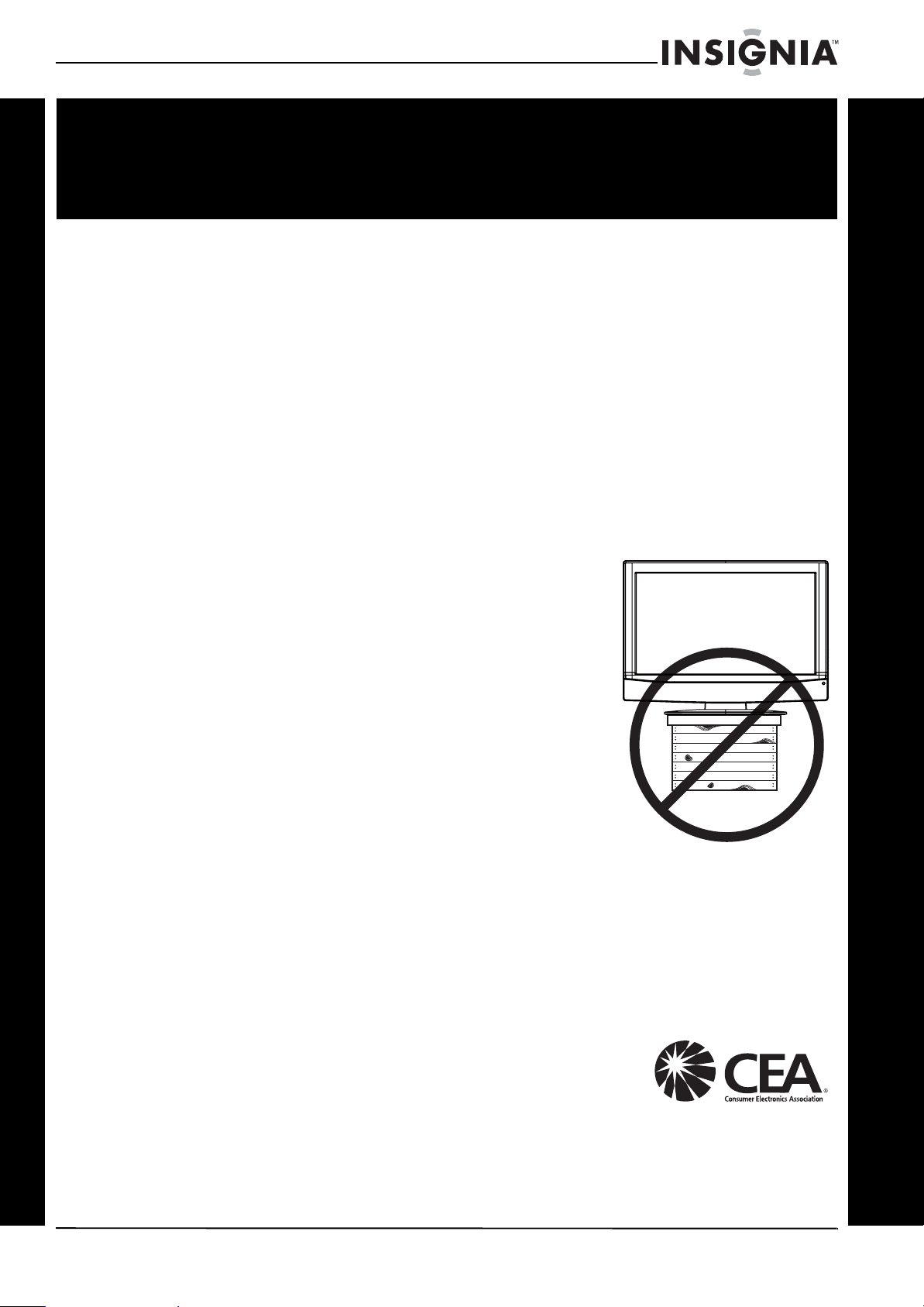
TVs that are inappropriately placed on dressers, bookcases, shelves, desks, speakers, chests, or
carts may fall over and cause injury.
Tune into safety
• One size of TV stand does not fit all. Use only a TV stand
rated for the weight of your TV.
• Carefully read and understand all enclosed instructions
for proper use of this product.
• Don’t let children climb on or play with entertainment
system furniture and TVs.
• Don’t place TVs on furniture that can easily be used as
steps, such as a chest of drawers.
• Remember that children can become excited while
watching a program, especially on a “larger-than-life” TV.
Make sure that you place or install the TV where it cannot
be pushed, pulled over, or knocked down.
• Make sure that you route all cords and cables so that they
cannot be pulled or grabbed by curious children.
Wall mounting
If you decide to wall mount your TV, always remember:
• One size of wall mount does not fit all. Use only a wall mount rated for the weight of
your TV and that has been recommended by this TV manufacturer, listed in this
manual, or otherwise listed by an independent laboratory as suitable for your TV.
• Follow all instructions supplied by the TV and wall mount manufacturers.
• If you have any doubts about your ability to safely wall mount your TV, get help from a
professional installer.
• Make sure that the wall where you are mounting the TV is
appropriate. Some wall mounts are not designed to be
mounted to walls backed with steel studs or cinder blocks. If
you are unsure, ask a professional installer.
• TVs can be heavy. At least two people are required for safe wall mount installation.
f
CHILD SAFETY
It makes a difference how and where you use
your flat panel display
2
NS-L47Q09-10A
www.insigniaproducts.com
Important safety
instructions
1 Read these instructions.
2 Keep these instructions.
3 Heed all warnings.
4 Follow all instructions.
5 Do not use this apparatus near water.
6 Clean only with dry cloth.
7 Do not block any ventilation openings. Install in
accordance with the manufacturer's
instructions.
8 Do not install near any heat sources such as
radiators, heat registers, stoves, or other
apparatus (including amplifiers) that produce
heat.
9 Do not defeat the safety purpose of the
polarized or grounding-type plug. A polarized
plug has two blades with one wider than the
other. A grounding type plug has two blades
and a third grounding prong. The wide blade or
the third prong are provided for your safety. If
the provided plug does not fit into your outlet,
consult an electrician for replacement of the
obsolete outlet.
10 Protect the power cord from being walked on or
pinched particularly at plugs, convenience
receptacles, and the point where they exit from
the apparatus.
11 Only use attachments/accessories specified by
the manufacturer.
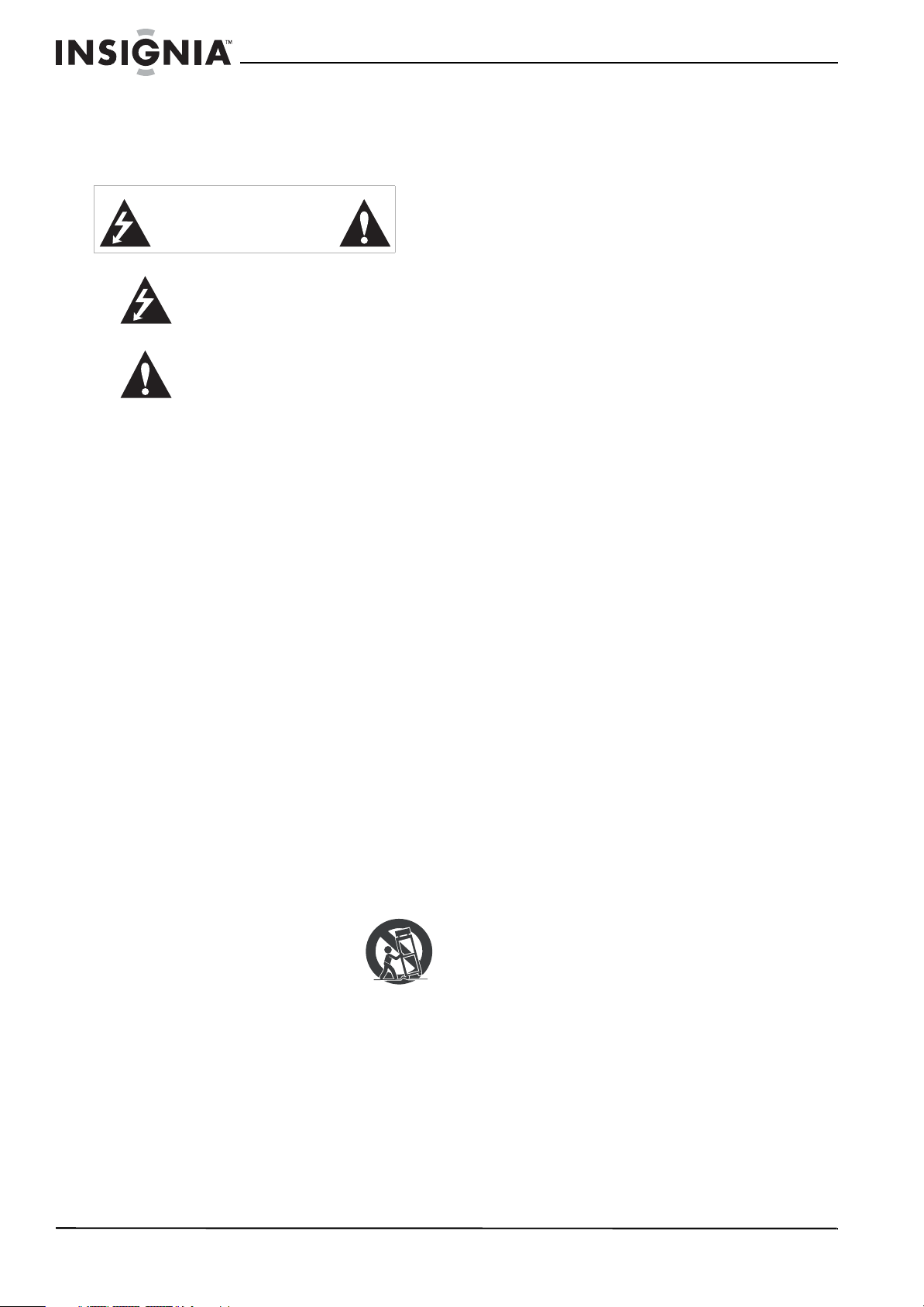
12 Use only with a cart, stand, tripod,
bracket, or table specified by the
manufacturer, or sold with the
apparatus. When a cart is used, use
caution when moving the
cart/apparatus combination to avoid injury from
tip-over.
13 Unplug this apparatus during lightning storms
or when unused for long periods of time.
14 Refer all servicing to qualified service personnel.
Servicing is required when the apparatus has
been damaged in any way, such as
power-supply cord or plug is damaged, liquid
has been spilled or objects have fallen into the
apparatus, the apparatus has been exposed to
rain or moisture, does not operate normally, or
has been dropped.
15 The mains plug is the disconnecting device. The
plug must remain readily operable.
16 The apparatus with grounding-type plug is a
class I apparatus. Class I apparatus need to be
connected to earth ground wire to prevent
possible electric shock. Make sure that you
connect the class I apparatus to a mains socket
outlet with a protective earthing connection.
17 Remote control batteries should not be exposed
to excessive heat such as sunshine, fire, or the
like.
18 The apparatus shall not be exposed to dripping
or splashing, and no objects filled with liquids,
such as vases, shall be placed on the apparatus.
Warnings
Electric shock hazard
To reduce the risk of fire or electric shock, do not
remove any cover or expose the device to rain or
moisture. No user-serviceable parts are inside. Refer
servicing to qualified service technicians.
Lightning
For added protection for your device receiver
during a lightning storm, or when it is left
unattended and unused for long periods of time,
unplug it from the power outlet and disconnect any
antenna or cable system. This helps prevent
property damage and personal injury from
lightning and power line surges.
Power lines
An outside antenna system should not be located in
the vicinity of overhead power lines or other
electric light or power circuits, or where it can fall
into such power lines or circuits. When installing an
outside antenna system, extreme care should be
taken to keep from touching such power lines or
circuits as contact with them might be fatal.
Handling the LCD panel
• Your TV’s screen is made of glass. Do not drop
your TV or hit, jolt, or press hard against the LCD
panel. If the screen breaks, be careful of broken
glass.
• If the LCD panel is broken, make absolutely sure
that you do not touch the liquid in the panel. This
may cause skin inflammation.
• If the liquid gets in your mouth, immediately
gargle, rinse, and consult with your doctor. Also, if
the liquid gets in your eyes or touches your skin,
consult with your doctor after rinsing for at least
15 minutes or longer in clean water.
Replacement parts
When replacement parts are required, make sure
that the service technician uses replacement parts
specified by the manufacturer that have the same
characteristics as the original part. Unauthorized
substitutions may result in fire, electric shock,
personal injury, or other hazards.
Safety check
After completing any service or repair to this device,
ask the service technician to perform routine safety
checks to determine that your TV is in correct
operating condition.
CAUTION
RISK OF ELECTRIC SHOCK
DO NOT OPEN
This symbol indicates that dangerous
voltage constituting a risk of electric
shock is present within your TV. This
label is located on the back of your TV.
This symbol indicates that there are
important operating and maintenance
instructions in the literature
accompanying your TV.
S3125A
3
www.insigniaproducts.com
Power source
Operate your TV only from the type of power source
indicated on the marking label. If you are not sure
of the type of power supplied to your home, consult
an electrician or your local power company.
Cautions
Damage requiring service
Unplug this TV from the power outlet and refer
servicing to qualified service personnel under the
following conditions:
• When the power supply cord or plug is damaged
or frayed.
• If liquid has been spilled or objects have fallen
into your TV.
• If your TV has been exposed to rain or water.
• If your TV does not operate normally by following
the operating instructions. Adjust only those
controls that are covered by the operating
instructions because incorrect adjustment of
other controls may result in damage and will
often require extensive work by a qualified
technician to restore your TV to its normal
operation.
• If your TV has been dropped or damaged in any
way.
• When your TV exhibits a distinct change in
performance.
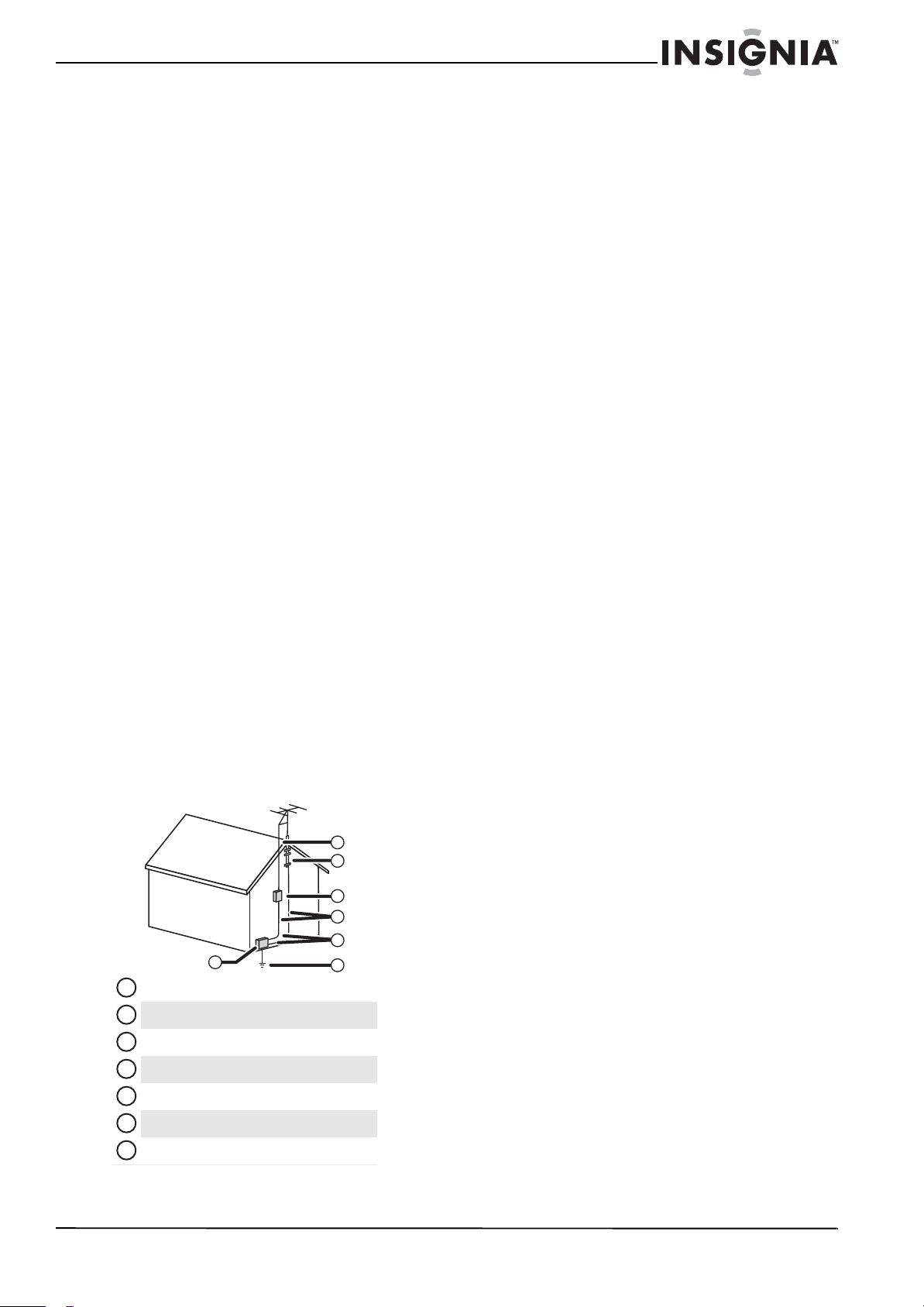
Outdoor antenna grounding
If an outside antenna or cable system is connected
to your TV, make sure that the antenna or cable
system is grounded to provide some protection
against voltage surges and built-up static charges.
Article 810 of the National Electrical Code,
ANSI/NFPA No. 70, provides information with
respect to correct grounding of the mast and
supporting structure, grounding of the lead-in wire
to an antenna discharge unit, size of grounding
conductors, location of the antenna-discharge unit,
connection to grounding electrodes, and
requirements for the grounding electrode.
Note to CATV system installer
Article 820 of the National Electrical Code,
ANSI/NFPA No. 40 provides guidance for correct
grounding. Specifically, it states that the cable
ground must be connected to the grounding
system of the building as close to the point of cable
entry as practical.
Condensation
Moisture will form on the TV if the TV is brought
from cool surroundings into a warm room or if the
temperature of the room rises suddenly. When this
happens, the TV's performance may be impaired. To
prevent this, let the TV stand in its new
surroundings for about an hour before switching it
on, or make sure that the room temperature rises
gradually.
Condensation may also form during the summer if
the TV is exposed to the breeze from an air
conditioner. In such cases, change the location of
the TV.
Mobile telephone warning
To avoid interference with your TV picture and
sound, operating problems, or even damage, keep
your cordless and cellular telephones away from
the TV.
End of life directives
Your TV contains tin-lead solder and a fluorescent
lamp containing a small amount of mercury.
Disposal of these materials may be regulated for
environmental reasons. Your TV also contains
material that can be recycled and reused. For
disposal or recycling information, contact your local
authorities or the Electronic Industries Alliance at
www.eia.org to find a recycler in your area.
Non-active pixels
The LCD panel contains almost 3 million thin film
transistors, which provide exceptionally sharp video
quality. Occasionally, a few non-active pixels may
appear on the screen as a fixed blue, green, or red
point. These non-active pixels do not adversely
affect the performance of your TV, and are not
considered defects.
Antenna lead-in wire
Grounding clamp
Antenna discharge unit
Grounding conductors
Ground clamps
Power service grounding electrode system
Electric service equipment
2
1
3
4
5
6
7
1
2
3
4
5
6
7
4
NS-L47Q09-10A Insignia 47" LCD TV
www.insigniaproducts.com
Insignia 47" LCD TV
Introduction
Congratulations on your purchase of a high-quality
Insignia product. Your NS-L47Q09-10A represents
the state of the art in LCD TV design and is designed
for reliable and trouble-free performance.
Installing a wall-mount
bracket
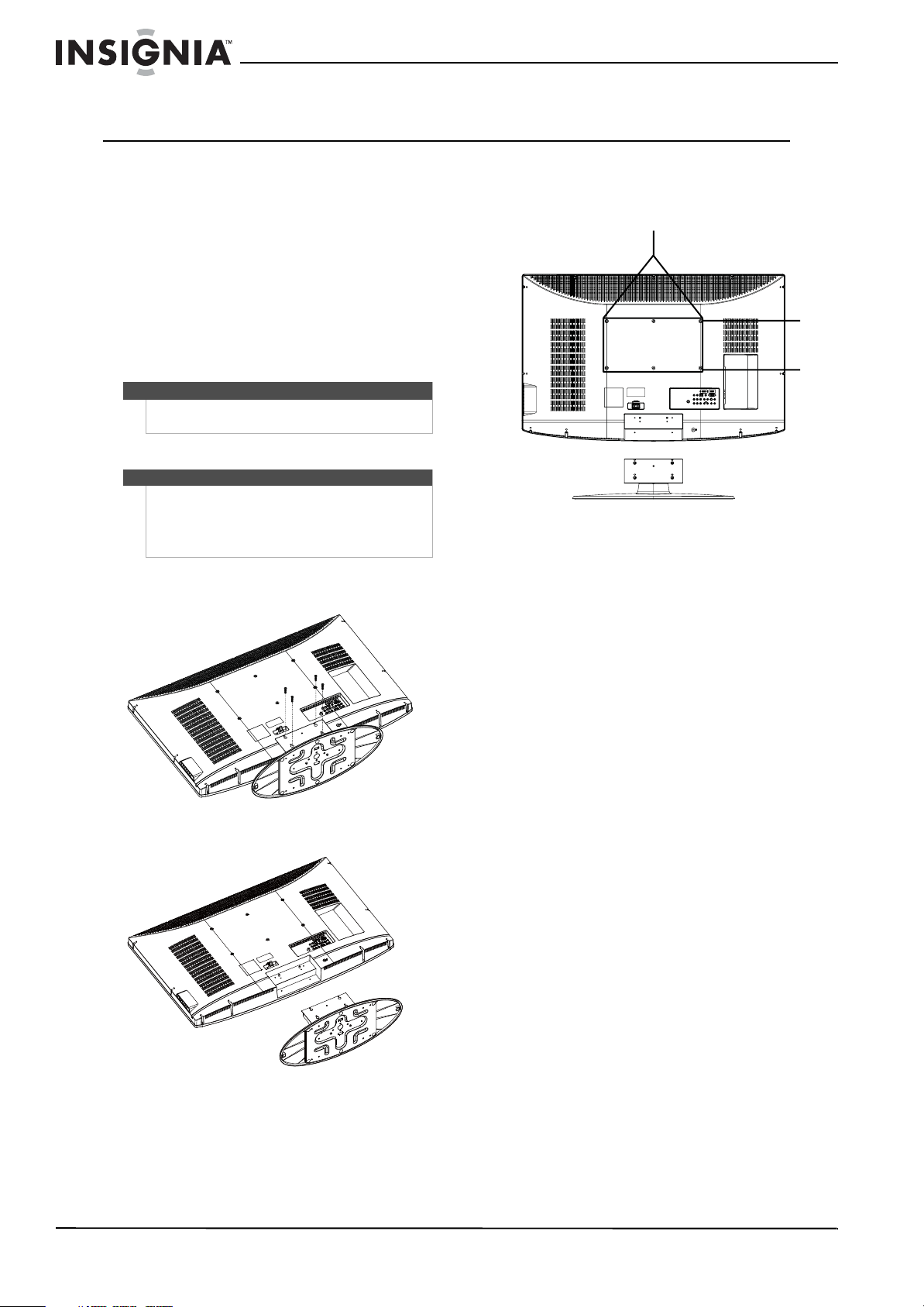
To install a wall-mount bracket:
1 Remove the four screws that secure the stand to
your TV.
2 Remove the stand.
3 Attach the wall-mount bracket with M6 screws
(not included).
TV components
Accessories
Make sure that the following accessories are
provided in the packaging:
• Remote control
• AAA batteries (2)
•AC power cord
•Component cable
•User Guide
• Quick Setup Guide
Warning
This apparatus is intended to be supported by UL
Listed wall mount bracket.
Warning
These servicing instructions are for use by qualified
service personnel only. To reduce the risk of hazards,
do not perform any servicing other than that
contained in the operating instructions unless you
are qualified to do so.
15.75" (400 mm)
7.87"
(200 mm)
5
Insignia 47" LCD TV
www.insigniaproducts.com
Front Back
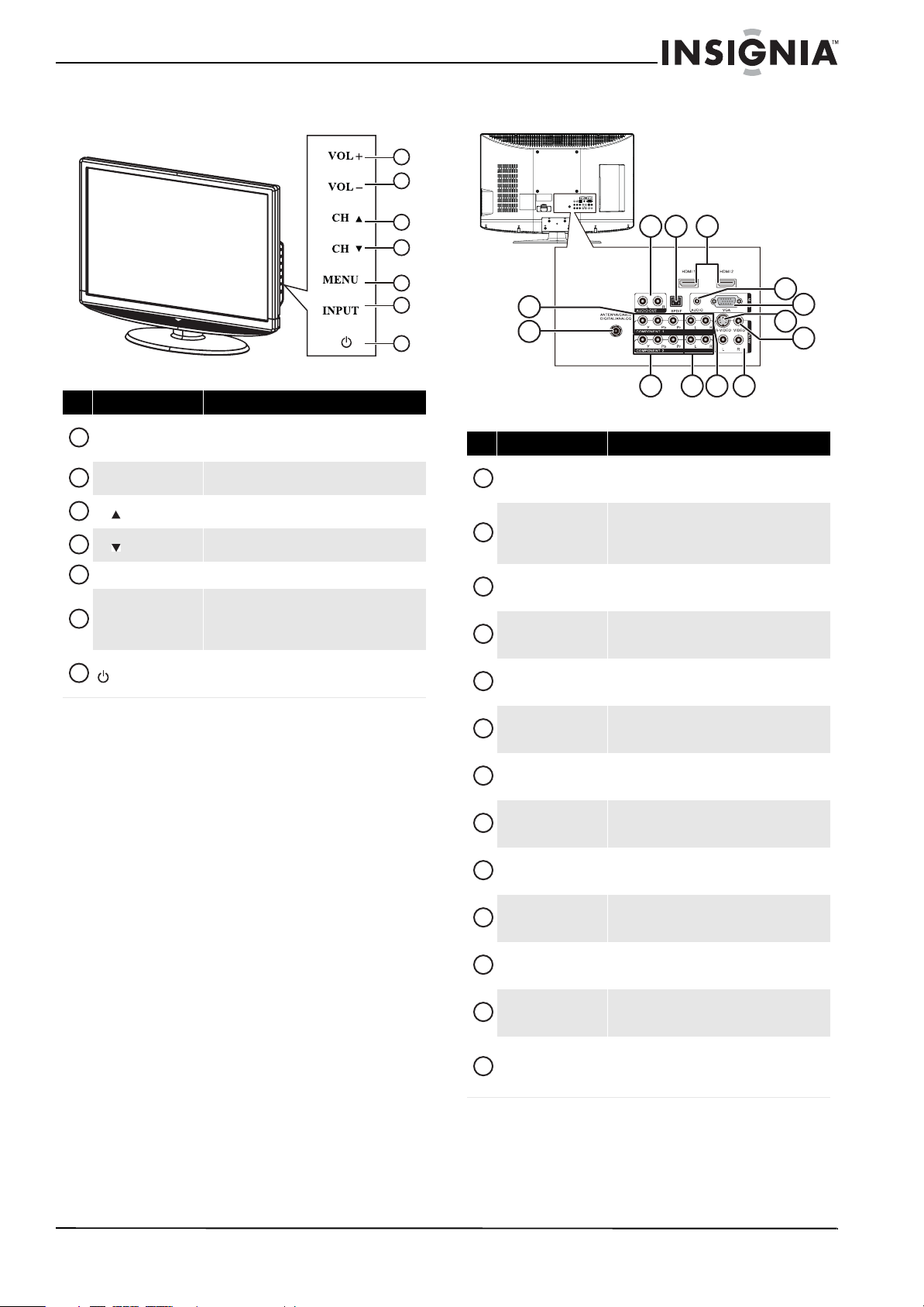
# Button Description
VOL+
Press to increase the volume. In Menu mode,
functions as the right arrow to go to the next menu
or increase a setting.
VOL–
Press to decrease the volume. In Menu mode, press
to decrease a setting.
CH
Press to go to the next higher channel. In Menu
mode, functions as the up arrow.
CH
Press to go to the next lower channel. In Menu
mode, functions as the down arrow.
MENU
Press to open the on-screen menu.
INPUT
Press to open the Source List menu, then press the
arrow keys to cycle through the available input
sources. In Menu mode, functions as the
OK/ENTER button.
(power)
Press to turn your TV on or off (standby mode).
When your TV is off, power still flows into it. To
disconnect power, unplug the power cord.
1
2
3
5
6
4
7
1
2
3
4
5
6
7
# Jack Description
COMPONENT 1 Y/Pb/Pr
Connect the video for a component video device to
these jacks. For more information, see “Connecting
a component video device” on page 12.
ANTENNA/CABLE
DIGITAL/ANALOG
Connect an antenna or cable TV to this jack. For
more information, see “Connecting an outdoor
antenna” on page 8 or “Connecting cable TV” on
page 9.
AUDIO OUT R / L
Connect an external sound system to these jacks.
For more information, see “Connecting an analog
audio amplifier” on page 14.
SPDIF
Connect an audio amplifier to this jack. For more
information, see “Connecting a digital audio
amplifier” on page 13.
HDMI 1/HDMI 2
Connect HDMI devices to these jacks. For more
information, see “Connecting an HDMI device” on
page 11.
PC IN AUDIO
Connect the audio for a computer to this jack. For
more information, see “Connecting a computer” on
page 13.
PC IN VGA
Connect the video (VGA) for a computer to this jack.
For more information, see “Connecting a
computer” on page 13.
AV IN 1 S-VIDEO
Connect the video for an S-Video device to this jack.
For more information, see “Connecting an S-Video
device” on page 12.
AV IN 1 VIDEO
Connect the video for a standard AV device to this
jack. For more information, see “Connecting a VCR”
on page 10.
COMPONENT 2 Y/Pb/Pr
Connect the video for a component video device to
these jacks. For more information, see “Connecting
a component video device” on page 12.
COMPONENT 2 L/R
Connect the audio for a component video device to
these jacks. For more information, see “Connecting
a component video device” on page 12.
COMPONENT 1 L/R
Connect the audio for a component video device to
these jacks. For more information, see “Connecting
a component video device” on page 12.
AV IN 1 L/R
Connect the audio for an S-Video or standard AV
device to these jacks. For more information, see
“Connecting an S-Video device” on page 12 or
“Connecting a VCR” on page 10.
2
6
8
3
10
4 5
1
11 1312
7
9
1
2
3
4
5
6
7
8
9
10
11
12
13
6
NS-L47Q09-10A Insignia 47" LCD TV
www.insigniaproducts.com
Side Remote control
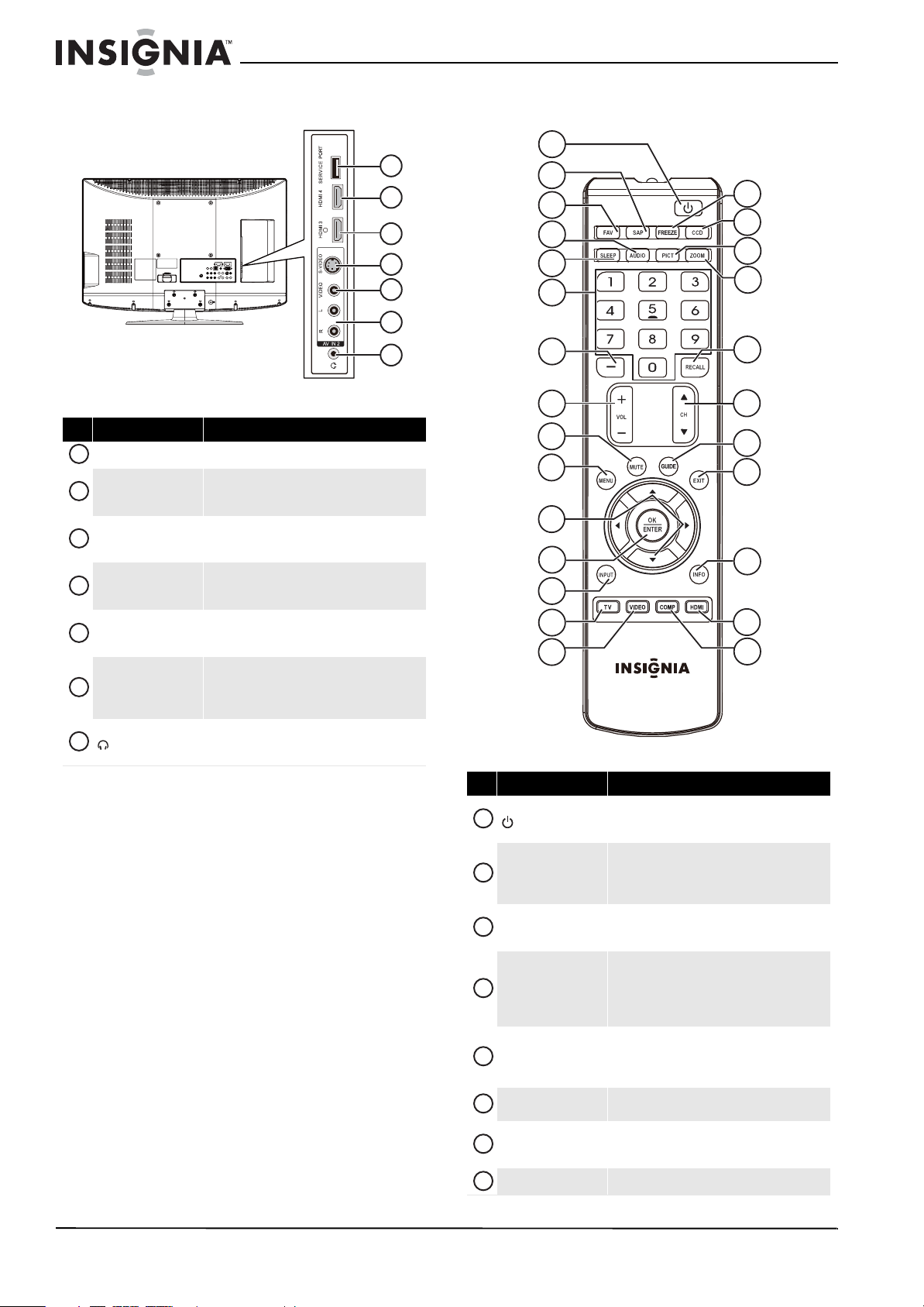
# Jack Description
SERVICE PORT
For service only.
HDMI 4
Connect an HDMI device to this jack. For more
information, see “Connecting an HDMI device” on
page 11.
HDMI 3
Connect an HDMI device to this jack. For more
information, see “Connecting an HDMI device” on
page 11.
AV IN 2 S-VIDEO
Connect the video for an S-Video device to this jack.
For more information, see “Connecting an S-Video
device” on page 12.
AV IN 2 VIDEO
Connect the video for a standard AV device to this
jack. For more information, see “Connecting a VCR”
on page 10.
AV IN 2 L/R
Connect the audio for an S-Video or standard AV
device to these jacks. For more information, see
“Connecting an S-Video device” on page 12 or
“Connecting a VCR” on page 10.
(headphone)
Connect headphones to this jack. For more
information, see “Connecting headphones” on
page 13.
1
2
3
5
4
6
7
1
2
3
4
5
6
7
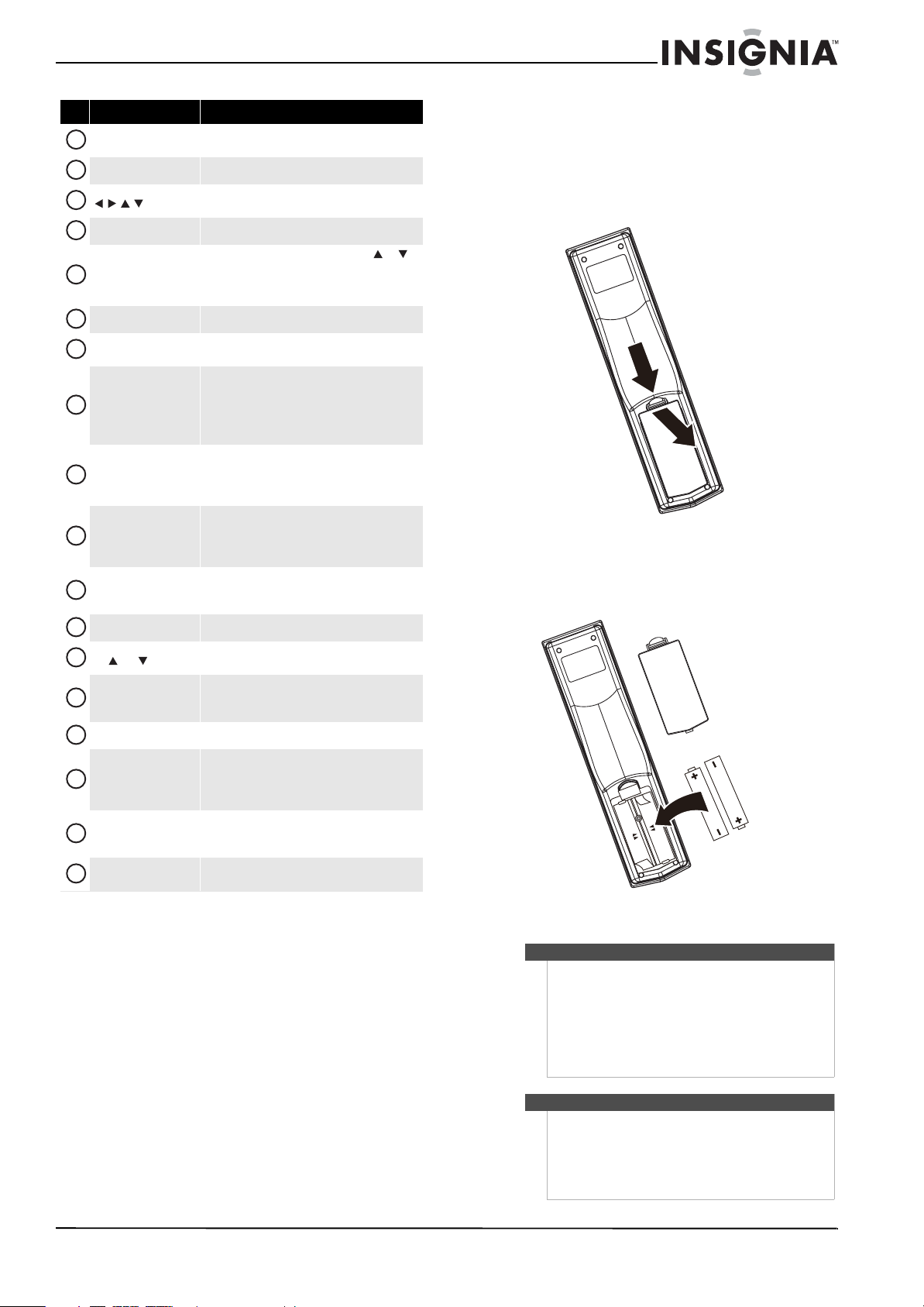
# Button Description
(power)
Press to turn your TV on or off (standby mode).
When your TV is off, power still flows into it. To
disconnect power, unplug the power cord.
SAP
In analog TV mode, press to select Stereo, Mono,
or SAP. In digital TV mode, press to select the audio
track (language). For more information, see
“Adjusting the sound” on page 19.
FAV
Press to open the Favorite Channel list. For more
information, see “Setting up a favorite channel list”
on page 20.
AUDIO
When the Equalizer option is turned on, press to
toggle among different Equalizer modes. When the
Equalizer option is turned off, toggle to adjust the
treble, bass, or SRS TruSurround HD. For more
information, see “Adjusting the sound” on page 17.
SLEEP
Press to set the sleep timer. You can select Off, 5,
10, 15, 30, 60, 90, 120, 180, or 240 minutes. For
more information, see “Setting the sleep timer” on
page 28.
Numbers
Press to enter channel numbers or the parental
control password.
—
Press to enter a digital sub-channel number. For
more information, see “Selecting a channel” on
page 16.
VOL+/VOL–
Press to increase or decrease the volume.
23
22
12
7
14
1
2
3
4
5
6
8
9
10
11
13
15
16
17
18
19
20
21
24
25
26
1
2
3
4
5
6
7
8
7
Insignia 47" LCD TV
www.insigniaproducts.com
Using the remote control
Installing the remote control batteries
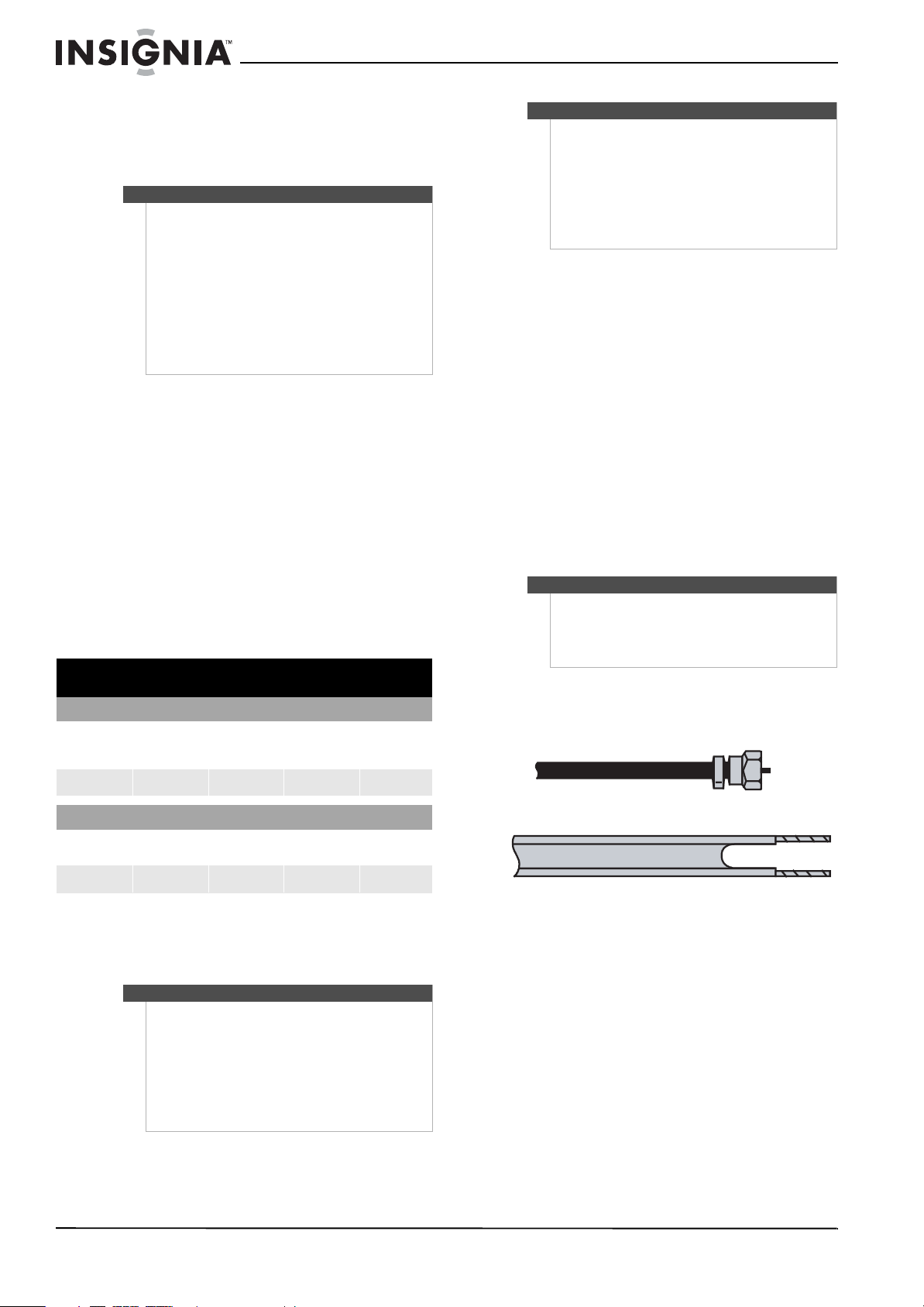
To install the remote control batteries:
1 Remove the battery cover.
2 Insert two AAA batteries into the battery
compartment. Make sure that you match the +
and – symbols on the batteries with the + and –
symbols in the battery compartment.
3 Replace the battery cover.
MUTE
Press to mute the sound. Press again to restore the
sound.
MENU
Press to open the on-screen menu.
Press to move left, right, up, or down in on-screen
menus.
OK/ENTER
Press to confirm selections or changes.
INPUT
Press to open the Source List, then press or to
cycle through the available input sources. For more
information, see “Selecting the video input source”
on page 15.
TV
Press to select TV as the video source.
Video
Press to select the device connected the AV 1
VIDEO, AV 2 VIDEO, or S-VIDEO jack.
FREEZE
Press to freeze the video image. Press again to
unfreeze the image. For more information, see
“Freezing the picture” on page17.
Caution: Do not freeze the video image for long
periods of time. You may damage the TV screen.
CCD
Press to turn closed captioning on or off. You can
select CC Off, CC On, or CC On when Mute. For
more information, see “Viewing closed captioning”
on page 26.
PICT
Press to select the video mode. You can select
Vivid, Standard, Energy Savings, Theater,
Sports, or Custom. For more information, see
“Adjusting the TV picture” on page 16.
ZOOM
Press to select the aspect ratio. For more
information, see “Adjusting Advanced Video
settings” on page 17.
RECALL
In TV mode, press to return to the previous channel.
CH /CH
Press to change TV channels. For more information,
see “Selecting a channel” on page 16.
GUIDE
Press to display the program guide. For more
information, see “Displaying additional
information” on page 16.
EXIT
Press to close the on-screen menu.
INFO
Press to display TV status information, such as the
channel number, channel name (if available), or
signal source. For more information, see
“Displaying additional information” on page 16.
HDMI
Press one or more times to select the device
connected to the HDMI 1, HDMI 2, HDMI 3, or
HDMI 4 jack.
COMP
Press to select the device connected to the
COMPONENT 1 or COMPONENT 2 jacks.
# Button Description
9
10
11
12
13
14
15
16
17
18
19
20
21
22
23
24
25
26
Cautions
• Batteries should not be exposed to excessive
heat, such as sunshine, heat registers, or fire.
• Battery chemicals can cause a rash. If the
batteries leak, clean the battery compartment
with a cloth. If chemicals touch your skin, wash
immediately.
• Make sure that batteries are disposed of
correctly. Do not burn or incinerate.
Notes
• Do not mix batteries of different types.
• Do not mix old and new batteries.
• Remove batteries when the charge is depleted.
• If the remote control is not going to be used for
an extended period of time, remove the
batteries.
8
NS-L47Q09-10A Insignia 47" LCD TV
www.insigniaproducts.com
Aiming the remote control
To aim the remote control:
• Point the remote control towards the remote
sensor on the front of your TV.
Programming a universal remote control to
work with your TV
You can operate your Insignia TV with a new or
existing universal remote control.
To program a universal remote control:
1 Find the code for your universal remote control
by identifying its model (or your set-top box’s
remote control manufacturer and model) on the
charts below, then making note of the
numbered code below it. You will use the
numbered code to program your remote control
to work with your Insignia TV.
Codes for other remote controls are available
online at:
www.insigniaproducts.com/universalcontrolcodes.aspx
2 Follow your universal remote control’s
instructions to enter the TV code you found in
Step 1.
3 If all else fails, you must use a different universal
remote control that can operate both your
set-top box and your TV. Four such remotes are
listed on the chart, but many other compatible
models are available in the market.
For more help, call technical support for your
universal remote control or set-top box
manufacturer, or call the Insignia Customer Care
Center at 1-877-467-4289.
Making connections
Connecting the power
To connect the power:
• Plug the power cord into the AC IN jack on the
back of your TV, then plug the other end of the
cord into a power outlet.
Connecting an outdoor antenna
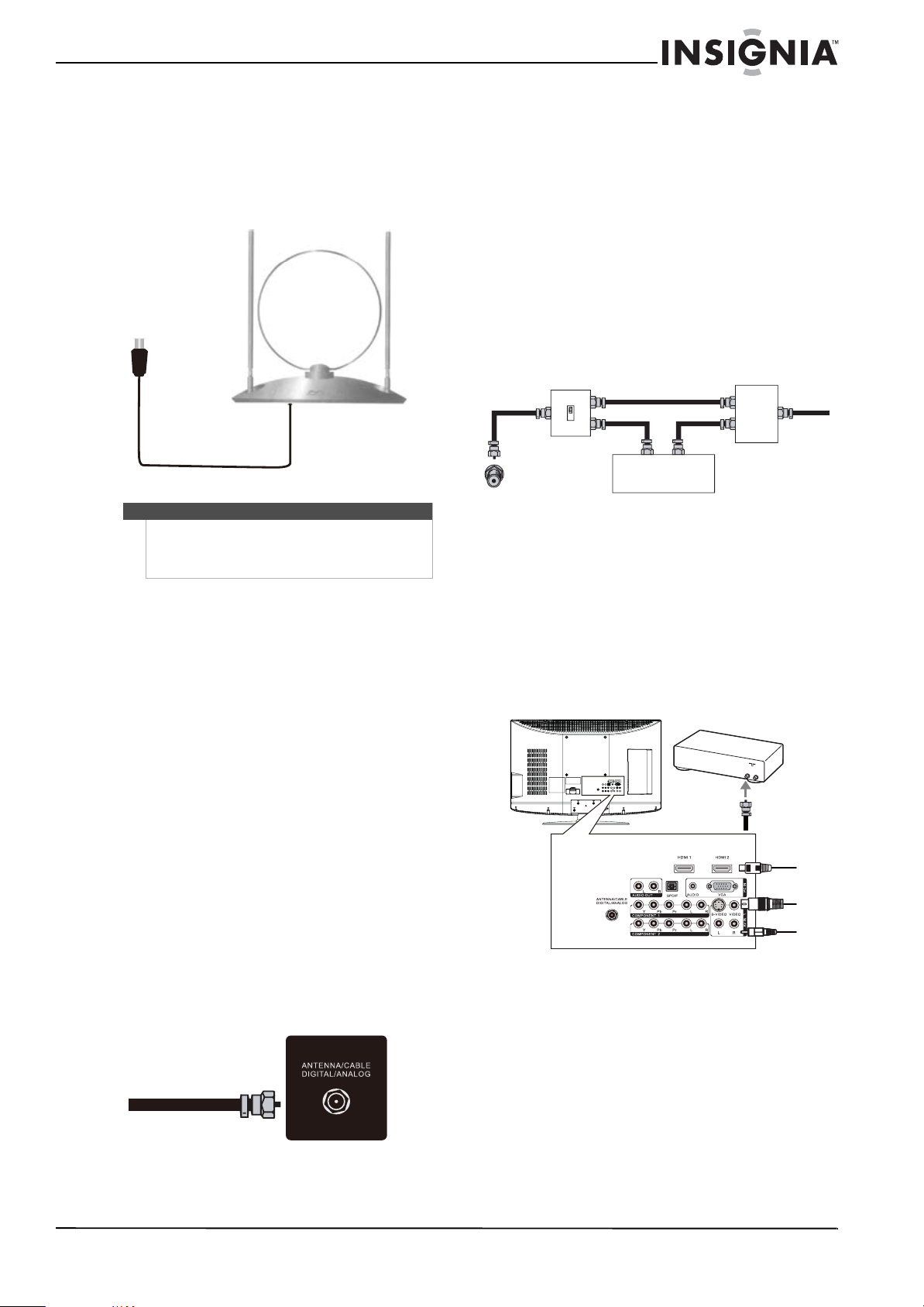
Antenna cables come in two types: 75 ohm and
300 ohm.
To connect an outdoor antenna:
1 Turn off your TV and all connected equipment.
2 If your antenna cable has a 75 ohm connector,
connect the cable to the ANTENNA/CABLE
DIGITAL/ANALOG jack on the back of your TV.
Or,
If your antenna cable has a 300 ohm connector,
connect the cable to a 300-75 ohm adapter (not
included), connect the adapter to a 75 ohm
cable, then connect the other end of the 75 ohm
connector to the ANTENNA/CABLE
DIGITAL/ANALOG jack on the back of your TV.
3 Connect the other end of the cable to the
antenna jack.
Notes
• Do not expose the remote control to shock or
liquids.
• Do not use the remote control in an area with
high humidity.
• Do not place the remote control in direct
sunlight.
• Do not place objects, such as furniture, between
the remote control and the remote sensor.
• The remote control may not work if direct
sunlight or bright light shines on the remote
sensor. Either move your TV or change the angle
at which you use the remote control.
Insignia TV codes for universal remote controls
(for all Insignia TVs manufactured after Jan. 1, 2007)
Universal remote control manufacturers and models
Philips PHDVD5,
PH5DSS,
PMDVR8, PDVR8
RCA
RCU807
One for All
URC-6690
Sony
RM-VL600
115 135 0464 8043
Set-top box manufacturers and models
Comcast
M1057
Dish Network
VIP508, VIP622
Motorola
DRC800
TIVO
Series 3, HD
DirectTV
RC23
0463 720 0463 0091
10463
Tips
• The brand name is often visible on the front of
the universal remote control, and the model
number is often visible on the back.
• If your universal remote control isn’t listed on
the chart, refer to your universal remote
control’s instructions and try codes for the
brands Orion, Emerson, Memorex, Sansui,
Sylvania, or Zenith. You may need to try several
codes before finding a match.
Tips
• If your universal remote control has a code
search feature, run a code search to identify a
code that matches your TV. See your universal
remote control’s instructions for details.
• If your universal remote control has a “Learn”
feature, you can manually program it using the
Insignia TV remote to “teach” the commands
one at a time. See your universal remote
control’s instructions for details.
Cautions
• Make sure that you use the correct type of
power. See the label on your TV.
• If you do not intend to use your TV for an
extended period of time, unplug the power
cord from the power outlet.
75 ohm cable
300 ohm cable
9
Insignia 47" LCD TV
www.insigniaproducts.com
Connecting an indoor antenna
To connect an indoor antenna:
1 Turn off your TV and all connected equipment.
2 Connect the included dual-telescoping dipole
antenna to the ANTENNA/CABLE
DIGITAL/ANALOG jack on the back of your TV.
Connecting cable TV
Your TV has a 75 ohm jack for connecting cable TV.
Some cable TV providers scramble the signals for
“premium” (pay) channels. To view these channels,
you need a converter/descrambler box.
If you do not require a converter/descrambler box,
you can connect your cable TV directly to your TV.
For more information, see “No
converter/descrambler box” on page 9.
If you require a converter/descrambler box, you can
connect your cable TV using an RF switch (not
included). For more information about connecting
a converter/descrambler box, see “With
converter/descrambler box” on page 9 and contact
your cable TV provider.
You can also connect cable TV using an HDMI,
component video, S-Video, or AV connection,
depending on your cable box. For more
information, see “Connecting cable TV via a cable
TV box” on page 9.
No converter/descrambler box
To connect cable TV without a
converter/descrambler box:
1 Connect one end of a 75 ohm cable to the
coaxial jack on the back of your TV.
2 Connect the other end of the cable to the cable
TV wall outlet.
With converter/descrambler box
If your cable box descrambles only some channels
(such as premium channels), you need a two-way
splitter, an RF (A/B) switch, and four lengths of
antenna cable. The two-way splitter and RF switch
are not provided.
To connect cable TV with a
converter/descrambler box:
• Use the following illustration as a guide to
connect a converter/descrambler box.
Set the RF switch to the A position to tune to
unscrambled channels using your TV remote
control. Set the RF switch to the B position to
watch scrambled channels using the
converter/descrambler controls.
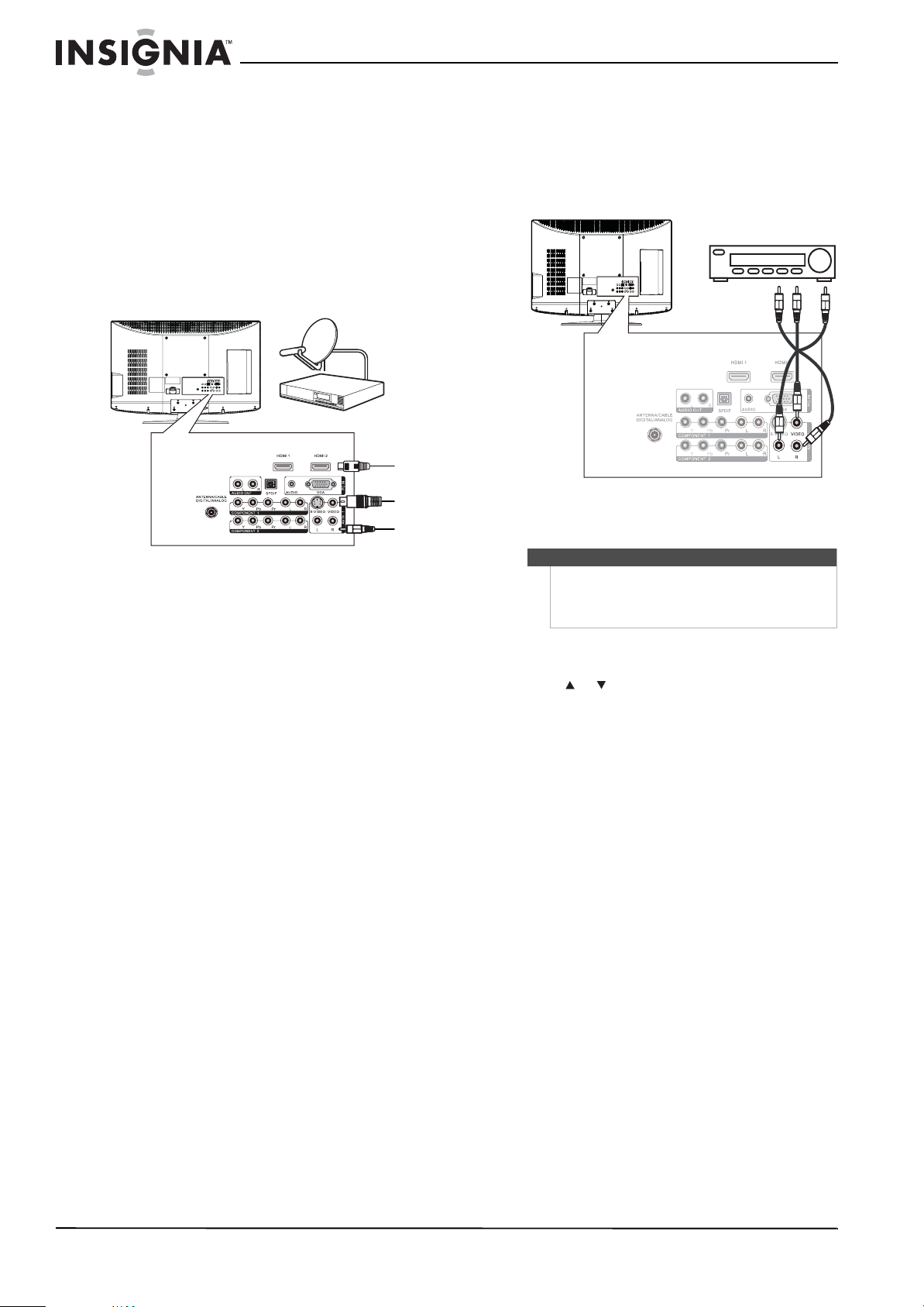
Connecting cable TV via a cable TV box
1 Connect the incoming cable from the cable wall
jack to the cable-in jack on the cable box.
2 Depending on the jacks available on the cable
box, connect a cable from the outgoing jacks on
the cable box to the corresponding jacks on the
back of your TV. The connection can be to the
cable-out, HDMI, component video, S-Video, or
AV jack.
3 If you use a component video, S-Video, or AV
cable, connect an audio cable to the
corresponding jacks on the back of your TV and
on the cable box.
Note
Distance from the transmitting source, a man-made
shelter, or natural atmospheric conditions might
influence the reception, which is not related to
antenna performance.
RF switch
Cable converter/descrambler box
Two-set signal splitter
Out In
A
B
TV
OUT
IN
ANTENNA
Back of TV
Cable box
HDMI
Video or S-Video
Component
10
NS-L47Q09-10A Insignia 47" LCD TV
www.insigniaproducts.com
Connecting satellite TV via a satellite TV box
To connect satellite TV:
1 Connect the incoming cable from the satellite
wall jack to the satellite-in jack on the satellite
box.
2 Depending on the jacks available on the satellite
TV receiver (set-top box), connect a cable from
the outgoing jacks on the satellite box to the
corresponding jacks on the back of your TV. The
connection can be to the HDMI, component
video, S-Video, or AV jack.
3 If you use a component video, S-Video, or AV
cable, connect an audio cable to the
corresponding jacks on the back of your TV and
on the satellite box.
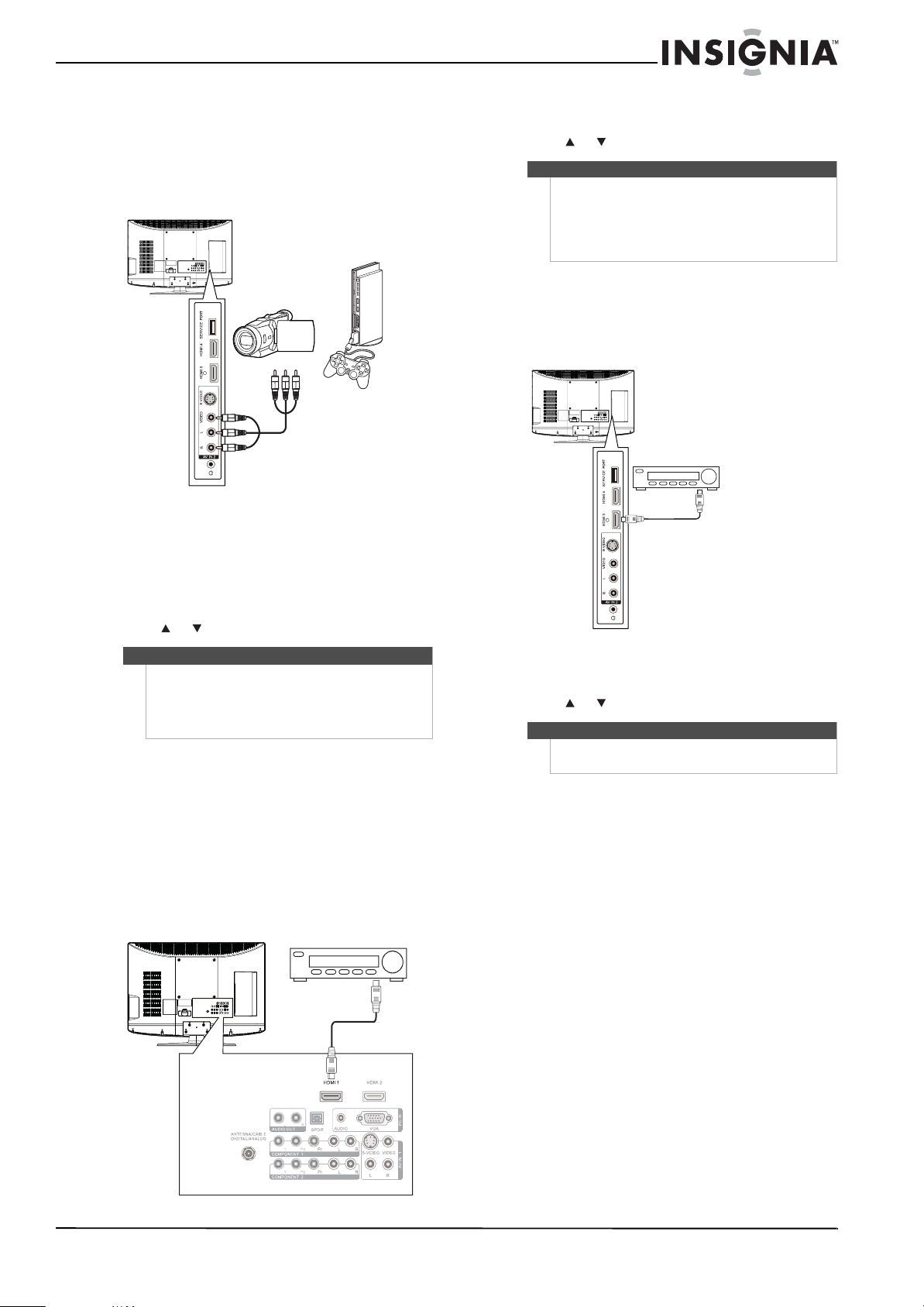
Connecting a VCR
To connect a VCR:
1 Connect an AV cable to the AV IN 1 VIDEO and
AV IN 1 L and R audio jacks on the back of
your TV.
2 Connect the other end of the cable to the
VIDEO OUT and AUDIO OUT jacks on the VCR.
3 Turn on your TV, then turn on the VCR.
4 Press INPUT to open the Source List, then
press or to select AV1.
5 Insert a videotape into the VCR, then press
PLAY.
Back of TV
Satellite receiver
HDMI
Video or S-Video
Component
Note
If a device is connected to the S-VIDEO jack, the
S-VIDEO jack controls the AV IN 1 L and R jacks.
To assign the audio jacks to the AV IN 1 VIDEO jack,
unplug the S-Video device.
Back of TV
VCR
11
Insignia 47" LCD TV
www.insigniaproducts.com
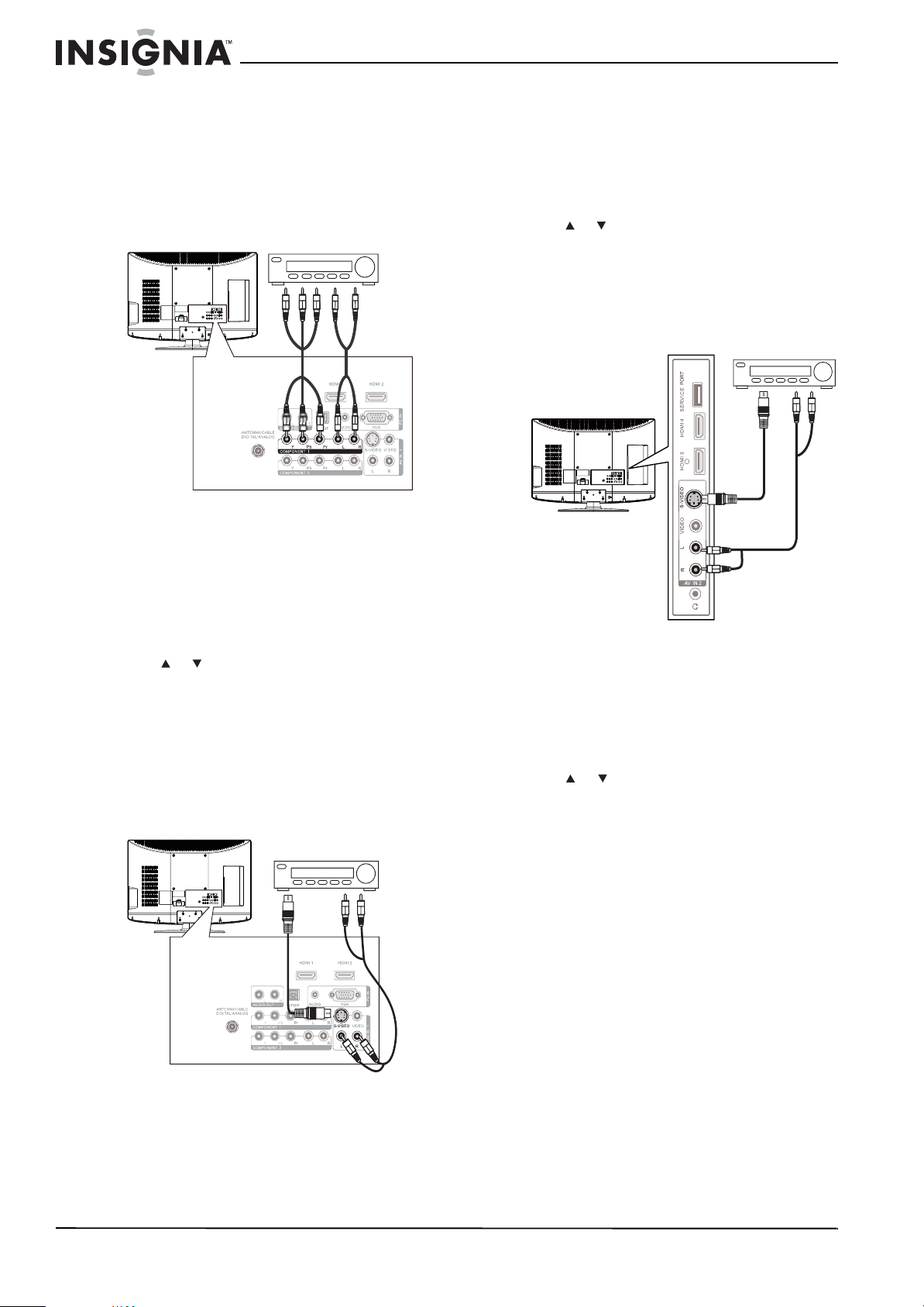
Connecting a camcorder or game console
To connect a camcorder or game console:
1 Connect an AV cable to the AV IN 2 VIDEO and
AV IN 2 L and R audio jacks on the side of your
TV.
2 Connect the other end of the cable to the
VIDEO OUT and AUDIO OUT jacks on the
camcorder or game console.
3 Turn on your TV, then turn on the camcorder or
game console.
4 Press INPUT to open the Source List, then
press or to select AV2.
Connecting an HDMI device
You can connect an HDMI device to the HDMI 1 or
HDMI 2 jack on the back of your TV or to the
HDMI 3 or HDMI 4 jack on the side of your TV.
To connect an HDMI device to the back of
your TV:
1 Connect an HDMI cable to the HDMI 1 or
HDMI 2 jack on the back of your TV and to the
HDMI OUT jack on the HDMI device.
2 Turn on your TV, then turn on the HDMI device.
3 Press INPUT to open the Source List, then
press or to select HDMI 1 or HDMI 2.
To connect an HDMI device to the side of
your TV:
1 Connect an HDMI cable to the HDMI 3 or
HDMI 4
jack on the side of your TV and to the
HDMI OUT jack on the HDMI device.
2 Turn on your TV, then turn on the HDMI device.
3 Press INPUT to open the Source List, then
press or to select HDMI 3 or HDMI 4.
Note
If a device is connected to the S-VIDEO jack, the
S-VIDEO jack controls the AV IN 2 L and R audio
jacks.
To assign the audio jacks to the AV IN 2 VIDEO jack,
unplug the S-Video device.
Back of TV
Camcorder or
game console
Back of TV
HDMI device
Note
You can connect a DVI device to the HDMI 1 jack on
the back of your TV using an HDMI-to-DVI adapter.
Next connect an audio cable to the PC IN AUDIO jack
and to the audio out jack on the DVI device. You
cannot connect a DVI device to the HDMI 2 jack on
the back of your TV.
Note
You cannot connect a DVI device to the HDMI 3 or
HDMI 4 jack on the side of your TV.
Side of TV
HDMI device
12
NS-L47Q09-10A Insignia 47" LCD TV
www.insigniaproducts.com
Connecting a component video device
To connect a component video device:
1 Connect a component video cable to the
COMPONENT 1 or COMPONENT 2 Y, Pb,
and Pr
jacks on the back of your TV and to the
COMPONENT OUT video jacks on the
component video device.
2 Connect an audio cable to the COMPONENT 1
or COMPONENT 2
L and R audio jacks on the
back of your TV and to the COMPONENT
AUDIO OUT jacks on the component video
device.
3 Turn on your TV, then turn on the component
video device.
4 Press INPUT to open the Source List, then
press or to select Component 1 or
Component 2.
Connecting an S-Video device
To connect an S-Video device to the back of your
TV:
1 Connect an S-Video cable to the AV IN 1
S-VIDEO jack on the back of your TV and to the
S-VIDEO OUT jack on the S-Video device.
2 Connect an audio cable to the AV IN 1 L and R
jacks on the back of your TV and to the
corresponding audio out jacks on the S-Video
device.
3 Turn on your TV, then turn on the S-Video
device.
4 Press INPUT to open the Source List, then
press or to select AV1.
To connect an S-Video device to the side of
your TV:
1 Connect an S-Video cable to the AV IN
2S-VIDEO jack on the side of your TV and to the
S-VIDEO OUT jack on the S-Video device.
2 Connect an audio cable to the AV IN 2 L and R
audio jacks on the side of your TV and to the
corresponding audio out jacks on the S-Video
device.
3 Turn on your TV, then turn on the S-Video
device.
4 Press INPUT to open the Source List, then
press or to select AV2.
Back of TV
Component video device
Back of TV
S-Video device
Side of TV
S-Video device

13
Insignia 47" LCD TV
www.insigniaproducts.com
Connecting a computer
To connect a computer:
1 Connect a VGA cable to the PC IN VGA jack on
the back of your TV and the VGA jack on the
computer.
2 Connect an audio cable to the PC IN AUDIO jack
on the back of your TV and to the AUDIO OUT
jack on the computer.
3 Turn on your TV, then turn on the computer.
4 Press INPUT to open the Source List, then
press or to select VGA.
Connecting headphones
To connect headphones:
• Plug headphones into the jack on the side
of your TV.
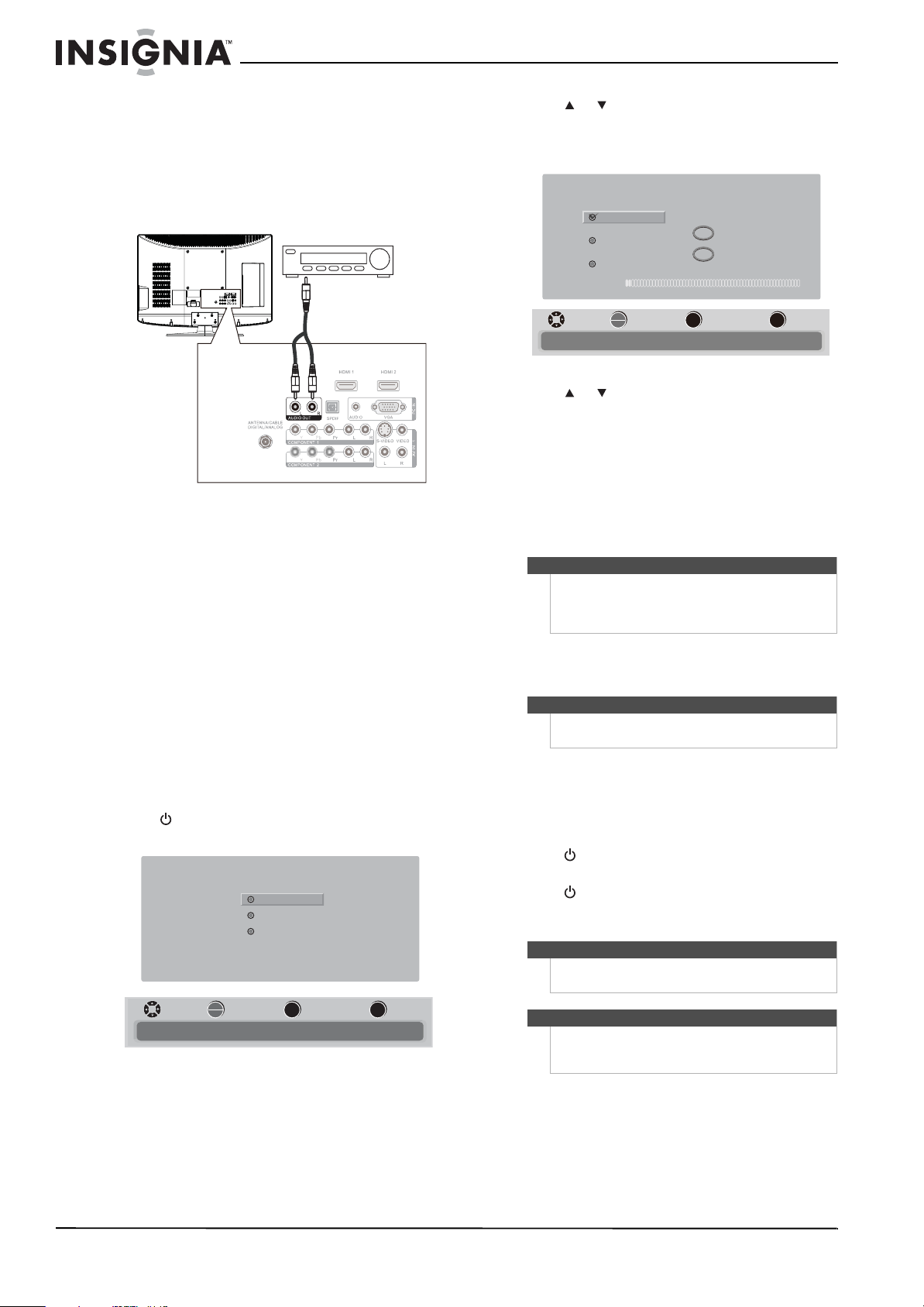
Connecting a digital audio amplifier
To connect a digital audio amplifier:
• Connect a digital audio cable to the SPDIF
jack on the back of your TV and to the digital
audio jack on the amplifier.
Note
If the computer has an HDMI jack, you can connect it
to an HDMI jack on your TV.
Note
When the computer enters standby mode, your TV
turns off. If your TV does not turn on when you
“wake” your computer, press (power) on your TV
or remote control.
Back of TV
Note
When headphones are plugged in, the sound from
your TV’s speakers is muted.
Side of TV
Back of TV
Audio amplifier
14
NS-L47Q09-10A Insignia 47" LCD TV
www.insigniaproducts.com
Connecting an analog audio amplifier
To connect an analog audio amplifier to your TV:
• Connect a standard audio cable to the
AUDIO OUT L and R audio jacks on the back
of your TV and to the AUDIO IN jacks on the
amplifier.
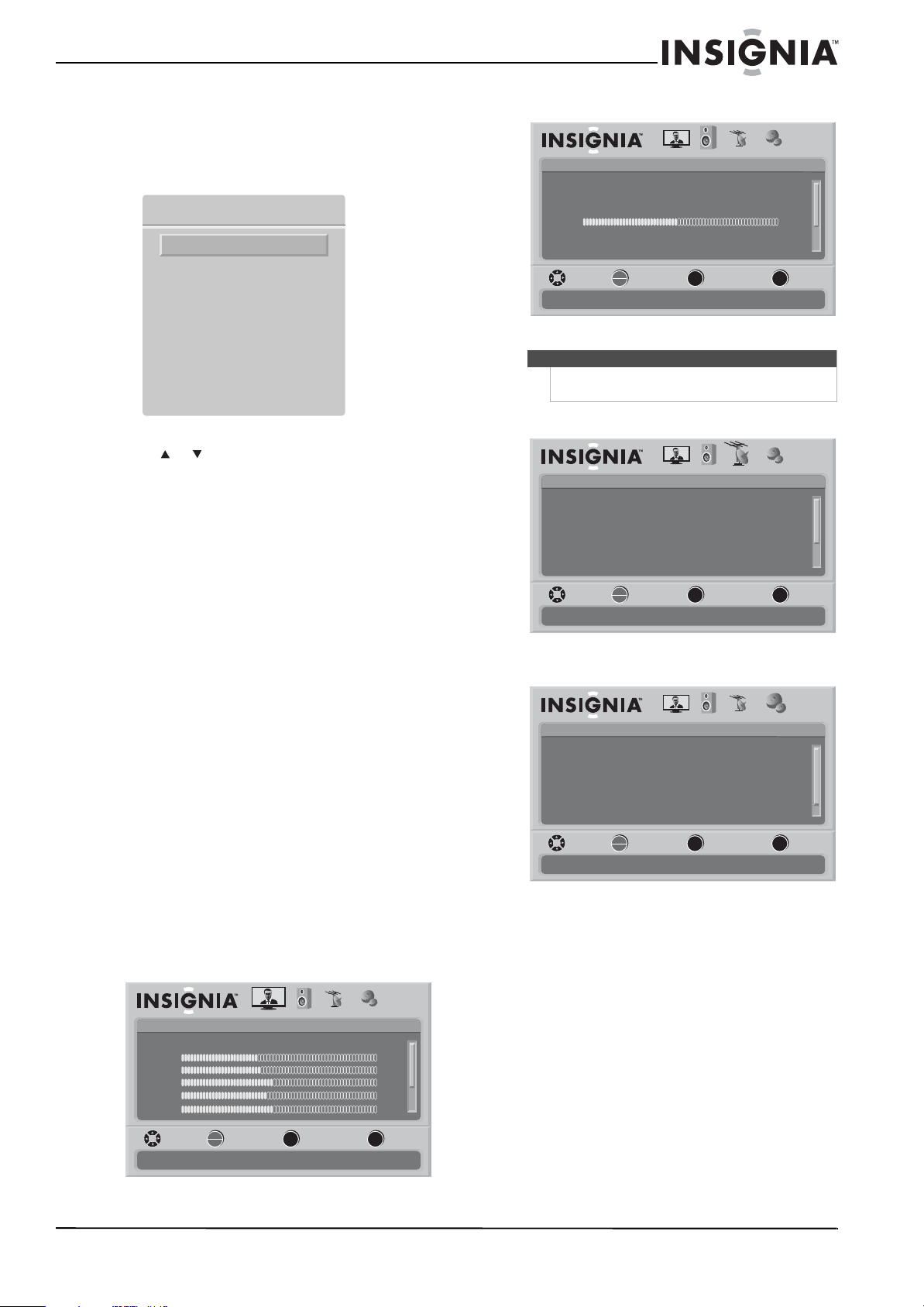
Turning on your TV for the
first time
The first time you turn on your TV, the Setup Wizard
opens. The Setup Wizard guides you through
setting up basic settings including the menu
language, TV signal source, and the channel list.
To set up your TV:
1 Make sure that you have:
• Installed the remote control batteries. (See
page 7 for details).
• Connected an antenna, cable TV, or satellite
TV. (See pages 8 through 10 for details.)
• Connected the power cord. (See page 8 for
details.)
2 Press (power) to turn on your TV. The Choose
your menu Language screen opens.
3 Press or to highlight English, Français, or
Español, then press OK/ENTER to confirm your
selection. The Choose your TV source screen
opens.
4 Press or to highlight Antenna, Cable, or
Cable/Satellite box (if your cable TV uses a box,
select Cable/Satellite box), then press
OK/ENTER. If you chose Antenna or Cable, your
TV automatically starts scanning for channels
available in your viewing area. If you chose
Cable/Satellite box, your TV does not need to
scan for channels.
When the scan is complete, the Setup Wizard
closes automatically.
Understanding the basics
Turning your TV on or off
To turn your TV on and off:
1 Make sure that the power cord is connected to
your TV and a power outlet.
2 Press (power) to turn on your TV. The power
indicator LED turns blue.
3 Press (power) again to turn off your TV. Your
TV enters Standby mode and the power
indicator LED turns red.
Back of TV
Audio amplifier
MENU
EXIT
OK
ENTER
Choose your menu Language
English
Français
Español
MOVE SELECT PREVIOUS EXIT
Set menu language to English, Français,Español
Note
You can change the menu language or scan for
channels at a later date. For more information, see
“Selecting the menu language” on page 28 or
“Automatically scanning for channels” on page 19.
Note
Unless otherwise noted, all tasks in this section are
based on using the remote control.
Warning
When your TV is off, power still flows into it. To
disconnect power, unplug the power cord.
Note
If your TV does not detect a signal and you do not
press any button for 15 minutes, your TV goes into
Standby mode automatically.
MENU
EXIT
OK
ENTER
MOVE SELECT PREVIOUS EXIT
Select Antenna If using an antenna for standard or HD TV
Choose your TV source
Antenna
Analog Channels
Digital Channels
0
0
Cable
Cable/Satellite box
Scan for channels
15
Insignia 47" LCD TV
www.insigniaproducts.com
Selecting the video input source
To select the video input source:
1 With your TV turned on, press INPUT. The Source
List opens.
2 Press or to highlight the video input source
your want. You can select:
•TV
•AV 1
•AV 2
•Component 1
•Component 2
•VGA
•HDMI1
•HDMI2
•HDMI3
•HDMI4
3 Press OK/ENTER.
You can also press a direct input button to select
the video input source.
• Press TV to select TV.
• Press VIDEO once to select AV 1(for AV1 IN
VIDEO or AV1 IN S-VIDEO).
• Press VIDEO twice to select AV 2 (for AV2 IN
VIDEO or AV2 IN S-VIDEO).
• Press COMP once to select Component 1.
• Press COMP twice to select Component 2.
• Press HDMI once to select HDMI 1.
• Press HDMI twice to select HDMI 2.
• Press HDMI three times to select HDMI 3.
• Press HDMI four times to select HDMI 4.
On-screen menu overview
Picture menu
Audio menu
Channels menu
Settings menu
Source List
TV
AV 1
AV 2
Component 1
Component 2
VGA
HDMI 1
HDMI 2
HDMI 3
HDMI 4
Picture
Mode
Brightness
Contrast
Color
Tint
PICTURE AUDIO CHANNELS SETTINGS
MOVE SELECT PREVIOUS EXIT
Adjust settings to affect picture quality
Vivid
42
45
54
0
Sharpness +5
MENU EXIT
OK
ENTER
Note
The Audio menu will look slightly different when the
Equalizer setting is changed to Off .
Audio
Equalizer
Equalizer Mode
Equalizer Setting
Balance
Digital Audio/SPDIF
PICTURE
AUDIO CHANNELS SETTINGS
MTS/SAP
MOVE SELECT PREVIOUS EXIT
Adjust settings to affect sound quality
On
Standard
0
RAW
Mono
MENU
EXIT
OK
ENTER
Channels
Auto Channel Search
Add/Skip Channels
Favorites
Channel Labels
Channel Strength
PICTURE AUDIO
CHANNELS SETTINGS
Audio Only Off
MOVE SELECT PREVIOUS EXIT
Adjust channel options
MENU EXIT
OK
ENTER
Settings
Parental Controls
Time
Menu Settings
Input labels
Closed Caption
PICTURE AUDIO CHANNELS
SETTINGS
Computer Settings
MOVE SELECT PREVIOUS EXIT
Set various TV options
OK
ENTER
MENU
EXIT
16
NS-L47Q09-10A Insignia 47" LCD TV
www.insigniaproducts.com
Navigating the menus
Selecting a channel
To select a channel:
• Press CH or CH to go to the next higher or
lower channel in the channel list.
• Press the number buttons to directly select a
channel. For example, if you want to view
channel 83, press 8, then press 3.
• Press RECALL to go to the last viewed
channel.
• Press the number buttons for a main DTV
channel, press —, then press the number for a
DTV sub-channel to go to a digital
sub-channel. For example, to go to
sub-channel 1 of main channel 83, press 8, 3,
—, then 1.
Adjusting the volume
To adjust the volume:
• Press VOL – or VOL + to decrease or increase
the volume.
• Press MUTE to turn off the sound. Press MUTE
again to turn the sound back on.
Displaying additional information
To display additional information:
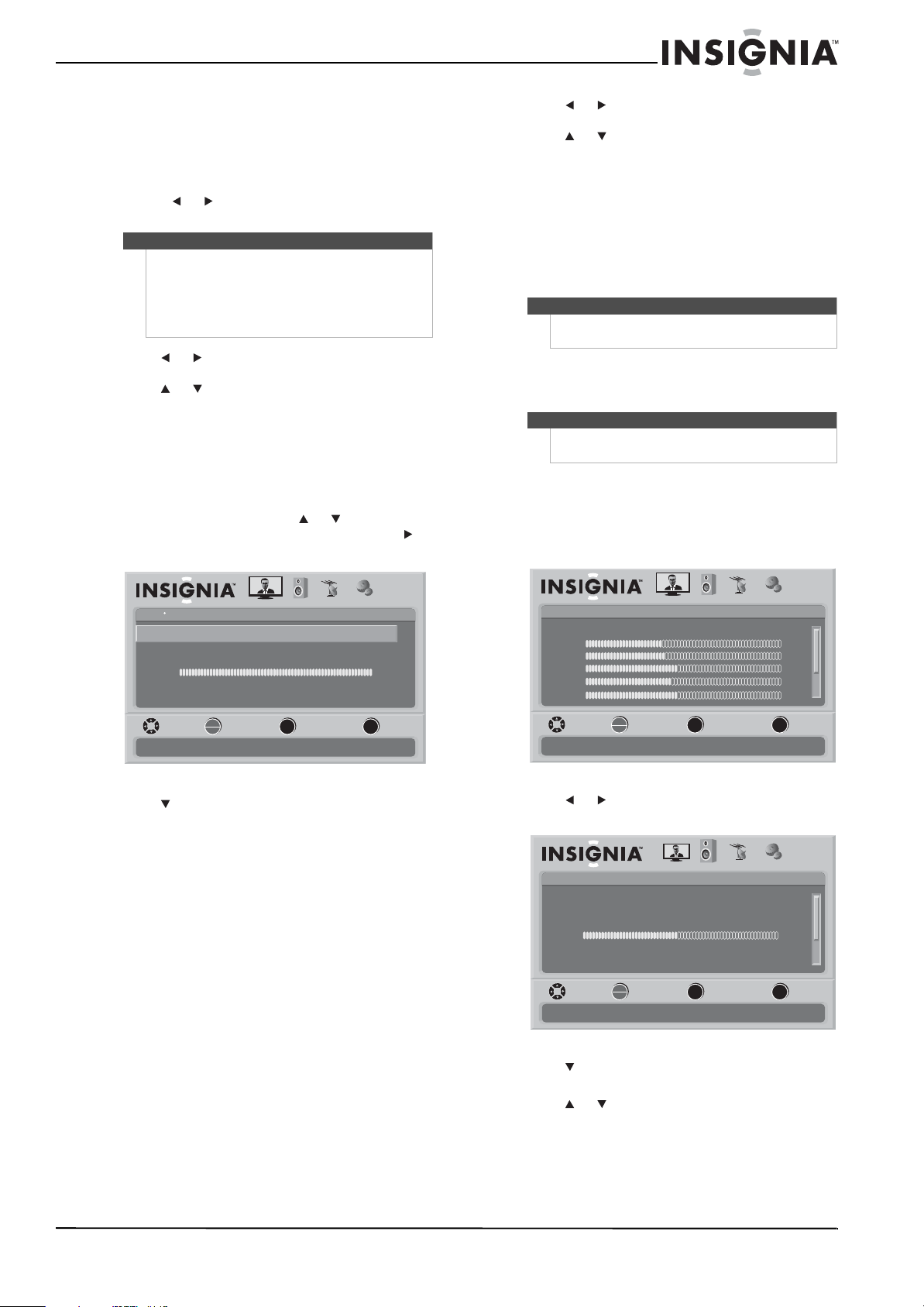
• Press INFO. Your TV displays status
information, such as the channel number,
channel name (if available), signal source,
program description, and DTV signal strength.
• Press GUIDE to show the digital program
guide, which may show current channel name,
program name, time, rating, and summaries,
depending on the information provided by
the broadcaster.
Adjusting the picture
Adjusting the TV picture
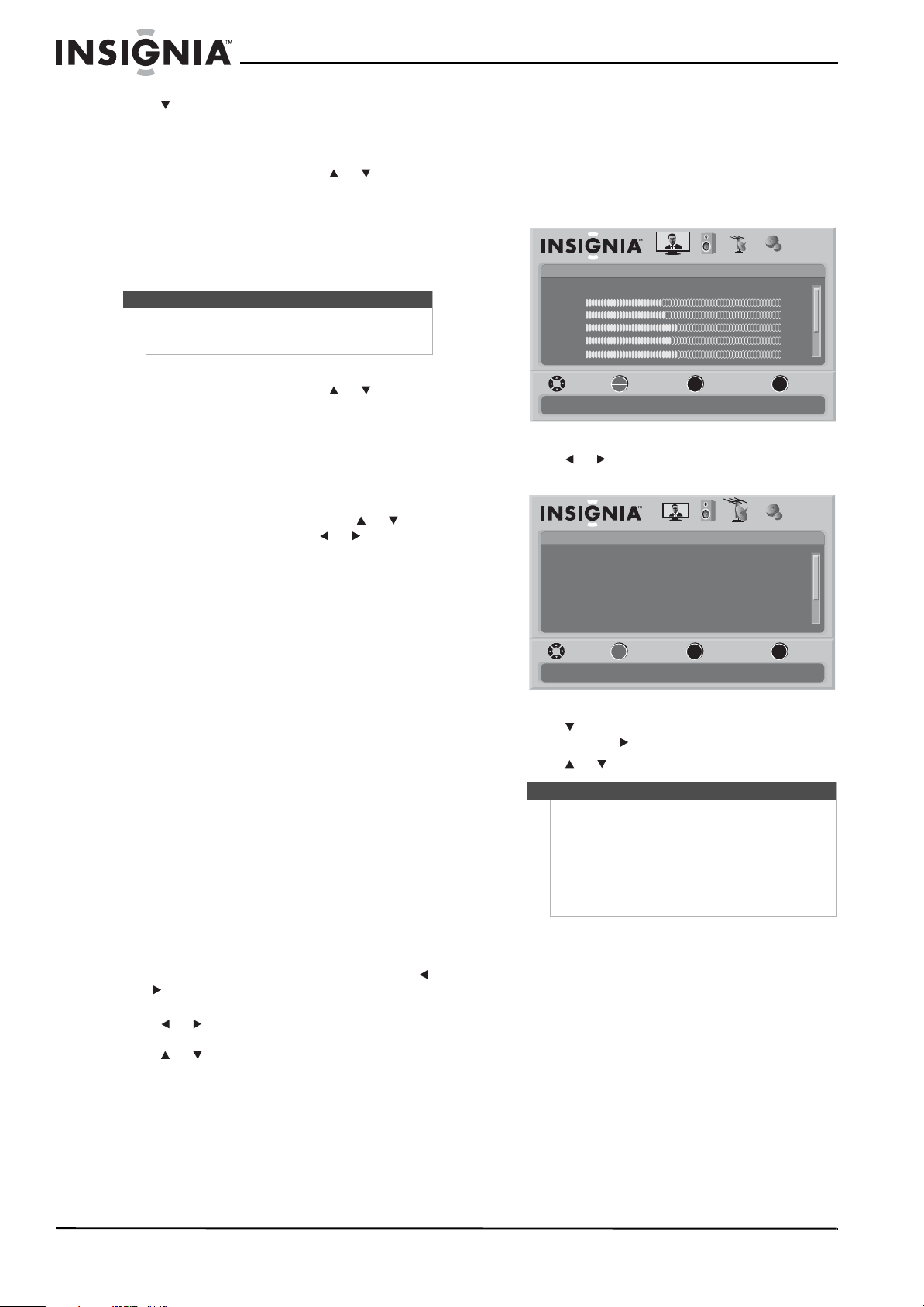
To adjust the picture:
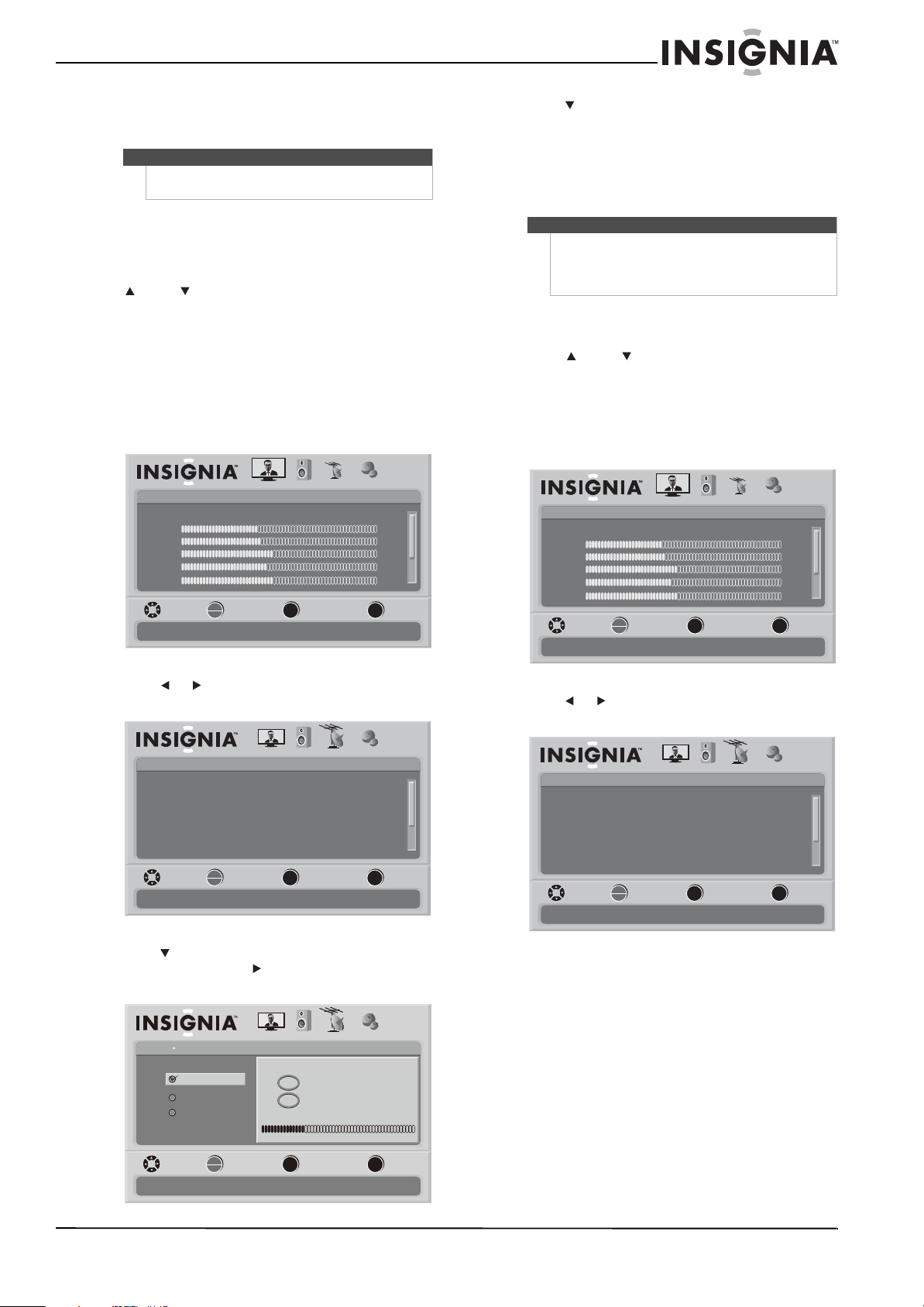
1 Press MENU. The on-screen menu opens with
the Picture menu displayed.
2 Press to highlight an option, then press
OK/ENTER to access the sub-menu. You can
select:
• Mode—Selects the picture mode. You can
select Vivid, Standard, Energy Savings,
Theater, Sports, or Custom.
• Brightness—Adjusts the picture brightness.
• Contrast—Adjusts the contrast.
• Sharpness—Adjusts the sharpness.
• Color—Adjusts the color saturation.
• Tint—Adjusts the picture tint.
Note
You can press the number buttons to go to a channel
that was skipped in the channel scanning.
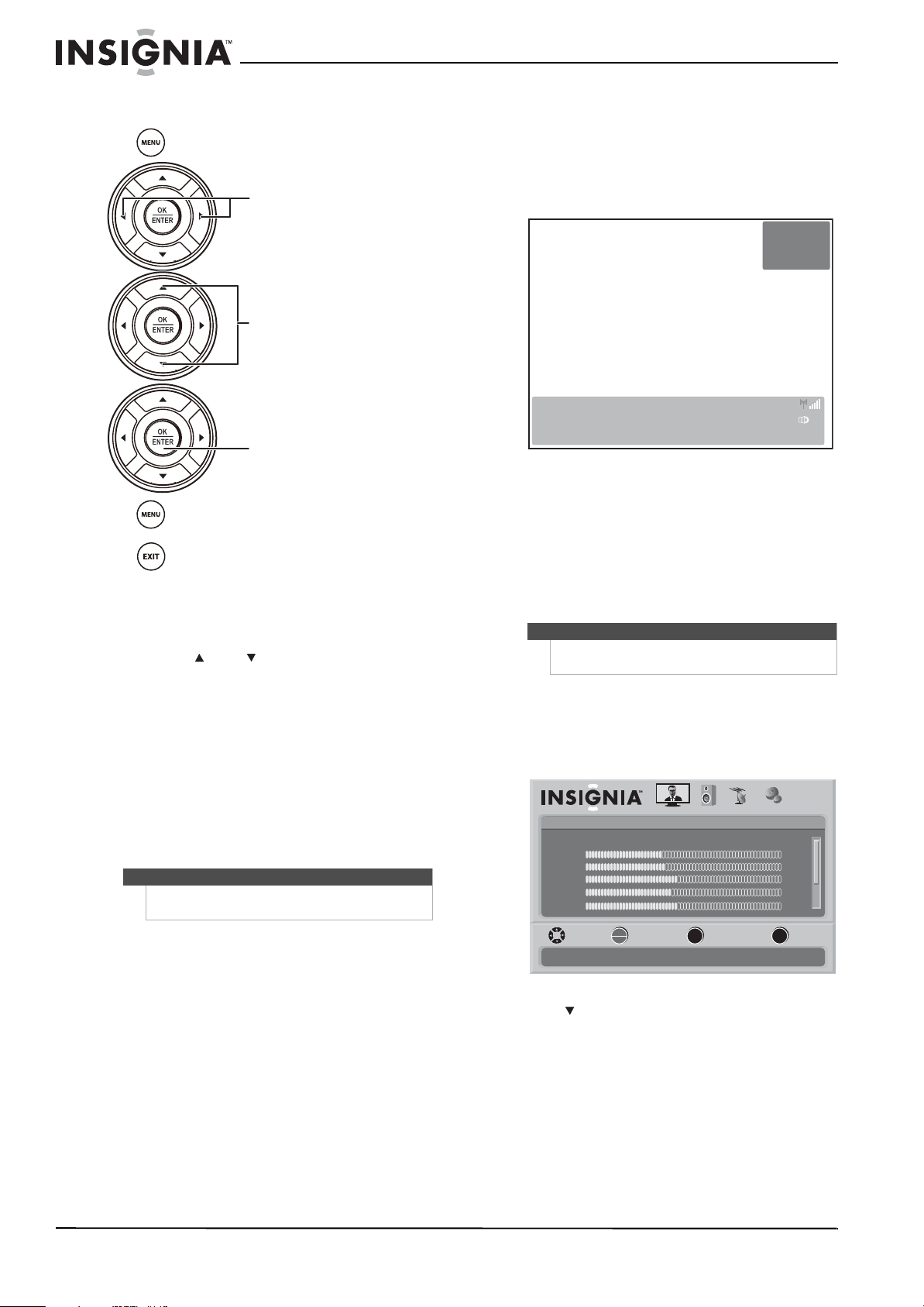
Press to open the menu.
Press to select menus, to adjust
selected items, or to move the
on-screen cursor left or right.
Press to select menu items.
Press to confirm your selections or
enter a sub-menu.
Press to return to the previous
screen.
Press to close the menu.
Note
Unless otherwise noted, all tasks in this section are
based on using the remote control.
DTV
WABCnow
No Program Title
09:10PM2009 March 1
NONE Default
No Program Description
Sound On
-3
7
Picture
Mode
Brightness
Contrast
Color
Tint
PICTURE AUDIO CHANNELS SETTINGS
MOVE SELECT PREVIOUS EXIT
Adjust settings to affect picture quality
Vivid
42
45
54
0
Sharpness +5
MENU EXIT
OK
ENTER
17
Insignia 47" LCD TV
www.insigniaproducts.com
• Advanced Video—Opens the Advanced Video
menu. For more information, see “Adjusting
Advanced Video settings” on page 17.
• Reset Picture Settings—Resets all picture
settings to the factory defaults. When you
select this option, a confirmation box opens.
Press or to select Ye s or No, then press
OK/ENTER to confirm.
3 Press or to modify a scale or to move from
left to right to make a choice in a submenu.
Press or to move up or down when
selecting from a list of choices in a submenu.
4 Press MENU to go to the previous menu or EXIT
to close the menu.
Adjusting Advanced Video settings
To adjust advanced video settings:
1 On the Picture menu, press or to highlight
Advanced Video, then press OK/ENTER or .
The Advanced Video menu opens.
2 Press to highlight an option, then press
OK/ENTER to access the sub-menu. You can
select:
• Aspect Ratio—Selects the aspect ratio. You
can select Normal, Zoom, Wide, Cinema, or
Auto. Auto is only available under TV mode
and when Auto Zoom on the Channels menu
is set to On. In VGA mode or HDMI mode when
a computer is connected to the HDMI jack,
only Wide and Normal are available.
• Color temperature—Selects the color
temperature to change the overall color of the
picture. You can select Cool, Normal, or
Warm.
• Backlight—Controls the overall brilliance of
the screen. You can adjust the backlight
through a range of 0~30.
• Noise Reduction—Controls video noise. You
can select Off, Low, Middle, or High.
• Advanced Contrast—When you see the
pop-up menu, set Adaptive Contrast to On to
adjust picture detail and brightness
automatically or set Dynamic Contrast to On
to automatically adjust the contrast between
the light and dark areas of the picture.
3 Press or to modify a scale or to move from
left to right to make a choice in a submenu.
Press or to move up or down when
selecting from a list of choices in a submenu.
4 Press MENU to go to the previous menu or EXIT
to close the menu.
Freezing the picture
To freeze the picture:
• Press FREEZE. Press again to unfreeze the
picture.
Adjusting the sound
Adjusting the sound
To adjust the sound:
1 Press MENU. The on-screen menu opens with
the Picture menu displayed.
2 Press or to select AUDIO. The Audio menu
opens.
3 Press to highlight Equalizer, then press
OK/ENTER to open the submenu
4 Press or to select On or Off, then press
OK/ENTER to return to the Audio menu.
The Equalizer setting affects other settings you
can adjust.
Note
• You may need to scroll down to see all the
options.
•If you adjust Brightness, Contrast, Color, Tint,
or Sharpness in Vivid, Standard, Energy
Savings, Theater, or Sports mode, your TV
switches to Custom mode automatically.
Picture
Advanced Video
Aspect Ratio
Overscan
Color Temperature
Backlight
Noise Reduction
PICTURE AUDIO CHANNELS SETTINGS
MOVE SELECT PREVIOUS EXIT
Auto
On
Cool
30
Middle
Advanced Contrast
Adjust how the picture fills the screen
MENU EXIT
OK
ENTER
Caution
Do not freeze the picture for long periods of time.
You may damage your TV’s screen.
Note
Unless otherwise noted, all tasks in this section are
based on using the remote control.
Picture
Mode
Brightness
Contrast
Color
Tint
PICTURE AUDIO CHANNELS SETTINGS
MOVE SELECT PREVIOUS EXIT
Adjust settings to affect picture quality
Vivid
42
45
54
0
Sharpness +5
MENU EXIT
OK
ENTER
Audio
Equalizer
Equalizer Mode
Equalizer Setting
Balance
Digital Audio/SPDIF
PICTURE
AUDIO CHANNELS SETTINGS
MTS/SAP
MOVE SELECT PREVIOUS EXIT
Adjust settings to affect sound quality
On
Standard
0
RAW
Mono
MENU
EXIT
OK
ENTER
18
NS-L47Q09-10A Insignia 47" LCD TV
www.insigniaproducts.com
5 Press to highlight an option, then press
OK/ENTER to access the sub-menu. You can
select:
• Equalizer (set to Off)—You can adjust the
following options by pressing or to select
the option:
• Treble—Adjusts high frequency sound.
• Bass—Adjusts low frequency sound.
• SRS TruSurround HD—Provides the
ultimate home theater sound solution. You
can select On or Off.
• Equalizer (set to On)—You can adjust the
following options by pressing or to select
the option:
• Equalizer Mode—Selects the equalizer
mode. You can select Custom, Standard,
Theater, Music, and News. Press
OK/ENTER after you make your selection.
• Equalizer Settings—Sets the equalizer
frequency. You can select 120Hz, 500Hz,
1.5kHz, 5kHz, or 10kHz. Press or to
adjust the settings. Press or to switch
between columns. Press MENU to confirm
the settings.
You can adjust the following options regardless of
the Equalizer setting:
• Balance—Adjusts the sound between the left
and right speakers.
• Digital Audio/SPDIF—Sends digital audio to
an external audio system. You can select RAW
or PCM.
• MTS/SAP—Selects the sound mode (for
analog channel only).
• Mono—Produces a clearer sound if stereo
sound is difficult to hear.
• Stereo—Produces dynamic stereo sound
for sporting events and concerts.
•
SAP—Selects a second language, weather,
or added commentary, if available.
• Audio Language—Selects the audio
language based on the languages supported
by a DTV channel.
• Auto Volume—Automatically adjusts volume
to be consistent across programs and
channels. You can select On or Off.
• Reset Audio Settings— Resets all audio
settings to factory defaults. When you select
this option, a confirmation box opens. Press
or to select Yes or No, then press OK/ENTER
to confirm.
6 Press or to modify a scale or to move from
left to right to make a choice in a submenu.
Press or to move up or down when
selecting from a list of choices in a submenu.)
7 Press MENU to go to the previous menu or EXIT
to close the menu.
Playing TV audio only
When watching TV, you can turn off the TV picture
and listen to the audio only.
To play TV audio only:
1 Press MENU. The on-screen menu opens with
the Picture menu displayed.
2 Press or to select CHANNELS. The Channels
menu opens.
3 Press to highlight Audio Only, then press
OK/ENTER or to access the sub-menu.
4 Press or to select On or Off.
Note
If SRS TruSurround HD is set to On and you set
Equalizer to On again, SRS TruSurround HD will be
set to Off automatically.
Note
• It takes about 3 seconds after the menu closes
and the picture disappears before the audio
plays.
• Audio Only works only when the input source is
TV and your TV is receiving a broadcast signal.
•To exit Audio Only mode, press any button.
When you exit Audio Only mode, the Audio
Only option is automatically reset to Off.
Picture
Mode
Brightness
Contrast
Color
Tint
PICTURE AUDIO CHANNELS SETTINGS
MOVE SELECT PREVIOUS EXIT
Adjust settings to affect picture quality
Vivid
42
45
54
0
Sharpness +5
MENU EXIT
OK
ENTER
Channels
Auto Channel Search
Add/Skip Channels
Favorites
Channel Labels
Channel Strength
PICTURE AUDIO
CHANNELS SETTINGS
Audio Only Off
MOVE SELECT PREVIOUS EXIT
Adjust channel options
MENU EXIT
OK
ENTER
19
Insignia 47" LCD TV
www.insigniaproducts.com
Changing channel settings
Automatically scanning for channels
When you scan for channels, your TV searches for
channels with signals and stores the channel
information in the channel list. When you press
CH or CH , your TV goes to the next or previous
channel in the channel list and skips the channels
that do not have signals.
If the TV signal source changes, for example you
change from an outdoor antenna to cable TV (no
box), you need to scan for channels.
To automatically scan for channels:
1 Press MENU. The on-screen menu opens with
the Picture menu displayed.
2 Press or to select CHANNELS. The Channels
menu opens.
3 Press to highlight Auto Channel Search, then
press OK/ENTER or to open the Auto Channel
Search screen.
4 Press to highlight Antenna, Cable, or
Cable/Satellite Box, then press OK/ENTER to
start the scan. You can see the search progress
and how many channels are found in the
on-screen menu. After the scan is complete, the
menu closes and your TV tunes to the first
channel in the list.
Hiding channels
You can hide channels in the channel list. When you
press CH or CH , your TV will skip the hidden
channels. You can still tune to a hidden channel by
pressing the number buttons for the channel.
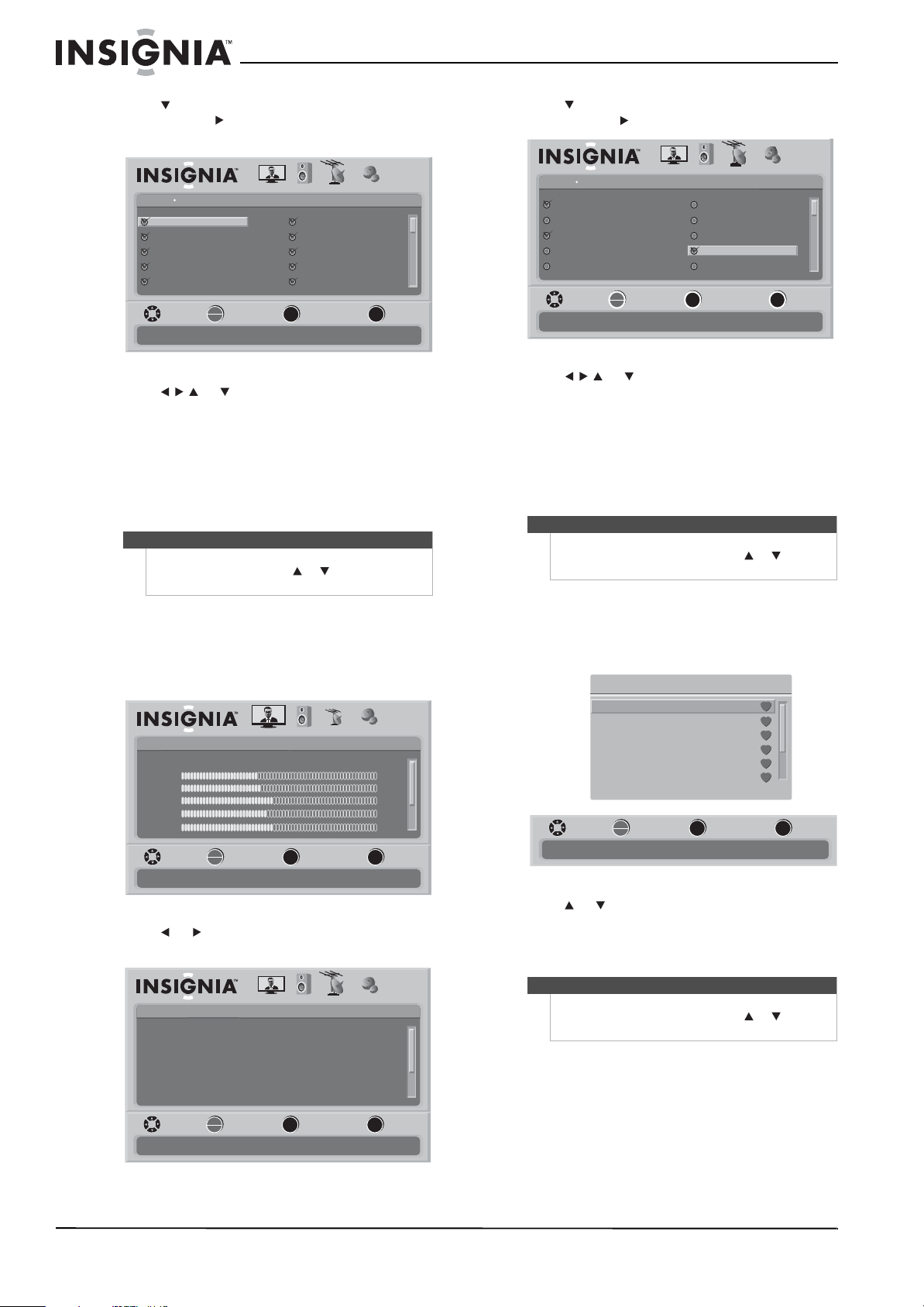
To hide channels:
1 Press MENU. The on-screen menu opens with
the Picture menu displayed.
2 Press or to select CHANNELS. The Channels
menu opens.
Note
Unless otherwise noted, all tasks in this section are
based on using the remote control.
Picture
Mode
Brightness
Contrast
Color
Tint
PICTURE AUDIO CHANNELS SETTINGS
MOVE SELECT PREVIOUS EXIT
Adjust settings to affect picture quality
Vivid
42
45
54
0
Sharpness +5
MENU EXIT
OK
ENTER
Channels
Auto Channel Search
Add/Skip Channels
Favorites
Channel Labels
Channel Strength
PICTURE AUDIO
CHANNELS SETTINGS
Audio Only Off
MOVE SELECT PREVIOUS EXIT
Adjust channel options
MENU EXIT
OK
ENTER
Auto Channel SearchChannels
Choose your TV source
Scan for channels
Antenna
PICTURE AUDIO CHANNELS SETTINGS
MOVE SELECT PREVIOUS EXIT
Select Antenna if using an antenna for standard or HD TV
Cable
Analog Channels
Digital Channels
0
0
Cable/Satellite Box
MENU EXIT
OK
ENTER
Note
You can press EXIT to stop the search.
If you select Cable/Satellite Box, your TV will not
scan for channels because the available channels are
provided by the box. Press EXIT to close the menu.
Picture
Mode
Brightness
Contrast
Color
Tint
PICTURE AUDIO CHANNELS SETTINGS
MOVE SELECT PREVIOUS EXIT
Adjust settings to affect picture quality
Vivid
42
45
54
0
Sharpness +5
MENU EXIT
OK
ENTER
Channels
Auto Channel Search
Add/Skip Channels
Favorites
Channel Labels
Channel Strength
PICTURE AUDIO
CHANNELS SETTINGS
Audio Only Off
MOVE SELECT PREVIOUS EXIT
Adjust channel options
MENU EXIT
OK
ENTER
20
NS-L47Q09-10A Insignia 47" LCD TV
www.insigniaproducts.com
3 Press to highlight Add/SKIP, then press
OK/ENTER or to open the Channel Lists
screen.
4 Press or to highlight the channel you
want to hide, then press OK/ENTER to uncheck
the highlighted channel. You can add a channel
to the list by highlighting a channel and
checking it.
5 Repeat Step 4 to hide additional channels.
6 Press MENU to return the previous menu, or
press EXIT to close the menu.
Setting up a favorite channel list
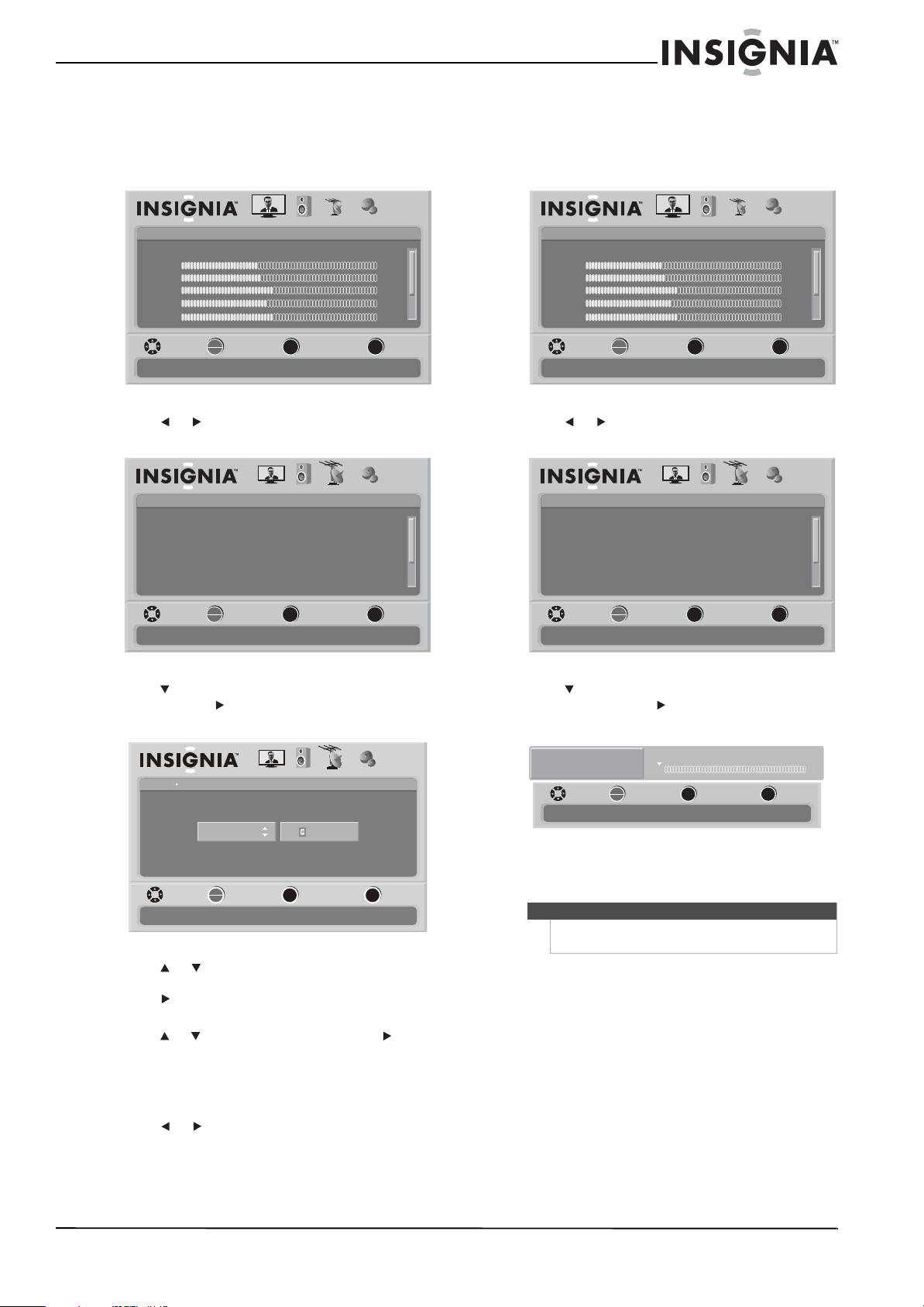
To set up a favorite channel list:
1 Press MENU. The on-screen menu opens with
the Picture menu displayed.
2 Press or to select CHANNELS. The Channels
menu opens.
3 Press to highlight Favorites, then press
OK/ENTER or to open the Favorites screen.
4 Press or to highlight the channel you
want to add to the Favorites list, then press
OK/ENTER to check the highlighted channel.
You can remove a channel from the list by
highlighting the channel and unchecking it.
5 Repeat Step 4 to add additional channels.
6 Press MENU to return the previous menu, or
press EXIT to close menu.
Viewing a favorite channel
To view a favorite channel:
1 Press FAV to open the Favorites list.
2 Press or to highlight the channel you want
to watch, then press OK/ENTER to tune to the
channel.
3 Press EXIT to close the Favorites list.
Note
Depending on how many channels are in the channel
list, you may need to press or to scroll to the
next or previous page of channels.
Add/Skip ChannelChannels
PICTURE AUDIO
CHANNELS SETTINGS
MOVE SELECT PREVIOUS EXIT
Manually add and skip channels in your program list
Ch 5-0
Ch 9-1 WWOR DT
Ch 10-0
Ch 60-2
Ch 60-4
Ch 9-0
Ch 9-2 WNYW DT
Ch 60-1
Ch 60-3
Ch 60-7
MENU EXIT
OK
ENTER
Picture
Mode
Brightness
Contrast
Color
Tint
PICTURE AUDIO CHANNELS SETTINGS
MOVE SELECT PREVIOUS EXIT
Adjust settings to affect picture quality
Vivid
42
45
54
0
Sharpness +5
MENU EXIT
OK
ENTER
Channels
Auto Channel Search
Add/Skip Channels
Favorites
Channel Labels
Channel Strength
PICTURE AUDIO
CHANNELS SETTINGS
Audio Only Off
MOVE SELECT PREVIOUS EXIT
Adjust channel options
MENU EXIT
OK
ENTER
Note
Depending on how many channels are in the
Favorites list, you may need to press or to scroll
to the next or previous page of channels.
Note
Depending on how many channels are in the
Favorites list, you may need to press or to scroll
to the next or previous page of channels.
FavoritesChannels
PICTURE AUDIO CHANNELS SETTINGS
MOVE SELECT PREVIOUS EXIT
Add channels to create a favorites list
Ch 5-0
Ch 9-1 WWOR DT
Ch 10-0
Ch 60-2
Ch 60-4
Ch 9-0
Ch 9-2 WNYW DT
Ch 60-1
Ch 60-3
Ch 60-7
MENU
EXIT
OK
ENTER
MENU
EXIT
OK
ENTER
MOVE SELECT PREVIOUS EXIT
Add channels to create a favorites list
Favorites
Ch 5-0
Ch 10-0
Ch 60-3
Ch 60-8
Ch 60-11
Ch 60-12
21
Insignia 47" LCD TV
www.insigniaproducts.com
Adding or changing a channel label
To add or change a channel label:
1 Press MENU. The on-screen menu opens with
the Picture menu displayed.
2 Press or to select CHANNELS. The Channels
menu opens.
3 Press to highlight Channel Labels, then press
OK/ENTER or to open the Channel Labels
screen.
4 Press or to select the channel you want to
add a label to or change the label for, then
press to move the cursor to label selection
field.
5 Press or to select a letter, then press to go
to the next letter. Repeat this step to add
additional letters. You can add as many as 11
letters.
6 Press OK/ENTER to confirm the label.
7 Press or to check Ye s or No, then press
OK/ENTER to confirm.
8 Press MENU to go to the previous menu, or
press EXIT to close the menu.
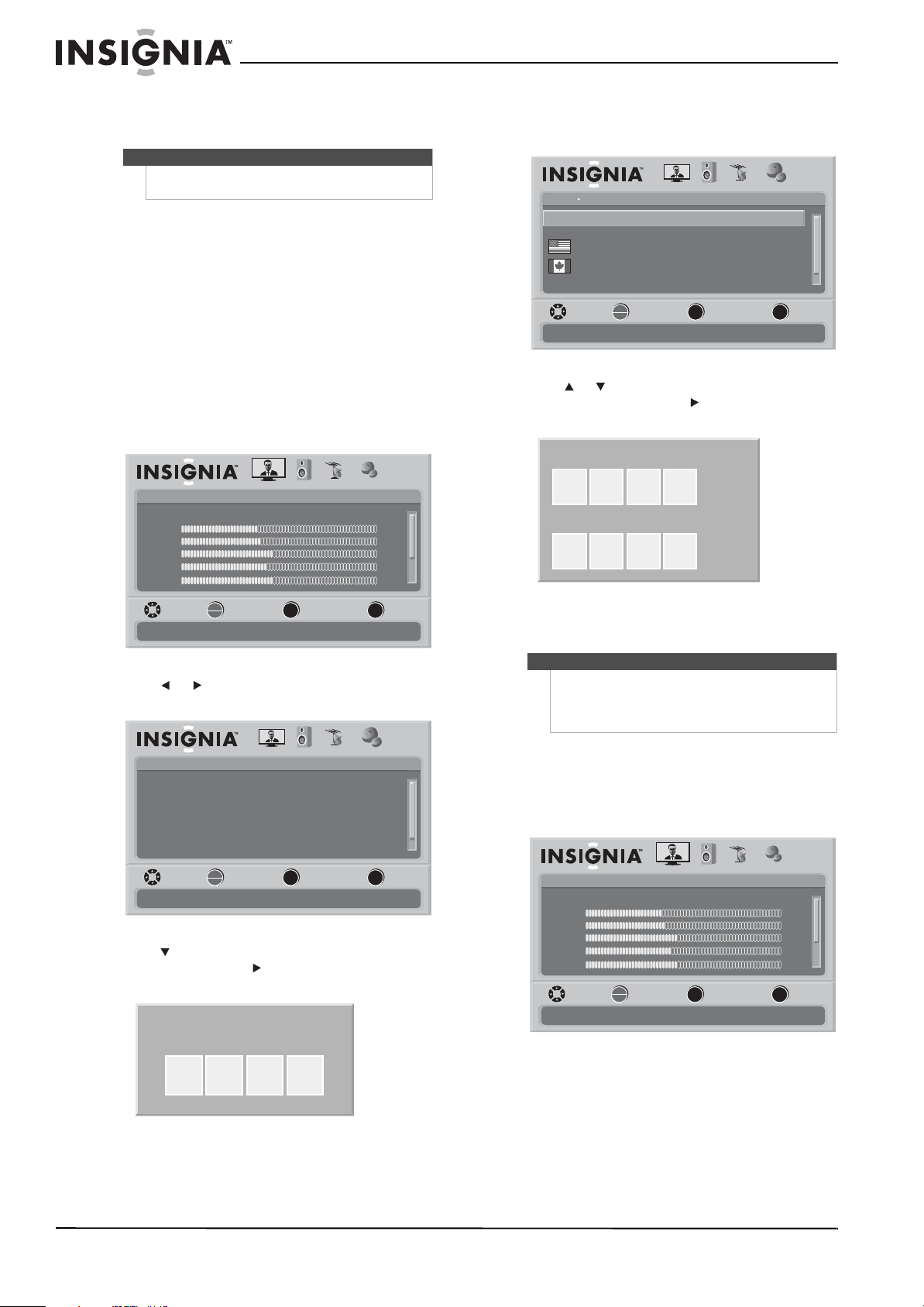
Checking the DTV signal strength
To check the DTV signal strength:
1 Press MENU. The on-screen menu opens with
the Picture menu displayed.
2 Press or to select CHANNELS. The Channels
menu opens.
3 Press to highlight Channel Strength, then
press OK/ENTER or to open the DTV signal
meter.
4 Press MENU to go to the previous menu, or
press EXIT to close the menu.
Picture
Mode
Brightness
Contrast
Color
Tint
PICTURE AUDIO CHANNELS SETTINGS
MOVE SELECT PREVIOUS EXIT
Adjust settings to affect picture quality
Vivid
42
45
54
0
Sharpness +5
MENU EXIT
OK
ENTER
Channels
Auto Channel Search
Add/Skip Channels
Favorites
Channel Labels
Channel Strength
PICTURE AUDIO
CHANNELS SETTINGS
Audio Only Off
MOVE SELECT PREVIOUS EXIT
Adjust channel options
MENU EXIT
OK
ENTER
Channels Channels Labels
Ch 5-0
ABC
PICTURE AUDIO CHANNELS SETTINGS
MOVE SELECT PREVIOUS EXIT
MENU
EXIT
OK
ENTER
Note
When you are tuned to a DTV channel, you can press
INFO to see the DTV signal strength.
Picture
Mode
Brightness
Contrast
Color
Tint
PICTURE AUDIO CHANNELS SETTINGS
MOVE SELECT PREVIOUS EXIT
Adjust settings to affect picture quality
Vivid
42
45
54
0
Sharpness +5
MENU EXIT
OK
ENTER
Channels
Auto Channel Search
Add/Skip Channels
Favorites
Channel Labels
Channel Strength
PICTURE AUDIO
CHANNELS SETTINGS
Audio Only Off
MOVE SELECT PREVIOUS EXIT
Adjust channel options
MENU EXIT
OK
ENTER
MENU EXIT
OK
ENTER
Channel Strength
Now
0 100
0%
CH 7-3
MOVE SELECT PREVIOUS EXIT
Display signal strength of selected digital channel
22
NS-L47Q09-10A Insignia 47" LCD TV
www.insigniaproducts.com
Setting parental controls
Setting or changing the password
Your TV has a V-chip that lets you control the type
of programs your children can watch. Parental
controls include two ratings: MPAA (based on age)
and TV Parental Guidelines (based on content and
age). A TV program may have an MPAA or TV
Parental Guidelines rating, so you should set
controls for both ratings.
Before you can select ratings, you need to set up a
parental controls password.
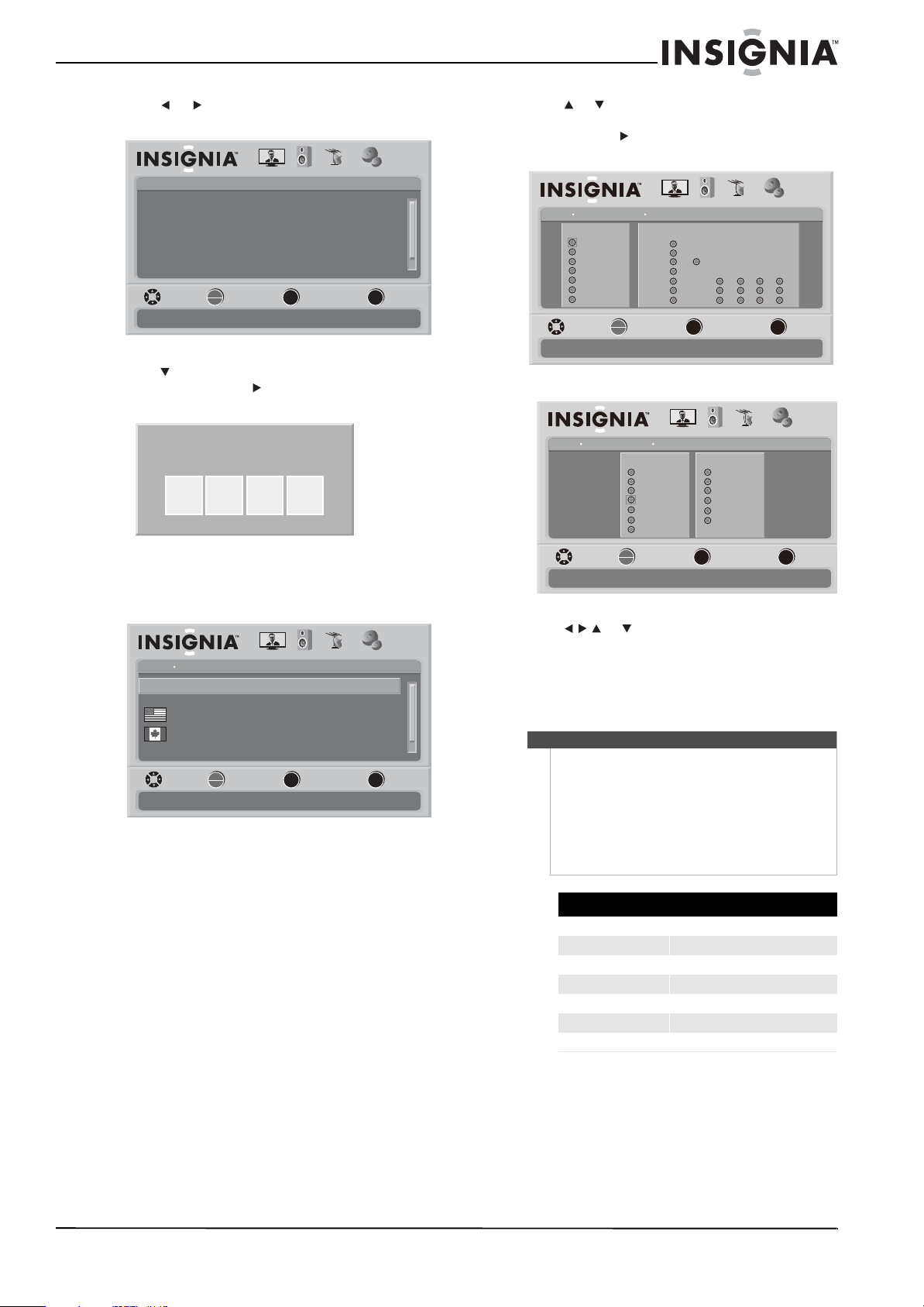
To set up a password:
1 Press MENU. The on-screen menu opens with
the Picture menu displayed.
2 Press or to select SETTINGS. The Settings
menu opens.
3 Press to highlight Parental Controls, then
press OK/ENTER or . The Enter Password
screen opens.
4 Press the number buttons to enter the
password. If you have not set a password, enter
0000. The Parental Controls menu opens.
5 Press or to highlight Change Password,
then press OK/ENTER or . The Enter New
Password screen opens.
6 Press the number buttons to enter the new
password, then enter the new password again.
Setting parental control levels
To set parental control levels:
1 Press MENU. The on-screen menu opens with
the Picture menu displayed.
Note
Unless otherwise noted, all tasks in this section are
based on using the remote control.
Picture
Mode
Brightness
Contrast
Color
Tint
PICTURE AUDIO CHANNELS SETTINGS
MOVE SELECT PREVIOUS EXIT
Adjust settings to affect picture quality
Vivid
42
45
54
0
Sharpness +5
MENU EXIT
OK
ENTER
Settings
Parental Controls
Time
Menu Settings
Input labels
Closed Caption
PICTURE AUDIO CHANNELS
SETTINGS
Computer Settings
MOVE SELECT PREVIOUS EXIT
Set various TV options
OK
ENTER
MENU
EXIT
Enter Password
Note
Write down your password and save it for future use.
If you forget your password, enter 9999 as the
password. This password always remains valid for
resetting your password.
Settings
Parental Controls
Off
Off
Button Lock
USA Parental Locks
Canadian Parental Locks
Block Unrated TV
PICTURE AUDIO CHANNELS
SETTINGS
Change Password
MOVE SELECT PREVIOUS EXIT
Lock or unlock the buttons on the TV
OK
ENTER
MENU
EXIT
Enter New Password
Confirm New Password
Picture
Mode
Brightness
Contrast
Color
Tint
PICTURE AUDIO CHANNELS SETTINGS
MOVE SELECT PREVIOUS EXIT
Adjust settings to affect picture quality
Vivid
42
45
54
0
Sharpness +5
MENU EXIT
OK
ENTER
23
Insignia 47" LCD TV
www.insigniaproducts.com
2 Press or to select SETTINGS. The Settings
menu opens.
3 Press to highlight Parental Controls, then
press OK/ENTER or . The Enter Password
screen opens.
4 Press the number buttons to enter the
password. If you have not set a password, enter
0000. The Parental Controls menu opens.
5 Press or to highlight USA Parental Locks or
Canadian Parental Locks, then press
OK/ENTER or to open the USA Parental Locks
or Canadian Parental Locks screen.
6 Press or to highlight a rating, then press
OK/ENTER to block or unblock the rating. When
you block a rating, that rating and all higher
ratings are blocked.
7 Press MENU to return to the previous menu, or
press EXIT to close the menu.
Settings
Parental Controls
Time
Menu Settings
Input labels
Closed Caption
PICTURE AUDIO CHANNELS
SETTINGS
Computer Settings
MOVE SELECT PREVIOUS EXIT
Set various TV options
OK
ENTER
MENU
EXIT
Enter Password
Settings
Parental Controls
Off
Off
Button Lock
USA Parental Locks
Canadian Parental Locks
Block Unrated TV
PICTURE AUDIO CHANNELS
SETTINGS
Change Password
MOVE SELECT PREVIOUS EXIT
Lock or unlock the buttons on the TV
OK
ENTER
MENU
EXIT
Note
When you first set parental controls, they take effect
immediately.
If you have set parental controls then tune to a
blocked channel or program, you are prompted to
enter the password. After you enter the password,
parental controls are tuned off.
To turn parental controls back on, you need to turn
off your TV. When you turn it back on, parental
controls are turned back on.
U.S. TV ratings
NONE Not rated
TV-Y All children
TV-Y7 Children over seven years of age
TV-G General audiences
TV-PG Parental guidance suggested
TV-14 Parents strongly cautioned
TV-MA Mature audiences only
Settings
sgnitaR VTgnitaR eivoM
All FV L S V D
Parental Controls USA Parental Locks
PICTURE AUDIO CHANNELS
SETTINGS
MOVE SELECT PREVIOUS EXIT
None
PG
G
NC-17
PG-13
R
X
Restrict movie and TV programs by US Ratings
None
TV-Y7
TV-Y
TV-G
TV-PG
TV-14
TV-MA
OK
ENTER
MENU EXIT
Settings
English Rating French Rating
Parental Controls Canadian Parental Locks
PICTURE AUDIO CHANNELS SETTINGS
MOVE SELECT PREVIOUS EXIT
E
C8+
C
G
PG
14+
18+
Restrict movie and TV programs by Canadian Ratings
E
8 ans+
G
13 ans+
16 ans+
18 ans+
OK
ENTER
MENU
EXIT
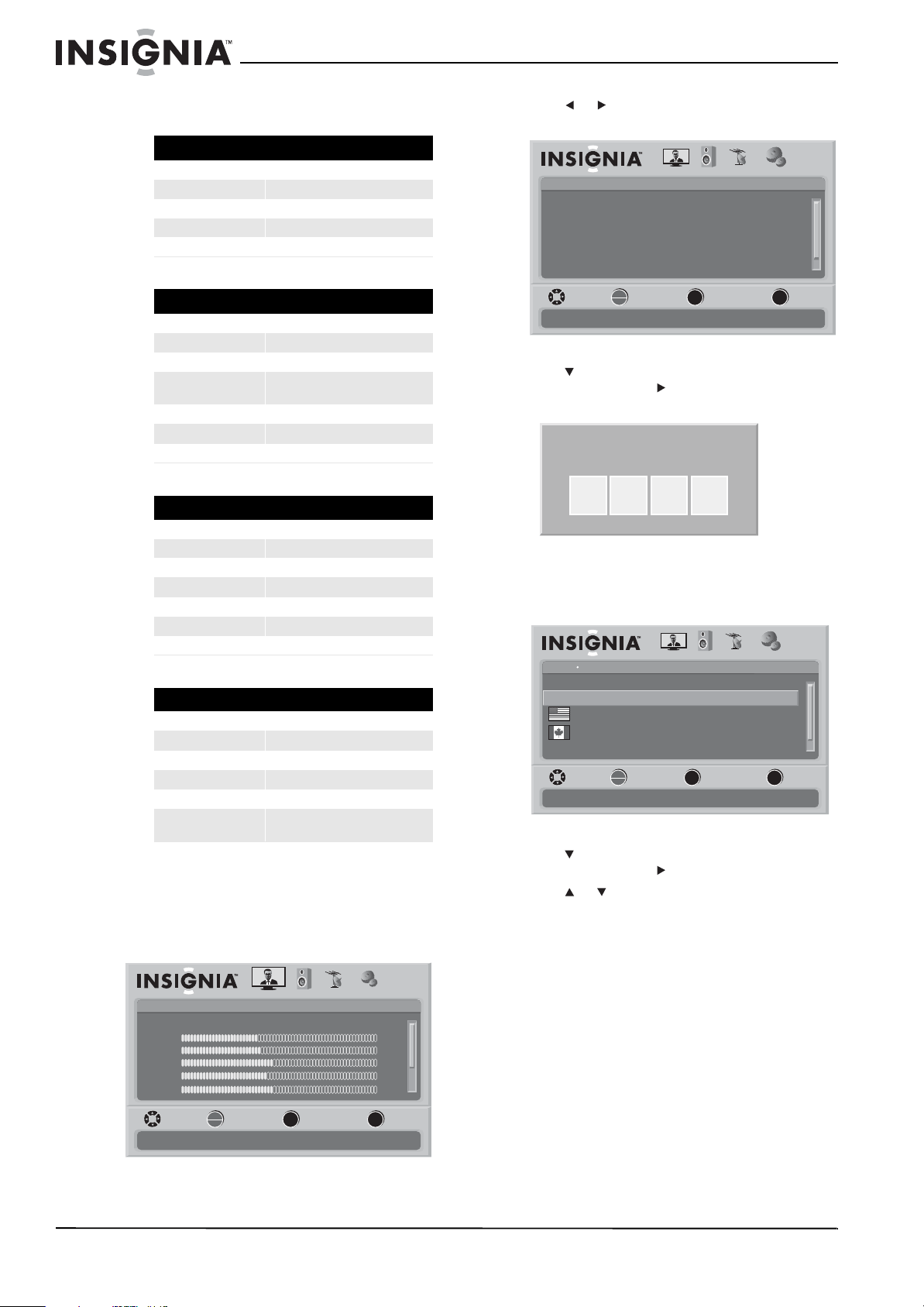
24
NS-L47Q09-10A Insignia 47" LCD TV
www.insigniaproducts.com
Some of the age-based TV Parental Guidelines
ratings also have content-based ratings.
Blocking unrated TV
To block unrated TV:
1 Press MENU. The on-screen menu opens with
the Picture menu displayed.
2 Press or to select SETTINGS. The Settings
menu opens.
3 Press to highlight Parental Controls, then
press OK/ENTER or . The Enter Password
screen opens.
4 Press the number buttons to enter the
password. If you have not set a password, enter
0000. The Parental Controls menu opens.
5 Press to highlight Block Unrated TV, then
press OK/ENTER or to access the sub-menu.
6 Press or to select On (blocks unrated TV) or
Off (does not block unrated TV).
7 Press MENU to go to the previous menu or EXIT
to close the menu.
U.S. TV content ratings
FV Fantasy violence
L Adult language.
SSexual situations.
V Violence.
D Sexually suggestive dialog.
U.S. movie (MPAA) ratings
G General audiences
PG Parental guidance suggested
PG-13 Suitable for children 13 and older
R Parental guidance suggested for
children under 17
NC-17 Not suitable for children under 17
X Adults only
N/A Movie not rated.
Canadian English ratings
E Exempt programming
C Children
C8+ Children over 8 years old
G General audiences
PG Parental guidance
14+ Over 14 years old
18+ Adult programming
Canadian French ratings
E Exempt programming
G General audiences
8ans+ Over 8 years old
13ans+ Over 13 years old
16ans+ Over 16 years old
18ans+ Over 18 years old, only for adult
viewing
Picture
Mode
Brightness
Contrast
Color
Tint
PICTURE AUDIO CHANNELS SETTINGS
MOVE SELECT PREVIOUS EXIT
Adjust settings to affect picture quality
Vivid
42
45
54
0
Sharpness +5
MENU EXIT
OK
ENTER
Settings
Parental Controls
Time
Menu Settings
Input labels
Closed Caption
PICTURE AUDIO CHANNELS
SETTINGS
Computer Settings
MOVE SELECT PREVIOUS EXIT
Set various TV options
OK
ENTER
MENU
EXIT
Enter Password
Settings
Parental Controls
Off
Off
Button Lock
USA Parental Locks
Canadian Parental Locks
Block Unrated TV
PICTURE AUDIO CHANNELS SETTINGS
Change Password
MOVE SELECT PREVIOUS EXIT
Block TV programs that do not have a rating
OK
ENTER
MENU
EXIT
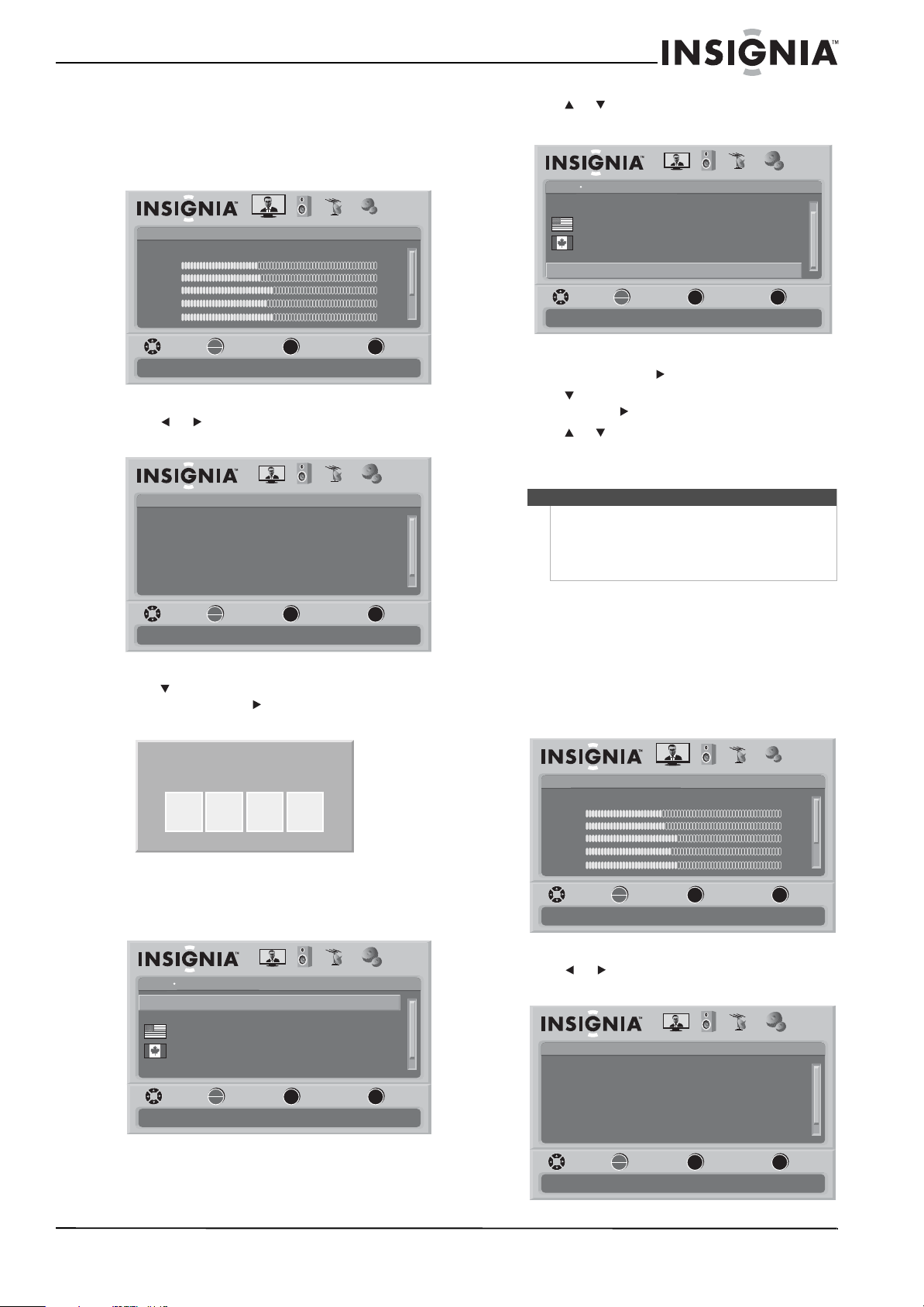
25
Insignia 47" LCD TV
www.insigniaproducts.com
Downloading rating information
To download rating information:
1 Press MENU. The on-screen menu opens with
the Picture menu displayed.
2 Press or to select SETTINGS. The Settings
menu opens.
3 Press to highlight Parental Controls, then
press OK/ENTER or . The Enter Password
screen opens.
4 Press the number buttons to enter the
password. If you have not set a password, enter
0000. The Parental Controls menu opens.
5 Press or to scroll down the list of options
and highlight RRT5.
6 Press OK/ENTER or to open the RRT5 screen.
7 Press to highlight an option, then press
OK/ENTER or to open the sub-menu.
8 Press or to select a rating.
9 Press MENU to go to the previous menu or EXIT
to close the menu.
Locking control buttons
You can lock the control buttons on the TV. When
the buttons are locked, you can only operate the TV
using the remote control.
To lock control buttons:
1 Press MENU. The on-screen menu opens with
the Picture menu displayed.
2 Press or to select SETTINGS. The Settings
menu opens.
Picture
Mode
Brightness
Contrast
Color
Tint
PICTURE AUDIO CHANNELS SETTINGS
MOVE SELECT PREVIOUS EXIT
Adjust settings to affect picture quality
Vivid
42
45
54
0
Sharpness +5
MENU EXIT
OK
ENTER
Settings
Parental Controls
Time
Menu Settings
Input labels
Closed Caption
PICTURE AUDIO CHANNELS
SETTINGS
Computer Settings
MOVE SELECT PREVIOUS EXIT
Set various TV options
OK
ENTER
MENU
EXIT
Enter Password
Settings
Parental Controls
Off
Off
Button Lock
USA Parental Locks
Canadian Parental Locks
Block Unrated TV
PICTURE AUDIO CHANNELS
SETTINGS
Change Password
MOVE SELECT PREVIOUS EXIT
Lock or unlock the buttons on the TV
OK
ENTER
MENU EXIT
Note
If the program is broadcasted with RRT5 rating
information, the information is downloaded
automatically and can be used for parental controls.
If the program is not broadcasted with RRT5 rating
information, no information is downloaded.
Settings
Parental Controls
Off
USA Parental Locks
Canadian Parental Locks
Block Unrated TV
PICTURE AUDIO CHANNELS
SETTINGS
Change Password
MOVE SELECT PREVIOUS EXIT
Display an advanced V-Chip ratings table for digital channels
RRT5
OK
ENTER
MENU
EXIT
Picture
Mode
Brightness
Contrast
Color
Tint
PICTURE AUDIO CHANNELS SETTINGS
MOVE SELECT PREVIOUS EXIT
Adjust settings to affect picture quality
Vivid
42
45
54
0
Sharpness +5
MENU EXIT
OK
ENTER
Settings
Parental Controls
Time
Menu Settings
Input labels
Closed Caption
PICTURE AUDIO CHANNELS
SETTINGS
Computer Settings
MOVE SELECT PREVIOUS EXIT
Set various TV options
OK
ENTER
MENU
EXIT
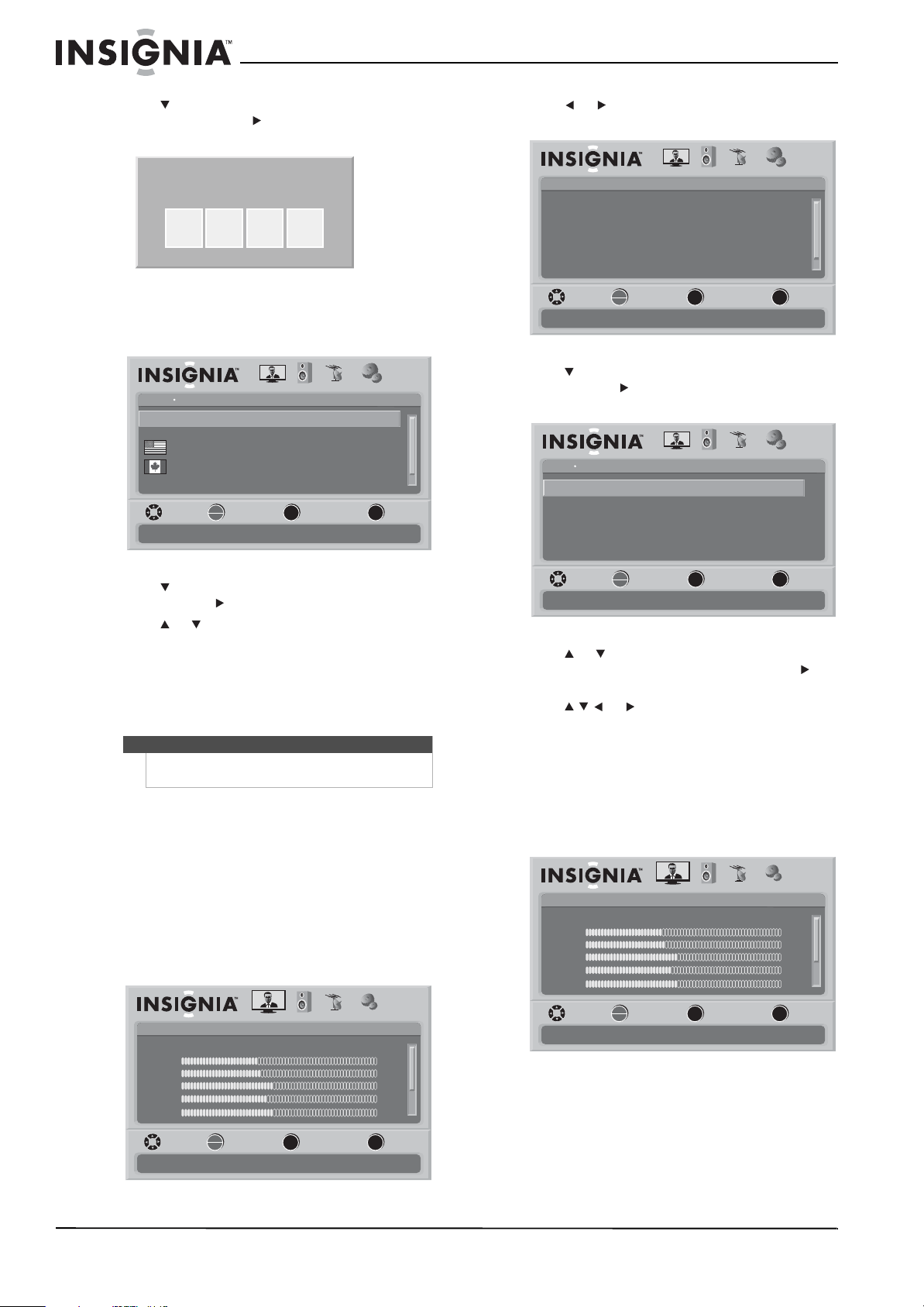
26
NS-L47Q09-10A Insignia 47" LCD TV
www.insigniaproducts.com
3 Press to highlight Parental Controls, then
press OK/ENTER or . The Enter Password
screen opens.
4 Press the number buttons to enter the
password. If you have not set a password, enter
0000. The Parental Controls menu opens.
5 Press to highlight Button Lock, then press
OK/ENTER or to access the sub-menu.
6 Press or to select On or Off.
7 Press MENU to go to the previous menu or EXIT
to close the menu.
Using closed captioning
Viewing closed captioning
To view closed captions:
• Press CCD to select CC Off, CC On, or CC On
When Mute.
Selecting the closed captioning mode
To select the closed captioning mode:
1 Press MENU. The on-screen menu opens with
the Picture menu displayed.
2 Press or to select SETTINGS. The Settings
menu opens.
3 Press to highlight Closed Caption, then press
OK/ENTER or to open the Closed Caption
menu.
4 Press or to highlight Analog Caption or
Digital Caption, then press OK/ENTER or to
open the sub-menu.
5 Press or to select a setting.
6 Press MENU to go to the previous menu or EXIT
to close the menu.
Customizing DTV closed captioning styles
To customize DTV closed captioning styles:
1 Press MENU. The on-screen menu opens with
the Picture menu displayed.
Note
Unless otherwise noted, all tasks in this section are
based on using the remote control.
Enter Password
Settings
Parental Controls
Off
Off
Button Lock
USA Parental Locks
Canadian Parental Locks
Block Unrated TV
PICTURE AUDIO CHANNELS
SETTINGS
Change Password
MOVE SELECT PREVIOUS EXIT
Lock or unlock the buttons on the TV
OK
ENTER
MENU EXIT
Picture
Mode
Brightness
Contrast
Color
Tint
PICTURE AUDIO CHANNELS SETTINGS
MOVE SELECT PREVIOUS EXIT
Adjust settings to affect picture quality
Vivid
42
45
54
0
Sharpness +5
MENU EXIT
OK
ENTER
Settings
Parental Controls
Time
Menu Settings
Input labels
Closed Caption
PICTURE AUDIO CHANNELS
SETTINGS
Computer Settings
MOVE SELECT PREVIOUS EXIT
Set various TV options
OK
ENTER
MENU
EXIT
Settings Closed Caption
CS1Digital Caption
CC1
Digital CC Settings
Adjust Closed Captioning settings
Analog Caption
CC OffCaption Control
PICTURE AUDIO CHANNELS SETTINGS
MOVE SELECT PREVIOUS EXIT
OK
ENTER
MENU
EXIT
Picture
Mode
Brightness
Contrast
Color
Tint
PICTURE AUDIO CHANNELS SETTINGS
MOVE SELECT PREVIOUS EXIT
Adjust settings to affect picture quality
Vivid
42
45
54
0
Sharpness +5
MENU EXIT
OK
ENTER
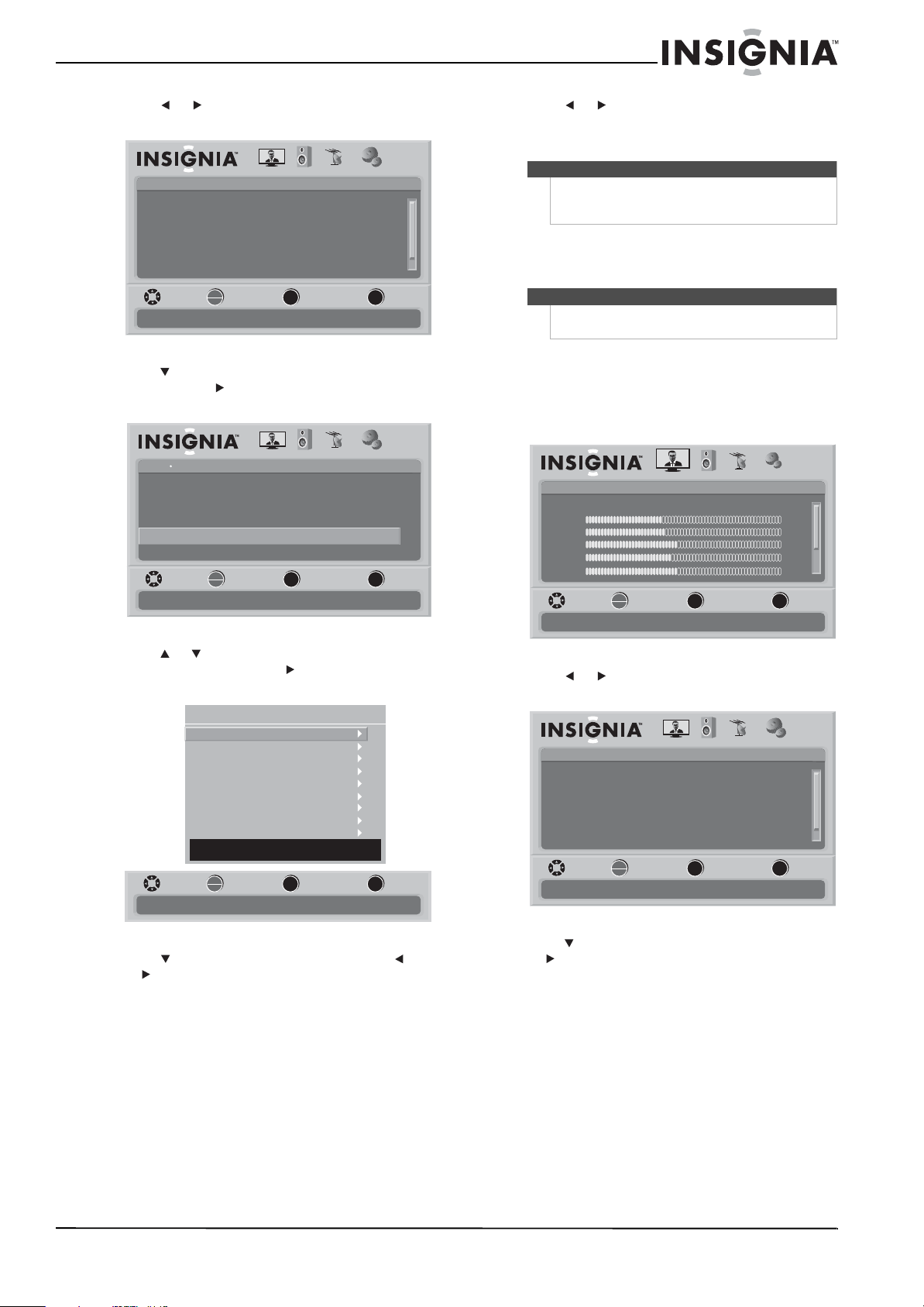
27
Insignia 47" LCD TV
www.insigniaproducts.com
2 Press or to select SETTINGS. The Settings
menu opens.
3 Press to highlight Closed Caption, then press
OK/ENTER or to open the Closed Caption
screen.
4 Press or to highlight Digital CC Settings,
then press OK/ENTER or to open the Digital
CC Settings menu.
5 Press to highlight an option, then press
or to adjust the option. You can select:
• Style—Selects the Digital Closed Caption
style.
• Size—Selects the font size.
• Font—Selects the font type.
• Text Color—Selects the text color.
• Text Opacity—Selects the text opacity.
• Background Color—Selects the background
color.
• Background Opacity—Selects the
background opacity.
• Edge Effect—Selects the edge style.
• Edge Color—Selects the edge color.
6 Press or to adjust the option.
7 Press MENU to go to the previous menu or EXIT
to close the menu.
Adjusting time settings
Setting the clock
To set the clock:
1 Press MENU. The on-screen menu opens with
the Picture menu displayed.
2 Press or to select SETTINGS. The Settings
menu opens.
3 Press to highlight Time, then press OK/ENTER
or to open the Time menu.
Settings
Parental Controls
Time
Menu Settings
Input labels
Closed Caption
PICTURE AUDIO CHANNELS
SETTINGS
Computer Settings
MOVE SELECT PREVIOUS EXIT
Set various TV options
OK
ENTER
MENU
EXIT
Settings Closed Caption
CS1Digital Caption
CC1
Digital CC Settings
Customize the look of digital Closed Captioning
Analog Caption
CC OffCaption Control
PICTURE AUDIO CHANNELS SETTINGS
MOVE SELECT PREVIOUS EXIT
OK
ENTER
MENU
EXIT
MENU
EXIT
OK
ENTER
Digital CC Settings
Style
Size
Font
Text Color
Text Opacity
Background Color
Background Opacity
Edge Effect
Edge Color
Automatic
Automatic
Automatic
Automatic
Automatic
Automatic
Automatic
Automatic
Automatic
DECIDED BY AUTO
MOVE SELECT PREVIOUS EXIT
Set the look of digital CC. Automatic uses broadcaster’s style.
Note
The default of Digital CC Settings is Automatic. All
other settings will be available only when Style is set
to Custom.
Note
Unless otherwise noted, all tasks in this section are
based on using the remote control.
Picture
Mode
Brightness
Contrast
Color
Tint
PICTURE AUDIO CHANNELS SETTINGS
MOVE SELECT PREVIOUS EXIT
Adjust settings to affect picture quality
Vivid
42
45
54
0
Sharpness +5
MENU EXIT
OK
ENTER
Settings
Parental Controls
Time
Menu Settings
Input labels
Closed Caption
PICTURE AUDIO CHANNELS
SETTINGS
Computer Settings
MOVE SELECT PREVIOUS EXIT
Set various TV options
OK
ENTER
MENU
EXIT
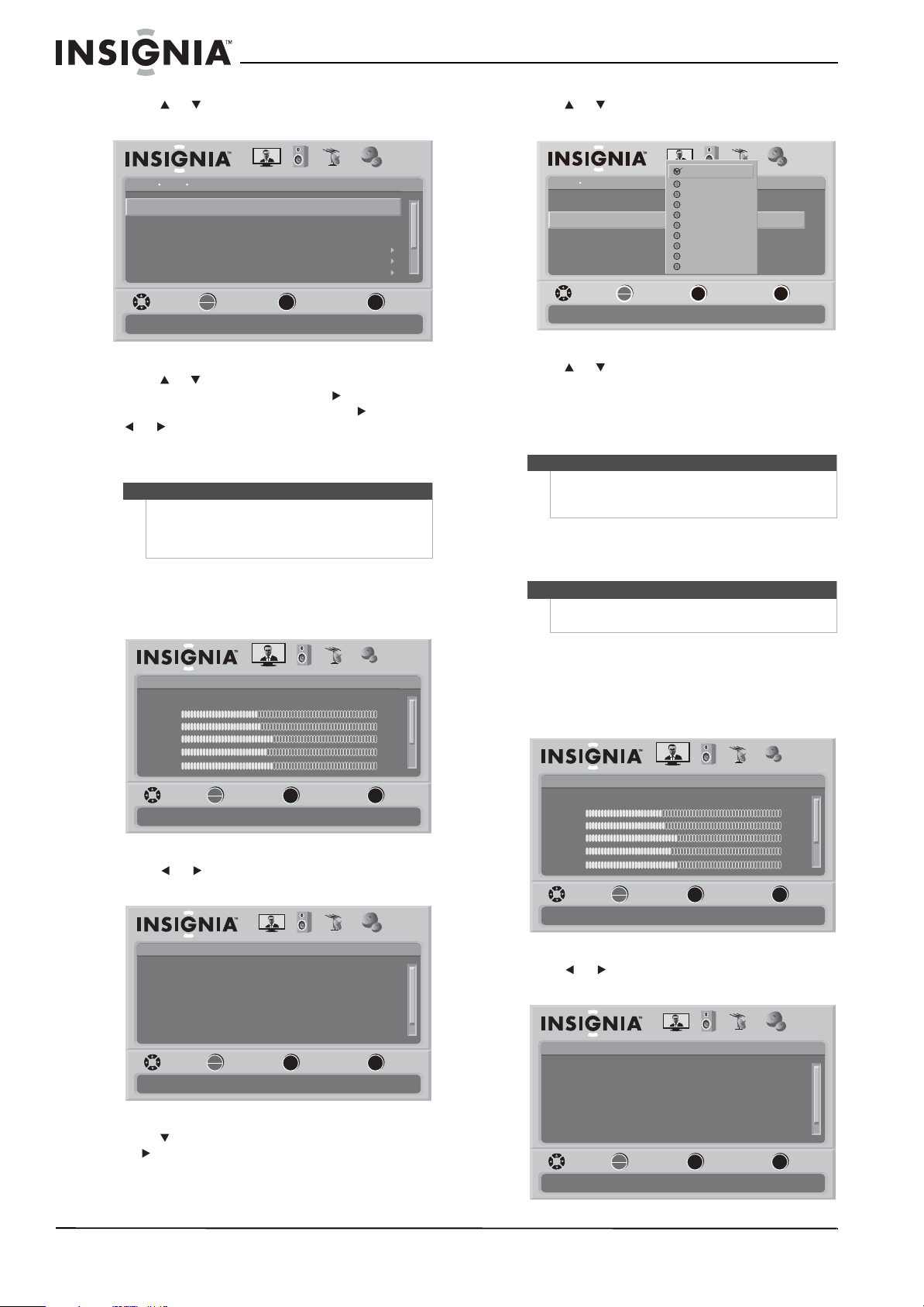
28
NS-L47Q09-10A Insignia 47" LCD TV
www.insigniaproducts.com
4 Press or to highlight Date/Time, then press
OK/ENTER to open the Date/Time screen.
5 Press or to highlight the option you want to
adjust, then press OK/ENTER or open the
setting screen, or if the option has a , press
or to adjust the setting.
6 Press MENU to go to the previous menu, or
press EXIT to close the menu.
Setting the sleep timer
1 Press MENU. The on-screen menu opens with
the Picture menu displayed.
2 Press or to select SETTINGS. The Settings
menu opens.
3 Press to highlight Time, then press OK/ENTER
or to open the Time menu.
4 Press or to highlight Sleep Timer, then
press OK/ENTER to open the sleep timer list.
5 Press or to select the amount of time you
want your TV to wait before it automatically
turns off.
6 Press MENU to go to the previous menu or EXIT
to close the menu.
Adjusting menu settings
Selecting the menu language
To select the menu language:
1 Press MENU. The on-screen menu opens with
the Picture menu displayed.
2 Press or to select SETTINGS. The Settings
menu opens.
Note
If Mode is set to Auto, the date and time are set
based on a time signal received from a DTV channel,
and the only options you can adjust are Time Zone
and Daylight Savings.
Settings Time Date/Time
Auto
Central
On
2009
March
Time Zone
Mode
Daylight Savings
Year
Month
If Automatic, options are automatically set by TV source
PICTURE AUDIO CHANNELS
SETTINGS
MOVE SELECT PREVIOUS EXIT
1Day
OK
ENTER
MENU
EXIT
Picture
Mode
Brightness
Contrast
Color
Tint
PICTURE AUDIO CHANNELS SETTINGS
MOVE SELECT PREVIOUS EXIT
Adjust settings to affect picture quality
Vivid
42
45
54
0
Sharpness +5
MENU EXIT
OK
ENTER
Settings
Parental Controls
Time
Menu Settings
Input labels
Closed Caption
PICTURE AUDIO CHANNELS
SETTINGS
Computer Settings
MOVE SELECT PREVIOUS EXIT
Set various TV options
OK
ENTER
MENU
EXIT
Note
You can also press SLEEP one or more times to set
the sleep timer. You can select Off, 5, 10, 15, 30, 60,
90, 120, 180, or 240 minutes.
Note
Unless otherwise noted, all tasks in this section are
based on using the remote control.
Settings Time
OffSleep Time
Date/Time
PICTURE AUDIO CHANNELS
SETTINGS
MOVE SELECT PREVIOUS EXIT
OK
ENTER
MENU
EXIT
Off
5 minutes
10 minutes
15 minutes
30 minutes
60 minutes
90 minutes
120 minutes
180 minutes
240 minutes
Picture
Mode
Brightness
Contrast
Color
Tint
PICTURE AUDIO CHANNELS SETTINGS
MOVE SELECT PREVIOUS EXIT
Adjust settings to affect picture quality
Vivid
42
45
54
0
Sharpness +5
MENU EXIT
OK
ENTER
Settings
Parental Controls
Time
Menu Settings
Input labels
Closed Caption
PICTURE AUDIO CHANNELS
SETTINGS
Computer Settings
MOVE SELECT PREVIOUS EXIT
Set various TV options
OK
ENTER
MENU
EXIT
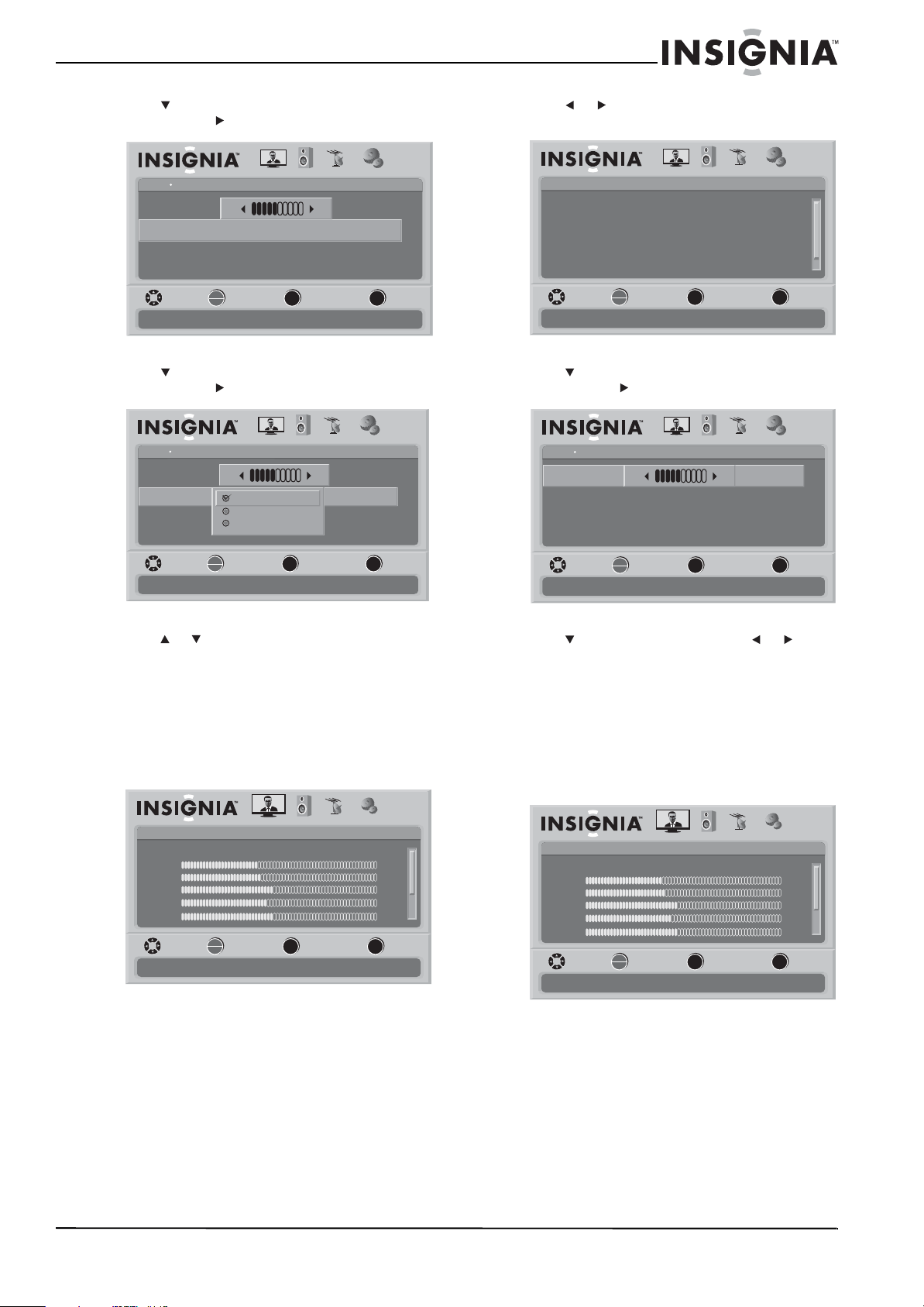
29
Insignia 47" LCD TV
www.insigniaproducts.com
3 Press to highlight Menu Settings, then press
OK/ENTER or to open the sub-menu.
4 Press to highlight Language, then press
OK/ENTER or to open the sub-menu.
5 Press or to select a language.
6 Press MENU to go to the previous menu or press
EXIT to close the menu.
Changing the menu transparency
To change the menu transparency:
1 Press MENU. The on-screen menu opens with
the Picture menu displayed.
2 Press or to select SETTINGS. The Settings
menu opens.
3 Press to highlight Menu Settings, then press
OK/ENTER or to open the sub-menu.
4 Press to highlight Transparency, or to
change the transparency.
5 Press MENU to go to the previous menu or press
EXIT to close the menu.
Labeling an input source
To change input labels:
1 Press MENU. The on-screen menu opens with
the Picture menu displayed.
Settings Menu Settings
English
5
Language
Set menu language to English, Français,Español
Transparency 0
PICTURE AUDIO CHANNELS SETTINGS
MOVE SELECT PREVIOUS EXIT
OK
ENTER
MENU
EXIT
Settings Menu Settings
English
English
Français
Español
5
Language
Set menu language to English, Français,Español
Transparency
0
PICTURE AUDIO CHANNELS SETTINGS
MOVE SELECT PREVIOUS EXIT
OK
ENTER
MENU
EXIT
Picture
Mode
Brightness
Contrast
Color
Tint
PICTURE AUDIO CHANNELS SETTINGS
MOVE SELECT PREVIOUS EXIT
Adjust settings to affect picture quality
Vivid
42
45
54
0
Sharpness +5
MENU EXIT
OK
ENTER
Settings
Parental Controls
Time
Menu Settings
Input labels
Closed Caption
PICTURE AUDIO CHANNELS
SETTINGS
Computer Settings
MOVE SELECT PREVIOUS EXIT
Set various TV options
OK
ENTER
MENU
EXIT
Settings Menu Settings
English
5
Language
Adjust how transparent the TV menu appears
Transparency 0
PICTURE AUDIO CHANNELS SETTINGS
MOVE SELECT PREVIOUS EXIT
OK
ENTER
MENU
EXIT
Picture
Mode
Brightness
Contrast
Color
Tint
PICTURE AUDIO CHANNELS SETTINGS
MOVE SELECT PREVIOUS EXIT
Adjust settings to affect picture quality
Vivid
42
45
54
0
Sharpness +5
MENU EXIT
OK
ENTER
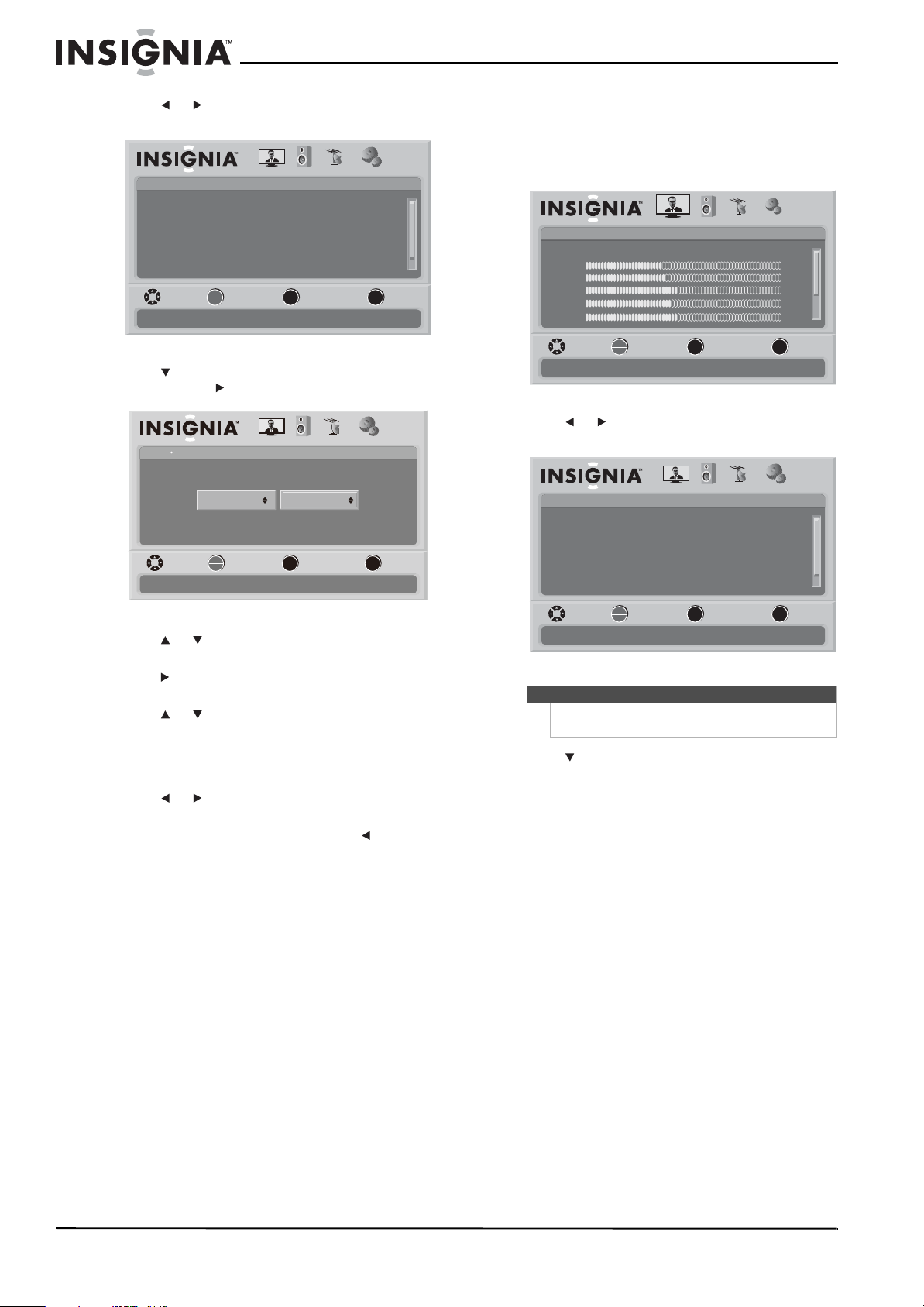
30
NS-L47Q09-10A Insignia 47" LCD TV
www.insigniaproducts.com
2 Press or to select SETTINGS. The Settings
menu opens.
3 Press to highlight Input labels, then press
OK/ENTER or to open the Input Labels screen.
4 Press or to select the input you want to
change the label for (for example, AV 1).
5 Press to move the cursor to the label selection
field.
6 Press or to select the label you want (—,
VCR, DVD, Set Top Box, Satellite, Cable Box,
DVD/PVR, BD, HD, Game, Camcorder,
Receiver, PC, or Other), then press OK/ENTER
to confirm the change.
7 Press or to check Ye s or No, then press
OK/ENTER to confirm.
8 To change another input label, press to move
the cursor to the input selection field, then
repeat step 4 to step 7.
9 Press MENU to go to previous menu or press
EXIT to close the on-screen menu.
Resetting settings to the defaults
To reset settings to the defaults:
1 Press MENU. The on-screen menu opens with
the Picture menu displayed.
2 Press or to select SETTINGS. The Settings
menu opens.
3 Press to highlight Reset to Default, then
press OK/ENTER to confirm.
4 Press MENU to go to the previous menu or press
EXIT to close the menu.
Settings
Parental Controls
Time
Menu Settings
Input labels
Closed Caption
PICTURE AUDIO CHANNELS
SETTINGS
Computer Settings
MOVE SELECT PREVIOUS EXIT
Set various TV options
OK
ENTER
MENU
EXIT
Settings Input Labels
AV 1
Create labels for the devices connected to your TV
PICTURE AUDIO CHANNELS SETTINGS
MOVE SELECT PREVIOUS EXIT
DVD
OK
ENTER
MENU EXIT
Note
You may need to scroll down to see the Reset to
Default option.
Picture
Mode
Brightness
Contrast
Color
Tint
PICTURE AUDIO CHANNELS SETTINGS
MOVE SELECT PREVIOUS EXIT
Adjust settings to affect picture quality
Vivid
42
45
54
0
Sharpness +5
MENU EXIT
OK
ENTER
Settings
Parental Controls
Time
Menu Settings
Input labels
Closed Caption
PICTURE AUDIO CHANNELS
SETTINGS
Computer Settings
MOVE SELECT PREVIOUS EXIT
Set various TV options
OK
ENTER
MENU
EXIT

31
Insignia 47" LCD TV
www.insigniaproducts.com
Maintaining
• Do not use your TV in areas that are too hot or too
cold, because the cabinet may warp or the screen
may malfunction. Your TV works best in
temperatures that are comfortable to you.
• Storage temperatures are 32° to 122°F (0° to 50°C).
• Working temperatures are 41° to 104°F (5° to
40°C).
• Do not place your TV in direct sunlight or near a
heat source.
Cleaning the TV cabinet
Clean the cabinet with a soft, lint-free cloth. If the
cabinet is especially dirty, moisten a soft, lint-free
cloth in a weak detergent solution, squeeze the
excess moisture from the cloth, then wipe the
screen or cabinet with the cloth. Use a clean cloth to
dry the screen or cabinet.
Cleaning the TV screen
Clean the screen with a soft, lint-free cloth.
Troubleshooting
Warning
Do not try to repair your TV yourself. Refer all service
to a qualified service technician.
Problem Solution
No power
• Make sure that the power cord is
correctly connected to your TV and
a power outlet.
• Unplug the power cord, wait 60
seconds, then plug the cord back in
and turn on your TV.
No picture
• Make sure that Audio Only option
is set to Off. For more information,
see “Playing TV audio only” on
page 18.
• Make sure that the video cables are
connected securely to the back of
your TV.
• Adjust the contrast and brightness.
• Make sure that the correct video
mode is selected.
• Make sure that the incoming signal
is compatible.
• Make sure the antenna is
connected correctly.
• Check the closed caption settings.
Some TEXT modes can block the
screen.
Good picture but no sound
• Increase the volume.
• Make sure that the sound is not
muted.
• Make sure that the correct audio
mode is selected.
Good sound but poor color
• Adjust the contrast, color, and
brightness settings.
Poor picture
• Make sure that the room is not too
bright. Light reflecting off the
screen can make the picture
difficult to see.
• If an S-VHS camera or a camcorder
is connected while another
connected device is turned on, the
picture may be poor. Turn off one or
more devices.
Horizontal dotted line
• Your TV may be too close to another
electrical device, such as a hair
dryer or neon light. Turn off the
device or move your TV.
“Ghost” or double image
• This may be caused by obstructions
to the antenna, such as high-rise
buildings or hills. Use of a highly
directional antenna may improve
the picture quality.
Remote control does not work
• Replace the batteries. Make sure
that the + and – symbols on the
batteries align with the + and –
symbols in the battery
compartment.
• Clean the remote sensor on the
front of your TV.
• Bright or fluorescent lighting may
interfere with the remote control
signal. Turn off the light or move
your TV.
Snowy picture or noise
• Make sure that the A/V and
antenna cables are connected
correctly and securely.
VGA picture is not stable or
synchronized
• Make sure that you have selected
the correct VGA mode on your
computer.
No output from one of the speakers
• Adjust the balance in the Audio
menu.
Control buttons do not work
• Make sure that the Button Lock
option is set to Off. For more
information, see “Locking control
buttons” on page 25.
• Unplug the power cord, wait a few
seconds, then plug the cord back in
and turn on your TV.
After images appear
• Do not display a still image, such as
a logo, game, or computer image,
for an extended period of time. This
can cause a permanent after-image
to be burned into the screen. This
type of damage is not covered by
your warranty.
Picture has a few bright or dark dots
• A few bright or dark dots on an LCD
screen is normal. It does not affect
the operation of this TV.
Problem Solution
32
NS-L47Q09-10A Insignia 47" LCD TV
www.insigniaproducts.com
Specifications
Design and specifications are subject to change
without notice.
Legal notices
FCC Part 15
This device complies with Part 15 of the FCC Rules. Operation of
this product is subject to the following two conditions: (1) this
device may not cause harmful interference, and (2) this device
must accept any interference received, including interference
that may cause undesired operation.
This equipment has been tested and found to comply within the
limits for a class B digital device, pursuant to Part 15 of the FCC
Rules. These limits are designed to provide reasonable
protection against harmful interference in a residential
installation. This equipment generates, uses, and can radiate
radio frequency energy and, if not installed and used in
accordance with the instructions, may cause harmful
interference to radio communications. However, there is no
guarantee that interference will not occur in a particular
installation. If this equipment does cause harmful interference to
radio or television reception, which can be determined by
turning the equipment off and on, the user is encouraged to try
to correct the interference by one or more of the following
measures:
• Reorient or relocate the receiving antenna.
• Increase the separation between the equipment and
receiver.
• Connect the equipment into an outlet on a circuit different
from that to which the receiver is connected.
• Consult the dealer or an experienced radio/TV technician
for help.
FCC warning
Changes or modifications not expressly approved by the party
responsible for compliance with the FCC Rules could void the
user’s authority to operate this equipment.
Cables
Connections to this device must be made with shielded cables
with metallic RF/EMI connector hoods to maintain compliance
with FCC Rules and Regulations.
Canadian notice
This Class B digital apparatus complies with Canadian ICES-003.
Cet appareil numérique de la classe B est conforme à la norme
NMB-003 du Canada.
“Standard Television Receiving Apparatus-Appareil de reception
télévision ordinaire, Canada BETS-7 / NTMR-7”.
Dolby License Notice and Trademark Acknoledgement
Manufactured under license from Dolby Laboratories. Dolby and
the double-D symbol are trademarks of Dolby Laboratories.
HDMI
HDMI, the HDMI logo, and High-Definition Multimedia Interface
are trademarks or registered trademarks of HDMI Licensing LLC.
SRS TruSurround HD
is a trakemark of SRS Labs, Inc.
TruSurround HD technology is incorporated under license from
SRS Labs, Inc.
Analog standard NTSC
Digital standard ATSC, 8-VSB, Clear-QAM
Screen 47”
Channel coverage VHF: 2-13
UHF: 14-69
CATV: Mid band - A-8 ~ A-1, A ~ I
Super band - J ~ W
Hyper band - AA ~ ZZ, AAA, BBB
Ultra band - 65 ~ 94, 100 ~ 135
Power source AC 120 V ~ 60 Hz
Power consumption 260 Wwith TV on
<1 W in standby mode
Audio power 10 W + 10 W internal speaker
S-Video input (2) Y: 1 V (p-p), 75 ohm, negative sync
C: 0.286 V (p-p) (burst signal), 75 ohm
Video/audio input (2) Video: 1 V (p-p), 75 ohm, negative sync
Audio: 300 mV (rms)
Component input (2) Y: 1 V (p-p), 75 ohm, including sync
Pr/Cr: ±0.35 V (p-p), 75 ohm
Pb/Cb: ±0.35 V (p-p), 75 ohm
Audio: 300 mV (rms)
Suggested resolutions: 1080P, 1080i, 720p, 480p,
480i
HDMI input (4) 4 HDMI input jacks
HDCP compliant
E-EDID compliant
Suggested scan rates: 1080p, 1080i, 720p, 480p,
480i
VGA input E-EDID compliant
Suggested scan rates: 640x480/60 Hz,
800x600/60 Hz, 1024x768/60 Hz,
1920x1080/60 Hz
Audio input: Headphone mini-jack for stereo
Accessories Remote control and batteries (2 AAA)
AC power cord
Component cable
User guide
Quick Setup Guide

33
Insignia 47" LCD TV
www.insigniaproducts.com
Two-year limited warranty
Insignia Products (“Insignia”) warrants to you, the original
purchaser of this new NS-L47Q09-10A (“Product”), that the
Product shall be free of defects in the original manufacture of the
material or workmanship for a period of two (2) years from the
date of your purchase of the Product (“Warranty Period”). This
Product must be purchased from an authorized dealer of
Insignia brand products and packaged with this warranty
statement. This warranty does not cover refurbished Product. If
you notify Insignia during the Warranty Period of a defect
covered by this warranty that requires service, terms of this
warranty apply.
How long does the coverage last?
The Warranty Period lasts for 2 years (730 days) from the date
you purchased the Product. The purchase date is printed on the
receipt you received with the Product.
What does this warranty cover?
During the Warranty Period, if the original manufacture of the
material or workmanship of the Product is determined to be
defective by an authorized Insignia repair center or store
personnel, Insignia will (at its sole option): (1) repair the Product
with new or rebuilt parts; or (2) replace the Product at no charge
with new or rebuilt comparable products or parts. Products and
parts replaced under this warranty become the property of
Insignia and are not returned to you. If service of Products or
parts are required after the Warranty Period expires, you must
pay all labor and parts charges. This warranty lasts as long as you
own your Insignia Product during the Warranty Period. Warranty
coverage terminates if you sell or otherwise transfer the Product.
How to obtain warranty service?
If you purchased the Product at a retail store location, take your
original receipt and the Product to the store you purchased it
from. Make sure that you place the Product in its original
packaging or packaging that provides the same amount of
protection as the original packaging. If you purchased the
Product from an online web site, mail your original receipt and
the Product to the address listed on the web site. Make sure that
you put the Product in its original packaging or packaging that
provides the same amount of protection as the original
packaging.
To obtain in-home warranty service for a television with a screen
30 inches or larger, call 1-888-BESTBUY. Call agents will diagnose
and correct the issue over the phone or will have an
Insignia-approved repair person dispatched to your home.
Should the Insignia-approved repair person not correct the issue
on the first call, an Insignia television (size and features to be
determined by Insignia) will be loaned to you until your TV is
repaired and returned, at no charge to you. This feature is only
available to Insignia television consumers residing in the United
States.
Where is the warranty valid?
This warranty is valid only to the original purchaser of the
product in the United States, Canada, and Mexico.
What does the warranty not cover?
This warranty does not cover:
• Customer instruction
•Installation
•Set up adjustments
•Cosmetic damage
• Damage due to acts of God, such as lightning strikes
•Accident
•Misuse
•Abuse
•Negligence
•Commercial use
• Modification of any part of the Product, including the
antenna
• Plasma display panel damaged by static (non-moving)
images applied for lengthy periods (burn-in).
This warranty also does not cover:
• Damage due to incorrect operation or maintenance
• Connection to an incorrect voltage supply
• Attempted repair by anyone other than a facility
authorized by Insignia to service the Product
• Products sold as is or with all faults
• Consumables, such as fuses or batteries
• Products where the factory applied serial number has been
altered or removed
REPAIR REPLACEMENT AS PROVIDED UNDER THIS WARRANTY IS
YOUR EXCLUSIVE REMEDY. INSIGNIA SHALL NOT BE LIABLE FOR
ANY INCIDENTAL OR CONSEQUENTIAL DAMAGES FOR THE
BREACH OF ANY EXPRESS OR IMPLIED WARRANTY ON THIS
PRODUCT, INCLUDING, BUT NOT LIMITED TO, LOST DATA, LOSS
OF USE OF YOUR PRODUCT, LOST BUSINESS OR LOST PROFITS.
INSIGNIA PRODUCTS MAKES NO OTHER EXPRESS WARRANTIES
WITH RESPECT TO THE PRODUCT, ALL EXPRESS AND IMPLIED
WARRANTIES FOR THE PRODUCT, INCLUDING, BUT NOT LIMITED
TO, ANY IMPLIED WARRANTIES OF AND CONDITIONS OF
MERCHANTABILITY AND FITNESS FOR A PARTICULAR PURPOSE,
ARE LIMITED IN DURATION TO THE WARRANTY PERIOD SET
FORTH ABOVE AND NO WARRANTIES, WHETHER EXPRESS OR
IMPLIED, WILL APPLY AFTER THE WARRANTY PERIOD. SOME
STATES, PROVINCES AND JURISDICTIONS DO NOT ALLOW
LIMITATIONS ON HOW LONG AN IMPLIED WARRANTY LASTS, SO
THE ABOVE LIMITATION MAY NOT APPLY TO YOU. THIS
WARRANTY GIVES YOU SPECIFIC LEGAL RIGHTS, AND YOU MAY
ALSO HAVE OTHER RIGHTS, WHICH VARY FROM STATE TO STATE
OR PROVINCE TO PROVINCE.
Contact Insignia:
For customer service please call 1-877-467-4289
www.insigniaproducts.com
Distributed by Best Buy Purchasing, LLC
7601 Penn Avenue South, Richfield, Minnesota, U.S.A.
55423-3645
© 2009 Best Buy Enterprise Services, Inc.
All rights reserved. INSIGNIA is a trademark of Best Buy
Enterprise Services, Inc. Registered in some countries. All other
products and brand names are trademarks of their respective
owners.

34
NS-L47Q09-10A Insignia 47" LCD TV
www.insigniaproducts.com

35
Insignia 47" LCD TV
www.insigniaproducts.com

TM
www.insigniaproducts.com (877) 467-4289
Distributed by Best Buy Purchasing, LLC
7601 Penn Avenue South, Richfield, MN USA 55423-3645
© 2009 Best Buy Enterprise Services, Inc.
All rights reserved. INSIGNIA is a trademark of Best Buy Enterprise Services, Inc. Registered in some countries.
All other products and brand names are trademarks of their respective owners.
ENGLISH
09-0643