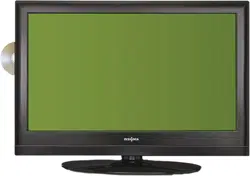

32" LCD TV, 720p
NS-32L430A11
User Guide

ii
www.insigniaproducts.com
Contents
CHILD SAFETY . . . . . . . . . . . . . . . . . . . . . . . . . . . . . . . . . . . . . . . . . . . . . . . . . . .1
Important safety instructions . . . . . . . . . . . . . . . . . . . . . . . . . . . . . . . . . . . . .2
Warnings . . . . . . . . . . . . . . . . . . . . . . . . . . . . . . . . . . . . . . . . . . . . . . . . . . . . . . . . 2
Cautions . . . . . . . . . . . . . . . . . . . . . . . . . . . . . . . . . . . . . . . . . . . . . . . . . . . . . . . . . 3
Introduction . . . . . . . . . . . . . . . . . . . . . . . . . . . . . . . . . . . . . . . . . . . . . . . . . . . . .4
Install the stand or wall-mount bracket . . . . . . . . . . . . . . . . . . . . . . . . . . .4
TV components . . . . . . . . . . . . . . . . . . . . . . . . . . . . . . . . . . . . . . . . . . . . . . . . . .5
Accessories . . . . . . . . . . . . . . . . . . . . . . . . . . . . . . . . . . . . . . . . . . . . . . . . . . . . . . 5
Front . . . . . . . . . . . . . . . . . . . . . . . . . . . . . . . . . . . . . . . . . . . . . . . . . . . . . . . . . . . . 5
Side controls . . . . . . . . . . . . . . . . . . . . . . . . . . . . . . . . . . . . . . . . . . . . . . . . . . . . 5
Back . . . . . . . . . . . . . . . . . . . . . . . . . . . . . . . . . . . . . . . . . . . . . . . . . . . . . . . . . . . . . 5
Remote control . . . . . . . . . . . . . . . . . . . . . . . . . . . . . . . . . . . . . . . . . . . . . . . . . . 6
Using the remote control . . . . . . . . . . . . . . . . . . . . . . . . . . . . . . . . . . . . . . . . .7
Installing remote control batteries . . . . . . . . . . . . . . . . . . . . . . . . . . . . . . . . 7
Aiming the remote control . . . . . . . . . . . . . . . . . . . . . . . . . . . . . . . . . . . . . . . 7
Programming your universal Insignia remote control . . . . . . . . . . . . . 8
Programming a universal remote control to work with your TV . . . 11
Making connections . . . . . . . . . . . . . . . . . . . . . . . . . . . . . . . . . . . . . . . . . . . . 12
Identifying cables . . . . . . . . . . . . . . . . . . . . . . . . . . . . . . . . . . . . . . . . . . . . . . . 12
Connecting power . . . . . . . . . . . . . . . . . . . . . . . . . . . . . . . . . . . . . . . . . . . . . . 13
Connecting an antenna or cable TV without a cable box . . . . . . . . . 13
Connecting a cable or satellite TV box . . . . . . . . . . . . . . . . . . . . . . . . . . . 13
Connecting an HDMI or DVI device . . . . . . . . . . . . . . . . . . . . . . . . . . . . . . 14
Connecting a component video device . . . . . . . . . . . . . . . . . . . . . . . . . . 14
Connecting a composite video device . . . . . . . . . . . . . . . . . . . . . . . . . . . 15
Connecting a computer . . . . . . . . . . . . . . . . . . . . . . . . . . . . . . . . . . . . . . . . . 15
Connecting headphones . . . . . . . . . . . . . . . . . . . . . . . . . . . . . . . . . . . . . . . . 16
Connecting a digital sound system . . . . . . . . . . . . . . . . . . . . . . . . . . . . . . 16
Connecting an analog sound system . . . . . . . . . . . . . . . . . . . . . . . . . . . . 17
Turning on your TV for the first time . . . . . . . . . . . . . . . . . . . . . . . . . . . . 17
Understanding the basics . . . . . . . . . . . . . . . . . . . . . . . . . . . . . . . . . . . . . . 18
Turning your TV on or off: . . . . . . . . . . . . . . . . . . . . . . . . . . . . . . . . . . . . . . . 18
Selecting the video input source . . . . . . . . . . . . . . . . . . . . . . . . . . . . . . . . 18
Selecting a channel . . . . . . . . . . . . . . . . . . . . . . . . . . . . . . . . . . . . . . . . . . . . . 19
Adjusting the volume . . . . . . . . . . . . . . . . . . . . . . . . . . . . . . . . . . . . . . . . . . . 19
Displaying additional information . . . . . . . . . . . . . . . . . . . . . . . . . . . . . . . 19
On-screen menu overview . . . . . . . . . . . . . . . . . . . . . . . . . . . . . . . . . . . . . . 19
Navigating the menus . . . . . . . . . . . . . . . . . . . . . . . . . . . . . . . . . . . . . . . . . . 20
Adjusting the picture . . . . . . . . . . . . . . . . . . . . . . . . . . . . . . . . . . . . . . . . . . . 20
Adjusting the TV picture . . . . . . . . . . . . . . . . . . . . . . . . . . . . . . . . . . . . . . . . 20
Selecting the aspect ratio . . . . . . . . . . . . . . . . . . . . . . . . . . . . . . . . . . . . . . . 21
Adjusting the computer image . . . . . . . . . . . . . . . . . . . . . . . . . . . . . . . . . . 22
Adjusting the sound . . . . . . . . . . . . . . . . . . . . . . . . . . . . . . . . . . . . . . . . . . . 23

iii
Contents
www.insigniaproducts.com
Selecting the audio language or sound mode . . . . . . . . . . . . . . . . . . . . 23
Adjusting sound settings . . . . . . . . . . . . . . . . . . . . . . . . . . . . . . . . . . . . . . . . 23
Playing TV audio only . . . . . . . . . . . . . . . . . . . . . . . . . . . . . . . . . . . . . . . . . . . 23
Changing channel settings . . . . . . . . . . . . . . . . . . . . . . . . . . . . . . . . . . . . . 24
Automatically scanning for channels . . . . . . . . . . . . . . . . . . . . . . . . . . . . 24
Hiding channels . . . . . . . . . . . . . . . . . . . . . . . . . . . . . . . . . . . . . . . . . . . . . . . . 25
Setting up a favorite channel list . . . . . . . . . . . . . . . . . . . . . . . . . . . . . . . . 25
Viewing a favorite channel . . . . . . . . . . . . . . . . . . . . . . . . . . . . . . . . . . . . . . 26
Adding or changing a channel label . . . . . . . . . . . . . . . . . . . . . . . . . . . . . 26
Checking the digital TV channel strength . . . . . . . . . . . . . . . . . . . . . . . . 26
Setting parental controls . . . . . . . . . . . . . . . . . . . . . . . . . . . . . . . . . . . . . . . 27
Setting or changing the password . . . . . . . . . . . . . . . . . . . . . . . . . . . . . . . 27
Setting parental control levels . . . . . . . . . . . . . . . . . . . . . . . . . . . . . . . . . . . 27
Blocking unrated TV . . . . . . . . . . . . . . . . . . . . . . . . . . . . . . . . . . . . . . . . . . . . 29
Viewing blocked content . . . . . . . . . . . . . . . . . . . . . . . . . . . . . . . . . . . . . . . . 30
Downloading rating information . . . . . . . . . . . . . . . . . . . . . . . . . . . . . . . . 30
Locking control buttons . . . . . . . . . . . . . . . . . . . . . . . . . . . . . . . . . . . . . . . . . 31
Using closed captioning . . . . . . . . . . . . . . . . . . . . . . . . . . . . . . . . . . . . . . . . 31
Turning closed captioning on or off . . . . . . . . . . . . . . . . . . . . . . . . . . . . . 31
Selecting the closed captioning mode . . . . . . . . . . . . . . . . . . . . . . . . . . . 32
Customizing digital TV closed captioning styles . . . . . . . . . . . . . . . . . . 33
Adjusting time settings . . . . . . . . . . . . . . . . . . . . . . . . . . . . . . . . . . . . . . . . . 33
Manually setting the time and date . . . . . . . . . . . . . . . . . . . . . . . . . . . . . . 33
Setting the sleep timer . . . . . . . . . . . . . . . . . . . . . . . . . . . . . . . . . . . . . . . . . . 34
Adjusting menu settings . . . . . . . . . . . . . . . . . . . . . . . . . . . . . . . . . . . . . . . 35
Selecting the menu language and transparency . . . . . . . . . . . . . . . . . 35
Labeling an input source . . . . . . . . . . . . . . . . . . . . . . . . . . . . . . . . . . . . . . . . 35
Restoring default settings . . . . . . . . . . . . . . . . . . . . . . . . . . . . . . . . . . . . . . . 36
Troubleshooting . . . . . . . . . . . . . . . . . . . . . . . . . . . . . . . . . . . . . . . . . . . . . . . 37
Video . . . . . . . . . . . . . . . . . . . . . . . . . . . . . . . . . . . . . . . . . . . . . . . . . . . . . . . . . . . 37
Audio . . . . . . . . . . . . . . . . . . . . . . . . . . . . . . . . . . . . . . . . . . . . . . . . . . . . . . . . . . 37
Remote control . . . . . . . . . . . . . . . . . . . . . . . . . . . . . . . . . . . . . . . . . . . . . . . . . 37
General . . . . . . . . . . . . . . . . . . . . . . . . . . . . . . . . . . . . . . . . . . . . . . . . . . . . . . . . . 38
Maintaining . . . . . . . . . . . . . . . . . . . . . . . . . . . . . . . . . . . . . . . . . . . . . . . . . . . . 38
Cleaning . . . . . . . . . . . . . . . . . . . . . . . . . . . . . . . . . . . . . . . . . . . . . . . . . . . . . . . . 38
Servicing . . . . . . . . . . . . . . . . . . . . . . . . . . . . . . . . . . . . . . . . . . . . . . . . . . . . . . . 38
Specifications . . . . . . . . . . . . . . . . . . . . . . . . . . . . . . . . . . . . . . . . . . . . . . . . . . 38
Manufacturers’ codes . . . . . . . . . . . . . . . . . . . . . . . . . . . . . . . . . . . . . . . . . . 39
Legal notices . . . . . . . . . . . . . . . . . . . . . . . . . . . . . . . . . . . . . . . . . . . . . . . . . . . 51
Two-year limited warranty . . . . . . . . . . . . . . . . . . . . . . . . . . . . . . . . . . . . . . 53
US and Canada Markets . . . . . . . . . . . . . . . . . . . . . . . . . . . . . . . . . . . . . . . . . 53
Mexico Market . . . . . . . . . . . . . . . . . . . . . . . . . . . . . . . . . . . . . . . . . . . . . . . . . . 53

iv
Contents
www.insigniaproducts.com
1
www.insigniaproducts.com
As you enjoy your new product, keep these
safety tips in mind
The issue
The home theater entertainment experience is a growing trend, and larger TVs are popular
purchases. However, TVs are not always supported on the proper stands or installed
according to the manufacturer’s recommendations. We and the consumer electronics
industry are committed to making home entertainment enjoyable and safe.
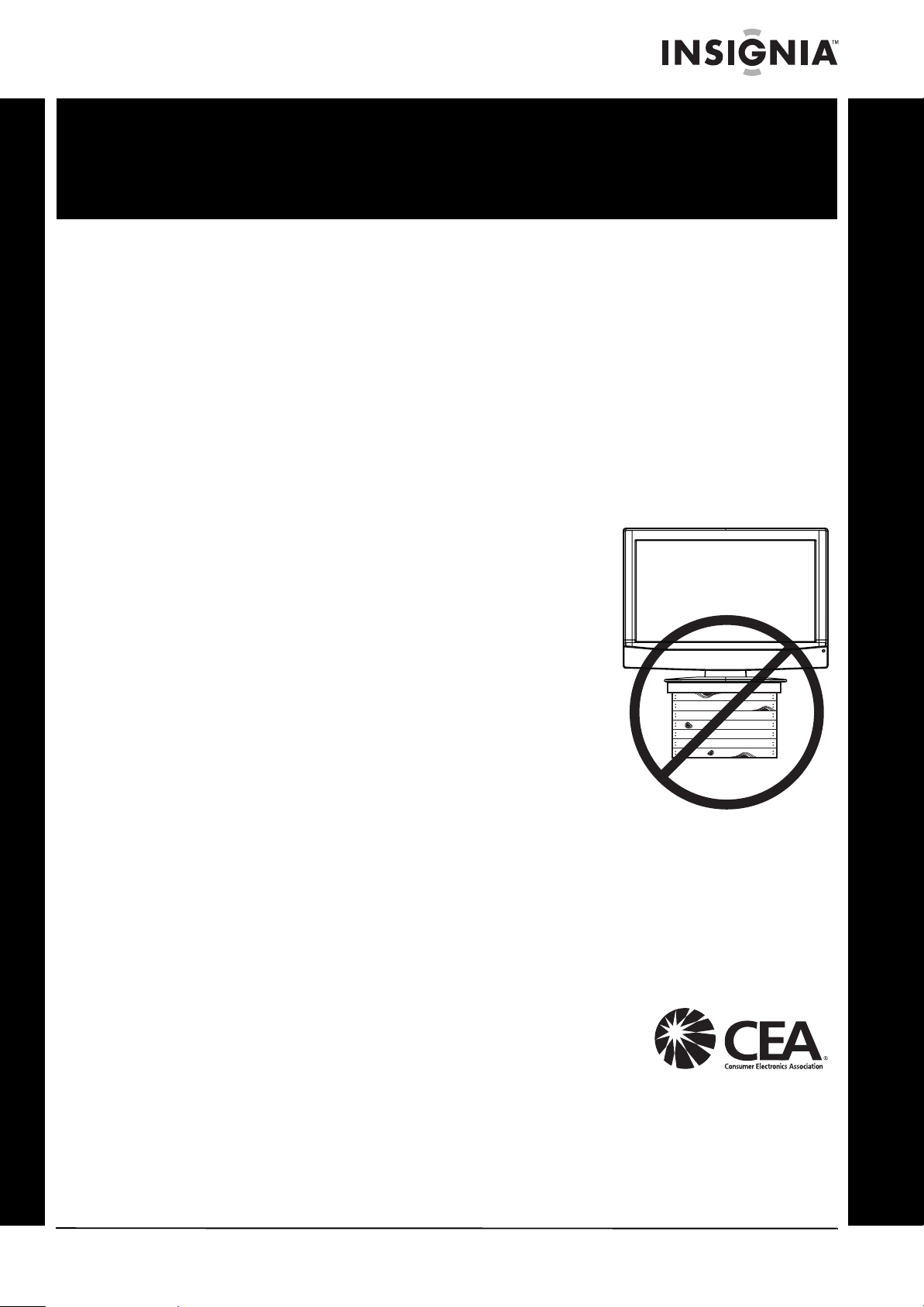
TVs that are inappropriately placed on dressers, bookcases, shelves, desks, speakers, chests, or
carts may fall over and cause injury.
Tune into safety
• One size of TV stand does not fit all. Use only a TV stand
rated for the weight of your TV.
• Carefully read and understand all enclosed instructions
for proper use of this product.
• Don’t let children climb on or play with entertainment
system furniture and TVs.
• Don’t place TVs on furniture that can easily be used as
steps, such as a crate or chest of drawers.
• Remember that children can become excited while
watching a program, especially on a “larger-than-life” TV.
Make sure that you place or install the TV where it cannot
be pushed, pulled over, or knocked down.
• Make sure that you route all cords and cables so that they
cannot be pulled or grabbed by curious children.
Wall mounting
If you decide to wall mount your TV, always remember:
• One size of wall mount does not fit all. Use only a wall mount rated for the weight of
your TV and that has been recommended by this TV manufacturer, listed in this
manual, or otherwise listed by an independent laboratory as suitable for your TV.
• Follow all instructions supplied by the TV and wall mount manufacturers.
• If you have any doubts about your ability to safely wall mount your TV, get help from a
professional installer.
• Make sure that the wall where you are mounting the TV is
appropriate. Some wall mounts are not designed to be
mounted to walls backed with steel studs or cinder blocks. If
you are unsure, ask a professional installer.
• TVs can be heavy. At least two people are required for safe wall mount installation.
f
CHILD SAFETY
It makes a difference how and where you use
your flat panel display
2
NS-32L430A11
www.insigniaproducts.com
Important safety
instructions
1 Read these instructions.
2 Keep these instructions.
3 Heed all warnings.
4 Follow all instructions.
5 Do not use this apparatus near water.
6 Clean only with a dry cloth.
7 Do not block any ventilation openings. Install in
accordance with the manufacturer's
instructions.
8 Do not install near any heat sources such as
radiators, heat registers, stoves, or other
apparatus (including amplifiers) that produce
heat.
9 Do not defeat the safety purpose of the
polarized or grounding-type plug. A polarized
plug has two blades with one wider than the
other. A grounding type plug has two blades
and a third grounding prong. The wide blade or
the third prong are provided for your safety. If
the provided plug does not fit into your outlet,
consult an electrician for replacement of the
obsolete outlet.
10 Protect the power cord from being walked on or
pinched particularly at plugs, convenience
receptacles, and the point where they exit from
the apparatus.
11 Only use attachments/accessories specified by
the manufacturer.
12 Use only with a cart, stand, tripod,
bracket, or table specified by the
manufacturer, or sold with the
apparatus. When a cart is used, use
caution when moving the
cart/apparatus combination to avoid injury from
tip-over.
13 Unplug this apparatus during lightning storms
or when unused for long periods of time.
14 Refer all servicing to qualified service personnel.
Servicing is required when the apparatus has
been damaged in any way, such as
power-supply cord or plug is damaged, liquid
has been spilled or objects have fallen into the
apparatus, the apparatus has been exposed to
rain or moisture, does not operate normally, or
has been dropped.
15 The wall plug is the disconnecting device. The
plug must remain readily operable.
16 An apparatus with three-prong, grounding-type
plug is a Class I apparatus. Class I apparatus
which needs to be grounded to prevent
possible electric shock. Make sure that you
connect the Class I apparatus to a
grounding-type, three-prong outlet.
17 Remote control batteries should not be exposed
to excessive heat such as sunshine, fire, or the
like.
18 The apparatus should not be exposed to
dripping or splashing, and no objects filled with
liquids, such as vases, should be placed on the
apparatus.
Warnings
Electric shock hazard
To reduce the risk of fire or electric shock, do not
remove any cover or expose the device to rain or
moisture. No user-serviceable parts are inside. Refer
servicing to qualified service technicians.
Lightning
For added protection for your device receiver
during a lightning storm, or when it is left
unattended and unused for long periods of time,
unplug it from the power outlet and disconnect any
antenna or cable system. This helps prevent
property damage and personal injury from
lightning and power line surges.
Power lines
An outside antenna system should not be located in
the vicinity of overhead power lines or other
electric light or power circuits, or where it can fall
into such power lines or circuits. When installing an
outside antenna system, extreme care should be
taken to keep from touching such power lines or
circuits as contact with them might be fatal.
Handling the LCD panel
• Your TV’s screen is made of glass. Do not drop
your TV or hit, jolt, or press hard against the LCD
panel. If the screen breaks, be careful of broken
glass.
• If the LCD panel is broken, make absolutely sure
that you do not touch the liquid in the panel. This
may cause skin inflammation.
• If the liquid gets in your mouth, immediately
gargle, rinse, and consult with your doctor. Also, if
the liquid gets in your eyes or touches your skin,
consult with your doctor after rinsing for at least
15 minutes or longer in clean water.
Replacement parts
When replacement parts are required, make sure
that the service technician uses replacement parts
specified by the manufacturer that have the same
characteristics as the original part. Unauthorized
substitutions may result in fire, electric shock,
personal injury, or other hazards.
Safety check
After completing any service or repair to this device,
ask the service technician to perform routine safety
checks to determine that your TV is in correct
operating condition.
CAUTION
RISK OF ELECTRIC SHOCK
DO NOT OPEN
This symbol indicates that dangerous
voltage constituting a risk of electric
shock is present within your TV. This
label is located on the back of your TV.
This symbol indicates that there are
important operating and maintenance
instructions in the literature
accompanying your TV.
S3125A
3
www.insigniaproducts.com
Power source
Operate your TV only from the type of power source
indicated on the marking label. If you are not sure
of the type of power supplied to your home, consult
an electrician or your local power company.
Cautions
Damage requiring service
Unplug this TV from the power outlet and refer
servicing to qualified service personnel under the
following conditions:
• When the power supply cord or plug is damaged
or frayed.
• If liquid has been spilled or objects have fallen
into your TV.
• If your TV has been exposed to rain or water.
• If your TV does not operate normally by following
the operating instructions. Adjust only those
controls that are covered by the operating
instructions because incorrect adjustment of
other controls may result in damage and will
often require extensive work by a qualified
technician to restore your TV to its normal
operation.
• If your TV has been dropped or damaged in any
way.
• When your TV exhibits a distinct change in
performance.
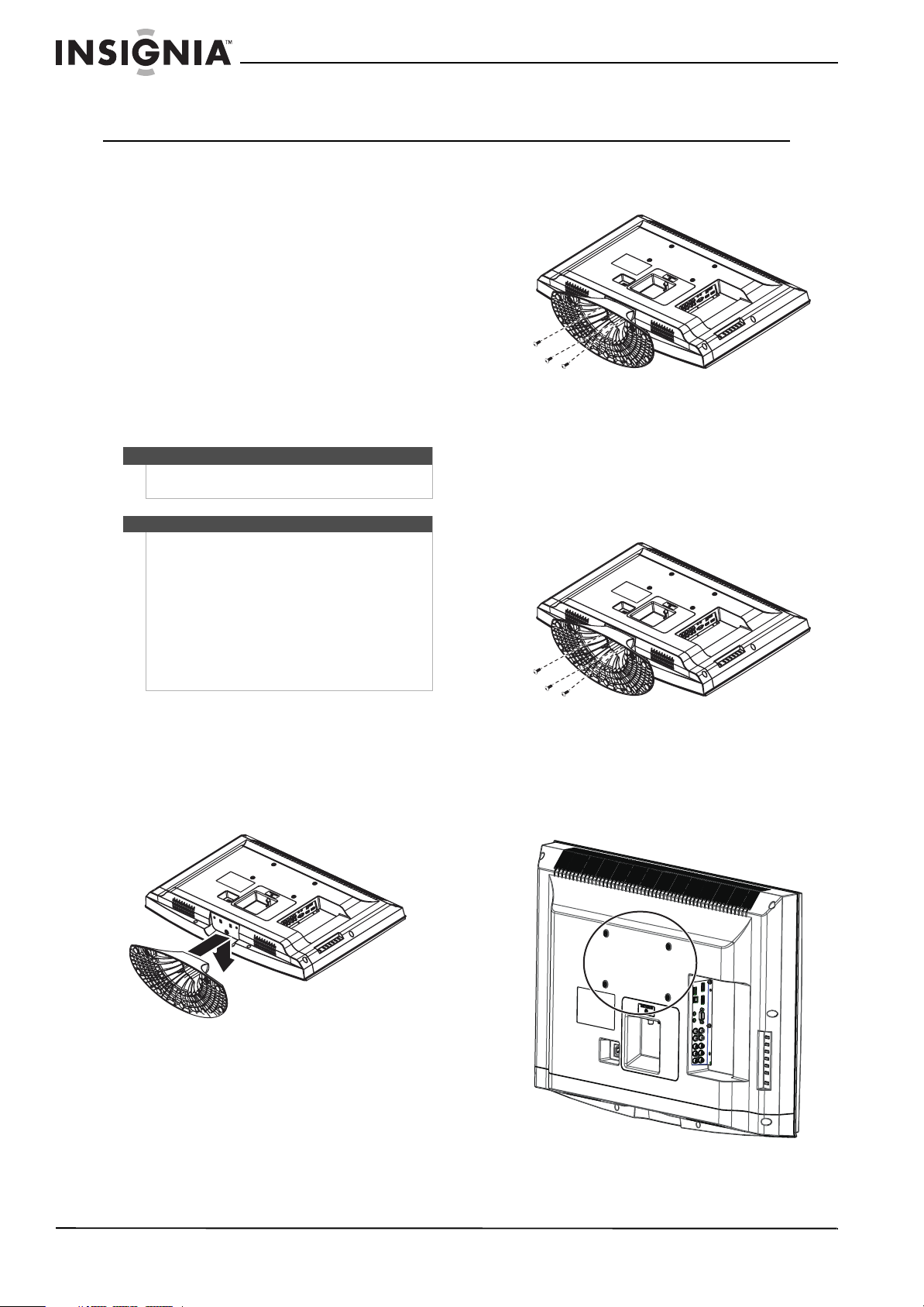
Outdoor antenna grounding
If an outside antenna or cable system is connected
to your TV, make sure that the antenna or cable
system is grounded to provide some protection
against voltage surges and built-up static charges.
Article 810 of the National Electrical Code,
ANSI/NFPA No. 70, provides information with
respect to correct grounding of the mast and
supporting structure, grounding of the lead-in wire
to an antenna discharge unit, size of grounding
conductors, location of the antenna-discharge unit,
connection to grounding electrodes, and
requirements for the grounding electrode.
Note to CATV system installer
Article 820 of the National Electrical Code,
ANSI/NFPA No. 40 provides guidance for correct
grounding. Specifically, it states that the cable
ground must be connected to the grounding
system of the building as close to the point of cable
entry as practical.
Condensation
Moisture will form on the TV if the TV is brought
from cool surroundings into a warm room or if the
temperature of the room rises suddenly. When this
happens, the TV's performance may be impaired. To
prevent this, let the TV stand in its new
surroundings for about an hour before switching it
on, or make sure that the room temperature rises
gradually.
Condensation may also form during the summer if
the TV is exposed to the breeze from an air
conditioner. In such cases, change the location of
the TV.
Mobile telephone warning
To avoid interference with your TV picture and
sound, operating problems, or even damage, keep
your cordless and cellular telephones away from
the TV.
End of life directives
Your TV contains tin-lead solder and a fluorescent
lamp containing a small amount of mercury.
Disposal of these materials may be regulated for
environmental reasons. Your TV also contains
material that can be recycled and reused. For
disposal or recycling information, contact your local
authorities or the Electronic Industries Alliance at
www.eia.org to find a recycler in your area.
Non-active pixels
The LCD panel contains almost 3 million thin film
transistors, which provide exceptionally sharp video
quality. Occasionally, a few non-active pixels may
appear on the screen as a fixed blue, green, or red
point. These non-active pixels do not adversely
affect the performance of your TV, and are not
considered defects.
Antenna lead-in wire
Grounding clamp
Antenna discharge unit
Grounding conductors
Ground clamps
Power service grounding electrode system
Electric service equipment
2
1
3
4
5
6
7
1
2
3
4
5
6
7
4
NS-32L430A11 Insignia 32" LCD TV 720p
www.insigniaproducts.com
Insignia 32" LCD TV 720p
Introduction
Congratulations on your purchase of a high-quality
Insignia product. Your NS-32L430A11 represents
the state of the art in LCD TV design and is designed
for reliable and trouble-free performance.
Install the stand or
wall-mount bracket
To set your TV on a cabinet or other flat surface, you
must install the stand. To mount your TV on a wall
or other vertical surface, you must remove the
stand.
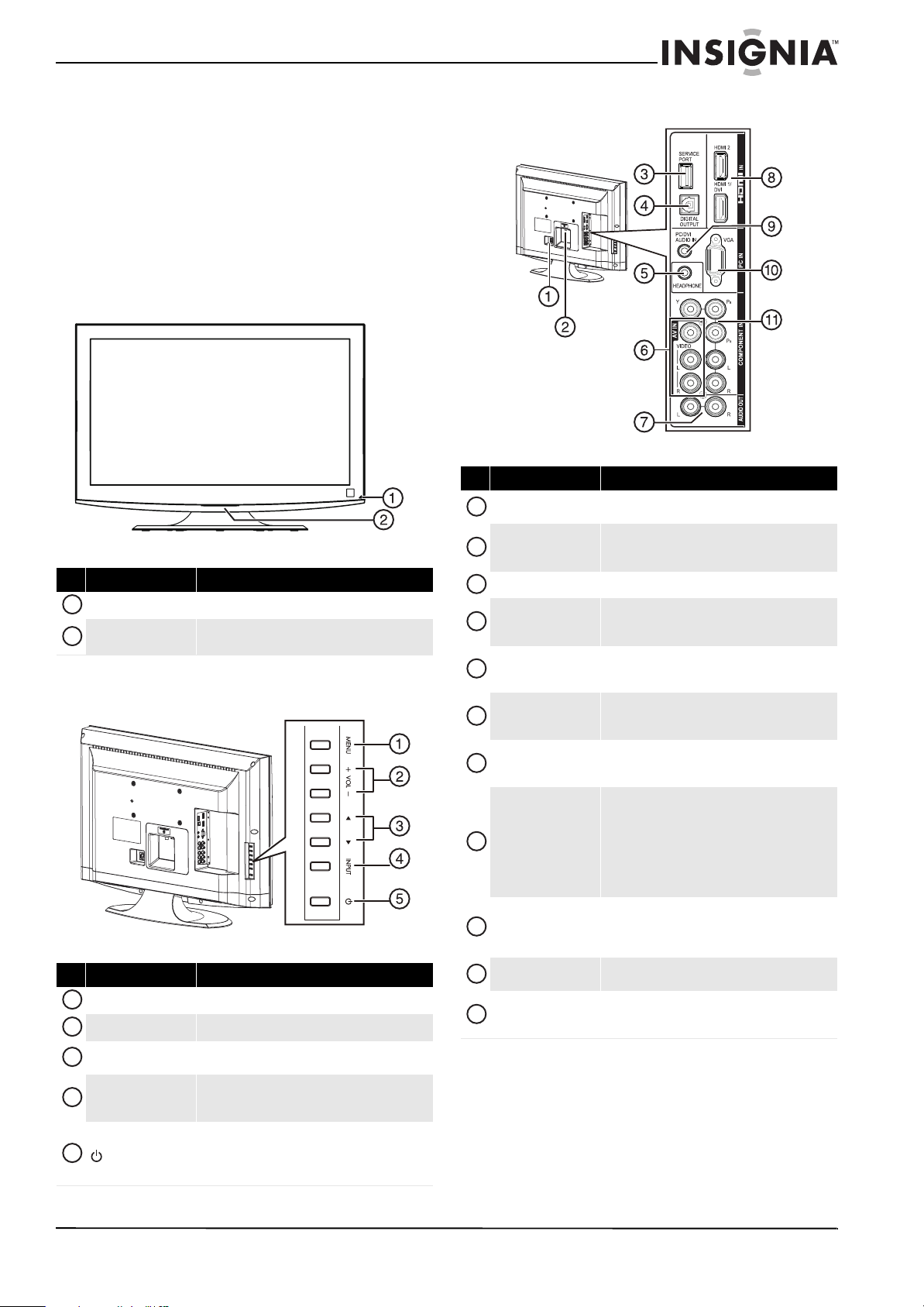
To install the stand:
1 Carefully place your TV screen face-down on a
cushioned, clean surface to protect the screen
from damages and scratches.
2 Align the bracket on the stand with the slot on
the base of your TV, then carefully push the
bracket into the slot.
3 Secure the stand with the three M4 x L14 mm
screws (included).
4 Set your TV upright on a stable surface.
To install a wall-mount bracket:
1 Carefully place your TV screen face-down on a
cushioned, clean surface to protect the screen
from damages and scratches.
2 Carefully remove the three screws that secure
the stand to the TV, then remove the stand.
3 Secure the wall mount bracket to the back of
your TV using the four M4 screws provided with
the bracket. Screw length should not be over
11 mm.
Warning
Before attempting assembly or removal of the stand,
unplug the AC power cord.
Cautions
• Read these instructions carefully before you try
to install the stand or a wall-mount bracket.
• If you are not sure you can install the stand or
wall-mount bracket, consult a professional
installer or service personnel. Your warranty
does not cover damages or injuries that happen
due to mishandling or incorrect assembly.
• When installing the stand or wall-mount
bracket, make sure that you place your TV on a
soft cushion or covering to prevent scratching
or damage to your TV’s finish or screen.
Vertical bracket measurement: 3.94" (100 mm)
Horizontal bracket measurement: 7.87" (200 mm)
5
Insignia 32" LCD TV 720p
www.insigniaproducts.com
TV components
Accessories
•AC power cord
• TV stand with screws
• Remote control with AA batteries (2)
• Component video cable
•Audio cable
• Quick Setup Guide
Front
Side controls
Back
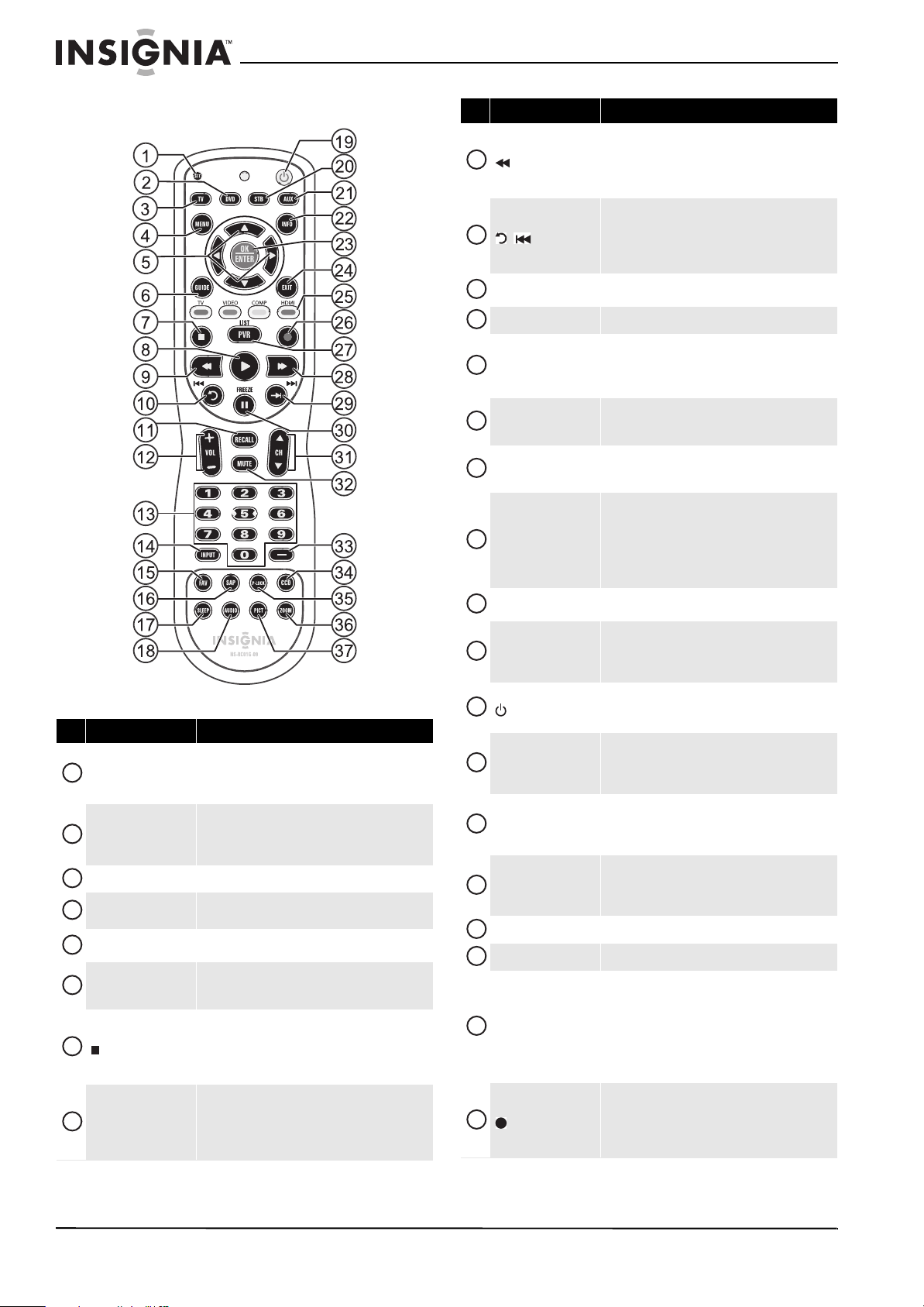
# Item Description
Remote sensor Receives signals from the remote control. Do not block.
Power indicator
Turns off when your TV is turned on.
Light amber when your TV is in standby mode.
# Item Description
MENU Press to open the on-screen menu.
VOL+/VOL– Press to increase or decrease the volume.
S/T
Press to go to the next or previous channel in the
channel list.
INPUT
Press to open the Input Source list and select the video
input source. For more information, see “Selecting the
video input source” on page 18.
Press to turn your TV on or off (standby mode).
When your TV is in standby mode, power still flows
through it. To completely disconnect power, unplug
the power cord.
1
2
1
2
3
4
5
# Item Description
AC IN
Connect the power cord to this jack. For more
information, see “Connecting power” on page 13.
ANT/CABLE IN
Connect an antenna, cable TV (no box), or satellite box
to this jack. For more information, see “Connecting an
antenna or cable TV without a cable box” on page 13.
SERVICE PORT For service only. Do not use.
DIGITAL OUTPUT
Connect a digital sound system to this jack. For more
information, see “Connecting a digital sound system”
on page 16.
HEADPHONE
Connect headphones to this jack. For more
information, see “Connecting headphones” on
page 16.
AV IN VIDEO and L/R
audio
Connect a standard, composite video device to these
jacks. For more information, see “Connecting a
composite video device” on page 15.
AUDIO OUT L/R
Connect an analog sound system to these jacks. For
more information, see “Connecting an analog sound
system” on page 17.
HDMI IN HDMI 1/DVI and
HDMI2
Connect HDMI devices to these jacks. An HDMI cable
carries both video and audio. You do not need to make
an audio connection for an HDMI device.
You can also connect a DVI device to the HDMI 1/DVI
jack.
For more information, see “Connecting an HDMI or DVI
device” on page 14.
PC/DVI AUDIO IN
Connect the audio for a computer or DVI device to this
jack. For more information, see “Connecting a
computer” on page 15 or “Connecting an HDMI or DVI
device” on page 14.
PC IN VGA
Connect the video for a computer to this jack. For more
information, see “Connecting a computer” on page 15.
COMPONENT IN Y, P
B, PR
and L/R audio
Connect a component video device to these jacks. For
more information, see “Connecting a component
video device” on page 14.
1
2
3
4
5
6
7
8
9
10
11
6
NS-32L430A11 Insignia 32" LCD TV 720p
www.insigniaproducts.com
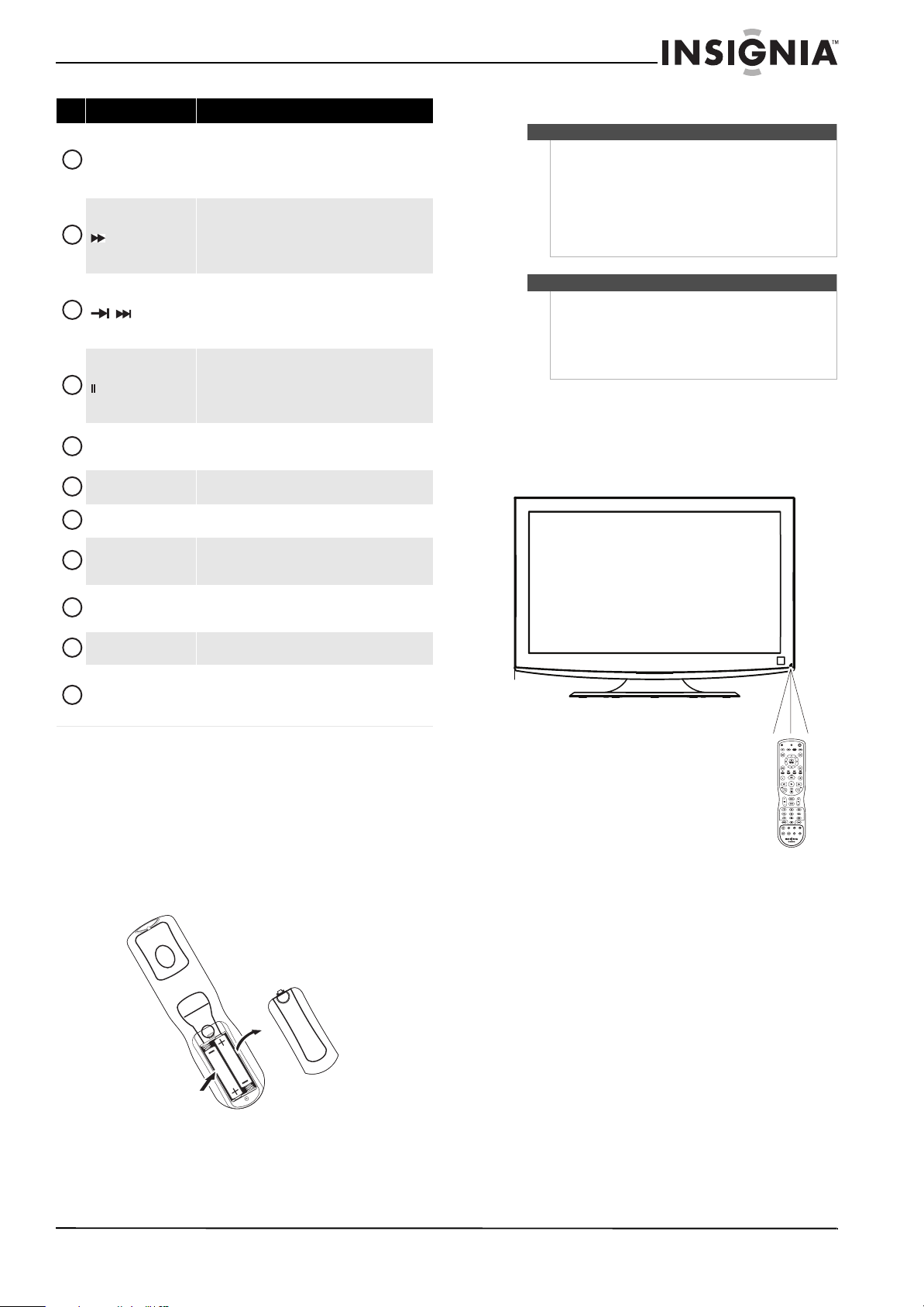
Remote control
# Item Description
SET
Press to program the remote control to control
connected devices. For more information, see
“Programming your universal Insignia remote control”
on page 8.
DVD
Press to control a connected DVD player. You need to
program the remote control before this button works.
For more information, see “Programming your
universal Insignia remote control” on page 8.
TV Press to control your TV.
MENU
Press to open the on-screen menu.
In menu mode, press to go to the previous menu.
W X S T
Press to navigate through the on-screen menus and
adjust settings.
GUIDE
Press to open the program guide. For more
information, see “Displaying additional information”
on page 19.
(stop)
Press to stop playback on DVD, DVR, PVR, or CD
devices. You need to program the remote control
before this button works. For more information, see
“Programming your universal Insignia remote control”
on page 8.
X(play)
Press to start playback on DVD, DVR, PVR, or CD
devices. You need to program the remote control
before this button works. For more information, see
“Programming your universal Insignia remote control”
on page 8.
1
2
3
4
5
6
7
8
(fast reverse)
Press to fast reverse on DVD, DVR, PVR, or CD devices.
You need to program the remote control before this
button works. For more information, see
“Programming your universal Insignia remote control”
on page 8.
/ (skip back)
Press to skip back to the previous title or track on DVD,
DVR, PVR, or CD devices. You need to program the
remote control before this button works. For more
information, see “Programming your universal
Insignia remote control” on page 8.
RECALL
In TV mode, press to go to the previously viewed
channel.
VOL+/VOL– Press to increase or decrease the volume.
Numbers
Press to enter channel numbers and the parental
control password.
When programming the remote control, press to enter
device and programming codes.
INPUT
Press to open the Input Source list and select a video
input source. For more information, see “Selecting the
video input source” on page 18.
FAV
Press to open the Favorites list. For more information,
see “Setting up a favorite channel list” on page 25 and
“Viewing a favorite channel” on page 26.
SAP
In digital TV mode, press to select the audio track
(language).
In analog TV mode, press to select Stereo, Mono, or
SAP.
For more information, see “Selecting the audio
language or sound mode” on page 23.
SLEEP
Press to set the sleep timer. For more information, see
“Setting the sleep timer” on page 34.
AUDIO
Press to select an audio mode. You can select
Standard, Theater, Music, News, or Custom. For
more information, see “Adjusting sound settings” on
page 23.
(power)
Press to turn your TV on or off (standby mode).
When your TV is off, power still flows into it. To
disconnect power, unplug the power cord.
STB
Press to control a connected set-top box. You need to
program the remote control before this button works.
For more information, see “Programming your
universal Insignia remote control” on page 8.
AUX
Press to control a connected device. You need to
program the remote control before this button works.
For more information, see “Programming your
universal Insignia remote control” on page 8.
INFO
Press to display TV status information, such as the
channel number, channel name (if available), or signal
source. For more information, see “Displaying
additional information” on page 19.
OK/ENTER Press to confirm selections or changes.
EXIT Press to close the on-screen menu.
Video input buttons
TV—Press to select TV as the video source.
VIDEO—Press to select the device connected to the
AV IN video jack.
COMP—Press to select the device connected to the
COMPONENT IN video jacks.
HDMI—Press once or twice to select the device
connected to HDMI 1/DVI or HDMI 2 jack.
(record)
Press to start recording on DVD, DVR, PVR, or CD
devices. You need to program the remote control
before this button works. For more information, see
“Programming your universal Insignia remote control”
on page 8.
# Item Description
9
10
11
12
13
14
15
16
17
18
19
20
21
22
23
24
25
26
7
Insignia 32" LCD TV 720p
www.insigniaproducts.com
Using the remote control
Installing remote control batteries
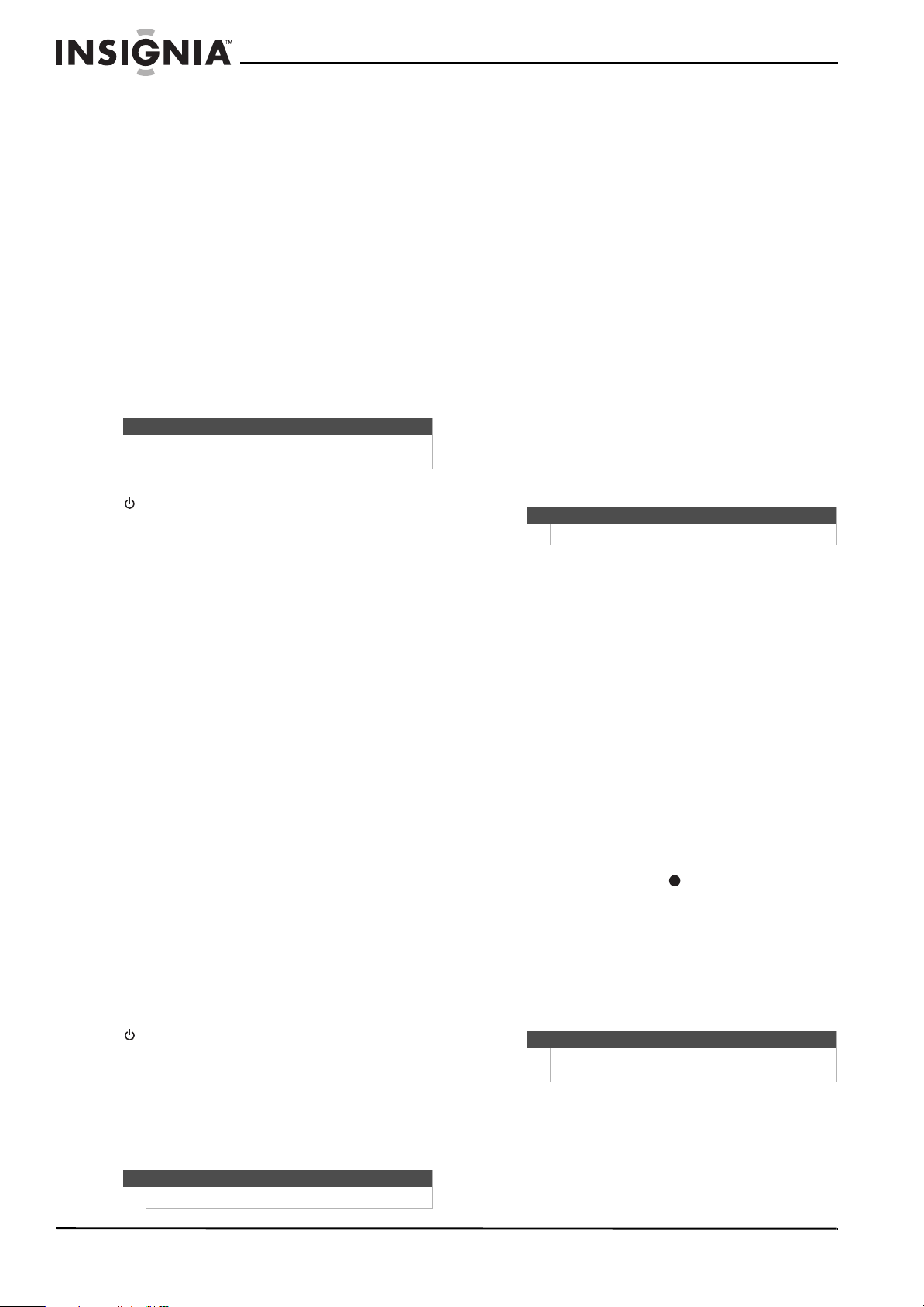
To install remote control batteries:
1 While pressing the cover release latch on the
back of the remote control, lift the cover off the
remote control.
2 Insert two AA batteries into the battery
compartment. Make sure the + and – symbols
on the batteries align with the + and – symbols
inside the battery compartment.
3 Replace the cover.
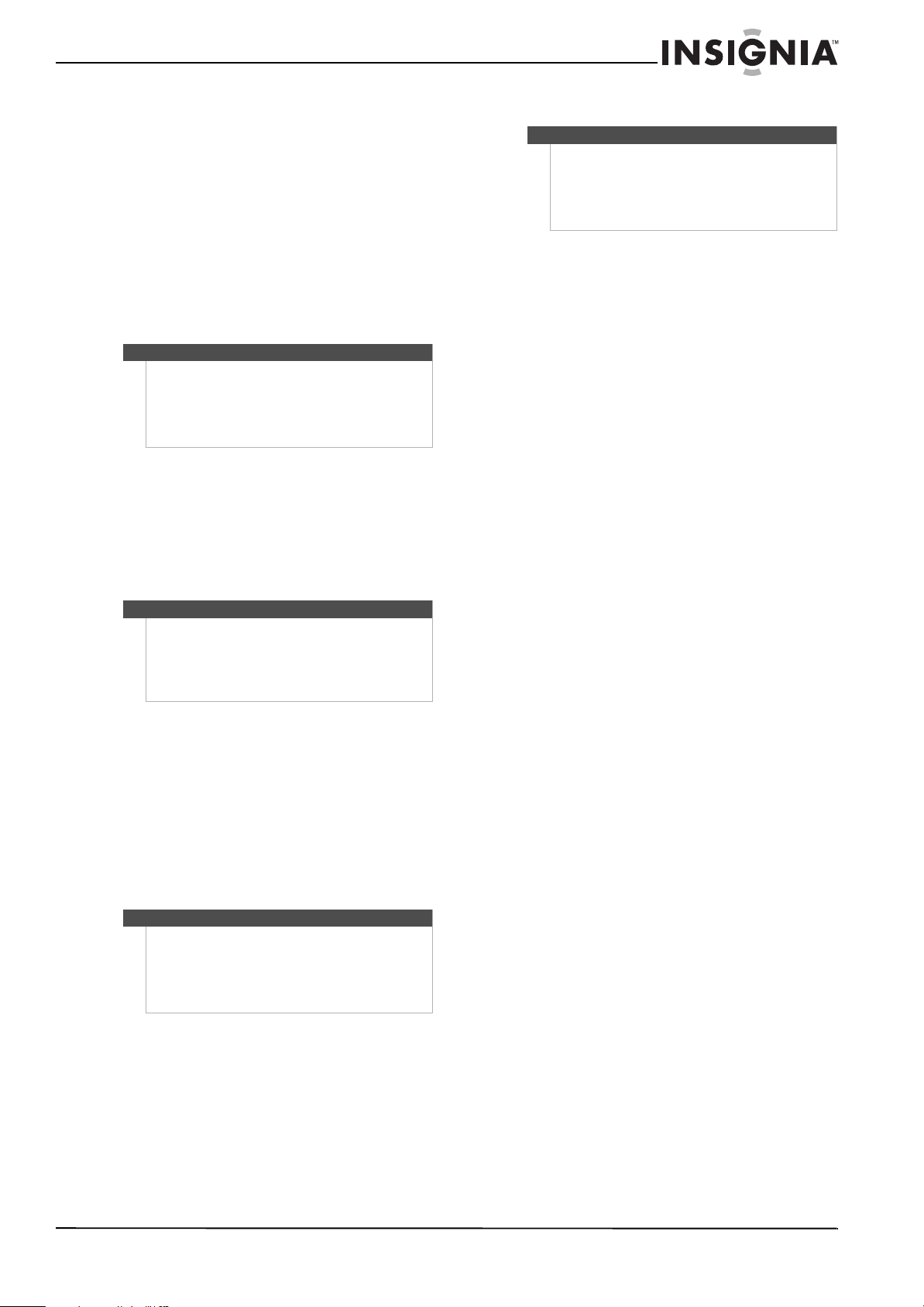
Aiming the remote control
To aim the remote control:
• Point the remote control towards the remote
sensor on the front of your TV. The remote control
should be used within 26 feet (7.9 m) of your TV.
PVR/LIST
Press to list all the recorded programs in a PVR/STB.
You need to program the remote control before this
button works. For more information, see
“Programming your universal Insignia remote control”
on page 8.
(forward)
Press to fast forward on DVD, DVR, PVR, or CD devices.
You need to program the remote control before this
button works. For more information, see
“Programming your universal Insignia remote control”
on page 8.
/ (skip forward)
Press to skip to the next chapter or track on DVD, DVR,
PVR, or CD devices. You need to program the remote
control before this button works. For more
information, see “Programming your universal
Insignia remote control” on page 8.
/FREEZE
Press to pause playback on DVD, DVR, PVR, or CD
devices. You need to program the remote control
before this button works. For more information, see
“Programming your universal Insignia remote control”
on page 8.
CH
S/CHT
Press to go to the next or previous channel in the
channel list. For more information, see “Selecting a
channel” on page 19.
MUTE
Press to mute the sound. Press again to restore the
sound.
—
Press to enter a digital sub-channel number. For more
information, see “Selecting a channel” on page 19.
CCD
Press to turn closed captioning on or off. You can select
CC Off, CC On, or CC On Mute. For more information,
see “Turning closed captioning on or off” on page 31.
P-LOCK
If Parental Lock is turned on, when you enter the
correct password to unblock the channels, you can
press this button to block the channels again.
ZOOM
Press to select the aspect ratio. For more information,
see “Selecting the aspect ratio” on page 21.
PICT
Press to select the video mode. You can select Vivid,
Standard, Energy Savings, Theater, Sports, or
Custom. For more information, see “Adjusting the TV
picture” on page 20.
# Item Description
27
28
29
30
31
32
33
34
35
36
37
Warnings
• Batteries should not be exposed to excessive
heat, such as sunshine, heat registers, or fire.
• Battery chemicals can cause a rash. If the
batteries leak, clean the battery compartment
with a cloth. If chemicals touch your skin, wash
immediately.
• Make sure that batteries are disposed of
correctly. Do not burn or incinerate.
Notes
• Do not mix batteries of different types.
• Do not mix old and new batteries.
• Remove batteries when the charge is depleted.
• If the remote control is not going to be used for
an extended period of time, remove the
batteries.
8
NS-32L430A11 Insignia 32" LCD TV 720p
www.insigniaproducts.com
Programming your universal Insignia remote
control
To program your remote control:
1 Find the codes for the devices you want to
program in “Manufacturers’ codes” on page 39
and write them down or highlight them.
2 Turn on the device (for example, a DVD player)
and, if needed, load media such as a DVD.
3 Press the device button on the TV remote for the
device that you want to program (TV, DVD, STB,
or AUX).
4 Press and hold SET until the red LED blinks
twice, then release.
5 Enter the first five-digit code for the device and
brand that you want to program. The LED blinks
once as each digit is entered. If the code is valid,
the LED blinks twice.
6 Aim the remote at the device and press
(power). The device should turn off. If it does
not, repeat Steps 3 through 5, trying each code
for your brand until you find one that works. If
you cannot find a code that works, see
“Searching for your code” below.
7 Repeat Steps 1 to 5 for the other devices you
want to control. For future reference, write down
each working device code.
Searching for your code
If your device does not respond to the remote
control after trying all codes listed for your brand, or
if your brand is not listed, try searching for your
code.
To search for your code:
1 Turn on the device you want to control.
2 Press the device button on your TV remote
control (TV, DVD, STB, or AUX) once.
3 Press and hold SET until the red LED blinks
twice, then release.
4 Enter 9 9 1. The LED blinks twice.
5 Press the number that matches your device
type.
• 0—Cable converters, video accessories,
satellite receivers
• 1—TVs
• 2—VCRs, DVD players, Blu-ray Disc players
• 3—Audio amplifiers, audio amplifiers/tuners,
CD players
6 Aim the remote at the device and press
(power). The remote sends IR codes from its
library to the selected device, starting with the
most popular code first. If the device responds,
go to Step 8.
7 If the device does not respond, press CH
S and
the remote tests the next code for that device
type. Continue to press CH
S until the device
turns off.
8 Now that you have found the correct code, press
SET to save the code that worked for your
device. The LED blinks twice to indicate that the
code has been saved.
9 To search for other device codes, repeat Steps 1
to 8.
Checking the codes
If you have set up the remote using the procedure
in “Searching for your code” on page 8, you may
need to find out which five-digit code is operating
your equipment.
To find out which code is assigned to your TV
(for example):
1 Press TV once.
2 Press and hold SET until the red LED blinks
twice, then release.
3 Enter 9 9 0. The LED blinks twice.
4 To view the code for the first digit, press 1.
Count the red LED blinks (for example, three
blinks = 3), then write down the number in the
appropriate code listing at the top of this
column.
5 Repeat Step 4 for the four remaining digits,
using 2 for the second digit, 3 for the third digit,
4 for the fourth digit, and 5 for the fifth digit.
6 To check for other device codes, repeat Steps 1
through 5, substituting the device button for
the device you would like to check.
Using learning
This universal remote control includes a learning
feature so you can add functions that are unique to
your home entertainment devices (such as VCR
tracking up or down). However, there are some
considerations to keep in mind.
Precautions
• Your original remote controls must be in working
order for learning to work properly.
• Learned buttons are mode-specific, so each one
can store a unique function for each mode.
• Do not use the following buttons for learning:
Device Buttons, SET, or (record).
• Learning capacity is approximately 42 to 75
buttons, depending on the code being learned.
• Certain device functions are not learnable,
including multi-frequency types, some high
frequency functions, and other unusual formats.
• For optimum learning, avoid high levels of
ambient light such as natural sunlight or
energy-efficient fluorescent lights.
Note
If the LED does not blink twice, repeat steps 2 to 4
and try entering the code again.
Note
Press CHT to try the previous code.
Note
If the LED does not blink, the code digit is 0.
Note
Have your original remote controls handy before
programming learning.
9
Insignia 32" LCD TV 720p
www.insigniaproducts.com
Programming a learned button
To program a learned button:
1 Place your Insignia remote control
head-to-head (about 2" apart) from your
original remote control (the one that came with
the device).
2 Locate the button on your original remote
control that you want the Insignia remote
control to learn. Press the mode button you
want to learn functions on.
3 Press and hold SET until the LED blinks twice,
then release.
4 Enter 9 7 5. The LED blinks twice.
5 Press the button on the Insignia TV remote you
want to program. The feedback LED stays lit for
three seconds, indicating that the remote is
ready to learn.
6 On the original remote, press and hold the
button to be learned. Continue holding the
button on the original remote until the Insignia’s
LED blinks twice.
7 Repeat Steps 4 and 5 to program another
button. Once you have completed
programming all the buttons you want, press
and hold SET until the LED blinks twice to save
all data learned.
Deleting a single learning button
This process returns the button to its original
programming for the mode you select. You can also
delete learned programming by teaching a
different function to the button (see “Programming
a Learned Button” above).
To delete a single learned button:
1 Press the mode button that you want to remove
the learned button from.
2 Press and hold SET until the LED blinks twice,
then release.
3 Enter 9 7 6. The LED blinks twice.
4 Press the button containing the learned
function to be deleted, twice. The LED blinks
twice and programming ends.
Deleting all learned buttons in a specific mode
To delete all learned buttons in a specific mode:
1 Press and hold SET until the LED blinks twice,
then release.
2 Press 9 7 6. The LED blinks twice.
3 Press a mode button twice (for example, TV,
DVD, STB, or AUX) to clear all the learned
buttons for that mode. The LED blinks twice and
programming ends.
Changing the volume lock
Volume Lock sets the volume and mute buttons to
the device you select, regardless of what mode you
are in. For example, if you lock the volume to your
DVD player and then go to TV mode, when you
press the volume button on your Insignia remote,
the volume will change on the DVD player and not
on your TV.
To lock the volume control:
1 Press and hold SET until the red LED blinks
twice, then release.
2 Enter 9 9 3, the LED blinks twice.
3 Press the mode button for the device you want
to control (for example, TV).
4 The LED blinks twice. Now when you press
VOL+, VOL–, or MUTE, the selected device
controls the volume regardless of the current
mode.
To unlock all volume control:
1 Press and hold SET until the red LED blinks
twice, then release.
2 Enter 9 9 3, the LED blinks twice.
3 Press VOL+. The LED blinks four times. Volume is
independently controlled for all programmed
devices.
To unlock a single device’s volume control:
1 Press the device mode button (TV, DVD, STB, or
AUX).
2 Press and hold
SET until the red LED blinks
twice, then release.
3 Enter 9 9 3. The LED blinks twice.
4 Press VOL-. The red LED blinks four times.
Volume is independently controlled for the
selected devices.
Note
If more than 10 seconds pass between button
presses, the remote exits programming.
If the LED displays one long flash instead, replace the
batteries. If the remote control continues to display
one long flash, the remote control cannot learn a
new button.
Note
If the red LED displays one long blink, a learning error
has occurred. Try repeating this step again until a
successful capture occurs. If the function is still not
captured, press and hold SET to exit programming
and review the Precautions” above. After reviewing,
start programming again at Step 1.
Note
If more than 10 seconds pass between button
presses, the remote exits programming.
If the LED displays one long flash instead, replace the
batteries. If the remote control continues to display
one long flash, the remote control cannot learn a
new button.
Note
If more than 10 seconds pass between button
presses, the remote exits programming.
If the LED displays one long flash instead, replace the
batteries. If the remote control continues to display
one long flash, the remote control cannot learn a
new button.
10
NS-32L430A11 Insignia 32" LCD TV 720p
www.insigniaproducts.com
Programming channel lock
Channel control can be locked so that the Insignia
remote controls a single device’s channel-changing
functions, regardless of operating mode. This is
often enabled by users who watch all broadcast TV
through one device, such as a cable set-top box.
The affected buttons are 1 through 0, CH
S, CHT,
and RECALL.
To lock all channel controls to one device:
1 Press the mode button for the device that you
want to use for changing channels, such as STB
for your cable set top box.
2 Press and hold SET until the mode LED blinks
twice, then release.
3 Enter 9 7 3.The mode LED blinks twice.
4 Press CH
S once. The mode LED blinks twice.
Now, regardless of what mode you select, the
channel buttons will only change channels on
the assigned device.
To unlock channel locks:
1 Press and hold SET until the mode LED blinks
twice, then release.
2 Enter 9 7 3. The mode LED blinks twice.
3 Press CH
T once. The mode LED blinks four
times.
Now the channel functions will correlate to the
active mode (for example, press CH
S in TV
mode and the TV changes channel accordingly).
Using buttonmover
Your Insignia universal remote control includes a
buttonmover feature that lets you copy buttons
from one mode (such as source mode) to another
mode (such as destination mode) or to a different
button in the same mode.
To move buttons in the same device mode:
1 Press the device button (TV, DVD, STB, or AUX).
2 Press and hold SET until the LED blinks twice,
then release.
3 Press 9 9 4. The LED blinks twice.
4 Press the button you want to move.
5 Press the new button that should perform the
function. The LED blinks twice.
6 Repeat Steps 1-5 to move additional buttons.
To move buttons to a different device mode:
1 Press and hold SET until the LED blinks twice,
then release.
2 Press 9 9 4. The LED blinks twice.
3 Press the device button that contains the
function you want to move (for example, DVD).
4 Press the button you want to move (such as
X).
5 Press the device button that you want to move
the function to (such as TV).
6 Press the button in the new mode that should
perform the function (for example,
X). The LED
blinks twice.
7 Repeat Steps 1-6 to move additional buttons.
To restore all buttonmoved data in a specific
mode:
1 Press and hold SET until the LED blinks twice,
then release.
2 Press 9 9 4. The LED blinks twice.
3 Press the device button you want to remove all
buttonmoved data from twice. The LED blinks
twice.
4 Repeat for each device you want to restore.
To restore original button function:
1 Press the device button for which you want to
remove the buttonmoved data from a specific
button.
2 Press and hold SET until the LED blinks twice,
then release.
3 Enter 9 9 4. The LED blinks twice.
4 Press the button you want to remove the
buttonmoved data from twice. The LED blinks
twice.
5 Repeat Steps 1-4 for additional buttons you
want to remove.
Programming macros
Your Insignia universal remote control includes the
ability to program any button (other than the SET
button) with a macro function. Each one can be set
up to perform a pre-programmed set of sequential
button presses with the press of a single button. A
macro can be used to control a home theater
operation, to set a favorite channel, or for other
functions you would like to control with one button
press. Each macro button can hold up to 15 button
presses, total.
To program a mode-independent macro:
1 Press and hold SET until the red LED blinks
twice, then release.
2 Press 9 9 5. The LED blinks twice.
3 Press the button you want to assign to a macro.
4 Enter the series of commands you want the
macro to execute (up to 15 commands).
5 Press and hold SET until the red LED blinks
twice, then release.
Now, when you press the preset macro button,
the remote sends the series of commands you
have entered, regardless of what mode you are
in. For example, you could program a macro
button to turn on both your TV and cable box
and select a particular channel.
To program a mode-dependent macro:
1 Press the device mode button (TV, DVD, STB, or
AUX).
2 Press and hold SET until the LED blinks twice,
then release.
Note
Do not use any of the Device Buttons, (power), ,
or SET as a source or destination button.
Note
Programming a new macro over an existing one
erases the original macro.
Note
To clear the macro, repeat Steps 1-5, but do not enter
a series of commands at Step 4.
11
Insignia 32" LCD TV 720p
www.insigniaproducts.com
3 Press 9 7 8. The LED blinks twice.
4 Press the button you want to assign to a macro.
5 Enter the series of commands you want the
macro to execute (up to 15 commands).
6 Press and hold SET until the red LED blinks
twice, then release.
Now, when you press the macro button, the
remote sends the series of commands you have
entered, but only if you are in the mode you
selected in Step 1. For example, you could
program the macro button to turn on both your
TV and cable box and select a particular
channel, but only if you are in TV mode. If you
are in DVD mode, this button does not execute
the macro you set up in TV mode.
Programming a universal remote control to
work with your TV
You can operate your Insignia TV with a new or
existing universal remote control.
To program a universal remote control:
1 See the table below for common codes. If you
have problems programming your remote or
need a different remote control code, visit
www.insigniaproducts.com for the latest
remote control code information.
Codes for other remote controls are available
online at: www.insigniaproducts.com
2 Follow your universal remote control’s
instructions to enter the TV code you found in
Step 1.
3 If all else fails, you must use a different universal
remote control that can operate both your
set-top box and your TV. Four such remotes are
listed on the chart, but many other compatible
models are available in the market.
For more help, go to insigniaproducts.com or
call technical support for your universal remote
control or set-top box manufacturer, or call the
Insignia Customer Care Center. For US and
Canada markets, call 1-877-467-4289. For
Mexico markets, call 01 800-926-3000.
Note
To clear the macro, repeat Steps 1-6, but do not enter
a series of commands at Step 5.
Insignia TV codes for universal remote controls
(for all Insignia TVs manufactured after Jan. 1, 2007)
Universal remote control makes and models
Philips PHDVD5,
PH5DSS,
PMDVR8, PDVR8
DirectTV
RC23
RCA
RCU807
One for All
URC-6690
Sony
RM-VL600
115 10463 135 0464 8043
Set-top box makes and models
Comcast
M1057
Dish Network
VIP508, VIP622
Motorola
DRC800
TIVO
Series 3, HD
0463 720 0463 0091
Tips
• The brand name is often visible on the front of
the universal remote control, and the model
number is often visible on the back.
• If your universal remote control isn’t listed on
the chart, refer to your universal remote
control’s instructions and try codes for the
brands Orion, Emerson, Memorex, Sansui,
Sylvania, or Zenith. You may need to try several
codes before finding a match.
Tips
• If your universal remote control has a code
search feature, run a code search to identify a
code that matches your TV. See your universal
remote control’s instructions for details.
• If your universal remote control has a “Learn”
feature, you can manually program it using the
Insignia TV remote to “teach” the commands
one at a time. See your universal remote
control’s instructions for details.
12
NS-32L430A11 Insignia 32" LCD TV 720p
www.insigniaproducts.com
Making connections
Identifying cables
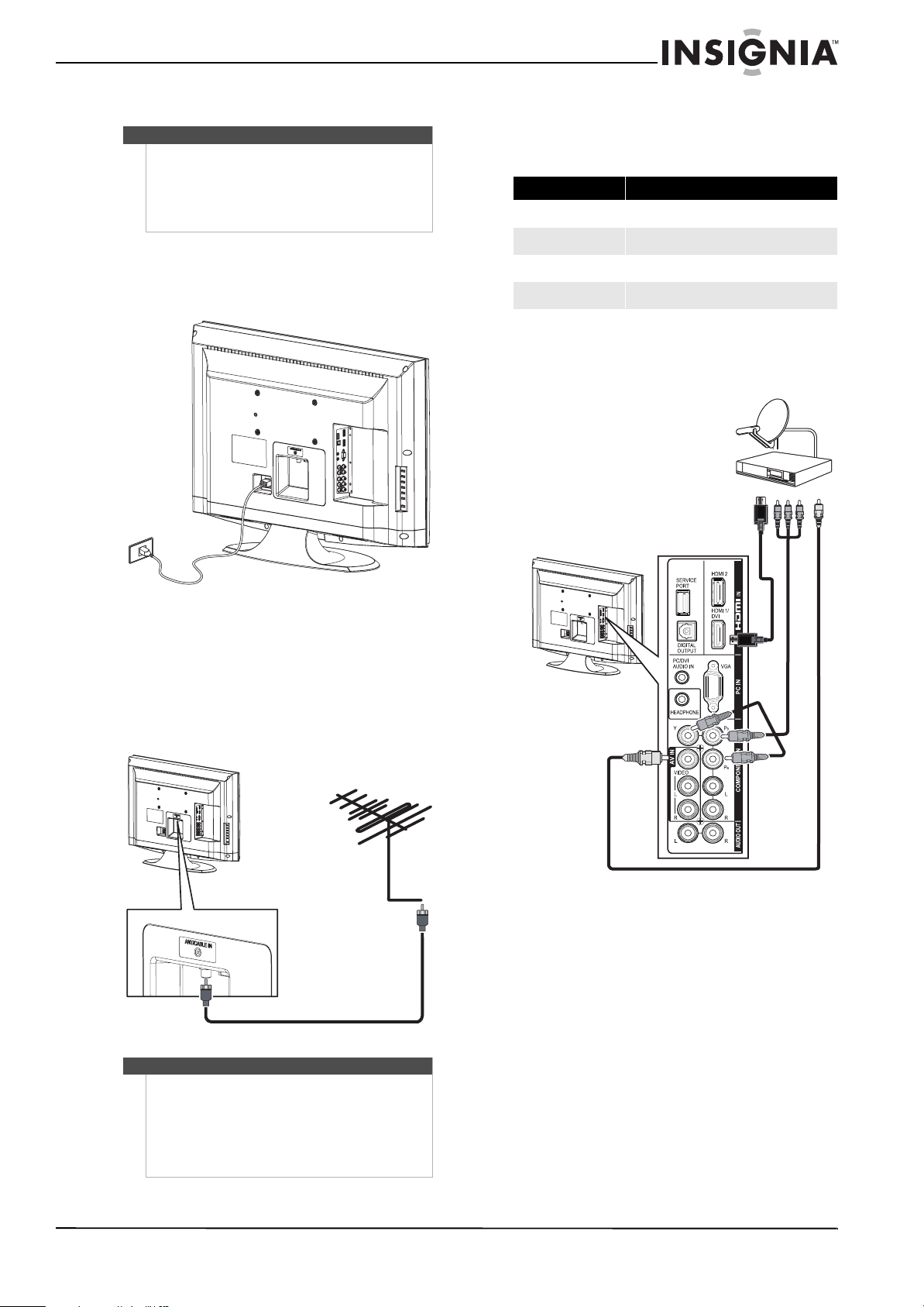
Your TV has several connection types for
connecting devices to your TV.
For the best video quality, you should connect a
device to the best available connection.
Use the following tables to identify cables:
You can use an HDMI jack to connect a DVI device
to your TV. You need to attach an HDMI-to-DVI
adapter to the end of the HDMI cable that connects
to the DVI device.
Connection type
and jack
Video quality Cable connector
HDMI
(video/audio)
Best
Component
video (requires
an audio
connection)
Better than
composite or
coaxial
Composite video
(requires an
audio
connection)
Better than
coaxial
Coaxial
video/audio
Good
Red
Blue
Green
Ye l lo w
Connection type
and jack
Cable connectors
VGA (computer)
video and audio
Digital optical
audio (SPDIF)
Analog audio
Red
White
13
Insignia 32" LCD TV 720p
www.insigniaproducts.com
Connecting power
To connect power:
• Connect the power cord to the AC IN connector
on the back of your TV, then plug the cord into an
AC power outlet.
Connecting an antenna or cable TV without a
cable box
To connect an antenna or cable TV without a
cable box:
• Connect a coaxial cable (not provided) to the
ANT/CABLE IN jack on the back of your TV and to
the antenna or cable TV wall jack.
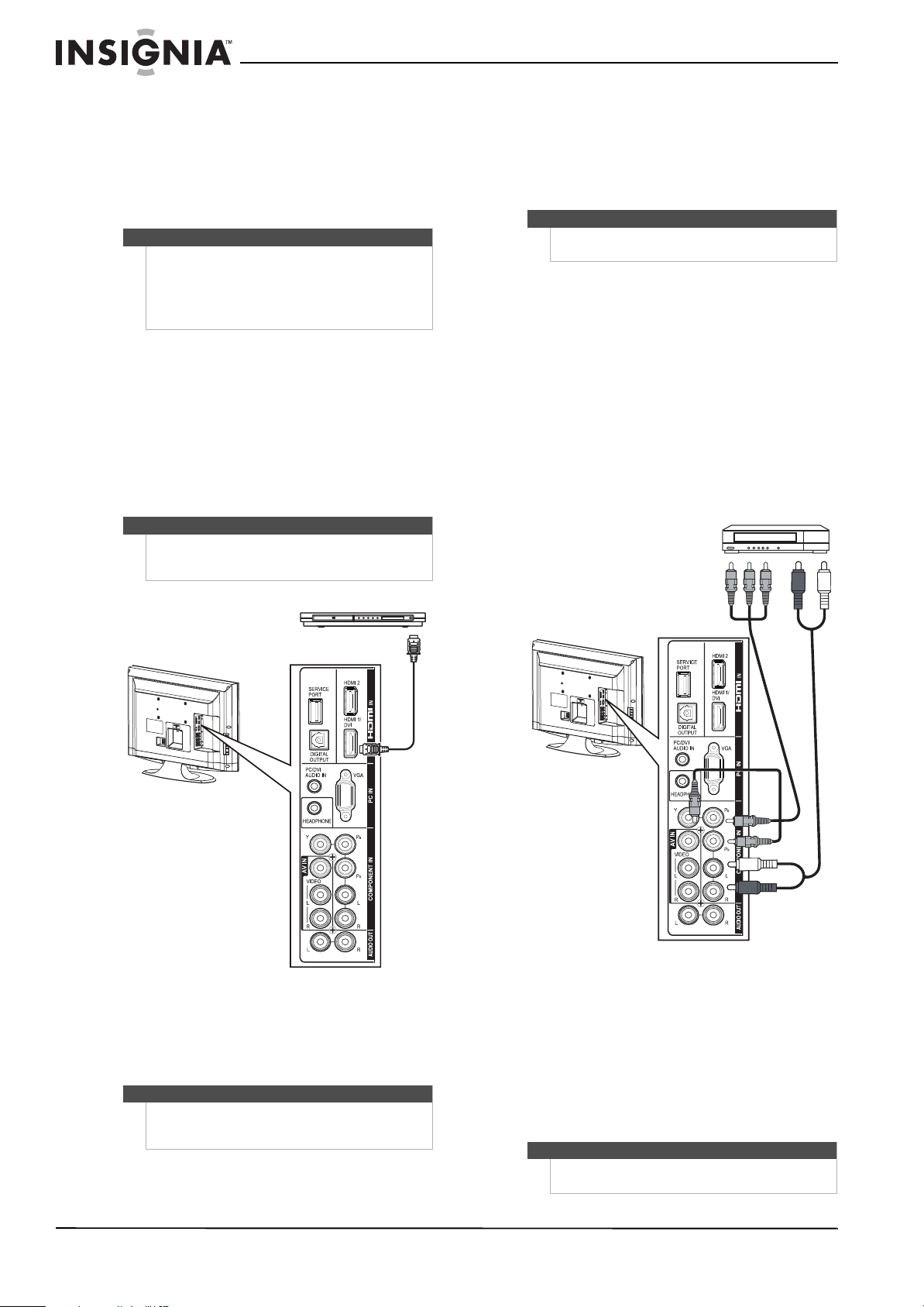
Connecting a cable or satellite TV box
Many cable or satellite TV boxes have more than
one connection type. To get the best video, you
should use the best connection type available.
To connect a cable or satellite TV box:
1 Connect the incoming cable from the cable wall
jack to the cable-in jack on the cable box.
2 Depending on the jacks available on the cable
or satellite TV box, connect a video cable from
the outgoing jacks on the cable or satellite TV
box to the corresponding jacks on the back of
your TV. The connection can be to an HDMI jack,
the COMPONENT IN/Y, P
B, PR jacks, or the
AV IN VIDEO (composite) jack.
Notes
• Your TV only works on 120 V, 60 Hz power.
• Your TV should only be operated from the
power source indicated on the label.
• Always unplug the AC power cord from the AC
power outlet when you will not be using your
TV for an extended period of time.
Notes
• Use a 75 ohm cable to eliminate interference
and noise from radio waves.
• Do not bundle the 75 ohm cable with the power
cord or other cables.
• If the antenna is not installed correctly, contact
qualified service personnel to correct the
problem.
Connection type Video quality
HDMI
Best
Component
Better than composite or coaxial
Composite
Better than coaxial
Coaxial
Good
HDMI
Component video
Composite video
Use one of the following connection types to
connect the cable or satellite TV box:
•HDMI (best)
• Component video: (better than composite
video)
• Composite video (better than coaxial)
14
NS-32L430A11 Insignia 32" LCD TV 720p
www.insigniaproducts.com
3 If you use the COMPONENT IN/Y, PB, PR jacks,
connect an audio cable to the COMPONENT IN
L/R audio jacks.
OR
If you use the AV IN VIDEO (composite) jack,
connect an audio cable to the AV IN L/R audio
jacks.
Connecting an HDMI or DVI device
To connect an HDMI or DVI device:
1 Make sure that your TV’s power cord is
unplugged and the HDMI or DVI device is
turned off.
2 Connect an HDMI cable (not provided) to the
HDMI 1/DVI or HDMI 2 jack on the back of your
TV and to the HDMI OUT jack on the HDMI
device.
3 If you are connecting a DVI device, connect an
audio cable with stereo mini plug (not provided)
to the PC/DVI AUDIO IN jack on the back of
your TV and to the AUDIO OUT jack on the DVI
device.
To play from an HDMI or DVI device:
1 Turn on your TV, then press INPUT to open the
Input Source list.
2 Press INPUT repeatedly, or press
S or T to
select HDMI 1 or HDMI 2, then press
OK/ENTER.
3 Turn on the HDMI or DVI device, then set it to
the output mode. See the documentation that
came with the device for more information.
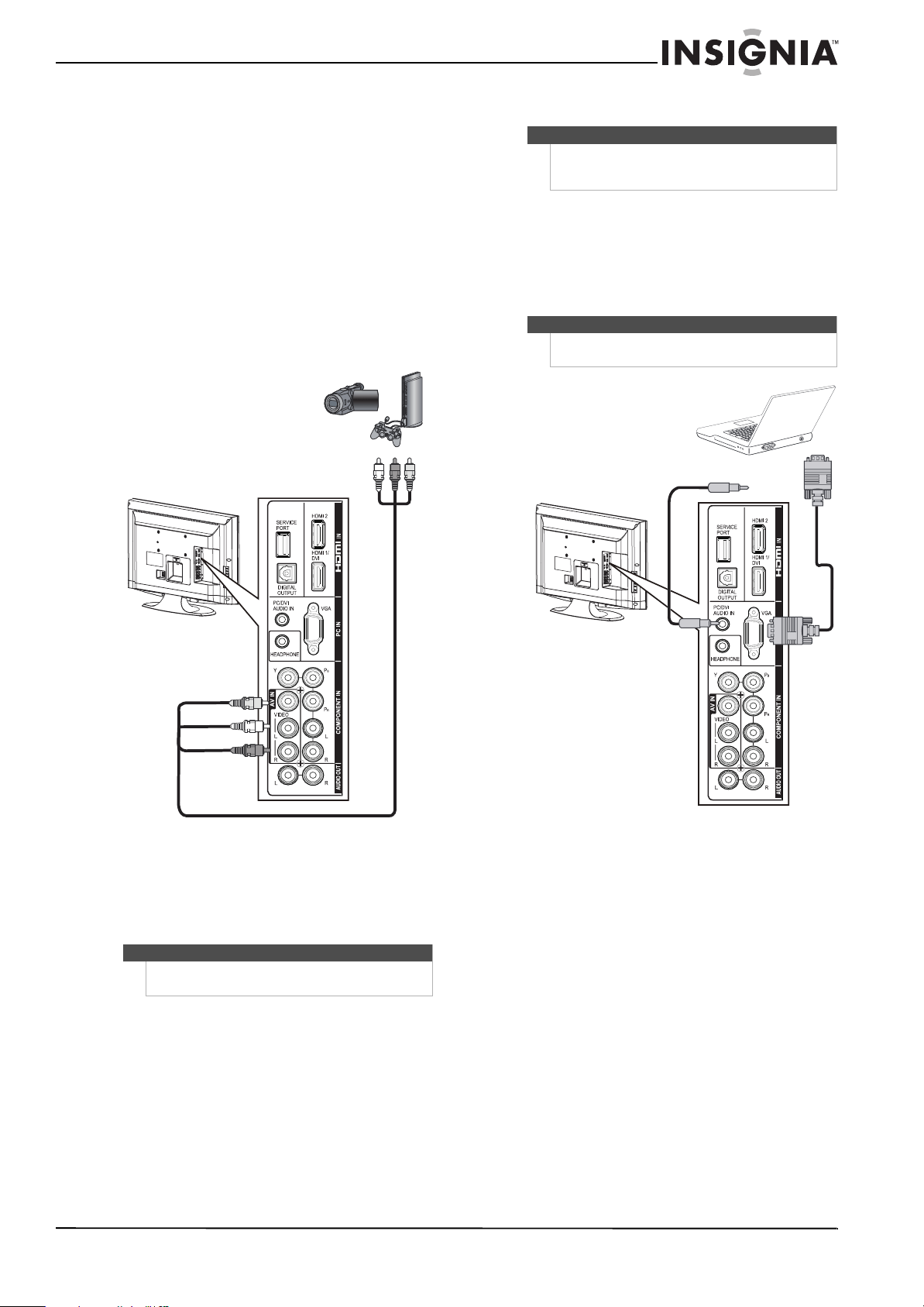
Connecting a component video device
To connect a component video device:
1 Make sure that your TV’s power cord is
unplugged and the component video device is
turned off.
2 Connect a component video cable (included) to
the COMPONENT IN/Y,P
B,PR jacks on the back
of your TV and to the COMPONENT OUT jacks
on the component video device.
3 Connect an audio cable (included) to the
COMPONENT IN L/R audio jacks on the back of
your TV and to the L/R AUDIO OUT jacks on the
component video device.
To play from the component video device:
1 Turn on your TV, then press INPUT to open the
Input Source list.
2 Press INPUT repeatedly, or press
S or T to
select Component, then press OK/ENTER.
Note
If the cable or satellite TV box does not have an
HDMI, component, or composite jack, connect the
cable or satellite TV box to the ANT/CABLE IN jack on
the back of your TV. For more information, see
“Connecting an antenna or cable TV without a cable
box” on page 13.
Note
A DVI device can only be connected to the
HDMI 1/DVI jack. If you connect a DVI device to the
HDMI 2 jack, you will not hear sound.
Note
An HDMI cable carries both video and audio. You do
not need to make an audio connection for an HDMI
device.
HDMI or DVI device
Note
You can also press HDMI once to select HDMI 1 or
twice to select HDMI 2.
Note
You can also press COMP to select the component
video device.
Cables are often color-coded to
match color-coded jacks.
Component video device
15
Insignia 32" LCD TV 720p
www.insigniaproducts.com
3 Turn on the component video device, then set it
to the output mode. See the documentation
that came with the device for more information.
Connecting a composite video device
You can connect a composite video device, such as
a VCR, camcorder, or game station.
To connect a composite video device:
1 Make sure that your TV’s power cord is
unplugged and the composite video device is
turned off.
2 Connect an AV cable (not provided) to the
AV IN VIDEO and L/R audio jacks on the back of
your TV and to the AV OUT jacks on the
composite video device.
To play from the composite video device:
1 Turn on your TV, then press INPUT to open the
Input Source list.
2 Press INPUT repeatedly, or press
S or T to
select A/V, then press OK/ENTER.
3 Turn on the composite video device, then set it
to the output mode. See the documentation
that came with the device for more information.
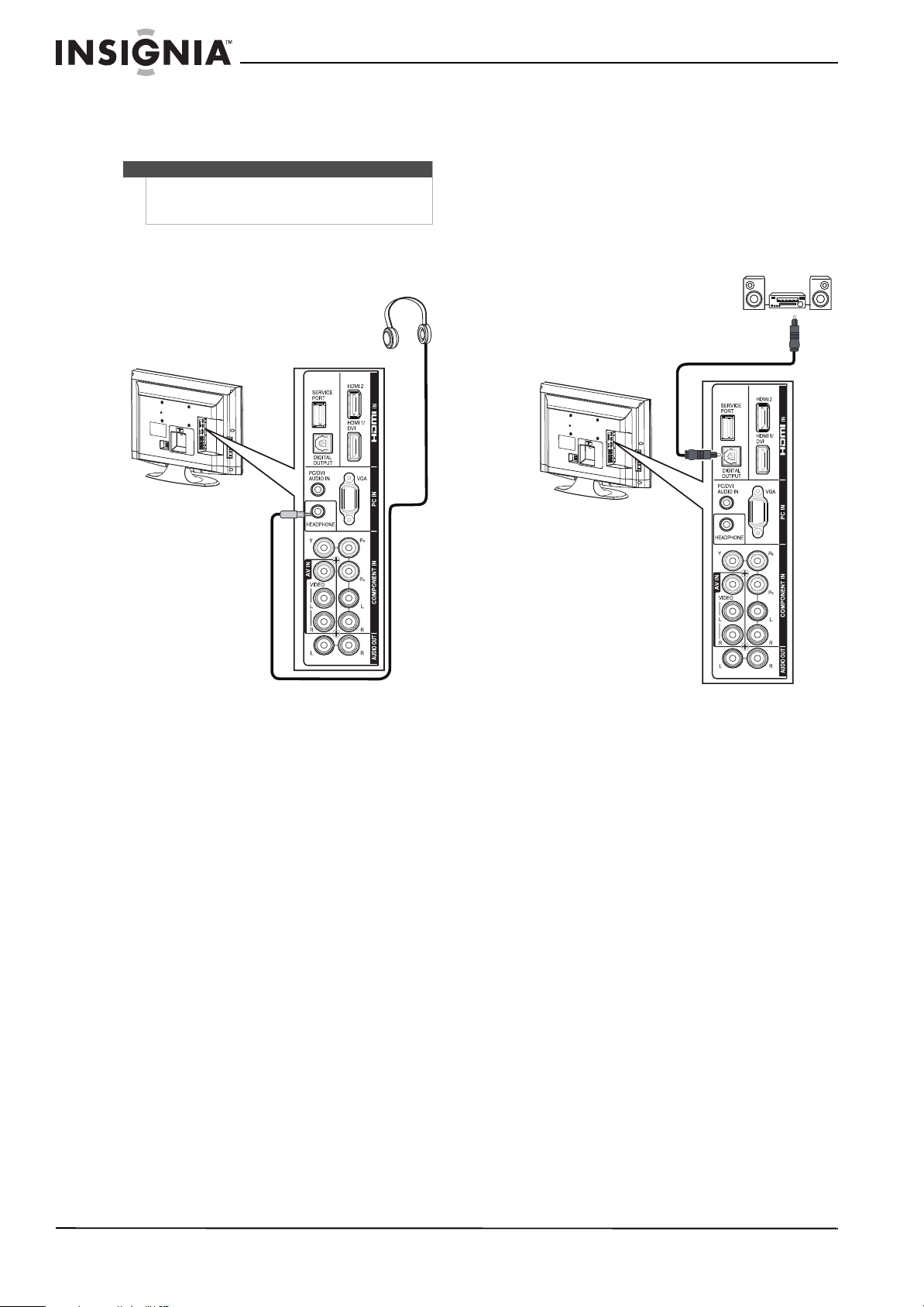
Connecting a computer
To connect a computer:
1 Make sure that your TV’s power cord is
unplugged and the computer is turned off.
2 Connect a VGA cable (not provided) to the
PC IN VGA jack on the back of your TV and to
the VGA jack on the computer.
3 Connect an audio cable with stereo mini plug
(not provided) to the PC/DVI AUDIO IN jack on
the back of your TV and to the LINE OUT or
AUDIO OUT jack on the computer.
To play video from the computer:
1 Turn on your TV, then press INPUT to open the
Input Source list.
2 Press INPUT repeatedly, or press
S or T to
select VGA, then press OK/ENTER.
3 Turn on the computer and adjust the display
properties if necessary.
Note
You can also press VIDEO to select the composite
video device.
Cables are often color-coded to
match color-coded jacks.
Connect yellow to yellow, red to
red, and white to white.
Composite video device
Tip
Some computers have an HDMI jack. You can use an
HDMI cable to connect the computer for a better
picture.
Note
The VGA cable should be a 15-pin D-Sub (analog
RGB) cable.
16
NS-32L430A11 Insignia 32" LCD TV 720p
www.insigniaproducts.com
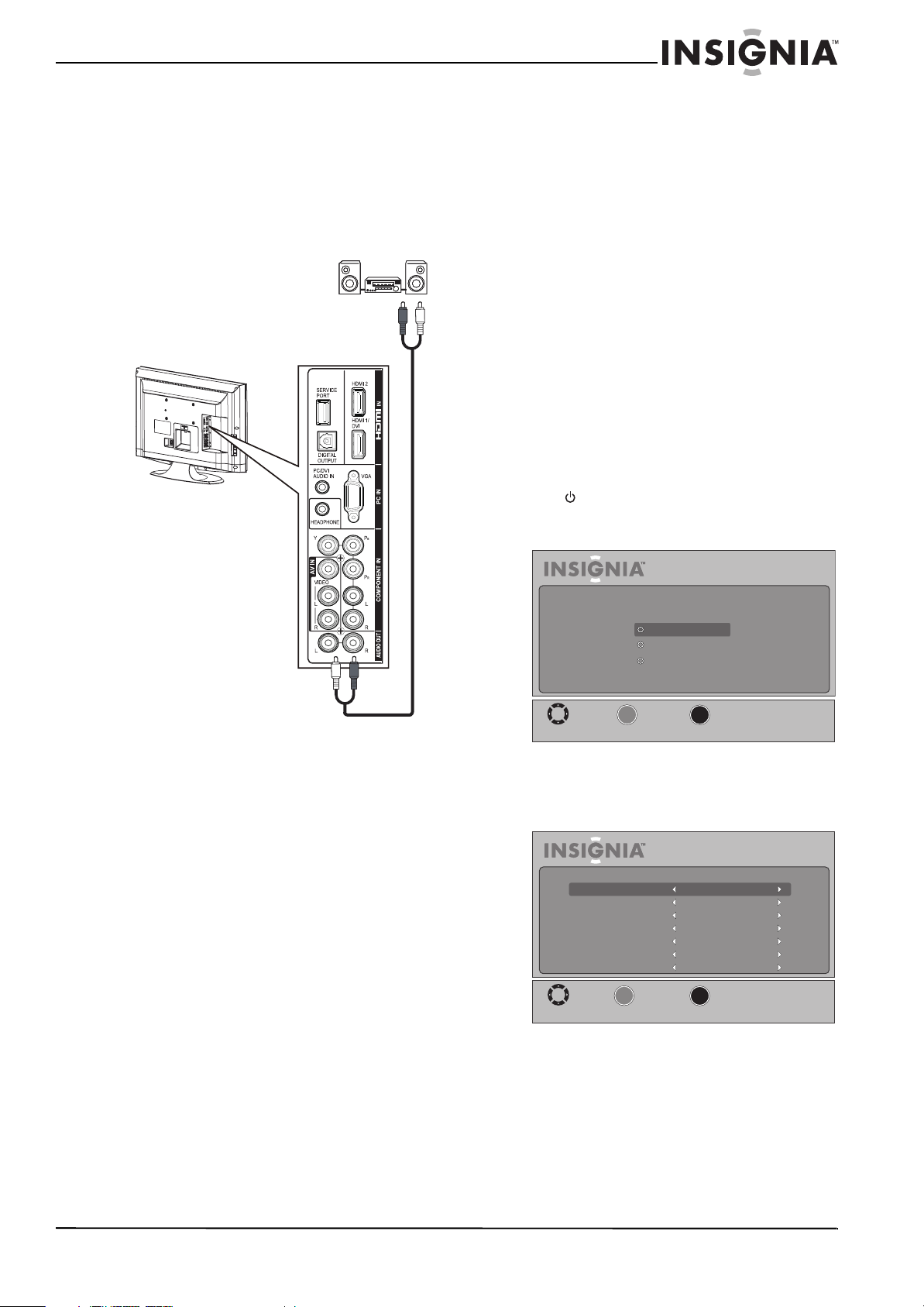
Connecting headphones
The TV speakers are muted when headphones are
connected.
To connect headphones:
• Plug headphones into the HEADPHONE jack on
the back of your TV.
Connecting a digital sound system
To connect a digital sound system:
1 Make sure that your TV’s power cord is
unplugged and the digital sound system is
turned off.
2 Connect a digital optical (Toslink) cable (not
provided) to the DIGITAL OUTPUT jack on the
back of your TV and to the SPDIF IN jack on the
digital audio system.
To play audio from a digital audio device:
1 Turn on your TV.
2 Make sure that the Speakers option on the
Advanced Audio sub-menu is set to External. For
more information, see “Adjusting sound
settings” on page 23.
3 Turn on the digital audio device and set it to the
correct output mode. See the audio device’s
user guide for more information.
Warning
Loud noise can damage your hearing. When using
headphones, use the lowest volume setting on your
headphones that still lets you hear the sound.
Digital audio system
17
Insignia 32" LCD TV 720p
www.insigniaproducts.com
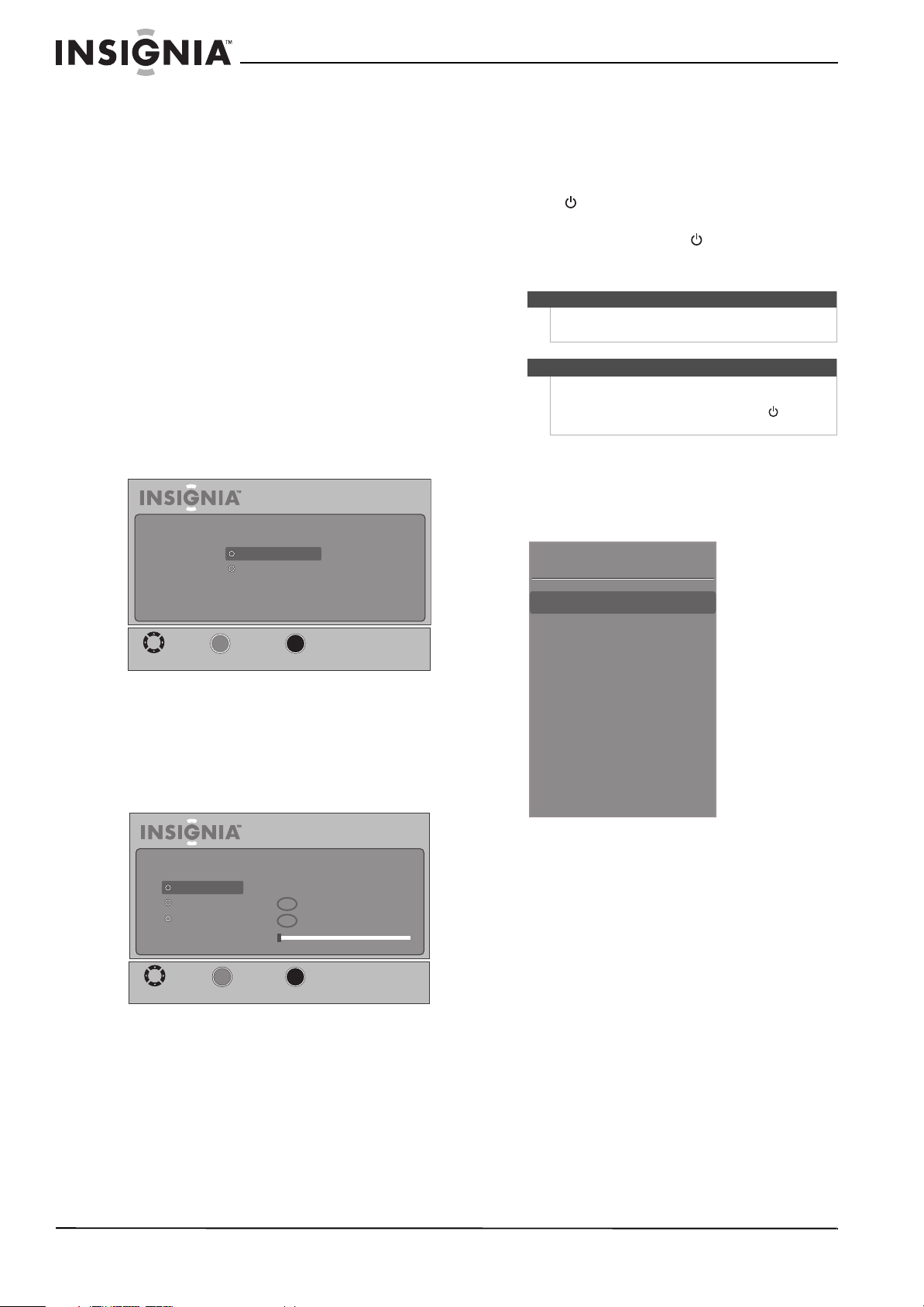
Connecting an analog sound system
To connect an analog sound system:
1 Make sure that your TV’s power cord is
unplugged and the analog sound system is
turned off.
2 Connect an audio cable (provided) to the
AUDIO OUT L/R jacks on the back of your TV
and to the AUDIO IN jacks on the sound system.
To play audio from an analog audio device:
1 Turn on your TV.
2 Make sure that the Speakers option on the
Advanced Audio sub-menu is set to External. For
more information, see “Adjusting sound
settings” on page 23.
3 Turn on the analog audio device and set it to the
correct output mode. See the audio device’s
user guide for more information.
Turning on your TV for the
first time
The first time you turn on your TV, the Setup Wizard
opens. The Setup Wizard guides you through
setting up basic settings including the menu
language, date and time, picture mode, and TV
signal source.
To set up your TV:
1 Make sure that you have:
• Installed the remote control batteries. For
more information, see “Installing remote
control batteries” on page 7.
• Connected the antenna, cable TV, or satellite
TV. For more information, see “Connecting an
antenna or cable TV without a cable box” on
page 13 or “Connecting a cable or satellite TV
box” on page 13.
• Connected the power cord. For more
information, see “Connecting power” on
page 13.
2 Press (power), then wait several seconds. The
power LED on the front of your TV turns off and
the Choose your menu Language screen opens.
3 Press
S or T to highlight a language, then press
OK/ENTER. The Time screen opens with Mode
highlighted.
Analog audio system
MOVE
MENU
PREVIOUS
SELECT
OK
Setup Wizard
Choose your menu Language
English
Français
Español
ENTER
_____
MOVE
MENU
PREVIOUS
SELECT
Setup Wizard
Time
Time Zone
Daylight Savings
Year
Month
Day
Time
Eastern
Off
2010
May
31
12 : 00 AM
Mode
Auto
OK
ENTER
_____
18
NS-32L430A11 Insignia 32" LCD TV 720p
www.insigniaproducts.com
4 Press S or T to highlight an option, then press
W or X to adjust the option. You can adjust:
• Mode—You can select Auto or Custom. If you
select Auto, the date and time are set
automatically from a digital TV signal. If you
select Custom, you can manually set the date
and time.
• Time Zone—You can select Eastern, Central,
Mountain, Pacific, Alaska, Hawaii,
Newfoundland, or Atlantic.
• Daylight Savings—You can select On or Off.
• Year—Press
W or X to select the current year.
• Month—Press
W or X to select the current
month.
• Day—Press
W or X to select the current day.
• Time—Press
X. Press W or X to highlight the
hour, minute, or AM/PM, then press
S or T to
adjust each item. After you set time, press W or
X repeatedly until none of the time items are
highlighted.
5 Press OK/ENTER. The Choose your Picture Mode
screen opens.
6 Press
S or T to highlight Home Mode or Retail
Mode, then press OK/ENTER. If you select
Retail Mode, a message asks you to confirm
your selection. Select Ye s or No. Retail Mode is
not an energy-saving mode.
The Choose your TV source screen opens.
7 Press
S or T to highlight Antenna, Cable (no
box), or Cable/Satellite box. If you select
Antenna or Cable, your TV scans for available
channels. The scan may take several minutes. If
you select Cable/Satellite box, your TV does
not scan for channels.
8 To watch TV, press TV on the remote control.
Understanding the basics
Turning your TV on or off:
To turn your TV on and off (standby mode):
1 Press (power). The power indicator turns off
and your TV turns on.
2 To turn off your TV, press (power) again. Your
TV turns off (goes into standby mode) and the
power indicator turns amber.
Selecting the video input source
To select the video input source:
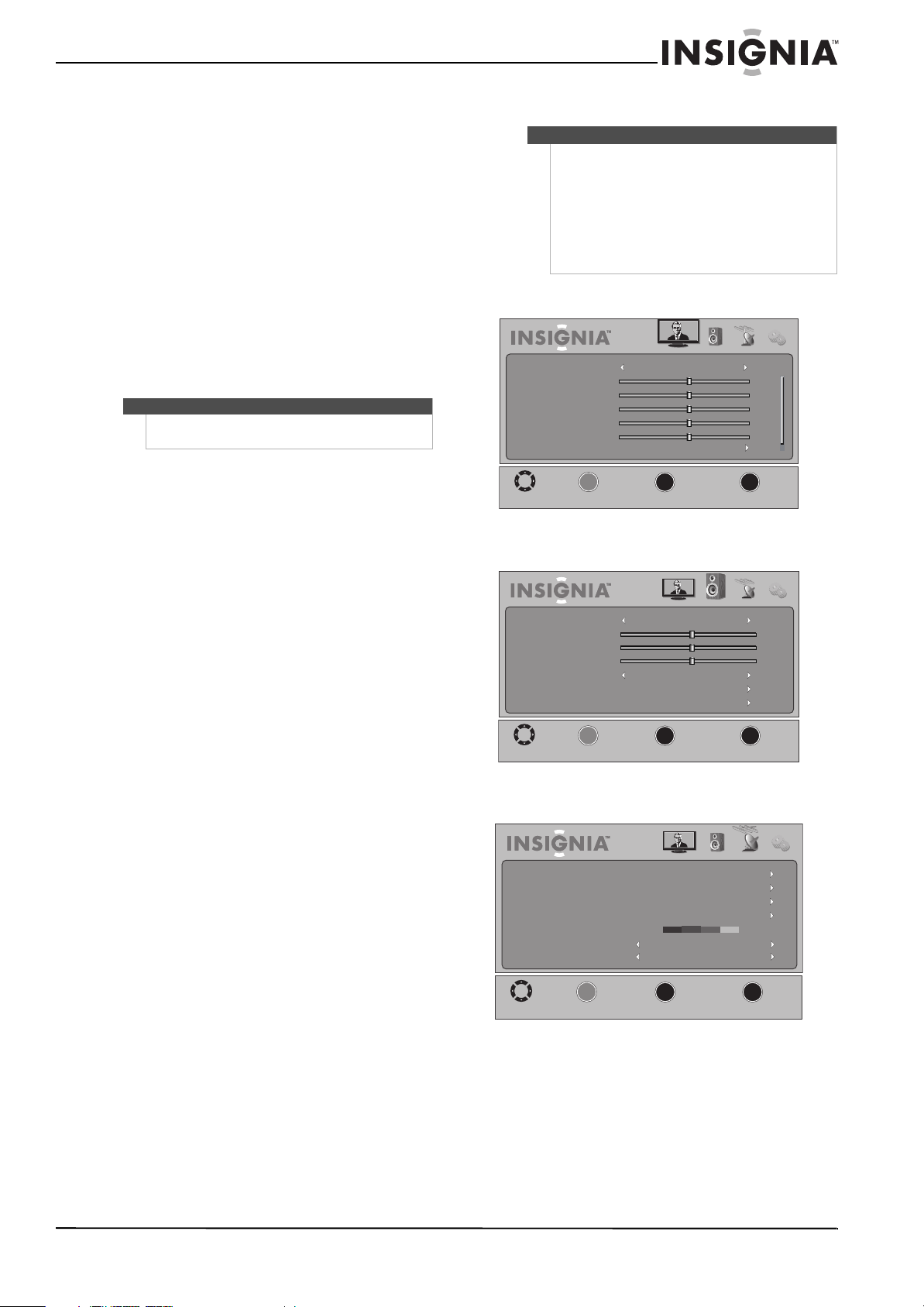
1 Turn on your TV, then press INPUT. The Input
Source list opens.
2 Press INPUT repeatedly or press
S or T to select
the video input source. Wait a few seconds for
the TV to switch to your selection, or press
OK/ENTER to switch immediately.
You can also press a video input button to select the
video input source.
• Press TV to select TV.
• Press VIDEO to select A/V.
• Press HDMI once to select HDMI 1 or twice to
select HDMI 2.
• Press COMP to select Component.
MOVE
MENU
PREVIOUS
SELECT
Setup Wizard
Choose your Picture Mode
Retail Mode
Home Mode
OK
_____
ENTER
MOVE
MENU
PREVIOUS
SELECT
Setup Wizard
Choose your TV source
Cable
Cable/Satellite Box
Channel scanning may take 30+ minutes
Digital Channels
Analog Channels
0
0
Antenna
OK
_____
ENTER
Warning
When your TV is turned off, power still flows into it. To
disconnect power, unplug the power cord.
Note
If your TV is connected to a computer and your TV
does not receive a VGA signal, your TV will enter
power-saving mode automatically. Press (power)
to wake up your TV.
Input Source
TV
A/V
Component
HDMI 1
HDMI 2
VGA
19
Insignia 32" LCD TV 720p
www.insigniaproducts.com
Selecting a channel
To select a channel:
• Press CH
S or CHT to go to the next or previous
channel on the memorized channel list.
• Press RECALL to go to the last channel viewed.
Press RECALL again to return to the channel you
were watching.
• Press the number buttons to enter the analog or
digital (main) channel number you want, then
wait for the channel to change or press
OK/ENTER to change the channel immediately.
• To select a digital sub-channel, press the number
buttons to select the main digital channel, press
— (dash), then press the number for the
sub-channel. Wait for the channel to change, or
press OK/ENTER to change the channel
immediately.
Adjusting the volume
To adjust the volume:
• Press VOL+ or VOL– to increase or decrease the
volume.
• Press MUTE to temporarily turn off all sound.
Press MUTE again to restore the sound.
Displaying additional information
To display additional information:
• Press INFO. An information banner opens and
displays current program information such as the
channel number, video input source, and
resolution.
• Digital signal information—Displays the
channel number, station name, channel label
(if present), broadcast program name, TV
rating, signal type, audio information,
resolution, CC mode, current time, and current
program start and end times when watching a
digital channel.
• Analog signal information—Displays the
channel number, channel label (if preset),
signal type, audio information, and resolution
when watching an analog channel.
• Press GUIDE to open the digital program guide,
which may display a list of available programs,
program times, and program summaries,
depending on the information provided by the
broadcaster.
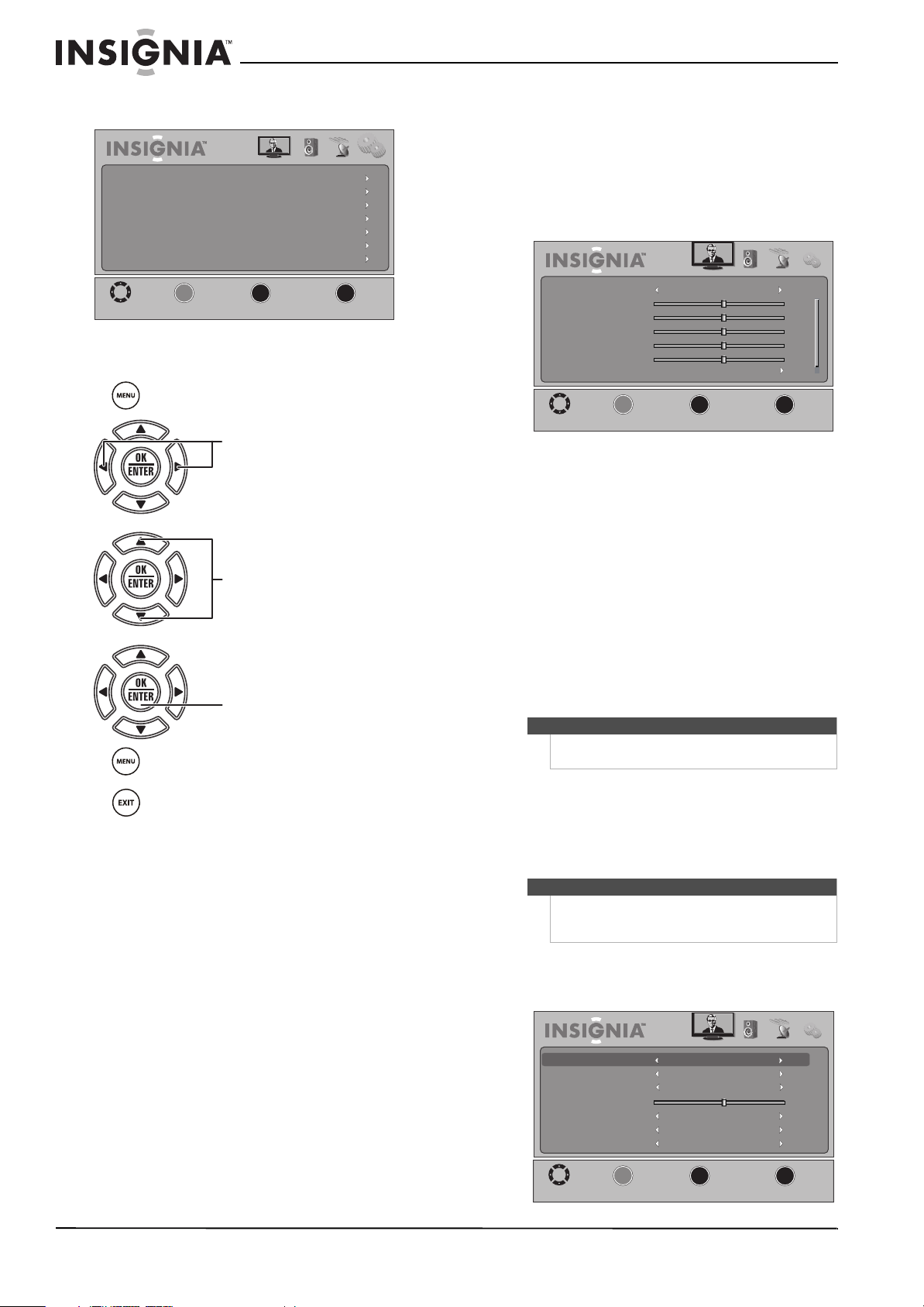
On-screen menu overview
Picture menu
Audio menu
Channel menu
Note
Button presses must be within three seconds of each
other.
Notes
• Depending on the signal source selected, you
may see different options on your screen.
• Menu items that are not selectable are grayed
out.
• Menus in this guide are described in TV mode,
unless otherwise indicated.
• The screens shown in this guide are for
explanation purposes and may vary from the
actual screens on your TV.
Picture Audio Channel Settings
MOVE
MENU
PREVIOUS
SELECT
OK
EXIT
EXIT
Mode
Brightness
Contrast
Color
Tint
Sharpness
Advanced Video
Standard
50
0
50
50
50
ENTER
_____
Picture Audio Channel Settings
MOVE
MENU
PREVIOUS
SELECT
OK
EXIT
EXIT
Mode
Treble
Bass
Balance
Auto Volume
Advanced Audio
Reset Audio Settings
Standard
0
50
50
Off
ENTER
______
Picture Audio Channel Settings
MOVE
MENU
PREVIOUS
SELECT
OK
EXIT
EXIT
Off
Off
Good
ENTER
______
Auto Channel Search
Add/Skip Channels
Favorites
Channel Labels
Channel Strength
Audio Only
Auto Zoom
20
NS-32L430A11 Insignia 32" LCD TV 720p
www.insigniaproducts.com
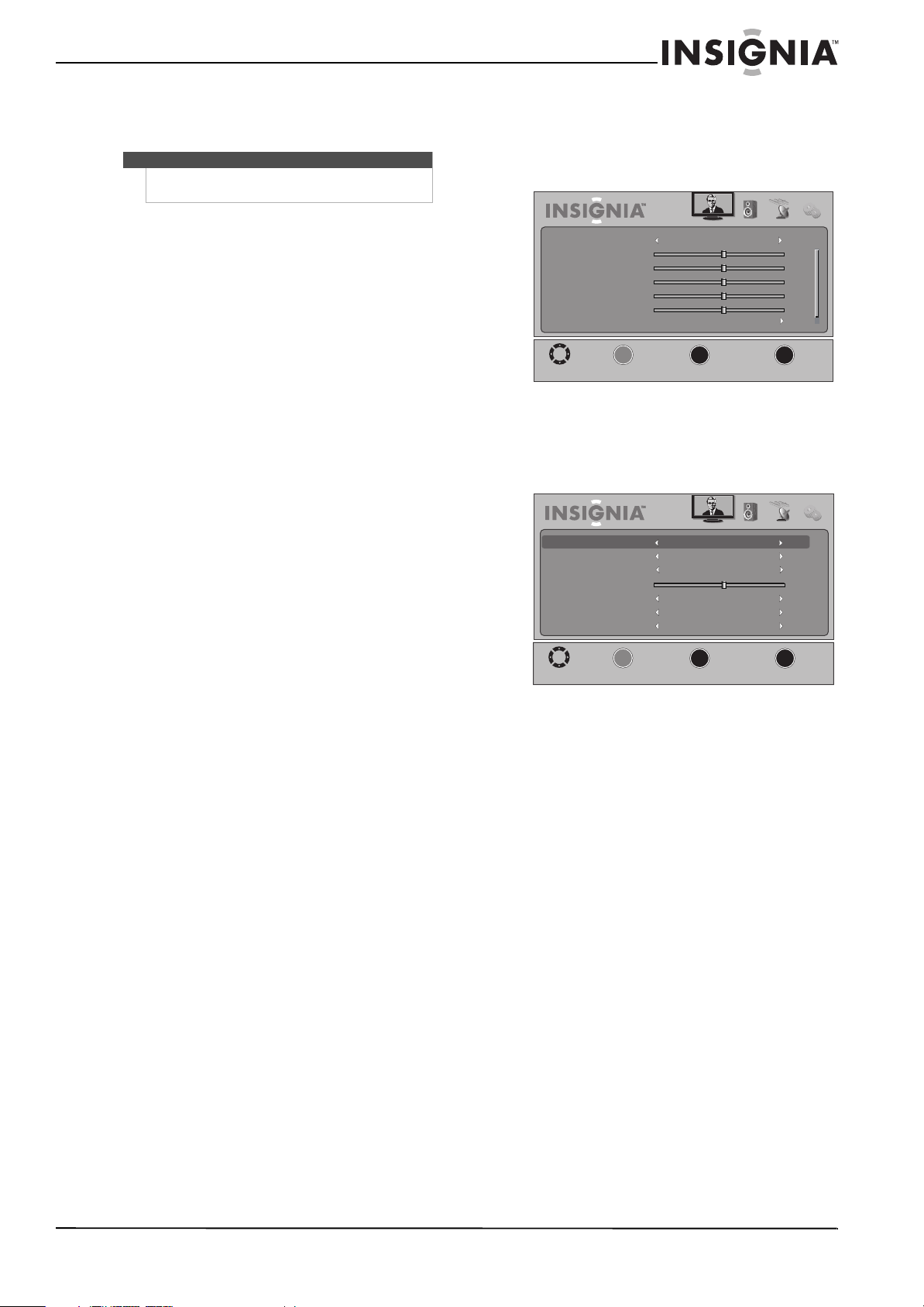
Settings menu
Navigating the menus
Adjusting the picture
Adjusting the TV picture
To adjust the TV picture:
1 Press MENU. The on-screen menu opens with
the Picture menu displayed.
2 Press
T or OK/ENTER to access the menu.
3 Press
S or T to highlight an option, then press
W or X to adjust the setting. You can select:
• Mode—Selects the picture mode. You can
select:
• Vivid—Provides a bright and vivid picture.
• Standard— Provides a standard picture.
• Energy Savings—Reduces the brightness
and backlight levels to save energy.
• Theater—Provides a finely detailed
picture.
• Sports—Provides a dynamic picture.
• Custom—Lets you customize the picture
settings.
• Brightness—Adjusts the brightness.
• Contrast—Adjusts the contrast.
• Color—Adjusts the color saturation.
• Tint—Adjusts the image tint.
• Sharpness—Adjusts the sharpness.
• Advanced Video—Opens the Advanced Video
sub-menu where you can adjust additional
video options.
Picture Audio Channel Settings
MOVE
MENU
PREVIOUS
SELECT
OK
EXIT
EXIT
Parental Controls
Closed Caption
Time
Menu Settings
Input Labels
VGA Settings
Reset to Default
ENTER
______
Press W or X to move the cursor on the screen or
to adjust a selected item.
Press MENU to open the on-screen menu.
Press
S or T to select menu options.
Press OK/ENTER to confirm a selection or enter a
sub-menu.
Press MENU to return to the previous menu.
Press EXIT to close the menu.
Note
You can also press PICT repeatedly to select the
picture mode.
Note
If you try to adjust Brightness, Contrast, Color, Tint,
Sharpness, or settings in the Advanced Video menu,
your TV automatically changes the Mode to Custom.
Picture Audio Channel Settings
MOVE
MENU
PREVIOUS
SELECT
OK
EXIT
EXIT
Mode
Brightness
Contrast
Color
Tint
Sharpness
Advanced Video
Standard
50
0
50
50
50
ENTER
_____
Picture Audio Channel Settings
MOVE
MENU
PREVIOUS
SELECT
OK
EXIT
EXIT
Off
Normal
Middle
Off
Off
50
ENTER
______
Aspect Ratio
Overscan
Color Temperature
Backlight
Noise Reduction
Adaptive Contrast
DCR
Normal
21
Insignia 32" LCD TV 720p
www.insigniaproducts.com
• Aspect Ratio—Changes the display
format. For more information, see
“Selecting the aspect ratio” on page 21.
• Overscan—Extends part of the display
past the visible area of the screen. The
resulting picture zooms on the image
center. You can select On or Off.
• Color Temperature—Adjusts the level of
white balance in the display. You can
select:
• Cool—Pictures appear with a bluish
tint.
• Normal—Pictures appear more
white.
• Warm—Pictures appear more
reddish.
• Backlight—Sets the overall brilliance of
the screen.
• Noise Reduction—Improves the picture
quality by filtering out unstable data
(noise) from video signals. You can select
Low, Middle, High, or Off.
• Adaptive Contrast—Enhances the
contrast between the light and dark areas
of the picture. This feature enables
automatic contrast adjustment, based on
the picture brightness. You can select On
or Off.
• DCR—Automatically adjusts the backlight
level based on the dark areas of the
picture. You can select On or Off.
• Reset Picture Settings—Resets all picture
settings to factory defaults.
4 Press EXIT to close the on-screen menu.
Selecting the aspect ratio
To select the aspect ratio:
1 Press MENU. The on-screen menu opens with
the Picture menu displayed.
2 Press
T or OK/ENTER to access the menu.
3 Press
S or T to highlight Advanced Video, then
press OK/ENTER. The Advanced Video sub-menu
opens.
4 Press
S or T to highlight Aspect Ratio, then
press W or X to select the aspect ratio you want.
You can select:
• Auto—The picture display is adjusted to the
correct aspect ratio automatically (TV mode
only). This setting is only active when Auto
Zoom in the Channel menu must be set to On.
• Normal—The picture is displayed in a 4:3
aspect ratio.
• Zoom—The picture is displayed to cover the
entire screen.
• Wide—The picture uses a widescreen aspect
ratio.
• Cinema—The picture is displayed in a 21:9
aspect ratio.
5 Press EXIT to close the on-screen menu.
Note
You can also press ZOOM repeatedly to select the
aspect ratio.
Picture Audio Channel Settings
MOVE
MENU
PREVIOUS
SELECT
OK
EXIT
EXIT
Mode
Brightness
Contrast
Color
Tint
Sharpness
Advanced Video
Standard
50
0
50
50
50
ENTER
_____
Picture Audio Channel Settings
MOVE
MENU
PREVIOUS
SELECT
OK
EXIT
EXIT
Off
Normal
Middle
Off
Off
50
ENTER
______
Aspect Ratio
Overscan
Color Temperature
Backlight
Noise Reduction
Adaptive Contrast
DCR
Normal
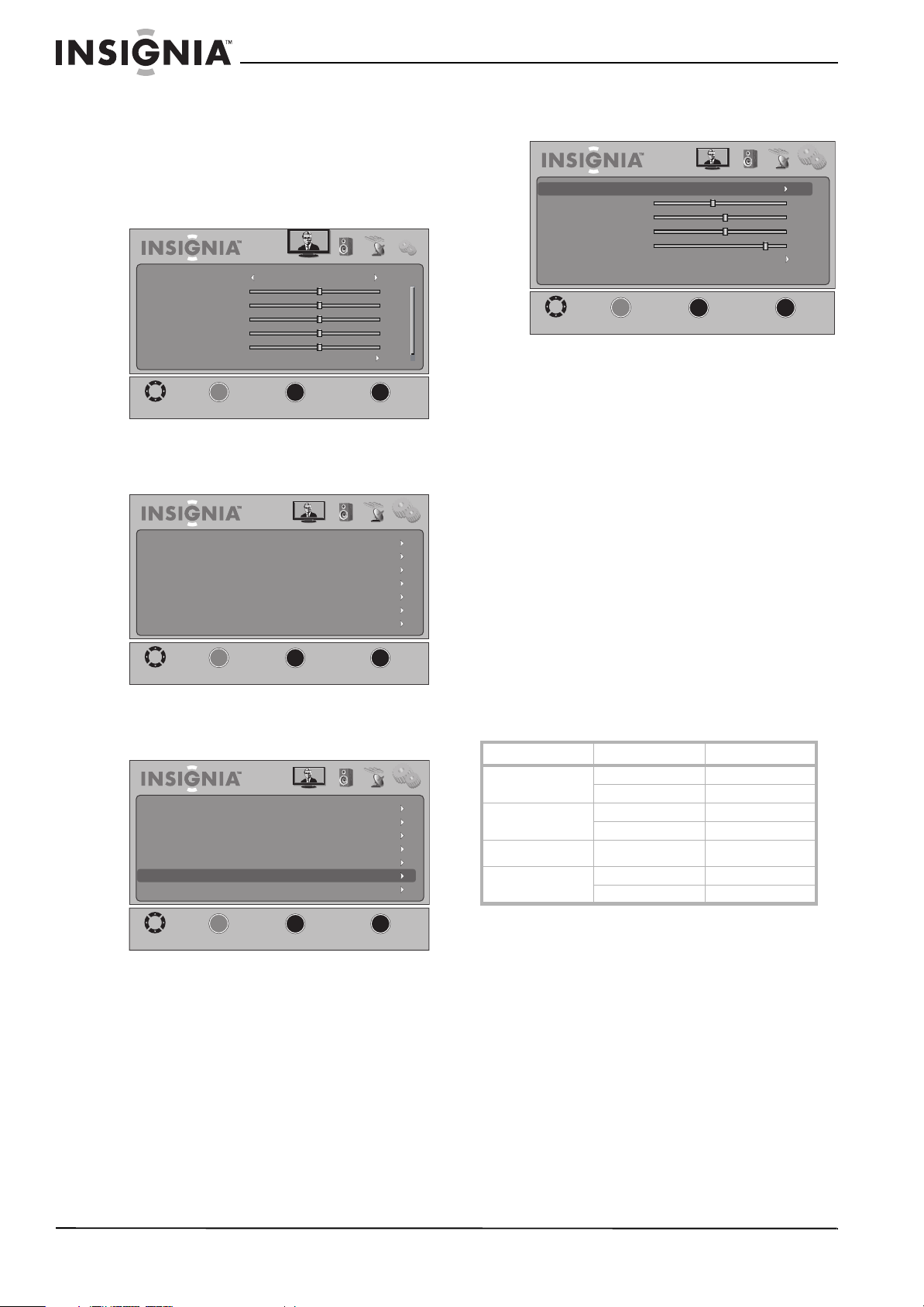
22
NS-32L430A11 Insignia 32" LCD TV 720p
www.insigniaproducts.com
Adjusting the computer image
To adjust the computer image:
1 Make sure that your TV is in VGA mode. For
more information, see “Selecting the video
input source” on page 18.
2 Press MENU. The on-screen menu opens.
3 Press
W or X to highlight Settings. The Settings
menu opens.
4 Press
T or OK/ENTER to access the menu, then
press S or T to highlight VGA Settings.
5 Press OK/ENTER. The VGA Settings sub-menu
opens.
6 Press
S or T to highlight an option, then press
W or X to adjust the option. You can select:
• Auto Adjust—Automatically adjusts the
image settings such as position and phase.
• H. Position—Moves the image right or left.
• V. Position—Moves the image up or down.
• Clock—Adjusts the sample frequency.
• Phase—Adjusts the focus to stabilize the
image.
• Reset Computer Settings—Resets all
computer settings to factory defaults.
7 Press EXIT to close the on-screen menu.
PC signal input chart
You need to set the video resolution on your
computer to a resolution that your TV supports. See
the online help for your computer’s operating
system for instructions on setting the video
resolution.
If “Unsupported Signal” appears on the screen,
adjust the computer’s video resolution to
correspond to one of the following settings.
Picture Audio Channel Settings
MOVE
MENU
PREVIOUS
SELECT
OK
EXIT
EXIT
Mode
Brightness
Contrast
Color
Tint
Sharpness
Advanced Video
Standard
50
0
50
50
50
ENTER
_____
Picture Audio Channel Settings
MOVE
MENU
PREVIOUS
SELECT
OK
EXIT
EXIT
Parental Controls
Closed Caption
Time
Menu Settings
Input Labels
VGA Settings
Reset to Default
ENTER
______
Picture Audio Channel Settings
MOVE
MENU
PREVIOUS
SELECT
OK
EXIT
EXIT
ENTER
______
Parental Controls
Closed Caption
Time
Menu Settings
Input Labels
VGA Settings
Reset to Default
Format Resolution Frequency (Hz)
VGA
640 x 480 60
720 x 400 70
SVGA
800 x 600 60
800 x 600 72
XGA
1024 x 768 60
WXGA
1280 x 768 60
1360 x 768 60
Picture Audio Channel Settings
MOVE
MENU
PREVIOUS
SELECT
OK
EXIT
EXIT
ENTER
______
Auto Adjust
H. Position
V. Position
Clock
Phase
Reset Computer Settings
-7
0
0
13
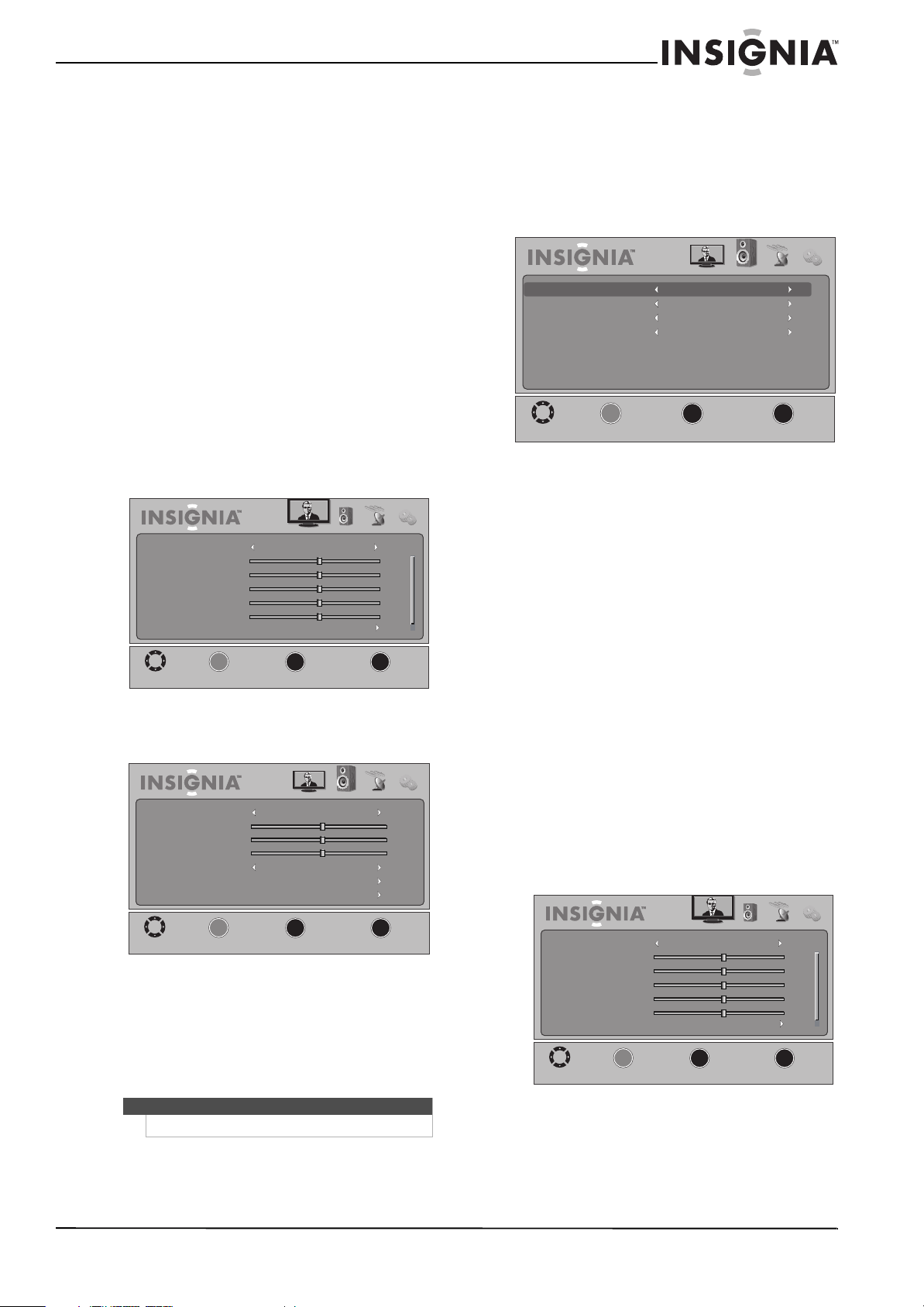
23
Insignia 32" LCD TV 720p
www.insigniaproducts.com
Adjusting the sound
Selecting the audio language or sound mode
To select the audio language in digital TV mode:
• Press SAP repeatedly to select an audio language
(if available).
To select the sound mode in analog TV mode:
• Press SAP repeatedly to cycle through the audio
sound modes. The options available depend on
the broadcaster. You can select:
• Mono—Select this mode if there is noise or
static from a weak broadcast signal.
• Stereo—Select this mode for programs
broadcast in stereo sound.
• SAP—Select this mode to listen to audio in an
alternate language (if available).
Adjusting sound settings
To adjust sound settings:
1 Press MENU. The on-screen menu opens.
2 Press
W or X to highlight Audio. The Audio
menu opens.
3 Press
T or OK/ENTER to access the menu.
4 Press
S or T to highlight a setting, then press W
or X to adjust the setting. You can select:
• Mode—Selects the equalizer (EQ) audio
mode. You can select Standard, Theater,
Music, News, or Custom.
• Treble—Adjusts the high sounds.
• Bass—Adjusts the low sounds.
• Balance—Adjusts the balance between the
left and right audio channels.
• Auto Volume—Adjusts the volume to keep
the volume level consistent when switching
channels or when switching from a TV show to
a commercial. You can select On or Off.
• Advanced Audio—Opens the Advanced
Audio sub-menu.
• Digital Audio/SPDIF—Selects the audio
format for digital audio signals. You can
select PCM or RAW.
• Audio Language—Selects the default
language track when watching digital TV
programs. You can select English, Français
(French), or Español (Spanish).
• MTS/SAP—Selects the default language
stream when watching analog or digital TV
channels. See “Selecting the audio
language or sound mode” on page 23.
• Speakers—Selects the TV audio output
source. If an external audio system is
connected to your TV, select External to
send the TV sound to the audio system.
• Reset Audio Settings—Resets all audio
settings to factory defaults.
5 Press EXIT to close the menu.
Playing TV audio only
You can turn off the video on your TV and only
listen to the program audio.
To play TV audio only:
1 Press MENU. The on-screen menu opens.
Note
You can also press AUDIO repeatedly to select the audio mode.
Picture Audio Channel Settings
MOVE
MENU
PREVIOUS
SELECT
OK
EXIT
EXIT
Mode
Brightness
Contrast
Color
Tint
Sharpness
Advanced Video
Standard
50
0
50
50
50
ENTER
_____
Picture Audio Channel Settings
MOVE
MENU
PREVIOUS
SELECT
OK
EXIT
EXIT
Mode
Treble
Bass
Balance
Auto Volume
Advanced Audio
Reset Audio Settings
Standard
0
50
50
Off
ENTER
______
Picture Audio Channel Settings
MOVE
MENU
PREVIOUS
SELECT
OK
EXIT
EXIT
English
Stereo
Internal
ENTER
______
Digital Audio/SPDIF
Audio Language
MTS/SAP
Speakers
PCM
Picture Audio Channel Settings
MOVE
MENU
PREVIOUS
SELECT
OK
EXIT
EXIT
Mode
Brightness
Contrast
Color
Tint
Sharpness
Advanced Video
Standard
50
0
50
50
50
ENTER
_____
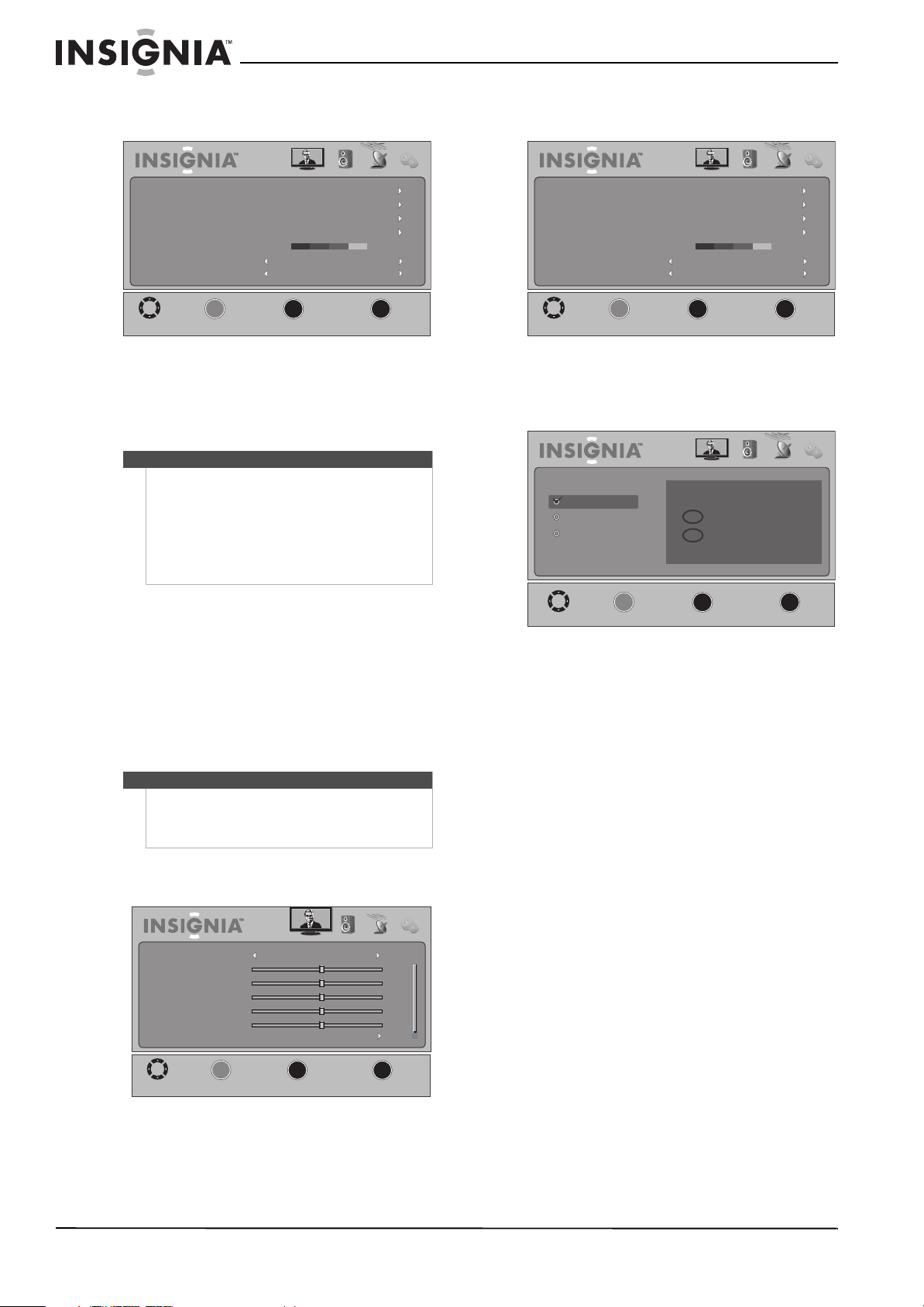
24
NS-32L430A11 Insignia 32" LCD TV 720p
www.insigniaproducts.com
2 Press W or X to highlight Channel. The Channel
menu opens.
3 Press
T or OK/ENTER to access the menu.
4 Press
S or T to highlight Audio Only, then
press W or X to select On or Off.
5 Press EXIT to close the menu.
Changing channel settings
Automatically scanning for channels
When you scan for channels, your TV searches for
channels available in your viewing area and stores
the channel information in the channel list. When
you press CH
S and CHT, your TV tunes to the next
or previous channel in the channel list and skips any
channels that were not stored in the list.
To automatically scan for channels:
1 Press MENU. The on-screen menu opens.
2 Press
W or X to highlight Channel. The Channel
menu opens.
3 Press
T or OK/ENTER to access the menu.
4 Press
S or T to highlight Auto Channel Search,
then press OK/ENTER.
5 Press
S or T to highlight your TV signal source,
then press OK/ENTER. You can select:
• Antenna—Select this option if you use an
antenna. Your TV will scan for analog (VHF and
UHF) and digital channels in your area.
• Cable—Select this option if you have cable TV
and do not have a cable TV box. Your TV will
scan for analog and digital channels in your
area.
• Cable/Satellite Box—Select this option if you
use a cable or satellite TV box. Your TV will not
scan for channels because the cable or
satellite TV box provides the channel
information.
Auto Scan may take a while to complete. A
progress report is displayed while your TV is
scanning for available channels. After the digital
channel scan is complete, you can continue to
search for analog channels without pressing any
buttons, or you can press EXIT to exit if you do
not need the analog channel scan.
You can press MENU or EXIT at any time to stop
scanning, but you will need to run the scan later
to complete the process.
Note
•After Audio Only is set to On, the TV picture will
disappear 10 seconds after the on-screen menu
is closed.
• Audio Only works only when the input source is
TV and your TV is receiving a broadcast signal.
• To exit audio only mode, press any button.
When you exit audio only mode, the Audio
Only option is automatically reset to Off.
Note
You do not need to scan for channels unless the
available channels changed after you ran the Setup
Wizard. For more information, see “Turning on your
TV for the first time” on page 17.
Picture Audio Channel Settings
MOVE
MENU
PREVIOUS
SELECT
OK
EXIT
EXIT
Off
Off
Good
ENTER
______
Auto Channel Search
Add/Skip Channels
Favorites
Channel Labels
Channel Strength
Audio Only
Auto Zoom
Picture Audio Channel Settings
MOVE
MENU
PREVIOUS
SELECT
OK
EXIT
EXIT
Mode
Brightness
Contrast
Color
Tint
Sharpness
Advanced Video
Standard
50
0
50
50
50
ENTER
_____
Picture Audio Channel Settings
MOVE
MENU
PREVIOUS
SELECT
OK
EXIT
EXIT
Off
Off
Good
ENTER
______
Auto Channel Search
Add/Skip Channels
Favorites
Channel Labels
Channel Strength
Audio Only
Auto Zoom
Picture Audio Channel Settings
Choose your TV source
Digital Channels
Analog Channels
Channel scan may take 30+ minutes
Cable
Cable/Satellite Box
0
0
Antenna
MOVE
MENU
PREVIOUS
SELECT
OK
EXIT
EXIT
ENTER
______
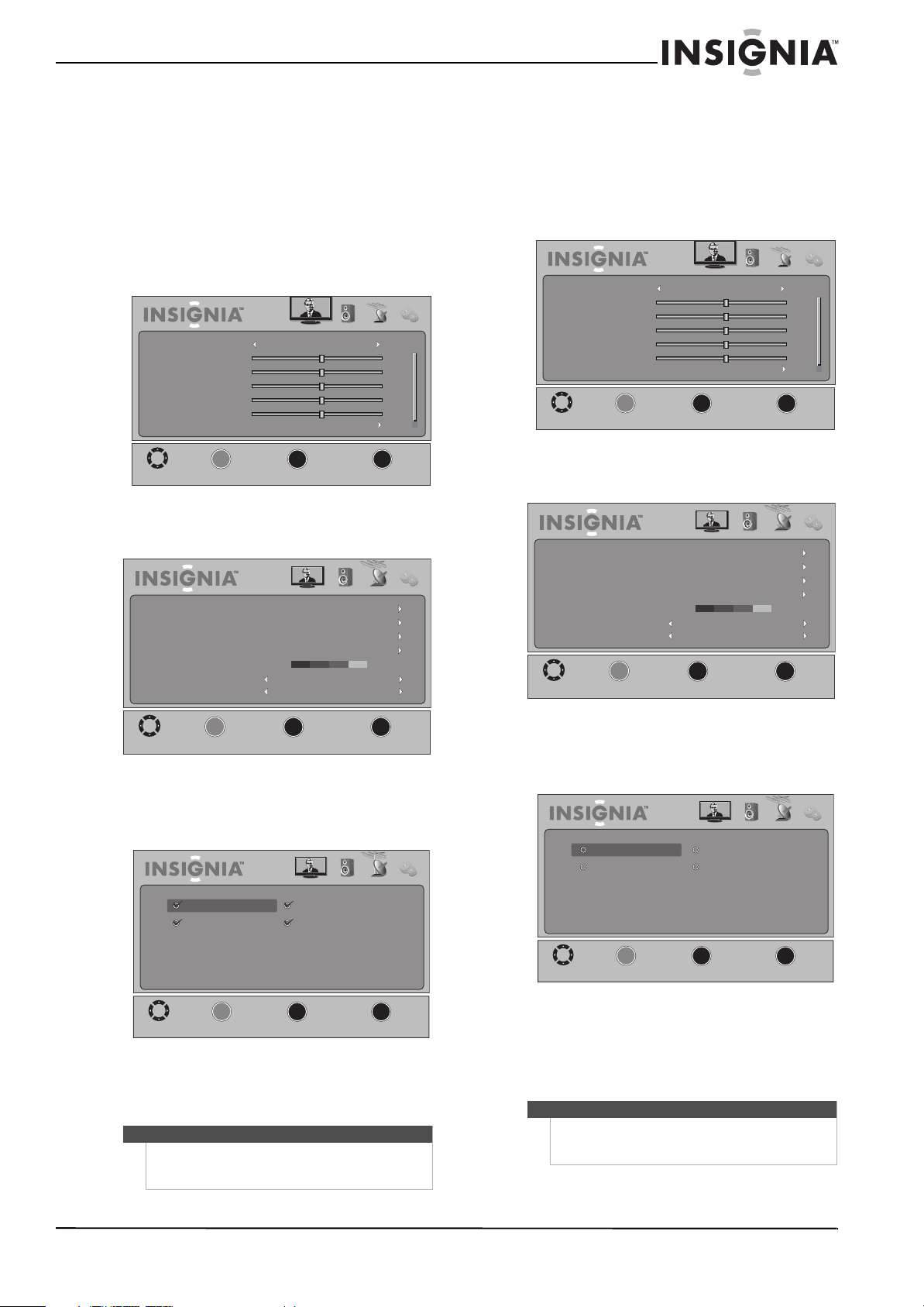
25
Insignia 32" LCD TV 720p
www.insigniaproducts.com
Hiding channels
You can hide channels in the channel list so that
your TV skips the channels when you press CH
S
and CHT. You can still tune to the hidden channels
by using the number buttons.
To hide channels:
1 Make sure that you have scanned for channels.
For more information, see “Automatically
scanning for channels” on page 24.
2 Press MENU. The on-screen menu opens.
3 Press
W or X to highlight Channel. The Channel
menu opens.
4 Press
T or OK/ENTER to access the menu.
5 Press
S or T to highlight Add/Skip Channels,
then press OK/ENTER. The channel list opens.
6 Press
S or T to highlight the channel you want
to hide, then press OK/ENTER. The check mark
next to the channel disappears.
7 Press EXIT to close the menu.
Setting up a favorite channel list
You can create a favorite channel list to make it
easier to tune to your favorite channels.
To set up a favorite channel list:
1 Press MENU. The on-screen menu opens.
2 Press
W or X to highlight Channel. The Channel
menu opens.
3 Press
T or OK/ENTER to access the menu.
4 Press
S or T to highlight Favorites, then press
OK/ENTER. The channel list opens.
5 Press
S or T to highlight the channel you want
to add to the favorites channel list, then press
OK/ENTER. A check mark appears next to the
channel. You can add up to 50 channels to the
list.
6 Press EXIT to close the menu.
Note
To add a channel back to the list, highlight the
channel, then press OK/ENTER. A check mark
appears next to the channel.
Picture Audio Channel Settings
MOVE
MENU
PREVIOUS
SELECT
OK
EXIT
EXIT
Mode
Brightness
Contrast
Color
Tint
Sharpness
Advanced Video
Standard
50
0
50
50
50
ENTER
_____
Picture Audio Channel Settings
MOVE
MENU
PREVIOUS
SELECT
OK
EXIT
EXIT
Off
Off
Good
ENTER
______
Auto Channel Search
Add/Skip Channels
Favorites
Channel Labels
Channel Strength
Audio Only
Auto Zoom
Picture Audio Channel Settings
MOVE
MENU
PREVIOUS
SELECT
OK
EXIT
EXIT
ENTER
______
CH 11 WORLD
CH 7
CH 12 LIFE
CH 3-1 KQED-HD
Note
To remove a channel from the favorite channel list,
highlight the channel, then press OK/ENTER. The
check mark next to the channel disappears.
Picture Audio Channel Settings
MOVE
MENU
PREVIOUS
SELECT
OK
EXIT
EXIT
Mode
Brightness
Contrast
Color
Tint
Sharpness
Advanced Video
Standard
50
0
50
50
50
ENTER
_____
Picture Audio Channel Settings
MOVE
MENU
PREVIOUS
SELECT
OK
EXIT
EXIT
Off
Off
Good
ENTER
______
Auto Channel Search
Add/Skip Channels
Favorites
Channel Labels
Channel Strength
Audio Only
Auto Zoom
Picture Audio Channel Settings
MOVE
MENU
PREVIOUS
SELECT
OK
EXIT
EXIT
ENTER
______
Ch 11-2 WORLD
Ch 7-0
Ch 12-2 LIFE
Ch 3-1 KQED-HD
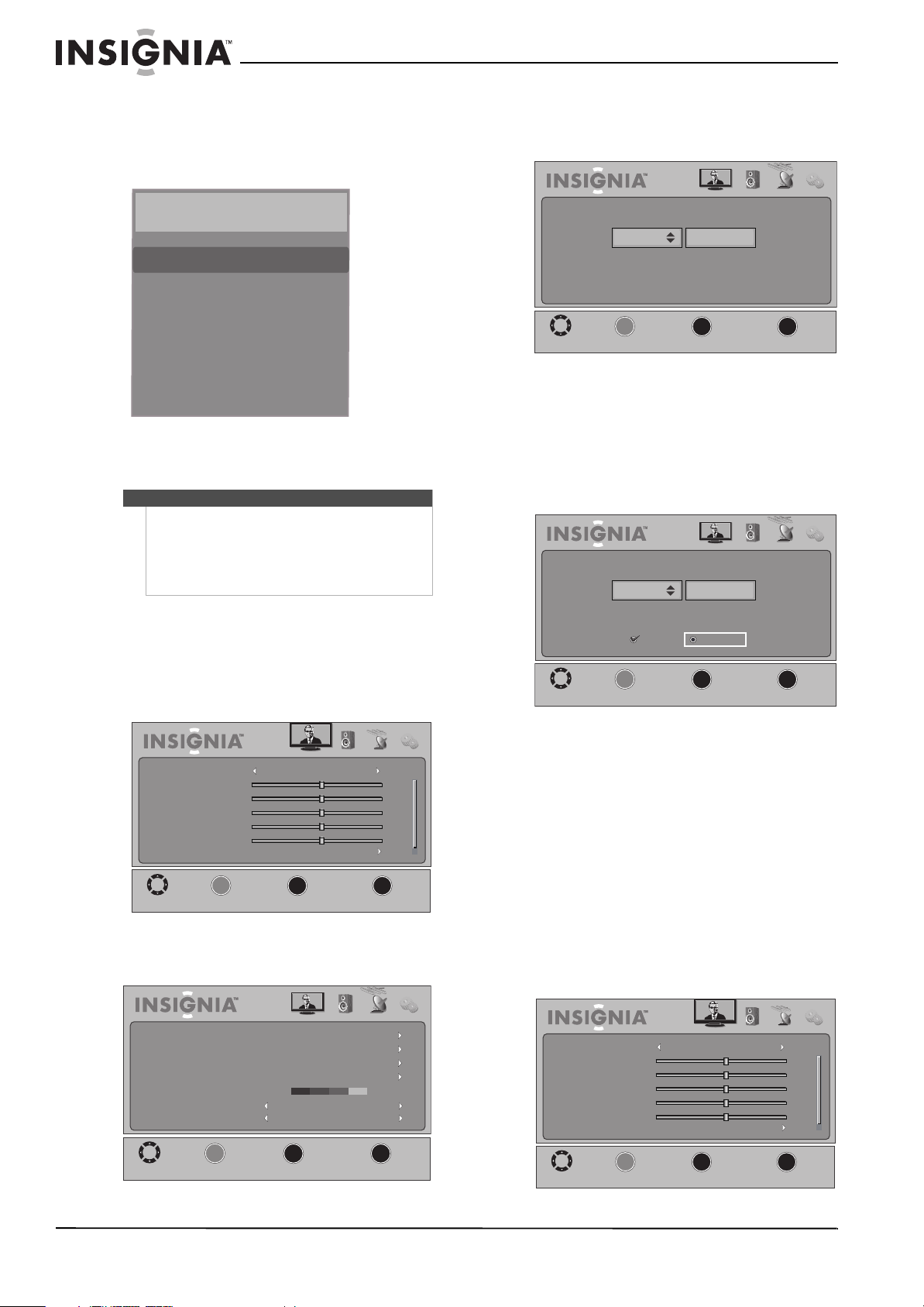
26
NS-32L430A11 Insignia 32" LCD TV 720p
www.insigniaproducts.com
Viewing a favorite channel
To view a favorite channel:
1 In TV mode, press FAV. The favorite channel list
opens.
2 Press
S or T to highlight the channel you want
to watch, then press OK/ENTER.
Adding or changing a channel label
You can add or change a channel label to make the
channel easier to identify.
To add or change a channel label:
1 Press MENU. The on-screen menu opens.
2 Press
W or X to highlight Channel. The Channel
menu opens.
3 Press
T or OK/ENTER to access the menu.
4 Press
S or T to highlight Channel Labels, then
press OK/ENTER.
5 Press
S or T to select the channel you want to
label, then press
X to move to the label area.
6 Press S or T to select a character, then press X
to move to the next character. You can enter up
to 11 characters.
7 When you have finished, press OK/ENTER. A
confirmation message appears.
8 Press
W or X to highlight Ye s , then press
OK/ENTER.
9 Repeat Step 5 through Step 8 to label another
channel.
10 Press EXIT to close the menu.
Checking the digital TV channel strength
You can check the digital TV signal strength to
determine if you need to adjust your antenna or
digital cable input. The higher the signal strength,
the less likely you are to experience picture
degradation.
To check the digital TV channel strength:
1 Press MENU. The on-screen menu opens.
Notes
• If the list has more than one page, press S or T
to scroll through the pages.
• If you have added a label to a channel, the label
appears next to the channel number on the
Favorites list. For information, see “Adding or
changing a channel label” on page 26.
Favorites
Ch 3-1 KQED-HD
Ch 7-0
Ch 11-2 WORLD
Ch 12-2 LIFE
Picture Audio Channel Settings
MOVE
MENU
PREVIOUS
SELECT
OK
EXIT
EXIT
Mode
Brightness
Contrast
Color
Tint
Sharpness
Advanced Video
Standard
50
0
50
50
50
ENTER
_____
Picture Audio Channel Settings
MOVE
MENU
PREVIOUS
SELECT
OK
EXIT
EXIT
Off
Off
Good
ENTER
______
Auto Channel Search
Add/Skip Channels
Favorites
Channel Labels
Channel Strength
Audio Only
Auto Zoom
Picture Audio Channel Settings
MOVE
MENU
PREVIOUS
SELECT
OK
EXIT
EXIT
ENTER
______
3-1
Picture Audio Channel Settings
MOVE
MENU
PREVIOUS
SELECT
OK
EXIT
EXIT
ENTER
______
3-1
Save name?
Yes No
ABCD
Picture Audio Channel Settings
MOVE
MENU
PREVIOUS
SELECT
OK
EXIT
EXIT
Mode
Brightness
Contrast
Color
Tint
Sharpness
Advanced Video
Standard
50
0
50
50
50
ENTER
_____
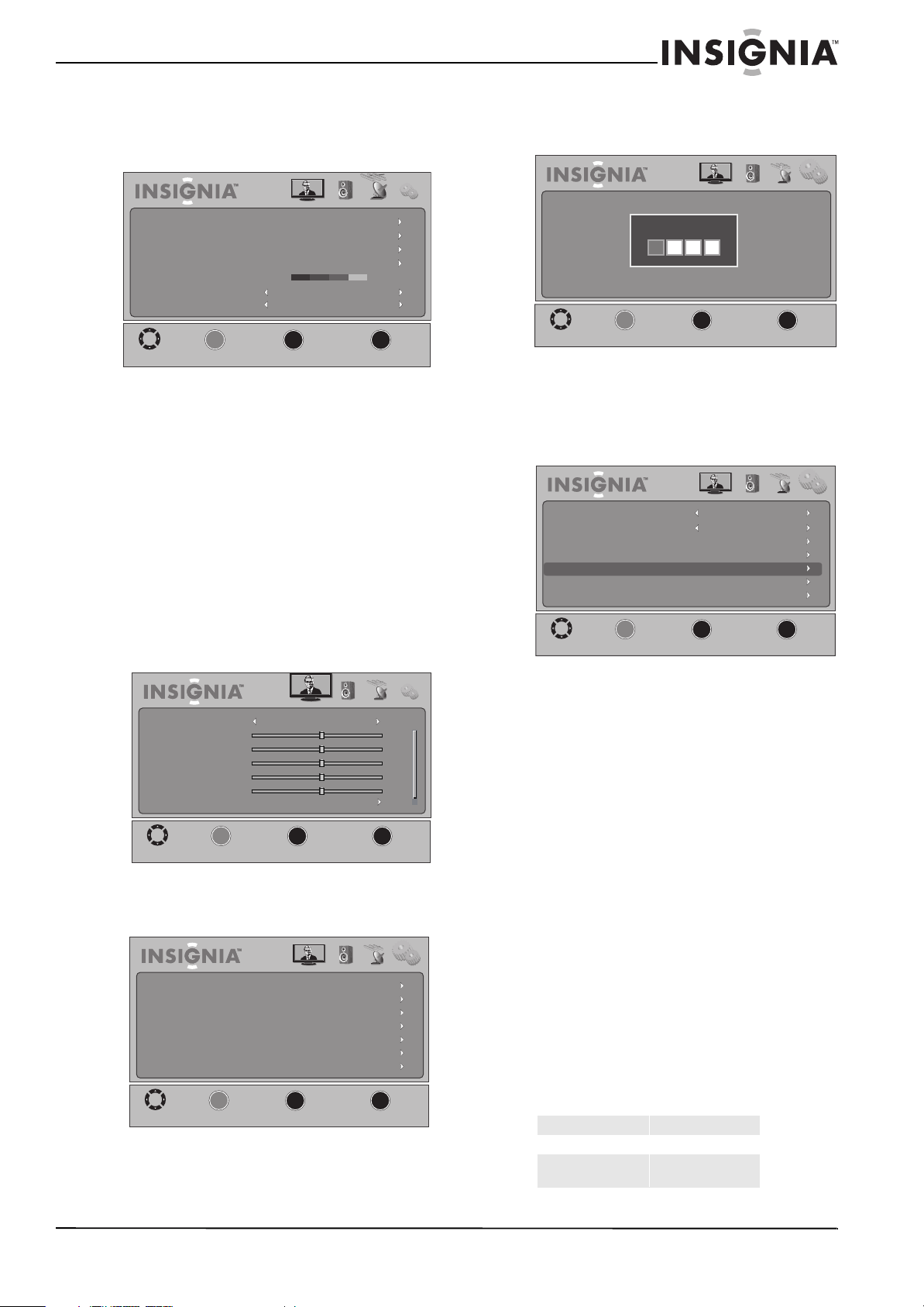
27
Insignia 32" LCD TV 720p
www.insigniaproducts.com
2 Press W or X to highlight Channel. The Channel
menu opens. The digital TV signal strength is
indicated by the color bar beside the Channel
Strength option.
3 Press EXIT to close the menu.
Setting parental controls
Parental controls let you prevent your children from
watching inappropriate material on TV. When set,
parental controls read the rating of the program
(with some exceptions, such as news and sports)
and deny access to programs that exceed the rating
level you select. To watch programs that exceed the
selected rating, you must enter a password.
Setting or changing the password
To set or change the password:
1 Press MENU. The on-screen menu opens.
2 Press
W or X to highlight Settings. The Settings
menu opens.
3 Press
T or OK/ENTER to access the menu.
4 Press
S or T to highlight Parental Controls,
then press OK/ENTER. The Enter Password
screen opens.
5 If you are adding a password, use the number
buttons to enter 0000. If you are changing a
password, enter the old password. If you have
forgotten your password, enter 9999. The
Parental Controls sub-menu opens.
6 Press
S or T to highlight Change Password,
then press OK/ENTER. The change password
screen opens.
7 If you are adding a password, enter 0000 as the
old password. If you are changing a password,
enter your old password.
8 Enter your new password, then enter it again to
confirm. The Parental Controls sub-menu
re-opens.
9 Press EXIT to close the menu.
Setting parental control levels
You can set parental control levels for the U.S. and
Canada. The following procedure shows how to set
controls for U.S. TV and movie ratings. You use
similar steps for controlling Canadian TV ratings.
Parental control settings are only applicable to
programs that have a rating signal. If you prefer to
block programs that have no rating signal, see
“Blocking unrated TV” on page 29.
Ratings
Picture Audio Channel Settings
MOVE
MENU
PREVIOUS
SELECT
OK
EXIT
EXIT
Off
Off
Good
ENTER
______
Auto Channel Search
Add/Skip Channels
Favorites
Channel Labels
Channel Strength
Audio Only
Auto Zoom
Picture Audio Channel Settings
MOVE
MENU
PREVIOUS
SELECT
OK
EXIT
EXIT
Mode
Brightness
Contrast
Color
Tint
Sharpness
Advanced Video
Standard
50
0
50
50
50
ENTER
_____
Picture Audio Channel Settings
MOVE
MENU
PREVIOUS
SELECT
OK
EXIT
EXIT
Parental Controls
Closed Caption
Time
Menu Settings
Input Labels
VGA Settings
Reset to Default
ENTER
______
U.S. movie (MPAA) ratings
These ratings are determined by the Motion Picture
Association of America (MPAA).
None Movie not rated
G General audiences
PG Parental guidance
suggested
Picture Audio Channel Settings
MOVE
MENU
PREVIOUS
SELECT
OK
EXIT
EXIT
ENTER
______
Enter Password
Picture Audio Channel Settings
MOVE
MENU
PREVIOUS
SELECT
OK
EXIT
EXIT
ENTER
______
Button Lock
Block Unrated TV
USA Parental Locks
Canadian Parental Locks
Change Password
RRT5
Reset RRT5
Off
Off
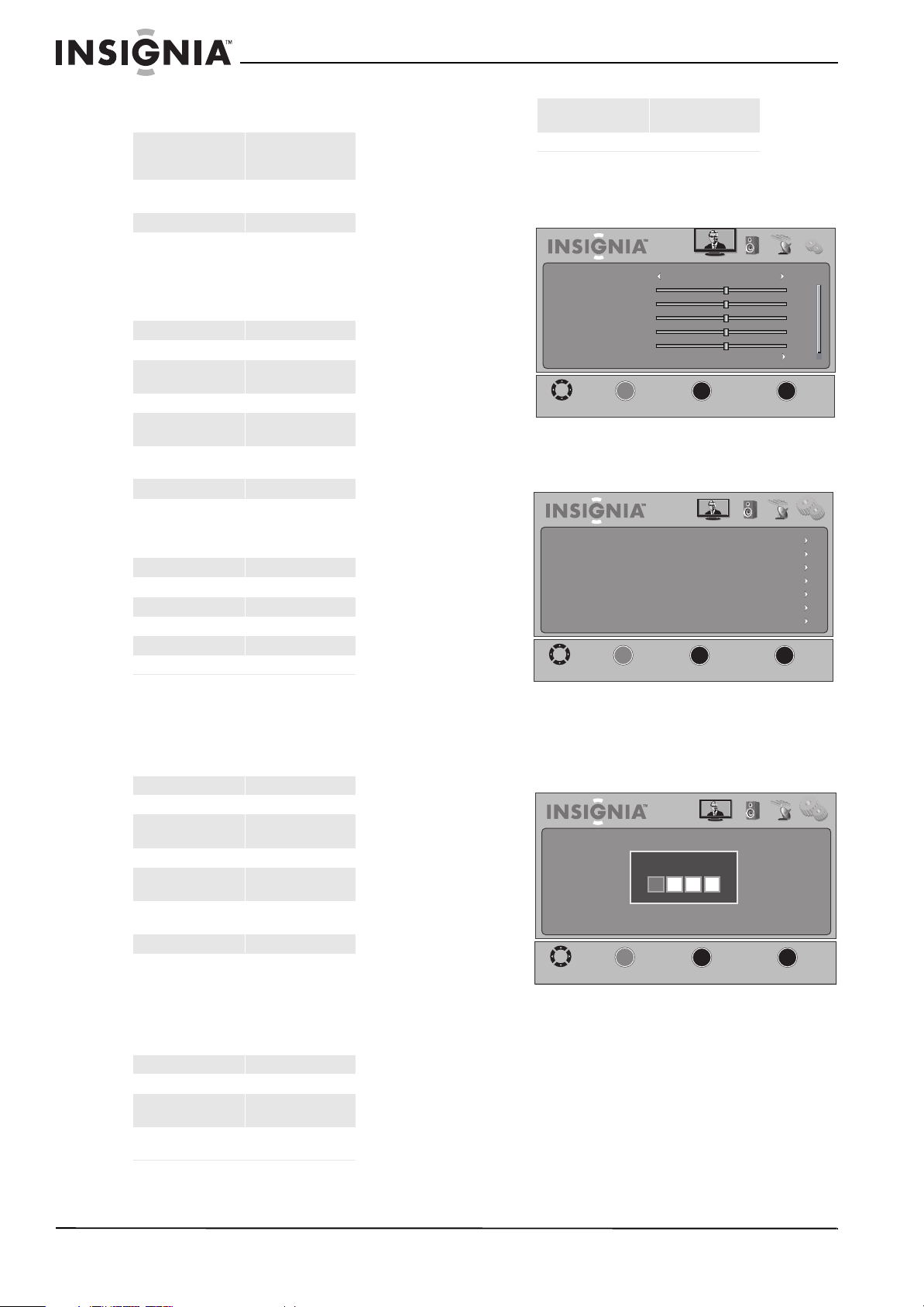
28
NS-32L430A11 Insignia 32" LCD TV 720p
www.insigniaproducts.com
To set parental control levels:
1 Press MENU. The on-screen menu opens.
2 Press
W or X to highlight Settings. The Settings
menu opens.
3 Press
T or OK/ENTER to access the menu.
4 Press
S or T to highlight Parental Controls,
then press OK/ENTER. The Enter Password
screen opens.
PG-13 Suitable for children 13
and older
R Parental guidance
suggested for children
under 17
NC-17 Not suitable for children
under 17
X Adults only
U.S. TV ratings (age-based)
These ratings are determined by the Federal
Communications Commission (FCC)
None Not rated
TV-Y All children
TV-Y7 Suitable for children 7
and older
TV-G General audiences
TV-PG Parental guidance
suggested
TV-14 Parental guidance
strongly suggested
TV-MA Mature audiences only
U.S. TV ratings (content-based)
All All ratings are blocked
FV Fantasy violence
D Suggestive dialog
L Strong language
S Sexual situations
VViolence
Canadian English ratings
These ratings are based on the Canadian Home
Video Rating System determined by the Canadian
Motion Picture Distributors Association (CMPDA).
E Exempt programming
C Suitable for all children
C8+ Suitable for children 8
and older
G General audiences
PG Parental guidance
suggested
14+ Suitable for children 14
and older
18+ Adults only
Canadian French ratings
These ratings are based on the classification
categories determined by La Régie du cinéma du
Québec.
E Exempt programming
G General audiences
8 ans+ Suitable for children 8
and older
13 ans+ Suitable for children 13
and older
16 ans+ Suitable for children 16
and older
18 ans+ Adults only
Picture Audio Channel Settings
MOVE
MENU
PREVIOUS
SELECT
OK
EXIT
EXIT
Mode
Brightness
Contrast
Color
Tint
Sharpness
Advanced Video
Standard
50
0
50
50
50
ENTER
_____
Picture Audio Channel Settings
MOVE
MENU
PREVIOUS
SELECT
OK
EXIT
EXIT
Parental Controls
Closed Caption
Time
Menu Settings
Input Labels
VGA Settings
Reset to Default
ENTER
______
Picture Audio Channel Settings
MOVE
MENU
PREVIOUS
SELECT
OK
EXIT
EXIT
ENTER
______
Enter Password
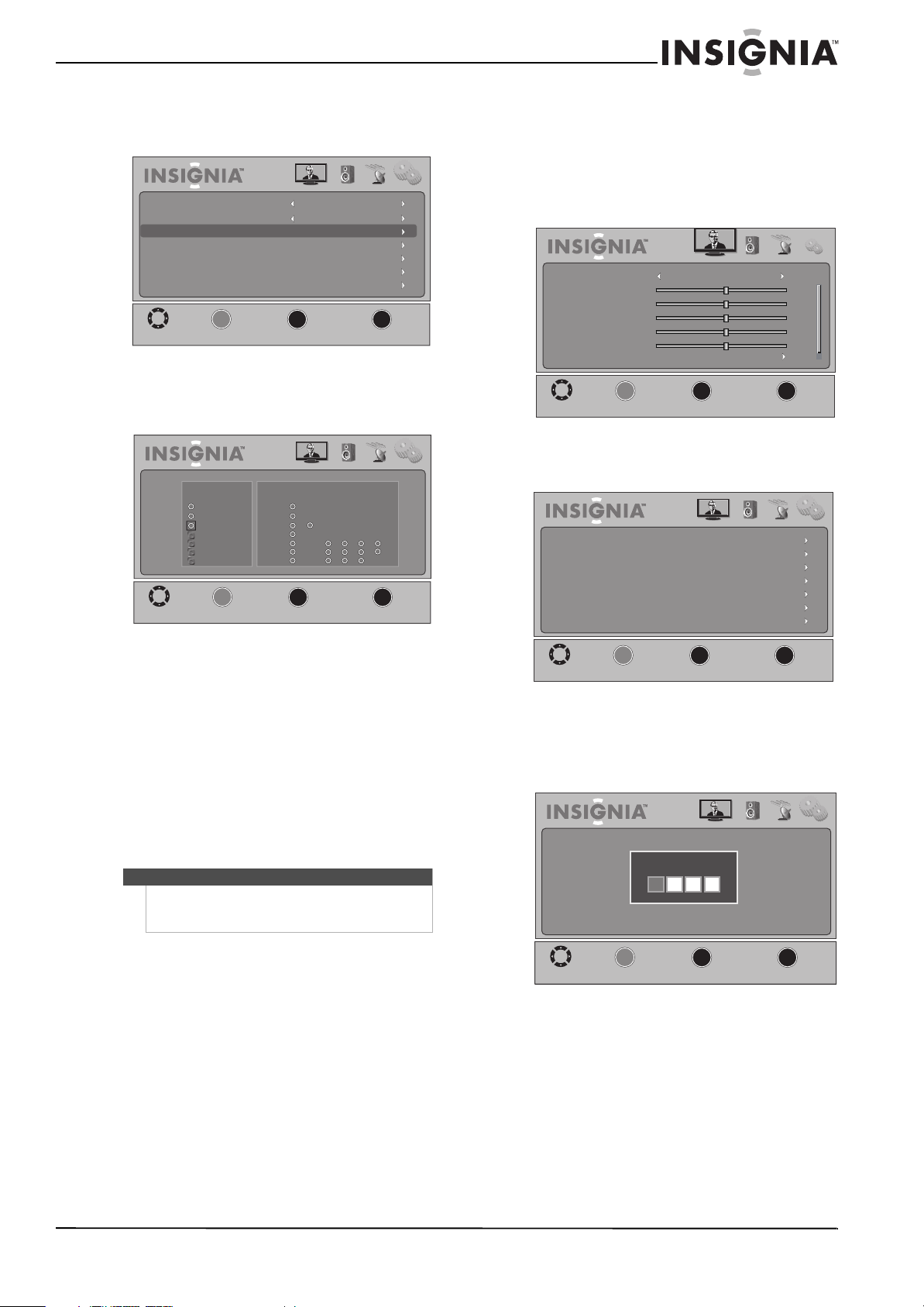
29
Insignia 32" LCD TV 720p
www.insigniaproducts.com
5 Use the number buttons to enter your
password. The Parental Controls sub-menu
opens.
6 Press
S or T to highlight USA Parental Locks,
then press OK/ENTER. (To set Canadian ratings,
select Canadian Parental Locks.)
7 Press
W or X to highlight TV Ratings or MPAA
Rating.
8 For the MPAA rating, press
S or T to highlight
the rating you want to block, then press
OK/ENTER. That rating and all other higher
ratings are blocked. Lock icons appears next to
all locked ratings.
OR
For TV ratings, press
S TW or X to highlight the
rating you want to block, then press OK/ENTER.
That rating and all other higher ratings are
blocked.
9 Press EXIT to close the menu.
Blocking unrated TV
Not all TV programs have a rating signal. You can
block all unrated programs from displaying on your
TV.
To block unrated TV:
1 Press MENU. The on-screen menu opens.
2 Press
W or X to highlight Settings. The Settings
menu opens.
3 Press
T or OK/ENTER to access the menu.
4 Press
S or T to highlight Parental Controls,
then press OK/ENTER. The Enter Password
screen opens.
Note
To unblock the ratings, select the blocked rating and
press OK/ENTER to disable it, or select None and
press OK/ENTER to disable all blocked ratings.
Picture Audio Channel Settings
MOVE
MENU
PREVIOUS
SELECT
OK
EXIT
EXIT
ENTER
______
Off
Off
Button Lock
Block Unrated TV
USA Parental Locks
Canadian Parental Locks
Change Password
RRT5
Reset RRT5
Picture Audio Channel Settings
MOVE
MENU
PREVIOUS
SELECT
OK
EXIT
EXIT
ENTER
______
X
TV-MA
NC-17
R
PG-13
PG
G
None
TV-14
TV-PG
TV-G
TV-Y7
TV-Y
None
MPAA Rating
TV Ratings
ALL FV L S V D
Picture Audio Channel Settings
MOVE
MENU
PREVIOUS
SELECT
OK
EXIT
EXIT
Mode
Brightness
Contrast
Color
Tint
Sharpness
Advanced Video
Standard
50
0
50
50
50
ENTER
_____
Picture Audio Channel Settings
MOVE
MENU
PREVIOUS
SELECT
OK
EXIT
EXIT
Parental Controls
Closed Caption
Time
Menu Settings
Input Labels
VGA Settings
Reset to Default
ENTER
______
Picture Audio Channel Settings
MOVE
MENU
PREVIOUS
SELECT
OK
EXIT
EXIT
ENTER
______
Enter Password
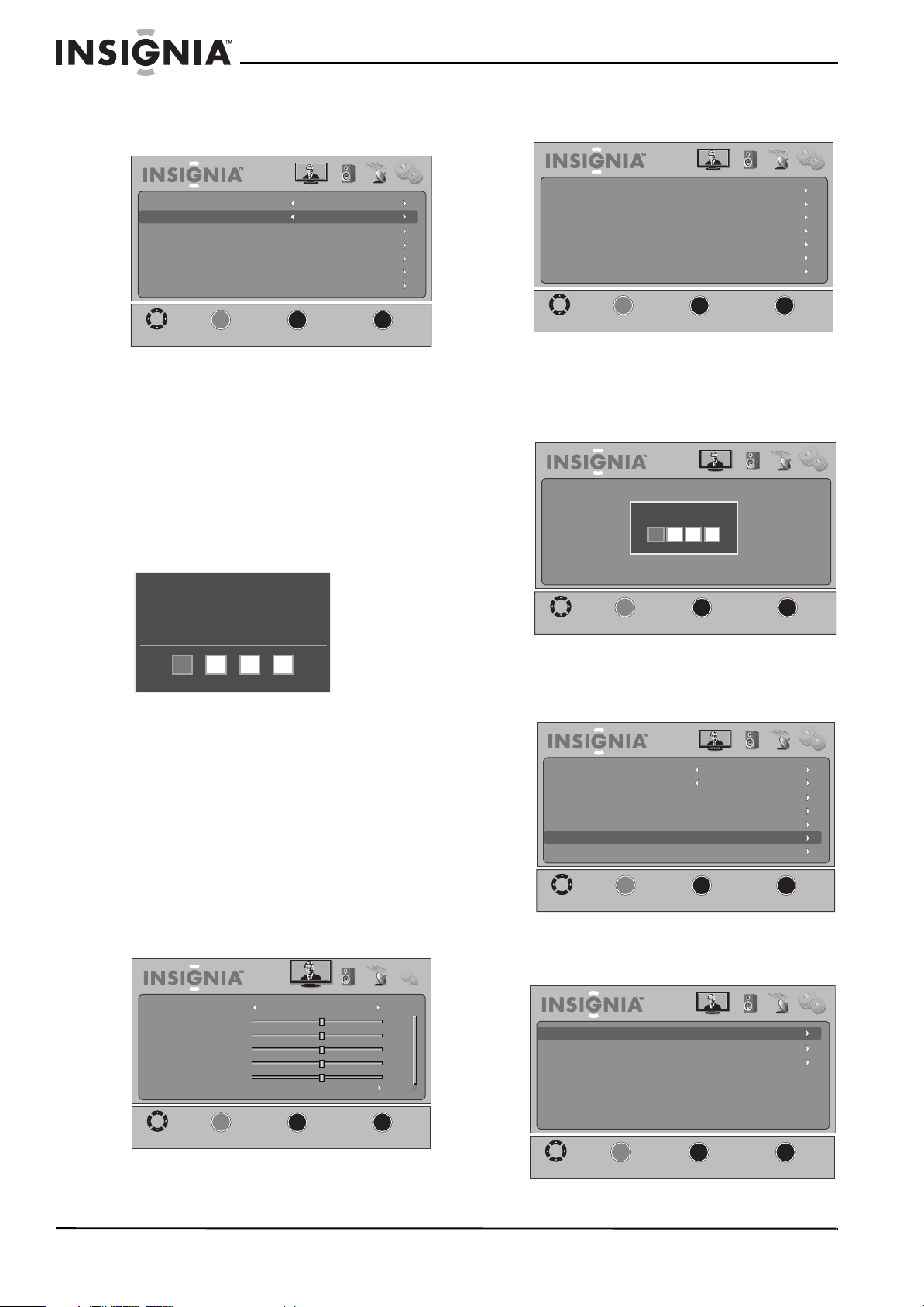
30
NS-32L430A11 Insignia 32" LCD TV 720p
www.insigniaproducts.com
5 Use the number buttons to enter your
password. The Parental Controls sub-menu
opens.
6 Press
S or T to highlight Block Unrated TV,
then press
W or X to select On.
7 Press EXIT to close the menu.
Viewing blocked content
You can temporarily cancel the parental control
restriction you have placed on your TV.
To view blocked content:
1 Tune to the blocked program you want to
watch. A password entry box appears.
2 Use the number buttons to enter your
password. The program is unblocked.
3 To turn parental controls back on, do one of the
following:
• Press P-LOCK.
• Change channels
• Change the video input source
• Turn off your TV, then turn it back on.
Downloading rating information
To download rating information:
1 Press MENU. The on-screen menu opens.
2 Press
W or X to highlight Settings. The Settings
menu opens.
3 Press
T or OK/ENTER to access the menu.
4 Press S or T to highlight Parental Controls,
then press OK/ENTER. The Enter Password
screen opens.
5 Use the number buttons to enter your
password. The Parental Controls sub-menu
opens.
6 Press
S or T to highlight RRT5, then press
OK/ENTER. The RRT5 screen opens.
Picture Audio Channel Settings
MOVE
MENU
PREVIOUS
SELECT
OK
EXIT
EXIT
ENTER
______
Off
Button Lock
Block Unrated TV
USA Parental Locks
Canadian Parental Locks
Change Password
RRT5
Reset RRT5
On
Video Blocked 2
Unrated
Enter password to unblock
Picture Audio Channel Settings
MOVE
MENU
PREVIOUS
SELECT
OK
EXIT
EXIT
Mode
Brightness
Contrast
Color
Tint
Sharpness
Advanced Video
Standard
50
0
50
50
50
ENTER
_____
Picture Audio Channel Settings
MOVE
MENU
PREVIOUS
SELECT
OK
EXIT
EXIT
Parental Controls
Closed Caption
Time
Menu Settings
Input Labels
VGA Settings
Reset to Default
ENTER
______
Picture Audio Channel Settings
MOVE
MENU
PREVIOUS
SELECT
OK
EXIT
EXIT
ENTER
______
Enter Password
Picture Audio Channel Settings
MOVE
MENU
PREVIOUS
SELECT
OK
EXIT
EXIT
ENTER
______
Off
Off
Button Lock
Block Unrated TV
USA Parental Locks
Canadian Parental Locks
Change Password
RRT5
Reset RRT5
Picture Audio Channel Settings
MOVE
MENU
PREVIOUS
SELECT
OK
EXIT
EXIT
ENTER
______
Grad A
Grad B
Grad C
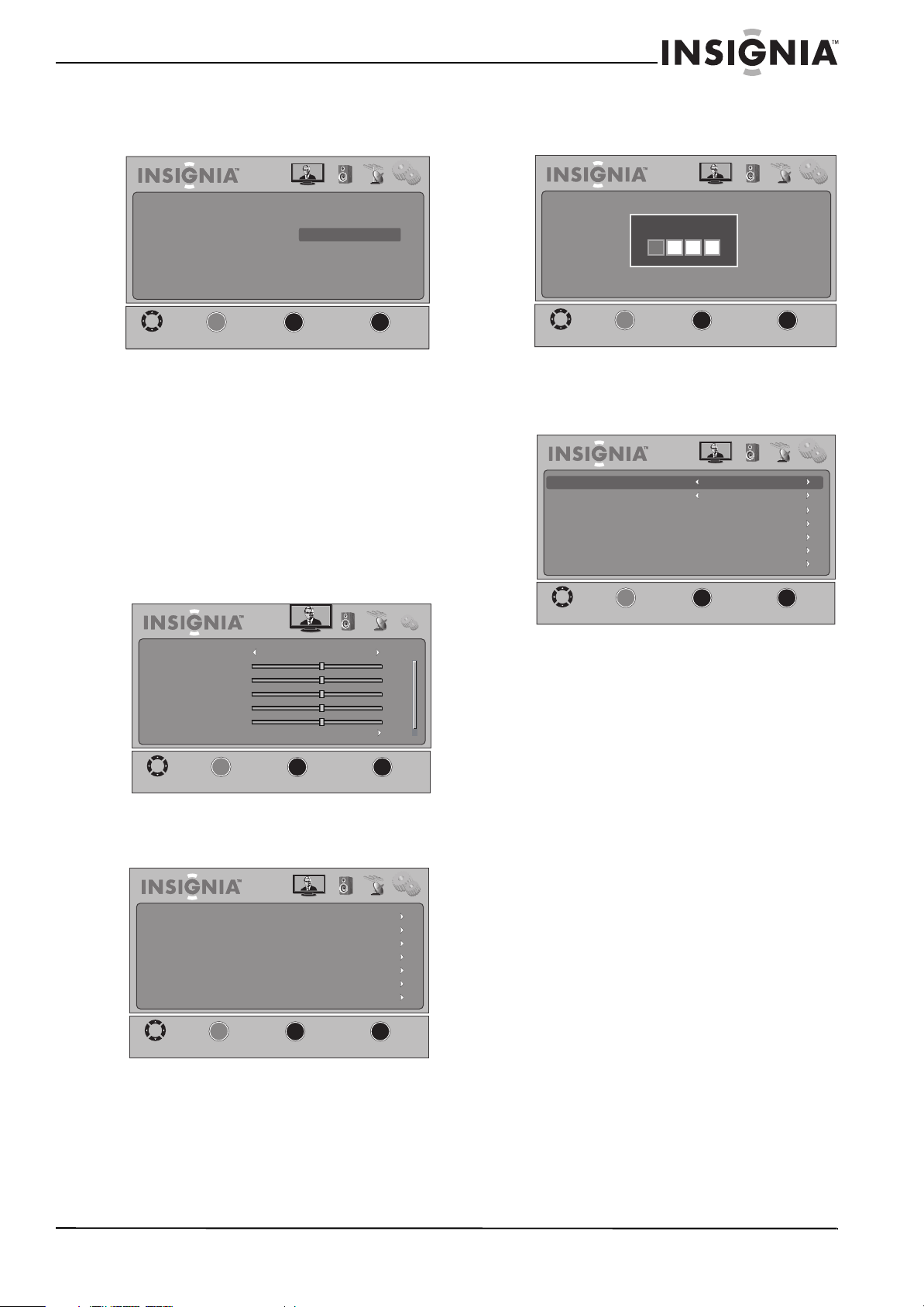
31
Insignia 32" LCD TV 720p
www.insigniaproducts.com
7 Press S or T to highlight a rating type, then
press OK/ENTER. The settings screen for that
rating type opens.
8 Press
S or T to highlight a rating, then press
OK/ENTER to enable or disable the rating. A
lock icon indicates the rating is disabled.
9 Press EXIT to close the menu.
Locking control buttons
You can lock the TV control buttons on the left side
of your TV. When the control buttons on your TV are
locked, you can only operate the TV with the
remote control.
To lock the TV control buttons:
1 Press MENU. The on-screen menu opens.
2 Press
W or X to highlight Settings. The Settings
menu opens.
3 Press
T or OK/ENTER to access the menu.
4 Press
S or T to highlight Parental Controls,
then press OK/ENTER. The Enter Password
screen opens.
5 Use the number buttons to enter your
password. The Parental Controls sub-menu
opens.
6 Press
S or T to highlight Button Lock, then
press W or X to select On.
7 Press EXIT to close the menu.
Using closed captioning
Closed captions (CC or subtitles) are intended to
provide people who are hearing impaired with
access to TV programs. However, this feature is also
useful for viewers who are learning a new language,
beginning to read, or in a noisy environment. As the
picture is shown, text captions are displayed that
transcribe speech and often other relevant sounds.
Closed captioning availability and content depends
on the broadcaster and may vary across programs
in a channel.
Turning closed captioning on or off
To turn closed captioning on or off with the
remote control:
• Press CCD repeatedly to select the closed
captioning mode you want. You can select:
• CC Off—Turns off closed captioning.
• CC On—Turns on closed captioning.
• CC On Mute—Turns on closed captioning
when the sound is muted.
Picture Audio Channel Settings
MOVE
MENU
PREVIOUS
SELECT
OK
EXIT
EXIT
ENTER
______
Grad A
Grad B
Grad C
A1
A2
Picture Audio Channel Settings
MOVE
MENU
PREVIOUS
SELECT
OK
EXIT
EXIT
Mode
Brightness
Contrast
Color
Tint
Sharpness
Advanced Video
Standard
50
0
50
50
50
ENTER
_____
Picture Audio Channel Settings
MOVE
MENU
PREVIOUS
SELECT
OK
EXIT
EXIT
Parental Controls
Closed Caption
Time
Menu Settings
Input Labels
VGA Settings
Reset to Default
ENTER
______
Picture Audio Channel Settings
MOVE
MENU
PREVIOUS
SELECT
OK
EXIT
EXIT
ENTER
______
Enter Password
Picture Audio Channel Settings
MOVE
MENU
PREVIOUS
SELECT
OK
EXIT
EXIT
ENTER
______
Off
Off
Button Lock
Block Unrated TV
USA Parental Locks
Canadian Parental Locks
Change Password
RRT5
Reset RRT5
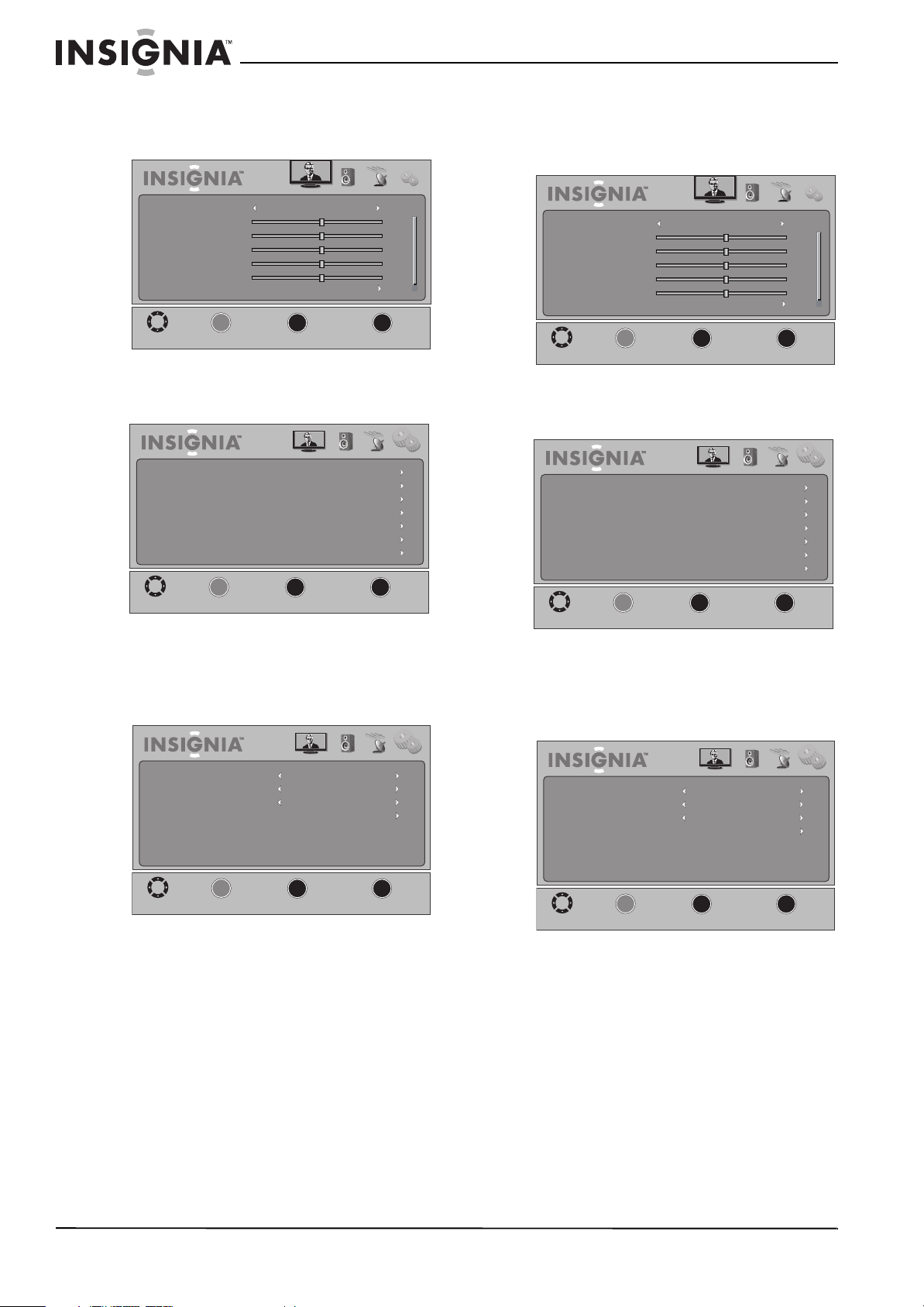
32
NS-32L430A11 Insignia 32" LCD TV 720p
www.insigniaproducts.com
To turn closed captioning on or off with the
on-screen menu:
1 Press MENU. The on-screen menu opens.
2 Press
W or X to highlight Settings. The Settings
menu opens.
3 Press
T or OK/ENTER to access the menu.
4 Press
S or T to highlight Closed Caption, then
press OK/ENTER. The Closed Caption sub-menu
opens.
5 Press
S or T to highlight Caption Control, then
press
W or X to select the closed caption mode.
You can select:
• CC Off—Turns off closed captioning.
• CC On—Turns on closed captioning.
• CC On Mute—Turns on closed captioning
when the sound is muted.
6 Press EXIT to close the menu.
Selecting the closed captioning mode
To select the closed captioning mode:
1 Press MENU. The on-screen menu opens.
2 Press
W or X to highlight Settings. The Settings
menu opens.
3 Press
T or OK/ENTER to access the menu.
4 Press
S or T to highlight Closed Caption, then
press OK/ENTER. The Closed Caption sub-menu
opens.
5 Press
S or T to highlight Analog Caption or
Digital Caption, then press W or X to select the
mode you want.
6 Press EXIT to close the menu.
Picture Audio Channel Settings
MOVE
MENU
PREVIOUS
SELECT
OK
EXIT
EXIT
Mode
Brightness
Contrast
Color
Tint
Sharpness
Advanced Video
Standard
50
0
50
50
50
ENTER
_____
Picture Audio Channel Settings
MOVE
MENU
PREVIOUS
SELECT
OK
EXIT
EXIT
Parental Controls
Closed Caption
Time
Menu Settings
Input Labels
VGA Settings
Reset to Default
ENTER
______
Picture Audio Channel Settings
MOVE
MENU
PREVIOUS
SELECT
OK
EXIT
EXIT
ENTER
______
CS1
CC On
CC1
Caption Control
Analog Caption
Digital Caption
Digital CC Settings
Picture Audio Channel Settings
MOVE
MENU
PREVIOUS
SELECT
OK
EXIT
EXIT
Mode
Brightness
Contrast
Color
Tint
Sharpness
Advanced Video
Standard
50
0
50
50
50
ENTER
_____
Picture Audio Channel Settings
MOVE
MENU
PREVIOUS
SELECT
OK
EXIT
EXIT
Parental Controls
Closed Caption
Time
Menu Settings
Input Labels
VGA Settings
Reset to Default
ENTER
______
Picture Audio Channel Settings
MOVE
MENU
PREVIOUS
SELECT
OK
EXIT
EXIT
ENTER
______
CS1
CC On
CC1
Caption Control
Analog Caption
Digital Caption
Digital CC Settings
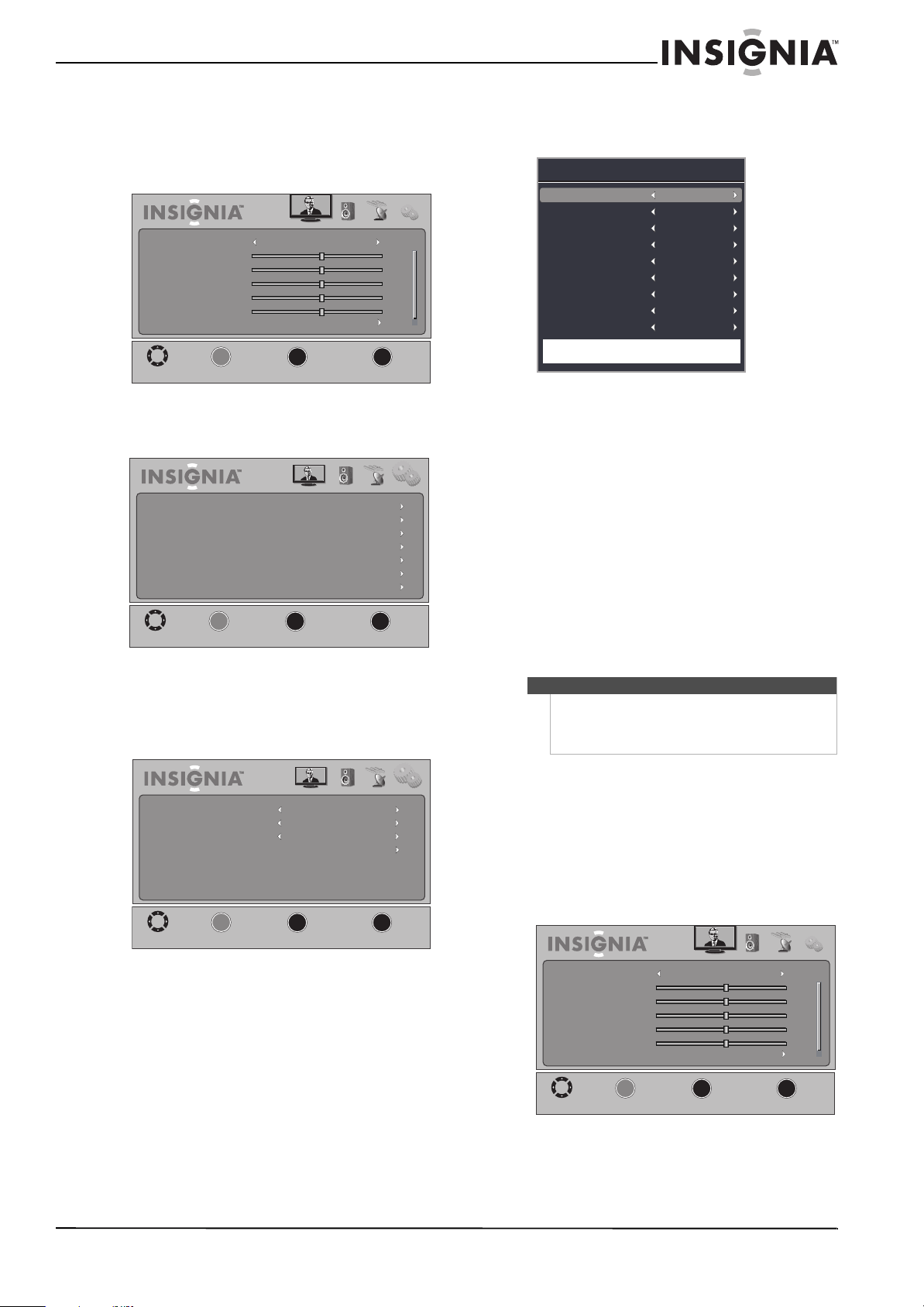
33
Insignia 32" LCD TV 720p
www.insigniaproducts.com
Customizing digital TV closed captioning
styles
To customize digital TV closed captioning styles:
1 Press MENU. The on-screen menu opens.
2 Press
W or X to highlight Settings. The Settings
menu opens.
3 Press
T or OK/ENTER to access the menu.
4 Press
S or T to highlight Closed Caption, then
press OK/ENTER. The Closed Caption sub-menu
opens.
5 Press
S or T to highlight Digital CC Settings,
then press OK/ENTER. The Digital CC Settings
screen opens.
6 Press
S or T to highlight Style, then press W or
X to select Custom.
7 Press
S or T to highlight a style, then press W or
X to adjust the style. You can select:
• Size—Selects the font size.
• Font—Selects the font style.
• Text Color—Selects the color for the words.
• Text Opacity—Selects the opacity level for
the words.
• Background Color—Selects the color for the
background.
• Background Opacity—Selects the opacity
level for the background.
• Edge Effect—Selects the edge style.
• Edge Color—Selects the font edge color.
8 Press EXIT to close the menu.
Adjusting time settings
Manually setting the time and date
To manually set the time and date:
1 Press MENU. The on-screen menu opens.
Picture Audio Channel Settings
MOVE
MENU
PREVIOUS
SELECT
OK
EXIT
EXIT
Mode
Brightness
Contrast
Color
Tint
Sharpness
Advanced Video
Standard
50
0
50
50
50
ENTER
_____
Picture Audio Channel Settings
MOVE
MENU
PREVIOUS
SELECT
OK
EXIT
EXIT
Parental Controls
Closed Caption
Time
Menu Settings
Input Labels
VGA Settings
Reset to Default
ENTER
______
Picture Audio Channel Settings
MOVE
MENU
PREVIOUS
SELECT
OK
EXIT
EXIT
ENTER
______
CS1
CC On
CC1
Caption Control
Analog Caption
Digital Caption
Digital CC Settings
Note
•If you set the Style option to Automatic, you
cannot change any of the styles.
•The Text Colo r and Background Color styles
cannot have the same setting.
Digital CC Settings
Size
Small
Font
Default
Text Color
Black
Text Opacity
Solid
Background Color
White
Background Opacity
Solid
Edge Effect
None
Edge Color
Red
Style
Custom
CLOSED CAPTION
Picture Audio Channel Settings
MOVE
MENU
PREVIOUS
SELECT
OK
EXIT
EXIT
Mode
Brightness
Contrast
Color
Tint
Sharpness
Advanced Video
Standard
50
0
50
50
50
ENTER
_____
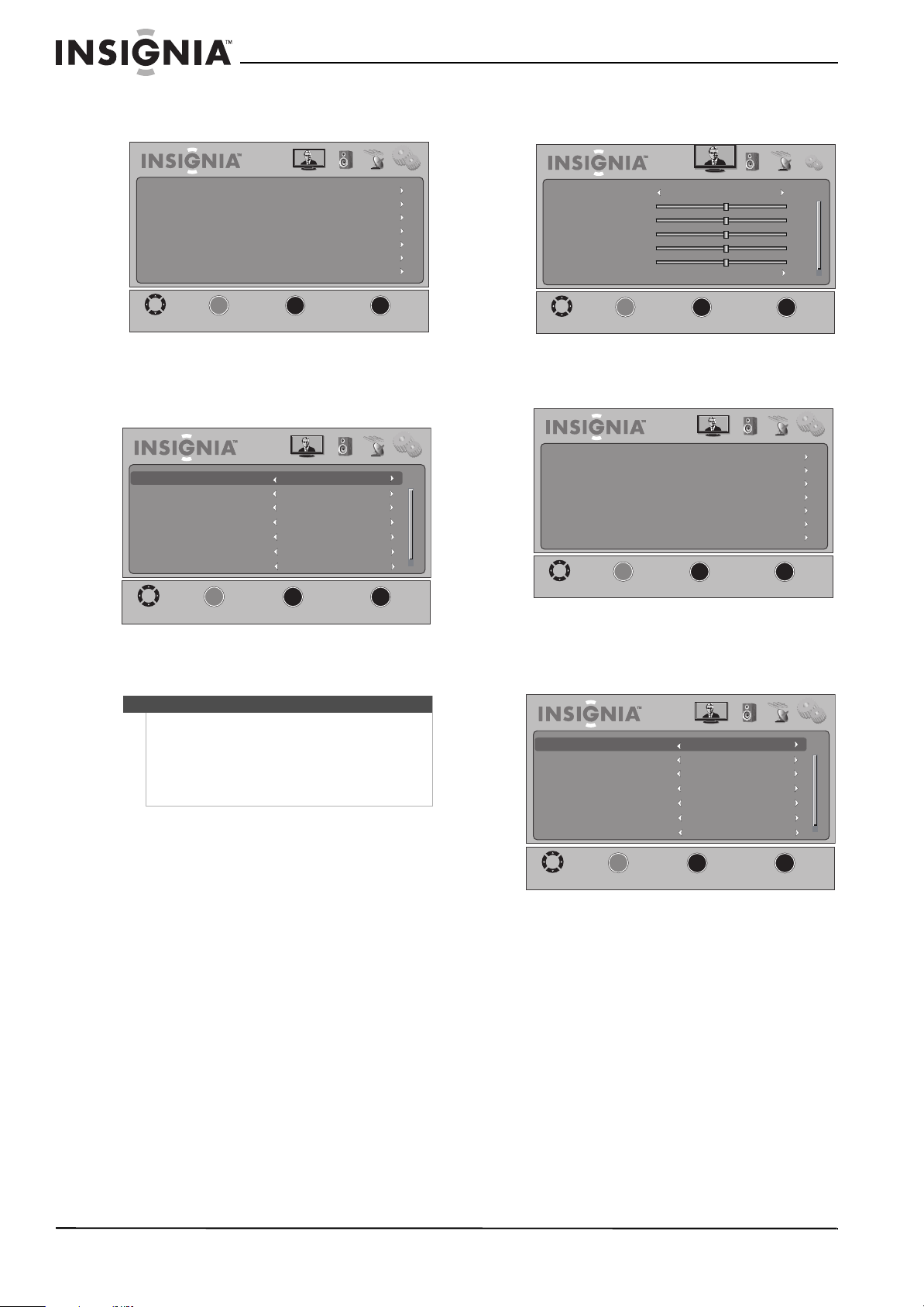
34
NS-32L430A11 Insignia 32" LCD TV 720p
www.insigniaproducts.com
2 Press W or X to highlight Settings. The Settings
menu opens.
3 Press
T or OK/ENTER to access the menu.
4 Press S or T to highlight Time, then press
OK/ENTER. The Time sub-menu opens.
5 Press
S or T to highlight Mode, then press W or
X to select Custom.
6 Press
S or T to highlight Year, Month, or Day,
then press W or X to change the setting.
7 Press
S or T to highlight Time, then press W or
X to select the hour, minute, or AM/PM. Press S
or
T to change the setting.
8 Press EXIT to close the menu.
Setting the sleep timer
You can set the amount of time you want your TV to
wait before it automatically turns off.
To set the sleep timer with the remote control:
• Press SLEEP until the setting you want is
displayed.
To set the sleep timer with the on-screen menu:
1 Press MENU. The on-screen menu opens.
2 Press
W or X to highlight Settings. The Settings
menu opens.
3 Press
T or OK/ENTER to access the menu.
4 Press
S or T to highlight Time, then press
OK/ENTER. The Time sub-menu opens.
5 Press
S or T to highlight Sleep Timer, then
press
W or X to select the setting your want. To
turn off the timer, select Off.
6 Press EXIT to close the menu.
Note
If you set Mode to Auto:
• The time is set automatically based on a digital
TV signal.
• You can only change the Time Zone and
Daylight Savings options. You cannot change
any of the other options.
Picture Audio Channel Settings
MOVE
MENU
PREVIOUS
SELECT
OK
EXIT
EXIT
Parental Controls
Closed Caption
Time
Menu Settings
Input Labels
VGA Settings
Reset to Default
ENTER
______
Picture Audio Channel Settings
MOVE
MENU
PREVIOUS
SELECT
OK
EXIT
EXIT
ENTER
______
Eastern
On
2010
October
1
Custom
Sleep Timer
Mode
Time Zone
Daylight Savings
Year
Month
Day
Off
Picture Audio Channel Settings
MOVE
MENU
PREVIOUS
SELECT
OK
EXIT
EXIT
Mode
Brightness
Contrast
Color
Tint
Sharpness
Advanced Video
Standard
50
0
50
50
50
ENTER
_____
Picture Audio Channel Settings
MOVE
MENU
PREVIOUS
SELECT
OK
EXIT
EXIT
Parental Controls
Closed Caption
Time
Menu Settings
Input Labels
VGA Settings
Reset to Default
ENTER
______
Picture Audio Channel Settings
MOVE
MENU
PREVIOUS
SELECT
OK
EXIT
EXIT
ENTER
______
Eastern
On
2010
October
1
Custom
Sleep Timer
Mode
Time Zone
Daylight Savings
Year
Month
Day
Off
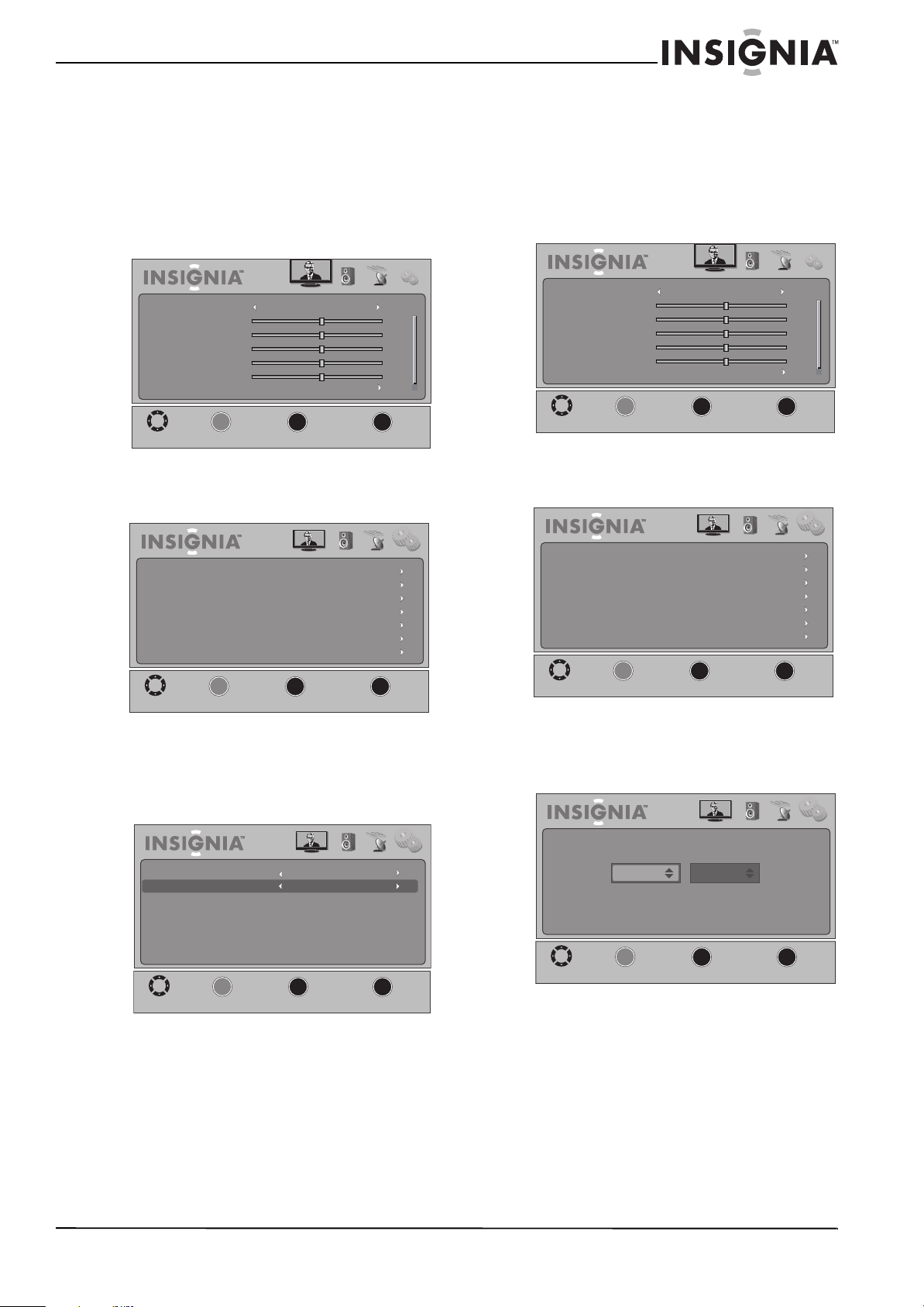
35
Insignia 32" LCD TV 720p
www.insigniaproducts.com
Adjusting menu settings
Selecting the menu language and
transparency
To select the on-screen menu language and
transparency:
1 Press MENU. The on-screen menu opens.
2 Press
W or X to highlight Settings. The Settings
menu opens.
3 Press
T or OK/ENTER to access the menu.
4 Press
S or T to highlight Menu Settings, then
press OK/ENTER. The Menu Settings sub-menu
opens.
5 Press
S or T to highlight Language, then press
W or X to select the menu language you want.
You can select English, Français (French), or
Español (Spanish).
6 Press
S or T to highlight Transparency, then
press W or X to adjust the menu transparency.
Pressing W makes the menu more transparent.
Pressing
X makes the menu more opaque.
7 Press EXIT to close the menu.
Labeling an input source
You can add a label to a video input source to make
it easier to identify. These labels are displayed on
the Input Source list and on the banner that appears
when you press INFO.
To label an input source:
1 Press MENU. The on-screen menu opens.
2 Press
W or X to highlight Settings. The Settings
menu opens.
3 Press
T or OK/ENTER to access the menu.
4 Press
S or T to highlight Input Labels, then
press OK/ENTER. The input labels screen opens.
5 Press
S or T to select the video input source
you want to label, then press X to move to the
label area.
6 Press
S or T to select the label you want for the
video input source. You can select from a preset
list of labels: – (default), VCR, DVD, Set Top Box,
Satellite, Cable Box, DVR/PVR, BD, HD, Game,
Camcorder, Receiver, PC, or other.
Picture Audio Channel Settings
MOVE
MENU
PREVIOUS
SELECT
OK
EXIT
EXIT
Mode
Brightness
Contrast
Color
Tint
Sharpness
Advanced Video
Standard
50
0
50
50
50
ENTER
_____
Picture Audio Channel Settings
MOVE
MENU
PREVIOUS
SELECT
OK
EXIT
EXIT
Parental Controls
Closed Caption
Time
Menu Settings
Input Labels
VGA Settings
Reset to Default
ENTER
______
Picture Audio Channel Settings
MOVE
MENU
PREVIOUS
SELECT
OK
EXIT
EXIT
ENTER
______
1
Transparency
Language
English
Picture Audio Channel Settings
MOVE
MENU
PREVIOUS
SELECT
OK
EXIT
EXIT
Mode
Brightness
Contrast
Color
Tint
Sharpness
Advanced Video
Standard
50
0
50
50
50
ENTER
_____
Picture Audio Channel Settings
MOVE
MENU
PREVIOUS
SELECT
OK
EXIT
EXIT
Parental Controls
Closed Caption
Time
Menu Settings
Input Labels
VGA Settings
Reset to Default
ENTER
______
Picture Audio Channel Settings
MOVE
MENU
PREVIOUS
SELECT
OK
EXIT
EXIT
ENTER
______
-
HDMI 1
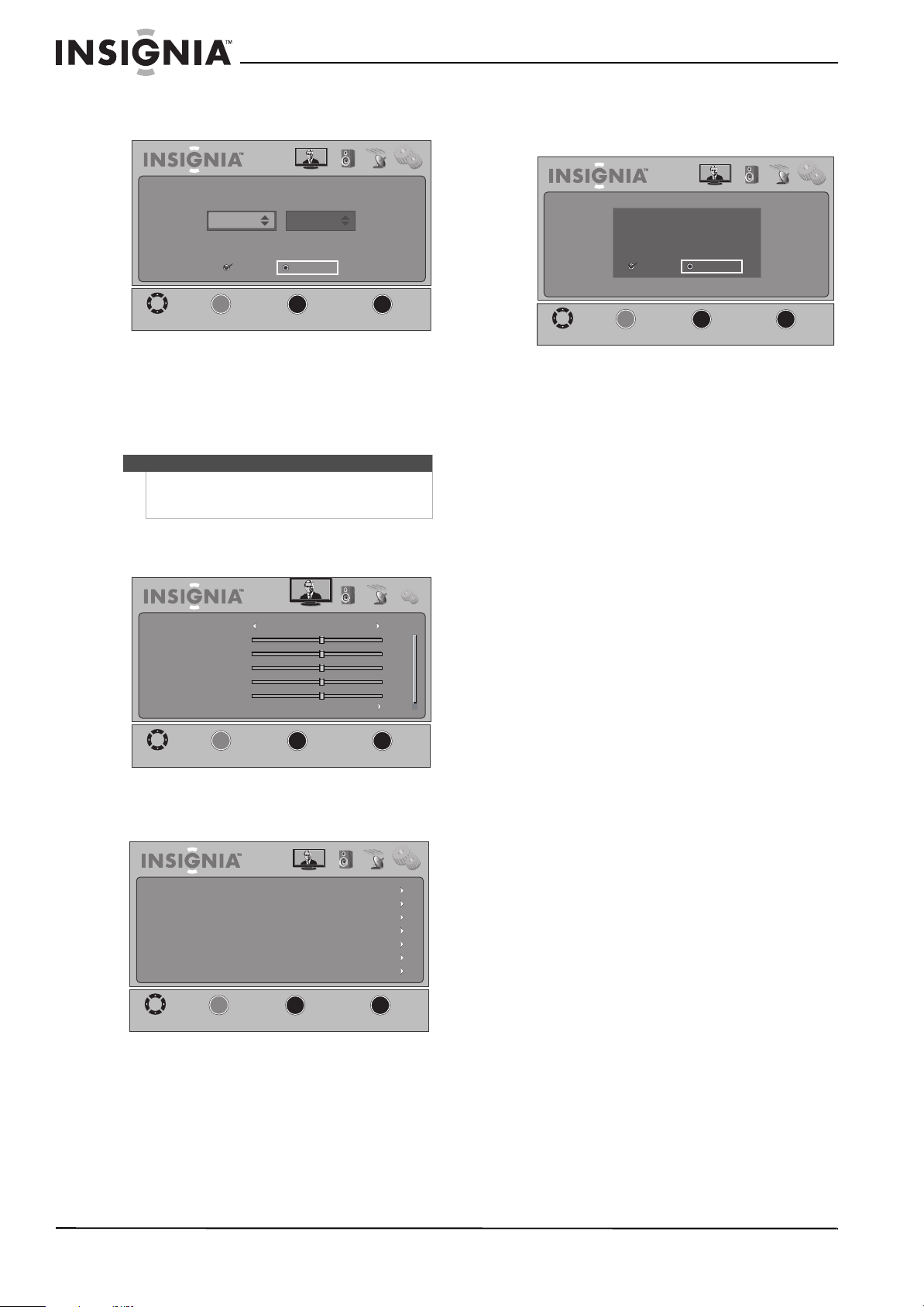
36
NS-32L430A11 Insignia 32" LCD TV 720p
www.insigniaproducts.com
7 Press OK/ENTER. A confirmation message
appears.
8 Press
W or X to highlight Ye s, then press
OK/ENTER.
9 Press EXIT to close the menu.
Restoring default settings
To restore the default settings:
1 Press MENU. The on-screen menu opens.
2 Press
W or X to highlight Settings. The Settings
menu opens.
3 Press
T or OK/ENTER to access the menu.
4 Press
S or T to highlight Reset to Default, then
press OK/ENTER. A confirmation message
appears.
5 Press
W or X to highlight Ye s, then press
OK/ENTER.
6 Press EXIT to close the menu.
Caution
When you restore default settings, all the settings
(except the password and parental rating) you have
customized are reset.
Picture Audio Channel Settings
MOVE
MENU
PREVIOUS
SELECT
OK
EXIT
EXIT
ENTER
______
-
HDMI 1
Save name?
Yes No
Picture Audio Channel Settings
MOVE
MENU
PREVIOUS
SELECT
OK
EXIT
EXIT
Mode
Brightness
Contrast
Color
Tint
Sharpness
Advanced Video
Standard
50
0
50
50
50
ENTER
_____
Picture Audio Channel Settings
MOVE
MENU
PREVIOUS
SELECT
OK
EXIT
EXIT
Parental Controls
Closed Caption
Time
Menu Settings
Input Labels
VGA Settings
Reset to Default
ENTER
______
Picture Audio Channel Settings
MOVE
MENU
PREVIOUS
SELECT
OK
EXIT
EXIT
ENTER
______
This will reset all settings
to default mode.
Do you want to continue?
Yes No
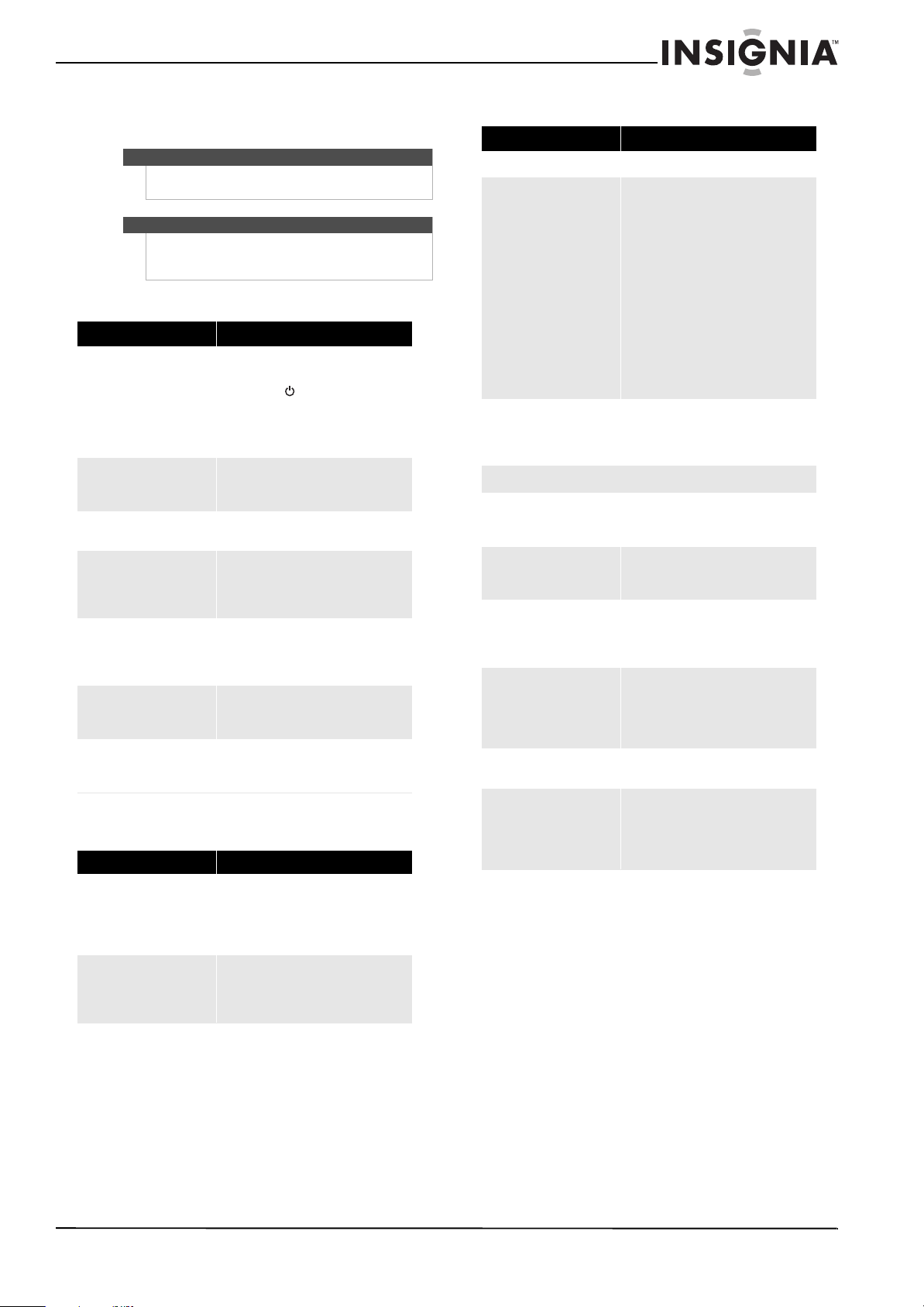
37
Insignia 32" LCD TV 720p
www.insigniaproducts.com
Troubleshooting
Video
Audio
Remote control
Warning
Do not try to repair your TV yourself. Refer all
servicing to qualified service personnel.
Note
If the problem is not solved by using these
troubleshooting instructions, turn off your TV, then
turn it on again.
Problem Solution
No picture or sound (the screen
is not lit)
• Make sure that the power cord is
plugged into a power outlet.
• Press (power).
• Try another channel. The problem
could be with the TV station.
• Press INPUT to change the video
input source.
Dark, poor, or no picture (the
screen is lit), but sound is good
• Adjust the brightness.
• Make sure that the antenna or
cable TV is connected correctly.
No color, picture is dark, or
color is not correct
• Adjust the color saturation.
Only noise (snow) appears on
the screen
• Make sure that the antenna or
cable TV is connected correctly.
• Try another channel. The problem
could be with the TV station.
Picture has dotted lines or
stripes
• Adjust the antenna.
• Move your TV away from noise
sources, such as cars, neon signs, or
hair dryers.
Picture has double images
• Use a highly directional outdoor
antenna or change to cable or
satellite TV.
Picture has a few bright or dark
dots
• A few bright or dark dots on an LCD
screen is normal. It does not affect
the operation of your TV.
Problem Solution
Good picture, no sound
• Increase the volume.
• Press MUTE to make sure that the
sound is not muted.
• Make sure that the audio mode is
set to Stereo or Mono.
Audio noise or static
• Move radio frequency
communication equipment, such as
a cordless phone, away from your
TV.
Problem Solution
General remote control
Remote control does not work
• Make sure that there are no
obstructions between the remote
control and the remote control
sensor on the front of your TV.
• Clean the remote sensor on the
front of your TV.
• Bright or fluorescent lighting may
interfere with the remote control
signal. Turn off the light or move
your TV.
• Replace the batteries. Make sure
that the + and – symbols on the
batteries align with the + and –
symbols in the battery
compartment.
Remote control code cannot be
detected by a universal remote
• Purchase a separate learning
remote control.
• Go to www.insigniaproducts.com
for a list of remote control codes.
Programmed remote control functions
The LED does not blink when
you press a button
• Try pressing different buttons.
• The batteries may already be
drained. Replace the batteries.
The LED blinks when you press
a button but the device does
not respond
• Make sure the remote is aimed at
your device and is not more than
40 feet (12.2 m) away.
The LED blinks one long blink
while in SET mode
• An entry error has occurred (for
example, the wrong button was
pressed). Try entering the sequence
again.
When programming the
remote control, the remote
control does not control devices
or commands are not working
correctly
• Try all listed codes for the device.
• Make sure the device operates with
an infrared remote control.
No volume on a device
• Make sure the volume is not
already locked to a different mode.
Channels do not change
correctly when directly
entering numbers to change
channels
• If the original remote control
required you to press ENTER to
change channels, press OK/ENTER
on your TV remote control after
entering the channel number.
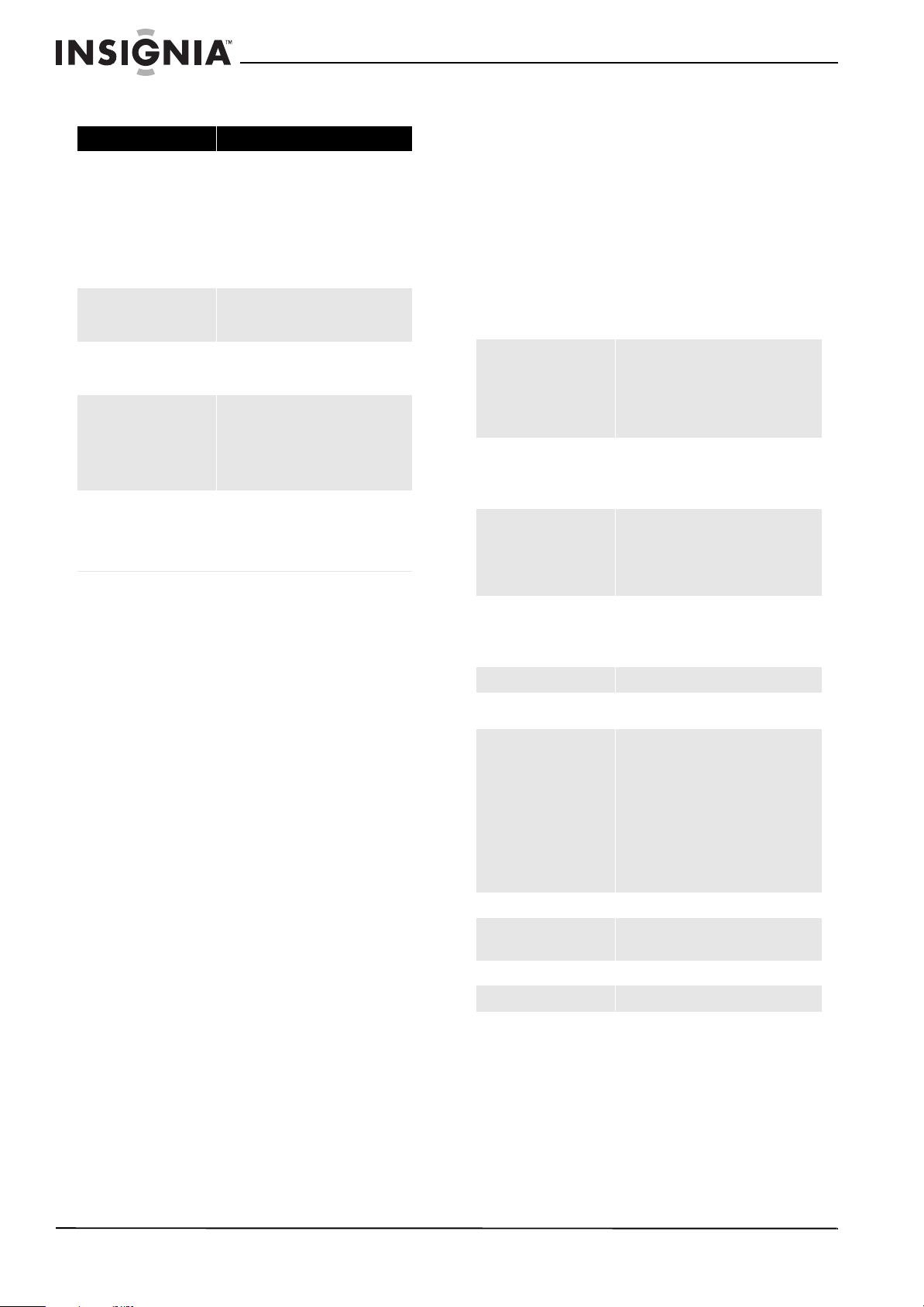
38
NS-32L430A11 Insignia 32" LCD TV 720p
www.insigniaproducts.com
General
Maintaining
Cleaning
Before cleaning the screen, unplug your TV from
the power outlet.
Clean your TV with a soft, dry cloth. If surfaces are
extremely dirty, use a soft cloth dampened with a
weak detergent solution.
Use an eyeglass cleaner to clean the screen. Never
use alcohol, paint thinner, or benzine.
Before using a chemically treated cloth, read the
instructions that came with the cloth.
Do not spray insecticide liquid near your TV. Such
chemicals may cause damage and discoloration to
the exposed surfaces.
Servicing
Do not try to repair your TV yourself. There are no
user-serviceable parts inside. Turn off your TV,
unplug the power cord, then contact an authorized
service center.
Specifications
Design and specifications are subject to change
without notice. Dimensions and weight
specifications are approximate.
Problem Solution
Cannot tune to one or more
channels
• The program you want to watch
may be blocked through the
parental controls.
• The channel may have been
skipped from the channel list. You
can tune to the channel by pressing
the number buttons or you can add
the channel back to the channel
list.
Cannot access some items
• If a setting or option is grayed out,
it is not available in the current
video input mode.
Password is lost
• On the Parental Controls menu,
enter 9999 for the password, then
set a new password.
TV cabinet creaks
• When you are using your TV, the
temperature inside the cabinet
increases. This causes the cabinet
to expand or contract, which
produces the creaking noise. This is
not a malfunction.
Buttons do not work
• Unplug the power cord for a few
seconds, then plug it back in and
turn on your TV.
• Make sure that the Button Lock
option is set to Off.
LCD
Panel: 31.5-inch active matrix full high
definition TFT
Resolution: 1366 × 768
Color: 16.7 M
Viewing angle: 178° horizontal 178° vertical
Contrast ratio (typical): 3000 : 1
Brightness (minimum): 350 nits
Response time: 6.5 ms
Dimensions (W × D × H)
With stand:
30.72 × 8.27 × 21.95 in.
(780.38 × 210 × 557.47 mm)
Without stand:
30.72 × 4.3 × 19.98 in
(780.38 × 109.2 × 507.6 mm)
Weight
With stand:
20.7 lb. (9.4 kg)
Without stand:
19.2 lb. (8.7 kg)
TV
Standard: NTSC and ATSC
Tuning system: Electronic tuning system
Frequency range: VHF and UHF
CATV: 125 channels, QAM channels
Compatibility: 480i, 480p, 720p, 1080i
Power
Input voltage: 120 VAC, 1.6A
Consumption:
< 130 W
Off < 1 W
Speaker output 8 W (two channels)
Service port
Compliance: USB 2.0
Device compatibility: USB flash drive
Ter mi nals
Standard AV(composite): Video and
audio L/R
Component: Y, P
B, PR, audio L/R
HDMI IN: HDMI 1/DVI and HDMI 2
VGA and audio input: VGA and VGA/DVI
AUDIO IN
Phone jack: Audio out (headphone)
Audio Out: Analog audio output and digital
audio SPDIF output
Antenna: F type
Image processor Zoran ZR 39745
Operating temperature
59° to 95°F (15 to 35°C)
(humidity < 75%)
Humidity 20 to 90% non-condensing (Ta < 35%)
Atmospheric pressure 0 to 2000 m
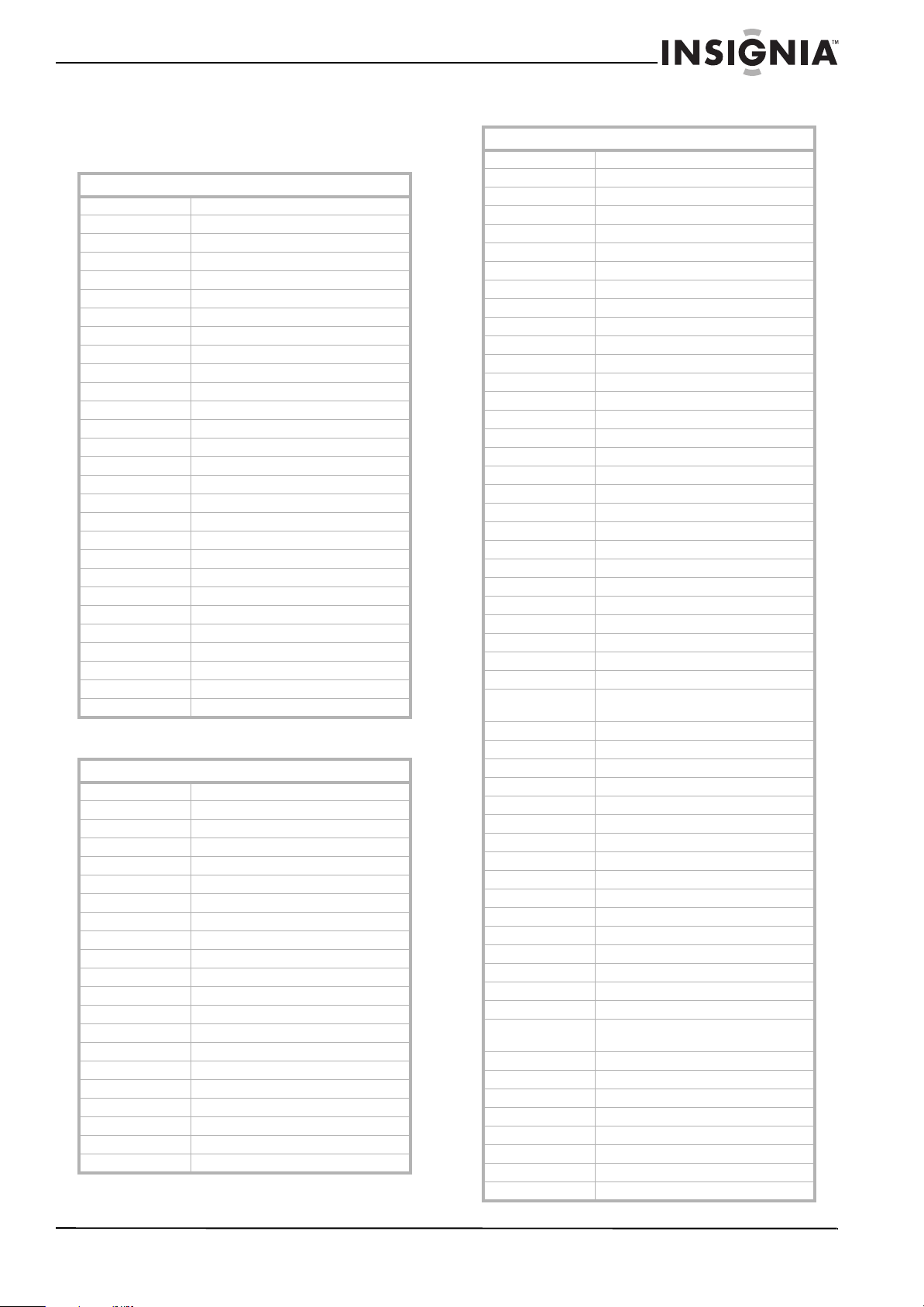
39
Insignia 32" LCD TV 720p
www.insigniaproducts.com
Manufacturers’ codes
Audio amplifiers
Audio accessories
Audio receivers
Audio amplifiers
Adcom 30577, 31100
Anthem 32220
Bose 30674
Carver 30892
Durabrand 31561
Elan 30647
GE 30078
Harman/Kardon 30892
JVC 30331
Left Coast 30892
Lenoxx 31561
Marantz 30892
McIntosh 30251
Modulaire 30395
NEC 30264
Optimus 30395, 30823
Philips 30892
Pioneer 30823
Polk Audio 30892
RadioShack 30395
RCA 30823
Realistic 30395
Shure 30264
Sony 30689, 30815
Soundesign 30078
Victor 30331
Wards 30078
Yamaha 30354, 30133
Audio accessories
Accurian 31106
Altec Lansing 30607, 31056
Apple 31115
Creative 30872
DLO 31155
GPX 32113
Griffin 31891
iDeck 31106
iHome 32152
iLive 32113
Imerge 31491
iPort 31917
Klipsch 31339
Marantz 31491
Memorex 32119
Monitor Audio 31106
Motorola 31464
Omnifi 31605
Roku 31828
Sonance 31917
Yamaha 31809, 31810, 32021
Audio receivers
ADC 30531
Adcom 30616
Aiwa 31405, 30189, 30121, 31089, 31388, 31641
Akai 30244, 31512
Alco 31390
AMC 31077
Amphion Media Works 31563
AMW 31563
Anam 31609, 31074
Anthem 31185
Apex Digital 31257, 31430, 31774
Arcam 31189
Audiotronic 31189
Audiovox 31390
B & K 30702, 30820, 30840
BK 30702
Bose 31229, 30639, 31253, 31629, 31841, 31933
Cairn 30189
Cambridge Soundworks 31370
Capetronic 30531
Carver 31189, 30189, 30121, 31089, 31289
Coby 31389
Curtis Mathes 30014
Daewoo 31250
Denon 31360, 30121, 31104, 31142, 31306, 32857
Emerson 30531
Fisher 31801
Garrard 30463
Grundig 30189
Harman/Kardon 30110, 30189, 30891, 31289, 31304, 31306,
32241
Hitachi 31273, 31801
iLive 32013
Inkel 30491
Insignia 31030, 31077, 31893, 32169, 32175
Integra 30135, 30842, 31298, 31320, 31805
iSymphony 32258
JBL 30110, 31306
JVC 31058, 30074, 31374, 31495, 31871, 32239
Kawasaki 31390
Kenwood 31313, 31570, 30077, 30186, 31027
KLH 31390, 31412, 31428
Koss 31366, 31497
Lexicon 31076
LG 31293, 32197
Linn 30189
Liquid Video 31497
Magnavox 31189, 31269, 30189, 30391, 30531, 31089,
31266,31514
Marantz 31189, 31269, 30189, 30891, 31089, 31289
McIntosh 31289
Micromega 31189, 30189
Mitsubishi 31393
Musicmagic 31089
Myryad 31189
Nakamichi 31313, 30097, 31555
Norcent 31389
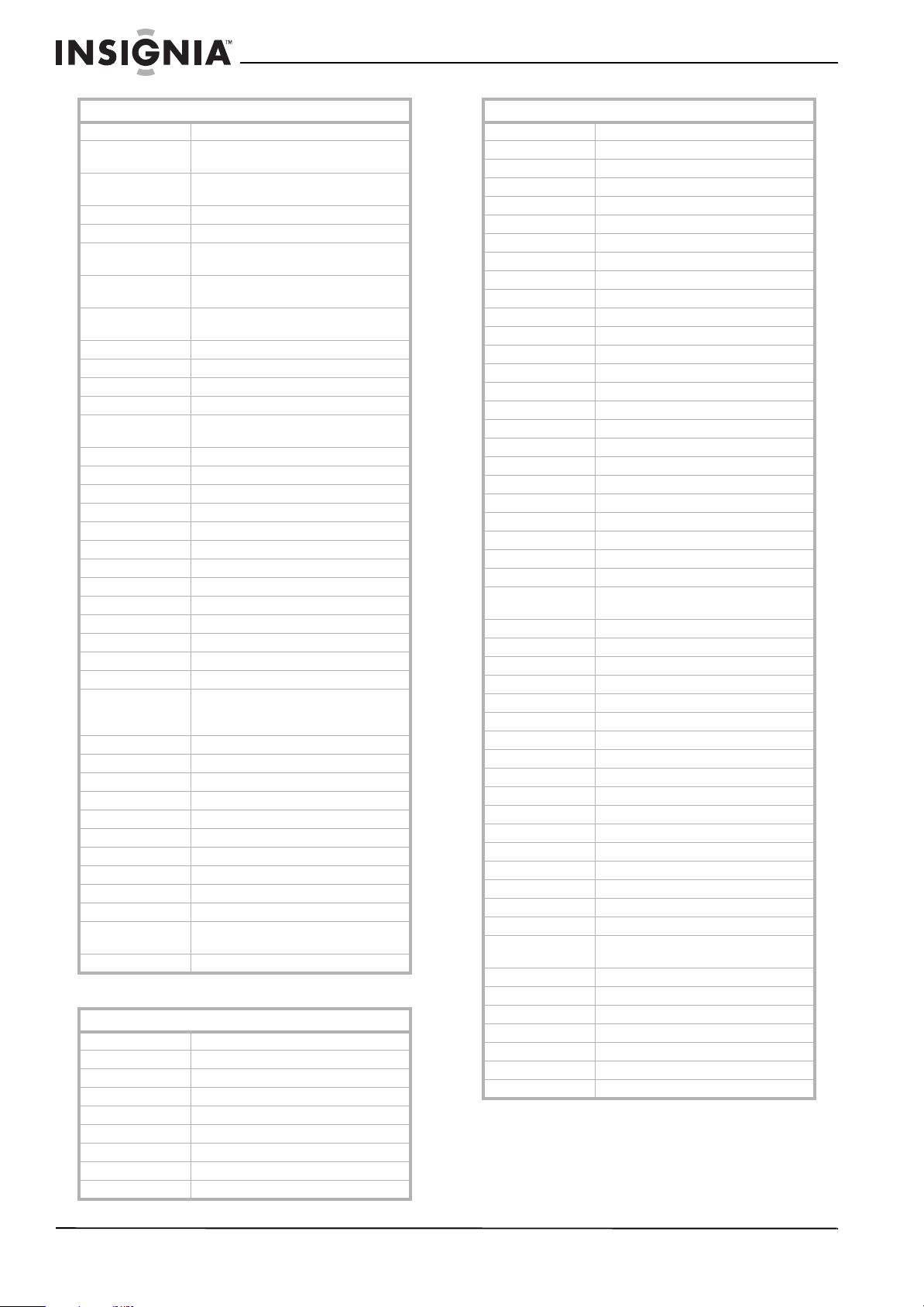
40
NS-32L430A11 Insignia 32" LCD TV 720p
www.insigniaproducts.com
Cable converters
Nova 31389
Onkyo 30135, 30842, 31298, 31320, 31531, 31805,
31905
Optimus 31023, 30074, 30014, 30121, 30186, 30531,
31074
Oritron 31366, 31497
Outlaw 30391
Panasonic 31308, 31518, 30367, 31275, 31288, 31316,
31548,31633, 31763, 31764
Philips 31189, 31269, 30189, 30391, 30891, 31089,
31266
Pioneer 31023, 30014, 30150, 30244, 30531, 30630,
31123,31384, 31935
Polaroid 31508
Polk Audio 30189, 31289
Proscan 31254
RadioShack 31609
RCA 31023, 31609, 31254, 30531, 31074, 31123,
31390,31511
Realistic 31609, 30121, 30186
Revox 30189
Rio 31869
Samsung 31295, 31304, 31500
Sangean 32165
Sansui 31189, 30189, 31089
Sanyo 31251, 31469, 31801
Sharp 30186, 31286
Sharper Image 31556
Sherwood 30491, 31077, 31653, 31905, 32169
Sherwood Newcastle 32169
Sonic Blue 31869
Sonic Frontiers 31185
Sony 31058, 31441, 31258, 31759, 31622, 30474,
31158,31406, 31558, 31658, 31758, 31822,
31858
Stereophonics 31023
Sunfire 31313
Teac 30463, 31074, 31390, 31528
Technics 31308, 31518, 31633
Thorens 31189
Toshiba 30135, 30842, 31123, 31788
Venturer 31390
Victor 30074
Wards 30189, 30014
XM 31406
Yamaha 31023, 30176, 30186, 30376, 31176, 31276,
31331,31375, 31376, 31476, 31815, 32061
Zenith 30857, 31293
Cable converters
A-Mark 00008,00144
ABC 00237,00003,00008
Accuphase 00003
Acorn 00237
Action 00237
Active 00237
ADB 02586
Americast 00899
Amino 01602,01822
Audio receivers
Archer 00237
BCC 00276
Bell South 00899
British Telecom 00003
Century 00008
Cisco 01877,00877,01982
Clearmaster 00883
ClearMax 00883
Cool Box 00883
Coolmax 00883
Digeo 01187, 02187
Director 00476
Fosgate 00276
GE 00144
General Instrument 00476,00810,00276,00003
Gibralter 00003
GMI 00883
GoldStar 00144
Hamlin 00009,00273
Hitachi 00003,00008, 00009
i3 Micro 01602
Insight 00476,00810
Jerrold 00476,00810, 00276, 00003
Memorex 00000
Mitsubishi 00003
Motorola 01376,00476, 00810, 00276, 01187, 01106,
01982
Multitech 00883
Myrio 01602,01822
Nova Vision 00008
Novaplex 00008
Pace 01877,00877,00237,00008,01982
Panasonic 00000,00008,00144,00107,01982
Paragon 00000,00008, 00525
Penney 00000
Philips 01305,00317
Pioneer 01877,00877, 00144, 00533
Pulsar 00000
Quasar 00000
RadioShack 00883
RCA 01256
Regal 00276,00279,00273
Runco 00000
Samsung 00003,00144,01982
Scientific Atlanta 01877,00877,00477,00237,00003,00000,00008,0
1982
Sejin 01602
Sony 01006
Sprucer 00144
Starcom 00003
Supercable 00276
Supermax 00883
Thomson 01256
Cable converters
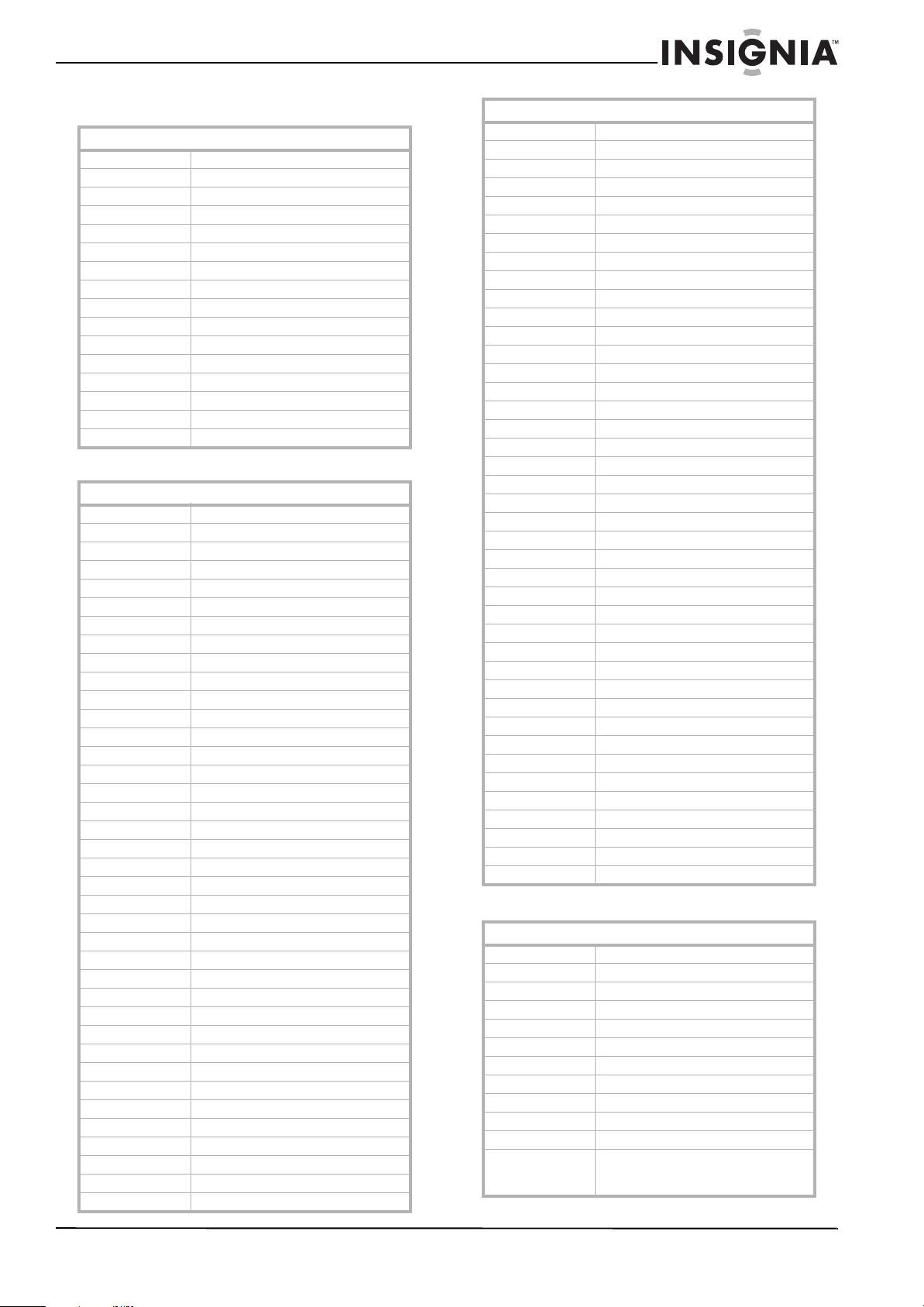
41
Insignia 32" LCD TV 720p
www.insigniaproducts.com
Cable/PVR combos
CD players
DVD players
Cable/PVR combos
Americast 00899
Amino 01822
Cisco 01877, 01982
Digeo 01187, 02187
General Instrument 00810
Jerrold 00810
Motorola 01376, 00810, 01187, 01106, 01982
Myrio 01822
Pace 01877, 00237, 01982
Pioneer 01877
RCA 01256
Scientific Atlanta 01877, 01982
Sony 01006
Supercable 00276
Thomson 01256
Zenith 00899
CD players
Acoustic Research 30420
Aiwa 30157
Arcam 30157
Audio Research 30157
Burmester 30420
Cairn 30157
California Audio Labs 30029
Cambridge Soundworks 30157
Carver 30157
Curtis Mathes 30032
Denon 30034
DKK 30000
DMX Electronics 30157
Fisher 30000
Garrard 30393,30420
Genexxa 30032
Grundig 30157
Hafler 30173
Harman/Kardon 30100,30157,30173
Hitachi 30032
Inkel 30157,30180
Integra 30101
JVC 30032,30072
Kenwood 30626,30000,30029,30028,30190
KLH 31318,31711
Krell 30157
Linn 30157
Magnavox 30157,30038,30274
Marantz 30626,30029,30157,30038,30180,30435
Matsui 30157
McIntosh 30256,30290,30660
MCS 30029
Memorex 30000, 30032,30420
Micromega 30157
Miro 30000
Mission 30157
Modulaire 30000,30032,30087,30180,30420
MTC 30420
Myryad 30157
NSM 30157
Onkyo 31327,30101
Optimus 30000,30032,30087,30393,30420
Panasonic 30029,30388,30752
Parasound 30420
Penney 30029
Philips 30626,30157,30274
Pioneer 31062,30032,31087
Polk Audio 30157
Proceed 30420
Proton 30157
QED 30157
Quad 30157
Quasar 30029
RadioShack 30000,30032,30180,30420
RCA 31062, 30032,30053,30420
Realistic 30000,30032,30087,30180,30420
Revox 30157
Roksan 30435
Rotel 30157,30420
SAE 30157
Sansui 30000,30157
Sanyo 30000,30087
Sharp 30180
Sherwood 30180
Sonic Frontiers 30157
Sony 30490,30000,30100,31364,30185
Sugden 30157
Sylvania 30157
Symphonic 30180
TAG McLaren 30157
Tandy 30032
Tascam 30393,30420
Teac 30490,30180,30393,30420
Technics 30029
Thule Audio 30157
Victor 30072
Wards 30032,30157,30053,30087
Yamaha 30490,30036,31292
Yorx 30000
DVD players
3D LAB 20503, 20539
Accurian 20675, 21072, 21416
Advent 21016
Afreey 20698
Aiwa 20641
Akai 20695, 20705, 20770, 20899, 21089
Alba 20672, 20717
Alco 20790
Allegro 20869
Amphion Media Works 20872
AMW 20872
Apex Digital 20533, 20672, 20717, 20755, 20794, 20796,
20797, 20830, 21004, 21020, 21056, 21061,
21100
CD players
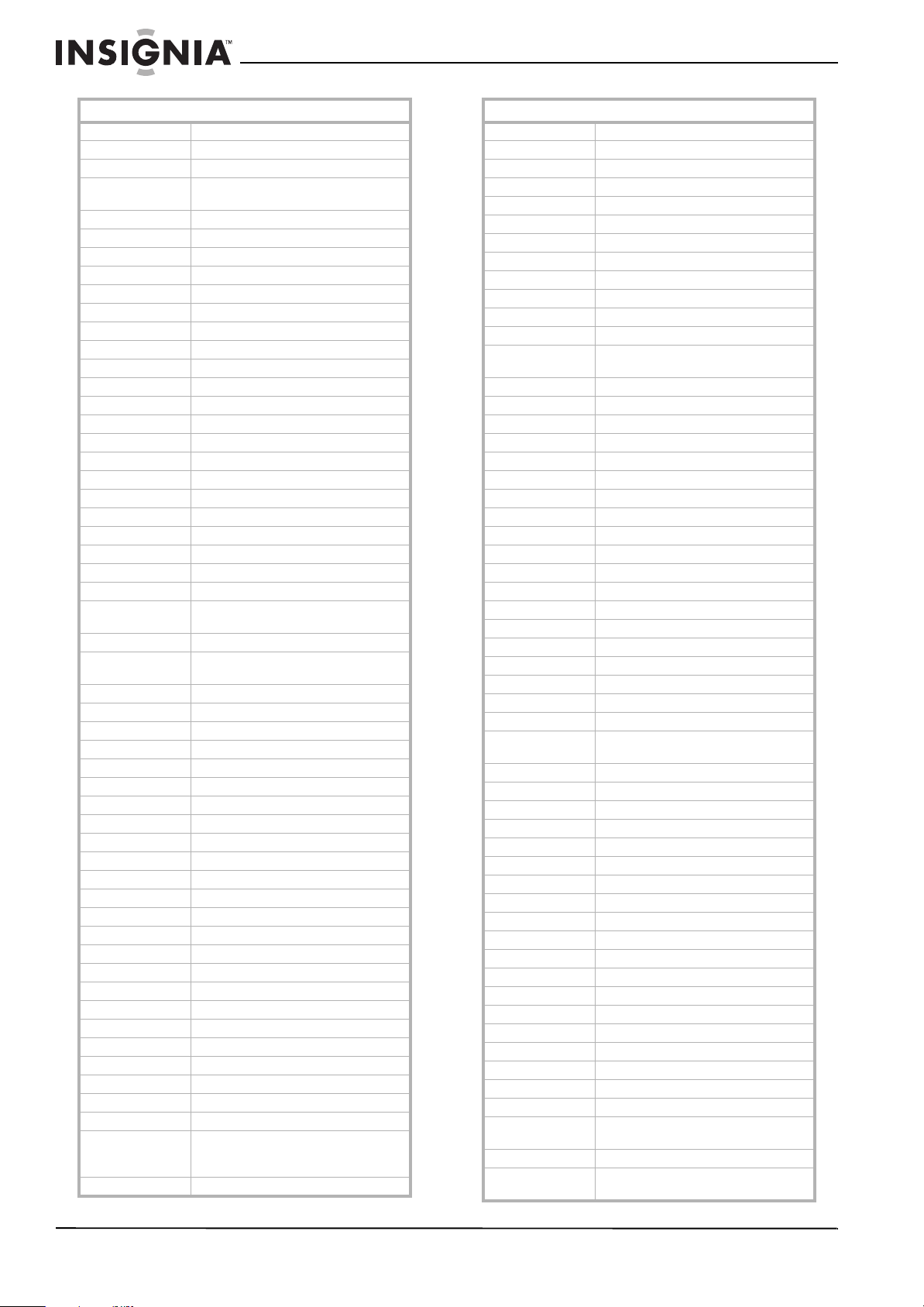
42
NS-32L430A11 Insignia 32" LCD TV 720p
www.insigniaproducts.com
Arrgo 21023
Aspire Digital 21168, 21407
Astar 21489
Audiovox 20717, 20790, 21041, 21071, 21072, 21121,
21122
Axion 21071, 21072
B & K 20655, 20662
BBK 21224
Bel Canto Design 21571
Blaupunkt 20717
Blue Parade 20571
Blue Sky 20695
Bose 21895, 22023
Brandt 20651
Broksonic 20695, 20868
California Audio Labs 20490
Celestial 21020
Centrex 20672, 21004
Cinea 20831
CineVision 20876, 20833, 20869
Citizen 21003, 20695, 21277
Clairtone 20571
Coby 20778, 21077, 21086, 21107, 21177
Craig 20831
Creative 20503, 20539
Curtis Mathes 21087
CyberHome 20816, 20874, 21023, 21024, 21117, 21129,
21502, 21537
Cytron 20705
Daewoo 20784, 20705, 20770, 20833, 20869, 21169,
21172, 21234, 21242
Dansai 20770
Daytek 20872
Decca 20770
Denon 20490, 20634, 22258
Denver 20778
Desay 21407
DigitalMax 21738
Digitrex 20672
Disney 20675, 21270
DiViDo 20705
Dual 20675, 21068, 21085
Durabrand 21127
DVD2000 20521
Electrohome 21003
Emerson 20591, 20675, 20821, 21268
Enterprise 20591
Entivo 20503, 20539
Enzer 20770
ESA 20821, 21268
Firstline 20651
Fisher 20670
Funai 20675, 21268, 21334
Gateway 21073, 21077, 21158
GE 20522, 20815, 20717
Go Video 20573, 20744, 20717, 20715, 20741, 20783,
20833, 20869, 21044, 21075, 21099, 21158,
21304, 21730
Go Vision 21071, 21072
DVD players
GoldStar 20741, 20869
Goodmans 20790
Gradiente 20490, 20651
Greenhill 20717
Grundig 20539, 20705
Harman/Kardon 20582, 20702
Hello Kitty 20831
Hitachi 20573, 20664, 21247
Hiteker 20672
Humax 21500, 21588
iLo 21348
Initial 20717
Insignia 21268, 22620, 22609, 22288, 22510, 22255,
22150, 22095, 21830
Integra 20571, 20627, 21769
IRT 20783
JBL 20702
Jensen 21016
JMB 20695
JVC 20558, 20623, 20867, 21164, 21275, 21550
Kawasaki 20790
Kenwood 20490, 20534
KLH 20717, 20790, 21020, 21149
Kloss 20533
Koss 20651, 21061
Lasonic 20627, 20798
Lecson 21533
Lenoxx 21127
LG 20591, 20741, 20869
LiteOn 21058, 21158, 21416, 21440, 21656, 21738
Loewe 20511, 20741
Logix 20783
Magnasonic 20651, 20675
Magnavox 20503, 20539, 20646, 20675, 20821, 21268,
21354, 21506
Marantz 20503, 20539, 20675
McIntosh 21533, 21273
Medion 20651
Memorex 20695, 20831, 21270
Microsoft 20522, 22083
Minato 20752
Mintek 20839, 20717
Mitsubishi 21521, 20521
NAD 20741
Naiko 20770
NEC 20785, 20869
Nesa 20717
NexxTech 21402
Norcent 21003, 20872, 21107, 21265
Onkyo 20503, 20627, 21769
Oppo 20575, 21224
Optimus 20571
Oritron 20651
Palsonic 20672
Panasonic 20503, 20490, 20571, 20632, 20703, 21362,
21462, 21490, 21641, 21762
Philco 20675
Philips 20503, 20539, 20646, 20675, 20854, 21260,
21267, 21340, 21354, 22056, 22084
DVD players
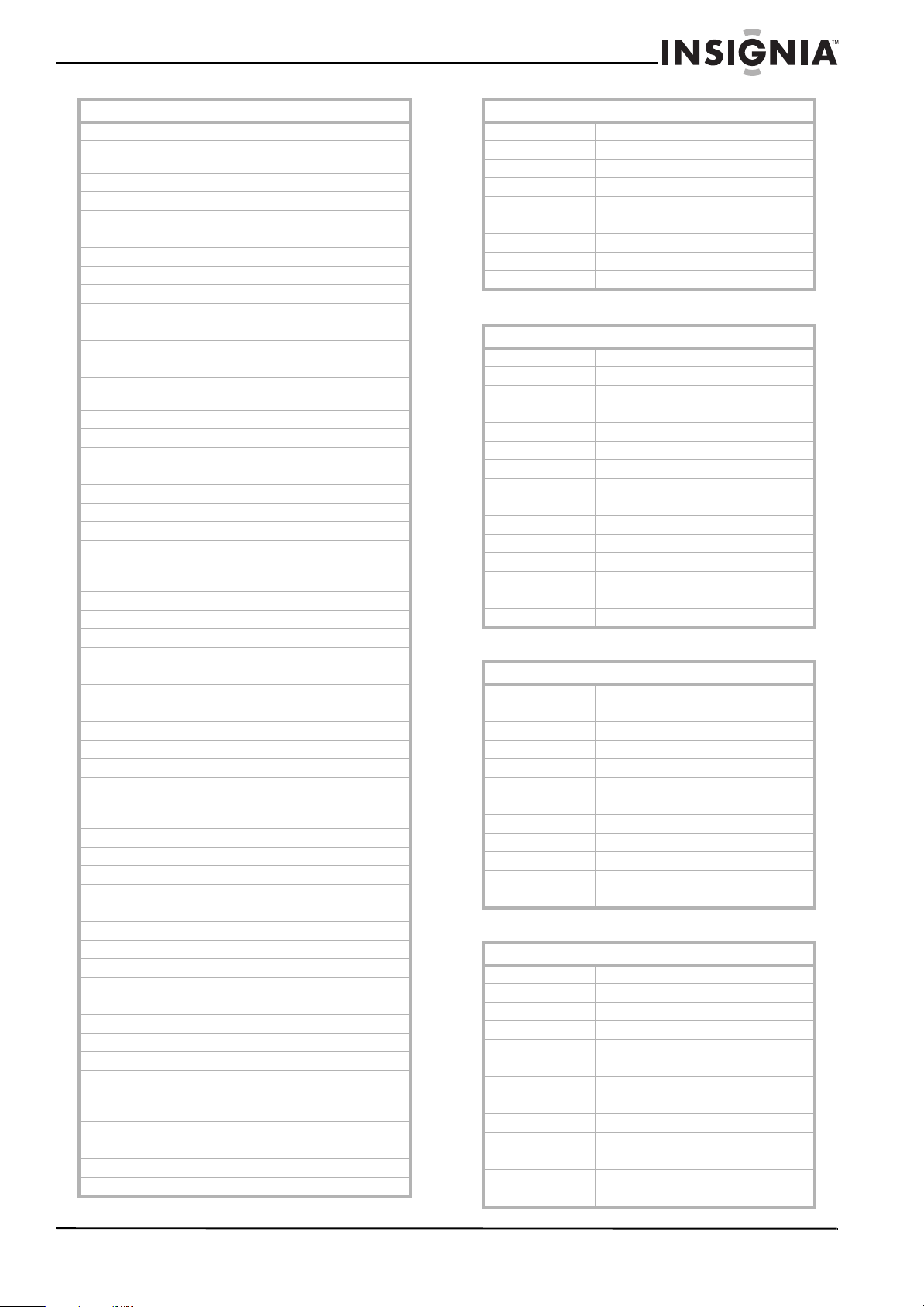
43
Insignia 32" LCD TV 720p
www.insigniaproducts.com
DVD players (Blu Ray and HD-DVD)
DVD/PVR combos controlled by the DVD
Home automation
PianoDisc 21024
Pioneer 20525, 20571, 20142, 20631, 20632, 21460,
21512, 21571
Polaroid 21020, 21061, 21086
Polk Audio 20539
Portland 20770
Presidian 20675, 21072, 21738
Prima 21016
Proceed 20672
Proscan 20522
ProVision 20778
Qwestar 20651
Radionette 20741
RadioShack 20571
RCA 20522, 20571, 20717, 20790, 20822, 21022,
21132, 21769
Realistic 20571
Reoc 20752
Rio 20869
Rotel 20623, 21178
Rowa 20823, 21004
Saba 20651
Sampo 20698, 20752
Samsung 20490, 20573, 20744, 20199, 20820, 20899,
21044, 21075
Sansui 20695
Sanyo 20670, 20675, 20695, 20873, 21334
Schneider 20783
Schwaiger 20752
Sensory Science 21158
Sharp 20630, 20675, 20752, 21256, 22250
Sharper Image 21117
Sherwood 20770, 21043, 21077
Sherwood Newcastle 21077
Shinsonic 20533, 20839
Slim Art 20784
Sonic Blue 20573, 20715, 20783, 20869, 21099
Sony 20533, 21533, 20864, 21033, 21070, 21431,
21516
Sova 21122
Superscan 20821
SVA 20717
Sylvania 20675, 20821, 21268
Symphonic 20675, 20821, 21268, 21334
Tatung 20770
Teac 20571, 20717, 20790
Technics 20490, 20703
Technika 20770
Terapin 21031
Tevion 20651
Theta Digital 20571
Thomson 20522, 20511
Tivo 21503, 21512, 21588
Toshiba 20503, 20573, 20539, 20695, 21045, 21154,
21503, 21510, 21588, 21769
Unimax 20770
Universum 20591
Urban Concepts 20503, 20539
US Logic 20839
DVD players
V 21064, 21226
Venturer 20790
Vizio 21064, 21226
Xbox 20522, 22083
Yamaha 20490, 20539, 20545
Yamakawa 20872
Zenith 20503, 20591, 20741, 20869
Zeus 20784
Zoece 21265
DVD players (Blu Ray and HD-DVD)
Denon 22258
Insignia 22428, 22596, 20675
Integra 21769
LG 20741
Microsoft 22083
Onkyo 21769
Panasonic 21641
Philips 22084
Pioneer 20142
RCA 21769
Samsung 20199
Sharp 22250
Sony 21516
Toshiba 21769
Xbox 22083
DVD/PVR combos controlled by the DVD
Go Video 21730
Humax 21500, 21588
LG 20741
Panasonic 20490
Philips 21340
Pioneer 20631, 21512
RCA 20522
Sharp 21256
Sony 21033, 21070
Sylvania 20675
Tivo 21512
Toshiba 21503, 21510, 21588
Home automation
Accutek 31215
Amana 31716
Bionaire 30846, 31215, 31861
Da-Lite 31794
Draper 32190
Frigidaire 31333
GE 30240
GoldStar 31537
Holmes 31215
Kenmore 31537
Lasko 30846, 31890
LG 31537
Lightolier 30184
DVD players
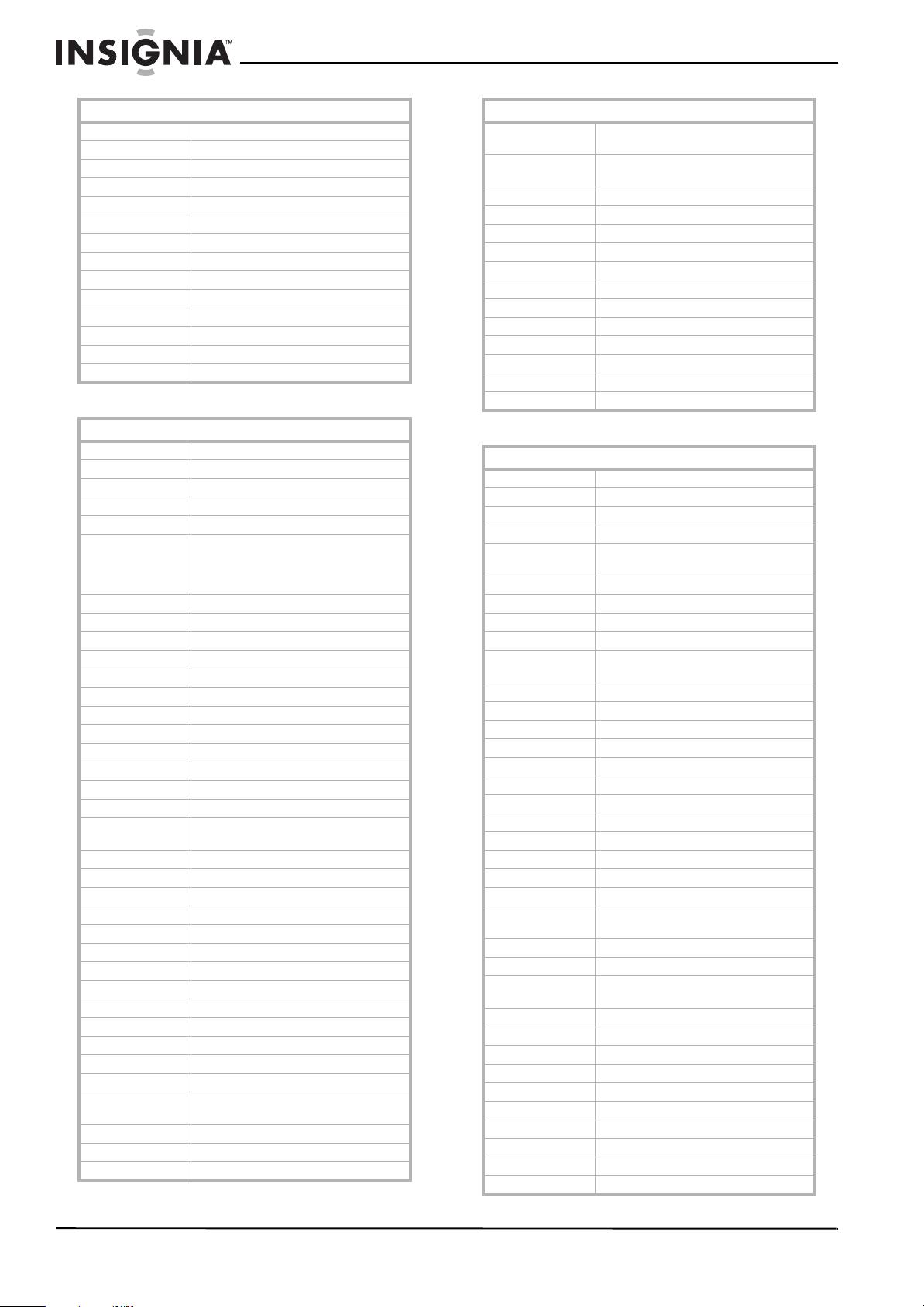
44
NS-32L430A11 Insignia 32" LCD TV 720p
www.insigniaproducts.com
DVR/PVR Systems for satellite receivers
TVs
Lutron 30597, 30318, 31239, 31597
Marmitek 30167
One For All 30167
PCS 30184
RadioShack 30240
Screen Research 32097
Security System 30167
Sharper Image 30846
SmartLinc 30184
Universal 30167
Universal X10 30167
Whirlpool 31332
Windmere 31215
X10 30167
DVR/PVR systems for satellite receivers
AlphaStar 00772
Bell ExpressVu 00775, 01170
Chaparral 00216
Coolsat 01806
Crossdigital 01109
DirecTV 01377, 00392, 00566, 00639, 01639, 01142,
00247, 00749, 01749, 00819, 01856, 01076,
01108, 00099, 01109, 01392, 01414, 01442,
01443, 01444, 01609, 01640
Dish Network System 01505, 00775, 01170, 01775
Dishpro 01505, 00775, 01775
Echostar 01505, 00775, 01170, 01775
Expressvu 00775, 01775
Fortec Star 01821
Funai 01377
GE 00392, 00566
General Instrument 00869
GOI 00775, 01775
Hitachi 00749, 00819
Houston 00775
HTS 00775, 01775
Hughes Network
Systems
01142, 00749, 01749, 01442, 01443, 01444
Humax 01790
Innova 00099
Jerrold 00869
JVC 00775, 01170, 01775
LG 01226, 01414
Magnavox 00722
McIntosh 00869
Mitsubishi 00749
Motorola 00869
Netsat 00099
Next Level 00869
Panasonic 00247, 00701
Pansat 01807
Philips 01142, 00749, 01749, 00775, 00819, 01076,
00722, 00099, 01442
Primestar 00869
Proscan 00392, 00566
RadioShack 00566, 00775, 00869
Home automation
RCA 00392, 00566, 01142, 00775, 00855, 00143,
01392, 01442
Samsung 01377, 01142, 01276, 01108, 01109, 01442,
01609
SKY 00099
Sony 00639, 01639, 01640
Star Choice 00869
Star Trak 00772, 00869
Thomson 00392, 00566
Tivo 01142, 01442, 01443, 01444
Toshiba 00749, 01749, 00790, 01285
UltimateTV 01392, 01640
Ultrasat 01806
Uniden 00722
Voom 00869
Zenith 01856
TVs
A-Mark 10047, 10054
Accurian 11803
Accuscan 10047
Action 10030, 10873
Admiral 10047, 10054, 10017, 10051, 10093, 10463,
10180
Advent 10761, 10783, 10815, 10817, 10842
Adventuri 10000
Agna 10150
Aiko 10092
Akai 10060, 10812, 10702, 10030, 10145, 10056,
10672, 11675, 11676, 11935
Albatron 10700, 10843
Alfide 10672
Alleron 10030
Ambassador 10150, 10177
America Action 10180
American High 10000, 10060
Ampro 10751
Amstrad 10171, 10177
Amtron 10000, 10180
Anam 10180
AOC 10180, 10030, 11365
Aomni 11623
Apex Digital 10156, 10748, 10879, 10765, 10767, 10890,
11217
Astar 11531, 11738
Audinac 10180
Audiovox 10451, 10180, 10092, 10623, 10802, 10846,
10875, 11937, 11951, 11952
Aventura 10171
Axion 11937
Baysonic 10180
Beaumark 10017, 10178, 10030
Belcor 10030
Bell & Howell 10054, 10154, 10093
BenQ 11032, 11212, 11315
Boxlight 10893
Bradford 10180
Brockwood 10178, 10030, 10056
DVR/PVR systems for satellite receivers
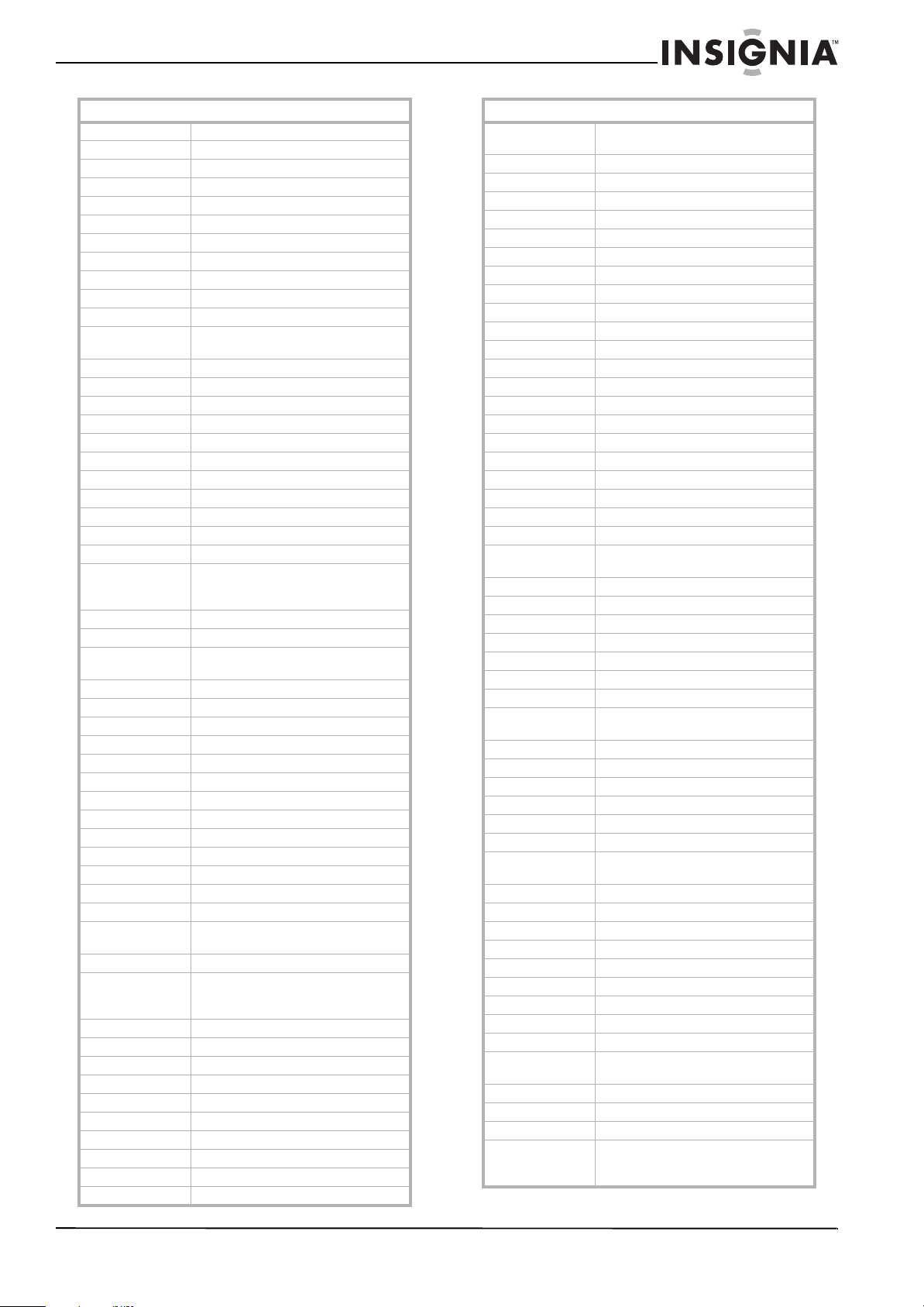
45
Insignia 32" LCD TV 720p
www.insigniaproducts.com
Broksonic 10236, 10463, 10180, 10177, 11935
Byd:sign 11309
Candle 10030, 10056
Capehart 10017, 10178, 10030, 10092
Carnivale 10030
Carver 10054
Celebrity 10000
Celera 10765
Changhong 10156, 10765, 10767, 10783
Cineral 10451, 10092
Citek 10047
Citizen 10054, 10000, 10451, 10463, 10180, 10060,
10030, 10171, 10092, 10056, 11935
Clarion 10180
Classic 10030, 10092, 10056
Colortyme 10047, 10054, 10017, 10060, 10178, 10030
Commercial Solutions 11447, 10047
Concerto 10056
Conic 10178
Contec 10180
Craig 10180, 10171
Crosley 10054, 10000, 10180, 10030, 10171
Crown 10093, 10180, 10056, 10672
Crown Mustang 10672
Curtis Mathes 10047, 10054, 10154, 10000, 10051, 10451,
10093, 10180, 10060, 10702, 10178, 10030,
10145, 10166, 10056, 10466, 11147, 11347
CXC 10180
Cytron 11326
Daewoo 10451, 10178, 10092, 11661, 11756, 10623,
10661, 10672, 11755
Dayton 10092
Daytron 10178, 10030, 10092, 10056
Dell 11080, 11178, 11264, 11403, 11863
Denon 10145
Digital Life 10872
Dream Vision 11164
Dumont 10017, 10180, 10178
Durabrand 10463, 10180, 10178, 10171, 11034
Dwin 10093, 10720, 10774
Dynex 11463, 11780, 11785, 11810
Eaton 10060
Electroband 10000
Electrograph 11623, 11755
Electrohome 10154, 10000, 10463, 10150, 10178, 10030,
10056
Emerald 10178, 10177
Emerson 10047, 10154, 10451, 10236, 10463, 10180,
10150, 10178, 10171, 10177, 10623, 11394,
11963
Emprex 11422
Envision 10030, 10813, 11365
Epson 10833, 10840
ESA 10812, 10171, 11963
Fisher 10054, 10154, 10000
Fortress 10093
Fujitsu 10683, 10809, 10853
Funai 10000, 10180, 10171, 11271, 11963
Futuretech 10180
Gateway 11756, 11755
TVs
GE 11447, 10047, 10000, 10051, 10451, 10060,
10178, 10030, 11147, 11347
Gemini 10047
Gibralter 10017, 10000, 10030
Go Video 10886
Go Vision 11937
GoldStar 10047, 10054, 10178, 10030, 10056, 11154
Gradiente 10053, 10056
Grundig 10706, 10672, 10683
Grundy 10180
Grunpy 10180
Haier 11034
Hallmark 10236, 10180, 10178
Hannspree 11348, 11351, 11745
Harley Davidson 10000, 10180, 10060, 10178, 10030
Harman/Kardon 10054
Harvard 10180
Havermy 10093
Heathkit 10017
Helios 10865
Hello Kitty 10451
Hewlett Packard 11494, 11502, 11642
Hisense 10748
Hitachi 10047, 10054, 10017, 10000, 10051, 11145,
10145, 10056, 11445, 11643
HP 11494, 11502, 11642
Hyundai 10849, 10865, 11219, 11294
iLo 11286, 11603, 11684, 11990
Ima 10236, 10180, 10178
Infinity 10054
InFocus 11164
Initial 11603, 11990
Insignia 10171, 11204, 11326, 11517, 11564, 11641,
11710, 11780, 11963, 12002
Inteq 10017, 10145
JBL 10054
JCB 10000
Jensen 10761, 10815, 10817
JIL 10030
Jutan 10030
JVC 10054, 10053, 10030, 10650, 10731, 11253,
11774
Kamp 10017, 10180
Kawasho 10030
KEC 10180, 10060
Kenwood 10180, 10030
KLH 10156, 10180, 10765, 10767
Kloss 10030
Konka 10180, 10720
KTV 10463, 10180, 10030
Lark 10154
LG 10054, 11265, 10060, 10178, 10030, 10056,
10700, 10856, 11154, 11178, 11423, 11993
Lloyd's 10236, 10180, 10030, 10056
Logik 10236, 10180, 10056
Luxman 10056
LXI 10047, 10054, 10017, 10154, 10000, 10156,
10051, 10093, 10060, 10053, 10178, 10030,
10171, 10166, 10056
TVs
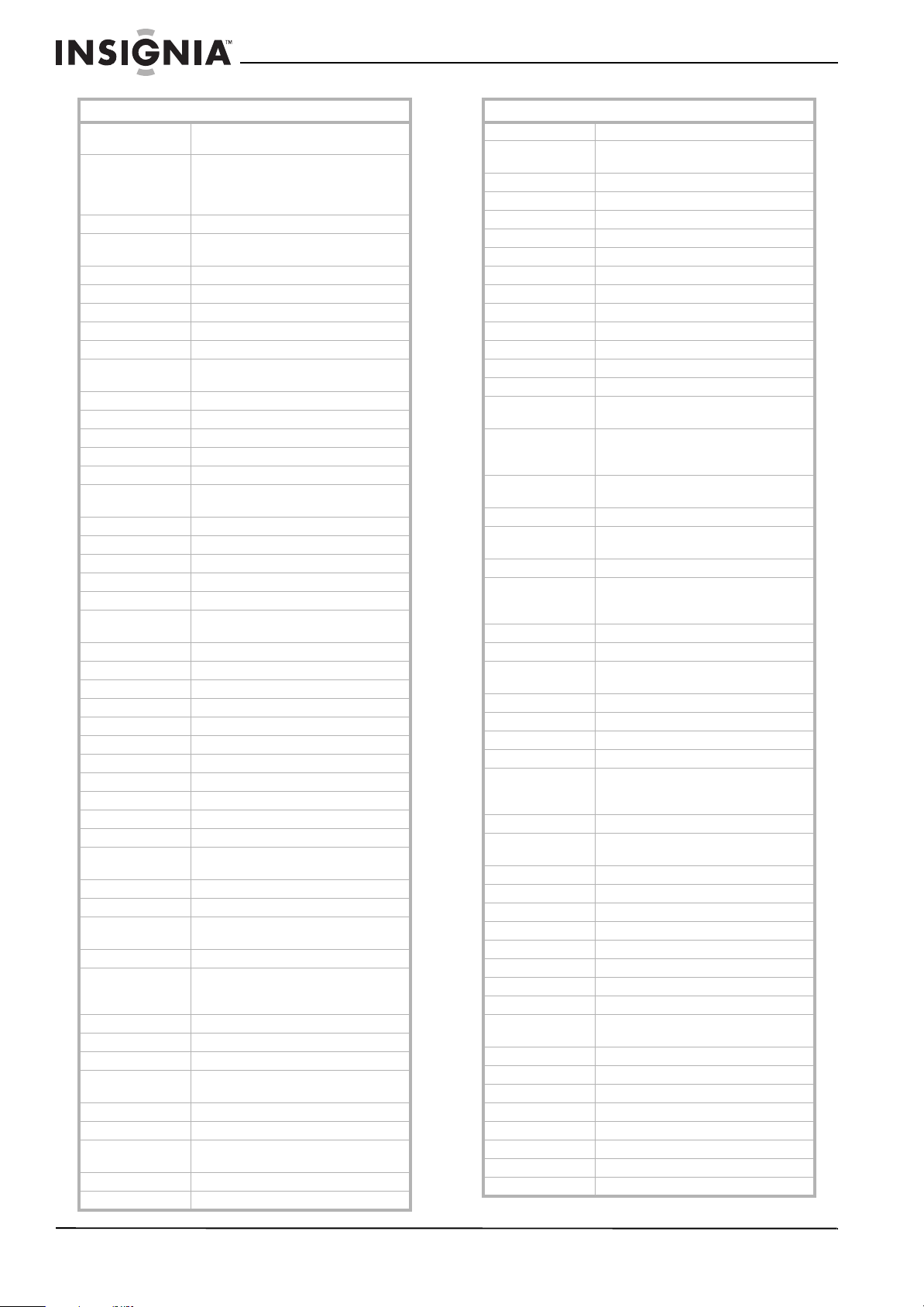
46
NS-32L430A11 Insignia 32" LCD TV 720p
www.insigniaproducts.com
Magnasonic 10054, 10000, 10156, 10093, 10030, 10092,
10056
Magnavox 10047, 11454, 10054, 10154, 10000, 10250,
10051, 10180, 10060, 10030, 10171, 10092,
10706, 10802, 11198, 11254, 11365, 11755,
11866, 11963, 11990
Majestic 10017
Marantz 11454, 10054, 10030, 10704, 10855, 11154,
11398
Matsui 10056, 10177
Matsushita 10250, 10051, 10650
Maxent 11756, 10762, 11211, 11714, 11755, 11757
Megapower 10700
Megatron 10047, 10178, 10145, 10056
Memorex 10154, 10463, 10180, 10150, 10178, 10030,
10056
MGA 10150, 10178, 10030
MGN Technology 10178
Micro Genius 10150
Midland 10047, 10017, 10051, 10056
Mintek 11603, 11990
Mitsubishi 10154, 10093, 11250, 10150, 10178, 10030,
10836, 10868, 11392
Monivision 10700, 10843
Motorola 10054, 10051, 10093, 10150
MTC 10180, 10060, 10030, 10092, 10056
Multitech 10180
NAD 10156, 10178, 10166, 10056, 10866, 11156
NEC 10047, 10178, 10030, 10056, 10497, 10704,
10882, 11398, 11704
NetTV 10762, 11755
New Tech 10056
Nikko 10178, 10030, 10092
Nikkodo 10178, 10030, 10092
Nishi 10030
Norcent 10748, 10824, 11365
Norwood Micro 11286
NTC 10092
Nyon 10000
Olevia 11144, 11240, 11331, 11610
Onwa 10180
Optimus 10154, 10250, 10093, 10180, 10150, 10178,
10030, 10166, 10056, 10650
Optoma 11348
Optonica 10093
Orion 10017, 10236, 10463, 10180, 10178, 11463,
10177
Pace 10092
Panasonic 10054, 10000, 10156, 10250, 10051, 10236,
10030, 10650, 11291, 11310, 11410, 11480,
11941
Panda 10706
Paxonic 10060, 10030
PCE 10156, 10060
Penney 10047, 10000, 10156, 10250, 10051, 10060,
10178, 10030, 10056, 11347
Petters 11523
Philco 10054, 10463, 10030, 10145
Philips 11454, 10054, 10030, 10171, 10056, 10690,
11154, 11254, 11744, 11867
Pilot 10051, 10060, 10178, 10030, 10056
Pioneer 10166, 10679, 10866, 11260, 11398, 11457
TVs
Planar 11496
Polaroid 10765, 10865, 11276, 11314, 11326, 11328,
11341, 11523, 11766, 12002
Portland 10451, 10092
Precision 10236, 10180, 10177
Prima 10761, 10783, 10815, 10817, 11785
Princeton 10700, 10717
Prism 10250, 10051
Proscan 11447, 10047, 10466, 11347
Proton 10178, 10466
Pulsar 10017, 10092
Pulser 10178, 10092
Quartz 10150, 10178
Quasar 10250, 10051, 10650
Rabbit 10047
RadioShack 10047, 10154, 10180, 10150, 10178, 10030,
10056
RCA 11447, 10047, 10054, 10000, 10051, 10093,
10178, 12002, 11958, 11781, 11547, 11347,
11247, 11147, 11047, 10774, 10679, 10090
Realistic 10047, 10154, 10180, 10150, 10178, 10030,
10056
RevolutionHD 11623
Runco 10017, 10060, 10030, 10497, 10603, 11292,
11398, 11629
Sampo 10047, 10030, 11756, 10762, 11755
Samsung 10047, 10054, 10017, 10154, 10060, 10812,
10702, 10178, 10030, 10056, 10587, 10766,
10814, 11060, 11575
Sanky 10060, 10030
Sansui 10463, 10060, 10030, 11409, 11935
Sanyo 10047, 10054, 10154, 10000, 10463, 10171,
10088, 10799, 10893, 11142, 11755
Saville 10060
Sceptre 10878, 11217, 11360, 11599
Scotch 10178
Scott 10236, 10180, 10178, 10030, 10177, 11711
Sears 10047, 10054, 10017, 10154, 10000, 10156,
10051, 10093, 10060, 10053, 10178, 10030,
10171, 10166, 10056
Seleco 11351
Sharp 10054, 10093, 10180, 10491, 10688, 10689,
10818, 10851, 11602
Sheng Chia 10093
Shivaki 10178
Siemens 10145
Signature 10047, 10093, 10030
Simpson 10178, 10030
Singer 10060, 10092
Solar Drape 10000
Sole 10813, 11623
Sony 10017, 10154, 11100, 10000, 10150, 10053,
10834, 11685
Soundesign 10180, 10178, 10056
Sova 11952
Soyo 11520, 11826
Spectravision 10156, 10178
Squareview 10171
SR2000 10154, 10171
SSS 10180
Starlite 10236, 10180
TVs
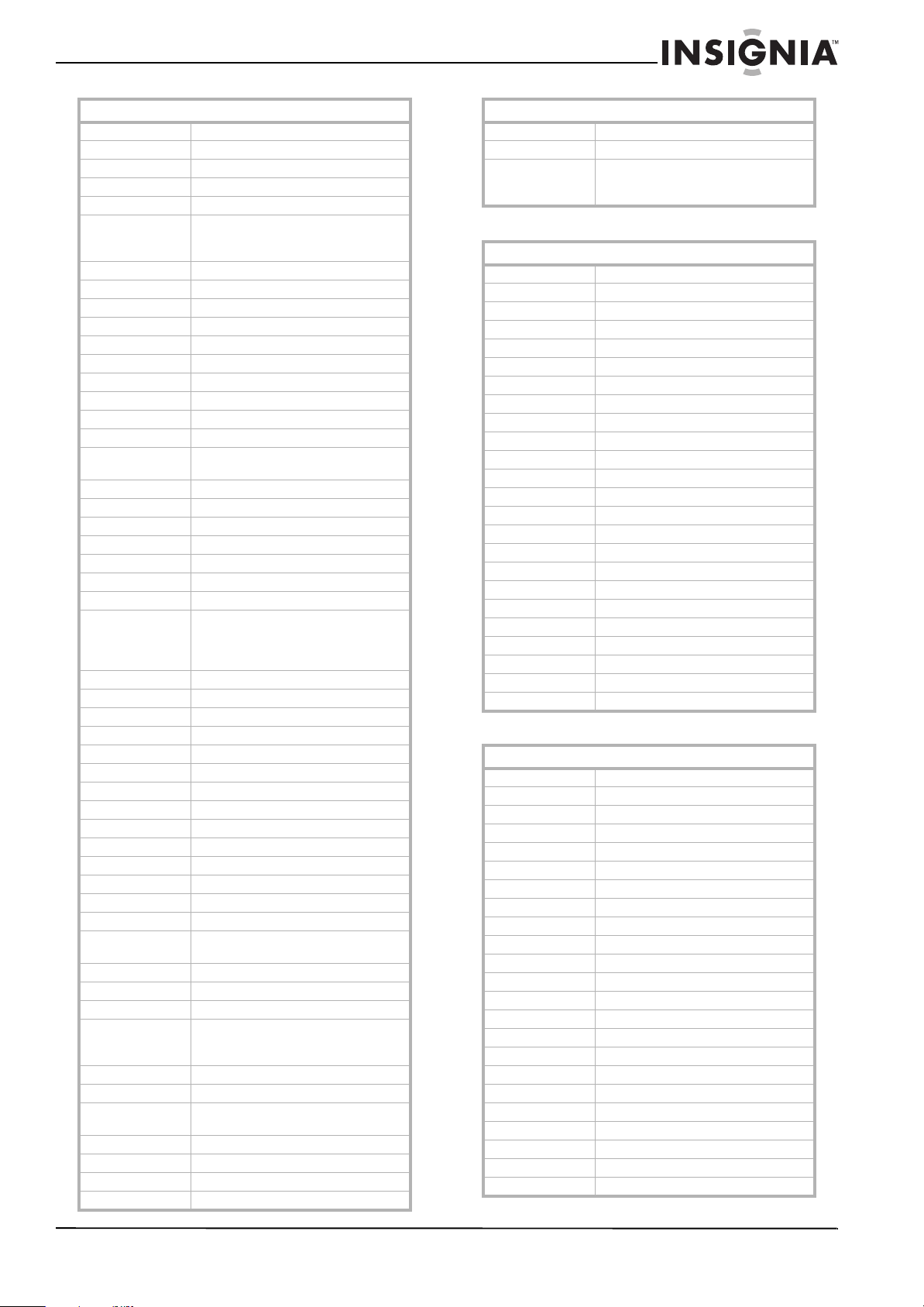
47
Insignia 32" LCD TV 720p
www.insigniaproducts.com
TV/DVD combination controlled by the DVD
TV/DVD combination controlled by the TV
Studio Experience 10843
Superscan 10093, 10864
Supreme 10000
SV2000 10054
SVA 10748, 10587, 10865, 10870, 10871, 10872
Sylvania 10047, 10054, 10154, 10000, 10051, 10178,
10030, 10171, 10092, 10056, 11271, 11314,
11394, 11864, 11963
Symphonic 10000, 10180, 10178, 10171
Syntax 11144, 11240, 11331, 11610
Tandy 10093
Tatung 10000, 10051, 11756, 11286
Teac 10154, 10706, 10689
Technics 10054, 10250, 10051
Technovox 10030
Techview 10847, 12004
Techwood 10250, 10051, 10060, 10056
Teco 11040
Teknika 10054, 10463, 10180, 10150, 10060, 10178,
10092, 10056
Telecolor 10017
Telefunken 10702, 10056
Thomas 10047, 10178, 10056
Thomson 11447, 10047
TMK 10236, 10180, 10178, 10056, 10177
TNCi 10017
Tocom 10156
Toshiba 10154, 11256, 10156, 10150, 11265, 10060,
11145, 10145, 10166, 12006, 11935, 11704,
11656, 11635, 11524, 11356, 11164, 11156,
10845, 10832, 10822, 10650
Totevision 10051
Toyomenka 10178
Truetone 10250, 10051
TruTech 11723
TVS 10463
Ultra 10092
Universal 10047
Universum 10177
US Logic 11286
V 11756, 10864, 10885, 11755
Vector Research 10030
Victor 10053
Vidikron 10054, 11292, 11398, 11629
Vidtech 10178
Viewsonic 10857, 10864, 10885, 11330, 11578, 11627,
11640, 11755, 12014
Viking 10060
Viore 11684
Vizio 11756, 11758, 10864, 10885, 11755
Wards 10047, 10054, 10017, 10154, 10000, 10051,
10093, 10236, 10178, 10030, 10166, 10056,
10866, 11156
Waycon 10156
Welton 10178
Westinghouse 10000, 10451, 10885, 10889, 10890, 11282,
11577, 11712
White Westinghouse 10451, 10236, 10463, 10623, 10889
World 10451, 10236, 10463, 10180
Wyse 11365
XR-1000 10154, 10180, 10171
TVs
Yamaha 10030, 10769, 10833, 10839, 11526
Yorx 10030
Zenith 10047, 10017, 10000, 10093, 10463, 11265,
10812, 10178, 10030, 11145, 10145, 10171,
10092
TV/DVD combination controlled by the DVD
Advent 21016
Akai 20695
Apex Digital 20830
Audiovox 21071, 21121, 21122
Axion 21071
Broksonic 20695
Citizen 20695
Emerson 20675, 21268
ESA 21268
Funai 21268
Go Vision 21071
Hitachi 21247
Insignia 21268
Jensen 21016
Magnavox 21268
Panasonic 21490
Philips 20854, 21260
Prima 21016
RCA 21022
Samsung 20899
Sansui 20695
Sova 21122
Sylvania 20675, 21268
Toshiba 20695
TV/DVD combination controlled by the TV
Accurian 11803
Akai 11675, 11935
Audiovox 11937, 11951, 11952
Axion 11937
Broksonic 11935
Citizen 11935
Dynex 11810
Emerson 11394, 11963
ESA 11963
Funai 11963
iLo 11990
Initial 11990
Insignia 11963, 12002
LG 11993
Magnavox 11866, 11963, 11990
Maxent 11714
Mintek 11990
Panasonic 11941
Polaroid 11523, 11766, 12002
RCA 11958, 12002
Sansui 11935
Sova 11952
Sylvania 11394, 11864, 11963
TVs
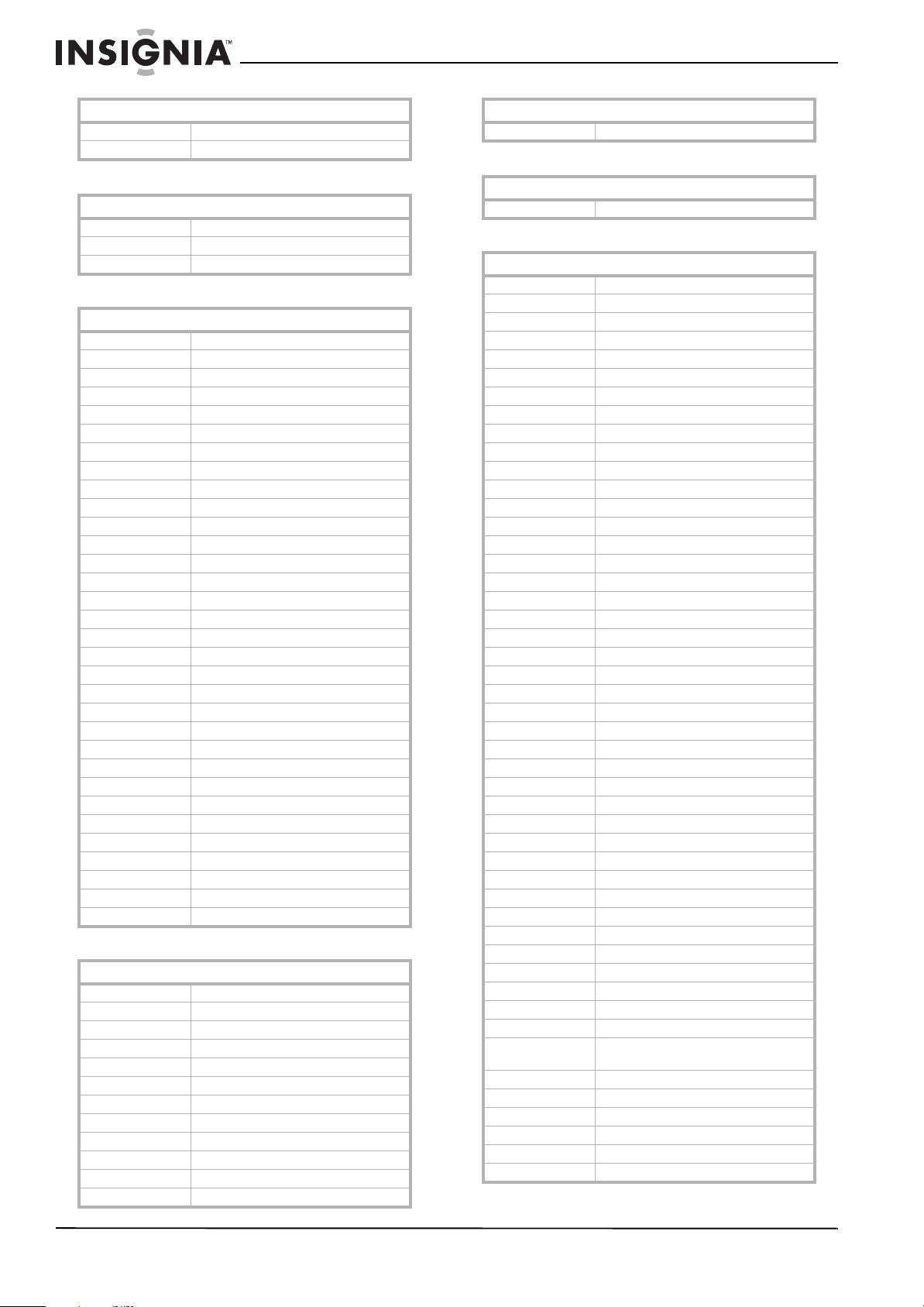
48
NS-32L430A11 Insignia 32" LCD TV 720p
www.insigniaproducts.com
TV/VCR combination controlled by the TV
TV/VCR combination controlled by the VCR
TV/VCR/DVD combination controlled by the DVD
TV/VCR/DVD combination controlled by the VCR
VCRs
Techview 12004
Toshiba 11524, 11635, 11935, 12006
TV/VCR combination controlled by the TV
America Action 10180
Audiovox 10180
Emerson 10236
TV/VCR combination controlled by the VCR
Broksonic 20479, 21479
Citizen 21278
Curtis Mathes 21035
Daewoo 21278
Emerson 20479, 20593, 21278, 21479
Funai 20000
GE 20807, 21035, 21060
GoldStar 21237
Harley Davidson 20000
Hitachi 20000
LG 21037
Lloyd's 20000
Magnasonic 20593, 21278
Magnavox 20000, 20593, 21781
Memorex 20162, 21037, 21162, 21237, 21262
Mitsubishi 20807
Optimus 20162, 20593, 21162, 21262
Orion 20479, 21479
Panasonic 20162, 21035, 21162, 21262
Penney 21035, 21237
Quasar 20162, 21035, 21162
RadioShack 20000, 21037
RCA 20807, 21035, 21060
Samsung 21014
Sansui 20000, 20479, 21479
Sears 20000, 21237
Sony 20000, 21232
Sylvania 21781
Symphonic 20000, 20593
Thomas 20000
Toshiba 20845, 21145
Zenith 20000, 20479, 21479
TV/VCR/DVD combination controlled by the DVD
Akai 20899
Broksonic 20868
Emerson 20821
ESA 20821
Funai 21334
Magnavox 20821
Panasonic 21362, 21462
RCA 21132
Sharp 20630
Superscan 20821
Sylvania 20821
Symphonic 20821
TV/DVD combination controlled by the TV
Toshiba 21045
TV/VCR/DVD combination controlled by the VCR
Sharp 20807
VCRs
A-Mark 20037, 20000, 20046
ABS 21972
Accurian 20000
Admiral 20060, 20048, 20039, 20209, 20479
Adventura 20037, 20000
Aiwa 20037, 20000
Alba 20209
Alienware 21972
Allegro 20039
American High 20035, 20081
Amstrad 20000
Astra 20035
Audiovox 20037, 20038
Avis 20000
Bell & Howell 20035, 20048, 20039, 20000, 20046, 20479
Broksonic 20184, 20121, 20209, 20479, 21479
Calix 20037
Candle 20037, 20038
Canon 20035
Carver 20035, 20081
Citizen 20035, 20037, 20000, 20209, 20479, 21278
Classic 20037
Colortyme 20060, 20035, 20045
Colt 20000
Craig 20037
Criterion 20000
Crosley 20035, 20081, 20000, 20149
Curtis Mathes 20060, 20035, 20162, 20000, 21035
CyberPower 21972
Daewoo 20037, 20045, 20046, 21278
Daytron 20037
Dell 21972
Denon 20081, 20042
DirecTV 20739
Dual 20000
Durabrand 20039, 20038
Dynatech 20000
Electrohome 20060, 20037, 20000, 20043, 20209
Electrophonic 20037
Emerald 20184, 20121
Emerex 20032
Emerson 20037, 20184, 20000, 20121, 20043, 20209,
20479, 20593, 21278, 21479, 21593
Fisher 20039, 20000, 20046
Fuji 20035, 20033
Fujitsu 20000
Funai 20037, 20000, 20593, 21593
Garrard 20000
Gateway 21972
TV/VCR/DVD combination controlled by the DVD
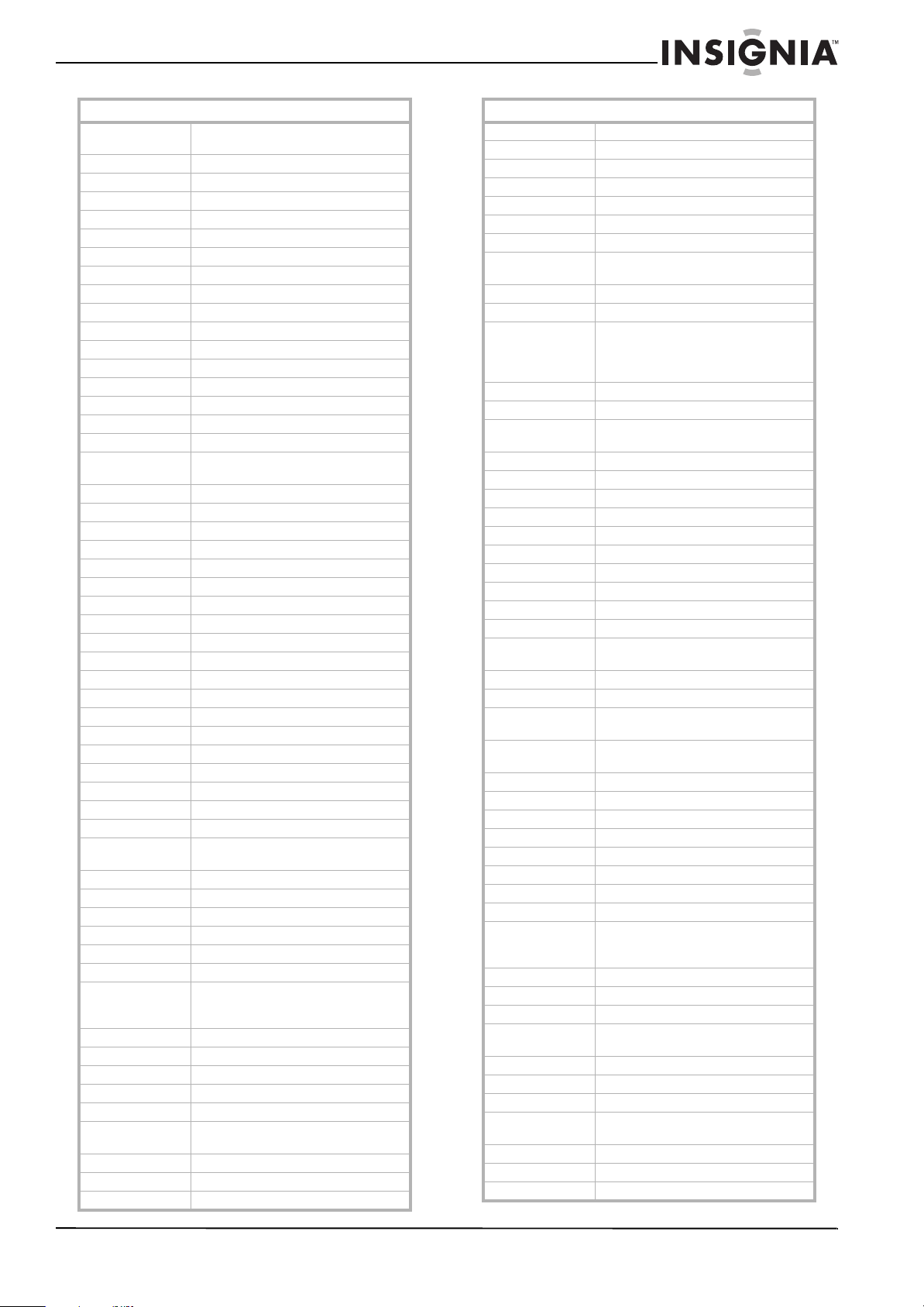
49
Insignia 32" LCD TV 720p
www.insigniaproducts.com
GE 20060, 20035, 20048, 20000, 20149, 20807,
21035, 21060
Gemini 20060
Genexxa 20037, 20000
Go Video 20614
GoldStar 20035, 20037, 20039, 20000, 20038, 21237
Goodmans 20037, 20081, 20000
Gradiente 20000
Granada 20081, 20042
Grundig 20081
Harley Davidson 20000
Harman/Kardon 20081, 20038
Headquarter 20046
Hewlett Packard 21972
HI-Q 20035, 20000
Hitachi 20035, 20037, 20045, 20000, 20042, 20089
Howard Computers 21972
HP 21972
Hughes Network
Systems
20042, 20739
Humax 20739
Hush 21972
Hytek 20000
iBUYPOWER 21972
Instant Replay 20035
Jensen 20067
JVC 20067, 21162
KEC 20037
Kenwood 20067, 20038, 20046
Kodak 20035, 20037
KTV 20000
LG 20037, 20038, 21037
Linksys 21972
Lloyd's 20000, 20038
Loewe 20081
Logik 20000
Luxor 20046
LXI 20037, 20000, 20042, 20067
Magnasonic 20037, 20000, 20593, 21278
Magnavox 20035, 20037, 20048, 20039, 20081, 20000,
20149, 20563, 20593, 20618, 21593, 21781
Marantz 20035, 20081, 20038
Marta 20037
Matsui 20037, 20209
Matsushita 20035, 20162, 20081, 21162
Media Center PC 21972
MEI 20035
Memorex 20035, 20162, 20037, 20048, 20039, 20000,
20209, 20046, 20479, 21037, 21162, 21237,
21262
Metz 20037
MGA 20060, 20043
Microsoft 21972
Mind 21972
Minolta 20042
Mitsubishi 20060, 20048, 20000, 20042, 20067, 20043,
20807
Motorola 20035, 20048
MTC 20000
MTX 20000
VCRs
Multitech 20039, 20000
NEC 20067, 20038
Nikko 20037
Nikkodo 20037
Niveus Media 21972
Northgate 21972
Olympus 20035, 20162
Optimus 21062, 20035, 20162, 20037, 20048, 20000,
20593, 21162, 21262
Orion 20184, 20000, 20121, 20209, 20479, 21479
Panama 20035
Panasonic 21062, 20035, 20162, 20000, 20225, 20614,
20616, 21035, 21162, 21262 Penney 20035,
20162, 20037, 20081, 20000, 20042, 20067,
20038, 21035, 21237
Pentax 20042
Philco 20035, 20081, 20000, 20209, 20479
Philips 20035, 20162, 20048, 20081, 20045, 20000,
20209, 20616, 20618, 20739, 21081, 21181
Pilot 20037
Pioneer 20162, 20081, 20042, 20067
Polk Audio 20081
Presidian 21593
Proscan 20060, 21060
Protec 20000
Pulsar 20039
Quarter 20046
Quartz 20035, 20046
Quasar 20035, 20162, 21035, 21162
RadioShack 20035, 20162, 20037, 20048, 20000, 20046,
21037, 21162
Radix 20037
Randex 20037
RCA 20060, 20035, 20048, 20045, 20000, 20042,
20149, 20807, 20880, 21035, 21060
Realistic 20035, 20162, 20037, 20048, 20000, 20121,
20046, 21162
ReplayTV 20614, 20616
Ricavision 21972
Runco 20039
Samsung 20060, 20045, 20000, 20038, 20739, 21014
Sanky 20048, 20039
Sansui 20000, 20067, 20209, 20479, 21479
Sanyo 20000, 20046, 20479
Scott 20184, 20045, 20121, 20043
Sears 20060, 20035, 20162, 20037, 20048, 20039,
20033, 20045, 20000, 20042, 20067, 20043,
20209, 20046, 21237
Sharp 20048, 20032, 20000, 20807, 20848
Shintom 20039, 20000
Siemens 20037
Signature 20060, 20035, 20037, 20048, 20000, 20149,
20046, 20479
Singer 20037
Sonic Blue 20614, 20616
Sonographe 20046
Sony 20035, 20032, 20033, 20000, 20067, 20046,
20636, 21032, 21232, 21972
Soundmaster 20000
Stack 9 21972
STS 20042
VCRs
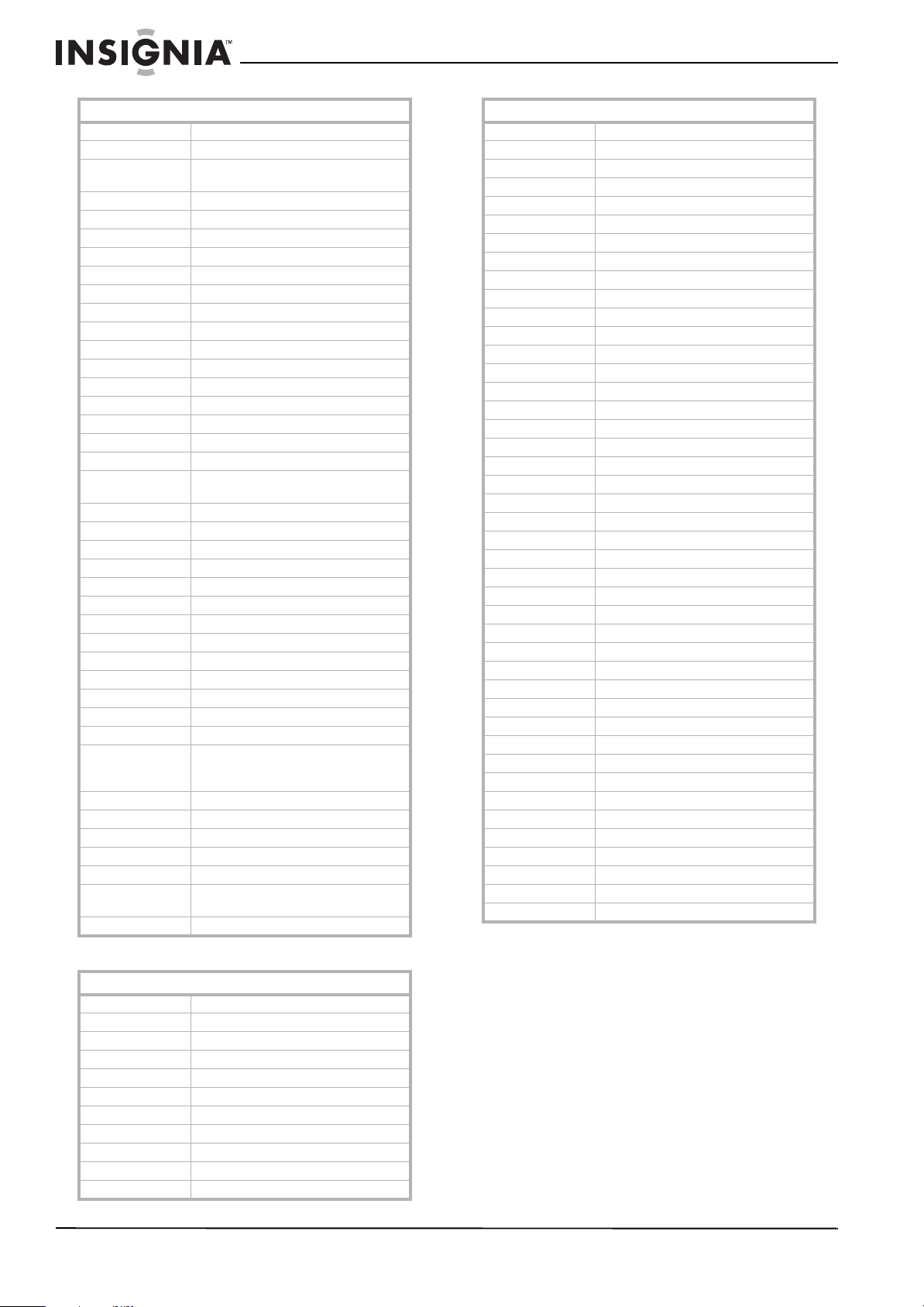
50
NS-32L430A11 Insignia 32" LCD TV 720p
www.insigniaproducts.com
Video Accessories
SV2000 20000
SVA 20000
Sylvania 20035, 20081, 20000, 20043, 20593, 21593,
21781
Symphonic 20000, 20593, 21593
Systemax 21972
Tagar Systems 21972
Tandy 20000
Tashiko 20037
Tatung 20048, 20081, 20000, 20067
Teac 20000, 20067
Technics 20035, 20162, 20037, 20000
Teknika 20035, 20037, 20000
Tevion 20479
Thomas 20000
Thomson 20060
Tivo 20618, 20636, 20739, 21996
TMK 20000
TNIX 20037
Toshiba 20045, 20000, 20043, 20209, 20845, 21008,
21145, 21972, 21996
Totevision 20037
Touch 21972
Trix 20037
Ultra 20045
Vector 20045
Vector Research 20184, 20038
Victor 20067
Video Concepts 20045
Videomagic 20037
Videosonic 20000
Viewsonic 21972
Villain 20000
Voodoo 21972
Wards 20060, 20035, 20037, 20048, 20081, 20033,
20045, 20000, 20042, 20043, 20038, 20149,
20046, 20479
Wharfedale 20593
White Westinghouse 20000, 20209, 20479
World 20209, 20479
XR-1000 20035, 20000
Yamaha 20038
Zenith 20037, 20039, 20033, 20000, 20209, 20479,
21479
ZT Group 21972
Video Accessories
2Wire 02045
ABS 01272
Access HD 02185
Accurian 01653
Alienware 01272
Amino 01481
AT&T 00858, 02045
Buffalo 01739
CASTi 02305
CyberPower 01272
D-Link 01554, 01731, 02186
VCRs
Digital Stream 02303
Epson 01563
Gateway 01272
Hewlett Packard 01272, 01267
Howard Computers 01272
HP 01272, 01267
Hush 01272
iBUYPOWER 01272
Insignia 01415
KoolConnect 01481
LG 01415
Linksys 01272, 01365
Media Center PC 01272
Microsoft 01272, 02049
Mind 01272
Motorola 00858, 01363, 01998
Netgear 02036
Niveus Media 01272
Northgate 01272
Panasonic 01120
Pioneer 01010
Ricavision 01272
Roku 01486
Samsung 01190, 01490
Scientific Atlanta 00858
Sensory Science 01126
Sharp 01010
SMC 01456
Sony 01272, 01324, 01364
Stack 9 01272
SureWest 01481
Sylvania 01563
Systemax 01272
Tagar Systems 01272
Toshiba 01272
Touch 01272
Viewsonic 01272, 01329
Vizio 01126
Voodoo 01272
VUDU 02298
Xbox 02049
Zenith 01415
ZT Group 01272
Video Accessories
51
Insignia 32" LCD TV 720p
www.insigniaproducts.com
Legal notices
FCC Part 15
This device complies with Part 15 of the FCC Rules. Operation of
this product is subject to the following two conditions: (1) this
device may not cause harmful interference, and (2) this device
must accept any interference received, including interference
that may cause undesired operation.
This equipment has been tested and found to comply within the
limits for a class B digital device, pursuant to Part 15 of the FCC
Rules. These limits are designed to provide reasonable
protection against harmful interference in a residential
installation. This equipment generates, uses, and can radiate
radio frequency energy and, if not installed and used in
accordance with the instructions, may cause harmful
interference to radio communications. However, there is no
guarantee that interference will not occur in a particular
installation. If this equipment does cause harmful interference to
radio or television reception, which can be determined by
turning the equipment off and on, the user is encouraged to try
to correct the interference by one or more of the following
measures:
• Reorient or relocate the receiving antenna.
• Increase the separation between the equipment and
receiver.
• Connect the equipment into an outlet on a circuit different
from that to which the receiver is connected.
• Consult the dealer or an experienced radio/TV technician
for help.
FCC warning
Changes or modifications not expressly approved by the party
responsible for compliance with the FCC Rules could void the
user’s authority to operate this equipment.
DHHS and FDA safety certification
This product is made and tested to meet safety standards of the
FCC, requirements and compliance with safety performance of
the U.S. Department of Health and Human Services, and also
with FDA Radiation Performance Standards 21 CFR Subchapter J.
RSS 310 statement
To reduce potential radio interference to other users, the
antenna type and its gain should be so chosen that the
equivalent isotropically radiated power (e.i.r.p.) is not more than
that permitted for successful communication.
Canada ICES-003 statement
This Class B digital apparatus complies with Canadian ICES-003.
Standard Television Receiving Apparatus — Appareil de
réception télévision ordinaire, Canada BETS-7 / NTMR-7
HDMI
HDMI, the HDMI logo, and
High-Definition Multimedia Interface are
trademarks or registered trademarks of
HDMI Licensing LLC.
Energy Star
To meet Energy Star requirements, keep TV settings at
the factory default settings.

52
NS-32L430A11 Insignia 32" LCD TV 720p
www.insigniaproducts.com

53
Insignia 32" LCD TV 720p
www.insigniaproducts.com
Two-year limited warranty
US and Canada Markets
Definitions:
Insignia Products (“Insignia”) warrants to you, the original
purchaser of this new Insignia-branded television (“Product”),
that the Product shall be free of defects in the original
manufacturer of the material or workmanship for a period of two
(2) years from the date of your purchase of the Product
(“Warranty Period”). For this warranty to apply, your Product
must be purchased in the United States or Canada from a Best
Buy or Future Shop authorized dealer of Insignia brand products
only that are packaged with this warranty statement.
How long does the coverage last?
The Warranty Period lasts for 2 years (730 days) from the date
you purchased the Product. Your purchase date is printed on the
receipt you received with the Product.
What does this warranty cover?
During the Warranty Period, if the original manufacture of the
material or workmanship of the Product is determined to be
defective by an authorized Insignia repair center or store
personnel, Insignia will (at its sole option): (1) repair the Product
with new or rebuilt parts; or (2) replace the Product at no charge
with new or rebuilt comparable products or parts. Products and
parts replaced under this warranty become the property of
Insignia and are not returned to you. If service of Products or
parts are required after the Warranty Period expires, you must
pay all labor and parts charges. This warranty lasts as long as you
own your Insignia Product during the Warranty Period. Warranty
coverage terminates if you sell or otherwise transfer the Product.
How to obtain warranty service?
If you purchased the Product at a Best Buy or Future Shop retail
store location and your television Product has a screen size of
less than 37 inches, please take your original receipt and the
Product to any Best Buy or Future Shop store. Make sure that you
place the Product in its original packaging or packaging that
provides the same amount of protection as the original
packaging. If you purchased the Product from a Best Buy or
Future Shop online web site, mail your original receipt and the
Product to the address listed on the web site. Make sure that you
put the Product in its original packaging or packaging that
provides the same amount of protection as the original
packaging.
To obtain in-home warranty service for a television with a screen
37 inches or larger, in the United States call 1-888-BESTBUY,
Canada call 1-866-BESTBUY for Future Shop call 1-800-663-2275.
Call agents will diagnose and correct the issue over the phone or
will have an Insignia-approved repair technician dispatched to
your home.
Where is the warranty valid?
This warranty is valid only to the original purchaser of the
product in the United States and Canada at Best Buy or Future
Shop branded retail stores or websites.
What does the warranty not cover?
This warranty does not cover:
• Customer instruction/education
• Installation
•Set up adjustments
•Cosmetic damage
• Damage due to acts of God, such as power surges
•Accident(s)
•Misuse
•Abuse
• Negligence
• Commercial purposes/use, including but not limited to use
in a place of business or in communal areas of a multiple
dwelling condominium or apartment complex, or
otherwise used in a place of other than a private home.
• Modification of any part of the Product, including the
antenna
• Plasma display panel damaged by static (non-moving)
images applied for lengthy periods (burn-in).
• Damage due to incorrect operation or maintenance
• Connection to an incorrect voltage or power supply
• Attempted repair by any person not authorized by Insignia
to service the Product
• Products sold “as is” or “with all faults”
• Consumables, including but not limited to batteries (i.e. AA,
AAA, C etc.)
• Products where the factory applied serial number has been
altered or removed
• Loss or Theft of this product or any part of the product
REPAIR REPLACEMENT AS PROVIDED UNDER THIS WARRANTY IS
YOUR EXCLUSIVE REMEDY FOR BREACH OF WARRANTY. INSIGNIA
SHALL NOT BE LIABLE FOR ANY INCIDENTAL OR
CONSEQUENTIAL DAMAGES FOR THE BREACH OF ANY EXPRESS
OR IMPLIED WARRANTY ON THIS PRODUCT, INCLUDING, BUT
NOT LIMITED TO, LOST DATA, LOSS OF USE OF YOUR PRODUCT,
LOST BUSINESS OR LOST PROFITS. INSIGNIA PRODUCTS MAKES
NO OTHER EXPRESS WARRANTIES WITH RESPECT TO THE
PRODUCT, ALL EXPRESS AND IMPLIED WARRANTIES FOR THE
PRODUCT, INCLUDING, BUT NOT LIMITED TO, ANY IMPLIED
WARRANTIES OF AND CONDITIONS OF MERCHANTABILITY AND
FITNESS FOR A PARTICULAR PURPOSE, ARE LIMITED IN
DURATION TO THE WARRANTY PERIOD SET FORTH ABOVE AND
NO WARRANTIES, WHETHER EXPRESS OR IMPLIED, WILL APPLY
AFTER THE WARRANTY PERIOD. SOME STATES, PROVINCES AND
JURISDICTIONS DO NOT ALLOW LIMITATIONS ON HOW LONG AN
IMPLIED WARRANTY LASTS, SO THE ABOVE LIMITATION MAY NOT
APPLY TO YOU. THIS WARRANTY GIVES YOU SPECIFIC LEGAL
RIGHTS, AND YOU MAY ALSO HAVE OTHER RIGHTS, WHICH VARY
FROM STATE TO STATE OR PROVINCE TO PROVINCE.
Contact Insignia:
For customer service please call 1-877-467-4289
www.insigniaproducts.com
Distributed by Best Buy Purchasing, LLC
7601 Penn Avenue South, Richfield, Minnesota, U.S.A.
55423-3645
© 2009 BBY Solutions, Inc.
All rights reserved. INSIGNIA is a trademark of BBY Solutions, Inc.
Registered in some countries. All other products and brand
names are trademarks of their respective owners.
Mexico Market
{RETAILER SEAL}
PLACE STICKER OF PRODUCT MAKE & MODEL HERE
DATE OF
PURCHASE:____________________________
Definitions:
Insignia Products (“Insignia”) warrants to you, the original
purchaser of this new Insignia-branded television (“Product”),
that the Product shall be free of defects in the original
manufacturer of the material or workmanship for a period of two
(2) years from the date of your purchase of the Product
(“Warranty Period”). For this warranty to apply, your Product
must be purchased in Mexico from a Best Buy authorized dealer
of Insignia brand products only that are packaged with this
warranty statement.
How long does the coverage last?
The Warranty Period lasts for 2 years (730 days) from the date
you purchased the Product. Your purchase date is printed on the
receipt you received with the Product.
What does this warranty cover?
During the Warranty Period, if the original manufacture of the
material or workmanship of the Product is determined to be
defective by an authorized Insignia repair center or store
personnel, Insignia will (at its sole option): (1) repair the Product
with new or rebuilt parts; or (2) replace the Product at no charge
with new or rebuilt comparable products or parts. Products and
parts replaced under this warranty become the property of
Insignia and are not returned to you. and parts charges. This
warranty lasts as long as you own your Insignia Product during
the Warranty Period. Warranty coverage terminates if you sell or
otherwise transfer the Product.

54
NS-32L430A11 Insignia 32" LCD TV 720p
www.insigniaproducts.com
How to obtain warranty service?
If you purchased the Product at a Best Buy retail store location
and your television Product has a screen size of less than 37
inches, please take your original receipt and the Product to any
Best store. Make sure that you place the Product in its original
packaging or packaging that provides the same amount of
protection as the original packaging. If you purchased the
Product from a Best Buy a online web site, mail your original
receipt and the Product to the address listed on the web site.
Make sure that you put the Product in its original packaging or
packaging that provides the same amount of protection as the
original packaging.
To obtain in-home warranty service for a television with a screen
37 inches or larger, in Mexico call 01 800-433-5778. Call agents
will diagnose and correct the issue over the phone or will have
an Insignia-approved repair technician dispatched to your home.
Where is the warranty valid?
This warranty is valid only to the original purchaser of the
product in Mexico at a Best Buy branded retail store or website.
What does the warranty not cover?
This warranty does not cover:
• Customer instruction/education
• Installation
•Set up adjustments
•Cosmetic damage
• Damage due to acts of God, such as power surges
•Accident(s)
•Misuse
•Abuse
• Negligence
• Commercial purposes/use, including but not limited to use
in a place of business or in communal areas of a multiple
dwelling condominium or apartment complex, or
otherwise used in a place of other than a private home.
• Modification of any part of the Product, including the
antenna
• Plasma display panel damaged by static (non-moving)
images applied for lengthy periods (burn-in).
• Damage due to incorrect operation or maintenance
• Connection to an incorrect voltage or power supply
• Attempted repair by any person not authorized by Insignia
to service the Product
• Products sold “as is” or “with all faults”
• Consumables, including but not limited to batteries (i.e. AA,
AAA, C etc.)
• Products where the factory applied serial number has been
altered or removed
• Loss or Theft of this product or any part of the product
REPAIR REPLACEMENT AS PROVIDED UNDER THIS WARRANTY IS
YOUR EXCLUSIVE REMEDY FOR BREACH OF WARRANTY. INSIGNIA
SHALL NOT BE LIABLE FOR ANY INCIDENTAL OR
CONSEQUENTIAL DAMAGES FOR THE BREACH OF ANY EXPRESS
OR IMPLIED WARRANTY ON THIS PRODUCT, INCLUDING, BUT
NOT LIMITED TO, LOST DATA, LOSS OF USE OF YOUR PRODUCT,
LOST BUSINESS OR LOST PROFITS. INSIGNIA PRODUCTS MAKES
NO OTHER EXPRESS WARRANTIES WITH RESPECT TO THE
PRODUCT, ALL EXPRESS AND IMPLIED WARRANTIES FOR THE
PRODUCT, INCLUDING, BUT NOT LIMITED TO, ANY IMPLIED
WARRANTIES OF AND CONDITIONS OF MERCHANTABILITY AND
FITNESS FOR A PARTICULAR PURPOSE, ARE LIMITED IN
DURATION TO THE WARRANTY PERIOD SET FORTH ABOVE AND
NO WARRANTIES, WHETHER EXPRESS OR IMPLIED, WILL APPLY
AFTER THE WARRANTY PERIOD. SOME STATES, PROVINCES AND
JURISDICTIONS DO NOT ALLOW LIMITATIONS ON HOW LONG AN
IMPLIED WARRANTY LASTS, SO THE ABOVE LIMITATION MAY NOT
APPLY TO YOU. THIS WARRANTY GIVES YOU SPECIFIC LEGAL
RIGHTS, AND YOU MAY ALSO HAVE OTHER RIGHTS, WHICH VARY
FROM STATE TO STATE OR PROVINCE TO PROVINCE.
Contact Insignia:
For customer service please call 1-800-926-3000
www.insigniaproducts.com
Distributed by Best Buy Purchasing, LLC
7601 Penn Avenue South, Richfield, Minnesota, U.S.A.
55423-3645
© 2010 BBY Solutions, Inc.
All rights reserved. INSIGNIA is a trademark of BBY Solutions, Inc.
Registered in some countries. All other products and brand
names are trademarks of their respective owners.
Mexico Retailer Address:
Best Buy Mundo E
Boulevard Manuel Avila Camacho 1007
Periferico Norte Santa Monica
Col. San Lucas Tepetlacalco

55
Insignia 32" LCD TV 720p
www.insigniaproducts.com
TM
If the power cord has been damaged, it should be replaced by the manufacturer, your service
provider or qualified personnel to avoid risks.
Si el cordón de alimentación es dañado, este debe ser remplazado por el fabricante o su agente de servicio o por personal calificado para evitar el riesgo.
www.insigniaproducts.com
US & Canada: 1 (877) 467-4289
Mexico: 01 (800) 926 - 3000
Distributed by Best Buy Purchasing, LLC
7601 Penn Avenue South, Richfield, MN USA 55423-3645
© 2010 BBY Solutions, Inc.
All rights reserved. INSIGNIA is a trademark of BBY Solutions, Inc. Registered in some countries.
All other products and brand names are trademarks of their respective owners.
Best Buy Imports, S. de R.L. de C.V. Av. Santa Fe 485, Segundo Piso, Colonia Cruz Manca, Programa Parcial de Desarrollo Santa Fe, Delegación Cuajimalpa, Distrito
Federal, México 05349 RFC#BBI0802114Q2
Se incluye el manual. Favor de leer este manual antes de usar el producto.
Para el Soporte técnico de Insignia en México, favor llame al: http://www.insigniaproducts.com
ENGLISH
10-0760