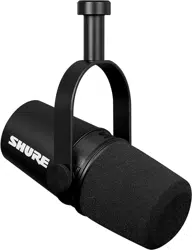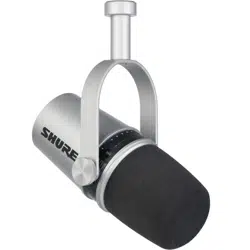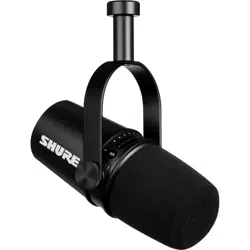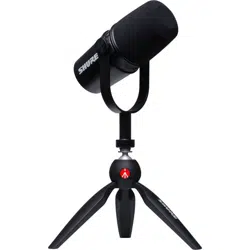
MV7+
Podcast Microphone
In the MV7+ online user guide, learn how to connect, configure, and customize the MV7+ microphone. Use MV7+ with MOTIV Mix or MOTIV
mobile apps to adjust and fine-tune settings.
Version: 1.1 (2024-D)

Shure Incorporated
2/17
Table of Contents
MV7+ Podcast Microphone 3
Update Firmware 3
Important Safety Instructions for Passive Microphones 3
SAFETY PRECAUTIONS 3
General Description 4
Features 4
Connect via USB-C 4
Quick Setup with MOTIV Mix 5
MV7+ Outputs 5
The MOTIV Mix Desktop App 6
Mic Setup in MOTIV Mix 6
LED Touch Panel 8
LED Behavior 8
Mounting Instructions 9
Windscreen 9
Troubleshooting 9
Firmware Update 10
Keep equipment connected during updates 10
System Requirements 10
System Requirements and Compatibility: Mac 11
System Requirements and Compatibility: Windows 11
System Requirements and Compatibility: iOS 11
System Requirements and Compatibility: Android 11
Additional Resources 11
Specifications 11
MV7+ Yoke Assembly 14
Accessories 15
Furnished Accessories 15
Replacement Parts 15
Optional Accessories 15
Certifications 15
Information to the user 16
Environmental Regulatory Information 17

Shure Incorporated
3/17
MV7+
Podcast Microphone
Update Firmware
For the best experience, keep the firmware on your device up to date.
Important Safety Instructions for Passive Microphones
SAFETY PRECAUTIONS
Before using this product, please read and save the enclosed warnings and safety instructions.
WARNING:Ignoringthesewarningsmaycausesevereinjuryordeathasaresultofincorrectopera
tion.
If water or other foreign objects enter the inside of the device, fire or electric shock may result.
Do not attempt to modify this product. Doing so could result in personal injury and/or product failure.
CAUTION:Ignoringthesecautionsmaycausemoderateinjuryorpropertydamageasaresultofin
correct operation.
Never disassemble or modify the device, as failures may result.
Do not subject to extreme force and do not pull on the cable or failures may result.
Keep the microphone dry and avoid exposure to extreme temperatures and humidity.
High sound pressure
Hearing damage risk
To prevent possible hearing damage, do not listen at high volume levels for long periods.
WARNING
LISTENING TO AUDIO AT EXCESSIVE VOLUMES CAN CAUSE PERMANENT HEARING DAMAGE. USE AS LOW A VOL
UME AS POSSIBLE. Over exposure to excessive sound levels can damage your ears resulting in permanent noise-induced
hearing loss (NIHL). Please use the following guidelines established by the Occupational Safety Health Administration (OSHA)
on maximum time exposure to sound pressure levels before hearing damage occurs.
90 dB SPL
at 8 hours
95 dB SPL
at 4 hours
100 dB SPL
at 2 hours
105 dB SPL
at 1 hour

Shure Incorporated
4/17
•
•
•
•
•
•
•
•
•
•
1.
2.
3.
110 dB SPL
at ½ hour
115 dB SPL
at 15 minutes
120 dB SPL
Avoid or damage may occur
General Description
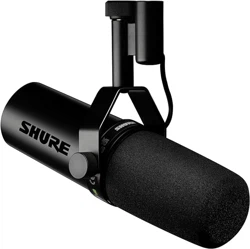
TheShureMV7+isaprofessionalqualityUSBdynamicmicrophone,idealforclosemicapplicationsthatrequirevocalintelligi
bility with a balanced tone. MV7+ provides voice isolation technology and optimized Auto Level mode. The attractive and
durable all-metal design features an adjustable yoke that can be mounted onto a variety of microphone stands for flexible
placement options. A customizable LED panel user interface provides panel color control and touch-muting.
Features
Convenient Plug-and-Play Operation
The MV7+ is compatible with Windows and Mac computers and iOS and Android devices.
Note: See the MOTIV Mix, MOTIV for iOS and Android, or MOTIV Video product pages for information on supported devices.
Voice Isolation Technology
Thehighlydirectionalcardioidpatterncombineswithdigitalsignalprocessingtoisolateyourvoiceandreduceunwantedback
ground noise.
Flexible Sound Control with MOTIV Mix, MOTIV for iOS and Android, and MOTIV Video
MOTIV Mix, MOTIV for iOS and Android, and MOTIV Video offer detailed control over microphone settings.
Auto Level Mode automatically adjusts microphone gain to take the guesswork out of gain and compression settings
Real-time Denoiser handles background noise for clear recordings
Digital Popper Stopper reduces plosives in speech and singing
Tone slider adjusts your sound to the tone of your choice
Reverb settings adds adjustable reverb to your output or monitor mix
Customizable LED panel changes the look of the LED panel to match your setup
Durable, Versatile Design
Record digitally or analog with hybrid USB-C/XLR outputs
Customize the color of the LED touch panel interface
Control plosives with the foam windscreen
Rugged, all-metal construction and excellent cartridge protection for outstanding reliability
Connect via USB-C
Plug the included USB-C cable into your MV7+.
Connect the other end of the USB-C cable to your compatible laptop, phone, or tablet.
Plug your headphones into the monitor output.

Shure Incorporated
5/17
1.
2.
3.
Connecting to a Computer
Connecting to a Tablet
Quick Setup with MOTIV Mix
Use the USB-C cable to plug the microphone into your computer.
The LED panel on the MV7+ will pulse when the connection is made.
Download MOTIV Mix at http://www.shure.com/MOTIVMix.
Your computer may request permission to use the external device the first time the app is opened.
Select your microphone from the Sources panel.
Access customized controls for your MOTIV microphone via the settings gear icon in MOTIV Mix.

Shure Incorporated
6/17
•
•
•
MV7+ Outputs
Passive XLR output: Connect to XLR mixers and interfaces.
Note: XLR audio is not affected by software settings.
3.5mm monitor output: Connect to headphones and earphones for latency-free monitoring
USB-C: Use the included USB-C cable to connect to your computer, phone, or tablet
The MOTIV Mix Desktop App
MOTIV MixisarobustMacandWindowsapplicationthatallowsyoutoconfigureamicrophone,recordsounds,andsaveau
dio recordings from any microphone connected to your computer. For a full description of the features and capabilities of
MOTIV Mix, see the MOTIV Mix user guide.
Use the MOTIV Mix desktop app to quickly adjust settings on the MV7+. To adjust MV7+ settings in MOTIV Mix, select the gear
icon next to the microphone name or in the input panel on the mixer. The device stores the most recently used settings for
quick setup.
Mic Setup in MOTIV Mix
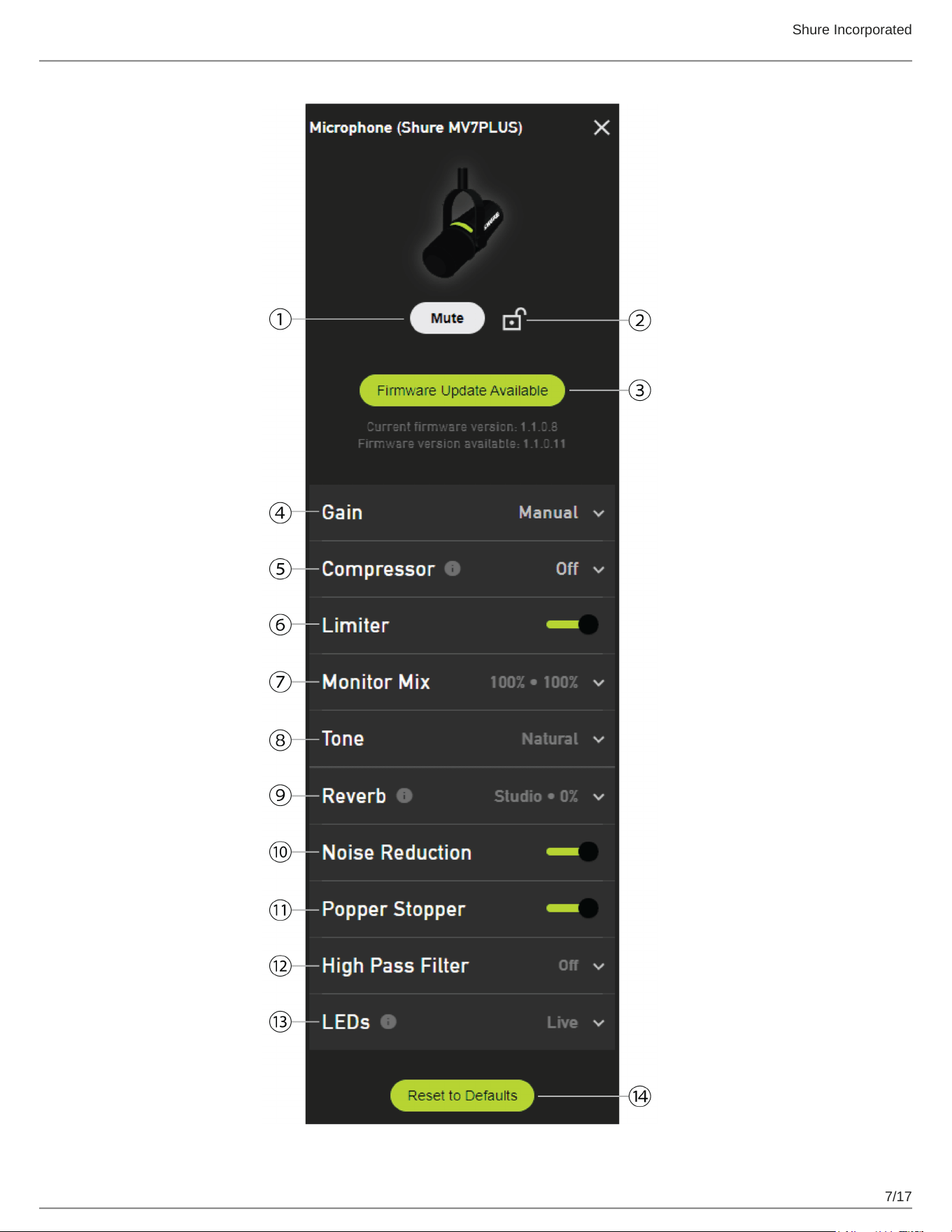
MOTIV MixenablesyoutochangethesettingsonyourMV7+tomatchyourapplicationperfectly.AutoLevelmodeautomati
cally adjusts gain in the moment for clear, quality output. Auto Level mode is the default setting on MV7+. For a more detailed
control of settings, Manual mode allows you to customize the gain, compressor, and limiter to fit your specific application.
Shure Incorporated
7/17

Shure Incorporated
8/17
① Mute/Unmute Click the button to mute and unmute the MV7+. The MV7+ can also be muted or unmuted by touching the
LED panel.
② Mute Lock Selectthelockicontolockorunlockthemicrophonemutestatus.Whilelocked,themicrophonewillremainmut
ed or unmuted. When Mute Lock is enabled, the LED panel will flash red three times when touched.
Mute Lock doesn't persist through a power cycle and will turn off when the MV7+ restarts or is unplugged and plugged back in.
③ Firmware Update When a new firmware update is available, select the Firmware Update Availablebuttontoupdatethede
vice.
④ Gain Auto level mode automatically adjusts gain applied to the microphone. Manualmodegivesfullcontroloverthemicro
phone gain, compression, and limiting. Use the slider to adjust microphone gain in Manual mode.
⑤ Compressor (available in Manual mode) While in Manual mode, select the compression level. Select light, medium or
heavycompressiontoreducethedifferencebetweentheloudestandsoftestpartsofthesignal,makingtheoverallsoundloud
er and more consistent in volume
⑥ Limiter (available in Manual mode) While in Manual mode, enable or disable a limiter. Use a limiter to prevent distortion
from level peaks in your recording.
⑦ Monitor Mix Move the sliders to adjust the levels of mic and PC sound sources in the headphones connected to the device.
⑧ Tone Use the slider to adjust your tone between dark, natural, and bright.
⑨ Reverb Addstudio,plate,orhallreverbtotheoutput,directmonitor,orboth.Adjusttheintensityofthereverbwiththeslid
er.
⑩ Real-time Denoiser Enable or disable the Real-time Denoiser DSP to help reduce unwanted noise.
⑪ Popper Stopper Enable or disable the Popper Stopper DSP to detect and reduce plosives.
⑫ High Pass Filter Reduce unwanted low-frequency rumbling noise with a high pass filter at 75 Hz or 150 Hz.
⑬ LEDs The Live behavior mode uses your Touch Panel for mic level metering. Pulsing mode and Solid mode display colors of
your choice in a pulsing or solid pattern. Adjust the brightness to Low, Med, High, or Max. Select the color theme of the LED
panel in the Meter Color Theme dropdown menu. See LED Behavior for more information on the LED panel.
⑭ Reset to Defaults Select Reset to Defaults to reset your device to factory settings. This will remove all changes you have
made to the device.
LED Touch Panel
Touch the LED bar to mute or unmute the microphone. When the device is muted, the LED panel will display red lights rippling
from the center outwards.
When Mute Lock is enabled, the MV7+ will not mute or unmute when touched, and the LED panel will flash red three times.
Change the color of the LED panel in the MOTIV Mix desktop application.
LED Behavior
USB-C Power on: When powered on via USB-C, the LED panel fades through red, amber and green.
USB-C connection success: On successful USB-C connection, the LED panel will turn green.
USB-C connection failure: If the microphone is unable to connect via USB-C, the LED panel will turn amber.
Mute: When the device is muted, the LED panel will display red lights rippling from the center outwards..
Mute lock: When mute lock is enabled in MOTIV Mix, the LED panel will flash red 3 times when touched.
Gain level: When you adjust gain in MOTIV Mix, a green sliding bar will show the gain level as you adjust.
Monitor mix adjustment: As you adjust the monitor mix in MOTIV Mix,agreenslidingbarwillshowthemiclevelandanam
ber sliding bar will show the PC level.

Shure Incorporated
9/17
LED modes: Configure and customize multiple LED modes in the MOTIV Mixdesktopapp.Selectbetweenlivemetering,puls
ing, or solid patters and customize the color of the LED panel.
Brightness: LED panel brightness can be set in MOTIV Mix.
Firmware update: While the microphone firmware is updating, the LED panel pulses amber.
Keep the microphone connected while the firmware is updating.
Mounting Instructions
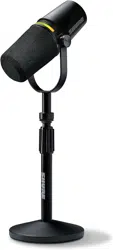
The MV7+ microphone comes equipped with a 5/8"-27 threaded mount, the thread size most commonly found on microphone
stands. This mount can be used with a microphone stand or hung from a boom. Some stands may require an adapter, which is
not provided.
To easily flip the microphone orientation, loosen the screws and rotate 180 degrees.
Note: Be very careful not to unloosen the screws all the way.
Windscreen
Theimprovedwindscreenoffersmaximumprotectionfromplosivesandcreatesawarmer,moreintimatesoundforspeechap
plications like podcasting and gaming.
Troubleshooting
Issue Solution
Microphone is plugged in,
but not detected.
Unplug and reconnect the cable so that the app recognizes the microphone. You'll know that
the connection is made when the LED panel turns green after connecting and powering on.
You hear no audio even
though the desktop appli
Check the Monitor Mix blend. Move the Monitor Mix sliders up to hear the audio going into
the mic and the audio being played back at the same time.

Shure Incorporated
10/17
Issue Solution
cation is displaying the
correct microphone.
Audio is distorted in Auto
Level Mode
Select Auto Level Modetoallowthesoftwaretocontrolgainsettings.Experimentwithdiffer
ent microphone placements. If distortion persists, consider using Manual mode to adjust
your sound.
Audio is distorted in Manu
al Mode
Audio distortion usually comes from overloading the microphone, which causes clipping.
Lower your mic gain for the best sound recording.
Audio sounds higher or
lower pitch than normal.
Yourmicrophoneandcomputerhaveasampleratemismatch.Toadjustyourcomputersam
ple rate settings, go to the ShureFAQtopicforinformationoncorrectingsampleratemis
match.
Note: Windows update 10 v2004 (April 2020) solves this problem.
Microphone has become
detached from the yoke.
See the MV7+ Yoke Assembly Topic for step by step instructions for re-assembling your
yokeandassortedwashers.Correctwasherassemblyiscrucialtoensurethatyourmicro
phone is securely in place.
General troubleshooting
Quit and re-start the app.
Reboot the computer.
Check for a firmware update in MOTIV Mix, MOTIV for iOS and Android, or MOTIV Video for
iOS and Android.
Note: Contact Shure Service and Repair if you continue to experience any issues.
Firmware Update
Take advantage of additional features and design enhancements by updating the firmware in MOTIV Mix, MOTIV for iOS and
Android, or MOTIV Video for iOS and Android when prompted.
In MOTIV Mix, when a firmware update is available, the Firmware Update Available button will appear in the settings panel of
your MV7+. Select the button to update your firmware.
Leave the MV7+ plugged in until the firmware update is complete. The LED panel pulses amber while the firmware updates.
Contact Shure Service and Repair if you experience any issues.
Keep equipment connected during updates
KeepyourMOTIVdeviceconnectedtoyourcomputerormobiledevicewhenupdatingtoensurethattherearenoupdateis
sues.
System Requirements
Check the MOTIV Mix app or MOTIV mobile apps for the latest information on system requirements and compatibility.

Shure Incorporated
11/17
•
•
•
•
•
•
•
•
•
•
•
•
•
•
•
System Requirements and Compatibility: Mac
MacOS 12 and higher
Minimum 8 GB of RAM
Minimum 20% of hard disk space
System Requirements and Compatibility: Windows
Windows 10 and higher
Minimum 8 GB of RAM
Minimum 20% of hard disk space
System Requirements and Compatibility: iOS
iOS: iOS 16 and higher
System Requirements and Compatibility: Android
Android 12.0 and higher
Android is a trademark of Google Inc.
Note: See the MOTIV Mix, MOTIV for iOS and Android, or MOTIV Video product pages for information on supported Android devices.
Additional Resources
Shure Knowledge Base FAQs
Training from the Shure Audio Institute
Microphone Techniques for Recording
Houses of Worship Systems Guide
Shure Performance & Production YouTube channel
Shure Creators YouTube channel
Download Shure Software
Software and firmware archive
Specifications
Transducer Type
Dynamic (moving coil)
Polar Pattern
Unidirectional (Cardioid)
A/D Converter
16 or 24-bit, 44.1 or 48 kHz

Shure Incorporated
12/17
Frequency Response
50Hzto16,000Hz
Adjustable Gain Range
0to+36dB
Sensitivity
(@ 1 kHz, open circuit voltage with XLR connection) 55dBV/Pa[1][2](1.78mV)
(@ 1 kHz, open circuit voltage with USB-C connection) 33dBV/Pa[1][2]
USB-C Maximum SPL
128dBSPL[2]
On-Board DSP
Auto-Level Mode, Digital Popper Stopper, Real-time Denoiser, Tone Slider, Reverb, Compressor, Limiter,
High-Pass Filter
Headphone Output
3.5mm(1/8″)
Power Requirements
USB Audio Class 2 (UAC2), Powered through USB-C bus power (USB 2.0 or higher)
MFi Certified
Yes
Software Compatibility
Desktop MOTIV Mix Desktop App
Mobile Shure MOTIV Audio & Video Apps
Output Impedance
(at 1 kHz with XLR connection)
350Ωat1kHz
Connector Type
USB-C and XLR
Mounting Type
5/8" - 27 thread mount
Housing
Diecast aluminum
Net Weight
573.5g(1.26lbs)

Shure Incorporated
13/17
Cable
Includes one (1) 3m USB-C to USB-C cable
Polarity
Positive pressure on diaphragm produces positive voltage on XLR pin 2 with respect to pin 3
Phantom Power Protection
Yes
[1]1Pa=94dBSPL
[2] At Minimum Gain, Flat Mode
Bit Depth Sampling Rate
24 48 kHz
24 44.1 kHz
16 48 kHz
16 44.1 kHz
Typical Frequency Response
Typical Polar Pattern

Shure Incorporated
14/17
1.
2.
◦
◦
◦
◦
3.
4.
Overall Dimensions
MV7+ Yoke Assembly
TheMV7+yokeallowsapodcastertobeflexiblewithmicplacement.Loosentheyokeknobsandyoucanadjustthemicro
phoneinavarietyangles.Ifthemicrophonebecomesdetachedfromtheyoke,thesearethestepstoputittogetherinthecor
rectordertoensurethatyourmicrophoneissecure.Eachsideusesonethingrayspringwasher,oneshinysilverbrasswash
er, two black plastic washers and the yoke and threaded yoke knob.
Start with the threaded knob flat side down on your tabletop.
Stack the washers on the threaded knob.
Place a black plastic washer on the knob.
Place one side of the yoke on next.
Then put the second black plastic washer on.
Place the flat silver washer and then the thin spring washer on the threaded knob.
Using your finger to hold the screw assembly in place, slide the MV7+ onto the threaded screw and turn the
knob to keep washers in place.
Note: Be sure to keep this side on but loose so that you have room to easily move the yoke and assemble the washers
on the opposite side.
On the opposite yoke arm, place the washers into the side of the MV7+ in reverse order. Thin spring washer >
Flat silver washer > Black plastic washer > Yoke arm

Shure Incorporated
15/17
5.
6.
7.
The yoke arm needs to be placed directly onto the stack of washers. To ensure that the washers are aligned,
put a pen through the yoke and washers to make sure that everything is properly centered. Leave pen in place.
Place the second black plastic washer onto the remaining threaded knob.
Remove the pen. Insert the threaded knob and black plastic washer into the stacked washers and tighten both
sides to ensure that your microphone is stable.
Accessories
Furnished Accessories
3 meter USB-C to USB-C Cable 95C52640
Black Foam Windscreen AMV7+K
Replacement Parts
Black Windscreen AMV7+K
Black Replacement Grille 95B41550
Optional Accessories
15 in. USB-C to Lightning cable AMV-USBC-LTG15
Desktop Base (5 in/127 mm) 95A58937
Telescoping Post/Clutch Assembly (6 in to 8 in/153 mm
to 203 mm)
95A58978
Base Mount Adapter (5/8 in to 3/8 in) 31A59068
Shure Incorporated
16/17
•
•
•
•
1.
2.
Certifications
Information to the user
This equipment has been tested and found to comply with the limits for a Class B digital device, pursuant to part 15 of the FCC
Rules. This equipment generates, uses, and can radiate radio frequency energy and, if not installed and used in accordance
with the manufacturer's instruction manual, may cause interference with radio and television reception.
Notice: The FCC regulations provide that changes or modifications not expressly approved by Shure Incorporated could void
your authority to operate this equipment.
Theselimitsaredesignedtoprovidereasonableprotectionagainstharmfulinterferenceinaresidentialinstallation.Thisequip
mentgenerates,uses,andcanradiateradiofrequencyenergyand,ifnotinstalledandusedinaccordancewiththeinstruc
tions, may cause harmful interference to radio communications. However, there is no guarantee that interference will not occur
inaparticularinstallation.Ifthisequipmentdoescauseharmfulinterferencetoradioortelevisionreception,whichcanbede
termined by turning the equipment off and on, the user is encouraged to try to correct the interference by one or more of the
following measures:
Reorient or relocate the receiving antenna.
Increase the separation between the equipment and the receiver.
Connect the equipment to an outlet on a circuit different from that to which the receiver is connected.
Consult the dealer or an experienced radio/TV technician for help.
This device complies with part 15 of the FCC Rules. Operation is subject to the following two conditions:
This device may not cause harmful interference.
This device must accept any interference received, including interference that may cause undesired operation.
This Class B digital apparatus complies with Canadian ICES-003. Cet appareil numérique de la classe B est conforme à la
norme NMB-003 du Canada.
For information regarding responsible party and other matters relating to FCC compliance, please contact Shure Incorporated,
5800 W. Touhy Avenue, Niles, Illinois 60714-4608 U.S.A. shure.com/contact
Industry Canada ICES-003 Compliance Label: CAN ICES-3 (B)/NMB-3(B)
Canada, ISED Notice
Notice: The Industry Canada regulations provide that changes or modifications not expressly approved by Shure Inc. could
void your authority to operate this equipment.
This microphone for use with any microphone stand with a 5/8" threaded adapter.
Note: Testingisbasedontheuseofsuppliedandrecommendedcabletypes.Theuseofotherthanshielded(screened)cabletypesmaydegradeEMCper
formance.
CE Notice
Hereby,ShureIncorporateddeclaresthatthisproductwithCEMarkinghasbeendeterminedtobeincompliancewithEuro
pean Union requirements.
The full text of the EU declaration of conformity is available at the following site: https://www.shure.com/enEU/support/declara
tions-of-conformity.

Shure Incorporated
17/17
UKCA Notice
Hereby,ShureIncorporateddeclaresthatthisproductwithUKCAMarkinghasbeendeterminedtobeincompliancewithUK
CA requirements.
The full text of the UK declaration of conformity is available at the following site: https://www.shure.com/enGB/support/declara
tions-of-conformity.
This product meets the Essential Requirements of all relevant European directives and is eligible for CE marking.
Made for iPad (5th generation), iPad (6th generation, iPad (7th generation, iPad (8th generation), iPad Air 2, iPad Air 3, iPad
Mini4,iPadMini5,iPadPro9.7inch(1stgeneration),iPadPro(12.9inch)1stgeneration,iPadPro10.5inch2017(2ndgen
eration), iPad Pro 12.9-inch 2017 (2nd generation), iPhone 6s, iPhone 6s Plus, iPhone SE, iPhone 7, iPhone 7 Plus, iPhone 8,
iPhone 8 Plus, iPhone X, iPhone Xs, iPhone Xs Max, iPhone XR, iPhone 11, iPhone 11 Pro, iPhone 11 Pro Max, iPhone 12,
iPhone 12 Mini, iPhone 12 Pro, iPhone 12 Pro Max, iPhone SE 2, iPod Touch (7th generation).
iPad, iPhone, iPod and iPod touch are trademarks of Apple Inc., registered in the U.S. and other countries. iPad Air, iPad mini,
andLightningaretrademarksofAppleInc.Thetrademark“iPhone”isusedinJapanwithalicensefromAiphoneK.K.
Android Compatibility
This equipment is compatible with Android devices that support USB Audio Class 2.0 and USB-C connectivity. Not all Android
devices are compatible. Android is a trademark of Google Inc.
Recycling Information
Please consider the environment, electric products and packaging are part of regional recycling schemes and do not belong to
regular household waste.
Environmental Regulatory Information
Waste Electrical and Electronic Equipment (WEEE) Directive
In the European Union and the United Kingdom, this label indicates that this product should not be disposed of with household
waste. It should be deposited at an appropriate facility to enable recovery and recycling.
Registration, Evaluation, Authorization of Chemicals (REACH) Directive
REACH (Registration, Evaluation, Authorization of Chemicals) is the European Union (EU) and the United Kingdom (UK)
chemical substances regulatory framework. Information on substances of very high concern contained in Shure products in a
concentration above 0.1% weight over weight (w/w) is available upon request.