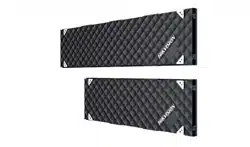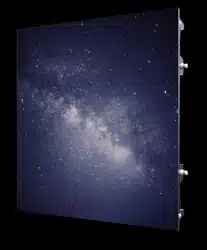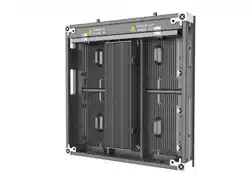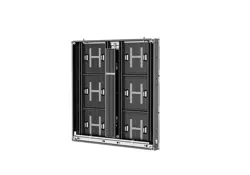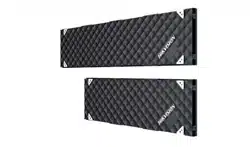

Indoor Fixed LED Display Unit
Installation Guide
Indoor Fixed LED Display Unit Installation Guide
i
Legal Information
©2022 Hangzhou Hikvision Digital Technology Co., Ltd. All rights reserved.
About this Manual
The Manual includes instructions for using and managing the Product. Pictures, charts, images and
all other information hereinafter are for description and explanation only. The information
contained in the Manual is subject to change, without notice, due to firmware updates or other
reasons. Please find the latest version of this Manual at the Hikvision website
(https://www.hikvision.com/).
Please use this Manual with the guidance and assistance of professionals trained in supporting the
Product.
Trademarks
and other Hikvision's trademarks and logos are the properties of
Hikvision in various jurisdictions.
Other trademarks and logos mentioned are the properties of their respective owners.
: The terms HDMI and HDMI High-Definition Multimedia Interface, and the HDMI
Logo are trademarks or registered trademarks of HDMI Licensing Administrator, Inc. in the United
States and other countries.
Disclaimer
TO THE MAXIMUM EXTENT PERMITTED BY APPLICABLE LAW, THIS MANUAL AND THE PRODUCT
DESCRIBED, WITH ITS HARDWARE, SOFTWARE AND FIRMWARE, ARE PROVIDED "AS IS" AND
"WITH ALL FAULTS AND ERRORS". HIKVISION MAKES NO WARRANTIES, EXPRESS OR IMPLIED,
INCLUDING WITHOUT LIMITATION, MERCHANTABILITY, SATISFACTORY QUALITY, OR FITNESS FOR
A PARTICULAR PURPOSE. THE USE OF THE PRODUCT BY YOU IS AT YOUR OWN RISK. IN NO EVENT
WILL HIKVISION BE LIABLE TO YOU FOR ANY SPECIAL, CONSEQUENTIAL, INCIDENTAL, OR INDIRECT
DAMAGES, INCLUDING, AMONG OTHERS, DAMAGES FOR LOSS OF BUSINESS PROFITS, BUSINESS
INTERRUPTION, OR LOSS OF DATA, CORRUPTION OF SYSTEMS, OR LOSS OF DOCUMENTATION,
WHETHER BASED ON BREACH OF CONTRACT, TORT (INCLUDING NEGLIGENCE), PRODUCT
LIABILITY, OR OTHERWISE, IN CONNECTION WITH THE USE OF THE PRODUCT, EVEN IF HIKVISION
HAS BEEN ADVISED OF THE POSSIBILITY OF SUCH DAMAGES OR LOSS.
YOU ACKNOWLEDGE THAT THE NATURE OF THE INTERNET PROVIDES FOR INHERENT SECURITY
RISKS, AND HIKVISION SHALL NOT TAKE ANY RESPONSIBILITIES FOR ABNORMAL OPERATION,
PRIVACY LEAKAGE OR OTHER DAMAGES RESULTING FROM CYBER-ATTACK, HACKER ATTACK,
VIRUS INFECTION, OR OTHER INTERNET SECURITY RISKS; HOWEVER, HIKVISION WILL PROVIDE
TIMELY TECHNICAL SUPPORT IF REQUIRED.
YOU AGREE TO USE THIS PRODUCT IN COMPLIANCE WITH ALL APPLICABLE LAWS, AND YOU ARE
SOLELY RESPONSIBLE FOR ENSURING THAT YOUR USE CONFORMS TO THE APPLICABLE LAW.
ESPECIALLY, YOU ARE RESPONSIBLE, FOR USING THIS PRODUCT IN A MANNER THAT DOES NOT
INFRINGE ON THE RIGHTS OF THIRD PARTIES, INCLUDING WITHOUT LIMITATION, RIGHTS OF

Indoor Fixed LED Display Unit Installation Guide
ii
PUBLICITY, INTELLECTUAL PROPERTY RIGHTS, OR DATA PROTECTION AND OTHER PRIVACY RIGHTS.
YOU SHALL NOT USE THIS PRODUCT FOR ANY PROHIBITED END-USES, INCLUDING THE
DEVELOPMENT OR PRODUCTION OF WEAPONS OF MASS DESTRUCTION, THE DEVELOPMENT OR
PRODUCTION OF CHEMICAL OR BIOLOGICAL WEAPONS, ANY ACTIVITIES IN THE CONTEXT RELATED
TO ANY NUCLEAR EXPLOSIVE OR UNSAFE NUCLEAR FUEL-CYCLE, OR IN SUPPORT OF HUMAN
RIGHTS ABUSES.
IN THE EVENT OF ANY CONFLICTS BETWEEN THIS MANUAL AND THE APPLICABLE LAW, THE
LATTER PREVAILS.
Indoor Fixed LED Display Unit Installation Guide
i
Symbol Conventions
The symbols that may be found in this document are defined as follows.
Symbol
Description
Danger
Indicates a hazardous situation which, if not avoided, will or could
result in death or serious injury.
Caution
Indicates a potentially hazardous situation which, if not avoided,
could result in equipment damage, data loss, performance
degradation, or unexpected results.
Note
Provides additional information to emphasize or supplement
important points of the main text.
Safety Instruction
For safety concerns, the device has been strictly tested before shipment. However, incorrect
installation or usage may lead to hazardous results such as electric shock and fire. To ensure the
service life and best performance of the device, please read the notice and plate signs carefully
and follow the safety instructions. Keep this guide properly for later use.
Caution
● To ensure safety, the installation parts and the wall should support four times the weight of the
device.
● Install the device no more than 5 mm away from the wall or other metal racks in case of lamp
board drop resulting in electric shock.
● Please set the brightness of the LED display within 500 nits to avoid power overload.
● The device may generate radio interference in indoor environment. Necessary precautions may
be required.
● To reduce the risk of fire or electric shock, please do not expose the device to rain or humid
environment.
● Electric discharge may last for a short period of time after the power is shut down. Please wait
two minutes after the power is shut down before operating the device.
● To avoid the risk of electric shock, please do not operate when the power is on.
● Please do not plug and unplug the power cable when the power is on.
● Ensure the correct wire sequence of the terminals connected to the AC power supply.
● Do not place anything containing liquid on the device to avoid the risk of fire or electric shock
caused by liquid-splashing.
● The device is only suitable for installation on the concrete or non-flammable surfaces, to
prevent molten material from dripping to the bottom during fire caused by internal failure.
● Keep 90 degrees when moving and using the device.
Indoor Fixed LED Display Unit Installation Guide
ii
● After installation, there should be no openings around the LED module. The bottom bracket
under the wire outlet position should completely cover the bottom hole only to let the wire out,
to prevent the molten material from dripping to the bottom during fire caused by internal
failure.
Warning
● In the use of the product, you must be in strict compliance with the electrical safety regulations
of the nation and region.
● Disconnect the power plug before maintenance.
● Make sure the power supply is well-grounded.
● The protective grounding of the device should be reliably connected to the building protective
grounding.
● To reduce the risk of electric shock, install protective shield on the exposed connector after
installing LED screen.
● Disconnect the power plug before installing the protective shield.
● A disconnecting device should be provided on the outside of the equipment. A single device is
recommended for AC 220 V / 230 V / 240 V, 6 A circuit breakers. When multiple devices are
superimposed, a suitable circuit breaker should be selected according to the total rated current,
but it must not exceed the building equipped circuit specifications.
● To prevent injury, the device must be securely fixed to the ground, wall, ceiling, or steel frame.
The all-in-one rack should be fixed to the ground with expansion screws.
● The supporting rack can only be used with the device. Using it with other devices may cause
instability and injury.
● The device can only be used with the supporting rack. Using it with other equipment (such as a
cart, shelf, or handling device) may cause instability and injury.
● Please strictly follow the installation method in this guide.
● The external wire connection between device and hazardous electonic teminals should be
operated by professionals.
● This is a class A product and may cause radio interference in which case the user may be
required to take adequate measures.

Indoor Fixed LED Display Unit Installation Guide
iii
Contents
Chapter 1 Product Introduction ...................................................................................................... 1
1.1 Overview ........................................................................................................................... 1
1.2 Product Components ........................................................................................................ 1
Chapter 2 Rack Installation............................................................................................................. 2
2.1 About Rack ........................................................................................................................ 2
2.2 Install the Rack.................................................................................................................. 2
2.2.1 Precautions ............................................................................................................ 2
2.2.2 Install the Wall-Mounted Rack ............................................................................... 2
2.2.3 Install the Ultrathin Rack...................................................................................... 10
2.2.4 Install the All-in-One Rack .................................................................................... 24
Chapter 3 Cabinet Installation ...................................................................................................... 43
3.1 Introduction .................................................................................................................... 43
3.1.1 About the Cabinet ................................................................................................ 43
3.1.2 Load Capability of the Cabinet ............................................................................. 43
3.1.3 Cabinet Overview ................................................................................................. 43
3.2 Install the Cabinets ......................................................................................................... 45
3.2.1 Precautions .......................................................................................................... 45
3.2.2 Stitch Cabinet Frames .......................................................................................... 46
3.3 Connect the Power Cords and Network Cables............................................................... 48
3.3.1 Connect the Power Cords ..................................................................................... 48
3.3.2 Connect the Network Cables ................................................................................ 50
3.4 Maintain the Cabinet ...................................................................................................... 52
3.4.1 Maintain the Lamp Boards ................................................................................... 52
3.4.2 Maintain Other Components ............................................................................... 55
Chapter 4 Software Debugging ..................................................................................................... 56
4.1 LED Display Controller Settings ....................................................................................... 56
4.1.1 Login ..................................................................................................................... 56
4.1.2 Set Screen............................................................................................................. 57
4.2 Release Program ............................................................................................................. 59

Indoor Fixed LED Display Unit Installation Guide
1
Chapter 1 Product Introduction
1.1 Overview
Indoor fixed LED display unit (hereinafter referred to as the device, the product, or the LED) is a
high-precision product delivering clear and vivid images. It is featured by wide color gamut, stable
performance, long service life, strong environmental adaption, cost effective and little cost to use.
The device is applicable to scenes, such as radio and television stations, meeting room display,
video security, information display, etc.
1.2 Product Components
An LED control system includes sending and receiving cards. The sending card packages images
and sends them to the receiving card. The receiving card unpackages and processes the images,
and then displays the images on the LED display unit.
The center distance between two pixels is called pixel pitch. The smaller pixel pitch results in
higher pixel density per unit area, higher resolution and higher cost. For example, P1.2 indicates
1.2 mm pixel pitch.
Our products are rack-mount system, so the installation process mainly involves rack installation
and cabinet installation. The following sections describe how to install the rack and cabinet in
details.

Indoor Fixed LED Display Unit Installation Guide
2
Chapter 2 Rack Installation
2.1 About Rack
There are three types of racks for installing our full-color LED products: wall-mounted rack,
ultrathin rack and all-in-one rack. The wall-mounted rack is used for installing front-maintenance
cabinets only. The ultrathin rack and all-in-one rack can be used for installing front-maintenance
cabinets and back-maintenance cabinets. The rack models vary depending on the project scale and
installation environment, so the rack illustrations in this manual are for reference only.
2.2 Install the Rack
2.2.1 Precautions
● Installation personnel must wear protective gear.
● Take safety measures when working at heights.
● Make sure that the rack is mounted vertically to the flat ground without tilting or twisting.
● Check that all structural parts and fasteners are fully mounted without missing.
● After all the accessories are mounted, clean all the debris in the rack and avoid metal debris
being remained.
2.2.2 Install the Wall-Mounted Rack
The wall-mounted rack is used for installing front-maintenance cabinets only.
Install the Base Frame
Steps
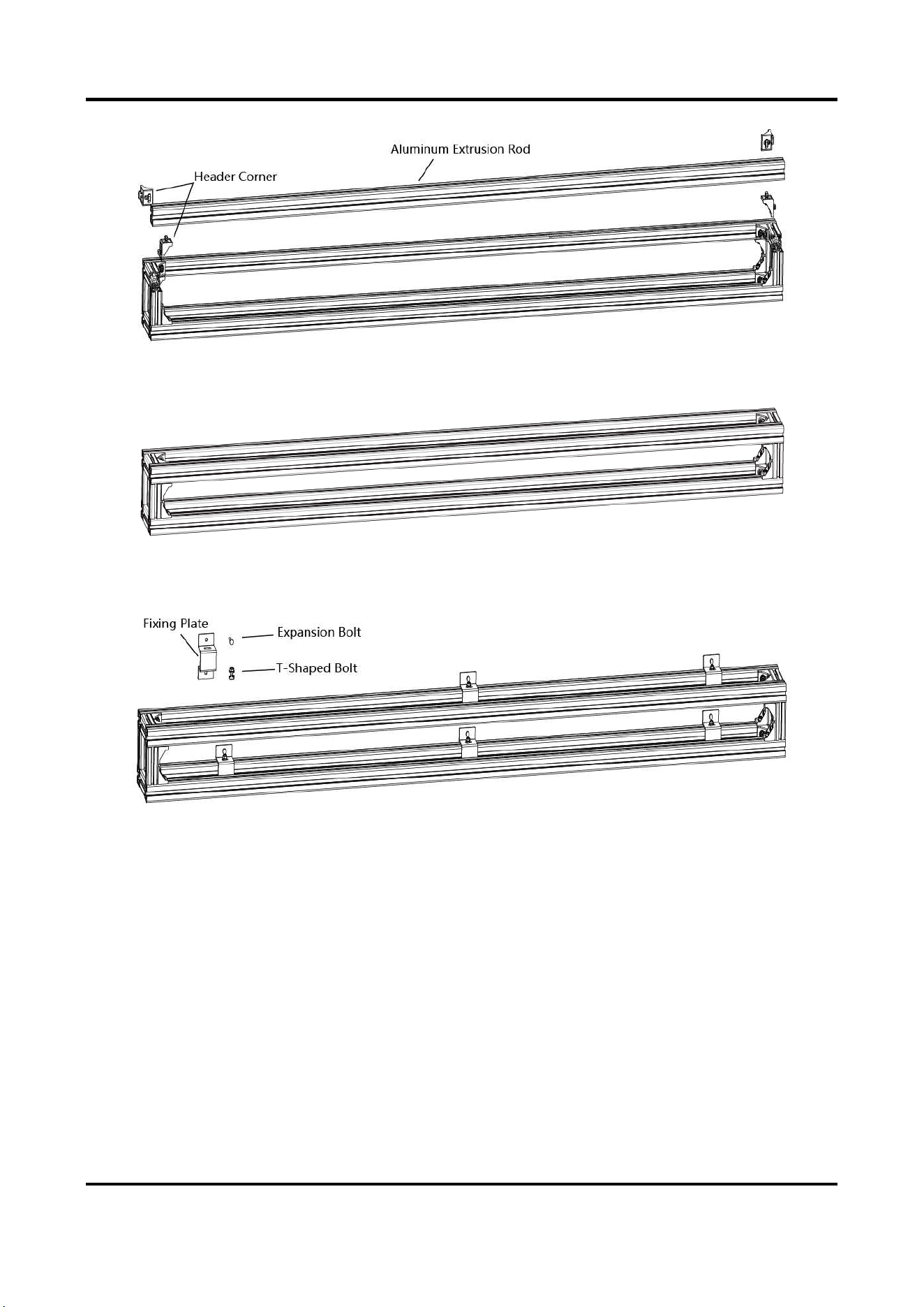
1. Use header corners to connect aluminum extrusion rods from bottom to top.
Indoor Fixed LED Display Unit Installation Guide
3
Figure 2-1 Assemble the Base Frame
Figure 2-2 Base Frame Assembled
2. Use expansion bolts, T-Shaped bolts and fixing plates to fix the base frame onto the wall.
Figure 2-3 Fix the Base Frame onto the Wall
Install the Rack Frame
Steps
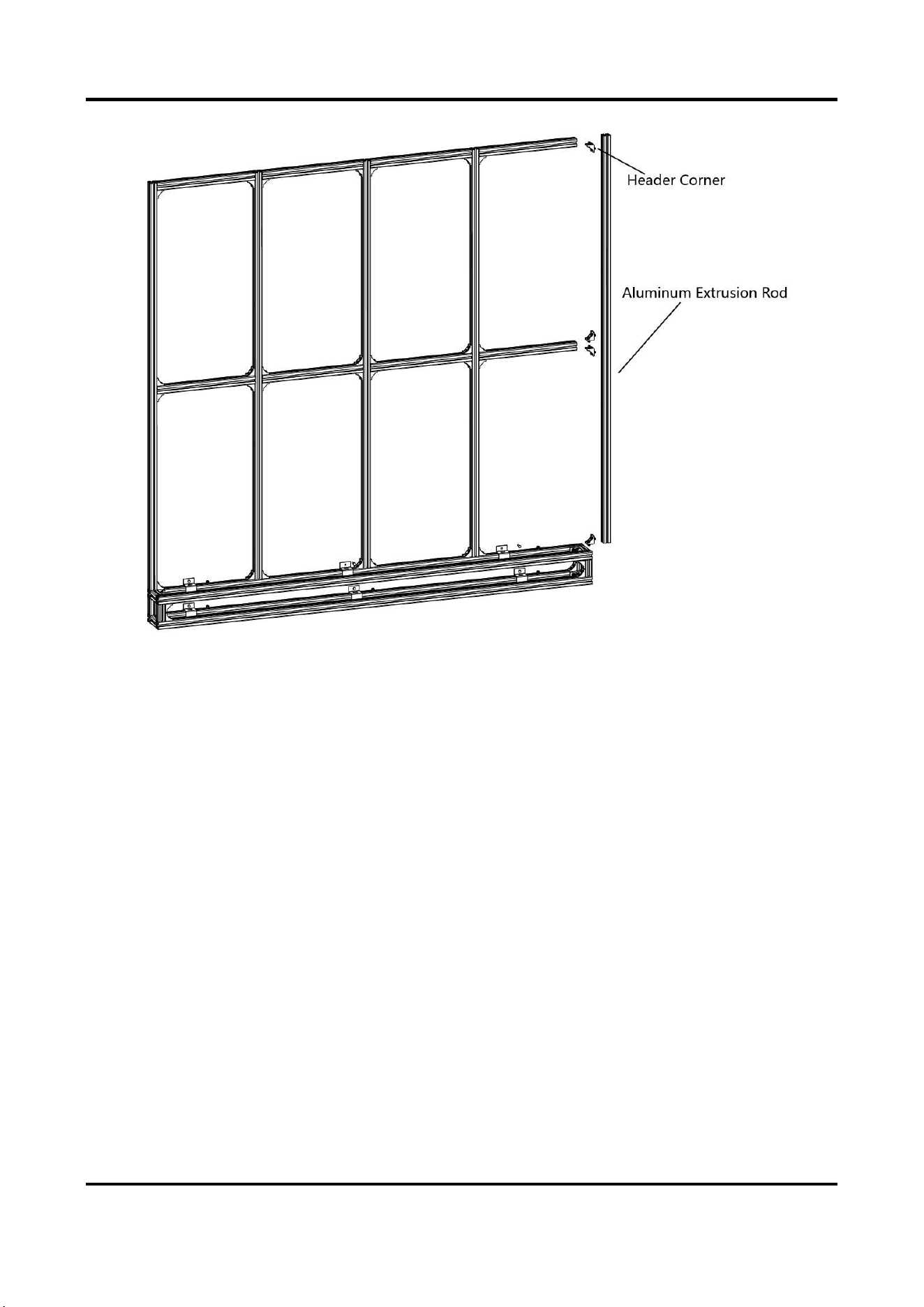
1. Use the header corners to connect aluminum extrusion rods to the base frame from left to
right.
Indoor Fixed LED Display Unit Installation Guide
4
Figure 2-4 Assemble the Rack Frame
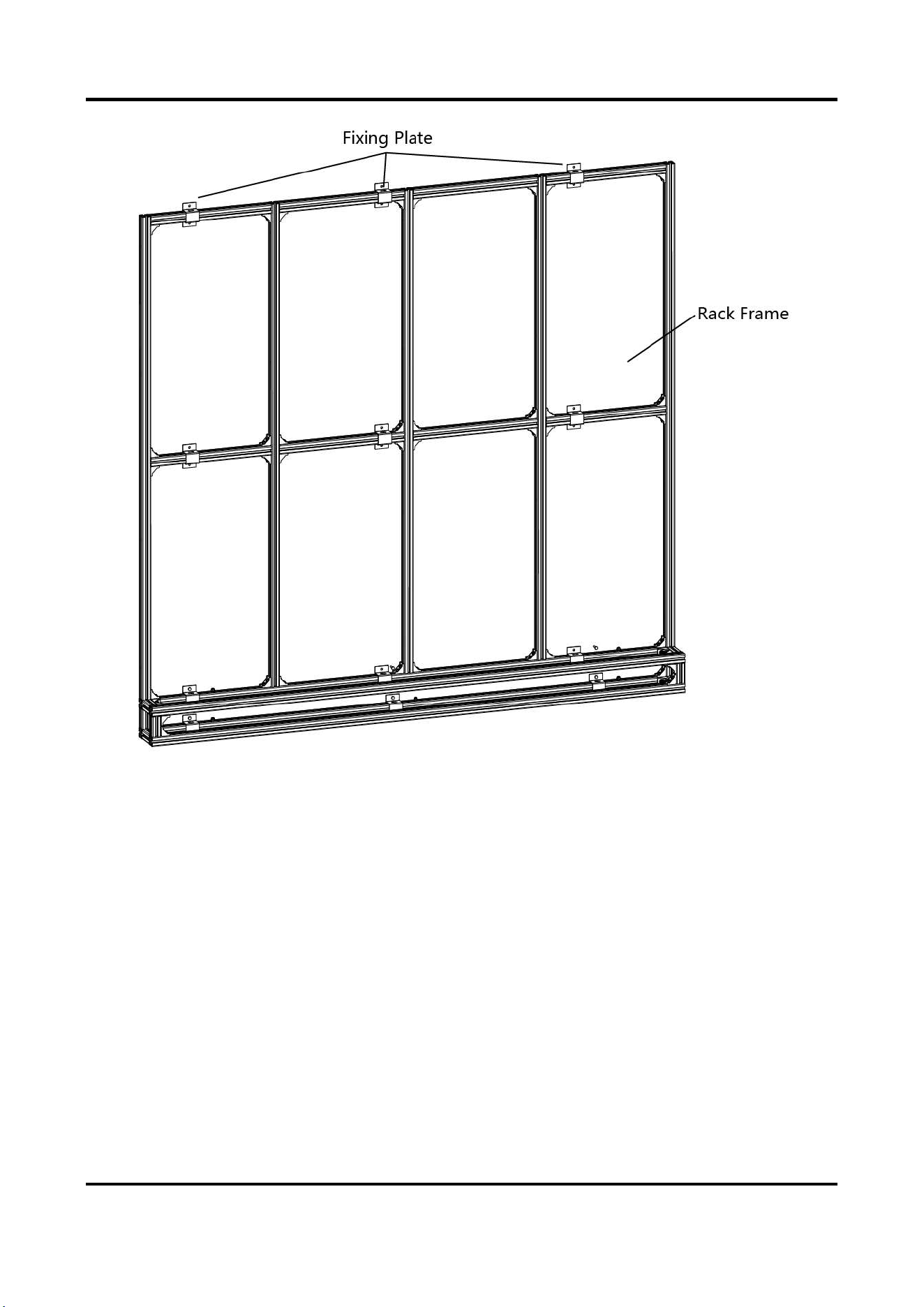
2. Use expansion bolts, T-Shaped bolts and fixing plates to fix the rack frame onto the wall.
Indoor Fixed LED Display Unit Installation Guide
5
Figure 2-5 Fix the Rack Frame onto the Wall
Install Cabinets into the Rack Frame
After base frame and rack frame are well installed, perform the following steps to install the
cabinets into the rack frame:
Steps
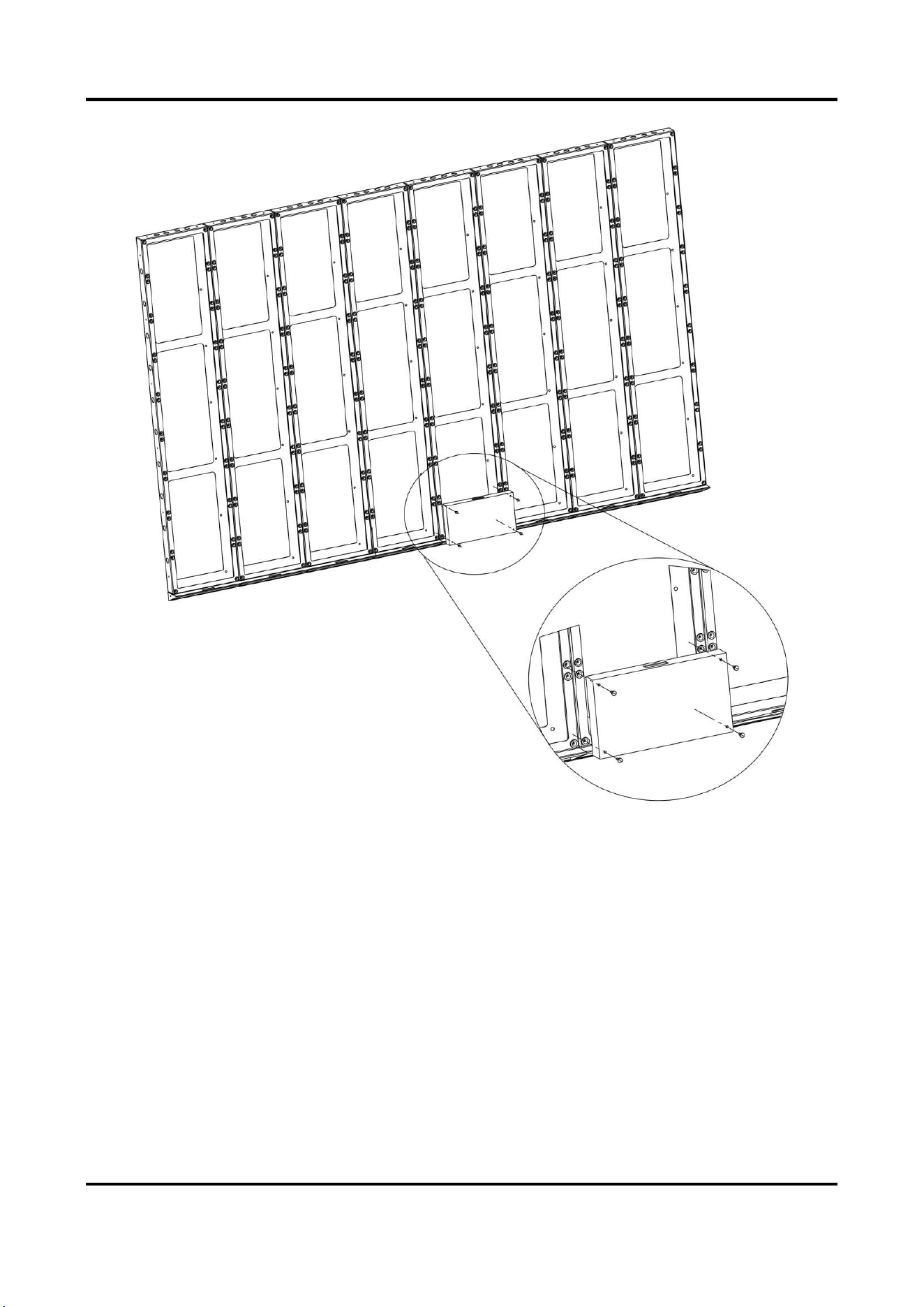
1. Install the mounting screws through the holes on the front of the cabinet and lock with the
floating nuts on the bracket frame.
Indoor Fixed LED Display Unit Installation Guide
6
Figure 2-6 Fix the Screen
Indoor Fixed LED Display Unit Installation Guide
7
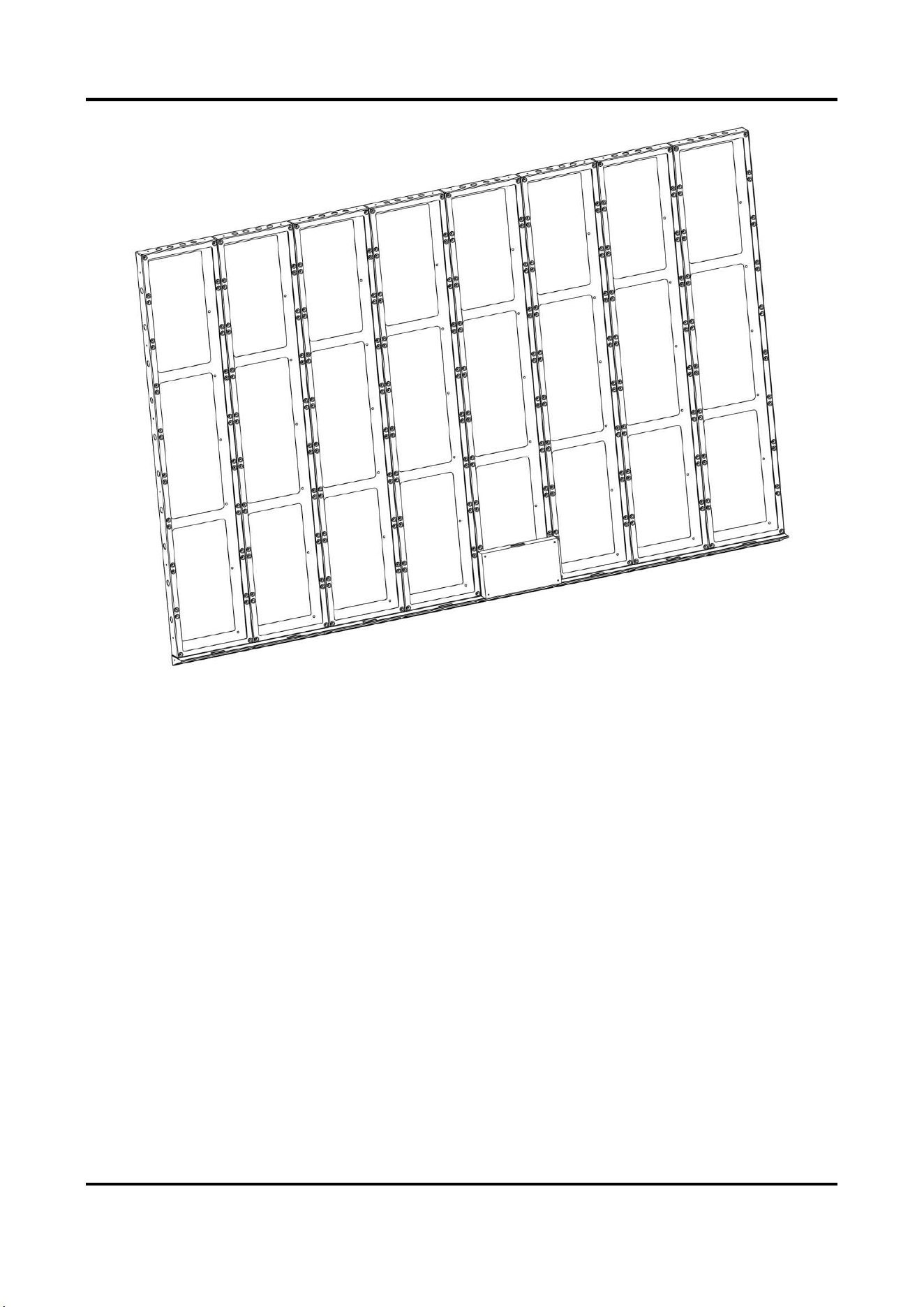
Figure 2-7 Screen Fixed
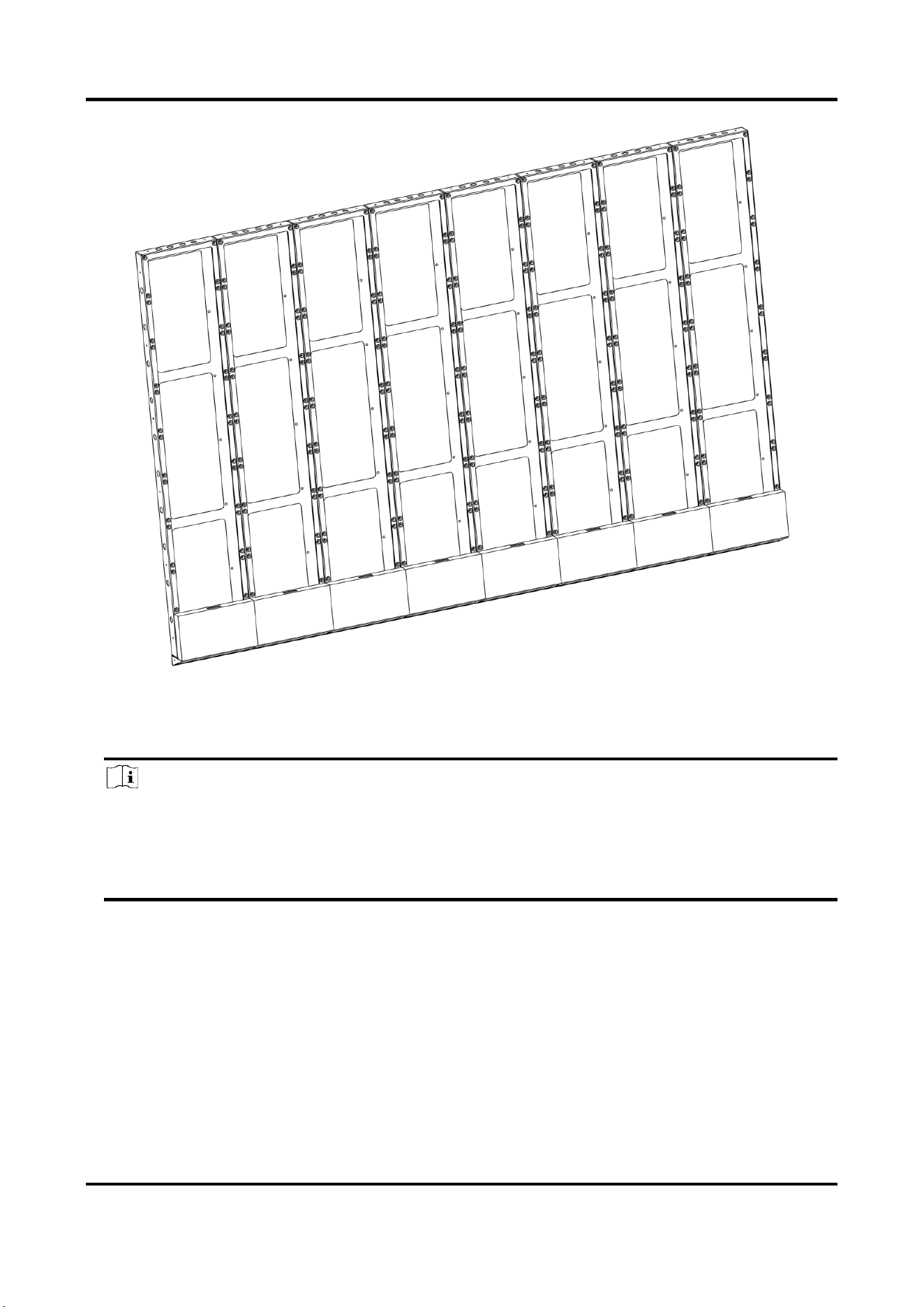
2. Install the cabinets from the center to both sides until cabinets of the first row installed.
Indoor Fixed LED Display Unit Installation Guide
8
Figure 2-8 Screens Fixed
3. Repeat the above steps to install the other cabinets in the above rows.
4. Use a level to measure and ensure that the cabinets are flat and vertical.
Note
● Do not fix the screws between the connectors and cabinets too tight for future adjustment.
● In normal cases, lock out LED lamp boards after they are adjusted horizontally and vertically
because the boards will probably be moved during the installation of other lamp boards.
● Ensure that the screen is flat and without evident gap. Otherwise, make some adjustments.
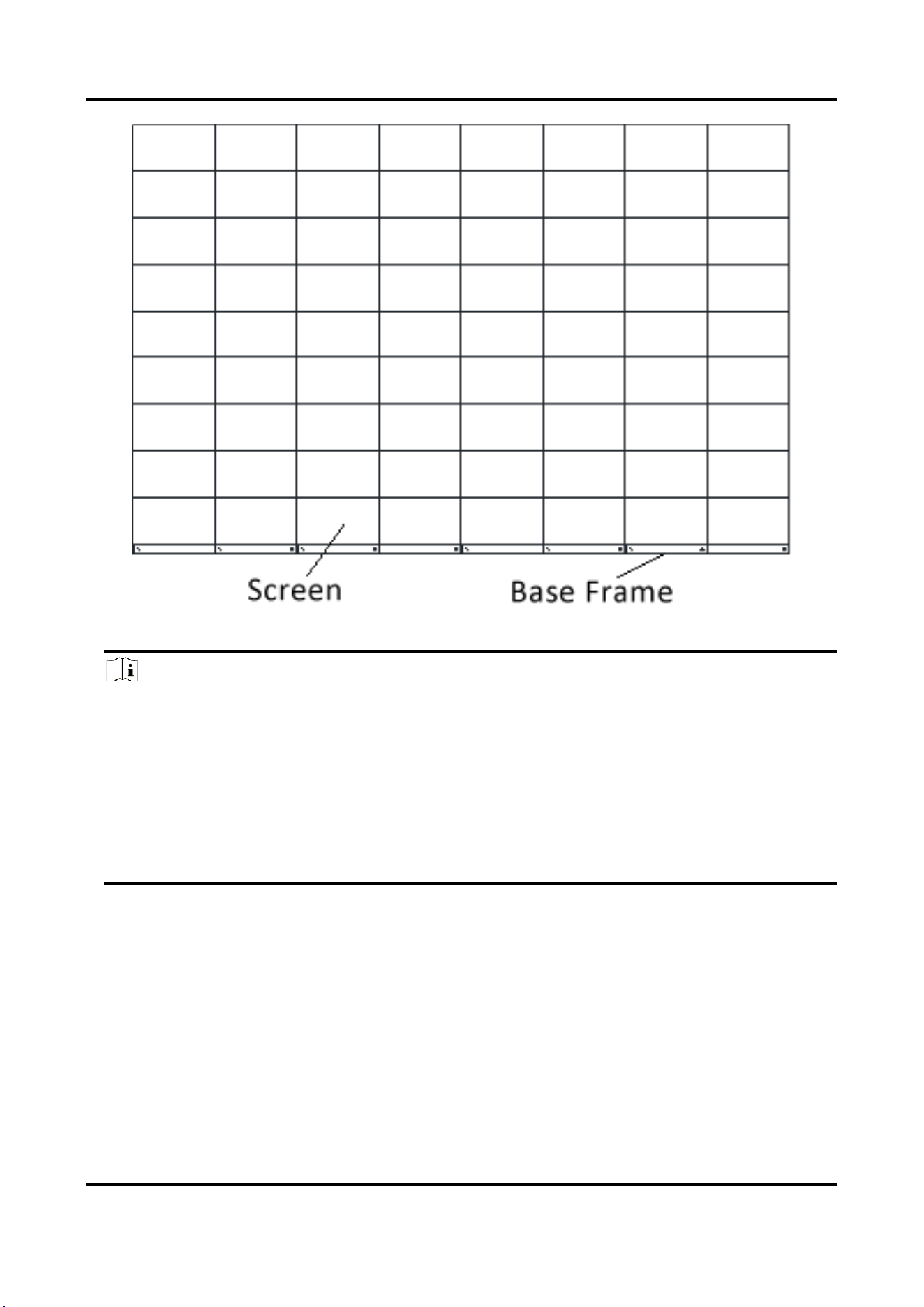
Indoor Fixed LED Display Unit Installation Guide
10
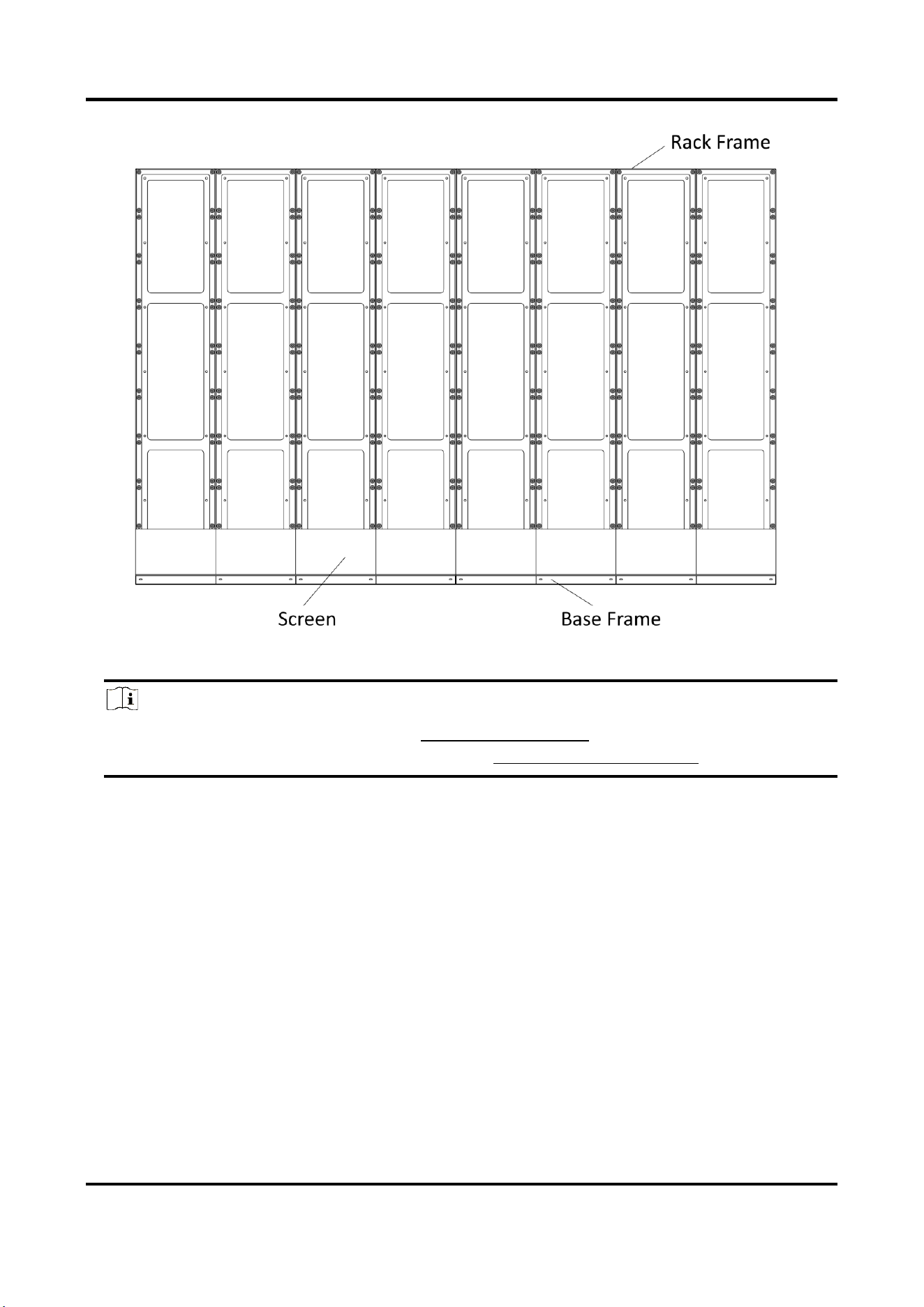
Figure 2-10 Screen Installation Finished
Note
● Install the device no more than 5 mm away from the wall or other metal racks in case of lamp
board drop resulting in electric shock.
● After installation, there should be no openings around the LED module. The bottom bracket
under the wire outlet position should completely cover the bottom hole only to let the wire
out, to prevent the molten material from dripping to the bottom during fire caused by
internal failure.
● To ensure safety, the installation parts and the wall should support four times the weight of
the device.
2.2.3 Install the Ultrathin Rack
The ultrathin racks are used for mounting front-maintenance products and rear-maintenance
Indoor Fixed LED Display Unit Installation Guide
11
products.
Install the Bottom Chassis
Steps
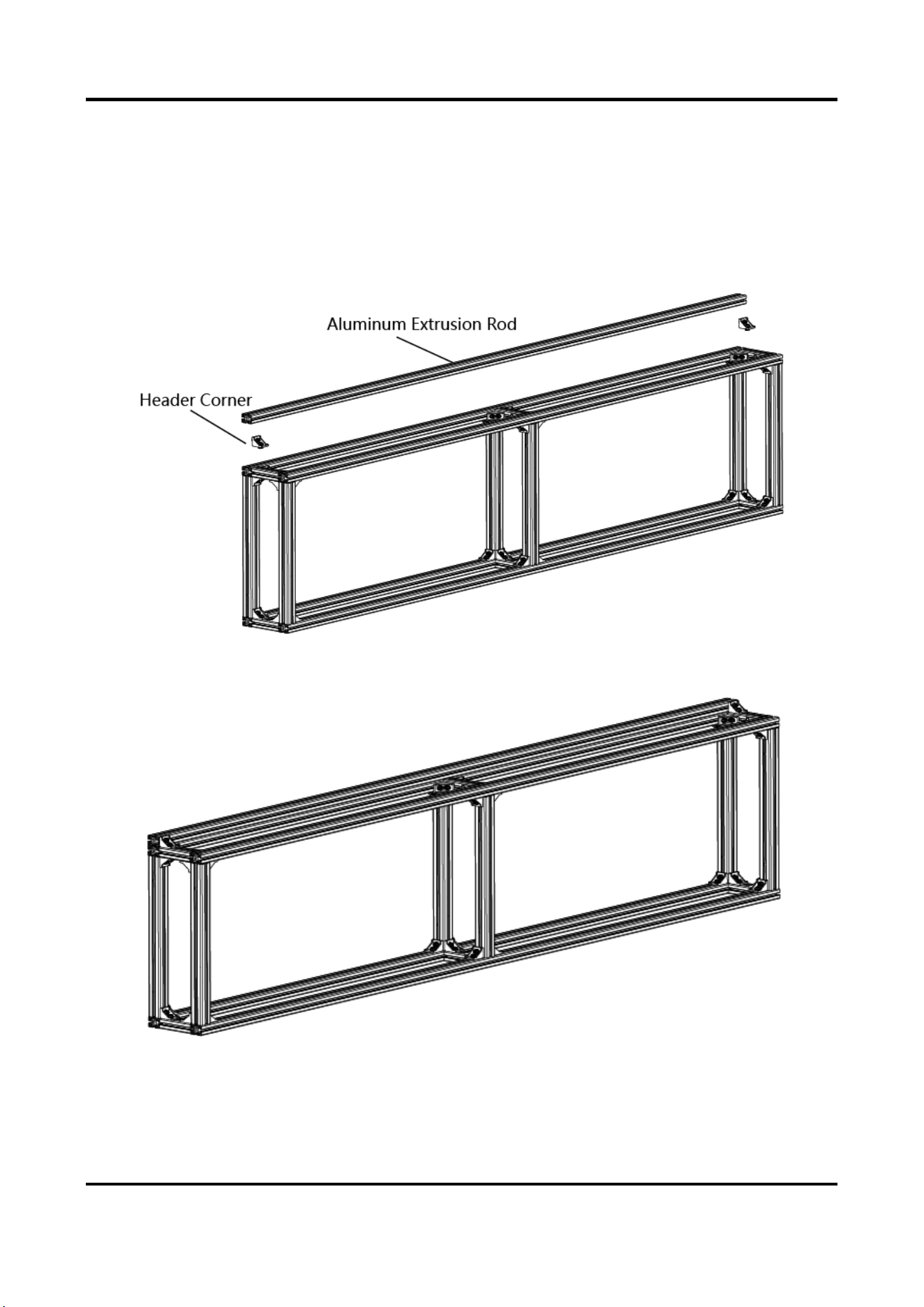
1. Use header corners to connect aluminum extrusion rods from bottom to top.
Figure 2-11 Assemble the Base Frame Unit
Figure 2-12 Base Frame Unit Assembled
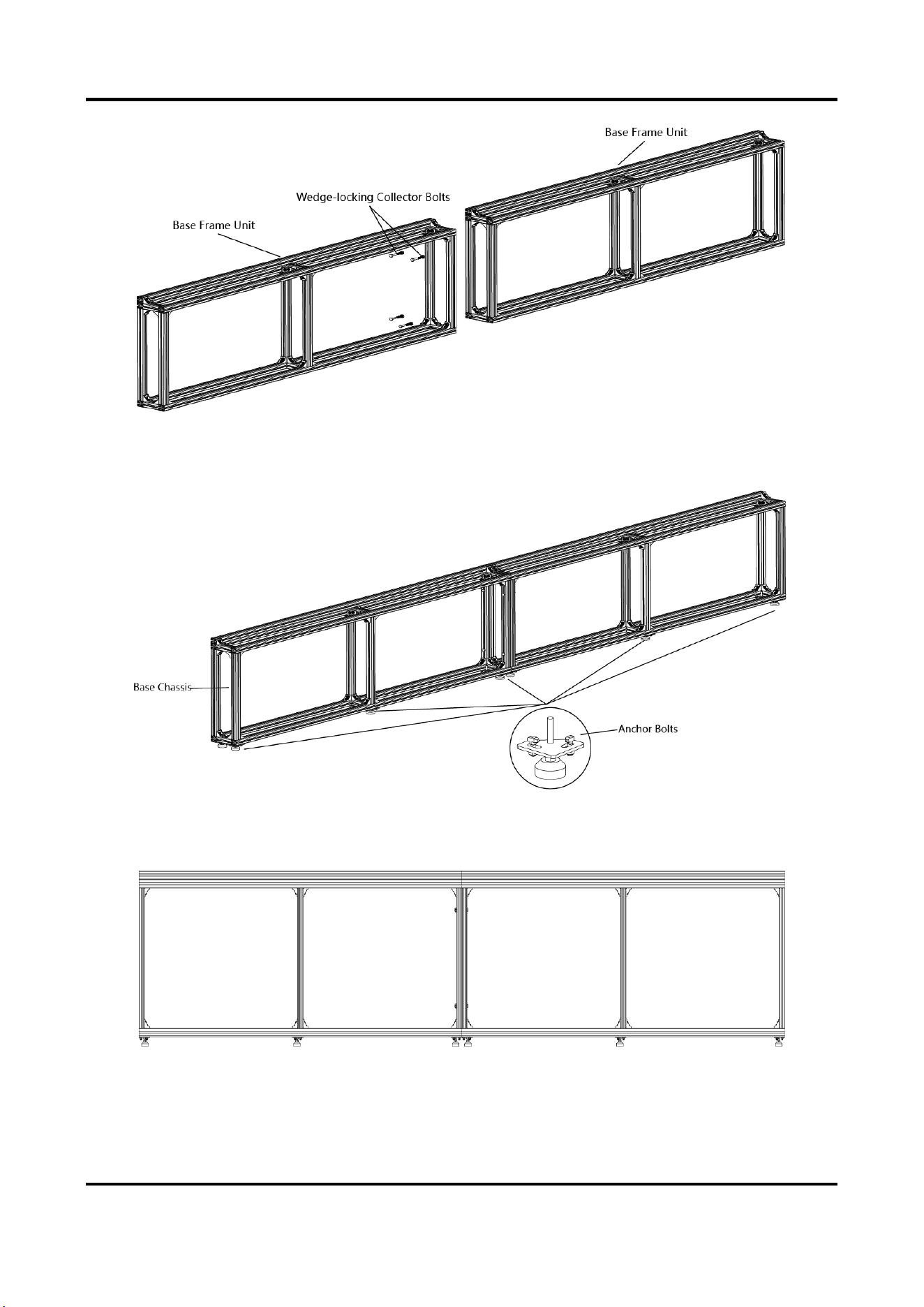
2. Use wedge-locking collector bolts to connect the base frame units.
Indoor Fixed LED Display Unit Installation Guide
12
Figure 2-13 Connect the Base Frame Units
3. Position the anchor bolts into the base frame and tighten the bolts.
Figure 2-14 Assemble the Base Frame
4. Level the bottom chassis and then tighten the bolts.
Figure 2-15 Leveled Bottom Chassis
Indoor Fixed LED Display Unit Installation Guide
13
Install the Rack Frame
Steps
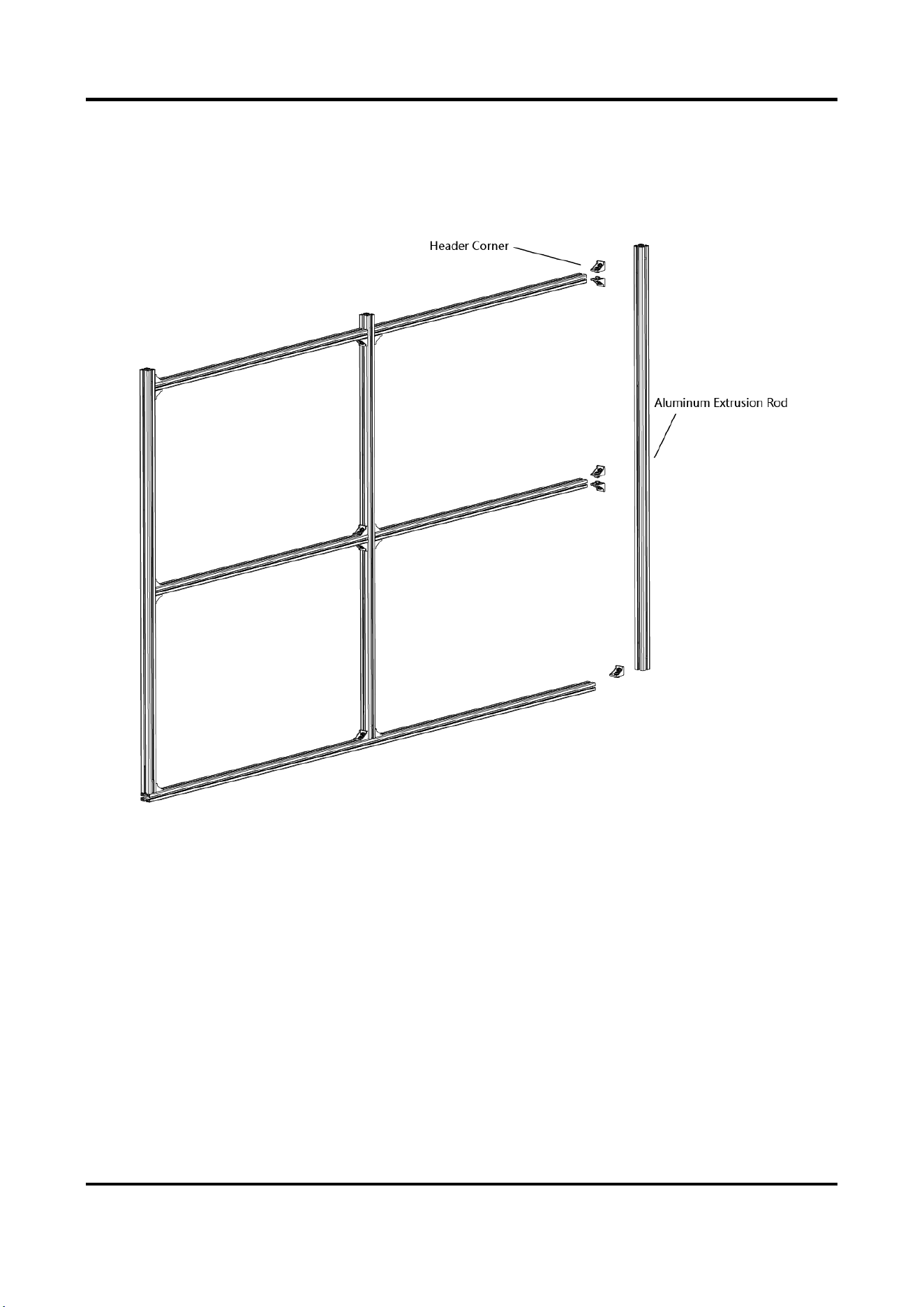
1. Use header corners to connect aluminum extrusion rods from bottom to top.
Figure 2-16 Assemble the Rack Frame Unit
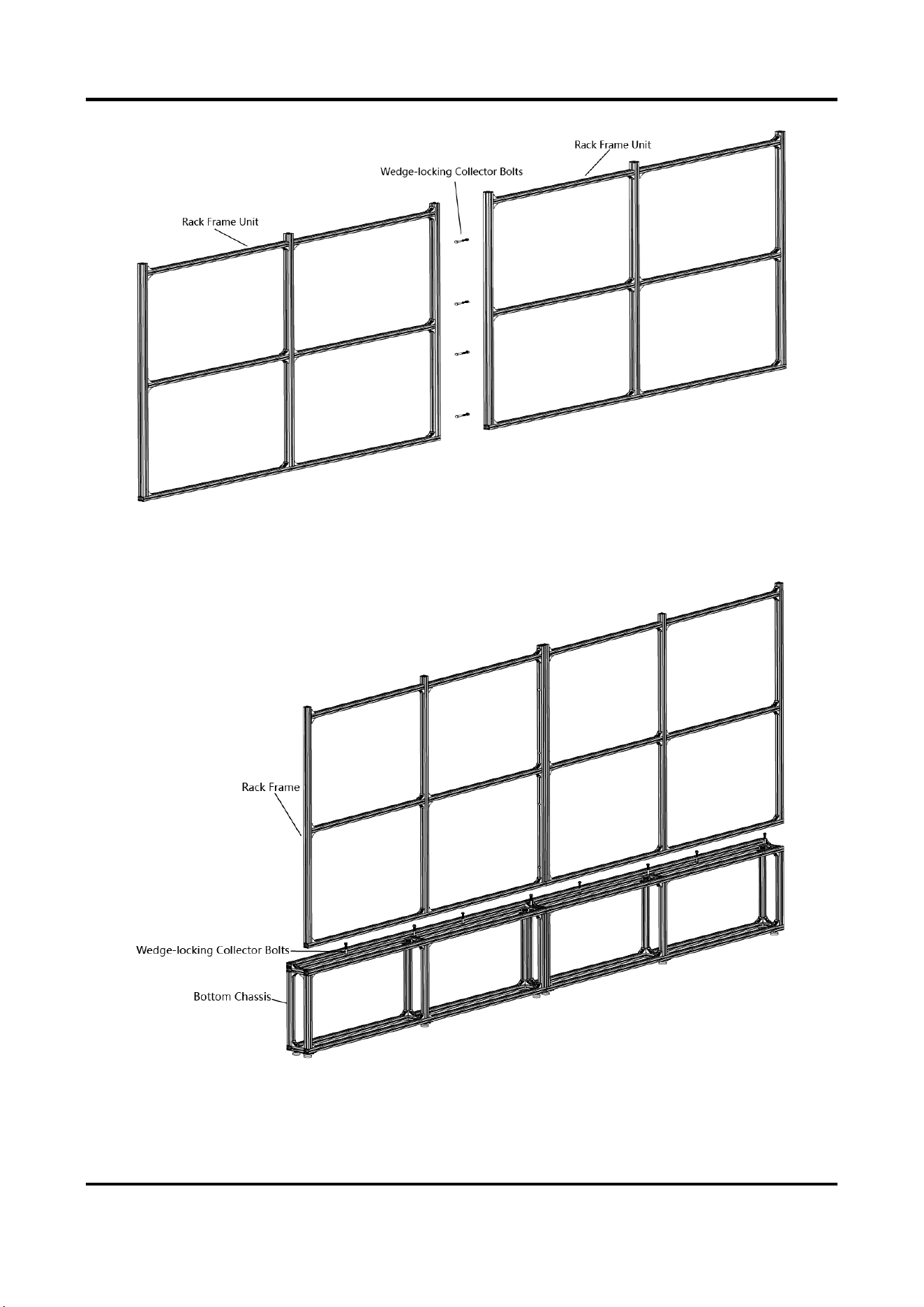
2. Use wedge-locking collector bolts to connect the rack frame units.
Indoor Fixed LED Display Unit Installation Guide
14
Figure 2-17 Connect the Rack Frame Units
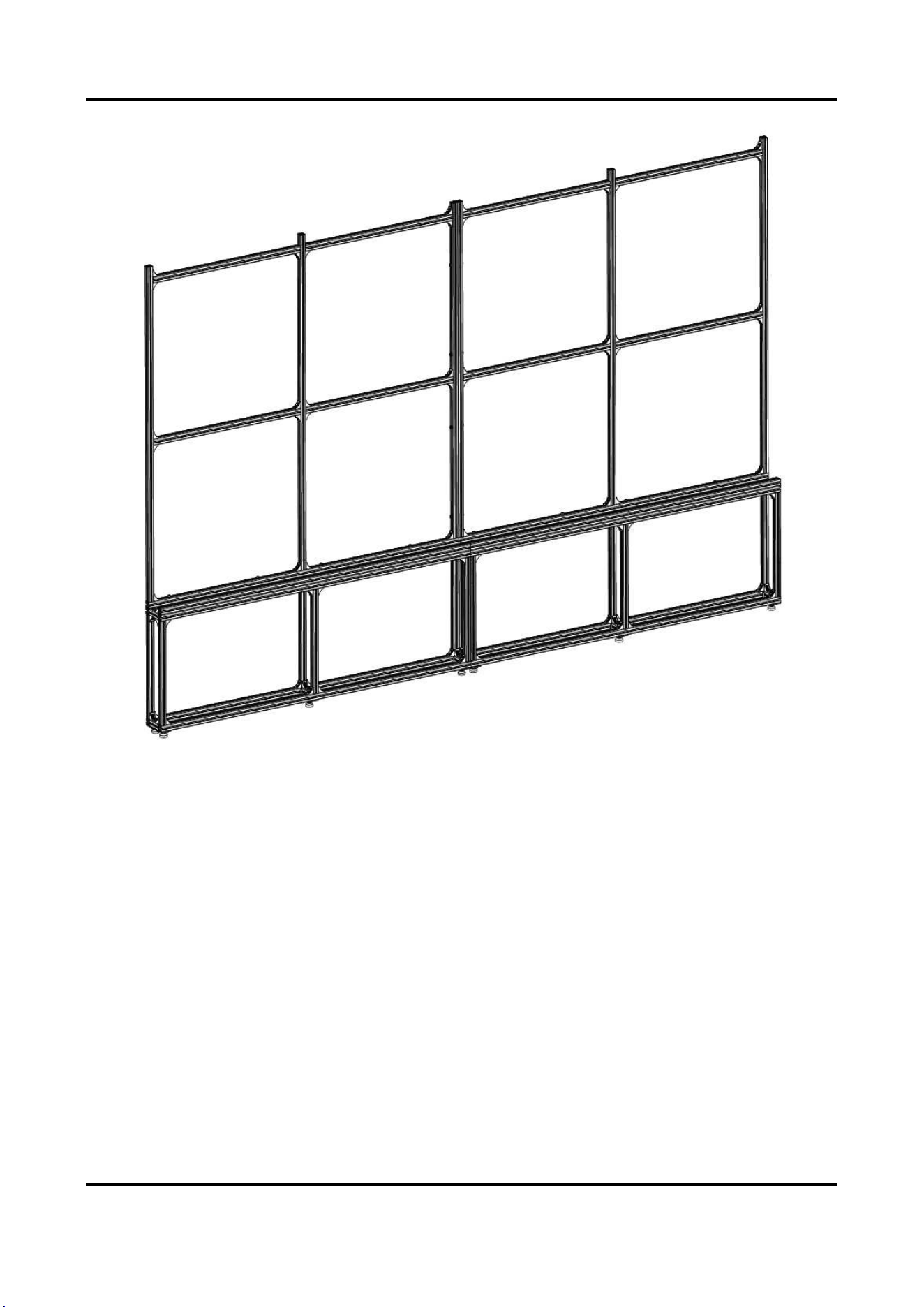
3. Align the rack frame to the base chassis and use wedge-locking collector bolts to fix the frames.
Figure 2-18 Align the Rack Frame to the Base Chassis
Indoor Fixed LED Display Unit Installation Guide
15
Figure 2-19 Frames Aligned
Install the Rear Pulling Rods (for Large-scale Project)
Steps
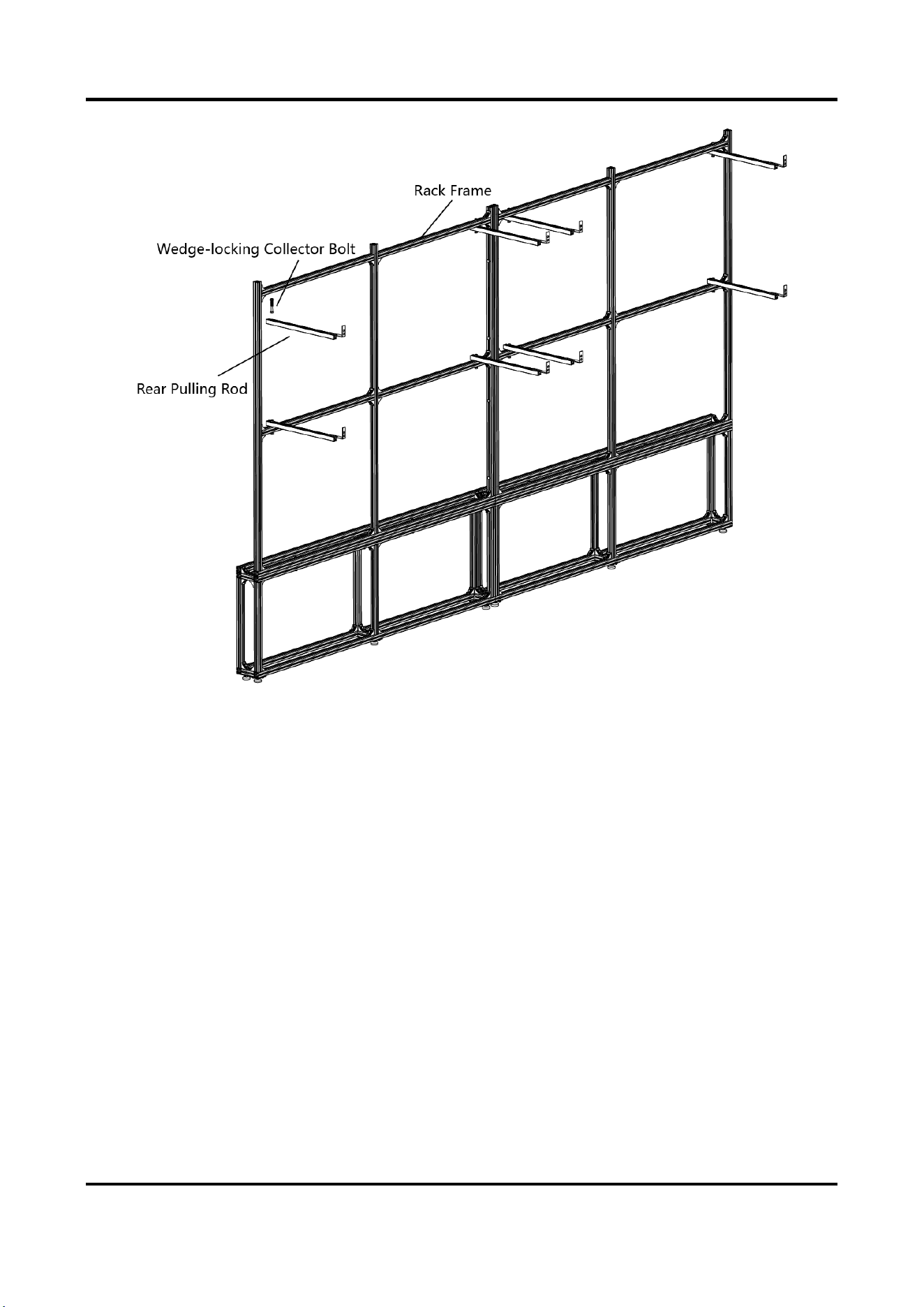
1. Use the wedge-locking collector bolts to fix the rear pulling rods into the rack frame.
Indoor Fixed LED Display Unit Installation Guide
16
Figure 2-20 Fix the Rear Pulling Rods into the Rack frame
Indoor Fixed LED Display Unit Installation Guide
17
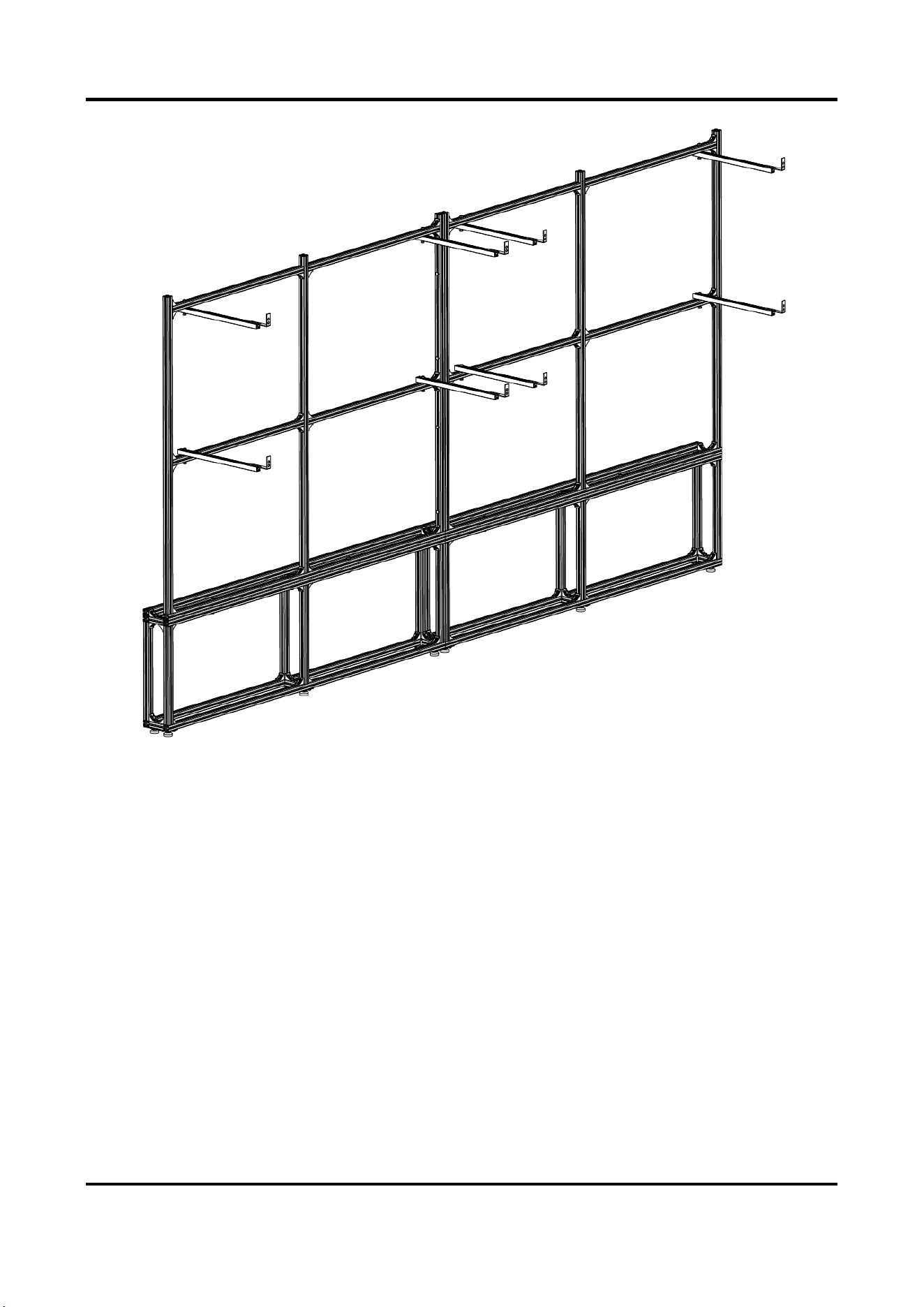
Figure 2-21 Rear Pulling Rods Fixed
2. Use the expansion bolts to fix the rear pulling rods onto the bearing wall.
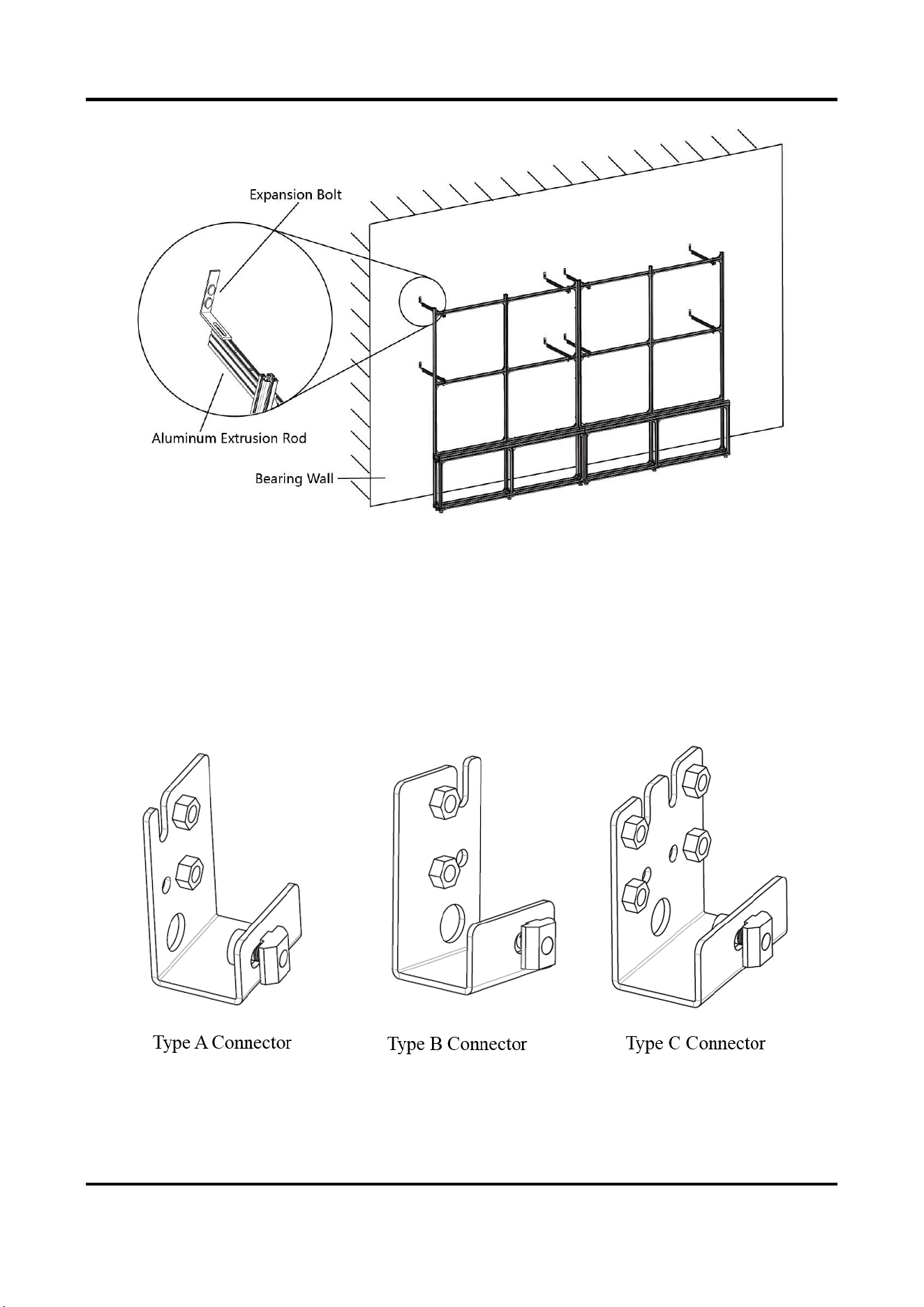
Indoor Fixed LED Display Unit Installation Guide
18
Figure 2-22 Fix the Rear Pulling Rods onto the Bearing Wall
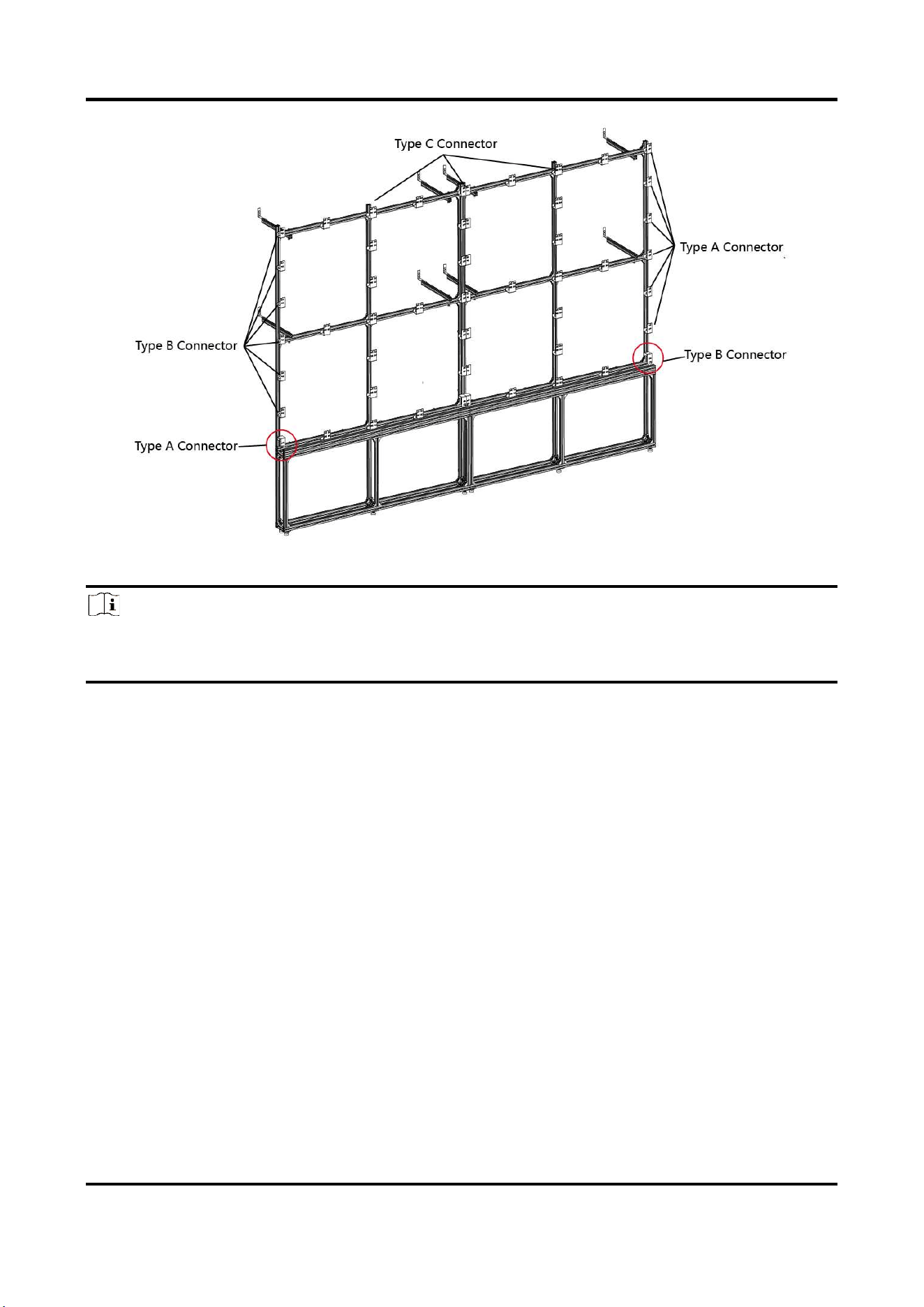
Install the Connectors
The connectors are divided into two parts: customized front joint piece which is used to connect
the screens, and back connecting component which is used to connect the rack frame. The
following figures list three types of connectors and the positions where the connectors used
respectively.
Figure 2-23 Connectors
Indoor Fixed LED Display Unit Installation Guide
19
Figure 2-24 Connectors Installed
Note
Please pay attention to the types of outermost connectors between rack frame and bottom
chassis.
Steps
1. Twist the hexagonal screws into the T-Shaped nuts.
2. Insert the T-Shaped nuts into the slots of aluminum extrusion rods, and move the connectors to
the suitable place.
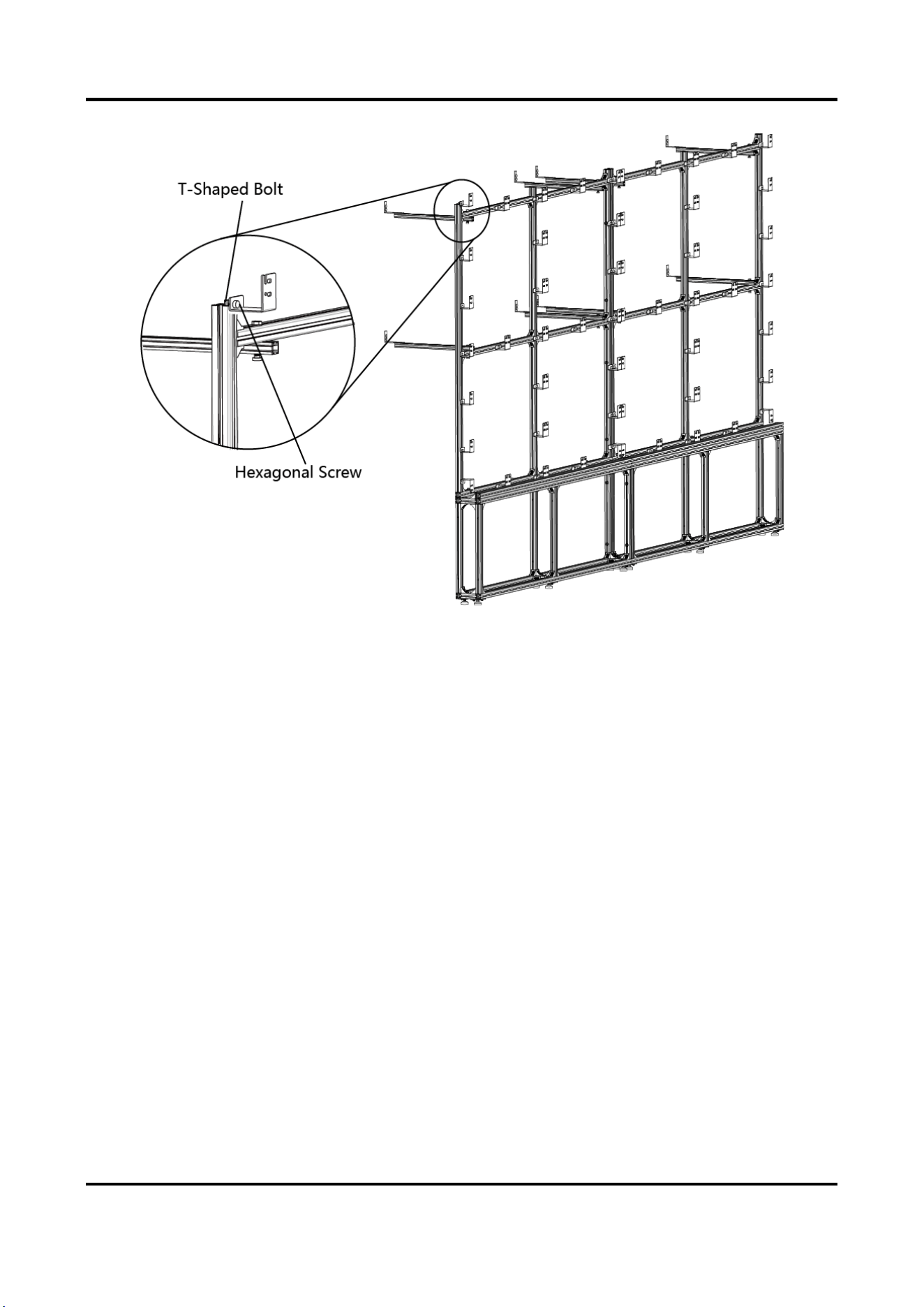
Indoor Fixed LED Display Unit Installation Guide
20
Figure 2-25 Install the Connectors
3. Secure the connectors to the rack frame with screws.
Install Cabinets into the Rack Frame
After the bottom chassis, rack frame and connectors are well installed, perform the following
steps to install the cabinets into the rack frame:
Steps
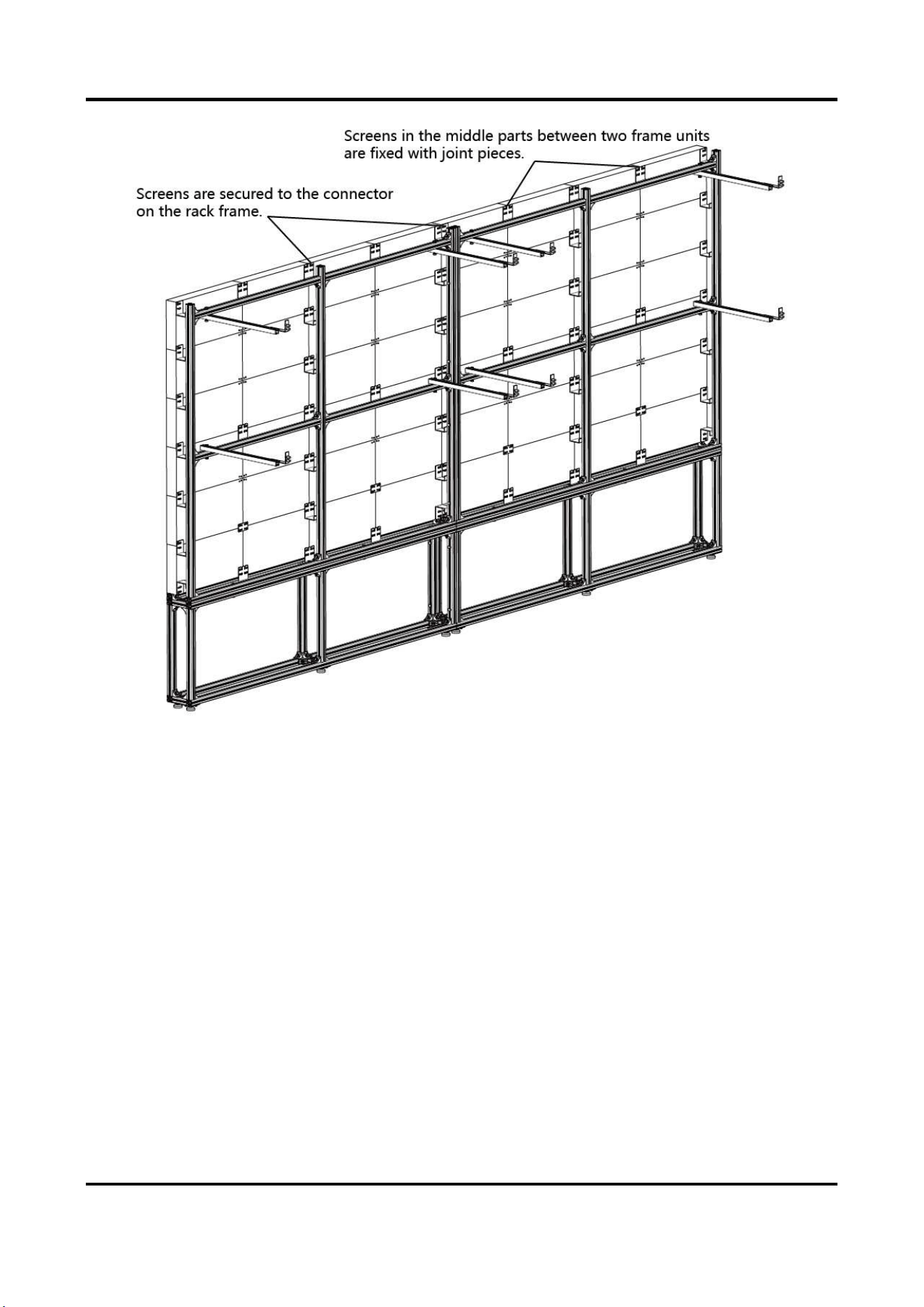
1. Install the first cabinet from the lower middle part. Level and secure the cabinet to the
connectors on the rack frame. For screens do not have connectors near the rear, use joint
pieces to fix the screen.

Indoor Fixed LED Display Unit Installation Guide
21
Figure 2-26 Fix the Screen with Joint Pieces
Note
● Install the cabinets from the bottom to the top, from the middle to the sides.
● Do not fix the screws between the connectors and cabinets too tight for future adjustment.
● In normal cases, lock out LED lamp boards after they are adjusted horizontally and vertically
because the boards will probably be moved during the installation of other lamp boards.
● Ensure that the screen is flat and without evident gap. Otherwise, make some adjustments.
2. Repeat the above steps to install the other cabinets in the lowest row.
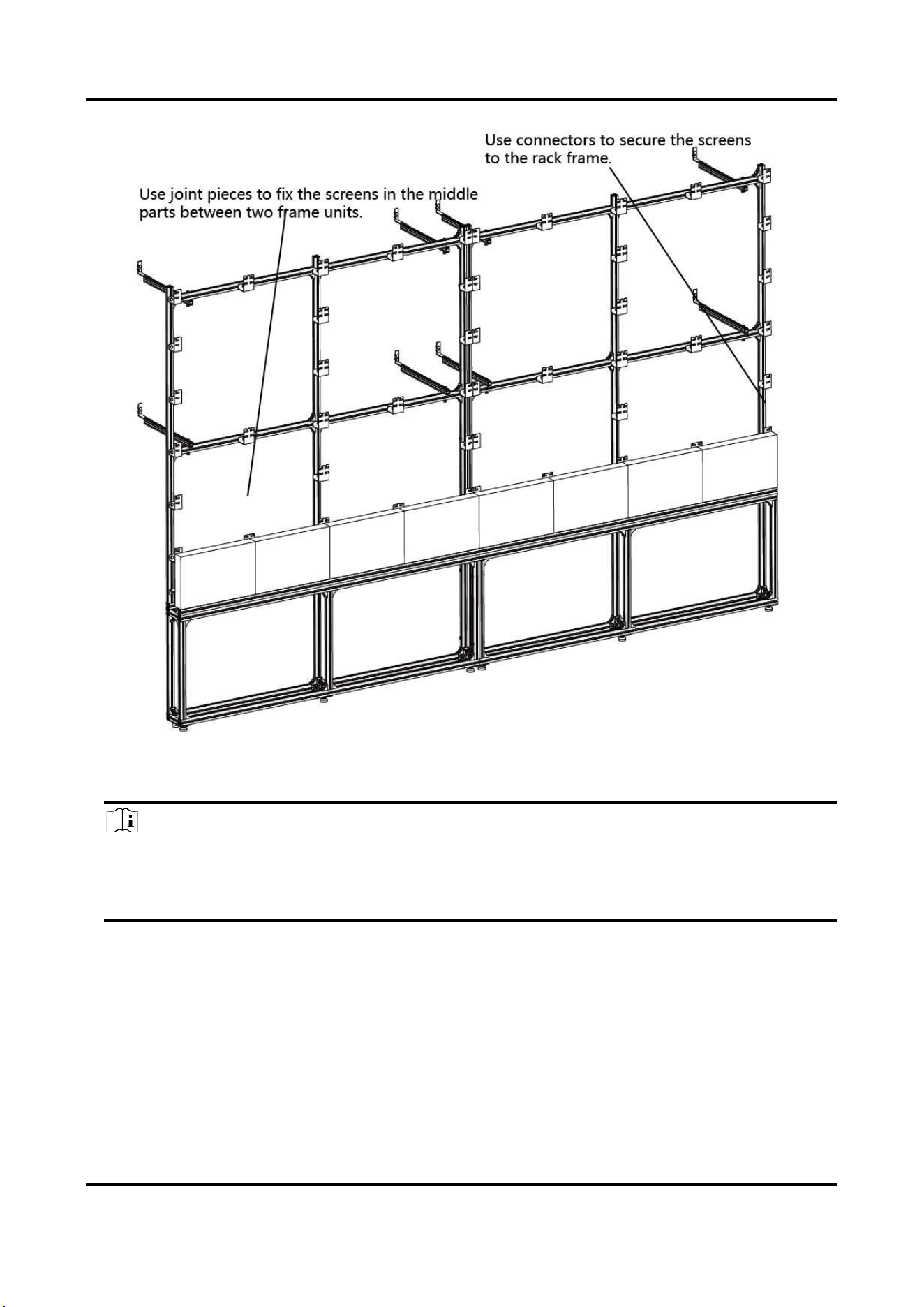
Indoor Fixed LED Display Unit Installation Guide
22
Figure 2-27 Fix the Screens
3. Use a level to measure and ensure that the cabinets are flat and vertical.
Note
When there is a deviation in height, simply place a thin iron sheet under the bottom. Do not try
to resolve the deviation by hitting the cabinets on the top because it will result in larger
deviation later.
4. Repeat the above steps to complete the installation of other cabinets.
Indoor Fixed LED Display Unit Installation Guide
23
Figure 2-28 Screens Fixed
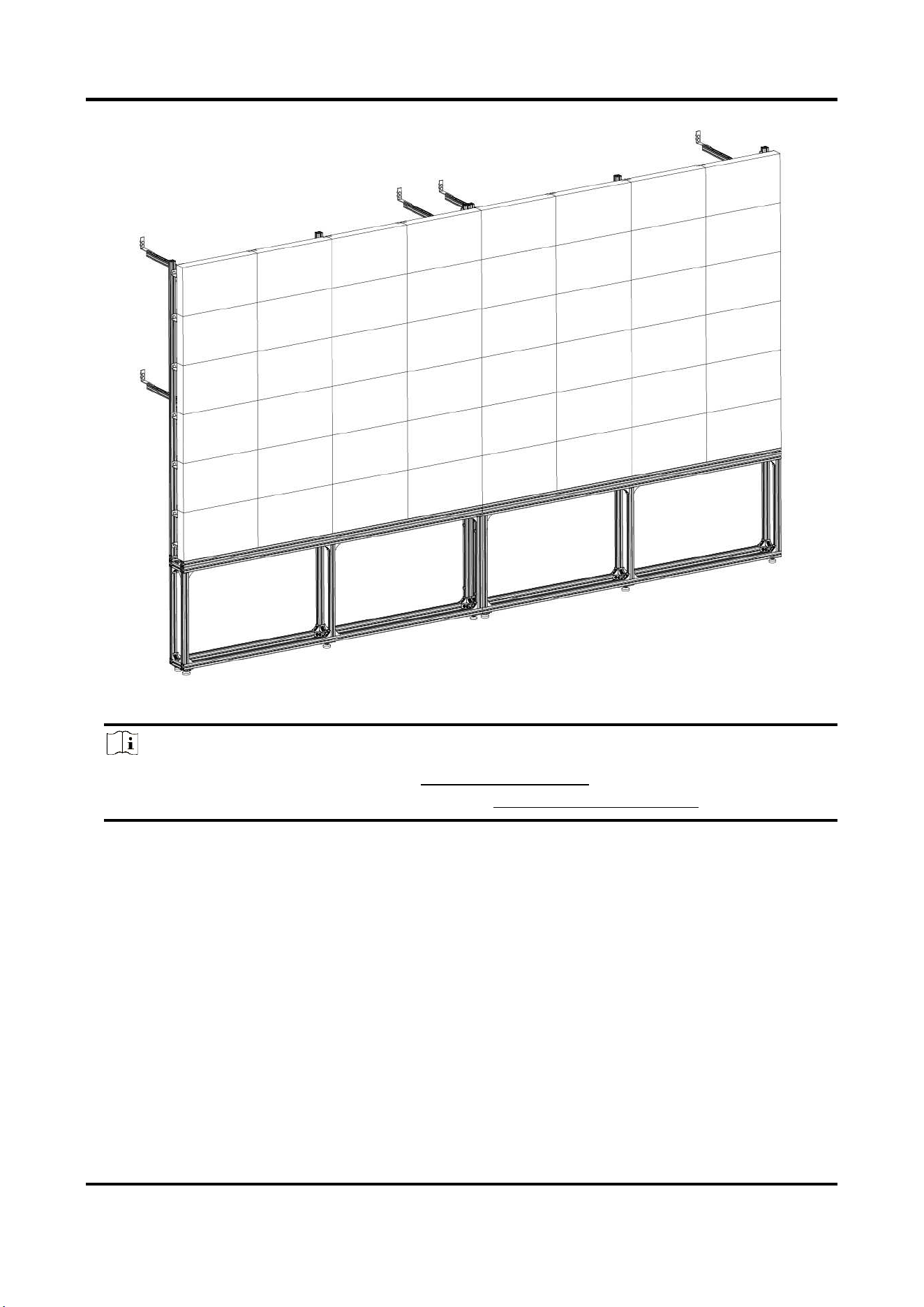
5. Ensure that all the cabinets are flat and vertical and the seams between the cabinets are even.
Then tighten the screws to complete the installation.
Indoor Fixed LED Display Unit Installation Guide
24
Figure 2-29 Screen Installation Finished
Note
● For details about cabinet stitching, see Stitch Cabinet Frames.
● For details about lamp boards maintenance, see Maintain the Lamp Boards.
2.2.4 Install the All-in-One Rack
The all-in-one racks are used for mounting front-maintenance products and rear-maintenance
products.
Install the Bottom Chassis
Steps
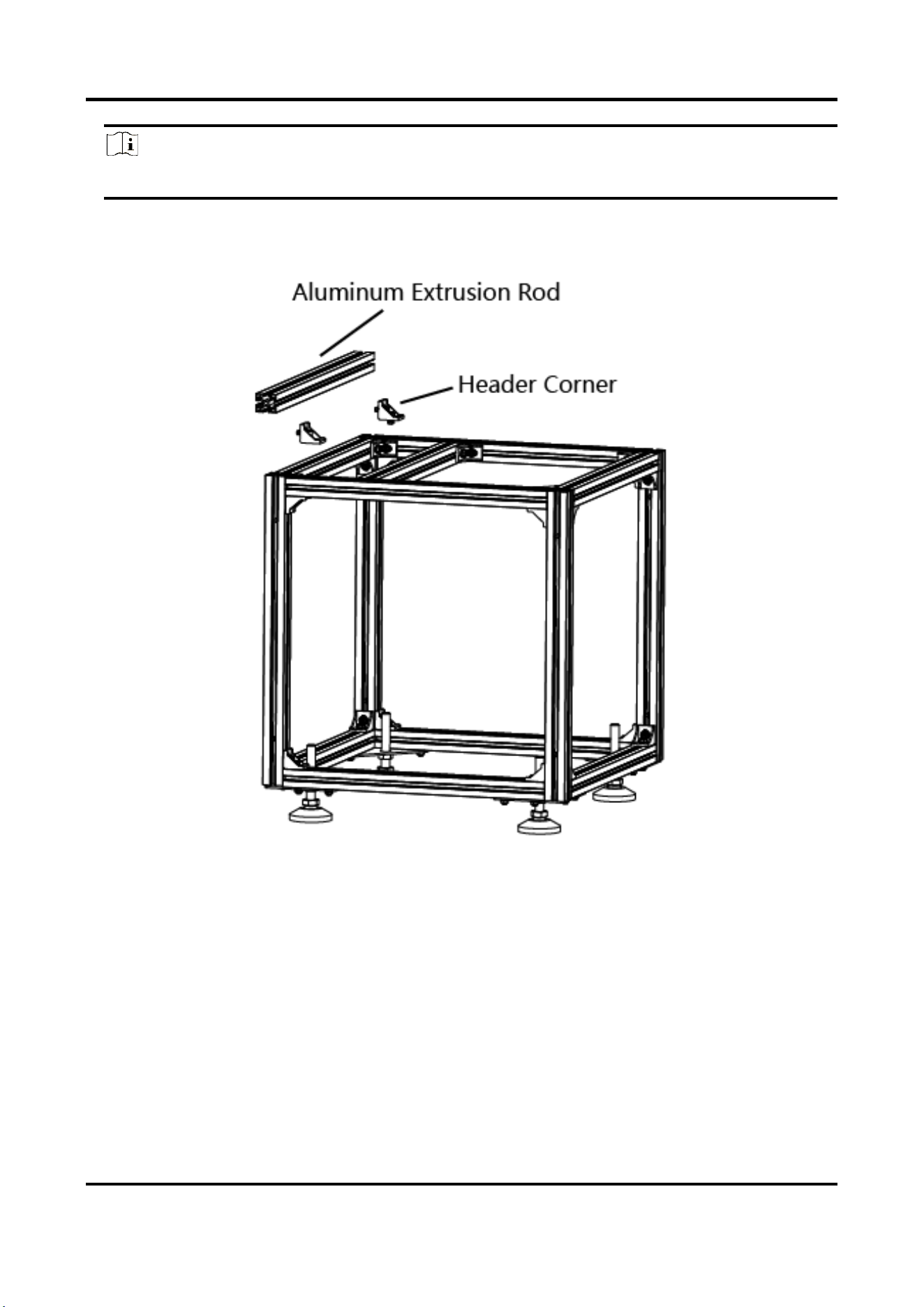
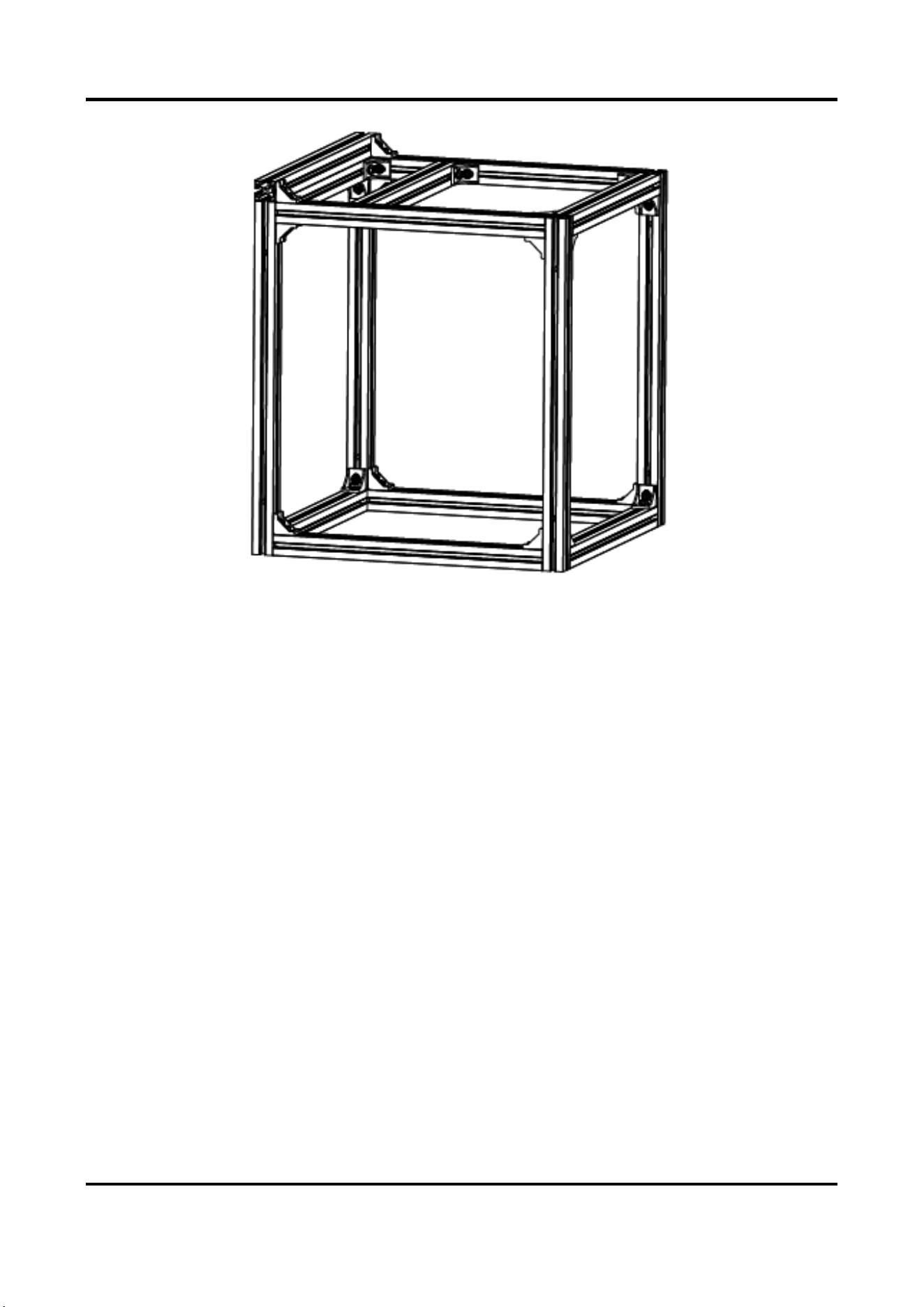
1. Use header corners to connect aluminum extrusion rods.
Indoor Fixed LED Display Unit Installation Guide
25
Note
It is recommended to assemble the base frame units from bottom to top.
Figure 2-30 Assemble the Base Frame Unit
Indoor Fixed LED Display Unit Installation Guide
26
Figure 2-31 Base Frame Unit Assembled
2. Use wedge-locking collector bolts to connect the base frame units.
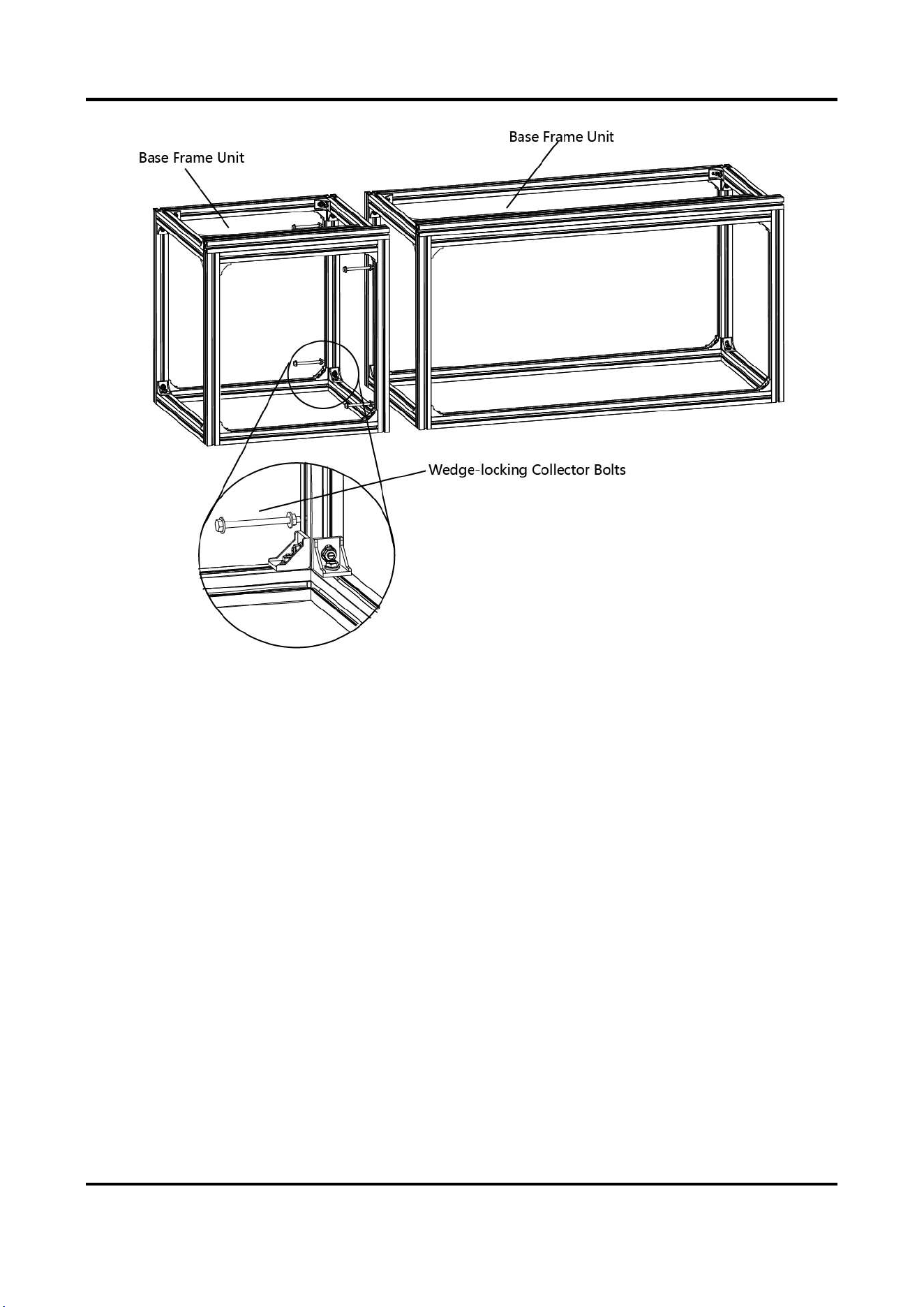
Indoor Fixed LED Display Unit Installation Guide
27
Figure 2-32 Connect the Base Frame Units
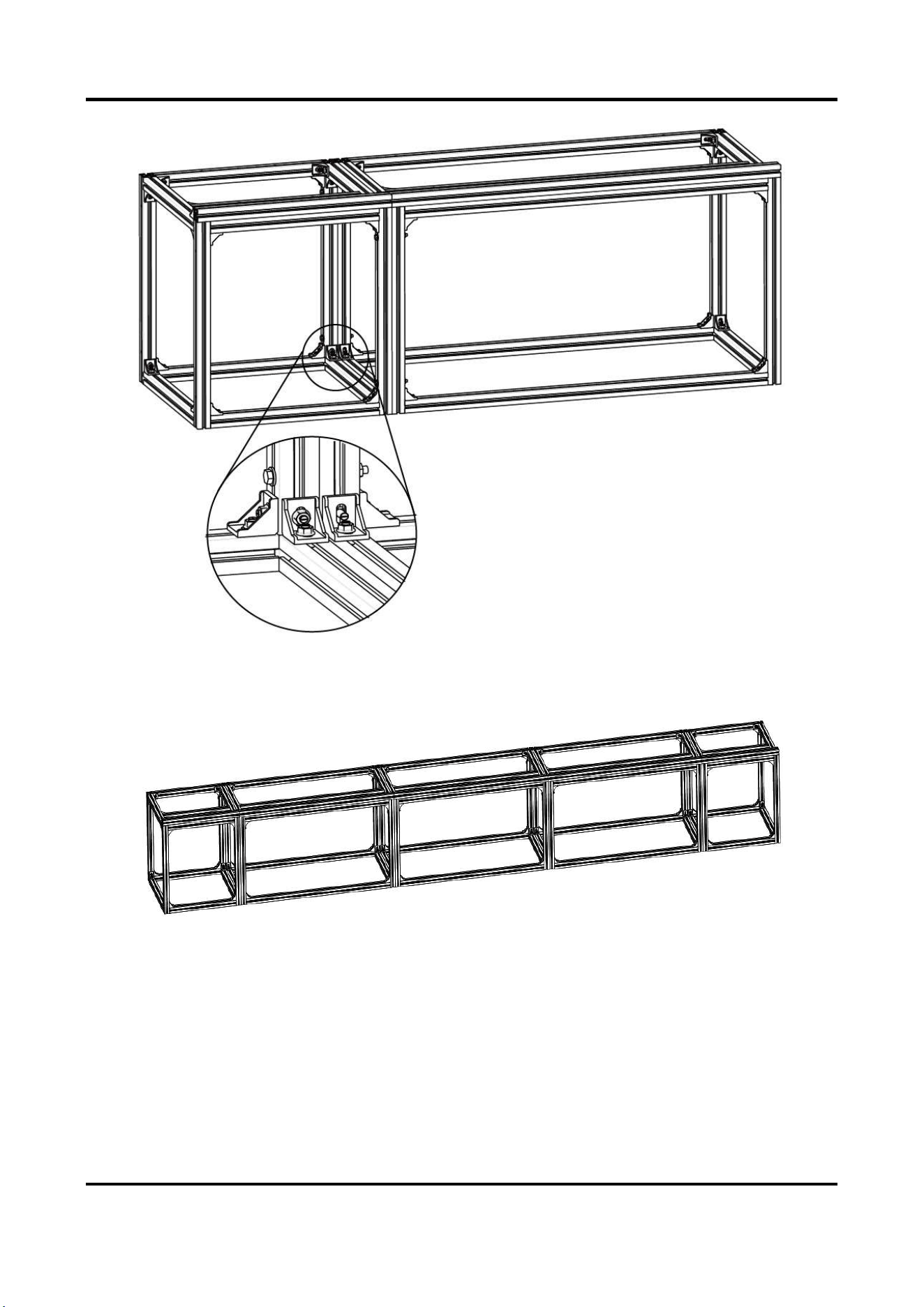
Indoor Fixed LED Display Unit Installation Guide
28
Figure 2-33 Base Frame Units Connected
3. Repeat the above steps to connect the other base frame units.
Figure 2-34 Base Frame
4. Position the anchor bolts into the base frame and tighten the bolts.

Indoor Fixed LED Display Unit Installation Guide
29
Figure 2-35 Assemble the Base Frame
5. Level the bottom chassis and then tighten the bolts.
Figure 2-36 Leveled Bottom Chassis
Install the Rack Frame
Steps
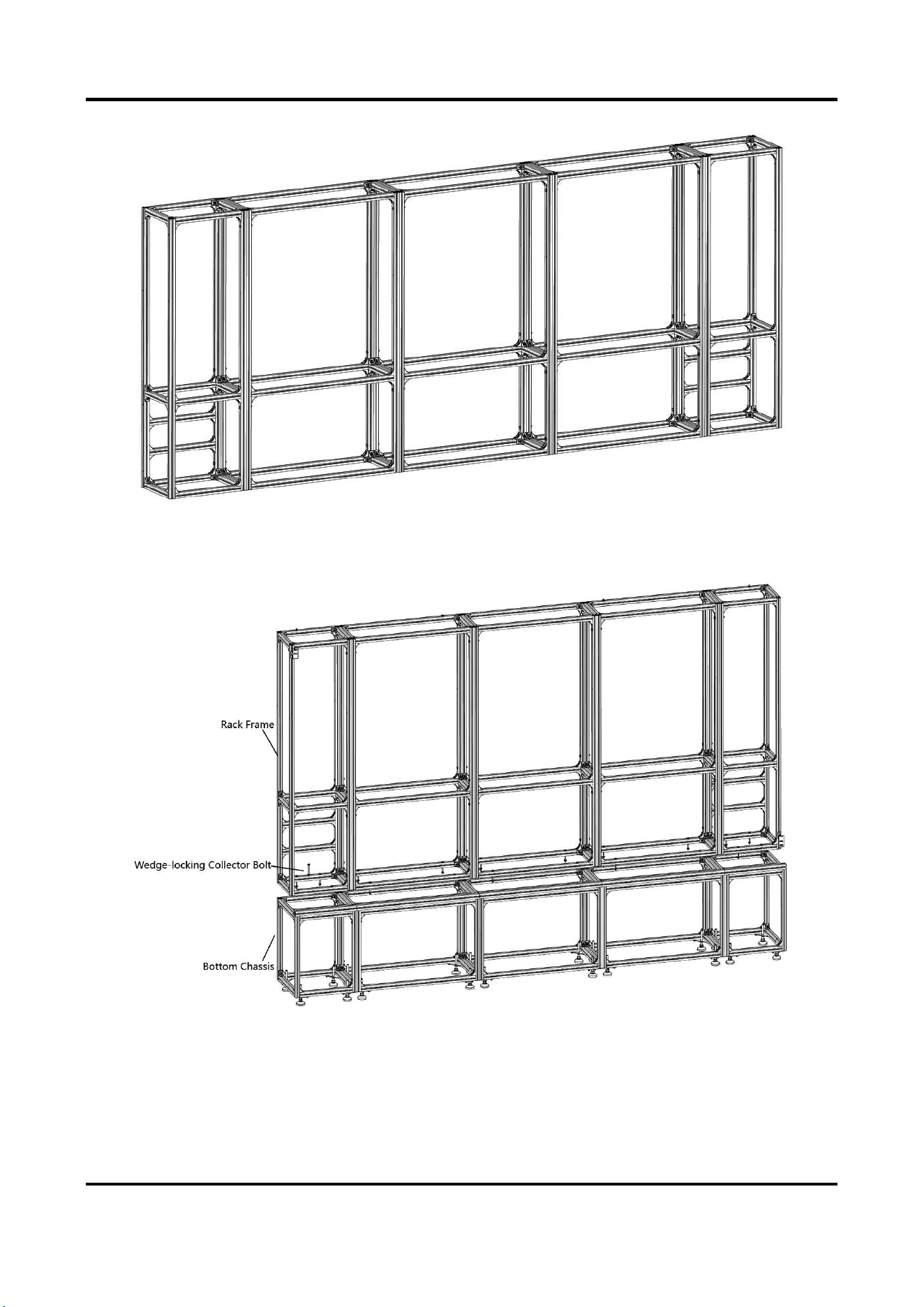
1. Use header corners to connect aluminum extrusion rods.
Note
It is recommended to assemble the rack frame units from bottom to top.
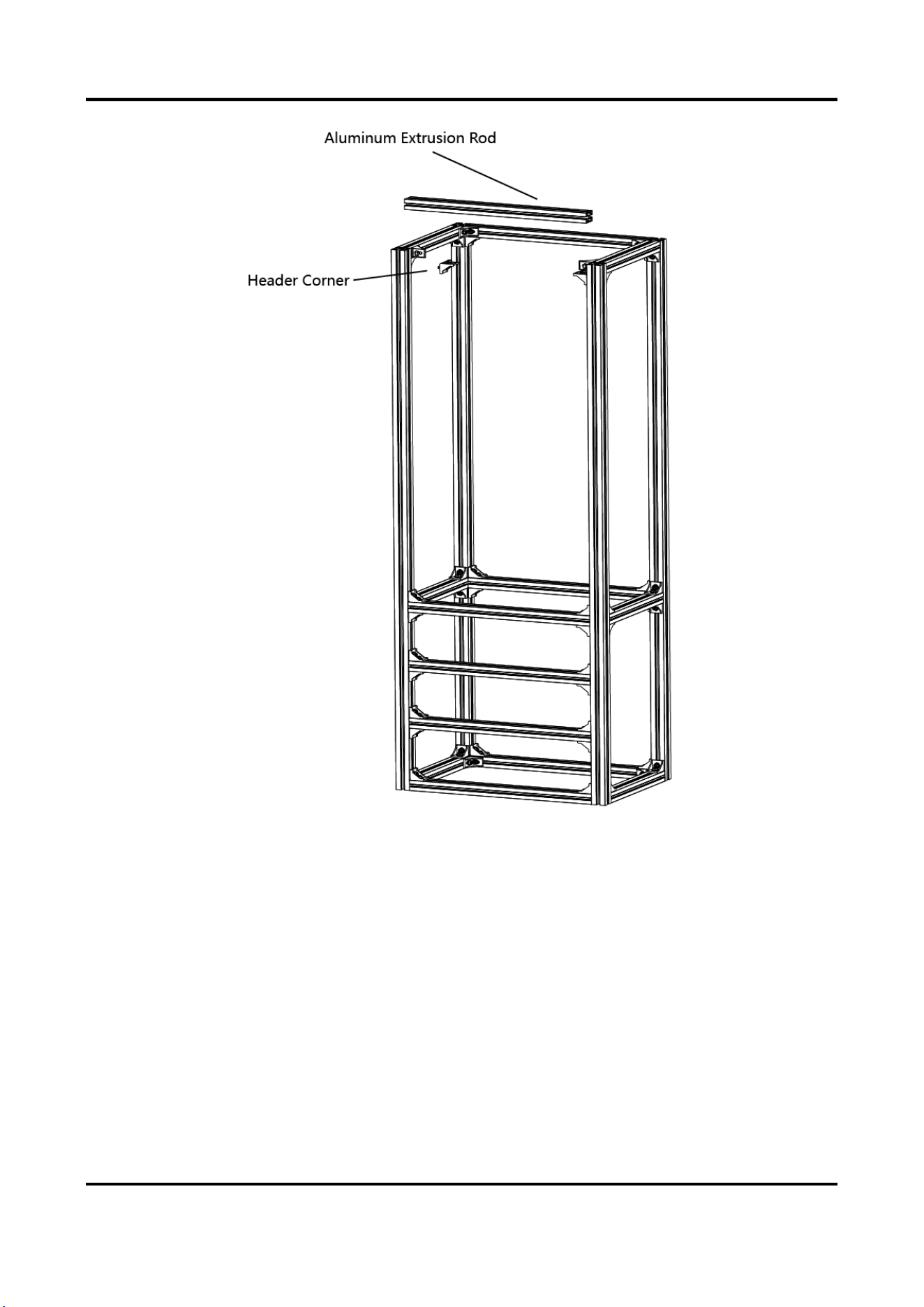
Indoor Fixed LED Display Unit Installation Guide
30
Figure 2-37 Assemble the Rack Frame Unit
2. Use wedge-locking collector bolts to connect the rack frame units.
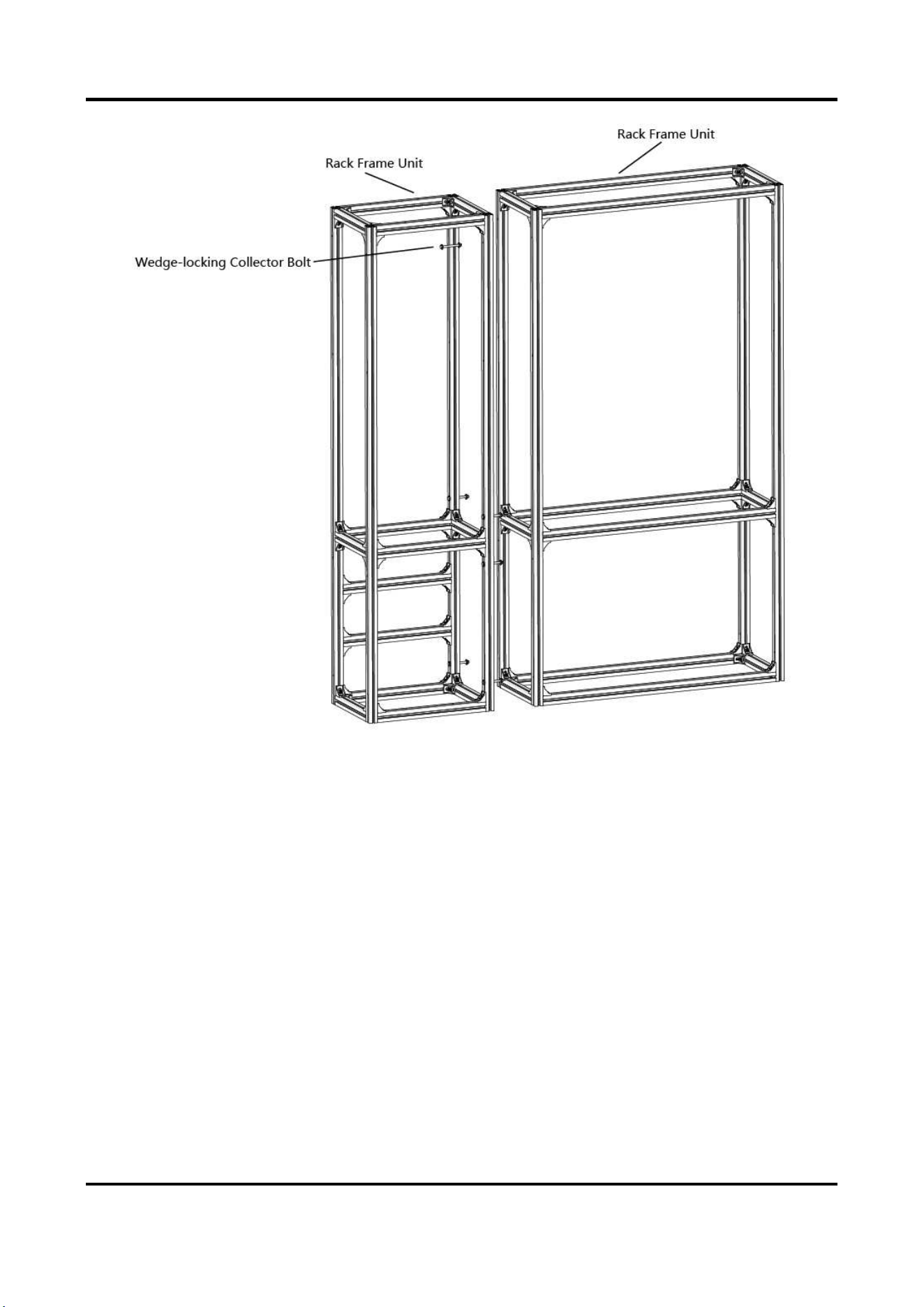
Indoor Fixed LED Display Unit Installation Guide
31
Figure 2-38 Connect the Rack Frame Units
3. Repeat the above steps to connect the other rack frame units.
Indoor Fixed LED Display Unit Installation Guide
32
Figure 2-39 Rack Frame
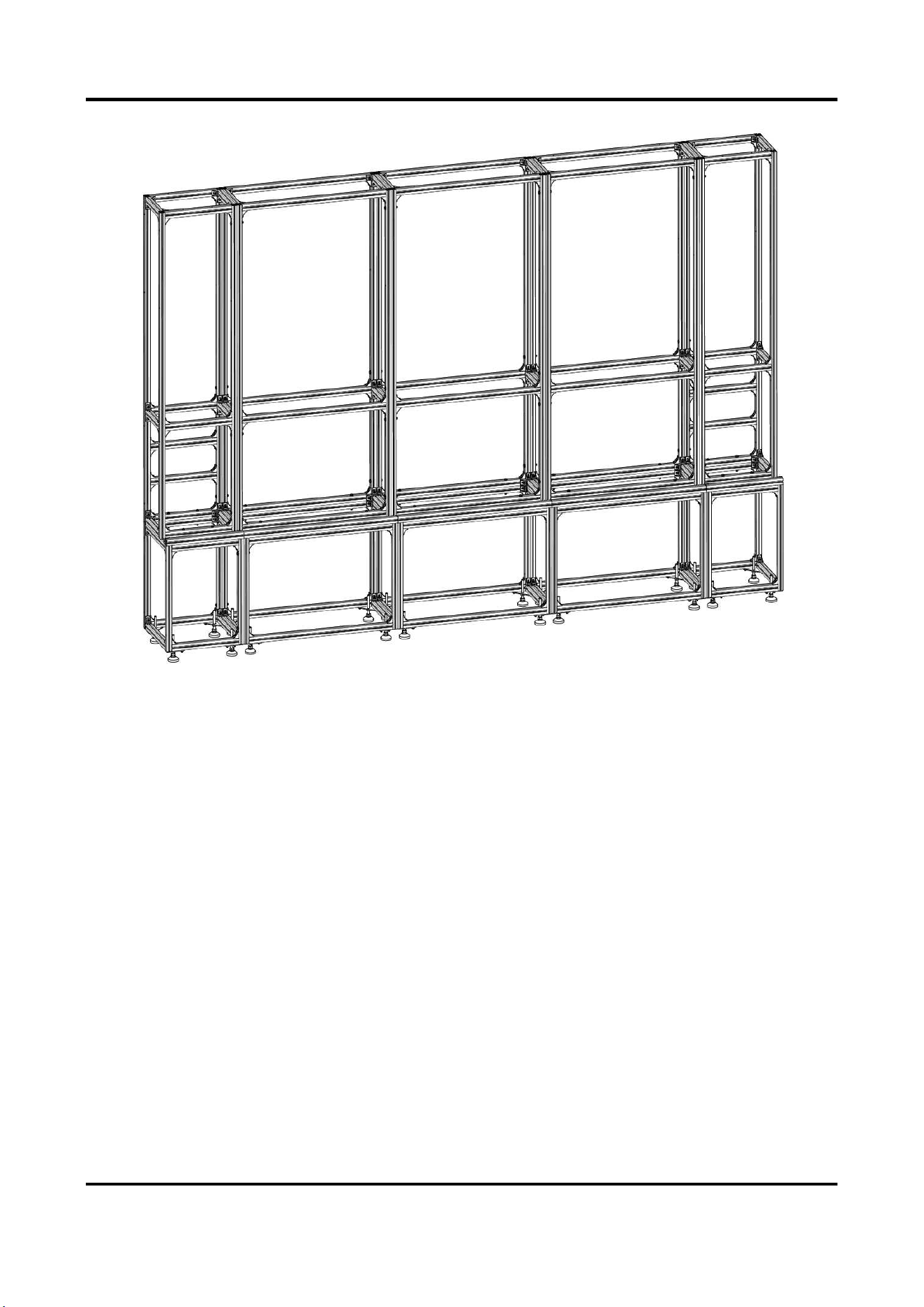
4. Align the rack frame to the base chassis and use wedge-locking collector bolts to fix the frames.
Figure 2-40 Align the Rack Frame to the Base Chassis
Indoor Fixed LED Display Unit Installation Guide
33
Figure 2-41 Frames Aligned
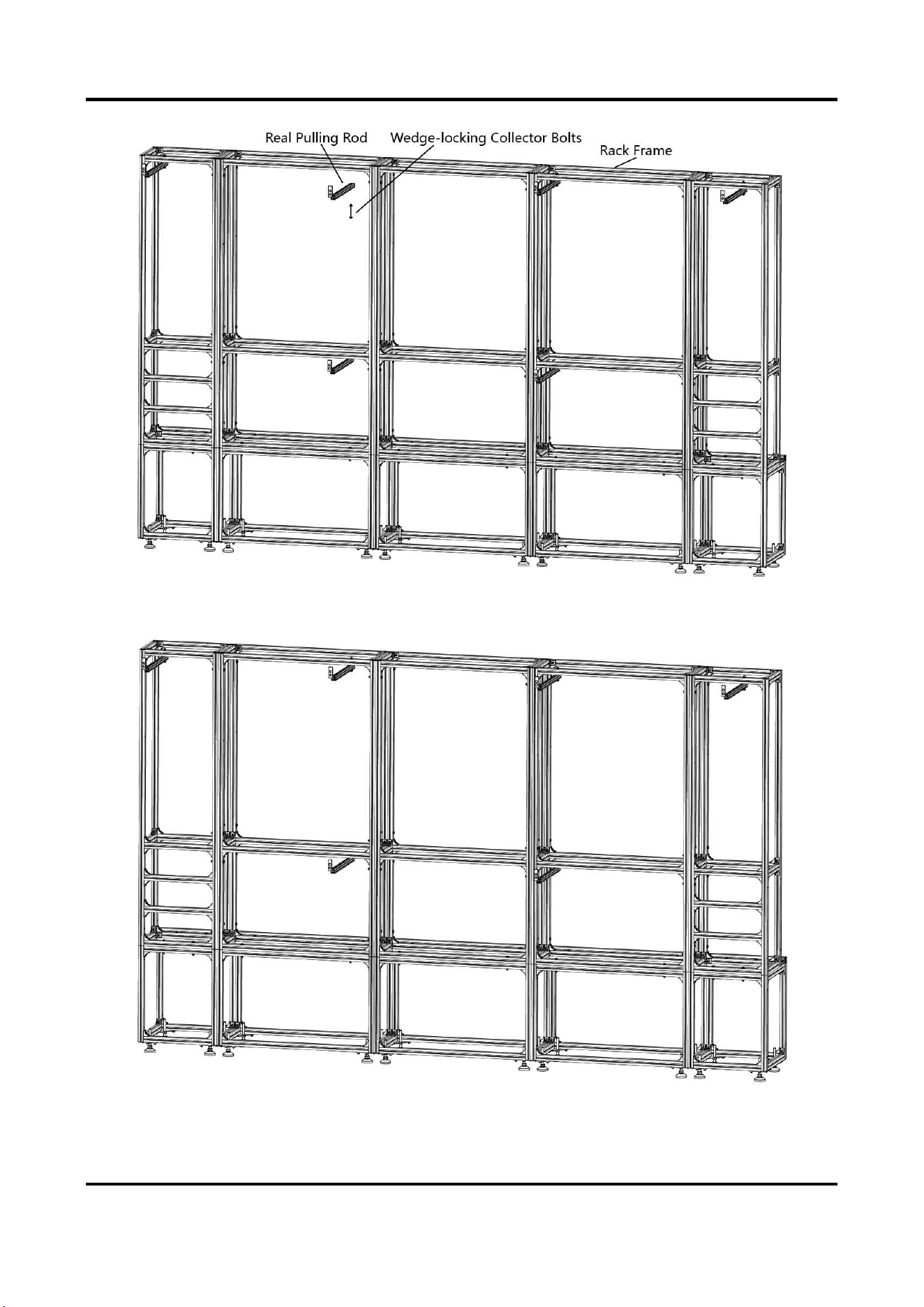
Install the Rear Pulling Rods (for Large-scale Project)
Steps
1. Use the wedge-locking collector bolts to fix the rear pulling rods into the rack frame.
Indoor Fixed LED Display Unit Installation Guide
34
Figure 2-42 Fix the Rear Pulling Rods into the Rack Frame
Figure 2-43 Rear Pulling Rods Fixed
Indoor Fixed LED Display Unit Installation Guide
35
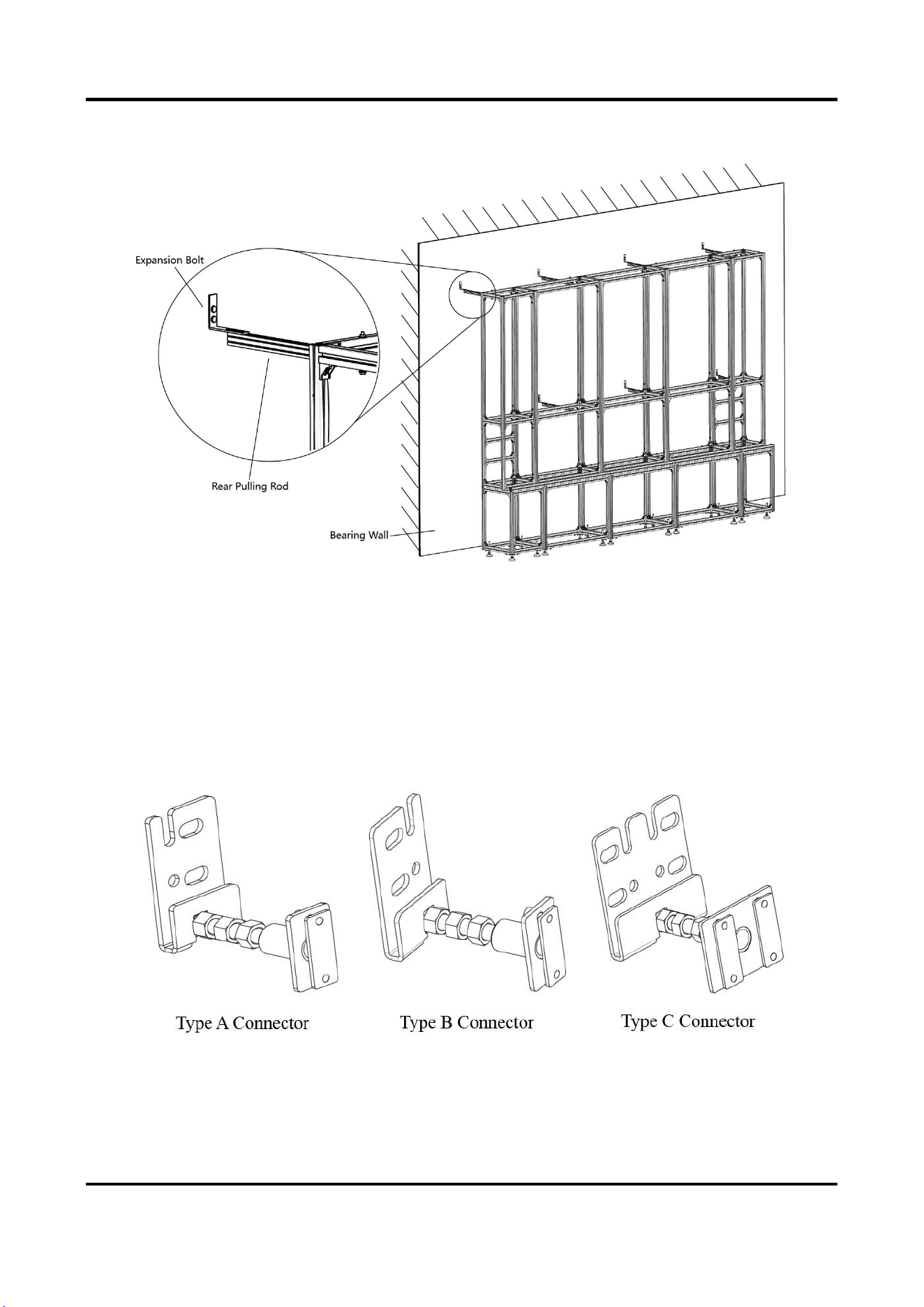
2. Use the expansion bolts to fix the rear pulling rods onto the bearing wall.
Figure 2-44 Fix the Rear Pulling Rods onto the Bearing Wall
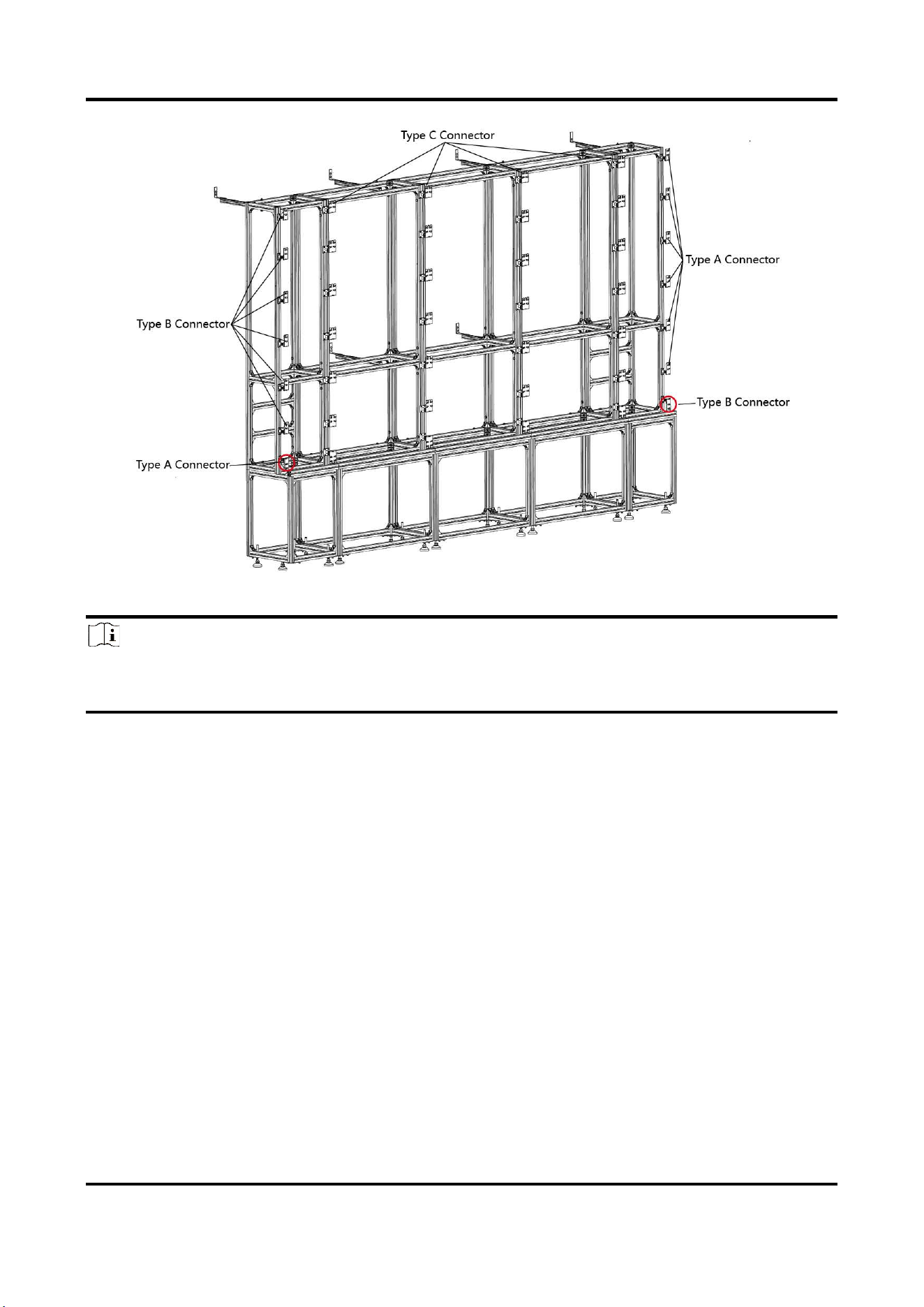
Install the Connectors
The connectors are divided into two parts: customized front joint piece which is used to connect
the screens, and back connecting component which is used to connect the rack frame. The
following figures list three types of connectors and the positions where the connectors used
respectively.
Figure 2-45 Connectors
Indoor Fixed LED Display Unit Installation Guide
36
Figure 2-46 Connectors Installed
Note
Please pay attention to the types of outermost connectors between rack frame and bottom
chassis.
Steps
1. Twist the hexagonal screws into the screw thread plates.
2. Insert the screw thread plates into the slots of aluminum extrusion rods, and move the
connectors to the suitable place.

Indoor Fixed LED Display Unit Installation Guide
37
Figure 2-47 Install the Connectors
3. Secure the connectors to the rack frame with screws.
Install Cabinets into the Rack Frame
After the bottom chassis, rack frame and connectors are well installed, perform the following
steps to install the cabinets into the rack frame:
Steps
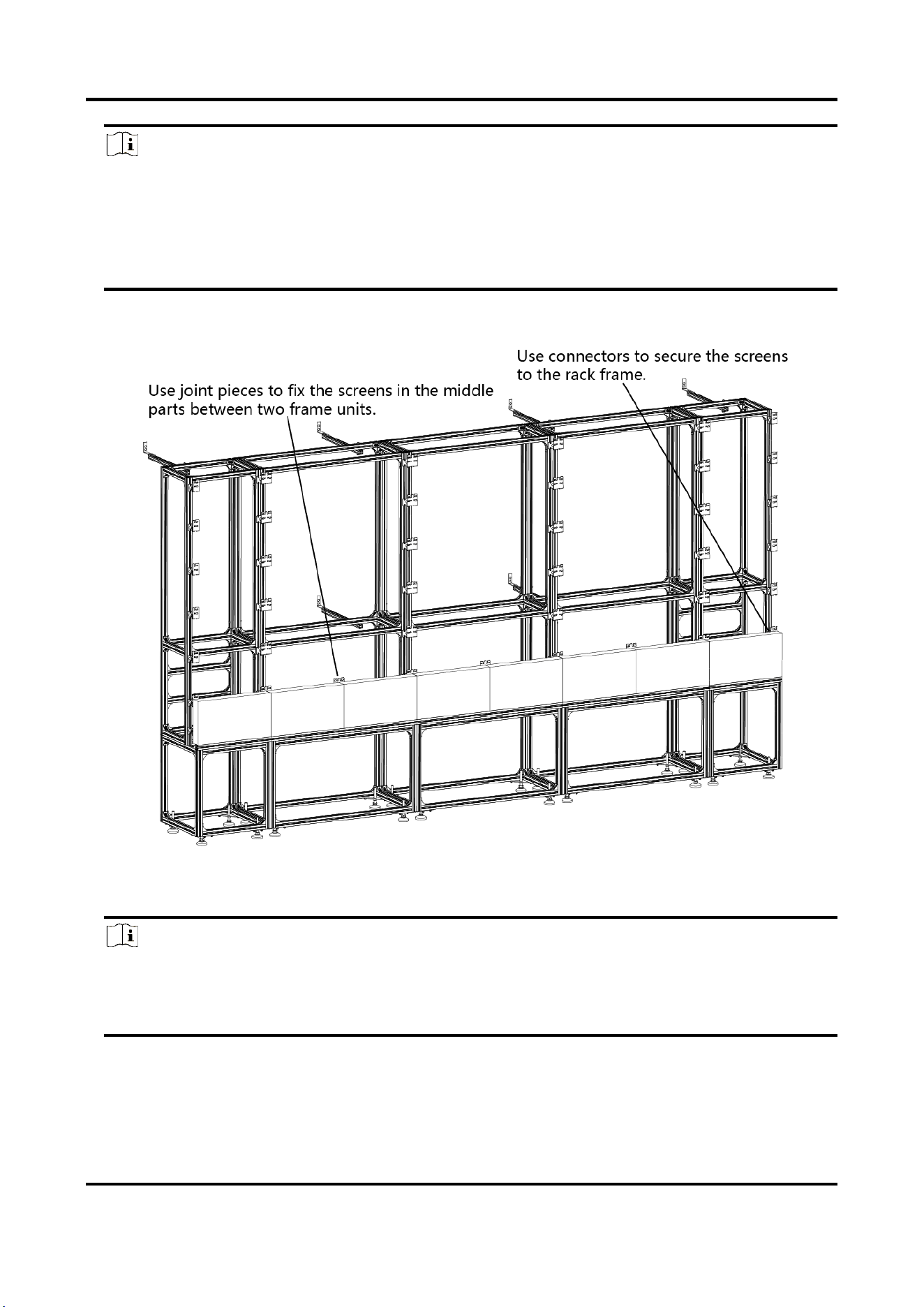
1. Install the first cabinet from the lower middle part. Level and secure the cabinet to the
connectors on the rack frame. For the screens do not have connectors near the rear, use joint
pieces to fix the screen.
Figure 2-48 Fix the Screen with Joint Pieces
Indoor Fixed LED Display Unit Installation Guide
38
Note
● Install the cabinets from the bottom to the top, from the middle to the sides.
● Do not fix the screws between the connectors and cabinets too tight for future adjustment.
● In normal cases, lock out LED lamp boards after they are adjusted horizontally and vertically
because the boards will probably be moved during the installation of other lamp boards.
● Ensure that the screen is flat and without evident gap. Otherwise, make some adjustments.
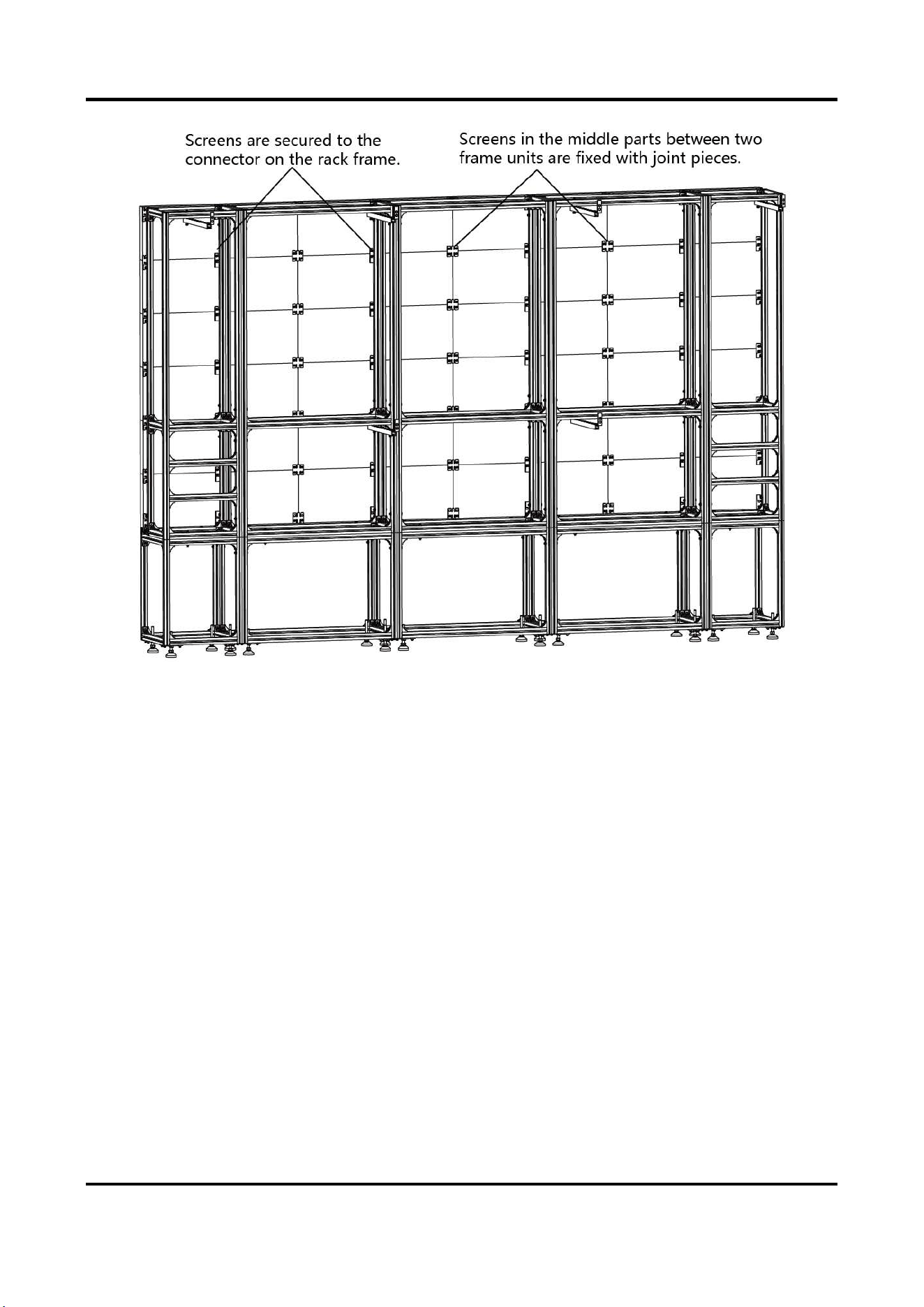
2. Repeat the above steps to install the other cabinets in the lowest row.
Figure 2-49 Fix the Screens
3. Use a level to measure and ensure that the cabinets are flat and vertical.
Note
When there is a deviation in height, simply place a thin iron sheet under the bottom. Do not try
to resolve the deviation by hitting the cabinets on the top because it will result in larger
deviation later.
4. Repeat the above steps to complete the installation of other cabinets.
Indoor Fixed LED Display Unit Installation Guide
39
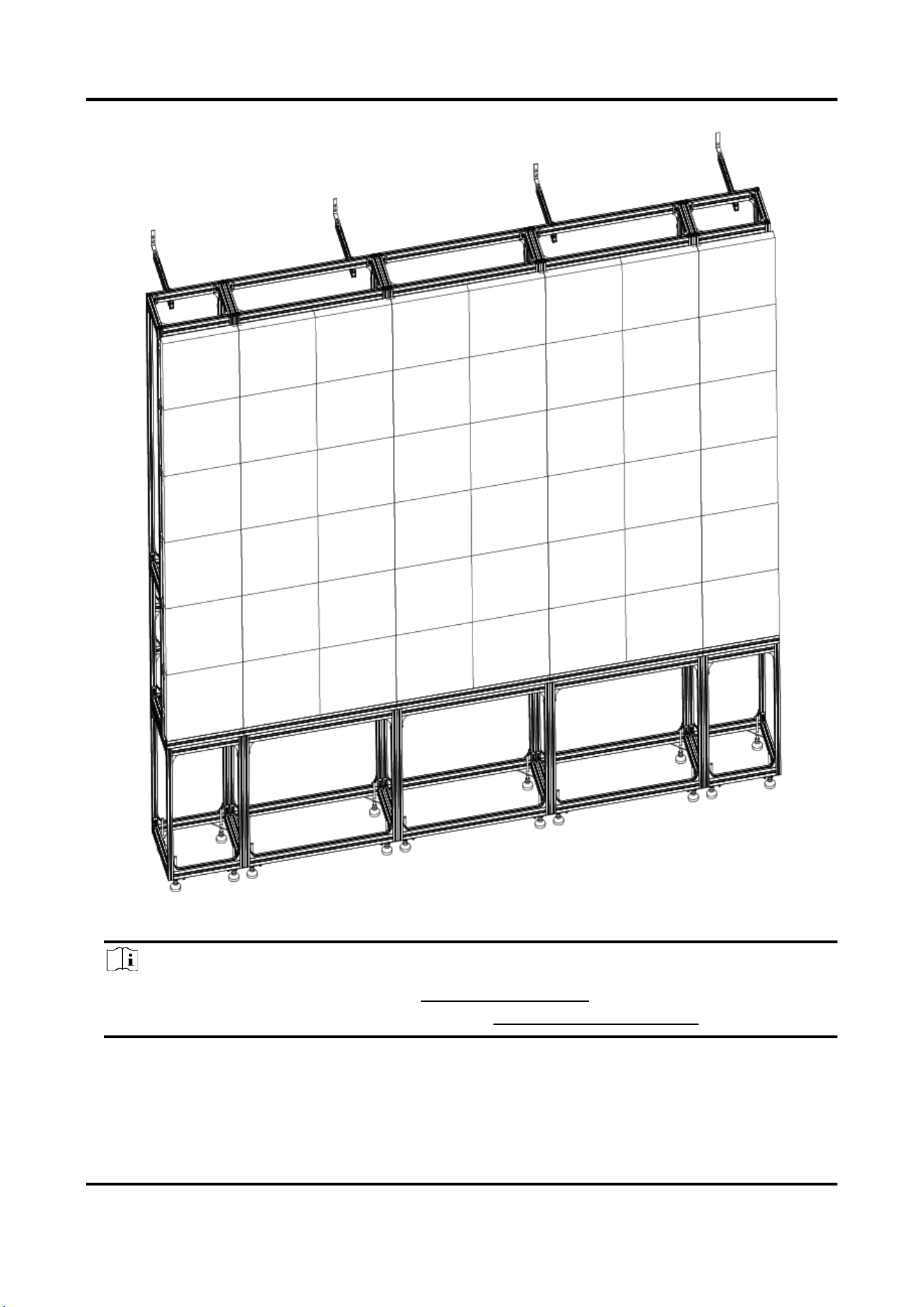
Figure 2-50 Screens Fixed
5. Ensure that all the cabinets are flat and vertical and the seams between the cabinets are even.
Then tighten the anchor bolts to complete the installation.
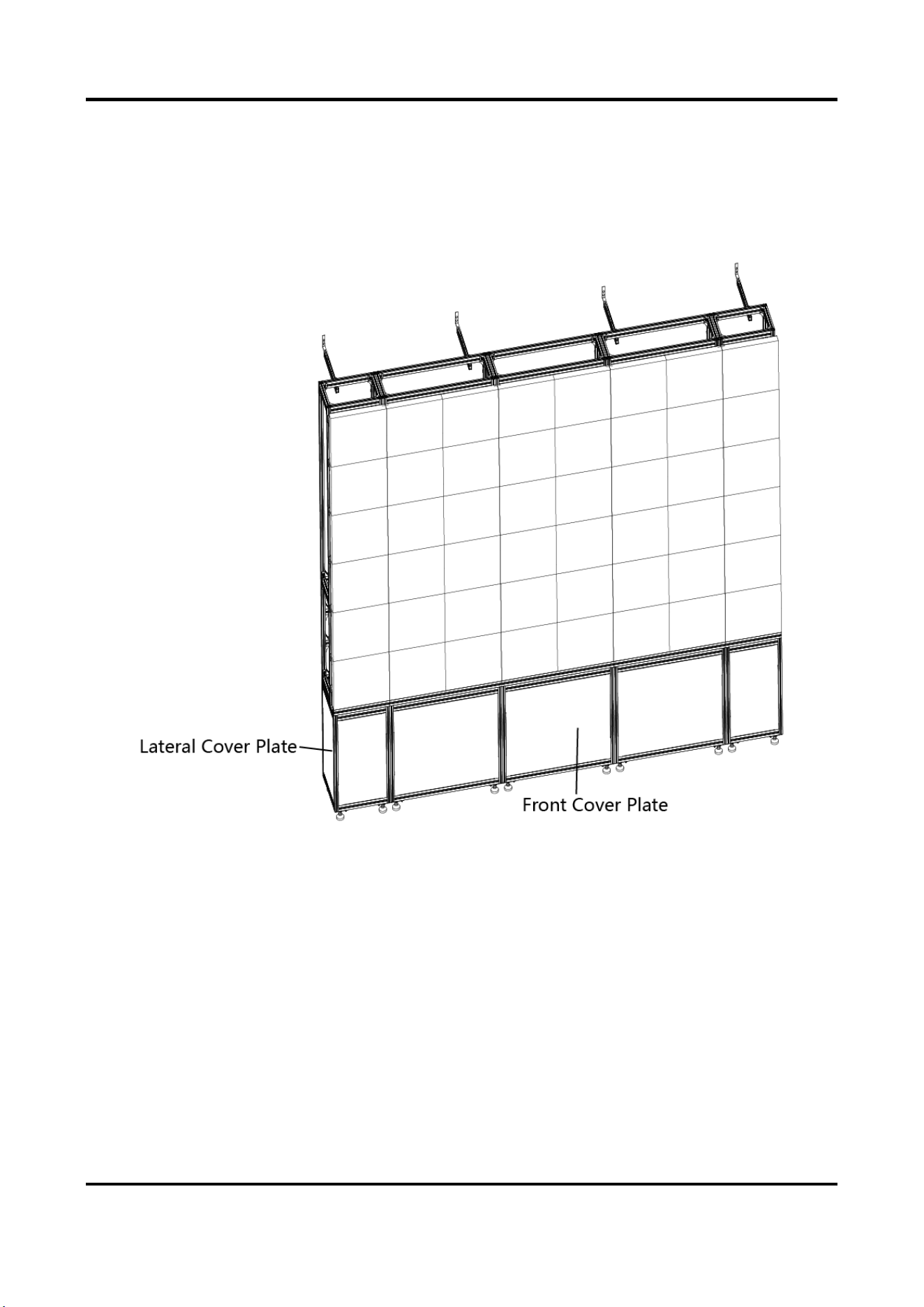
Indoor Fixed LED Display Unit Installation Guide
41
Install the Cover Plates and Door Plates for Bottom Chassis
Steps
1. Use T-Shaped bolts to install the front cover plates and lateral cover plates for bottom chassis
respectively.
Figure 2-52 Install the Cover Plates
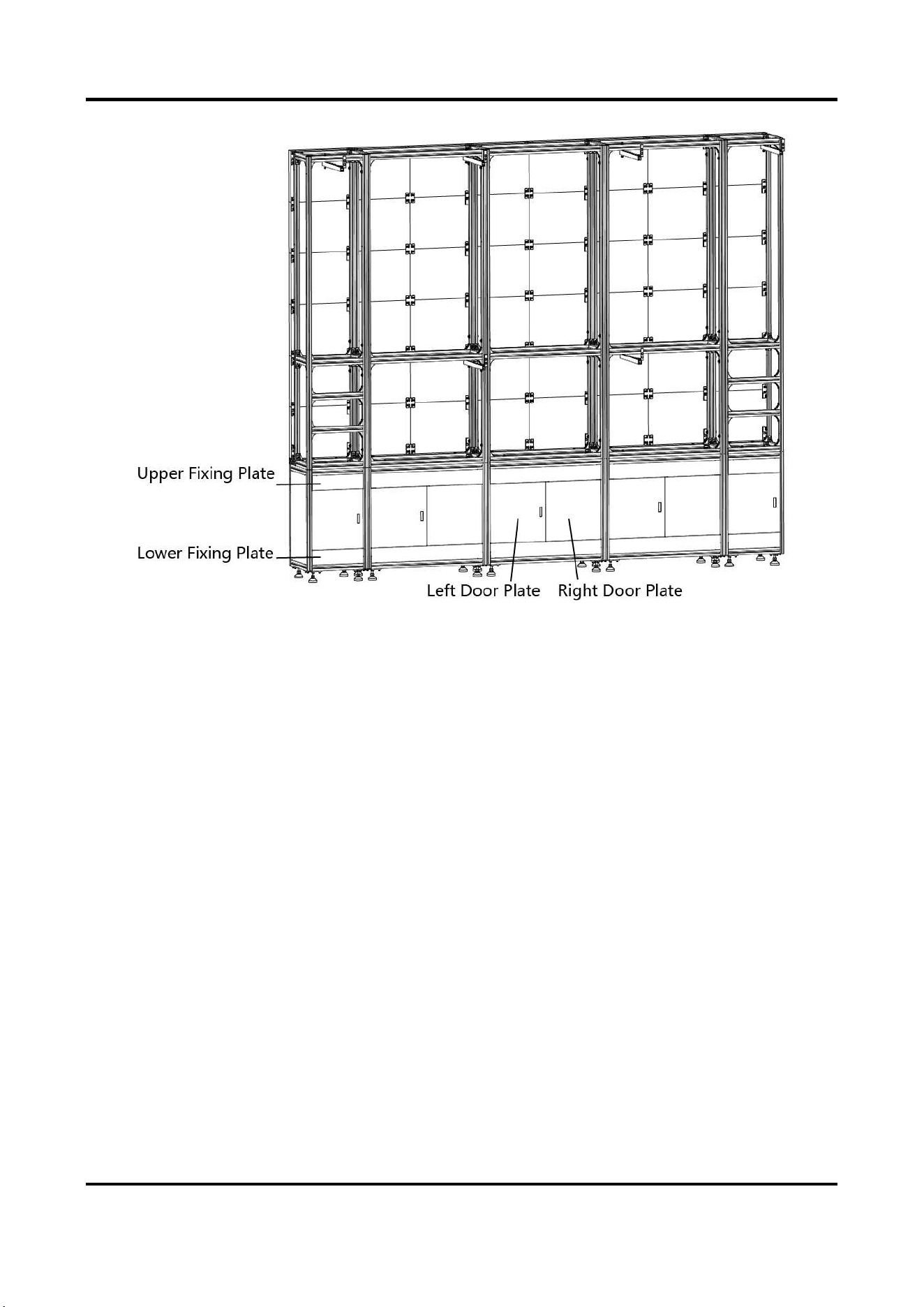
2. Use T-shaped bolts or door hinge to install the door plates including upper fixing plates, lower
fixing plates, left door plates and right door plates.
Indoor Fixed LED Display Unit Installation Guide
42
Figure 2-53 Install the Door Plates
Indoor Fixed LED Display Unit Installation Guide
43
Chapter 3 Cabinet Installation
3.1 Introduction
3.1.1 About the Cabinet
A cabinet is a basic unit for LED engineering installation in which LED modules are neatly mounted
on a metal sheet (cast aluminum) box, with a built-in independent receiving card and switching
power supply, an engineering installation structure, and independent display.
3.1.2 Load Capability of the Cabinet
Load Capability of Network Interfaces
The load capability of a single network interface of the sending card is limited. You can calculate
the max load of a single network interface by the following formula.
Max Load of a Network Interface = Pixel Capacity of a Network Interface/Cabinet Resolution
Example
If equipped with a sending card of 650,000 pixels, the max load of a single network interface for a
P1.2 cabinet of 480 × 270 resolution is 5 cabinets.
Note
You can choose sending cards of different pixels and cabinets of different resolution, and
calculate the load capability by the formula.
Load Capability of Power Cords
The load capability of a single power cord is limited. You can calculate the max load of a single
power cord by the following formula.
Max Load of a Single Power cord = Power of the Cord/Power of the Cabinet
Note
You can choose power cords and cabinets of different specifications, and calculate the load
capability by the formula.
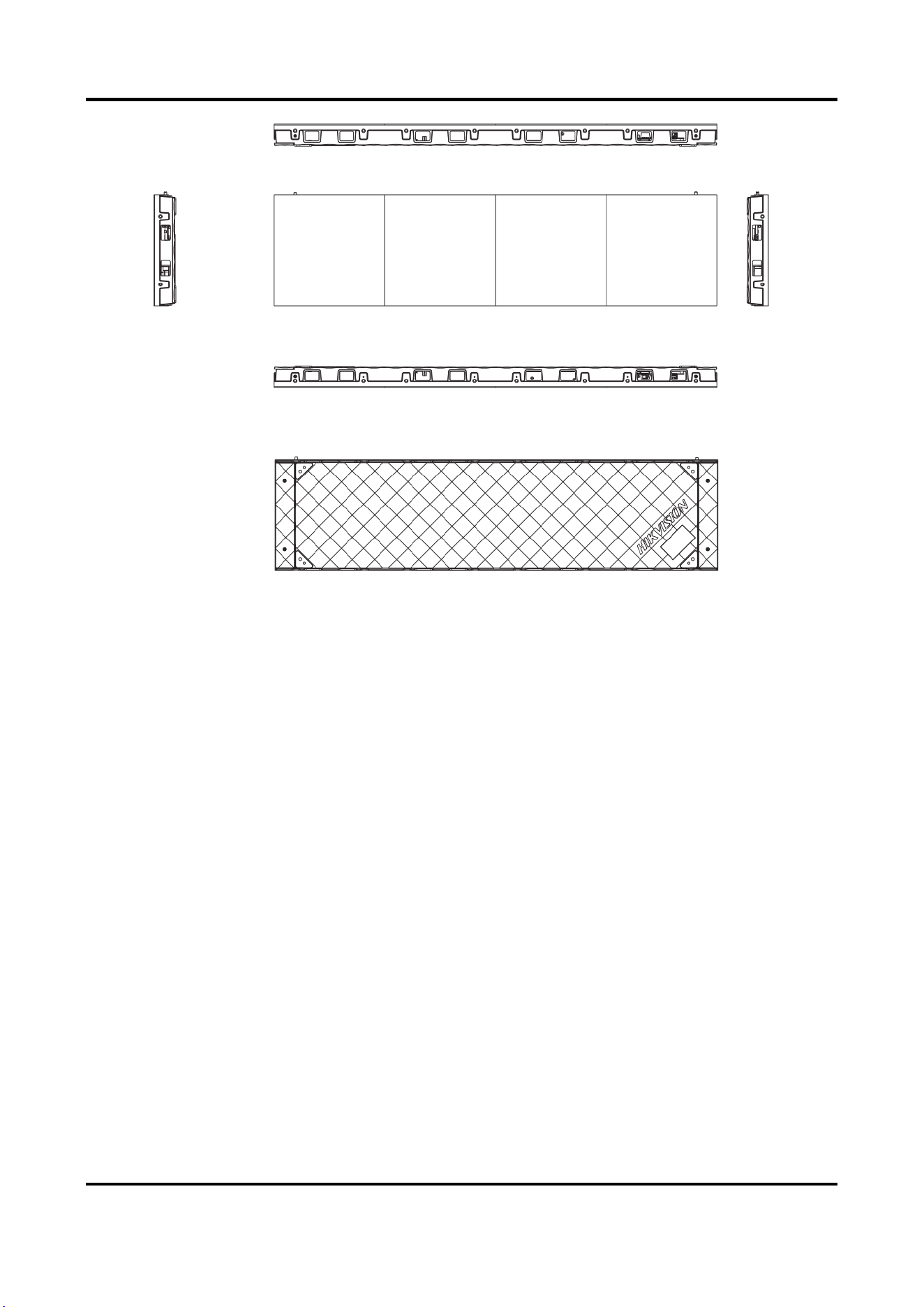
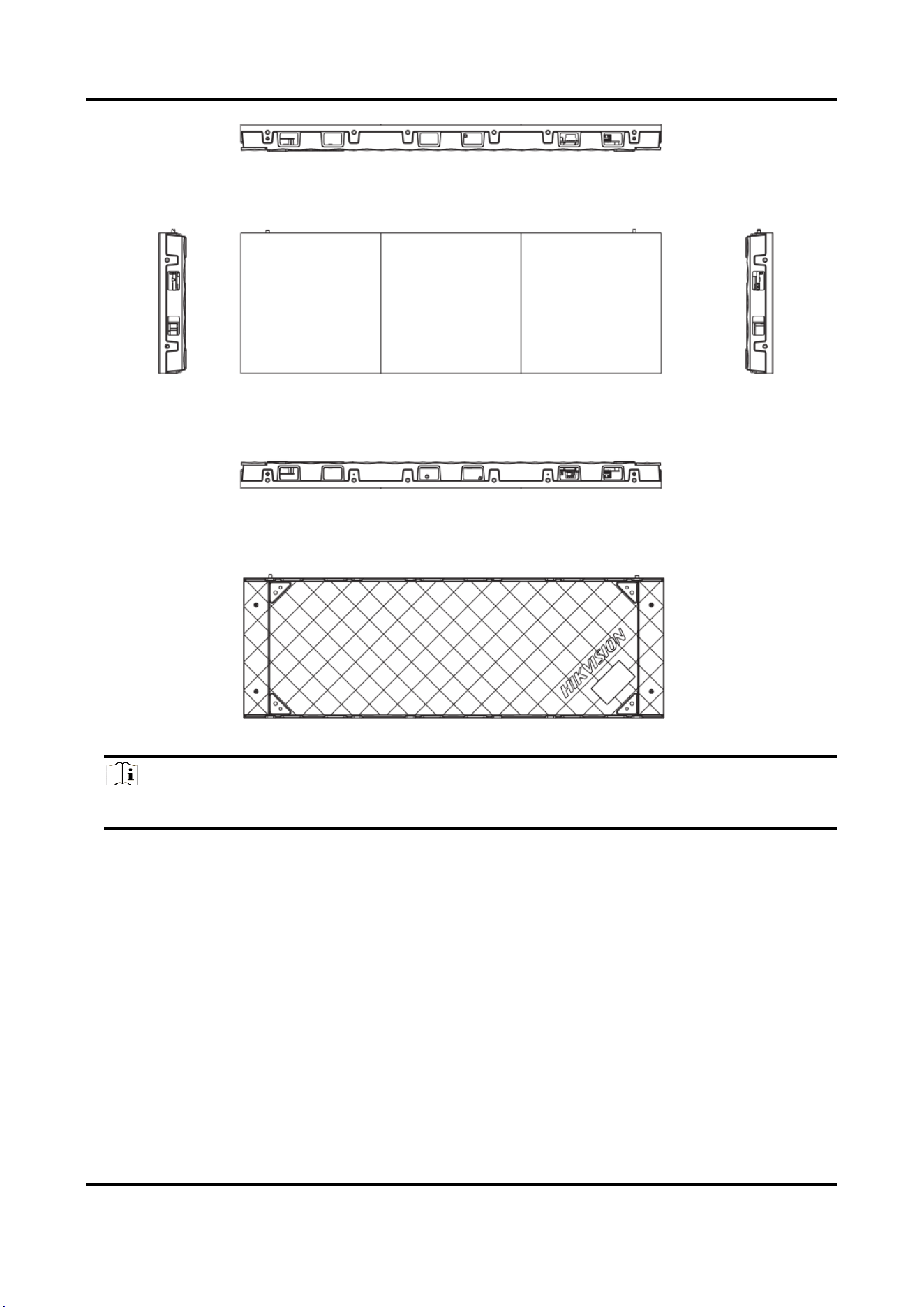
3.1.3 Cabinet Overview
Indoor Fixed LED Display Unit Installation Guide
44
Figure 3-1 Cabinet Overview 1
Indoor Fixed LED Display Unit Installation Guide
45
Figure 3-2 Cabinet Overview 2
Note
The actual device prevails.
3.2 Install the Cabinets
3.2.1 Precautions
Read the following precaution tips before you install the LED screens:
● Install the LED screens after the decoration construction is completed.
● Avoid humid or high-pH environment to prevent damage to the LED lamps.
● Do not expose the device to rain or humid environment to reduce the risk of fire or electric
shock.
Indoor Fixed LED Display Unit Installation Guide
46
● Electric discharge may last for a short period of time after the power is shut down. Please wait
two minutes after the power is shut down to operate the device.
● Only use the original power cord delivered with the device. Contact authorized dealer to
purchase power cord with same specifications.
● Please do not frequently plug and unplug the power cord when the power is on.
3.2.2 Stitch Cabinet Frames
Cabinet Frame Locating
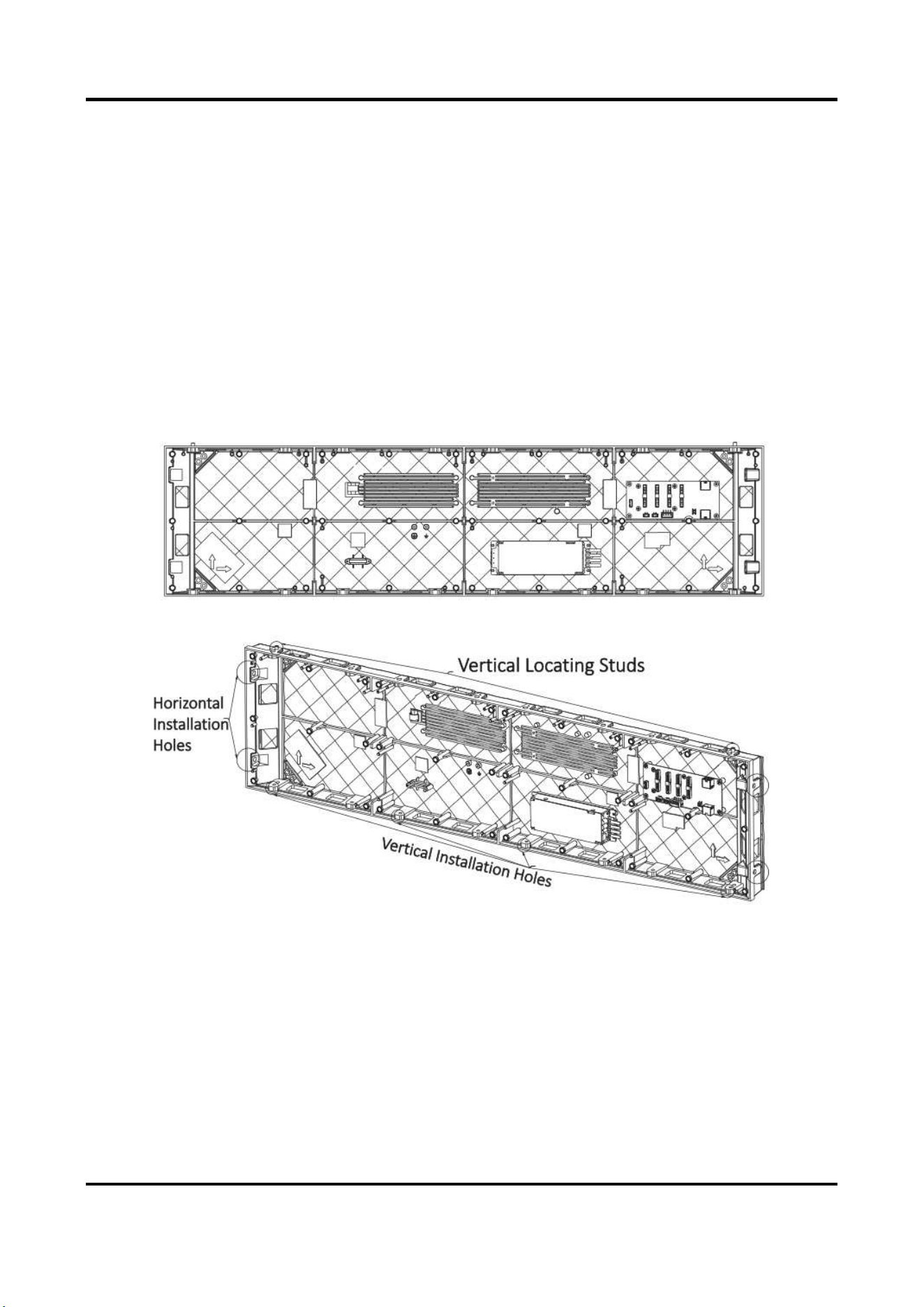
Align two cabinet frames with the locating studs, locating holes, and installation holes. Single
cabinet frame is equipped with two locating studs, two locating holes, two sets of horizontal
installation holes, and several sets of vertical installation holes.
Figure 3-3 Locate Studs and Installation Holes
Stitch Cabinet Frames Horizontally
Steps
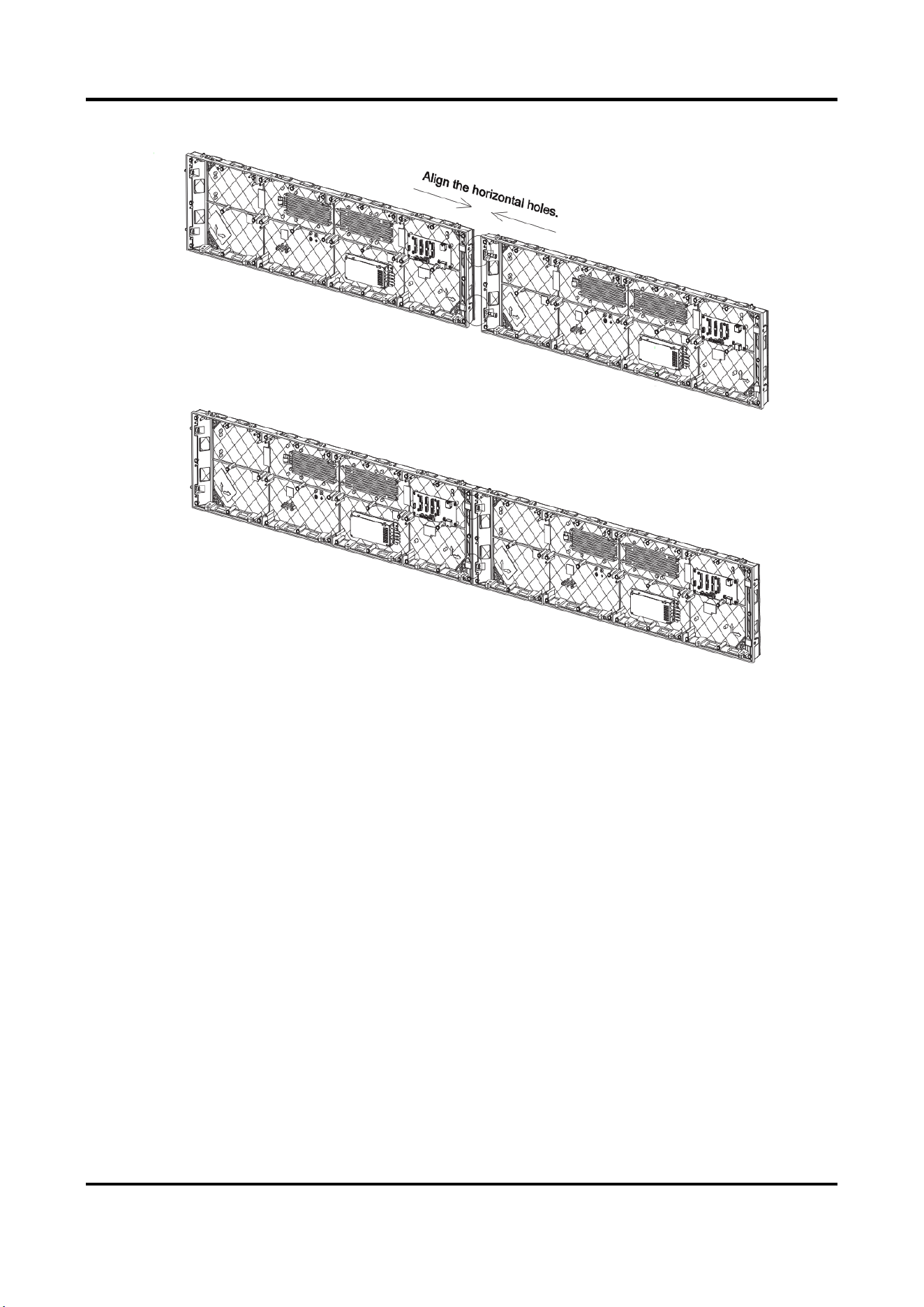
1. Align the installation holes in the horizontal direction of the two adjacent cabinet frames, and
adjust the cabinet frames to the relative height.
Indoor Fixed LED Display Unit Installation Guide
47
2. Insert the M6 step screws from right to left into the installation holes.
Figure 3-4 Align the Cabinet Horizontally
Stitch Cabinet Frames Vertically
Steps
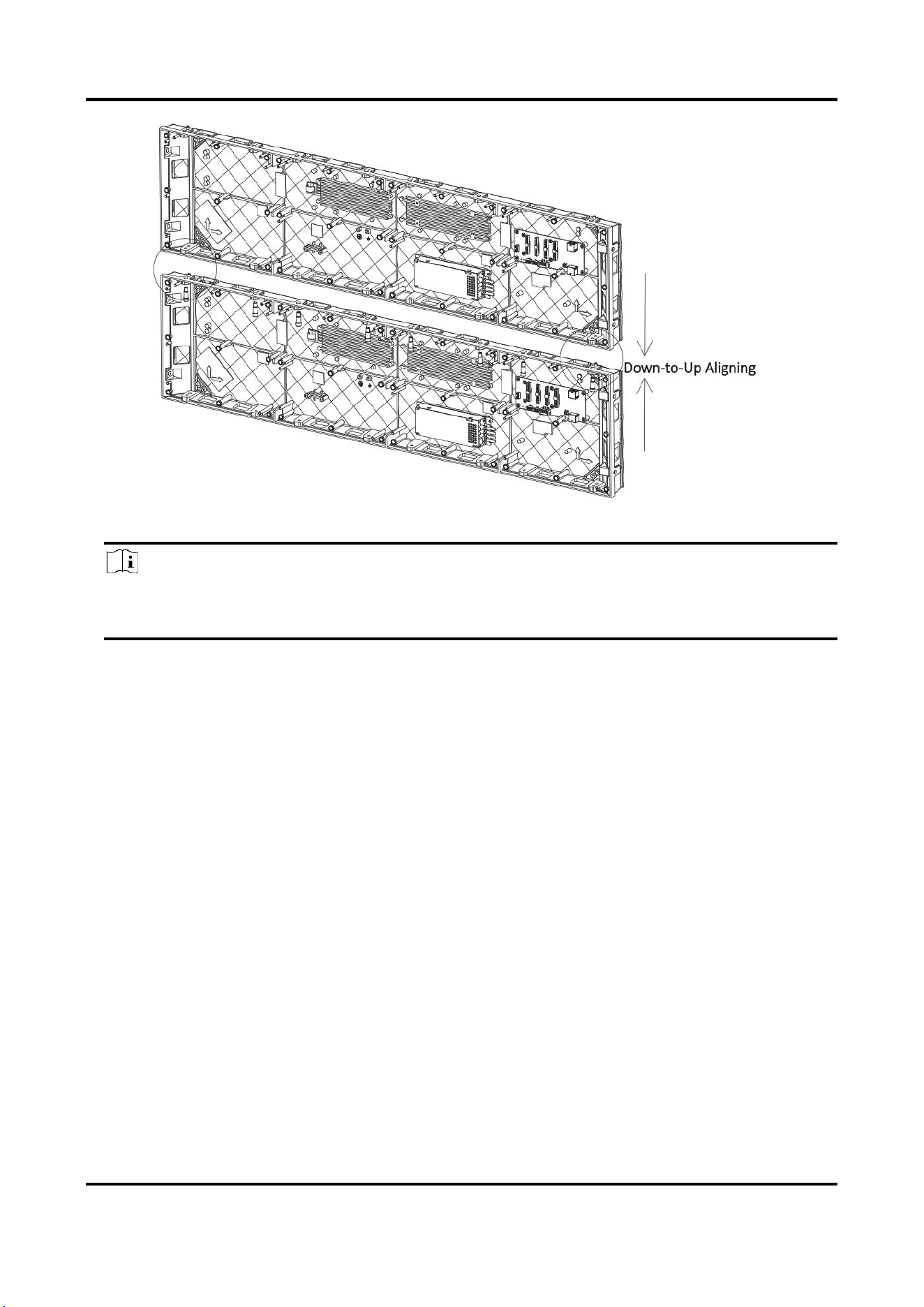
1. Align the locating studs in the vertical direction of the two adjacent cabinet frames to the
locating holes, and adjust the cabinet frames vertically against each other.
2. Fix the cabinet frames down to up with the M6 screws.
Indoor Fixed LED Display Unit Installation Guide
48
Figure 3-5 Align the Cabinet Vertically
Note
The cabinets support special-shaped stitching vertically. You can stitch them through the
reserved vertical installation holes according to the actual conditions.
3.3 Connect the Power Cords and Network Cables
3.3.1 Connect the Power Cords
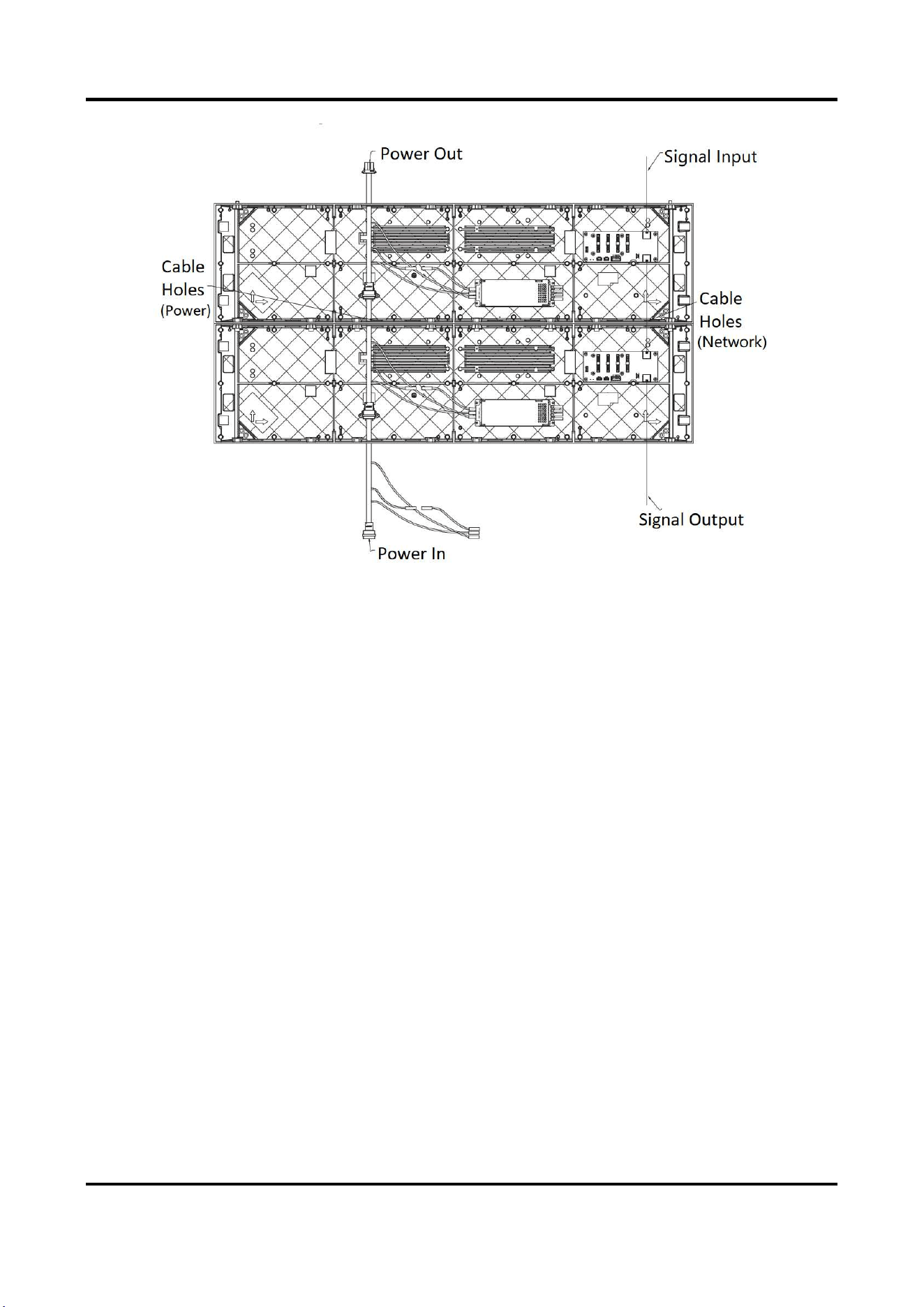
Internal Power Cord Connection
Pull the power cords through the cable holes between cabinets. Connect one end of the cord to
POWER IN interface, and the other end to POWER OUT interface.
Indoor Fixed LED Display Unit Installation Guide
49
Figure 3-6 Internal Power Cord Connection
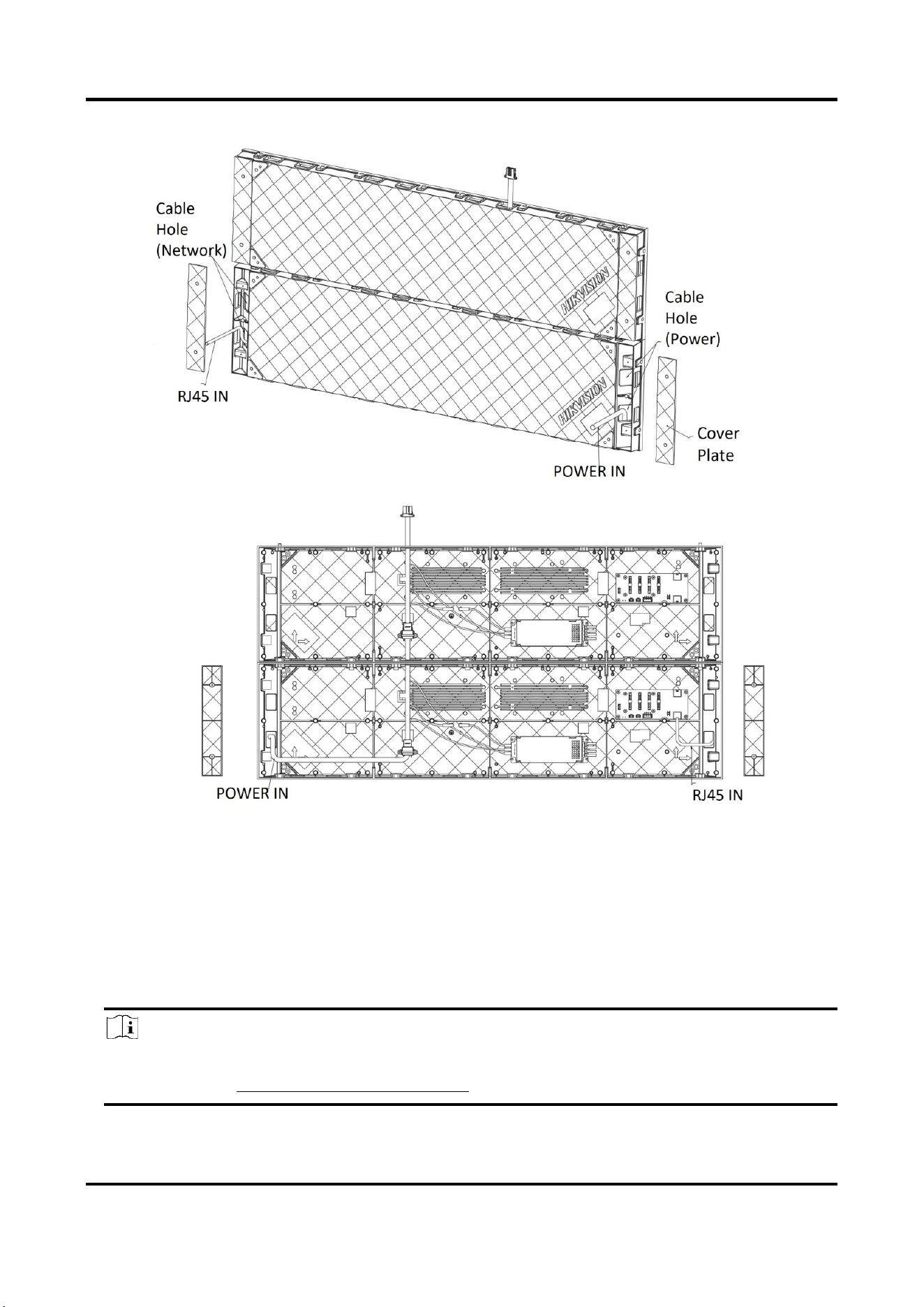
External Power Cord Connection
Steps
1. Pull the power cord through the reserved hole on the bottom of the cabinet, and connect to the
external power supply.
2. If the actual number of cabinets exceeds the max load of the power cord, remove the cover
plates of the cable holes on the left or right sides of the overloaded cabinets and pull the power
cords through the holes to connect to external power supply.
Indoor Fixed LED Display Unit Installation Guide
50
Figure 3-7 External Power Connection
3.3.2 Connect the Network Cables
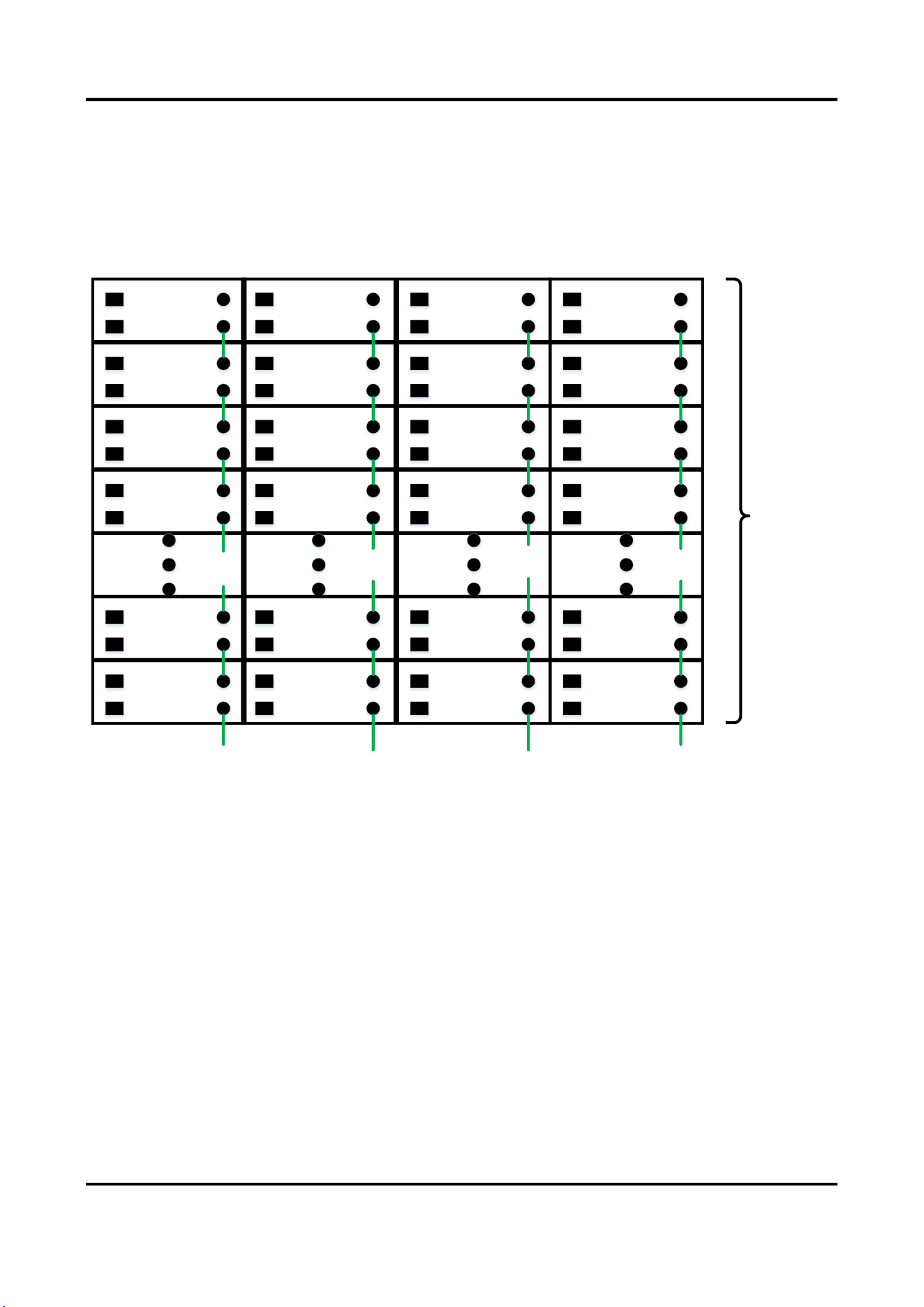
The load capability of a single network interface is limited.
● If the actual number of cabinets is within the maximum load, connect a single network cable
to the cabinets in the same column.
● If the actual number of cabinets exceeds the maximum load, extra network cables are needed.
Note
The max loads of different screen types are different. For the formula to calculate the load
capability, see Load Capability of the Cabinet.
Indoor Fixed LED Display Unit Installation Guide
51
Within the Maximum Load
Take 17 × 4 cabinets with 1 × 4 P2.6 receiving cards for example. The resolution of the receiving
cards is 384 × 96, and the maximum load of a single network cable is 17 receiving cards.
To connect the network cables, pull a single network cable through the holes on one column of
the cabinets and plug into one network interface of the sending card. See the following figure for
the cable connection.
Sending Card
Network Interface 1
17 Rows
of
Receiving
Cards
Sending Card
Network Interface 2
Sending Card
Network Interface 3
Sending Card
Network Interface 4
Figure 3-8 Network Cable Connection (Within the Maximum Load)
Beyond the Maximum Load
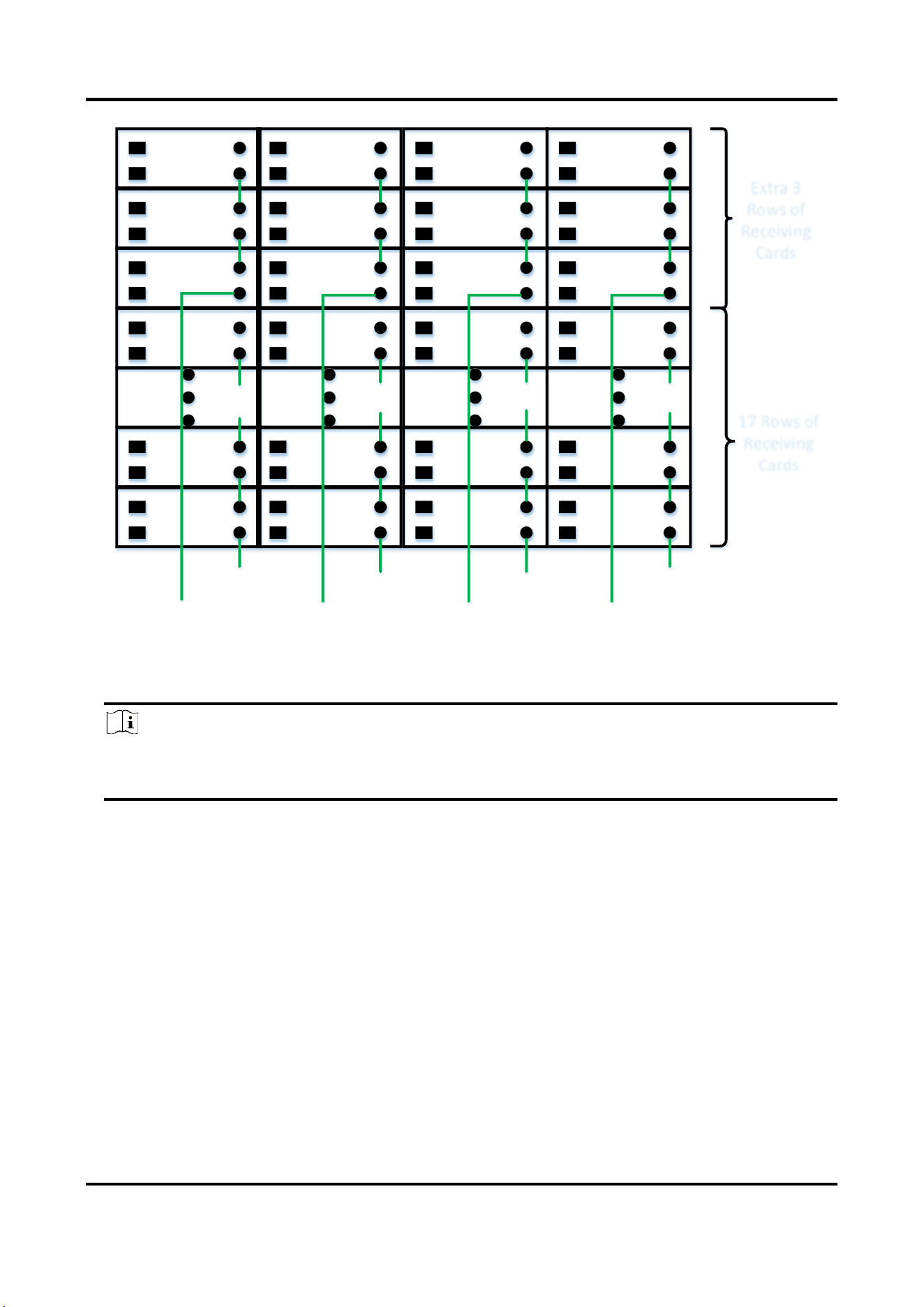
Take 20 × 4 cabinets with 1 × 4 P2.6 receiving cards for example. The resolution of the receiving
cards is 384 × 96, and the maximum load of a single network cable is 17 receiving cards. When the
actual number of cabinets exceeds the maximum load, please follow this instruction to connect
the network cables.
Steps
1. Follow the step shown in the last part to connect the 17 rows of cabinets within the maximum
load.
2. Remove the cover plates on the first row of overloaded cabinet, for example, the 18th row of
cabinets in the following figure, and pull another network cable through the holes on one
column of the cabinets from 18th to 20th rows. Plug it into another network interface of the
sending card.
Indoor Fixed LED Display Unit Installation Guide
52
17 Rows of
Receiving
Cards
Extra 3
Rows of
Receiving
Cards
Sending Card
Network Interface 2
Sending Card
Network Interface 1
Sending Card
Network Interface 4
Sending Card
Network Interface 3
Sending Card
Network Interface 6
Sending Card
Network Interface 7
Sending Card
Network Interface 5
Sending Card
Network Interface 8
Figure 3-9 Network Cable Connection (Beyond the Maximum Load)
3. Repeat the first and the second steps to complete the cable connection of all cabinets.
Note
The figures shown above are for reference. The actual connection can be flexibly adjusted
according to your needs, so long as every single network interface is not overloaded.
3.4 Maintain the Cabinet
3.4.1 Maintain the Lamp Boards
You can maintain the lamp boards from the front or rear side.
Front Maintenance
Steps:
1. Use LED vacuum pump to remove the first lamp board and unfasten the safety buckle on the
back of the board.

Indoor Fixed LED Display Unit Installation Guide
53
Figure 3-10 Remove the Lamp Board
2. Repeat the first step to remove other lamp boards.
3. After the maintenance, assemble the lamp boards back. Align the long side of the board to the
frame of the cabinet, and attach the rest three sides slowly.
Figure 3-11 Assemble the Lamp Board Back
Rear Maintenance
Steps:
1. Tighten the adjustment screw to the end. Hold the handles on the board back and push it out.
2. Turn the lamp board until its short side is pushed out diagonally.
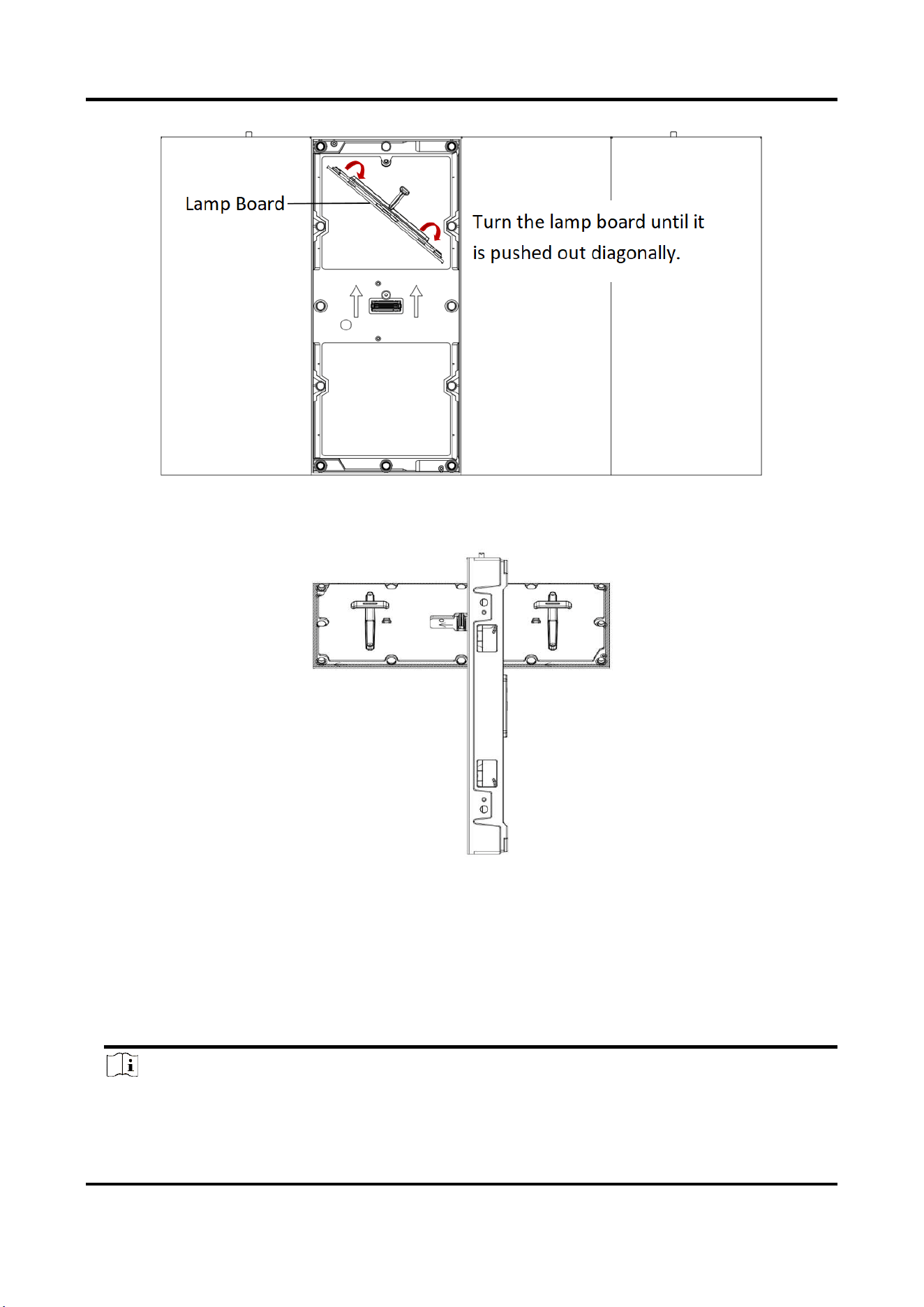
Indoor Fixed LED Display Unit Installation Guide
54
Figure 3-12 Turn the Lamp Board
3. After the lamp board is detached from the cabinet, unfasten the safety buckle and remove the
lamp board.
Figure 3-13 Remove the Lamp Board (Side View)
4. After the maintenance is completed, fasten the safety buckle, put the short side of the lamp
board diagonally through the cabinet, and turn the board until the arrow sign points up.
5. Hold the handles with both hands, and attach the iron pieces at the center of the lower edge to
the magnets on the frame, making sure that the lower edge of the lamp board has been
attached to the cabinet.
6. Hold the board top and approach slowly towards the adjustment screw. Loosen the screw and
attach the board top back into the cabinet.
Note
When you are putting the lamp board back, check on the front to see whether the board is in
Indoor Fixed LED Display Unit Installation Guide
55
place. If the screws are too tight, loosen the cabinet frame or widen the space between the
lamp boards.
3.4.2 Maintain Other Components
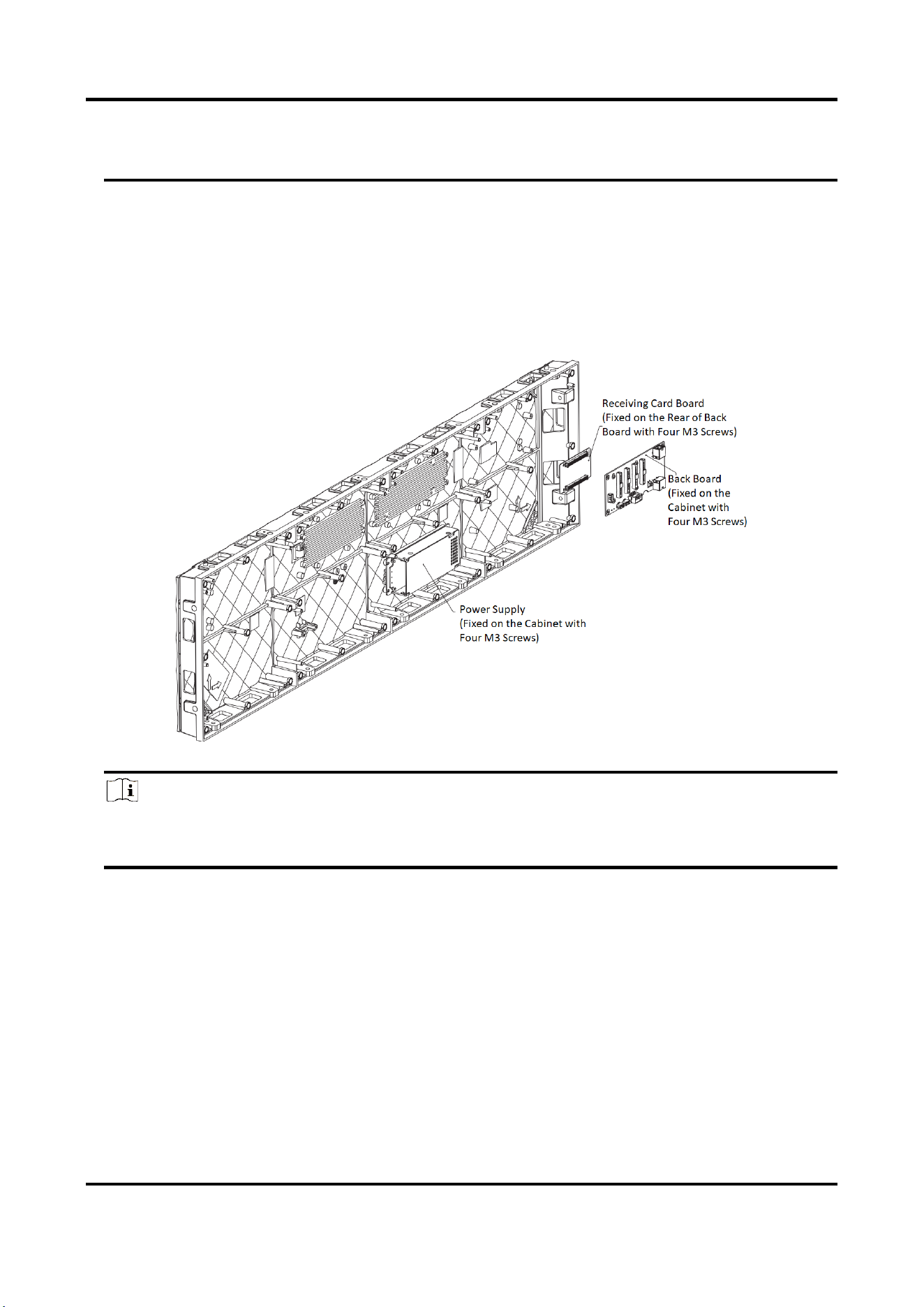
Remove the two installment screws on the rear cover, take down the rear cover, and then you can
maintain the internal power supply, receiving cards, and the back board.
The internal power supply, receiving card board, and the back board have been assembled before
shipment.
Figure 3-14 Maintain Other Components
Note
In the case of rear maintenance, you should reserve at least 50 mm distance to the rack for
removing the rear cover.
Indoor Fixed LED Display Unit Installation Guide
56
Chapter 4 Software Debugging
Note
For detailed settings of NovaLCT and ViPlex Express, refer to the Help or User Manual of the
corresponding software.
4.1 LED Display Controller Settings
This LED display can be configured via the application on a PC or mobile device. The following
guidance takes the application on a PC as an example.
4.1.1 Login
Before You Start
● Connect the controller to your router via network cables. The controller supports DHCP by
default. Connect your PC to the same router. Connect the LED screen to the LED OUT interface
of the controller.
● Download the NovaLCT V5.4.3 from https://www.novastar.tech/downloads.
Steps
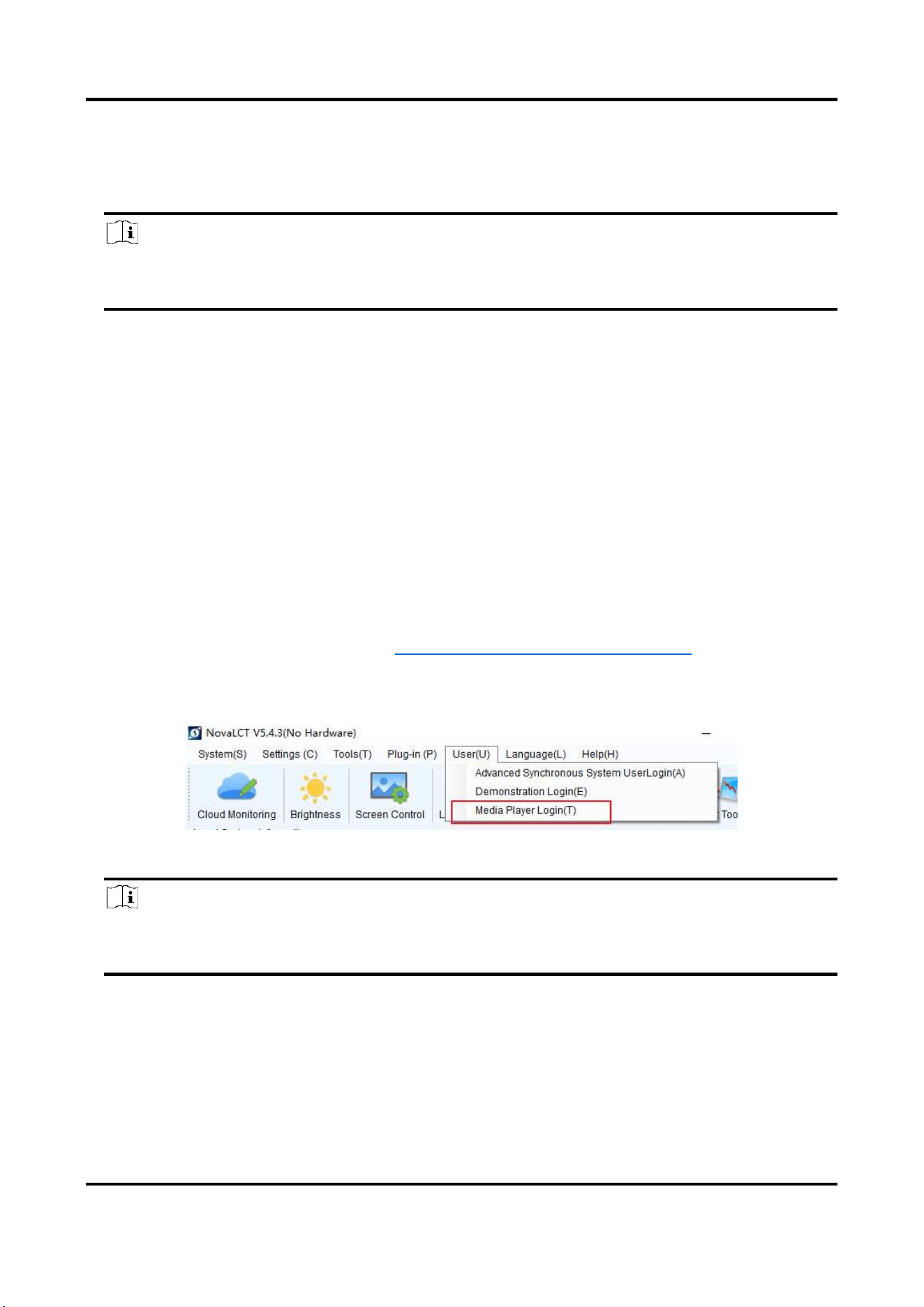
1. Go to User > Media Player Login.
Figure 4-1 Media Player Login
Note
For DS-D42B0X-N series controller, e.g. DS-D42B01-N, you should log in via Media Player
Login. For other series, you should log in via Advanced Synchronous System User Login.
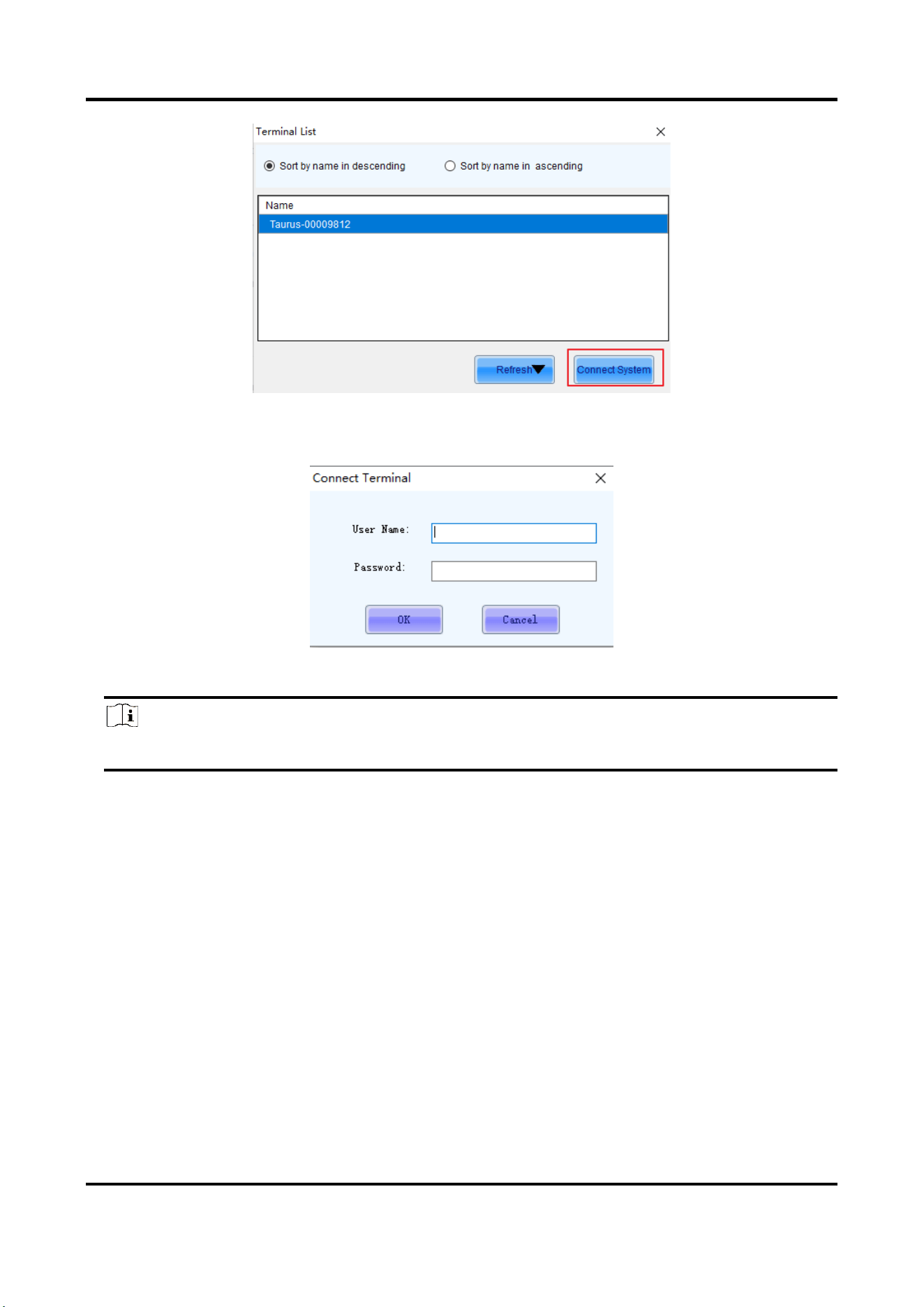
2. In the Terminal List dialog box, select the controller, and click Connect System.
Indoor Fixed LED Display Unit Installation Guide
57
Figure 4-2 Connect System
3. In the Connect Terminal dialog box, enter User Name and Password, and click OK.
Figure 4-3 Login
Note
The default user name is admin. The default password is 123456.
4.1.2 Set Screen
Steps
1. Go to Screen Configuration > Receiving Card.
2. Click Read from Receiving Card to get the configuration file, and then click Save.
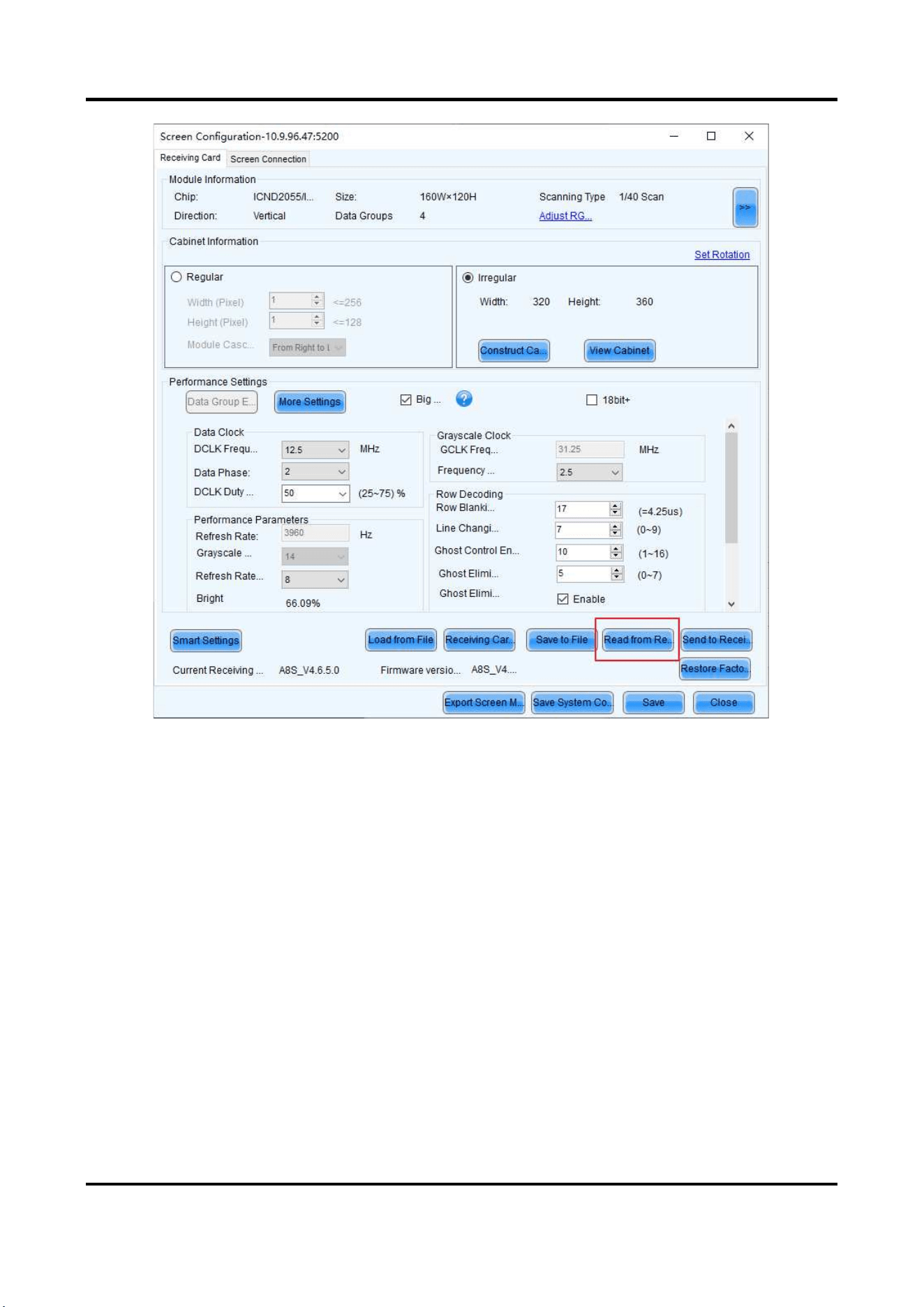
Indoor Fixed LED Display Unit Installation Guide
58
Figure 4-4 Receiving Card Settings
3. Click Screen Connection, and set the X and Y coordinates, receiving card size, and the
connection of receiving cards.
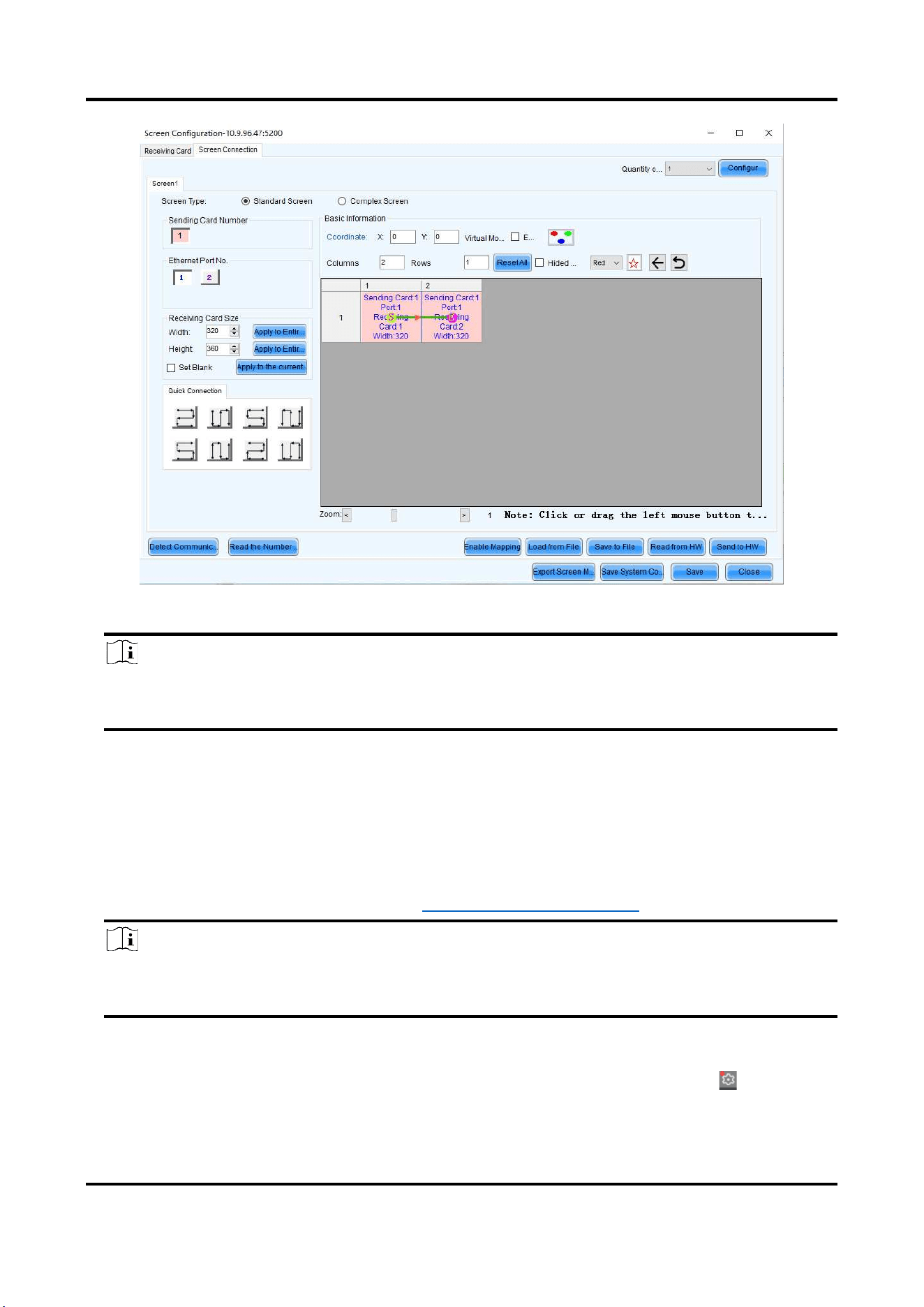
Indoor Fixed LED Display Unit Installation Guide
59
Figure 4-5 Screen Connection
Note
● Receiving card size should match cabinet size.
● The connection of screens should be consistent with the actual situation.
4. Click Send to HW, and then click Save.
4.2 Release Program
Before You Start
Download the ViPlex Express software from http://vnnox.com/download.
Note
Only DS-D42B0X-X series controllers, e.g. DS-D42B01-N, support releasing programs. Other
controllers do not support this function.
Steps
1. Open ViPlex Express. If this is the first time that you launch ViPlex Express, go to > Working
Mode > Async Mode.
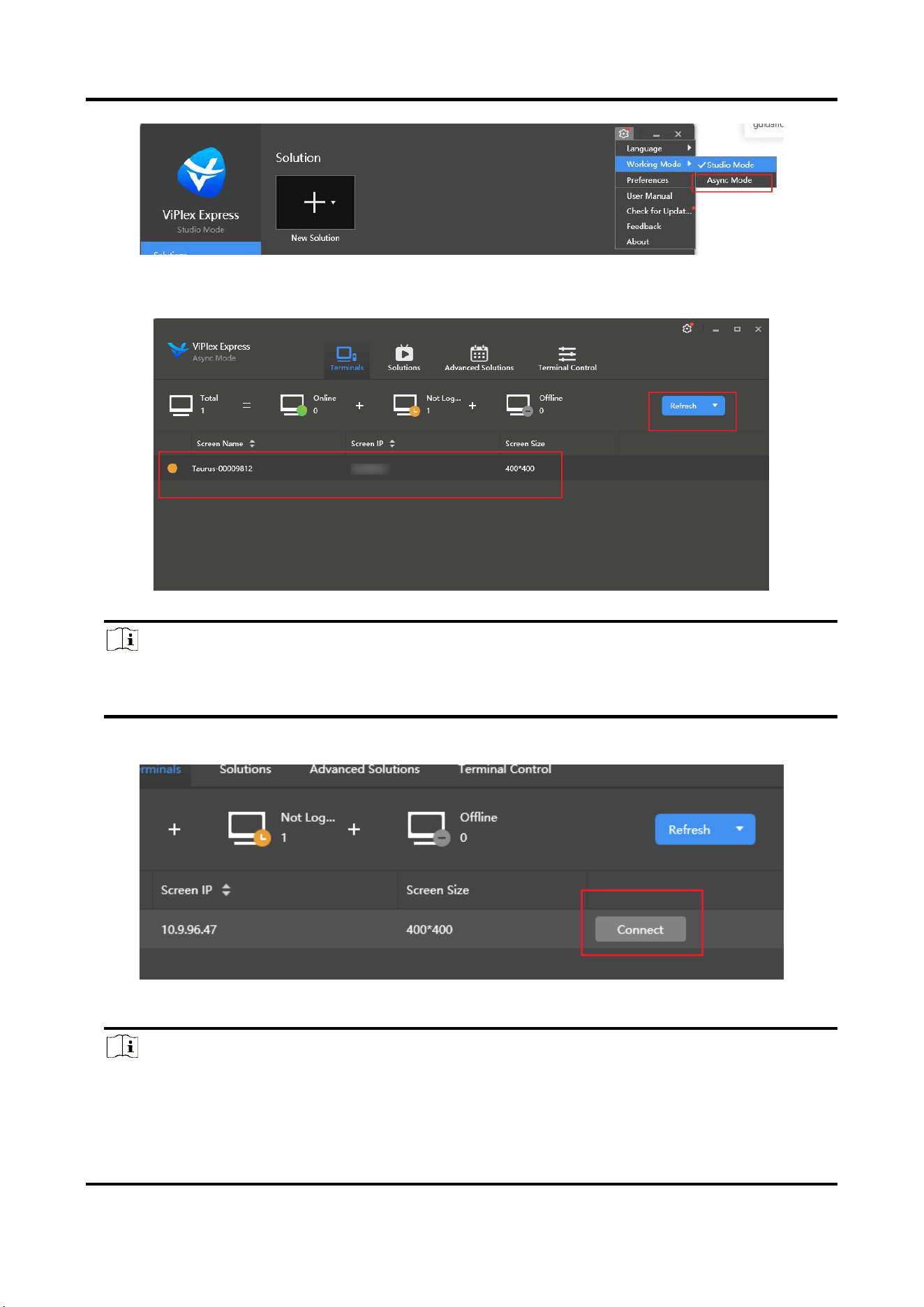
Indoor Fixed LED Display Unit Installation Guide
60
Figure 4-6 Async Mode
2. Click Terminals, and click Refresh.
Figure 4-7 Terminals
Note
If the controller and the PC are in the same network segment, the controller will be shown in
the list.
3. Click Connect to log in to the controller.
Figure 4-8 Log in to the Controller
Note
If you have already logged in via mobile application, you cannot log in via the PC application
Indoor Fixed LED Display Unit Installation Guide
61
at the same time.
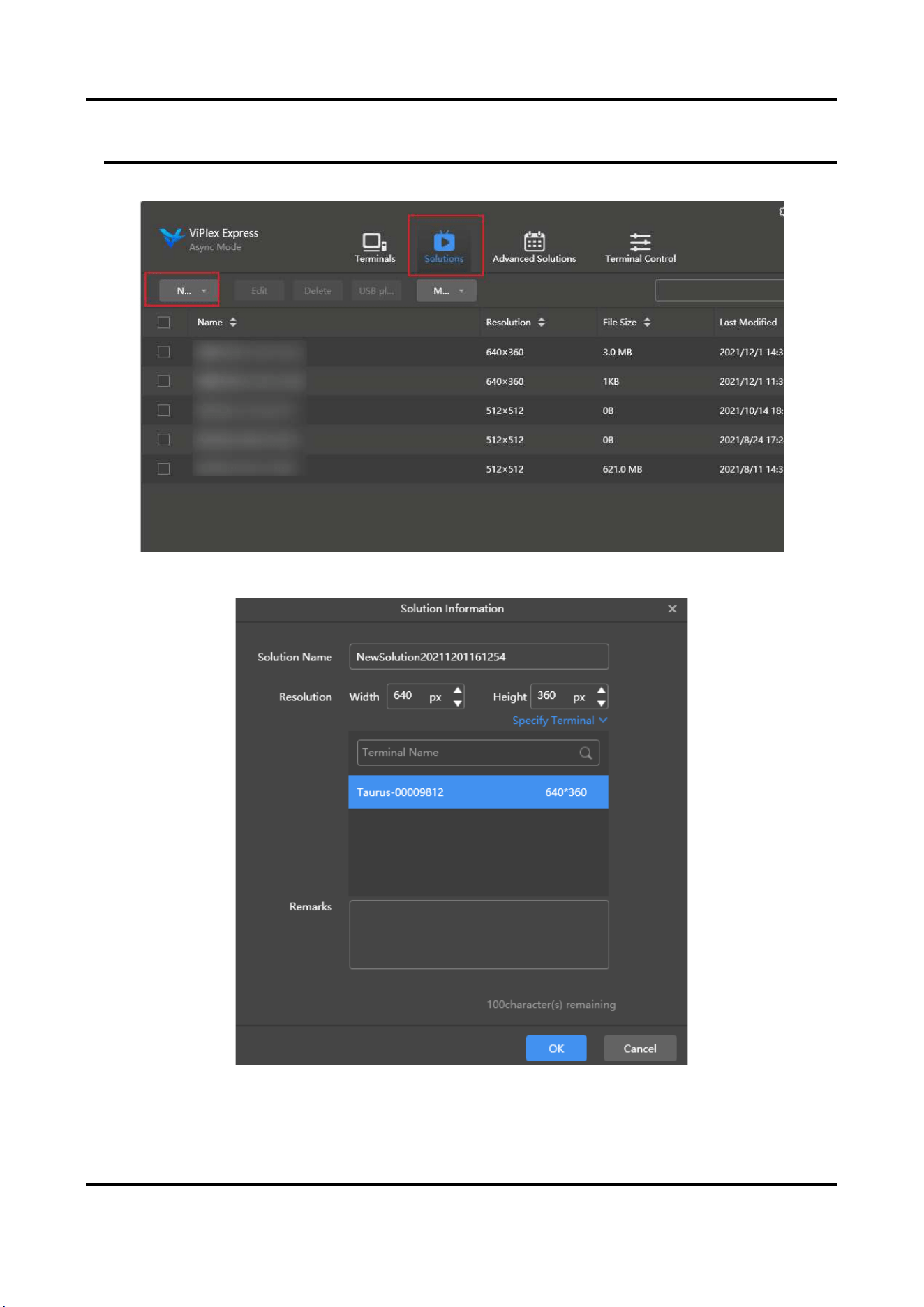
4. Click Solutions to create a new program.
Figure 4-9 Create a New Program
5. Set Solution Name and Resolution. Click OK.
Figure 4-10 Solution Information
Indoor Fixed LED Display Unit Installation Guide
62
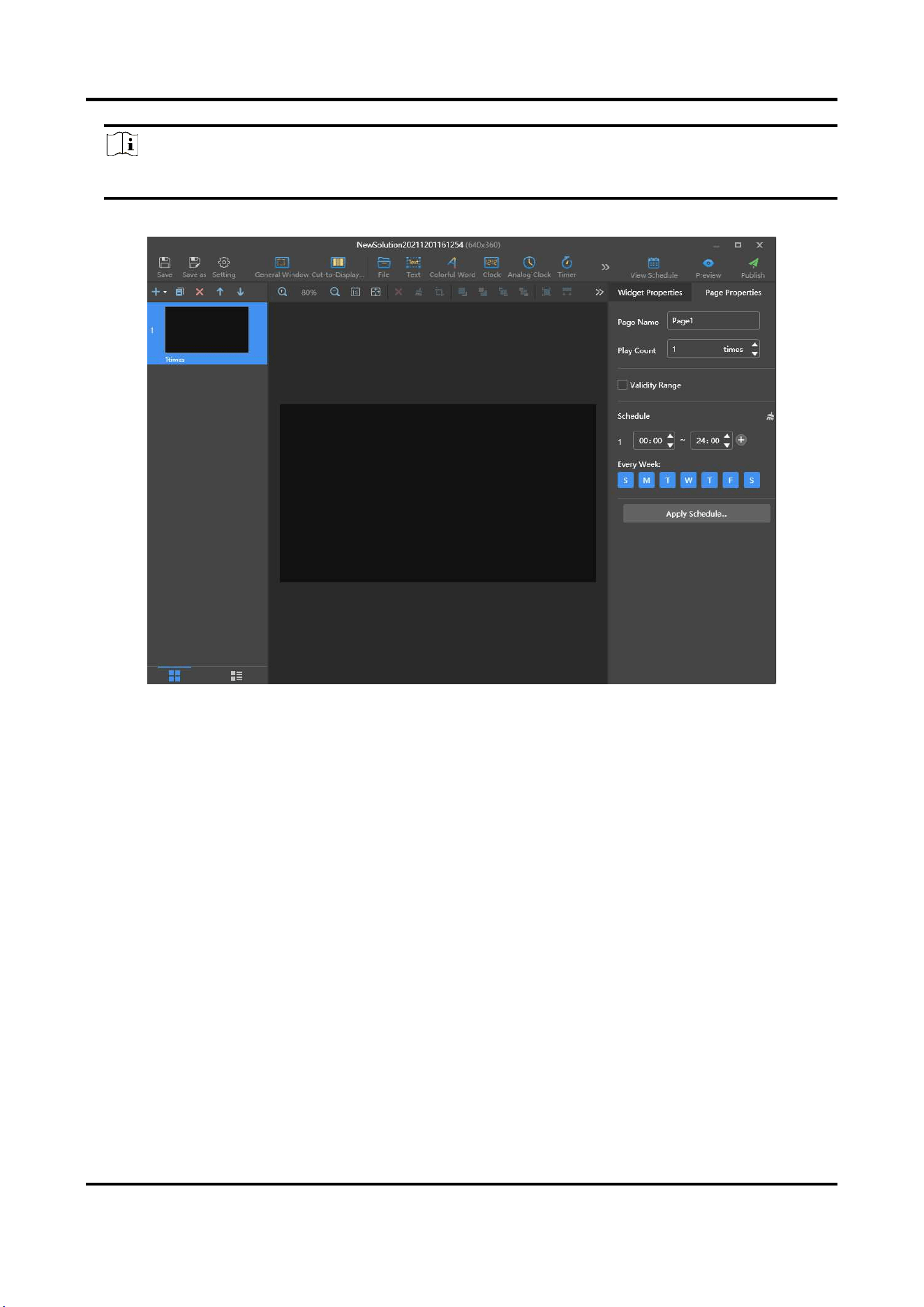
Note
Make sure that the program resolution is the same as the real resolution of the LED screen.
6. Add text or other materials as you wish. For example, click File to add a video.
Figure 4-11 Add Materials
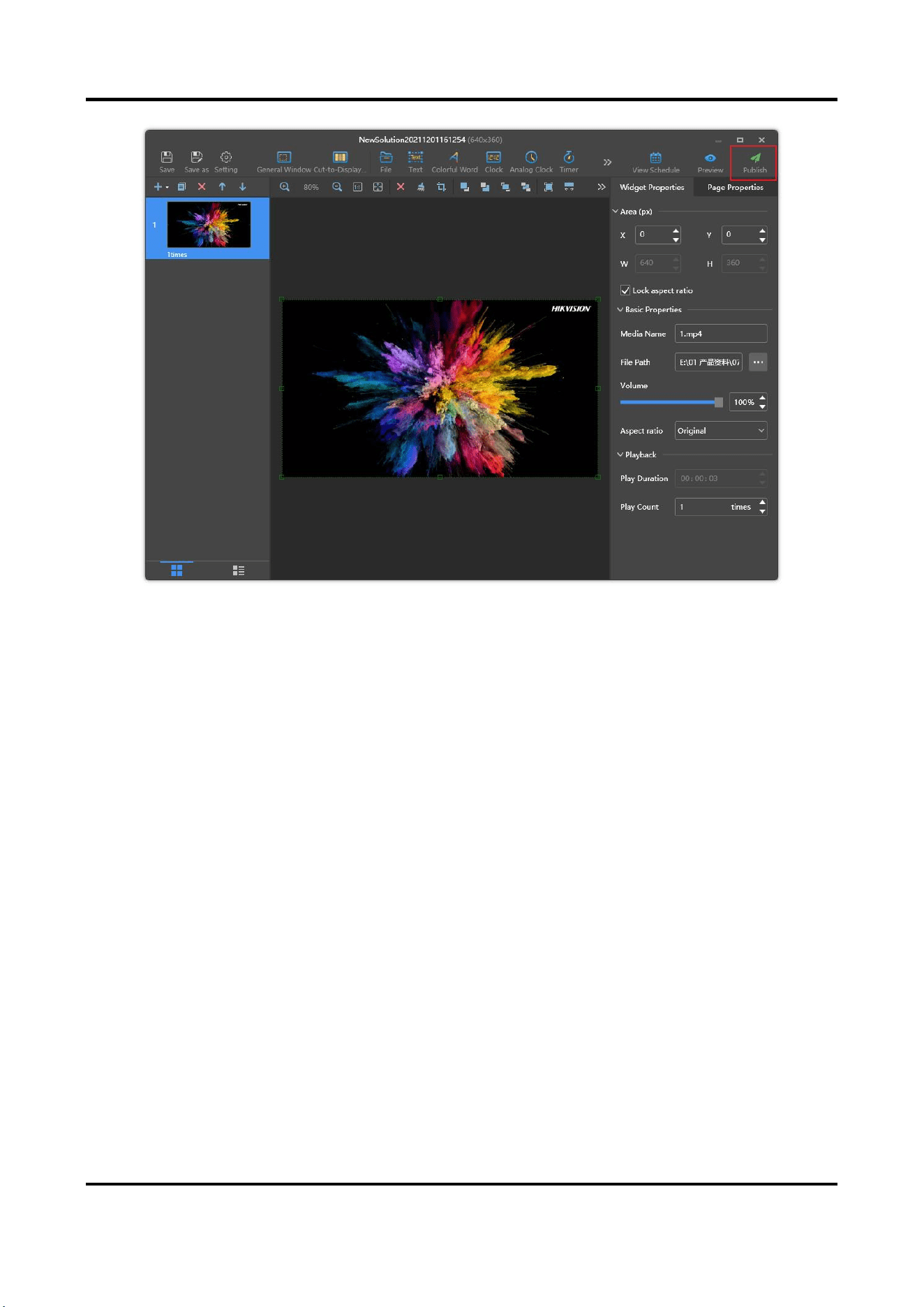
7. Click Publish to send the program to the controller.
Indoor Fixed LED Display Unit Installation Guide
63
Figure 4-12 Publish the Program
UD29748B-A