

Contents
Printing. . . . . . . . . . . . . . . . . . . . . . . . . . . . . . . . . . . . . . . . . . . . . . . . . . . . . . . . . 5
Printing from a Computer. . . . . . . . . . . . . . . . . . . . . . . . . . . . . . . . . . . . . . . . . . . . . . . . . . . 6
Printing with Application Software that You are Using (Printer Driver). . . . . . . . . . . . . . . . . . . . . . . . . . . 7
Printing with Easy Setup. . . . . . . . . . . . . . . . . . . . . . . . . . . . . . . . . . . . . . . . . . . . . . . . . . . . . . . . . . 8
Setting the Media Type with the Printer Driver. . . . . . . . . . . . . . . . . . . . . . . . . . . . . . . . . . . . 10
Various Printing Methods. . . . . . . . . . . . . . . . . . . . . . . . . . . . . . . . . . . . . . . . . . . . . . . . . . . . . . . . . 11
Setting a Page Size and Orientation. . . . . . . . . . . . . . . . . . . . . . . . . . . . . . . . . . . . . . . . . . . . 12
Setting the Number of Copies and Printing Order. . . . . . . . . . . . . . . . . . . . . . . . . . . . . . . . . . 13
Setting the Stapling Margin. . . . . . . . . . . . . . . . . . . . . . . . . . . . . . . . . . . . . . . . . . . . . . . . . . . 15
Execute Borderless Printing. . . . . . . . . . . . . . . . . . . . . . . . . . . . . . . . . . . . . . . . . . . . . . . . . . 17
Fit-to-Page Printing. . . . . . . . . . . . . . . . . . . . . . . . . . . . . . . . . . . . . . . . . . . . . . . . . . . . . . . . . 20
Scaled Printing. . . . . . . . . . . . . . . . . . . . . . . . . . . . . . . . . . . . . . . . . . . . . . . . . . . . . . . . . . . . . 22
Page Layout Printing. . . . . . . . . . . . . . . . . . . . . . . . . . . . . . . . . . . . . . . . . . . . . . . . . . . . . . . . 25
Tiling/Poster Printing. . . . . . . . . . . . . . . . . . . . . . . . . . . . . . . . . . . . . . . . . . . . . . . . . . . . . . . . 27
Booklet Printing. . . . . . . . . . . . . . . . . . . . . . . . . . . . . . . . . . . . . . . . . . . . . . . . . . . . . . . . . . . . 30
Duplex Printing. . . . . . . . . . . . . . . . . . . . . . . . . . . . . . . . . . . . . . . . . . . . . . . . . . . . . . . . . . . . 32
Stamp/Background Printing. . . . . . . . . . . . . . . . . . . . . . . . . . . . . . . . . . . . . . . . . . . . . . . . . . . 36
Registering a Stamp. . . . . . . . . . . . . . . . . . . . . . . . . . . . . . . . . . . . . . . . . . . . . . . . . . . . . . . . 39
Registering Image Data to be Used as a Background. . . . . . . . . . . . . . . . . . . . . . . . . . . . . . . 42
Setting Up Envelope Printing. . . . . . . . . . . . . . . . . . . . . . . . . . . . . . . . . . . . . . . . . . . . . . . . . . 45
Printing on Postcards. . . . . . . . . . . . . . . . . . . . . . . . . . . . . . . . . . . . . . . . . . . . . . . . . . . . . . . . 47
Displaying the Print Results before Printing. . . . . . . . . . . . . . . . . . . . . . . . . . . . . . . . . . . . . . 49
Setting Paper Dimensions (Custom Size). . . . . . . . . . . . . . . . . . . . . . . . . . . . . . . . . . . . . . . . 50
Editing the Print Document or Reprinting from the Print History. . . . . . . . . . . . . . . . . . . . . . . 52
Changing the Print Quality and Correcting Image Data. . . . . . . . . . . . . . . . . . . . . . . . . . . . . . . . . . 55
Setting the Print Quality Level (Custom). . . . . . . . . . . . . . . . . . . . . . . . . . . . . . . . . . . . . . . . . 56
Printing a Color Document in Monochrome. . . . . . . . . . . . . . . . . . . . . . . . . . . . . . . . . . . . . . . 58
Specifying Color Correction. . . . . . . . . . . . . . . . . . . . . . . . . . . . . . . . . . . . . . . . . . . . . . . . . . . 60
Optimal Photo Printing of Image Data. . . . . . . . . . . . . . . . . . . . . . . . . . . . . . . . . . . . . . . . . . . 62
Adjusting Colors with the Printer Driver. . . . . . . . . . . . . . . . . . . . . . . . . . . . . . . . . . . . . . . . . . 63
Printing with ICC Profiles. . . . . . . . . . . . . . . . . . . . . . . . . . . . . . . . . . . . . . . . . . . . . . . . . . . . . 65
Adjusting Color Balance. . . . . . . . . . . . . . . . . . . . . . . . . . . . . . . . . . . . . . . . . . . . . . . . . . . . . 68
Adjusting Color Balance Using Sample Patterns (Printer Driver). . . . . . . . . . . . . . . . . . . . . . 70
Adjusting Brightness. . . . . . . . . . . . . . . . . . . . . . . . . . . . . . . . . . . . . . . . . . . . . . . . . . . . . . . . 74
Adjusting Intensity. . . . . . . . . . . . . . . . . . . . . . . . . . . . . . . . . . . . . . . . . . . . . . . . . . . . . . . . . . 76
Adjusting Contrast. . . . . . . . . . . . . . . . . . . . . . . . . . . . . . . . . . . . . . . . . . . . . . . . . . . . . . . . . . 78
Adjusting Intensity/Contrast Using Sample Patterns (Printer Driver). . . . . . . . . . . . . . . . . . . . 80
Downloaded from ManualsPrinter.com Manuals

Overview of the Printer Driver. . . . . . . . . . . . . . . . . . . . . . . . . . . . . . . . . . . . . . . . . . . . . . . . . . . . . 84
Canon IJ Printer Driver. . . . . . . . . . . . . . . . . . . . . . . . . . . . . . . . . . . . . . . . . . . . . . . . . . . . . . 85
How to Open the Printer Driver Setup Window. . . . . . . . . . . . . . . . . . . . . . . . . . . . . . . . . . . . 86
Canon IJ Status Monitor. . . . . . . . . . . . . . . . . . . . . . . . . . . . . . . . . . . . . . . . . . . . . . . . . . . . . 87
Checking the Ink Status from Your Computer. . . . . . . . . . . . . . . . . . . . . . . . . . . . . . . . . . . . . 88
Canon IJ Preview. . . . . . . . . . . . . . . . . . . . . . . . . . . . . . . . . . . . . . . . . . . . . . . . . . . . . . . . . . . 89
Deleting the Undesired Print Job. . . . . . . . . . . . . . . . . . . . . . . . . . . . . . . . . . . . . . . . . . . . . . . 90
Instructions for Use (Printer Driver). . . . . . . . . . . . . . . . . . . . . . . . . . . . . . . . . . . . . . . . . . . . . 91
Printer Driver Description. . . . . . . . . . . . . . . . . . . . . . . . . . . . . . . . . . . . . . . . . . . . . . . . . . . . . . . . . 93
Quick Setup tab Description. . . . . . . . . . . . . . . . . . . . . . . . . . . . . . . . . . . . . . . . . . . . . . . . . . 94
Main tab Description. . . . . . . . . . . . . . . . . . . . . . . . . . . . . . . . . . . . . . . . . . . . . . . . . . . . . . . 100
Page Setup tab Description. . . . . . . . . . . . . . . . . . . . . . . . . . . . . . . . . . . . . . . . . . . . . . . . . . 106
Maintenance tab Description. . . . . . . . . . . . . . . . . . . . . . . . . . . . . . . . . . . . . . . . . . . . . . . . . 118
Canon IJ Preview Description. . . . . . . . . . . . . . . . . . . . . . . . . . . . . . . . . . . . . . . . . . . . . . . . 125
Canon IJ XPS Preview Description. . . . . . . . . . . . . . . . . . . . . . . . . . . . . . . . . . . . . . . . . . . . 128
Canon IJ Status Monitor Description. . . . . . . . . . . . . . . . . . . . . . . . . . . . . . . . . . . . . . . . . . . 136
Updating the MP Drivers. . . . . . . . . . . . . . . . . . . . . . . . . . . . . . . . . . . . . . . . . . . . . . . . . . . . . . . . 139
Obtaining the Latest MP Drivers. . . . . . . . . . . . . . . . . . . . . . . . . . . . . . . . . . . . . . . . . . . . . . 140
Deleting the Unnecessary MP Drivers. . . . . . . . . . . . . . . . . . . . . . . . . . . . . . . . . . . . . . . . . . 141
Before Installing the MP Drivers. . . . . . . . . . . . . . . . . . . . . . . . . . . . . . . . . . . . . . . . . . . . . . 142
Installing the MP Drivers. . . . . . . . . . . . . . . . . . . . . . . . . . . . . . . . . . . . . . . . . . . . . . . . . . . . 143
Printing Using the Operation Panel of the Machine. . . . . . . . . . . . . . . . . . . . . . . . . . . . . 144
Printing Template Forms Such As Lined Paper or Graph Paper. . . . . . . . . . . . . . . . . . . . . . . . . . . . . . 145
Printing with the Access Point Mode. . . . . . . . . . . . . . . . . . . . . . . . . . . . . . . . . . . . . . . . 148
Printing from a Bluetooth Compliant Device. . . . . . . . . . . . . . . . . . . . . . . . . . . . . . . . . . . 150
Printing from Mobile Phone via Bluetooth Communication. . . . . . . . . . . . . . . . . . . . . . . . . . . . . . . . . . 151
About Bluetooth Communication. . . . . . . . . . . . . . . . . . . . . . . . . . . . . . . . . . . . . . . . . . . 153
Handling Precautions. . . . . . . . . . . . . . . . . . . . . . . . . . . . . . . . . . . . . . . . . . . . . . . . . . . . . . . . . . . . . . . 154
Shipping the Bluetooth Unit. . . . . . . . . . . . . . . . . . . . . . . . . . . . . . . . . . . . . . . . . . . . . . . . . . . . . . 155
Preparation to Use the Bluetooth Unit. . . . . . . . . . . . . . . . . . . . . . . . . . . . . . . . . . . . . . . . . . . . . . . . . . 156
Bluetooth Unit. . . . . . . . . . . . . . . . . . . . . . . . . . . . . . . . . . . . . . . . . . . . . . . . . . . . . . . . . . . . . . . . 157
Attaching to and Removing from the Printer. . . . . . . . . . . . . . . . . . . . . . . . . . . . . . . . . . . . . . . . . 158
Printing Data via Bluetooth Communication. . . . . . . . . . . . . . . . . . . . . . . . . . . . . . . . . . . . . . . . . . . . . 160
Preparation. . . . . . . . . . . . . . . . . . . . . . . . . . . . . . . . . . . . . . . . . . . . . . . . . . . . . . . . . . . . . . . . . . 161
Installing the MP Drivers. . . . . . . . . . . . . . . . . . . . . . . . . . . . . . . . . . . . . . . . . . . . . . . . . . . . . . . . 163
Checking the Device Name of the Printer. . . . . . . . . . . . . . . . . . . . . . . . . . . . . . . . . . . . . . . . . . . 164
Downloaded from ManualsPrinter.com Manuals

Registering the Printer. . . . . . . . . . . . . . . . . . . . . . . . . . . . . . . . . . . . . . . . . . . . . . . . . . . . . . . . . . 165
Deleting the Printer. . . . . . . . . . . . . . . . . . . . . . . . . . . . . . . . . . . . . . . . . . . . . . . . . . . . . . . . . . . . 173
Basic Procedure for Printing via Bluetooth Communication. . . . . . . . . . . . . . . . . . . . . . . . . . . . . . . . . 174
Printing with Computers. . . . . . . . . . . . . . . . . . . . . . . . . . . . . . . . . . . . . . . . . . . . . . . . . . . . . . . . . 175
Printing with Bluetooth Compliant Devices other than a Computer. . . . . . . . . . . . . . . . . . . . . . . . 178
Bluetooth Settings. . . . . . . . . . . . . . . . . . . . . . . . . . . . . . . . . . . . . . . . . . . . . . . . . . . . . . . . . . . . . . . . . 179
Setting Bluetooth Printing. . . . . . . . . . . . . . . . . . . . . . . . . . . . . . . . . . . . . . . . . . . . . . . . . . . . . . . 180
Bluetooth settings Screen. . . . . . . . . . . . . . . . . . . . . . . . . . . . . . . . . . . . . . . . . . . . . . . . . . . . . . . 181
Specifications. . . . . . . . . . . . . . . . . . . . . . . . . . . . . . . . . . . . . . . . . . . . . . . . . . . . . . . . . . . . . . . . . . . . . 183
Copying. . . . . . . . . . . . . . . . . . . . . . . . . . . . . . . . . . . . . . . . . . . . . . . . . . . . . . . 185
Making Copies. . . . . . . . . . . . . . . . . . . . . . . . . . . . . . . . . . . . . . . . . . . . . . . . . . . . . . . . . 186
Setting Items for Copying. . . . . . . . . . . . . . . . . . . . . . . . . . . . . . . . . . . . . . . . . . . . . . . . . 188
Reducing or Enlarging a Copy. . . . . . . . . . . . . . . . . . . . . . . . . . . . . . . . . . . . . . . . . . . . . 191
Two-Sided Copying. . . . . . . . . . . . . . . . . . . . . . . . . . . . . . . . . . . . . . . . . . . . . . . . . . . . . 192
About Special copy Menu. . . . . . . . . . . . . . . . . . . . . . . . . . . . . . . . . . . . . . . . . . . . . . . . . 195
Copying Two Pages to Fit onto a Single Page. . . . . . . . . . . . . . . . . . . . . . . . . . . . . . . . . 196
Copying Four Pages to Fit onto a Single Page. . . . . . . . . . . . . . . . . . . . . . . . . . . . . . . . . 198
Copying Thick Originals Such as Books. . . . . . . . . . . . . . . . . . . . . . . . . . . . . . . . . . . . . . 200
Copying without Borders. . . . . . . . . . . . . . . . . . . . . . . . . . . . . . . . . . . . . . . . . . . . . . . . . . 201
Collated Copying. . . . . . . . . . . . . . . . . . . . . . . . . . . . . . . . . . . . . . . . . . . . . . . . . . . . . . . 203
Downloaded from ManualsPrinter.com Manuals

Printing
Printing from a Computer
Printing with Application Software that You are Using (Printer Driver)
Printing Using the Operation Panel of the Machine
Printing Template Forms Such As Lined Paper or Graph Paper
Printing with the Access Point Mode
Printing from a Bluetooth Compliant Device
Printing from Mobile Phone via Bluetooth Communication
About Bluetooth Communication
Handling Precautions
Preparation to Use the Bluetooth Unit
Printing Data via Bluetooth Communication
Basic Procedure for Printing via Bluetooth Communication
Bluetooth Settings
Specifications
5
Downloaded from ManualsPrinter.com Manuals


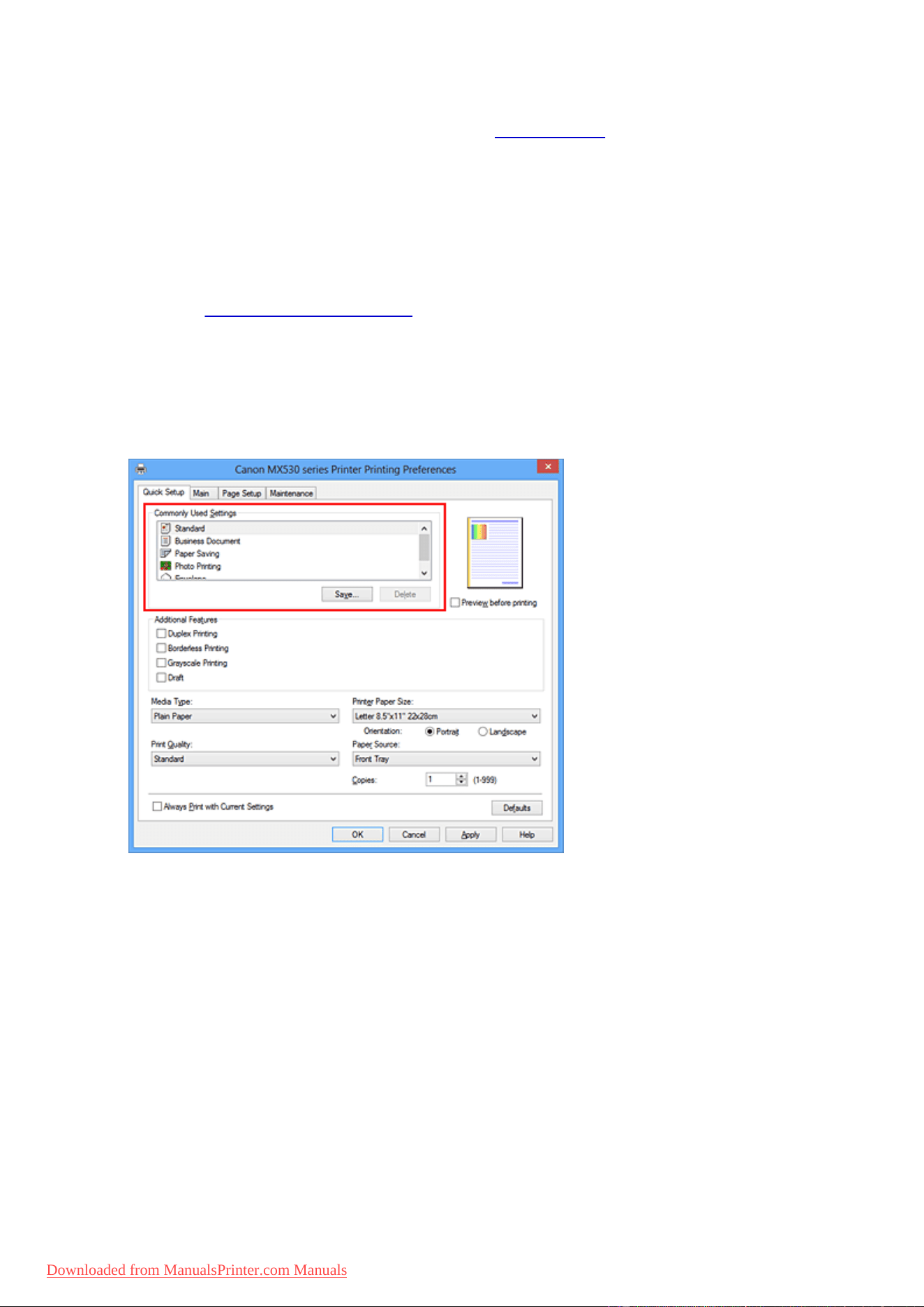
Printing with Easy Setup
This section describes the simple procedure for setting the Quick Setup tab so that you can carry out
appropriate printing on this machine.
1. Check that the machine is turned on
2.
Load paper on the machine
3.
Open the printer driver setup window
4.
Select a frequently used profile
In Commonly Used Settings on the Quick Setup tab, select a printing profile suited for the purpose.
When you select a printing profile, the Additional Features, Media Type, and Printer Paper Size
settings are automatically switched to the values that were preset.
5.
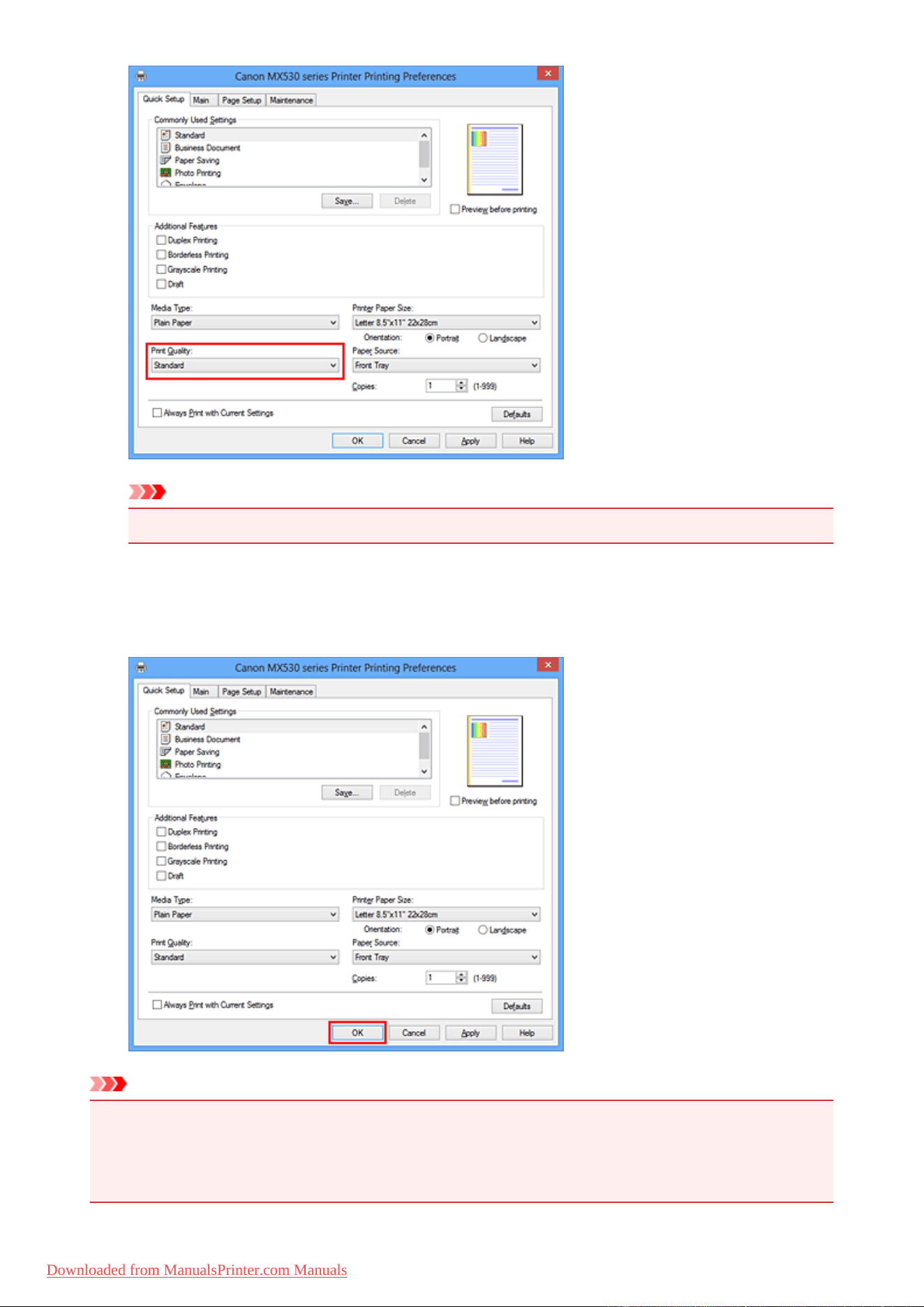
Select the print quality
For Print Quality, select High, Standard, or Draft according to your purpose.
8
Downloaded from ManualsPrinter.com Manuals
Important
• The print quality settings that can be selected may differ depending on a printing profile.
6.
Complete the setup
Click OK.
When you execute print, the document is printed with settings that match your purpose.
Important
• When you select the Always Print with Current Settings check box, all settings specified on the
Quick Setup, Main, and Page Setup tabs are saved, and you can print with the same settings from the
next time as well.
• In the Commonly Used Settings window, click Save... to register the specified settings.
9
Downloaded from ManualsPrinter.com Manuals
Setting the Media Type with the Printer Driver
When you use this machine, selecting a media type that matches the print purpose will help you achieve the
best print results.
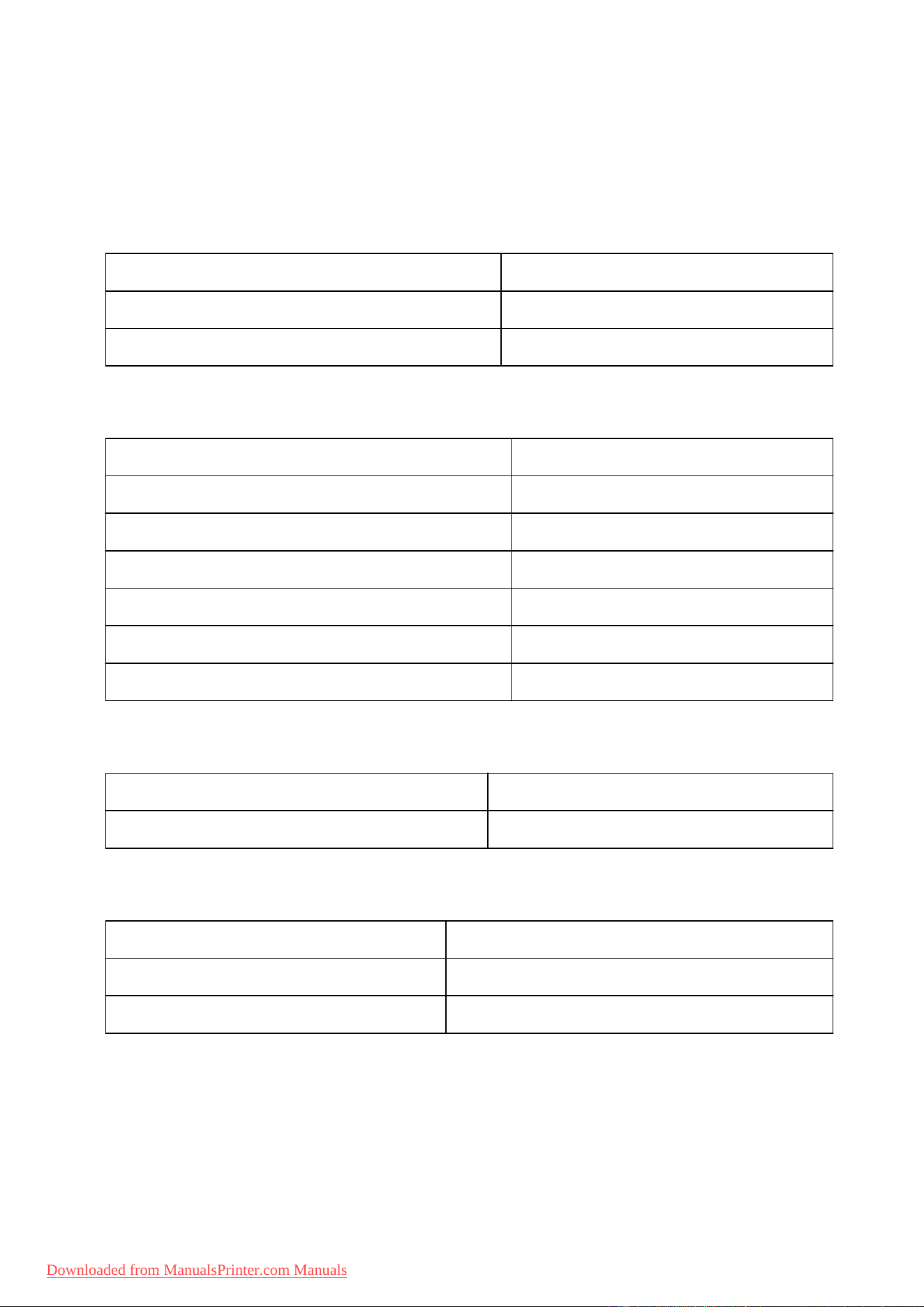
You can use the following media types on this machine.
Commercially available papers
Media name Media Type in the printer driver
Plain Paper (including recycled paper) Plain Paper
Envelopes Envelope
Canon genuine papers (Photo Printing)
Media name <Model No.> Media Type in the printer driver
Photo Paper Plus Glossy II <PP-201> Photo Paper Plus Glossy II
Photo Paper Pro Platinum <PT-101> Photo Paper Pro Platinum
Photo Paper Pro Luster <LU-101> Photo Paper Pro Luster
Photo Paper Plus Semi-gloss <SG-201> Photo Paper Plus Semi-gloss
Photo Paper Glossy <GP-501/GP-601> Glossy Photo Paper
Matte Photo Paper <MP-101> Matte Photo Paper
Canon genuine papers (Business Letter Printing)
Media name <Model No.> Media Type in the printer driver
High Resolution Paper <HR-101N> High Resolution Paper
Canon genuine papers (Original Products)
Media name <Model No.> Media Type in the printer driver
T-Shirt Transfers <TR-301> T-Shirt Transfers
Photo Stickers <PS-101> Photo Paper Plus Glossy II
10
Downloaded from ManualsPrinter.com Manuals

Various Printing Methods
Setting a Page Size and Orientation
Setting the Number of Copies and Printing Order
Setting the Stapling Margin
Execute Borderless Printing
Fit-to-Page Printing
Scaled Printing
Page Layout Printing
Tiling/Poster Printing
Booklet Printing
Duplex Printing
Stamp/Background Printing
Registering a Stamp
Registering Image Data to be Used as a Background
Setting Up Envelope Printing
Printing on Postcards
Displaying the Print Results before Printing
Setting Paper Dimensions (Custom Size)
Editing the Print Document or Reprinting from the Print History
11
Downloaded from ManualsPrinter.com Manuals
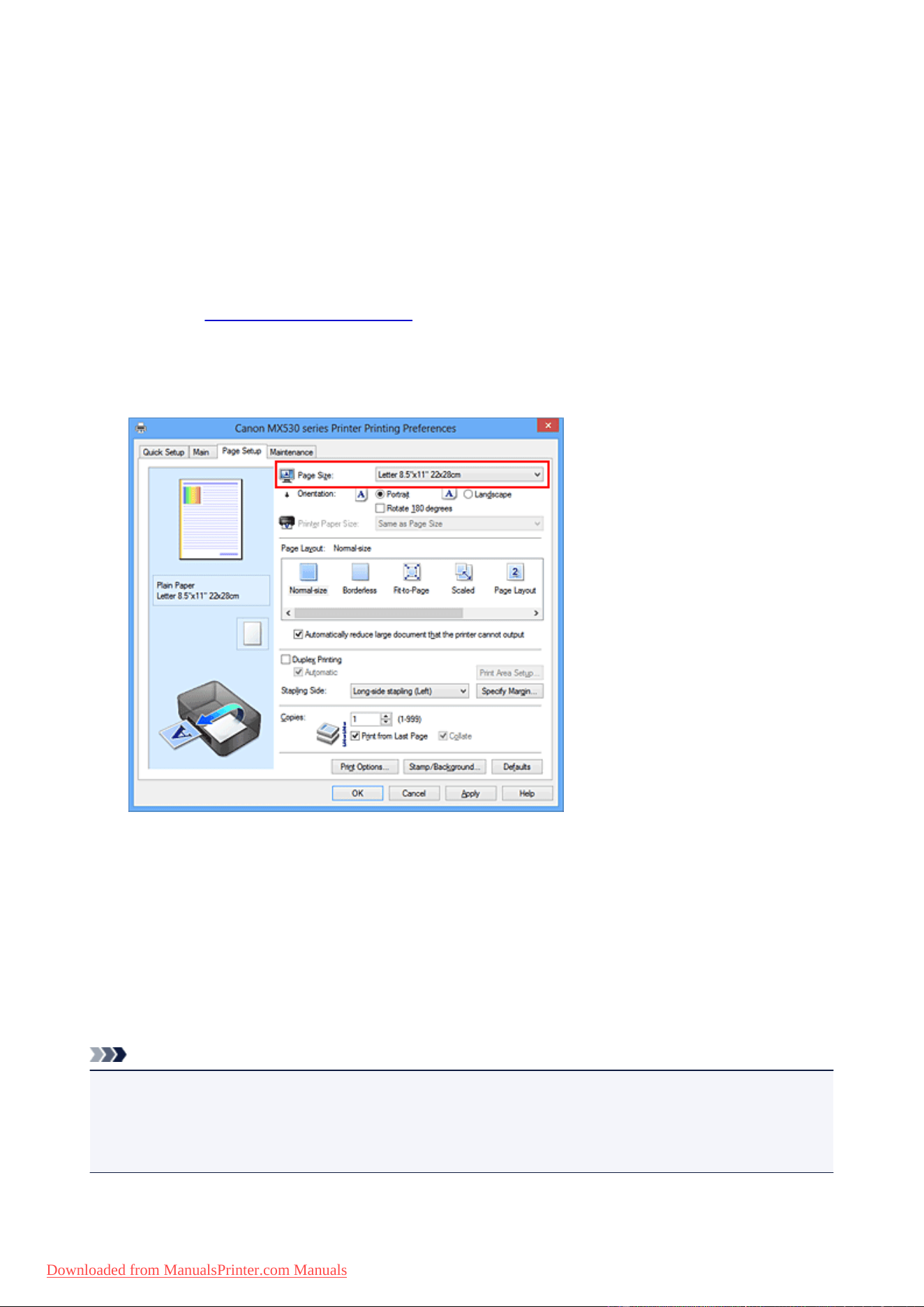
Setting a Page Size and Orientation
The paper size and orientation are essentially determined by the application software. When the page size
and orientation set for Page Size and Orientation on the Page Setup tab are same as those set with the
application software, you do not need to select them on the Page Setup tab.
When you are not able to specify them with the application software, the procedure for selecting a page size
and orientation is as follows:
You can also set page size and orientation on the Quick Setup tab.
1.
Open the printer driver setup window
2.
Select the paper size
Select a page size from the Page Size list on the Page Setup tab.
3.
Set Orientation
Select Portrait or Landscape for Orientation. Check Rotate 180 degrees check box when you want to
perform printing with the original being rotated 180 degrees.
4. Complete the setup
Click OK.
When you execute print, the document will be printed with the selected page size and the orientation.
Note
• If Normal-size is selected for Page Layout, then Automatically reduce large document that the
printer cannot output is displayed.
Normally, you can leave the check box checked. During printing, if you do not want to reduce large
documents that cannot be printed on the printer, uncheck the check box.
12
Downloaded from ManualsPrinter.com Manuals
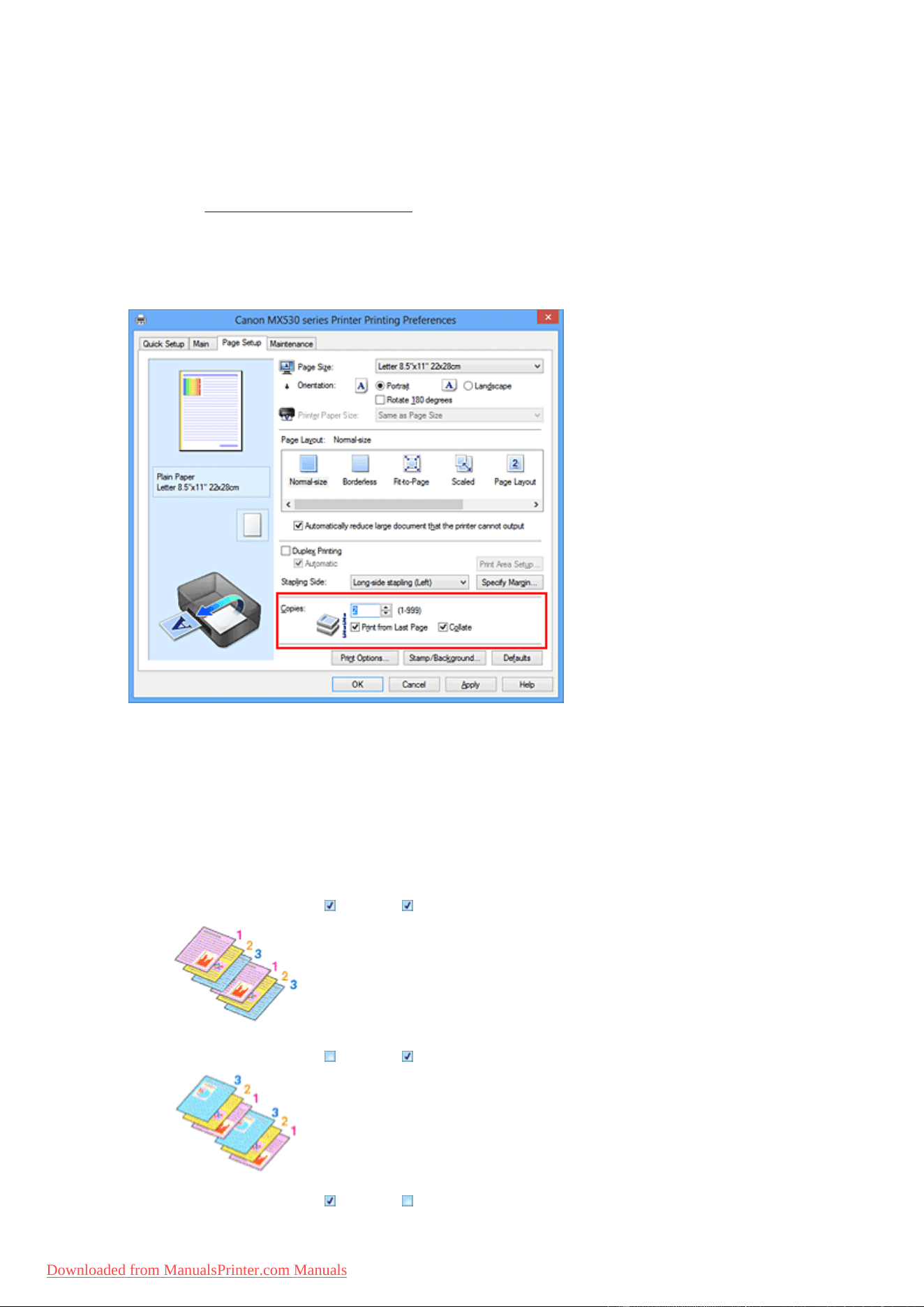
Setting the Number of Copies and Printing Order
The procedure for specifying the number of copies and printing order is as follows:
You can also set the number of copies on the Quick Setup tab.
1. Open the printer driver setup window
2.
Specify the number of copies to be printed
For Copies on the Page Setup tab, specify the number of copies to be printed.
3.
Specify the print order
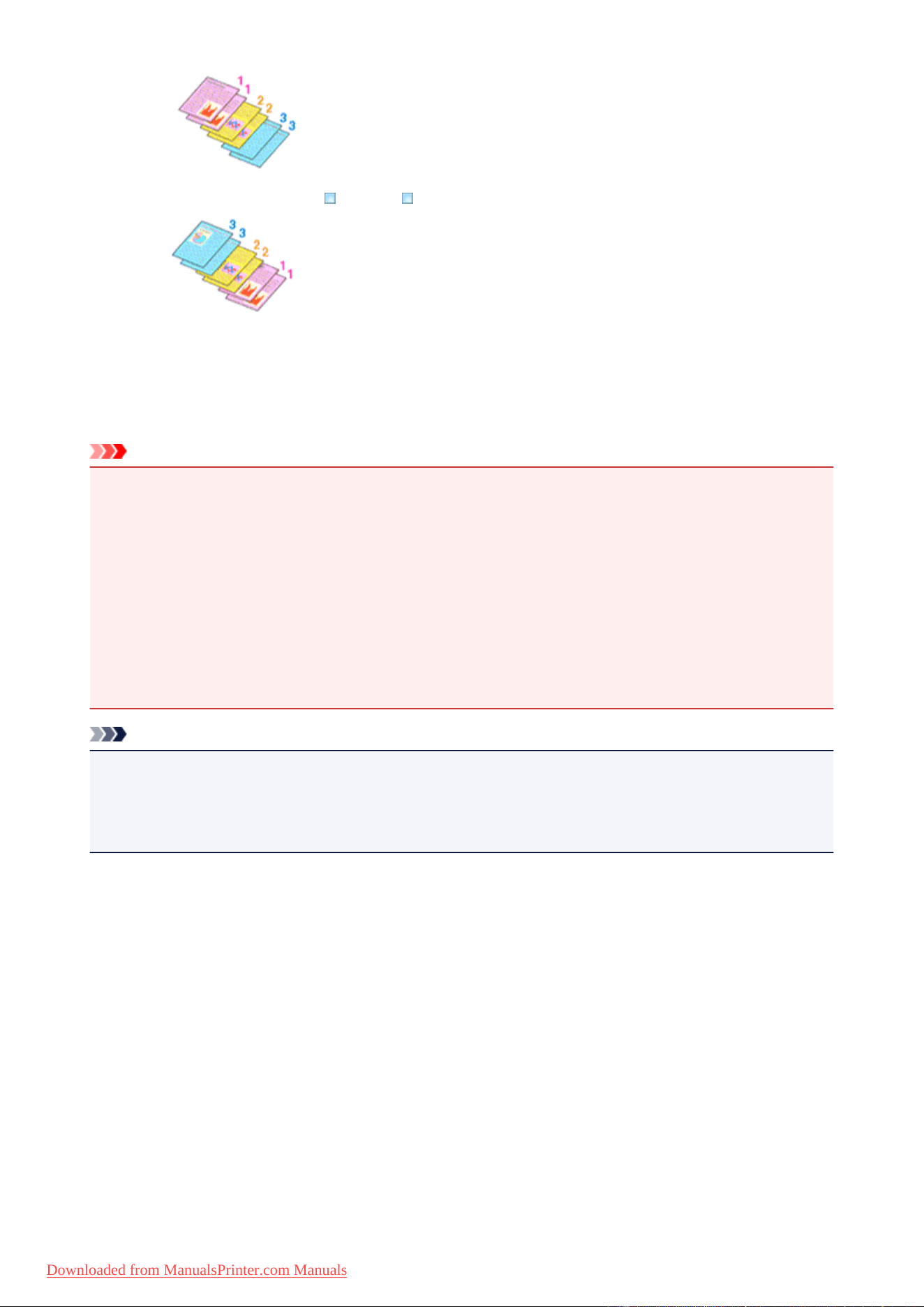
Check the Print from Last Page check box when you want to print from the last page in order, and
uncheck the check box when you want to print from the first page.
Check the Collate check box when you are printing multiple copies of a document and want to print out
all pages in each copy together. Uncheck this check box when you want to print all pages with the same
page number together.
•
Print from Last Page: /Collate:
•
Print from Last Page: /Collate:
•
Print from Last Page: /Collate:
13
Downloaded from ManualsPrinter.com Manuals
• Print from Last Page: /Collate:
4.
Complete the setup
Click OK.
When you execute print, the specified number of copies will be printed with the specified printing order.
Important
• When the application software that you used to create the document has the same function, specify the
settings on the printer driver. However, if the print results are not acceptable, specify the function
settings on the application software. When you specify the number of copies and the printing order with
both the application software and this printer driver, the number of copies may be multiplied numbers of
the two settings or the specified printing order may not be enabled.
• Print from Last Page appears grayed out and is unavailable when Tiling/Poster is selected for Page
Layout.
• When Booklet is selected for Page Layout, Print from Last Page and Collate appear grayed out and
cannot be set.
• When Duplex Printing is selected, Print from Last Page appears grayed out and cannot be set.
Note
• By setting both Print from Last Page and Collate, you can perform printing so that papers are collated
one by one starting from the last page.
These settings can be used in combination with Normal-size, Borderless, Fit-to-Page, Scaled, and
Page Layout.
14
Downloaded from ManualsPrinter.com Manuals
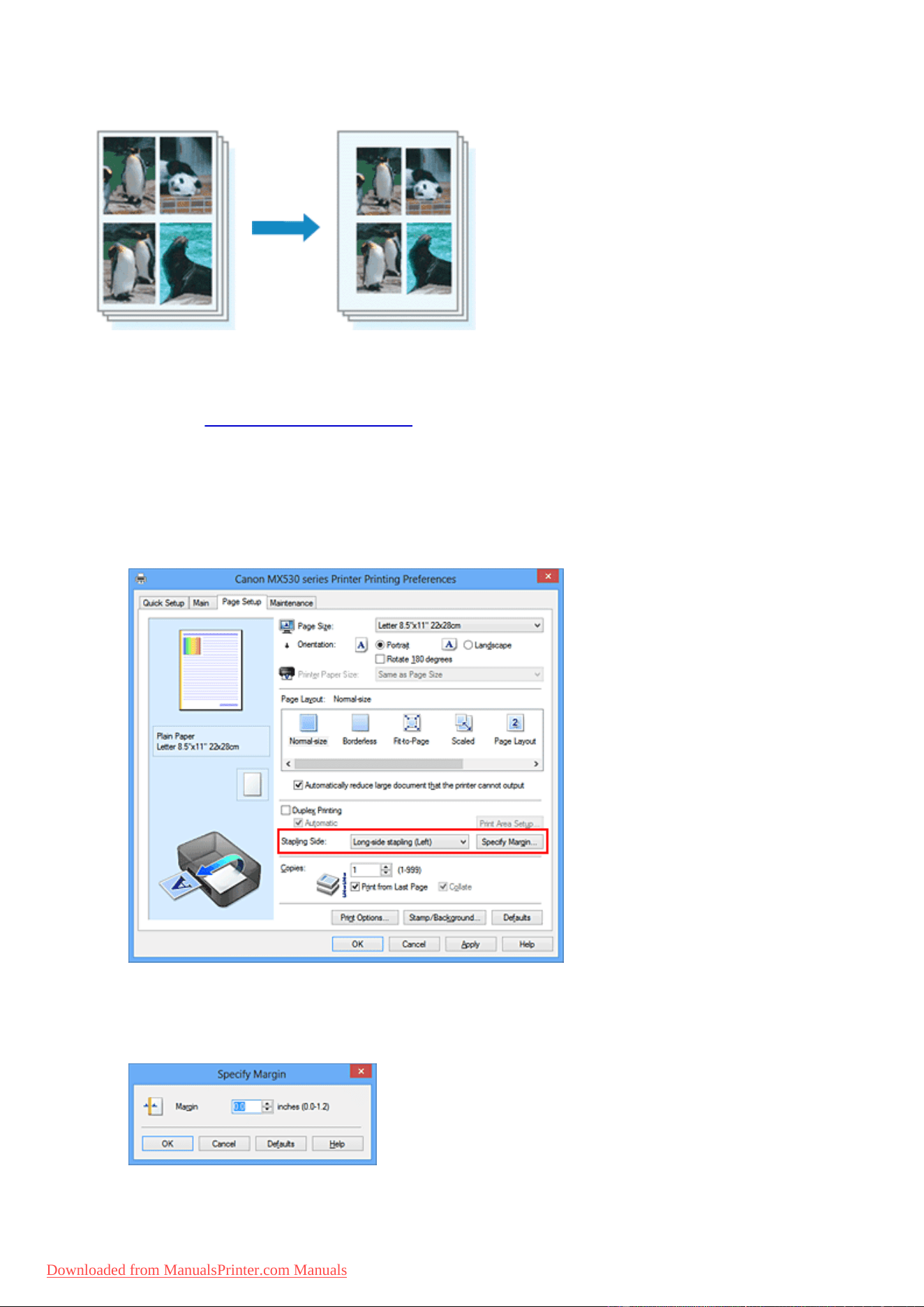
Setting the Stapling Margin
The procedure for setting the staple side and the margin width is as follows:
1.
Open the printer driver setup window
2.
Specify the side to be stapled
Check the position of the stapling margin from Stapling Side on the Page Setup tab.
The printer analyzes the Orientation and Page Layout settings, and automatically selects the best
staple position. When you want to change the setting, select from the list.
3. Set the margin width
If necessary, click Specify Margin... and set the margin width, and then click OK.
15
Downloaded from ManualsPrinter.com Manuals

Note
• The printer automatically reduces the print area depending on the staple position margin.
4. Complete the setup
Click OK on the Page Setup tab.
When you execute print, the data is printed with the specified staple side and margin width.
Important
• Stapling Side and Specify Margin... appear grayed out and are unavailable when:
• Borderless, Tiling/Poster, or Booklet is selected for Page Layout
• Scaled is selected for Page Layout (When Duplex Printing is also selected, only Stapling Side
can be specified.)
16
Downloaded from ManualsPrinter.com Manuals
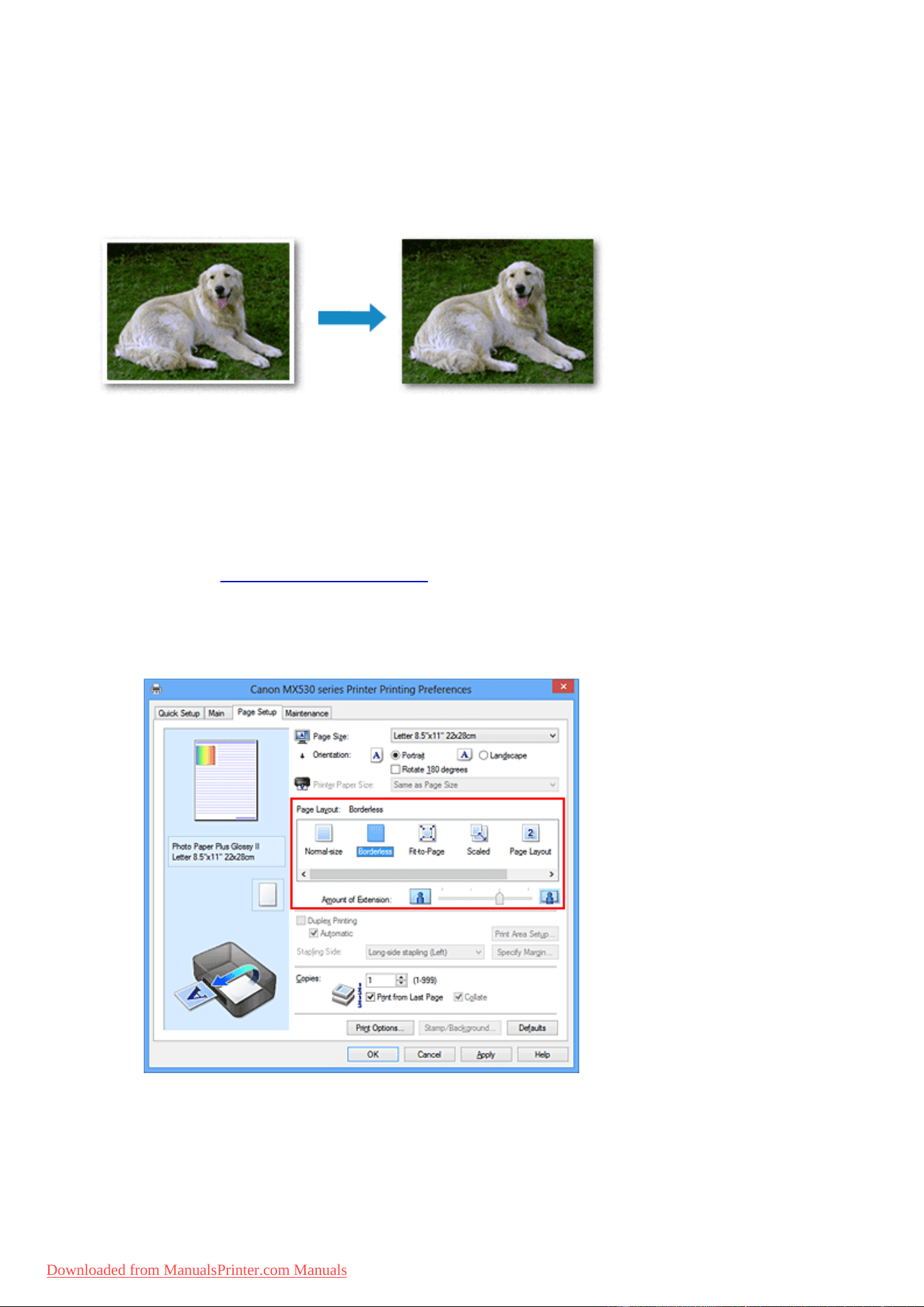
Execute Borderless Printing
The borderless printing function allows you to print data without any margin by enlarging the data so that it
extends slightly off the paper. In standard printing, margins are created around the document area.
However, in borderless printing function, these margins are not created. When you want to print data such
as a photo without providing any margin around it, set borderless printing.
The procedure for performing borderless printing is as follows:
You can also set borderless printing in Additional Features on the Quick Setup tab.
Setting Borderless Printing
1.
Open the printer driver setup window
2.
Set borderless printing
Select Borderless from the Page Layout list on the Page Setup tab.
Click OK when the confirmation message appears.
When a message prompting you to change the media type appears, select a media type from the list
and click OK.
3. Check the paper size
17
Downloaded from ManualsPrinter.com Manuals
Check the Page Size list. When you want to change it, select another page size from the list. The list
displays only sizes that can be used for borderless printing.
4.
Adjust the amount of extension from the paper
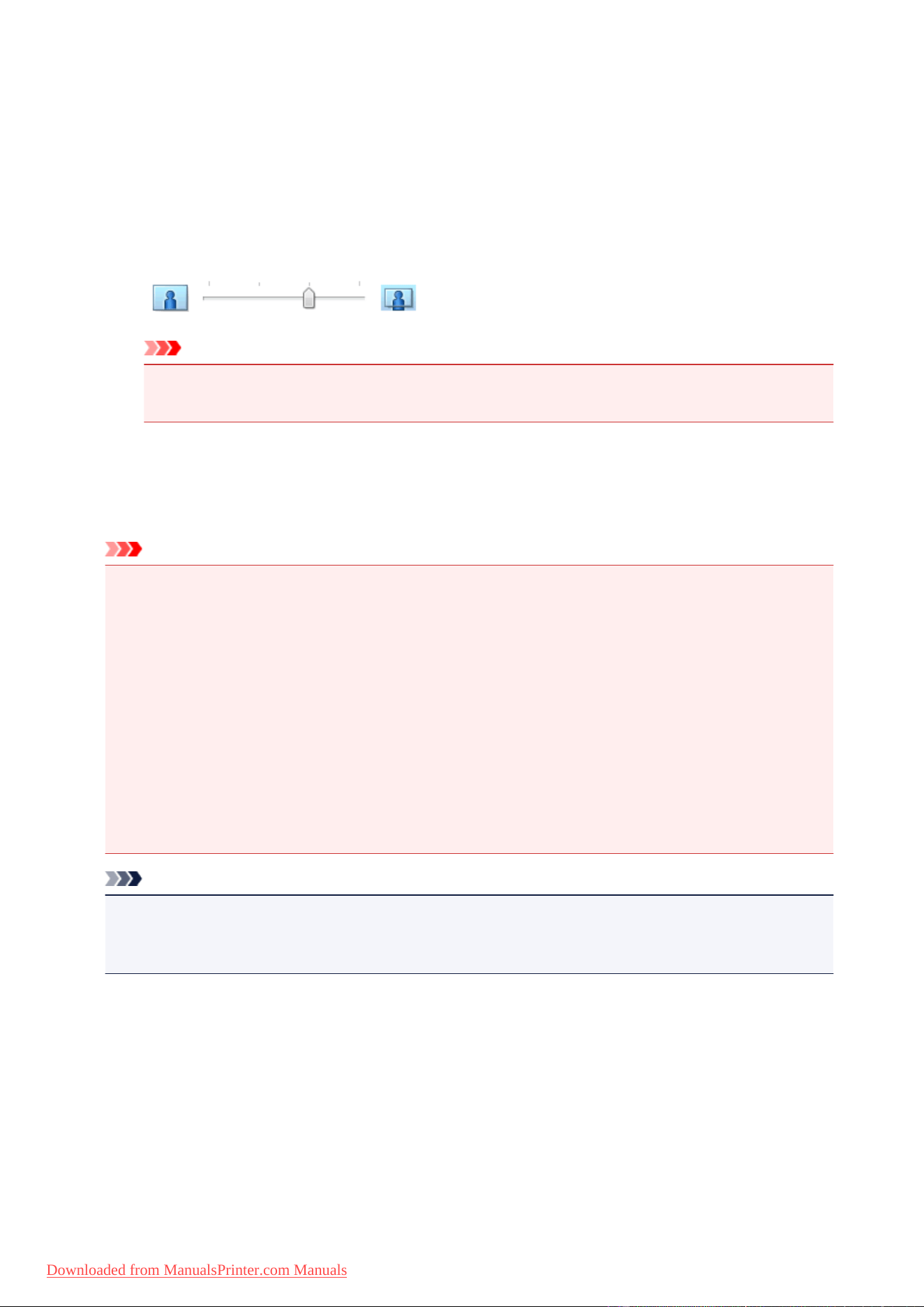
If necessary, adjust the amount of extension using the Amount of Extension slider.
Moving the slider to the right increases the amount extending off the paper, and moving the slider to
the left decreases the amount.
It is recommended to set the slider at the second position from the right for most cases.
Important
•
When the Amount of Extension slider is set to the rightmost position, the back side of the
paper may become smudged.
5.
Complete the setup
Click OK.
When you execute print, the data is printed without any margins on the paper.
Important
• When a page size that cannot be used for borderless printing is selected, the size is automatically
changed to the valid page sizes for borderless printing.
• When Borderless is selected, the Printer Paper Size, Duplex Printing, Stapling Side settings, and
the Stamp/Background... (Stamp...) button on the Page Setup tab appear grayed out and are
unavailable.
• When Envelope, High Resolution Paper, or T-Shirt Transfers is selected from the Media Type list
on the Main tab, you cannot perform borderless printing.
• Depending on the type of the media used during borderless printing, the print quality may deteriorate
at the top and bottom of the sheet or stains may form.
• When the ratio of the height to the width differs from the image data, a portion of the image may not
be printed depending on the size of the media used.
In this case, crop the image data with an application software according to the paper size.
Note
• When Plain Paper is selected for Media Type on the Main tab, borderless printing is not
recommended. Therefore, the message for media selection appears.
When you are using plain paper for test printing, select Plain Paper, and click OK.
Expanding the Range of the Document to Print
Setting a large amount of extension allows you to perform borderless printing with no problems. However,
the portion of the document extending off the paper range will not be printed and for this reason, the
subjects around the perimeter of a photo may not be printed.
When you are not satisfied with the result of borderless printing, reduce the amount of extension. The
extension amount decreases as the Amount of Extension slider is moved to the left.
18
Downloaded from ManualsPrinter.com Manuals

Important
• When the amount of extension is decreased, an unexpected margin may be produced on the print,
depending on the size of the paper.
Note
• When the Amount of Extension slider is set to the leftmost position, image data will be printed in the
full size. If you set this when printing the address side of a postcard, the postal code of the sender is
printed in the correct position.
• When Preview before printing is checked on the Main tab, you can confirm whether there will be no
margin before printing.
19
Downloaded from ManualsPrinter.com Manuals
Fit-to-Page Printing
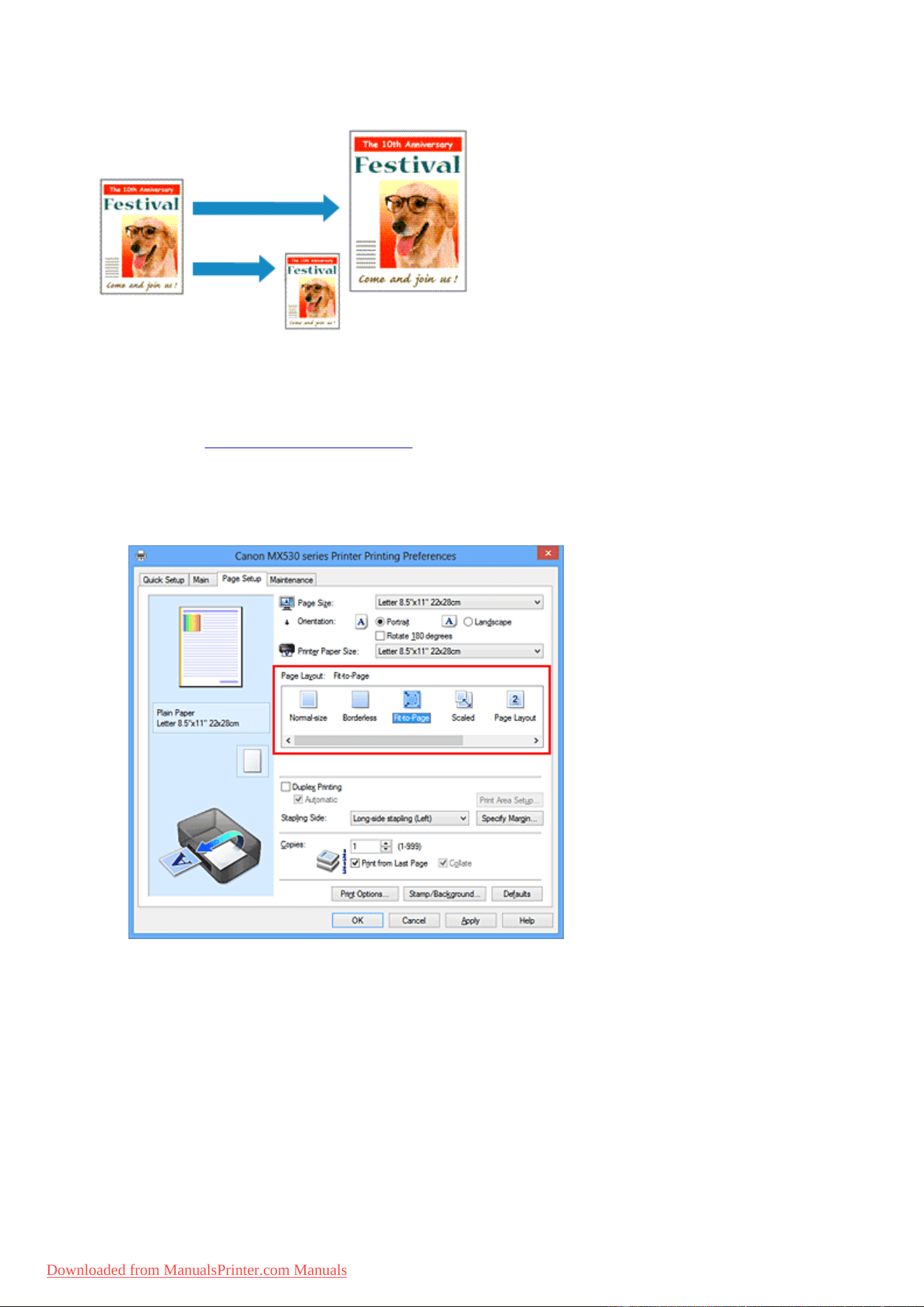
The procedure for printing a document that is automatically enlarged or reduced to fit the page size to be
used is as follows:
1.
Open the printer driver setup window
2.
Set fit-to-page printing
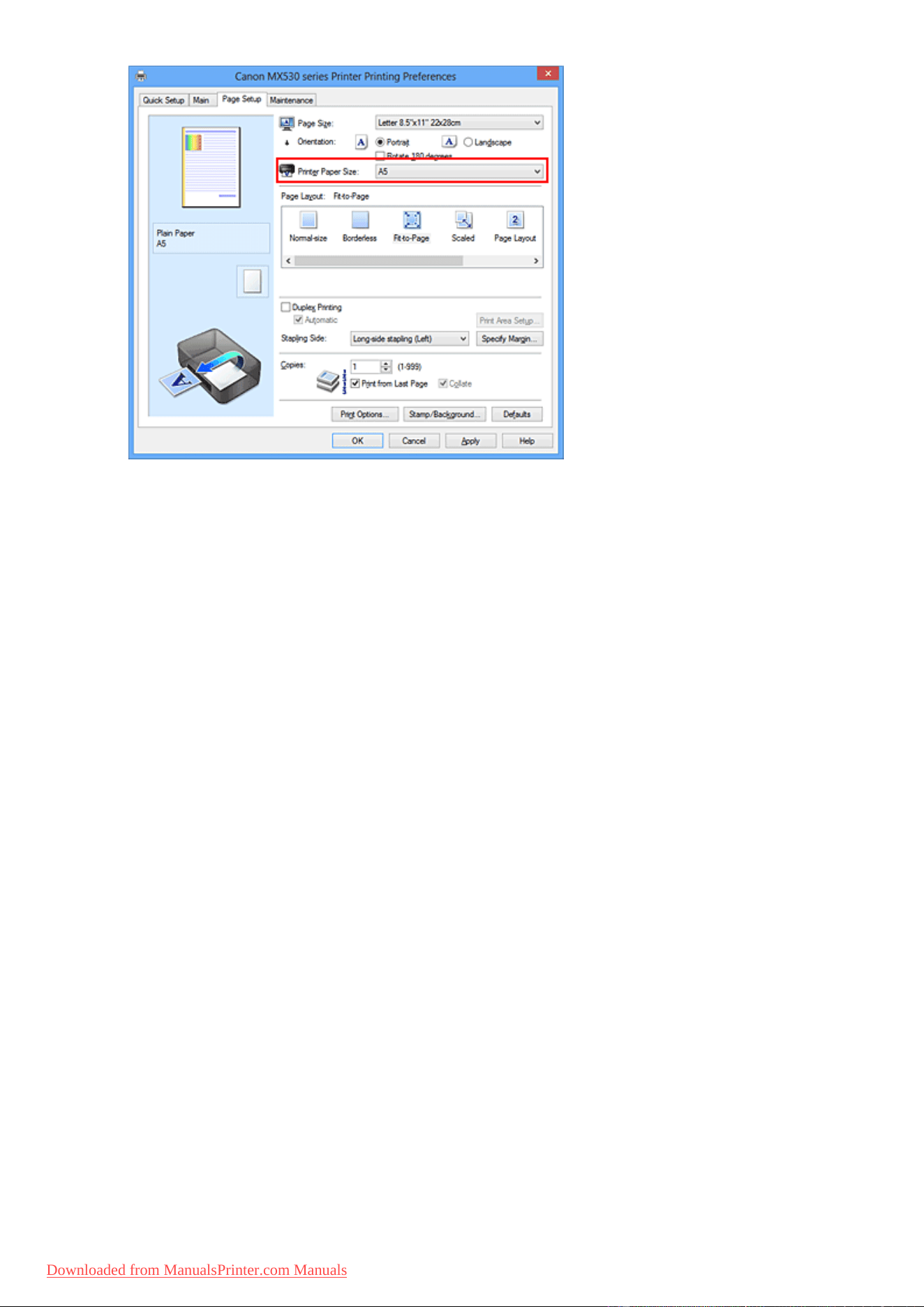
Select Fit-to-Page from the Page Layout list on the Page Setup tab.
3. Select the paper size of the document
Using Page Size, select the page size that is set with your application software.
4. Select the print paper size
Select the size of the paper loaded in the machine from the Printer Paper Size list.
When the Printer Paper Size is smaller than the Page Size, the page image will be reduced. When the
Printer Paper Size is larger than the Page Size, the page image will be enlarged.
The current settings are displayed in the settings preview on the left side of the printer driver.
20
Downloaded from ManualsPrinter.com Manuals
Scaled Printing
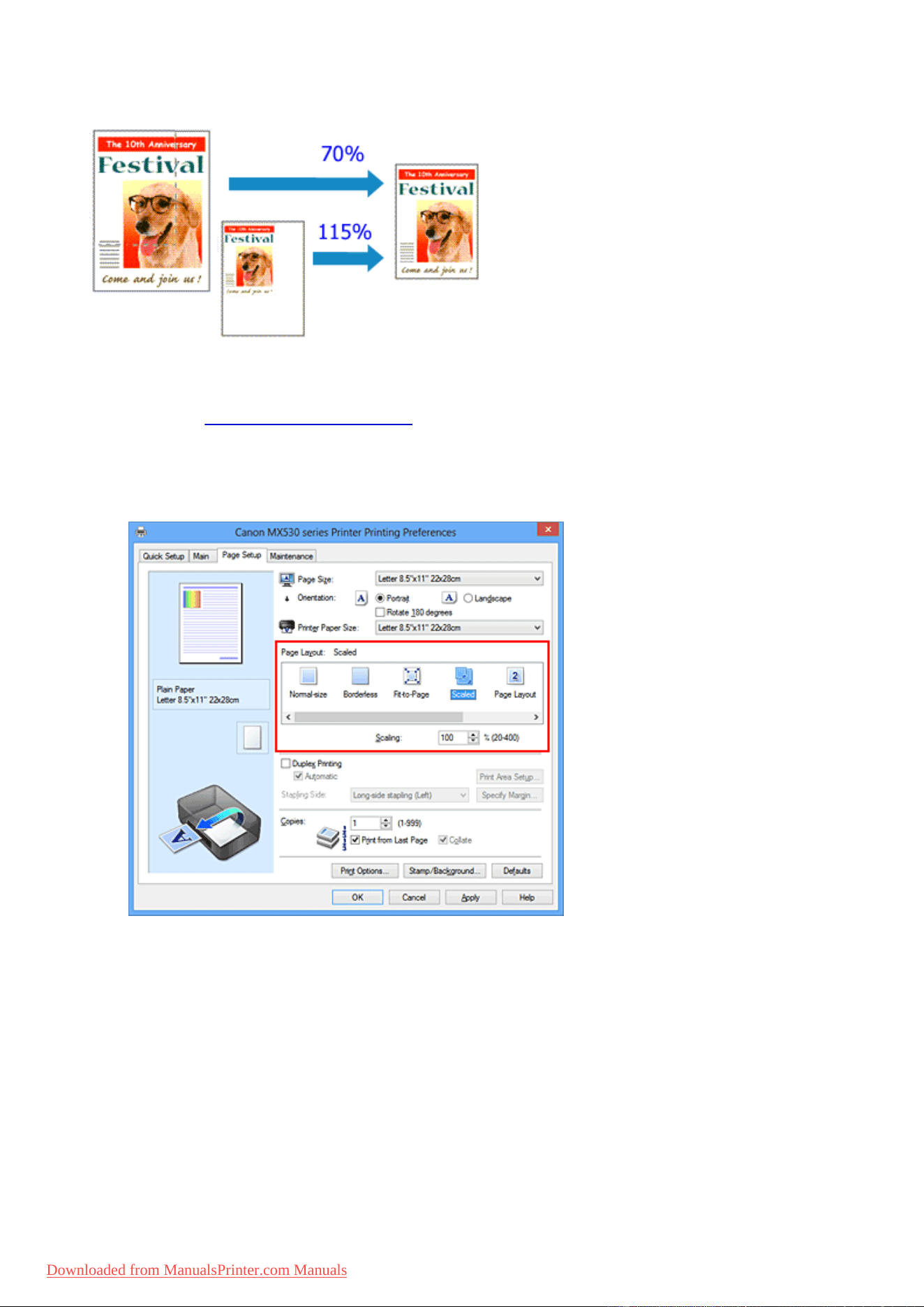
The procedure for printing a document with pages enlarged or reduced is as follows:
1.
Open the printer driver setup window
2.
Set scaled printing
Select Scaled from the Page Layout list on the Page Setup tab.
3. Select the paper size of the document
Using Page Size, select the page size that is set with your application software.
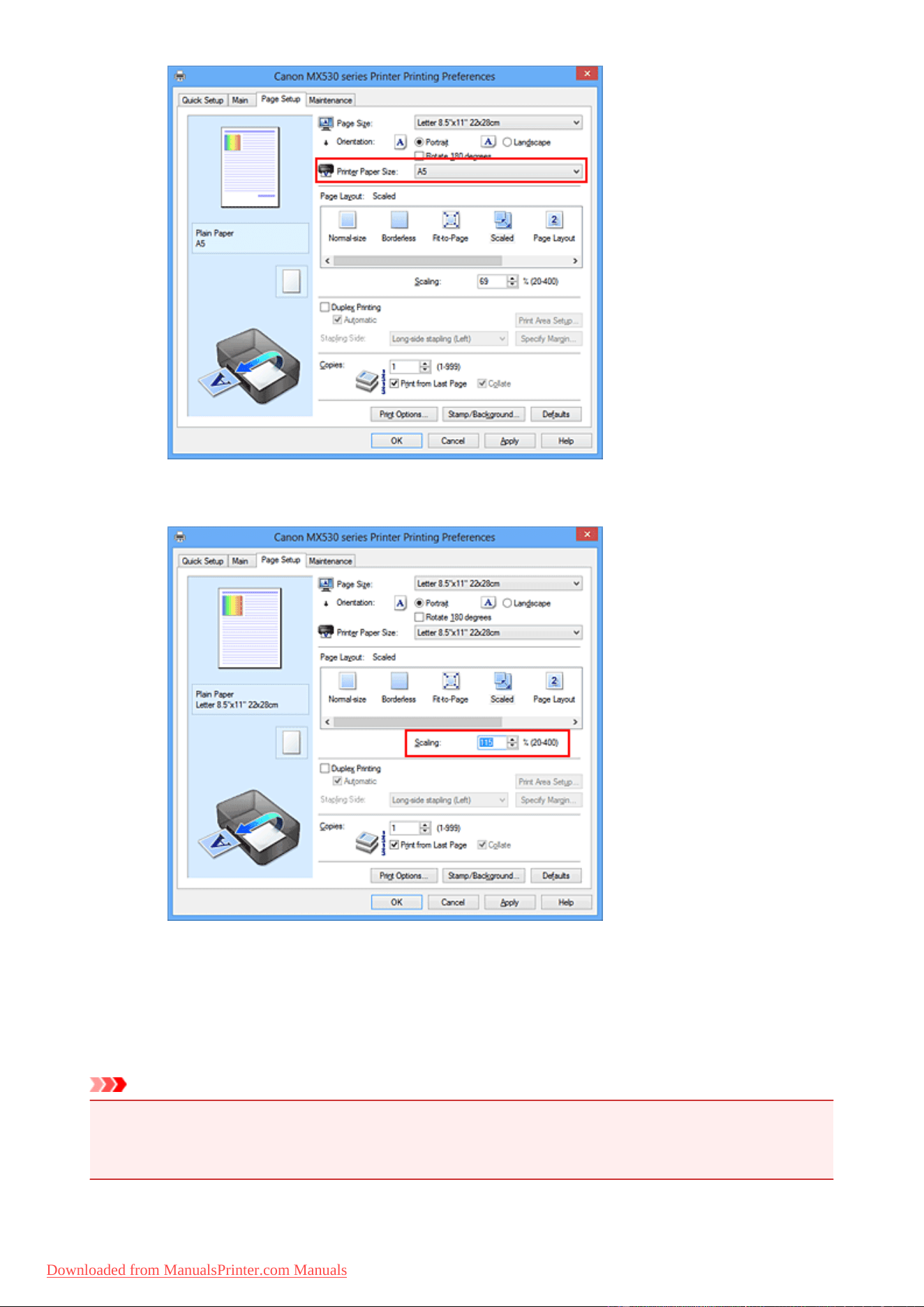
4. Set the scaling rate by using one of the following methods:
•
Select a Printer Paper Size
When the printer paper size is smaller than the Page Size, the page image will be reduced. When
the printer paper size is larger than the Page Size, the page image will be enlarged.
22
Downloaded from ManualsPrinter.com Manuals
•
Specify a scaling factor
Directly type in a value into the Scaling box.
The current settings are displayed in the settings preview on the left side of the printer driver.
5. Complete the setup
Click OK.
When you execute print, the document will be printed with the specified scale.
Important
• When the application software which you used to create the original has the scaled printing function,
configure the settings on your application software. You do not need to configure the same setting in
the printer driver.
23
Downloaded from ManualsPrinter.com Manuals

Page Layout Printing
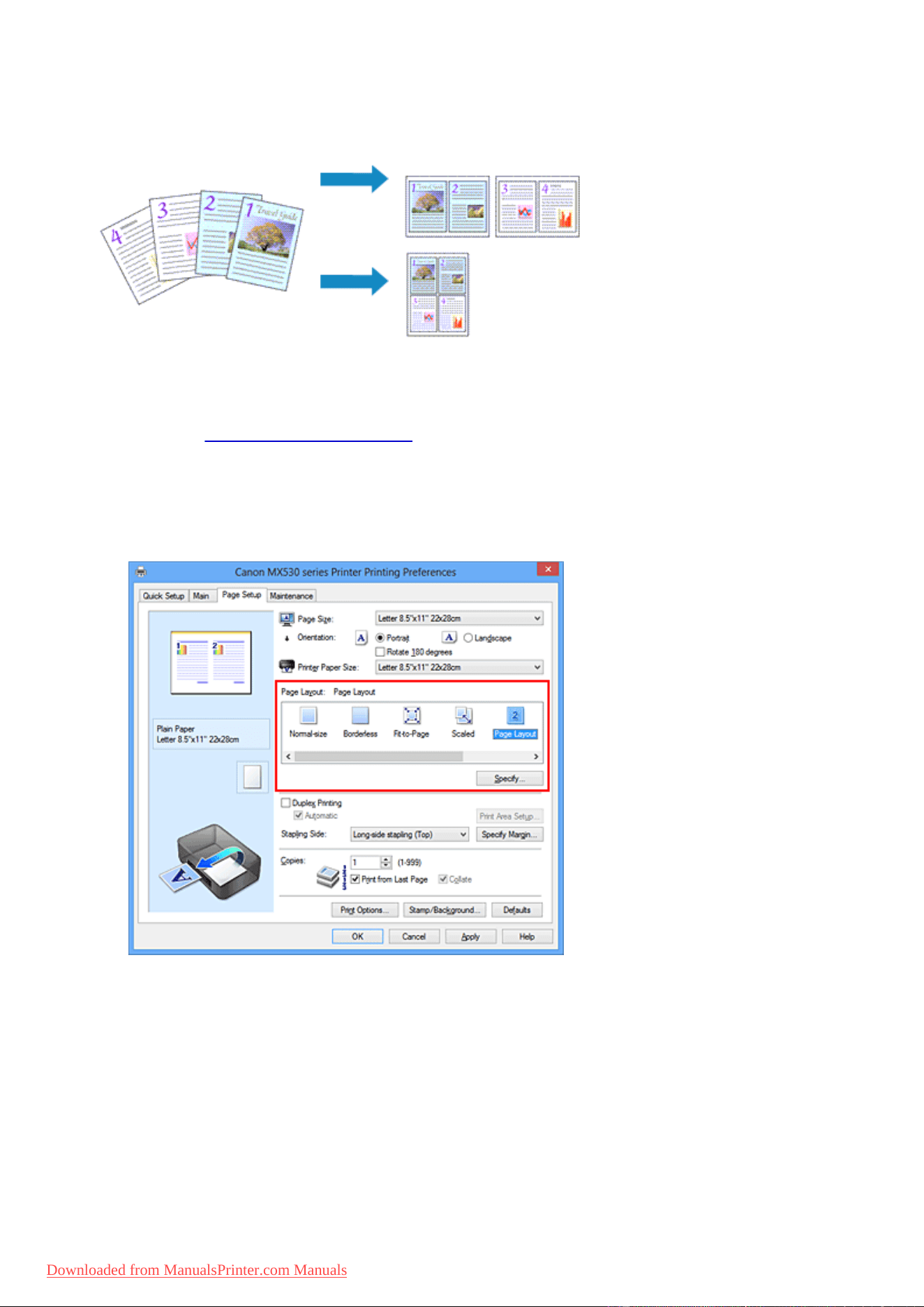
The page layout printing function allows you to print more than one page image on a single sheet of paper.
The procedure for performing page layout printing is as follows:
1.
Open the printer driver setup window
2.
Set page layout printing
Select Page Layout from the Page Layout list on the Page Setup tab.
The current settings are displayed in the settings preview on the left side of the printer driver.
3. Select the print paper size
Select the size of the paper loaded in the machine from the Printer Paper Size list.
4. Set the number of pages to be printed on one sheet and the page order
If necessary, click Specify..., specify the following settings in the Page Layout Printing dialog box, and
click OK.
25
Downloaded from ManualsPrinter.com Manuals
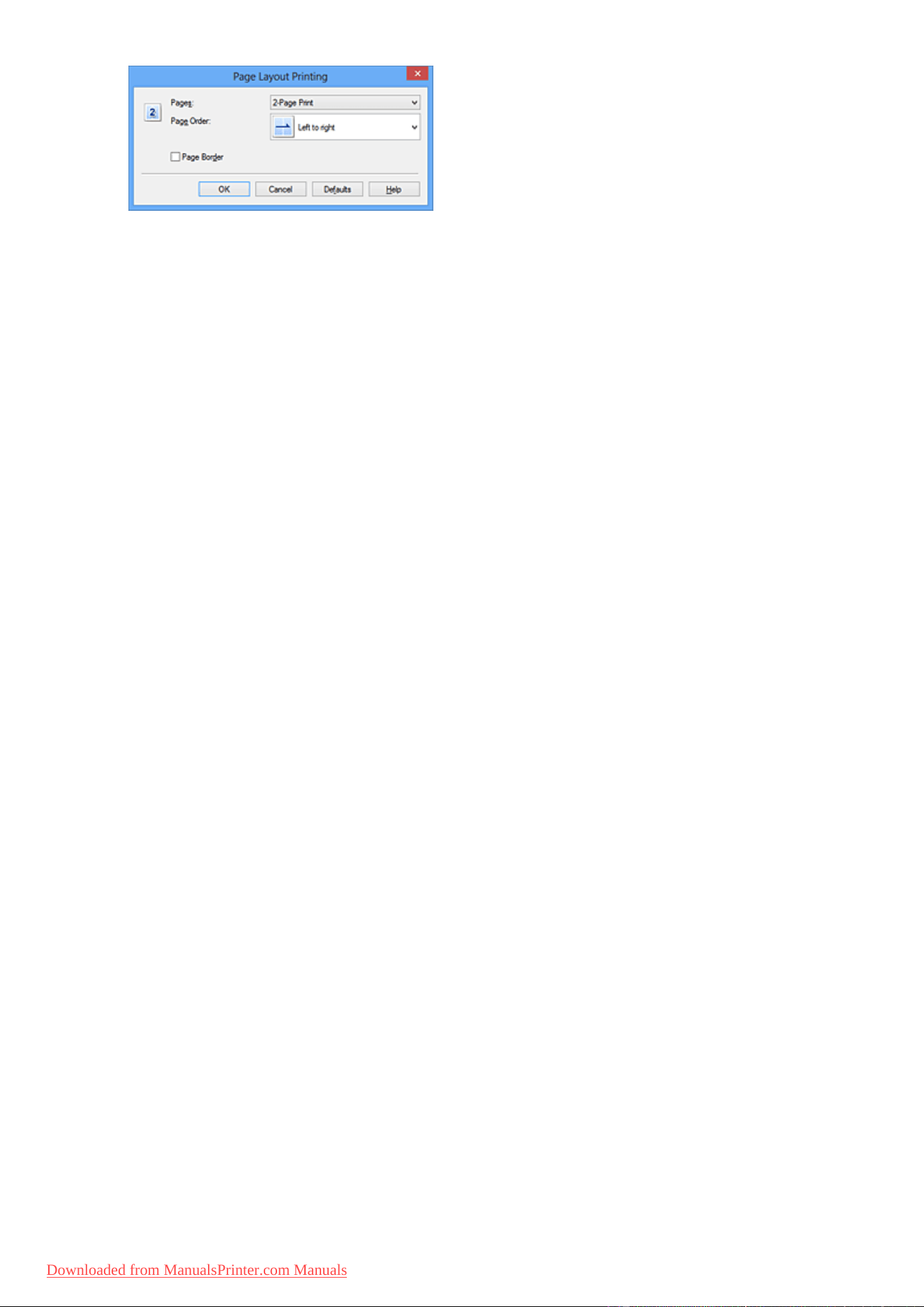
Pages
To change the number of pages to be printed on a single sheet of paper, select the number of
pages from the list.
Page Order
To change the page arrangement order, select a placement method from the list.
Page Border
To print a page border around each document page, check this check box.
5.
Complete the setup
Click OK on the Page Setup tab.
When you execute print, the specified number of pages will be arranged on each sheet of paper in the
specified order.
26
Downloaded from ManualsPrinter.com Manuals
Tiling/Poster Printing
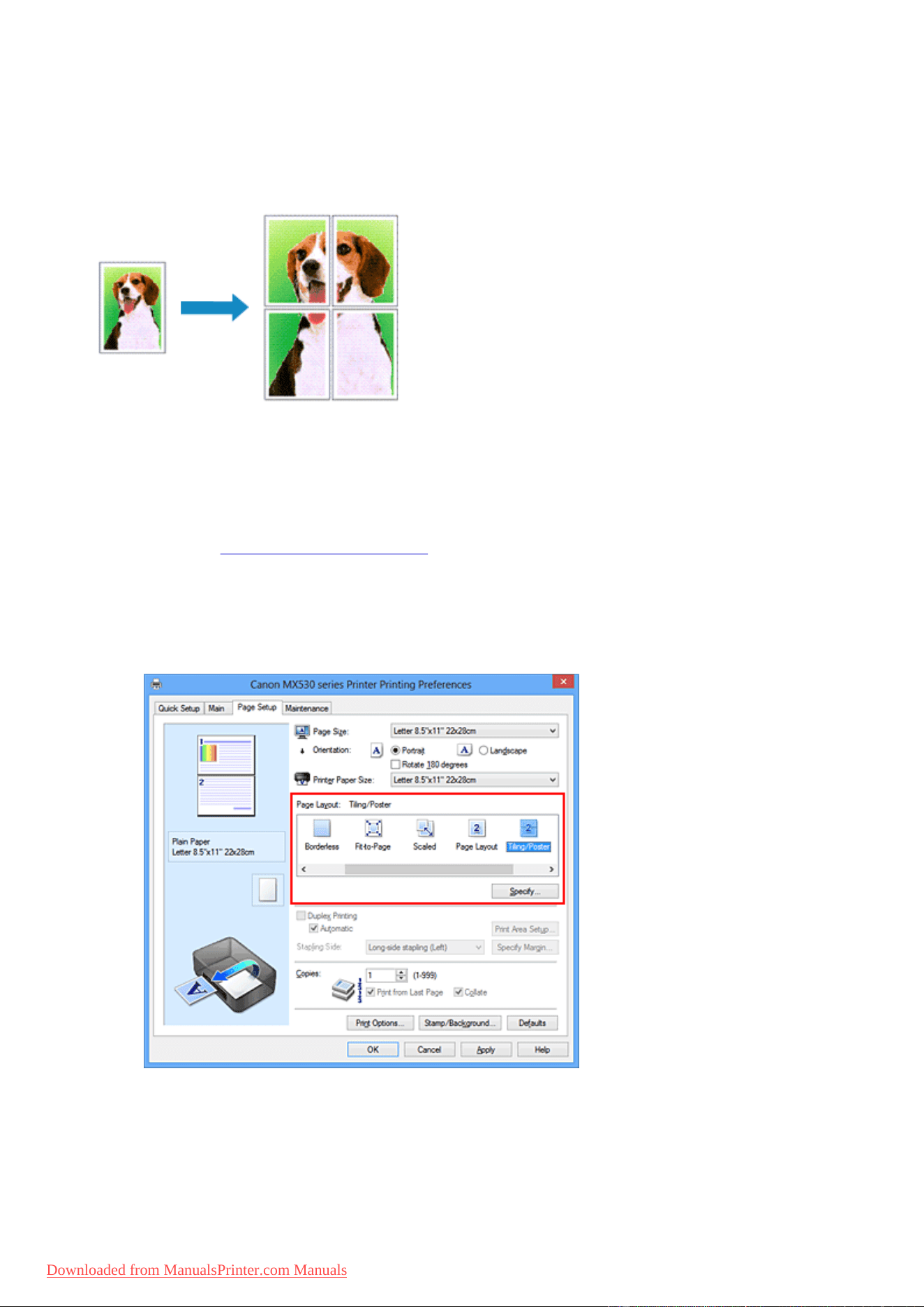
The tiling/poster printing function allows you to enlarge image data, divide it into several pages, and print
these pages on separate sheets of paper. You can also paste the pages together to create a large print like
a poster.
The procedure for performing tiling/poster printing is as follows:
Setting Tiling/Poster Printing
1.
Open the printer driver setup window
2.
Set tiling/poster printing
Select Tiling/Poster from the Page Layout list on the Page Setup tab.
The current settings are displayed in the settings preview on the left side of the printer driver.
3. Select the print paper size
Select the size of the paper loaded in the machine from the Printer Paper Size list.
4. Set the number of image divisions and the pages to be printed
27
Downloaded from ManualsPrinter.com Manuals
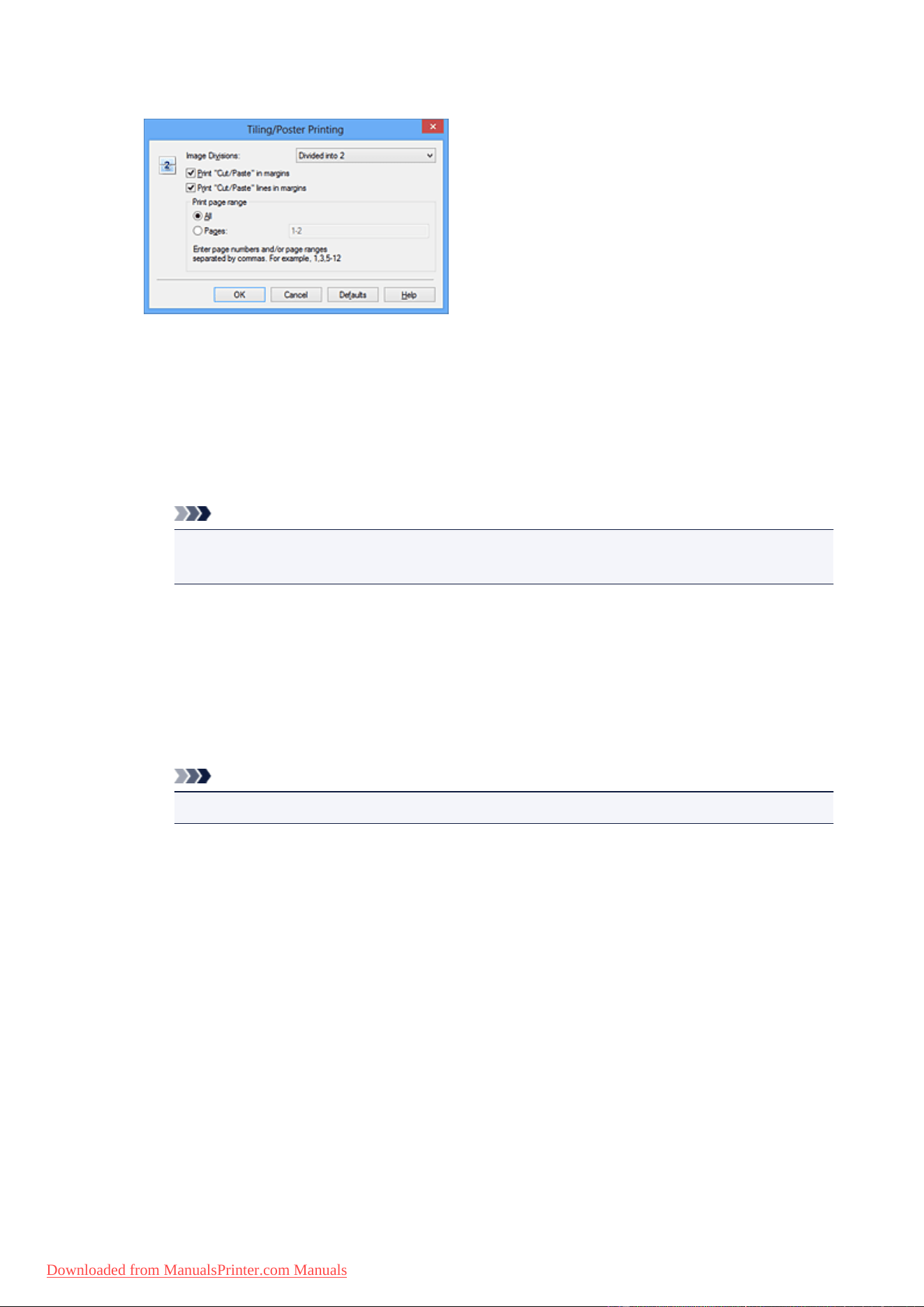
If necessary, click Specify..., specify the following settings in the Tiling/Poster Printing dialog box,
and then click OK.
Image Divisions
Select the number of divisions (vertical x horizontal).
As the number of divisions increases, the number of sheets used for printing increases. If you are
pasting pages together to create a poster, increasing the number of divisions allows you to create
a larger poster.
Print "Cut/Paste" in margins
To leave out words "Cut" and "Paste", uncheck this check box.
Note
• This feature may be unavailable when certain printer drivers or operating environments are
used.
Print "Cut/Paste" lines in margins
To leave out cut lines, uncheck this check box.
Print page range
Specifies the printing range. Select All under normal circumstances.
To reprint only a specific page, select Pages and enter the page number you want to print. To
specify multiple pages, enter the page numbers by separating them with commas or by entering a
hyphen between the page numbers.
Note
• You can also specify the print range by clicking the pages in the settings preview.
5.
Complete the setup
Click OK on the Page Setup tab.
When you execute print, the document will be divided into several pages during printing.
Printing Only Specific Pages
If ink becomes faint or runs out during printing, you can reprint only the specific pages by following the
procedure below:
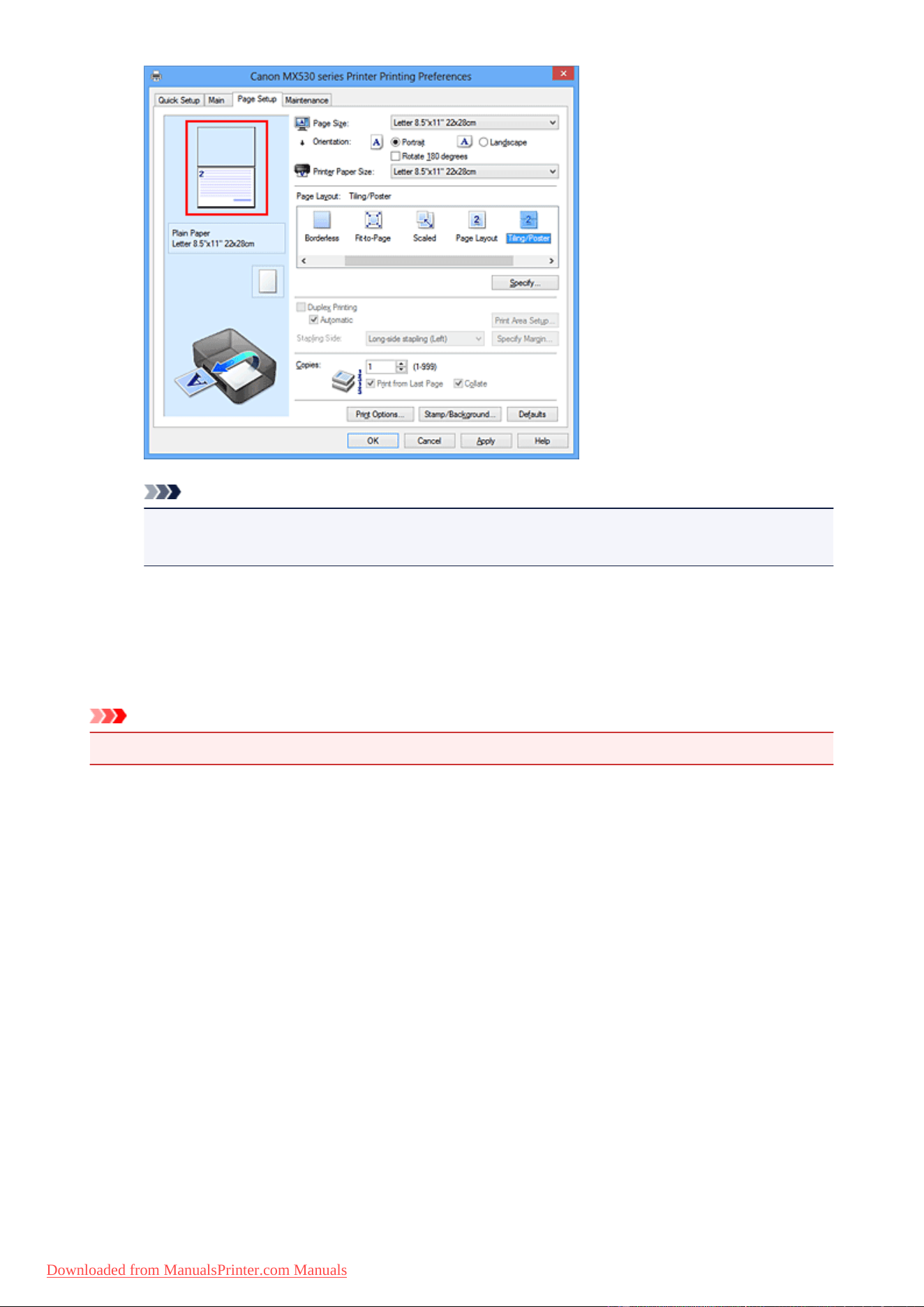
1. Set the print range
In the settings preview on the left of the Page Setup tab, click the pages that do not need to be
printed.
The pages that were clicked are deleted, and only the pages to be printed are displayed.
28
Downloaded from ManualsPrinter.com Manuals
Note
• Click the deleted pages to display them again.
• Right-click the settings preview to select Print all pages or Delete all pages.
2.
Complete the setup
After completing the page selection, click OK.
When you execute print, only specified pages will be printed.
Important
• Since tiling/poster printing enlarges the document when printing it, the print results may become coarse.
29
Downloaded from ManualsPrinter.com Manuals
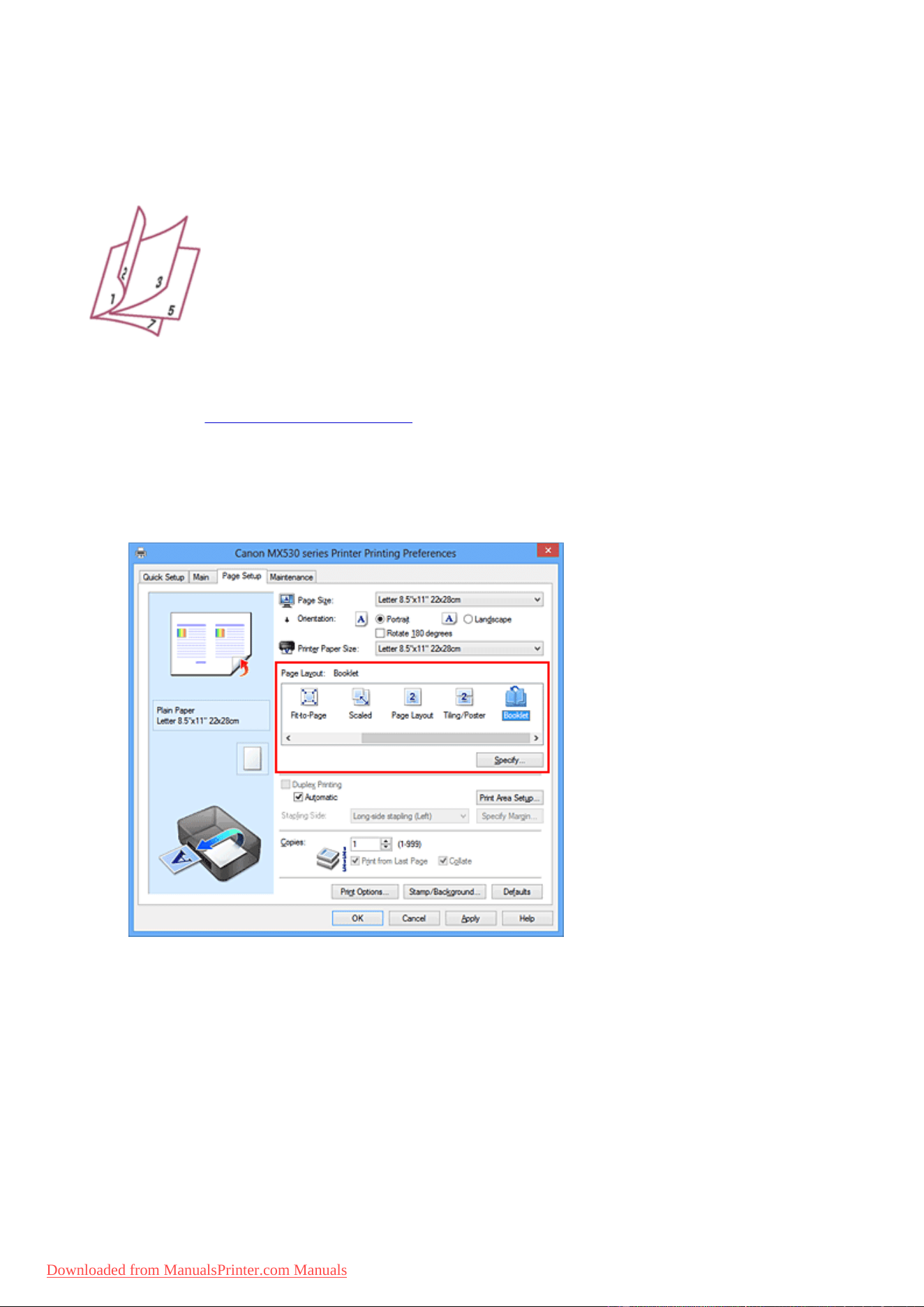
Booklet Printing
The booklet printing function allows you to print data for a booklet. Data is printed on both sides of the
paper. This type of printing ensures that pages can be collated properly, in page number order, when the
printed sheets are folded and stapled at the center.
The procedure for performing booklet printing is as follows:
1.
Open the printer driver setup window
2.
Set booklet printing
Select Booklet from the Page Layout list on the Page Setup tab.
The current settings are displayed in the settings preview on the left side of the window.
3.
Select the print paper size
Select the size of the paper loaded in the machine from the Printer Paper Size list.
4. Set the margin for stapling and the margin width
Click Specify... and specify the following settings in the Booklet Printing dialog box, and then click OK.
30
Downloaded from ManualsPrinter.com Manuals
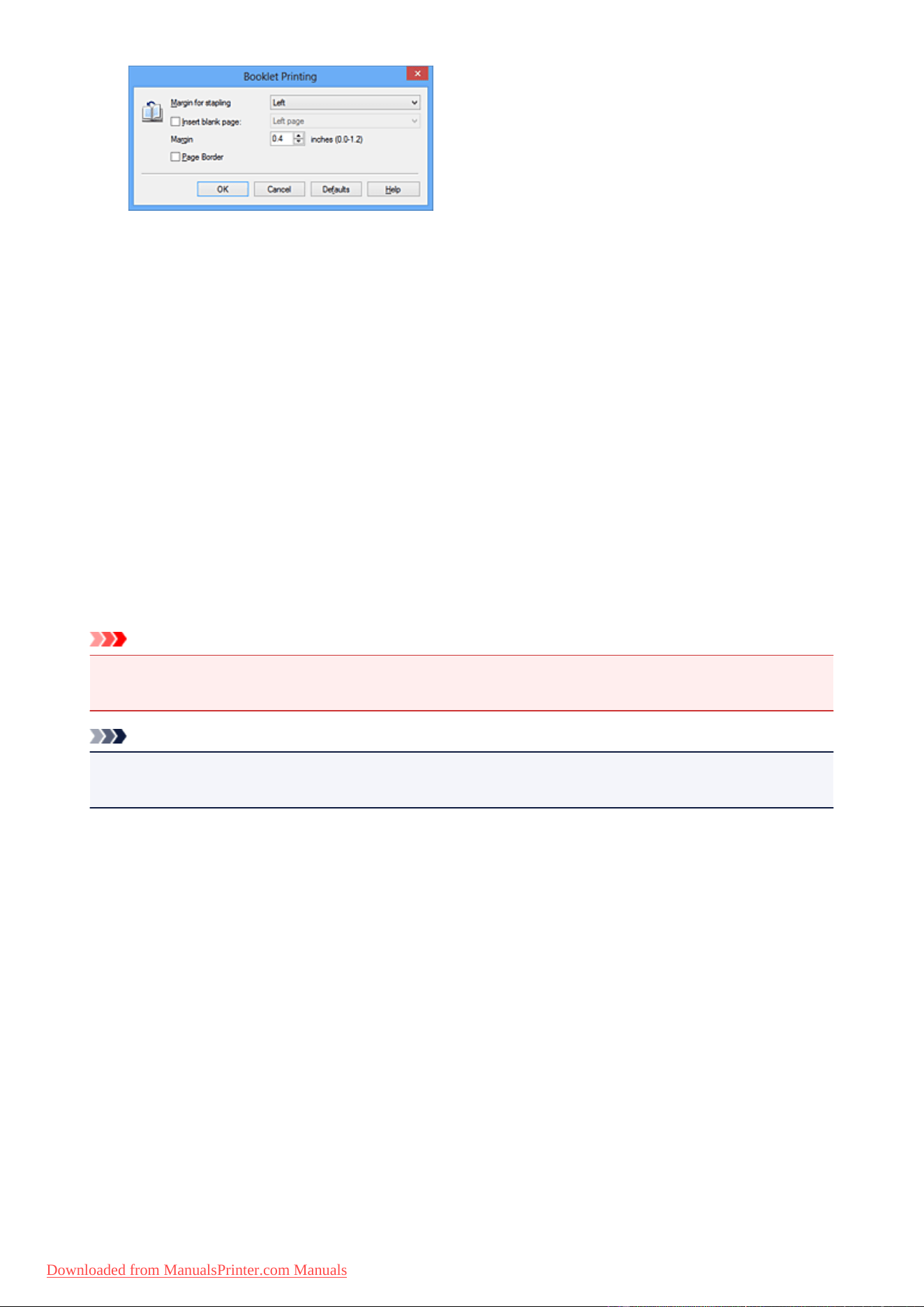
Margin for stapling
Select which side should the stapling margin be on when the booklet is completed.
Insert blank page
To leave one side of a sheet blank, check the check box, and select the page to be left blank.
Margin
Enter the margin width. The specified width from the center of the sheet becomes the margin width
for one page.
Page Border
To print a page border around each document page, check the check box.
5.
Complete the setup
Click OK on the Page Setup tab.
When you execute print, the document is automatically printed first on one side of a sheet of paper and
then on the opposite side.
When the printing is complete, fold the paper at the center of the margin and make a booklet.
Important
• Booklet cannot be selected when a media type other than Plain Paper is selected for Media Type on
the Main tab.
Note
• The stamp and background are not printed on the inserted blank sheets with the Insert blank page
function of booklet printing.
31
Downloaded from ManualsPrinter.com Manuals
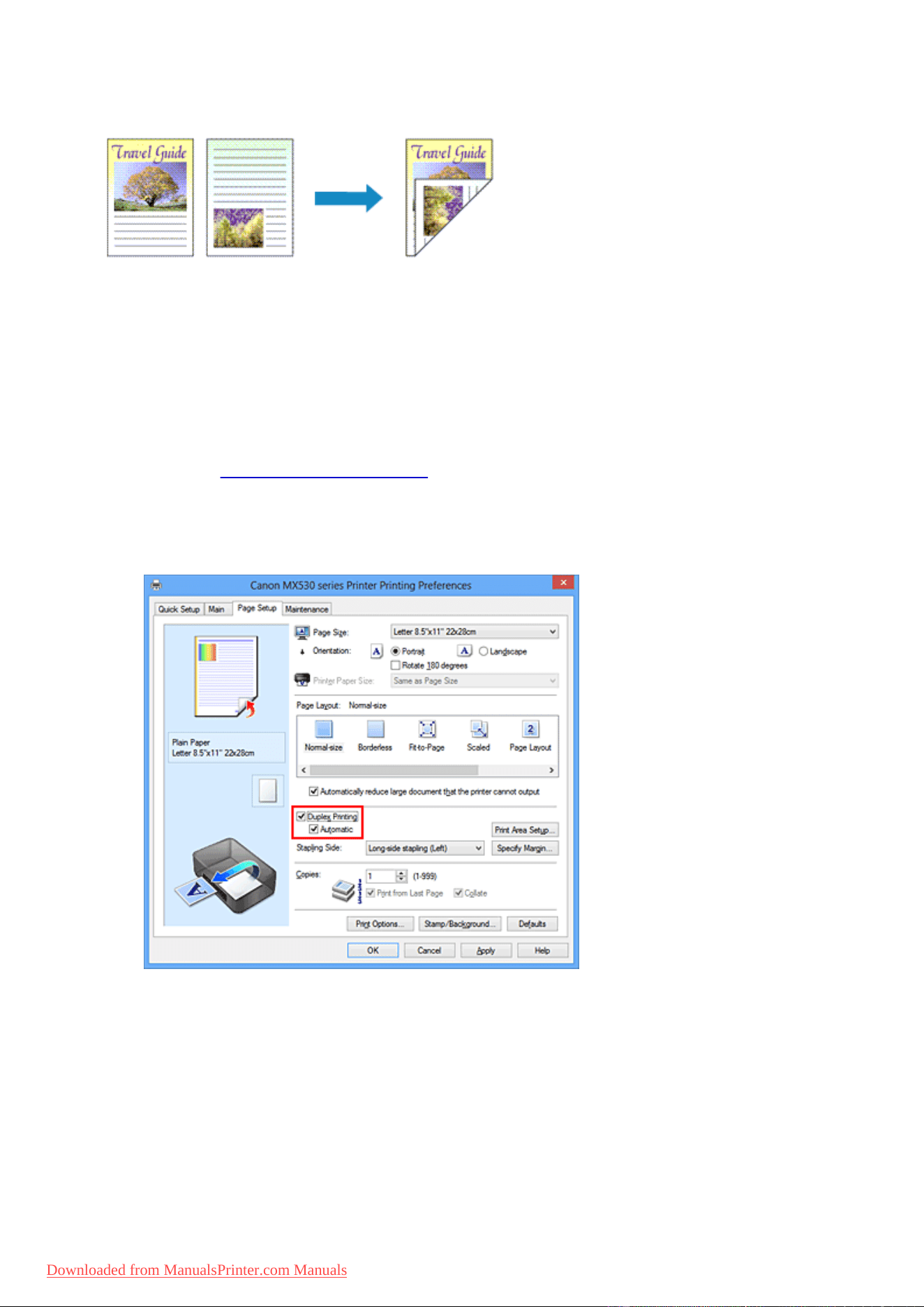
Duplex Printing
The procedure for printing data on both sides of a sheet of paper is as follows:
You can also set duplex printing in Additional Features on the Quick Setup tab.
Performing Automatic Duplex Printing
You can perform the duplex printing without having to turn over the paper.
1.
Open the printer driver setup window
2.
Set automatic duplex printing
Check the Duplex Printing check box on the Page Setup tab and confirm that Automatic is checked.
3. Select the layout
Select Normal-size, Fit-to-Page, Scaled, or Page Layout from the Page Layout list.
4. Set the print area
When you perform duplex printing, the print area of the document becomes slightly narrower than
usual and the document may not fit on one page.
Click Print Area Setup..., select one of the following process methods, and then click OK.
32
Downloaded from ManualsPrinter.com Manuals

Use normal-size printing
Print without reducing the page.
Use reduced printing
Reduce the page slightly during printing.
5.
Specify the side to be stapled
The best Stapling Side is selected automatically from the Orientation and Page Layout settings. To
change the setting, select another stapling side from the list.
6.
Set the margin width
If necessary, click Specify Margin... and set the margin width, and then click OK.
7.
Complete the setup
Click OK on the Page Setup tab.
When you execute print, duplex printing will be started.
Performing Duplex Printing Manually
You can perform the duplex printing manually.
1.
Open the printer driver setup window
2.
Set duplex printing
Check the Duplex Printing check box and uncheck the Automatic check box on the Page Setup tab.
33
Downloaded from ManualsPrinter.com Manuals
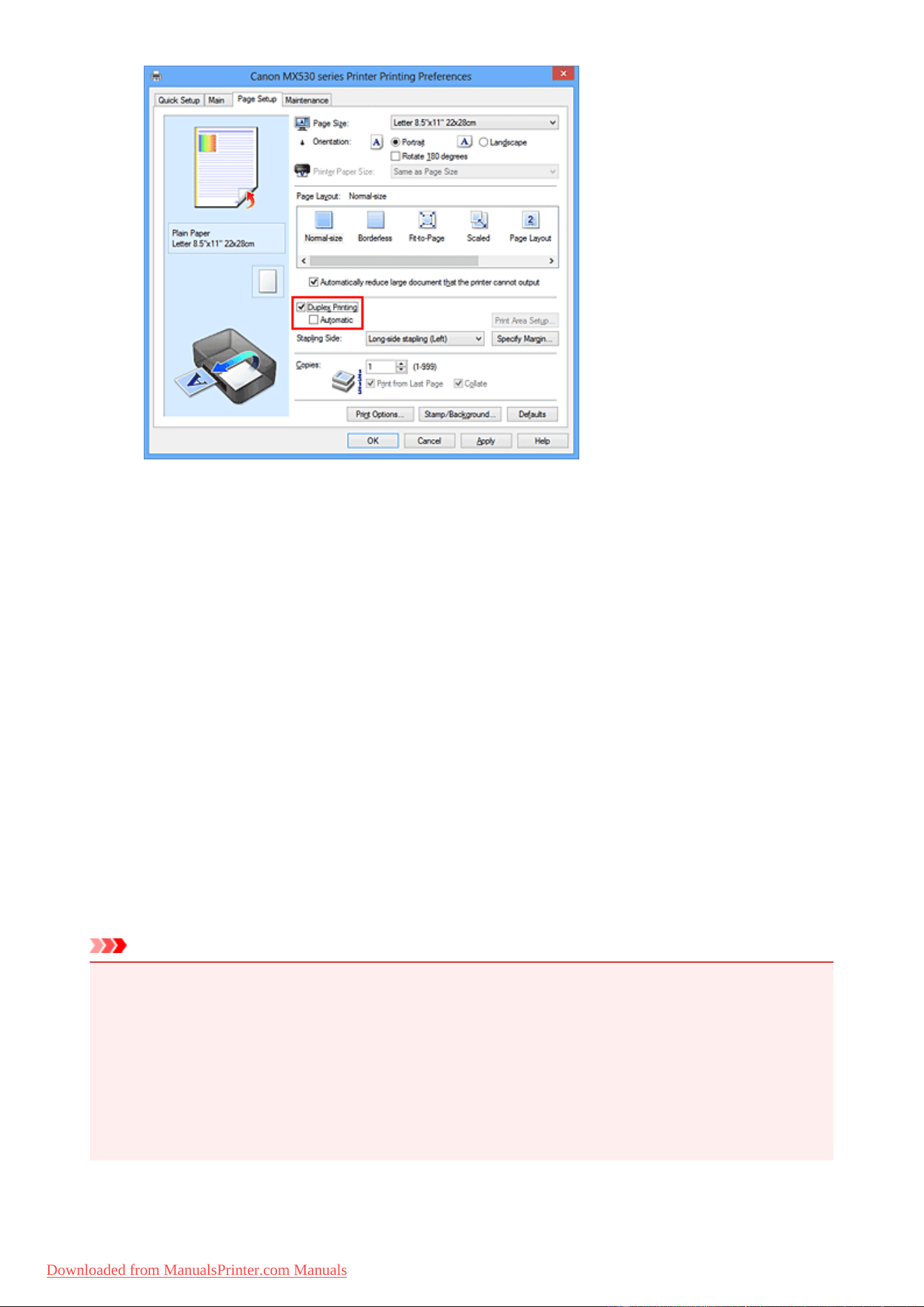
3.
Select the layout
Select Normal-size, Fit-to-Page, Scaled, or Page Layout from the Page Layout list.
4.
Specify the side to be stapled
The best Stapling Side is selected automatically from the Orientation and Page Layout settings. To
change the setting, select another stapling side from the list.
5.
Set the margin width
If necessary, click Specify Margin... and set the margin width, and then click OK.
6.
Complete the setup
Click OK on the Page Setup tab.
When you execute print, the document is first printed on one side of a sheet of paper. After one side is
printed, reload the paper correctly according to the message.
Then click Start Printing to print the opposite side.
Important
• Duplex Printing appears grayed out and is unavailable when:
• A media type other than Plain Paper is selected from the Media Type list.
• Tiling/Poster and Borderless are selected from the Page Layout list.
• When Booklet is selected from the Page Layout list, Duplex Printing and Stapling Side appear
grayed out and are unavailable.
• Duplex Printing can be performed only when one of the following paper sizes is selected from Page
Size on the Page Setup tab.
• Letter 8.5"x11" 22x28cm, A4
34
Downloaded from ManualsPrinter.com Manuals

• After printing the front page, there is an ink drying wait time before starting to print the back page
(Operation stops temporarily). Do not touch the paper during this time. You can change the ink drying
wait time at Custom Settings on the Maintenance tab.
Note
• If the back side of the paper becomes smudged during duplex printing, perform Bottom Plate Cleaning
in the Maintenance tab.
• Unless head position adjustment is performed after an ink cartridge is loaded or replaced, the intended
print results may not be obtained during automatic duplex printing. If the print results are not
satisfactory, refer to "Aligning the Print Head Position from Your Computer" and adjust the head
position.
Related Topics
Cleaning Inside the Machine
Changing the Machine Operation Mode
35
Downloaded from ManualsPrinter.com Manuals
Stamp/Background Printing
Stamp or Background may be unavailable when certain printer drivers or operating environments are used.
The Stamp function allows you to print a stamp text or a bitmap over or behind document data. It also
allows you to print date, time and user name. The Background function allows you to print a light illustration
behind the document data.
The procedure for performing stamp/background printing is as follows:
Printing a Stamp
"CONFIDENTIAL," "IMPORTANT," and other stamps that are used often in companies are pre-registered.
1.
Open the printer driver setup window
2.
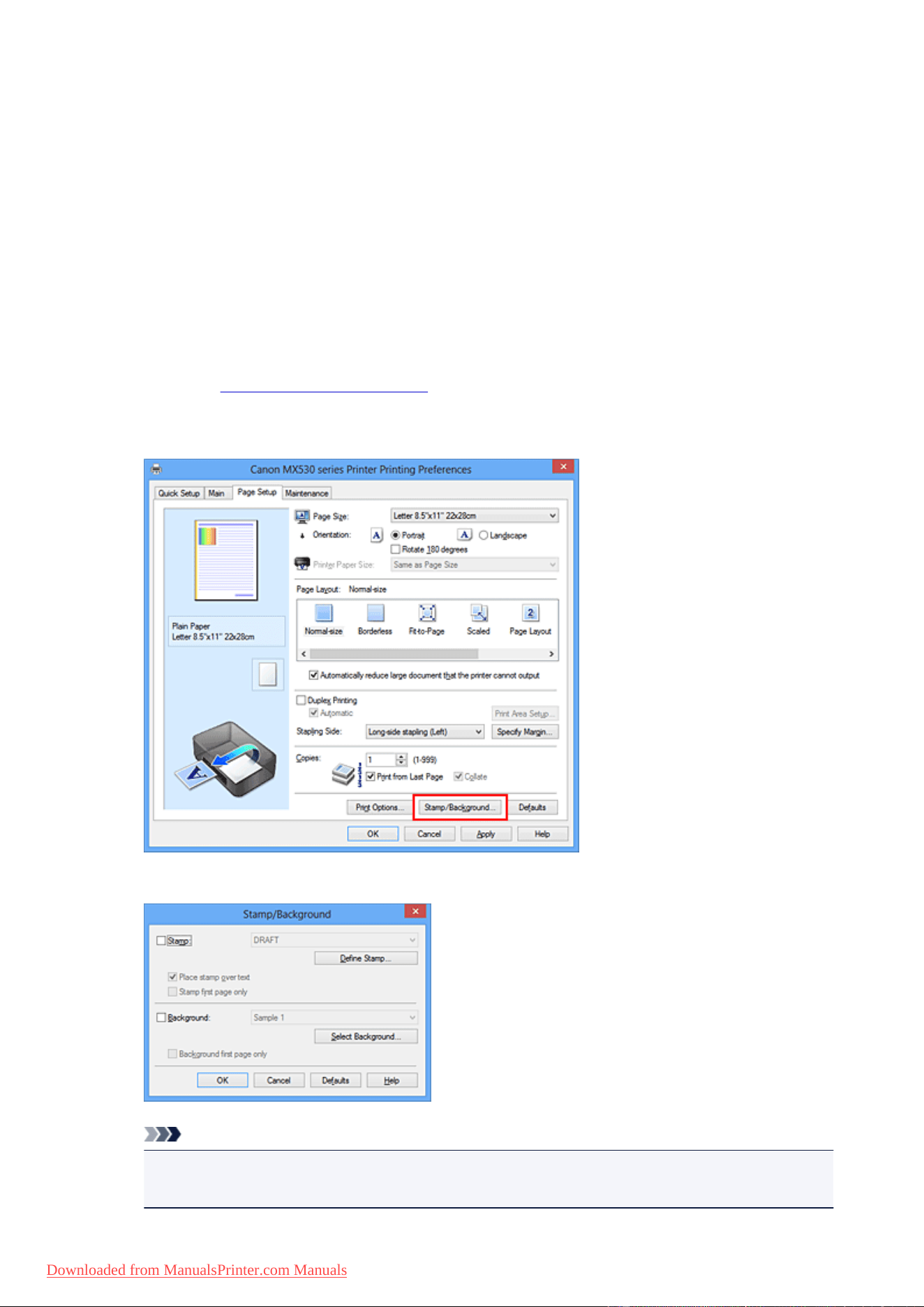
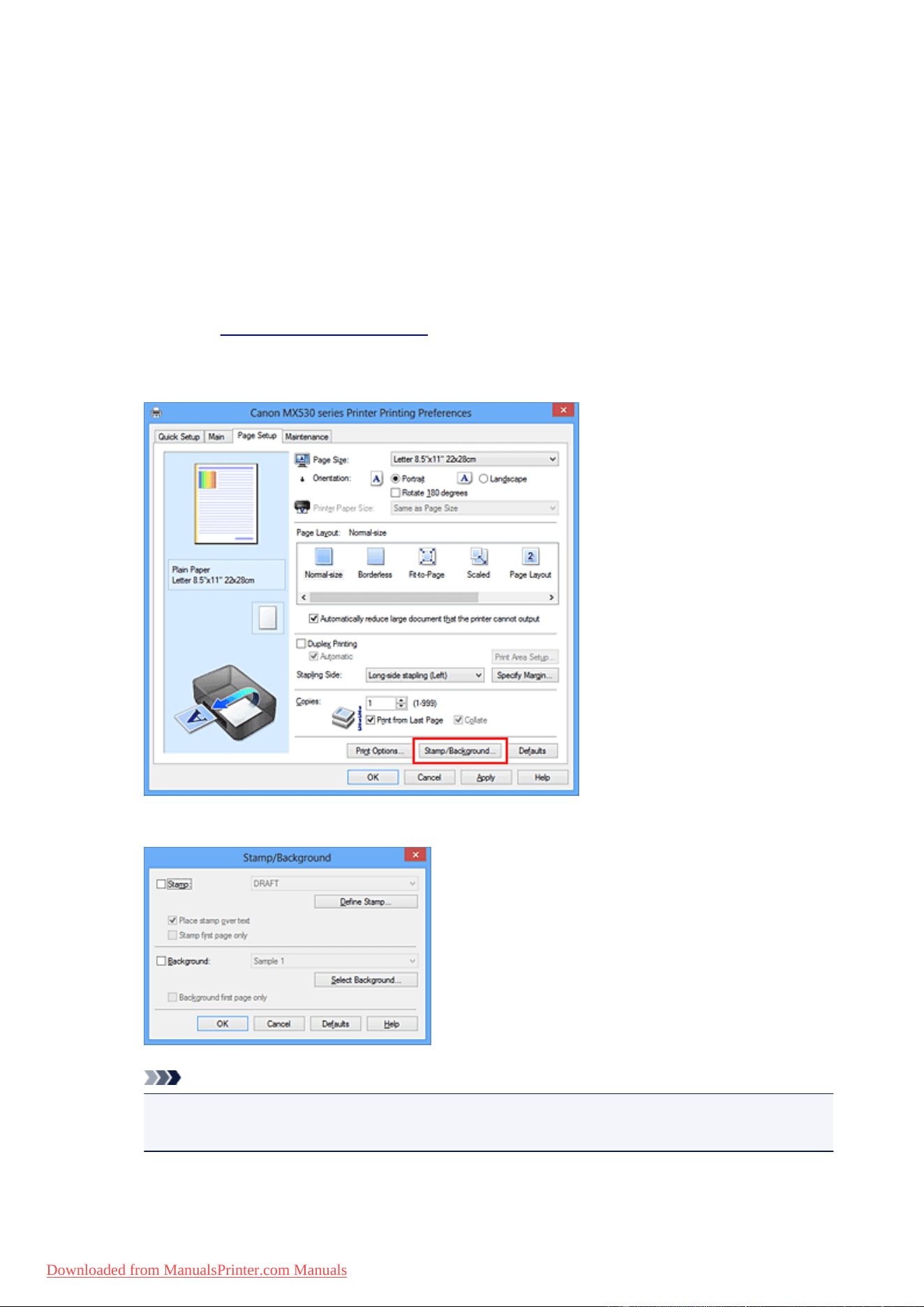
Click Stamp/Background... (Stamp...) on the Page Setup tab
The Stamp/Background (Stamp) dialog box opens.
Note
•
With the XPS printer driver, the Stamp/Background... button has become the Stamp... button
and only the stamp function can be used.
36
Downloaded from ManualsPrinter.com Manuals

3. Select a stamp
Check the Stamp check box, and select the stamp to be used from the list.
The current settings are displayed in the settings preview on the left side of the Page Setup tab.
4. Set the stamp details
If necessary, specify the following settings, and then click OK.
Define Stamp... button
To change the stamp text, bitmap, or position, click this.
Place stamp over text
To print the stamp on the front of the document, check this check box.
Note
•
The stamp is given priority because the stamp is printed over the document data in the
sections where the stamp and the document data overlap. When this check box is
unchecked, the stamp is printed behind the document data and may be hidden in the
overlapping sections depending on the application software used.
• Place stamp over text cannot be used when the XPS printer driver is used.
When the XPS printer driver is used, the stamp is normally printed in the foreground of the
document.
Print semitransparent stamp
Check this check box to print a semi-transparent stamp on the document.
This function is available only when the XPS printer driver is used.
Stamp first page only
To print the stamp only on the first page, check this check box.
5.
Complete the setup
Click OK on the Page Setup tab.
When you execute print, the data is printed with the specified stamp.
Printing a Background
Two bitmap files are pre-registered as samples.
1. Open the printer driver setup window
2. Click Stamp/Background... on the Page Setup tab
The Stamp/Background dialog box opens.
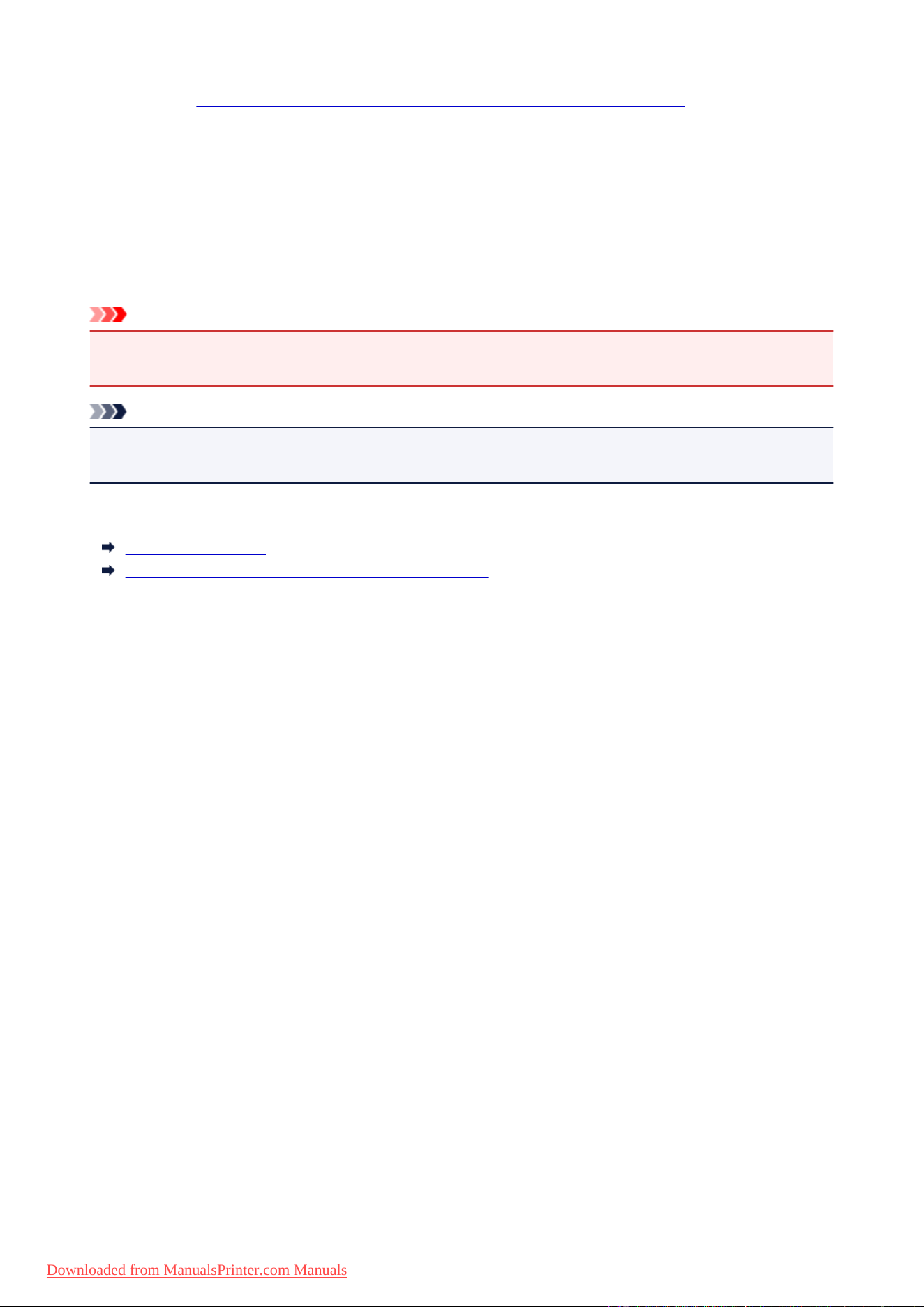
3. Select the background
Check the Background check box, and select the background to be used from the list.
The current settings are displayed in the settings preview on the left side of the Page Setup tab.
4. Set the background details
If necessary, complete the following settings, and then click OK.
37
Downloaded from ManualsPrinter.com Manuals
Select Background... button
To use another background or change the layout or density of a background, click this.
Background first page only
To print the background only on the first page, check this check box.
5. Complete the setup
Click OK on the Page Setup tab.
When you execute print, the data is printed with the specified background.
Important
• When Borderless is selected, the Stamp/Background... (Stamp...) button appears grayed out and is
unavailable.
Note
• The stamp and background are not printed on blank sheets inserted with the Insert blank page
function of booklet printing.
Related Topics
Registering a Stamp
Registering Image Data to be Used as a Background
38
Downloaded from ManualsPrinter.com Manuals
Registering a Stamp
This feature may be unavailable when certain printer drivers or operating environments are used.
You can create and register a new stamp. You can also change and re-register some of the settings of an
existing stamp. Unnecessary stamps can be deleted at any time.
The procedure for registering a new stamp is as follows:
Registering a New Stamp
1.
Open the printer driver setup window
2.
Click Stamp/Background... (Stamp...) on the Page Setup tab
The Stamp/Background (Stamp) dialog box opens.
Note
•
With the XPS printer driver, the Stamp/Background... button has become the Stamp... button
and only the stamp function can be used.
3. Click Define Stamp...
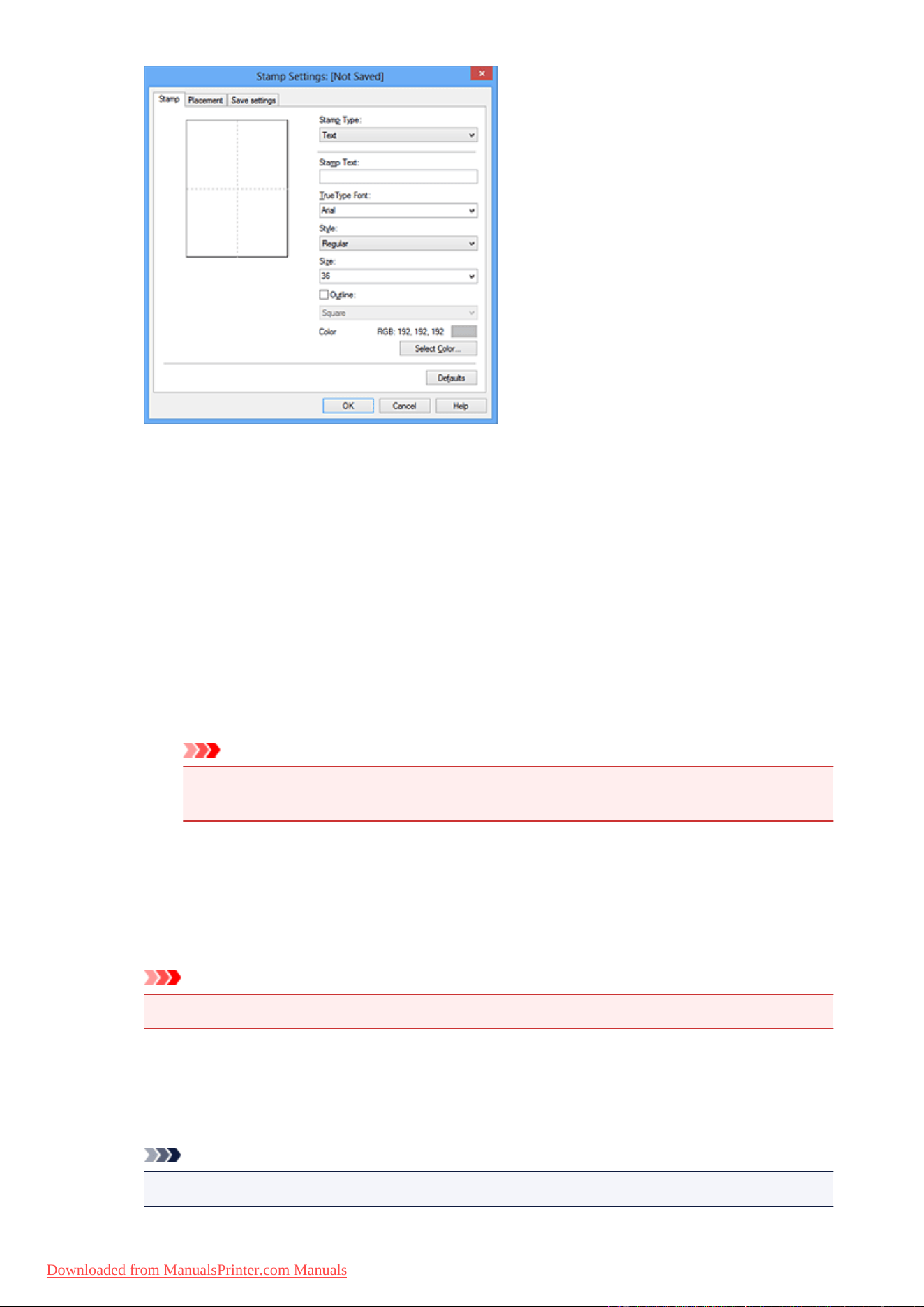
The Stamp Settings dialog box opens.
39
Downloaded from ManualsPrinter.com Manuals
4.
Configure the stamp while viewing the preview window
• Stamp tab
Select Text, Bitmap, or Date/Time/User Name that matches your purpose for Stamp Type.
◦ For Text registration, the characters must already be entered in Stamp Text. If necessary,
change the TrueType Font, Style, Size, and Outline settings. You can select the color of
the stamp by clicking Select Color....
◦ For Bitmap, click Select File... and select the bitmap file (.bmp) to be used. If necessary,
change the settings of the Size and Transparent white area.
◦ For Date/Time/User Name, the creation date/time and user name of the printed object are
displayed in Stamp Text. If necessary, change the settings of TrueType Font, Style, Size,
and Outline. You can select the color of the stamp by clicking Select Color....
Important
•
Stamp Text appears grayed out and is unavailable when Date/Time/User Name is
selected.
• Placement tab
Select the stamp position from the Position list. You can also select Custom from the Position
list and specify coordinates for X-Position and Y-Position.
You can also change the stamp position by dragging the stamp in the preview window.
To change the stamp position angle, type a value in the Orientation box directly.
Important
•
Orientation cannot be changed when Bitmap is selected for Stamp Type on the Stamp tab.
5. Save the stamp
Click the Save settings tab and enter a title in the Title box, and then click Save.
Click OK when the confirmation message appears.
Note
•
Spaces, tabs, and returns cannot be entered at the beginning or end of a title.
40
Downloaded from ManualsPrinter.com Manuals

6. Complete the setup
Click OK. The Stamp/Background (Stamp) dialog box opens again.
The registered title appears in the Stamp list.
Changing and Registering Some of Stamp Settings
1.
Select the stamp for which the settings are to be changed
Select the Stamp check box in the Stamp/Background (Stamp) dialog box. Then from the list, select
the title of the stamp to be changed.
2.
Click Define Stamp...
The Stamp Settings dialog box opens.
3.
Configure the stamp while viewing the preview window
4.
Overwrite save the stamp
Click Save overwrite on the Save settings tab.
When you want to save the stamp with a different title, type a new title in the Title box and click Save.
Click OK when the confirmation message appears.
5.
Complete the setup
Click OK. The Stamp/Background (Stamp) dialog box opens again.
The registered title appears in the Stamp list.
Deleting an Unnecessary Stamp
1.
Click Define Stamp... in the Stamp/Background (Stamp) dialog box
The Stamp Settings dialog box opens.
2.
Select the stamp to be deleted
Select the title of the stamp you want to delete from the Stamps list on the Save settings tab. Then
click Delete.
Click OK when the confirmation message appears.
3. Complete the setup
Click OK. The Stamp/Background (Stamp) dialog box opens again.
41
Downloaded from ManualsPrinter.com Manuals
Registering Image Data to be Used as a Background
This feature may be unavailable when certain printer drivers or operating environments are used.
You can select a bitmap file (.bmp) and register it as a new background. You can also change and register
some of the settings of an existing background. An unnecessary background can be deleted.
The procedure for registering image data to be used as a background is as follows:
Registering New Background
1.
Open the printer driver setup window
2.
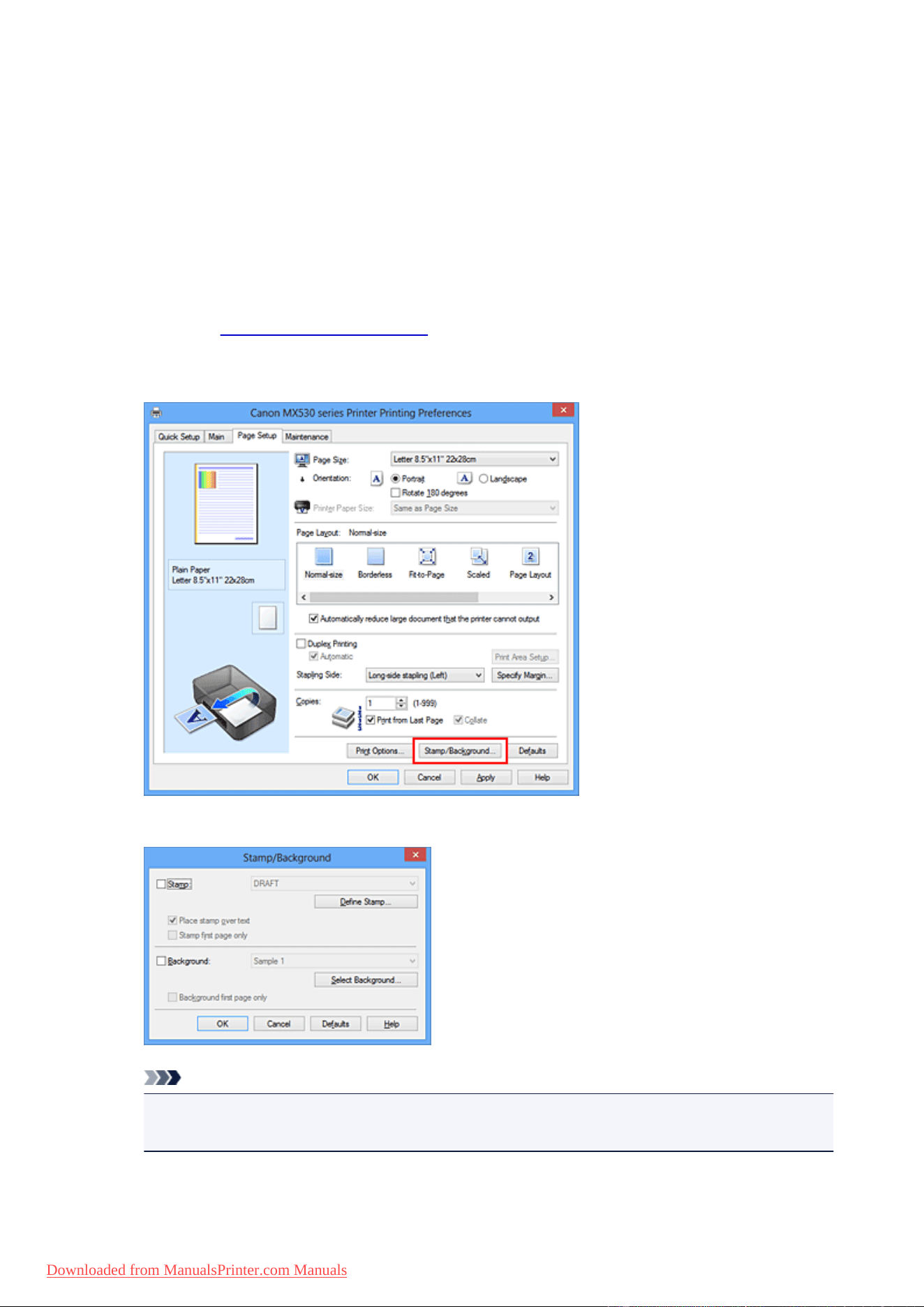
Click Stamp/Background... on the Page Setup tab
The Stamp/Background dialog box opens.
Note
•
With the XPS printer driver, the Stamp/Background... button has become the Stamp... button
and Background cannot be used.
3. Click Select Background...
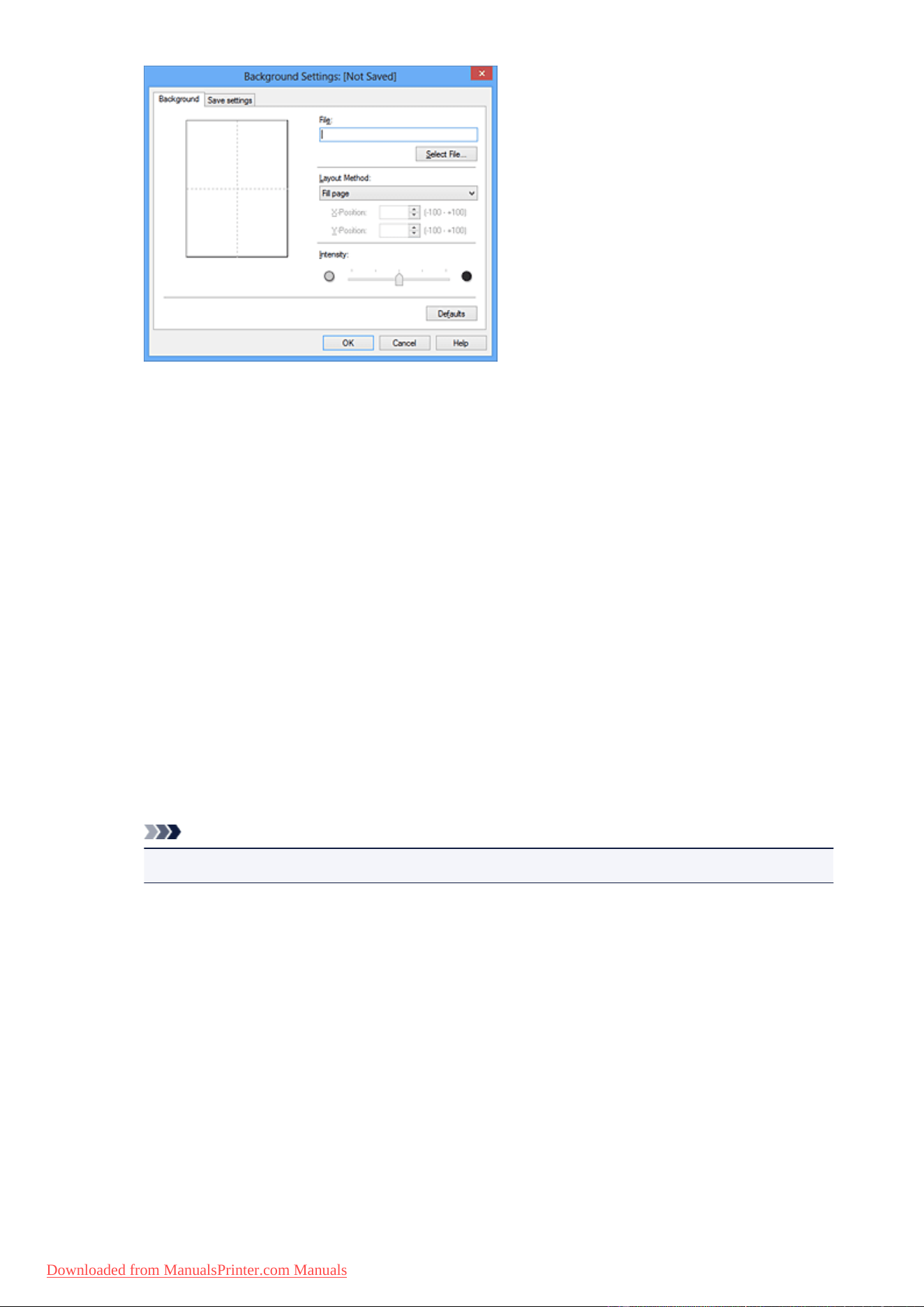
The Background Settings dialog box opens.
42
Downloaded from ManualsPrinter.com Manuals
4.
Select the image data to be registered to the background
Click Select File.... Select the target bitmap file (.bmp), and then click Open.
5.
Specify the following settings while viewing the preview window
Layout Method
Select how the background image data is to be placed.
When Custom is selected, you can set coordinates for X-Position and Y-Position.
You can also change the background position by dragging the image in the preview window.
Intensity
Set the intensity of the background image data with the Intensity slider. Moving the slider to the
right darkens the background, and moving the slider to the left lightens the background. To print
the background at the original bitmap intensity, move the slider to the rightmost position.
6.
Save the background
Click the Save settings tab and enter a title in the Title box, and then click Save.
Click OK when the confirmation message appears.
Note
•
Spaces, tabs, and returns cannot be entered at the beginning or end of a title.
7. Complete the setup
Click OK, then it returns to Stamp/Background dialog box.
The registered title appears in the Background list.
Changing and Registering Some Background Settings
1. Select the background for which the settings are to be changed
Select the Background check box in the Stamp/Background dialog box. Then from the list, select
the title of the background you want to change.
2. Click Select Background...
43
Downloaded from ManualsPrinter.com Manuals

The Background Settings dialog box opens.
3. Specify each item on the Background tab while viewing the preview window
4. Save the background
Click Save overwrite on the Save settings tab. When you want to save the background with a
different title, enter a new title in the Title box and click Save.
Click OK when the confirmation message appears.
5.
Complete the setup
Click OK, then it returns to Stamp/Background dialog box.
The registered title appears in the Background list.
Deleting an Unnecessary Background
1.
Click Select Background... in the Stamp/Background dialog box
The Background Settings dialog box opens.
2.
Select the background to be deleted
Select the title of the background you want to delete from the Backgrounds list on the Save settings
tab, and then click Delete.
Click OK when the confirmation message appears.
3.
Complete the setup
Click OK, then it returns to Stamp/Background dialog box.
44
Downloaded from ManualsPrinter.com Manuals
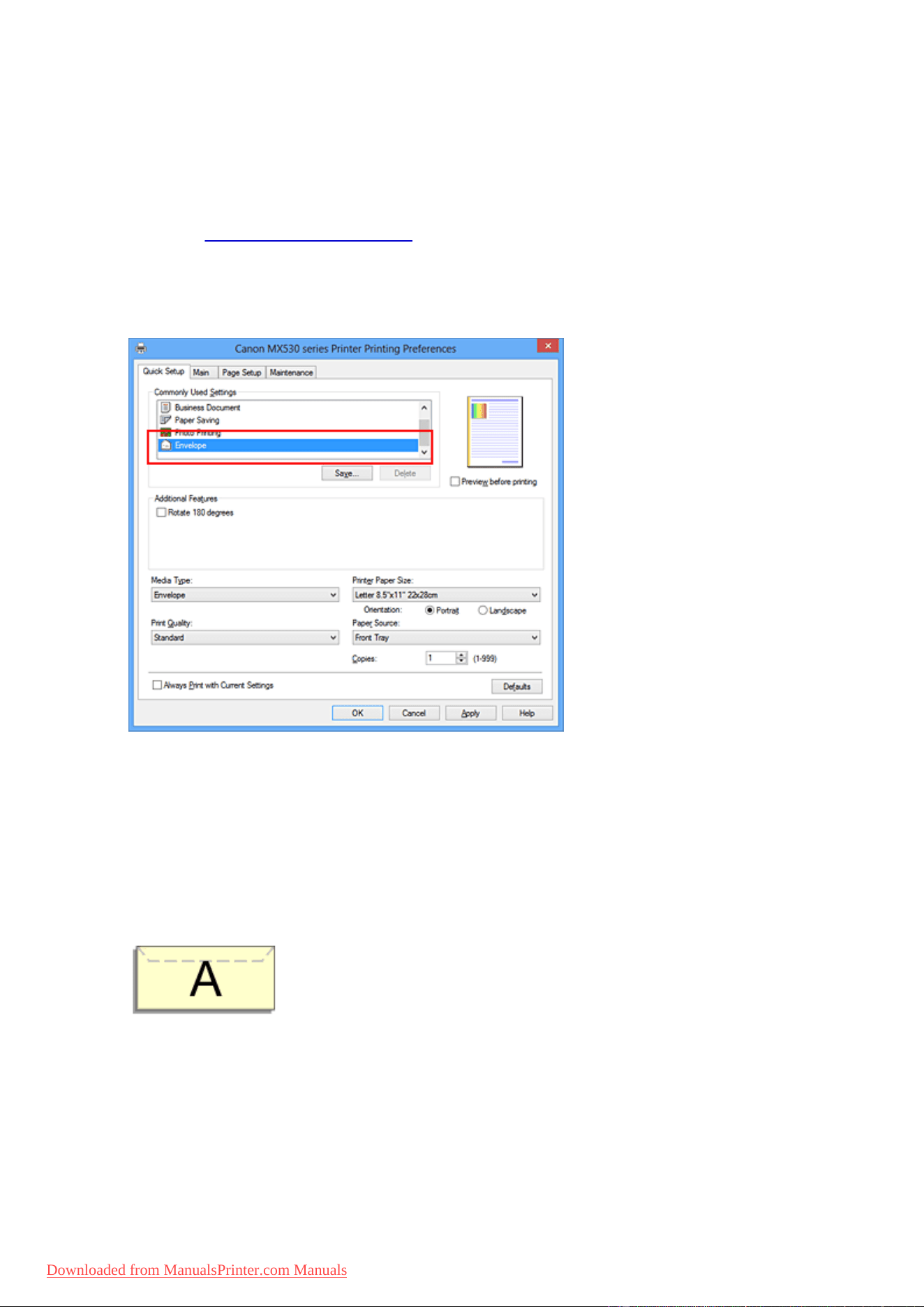
Setting Up Envelope Printing
The procedure for performing envelope printing is as follows:
1. Load envelope on the machine
2. Open the printer driver setup window
3.
Select the media type
Select Envelope from Commonly Used Settings on the Quick Setup tab.
4.
Select the paper size
When the Envelope Size Setting dialog box is displayed, select Envelope Com 10, Envelope DL,
Yougata 4 4.13"x9.25", or Yougata 6 3.86"x7.48", and then click OK.
5. Set the orientation
To print the addressee horizontally, select Landscape for Orientation.
6. Select the print quality
Select High or Standard that matches your purpose for Print Quality.
7. Complete the setup
Click OK.
When you execute print, the information is printed on the envelope.
45
Downloaded from ManualsPrinter.com Manuals

Important
• When you execute envelope printing, guide messages are displayed.
To hide the guide messages, check the Do not show this message again check box.
To show the guide again, click the View Printer Status button on the Maintenance tab, and start the
Canon IJ Status Monitor.
Then click Envelope Printing from Display Guide Message of the Option menu to enable the setting.
46
Downloaded from ManualsPrinter.com Manuals

Printing on Postcards
This section describes the procedure for postcard printing.
1. Load postcard on the machine
2. Open the printer driver setup window
3.
Select commonly used settings
Display the Quick Setup tab, and for Commonly Used Settings, select Standard.
4.
Select the media type
For Media Type, select Hagaki A, Ink Jet Hagaki, Hagaki K, or Hagaki.
Important
•
This machine cannot print on postcards that have photos or stickers attached.
• When printing on each side of a postcard separately, you will get cleaner printing if you print the
message side first and then print the address side.
5.
Select the paper size
For Printer Paper Size, select Hagaki 100x148mm or Hagaki 2 200x148mm.
Important
• Return postcards can be used only when you print them from the computer.
• When printing a return postcard, always set the paper size to Hagaki 2 200x148mm from your
application software or the printer driver.
• Do not fold the return postcard. If a crease is formed, the machine will not be able to feed the
postcard properly, and this condition will cause line shifts or a paper jam.
• With return postcards, borderless printing cannot be used.
6.
Set the print orientation
To print the address horizontally, set Orientation to Landscape.
7.
Select the print quality
For Print Quality, select High or Standard, whichever best suits the purpose.
8. Complete the setup
Click OK.
When you execute printing, the data will be printed onto the postcard.
Important
• When you execute postcard printing, a guide message is displayed.
When the guide message is displayed, select Do not show this message again if you do not want any
guide messages to be displayed.
To display guide messages again, open the Maintenance tab and click View Printer Status to start the
47
Downloaded from ManualsPrinter.com Manuals

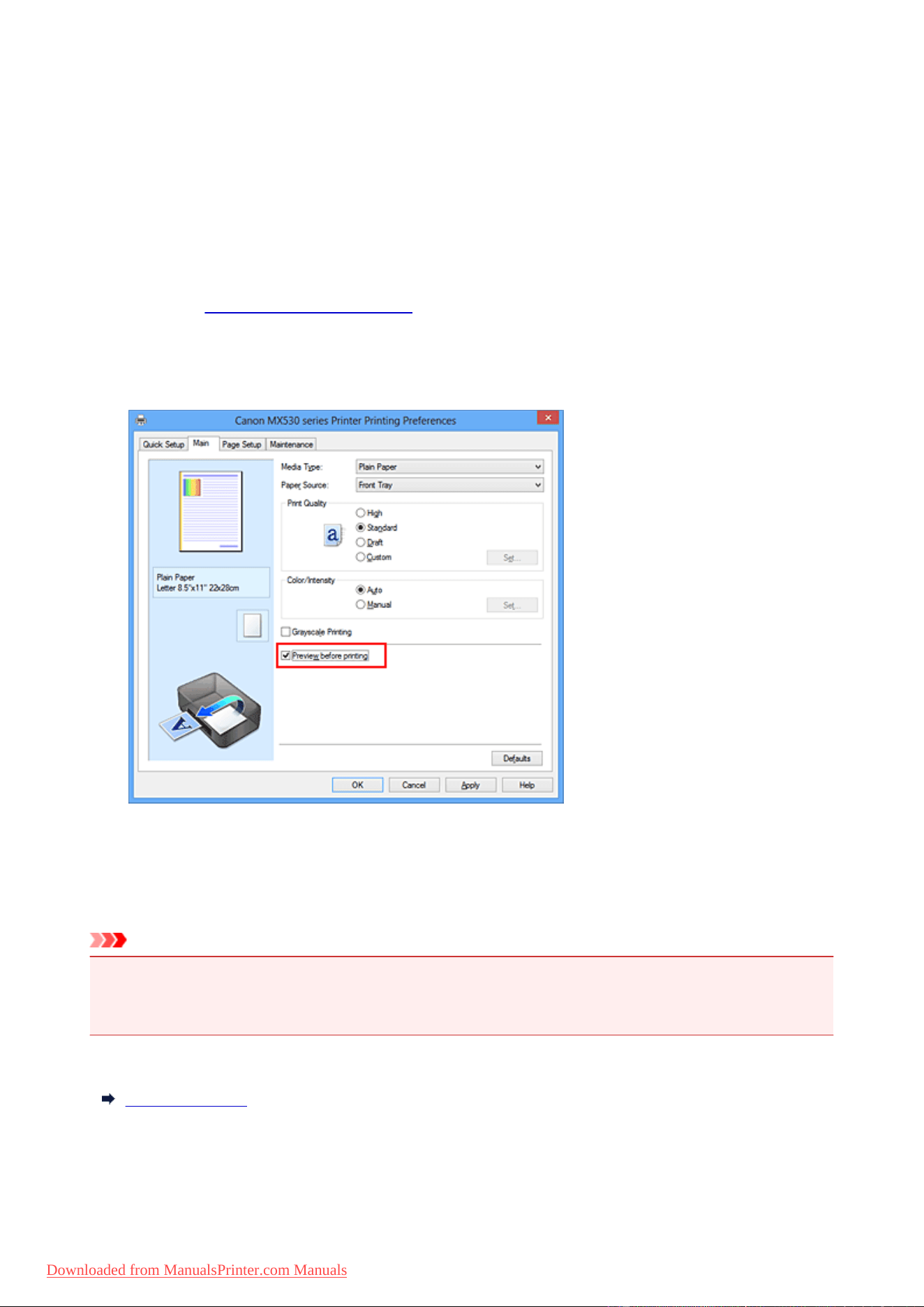
Displaying the Print Results before Printing
If you are using the XPS printer driver, replace "Canon IJ Preview" with "Canon IJ XPS Preview" when
reading this information.
You can display and check the print result before printing.
The procedure for displaying the print result before printing is as follows:
You can also set the print results display on the Quick Setup tab.
1.
Open the printer driver setup window
2.
Set the preview
Check the Preview before printing check box on the Main tab.
3.
Complete the setup
Click OK.
When you execute print, the Canon IJ Preview opens and displays the print results.
Important
• In the Manual Color Adjustment dialog box, the Color Adjustment tab contains the Print a pattern
for color adjustment check box. When this check box is selected, the Preview before printing
appears grayed out and is unavailable.
Related Topic
Canon IJ Preview
49
Downloaded from ManualsPrinter.com Manuals
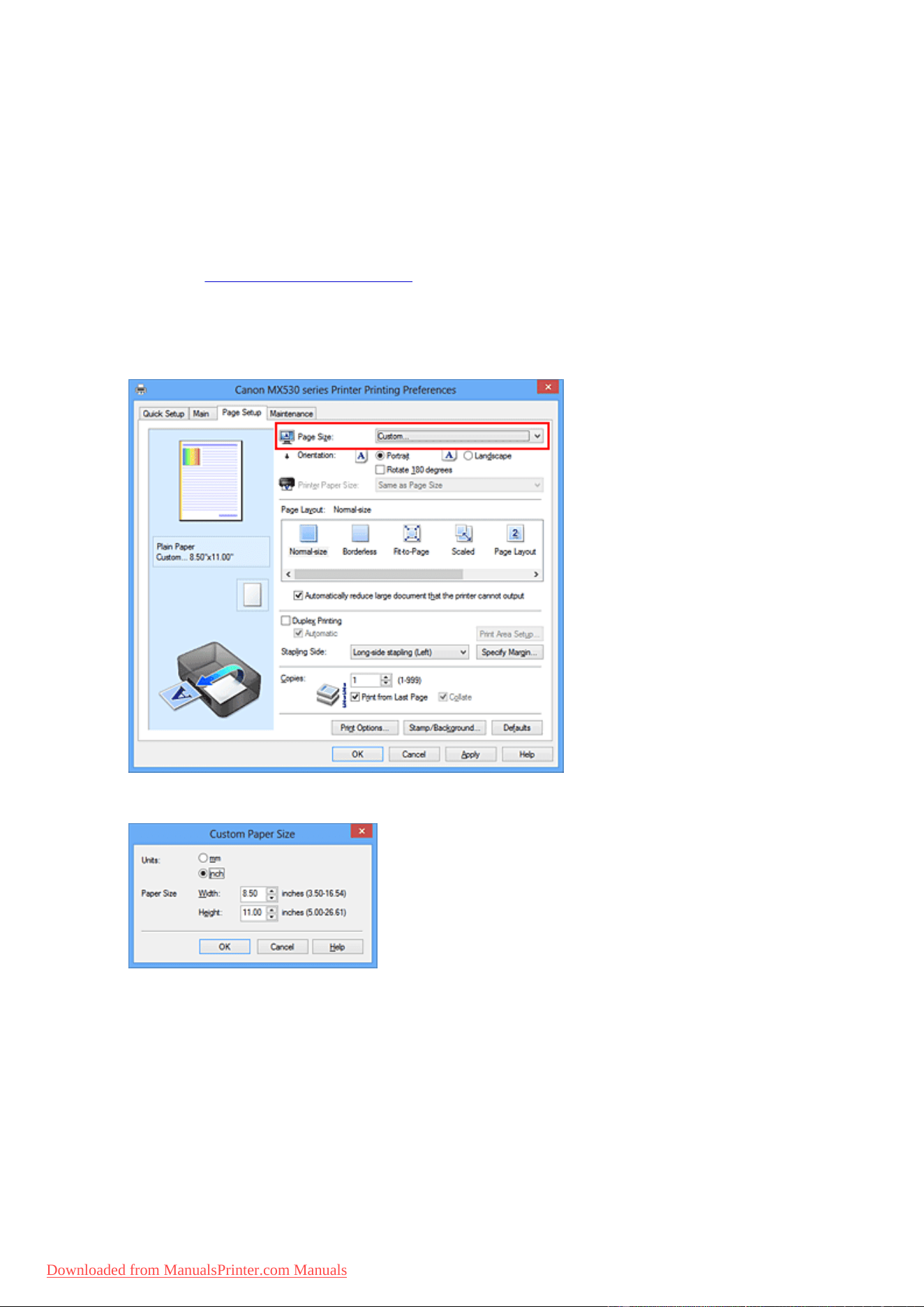
Setting Paper Dimensions (Custom Size)
You can specify the height and width of paper when its size cannot be selected from the Page Size. Such a
paper size is called "custom size."
The procedure for specifying a custom size is as follows:
You can also set a custom size in Printer Paper Size on the Quick Setup tab.
1. Open the printer driver setup window
2.
Select the paper size
Select Custom... for Page Size on the Page Setup tab.
The Custom Paper Size dialog box opens.
3.
Set the custom paper size
Specify Units, and enter the Width and Height of the paper to be used. Then click OK.
4. Complete the setup
Click OK on the Page Setup tab.
When you execute print, the data is printed with the specified paper size.
50
Downloaded from ManualsPrinter.com Manuals

Important
• When the application software that created the document has a function for specifying the height and
width values, use the application software to set the values. When the application software does not
have such a function or if the document does not print correctly, use the printer driver to set the values.
• Printing may be disabled depending on the size of the specified user-defined media.
For information about printable sizes for user-defined media, see "Media Types You Can Use."
51
Downloaded from ManualsPrinter.com Manuals
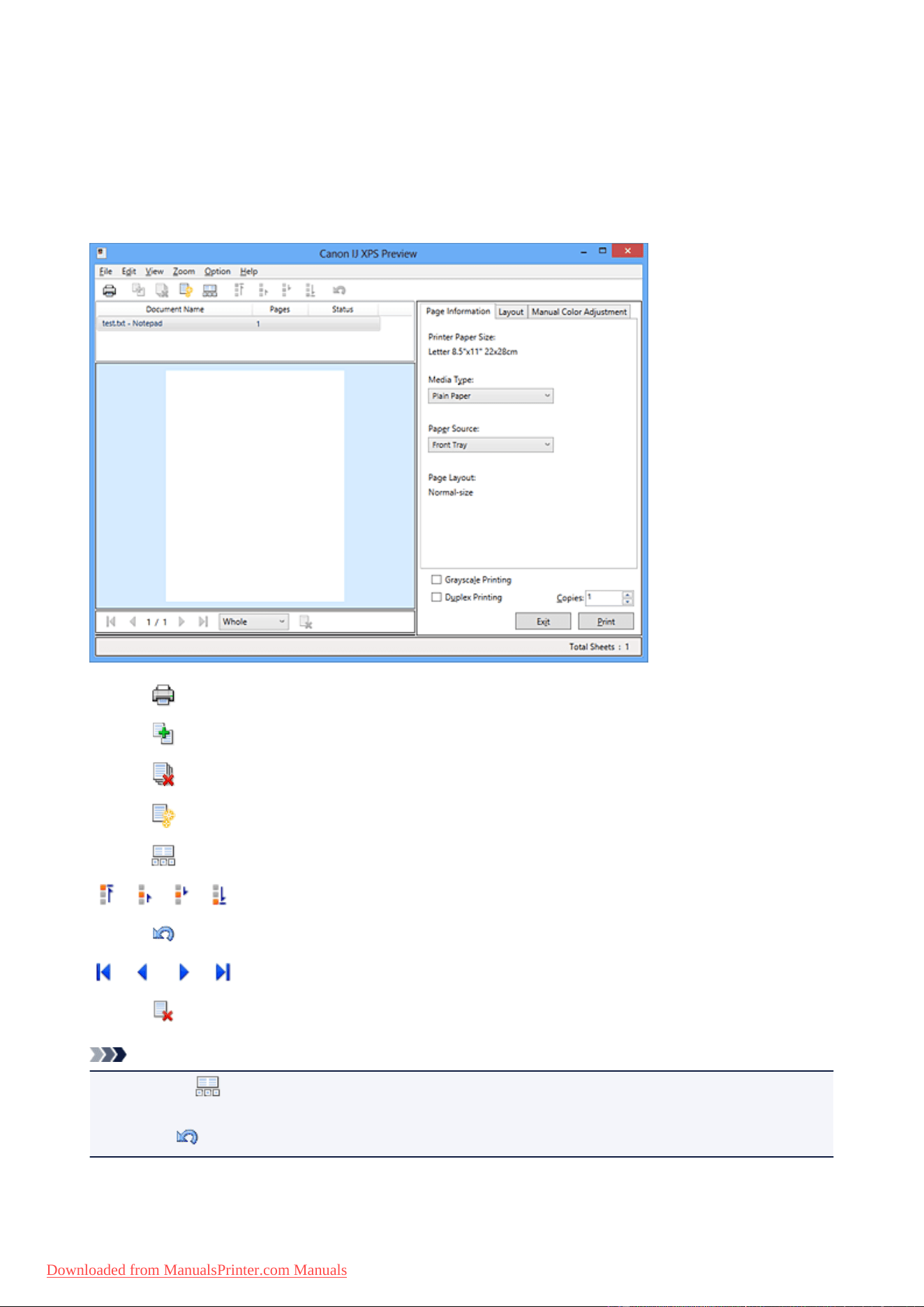
Editing the Print Document or Reprinting from the Print History
This function is unavailable when the standard IJ printer driver is used.
In the Canon IJ XPS preview window, you can edit the print document or retrieve the document print history
to print the document.
The procedure for using the Canon IJ XPS Preview is as follows:
Print
Combine Documents
Delete Document
Reset Documents
View Thumbnails
Move Document
Undo
Move Page
Delete Page
Note
• By clicking View Thumbnails, you can display or hide thumbnails of the print documents selected
in the Document Name list.
• Clicking Undo reverses the change that just performed.
52
Downloaded from ManualsPrinter.com Manuals

Editing and Printing a Print Document
When printing multiple documents or pages, you can combine documents, change the print sequence of
the documents or pages, or delete documents or pages.
1. Open the printer driver setup window
2.
Set the preview
Check the Preview before printing check box on the Main tab.
3.
Complete the setup
Click OK.
The Canon IJ XPS Preview will start and the print result will be displayed before printing.
4.
Editing print documents and print pages
•
Combining print documents
You can combine multiple print documents to form a single document. By combining print
documents, you can prevent blank pages from being inserted when you execute duplex printing
or page layout printing.
From the Document Name list, select the documents to be combined. On the Edit menu, select
Combine Documents from Documents to combine the documents in the listed sequence.
To select multiple print documents, hold down the Ctrl key and click the documents to be
merged, or hold down the Shift key and press the upper arrow or lower arrow key. You can also
click a blank area in the document list and drag the mouse to select multiple documents.
When you combine documents, the documents selected before the combining are deleted from
the list and the combined document is added to the list.
•
Changing the sequence of print documents or print pages
◦ To change the sequence of the print documents, go to the Document Name list, and select
the print document to be moved. Next, on the Edit menu, select Move Document from
Documents, and select the appropriate item. You can also click and drag a print document
to change the print sequence.
◦ To change the sequence of the print pages, click View Thumbnails from the Option menu,
and select the print page to be moved. Next, on the Edit menu, select Move Page from
Pages, and select the appropriate item. You can also click and drag a print page to change
the print sequence.
•
Deleting print documents and print pages
◦
To delete a print document, select the target document from the Document Name list, and
on the Edit menu, choose Documents and then Delete Document.
◦
To delete a print page, click View Thumbnails from the Option menu, and select the print
page to be deleted. Next, on the Edit menu, select Delete Page from Pages.
•
Print page recovery
You can recover pages that were deleted with Delete Page.
To recover pages, select the View Deleted Pages check box from the Option menu, and select
the pages to be recovered from among the displayed thumbnail pages. Then from the Edit menu
chose Pages and then Restore Page.
53
Downloaded from ManualsPrinter.com Manuals
After editing the print documents or print pages, you can change the print settings on the Page
Information, Layout and Manual Color Adjustment tabs as necessary.
Important
• To display the multiple documents in the list, open the preview and execute print again.
• To return the print documents to their original condition before they were edited in the preview,
on the Edit menu, select Reset Documents from Documents.
• If the documents to be combined have different print settings, a message may be displayed.
Check the contents of the displayed message before combining the documents.
• If the documents to be combined have different output paper sizes and duplex printing or page
layout printing is to be performed, the printer may not produce the expected print results for
certain print pages.
Check the preview before printing.
•
Depending on the print settings of the print document, some functions may not be available in
the Canon IJ XPS preview.
Note
•
You can rename Document Name to any name.
5.
Executing print
Click Print.
When you execute print, the printer uses the specified settings to print the data.
Reprinting from the Print History
When you click Save Print History on the File menu to enable the setting, the document printed from the
preview is saved, and you can reprint the document with the same settings.
1.
Displaying the print history
Open the printer driver setup window. Then on the Maintenance tab, select View Print History.
The saved print document is displayed in the preview.
Important
•
To limit the number of print history registrations, click History Entry Limit on the File menu.
•
If the limit on the number of registration is exceeded, the print history registrations are deleted
starting from the oldest one.
2. Selecting a print document
From the Document Name list, select the document to be printed.
3. Executing print
Click Print.
Related Topic
Displaying the Print Results before Printing
54
Downloaded from ManualsPrinter.com Manuals

Changing the Print Quality and Correcting Image Data
Setting the Print Quality Level (Custom)
Printing a Color Document in Monochrome
Specifying Color Correction
Optimal Photo Printing of Image Data
Adjusting Colors with the Printer Driver
Printing with ICC Profiles
Adjusting Color Balance
Adjusting Color Balance Using Sample Patterns (Printer Driver)
Adjusting Brightness
Adjusting Intensity
Adjusting Contrast
Adjusting Intensity/Contrast Using Sample Patterns (Printer Driver)
55
Downloaded from ManualsPrinter.com Manuals
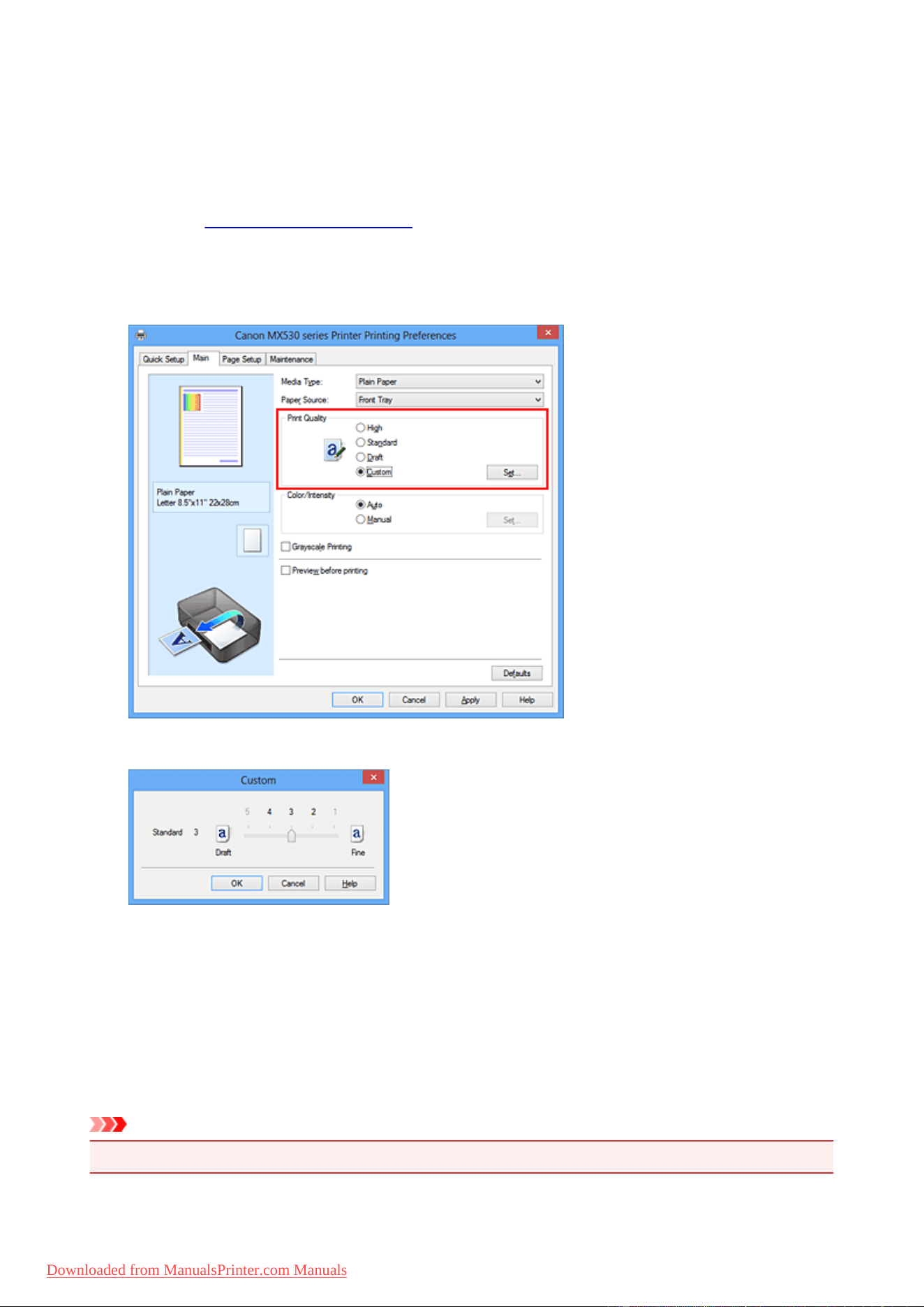
Setting the Print Quality Level (Custom)
The print quality level can be set in the Custom.
The procedure for setting the print quality level is as follows:
1. Open the printer driver setup window
2.
Select the print quality
On the Main tab, select Custom for Print Quality, and click Set....
The Custom dialog box opens.
3. Setting the print quality level
Drag the slider bar to select the print quality level and click OK.
4. Complete the setup
Click OK on the Main tab.
When you execute print, the image data is printed with the selected print quality level.
Important
• Certain print quality levels cannot be selected depending on the settings of Media Type.
56
Downloaded from ManualsPrinter.com Manuals

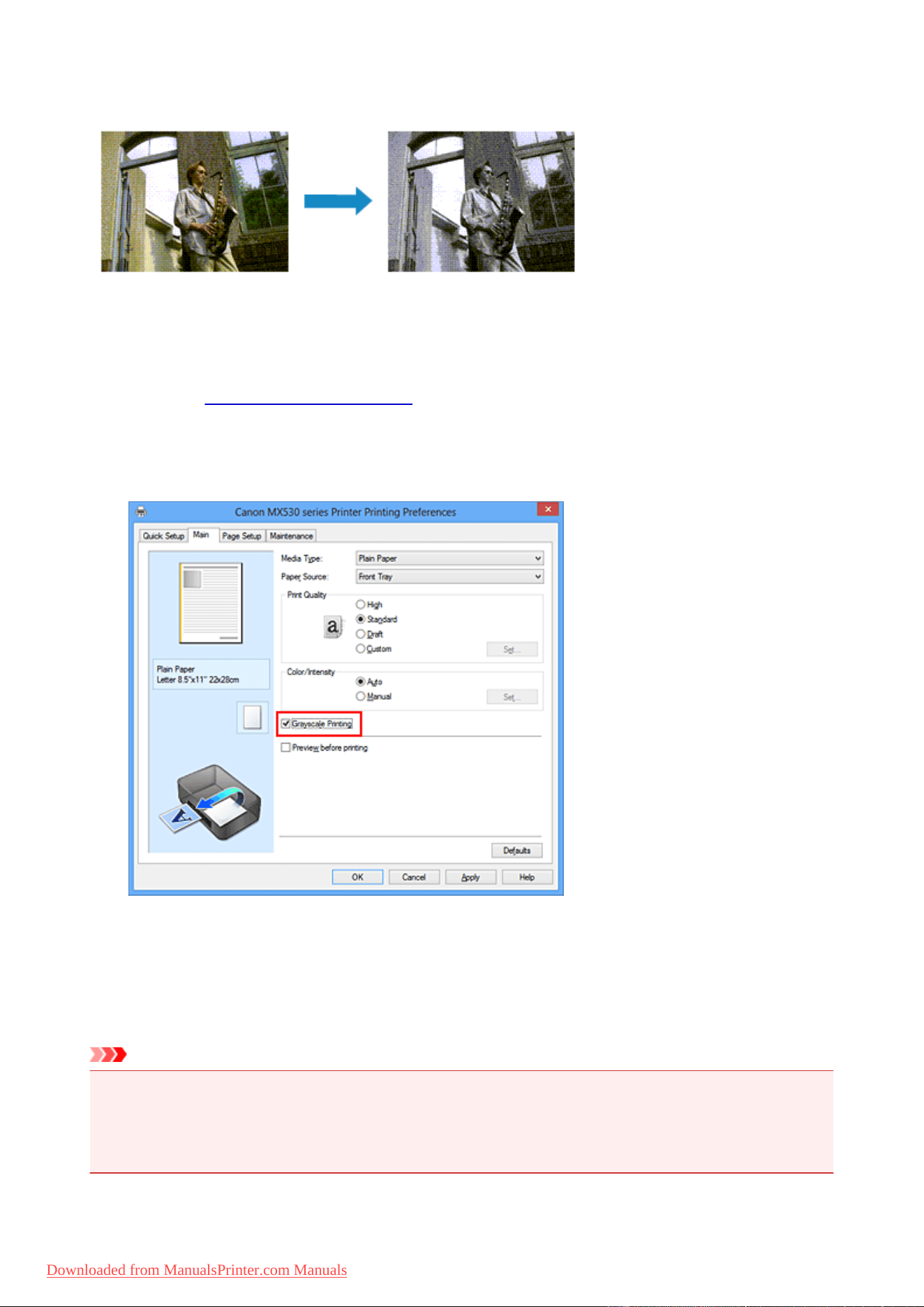
Printing a Color Document in Monochrome
The procedure for printing a color document in monochrome is as follows:
You can also set a grayscale printing in Additional Features on the Quick Setup tab.
1.
Open the printer driver setup window
2.
Set grayscale printing
Check the Grayscale Printing check box on the Main tab.
3. Complete the setup
Click OK.
When you execute print, the document is converted to grayscale data. It allows you to print the color
document in monochrome.
Important
• When the Grayscale Printing check box is checked, the printer driver processes image data as sRGB
data. In this case, actual colors printed may differ from those in the original image data.
When using the grayscale printing function to print Adobe RGB data, convert the data to sRGB data
using an application software.
58
Downloaded from ManualsPrinter.com Manuals

Specifying Color Correction
You can specify the color correction method suited to the type of document to be printed.
Normally, the printer driver adjusts the colors by using Canon Digital Photo Color so that data is printed with
color tints that most people prefer. This method is suitable for printing sRGB data.
When you want to print by using the color space (Adobe RGB or sRGB) of the image data effectively, select
ICM (ICC Profile Matching). When you want to use an application software to specify a printing ICC profile,
select None.
The procedure for specifying color correction is as follows:
You can also set color correction on the Quick Setup tab by choosing Photo Printing under Commonly
Used Settings, and then choosing Color/Intensity Manual Adjustment under Additional Features.
1.
Open the printer driver setup window
2.
Select the manual color adjustment
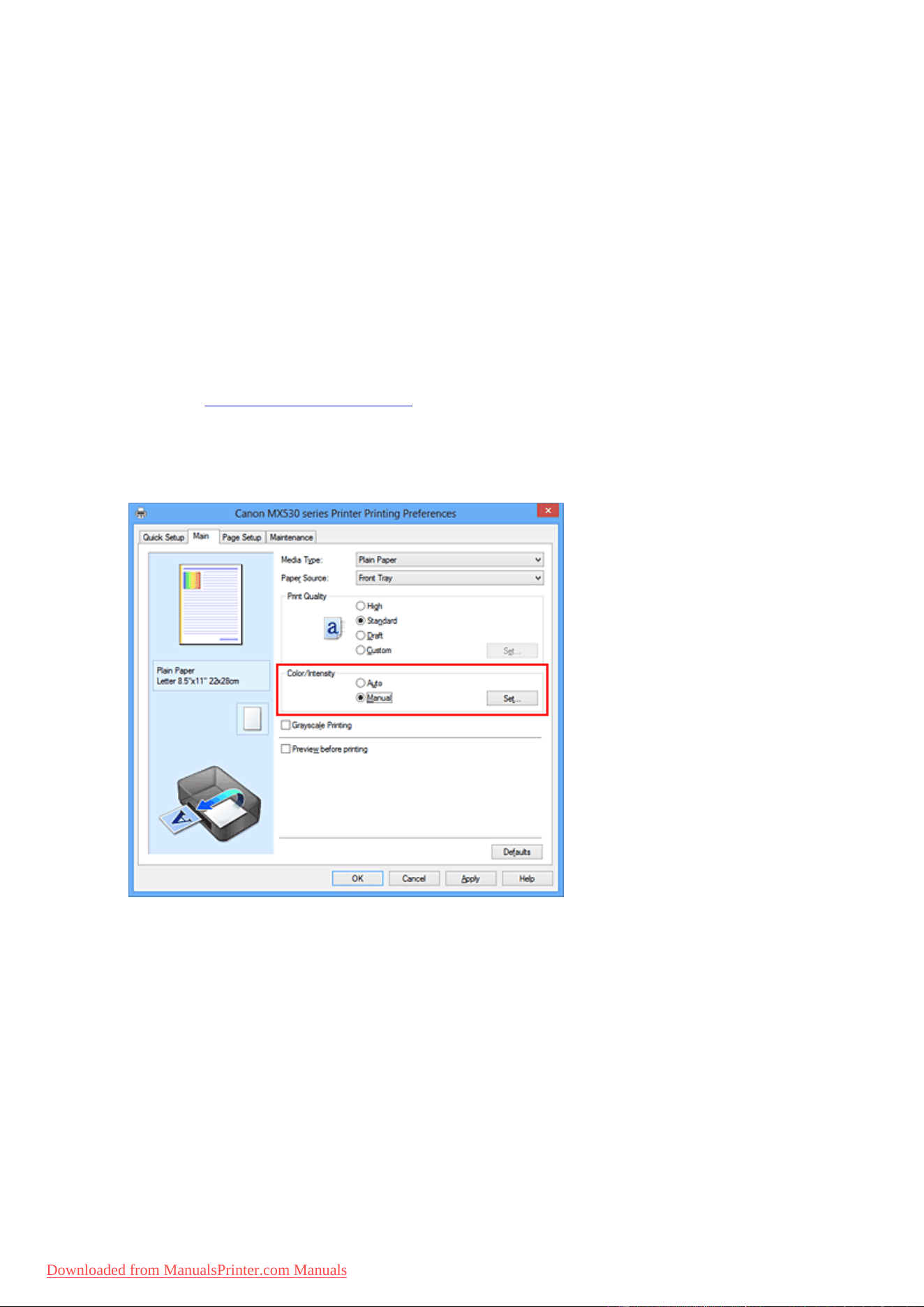
On the Main tab, select Manual for Color/Intensity, and click Set....
The Manual Color Adjustment dialog box opens.
3. Select color correction
Click Matching tab, select Color Correction setting that matches your purpose from the following, and
click OK.
60
Downloaded from ManualsPrinter.com Manuals
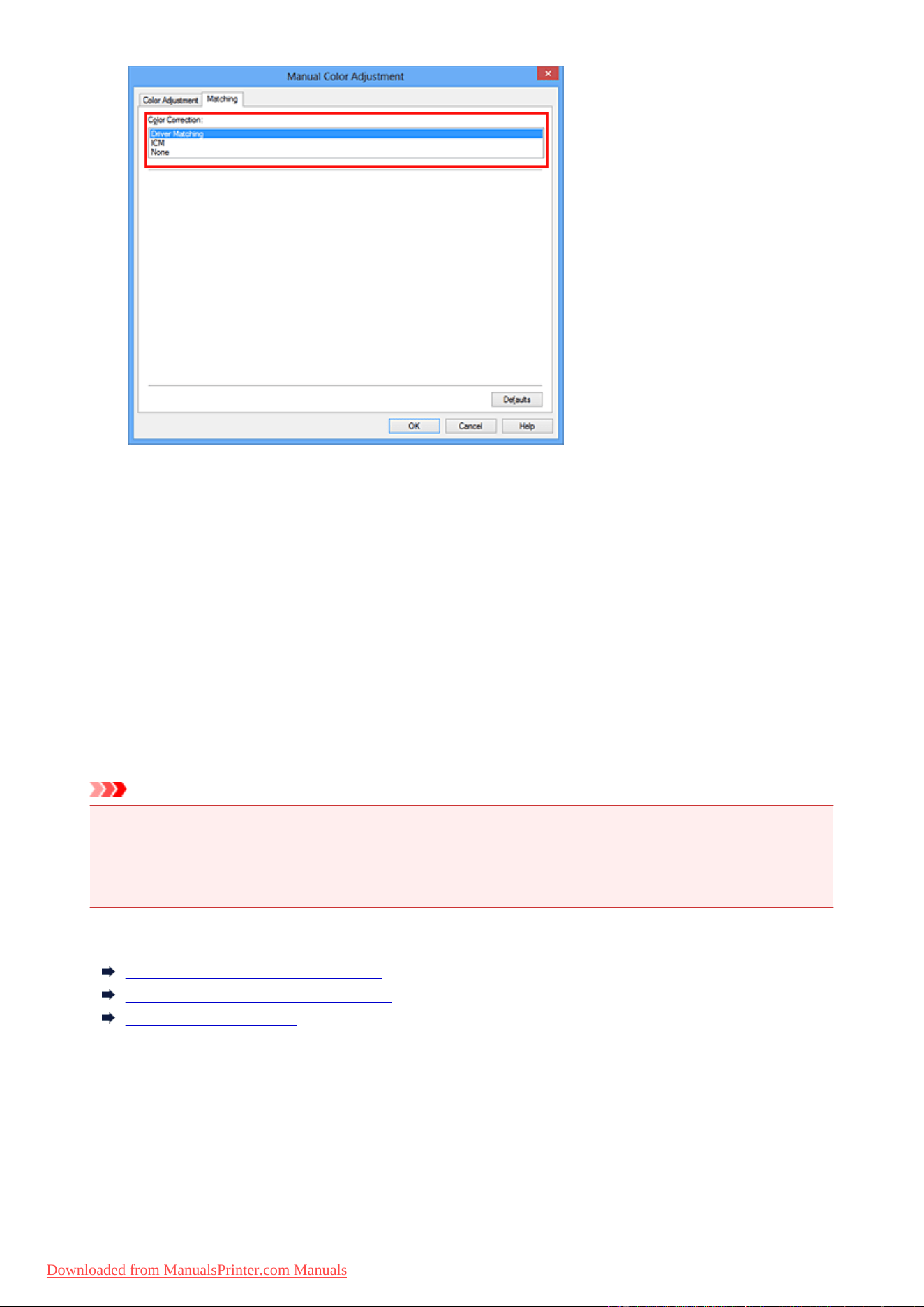
Driver Matching
With Canon Digital Photo Color, you can print sRGB data with color tints that most people prefer.
ICM (ICC Profile Matching)
Adjusts the colors by using an ICC profile when printing.
Specify the input profile to be used.
None
The printer driver does not perform color correction. Select this value when you are specifying an
individually created printing ICC profile in an application software to print data.
4.
Complete the setup
Click OK on the Main tab.
When you execute print, the document data is printed with the specified color correction.
Important
• When ICM is disabled in the application software, ICM is unavailable for Color Correction and the
printer may not be able to print the image data properly.
• When the Grayscale Printing check box on the Main tab is checked, Color Correction appears
grayed out and is unavailable.
Related Topics
Optimal Photo Printing of Image Data
Adjusting Colors with the Printer Driver
Printing with ICC Profiles
61
Downloaded from ManualsPrinter.com Manuals

Optimal Photo Printing of Image Data
When people print images taken with digital cameras, they sometimes feel that the printed color tones differ
from those of actual image or those displayed on the monitor.
To get the print results as close as possible to the desired color tones, you must select a printing method
that is best suited to the application software used or to your purpose.
Color Management
Devices such as digital cameras, scanners, monitors, and printers handle color differently. Color
management (color matching) is a method that manages device-dependent "colors" as a common color
space.
For Windows, a color management system called "ICM" is built into the operating system.
Adobe RGB and sRGB are popularly used as common color spaces. Adobe RGB has a wider color space
than sRGB.
ICC profiles convert device-dependent "colors" into a common color space. By using an ICC profile and
carrying out color management, you can draw out the color space of the image data within the color
reproduction area that the printer can express.
Selecting a Printing Method Suited to the Image Data
The recommended printing method depends on the color space (Adobe RGB or sRGB) of the image data
or the application software to be used.
There are two typical printing methods.
Check the color space (Adobe RGB or sRGB) of the image data and the application software to be used,
and then select the printing method suited to your purpose.
Adjusting Colors with the Printer Driver
Describes the procedure for printing sRGB data by using the color correction function of the printer
driver.
• To print using Canon Digital Photo Color
The printer prints data with color tints that most people prefer, reproducing colors of the original
image data and producing three-dimensional effects and high, sharp contrasts.
• To print by directly applying editing and touch-up results of an application software
When printing the data, the printer brings out subtle color difference between dark and light
areas, while leaving the darkest and lightest areas intact.
When printing the data, the printer applies fine adjustment results, such as brightness
adjustments made with an application software.
Printing with ICC Profiles
Describes the procedure for printing by using the color space of Adobe RGB or sRGB effectively.
You can print with a common color space by setting up the application software and the printer driver
so that the color management matches the input ICC profile of the image data.
The method for setting up the printer driver differs depending on the application software to be used.
62
Downloaded from ManualsPrinter.com Manuals
Adjusting Colors with the Printer Driver
You can specify the color correction function of the printer driver to print sRGB data with color tints that most
people prefer through the use of Canon Digital Photo Color.
When printing from an application software that can identify ICC profiles and allows you to specify them, use
a printing ICC profile in the application software, and select settings for color management.
The procedure for adjusting colors with the printer driver is as follows:
1.
Open the printer driver setup window
2.
Select the manual color adjustment
On the Main tab, select Manual for Color/Intensity, and click Set....
The Manual Color Adjustment dialog box opens.
3.
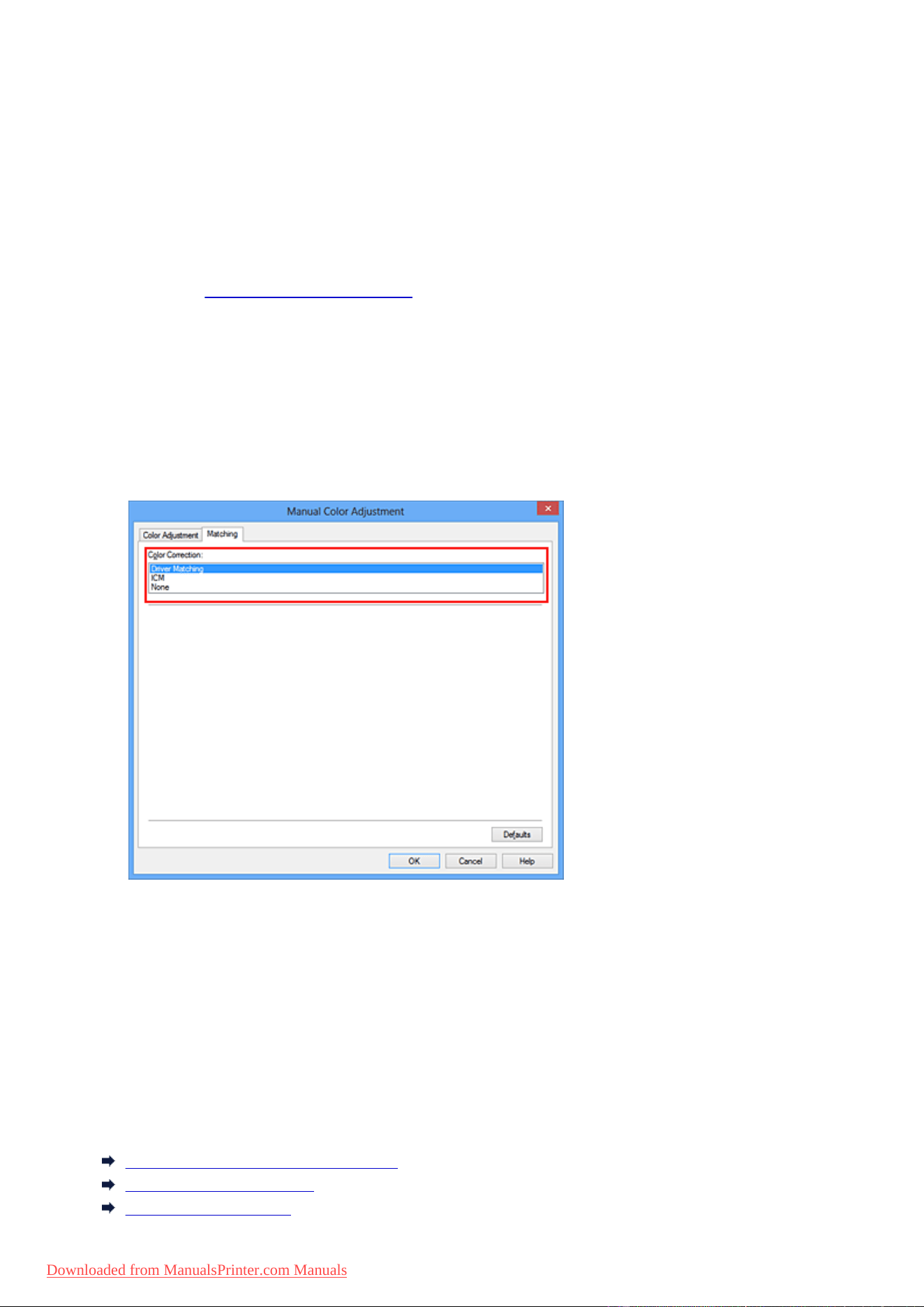
Select color correction
Click Matching tab, and select Driver Matching for Color Correction.
4. Set the other items
If necessary, click Color Adjustment tab, and adjust the color balance (Cyan, Magenta, Yellow) and
adjust Brightness, Intensity, and Contrast settings, and then click OK.
5. Complete the setup
Click OK on the Main tab.
When you execute print, the printer driver adjusts the colors when printing the data.
Related Topics
Setting the Print Quality Level (Custom)
Specifying Color Correction
Adjusting Color Balance
63
Downloaded from ManualsPrinter.com Manuals

Printing with ICC Profiles
When the image data has a specified input ICC profile, you can print by using the color space (Adobe RGB
or sRGB) of the data effectively.
The printer driver setting procedure varies depending on the application software used to print.
Specify an ICC Profile from the Application Software and Print the Data
When you print the editing and touch-up results of Adobe Photoshop, Canon Digital Photo Professional,
or any application software that allows you to specify input and printing ICC profiles, you print by
effectively using the color space of the input ICC profile specified in the image data.
To use this printing method, use your application software to select color management items and specify
an input ICC profile and a printing ICC profile in the image data.
Even if you print using a printing ICC profile that you created yourself from your application software, be
sure to select color management items from your application software.
For instructions, refer to the manual of the application software you are using.
1.
Open the printer driver setup window
2.
Select the manual color adjustment
On the Main tab, select Manual for Color/Intensity, and click Set....
The Manual Color Adjustment dialog box opens.
3.
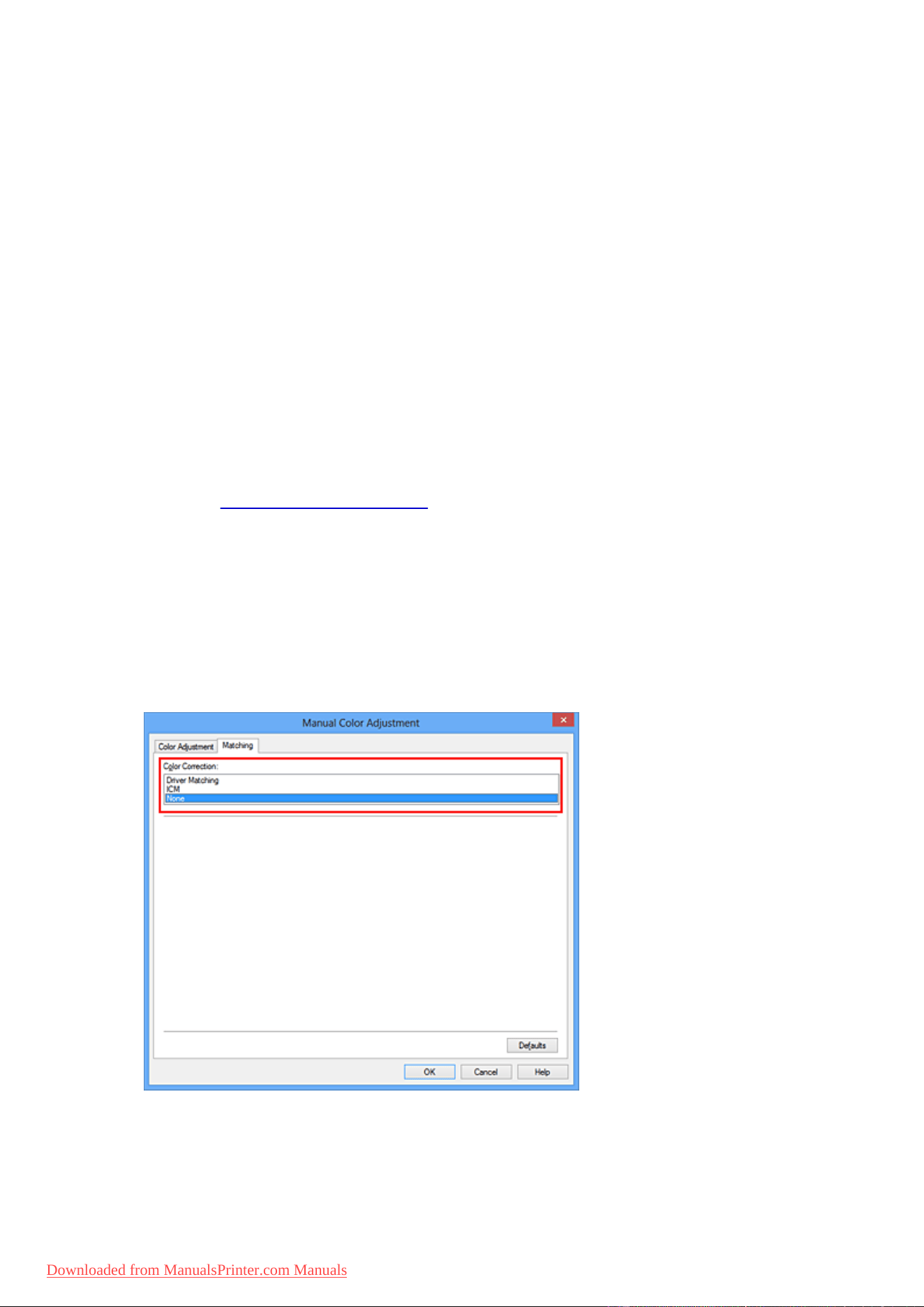
Select color correction
Click Matching tab, and select None for Color Correction.
4. Set the other items
If necessary, click Color Adjustment tab, and adjust the color balance (Cyan, Magenta, Yellow) and
adjust Brightness, Intensity, and Contrast settings, and then click OK.
65
Downloaded from ManualsPrinter.com Manuals
5. Complete the setup
Click OK on the Main tab.
When you execute print, the machine uses the color space of the image data.
Specify an ICC Profile with the Printer Driver, and then Print
Print from an application software that cannot identify input ICC profiles or does allow you to specify one
by using the color space of the input ICC profile (sRGB) found in the data. When printing Adobe RGB
data, you can print the data with the Adobe RGB color space even if the application software does not
support Adobe RGB.
1.
Open the printer driver setup window
2.
Select the manual color adjustment
On the Main tab, select Manual for Color/Intensity, and click Set....
The Manual Color Adjustment dialog box opens.
3.
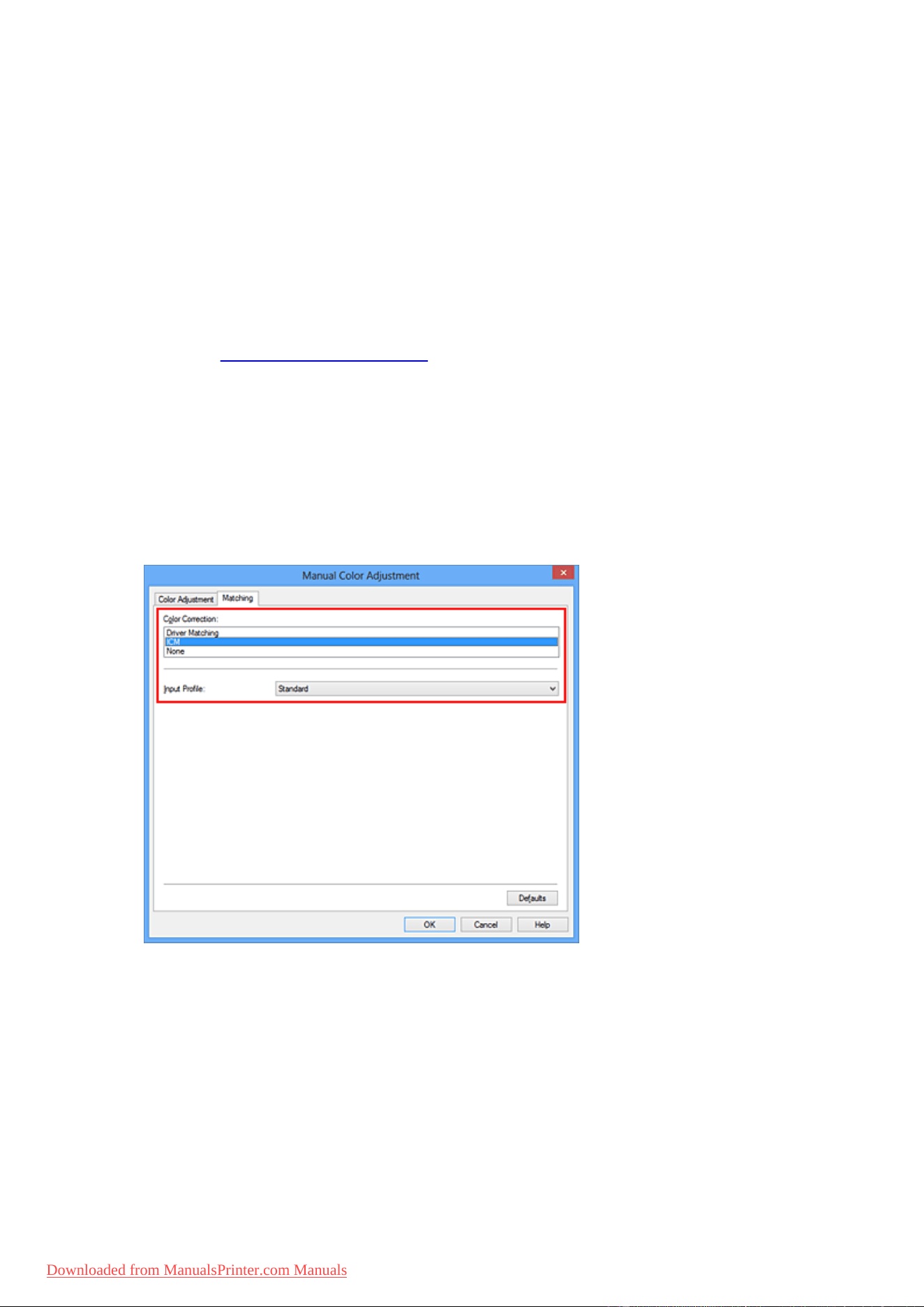
Select color correction
Click Matching tab, and select ICM (ICC Profile Matching) for Color Correction.
4. Select the input profile
Select an Input Profile that matches the color space of the image data.
•
For sRGB data or data without an input ICC profile:
Select Standard.
•
For Adobe RGB data:
Select Adobe RGB (1998).
66
Downloaded from ManualsPrinter.com Manuals

Important
• When the application software specifies an input profile, the input profile setting of the printer
driver becomes invalid.
• When no input ICC profiles are installed on your computer, Adobe RGB (1998) will not be
displayed.
5. Set the other items
If necessary, click Color Adjustment tab, and adjust the color balance (Cyan, Magenta, Yellow) and
adjust Brightness, Intensity, and Contrast settings, and then click OK.
6.
Complete the setup
Click OK on the Main tab.
When you execute print, the machine uses the color space of the image data.
Related Topics
Setting the Print Quality Level (Custom)
Specifying Color Correction
Adjusting Color Balance
Adjusting Brightness
Adjusting Intensity
Adjusting Contrast
67
Downloaded from ManualsPrinter.com Manuals
Adjusting Color Balance
You can adjust the color tints when printing.
Since this function adjusts color balance of the output by changing the ink ratios of each color, it changes
the total color balance of the document. Use the application software when you want to change the color
balance significantly. Use the printer driver only when you want to adjust the color balance slightly.
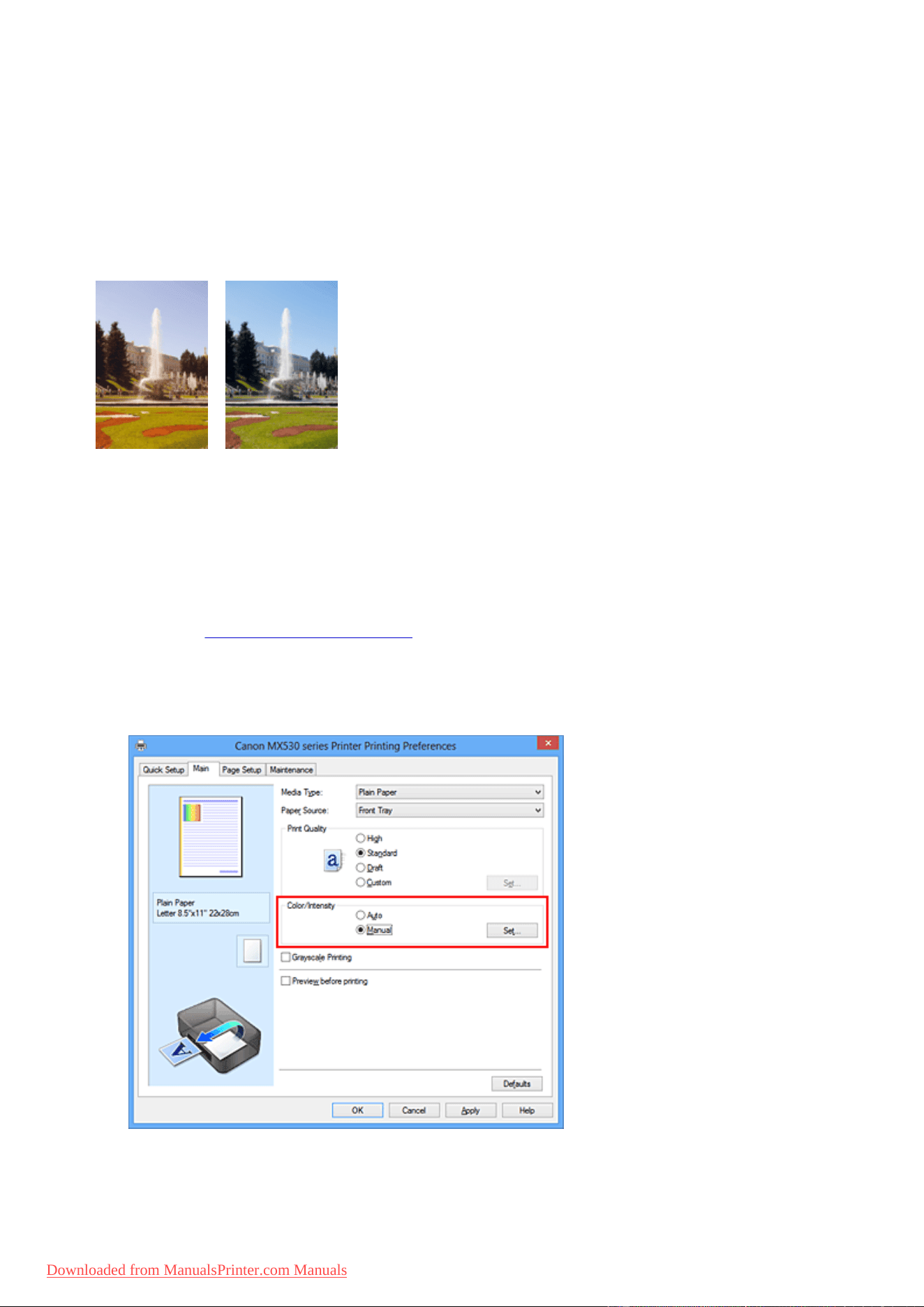
The following sample shows the case when color balance is used to intensify cyan and to diminish yellow so
that the overall colors are more uniform.
No adjustment Adjust color balance
The procedure for adjusting color balance is as follows:
You can also set color balance on the Quick Setup tab by choosing Photo Printing under Commonly
Used Settings, and then choosing Color/Intensity Manual Adjustment under Additional Features.
1.
Open the printer driver setup window
2.
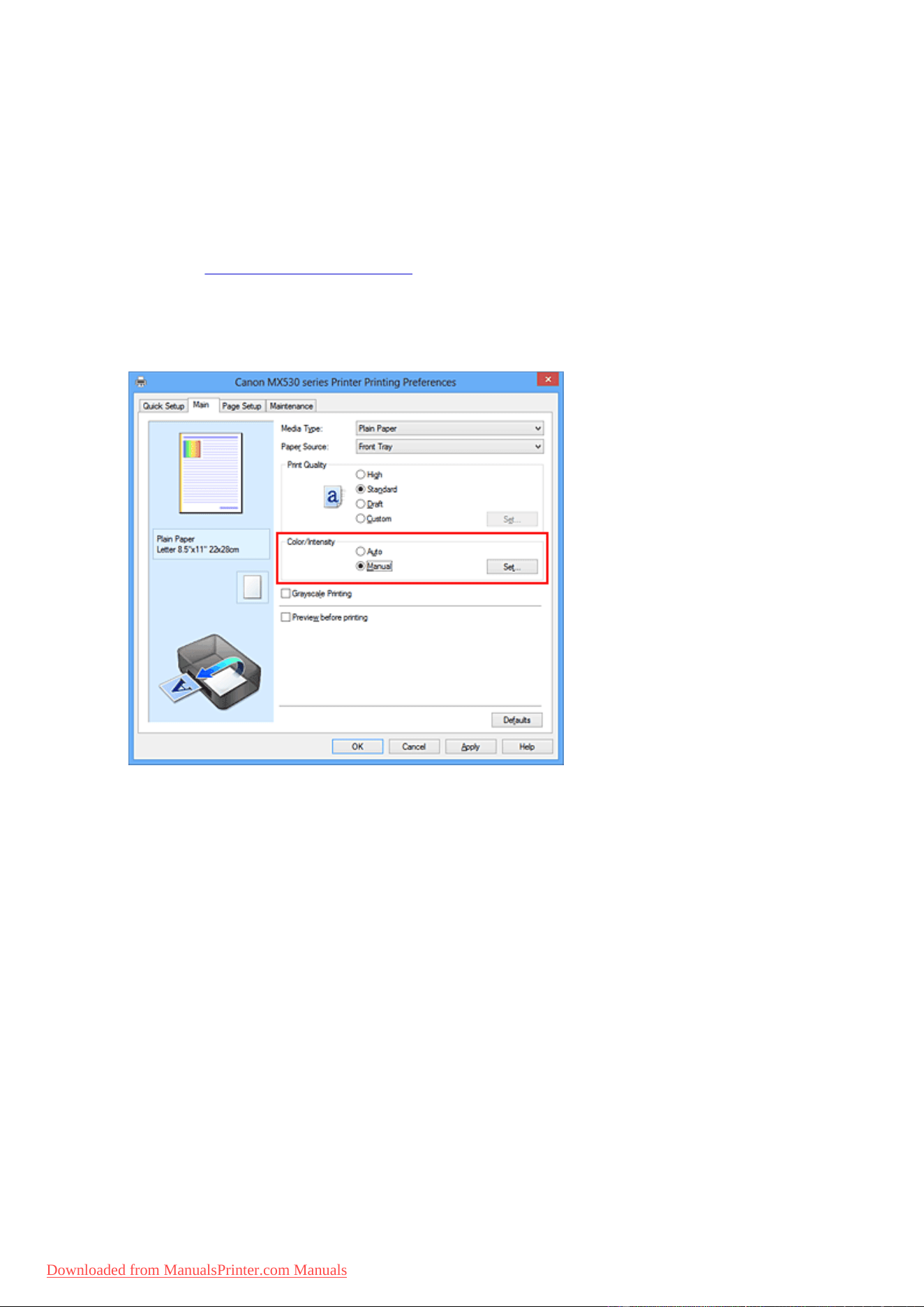
Select the manual color adjustment
On the Main tab, select Manual for Color/Intensity, and click Set....
The Manual Color Adjustment dialog box opens.
3. Adjust color balance
68
Downloaded from ManualsPrinter.com Manuals
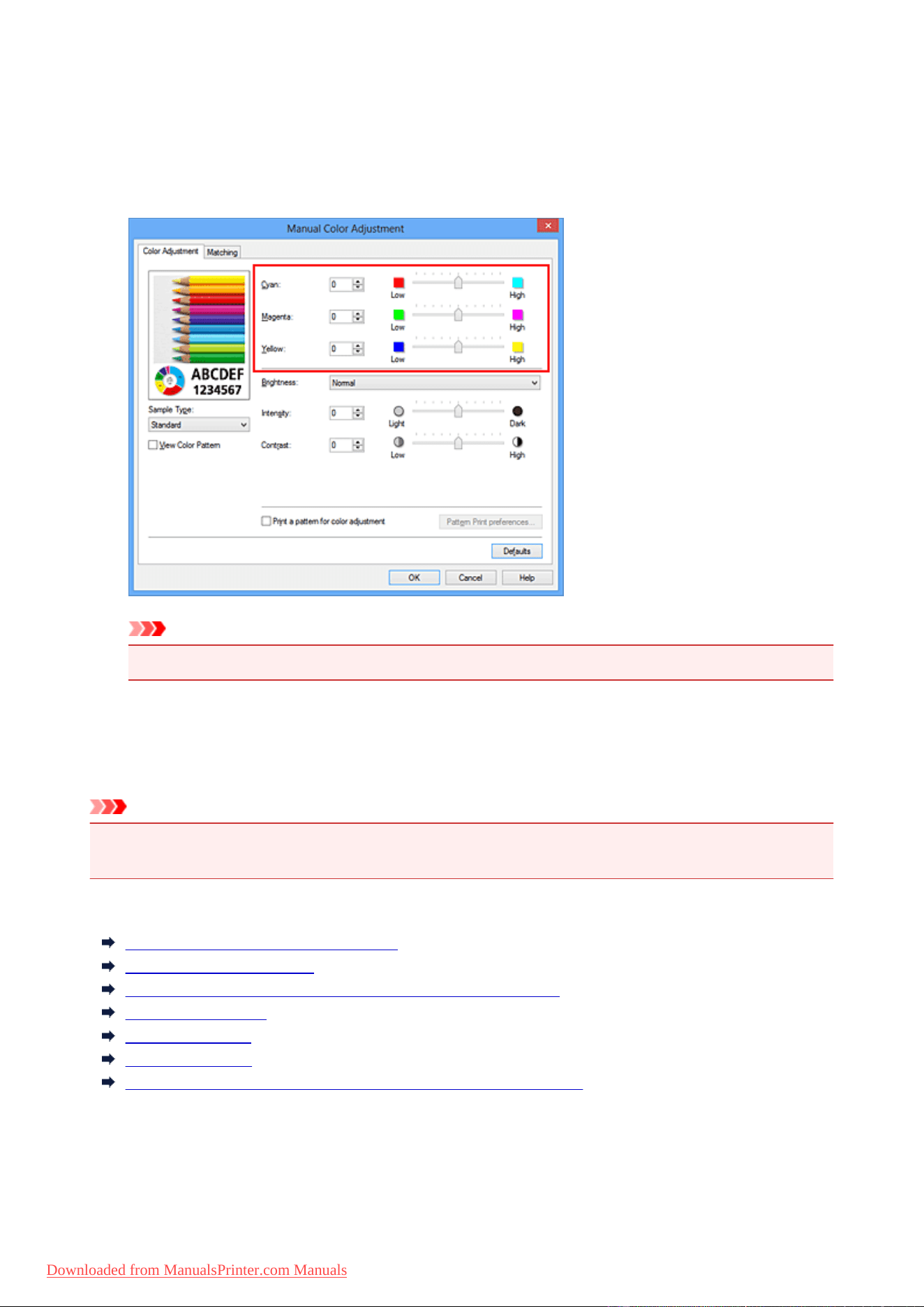
There are individual sliders for Cyan, Magenta, and Yellow. Each color becomes stronger when the
corresponding slider is moved to the right, and becomes weaker when the corresponding slider is moved
to the left. For example, when cyan becomes weaker, the color red becomes stronger.
You can also directly enter a value linked to the slider. Enter a value in the range from -50 to 50. The
current settings are displayed in the settings preview on the left side of the printer driver.
After adjusting each color, click OK.
Important
• Adjust the slider gradually.
4.
Complete the setup
Click OK on the Main tab.
When you execute print, the document is printed with the adjusted color balance.
Important
• When the Grayscale Printing check box on the Main tab is checked, the color balance (Cyan,
Magenta, Yellow) appear grayed out and are unavailable.
Related Topics
Setting the Print Quality Level (Custom)
Specifying Color Correction
Adjusting Color Balance Using Sample Patterns (Printer Driver)
Adjusting Brightness
Adjusting Intensity
Adjusting Contrast
Adjusting Intensity/Contrast Using Sample Patterns (Printer Driver)
69
Downloaded from ManualsPrinter.com Manuals
Adjusting Color Balance Using Sample Patterns (Printer Driver)
You can look at the print results of pattern print and adjust the color balance.
When you change the color balance or intensity/contrast of a document, the pattern print function prints the
adjustment results in a list, together with the adjustment values.
Described below is the procedure for adjusting the color balance while looking at the pattern.
1.
Open the printer driver setup window
2.
Select the manual color adjustment
On the Main tab, select Manual for Color/Intensity, and click Set....
The Manual Color Adjustment dialog box opens.
3.
Selecting pattern print
On the Color Adjustment tab, select the Print a pattern for color adjustment check box, and click
Pattern Print preferences....
70
Downloaded from ManualsPrinter.com Manuals
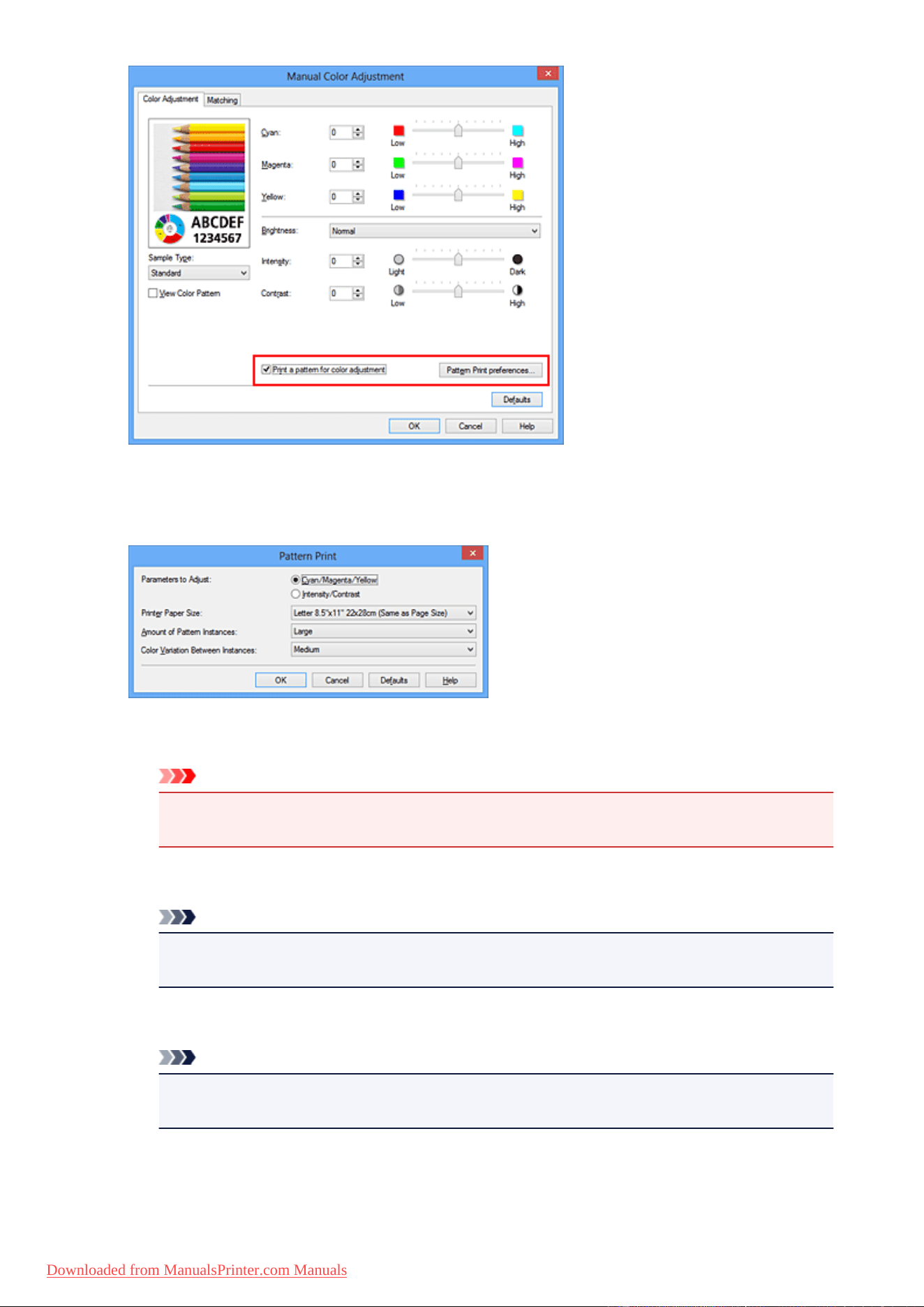
4.
Setting pattern print
When the Pattern Print dialog box opens, set the following items, and then click OK.
Parameters to Adjust
Select Cyan/Magenta/Yellow.
Important
• When the Grayscale Printing check box on the Main tab is checked, Cyan/Magenta/Yellow
appear grayed out and are unavailable.
Printer Paper Size
Select the paper size to be used for pattern printing.
Note
•
Depending on the paper size selected on the Page Setup tab, there may be sizes that cannot
be selected.
Amount of Pattern Instances
Select Largest, Large, or Small to set the number of patterns to be printed.
Note
•
Largest and Large cannot be selected when certain paper sizes or output paper sizes are
selected.
Color Variation Between Instances
Set the amount of color change between neighboring patterns.
71
Downloaded from ManualsPrinter.com Manuals
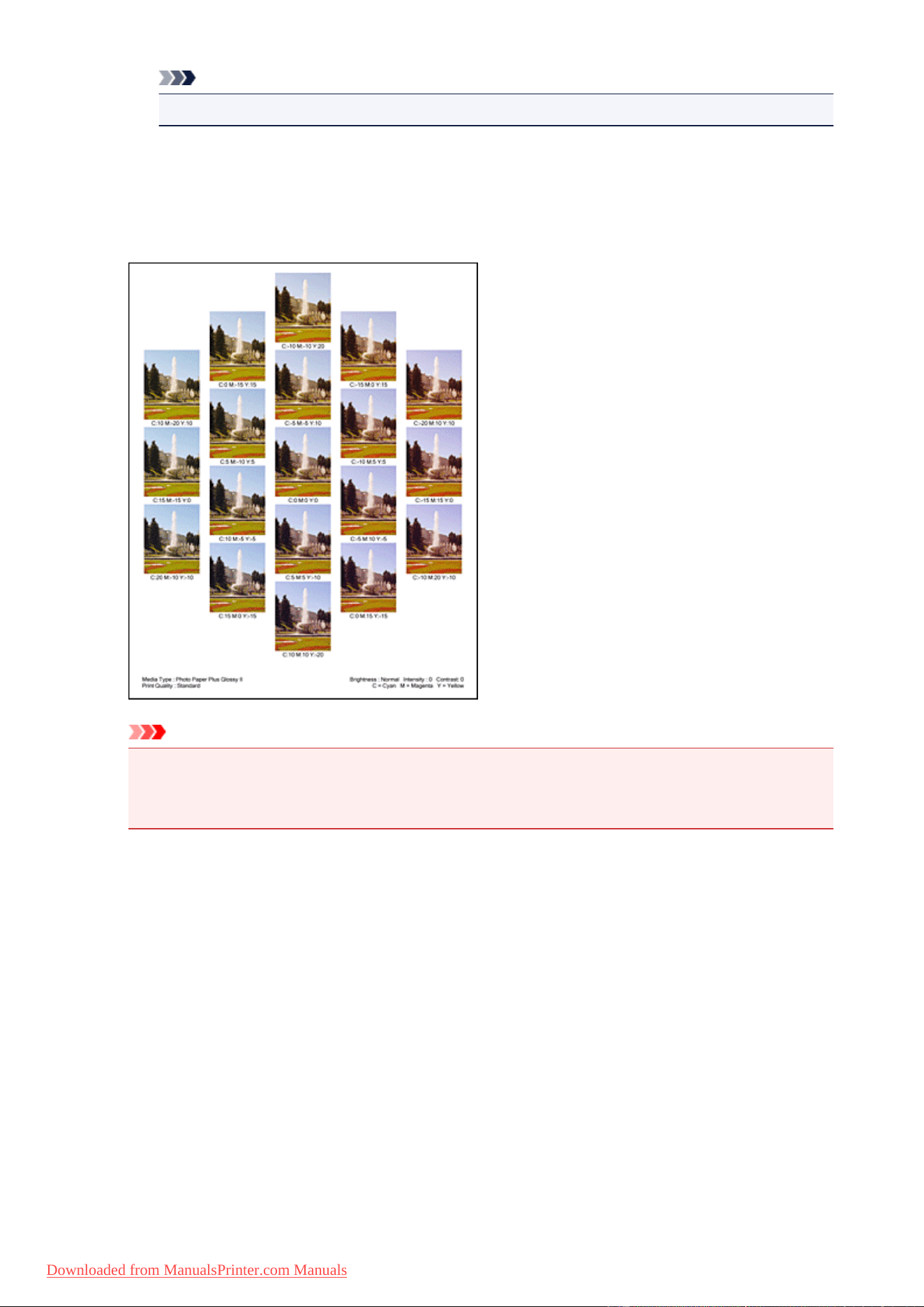
Note
• Large is about double the size of Medium, and Small is about half the size of Medium.
5. Checking the print results of pattern print
On the Color Adjustment tab, select OK to close the Manual Color Adjustment dialog box.
On the Main tab, select OK, and then execute printing. The machine then prints a pattern in which the
color balance that you set is the center value.
Important
• Normally, patterns are printed with the color balance settings as the center values. However,
when Black Only is selected for Ink Cartridge Settings on the Maintenance tab, the color
balance settings are not applied to pattern printing.
6.
Adjusting the color balance
Look at the print results and select the image that you like best. Then enter the color balance numbers
indicated at the bottom of that image into the Cyan, Magenta, and Yellow fields on the Color
Adjustment tab.
Clear the Print a pattern for color adjustment check box, and click OK.
72
Downloaded from ManualsPrinter.com Manuals
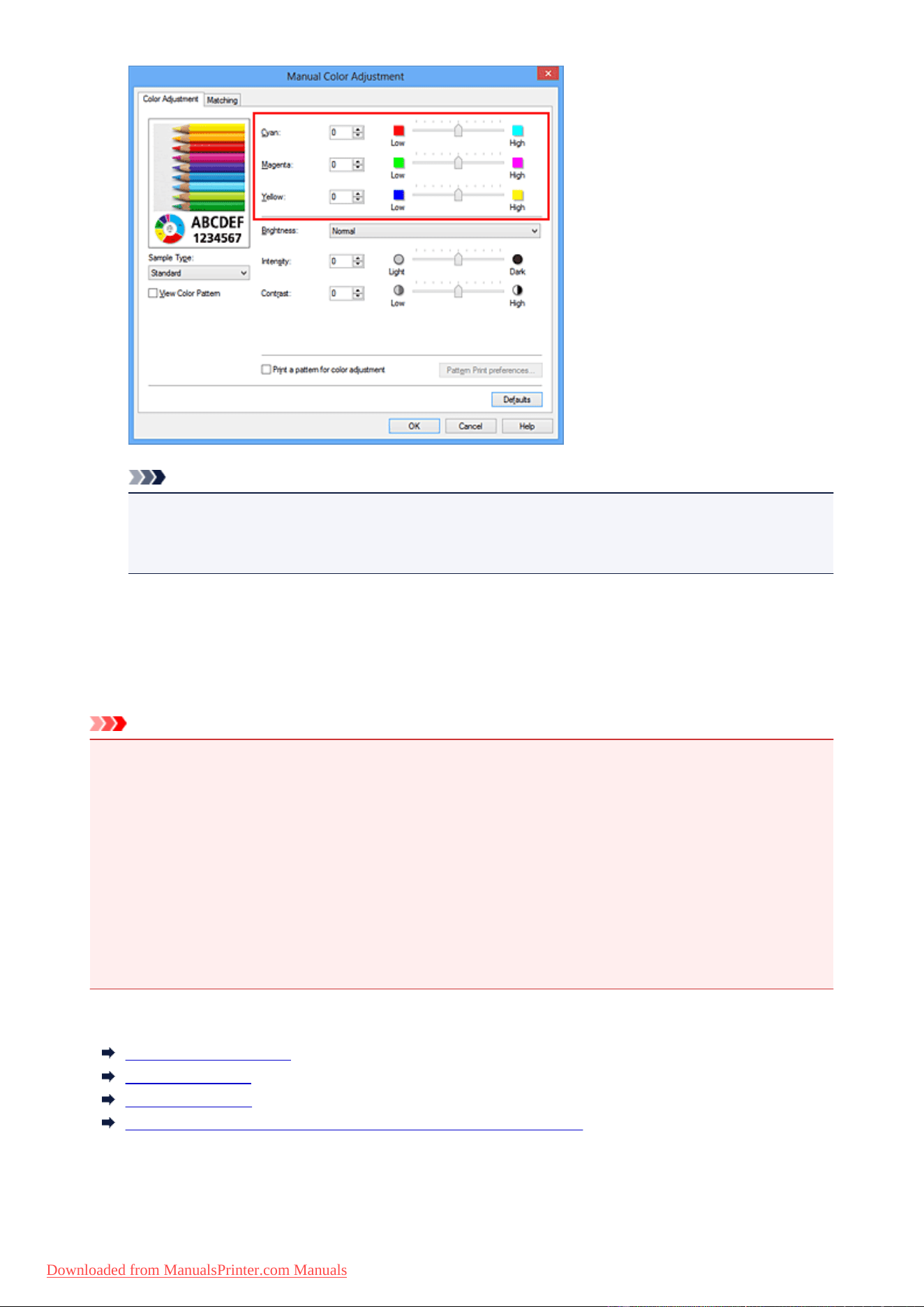
Note
• You can also set color balance on the Quick Setup tab by choosing Photo Printing under
Commonly Used Settings, and then choosing Color/Intensity Manual Adjustment under
Additional Features.
7.
Complete the setup
Click OK on the Main tab.
Then when you execute printing, the document is printed with the color balance that was adjusted by the
pattern print function.
Important
• When Print a pattern for color adjustment is selected on the Color Adjustment tab, the following
items are grayed out and cannot be set:
• Preview before printing on the Main tab
• Stapling Side and Specify Margin... on the Page Setup tab (When Duplex Printing is set, only
Stapling Side can be set.)
• You can print a pattern only if the Page Layout setting on the Page Setup tab is Normal-size or
Borderless.
• When the Grayscale Printing check box on the Main tab is checked, Cyan, Magenta, and Yellow
appear grayed out and are unavailable.
• Depending on your application software, this function may not be available.
Related Topics
Adjusting Color Balance
Adjusting Intensity
Adjusting Contrast
Adjusting Intensity/Contrast Using Sample Patterns (Printer Driver)
73
Downloaded from ManualsPrinter.com Manuals
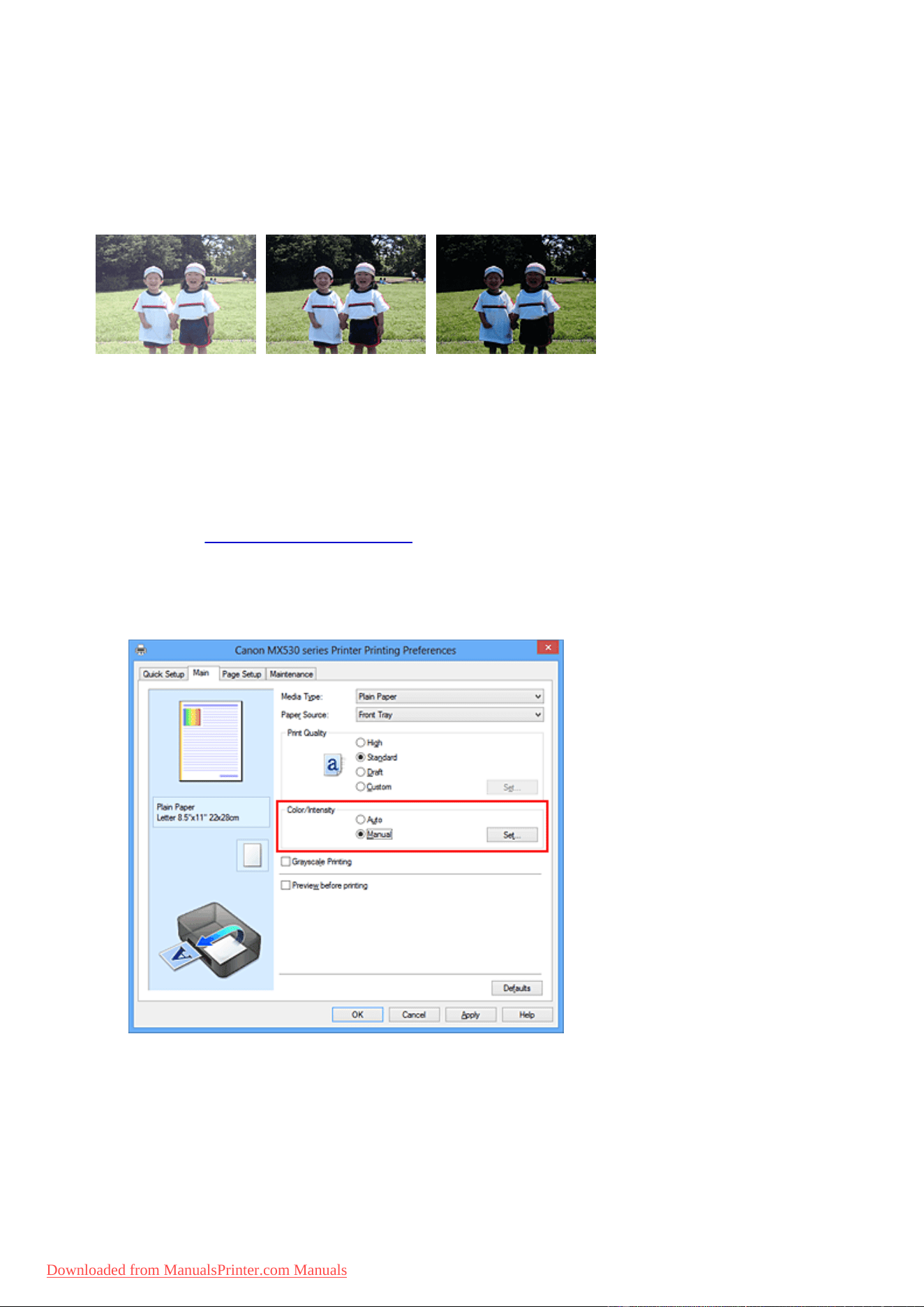
Adjusting Brightness
You can change the brightness of the overall image data during printing.
This function does not change pure white or pure black but it changes the brightness of the intermediate
colors.
The following sample shows the print result when the brightness setting is changed.
Light is selected Normal is selected Dark is selected
The procedure for adjusting brightness is as follows:
You can also set brightness on the Quick Setup tab by choosing Photo Printing under Commonly Used
Settings, and then choosing Color/Intensity Manual Adjustment under Additional Features.
1.
Open the printer driver setup window
2.
Select the manual color adjustment
On the Main tab, select Manual for Color/Intensity, and click Set....
The Manual Color Adjustment dialog box opens.
3. Specify the brightness
Select Light, Normal, or Dark for Brightness, and click OK. The current settings are displayed in the
settings preview on the left side of the printer driver.
74
Downloaded from ManualsPrinter.com Manuals
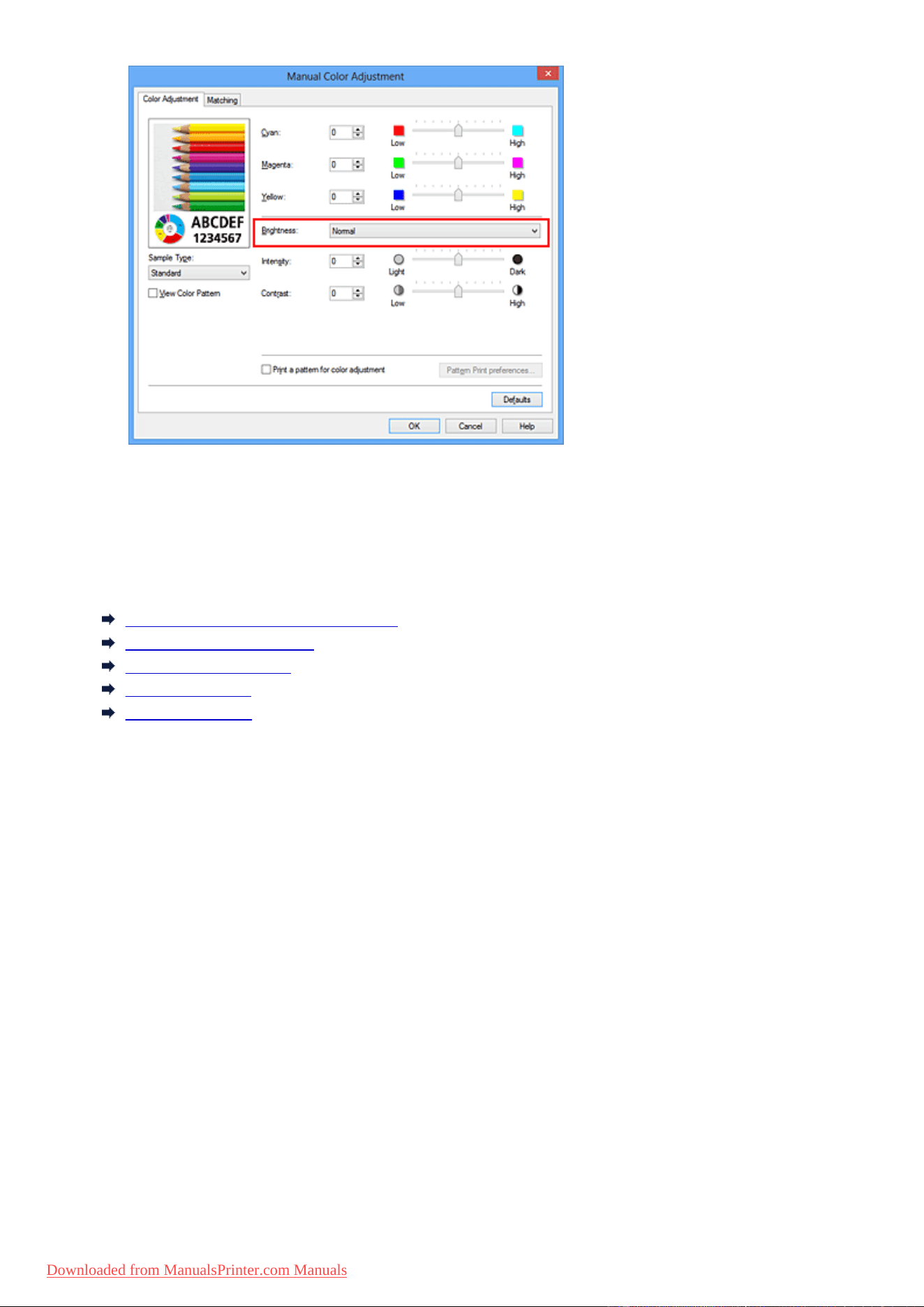
4.
Complete the setup
Click OK on the Main tab.
When you execute print, the data is printed at the specified brightness.
Related Topics
Setting the Print Quality Level (Custom)
Specifying Color Correction
Adjusting Color Balance
Adjusting Intensity
Adjusting Contrast
75
Downloaded from ManualsPrinter.com Manuals
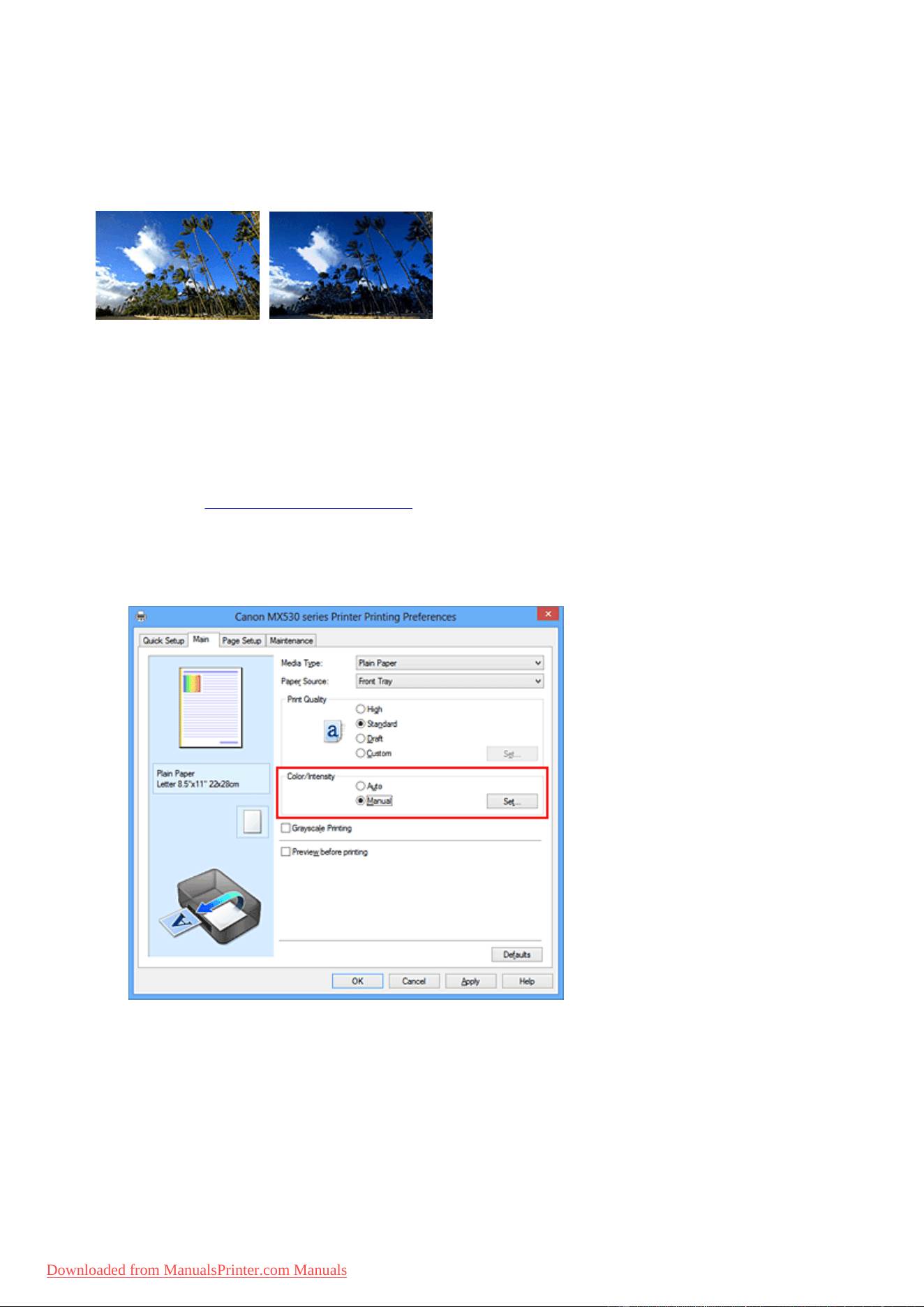
Adjusting Intensity
You can dilute (brighten) or intensify (darken) the colors of the overall image data during printing.
The following sample shows the case when the intensity is increased so that all colors become more intense
when the image data is printed.
No adjustment Higher intensity
The procedure for adjusting intensity is as follows:
You can also set intensity on the Quick Setup tab by choosing Photo Printing under Commonly Used
Settings, and then choosing Color/Intensity Manual Adjustment under Additional Features.
1.
Open the printer driver setup window
2.
Select the manual color adjustment
On the Main tab, select Manual for Color/Intensity, and click Set....
The Manual Color Adjustment dialog box opens.
3. Adjust intensity
Moving the Intensity slider to the right intensifies (darkens) the colors, and moving the slider to the left
dilutes (brightens) the colors.
You can also directly enter a value linked to the slider. Enter a value in the range from -50 to 50. The
current settings are displayed in the settings preview on the left side of the printer driver.
After adjusting each color, click OK.
76
Downloaded from ManualsPrinter.com Manuals
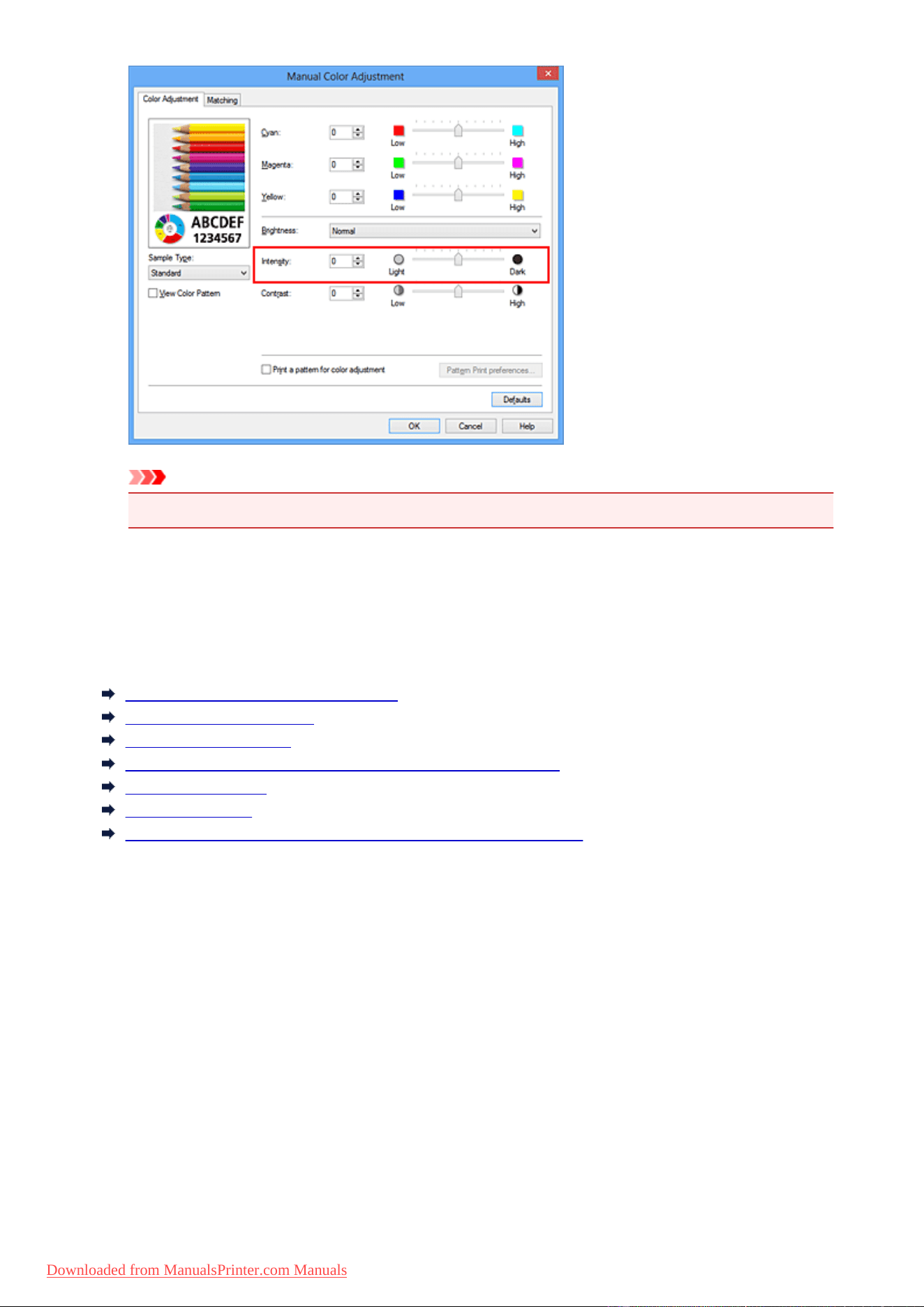
Important
• Adjust the slider gradually.
4.
Complete the setup
Click OK on the Main tab.
When you execute print, the image data is printed with the adjusted intensity.
Related Topics
Setting the Print Quality Level (Custom)
Specifying Color Correction
Adjusting Color Balance
Adjusting Color Balance Using Sample Patterns (Printer Driver)
Adjusting Brightness
Adjusting Contrast
Adjusting Intensity/Contrast Using Sample Patterns (Printer Driver)
77
Downloaded from ManualsPrinter.com Manuals
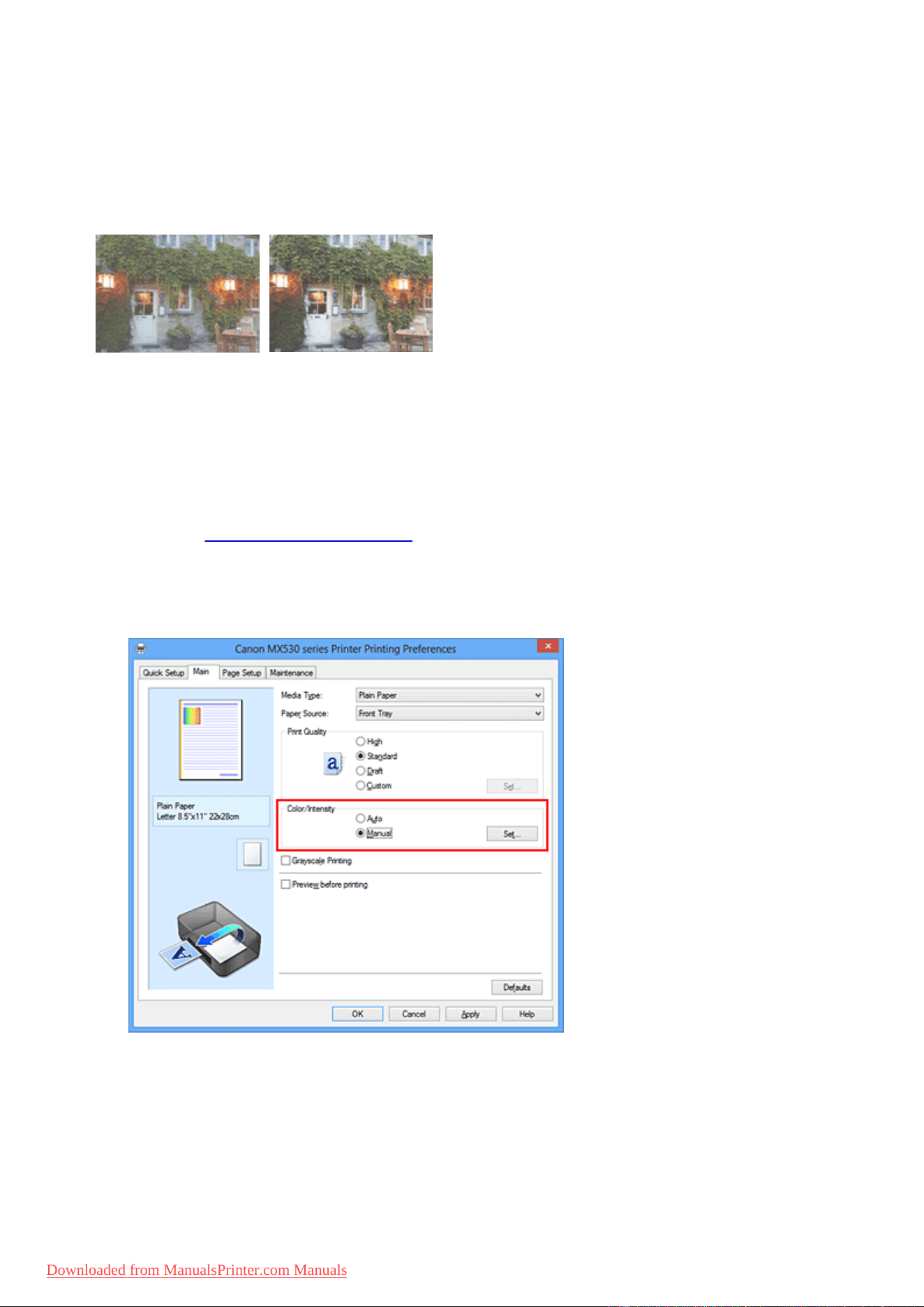
Adjusting Contrast
You can adjust the image contrast during printing.
To make the differences between the light and dark portions of images greater and more distinct, increase
the contrast. On the other hand, to make the differences between the light and dark portions of images
smaller and less distinct, reduce the contrast.
No adjustment Adjust the contrast
The procedure for adjusting contrast is as follows:
You can also set contrast on the Quick Setup tab by choosing Photo Printing under Commonly Used
Settings, and then choosing Color/Intensity Manual Adjustment under Additional Features.
1.
Open the printer driver setup window
2.
Select the manual color adjustment
On the Main tab, select Manual for Color/Intensity, and click Set....
The Manual Color Adjustment dialog box opens.
3. Adjust the contrast
Moving the Contrast slider to the right increases the contrast, and moving the slider to the left decreases
the contrast.
You can also directly enter a value linked to the slider. Enter a value in the range from -50 to 50. The
current settings are displayed in the settings preview on the left side of the printer driver.
78
Downloaded from ManualsPrinter.com Manuals
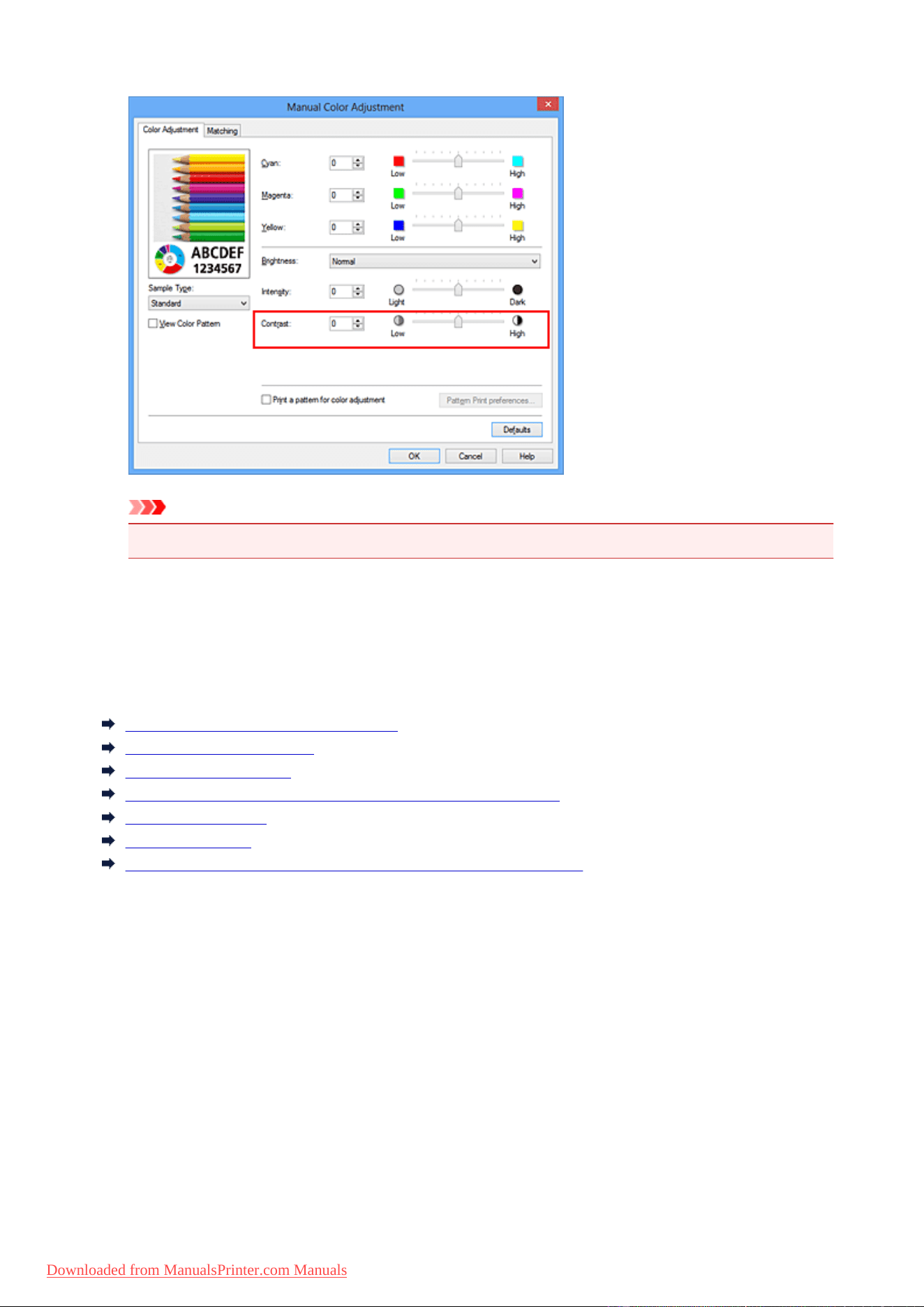
After adjusting each color, click OK.
Important
• Adjust the slider gradually.
4.
Complete the setup
Click OK on the Main tab.
When you execute print, the image is printed with the adjusted contrast.
Related Topics
Setting the Print Quality Level (Custom)
Specifying Color Correction
Adjusting Color Balance
Adjusting Color Balance Using Sample Patterns (Printer Driver)
Adjusting Brightness
Adjusting Intensity
Adjusting Intensity/Contrast Using Sample Patterns (Printer Driver)
79
Downloaded from ManualsPrinter.com Manuals
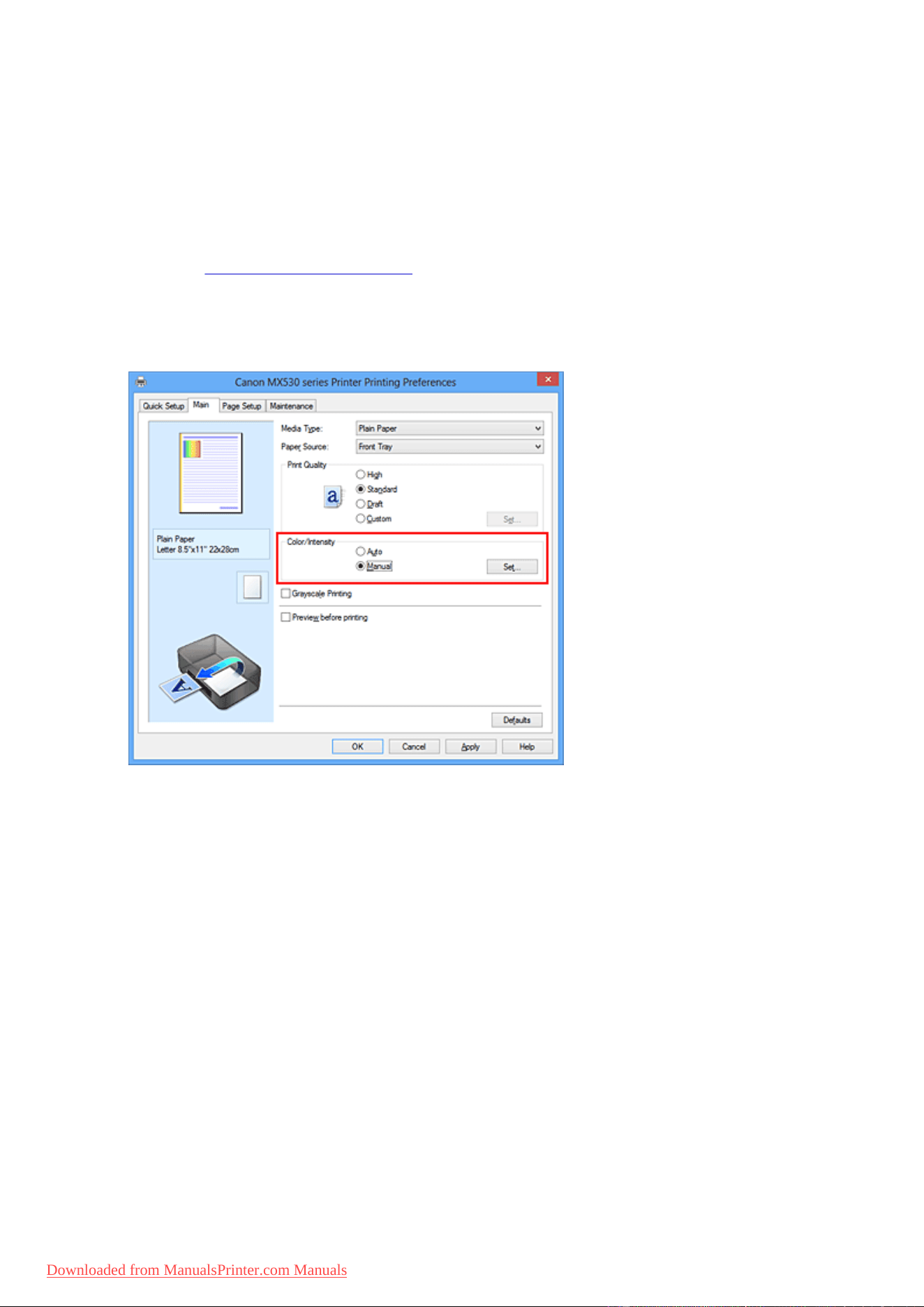
Adjusting Intensity/Contrast Using Sample Patterns (Printer Driver)
You can look at the print results of pattern print and adjust the intensity/contrast.
When you change the color balance or intensity/contrast of a document, the pattern print function prints the
adjustment results in a list, together with the adjustment values.
Described below is the procedure for adjusting the intensity/contrast while looking at the pattern.
1.
Open the printer driver setup window
2.
Select the manual color adjustment
On the Main tab, select Manual for Color/Intensity, and click Set....
The Manual Color Adjustment dialog box opens.
3.
Selecting pattern print
On the Color Adjustment tab, select the Print a pattern for color adjustment check box, and click
Pattern Print preferences....
80
Downloaded from ManualsPrinter.com Manuals
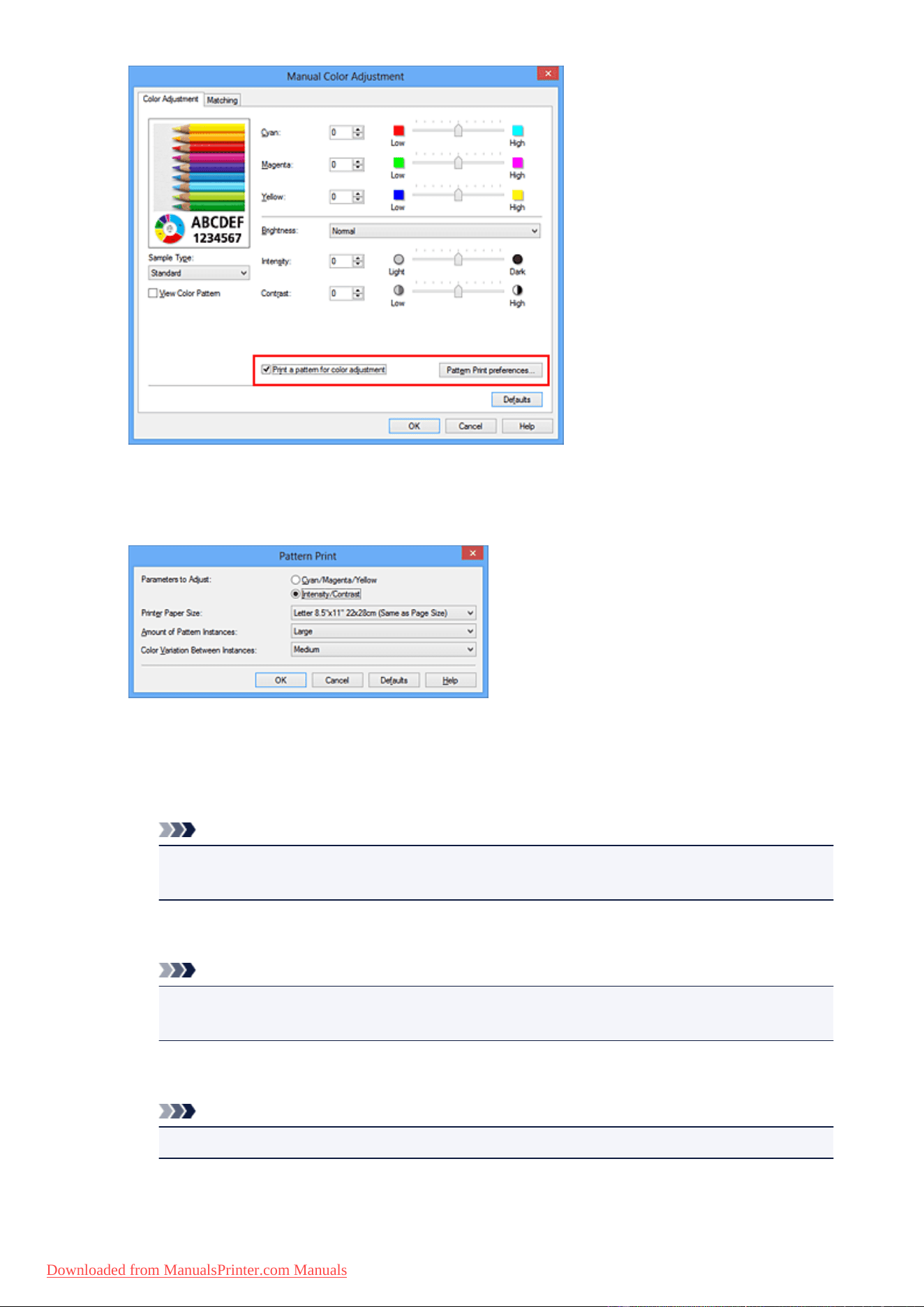
4.
Setting pattern print
When the Pattern Print dialog box opens, set the following items, and then click OK.
Parameters to Adjust
Select Intensity/Contrast.
Printer Paper Size
Select the paper size to be used for pattern printing.
Note
•
Depending on the paper size selected on the Page Setup tab, there may be sizes that cannot
be selected.
Amount of Pattern Instances
Select Largest, Large, or Small to set the number of patterns to be printed.
Note
•
Largest and Large cannot be selected when certain paper sizes or output paper sizes are
selected.
Color Variation Between Instances
Set the amount of color change between neighboring patterns.
Note
•
Large is about double the size of Medium, and Small is about half the size of Medium.
5. Checking the print results of pattern print
81
Downloaded from ManualsPrinter.com Manuals
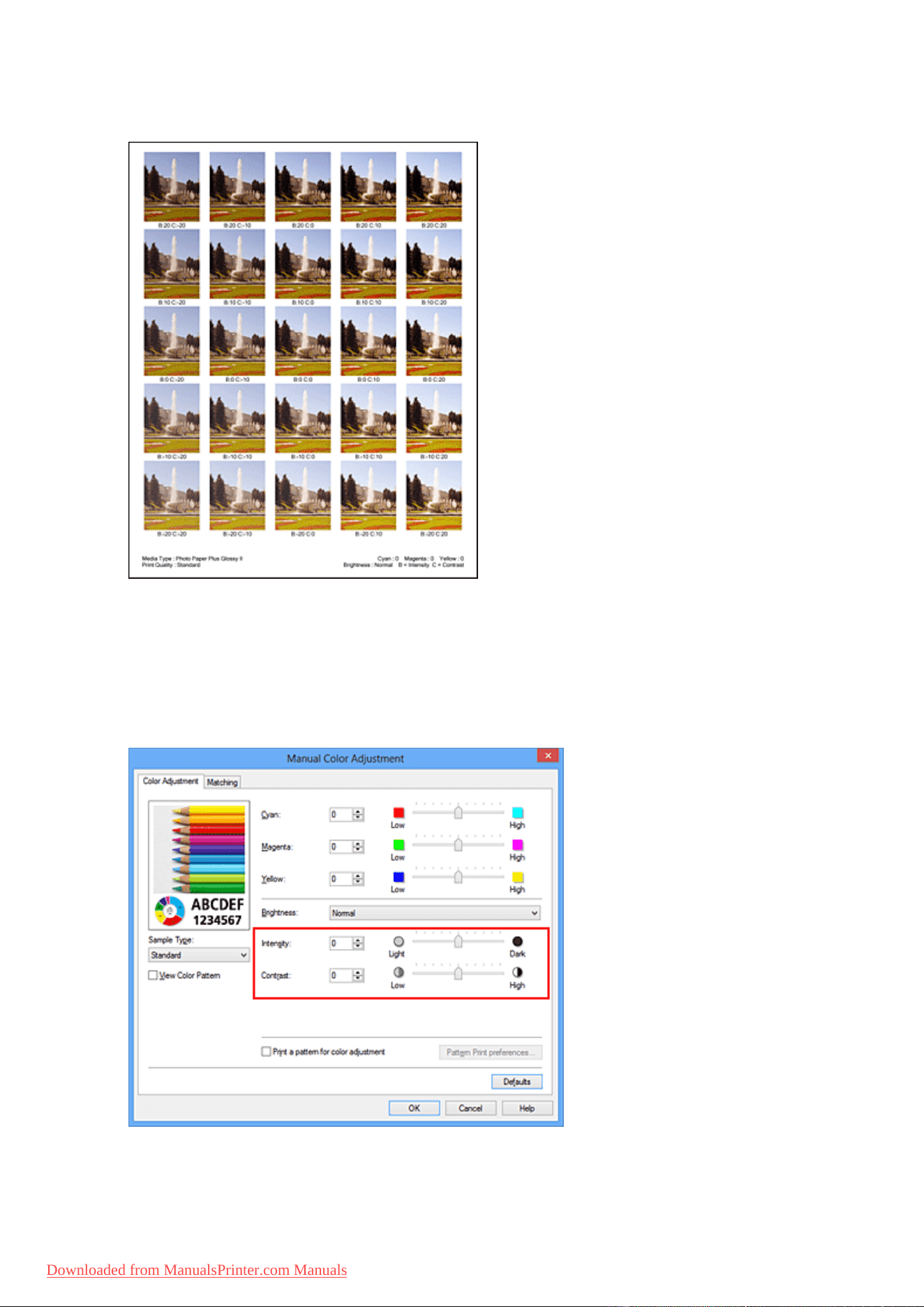
On the Color Adjustment tab, select OK to close the Manual Color Adjustment dialog box.
On the Main tab, select OK, and then execute printing. The machine then prints a pattern in which the
intensity/contrast that you set is the center value.
6.
Adjusting the intensity/contrast
Look at the print results and select the image that you like best. Then enter the intensity/contrast
numbers indicated at the bottom of that image into the Intensity and Contrast fields on the Color
Adjustment tab.
Clear the Print a pattern for color adjustment check box, and click OK.
82
Downloaded from ManualsPrinter.com Manuals
Note
• You can also set intensity/contrast on the Quick Setup tab by choosing Photo Printing under
Commonly Used Settings, and then choosing Color/Intensity Manual Adjustment under
Additional Features.
7. Complete the setup
Click OK on the Main tab.
Then when you execute printing, the document is printed with the intensity/contrast that was adjusted by
the pattern print function.
Important
• When Print a pattern for color adjustment is selected on the Color Adjustment tab, the following
items are grayed out and cannot be set:
• Preview before printing on the Main tab
• Stapling Side and Specify Margin... on the Page Setup tab (When Duplex Printing is set, only
Stapling Side can be set.)
• You can print a pattern only if the Page Layout setting on the Page Setup tab is Normal-size or
Borderless.
• Depending on your application software, this function may not be available.
Related Topics
Adjusting Color Balance
Adjusting Color Balance Using Sample Patterns (Printer Driver)
Adjusting Intensity
Adjusting Contrast
83
Downloaded from ManualsPrinter.com Manuals


Canon IJ Printer Driver
The Canon IJ printer driver (called printer driver below) is a software that is installed on your computer for
printing data with this machine.
The printer driver converts the print data created by your application software into data that your printer can
understand, and sends the converted data to the printer.
Because different models support different print data formats, you need a printer driver for the specific
model you are using.
Printer Driver Types
On Windows Vista SP1 or later, you can install the XPS printer driver in addition to the regular printer
driver.
The XPS printer driver is suited to print from an application software that supports XPS printing.
Important
• To use the XPS printer driver, the standard printer driver must already be installed on your computer.
Installing the Printer Driver
• To install the regular printer driver, load the Setup CD-ROM that comes with the machine, and then
install the driver from Start Setup Again.
• To install the XPS printer driver, load the Setup CD-ROM that comes with the machine, and then
select XPS Driver from Add Software.
Specifying the Printer Driver
To specify the printer driver, open the Print dialog box of the application software you are using, and
select "XXX Printer" (where "XXX" is your model name) to specify the regular printer driver or select "XXX
Printer XPS" (where "XXX" is your model name) to specify the XPS printer driver.
Displaying the Manual from the Printer Driver
To display a description of a tab in the printer driver setup window, click the Help button found on the tab.
Related Topic
How to Open the Printer Driver Setup Window
85
Downloaded from ManualsPrinter.com Manuals

How to Open the Printer Driver Setup Window
You can display the printer driver setup window from the application software in use or from the printer icon.
Open the Printer Driver Setup Window through the Application Software
Follow the procedure below to configure printing profile when printing.
1.
Select the command that you perform printing on the application software
In general, select Print on the File menu to open the Print dialog box.
2.
Select your model name and click Preferences (or Properties)
The printer driver setup window appears.
Note
•
Depending on application software you use, command names or menu names may vary and
there may be more steps. For details, refer to the user's manual of your application software.
Opening the Printer Driver Setup Window from the Printer Icon
Follow the procedure below to perform machine maintenance operations such as print head cleaning, or
to configure a printing profile that is common to all application software.
1.
Select as described below:
• If you are using Windows 8, from the Desktop charms, select Settings -> Control Panel ->
Hardware and Sound -> Devices and Printers.
• If you are using Windows 7, select the Start menu -> Devices and Printers.
• If you are using Windows Vista, select the Start menu -> Control Panel -> Hardware and
Sound -> Printers.
• If you are using Windows XP, select the start menu -> Control Panel -> Printers and Other
Hardware -> Printers and Faxes.
2.
Right-click your model name icon, and then select Printing preferences from the
displayed menu
The printer driver setup window appears.
Important
•
Opening the printer driver setup window through Printer properties (Windows 8, Windows 7)
or Properties (Windows Vista, Windows XP) displays such tabs regarding the Windows
functions as the Ports (or Advanced) tab. Those tabs do not appear when opening through
Printing preferences or application software. For tabs regarding Windows functions, refer to
the user's manual for the Windows.
86
Downloaded from ManualsPrinter.com Manuals
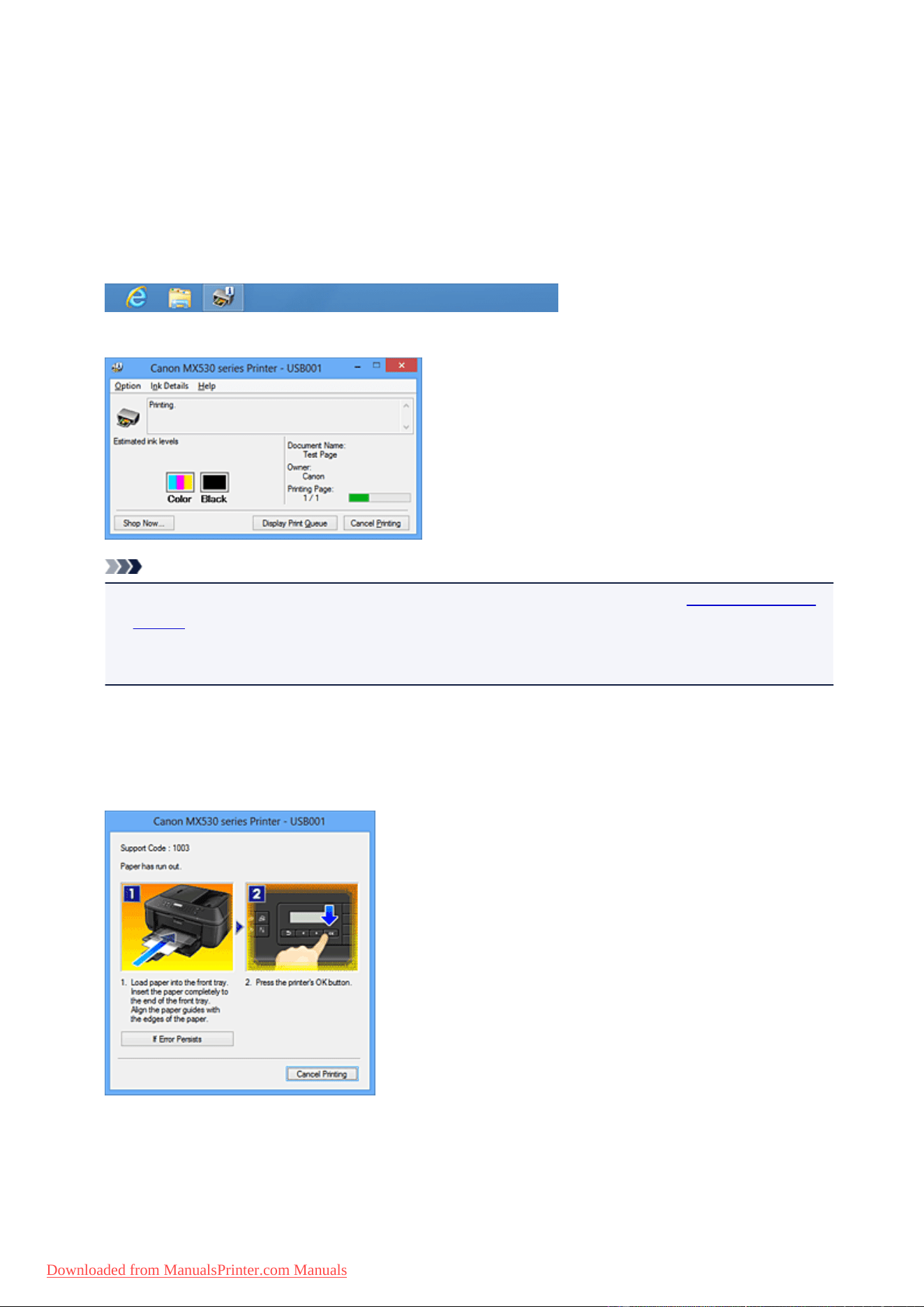
Canon IJ Status Monitor
The Canon IJ Status Monitor is an application software that shows the status of the machine and the
progress of printing. You will know the status of the machine with graphics, icons, and messages.
Launching the Canon IJ Status Monitor
The Canon IJ Status Monitor launches automatically when print data is sent to the machine. When
launched, the Canon IJ Status Monitor appears as a button on the task bar.
Click the button of the status monitor displayed on the task bar. The Canon IJ Status Monitor appears.
Note
• To open the Canon IJ Status Monitor when the machine is not printing, open the printer driver setup
window and click View Printer Status on the Maintenance tab.
• The information displayed on the Canon IJ Status Monitor may differ depending on the country or
region where you are using your machine.
When Errors Occur
The Canon IJ Status Monitor is automatically displayed if an error occurs (e.g., if the printer runs out of
paper or if the ink is low).
In such cases, take the appropriate action as described.
87
Downloaded from ManualsPrinter.com Manuals
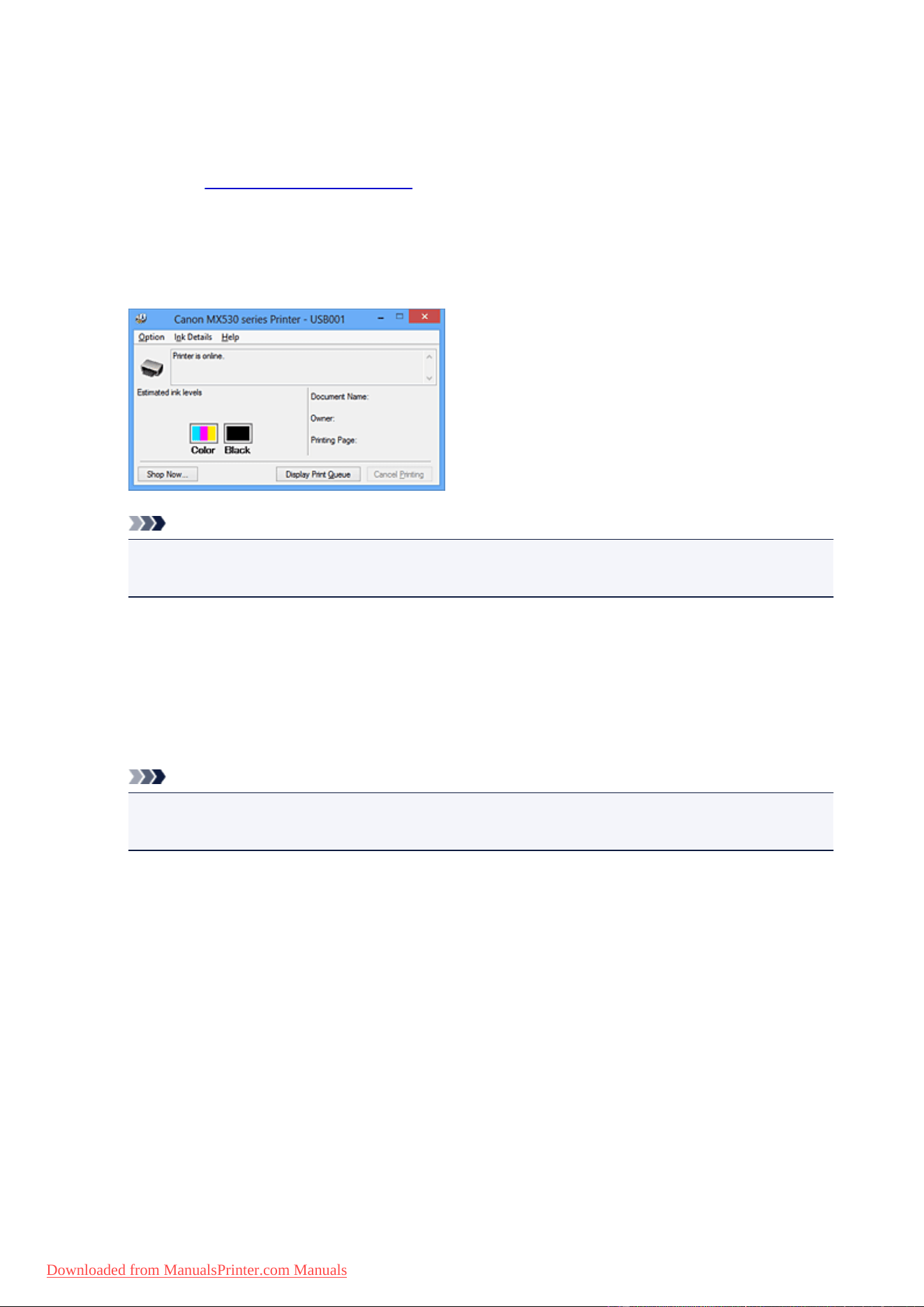
Checking the Ink Status from Your Computer
You can check the remaining ink level and the FINE cartridge types for your model.
1. Open the printer driver setup window
2. Launching the Canon IJ Status Monitor
On the Maintenance tab, click View Printer Status.
The Canon IJ Status Monitor opens and displays an image of the ink status.
Note
• The information displayed on the Canon IJ Status Monitor may differ depending on the country or
region where you are using your machine.
3.
If necessary, click Ink Details
You can check the ink-related information.
If a warning or error related to the remaining ink amount occurs, a notification icon is displayed at the top
of the image in the Ink Details dialog box.
In such cases, take the appropriate action as described on the screen.
Note
•
You can also display the Ink Details dialog box by selecting the ink icon on the Canon IJ Status
Monitor.
88
Downloaded from ManualsPrinter.com Manuals

Canon IJ Preview
The Canon IJ Preview is an application software that displays what the print result will look like before a
document is actually printed.
The preview reflects the information that is set within the printer driver and allows you to check the
document layout, print order, and number of pages. You can also change the media type settings.
When you want to display a preview before printing, open the printer driver setup window, click the Main
tab, and check the Preview before printing check box.
When you do not want to display a preview before printing, uncheck the check box.
Important
• If you are using the XPS printer driver, see "Editing the Print Document or Reprinting from the Print
History."
Related Topic
Displaying the Print Results before Printing
89
Downloaded from ManualsPrinter.com Manuals
Deleting the Undesired Print Job
If you are using the XPS printer driver, replace "Canon IJ Status Monitor" with "Canon IJ XPS Status
Monitor" when reading this information.
If the printer does not start printing, canceled or failed print job data may be remaining.
Delete the undesired print job by using the Canon IJ Status Monitor.
1.
Display the Canon IJ Status Monitor
Click the icon of the Canon IJ Status Monitor displayed on the task bar.
The Canon IJ Status Monitor appears.
2.
Display the print jobs
Click Display Print Queue.
The print queue window opens.
3.
Delete the print jobs
Select Cancel All Documents from the Printer menu.
When the confirmation message appears, click Yes.
The deletion of the print job is complete.
Important
• Users who have not been granted access permission for printer management cannot delete the print
job of another user.
Note
• When you perform this operation, all print jobs are deleted. If the print queue list contained a necessary
print job, start the printing process over from the beginning.
90
Downloaded from ManualsPrinter.com Manuals

Instructions for Use (Printer Driver)
This printer driver is subject to the following restrictions. Keep the following points in mind when using the
printer driver.
Restrictions on the Printer Driver
• With some applications, the Copies setting in the Page Setup tab of the printer driver may not be
enabled.
In this case, use the copies setting in the Print dialog box of the application software.
• If the selected Language in the About dialog box of the Maintenance tab does not match the
operating system interface language, the printer driver setup window may not be displayed properly.
• Do not change the Advanced tab items of the printer properties. If you change any of the items, you
will not be able to use the following functions correctly.
Also, if Print to file is selected in the Print dialog box of the application software and with applications
that prohibit EMF spooling, such as Adobe Photoshop LE and MS Photo Editor, the following
functions will not operate.
◦ Preview before printing on the Main tab
◦ Prevention of Print Data Loss in the Print Options dialog box on the Page Setup tab
◦ Page Layout, Tiling/Poster, Booklet, Duplex Printing, Specify Margin..., Print from Last
Page, Collate, and Stamp/Background... (Stamp...) on the Page Setup tab
◦ Print a pattern for color adjustment on the Color Adjustment tab in the Manual Color
Adjustment dialog box
• Since the resolution in the preview display differs from the printing resolution, text and lines in the
preview display may appear different from the actual print result.
• With some applications, the printing is divided into multiple print jobs.
To cancel printing, delete all divided print jobs.
• If image data is not printed correctly, display the Print Options dialog box from the Page Setup tab
and change the setting of Disable ICM required from the application software. This may solve the
problem.
Note
• Disable ICM required from the application software cannot be used when the XPS printer
driver is used.
• Using the Bluetooth option under the following conditions may lock the print job with "Printing"
displayed in the status monitor, even if printing has completed and the printout is ejected. If this
happens, either click the Cancel Printing button on the status monitor or cancel that print job from the
print job queue of the printer.
◦ When you move the machine during printing to a location where radio waves cannot reach or
when the radio wave status becomes poor
◦ When you turn off the machine
• When you are using a Bluetoothprinter and you cancel printing after a printer error occurs, you may
not be able to execute subsequent printing operations. If this happens, turn off the machine and turn it
back on again.
• When you are using Bluetooth, you cannot use the operation panel on the machine while the status
monitor is displayed from View Printer Status on the Maintenance tab.
• Do not start up the Canon IJ Network Tool while printing.
• Do not print when the Canon IJ Network Tool is running.
91
Downloaded from ManualsPrinter.com Manuals

Points to Note About Applications with Restrictions
• There are following restrictions in Microsoft Word (Microsoft Corporation).
◦ When Microsoft Word has the same printing functions as the printer driver, use Word to specify
them.
◦ When Fit-to-Page, Scaled, or Page Layout is used for Page Layout on the Page Setup tab of
the printer driver, the document may not print normally in certain versions of Word.
◦ When Page Size in Word is set to "XXX Enlarge/Reduce", the document may not print normally in
certain versions of Word.
If this happens, follow the procedure below.
1. Open Word's Print dialog box.
2. Open the printer driver setup window, and on the Page Setup tab, set Page Size to the same
paper size that you specified in Word.
3. Set the Page Layout that you want, and then click OK to close the window.
4. Without starting printing, close the Print dialog box.
5. Open Word's Print dialog box again.
6. Open the printer driver setup window and click OK.
7. Start printing.
• If bitmap printing is enabled in Adobe Illustrator (Adobe Systems Incorporated), printing may take time
or some data may not be printed. Print after unchecking the Bitmap Printing check box in the Print
dialog box.
92
Downloaded from ManualsPrinter.com Manuals

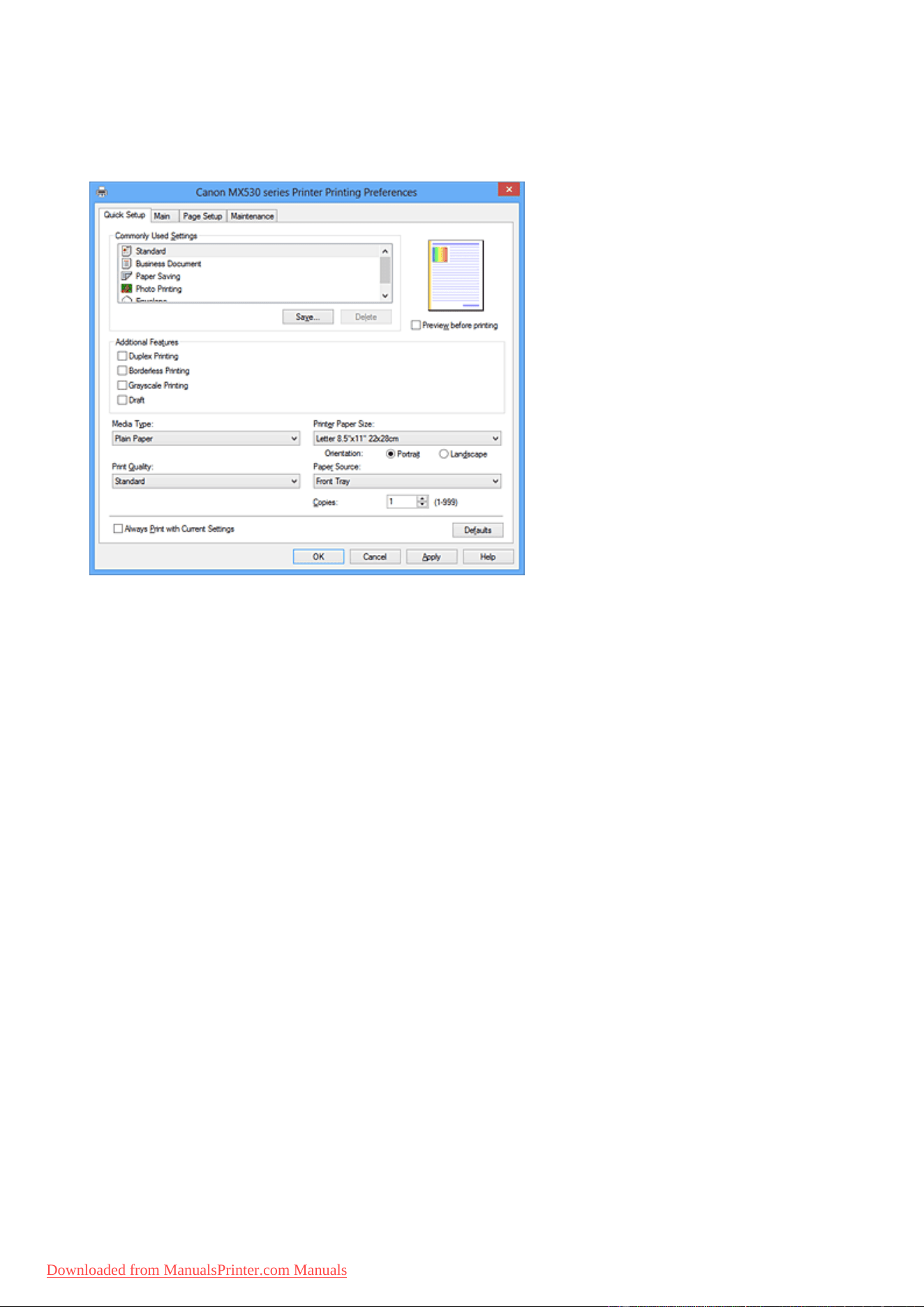
Quick Setup tab Description
The Quick Setup tab is for registering commonly used print settings. When you select a registered setting,
the machine automatically switches to the preset items.
Commonly Used Settings
The names and icons of frequently used printing profiles are registered. When you select a printing
profile according to the purpose of the document, settings that match the purpose are applied.
In addition, functions that are thought to be useful for the selected printing profile are displayed in
Additional Features.
You can also change a printing profile and register it under a new name. You can delete the registered
printing profile.
You can rearrange the profiles either by dragging the individual profiles or by holding down the Ctrl key
and pressing the up or down arrow keys.
Standard
These are the factory settings.
If Page Size, Orientation, and Copies were set from the application software, those settings have
priority.
Business Document
Select this setting when printing a general document.
If Page Size, Orientation, and Copies were set from the application software, those settings have
priority.
Paper Saving
Select this setting to save paper when printing a general document. The 2-on-1 Printing and
Duplex Printing check boxes are checked automatically.
If Page Size, Orientation, and Copies were set from the application software, those settings have
priority.
Photo Printing
If you select this setting when printing a photo, the photo paper and photo size generally used are
set. The Borderless Printing check box is checked automatically.
If Orientation and Copies were set from the application software, those settings have priority.
94
Downloaded from ManualsPrinter.com Manuals
Envelope
If you select this setting for printing an envelope, Media Type is set automatically to Envelope. In
the Envelope Size Setting dialog box, select the size of the envelope to be used.
Note
• The combination of the Additional Features that was displayed for the printing profile that had
been selected when the added printing profile was saved is also displayed when that added
printing profile is selected.
Save...
Displays the Save Commonly Used Settings dialog box.
Click this button when you want to save the information that you set on the Quick Setup, Main, and
Page Setup tabs to Commonly Used Settings.
Delete
Deletes a registered printing profile.
Select the name of the setting to be deleted from Commonly Used Settings, and click Delete. When a
confirmation message is displayed, click OK to delete the specified printing profile.
Note
• Printing profiles that are registered in the initial settings cannot be deleted.
Settings Preview
The paper illustration shows how the original will be laid out on a sheet of paper.
You can check an overall image of the layout.
Preview before printing
Shows what the print result will look like before you actually print the data.
Check this check box to display a preview before printing.
Uncheck this check box if you do not want to display a preview.
Important
• To use the Canon IJ XPS Preview, you must have Microsoft .NET Framework 4 Client Profile
installed on your computer.
Additional Features
Displays the frequently used, convenient functions for the printing profile that you selected for
Commonly Used Settings on the Quick Setup tab.
When you move the mouse pointer near a function that can be changed, a description of that function is
displayed.
To enable a function, check the corresponding check box.
For some functions, you can set detailed settings from the Main and Page Setup tabs.
Important
• Depending on the printing profiles, certain function may be grayed out and you will not be able to
change them.
2-on-1 Printing
Prints two pages of the document, side by side, on one sheet of paper.
To change the page sequence, click the Page Setup tab, select Page Layout for Page Layout,
and click Specify.... Then in the Page Layout Printing dialog box that appears, specify the Page
Order.
95
Downloaded from ManualsPrinter.com Manuals

4-on-1 Printing
Prints four pages of the document, side by side, on one sheet of paper.
To change the page sequence, click the Page Setup tab, select Page Layout for Page Layout,
and click Specify.... Then in the Page Layout Printing dialog box that appears, specify the Page
Order.
Duplex Printing
Selects whether to print the document on both sides or one side of a sheet of paper.
To change the staple side or the margins, set the new values from the Page Setup tab.
Borderless Printing
Performs borderless printing without any margins on the paper.
With the borderless printing function, the document to be printed is enlarged, so that it extends
slightly off the paper. In other words, the document is printed without any margin.
To adjust the amount that the document extends beyond the paper, click the Page Setup tab,
choose Borderless, and enter the value in Amount of Extension.
Grayscale Printing
This function converts the data to monochrome data when printing your document.
Draft
This setting is appropriate for test printing.
Rotate 180 degrees
Prints the document by rotating it 180 degrees against the paper feed direction.
The width of print area and the amount of extension that are configured in other application
software will be reversed vertically and horizontally.
Color/Intensity Manual Adjustment
Select when you set the Color Correction method and individual settings such as Cyan, Magenta,
Yellow, Brightness, Intensity, and Contrast, etc.
Media Type
Selects a type of printing paper.
Select a media type that matches the paper that is loaded in the machine. This ensures that printing is
carried out properly for the specified paper.
Printer Paper Size
Selects the size of paper actually loaded into the machine.
Normally, the paper size is set automatically according to the output paper size setting, and the
document is printed with no scaling.
When you set 2-on-1 Printing or 4-on-1 Printing in Additional Features, you can manually set the
paper size with Page Size on the Page Setup tab.
If you select a paper size that is smaller than the Page Size, the page image will be reduced.
If you select a paper size that is larger than the Page Size, the page image will be enlarged.
Orientation
Selects the printing orientation.
If the application used to create your document has a similar function, select the same orientation that
you selected in that application.
Portrait
Prints the document so that its top and bottom positions are unchanged relative to the paper feed
direction. This is the default setting.
Landscape
Prints the document by rotating it 90 degrees relative to the paper feed direction.
You can change the rotation direction by going to the Maintenance tab, opening the Custom
96
Downloaded from ManualsPrinter.com Manuals

Settings dialog box, and then using Rotate 90 degrees left when orientation is [Landscape]
check box.
To rotate the document 90 degrees to the left when printing, select the Rotate 90 degrees left
when orientation is [Landscape] check box.
Print Quality
Selects your desired printing quality.
Select one of the following to set the print quality level that is appropriate for the purpose.
To set the print quality level individually, click the Main tab, and for Print Quality, select Custom. The
Set... becomes enabled. Click Set... to open the Custom dialog box, and then specify the desired
settings.
High
Gives priority to print quality over printing speed.
Standard
Prints with average speed and quality.
Draft
This setting is appropriate for test printing.
Paper Source
Shows the source from which paper is supplied.
Front Tray
Paper is always supplied from the front tray.
Copies
Specifies the number of copies you want to print. You can specify a value from 1 to 999.
Important
• When the application software that you used to create the document has the same function,
specify the settings on the printer driver. However, if the print results are not acceptable, specify
the function settings on the application software.
Always Print with Current Settings
Prints documents with the current settings starting from the next print execution.
When you select this function and then close the printer driver setup window, the information that you
set on the Quick Setup, Main, and Page Setup tabs are saved and printing with the same settings is
possible starting from the next print execution.
Important
• If you log on with a different user name, the settings that were set when this function was enabled
are not reflected in the print settings.
• If a setting was specified on the application software, it has priority.
Defaults
Restores all the settings you have changed to their default values.
Click this button to return all settings on the Quick Setup, Main, and Page Setup tabs to their default
values (factory settings).
Save Commonly Used Settings dialog box
This dialog box allows you to save the information that you set on the Quick Setup, Main, and Page
Setup tabs and add the information to the Commonly Used Settings list on the Quick Setup tab.
97
Downloaded from ManualsPrinter.com Manuals

Name
Enter the name for the printing profile you wish to save.
Up to 255 characters can be entered.
The name appears, with its associated icon, in the Commonly Used Settings list on the Quick
Setup tab.
Options...
Opens the Save Commonly Used Settings dialog box.
Changes the details of printing profile to be saved.
Save Commonly Used Settings dialog box
Select the icons of the printing profiles to be registered to Commonly Used Settings, and change the
items to be saved in the printing profiles.
Icon
Select the icon for the printing profile you wish to save.
The selected icon appears, with its name, in the Commonly Used Settings list on the Quick
Setup tab.
Save the paper size setting
Saves the paper size to the printing profile in Commonly Used Settings.
To apply the saved paper size when the printing profile is selected, check this check box.
If this check box is unchecked, the paper size is not saved, and consequently the paper size setting
is not applied when the printing profile is selected. Instead the printer prints with the paper size
specified with the application software.
Save the orientation setting
Saves the Orientation to the printing profile in Commonly Used Settings.
To apply the saved print orientation when the printing profile is selected, check this check box.
If this check box is unchecked, the print orientation is not saved, and consequently the Orientation
setting is not applied when the printing profile is selected. Instead the printer prints with the print
orientation specified with the application software.
Save the copies setting
Saves the Copies setting to the printing profile in Commonly Used Settings.
To apply the saved copies setting when the printing profile is selected, check this check box.
If this check box is unchecked, the copies setting is not saved, and consequently the Copies
setting is not applied when the printing profile is selected. Instead the printer prints with the copies
setting specified with the application software.
Custom Paper Size dialog box
This dialog box allows you to specify the size (width and height) of the custom paper.
Units
Select the unit for entering a user-defined paper size.
Paper Size
Specifies the Width and the Height of the custom paper. Measurement is shown according to the
units specified in Units.
98
Downloaded from ManualsPrinter.com Manuals

Related Topics
Printing with Easy Setup
Setting a Page Size and Orientation
Setting the Number of Copies and Printing Order
Execute Borderless Printing
Duplex Printing
Setting Up Envelope Printing
Printing on Postcards
Displaying the Print Results before Printing
Setting Paper Dimensions (Custom Size)
Printing a Color Document in Monochrome
Specifying Color Correction
Adjusting Color Balance
Adjusting Color Balance Using Sample Patterns (Printer Driver)
Adjusting Brightness
Adjusting Intensity
Adjusting Contrast
Adjusting Intensity/Contrast Using Sample Patterns (Printer Driver)
Registering a Frequently Used Printing Profile
99
Downloaded from ManualsPrinter.com Manuals
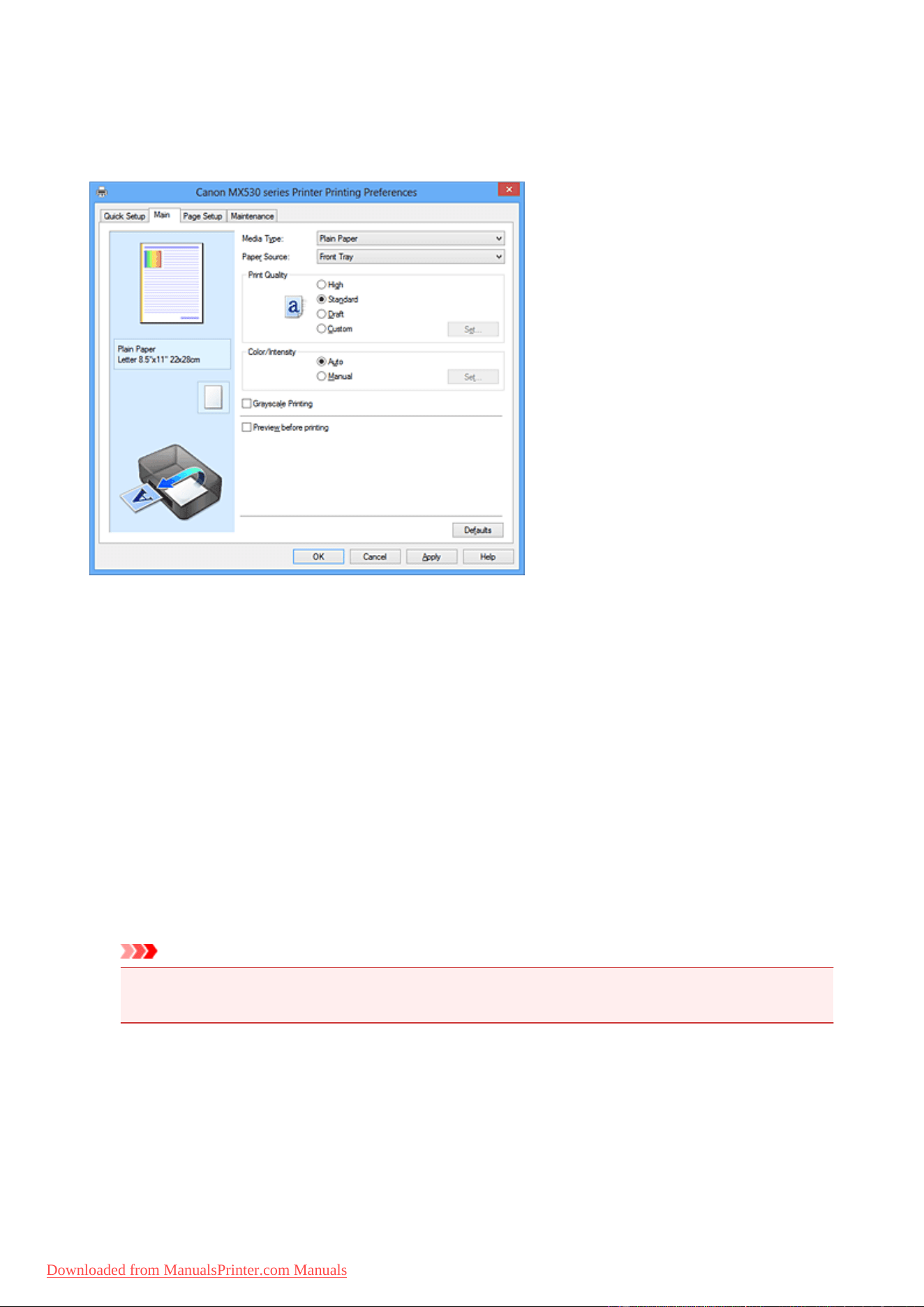
Main tab Description
The Main tab allows you to create a basic print setup in accordance with the media type. Unless special
printing is required, normal printing can be performed just by setting the items on this tab.
Settings Preview
The paper illustration shows how the original will be laid out on a sheet of paper.
You can check an overall image of the layout.
Media Type
Selects a type of printing paper.
Select a media type that matches the paper that is loaded in the machine. This ensures that printing is
carried out properly for the specified paper.
Paper Source
Shows the source from which paper is supplied.
Front Tray
Paper is always supplied from the front tray.
Print Quality
Selects your desired printing quality.
Select one of the following to set the print quality level that is appropriate for the purpose.
Important
• Depending on the Media Type settings, the same print results may be produced even if the Print
Quality is changed.
High
Gives priority to print quality over printing speed.
Standard
Prints with average speed and quality.
Draft
This setting is appropriate for test printing.
100
Downloaded from ManualsPrinter.com Manuals

Custom
Select this when you want to set the printing quality level individually.
Set...
Select Custom for Print Quality to enable this button.
Open the Custom dialog box. You can then individually set the print quality level.
Color/Intensity
Selects color adjustment method.
Auto
Cyan, Magenta, Yellow, Brightness, Intensity, and Contrast, and so on are adjusted
automatically.
Manual
Select when you set the individual settings such as Cyan, Magenta, Yellow, Brightness,
Intensity, and Contrast, etc. and Color Correction method.
Set...
Select Manual for Color/Intensity to enable this button.
In the Manual Color Adjustment dialog box, you can adjust individual color settings such as
Cyan, Magenta, Yellow, Brightness, Intensity, and Contrast on the Color Adjustment tab, and
select the Color Correction method on the Matching tab.
Note
• If you want to use an ICC profile to adjust colors, use the Manual Color Adjustment dialog
box to set the profile.
Grayscale Printing
This function converts the data to monochrome data when printing your document.
Check this check box to print a color document in monochrome.
Preview before printing
Shows what the print result will look like before you actually print the data.
Check this check box to display a preview before printing.
Important
• To use the Canon IJ XPS Preview, you must have Microsoft .NET Framework 4 Client Profile
installed on your computer.
Defaults
Restores all the settings you have changed to their default values.
Clicking this button restores all the settings on the current screen to their default values (factory
settings).
Custom dialog box
Set the quality level, and select the desired print quality.
Quality
You can use the slider bar to adjust the print quality level.
Important
• Certain print quality levels cannot be selected depending on the settings of Media Type.
101
Downloaded from ManualsPrinter.com Manuals
Note
• The High, Standard, or Draft print quality modes are linked with the slider bar. Therefore when
the slider bar is moved, the corresponding quality and value are displayed on the left. This is the
same as when the corresponding radio button is selected for Print Quality on the Main tab.
Color Adjustment Tab
This tab allows you to adjust the color balance by changing the settings of the Cyan, Magenta, Yellow,
Brightness, Intensity, and Contrast options.
Preview
Shows the effect of color adjustment.
The color and brightness change when each item is adjusted. You can check the color adjustment
status easily by changing the preview image to one similar to the results to be printed with Sample
Type.
Note
• The graphic is in monochrome when the Grayscale Printing check box is checked.
Sample Type
Selects a preview image displayed on the Color Adjustment tab.
If necessary, select a preview image from Standard, Portrait, Landscape, or Graphics, whichever
is most similar to the print results.
View Color Pattern
Displays a pattern for checking color changes produced by color adjustment.
If you want to display the preview image with a color pattern, check this check box.
Cyan / Magenta / Yellow
Adjusts the strengths of Cyan, Magenta, and Yellow.
Moving the slider to the right makes a color stronger, and moving the slider to the left makes a color
weaker.
You can also directly enter a value linked to the slider. Enter a value in the range from -50 to 50.
This adjustment changes the relative amount of ink of each color used, which alters the total color
balance of the document. Use your application if you want to change the total color balance
significantly. Use the printer driver only if you want to adjust the color balance slightly.
Important
• When Grayscale Printing is checked on the Main tab, Cyan, Magenta, and Yellow appear
grayed out and are unavailable.
Brightness
Selects the brightness of your print.
You cannot change the levels of pure white and black. However, the brightness of the colors between
white and black can be changed.
Intensity
Adjusts the overall intensity of your print.
Moving the slider to the right increases the intensity, and moving the slider to the left decreases the
intensity.
You can also directly enter a value linked to the slider. Enter a value in the range from -50 to 50.
102
Downloaded from ManualsPrinter.com Manuals

Contrast
Adjusts the contrast between light and dark in the image to be printed.
Moving the slider to the right increases the contrast, moving the slider to the left decreases the
contrast.
You can also directly enter a value linked to the slider. Enter a value in the range from -50 to 50.
Print a pattern for color adjustment
When the color balance or intensity/contrast is changed, the pattern printing function prints a list of
the adjustment results along with the adjustment values.
Select this function when printing a pattern for color adjustment.
Pattern Print preferences...
Check Print a pattern for color adjustment to enable this button.
The Pattern Print dialog box opens and allows you to set pattern printing settings.
Pattern Print dialog box
Performs the setup for printing of patterns that allow you to check the color balance and intensity/
contrast of documents.
Parameters to Adjust
Select the item to be checked by pattern printing.
Cyan/Magenta/Yellow
Prints a pattern that allows you to check the cyan/magenta/yellow balance.
Important
• When Grayscale Printing is checked on the Main tab, Cyan/Magenta/Yellow appear
grayed out and are unavailable.
Intensity/Contrast
Prints a pattern that allows you to check the intensity/contrast balance.
Printer Paper Size
Selects the paper size to be used for pattern printing.
This setting is linked to Printer Paper Size on the Page Setup tab.
Note
• Depending on the paper size selected on the Page Setup tab, there may be sizes that cannot
be selected.
Amount of Pattern Instances
Sets the number of patterns to be printed.
You can select from Largest, Large, and Small. When you select a pattern size, the number of
patterns that can be printed is as follows:
Note
• Largest and Large cannot be selected when certain paper sizes or output paper sizes are
selected.
• The setting preview on the Main tab displays an image that allows you to check the overall
layout.
Largest
Cyan/Magenta/Yellow 37
Intensity/Contrast 49
103
Downloaded from ManualsPrinter.com Manuals
Large
Cyan/Magenta/Yellow 19
Intensity/Contrast 25
Small
Cyan/Magenta/Yellow 7
Intensity/Contrast 9
Color Variation Between Instances
Sets the amount of color change between neighboring patterns.
Select from Large, Medium, and Small. Large produces a large amount of change, and Small
produces a small amount of change.
Note
• Large is about double the size of Medium, and Small is about half the size of Medium.
Matching Tab
Allows you to select the method for adjusting colors to match the type of document to be printed.
Color Correction
Allows you to select Driver Matching, ICM (ICC Profile Matching), or None to match the purpose of
the print operation.
Important
• When Grayscale Printing is checked on the Main tab, Color Correction appears grayed out
and is unavailable.
Note
• In the XPS printer driver, ICM has become ICC Profile Matching.
Driver Matching
With Canon Digital Photo Color, you can print sRGB data with color tints that most people prefer.
ICM (ICC Profile Matching)
Adjusts the colors by using an ICC profile when printing.
Specify the input profile to be used.
Important
• If the application software is set so that ICM is disabled, ICM is unavailable for Color
Correction and the printer may not be able to print the image data properly.
None
Disables color adjustment with the printer driver.
Input Profile
Specifies the input profile to be used when you select ICM (ICC Profile Matching) for Color
Correction.
Standard
The standard printer profile (sRGB), which supports the color space of ICM, is used. This is the
default setting.
Adobe RGB (1998)
The Adobe RGB profile, which supports a wider color space than sRGB, is used.
104
Downloaded from ManualsPrinter.com Manuals
Important
• Adobe RGB (1998) is not displayed when input profiles of Adobe RGB are not installed.
Related Topics
Setting the Print Quality Level (Custom)
Adjusting Color Balance
Adjusting Brightness
Adjusting Intensity
Adjusting Contrast
Adjusting Color Balance Using Sample Patterns (Printer Driver)
Adjusting Intensity/Contrast Using Sample Patterns (Printer Driver)
Specifying Color Correction
Adjusting Colors with the Printer Driver
Printing with ICC Profiles
Printing a Color Document in Monochrome
Displaying the Print Results before Printing
105
Downloaded from ManualsPrinter.com Manuals
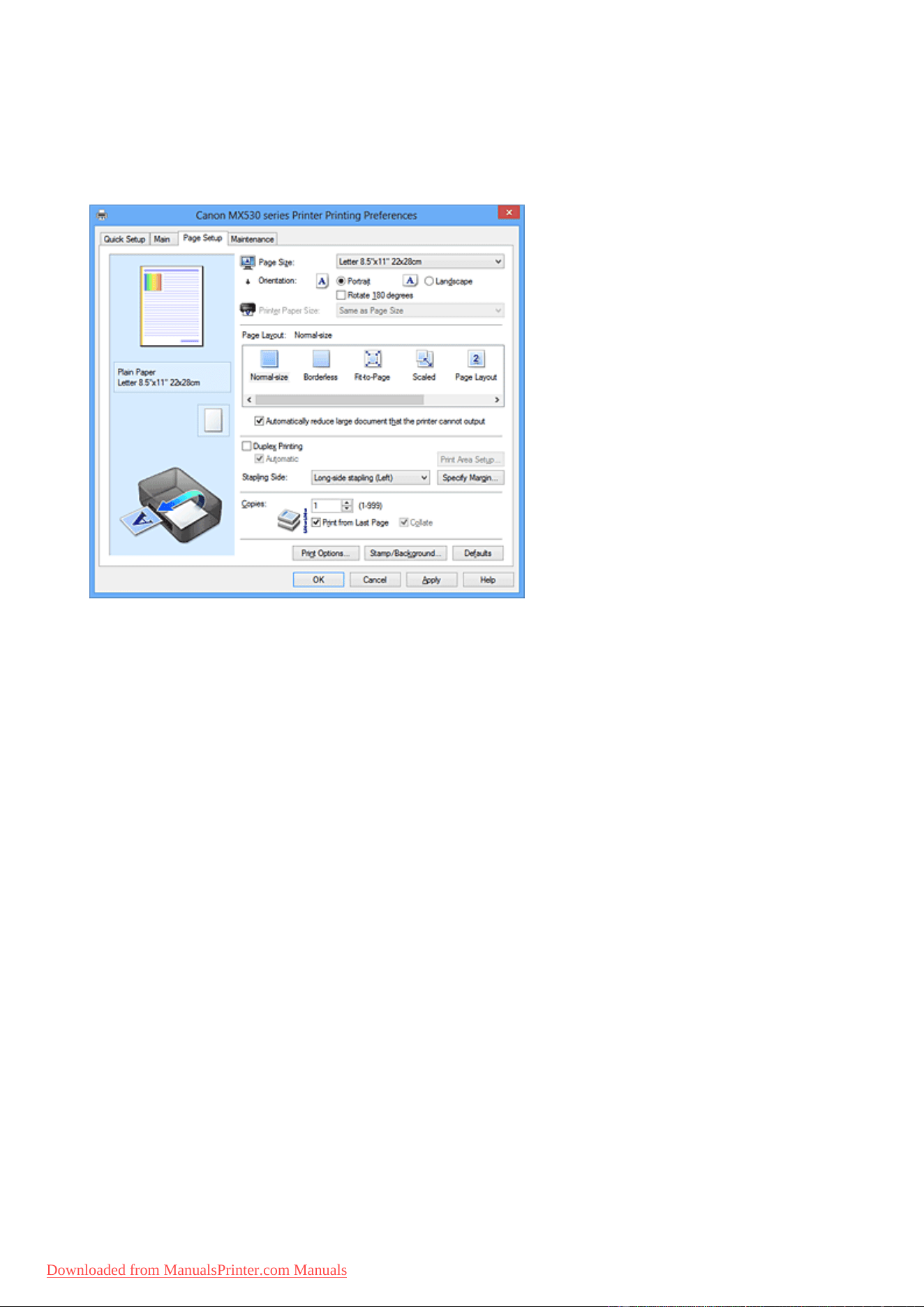
Page Setup tab Description
The Page Setup tab allows you to determine how a document is to be arranged on the paper. Also, this tab
allows you to set the number of copies and the order of printing. If the application which created the
document has a similar function, set them with the application.
Settings Preview
The paper illustration shows how the original will be laid out on a sheet of paper.
You can check an overall image of the layout.
Page Size
Selects a page size.
Ensure that you select the same page size as you selected within the application.
Orientation
Selects the printing orientation.
If the application used to create your document has a similar function, select the same orientation that
you selected in that application.
Portrait
Prints the document so that its top and bottom positions are unchanged relative to the paper feed
direction. This is the default setting.
Landscape
Prints the document by rotating it 90 degrees relative to the paper feed direction.
You can change the rotation direction by going to the Maintenance tab, opening the Custom
Settings dialog box, and then using Rotate 90 degrees left when orientation is [Landscape]
check box.
To rotate the document 90 degrees to the left when printing, select the Rotate 90 degrees left
when orientation is [Landscape] check box.
Rotate 180 degrees
Prints the document by rotating it 180 degrees against the paper feed direction.
The width of print area and the amount of extension that are configured in other application software will
be reversed vertically and horizontally.
106
Downloaded from ManualsPrinter.com Manuals

Printer Paper Size
Selects the size of paper actually loaded into the machine.
The default setting is Same as Page Size to perform normal-sized printing.
You can select a printer paper size when you select Fit-to-Page, Scaled, Page Layout, Tiling/Poster,
or Booklet for Page Layout.
If you select a paper size that is smaller than the Page Size, the document size will be reduced. If you
select a paper size that is larger than the Page Size, the document size will be enlarged.
Page Layout
Selects the size of the document you want to print and the type of printing.
Normal-size
This is the normal printing method. Select this when you do not specify any page layout.
Automatically reduce large document that the printer cannot output
If the machine cannot print the paper size of a document, the machine can automatically
reduce the size when it prints the document.
Check this check box to reduce the size when printing the document.
Borderless
Chooses whether you are printing on a full page without any page margins or printing with page
margins.
In borderless printing, originals are enlarged to extend slightly off the paper. Thus, printing can be
performed without any margins (border).
Use Amount of Extension to adjust how much of the document extends off the paper during
borderless printing.
Amount of Extension
Adjusts how much of the document extends off the paper during borderless printing.
Moving the slider to the right increases the amount of extension and allows you to perform
borderless printing with no problems.
Moving the slider to the left reduces the amount of extension and expands the range of the
document to print.
Fit-to-Page
This function enables you to automatically enlarge or reduce documents to fit to the paper size
loaded in the machine without changing the paper size you specified in your application software.
Scaled
Documents can be enlarged or reduced to be printed.
Specify the size in Printer Paper Size, or enter the scaling ratio in the Scaling box.
Scaling
Specifies an enlargement or reduction ratio for the document you want to print.
Page Layout
Multiple pages of document can be printed on one sheet of paper.
Specify...
Opens the Page Layout Printing dialog box.
Click this button to set details on page layout printing.
Tiling/Poster
This function enables you to enlarge the image data and divide the enlarged data into several
pages to be printed. You can also glue together these sheets of paper to create large printed
matter, such as a poster.
Specify...
Opens the Tiling/Poster Printing dialog box.
Click this button to set details on tiling/poster printing.
107
Downloaded from ManualsPrinter.com Manuals

Booklet
Booklet printing is the convenient function to create a booklet. Data is printed on both sides of a
sheet of paper. This type of printing ensures that pages can be collated properly, in page number
order, when the printed sheets are folded and stapled at the center.
Specify...
Opens the Booklet Printing dialog box.
Click this button to set details on booklet printing.
Duplex Printing
Selects whether to print the document automatically on both sides or one side of a sheet of paper.
Check this check box to print the document on both sides.
This function can be used only when Plain Paper is selected for Media Type and one of Normal-size,
Fit-to-Page, Scaled, or Page Layout is selected.
Automatic
Selects whether duplex printing is to be performed automatically or manually.
This check box will be enabled if Booklet is selected from the Page Layout list or the Duplex
Printing check box is checked.
To perform duplex printing automatically, check this check box.
To perform duplex printing manually, uncheck this check box.
Important
• If Automatic is not displayed for your model, selecting Duplex Printing will automatically
enable duplex printing.
Print Area Setup...
Opens the Print Area Setup dialog box in which you can configure the print area for automatic duplex
printing.
This button will be enabled if automatic duplex printing is set when Borderless is not selected.
Stapling Side
Selects the stapling margin position.
The printer analyzes the Orientation and Page Layout settings, and automatically selects the best
stapling margin position. Check Stapling Side, and select from the list to change it.
Specify Margin...
Opens the Specify Margin dialog box.
You can specify the width of the margin.
Copies
Specifies the number of copies you want to print. You can specify a value from 1 to 999.
Important
• If the application used to create your document has a similar function, specify the number of copies
with the application without specifying it here.
Print from Last Page
Check this check box when you want to print from the last page in order. If you do this, you do not need
to sort the pages into their correct order after printing.
Uncheck this check box to print your document in normal order, starting from the first page.
Collate
Check this check box to group together the pages of each copy when you want to print multiple copies.
Uncheck this check box when you want to print with all pages of the same page number grouped
together.
108
Downloaded from ManualsPrinter.com Manuals

Important
• When the application software that you used to create the document has the same function, give
priority to the printer driver settings. However, if the print results are not acceptable, specify the
function settings on the application software. When you specify the number of copies and the
printing order with both the application and this printer driver, the number of copies may be
multiplied numbers of the two settings or the specified printing order may not be enabled.
Print Options...
Opens the Print Options dialog box.
Changes detailed printer driver settings for print data that is sent from applications.
Stamp/Background... (Stamp...)
Opens the Stamp/Background (Stamp) dialog box.
The Stamp function allows you to print a stamp text or a bitmap over or behind document data. It also
allows you to print date, time and user name. The Background function allows you to print a light
illustration behind the document data.
Note
• With the XPS printer driver, the Stamp/Background... button has become the Stamp... button and
only the stamp function can be used.
Depending on the type of printer driver you are using and the environment, Stamp and Background
may not be available.
Custom Paper Size dialog box
This dialog box allows you to specify the size (width and height) of the custom paper.
Units
Select the unit for entering a user-defined paper size.
Paper Size
Specifies the Width and the Height of the custom paper. Measurement is shown according to the
units specified in Units.
Page Layout Printing dialog box
This dialog box allows you to select the number of document pages to be placed on one sheet of paper,
the page order, and whether a page border line is to be printed around each document page.
The settings specified in this dialog box can be confirmed in the settings preview on the printer driver.
Preview Icon
Shows the settings made on the Page Layout Printing dialog box.
You can check what the print result will look like before you actually print the data.
Pages
Specifies the number of document pages to fit on one sheet.
Page Order
Specifies the document orientation to be printed on a sheet of paper.
Page Border
Prints a page border line around each document page.
Check this check box to print the page border line.
109
Downloaded from ManualsPrinter.com Manuals
Tiling/Poster Printing dialog box
This dialog box allows you to select the size of the image to be printed. You can also make settings for cut
lines and paste markers which are convenient for pasting together the pages into a poster.
The settings specified in this dialog box can be confirmed in the settings preview on the printer driver.
Preview Icon
Shows the settings of the Tiling/Poster Printing dialog box.
You can check what the print result will look like.
Image Divisions
Select the number of divisions (vertical x horizontal).
As the number of divisions increases, the number of sheets used for printing increases. If you are
pasting pages together to create a poster, increasing the number of divisions allows you to create a
larger poster.
Print "Cut/Paste" in margins
Specifies whether to print the words "Cut" and "Paste" in the margins. These words serve as
guidelines for pasting together the pages into a poster.
Check this check box to print the words.
Note
• Depending on the type of printer driver you are using and the environment, this function may not
be available.
Print "Cut/Paste" lines in margins
Specifies whether to print cut lines that serve as guidelines for pasting together the pages into a
poster.
Check this check box to print the cut lines.
Print page range
Specifies the printing range. Select All under normal circumstances.
Select Pages to specify a specific page or range.
Note
• If some of the pages have not been printed well, specify the pages that do not need to be printed
by clicking them in the settings preview of the Page Setup tab. Only the pages shown on the
screen will be printed this time.
Booklet Printing dialog box
This dialog box allows you to set how to bind the document as a booklet. Printing only on one side and
printing a page border, can also be set in this dialog box.
The settings specified in this dialog box can be confirmed in the settings preview on the printer driver.
Preview Icon
Shows the settings made on the Booklet Printing dialog box.
You can check what the document will look like when printed as a booklet.
Margin for stapling
Specifies which side of the booklet is to be stapled.
110
Downloaded from ManualsPrinter.com Manuals

Insert blank page
Selects whether to print the document on one side or both sides of the booklet.
Check this check box to print the document on one side of the booklet and select the side to be left
blank from the list.
Margin
Specifies the width of the stapling margin.
The specified width becomes the stapling margin from the center of the sheet.
Page Border
Prints a page border line around each document page.
Check this check box to print the page border line.
Print Area Setup dialog box
When you perform duplex printing, the print area of the document becomes slightly narrower than usual.
Therefore when a document that has small margins is printed, the document may not fit on one page.
This dialog box allows you to set whether the page is to be reduced when printed so that the document
fits in one page.
Use normal-size printing
Prints the document pages without reducing them. This is the default setting.
Use reduced printing
Slightly reduces each document page so that it fits on one sheet of paper during printing.
Select this setting when using automatic duplex printing to print a document with small margins.
Specify Margin dialog box
This dialog box allows you to specify the margin width for the side to be stapled. If a document does not fit
on one page, the document is reduced when printed.
Margin
Specifies the width of the stapling margin.
The width of the side specified by Stapling Side becomes the stapling margin.
Print Options dialog box
Makes changes to print data that is sent to the printer.
Depending on the type of printer driver you are using and the environment, this function may not be
available.
Disable ICM required from the application software
Disables the ICM function required from the application software.
When an application software uses Windows ICM to print data, unexpected colors may be produced
or the printing speed may decrease. If these problems occur, checking this check box may resolve
the problems.
Important
• Uncheck this check box under normal circumstances.
• This function does not work when ICM is selected for Color Correction on the Matching tab of
the Manual Color Adjustment dialog box.
111
Downloaded from ManualsPrinter.com Manuals
Note
• Disable ICM required from the application software tab cannot be used with the XPS printer
driver.
Disable the color profile setting of the application software
Checking this check box disables information in the color profile that was set on the application
software.
When the information in the color profile set on the application software is output to the printer driver,
the print result may contain unexpected colors. If this happens, checking this check box may resolve
the problem.
Important
• Even when this check box is checked, only some of the information in the color profile is
disabled, and the color profile can still be used for printing.
• Uncheck this check box under normal circumstances.
Ungroup Papers
Sets the display method of Media Type, Page Size, and Printer Paper Size.
To display the items separately, select the check box.
To display the items as a group, clear the check box.
Do not allow application software to compress print data
Compression of the application software print data is prohibited.
If the print result has missing image data or unintended colors, selecting this check box may improve
the condition.
Important
• Uncheck this check box under normal circumstances.
Note
• Do not allow application software to compress print data tab cannot be used with the XPS
printer driver.
Print after creating print data by page
The print data is created in page units, and printing starts after the processing of one page of print
data is complete.
If a printed document contains unintended results such as streaks, selecting this check box may
improve the results.
Important
• Uncheck this check box under normal circumstances.
Scale images using nearest-neighbor interpolation
When an image is to be enlarged or reduced when printed, the printer uses a simple interpolation
process to enlarge or reduce the image.
If the image data in a printed document is not printed clearly, selecting this check box may improve
the results.
Important
• Uncheck this check box under normal circumstances.
112
Downloaded from ManualsPrinter.com Manuals
Note
• Scale images using nearest-neighbor interpolation can be used only with the XPS printer
driver.
Prevention of Print Data Loss
You can reduce the size of the print data that was created with the application software and then print
the data.
Depending on the application software being used, the image data may be cut off or may not be
printed properly. In such cases, select On. If you will not be using this function, select Off.
Important
• When using this function, the print quality may drop depending on the print data.
Unit of Print Data Processing
Selects the processing unit of the print data to be sent to the machine.
Select Recommended under normal circumstances.
Important
• A large amount of memory may be used for certain settings.
Do not change the setting if your computer has a small amount of memory.
Note
• Unit of Print Data Processing tab cannot be used with the XPS printer driver.
Stamp/Background (Stamp...) dialog box
The Stamp/Background (Stamp...) dialog box allows you to print a stamp and/or background over or
behind the document pages. In addition to the pre-registered ones, you can register and use your original
stamp or background.
Note
• With the XPS printer driver, the Stamp/Background... button has become the Stamp... button and
only the stamp function can be used.
Stamp
Stamp printing is a function that prints a stamp over a document.
Check this check box and select a title from the list to print a stamp.
Define Stamp...
Opens the Stamp Settings dialog box.
You can check the details of a selected stamp or save a new stamp.
Place stamp over text
Sets how the stamp is to be printed over the document.
Check the Stamp check box to enable this.
Check this check box to print a stamp over the printed document page. The printed data may be
hidden behind the stamp.
Uncheck this check box to print the document data over the stamp. The printed data will not be
hidden behind the stamp.
Note
• The stamp is given priority because the stamp is printed over the document data in the sections
where the stamp and the document data overlap. When this check box is unchecked, the stamp
113
Downloaded from ManualsPrinter.com Manuals

is printed behind the document data and may be hidden in the overlapping sections depending
on the application software used.
Print semitransparent stamp
Sets how the stamp is to be printed over the document.
Check the Stamp check box to enable this.
Check this check box to print a semi-transparent stamp over the printed document page.
Uncheck this check box to print the stamp over the document data. The printed data may be hidden
behind the stamp.
Note
• You can use Print semitransparent stamp only with the XPS printer driver.
Stamp first page only
Selects whether the stamp is to be printed on the first page only or on all pages when the document
has two or more pages.
Check the Stamp check box to enable this.
Check this check box to print a stamp on the first page only.
Background
Background printing is a function that allows you to print an illustration or a similar object (bitmap,
etc.) behind the document.
Check this check box to print a background and select a title from the list.
Select Background...
Opens the Background Settings dialog box.
You can register a bitmap as a background, and change layout method and intensity of the selected
background.
Background first page only
Selects whether to print the background on the first page only or print on all pages when the
document has two or more pages.
Check the Background check box to enable this.
Check this check box to print a background on the first page only.
Stamp Tab
The Stamp tab allows you to set the text and bitmap file (.bmp) to be used for a stamp.
Preview Window
Shows the status of the stamp configured in each tab.
Stamp Type
Specifies the stamp type.
Select Text to create a stamp with characters. Select Bitmap to create with a bitmap file. Select
Date/Time/User Name to display the creation date/time and user name of the printed document.
The setting items in the Stamp tab change depending on the selected type.
When Stamp Type is Text or Date/Time/User Name
Stamp Text
Specifies the stamp text string.
Up to 64 characters can be entered.
For Date/Time/User Name, the creation date/time and user name of the printed object are
displayed in Stamp Text.
114
Downloaded from ManualsPrinter.com Manuals

Important
• Stamp Text appears grayed out and is unavailable if Date/Time/User Name is selected.
TrueType Font
Selects the font for the stamp text string.
Style
Selects the font style for the stamp text string.
Size
Selects the font size for the stamp text string.
Outline
Selects a frame that encloses the stamp text string.
If a large font size is selected for Size, characters may extend outside of the stamp border.
Color/Select Color...
Shows the current color for the stamp.
To select a different color, click Select Color... to open the Color dialog box, and select or create a
color you wish to use as a stamp.
When Stamp Type is Bitmap
File
Specifies the name of the bitmap file to be used as the stamp.
Select File...
Opens the dialog box to open a file.
Click this button to select a bitmap file to be used as a stamp.
Size
Adjusts the size of the bitmap file to be used as a stamp.
Moving the slider to the right increases the size, moving the slider to the left decreases the size.
Transparent white area
Specifies whether to make white-filled areas of the bitmap transparent.
Check this check box to make white-filled areas of the bitmap transparent.
Note
• Click Defaults to set Stamp Type to text, Stamp Text to blank, TrueType Font to Arial, Style to
Regular, Size to 36 points, Outline unchecked, and Color to gray with the RGB values (192, 192,
192).
Placement Tab
The Placement tab allows you to set the position where the stamp is to be printed.
Preview Window
Shows the status of the stamp configured in each tab.
Position
Specifies the stamp position on the page.
Selecting Custom from the list allows you to enter values for the X-Position and Y-Position
coordinates directly.
115
Downloaded from ManualsPrinter.com Manuals
Orientation
Specifies the angle of rotation for the stamp. The angle can be set by entering the number of
degrees.
Negative values rotate the stamp clockwise.
Note
• Orientation is enabled only when Text or Date/Time/User Name is selected for Stamp Type
on the Stamp tab.
Note
• Click Defaults to set the stamp position to Center and the orientation to 0.
Save settings Tab
The Save settings tab allows you to register a new stamp or delete an unnecessary stamp.
Title
Enter the title to save the stamp you created.
Up to 64 characters can be entered.
Note
• Spaces, tabs, and returns cannot be entered at the beginning or end of a title.
Stamps
Shows a list of saved stamp titles.
Specify a title to display the corresponding stamp in Title.
Save/Save overwrite
Saves the stamp.
Enter a title in Title, and then click this button.
Delete
Deletes an unnecessary stamp.
Specify the title of an unnecessary stamp from the Stamps list, and click this button.
Background Tab
The Background tab allows you to select a bitmap file (.bmp) to be used as a background or determine
how to print the selected background.
Preview Window
Shows the status of the bitmap set on the Background tab.
File
Specifies the name of the bitmap file to be used as the background.
Select File...
Opens the dialog box to open a file.
Click this button to select a bitmap file (.bmp) to be used as the background.
Layout Method
Specifies how the background image is to be placed on the paper.
When Custom is selected, you can set coordinates for X-Position and Y-Position.
116
Downloaded from ManualsPrinter.com Manuals
Intensity
Adjusts the intensity of the bitmap to be used as a background.
Moving the slider to the right increases the intensity, and moving the slider to the left decreases the
intensity. To print the background at the original bitmap intensity, move the slider to the rightmost
position.
Note
• Depending on the type of printer driver you are using and the environment, this function may not be
available.
• Click Defaults to set File to blank, Layout Method to Fill page, and the Intensity slider to the
middle.
Save settings Tab
The Save settings tab allows you to register a new background or delete an unnecessary background.
Title
Enter the title to save the background image you specified.
Up to 64 characters can be entered.
Note
• Spaces, tabs, and returns cannot be entered at the beginning or end of a title.
Backgrounds
Shows a list of registered background titles.
Specify a title to display the corresponding background in Title.
Save/Save overwrite
Saves the image data as a background.
After inserting the Title, click this button.
Delete
Deletes an unnecessary background.
Specify the title of an unnecessary background from the Backgrounds list, and then click this
button.
117
Downloaded from ManualsPrinter.com Manuals
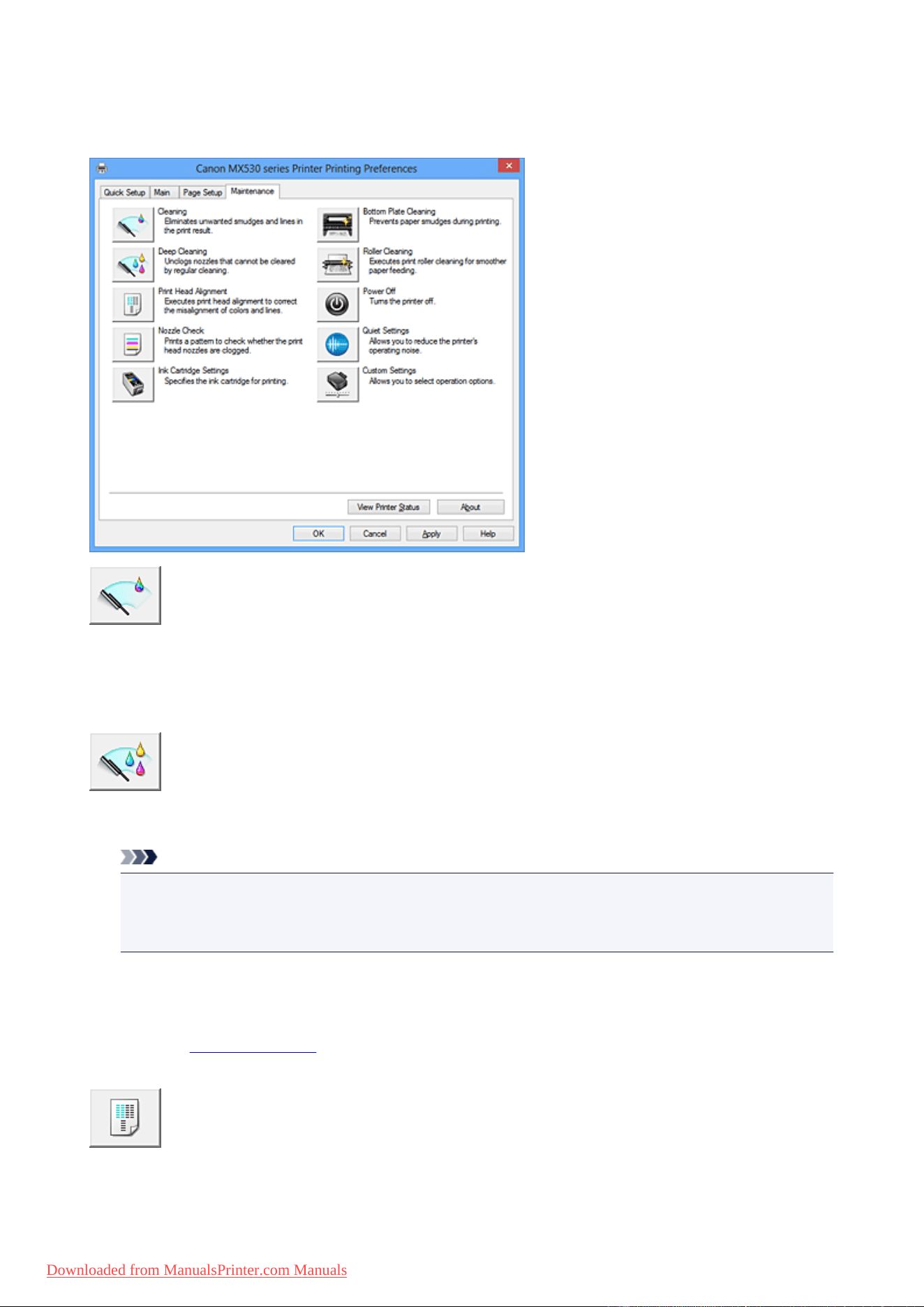
Maintenance tab Description
The Maintenance tab allows you to perform machine maintenance or change the settings of the machine.
Cleaning
Performs print head cleaning.
Print head cleaning removes any blockage in the print head nozzles.
Perform cleaning when printing becomes faint, or a specific color fails to print, even though all ink levels
are sufficiently high.
Deep Cleaning
Performs deep cleaning.
Perform deep cleaning when two cleaning attempts do not resolve the print head problem.
Note
• Deep Cleaning consumes a larger amount of ink than Cleaning.
Cleaning the print heads frequently will rapidly deplete your printer's ink supply. Therefore, perform
cleaning only when necessary.
Ink Group
When you click Cleaning or Deep Cleaning, the Ink Group window is displayed.
Selects the ink group that you want to clean the print head for.
Click Initial Check Items to display the items that you need to check before you execute cleaning or
deep cleaning.
Print Head Alignment
Print head alignment corrects the installation positions of the print head and improves deviated colors
and lines.
118
Downloaded from ManualsPrinter.com Manuals
Align the print head immediately after installing the print head.
When you click Print Head Alignment, the Start Print Head Alignment dialog box is displayed.
Nozzle Check
Prints a nozzle check pattern.
Perform this function if printing becomes faint or a specific color fails to print. Print a nozzle check
pattern, and check whether the print head is working properly. If the print result for a specific color is
fainted, or if there are any unprinted sections, click Cleaning to clean the print head.
To display a list of items that you should check before printing the nozzle check pattern, click Initial
Check Items.
Print Check Pattern
This function prints a pattern that allows you to check whether the any of the ink nozzles are
clogged.
Click Print Check Pattern. When the confirmation message is displayed, click OK. The Pattern
Check dialog box is then displayed.
Left-side bitmap (good)
The print head nozzles are not clogged.
Right-side bitmap (bad)
The print head nozzles may be clogged.
Exit
Closes the Pattern Check dialog box, and returns to the Maintenance tab.
Cleaning
Performs print head cleaning.
Print head cleaning removes any blockage in the print head nozzles.
Perform cleaning when printing becomes faint, or if a specific color fails to print, even though
all ink levels are sufficiently high.
Ink Cartridge Settings
Opens the Ink Cartridge Settings dialog box.
Use this function to specify the FINE cartridge you want to use.
Bottom Plate Cleaning
Performs cleaning of the bottom plate of the machine.
To prevent smudges on the back side of a sheet of paper, perform Bottom Plate Cleaning before you
perform duplex printing.
Also perform Bottom Plate Cleaning if ink smudges caused by something other than print data appear
on the printed page.
Roller Cleaning
Cleans the paper feed rollers.
Paper feeding may fail if paper dust has stuck to the machine's paper feed rollers. In this case, clean
the paper feed rollers to improve the print result.
119
Downloaded from ManualsPrinter.com Manuals
Power Off
Turns off the machine from the printer driver.
Perform this function to turn off the machine when you cannot press the ON button (POWER button) on
the machine because the machine is out of your reach.
You must press the ON button (POWER button) on the machine to turn the machine on again after
clicking this button. When you use this function, you will not be able to turn the machine on from the
printer driver.
Quiet Settings
Opens the Quiet Settings dialog box.
Quiet Settings dialog box allows you to specify a setting that reduces the operating noise of the
machine. This mode comes in handy when the operating noise of the machine becomes a concern,
such when printing at night. Perform this operation when you want to change the quiet mode setting.
Note
• If the machine is off or if communication between the machine and the computer is disabled, an
error message may appear because the computer cannot collect the machine status.
Custom Settings
Opens the Custom Settings dialog box.
Perform this function to change the settings of this machine.
Note
• If the machine is off or bi-directional communication is disabled, a message may appear because
the computer cannot collect the machine status.
If this happens, click OK to display the most recent settings specified on your computer.
View Print History
This function starts the Canon IJ XPS preview, and displays the print history.
Note
• You can use this function only with the XPS printer driver.
View Printer Status
Starts the Canon IJ Status Monitor.
Perform this function when you want to check the printer status and how a print job is proceeding.
Note
• If you are using the XPS printer driver, the "Canon IJ Status Monitor" becomes the "Canon IJ XPS
Status Monitor".
About
Opens the About dialog box.
The version of the printer driver, plus a copyright notice, can be checked.
In addition, the language to be used can be switched.
120
Downloaded from ManualsPrinter.com Manuals

Initial Check Items
Check that the machine power is on, and open the cover of the machine.
Check the following items for each ink. Then, if necessary, perform Nozzle Check or Cleaning.
• Check the amount of ink remaining in the cartridge.
• Make sure that you push in the ink cartridge completely until you hear a clicking sound.
• If an orange tape is adhered to the ink cartridge, peel it off completely.
Any remaining tape will hinder ink output.
• Check that the ink cartridges are installed in their correct positions.
Start Print Head Alignment dialog box
This dialog box allows you to adjust the attachment position for the print head, or to print the current
setting value for the print head position.
Align Print Head
Aligns the print head.
Print head alignment corrects the installation positions of the print head and improves deviated colors
and lines.
Align the print head immediately after installing the print head.
Print Alignment Value
Click this button to check the current setting value of the print head position.
Prints the current setting value for the print head position.
Print Head Alignment dialog box
To adjust the print head position manually, click Align Print Head in the Start Print Head Alignment
dialog box, and perform the operations instructed in the messages. The Print Head Alignment dialog
box is then displayed.
This dialog box allows you to check the printed pattern and adjust the print head position.
Preview Window
Displays the pattern of Print Head Alignment, and checks the position of the selected pattern.
You can also change the setting by clicking the pattern on the screen directly.
Select the Pattern Number
Compare the printed adjustment patterns, and enter the pattern number of the pattern with the
least visible streaks or horizontal stripes into the corresponding box.
Note
• If you do not know how to analyze the printed pattern, see Aligning the Print Head Position from
Your Computer.
Initial Check Items
Check that the machine power is on, and open the cover of the machine.
Check the following items for each ink. Then, if necessary, perform Nozzle Check or Cleaning.
• Check the amount of ink remaining in the cartridge.
• Make sure that you push in the ink cartridge completely until you hear a clicking sound.
121
Downloaded from ManualsPrinter.com Manuals

• If an orange tape is adhered to the ink cartridge, peel it off completely.
Any remaining tape will hinder ink output.
• Check that the ink cartridges are installed in their correct positions.
Ink Cartridge Settings dialog box
When you click Ink Cartridge Settings, the Ink Cartridge Settings dialog box is displayed.
This feature enables you to specify the most appropriate FINE cartridge among installed cartridges
according to an intended use.
When one of the FINE cartridges becomes empty and cannot be replaced immediately by a new one, you
can specify the other FINE cartridge that still has ink and continue printing.
Ink Cartridge
Selects the FINE cartridge you use for printing.
Color Only
Uses the color FINE cartridge only.
Black Only
Uses the black FINE cartridge only.
Both Black and Color
Uses the FINE cartridges installed on the machine, which are color and black.
Important
• When the following settings are specified, Black Only does not function because the
machine uses the color FINE cartridge to print documents.
• Other than Plain Paper, Envelope, Hagaki A, or Hagaki is selected for Media Type on
the Main tab
• Borderless is selected from the Page Layout list on the Page Setup tab
• Do not detach the FINE cartridge that is not in use. Printing cannot be performed while
either FINE cartridge is detached.
Quiet Settings dialog box
When you click Quiet Settings, the Quiet Settings dialog box is displayed.
Quiet Settings dialog box allows you to specify a setting that reduces the operating noise of the machine.
Select when you wish to reduce the operating noise of the machine at night, etc.
Using this function may lower the print speed.
Do not use quiet mode
Select this option when you wish to use the machine with volume of normal operating noise.
Always use quiet mode
Select this option when you wish to reduce the operating noise of the machine.
Use quiet mode during specified hours
Select this option when you wish to reduce the operating noise of the machine during a specified
period of time.
Set the Start time and the End time of the quiet mode you wish to be activated. If both are set to the
same time, the quiet mode will not function.
Important
• You can set the quiet mode from the operation panel of the machine, the printer driver, or
ScanGear (scanner driver).
122
Downloaded from ManualsPrinter.com Manuals

No matter how you use to set the quiet mode, the mode is applied when you perform operations
from the operation panel of the machine or printing and scanning from the computer.
Custom Settings dialog box
When you click Custom Settings, the Custom Settings dialog box is displayed.
If necessary, switch between various modes of machine operation.
Prevent paper abrasion
The printer can increase the gap between the print head and the paper during high-density printing to
prevent paper abrasion.
Check this check box to enable this function.
Align heads manually
Usually, the Print Head Alignment function on the Maintenance tab is set to automatic head
alignment, but you can change it to manual head alignment.
If the printing results are unsatisfactory even after you execute automatic head alignment, execute
manual head alignment.
Check this check box to perform the manual head alignment.
Prevent paper double-feed
Select this check box only if the machine is feeding multiple sheets of plain paper at the same time.
Important
• Using this function slows down the print speed.
Rotate 90 degrees left when orientation is [Landscape]
On the Page Setup tab, you can change the rotation direction of the Landscape in the Orientation.
To rotate the document 90 degrees to the left when printing, select the check box.
Detect the paper width when printing from computer
When you print from the computer, this function identifies the paper that was loaded into this
machine.
When the paper width detected by the machine differs from the width of the paper specified in Page
Size on the Page Setup tab, a message is displayed.
To use paper width detection when printing from the computer, select the check box.
Important
• If you are using user-defined paper, use the Custom Paper Size to correctly set the size of the
paper loaded in the machine.
If an error message is displayed even though the same size that was set is loaded, clear the
check box.
Ink Drying Wait Time
The machine can pause before printing a subsequent page. Moving the slider to the right increases
the pause time, and moving the slider to the left decreases the time.
If the paper gets stained because the next page is ejected before the ink on the printed page dries,
increase the ink drying wait time.
Reducing the ink drying wait time speeds up printing.
123
Downloaded from ManualsPrinter.com Manuals

About dialog box
When you click About, the About dialog box is displayed.
This dialog box displays the version, copyright, and module list of the printer driver. You can select the
language to be used and switch the language displayed in the setup window.
Modules
Lists the printer driver modules.
Language
Specifies the language you wish to use in the printer driver setup window.
Important
• If the font for displaying the language of your choice is not installed in your system, the
characters will be garbled.
Related Topics
Cleaning the Print Heads from Your Computer
Aligning the Print Head Position from Your Computer
Use Your Computer to Print a Nozzle Check Pattern
Setting the Ink Cartridge to be Used
Cleaning Inside the Machine
Cleaning the Paper Feed Rollers from Your Computer
Managing the Machine Power
Reducing the Machine Noise
Changing the Machine Operation Mode
124
Downloaded from ManualsPrinter.com Manuals
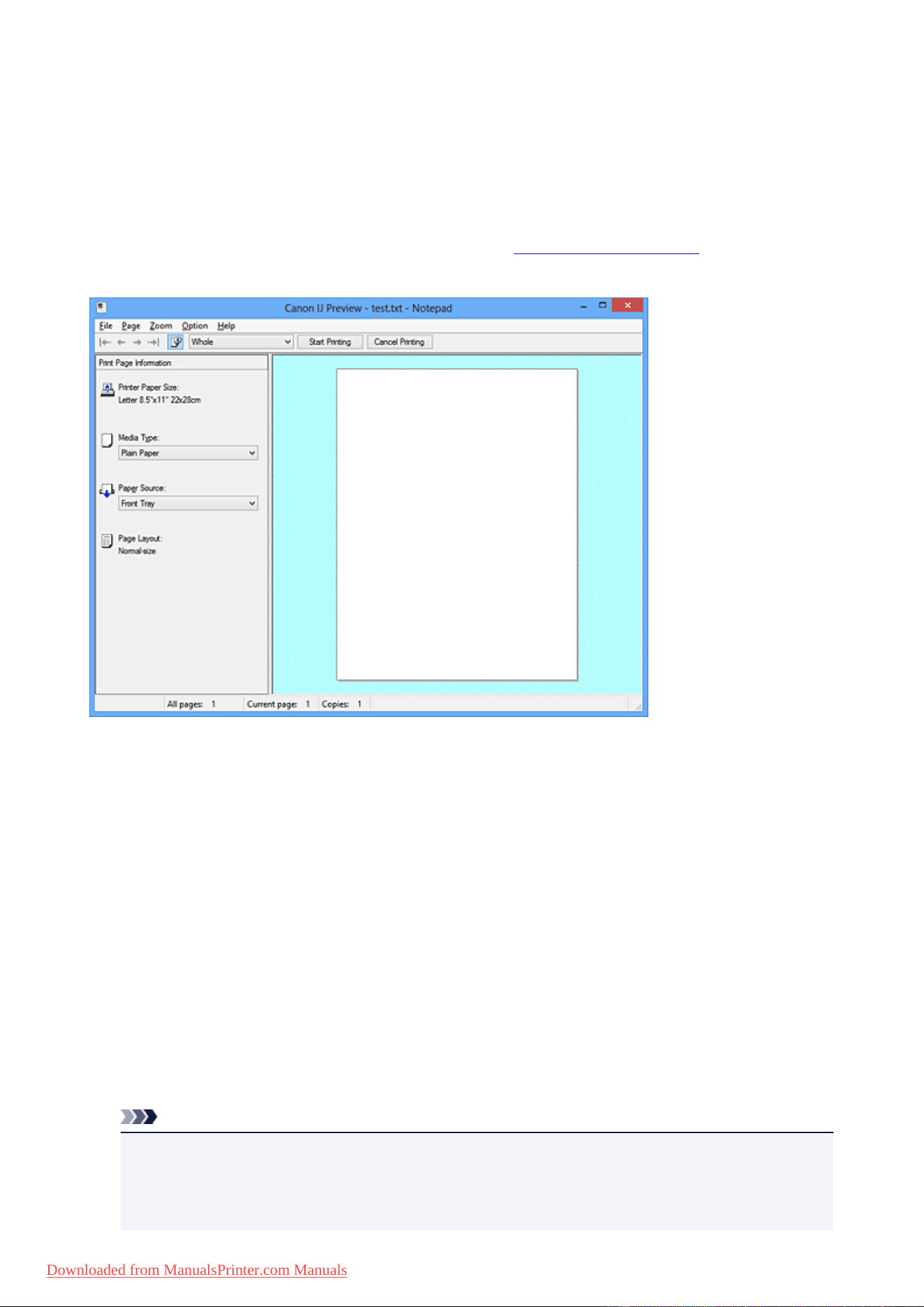
Canon IJ Preview Description
Canon IJ Preview is an application software that displays what the print result will look like before a
document is actually printed.
The preview reflects the information that is set within the printer driver and allows you to check the
document layout, print order, and number of pages. You can also change the media type and paper source
settings.
When you want to display a preview before printing, open the printer driver setup window, and check the
Preview before printing check box on the Main tab.
File Menu
Selects the print operation.
Start Printing
Ends the Canon IJ Preview and then starts printing the document that is displayed on the preview
screen.
This command has the same function as the Start Printing on the toolbar.
Cancel Printing
Ends the Canon IJ Preview and cancels the printing of the document that is displayed on the
preview screen.
This command has the same function as the Cancel Printing on the toolbar.
Exit
Ends the Canon IJ Preview.
Page Menu
This menu includes the following commands to select page to be displayed.
All of these commands except Page Selection... can also be selected from the toolbar.
Note
• If the pages are being spooled, the last spooled page becomes the last page.
• If the Page Layout setting on the Page Setup tab is specified to Page Layout, Tiling/Poster, or
Booklet, the number of pages is the number of sheets to be used for printing, and not the number
of pages in the original document created with the application software.
125
Downloaded from ManualsPrinter.com Manuals

• If duplex printing manually has been set, the front pages which will be printed first are all displayed
together, and then the back pages are displayed.
First Page
Displays the first page of the document.
If the currently displayed page is the first page, this command is grayed out and cannot be
selected.
Previous Page
Displays the page located before the currently displayed page.
If the currently displayed page is the first page, this command is grayed out and cannot be
selected.
Next Page
Displays the page located after the currently displayed page.
If the currently displayed page is the last page, this command is grayed out and cannot be
selected.
Last Page
Displays the last page of the document.
If the currently displayed page is the last page, this command is grayed out and cannot be
selected.
Page Selection...
Displays the Page Selection dialog box.
This command allows you to specify the page number of the page to be displayed.
Zoom Menu
Selects the ratio of the actual size printed on the paper to the preview display size.
You can also select the ratio from the drop-down list box located on the toolbar.
Whole
Displays the entire page of data as one page.
50%
Reduces the displayed data to 50% of the actual size to be printed.
100%
Displays the data at the actual size to be printed.
200%
Enlarges the displayed data to 200% of the actual size to be printed.
400%
Enlarges the displayed data to 400% of the actual size to be printed.
Option Menu
This menu includes the following command:
Displays Print Page Information
Displays print setup information (including printer paper size, media type, and page layout) for each
page at the left side of the preview screen.
This screen also allows you to change the media type and paper source settings.
Help Menu
When you select this menu item, the Help window for Canon IJ Preview is displayed, and you can
check the version and copyright information.
126
Downloaded from ManualsPrinter.com Manuals

Start Printing button
Prints the documents selected in the document list.
The printed documents are deleted from the list, and when all documents are printed, the Canon IJ XPS
Preview closes.
Cancel Printing button
Ends the Canon IJ Preview, and cancels the printing of the document that is displayed on the preview
screen.
You can click this button while spooling.
Print Page Information Screen
Displays print setup information for each page at the left side of the preview screen.
This screen also allows you to change the media type and paper source settings.
Important
• If the media type and paper source are set from the application software, those settings have
priority and the changed settings may become ineffective.
Printer Paper Size
Displays the paper size of the document to be printed.
Media Type
You can select the media type of the document to be printed.
Paper Source
You can select the paper source of the document to be printed.
Page Layout
Displays the page layout of the document to be printed.
127
Downloaded from ManualsPrinter.com Manuals
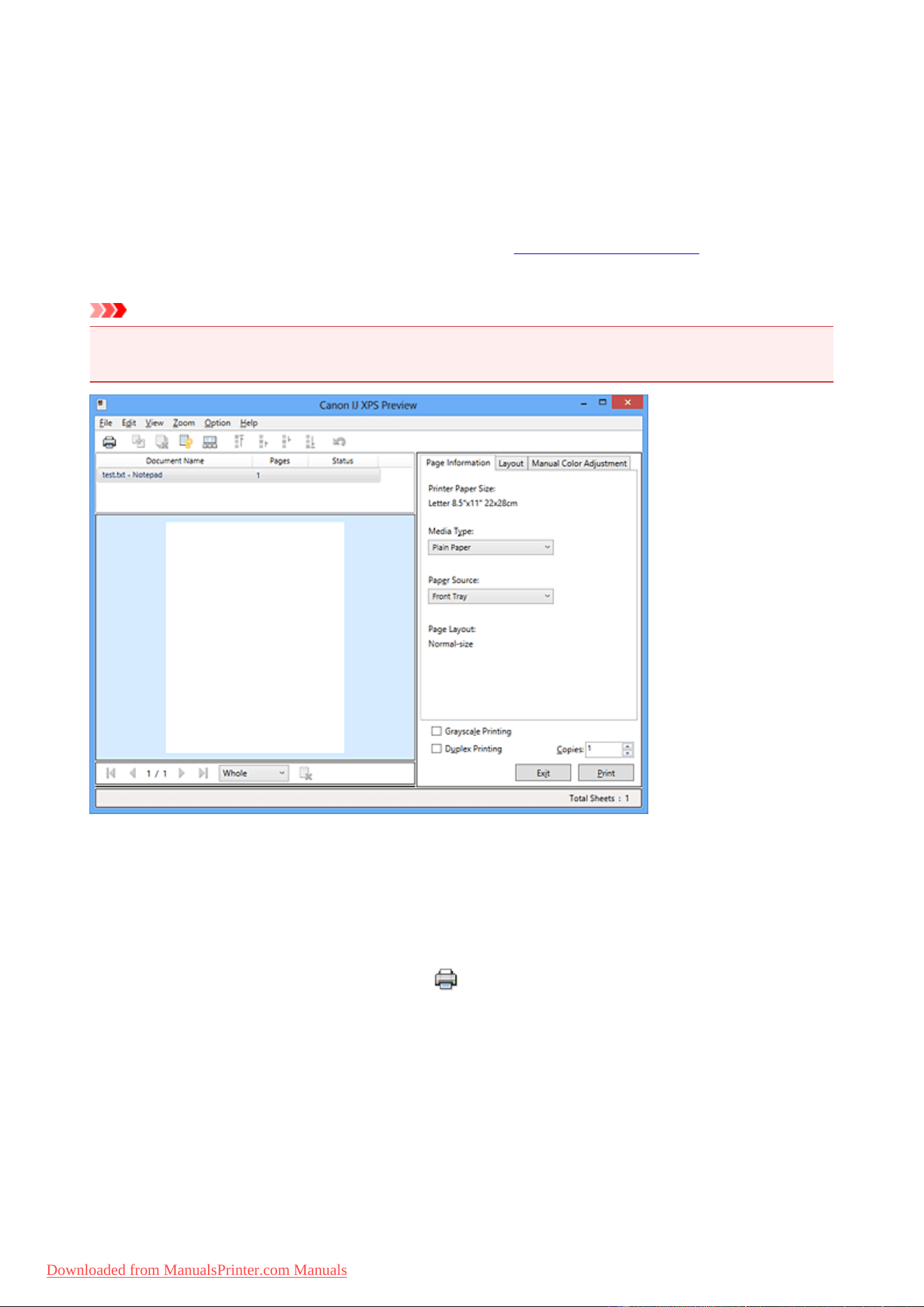
Canon IJ XPS Preview Description
Canon IJ XPS Preview is an application software that displays what the print result will look like before a
document is actually printed.
The preview reflects the information which is set within the printer driver and allows you to check the
document layout, print order, and number of pages. The preview also allows you to edit the print document,
edit the print pages, change the print settings, and perform other functions.
When you want to display a preview before printing, open the printer driver setup window, and check the
Preview before printing check box on the Main tab.
Important
• To use the Canon IJ XPS Preview, you must have Microsoft .NET Framework 4 Client Profile installed
on your computer.
File Menu
Selects print operation and print history settings:
Print
Prints the documents selected in the document list.
The printed documents are deleted from the list, and when all documents are printed, the Canon IJ
XPS Preview closes.
This command has the same function as (Print) on the toolbar and the Print in the print
settings area.
Print All Documents
Prints all documents in the document list and closes the Canon IJ XPS Preview.
Save Print History
Switches whether the documents printed from the Canon IJ XPS Preview are to be saved as print
history entries.
History Entry Limit
Switches the maximum number of print history registrations.
Select 10 Entries, 30 Entries, or 100 Entries.
128
Downloaded from ManualsPrinter.com Manuals
Important
• If the limit on the number of registration is exceeded, the print history registrations are deleted
starting from the oldest one.
Add documents from history to the list
Adds the document saved in the print history to the document list.
Exit
Ends the Canon IJ XPS Preview. The documents remaining in the document list will be deleted
from the list.
This command has the same function as the Exit in the print settings area.
Edit Menu
Selects the method for editing multiple documents or pages.
Undo
Reverses the previous change.
If the change cannot be reversed, this function is grayed out and cannot be selected.
This command has the same function as the (Undo) on the toolbar.
Documents
Selects the method for editing print documents.
Combine Documents
Combines the documents selected in the document list into one document.
If only one document is selected, this command is grayed out and cannot be selected.
This command has the same function as the (Combine Documents) on the toolbar.
Reset Documents
Returns the document selected in the document list to their status before they were added to
the Canon IJ XPS Preview.
The combined documents are separated, and the original documents are restored.
This command has the same function as the (Reset Documents) on the toolbar.
Move Document
Use the following command to change the order of the documents selected in the document
list.
Move to First
Moves the selected print document to the beginning of the document list.
If the currently selected document is the first document, this command is grayed out and
cannot be selected.
Move Up One
Moves the selected print document one up from its current position.
If the currently selected document is the first document, this command is grayed out and
cannot be selected.
Move Down One
Moves the selected print document one down from its current position.
If the currently selected document is the last document, this command is grayed out and
cannot be selected.
Move to Last
Moves the selected print document to the end of the document list.
If the currently selected document is the last document, this command is grayed out and
cannot be selected.
129
Downloaded from ManualsPrinter.com Manuals

Delete Document
Deletes the selected document from the document list.
If the document list contains only one document, the document is grayed out and cannot be
selected.
This command has the same function as the (Delete Document) on the toolbar.
Grayscale Printing
Allows you to change the monochrome print settings.
This command has the same functionality as the Grayscale Printing check box in the print
settings area.
Page Layout Printing...
Opens the Page Layout Printing dialog box.
This dialog box allows you to set Page Layout Printing, Pages, Page Order, and Page
Border.
Duplex Printing...
Opens the Duplex Printing dialog box.
This dialog box allows you to set Duplex Printing, Automatic, Stapling Side, and Margin.
Copies...
Opens the Copies dialog box.
This dialog box allows you to set Copies, Collate, and Print from Last Page.
Pages
Selects the method for editing print pages.
Delete Page
Deletes the currently selected page.
If page layout printing is set, the pages enclosed with red frame will be deleted.
This command has the same function as the (Delete Page) on the toolbar.
Restore Page
Restores pages that were deleted with the Delete Page function.
To restore pages, you must select the View Deleted Pages check box on the Option menu
and display the deleted pages as thumbnails.
Move Page
Use the following command to change the order of the currently selected pages.
Move to First
Moves the currently selected page to the beginning of the document.
If the currently selected page is the first page, this command is grayed out and cannot be
selected.
Move Forward One
Moves the currently selected page one position in front of its current position.
If the currently selected page is the first page, this command is grayed out and cannot be
selected.
Move Backward One
Moves the currently selected page one position after its current position.
If the currently selected page is the last page, this command is grayed out and cannot be
selected.
130
Downloaded from ManualsPrinter.com Manuals

Move to Last
Moves the currently selected page to the end of the document.
If the currently selected page is the last page, this command is grayed out and cannot be
selected.
View Menu
Selects the documents and pages to be displayed.
Documents
Use the following command to select the document to display.
First Document
Displays the first document in the document list.
If the currently selected document is the first document, this command is grayed out and
cannot be selected.
Previous Document
Displays the document located before the currently displayed document.
If the currently selected document is the first document, this command is grayed out and
cannot be selected.
Next Document
Displays the document located after the currently displayed document.
If the currently selected document is the last document, this command is grayed out and
cannot be selected.
Last Document
Displays the last document in the document list.
If the currently selected document is the last document, this command is grayed out and
cannot be selected.
Pages
Use the following command to select the page to be displayed.
Note
• If the Page Layout setting in the printer driver is specified to Tiling/Poster, or Booklet, the
number of pages is the number of sheets to be used for printing, and not the number of pages
in the original document created with the application software.
First Page
Displays the first page of the document.
If the currently displayed page is the first page, this command is grayed out and cannot be
selected.
Previous Page
Displays the page located before the currently displayed page.
If the currently displayed page is the first page, this command is grayed out and cannot be
selected.
Next Page
Displays the page located after the currently displayed page.
If the currently displayed page is the last page, this command is grayed out and cannot be
selected.
Last Page
Displays the last page of the document.
If the currently displayed page is the last page, this command is grayed out and cannot be
selected.
131
Downloaded from ManualsPrinter.com Manuals

Page Selection...
Displays the Page Selection dialog box.
This command allows you to specify the page number of the page to be displayed.
Zoom Menu
Selects the ratio of the actual size printed on the paper to the preview display size.
You can also select the ratio from the drop-down list box located on the toolbar.
Whole
Displays the entire page of data as one page.
50%
Reduces the displayed data to 50% of the actual size to be printed.
100%
Displays the data at the actual size to be printed.
200%
Enlarges the displayed data to 200% of the actual size to be printed.
400%
Enlarges the displayed data to 400% of the actual size to be printed.
Option Menu
Toggles the show / hide status of the following information.
View Thumbnails
Reduces all pages in the document selected in the document list and displays them at the bottom
of the preview window.
This command has the same function as the (View Thumbnails) on the toolbar.
View Document List
Displays the print document list at the top of the preview window.
View Print Settings Area
Displays the print settings area at the right side of the preview window.
View Deleted Pages
When the thumbnails are displayed, this function displays pages that were deleted with the Delete
Page function.
To check deleted pages, you must first select the View Thumbnails check box.
Keep printed documents on the list
Leaves the printed document in the document list.
Print Settings Displayed at Startup
Switches the tab of the print settings area to be displayed when the Canon IJ XPS Preview is
started.
Select Page Information, Layout, or Manual Color Adjustment.
Help Menu
When you select this menu item, the Help window for Canon IJ XPS Preview is displayed, and you can
check the version and copyright information.
(Print)
Prints the documents selected in the document list.
The printed documents are deleted from the list, and when all documents are printed, the Canon IJ XPS
Preview closes.
132
Downloaded from ManualsPrinter.com Manuals

(Combine Documents)
Combines the documents selected in the document list into one document.
If only one document is selected, this command is grayed out and cannot be selected.
(Delete Document)
Deletes the selected document from the document list.
If the document list contains only one document, the document is grayed out and cannot be selected.
(Reset Documents)
Returns the document selected in the document list to their status before they were added to the Canon
IJ XPS Preview.
The combined documents are separated, and the original documents are restored.
(View Thumbnails)
Reduces all pages in the document selected in the document list and displays them at the bottom of the
preview window.
To hide the print pages, click View Thumbnails again.
(Move to First)
Moves the selected print document to the beginning of the document list.
If the currently selected document is the first document, this command is grayed out and cannot be
selected.
(Move Up One)
Moves the selected print document one up from its current position.
If the currently selected document is the first document, this command is grayed out and cannot be
selected.
(Move Down One)
Moves the selected print document one down from its current position.
If the currently selected document is the last document, this command is grayed out and cannot be
selected.
(Move to Last)
Moves the selected print document to the end of the document list.
If the currently selected document is the last document, this command is grayed out and cannot be
selected.
(Undo)
Reverses the previous change.
If the change cannot be reversed, this function is grayed out and cannot be selected.
(Delete Page)
Deletes the currently selected page.
If page layout printing is set, the pages enclosed with red frame will be deleted.
Document list
Displays the list of the print documents.
The document selected in the document list becomes the target for preview display and editing.
Document Name
Displays the name of the print document.
If you click the name of the selected print document, a text box is displayed, and you can rename
the document to any name.
133
Downloaded from ManualsPrinter.com Manuals

Pages
Displays the number of pages in the print document.
Important
• The number displayed in Pages and the output page count are different.
• To check the output page count, check the status bar at the bottom of the preview window.
Status
Displays the status of the print documents.
Documents that are undergoing data processing are displayed as Processing data.
Important
• Documents showing Processing data cannot be printed or edited.
Wait until the data processing ends.
Print Settings Area Screen
Allows you to check and change the print settings of the documents selected in the document list.
Print Settings Area is displayed on the right side of the preview window.
Page Information tab
The print settings are displayed for each page.
You can change the media type and paper source settings.
Printer Paper Size
Displays the paper size of the document to be printed.
Media Type
Allows you to select the media type of the document to be printed.
Paper Source
Allows you to select the paper source of the document to be printed.
Page Layout
Displays the page layout of the document to be printed.
Layout tab
You can specify settings for page layout printing.
To apply the specified settings, click Apply.
If the page layout print settings cannot be changed for the print document, the individual items are
grayed out and cannot be selected.
Manual Color Adjustment tab
This tab allows you to adjust the color balance by changing the settings of the Cyan, Magenta,
Yellow, Brightness, Intensity, and Contrast options.
Cyan/Magenta/Yellow
Adjusts the strengths of Cyan, Magenta, and Yellow.
Moving the slider to the right makes a color stronger, and moving the slider to the left makes a
color weaker.
You can also directly enter a value linked to the slider. Enter a value in the range from -50 to
50.
This adjustment changes the relative amount of ink of each color used, which alters the total
color balance of the document.
Use your application software if you want to change the total color balance significantly. Use
the printer driver only if you want to adjust the color balance slightly.
134
Downloaded from ManualsPrinter.com Manuals

Important
• When Grayscale Printing is checked, Cyan, Magenta, and Yellow appear grayed out
and are unavailable.
Brightness
Selects the brightness of your print.
Pure white and black will not change, but colors between white and black will change.
Intensity
Adjusts the overall intensity of your print.
Moving the slider to the right increases the intensity, and moving the slider to the left
decreases the intensity.
You can also directly enter a value linked to the slider. Enter a value in the range from -50 to
50.
Contrast
Adjusts the contrast between light and dark in the image to be printed.
Moving the slider to the right increases the contrast, moving the slider to the left decreases the
contrast.
You can also directly enter a value linked to the slider. Enter a value in the range from -50 to
50.
Defaults
Restores all the settings you have changed to their default values.
Clicking this button restores all the settings on this tab to their default values (factory settings).
Grayscale Printing
Allows you to change the monochrome print settings.
Duplex Printing
Selects whether to print the document on both sides or one side of a sheet of paper.
If the duplex print settings cannot be changed for the print document, this item is grayed out and is
unavailable.
Important
• When you select Booklet for Page Layout, Duplex Printing of the print settings area will be
set automatically. In this case, Duplex Printing is grayed out and is unavailable.
Copies
Specifies the number of copies you want to print. You can specify a value from 1 to 999.
If the numbers of copies cannot be changed for the print document, this item is grayed out and is
unavailable.
Exit
Ends the Canon IJ XPS Preview.
The documents remaining in the document list will be deleted from the list.
Print
Prints the documents selected in the document list.
The printed documents are deleted from the list, and when all documents are printed, the Canon IJ
XPS Preview closes.
135
Downloaded from ManualsPrinter.com Manuals
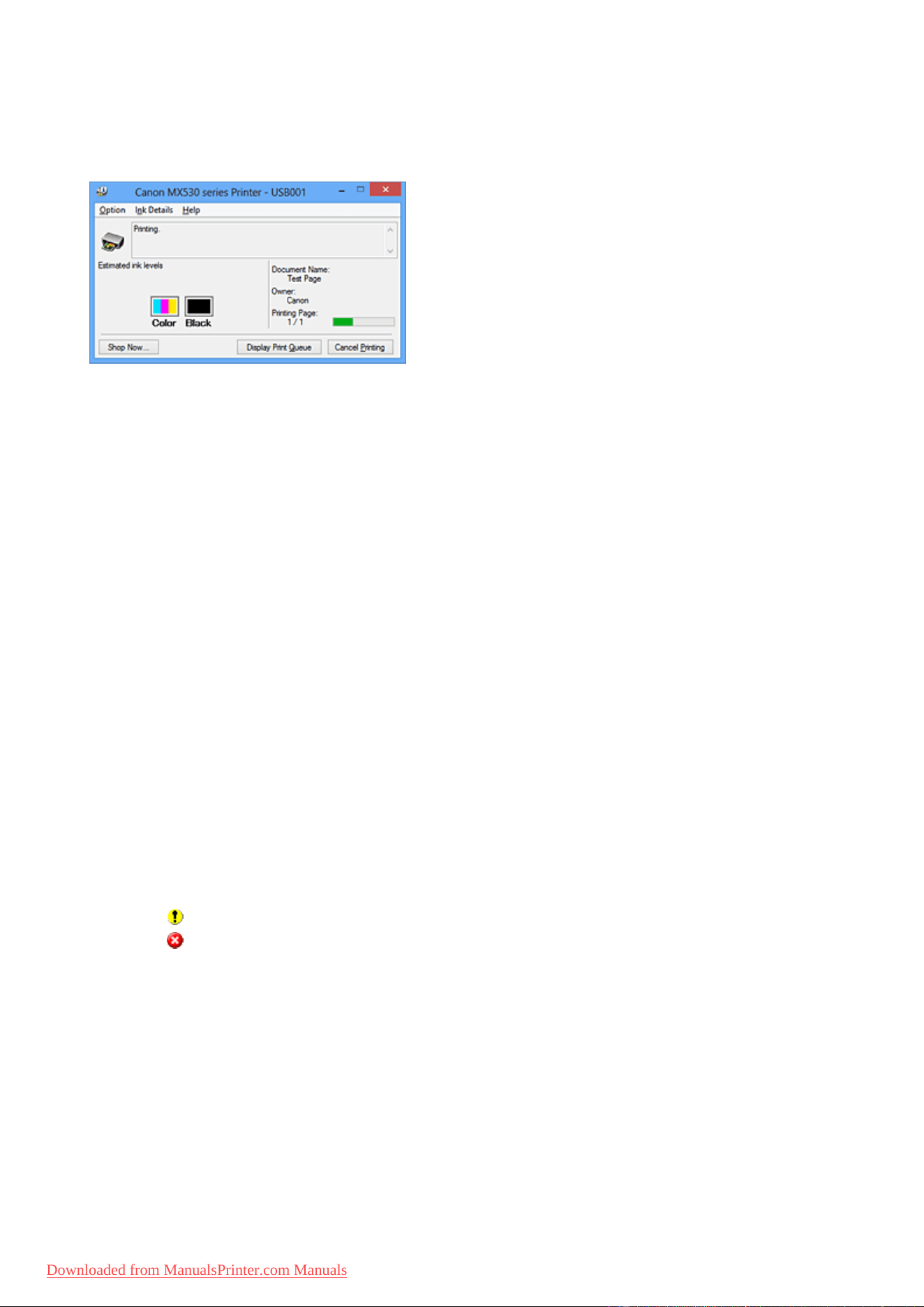
Canon IJ Status Monitor Description
The Canon IJ Status Monitor displays the status of the machine and the printing progress. The monitor uses
graphics, icons, and messages to let you know the machine status.
Canon IJ Status Monitor Features
The Canon IJ Status Monitor offers the following advantages:
You can check the status of the machine on the screen.
The status of the machine is shown on the screen in real time.
You can check the printing progress of each printing document (print job).
Error types and solutions are shown on the screen.
Shown when a machine error occurs.
You can immediately check how to respond.
You can check the ink status.
This function displays graphics showing the FINE cartridge type and the estimated ink levels.
Icons and messages are displayed when ink is running low (ink level warning).
Canon IJ Status Monitor Overview
Canon IJ Status Monitor allows you to check the status of the machine and ink with graphics and
messages.
You can check the information on the printing document and the printing progress during printing.
When a printer error occurs, it shows the cause and solution. Follow the instruction in the message.
Printer
Canon IJ Status Monitor shows an icon when a warning or error occurs to the machine.
: Indicates that a warning (operator call error) has occurred or the machine is working.
: There has been an error which requires a service.
FINE cartridge
Canon IJ Status Monitor shows an icon when a low ink warning or a no ink error occurs.
In addition, this function displays graphics showing the estimated ink levels of the FINE cartridge.
In this case, click the graphics to open the Ink Details dialog box. You can check the detail
information such as the remaining ink level and the FINE cartridge types for your machine.
Document Name
Shows the name of the document to be printed.
Owner
Shows the owner's name of the document to be printed.
136
Downloaded from ManualsPrinter.com Manuals

Printing Page
Shows the number of printing page and total printing pages.
Display Print Queue
Shows the print window used to manage the print job that is being printed or being in the print
queue.
Cancel Printing
Cancels the current print job.
Important
• The Cancel Printing button is enabled only while print data is being sent to the machine.
Once the print data has been sent, the button is grayed out and becomes unavailable.
Option Menu
If you select Enable Status Monitor, when a machine related message is generated the Canon
IJ Status Monitor starts.
When Enable Status Monitor is selected, following commands are available.
Always Display Current Job
Displays the Canon IJ Status Monitor during printing.
Always Display on Top
Displays the Canon IJ Status Monitor in front of other windows.
Display Guide Message
Displays the guide for operations in which how to set paper is complicated.
Envelope Printing
Displays the guide message when envelope printing starts.
To hide this guide message, select the Do not show this message again check box.
To display the guide messages again, click Envelope Printing on the Display Guide
Message in the Option menu and enable this setting.
Hagaki Printing
Displays the guide message before the printer begins hagaki printing.
To hide this guide message, select the Do not show this message again check box.
To display the guide messages again, click Hagaki Printing on the Display Guide
Message in the Option menu and enable this setting.
How to load paper
Displays a guide message if the other guide is not displayed when the printer begins
printing for media types other than plain paper.
To hide this guide message, select the Do not show this message again check box.
To display the guide messages again, click How to load paper on the Display Guide
Message in the Option menu and enable this setting.
Display Warning Automatically
When a Low Ink Warning Occurs
Starts the Canon IJ Status Monitor window automatically and displays it in front of the
other windows when a low ink warning occurs.
Start when Windows is Started
Starts the Canon IJ Status Monitor automatically when you start Windows.
Ink Details Menu
Select this menu to display the Ink Details dialog box. Check the detail information such as the
remaining ink level and the FINE cartridge types for your machine.
137
Downloaded from ManualsPrinter.com Manuals

Ink Details dialog box
This function displays graphics and messages showing the FINE cartridge type and the
estimated ink levels.
Ink Information (displayed at left)
Shows the FINE cartridge types with graphics.
If a warning or error related to the remaining ink level occurs, the printer driver displays
an icon to let you know.
If the icon is displayed, operate the printer according to the instructions displayed on the
screen.
Message (displayed at right)
Shows information such as the ink status and ink colors with sentences.
Ink Model Number
Shows the FINE cartridge types for your machine.
Close
Closes the Ink Details dialog box to return to Canon IJ Status Monitor.
Help Menu
When you select this menu item, the Help window for Canon IJ Status Monitor is displayed, and
you can check the version and copyright information.
138
Downloaded from ManualsPrinter.com Manuals


Obtaining the Latest MP Drivers
The MP Drivers include a printer driver, ScanGear (scanner driver), and fax driver.
By updating the MP Drivers to the latest version of the MP Drivers, unresolved problems may be solved.
You can access our website and download the latest MP Drivers for your model.
Important
• You can download the MP Drivers for free, but any Internet access charges incurred are your
responsibility.
• Before installing the latest MP Drivers, delete the previously installed version.
Related Topics
Before Installing the MP Drivers
Installing the MP Drivers
140
Downloaded from ManualsPrinter.com Manuals

Deleting the Unnecessary MP Drivers
The MP Drivers which you no longer use can be deleted.
When deleting the MP Drivers, first exit all programs that are running.
The procedure to delete the unnecessary MP Drivers is as follows:
1.
Start the uninstaller
• If you are using Windows 8, from the Desktop charms, select Settings -> Control Panel ->
Programs -> Programs and Features.
From the program list, select "XXX MP Drivers" (where "XXX" is your model name) and then click
Uninstall.
•
If you are using Windows 7 or Windows Vista, select Start menu -> Control Panel -> Programs -
> Programs and Features.
From the program list, select "XXX MP Drivers" (where "XXX" is your model name) and then click
Uninstall.
•
If you are using Windows XP, select Start menu -> Control Panel -> Add or Remove Programs.
From the program list, select "XXX MP Drivers" (where "XXX" is your model name) and then click
Remove.
The confirmation window for uninstalling the model appears.
Important
• In Windows 8, Windows 7, or Windows Vista, a confirmation/warning dialog box may appear when
starting, installing or uninstalling software.
This dialog box appears when administrative rights are required to perform a task.
When you are logged on to an administrator account, click Yes (or Continue, Allow) to continue.
Some applications require an administrator account to continue. In such cases, switch to an
administrator account, and restart the operation from the beginning.
2.
Execute the uninstaller
Click Execute. When the confirmation message appears, click Yes.
When all the files have been deleted, click Complete.
The deletion of the MP Drivers is complete.
Important
• Printer driver, XPS printer driver, ScanGear (scanner driver), and fax driver will be deleted when you
uninstall the MP Drivers.
141
Downloaded from ManualsPrinter.com Manuals

Before Installing the MP Drivers
This section describes the items that you should check before installing the MP Drivers. You should also
refer to this section if the MP Drivers cannot be installed.
Checking the Machine Status
• Turn off the machine.
Checking the Personal Computer Settings
• Terminate all running applications.
• In Windows 8, Windows 7, or Windows Vista, log on as a user who has the administrator account.
In Windows XP, log on as the computer administrator.
Important
• Before installing the latest MP Drivers, delete the previously installed version.
Related Topics
Obtaining the Latest MP Drivers
Installing the MP Drivers
142
Downloaded from ManualsPrinter.com Manuals

Installing the MP Drivers
You can access our web site through the Internet and download the latest MP Drivers and XPS printer driver
for your model.
The procedure for installing the downloaded MP Drivers is as follows:
1.
Turn off the machine
2.
Start the installer
Double-click the icon of the downloaded file.
The installation program starts.
Important
•
In Windows 8, Windows 7, or Windows Vista, a confirmation/warning dialog box may appear when
starting, installing or uninstalling software.
This dialog box appears when administrative rights are required to perform a task.
When you are logged on to an administrator account, click Yes (or Continue, Allow) to continue.
Some applications require an administrator account to continue. In such cases, switch to an
administrator account, and restart the operation from the beginning.
3.
Install the MP Drivers
Take the appropriate action as described on the screen.
4.
Complete the installation
Click Complete.
Depending on the environment you are using, a message prompting you to restart the computer may be
displayed. To complete the installation properly, restart the computer.
Important
• You can install the XPS printer driver with the same procedure for installing the MP Drivers. However,
when installing the XPS printer driver, first complete installation of the MP Drivers.
• You can download the MP Drivers and XPS printer driver for free, but any Internet access charges
incurred are your responsibility.
• Before installing the latest MP Drivers, delete the previously installed version.
Related Topics
Obtaining the Latest MP Drivers
Deleting the Unnecessary MP Drivers
Before Installing the MP Drivers
143
Downloaded from ManualsPrinter.com Manuals

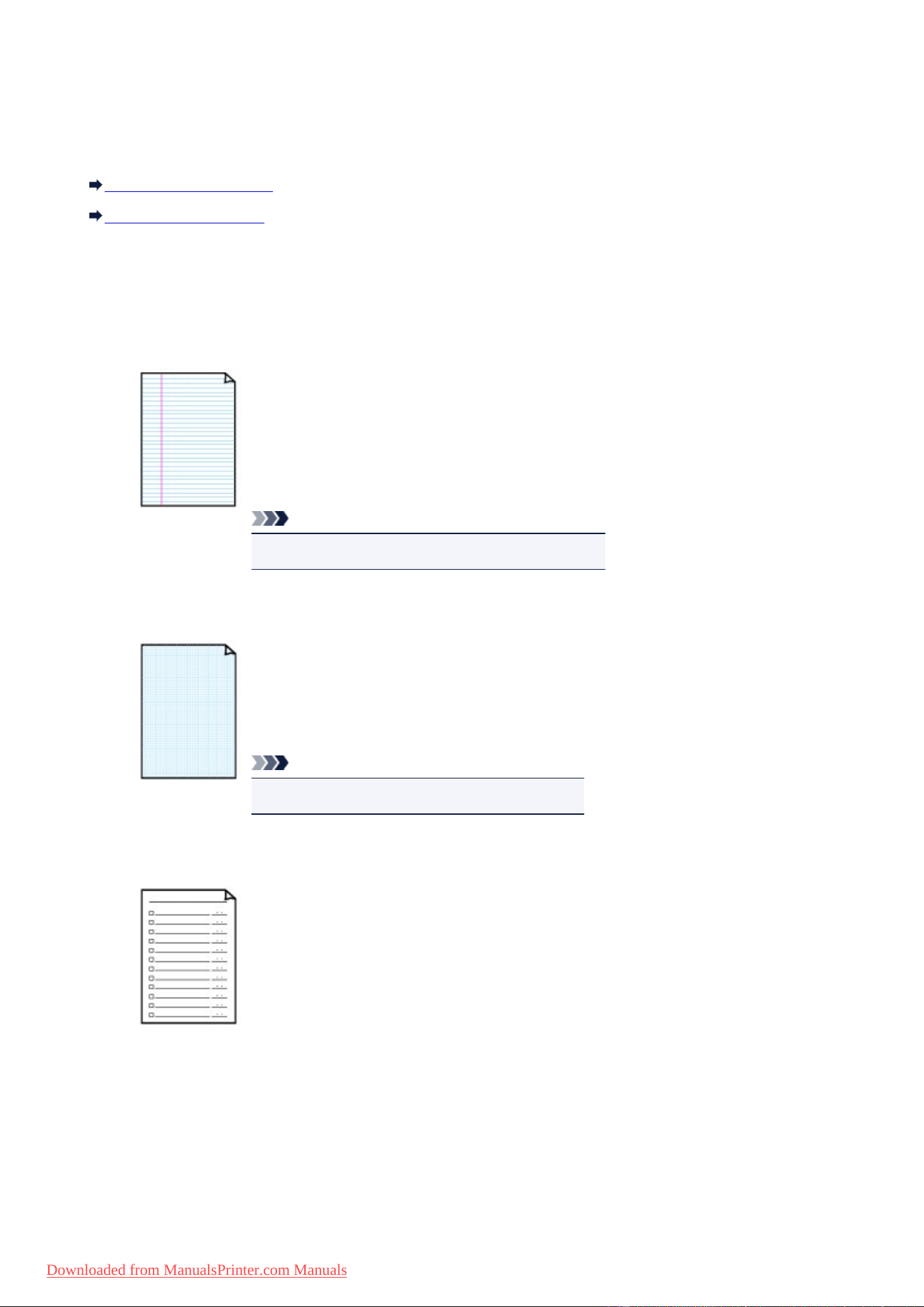
Printing Template Forms Such As Lined Paper or Graph Paper
You can print a template form such as lined paper, graph paper, or checklist, etc. on A4, B5, or Letter-sized
plain paper.
Printable template forms
Printing template forms
Printable template forms
The following templates are available:
• Notebook paper
You can select three line spacing formats.
Setting on the LCD:
◦ Notebook paper 1: 8 mm spacing
◦ Notebook paper 2: 7 mm spacing
◦ Notebook paper 3: 6 mm spacing
Note
•
You cannot print Notebook paper on B5 sized paper.
• Graph paper
You can select two square sizes.
Setting on the LCD:
◦ Graph paper 1: Graph 5 mm
◦ Graph paper 2: Graph 3 mm
Note
•
You cannot print Graph paper on B5 sized paper.
•
Checklist
You can print a notepad with checkboxes.
Setting on the LCD:
Checklist
145
Downloaded from ManualsPrinter.com Manuals
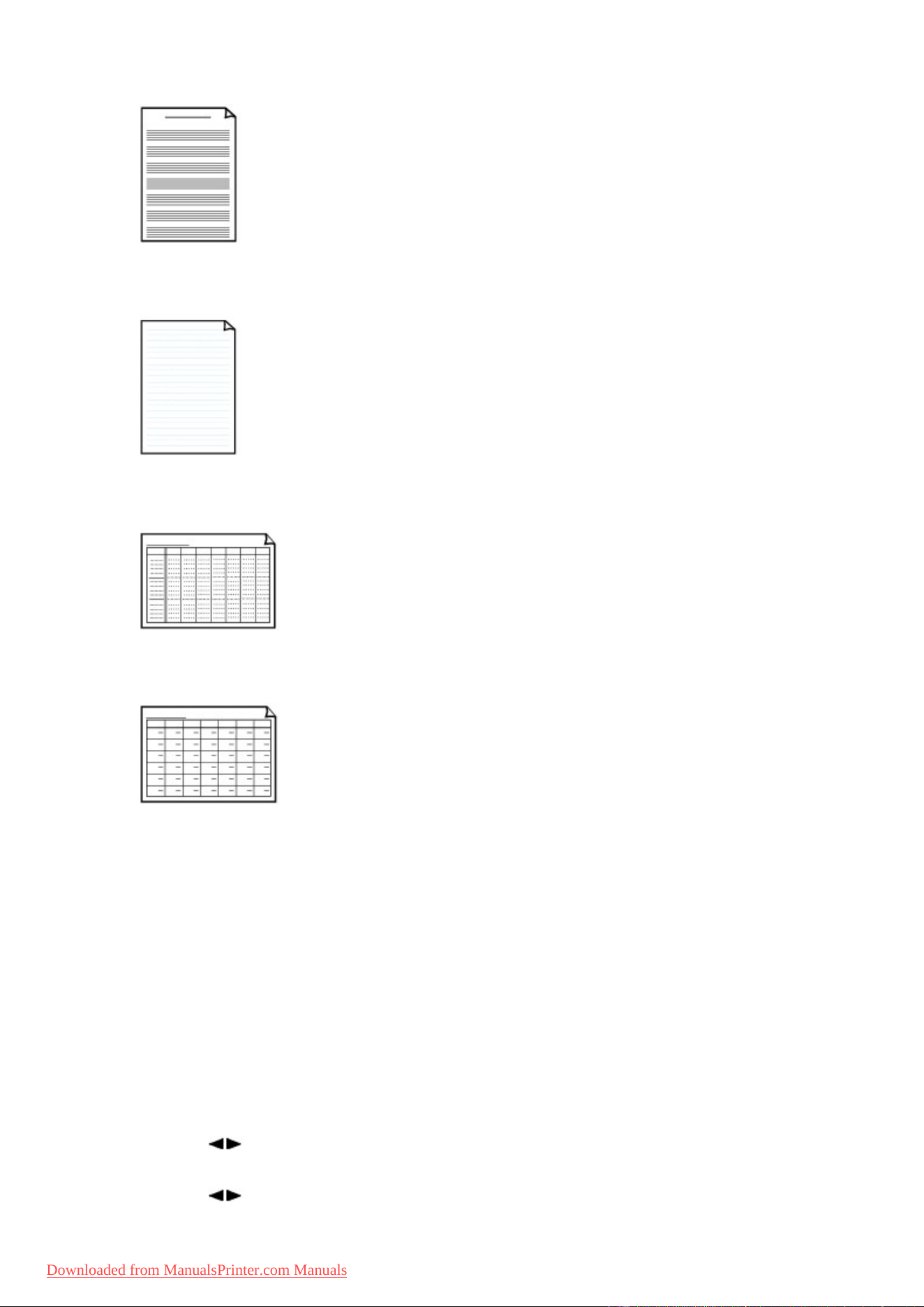
• Staff paper
You can print staff paper with 10 or 12 staves.
Setting on the LCD:
◦ Staff paper 1: 10 staves
◦ Staff paper 2: 12 staves
• Handwriting paper
You can print handwriting paper.
Setting on the LCD:
Handwriting paper
• Weekly schedule
You can print a weekly schedule form.
Setting on the LCD:
Weekly schedule
• Monthly schedule
You can print a monthly schedule form.
Setting on the LCD:
Monthly schedule
Printing template forms
Print template form following the procedure below.
1. Make sure that the machine is turned on.
2. Load A4, B5, or Letter-sized plain paper.
3. Press the Setup button.
The Setup menu screen is displayed.
4. Use the button to select Template print, then press the OK button.
5. Use the button to select the template you want to print, then press the OK button.
146
Downloaded from ManualsPrinter.com Manuals
Printable template forms
6. Use the button to specify whether to perform two-sided printing, then press the OK
button.
7. Use the button to specify the paper size, then press the OK button.
Note
• The * (asterisk) on the LCD indicates the current setting.
8.
Make sure that Plain paper is selected, then press the OK button.
Note
•
If any media type other than Plain paper is selected on the LCD, select Plain paper using the
button.
9.
Use the (-) (+) button or the Numeric buttons to specify the number of copies.
10.
Press the OK button to start printing.
Note
•
You can also press the Color button or Black button to start printing.
147
Downloaded from ManualsPrinter.com Manuals
Printing with the Access Point Mode
When the machine enters the access point mode, you can print from an external device such as a computer
or a smartphone without involving an access point.
Important
• Before you use the machine with the access point mode, be sure to specify the access point name of
the machine and the security setting.
Before Using the Machine with the Access Point Mode
1.
Make sure that the machine is turned on.
2.
Press the Setup button.
The Setup menu screen is displayed.
3.
Use the button to select Access point mode, then press the OK button.
The machine enters the access point mode.
Note
• If the machine receives a fax in the access point mode, the machine cancels the access point
mode automatically after a certain time, then the machine switches to the fax mode.
If you want to continue to print with the access point mode, set the machine to the access point
mode again.
4.
Connect an external device such as a computer or a smartphone to the machine via
wireless LAN.
Perform wireless LAN settings with your external device, then assign the access point name specified for
the machine as a destination.
Note
•
For details on how to perform wireless LAN settings with an external device, refer to the device's
instruction manual.
•
While the machine is in the access point mode, you can confirm the access point name and the
details on the security setting by pressing the OK button.
Use the button to select a setting item to display, then press the OK button again.
•
If SSID is selected:
The access point name specified for the machine is displayed.
When you specify the machine as a destination for wireless connection to an external device,
assign the access point name specified for the machine.
•
If Security protocol is selected:
The details on the security setting specified for the machine is displayed.
When a WPA2-PSK (AES) passphrase is valid, entering the passphrase is required to
connect an external device to the machine via wireless LAN. Enter the passphrase specified
for the machine.
148
Downloaded from ManualsPrinter.com Manuals

5. Load paper on the machine.
6. Start printing from an external device such as a computer or a smartphone.
Perform printing from the external device and specify the machine as a printer you use.
Note
•
For details on how to print from an external device such as a computer or a smartphone via
wireless LAN, refer to the device's or application's instruction manual.
•
You can also print using PIXMA Printing Solutions.
7.
Press the Stop button when printing is completed.
The machine exits from the access point mode.
149
Downloaded from ManualsPrinter.com Manuals


Printing from Mobile Phone via Bluetooth Communication
This section describes the procedure to print photos through Bluetooth communication from a mobile phone
with the optional Bluetooth Unit BU-30.
When printing from a mobile phone through Bluetooth communication, refer also to your mobile phone's
instruction manual.
For the procedure to print through Bluetooth communication from the computer, refer to About Bluetooth
Communication.
Note
• Mobile phones supporting OPP (Object Push Profile) or BIP (Basic Imaging Profile) can be used to print
photos.
Depending on your mobile phone, you may not perform printing even if your mobile phone supports the
profiles above. For information on the profiles your mobile phone supports, refer to your mobile phone's
instruction manual.
1.
Make sure that the machine is turned on.
2.
Load paper.
3.
Attach the optional Bluetooth Unit BU-30.
4.
Specify the setting of page size and media type and so on.
1. Press the Setup button.
The Setup menu screen is displayed.
2. Use the button to select Device settings, then press the OK button.
3. Use the button to select Mob. phone settings, then press the OK button.
For details on the print setting:
Mob. phone settings
5. Start printing from a mobile phone.
•
For the device name, select the default value "Canon XXX series-1" (where "XXX" is your
machine's name).
•
If you are required to input a passkey, input the default value "0000".
You can change the device name of the machine, passkey, and so on from the Bluetooth
settings screen.
Setting Bluetooth Printing
Note
•
Communication is possible in a range of up to about 33 ft. / 10 m depending on the conditions
below. Printing speed may vary depending on the following conditions:
-Presence of obstacles between the communication equipment, and radio conditions.
-Presence of magnetic fields, static electricity, or electromagnetic interference.
151
Downloaded from ManualsPrinter.com Manuals

-Receiver sensitivity and antenna performance of the communication equipment.
• Video files cannot be printed.
•
Depending on your mobile phone, data saved on a memory card may not be printed.
• About transmittable data
• Due to security settings on the mobile phone, downloaded content or photos downloaded from
a URL attached to an E-mail cannot be printed.
•
Depending on the size of a photo, it may take a while for this machine to start printing after
starting wireless communication.
•
Printed quality and orientation (portrait or landscape) are determined automatically according
to the shot photo size.
•
Depending on the photo size shot on the mobile phone, the edges of the image may be cut off
when performing borderless printing; the margin size may change when printing with borders.
•
If the photo file is over 1.8 MB in size, it may not be possible to send the file.
152
Downloaded from ManualsPrinter.com Manuals



Shipping the Bluetooth Unit
The Bluetooth unit may not be used in countries or regions other than the country or region where it was
purchased due to local laws and regulations. Please note that the use of the Bluetooth unit in such countries
or regions may lead to penalties and that Canon should not be liable for such punishment.
155
Downloaded from ManualsPrinter.com Manuals


Bluetooth Unit
The Bluetooth Unit BU-30 (hereafter referred to as the Bluetooth unit) is an adaptor which can be used with
a Canon IJ printer with Bluetooth interface.
By attaching the Bluetooth unit to a Canon IJ printer with Bluetooth interface, wireless printing from a
Bluetooth enabled device, such as a computer or mobile phone, is possible.
Note
• Communication is possible in a range of up to about 33 ft. / 10 m depending on the conditions below.
Printing speed may vary depending on the following conditions:
• Presence of obstacles between the communication equipment and radio wave conditions.
• Presence of magnetic fields, static electricity or electromagnetic interference.
• Software and operating system to be used.
• Receiver sensitivity and antenna performance of the communication equipment.
157
Downloaded from ManualsPrinter.com Manuals
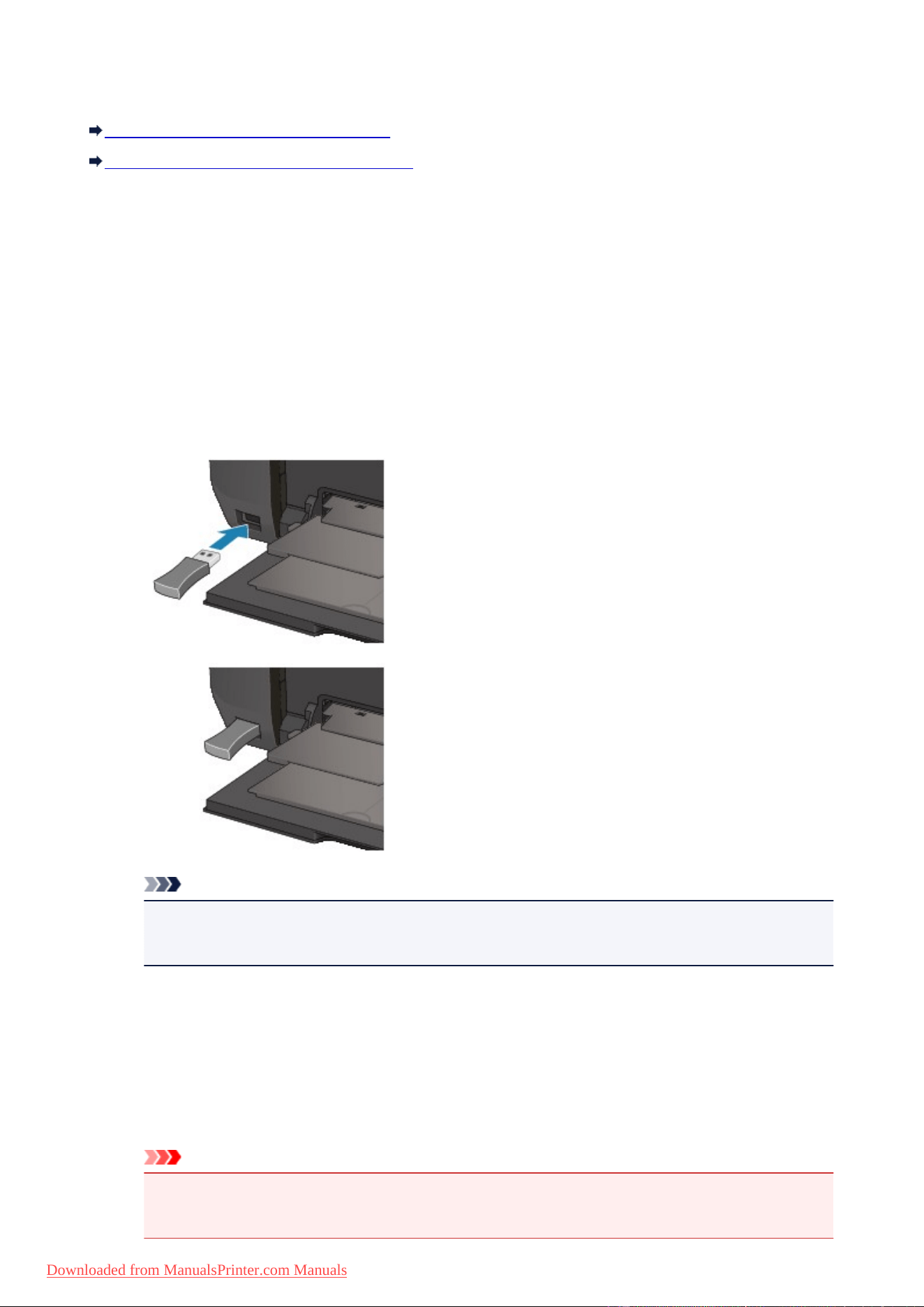
Attaching to and Removing from the Printer
Attaching the Bluetooth Unit to the Printer
Removing the Bluetooth Unit from the Printer
Attaching the Bluetooth Unit to the Printer
Attach the Bluetooth unit to the USB flash drive port of the printer in accordance with the following
procedure.
Refer to Front View for the position of the USB flash drive port.
1.
Make sure that the printer is turned on.
2.
Insert the Bluetooth unit to the USB flash drive port of the printer.
Detach the cap from the Bluetooth unit. Store the cap in a safe location.
Note
•
When the Bluetooth unit is properly attached to the printer, the message is displayed on the
LCD.
Removing the Bluetooth Unit from the Printer
Remove the Bluetooth unit from the USB flash drive port of the printer in accordance with the following
procedure.
1.
Remove the Bluetooth unit from the USB flash drive port of the printer.
Important
•
Make sure that the lamp on the Bluetooth unit is neither lit nor flashing before you remove the
Bluetooth unit.
158
Downloaded from ManualsPrinter.com Manuals
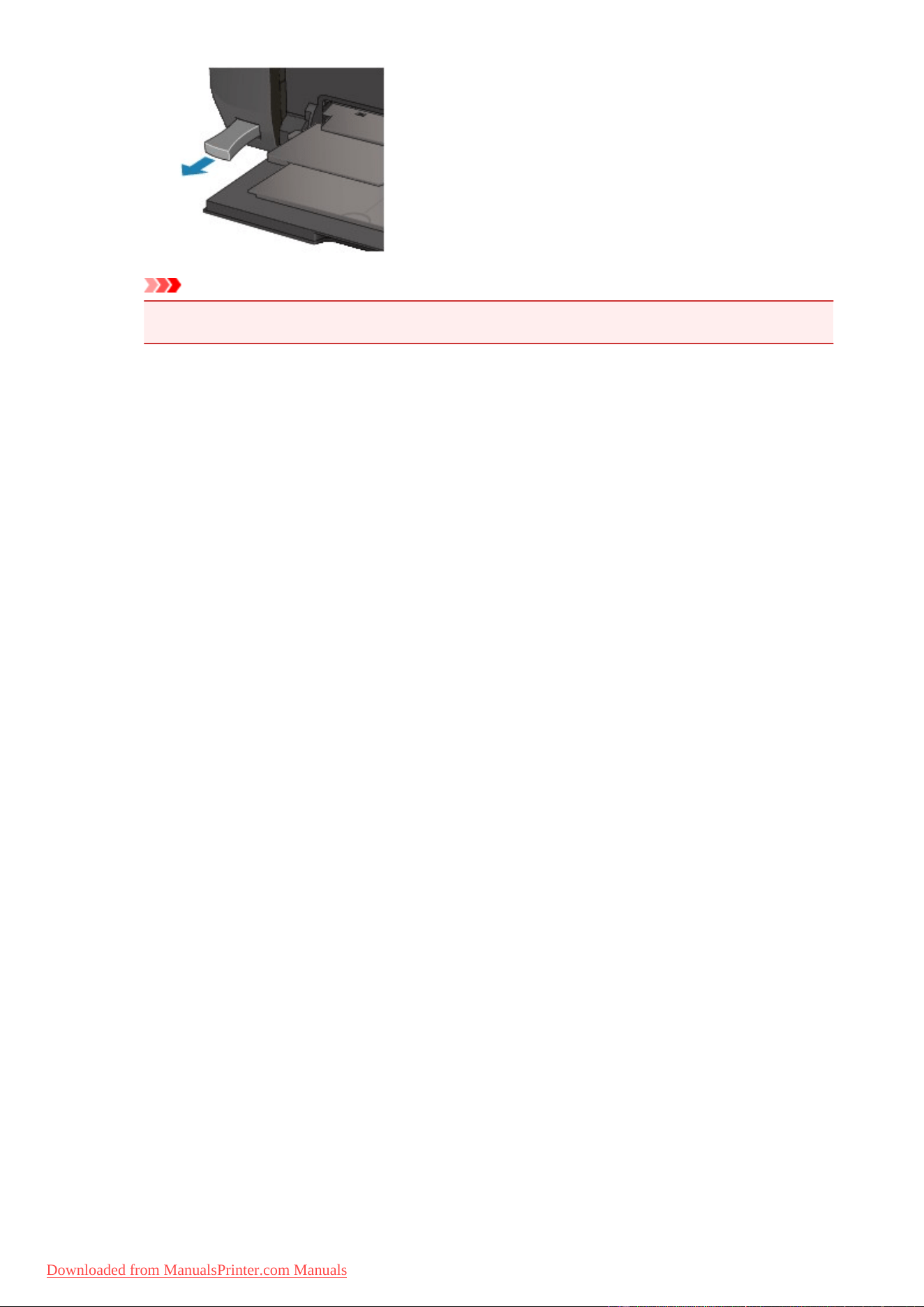


Preparation
In order to print via Bluetooth communication with Windows, the following system requirements must be
satisfied.
• Computer
A computer in which an internal Bluetooth module is installed or a computer to which an optional
Bluetooth adapter (available from various manufacturers) is attached.
• OS
Microsoft Windows 8 (Satisfying any one of the following conditions is needed)
◦ The Bluetooth Devices icon is displayed on the notification area on the desktop
◦ Bluetooth Stack for Windows by Toshiba Version 9.10.00 or later is installed
Microsoft Windows 7 (Satisfying any one of the following conditions is needed)
◦ Add a Bluetooth Device is displayed in Hardware and Sound under Control Panel
◦ Bluetooth Stack for Windows by Toshiba Version 7.00.00 or later is installed
Microsoft Windows Vista (Satisfying any one of the following conditions is needed)
◦ Bluetooth Devices is displayed in Hardware and Sound under Control Panel
◦ Bluetooth Stack for Windows by Toshiba Version 5.10.04 or later is installed
Microsoft Windows XP (Satisfying any one of the following conditions is needed)
◦ Windows XP SP2 or later is installed, and Bluetooth Devices is displayed in Printers and
Other Hardware under Control Panel
◦ Bluetooth Stack for Windows by Toshiba Version 3.00.10 or later is installed
For more information about how to confirm the version of Bluetooth Stack for Windows by Toshiba, see
Check 2
Is unsupported Bluetooth driver used?
In order to connect the Bluetooth unit and print via Bluetooth communication, the following steps are
required.
1. Check that the Bluetooth unit is properly attached to the printer.
2. Install the MP Drivers.
3. Check the device name of the printer using the LCD.
4. Register the printer for Bluetooth printing.
•
When using Windows 8, and when the Bluetooth Devices icon is displayed on the
notification area on the desktop
Right-click the Bluetooth Devices icon on the notification area on the desktop, then
authenticate the printer as a Bluetooth device on Add a Bluetooth Device.
161
Downloaded from ManualsPrinter.com Manuals

See Registering the Printer.
• When using Windows 7, and when Add a Bluetooth Device is displayed in Hardware and
Sound under Control Panel
Authenticate the printer as a Bluetooth device on Add a Bluetooth Device in Hardware and
Sound under Control Panel.
See Registering the Printer.
• When using Windows Vista, and when Bluetooth Devices is displayed in Hardware and
Sound under Control Panel
Authenticate the printer as a Bluetooth device on Bluetooth Devices in Hardware and Sound
under Control Panel.
See Registering the Printer.
•
When using Windows XP SP2 or later, and when Bluetooth Devices is displayed in Printers
and Other Hardware under Control Panel
Authenticate the printer as a Bluetooth device on Bluetooth Devices in Printers and Other
Hardware under Control Panel.
See Registering the Printer.
• The operations may vary depending on your operating program. In this case, refer to your
computer's operation manual.
162
Downloaded from ManualsPrinter.com Manuals

Installing the MP Drivers
Note
• If you use the printer connecting with a computer, the MP Drivers have already been installed. In this
case, move to the next step.
Checking the Device Name of the Printer
Before connecting the Bluetooth unit to the printer for wireless printing, install the MP Drivers to your
computer.
If you reinstall the MP Drivers, reinstall them with the Setup CD-ROM or reinstall them from our website.
163
Downloaded from ManualsPrinter.com Manuals
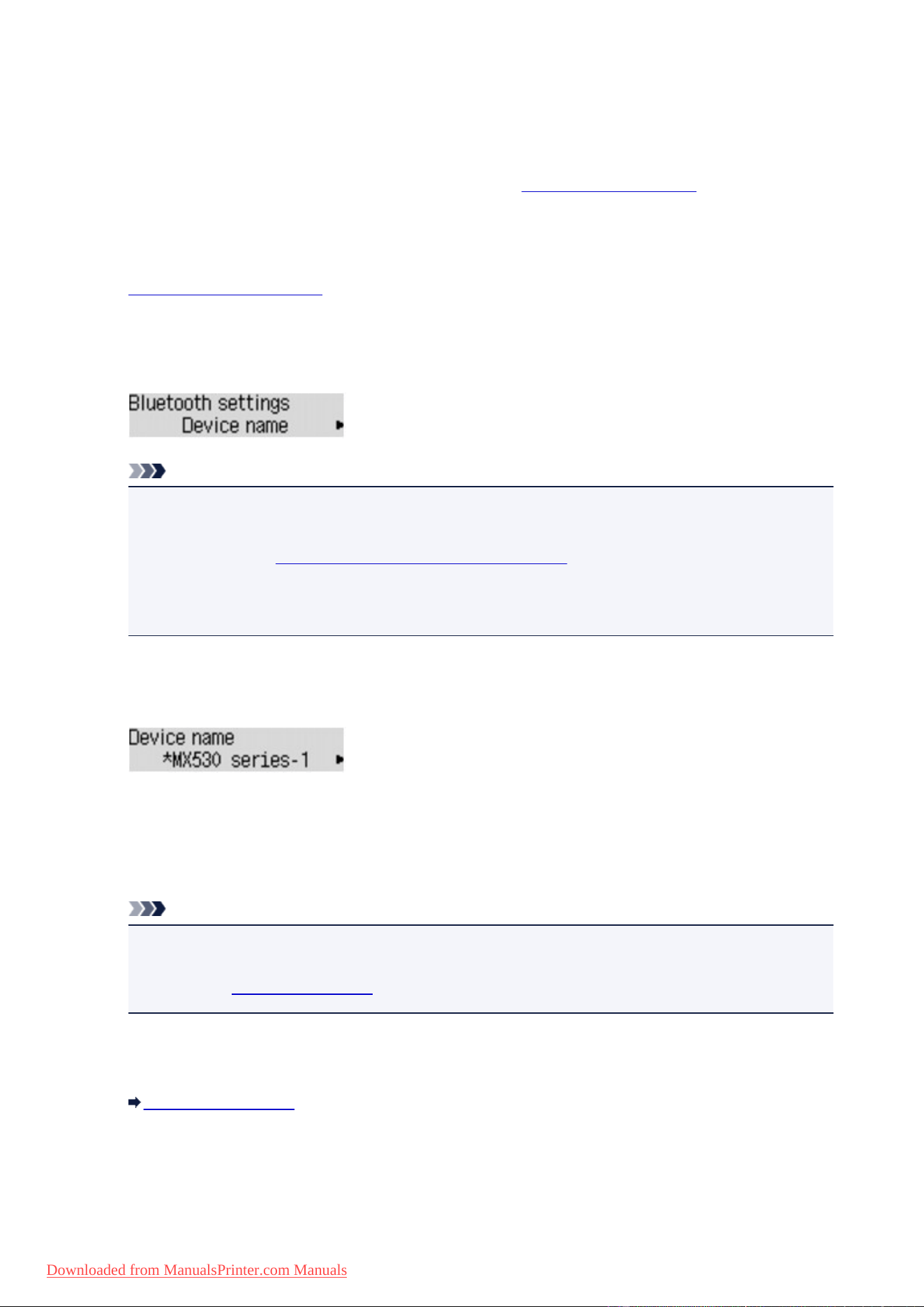
Checking the Device Name of the Printer
This section describes the procedures for checking the settings of the Bluetooth unit on the LCD of the
printer in preparation for Bluetooth printing.
If you need more information about the Bluetooth settings, see Setting Bluetooth Printing.
1.
Make sure that the printer is turned on.
2.
Attach the Bluetooth unit.
3.
Display the setting screen on the LCD.
Display the Bluetooth settings screen.
Note
• If the Bluetooth settings screen is not displayed on the LCD, the Bluetooth unit may not be
attached correctly. Remove the Bluetooth unit from the printer and attach it once again.
For details, see Attaching to and Removing from the Printer.
If the Bluetooth settings screen is not yet displayed, the Bluetooth unit may be faulty. In this
case, contact the service center.
4.
Select Device name.
The Device name screen is displayed.
5.
Check the device name.
The device name is necessary to register the printer as a Bluetooth device. Be sure to note the device
name.
Note
•
If multiple printer units with the same model name are connected to the system, assigning a
different device name to each printer is recommended for easy identification of the printer you will
use. See
Device name Screen.
After checking the device name, use the OK button on the printer to finish setting.
After checking the Bluetooth settings using the LCD, register the printer on your computer.
Registering the Printer
164
Downloaded from ManualsPrinter.com Manuals
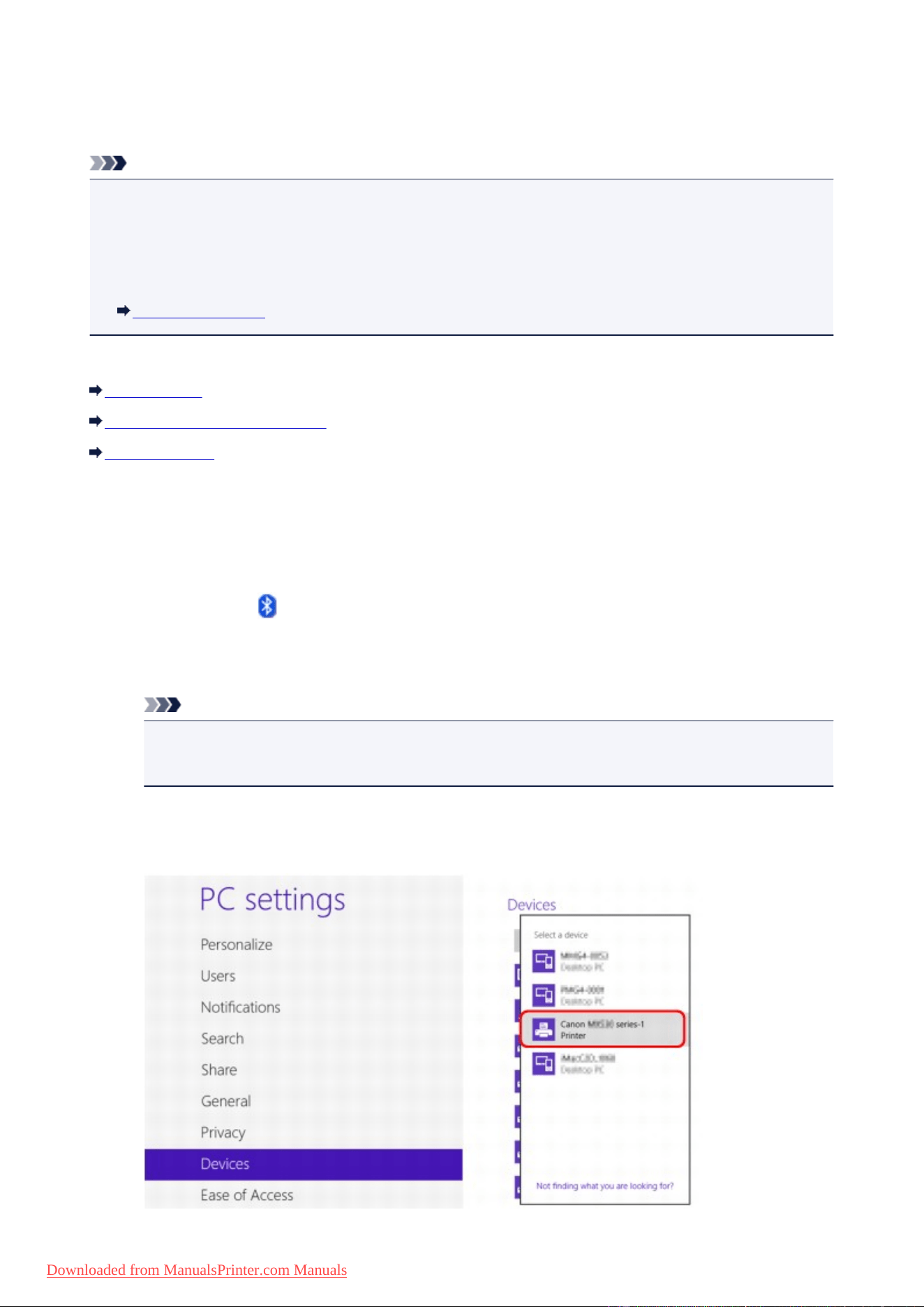
Registering the Printer
Follow the procedure below to register the printer as a Bluetooth device.
Note
• Before registering the printer, enable the Bluetooth function of your computer.
For more information, refer to your computer's operation manual.
• If you want to re-register the printer as a Bluetooth device, first delete the registered printer, and then
re-register it.
Deleting the Printer
The procedure to authenticate the computer may vary depending on the computer you are using.
In Windows 8:
In Windows 7 or Windows Vista:
In Windows XP:
In Windows 8:
1.
Log into a user account with the administrator privilege.
2.
Right-click the Bluetooth Devices icon on the notification area on the desktop, then
select Add a Bluetooth Device.
The PC settings screen is displayed.
Note
• The screen is also displayed by selecting Change PC settings from the Settings charm on
Desktop.
3.
Select Devices > Add a device, then select the device name of the printer from the
device list.
165
Downloaded from ManualsPrinter.com Manuals
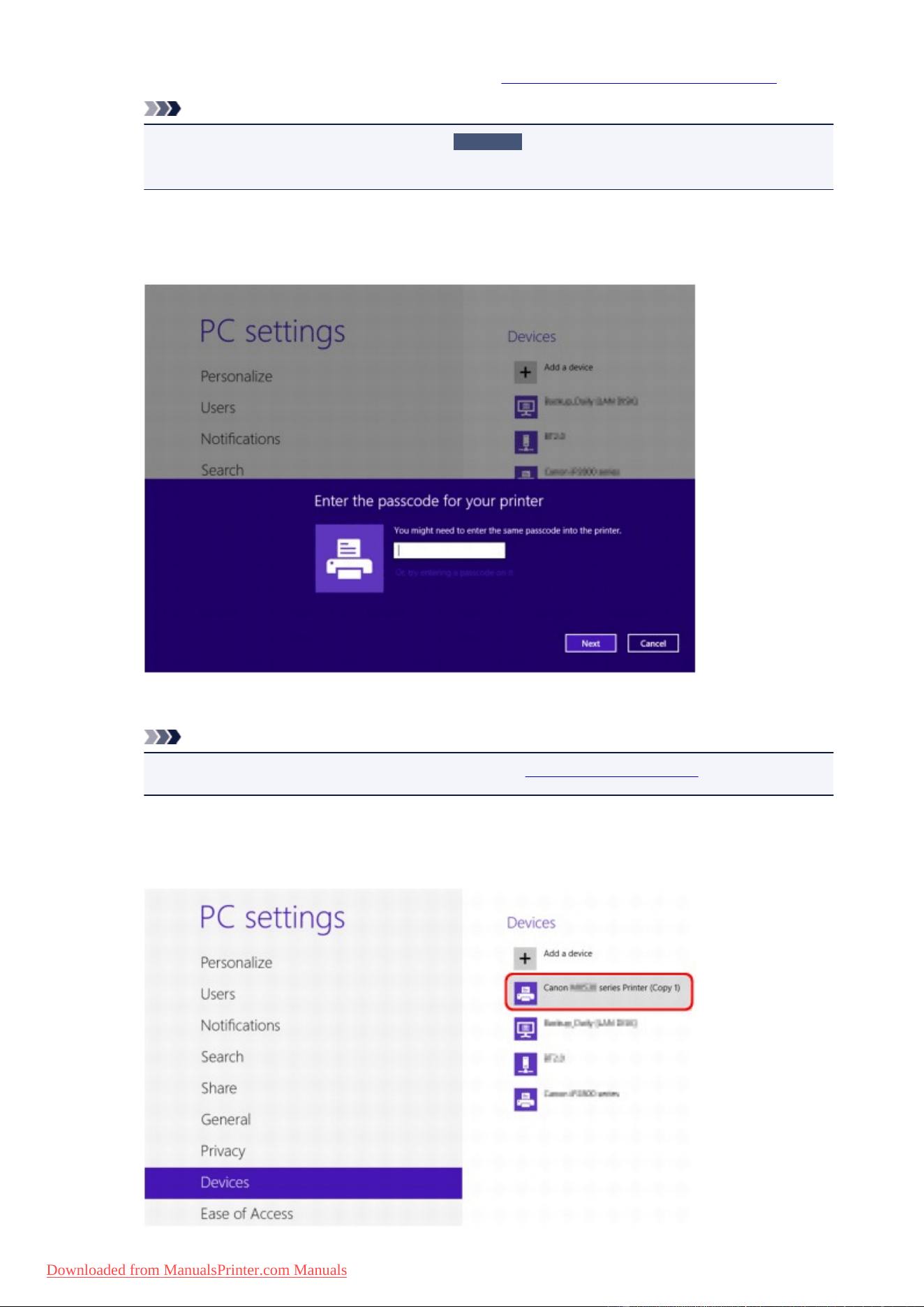
Select the same device name as that checked under Checking the Device Name of the Printer.
Note
•
If the device name is not displayed, see
Check 3
Is the printer name which you want to
register displayed in the Printer List?.
4. Enter the passcode (passkey), then click Next.
If you do not set a passkey on the printer, click Next without entering any characters.
Printer registration is started.
Note
• For more information about setting a passkey, see Bluetooth settings Screen.
5.
Make sure that the printer is added.
Make sure that the registered printer name is displayed on Devices on the PC settings screen.
166
Downloaded from ManualsPrinter.com Manuals
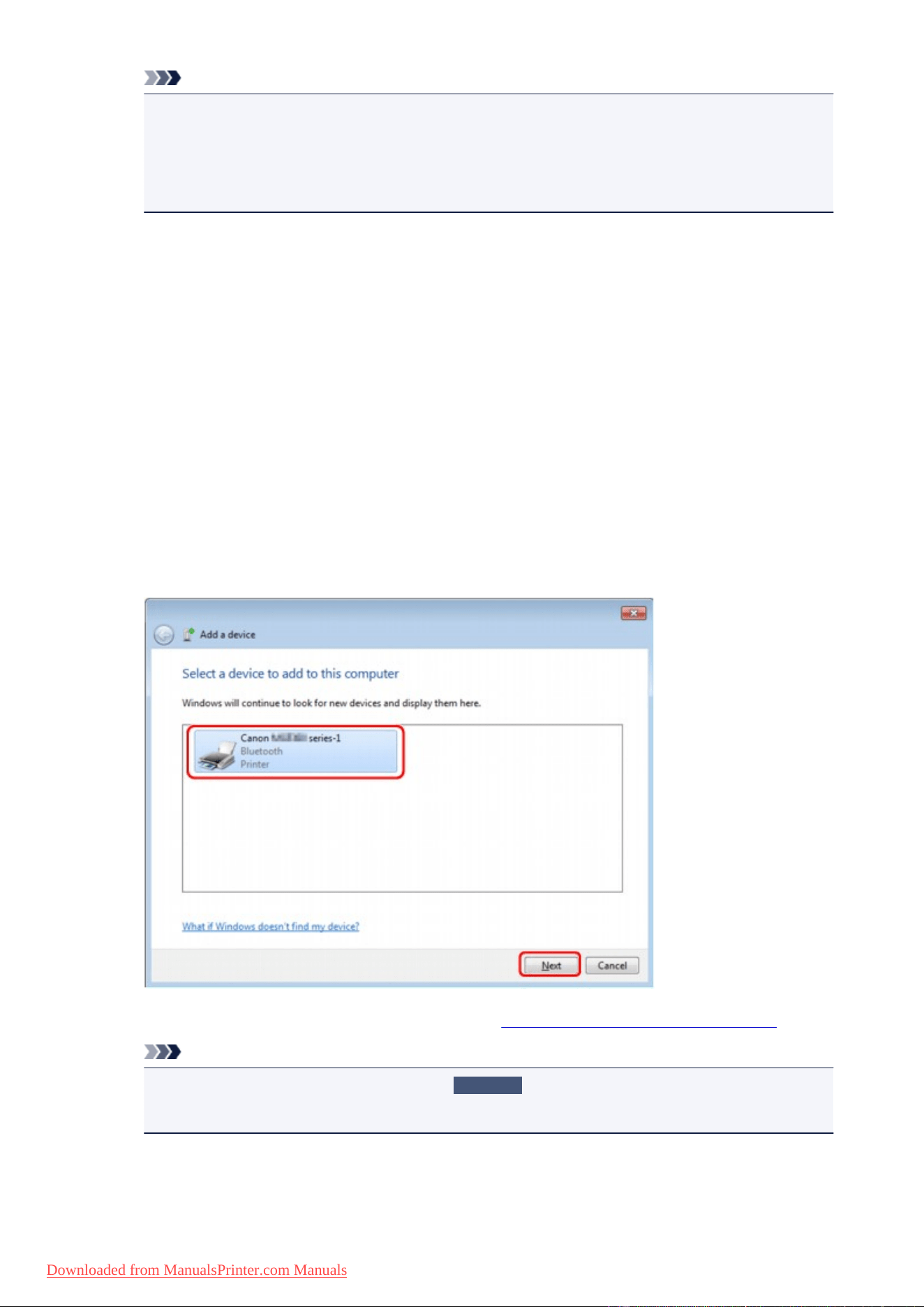
Note
• You can also confirm that the printer is added on a screen. To display the screen, select
Control Panel from the Settings charm on Desktop > Hardware and Sound > Devices and
Printers.
The registered printer icon and name are displayed.
Now, the settings for printing via Bluetooth communication are ready.
In Windows 7 or Windows Vista:
The following procedure is described using the screens in Windows 7.
1.
Log into a user account with the administrator privilege.
2.
Select items from Control Panel as shown below.
•
In Windows 7, click Control Panel, then Add a Bluetooth Device under Hardware and Sound.
• In Windows Vista, click Control Panel, Bluetooth Device under Hardware and Sound, then
Add Wireless Device.
3.
Select the device name of the printer and click Next.
Select the same device name as that checked under Checking the Device Name of the Printer.
Note
•
If the device name is not displayed, see
Check 3
Is the printer name which you want to
register displayed in the Printer List?.
4. Select Pair without using a code.
167
Downloaded from ManualsPrinter.com Manuals
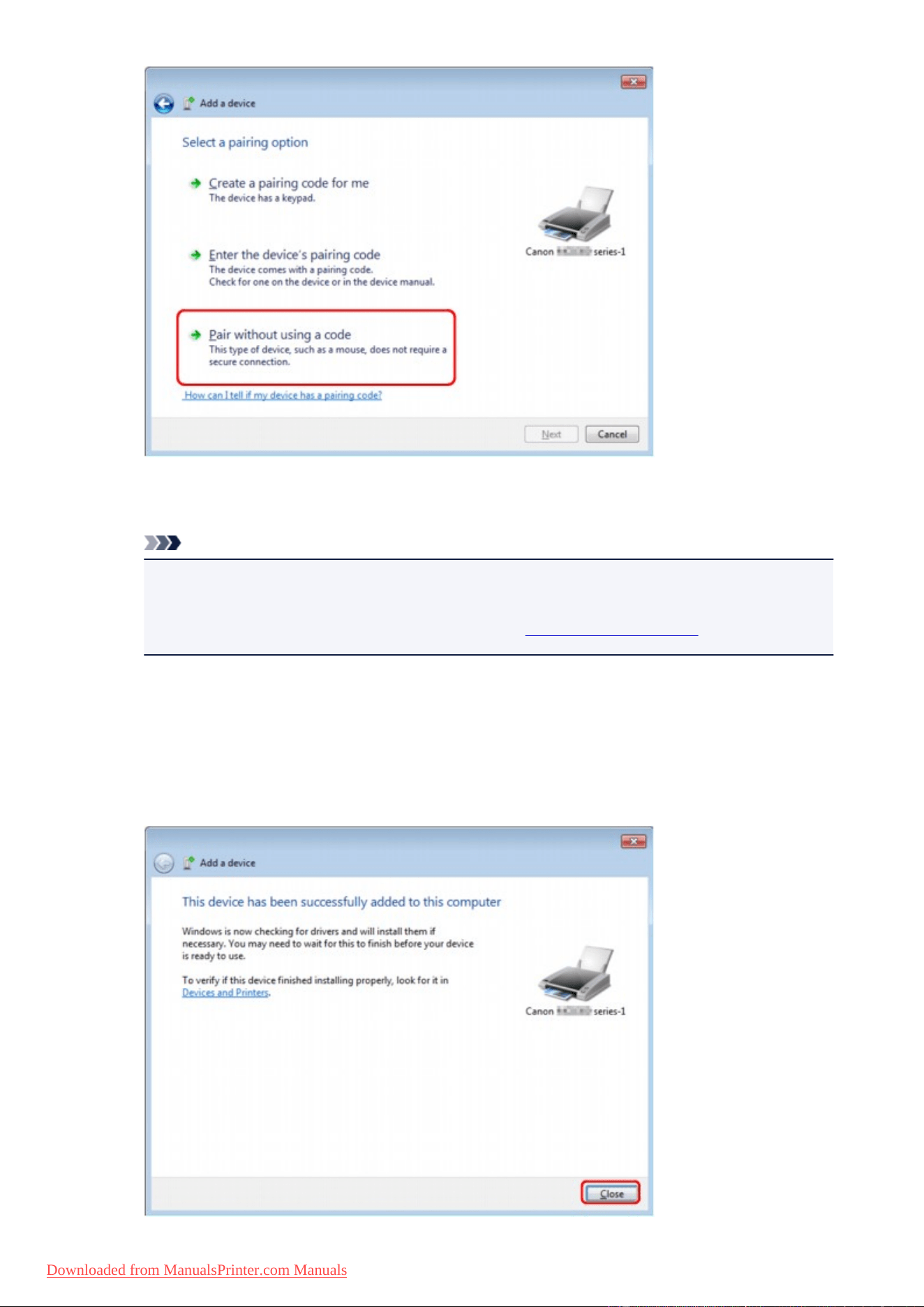
When registering this printer, Connecting with this device (Pairing with this wireless device in
Windows Vista) is displayed.
Note
• If you set a passkey on the printer, select Enter the device's pairing code and input the
passkey, then click Next.
For more information about setting a passkey, see Bluetooth settings Screen.
5.
Make sure that the printer is added.
•
In Windows 7, when This device has been successfully added to this computer is displayed,
click Close.
• In Windows Vista, when This wireless device is paired with this computer is displayed, click
Close.
168
Downloaded from ManualsPrinter.com Manuals
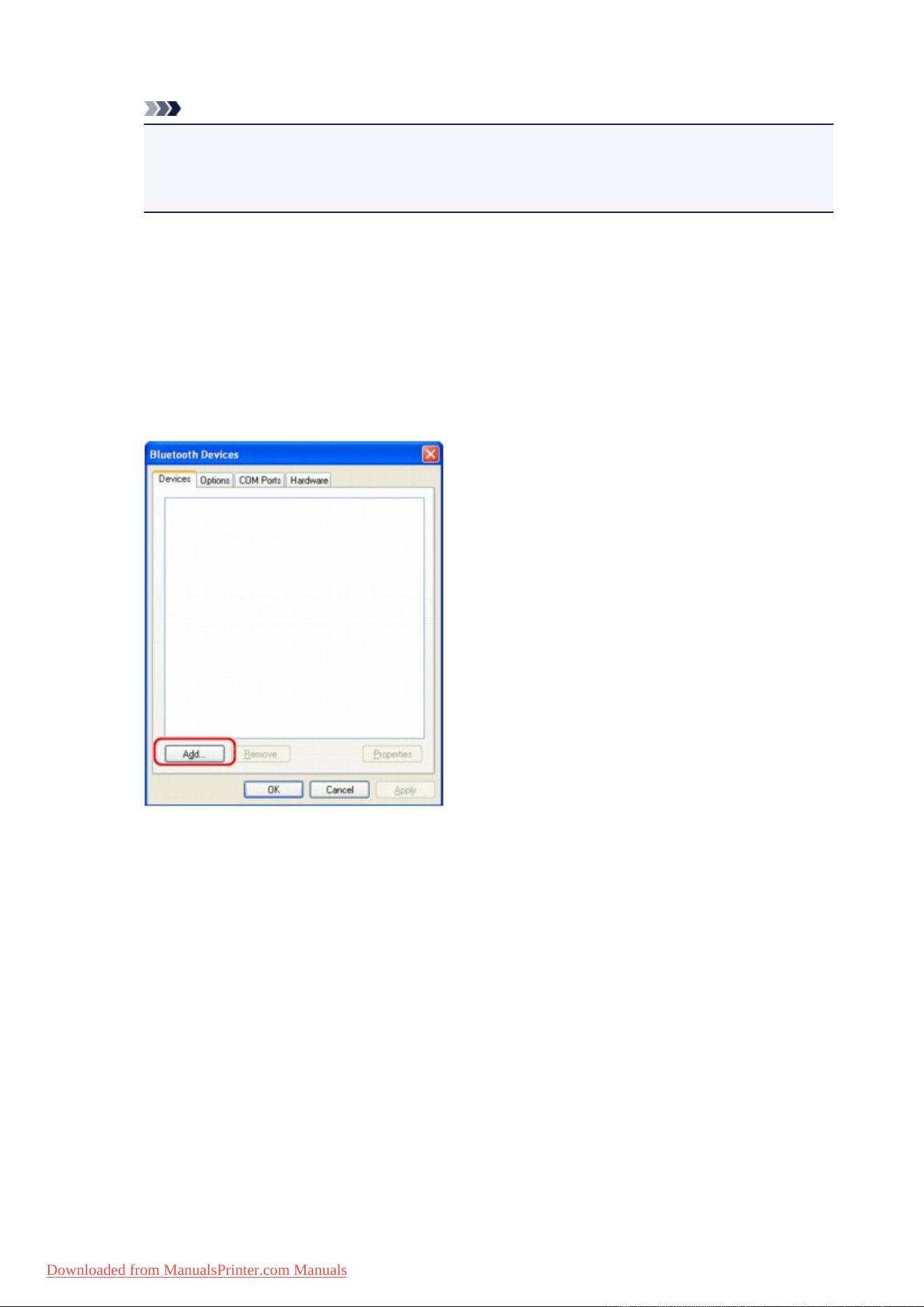
Now, the settings for printing via Bluetooth communication are ready.
Note
•
In Windows Vista, the Windows needs to install driver software for your Bluetooth
Peripheral Device screen may be displayed automatically. In this case, click Don't show this
message again for this device.
In Windows XP:
1.
Log into a user account with the administrator privilege.
2.
Click Control Panel, Printers and Other Hardware, then Bluetooth Devices.
3.
Click Add on the Devices sheet.
Add Bluetooth Device Wizard will start.
4. Make sure that the printer is turned on, check the My device is set up and ready to be
found check box and then click Next.
169
Downloaded from ManualsPrinter.com Manuals
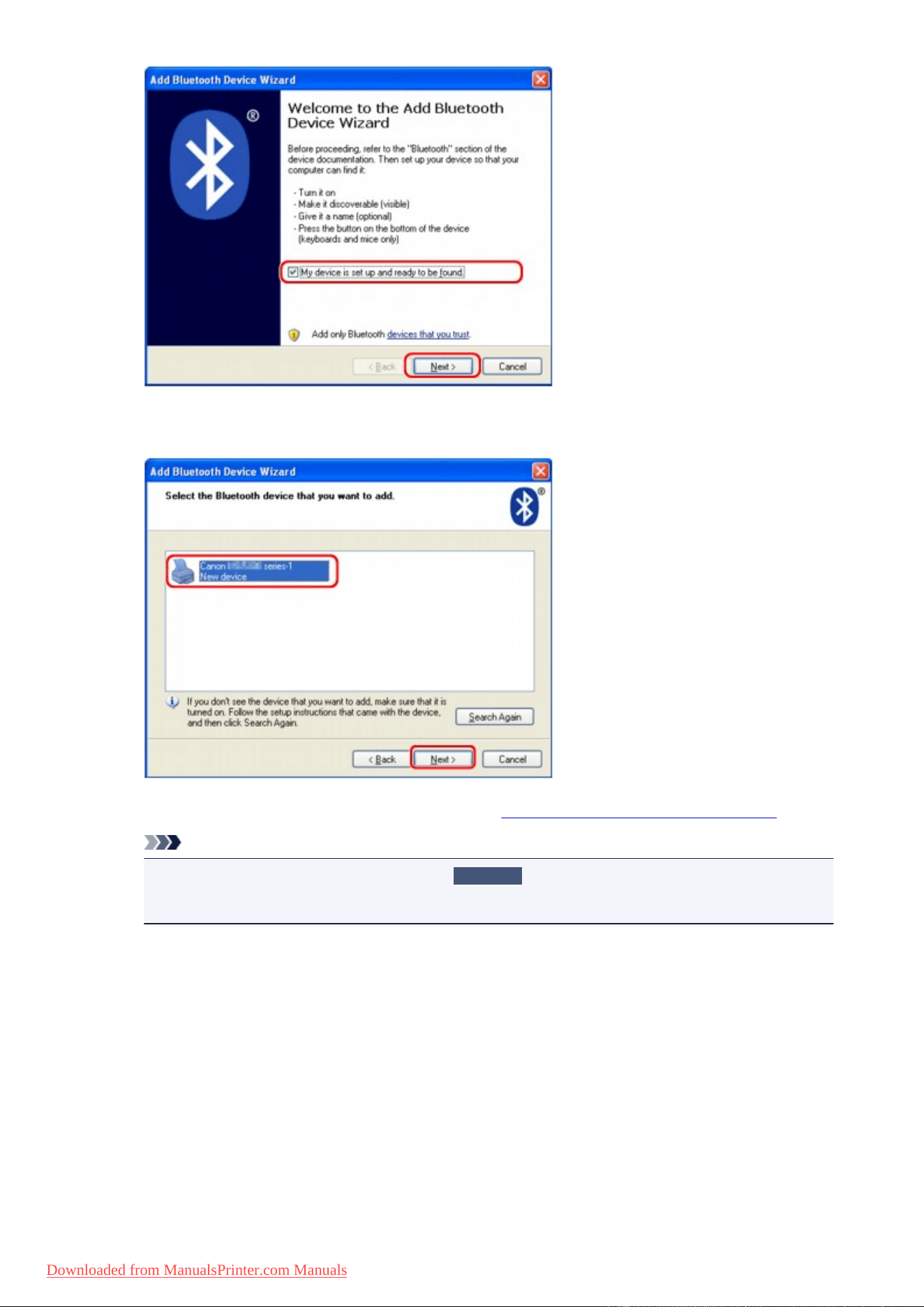
5.
Select the device name of the printer and click Next.
Select the same device name as that checked under Checking the Device Name of the Printer.
Note
•
If the device name is not displayed, see
Check 3
Is the printer name which you want to
register displayed in the Printer List?.
6. Select Don't use a passkey, and then Next.
170
Downloaded from ManualsPrinter.com Manuals
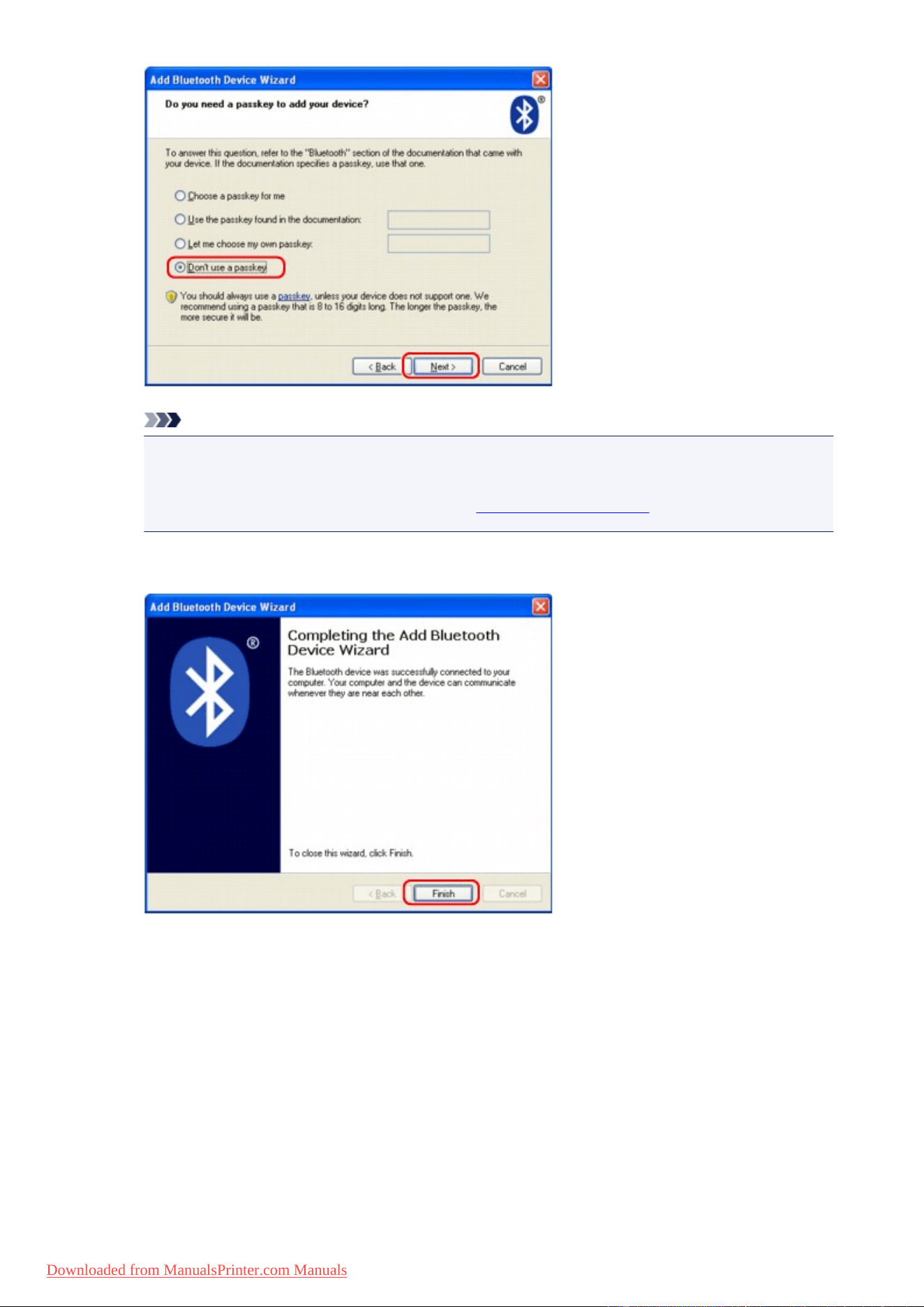
Note
•
If you set a passkey on the printer, select Use the passkey found in the documentation and
input the passkey then click Next.
For more information about a passkey, see Bluetooth settings Screen.
7.
Click Finish.
8. Check that the device name selected at step 5 is registered on the Devices sheet, and
click OK.
171
Downloaded from ManualsPrinter.com Manuals
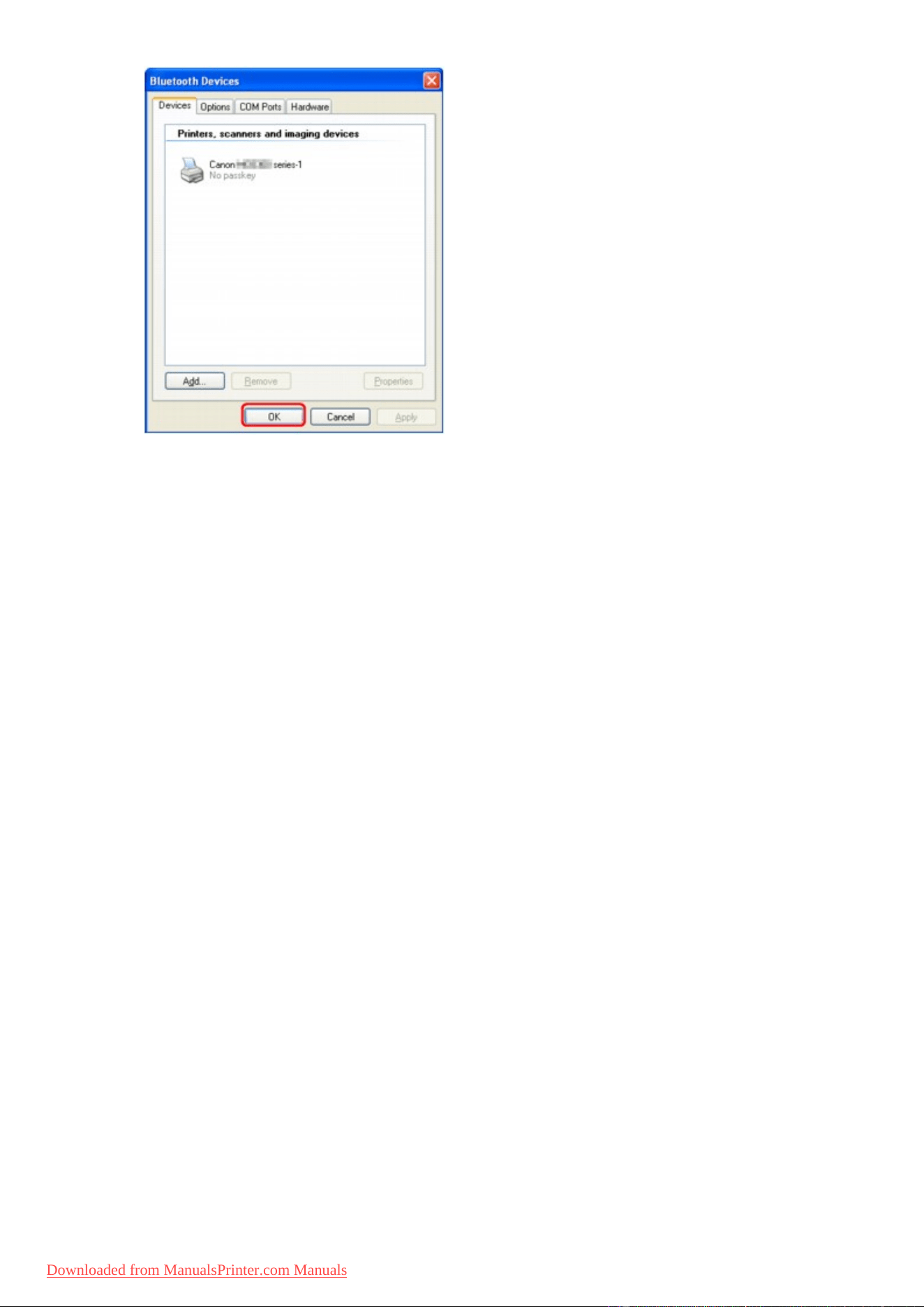

Deleting the Printer
This section describes the procedure to delete the registered printer.
If you want to re-register the printer as a Bluetooth device, first follow the procedure below to delete the
printer, and then re-register it.
For the procedure to re-register the printer, see Registering the Printer.
1.
Log into a user account with the administrator privilege.
2.
Select items as shown below.
•
In Windows 8, select Control Panel from the Settings charm on Desktop > Hardware and
Sound > Devices and Printers.
•
In Windows 7, click Control Panel, then Devices and Printers under Hardware and Sound.
•
In Windows Vista, click Control Panel, then Printers under Hardware and Sound.
•
In Windows XP, click Control Panel, then Printers and Faxes under Printers and Other
Hardware.
3.
Click the icon of the printer used for printing via Bluetooth communication.
4.
Delete the printer as shown below.
• In Windows 8 or Windows 7, select Remove device.
•
In Windows Vista, select Delete from the Organize menu.
• In Windows XP, select Delete from the File menu.
• In Windows Vista or Windows XP:
Continue following the procedure below to delete the printer from Bluetooth Devices.
◦ In Windows Vista:
1. Click Control Panel, then Bluetooth Devices under Hardware and Sound.
2. Click the icon of the printer used for printing via Bluetooth communication.
3. Select Remove Wireless Device.
◦ In Windows XP:
1. Click Control Panel, then Bluetooth Devices under Printers and Other Hardware.
2. On the Devices sheet click the icon of the printer used for printing via Bluetooth
communication.
3. Click Remove.
173
Downloaded from ManualsPrinter.com Manuals

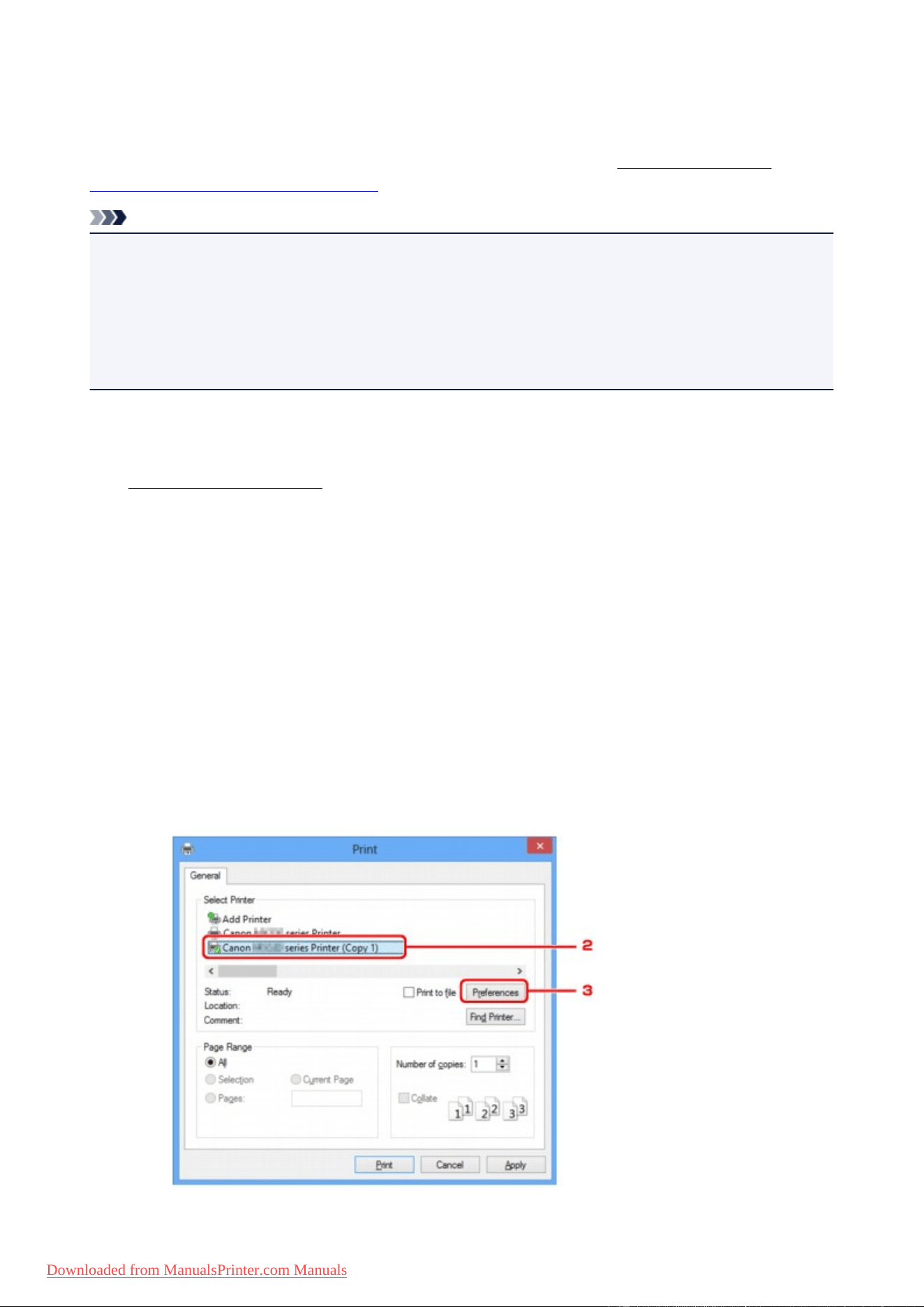
Printing with Computers
When using Bluetooth communication, also refer to the computer's instruction manual.
When printing from a Bluetooth compliant device other than a computer, see Printing with Bluetooth
Compliant Devices other than a Computer.
Note
• Depending on your application software, operations may differ. For details, refer to your software
application's instruction manual.
The steps described in this section are for printing in Windows 8.
• Bluetooth communication distance: Approx. 33 ft./10 m in normal environment.
The distance may vary depending on the radio conditions or the communication equipment.
1.
Make sure that the printer is turned on.
2.
Attach the Bluetooth unit.
3.
Load paper.
4.
Create a document or open a file to print using an appropriate application software.
5.
Open the printer properties dialog box.
1.
Select Print on the application software's File menu.
The Print dialog box opens.
2. Select the printer to which you attached the Bluetooth unit such as "Canon XXX series Printer
(Copy X)" from Select Printer.
3. Click Preferences (or Properties).
The Quick Setup sheet of the Printing Preferences dialog box is displayed.
175
Downloaded from ManualsPrinter.com Manuals
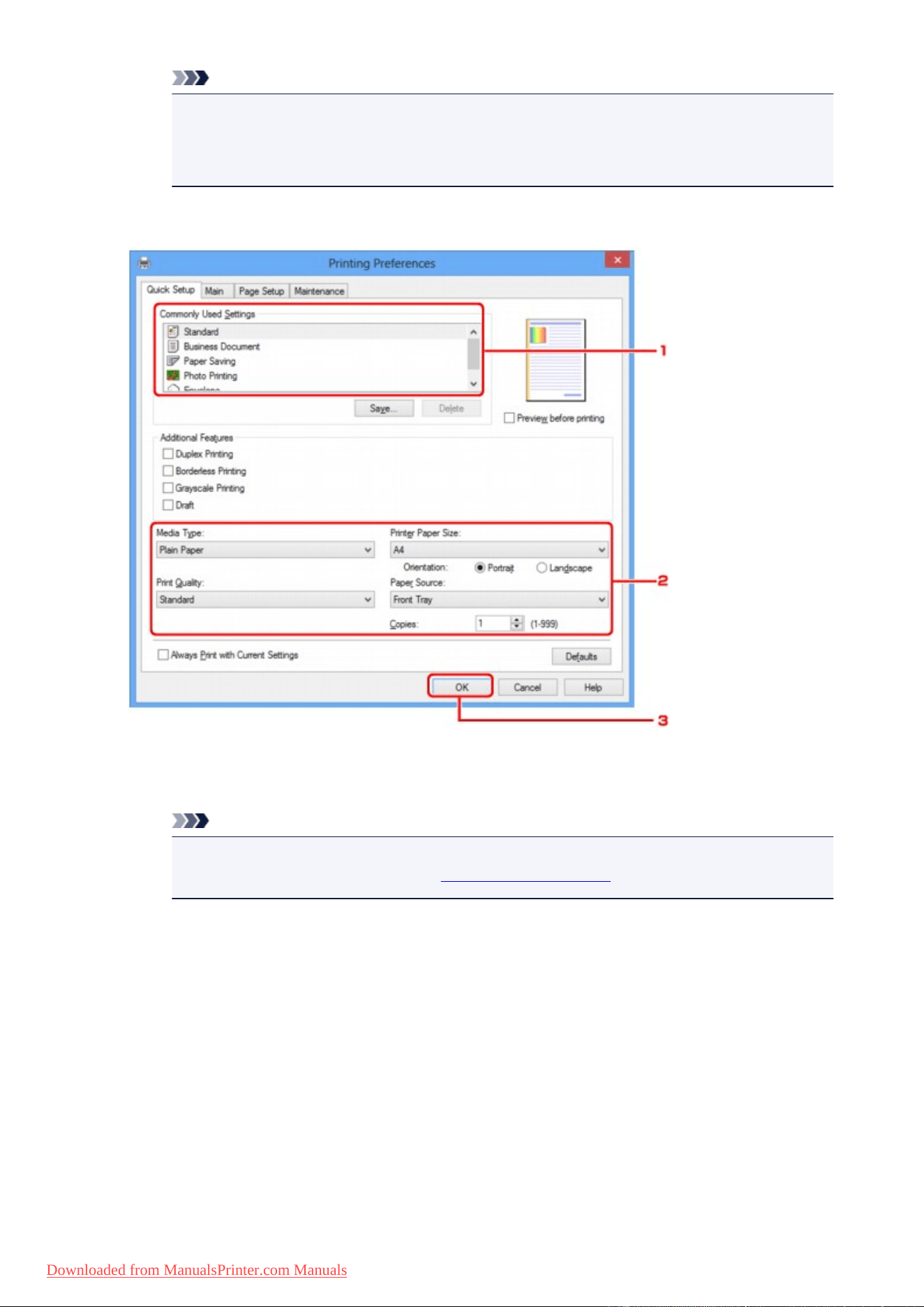
Note
• The printer registered for printing via Bluetooth communication is displayed as "Canon XXX
series Printer (Copy X)".
•
"X" is a device name or a digit. The number of digits may differ depending on the printer.
6. Specify the required settings.
1.
Select the print setting in
Commonly Used Settings.
2. Confirm the required print settings in Media Type, Printer Paper Size, and so on.
Note
• You can specify the advanced print settings on Main sheet and Page Setup sheet. For
details on the print settings, refer to Various Printing Methods.
3.
Click OK.
The Print dialog box is displayed.
7. Click Print (or OK) to print the document.
176
Downloaded from ManualsPrinter.com Manuals
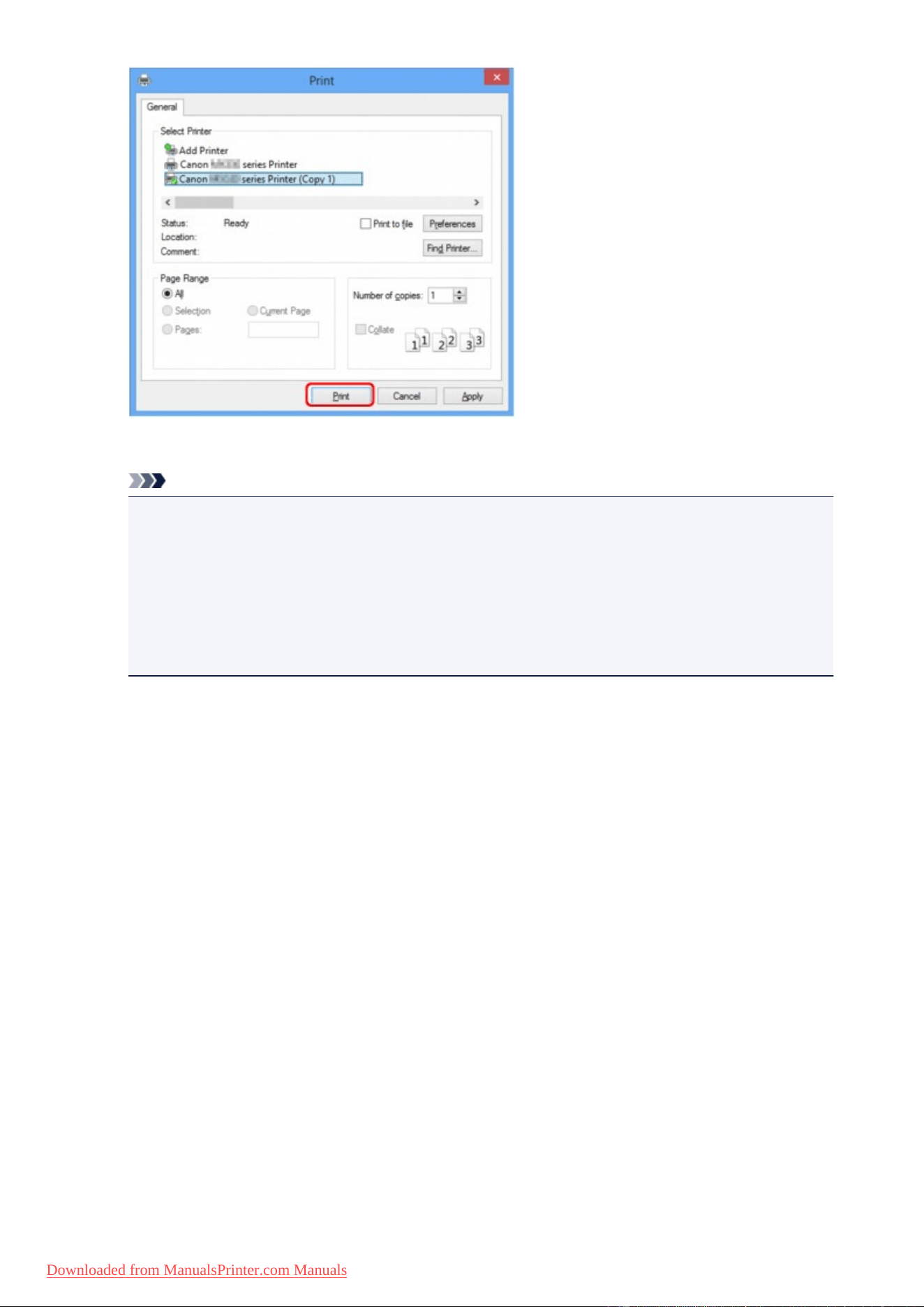
Printing begins.
Note
• When you use a USB cable for printing, select "Canon XXX series Printer" from Select Printer.
• To cancel a print job in progress, use the Stop button on the printer or click Cancel Printing on
the printer status monitor. After printing is canceled, a sheet of paper may be ejected with no
printing results.
To display the printer status monitor, click "Canon XXX series Printer (Copy X)" on the taskbar.
• "X" is a device name or a digit. The number of digits may differ depending on the printer.
177
Downloaded from ManualsPrinter.com Manuals
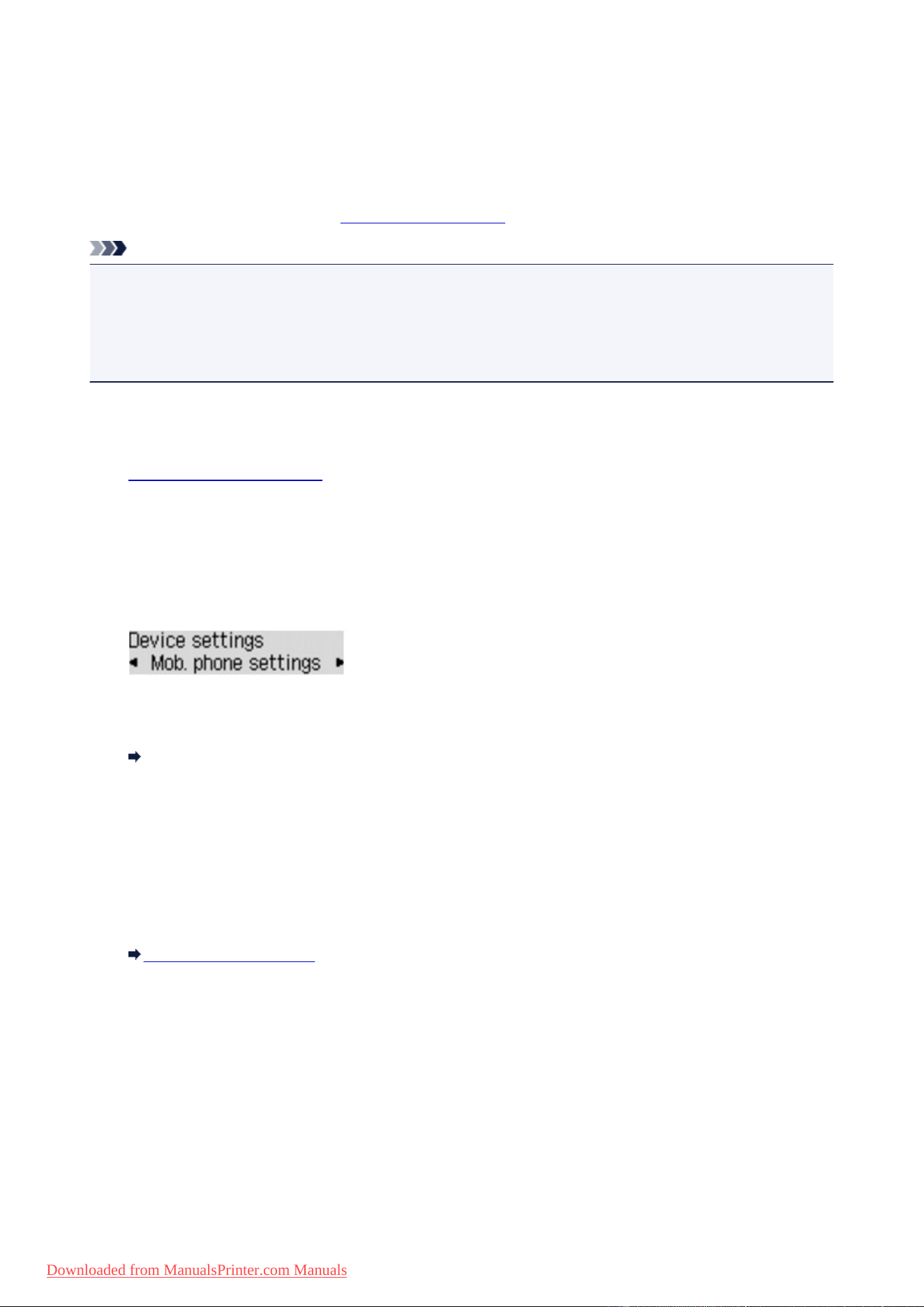
Printing with Bluetooth Compliant Devices other than a Computer
The LCD of the printer allows you to perform settings for printing using Bluetooth compliant devices other
than a computer.
When you print with one of these devices, also refer to your device's instruction manual.
When printing from a computer, see Printing with Computers.
Note
• Mobile phones, PDAs and digital cameras supporting OPP (Object Push Profile) or BIP (Basic Imaging
Profile) can print photos.
Depending on your device, you may not perform printing even if your device supports the profiles
above. For details of profiles, refer to your device's instruction manual.
1.
Make sure that the printer is turned on.
2.
Attach the Bluetooth unit.
3.
Load paper.
4.
Display the setting screen on the LCD of the printer.
Display the Mob. phone settings screen.
5.
Specify the media type and the paper size.
Mob. phone settings
6.
Start printing from the Bluetooth compliant device.
When you select the device name, select the initial value of the printer "Canon MX530 series-1".
If you are required to input the passkey, input the initial value "0000".
You can change the device name of the printer or passkey on the Bluetooth settings screen on the
LCD.
Setting Bluetooth Printing
178
Downloaded from ManualsPrinter.com Manuals

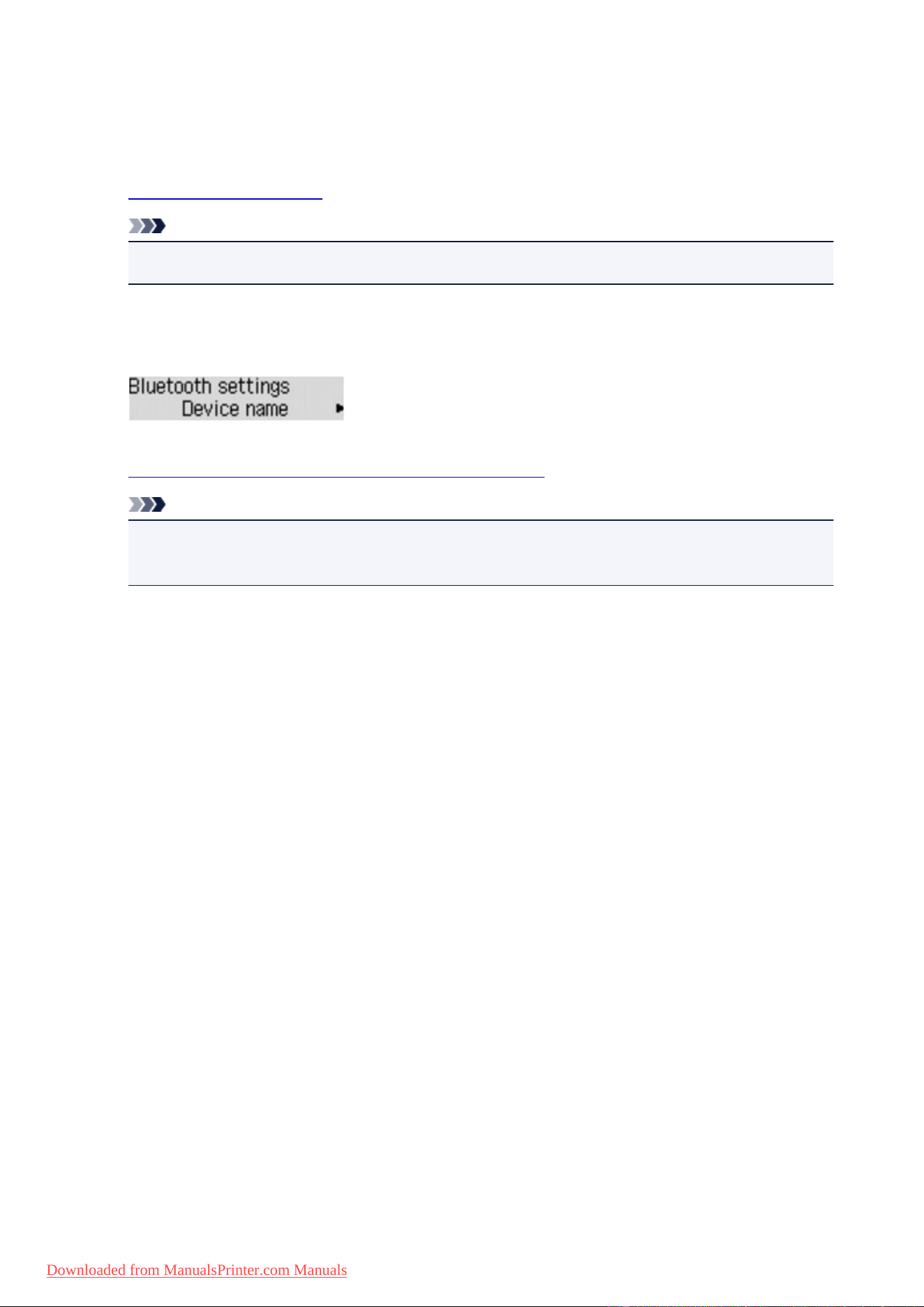
Setting Bluetooth Printing
1. Make sure that the printer is turned on.
2. Attach the Bluetooth unit.
Note
• When the Bluetooth unit is properly attached to the printer, the message is displayed on the LCD.
3.
Display the setting screen on the LCD.
Display the Bluetooth settings screen.
4.
Select the contents which you want to set on the LCD.
Note
• For information about how to set a media type and a paper size when printing from a mobile
phone, refer to Mob. phone settings.
180
Downloaded from ManualsPrinter.com Manuals
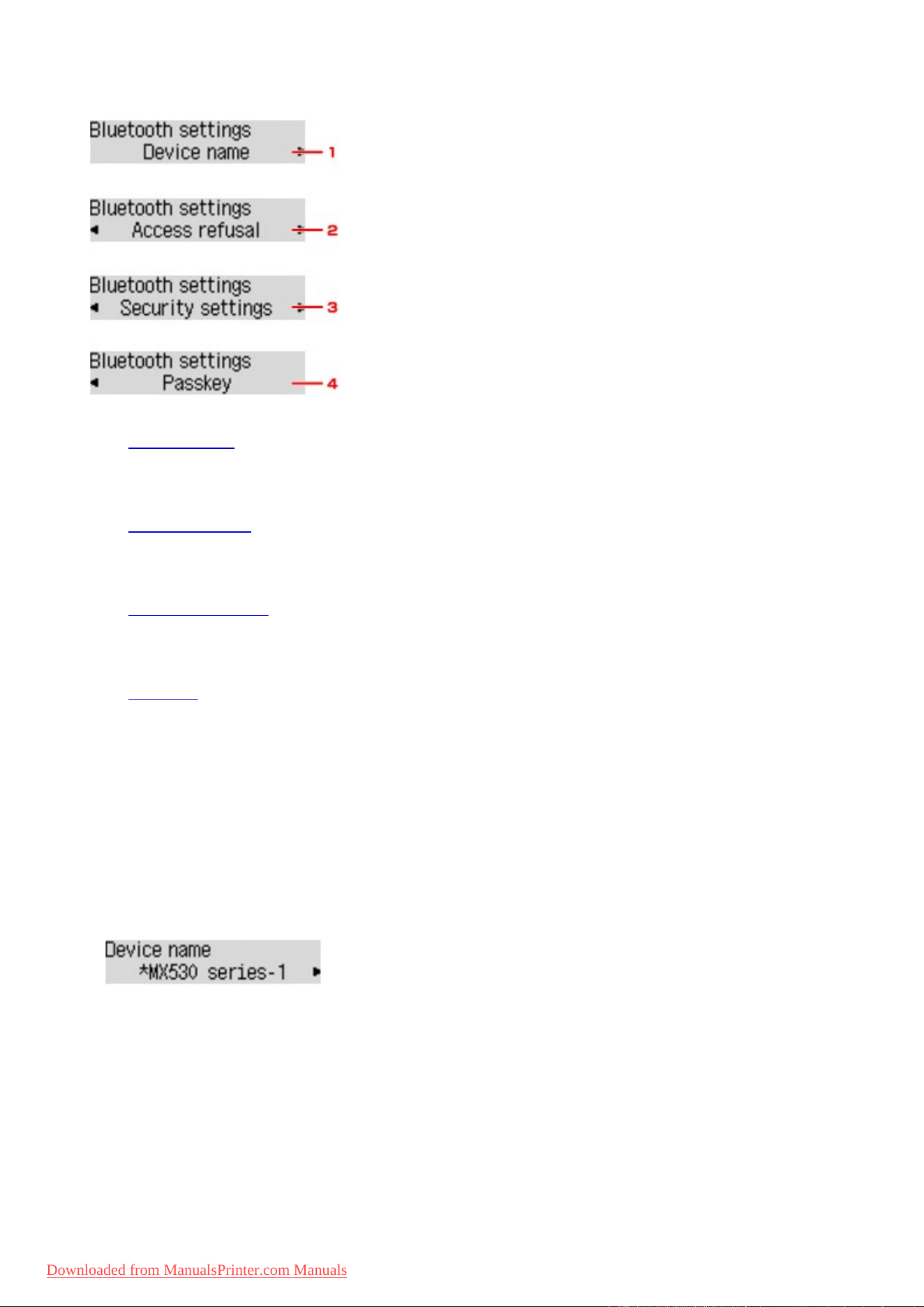
Bluetooth settings Screen
1.
Device name
Displays the device name of the printer to which the Bluetooth unit is attached.
2.
Access refusal
Selecting ON will disable searching of this printer by a Bluetooth-compatible device.
3.
Security settings
Select Enable and then specify the security mode to activate the passkey set on the Passkey screen.
4.
Passkey
You can change the passkey. The passkey refers to an identification number to be determined. It is used
to prevent unwanted access from other Bluetooth devices. The initial value is set to "0000".
Device name Screen
Allows you to set the device name of the printer on a Bluetooth device.
When you select MX530 series-2, the printer name displayed on the Bluetooth device is Canon MX530
series-2.
The initial value is set to MX530 series-1.
Access refusal Screen
When you search from a Bluetooth device, you can enable or disable the display of the printer name.
• ON
Disables searching from a Bluetooth device.
• OFF (Default setting)
Enables searching and printing from a Bluetooth device.
181
Downloaded from ManualsPrinter.com Manuals

Security settings Screen
• Enable
Selecting Enable allows you to choose either of the security modes below.
◦ Mode 3 (recommend)
This mode is activated on link level enforced security.
The passkey will be required when a Bluetooth device communicates with the printer. Normally
select this mode.
◦ Mode 2
This mode is activated on service level enforced security.
The passkey will be required when printing through the Bluetooth communication.
After setting the security mode, we recommend making a trial print through Bluetooth communication.
If printing does not start, change the security mode and try again.
Setting a passkey will prevent unwanted access from other Bluetooth devices. You can change the
passkey on the Passkey screen.
• Disable (Default setting)
When you register the printer, you are not required to input a passkey.
Passkey Screen
When you select Enable on the Security settings screen, you are required to set a passkey to register
the printer on other Bluetooth devices.
After you change the passkey, you may be asked to input the passkey on the Bluetooth devices you were
able to print from before the passkey was changed. In this case, input the new passkey.
182
Downloaded from ManualsPrinter.com Manuals
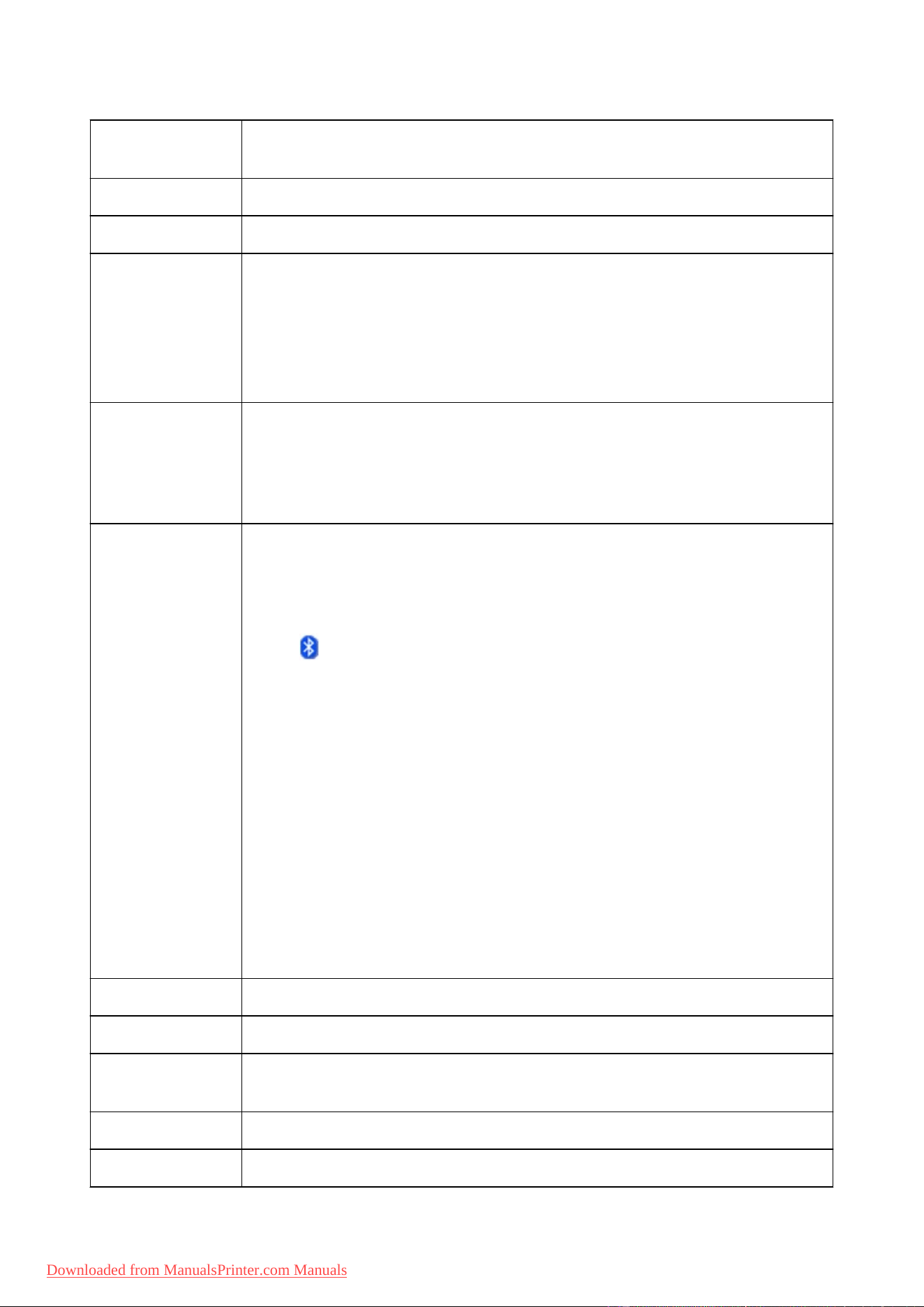
Specifications
Communication
method
Bluetooth v2.0
Maximum Speed 1.44 Mbps
Output Bluetooth Power Class 2
Communication
distance
Line-of-sight distance: approx. 33 ft./10 m *
* It may vary depending on factors including the presence of obstacles between
communication equipment, radio wave conditions, the presence of magnetic fields around
microwave ovens and locations where electrostatic and radio interference occur, the types of
software and operating systems used, and receiver sensitivity and antenna performance of
communication equipment.
Profile SPP (Serial Port Profile)
OPP (Object Push Profile)
BIP (Basic Imaging Profile)
HCRP (Hardcopy Cable Replacement Profile)
Compatible PCs A computer in which an internal Bluetooth module is installed or a computer to which an
optional Bluetooth adapter (available from various manufacturers) is attached.
OS/Software:
Microsoft Windows 8 (Satisfying any one of the following conditions is needed)
• The Bluetooth Devices icon is displayed on the notification area on the desktop
• Bluetooth Stack for Windows by Toshiba Version 9.10.00 or later is installed
Microsoft Windows 7 (Satisfying any one of the following conditions is needed)
• Add a Bluetooth Device is displayed in Hardware and Sound under Control Panel
• Bluetooth Stack for Windows by Toshiba Version 7.00.00 or later is installed
Microsoft Windows Vista (Satisfying any one of the following conditions is needed)
• Bluetooth Devices is displayed in Hardware and Sound under Control Panel
• Bluetooth Stack for Windows by Toshiba Version 5.10.04 or later is installed
Microsoft Windows XP (Satisfying any one of the following conditions is needed)
• Windows XP SP2 or later is installed, and Bluetooth Devices is displayed in Printers
and Other Hardware under Control Panel
• Bluetooth Stack for Windows by Toshiba Version 3.00.10 or later is installed
Frequency band 2.4 GHz band (2.400 GHz to 2.4835 GHz)
Power supply Supplied from the USB flash drive port on the printer, DC 4.4 V to 5.25 V
Maximum power
consumption
500 mW (MAX)
Operating temperature 5 to 35°C (41 to 95°F)
Operating humidity 10 to 90% RH (no condensation)
183
Downloaded from ManualsPrinter.com Manuals


Copying
Making Copies Basic
Setting Items for Copying
Reducing or Enlarging a Copy
Two-Sided Copying
About Special copy Menu
Copying Two Pages to Fit onto a Single Page
Copying Four Pages to Fit onto a Single Page
Copying Thick Originals Such as Books
Copying without Borders
Collated Copying
185
Downloaded from ManualsPrinter.com Manuals
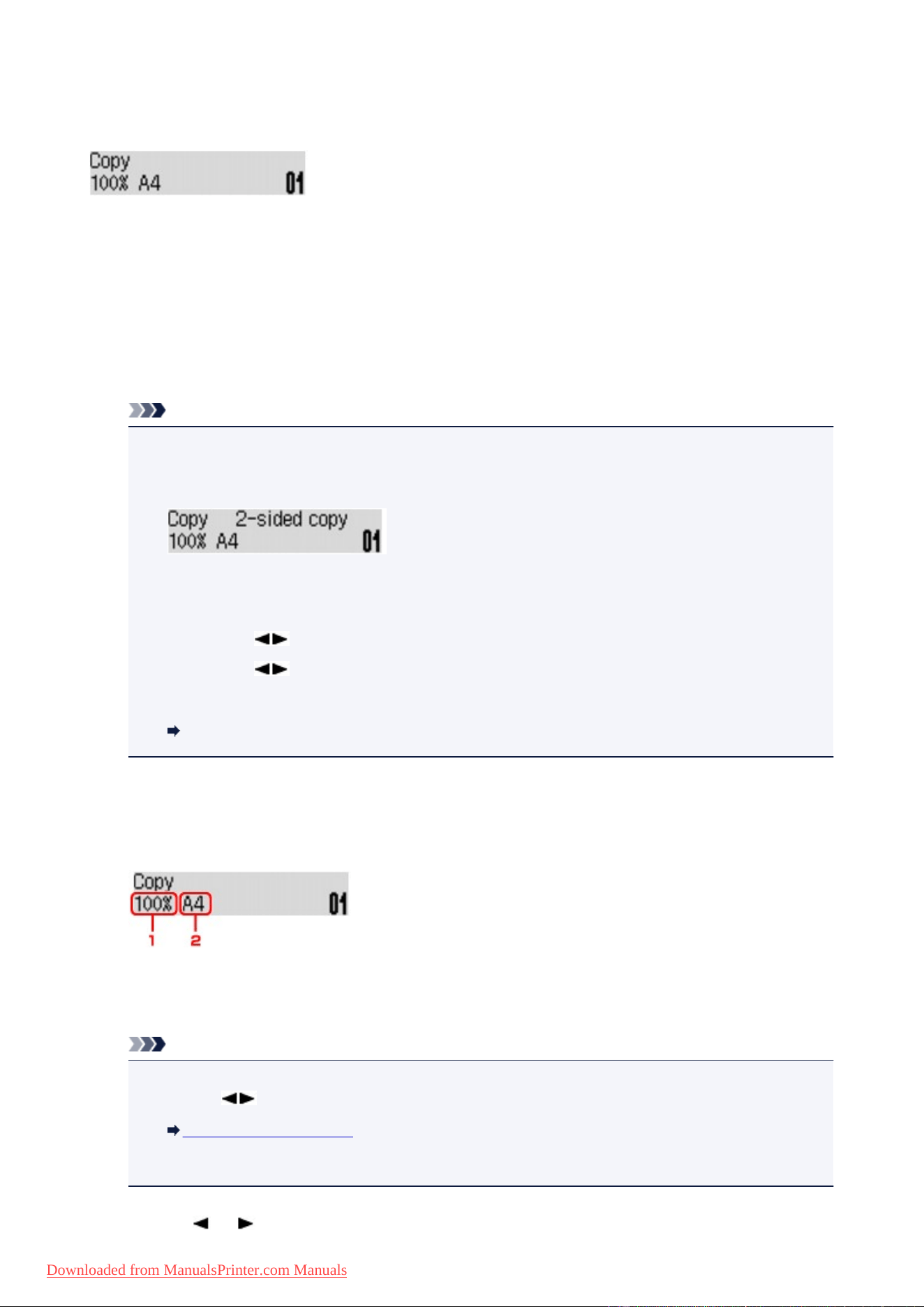
Making Copies
This section describes the basic procedure to perform standard copying.
1. Make sure that the machine is turned on.
2.
Load paper.
3.
Press the COPY button.
The Copy standby screen is displayed.
Note
•
When ON is selected for Copy on ECO (2-sided), the Two-sided copy standby screen is
displayed as shown below. You can copy two original pages or a two sided page onto the both
sides of a single sheet of paper.
Follow the procedure below to deactivate two-sided copying temporarily.
1. Press the Menu button.
2.
Use the button to select 2-sided, then press the OK button.
3. Use the button to select OFF, then press the OK button.
If you do not use two-sided copying as a default, change the copy setting from ECO (2-sided).
About ECO settings
4.
Load the original document on the platen glass or in the ADF.
5. Confirm the page size and magnification.
1.
Magnification
2.
Page size
Note
•
To change or confirm the page size, magnification, or other settings, press the Menu button, then
use the button to display the desired setting item.
Setting Items for Copying
•
Press the COPY button to reset the magnification to 100%.
6. Use the (-) (+) button or the Numeric buttons to specify the number of copies.
186
Downloaded from ManualsPrinter.com Manuals
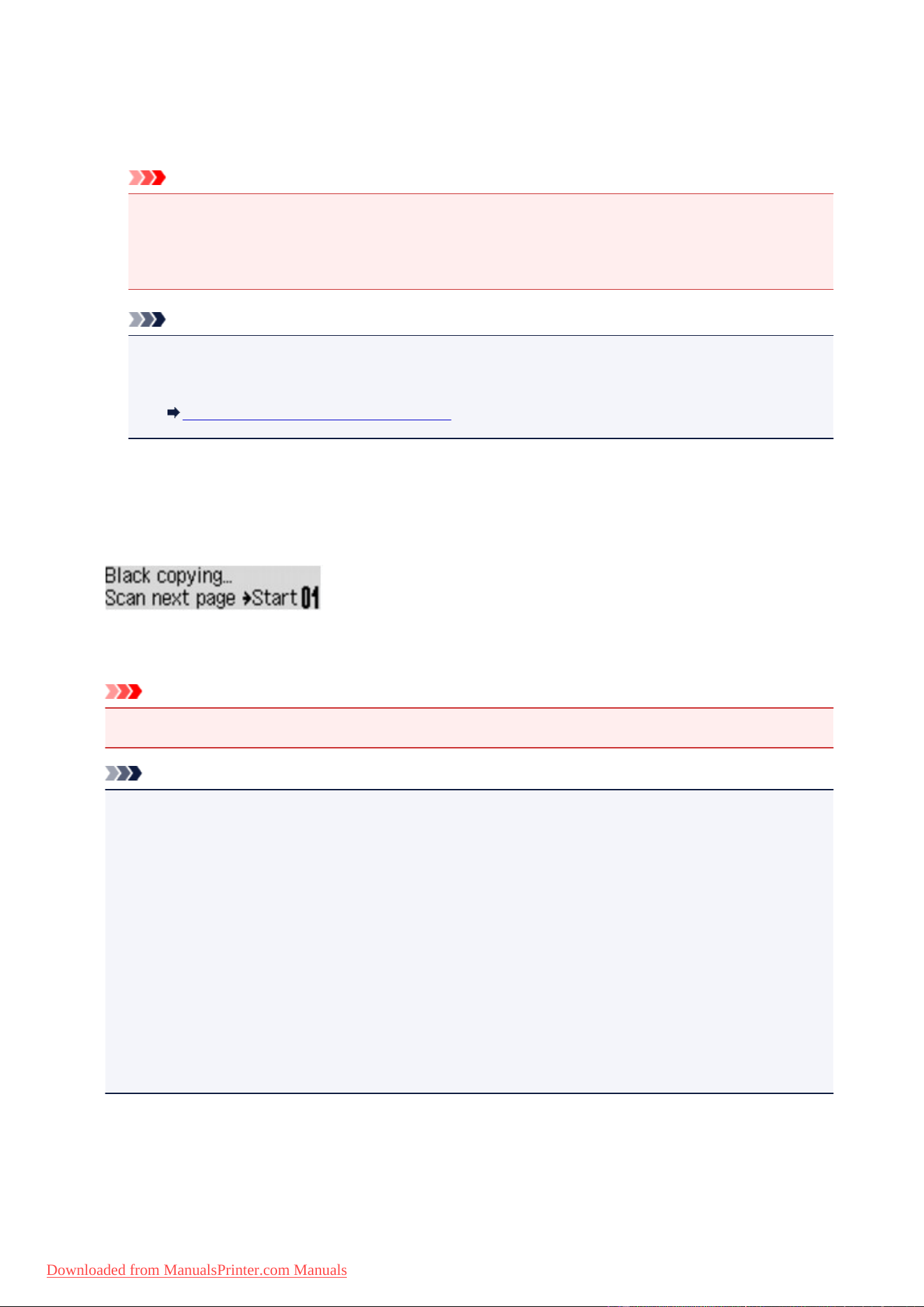
7. Press the Color button for color copying, or the Black button for black & white copying.
The machine starts copying.
Remove the original on the platen glass or from the document output slot after copying is complete.
Important
•
If you load the original on the platen glass, do not open the document cover or remove the original
while Scanning... is displayed on the screen.
•
If you load the original in the ADF, do not move the original until copying is complete.
Note
•
To cancel copying, press the Stop button.
•
If you load the original on the platen glass, you can add the copying job while printing.
Adding the Copying Job (Reserve copy)
Adding the Copying Job (Reserve copy)
If you load the original on the platen glass, you can add the copying job while printing (Reserve copy).
The screen below is displayed when you can reserve copy.
Load the original on the platen glass and press the same button (the Color button or the Black button) as
the one which you previously pressed.
Important
• When you load the original on the platen glass, move the document cover gently.
Note
• When Image quality is set High, or you load the original in the ADF, you cannot add the copying job.
• When you add the copying job, the number of copies or the settings such as the page size or media
type cannot be changed.
• If you press the Stop button while reserve copying is in progress, the screen to select the method to
cancel copying is displayed. If you select Cancel all reserv. then press the OK button, you can
cancel copying all scanned data. If you select Cancel last reserv., then press the OK button, you
can cancel the last copying job.
• If you set a document of too many pages to reserve copy, Memory is full may appears on the LCD.
Press the OK button and wait a while, then try copying again.
• If Try again appears on the LCD when scanning, press the OK button, then press the Stop button to
cancel copying. After that, copy the documents that have not been finished copying.
187
Downloaded from ManualsPrinter.com Manuals
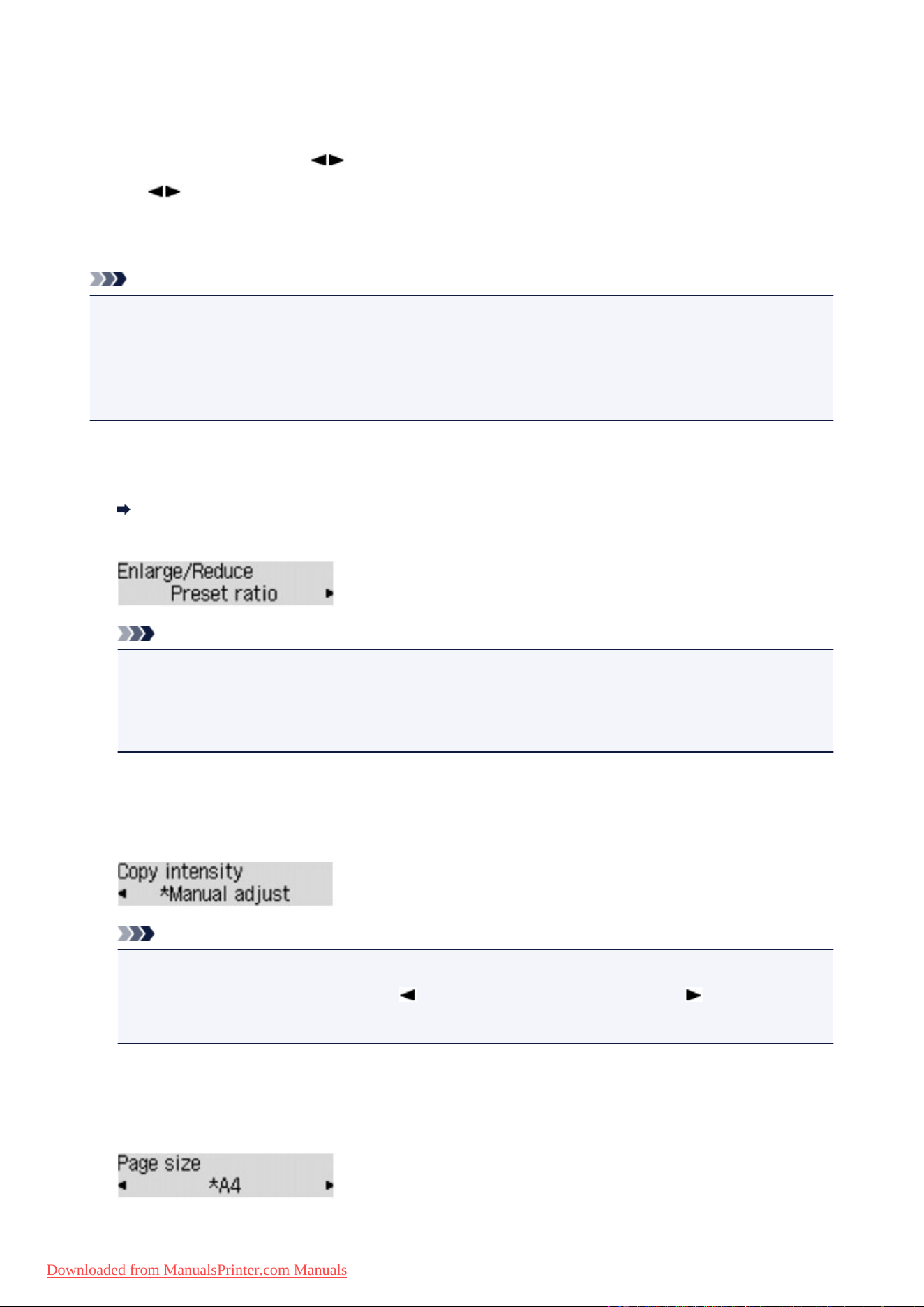
Setting Items for Copying
You can change the copy settings such as the page size, media type, and intensity.
Press the Menu button, use the button to select a setting item, then press the OK button.
Use the button to adjust each setting item, then press the OK button. The next setting item is
displayed.
The LCD returns to the Copy standby screen when all the settings are complete.
Note
• The * (asterisk) on the LCD indicates the current setting.
• Some settings cannot be specified in combination with the setting of other setting items or the copy
menu.
• The settings of the page size, media type, etc. are retained even if the machine is turned off.
• Enlarge/Reduce
Select the reduction/enlargement method.
Reducing or Enlarging a Copy
Ex:
Note
• This setting item is displayed under the following conditions.
• When standard copying is selected
• When 2-sided copy or Borderless copy is selected for Special copy
• Copy intensity
Change the intensity.
Ex:
Note
• If you select Auto adjust, load the original on the platen glass.
• If you select Manual adjust, use the button to decrease the intensity or the button to
increase it.
• Page size
Select the page size of the loaded paper.
Ex:
188
Downloaded from ManualsPrinter.com Manuals
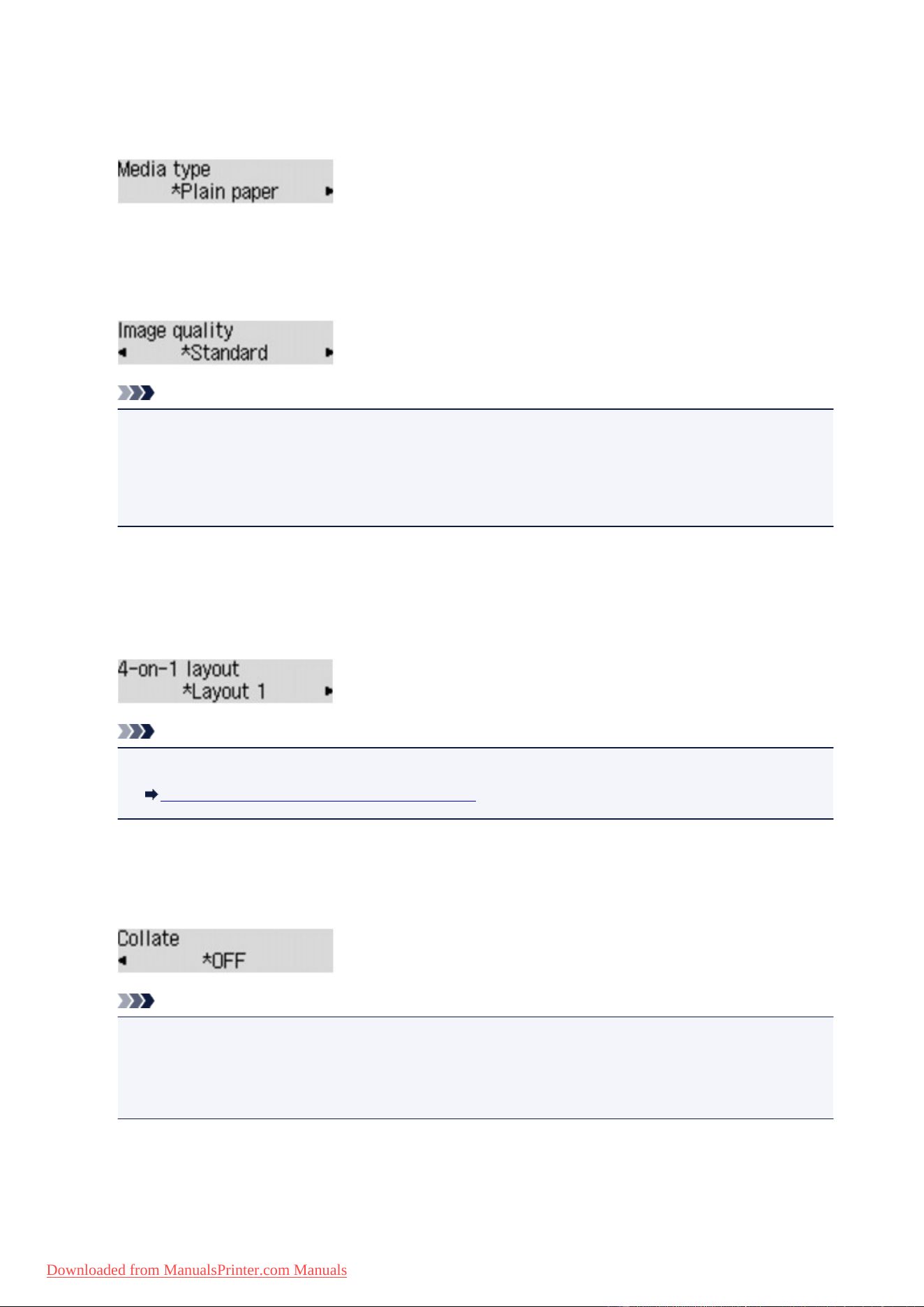
• Media type
Select the media type of the loaded paper.
Ex:
• Image quality
Select the image quality according to the original.
Ex:
Note
• If you use Draft with the media type set to Plain paper and the quality is not as good as expected,
select Standard or High and try copying again.
• Select High to copy in grayscale. Grayscale renders tones in a range of grays instead of black or
white.
• 4-on-1 layout
Select the layout when copying four original pages onto a single sheet of paper by reducing each image.
Four different layouts are available.
Ex:
Note
• This setting item is displayed only when 4-on-1 copy is selected for Special copy.
Copying Four Pages to Fit onto a Single Page
• Collate
Select whether to obtain sorted printouts when making multiple copies of a multi-paged original.
Ex:
Note
• This setting item is displayed under the following conditions.
• When standard copying is selected
• When 2-sided copy is selected for Special copy
• 2-sided
Select whether to copy two original pages onto the both sides of a single sheet of paper.
Ex:
189
Downloaded from ManualsPrinter.com Manuals
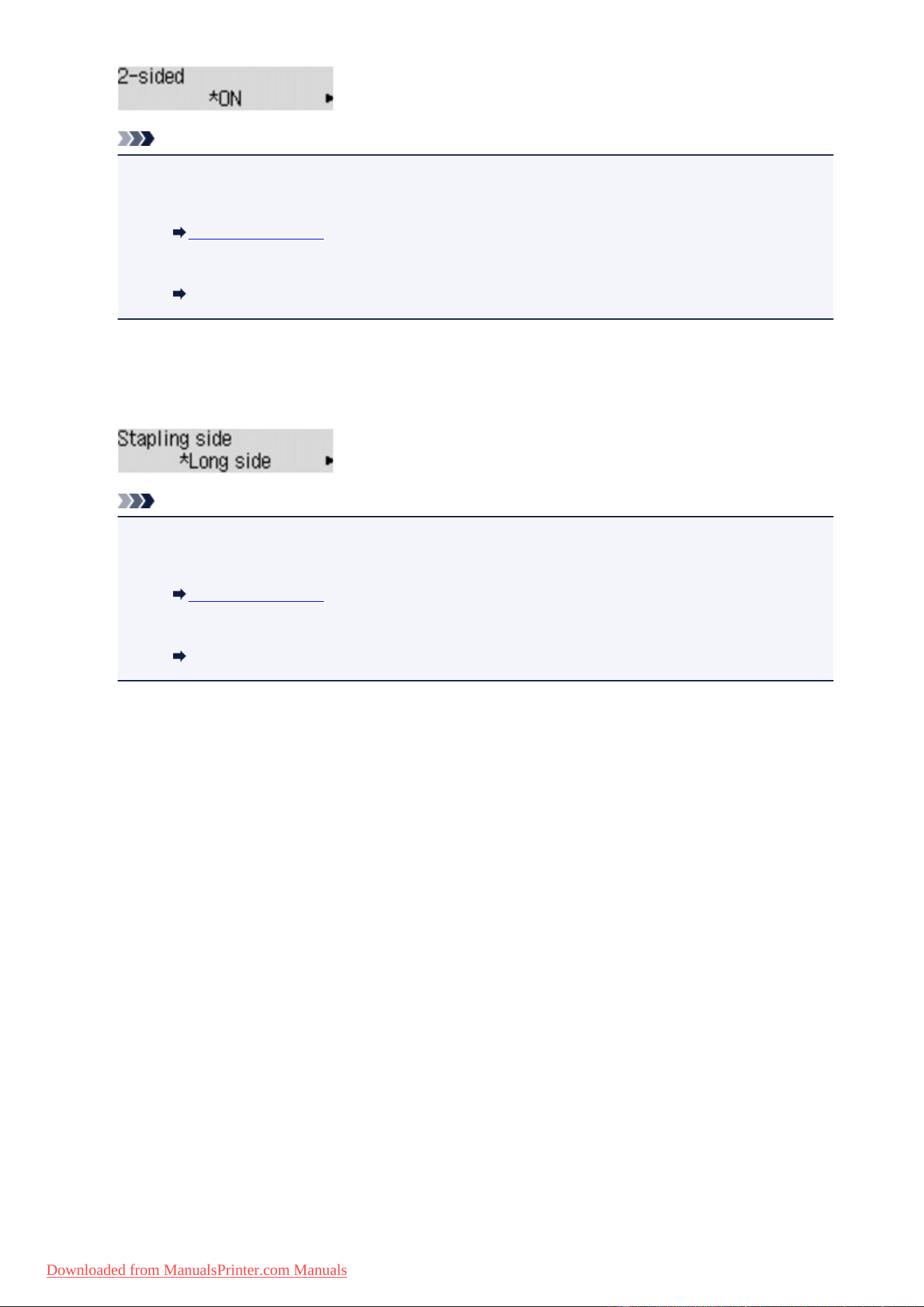
Note
• This setting item is displayed under the following conditions.
• When 2-sided copy is selected for Special copy
Two-Sided Copying
• When ON is selected for Copy on ECO (2-sided)
About ECO settings
• Stapling side
Select the stapling side.
Ex:
Note
• This setting item is displayed under the following conditions.
• When 2-sided copy is selected for Special copy
Two-Sided Copying
• When ON is selected for Copy on ECO (2-sided)
About ECO settings
190
Downloaded from ManualsPrinter.com Manuals
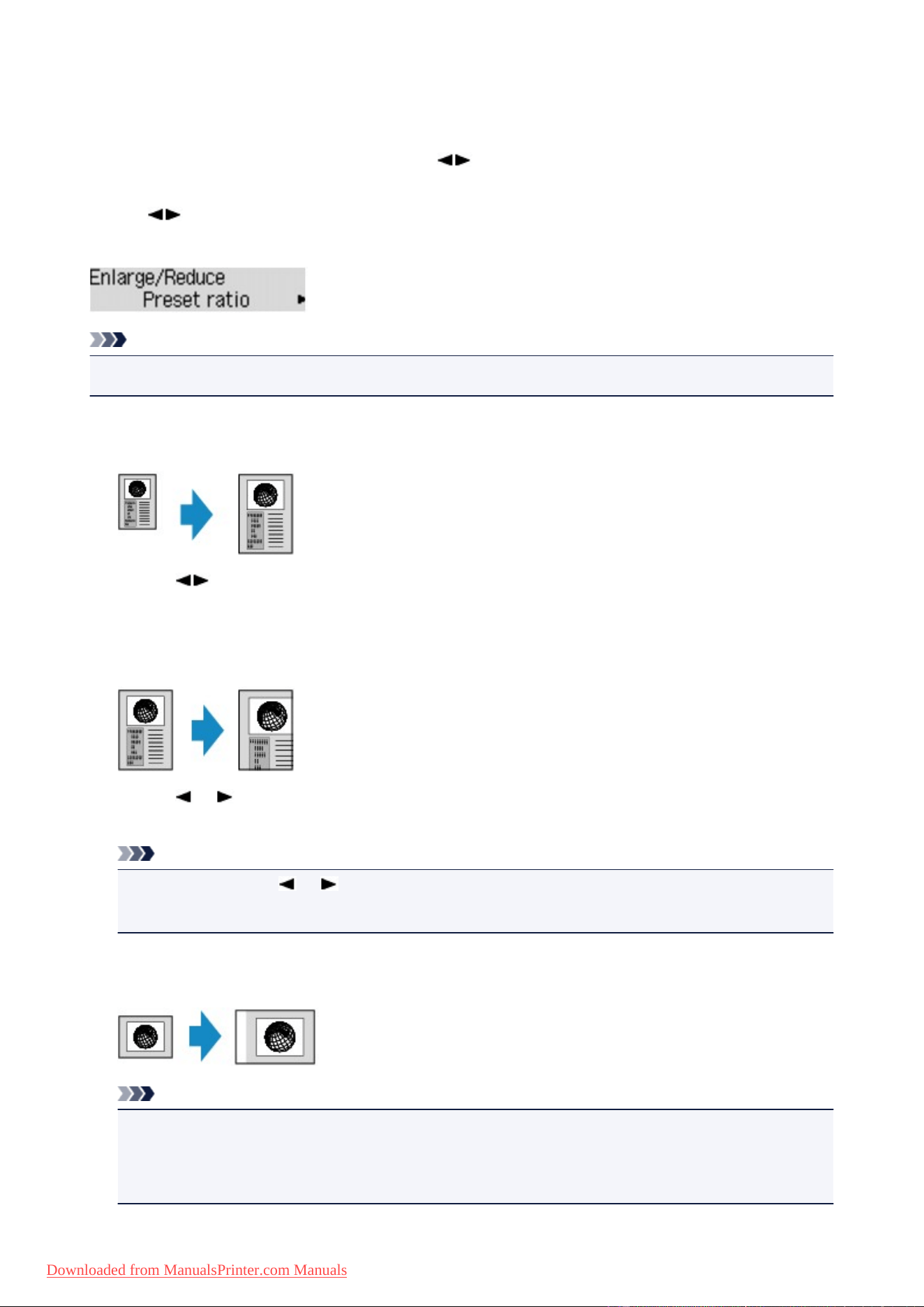
Reducing or Enlarging a Copy
You can specify the magnification optionally or select the preset-ratio copying or fit-to-page copying.
In the copy mode, press the Menu button, use the button to select Enlarge/Reduce, then press the
OK button.
Use the button to select the reduction/enlargement method, then press the OK button.
Ex:
Note
• Some of the reduction/enlargement methods are not available depending on the copy menu.
• Preset ratio
You can select one of the preset ratios to reduce or enlarge copies.
Use the button to select a preset ratio to match the size of your original document and printing
paper, then press the OK button.
• Magnification
You can specify the copy ratio as a percentage to reduce or enlarge copies.
Use the (-) (+) button or the Numeric buttons to specify the reduction or enlargement ratio (25 -
400%), then press the OK button.
Note
• Press and hold the (-) (+) button to quickly advance through the ratios. For details, see Key
repeat.
• Fit to page
The machine automatically reduces or enlarges the image to fit the page size.
Note
• When you select Fit to page, the document size may not be detected correctly depending on the
original. In this case, select Preset ratio or Magnification.
• When Fit to page is selected, load the document on the platen glass.
191
Downloaded from ManualsPrinter.com Manuals
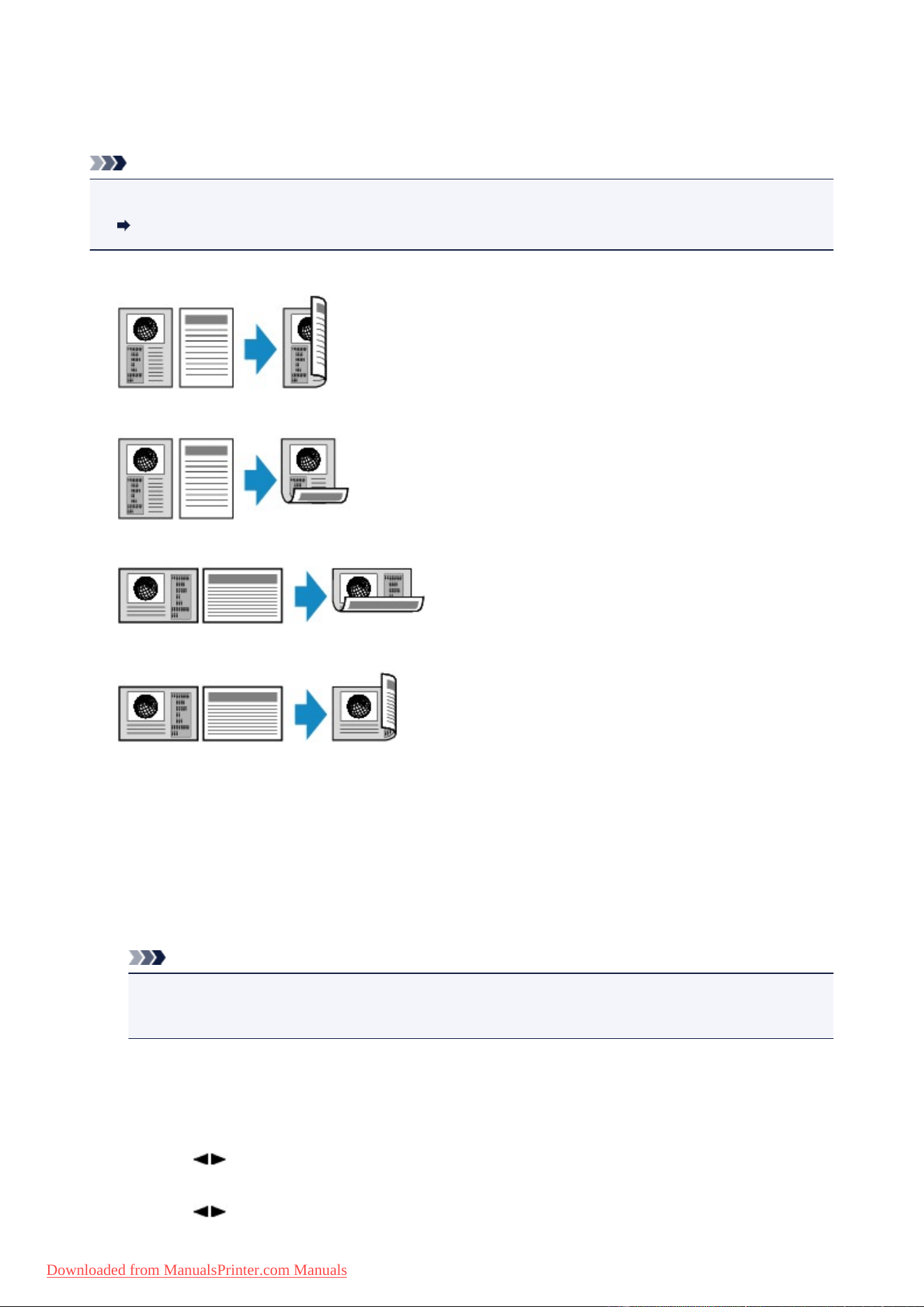
Two-Sided Copying
You can copy two original pages or a two-sided page onto the both sides of a single sheet of paper.
Note
• When ON is selected for Copy on ECO (2-sided), Two-sided copying is set as a default.
About ECO settings
• When the original is vertical orientation and select Long side for Stapling side:
• When the original is vertical orientation and select Short side for Stapling side:
• When the original is horizontal orientation and select Long side for Stapling side:
• When the original is horizontal orientation and select Short side for Stapling side:
1.
Make sure that the machine is turned on.
2.
Load the plain paper.
3.
Press the COPY button.
The Copy standby screen is displayed.
Note
•
When ON is selected for Copy on ECO (2-sided), pressing the COPY button displays the Two-
sided copy standby screen.
4. Press the Menu button.
The Copy menu screen is displayed.
5. Use the button to select Special copy, then press the OK button.
6.
Use the button to select 2-sided copy, then press the OK button.
192
Downloaded from ManualsPrinter.com Manuals
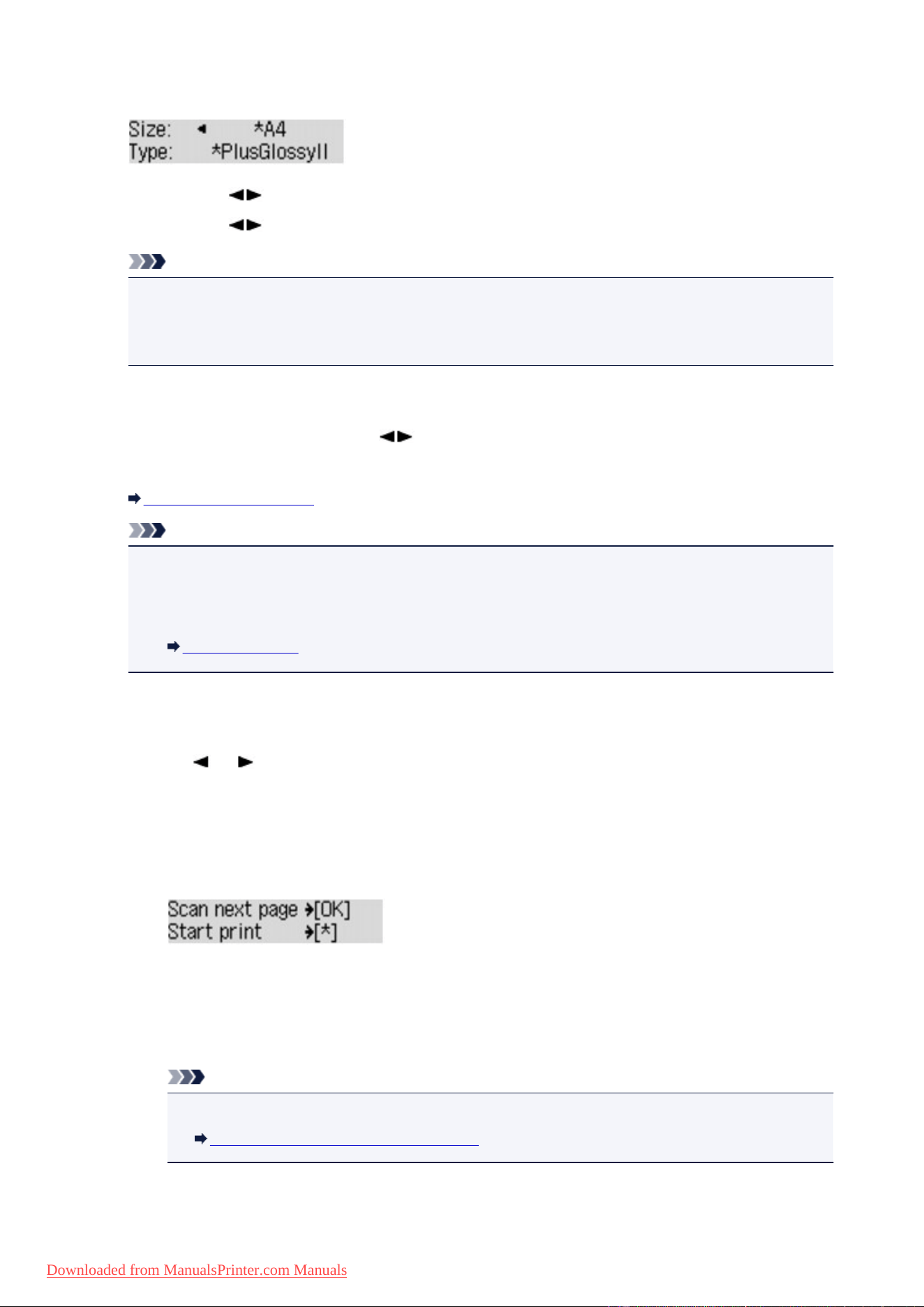
If a page size setting or a media type setting that cannot be used in two-sided copying is selected, the
LCD displays the following message.
1. Use the button to select the page size, then press the OK button.
2.
Use the button to select the media type, then press the OK button.
Note
•
When ON is selected for Copy on ECO (2-sided) and a page size setting or a media type setting
that cannot be used in two-sided copying is selected, pressing the COPY button displays the
message above on the LCD.
7.
Specify the print settings and the stapling side.
Press the Menu button, then use the button to select a setting item.
Select Stapling side, press the OK button, then select Long side or Short side as the stapling side.
Setting Items for Copying
Note
• The * (asterisk) on the LCD indicates the current setting.
• When ON is selected for Collate, two-sided copying can be used in combination with collated
copying.
Collated Copying
8.
Load the original document on the platen glass or in the ADF.
9.
Use the (-) (+) button or the Numeric buttons to specify the number of copies.
10.
Press the Color button for color copying, or the Black button for black & white copying.
•
When the document has been loaded on the platen glass:
When the machine finishes scanning the first page, the message below is displayed.
If you have the next page to scan, load it on the platen glass and press the OK button. The
machine starts copying.
If you do not need more scanning, press the tone button to start copying. The machine starts
copying.
Note
•
You can add the copying job while printing.
Adding the Copying Job (Reserve copy)
•
When the document has been loaded in the ADF:
193
Downloaded from ManualsPrinter.com Manuals

The machine starts scanning the next sheet of document automatically after one sheet of
document finishes being scanned.
Note
• If Memory is full appears on the LCD when scanning, set the image quality to Standard or reduce the
number of sheets of documents, then try copying again. If the problem is not resolved, set the image
quality to Draft and try copying again.
• If you are copying in black & white, print intensity of two-sided copying may differ from that of a single-
sided copy.
• If you press the COPY button, two-sided copying is canceled and the copy mode returns to standard
copying.
194
Downloaded from ManualsPrinter.com Manuals

About Special copy Menu
The following menus are selectable in the Special copy menu.
• 2-sided copy
You can copy two original pages onto the both sides of a single sheet of paper.
Two-Sided Copying
• Frame erase copy
When copying thick originals such as books, you can make a copy without black margins around the
image and gutter shadows.
Copying Thick Originals Such as Books
• Borderless copy
You can copy images so that they fill the entire page without borders.
Copying without Borders
• 2-on-1 copy
You can copy two original pages onto a single sheet of paper by reducing each image.
Copying Two Pages to Fit onto a Single Page
• 4-on-1 copy
You can copy four original pages onto a single sheet of paper by reducing each image.
Copying Four Pages to Fit onto a Single Page
Note
• In addition to the copying method in the Special copy menu, the methods below are available.
• You can specify the magnification optionally or select the preset-ratio copying or fit-to-page
copying.
Reducing or Enlarging a Copy
• You can obtain sorted printouts when making multiple copies of a multi-paged original.
Collated Copying
195
Downloaded from ManualsPrinter.com Manuals
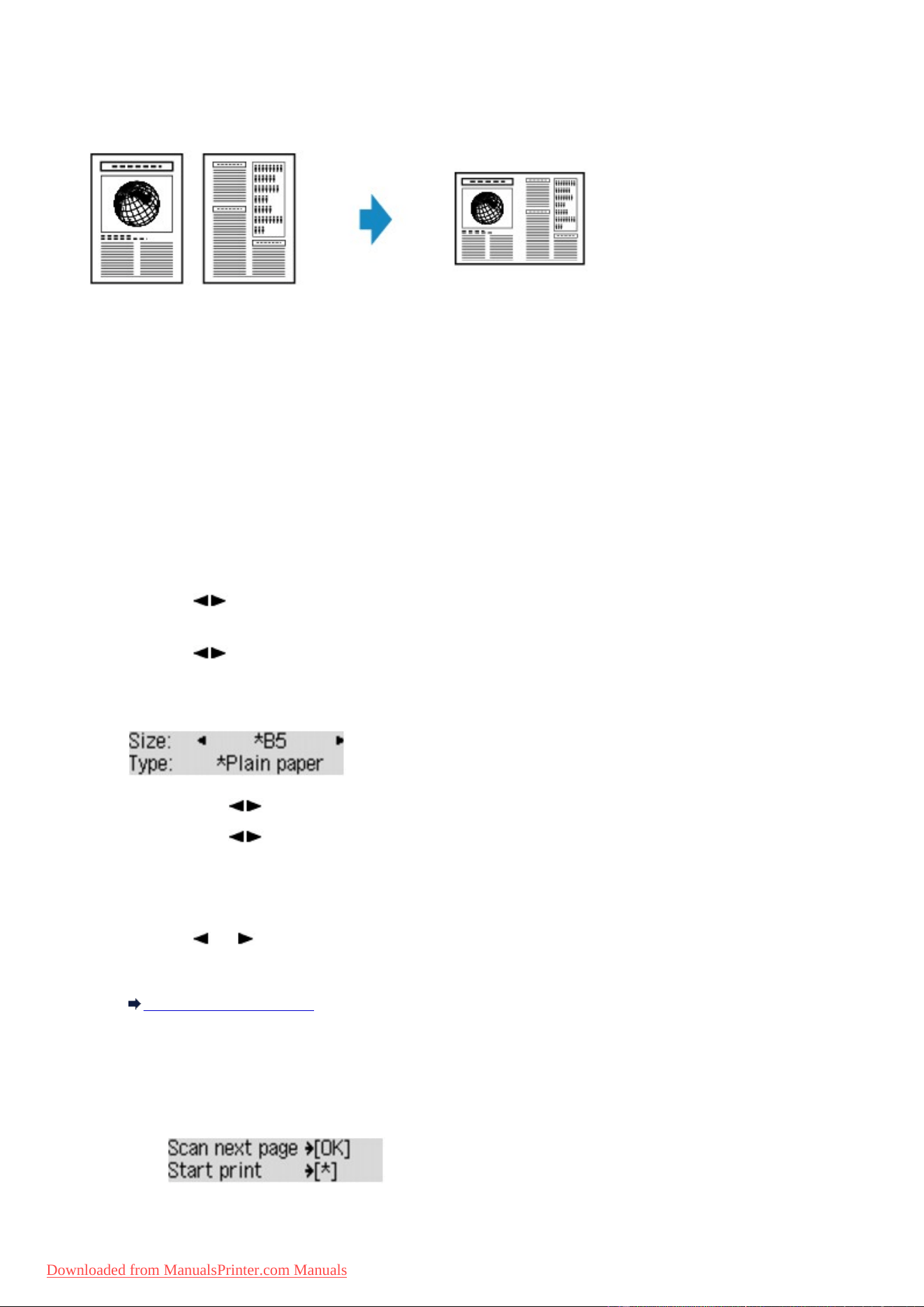
Copying Two Pages to Fit onto a Single Page
You can copy two original pages or a two sided page onto a single sheet of paper by reducing each image.
1.
Make sure that the machine is turned on.
2.
Load paper.
3.
Press the COPY button.
The Copy standby screen is displayed.
4.
Press the Menu button.
The Copy menu screen is displayed.
5.
Use the button to select Special copy, then press the OK button.
6.
Use the button to select 2-on-1 copy, then press the OK button.
If a page size setting or a media type setting that cannot be used in 2-on-1 copying is selected, the LCD
displays the following message.
1.
Use the button to select the page size, then press the OK button.
2. Use the button to select the media type, then press the OK button.
7. Load the original document on the platen glass or in the ADF.
8. Use the (-) (+) button or the Numeric buttons to specify the number of copies.
Change the print settings as necessary.
Setting Items for Copying
9. Press the Color button for color copying, or the Black button for black & white copying.
•
When the document has been loaded on the platen glass:
When the machine finishes scanning the first page, the message below is displayed.
196
Downloaded from ManualsPrinter.com Manuals
If you have the next page to scan, load it on the platen glass and press the OK button. The
machine starts copying.
If you do not need more scanning, press the tone button to start copying. The machine starts
copying.
Note
• You can add the copying job while printing.
Adding the Copying Job (Reserve copy)
•
When the document has been loaded in the ADF:
The machine starts scanning the next sheet of document automatically after one sheet of
document finishes being scanned.
Note
• If Memory is full appears on the LCD when scanning, set the image quality to Standard or reduce the
number of sheets of documents, then try copying again. If the problem is not resolved, set the image
quality to Draft and try copying again.
197
Downloaded from ManualsPrinter.com Manuals
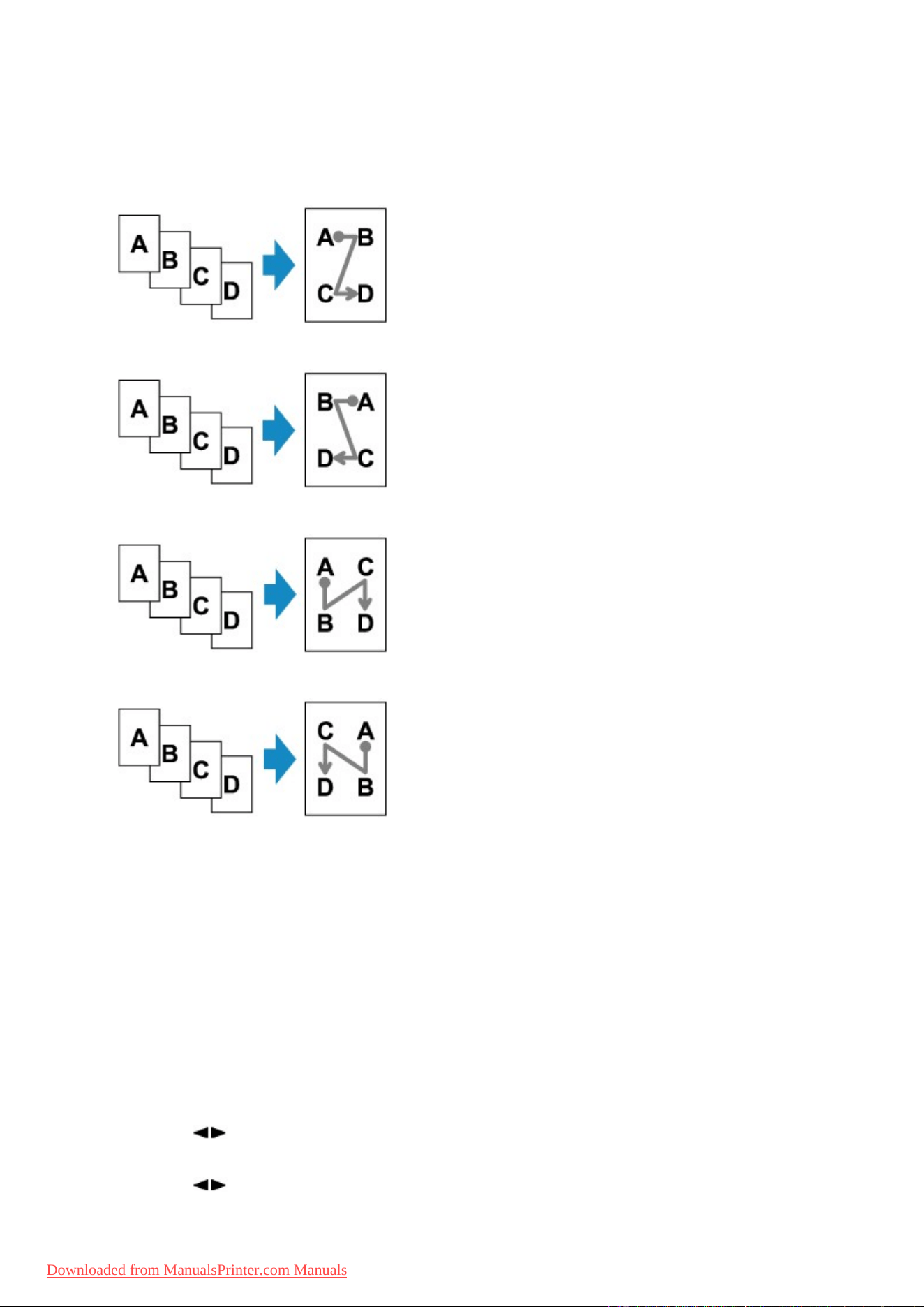
Copying Four Pages to Fit onto a Single Page
You can copy four original pages onto a single sheet of paper by reducing each image. Four different
layouts are available.
• When Layout 1 is selected for 4-on-1 layout:
• When Layout 2 is selected for 4-on-1 layout:
• When Layout 3 is selected for 4-on-1 layout:
• When Layout 4 is selected for 4-on-1 layout:
1.
Make sure that the machine is turned on.
2. Load paper.
3. Press the COPY button.
The Copy standby screen is displayed.
4. Press the Menu button.
The Copy menu screen is displayed.
5. Use the button to select Special copy, then press the OK button.
6. Use the button to select 4-on-1 copy, then press the OK button.
198
Downloaded from ManualsPrinter.com Manuals
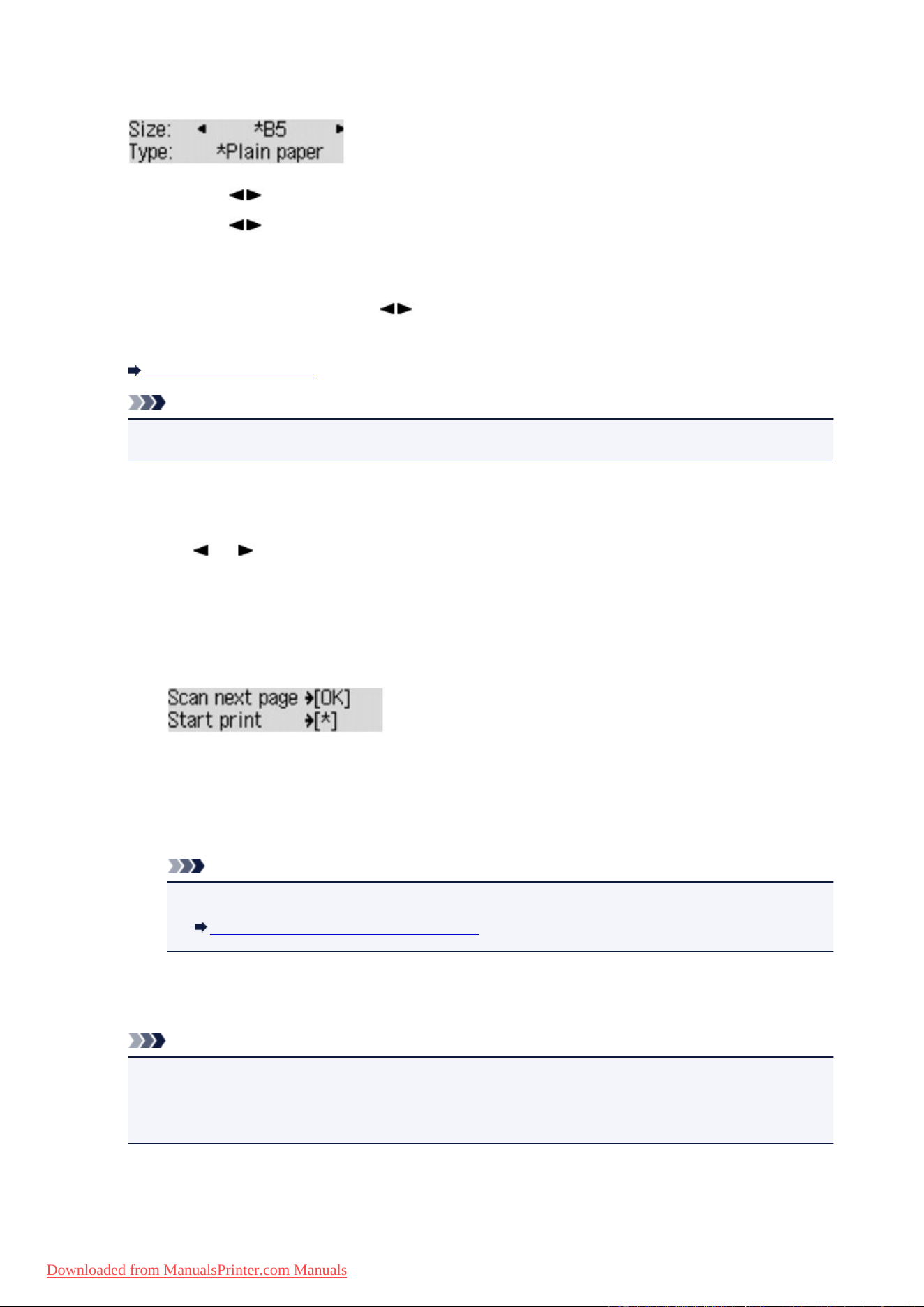
If a page size setting or a media type setting that cannot be used in 4-on-1 copying is selected, the LCD
displays the following message.
1. Use the button to select the page size, then press the OK button.
2.
Use the button to select the media type, then press the OK button.
7. Specify the print settings and the layout.
Press the Menu button, then use the button to select a setting item.
Select 4-on-1 layout, press the OK button, then select the layout.
Setting Items for Copying
Note
•
The * (asterisk) on the LCD indicates the current setting.
8.
Load the original document on the platen glass or in the ADF.
9.
Use the (-) (+) button or the Numeric buttons to specify the number of copies.
10.
Press the Color button for color copying, or the Black button for black & white copying.
• When the document has been loaded on the platen glass:
When the machine finishes scanning the first to the third page, the message below is displayed.
If you have the next page to scan, load it on the platen glass and press the OK button. The
machine starts copying.
If you do not need more scanning, press the tone button to start copying. The machine starts
copying.
Note
•
You can add the copying job while printing.
Adding the Copying Job (Reserve copy)
•
When the document has been loaded in the ADF:
The machine starts scanning the next page automatically after a page finishes being scanned.
Note
• If Memory is full appears on the LCD when scanning, set the image quality to Standard or
reduce the number of sheets of documents, then try copying again. If the problem is not resolved,
set the image quality to Draft and try copying again.
199
Downloaded from ManualsPrinter.com Manuals
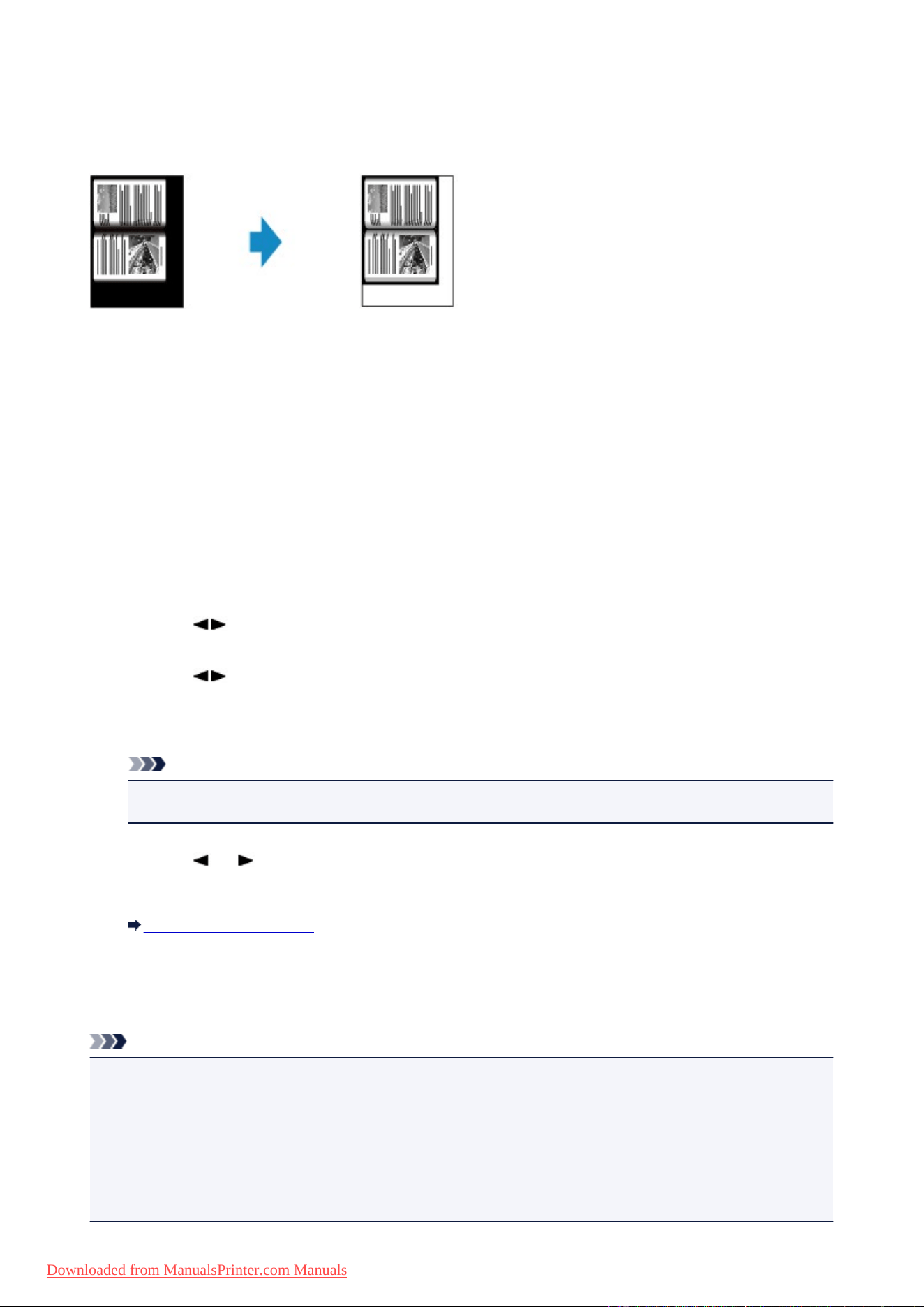
Copying Thick Originals Such as Books
When copying thick originals such as books, you can make a copy without black margins around the image
and gutter shadows. Using this function, you can reduce unnecessary ink consumption.
1.
Make sure that the machine is turned on.
2.
Load paper.
3.
Press the COPY button.
The Copy standby screen is displayed.
4.
Press the Menu button.
The Copy menu screen is displayed.
5.
Use the button to select Special copy, then press the OK button.
6.
Use the button to select Frame erase copy, then press the OK button.
7.
Load the original document on the platen glass.
Note
• When you use this function, load the original on the platen glass.
8.
Use the (-) (+) button or the Numeric buttons to specify the number of copies.
Change the print settings as necessary.
Setting Items for Copying
9. Press the Color button for color copying, or the Black button for black & white copying.
The machine starts copying.
Note
• Close the document cover.
• There may be a narrow black margin that appears around the image. This function removes the dark
margins only. If a scanned book is too thin or when the machine is used near a window or in a bright
environment, a faint black frame may remain. Also, if the color of an original is dark, the machine cannot
distinguish the document color from the shadow and this may cause slight cropping or a shadow on the
crease.
200
Downloaded from ManualsPrinter.com Manuals
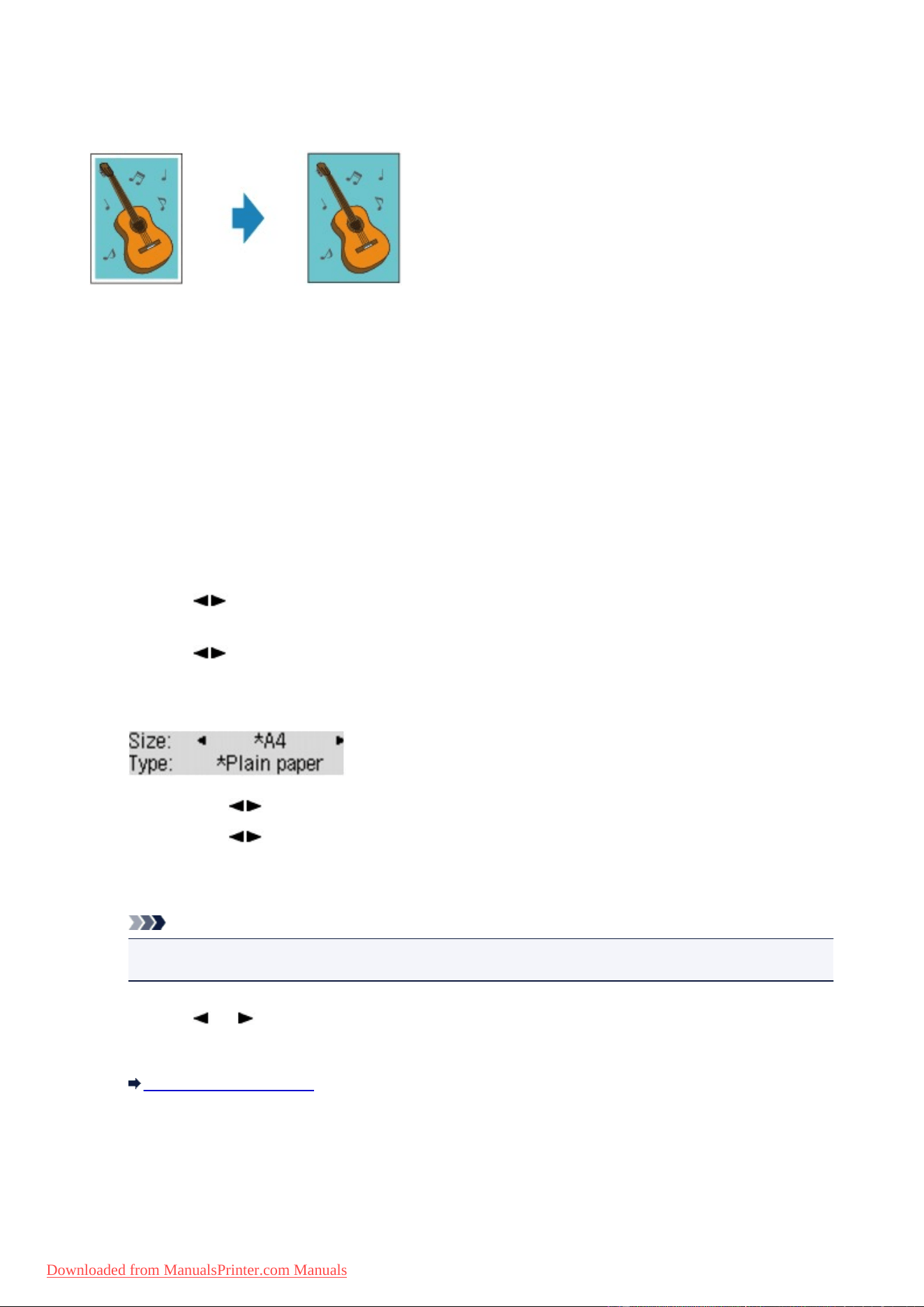
Copying without Borders
You can copy images so that they fill the entire page without borders.
1.
Make sure that the machine is turned on.
2.
Load the photo paper.
3.
Press the COPY button.
The Copy standby screen is displayed.
4.
Press the Menu button.
The Copy menu screen is displayed.
5.
Use the button to select Special copy, then press the OK button.
6.
Use the button to select Borderless copy, then press the OK button.
If a page size setting or a media type setting that cannot be used in borderless copying is selected, the
LCD displays the following message.
1.
Use the button to select the page size, then press the OK button.
2. Use the button to select the media type, then press the OK button.
7. Load the original document on the platen glass.
Note
•
When you use this function, load the original on the platen glass.
8. Use the (-) (+) button or the Numeric buttons to specify the number of copies.
Change the print settings as necessary.
Setting Items for Copying
9. Press the Color button for color copying, or the Black button for black & white copying.
The machine starts borderless copying.
201
Downloaded from ManualsPrinter.com Manuals

Note
• Slight cropping may occur at the edges since the copied image is enlarged to fill the whole page. You
can change the width to be cropped from the borders of the original image as needed. However, the
cropped area will be larger if the extension amount is large.
For details:
Extended copy amt.
• For details on the paper size and the media type available for borderless copying:
Printing Area
202
Downloaded from ManualsPrinter.com Manuals
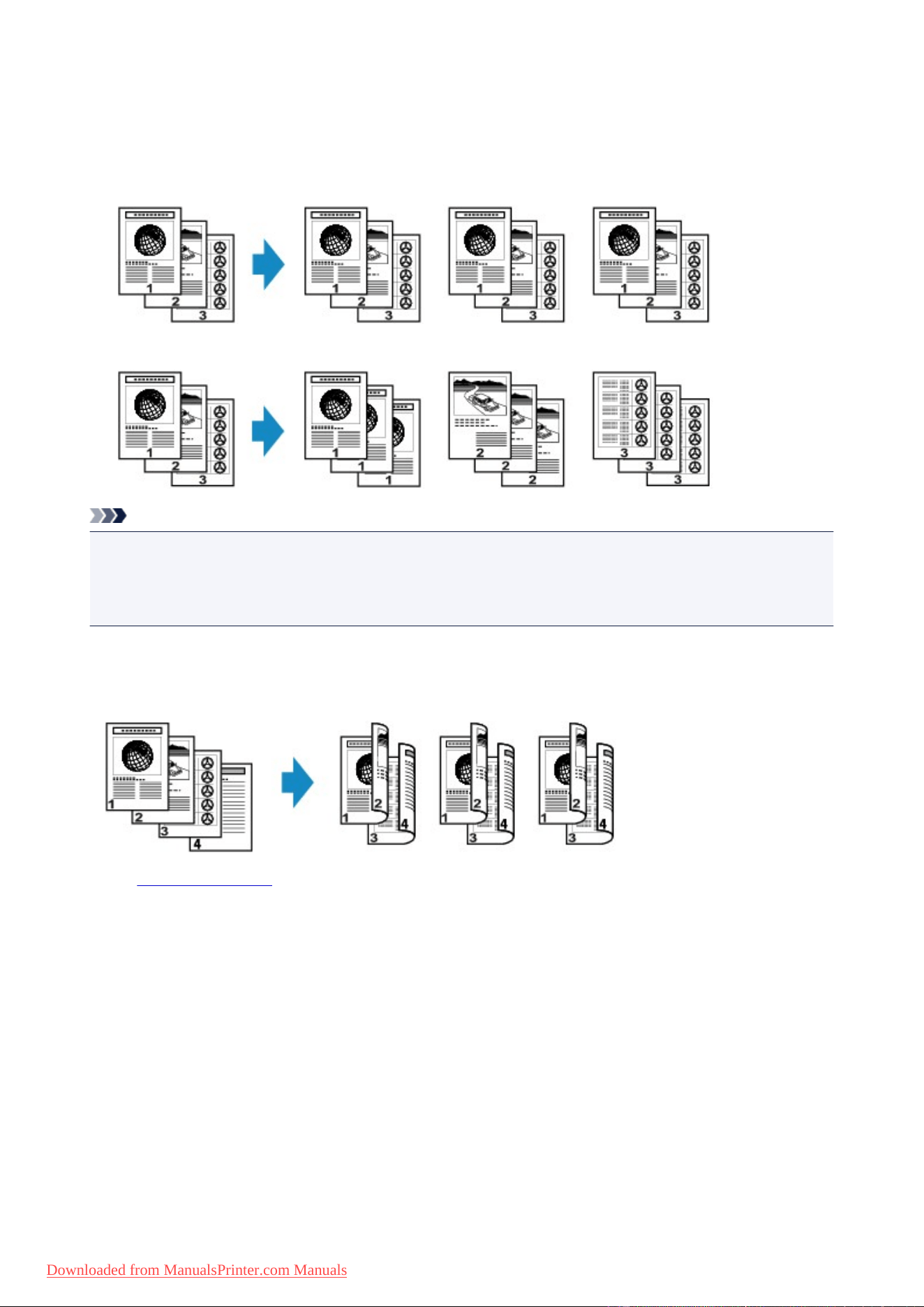
Collated Copying
When you select ON for Collate on Copy menu, you can obtain sorted printouts when making multiple
copies of a multi-paged original. In addition, you can copy originals on both sides of paper.
• When ON is selected:
• When OFF is selected:
Note
• When you use this function, load the original in the ADF.
• The number of pages the machine can read varies with the document. If Memory is full appears on the
LCD when scanning, reduce the number of document pages to scan and try copying again.
Collated Copying in Combination with Two-Sided Copying
Collated copying is also available when two-sided copying is selected.
See Two-Sided Copying for two-sided copying.
203
Downloaded from ManualsPrinter.com Manuals