
iOS
works with
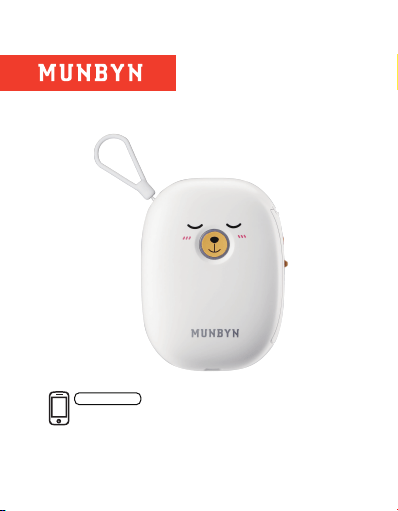
Munbyn Print
Version 1.0.2
Android
Focus on
Every Powerful
Moment
User Manual
iOS
works with
Munbyn Print
Version 1.0.2
Android
Focus on
Every Powerful
Moment
User Manual

Contents
1.0 Packing Introduction
1.1. What’s in the box
1.2. Product Features
2. Quick Connection
2.1. Download Munbyn Print APP
2.2. Connect the Printer via Munbyn Printer
2.3. First Print
3. Power Button and Indicator Status
3.1. Power Indicator Status
3.2. Function of the power button
4. Specification
5. FAQ
6. Support
7. FCC Statement
1.1 What’s in the box
Cut paper upward
User manual
15mmX30mm
label
Power cable
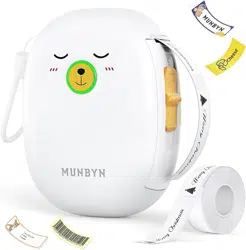
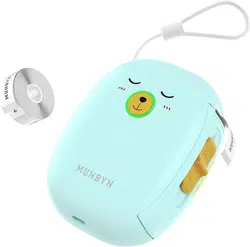
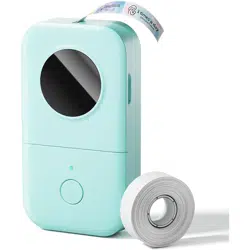
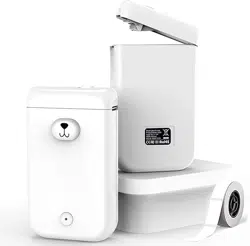
Label maker
On/Off
Slide down to
open the cover
Charging interface
Packing Introduction
1
1.2.Product Features
1
1
1
2
4
5
6
10
10
10
11
12
14
14
Contents
1.0 Packing Introduction
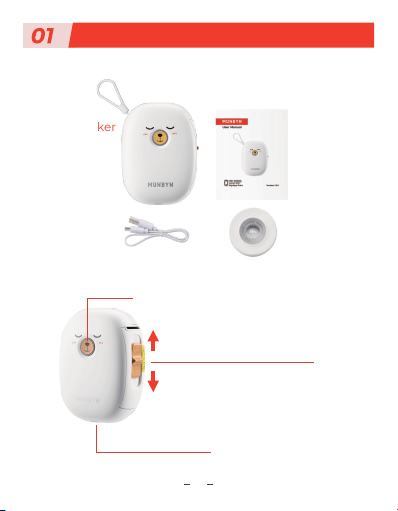
1.1. What’s in the box
1.2. Product Features
2. Quick Connection
2.1. Download Munbyn Print APP
2.2. Connect the Printer via Munbyn Printer
2.3. First Print
3. Power Button and Indicator Status
3.1. Power Indicator Status
3.2. Function of the power button
4. Specification
5. FAQ
6. Support
7. FCC Statement
1.1 What’s in the box
Cut paper upward
User manual
15mmX30mm
label
Power cable
Label maker
On/Off
Slide down to
open the cover
Charging interface
Packing Introduction
1
1.2.Product Features
1
1
1
2
4
5
6
10
10
10
11
12
14
14
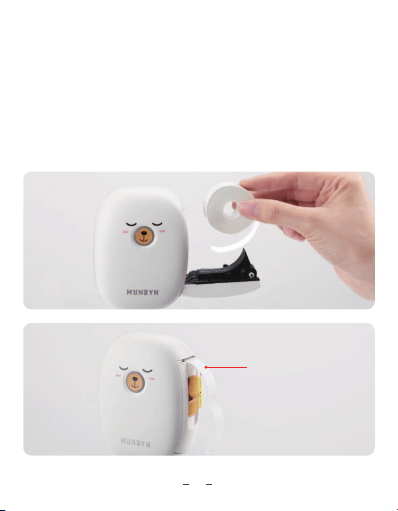
The label goes into the printer like a number “9”
Note: After the paper is put in, you need to press the
power button once to calibrate the paper(printer is
power on), otherwise the printing will not be correct
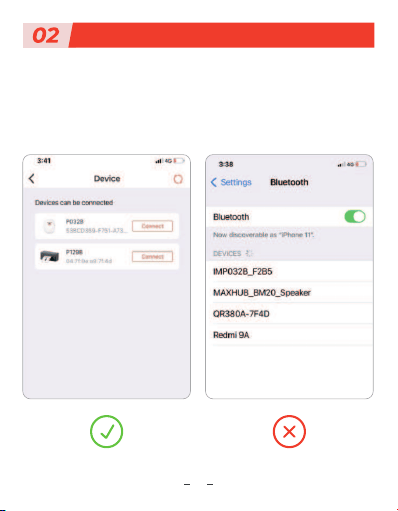
Quick Connection
3
2
1.2.1.Load paper
Print Side Down
Note: The printer needs to be connected in the Munbyn
Print APP, and cannot be connected directly from the
Bluetooth in the mobile phone settings
The label goes into the printer like a number “9”
Note: After the paper is put in, you need to press the
power button once to calibrate the paper(printer is
power on), otherwise the printing will not be correct
Quick Connection
3
2
1.2.1.Load paper
Print Side Down
Note: The printer needs to be connected in the Munbyn
Print APP, and cannot be connected directly from the
Bluetooth in the mobile phone settings
5
4
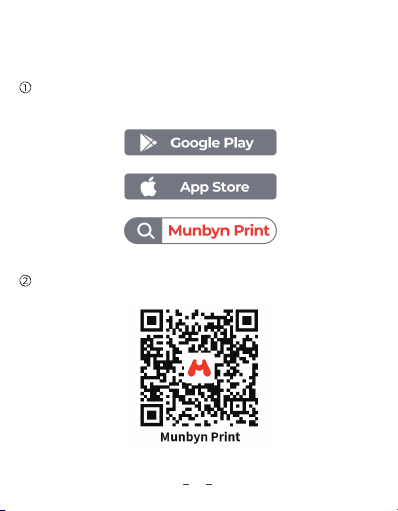
2.1.Download Munbyn Print APP
Search "Munbyn Print" on APP Store or Google Play to
get the APP
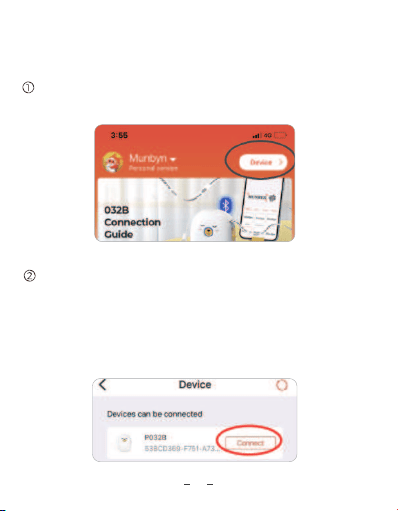
2.2.Connect the Printer via Munbyn Printer
Open the APP, click on the device in the upper right
corner of the home page
Or please scan the QR code to download the app.
Click to connect
Note: If the device cannot be found, please check
whether the Bluetooth is enabled on the mobile
phone and whether the Bluetooth permission is
enabled for the APP
5
4
2.1.Download Munbyn Print APP
Search "Munbyn Print" on APP Store or Google Play to
get the APP
2.2.Connect the Printer via Munbyn Printer
Open the APP, click on the device in the upper right
corner of the home page
Or please scan the QR code to download the app.
Click to connect
Note: If the device cannot be found, please check
whether the Bluetooth is enabled on the mobile
phone and whether the Bluetooth permission is
enabled for the APP
7
6
2.3.First Print
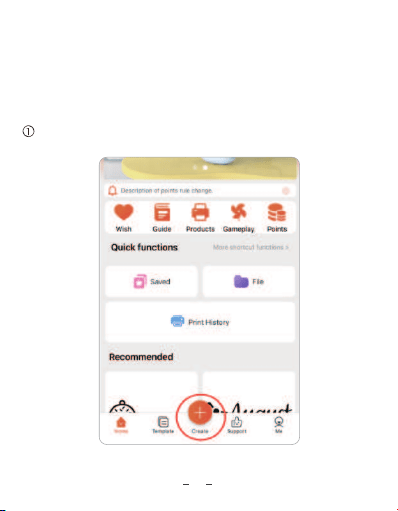
Click Create on the Home page
After the device is successfully connected, we start
creating and printing
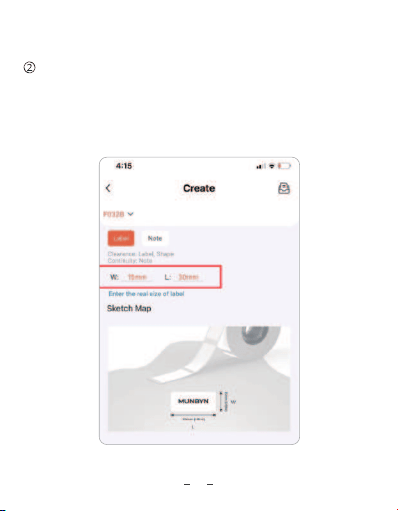
Enter the length and width of the label
Note: The size of the label that comes with the label
printer is 15mmX30mm, if you use other labels, please
pay attention to their size
7
6
2.3.First Print
Click Create on the Home page
After the device is successfully connected, we start
creating and printing
Enter the length and width of the label
Note: The size of the label that comes with the label
printer is 15mmX30mm, if you use other labels, please
pay attention to their size
9
8
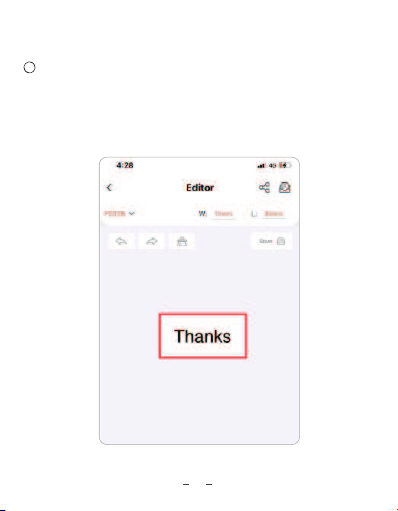
Design label
3
4
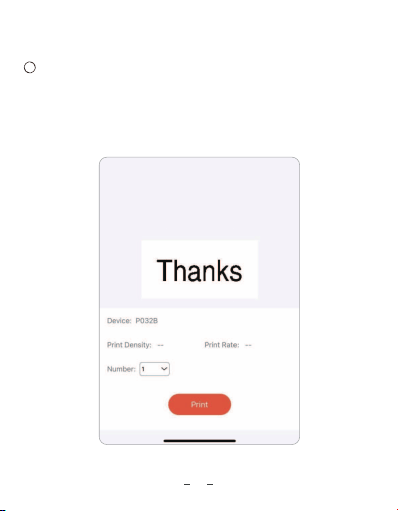
Print label
Click “Preview and Print” to check that the label
preview matches the preset and click “Print” without
adjustments
Note: The template is created successfully, and the
design is carried out within the template area, and the
content beyond the area will not be printed
9
8
Design label
3
4
Print label
Click “Preview and Print” to check that the label
preview matches the preset and click “Print” without
adjustments
Note: The template is created successfully, and the
design is carried out within the template area, and the
content beyond the area will not be printed
11
10
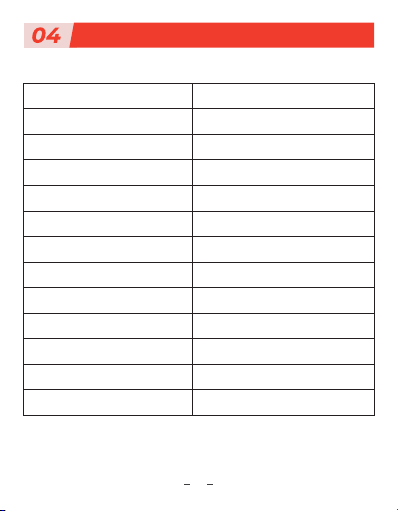
Printing Method
Thermal Direct
203dpi, 8dots/mm
20mm/s max
USB+Bluetooth
1200mAh Li-On rechargeable
DC 5V/2A
15mm max
0℃ ~ 50℃
-10~50/ 10~90%(Non-condensing)
-20~70℃
-40~80/ 5~95% Non-condensing
50km
Android/iOS
Resolution
Print Speed
Interface
Lithium Battery
Power Adaptor
Label Width
Working Temperature(℃)
Working Humidity
Storage Temperature(℃)
Storage Humidity
Printing Life
Operating System
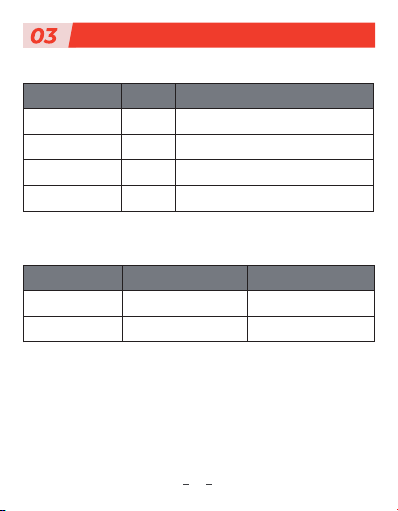
Power Button and Indicator Status
3.1.Power Indicator Status
3.2.Function of the power button
Indicator light Status Situation
Green Light Fully charged/Normal use
Cover opened/Out of paper/Charging
Low power
Bluetooth connected
Light
Light
Flash
Red
Red
Blue
Button Operation method Functions
Power button Click Print out the paper
Print self-test paperDouble clickPower button
Specification
11
10
Printing Method
Thermal Direct
203dpi, 8dots/mm
20mm/s max
USB+Bluetooth
1200mAh Li-On rechargeable
DC 5V/2A
15mm max
0℃ ~ 50℃
-10~50/ 10~90%(Non-condensing)
-20~70℃
-40~80/ 5~95% Non-condensing
50km
Android/iOS
Resolution
Print Speed
Interface
Lithium Battery
Power Adaptor
Label Width
Working Temperature(℃)
Working Humidity
Storage Temperature(℃)
Storage Humidity
Printing Life
Operating System
Power Button and Indicator Status
3.1.Power Indicator Status
3.2.Function of the power button
Indicator light Status Situation
Green Light Fully charged/Normal use
Cover opened/Out of paper/Charging
Low power
Bluetooth connected
Light
Light
Flash
Red
Red
Blue
Button Operation method Functions
Power button Click Print out the paper
Print self-test paperDouble clickPower button
Specification

13
12
Q1. Why do I need to open the geographic location
and address book when using the App for Android?
Al. It is Google's rule. Our App needs to abide by this rule
on the Google platform. But please rest assured that we
will firmly protect user privacy.
Q4. Why does the App crash?
A4. Please uninstall and reinstall the latest App.
Q2. Why cannot the printer connect to Bluetooth
and print?
A2. You first need to search for "Munbyn Print" through
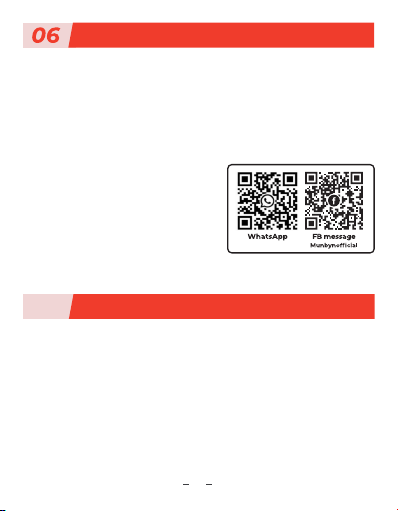
Google Play or scan the QR code to download the App,
then open the App to connect to Bluetooth.
Q3. Why does it print blank labels?
A3. Please make sure the printing side of the label
is facing up.
FAQ
Q5. Why is the print not clear?
A5. There are many factors that affect print clarity. First,
please make sure that the battery is full. Second, adjust the
font size, font type and concentration. If the above methods
do not work, wipe the print head with an alcohol swab.
Q6. Why is printing response time sometimes long?
A6. The reason is that the Bluetooth transmission speed of
the cell phone is slow. Please be patient.
Q7. Why does it show out of paper when
printing? (The label paper is loaded correctly)
A7. Please disconnect Bluetooth, restart Bluetooth to
reconnect App, or restart the App directly.
Q8. Why won't my labels be aligned up?
A8. This is because your labels were not set up correctly at
the beginning. When loading labels into the printer, please
do not forget to click the Power Button to print out the
labels for alignment.

13
12
Q1. Why do I need to open the geographic location
and address book when using the App for Android?
Al. It is Google's rule. Our App needs to abide by this rule
on the Google platform. But please rest assured that we
will firmly protect user privacy.
Q4. Why does the App crash?
A4. Please uninstall and reinstall the latest App.
Q2. Why cannot the printer connect to Bluetooth
and print?
A2. You first need to search for "Munbyn Print" through
Google Play or scan the QR code to download the App,
then open the App to connect to Bluetooth.
Q3. Why does it print blank labels?
A3. Please make sure the printing side of the label
is facing up.
FAQ
Q5. Why is the print not clear?
A5. There are many factors that affect print clarity. First,
please make sure that the battery is full. Second, adjust the
font size, font type and concentration. If the above methods
do not work, wipe the print head with an alcohol swab.
Q6. Why is printing response time sometimes long?
A6. The reason is that the Bluetooth transmission speed of
the cell phone is slow. Please be patient.
Q7. Why does it show out of paper when
printing? (The label paper is loaded correctly)
A7. Please disconnect Bluetooth, restart Bluetooth to
reconnect App, or restart the App directly.
Q8. Why won't my labels be aligned up?
A8. This is because your labels were not set up correctly at
the beginning. When loading labels into the printer, please
do not forget to click the Power Button to print out the
labels for alignment.
15
14
MUNBYN provides 18 months’ warranty and lifetime free
service.
If you encounter any issues with the product, please contact
the MUNBYN team to promptly receive troubleshooting tips
or a replacement.
Email: [email protected]
(24-7 online support)
Website: www.munbyn.com
(how-to videos)
WhatsApp: +8 6 13 3 5 2 9 5 0 4 9 0
Phone:+1 650 206 2250
Support
FCC Statement
07
Changes or modifications not expressly approved by the
party responsible for compliance could void the user's
authority to operate the equipment.
This equipment has been tested and found to comply with
the limits for a Class B digital device,pursuant to Part 15 of
the FCC Rules.These limits are designed to provide
reasonable protection against harmful interference in a
residential installation.
This equipment generates uses and can radiate radio
frequency energy and, if not installed and used in
accordance with the instructions, may cause harmful
interference to radio communications. However,there is
no guarantee that interference will not occur in a
particular installation. If this equipment does cause
harmful interference to radio or television reception,which
can be determined by turning the equipment off and
on,the user is encouraged to try to correct the interfer-
ence by one or more of the following measures:
-- Reorient or relocate the receiving antenna.
-- Increase the separation between the equipment and
receiver.
-- Connect the equipment into an outlet on a circuit
different from that to which the receiver isconnected.
-- Consult the dealer or an experienced radio/TV
technician for help
This device complies with part 15 of the FCC rules.
Operation is subject to the following two conditions (1)this
device may not cause harmful interference,and (2) this
device must accept any interference received, including
interference that may cause undesired operation.This
equipment complies with FCCradiation exposure limits
set forth for an uncontrolled environment.
+86 13352950490

15
14
MUNBYN provides 18 months’ warranty and lifetime free
service.
If you encounter any issues with the product, please contact
the MUNBYN team to promptly receive troubleshooting tips
or a replacement.
Email: support@munbyn.com
(24-7 online support)
Website: www.munbyn.com
(how-to videos)
WhatsApp: +8 6 13 3 5 2 9 5 0 4 9 0
Phone:+1 650 206 2250
Support
FCC Statement
07
Changes or modifications not expressly approved by the
party responsible for compliance could void the user's
authority to operate the equipment.
This equipment has been tested and found to comply with
the limits for a Class B digital device,pursuant to Part 15 of
the FCC Rules.These limits are designed to provide
reasonable protection against harmful interference in a
residential installation.
This equipment generates uses and can radiate radio
frequency energy and, if not installed and used in
accordance with the instructions, may cause harmful
interference to radio communications. However,there is
no guarantee that interference will not occur in a
particular installation. If this equipment does cause
harmful interference to radio or television reception,which
can be determined by turning the equipment off and
on,the user is encouraged to try to correct the interfer-
ence by one or more of the following measures:
-- Reorient or relocate the receiving antenna.
-- Increase the separation between the equipment and
receiver.
-- Connect the equipment into an outlet on a circuit
different from that to which the receiver isconnected.
-- Consult the dealer or an experienced radio/TV
technician for help
This device complies with part 15 of the FCC rules.
Operation is subject to the following two conditions (1)this
device may not cause harmful interference,and (2) this
device must accept any interference received, including
interference that may cause undesired operation.This
equipment complies with FCCradiation exposure limits
set forth for an uncontrolled environment.
+86 13352950490