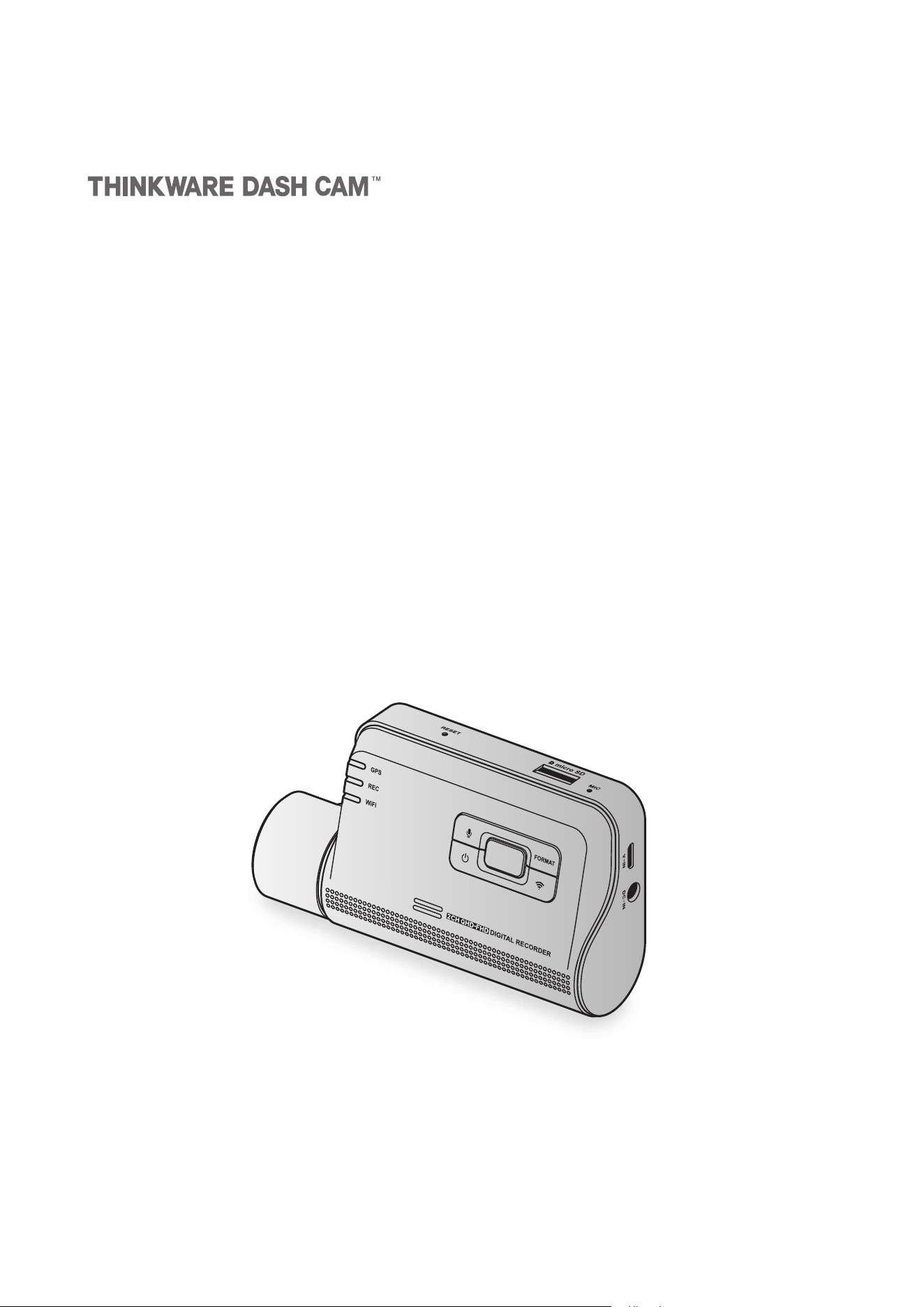
This product records videos while the vehicle is operating.
Read and follow the instructions in this guide to properly use and maintain the product.
User Guide
Q850

Before using the product
About the product
This product records videos while the vehicle is operating. Use this product only for reference when
investigating incidents or road accidents. This product is not guaranteed to record all events. The device
may not record accidents with impacts that are too minor to activate the impact sensor or accidents with
massive impacts that cause the vehicle’s battery voltage to deviate.
Video recording does not begin until the product is completely turned on (booted up). To ensure that all
vehicle events are recorded, wait until the product is completely booted up after turning it on, and then
begin operating the vehicle.
THINKWARE is not responsible for any loss caused by an accident, nor is it responsible for providing any
support regarding the outcome of an accident.
Depending on the vehicle's configuration or operating conditions, such as the installation of remote door
lock devices, ECU settings, or TPMS settings, some product features may not be supported, and different
firmware versions may influence the product's performance or features.
About the user guide
The information provided in the guide may change when the manufacturer updates its service policy.
This user guide is intended for THINKWARE Q850 models only, and it may contain technical errors, editorial
errors, or missing information.
Copyrights
All rights for the content and maps in this guide are reserved by THINKWARE and are protected under
copyright laws. All unauthorized duplication, revision, publication, or distribution of this guide without
written consent from THINKWARE is prohibited and is eligible for criminal charges.
Registered trademarks
THINKWARE Q850 is a registered trademark of THINKWARE.
Other product logos and service names in this guide are trademarks of the relevant companies.

3
Contents
Safety information 4
1. Product overview 6
1.1 Included items 6
1.1.1 Standarditems 6
1.1.2 Accessories(soldseparately) 6
1.2 Part names 7
1.2.1 Frontcamera(mainunit)-frontview 7
1.2.2Frontcamera(mainunit)-rearview 8
1.2.3Rearcamera(optional) 9
1.3 Removing and inserting the memory card 9
2. Installing the product 10
2.1 Installing the front camera (main unit) 10
2.1.1 Selectinganinstallationlocation 10
2.1.2Securingtheproduct 10
2.1.3Connectingthepowercable 12
2.2 Installing the rear camera (optional) 15
2.2.1Selectinganinstallationlocation 15
2.2.2Securingtherearcamera 15
2.2.3Connectingtherearcameracable 16
3. Using recording features 17
3.1 Turning the product on or off 17
3.2 Learning about file storage locations 17
3.3 Using the continuous recording feature 17
3.4 Recording manually 18
3.5 Using the SOS recording feature 18
3.6 Using parking mode 19
3.7 Using the Super Night Vision 20
3.8 Using the road safety features 20
4. Using the mobile viewer 21
4.1 Connect the product to a smartphone 21
4.2 Viewing the mobile viewer screen layout 21
5. Using THINKWARE CONNECTED 22
5.1 Connecting the product to THINKWARE
CONNECTED 23
6. Using the PC viewer 24
6.1 System requirements 24
6.2 Learning about the PC viewer 24
6.2.1DownloadingthePCviewer 24
6.2.2InstallingthePCviewer 24
6.2.3PCviewerscreenlayout 25
6.2.4PlayingrecordedvideosonthePC
viewer 26
7. Settings 27
7.1 Managing the memory card 27
7.2 Setting the Camera 27
7.3 Setting recording features 28
7.4 Setting road safety features 29
7.5 Configuring the system settings 29
8. Upgrading the firmware 30
9. Troubleshooting 31
10. Specifications 32

4
Safety information
Read the following safety information to properly use the product.
Safety symbols in this guide
"Warning" - Indicates a potential hazard which, if not avoided, may result in injury or death.
"Caution" - Indicates a potential hazard which, if not avoided, may result in minor injury or property damage.
"Note" - Provides useful information to help users better utilize the product's features.
Safety information for proper use
Driving and product operation
• Do not operate the product while driving a vehicle. Distraction while driving may cause accidents and
result in injury or death.
• Install the product in places where the driver's view is not obstructed. Obstruction of the driver’s vision
may cause accidents and result in injury or death. Check with your state and municipal laws before
mounting the product to the windshield.
Power supply
• Do not operate or handle the power cable with wet hands. Doing so may result in electrocution.
• Do not use damaged power cables. Doing so may result in electrical fire or electrocution.
• Keep the power cable away from all heat sources. Failure to do so may cause the power cord insulation to
melt, resulting in electrical fire or electrocution.
• Use the power cable with the correct connector and make sure the power cable is connected securely
and is firmly in place. Failure to do so may result in electrical fire or electrocution.
• Do not modify or cut the power cable. Also, do not place heavy objects on the power cable or pull, insert,
or bend the power cable using excessive force. Doing so may result in electrical fire or electrocution.
• Use only genuine accessories from THINKWARE or an authorized THINKWARE dealer. THINKWARE does
not guarantee compatibility and normal operation of third-party accessories.
• When connecting the power cable to the product, ensure that the connection between the cable plug
and the power cable connector on the product is secure. If the connection is loose, the power cable may
become disconnected due to vehicle vibration. Video recording is not available if the power connector is
disconnected.

5
Children and pets
Ensure that the product is out of the reach of children and pets. If the product breaks, it may result in fatal
damage.
Other information about the product
Product management and operation
• Do not expose the product to direct sunlight or intense light. The lens or internal circuitry may fail
otherwise.
• Use the product at a temperature between 14°F and 140°F (-10°C to 60°C) and store the product at a
temperature between -4°F and 158°F (-20°C to 70°C). The product may not function as designed and some
permanent physical damages may result if it is operated or stored out of the specified temperature ranges.
Such damages are not covered by the warranty.
• Frequently check the product for the proper installation position. Impact caused by extreme road
conditions may alter the installation position. Ensure that the product is positioned as instructed in this
guide.
• Do not apply excessive force when pressing the buttons. Doing so may damage the buttons.
• Do not use chemical cleaners or solvents to clean the product. Doing so may damage plastic components
of the product. Clean the product using a clean, soft, and dry fabric.
• Do not disassemble the product or subject the product to impact. Doing so may damage the product.
Unauthorized disassembly of the product voids the product warranty.
• Handle with care. If you drop, mishandle, or expose the product to external shocks, it may cause damage
and/or result in the malfunction of the product.
• Do not attempt to insert foreign objects into the device.
• Avoid excessive humidity and do not allow any water to enter the product. Electronic components inside
the product may fail if exposed to humidity or water.
• Depending on the make and model of your car, the power may be constantly supplied to the dash cam
even when the ignition is turned off. Installation of the device to a continuously powered 12V outlet could
result in vehicle battery drainage.
• This device is designed to record video while the vehicle is in operation. The quality of the video might be
affected by weather conditions and the road environment, such as whether it is day or night, presence of
street lighting, entering/exiting tunnels, and the surrounding temperature.
• THINKWARE is NOT responsible for the loss of any recorded video during operation.
• Although the device was designed to withstand high-impact car collisions, THINKWARE does not
guarantee the recording of accidents when the device is damaged as a result of the accident.
• Keep the windshield and camera lens clean for optimal video quality. Particles and substances on the
camera lens or windshield may reduce the quality of the recorded videos.
• This device is intended to be used inside the vehicle only.
6
1. Product overview
1.1 Included items
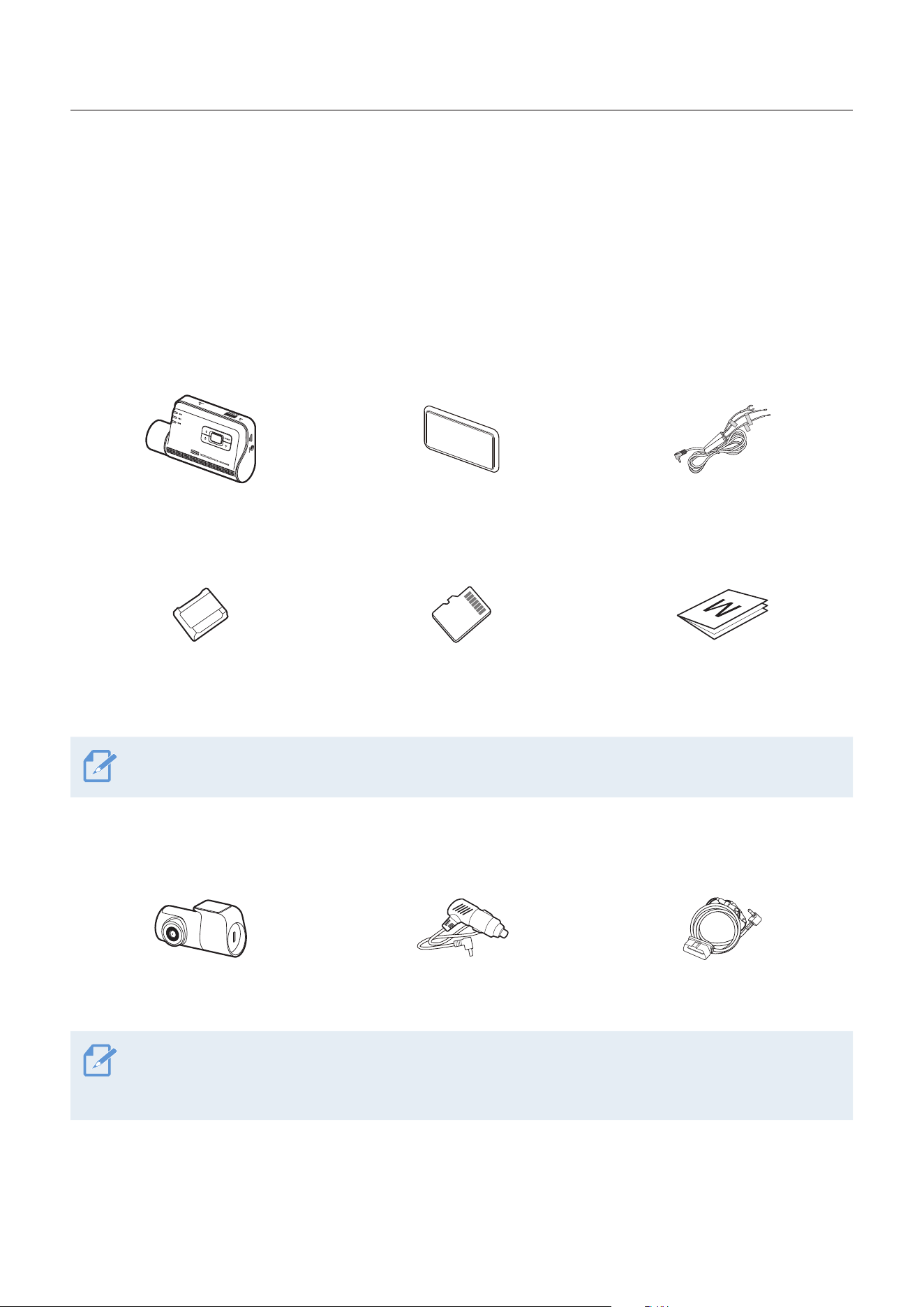
Ensure that all the items are included when you open the product box.
1.1.1 Standard items
ACC
BATTERY
GND
Front camera (main unit) Mount Hardwiring cable
Adhesive cable holder
microSD memory card
(consumable)
Warranty & CS information
The standard items may change without prior notice.
1.1.2 Accessories (sold separately)
Rear camera & cable Car charger OBD-II cable
GPS reception may be affected by interference from the vehicle's windshield, particularly those treated with
anti-UV protective coating, or built-in defroster. It is recommended that an external GPS receiver is used
when the GPS signal is weak or when you cannot get a GPS signal.
Product overview
7
1.2 Part names
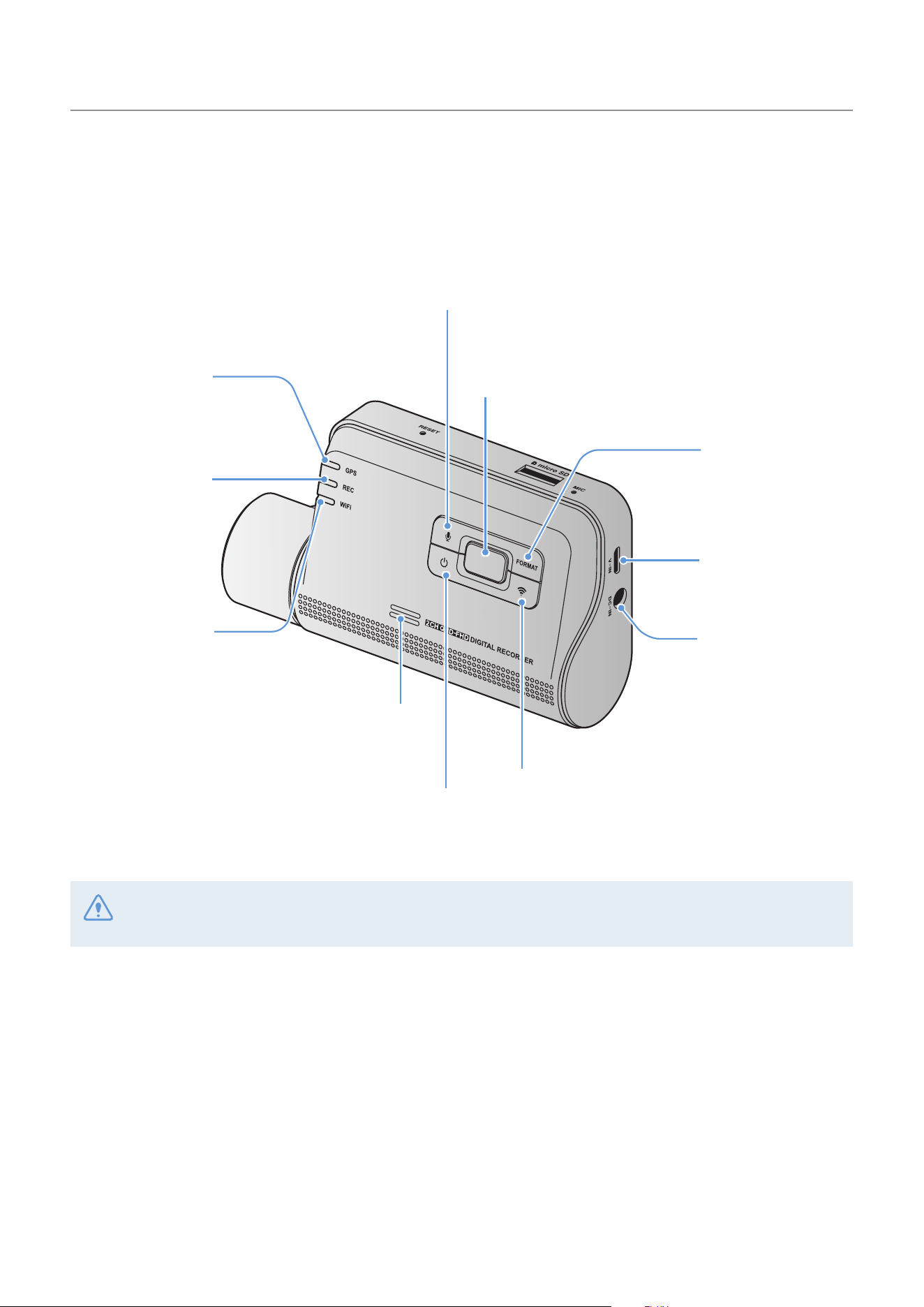
1.2.1 Front camera (main unit) - front view
DC-IN power port
Used to connect the
power cable.
V-IN input port
Used to connect the
rear camera (optional).
Speaker
Outputs the voice guide and buzzer
sounds to indicate the product’s status.
GPS LED
Indicates the GPS
connection status.
Power button
Press and hold to turn off the product.
Press to turn on the product.
Format button
Press and hold to
format the memory
card.
Wi-Fi button
•
Short press: Resets Bluetooth and Wi-Fi.
• Press and hold for 3 seconds: Connects the
product to a smartphone via Wi-Fi network.
REC button
• Press to start manual recording.
• Press and hold for 3 seconds for SOS recording.
Voice recording button
Press to enable or disable voice recording.
Recording LED
Indicates the
recording status.
Wi-Fi LED
Indicates the Wi-Fi
connection status.
In high temperature environments, Bluetooth and Wi-Fi connections may not be available to protect the
dashcam. If the connection fails, try reconnecting at a normal temperature.
Product overview
8
• To reset the product, press and hold the voice recording ( ) and REC ( ) buttons simultaneously until
you hear beeps.
• The security LED status may vary depending on the selected mode.
• Refer to the following table to check the status of the product using the LED indicators.
For more information about the REC LED, refer to "3.3 Using the continuous recording feature" on page 17.
LED LED status Operation description
BT/WiFi
(light on) Wi-Fi connected
(light on) /
(flickers)
Bluetooth on/Bluetooth pairing
>
>
(flickers) Bluetooth/Wi-Fi reset
(light on) Internet Mode connected
(light on for 5 seconds)
When pressing the Wi-Fi button
when Bluetooth/Wi-Fi is OFF in a
high temperature environment
GPS
(light on) GPS connected
Misc. Wi-Fi
>
REC
>
GPS
(flickers) Firmware upgrade
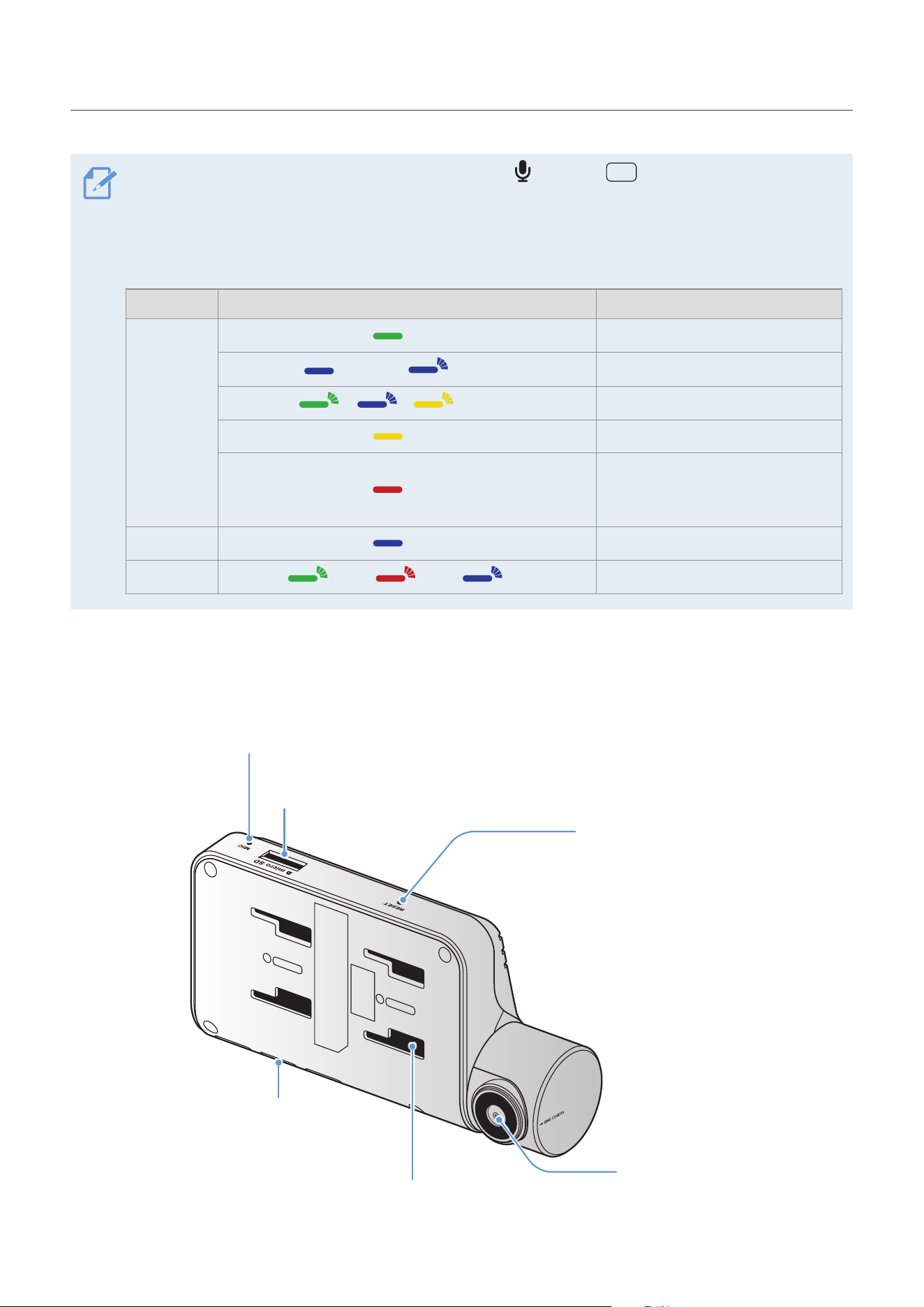
1.2.2 Front camera (main unit) - rear view
Security LED
Indicates that video
is being recorded.
Microphone
Used for voice recording.
Memory card slot
Insert a memory card to save recordings.
Mount connector
Used to connect the mount.
Front camera lens
Records the front view.
Reset button
Insert the tip of a sharp object to reset
the product when an error occurs.
Product overview
9
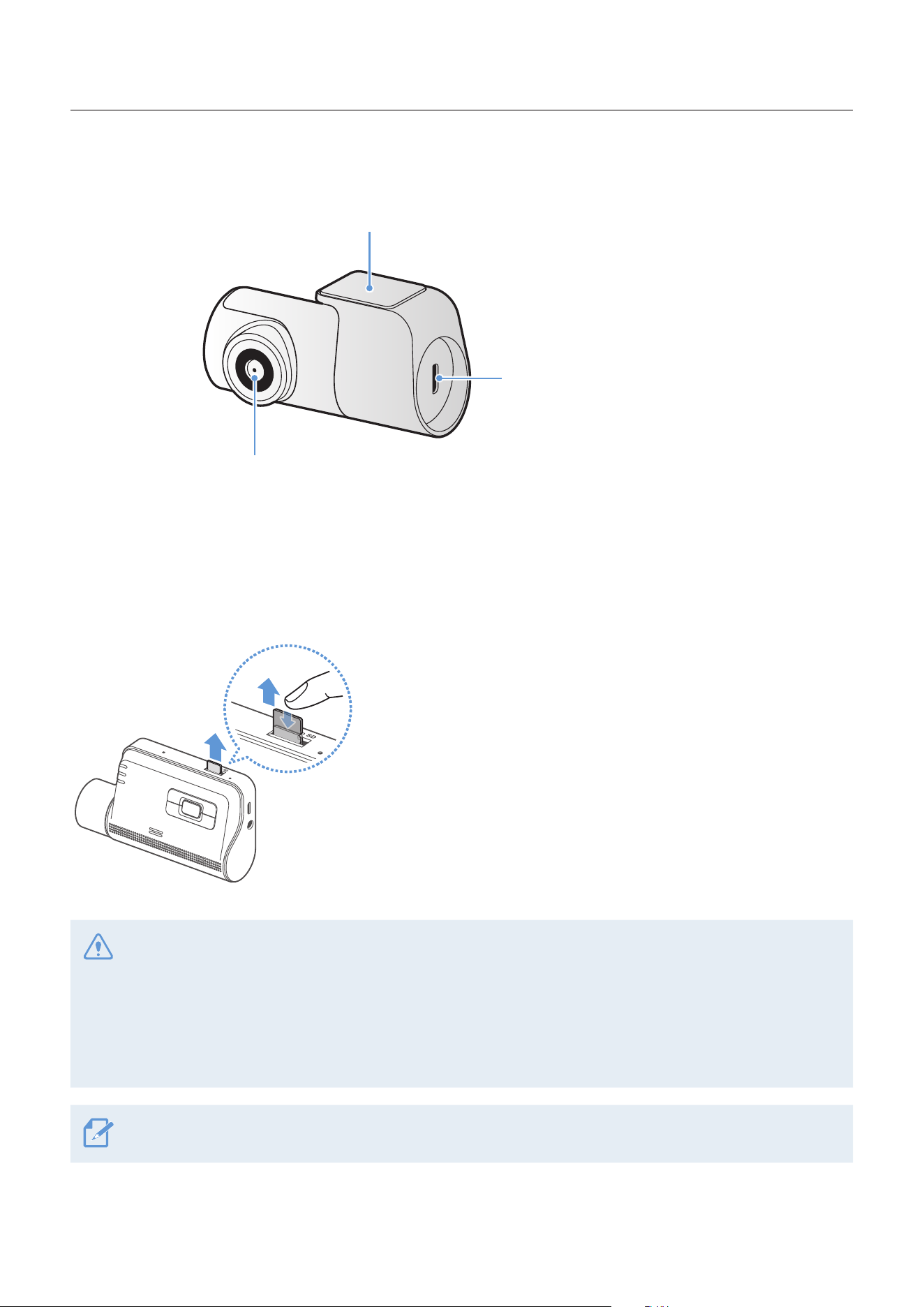
1.2.3 Rear camera (optional)
Adhesive mount
Used to fix the rear camera in the vehicle.
Rear camera lens
Records the rear view.
Connection port
Used to connect the rear
camera to the front camera
using a rear camera cable.
1.3 Removing and inserting the memory card
Follow the instructions to remove the memory card from the product or to insert the memory card into the
product.
Before removing the memory card, ensure that the product
is turned off. Gently push the bottom of the memory card
with your fingernail to release it, and then remove it from the
product.
To insert the memory card into the memory card slot, ensure
that the metal contacts on the memory card are facing toward
the product’s buttons, and insert it into the slot until you hear
a click.
• Ensure that the product is turned off before removing the memory card. The recorded video files may be
corrupted or lost if you remove the memory card while the product is on.
• Ensure that the memory card is in the correct direction before inserting it into the product. The memory
card slot or the memory card may be damaged if it is inserted incorrectly.
• Use only authentic memory cards from THINKWARE. THINKWARE does not guarantee compatibility and
normal operation of third-party memory cards.
To prevent loss of recorded video files, periodically back up the video files on a separate storage device.
10
2. Installing the product
2.1 Installing the front camera (main unit)
Follow the instructions to properly install the product.
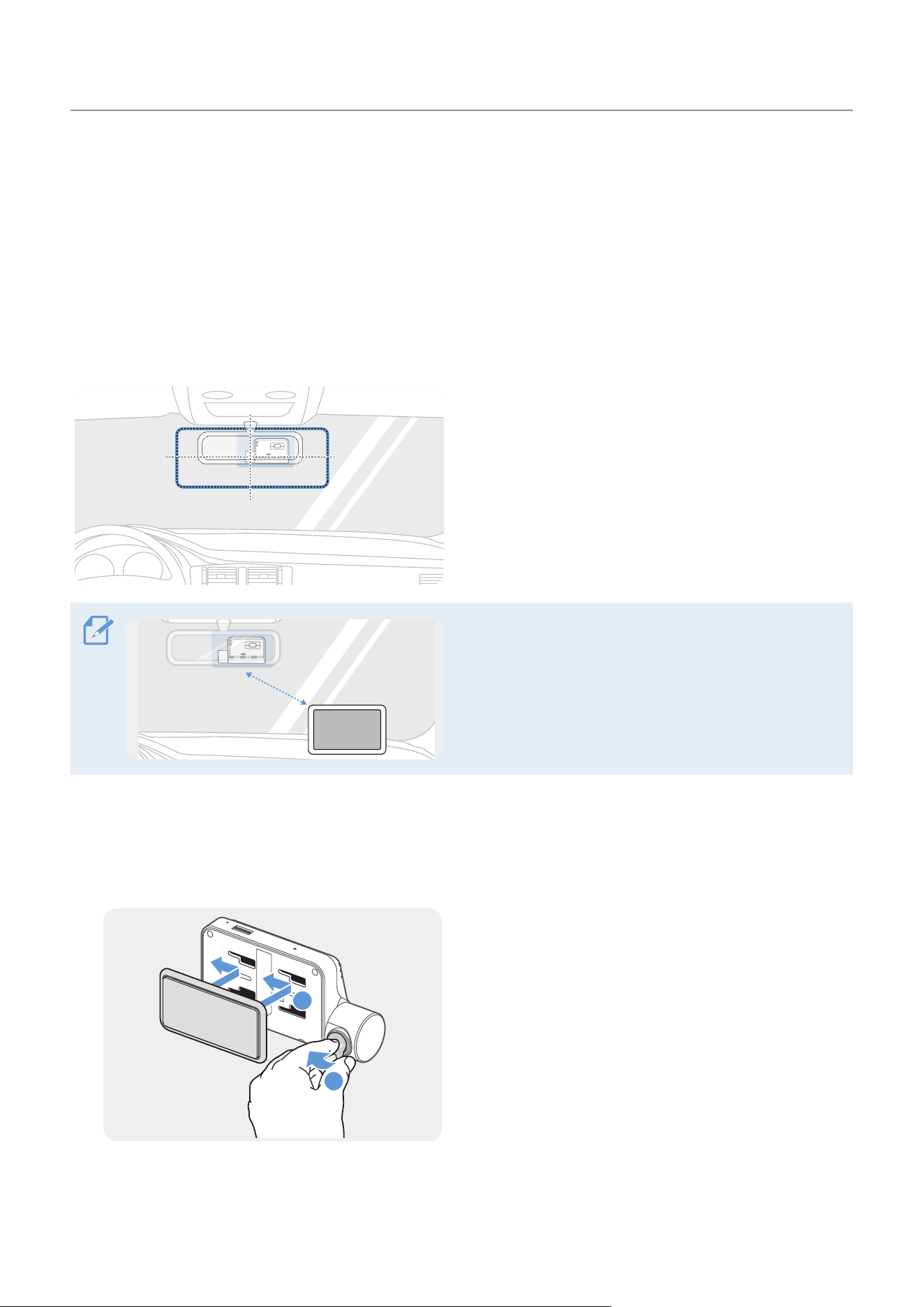
2.1.1 Selecting an installation location
Select an installation location that can record the
entire view in front of the vehicle without obstructing
the driver’s vision. Ensure that the front camera lens
is located in the center of the windshield.
20 cm
If a GPS navigating device is installed on the dashboard,
its GPS reception may be affected depending on the
dashboard camera's installation location.
Adjust the installation location of the GPS navigating
device to ensure that the two devices are separated by
at least 20 centimeters (approximately 8 inches).
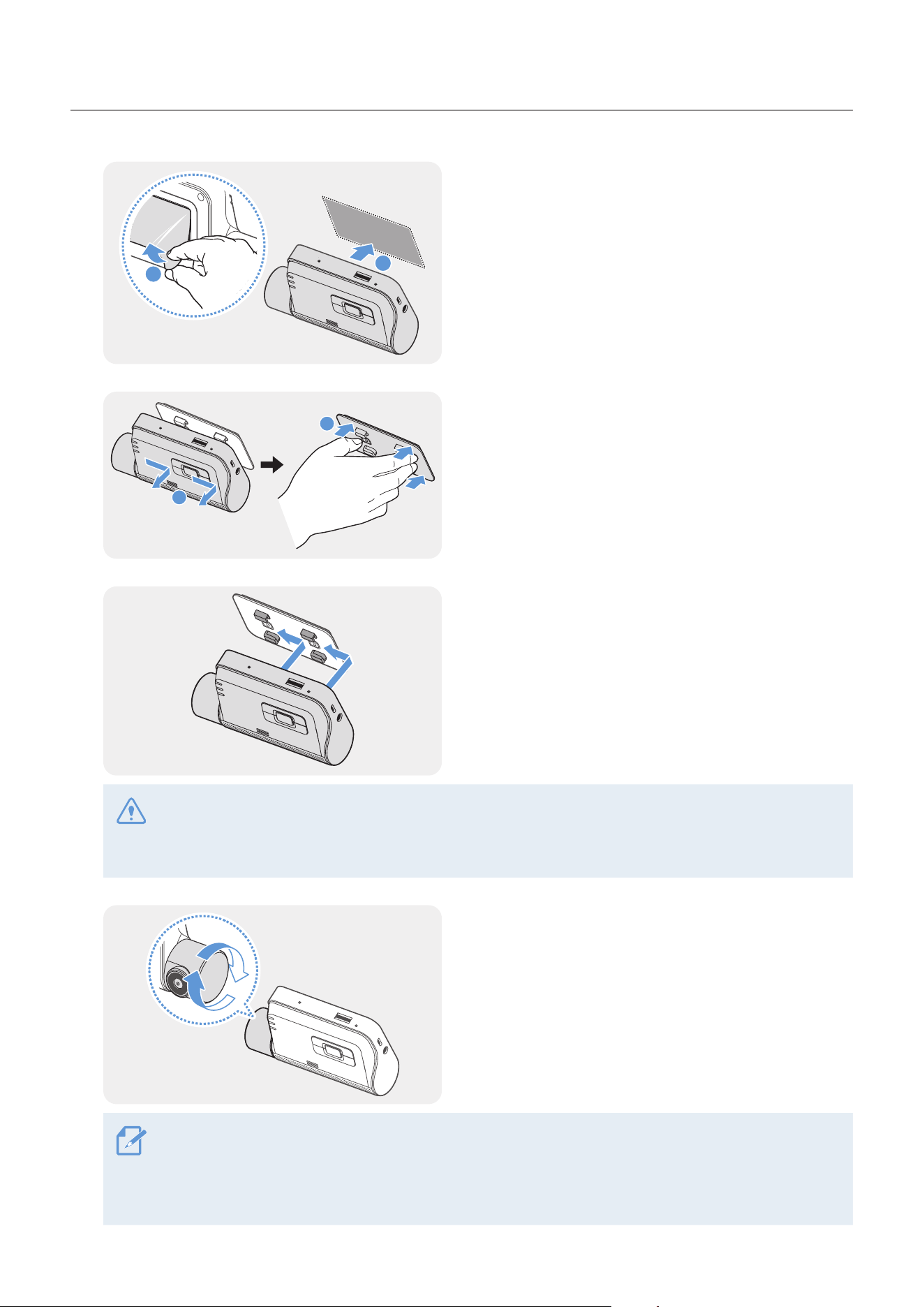
2.1.2 Securing the product
Follow the instructions to secure the product at the installation location.
1
2
1
➊➊
➋➋
Align the mount to the mount rail on the product,
and then slide it until you hear a click (
➊
). Then,
carefully remove the protective film (
➋
).
2
After determining the installation location, wipe the installation location on the windshield with a dry
cloth.
Installing the product
11
3
2
1
➊➊
➋➋
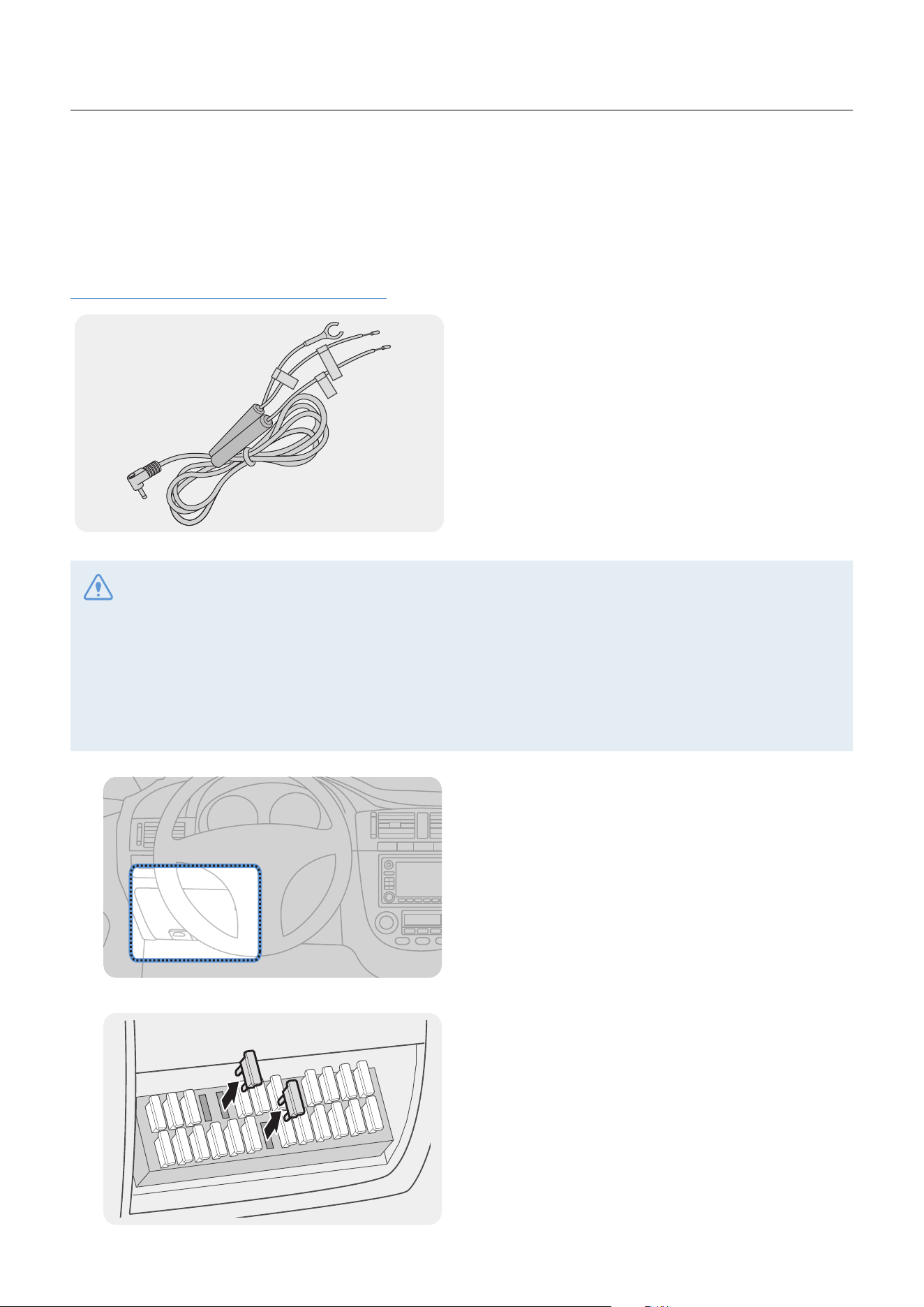
Remove the protective film from the adhesive mount,
and then press the mount to the installation location.
4
2
1
➊➊
➋➋
Remove the product from the mount and push the
mount against the windshield to ensure that the
mount is firmly fixed.
5
Align the product to the mount, and then slide it into
the locking position until you hear a click.
• The product may fall and be damaged during vehicle operation if it is not firmly fixed to the mount.
• If you need to remove the mount from the windshield to alter the installation location, be careful not
to damage the windshield’s film coat.
6
Set the vertical angle of the camera appropriately.
To confirm the camera angle, record a video after installation and check the video using the mobile
viewer or the PC viewer. If necessary, adjust the camera angle again.
For more information about the mobile viewer or the PC viewer, refer to "4. Using the mobile viewer" on
page 21 or "6. Using the PC viewer" on page 24.
Installing the product
12
2.1.3 Connecting the power cable
When the engine and electrical accessories are turned off, connect the continuous power cable or the
cigar socket power cable (optional) to the product.
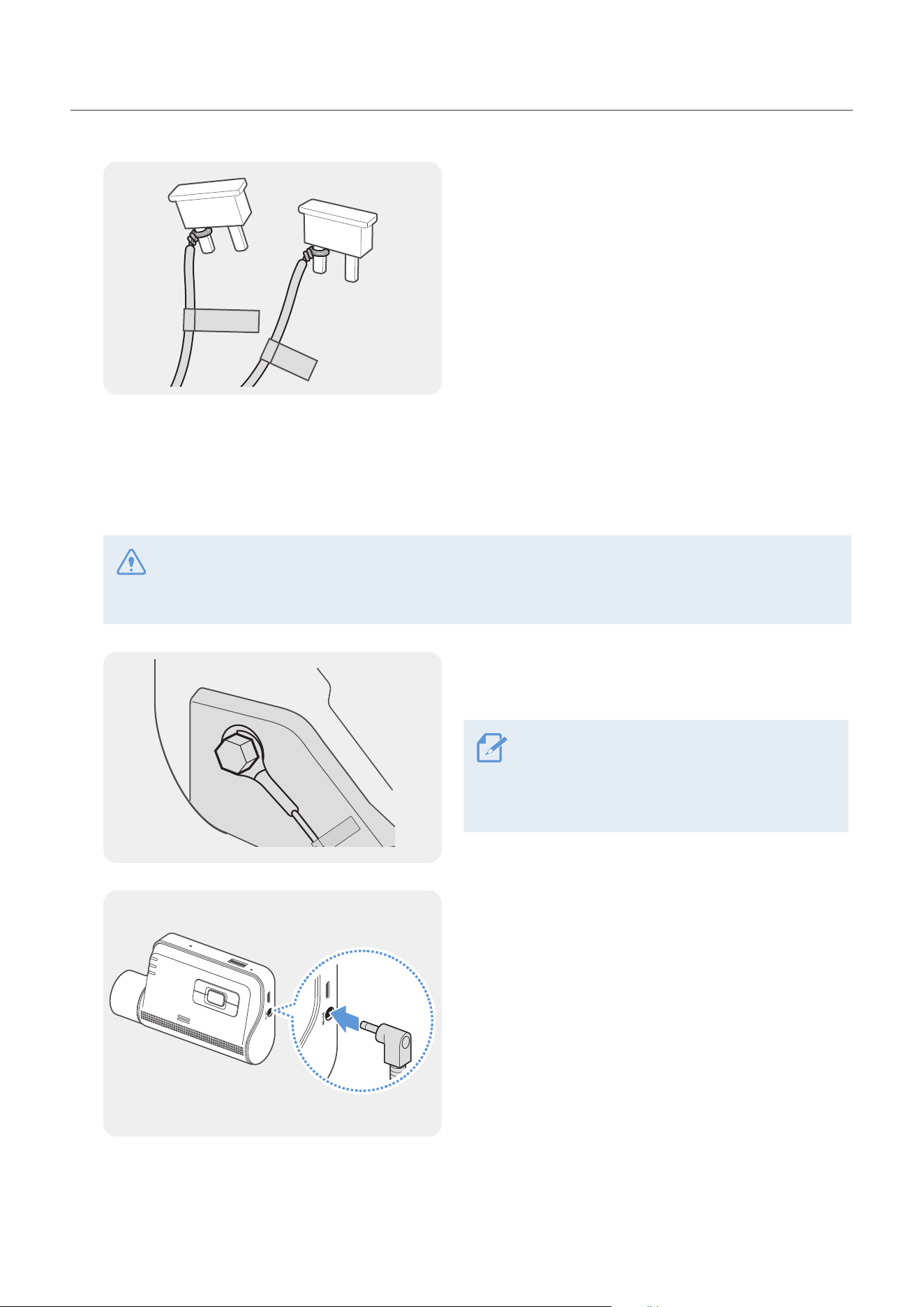
Connecting the continuous power cable
ACC
BATTERY
GND
If you connect the product to the vehicle via the
continuous power cable, the camera continues
operating even when the vehicle is not operating
(parking mode). In parking mode, the camera detects
impacts to the vehicle and nearby motion and
records video.
For more information about parking mode, refer to
"3.6Usingparkingmode"onpage19.
• The continuous power cable must be professionally installed in the vehicle by a trained mechanic. Contact
an authorized service center to connect the continuous power cable to the vehicle. If the product is not
installed properly, the product may be damaged or an electrical fire or electrocution may occur.
• Use the authentic THINKWARE continuous power cable only. Using other manufacturer’s cable may
damage the product or cause electrocution due to the voltage difference.
• When connecting the continuous power cable, pay special attention to wiring. If the wires are connected
incorrectly, the product or the vehicle may be damaged.
1
Find the vehicle’s fuse box. Usually the fuse box is
installed under the driver’s seat.
The location of the fuse box may differ depending
on the make and model of the vehicle. For more
information, refer to your vehicle’s owner’s manual.
2
Open the fuse box, find the continuous power
terminal (which supplies power when the vehicle
is off) and the ACC terminal (which supplies power
when the ignition status is "ACC ON") by using an
electrical tester, and detach the fuses from the
terminals.
Installing the product
13
3
BATTERY
ACC
Connect the BATTERY wire to a fuse leg of the
continuous power terminal and connect the ACC
wire to a fuse leg of the normal (ACC) terminal.
4
Check the fuse panel’s input and output contact points by using an electrical tester.
5
Place the fuses back into their locations on the fuse panel, connecting each fuse leg with the wire to
the output contact point and taking care not to change the fuse position.
When you install the fuses on the fuse panel, the fuse legs for the BATTERY wire and the ACC wire
must be connected to the output terminals respectively. If the fuse leg with the wire is connected to an
input terminal, the product or vehicle may be damaged or electrical fire may result.
6
GND
Connect the ground wire (the GND wire) to a bolt
attached to a metallic part of the vehicle’s body.
Normally, the metallic bolt that you can
connect the ground wire to (the GND wire) is
fitted nearby fuse box or the driver seat’s door
interior.
7
Connect the continuous power cable to the product’s
DC-IN power connector and start the engine to make
sure the product operates normally.
Once the product is powered on, the LED indicator
and the voice guidance are turned on.
Installing the product
14
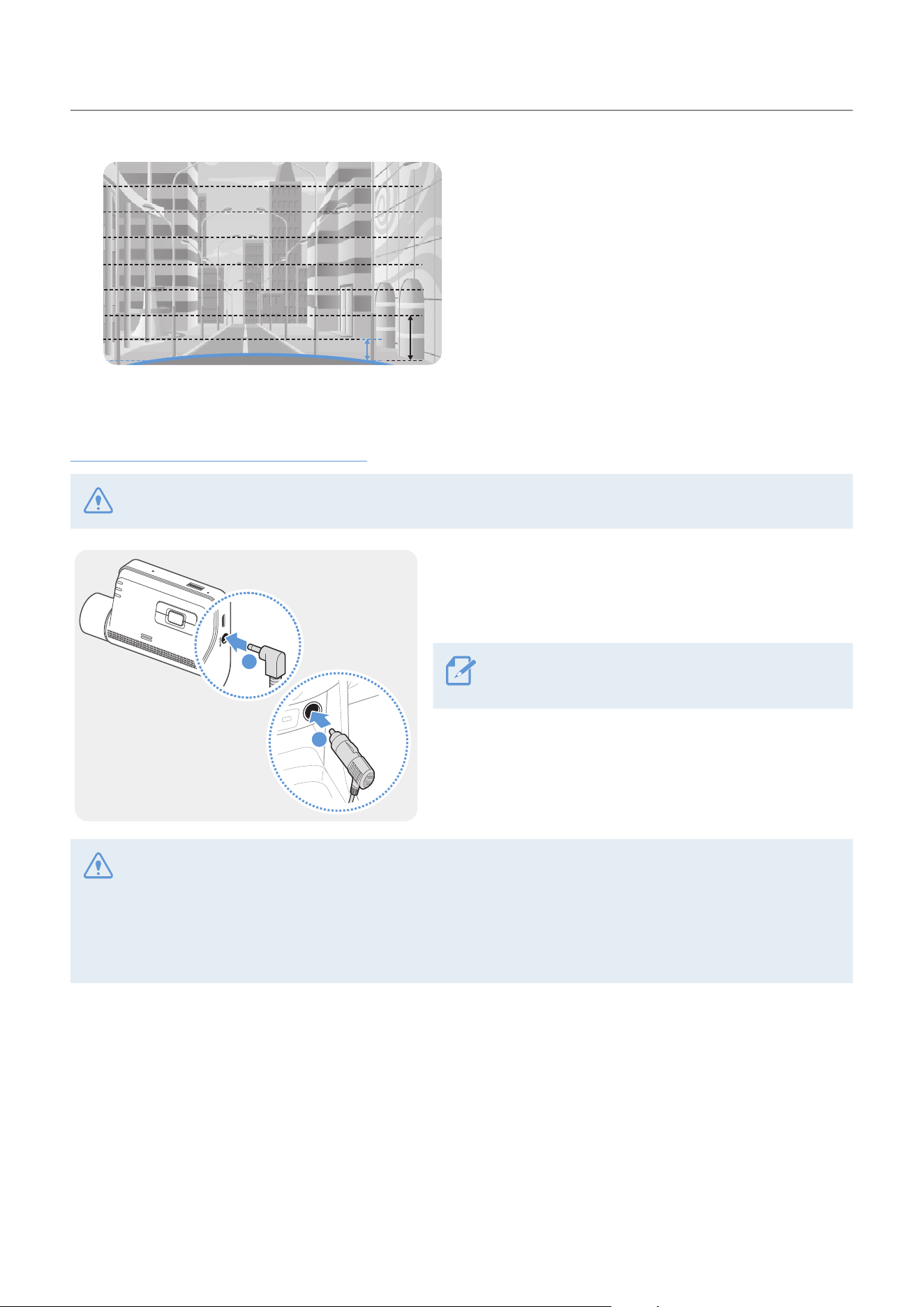
8
1/8
1/4
Connect the product to THINKWARE DASH CAM LINK
on your smartphone and adjust the camera angle so
that the hood of the vehicle covers 1/4 - 1/8 of the
screen while viewing the live view screen, as shown
in the image to the left.
For more information about connecting and using the
THINKWARE mobile applications, refer to "4. Using
the mobile viewer" on page 21.
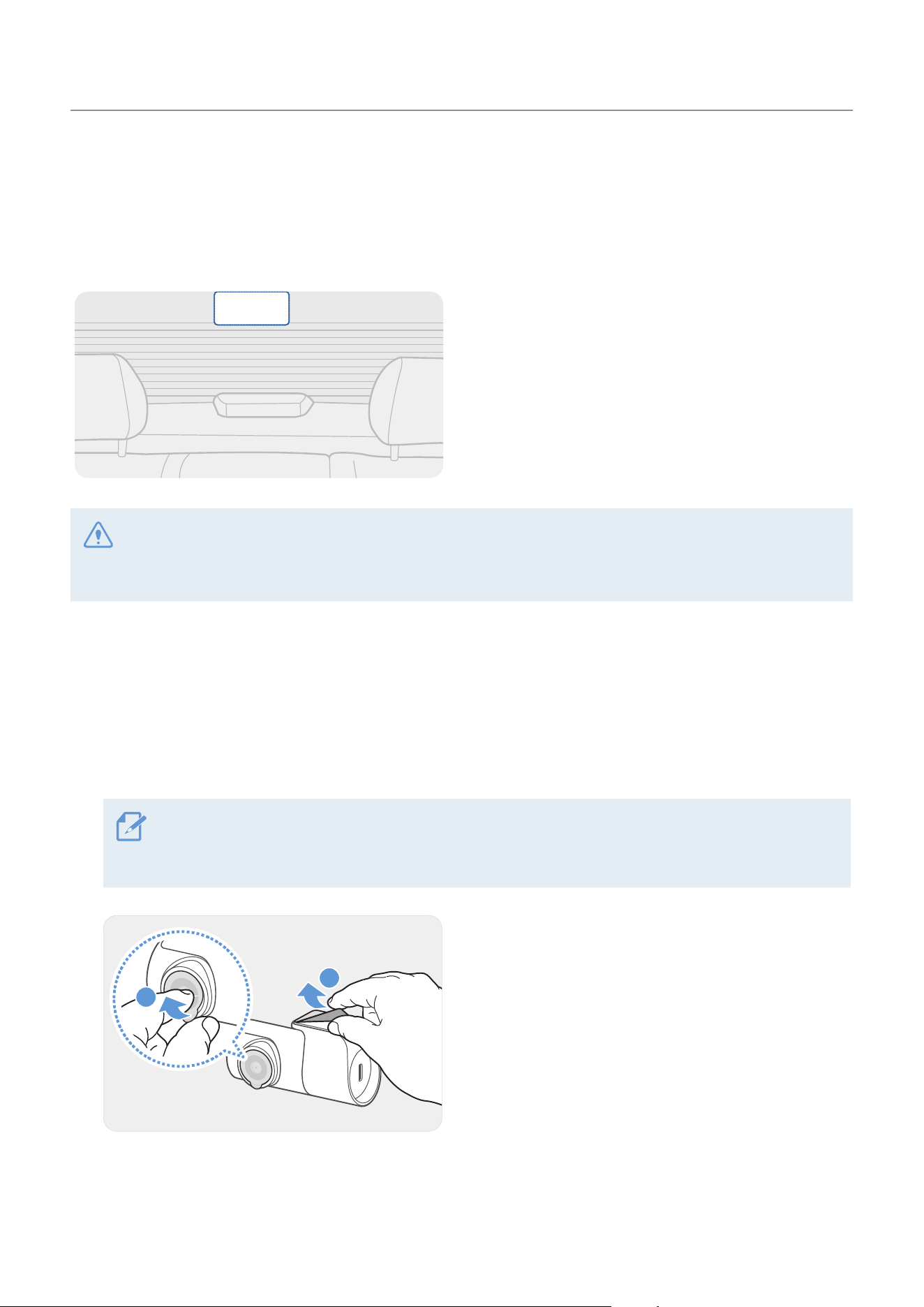
Connecting the car charger (optional)
The hardwiring cable must be professionally installed to the vehicle by a trained mechanic.
2
1
➊➊
➋➋
Connect the car charger to the product’s DC-IN power
port and insert the cigar jack into the vehicle’s power
socket.
The location and specifications of the power socket
may differ by vehicle make and model.
• Use the authentic THINKWARE car charger (optional). Use of third party power cables may damage the
product and result in electrical fire or electrocution due to the voltage difference.
• Do not cut or modify the power cable yourself. Doing so may damage the product or the vehicle.
• For safe driving, arrange the cables to prevent the driver's vision from being obstructed or interfering with
driving. For more information about arranging cables, visit www.thinkware.com.
Installing the product
15
2.2 Installing the rear camera (optional)
Refer to the following instructions to properly install the rear camera.
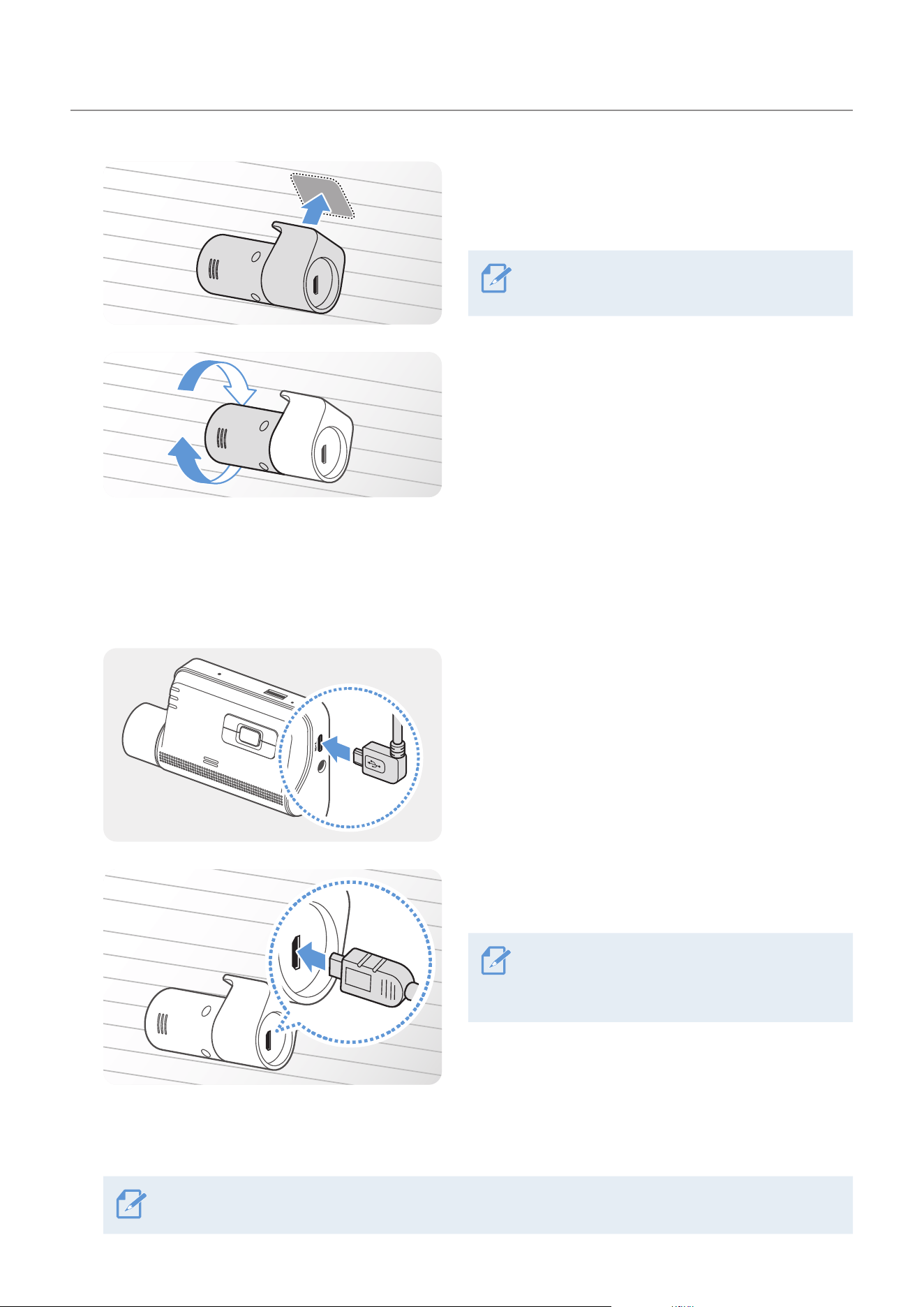
2.2.1 Selecting an installation location
Select a location on the rear windshield where there
is no defrost grid wire and the camera can record
the entire rear view.
• For vehicles with a sunshade attached to the rear windshield, you must select a location where using the
sunshade will not interfere with camera operation.
• The adhesive part of the rear camera should not touch the defrost grid.
2.2.2 Securing the rear camera
Refer to the following instructions to secure the product to the installation location.
1
After determining the installation location, wipe the installation surface of the windshield with a dry
cloth.
Check the installation location before you secure the rear camera to the rear windshield. After
securing the rear camera to the windshield, it is hard to remove the camera or change the installation
location due to the strong adhesive.
2
2
1
➊➊
➋➋
Remove the protective film from the adhesive mount
and camera lens.
Installing the product
16
3
THINKWARE
Attach the product with the THINKWARE logo facing
indoors and press the adhesive tape firmly to secure
the camera.
If the product is fixed in reverse, the rear view
will be recorded upside down.
4
THINKWARE
Adjust the camera's vertical angle.
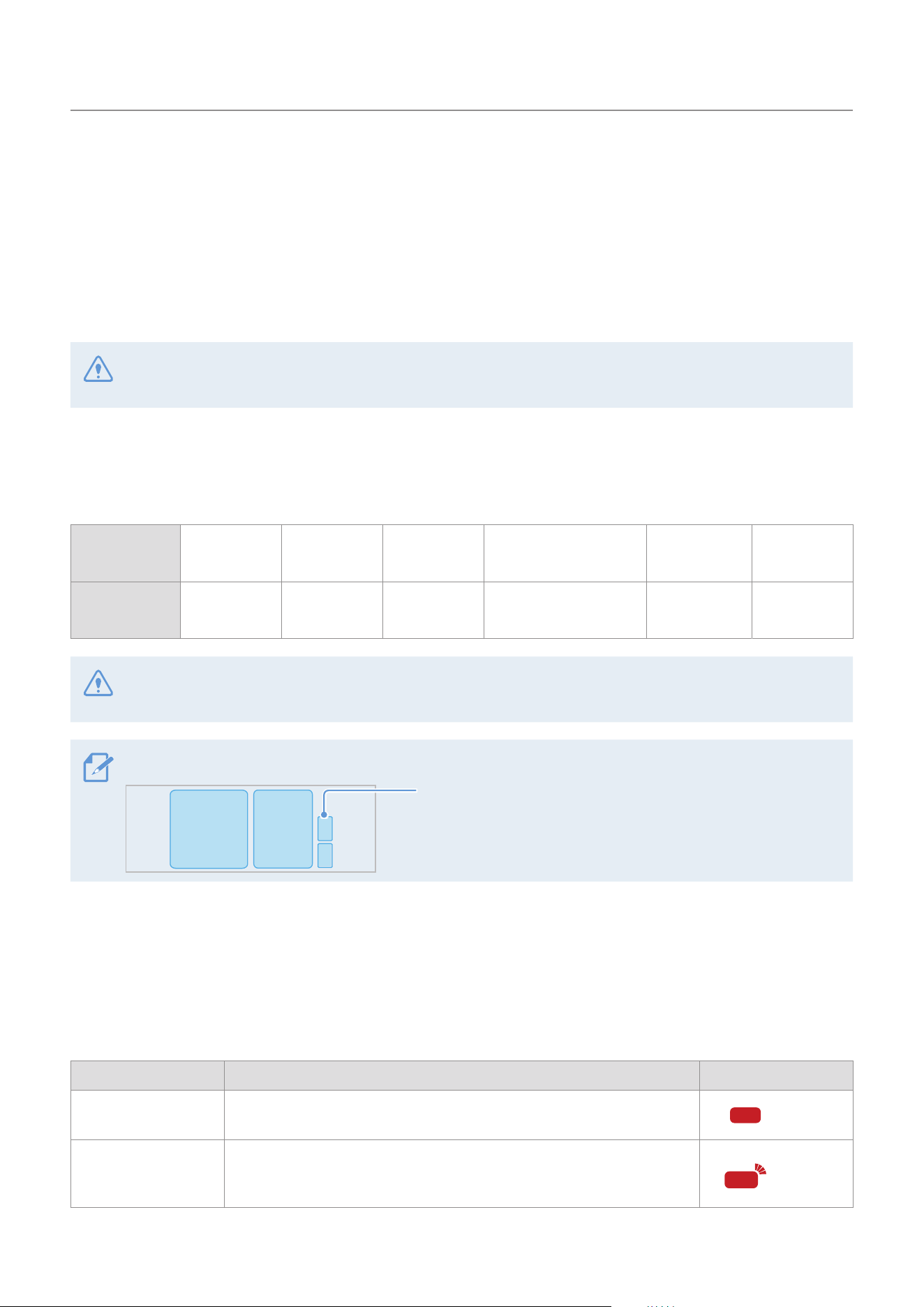
2.2.3 Connecting the rear camera cable
Power off the product and connect the rear camera cable to the front camera (main unit).
1
Connect one end of the rear camera cable to the
front camera’s V-IN port.
2
THINKWARE
Connect the other end of the rear camera cable to
the rear camera's connection port.
For safe driving, arrange the cables to prevent
the driver's vision from being obstructed or
interfering with driving.
3
Turn on the ACC or start the engine to check if the product is powered on. After the product is powered
on, the Status LED and the voice guidance will be turned on.
The product is powered on when the ACC mode is turned on or when the engine starts.
17
3. Using recording features
3.1 Turning the product on or off
The product is turned on automatically and continuous recording starts when you turn on the ACC or start
the engine.
Wait until the product is completely booted up after turning it on, and then begin operating the vehicle. The
video recording does not begin until the product is completely turned on (booted up).
3.2 Learning about file storage locations
Videos are stored in the following folders according to their recording mode.
On the
mobile viewer
Continuous
Continuous
Incident
Manual
Recording
Motion
Detection
Parking
Incident
SOS
Recording
In the memory
card
cont_rec evt_rec manual_rec motion_timelapse_rec parking_rec sos_rec
Play videos on Window/Mac computer or using the Thinkware mobile app. If you play videos by inserting
the memory card in devices such as a smartphone or a tablet PC, the video files may be lost.
A file name is composed of the recording start date and time, and the recording option.
REC
_20240122_182052_F.MP4
REC
_20240122_182052_R.MP4
YYYYMMDD
_
HHMMSS
Recording conditions
• F: Front camera
• R: Rear camera (when optional rear camera is equipped)
3.3 Using the continuous recording feature
Connect the power cable to the product’s DC-IN power port and then turn on the vehicle’s electrical accessories
or start the engine. The status LED and the voice guide are turned on, and the continuous recording starts.
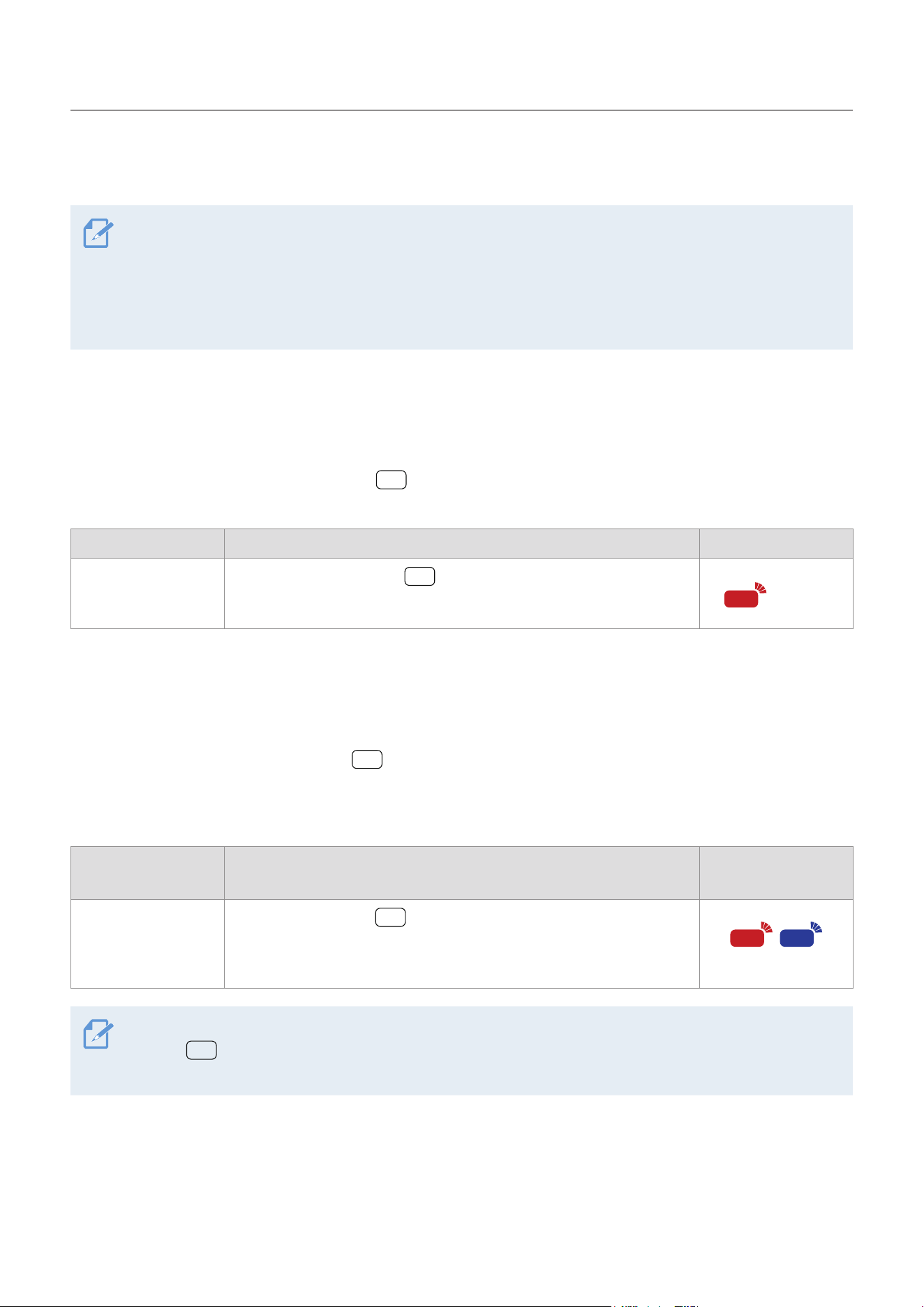
During continuous recording, the product operates as follows.
Mode Operation description Recording LED (REC)
Continuous
recording
During driving, videos are recorded in 1 minute segments and stored
in the "cont_rec" folder.
(light on)
Incident continuous
recording*
When an impact to the vehicle is detected, a video is recorded for
20 seconds, from 10 seconds before the detection to 10 seconds after
the detection, and stored in the "evt_rec" folder.
(flickers)
Using recording features
18
* When an impact to the vehicle is detected during continuous recording, incident continuous recording starts with a
double beep sound.
• Wait until the product is completely booted up after turning it on, and then begin operating the vehicle. The
video recording does not begin until the product is completely turned on (booted up).
• When incident continuous recording starts, a double "beep" sounds as a notification. This function saves
you time when checking the status LED to know the operating status of the product.
• To enable recording, you must insert a memory card into the product.
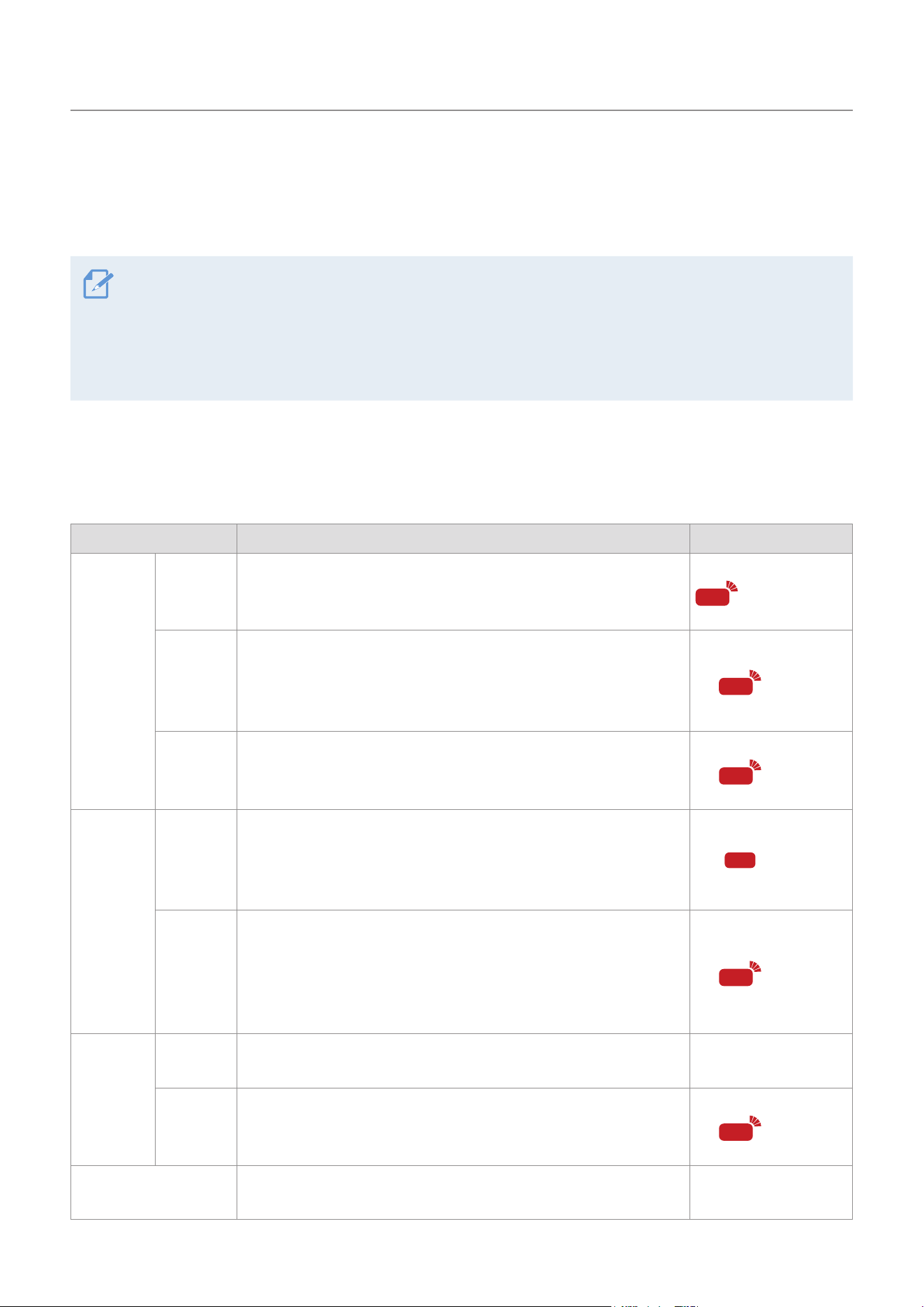
3.4 Recording manually
You can record a scene you want to capture while driving and store it as a separate file.
To start manual recording, press the REC (
) button. Then, manual recording will start with the voice
guide. During manual recording, the product operates as follows.
Mode Operation description Recording LED (REC)
Manual recording
When you press the REC (
) button, a video will be recorded for
1 minute, from 10 seconds before to 50 seconds after pressing the
button, and stored in the "manual_rec" folder.
(flickers)
3.5 Using the SOS recording feature
You can record a scene when an accident occurs while driving or parked and store it as a separate file.
To start SOS recording, press the REC (
) button for 3 seconds. Then, the voice guide will indicate that
SOS recording has started.
During SOS recording, the product operates as follows.
Mode Operation description
Recording LED (REC)/
Wi-Fi LED (WiFi)
SOS recording
If you press the REC (
) button for 3 seconds when an accident
occurs, a video will be recorded for 10 seconds (from 5 seconds
before the accident to 5 seconds after pressing the button) and
stored in the "sos_rec" folder.
(flickers)
According to the data service policy, if you have used all of the SOS recording upload usage times, pressing
the REC ( ) button will save the recorded video to the SD card, but may not upload it to the THINKWARE
CONNECTED LTE application. Visit THINWARE website (https://www.thinkware.com) for more information.
Using recording features
19
3.6 Using parking mode
When the product is connected to the vehicle via the hardwiring cable, the operating mode is switched to
parking mode with the voice guide after the engine or electrical accessories are turned off.
• Parking mode operates only when the hardwiring cable is connected. The hardwiring cable must be
professionally installed to the vehicle by a trained mechanic.
• To use all recording modes, you must insert a memory card into the product.
• Depending on the battery charging status of the vehicle, the duration of parking mode may differ. If you
want to use parking mode for an extended period, check the battery level to prevent battery depletion.
If you do not want to use parking mode or you want to change the mode settings, from the mobile viewer,
tap Dash Cam Settings
>
Record Settings.
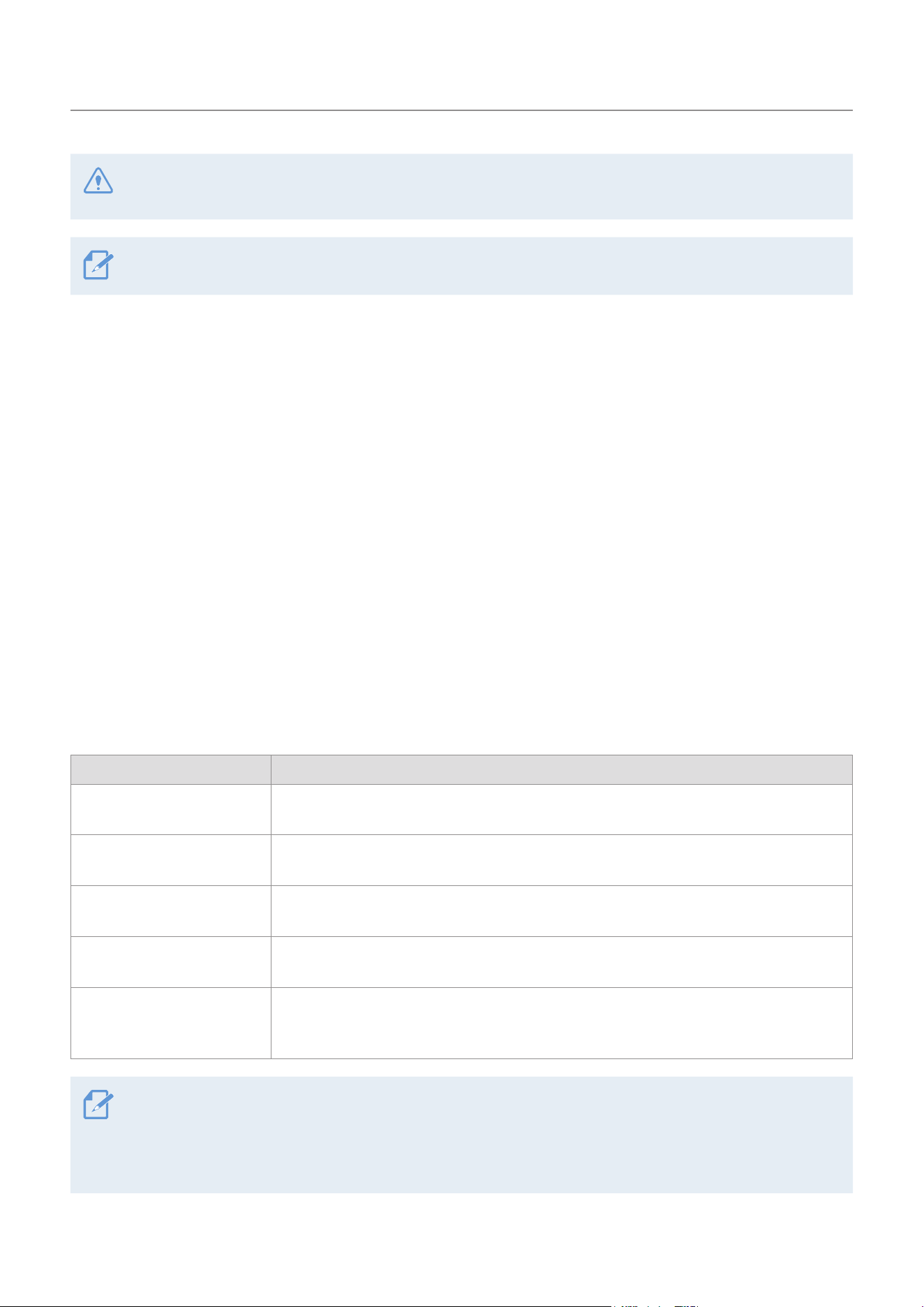
Refer to the following table to set the Parking Mode options.
Option Operation description Recording LED (REC)
Motion
Detection
No motion
or impact
detected
Monitors movement in the area or impacts to the vehicle. Video
will be recorded only when motion or an impact is detected.
(flickers slowly)
Motion
detected
When a moving objects is detected while parking, a video is
recorded for 20 seconds, from 10 seconds before detection to
10 seconds after detection, and stored in the "motion_timelapse_
rec" folder.
(flickers)
Impact
detected
When an impact is detected while parking, a video is recorded
for 20 seconds, from the moment 10 seconds before detection to
10 seconds after detection, and stored in the "parking_rec" folder.
(flickers)
Time Lapse
No impact
detected
A videos is recorded at a rate of 2 fps for 10 minutes, compressed
into a 2-minute long file, and stored in the "motion_timelapse_
rec" folder. Since the video file recorded with this option is small,
you can record a long video.
(light on)
Impact
detected
When an impact is detected while parking, a video is recorded
for 100 seconds at a rate of 2 fps, from the moment 50 seconds
before detection to 50 seconds after detection, and stored in the
"parking_rec" folder after being compressed into a 20-second
long file. (The buzzer will sound.)
(flickers)
Energy
Saving
No impact
detected
Monitors impacts to the vehicle. Video will be recorded only
when an impact is detected.
Off
Impact
detected
When an impact is detected while parking, a video is recorded for
20 seconds from within 1 second after detection and stored in the
"parking_rec" folder.
(flickers)
OFF
The product is powered off when electric accessories and the
engine are turned off.
Off
Using recording features
20
If parking mode settings are changed, the videos recorded with the previous settings will be deleted. To
prevent data loss, back up all parking mode videos before changing parking mode settings.
You cannot use Motion Detection, Time Lapse, or Energy Saving at the same time.
3.7 Using the Super Night Vision
With the Super Night Vision feature, you can record videos that are much brighter than those recorded
without this feature. This feature is enabled by real-time image signal processing (ISP) that improves the
video brightness. This feature is available in the continuous recording and parking modes and is only
available on the front camera.
1
From the mobile viewer, tap Dash Cam Settings
>
Record Settings.
2
From Super Night Vision, select the desired recording mode to use the Super Night Vision feature. The
new setting is applied automatically.
3.8 Using the road safety features
The road safety features include a safety camera alert system, a lane departure warning system (LDWS),
a lane departure warning system speed (LDWS Speed), a forward-collision warning system (FCWS), a low
speed forward collision warning system (low-speed FCWS), and a front vehicle departure warning (FVDW).
Safety feature Description
LDWS
(Lane Departure Warning)
Detects the lane departure via the real-time video and warns the driver
.
LDWS Speed
Detects lane departure and warns the driver when the speed of the vehicle goes
over the speed selected in the settings.
FCWS
(Forward Collision Warning)
Detects forward collision threats via the real-time video and warns the driver when
the vehicle is moving at 40 km/h or above.
Low Speed FCWS
Detects forward collision threats via real-time video and warns the driver when the
vehicle is moving at 10-30 km/h.
FVDW
(Front Vehicle Departure
Warning)
Detects the departure of another vehicle that was previously stationary in front of the
vehicle and notifies the driver after four seconds.
• Road safety features are performed differently depending on the set speed and sensitivity of the features.
• To use and manage the road safety features, tap Dash Cam settings
>
Road Safety Settings on the mobile
viewer. For more information about road safety features settings, refer to "7.4 Setting road safety features"
on page 29.
21
4. Using the mobile viewer
You can view and manage recorded videos and configure various product features on your smartphone.
One of the following environments is required to use the THINKWARE DASH CAM LINK application:
- Android 7.0 (Nougat) or higher
- iOS 13 or higher
4.1 Connect the product to a smartphone
1
On your smartphone, open the Google Play Store or Apple App Store and download and install
THINKWARE DASH CAM LINK.
2
Run THINKWARE DASH CAM LINK.
3
Tap Dash cam connection is required. at the bottom of the screen and follow the on-screen instructions
to connect the product to a smartphone.
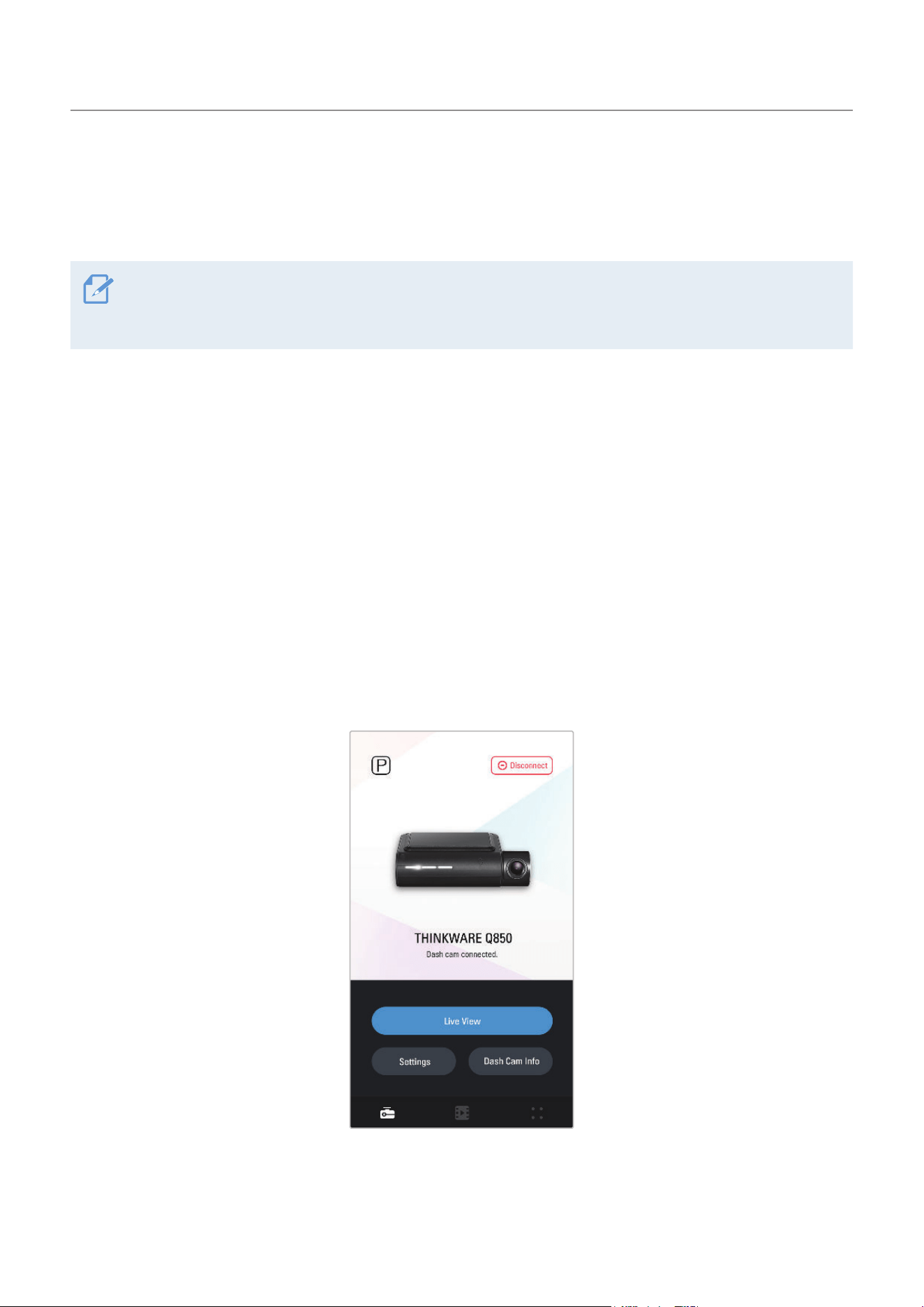
4.2 Viewing the mobile viewer screen layout
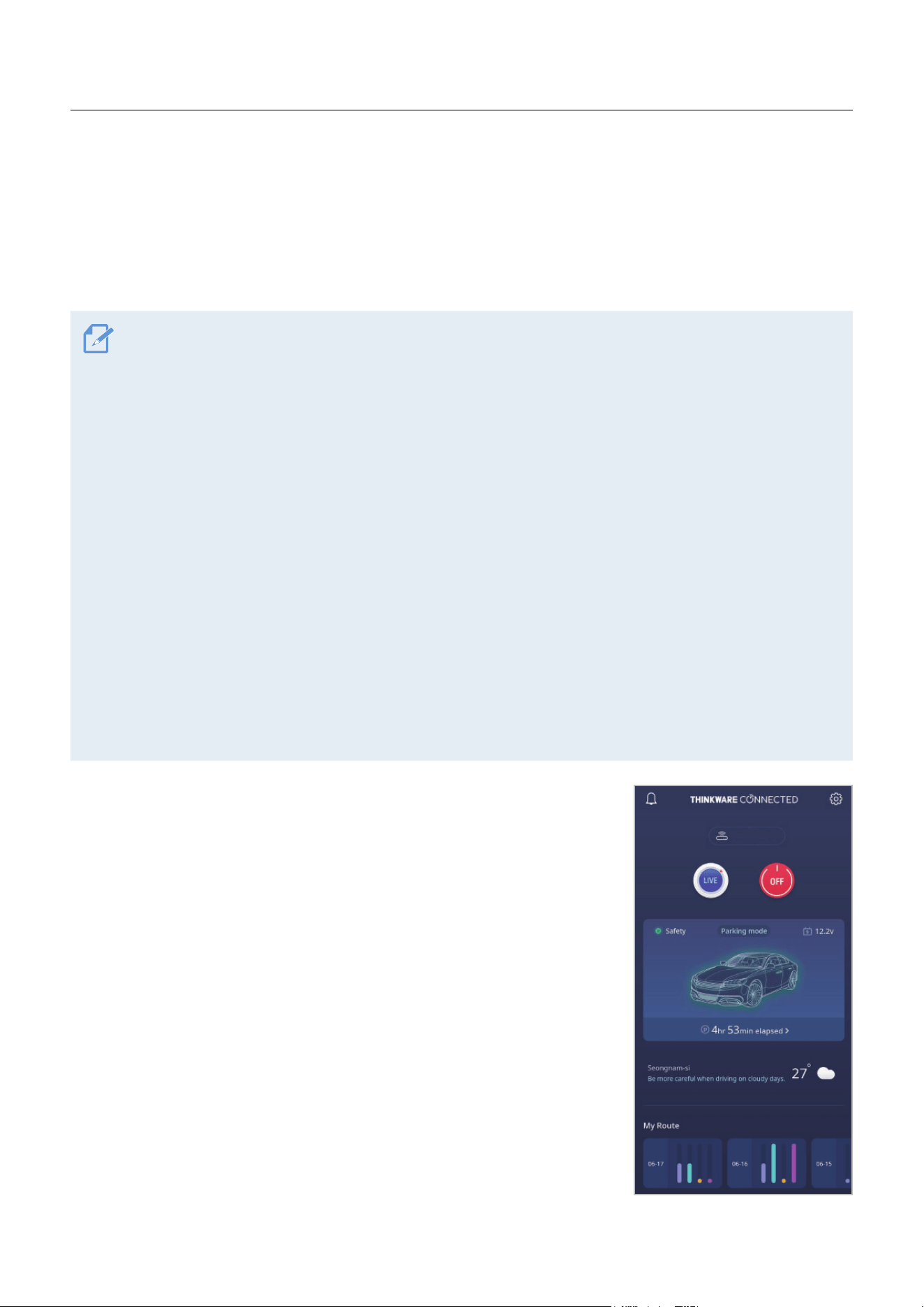
The following is the screen layout for the mobile viewer.
22
5. Using THINKWARE CONNECTED
When using parking mode, you can check vehicle status notifications, such as Live View, parking impact
notifications, the vehicle voltage status, the dash cam power status, vehicle battery status, and the recent
parking location on the THINKWARE CONNECTED application depending on your service plan.
• One of the following environments is required to use the THINKWARE CONNECTED application:
- Android 7.0 (Nougat) or higher
- iOS 11.4 or higher
• The services and features provided by THINKWARE CONNECTED application may be changed according to
the service policy. Refer to the THINKWARE website (https://www.thinkware.com) for more information.
• To use the THINKWARE CONNECTED application, the dash cam needs to be connected to the internet in the
THINKWARE DASH CAM LINK application.
• The THINKWARE CONNECTED features are not available in the following Parking recording modes:
- Energy Saving
- Radar
•
Connecting the dash cam to a mobile hotspot device or a Wi-Fi network with internet access will consume
data. Carrier/Service Provider charges may apply.
• The smartphone used to set up the internet connection on the dash cam cannot also be used as a mobile
hotspot for the dash cam. A different hotspot device/smartphone is required.
• To connect the dash cam to the internet, use the THINKWARE DASH CAM LINK application. Once the dash
cam is connected to the internet, you can go to the THINKWARE CONNECTED application to get access to
the THINKWARE CONNECTED features.
• Status of the vehicle while driving/parking
• Vehicle battery voltage status
• Dash cam power off
• Driving history
• SOS notification, recorded video backup, and SMS transmission
• Driving impact notification, video backup, and SMS transmission
• Parking impact notification and recorded video backup
• Download and share the event location and recorded video
• The captured image of the front camera during the most recent parking
• Real-time vehicle location
• Remote live view
Q850
Using THINKWARE CONNECTED
23
5.1 Connecting the product to THINKWARE CONNECTED
1
On your smartphone, open the Google Play Store or Apple App Store and download and install
THINKWARE CONNECTED.
2
Run THINKWARE CONNECTED and tap Sign In on your smartphone.
You need a THINKWARE ID to use THINKWARE CONNECTED. If you don’t have an ID, tap Sign Up and
sign up for a THINKWARE membership.
3
After you sign in, follow the app's instructions. Tap Register a Device, and enter a barcode number to
register a product.

24
6. Using the PC viewer
You can view and manage the recorded videos and configure various product features on your PC.
6.1 System requirements
The following are the system requirements for running the PC viewer.
• Processor: Intel Core i5, or higher
• Memory:4GBormore
• Operatingsystem:Windows7orlater(64-bitisrecommended),MacOSX10.10orlater
• Other:DirectX9.0orhigher/MicrosoftExplorerversion7.0orhigher
The PC viewer will not operate properly on PC systems running an operating system other than those listed
in the system requirements.
6.2 Learning about the PC viewer
6.2.1 Downloading the PC viewer
You can download the latest PC viewer software from the THINKWARE website.
1
On your PC, open a web browser and go to https://www.thinkware.com/Support/Download.
2
Select a model name.
3
Click Select OS to select your OS, then click DOWNLOAD.
• The new PC viewer for Mac can be downloaded from the Apple App Store without visiting the THINKWARE
website. Search for "Thinkware Dashcam Viewer" in the Apple App Store.
• If you are using Mac OS X 10.13 or earlier, you can only download the PC viewer from the website.
6.2.2 Installing the PC viewer
The PC viewer installation file (setup.exe) is stored in the root folder of the memory card that is provided
with the product. Follow the instructions to install the PC viewer on your PC.
1
Insert the memory card into a memory card reader connected to your PC.
2
Move the installation file to the desktop, run it, and complete the installation according to the
instructions given in the installation wizard.
After the installation is complete, there will be a shortcut icon to Thinkware Dashcam Viewer.
Using the PC viewer
25
6.2.3 PC viewer screen layout
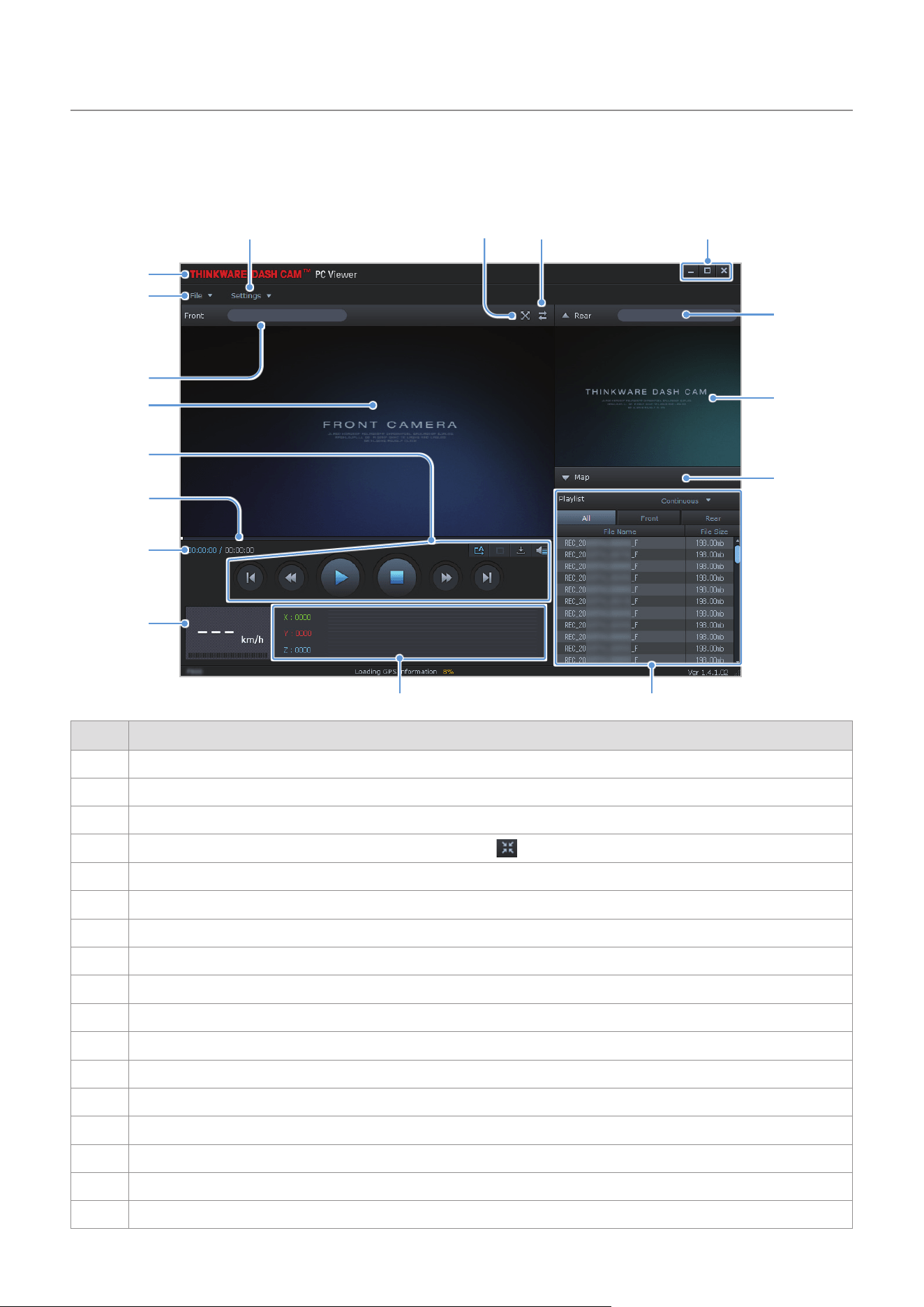
The following provides brief information about the PC viewer’s screen layout.
➋
➌
➍
➓
➊
➎ ➏
➐
➑
➒
Number Description
➊
Open a file, or save a video with a different name.
➋
Visit the THINKWARE website.
➌
View or configure the dashcam settings, and set the language for the PC viewer.
➍
Display the current video in full screen. Tap the Back ( ) button to return to the previous screen.
➎
Switch between the front and rear videos.
➏
Minimize, expand, or close the software.
➐
Displays the rear camera video file name.
➑
Displays the recorded rear camera video.
➒
Display the map screen.
➓
Displays the playlist.
Indicates the G sensor value at the time of recording.
Indicates the vehicle’s driving speed at the time of recording.
Displays the current and total running time of the current video.
Displays the progress of video playback.
Play or control a video.
Displays the recorded front camera video.
Displays the front camera video file name.
Using the PC viewer
26
6.2.4 Playing recorded videos on the PC viewer
Follow the instructions to play recorded videos.
1
Turn off the product and remove the memory card.
2
Insert the memory card into a memory card reader connected to your PC.
3
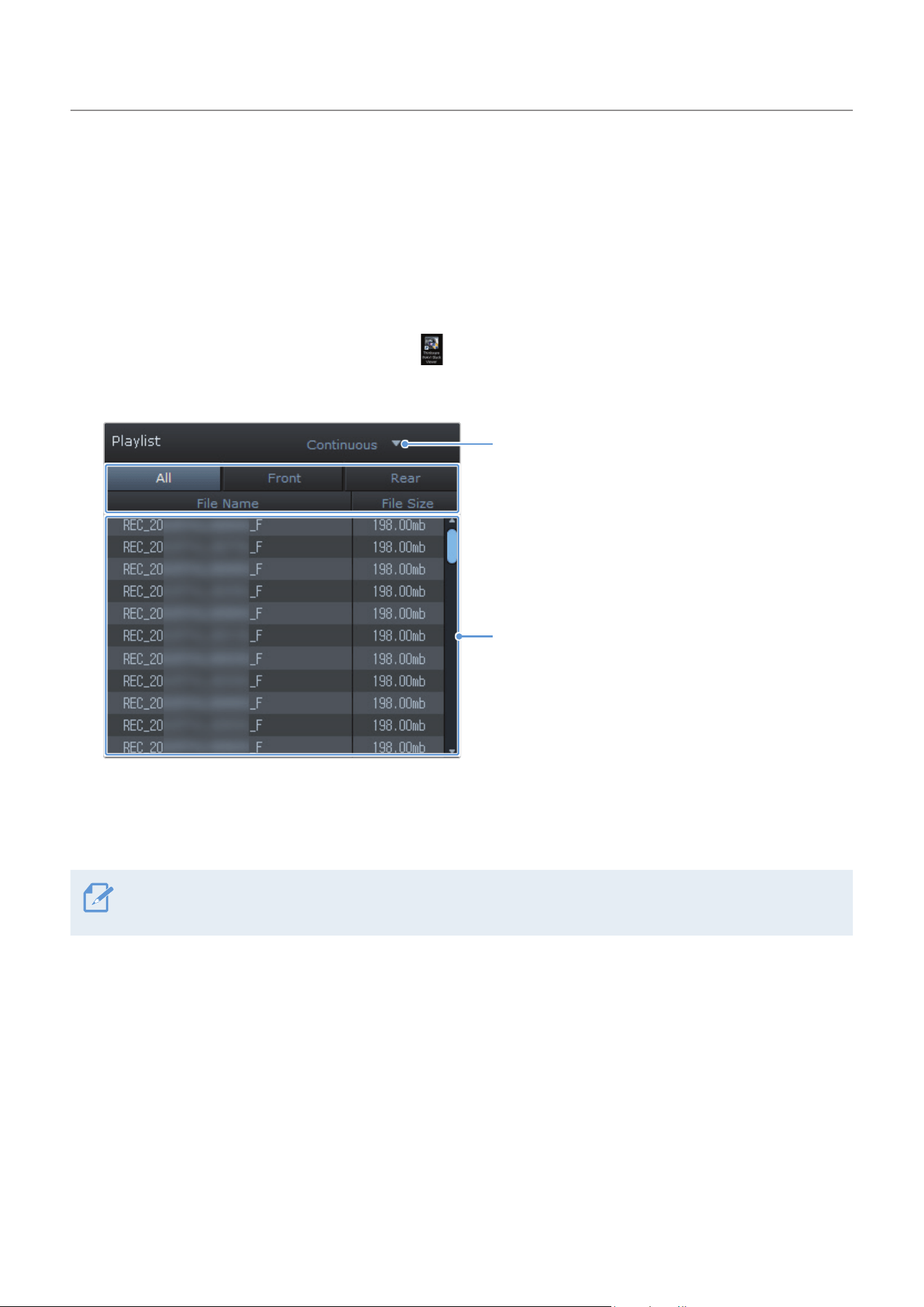
Double-click the shortcut to the PC viewer ( ) to open the program. The video files in the memory
card will be automatically added to the playlist in the bottom-right corner of the PC viewer screen. The
playlist section layout is as follows.
Select a folder.
Displays a list of videos
in the selected folder.
4
Double-click a video file after selecting a video folder, or click the Play (▶) button after selecting a
video file. The selected video file will be played.
If the video files on the memory card are not automatically added to the playlist when you run the PC viewer,
click File▼
>
Open, select the removable storage device for the memory card, and click Confirm.
27
7. Settings
You can set the product features according to your needs and preferences using the mobile viewer or the
PC viewer. The following procedures are based on the mobile viewer.
The product will stop recording while configuring settings on the mobile viewer.
7.1 Managing the memory card
From the mobile viewer, tap Dash Cam settings
>
Memory Card Settings to manage the memory card settings.
Options Description
Memory Partition
Select from Continuous Priority/Incident Priority/Parking Priority/Manual Priority/
Driving Recording Only for the memory partition type.
Formatting Memory Card
In Formatting Memory Card, tap Format
>
OK to proceed with formatting the
memory card.
Overwrite Videos Select the desired modes to allow video overwriting.
7.2 Setting the Camera
From the mobile viewer, tap Dash Cam settings
>
Camera Settings to adjust the camera settings.
Options Description
Brightness-front Select from Dark/Mid/Bright for the brightness of the front camera.
Channel Setting Select from 1-channel/ 2-channel to set recording cameras.

Settings
28
7.3 Setting recording features
From the mobile viewer, tap Dash Cam settings
>
Record Settings to manage the recording features settings.
Options Description
Continuous Mode Incident
Recording Sensitivity
Select from Disabled/Lowest/Low/Mid/High for the sensitivity.
Super Night Vision
Select from Disabled/Continuous Mode/Parking Mode/Continuous+Parking for the
Super Night Vision feature.
Set Privacy Recording
You can set the privacy recording feature to delete your recorded files after a
set amount of time to protect the privacy of others. Select from OFF/1min (max.
2min)/3min (max. 4min)/G-Shock only for the privacy recording setting. If it is set to
G-Shock only mode, then it is not consistently recorded.
Voice Recording Select from Enabled/Disabled for the voice recording.
Parking Mode
Select from Disabled/Motion Detection/Time Lapse/Energy Saving for the parking
mode.
Parking Mode Waiting Time
Select from 30 sec./1 min./2 min./3 min./4 min./5 min. for the parking mode waiting
time (time to switch to parking mode).
Smart Parking Recording Select from Enabled/Disabled.
Impact Sensitivity in Parking
Mode
Select one of the five parking mode sensitivity levels.
Motion Detection Sensitivity Select one of the five motion detection sensitivity levels.
Off Timer Select the desired record time. To turn off the record timer, select Disabled.
Battery Protection Select from Enabled/Disabled for the battery protection.
Vehicle Type Select from Regular car/Hybrid car/Electric car for the vehicle type.
Battery cutoff voltage Select from 12V (11.6~13.2V)/24V (23.2-24.6) for the battery cutoff voltage.
Wintertime Battery Protection Select the month(s) to apply the battery protection feature.
• To use parking mode, you must install the hardwiring cable. If continuous power is not supplied to the
product, the product will stop recording when the vehicle engine is turned off.
• The vehicle battery will not be charged while the vehicle is parked. If you record in parking mode for an
extended period, the vehicle’s battery may be depleted and you may not be able to start the vehicle.
• For more information about parking mode, refer to "3.6 Using parking mode" on page 19.
• The battery cutoff voltage can be set only when the Battery Protection setting is set to Enabled.
• If the off voltage value is too low, the product may consume the battery completely depending on the
conditions like the vehicle type or temperature.
Settings
29
7.4 Setting road safety features
From the mobile viewer, tap Dash Cam settings
>
Road Safety Settings to manage the road safety features
settings.
Options Description
Safety Cameras Select from Enabled/Disabled for the safety cameras.
Mobile Zone Alert Select from Enabled/Disabled for the mobile zone alert.
Vehicle Type Select the vehicle type from Sedan/SUV/Truck (Bus).
Initialize ADAS In Initialize ADAS, tap Initialize
>
OK to proceed with initializing.
LDWS
(Lane Departure Warning)
Select from
Disabled/Low/Mid/High for the LDWS sensitivity.
LDWS Speed Select from 50km/h / 60km/h / 80km/h / 100km/h for the LDWS detection speed.
FCWS
(Forward Collision Warning)
Select from
Disabled/Low/Mid/High for the sensitivity.
Low Speed FCWS Select from Disabled/Low/Mid/High for the sensitivity.
FVDW (Front Vehicle Departure
Warning)
Select from Enabled/Disabled for the FVDW feature.
7.5 Configuring the system settings
From the mobile viewer, tap Dash Cam Settings
>
System Settings to configure the hardware system
settings.
Options Description
Language Select the desired language.
Volume Select the desired volume level for each feature (Safety Cameras/ADAS/System).
Security LED Select the desired mode to use the security LED.
Time Zone Select the date and time.
Daylight Saving Select from Enabled/Disabled for the daylight saving.
Speed Unit Select from km/h/mph for the speed unit.
Speed Stamp Select from Enabled/Disabled for the speed stamp.
Internet Select from Enabled/Disabled for Internet mode.
If you select 0 for the volume level, the voice guidance will be disabled.

30
8. Upgrading the firmware
A firmware upgrade is provided to enhance the product’s features, operation or to increase stability. For
optimal operation of the product, ensure that you keep the firmware up to date.
Follow the instructions to upgrade the firmware.
1
On your PC, open a web browser and go to https://www.thinkware.com/Support/Download.
2
Select the product and download the latest firmware upgrade file.
3
Unzip the downloaded file.
4
Disconnect power to the product and remove the memory card.
5
Open the memory card on a PC and copy the firmware upgrade file to the root folder of the memory
card.
6
While the power is disconnected from the product, insert the memory card into the memory card slot
on the product.
7
Connect the power cable to the product, and then turn on the power (ACC ON) or start the engine to
turn on the product. The firmware upgrade starts automatically, and the system will restart once the
firmware update is completed.
Do not disconnect the power or remove the memory card from the product during the upgrade. Doing
so may cause serious damage to the product, or to the data stored in the memory card.
You can also update the firmware from the mobile viewer and the PC viewer. A notification pop-up will be
displayed on the PC Viewer screen when a new update file becomes available.

31
9. Troubleshooting
The following table lists the problems users may encounter while using the product and measures to
resolve them. If the problem persists after taking the measures provided in the table, contact the customer
service center.
Problems Solution
Cannot power on the product
• Make sure the power cable (the hardwiring cable or the optional car charger)
is connected to the vehicle and the product properly.
• Check the vehicle’s battery level.
The voice guide and/or buzzer
do not sound.
Check if the volume is set to the minimum.
The video is unclear or hardly
visible.
• Ensure that the protective film on the camera lens has been removed. The
video may look unclear if the protective film is still on the camera lens.
• Check the installation location of the front camera, turn on the product, and
then adjust the camera's viewing angle.
The memory card cannot be
recognized.
• Ensure that the memory card has been inserted in the correct direction. Before
inserting the memory card, ensure that the metal contacts on the memory card
are facing toward the lens of the product.
• Turn off the power, remove the memory card, and then check to ensure that the
contacts in the memory card slot are not damaged.
• Ensure that the memory card is an authentic product distributed by
THINKWARE. THINKWARE does not guarantee compatibility and normal
operation of third-party memory cards.
The recorded video cannot be
played on a PC.
The recorded videos are stored as MP4 video files. Ensure that the video player
installed on your PC supports the playback of MP4 video files.
GPS signal cannot be received.
The GPS signal may not be received in out-of-service areas, or if the product is
located between tall buildings. Also, GPS signal reception may not be available
during storms or heavy rain. Try again on a clear day at a location that is known
to have a good GPS reception. It may take up to 5 minutes until GPS reception is
established.
Before contacting a service center
Please back up all important data stored in the memory card. The data in the memory card may be deleted
during repair. Every product requested for repair is regarded as a device that has had its data backed up.
The customer service center does not back up your data. THINKWARE is not responsible for any loss, such
as data loss.

32
10. Specifications
To see the product specifications, refer to the following table.
Item Specification Remarks
Model name Q850 Rear Camera: BCFH-80U (optional)
Dimensions Front : 107 x 60.5 x 30 mm Rear Camera: BCFH-80U: 25Ø x 61 x 32.8 mm
Memory microSD memory card 32 GB, 64 GB, 128 GB, 256 GB
Camera sensor 5.14 Megapixel, 1/2.8"
Angle of view (Lens) Approximately 124° (diagonally)
Video
Front: QHD (2560 x 1440 @30fps) /
H.264 / MP4
Option: FHD (1920 x 1080 @30fps) / H.264 / MP4
Recording mode Continuous Rec, Incident Rec, Manual Rec, SOS Rec, Parking Rec (parking mode)
Features
Super Night Vision (front only), Privacy Recording, Smart Parking Recording,
Battery Protection, Thermal Protection
Acceleration sensor
3-axis acceleration sensor
(3D, ±3G)
5 levels for sensitivity adjustment available
GPS Embedded GPS
Supports ADAS features (LDWS, LDWS Speed,
FCWS, Low Speed FCWS, FVDW)
GNSS GPS/GLONASS
Bluetooth
Standard Bluetooth V5.0, BLE
Frequency 2.402 MHz – 2.480 MHz
Wi-Fi
Standard 2.4G (802.11 b/g/n)
Frequency 2.400 GHz – 2.483.5 GHz
Power input DC 12 / 24 V
supported Rear Camera (BCFH-80U): DC 5 V
supported
Power consumption 2ch: 4.7 W / 1ch: 3.3 W (mean)
Except for the fully charged supercapacitor / GPS
Actual power consumption may vary depending on
the usage conditions and environment.
Auxiliary power unit Super capacitor
LED indicator
Security LED, REC LED, GPS LED,
Connection LED
Alarm Built-in speakers Voice guide (buzzer sounds)
Operating temperature 14 – 140℉ / -10 – 60℃
Storage temperature -4 – 158℉ / -20 – 70℃

33
)&&6WDWHPHQW
7KLVGHYLFHFRPSOLHVZLWK3DUWRIWKH)&&5XOHV2SHUDWLRQLVVXEMHFWWRWKHIROORZLQJWZRFRQGLWLRQV
WKLVGHYLFHPD\QRWFDXVHKDUPIXOLQWHUIHUHQFHDQGWKLVGHYLFHPXVWDFFHSWDQ\LQWHUIHUHQFHUHFHLYHG
LQFOXGLQJLQWHUIHUHQFHWKDWPD\FDXVHXQGHVLUHGRSHUDWLRQ
7KLVHTXLSPHQWKDVEHHQWHVWHGDQGIRXQGWRFRPSO\ZLWKWKHOLPLWVIRUD&ODVV%GLJLWDOGHYLFHSXUVXDQW
WR3DUWRIWKH)&&5XOHV7KHVHOLPLWVDUHGHVLJQHGWRSURYLGHUHDVRQDEOHSURWHFWLRQDJDLQVWKDUPIXO
LQWHUIHUHQFHLQDUHVLGHQWLDOLQVWDOODWLRQ7KLVHTXLSPHQWJHQHUDWHVXVHVDQGFDQUDGLDWHUDGLRIUHTXHQF\
HQHUJ\DQGLIQRWLQVWDOOHGDQGXVHGLQDFFRUGDQFHZLWKWKHLQVWUXFWLRQVPD\FDXVHKDUPIXOLQWHUIHUHQFH
WRUDGLRFRPPXQLFDWLRQV+RZHYHUWKHUHLVQRJXDUDQWHHWKDWLQWHUIHUHQFHZLOOQRWRFFXULQDSDUWLFXODU
LQVWDOODWLRQ,IWKLVHTXLSPHQWGRHVFDXVHKDUPIXOLQWHUIHUHQFHWRUDGLRRUWHOHYLVLRQUHFHSWLRQZKLFKFDQ
EHGHWHUPLQHGE\WXUQLQJWKHHTXLSPHQWRIIDQGRQWKHXVHULVHQFRXUDJHGWRWU\WRFRUUHFWWKHLQWHUIHUHQFH
E\RQHRUPRUHRIWKHIROORZLQJPHDVXUHV
ř 5HRULHQWRUUHORFDWHWKHUHFHLYLQJDQWHQQD
ř ,QFUHDVHWKHVHSDUDWLRQEHWZHHQWKHHTXLSPHQWDQGUHFHLYHU
ř &RQQHFWWKHHTXLSPHQWWRDQRXWOHWRQDFLUFXLWGLIIHUHQWIURPWKDWWRZKLFKWKHUHFHLYHULVFRQQHFWHG
ř &RQVXOWWKHGHDOHURUDQH[SHULHQFHGUDGLR79WHFKQLFLDQIRUKHOS
)&&&DXWLRQ
$Q\FKDQJHVRUPRGLILFDWLRQVWRWKHHTXLSPHQWQRWH[SUHVVO\DSSURYHGE\WKHSDUW\UHVSRQVLEOHIRU
FRPSOLDQFHFRXOGYRLG\RXUDXWKRULW\WRRSHUDWHWKHHTXLSPHQW
7KLVWUDQVPLWWHUPXVWQRWEHFRORFDWHGRURSHUDWLQJLQFRQMXQFWLRQZLWKDQ\RWKHUDQWHQQDRUWUDQVPLWWHU
,(((ERUJRSHUDWLRQRIWKLVSURGXFWLQWKH86$LVILUPZDUHOLPLWHGWRFKDQQHOVWKURXJK
)&&5DGLDWLRQ([SRVXUH6WDWHPHQW
7KLVHTXLSPHQWFRPSOLHVZLWK)&&UDGLDWLRQH[SRVXUHOLPLWVVHWIRUWKIRUDQXQFRQWUROOHGHQYLURQPHQW
7KLVHTXLSPHQWVKRXOGEHLQVWDOOHGDQGRSHUDWHGZLWKPLQLPXPGLVWDQFHFPEHWZHHQWKHUDGLDWRUDQG
\RXUERG\
)&&,'$'7*4
34
,QGXVWU\&DQDGD6WDWHPHQW
7KLVGHYLFHFRPSOLHVZLWK,QGXVWU\&DQDGDOLFHQVHH[HPSW566VWDQGDUGV2SHUDWLRQLVVXEMHFWWRWKH
IROORZLQJWZRFRQGLWLRQVWKLVGHYLFHPD\QRWFDXVHLQWHUIHUHQFHDQGWKLVGHYLFHPXVWDFFHSWDQ\
LQWHUIHUHQFHLQFOXGLQJLQWHUIHUHQFHWKDWPD\FDXVHXQGHVLUHGRSHUDWLRQRIWKHGHYLFH
&HGLVSRVLWLIHVWFRQIRUPH¢ODQRUPH&15GŒ,QGXVWULH&DQDGDDSSOLFDEOHDX[DSSDUHLOVUDGLRH[HPSWV
GHOLFHQFH6RQIRQFWLRQQHPHQWHVWVXMHWDX[GHX[FRQGLWLRQVVXLYDQWHVOHGLVSRVLWLIQHGRLWSDV
SURGXLUHGHEURXLOODJHSU«MXGLFLDEOHHWFHGLVSRVLWLIGRLWDFFHSWHUWRXWEURXLOODJHUH©X\FRPSULVXQ
EURXLOODJHVXVFHSWLEOHGHSURYRTXHUXQIRQFWLRQQHPHQWLQG«VLUDEOH
,QGXVWU\&DQDGD5DGLDWLRQ([SRVXUH6WDWHPHQW
7KLVHTXLSPHQWFRPSOLHVZLWK,&UDGLDWLRQH[SRVXUHOLPLWVVHWIRUWKIRUDQXQFRQWUROOHGHQYLURQPHQW7KLV
HTXLSPHQWVKRXOGEHLQVWDOOHGDQGRSHUDWHGZLWKPLQLPXPGLVWDQFHFPEHWZHHQWKHUDGLDWRU\RXU
ERG\
'«FODUDWLRQGŒH[SRVLWLRQDX[UDGLDWLRQV
&HW«TXLSHPHQWHVWFRQIRUPHDX[OLPLWHVGŒH[SRVLWLRQDX[UD\RQQHPHQWV,&«WDEOLHVSRXUXQHQYLURQQH
PHQWQRQFRQWU¶O«&HW«TXLSHPHQWGRLW¬WUHLQVWDOO«HWXWLOLV«DYHFXQPLQLPXPGHFPGHGLVWDQFHHQWUH
ODVRXUFHGHUD\RQQHPHQWHWYRWUHFRUSV
7KLV&ODVV%GLJLWDODSSDUDWXVFRPSOLHVZLWK&DQDGLDQ,&(6
&HWDSSDUHLOQXP«ULTXHGHODFODVVH%HVWFRQIRUPH¢ODQRUPH10%GX&DQDGD
,&$4