English
Read the guide carefully and ensure you have fully understood its contents before operating this device for the first time.
QUICK SETUP GUIDE
A
B
Paragraphs beginning with the symbol indicate important instructions, tips or conditions for the following settings.
For your own safety and the optimal performance of your device, ensure to read the safety instructions before performing any
installation.
Compatibility with 3rd party products, software and services are not guaranteed. We cannot be held liable for any damage or loss
suffered whilst operating, using or connecting to incompatible devices or apps.
The recording and playback of content on this or any other device may require permission from the owner of the copyright or other
such rights in that content. It is your responsibility to ensure that your use of this or any other device complies with applicable
copyright legislation in your country. Please refer to that legislation for more information on the relevant laws and regulations involved
or contact the owner of the rights of the content you wish to record or playback.
Read these instructions
Follow all instructions
Heed all warnings
Keep these instructions
All rights reserved.
▌Important Notice
▌Safety Instructions
To ensure safe and correct use of this product, always comply with the following precautions to avoid dangerous situations and
damage to your unit:
The lightning flash with arrowhead symbol, within an equilateral triangle is
intended to alert the user to the presence of uninsulated dangerous voltage
within the product's enclosure that may be of sufficient magnitude to constitute a
risk of electric shock.
The exclamation point within an equilateral triangle is intended to alert the user
to the presence of important operating and maintenance (servicing) instructions
in the literature accompanying the appliance.

C
The intended use and ambient conditions for this device
This device is intended for the rendering of video and audio signals, on a table-top, in a home or ofce environment. It must not be used in rooms
with a high level of humidity or dust concentration. The warranty is only valid if used as intended by the manufacturer.
WARNING
High humidity and dust concentration may lead to current leaks in the device. To reduce the risk of re or electrical shock:
- Do not expose this unit to rain, moisture, dripping or splashing water, and do not place objects lled with liquids, such as vases, cups, etc. on or
over the unit.
- Do not touch the device with wet hands.
- Do not expose to direct air-conditioning and keep candles or other naked ames away from the device at all times.
If the device is moved from a cold environment to a hot environment, leave it switched off for at least an hour to avoid condensation. If used outside,
make sure it is protected from moisture.
If you notice anything unusual, immediately remove the power plug.
In case of re, use preferably a CO
2
gas or powder re extinguisher. If such extinguishers are not accessible, try to isolate the electrical supply before using a
water re extinguisher.
A television set may fall, causing serious personal injury or death. Many injuries, particularly to children, can be avoided by taking simple precautions
such as:
- ALWAYS use cabinets or stands or mounting methods recommended by the manufacturer of the television set.
- ALWAYS use furniture that can safely support the television set.
- ALWAYS ensure the television set is not overhanging the edge of the supporting furniture.
- ALWAYS educate children about the dangers of climbing on furniture to reach the television set or its controls.
- ALWAYS route cords and cables connected to your television so they cannot be tripped over, pulled or grabbed.
- NEVER place a television set in an unstable location.
- NEVER place the television set on tall furniture (for example, cupboards or bookcases) without anchoring both the furniture and television set to a
suitable support.
- NEVER place the television set on cloth or other materials that may be located between the television set and supporting furniture.
- NEVER place items that might tempt children to climb, such as toys and remote controls, on the top of the television or furniture on which the
television is placed.
If your existing television set is being retained and relocated, the same considerations as above should be applied.

D
Power Supply
Incorrect voltages can damage the device. Only connect this unit
to a power supply with the correct voltage and frequency noted
on the type plate, using the supplied power cable.
The power plug must be easily accessible so that the device can
be disconnected at all time. The unit is live, even if in standby
mode, as long as the unit is connected to a power outlet.
It is recommended that this unit is placed on a dedicated circuit.
- Do not overload the power outlets by connect too many
appliances to the same outlet. Overloaded wall outlets,
extension cords, etc. are dangerous and can result in electric
shock and re.
After power off, don't turn it on again in 5 seconds. Frequent
switching power supply in a short period of time can cause
abnormal device.
- Do not place the power cable near a high temperature object.
- Do not move the device with the power cable plugged into a
socket.
- Do not use a damaged or loose power cable, or a damaged
socket outlet.
- Do not use any power cords other than the one supplied with
this unit.
- MAIN plug on the power cord is used as the disconnect de-
vice, the disconnect device and socket-outlet shall be easily
accessible.
Air ventilation and high temperatures
Install your device only where there is proper ventilation, and
ensure that there is at least 20 cm free space on the sides and
15 cm free space on the back unit for air circulation. Excessive
heat and obstruction of ventilation could lead to re or early
failure of some electric components.
- Do not block any ventilation openings with newspapers,
tablecloths, curtains, etc.
- Do not dry clothing etc. on top of the unit.
- Take care not to touch the ventilation openings since they
may become hot.
- Do not insert foreign objects into the device through the
vents.
Power plug and power cable
- Do not touch the power plug with wet hands.
- Do not place heavy objects on the power cable. Route the
cable so that it is not kinked or laid over sharp edges, walked
on or exposed to chemicals. A power cable with damaged
insulation can cause electric shock and re.
- Pull the power plug, NOT on the cable when disconnecting.
The cable can become damaged and cause a short circuit if
pulled on.

E
Warning about off-gassing
New furniture, carpet, paint, building materials and electronics
can release chemicals into the air through evaporation. After
you set your device up and turn it on for the rst time, you may
notice a slight smell within a couple of hours. This is because
some components of device are heating up for the rst time. The
materials that we use fully meet the environmental requirements
and regulations. Your device is working just ne and the fumes
from the off-gassing will diminish eventually.
Supervision
- Do not let children play unsupervised close to the device. It
could tip over, be pushed off or pulled down from the stand
surface and injure someone.
- Do not allow a switched-on device to run unattended.
Volume
Loud music and noises can lead to irreversible damage to your
ears. Avoid extreme volume, especially over long periods and
when using headphones.
If you hear a drumming noise in your ears, turn down the volume
or temporarily stop using headphones.
Thunder Storms
Pull out the power plug and all connected antenna cables from
the device during a thunderstorm. Overvoltage caused by
lightning strikes can damage the device via the antenna system,
as well as the wall socket.
Long periods of absence
As long as the power plug is connected to a live socket outlet,
the device will consume power even in standby mode. The power
plug and all connected antenna cables should be disconnected
out during long periods of absence.
Cleaning and care
CAUTION:
Unplug the power cord prior to cleaning the device.
Clean the device, the screen, and the remote control with a
soft, moist, clean and color-natural cloth only. Do not use any
chemicals.
- Do not subject the surfaces to insect repellent, solvent,
thinner or other volatile substances. This may degrade the
surface quality.
- Do not spray water or other liquids directly on the device.
Liquid inside the device could lead to product failure.
- The surface of the display panel is treated and may be easily
damaged. Take care not to scratch it with ngernails or other
hard objects.
- Also wipe the power plug with a dry cloth at regular intervals.
Service/Repair
Never remove the cover/back of the device; there are no user
serviceable parts inside. Refer all service to qualied service
personnel.

F
Packaging
Keep the anti-moisture materials and plastic bags out of reach of
children.
Plastic bags can cause suffocation and the anti-moisture material
is harmful if swallowed. If swallowed by mistake, force the patient
to vomit and visit the nearest hospital.
Modication
Do not attempt to modify this product in any way. Unauthorized
modication could void the warranty of this unit, cause electric
shock and res.
Remote Control batteries
- Incorrect installation may cause battery leakage, corrosion
and explosion.
- Replace only with the same or equivalent type.
- Do not mix old and new batteries.
- Do not mix different battery types.
- Do no use rechargeable batteries.
- Do not burn or break up batteries.
- Be sure to dispose of batteries correctly.
- Do not expose batteries to excessive heat such as sunshine,
re or the like.
Outdoor Antenna Grounding
If an outdoor antenna used, be sure the antenna system is
protected against voltage surges and built-up static charges.
Disposal
Refer to the recycling section of this guide.
Laser
Do not look directly at the lens when this device is on
because the laser light may damage your eyes!
- This product comes with a laser module. Do not tear or
modify this device in any manner; otherwise, it may result in
personal injury.
RG2
As with any bright light source, DO NOT STARE INTO THE
BEAM IEC 62471-5: 2015
CLASS 1 LASER PRODUCT
λ = 459~471nm/519~531nm/635~651nm
Wavelength 459~471nm/519~531nm/635~651nm
CLASS 1 LASER PRODUCT IEC 60825-1: 2014

G
CAUTION:
Use of controls or adjustments or performance of procedures
other than those specied herein may result in hazardous
radiation exposure.
- If this device requires a repair, please wear laser eye
protection with an optical density OD that is 4 or higher and
has a wave length of 459-651 nm.
- Do not place any water-containing vessel on this device,
such as cosmetics or liquid medicine.
- If any object or water enters this device, please unplug this
device and contact the service staff of Hisense.
- Do not place any exposed re source (e.g. burning candle)
on this device. Keep away from high temperature and heat.
- Do not expose the battery to direct sunlight or candle light.
- Keep air vents on both sides clear from any objects to
prevent the device from overheating inside.
- To avoid a short circuit, product damage or electric shock,
do not use any sharp object or metal to touch the ports or
other openings on the Laser TV.
- If this device has been in a warm environment, allow any
built-up condensation to evaporate rst BEFORE you
switch the device on.
- Do not allow a child to stand on or climb up this device.
- Do not place any object above or in front of the lens
because the laser light could cause the object to become
ammable.
- Clean the lens periodically with a clean cloth and make
sure the Laser TV is turned off before you start.
AC voltage: This symbol indicates that the rated voltage marked with the symbol is AC voltage.
Class II product: This symbol indicates that it does not require a safety connection of protective earthing (ground).

1
Table of Contents
Accessories List 2
Laser TV Diagram 3
STEP 1. Mount the Screen 4
STEP 2. Install the Laser TV 4
STEP 3. Adjust the Display Image and the Screen 9
STEP 4. Use Your Remote 12
STEP 5. Proceed through the Screen Setup Menu 14
Maintenance & Quick Problem-Solving Tips 16
Product Specications 18
Recycling / Licenses 19
Congratulations on the purchase of your new Laser TV! This Guide will walk you through a few easy steps to set up
your Laser TV.
Please visit Hisense ofcial website for more details.
Product image is only for reference, actual product may vary in appearance.
Parts of the software function changes with the system upgrade.

2
• Laser TV × 1
• Remote control × 1
• AA or AAA batteries × 2
• Gloves for handling the Laser TV × 2
• Power cord × 1
• Wrench to adjust the bottom of the Laser TV × 1
• USB extension cable × 1
• Laser TV Quick Setup Guide × 1
• Laser TV Warranty Card × 1
• Cleaning kit for the lens × 1
• C-shape blocks × 2
• C-shaped Block Installing Instruction × 1
Accessories List
NOTE: The accessories may be different from the list above due to different models, countries/regions. Please refer to the actual
accessory bag.
Additional items that come with the
Laser TV
in a separate package
• A Display Screen (optional equipment)*
• A set of Wall Mount Brackets (optional equipment)*
* Additional items you receive will be based upon your order.
3
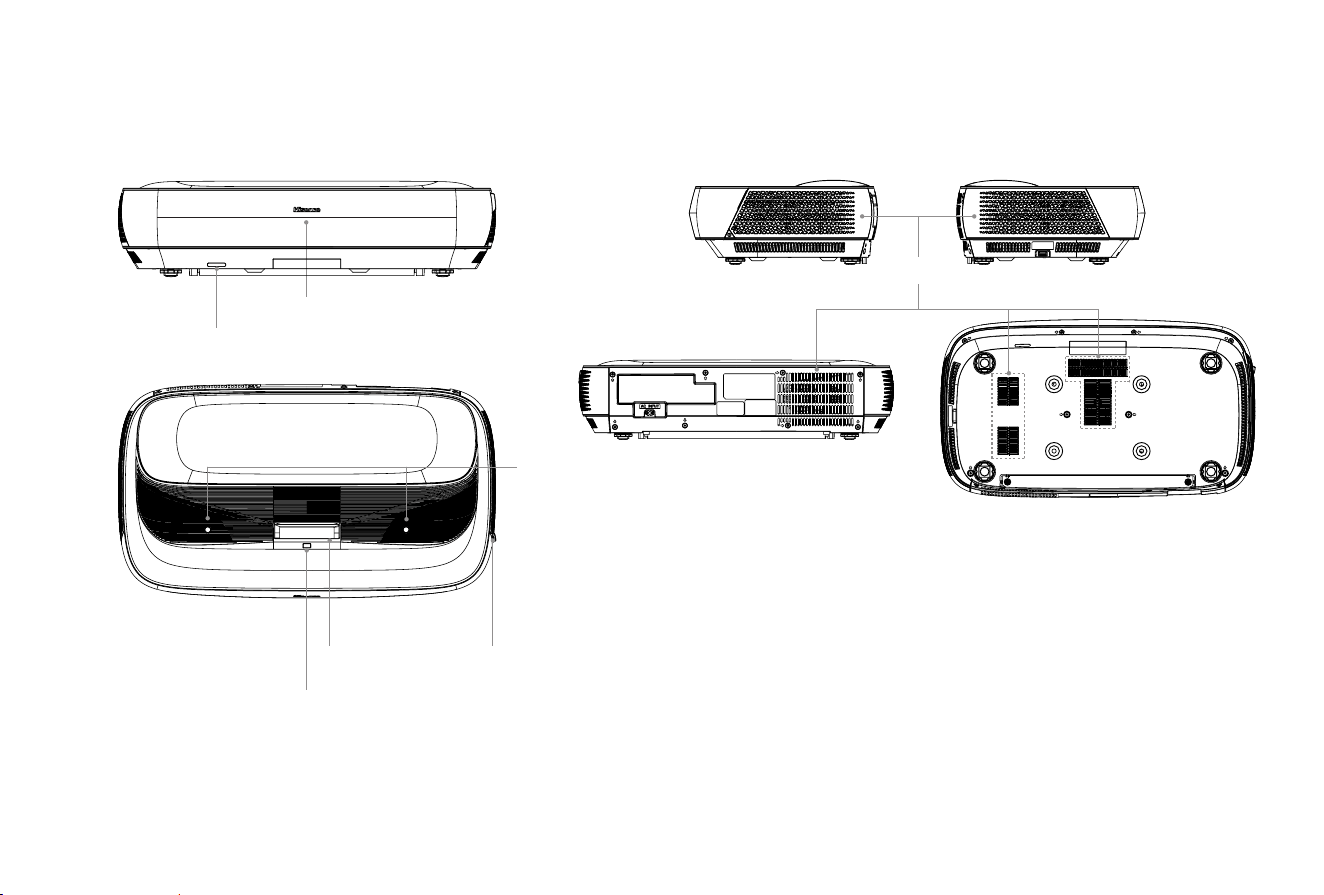
We strongly recommend that two people handle this device when moving it from one place to another. Be sure to
protect the lens when you handle this device.
Laser TV Diagram
Remote control receiver
Power Indicator
Eye protection sensor
Power button
Lens with laser
Foreign Object Detect
Air vents

4
STEP 1 Mount the Screen
Screen installation please refer to the specific screen installation guide!
STEP 2 Install the Laser TV
We strongly recommend that two people handle this device when moving it from one place to another. Be sure to
protect the lens when you handle this device.
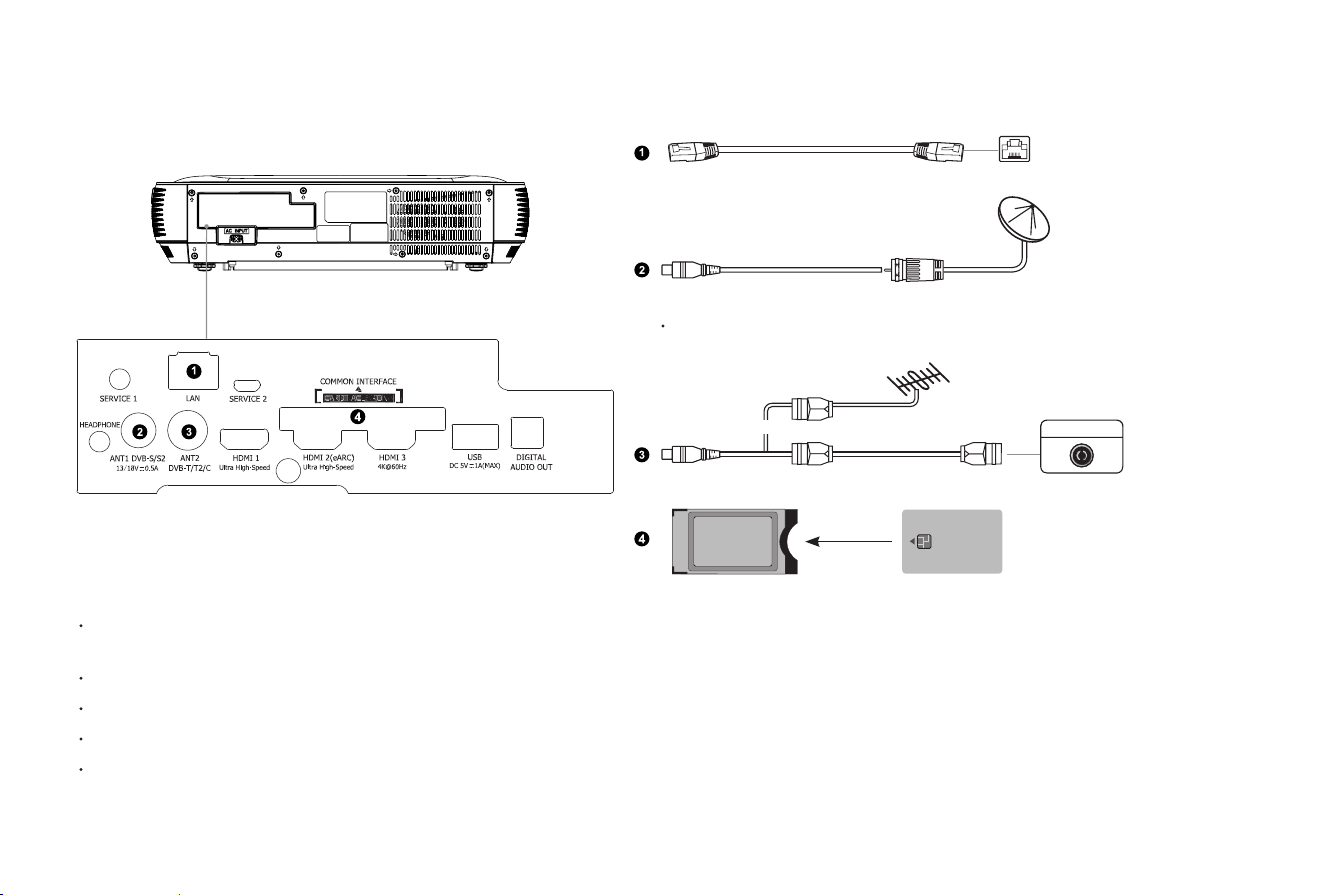
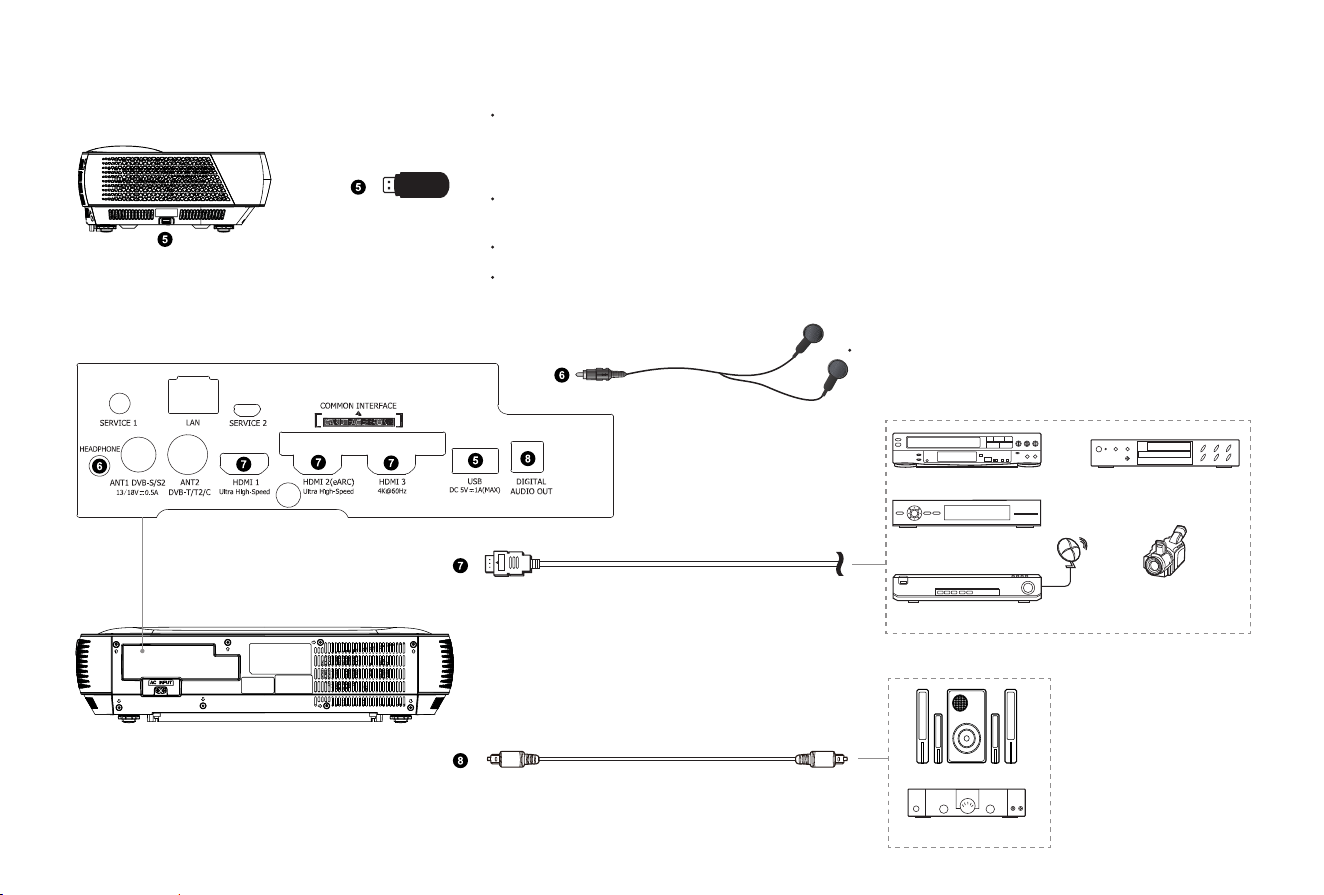
We recommend to connect all cables to the ports on the back of the Laser TV before positioning the Laser TV. (Audio,
video, Ethernet cables and external devices are not included.)
Check to ensure that you have selected the right cables for the ports and that they are connected securely. Loose
connections can affect the quality of the picture image and colour.
5
Ethernet (you will need a router for Internet connectivity)
Outdoor
Antenna
Antenna Cable (75Ω)
or
ANT OUT
Cable
VHF/UHF Antenna
SMART CARD
CAM CARD
Satellite antenna
(not included)
NOTE:
ANT1 Jack supports power supply for satellite antenna (13/18V, 0.5A max.)
NOTE:
Before you insert/remove the CI+ module, ensure that the TV is switched off. Then insert the CI card into the CI+ module in accordance with the
Service Provider’s instructions.
Do not repeatedly insert or remove the Common Access Module as this may damage the interface and cause a malfunction.
You must obtain a CI+ module and card from the service provider of the channels you want to watch.
Insert the CI+ module with the SmartCard in the direction marked on the module and SmartCard.
CI+ is not supported in some countries and regions; check with your authorized dealer.
6
External AV devices
External audio devices
VCR
Set-top Box
Satellite Receiver
Video Camera
DVD Player
Audio Amplier
Speakers
Digital audio adapter
HDMI
NOTE:
When connecting a hard disk or a USB hub, always connect the mains adapter of the
connected device to the power supply. Exceeding a total current consumption may result in
damage. The USB1.1 and USB2.0 devices maximum current consumption are 500mA.
The
USB3.0 device maximum current consumption is 1A.
For individual non-standard high-capacity mobile hard disk, if its impulse current is greater
than or equal 1A, it may cause TV-rebooting or self-locking. So the TV does not support it.
The USB port supports a voltage of 5V.
Use the USB extension cable (included) for easier connection and disconnection.
Headphone (not included)
Excessive sound pressure from earphones
and headphones can cause hearing loss.
7
LAN (
Wired setup
)
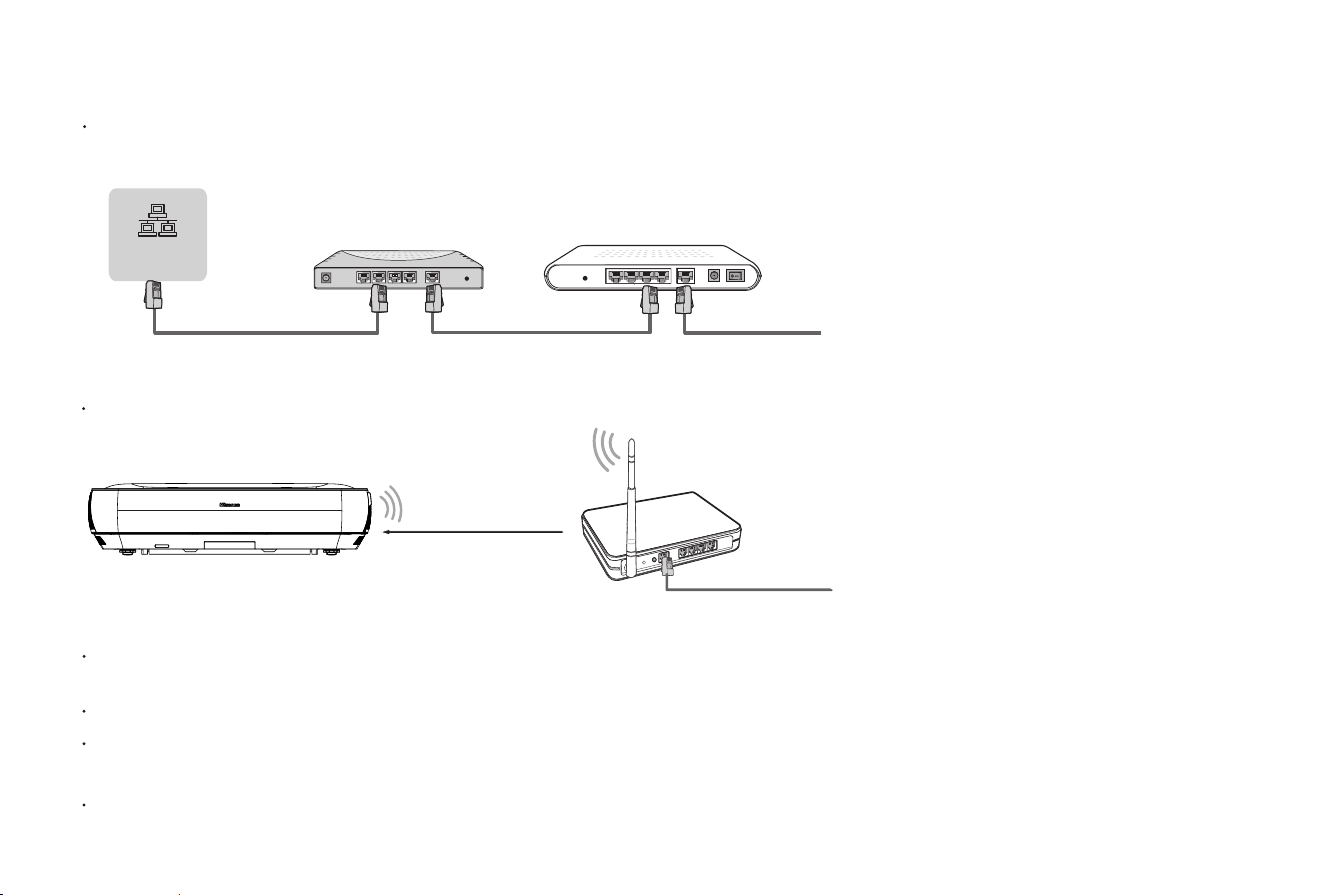
Connect your Laser TV to your network by connecting the LAN port on the back of your Laser TV to an external modem or router
using a LAN (Ethernet/Cat 5) cable. See the illustration below.
Wireless setup
Connect your Laser TV to your network wirelessly, you need a wireless router or modem. See the illustration below.
Wireless router with DHCP
LAN Cable
Wireless LAN Adapter
built-in Laser TV
Laser TV PORT
Modem CableLAN CableLAN Cable
External Modem
(ADSL / VDSL / Cable TV)
IP Sharer (Router)
(with DHCP server)
LAN
NOTE:
You must use the built-in Wireless LAN Adapter to use a wireless network because the set doesn’t support external USB network
adapters.
If the wireless router supports DHCP, your Laser TV can connect more easily to the wireless network.
If you apply a security system other than the systems listed below, it will not work with the Laser TV.
security system: WPA, WEP, WPA2.
In order to guarantee smooth network, the distance between router and Laser TV should be less than 10 metres.
8
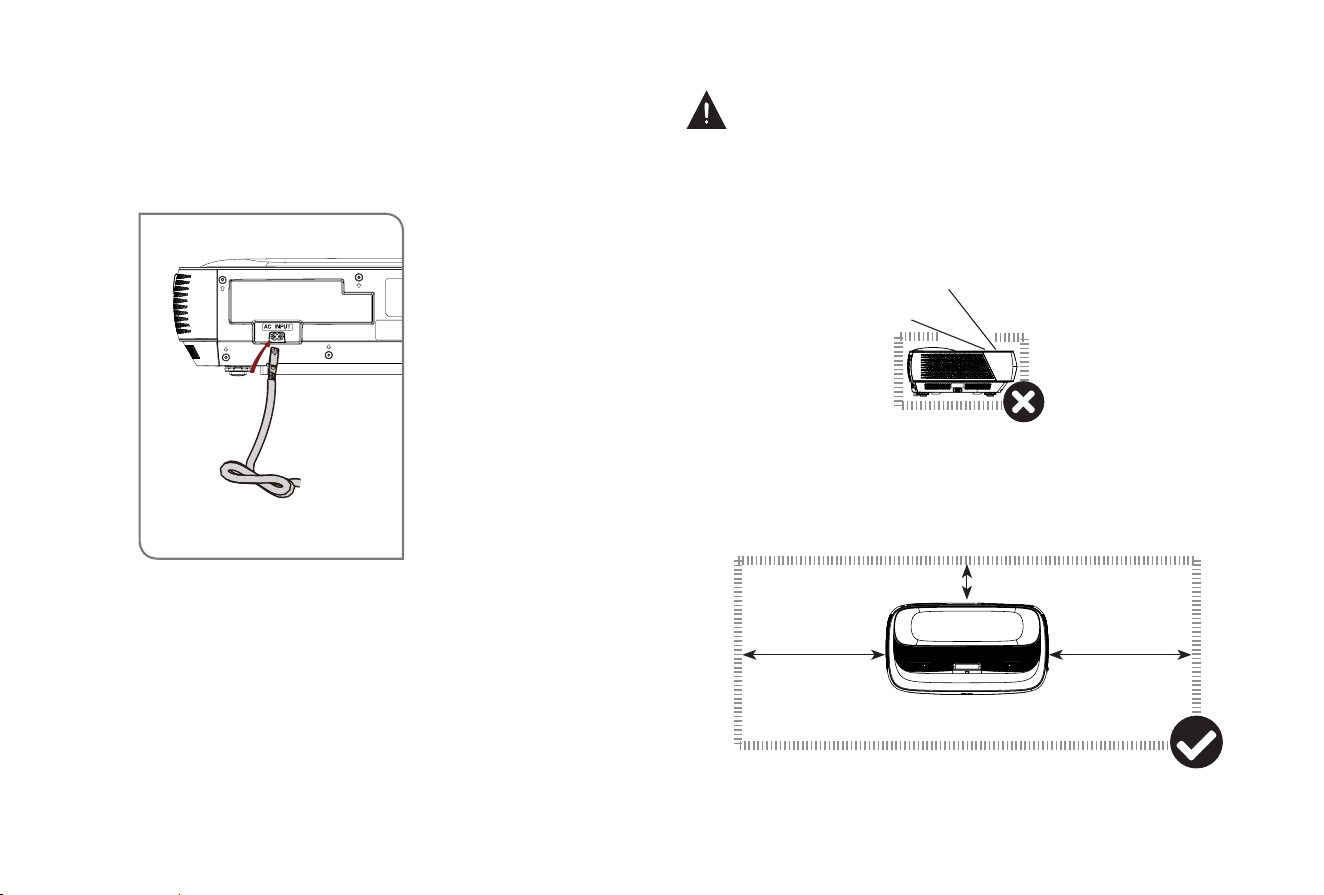
Laser beam
20 cm
20 cm
15 cm
WARNING: Insufficient ventilation space will cause
this device to overheat or become damaged.
• Do not block the air vents or place any object on this device.
• Do not place this device in any narrow, enclosed or poorly
ventilated space.
At a minimum, leave the amount of space shown in the diagram
below for this device to have proper ventilation.
Plug the power cord into a wall outlet.
Press the POWER button to turn on the Laser TV
.
Power Cord
9
• Follow the steps in the order shown below, only if they apply
to your situation.
• Before adjusting, fold the wall-mount bracket wands so that
screen is vertically level.
• Rotate feet from an overlooking view, but do not look
directely at the lens when the Laser TV is on because the
laser light may damage your eyes.
STEP 3 Adjust the Display Image and the Screen
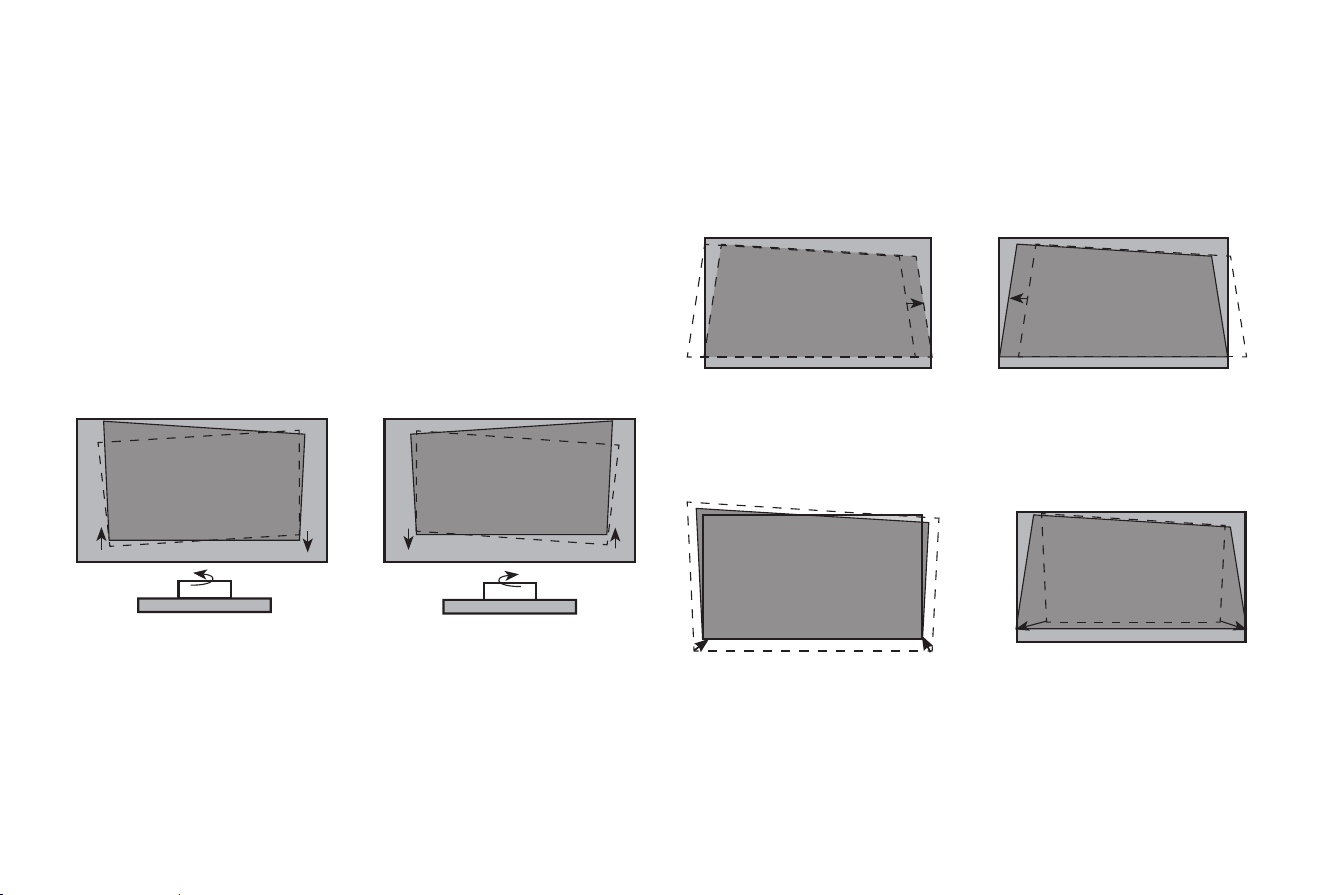
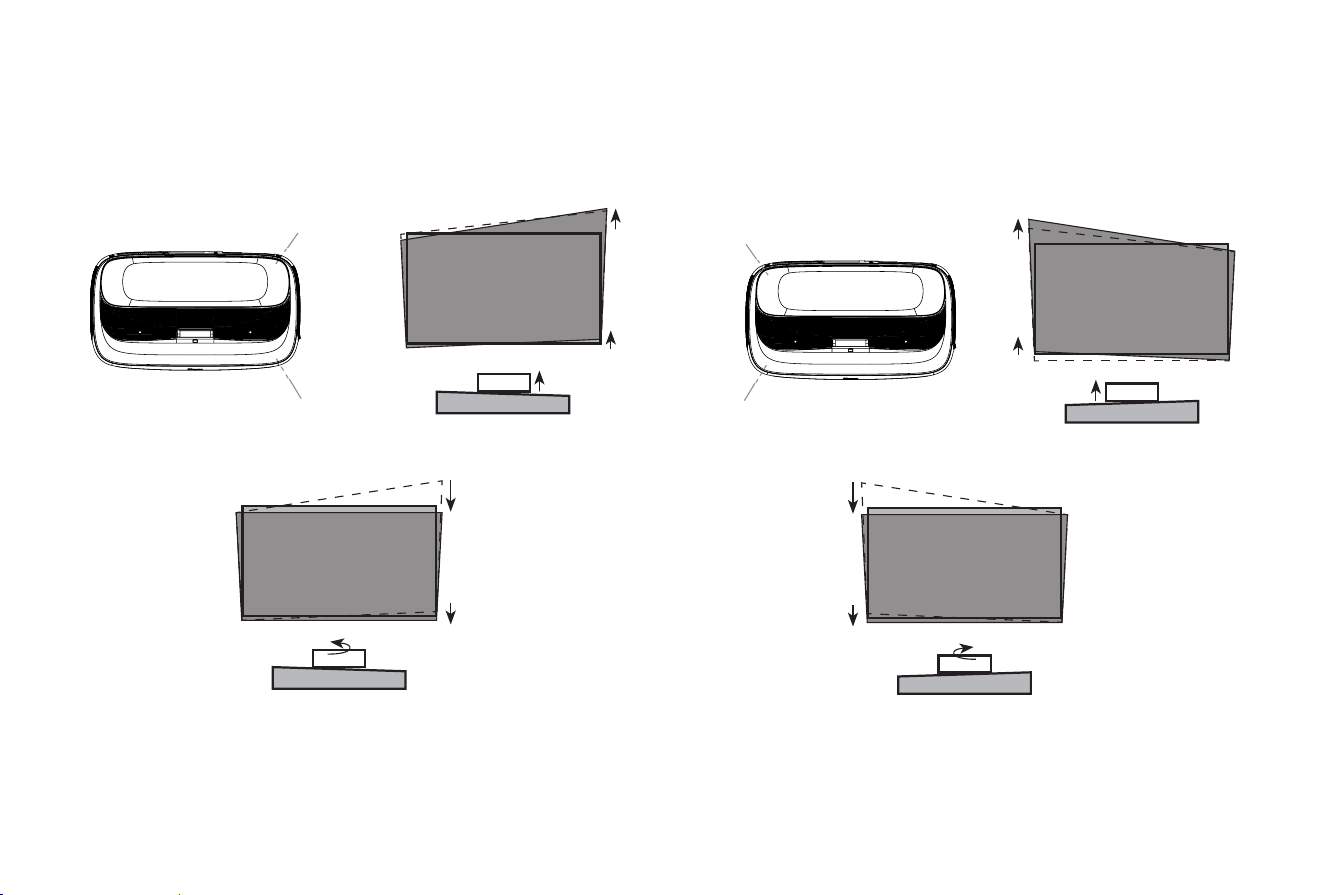
If the bottom of the image is
lower on the left and higher
on the right, rotate the device
counterclockwise.
FIT THE BOTTOM OF THE IMAGE TO THE SCREEN
PARALLEL THE BOTTOM OF THE IMAGE WITH THE SCREEN
If the bottom of the image is
lower on the right and higher
on the left, rotate the device
clockwise.
If the bottom of the image is
wider than the screen, then
move the Laser TV closer to
the screen.
If the image shifts to the
left side, then move the
Laser TV to the right.
If the image shifts to the right
side, then move the Laser TV
to the left.
• Make sure the bottom of the image always stays parallel
with the screen. If not, rotate the TV following previous
instructions.
If the bottom of the image is
narrower than the screen,
then move the Laser TV
farther from the screen.
10
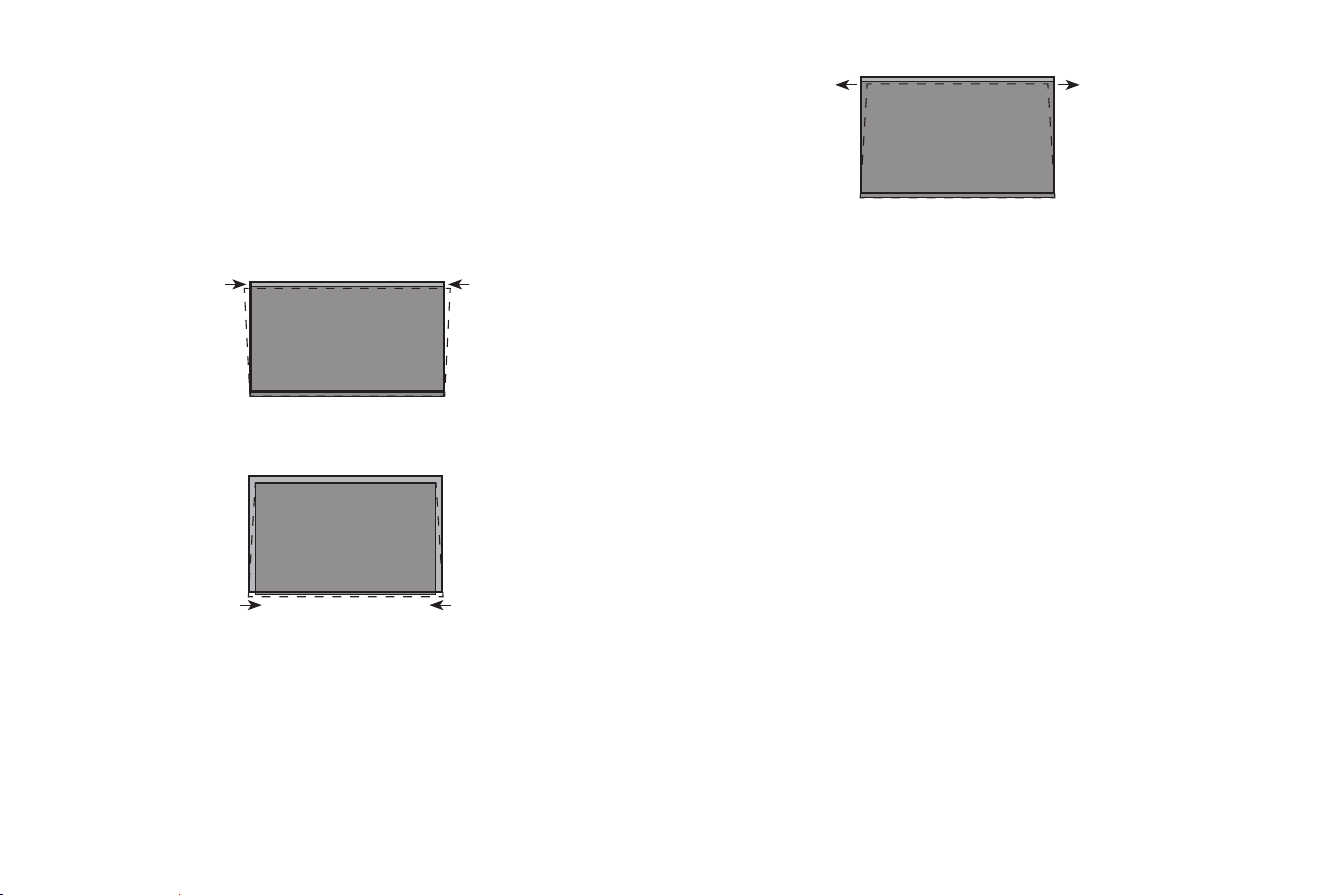
ADJUST THE UPPER-LEFT CORNER OF THE IMAGE
1. If the top of the image is higher on the left and lower on the
right, rotate the front-left foot and the back-left foot of the TV
clockwise to the same height.
back-right foot
front-right foot
back-left foot
front-left foot
ADJUST THE UPPER-RIGHT CORNER OF THE IMAGE
1. If the top of the image is lower on the left and higher on
the right, rotate the front-right foot and the back-right foot
clockwise to the same height.
2. Now, rotate the TV counterclockwise so that the bottom of
the image is parallel with the screen.
3. Repeat the steps above until the top of the image is parallel
with the screen.
4. If the upper-right corner is inside the screen after
adjusting, rotate the front-right foot and the back-right foot
counterclockwise to the same height, and rotate the TV
clockwise, to make the image parallel with the screen.
2. Now, rotate the TV clockwise so that the bottom of the image
is parallel with the screen.
3. Repeat the steps above until the top of the image parallel
with the screen.
11
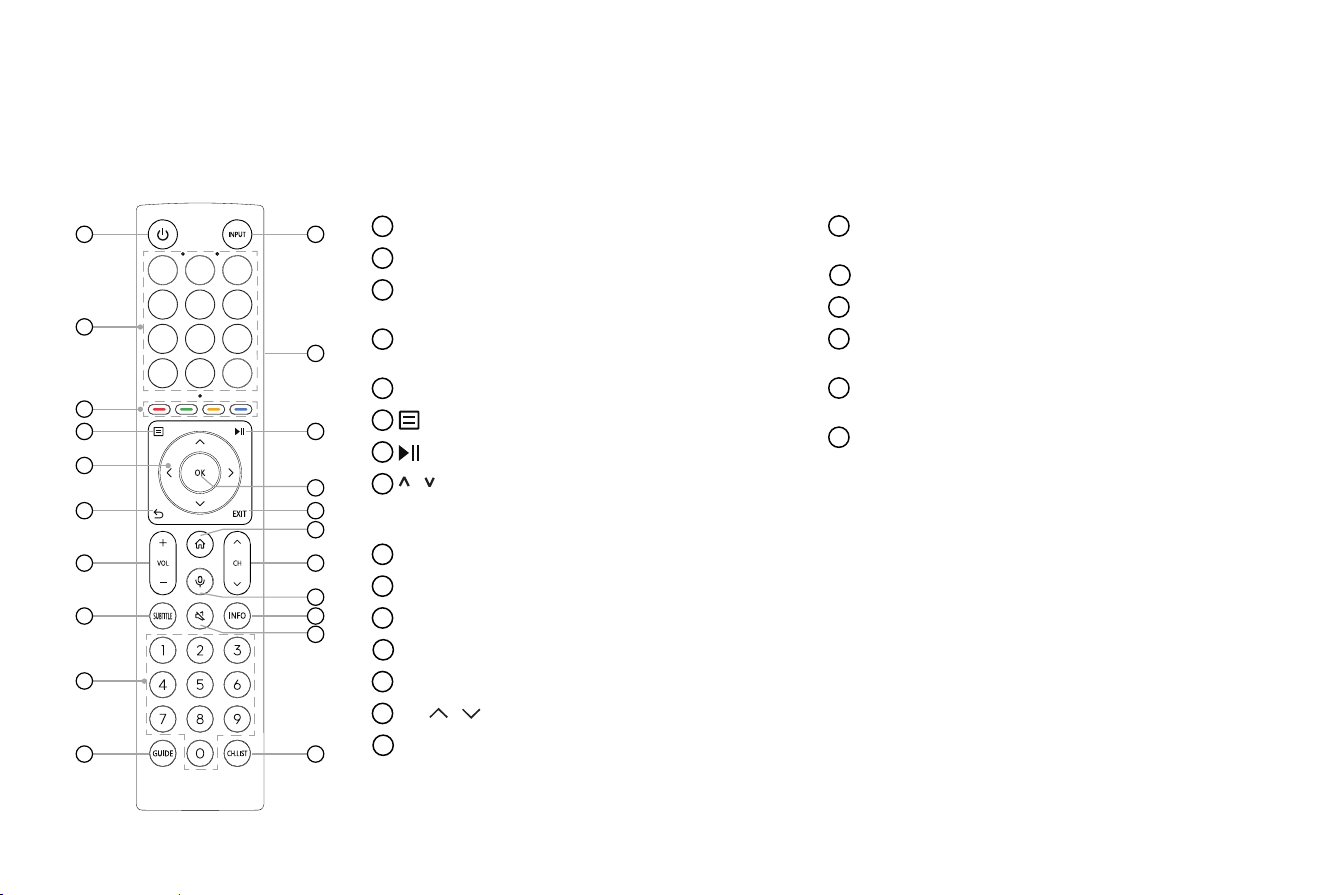
If the top of the image is wider than the screen, then rotate the
left- and right-front feet of the Laser TV clockwise.
FILL THE TOP OF THE IMAGE TO THE SCREEN
If the top of the image is narrower than the screen, then rotate
the left- and right-back feet of the Laser TV clockwise, until the
left and right borders of the image are parallel with the screen
borders.
Next, move the projector further from the screen to ll the image
to screen width.
If the back feet are already at their maximum height, rotate the
left- and right-front feet counterclockwise.
4. If the upper-left corner is inside the screen after
adjusting, rotate the front-left foot and the back-left foot
counterclockwise to the same height, and rotate the TV
counterclockwise, to make the image is parallel with the
screen.
12
STEP 4 Use Your Remote
BUTTONS ON YOUR TV REMOTE
NOTE: The button labels are provided as a reference. The actual appearance of the remote that is included with the TV, may differ from this diagram.
1
POWER: Switch the TV on or into standby mode
2
INPUT: Select input sources
3
APP: Quick access buttons to apps
EDIT: Custom to launch input or app
4
Physical Switch (Side view): Turn on to activate
hands-free wake-up feature*
5
Special function buttons
6
: Display the Quick setup menu
7
: Media content control function button
8
/ / < / >
: Allow you to navigate the on-screen
menus and adjust the system settings to your
preference
9
OK: Confirm the selection in the on-screen menus
10
BACK: Return to previous menu
11
EXIT: Exit the menu
12
HOME: Enter the Home screen
13
VOL
+
/
-
: Adjust the volume
14
CH / : Switch channel
15
MIC: Activate the microphone
1
2
3
4
5
6 7
8
9
10
11
13
14
15
12
16
17
19
18
20
21
*When you do not use hands-free wake-up, please turn
off the physical switch to lengthen the battery life.
16
SUBTITLE: Activate or deactivate the subtitle
mode
17
INFO: Display the present programme information
18
MUTE: Mute or restore the TV sound
19
Number buttons: Direct channel selection or
numbers input
20
GUIDE: Display the Electronic Programme Guide
(DTV mode)
21
CH.LIST: Display the Channel List on the screen
NOTE: The included remote control will vary depending on models, countries/regions. Check information ac-
cording to the actual remote control in the accessory bag.
13
IMPORTANT INFORMATION ABOUT THE REMOTE AND
BATTERIES
• Discard batteries in a designated disposal area. Do not
throw them into a re.
• Remove old batteries immediately to prevent them from
leaking into the battery compartment.
• If you do not intend to use the remote control for a long time,
then remove the batteries.
• Battery chemicals can cause a rash. If the batteries leak,
clean the battery compartment with a cloth. If chemicals
touch your skin then wash it immediately.
• Do not mix old and new batteries.
• Do not mix alkaline, standard (carbon-zinc) or rechargeable
(NiCd, NiMH, etc.) batteries.
• Do not continue using the remote if it gets warm or hot.
• Call our Support Center immediately on the support website.
REMOTE CONTROL RANGE INFORMATION
• The remote control can work at a distance of up to 8 metres
in front of the Laser TV. (This distance is used by infrared
means
in an unpaired state
.
)
• The remote control angle: taking the remote sensor as an
apex, 6 metres away, its controlled horizontal angle is within
±30°, while the vertical angle is within ±15°. (This angle is
used by infrared means in an unpaired state.)
PAIRING THE REMOTE CONTROL (ONLY FOR BLUETOOTH
REMOTE CONTROL)
Pair the remote to the Laser TV after you power it on. Keep the
remote control within 3 metres from the Laser TV. Press any
button (except power and mic button) to pair.
NOTE:
• In special cases, press and hold [ ] button to pair.
• If an unknown error occurred with the remote, then it could
have been caused by interference. Try to remove what's
causing the interference and pair it again.
• If an unknown error occurred in the remote control while
the battery power is normal, you can take out the batteries,
press any key for 1~2 seconds, and insert them back. Then
the remote control will work normally.
• The remote cannot be paired to the Laser TV while the
Laser TV is in standby mode.
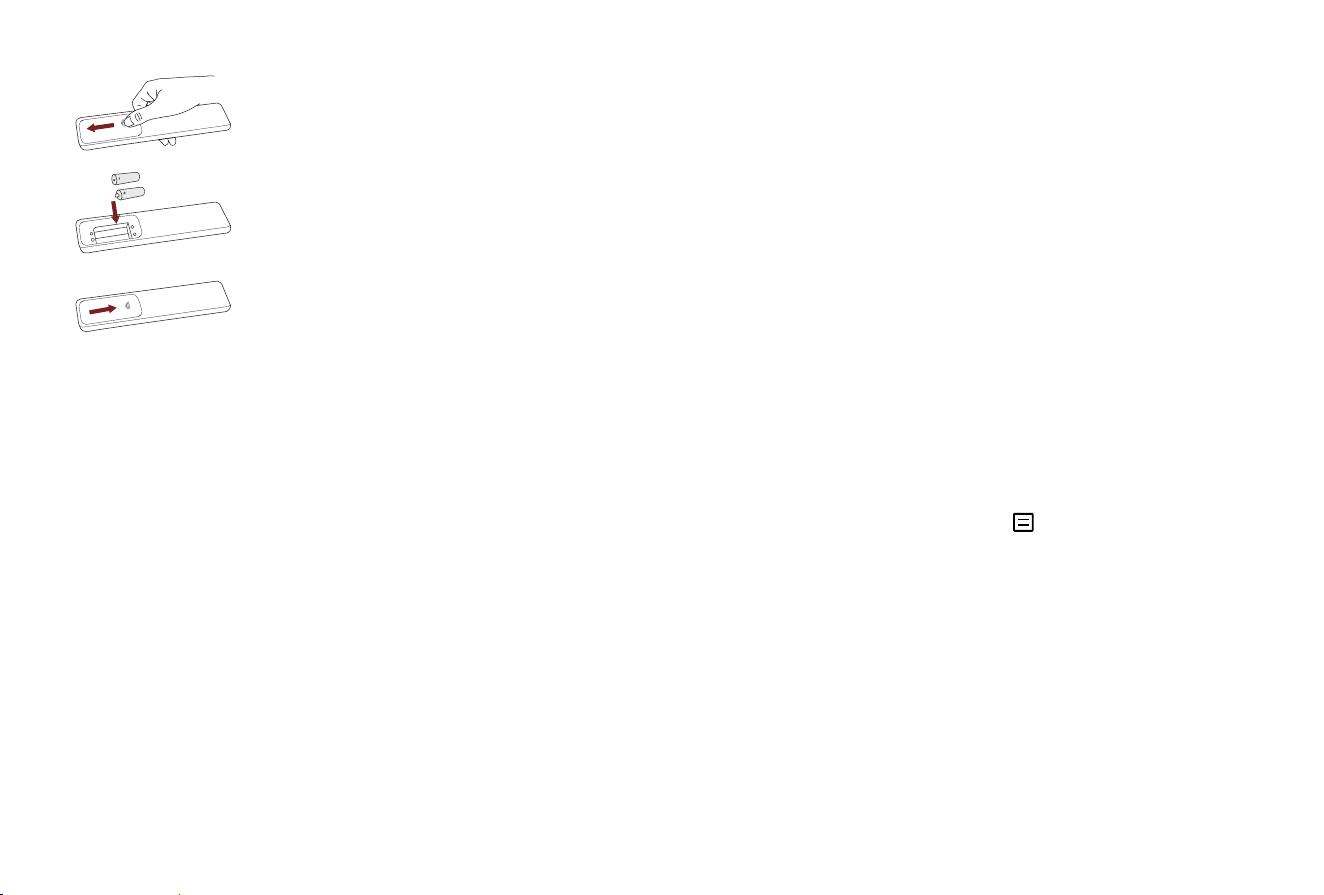
1. Slide the back cover to open the battery
compartment of the remote control.
2. Insert two AA or AAA size batteries.
Make sure to match the (+) and ( - ) ends
of the batteries with the (+) and ( - ) ends
indicated in the battery compartment.
3. Close the battery compartment with the
cover.
14
STEP 5 Proceed through the Screen Setup
Menu
PROJECTION MODE
If you need to ip the image over top-to-bottom and/or left-to-
right, select the Projection Mode.
AUTO GEOMETRIC CORRECTION
Before you use Auto Geometric Correction function, ensure
that the Laser TV and your mobile device are connected to the
same wireless network.
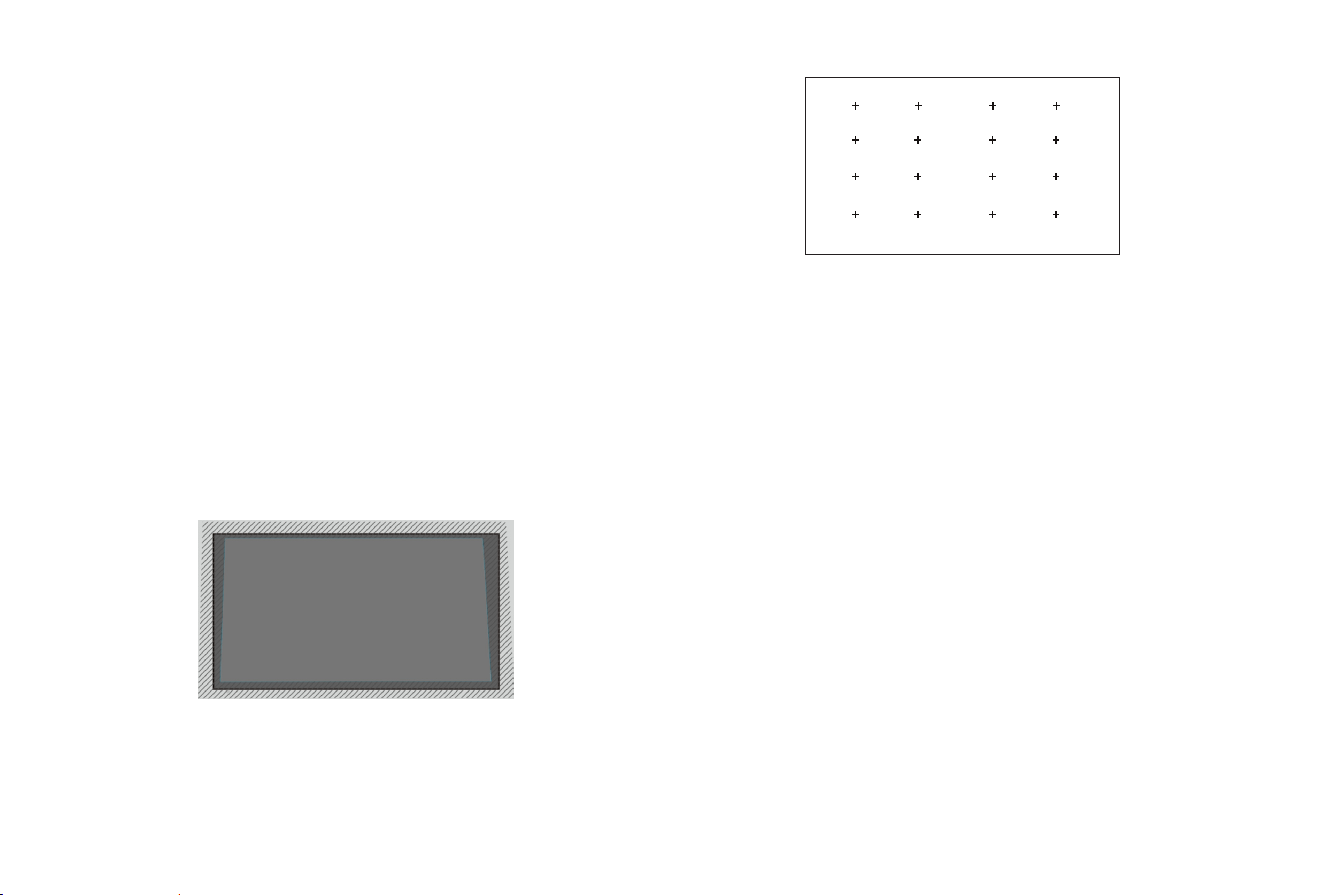
1. Adjust the Laser TV position by using the levelling feet as
needed, ensure the frame of the screen is located inside the
rectangular border.
2. Click Next to continue.
3. Scan the QR Code with your mobile device to begin
Automatic Geometric Correction. After a few moments, an
alignment grid pattern will appear on the screen.
4. Click "+" on your mobile device to take a photo of the full
screen. For best results, stand about 10 feet away from the
screen and use landscape mode.
5. Click "upload" on your mobile device to complete the
Automatic Geometric Correction.
Alignment grid
NOTE:
• Please ensure you are standing in front of the screen to
take the photo, no deviation of more than 25° from the
centre of the screen.
• Please ensure the whole screen is fully visible on the photo,
including the frame of the display.
• Please ensure all the 16 points of the grid on the screen are
all in focus when taking the photo.
• Please ensure the screen image must take up at least 60%
of the overall photo size for correct geometric correction.

15
MANUAL GEOMETRIC CORRECTION
Select points and move it to t the projected image into the
screen.
NOTE:
Manual Geometric Correction may not be applicable in some
models/countries/regions.
1. Press
/ / < / >
buttons on your remote control to move
focus, and press
OK
button to choose a point you need to
adjust.
2. Long press
/ / < / >
buttons: quick adjustment of the
projected image;
Short press
/ / < / >
buttons: precise adjustment of the
projected image.
3. Press button to save your adjustment, and you can select
other points to adjust the image.
If you want to return the image position to the factory default,
select Reset on the screen.
EYE PROTECTION
In order to protect your eyes, keep the Eye Protection on, and
do not look into the lens. If you get too close to the Laser TV,
the light output will be temporarily disabled after 5 seconds.

16
Quick Problem-Solving Tips
When you experience an issue with your TV, turn it off and on again. If this does not resolve the problem, then refer to the tips below.
When I turn on my TV, there is a delay for a few seconds before the picture appears. Is this normal?
Yes, this is normal. The TV is initializing and searching for previous setting information.
The light output of the projector is disabled.
In this case, if the power indicator illuminates red light for 5 times, please check whether the foreign object detection window is
covered or dirtied. If so, uncover or carefully clean the foreign object detection window.
No sound or picture
1. Check if the power cord is plugged into a powered AC outlet.
2. Press the Power button on the remote control to activate the unit from 'Standby' mode.
3. Check to see if the LED light is on or not. If it is, then the TV is receiving power.
Maintenance
• Do not touch this device when it is running or just turned off because it may be hot.
• Do not wipe this device with oil because it may deteriorate the exterior or damage the paint. Contact with rubber or ethylene
products for a long time may cause stains on this device.
• If the outside of the TV is dirty, turn off the TV and wipe with a damped soft cloth.
• Do not touch the lens with your hands.
• Do not touch or wipe the lens with ordinary cleaning cloth. Use a dust blower to remove the dust on the lens. Grease, dirt and
ngerprints should be cleaned carefully by the professional by using optical cleaning cloth, lens wiping paper or professional
cleaning solutions to avoid destroying the optical lming and affecting the image quality.
• To turn off this device, press the Power button on the remote control. Do not cut off the power directly when the device is working.

17
I have connected an external source to my TV and I get no picture and/or sound.
1. Check for the correct output connection on the external source and for the correct input connection on the TV.
2. Make sure you have made the correct selection for the input mode for the incoming signal.
The picture is normal but there is no sound
1. Check the volume settings.
2. Check if 'Mute' mode is set to On.
Sound but no picture or black and white picture
1. If the picture is black and white, unplug the TV from the AC outlet and replug it after 60 seconds.
2. Check that the Colour is set to 50 or higher.
3. Try different TV channels.
The sound and/or picture is distorted or appears wavy
1. An electric appliance may be affecting the TV. Turn off any appliances that are nearby and move it farther away from the TV.
2. Insert the power plug of the TV set into another power outlet.
The sound and picture is blurry or cuts out
1. If using an external antenna, check the direction, position and connection of the antenna.
2. Adjust the direction of your antenna or reset or ne tune the channel.
The plastic cabinet makes a "clicking" type of sound
The 'click' sound can occur when the temperature of the television changes. This change causes the television cabinet to expand or
contract, which makes the sound. This is normal and the TV is OK.
The remote control does not work
1. Conrm that TV still has power and is operational.
2. Change the batteries in the remote control.
3. Check if the batteries are correctly installed.
18
Product Specifications
Disclaimer: All products, product specications, and data are subject to change without notice to improve reliability, function, design or otherwise.
Model Name
100" Laser TV
Dimension
(W × H × D)
24.0 × 6.1 × 13.6 inches
(610 × 155 × 346 mm)
Weight
24.7 lbs (11.2 kg)
Active Screen Size (Diagonal)
100 inches
Screen resolution
3840 × 2160
Audio power
2 × 20 W
Power consumption
300 W
Power supply
120-240V ~ 50/60Hz
Receiving
systems
Analog
PAL-D/K, B/G, I, SECAM-D/K, B/G
Digital
DVB-T/T2, DVB-C, DVB-S/S2
Environmental conditions
Temperature: 41°F - 104°F (5°C - 40°C)
Humidity: 20% - 80% RH
Atmospheric pressure: 86 kPa - 106 kPa
HDMI Input
RGB / 60 Hz (640×480, 800×600, 1024×768)
YUV / 60 Hz (480i, 480p, 720p, 1080i, 1080p)
YUV / 50Hz (576i, 720p, 1080i, 1080p)
3840×2160 / 24Hz
,
3840×2160 / 25Hz, 3840×2160 / 30Hz
3840×2160 / 50Hz,
3840×2160 / 60Hz
Network Standby Power Consumption
≤ 2.0 W
Power Consumption in Standby Mode
≤ 0.5 W
19
Recycling / Licenses
This symbol on the product or on its packaging indicates that
this product must not be disposed of with your household
waste. Instead, it is your responsibility to dispose of your
waste equipment by handing it over to a designated
collection point for the recycling of waste electrical and
electronic equipment. The separate collection and recycling
of your waste equipment at the time of disposal will help to
conserve natural resources and ensure that it is recycled in
a manner that protects human health and the environment.
For more information about where you can drop off your
waste equipment for recycling, please contact your local city
ofce, your household waste disposal service or the shop
where you purchased the product.
The terms HDMI and HDMI High-Denition
Multimedia Interface, and the HDMI Logo
are trademarks or registered trademarks of
HDMI Licensing Administrator, Inc. in the
United States and other countries.
Dolby, Dolby Vision, Dolby Atmos, and
the double-D symbol are registered
trademarks of Dolby Laboratories Licensing
Corporation. Manufactured under license
from Dolby Laboratories. Condential
unpublished works. Copyright © 2012–2022
Dolby Laboratories. All rights reserved.
THIS PRODUCT IS LICENSED UNDER THE AVC PATENT PORTFOLIO LICENSE
FOR THE PERSONAL USE OF A CONSUMER OR OTHER USES IN WHICH IT
DOES NOT RECEIVE REMUNERATION TO (i) ENCODE VIDEO IN COMPLIANCE
WITH THE AVC STANDARD (“AVC VIDEO”) AND/OR (ii) DECODE AVC VIDEO THAT
WAS ENCODED BY A CONSUMER ENGAGED IN A PERSONAL ACTIVITY AND/
OR WAS OBTAINED FROM A VIDEO PROVIDER LICENSED TO PROVIDE AVC
VIDEO. NO LICENSE IS GRANTED OR SHALL BE IMPLIED FOR ANY OTHER USE.
ADDITIONAL INFORMATION MAY BE OBTAINED FROM MPEG LA, L.L.C. SEE
HTTP://WWW.MPEGLA.COM

20
ES-A2234Z0-1