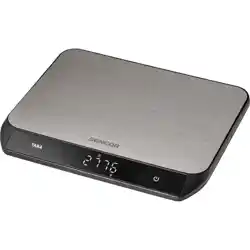
BLUETOOTH
NUTRITIONAL
SMARTSCALE
TM
START HERE
Avanti
®
is a registered trademark of
Sheldon and Hammond Pty. Ltd. A.B.N. 90 076 567 989
Product made in China to rigid specification
utilising high-grade materials.
Packaging designed in Australia,
©Copyright Sheldon and Hammond Pty. Ltd. 2016.
Product Code 15828
www.avantihomewares.com

DEAR USERS
Thank you for using our Avanti
®
Bluetooth Nutritional SmartScale
TM
. Please read and
keep the manual in order to best utilise this product.
ABOUT THE SCALE
This series of products can help you save and keep track of nutritional information on your
phone. The scale transfers data to the mobile phone via Bluetooth Technology and also can
draw the tendency of nutrient intake in order to check the nutrition intake status at any time.
You'll get the first step in dietary management after downloading the application and using
our Bluetooth scales.
● With high precision strain gauge sensor;
● Low battery power / Overload indication;
● Zero, tare and mode conversion with touch button;
● Bluetooth function;
● Measure calories, sodium, fat, protein, carbohydrates, cholesterol and dietary fibre;
FEATURES
BATTERY INSTALLATION
Note: Please use corresponding battery. Please remove battery if it is not inuse for a long
time (more than three months).
2x1.5V AAA
Battery
Please install battery
according to polarity.
Zero Indicator
Volume Unit
Weight Unit
Weight / Milk Volume /
Water Volume Mode
Tare Indicator
Weight
Weight Unit
Weight Mode Milk Volume Mode Water Volume Mode
LCD DISPLAY
1 2
DEAR USERS
Thank you for using our Avanti
®
Bluetooth Nutritional SmartScale
TM
. Please read and
keep the manual in order to best utilise this product.
ABOUT THE SCALE
This series of products can help you save and keep track of nutritional information on your
phone. The scale transfers data to the mobile phone via Bluetooth Technology and also can
draw the tendency of nutrient intake in order to check the nutrition intake status at any time.
You'll get the first step in dietary management after downloading the application and using
our Bluetooth scales.
● With high precision strain gauge sensor;
● Low battery power / Overload indication;
● Zero, tare and mode conversion with touch button;
● Bluetooth function;
● Measure calories, sodium, fat, protein, carbohydrates, cholesterol and dietary fibre;
FEATURES
BATTERY INSTALLATION
Note: Please use corresponding battery. Please remove battery if it is not inuse for a long
time (more than three months).
2x1.5V AAA
Battery
Please install battery
according to polarity.
Zero Indicator
Volume Unit
Weight Unit
Weight / Milk Volume /
Water Volume Mode
Tare Indicator
Weight
Weight Unit
Weight Mode Milk Volume Mode Water Volume Mode
LCD DISPLAY
1 2
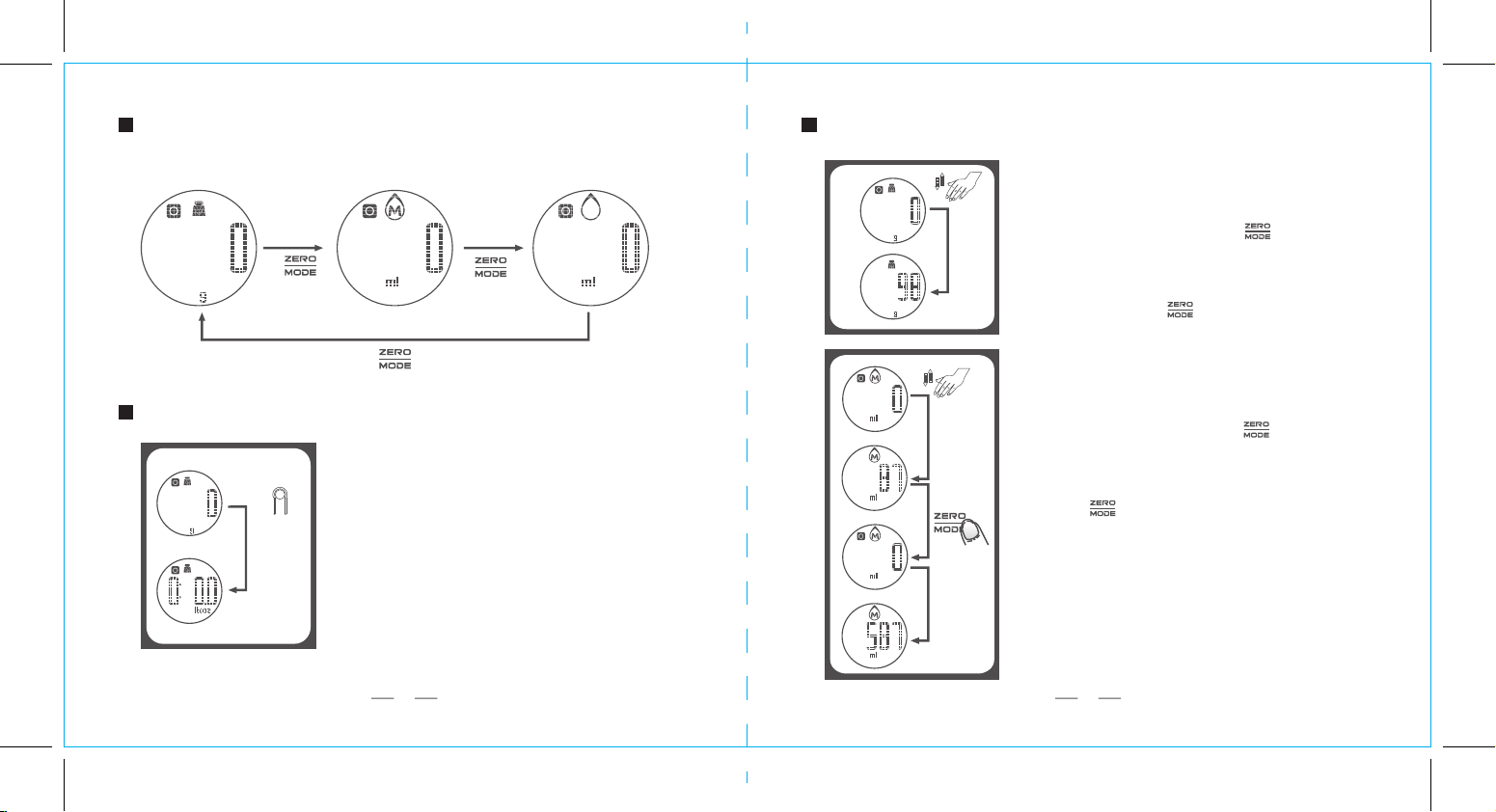
UNIT
MODE CONVERSION
Weight Mode
Milk Volume Mode Water Volume Mode
Hold down
3s
Press
Press
TO CONVERT WEIGHT UNIT
The scale offers both unit systems of metric (kg,g) or
imperial (lb:oz). Press UNIT button to convert between the
two systems. (You'll see the UNIT button at the bottom
of the product, as shown left.)
TO START WEIGHING
Weighing Mode
1. Place the scale on a solid and flat surface.
2. Press the scale platform to turn on.
3. Wait until LCD shows "0". Press button to
convert to weighing mode.
4. Load object on scale (or bowl) to start weighing.
LCD will show the weight reading.
5. If use a bowl, press button after placing the bowl.
Volume Indication Mode
1. Place the scale on a solid and flat surface.
2. Press the scale to turn on.
3. Wait until LCD shows "0". Press button to
convert to volume indication mode.
4. Put a liquid container onto the scale platform. LCD
shows weight of container.
5. Press button to zero or tare weight.
6. Pour liquid (water or milk) into the container, LCD
shows the volume of the liquid.
Put a liquid
container
Pour liquid
3 4
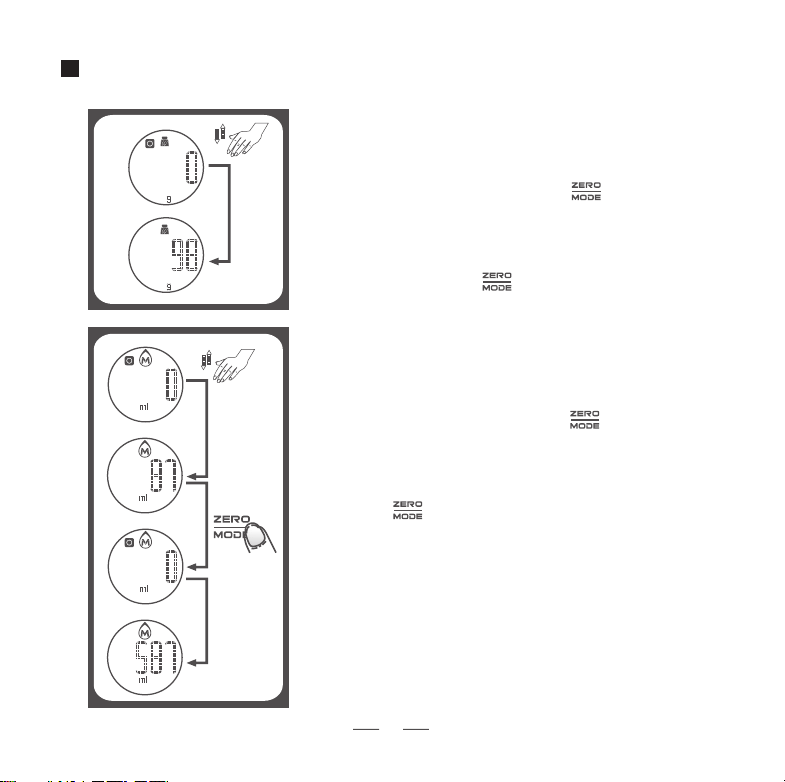
UNIT
MODE CONVERSION
Weight Mode
Milk Volume Mode Water Volume Mode
Hold down
3s
Press
Press
TO CONVERT WEIGHT UNIT
The scale offers both unit systems of metric (kg,g) or
imperial (lb:oz). Press UNIT button to convert between the
two systems. (You'll see the UNIT button at the bottom
of the product, as shown left.)
TO START WEIGHING
Weighing Mode
1. Place the scale on a solid and flat surface.
2. Press the scale platform to turn on.
3. Wait until LCD shows "0". Press button to
convert to weighing mode.
4. Load object on scale (or bowl) to start weighing.
LCD will show the weight reading.
5. If use a bowl, press button after placing the bowl.
Volume Indication Mode
1. Place the scale on a solid and flat surface.
2. Press the scale to turn on.
3. Wait until LCD shows "0". Press button to
convert to volume indication mode.
4. Put a liquid container onto the scale platform. LCD
shows weight of container.
5. Press button to zero or tare weight.
6. Pour liquid (water or milk) into the container, LCD
shows the volume of the liquid.
Put a liquid
container
Pour liquid
3 4
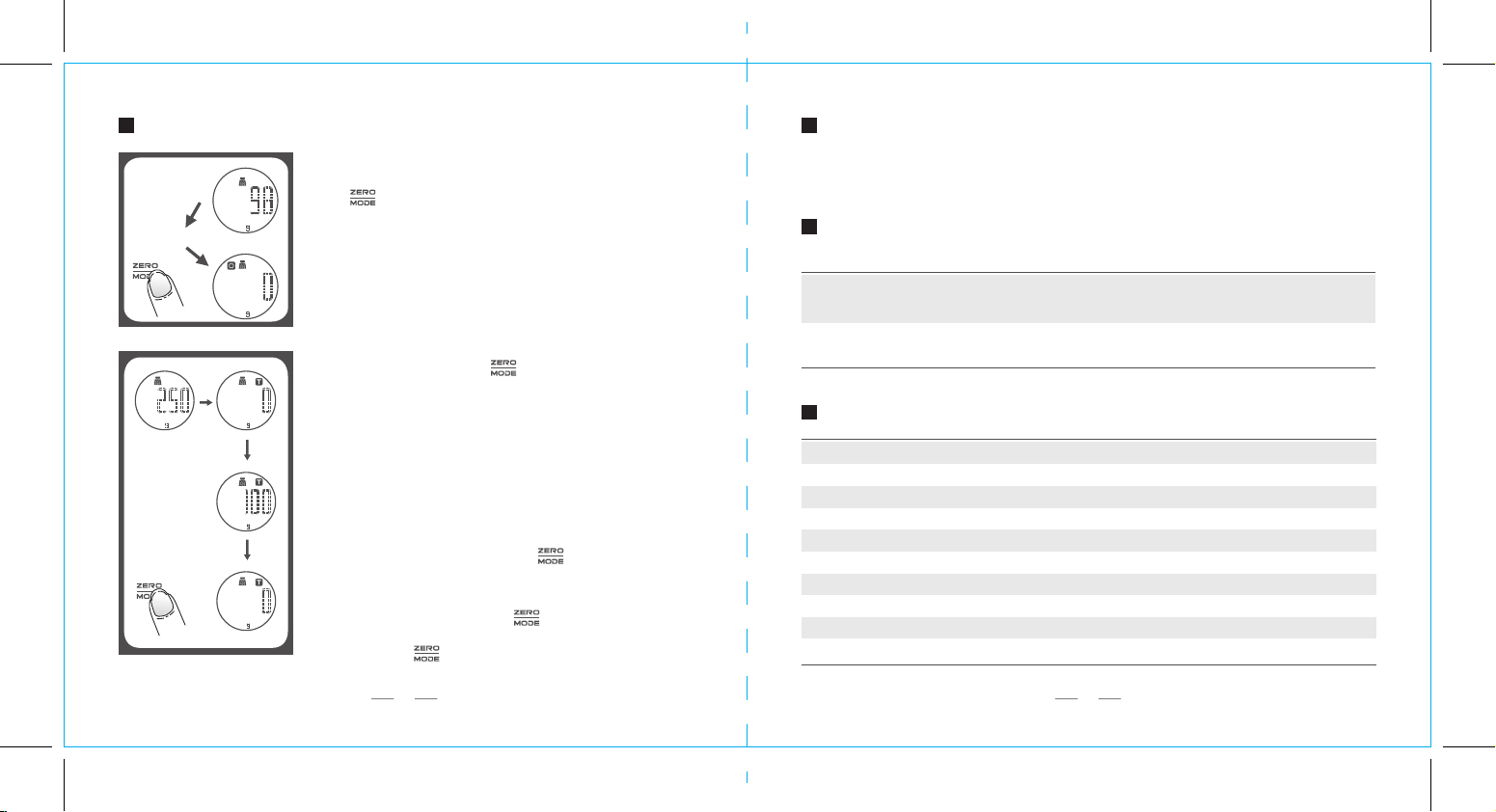
"ZERO" OR "TARE" FUNCTION
To weigh different loads consecutively without removing loads
from the scale. (Place first load on the scale, get weight reading.
Press button to reset the LCD reading to "0" before
adding next load. You can repeat this operation.)
Condition 1: "ZERO" function
When total sum of all loads on scale ≤ 4% of scale's max.
weight capacity.
4% = 20g when capacity is 500g
40g when capacity is 1kg
80g when capacity is 2kg
200g when capacity is 5kg
LCD will show "0g" each time is pressed. It means
ZERO function is activated. Max. weight capacity remains
unchanged.
Condition 2: "TARE" function
When total sum of all loads on scale > 4% of scale's max.
weight capacity.
4% = 20g when capacity is 500g
40g when capacity is 1kg
80g when capacity is 2kg
200g when capacity is 5kg
LCD will show "0g" and "T" each time is pressed. It
means TARE function is activated. Max. weight capacity is
reduced by total weight of all loads.
AUTO SHUT OFF (POWER SAVING MODE)
Auto shut-off occurs if display shows '0' or shows the same weight reading for a
couple of minutes.
Warning Indication Instructions and methods
Overload Indication
Item on scale is over the max. weight.
(Max. weight is indicated on the scale).
Please remove item to avoid damage.
Battery power is low.
Please replace new battery.
Low Battery IndicationLo
Err
INDICATION
CLEANING AND CARE
1. Clean the scale with a slightly damp cloth. DO NOT immerse the scale in water or use
chemical/abrasive cleaning agents.
2. All plastics parts should be cleaned immediately after contact with fats, spices, vinegar
and strongly colored foods. Avoid contact with acids citrus juices.
3. Always use the scale on a solid, flat surface.
4. Do not knock, impact or drop scale.
5. This product is a precision instrument, please be careful.
6. Place in a cool dry place
7. Check the battery if the scale cannot be turned on.
8. Designed for household use and non-commercial.
Under this condition: By pressing , you can see the total
weight of all loads on the scale. If you want to weigh more
loads, just press to reset LCD reading to '0' again.
5 6
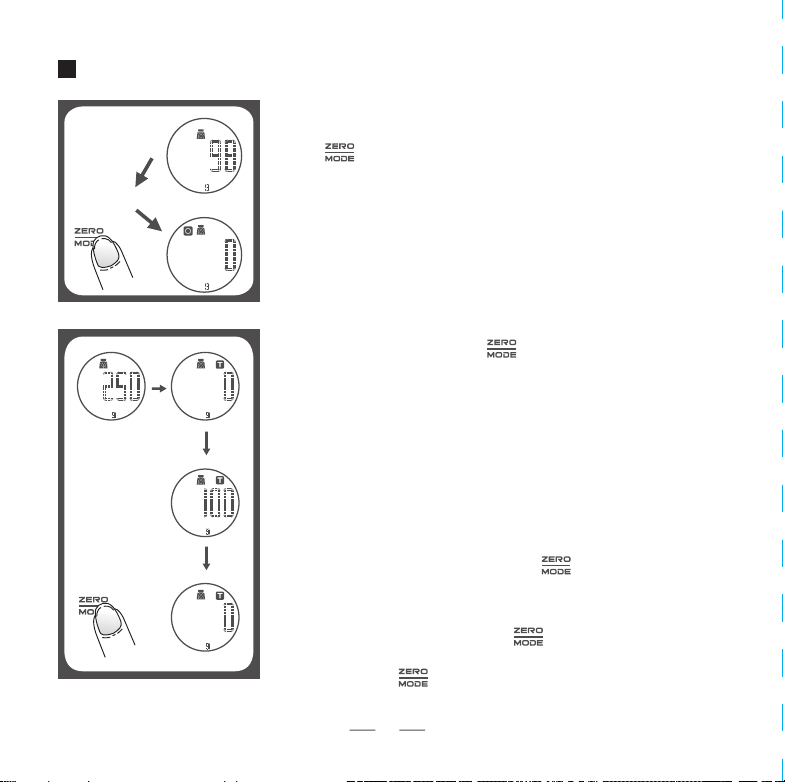
"ZERO" OR "TARE" FUNCTION
To weigh different loads consecutively without removing loads
from the scale. (Place first load on the scale, get weight reading.
Press button to reset the LCD reading to "0" before
adding next load. You can repeat this operation.)
Condition 1: "ZERO" function
When total sum of all loads on scale ≤ 4% of scale's max.
weight capacity.
4% = 20g when capacity is 500g
40g when capacity is 1kg
80g when capacity is 2kg
200g when capacity is 5kg
LCD will show "0g" each time is pressed. It means
ZERO function is activated. Max. weight capacity remains
unchanged.
Condition 2: "TARE" function
When total sum of all loads on scale > 4% of scale's max.
weight capacity.
4% = 20g when capacity is 500g
40g when capacity is 1kg
80g when capacity is 2kg
200g when capacity is 5kg
LCD will show "0g" and "T" each time is pressed. It
means TARE function is activated. Max. weight capacity is
reduced by total weight of all loads.
AUTO SHUT OFF (POWER SAVING MODE)
Auto shut-off occurs if display shows '0' or shows the same weight reading for a
couple of minutes.
Warning Indication Instructions and methods
Overload Indication
Item on scale is over the max. weight.
(Max. weight is indicated on the scale).
Please remove item to avoid damage.
Battery power is low.
Please replace new battery.
Low Battery IndicationLo
Err
INDICATION
CLEANING AND CARE
1. Clean the scale with a slightly damp cloth. DO NOT immerse the scale in water or use
chemical/abrasive cleaning agents.
2. All plastics parts should be cleaned immediately after contact with fats, spices, vinegar
and strongly colored foods. Avoid contact with acids citrus juices.
3. Always use the scale on a solid, flat surface.
4. Do not knock, impact or drop scale.
5. This product is a precision instrument, please be careful.
6. Place in a cool dry place
7. Check the battery if the scale cannot be turned on.
8. Designed for household use and non-commercial.
Under this condition: By pressing , you can see the total
weight of all loads on the scale. If you want to weigh more
loads, just press to reset LCD reading to '0' again.
5 6

HOW TO CONFIGURE AND USE THE APPLICATION
1. Download the app using one of the below methods:
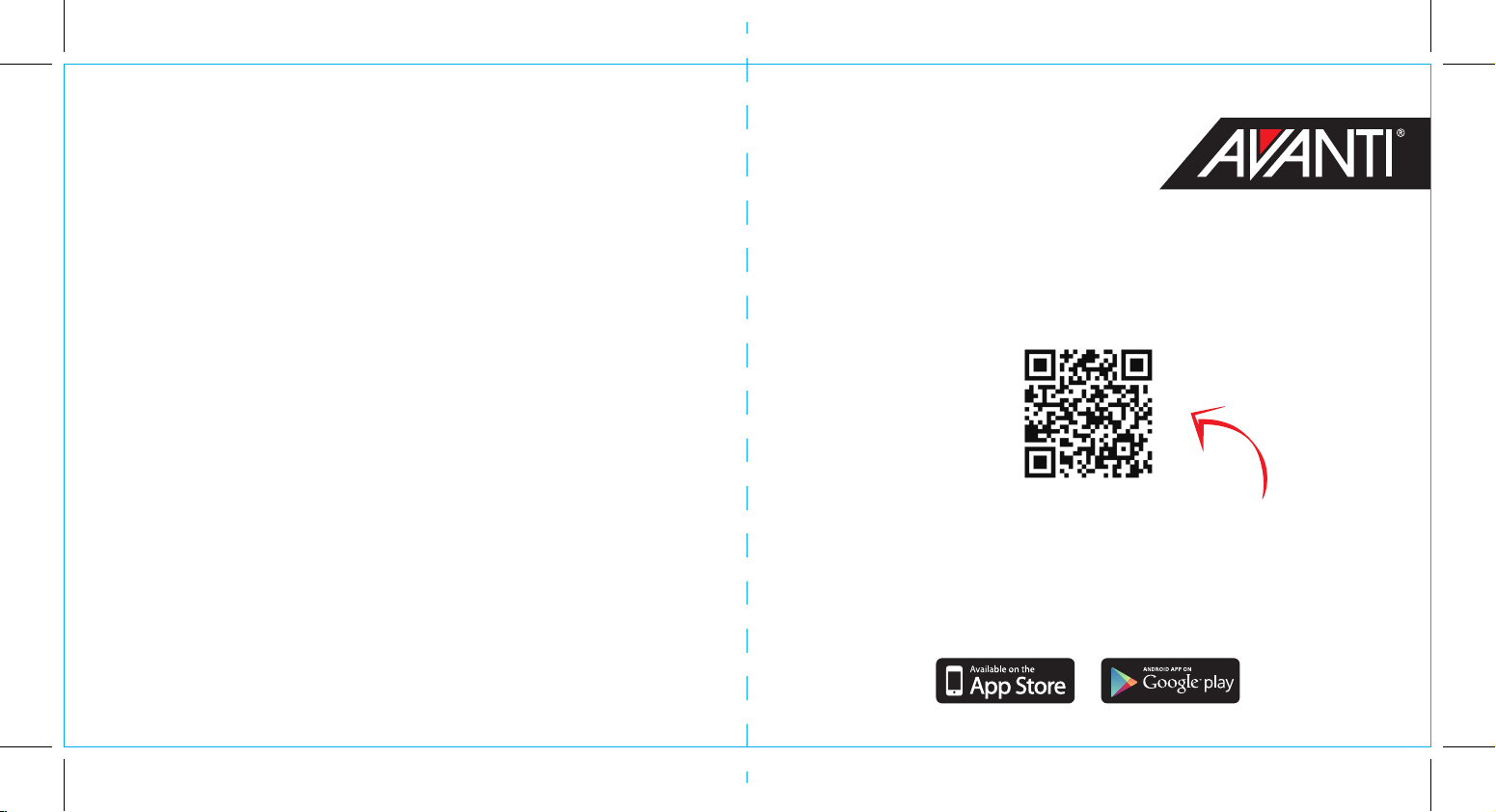
a. Scan the QR code on this page to obtain the App.
b. At the "App Store" or "Google Play", search keyword
"Senssun Food" to download our application.
c. Use Apple download link below:
htttps://itunes.apple.com/app/id965042401
Use Android download link below:
https://play.google.com/store/apps/details?id=com.senssun.food
2. Bluetooth settings:
a. Make sure that the Bluetooth on your chosen device is turned on before use.
b. If not enabled, please go to the "Settings > Bluetooth" menu to turn it on.
c. Press the scale platform to turn on.
Requirements for mobile devices:
Bluetooth version: Bluetooth 4.0 or above
Apple System: iPhone 4S or later, iOS 6.0 or later
Android System: Android 4.3 or later
● Verify that the Bluetooth icon in weighing interface is lit.
● Check if the Bluetooth function on an electronic device is on.
● Confirm the scale's power is on and also in the valid range of signal.
● Replace the battery if the battery power is not sufficient.
● Restart the application.
● Reboot the phone and re-establish a Bluetooth connection.
● Confirm that only one electronic device is connected to Bluetooth scales.
● Confirm your phone's Bluetooth version is 4.0 or later
* For more features, please refer to the software instruction in the App.
.
FAQ
If the application isn’t receiving data from the scale
If Bluetooth connection failed
3. Software Guideline
7 8
Software instructions are continuously updated within the App.

HOW TO CONFIGURE AND USE THE APPLICATION
1. Download the app using one of the below methods:
a. Scan the QR code on this page to obtain the App.
b. At the "App Store" or "Google Play", search keyword
"Senssun Food" to download our application.
c. Use Apple download link below:
htttps://itunes.apple.com/app/id965042401
Use Android download link below:
https://play.google.com/store/apps/details?id=com.senssun.food
2. Bluetooth settings:
a. Make sure that the Bluetooth on your chosen device is turned on before use.
b. If not enabled, please go to the "Settings > Bluetooth" menu to turn it on.
c. Press the scale platform to turn on.
Requirements for mobile devices:
Bluetooth version: Bluetooth 4.0 or above
Apple System: iPhone 4S or later, iOS 6.0 or later
Android System: Android 4.3 or later
● Verify that the Bluetooth icon in weighing interface is lit.
● Check if the Bluetooth function on an electronic device is on.
● Confirm the scale's power is on and also in the valid range of signal.
● Replace the battery if the battery power is not sufficient.
● Restart the application.
● Reboot the phone and re-establish a Bluetooth connection.
● Confirm that only one electronic device is connected to Bluetooth scales.
● Confirm your phone's Bluetooth version is 4.0 or later
* For more features, please refer to the software instruction in the App.
.
FAQ
If the application isn’t receiving data from the scale
If Bluetooth connection failed
3. Software Guideline
7 8
Software instructions are continuously updated within the App.
HOW TO USE THE APPLICATION
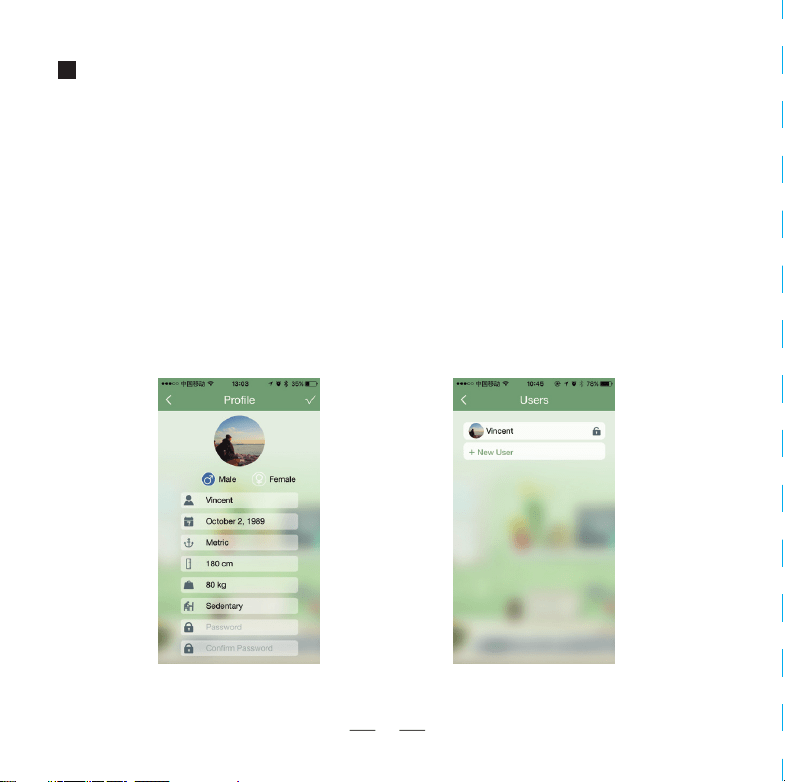
1. Create a new user
a. Click “Senssun Food” icon, you’ll enter the “user settings”;
b. Enter your information, such as: Gender, Name, Date of birth, Height, Weight, Activity
level, etc. You can also set a password to protect your information;
c. Click “Done” to save your information;
d. You can add up to 12 users in the user management module for Multi-users’ dietery
management.
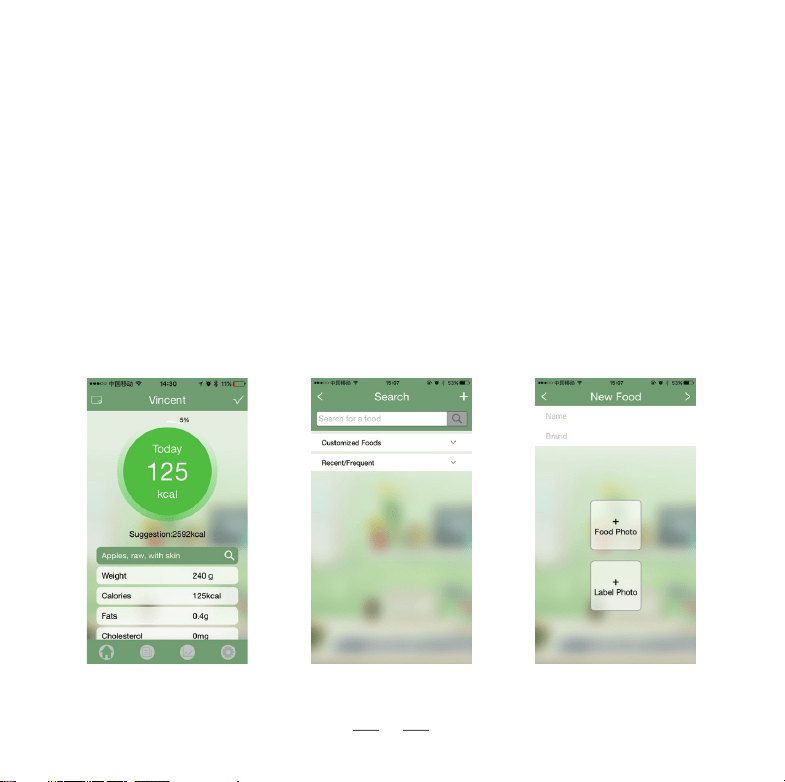
2. Main Interface
a. Click “Done” after entering the information to jump to the main interface;
b. Press the scale platform to turn it on. When the Bluetooth icon changes from grey to
green, then Bluetooth is connected;
c. Click the search bar, you can enter keywords or choose from foods in the food database;
d. After you select a food, it will jump to the main interface. Put the food on the scale, you’ll
see the weight and content of the nutrients (including Calories, Sodium, Fat, Carbohy-
drates, Cholesterol, Dietary Fibre). Click “save”, the data will be added to the daily
history;
e. If the food you need is not available in the foods data base, you can enter the nutrients per
100g of the food, then click “Done” to add it to your database.
9 10
Customise FoodFood DatabaseMain InterfaceUser ManagementUser Settings
HOW TO USE THE APPLICATION
1. Create a new user
a. Click “Senssun Food” icon, you’ll enter the “user settings”;
b. Enter your information, such as: Gender, Name, Date of birth, Height, Weight, Activity
level, etc. You can also set a password to protect your information;
c. Click “Done” to save your information;
d. You can add up to 12 users in the user management module for Multi-users’ dietery
management.
2. Main Interface
a. Click “Done” after entering the information to jump to the main interface;
b. Press the scale platform to turn it on. When the Bluetooth icon changes from grey to
green, then Bluetooth is connected;
c. Click the search bar, you can enter keywords or choose from foods in the food database;
d. After you select a food, it will jump to the main interface. Put the food on the scale, you’ll
see the weight and content of the nutrients (including Calories, Sodium, Fat, Carbohy-
drates, Cholesterol, Dietary Fibre). Click “save”, the data will be added to the daily
history;
e. If the food you need is not available in the foods data base, you can enter the nutrients per
100g of the food, then click “Done” to add it to your database.
9 10
Customise FoodFood DatabaseMain InterfaceUser ManagementUser Settings
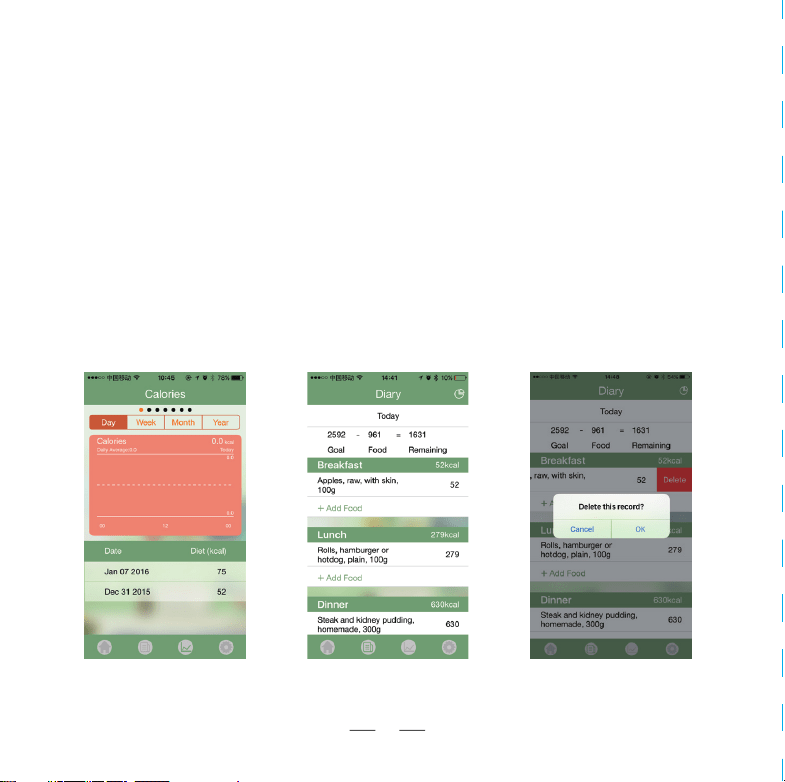
3. History Review Interface
a. Click the curves icon, enter the history cuvres interface, you’ll see the graphs of various
nutrients by Day/Week/Month/Year; also can review historical date intake diet details;
b. Click a date to view the diet details; hold down the left side of the food to delete the
history;
11 12
Daily Details Delete Detail RecordsHistory Review

3. History Review Interface
a. Click the curves icon, enter the history cuvres interface, you’ll see the graphs of various
nutrients by Day/Week/Month/Year; also can review historical date intake diet details;
b. Click a date to view the diet details; hold down the left side of the food to delete the
history;
11 12
Daily Details Delete Detail RecordsHistory Review

13 14

13 14

BLUETOOTH
NUTRITIONAL
SMARTSCALE
TM
START HERE
Avanti
®
is a registered trademark of
Sheldon and Hammond Pty. Ltd. A.B.N. 90 076 567 989
Product made in China to rigid specification
utilising high-grade materials.
Packaging designed in Australia,
©Copyright Sheldon and Hammond Pty. Ltd. 2016.
Product Code 15828
www.avantihomewares.com