EN, English
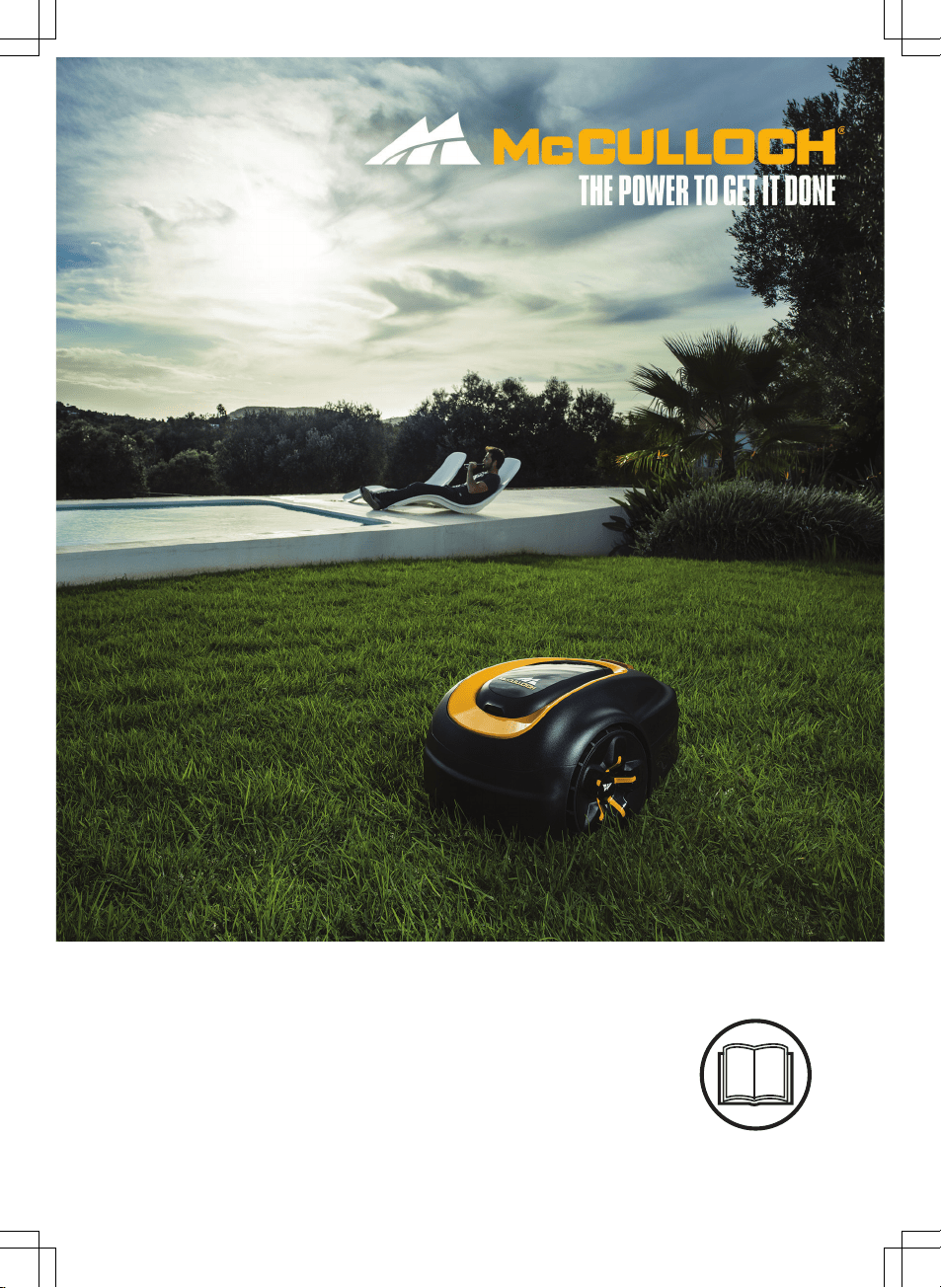
Operator's manual
ROB S600, ROB S800
Read the operator's manual carefully and make sure that you
understand the instructions before you use the product.

Contents
1 Introduction
1.1 Introduction........................................................... 3
1.2 Product overview...................................................4
1.3 Symbols on the product........................................ 4
1.4 Symbols on the display......................................... 5
1.5 Symbols on the battery......................................... 5
1.6 General manual instructions................................. 5
1.7 Menu structure overview....................................... 6
1.8 Display.................................................................. 6
1.9 Keypad.................................................................. 7
2 Safety
2.1 Safety information................................................. 8
2.2 Safety definitions...................................................9
2.3 Safety instructions for operation............................9
3 Installation
3.1 Introduction - Installation..................................... 12
3.2 Main components for installation.........................12
3.3 General preparations.......................................... 12
3.4 Before the installation of the wires...................... 12
3.5 Installation of the product.................................... 17
3.6 To put the wire into position with stakes............. 19
3.7 To bury the boundary wire or the guide wire.......19
3.8 To extend the boundary wire or the guide wire... 19
3.9 After the installation of the product......................20
3.10 To do the product settings.................................20
4 Operation
4.1 The ON/OFF button............................................ 26
4.2 To start the product............................................. 26
4.3 Operating modes.................................................26
4.4 Park modes......................................................... 27
4.5 To stop the product............................................. 27
4.6 Switch off.............................................................27
4.7 To charge the battery.......................................... 28
4.8 Adjust the cutting height......................................28
5 Maintenance
5.1 Introduction - maintenance..................................29
5.2 Clean the product................................................29
5.3 Replace the blades............................................. 30
5.4 Firmware update................................................. 30
5.5 Battery.................................................................31
5.6 Winter service..................................................... 31
6 Troubleshooting
6.1 Introduction - troubleshooting..............................33
6.2 Fault messages...................................................33
6.3 Information messages.........................................38
6.4 Indicator lamp in the charging station................. 39
6.5 Symptoms........................................................... 40
6.6 Find breaks in the loop wire................................ 41
7 Transportation, storage and disposal
7.1 Transportation..................................................... 44
7.2 Storage................................................................44
7.3 Disposal.............................................................. 44
8 Technical data
8.1 Technical data.....................................................45
8.2 Registered trademarks........................................46
9 Warranty
9.1 Warranty terms....................................................47
10 EC Declaration of Conformity
10.1 EC Declaration of Conformity............................48
2 1411 - 007 - 23.09.2020
1 Introduction
1.1 Introduction
Serial number:
PIN code:
Product registration key:
The serial number is on the product rating plate and on the product carton.
• Use the serial number to register your product on www.mcculloch.com.
1.1.1 Support
For support about the product, speak to your McCulloch
servicing dealer.
1.1.2 Product description
Note: McCulloch regularly updates the appearance
and function of the products. Refer to
Support on page
3
.
The product is a robotic lawn mower. The product has a
battery power source and cuts the grass automatically. It
continuously alternates between mowing and charging.
The movement pattern is random, which means that the
lawn is mowed evenly and with less wear. The boundary
wire and the guide wire controls the movement of the
product within the work area. Sensors in the product
senses when it is approaching the boundary wire. The
front of the product always passes the boundary wire by
a specific distance before the product turns around.
When the product hits an obstacle or approaches the
boundary wire the product selects a new direction.
The operator selects the operation settings with the keys
on the keypad. The display shows the selected and
possible operation settings, and the operation mode of
the product.
1.1.2.1 Mowing technique
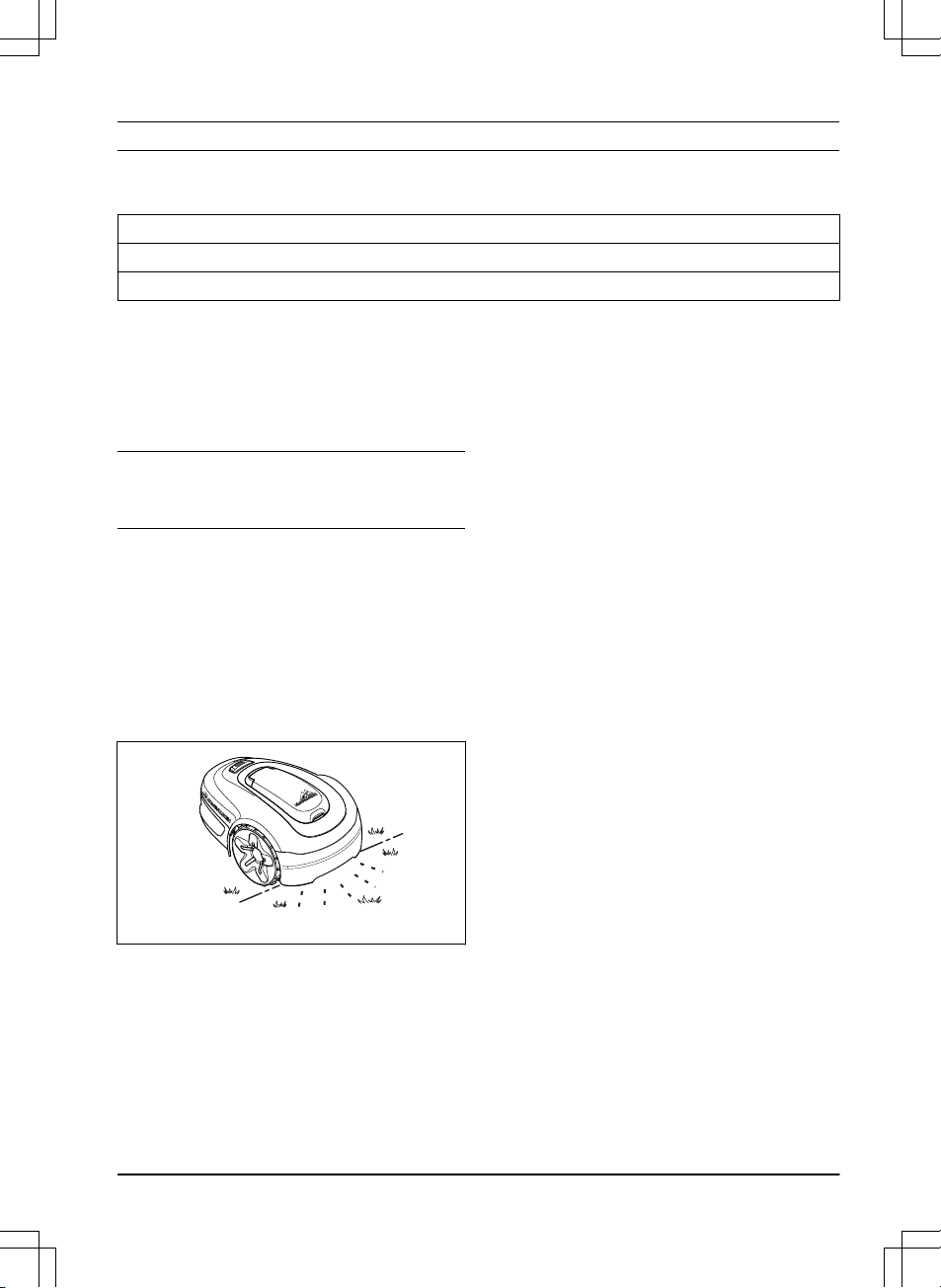
The product is emission free, easy to use and saves
energy. The frequent cutting technique improves the
grass quality and decreases the use of fertilizers.
Collection of grass is not necessary.
1.1.2.2 Find the charging station
The product operates until the battery state of charge is
low. Then it follows the guide wire to the charging
station. The guide wire is laid from the charging station
towards, for instance, a remote part of the work area or
through a narrow passage. The guide wire is connected
with the boundary wire and makes it much easier and
faster for the product to find the charging station.
1411 - 007 - 23.09.2020 Introduction - 3
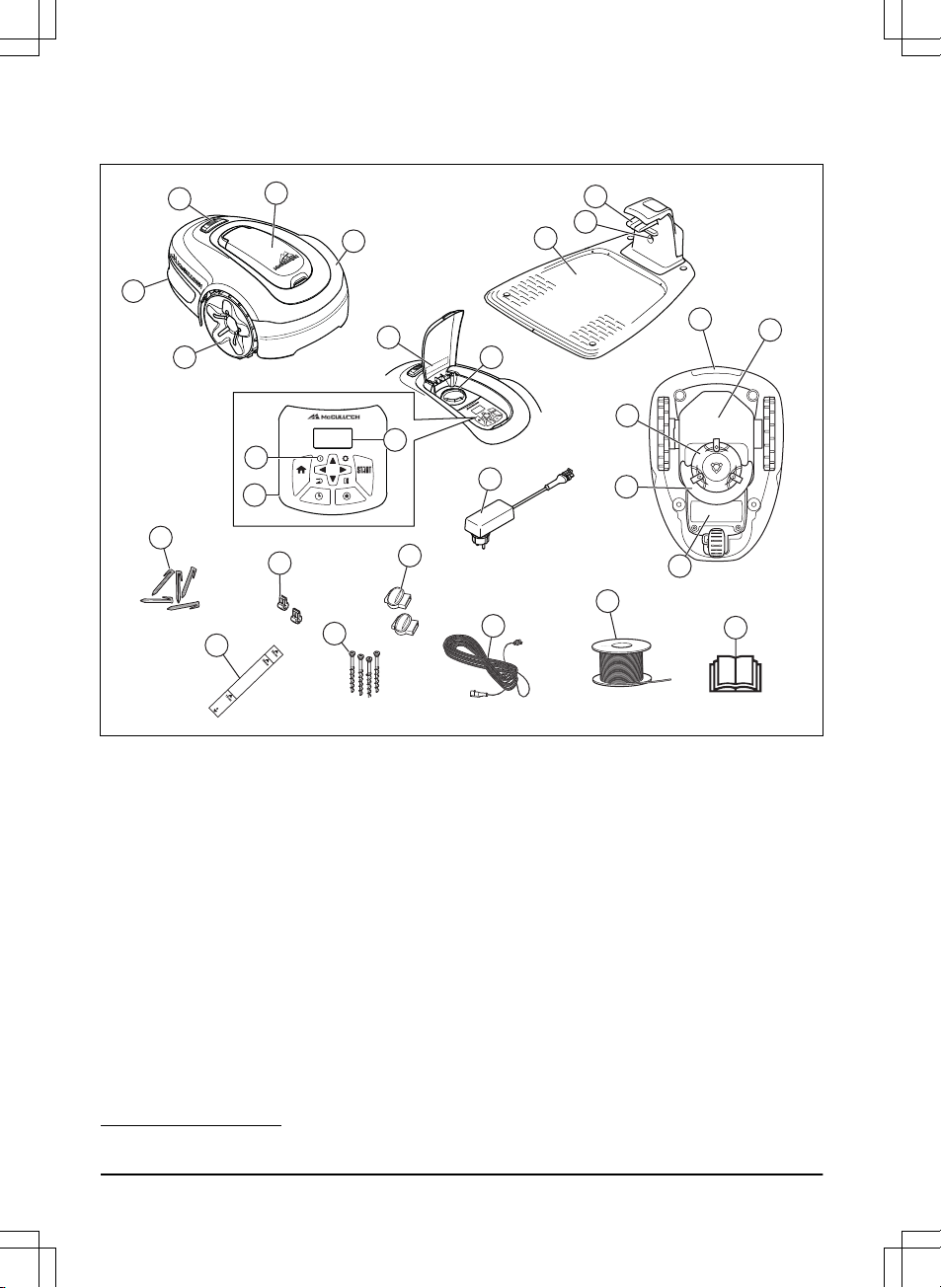
1.2 Product overview
11
13
12
6
16
17
15
14
18
10
9
24
19
26
20
22
23
21
25
27
7
8
1
2
3
5
4
The numbers in the figure represent:
1. Body
2. Hatch to display and keypad
3. Stop button
4. Rear wheel
5. Front wheels
6. Charging station
7. Contact plates
8. LED for operation check of the charging station,
boundary wire and guide wire
9. Cutting height adjustment
10. Rating plate (including product identification code)
11. Display
12. Keypad
13. ON/OFF button
14. Cutting system
15. Blade disc
16. Handle
17. Chassis box with electronics, battery and motors
18. Battery cover
19. Power supply
1
20. Stakes
21. Measurement gauge for help when installing the
boundary wire (the measurement gauge is broken
loose from the box)
22. Couplers for loop wire
23. Screws for securing the charging station
24. Connector for the loop wire
25. Low voltage cable
26. Loop wire for boundary loop and guide wire
27. Operator’s Manual and Quick Guide
1.3 Symbols on the product
These symbols can be found on the product. Study them
carefully.
1
The appearance may differ depending on market
4 - Introduction 1411 - 007 - 23.09.2020
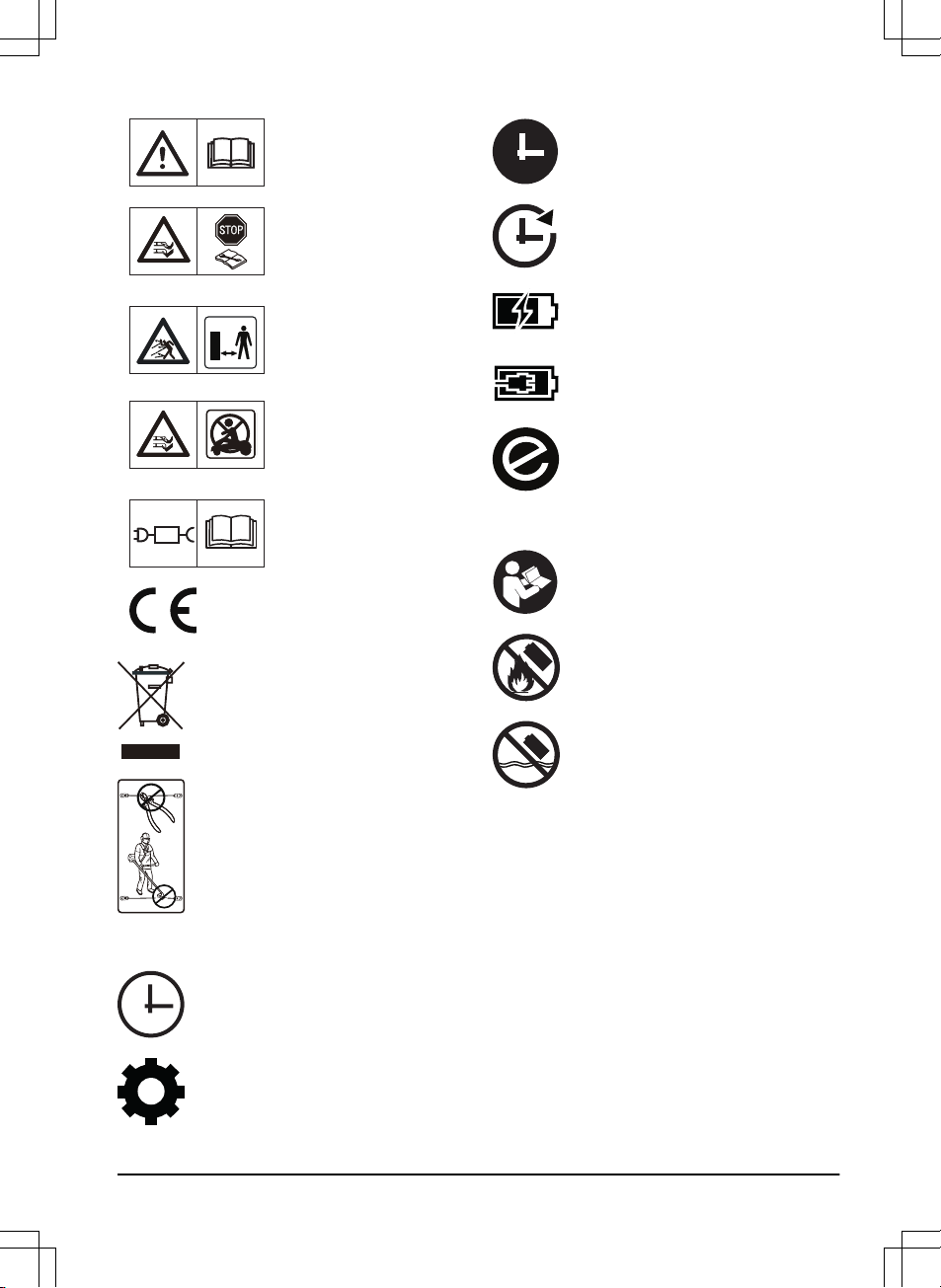
WARNING: Read the user in-
structions before operating
the product.
WARNING: Disable the prod-
uct before working on or lift-
ing the product.
WARNING: Keep a safe dis-
tance from the product when
operating. Keep your hands
and feet away from the rotat-
ing blades.
WARNING: Do not ride on
the product. Never put your
hands or feet close to or un-
der the product.
Use a detachable power sup-
ply as defined on the rating
label next to the symbol.
This product conforms to the
applicable EC Directives.
It is not permitted to dispose this product
as normal household waste. Ensure that
the product is recycled in accordance with
local legal requirements.
The low voltage cable must not be
shortened, extended or spliced.
Do not use a trimmer nearby the low
voltage cable. Be careful when trimming
edges where the cables are placed.
1.4 Symbols on the display
The schedule menu is used to set when
the product cuts the lawn.
The settings menu is used to set the
general product settings.
The product will not cut the grass due to
the schedule function.
The product overrides the schedule
function.
The battery indicator shows the charge
level of the battery. When the product
charges the symbol flashes.
The product is in the charging station but
do not charge the battery.
The product is set in ECO-mode.
1.5 Symbols on the battery
Read the user instructions.
Do not discard the battery into fire and do
not expose the battery to a heat source.
Do not immerse the battery into water.
1.6 General manual instructions
The following system is used in the Operator’s Manual
to make it easier to use:
• Text written in
italics
is a text that is shown in the
display or is a reference to another section in the
Operator’s Manual.
• Text written in bold is one of the buttons on the
product.
• Text written in
UPPERCASE
and
italics
refer to the
different operating modes available in the product.
1411 - 007 - 23.09.2020
Introduction - 5

1.7 Menu structure overview
Settings
Time &
date
Set time Set date Time format Date format
Language Country
Reset all
user setting
About
Lawn shield Security
Installation
General
Low/Mid/High
Use
Lawnshield
Cutting time
Starting
point
Drive past
wire
ECO
mode
Mower
house
Security Level
Advanced
Low Medium High
Bluetooth
New
loop
signal
Change
PIN
code
New
pairing
Remove
paired
devices
Lawn
Coverage
Schedule
Overview/Week
Period 1
Period 2 Copy
Su
Current
day
All week
SaFrThWeTuMoAll
days
Reset
Wizard AdvancedDay
mode
Night
mode
1.8 Display
The display on the product shows information and
settings of the product.
To access the display, push the STOP button and open
the hatch.
6 - Introduction 1411 - 007 - 23.09.2020
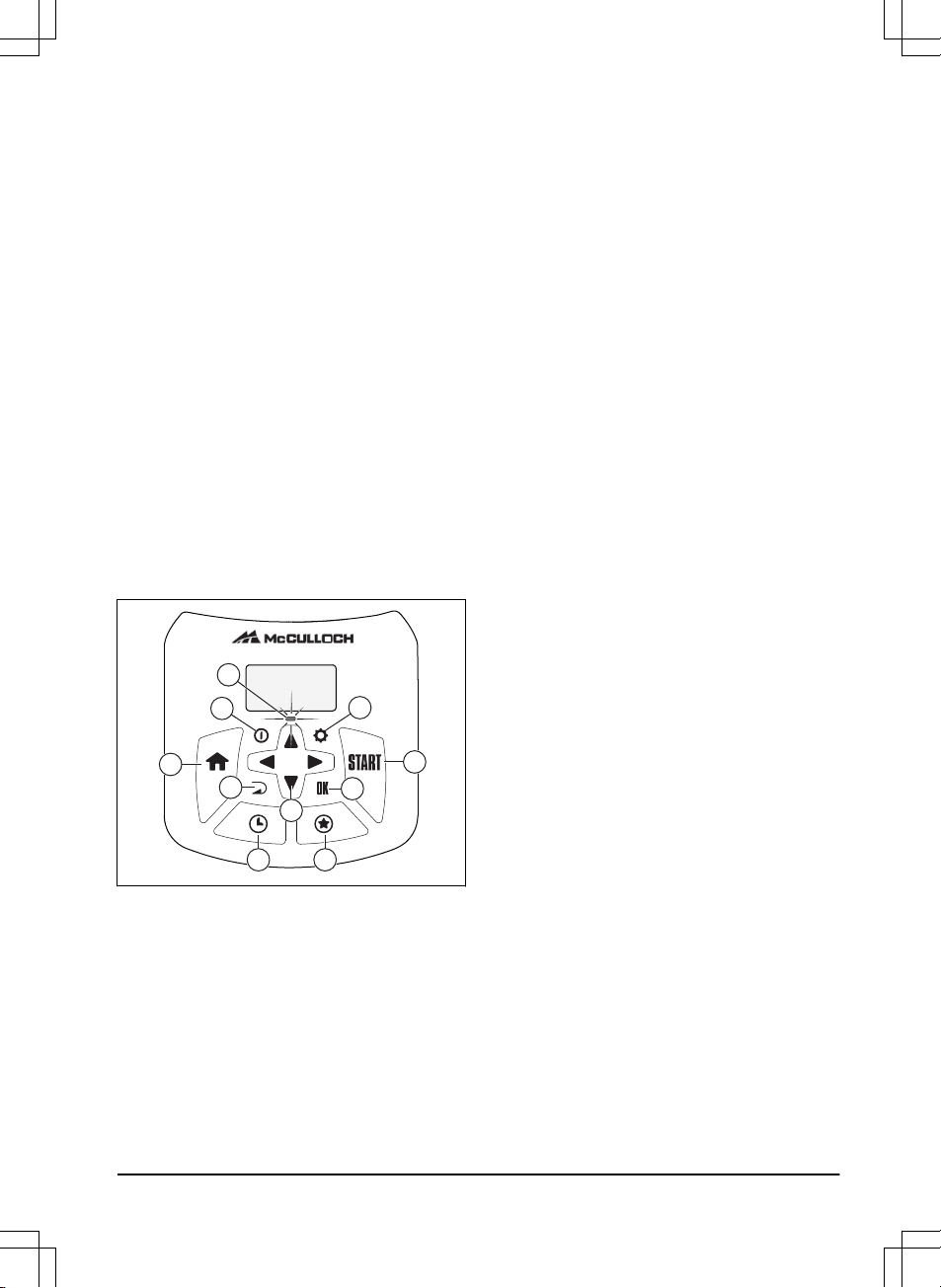
1.9 Keypad
The keypad on the product lets the operator navigate in
the menu. To access the keypad, push the STOP button
and open the hatch.
• The indicator lamp (A) on the keypad is an
important status indicator. Refer to
The indicator
lamp on page 26
.
• The ON/OFF button (B) is used to turn the product
ON/OFF.
• The Settings button (C) is used to go to the main
menu.
• The Home button (D) is used to choose the park
modes:
Home & Stay
and
Home & Wait
.
• The Start button (E) is used to start the operation
of the product.
• The BACK button (F) is used when moving back
up in the menu lists.
• The OK button (G) is used to confirm the chosen
settings in the menus.
• The arrow keys (H) are used to navigate in the
menu. The up/down arrow keys are also used to
enter digits, for example, PIN code, time and date
• The Schedule button (I) is used to go to the
schedule menu.
• The STAR button (J) is used to choose operating
modes:
Secondary area
,
Power Cut
and
Spot Cut
.
B
E
C
G
F
JI
H
D
A
1411 - 007 - 23.09.2020 Introduction - 7

2 Safety
2.1 Safety information
2.1.1 IMPORTANT. READ CAREFULLY
BEFORE USE. KEEP FOR FUTURE
REFERENCE
The operator is responsible for accidents or hazards occurring to
other people or property.
This appliance is not intended for use by persons (including
children) with reduced physical, sensory or mental capabilities (that
could affect a safe handling of the product), or lack of experience
and knowledge, unless they have been given supervision or
instruction concerning use of the appliance by a person
responsible for their safety.
This appliance can be used by children aged from 8 years and
above and persons with reduced physical, sensory or mental
capabilities or lack of experience and knowledge if they have been
given supervision or instruction concerning use of the appliance in
a safe way and understand the hazards involved. Local regulations
may restrict the age of the operator. Cleaning and maintenance
shall not be made by children without supervision.
Never connect the power supply to an outlet if the plug or cord is
damaged. Worn or damaged cord increase the risk of electric
shock.
Only charge the battery in the included charging station. Incorrect
use may result in electric shock, overheating or leaking of
corrosive liquid from the battery. In the event of leakage of
electrolyte, flush with water/neutralizing agent. Seek medical help if
it comes in contact with the eyes.
Use only original batteries recommended by the manufacturer.
Product safety cannot be guaranteed with other than original
batteries. Do not use non-rechargeable batteries.
8
- Safety 1411 - 007 - 23.09.2020
The appliance must be disconnected from the supply mains when
removing the battery.
WARNING: The product
can be dangerous if used
incorrectly.
WARNING: Do not use
the product when
persons, especially
children, or animals are
in the work area.
WARNING: Keep your
hands and feet away
from the rotating blades.
Never put your hands or
feet close to or under the
product when it is
switched on.
WARNING: In the event
of an injury or accident
seek medical help.
2.2 Safety definitions
Warnings, cautions and notes are used to point out
specially important parts of the manual.
WARNING:
Used if there is a risk of
injury or death for the operator or bystanders
if the instructions in the manual are not
obeyed.
CAUTION: Used if there is a risk of
damage to the product, other materials or
the adjacent area if the instructions in the
manual are not obeyed.
Note: Used to give more information that is necessary
in a given situation.
2.3 Safety instructions for operation
2.3.1 Use
• The product may only be used with the equipment
recommended by the manufacturer. All other types
of use are incorrect. The manufacturer’s
instructions with regard to operation/maintenance
must be followed precisely.
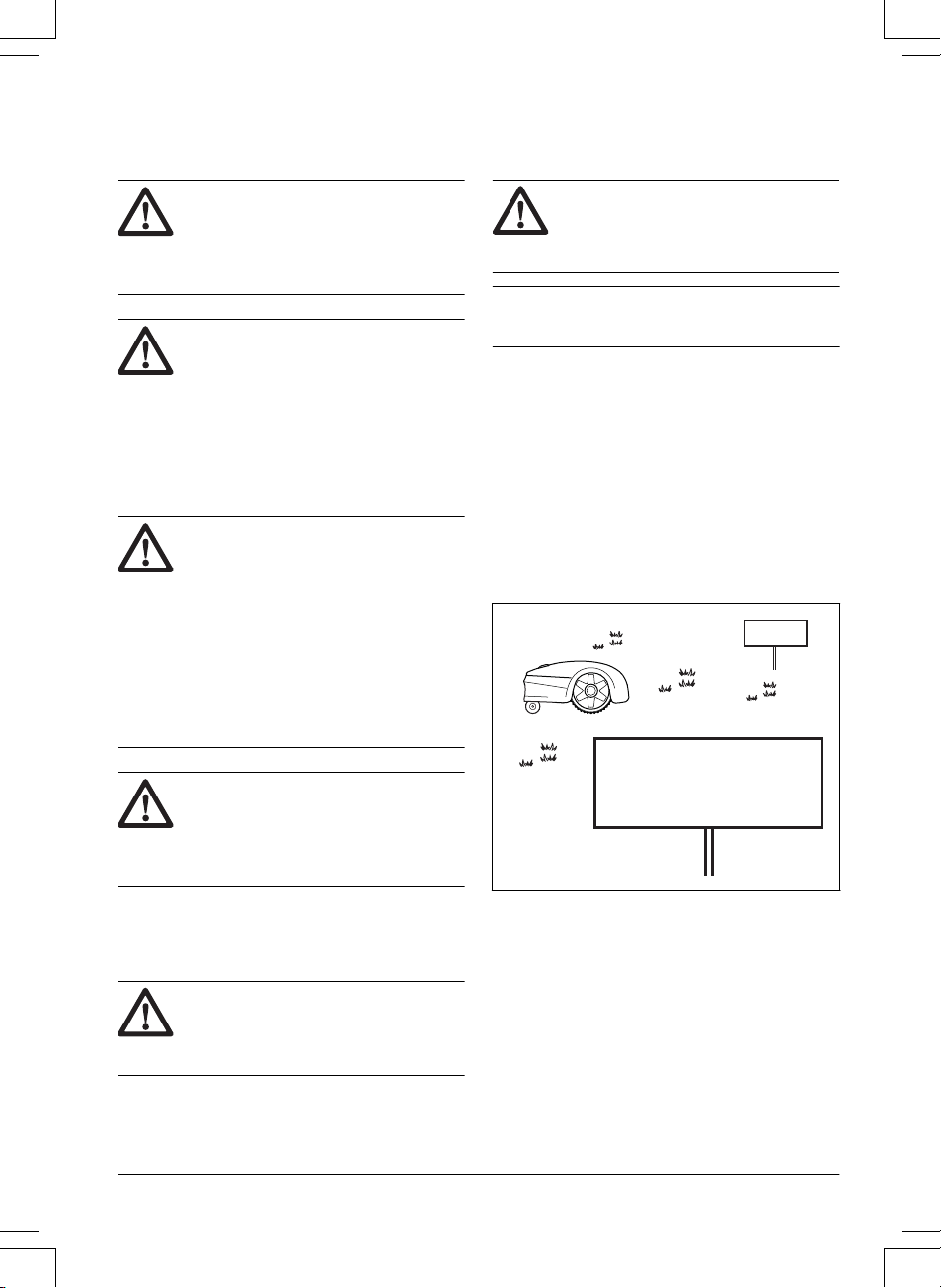
• Warning signs shall be placed around the work
area of the product if it is used in public areas. The
signs shall have the following text: Warning!
Automatic lawnmower! Keep away from the
machine! Supervise children!
Warning!
Automatic lawnmower!
Keep away from the machine!
Supervise children!
Warning!
Automatic lawnmower!
Keep away from the machine!
Supervise children!
• Use the park mode, refer to
Home & Stay on page
27
or switch off the product when persons,
especially children, or animals are in the work
area. It is recommended to program the product for
use during hours when the area is free from
activity, e.g. at night. Refer to
To set the schedule
on page 21
. Consider that certain animals, e.g.
hedgehogs, are active at night. They can
potentially be harmed by the product.
• The product may only be operated, maintained and
repaired by persons that are fully conversant with
its special characteristics and safety regulations.
Please read the Operator’s Manual carefully and
1411 - 007 - 23.09.2020
Safety - 9

make sure you understand the instructions before
using the product.
• It is not permitted to modify the original design of
the product. All modifications are made at your
own risk.
• Check that there are no foreign objects such as
stones, branches, tools or toys on the lawn. If the
blades hit foreign objects the blades can be
damaged. Always switch off the product with the
ON/OFF button before clearing a blockage. Inspect
the product for damage before staring the product
again.
• If the product starts to vibrate abnormally. Always
switch off the product with the main switch or
ON/OFF button and inspect for damage before
staring the product again.
• Start the product according to the instructions.
When the product is switched on, make sure to
keep your hands and feet away from the rotating
blades. Never put your hands and feet under the
product.
• Never touch moving hazardous parts, such as the
blade disc, before it has come to a complete stop.
• Never lift up the product or carry it around when it
is switched on.
• Do not let persons who do not know how the
product works and behaves use it.
• The product must never be allowed to collide with
persons or other living creatures. If a person or
other living creature comes in the product’s way it
shall be stopped immediately. Refer to
To stop the
product on page 27
.
• Do not put anything on top of the product or its
charging station.
• Do not allow the product to be used with a
defective guard, blade disc or body. Neither should
it be used with defective blades, screws, nuts or
cables. Never connect a damaged cable, or touch
a damaged cable before it is disconnected from
the supply.
• Do not use the product if the ON/OFF button and
STOP button does not work.
• Always switch off the product using the ON/OFF
button when the product is not in use. The product
can only start when the product has been switched
on with the ON/OFF button and the correct PIN
code has been entered.
• MCCULLOCH does not guarantee full compatibility
between the product and other types of wireless
systems such as remote controls, radio
transmitters, hearing loops, underground electric
animal fencing or similar.
• Metal objects in the ground (for example reinforced
concrete or anti-mole nets) can result in a
stoppage. The metal objects can cause
interference with the loop signal which then can
lead to a stoppage.
• Operation and storage temperature is 0-50 °C /
32-122 °F. Temperature range for charging is 0-45
°C / 32-113 °F. Too high temperatures might cause
damage to the product.
2.3.2 Battery safety
WARNING: Lithium-ion batteries can
explode or cause fire if disassembled, short-
circuited, exposed to water, fire, or high
temperatures. Handle carefully, do not
dismantle, open the battery or use any type
of electrical/mechanical abuse. Avoid
storage in direct sunlight.
For more information about the battery, refer to
Battery
on page 31
2.3.3 How to lift and move the product
WARNING:
The product must be
switched off before lifting it. The product is
disabled when the indicator lamp on the
keypad is not lit.
CAUTION: Do not lift the product when
it is parked in the charging station. It can
damage the charging station and/or the
product. Push STOP and pull the product
out of the charging station before lifting it.
To safely move from or within the work area:
1. Push the STOP button to stop the product.
10
- Safety 1411 - 007 - 23.09.2020
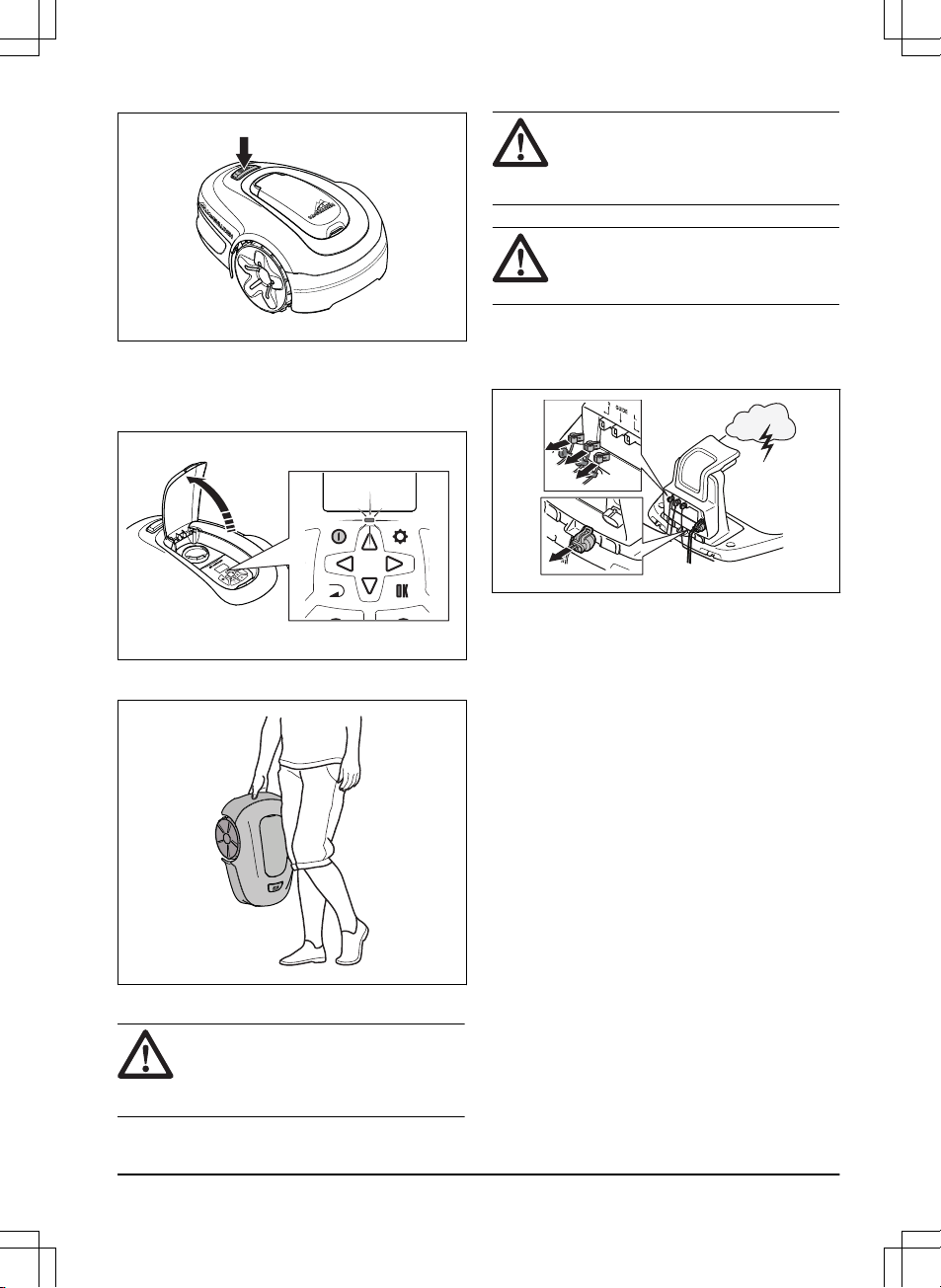
2. Push the ON/OFF button for 3 seconds and make
sure the product is switched off. Check that the
indicator lamp on the keypad is not lit. This means
that the product is disabled. Refer to
The indicator
lamp on page 26
.
3. Carry the product by the handle with the blade disc
away from the body.
2.3.4 Maintenance
WARNING:
The product must be
switched off before maintenance is done.
The product is disabled when the indicator
lamp on the keypad is not lit.
WARNING: Use the plug to disconnect
the charging station before cleaning or
maintenance of the charging station or the
loop wire.
CAUTION: Do not use a high-pressure
washer to clean the product. Do not use
solvents for cleaning.
Examine the product weekly and replace damaged or
worn parts. Refer to
Maintenance on page 29
.
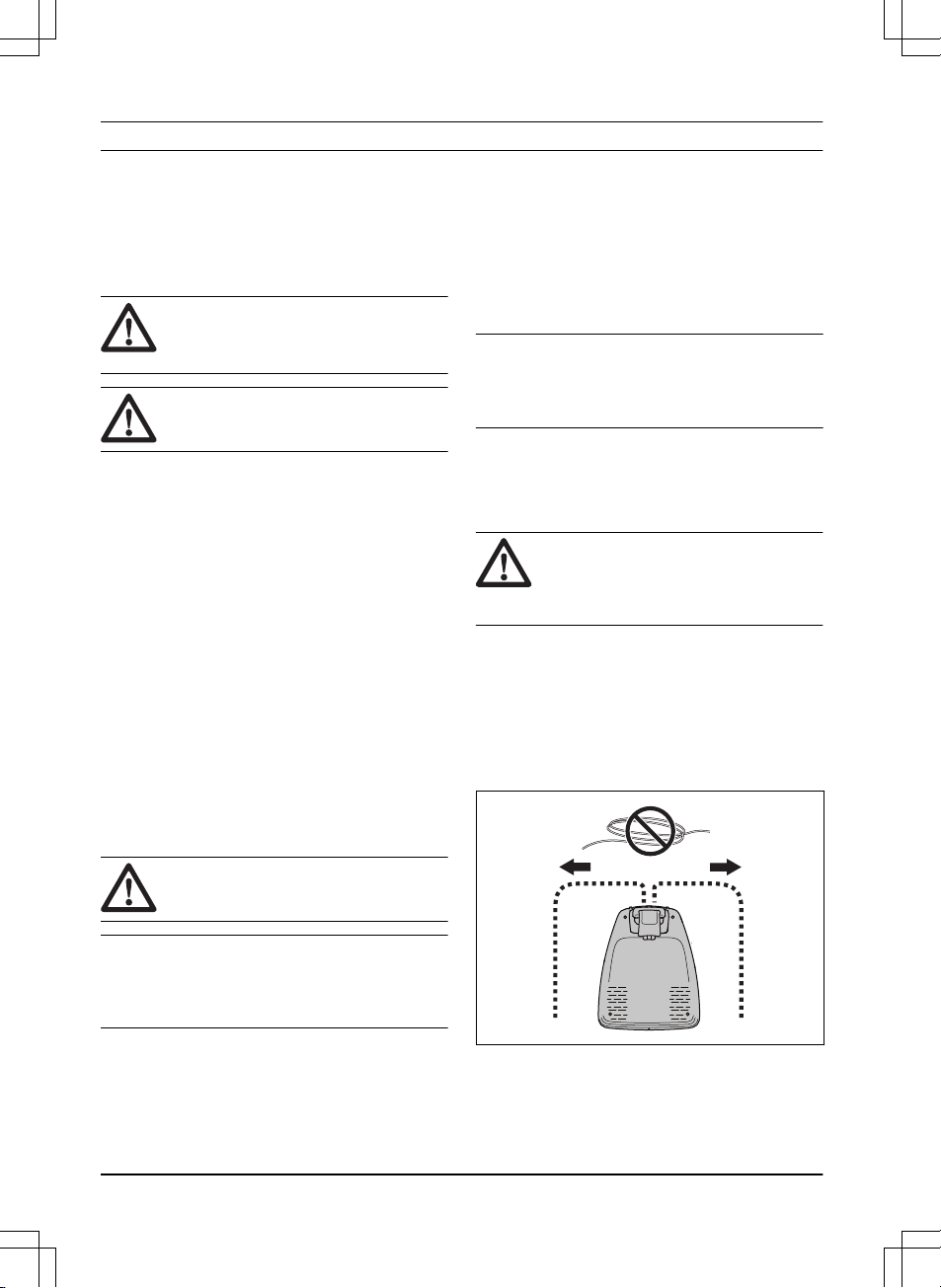
2.3.5 In the event of a thunderstorm
To reduce the risk of damage to electrical components
in the product and the charging station, we recommend
that all connections to the charging station are
disconnected (power supply, boundary wire and guide
wire) if there is a risk of a thunderstorm.
1. Mark the wires to simplify reconnecting. The
charging station’s connections are marked R, L
and GUIDE.
2. Disconnect all connected wires and the power
supply.
3. Connect all the wires and the power supply if there
is no longer a risk of thunder. It is important that
each wire is connected to the right place.
1411 - 007 - 23.09.2020
Safety - 11
3 Installation
3.1 Introduction - Installation
Refer to www.mcculloch.com for more information about
installation and instruction videos.
We recommend you to update the firmware before you
install the product to make sure that the product has the
latest firmware. Refer to
Firmware update on page 30
.
WARNING: Read and understand the
safety chapter before you install the
product .
CAUTION: Use original spare parts and
installation material.
3.2 Main components for installation
The installation involves the following components:
• A robotic lawn mower that mows the lawn
automatically.
• A charging station, which has 3 functions:
• To send control signals along the boundary
wire.
• To send control signals along the guide wire
so that the product can follow the guide to
specific remote areas in the garden and can
find its way back to the charging station.
• To charge the product.
• A power supply, which is connected to the
charging station and a 100-240V power outlet.
• Loop wire, which is laid around the work area and
around objects and plants that the product must
not run into. The loop wire is used both as
boundary wire and guide wire.
3.3 General preparations
CAUTION: Holes with water in the lawn
can cause damage to the product.
Note: Read through the Installation chapter before
beginning the installation. How the installation is done
affects how the product performs. It is therefore
important to plan the installation carefully.
• Make a blueprint of the work area and include all
obstacles. This makes it easier to see the ideal
positions for the charging station, the boundary
wire and the guide wire.
• Make a mark on the blueprint where to put the
charging station, the boundary wire and the guide
wire.
• Make a mark on the blueprint where the guide wire
connects to the boundary wire. Refer to
To install
the guide wire on page 18
.
• Fill in holes in the lawn.
• Cut the grass before you install the product. Make
sure that the grass is maximum 4 cm / 1.6 in.
Note: The first weeks after installation the perceived
sound level when cutting the grass may be higher than
expected. When the product has cut the grass for some
time, the perceived sound level is much lower.
3.4 Before the installation of the wires
You can select to attach the wires with stakes or bury
them. You can use the 2 procedures for the same work
area.
CAUTION: If you use a dethatcher in
the work area, bury the boundary wire and
the guide wire to prevent them from
damage.
3.4.1 To examine where to put the charging
station
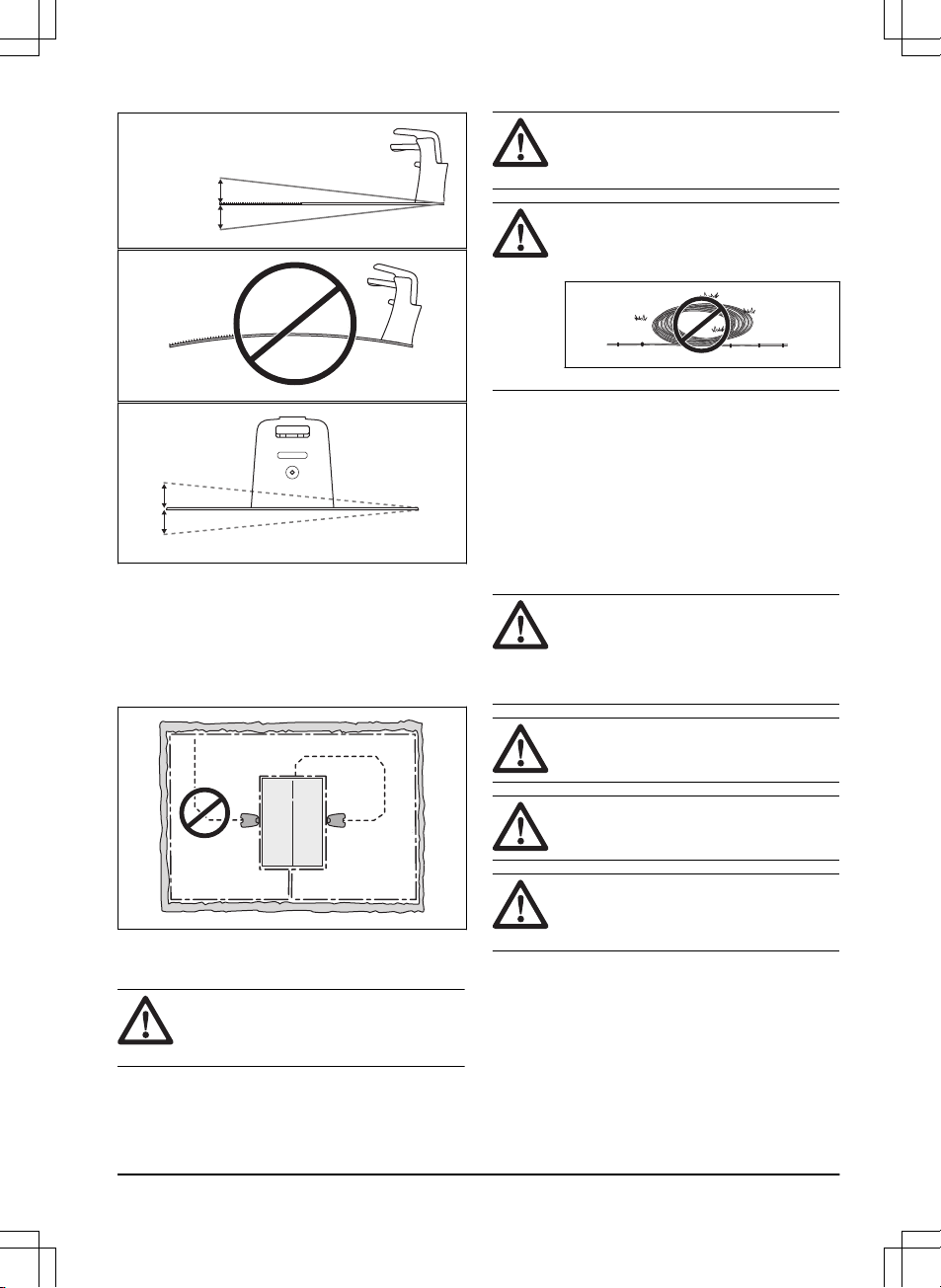
• Keep a minimum 2 m / 6.6 ft. of free space in front
of the charging station. Refer to
To examine where
to put the guide wire on page 16
.
• Keep a minimum of 30 cm / 12 in. of free space to
the right and left of the center of the charging
station.
60- cm / 24- in.
• Put the charging station near a power outlet.
• Put the charging station on a level surface.
• The baseplate of the charging station must not be
bent.
12
- Installation 1411 - 007 - 23.09.2020
Max 5 cm /2"
Max 5 cm /2"
Max +/- 2 cm / 0.8 in.
• If the work area has two parts separated with a
steep slope, we recommend to put the charging
station in the lower section.
• Put the charging station in an area with protection
from the sun.
• If the charging station is installed on an island,
make sure to connect the guide wire to the island.
Refer to
To make an island on page 15
.
3.4.2 To examine where to put the power
supply
WARNING:
Do not cut or extend the
low-voltage cable. There is a risk of
electrical shock.
CAUTION: Make sure that the blades
on the product do not cut the low-voltage
cable.
CAUTION: Do not put the low-voltage
cable in a coil or below the charging station
plate. The coil causes interference with the
signal from the charging station.
• Put the power supply in an area with a roof and
protection from the sun and rain.
• Put the power supply in an area with good airflow.
• Use a residual-current device (RCD) when you
connect the power supply to the power outlet.
Low-voltage cables of different lengths are available as
accessories.
3.4.3 To examine where to put the
boundary wire
CAUTION: There must be an obstacle
of minimum 15 cm / 6 in. in height between
the boundary wire and water bodies, slopes,
precipices or public roads. This will prevent
damage to the product.
CAUTION: Do not let the product
operate on gravel.
CAUTION: Do not make sharp bends
when you install the boundary wire.
CAUTION: For careful operation
without noise, isolate all obstacles such as
trees, roots and stones.
The boundary wire should be put as a loop around the
work area. Sensors in the product senses when the
product approaches the boundary wire, and the product
selects another direction. All parts of the work area must
be maximum 15 m / 50 ft. from the boundary wire.
To make the connection easier between the guide wire
and the boundary wire, it is recommended to make an
eyelet where the guide wire will be connected. Make the
1411 - 007 - 23.09.2020
Installation - 13
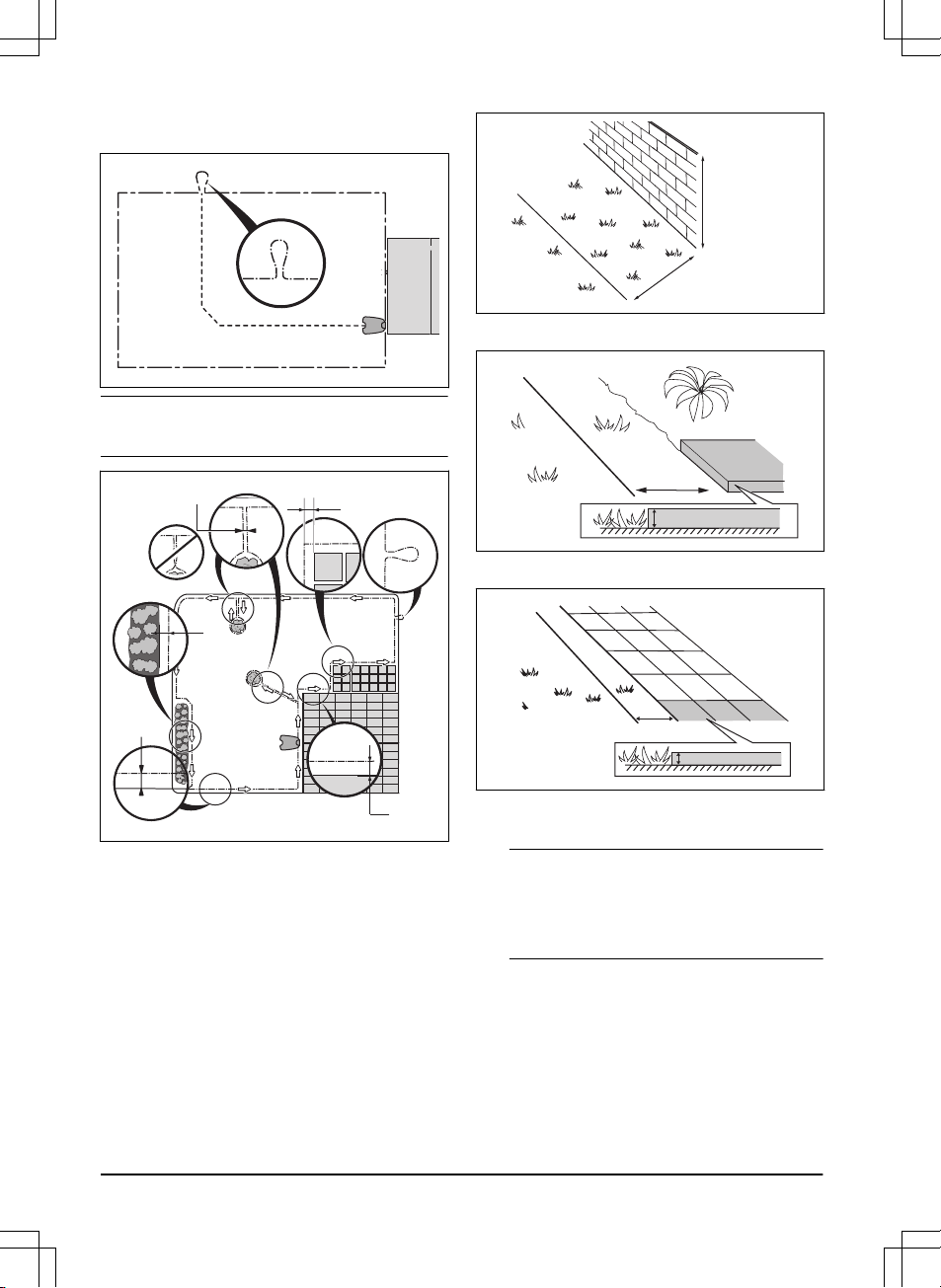
eyelet with approximately 20 cm / 8 in. of the boundary
wire.
Note: Make a blueprint of the work area before you
install the boundary wire and guide wire.
D
E
B
C
F
A
• Put the boundary wire around all of the work area
(A). Adapt the distance between the boundary wire
and obstacles.
• Put the boundary wire 35 cm / 14 in. (B) from an
obstacle that is more than 5 cm / 2 in. high.
35 cm /14
"
> 5 cm / 2
"
• Put the boundary wire 30 cm / 12 in. (C) from an
obstacle that is 1-5 cm / 0.4-2 in. high.
1-5 cm / 0.4 - 2"
30 cm / 12"
• Put the boundary wire 10 cm / 4 in. (D) from an
obstacle that is less than 1 cm / 0.4 in. high.
10 cm / 4"
max 1 cm / 0.4"
• If you have a paving stone path that is in level with
the lawn, put the boundary wire below the paving
stone.
Note:
If the paving stone is minimum 30 cm / 12
in. wide, use the factory setting for the
Drive Past
Wire
function to cut all the grass adjacent to the
paving stone. Refer to
To set the Drive Past Wire
function on page 24
.
• If you make an island, put the boundary wire that
runs to and from the island near together (E). Put
the wires in the same stake. Refer to
To make an
island on page 15
.
• Make an eyelet (F) where the guide wire is to be
connected to the boundary wire.
14
- Installation 1411 - 007 - 23.09.2020

3.4.3.1 To put the boundary wire in a slope
The product can operate in slopes. Slopes that are too
steep must be isolated with the boundary wire. The
gradient (%) is calculated as height per m. Example: 10
cm / 100 cm = 10%.
10 cm/4"
100 cm/40"
10%
• For slopes steeper than inside the work area,
isolate the slope with boundary wire.
• For slopes steeper than 10% along the outer edge
of the lawn, put the boundary wire 20 cm / 8 in. (A)
from the edge.
A
>10%
0-25%
• For slopes adjacent to a public road, put an
obstacle of minimum 15 cm / 6 in. along the outer
edge of the slope. You can use a wall or a fence
as an obstacle.
3.4.3.2 Passages
A passage is a section that has boundary wire on each
side and that connects 2 parts of the work area. The
distance between the boundary wire on each side in the
passage must be a minimum of 60 cm / 24 in.
Note:
If a passage is less than 2 m / 6.5 ft. wide,
install a guide wire through the passage.
The recommended minimum distance between the
guide wire and the boundary wire is 30 cm / 12 in. The
product always runs to the left of the guide wire as seen
facing the charging station. It is recommended to have
as much free area as possible to the left of the guide
wire (A).
>2 m / 6.5 ft
A
>30 cm / 12"
>60 cm / 24"
3.4.3.3 To make an island
CAUTION: Do not put a section of
boundary wire across the other. The
sections of boundary wire must be parallel.
CAUTION: Do not put the guide wire
across the boundary wire.
CAUTION: Isolate or remove obstacles
that are less than 15 cm / 5.9 in. in height.
Isolate or remove obstacles that slope
slightly, for example, stones, trees or roots.
This will prevent damage to the blades of
the product.
To make an island, isolate areas in the work area with
the boundary wire. We recommend to isolate all stable
objects in the work area.
1411 - 007 - 23.09.2020
Installation - 15
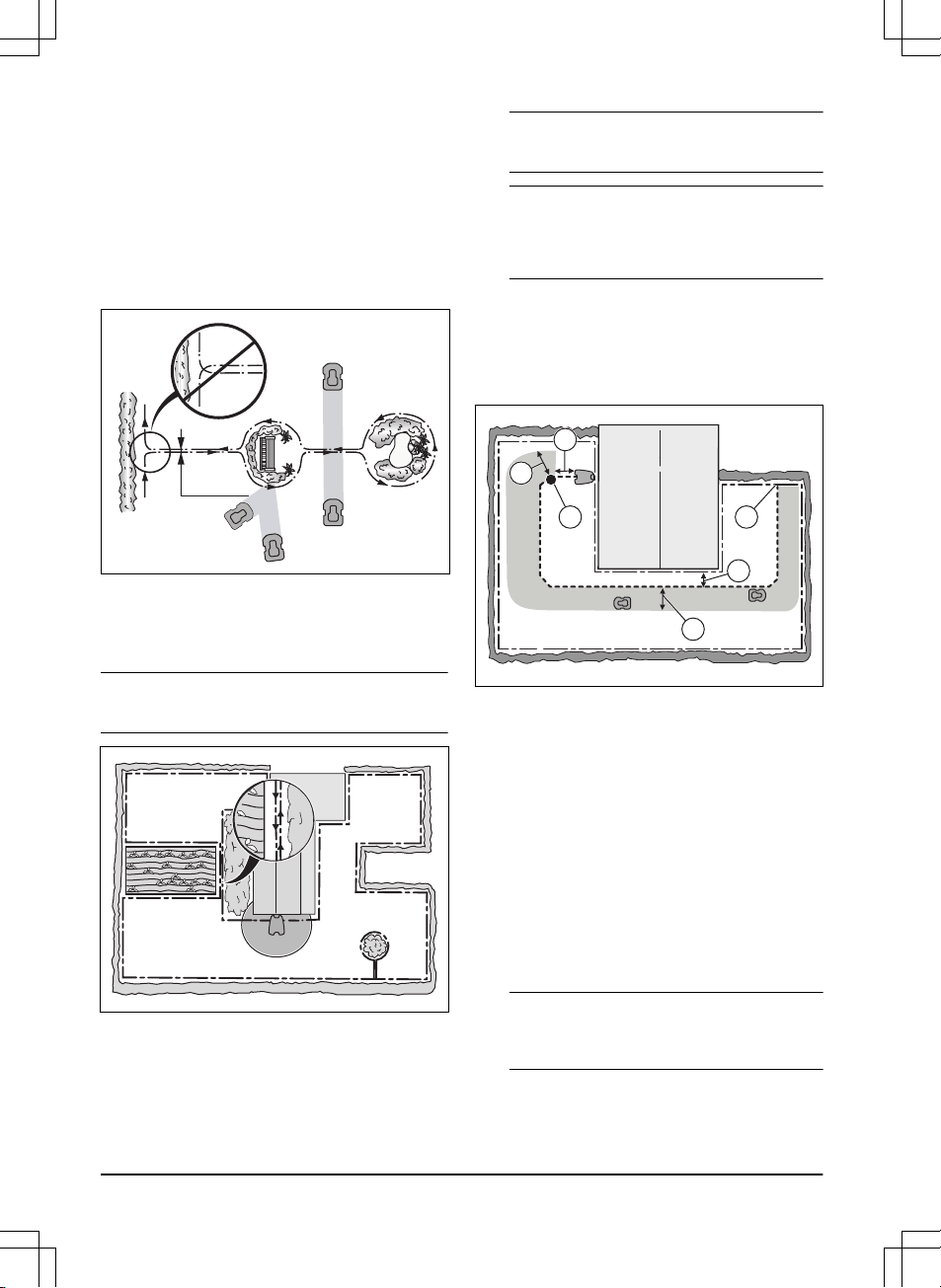
Some obstacles are resistant to a collision, for example,
trees or bushes that are more than 15 cm / 5.9 in. in
height. The product will collide with the obstacle and
then select a new direction.
• Put the boundary wire to and around the obstacle
to make an island.
• Put the 2 sections of boundary wire to and from the
island close together. This will make the product
run across the wire.
• Put the 2 sections of boundary wire in the same
stake.
0 cm / 0
"
3.4.3.4 To make a secondary area
Make a secondary area (B) if the work area has 2 areas
that are not connected with a passage. The work area
with the charging station is the main area (A).
Note:
The product must be manually moved between
the main area and the secondary area.
B
A
• Put the boundary wire around the secondary area
(B) to make an island. Refer to
To make an island
on page 15
.
Note:
The boundary wire must be put as 1 loop
around all of the work area (A + B).
Note: When the product cuts grass in the
secondary area, the
Secondary area
mode must
be selected. Refer to
Operating modes on page
26
.
3.4.4 To examine where to put the guide
wire
Put the guide wire from the charging station through the
work area and connect it to the boundary wire. The
installation of the guide wire is important for a successful
guide calibration, refer to
Guide calibration on page 20
.
F
D
C E
A
B
• Put the guide wire in a line at a minimum of 1 m /
3.3 ft. in front of the charging station (A).
• Put the guide wire minimum 30 cm / 1 ft. from the
boundary wire (B).
• Starting point (C). Refer to
Starting point on page
24
.
• Minimum distance 60 cm / 2 ft. perpendicular to the
guide wire (D). If less distance, the calibration
process is interrupted. For the widest possible
guide corridor, have a minimum distance of 1.35
m / 4.5 ft. Refer to
Guide calibration on page 20
.
• Where the guide wire is connected to the boundary
wire (E).
• Guide corridor (F). The product always runs to the
left of the guide wire as seen facing the charging
station. Make sure that the guide wire has as much
free area as possible to the left of the guide wire.
Note:
The product always runs in the guide
corridor but changes the distance to the guide
wire.
16 - Installation 1411 - 007 - 23.09.2020
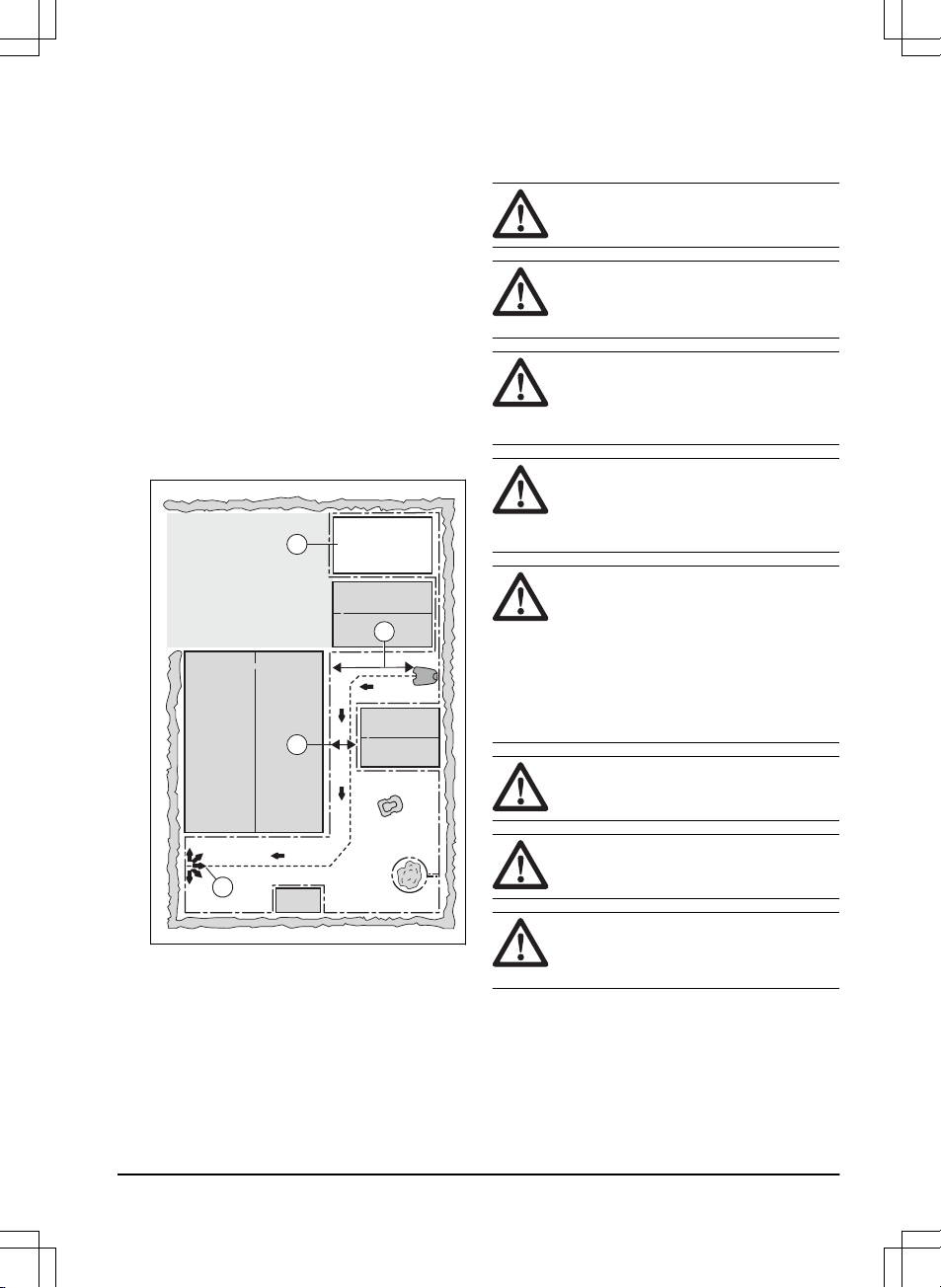
3.4.5 Work area examples
• If the charging station is put in a small area (A),
make sure that the distance to the boundary wire is
at a minimum 2 m / 6.6 ft. in front of the charging
station.
• If the work area has a passage (B) with no guide
wire installed, the minimum distance between the
boundary wires is 2 m / 6.5 ft. With a guide wire
installed through the passage, the minimum
distance between the boundary wires is 60 cm / 24
in.
• If the work area has areas which are connected by
a narrow passage (B), you can set the product to
first follow and then leave the guide wire to the
point it connects to the boundary wire (C). The
settings can be changed in
Lawn Coverage on
page 23
.
• If the work area includes a secondary area (D),
refer to
To make a secondary area on page 16
.
Put the product in the secondary area and select
Secondary area mode
.
B
D
A
C
3.5 Installation of the product
3.5.1 Installation tools
• Hammer/plastic mallet: To simplify putting the
stakes into the ground.
• Edge cutter/straight spade: To bury the boundary
wire.
• Combination pliers: For cutting the boundary wire
and pressing the connectors together.
• Adjustable plier: For pressing the couplers
together.
3.5.2 To install the charging station
WARNING: Obey national regulations
about electrical safety.
WARNING: The product is only to be
used with the power supply unit supplied by
McCulloch.
WARNING: Do not put the power
supply at a height where there is a risk it can
be put in water. Do not put the power supply
on the ground.
WARNING: Do not encapsulate the
power supply. Condensed water can harm
the power supply and increase the risk of
electrical shock.
WARNING: Risk of Electric Shock.
Install only to an residual-current device
(RCD) when connecting the power supply to
the power outlet. Applicable to USA/Canada.
If power supply is installed outdoors: Risk of
Electric Shock. Install only to a covered
Class A GFCI receptacle (RCD) that has an
enclosure that is weatherproof with the
attachment plug cap inserted or removed.
CAUTION: Do not make new holes in
the charging station plate.
CAUTION: Do not put your feet on the
baseplate of the charging station.
WARNING: The power supply cable
and extension cable must be outside the
work area to avoid damage to the cables.
When connecting the power supply, only use a power
outlet that is connected to an residual-current device
(RCD).
1. Read and understand the instructions about where
to put the charging station. Refer to
To examine
where to put the charging station on page 12
.
1411 - 007 - 23.09.2020
Installation - 17

2. Put the charging station in the selected area.
Note: Do not attach the charging station with the
screws to the ground until the guide wire is
installed. Refer to
To install the guide wire on page
18
.
3. Connect the low-voltage cable to the charging
station.
4. Put the power supply at a minimum height of 30
cm / 12 in.
min 30 cm / 12”
5. Connect the power supply cable to a 100-240V
power outlet.
Note: When the charging station is connected, it
is possible to charge the product. Place the
product in the charging station while the boundary
and guide wires are being laid. Switch on the
product. Refer to
To start the product on page 26
.
Do not continue with any product settings before
the installation is complete.
6. Put the low-voltage cable in the ground with stakes
or bury the cable. Refer to
To put the wire into
position with stakes on page 19
or
To bury the
boundary wire or the guide wire on page 19
.
7. Connect the wires to the charging station after the
installation of boundary wire and guide wire is
complete. Refer to
To install the boundary wire on
page 18
and
To install the boundary wire on page
18
.
8. Attach the charging station to the ground with the
supplied screws after the guide wire is installed.
Refer to
To install the guide wire on page 18
.
3.5.3 To install the boundary wire
CAUTION:
Do not put remaining wire in
a coil. The coil causes interference with the
product.
1. Put the boundary wire around all of the work area.
Start and complete the installation behind the
charging station.
2. Open the connector and put the boundary wire in
the connector.
3. Close the connector with a pair of pliers.
4. Cut the boundary wire 1-2 cm / 0.4-0.8 in. above
each connector.
5. Push the right connector onto the metal pin on the
charging station with the mark "R".
6. Push the left connector onto the metal pin on the
charging station with the mark "L".
3.5.4 To install the guide wire
CAUTION: Twinned cables, or a screw
terminal block that is insulated with
insulation tape are not satisfactory splices.
Soil moisture will cause the wire to oxidize
and after a time result in a broken circuit.
1. Open the connector and put the wire in the
connector.
2. Close the connector with a pair of pliers.
3. Cut the guide wire 1-2 cm / 0.4-0.8 in. above each
connector.
4. Push the guide wire through the slot in the
charging station plate.
5. Push the connector onto the metal pin on the
charging station with the mark "GUIDE".
6. Disconnect the charging station from the power
outlet.
7. Put the end of the guide wire at the eyelet on the
boundary wire.
8. Cut the boundary wire with a pair of wire cutters.
9. Connect the guide wire to the boundary wire with a
coupler.
18
- Installation 1411 - 007 - 23.09.2020
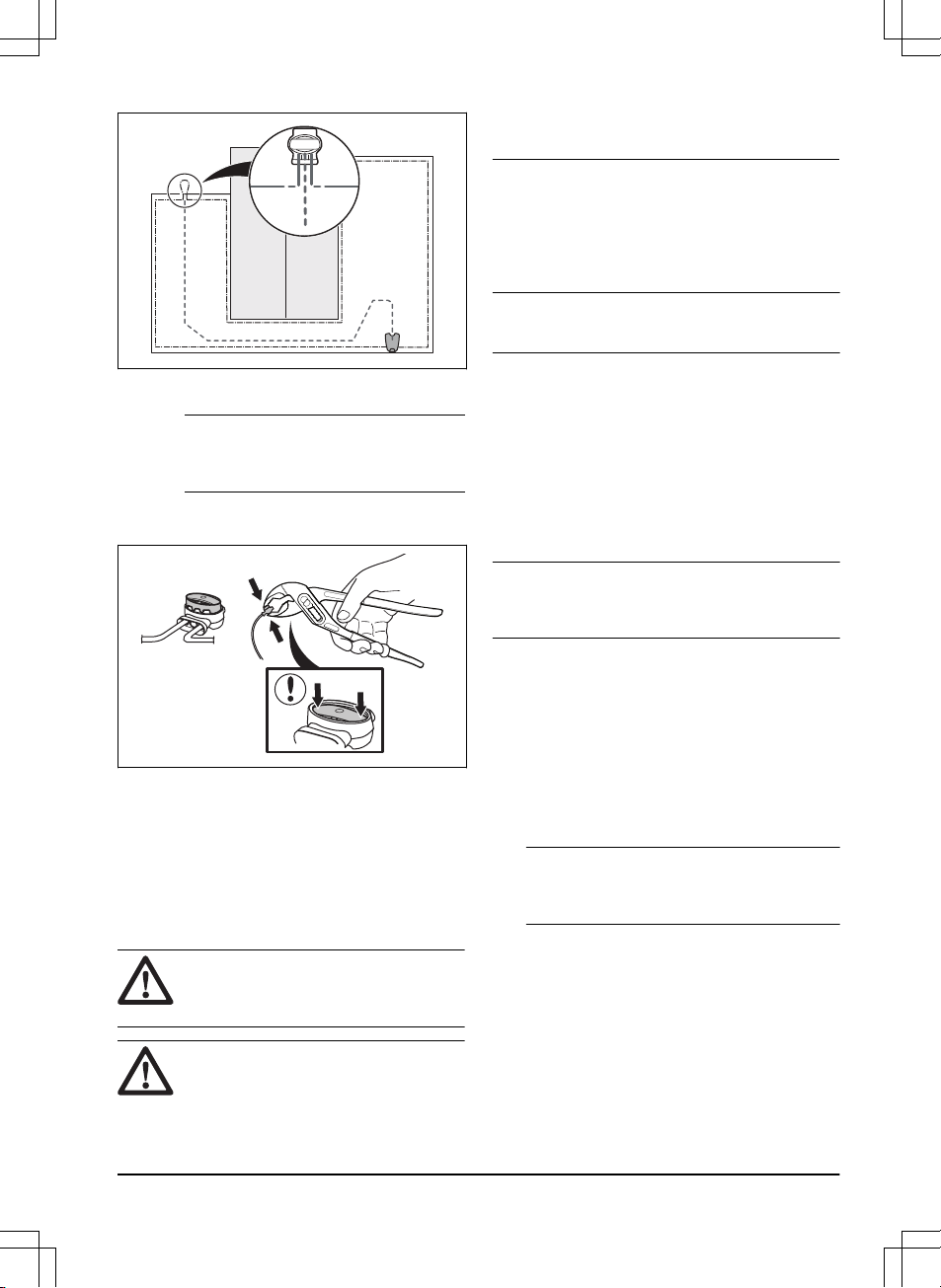
a) Put the 2 ends of the boundary wire and the
end of the guide wire into the coupler.
Note: Make sure that you can see the ends
of the wires through the transparent area of
the coupler.
b) Push down the cover on the coupler with
adjustable pliers to attach the wires in the
coupler.
10. Attach the guide wire to the ground with stakes or
bury the guide wire in the ground. Refer to
To put
the wire into position with stakes on page 19
or
To bury the boundary wire or the guide wire on
page 19
.
11. Connect the charging station to the power outlet.
3.6 To put the wire into position with
stakes
CAUTION:
Make sure that the stakes
hold the boundary wire and the guide wire
against the ground.
CAUTION: Cutting the grass too low
right after installation can damage the wire
insulation. Damage to the insulation may not
cause disruptions until several weeks or
months later.
1. Put the boundary wire and the guide wire on the
ground.
2. Put the stakes at a maximum of 100 cm / 40 in.
distance from each other.
3. Attach the stakes to the ground with a hammer or
a plastic mallet.
Note: The wire is overgrown with grass and not visible
after a few weeks.
3.7 To bury the boundary wire or the
guide wire
• Cut a groove in the ground with an edge cutter or a
straight shovel.
• Put the boundary wire or the guide wire 1-20 cm /
0.4-8 in. into the ground.
3.8 To extend the boundary wire or the
guide wire
Note: Extend the boundary wire or the guide wire if it
is too short for the work area. Use original spare parts,
for example couplers.
1. Disconnect the charging station from the power
outlet.
2. Cut the boundary wire or the guide wire with a pair
of wire cutters where it is necessary to install the
extension.
3. Add wire where it is necessary to install the
extension.
4. Put the boundary wire or the guide wire into
position.
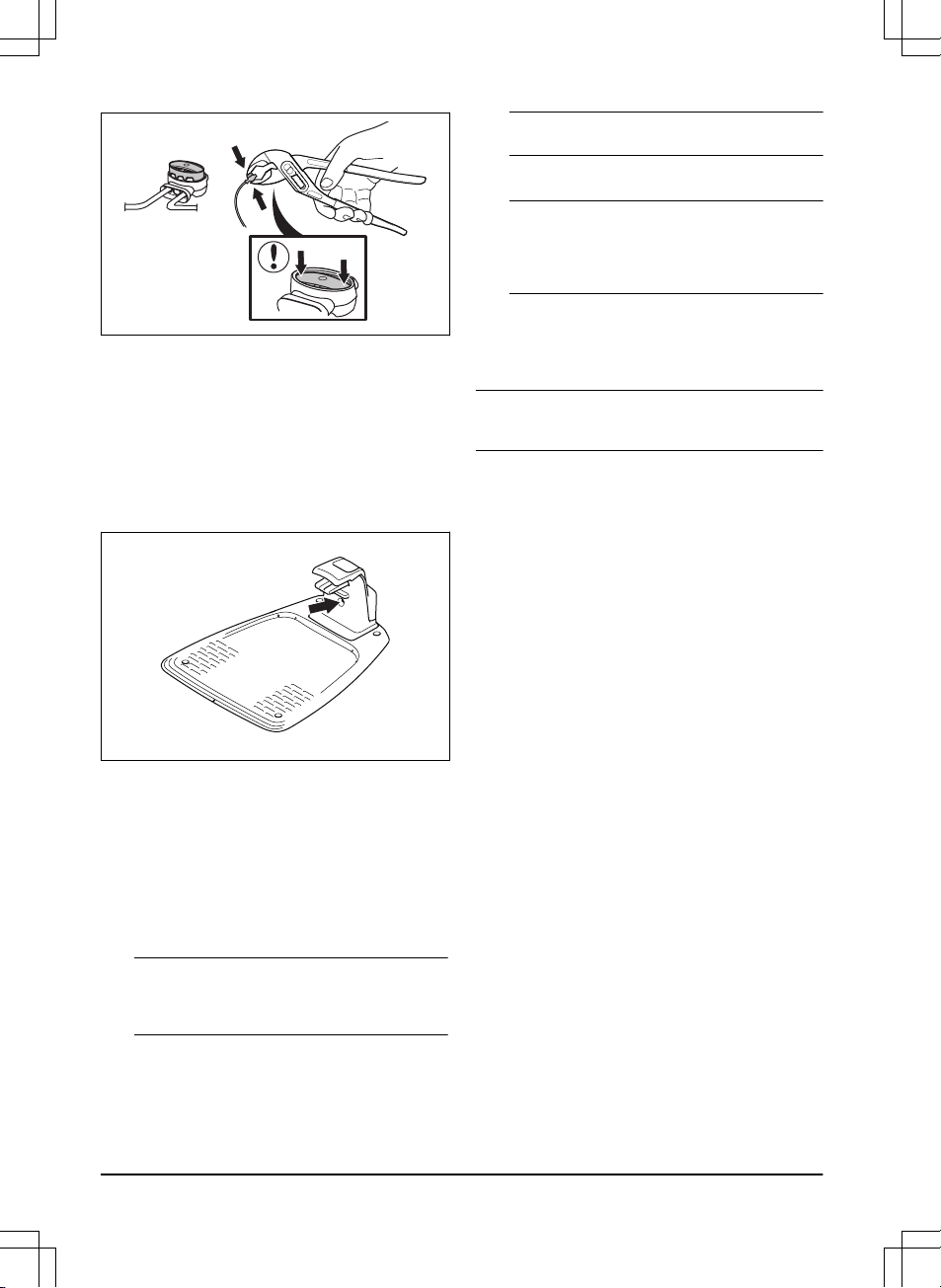
5. Put the wire ends into a coupler.
Note:
Make sure that you can see the ends of
the boundary wire or the guide wire through the
transparent area of the coupler.
6. Push down the cover on the coupler with
adjustable pliers to attach the wires in the coupler.
1411 - 007 - 23.09.2020
Installation - 19
7. Put the boundary wire or the guide wire into
position with stakes.
8. Connect the charging station to the power outlet.
3.9 After the installation of the product
3.9.1 To do a visual check of the charging
station
1. Make sure that the indicator LED lamp on the
charging station has a green light.
2. If the indicator LED lamp does not have a green
light, do a check of the installation. Refer to
The
indicator lamp on page 26
and
To install the
charging station on page 17
.
3.9.2 To do the basic settings
Before the product starts to operate for the first time, you
must do the basic settings.
1. Put the product in the charging station.
2. Push the ON/OFF button for 3 seconds.
Note:
If the battery is very low, the product
needs to charge before you can switch on the
product.
3. Push the arrow buttons and the OK button. Select
language, country, date, time. Set the
Wizard
and
the PIN code. Refer to
Wizard on page 21
.
Note:
It is not possible to use 0000 as PIN code.
4. Push the Start button and close the hatch to initiate
the guide calibration.
Note: If the battery is too low, the product needs
to charge the batteries fully before the guide
calibration starts. Refer to
Guide calibration on
page 20
.
3.9.3 Guide calibration
The calibration process is automatic and sets as wide
guide corridor as possible to decrease tracks on the
lawn.
Note: The product always moves in the guide corridor
but it changes the distance to the guide wire.
The guide calibration starts when the product is at the
starting point. The product moves away from the guide
wire perpendicularly at the left side for a maximum
distance of 1.35 m / 4.4 ft. or until it hits the boundary
wire or an obstacle. The left side means your left when
you look straight forward at the charging station. This
distance is set as the maximum corridor width and the
guide calibration is completed. The product moves along
the guide wire to do a test that it can follow the guide
wire. The product follows the guide wire to the point
where the guide wire is connected to the boundary wire.
The product will start to cut when it is at the boundary
wire.
3.9.3.1 To redo the guide calibration
1. Push the Menu button for 3 seconds to enter the
Quick info
menu.
2. Use the arrow buttons and the OK button to move
through the menu structure
Advanced > Calibrate
> Guide calibration
.
3. Place the product in the charging station.
4. Push the Start button to start the automatic
calibration.
3.10 To do the product settings
Use the control panel to set all settings for the product.
The control panel has a display and a keypad, you can
access all functions through the menus. The functions
have factory settings that is applicable for almost all
work areas, but the settings can be adapted to the
conditions for each work area.
3.10.1 Menu structure
The main menu contains:
•
Lawn Shield
•
Security
•
Installation
20
- Installation 1411 - 007 - 23.09.2020
•
General
Refer to
Menu structure overview on page 6
.
3.10.2 To get access to the menu
1. Push the STOP button.
2. Use the up/down arrow buttons and the OK button
to enter the PIN code.
3. Push the Settings button.
3.10.3 To do the schedule settings
You can set the schedule in 4 ways:
• Set the schedule by using the wizard. Refer to
Wizard on page 21
.
• Day mode
• Night mode
• Set the schedule in the Advanced menu. Refer to
To set the schedule on page 21
.
Note: The lawn should not be cut too often to obtain
the best result. If the product is allowed to operate too
much, the lawn may appear flattened. The product is
also subjected to unnecessary wear.
3.10.3.1 To get access to the schedule menu
1. Push the STOP button.
2. Use the up/down arrow buttons and the OK button
to enter the PIN code.
3. Push the Schedule button.
3.10.3.2 Wizard
The wizard is a quick tool to find suitable schedule
settings for your lawn.
1. Do steps 1–3 in
To get access to the schedule
menu on page 21
.
2. Use the arrow buttons and the OK button to move
through the menu structure
Schedule > Wizard
.
3. Enter your estimated lawn size. It is not possible to
enter a larger lawn size than the maximum work
capacity.
4. Push the OK button to confirm the lawn size. By
entering your lawn size the wizard suggests either
a suitable daily schedule (refer to step 7) or need
input for inactive days.
5. Choose what day(s) the product should be
inactive. Use the up/down arrow buttons to shift
between days.
6. Push the OK button to confirm the chosen inactive
day(s).
7. The wizard suggests a daily schedule for the active
days. If you want to move the schedule interval to
earlier or later in the day then push the arrow
buttons up or down.
8. Push the OK button to confirm the daily schedule.
An overview of the daily schedule is presented.
Push the OK button to go back to main menu.
Note: To change the schedule settings for individual
work days use the
Schedule > Advanced
menu.
3.10.3.3 Day mode
The Day mode means that the product starts mowing at
08:00 / 8 am and mows the specified operation hours.
1. Do steps 1–3 in
To get access to the schedule
menu on page 21
.
2. Use the arrow buttons and the OK button to move
through the menu structure
Schedule > Day mode
.
3. Use the arrow buttons and the OK button to select
YES
to confim.
3.10.3.4 Night mode
The Night mode means that the product starts mowing
at 20:00 / 8 pm and mows the specified operation hours.
1. Do steps 1–3 in
To get access to the schedule
menu on page 21
.
2. Use the arrow buttons and the OK button to move
through the menu structure
Schedule > Night
mode
.
3. Use the arrow buttons and the OK button to select
YES
to confim.
3.10.3.5 To set the schedule
1. Do steps 1–3 in
To get access to the schedule
menu on page 21
.
2. Use the arrow buttons and the OK button to move
through the menu structure
Schedule > Advanced
> Overview
.
3. Use the arrow buttons and the OK button to select
the day.
4. Use the left arrow button to select the period.
5. Push the OK button.
6. Calculate the suitable operating hours. Refer to
Make an estimate of the necessary operating time
on page 22
.
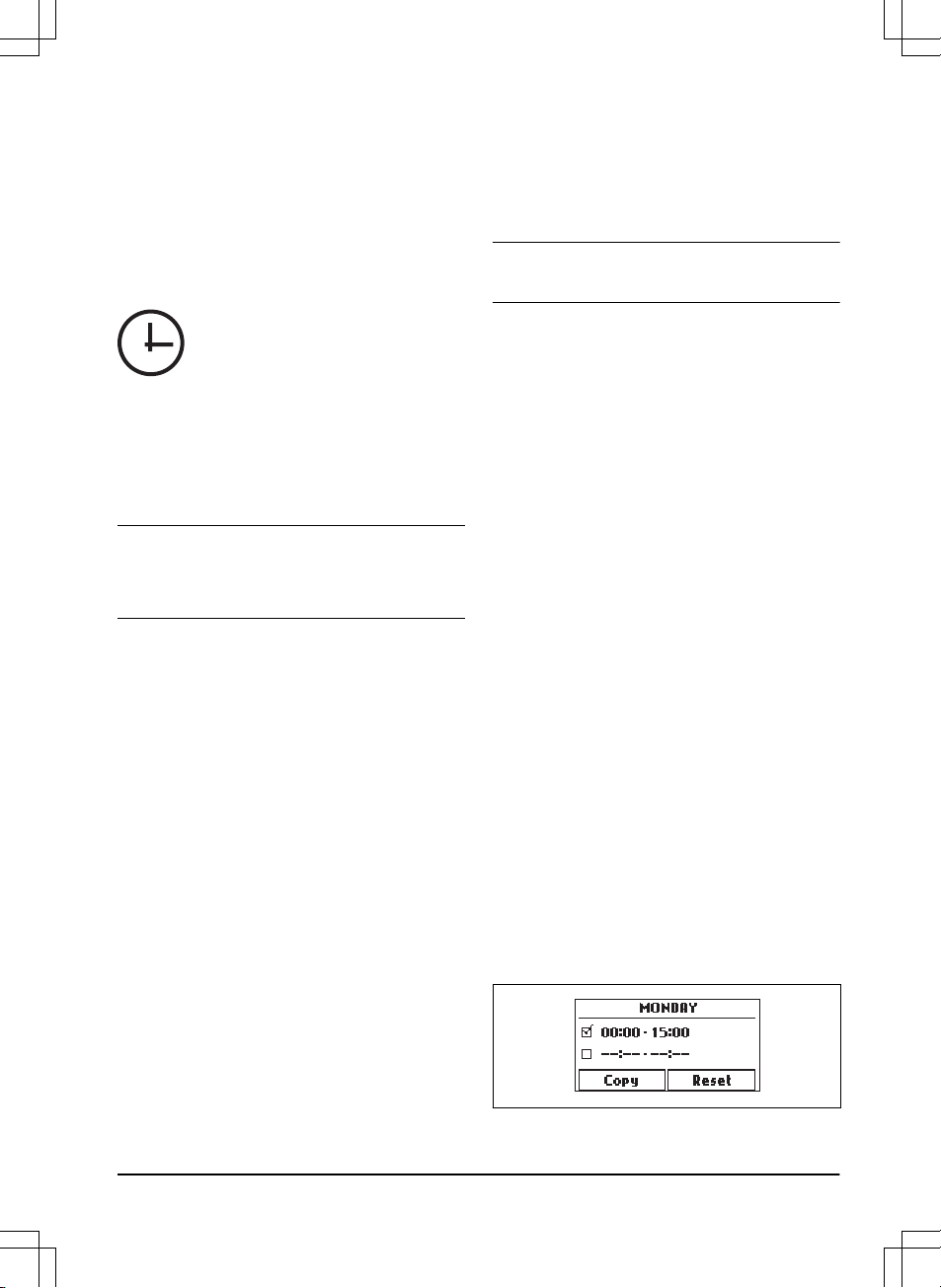
7. Enter the time with the arrow buttons. The product
can cut the grass 1 or 2 periods each day.
1411 - 007 - 23.09.2020
Installation - 21

8. If the product must not cut grass on a specified
day, unselect the box adjacent to the 2 time
periods.
3.10.3.6 Make an estimate of the necessary operating
time
If the work area is less than maximum product capacity,
the schedule must be set to decrease the wear on the
lawn and the product. The product has a maximum
cutting time each day. You can set the operating time of
the product in the schedule. The operating time includes
cutting, searching and charging. The operating time can
be different because of many reasons, for example the
layout of the work area, the grass growth and age of the
battery. When the product has operated to the maximum
cutting time in a day, the message
Today's mowing
complete
is shown in the display of the product.
The recommended operating times for some work area
examples are shown in the table below. If the result is
not satisfactory, increase the operating time.
Area, m
2
Recommended operating
time, h
250 6-7
500 13-15
750 21-22
3.10.3.7 To copy the schedule setting
1. Do steps 1–3 in
To get access to the schedule
menu on page 21
.
2. Use the arrow buttons and the OK button to move
through the menu structure
Schedule > Advanced
> Overview > Copy
.
3. Use the arrow buttons and the OK button to copy
the schedule setting. You can copy the schedule
settings day to day or for the full week.
3.10.3.8 To reset the schedule setting
You can remove all schedule settings and use the
factory setting.
1. Do steps 1–3 in
To get access to the schedule
menu on page 21
.
2. Use the arrow buttons and the OK button to move
through the menu structure
Schedule > Advanced
> Overview > Reset
.
a) Push the arrow buttons to select
Current day
to only set the current day to factory settings.
b) Push the arrow buttons to select
All week
to
reset all schedule settings to factory settings.
3. Push the
OK button.
3.10.4 Lawn shield
Lawn shield
automatically adjust the cutting time to the
growth of the grass. The product is not permitted to
operate more than the schedule settings.
Note: When using
Lawn shield
, it is recommended to
make as much operating time as possible available for
Lawn shield
. Do not restrict the schedule more than
necessary.
The first operation of the day is set by the schedule
settings. The product always complete 1 mowing cycle,
and then
Lawn shield
selects if the product will continue
to operate or not.
Note:
Lawn shield
is reset if the product does not
operate for more than 50 hours, or if a
Reset of all user
settings
is done.
Lawn shield
is not changed if a
Reset
of schedule settings
is done.
3.10.4.1 To set the Lawn shield
1. Do steps 1–3 in
To get access to the menu on
page 21
.
2. Use the arrow buttons and the OK button to move
through the menu structure
Settings > Lawn shield
> Use Lawn shield
.
3. Push the OK button to select the Lawn shield.
4. Push the BACK button.
3.10.4.2 To set the Lawn shield frequency
Set how frequently the product must cut the grass when
the Lawn shield is in use. There are 3 frequency levels:
Low, Mid and High. The higher the frequency, the longer
the product is allowed to work.
1. Do steps 1–3 in
To get access to the menu on
page 21
.
2. Use the arrow buttons and the OK button to move
through the menu structure
Settings > Lawn shield
> Cutting time
.
3. Use the arrow buttons to select
Low, Mid
or
High
frequency.
4. Push the BACK button.
3.10.5 Security level
There are 3 security levels for the product.
22
- Installation 1411 - 007 - 23.09.2020
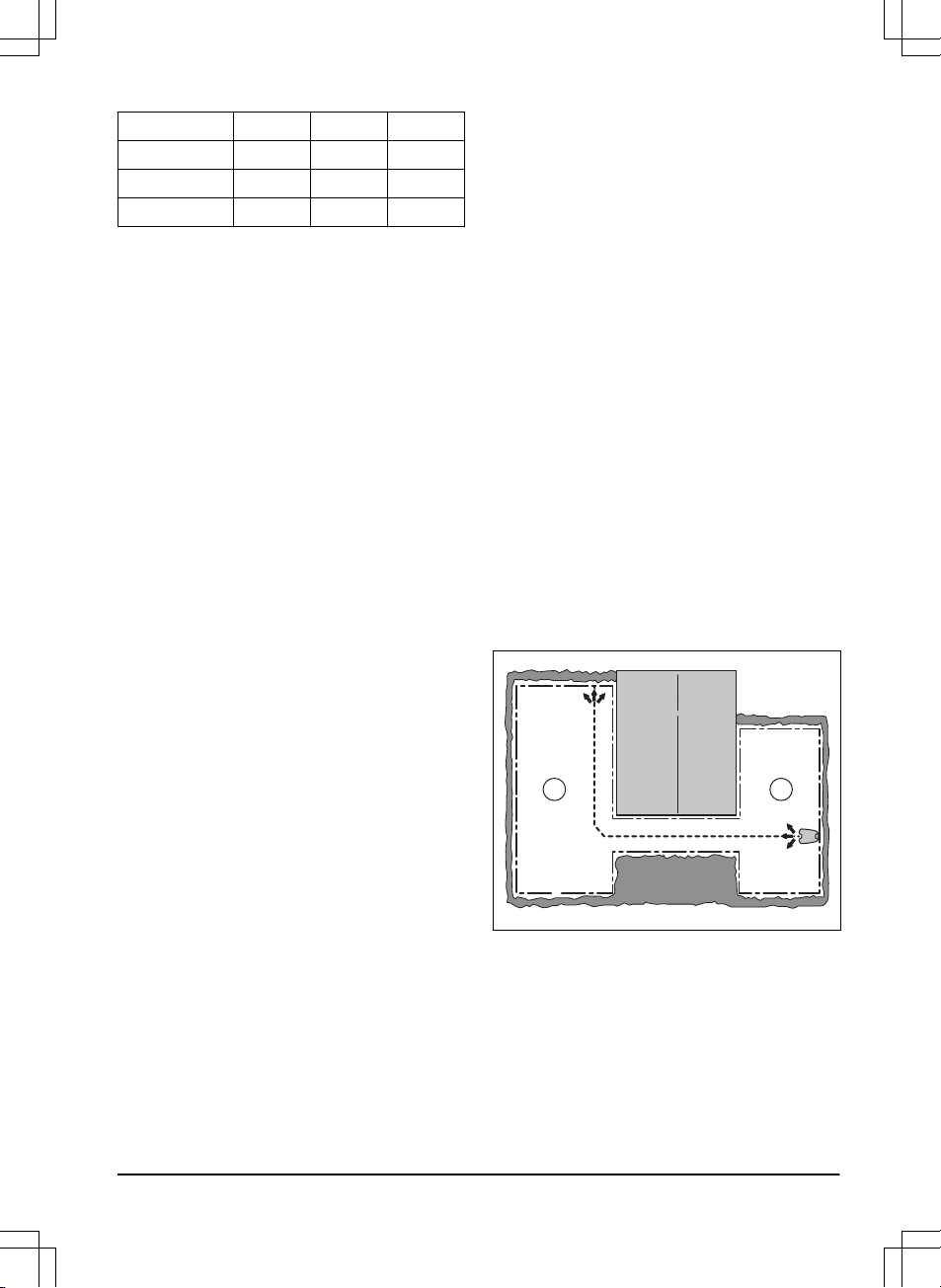
Function Low Medium High
Alarm
X
PIN-code
X X
Time lock
X X X
•
Alarm
- An alarm goes off if the PIN-code is not
entered within 10 seconds after the STOP button is
pushed. The alarm also goes off when the product
is lifted. The alarm stops when the PIN-code is
entered.
•
PIN-code
- The correct PIN-code must be entered
to get access to the Menu structure of the product.
If the incorrect PIN-code is entered 5 times, the
product is locked for a time. The lock is extended
for each new incorrect try.
•
Time lock
- The product locks if the PIN-code has
not been entered in 30 days. Enter the PIN-code to
get access to the product.
3.10.5.1 To set the security level
Select 1 of the security levels for your product.
1. Do steps 1–3 in
To get access to the menu on
page 21
.
2. Use the arrow buttons and the OK button to move
through the menu structure
Settings > Security >
Security level
.
3. Use the arrow buttons and the OK button to select
the level of security.
4. Push the OK button.
3.10.5.2 Security - Advanced
To make a new loop signal
The loop signal is randomly selected to create a unique
link between the product and the charging station. In
rare cases, there may be a need to make a new signal,
for instance if two adjacent installations have very
similar signals.
1. Put the product in the charging station.
2. Do steps 1–3 in
To get access to the menu on
page 21
.
3. Use the arrow buttons and the OK button to move
through the menu structure
Settings > Security >
Advanced > New loop signal
.
4. Wait for confirmation that the loop signal has been
made. This usually takes about 10 seconds.
To change the PIN-code
1. Do steps 1–3 in
To get access to the menu on
page 21
.
2. Use the arrow buttons and the OK button to move
through the menu structure
Settings > Security >
Advanced > Change PIN-code
.
3. Enter the new PIN code.
4. Push the OK button.
5. Enter the new PIN code again.
6. Push the OK button.
7. Make a note of the new PIN code. Refer to
Introduction on page 3
.
3.10.6 Lawn Coverage
The
Lawn Coverage
function is used to guide the
product to remote parts of the work area. If the work
area includes remote parts that are connected with
narrow passages, the
Lawn Coverage
function
maintains a well-cut lawn in all parts of the yard. You
can set the frequency of how often the product starts to
follow the guide wire to mow in the connection with the
boundary wire. If the
Lawn Coverage
function is not
used, the product starts to mow from the charging
station.
3.10.6.1 To set the Lawn Coverage function
1. Do steps 1–3 in
To get access to the menu on
page 21
.
2. Use the arrow buttons and the OK button to move
through the menu structure
Settings > Installation
> Lawn Coverage > Area 1
.
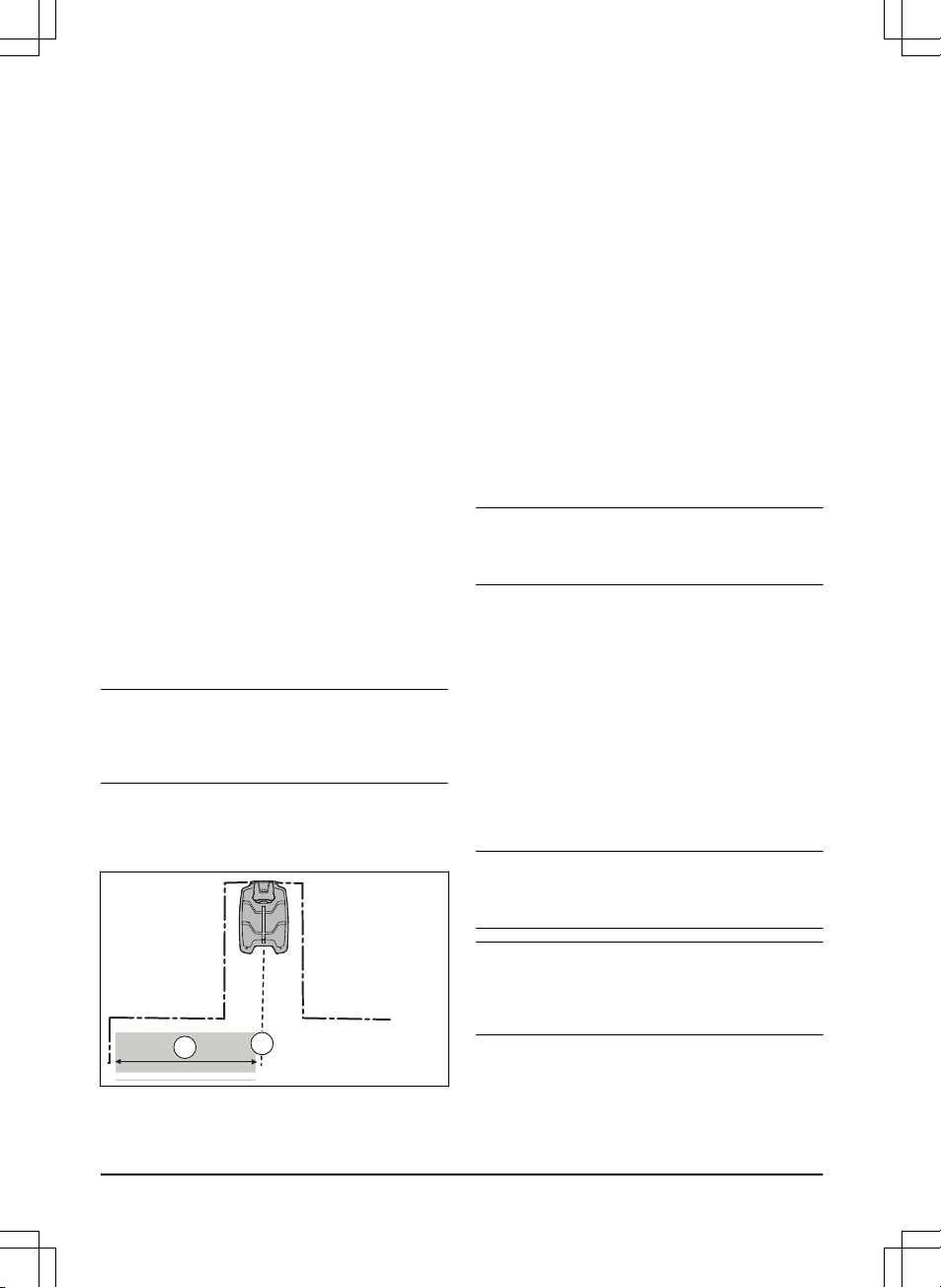
3. Use the arrow buttons to select the % of the cutting
time the product must cut the area. The % is equal
to the % of the area in relation to the complete
work area.
a) Measure the area.
b) Divide the area with the work area.
c) Convert the result to %.
60%
1 2
4. Push the BACK button.
3.10.6.2 To do a test of the Lawn Coverage function
1. Put the product in the charging station.
2. Do step 1-3 in
To get access to the menu on page
21
.
3. Use the arrow buttons and the OK button to move
through the menu structure
Settings > Lawn
Coverage > Area 1 > More > Test
.
4. Push the OK button.
1411 - 007 - 23.09.2020
Installation - 23
5. Push the START button.
6. Close the hatch.
7. Make sure the product can find the area.
3.10.6.3 To disable or enable the Lawn Coverage
function
Disable or enable the
Lawn Coverage
function for each
area.
1. Do steps 1–3 in
To get access to the menu on
page 21
.
2. Use the arrow buttons and the OK button to move
through the menu structure
Settings > Lawn
Coverage > Area 1 > Disable
.
3. Push the OK button.
4. Push the BACK button.
3.10.6.4 To reset the Lawn Coverage settings
You can reset the
Lawn Coverage
settings for each area
and use the factory setting.
1. Do steps 1–3 in
To get access to the menu on
page 21
.
2. Use the arrow buttons and the OK button to move
through the menu structure
Settings > Lawn
Coverage > Area 1 > More > Reset
.
3. Push the OK button.
3.10.7 Starting point
This function allows you to control how far the product
drives along the guide wire from the charging station
before it starts operating. The factory setting is 60 cm / 2
ft. and the maximum distance is 300 cm / 10 ft.
Note:
The product straddles the guide wire from the
charging station to the starting point. Keep as short
distance to the starting point as possible to reduce the
risk of tracks forming on the lawn.
If the charging station is placed in a limited space area,
for example under a veranda, choosing a good starting
point is important so that the guide calibration process is
optimized. Refer to
Guide calibration on page 20
.
B
A
A) Starting point
B) Minimum distance 60 cm / 2 ft (perpendicular to the
guide wire). If less distance, the calibration process is
interrupted. For the widest possible guide corridor, have
a minimum distance of 1.35 m / 4.5 ft. Refer to
Guide
calibration on page 20
.
3.10.7.1 To set the starting point
1. Do steps 1-3 in
To get access to the menu on
page 21
.
2. Use the arrow button and the OK button to move
through the menu structure
Settings > Installation
> Starting point
.
3. Use the arrow buttons to specify the distance in
cm.
4. Push the BACK button.
3.10.8 Drive Past Wire function
The front of the product always moves past the
boundary wire by a specified distance before the product
moves back into the work area. The factory setting is 32
cm / 12 in. You can select a distance of 20-40 cm / 8-15
in.
Note: If the
Drive Past Wire
distance is changed, the
distance will change along the boundary wire
everywhere in the work area.
3.10.8.1 To set the Drive Past Wire function
1. Do steps 1–3 in
To get access to the menu on
page 21
.
2. Use the arrow button and the OK button to move
through the menu structure
Settings > Installation
> Drive Past Wire
.
3. Use the arrow buttons to set the distance.
4. Push the BACK button.
3.10.9 ECO mode
If
ECO mode
is activated, it switches off the signal in the
boundary loop, the guide wire and the charging station,
when the product is parked or is charging.
Note:
Use
ECO mode
to save energy and avoid
interference with other equipment, for example hearing
loops or garage doors.
Note: To start the product manually in the work area,
push the STOP button before you remove the product
from the charging station. If not, the product can not be
started in the work area.
3.10.9.1 To set the ECO mode
1. Do steps 1–3 in
To get access to the menu on
page 21
.
24
- Installation 1411 - 007 - 23.09.2020

2. Use the arrow buttons and the OK button to move
through the menu structure
Settings > Installation
> ECO mode
.
3. Push the OK button to select the
ECO mode
.
4. Push the BACK button.
3.10.10 To avoid collisions with the mower
house
If you have installed a mower house (available as
accessory), the wear on the product and the mower
house decreases when you select
Avoid house
collisions
.
1. Do steps 1–3 in
To get access to the menu on
page 21
.
2. Use the arrow buttons and the OK button to move
through the menu structure
Settings > Installation
> Mower house > Avoid house collisions
.
3. Push the BACK button.
Note: If
Avoid house collisions
is selected it can result
in grass that is not cut around the charging station.
3.10.11 Bluetooth
®
The product can connect to mobile devices that have the
McCulloch ROB app installed. It is a free app for your
mobile device. The short-range interaction with the
product is called Bluetooth
®
. When pairing between the
product and app has been confirmed, you have access
to the menus and functions as long as you are within
short-range (Bluetooth
®
).
3.10.11.1 To pair the McCulloch ROB app and the
product
1. Download the McCulloch ROB app on your mobile
device.
2. Do steps 1–3 in
To get access to the menu on
page 21
.
3. Use the arrow buttons and the OK button to move
through the menu structure
Settings > Installation
> Bluetooth > New pairing
.
4. Follow the instructions in the app.
3.10.12 General
In
General
you can change the general settings of the
product.
3.10.12.1 To set the time & date
1. Do steps 1–3 in
To get access to the menu on
page 21
.
2. Use the arrow buttons and the OK button to move
through the menu structure
Settings > General >
Time & Date
.
3. Use the arrow buttons to set the time and then
push the BACK button.
4. Use the
arrow buttons to set the date and then
push the BACK button.
5. Use the arrow buttons to set the time format and
then push the BACK button.
6. Use the arrow buttons to set the date format and
then push the BACK button.
3.10.12.2 To set the language
1. Do steps 1–3 in
To get access to the menu on
page 21
.
2. Use the arrow buttons and the OK button to move
through the menu structure
Settings > General >
Language.
3. Use the arrow buttons to select language and then
push the BACK button.
3.10.12.3 To set the country
1. Do steps 1–3 in
To get access to the menu on
page 21
.
2. Use the arrow buttons and the OK button to move
through the menu structure
Settings > General >
Country.
3. Use the arrow buttons to select country and then
push the BACK button.
3.10.12.4 To reset all user settings
1. Do steps 1–3 in
To get access to the menu on
page 21
.
2. Use the arrow buttons and the OK button to move
through the menu structure
Settings > General >
Reset all user settings
.
3. Use the right arrow button to select
Proceed with
reset of all user settings?
4. Push the OK button to reset all the user settings.
Note:
Security level, PIN code, Loop signal,
Messages, Date & Time, Language
and
Country
settings
are not reset.
3.10.12.5 The About menu
The
About
menu displays information about the product,
for example serial number and firmware versions.
1411 - 007 - 23.09.2020
Installation - 25

4 Operation
4.1 The ON/OFF button
WARNING: Read the safety
instructions carefully before you start the
product.
WARNING: Keep your hands and feet
away from the rotating blades. Do not put
your hands or feet close to or under the
machine when the blade motor is running.
WARNING: Do not use the product
when persons, especially children, or
animals are in the work area.
• Push the ON/OFF button for 3 seconds to switch
on the product. The product is active when the
indicator lamp on the keypad is lit.
• Push the ON/OFF button for 3 seconds to switch
off the product.
• The product is in power save mode if the indicator
lamp flashes. Push the ON/OFF button for 3
seconds to switch on the product.
4.1.1 The indicator lamp
WARNING:
It is only safe to carry out
inspection or maintenance on the product
when the product is disabled. The product is
disabled when the lamp on the keypad is not
lit.
The indicator lamp on the keypad is an important status
indicator:
• The product is active if the indicator lamp lights
continuously.
• The product is in power save mode if the indicator
lamp flashes. Push the ON/OFF button for 3
seconds to make the product active again.
• The product is disabled when the indicator lamp is
not lit.
4.2 To start the product
1. Open the hatch to the keypad.
2. Push the ON/OFF button for 3 seconds. The
display is lit up.
3. Use the up/down arrow buttons and the OK button
to enter the PIN code.
4. Push the START button to start to mow in the main
area.
Note: If another operating mode is desired, push
the STAR button and confirm with the OK button.
Refer to
Operating modes on page 26
.
5. Close the hatch.
Note:
If the product is parked in the charging station,
the product will only leave the charging station when the
battery is fully charged and if the schedule allows the
product to operate.
4.3 Operating modes
When the STAR button is pressed the following
operating modes can be selected:
• Secondary area
• Power Cut
• Spot Cut
26
- Operation 1411 - 007 - 23.09.2020

4.3.1 Secondary area
To mow secondary areas the operating mode
Secondary area
must be selected. In this mode, the
operator must move the product manually between the
main area and the secondary area. The product mows
for a selected period of time or until the battery is empty.
When the battery is empty, the product stops and the
message
Needs manual charging
shows in the product
display. Put the product in the charging station to charge
the battery. When the battery is charged, the product
moves out of the charging station and stops. The
product is now prepared to start operation, but needs
confirmation from the operator first. In the
Secondary
area
mode, the product operates for a selected period of
time or until the battery is empty.
Note: If you want to cut the main area after the battery
is charged, set the product to
Main area
mode before
you put the product in the charging station.
4.3.2 Power Cut
The schedule settings can be temporarily overridden by
selecting
Power Cut
. It is possible to override the
schedule for 3 h. The product can not be set to cut more
than the maximum cutting time for each day.
4.3.3 Spot Cut
Spot cut
is useful for quickly mowing an area where the
grass has been mown less than in other parts of the
garden. You must manually move the product to the
chosen area.
Spot cut means that the product mows in a spiral pattern
in order to cut the grass in the area where it was started.
4.4 Park modes
When the HOME button is pushed, the following parking
modes are available.
4.4.1 Home & Stay
Park mode
Home & Stay
means that the product goes to
the charging station where it remains until a different
operating mode is selected.
4.4.2 Home & Wait
Park mode
Home & Wait
means that the product goes to
the charging station where it remains until the next
schedule. If the product has operated the maximum
cutting time for the day, it will start to operate again the
next day. Refer to
Make an estimate of the necessary
operating time on page 22
.
4.5 To stop the product
1. Push the STOP button on top of the product.
The product stops and the blade motor stops.
4.6 Switch off
1. Press the STOP button.
2. Open the hatch.
3. Press the ON/OFF button for 3 seconds.
4. The product shuts down.
5. Check that the indicator lamp on the keypad is not
lit.
1411 - 007 - 23.09.2020
Operation - 27

4.7 To charge the battery
WARNING: Only charge the product
using a charging station which is intended
for it. Incorrect use may result in electric
shock, overheating or leakage of corrosive
liquid from the battery.
In the event of leakage of electrolyte flush
with water and seek medical help if it comes
in contact with the eyes etc.
When the product is new or has been stored for a long
period, the battery can be empty and needs to be
charged before starting. In the
Main area
mode, the
product automatically alternates between mowing and
charging.
1. Push the ON/OFF for 3 seconds button to start the
product.
2. Place the product in the charging station. Slide the
product in as far as possible to ensure proper
contact between the product and the charging
station. Refer to contact and charging plates in
Product overview on page 4
3. The display shows a message that charging is in
progress.
4.8 Adjust the cutting height
The cutting height can be varied from MIN (2 cm / 0.8
in.) to MAX (5 cm / 2 in.).
CAUTION:
During the first weeks after
a new installation, the cutting height must be
set to MAX to avoid damaging the loop wire.
After this, the cutting height can be lowered
step by step every week until the desired
cutting height has been reached.
4.8.1 To adjust the cutting height
1. Push the STOP button to stop the product.
2. Open the hatch.
6
5
3. Turn the knob to the required position.
• Turn clockwise to increase the cutting height.
• Turn counter-clockwise to decrease the
cutting height.
4. Close the hatch.
28 - Operation 1411 - 007 - 23.09.2020
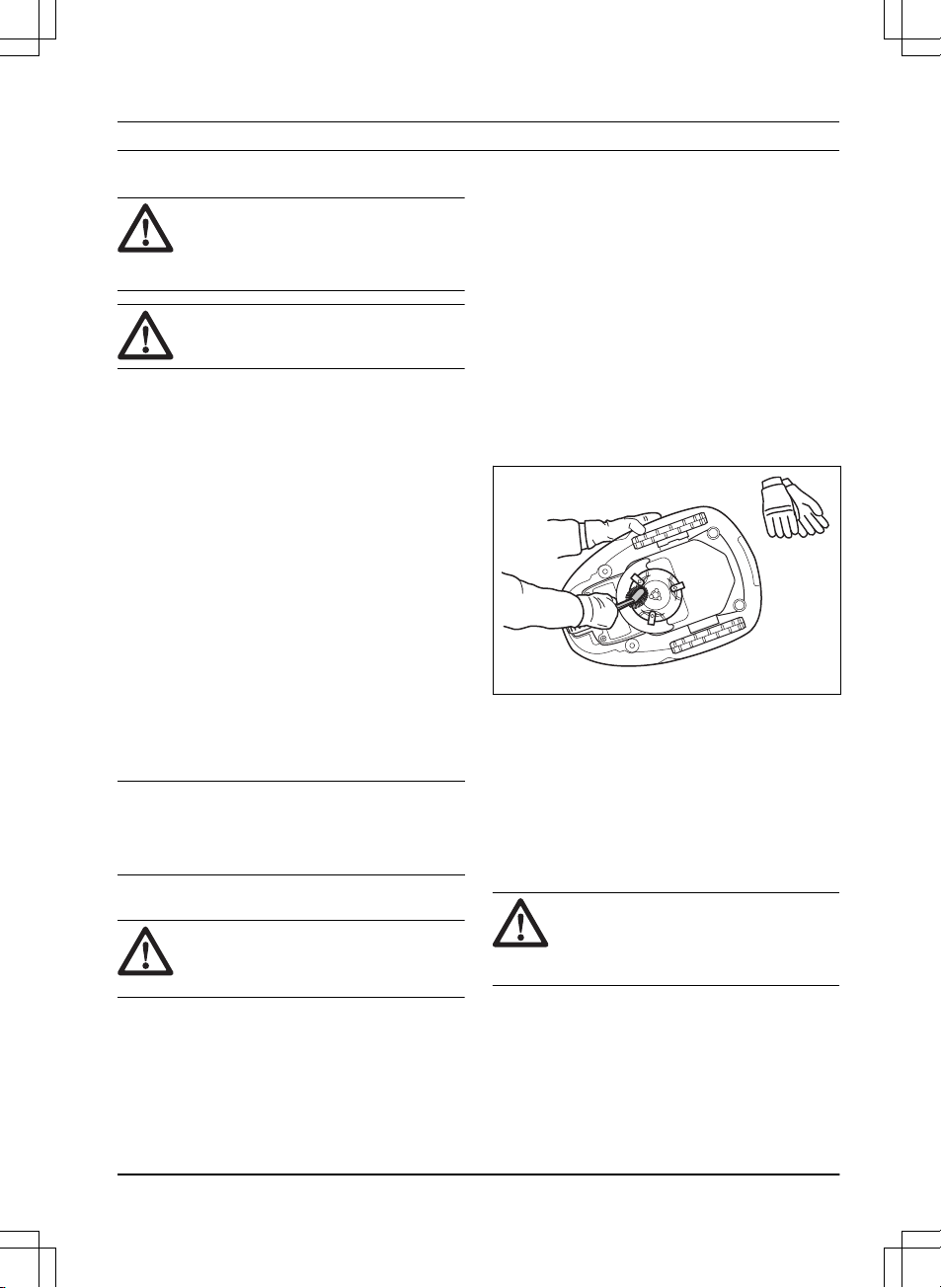
5 Maintenance
5.1 Introduction - maintenance
WARNING: The product must be
switched off before any maintenance is
done. The product is disabled when the LED
status indicator is not lit.
WARNING: Wear protective gloves.
For better operation and longer service life, make sure
to clean the product regularly and replace worn parts. All
maintenance and servicing must be done according to
McCulloch's instructions. Refer to
Warranty on page
47
.
When the product is first used, the blade disc and
blades should be inspected once a week. If the amount
of wear during this period has been low, the inspection
interval can be increased.
It is important that the blade disc rotates easily. The
edges of the blades should not be damaged. The
lifetime of the blades varies immensely and depends for
instance on:
• Operating time and size of the work area.
• Type of grass and seasonal growth.
• Soil, sand and use of fertilizers.
• The presence of objects such as cones, windfalls,
toys, tools, stones, roots and the like.
The normal life is 4 to 7 weeks when used under
favorable conditions. Refer to
To replace the blades on
page 30
on how to replace the blades.
Note:
Working with blunt blades gives a poorer
mowing result. The grass is not cut cleanly and more
energy is needed resulting in the product not mowing
such a large area.
5.2 Clean the product
CAUTION:
Do not use a high-pressure
washer to clean the product. Do not use
solvents for cleaning.
The product does not operate satisfactorily in slopes if
the wheels are blocked with grass. Use a soft brush to
clean the product.
McCulloch recommends to use a special cleaning and
maintenance kit as an accessory. Speak to your
McCulloch central service.
5.2.1 Chassis and blade disc
Inspect the blade disc and blades once a week.
1. Push the STOP button.
2. Push the ON/OFF button for 3 seconds to switch
off the product.
3. Check that the indicator lamp on the keypad is not
lit.
4. If the product is dirty, clean it by using a brush or a
water hose. Do not use a high-pressure washer.
5. Lift the product onto its side.
6. Clean the blade disc and chassis using for
example a dish brush. At the same time, check
that the blade disc rotates freely in relation to the
foot guard. Also, check that the blades are intact
and can pivot freely.
5.2.2 Wheels
Clean around the wheels. Grass on the wheels can
impact on how the product performs in slopes.
5.2.3 The body of the product
Use a moist, soft sponge or cloth to clean the body of
the product. If the body of the product is dirty, use a mild
soap solution to clean it.
5.2.4 Charging station
WARNING:
Use the plug to disconnect
the charging station before any
maintenance, or cleaning of charging station
or power supply.
Clean the charging station regularly from grass, leaves,
twigs and other objects that may impede docking.
1411 - 007 - 23.09.2020
Maintenance - 29

5.3 Replace the blades
WARNING: Use blades and screws of
the right type. McCulloch can only guarantee
safety when using original blades. Only
replacing the blades and reusing the screw
can result in a screw wearing during
mowing. The blades can then be propelled
from under the body and cause serious
injury.
Replace worn or damaged parts for safety reasons.
Even if the blades are intact, they should be replaced on
a regular basis for the best mowing result and low
energy usage. All 3 blades and screws must be replaced
at the same time to obtain a balanced cutting system.
Use McCulloch original blades embossed with the
crowned H-mark logotype, refer to
Warranty terms on
page 47
.
5.3.1 To replace the blades
1. Press the STOP button.
2. Open the hatch.
3. Press the ON/OFF button for 3 seconds to turn off
the product.
4. Check that the indicator lamp on the keypad is not
lit.
5. Turn the product upside down. Place the product
on a soft and clean surface to avoid scratching the
body and the hatch.
6. Remove the 3 screws. Use a straight slot or cross-
tip screwdriver.
7. Remove each blade and screw.
8. Fasten new blades and screws.
9. Check that the blades can pivot freely.
5.4 Firmware update
If service is done by McCulloch customer service then
available firmware updates are downloaded to the
product by the service technician. Owners of McCulloch
products can update the firmware if this is initiated by
McCulloch. Registered users are in that case notified.
5.4.1 To update the firmware
1. Open the battery hatch. Refer to
To replace the
battery on page 31
.
2. Plug in a USB printer cable (USB A and USB B
contacts) in the product and your computer. The
USB printer cable is available as an accessory.
3. Go to www.mcculloch.com, search for and
download the firmware update tool and follow the
instructions.
4. Remove the USB printer cable and close the
battery hatch.
30
- Maintenance 1411 - 007 - 23.09.2020
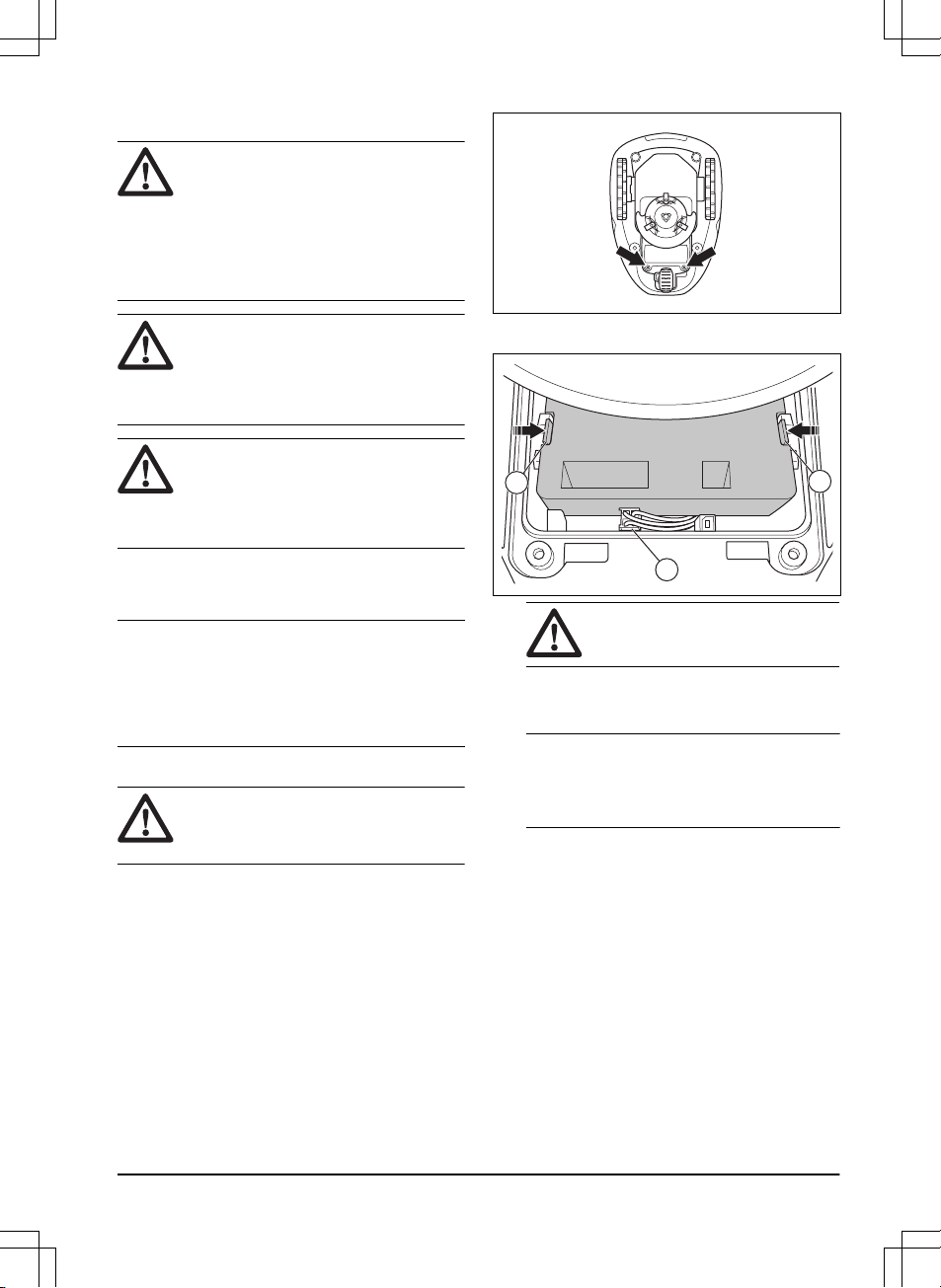
5.5 Battery
WARNING: Only charge the product
using a charging station which is intended
for it. Incorrect use may result in electric
shock, overheating or leakage of corrosive
liquid from the battery. In the event of
leakage of electrolyte flush with water and
seek medical help if it comes in contact with
the eyes etc.
WARNING: Use only original batteries
recommended by the manufacturer. Product
safety cannot be guaranteed with other
batteries. Do not use non-rechargeable
batteries.
CAUTION: The battery must charge a
complete cycle before winter storage. If the
battery is not fully charged it can be
damaged and in certain cases be rendered
useless.
If the operating time for the product is shorter than
normal between charges, this indicates that the battery
is getting old and eventually needs replacing.
Note: Battery life is dependent on the length of the
season and how many hours a day the product is
operating. A long season or many hours of use a day
means that the battery must be replaced more regularly.
The battery is fine as long as the product maintains a
well-cut lawn.
5.5.1 To replace the battery
WARNING:
The product must be
disconnected from the supply mains when
removing the battery.
1. Push the ON/OFF button for 3 seconds to switch
off the product. Check that the indicator lamp on
the keypad is not lit.
2. Set the cutting height to MIN.
3. Turn the product upside down. Place the product
on a soft and clean surface to avoid scratching the
body and the display cover.
4. Clean around the battery cover.
5. Unscrew the screws to the battery cover (Torx 20)
and remove the battery cover.
6. Release the latch of the connector (A) and pull it
upwards.
B
A
B
CAUTION: Do not pull the cables.
7. Release the latch of the battery and lift up the
battery (B).
8. Put the new battery into place in the product.
Note:
Fit the battery cover without clamping the
cables. If the seal on the battery cover is visibly
damaged, the entire battery cover must be
replaced.
9. Connect the cable.
10. Carefully tighten screws for the battery cover (Torx
20).
5.6 Winter service
Take your product to your McCulloch central service for
service prior to winter storage. Regular winter service
will maintain the product in good condition and create
the best conditions for a new season without any
disruptions.
Service usually includes the following:
• Thorough cleaning of the body, the chassis, the
blade disc and all other moving parts.
• Testing of the product’s function and components.
1411 - 007 - 23.09.2020
Maintenance - 31

• Checking and, if required, replacing wear items
such as blades and bearings.
• Testing the product’s battery capacity as well as a
recommendation to replace battery if necessary.
• If new firmware is available, the product is
updated.
32 - Maintenance 1411 - 007 - 23.09.2020
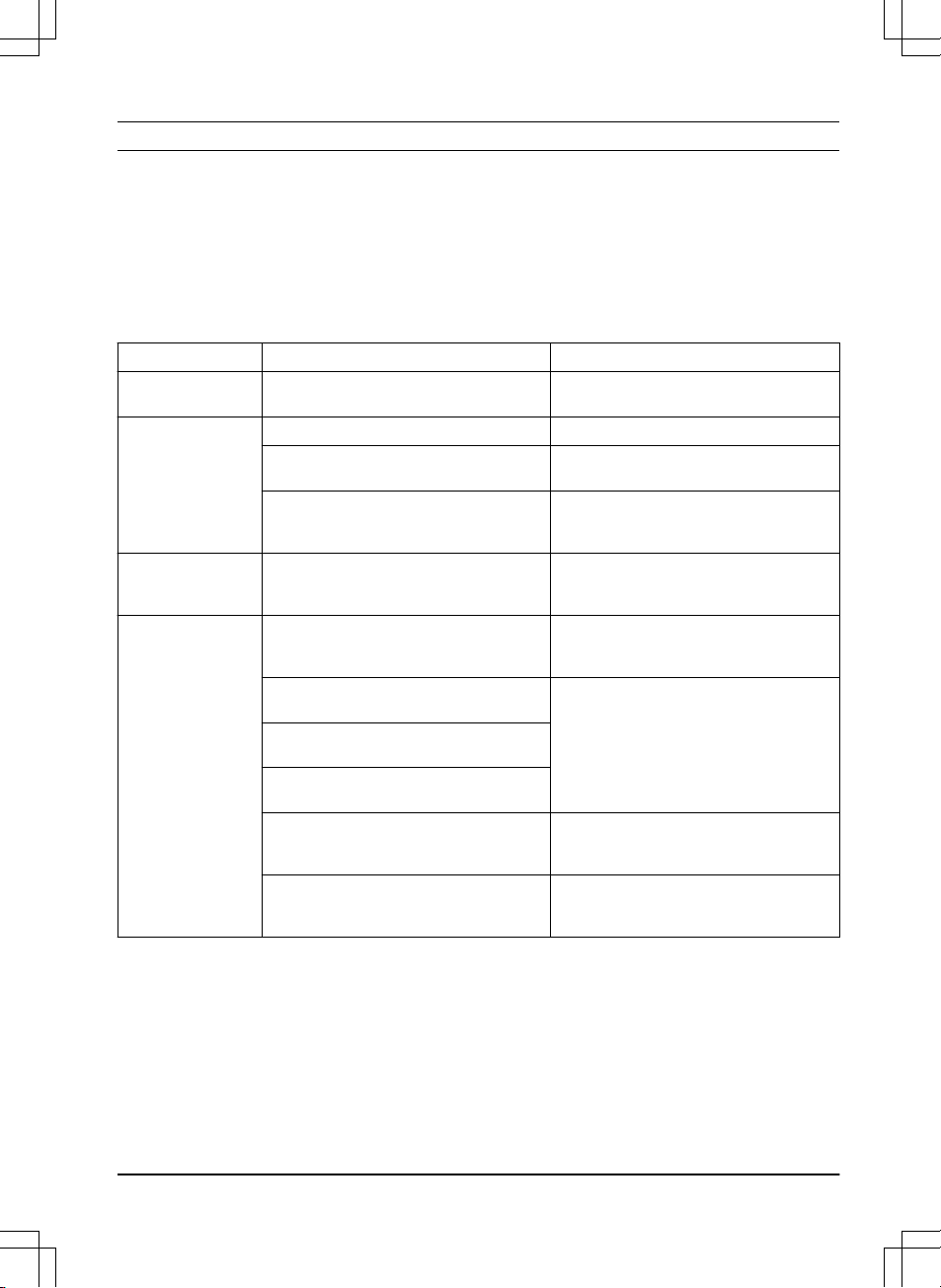
6 Troubleshooting
6.1 Introduction - troubleshooting
In this chapter you can find information and help about faults and symptoms of the product. You can find more
information and FAQ (Frequently Asked Questions) on www.mcculloch.com.
6.2 Fault messages
The fault messages in the table below are shown in the display of the product. Speak to your McCulloch
representative if the same message shows frequently.
Message Cause Action
Wheel motor
blocked, left/right
Grass or other object around the drive wheel. Remove grass or other object.
Cutting system
blocked
Grass or other object around the blade disc. Remove grass or other object.
The blade disc is in water. Move the product and prevent the collection
of water in the work area.
The grass is too high. Cut the grass before you install the product.
Make sure that the grass is maximum 4 cm /
1.6 in.
Trapped
The product is behind a number of obstacles
in a small area.
Remove the obstacles or put the boundary
wire around the obstacle to make an island.
Refer to
To make an island on page 15
.
Outside working area
A section of boundary wire is put across the
other section of boundary wire to the charg-
ing station.
Make sure that the boundary wire is connec-
ted correctly.
The boundary wire is too near the edge of
the work area.
Make sure that the boundary wire is installed
correctly. Refer to
To install the boundary
wire on page 18
.
The work area slopes much by the boundary
loop.
The boundary wire is put in the incorrect di-
rection around an island.
Interference to the boundary wire from metal
objects such as fences, reinforcement steel
or buried cables near by.
Move the boundary wire.
The product can not find the correct loop sig-
nal because of interference with a loop signal
from a different product installation near by.
Put the product in the charging station and
generate a new loop signal.
1411 - 007 - 23.09.2020 Troubleshooting - 33

Message Cause Action
Empty battery
The product cannot find the charging station. Change the position of the guide wire. Refer
to
To install the guide wire on page 18
.
The battery is expired. Replace the battery. Refer to
Battery on
page 31
.
The antenna of the charging station is defec-
tive.
Do a check if the indicator lamp in the charg-
ing station flashes red. Refer to
Indicator
lamp in the charging station on page 39
.
The charging plates on the product or con-
tact plates on the charging station are defec-
tive because of corrosion.
Clean the charging and contact plates using
a fine grade emery cloth. If the problem stays
speak to your authorized service technician.
Wrong PIN code
Incorrect PIN code has been entered. 5 tries
are permitted to enter the correct PIN code,
and then the keypad is blocked for a period
of time.
Enter the correct PIN code. Speak to your
McCulloch customer service if you forget the
PIN code.
No drive
The product has got caught in something and
has been slipping.
Free the product and correct the cause of
problem. If it is because of wet grass, wait
until the lawn is dry before you use the prod-
uct.
The work area includes a steep slope. Steep slopes must be isolated. Refer to
To
examine where to put the boundary wire on
page 13
.
The guide wire is not put diagonally in the
slope.
Make sure that the guide wire is installed di-
agonally across the slope. Refer to
To exam-
ine where to put the guide wire on page 16
.
Wheel motor overloa-
ded, left/right
Grass or other object around the drive wheel. Remove grass or object from the drive
wheel.
Collision sensor
problem, front/rear
The product body cannot move freely around
its chassis.
Make sure that the product body can move
freely around its chassis. If the problem stays
speak to your authorized service technician.
Alarm! Mower switch-
ed off
The alarm has started because the product
had been switched off.
Adjust the security level in the
Security
menu. Refer to
Security level on page 22
.
Alarm! Mower stop-
ped
The alarm has started because the product
has been stopped.
Alarm! Mower lifted
The alarm has started because the product
has been lifted.
Alarm! Mower tilted
The alarm has started because the product
has been tilted.
34 - Troubleshooting 1411 - 007 - 23.09.2020
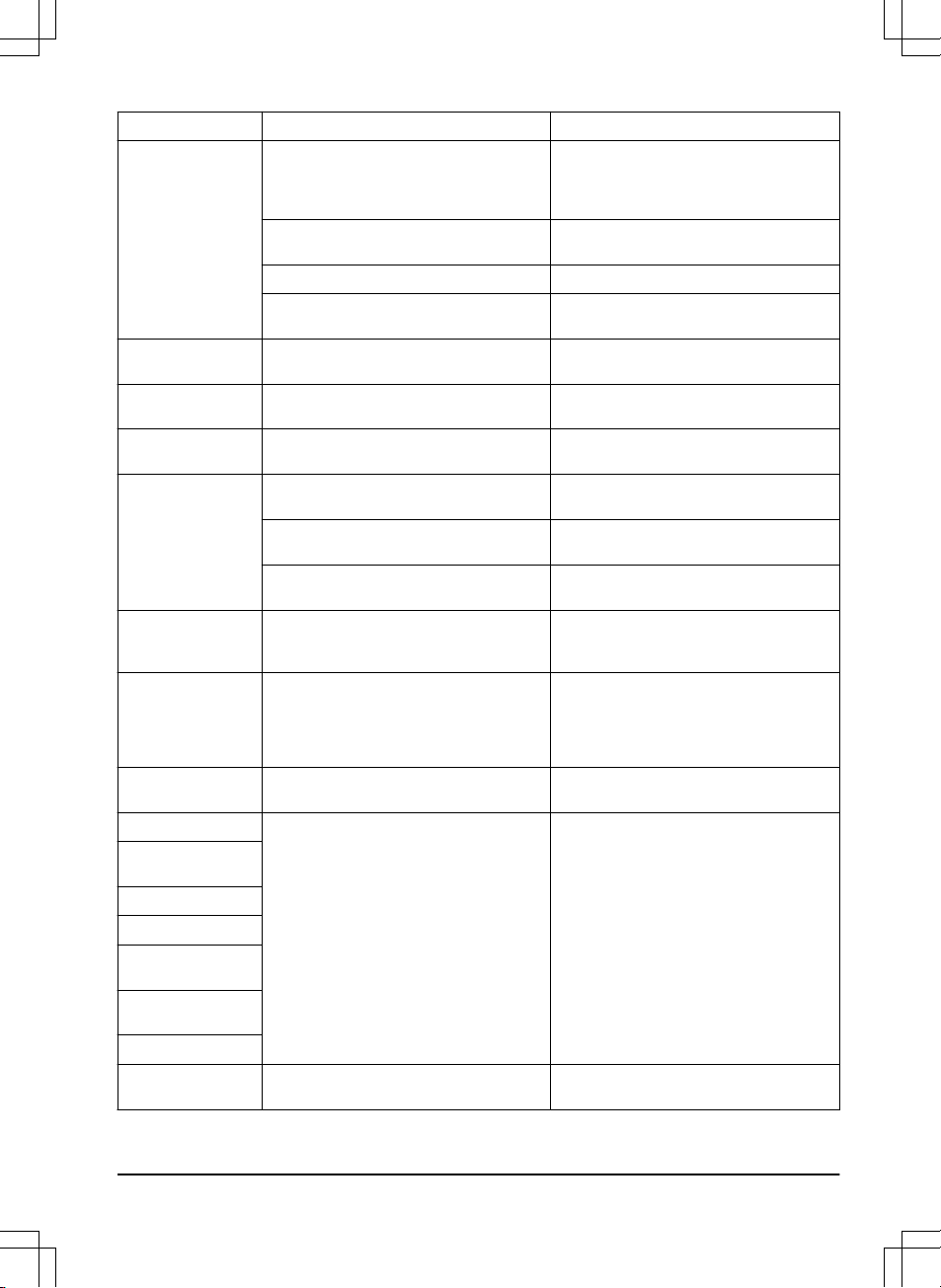
Message Cause Action
Charging station
blocked
The contact between the charging plates on
the product and the contact plates on the
charging station is not good. The product has
made a number of tries to charge.
Put the product in the charging station and
make sure that the charging plates and con-
tact plates are connected.
An object prevents the product to enter the
charging station.
Remove the object.
The charging station is tilted or bent. Put the baseplate on level ground.
The guide wire is not installed correctly. Install the guide wire correctly. Refer to
To
install the guide wire on page 18
.
Stuck in charging sta-
tion
An object prevents the product to move out
from the charging station.
Remove the object.
Upside down
The product is in an incorrect position, the
product is tilting too much or is upside down.
Put the product in the correct position.
Needs manual charg-
ing
The product is set to the
Secondary area
op-
erating mode.
Put the product in the charging station.
Next start hh:mm
The schedule setting prevents the product
from operating.
Change the schedule settings. Refer to
To
do the schedule settings on page 21
.
The product has operated the maximum cut-
ting time for the day.
Usual operation of the product.
The time or date in the product is not correct. Set the time or date. Refer to
To set the time
& date on page 25
.
Today's mowing
completed
The product has operated the maximum cut-
ting time for the day.
Usual operation of the product. Refer to
Make an estimate of the necessary operating
time on page 22
.
Lifted
The lift sensor has been enabled because
the product has been lifted.
Make sure that the product body can move
freely around its chassis. Remove or create
an island around objects that can cause the
chassis to be lifted. If the problem stays
speak to your authorized service technician.
Wheel drive problem,
right/left
Grass or other object around the drive wheel. Clean the wheels and around the wheels.
Electronic problem
Temporary electronic or firmware related
problem in the product.
Restart the product. If the problem stays
speak to your authorized service technician.
Loop sensor prob-
lem, front/rear
Tilt sensor problem
Temporary problem
Invalid sub-device
combination
Temporary battery
problem
Safety function faulty
Charging system
problem
Incorrect type of battery. Use original batteries recommended by the
manufacturer.
1411 - 007 - 23.09.2020 Troubleshooting - 35
Message Cause Action
Battery problem
Temporary battery or firmware related prob-
lem in the product.
Restart the product. If the problem stays
speak to your authorized service technician.
Incorrect type of battery. Use original batteries recommended by the
manufacturer.
Battery temperature
outside limits
The temperature in the battery is too high or
too low to start operation.
The product will start to operate when the
temperature is in limits.
Charging current too
high
Incorrect or defective power supply unit. Restart the product. If the problem stays
speak to your authorized service technician.
Connectivity problem
Problem on the connectivity circuit board in
the product.
Restart the product. If the problem stays
speak to your authorized service technician.
Connectivity settings
restored
The connectivity settings was restored be-
cause of a fault.
Do a check of the connectivity settings and
change the settings if necessary.
Poor signal quality
The connectivity circuit board in the product
is assembled incorrectly.
Examine if the connectivity circuit board is
assembled correctly. If the problem stays
speak to your authorized service technician.
The product is in an incorrect position, the
product is tilting too much or is upside down.
Put the product in the correct position.
36 - Troubleshooting 1411 - 007 - 23.09.2020

Message Cause Action
No loop signal
The power supply or low-voltage cable are
not connected.
If the LED status indicator on the charging
station is not lit, it shows that there is no
power. Examine the power outlet connection
and the residual-current device. Make sure
that the low-voltage cable is connected to the
charging station.
The power supply or low-voltage cable are
damaged or not connected.
Replace the power supply or low-voltage ca-
ble.
The boundary wire is not connected to the
charging station.
Connect the boundary wire to the charging
station. Replace the connectors if damaged.
Refer to
To install the boundary wire on page
18
.
The boundary wire is damaged. Do a check of the LED status indicator on the
charging station. If it shows damage in the
boundary wire, replace the damaged section
with new boundary wire.
The product has tried to start but it is not in
the charging station and
ECO mode
is ena-
bled.
Put the product in the charging station, start
the product and close the hatch.
A section of the boundary wire is across the
other section of boundary wire to and from
an island.
Install the boundary wire in the correct direc-
tion around the island. Refer to
To install the
boundary wire on page 18
.
Problem with the pairing between the product
and the charging station.
Put the product in the charging station and
make a new loop signal. Refer to
To make a
new loop signal on page 23
.
Interference from metal objects such as fen-
ces, reinforcement steel or buried cables
near by.
Move the boundary wire and/or make islands
in the work area to increase the signal
strength.
The product is too far from the boundary
wire.
Install the boundary wire to make all parts of
the work area maximum 15 m / 50 ft. from
the boundary wire.
Mower tilted
The product is tilted more than the maximum
angle.
Move the product to a level area.
Connection NOT
changed
The loop signal was not changed because of
an error.
Make a
New loop signal
a number of times.
Refer to
To make a new loop signal on page
23
. If the problem stays speak to your au-
thorized service technician.
1411 - 007 - 23.09.2020 Troubleshooting - 37
6.3 Information messages
The information messages in the table below are shown in the display of the product. Speak to your McCulloch
representative if the same message shows frequently.
Message Cause Action
Low battery
The product cannot find the charging station. Change the position of the guide wire. Refer
to
To install the guide wire on page 18
.
The battery is expired. Replace the battery. Refer to
Battery on
page 31
.
The antenna of the charging station is defec-
tive.
Do a check if the indicator lamp in the charg-
ing station flashes red. Refer to
Indicator
lamp in the charging station on page 39
.
The charging plates on the product or con-
tact plates on the charging station are defec-
tive because of corrosion.
Clean the charging and contact plates using
a fine grade emery cloth. If the problem stays
speak to your approved servicing dealer.
Settings restored
A
Reset all user settings
has been done. Usual operation of the product.
Guide not found
The guide wire is not connected to the charg-
ing station.
Connect the guide wire to the charging sta-
tion. Refer to
To install the guide wire on
page 18
.
Damage in the guide wire. Replace the damaged section with new
guide wire.
The guide wire is not connected to the boun-
dary loop.
Connect the guide wire correctly to the boun-
dary loop. Refer to
To install the guide wire
on page 18
.
Guide calibration
failed
The product has not calibrated the guide wire
because of an error.
Install the guide wire correctly. Refer to
To
install the guide wire on page 18
.
Guide calibration
done
The product has calibrated the guide wire. Usual operation of the product.
Connection changed
New loop signal changed. Usual operation of the product.
38 - Troubleshooting 1411 - 007 - 23.09.2020
6.4 Indicator lamp in the charging station
The indicator lamp in the charging station must show a solid or flashing green light for a correct installation. If not,
follow the instructions in the troubleshooting table below.
Speak to your McCulloch customer service for more information.
Light Cause Action
Green solid light Good signals. Usual operation of the product.
Green flashing light The signals are good and
ECO mode
is ena-
bled.
Usual operation of the product. Refer to
ECO
mode on page 24
.
Blue flashing light The boundary wire is not connected to the
charging station.
Make sure that the boundary wire is correctly
installed in the charging station. Refer to
To
install the boundary wire on page 18
.
Damage in the boundary wire. Find out where the damage is. Replace the
damaged section with new boundary wire.
Yellow flashing light The guide wire is not connected to the charg-
ing station.
Make sure that the guide wire is correctly in-
stalled in the charging station. Refer to
To in-
stall the guide wire on page 18
Damage in the guide wire. Find out where the damage is. Replace the
damaged section with new guide wire.
Red flashing light Interference in the antenna of the charging
station.
Speak to your McCulloch customer service.
Red solid light Error in the circuit board or incorrect power
supply in the charging station. The error must
be corrected by an authorized service techni-
cian.
Speak to your McCulloch customer service.
1411 - 007 - 23.09.2020 Troubleshooting - 39

6.5 Symptoms
If the product does not operate as usual, follow the symptoms table below. Speak to your McCulloch customer service
if you cannot find the cause for the fault.
Symptoms Cause Action
The product has diffi-
culty docking.
The guide wire is not put straight in a line
and correct distance from the charging sta-
tion.
Do a check of the installation of the charging
station. Refer to
To install the charging sta-
tion on page 17
.
The guide wire is not put in the slot in the
charging station plate.
Make sure that the guide wire is put straight
in a line and put in the slot in the charging
station plate. Refer to
To install the guide
wire on page 18
.
The charging station is not on a level sur-
face.
Put the charging station on a level surface.
Refer to
To examine where to put the charg-
ing station on page 12
.
The product operates
at the wrong time.
The time or the date in the product is not cor-
rect.
Set the time or date. Refer to
To set the time
& date on page 25
.
The start and stop times for operating are in-
correct.
Change the schedule settings. Refer to
To
reset the schedule setting on page 22
.
The product vibrates. The cutting system is not in balance because
of damaged blades.
Examine the blades and screws and replace
them if necessary. Refer to
Replace the
blades on page 30
.
The cutting system is not in balance because
of too many blades in the same position.
Do a check that only one blade is attached to
each screw.
Different thickness of blades are installed on
the product.
Do a check if the blades are of different thick-
ness and replace if necessary.
The product oper-
ates, but the blade
disc does not rotate.
The product searches for the charging sta-
tion, or is moving to the starting point.
Usual operation for the product. The blade
disc does not rotate when the product is
searching for the charging station.
The product operates
for shorter periods
than usual between
charges.
Grass or other object causes a blockage to
the blade disc.
Remove and clean the blade disc. Refer to
Chassis and blade disc on page 29
.
The battery is expired. Replace the battery. Refer to
Battery on
page 31
.
Blunt blades. More energy is necessary
when cutting the grass.
Replace the blades. Refer to
Replace the
blades on page 30
.
Mowing and charging
times are shorter
than usual.
The battery is expired. Replace the battery. Refer to
Battery on
page 31
.
40 - Troubleshooting 1411 - 007 - 23.09.2020
Symptoms Cause Action
The product is
parked for hours in
the charging station.
The product has operated the maximum cut-
ting time for the day.
Usual operation for the product. Refer to
Make an estimate of the necessary operating
time on page 22
.
The STOP button has been pushed. Open the hatch, enter the PIN code and
push the OK button. Push the Start button
and then close the hatch.
Parking mode is enabled. Change the operating mode. Refer to
Oper-
ating modes on page 26
.
The product does not operate if the battery
temperature is too high or too low.
Make sure that the charging station is put in
an area with protection from the sun.
Uneven mowing re-
sults.
The product operates for a small number of
hours per day.
Increase the cutting time. Refer to
Make an
estimate of the necessary operating time on
page 22
.
For the shape of the work area it is necessa-
ry to adjust the settings for
Lawn Coverage
to cover all parts of the work area.
Change the settings of the areas where the
product starts to cut and how often. Refer to
To set the Lawn Coverage function on page
23
.
The work area is too large. Decrease the size of the work area or extend
the schedule. Refer to
To set the schedule
on page 21
.
Blunt blades. Replace all the blades. Refer to
Replace the
blades on page 30
.
Long grass in relation to the set cutting
height.
Increase the cutting height and then lower it
when the grass is shorter.
Collection of grass by the blade disc or
around the motor shaft.
Remove the collection of grass and clean the
product. Refer to
Clean the product on page
29
.
6.6 Find breaks in the loop wire
Breaks in the loop wire are usually the result of
unintentional physical damage to the wire such as when
gardening with a shovel. In countries with ground frost,
also sharp stones that move in the ground can damage
the wire. Breaks can also occur due to the wire being
stretched excessively during installation.
Mowing the grass too low right after the installation can
damage wire insulation. Damage to the insulation may
not cause disruptions until several weeks or months
later. To avoid this, always select the maximum cutting
height the first weeks after installation and then lower
the height one step at a time every second week until
the desired cutting height has been reached.
A defective splicing of the loop wire can also lead to
disruptions several weeks after the splice was done. A
faulty splice can, for example, be the result of the
coupler not being pressed together hard enough with a
pair of pliers, or that a coupler of lower quality than the
original coupler has been used. Please first check all
known splices before further troubleshooting is done.
A wire break can be located by gradually halving the
distance of the loop where the break may have occurred
until there is only a very short section of the wire left.
The following method does not work if
ECO mode
is
activated. Make sure first that
ECO mode
is switched
off. Refer to
ECO mode on page 24
.
1. Check that the indicator lamp in the charging
station flashes blue, which indicates a break in the
boundary loop. Refer to
Indicator lamp in the
charging station on page 39
.
1411 - 007 - 23.09.2020 Troubleshooting - 41
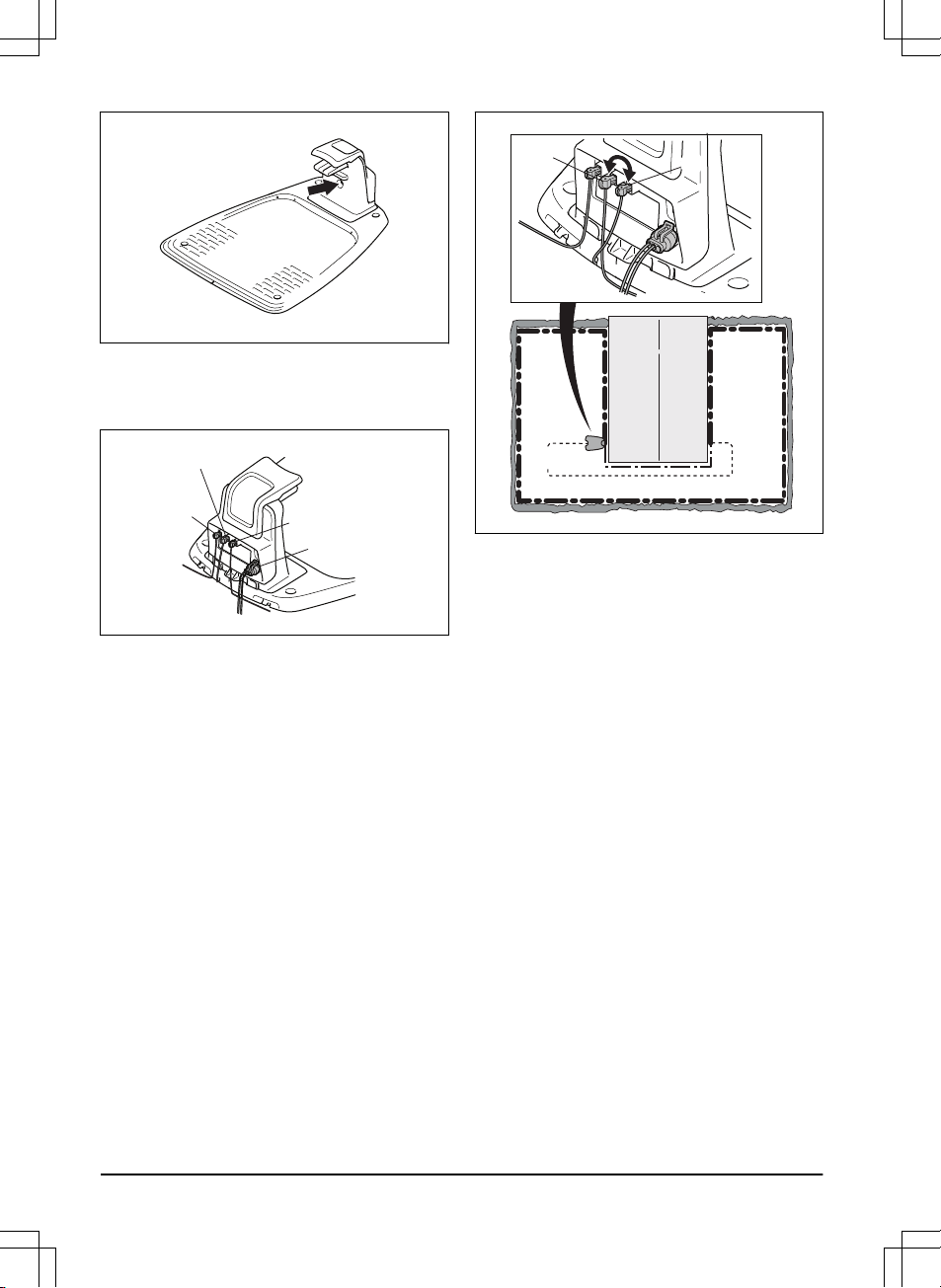
2. Check that the boundary wire connections to the
charging station are properly connected and not
damaged. Check that the indicator lamp in the
charging station is still flashing blue.
R
GUIDE
L
POWER
3. Switch the connections between the guide wire
and the boundary wire in the charging station.
Start by switching connection L and GUIDE.
If the indicator lamp is flashing yellow, then the
break is somewhere on the boundary wire between
L and the point where the guide wire is connected
to the boundary wire (thick black line in the
illustration).
GUIDE
L
Guide
To rectify the fault you will need boundary wire,
connector(s) and coupler(s):
a) If the suspected boundary wire is short then it is
easiest to exchange all of the boundary wire
between L and the point where the guide wire is
connected to the boundary wire (thick black line).
b) If the suspected boundary wire is long (thick
black line) then do as follows: Put L and GUIDE
back to their original positions. Then disconnect R.
Connect a new loop wire to R. Connect the other
end of this new loop wire at the middle of the
suspected wire section.
42
- Troubleshooting 1411 - 007 - 23.09.2020
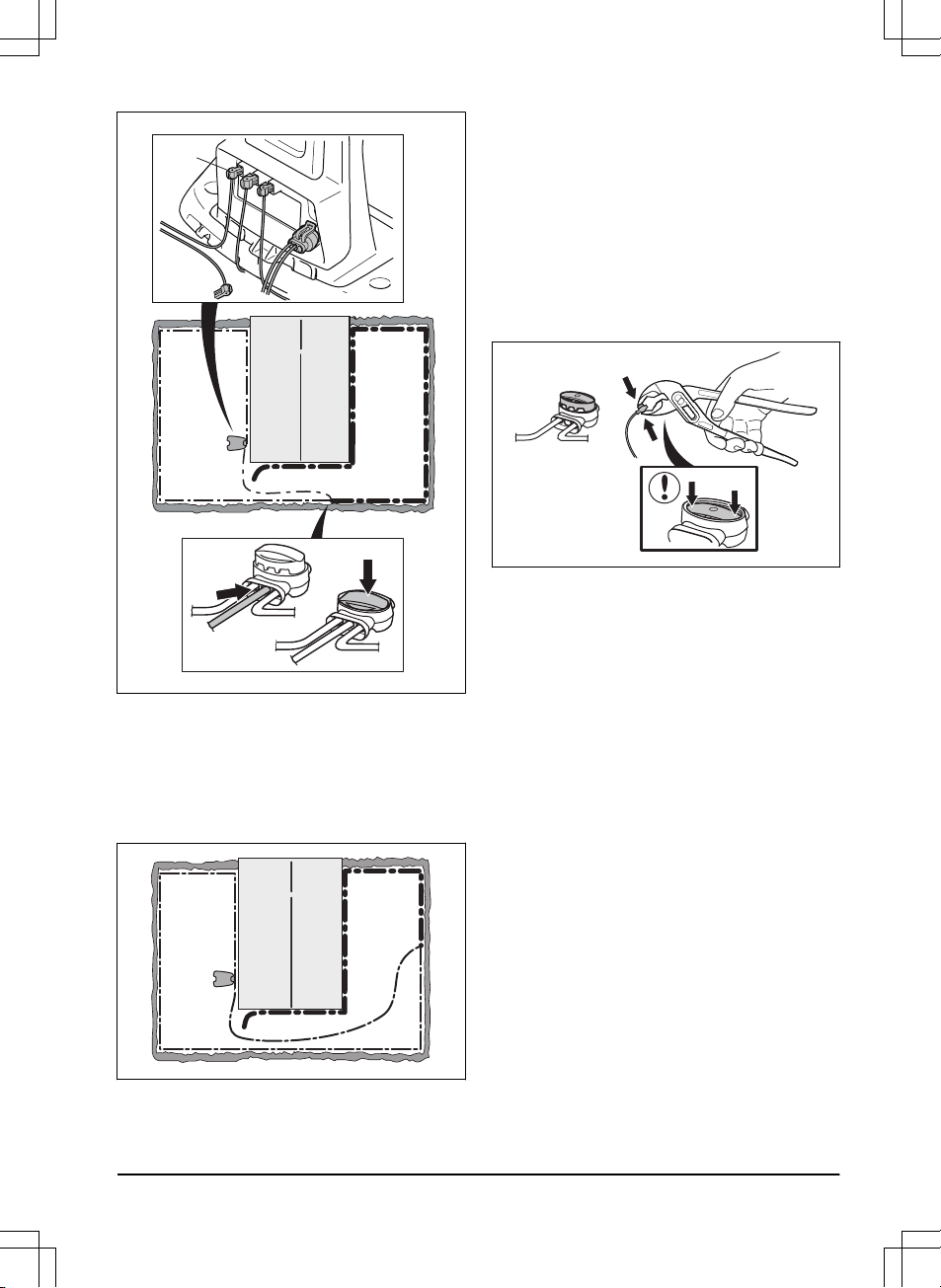
R
If the indicator lamp now is flashing yellow, then
the break is somewhere in the wire between the
disconnected end to the point where the new wire
is connected (thick black line below). In that case,
move the connection for the new wire closer to the
disconnected end (roughly at the middle of the
suspected wire section) and check again if the
indicator lamp is green.
Continue until only a very short section of the wire
remains which is the difference between a solid
green light and a flashing blue light. Then follow
instruction in step 5 below.
4. If indicator lamp still flashes blue in step 3
above: Put L and GUIDE back in their original
positions. Then switch R and GUIDE. If indicator
lamp now is lit with a solid green light then
disconnect L and connect a new boundary wire to
L. Connect the other end of this new wire at the
middle of the suspected wire section. Follow the
same approach as in 3a) and 3b) above.
5. When the break is found, the damaged section
must be replaced with a new wire. Always use
original couplers.
1411 - 007 - 23.09.2020 Troubleshooting - 43

7 Transportation, storage and disposal
7.1 Transportation
The supplied Li-ion batteries obey the Dangerous Goods
Legislation requirements.
• Obey all applicable national regulations.
• Obey the special requirement on package and
labels for commercial transportations, including by
third parties and forwarding agents.
7.2 Storage
• Fully charge the product. Refer to
To charge the
battery on page 28
.
• Disconnect the product with the ON/OFF button.
Refer to
The ON/OFF button on page 26
.
• Clean the product. Refer to
Clean the product on
page 29
.
• Keep the product in a dry, frost free space.
• Keep the product with all wheels on level ground
during storage, or use a McCulloch wall hanger.
• If you keep the charging station indoors,
disconnect and remove the power supply and all
the connectors from the charging station. Put the
end of each connector wire in a container with
grease.
Note: If you keep the charging station outdoors, do
not disconnect the power supply and the connectors.
7.3 Disposal
• Obey the local recycling requirements and
applicable regulations.
• For questions about how to remove the battery,
refer to
To replace the battery on page 31
.
44
- Transportation, storage and disposal 1411 - 007 - 23.09.2020
8 Technical data
8.1 Technical data
Data ROB S600, ROB S800
Dimensions
Length, cm / in. 55 / 21.7
Width, cm / in. 38 / 15.0
Height, cm / in. 23 / 9.1
Weight, kg / lb. 7.3 / 16.0
Electrical system ROB S600, ROB S800
Battery, Lithium-Ion 18 V/2.1 Ah Art.No 584 85 28-01, 584 85 28-02
Battery, Lithium-Ion 18 V/2.0 Ah Art.No 590 21 42-02, 590 21 42-04, 584 85 28-03, 584 85 28-05
Battery, Lithium-Ion 18.25 V/2.0 Ah Art.No 590 21 42-03, 584 85 28-04
Power supply (28V DC), V AC 100-240
Low voltage cable length, m / ft. 5 / 16.4
Type of power supply unit
2
ADP-40BR XX, ADP 28EW XX, FW7313/28/D/XX/Y/1.3/
PI, FW7313/28/D/XX/Y/1.3, ADP 28AR XX,
FW7313/28/D/XX/Y/1.0/PI, FW7313/28/D/XX/Y/1.0
Mean energy consumption at maximum use 5 kWh/month in a 500 m
2
work area
Charge current, A DC 1.0
Average mowing time, min 65
Average charging time, min 75
Boundary wire antenna ROB S600, ROB S800
Operating Frequency Band, Hz 100-80000
Maximum magnetic field
3
, dBuA/m 82
Maximum Radio-frequency power
4
, mW @60m <25
2
XX, YY can be any alphanumeric characters or blank for marketing purpose only, no technical differences.
3
Measured according to EN 303 447.
4
Maximum active output power to antennas in the frequency band in which the radio equipment operates.
1411 - 007 - 23.09.2020 Technical data - 45

Noise emissions measured in the environment as sound
power
5
ROB S600, ROB S800
Measured sound power noise level, dB (A) 56
Noise emissions uncertainties K
WA
, dB (A) 2
Guaranteed sound power noise level, dB (A) 57
Sound pressure noise level at the operator’s ear
6
, dB (A) 45
Mowing ROB S600, ROB S800
Cutting system 3 pivoted cutting blades
Blade motor speed, rpm 2500
Power consumption during cutting, W +/- 20 % 20
Cutting height, cm / in. 2-5 / 0.8-2
Cutting width, cm / in. 16 / 24
Narrowest possible passage, cm / in. 60 / 24
Maximum distance to boundary wire, m / ft 15 / 50
Maximum slope for cutting area, % 35
Maximum slope for boundary wire, % 10
Maximum length boundary wire, m / ft. 300 / 980
Maximum length guide loop
7
, m / ft. 150 / 490
IP-classification ROB S600, ROB S800
Product IPX5
Charging station IPX5
Power supply IP44
Bluetooth
®
ROB S600, ROB S800
Operating frequency band, MHz 2400 - 2484
Maximum transmitted power, dBm 8
Husqvarna AB does not guarantee full compatibility between the product and other types of wireless systems such as
remote controls, radio transmitters, hearing loops, underground electric animal fencing or similar.
The products are made in England or the Czech Republic. See information on the rating plate. Refer to
Introduction
on page 3
.
8.2 Registered trademarks
The
Bluetooth
®
word mark and logos are registered trademarks owned by and any use of such marks by McCulloch is
under license.
5
Determined according to Directive 2006/42/EC and standard EN 50636-2-107.
6
Sound pressure noise uncertainties K
pA
, 2-4 dB (A)
7
The guide loop is the loop that if formed by the guide wire and the part of the boundary wire from the junction
with the guide wire to the right connection in the charging station.
46 - Technical data 1411 - 007 - 23.09.2020

9 Warranty
9.1 Warranty terms
McCulloch warranty covers this product's functionality
for a period of 2 years from date of purchase. The
warranty covers serious faults relating to materials or
manufacturing faults. Within the warranty period, we will
replace the product or repair it at no charge if the
following terms are met:
• The product and the charging station may only be
used in compliance with the instructions in this
Operator’s Manual. This manufacturer's warranty
does not affect warranty entitlements against the
dealer/retailer.
• End-users or non-authorized third parties must not
attempt to repair the product.
Examples of faults which are not included in the
warranty:
• Damage caused by water seepage from using a
high-pressure washer, or from being submerged
under water, for example when heavy rain forms
pools of water.
• Damage caused by lightning.
• Damage caused by improper battery storage or
battery handling.
• Damage caused by using a battery that is not a
McCulloch original battery.
• Damage caused by not using McCulloch original
spare parts and accessories, such as blades and
installation material.
• Damage to the loop wire.
• Damage caused by non-authorized changing or
tampering with the product or its power supply.
The blades and wheels are seen as disposable and are
not covered by the warranty.
If an error occurs with your McCulloch product, please
contact McCulloch customer service for further
instructions. Please have the receipt and the product’s
serial number at hand when contacting McCulloch
customer service.
1411 - 007 - 23.09.2020
Warranty - 47
10 EC Declaration of Conformity
10.1 EC Declaration of Conformity
Husqvarna AB, SE-561 82 Huskvarna, Sweden, tel:
+46-36-146500, declares that the robotic lawn mowers
ROB S600, ROB S800 with serial numbers dating 2020
week 45 and onwards (the year and week is clearly
stated on the rating plate, followed by the serial
number), comply with the requirements of the
COUNCIL’S DIRECTIVE as listed below including
applied standards.
• Directive “relating to machinery” 2006/42/EC.
• EN 60335-1:2012
• EN 50636-2-107:2015
• EN 62233:2008.
• Directive on ”restriction of use of certain hazardous
substances” 2011/65/EU:
• EN IEC 63000:2018
• Directive “relating to radio equipment” 2014/53/EU.
Safety
• See directive 2006/42/EC above.
Electromagnetic compatibility
• EN 55032:2015
• ETSI EN 301 489-1 V2.2.3
• ETSI EN 301 489-17 V3.1.1
Efficient use of the spectrum
• Draft ETSI EN 303 447 V1.2.1_0.1.14
• ETSI EN 300 328 V2.2.2
48
- EC Declaration of Conformity 1411 - 007 - 23.09.2020

1411 - 007 - 23.09.2020 EC Declaration of Conformity - 49

50 - EC Declaration of Conformity 1411 - 007 - 23.09.2020

1411 - 007 - 23.09.2020 EC Declaration of Conformity - 51

Copyright © 2020 Husqvarna AB. All rights reserved.
McCulloch and other product and feature names are trademarks of the Husqvarna Group.
All measurements quoted are approximate.
www.mcculloch.com
Original instructions
1142344-26
2020-10-08