
OWNER’S MANUAL
Network Integrated Amplier
Accessories
6
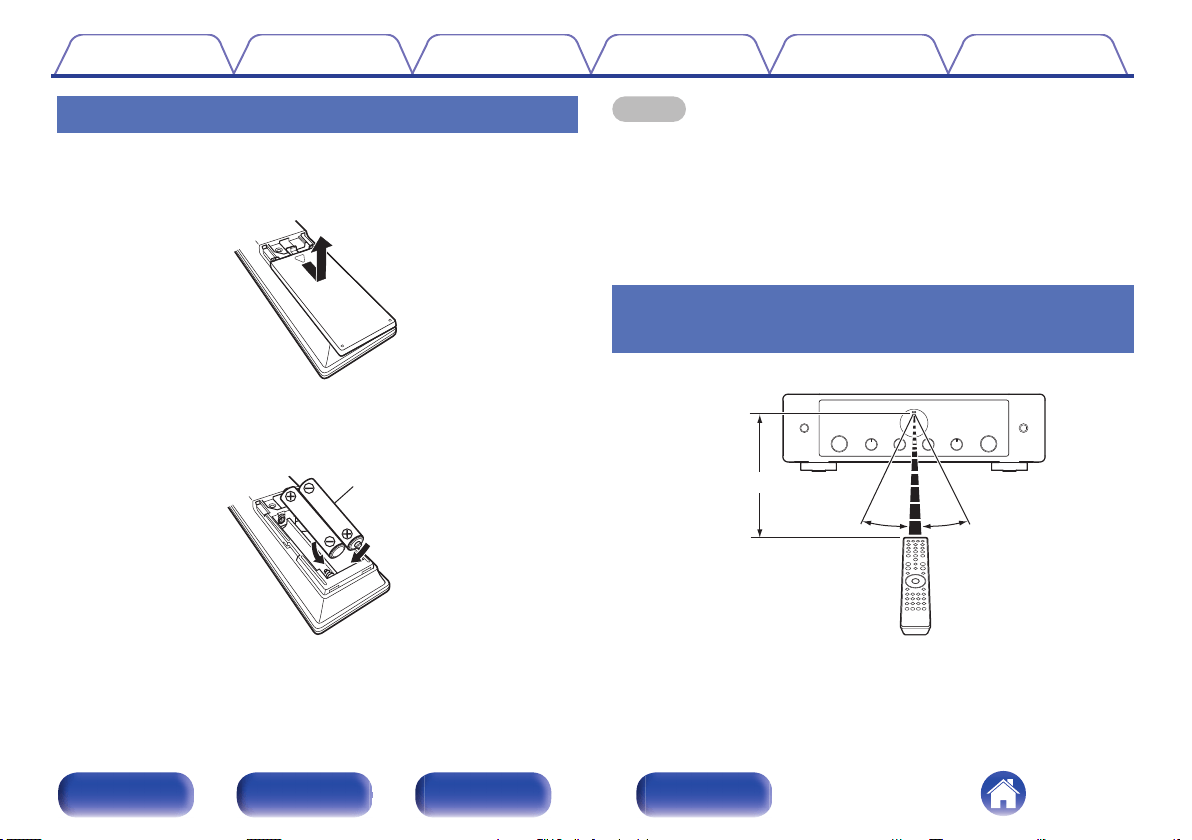
Inserting the batteries
7
Operating range of the remote control unit
7
Part names and functions
8
Front panel
8
Rear panel
11
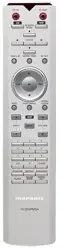
Remote control unit
14
Connections
Connecting speakers
20
Connecting the speaker cables
20
Connecting the subwoofer
21
Connecting speakers
22
Connecting a playback device
23
Connecting a recording device
24
Connecting to a device with digital audio connectors
25
Connecting a USB flash drive to the USB port
27
Connecting to a home network (LAN)
28
Wired LAN
28
Wireless LAN
29
Connecting a pre-amplifier
30
Connecting devices with remote control connectors
31
Performing operations by RC on this unit without visual contact
31
Remotely connecting Marantz audio devices
31
Connecting the power cord
32
Contents Connections Playback Settings Tips Appendix
2
Front panel Rear panel
Remote control
unit
Index
Playback
Basic operation
34
Turning the power on
34
Switching the power to standby
34
Selecting the input source
35
Adjusting the volume
35
Turning off the sound temporarily (Muting)
35
Playing CDs
36
Listening to music on a Bluetooth device
37
Listening to music on a Bluetooth device
38
Pairing with other Bluetooth devices
39
Reconnecting to this unit from a Bluetooth device
39
Playing digital input
40
Getting the HEOS App
42
Setting up the HEOS App for the first time with a HEOS built-in
device
43
Adding the registration of HEOS built-in devices in the HEOS App
44
HEOS Account
45
Playing from streaming music services
46
Listening to the same music in multiple rooms
49
Listening to Internet Radio
53
Playing music stored on your mobile
53
Playing back files stored on a PC or NAS
54
Playing music from a USB flash drive
54
AirPlay function
56
Playing songs from your iPhone, iPod touch or iPad
57
Playing iTunes music with this unit
57
Play a song from your iPhone, iPod touch or iPad on multiple
synced devices (AirPlay 2)
58
Spotify Connect function
59
Playing Spotify music with this unit
59
Convenience functions
60
Adjusting the tone and balance
60
Playback in source direct mode
60
Switching the display’s brightness
61
Using the sleep timer
61
Recording
62
Using this unit as a power amplifier
62
Contents Connections Playback Settings Tips Appendix
3
Front panel Rear panel
Remote control
unit
Index
Settings
Menu map
63
Menu operation
65
Audio
66
Digital Filter
66
Lock Range
66
Volume Limit
67
Low Pass Filter
67
TV
68
TV Input
68
Auto-Play
68
HDMI Power Off Control
68
General
69
Lighting
69
Auto-Standby
69
Reset
70
Network
71
Network & USB-A
71
Wi-Fi
71
Bluetooth
71
Network Control
72
Sharing and connecting to the Wi-Fi setting of an iOS device
73
Connecting by using the WPS button on the router
74
Tips
Tips
76
Troubleshooting
78
Power does not turn on / Power is turned off
79
Operations cannot be performed through the remote control unit
81
Display on this unit shows nothing
81
No sound comes out
82
Sound is interrupted or noise occurs
83
Desired sound does not come out
85
AirPlay cannot be played back
86
USB flash drives cannot be played back
87
Bluetooth cannot be played back
88
The Internet radio cannot be played back
89
Music files on PC or NAS cannot be played back (Music server)
90
Various online services cannot be played
91
Cannot connect to a wireless LAN network
91
Audio from digital devices cannot be played back (HDMI ARC/
Coaxial/Optical)
93
The input source switches to “HDMI ARC”, “Optical” or “Coaxial”
93
The HDMI control function does not work
93
Update/upgrade error messages
94
Restoring the firmware to the factory defaults
95
Contents Connections Playback Settings Tips Appendix
4
Front panel Rear panel
Remote control
unit
Index
Appendix
Playing back a USB flash drives
96
D/A converter
97
Playing back a Bluetooth device
98
Playing back files stored on a PC and NAS
99
Playing back Internet Radio
100
Last function memory
100
About HDMI
101
Explanation of terms
102
Trademark information
106
Specifications
107
Index
112
Contents Connections Playback Settings Tips Appendix
5
Front panel Rear panel
Remote control
unit
Index
Thank you for purchasing this Marantz product.
To ensure proper operation, please read this owner’s manual carefully before using the product.
After reading this manual, be sure to keep it for future reference.
Accessories
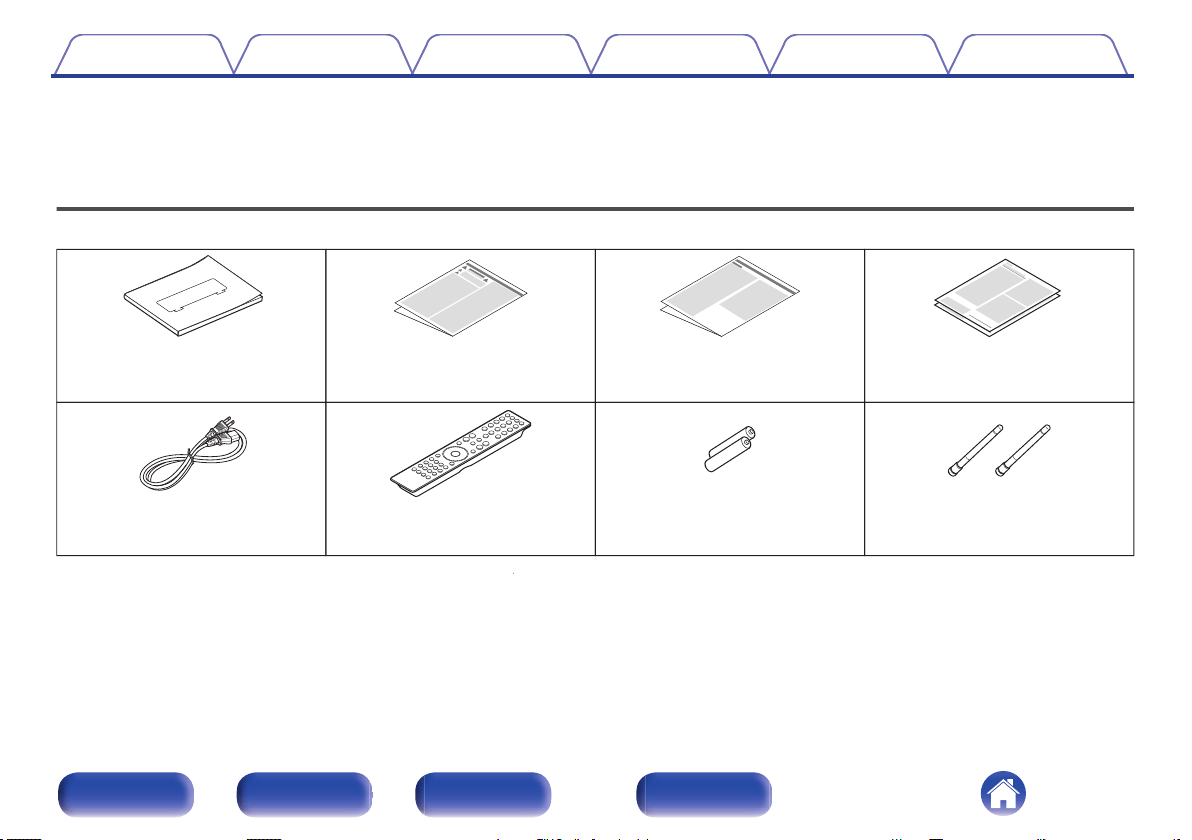
Check that the following parts are supplied with the product.
External antennas for
Bluetooth/wireless
connectivity
R03/AAA batteries
Power cord
Quick Start Guide Safety Instructions Notes on radio Warranty (for USA/for CANADA)
Remote control unit
(RC005PM)
Contents Connections Playback Settings Tips Appendix
6
Front panel Rear panel
Remote control
unit
Index
Inserting the batteries
1
Remove the rear lid in the direction of the arrow and
remove it.
2
Insert two batteries correctly into the battery
compartment as indicated.
Batteries
3
Put the rear lid back on.
NOTE
0
To prevent damage or leakage of battery fluid:
0
Do not use a new battery together with an old one.
0
Do not use two different types of batteries.
0
Remove the batteries from the remote control unit if it will not be in use for long
periods.
0
If the battery fluid should leak, carefully wipe the fluid off the inside of the battery
compartment and insert new batteries.
Operating range of the remote control
unit
Point the remote control unit at the remote sensor when operating it.
Approx. 23 ft/7 m
30° 30°
Contents Connections Playback Settings Tips Appendix
7
Front panel Rear panel
Remote control
unit
Index
er t
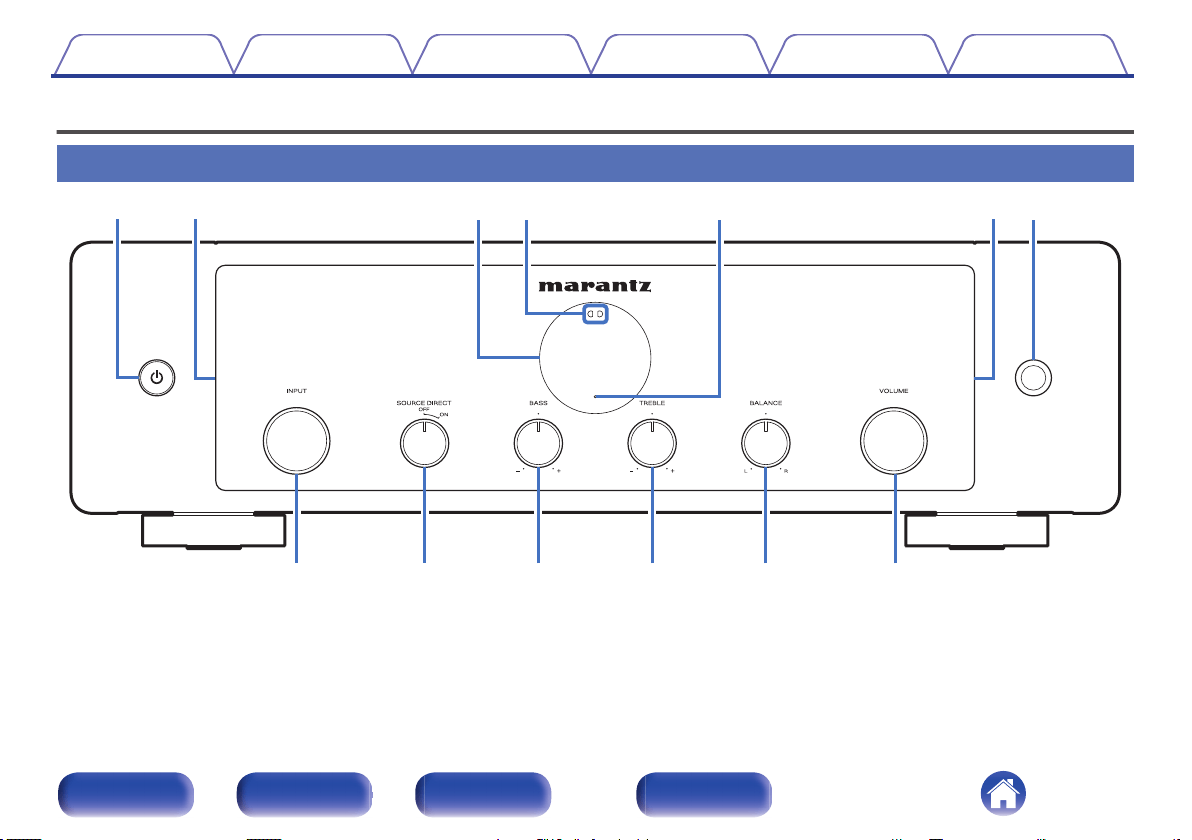
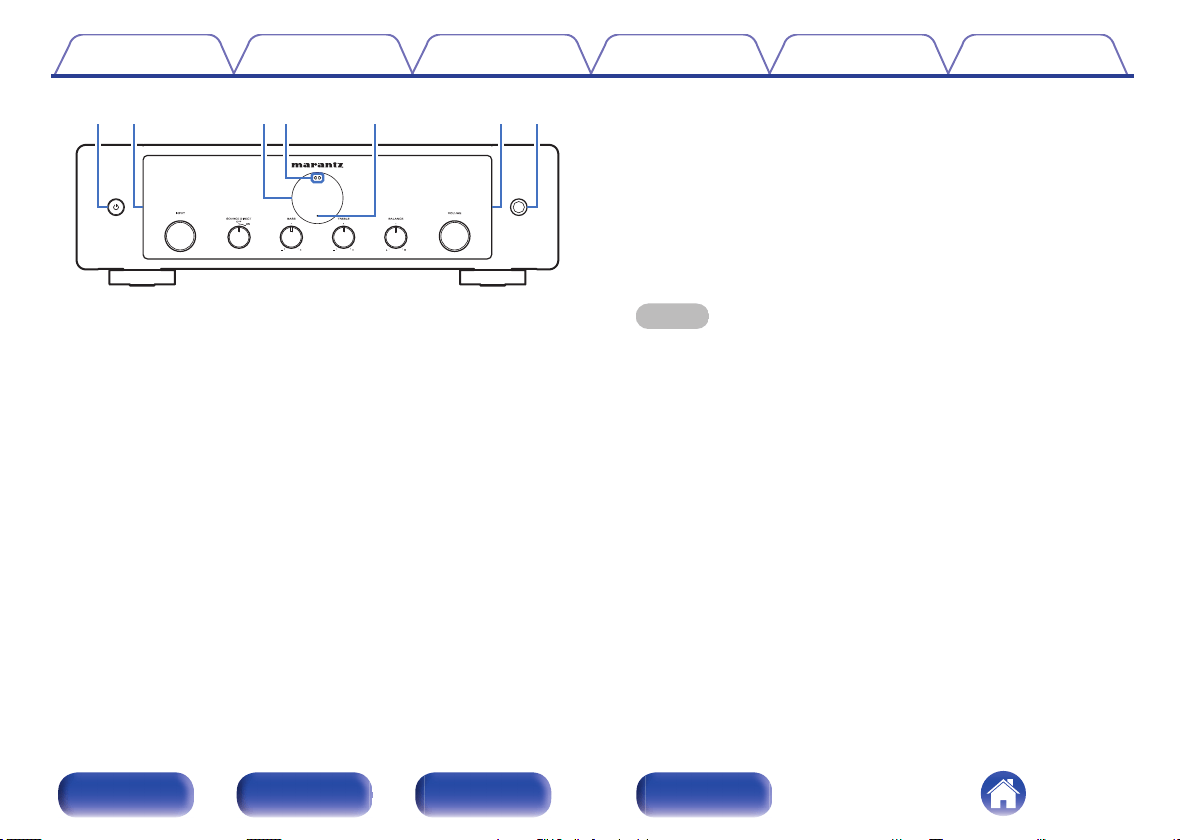
qwww
y
A
Power operation button (X)
This turns the power on/off (standby).
(v p. 34)
B
Lighting LED
This illuminates when the power is turned on. Brightness can be
changed and lighting turned off. (v p. 69)
C
Display
This displays various pieces of information.
D
Remote control sensor
This receives signals from the remote control unit.
(v p. 7)
E
Protection circuit indicator
This blinks when the protection circuit has operated. (v p. 105)
F
Headphones jack
Used to connect headphones.
When the headphones are plugged into this jack, audio will no longer
be output from the connected speakers and from the PRE OUT
connectors.
NOTE
0
To prevent hearing loss, do not raise the volume level excessively when using
headphones.
Contents Connections Playback Settings Tips Appendix
9
Front panel Rear panel
Remote control
unit
Index
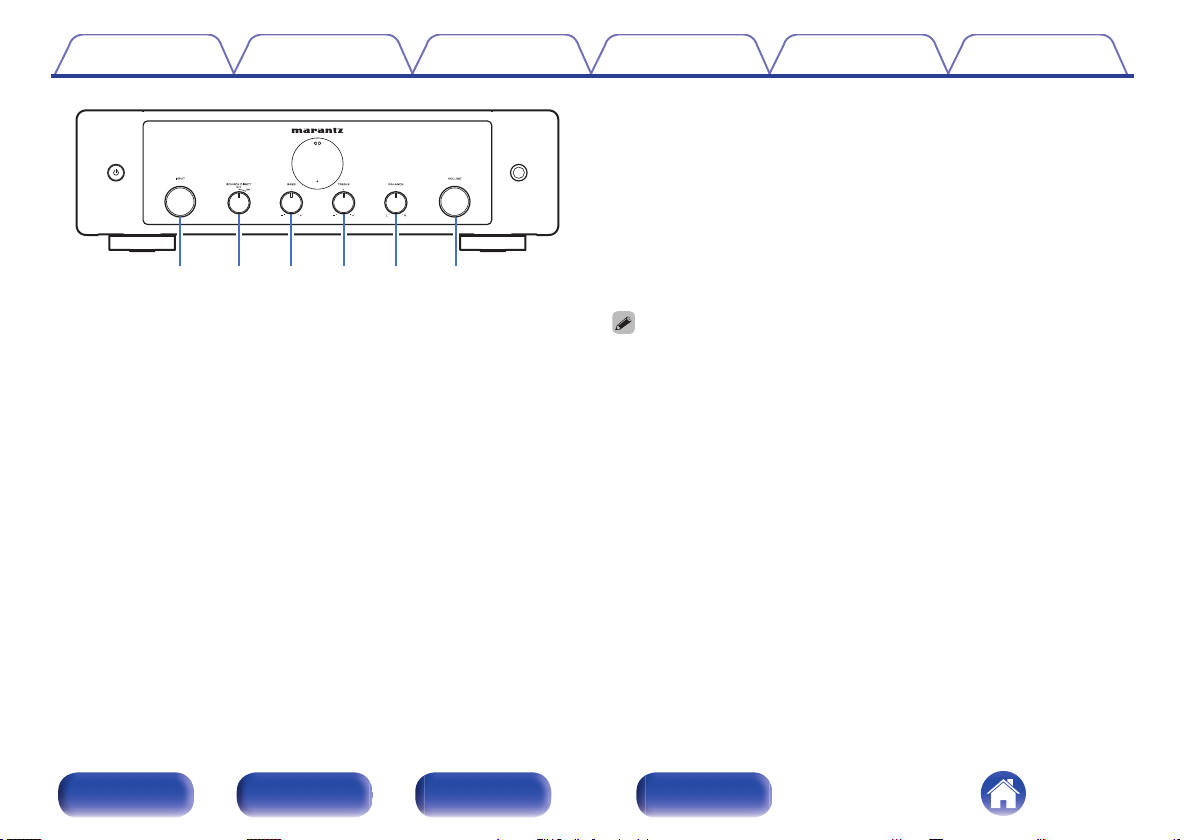
ioQ
0
Q
1
Q
2
u
G
INPUT selector knob
This switches input sources. (v p. 35)
H
SOURCE DIRECT switching knob
This turns source direct mode on/off.
(v p. 60)
I
BASS control knob
This setting adjusts the volume level for the bass.
(v p. 60)
J
TREBLE control knob
This setting adjusts the volume level for the treble. (v p. 60)
K
BALANCE control knob
This adjusts the balance of the volume output from the left and right
speakers. (v p. 60)
L
VOLUME knob
Adjusts the volume. (v p. 35)
0
9, 0 and a can be adjusted when 8 is off (Source direct mode is off).
(v p. 60)
Contents Connections Playback Settings Tips Appendix
10
Front panel Rear panel
Remote control
unit
Index
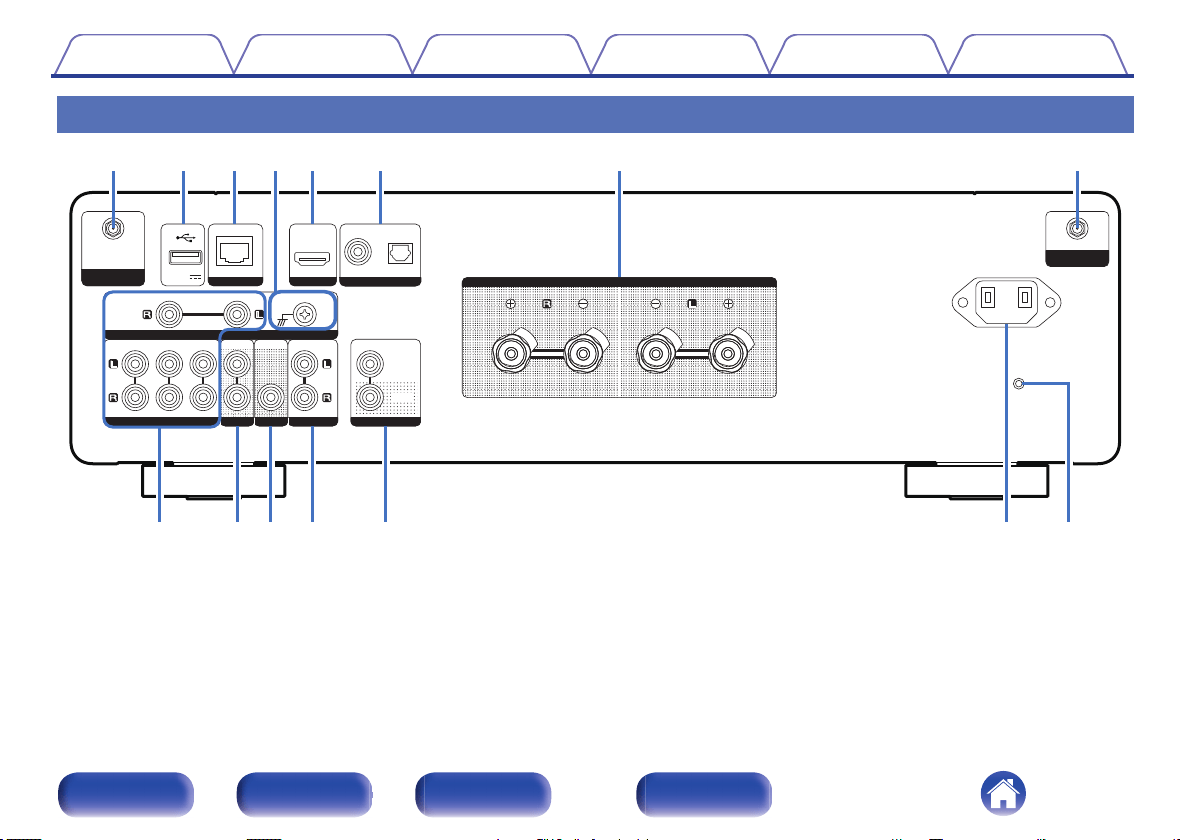
Rear panel
DIGITAL AUDIO IN
DIGITAL AUDIO IN
AUDIO IN
AUDIO IN
AUDIO IN
AUDIO IN
AUDIO OUT
AUDIO OUT
PRE OUT
PRE OUT
POWER AMP IN
POWER AMP IN
HDMI ARC
HDMI ARC
NETWORK
NETWORK
OPTICAL
OPTICAL
COAXIAL
COAXIAL
CD
CD
LINE
LINE
PHONO
PHONO
SIGNAL GND
SIGNAL GND
RECORDER
RECORDER
RECORDER
RECORDER
SUBWOOFER
SUBWOOFER
5V/1A
5V/1A
IN
IN
REMOTE CONTROL
REMOTE CONTROL
OUT
OUT
SPEAKERS
SPEAKERS
AC IN
AC IN
Bluetooth / Wi-Fi
Bluetooth / Wi-Fi
ANTENNA
ANTENNA
Bluetooth / Wi-Fi
Bluetooth / Wi-Fi
ANTENNA
ANTENNA
q qetrwy u
oiQ
0
Q
1
Q
2
Q
3
Q
4
For details, see the next page.
Contents Connections Playback Settings Tips Appendix
11
Front panel Rear panel
Remote control
unit
Index
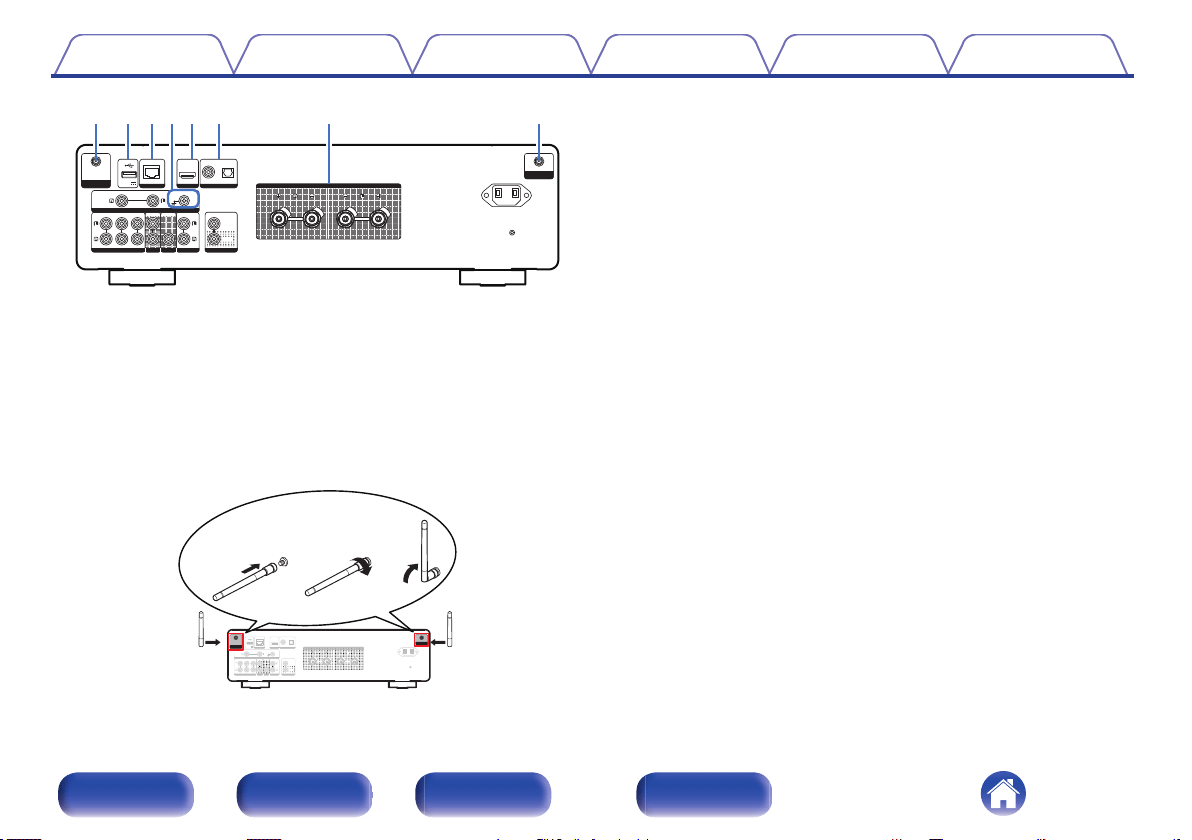
DIGITAL AUDIO IN
DIGITAL AUDIO IN
AUDIO IN
AUDIO IN
AUDIO IN
AUDIO IN
AUDIO OUT
AUDIO OUT
PRE OUT
PRE OUT
POWER AMP IN
POWER AMP IN
HDMI ARC
HDMI ARC
NETWORK
NETWORK
OPTICAL
OPTICAL
COAXIAL
COAXIAL
CD
CD
LINE
LINE
PHONO
PHONO
SIGNAL GND
SIGNAL GND
RECORDER
RECORDER
RECORDER
RECORDER
SUBWOOFER
SUBWOOFER
5V/1A
5V/1A
IN
IN
REMOTE CONTROL
REMOTE CONTROL
OUT
OUT
SPEAKERS
SPEAKERS
AC IN
AC IN
Bluetooth / Wi-Fi
Bluetooth / Wi-Fi
ANTENNA
ANTENNA
Bluetooth / Wi-Fi
Bluetooth / Wi-Fi
ANTENNA
ANTENNA
q qetrwy u
A
Bluetooth/wireless LAN antenna connectors
Used to connect the included external antennas for Bluetooth/wireless
connectivity when connecting to a network via wireless LAN, or when
connecting to a handheld device via Bluetooth. (v p. 29)
A
Place the external antennas for Bluetooth/wireless connectivity
evenly over the screw terminal of rear.
B
Turn clockwise until the antennas is fully connected.
C
Rotate the antenna upwards for best reception.
DIGITAL AUDIO IN
DIGITAL AUDIO IN
AUDIO IN
AUDIO IN
AUDIO IN
AUDIO IN
AUDIO OUT
AUDIO OUT
PRE OUT
PRE OUT
POWER AMP IN
POWER AMP IN
NETWORK
NETWORK
OPTICAL
OPTICAL
COAXIAL
COAXIAL
CD
CD
LINE
LINE
PHONO
PHONO
SIGNAL GND
SIGNAL GND
RECORDER
RECORDER
RECORDER
RECORDER
SUBWOOFER
SUBWOOFER
5V/1A
5V/1A
IN
IN
REMOTE CONTROL
REMOTE CONTROL
OUT
OUT
SPEAKERS
SPEAKERS
AC IN
AC IN
Bluetooth / Wi-Fi
Bluetooth / Wi-Fi
ANTENNA
ANTENNA
Bluetooth / Wi-Fi
Bluetooth / Wi-Fi
ANTENNA
ANTENNA
HDMI ARC
HDMI ARC
qwe
B
USB port (T)
This is used to connect USB storages (such as USB flash drives).
(v p. 27
)
C
NETWORK connector
Used to connect to a LAN cable when connecting to a wired LAN
network. (v p. 28)
D
SIGNAL GND terminal
Used to connect a ground wire for the turntable. (v p. 23)
E
HDMI connector (HDMI ARC)
Used to connect an ARC function-compatible TV. (v p. 25)
F
DIGITAL AUDIO IN connectors
Used to connect devices equipped with digital audio output connectors.
(v p. 25)
G
Speaker terminals (SPEAKERS)
Used to connect speakers. (v p. 20)
Contents Connections Playback Settings Tips Appendix
12
Front panel Rear panel
Remote control
unit
Index
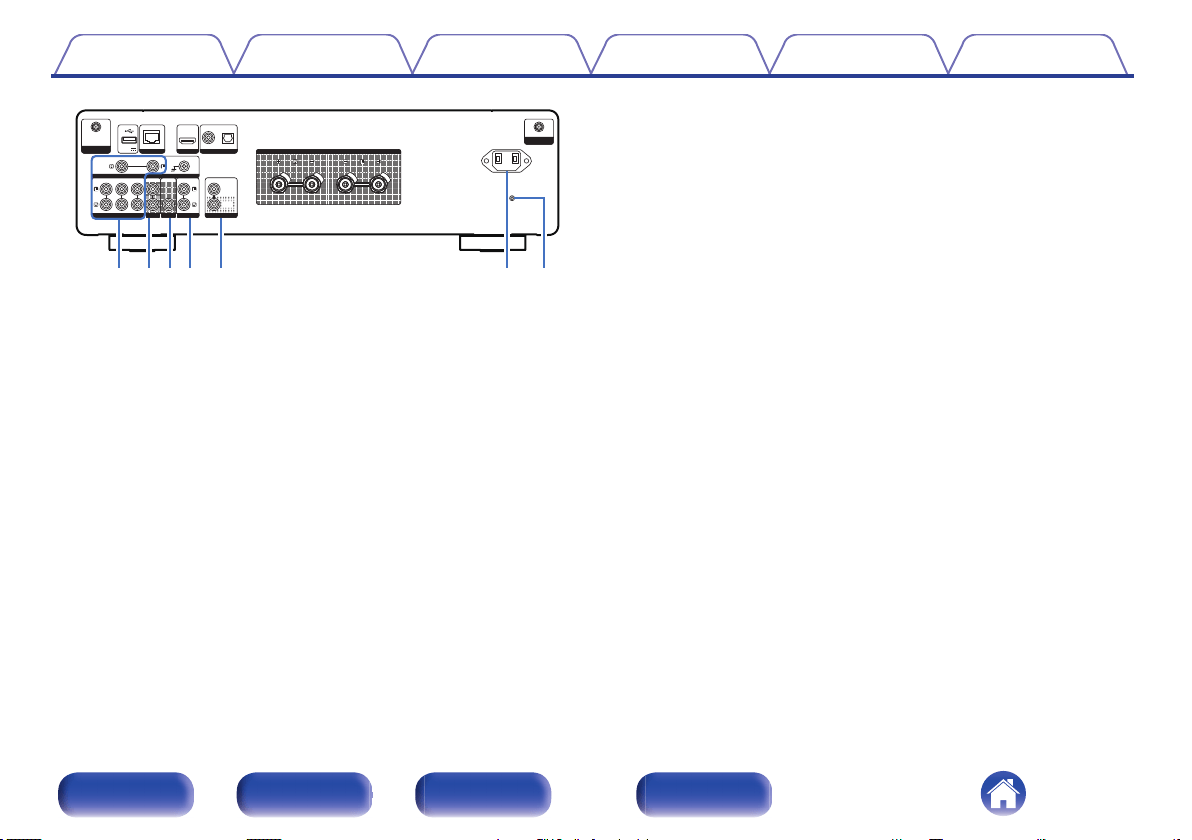
DIGITAL AUDIO IN
DIGITAL AUDIO IN
AUDIO IN
AUDIO IN
AUDIO IN
AUDIO IN
AUDIO OUT
AUDIO OUT
PRE OUT
PRE OUT
POWER AMP IN
POWER AMP IN
HDMI ARC
HDMI ARC
NETWORK
NETWORK
OPTICAL
OPTICAL
COAXIAL
COAXIAL
CD
CD
LINE
LINE
PHONO
PHONO
SIGNAL GND
SIGNAL GND
RECORDER
RECORDER
RECORDER
RECORDER
SUBWOOFER
SUBWOOFER
5V/1A
5V/1A
IN
IN
REMOTE CONTROL
REMOTE CONTROL
OUT
OUT
SPEAKERS
SPEAKERS
AC IN
AC IN
Bluetooth / Wi-Fi
Bluetooth / Wi-Fi
ANTENNA
ANTENNA
Bluetooth / Wi-Fi
Bluetooth / Wi-Fi
ANTENNA
ANTENNA
oiQ
0
Q
1
Q
2
Q
3
Q
4
H
AUDIO IN connectors
Used to connect devices equipped with analog audio output
connectors.
0
“Connecting a playback device” (v p. 23
)
0
“Connecting a recording device” (v p. 24)
I
AUDIO OUT connectors
Used to connect the input connector of a recorder. (v p. 24)
J
PRE OUT connector
Used to connect a subwoofer with a built-in amplifier. (v p. 21)
K
Power amplifier connectors (POWER AMP IN)
Used to connect a pre-amplifier when this unit is used as a power
amplifier. (v p.
30)
L
REMOTE CONTROL connectors
Used to connect to a Marantz audio device that is compatible with the
remote control function. (v p. 31)
M
AC inlet (AC IN)
Used to connect the power cord. (v p. 32)
N
Firmware reset button
Used to reset the firmware to the default state. (v p. 95)
Contents Connections Playback Settings Tips Appendix
13
Front panel Rear panel
Remote control
unit
Index
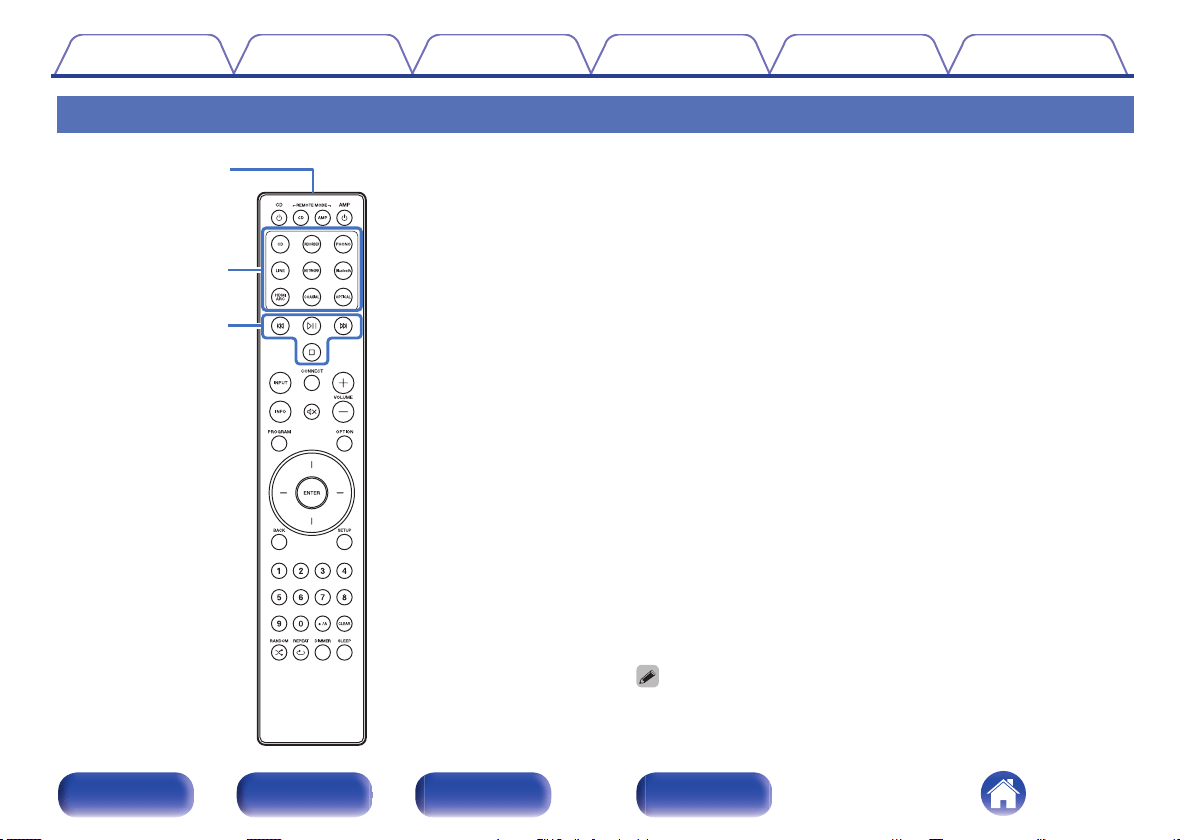
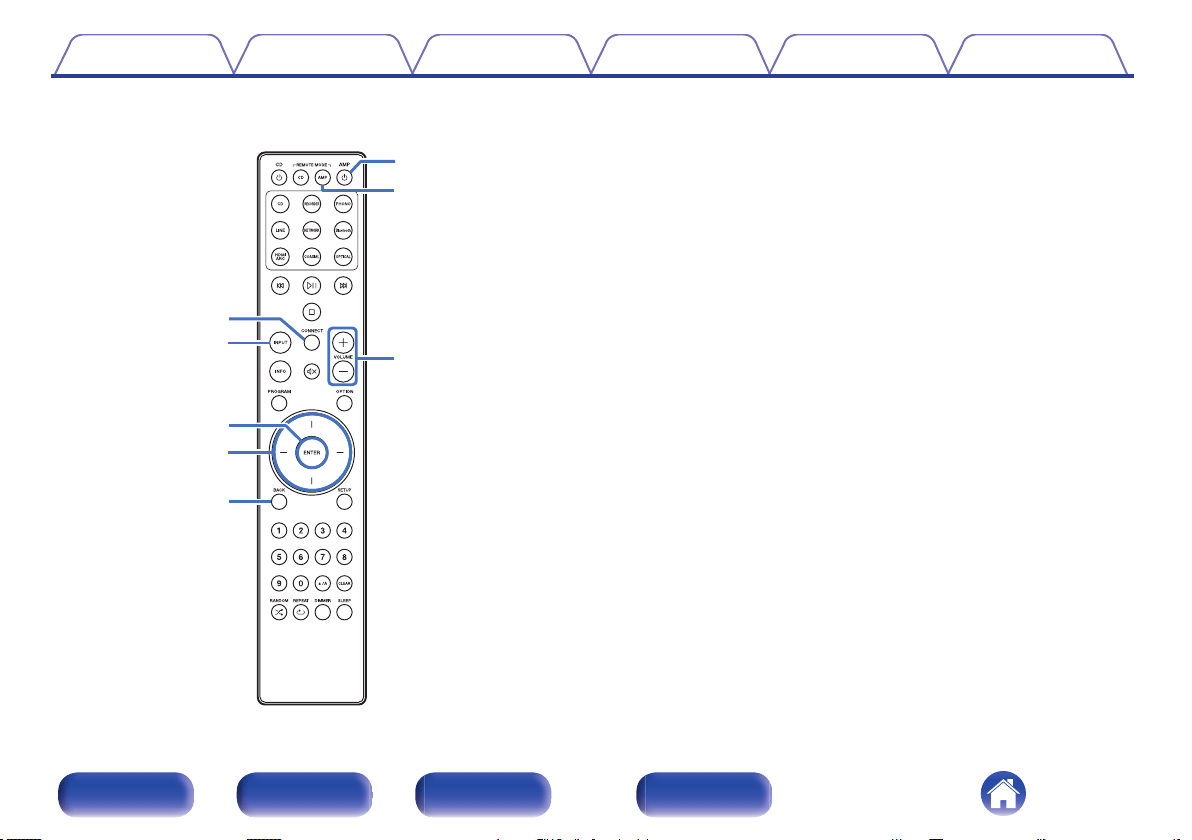
Remote control unit
w
e
q
The remote control provided with this unit can control a Marantz CD
player.
0
“CD player operations” (v p. 17)
o
Operating this unit
To operate this unit, press REMOTE MODE AMP button to switch the
remote control operating mode to this unit.
A
Remote control signal transmitter
This transmits signals from the remote control unit. (v p. 7
)
B
Input source select buttons
These select the input source. (v p. 35)
C
System buttons
These perform playback related operations.
0
Play/Pause button (p)
Press this button to pause during playback. If pressed while paused
or stopped, resumes playback from the last track played.
0
Forward-skip button (j)
Press this button during playback to play the next track.
0
Reverse-skip button (k)
Press this button during playback to restart the current track or play
the previous track.
0
Stop button (i)
Press this button to stop during playback.
0
Depending on the input source and online service, the operation cannot be
performed.
Contents Connections Playback Settings Tips Appendix
14
Front panel Rear panel
Remote control
unit
Index
i
y
u
Q0
o
Q1
r
t
D
CONNECT button
Used for Wi-Fi setup. (v p. 74)
E
Input source select button (INPUT)
This switches input sources. (v p. 35)
F
ENTER button
This determines the selection.
G
Cursor buttons
These select items.
H
BACK button
Returns to the previous item.
I
Power operation button (AMP X)
This turns the power on/off (standby).
(v p. 34)
J
Remote mode select button
(REMOTE MODE AMP)
Switches the remote control operating mode to this unit.
K
VOLUME buttons (no)
These adjust the volume level. (v p. 35)
Contents Connections Playback Settings Tips Appendix
15
Front panel Rear panel
Remote control
unit
Index
Q5
Q4
Q6
Q3
Q2
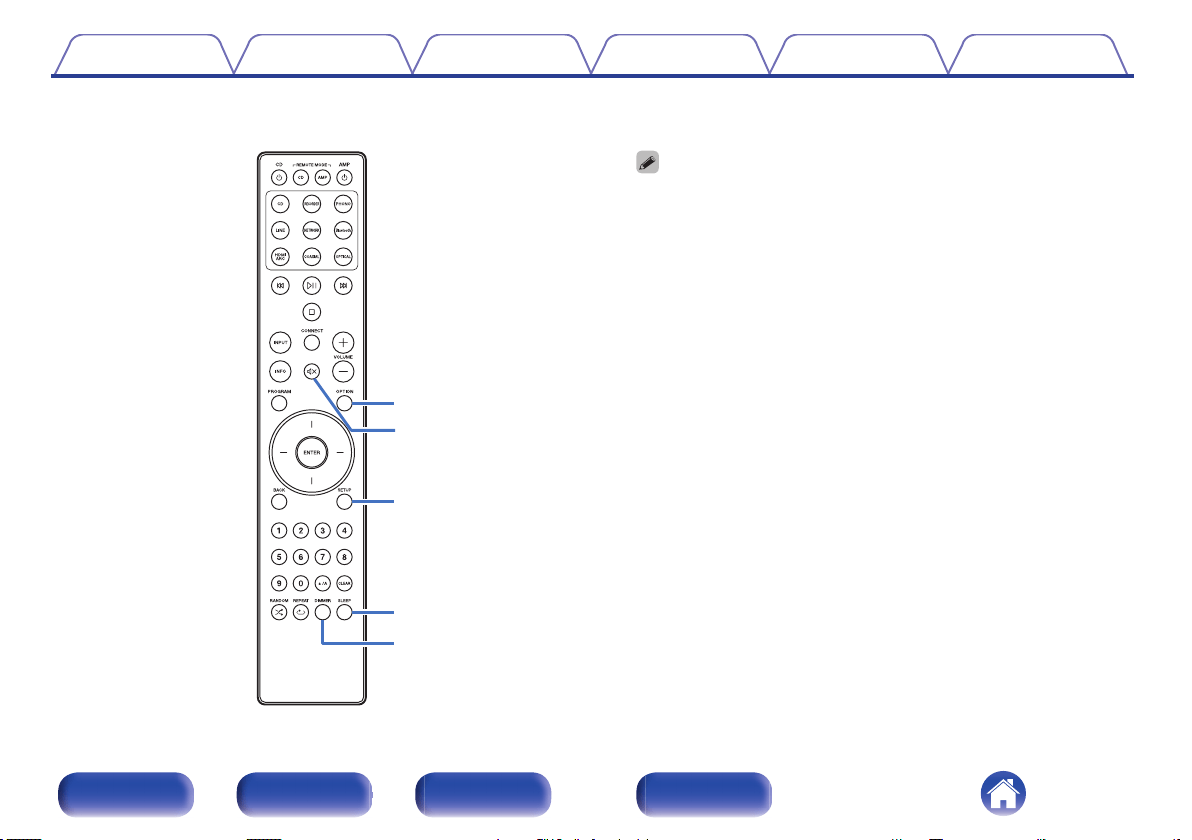
L
OPTION button
This displays the option menu on the display.
0
An option menu is not displayed for some input sources.
M
MUTE button (:)
This mutes the output audio.
(v p. 35)
N
SETUP button
The setting menu is displayed on the display. (v p. 65)
O
SLEEP button
This sets the sleep timer. (v p. 61)
P
DIMMER button
Adjust the display brightness of this unit. (v p. 61)
Contents Connections Playback Settings Tips Appendix
16
Front panel Rear panel
Remote control
unit
Index
u
i
r
t
y
o
Q0
Q1
w
q
e
o
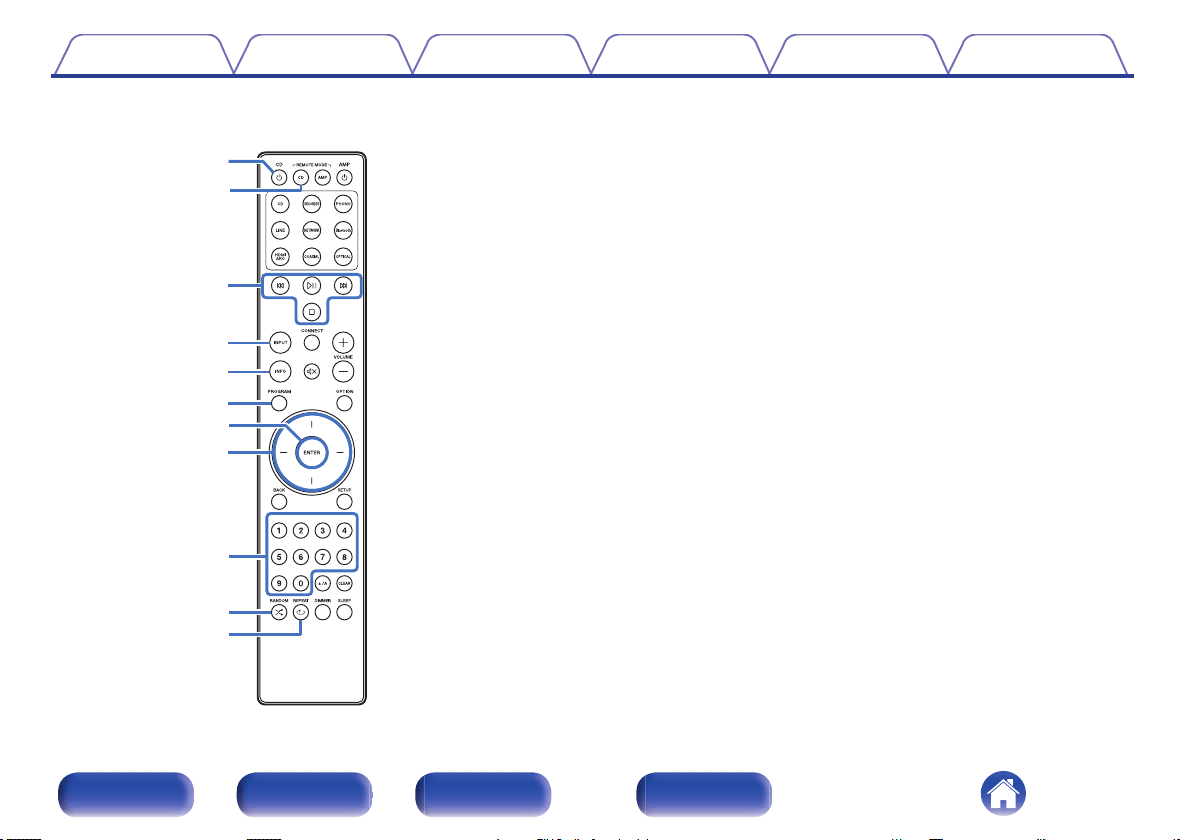
CD player operations
A Marantz CD player can be operated.
To operate CD player, press REMOTE MODE CD button to switch the
remote control to the CD player operation mode.
A
Power operation button (CD X)
B
Remote mode select button
(REMOTE MODE CD)
C
System buttons
D
Input source select button (INPUT)
E
Information button (INFO)
F
PROGRAM button
G
ENTER button
H
Cursor buttons
I
Number buttons (0 – 9)
J
RANDOM button (s)
K
REPEAT button (r)
Contents Connections Playback Settings Tips Appendix
17
Front panel Rear panel
Remote control
unit
Index
o
Contents
Connecting speakers 20
Connecting a playback device 23
Connecting a recording device 24
Connecting to a device with digital audio connectors 25
Connecting a USB flash drive to the USB port 27
Connecting to a home network (LAN) 28
Connecting a pre-amplifier 30
Connecting devices with remote control connectors 31
Connecting the power cord 32
NOTE
0
Do not plug in the power cord until all connections have been completed.
0
Do not bundle power cords with connection cables. Doing so can result in
humming or noise.
o
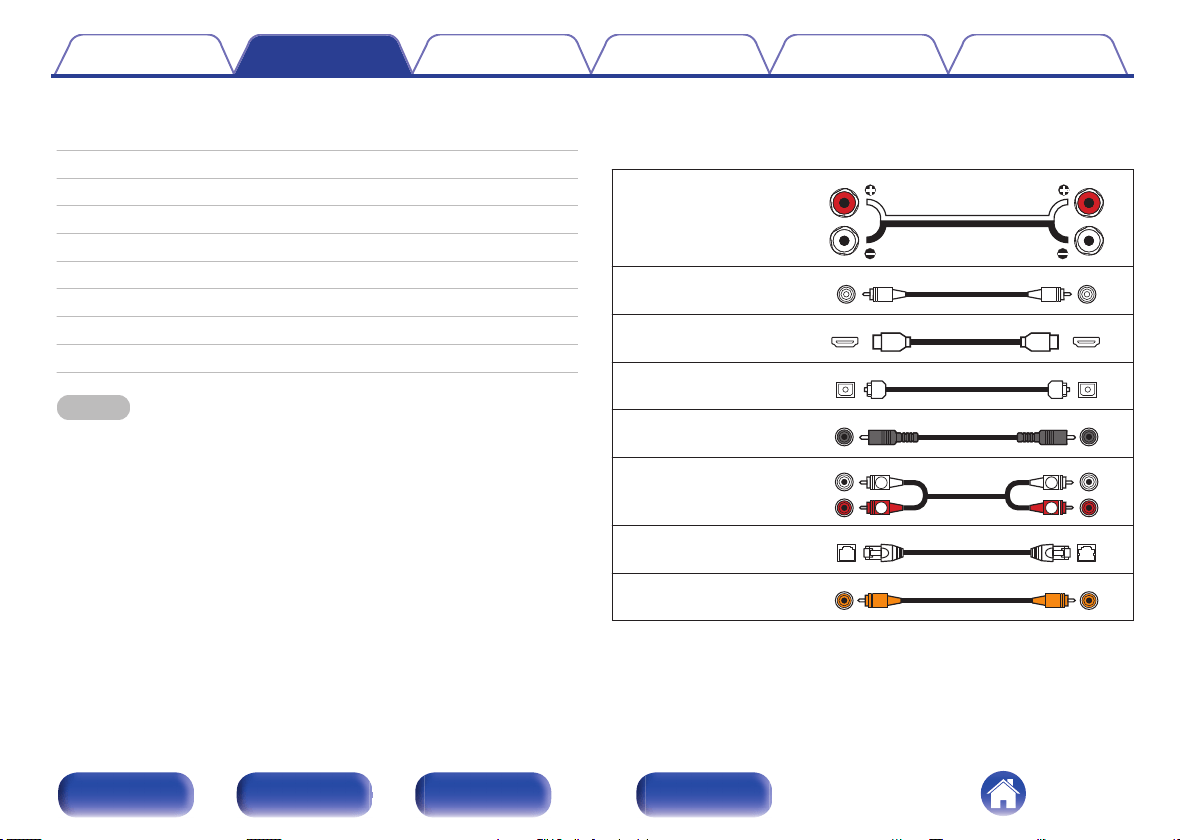
Cables used for connections
Provide necessary cables according to the devices you want to
connect.
Speaker cable
Subwoofer cable
HDMI cable
Optical cable
Coaxial digital cable
Audio cable
R
L
R
L
LAN cable
Remote connector cable
Contents Connections Playback Settings Tips Appendix
19
Front panel Rear panel
Remote control
unit
Index
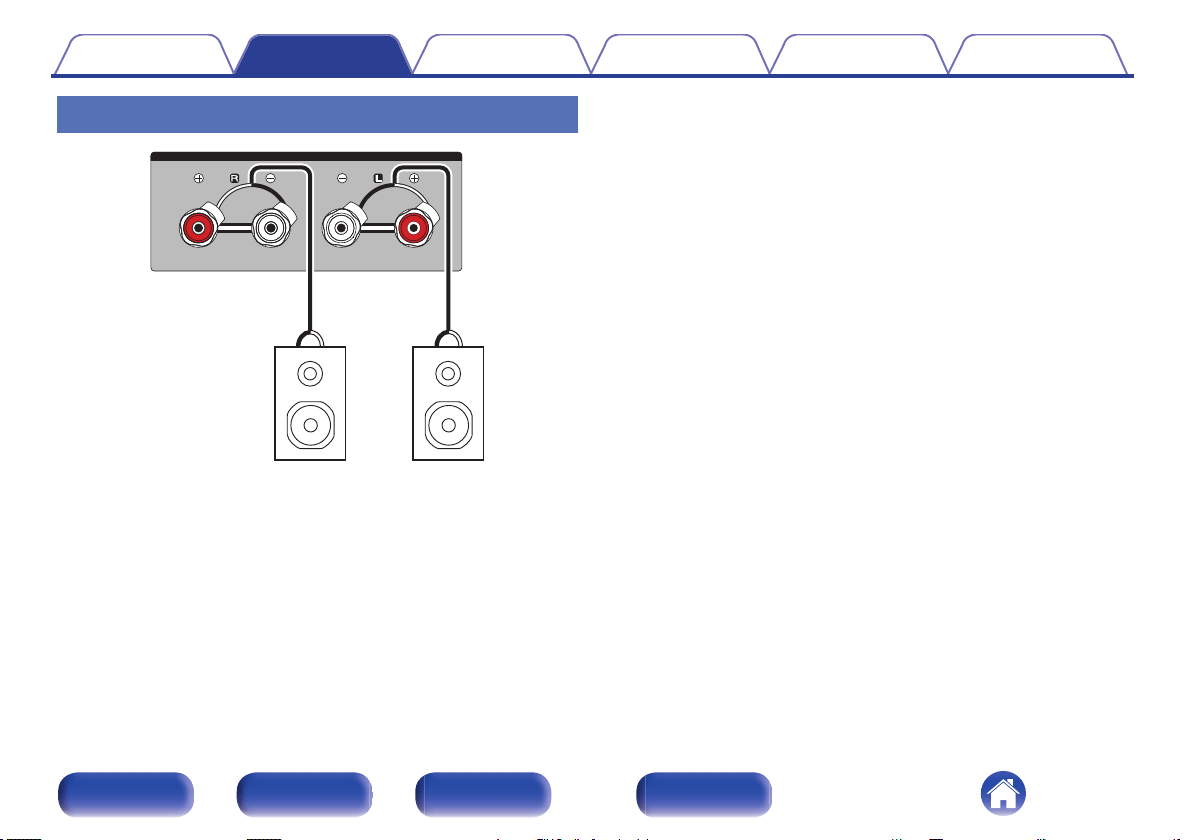
Connecting speakers
NOTE
0
Disconnect this unit’s power plug from the power outlet before connecting the
speakers. Also, turn off the subwoofer.
0
Connect so that the speaker cable core wires do not protrude from the speaker
terminal. The protection circuit may be activated if the core wires touch the rear
panel or if the + and - sides touch each other. “Protection circuit” (v p. 105)
0
Never touch the speaker terminals while the power cord is connected. Doing so
could result in electric shock.
0
Use speakers with an impedance of 4 – 16
Ω/ohms.
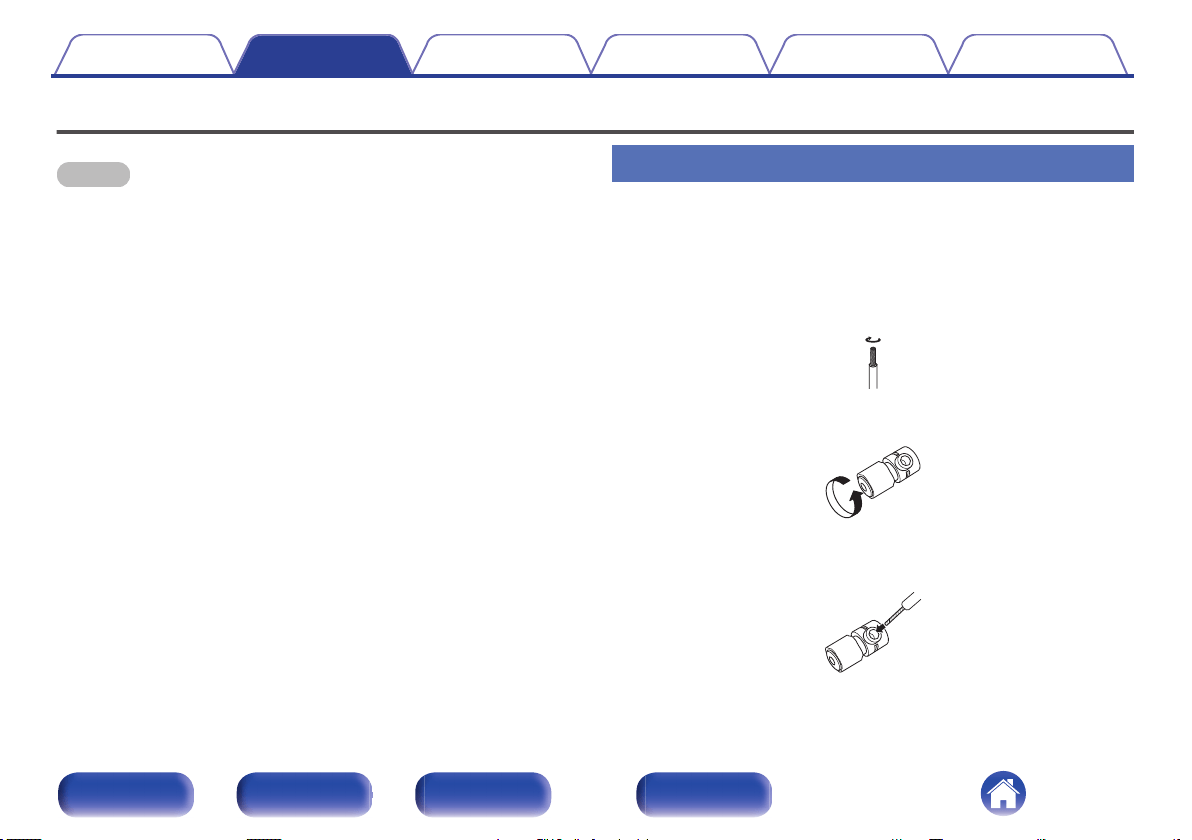
Connecting the speaker cables
Carefully check the left (L) and right (R) channels and + (red) and - (white)
polarities on the speakers being connected to this unit, and be sure to
connect the channels and polarities correctly.
1
Peel off about 3/8 inch (10 mm) of sheathing from the
tip of the speaker cable, then either twist the core wire
tightly or terminate it.
2
Turn the speaker terminal counterclockwise to loosen it.
3
Insert the speaker cable’s core wire to the hilt into the
speaker terminal.
Contents Connections Playback Settings Tips Appendix
20
Front panel Rear panel
Remote control
unit
Index
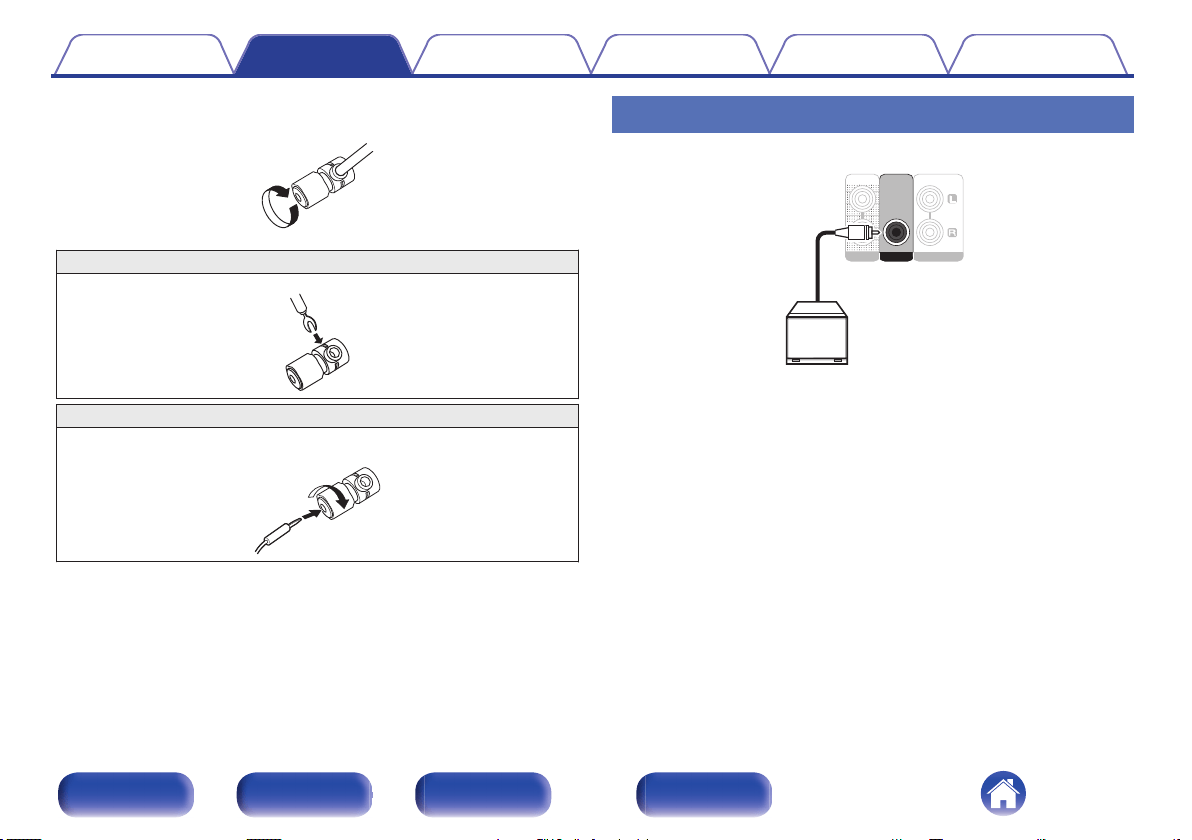
4
Turn the speaker terminal clockwise to tighten it.
Spade lug connector
When using a banana plug
Tighten the speaker terminal firmly before inserting the banana plug.
Connecting the subwoofer
Use a subwoofer cable to connect the subwoofer.
AUDIO OUT
AUDIO OUT
PRE OUT
PRE OUT
POWER AMP IN
POWER AMP IN
RECORDER
RECORDER
SUBWOOFER
SUBWOOFER
Subwoofer
Contents Connections Playback Settings Tips Appendix
21
Front panel Rear panel
Remote control
unit
Index
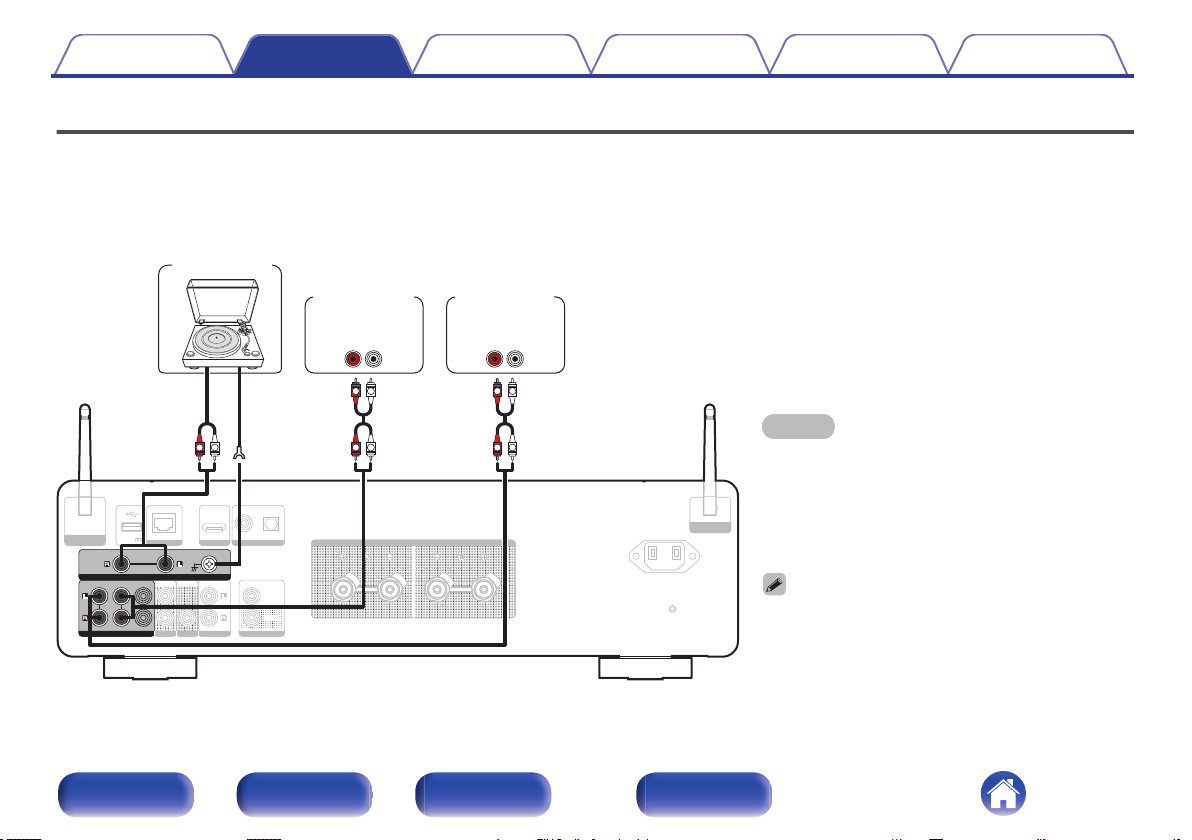
Connecting a playback device
You can connect turntables, tuners and CD players to this unit.
This unit is compatible with turntables equipped with a moving magnet (MM) phono cartridge. When you connect this unit to a turntable with a low output
moving coil (MC) cartridge, use a commercially available MC head amp or a step-up transformer.
If you set this unit’s input source to “PHONO” and accidentally increase the volume without connecting a turntable, you may hear a humming noise from
the speakers.
NOTE
0
The earth terminal (SIGNAL GND) of this unit is not for
safety grounding purposes. If this terminal is connected
when there is a lot of noise, the noise can be reduced.
Note that depending on the turntable, connecting the
ground line may have the reverse effect of increasing
noise. In this case, it is not necessary to connect the
ground line.
0
The PHONO input terminals are equipped with a short
pinplug. Remove this plug to connect a record player.
Store the removed short pin-plug in a safe place so as not
to lose it.
DIGITAL AUDIO IN
DIGITAL AUDIO IN
AUDIO OUT
AUDIO OUT
PRE OUT
PRE OUT
POWER AMP IN
POWER AMP IN
HDMI ARC
HDMI ARC
NETWORK
NETWORK
OPTICAL
OPTICAL
COAXIAL
COAXIAL
RECORDER
RECORDER
SUBWOOFER
SUBWOOFER
5V/1A
5V/1A
IN
IN
REMOTE CONTROL
REMOTE CONTROL
OUT
OUT
SPEAKERS
SPEAKERS
AC IN
AC IN
Bluetooth / Wi-Fi
Bluetooth / Wi-Fi
ANTENNA
ANTENNA
Bluetooth / Wi-Fi
Bluetooth / Wi-Fi
ANTENNA
ANTENNA
AUDIO IN
AUDIO IN
AUDIO IN
AUDIO IN
CD
CD
LINE
LINE
PHONO
PHONO
SIGNAL GND
SIGNAL GND
RECORDER
RECORDER
GND
AUDIO
OUT
AUDIO
OUT
LR
AUDIO
OUT
LR
L
L
R
R
L
R
L
L
R
R
Turntable
Tu n e r
CD player
Contents Connections Playback Settings Tips Appendix
23
Front panel Rear panel
Remote control
unit
Index
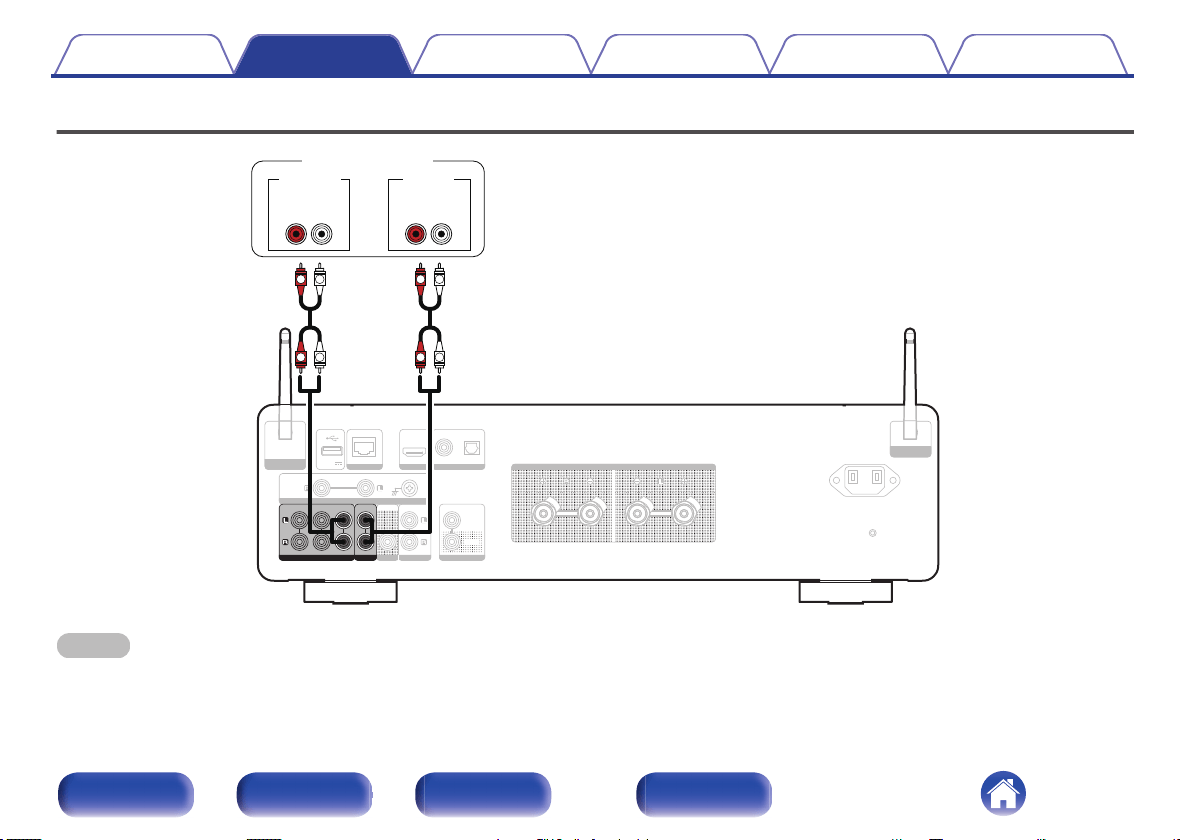
Connecting a recording device
DIGITAL AUDIO IN
DIGITAL AUDIO IN
AUDIO IN
AUDIO IN
PRE OUT
PRE OUT
POWER AMP IN
POWER AMP IN
HDMI ARC
HDMI ARC
NETWORK
NETWORK
OPTICAL
OPTICAL
COAXIAL
COAXIAL
PHONO
PHONO
SIGNAL GND
SIGNAL GND
SUBWOOFER
SUBWOOFER
5V/1A
5V/1A
IN
IN
REMOTE CONTROL
REMOTE CONTROL
OUT
OUT
SPEAKERS
SPEAKERS
AC IN
AC IN
Bluetooth / Wi-Fi
Bluetooth / Wi-Fi
ANTENNA
ANTENNA
Bluetooth / Wi-Fi
Bluetooth / Wi-Fi
ANTENNA
ANTENNA
AUDIO IN
AUDIO IN
AUDIO OUT
AUDIO OUT
CD
CD
LINE
LINE
RECORDER
RECORDER
RECORDER
RECORDER
LR
L
L
R
R
L
L
R
R
LR
AUDIO INAUDIO OUT
Recording device
NOTE
0
Never insert the short-circuiting pin plug into the analog audio output connectors (AUDIO OUT RECORDER). Doing so could result in damage.
Contents Connections Playback Settings Tips Appendix
24
Front panel Rear panel
Remote control
unit
Index
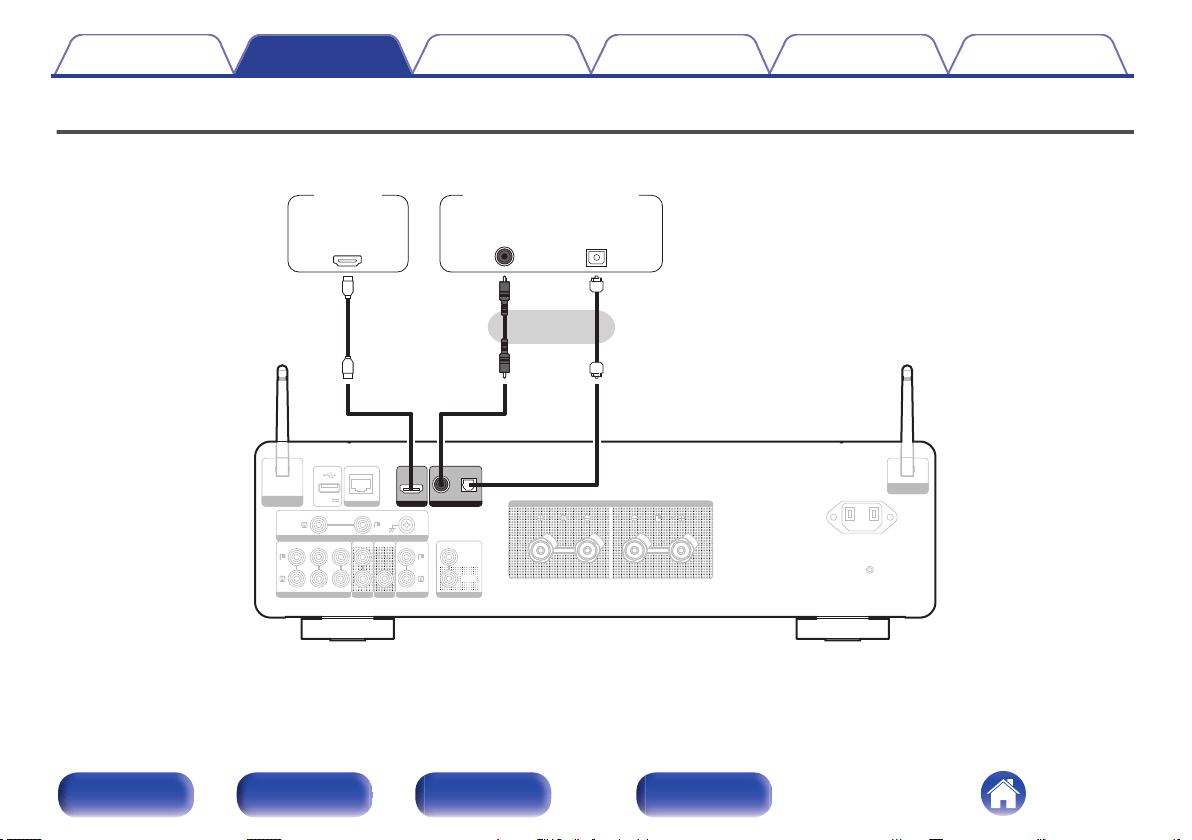
Connecting to a device with digital audio connectors
Use this connection to input digital audio signals to this unit, and convert the signals for playback using the D/A converter of this unit. (v p. 40)
AUDIO IN
AUDIO IN
AUDIO IN
AUDIO IN
AUDIO OUT
AUDIO OUT
PRE OUT
PRE OUT
POWER AMP IN
POWER AMP IN
NETWORK
NETWORK
CD
CD
LINE
LINE
PHONO
PHONO
SIGNAL GND
SIGNAL GND
RECORDER
RECORDER
RECORDER
RECORDER
SUBWOOFER
SUBWOOFER
5V/1A
5V/1A
IN
IN
REMOTE CONTROL
REMOTE CONTROL
OUT
OUT
SPEAKERS
SPEAKERS
AC IN
AC IN
Bluetooth / Wi-Fi
Bluetooth / Wi-Fi
ANTENNA
ANTENNA
Bluetooth / Wi-Fi
Bluetooth / Wi-Fi
ANTENNA
ANTENNA
DIGITAL AUDIO IN
DIGITAL AUDIO IN
OPTICAL
OPTICAL
COAXIAL
COAXIAL
HDMI ARC
HDMI ARC
or
OUT
COAXIAL
OUT
OPTICAL
IN
HDMI
(ARC)
Satellite receiver
etc.
TV
Contents Connections Playback Settings Tips Appendix
25
Front panel Rear panel
Remote control
unit
Index
0
When connecting a TV to this unit, turn off the audio output of the TV’s internal speakers. See the owner’s manual of your TV for details.
0
When connecting the HDMI ARC terminal of this device to your TV, connect it to the HDMI input terminal of your TV that supports the ARC function.
0
When connecting to a TV that does not support the ARC function or a TV that does not have an HDMI terminal, use an Optical connection or a Coaxial connection to play the
TV audio.
NOTE
0
Linear PCM signals with a sampling frequency of 32 kHz, 44.1 kHz, 48 kHz, 88.2 kHz, 96 kHz, 176.4 kHz, or 192 kHz can be input into this unit.
0
Do not input non-PCM signals, such as Dolby Digital, DTS and AAC. This causes noise and could damage the speakers.
0
Only the PCM 2-channel setting can be used to play sound from a TV via the HDMI ARC function. Set “PCM 2ch” as the audio format in the TV settings.
o
Specifications of supported audio formats
See “D/A converter” (v p. 97
).
Contents Connections Playback Settings Tips Appendix
26
Front panel Rear panel
Remote control
unit
Index
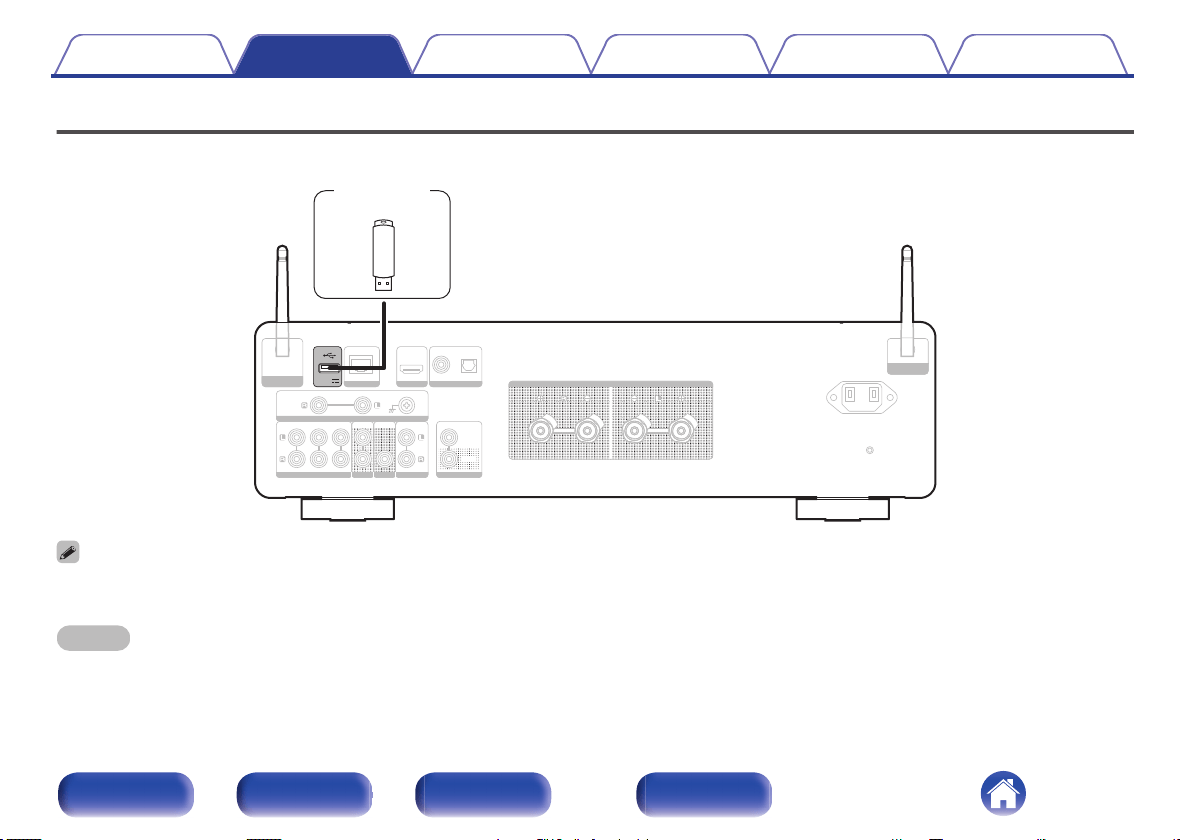
Connecting a USB flash drive to the USB port
For operating instructions see “Playing music from a USB flash drive” (v p. 54).
DIGITAL AUDIO IN
DIGITAL AUDIO IN
AUDIO IN
AUDIO IN
AUDIO IN
AUDIO IN
AUDIO OUT
AUDIO OUT
PRE OUT
PRE OUT
POWER AMP IN
POWER AMP IN
NETWORK
NETWORK
OPTICAL
OPTICAL
COAXIAL
COAXIAL
CD
CD
LINE
LINE
PHONO
PHONO
SIGNAL GND
SIGNAL GND
RECORDER
RECORDER
RECORDER
RECORDER
SUBWOOFER
SUBWOOFER
5V/1A
5V/1A
IN
IN
REMOTE CONTROL
REMOTE CONTROL
OUT
OUT
SPEAKERS
SPEAKERS
AC IN
AC IN
Bluetooth / Wi-Fi
Bluetooth / Wi-Fi
ANTENNA
ANTENNA
Bluetooth / Wi-Fi
Bluetooth / Wi-Fi
ANTENNA
ANTENNA
HDMI ARC
HDMI ARC
USB flash
drive
0
Marantz does not guarantee that all USB flash drives will operate or receive power. When using a portable USB hard disk drive (HDD) which came with an AC adapter, use
that device’s supplied AC adapter.
NOTE
0
USB flash drives will not work via a USB hub.
0
It is not possible to use this unit by connecting the unit’s USB port to a PC via a USB cable.
0
Do not use an extension cable when connecting a USB flash drive. This may cause radio interference with other devices.
Contents Connections Playback Settings Tips Appendix
27
Front panel Rear panel
Remote control
unit
Index
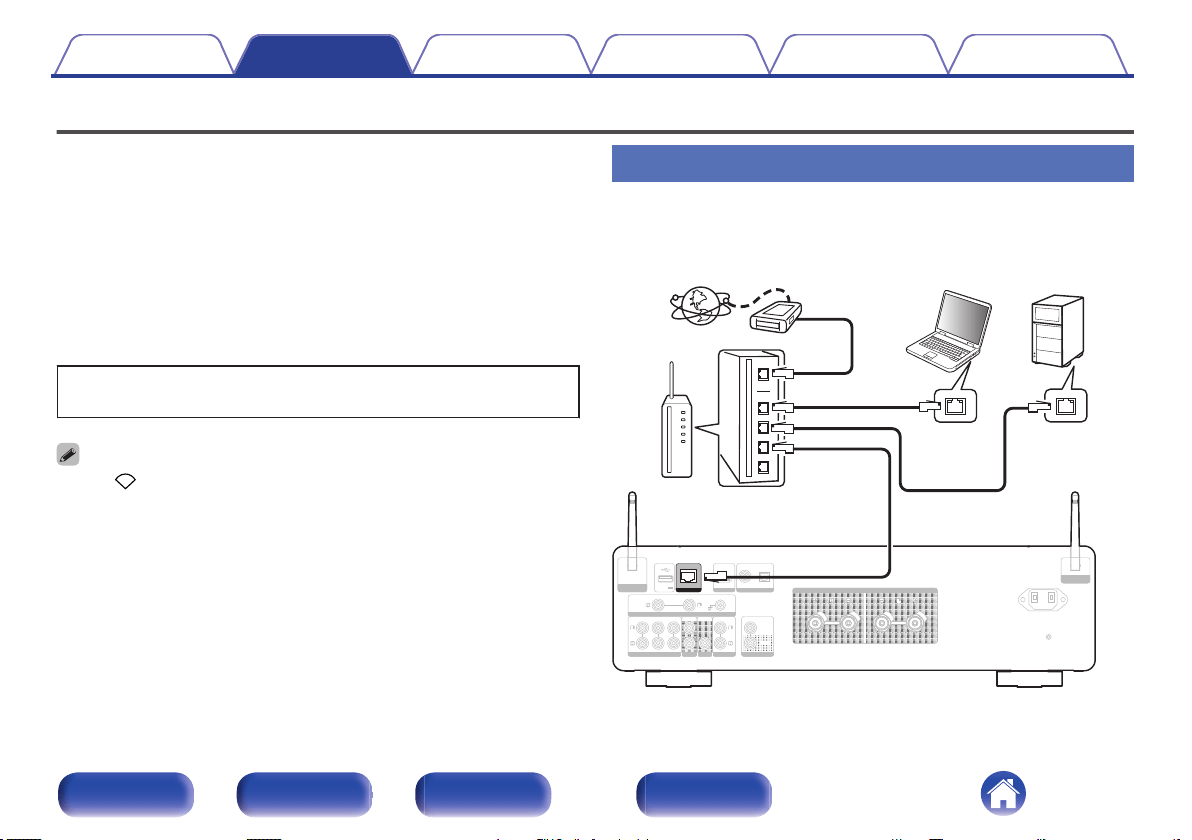
Connecting to a home network (LAN)
This unit can connect to a network using a wired LAN or wireless LAN.
You can connect this unit to your home network (LAN) to enable various
types of playback and operations as described below.
0
Playback of network audio such as Internet Radio and from your media
server(s)
0
Playback of streaming music services
0
Using the Apple AirPlay function
0
Operation on this unit via the network
0
Operation with the HEOS wireless multi-room sound system
0
Firmware Update
For connections to the Internet, contact an ISP (Internet Service
Provider) or a computer shop.
0
When is displayed on the display of this unit, this unit is not connected to a
network.
Wired LAN
To make connections via wired LAN, use a LAN cable to connect the
router to this unit as shown in the figure below.
DIGITAL AUDIO IN
DIGITAL AUDIO IN
AUDIO IN
AUDIO IN
AUDIO IN
AUDIO IN
AUDIO OUT
AUDIO OUT
PRE OUT
PRE OUT
POWER AMP IN
POWER AMP IN
HDMI ARC
HDMI ARC
OPTICAL
OPTICAL
COAXIAL
COAXIAL
CD
CD
LINE
LINE
PHONO
PHONO
SIGNAL GND
SIGNAL GND
RECORDER
RECORDER
RECORDER
RECORDER
SUBWOOFER
SUBWOOFER
5V/1A
5V/1A
IN
IN
REMOTE CONTROL
REMOTE CONTROL
OUT
OUT
SPEAKERS
SPEAKERS
AC IN
AC IN
Bluetooth / Wi-Fi
Bluetooth / Wi-Fi
ANTENNA
ANTENNA
Bluetooth / Wi-Fi
Bluetooth / Wi-Fi
ANTENNA
ANTENNA
NETWORK
NETWORK
Internet
Modem
PC
NAS
(Network Attached
Storage)
Router
To WAN side
To LAN port
To LAN port
LAN port/
Ethernet
connector
LAN port/
Ethernet
connector
Contents Connections Playback Settings Tips Appendix
28
Front panel Rear panel
Remote control
unit
Index
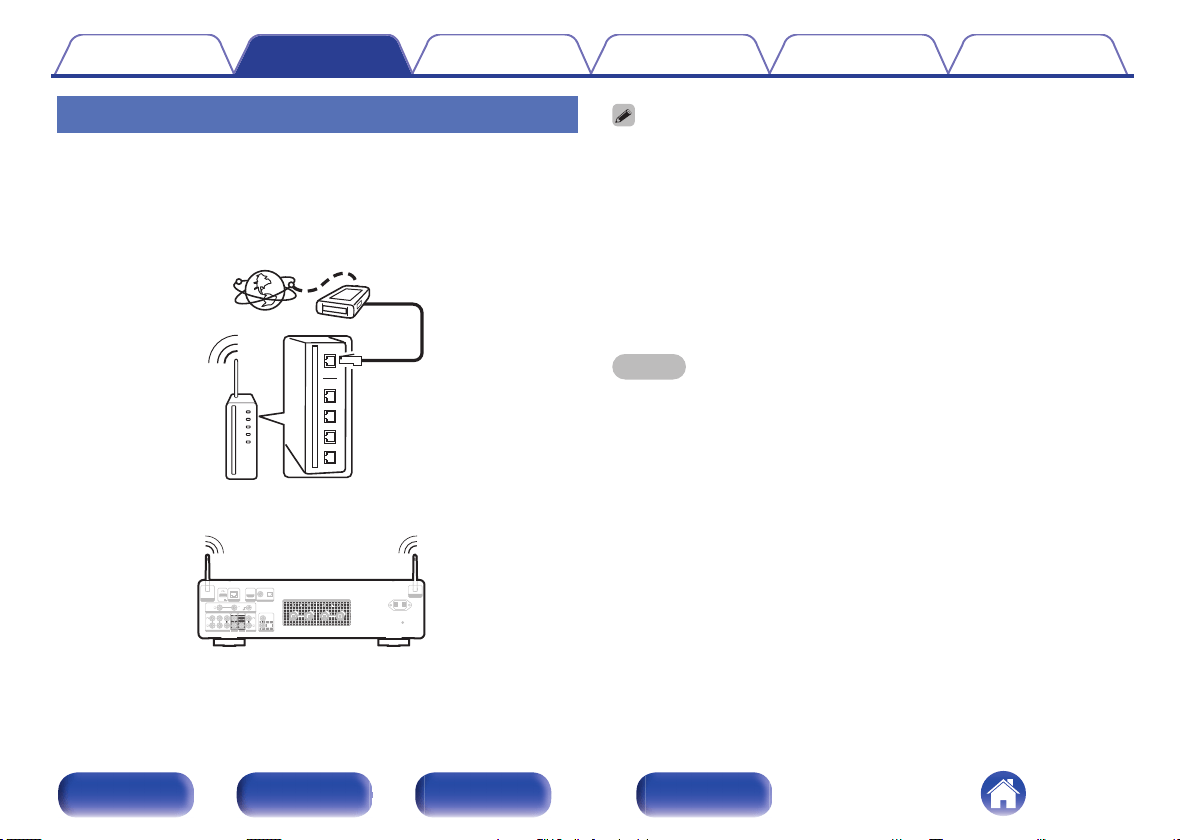
Wireless LAN
When connecting to the network via wireless LAN, connect the external
antennas for Bluetooth/wireless connectivity connection to the rear panel
and stand them upright.
To connect to a wireless LAN router, download the HEOS App to your
smartphone, and set up this unit.
(v p. 42)
Internet
Modem
To WAN side
Router with access point
DIGITAL AUDIO IN
DIGITAL AUDIO IN
AUDIO IN
AUDIO IN
AUDIO IN
AUDIO IN
AUDIO OUT
AUDIO OUT
PRE OUT
PRE OUT
POWER AMP IN
POWER AMP IN
HDMI ARC
HDMI ARC
NETWORK
NETWORK
OPTICAL
OPTICAL
COAXIAL
COAXIAL
CD
CD
LINE
LINE
PHONO
PHONO
SIGNAL GND
SIGNAL GND
RECORDER
RECORDER
RECORDER
RECORDER
SUBWOOFER
SUBWOOFER
5V/1A
5V/1A
IN
IN
REMOTE CONTROL
REMOTE CONTROL
OUT
OUT
SPEAKERS
SPEAKERS
AC IN
AC IN
Bluetooth / Wi-Fi
Bluetooth / Wi-Fi
ANTENNA
ANTENNA
Bluetooth / Wi-Fi
Bluetooth / Wi-Fi
ANTENNA
ANTENNA
0
When using this unit, we recommend you use a router equipped with the following
functions:
0
Built-in DHCP server
This function automatically assigns IP addresses on the LAN.
0
Built-in 100BASE-TX switch
When connecting multiple devices, we recommend a switching hub with a
speed of 100 Mbps or greater.
0
Only use a shielded STP or ScTP LAN cable (readily available at electronics
stores). (CAT-5 or greater recommended)
0
The normal shielded-type LAN cable is recommended. If a flat-type cable or
unshielded-type cable is used, other devices could be affected by noise.
NOTE
0
The types of routers that can be used depend on the ISP. Contact your ISP or a
computer shop for details.
0
This unit is not compatible with PPPoE. A PPPoE compatible router is required if
your contracted line is not set using PPPoE.
0
Do not connect a NETWORK connector directly to the LAN port/ Ethernet
connector on your computer.
0
Various online services may be discontinued without prior notice.
Contents Connections Playback Settings Tips Appendix
29
Front panel Rear panel
Remote control
unit
Index
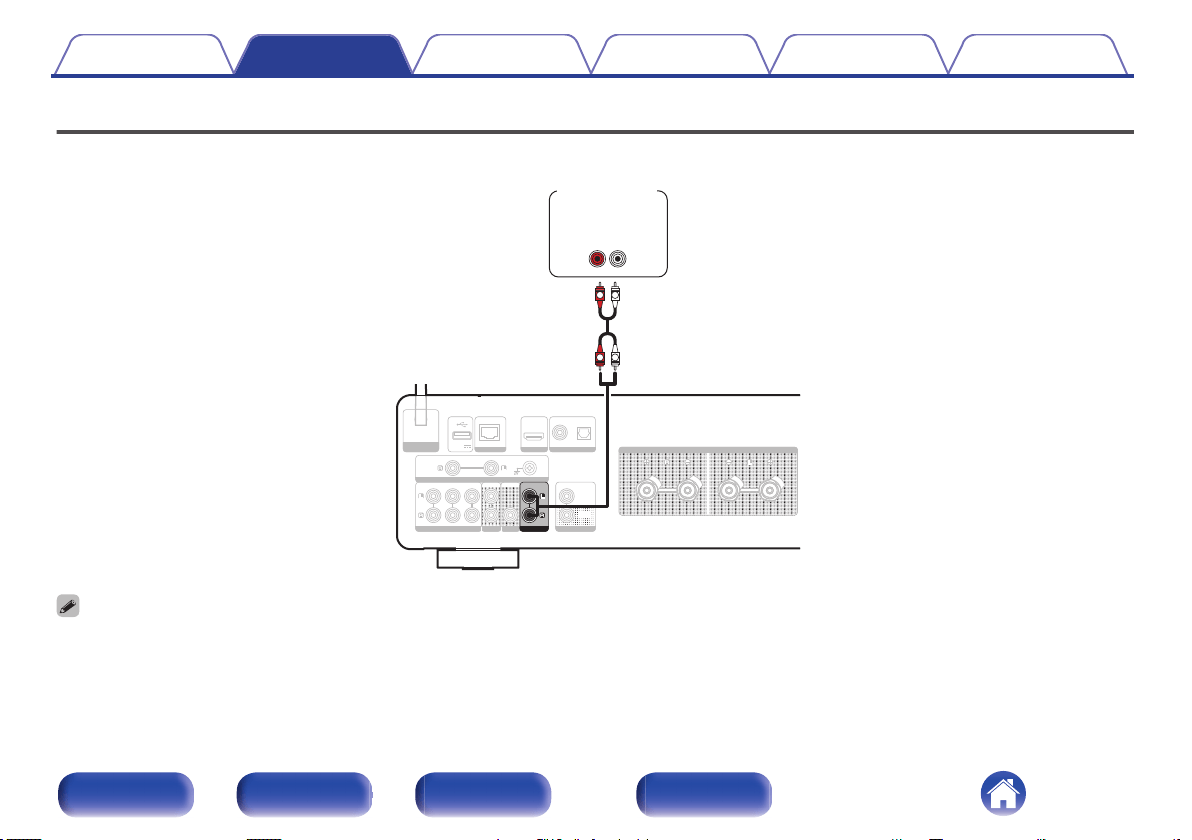
Connecting a pre-amplifier
Connect a pre-amplifier to the unit to use it as a power amplifier.
DIGITAL AUDIO IN
DIGITAL AUDIO IN
AUDIO IN
AUDIO IN
AUDIO IN
AUDIO IN
AUDIO OUT
AUDIO OUT
PRE OUT
PRE OUT
HDMI ARC
HDMI ARC
NETWORK
NETWORK
OPTICAL
OPTICAL
COAXIAL
COAXIAL
CD
CD
LINE
LINE
PHONO
PHONO
SIGNAL GND
SIGNAL GND
RECORDER
RECORDER
RECORDER
RECORDER
SUBWOOFER
SUBWOOFER
5V/1A
5V/1A
IN
IN
REMOTE CONTROL
REMOTE CONTROL
OUT
OUT
SPEAKERS
SPEAKERS
Bluetooth / Wi-Fi
Bluetooth / Wi-Fi
ANTENNA
ANTENNA
POWER AMP IN
POWER AMP IN
AUDIO
OUT
LR
L
L
R
R
Pre-
amplifier
0
When connecting a pre-amplifier and using this unit as a power amplifier, switch the input source to
“PWR AMP”. (v p. 62)
Contents Connections Playback Settings Tips Appendix
30
Front panel Rear panel
Remote control
unit
Index
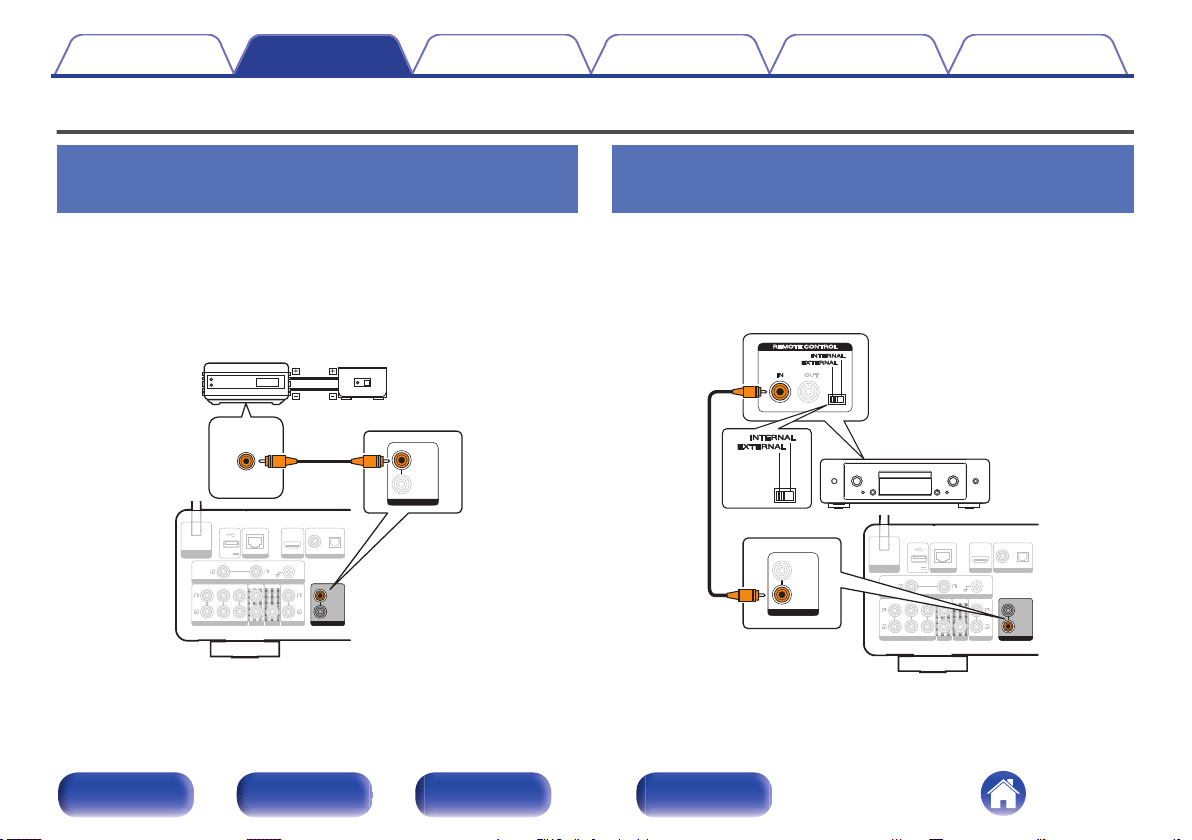
Connecting devices with remote control connectors
Performing operations by RC on this
unit without visual contact
You can connect an external IR receiver to the REMOTE CONTROL
connectors to perform operations on this unit with the supplied remote
control unit without visual contact. This might be necessary if the unit is
hidden in a cupboard or corner, so you can’t directly point with the remote
control unit to the device.
DIGITAL AUDIO IN
DIGITAL AUDIO IN
AUDIO IN
AUDIO IN
AUDIO IN
AUDIO IN
AUDIO OUT
AUDIO OUT
PRE OUT
PRE OUT
POWER AMP IN
POWER AMP IN
HDMI ARC
HDMI ARC
NETWORK
NETWORK
OPTICAL
OPTICAL
COAXIAL
COAXIAL
CD
CD
LINE
LINE
PHONO
PHONO
SIGNAL GND
SIGNAL GND
RECORDER
RECORDER
RECORDER
RECORDER
SUBWOOFER
SUBWOOFER
5V/1A
5V/1A
Bluetooth / Wi-Fi
Bluetooth / Wi-Fi
ANTENNA
ANTENNA
IN
IN
REMOTE CONTROL
REMOTE CONTROL
OUT
OUT
IN
IN
REMOTE CONTROL
REMOTE CONTROL
OUT
OUT
RC OUT
Infrared
retransmitter
Infrared
sensor
Remotely connecting Marantz audio
devices
You can transmit remote control signals simply by connecting a Marantz
audio device to the REMOTE CONTROL IN/OUT connectors using the
remote connection cable provided with the device.
Set the remote control switch located on the rear panel of the connected
audio component to “EXTERNAL” to use this feature.
DIGITAL AUDIO IN
DIGITAL AUDIO IN
AUDIO IN
AUDIO IN
AUDIO IN
AUDIO IN
AUDIO OUT
AUDIO OUT
PRE OUT
PRE OUT
POWER AMP IN
POWER AMP IN
HDMI ARC
HDMI ARC
NETWORK
NETWORK
OPTICAL
OPTICAL
COAXIAL
COAXIAL
CD
CD
LINE
LINE
PHONO
PHONO
SIGNAL GND
SIGNAL GND
RECORDER
RECORDER
RECORDER
RECORDER
SUBWOOFER
SUBWOOFER
5V/1A
5V/1A
Bluetooth / Wi-Fi
Bluetooth / Wi-Fi
ANTENNA
ANTENNA
IN
IN
REMOTE CONTROL
REMOTE CONTROL
OUT
OUT
IN
IN
REMOTE CONTROL
REMOTE CONTROL
OUT
OUT
Contents Connections Playback Settings Tips Appendix
31
Front panel Rear panel
Remote control
unit
Index
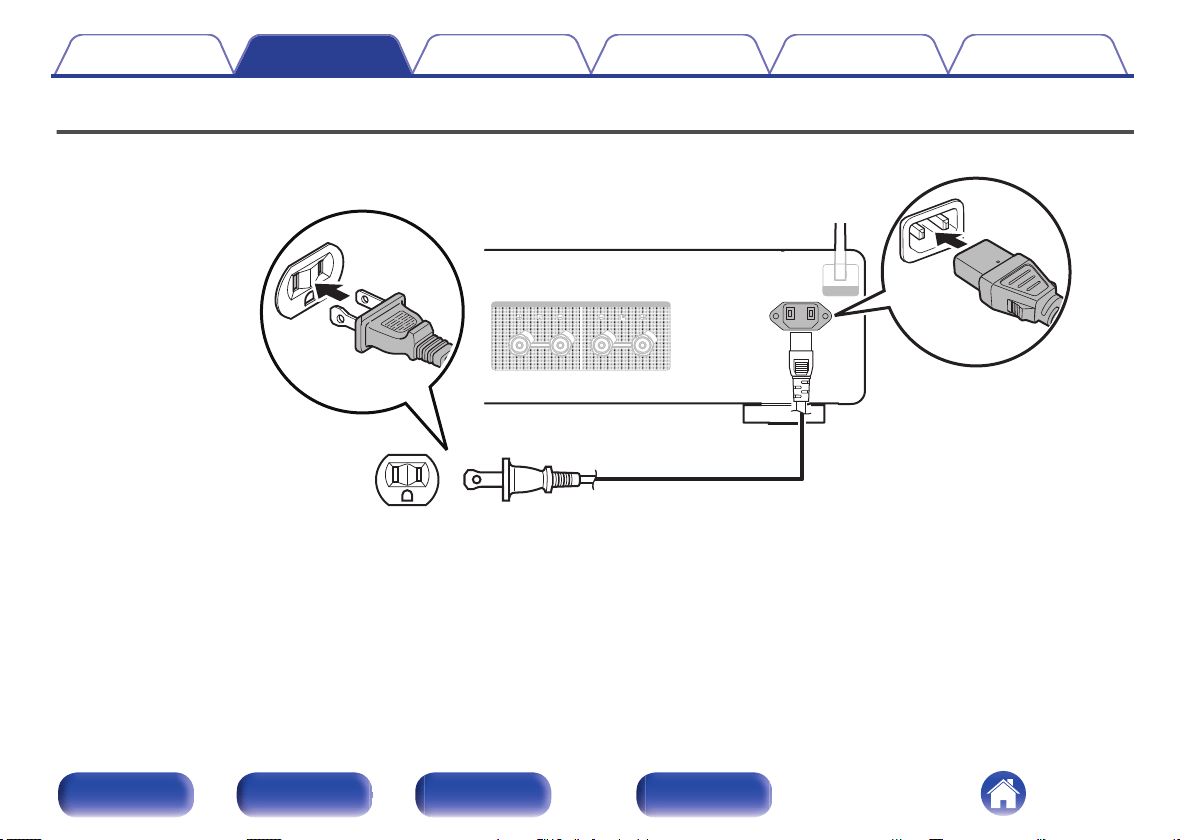
Connecting the power cord
After completing all the connections, insert the power plug into the power outlet.
SPEAKERS
SPEAKERS
Bluetooth / Wi-Fi
Bluetooth / Wi-Fi
ANTENNA
ANTENNA
AC IN
AC IN
Power cord (supplied)
To household power outlet
(AC 120 V, 60 Hz)
Contents Connections Playback Settings Tips Appendix
32
Front panel Rear panel
Remote control
unit
Index
o
Contents
Basic operation
Turning the power on 34
Switching the power to standby 34
Selecting the input source 35
Adjusting the volume 35
Turning off the sound temporarily (Muting) 35
Playback network audio/service
Getting the HEOS App 42
Listening to Internet Radio 53
Playing music stored on your mobile 53
Playing back files stored on PC or NAS 54
Playing music from a USB flash drive 54
AirPlay function 56
Spotify Connect function 59
Playback a device
Playing CDs 36
Listening to music on a Bluetooth device 37
Playing digital input 40
Convenience functions
Adjusting the tone and balance 60
Playback in source direct mode 60
Switching the display’s brightness 61
Using the sleep timer 61
Recording 62
Using this unit as a power amplifier 62
Contents Connections Playback Settings Tips Appendix
33
Front panel Rear panel
Remote control
unit
Index
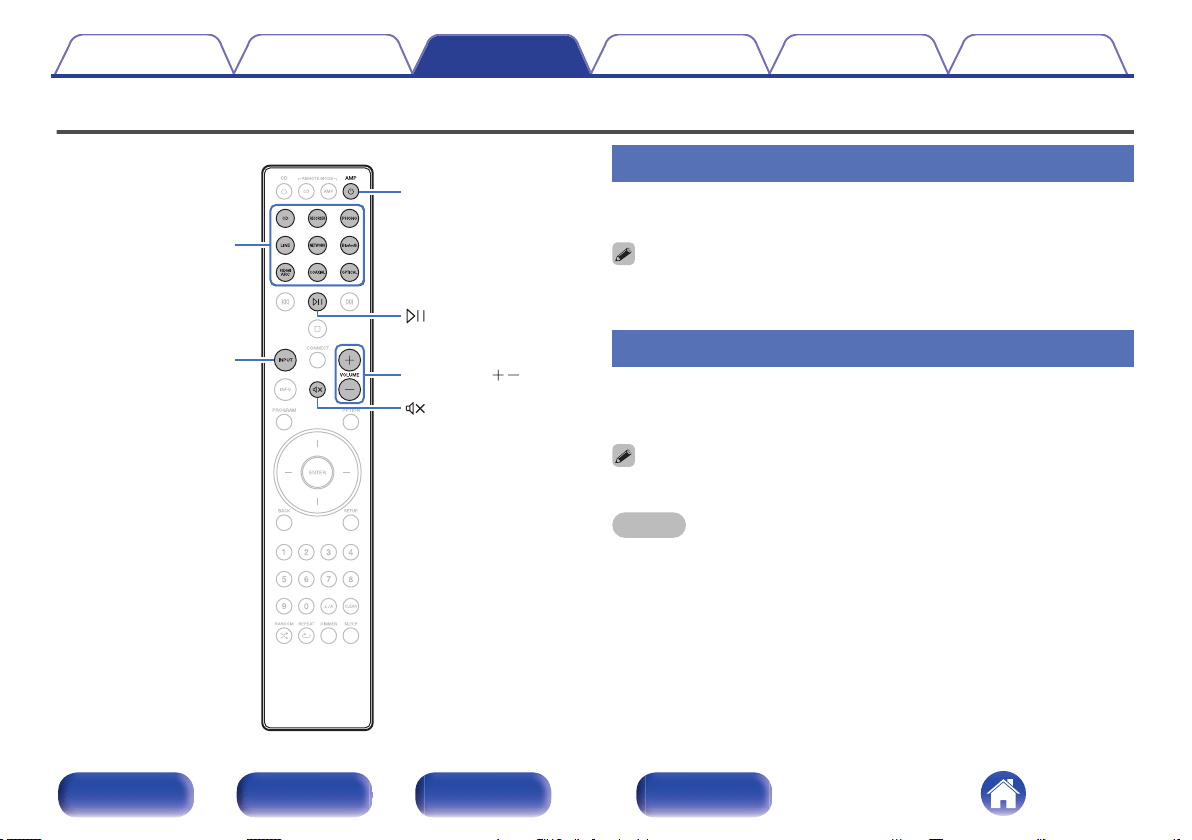
Basic operation
AMP
X
VOLUME
INPUT
Input source
select buttons
Turning the power on
1
Press AMP X
to turn on.
0
You can also press X on the main unit to turn on power from standby mode.
0
You can also press p to turn on power from standby mode.
Switching the power to standby
1
Press AMP X.
The unit switches to standby mode.
0
You can also switch the power to standby by pressing X on the main unit.
NOTE
0
Power continues to be supplied to some of the circuitry even when the power is in
the standby mode. When leaving home for long periods of time or when going on
vacation, unplug the power cord from the power outlet.
Contents Connections Playback Settings Tips Appendix
34
Front panel Rear panel
Remote control
unit
Index
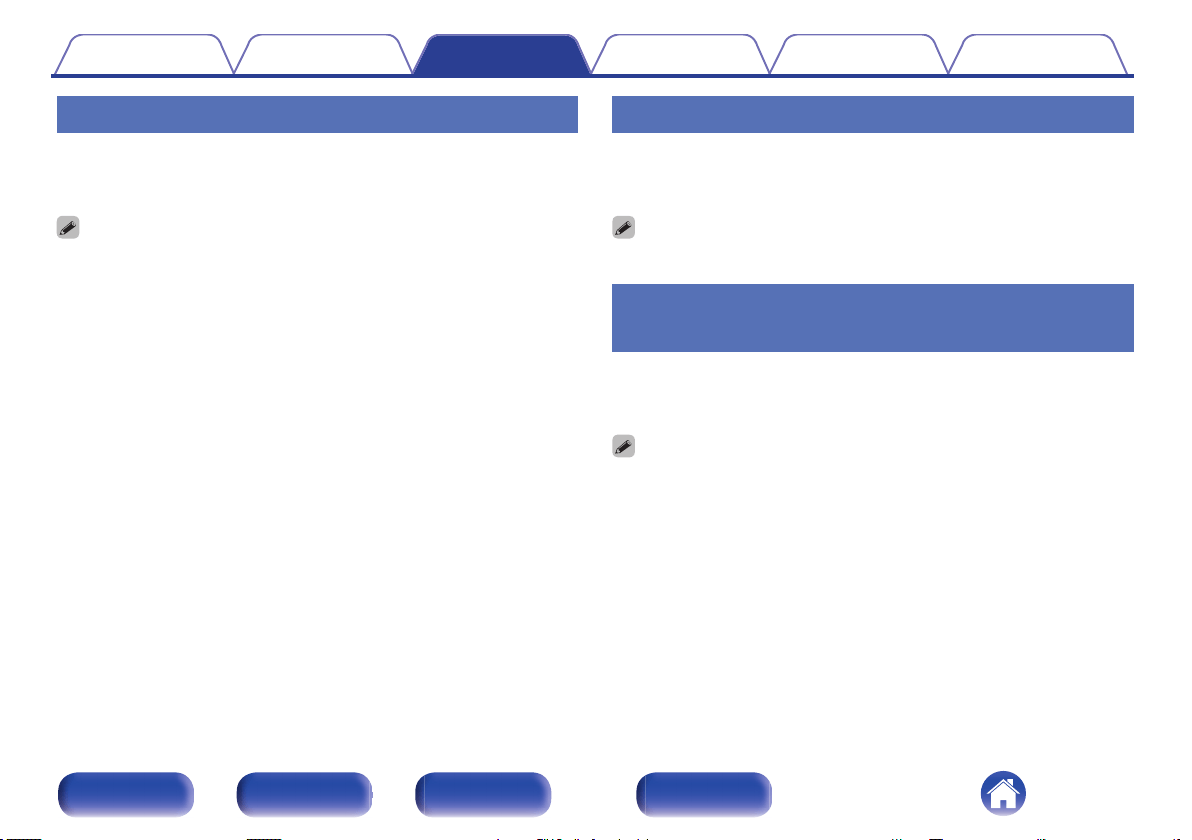
Selecting the input source
1
Press the input source select button to be played back.
The selected input source appears on the display.
0
You can also press INPUT to select the input source.
0
You can also select the input source by turning INPUT selector on the main unit.
0
If you press the NETWORK button, the input source is switched to the one that
was previously played on the network. If you cannot access the input source that
was previously played from on the network, open
“HEOS Music” on the display.
0
To play from a stream or USB flash drive using the network function, use the
HEOS App. (v p. 42)
0
If you playback from the HEOS App when the power of this device is on, it
automatically switches to the input source that is playing.
Adjusting the volume
1
Use VOLUME no
to adjust the volume.
The volume level appears on the display.
0
You can also adjust the volume by turning VOLUME on the main unit.
Turning off the sound temporarily
(Muting)
1
Press :.
“Mute” is displayed on the display.
0
To cancel mute, either adjust the sound volume or press : again.
Contents Connections Playback Settings Tips Appendix
35
Front panel Rear panel
Remote control
unit
Index
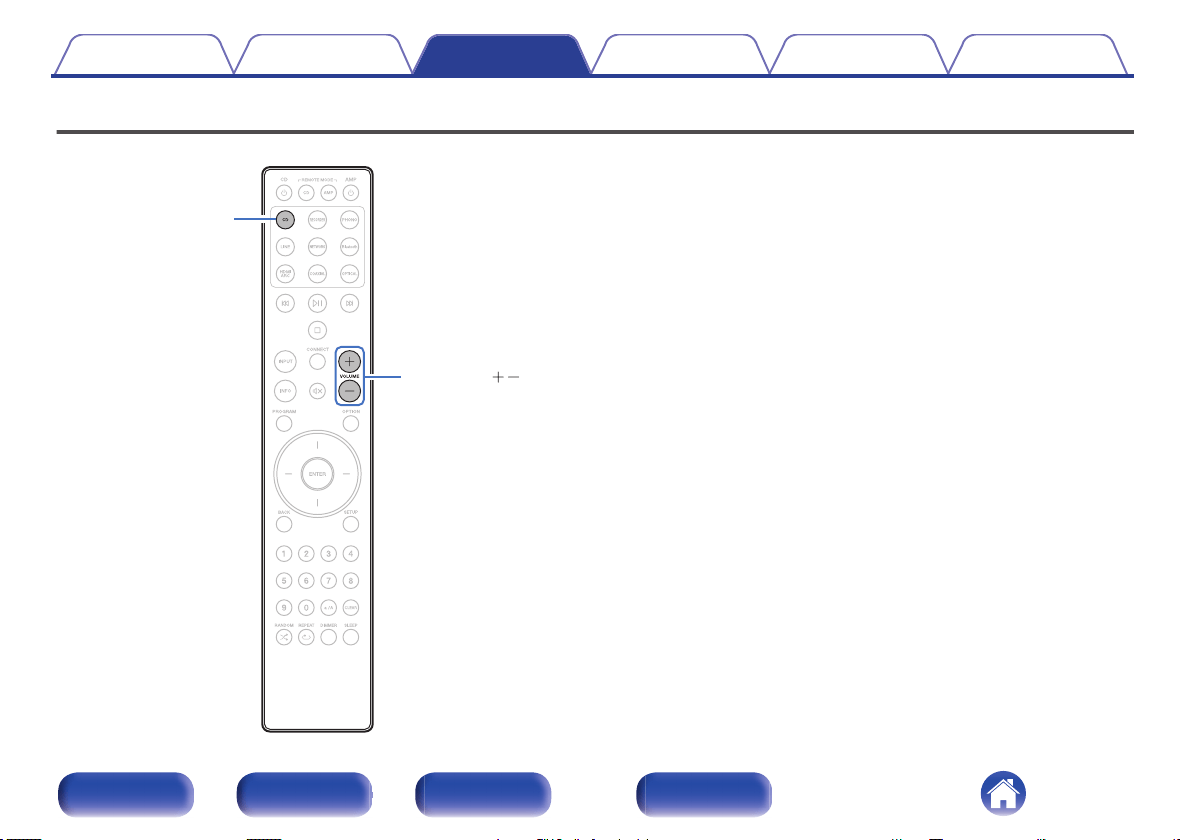
Playing CDs
CD
VOLUME
1
Prepare for playback.
Check the connection, then turn on this units. (“Connecting a
playback device” (v p. 23))
2
Press AMP X
to turn the power on.
3
Press the input source select button (CD) to switch the
input source to “
CD”.
“CD” is displayed on the display.
4
Playback the CD.
5
Use VOLUME no
to adjust the volume.
Contents Connections Playback Settings Tips Appendix
36
Front panel Rear panel
Remote control
unit
Index
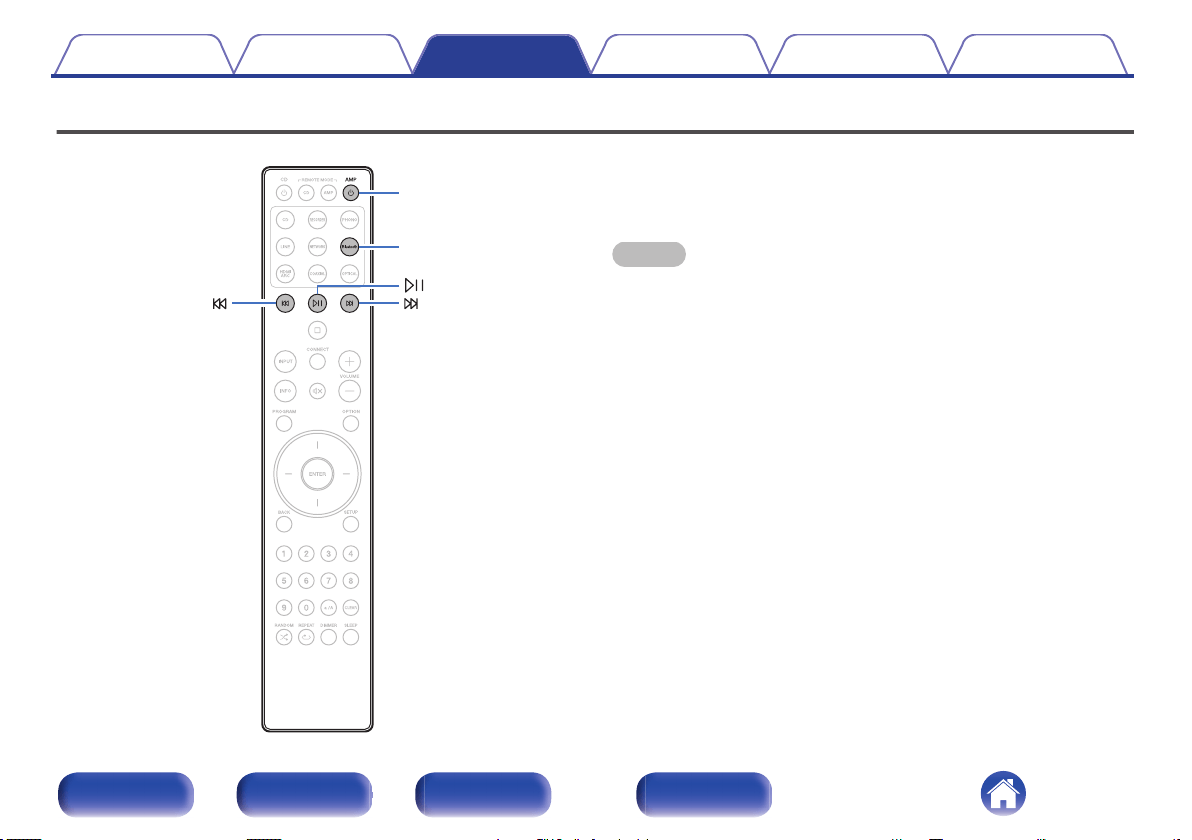
Listening to music on a Bluetooth device
Bluetooth
AMP
X
Music files stored on Bluetooth devices such as smartphones, digital
music players, etc. can be enjoyed on this unit by pairing and connecting
this unit with the Bluetooth device.
Communication is possible up to a range of about 98.4 ft/30 m.
NOTE
0
To play back music from a Bluetooth device, the Bluetooth device needs to
support the A2DP profile.
Contents Connections Playback Settings Tips Appendix
37
Front panel Rear panel
Remote control
unit
Index
Listening to music on a Bluetooth
device
In order to enjoy music from a Bluetooth device on this unit, the Bluetooth
device must first be paired with this unit.
Once the Bluetooth device has been paired, it does not need to be paired
again.
1
Prepare for playback.
A
Connect the supplied external antennas for Bluetooth/wireless
connectivity to the Bluetooth/wireless LAN antenna connectors
on the rear panel. (v p. 12)
B
Press AMP X to turn on power to the unit.
2
Press Bluetooth.
When playing content via Bluetooth on this unit for the first time, the
unit will go into the pairing mode automatically and
“Bluetoorh
Pairing...” will appear on the display of the unit.
3
Activate the Bluetooth settings on your Bluetooth
device.
4
Select this unit when its name appears in the list of
devices displayed on the screen of the Bluetooth
device.
Connect to the Bluetooth device while “Bluetoorh Pairing...” is being
displayed on the display of the unit.
Perform the connection with the Bluetooth device close to the unit
(about 3.3 ft/1 m).
5
Play music using any app on your Bluetooth device.
0
The Bluetooth device can also be operated with the remote
control of this unit.
0
The next time the Bluetooth button is pressed on the remote
control unit, this unit automatically connects to the last Bluetooth
device that was connected.
Operation buttons Function
p
Playback / Pause
k j
Skip to previous track / Skip to next track
Contents Connections Playback Settings Tips Appendix
38
Front panel Rear panel
Remote control
unit
Index
Pairing with other Bluetooth devices
Pair a Bluetooth device with this unit.
1
Activate the Bluetooth settings on your Bluetooth
device.
2
Press and hold Bluetooth on the remote control unit for
at least 3 seconds.
This unit will go into the pairing mode.
3
Select this unit when its name appears in the list of
devices displayed on the screen of the Bluetooth
device.
0
This unit can be paired with a maximum of 8 Bluetooth devices. When a 9th
Bluetooth device is paired, it will be registered in place of the oldest registered
device.
NOTE
0
To operate the Bluetooth device with the remote control of this unit, the Bluetooth
device needs to support the AVRCP profile.
0
The remote control of this unit is not guaranteed to work with all Bluetooth devices.
0
Depending on the type of Bluetooth device, this unit outputs audio that is coupled
to the volume setting on the Bluetooth device.
Reconnecting to this unit from a
Bluetooth device
After pairing is completed, the Bluetooth device can be connected without
performing any operations on this unit.
This operation also needs to be performed when switching the Bluetooth
device for playback.
1
If a Bluetooth device is currently connected, deactivate
the Bluetooth setting of that device to disconnect it.
2
Activate the Bluetooth setting of the Bluetooth device
to be connected.
3
Select this unit from the Bluetooth device list on your
Bluetooth device.
4
Play music using any app on your Bluetooth device.
0
When the power of this unit and the Bluetooth function of this unit are turned on,
the input source will be automatically switched to
“Bluetooth” if a Bluetooth device
is connected and is played.
0
When the “Network Control” setting of this unit is set to “On” and a Bluetooth
device is connected and is played with the unit in the standby state, the power of
the unit will be turned on automatically. (v p. 72)
Contents Connections Playback Settings Tips Appendix
39
Front panel Rear panel
Remote control
unit
Index
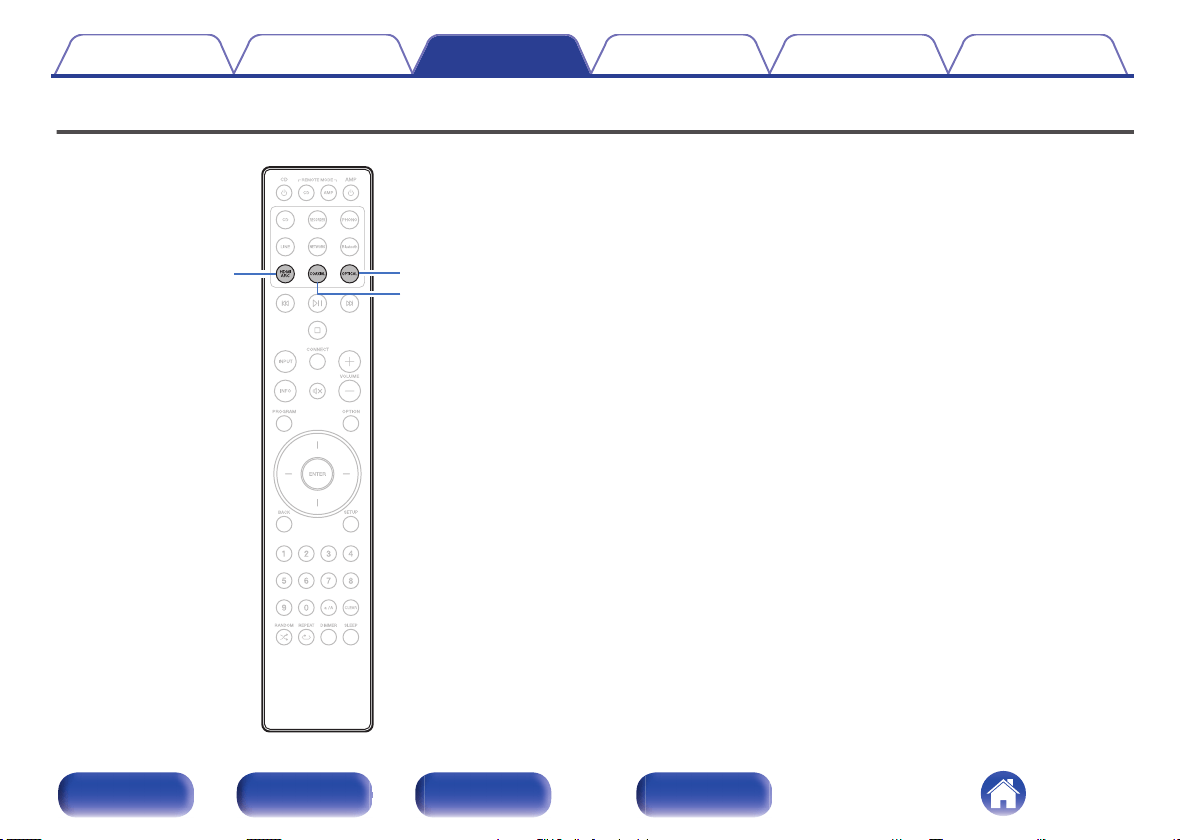
Playing digital input
OPTICAL
COAXIAL
HDMI ARC
1
Prepare for playback.
Check the connection, then turn on this units. (“Connecting to a
device with digital audio connectors” (v p. 25))
2
Press HDMI ARC, COAXIAL or OPTICAL to switch the
input source to “
HDMI ARC”, “COAXIAL” or “OPTICAL”.
3
Play the component connected to this unit.
0
If the sampling frequency cannot be detected, “Unlocked” will be
displayed.
0
“Unsupported
” is displayed when audio signals that are not
supported by this unit are input.
Contents Connections Playback Settings Tips Appendix
40
Front panel Rear panel
Remote control
unit
Index
0
When “TV Input” is set in the menu, this unit automatically turns on when the TV
connected to the unit is turned on, and the input source switches to
“HDMI ARC”,
“COAXIAL” or “OPTICAL”. (v p. 68)
0
If you connect your TV via the Optical or Coaxial connection, this unit cannot be
put to standby when you turn off your TV. If you want to automatically put this
device on standby, set “Auto-Standby” in the settings menu. (v p. 69)
NOTE
0
Do not input non-PCM signals, such as Dolby Digital, DTS and AAC. This causes
noise and could damage the speakers.
0
Only the PCM 2-channel setting can be used to play sound from a TV via the ARC
function. Set "PCM 2ch" as the audio format in the TV settings.
o
Specifications of supported audio formats
See “D/A converter” (v p. 97).
o
HDMI control function
Connect this unit to a TV that supports the HDMI control function with
an HDMI cable and enable the HDMI control setting on the TV to
perform basic operations on this unit (changing the input source,
turning the power on and off, adjusting the volume) with the remote
control of the TV.
Refer to “About HDMI” (v p. 101) for more information about the
HDMI control function.
Contents Connections Playback Settings Tips Appendix
41
Front panel Rear panel
Remote control
unit
Index
Getting the HEOS App
You can use many online music streaming services from the HEOS App. Depending upon your geographical location, there are several options to choose
from.
Download the HEOS App for iOS or Android by searching App Store, Google Play store or Amazon Appstore for “HEOS”.
0
Specifications of the HEOS App may be changed without prior notice for improvement purposes.
Contents Connections Playback Settings Tips Appendix
42
Front panel Rear panel
Remote control
unit
Index
Setting up the HEOS App for the first
time with a HEOS built-in device
Once you have placed this unit in your listening room and have
downloaded the HEOS App, you are ready to configure this unit for music
playback. This involves following a few simple steps to get this unit
connected to your existing home network:
0
DO NOT connect the Ethernet cable if you are connecting this unit to a wireless
network. If you are connecting this unit to a wired network, use an Ethernet cable
sold separately to connect this unit to your network or router.
1
Make sure your mobile device is connected to your
wireless network (the network you want to connect to
this device).
You can check this in the “Settings” - “Wi-Fi” menu of your iOS or
Android device.
0
Activate the Bluetooth setting on your mobile device.
0
If your wireless network is secure, make sure you know the password to join
your network.
2
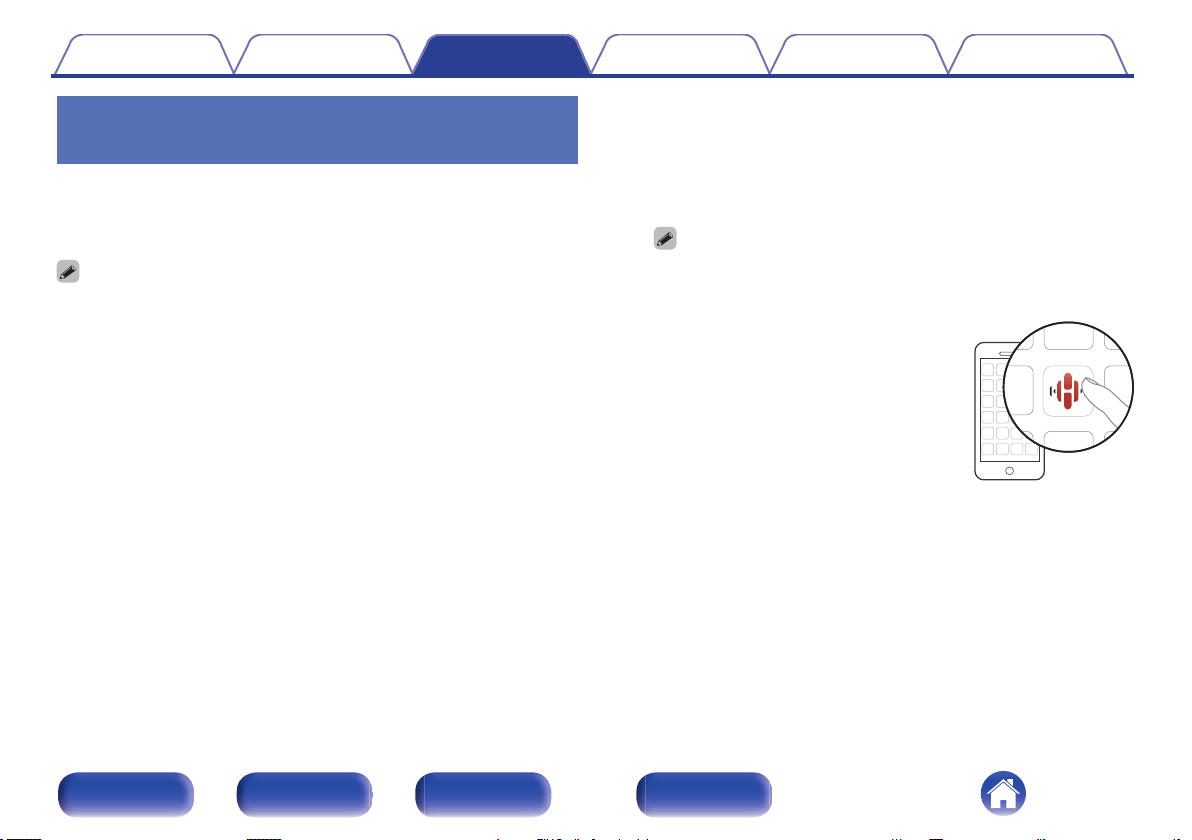
Launch the HEOS App on your
mobile device.
3
Tap the “Setup Now” button at the top of the screen.
4
Follow the instructions to add this unit to your wireless
network and to select an input on this unit.
Contents Connections Playback Settings Tips Appendix
43
Front panel Rear panel
Remote control
unit
Index
Adding the registration of HEOS built-
in devices in the HEOS App
The HEOS system is a true multiroom audio system that automatically
synchronizes audio playback between multiple HEOS built-in devices so
that the audio coming from different rooms is perfectly in sync and always
sounds amazing! You can easily add up to 32 HEOS built-in devices to
your HEOS system.
o
Adding wired HEOS built-in devices
Just connect the HEOS built-in devices to your home network using an
Ethernet cable and the HEOS built-in device will appear on your HEOS
App as a new room in the Rooms screen. For information about wired
LAN connections, refer to
“Connecting to a home network
(LAN)” (v p. 28).
At your convenience, you can assign a name to the HEOS built-in
device to indicate which room you have it placed in.
o
Adding wireless HEOS built-in devices
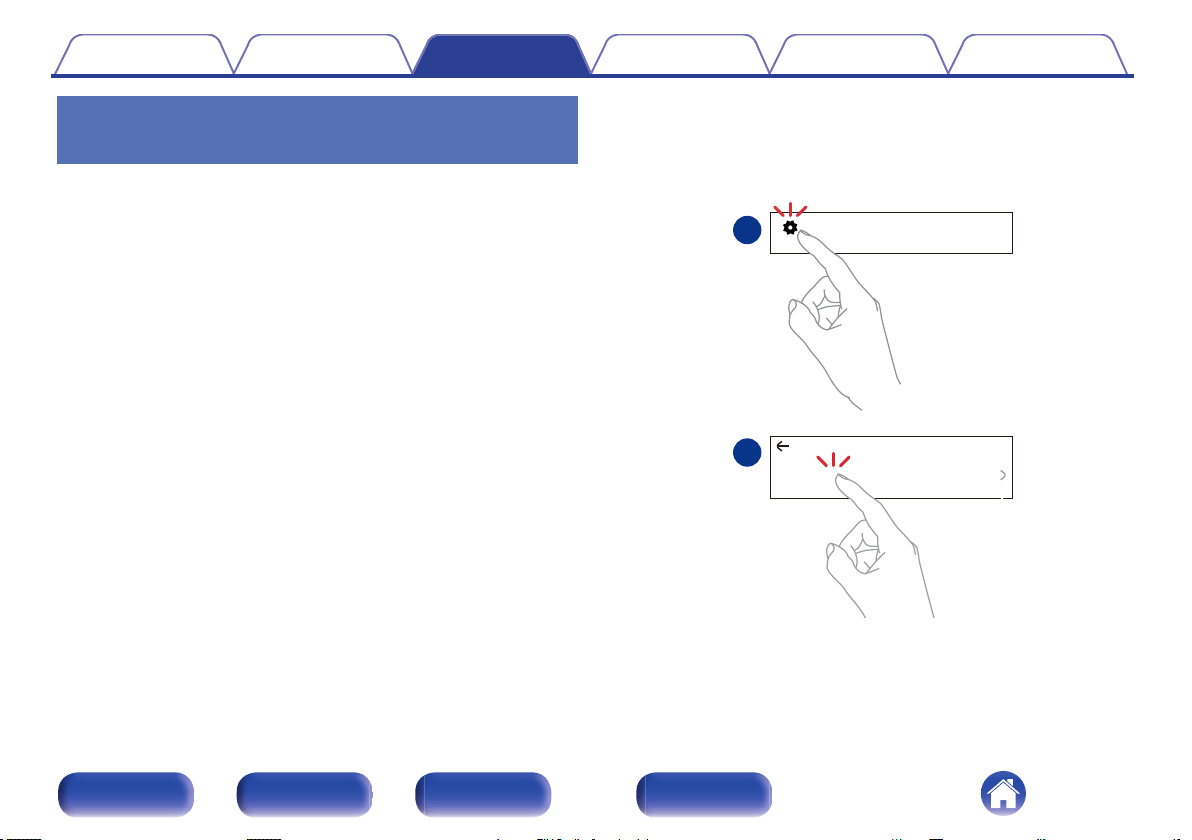
You can add additional wireless HEOS built-in devices to your HEOS
system by selecting
“Add Device” from the HEOS App’s settings menu
and follow the instructions:
Settings
Add Device
1
2
Music
Contents Connections Playback Settings Tips Appendix
44
Front panel Rear panel
Remote control
unit
Index
HEOS Account
HEOS Accounts can be registered in “HEOS Account” (v p.
45) in the
menu of this unit or by tapping “Music” tab - “Settings” icon
in the
HEOS App.
o
What is a HEOS Account?
A HEOS Account is master account or “keychain” for managing all of
your HEOS music services with one single username and password.
o
Why do I need a HEOS Account?
With the HEOS Account you just have to enter your music services
login names and passwords one time. This allows you to easily and
quickly use multiple controller apps on different devices.
You just log into your HEOS Account on any device and you will have
access to all of your associated music services, play history and
custom playlists, even if you are at a friend’s house listening to music
on their HEOS system.
o
Signing up for a HEOS Account
You will be instructed to signup for a HEOS Account the first time you
try to access any music service from the main
“Music” menu of the
HEOS App. Follow the instructions in the HEOS App to complete the
operation.
o
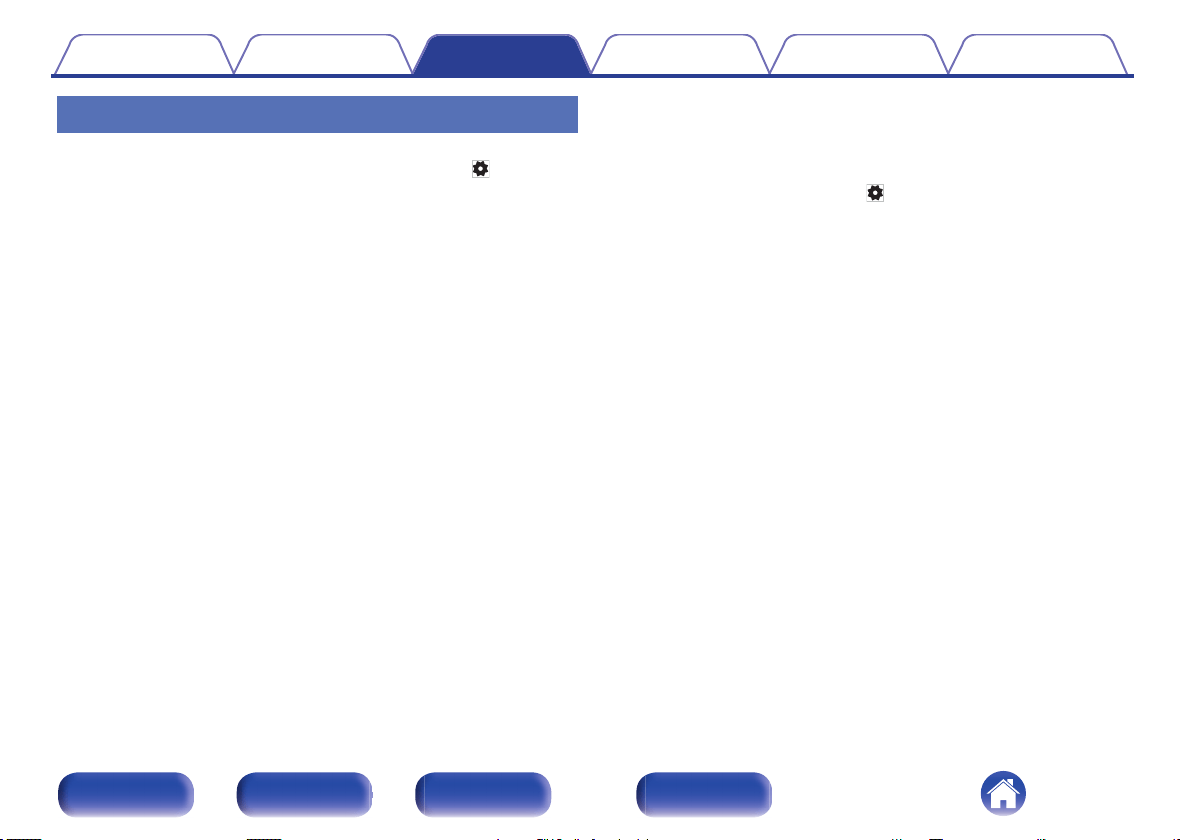
Changing your HEOS Account
1
Tap the “Music” tab.
2
Select the Settings icon
in the upper left corner of
the screen.
3
Select “HEOS Account”.
4
Change your location, change your password, delete
your account or sign out of your account.
Contents Connections Playback Settings Tips Appendix
45
Front panel Rear panel
Remote control
unit
Index
Playing from streaming music services
A music service is an online music company that provides access to vast
music collections via free and/or paid subscriptions. Depending upon your
geographical location, there are several options to choose from.
NOTE
0
The HEOS App and brand is not affiliated with any manufacturer of any mobile
device. Availability of music services may vary by region. Not all services may be
available at time of purchase. Some services may be added or discontinued from
time to time based on decisions of the music service providers or others.
o
Selecting a room/device
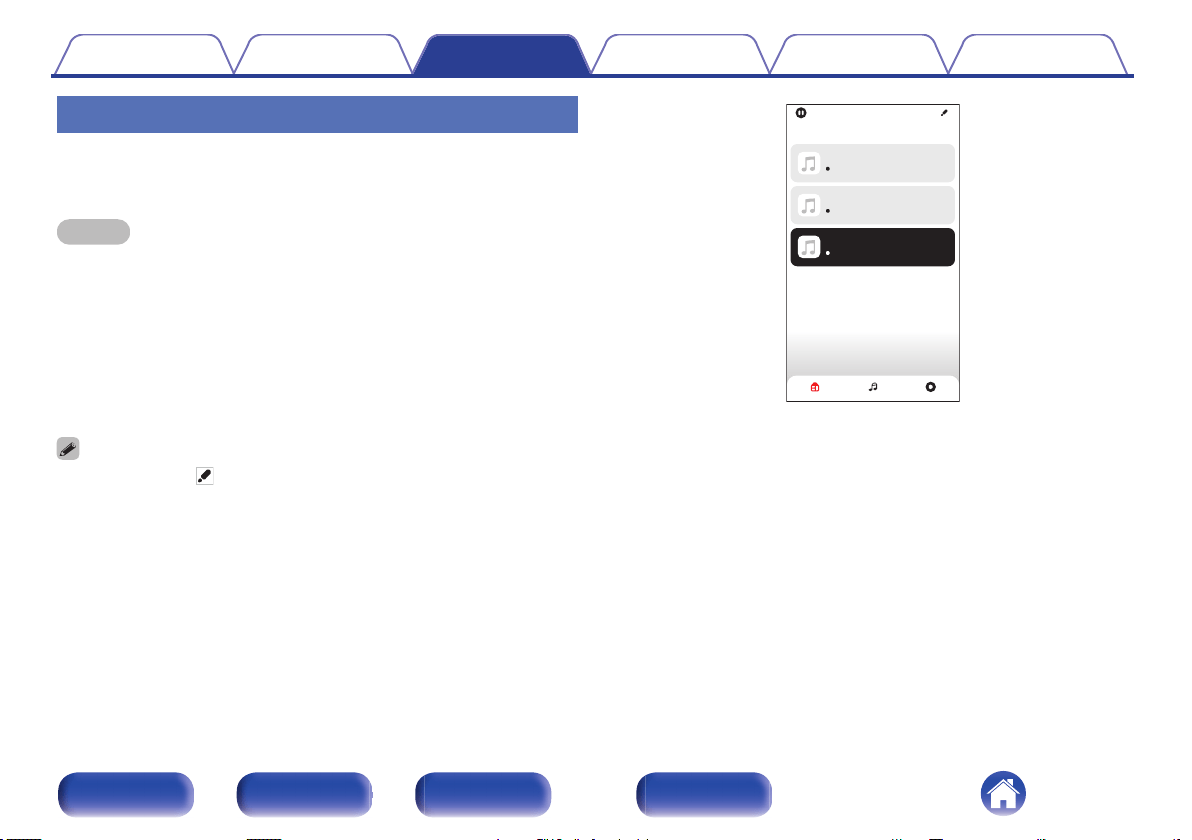
1
Tap the “Rooms” tab. Select “Marantz MODEL 40n” if
there are multiple HEOS devices.
0
Tap the Pencil icon at the top right to switch edit mode. You can change the
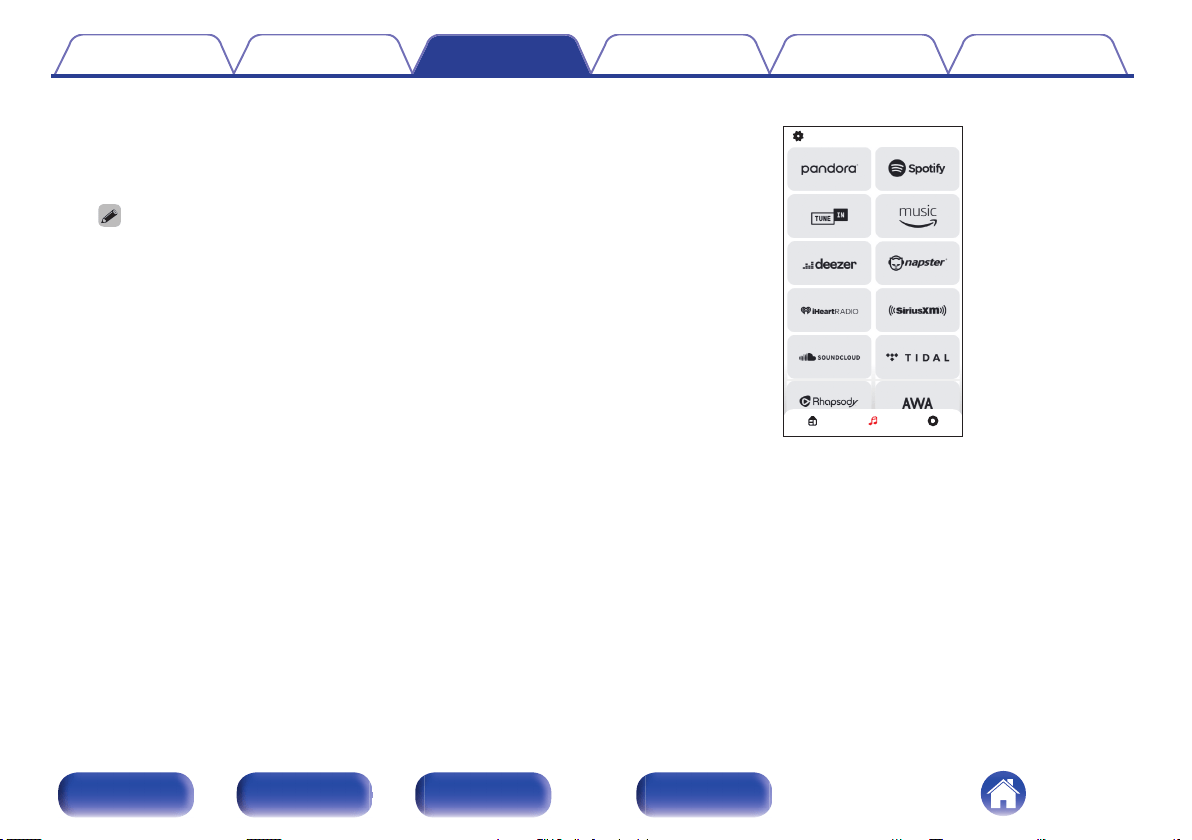
displayed name.
Drag one room into another to group them
Song Name 1
Dining L + Dining R
Song Name 2
Kitchen
Rooms
Song Name 3
Marantz MODEL 40n
Rooms Now PlayingMusic
Contents Connections Playback Settings Tips Appendix
46
Front panel Rear panel
Remote control
unit
Index
2
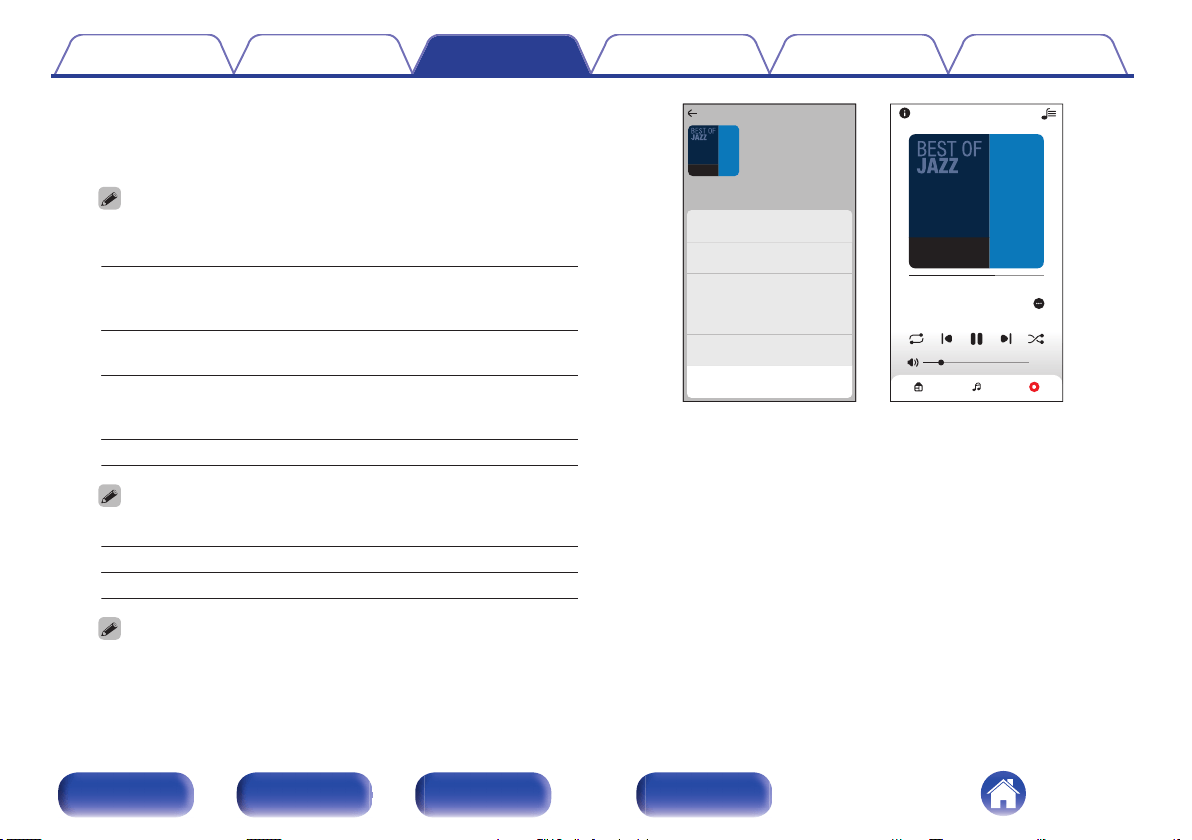
Browse the music to play.
After selecting a music track or radio station the app will
automatically change to the
“Now Playing” screen.
0
When you select a music track to play you will be asked how you want to
queue up your music.
Play Now:
Inserts the item into the queue after the
currently playing track and plays the
selected item immediately.
Play Now & Replace
Queue:
Clears the queue and plays the
selected item immediately.
Play Next:
Inserts the item into the queue after the
current song and plays it when the
current song ends.
Add to End of Queue: Adds the item to the end of the queue.
0
When you select a radio station the following items are displayed.
Play Now: Plays the selected item immediately.
Add to HEOS Favorites: Adds to HEOS Favorites.
0
Set “Network Control” of the settings menu to “On” so that when you are
playing back from the HEOS App while this device is in standby, this device
turns on automatically. (“Network Control” (v p. 72))
1 Track 1
2 Track 2
0:50
0:20
Now Playing
Track 01
Artist
2:51
-
1:40
Album
Play Now
HEOS 3 Now PlayingMusic
Cancel
Play Now & Replace Queue
Play Next
Add to End of Queue
Track 01
Rooms
Album
Album
10 Tracks,60 Mins.,2014
Artist
Rooms Now PlayingMusic
Contents Connections Playback Settings Tips Appendix
48
Front panel Rear panel
Remote control
unit
Index
Listening to the same music in multiple
rooms
The HEOS system is a true multi-room audio system that automatically
synchronizes audio playback between multiple HEOS devices so that the
audio coming from different rooms is perfectly in sync and always sounds
amazing! You can easily add up to 32 HEOS devices to your HEOS
system. You can join or group up to 16 individual HEOS devices into a
group of HEOS devices that function as if they were a single HEOS
device.
o
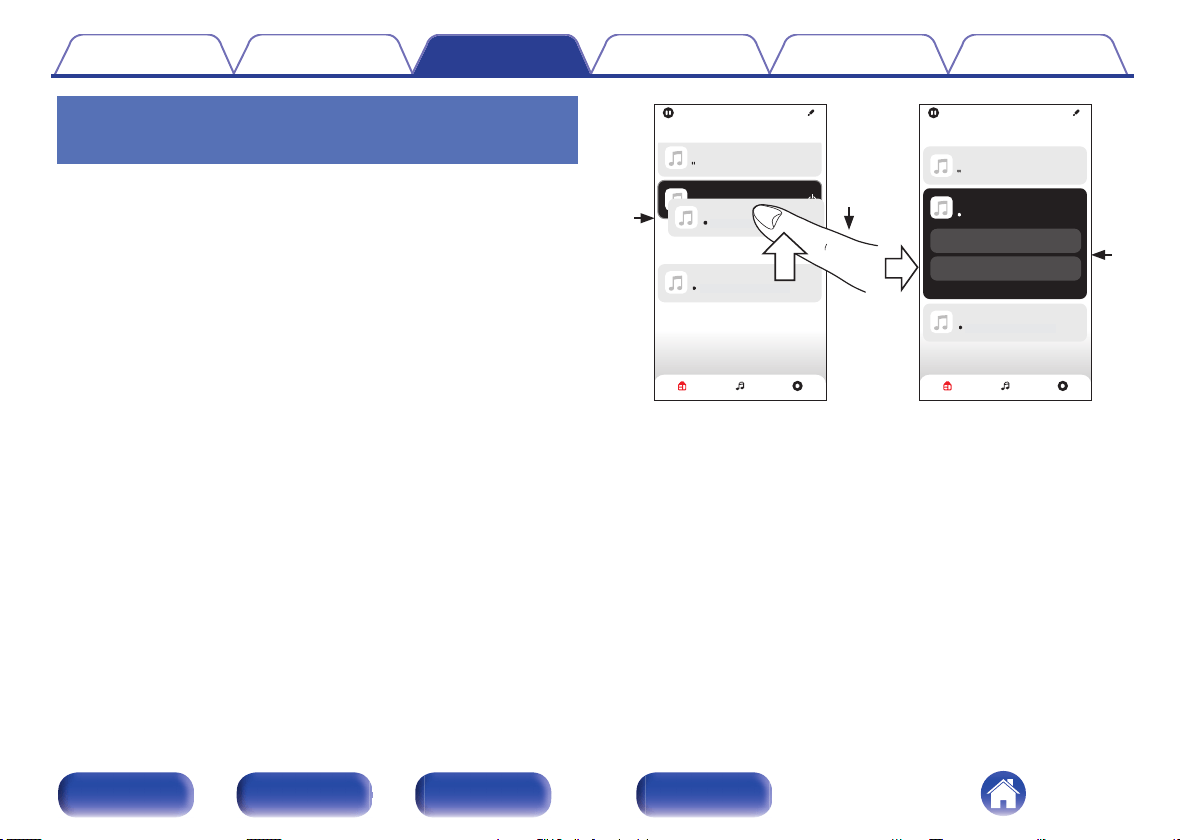
Grouping rooms
1
Press and hold your finger on room that is not playing
music.
2
Drag it into the room that is playing music and lift your
finger.
3
The two rooms will be grouped together into a single
device group and both rooms will be playing the same
music in perfect sync.
Drag one room into another to group them
Song Name 1
Dining
Rooms
Drag one room into another to group them
Song Name 1
Dining
Rooms
Rooms Now PlayingMusic
Rooms Now PlayingMusic
Song Name 3
Bedroom
Living
Song Name 2
Kitchen
Song Name 3
Bedroom
Living+Kitchen
Living
Kitchen
Song Name 2
Drag a room out of this group to ungroup it
2
1
3
Contents Connections Playback Settings Tips Appendix
49
Front panel Rear panel
Remote control
unit
Index
o
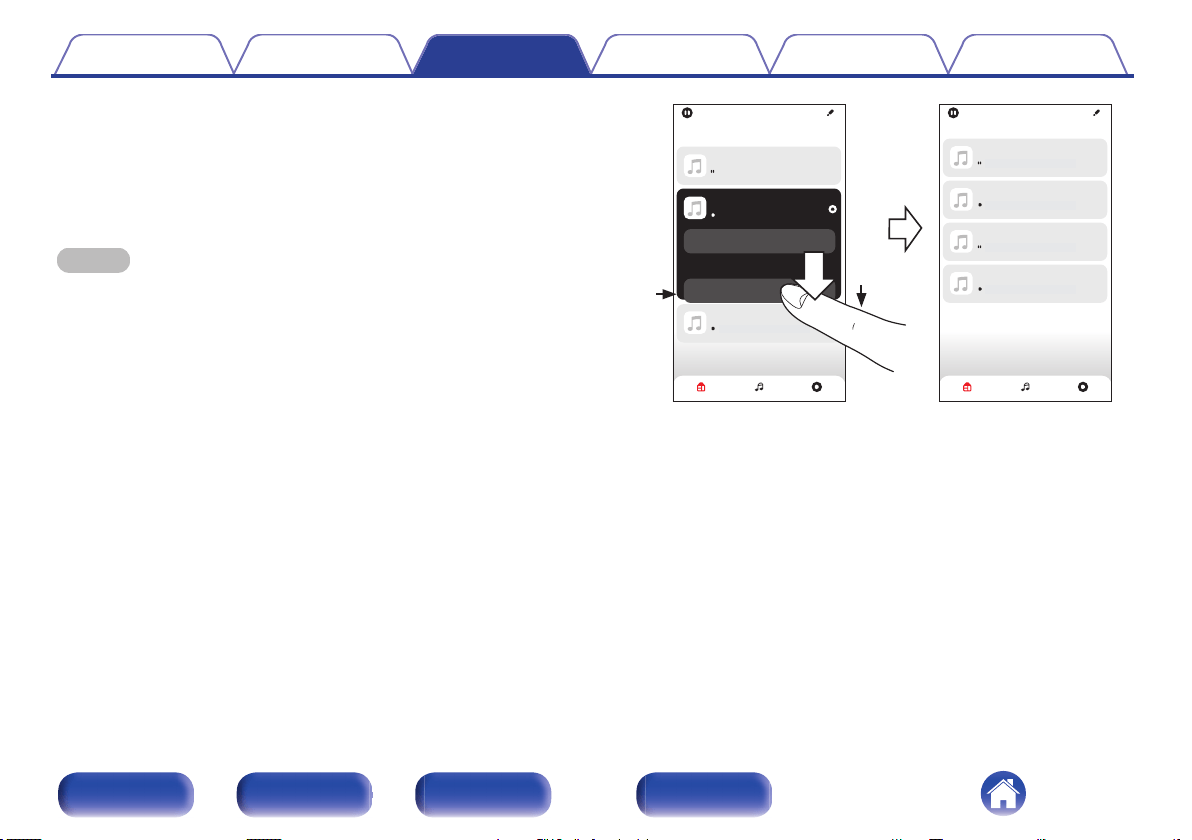
Ungrouping rooms
1
Press and hold your finger on room that you want to
remove from the group.
2
Drag it out of the group and lift your finger.
NOTE
0
You can not remove the first room that started playing the music before grouping.
Rooms
Song Name 4
Kitchen
Drag one room into another to group them
Song Name 1
Dining
Rooms
Song Name 3
Bedroom
Living
Song Name 2
Kitchen
Rooms Now PlayingMusic
Rooms Now PlayingMusic
Song Name 3
Bedroom
Song Name 2
Living
Song Name 1
Dining
Drag one room into another to group them
Living
2
1
Contents Connections Playback Settings Tips Appendix
50
Front panel Rear panel
Remote control
unit
Index
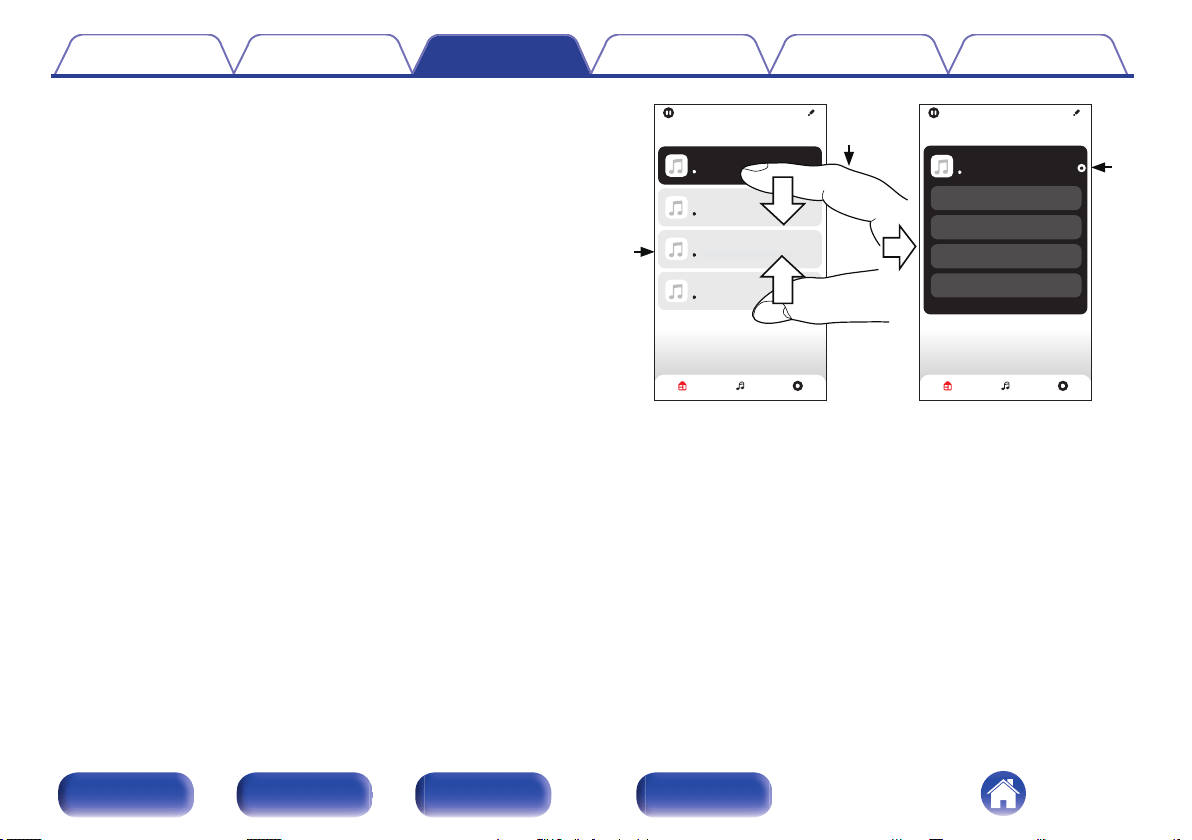
o
Grouping all rooms (party mode)
You can easily group 16 rooms together into Party Mode by using a
“pinch” gesture.
1
Place two fingers on the screen over the list of rooms.
2
Quickly pinch your two fingers together and release.
3
All of your rooms will be joined together and begin
playing the same music in perfect sync.
Drag one room into another to group them
Rooms
Bedroom
Kitchen
Living
Dining
Drag a room out of this group to ungroup it
Song Name 1
Dining+Living+...
Drag one room into another to group them
Song Name 2
Living
Rooms
Song Name 3
Kitchen
Song Name 4
Bedroom
Rooms Now PlayingMusic
Rooms Now PlayingMusic
Song Name 1
Dining
1
2
3
Contents Connections Playback Settings Tips Appendix
51
Front panel Rear panel
Remote control
unit
Index
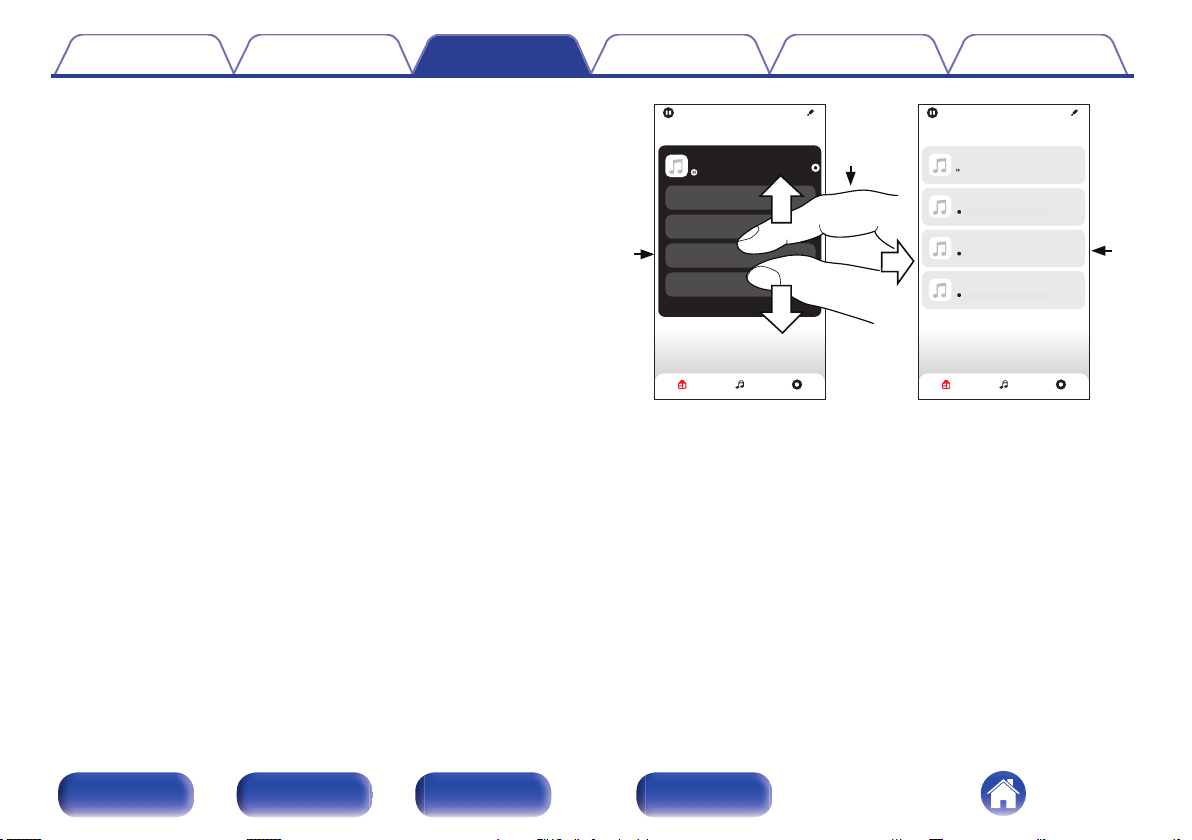
o
Ungrouping all rooms
You can easily ungroup all of your rooms and exit Party Mode by using
a “spread” gesture.
1
Place two fingers close together on the screen over list
of rooms.
2
Quickly spread your two fingers apart from each other
and release.
3
All of your rooms will be ungrouped.
Rooms
Drag one room into another to group them
Rooms
Bedroom
Kitchen
Living
Dining
Drag a room out of this group to ungroup it
Song Name 1
Dining
Rooms Now PlayingMusic Rooms Now PlayingMusic
Song Name 3
Kitchen
Song Name 4
Bedroom
Song Name 2
Living
Song Name 1
Dining
Drag one room into another to group them
1
2
3
Contents Connections Playback Settings Tips Appendix
52
Front panel Rear panel
Remote control
unit
Index
Listening to Internet Radio
Perform this operation on the HEOS App. Download the HEOS App in
advance to your iOS or Android device.
(v p. 42)
The HEOS system includes access to more than 100,000 free internet
radio streams from all corners of the globe via the TuneIn radio service.
Just select the TuneIn logo from the main “Music” menu and browse
among the 100,000 stations neatly organized into popular categories and
select a station that appeals to your mood.
0
If you have a TuneIn account, you can sign into the TuneIn service under
“Settings” - “Music Sources” - “TuneIn”, and access all of your
“My Favorites”
TuneIn stations.
0
For the types and specifications of audio formats that can be played back on this
unit, see “Playing back Internet Radio” (v p. 100).
NOTE
0
The radio station database service may be suspended or be otherwise unavailable
without notice.
Playing music stored on your
mobile
Perform this operation on the HEOS App. Download the HEOS App in
advance to your iOS or Android device. (v p. 42)
1
Tap the “Music” tab.
2
Select “This iPhone/iPod/iPad/Phone”.
3
Browse the local music on your phone and select
something to play.
Contents Connections Playback Settings Tips Appendix
53
Front panel Rear panel
Remote control
unit
Index
Playing back files stored on a PC or
NAS
Perform this operation on the HEOS App. Download the HEOS App in
advance to your iOS or Android device. (v p. 42)
1
Select “Music Servers” from the “Music” tab.
2
Select the name of your networked PC or NAS
(Network Attached Storage) server.
3
Browse the music on your PC/NAS and select
something to play.
0
For the types and specifications of audio formats that can be played back on this
unit,see “Playing back files stored on a PC and NAS” (v p. 99
).
Playing music from a USB flash
drive
Perform this operation on the HEOS App. Download the HEOS App in
advance to your iOS or Android device. (v p. 42)
1
Insert a FAT32 or NTFS formatted USB flash drive into
the USB port on the rear panel of this unit.
2
Select “USB Music” from the “Music” tab.
3
Select the name of this unit.
4
Browse the music on your USB flash drive and select
something to play.
Contents Connections Playback Settings Tips Appendix
54
Front panel Rear panel
Remote control
unit
Index
0
It may take several minutes for the name of this unit to appear in the
“USB Music”
list if you have a large number of files on your USB flash drive.
0
It is not possible to connect and use a computer via the USB port of this unit using
a USB cable.
0
For the types and specifications of audio formats that can be played back on this
unit,see “Playing back a USB flash drives” (v p. 96).
NOTE
0
Note that Marantz will accept no responsibility whatsoever for any problems
arising with the data on a USB memory device when using this unit in conjunction
with the USB memory device.
0
When a USB flash drive is connected to this unit, the unit loads all of the files on
the USB flash drive. Loading may take a while if the USB flash drive contains a
large number of folders and/or files.
Contents Connections Playback Settings Tips Appendix
55
Front panel Rear panel
Remote control
unit
Index
AirPlay function
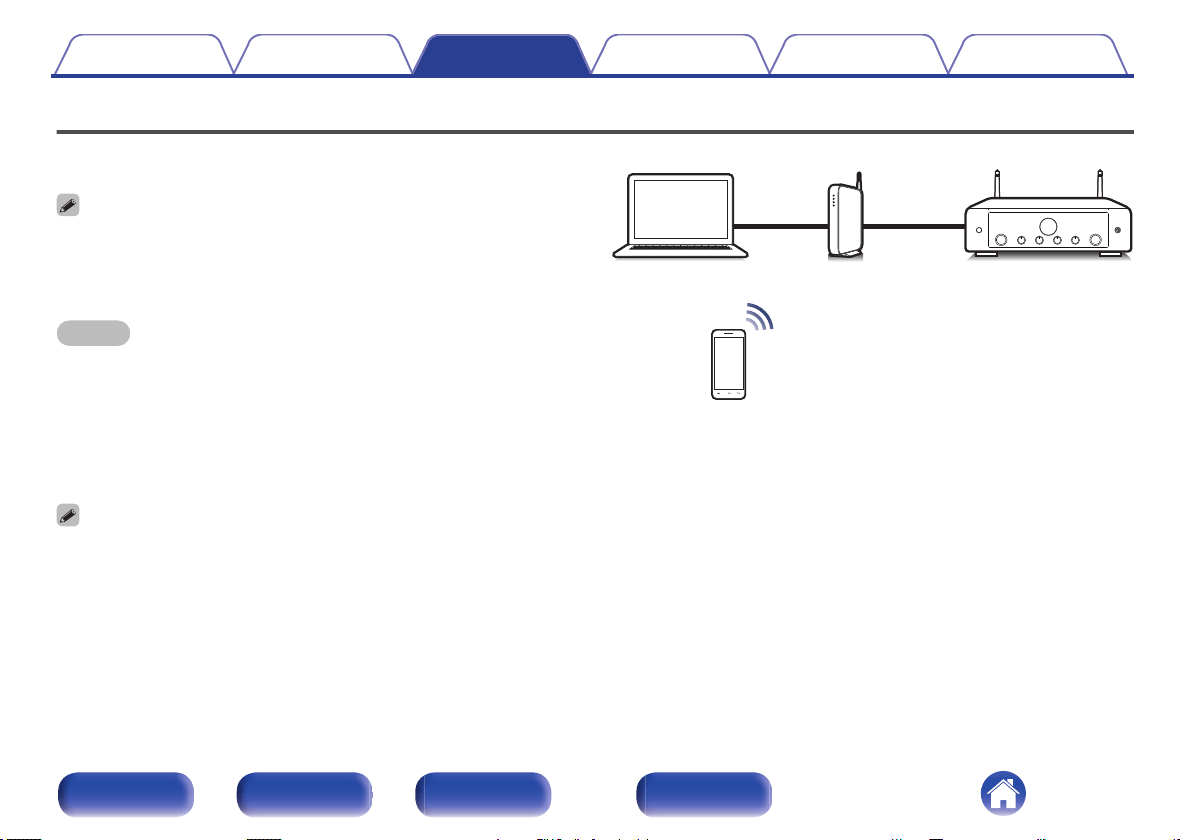
Music files stored on your iPhone, iPod touch, iPad or iTunes can be
played on this unit via the network.
0
Input source will be switched to “AirPlay” when AirPlay playback is started.
0
You can stop AirPlay playback by choosing other input source.
0
For information about how to use iTunes, also see the Help for iTunes.
0
The screen may differ depending on the OS and software versions.
NOTE
0
In playback using the AirPlay function, the sound is output at the iPhone, iPod
touch, iPad or iTunes volume setting level.
You should turn down the iPhone, iPod touch, iPad or iTunes volume prior to
playback and then adjust it to a suitable level.
This device supports AirPlay 2.
Sync multiple AirPlay 2 compatible devices/speakers for simultaneous
playback.
0
This unit supports AirPlay 2 and requires iOS 11.4 or later.
PC Router This unit
Contents Connections Playback Settings Tips Appendix
56
Front panel Rear panel
Remote control
unit
Index
Playing songs from your iPhone, iPod
touch or iPad
If you update your “iPhone/iPod touch/iPad” to iOS 10.0.2 or later, you can
stream music stored in your “iPhone/iPod touch/iPad” directly to this unit.
1
Connect your iPhone, iPod touch or iPad Wi-Fi to the
same network as this unit.
0
For details, see your device’s manual.
2
Play the song on your iPhone, iPod touch or iPad.
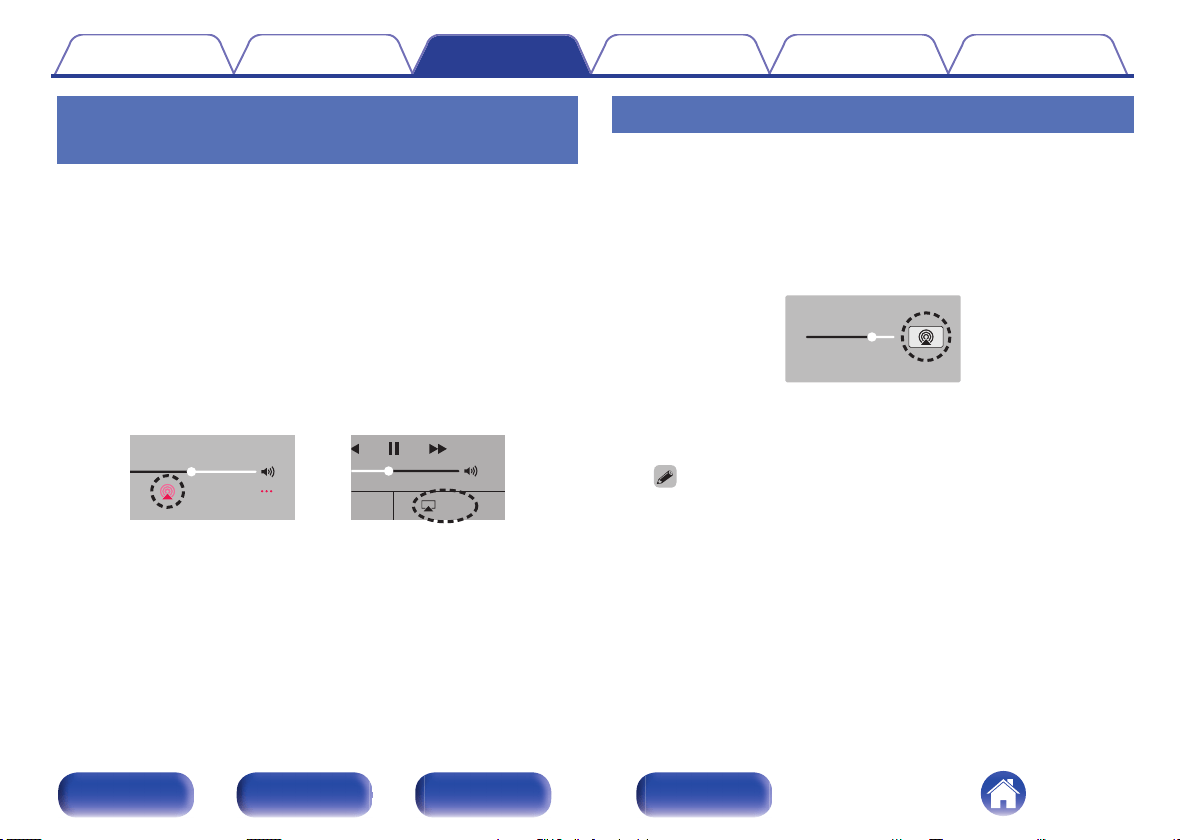
AirPlay icon is displayed on the iPhone, iPod touch or iPad screen.
3
Tap the AirPlay icon and select this unit.
AirPlay
AirPlay
D
rop:
AirDrop:
ryone
ryone
[Example] iOS 12
[Example] iOS 10
Playing iTunes music with this unit
1
Install iTunes 10, or later, on a Mac or Windows PC that
is connected to the same network as this unit.
2
Start iTunes and click the AirPlay icon to select this
unit.
[Example] iTunes
3
Choose a song and click play in iTunes.
The music will stream to this unit.
0
When “Network Control” is set to “On”, you can turn on this unit by operating
iTunes. (v p. 72
)
Contents Connections Playback Settings Tips Appendix
57
Front panel Rear panel
Remote control
unit
Index
Play a song from your iPhone, iPod
touch or iPad on multiple synced
devices (AirPlay 2)
Songs from an iPhone, iPod touch or iPad operating iOS 11.4 or later can
be synced with multiple AirPlay 2 supported devices for simultaneous
playback.
1
Play the song on your iPhone, iPod touch or iPad.
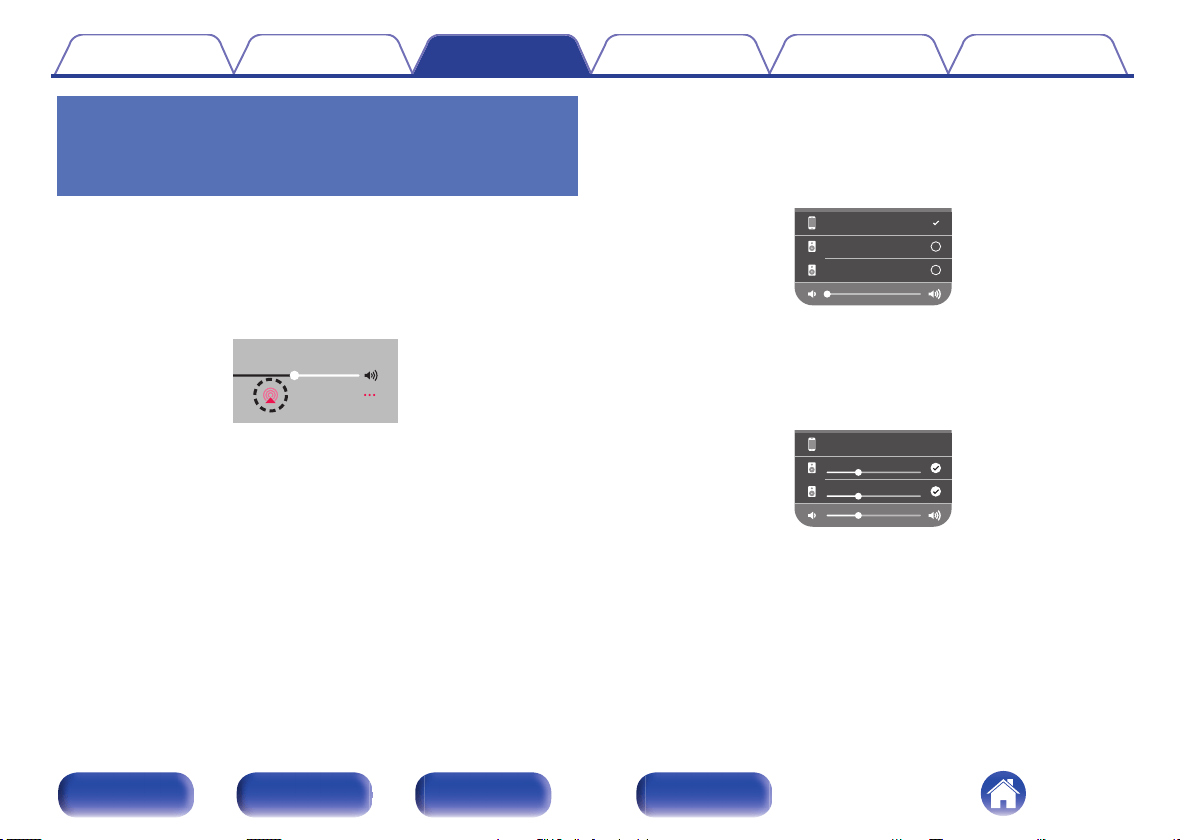
AirPlay icon is displayed on the iPhone, iPod touch or iPad screen.
2
Tap the AirPlay icon.
Displays a list of devices/speakers that can be played back on the
same network.
0
A circle is displayed to the right of AirPlay 2 compatible devices.
Speakers
Marantz xxxxxxxx
iPhone
3
Tap the devices/speakers you want to use.
0
Multiple AirPlay 2 compatible devices can be selected.
0
Volume can be adjusted for each device individually or for all
synced devices simultaneously.
iPhone
Speakers
Marantz xxxxxxxx
Contents Connections Playback Settings Tips Appendix
58
Front panel Rear panel
Remote control
unit
Index
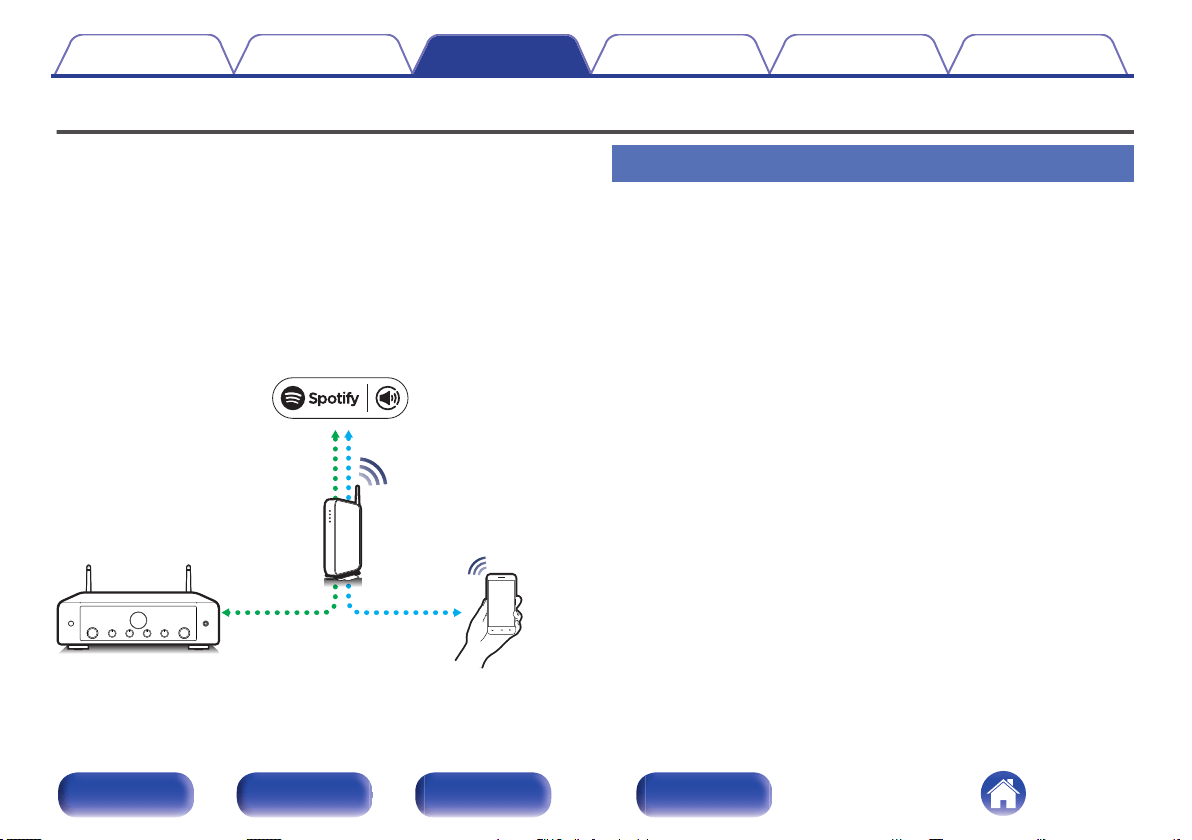
Spotify Connect function
Spotify is all the music you’ll ever need. Millions of songs available
instantly. Just search for the music you love, or let Spotify play you
something great. Spotify works on your phone, tablet, computer and home
speakers. So you’ll always have the perfect soundtrack for whatever
you’re doing. Now you can enjoy Spotify with your free account as well as
Premium account.
Use your phone, tablet or computer as a remote control for Spotify.
Go to www.spotify.com/connect to learn how.
The Spotify software is subject to third party licenses found here:
www.spotify.com/connect/third-party-licenses
Spotify server
Control
This unit
Spotify App
Audio
streaming/
control
Playing Spotify music with this unit
Download the “Spotify App” onto your iOS or Android device beforehand.
1
Connect the Wi-Fi settings of the iOS or Android device
in the same network as this unit.
2
Launch the Spotify App.
3
Play back the Spotify track.
4
Tap the Spotify icon F to select the unit.
The music will stream to this unit.
Contents Connections Playback Settings Tips Appendix
59
Front panel Rear panel
Remote control
unit
Index
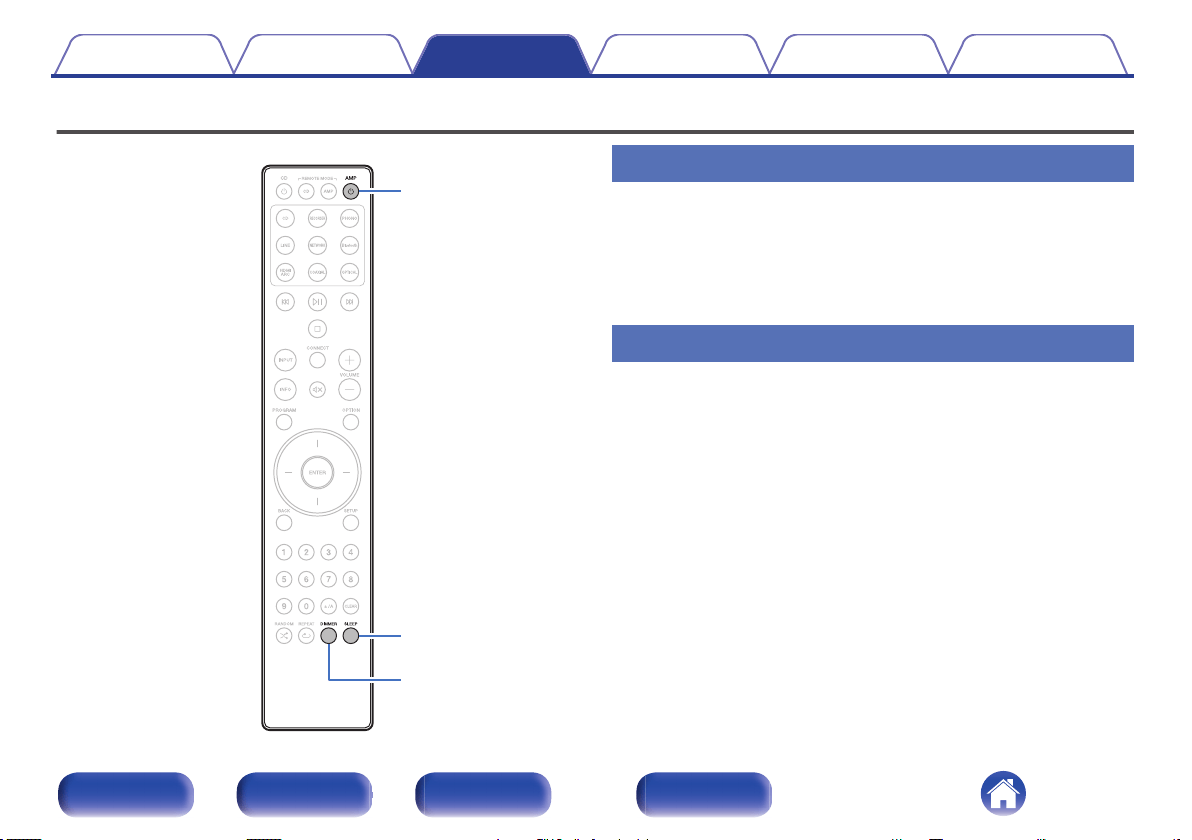
Convenience functions
AMP
X
DIMMER
SLEEP
Adjusting the tone and balance
1
Turn the SOURCE DIRECT knob of the main body and
set it to
“SOURCE DIRECT OFF”.
2
Turn the BASS, TREBLE and BALANCE on the main
unit to adjust the tone and balance.
Playback in source direct mode
The signal does not pass through the tone adjustment circuitry (BASS,
TREBLE and BALANCE), resulting in playback of a higher sound quality.
1
Turn the SOURCE DIRECT knob of the main body and
set it to “SOURCE DIRECT ON”.
Contents Connections Playback Settings Tips Appendix
60
Front panel Rear panel
Remote control
unit
Index
Switching the display’s brightness
The display brightness can be adjusted between four levels. Switching the
display off reduces a source of noise that affects sound quality, enabling
higher sound quality playback.
1
Press DIMMER.
0
The brightness of the display switches each time the button is
pressed.
0
If the buttons are operated when the display is turned off, information is displayed
temporarily.
0
The display brightness is set to most brightly by default.
Using the sleep timer
You can have the power automatically switched to standby once a set time
has elapsed. This is convenient for listening while going to sleep.
1
Press SLEEP during playback and select the setting
time.
0
The sleep timer can be set to up to 90 minutes, in steps of 10
minutes.
0
After about 5 seconds, the setting is entered and the display
returns to as it was before.
o
To cancel the sleep timer
1
Press SLEEP to set “Sleep Off”.
0
The sleep timer setting is canceled when the unit switches to standby mode.
0
To check the time remaining until the sleep timer is activated, press SLEEP.
Contents Connections Playback Settings Tips Appendix
61
Front panel Rear panel
Remote control
unit
Index
Recording
Audio signals input into this unit can be output to an external recording
device. When recording audio from a playback device connected to this
unit, audio can be recorded with the playback device still connected to this
unit.
1
Press AMP X to turn on.
2
Press the input source select button to switch to the
input source from which you want to record.
The selected input source is displayed on the display.
3
Recording starts.
0
For information on operations, see the owner’s manual of the
recording device.
Using this unit as a power amplifier
When connecting a pre-amplifier and using this unit as a power amplifier,
switch the input source of this unit to
“PWR AMP”.
1
Turn the INPUT selector on the main unit to switch the
input source to “
PWR AMP”.
“PWR AMP” is displayed on the display.
0
When the input source is “PWR AMP
”, adjustment of the volume, balance and
tone has no effect. Adjust these adjustments on the pre-amplifier.
NOTE
0
When the input source is “PWR AMP
”, the main unit outputs at maximum volume.
Check the output level on the input device before playing it and adjust the volume
accordingly.
0
If the input source is set to “PWR AMP”, the network function of this device
becomes disabled. When you switch to another input source from “PWR AMP”,
this device is restarted, and the network function is enabled.
0
If the input source is set to “PWR AMP”, the “Auto-Play” function of this unit
becomes disabled. (v p. 68)
Contents Connections Playback Settings Tips Appendix
62
Front panel Rear panel
Remote control
unit
Index
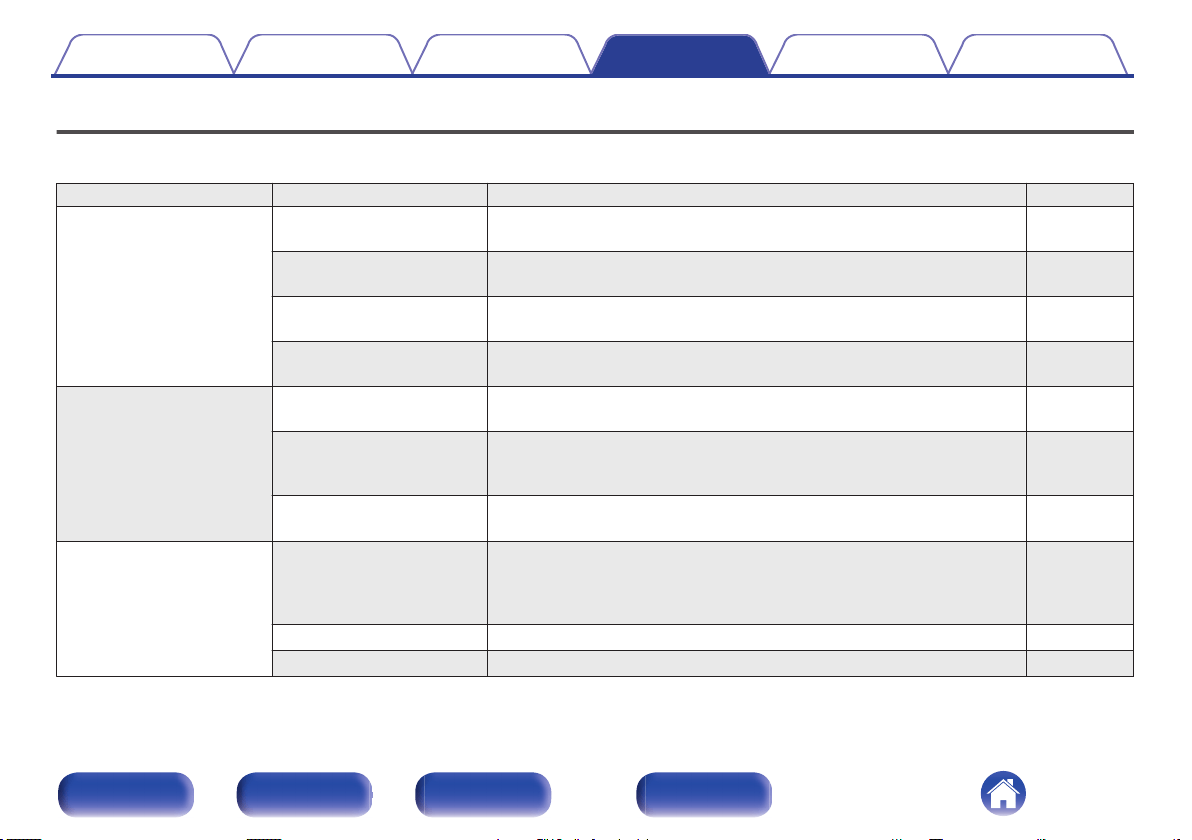
Menu map
For menu operations, see the following page.
By default, this unit has recommended settings defined. You can customize this unit based on your existing system and your preferences.
Setting items Detailed items Description Page
Audio Digital Filter This unit is equipped with a sound quality adjusting function which allows
users to enjoy the desired playback sound quality.
66
Lock Range Narrowing down the “Lock Range” setting reduces jittering, providing
clearer sound.
66
Volume Limit Make a setting for maximum volume. The volume cannot be increased
above this setting.
67
Low Pass Filter Sets the low pass filter for the subwoofer output. Set this according to your
speakers and subwoofer.
67
TV TV Input Set the input source to be used when playing audio from the TV through this
unit.
68
Auto-Play Set the On/Off setting of the “Auto-Play” function that automatically switches
the input source when the audio signal specified in “TV Input” is input and
playback is performed.
68
HDMI Power Off Control Set the “HDMI Power Off Control” function that is keyed to the power off
operation of your TV to turn the device’s power to standby.
68
General
Lighting The brightness of the lighting LED can be adjusted between 4 levels. The
brightness can also be synchronized to the brightness of the display.
Switching the display off reduces a source of noise that affects sound
quality, enabling higher sound quality playback.
69
Auto-Standby Sets the unit power to standby when the unit is not in use. 69
Reset Various settings are reset to the factory default values. 70
Contents Connections Playback Settings Tips Appendix
63
Front panel Rear panel
Remote control
unit
Index
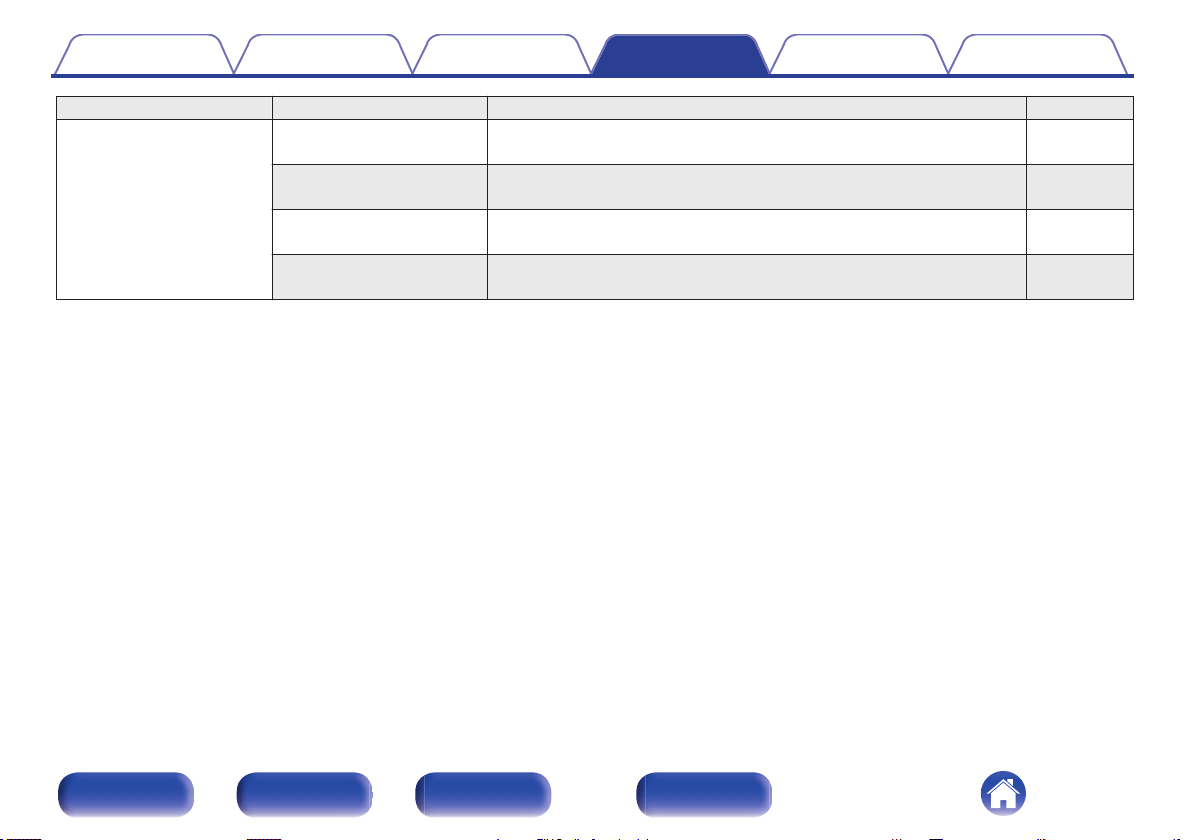
Setting items Detailed items Description Page
Network Network & USB-A The network and USB memory playback (USB-A) functions can be stopped
to prevent noise that affects the sound quality.
71
Wi-Fi The Wi-Fi function can be stopped to prevent noise that affects the sound
quality.
71
Bluetooth Stopping Bluetooth function reduces a source of noise that affects sound
quality, enabling higher sound quality playback.
71
Network Control Performs the On/Off settings for the network function when in standby
mode.
72
Contents Connections Playback Settings Tips Appendix
64
Front panel Rear panel
Remote control
unit
Index
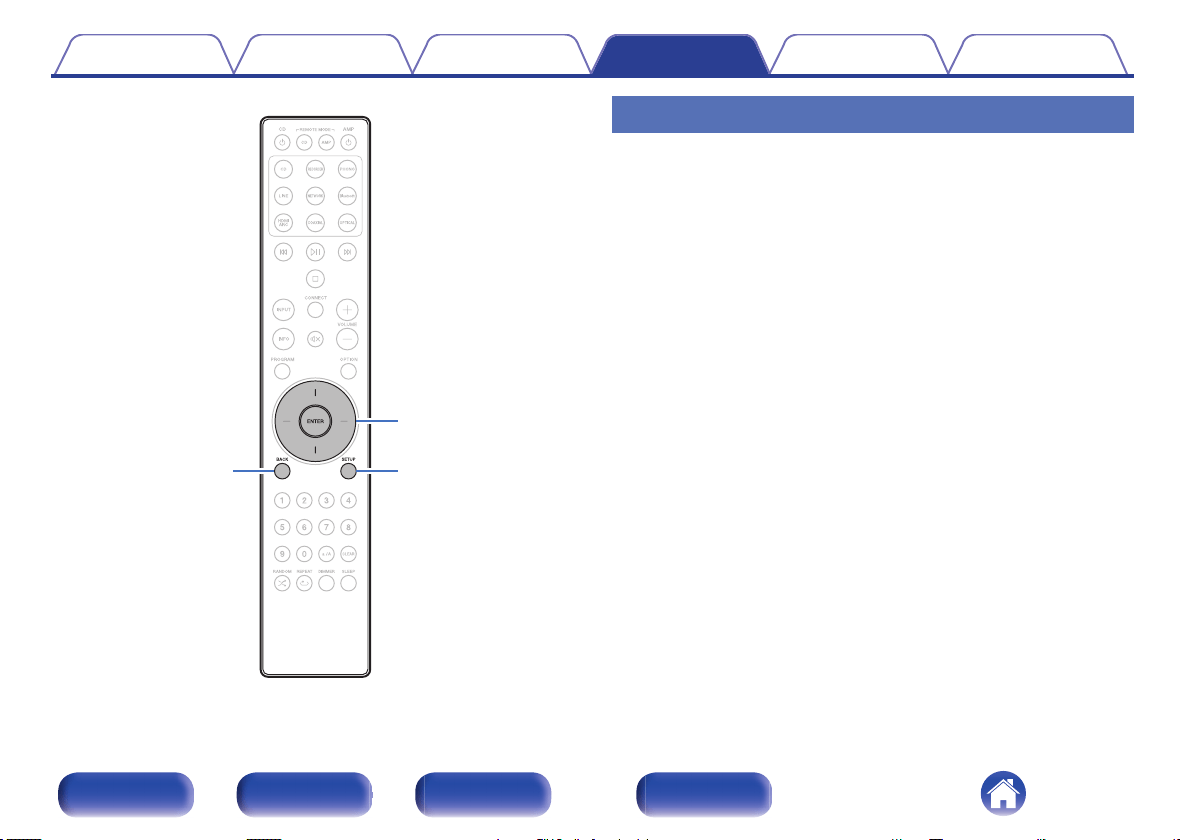
BACK
SETUP
ENTER
Cursor Up/Down
Menu operation
1
Press SETUP.
The menu is displayed on the display.
2
Use Cursor Up/Down buttons to select the menu to be
set or operated, then press ENTER.
3
Use Cursor Up/Down buttons to change to desired
setting.
4
Press ENTER to enter the setting.
0
To return to the previous item, press BACK.
0
Exiting the Menu, press SETUP while the menu is displayed. The
display returns to the normal display.
Contents Connections Playback Settings Tips Appendix
65
Front panel Rear panel
Remote control
unit
Index
Audio
Make audio-related settings.
Digital Filter
This unit is equipped with a sound quality adjusting function which allows
users to enjoy the desired playback sound quality. The unit supports PCM
signal.
Filter 1
(Default):
Offers a short impulse response for both
pre-echo and post-echo. Large amount of
audio information clearly reproduces deep
stereo imaging and the relative position of
the sound source.
Filter 2:
This characteristic is known as
asymmetrical impulse response. The post
echo is slightly longer than the pre-echo.
The sound characteristics is more analog
like.
Lock Range
Narrowing down the “Lock Range” setting reduces jittering, providing
clearer sound. However, if the “Lock Range”
is set too narrow, it may
cause intermittent sounds and noise during playback or when switching to
a song with a different sampling frequency. If this occurs, broaden the
“Lock Range” setting until the music you are listening to sounds normal.
Narrow / Medium / Wide (Default : Wide)
0
A separate
“Lock Range” setting is recorded for each input source, except for
Network playback, USB memory and Bluetooth, which have a common setting.
0
For analog audio input sources, the “Lock Range” setting cannot be performed.
Contents Connections Playback Settings Tips Appendix
66
Front panel Rear panel
Remote control
unit
Index
Volume Limit
Make a setting for maximum volume. The volume cannot be increased
above this setting.
Off
(Default):
Do not set a maximum volume. (100)
95 / 90 / 85 / 80
Low Pass Filter
Sets the low pass filter for the subwoofer output. Set this according to your
speakers and subwoofer. The output audio signal has a lower frequency
than the set value.
40 Hz / 60 Hz / 80 Hz / 100 Hz / 120 Hz (Default: 80 Hz)
Contents Connections Playback Settings Tips Appendix
67
Front panel Rear panel
Remote control
unit
Index
TV
TV Input
Set the input source to be used when playing audio from the TV through
this unit. Set this according to the jack on this unit being used to connect to
the TV.
None / HDMI ARC / Optical / Coaxial
(Default: HDMI ARC)
Auto-Play
When a TV audio source is input to this unit, the unit automatically
switches to the input source set in “TV Input
” and the “Auto-Play” function
for playing TV audio on this unit is set.
On
(Default)
:
Enables the “Auto-Play” function.
Off: Disables the “Auto-Play” function.
0
The
“Auto-Play” function does not work when “TV Input” is set to “None”. Set “TV
Input” in advance.
0
Depending on your TV, the “Auto-Play” function may not work.
HDMI Power Off Control
Set the “HDMI Power Off Control” function that is keyed to the power off
operation of your HDMI connected TV to turn the device's power to
standby.
All
(Default)
:
Regardless of the input source of this
device, if the power of the TV is turned off,
the power of this device automatically
becomes standby.
HDMI ARC:
If the input source is HDMI ARC and you
power off the TV, the power of this device
automatically becomes standby.
Off:
This unit is not linked to the power of the
TV.
Contents Connections Playback Settings Tips Appendix
68
Front panel Rear panel
Remote control
unit
Index
General
Lighting
The brightness of the lighting LED can be adjusted between 4 levels. The
brightness can also be synchronized to the brightness of the display.
Switching the display off reduces a source of noise that affects sound
quality, enabling higher sound quality playback.
Sync
(Default):
The brightness is synchronized to the
brightness of the display. (v p. 61)
Bright / Dim / Dark / Off
0
When the display brightness is set to off using the DIMMER button, the lighting
LED turns off regardless of the “Lighting” setting. (v p. 61
)
Auto-Standby
Sets the amount of time that must elapse without unit operation or an input
signal before the unit goes into standby automatically.
Off
(Default):
The unit does not go into standby
automatically.
1min: The unit goes into standby after 1 minutes.
5min: The unit goes into standby after 5 minutes.
15min: The unit goes into standby after 15 minutes.
30min: The unit goes into standby after 30 minutes.
60min: The unit goes into standby after 60 minutes.
90min: The unit goes into standby after 90 minutes.
Contents Connections Playback Settings Tips Appendix
69
Front panel Rear panel
Remote control
unit
Index
Reset
Perform this procedure if the display is abnormal or if operations cannot be
performed. Restores the contents of each setting to the factory settings.
Make settings again.
Cancel: Unit is not initialized.
OK: Unit is initialized.
Contents Connections Playback Settings Tips Appendix
70
Front panel Rear panel
Remote control
unit
Index
Network
Network & USB-A
The network and USB playback (USB-A) functions can be stopped to
prevent noise that affects the sound quality. This enables playback with a
high sound quality when using the CD playback and D/A converter
functions.
On
(Default) :
Enables the network and USB memory
playback (USB-A) function.
Off:
Disables the network and USB memory
playback (USB-A) function.
0
If you change the “Network & USB-A” setting, this device will reboot.
Wi-Fi
The Wi-Fi function can be stopped to prevent noise that affects the sound
quality. Using a wired LAN to connect this unit to the network enables
playback with a high sound quality.
On
(Default) :
Enables the Wi-Fi function.
Off: Disables the Wi-Fi function.
Bluetooth
Stopping Bluetooth function reduces a source of noise that affects sound
quality, enabling higher sound quality playback.
On
(Default)
:
Enables the Bluetooth function.
Off: Disables the Bluetooth function.
Contents Connections Playback Settings Tips Appendix
71
Front panel Rear panel
Remote control
unit
Index
Network Control
Enables network communication in standby power mode.
On
(Default):
Network is on during standby. Main unit
operable with a network compatible
controller.
Off: Suspend network function during standby.
0
When using the HEOS App, use with the “Network Control” setting set to “On”.
NOTE
0
When “Network Control” is set to
“On”, the unit consumes more standby power.
0
When the input source is set to “PWR AMP” and this unit is switched to standby
mode, the network function of this unit is disabled during standby even though
“Network Control” is set to “On”.
Contents Connections Playback Settings Tips Appendix
72
Front panel Rear panel
Remote control
unit
Index
Sharing and connecting to the Wi-Fi setting of an iOS device
This unit supports the “WAC (Wireless Accessory Configuration)” setup
mode of Apple Inc. In the WAC setup mode, use your iOS device (iPhone/
iPod/iPad) to connect to the network. By connecting your iOS device with
this device, this device can be automatically connected to the same
network.
1
Press OPTION.
The option menu is displayed on the display.
2
Select “AirPlay Setup” and press ENTER.
“Network Setup” is shown on the display and this device switches to
the WAC setup mode.
3
At the bottom of the Wi-Fi setup screen for iOS devices,
select “
Marantz MODEL 40n” from “SET UP NEW
AIRPLAY SPEAKER...”.
0
Make sure the iOS device is connected to the wireless LAN (Wi-
Fi) router.
4
Select a network to connect this device and press
“Next
”.
5
Follow the on-screen instructions to complete the
connection.
When connected, “Connected” is shown on the display.
NOTE
0
The firmware version of your iOS device must support iOS 10.0.2 or later.
0
The WAC setup mode lasts approximately 15 minutes. If the setup is not
completed within 15 minutes, the WAC setup mode is canceled automatically. If
you cancel the WAC setup mode manually, press the BACK button.
Contents Connections Playback Settings Tips Appendix
73
Front panel Rear panel
Remote control
unit
Index
Connecting by using the WPS
button on the router
If you are using a wireless router that supports WPS (Wi-Fi Protected
Setup™), connect to the network with the "push button method". (Wi-Fi
Protected Setup™ is trademarks of Wi-Fi Alliance.)
1
Press the WPS button on your router.
2
Within 2 minutes, press and hold the CONNECT button
on the remote control for 5 seconds.
“WPS Connecting” is shown on the display and the connection is
started.
0
When connected,
“WPS Connected” is shown on the display.
Contents Connections Playback Settings Tips Appendix
74
Front panel Rear panel
Remote control
unit
Index
o
Contents
Tips
I want to listen to high sound performance playback 76
I want to play TV audio at higher quality 76
I want to adjust the tone myself 76
I want sound playback that is faithful to the original sound 76
I want to switch the filter to change the desired sound quality 77
I want to turn the display off 77
I want to turn the lighting LED off 77
Simple operations in the power off state 77
I want the volume not to become too loud by mistake 77
I want to operate a Marantz CD player with this unit’s remote
control 77
I want to use this unit as a power amplifier 77
I want to prevent this unit from going into standby by linking to the
power off operation of an HDMI connected TV 77
Troubleshooting
Power does not turn on/Power is turned off 79
Operations cannot be performed through the remote control unit 81
Display on this unit shows nothing 81
No sound comes out 82
Sound is interrupted or noise occurs 83
Desired sound does not come out 85
AirPlay cannot be played back 86
USB flash drives cannot be played back 87
Bluetooth cannot be played back 88
The Internet radio cannot be played back 89
Music files on PC or NAS cannot be played back (Music server) 90
Various online services cannot be played 91
Cannot connect to a wireless LAN network 91
Audio from digital devices cannot be played back (HDMI ARC/
Coaxial/Optical) 93
The input source switches to “HDMI ARC”, “Optical” or “Coaxial” 93
The HDMI control function does not work 93
Update/upgrade error messages 94
Contents Connections Playback Settings Tips Appendix
75
Front panel Rear panel
Remote control
unit
Index
Tips
I want to listen to high sound performance playback
0
The network and USB memory playback (USB-A) functions can be stopped to prevent noise that affects the sound quality. Set
“Network & USB-A” to
“Off” in the menu. (v p. 71)
0
The Wi-Fi function can be stopped to prevent noise that affects the sound quality. Set “Off” to the “Wi-Fi”. (v p. 71)
0
Stopping Bluetooth function reduces a source of noise that affects sound quality, enabling higher sound quality playback. Set “Off” to the “Bluetooth”.
(v p. 71)
I want to play TV audio at higher quality
0
Connect the HDMI terminal of your TV that supports the ARC function to the HDMI ARC terminal of this device and switch the input source to HDMI
ARC. (v p. 25
)
0
If you are using a TV that does not support the ARC function or a TV that does not have an HDMI terminal, the TV audio can be played by this device
using an Optical or Coaxial connection. (v p. 25)
0
Only 2-channel linear PCM can be input as the digital audio signal to this unit.
I want to adjust the tone myself
0
Use the BASS, TREBLE and BALANCE knobs to adjust the sound as desired.
(v p. 60)
I want sound playback that is faithful to the original sound
0
Set the source direct mode on. (v p. 60)
Contents Connections Playback Settings Tips Appendix
76
Front panel Rear panel
Remote control
unit
Index
I want to switch the filter to change the desired sound quality
0
Switch the filter characteristics.
(v p. 66)
I want to turn the display off
0
Press the DIMMER button to turn the display off. (v p. 61)
I want to turn the lighting LED off
0
Change the
“Lighting” setting to “Off”. (v p. 69)
Simple operations in the power off state
0
Press the p button to automatically turn the unit’s power supply on and start playback of the last selected input source.
0
When the
“Network Control” function is set to “On”, you can perform playback, or other operations through AirPlay or HEOS App. (v p. 72)
I want the volume not to become too loud by mistake
0
Set the volume upper limit for
“Volume Limit” in the menu beforehand. This prevents children or others from increasing the volume too much by mistake.
(v p. 67)
I want to operate a Marantz CD player with this unit’s remote control
0
Marantz CD players can be operated with this unit’s remote control. Refer to the instruction manual of the CD player too.
(v p. 17)
I want to use this unit as a power amplifier
0
Connect a pre-amplifier to the POWER AMP IN connectors of this unit and switch the input source to “PWR AMP
”. (v p. 30)
I want to prevent this unit from going into standby by linking to the power off operation of an HDMI connected TV
0
Change the “HDMI Power Off Control
” setting to “Off”. (v p. 68)
Contents Connections Playback Settings Tips Appendix
77
Front panel Rear panel
Remote control
unit
Index
Troubleshooting
If a problem should arise, first check the following:
1. Are the connections correct?
2. Is the set being operated as described in the owner’s manual?
3. Are the other devices operating properly?
0
If steps 1 to 3 above do not improve the problem, restarting the device may improve the problem.
Continue pressing the X button on the unit until “Restart” appears in the display, or remove and re-insert the power cord of the unit.
If this unit does not operate properly, check the corresponding symptoms in this section.
If the symptoms do not match any of those described here, consult your dealer as it could be due to a fault in this unit. In this case, disconnect the power
immediately and contact the store where you purchased this unit.
Contents Connections Playback Settings Tips Appendix
78
Front panel Rear panel
Remote control
unit
Index
Power does not turn on / Power is turned off
Power is not turned on.
0
Check whether the power plug is correctly inserted into the power outlet. (v p. 32)
0
This unit is in standby mode. Press the X button on the unit or the AMP X button on the remote control. (v p. 34)
0
When the input source is set to “PWR AMP” and this unit is switched to standby mode, the “Auto-Play” function of this unit is disabled during standby.
Even if you turn on the TV, the power of this unit will not be turned on. Press the X button on the unit or the AMP X button on the remote control.
(v p. 34)
Power automatically turns off.
0
The sleep timer is set. Turn on the power again.
(v p. 61)
0
“Auto-Standby” is set. “Auto-Standby” is triggered when there is no operation for a set amount of time. To disable “Auto-Standby”, set “Auto-Standby”
on the menu to “Off”. (v p. 69)
0
When this unit and a Marantz audio device compatible with the power synchronization function are connected using a remote connection cable, the
power of this unit turns off (standby) in synchronization with the power off operation of the device connected to this unit. (v p. 31)
0
“HDMI Power Off Control” is set. The power of this unit turns off (standby) by linking to the power off operation of an HDMI connected TV. To disable
“HDMI Power Off Control”, set “HDMI Power Off Control” on the menu to “Off”. (v p. 68)
This unit automatically restarts.
0
Switching “PWR AMP
” to another input source restarts this unit. (v p. 62)
0
Switching “Network & USB-A” on/off in the settings menu restarts this unit. (v p. 71)
The power turns off and the protection circuit indicator shows one long blink and two short blinks in orange.
0
Stop playback on the playback device, and then turn the power off and on again.
0
If the problem is not solved by turning the power off and on again, this unit’s amplifier circuit has failed. Unplug the power cord and contact our customer
service center.
The power turns off and the protection circuit indicator shows one long blink and three short blinks in orange.
0
This unit’s power circuit has failed. Unplug the power cord and contact our customer service center.
Contents Connections Playback Settings Tips Appendix
79
Front panel Rear panel
Remote control
unit
Index
The power turns off and the protection circuit indicator shows one long blink and four short blinks in orange.
0
The protection circuit has been activated due to a rise in temperature within this unit. Turn the power off, wait about an hour until this unit cools down
sufficiently, and then turn the power on again.
0
Please re-install this unit in a place having good ventilation.
0
Check the speaker connections. The protection circuit may have been activated because speaker cable core wires came in contact with each other or a
core wire was disconnected from the connector and came in contact with the rear panel of this unit. After unplugging the power cord, take corrective
action such as firmly re-twisting the core wire or taking care of the connector, and then reconnect the wire.
(v p. 20)
0
Stop playback on the playback device, and then turn the power off and on again.
The power turns off and the protection circuit indicator shows one long blink and five short blinks in orange.
0
Stop playback on the playback device, and then turn the power off and on again.
0
If the problem is not solved by turning the power off and on again, this unit’s amplifier circuit or power circuit has failed. Unplug the power cord and
contact our customer service center.
Contents Connections Playback Settings Tips Appendix
80
Front panel Rear panel
Remote control
unit
Index
Operations cannot be performed through the remote control unit
Operations cannot be performed through the remote control unit.
0
Batteries are worn out. Replace with new batteries. (v p. 7)
0
Operate the remote control unit within a distance of about 23 ft/7 m from this unit and at an angle of within 30°. (v p. 7)
0
Remove any obstacle between this unit and the remote control unit.
0
Insert the batteries in the proper direction, checking the q and w marks. (v p. 7)
0
The unit’s remote control sensor is exposed to strong light (direct sunlight, inverter type fluorescent bulb light, etc.). Move the set to a place in which the
remote control sensor will not be exposed to strong light.
0
When using a 3D video device, the remote control unit of this unit may not function due to effects of infrared communications between units (such as TV
and glasses for 3D viewing). In this case, adjust the direction of units with the 3D communications function and their distance to ensure they do not
affect operations from the remote control unit of this unit.
0
Press the REMOTE MODE AMP button to switch the remote control operating mode to “AMP”. (v p. 14)
Display on this unit shows nothing
Display is off.
0
Press the DIMMER button, and change the setting to anything other than off.
(v p. 61)
Contents Connections Playback Settings Tips Appendix
81
Front panel Rear panel
Remote control
unit
Index
No sound comes out
No sound comes out of speakers.
0
Check the connections for all devices. (v p. 19)
0
Insert connection cables all the way in.
0
Check that input connectors and output connectors are not reversely connected.
0
Check cables for damage.
0
Check that speaker cables are properly connected. Check that cable core wires come in contact with the metal part on speaker terminals. (v p. 20)
0
Securely tighten the speaker terminals. Check speaker terminals for looseness. (v p. 20)
0
Check that the proper input source is selected. (v p. 35)
0
Adjust the volume. (v p. 35)
0
Cancel the mute mode. (v p. 35)
0
Check that the correct input source is selected when audio is being input to this unit from an external device. (v p. 35)
0
Check the digital audio output setting on the connected device. The initial settings may be off depending on the device.
0
No sound is output from the speaker terminals or the preout connector when headphones are connected. (v p. 9)
0
Do not input non-PCM signals, such as Dolby Digital, DTS and AAC. This causes noise and could damage the speakers.
0
To playback via a Bluetooth connection, perform pairing between this unit and the Bluetooth device. (v p. 37)
Contents Connections Playback Settings Tips Appendix
82
Front panel Rear panel
Remote control
unit
Index
Sound is interrupted or noise occurs
During playback from the Internet radio or USB flash drive, sound is occasionally interrupted.
0
When the transfer speed of the USB flash drive is slow, sound may occasionally be interrupted.
0
The network communication speed is slow or the radio station is busy.
When making a call on mobile phone, noise occurs in audio output on this unit.
0
When making a call, keep a distance of 0.7 ft/20 cm or longer between mobile phone and this unit.
Sound cuts out when using Wi-Fi connection.
0
The frequency band used by the wireless LAN is also used by microwave ovens, cordless telephones, wireless game controllers and other wireless
LAN devices. Using such devices at the same time as this unit may cause sound to cut out due to electronic interference. Sound cut out can be
improved using the following methods.
(v p. 28)
- Install devices that cause interference away from this unit.
- Turn off the power supply to devices that cause interference.
- Change the settings of the router channel to which this unit is connected to. (See the instruction manual of the wireless router for details on how to
change the channel.)
- Switch to a wired LAN connection.
0
Particularly when you play back large music files, depending on your wireless LAN environment, the playback sound may be interrupted. In this case,
make the wired LAN connection. (v p. 71)
Contents Connections Playback Settings Tips Appendix
83
Front panel Rear panel
Remote control
unit
Index
Sound is interrupted or noise occurs.
0
The “Lock Range
” setting in the menu is too narrow. Broaden the “Lock Range” setting while listening to music until the music sounds normal.
(v p. 66)
When playing a record, the sound is distorted.
0
Adjust to a proper needle pressure.
0
Check the tip of the needle.
0
Replace the cartridge.
When playing a record, a humming noise comes out of the speakers.
0
Check that the turntable is connected correctly.
(v p. 23)
0
If there is a TV or AV device near the turntable, such devices may affect the playback sound. Install the turntable in a location as far away as possible
from the TV or other AV devices.
When playing a record, a humming noise comes out of the speakers when the volume is high. (Howling phenomenon)
0
Install the turntable and speakers as far from each other as possible.
(v p. 23)
0
The vibrations from the speakers are being transmitted to the player through the floor. Use cushions, etc., to absorb the speakers’ vibrations.
Contents Connections Playback Settings Tips Appendix
84
Front panel Rear panel
Remote control
unit
Index
Desired sound does not come out
The volume does not increase.
0
The maximum volume is set too low. Set the maximum volume using “Volume Limit” on the menu. (v p. 67)
Left/right volume balance is unbalanced.
0
Adjust the BALANCE control knob.
(v p. 60)
No sound is produced from subwoofer.
0
Check the subwoofer connections.
(v p. 21)
0
Turn on the subwoofer’s power.
The settings of the BASS, TREBLE and BALANCE knobs are not applied.
0
The settings of the BASS, TREBLE and BALANCE knobs are not applied to the subwoofer output.
0
Press the SOURCE DIRECT button to turn off source direct mode.
(v p. 60)
The left and right of stereo sound is reversed.
0
Check whether the left and right speakers are connected to the correct speaker terminals.
(v p. 22)
Contents Connections Playback Settings Tips Appendix
85
Front panel Rear panel
Remote control
unit
Index
AirPlay cannot be played back
The AirPlay icon is not displayed on iTunes / iPhone / iPod touch / iPad.
0
This unit and PC / iPhone / iPod touch / iPad are not connected to the same network (LAN). Connect it to the same LAN as this unit. (v p. 28)
0
The firmware on iTunes / iPhone / iPod touch / iPad is not compatible with AirPlay. Update the firmware to the latest version.
0
Set “Network & USB-A” in the menu to “On”. The AirPlay function does not work when “Network & USB-A” is “Off”. (v p. 71)
Audio is not output.
0
The volume on iTunes / iPhone / iPod touch / iPad is set to the minimum level. The volume on iTunes / iPhone / iPod touch / iPad is linked with the
volume on this unit. Set a proper volume level.
0
The AirPlay playback is not performed, or this unit is not selected. Click the AirPlay icon on the iTunes / iPhone / iPod touch / iPad screen and select this
unit. (v p. 57
)
Audio is interrupted during the AirPlay playback on iPhone / iPod touch / iPad.
0
Quit the application running in the background of the iPhone/iPod touch/iPad, and then play using AirPlay.
0
Some external factors may be affecting the wireless connection. Modify the network environment by taking measures such as shortening the distance
from the wireless LAN access point.
iTunes cannot be played back through the remote control unit.
0
Enable the “Allow iTunes audio control from remote speakers” setting on iTunes. Then, you can perform playback, pause, and skip operations through
the remote control unit.
Contents Connections Playback Settings Tips Appendix
86
Front panel Rear panel
Remote control
unit
Index
USB flash drives cannot be played back
USB flash drive is not recognized.
0
Disconnect and reconnect the USB flash drive. (v p. 27)
0
Mass storage class compatible USB flash drives are supported.
0
This unit does not support a connection through a USB hub. Connect the USB flash drive directly to the USB port.
0
The USB flash drive must be formatted to FAT32 or NTFS.
0
Not all USB flash drives are guaranteed to work. Some USB flash drives are not recognized. When using a type of portable hard disc drive compatible
with the USB connection that requires power from an AC adapter, use the AC adapter that came with the drive.
0
Set “Network & USB-A” in the menu to “On”. The USB flash drive playback function does not work when “Network & USB-A” is “Off”. (v p. 71)
Files on the USB flash drive are not displayed.
0
Files of a type not supported by this unit are not displayed.
(v p. 96)
0
This unit is able to display files in a maximum of eight folder layers. A maximum of 5000 files (folders) can also be displayed for each layer. Modify the
folder structure of the USB flash drive.
0
When multiple partitions exist on the USB flash drive, only files on the first partition are displayed.
iOS and Android devices are not recognized.
0
The USB port of this unit does not support playback from iOS and Android devices.
Files on a USB flash drive cannot be played.
0
Files are created in a format that is not supported by this unit. Check the formats supported by this unit.
(v p. 96)
0
You are attempting to play a file that is copyright protected. Files that are copyright protected cannot be played on this unit.
0
Playback may not be possible if the album art file size exceeds 2 MB.
Contents Connections Playback Settings Tips Appendix
87
Front panel Rear panel
Remote control
unit
Index
Bluetooth cannot be played back
Bluetooth devices cannot be connected to this unit.
0
The Bluetooth function in the Bluetooth device has not been enabled. See the Owner’s Manual of the Bluetooth device to enable the Bluetooth function.
0
Bring the Bluetooth device near to this unit.
0
The Bluetooth device cannot connect with this unit if it is not compatible with the A2DP profile.
0
Turn the power of the Bluetooth device off and on again, and then try again.
0
Set
“Bluetooth” in the menu to “On”. The Bluetooth function does not work when “Bluetooth” is “Off”. (v p. 71)
0
Set “Network & USB-A” in the menu to “On”. The Bluetooth function does not work when “Network & USB-A” is “Off”. (v p. 71)
The sound is cut off.
0
Bring the Bluetooth device near to this unit.
0
Remove obstructions between the Bluetooth device and this unit.
0
To prevent electromagnetic interference, locate this unit away from microwave ovens, wireless LAN devices and other Bluetooth devices.
0
Reconnect the Bluetooth device.
Contents Connections Playback Settings Tips Appendix
88
Front panel Rear panel
Remote control
unit
Index
The Internet radio cannot be played back
A list of radio stations is not displayed in the HEOS App.
0
The LAN cable is not properly connected, or the network is disconnected. Check the connection status. (v p. 28)
Internet Radio cannot be played.
0
The selected radio station is broadcasting in a format that is not supported by this unit. Formats that can be played back in this unit are WMA, MP3 and
MPEG-4 AAC.
(v p. 100)
0
The firewall function is enabled on the router. Check the firewall setting.
0
Check the power of the router is on.
0
Some radio stations broadcast silently during some time period. In this case, no audio is output. Wait for a while and select the same radio station, or
select another radio station. (v p. 53)
0
The selected radio station is not in service. Select a radio station in service.
You cannot connect to a radio station that is registered to Favorites with the HEOS App.
0
Radio station is not currently in service. Register radio stations in service.
Contents Connections Playback Settings Tips Appendix
89
Front panel Rear panel
Remote control
unit
Index
Music files on PC or NAS cannot be played back (Music server)
Files stored on a computer cannot be played.
0
Files are stored in a non-compatible format. Record in a compatible format. (v p. 99)
0
Files that are copyright protected cannot be played on this unit.
0
Even if PC is connected to the USB port on this unit, music files on it cannot be played back. Connect PC to this unit through the network. (v p. 28)
0
Media sharing settings on the server or NAS do not allow this unit. Change the settings to allow this unit. For details, see the owner’s manual of the
server or NAS.
Server is not found, or it is not possible to connect to the server.
0
The computer’s or router’s firewall is activated. Check the computer’s or router’s firewall settings.
0
Computer’s power is not turned on. Turn on the power.
0
Server is not running. Launch the server.
The HEOS App does not show the files in the computer or NAS.
0
Files of a type not supported by this unit are not displayed.
(v p. 99)
Music stored on a NAS cannot be played.
0
If you use a NAS in conformity with the DLNA standard, enable the DLNA server function in the NAS setting.
0
If you use a NAS that does not conform with the DLNA standard, play the music via a PC. Set Windows Media Player’s media sharing function and add
NAS to the selected play folder.
0
If connection is restricted, set audio equipment as the connection target.
Contents Connections Playback Settings Tips Appendix
90
Front panel Rear panel
Remote control
unit
Index
Various online services cannot be played
Various online services cannot be played.
0
The online service may have been discontinued.
Cannot connect to a wireless LAN network
Cannot connect to the network.
0
Make sure your mobile device is connected to your wireless network before setting up this unit.
(v p. 43)
0
You can connect this unit to your network router using an Ethernet cable sold separately. Once connected via Ethernet, the HEOS App should
recognize this unit and you can manually move it to your wireless network using “Settings” - “My Devices” - (“Device Name”) - “Network”.
0
Shorten the distance from the wireless LAN access point and remove any obstructions to improve access first before re-connecting again. Place the
unit away from microwave ovens and other network access points.
0
Configure the access point channel settings away from channels that are being used by other networks.
0
This unit is not compatible with WEP (TSN).
0
If the input source is set to “PWR AMP”, the network function of this device becomes disabled. When you switch to another input source from “PWR
AMP”, this device is restarted, and the network function is enabled. Enabling the network function may take a while. (v p. 62)
Contents Connections Playback Settings Tips Appendix
91
Front panel Rear panel
Remote control
unit
Index
Cannot connect to a WPS Router.
0
Check that the WPS mode of the router is operating.
0
After you press the WPS button on the router, within two minutes, long press the CONNECT button on the remote control for five seconds or long.
(v p. 74)
0
A router/settings that are compatible with WPS 2.0 standards are required. Set the encryption time to
“None”, WPA-PSK (AES) or WPA2-PSK (AES).
0
If the router encryption method is WEP/WPA-TKIP/WPA2-TKIP, you cannot connect by using the WPS button on the router. In this case, connect using
the HEOS App or connect by sharing the Wi-Fi setting of your iOS device. (v p. 73)
Cannot connect to the network using iPhone/iPod touch/iPad.
0
Update the iPhone/iPod touch/iPad firmware to the latest version.
0
When configuring the settings via a wireless connection, iOS 10.0.2 or later needs to be supported.
Cannot connect to the network during standby.
0
Set
“Network Control” of the settings menu to “On”. If “Network Control” is set to “Off”, the network function is suspended during standby. (v p. 72)
0
When the input source is set to “PWR AMP” and this unit is switched to standby mode, the network function of this unit is disabled during standby.
(v p. 62)
Contents Connections Playback Settings Tips Appendix
92
Front panel Rear panel
Remote control
unit
Index
Audio from digital devices cannot be played back (HDMI ARC/Coaxial/Optical)
“Unlocked” is displayed.
0
When digital audio signals cannot be detected properly, “Unlocked” is displayed. (v p. 40)
“Unsupported” is displayed.
0
“Unsupported
” is displayed when audio signals that are not supported by this unit are input. Check the audio output signal format from your digital
device. (v p. 40)
0
Only the PCM 2-channel setting can be used to play sound from a TV via the HDMI ARC function. Set “PCM 2ch” as the audio format in the TV settings.
The input source switches to “HDMI ARC”, “Optical” or “Coaxial”
The input source automatically switches to “HDMI ARC”, “Optical” or “Coaxial” when the TV connected to this unit is turned on.
0
Set “Off
” to “Auto-Play”. (v p. 68)
The HDMI control function does not work
The HDMI control function does not work.
0
You cannot operate devices that are not compatible with the HDMI control function. In addition, depending on the connected device or the settings, the
HDMI control function may not work. In this case, operate the external device directly.
0
Check that the HDMI control function setting is enabled on TV connected to this unit.
Contents Connections Playback Settings Tips Appendix
93
Front panel Rear panel
Remote control
unit
Index
Update/upgrade error messages
If an update/upgrade is interrupted or fails, an error message appears.
Display Description
Connection failed. Please check your network, then try
again.
The network connection is unstable.
Connection to the server failed.
Check your network environment and try the update again.
Update failed. Please check your network, then try
again.
The download of the firmware failed.
Check your network environment and try the update again.
Upgrade failed. Please check your network, then try
again.
The download of the firmware failed.
Check your network environment and try the upgrade again.
Please check your network, unplug and reconnect the
power cord, and try again.
The update failed.
Press and hold the X on the main unit for more than 5 seconds, or remove and re-insert the
power cord.
The update restarts automatically.
Please contact customer service in your area. This unit may be broken.
Contact our Customer Service Center in your area.
Contents Connections Playback Settings Tips Appendix
94
Front panel Rear panel
Remote control
unit
Index
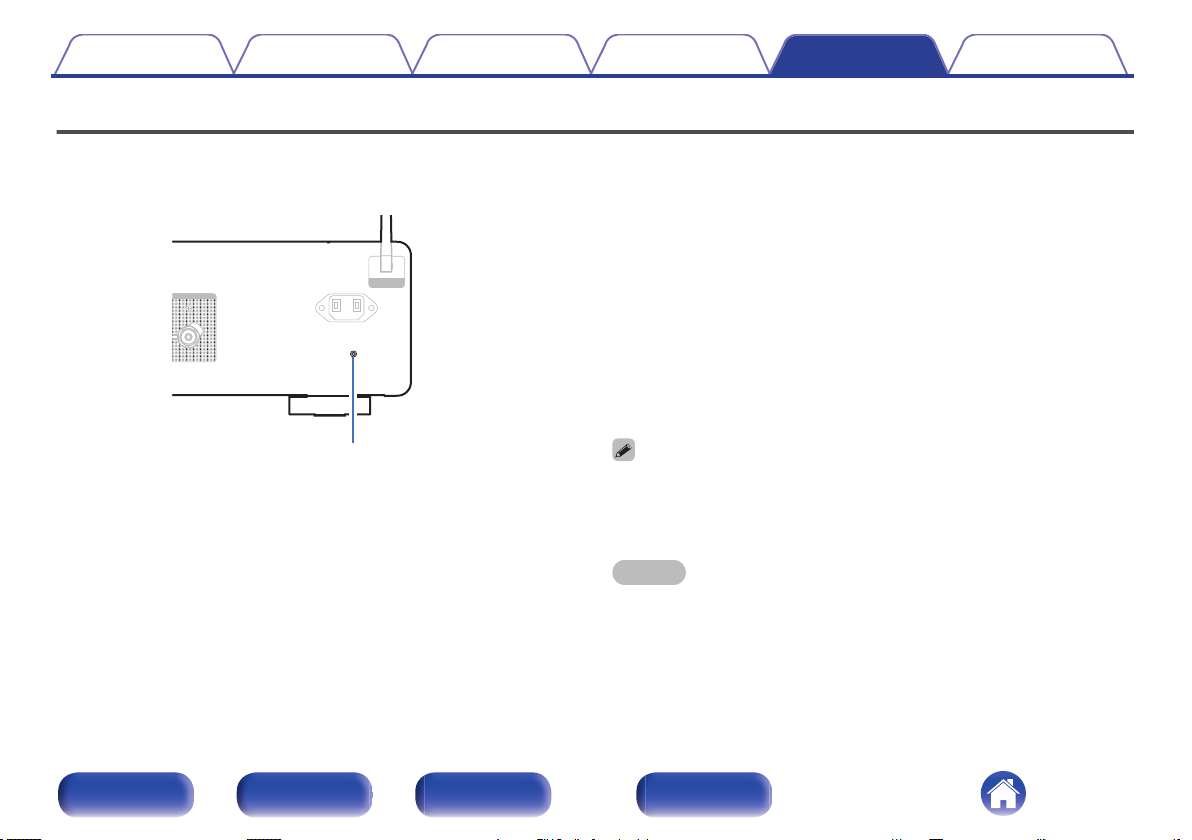
Restoring the firmware to the factory defaults
When the unit or the network functions do not work properly, operation may be improved by restoring the firmware to the factory defaults.
Perform this operation if it does not work after attempting
“General” - “Reset” of the settings menu. (v p. 70)
After the firmware is restored, various settings are reset to the default settings. Configure the settings and update the firmware again.
Bluetooth / Wi-Fi
Bluetooth / Wi-Fi
ANTENNA
ANTENNA
AC IN
AC IN
Firmware reset button
1
Unplug the power cord from the power outlet.
2
Plug in the power cord while holding down the
firmware reset button on the rear panel.
3
When “Factory Restore” appears on the display,
release the buttons.
When the firmware restore is complete, “Restore Completed”
appears on the display for about 5 seconds, and the unit
automatically restarts.
0
This operation takes time because it requires reconnecting to the network,
restoring and updating the firmware.
0
If this operation does not improve the problem, contact our customer service
center.
NOTE
0
Do not turn off the power until the firmware restore is complete.
Contents Connections Playback Settings Tips Appendix
95
Front panel Rear panel
Remote control
unit
Index
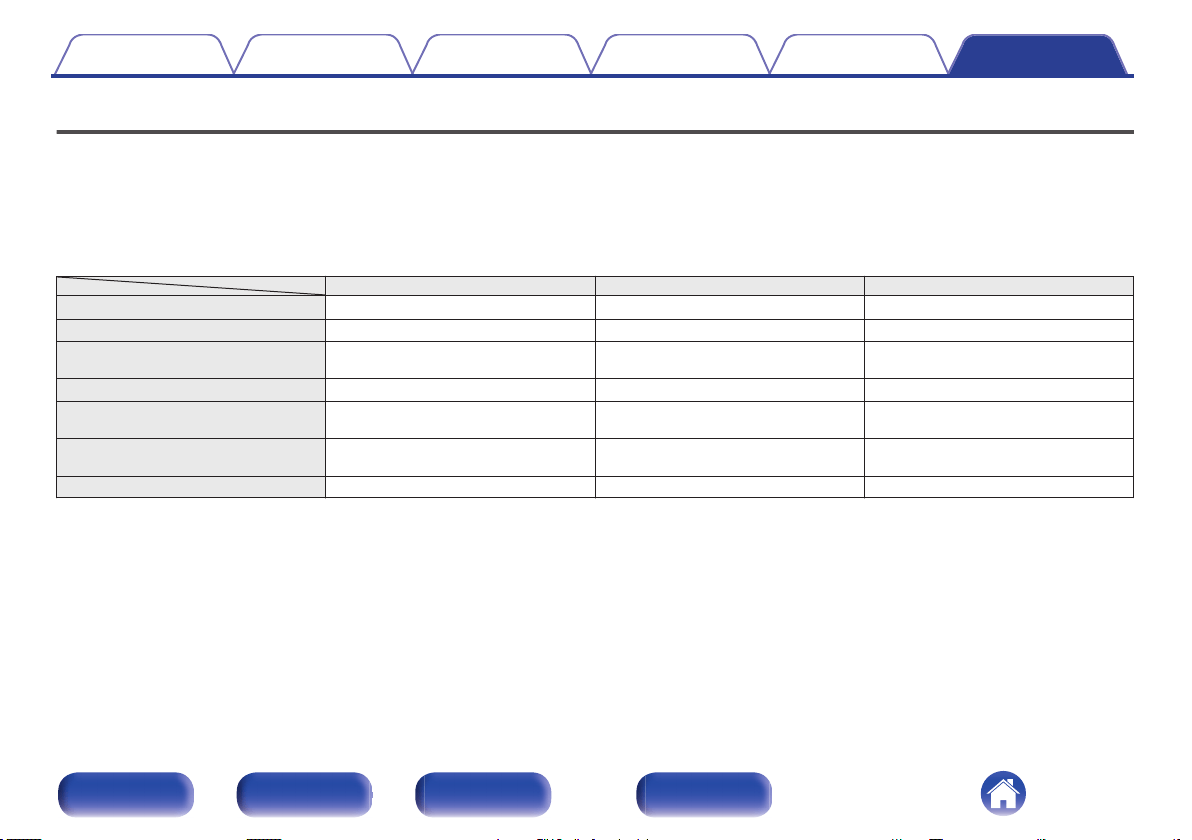
Playing back a USB flash drives
0
This unit is compatible with MP3 ID3-Tag (Ver. 2) standard.
0
This unit is compatible with WMA META tags.
0
If the image size (pixels) of an album artwork exceeds 500 × 500 (WMA/MP3/Apple Lossless/DSD) or 349 × 349 (MPEG-4 AAC), then music may not
be played back properly.
o
Specifications of supported files
Sampling frequency Bit rate Extension
WMA
z
1
32/44.1/48 kHz 48 – 192 kbps .wma
MP3 32/44.1/48 kHz 32 – 320 kbps .mp3
WAV
32/44.1/48/88.2/
96/176.4/192 kHz
– .wav
MPEG-4 AAC
z
1
32/44.1/48 kHz 48 – 320 kbps .aac/.m4a
FLAC
44.1/48/88.2/
96/176.4/192 kHz
– .flac
Apple Lossless
z
2
44.1/48/88.2/
96/176.4/192 kHz
– .m4a
DSD 2.8/5.6 MHz – .dsf/.dff
z1
Only files that are not protected by copyright can be played on this unit.
Content downloaded from pay sites on the Internet are copyright protected. Also, files encoded in WMA format when ripped from a CD, etc. on a computer may be
copyright protected, depending on the computer’s settings.
z2
The Apple Lossless Audio Codec (ALAC) decoder is distributed under the Apache License, Version 2.0 (http://www.apache.org/licenses/LICENSE-2.0).
Contents Connections Playback Settings Tips Appendix
96
Front panel Rear panel
Remote control
unit
Index
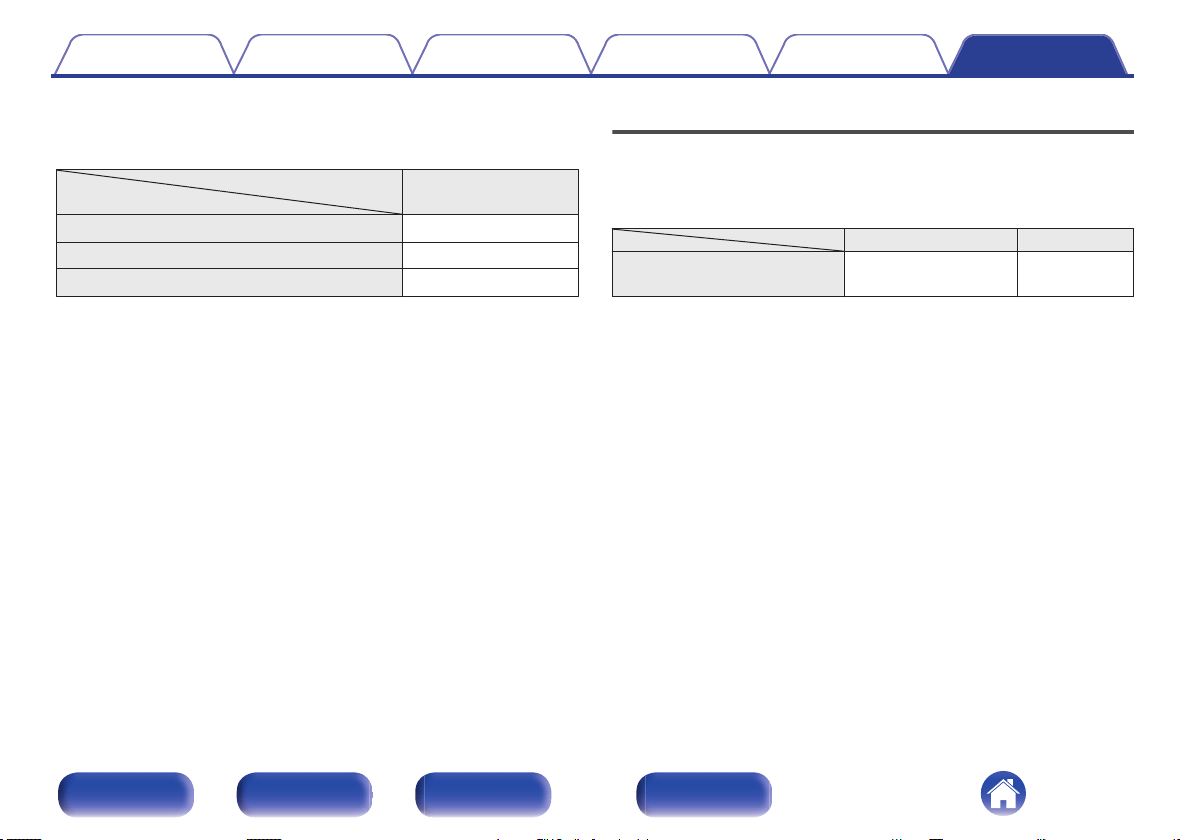
o
Maximum number of playable files and folder
The limits on the number of folders and files that can be displayed by
this unit are as follows.
Media
Item
USB flash drive
Number of folder directory levels
z
1
8 levels
Number of folders 500
Number of files
z
2
5000
z1
The limited number includes the root folder.
z2
The allowable number of files may differ according to the USB flash drive
capacity and the file size.
D/A converter
o
Specifications of supported audio formats
n
HDMI ARC/Coaxial/Optical
Sampling frequency Bit length
Linear PCM
(2-channel)
32/44.1/48/88.2/96/
176.4/192 kHz
16/24 bits
Contents Connections Playback Settings Tips Appendix
97
Front panel Rear panel
Remote control
unit
Index
Playing back a Bluetooth device
This unit supports the following Bluetooth profile.
0
A2DP (Advanced Audio Distribution Profile):
When a Bluetooth device that supports this standard is connected,
monaural and stereo sound data can be streamed at a high quality.
0
AVRCP (Audio/Video Remote Control Profile):
When a Bluetooth device that supports this standard is connected, the
Bluetooth device can be operated from this unit.
o
About Bluetooth communications
Radio waves broadcast from this unit may interfere with the operation
of medical devices. Make sure you turn off the power of this unit and
Bluetooth device in the following locations as radio wave interference
may cause malfunctions.
0
Hospitals, trains, aircraft, petrol kiosks and places where flammable
gases are generated
0
Near automatic doors and fire alarms
Contents Connections Playback Settings Tips Appendix
98
Front panel Rear panel
Remote control
unit
Index
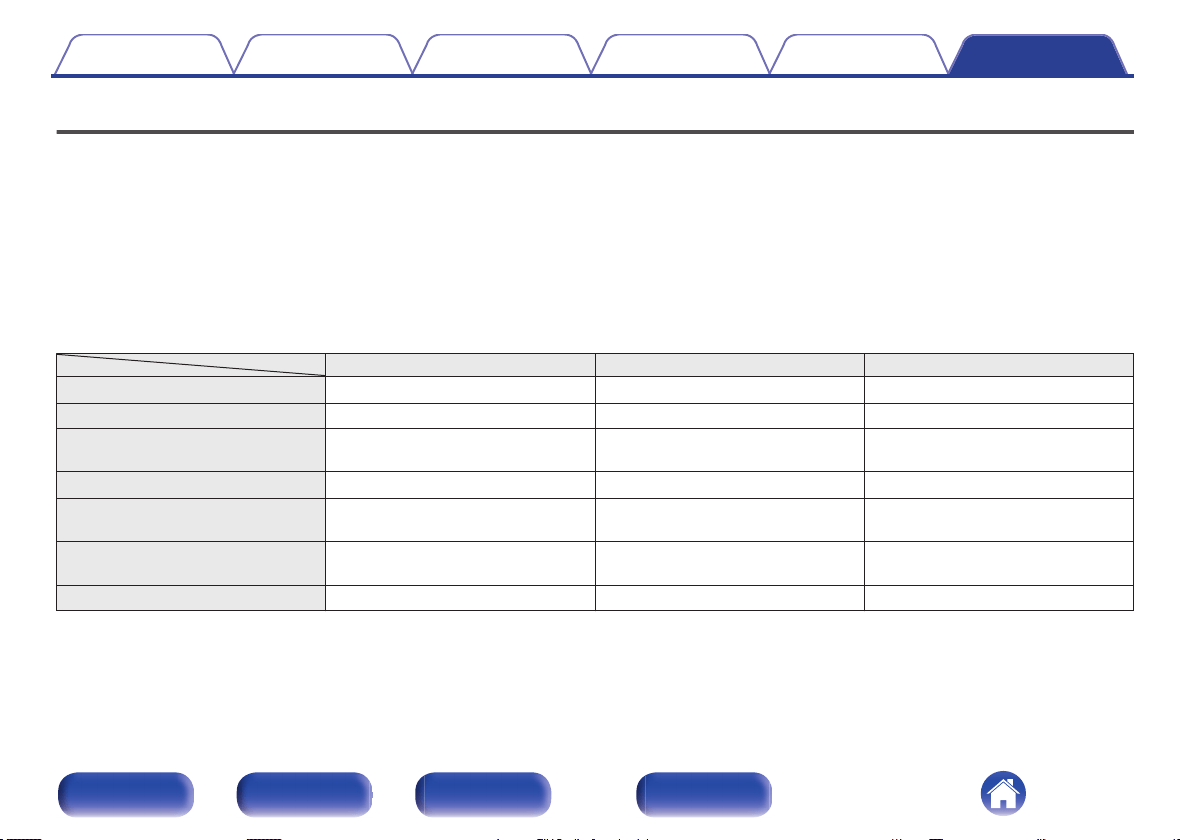
Playing back files stored on a PC and NAS
0
This unit is compatible with MP3 ID3-Tag (Ver. 2) standard.
0
This unit is compatible with WMA META tags.
0
If the image size (pixels) of an album artwork exceeds 500 × 500 (WMA/MP3/WAV/FLAC) or 349 × 349 (MPEG-4 AAC), then music may not be played
back properly.
0
A server or server software compatible with distribution in the corresponding formats is required to play music files via a network.
For playing mentioned audio formats via a network a server software, for example Twonky Media Server or jRiver Media Server, needs to be installed
on your computer or NAS for full support. There are other server software available too. Please check supported formats.
o
Specifications of supported files
Sampling frequency Bit rate Extension
WMA
z
1
32/44.1/48 kHz 48 – 192 kbps .wma
MP3 32/44.1/48 kHz 32 – 320 kbps .mp3
WAV
32/44.1/48/88.2/96/
176.4/192 kHz
– .wav
MPEG-4 AAC
z
1
32/44.1/48 kHz 48 – 320 kbps .aac/.m4a
FLAC
44.1/48/88.2/
96/176.4/192 kHz
– .flac
Apple Lossless
z
2
44.1/48/88.2/
96/176.4/192 kHz
– .m4a
DSD 2.8/5.6 MHz – .dsf/.dff
z1
Only files that are not protected by copyright can be played on this unit.
Content downloaded from pay sites on the Internet are copyright protected. Also, files encoded in WMA format when ripped from a CD, etc., on a computer may be
copyright protected, depending on the computer’s settings.
z2
The Apple Lossless Audio Codec (ALAC) decoder is distributed under the Apache License, Version 2.0 (http://www.apache.org/licenses/LICENSE-2.0).
Contents Connections Playback Settings Tips Appendix
99
Front panel Rear panel
Remote control
unit
Index
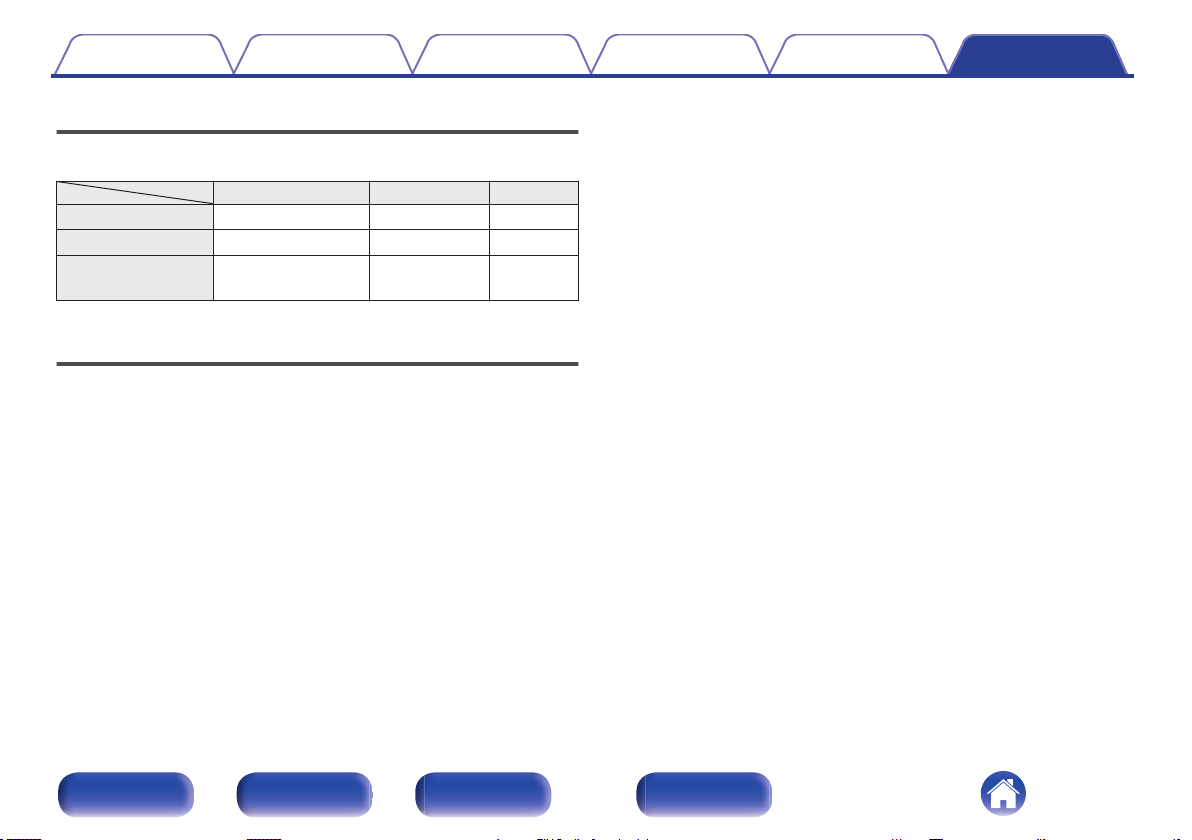
Playing back Internet Radio
o
Playable broadcast station specifications
Sampling frequency Bit rate Extension
WMA 32/44.1/48 kHz 48 – 192 kbps .wma
MP3 32/44.1/48 kHz 32 – 320 kbps .mp3
MPEG-4 AAC 32/44.1/48 kHz 48 – 320 kbps
.aac/
.m4a
Last function memory
This function stores the settings which were made before going into the
standby mode.
Contents Connections Playback Settings Tips Appendix
100
Front panel Rear panel
Remote control
unit
Index
About HDMI
This unit supports the following HDMI functions.
0
ARC (Audio Return Channel) function
Enjoy movies, music, etc., on your TV simply by connecting an ARC function-compatible TV to this unit via HDMI.
0
HDMI control function
Connect an HDMI control-compatible TV and this unit via HDMI and enable the HDMI control to enable linked control from either device.
0
Input source switching
If the TV is turned on, this unit automatically powers on and switches the input source.
0
Power off link
The TV power off operation is linked so this unit also turns off.
0
Volume adjustment
The volume of this unit can be adjusted using the TV remote control.
0
Audio output destination switching
If this unit is turned on, TV audio is output from this unit. If this unit is turned off, TV audio is output from the speakers of the TV.
0
Some functions may not operate depending on the connected TV.
0
When the input source is “HDMI ARC”, you can use the TV's remote control to adjust the volume of the unit.
Contents Connections Playback Settings Tips Appendix
101
Front panel Rear panel
Remote control
unit
Index
Explanation of terms
o
Audio
Apple Lossless Audio Codec
This is a codec for lossless audio compression method developed by
Apple Inc. This codec can be played back on iTunes, iPod or iPhone. Data
compressed to approximately 60 – 70 % can be decompressed to exactly
the same original data.
DSD (Direct-Stream Digital)
One of the audio data recording methods, it is the signal aspect used to
store audio signals on a super audio CD, and is
Δ-Σ modulated digital
audio.
FLAC (Free Lossless Audio Codec)
FLAC stands for Free lossless Audio Codec, and is a lossless free audio
file format. Lossless means that the audio is compressed without any loss
in quality.
The FLAC license is as shown below.
Copyright (C) 2000,2001,2002,2003,2004,2005,2006,2007,2008,2009
Josh Coalson
Redistribution and use in source and binary forms, with or without
modification, are permitted provided that the following conditions are met:
0
Redistributions of source code must retain the above copyright notice,
this list of conditions and the following disclaimer.
0
Redistributions in binary form must reproduce the above copyright
notice, this list of conditions and the following disclaimer in the
documentation and/or other materials provided with the distribution.
0
Neither the name of the Xiph.org Foundation nor the names of its
contributors may be used to endorse or promote products derived from
this software without specific prior written permission.
Contents Connections Playback Settings Tips Appendix
102
Front panel Rear panel
Remote control
unit
Index
THIS SOFTWARE IS PROVIDED BY THE COPYRIGHT HOLDERS AND
CONTRIBUTORS “AS IS” AND ANY EXPRESS OR IMPLIED
WARRANTIES, INCLUDING, BUT NOT LIMITED TO, THE IMPLIED
WARRANTIES OF MERCHANTABILITY AND FITNESS FOR A
PARTICULAR PURPOSE ARE DISCLAIMED. IN NO EVENT SHALL THE
FOUNDATION OR CONTRIBUTORS BE LIABLE FOR ANY DIRECT,
INDIRECT, INCIDENTAL, SPECIAL, EXEMPLARY, OR
CONSEQUENTIAL DAMAGES (INCLUDING, BUT NOT LIMITED TO,
PROCUREMENT OF SUBSTITUTE GOODS OR SERVICES; LOSS OF
USE, DATA, OR PROFITS; OR BUSINESS INTERRUPTION) HOWEVER
CAUSED AND ON ANY THEORY OF LIABILITY, WHETHER IN
CONTRACT, STRICT LIABILITY, OR TORT (INCLUDING NEGLIGENCE
OR OTHERWISE) ARISING IN ANY WAY OUT OF THE USE OF THIS
SOFTWARE, EVEN IF ADVISED OF THE POSSIBILITY OF SUCH
DAMAGE.
MP3 (MPEG Audio Layer-3)
This is an internationally standardized audio data compression scheme,
using the “MPEG-1” video compression standard. It compresses the data
volume to about one eleventh its original size while maintaining sound
quality equivalent to a music CD.
MPEG (Moving Picture Experts Group), MPEG-2, MPEG-4
These are the names for digital compression format standards used for
the encoding of video and audio. Video standards include “MPEG-1
Video”, “MPEG-2 Video”, “MPEG-4 Visual”, “MPEG-4 AVC”. Audio
standards include “MPEG-1 Audio”, “MPEG-2 Audio”, “MPEG-4 AAC”.
WMA (Windows Media Audio)
This is the audio compression technology developed by Microsoft
Corporation.
WMA data can be encoded using Windows Media
®
Player.
To encode WMA files, only use applications authorized by Microsoft
Corporation. If you use an unauthorized application, the file may not work
properly.
Contents Connections Playback Settings Tips Appendix
103
Front panel Rear panel
Remote control
unit
Index
Sampling frequency
Sampling involves taking a reading of a sound wave (analog signal) at
regular intervals and expressing the height of the wave at each reading in
digitized format (producing a digital signal).
The number of readings taken in one second is called the “sampling
frequency”. The larger the value, the closer the reproduced sound is to the
original.
Speaker impedance
This is an AC resistance value, indicated in Ω (ohms).
Greater power can be obtained when this value is smaller.
Bit rate
This expresses the read amount per 1 second of video/audio data
recorded in a disc. A larger number means higher sound quality, but also
means a larger file size.
o
Network
AirPlay
AirPlay sends (plays) contents recorded in iTunes or on an iPhone/iPod
touch to a compatible device via the network.
WEP Key (network key)
This is key information used for encrypting data when conducting data
transfer. On this unit, the same WEP key is used for data encryption and
decryption, so the same WEP key must be set on both devices in order for
communications to be established between them.
Wi-Fi
®
Wi-Fi Certification assures tested and proven interoperability by the Wi-Fi
Alliance, a group certifying interoperability among wireless LAN devices.
WPA (Wi-Fi Protected Access)
This is a security standard established by the Wi-Fi Alliance. In addition to
the conventional SSID (network name) and WEP key (network key), it also
uses a user identification function and encrypting protocol for stronger
security.
WPA2 (Wi-Fi Protected Access 2)
This is a new version of the WPA established by the Wi-Fi Alliance,
compatible with more secure AES encryption.
Contents Connections Playback Settings Tips Appendix
104
Front panel Rear panel
Remote control
unit
Index
WPA-PSK/WPA2-PSK (Pre-shared Key)
This is a simple authentication system for mutual authentication when a
preset character string matches on the wireless LAN access point and
client.
Network Names (SSID: Service Set Identifier)
When forming wireless LAN networks, groups are formed to prevent
interference, data theft, etc. These groups are based on “SSID (network
names)”. For enhanced security, a WEP key is set so that communication
is unavailable unless both the “SSID” and the WEP key match. This is
suitable for constructing a simplified network.
o
Other
Source direct
Playback with higher fidelity to the source becomes possible, as input
audio signals are output by bypassing the audio quality-control circuits
(BASS/TREBLE/BALANCE).
Pairing
Pairing (registration) is an operation that is required in order to connect a
Bluetooth device to this unit using Bluetooth. When paired, the devices
authenticate each other and can connect without mistaken connections
occurring.
When using Bluetooth connection for the first time, you need to pair this
unit and the Bluetooth device to be connected.
Protection circuit
This is a function to prevent damage to devices within the power supply
when an abnormality such as an overload, excess voltage occurs or over
temperature for any reason.
Contents Connections Playback Settings Tips Appendix
105
Front panel Rear panel
Remote control
unit
Index
Trademark information
Apple, AirPlay, iPad, iPad Air, iPad Pro and iPhone are trademarks of
Apple Inc., registered in the U.S. and other countries.
The trademark “iPhone” is used in Japan with a license from Aiphone
K.K.
Use of the Works with Apple badge means that an accessory has been
designed to work specifically with the technology identified in the badge
and has been certified by the developer to meet Apple performance
standards.
The Bluetooth
®
word mark and logos are registered trademarks owned
by the Bluetooth SIG, Inc. and any use of such marks by D&M Holdings
Inc. is under license. Other trademarks and trade names are those of
their respective owners.
The Wi-Fi CERTIFIED logo is a registered trademark of the Wi-Fi
Alliance.
Wi-Fi Certification provides assurance that the device has passed the
interoperability test conducted by the Wi-Fi Alliance, a group that certifies
interoperability among wireless LAN devices.
The terms HDMI and HDMI High-Definition Multimedia Interface, and the
HDMI Logo are trademarks or registered trademarks of HDMI Licensing,
LLC in the United States and other countries.
Contents Connections Playback Settings Tips Appendix
106
Front panel Rear panel
Remote control
unit
Index
Specifications
o
Audio amplifier
RMS Power output (20 Hz – 20 kHz simultaneous drive of
both channels) :
70 W x 2 (8 Ω/ohms load)
100 W x 2 (4
Ω/ohms load)
Total harmonic distortion (20 Hz – 20 kHz simultaneous drive
of both channels, 8
Ω/ohms load) :
0.02 %
Frequency response (CD, 1 W, 8 Ω/ohms load) : 5 Hz – 100 kHz ±3 dB
Dumping factor (8 Ω/ohms load, 20 Hz – 20 kHz) : 100 and over
Input sensitivity/impedance: PHONO (MM): 1.6 mV / 47 kΩ/kohms
CD, LINE, RECORDER: 220 mV/16 k
Ω/kohms
POWER AMP IN: 1.5 V/15 kΩ/kohms
Output voltage: SUBWOOFER OUT: 220 mV
Maximum allowable PHONO input level (1 kHz) MM : 80 mV
RIAA deviation (20 Hz – 20 kHz) : ±0.5 dB
S/N (IHF-A, 8 Ω/ohms load): PHONO (MM): 87 dB (5 mV input)
CD, LINE, RECORDER: 113 dB (rated output)
POWER AMP IN: 125 dB (rated output)
Tone control: BASS (50 Hz): ±10 dB
TREBLE (15 kHz): ±10 dB
Contents Connections Playback Settings Tips Appendix
107
Front panel Rear panel
Remote control
unit
Index
o
Wireless LAN section
Network type (wireless LAN standard): Conforming to IEEE 802.11a/b/g/n/ac
(Wi-Fi
®
compliant)
z
1
Security: WEP 64 bit, WEP 128 bit
WPA/WPA2-PSK (AES)
WPA/WPA2-PSK (TKIP)
Used frequency range: 2.4 GHz, 5 GHz
z1
The Wi-Fi
®
CERTIFIED Logo and the Wi-Fi CERTIFIED On-Product Logo are registered trademarks of the Wi-Fi Alliance.
Contents Connections Playback Settings Tips Appendix
108
Front panel Rear panel
Remote control
unit
Index
o
Bluetooth section
Communications system: Bluetooth Specification Version 4.2
Transmission power: Bluetooth Specification Power Class 1
Maximum communication range:
Approx. 98.4 ft/30 m in line of sight
z
2
Used frequency range: 2.4 GHz
Modulation scheme: FHSS (Frequency-Hopping Spread Spectrum)
Supported profiles: A2DP (Advanced Audio Distribution Profile) 1.2
AVRCP (Audio Video Remote Control Profile) 1.5
Corresponding codec: SBC
Transmission range (A2DP): 20 Hz – 20,000 Hz
z2
The actual communication range varies depending on the influence of such factors as obstructions between devices, electromagnetic waves from
microwave ovens, static electricity, cordless phones, reception sensitivity, antenna performance, operating system, application software etc.
Contents Connections Playback Settings Tips Appendix
109
Front panel Rear panel
Remote control
unit
Index
o
General
Operating temperature: 41 °F - 95 °F (5 °C - 35 °C)
Power supply: AC 120 V, 60 Hz
Power consumption: 220 W
Power consumption in standby modes : 0.3 W
Power consumption in “Network Control” –
“On”
mode:
2 W
0
For purposes of improvement, specifications and design are subject to change without notice.
Contents Connections Playback Settings Tips Appendix
110
Front panel Rear panel
Remote control
unit
Index
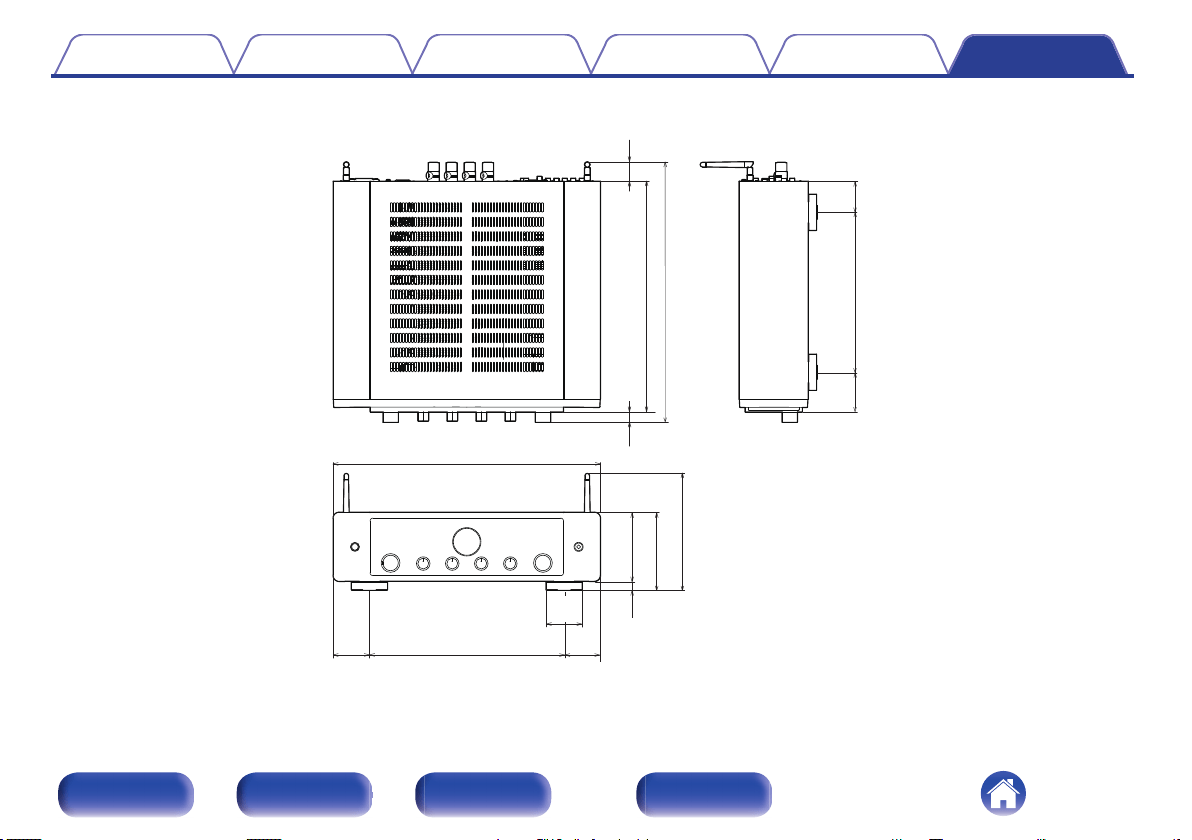
o
Dimensions (Unit : in. (mm))
15 1/8 (382)
3/4
(18)
17 1/8 (432)
10 1/2 (265)
2 5/8
(66)
2 1/8
(51)
1 3/8
(32)
17 1/2 (443)
5/8
(15)
4 5/8 (115)
5 1/8 (130)
12 3/4 (321)
2 1/2
(61)
2 3/8
(60)
2 1/2
(61)
7 3/4 (194)
o
Weight : 36 lbs 13 oz (16.7 kg)
Contents Connections Playback Settings Tips Appendix
111
Front panel Rear panel
Remote control
unit
Index
Index
v A
AirPlay
............................................................ 56
Auto Standby ................................................. 69
v B
Bluetooth device ............................................
37
v D
Display’s brightness
....................................... 61
v F
Front panel .......................................................
8
v H
HEOS Account
............................................... 45
HEOS Favorites ............................................. 48
v I
Input source
................................................... 35
Internet Radio ................................................. 53
v M
Menu map
...................................................... 63
v N
NAS ..........................................................
54, 99
Network settings ............................................ 71
v P
Pairing
............................................................ 37
PC ...................................................... 28, 54, 99
v Q
Queue ............................................................
48
Contents Connections Playback Settings Tips Appendix
112
Front panel Rear panel
Remote control
unit
Index
v R
Rear panel
...................................................... 11
Remote control unit ........................................ 14
v S
Sleep timer
..................................................... 61
Spotify ............................................................ 59
v T
Tips
................................................................ 76
Troubleshooting ............................................. 78
v U
USB flash drive .........................................
27, 54
v W
Wi-Fi settings .................................................
71
Wired LAN ................................................ 28, 71
Wireless LAN ........................................... 29, 71
Contents Connections Playback Settings Tips Appendix
113
Front panel Rear panel
Remote control
unit
Index

3520 10833 00AM
©2021 Sound United. All Rights Reserved.
114