SAFETY PRECAUTIONS AND ELECTRICAL REQUIREMENTS FOR THE UltraLite-mk5 (“PRODUCT”)
CAUTION! READ THIS SAFETY GUIDE BEFORE YOU BEGIN INSTALLATION OR OPERATION. FAILURE TO COMPLY WITH SAFETY
INSTRUCTIONS COULD RESULT IN BODILY INJURY OR EQUIPMENT DAMAGE.
HAZARDOUS VOLAGES: CONTACT MAY CAUSE ELECTRIC SHOCK OR BURN. TURN OFF UNIT BEFORE SERVICING.
WARNING: TO REDUCE THE RISK OF FIRE OR ELECTRICAL SHOCK, DO NOT EXPOSE THIS APPLIANCE TO RAIN OR OTHER MOISTURE.
CAUTION: TO REDUCE THE RISK OF ELECTRICAL SHOCK, DO NOT REMOVE COVER. NO USER-SERVICEABLE PARTS INSIDE. REFER SERVICING
TO QUALIFIED SERVICE PERSONNEL.
IMPORTANT SAFEGUARDS
1. Read these instructions. All the safety and operating instructions should be read before operating the product.
2. Keep these instructions. These safety instructions and the product owner’s manual should be retained for future reference.
3. Heed all warnings. All warnings on the product and in the owner’s manual should be adhered to.
4. Follow all Instructions. All operating and use instructions should be followed.
5. Do not use the product near water.
6. Cleaning - Unplug the product from the computer and clean only with a dry cloth. Do not use liquid or aerosol cleaners.
7. Ventilation - Do not block any ventilation openings. Install in accordance with the manufacturer’s instructions.
8. Heat - Do not install the product near any heat sources such as radiators, heat registers, stoves, or another apparatus (including an amplifier) that produces heat.
9. Overloading - Do not overload wall outlets and extension cords as this can result in a risk of fire or electrical shock.
10. Power supply cord - Protect the product power supply cord from being walked on or pinched by items placed upon or against them.
11. Power switch - Install the product so that the power switch can be accessed and operated at all times.
12. Disconnect - The main power supply plug is considered to be the disconnect device for the product and shall remain readily operable.
13. Accessories - Only use attachments/accessories specified by the manufacturer.
14. Surge protection - Unplug the product during lightning storms or when unused for long periods of time.
15. Servicing - Refer all servicing to qualified service personnel. Servicing is required when the product has been damaged in any way, such as when a power-supply cord or plug is damaged, liquid has been
spilled or objects have fallen into the product, the product has been exposed to rain or moisture, does not operate normally, or has been dropped.
16. Power Sources - Refer to the manufacturer’s operating instructions for power requirements.
17. Installation - Do not install the product in an unventilated rack, or directly above heat-producing equipment such as power amplifiers. Observe the maximum ambient operating temperature listed
below.
18. Power amplifiers- Never attach audio power amplifier outputs directly to any of the unit’s connectors.
19. Replacement Parts - When replacement parts are required, be sure the service technician has used replacement parts specified by the manufacturer or have the same characteristics as the original part.
Unauthorized substitutions may result in fire, electric shock or other hazards.
20. Safety Check - Upon completion of any service or repairs to this MOTU product, ask the service technician to perform safety checks to determine that the product is in safe operating conditions.
ENVIRONMENT, HEAT AND VENTILATION
Operating Temperature: 10°C to 40°C (50°F to 104°). The product should be situated away from heat sources or other equipment that produces heat. When installing the product in a rack or any other
location, be sure there is adequate space around the product to ensure proper ventilation. Improper ventilation will cause overheating and can damage the unit.
TO REDUCE THE RISK OF ELECTRICAL SHOCK OR FIRE
Do not handle the power cord with wet hands. Do not pull on the cord of the power supply when disconnecting it from an AC wall outlet.
Grasp it by the power supply unit. Do not expose this apparatus to rain or moisture. Do not place objects containing liquids on it.
DC INPUT
10 - 24V DC • 1.0A max
This equipment has been type tested and found to comply with the limits for a class B digital
device, pursuant to Part 15 of the FCC Rules. These limits are designed to provide reasonable
protection against harmful interference in a residential installation. This equipment generates,
uses, and can radiate radio frequency energy and, if not installed and used in accordance with the
instruction manual, may cause harmful interference to radio communications. However, there is
no guarantee that interference will not occur in a particular installation. If this equipment does
cause interference to radio or television equipment reception, which can be determined by
turning the equipment off and on, the user is encouraged to try to correct the interference by any
combination of the following measures:
• Relocate or reorient the receiving antenna
• Increase the separation between the equipment and the receiver
• Plug the equipment into an outlet on a circuit different from that to which the receiver is
connected
If necessary, you can consult a dealer or experienced radio/television technician for additional
assistance.
PLEASE NOTE: only equipment certified to comply with Class B (computer input/output devices,
terminals, printers, etc.) should be attached to this equipment, and it must have shielded interface
cables in order to comply with the Class B FCC limits on RF emissions.
WARN ING: cha ng es o r mo difi cati ons to this u nit not expr essl y approv ed b y th e
party responsible for compliance could void the user's authority to operate the
equipment.

iii
Contents
Part 1: Getting Started
7 Quick Start Guide
8 A Typical UltraLite-mk5 Setup
9 UltraLite-mk5 Front Panel
10 UltraLite-mk5 Rear Panel
11 About the UltraLite-mk5
15 Packing List and System Requirements
17 Software Installation
21 Hardware Installation
Part 2: Using the UltraLite-mk5
29 Front Panel Operation
31 CueMix 5
45 Working with Host Audio Software
Part 3: Appendices
53 Troubleshooting
55 Audio Specifications
57 Half-rack Mounting Kit
59 Half-rack Coupler Kit
61 Index

About the Mark of the Unicorn License
Agreement and Limited Warranty on Software
TO PERSONS WHO PURCHASE OR USE THIS PRODUCT: carefully read all the terms and
conditions of the “click-wrap” license agreement presented to you when you install
the software. Using the software or this documentation indicates your acceptance of
the terms and conditions of that license agreement.
Mark of the Unicorn, Inc. (“MOTU”) owns both this program and its documentation.
Both the program and the documentation are protected under applicable copyright,
trademark, and trade-secret laws. Your right to use the program and the
documentation are limited to the terms and conditions described in the license
agreement.
REMINDER OF THE TERMS OF YOUR LICENSE
This summary is not your license agreement, just a reminder of its terms. The actual
license can be read and printed by running the installation program for the software.
That license agreement is a contract, and clicking “Accept” binds you and MOTU to all
its terms and conditions. In the event anything contained in this summary is
incomplete or in conflict with the actual click-wrap license agreement, the terms of
the click-wrap agreement prevail.
YOU MAY: (a) use the enclosed program on a single computer; (b) physically transfer
the program from one computer to another provided that the program is used on
only one computer at a time and that you remove any copies of the program from the
computer from which the program is being transferred; (c) make copies of the
program solely for backup purposes. You must reproduce and include the copyright
notice on a label on any backup copy.
YOU MAY NOT: (a) distribute copies of the program or the documentation to others;
(b) rent, lease or grant sublicenses or other rights to the program; (c) provide use of
the program in a computer service business, network, time-sharing, multiple CPU or
multiple user arrangement without the prior written consent of MOTU; (d) translate,
adapt, reverse engineer, decompile, disassemble, or otherwise alter the program or
related documentation without the prior written consent of MOTU.
MOTU warrants to the original licensee that the disk(s) on which the program is
recorded be free from defects in materials and workmanship under normal use for a
period of ninety (90) days from the date of purchase as evidenced by a copy of your
receipt. If failure of the disk has resulted from accident, abuse or misapplication of the
product, then MOTU shall have no responsibility to replace the disk(s) under this
Limited Warranty.
THIS LIMITED WARRANTY AND RIGHT OF REPLACEMENT IS IN LIEU OF, AND YOU
HEREBY WAIVE, ANY AND ALL OTHER WARRANTIES, BOTH EXPRESS AND IMPLIED,
INCLUDING BUT NOT LIMITED TO WARRANTIES OF MERCHANTABILITY AND FITNESS
FOR A PARTICULAR PURPOSE. THE LIABILITY OF MOTU PURSUANT TO THIS LIMITED
WARRANTY S HA LL BE LIMITED TO THE R EP LACEMENT OF THE DEFECTI VE DISK(S ), AND
IN NO EVENT SHALL MOTU OR ITS SUPPLIERS, LICENSORS, OR AFFILIATES BE LIABLE
FOR INCIDENTAL OR CONSEQUENTIAL DAMAGES, INCLUDING BUT NOT LIMITED TO
LOSS OF USE , LOSS OF PRO FI TS, LOSS OF DATA OR DATA BEIN G RE NDERED INACC URATE ,
OR LOSSES SUSTAINED BY THIRD PARTIES EVEN IF MOTU HAS BEEN ADVISED OF THE
POSSIBILITY OF SUCH DAMAGES. THIS WARRANTY GIVES YOU SPECIFIC LEGAL RIGHTS
WHICH MAY VARY FROM STATE TO STATE. SOME STATES DO NOT ALLOW THE
LIMITATION OR EXCLUSION OF LIABILITY FOR CONSEQUENTIAL DAMAGES, SO THE
ABOVE LIMITATION MAY NOT APPLY TO YOU.
UPDATE POLICY
In order to be eligible to obtain updates of the program, you must complete and
return the attached Mark of the Unicorn Purchaser Registration Card to MOTU.
COPYRIGHT NOTICE
Copyright © 2021, 2020 by Mark of the Unicorn, Inc. All rights reserved. No part of this
publication may be reproduced, transmitted, transcribed, stored in a retrieval system,
or translated into any human or computer language, in any form or by any means
whatsoever, without express written permission of Mark of the Unicorn, Inc., 1280
Massachusetts Avenue, Cambridge, MA, 02138, U.S.A.
Limited Warranty on Hardware
Mark of the Unicorn, Inc. (“MOTU”) warrants this equipment against defects in
materials and workmanship under normal use for a period of TWO (2) YEARS from the
date of original retail purchase. The Warranty Term begins on the date of purchase
from an authorized MOTU reseller and applies solely to the original retail purchaser,
who must activate the warranty by creating a user account at motu.com to register
the product within 90 days of purchase. This warranty applies only to hardware
products; MOTU software is licensed and warranted pursuant to separate written
statements.
If you discover a defect, first contact MOTU technical support by phone, email or web
(motu.com/support) to verify the warranty on your MOTU equipment and obtain a
Return Merchandise Authorization (RMA). No service will be performed on any
product returned without prior authorization. MOTU will, at its option, repair or
replace the product at no charge to you, provided you return it during the warranty
period as instructed by MOTU, with transportation charges prepaid. If you purchased
your equipment in any country other than the US or Canada, you will be instructed to
return the equipment to an authorized MOTU distributor or representative in the
country of purchase. You must use the product’s original packing material for the
shipment, and insure the shipment for the value of the product. Please include your
name, address, phone number, email address, a description of the problem, and the
original, dated bill of sale with the returned unit; do NOT include additional
accessories such as cables, power supplies, manuals, etc. Please clearly print the
Return Merchandise Authorization Number on the outside of the box below the
shipping address. Repaired or replaced equipment will be returned to you via UPS
Ground prepaid. (Expedited shipping methods such as UPS next day, 2-day, and 3-day
services are available for an additional cost.) Repaired equipment will be warranted
for a period equal to the remainder of the original Limited Warranty or for 90 days,
whichever is longer.
WARRANTY EXC LUSIO NS: Thi s warrant y does no t ap ply if the eq uipm en t ha s bee n
damaged by accident, abuse, misuse, or misapplication; has been modified without
the written permission of MOTU; or if the product serial number has been removed or
defaced. The following examples, without limitation, are NOT covered by this
hardware warranty:
•Equipment purchased through any reseller not directly authorized by MOTU or its authorized
international distributors.
•“Used” equipment purchased from a third party.
•Equipment purchased in another country.
•Normal cosmetic and mechanical wear of the equipment.
•Equipment damaged by improper installation or connections.
•Equipment damaged in transit to/from MOTU for warranty repair.
•Physically damaged equipment, including but not limited to water damage, cracks or dents,
missing or bent parts, burns or other damage caused by faulty or failed electric power
ALL IMPLIED WARRANTIES, INCLUDING IMPLIED WARRANTIES OF MERCHANTABILITY
AND FITNESS FOR A PARTICULAR PURPOSE, ARE LIMITED IN DURATION TO TWO (2)
YEARS FROM THE DATE OF THE ORIGINAL RETAIL PURCHASE OF THIS PRODUCT. THE
WARRANT Y AND RE MED IES SE T F ORT H ABOVE ARE EX CLUSIV E A ND IN LIE U OF A LL
OTHERS, ORAL OR WRITTEN, EXPRESS OR IMPLIED. No MOTU dealer, agent, or
employee is authorized to make any modification, extension, or addition to this
warranty. MOTU IS NOT RESPONSIBLE FOR SPECIAL, INCIDENTAL, OR CONSEQUENTIAL
DAMAGES RESULTING FROM ANY BREACH OF WARRANTY, OR UNDER ANY LEGAL
THEORY, INCLUDING LOST PROFITS, DOWNTIME, GOODWILL, DAMAGE OR
REPLACEMENT OF EQUIPMENT AND PROPERTY AND COST OF RECOVERING REPRO-
GRAMMING, OR REPRODUCING ANY PROGRAM OR DATA STORED IN OR USED WITH
MOTU PRODUCTS.
Some states do not allow the exclusion or limitation of implied warranties or liability
for incidental or consequential damages, so the above limitation or exclusion may not
apply to you. This warranty gives you specific legal rights, and you may have other
rights which vary from state to state.
Part number: MOT-501-1000. Version 1.11

Part 1
Getting Started


7
Quick Start Guide
Thank you for purchasing an UltraLite-mk5!
Follow these easy steps to get started quickly.
MAC USERS START HERE
1 Visit motu.com/UltraLite-mk5-start to
download and run the MOTU Gen 5 Installer.
2 Connect the included power supply to your
UltraLite-mk5 unit.
3 Connect the UltraLite-mk5 to your Mac using
one of the included USB cables.
4 Choose Apple menu > System Preferences and
click Sound to choose the UltraLite-mk5 as the
input and output device.
5 Proceed to “For all users” below.
WINDOWS USERS START HERE
1 BEFORE you connect the UltraLite-mk5 to
your computer, visit motu.com/UltraLite-mk5-
start to download and run MOTU Gen 5 Setup.
2 Connect the included power supply to your
UltraLite-mk5 unit.
3 Connect the UltraLite-mk5 to your PC using
one of the included USB cables.
4 Go to the Windows Sound Control Panel and
choose UltraLite-mk5 as the default recording and
playback device.
5 Proceed to “For all users” below.
FOR ALL USERS
6 As shown on the next page, connect speakers to
the UltraLite-mk5 Main Outs 1-2, or connect a
pair of headphones to the headphone jack on the
front panel, so you can hear your computer’s audio
output.
7 You are now ready to start using your
UltraLite-mk5 interface.
8 Visit motu.com/UltraLite-mk5-start to register
your UltraLite-mk5, download the included
software and watch brief how-to videos, including:
■ How to connect a mic, guitar, keyboard or other
audio source.
■ How to use the UltraLite-mk5 with your
recording software.
■ How to get the most out of the UltraLite-mk5.
☛ Register your UltraLite-mk5 to gain access to
all the software, virtual instruments, loops and
sounds that are included with your UltraLite-mk5
purchase. Registered users also qualify for
technical support and information about software
updates, so please register today!
MAIN
VOL
(HOLD)
BACK SELECT
MIC LINE/INST
MIC
GAIN
PHONES
PAD 48V PAD 48V
2
12
1
LINE OUT LINE IN
MAIN OUT
S/PDIF
OPTICAL
USB C15V DC
MIDI
OUT
IN
IN
OUT
OUT
IN
53
8
7
10
9
6
753
864
(L)
(R)
4
1
2
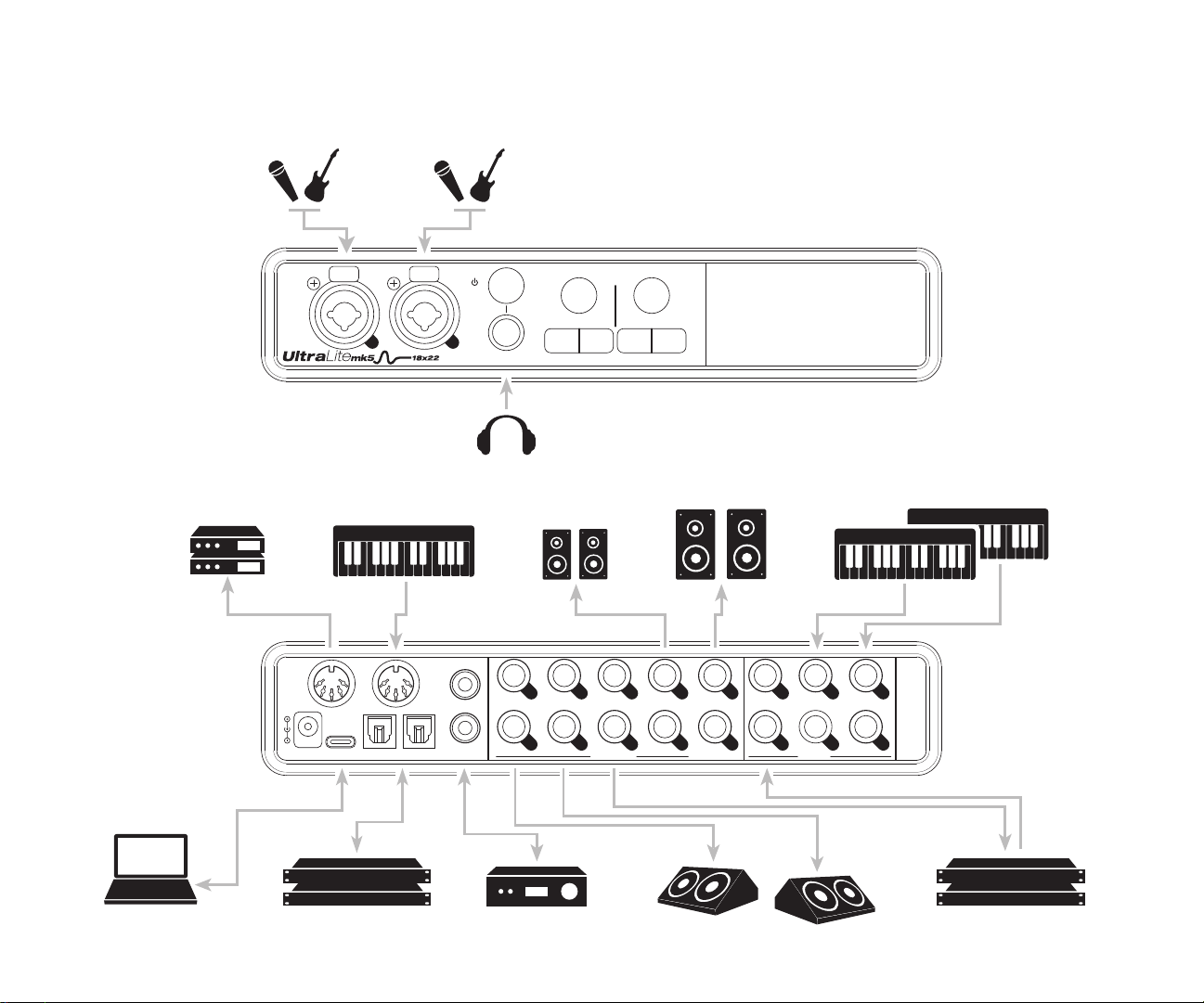
A Typical UltraLite-mk5 Setup
Mic or guitar Mic or guitar
Headphones
MIDI modules MIDI controller Aux speakers
Main speakers Keyboards and synths
Mac, PC or iOS device I/O expansion Home theater Stage monitors Outboard gear
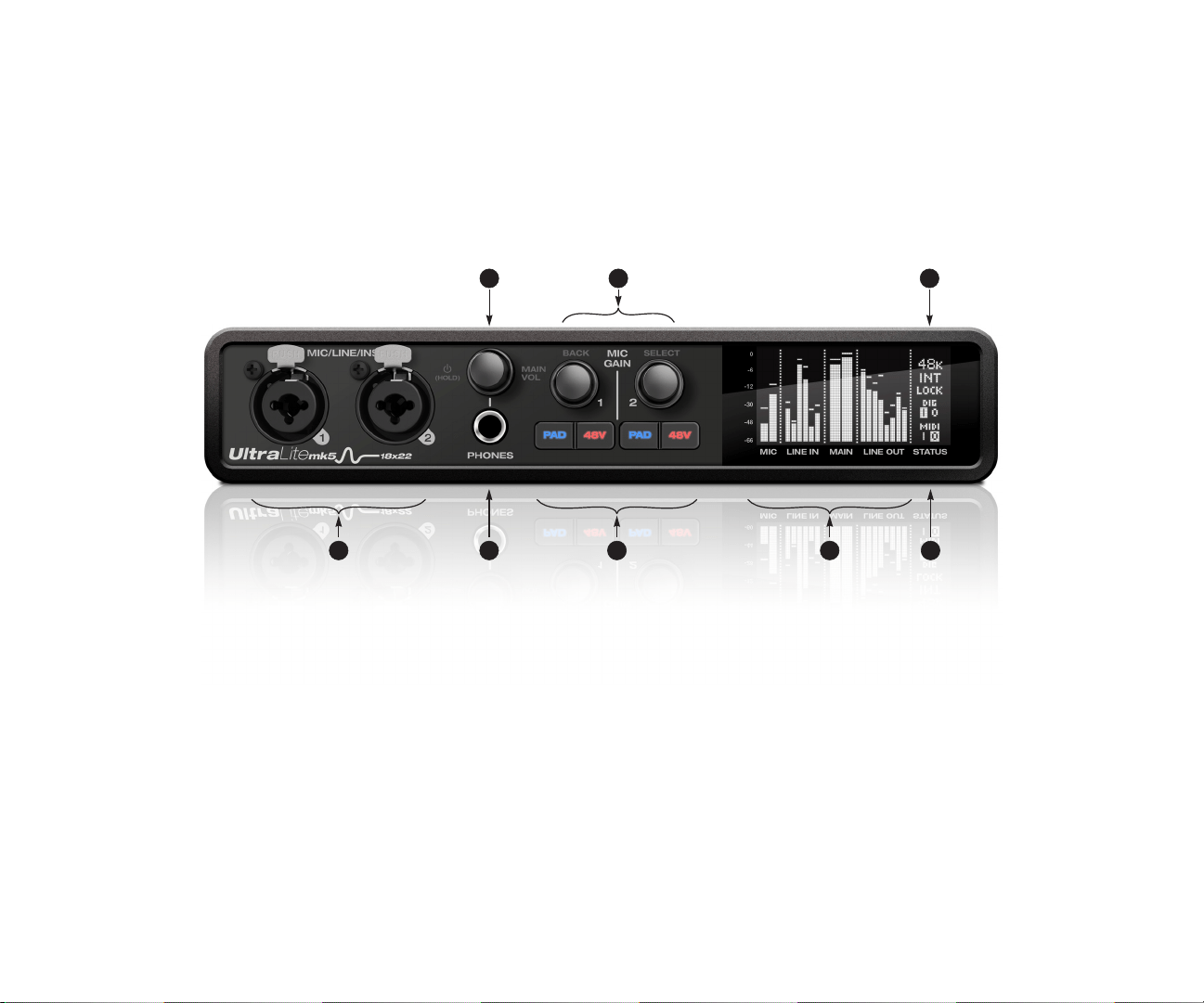
UltraLite-mk5 Front Panel
1. These Mic/Line/Inst inputs are XLR/TRS combo jacks
that accept either a mic cable or a quarter-inch cable,
balanced or unbalanced, from a guitar or line input. Use
the controls to the right (3) to adjust individual preamp
gain, instrument input gain, 48V phantom power, and
an optional -20 dB pad for each mic input. Each input
includes a Phase Invert switch, accessed in the CueMix 5
app. See “Input tab” on page 34.
2. The Phones jack accepts a quarter-inch headphone
plug. Use the knob above for volume control. The
display provides feedback as you turn the knob.
3. Individual preamp gain, switchable 48V phantom
power, and optional -20 dB pad switches for each
combo input. The Precision Digital Gain™ knob provides
+74 dB of preamp gain or instrument input gain. Both
gain settings are retained independently. Turn the knob
to see the gain adjustments in the screen.
4. This portion of the screen displays level meters for all
analog inputs and outputs. It can also show device
settings, using the knobs to the left.
5. This portion of the screen shows digital I/O activity
(optical and S/PDIF) and MIDI activity (in and out).
6. This portion of the screen displays the current sample
rate and clock source, such as INT (Internal clock mode).
7. Push Select to enter the menu. Turn Select to scroll
through menu options. Push again to descend into the
sub-menus, if applicable. To choose the current setting,
push Select a third time. Push Back to return to the
previous menu level, and do so repeatedly to exit the
menu altogether.
8. Power and Volume control for phones and main outs.
Push this knob to toggle between Phones volume and
Main Out volume. The screen provides visual feedback.
This setting, along with all front panel settings, can also
be adjusted from the CueMix 5 app. The CueMix 5 app
also allows you to add additional Line Outs to the Main
Volume group, so you can control them all with this
knob. See item #2 (Main Volume Group) on page 35.
Push this knob to power on the unit; push and hold for
three seconds to power it off.
78
2 3 5
6
1 4

UltraLite-mk5 Rear Panel
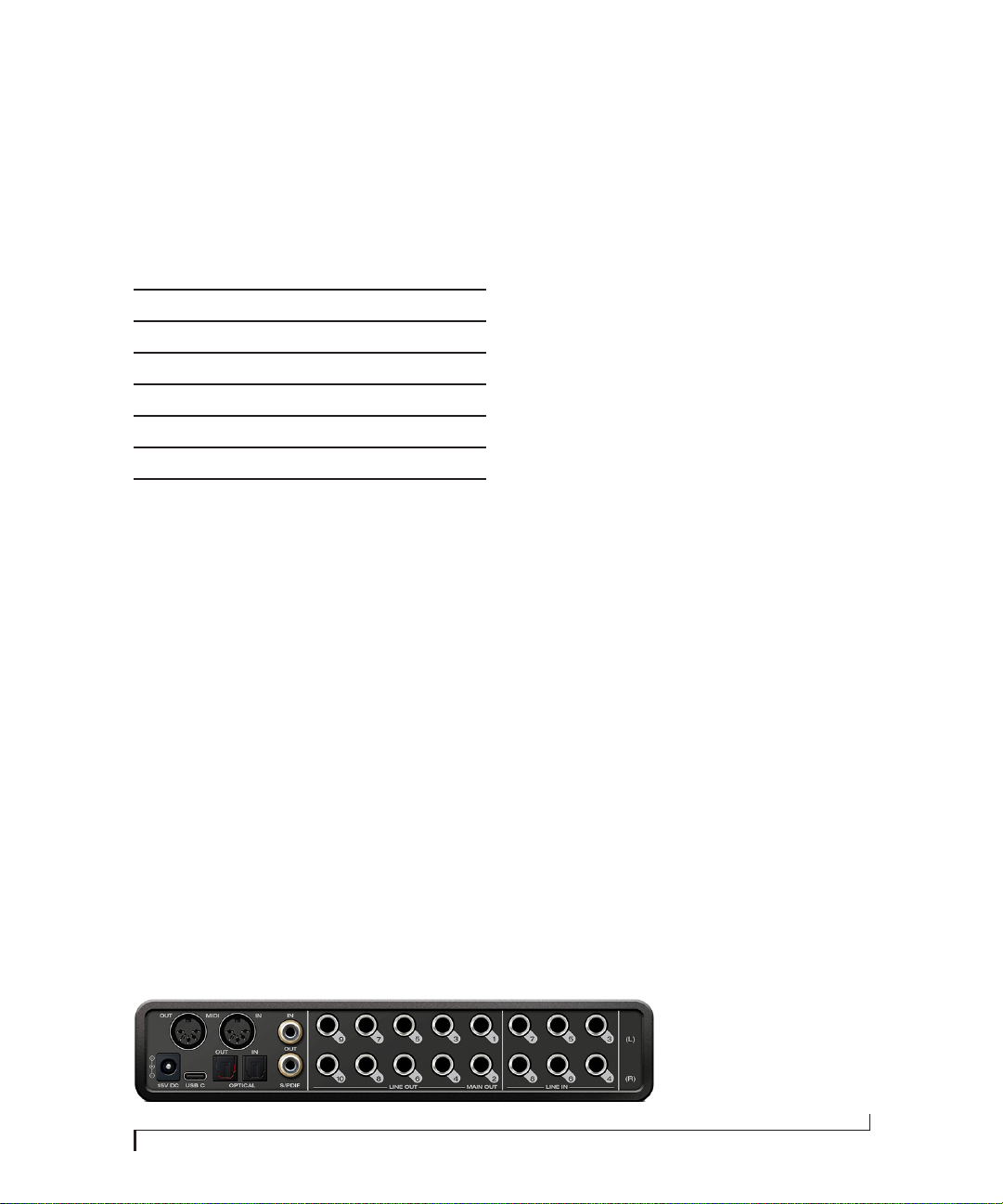
1. The UltraLite-mk5 operates as a USB MIDI interface, allow-
ing MIDI software to communicate with connected MIDI
devices through the USB connection to the computer.
Connect a MIDI device here using standard MIDI cables.
Connect the UltraLite-mk5’s MIDI OUT port to the MIDI IN
port on the other device. Conversely, connect the
UltraLite-mk5’s MIDI IN port to the MIDI OUT port on the
other device. For further details, see “MIDI connections” on
page 25.
2. The analog (‘Line’) outputs provide additional analog
output for secondary studio monitors, surround monitor-
ing, sub-mixes or any other desired destination. These
connectors are balanced (tip/ring/sleeve), but they also
accept an unbalanced plug. They are DC-coupled. Control
volume from the CueMix 5 app or your host audio software.
For further details, see “Audio connections” on page 22.
3. The Main Out pair provides stereo analog output for
primary (powered) studio monitors or PA speakers, or any
other desired destination. Control volume from the
CueMix 5 app or from the front panel volume control.
To hear audio playback from your host audio software on
the MAIN OUT pair, assign audio tracks (and master fader)
to these main outs. You can also use the CueMix 5 app to
route live UltraLite-mk5 inputs here as well.
4. Equipped with very high quality 24-bit 192 kHz converters,
these six line inputs are balanced TRS (tip/ring/sleeve)
quarter-inch connectors that can also accept an unbal-
anced plug (with the ring disconnected). Use them for
keyboards or other line level analog sources. These inputs
are equipped with the UltraLite-mk5’s Precision Digital
Gain™ feature: digital gain that boosts the input level up to
+20 dB in 1 dB increments, adjusted from the CueMix 5
app. Each input includes a Phase Invert switch, accessed in
the CueMix 5 app. See “Input tab” on page 34.
5. These RCA S/PDIF jacks provide stereo, 24-bit digital input
and output at all supported sample rates (up to 96 kHz).
When connecting a source to the input, be sure to set the
clock source correctly. See “S/PDIF” on page 24.
6. These ADAT optical “lightpipe” jacks provide 8 channels of
24-bit ADAT optical digital I/O at 1x sample rates (44.1 or 48
kHz) and 4 channels at 2x sample rates (88.2 or 96 kHz).
They are disabled at higher sample rates. Alternately, they
can operate as stereo TOSLink (optical S/PDIF) connectors.
See “Optical I/O” on page 24.
7. Connect the UltraLite-mk5 to the computer here using the
included USB-C-to-C or USB-C-to-A cable. If you are
connecting to an iOS device, see “iOS setup (USB-C)” on
page 21.
8. This DC power jack accepts any standard 15V DC, 1A
tip-positive power supply.
4
8
1 2 3
7 6 5

CHAPTER
11
1 About the UltraLite-mk5
The UltraLite-mk5 is an 18 x 22 USB audio
interface with mixing, DSP effects, and very high
quality A/D/A conversion at sample rates up to
192 kHz for on-the-go mobile audio recording.
Hardware-driven DSP delivers monitor mixes on
all analog output pairs, with seven stereo buses
and 32-bit effects processing, including EQ,
compression and reverb.
The UltraLite-mk5 can operate as an audio
interface for a studio workstation (DAW), as a
standalone mixer, or as an auxiliary monitor
mixing system in the studio or on stage. This
chapter provides a brief overview of its main
features and characteristics.
Comprehensive I/O
The UltraLite-mk5 provides a variety of analog
and digital interconnects, all active simultane-
ously, designed to provide everything you need for
a well-equipped mobile recording studio.
† The UltraLite-mk5 optical connectors support
the industry-standard ADAT and TOSLink optical
I/O formats, which provide varying channel
counts. See “Optical I/O” on page 24 for details
about optical bank operation.
All inputs and outputs are discrete. For example,
using a mic input does not “steal” an input from
the TRS analog I/O bank.
Universal connectivity
The UltraLite-mk5 can connect to a computer
with high-speed USB 2.0, which is compatible
with USB 3.0. It is USB audio class-compliant,
which means that it is iOS compatible and does
not require driver installation for USB connection
to a computer.
Mic/guitar inputs with preamps
The two front-panel mic/line/instrument inputs
are equipped with preamps and “combo” XLR/
TRS jacks, which accept XLR microphone inputs
or quarter-inch line/instruments inputs.
Individual 48 volt phantom power and a -20 dB
pad can be supplied independently to each mic
input. The Precision Digital Gain™ knobs on the
front panel for each mic/instrument input provide
up to 74 dB of boost in precise 1 dB increments.
Flexible analog I/O
All quarter-inch analog inputs can accept either a
balanced or unbalanced plug. The six line inputs
are equipped with digital gain, adjustable in 1 dB
increments.
Equipped with renowned ESS Sabre32™ DAC
technology, all analog outputs offer trim, also
adjustable in 1 dB increments. You can save your
trim configurations as a preset for instant recall.
All quarter-inch outputs are DC-coupled, so they
can be used for CV control output.
Connection
Input Output
Quarter-inch analog on bal/unbal TRS 6 10
Mic/guitar inputs on combo XLR/TRS 2 -
Headphone output - 1 x stereo
S/PDIF digital I/O on RCA 2 2
ADAT optical digital (at 44.1 or 48 kHz)† 8 8
Tot al 18 2 2

ABOUT THE ULTRALITE-MK5
12
On-board DSP with mixing and processing
The UltraLite-mk5 is equipped with a DSP engine
that drives a 24 x 14 monitor mixer, which supplies
each analog output pair with a unique monitor
mix. Each mix can include any chosen inputs, plus
computer output and the separate reverb bus.
Effects include 4-band parametric EQ,
compression and reverb. The included CueMix 5
app provides easy and intuitive on-screen control
of everything.
32-bit processing
The DSP engine has a 32-bit data path with 64-bit
(double-precision) data processing, which
provides 48 dB of headroom (above full scale)
inside the mixer for the utmost in sound quality.
Software control
Control the UltraLite-mk5 on-board mixing and
device settings from the CueMix 5 app software
running on a laptop or iOS device.
Stand-alone mixing
Connect a tablet to the UltraLite mk5 for complete
control of all settings on the road at rehearsals or
gigs — great for live sound mixing.
ADAT digital I/O
The UltraLite-mk5 provides 8-channel optical
digital I/O. Connect outboard digital processors,
digital mixers or other gear: 8 channels at 44.1/48
kHz or 4 channels at 88.2/96 kHz. Alternately, the
optical ports can be independently configured to
support stereo TOSLink (optical S/PDIF).
The input and output operate independently,
allowing you to mix and match optical formats.
For example, you could receive four channels of
96 kHz S/MUX input while at the same time
sending 96 kHz stereo optical S/PDIF
(“TOSLink”) to the output.
S/PDIF
The UltraLite-mk5 rear panel provides S/PDIF
input and output in two different formats: RCA
“coax” and optical “TOSLink”. The RCA jacks are
dedicated to the S/PDIF format. The optical jacks
can be used for either TOSLink or ADAT optical,
as discussed earlier.
MIDI I/O
The UltraLite-mk5’s standard MIDI IN and MIDI
OUT jacks supply 16 channels of MIDI I/O to and
from the computer through its USB connection.
High-contrast OLED display
The high-contrast OLED display shows all signal
activity at a glance with precise, detailed metering
for all I/O. You can access many hardware settings
directly from the front panel.
Headphone output
The UltraLite-mk5 front panel provides an
independent headphone jack with separate
volume control. You can program the phones to
mirror the main outs or act as its own independent
output.
Rack mount or desktop operation
The UltraLite-mk5 is housed in a sturdy, metal-
alloy half-rack enclosure. Rack mounting brackets
are available (sold separately) for mounting the
unit in a standard 19-inch equipment rack. A
separate half-rack coupler kit is also available (sold
separately) to join two UltraLite-mk5 units (or
similar units) together and mount them side by
side in an equipment rack.
Performer Lite
Performer Lite is a full-featured audio workstation
software package for Mac and Windows that is
available as a free download for you as an
UltraLite-mk5 owner. Visit motu.com/download
to obtain your copy. Performer Lite provides
multi-track MIDI and audio production, over 100
included virtual instruments, automated virtual

ABOUT THE ULTRALITE-MK5
13
mixing, graphic editing, music notation editing,
real-time effects plug-ins with crossfades, support
for many third-party audio plug-ins, sample-
accurate editing and placement of audio, and
more.

ABOUT THE ULTRALITE-MK5
14

CHAPTER
15
2 Packing List and
System Requirements
PACKING LIST
The UltraLite-mk5 ships with the items listed
below. If any of these items are not present in the
box when you first open it, please immediately
contact your dealer or MOTU.
■ UltraLite-mk5 audio interface
■ USB-C-to-C cable
■ USB-C-to-A cable
■ DC power adapter
■ User guide
SYSTEM REQUIREMENTS
■ Intel Core i3 Mac or PC (or AMD equivalent).
Faster CPUs are recommended for best
performance.
■ 4GB RAM; 8 GB or more recommended.
■ macOS 10.11 or later; Windows 10 or later. For
macOS the optional driver requires 10.13 or later.
■ Available high-speed USB 2.0 (or 3.0) port.
■ A large hard drive (preferably at least 512 GB).
PLEASE REGISTER TODAY!
Please register the UltraLite-mk5 today: visit
www.motu.com/register.
As a registered user, you will be eligible to receive
free bundled software, technical support and
announcements about product enhancements as
soon as they become available. Only registered
users receive these special update notices, so
please register today.
Thank you for taking the time to register your new
MOTU products!

PACKING LIST AND SYSTEM REQUIREMENTS
16

CHAPTER
17
3 Software Installation
USB audio class-compliant operation . . . . . . . . . . . . . . . . . . .17
Software installation . . . . . . . . . . . . . . . . . . . . . . . . . . . . . . . . . . .17
Audio drivers . . . . . . . . . . . . . . . . . . . . . . . . . . . . . . . . . . . . . . . . . . .17
CueMix 5 app. . . . . . . . . . . . . . . . . . . . . . . . . . . . . . . . . . . . . . . . . . .18
Performer Lite workstation software. . . . . . . . . . . . . . . . . . . .18
Working with host audio software . . . . . . . . . . . . . . . . . . . . . .19
MIDI I/O on Windows . . . . . . . . . . . . . . . . . . . . . . . . . . . . . . . . . . .19
MIDI I/O setup on the Mac . . . . . . . . . . . . . . . . . . . . . . . . . . . . . .19
USB AUDIO CLASS-COMPLIANT OPERATION
The UltraLite-mk5 is a USB audio class-compliant
device. This means that you can connect it to your
Mac (running Mac OS 10.11 or higher) with a
USB cable and use it without installing any
software drivers. The computer recognizes the
UltraLite-mk5 as a USB audio device and makes
its inputs and outputs available to your host audio
software. Basic settings, such as the hardware’s
sample rate, are made in either your host software
or the front-panel menu.
☛ In this scenario, the UltraLite-mk5 provides
basic audio input and output, and no software
driver installation is necessary. Use the Mac’s
Audio MIDI Setup utility to manage the
UltraLite-mk5 audio inputs and outputs for your
Mac.
Connection to iOS devices (iPad and iPhone)
Audio-class compliant operation allows you to
connect the UltraLite-mk5 to any iOS device with
a standard camera connection kit adapter. The
UltraLite-mk5 then provides multi-channel audio
I/O to your audio apps. Use your audio app to
configure the number of available audio channels.
SOFTWARE INSTALLATION
If you don’t want to operate the UltraLite-mk5 as a
USB audio class compliant device, or if you are
using Windows on a PC, install the software as
follows.
1 Visit www.motu.com/ultralite-mk5-start to
download the latest Mac or Windows Gen 5
installer.
2 Run the installer and follow the directions it
gives you.
☛ We recommend that you run the software
installer before you connect the UltraLite-mk5 to
your computer and power it on. This ensures that
all driver components are properly installed in
your system.
☛ To allow support for a wide variety of
platforms, the Ultralite-mk5 appears as a USB
Class Compliant Ethernet device (USB-CDC-
ECM) in the Network settings for macOS and
Windows. This network port is currently used by
CueMix 5 to communicate with the UltraLite-mk5
on Windows and iOS, and may support other
platforms in the future.
AUDIO DRIVERS
The installer provides a USB audio driver for Mac
(CoreAudio) and Windows (ASIO and Wave).
Industry-leading I/O latency performance
On macOS and Windows, the UltraLite-mk5
driver provides exceptionally low I/O latency
performance. For example, with a 32-sample
buffer size, an UltraLite-mk5 interface operating
at 96 kHz produces round trip latency (RTL)
performance of 2.4 milliseconds (ms) on macOS.
RTL is the measurement of the time it takes audio
SOFTWARE INSTALLATION
18
to pass from an analog input, through a high-
performance DAW host such as Digital Performer,
to an analog output.
ASIO Driver support
On Windows, to enable the UltraLite-mk5 in your
ASIO host software, choose the MOTU
UltraLite-mk5 ASIO driver, as shown in Figure 7-1
on page 46.
WDM / Wave driver support
On Windows, the MOTU Gen5 driver includes
support for WDM (Wave) compatible audio
software. See item #8 on page 33.
Host Buffer Size
When connected to a Windows computer, the
Host Buffer Size menu is available in the Device tab
(item #6 on page 33). This setting determines the
amount of latency (delay) you may hear when live
audio is patched through your Windows audio
software. Smaller buffer sizes produce lower
latency, with sizes of 256 samples or less producing
virtually imperceptible delay. Many host
applications report audio hardware I/O latency, so
you can see what happens to the reported latency
when making adjustments to this setting.
Be careful with very small buffer sizes, as they can
cause performance issues from your host software
or PC.
☛ At sea level, audio travels approximately one
foot (30 cm) per millisecond. A latency of ten
milliseconds is about the same as being ten feet
(three meters) from an audio source.
Host Safety Offset
When connected to a Windows host, the Host
Safety Offset menu (item #7 on page 33) also
becomes available. This setting allows you to fine
tune host latency. Larger offsets allow the driver
more time to process audio as it transfers to and
from the hardware. Lower settings produce lower
latency, but if you go too low, your host software
may experience performance issues. Generally
speaking, 64 samples should serve as a good
baseline setting. You can then experiment with
lower settings from there. Be mindful, however,
when reducing the safety offset, as this parameter
can have a significant impact on your computer
system’s performance.
CUEMIX 5 APP
CueMix 5 is an easy-to-use app for macOS,
Windows and iOS that gives you complete control
over all the settings in your UltraLite-mk5
interface. For details, see chapter 6, “CueMix 5”
(page 31).
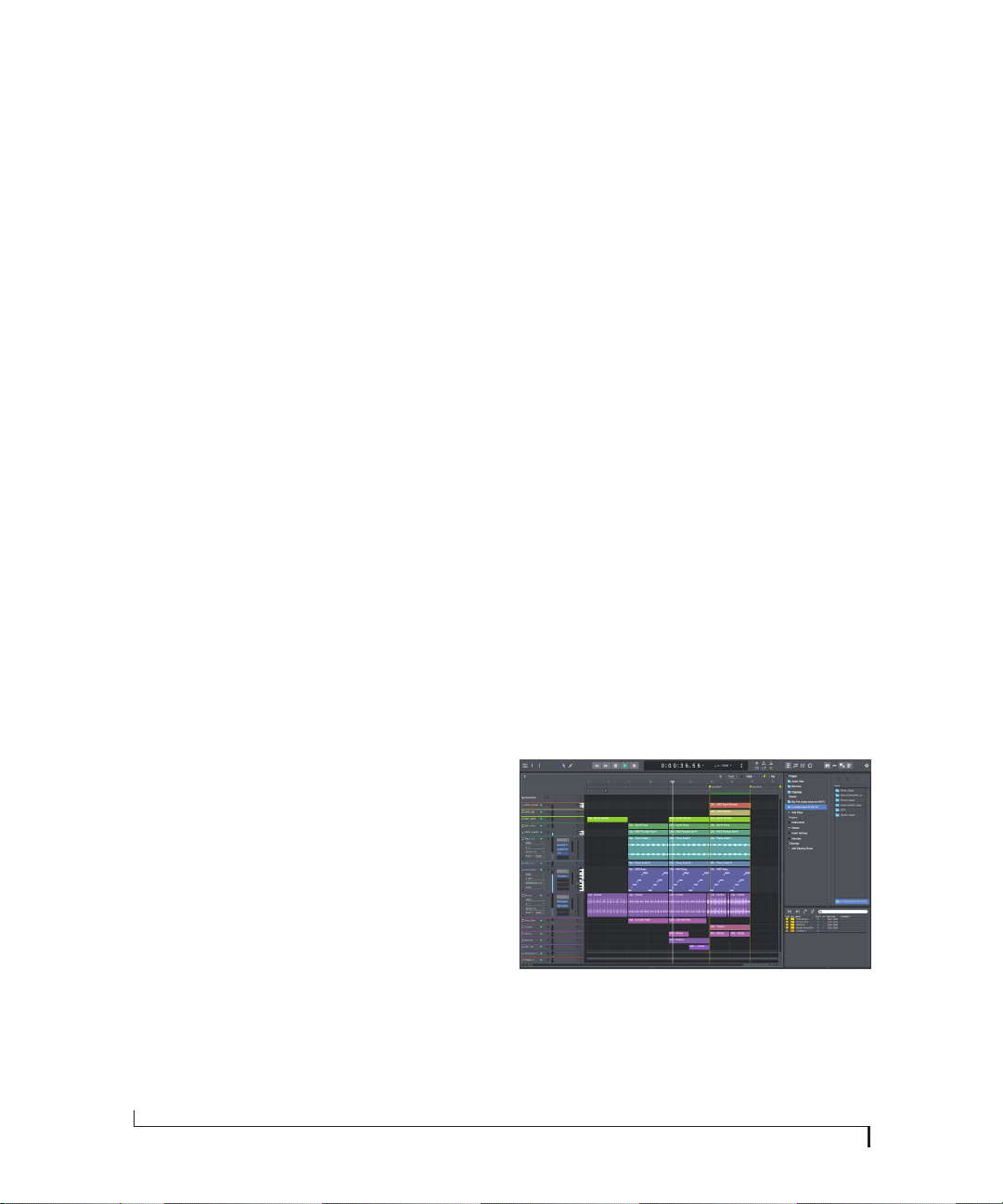
PERFORMER LITE WORKSTATION SOFTWARE
Performer Lite is an easy to use audio workstation
software package for macOS and Windows that
lets you record, edit, mix, process, bounce and
master multi-track recording projects. Advanced
features include over 100 included virtual
instruments, real-time effects processing,
recording, and much more.
To obtain Performer Lite, visit motu.com to
register your MOTU audio interface, download
Performer Lite and activate it on your computer.
Figure 3-1: Performer Lite.
SOFTWARE INSTALLATION
19
WORKING WITH HOST AUDIO SOFTWARE
For further information about using the
UltraLite-mk5 with host audio software, see
chapter 7, “Working with Host Audio Software”
(page 45).
MIDI I/O ON WINDOWS
On Windows, the MOTU Gen 5 Setup installer
provides a USB MIDI driver for the
UltraLite-mk5. This driver allows you to access
the UltraLite-mk5’s MIDI input and output ports
through its USB connection to the computer. The
ports are published in Windows and are available
to all MIDI software.
MIDI I/O SETUP ON THE MAC
Core MIDI is the “under-the-hood” component of
macOS that handles MIDI services for MIDI
hardware and software. Core MIDI provides many
universal MIDI system management features,
including MIDI communication between your
UltraLite-mk5 interface and all Core MIDI
compatible software.
Audio MIDI Setup is a utility included with macOS
that allows you to configure your UltraLite-mk5
interface for use with all Core MIDI compatible
applications. Audio MIDI Setup provides:
■ A “virtual” studio on your Mac that graphically
represents your MIDI hardware setup and that is
shared by all Core MIDI-compatible programs
■ A simple, intuitive list of your MIDI devices
whenever you need it in any Core MIDI-
compatible program
Launching Audio MIDI Setup
1 Make sure your UltraLite-mk5 interface is
connected (a USB connection is required) and
turned on.
2 Launch the Audio MIDI Setup utility.
This can usually be found in /Applications/
Utilities. If it has been moved, just search for
Audio MIDI Setup.
3 Confirm that the MIDI interface is present in
the MIDI Devices tab (or window) in Audio MIDI
Setup. If the interface does not appear, or if it is
grayed out, check your cable connections and click
Rescan MIDI.
Connecting MIDI devices to the UltraLite-mk5
Once your UltraLite-mk5 interface appears in
Audio MIDI Setup, you are ready to add devices,
indicate how they are connected, and identify
properties they may have for particular purposes.
This information is shared with all Core MIDI
compatible applications.
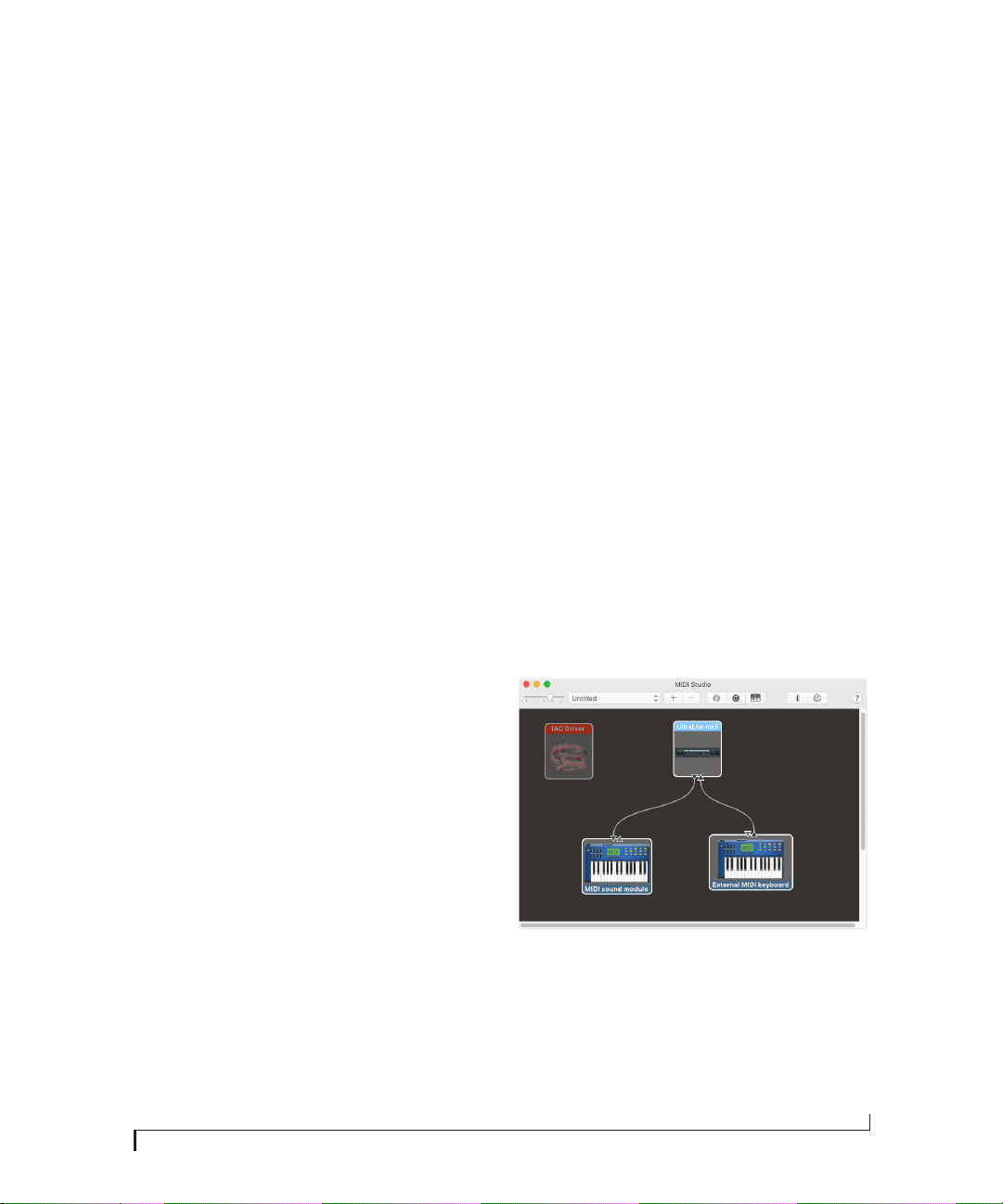
To add a device in Audio MIDI Setup:
1 Click Add Device.
2 Drag on its input and output arrows to draw
connections to the UltraLite-mk5 that match its
physical connection.
Figure 3-2: Connecting devices to the UltraLite-mk5. In this example, a
controller keyboard is connected to the UltraLite-mk5’s MIDI IN, and a
sound module is connected to the UltraLite-mk5 MIDI OUT.
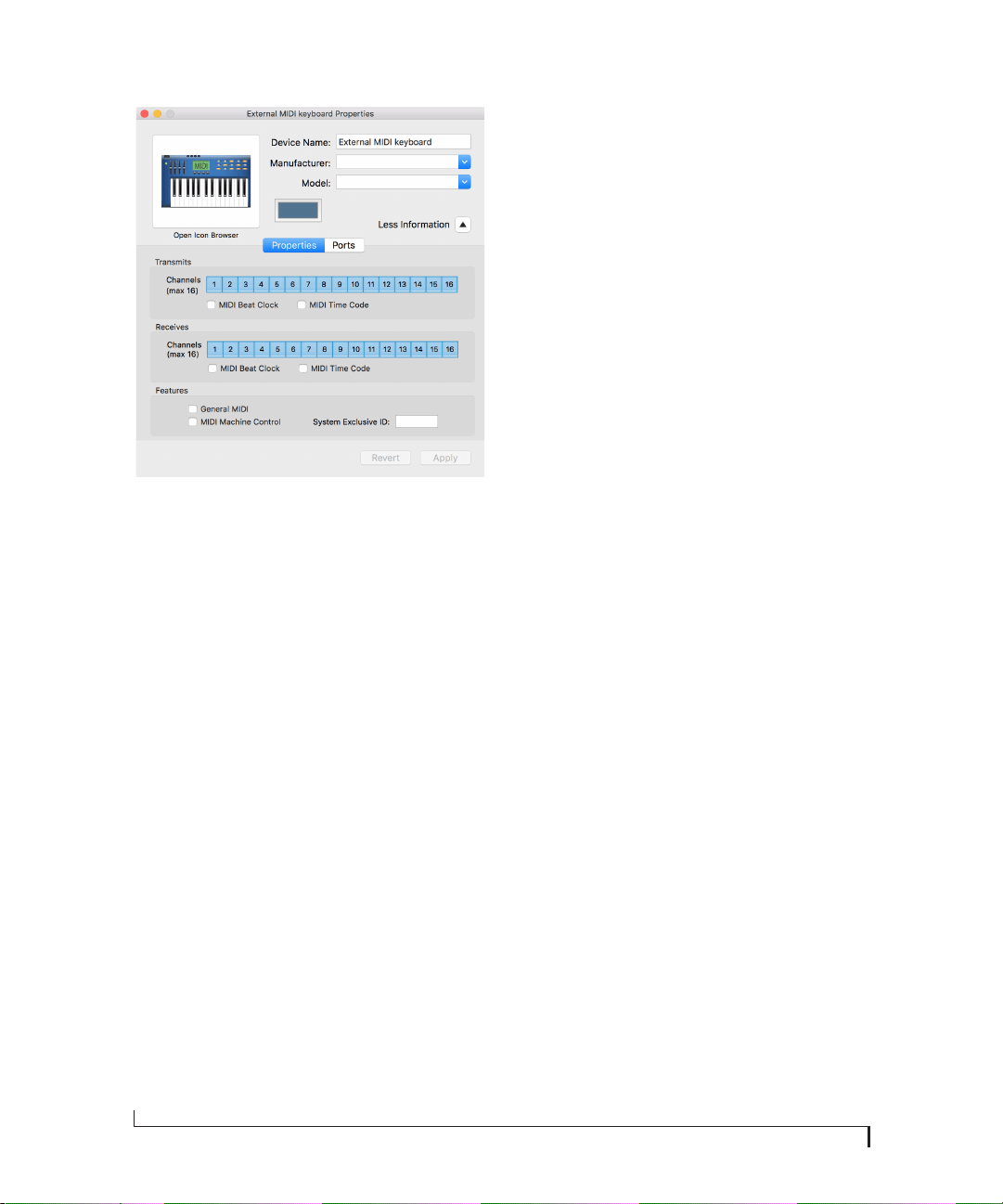
3 Double-click the device to make settings, such
as input and output channels, that further describe
the device.
SOFTWARE INSTALLATION
20
Figure 3-3: Device settings.
4 Repeat the above steps for each MIDI device
connected to the interface.
5 When you are finished, quit Audio MIDI Setup.
Your configuration is automatically saved as the
default configuration, and it is shared with all
Core MIDI-compatible software.
CHAPTER
21
4 Hardware Installation
USB audio interface setup . . . . . . . . . . . . . . . . . . . . . . . . . . . . . .21
iOS setup (USB-C). . . . . . . . . . . . . . . . . . . . . . . . . . . . . . . . . . . . . . .21
iOS setup (Lightning) . . . . . . . . . . . . . . . . . . . . . . . . . . . . . . . . . . .22
A typical UltraLite-mk5 setup . . . . . . . . . . . . . . . . . . . . . . . . . . .22
Audio connections. . . . . . . . . . . . . . . . . . . . . . . . . . . . . . . . . . . . . .22
MIDI connections . . . . . . . . . . . . . . . . . . . . . . . . . . . . . . . . . . . . . . .25
USB AUDIO INTERFACE SETUP
Use this setup if you want to use the UltraLite-mk5
as a USB audio interface for a computer.
■ Use the included USB-C-to-C or USB-C-to-A
cable.
■ Connect to any USB port (USB 2.0 or 3.0) on
your computer.
■ See “USB audio class-compliant operation” on
page 17.
■ For Mac or iOS operation, no driver installation
is necessary.
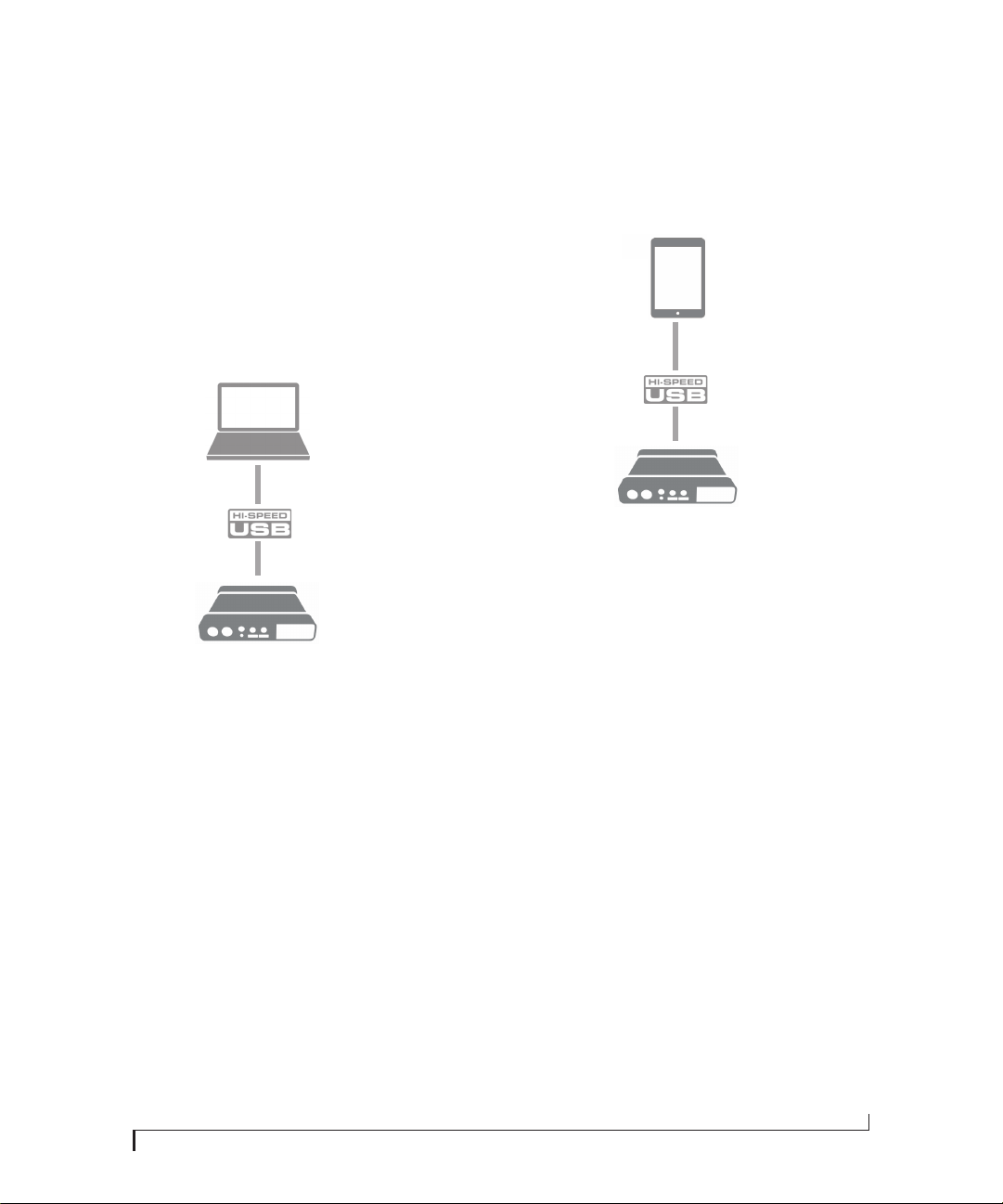
iOS SETUP (USB-C)
Use the UltraLite-mk5 as an iOS audio interface,
or control it from your iOS device.
■ Use this setup for iOS devices with a USB-C
port.
■ Connect the UltraLite-mk5 directly to the iOS
device with the included USB-C-to-C cable.
Computer
iOS device with
USB-C port
USB-C to USB-C cable
HARDWARE INSTALLATION
22
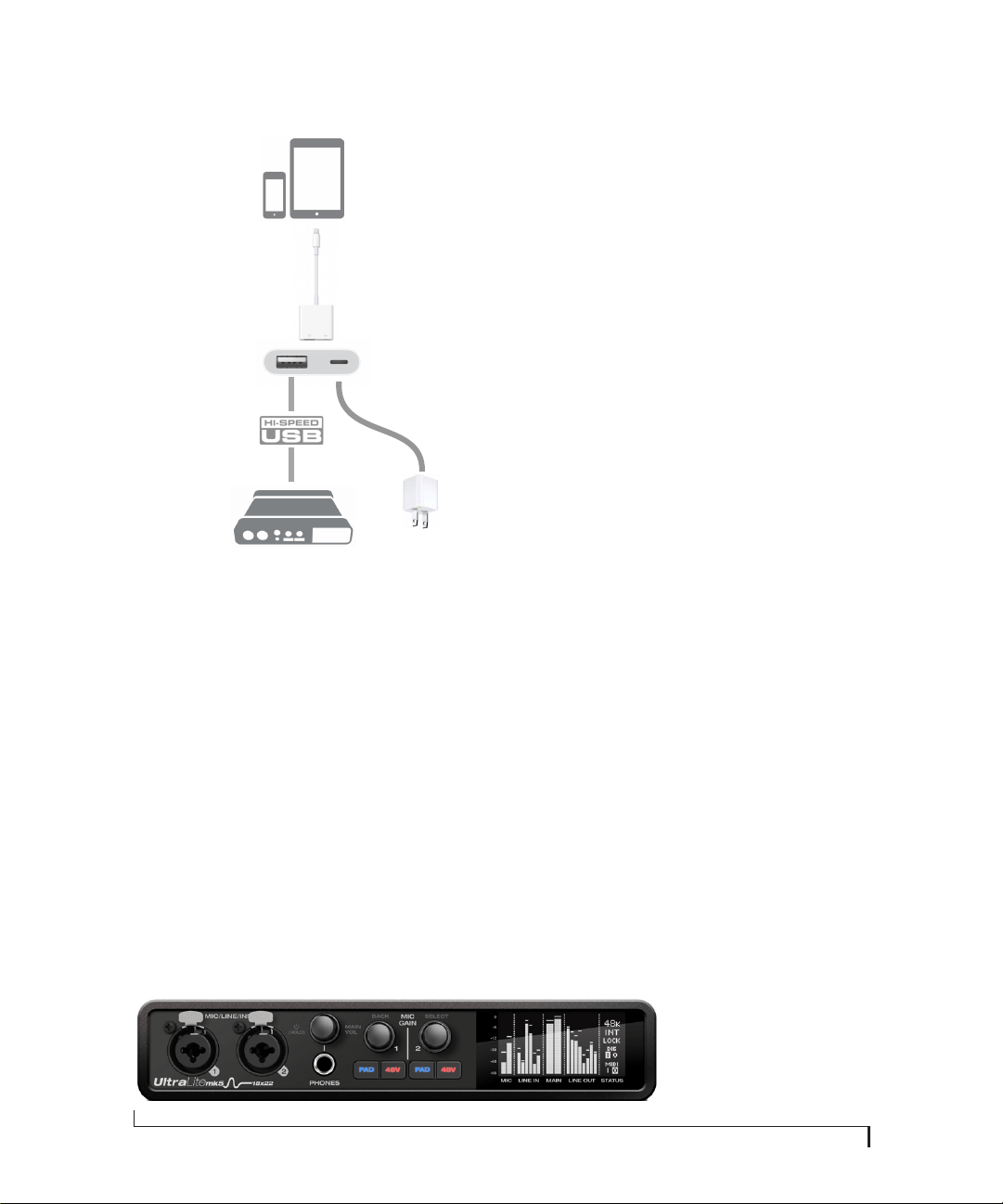
iOS SETUP (LIGHTNING)
Use the UltraLite-mk5 as an iOS audio interface,
or control it from your iOS device.
■ Use this setup for iOS devices with a Lightning
port.
■ For iOS devices with a Lightning port, an Apple
Lightning to USB3 Camera Adapter is required
(sold separately), as shown above.
A TYPICAL ULTRALITE-MK5 SETUP
See the diagram on page 8 for an example of
typical connections to the UltraLite-mk5. The
following sections provide important information
for achieving best results for each type of
connection.
AUDIO CONNECTIONS
Here are a few things to keep in mind as you are
making audio connections to your UltraLite-mk5
interface.
Mic/line/instrument inputs with preamps
Connect a microphone to the front-panel XLR/
quarter-inch combo jack with a standard XLR mic
cable. Connect a guitar or line level input with
balanced or unbalanced cable with a quarter-inch
plug. Adjust the level with the gain knob for either
type of input.
☛ If you connect a +4 dBu (line level) XLR cable
to the front-panel inputs, be sure to engage the
-20 dB pad switch.
48V phantom power
If you are connecting a condenser microphone or
another device that requires phantom power,
engage the corresponding front-panel phantom
power switch.
Preamp gain
The UltraLite-mk5 preamps provides 74 dB of
gain. Use the front panel detented gain knobs to
adjust gain as needed for each input. The front-
panel screen provides visual feedback as you turn
the knob. Preamp gain is digitally controlled, so
you can make fine-tuned adjustments in 1dB
increments. You can also adjust preamp gain in the
CueMix 5 app. See “Home tab” on page 32.
-20 dB pad
Each mic input (XLR jack) is equipped with a
-20 dB pad switch, to accommodate input signals
that could overdrive the input. The pad switch
iOS device with
Lightning port
Apple Lightning to USB3
Camera Adapter
AC power
Lightning to USB cable
(optional for powering
the iOS device)
Figure 4-1: UltraLite-mk5 front panel
HARDWARE INSTALLATION
23
does not affect the quarter-inch input of the
combo jack, which supports line level signals up to
+20 dBu.
Combo jack summary
Use these guidelines for 48V phantom power, pad
and gain settings on the two combo input jacks:
TRS quarter-inch line inputs/outputs
Quarter-inch line inputs and outputs are balanced
(TRS) connectors that can also accept an
unbalanced plug. The outputs are DC-coupled, so
they can be used for CV control output.
☛ Quarter-inch line outputs are not
cross-coupled. Therefore, when connecting them
to an unbalanced input, use a TRS plug with the
ring disconnected. Not floating the negative
terminal will short it to the sleeve ground and
cause distortion.
Various settings for the line inputs and outputs,
such as gain, trim, phase invert, etc. can be
accessed in the CueMix 5 app. See “Input tab” on
page 34 and “Output tab” on page 35.
Main outs
Like all I/O on the UltraLite-mk5, the main
outputs operate as an independent pair (they don’t
share signal with any other output pair). In a
standard studio configuration, the main outs are
intended for a pair of primary studio monitors,
but they can be used as regular outputs for any
purpose. With adjustable Precision Digital Trim™,
they support a wide range of industry-standard
reference levels. Main out volume is controlled by
the MAIN VOL knob on the front panel: turn it to
view volume knob overlay in the display, then
push the knob until you see Main Trim and turn it
to adjust the master volume output.
Analog I/O calibration
All analog inputs and outputs can be calibrated to
support a variety of standards, including
EBU-R68, SMPTE RP-155, +4dBu, -10dBv,
2vRMS and 1vRMS.
The line inputs are equipped with +1 to +20 dB of
digital gain, adjustable in 1 dB steps.
The line outputs, main outs and headphone outs
are equipped with a range of digital trim from 0 to
-100 dB, adjustable in 1 dB steps.
Trim and gain controls can be accessed in the
CueMix 5 app. See “Input tab” on page 34 and
“Output tab” on page 35.
Pre/Post Fx switch for line inputs
Each analog input provides EQ and compression.
The mic/line/inst inputs include gating. These
effects can be applied to the input as needed (items
#1 and 2 on page 38). The To USB Host menu for
each line input (item #4 on page 34) lets you
Input
48V Pad Gain
Condenser mic On Off As needed
Dynamic mic Off Off As needed
Guitar Off n/a As needed
-10 dBv line level via TRS Off n/a As needed
-10 dBv line level via XLR Off As needed As needed
+4 dBv line level via XLR Off On As needed
+4 dBv line level via TRS Off n/a As needed
Figure 4-2: UltraLite-mk5 back panel
HARDWARE INSTALLATION
24
choose whether to send the input signal to your
host software with or without these hardware
effects applied to the signal. If you want to record
the signal dry, without the effects applied to it,
choose Pre Fx. If you want to record the signal
with the effects applied, choose Post Fx.
☛ Once the signal is recorded in your DAW
with th Post Fx option, the effects cannot be
removed from the signal.
Optical I/O
The UltraLite-mk5 provides ADAT optical
(“lightpipe”) connectors (one input and one
output). Together, they provide eight (8) channels
of ADAT optical digital I/O at 44.1 or 48 kHz, or
four (4) channels of SMUX optical at 2x sample
rates (88.2 or 96 kHz).
☛ The optical ports are disabled when the
interface is operating at a 176.4 or 192 kHz.
TOSLink (optical S/PDIF)
Alternately, the optical ports can be configured for
stereo TOSLink (optical S/PDIF) in the CueMix 5
app (item #5 on page 34). The optical IN and OUT
banks can be configured independently.
Choosing a source for the optical output
By default, the audio signal from the optical
output comes from your host software (over USB)
from any tracks you’ve assigned to the output.
Alternately, you can choose other sources, such as
the line inputs (when in ADAT mode) or one of
the UltraLite-mk5’s mix buses. For further
information, see items #5 and 6 on page 35.
Choosing a clock source for optical connections
When connecting an optical device, make sure
that its digital audio clock is phase-locked (in sync
with) the UltraLite-mk5. There are two ways to do
this:
A. Resolve the optical device to the UltraLite-mk5
B. Resolve the UltraLite-mk5 to the optical device
For A, choose Internal (or anything other than
Optical) as the clock source in the Device tab (item
#3 on page 33). Then configure the other device to
resolve to its optical input.
For B, choose Optical as the clock source (item #3
on page 33), and configure the other device to
resolve to its own internal clock.
S/PDIF
If you make a S/PDIF digital audio connection to
another device, the UltraLite-mk5 must be
digitally synced with the other device for a clean,
click-free digital audio stream between them.
DAT decks and other devices with S/PDIF digital
I/O will sync to the UltraLite-mk5 input via the
S/PDIF connection itself. Just connect it to the
UltraLite-mk5 S/PDIF output connector. When
the device records a digital audio signal (from the
UltraLite-mk5), it will simply synchronize to the
clock provided by the signal.
When you transfer audio from the S/PDIF device
into the UltraLite-mk5, you’ll have to resolve the
UltraLite-mk5 to its S/PDIF input.
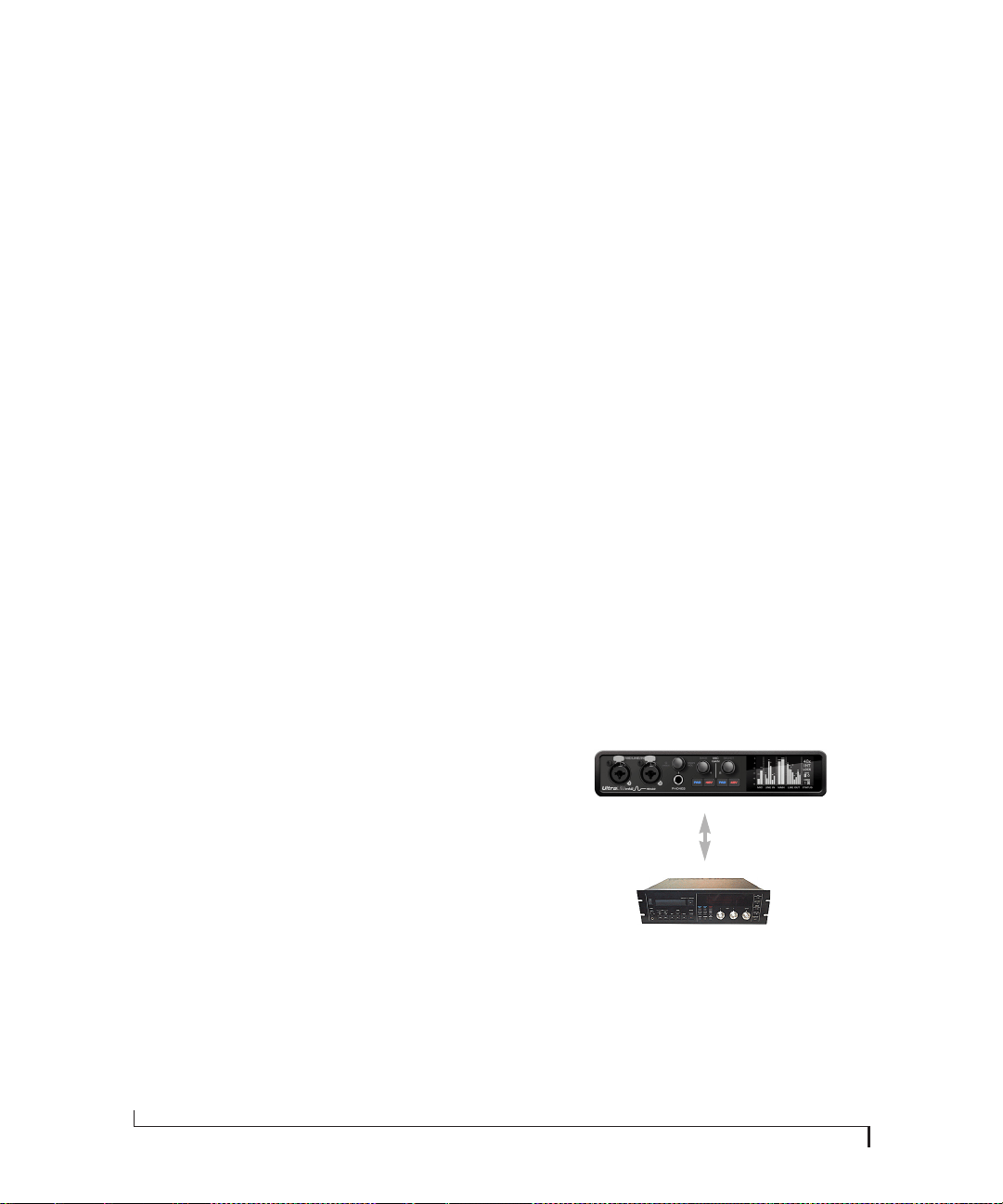
Figure 4-3: The setup for synchronizing a S/PDIF device with the
UltraLite-mk5. Sync is achieved via the digital I/O connection itself.
☛ The S/PDIF ports are disabled when the
interface is operating at a 176.4 or 192 kHz.
S/PDIF
S/PDIF device
UltraLite-mk5
UltraLite-mk5
Clock Source setting =
Internal (when transferring from the
UltraLite-mk5 to the other device)
UltraLite-mk5
Clock Source setting =
S/PDIF (when transferring from the
other device to the UltraLite-mk5)
S/PDIF
HARDWARE INSTALLATION
25
Choosing a source for the S/PDIF output
By default, the audio signal from the S/PDIF
output comes from your host software (over USB)
from any tracks you’ve assigned to the output.
Alternately, you can choose one of the
UltraLite-mk5’s mix buses. For further
information, see items #8 on page 35.
MIDI CONNECTIONS
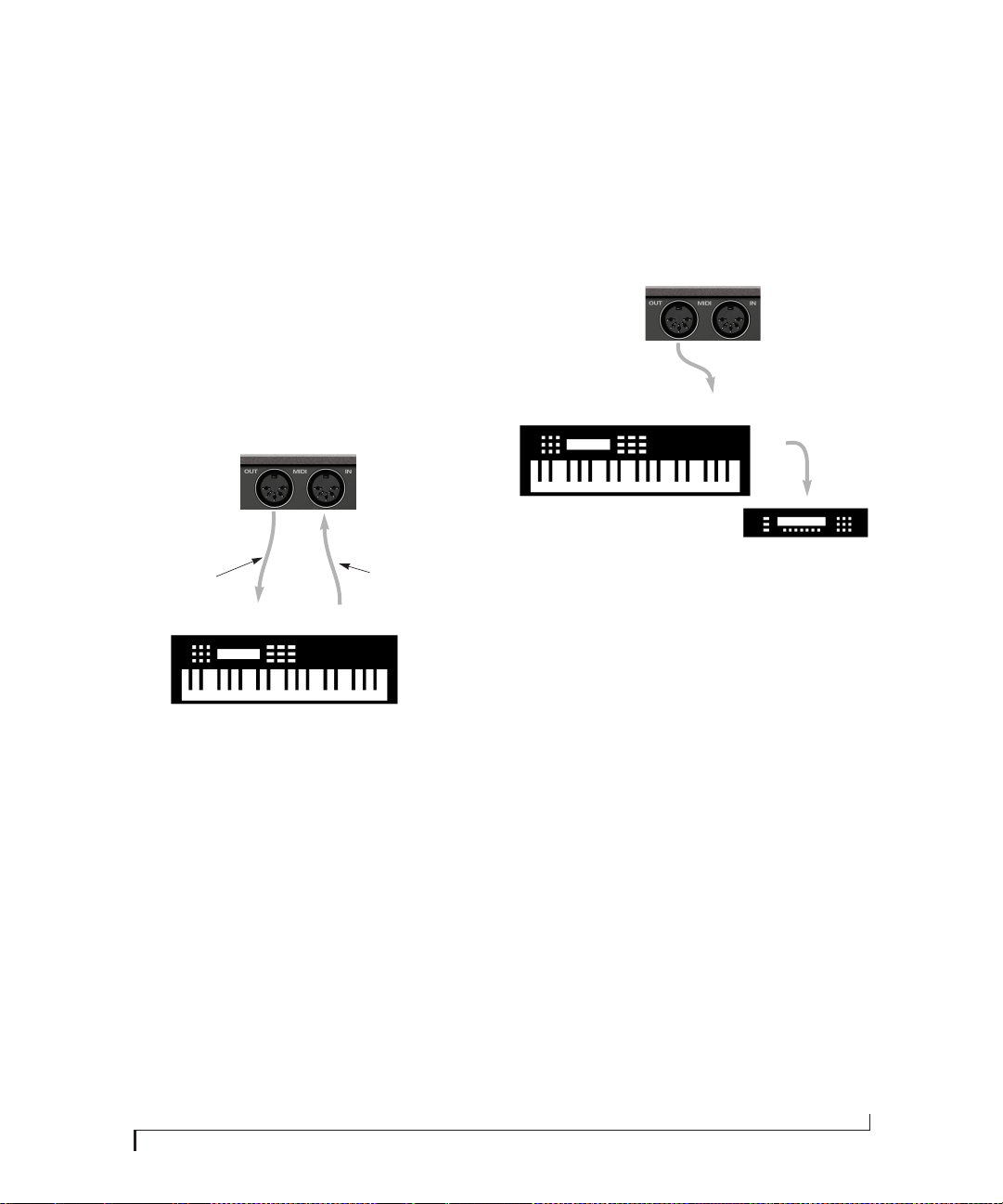
Connect your MIDI device’s MIDI IN jack to the
UltraLite-mk5 MIDI OUT jack (Connection A
below). Conversely, connect the MIDI device’s
MIDI OUT jack to the UltraLite-mk5 MIDI IN
jack (Connection B).
Figure 4-4: Connecting a MIDI device to the UltraLite-mk5.
One-way MIDI connections
MIDI devices that do not receive MIDI data, such
as a dedicated keyboard controller, guitar
controller, or drum pad, only need Connection B
shown in Figure 4-4. Similarly, devices that never
send data, such as a sound module, only need
Connection A. Make both connections for any
device that needs to both send and receive MIDI
data.
Connecting additional gear with MIDI THRUs
If you need to connect several pieces of MIDI gear,
run a MIDI cable from the MIDI THRU of a
device already connected to the UltraLite-mk5 to
the MIDI IN on the additional device as shown
below in Figure 4-5. The two devices then share
the UltraLite-mk5 MIDI OUT port. This means
that they share the same set of 16 MIDI channels,
too, so try to do this with devices that listen to only
one MIDI channel (such as effects modules),
which makes it easier to avoid MIDI channel
conflicts.
Figure 4-5: Connecting additional devices with MIDI THRU ports
MIDI Thru when operating stand-alone
The UltraLite-mk5 has a MIDI Thru feature for
stand-alone operation. This can be enabled from
the front panel Settings menu.
UltraLite-mk5
rear panel
MIDI Device
MIDI
cables
MIDI
IN
MIDI
OUT
MIDI
OUT
MIDI
IN
Connection A
Connection B
MIDI IN
MIDI
cable
MIDI Device
MIDI
IN
MIDI
THRU
MIDI
OUT
UltraLite-mk5
rear panel

HARDWARE INSTALLATION
26

Part 2
Using the
UltraLite-mk5


CHAPTER
29
5 Front Panel Operation
The high-resolution OLED screen displays level
meters for all analog inputs and outputs and
activity indicators for MIDI, optical and S/PDIF
I/O. The screen also provides several menus that
provide status information and basic hardware
settings.
Level meters. . . . . . . . . . . . . . . . . . . . . . . . . . . . . . . . . . . . . . . . . . . .29
Push-button Knobs. . . . . . . . . . . . . . . . . . . . . . . . . . . . . . . . . . . . .29
Power . . . . . . . . . . . . . . . . . . . . . . . . . . . . . . . . . . . . . . . . . . . . . . . . . .29
Channel focus . . . . . . . . . . . . . . . . . . . . . . . . . . . . . . . . . . . . . . . . . .29
Main volume . . . . . . . . . . . . . . . . . . . . . . . . . . . . . . . . . . . . . . . . . . .29
Menu Navigation . . . . . . . . . . . . . . . . . . . . . . . . . . . . . . . . . . . . . . .30
LEVEL METERS
In its default state when the unit is first powered
on, the screen displays level meter activity for all
analog audio inputs and outputs (Figure 5-1).
Figure 5-1: Analog metering and activity indicators for MIDI and
optical I/O.
Clock
The Clock section of the screen (Figure 5-1)
displays the sample rate at which the unit is
currently operating, and the current Clock Source
setting (item #3 in the Devices tab on page 33).
The Clock Source setting can also be found (and
changed) in the front panel screen menu.
PUSH-BUTTON KNOBS
The front-panel knobs (Figure 5-2) are push-
button digital rotary encoders. Push the knob for
the function labeled in gray.
Figure 5-2: Push the knob to activate the functions labeled in gray.
POWER
Push and hold the power knob (Figure 5-2) to
switch the unit on or off. The screen provides
feedback as you hold to power down.
CHANNEL FOCUS
When turning a knob to adjust volume or input
gain, the screen shows the level setting. A few
seconds after you stop turning the knob, the
screen returns to the previous display. To
temporarily suspend the focus timeout, push the
knob while focused. A “pin” icon appears in the
screen to indicate that the focused metering will
remain on screen until you push the knob again to
dismiss it.
MAIN VOLUME
Push the PHONES volume knob (MAIN VOL) to
toggle volume control between the phones and
main outs. The screen provides visual feedback: a
headphone icon appears in the MAIN meter
Clock
section
Digital I/O and MIDI
activity indicators
Level meters for
analog I/O

FRONT PANEL OPERATION
30
section when controlling headphone volume.
When controlling main volume, the headphone
icon is not present in the display].
MENU NAVIGATION
Push SELECT to access the menu, which provides
settings and status information.
Turn the SELECT knob to scroll through the
menu settings.
Push SELECT to enter the selected sub-menu or to
select the currently highlighted parameter.
Push BACK to go to the parent menu.
To exit the menu entirely, push BACK repeatedly
until the menu disappears from the display.
Menu setting
What it does
Sample Rate Sets the sample rate for the device.
Clock Source Sets the digital audio clock source for the
device.
Optical Specifies ADAT or TOSLink, or the SMUX
format when operating at 88.2 or 96 kHz. See
“Optical I/O” on page 24.
MIDI Thru When enabled, MIDI data passes directly
from the MIDI input to the MIDI output
when the UltraLite-mk5 is disconnected from
USB (running standalone).
IP Address Displays the IP address for the device.
About Displays the serial number and firmware
version for the device.
Reset Restores factory default settings.

CHAPTER
31
6 CueMix 5
CueMix 5 gives you complete control of all the
settings in the UltraLite-mk5. It is a standard
software application installed on your Mac or PC
when you run the MOTU Gen 5 installer or setup
app. It can be found in the Applications folder
(Mac) or Start menu under MOTU (Windows).
Run the installer, get the app . . . . . . . . . . . . . . . . . . . . . . . . . . .31
Make hardware connections. . . . . . . . . . . . . . . . . . . . . . . . . . . .31
Home tab. . . . . . . . . . . . . . . . . . . . . . . . . . . . . . . . . . . . . . . . . . . . . . .32
Device tab . . . . . . . . . . . . . . . . . . . . . . . . . . . . . . . . . . . . . . . . . . . . . .33
Input tab . . . . . . . . . . . . . . . . . . . . . . . . . . . . . . . . . . . . . . . . . . . . . . .34
Output tab . . . . . . . . . . . . . . . . . . . . . . . . . . . . . . . . . . . . . . . . . . . . .35
Mix tabs . . . . . . . . . . . . . . . . . . . . . . . . . . . . . . . . . . . . . . . . . . . . . . . .36
Mix inputs . . . . . . . . . . . . . . . . . . . . . . . . . . . . . . . . . . . . . . . . . . . . . .37
Input channel strip . . . . . . . . . . . . . . . . . . . . . . . . . . . . . . . . . . . . .38
Channel settings. . . . . . . . . . . . . . . . . . . . . . . . . . . . . . . . . . . . . . . .39
Mixer Effects. . . . . . . . . . . . . . . . . . . . . . . . . . . . . . . . . . . . . . . . . . . .40
Four-band parametric EQ. . . . . . . . . . . . . . . . . . . . . . . . . . . . . . .40
Gate . . . . . . . . . . . . . . . . . . . . . . . . . . . . . . . . . . . . . . . . . . . . . . . . . . . .41
Compressor . . . . . . . . . . . . . . . . . . . . . . . . . . . . . . . . . . . . . . . . . . . .41
Reverb . . . . . . . . . . . . . . . . . . . . . . . . . . . . . . . . . . . . . . . . . . . . . . . . .42
Mix input meters . . . . . . . . . . . . . . . . . . . . . . . . . . . . . . . . . . . . . . .43
Saving and recalling device presets . . . . . . . . . . . . . . . . . . . . .43
The CueMix 5 iOS app. . . . . . . . . . . . . . . . . . . . . . . . . . . . . . . . . . .43
RUN THE INSTALLER, GET THE APP
Visit motu.com/ultralite-mk5-start to get the latest
MOTU Gen 5 installer or setup and run it on your
computer. Visit the Apple App Store to install the
CueMix 5 app on your iOS device.
☛ Look for updated PDF versions of this user
guide at the link above, which may document new
features and updates to CueMix 5.
MAKE HARDWARE CONNECTIONS
Connect your UltraLite-mk5 to your computer
with one of the supplied USB cables. Or connect to
your iOS device as follows:
■ If your iOS device has a USB-C port, use the
included USB-C-to-C cable.
■ If your iOS device has a Lightning port, use an
Apple Lightning to USB3 Camera Adapter (sold
separately), as shown in “iOS setup (Lightning)”
on page 22.
CUEMIX 5
32
HOME TAB
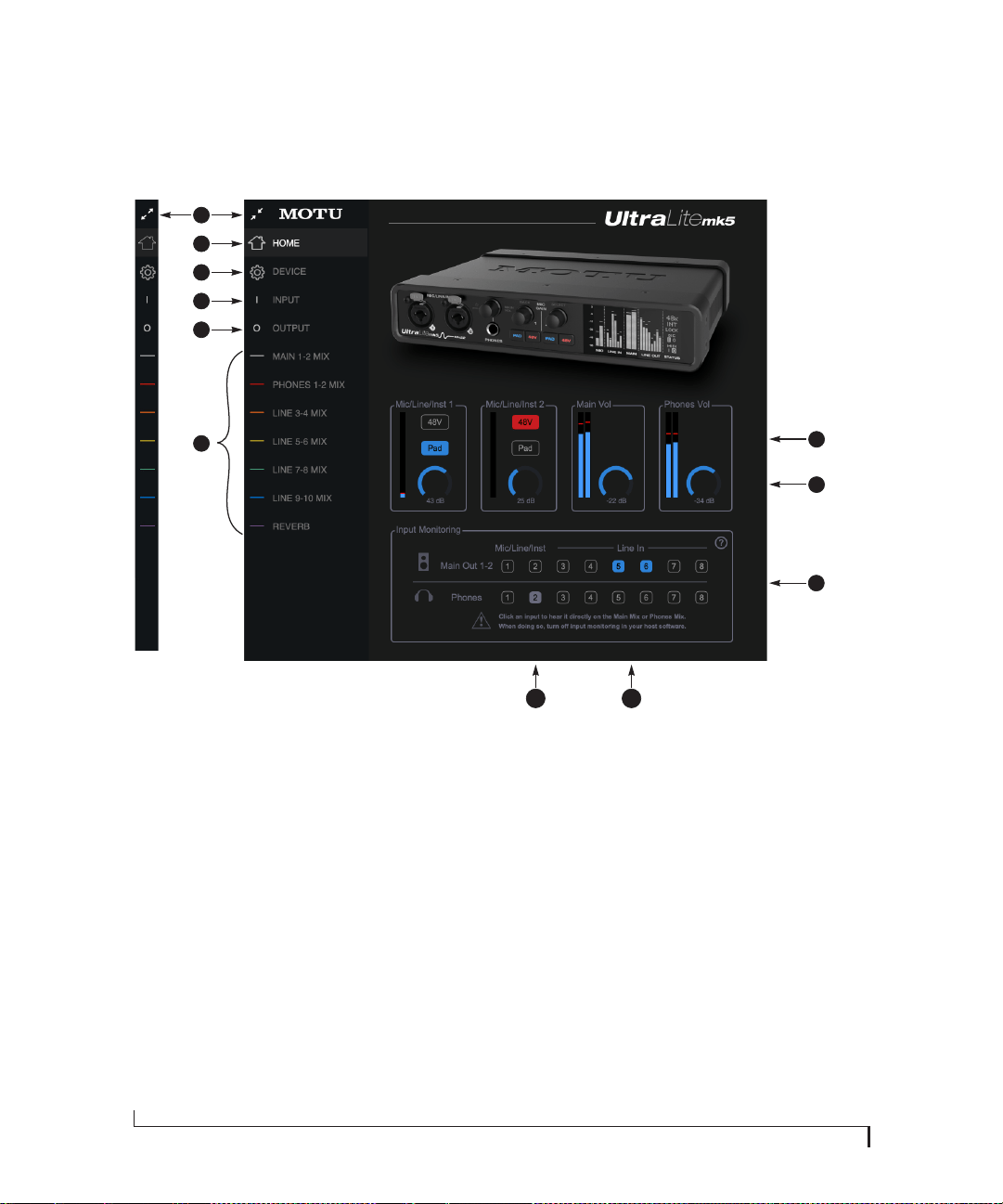
3
1. Expands and collapses the sidebar.
2. This is the Home tab, which provides
quick access to basic settings.
3. The Device tab provides basic
hardware settings, such as the
Sample Rate and Clock Source. See
“Device tab” on page 33.
4. The Input tab provides settings for
the UltraLite-mk5’s physical inputs,
such as gain levels for the line
inputs. See “Input tab” on page 34.
5. The Output tab provides settings for
the UltraLite-mk5’s physical
outputs, such as trim levels for the
line outputs. See “Output tab” on
page 35.
6. The
Mix tabs give you access to the
on-board mixing and effects. The
UltraLite-mk5 is a capable 24 x 14
monitor mixer. Each analog output
pair gets its own independent mix
consisting of all inputs, computer
audio and the reverb bus. See “Mix
tabs” on page 36.
7. The Mic/Line/Inst 1-2 panels give
you software control of the settings
for those two front panel inputs. You
can turn on 48V phantom power if
you have a condenser mic connected
to the input, or engage the -20 dB
pad for line level signals. You can
also adjust the preamp gain here.
These are the same as the controls
on the front panel of the unit.
8. Control the unit’s
Main Volume and
Headphone Volume here. These are
the same as the controls on the front
panel of the unit.
9. The Input Monitoring section lets
you patch the analog inputs directly
to the Main Outs or Headphones.
This is near-zero latency monitoring
because the computer (USB) is not
involved. To hear an input on the
Main Outs, click its button in the top
row; to hear it on the Headphones,
click its button in the bottom row.
If you use this hardware-based
monitoring, be sure to turn off the
input monitoring feature in your
host software. Otherwise, both the
UltraLite-mk5 and your host
software will send the input signal
to the output and the signal will be
doubled, which can cause phasing
and/or cancellation problems (bad
sound). Consult your software
documentation for details.
10. Here, Line Inputs 5-6 have been
routed to the main outs. More
specifically, by clicking these
buttons, their faders in the Main 1-2
Mix tab have been set to unity
(maximum) gain and mute has been
turned off (if it was on). You can
further adjust the input’s volume or
other settings in its channel strip in
the Main 1-2 Mix tab.
11. Here, the Mic/Line/Inst 2 input has
been routed to the headphones.
However, the button is gray because
the Mic 2 channel fader has been
lowered (from unity gain) in the
Phones 1-2 Mix tab. The gray color
alerts you that it is no longer being
monitored at full scale, or that other
channels settings may have been
modified (effects added, channel
muted, etc.)
7
8
2
1
6
9
4
5
1011
CUEMIX 5
33
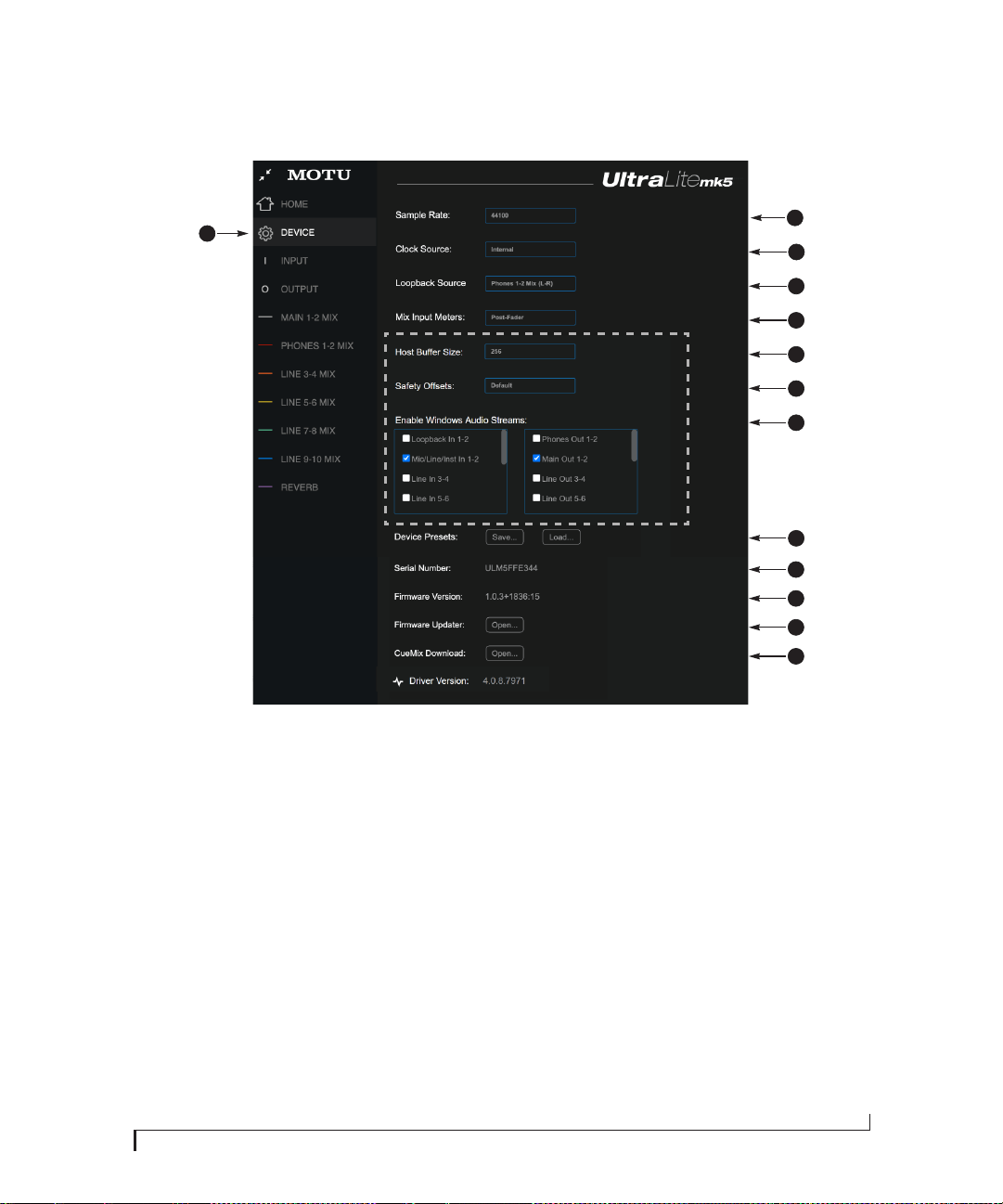
DEVICE TAB
2
12
1. This is the Device tab, which provides
basic hardware settings, such as the
Sample Rate and Clock Source.
2. Choose the desired Sample Rate.
Make sure your host audio software
is set to the same rate.
3. Choose the Clock Source. Your MOTU
device will resolve its digital clock to
this master source. Set the clock
source to Internal, unless you have
other devices connected to the
optical or S/PDIF inputs. If so, see
“Optical I/O” on page 24 and
“S/PDIF” on page 24.
4. Choose the Loopback Source here.
This is the stereo signal that will be
returned back to the computer on
the Loopback 1-2 channels. See
“Loopback” on page 49.
5. The Mix Input Meters in the mix tabs
can show level before or after the
channel fader setting. See “Mix
input meters” on page 43.
6. (Windows only) Choose the Host
Buffer Size. Smaller values reduce
latency but increase your computer’s
CPU load. See “Host Buffer Size” on
page 18.
7. (Windows only) Use the Safety
Offsets setting to fine tune host
buffer latency. See “Host Safety
Offset” on page 18.
8. (Windows only) The UltraLite-mk5
supports Windows built-in audio.
Choose the Audio Streams you wish
to use with your Windows audio
applications that use built-in audio.
These settings do not affect the ASIO
driver channels.
9. A Device Preset is a ‘snapshot’ of all
the settings in the UltraLite-mk5,
including all the mixes and all the
settings in the CueMix 5 tabs (Home,
Device, Input and Output). Use these
buttons to save your favorite device
configurations for tracking, live gigs,
rehearsals, etc. You can also restore
10. Displays the Serial Number of your
UltraLite-mk5 unit.
11. Displays the Firmware Version
currently installed in your
UltraLite-mk5 unit.
12. If you wish to update the firmware
version in your UltraLite-mk5, click
Open... to launch the firmware
updater app.
13. If you wish to download the latest
version of CueMix 5, click Open...
14. Displays the Gen 5 Driver Version
currently installed on your computer
for the UltraLite-mk5.
7
4
3
13
Windows only
8
9
1
11
5
6
10

CUEMIX 5
34
INPUT TAB
3
1. This is the Input tab, which provides
access to settings for the
UltraLite-mk5 analog and digital
inputs.
2. These channel settings for the
Mic/Line/Inst inputs are the same as
those shown in the Home tab (item
#7 on page 32) and on the front
panel of the UltraLite-mk5, includ-
ing preamp gain, 48V phantom
power and -20 dB pad.
3. Each line input can be digitally
boosted up to + 20 dB. This allows
the inputs to easily accommodate
+4 dB and -10 dB reference levels.
Each input also includes a Phase
Invert switch.
4. In the Mix tabs (page 36), each
analog input channel strip provides
EQ and compression. The mic/line/
inst inputs include gating. These
effects can be applied to the input as
needed (items #1 and 2 on page 38).
This To USB Host menu for each line
input lets you choose whether to
send the input signal to your host
software with or without these
hardware effects applied to the
signal. If you want to record the
signal dry, without the effects
applied to it, choose Pre Fx. If you
want to record the signal with the
effects applied, choose Post Fx.
Please note: once the signal is
recorded in your DAW with th Post Fx
option, the effects cannot be
removed from the signal.
5. Configure the Optical Input format
for either 8-channel ADAT or stereo
TOSLink. At 88.2 or 96 kHz, the ADAT
setting supports 4-channel SMUX
format. Note that you can choose a
different format for the optical IN
and OUT ports. See “Optical I/O” on
page 47.
6. S/PDIF Input level meters are
provided here for convenience.
1
2
4
56
CUEMIX 5
35
OUTPUT TAB
3
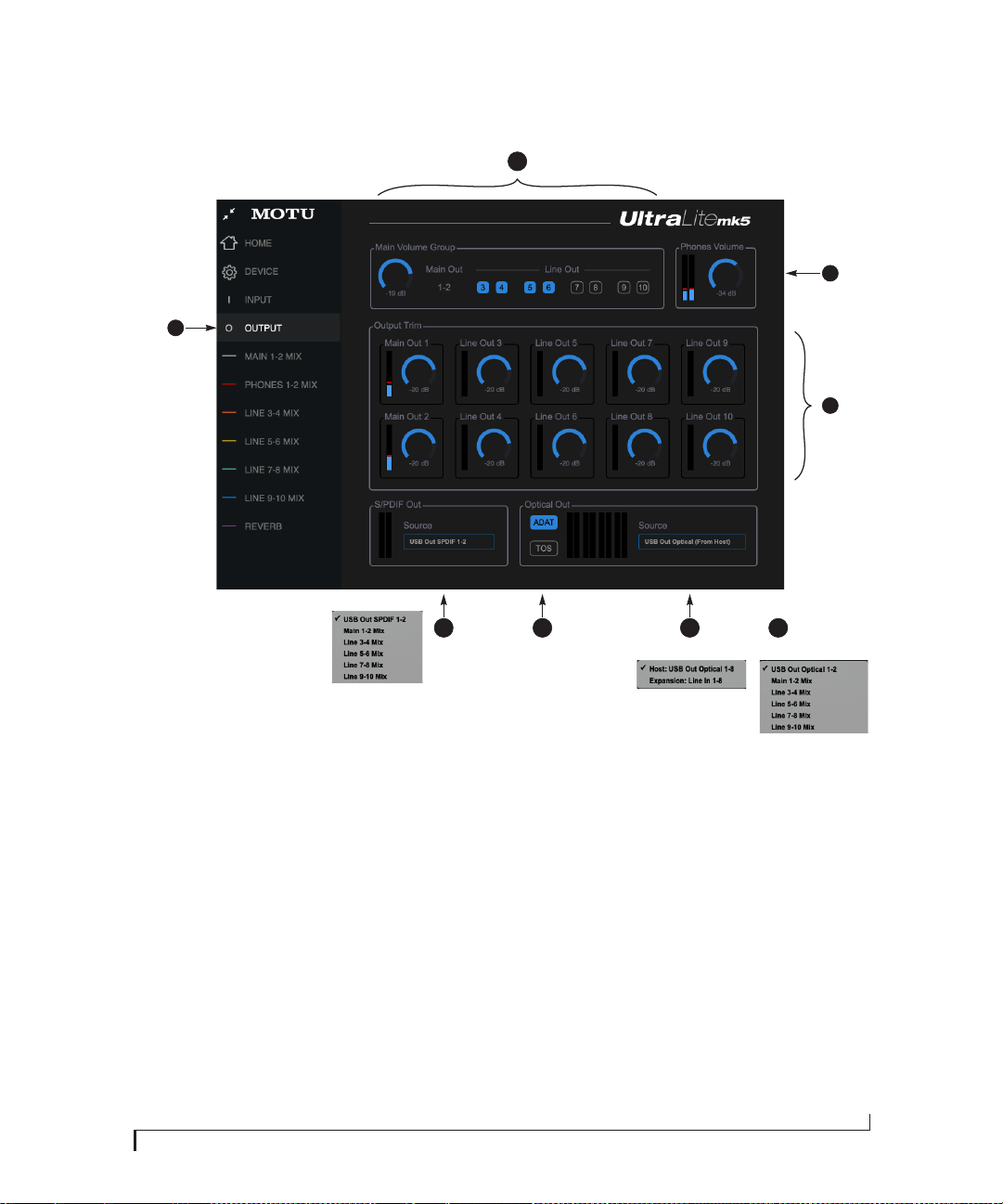
1. This is the Output tab, which
provides settings for the
UltraLite-mk5’s analog and digital
outputs.
2. The
Main Volume Group deter-
mines which outputs are controlled
by the Main Out volume knob on the
UltraLite-mk5’s front panel (item #8
on page 9, plus the Main Volume
controls in the Home tab (item #8 on
page 32) and here in the Output tab.
For example, if your studio has a pair
of main monitors, plus a sub-woofer
connected to Line Out 3, you could
click the Line Out 3 button to add it
to the main volume controls. If you
have 5.1 or 7.1 surround monitoring,
you can add the surround channels
to the monitor group to be able to
control the volume of all surround
outputs simultaneously with the
Main Volume knob. Please note: the
Main Out 1-2 pair is always part of
the Main Volume Group.
3. Meters and volume control for the
Headphone out. This is the same as
the PHONES volume control on the
front panel.
4. All analog outs can be trimmed (in
the DAC) from zero to -100 dB. This
can be useful for speaker calibration
or other situations where you need a
fixed amount of level adjustment for
a particular output (or output pair).
5. The Source menu lets you choose the
source for the Optical Output. By
default, the source is set to USB
channels from your host audio
software, as shown above in the
menus. However, if you would like to
use the UltraLite-mk5 as an ADAT
optical expander, choose ADAT as
the format and choose Expansion:
Line In 1-8 in the Source menu.
Doing so patches the line inputs
directly to their corresponding
optical output channel (1 to 1, 2 to 2,
etc.)
6. When the Optical Out format is
TOSLink (TOS), the Source menu lets
you send any UltraLite-mk5 monitor
mix to the optical output.
7. Configure the optical out format for
either 8-channel ADAT or stereo
TOSLink. At 88.2 or 96 kHz, the ADAT
setting supports 4-channel SMUX
format. Note that you can choose a
different format for the IN and OUT.
See “Optical I/O” on page 47.
8. By default the Source for the RCA
S/PDIF output is set to USB channels
from your host audio software, as
shown in the menu. Alternately, you
can send any UltraLite-mk5 monitor
mix to the RCA S/PDIF output.
1
2
7 58
4
TOSLink sources:ADAT sources:
6
CUEMIX 5
36
MIX TABS
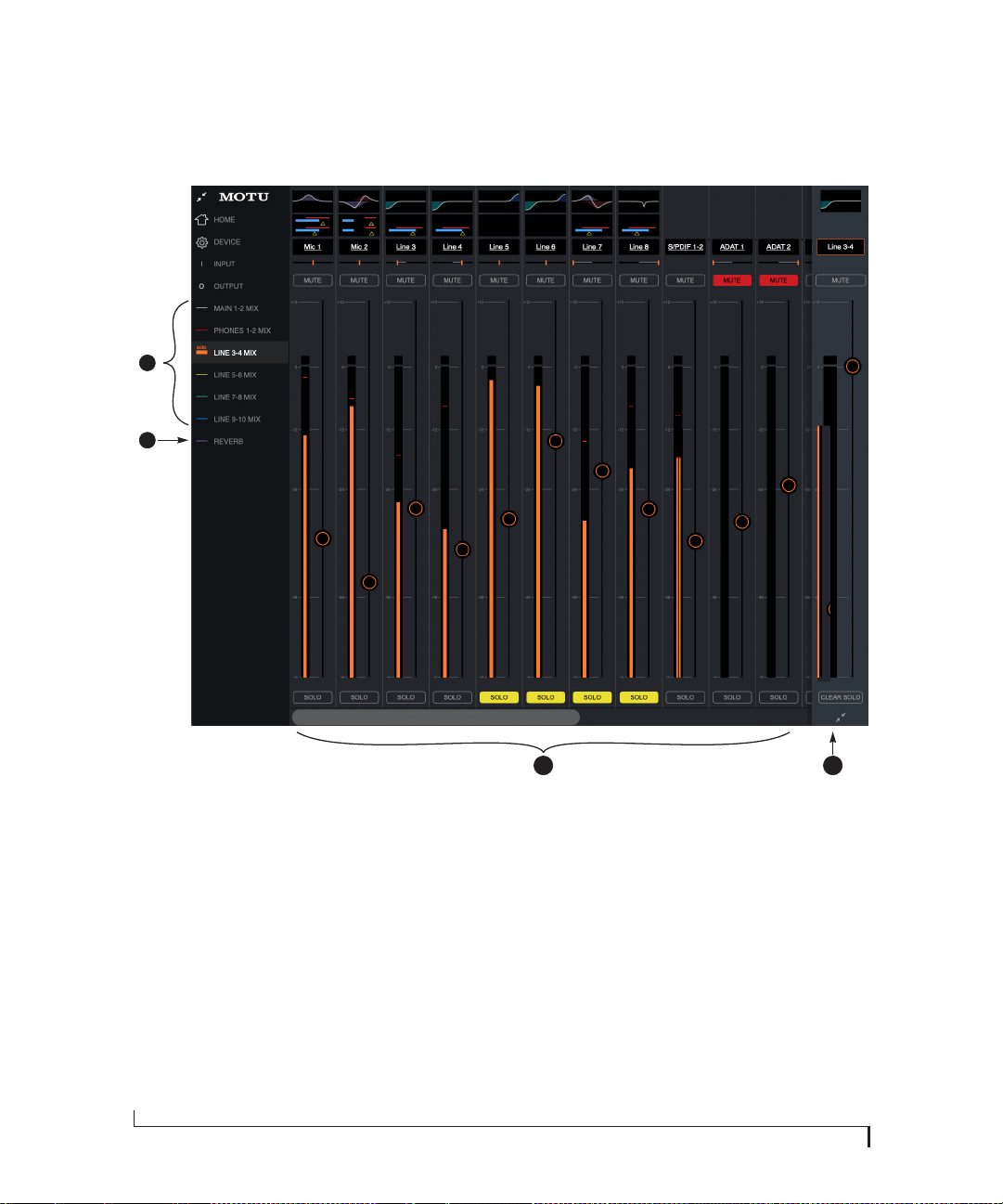
1. The Mix tabs provide an indepen-
dent monitor mix for each analog
output pair. Click a Mix’s tab to
access the channels for that mix.
Then, just bring up the faders for any
inputs (3) you wish to hear on that
output.
For example, for a live show, you
could set up a primary mix for the
Main Outs 1-2 going to the venue’s
front-of-house mixer that consists of
live signals from the UltraLite-mk5’s
inputs (from the band), plus
playback from the computer. You
could then create a completely
different mix for Analog Outs 1-2
feeding stage monitors for the band
or an in-ear monitoring system.
2. The Reverb tab lets you apply the
UltraLite-mk5’s built-in reverb to
any input signal: just bring up the
fader for that input. To hear the
reverb mix on an output, switch to
the mix tab for that output and
bring up the Reverb channel fader.
Use the fader to control how much
of the reverb mix you wish to hear.
3. Available inputs for each mix bus
include:
■ The UltraLite’s analog and optical
inputs
■ Any computer audio being sent to
that output pair (available as a
channel)
■ The reverb mix (2)
4. This is the Master Fader for the
current mix, which in this example is
the Line Out 3-4 mix. It controls the
overall volume for the mix. It is
always visible and pinned to the
right side of the window, although
you can collapse the strip using the
widget at the bottom of the strip.
Use the Clear Solo button to clear all
solos in the mix. When one or more
channels are soloed in a mix, the
word “Solo” appears next to the mix
name in the sidebar on the left to
alert you that channels are soloed in
the mix (and therefore other
channels are muted).
3
4
1
2

CUEMIX 5
37
MIX INPUTS
Each mix has the inputs shown here,
with a few variations depending on the
mix. To hear the input in the mix, just
bring up its fader.
1. Each mix can include the signal from
the UltraLite-mk5’s two front-panel
mic/line/inst inputs.
2. These are the six line inputs on the
rear panel of the UltraLite-mk5. All
mixes include these channels.
3. To hear the RCA S/PDIF input, bring
up this fader. All mixes include the
S/PDIF channel.
4. These inputs represent the
UltraLite-mk5’s optical input
channels. If ADAT is chosen as the
optical format (item #5 on page 34),
then you’ll see eight channels of
ADAT input at 1x sample rates (or
four channels at 2x rates). If TOSLink
is chosen as the optical format,
you’ll seen a single stereo channel
strip instead of the eight shown
here. All mixes include the optical
channels.
5. This channel is the Reverb mix (item
#2 on page 36). When you bring up
this fader, you’ll hear the entire
reverb mix. To adjust the amount of
reverb on individual signals, go to
the Reverb mix tab and make the
individual adjustments there. All
mixes include the Reverb channel,
except the Reverb mix itself.
6. On the Main 1-2 channel (Computer
USB), you’ll hear the audio you’re
playing back from your host audio
software, assigned to the
UltraLite-mk5’s Main 1-2 outputs.
This channel lets you include
computer audio in your mix. This
channel is available in all mixes,
except the Reverb and Main 1-2
mixes.
NOTE: if you want the headphone
output to mirror the main outs, go to
the Phones 1-2 mix and bring up the
Main1-2 fader and mute the
Phones 1-2 channel.
7. This Computer USB channel changes,
depending on which mix you are
viewing. It represents any computer
audio being sent to the mix’s output
pair from host audio software (over
USB). In this example, we are
viewing the Line 5-6 mix, so this
channel represents signal being sent
to line outputs 5-6 from host audio
software over USB. By default, this
fader is set to full scale so that you’ll
always hear any computer audio
being sent to the mix’s output.
8. This is the master fader for the mix
(item #4 on page 36).
1
3
2 4
5 6 7 8
CUEMIX 5
38
INPUT CHANNEL STRIP
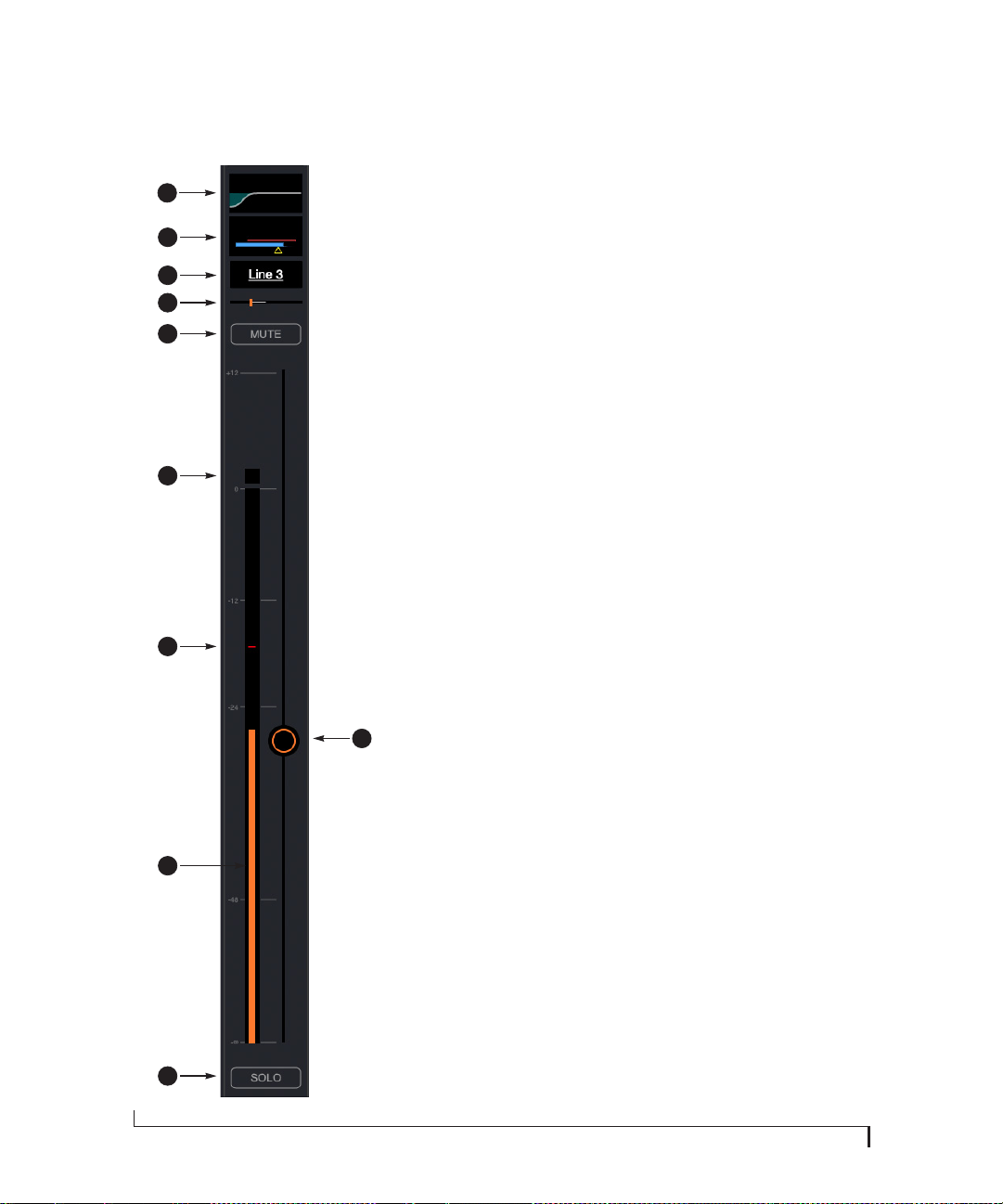
2
1
4
1. Click this EQ thumbnail to access the parametric EQ
and other channel settings. EQ is only available on
analog inputs and mix bus master faders. See “Four-
band parametric EQ” on page 40.
2. Click this thumbnail to access the Gate, Compressor
and other channel settings. Compression is only
available on analog inputs. See “Compressor” on
page 41. The Gate is only available on mic/line/inst
inputs. See “Gate” on page 41.
3. Click the channel name to access the channel
settings, where you can rename the channel and
make other channel settings.
4. Panning for mono inputs (such as a mic input). Stereo
inputs (such as S/PDIF) do not have a pan control.
5. Channel mute.
6. Clip indicator.
7. The peak/hold indicator shows where the signal has
recently peaked.
8. Use the channel fader to control the input level.
Double-click to return to -∞.
9. By default, the level meter displays the signal level
after the fader (post-fader), but they can be changed
to pre-fader, if desired. See “Mix input meters” on
page 43.
10. Channel solo. When you solo a channel, it mutes all
other inputs on the bus (as is customary in a tradi-
tional “solo-in-place” model on a mixing console. In
other words, there is no separate solo bus.)
5
7
10
3
9
8
6
CUEMIX 5
39
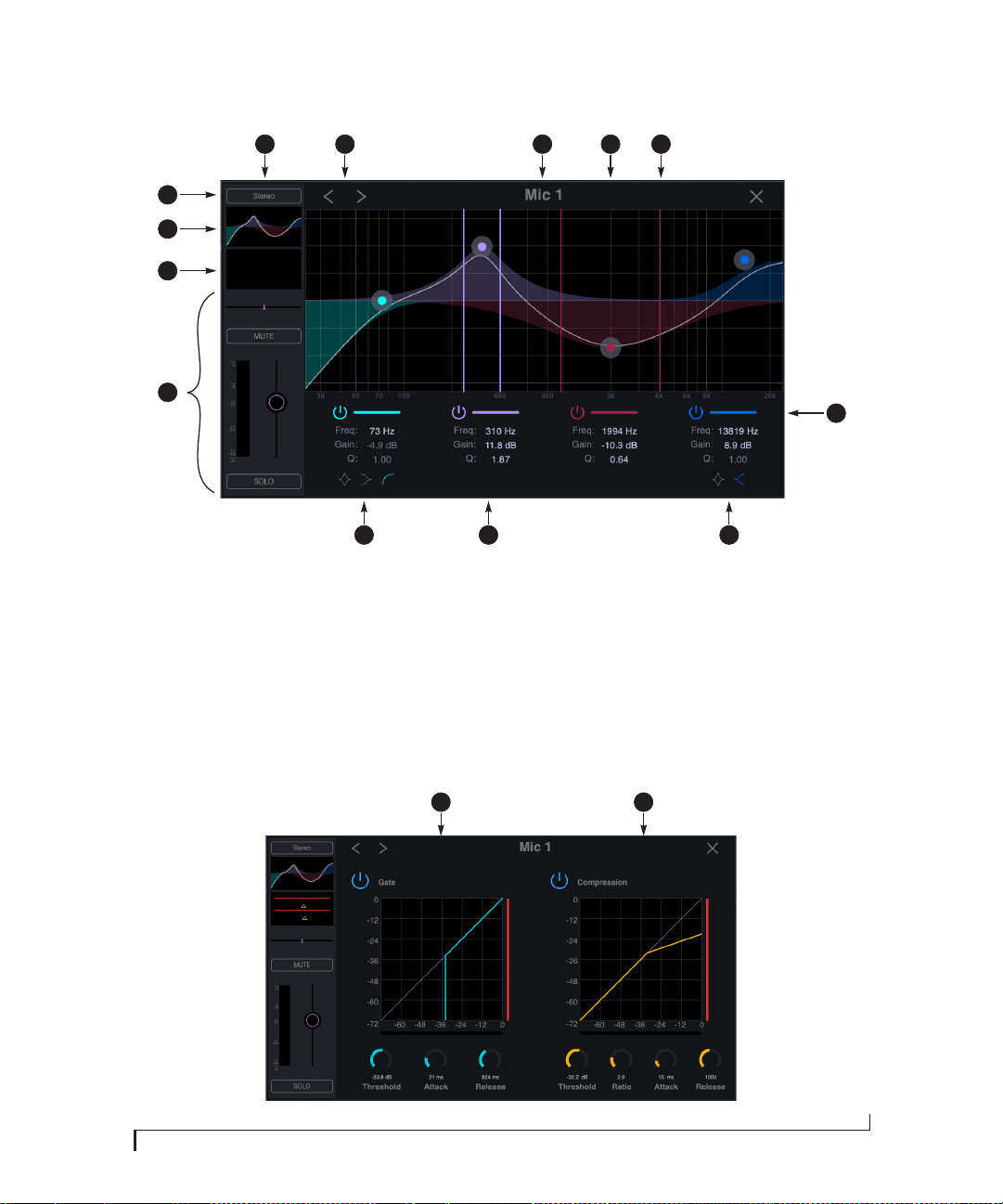
CHANNEL SETTINGS
3 4 521
13
12
11
10
9 8 7
Click any of the items at the top of a
channel strip (items #1, 2 or 3 on
page 38) to access the Channel Settings
shown here.
1. The Channel Settings Sidebar
displays basic settings for the
channel.
2. The Next/Previous Channel buttons
display the settings for adjacent
channels in the mix.
3. Click the Channel Name to rename
the channel.
4. Drag the Frequency/Gain handle for
an EQ band to change the frequency
and/or gain for the band.
5. Drag the Q (bandwidth) handles for
an EQ band to change them. The
handles are color-coded to match
the color of their respective EQ band.
6. Enables (or disables) the EQ band.
7. Click the Notch/Shelf switch to
toggle the filter type.
8. Click filter settings to edit them
directly. See “Four-band parametric
EQ” on page 40.
9. Click the Notch/Shelf/Low-cut switch
to change the filter type.
10. Basic channel settings (gain, pan,
solo, mute and level meter) are
shown here for convenience.
11. Click to access the Compressor and
Gate.
12. Click to access the Parametric EQ
settings.
13. The Stereo Link button links or
unlinks the channel to an adjacent
channel for stereo pairing.
14. The Gate processor is available on
Mic inputs 1 and 2 only. See “Gate”
on page 41.
15. The Compressor is available on all
analog inputs. See “Compressor” on
page 41.
14 15
6

CUEMIX 5
40
MIXER EFFECTS
The EQ, compressor, gate and reverb processor in
the UltraLite-mk5 are available when operating
the unit at 1x and 2x samples rates. At 4x sample
rates (176.4 or 192 kHz), the following effects are
disabled:
■ All input effects
■ Reverb
However, all mix bus EQ’s (including Phones)
remain enabled during 4x operation.
DSP-driven mixing and effects
The UltraLite-mk5 effects are driven by a
powerful DSP that delivers 32-bit precision and
plenty of bandwidth for no-latency processing.
Effects can be applied when operating as an audio
interface or as a stand-alone mixer without a
computer.
Advantages over host-based mixing and
processing
The hardware mixer in the UltraLite-mk5
provides several advantages over mixing and
processing in your host audio software:
■ No buffer latency. The DSP-mixer provides the
same near-zero latency throughput performance
as a conventional digital mixer. Effects processing
doesn’t impact your computer’s CPU.
■ DSP mixing and routing can be maintained
independently of individual software applications
or projects.
■ DSP-driven mixing can function without the
computer, allowing the UltraLite-mk5 to operate
as a portable, stand-alone mixer with effects.
Accessing mixer effects
To access the EQ, compressor or gate for a
channel, click its thumbnail at the top of the
channel strip (item #1, 2 or 3 on page 38).
FOUR-BAND PARAMETRIC EQ
Analog input channels (items 1 and 2 on page 37)
provide four bands of center-frequency
parametric EQ filtering as shown on page 39. The
High and Low bands include shelf filtering
options. Master faders provide three bands of
parametric EQ.
Enabling EQ bands
Each band has an enable/disable button (item #6
on page 39), allowing you to enable as few or as
many bands as needed.
EQ filter controls
The EQ filters have three controls (item #8 on
page 39):
Click a value to edit it numerically. Or drag its
corresponding control handle in the graph above.
Controls for each EQ band are color-coded.
EQ filter characteristics
EQ is one of the most widely used processing tools
and can be applied to many different situations,
from minor corrective tasks to creative tone
sculpting. The four-band EQ has been designed to
be flexible enough to cover a broad range of
applications. By adjusting Gain and Bandwidth
together, you can emulate the smooth and musical
character of classic analog EQ circuits.
Filter types
The Low and High bands offer a shelf option that
is similar to those found in most conventional
parametric EQs. The Low band also provides an
additional low-cut filter option to filter out low
frequencies below the frequency setting.
Control
unit range
Frequency Hertz 20 to 20,000
Gain dB -20.00 to +20.00
Bandwidth Octaves 0.01 to 3.00

CUEMIX 5
41
GATE
Mic/line/inst channels 1-2 (item 1 on page 37)
provide a Gate (Figure 6-1).
Figure 6-1: The Gate.
To access the gate, click the compressor/gate
thumbnail (item #2 on page 38).
The gate silences the signal when the input signal’s
level drops below the Threshold.
The rate at which the gate responds, (opens to let
signal through) is determined by the Attack
parameter. With a short Attack time, the gate will
open as soon as the signal crosses the Threshold;
with longer Attack times, the gate will gradually
open, much like a fade-in.
When the input level falls back below the
Threshold, the time it takes for the gate to close
(how quickly the signal is attenuated), is
determined by the Release parameter. Short
Release times will close the gate quickly, abruptly
attenuating your signal, versus longer release
times, which will gradually attenuate your signal,
like a natural fade-out.
COMPRESSOR
All analog input channels (items 1 and 2 on
page 37) provide a Compressor (Figure 6-2).
Figure 6-2: The Compressor.
To access the compressor, click the compressor/
gate thumbnail (item #2 on page 38).
The Compressor lowers the level of the input when
amplitude of the signal is above the Threshold.
The amount of attenuation is determined by the
Ratio and the input level. For example, if the input
is 6 dB above the Threshold and the Ratio is 3:1,
the compressor will attenuate the signal to 2 dB
above the Threshold. When the input level goes
above the threshold, the attenuation is added
gradually to reduce distortion. The rate at which
the attenuation is added is determined by the
Attack parameter. Likewise, when the input level
falls below the Threshold, the attenuation is
removed gradually. The rate at which the
attenuation is removed is determined by the
Release parameter. Long Release times may cause
the audio to drop out briefly when a soft passage
follows a loud passage. Short Release times may
cause the attenuation to “pump”, a term used to
describe the sound of the compressor when the
average input level quickly fluctuates above and
below the Threshold. These issues can be
addressed by adjusting the parameters. The Gain
reduction meter (Figure 6-2) displays the
attenuation applied by the compressor.
Threshold
handle
Threshold
handle
Gain reduction
meter
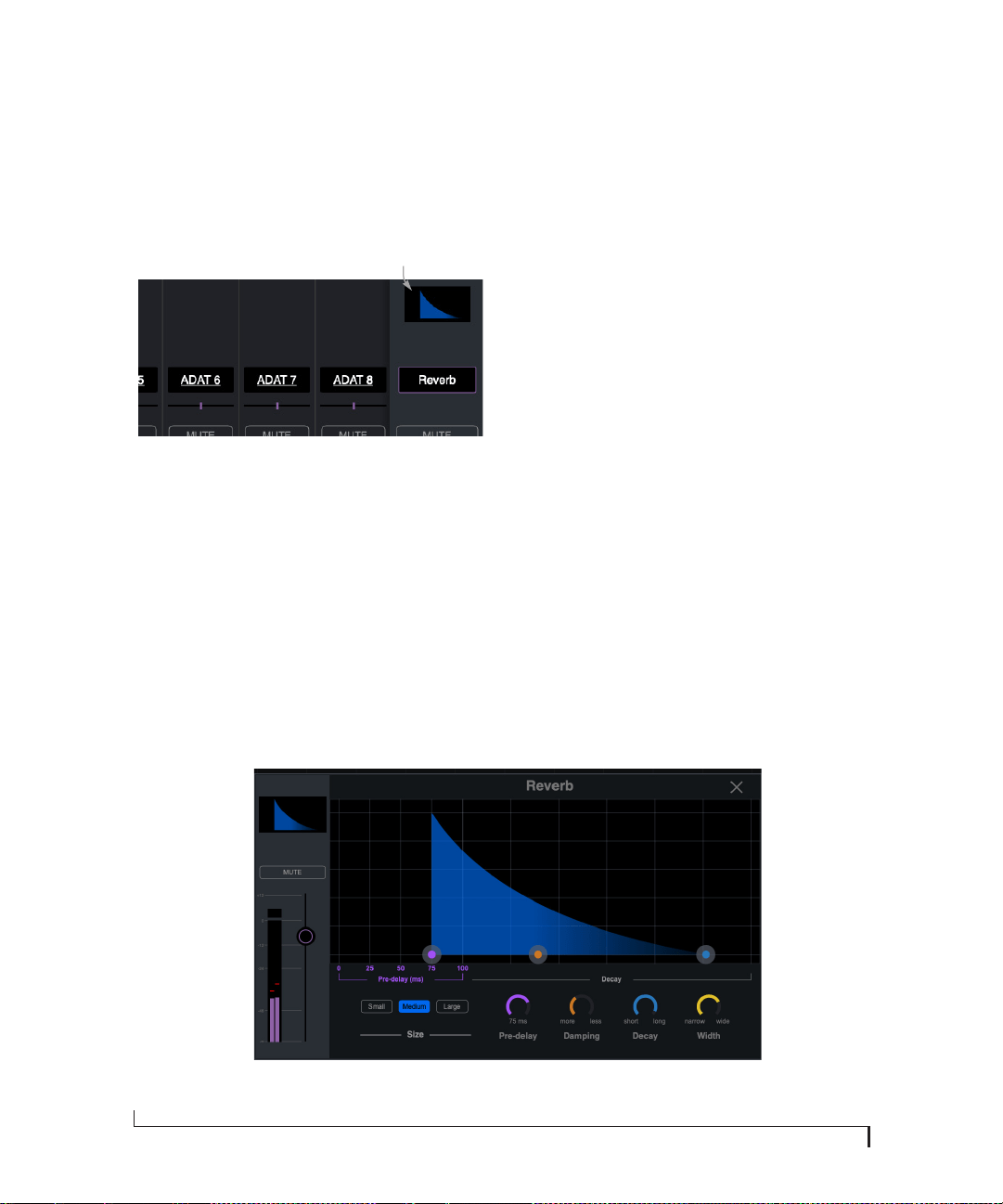
CUEMIX 5
42
REVERB
To access the reverb settings: go to the Reverb bus
tab (item #2 on page 36) and then click the
thumbnail at the top of the reverb bus fader, as
shown below.
Figure 6-3: Accessing the Reverb processor.
Reverb settings
The Reverb processor (Figure 6-4) provides Small,
Medium and Large room sizes, along with
Pre-Delay (see below), Damping, Decay (length)
and Width (stereo image) controls, which you can
adjust with the handles on the graph or the
settings below.
Predelay
Predelay is the amount of time before the acoustic
energy from the source returns to the listener,
after reflecting off the surfaces of the listening
space. The very first reflections helps you perceive
information about the listening space, (size,
distance, surface type, etc.) In large rooms, it takes
a while (on the order of milliseconds) before the
first reflections return to the listener. Predelay is
useful for adding clarity, as it delays these
reflections, before the onset of full reverberation.
For example, with pre-delay added to vocals, the
reflections won’t start until after the initial sound
of a word has been sung.
Routing inputs and groups to the reverb
processor
The reverb processor is a single, independent unit
that provides stereo reverb. Use the channels in the
Reverb mix tab (item #2 on page 36) to route input
signals to it. All incoming signals to the reverb
processor are merged and processed together. The
resulting stereo output from the reverb can then
be added into any other mix bus with the Reverb
channel strip (item #5 on page 37).
Click here to access the
reverb settings
Figure 6-4: The reverb processor.

CUEMIX 5
43
MIX INPUT METERS
The Mix input Meters menu (item #5 on page 33)
offers two settings: Pre-fader or Post-fader. This
setting lets you choose whether the input meters
in CueMix 5 display levels before or after the
signal passes through the fader’s gain stage.
☛ Post-fader metering is calculated as the
Post-FX send level, plus the fader value. Therefore,
if the pre-fader signal goes above zero dBFS, the
resulting post-fader meter value will not include
the magnitude of the signal above zero dBFS.
SAVING AND RECALLING DEVICE PRESETS
Use the Save and Load buttons in the CueMix 5
Device tab (item #9 on page 33) to save and recall
UltraLite-mk5 device presets to your computer
hard drive. A preset saves the entire state of the
UltraLite-mk5 interface, including all device
settings, mixes and effects settings.
THE CUEMIX 5 IOS APP
CueMix 5 is also available as an app for iOS and
allows you to control the UltraLite-mk5 from your
iOS device. Simply download it from the App
Store. Also see “iOS setup (USB-C)” on page 21
and “iOS setup (Lightning)” on page 22.

CUEMIX 5
44

CHAPTER
45
7 Working with Host Audio Software
The UltraLite-mk5 provides multi-channel audio
input and output for Core Audio compatible audio
applications on the Mac and ASIO or Wave
compatible applications on Windows, including
MOTU’s Digital Performer and Performer Lite,
Apple’s Logic Pro and GarageBand, and other
third-party software applications such as Ableton
Live, Avid Pro Tools, Cockos Reaper,
Propellerhead Reason, Steinberg Cubase and
Nuendo, PreSonus Studio One, Bitwig, and others.
Performer Lite is available as a free download for
UltraLite-mk5 owners from their motu.com
account page. For complete information about all
of Performer Lite’s powerful workstation features,
refer to the Performer Lite User Guide.pdf found in
the Help menu of the Performer Lite application.
Digital Performer, MOTU’s state-of-the-art digital
audio workstation software, is available separately;
for details about upgrading from Performer Lite to
Digital Performer, talk to your authorized MOTU
dealer or visit motu.com.
Preparation. . . . . . . . . . . . . . . . . . . . . . . . . . . . . . . . . . . . . . . . . . . . .45
Run the CueMix 5 app . . . . . . . . . . . . . . . . . . . . . . . . . . . . . . . . . .45
Choose the UltraLite-mk5 . . . . . . . . . . . . . . . . . . . . . . . . . . . . . .46
Reducing monitoring latency. . . . . . . . . . . . . . . . . . . . . . . . . . .46
Loopback. . . . . . . . . . . . . . . . . . . . . . . . . . . . . . . . . . . . . . . . . . . . . . .49
PREPARATION
Install your host audio software first if you haven’t
already done so, and complete these chapters
before proceeding:
■ chapter 3, “Software Installation” (page 17)
■ chapter 4, “Hardware Installation” (page 21)
RUN THE CUEMIX 5 APP
Before you run your host audio software, launch
CueMix 5 to configure your MOTU hardware.
Sample Rate
Choose the desired sample rate for the
UltraLite-mk5 (item #2 in the Devices tab on
page 33) and your host audio software. Make sure
the sample rates for the hardware and software
match. Newly recorded audio will have this
sample rate.
☛ Optical and S/PDIF channels are disabled
when the interface is operating at a 176.4 or 192
kHz.
Clock Mode
The Clock Source setting (item #3 in the Devices
tab on page 33) is important because it determines
the master digital audio clock for your system.
If you do not have any digital audio connections to
your MOTU device (you are using the analog
inputs and outputs only), and you will not be
resolving your host software to optical or another
external clock source, choose Internal.
If you have devices connected to the optical ports,
see “Choosing a clock source for optical
connections” on page 24.
If you have devices connected to the S/PDIF ports,
see “S/PDIF” on page 24.

WORKING WITH HOST AUDIO SOFTWARE
46
CHOOSE THE ULTRALITE-MK5
Once you’ve made the preparations described so
far in this chapter, you’re ready to run your host
audio software and choose the UltraLite-mk5 as
your audio interface (“soundcard”).
For macOS audio software
For audio software running under macOS, go to
the menu item or preference where you choose the
audio device (Core Audio driver) you wish to use,
and then select the UltraLite-mk5 by name.
For Windows audio software
For audio software running under Windows, go to
the menu item or preference where you choose the
ASIO driver you wish to use, and then choose
MOTU UltraLite-mk5. If your host audio software
doesn’t support ASIO, choose the UltraLite-mk5
Wave driver instead.
Figure 7-1: Choosing the MOTU Pro Audio ASIO driver in Cubase.
Where to go in popular audio hosts
Here is the location for this setting in various
popular audio software host applications:
Other audio software
Consult your software’s manual for further
information.
REDUCING MONITORING LATENCY
Monitoring latency is a slight delay caused by
running an input signal through your host audio
software and back out. For example, you might
hear it when you drive a live guitar input signal
through an amp modeling plug-in running in
your audio sequencer.
This delay is caused by the amount of time it takes
for audio to make the entire round trip through
your computer, from when it first enters an input
on the UltraLite-mk5, passes through the interface
hardware into the computer, through your host
audio software, and then back out to an output.
Monitoring through the UltraLite-mk5
If you don’t need to process a live input with
plug-ins, the easiest way to avoid monitoring
latency is to disable your DAW’s live monitoring
feature and instead use the digital mixer in the
UltraLite-mk5 to route the input directly to your
Host software
Location for choosing the UltraLite-mk5
Digital Performer
and Performer Lite
Setup menu > Configure Audio System >
Configure Hardware Driver
Pro Tools 9 or later Setup menu > Playback Engine or Current
Engine
Logic Pro Preferences > Audio tab > Devices tab > Core
Audio tab
Garage Band Garage Band menu > Preferences > Audio/
MIDI > Audio Output/Input menus
Cubase and Nuendo Device Setup > Devices list > VST Audio
System menu
Live Preferences > Audio tab
Reason Preferences > Audio preferences
Reaper Preferences > Audio prefs > Devices
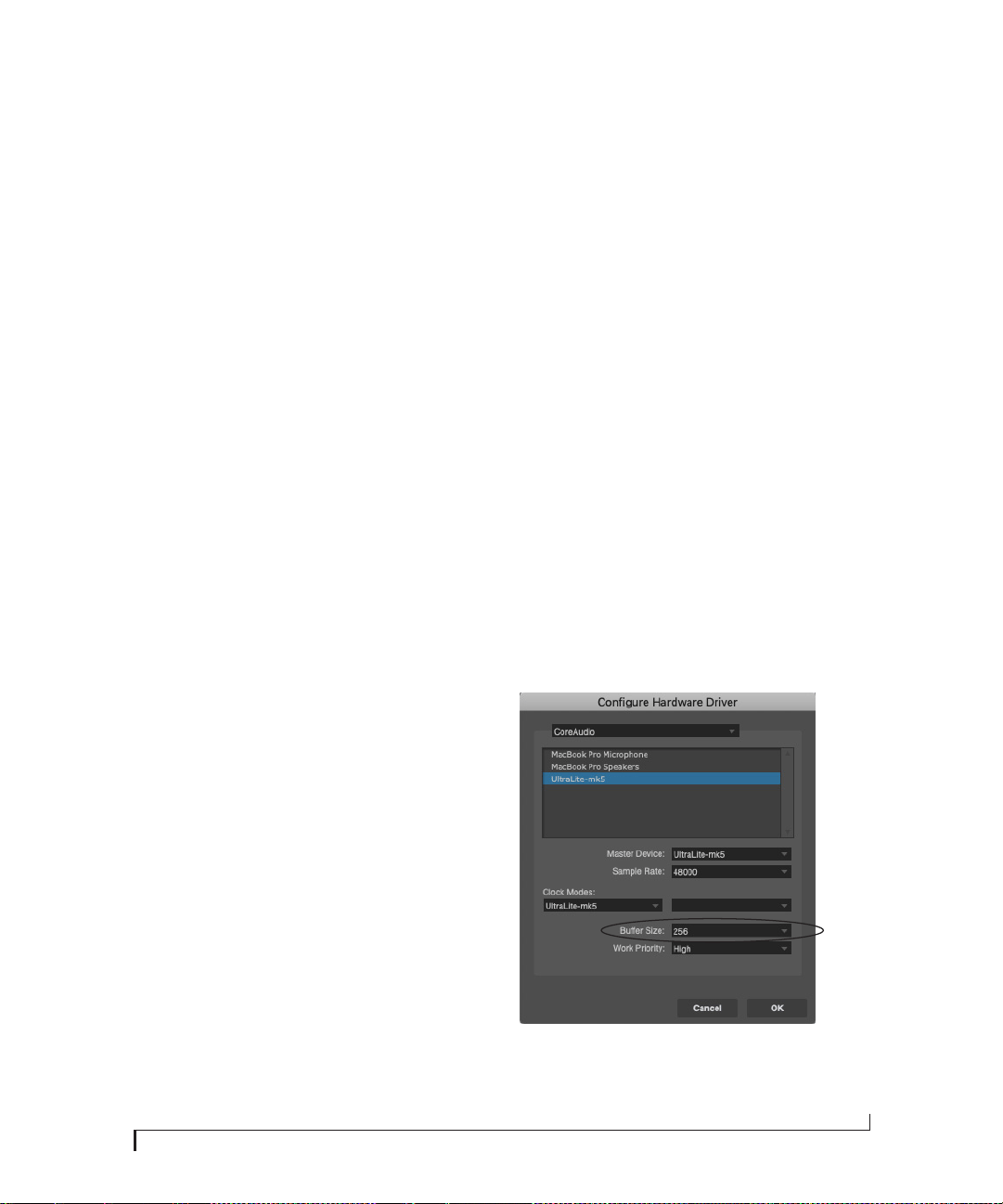
WORKING WITH HOST AUDIO SOFTWARE
47
outputs. For details, see “Mix tabs” on page 36.
The mixer in the UltraLite-mk5 even provides
zero latency effects processing (EQ, compression
and reverb), which can be applied to the signal.
Direct hardware playthrough / Direct ASIO
monitoring
When managing your live monitor mix through
the UltraLite-mk5 mixer, remember to disable
your DAW’s live monitoring features, so that you
won’t hear record-enabled tracks in your DAW.
Also note that the UltraLite-mk5 does not support
Direct Hardware Playthrough in Digital Performer,
or the Direct ASIO Monitoring feature (or similar)
offered and other DAWs, which lets you control
no-latency hardware monitoring from within the
host application. Instead, you can use the
CueMix 5 app mixer (“Mix tabs” on page 36) to set
up these monitor mixes manually.
If you don’t require any effects processing on the
input signal (no reverb or compression, for
example), all this takes is one click on a fader to
route the input being recorded to the output you
are using for monitoring.
If you are recording a mono input that you’d like to
monitor in stereo, or if you need to apply effects to
the monitored signal, you can use the
UltraLite-mk5 mixer for that, too. Use the mix
tabs and reverb mix (page 36) to apply effects as
desired, and perhaps include other channels to the
mix.
Monitoring through your host audio software
If you do need to process a live input with host
software plug-ins, or if you are playing virtual
instruments live through your MOTU audio
hardware, you can significantly reduce latency by
adjusting the audio buffer setting in your host
audio software, as explained in the next section.
☛ It is important to note that monitoring delay
has no effect on the recording, or playback, of
audio data from disk. The actual recording and
playback is extremely precise, it is only the
monitoring of your live input signal which may be
delayed.
Adjusting your host software audio buffer
Buffers are small bundles of audio data. The
UltraLite-mk5 “speaks” to your computer in
buffers, rather than one sample at a time. The size
of these buffers determine how much delay you
hear when monitoring live inputs through your
audio software: larger buffers produce more delay;
smaller buffers produce less.
Adjusting buffer size on macOS
Under macOS, audio I/O buffer size is handled by
the host audio application (not by the
UltraLite-mk5 Core Audio driver). Most audio
software applications provide an adjustable audio
buffer setting that lets you control the amount of
delay you’ll hear when monitoring live inputs or
processing them with software plug-ins. Here are a
few examples.
Figure 7-2: In Digital Performer and Performer Lite, choose Setup
menu> Configure Audio System> Configure Hardware Driver to open
the dialog shown above and access the Buffer Size setting.

WORKING WITH HOST AUDIO SOFTWARE
48
Figure 7-3: In Cubase or Nuendo, choose Devices menu > Device Setup.
Select your interface (UltraLite-mk5), then click the Control Panel
button to access the window above and the Buffer Size setting.
Figure 7-4: In Logic Pro, go to the Audio Driver preferences to access the
Buffer Size option shown above.
Adjusting buffer size on Windows
On Windows, the buffer size is adjusted in the
CueMix 5 app Device tab (items #6 and 7 in the
Devices tab on page 33).
Lower latency versus higher CPU overhead
Buffer size has a large impact on the following:
■ Monitoring latency
■ The load on your computer’s CPU
■ Responsiveness of transport controls and effect
knobs in Performer Lite, Digital Performer or
other audio software.
■ Real-time virtual instrument latency.
The buffer setting presents you with a trade-off
between the processing power of your computer
and the delay of live audio as it is being patched
through your software. If you reduce the size, you
reduce monitoring latency, but significantly
increase the overall processing load on your
computer, leaving less CPU bandwidth for things
like real-time effects processing. On the other
hand, if you increase the buffer size, you reduce
the load on your computer, freeing up bandwidth
for effects, mixing and other real-time operations.
Figure 7-5: When adjusting the buffer size to reduce monitoring
latency, watch the ‘processor’ meter in Digital Performer’s Performance
Monitor. If you hear distortion, or if the Performance meter is peaking,
try raising the buffer size.
If you are at a point in your recording project
where you are not currently working with live,
patched-thru material (e.g. you’re not recording
vocals), or if you have a way of externally
processing inputs, choose a higher buffer size.
Depending on your computer’s CPU speed, you
might find that settings in the middle work best
(256 to 1024).
Transport responsiveness
Buffer size also impacts how quickly your audio
software will respond when you begin playback,
although not by amounts that are very noticeable.
Lowering the buffer size will make your software
respond faster; raising the buffer size will make it a
little bit slower.

WORKING WITH HOST AUDIO SOFTWARE
49
Effects processing and automated mixing
Reducing latency with the buffer size setting has
another benefit: it lets you route live inputs
through the real-time effects processing and mix
automation of your audio software.
LOOPBACK
Use the Loopback 1-2 input channels provided by
the UltraLite-mk5 audio driver to send USB audio
output from your computer – or any
UltraLite-mk5 mix – back to the computer.
Choose the desired source from the Loopback
menu (item #4 on page 33).
The loopback channels return the chosen signal
back to the computer so that you can capture the
signal in your host software, stream it to the web
or broadcast it with podcasting software.
Mixing loopback with live inputs and disk tracks
If you need to mix the loopback channels with live
inputs, do the following:
1 Choose a mix from the Loopback menu.
2 Go to the mix tab for that mix (item #1 on
page 36) and bring up the fader(s) for the
computer USB channels you want to hear.
3 Bring up the faders for any live inputs you want
to add to the mix. When you do so, their signal is
mixed with the computer USB channels.
☛ Remember, be careful! When monitoring
loopback channels and live inputs, your host
software can cause loud feedback loops. Be sure to
disable the monitoring of loopback tracks to avoid
feedback.

WORKING WITH HOST AUDIO SOFTWARE
50

Part 3
Appendices


APPENDIX
53
A Troubleshooting
My MOTU interface isn’t showing up in Audio MIDI
Setup on my Mac.
Due to the updated architecture of the new macOS
High Sierra (10.13 and above), the system
extensions for all newly-installed third-party
software will automatically be blocked from
running. If your MOTU interface is not showing
up in Audio MIDI Setup, CueMix 5 or your DAW,
you might need to enable the driver in your
System Preferences. To do so, first download and
install the very latest installer for your MOTU
interface. After restarting, open System
Preferences. Select Security & Privacy. In the
General section, click the Allow button. The Allow
button will disappear 30 minutes after installation.
To display the Allow button, run the installer for
the MOTU driver again.
I have absolutely no audio input or output
happening to or from my interface. Why?
Make sure that the unit has a stable sample rate
(the word LOCK in the front panel displays will
flash if the clock hasn’t settled yet). Try setting the
unit’s clock source to Internal if you can’t sync to
any external clock sources. Check that audio is
working with Internal sync, and if so, then work
on establishing a stable external clock.
I can't hear computer audio output through my
MOTU interface.
In the Sound panel of System Preferences, the
UltraLite-mk5 should be selected as the output
device.
How do I monitor live inputs?
Please refer to the documentation for the audio
application that you are using. If your application
does not support input monitoring, you will need
to use the mixer in the UltraLite-mk5. Please see
“Monitoring through the UltraLite-mk5” on
page 46.
How do I control monitoring latency?
See “Reducing monitoring latency” on page 46.
How do I factory reset my device?
Push the SELECT knob to enter the main menu.
Navigate to RESET and push the SELECT knob
twice to reset.
I hear clicks and pops under optical or S/PDIF sync.
Many problems result from incorrect sync
settings. See “Choosing a clock source for optical
connections” on page 24 and “S/PDIF” on
page 24. Whenever there is any unexpected noise
or distortion, suspect digital clocking issues.
Clicks and pops due to hard drive problems...
If you have checked your clock settings and you
are still getting clicks and pops in your audio, you
may have a drive related problem. Set your Clock
Source to Internal and try recording just using the
analog inputs and outputs on the UltraLite-mk5. If
you encounter the same artifacts you may want try
using another drive in your computer. Clicks and
pops can also occur when the drive is severely
fragmented or there are other drive-related issues.
Connecting or powering gear during operation...
It is not recommended that you connect/
disconnect, or power cycle connected devices
while recording or playing back audio. Doing so
may cause a brief glitch in the audio.
CUSTOMER SUPPORT
We are happy to provide complimentary customer
support to our registered users. If you haven’t
already done so, please take a moment to register
online at MOTU.com, or fill out and mail the
included registration card. Doing so entitles you to
technical support and notices about new products
and software updates.

APPENDIX A: TROUBLESHOOTING
54
TECHNICAL SUPPORT
If you are unable, with your dealer’s help, to solve
problems you encounter with your MOTU device,
you may contact our technical support
department in one of the following ways:
■ Tech support hotline: (617) 576-3066 (Monday
through Friday, 9 a.m. to 5 p.m. EST)
■ Online support: www.motu.com/support
Please provide the following information to help
us solve your problem as quickly as possible:
■ The serial number of your MOTU device. This
is printed on a label placed on the bottom of the
unit. It is also displayed in the display menu and at
the bottom of the Device tab in the CueMix 5 app
(item #10 on page 33). You must be able to supply
this number to receive technical support.
■ A brief explanation of the problem, including
the exact sequence of actions which cause it, and
the contents of any error messages which appear
on the screen.
■ The pages in the manual that refer to the
features or operation of your MOTU Device or
Performer Lite with which you are having trouble.
■ The version of your computer’s operating
system.
We’re not able to solve every problem immediately,
but a quick call to us may yield a suggestion for a
problem which you might otherwise spend hours
trying to track down.
If you have features or ideas you would like to see
implemented, we’d like to hear from you. Please
use our online suggestion box at www.motu.com/
suggestions.

APPENDIX
55
B Audio Specifications
MIC in
Connector Type Combo-style, XLR / TRS Pin 2 hot, tip hot
XLR
Impedance load 2.8 k ohm
Pad -20 dB, Switchable per channel
Phantom power +48V, switchable per channel DIN 45596 / IEC 61938-P48
EIN -129 dBu A-weighted, 20-20k, 150 ohm
Dynamic Range 115 dB A-weighted
THD+N -113 dB Unweighted
Frequency Response +0.05 -0.2 dB, 26 Hz/20 kHz Ref. 1 kHz
Max Level In with Pad +20 dBu
Max Level In without Pad 0 dBu
Gain range 0 to +74 dB in 1 dB steps
TRS
Description Balanced or single ended Suitable for line or instrument (guitar)
Impedance Load 1 meg ohm
2 meg ohm
unbalanced
balanced
Pad None
Phantom power None
Dynamic Range 115 dB A-weighted
THD+N -109 dB -2 dBFS, Unweighted
Frequency Response +0 -0.1 dB, 20 Hz/20 kHz Ref. 1 kHz
Max Level +20 dBu Balanced; +18 dBu unbalanced
Gain range 0 to +74 dB in 1 dB steps

APPENDIX B: AUDIO SPECIFICATIONS
56
Line In
Connector Type 1/4” Female, TRS Balanced/unbalanced, Tip hot
Specification Complies with EBU-R68 / SMPTE RP-155
Impedance Load 20 k ohm balanced
Dynamic Range 120 dB A-weighted
THD+N -113 dB 1 kHz, 24 dBu, unweighted, unity gain
Frequency Response ±0.05 dB, 20 Hz/20 kHz Ref. 1 kHz
Max Level In +24 dBu
Gain Range 0 to +20 dB Digitally controlled in 1 dB steps
Line Out
Connector Type 1/4” Female, TRS Balanced, tip hot
Output Impedance 220 ohm Per leg
Dynamic Range 124 dB A-weighted
THD+N -113 dB -2 dBFS, Unweighted, 1 kHz
Frequency Response +0, -0.15 dB, 20 Hz/20 kHz Ref. 1 kHz
Max Level Out +21 dBu
Trim Range 0 to -∞ (-127) Digitally controlled in 1 dB steps
Phones
Connector Type 1/4” Female, TRS Stereo Tip Left, Ring Right
Dynamic Range 118 dB A-Weighted
THD+N -110 dB Unweighted, -1 dBFs, 1 kHz
Frequency Response ±0.05 dB, 22 Hz/20 kHz Ref. 1 kHz
Trim Range 0 to -99 dB, plus mute 0 to -99 dB in 1 dB steps
Max output 14.4 dBu Unloaded
S/PDIF
Connector Type RCA
Input Termination 75 ohm
Lock Range 44.1k/48k, +/- 0.5% 1x, 2x
Input Voltage Range 0.2 - 0.6 V
Output Drive 0.5 Vp
Specification IEC-958/60968-3
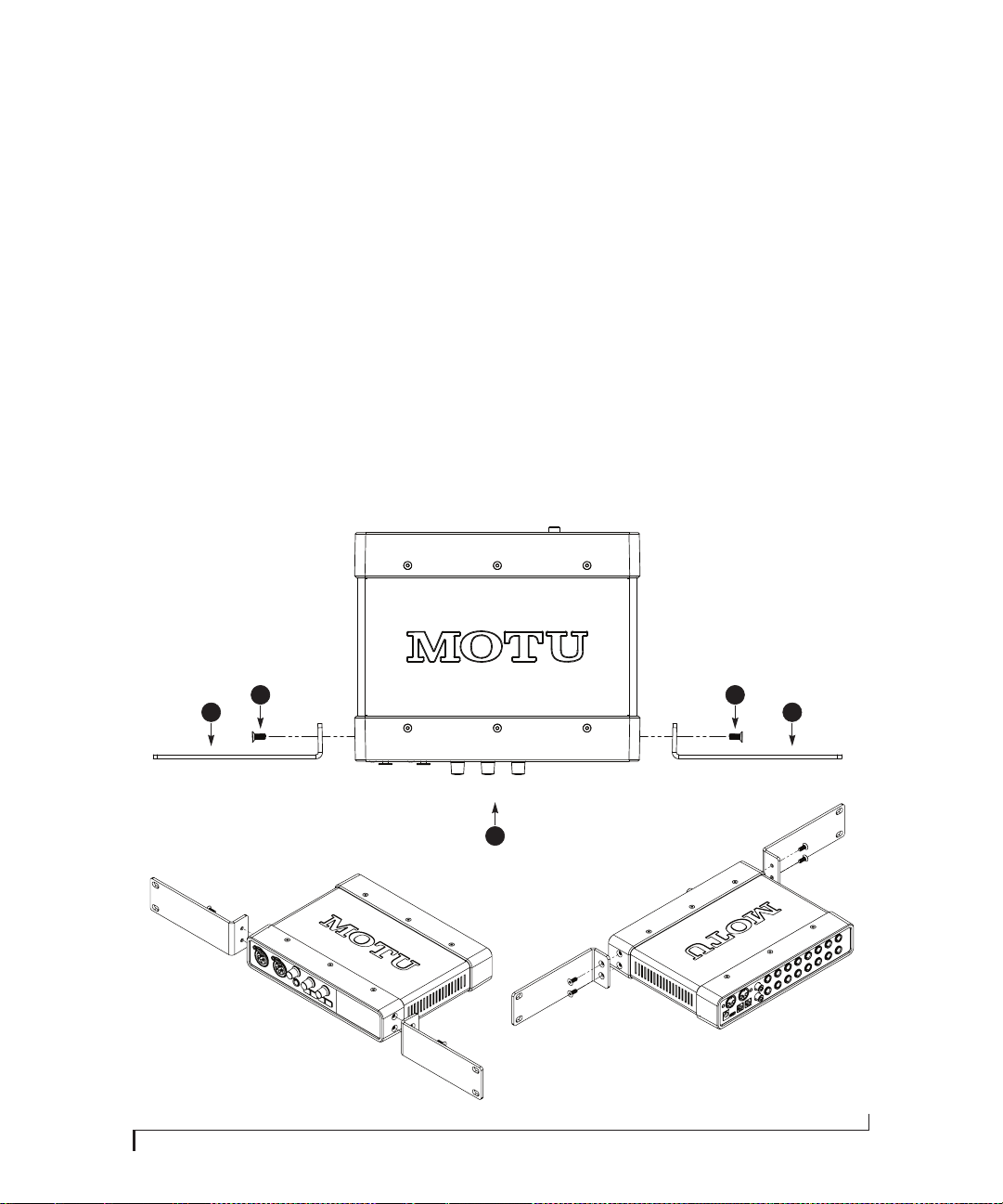
APPENDIX
57
C Half-rack Mounting Kit
The Half-Rack Mounting Kit (sold separately) lets
you mount the UltraLite-mk5 in a standard
19-inch equipment rack. Visit the web store at
motu.com to purchase this kit or contact your
authorized MOTU reseller.
PACKING LIST
■ (2) L-shaped half-rack mounting brackets (A)
■ (1) 2.5 mm L-shaped hex wrench (not pictured)
■ (1) Instruction sheet (this sheet)
INSTRUCTIONS
Using the included 2.5 mm hex wrench:
1 Remove the hex screws (B) on both side panels
of the half-rack unit (C).
2 Use the removed screws (B) to attach the half-
rack mounting brackets (A) as shown.
3 Be sure to tighten all screws securely for best
results.
Questions? Contact MOTU technical support at
motu.com/support.
A A
B B
C

APPENDIX C: HALF-RACK MOUNTING KIT
58
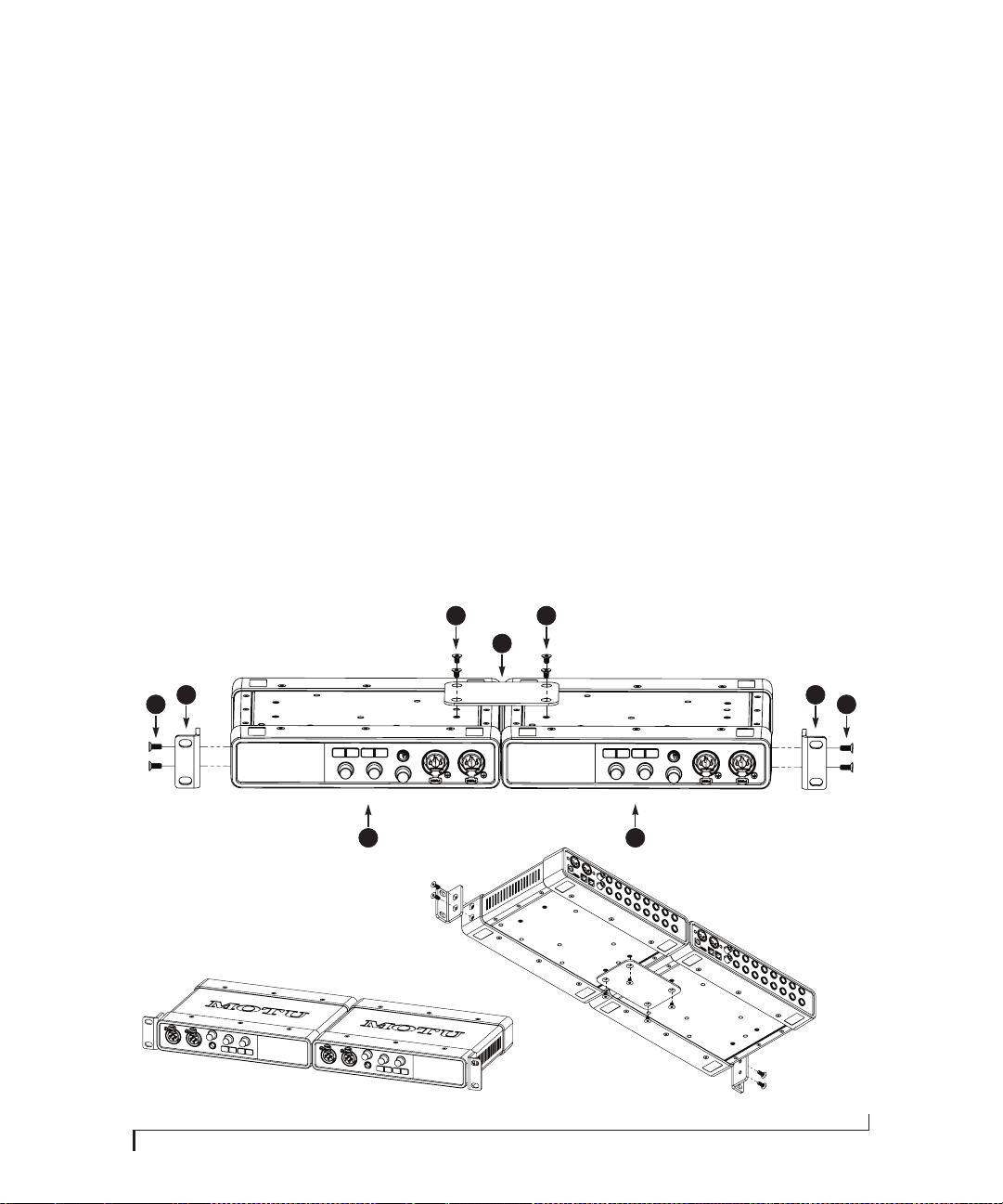
APPENDIX
59
D Half-rack Coupler Kit
The Half-Rack Coupler Kit (sold separately) lets
you mount the UltraLite-mk5 side by side with
another UltraLite-mk5 (or similar unit) in a
standard 19-inch equipment rack. Visit the web
store at motu.com to purchase this kit or contact
your authorized MOTU reseller.
PACKING LIST
■ (2) L-shaped rack mounting brackets (A)
■ (1) Rectangular joiner bracket (B)
■ (4) Hex screws for joiner bracket (C)
■ (1) 2.5 mm L-shaped hex wrench (not pictured)
■ (1) Instruction sheet (this sheet)
Questions? Contact MOTU technical support at
motu.com/support.
INSTRUCTIONS
1 On a smooth flat surface, place two half-rack
units (D) upside down and side by side. Make sure
their front panels are facing in the same direction.
2 Using the hex wrench and the four (4) hex
screws included with this kit (C), attach the
rectangular joiner bracket (B) as shown.
3 Using the hex wrench, remove the hex screws
(E) on the outer side panels of each half-rack unit
(D).
4 Use the removed screws (E) to attach the half-
rack mounting brackets (A) as shown.
5 Be sure to tighten all screws securely for best
results.
E E
A A
C C
B
DD

APPENDIX D: HALF-RACK COUPLER KIT
60

INDEX
61
+4dB analog input
23
-10dB analog input
23
19-inch rack installation
57, 59
-20 dB pad
control from computer
32, 34
control from front panel
9
24-bit
optical
10, 12, 24
2x SMUX mode
24
48V phantom power
34
5.1 surround monitoring
35
7.1 surround monitoring
35
A
Ableton Live
45, 46
ADAT optical
10, 12, 24
connecting
24
input format
34
monitoring live
37
output format
35
output source
24, 35
Analog inputs
making connections to
23
monitoring live
37
phase invert
34
trimming
23
Analog outputs
making connections to
23
monitor mixes for
36
trimming
23
Apple
GarageBand
46
Logic Pro
46
ASIO
driver
46
monitoring
47
Attack
Compressor
41
Gate
41
Audio MIDI Setup utility
19
Avid Pro Tools
46
B
Back panel
Main Out 1-2
10, 34
Balanced analog
23
Buffer Size
18, 33
C
Class compliance
17
Clear Solo
36
Clock section (front panel display)
29
Clock Source
33
Coax
12
Cockos Reaper
46
Compressor effect
41
Computer USB channels (CueMix 5)
37
Condenser mic input
23
Controller
connecting
25
Converters
10
Core Audio driver
46
Core MIDI
Audio MIDI Setup
19
benefits
19
Cubase
45, 46
clock source
45
sample rate
45
CueMix 5
18, 31-43
app
43
channel settings
39
channel strips
38
Device tab
33
Home tab
32
Input tab
34
iOS app
43
Main Out 1-2
34
mic input settings
34
mix inputs
37
Mix tabs
36
Output tab
35
saving/recalling presets
33, 43
sidebar
32
Customer support
53
D
DAT
connecting
24
Device tab
33
Clock source
33
device presets
33, 43
Enable windows audio streams
33
Firmware version
33
Host buffer size
33
Loopback
33
Mix Input Meters
pre/post fader
33, 43
Safety Offsets
33
Sample rate
33
Serial number
33
Digital Performer
45, 46
Direct hardware playthru
47
Direct ASIO monitoring
47
Direct hardware playthru
47
Driver
installation
7, 17, 31
loopback channels
33, 49
DSP
effects
40
Dynamic mic
23
E
Effects
40
Enable Windows Audio Streams
33
EQ
40
enabling
40
filter types
40
frequency
40
gain
40
Q
40
Equipment rack installation
57, 59
F
Factory defaults
30
Firmware
select image
33
updating
33
version
30, 33
Four-band EQ
40
Frequency
EQ
40
Front panel
29
metering
29
Front panel display
menu
30
menu navigation
30
G
Gain
EQ
40
reduction
41
GarageBand
45, 46
clock source
45
sample rate
45
Gate effect
41
GR (gain reduction)
41
Guitar
connecting
23
H
Half-rack
coupler kit
59
mounting kit
57
Headphones
connecting
8, 9
jack
9
mirroring main outs
37
monitoring inputs
32
volume control from computer
32, 35
volume control from front panel
9
Home tab
32
Host
Buffer Size
18, 33
loopback
33, 49
Safety Offset
18
I
Input Monitoring (CueMix 5)
32
Input tab (CueMix 5)
34
Inputs
analog (balanced TRS)
10, 23
metering (pre/post fader)
33, 43
mic/instrument
9, 22
MIDI
10, 25
monitoring
32
optical
10, 24
phase invert
34
S/PDIF (RCA)
10, 24
S/PDIF (TOSLink)
10, 24
Installation
equipment rack
57, 59
hardware
21
iOS connection
21, 22
Index

INDEX
62
QuickStart Guide
7
software
17
USB connection
21
iOS operation
17, 21, 22, 43
IP address
30
iPad/iPhone support
17
K
Keyboard controller
connecting
25
L
Latency
18, 33, 46, 48
Lightpipe
24
Line inputs
making connections to
23
monitoring live
37
trimming
23
Line outputs
Main volume group
35
making connections to
23
trimming
23, 35
Live
46
Logic Pro
45, 46
clock source
45
sample rate
45
Loopback
33, 49
M
MacOS
45
audio software
clock source
45
sample rate
45
system requirements
15
Main 1-2 mix
36
Main Out 1-2
jacks
10
making connections to
23
monitoring inputs
32
volume control from computer
32, 34
volume control from front panel
9, 23
Main Volume Group
35
Mic/instrument inputs
9, 22
48V phantom power
9
control from CueMix 5
32, 34
control from front panel
9
monitoring live
37
overview
11
pad
9
phase invert
9
preamp gain/pad/48V
9, 34
MIDI
connections
25
jacks
10, 25
overview
12
software setup
19
thru
25, 30
Windows driver installation
19
Mirroring main outs
37
Mix
effects
40
Input Meters setting
33, 43
inputs
37
stand-alone operation
40
tabs
36
Mix tabs
36
Mix tabs (CueMix 5)
36
Monitoring
thru headphones
32
thru main outs
23, 32
with/without FX
23, 34
MOTU
Digital Performer
46
Gen5 Installer
7, 31
Performer Lite
46
N
Network settings
17
Nuendo
45, 46
clock source
45
sample rate
45
O
Optical
connectors
10, 24
input format
34
monitoring live
37
output format
35
output source
24, 35
overview
12
S/PDIF
24
Optimization
48
Output tab
35
Output tab (CueMix 5)
35
Outputs
analog (balanced TRS)
10, 23
MIDI
10, 25
optical
10, 24
S/PDIF (RCA)
10, 24
S/PDIF (TOSLink)
10, 24
P
Pad
22, 34
control from computer
32, 34
control from front panel
9
Patch thru
latency
48
Performance
48
Performer Lite
12, 18, 45, 46
Phantom power
9, 22, 23
control from computer
32, 34
control from front panel
9
Phase Invert
34
Phones (see headphones)
Phones 1-2 mix
36
Post Fx option
24, 34
Power supply
jack
10
Power switch
29
Pre Fx option
24, 34
Pre/post fader menu setting
33, 43
Preamp gain
34
control from computer
32, 34
control from front panel
9
Presets
33, 43
Pro Tools
45, 46
Processing
40
Q
Q
40
QuickStart Guide
7
R
Rack installation
57, 59
Ratio
Compressor
41
RCA S/PDIF
connecting
10, 24
monitoring live
37
output source
25, 35
Reaper
45, 46
Reason
45
Propellerhead Reason
46
Registration
15
Release
Compressor
41
Gate
41
Reset
30
Reverb
42
routing to/from
42
Reverb mix
36
monitoring
37
S
S/PDIF
12
monitoring live
37
optical
10, 12, 24
optical input format
34
optical output format
35
optical output source
35
optical source
24, 35
RCA
10, 24
RCA output source
25, 35
sync
24
Safety Offset
33
Sample rate
33
Select firmware image
33
Serial number
30, 33
SMUX
24
Software installation
7, 17, 31
Sound module
connecting
25
Source
optical output
35
RCA S/PDIF
25, 35
Stage monitors
connecting
8
Stand-alone operation
29
Steinberg
Cubase
46
Nuendo
46
Studio setup (example)
8
Surround monitor control
35

INDEX
63
Synths
connecting
8
System requirements
minimum
15
recommended computer
15
T
Te c h ni c a l s u pp o r t
53, 54
Threshold
Compressor
41
Gate
41
To U SB Ho s t
23, 34
TOSLink
10, 12, 24, 34, 35
monitoring live
37
output source
24, 35
Tri m
22
TRS analog inputs/outputs
23
TRS connectors
23
U
UltraLite-mk5
ASIO driver
46
setup example
8
specifications
55
summary of features
11
UltraLite-mk5
presets
33, 43
Unbalanced analog
23
USB
class compliance
17
connection
21
installing drivers
17
loopback channels
33, 49
monitoring
37
User presets
33, 43
W
Wa ve d r iv e r
46
WDM (Wave) Driver
18
Windows
Audio Streams
33
Host Buffer Size
33
latency
33
system requirements
15
Wa ve d r iv e r st r e am s
33
WDM (Wave) driver
18

INDEX
64