

About the Mark of the Unicorn License Agreement and
Limited Warranty on Software
TO PERSONS WHO PURCHASE OR USE THIS PRODUCT: carefully read all the
terms and conditions of the “click-wrap” license agreement presented to you when
you install the software. Using the software or this documentation indicates your
acceptance of the terms and conditions of that license agreement.
Mark of the Unicorn, Inc. (“MOTU”) owns both this program and its documentation.
Both the program and the documentation are protected under applicable copyright,
trademark, and trade-secret laws. Your right to use the program and the
documentation are limited to the terms and conditions described in the license
agreement.
Reminder of the terms of your license
This summary is not your license agreement, just a reminder of its terms. The actual
license can be read and printed by running the installation program for the software.
That license agreement is a contract, and clicking “Accept” binds you and MOTU to
all its terms and conditions. In the event anything contained in this summary is
incomplete or in conflict with the actual click-wrap license agreement, the terms of the
click-wrap agreement prevail.
YOU MAY: (a) use the enclosed program on a single computer; (b) physically transfer
the program from one computer to another provided that the program is used on only
one computer at a time and that you remove any copies of the program from the
computer from which the program is being transferred; (c) make copies of the
program solely for backup purposes. You must reproduce and include the copyright
notice on a label on any backup copy.
YOU MAY NOT: (a) distribute copies of the program or the documentation to others;
(b) rent, lease or grant sublicenses or other rights to the program; (c) provide use of
the program in a computer service business, network, time-sharing, multiple CPU or
multiple user arrangement without the prior written consent of MOTU; (d) translate,
adapt, reverse engineer, decompile, disassemble, or otherwise alter the program or
related documentation without the prior written consent of MOTU.
MOTU warrants to the original licensee that the disk(s) on which the program is
recorded be free from defects in materials and workmanship under normal use for a
period of ninety (90) days from the date of purchase as evidenced by a copy of your
receipt. If failure of the disk has resulted from accident, abuse or misapplication of the
product, then MOTU shall have no responsibility to replace the disk(s) under this
Limited Warranty.
THIS LIMITED WARRANTY AND RIGHT OF REPLACEMENT IS IN LIEU OF,
AND YOU HEREBY WAIVE, ANY AND ALL OTHER WARRANTIES, BOTH
EXPRESS AND IMPLIED, INCLUDING BUT NOT LIMITED TO WARRANTIES
OF MERCHANTABILITY AND FITNESS FOR A PARTICULAR PURPOSE. THE
LIABILITY OF MOTU PURSUANT TO THIS LIMITED WARRANTY SHALL BE
LIMITED TO THE REPLACEMENT OF THE DEFECTIVE DISK(S), AND IN NO
EVENT SHALL MOTU OR ITS SUPPLIERS, LICENSORS, OR AFFILIATES BE
LIABLE FOR INCIDENTAL OR CONSEQUENTIAL DAMAGES, INCLUDING
BUT NOT LIMITED TO LOSS OF USE, LOSS OF PROFITS, LOSS OF DATA OR
DATA BEING RENDERED INACCURATE, OR LOSSES SUSTAINED BY THIRD
PARTIES EVEN IF MOTU HAS BEEN ADVISED OF THE POSSIBILITY OF
SUCH DAMAGES. THIS WARRANTY GIVES YOU SPECIFIC LEGAL RIGHTS
WHICH MAY VARY FROM STATE TO STATE. SOME STATES DO NOT ALLOW
THE LIMITATION OR EXCLUSION OF LIABILITY FOR CONSEQUENTIAL
DAMAGES, SO THE ABOVE LIMITATION MAY NOT APPLY TO YOU.
Update Policy
In order to be eligible to obtain updates of the program, you must complete and return
the attached Mark of the Unicorn Purchaser Registration Card to MOTU.
Copyright Notice
Copyright © 2013, 2012, 2011, 2010, 2009, 2008, 2007, 2006, 2005, 2004, 2003 by
Mark of the Unicorn, Inc. All rights reserved. No part of this publication may be
reproduced, transmitted, transcribed, stored in a retrieval system, or translated into
any human or computer language, in any form or by any means whatsoever, without
express written permission of Mark of the Unicorn, Inc., 1280 Massachusetts
Avenue, Cambridge, MA, 02138, U.S.A.
Limited Warranty on Hardware
Mark of the Unicorn, Inc. and S&S Research (“MOTU/S&S”) warrant this equipment
against defects in materials and workmanship for a period of TWO (2) YEARS from
the date of original retail purchase. This warranty applies only to hardware products;
MOTU software is licensed and warranted pursuant to separate written statements.
If you discover a defect, first write or call Mark of the Unicorn at (617) 576-2760 to
obtain a Return Merchandise Authorization Number. No service will be performed on
any product returned without prior authorization. MOTU will, at its option, repair or
replace the product at no charge to you, provided you return it during the warranty
period, with transportation charges prepaid, to Mark of the Unicorn, Inc., 1280
Massachusetts Avenue, MA 02138. You must use the product’s original packing
material for in shipment, and insure the shipment for the value of the product. Please
include your name, address, telephone number, a description of the problem, and
the original, dated bill of sale with the returned unit and print the Return Merchandise
Authorization Number on the outside of the box below the shipping address.
This warranty does not apply if the equipment has been damaged by accident,
abuse, misuse, or misapplication; has been modified without the written permission
of MOTU, or if the product serial number has been removed or defaced.
ALL IMPLIED WARRANTIES, INCLUDING IMPLIED WARRANTIES OF
MERCHANTABILITY AND FITNESS FOR A PARTICULAR PURPOSE, ARE
LIMITED IN DURATION TO TWO (2) YEARS FROM THE DATE OF THE
ORIGINAL RETAIL PURCHASE OF THIS PRODUCT.
THE WARRANTY AND REMEDIES SET FORTH ABOVE ARE EXCLUSIVE
AND IN LIEU OF ALL OTHERS, ORAL OR WRITTEN, EXPRESS OR IMPLIED.
No MOTU/S&S dealer, agent, or employee is authorized to make any modification,
extension, or addition to this warranty.
MOTU/S&S ARE NOT RESPONSIBLE FOR SPECIAL, INCIDENTAL, OR
CONSEQUENTIAL DAMAGES RESULTING FROM ANY BREACH OF
WARRANTY, OR UNDER ANY LEGAL THEORY, INCLUDING LOST PROFITS,
DOWNTIME, GOODWILL, DAMAGE OR REPLACEMENT OF EQUIPMENT
AND PROPERTY AND COST OF RECOVERING REPROGRAMMING, OR
REPRODUCING ANY PROGRAM OR DATA STORED IN OR USED WITH
MOTU/S&S PRODUCTS.
Some states do not allow the exclusion or limitation of implied warranties or liability for
incidental or consequential damages, so the above limitation or exclusion may not
apply to you. This warranty gives you specific legal rights, and you may have other
rights which vary from state to state.
MOTU, AudioDesk, Mark of the Unicorn and the unicorn silhouette logo are
trademarks of Mark of the Unicorn, Inc.
Thunderbolt and the Thunderbolt logo are trademarks of Intel Corporation in the U.S.
and/or other countries.
This equipment has been type tested and found to comply with the limits for a class B digital device,
pursuant to Part 15 of the FCC Rules. These limits are designed to provide reasonable protection
against harmful interference in a residential installation. This equipment generates, uses, and can
radiate radio frequency energy and, if not installed and used in accordance with the instruction manual,
may cause harmful interference to radio communications. However, there is no guarantee that
interference will not occur in a particular installation. If this equipment does cause interference to radio
or television equipment reception, which can be determined by turning the equipment off and on, the
user is encouraged to try to correct the interference by any combination of the following measures:
• Relocate or reorient the receiving antenna
• Increase the separation between the equipment and the receiver
• Plug the equipment into an outlet on a circuit different from that to which the receiver is connected
If necessary, you can consult a dealer or experienced radio/television technician for additional
assistance.
PLEASE NOTE: only equipment certified to comply with Class B (computer input/output devices,
terminals, printers, etc.) should be attached to this equipment, and it must have shielded interface
cables in order to comply with the Class B FCC limits on RF emissions.
WARNING: changes or modifications to this unit not expressly approved by the party
responsible for compliance could void the user's authority to operate the equipment.

III
Contents
Part 1: Getting Started
7 Quick Reference: 828x Front Panel
8 Quick Reference: 828x Rear Panel
9 Quick Reference: MOTU Audio Console
11 About the 828x
17 Packing List and System Requirements
19 Installing the 828x Software
21 Installing the 828x Hardware
Part 2: Using the 828x
37 MOTU Audio Console
43 Front Panel Operation
53 Configuring Host Audio Software
61 Reducing Monitoring Latency
67 CueMix FX
113 MOTU SMPTE Console
Part 3: Appendices
119 Troubleshooting
121 Audio I/O reference
SAFETY PRECAUTIONS AND ELECTRICAL REQUIREMENTS
CAUTION! READ THIS SAFETY GUIDE BEFORE YOU BEGIN INSTALLATION OR OPERATION. FAILURE TO COMPLY WITH SAFETY INSTRUCTIONS
COULD RESULT IN BODILY INJURY OR EQUIPMENT DAMAGE.
HAZARDOUS VOLAGES: CONTACT MAY CAUSE ELECTRIC SHOCK OR BURN. TURN OFF UNIT BEFORE SERVICING.
WARNING: TO REDUCE THE RISK OF FIRE OR ELECTRICAL SHOCK, DO NOT EXPOSE THIS APPLIANCE TO RAIN OR OTHER MOISTURE.
CAUTION: TO REDUCE THE RISK OF ELECTRICAL SHOCK, DO NOT REMOVE COVER. NO USER-SERVICEABLE PARTS INSIDE. REFER SERVICING TO
QUALIFIED SERVICE PERSONNEL.
WARNING: DO NOT PERMIT FINGERS TO TOUCH THE TERMINALS OF PLUGS WHEN INSTALLING OR REMOVING THE PLUG TO OR FROM THE OUTLET.
WARNING: IF NOT PROPERLY GROUNDED THE MOTU 828x COULD CAUSE AN ELECTRICAL SHOCK.
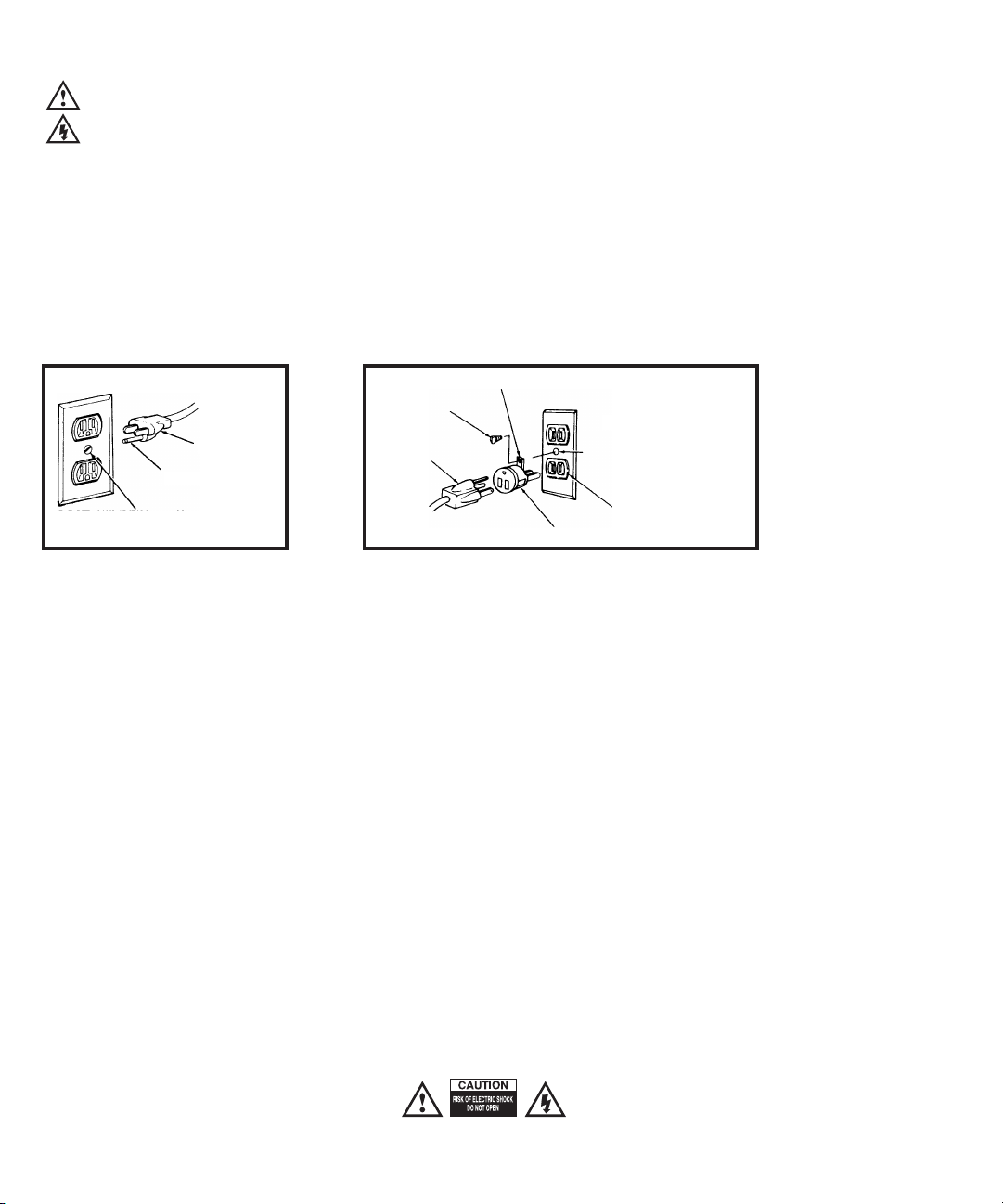
The MOTU 828x is equipped with a three-conductor cord and grounding type plug which has a grounding prong, approved by Underwriters' Laboratories and the Canadian Standards Association.
This plug requires a mating three-conductor grounded type outlet as shown in Figure A below. If the outlet you are planning to use for the MOTU 828x is of the two prong type, DO NOT REMOVE OR
ALTER THE GROUNDING PRONG IN ANY MANNER. Use an adapter as shown below and always connect the grounding lug to a known ground. It is recommended that you have a qualified
electrician replace the TWO prong outlet with a properly grounded THREE prong outlet. An adapter as illustrated below in Figure B is available for connecting plugs to two-prong receptacles.
WARNING: THE GREEN GROUNDING LUG EXTENDING FROM THE ADAPTER MUST BE CONNECTED TO A PERMANENT GROUND SUCH AS TO A
PROPERLY GROUNDED OUTLET BOX. NOT ALL OUTLET BOXES ARE PROPERLY GROUNDED.
If you are not sure that your outlet box is properly grounded, have it checked by a qualified electrician. NOTE: The adapter illustrated is for use only if you already have a properly grounded two-prong
receptacle. Adapter is not allowed in Canada by the Canadian Electrical Code. Use only three wire extension cords which have three-prong grounding type plugs and three-prong receptacles which
will accept the MOTU 828x plug.
IMPORTANT SAFEGUARDS
1. Read these instructions. All the safety and operating instructions should be read before operating the 828x.
2. Keep these instructions. These safety instructions and the 828x owner’s manual should be retained for future reference.
3. Heed all warnings. All warnings on the 828x and in the owner’s manual should be adhered to.
4. Follow all Instructions. All operating and use instructions should be followed.
5. Do not use the 828x near water.
6. Cleaning - Unplug the 828x from the computer and clean only with a dry cloth. Do not use liquid or aerosol cleaners.
7. Ventilation - Do not block any ventilation openings. Install in accordance with the manufacturer’s instructions.
8. Heat - Do not install the 828x near any heat sources such as radiators, heat registers, stoves, or another apparatus (including an amplifier) that produces heat.
9. Overloading - Do not overload wall outlets and extension cords as this can result in a risk of fire or electrical shock.
10. Grounding - Do not defeat the safety purpose of the polarized or grounding-type plug. A polarized plug has two blades with one wider than the other. A grounding-type plug has two blades and a third grounding prong. The wide blade
or the third prong are provided for your safety. If the provided plug does not fit into your outlet, consult and electrician for replacement of the obsolete outlet.
11. Power cord - Protect the 828x power cord from being walked on or pinched by items placed upon or against them. Pay particular attention to cords and plugs, convenience receptacles, and the point where they exit from the unit.
12. Power switch - Install the 828x so that the power switch can be accessed and operated at all times.
13. Disconnect - The main plug is considered to be the disconnect device for the 828x and shall remain readily operable.
14. Accessories - Only use attachments/accessories specified by the manufacturer.
15. Placement - Use only with the cart, stand, tripod, bracket or table specified by the manufacturer, or sold with the 828x. When a cart is used, use caution when moving the cart/apparatus combination to avoid injury from tip-over.
16. Surge protection - Unplug the 828x during lightning storms or when unused for long periods of time.
17. Servicing - Refer all servicing to qualified service personnel. Servicing is required when the 828x has been damaged in any way, such as when a power-supply cord or plug is damaged, liquid has been spilled or objects have fallen
into the 828x, the 828x has been exposed to rain or moisture, does not operate normally, or has been dropped.
18. Power Sources - Refer to the manufacturer’s operating instructions for power requirements. Be advised that different operating voltages may require the use of a different line cord and/or attachment plug.
19. Installation - Do not install the 828x in an unventilated rack, or directly above heat-producing equipment such as power amplifiers. Observe the maximum ambient operating temperature listed below.
20. Power amplifiers- Never attach audio power amplifier outputs directly to any of the unit’s connectors.
21. Replacement Parts - When replacement parts are required, be sure the service technician has used replacement parts specified by the manufacturer or have the same characteristics as the original part. Unauthorized substitutions
may result in fire, electric shock or other hazards.
22. Safety Check - Upon completion of any service or repairs to this MOTU 828x, ask the service technician to perform safety checks to determine that the product is in safe operating conditions.
ENVIRONMENT
Operating Temperature: 10°C to 40°C (50°F to 104°)
TO REDUCE THE RISK OF ELECTRICAL SHOCK OR FIRE
Do not handle the power cord with wet hands. Do not pull on the power cord when disconnecting it from an AC wall outlet. Grasp it by the plug. Do not expose this apparatus to rain or moisture. Do not place objects containing liquids on it.
AC INPUT
100 - 240VAC ~ • 50 / 60Hz • 20 Watts.
3-prong plug
Grounding prong
Properly grounded 3-prong outlet
Grounding lug
Screw
3-prong plug
Adapter
Make sure this is connected to
a known ground.
Two-prong receptacle
Figure A Figure B

Part 1
Getting Started

Quick Reference: 828x Front Panel
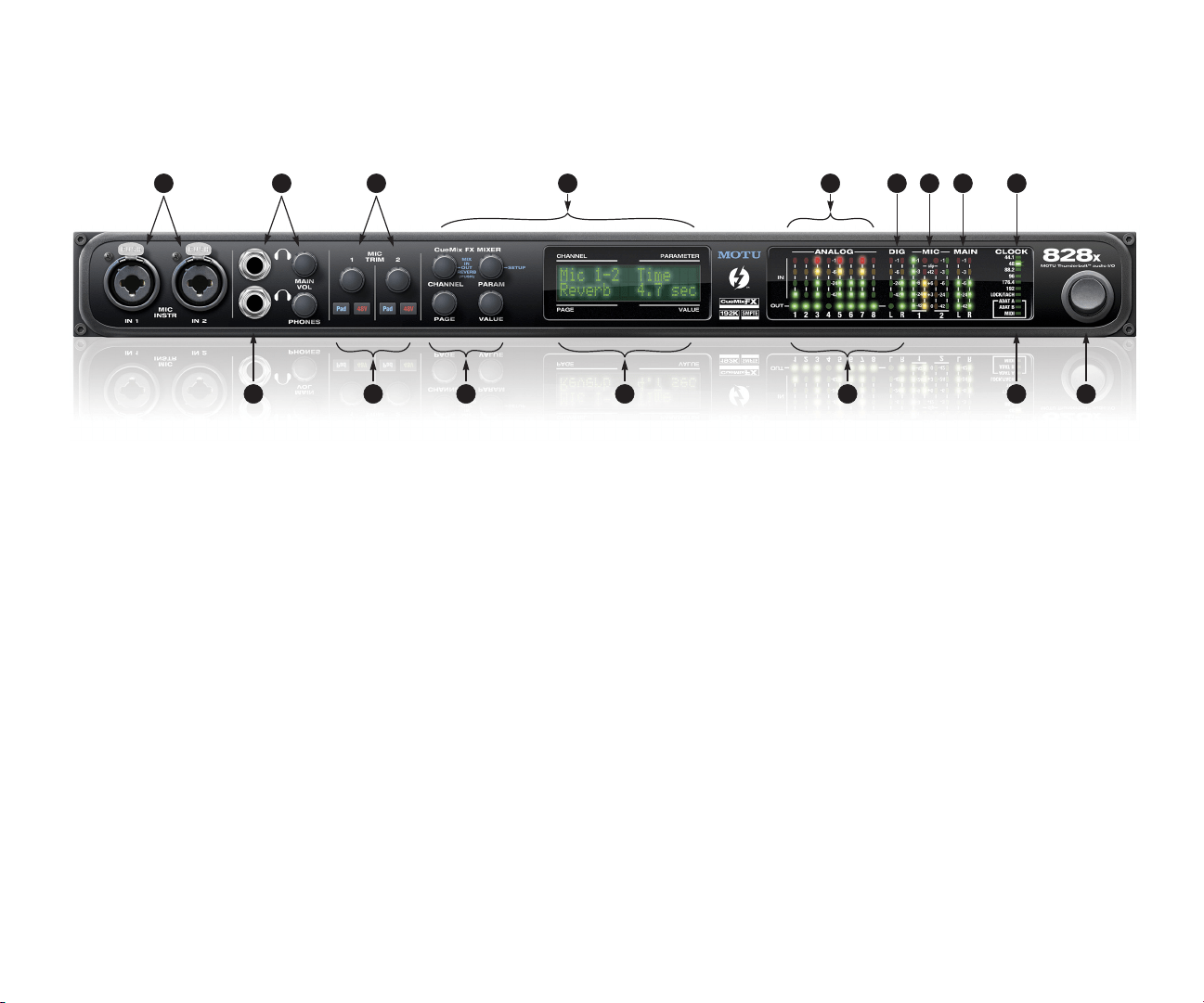
1. These XLR/TRS combo jacks accept either a mic cable or a
quarter-inch guitar cable. Both the low-impedance XLR
jack and the high-impedance TRS jack are equipped with
a preamp (so don’t connect a +4 line level XLR cable!)
2. The upper phone jack is a standard quarter-inch stereo
headphone jack. Its output is hard-wired to mirror the
XLR main outs on the rear panel. From the factory, the
MAIN VOL knob next to it controls the main outs and this
jack, but MAIN VOL can be programmed to control any
combination of outputs. See “The Monitor Group” on
page 89 for details. Push the knob once to view the
current volume setting in the LCD display; push it again
to mute the monitor group; push a third time to return to
the previous volume. Note: if the Monitor Group is
programmed to not include the main outs, the MAIN VOL
knob will no longer control the volume of this phone
jack, either.
3. These two trim knobs provide approximately 53 dB of
gain for the XLR mic input and the hi-Z TRS guitar/instru-
ment input. Both inputs have preamps, so you can plug
just about anything into them: a microphone, a guitar, a
synth — but don’t plug in a +4 signal here (due to the
preamps): use a rear-panel TRS input instead. Use the
trim knob and the “MIC” input level meters over in the
metering section to calibrate the input signal level. The
meters cover both the TRS and XLR input. These mic
inputs are also equipped with the 828x’s V-Limit™
hardware limiter, which provides an additional +12 dB
of headroom above zero with no clipping or digital
distortion. See “Mic/guitar inputs meters with V-Limit™
compressor” on page 44 for details. Use the rear panel
sends to route these inputs to your favorite outboard
gear. Use any rear-panel input as a return.
4. This section controls the 828x’s built-in CueMix FX mixer
and effects. There are eight stereo mix busses: each bus
mixes all inputs (or any subset you wish) to a stereo
output of your choice. You can apply EQ, compression,
and reverb to inputs, outputs and mix busses. The four
knobs to the left of the LCD correspond directly to the
four labeled sections of the LCD. Use the CHANNEL knob
to choose the input, output or mix you wish to edit. Push
it to switch among inputs, outputs and busses, then turn
it to choose the desired channel or bus. Use the PAGE,
PARAM and VALUE knobs to access the mix settings for
the chosen channel.
5. This bank of four-segment input meters is for the 8
analog TRS input jacks on the rear panel.
6. Four-segment stereo metering for S/PDIF input.
7. This section provides two ten-segment meters for the
two front-panel mic/guitar inputs. The meters show
input levels from -42 to -1 in the first column of LEDs,
plus an additional range in a second column from zero to
+12 dB (including clip). Both inputs are equipped with
V-Limit™, a hardware limiter. With the limiter turned
off, signals that hit zero or above will clip (a hard digital
clip). However, with V-Limit turned on, signals can go as
high as +12 dB above zero with no digital clipping. If the
signal then goes above +12 dB, it will clip, even with
V-Limit engaged.
8. Five-segment metering for the main outs. Use the MAIN
VOL knob to control output level.
9. These lights indicate the global sample rate at which the
828x is operating. Use the MOTU Audio Console software
to set the sample rate or to choose an external clock
source, from which the sample rate will be derived.
When no clock signal is currently present, one of these
LEDs flashes rapidly.
10. Thunderbolt and USB are “plug-and-play” protocols. That
means that you can turn off the 828x and turn it back on
without restarting your computer.
11. When the 828x is resolving to SMPTE time code, the
LOCK/TACH LED glows when lockup has been achieved.
The ADAT and MIDI LEDs blink when there is optical
audio or MIDI activity, respectively.
12. These round LEDs indicate signal presence on the 8 rear-
panel TRS analog and SPDIF outputs. Their threshold is
around -42 dB. They do not indicate clipping in any way;
use your host audio software level meters to calibrate
output levels.
13. The multi-purpose backlit LCD shows system settings or
CueMix FX settings, depending on which knobs you turn.
The labels above and below the LCD refer to the four
digital rotary encoders to the left of the LCD. These knobs
let you access and program all settings in the 828x.
14. Push the CHANNEL knob repeatedly to cycle among the
four main sections of the mixer: mix busses, inputs,
outputs and the reverb module. Push the PARAM knob to
enter the SETUP menu, which provides global 828x
settings, such as the global sample rate, etc.
15. Use these buttons to toggle the -20 dB pad and 48V
phantom power for each mic input. The Precision Digital
Trim™ knob provides 53 dB of gain.
16. From the factory, the PHONES jack is a discrete output
(when the 828x is operating at 44.1/48 kHz), but it can
mirror any other output pair (digital or analog). For
example, at 88.2/96 kHz, it defaults to mirroring the
main outs. As the primary phone jack, it has its own
dedicated volume knob (to its right).
10
2 31 4 5 6 7 8 9
111213141516
Quick Reference: 828x Rear Panel
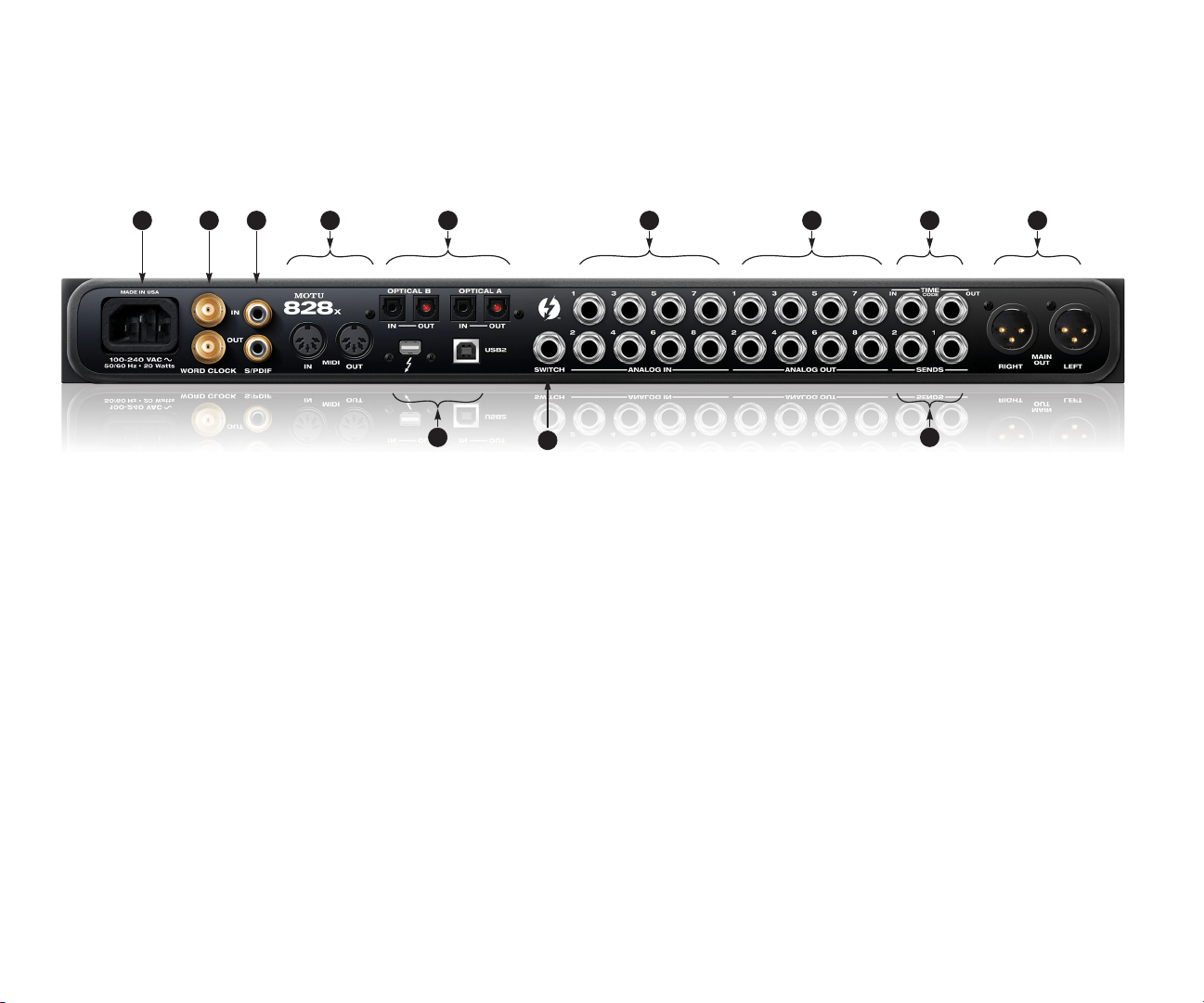
1
1. The 828x is equipped with an auto-switching interna-
tional power supply.
2. These are standard BNC word clock jacks. Use them for a
variety of applications, such as for digital transfers with
devices that cannot slave to the clock supplied by their
digital I/O connection with the 828x.
3. These jacks provide stereo, 24-bit S/PDIF digital input
and output at all supported sample rates (up to 96 kHz).
4. Connect a MIDI device here using standard MIDI cables.
Connect the 828x’s MIDI OUT port to the MIDI IN port on
the other device. Conversely, connect the 828x’s MIDI IN
port to the MIDI OUT port on the other device. You can
connect different devices to each port, such as a control-
ler device to the IN port and a sound module to the OUT
port. You can also daisy-chain MIDI devices, but be sure
to manage their MIDI channels (so that they don’t
receive or transmit on the same channel).
5. These optical digital I/O connectors can be connected
either to an ADAT-compatible “lightpipe” device (such as
a digital mixer) or to a S/PDIF optical (“TOSLink”)
compatible device, such as an effects processor or DAT
machine. Be sure to set the format in the MOTU Audio
Console software (or using the front panel LCD). (See
“Optical input/output” on page 41) for details.) ADAT
optical supplies eight channels of 24-bit digital I/O per
bank (4 channels per bank at 96kHz). TOSLink is stereo at
sample rates up to 96 kHz.
One special note: you can choose independent formats
for each bank, A and B, as well as IN and OUT within each
bank. For example, you could choose ADAT for the optical
A IN (for, say, eight channels of input from your digital
mixer) and stereo TOSLink for the optical A OUT (for, say,
your DAT machine).
6. Equipped with 24-bit 192 kHz converters, these 8 analog
inputs are balanced TRS (tip/ring/sleeve) quarter-inch
connectors that can also accept an unbalanced plug.
They do not have microphone preamps, so they are best
used for synthesizers, drum machines, effects proces-
sors, and other instruments with line level signals (either
-10 dB or +4 dB). These inputs are also equipped with
the 828x’s Precision Digital Trim™ feature: digitally
controlled analog trims that let you adjust input level in
approximately 1 dB increments from either front panel
LCD or the included CueMix FX software. The trim can be
adjusted over a range of -96 to +22 dB.
7. The 828x’s eight analog outputs are balanced +4dB TRS
(tip/ring/sleeve) quarter-inch connectors that can also
accept an unbalanced plug. They are equipped with
24-bit 192 kHz converters.
8. These are quarter-inch analog SMPTE input and output
jacks. Use them to resolve the 828x directly to time code
and transmit time code to other devices.
9. These two XLR jacks serve as the 828x’s main outputs.
You can connect them to a set of powered studio
monitors and then control the volume from the front
panel MAIN VOL knob.
To hear audio playback from your host audio software on
these main outs, assign the audio tracks (and master
fader) to these main outs. You can also use CueMix FX to
monitor live 828x inputs here as well.
10. These two quarter-inch balanced TRS send outputs
supply the pre amplified input signal from the mic/
guitar/instrument inputs on the front panel. Use them to
insert your favorite compressor, EQ, reverb or other
outboard effect. Use any TRS input as a return.
11. Connect a standard foot switch here for hands-free
punch-in and punch-out during recording. For details
about how to set this up, see “Enable Pedal” on page 41.
12. Connect the 828x to the computer here via either
Thunderbolt or USB 2.0, using a standard Thunderbolt or
USB cable. If you use Thunderbolt, you can daisy-chain
up to six Thunderbolt devices together, with the 828x at
the end of the chain (because it has one Thunderbolt
port).
2 3 4 5
11
6 7 8 9
1012
CHAPTER
9
Quick Reference: MOTU Audio Console
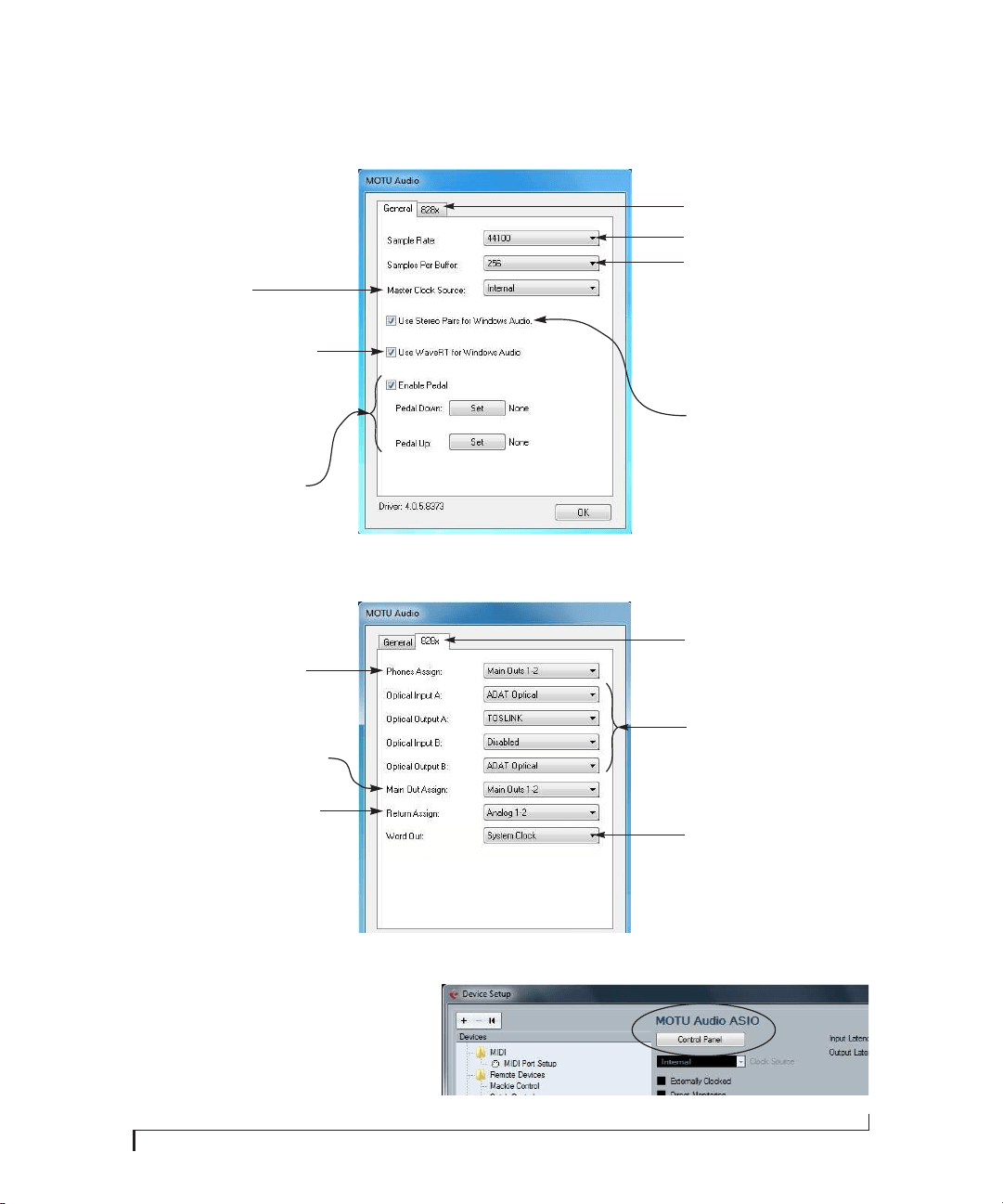
Choose the output pair you would like the
main outs to mirror, or choose Main Outs 1-2 to
operate them as their own independent pair.
This menu lets you choose what you will
hear from the PHONES jack. To mirror the
main outs, choose Main Outs 1-2. Or you can
mirror any other output pair. To hear the
phones as their own independent output,
choose Phones 1-2 (at 44.1 or 48 kHz. At
higher sample rates, the phones must
mirror any other available output pair.)
Uncheck this option if the Windows audio
software you are using with the 828x does
not support Windows WaveRT drivers and
instead only supports legacy WDM drivers.
Determines the clock source for your
828x. If you’re just using the analog ins
and outs, set this to ‘Internal’. The other
settings are for digital transfers via
S/PDIF or optical ports, or for slaving
the 828x to word clock.
Each optical bank can be configured
independently: ADAT or TOSLink.
Disable them when not in use to
conserve DSP and bus bandwidth.
Choose the global sample rate for the
system here.
If you are running an 828x interface at a
high sample rate (96, 88.2, 176.4 or 192
kHz), this option appears in the interface
tab. It lets you choose a word clock output
rate that either matches the global sample
rate (e.g. 96kHz) or reduces it to the corre-
sponding 1x rate (e.g. 48kHz instead of 192
kHz).
Click the tabs to access general MOTU inter
-
face settings or settings specific to the
828x (or other connected interface).
Choosing a smaller setting here reduces
the delay you may hear when listening to
live input that you are running through
effects plug-ins in your software. But
lower settings also increase the strain on
your computer. For details, see “Samples
Per Buffer” on page 40.
Click the 828x tab to access these settings.
If you have a foot switch connected to the
828x, these settings let you map the foot
switch to any computer keyboard key for
both the up and down position. For details
about how to set this up, see “Enable
Pedal” on page 41.
This option should always be left on
(checked). There are only a few rare cases
in which you would want to turn it off. For
details, refer to the MOTU tech support
database at www.motu.com.
The 828x driver provides a stereo return
back to the computer. This return feeds the
signal on any 828x output pair directly back
to the computer, where you can record,
process, monitor or otherwise use it. This is a
great way to “bounce” full mixes, complete
with live audio routed through the 828x
only, back into the computer.
MOTU Audio Console in Cubase
How to access these settings
There are several ways to access these settings:
■ From the Windows Start menu, choose
Programs>MOTU>MOTU Audio Console.
■ From within Cubase, go to the Device Setup
window, click the MOTU Audio ASIO list item and
and click the Control Panel button.
■ From within other applications, refer to their
documentation.

10

CHAPTER
11
1
About the 828x
Overview . . . . . . . . . . . . . . . . . . . . . . . . . . . . . . . . . . . . . . . . . . . . 11
The 828x Rear Panel . . . . . . . . . . . . . . . . . . . . . . . . . . . . . . . . . 12
The 828x Front Panel . . . . . . . . . . . . . . . . . . . . . . . . . . . . . . . . 14
16-bit and 24-bit recording . . . . . . . . . . . . . . . . . . . . . . . . . . 15
CueMix FX 32-bit floating point mixing and effects. . 15
Host Audio Software. . . . . . . . . . . . . . . . . . . . . . . . . . . . . . . . . 16
OVERVIEW
The 828x is a hybrid Thunderbolt™/USB2 audio
interface for Mac and Windows with on-board
effects and mixing that offers 28 inputs and 30
outputs at 44.1 or 48 kHz. Both analog and digital
I/O are offered at sample rates up to 96 kHz, and
analog recording and playback is offered at rates up
to 192 kHz. All inputs and outputs can be accessed
simultaneously. The 828x consists of a standard
19-inch, single-space, rack-mountable I/O unit
that connects directly to a computer via a standard
Thunderbolt or USB cable.
The 828x offers the following main features:
■ Universal computer connectivity with
Thunderbolt or high-speed USB2
■ Eight 24-bit analog quarter-inch (TRS) inputs
■ Eight 24-bit analog quarter-inch (TRS) outputs
■ Two combo XLR/TRS mic/guitar inputs with
preamps, individual sends, 48V phantom power,
20 dB pad, and Precision Digital Trim™
■ Two XLR main outputs
■ Operation on all analog I/O at standard sample
rates up to 192 kHz
■ Digitally controlled analog trim for all analog
inputs
■ Two banks of optical digital I/O that provide 16
channels of ADAT optical at 48 kHz, 8 channels of
S/MUX optical I/O at 96 kHz or two banks of
stereo TOSLink at rates up to 96 kHz
■ RCA S/PDIF at sample rates up to 96 kHz
■ Word clock I/O
■ MIDI I/O
■ On-board SMPTE synchronization with
dedicated SMPTE I/O jacks
■ Foot switch for hands-free punch-in/out
■ Two headphone jacks with independent volume
control
■ Programmable main volume knob
■ CueMix™ FX no-latency mixing, monitoring
and effects processing
■ Front-panel LCD programming for the mixer
and all other settings
■ Extensive front panel metering and status LEDs
■ Auto-switching international power supply
■ Stand-alone operation
■ Mac and Windows drivers for multi-channel
operation and across-the-board compatibility with
any audio software on current Mac and Windows
systems
With a variety of I/O formats, mic preamps, no-
latency mixing and processing of live input and
synchronization capabilities, the 828x is a
complete, portable “studio in a box” when used
with a Mac or Windows computer.

ABOUT THE 828X
12
THE 828X REAR PANEL
The 828x rear panel has the following connectors:
■ Eight balanced quarter-inch (TRS) analog
outputs (with 24-bit 192 kHz converters)
■ Eight balanced quarter-inch (TRS) analog
inputs (with 24-bit 192 kHz converters)
■ Two XLR “main” analog outputs with 24-bit
192 kHz converters
■ Two balanced quarter-inch (TRS) analog sends
(for the front-panel mic/guitar inputs)
■ Balanced TRS quarter-inch analog in/out
dedicated for SMPTE time code
■ Two sets of optical connectors (in and out),
individually switchable among ADAT optical
“lightpipe”, 96 kHz S/MUX optical or S/PDIF
“TOSLink”
■ RCA S/PDIF in/out
■ MIDI IN and MIDI OUT
■ Word clock in/out
■ Foot pedal jack
■ One Thunderbolt connector
■ One high-speed USB2 connector
28 inputs and 30 outputs
All 828x inputs and outputs can be used simulta-
neously, for a total of 28 inputs and 30 outputs
when operating at 44.1 or 48 kHz:
* The phone jack next to the MAIN VOL knob is
hard-wired to (mirrors) the XLR main outs. The
PHONES output can operate as an independent
output pair, or it can mirror any other 828x output
pair, such as the main outs.
† The 828x optical connectors support several
standard optical I/O formats, which provide
varying channel counts. See “Optical” on page 13
for details about optical bank operation.
With the exception of the phone jack on the front
panel labeled “(MAIN)”, all inputs and outputs are
discrete. For example, using a mic input does not
“steal” an input from the TRS analog I/O bank.
Analog
All analog inputs are equipped with 24-bit 192 kHz
A/D converters. All analog outputs have 24-bit
192 kHz D/A converters. All audio is transferred to
and from the computer in a 24-bit data stream.
All quarter-inch analog inputs can accept either a
balanced or unbalanced plug.
Connection Input Output
Analog 24-bit 192 kHz on bal/unbal TRS 8 8
Mic/guitar 24-bit 192 kHz on XLR/TRS combo 2 -
Main outputs 24-bit 192 kHz on XLR - stereo
Headphone output* - stereo
ADAT optical digital† 16 16
RCA S/PDIF 24-bit 96kHz digital stereo stereo
Total 28 30

ABOUT THE 828X
13
The quarter-inch outputs are referenced to a +4
dBu line level output signal. The inputs have
+22 dB of input gain and -96 dB of cut, allowing
them to accommodate both -10 dBu and +4 dBu
level signals.
Precision Digital Trim™
All of the 828x’s analog inputs are equipped with
digitally controlled analog trims, adjustable in 1 dB
increments. The mic/guitar input trims can be
adjusted using front-panel digital rotary encoders
that provide feedback in the front panel LCD with
up to 53 dB of boost. All analog inputs, including
eight rear-panel TRS analog inputs, can be
trimmed using the front panel LCD or using the
828x’s included CueMix FX control software for
Mac and Windows. This gives you finely-tuned
control of trim settings for synths, effects modules,
and a wide variety of analog inputs for optimum
levels. Different trim configurations can then be
saved as preset configurations for instant recall.
Mic/guitar sends
Before A/D conversion, the pre-amplified signal
from each front-panel mic/guitar input is routed to
one of the two rear-panel quarter-inch analog
sends, so that you can insert a favorite outboard
EQ, compressor, amp or effects processor to the
mic/guitar input signal before it is converted to
digital form. The resulting output from the
outboard gear can be fed back into the 828x via one
of the eight TRS analog inputs on the rear panel, for
routing to the computer and/or inclusion in the
828x’s built-in monitor mixes.
Main Outs
The main outs are equipped with 24-bit 192 kHz
D/A converters and serve as independent outputs
for the computer or for the 828x’s on-board
CueMix FX mixes.
Optical
The two optical banks provide 16 channels of
ADAT optical at 44.1 or 48 kHz, 8 channels of S/
MUX optical I/O at 96 kHz or two banks of stereo
TOSLink at rates up to 96 kHz. The banks operate
independently, including input and output,
allowing you to mix and match any optical formats.
For example, you could receive 4 channels of
96 kHz S/MUX input on Bank A while at the same
time sending 96 kHz stereo optical S/PDIF
(“TOSLink”) from the Bank A output.
S/PDIF
The 828x rear panel provides S/PDIF input and
output in two different formats: RCA “coax” and
optical “TOSLink”. The RCA jacks are dedicated to
the S/PDIF format. The TOSLink jacks can be used
for either TOSLink or ADAT optical, as discussed
earlier.
MIDI I/O
The 828x’s standard MIDI IN and MIDI OUT jacks
supply 16 channels of MIDI I/O to and from the
computer via the 828x’s Thunderbolt connection.
On-board SMPTE synchronization
The 828x can resolve directly to SMPTE time code
via the quarter-inch SMPTE input, without a
separate synchronizer. A SMPTE out jack is also
provided for time code generation. The 828x
provides a DSP-driven phase-lock engine with
sophisticated filtering that provides fast lockup
times and sub-frame accuracy.
The included MOTU SMPTE Console™ software
includes a complete set of tools for generating and
regenerating SMPTE time code, providing a way to
slave other devices to the computer.
Word clock
The 828x supports standard word clock synchroni-
zation at any supported sample rate. When the
828x is operating at 96 kHz, it can generate word

ABOUT THE 828X
14
clock output at either 96 or 48 kHz. Half-rate
output is supported for all high sample rates (from
88.2 to 192 kHz).
Punch in/out
The quarter-inch Punch in/out jack accepts a
standard foot switch. When you push the foot
switch, the 828x triggers a programmable
keystroke on the computer keyboard. For example,
with MOTU’s Digital Performer audio sequencer
software, the foot switch triggers the 3 key on the
numeric keypad, which toggles recording in
Digital Performer. Therefore, pressing the foot
switch is the same as pressing the 3 key. The 828x
Control Panel software lets you program any
keystroke you wish.
Hybrid Thunderbolt/USB 2.0 connectivity
Thunderbolt is a new, high-performance, high-
bandwidth connectivity standard for Mac and
Windows computers. High-speed USB 2.0 is a
widely adopted standard for connecting peripheral
devices to personal computers.
To fully support both formats, your 828x audio
interface is equipped with both a Thunderbolt
connector and a high-speed USB 2.0 connector,
and you can use either port (one or the other) to
connect the 828x to your computer. This gives you
maximum flexibility and compatibility with
today’s ever-expanding universe of Mac and
Windows computers.
THE 828X FRONT PANEL
Mic/guitar inputs with preamps
The two mic/instrument inputs (front panel and
rear panel) are equipped with preamps and
“combo” XLR/TRS jacks, which accept XLR
microphone inputs or quarter-inch guitar/
instruments inputs. Individual 48 volt phantom
power and a 20 dB pad can be supplied
independently to each mic input. The Precision
Digital Trim™ knobs on the front panel for each
mic/instrument input provide up to 53 dB of boost
in precise 1 dB increments.
As explained in “Mic/guitar sends” on page 13, the
pre-amplified signal can be routed to external
outboard gear before being routed back into the
828x.
Mic/guitar input overload protection
Both mic/guitar inputs are equipped with
V-Limit™, a hardware limiter that helps prevent
digital clipping from overloaded input signals.
With V-Limit enabled, signals can go above zero
dB (with limiting applied) to as high as +12 dB
above zero with no distortion due to digital
clipping.
Additional or alternative protection can be applied
to the mic/guitar inputs by enabling the 828x’s Soft
Clip feature, which engages just before clipping
occurs and helps reduce perceptible distortion.
Headphone output and main volume control
The 828x front panel provides two independent
headphone jacks with independent volume knobs,
one of which also controls the XLR main outs on
the rear panel. Alternately, this MAIN VOL knob
can be programmed to control any combination of
outputs (analog or digital). For example, it can
control monitor output for an entire 5.1 or 7.1
surround mix.
Programmable backlit LCD display
Any 828x setting, including the powerful
CueMix FX on-board 16-bus mixer with effects,
can be accessed directly from the front panel using
the four rotary encoders and the 2x16 backlit LCD
display.
Metering section
The front panel of the 828x displays several banks
of input and output metering. The threshold for
these lights is approximately -42 dB. The four- and

ABOUT THE 828X
15
five-segment input meters provide dedicated
multi-segment metering for their respective inputs,
as do the five-segment main out meters.
Two ten-segment meters for the two front-panel
mic/guitar inputs show input levels from -42 to -1
in the first column of LEDs, plus an additional
range in a second column from zero to +12 dB
(including clip). Both inputs are equipped with V-
Limit™, a hardware limiter. With the limiter turned
off, signals that hit zero or above will clip (a hard
digital clip). However, with V-Limit turned on,
signals can go as high as +12 dB above zero with no
digital clipping. If the signal then goes above +12
dB, it will clip, even with V-Limit engaged.
The
Clock lights indicate the global sample rate (as
chosen in the MOTU Audio Console software).
The LOCK and TACH LEDs provide feedback for
the 828x’s on-board SMPTE synchronization
features. The ADAT and MIDI LEDs indicate audio
and MIDI activity, respectively.
16-BIT AND 24-BIT RECORDING
The 828x system handles all data with a 24-bit
signal path, regardless of the I/O format. You can
record and play back 16-bit or 24-bit audio files at
any supported sample rate via any of the 828x’s
analog or digital inputs and outputs. 24-bit audio
files can be recorded with any compatible host
application that supports 24-bit recording.
CUEMIX FX 32-BIT FLOATING POINT
MIXING AND EFFECTS
All 828x inputs and outputs can be routed to the
on-board CueMix FX 16-bus (8 stereo) digital
mixer driven by hardware-based DSP with 32-bit
floating point precision. The mixer allows you to
apply no-latency effects processing to inputs,
outputs or busses directly in the 828x hardware,
independent of the computer. Effects can even be
applied when the 828x is operating stand-alone
(without a computer) as a complete rack-mounted
mixer. Input signals to the computer can be
recorded wet, dry, or dry with a wet monitor mix
(for musicians during recording, for example).
Effects include reverb, parametric EQ and
compression/limiting. The 828x’s Classic Reverb™
provides five different room types, three frequency
bands with adjustable crossover points, shelf
filtering and reverb lengths up to 60-seconds.
Two forms of compression are supplied: a standard
compressor with conventional threshold/ratio/
attack/release/gain controls and the Leveler™, an
accurate model of the legendary LA-2A optical
compressor, which provides vintage, musical
automatic gain control.
CueMix FX also provides 7-band parametric EQ
modeled after British analog console EQs,
featuring 4 filter styles (gain/Q profiles) to
effectively cover a wide range of audio material.
Low-pass and high-pass filters are also supplied
with slopes that range from 6 to 36 dB. The EQ
employs extremely high precision 64-bit floating
point processing.
The 828x’s flexible effects architecture allows you to
apply EQ and compression on every input and
output (a total of 58 channels), with enough DSP
resources for at least one band of parametric EQ
and compression on every channel at 48 kHz.
However, DSP resources are allocated dynamically
and a DSP meter in the CueMix FX software
(included) allows you to keep tabs on the 828x’s
processing resources. Each input, output and mix
bus provides a send to the Classic Reverb
processor, which then feeds reverb returns to mix
busses and outputs, with a selectable split point
between them to prevent send/return feedback
loops.

ABOUT THE 828X
16
HOST AUDIO SOFTWARE
The 828x ships with standard Windows drivers that
allow you to record, edit, play back, and mix your
828x projects using your favorite Windows audio
software.

CHAPTER
17
2
Packing List and
System Requirements
PACKING LIST
The 828x ships with the items listed below. If any of
these items are not present in your 828x box when
you first open it, please immediately contact your
dealer or MOTU.
■ One 828x
■ One USB cable
■ One power cord
■ One 828x Mac/Windows manual
■ One cross-platform installer disc
■ Product registration card
WINDOWS SYSTEM REQUIREMENTS
The 828x system requires the following Windows
system:
■ A 1 GHz Pentium-based PC compatible or faster
■ 1 GB RAM; 2 GB or more recommended
■ Windows 8, 7 or Vista, 32- or 64-bit; Vista SP 2 or
later required
■ Available Thunderbolt or high-speed USB 2.0
port
■ A large hard drive (preferably at least 250 GB)
PLEASE REGISTER TODAY!
Please register your 828x today. There are two ways
to register.
■ Visit www.motu.com/register
OR
■ Fill out and mail the included product
registration card
As a registered user, you will be eligible to receive
technical support and announcements about
product enhancements as soon as they become
available. Only registered users receive these
special update notices, so please register today.
Thank you for taking the time to register your new
MOTU products!

PACKING LIST AND SYSTEM REQUIREMENTS
18

CHAPTER
19
3
Installing the 828x Software
OVERVIEW
Installation. . . . . . . . . . . . . . . . . . . . . . . . . . . . . . . . . . . . . . . . . . . 19
MOTU Audio drivers . . . . . . . . . . . . . . . . . . . . . . . . . . . . . . . . . 20
MOTU Audio Console . . . . . . . . . . . . . . . . . . . . . . . . . . . . . . . . 20
MOTU MIDI Driver . . . . . . . . . . . . . . . . . . . . . . . . . . . . . . . . . . . 20
CueMix FX . . . . . . . . . . . . . . . . . . . . . . . . . . . . . . . . . . . . . . . . . . . 20
MOTU SMPTE Console . . . . . . . . . . . . . . . . . . . . . . . . . . . . . . . 20
INSTALLATION
Before you connect the 828x to your computer and
power it on, run the 828x software installer. This
ensures that all the 828x components are properly
installed in your system.
☛ If you’ve already connected the 828x to your
computer and powered it on, Windows may issue
an alert notifying you that the 828x requires
drivers, followed by another window asking you to
locate the drivers. If this happens:
1 Cancel the driver search.
2 Power off and disconnect the 828x.
3 Run the MOTU Audio Installer as instructed in
the next section.
Run the MOTU Audio installer
Install the 828x software as follows:
1 Insert the MOTU Audio Installer disc; or, if you
have downloaded the MOTU Audio installer,
locate the folder containing the download.
2 Read the Read Me file for installation assistance
and other important information.
3 Open the Setup Audio application.
4 Follow the directions that the installer gives you.
Drivers are installed, along with MOTU Audio
Console, CueMix FX, and other components,
summarized in the table below.
Software component Purpose For more information
MOTU Audio and MIDI drivers Provides multi-channel audio input and output for MOTU Thun-
derbolt, FireWire and USB Audio devices with host audio software.
“MOTU Audio drivers” on
page 20
MOTU Audio Console Provides access to all of the settings in the 828x and other MOTU
interfaces. Required for 828x operation.
chapter 5, “MOTU Audio Con-
sole” (page 37)
CueMix FX Gives you complete control over the 828x’s CueMix FX on-board
mixer, which provides no-latency monitoring, mixing and pro-
cessing of live inputs through your 828x.
chapter 9, “CueMix FX” (page 67)
MOTU SMPTE Console Provides access to the 828x system’s SMPTE time code sync fea-
tures.
chapter 10, “MOTU SMPTE Con-
sole” (page 113)

INSTALLING THE 828X SOFTWARE
20
MOTU AUDIO DRIVERS
ASIO
ASIO is an acronym for Audio Streaming Input and
Output. The MOTU Audio ASIO driver provides
multi-channel audio input and output for
applications that support ASIO audio drivers, such
as Ableton Live, Avid Pro Tools, Cakewalk SONAR,
Cockos Reaper, Propellerhead Reason and Record,
Steinberg Cubase and Nuendo, and others.
For details about using the 828x with ASIO, see
chapter 7, “Configuring Host Audio Software”
(page 53).
WDM
WDM is an acronym for Windows Driver Model.
The MOTU Audio WDM driver provides
multi-channel audio input and output for
applications that support WDM audio drivers.
For details about using the 828x with WDM, see
chapter 7, “Configuring Host Audio Software”
(page 53).
Wa v e R T
Uncheck this option (Figure 5-1 on page 38) if the
Windows audio software you are using with your
MOTU audio interface does not support Windows
WaveRT drivers and instead only supports WDM
drivers.
MOTU AUDIO CONSOLE
MOTU Audio Console (available in the Start
menu) gives you access to all of the settings in the
828x, such as the clock source and sample rate. For
complete details, see chapter 5, “MOTU Audio
Console” (page 37).
MOTU MIDI DRIVER
This driver allows you to access the 828x’s MIDI
input and output ports. The ports are published in
Windows and are available to all MIDI software.
CUEMIX FX
CueMix FX (available in the Start menu) provides
control over the 828x’s no-latency CueMix FX on-
board mixing, effects processing, an instrument
tuner, a full-featured oscilloscope, and other audio
analysis tools. For details, see chapter 9, “CueMix
FX” (page 67).
MOTU SMPTE CONSOLE
MOTU SMPTE Console (available in the Start
menu) software provides a complete set of tools to
resolve the 828x to SMPTE time code, and to
generate SMPTE for striping, regenerating or
slaving other devices to the computer. For details,
see chapter 10, “MOTU SMPTE Console”
(page 113).

CHAPTER
21
4 Installing the 828x Hardware
OVERVIEW
Here’s an overview for installing the 828x:
Connect the 828x interface . . . . . . . . . . . . . . . . . . . . . . . . . . 21
Connect the 828x to the computer.
Connect audio inputs and outputs . . . . . . . . . . . . . . . . . . 23
Make optical and analog connections as desired.
Connect MIDI gear . . . . . . . . . . . . . . . . . . . . . . . . . . . . . . . . . . . 27
Connect a controller, synth or control surface.
Connect a foot switch. . . . . . . . . . . . . . . . . . . . . . . . . . . . . . . . 27
Connect a footswitch to trigger any keystroke.
A typical 828x setup . . . . . . . . . . . . . . . . . . . . . . . . . . . . . . . . . 28
An example setup for computer-based mixing/FX.
Operating the 828x as a converter . . . . . . . . . . . . . . . . . . . 29
An example of using the 828x as an expander.
Making sync connections. . . . . . . . . . . . . . . . . . . . . . . . . . . . 30
If you need to resolve the 828x with other devices,
make the necessary sync connections.
Syncing to SMPTE timecode . . . . . . . . . . . . . . . . . . . . . . . . . 31
Syncing S/PDIF devices . . . . . . . . . . . . . . . . . . . . . . . . . . . . . . 32
Syncing word clock devices. . . . . . . . . . . . . . . . . . . . . . . . . . 33
CONNECT THE 828X INTERFACE
Your 828x audio interface is equipped with both a
Thunderbolt connector and a high-speed USB 2.0
connector, and you can use either port (one or the
other) to connect the 828x to your computer. This
gives you maximum flexibility and compatibility
with today’s ever-expanding universe of Mac and
Windows computers.
The 828x is a Thunderbolt 1 device. It is compatible
with Thunderbolt 1 and Thunderbolt 2.
Should I use Thunderbolt or USB 2.0?
If your computer has both Thunderbolt and
USB 2.0, then it is your choice, and your decision
may depend mostly on other peripherals you may
have.
If your computer does not have a Thunderbolt
port, then obviously you will need to connect the
828x to one of its high-speed USB 2.0 ports.
If you are connecting with Thunderbolt
Using a standard Thunderbolt cable, connect one
end of the cable to the Thunderbolt socket on the
828x, and connect the other end to any available
Thunderbolt port on the computer.
Connecting multiple Thunderbolt devices
Thunderbolt allows you to connect multiple
devices to a host computer, through multiple
Thunderbolt ports on the host, or by daisy-
chaining up to six devices from a single host
Thunderbolt port. Since the 828x has one
Thunderbolt port on it, place it at the end of the
daisy chain.
Thunderbolt is designed to provide enough
bandwidth to easily support the 828x and other
Thunderbolt devices, such as hard drives and

INSTALLING THE 828X HARDWARE
22
displays. You should not hesitate to connect other
Thunderbolt devices like these to your computer,
along with the 828x, as your needs require.
USB 3.0, USB 2.0 and USB 1.1
There are primarily three types of USB host
controllers widely available on current personal
computers. USB 1.1 controllers support simple
peripherals that don’t require a high speed
connection, such as a computer keyboard, a
mouse, or a printer. USB 3.0 and 2.0 controllers
support high speed devices such as the 828x. Since
the 828x requires a high speed connection, it must
be connected to a USB 3.0 or 2.0 host controller or
hub.
For the most reliable connection, it is
recommended that you connect the 828x directly
to one of your computer’s USB 2.0-or 3.0-
compatible ports. However, since USB 3.0 and 2.0
hubs are compatible with both types of devices, the
828x can be connected to a USB 3.0/2.0 hub along
with USB 1.1 devices if necessary. The 828x will not
operate properly if it is connected to a USB 1.1 hub.
Follow these instructions to determine whether
your computer supports USB 1.1, 2.0, or 3.0:
1 Open the Windows Control Panel, and choose
Hardware and Sound.
2 In the Devices and Printers section, click Device
Manager.
3 In Device Manager, open the Universal Serial
Bus Controllers section.
4 Look in the list of USB devices.
■ An xHCI or Extensible Host Controller Interface
represents a USB 3.0 controller.
■ An Enhanced USB Host Controller Interface
(EHCI) represents a USB 2.0 controller.
■ An Open USB Host Controller Interface (OHCI)
or Universal USB Host Controller Interface (UHCI)
represents a USB 1.1 controller.
Controllers may have their USB Speed denoted in
their name. Consult the manufacturer if your USB
Host Controller is listed differently.
If you are connecting with USB 2.0 or 3.0
1 Before you begin, make sure your computer and
the 828x are switched off.
2 Plug the flat “type A” plug of the 828x USB cable
(included) into a USB2-equipped socket on the
computer.
3 Plug the squared “type B” plug of the USB cable
into the 828x I/O.
INSTALLING THE 828X HARDWARE
23
CONNECT AUDIO INPUTS AND OUTPUTS
The 828x audio interface has the following audio
input and output connectors:
■ 8 balanced, +4 dB quarter-inch analog outputs
■ 8 balanced +4 dB quarter-inch analog inputs
■ 2 mic/guitar combo jack inputs with preamps
■ 2 quarter-inch sends for the mic/guitar inputs
■ 2 XLR main outs
■ 2 pairs of optical in/out banks switchable
between ADAT (“Lightpipe”) or optical S/PDIF
(TOSLink)
■ 1 pair of RCA S/PDIF in and out
Here are a few things you should keep in mind as
you are making these connections to other devices.
Mic/guitar inputs with preamps
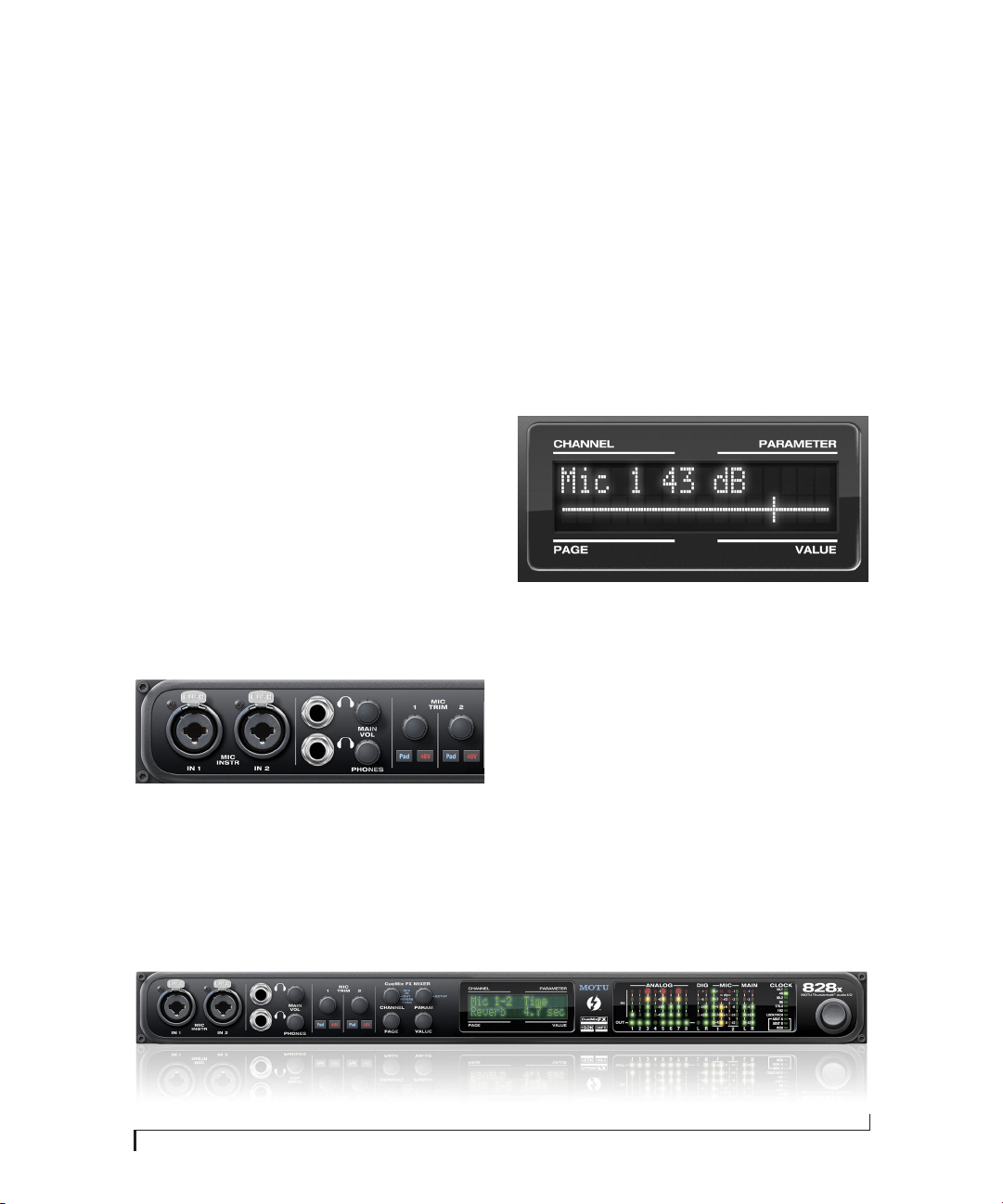
Connect a microphone, guitar, instrument or other
analog input to the front panel XLR/quarter-inch
combo jack with either a standard mic cable or a
balanced cable with a quarter-inch plug.
Figure 4-1: Mic/guitar inputs.
☛ Do not connect a +4 (line level) XLR cable to
the front-panel inputs (because of the preamps).
Use a rear-panel quarter-inch input instead.
Phantom power
If you are connecting a condenser microphone or
another device that requires phantom power,
engage the corresponding front-panel phantom
power switch.
Tr i m
Both the low-impedance XLR mic input and the
high-impedance quarter-inch guitar input are
equipped with 53 dB of digitally controlled analog
trim. Use the detented trim knobs to adjust the
input level as needed for each input. The LCD
provides visual feedback as you turn the trim knob.
Figure 4-3: The LCD gives you feedback as you turn the TRIM knobs for
the two mic/guitar inputs.
The 828x’s input trims are digitally controlled, so
they allow you to make fine-tuned adjustments in
approximately 1dB increments. You can also adjust
trim in the MOTU CueMix FX software. See “Input
trim” on page 73.
-20 dB pad
Each mic input (XLR jack) is equipped with a
-20 dB pad switch, to accommodate input signals
that could overdrive the input.
☛ The pad is not available for the TRS jack.
Figure 4-2: 828x front panel
INSTALLING THE 828X HARDWARE
24
Combo jack summary
Use these general guidelines for the 48V phantom
power, pad and trim settings on the two combo
input jacks:
Quarter-inch analog
The eight quarter-inch analog inputs and outputs
(Figure 4-4) are balanced (TRS) connectors that
can also accept an unbalanced plug.
The quarter-inch outputs are calibrated to produce
a +4 dBu line level output signal.
Quarter-inch analog input trims
The quarter-inch inputs are calibrated to
accommodate either +4 or -10 dBu signals and are
equipped with digitally controlled analog trims
that provide +22 dB of gain and -96 dB of cut. You
can use either the front panel LCD or the included
CueMix FX software to adjust the input trim. To
adjust these trims using CueMix FX, see “Input
trim” on page 73. To adjust the trims using the
front panel LCD:
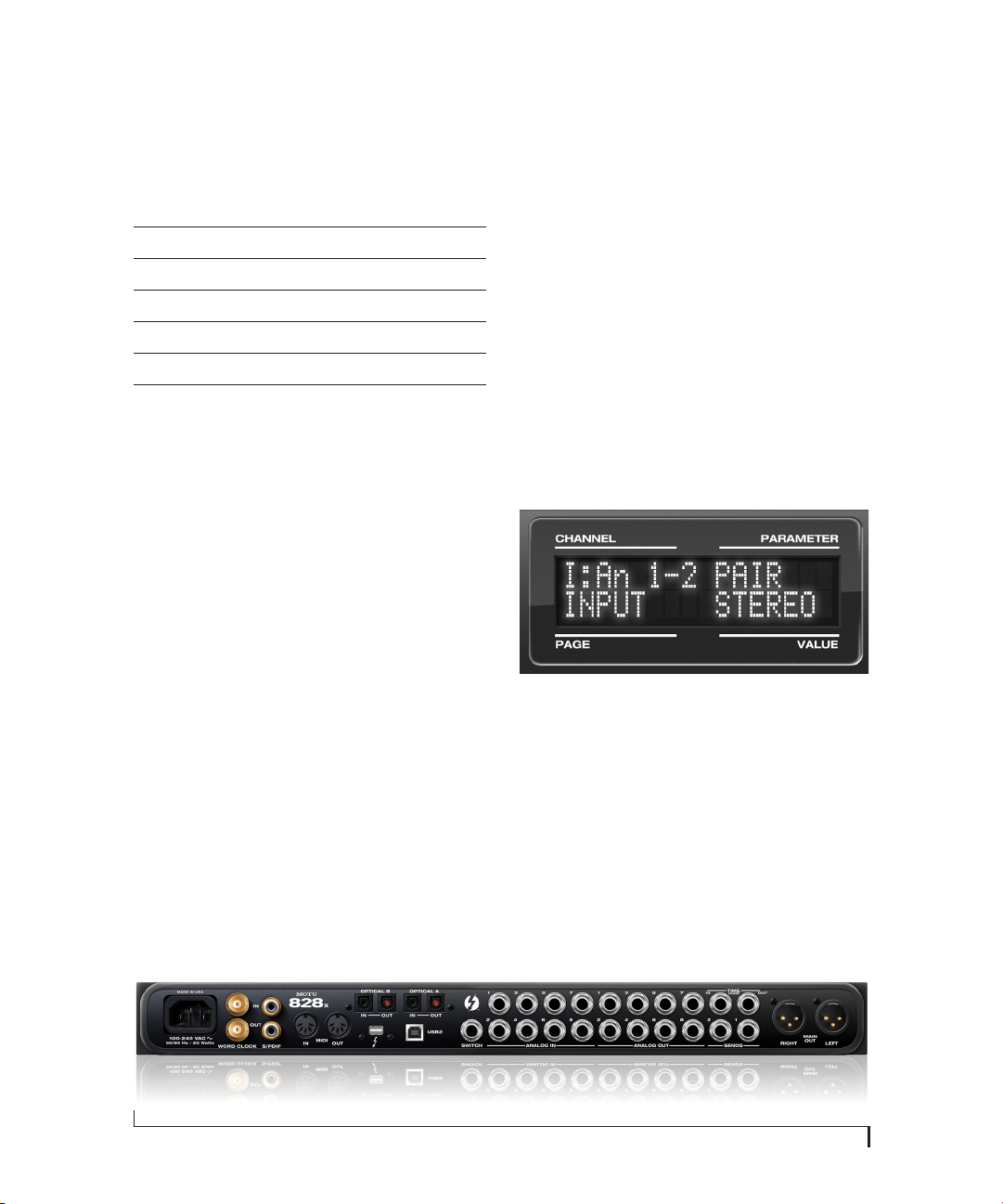
1 Push the CHANNEL knob repeatedly until you
see “I:” (which stands for Input) in the CHANNEL
section of the LCD (Figure 4-5).
2 Turn the CHANNEL KNOB until you see the
desired analog input or output pair. For example,
analog inputs 1-2 appear as “I:An 1-2”
(Figure 4-5), which means Input analog 1-2.
3 From the factory, analog inputs are grouped in
stereo pairs (1-2, 3-4, etc.) If you need to split a pair
to deal with it as two individual mono inputs, turn
the PARAMETER knob until you see PAIR in the
parameter section of the LCD (Figure 4-5). Turn
the VALUE knob to choose MONO. Then turn the
CHANNEL knob again to select the desired input
you are adjusting.
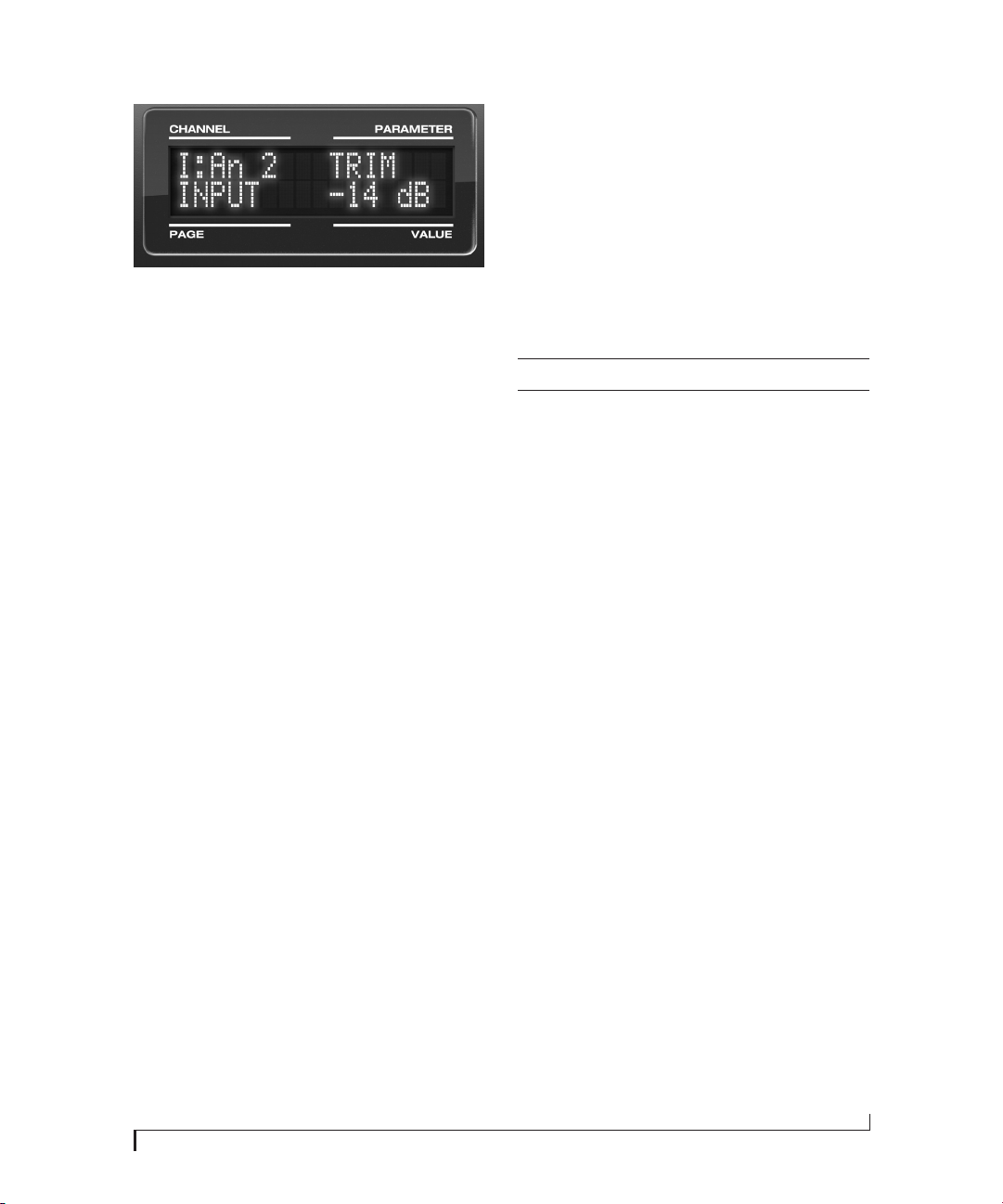
Figure 4-5: The settings for analog inputs 1 and 2 (as a pair).
4 After splitting the stereo pair, if necessary, turn
the PARAM knob until you see the TRIM
parameter in the LCD (Figure 4-6):
Input 48V Pad Trim
Condenser mic On As needed As needed
Dynamic mic Off As needed As needed
Guitar Off n/a As needed
-10 dB Line level via TRS Off n/a As needed
-10 dB Line level via XLR Off -20 dB +12dB
+4 dB line level (XLR only) Off -20 dB Zero
Figure 4-4: 828x back panel
INSTALLING THE 828X HARDWARE
25
Figure 4-6: Setting the input trim for a TRS analog input pair.
5 Turn the VALUE knob to adjust the trim.
Mic/guitar/instrument sends
Each front-panel XLR/TRS input has a
corresponding send on the rear panel (Figure 4-4).
The output from this send is the pre-amplified and
calibrated signal from the corresponding mic or
guitar input, which you can then route to any other
device, such as compressor, guitar amp, outboard
EQ, reverb unit, etc. Use any 828x input (analog or
digital) as a return back into the 828x. From there,
you will be able to route the signal anywhere in the
system, such as to the computer and/or to any
CueMix FX mix bus.
XLR main outs
The XLR main outputs serve as independent
outputs. From the factory, the main out volume is
controlled by the MAIN VOL knob on the front
panel, although this knob can be programmed to
control any combination of outputs. For details, see
“The Monitor Group” on page 89. In a standard
studio configuration, the main outs are intended
for a pair of studio monitors, but they can also be
used as additional outputs for any purpose.
Optical
The 828x rear panel provides two sets of ADAT
optical (“lightpipe”) connectors: Bank A and B
(Figure 4-4). Each bank provides an input and
output connector. All four connectors can operate
independently and offer two different optical
formats: ADAT optical or TOSLink (optical S/
PDIF). For example, you could connect 8-channel
ADAT optical input from your digital mixer and
stereo TOSLink output to an effects processor.
The 828x supplies +12dB of digital trim (boost) for
each optical input, which can be adjusted from
CueMix FX (“Input trim” on page 73) or the front
panel (“The IN (inputs) menu” on page 47).
Below is a summary of optical formats:
Optical operation at 44.1 or 48 kHz
When configured for ADAT “lightpipe”, an optical
connector provides 8 channels at 44.1 and 48 kHz.
ADAT optical operation at 88.2 or 96 kHz
When configured for ADAT “lightpipe”, an optical
connector provides four channels at 88.2 or 96 kHz
(2x sample rates). When using the ADAT lightpipe
format at a 2x rate, be sure to choose either Type I
or Type II operation, as explained in “ADAT SMUX
Type” on page 46.
Using optical I/O to operate the 828x as a
16-channel expander
When the 828x is not connected directly to a
computer via Thunderbolt or USB, the sixteen
optical output channels can be programmed (via
the CueMix FX mixer) to mirror the incoming
signal on any combination of the 828x’s inputs. By
connecting the 828x optical outputs to another
device, such as another ADAT-optical equipped
interface or a digital mixer, you add up to sixteen
additional inputs to your system (or eight inputs at
the 2x sample rates).
To learn how to program the 828x when it is
operating as a stand-alone expander in this
fashion, see chapter 6, “Front Panel Operation”
(page 43).
Format 44.1 or 48 kHz 88.2 or 96 kHz
ADAT optical 8 channels 4 channels
TOSLink stereo stereo
INSTALLING THE 828X HARDWARE
26
Choosing a clock source for optical connections
When connecting an optical device, make sure that
its digital audio clock is phase-locked (in sync
with) the 828x, as explained in “Making sync
connections” on page 30. There are two ways to do
this:
1. Resolve the optical device to the 828x
2. Resolve the 828x to the optical device
For 1), choose Internal (or any other clock source
except ADAT optical) as the clock source for the
828x in MOTU Audio Console.
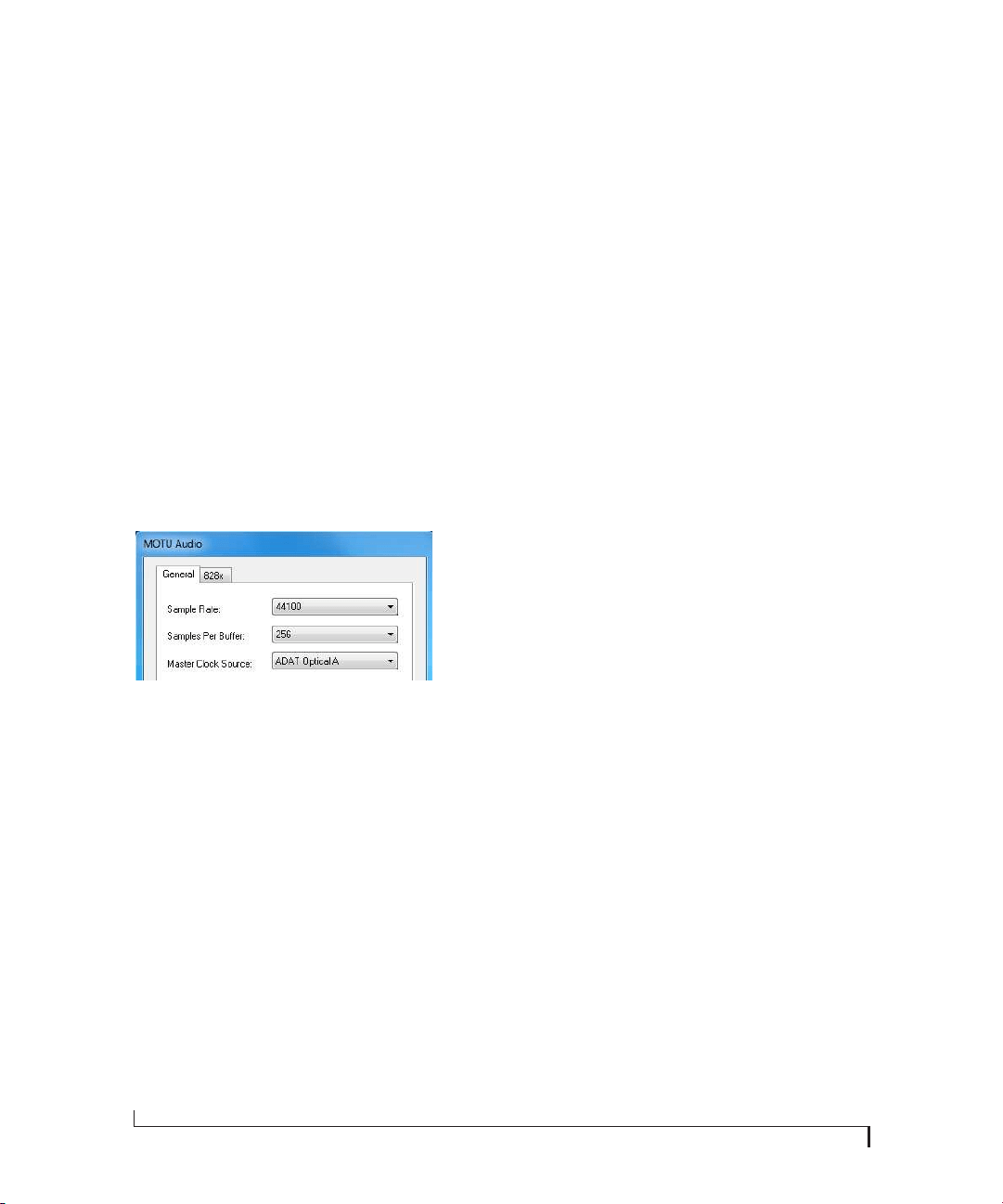
For 2), choose either ADAT Optical A or ADAT
Optical B as the 828x’s clock source (Figure 4-7). Be
sure to choose the optical port that the device is
connected to.
Figure 4-7: Resolving the 828x to an optical device.
For details about using the clock source setting and
the MOTU Audio Console software in general, see
chapter 5, “MOTU Audio Console” (page 37).
Using word clock to resolve optical devices
If the optical device you are connecting to the 828x
has word clock connectors on it, you can use them
to resolve the device to the 828x, similar to the
diagram shown in Figure 4-16 on page 32 for S/
PDIF devices with word clock. Also see “Syncing
word clock devices” on page 33.
S/PDIF
If you make a S/PDIF digital audio connection to
another device, be sure to review the digital audio
clocking issues, as explained in “Syncing S/PDIF
devices” on page 32.
The 828x supplies +12dB of digital trim (boost) for
the S/PDIF input pair, which can be adjusted from
CueMix FX (“Input trim” on page 73) or the front
panel (“The IN (inputs) menu” on page 47).
INSTALLING THE 828X HARDWARE
27
CONNECT MIDI GEAR
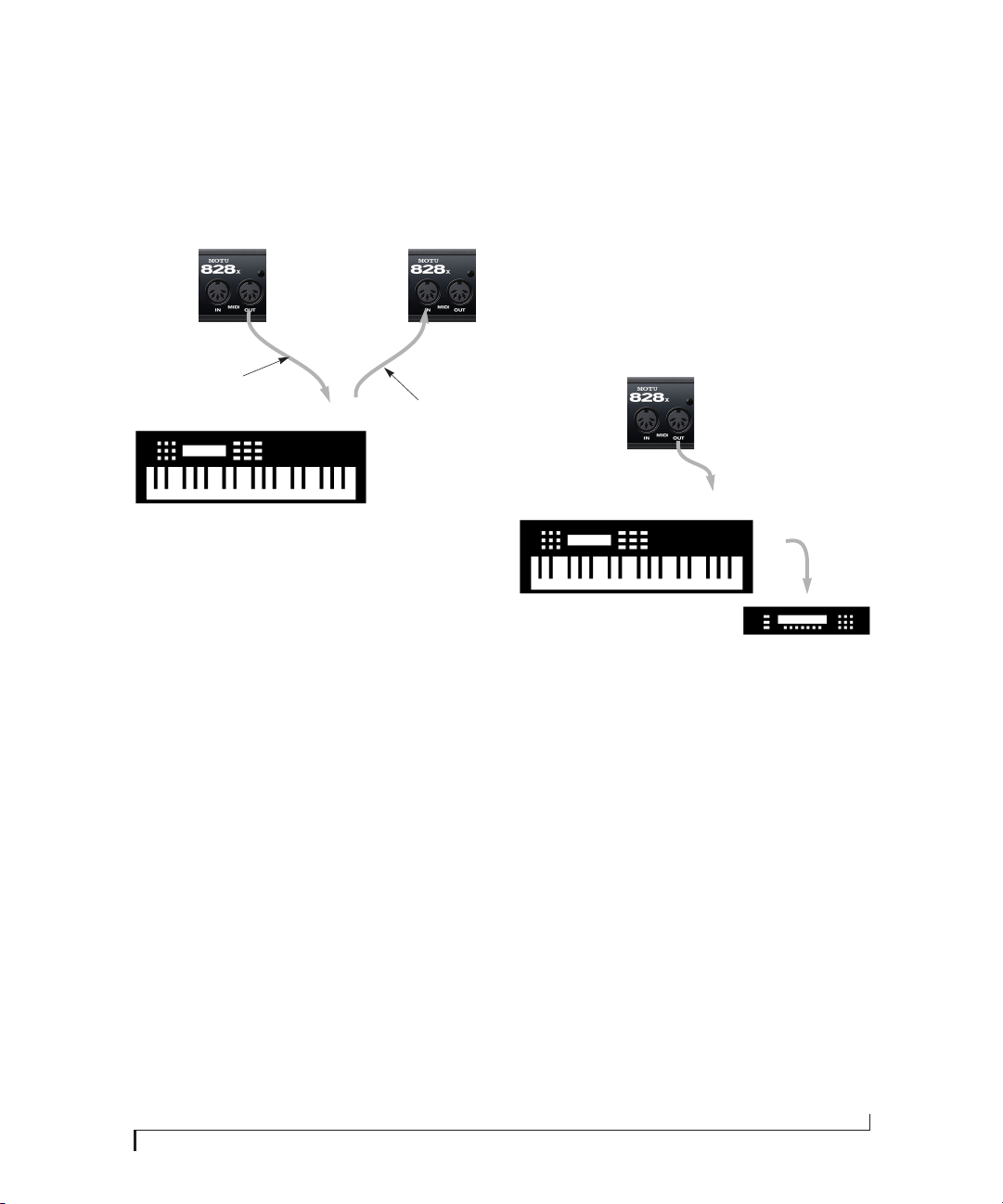
Connect your MIDI device’s MIDI IN jack to the
828x’s MIDI OUT jack (Connection A below).
Conversely, connect the MIDI device’s MIDI OUT
jack to the 828x’s MIDI IN jack (Connection B).
Figure 4-8: Connecting a MIDI device to the 828x.
One-way MIDI connections
MIDI devices that do not receive MIDI data, such
as a dedicated keyboard controller, guitar
controller, or drum pad, only need Connection B
shown in Figure 4-8. Similarly, devices that never
send data, such as a sound module, only need
Connection A. Make both connections for any
device that needs to both send and receive MIDI
data.
Connecting additional gear with MIDI THRUs
If you need to connect several pieces of MIDI gear,
run a MIDI cable from the MIDI THRU of a device
already connected to the 828x to the MIDI IN on
the additional device as shown below in Figure 4-9.
The two devices then share the 828x’s MIDI OUT
port. This means that they share the same set of 16
MIDI channels, too, so try to do this with devices
that listen to only one MIDI channel (such as
effects modules), which makes it easier to avoid
MIDI channel conflicts.
Figure 4-9: Connecting additional devices with MIDI THRU ports.
CONNECT A FOOT SWITCH
If you would like to use a foot switch with your
828x, connect it to the PUNCH IN/OUT jack. See
“Quick Reference: MOTU Audio Console” on
page 9 for information about how to program the
foot switch to trigger any computer keystroke you
wish.
828x
rear panel
MIDI Device
MIDI
cables
MIDI
IN
MIDI
OUT
MIDI
OUT
MIDI
IN
Connection A
Connection B
MIDI IN
MIDI
cable
MIDI Device
MIDI
IN
MIDI
THRU
MIDI
OUT
828x
rear panel
INSTALLING THE 828X HARDWARE
28
A TYPICAL 828X SETUP
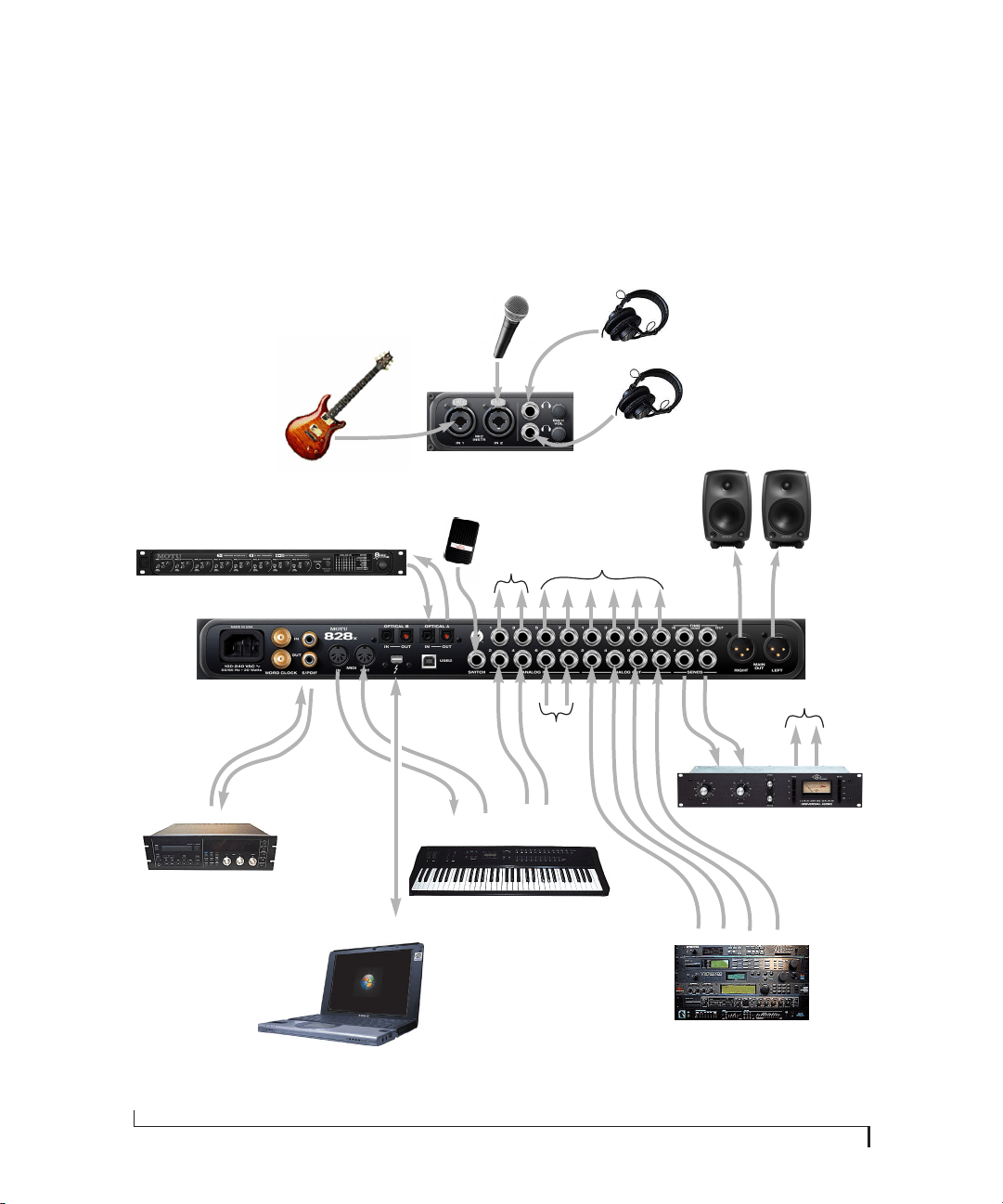
Here is a typical 828x studio setup. This rig can be
operated without an external mixer. All mixing and
processing can be done in the computer with audio
software. During recording, you can use the 828x’s
CueMix FX no-latency monitoring to listen to
what you are recording via the main outs,
headphone outs, or any other output pair. You can
control monitoring either from the front panel or
from the included CueMix FX software. The two
front-panel guitar/mic inputs can be routed to
outboard effects processors, such as a compressor,
EQ or reverb, via the rear panel sends.
PC
S/PDIF
DAT deck
quarter-inch
analog outs
synthesizer
Guitar
quarter-inch analog outs
synths, samplers, effects units, etc.
sends to
FX unit
(in rack
below)
Figure 4-10: A typical 828x studio setup.
Headphones
other outputs (stage
monitors, surround
monitors, etc.)
MIDI IN/OUT
foot
switch
828x front
panel
828x back
panel
Compressor, reverb or
other outboard gear
Thunderbolt or USB
MOTU 8pre and/or
other optical devices
8-channel
ADAT optical
send
returns
to send returns
Main
studio monitors
Mic 1
INSTALLING THE 828X HARDWARE
29
OPERATING THE 828X AS A CONVERTER
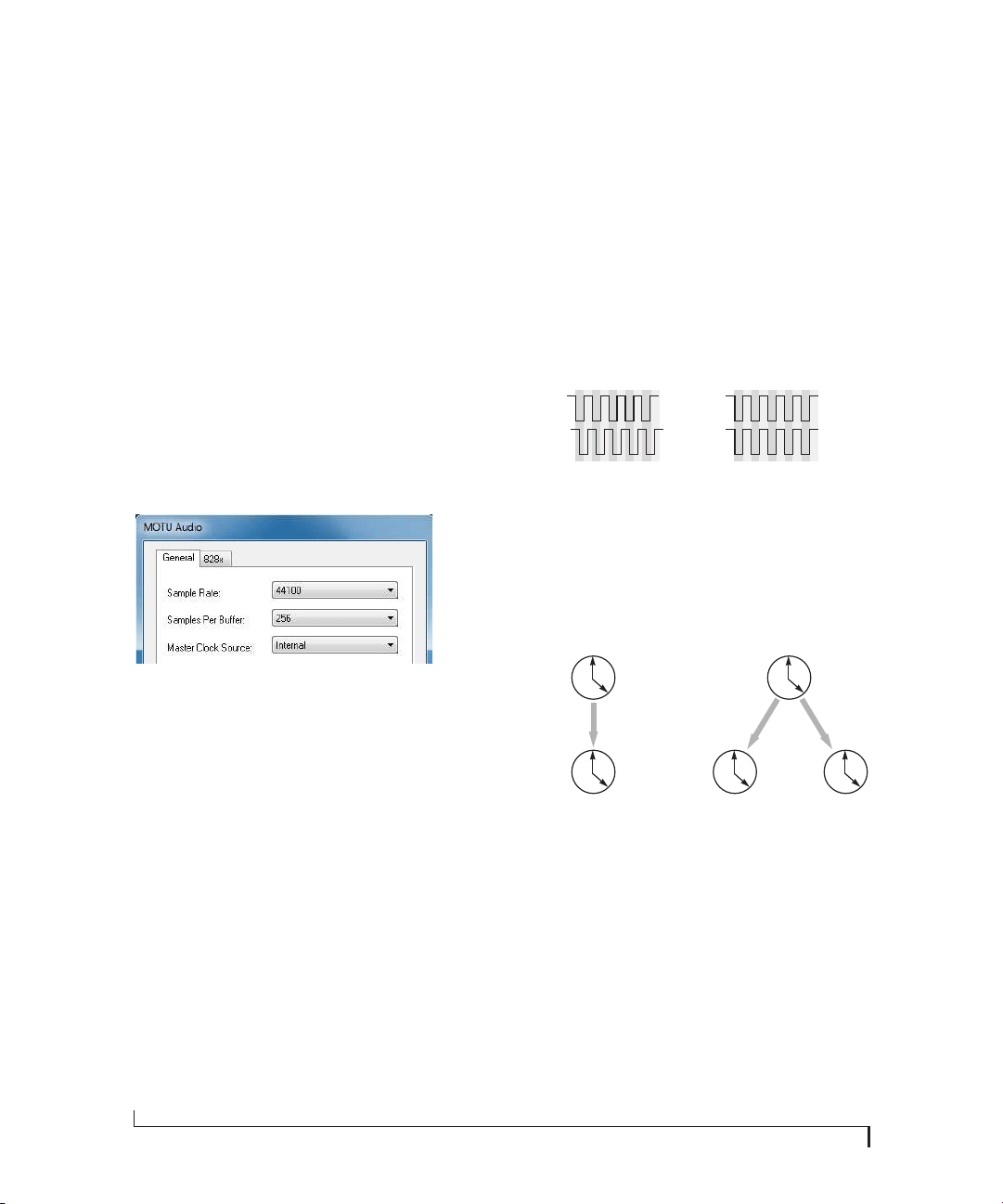
As explained earlier in “Using optical I/O to
operate the 828x as a 16-channel expander” on
page 25, the 828x can serve as a multi-channel
analog-to-digital converter when disconnected
from the computer and instead connected to
another device equipped with an ADAT optical
input. For example, you could connect the 828x
optical output to the optical input on another
MOTU audio interface, such as a Traveler, 896mk3
or even another 828x. The 828x then serves as a
multi-channel expander that adds additional mic,
analog TRS and digital inputs to the interface. The
benefit of connecting the 828x in this manner
(instead of as another interface) is that you can
seamlessly integrate the 828x’s inputs into the on-
board no-latency CueMix monitor mixing in the
interface, since the 828x’s inputs are fed into
CueMix via the interface’s optical inputs.
If the device to which you are connecting the 828x
supports 2x optical sample rates (88.2 or 96 kHz),
you can also use both banks of connectors as
discussed in “ADAT optical operation at 88.2 or 96
kHz” on page 25.
Expander
828x
ADAT optical Out
Figure 4-11: Using the 828x as an optical expander. In this example, it is connected to another 828x.
Thunderbolt or
Base
828x
PC
ADAT optical In
INSTALLING THE 828X HARDWARE
30
MAKING SYNC CONNECTIONS
If you connect devices digitally to the 828x, or if
you need to synchronize the 828x with an outside
time reference such as SMPTE timecode, you must
pay careful attention to the synchronization
connections and clock source issues discussed in
the next few sections.
Do you need to synchronize the 828x?
If you will be using only the 828x’s analog inputs
and outputs (and none of its digital I/O), and you
have no plans to synchronize your 828x system to
SMPTE timecode, you don’t need to make any sync
connections. You can skip this section and proceed
to “MOTU Audio Console” on page 37,where
you’ll open MOTU Audio Console to confirm that
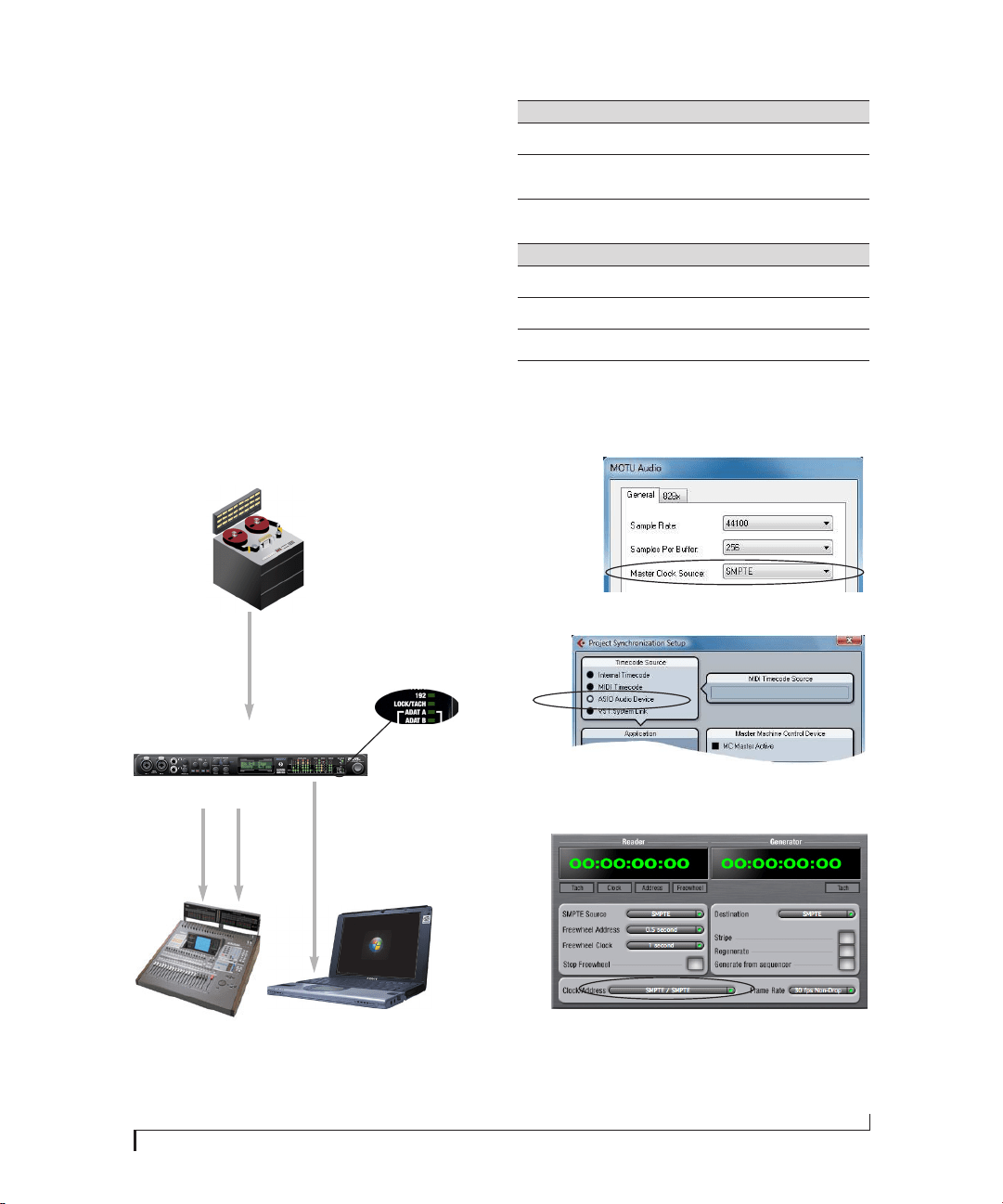
the Clock Source setting is Internal as shown below.
Figure 4-12: You can run the 828x under its own internal clock when it
has no digital audio connections and you are not synchronizing the
828x system to an external time reference such as timecode.
Situations that require synchronization
There are three general cases in which you will
need to resolve the 828x with other devices:
■ Synchronizing the 828x with other digital audio
devices so that their digital audio clocks are phase-
locked (as shown in Figure 4-13)
■ Resolving the 828x system to SMPTE timecode
from a video deck, analog multi-track, etc.
■ Both of the above
Synchronization is critical for clean digital I/O
Synchronization is critical in any audio system, but
it is especially important when you are transferring
audio between digital audio devices. Your success
in using the 828x’s digital I/O features depends
almost entirely on proper synchronization. The
following sections guide you through several
recommended scenarios.
Be sure to choose a digital audio clock master
When you transfer digital audio between two
devices, their audio clocks must be in phase with
one another — or phase-locked. Otherwise, you’ll
hear clicks, pops, and distortion in the audio — or
perhaps no audio at all.
Figure 4-13: When transferring audio, two devices must have phase-
locked audio clocks to prevent clicks, pops or other artifacts.
There are two ways to achieve phase lock: slave one
device to the other, or slave both devices to a third
master clock. If you have three or more digital
audio devices, you need to slave them all to a single
master audio clock.
Figure 4-14: To keep the 828x phased-locked with other digital audio
devices connected to it, choose a clock master.
Also remember that audio phase lock can be
achieved independently of timecode (location).
For example, one device can be the timecode
master while another is the audio clock master. But
only one device can be the audio clock master. If
you set things up with this rule in mind, you’ll have
trouble-free audio transfers with the 828x.
Not phase-locked Phase-locked
Device A
Device B
Master
Slave
Master
Slave Slave
INSTALLING THE 828X HARDWARE
31
SYNCING TO SMPTE TIMECODE
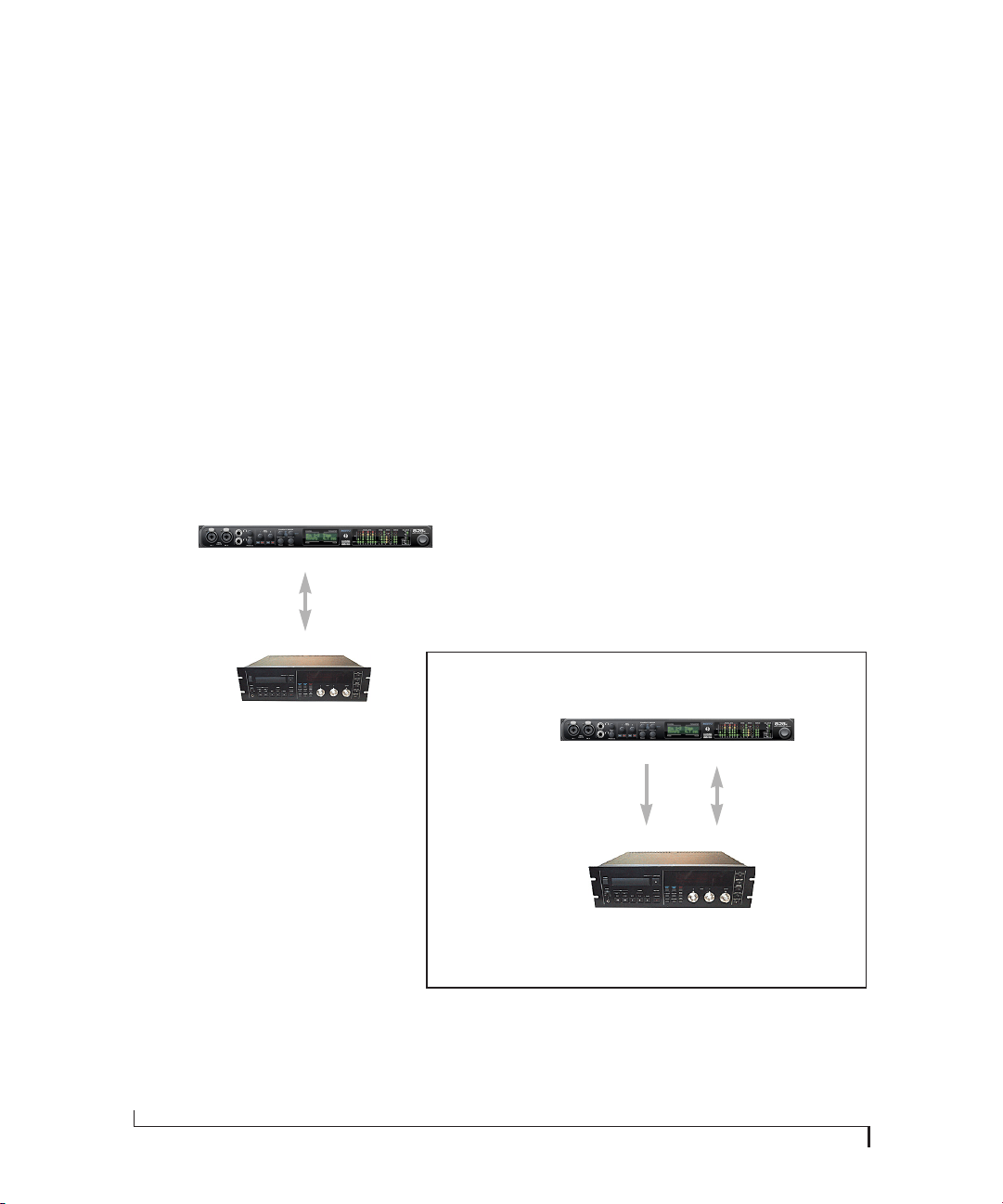
The 828x system can resolve directly to SMPTE
timecode. It can also generate timecode and word
clock, under its own clock or while slaving to
timecode. Therefore, the 828x can act both as an
audio interface and as a digital audio synchronizer
to which you can slave other digital audio devices.
You can use the 828x to slave your audio software
to SMPTE as well, via sample-accurate sync (if
your host software supports it).
Other digital audio device
slaved to the 828x
Figure 4-15: Connections for synchronizing
the 828x directly to SMPTE timecode.
Choose SMPTE as the clock source in MOTU
Audio Console. This setting can also be made
in the MOTU SMPTE Console (shown below).
SMPTE timecode
source
audio cable bearing LTC
(Longitudinal timecode)
Thunderbolt or USB cable
Launch the MOTU SMPTE Console and specify the SMPTE Source,
which is the interface receiving the SMPTE timecode. Also, confirm
that the Clock Source/Address is SMPTE/SMPTE. For details about the
other settings, see chapter 10, “MOTU SMPTE Console” (page 113).
video
cable
audio
cable
SMPTE
out
Word
Out
Windows computer running Cubase or
other sample-accurate ASIO software
In Cubase, go to the Synchronization window and
choose ASIO Audio Device as the Timecode Base.
828x interface
SMPTE IN
quarter-inch jack
When lockup is achieved, the
LOCK/TACH light glows.
Use this setup if you have:
✓ A SMPTE timecode source, such as a multitrack tape deck.
✓
An 828x by itself, OR with another slaved device (such as a dig-
ital mixer).
✓ Host software that supports sample-accurate sync (such as
Cubase or Nuendo).
This setup provides:
✓ Continuous sync to SMPTE timecode.
✓ Sub-frame timing accuracy.
✓ Transport control from the SMPTE timecode source.
INSTALLING THE 828X HARDWARE
32
SYNCING S/PDIF DEVICES
S/PDIF devices will sync to the 828x in one of two
ways:
■ Via the S/PDIF connection itself
■ Via word clock
S/PDIF devices with no word clock
If your S/PDIF device has no word clock sync
connectors, just connect it to the 828x via the
S/PDIF connectors. When the device records
S/PDIF audio (from the 828x), it will simply
synchronize to the clock provided by the audio
input.
On the other hand, when you transfer audio from
the S/PDIF device into the 828x, you’ll have to slave
the 828x to its S/PDIF input. If you have other
digital audio devices connected to the 828x, and
they are not slaved directly to the 828x itself, you
may hear clicks and pops resulting from their
unsynchronized audio clock. If so, just turn them
off during the transfer.
S/PDIF devices with word clock
If your S/PDIF device has a Word Clock input, slave
the S/PDIF device to the 828x via their word clock
connection. You can then freely transfer audio
between the 828x and the S/PDIF device.
S/PDIF
S/PDIF
DAT deck
or other S/PDIF device
828x
828x
Clock Source setting =
Internal (when transferring from the
828x to the S/PDIF device)
Figure 4-16: Two setups for synchronizing an S/PDIF device with the 828x. In the top diagram, sync is achieved via the S/PDIF connection itself.
In this case, you have to choose S/PDIF as the 828x’s clock source when recording from the S/PDIF device. If you don’t want to have to worry
about switching the Clock Source setting depending on the direction of the S/PDIF transfer, you can slave the S/PDIF device to word clock from
the 828x or vice versa (not shown). The Word Clock connection maintains sync, regardless of the direction of the transfer.
828x
Clock Source setting =
S/PDIF (when transferring from
the S/PDIF device to the 828x)
SPDIF
SPDIF
DAT deck
or other SPDIF device
828x
Word Clock Out
Word Clock In
828x
Clock Source setting = Internal
With this setup, in the MOTU Audio Console window, choose Internal, or any other
clock source setting except SPDIF. The DAT deck (or other SPDIF device) slaves to the
828x via word clock for SPDIF transfers in both directions.
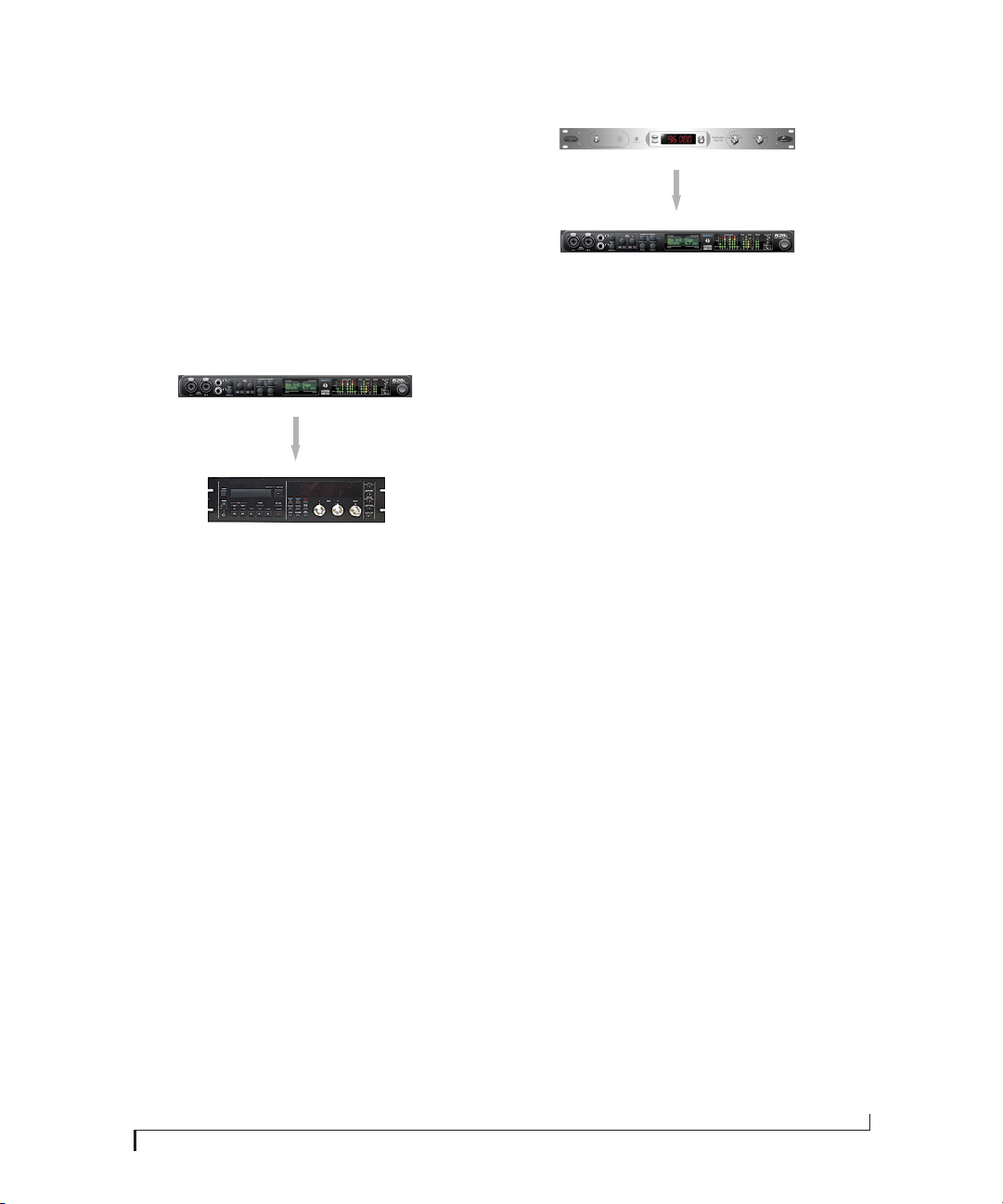
INSTALLING THE 828X HARDWARE
33
SYNCING WORD CLOCK DEVICES
The 828x word clock connectors allow you to
synchronize it with a wide variety of other word
clock-equipped devices.
For standard word clock sync, you need to choose
an audio clock master (as explained in “Be sure to
choose a digital audio clock master” on page 30).
In the simplest case, you have two devices and one
is the word clock master and the other is the slave
as shown below in Figure 4-17 and Figure 4-18.
Figure 4-17: Slaving another digital audio device to the 828x via
word clock. For the 828x clock source, choose any source besides
word clock, as it is not advisable to chain word clock.
Figure 4-18: Slaving the 828x to word clock. For the 828x clock source,
choose ‘Word Clock In’.
Don’t chain word clock
If you have three or more digital audio devices that
you need to synchronize, avoid chaining their word
clock connections (OUT to IN, OUT to IN, etc.), as
this causes problems. Instead, use a word clock
distribution device of some kind.
Forcing a 1x word out rate
The 828x can generate a word clock output signal
that either matches the current system clock rate
(any rate between 44.1 and 192kHz) or the
corresponding 1x rate. For example, if the 828x is
operating at 192kHz, you can choose to generate a
word out rate of 48kHz. For details on how to make
this word clock output setting, see “Word Out” on
page 42.
Master
Slave
Word clock OUT
Word clock IN
Other device
828x
Audio
clock
Master
Slave
Word clock master device
Word clock OUT
Word clock IN
828x

INSTALLING THE 828X HARDWARE
34

Part 2
Using the 828x


CHAPTER
37
5 MOTU Audio Console
OVERVIEW
MOTU Audio Console gives you access to basic
828x hardware settings, such as sample rate, clock
source, optical format and more.
Accessing the 828x settings . . . . . . . . . . . . . . . . . . . . . . . . . 37
‘General’ tab settings . . . . . . . . . . . . . . . . . . . . . . . . . . . . . . . . 38
Sample Rate . . . . . . . . . . . . . . . . . . . . . . . . . . . . . . . . . . . . . . . . . 38
Master Clock Source . . . . . . . . . . . . . . . . . . . . . . . . . . . . . . . . . 38
Samples Per Buffer. . . . . . . . . . . . . . . . . . . . . . . . . . . . . . . . . . . 40
Use stereo pairs for Windows audio. . . . . . . . . . . . . . . . . . 41
Use WaveRT for Windows audio . . . . . . . . . . . . . . . . . . . . . 41
Enable Pedal. . . . . . . . . . . . . . . . . . . . . . . . . . . . . . . . . . . . . . . . . 41
828x tab settings . . . . . . . . . . . . . . . . . . . . . . . . . . . . . . . . . . . . 41
Phones Assign . . . . . . . . . . . . . . . . . . . . . . . . . . . . . . . . . . . . . . . 41
Optical input/output. . . . . . . . . . . . . . . . . . . . . . . . . . . . . . . . . 41
Main Out Assign . . . . . . . . . . . . . . . . . . . . . . . . . . . . . . . . . . . . . 41
Return Assign. . . . . . . . . . . . . . . . . . . . . . . . . . . . . . . . . . . . . . . . 41
ACCESSING THE 828X SETTINGS
There are several ways to access 828x settings:
■ Open MOTU Audio Console from the Windows
Start menu > Programs > MOTU.
■ From within your host audio software’s audio
driver preferences. For example, in Cubase or
Nuendo, open the Device Setup window, click VST
Audio System and choose MOTU Audio ASIO from
the ASIO Driver menu. Then click the MOTU
Audio ASIO item in the list and click the Control
Panel button.
☛ Most applications provide access only to basic
settings such as sample rate and clock source. For
access to all settings, open MOTU Audio Console
using one of the techniques above.
General tab settings
The General tab (Figure 5-1) provides settings that
apply to all connected MOTU audio interfaces.
828x tab settings
The 828x tab (Figure 5-1) provides settings that
apply to a specific 828x interface. If you have
several 828x (or other MOTU) interfaces
connected, you’ll see a separate tab for each one.
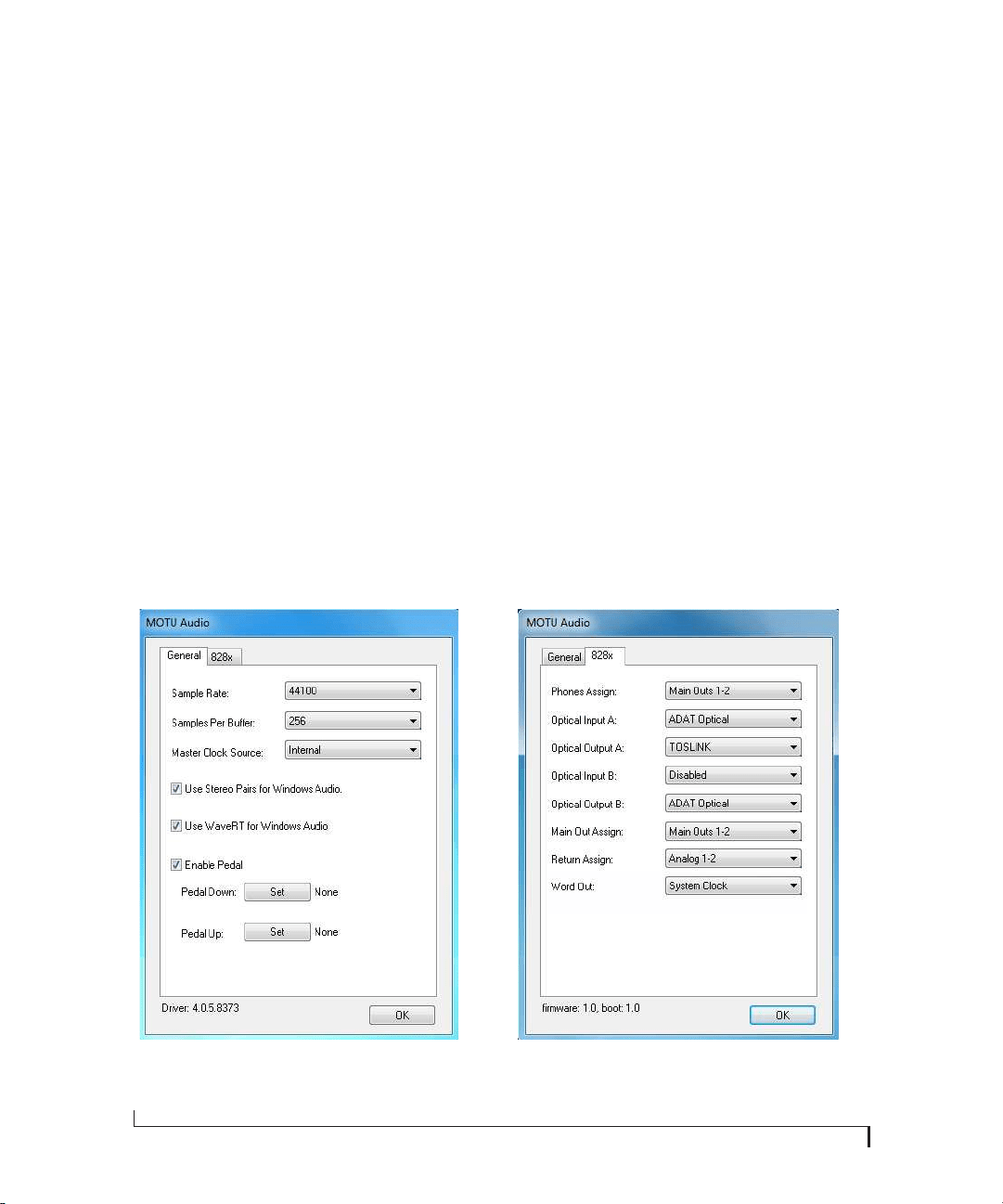
MOTU AUDIO CONSOLE
38
‘GENERAL’ TAB SETTINGS
Sample Rate
Choose the desired Sample Rate for recording and
playback. The 828x can operate at 44.1 (the
standard rate for compact disc audio), 48, 88.2, 96,
176.4 or 192KHz. If you are operating at a sample
rate between 44.1 and 96kHz, make absolutely sure
that all of the devices connected digitally to the
828x’s optical connectors match the 828x’s sample
rate. At the 4x sample rates (176.4 or 192kHz),
optical I/O is disabled.
☛ Mismatched sample rates cause distortion and
crackling. If you hear this sort of thing, check the
sample rate settings in your hardware and here in
MOTU Audio Console.
Operation at 4x sample rates (176.4 or 192kHz)
At the 4x sample rates (176.4 or 192kHz),
operation of the 828x is restricted, due to the
higher audio bandwidth demands, as follows:
■ All digital I/O is disabled (there is no ADAT
optical, TOSLink or S/PDIF input/output).
■ The 828x provides 8 channels of analog input
and 8 channels of analog output, simultaneously.
■ The stereo return bus, as described in “Return
Assign” on page 41, can only be assigned to one of
the four available analog output pairs.
■ The headphone output can only be assigned to
one of the four available analog output pairs.
■ The Main Outs can only be assigned to one of
the four available analog output pairs.
Master Clock Source
The Master Clock Source determines the digital
audio clock that the 828x will use as its time base.
For a complete explanation of synchronization
issues, see “Making sync connections” on page 30.
The following sections briefly discuss each clock
source setting.
Figure 5-1: MOTU Audio Console gives you access to all of the settings in the 828x hardware.

MOTU AUDIO CONSOLE
39
Internal
Use the Internal setting when you want the 828x to
operate under its own digital audio clock. For
example, you may be in a situation where all you
are doing is playing tracks off hard disk in your
digital audio software on the computer. In a
situation like this, you most often don’t need to
reference an external clock of any kind.
Another example is transferring a mix to DAT. You
can operate the 828x system on its internal clock,
and then slave the DAT deck to the 828x via the S/
PDIF connection (usually DAT decks slave to their
S/DIF input when you choose the S/PDIF input as
their record source) or via the 828x’s word clock
output (if your DAT deck has a word clock input).
If you would like help determining if this is the
proper clock setting for your situation, see
“Making sync connections” on page 30.
Word C l o c k I n
The Word Cl ock In setting refers to the Word Clock
In BNC connector on the 828x rear panel.
Choosing this setting allows the 828x to slave to an
external word clock source, such as the word clock
output from a digital mixer.
S/PDIF
The S/PDIF clock source setting refers to the
S/PDIF RCA input jack on the 828x. This setting
allows the 828x to slave to another S/PDIF device.
Use this setting whenever you are recording input
from a DAT deck or other S/PDIF device into the
828x. It is not necessary in the opposite direction
(when you are transferring from the 828x to the
DAT machine).
For further details about this setting, see “Syncing
S/PDIF devices” on page 32.
ADAT Optical A / B
The ADAT optical clock source settings (ADAT
Optical A and ADAT Optical B) refer to the clock
provided by the 828x’s two optical inputs, when
either one is connected to another optical device.
These two settings only appear in the Master Clock
Source menu when their corresponding optical
bank input is enabled and set to the ADAT Optical
format, as explained in “Optical input/output” on
page 41.
This setting can be used to resolve the 828x directly
to the optical input connection. Most of the time,
you can set up a better operating scenario that uses
one of the other synchronization options.
However, there may be occasions when you have an
optical device that has no way of synchronizing
digitally to the 828x or an external synchronizer. In
this case, the ADAT Optical clock source setting lets
you slave the 828x to the device itself via its digital
input to the 828x.
This setting is also useful if you just need to make a
simple, click-free digital transfer between the 828x
and another device — where a time code reference
and shared transport control are not needed —
without having to set up an elaborate synchroni-
zation scenario.
For further details, see “Choosing a clock source
for optical connections” on page 26.
TOSLink A / B
The TOSLink clock source settings (TOSLink A and
TOSLink B) refer to the clock provided by the
828x’s two optical inputs, when either one is
connected to another optical device. These two
settings only appear in the Master Clock Source
menu when their corresponding optical bank input
is enabled and set to the TOSLink format, as
explained in “Optical input/output” on page 41.

MOTU AUDIO CONSOLE
40
The TOSLink clock source setting refers to the
clock provided by an optical S/PDIF device
connected to the 828x’s optical input. This setting
can be used to slave the 828x directly to the optical
input connection. Most of the time, you can set up
a better operating scenario that uses one of the
other synchronization options. However, there
may be occasions when you have a TOSLink-
compatible device that has no way of
synchronizing digitally to the 828x or an external
synchronizer. In this case, the TOSLink clock
source setting lets you slave the 828x to the other
device via the 828x’s optical input.
This setting is also useful if you just need to make a
simple, click-free digital transfer between the 828x
and another device — where a time code reference
and shared transport control are not needed —
without having to set up an elaborate synchroni-
zation scenario.
For further details, see “Choosing a clock source
for optical connections” on page 26.
SMPTE
Choose this setting to resolve the 828x directly to
SMPTE time code (LTC) being received via one of
the 828x’s audio inputs. For details, see “Setting up
for SMPTE time code sync” on page 115 and
chapter 10, “MOTU SMPTE Console” (page 113).
Samples Per Buffer
The Samples Per Buffer setting lets you reduce the
delay you hear when patching live audio through
your audio software. For example, you might have
a live guitar input that you would like to run
through an amp simulation plug-in that you are
running in your host audio software. When doing
so, you may hear or feel some “sponginess” (delay)
between the source and the processed signal. If so,
don’t worry. This effect only affects what you hear:
it is not present in what is actually recorded.
Yo u c a n u s e Samples Per Buffer setting to reduce
this monitoring delay—and even make it
completely inaudible.
☛ If you don’t need to process an incoming live
signal with software plug-ins, you can monitor the
signal with no delay at all using CueMix FX, which
routes the signal directly to your speakers via
hardware. For details, see chapter 9, “CueMix FX”
(page 67).
Adjusting the Samples Per Buffer setting impacts
the following things:
■ The strain on your computer’s CPU
■ The delay you hear when routing a live signal
through your host audio software plug-ins
■ How responsive the transport controls are in
your software
This setting presents you with a trade-off between
the processing power of your computer and the
delay of live audio as it is being processed by
plug-ins. If you reduce the Samples Per Buffer, you
reduce patch thru latency, but significantly increase
the overall processing load on your computer,
leaving less CPU bandwidth for things like real-
time effects processing. On the other hand, if you
increase the Samples Per Buffer, you reduce the load
on your computer, freeing up bandwidth for
effects, mixing and other real-time operations. But
don’t set the Samples Per Buffer too low, or it may
cause distortion in your audio.
If you don’t process live inputs with software
plug-ins, leave this setting at its default value of
1024 samples. If you do, try settings of 256 samples
or less, if your computer seems to be able to handle
them. If your host audio software has a processor
meter, check it. If it starts getting maxed out, or if
the computer seems sluggish, raise the Samples Per
Buffer until performance returns to normal.

MOTU AUDIO CONSOLE
41
If you are at a point in your recording project where
you are not currently working with live, patched-
thru material (e.g. you’re not recording vocals), or
if you have a way of externally monitoring input,
choose a higher Samples Per Buffer setting.
Depending on your computer’s CPU speed, you
might find that settings in the middle work best.
The Samples Per Buffer setting also impacts how
quickly your audio software will respond when you
begin playback, although not by amounts that are
very noticeable. Lowering the Samples Per Buffer
will make your software respond faster; raising the
Samples Per Buffer will make it a little bit slower, but
barely enough to notice.
Monitoring live inputs without plug-in effects
As mentioned earlier, CueMix FX allows you to
monitor dry, unprocessed live inputs with no delay
at all. For complete details, see chapter 8,
“Reducing Monitoring Latency” (page 61).
Use stereo pairs for Windows audio
Some legacy Windows audio applications require
audio channels to be grouped in stereo pairs. If you
are using old Windows audio software, and you are
having issues accessing 828x channels from within
the software, try enabling the Use Stereo Pairs for
Windows Audio option.
Use WaveRT for Windows audio
If your host software supports WaveRT, enable this
option. Consult your host application
documentation for details.
Enable Pedal
Check the Enable Pedal option if a foot switch is
connected to the 828x and you would like to trigger
recording punch in/out (or other software
functions) with it. Use the Set buttons to determine
what keystroke is triggered by the pedal-up and
pedal-down positions. You can assign the pedal to
any two keystrokes you wish. (You are not
restricted to punch in/out.)
828X TAB SETTINGS
Phones Assign
The Phones Assign setting lets you choose what you
will hear from the headphone jack. Choose Main
Out 1-2 if you’d like the headphone output to match
the main outs. Choose Phones 1-2 if you would like
the headphones to serve as their own independent
output, which you can access as an independent
output destination in your host audio software and
as an output destination for the four on-board
CueMix FX mix busses.
Optical input/output
The Optical input and Optical output settings let
you choose between 8-channel ADAT optical
(‘lightpipe’) and stereo S/PDIF optical
(‘TOSLINK’) as the format for the 828x’s optical
input and output. Choose the format that matches
the device connected. If you are not using the
optical connections, it is recommended that you
turn them off (by choosing Disabled from the
menu) to reduce bandwidth and processing
overhead. Note that you can operate each optical
port independently. For example, you could use the
ADAT optical format on the input (for a digital
mixer) and optical S/PDIF on the output (for a
DAT deck).
Main Out Assign
Choose Main Outs from the Main Out Assign menu
to treat the Main Outs as their own independent
output pair. Choose any other output pair to cause
the MAIN OUT jacks to mirror (duplicate) the
output pair you choose.
Return Assign
The Return Assign menu lets you choose any pair of
828x audio outputs. The audio signal from this
output pair is then sent back to the computer via
the Stereo Return 1-2 bus. This stereo return bus
from the 828x appears in your host software
alongside all other 828x inputs, wherever your host
software lists them.

MOTU AUDIO CONSOLE
42
The 828x stereo return bus can be used for a variety
of purposes. For example, you could use it to send
a final mix being played through the 828x back to
the computer, where you could record it for
mastering or archiving purposes.
As another example, you could use the stereo
return bus to capture tracks played from your host
software, along with live inputs being routed
directly through the 828x hardware via CueMix FX
(with or without CueMix effects processing on the
live inputs).
Word Out
The Word Out menu appears when the 828x is
operating at a 2x sample rate (88.2 or 96kHz) or 4x
sample rate (176.4 or 192kHz). This menu lets you
set the word clock output either to match the
current sample rate (System Clock) or force it to the
corresponding 1x rate (either 44.1 or 48kHz). For
example, if the 828x were operating at 176.4kHz,
choosing the Force 44.1/48kHz option would
produce word clock output at 44.1kHz.
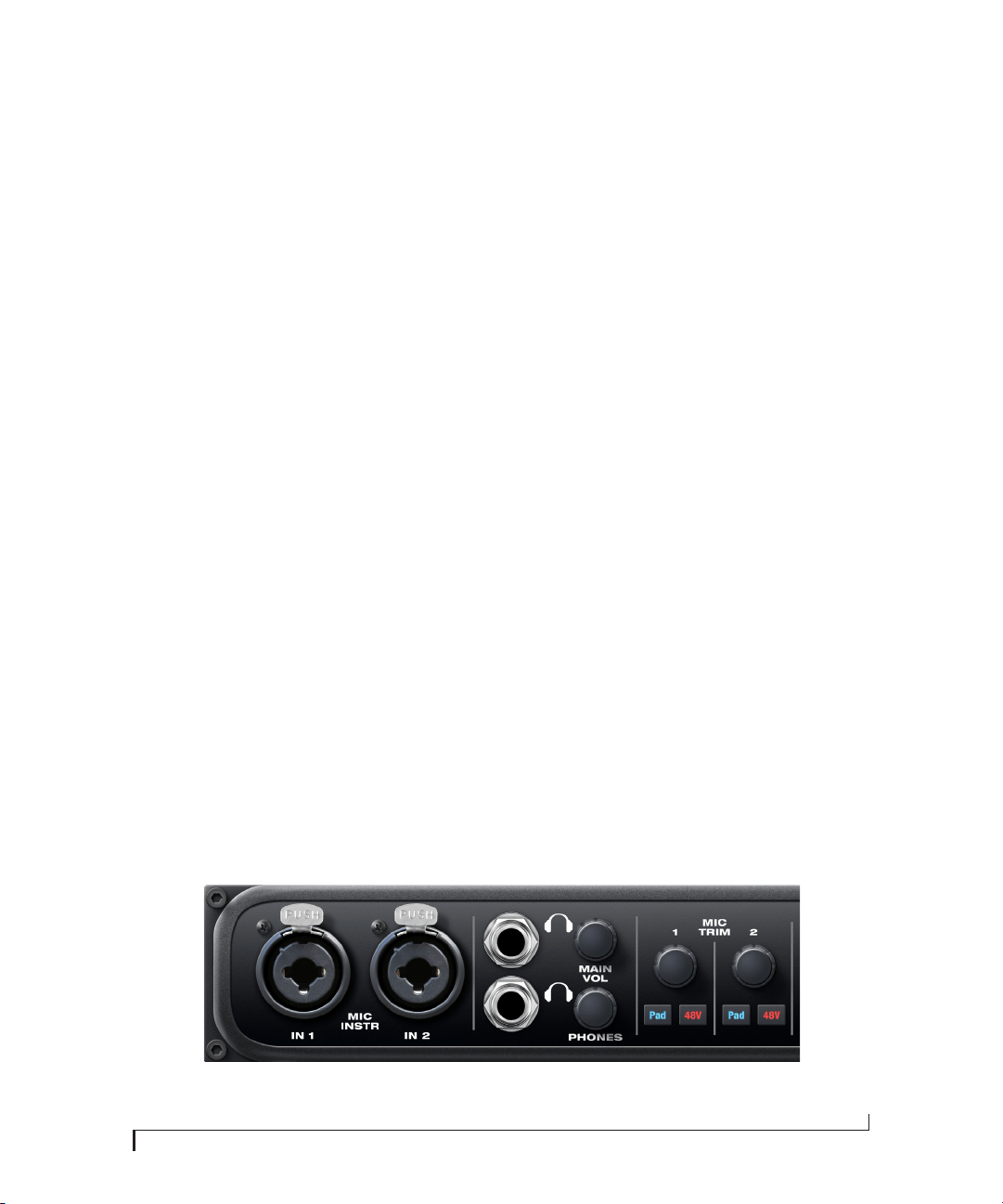
CHAPTER
43
6 Front Panel Operation
OVERVIEW
The 828x offers complete front-panel
programming via six rotary encoders and a 2x16
backlit LCD display. All 828x settings can be
accessed via these front-panel controls.
Mic/guitar inputs . . . . . . . . . . . . . . . . . . . . . . . . . . . . . . . . . . . . 43
MAIN VOLUME. . . . . . . . . . . . . . . . . . . . . . . . . . . . . . . . . . . . . . . 43
Phones. . . . . . . . . . . . . . . . . . . . . . . . . . . . . . . . . . . . . . . . . . . . . . . 44
Meters and status LEDs . . . . . . . . . . . . . . . . . . . . . . . . . . . . . . 44
Push-button rotary encoders . . . . . . . . . . . . . . . . . . . . . . . . 45
Multi-function LCD display . . . . . . . . . . . . . . . . . . . . . . . . . . 45
828x SETUP menu . . . . . . . . . . . . . . . . . . . . . . . . . . . . . . . . . . . 46
Audio menu . . . . . . . . . . . . . . . . . . . . . . . . . . . . . . . . . . . . . . . . . 46
CueMix menu. . . . . . . . . . . . . . . . . . . . . . . . . . . . . . . . . . . . . . . . 47
Inputs menu . . . . . . . . . . . . . . . . . . . . . . . . . . . . . . . . . . . . . . . . . 50
Outputs menu . . . . . . . . . . . . . . . . . . . . . . . . . . . . . . . . . . . . . . . 50
Mixes menu. . . . . . . . . . . . . . . . . . . . . . . . . . . . . . . . . . . . . . . . . . 51
Reverb menu . . . . . . . . . . . . . . . . . . . . . . . . . . . . . . . . . . . . . . . . 51
Stand-alone operation. . . . . . . . . . . . . . . . . . . . . . . . . . . . . . . 51
MIC/GUITAR INPUTS
The 828x front panel mic/guitar inputs are
equipped with many features to handle a wide
variety of recording situations.
For information about connections and settings,
see “Mic/guitar inputs with preamps” on page 23
in the installation chapter.
For information about the many settings available
for the mic/guitar inputs, see:
■ “The Inputs tab” on page 72
■ “The Channel Settings section” on page 76
■ “The Channel tab” on page 76
■ “The EQ tab” on page 78
■ “The Dynamics tab” on page 84
MAIN VOLUME
The phone jack next to the MAIN VOL knob
(Figure 6-1) is a standard quarter-inch stereo
headphone jack. Its output is hard-wired to mirror
the XLR main outs on the rear panel. From the
factory, the MAIN VOL knob above it controls the
main outs and this jack, but MAIN VOL can be
programmed to control any combination of
outputs. See “The Monitor Group” on page 89 for
details. Push the knob once to view the current
volume setting in the LCD display; push it again to
mute the monitor group; push a third time to
return to the previous volume. Note that if the
Monitor Group is programmed to not include the
main outs, the MAIN VOL knob will no longer
control the volume of the phone jack, either.
Figure 6-1: The 828x front panel mic/guitar inputs and phone jacks.
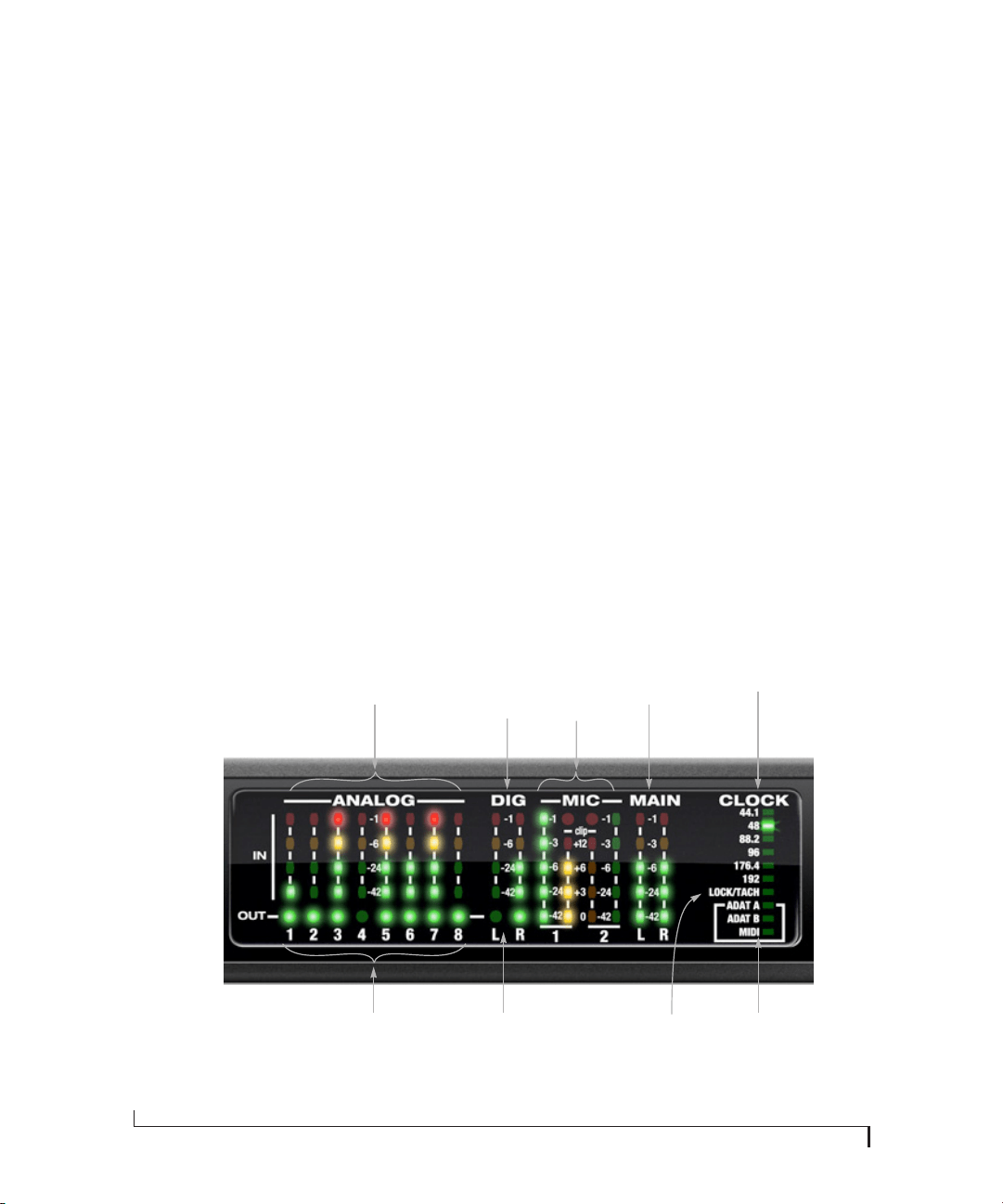
FRONT PANEL OPERATION
44
PHONES
From the factory, the PHONES jack (Figure 6-1) is
a discrete output at 44.1/48 kHz, but it can mirror
any other output pair (digital or analog) or serve as
its own independent output. For example, at 88.2/
96 kHz, it defaults to mirroring the XLR main outs.
As the primary phone jack, it has its own dedicated
volume knob.
As explained in the previous section, the LCD
provides detailed feedback as you turn the knob
(Figure 6-4). To view the current setting without
changing it, just push the knob (without turning
it).
If you would like the MAIN VOL phone jack and
the PHONES jack to output the same signal, assign
the PHONES output to mirror the main outs.
METERS AND STATUS LEDS
The meters and LEDs (Figure 6-2) provide
complete status and metering information for all
828x inputs and outputs.
Mic/guitar inputs meters with V-Limit™
compressor
The two ten-segment meters for the mic/guitar
inputs show input levels from -42 to -1 in the first
column of LEDs, plus an additional range in a
second column from zero to +12 dB (plus clip).
Both inputs are equipped with V-Limit™, a
hardware limiter. With the limiter turned off,
signals that hit zero or above will clip (a hard digital
clip). However, with V-Limit turned on, signals can
go as high as +12 dB above zero with no digital
clipping. If the signal then goes above +12 dB, it
will clip, even with V-Limit engaged. In either case,
the clip LED (above +12) will illuminate. For
further information about V-Limit, as well as
another feature called Soft Clip, see “Overload
protection (mic/guitar inputs only)” on page 77.
Figure 6-2: The 828x front panel meters and LEDs.
S/PDIF
digital
input
meters
Analog output activity LEDs Optical bank and
MIDI I/O activity
Mic/guitar
preamp
inputs with
V-Limit™
Main
out
meters
Sample
rate
Time code
Lock/Tach
S/PDIF
output
activity
LEDs
Analog
input
meters
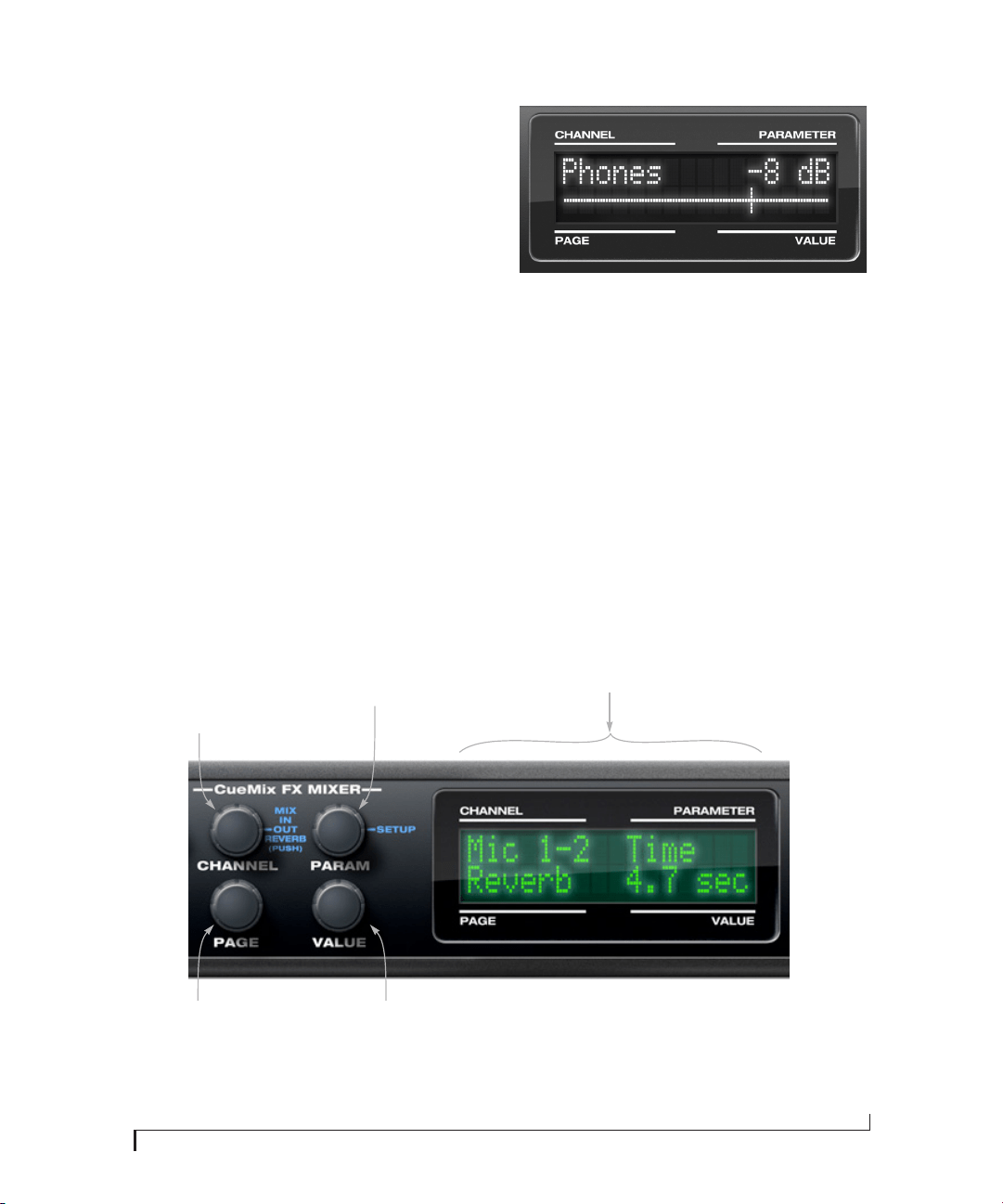
FRONT PANEL OPERATION
45
PUSH-BUTTON ROTARY ENCODERS
All of the knobs shown in Figure 6-3 are push-
button digital rotary encoders. In many cases, you
can either push the knob or turn it to make a
setting or toggle the LCD display (depending on
the encoder and setting).
MULTI-FUNCTION LCD DISPLAY
The LCD provides access to the many 828x
settings, as well as visual feedback of the current
parameter being modified.
Parameter “zooming”
For many settings, the LCD temporarily “zooms
in” to display a long-throw meter and an alpha-
numeric display to give you precise, real-time
feedback as you adjust the setting. For example, if
you change the headphone volume, the LCD will
display a level meter and gain reduction reading
that updates as you turn the volume knob. After a
brief time-out, the display returns to its previous
state before you turned the volume knob.
Figure 6-4: The LCD provides feedback as you adjust volume.
Three global menus
Push the PARAM knob to cycle the LCD among
three global menus, described in the rest of this
chapter:
■ 828x SETUP
■ AUDIO (settings)
■ CUEMIX (mixer)
Figure 6-3: The 828x front panel controls.
The LCD is divided into four
sections that correspond to the
four knobs to the left.
Push the PARAM knob to cycle
among three global menus:
CueMix (mixer), AUDIO
(settings) and 828x SETUP.
When viewing CueMix settings
in the LCD, push the CHANNEL
knob to cycle among four main
mixer menus: MIX, IN (inputs),
OUT (outputs) and REVERB.
Turn it to choose a channel.
Turn the PAGE knob to view settings for
each channel. Push it to jump to the
next section or back to the beginning.
Turn and/or push the
VALUE knob to adjust
the current setting.
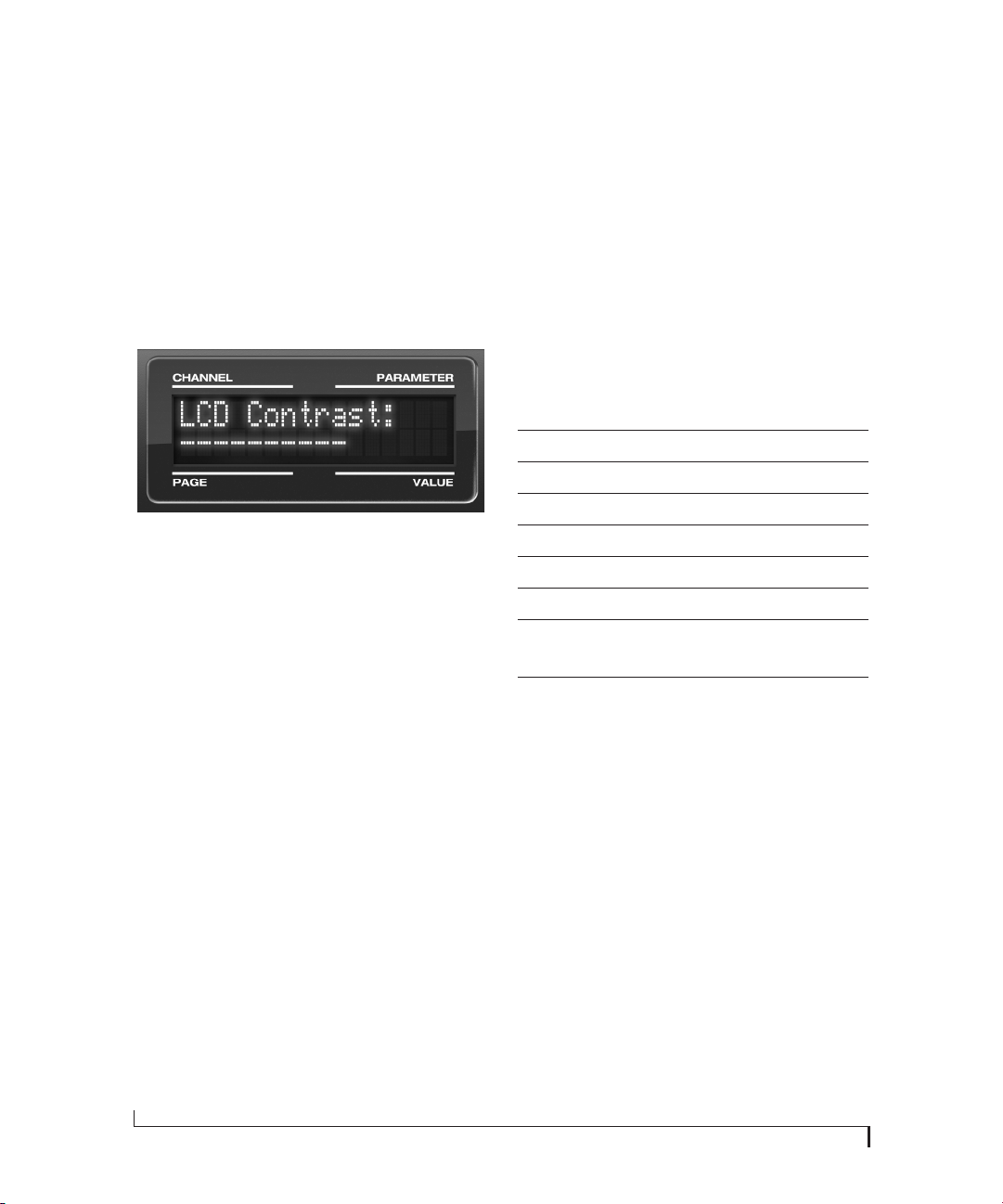
FRONT PANEL OPERATION
46
828X SETUP MENU
To access the 828x SETUP menu, push the PARAM
knob until you see 828x SETUP displayed in the
LCD. This menu provides basic features for
managing the 828x hardware. Turn the PARAM
knob to access each setting, explained briefly
below.
LCD Contrast
Turn the VALUE knob to adjust the LCD contrast.
Figure 6-5: In setup mode, the LCD displays a setup parameter in the
top row of the LCD and the current setting in the bottom row.
Save/Name Preset
An 828x preset holds all current CueMix FX mix
settings (everything in the CUEMIX menu).
SETUP menu and AUDIO menu parameters are
not included. Turn the VALUE knob to move from
character to character in the preset name. Turn
PAGE to change the currently flashing letter. Once
you’ve named the preset, push VALUE to save it,
turn it again to choose the desired preset slot you
wish to save it to (1-16), and the push again to
confirm the save. To cancel the save operation at
any time, turn the PARAM knob.
Load Preset
Turn VALUE to choose the preset you wish to load
(1-16) and push VALUE to load it.
All Notes Off
The All Notes Off setting sends a MIDI All Notes Off
message, as well as a MIDI note-off message for
every note on every MIDI channel. This stops any
stuck notes that are currently playing. Push VALUE
to send the All Notes Off MIDI data.
Factory Defaults
Push VALUE to restore the 828x hardware to its
factory default settings. Push VALUE again to
confirm, or turn PARAM to cancel.
AUDIO MENU
To access the AUDIO menu, push the PARAM
knob until you see AU D I O displayed in the LCD.
This menu provides basic settings such as sample
rate, clock source, optical bank format (ADAT
versus TOSLink), and so on. These settings have
corresponding settings in the MOTU Audio
Console software, as shown below:
* If the 828x is currently connected to a computer, this setting cannot
be changed from the front-panel LCD. It must be changed in MOTU
Audio Console instead. Or, you can disconnect the 828x from the
computer to change the Clock Source from the front panel.
ADAT SMUX Type
When the 828x is operating at either 88.2 or
96 kHz, the AUDIO menu includes an item called
ADAT SMUX Type.
This setting lets you configure the optical ports for
ADAT format operation at the 2x sample rates only
(88.2 or 96 kHz).
There are two choices:
■ Type I — for 2x optical connection to 3rd-party
SMUX-compatible hardware products
Audio menu item Where to find more information
Clock Source* “Master Clock Source” on page 38
Sample rate* “Sample Rate” on page 38
Phones Assign “Phones Assign” on page 41
Main Out Assign “Main Out Assign” on page 41
Return Assign “Return Assign” on page 41
Optical In/Out A/B* “Optical input/output” on page 41
ADAT SMUX Type See below. This menu item is only
available when the 828x is operating at
88.2 or 96 kHz.
Word Clock Out “Word Out” on page 42
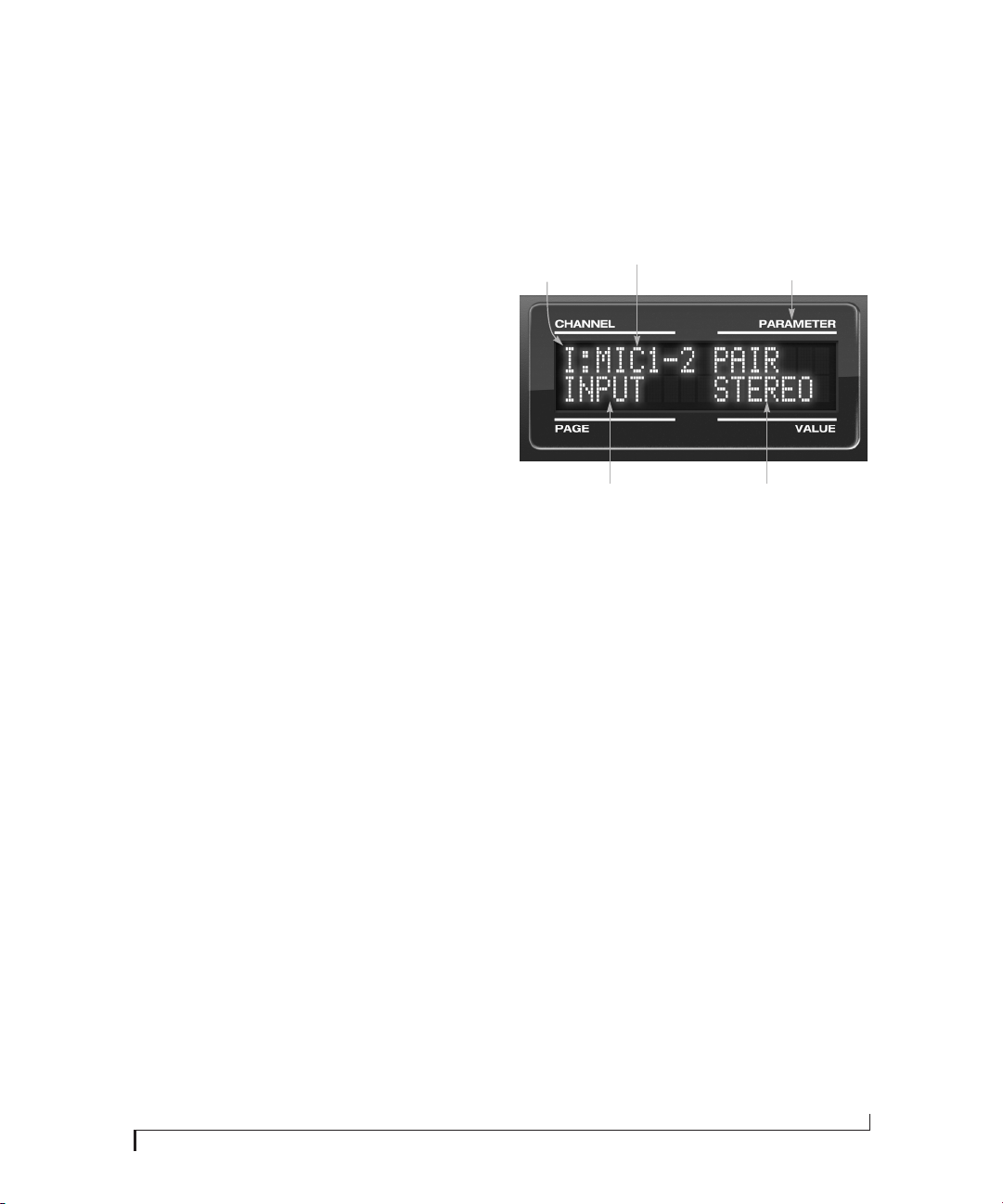
FRONT PANEL OPERATION
47
■ Type II — for 2x optical connection to MOTU
products that are equipped with optical ports and
support 2x operation
Turn the VALUE knob to select an optical port and
push the knob to toggle between the Type I and
Type II setting.
CUEMIX MENU
To access the CUEMIX menu, push the PARAM
knob until you see CUEMIX displayed in the LCD.
This menu displays the settings for the 828x
CueMix FX mixer.
CueMix mixer basics
It is much easier to navigate the CUEMIX menu in
the LCD if you have a general understanding of the
CueMix FX mixer. We strongly recommend that
you review chapter 9, “CueMix FX” (page 67)
before learning the LCD, especially “CueMix FX
basic operation” on page 68.
CUEMIX menu organization
Mixer settings are divided into four sub-menus,
which correspond to the Inputs, Mixes, Outputs
and Reverb tabs in the CueMix FX software:
■ IN (inputs)
■ OUT (outputs)
■ MIX (Mixes)
■ REVERB (reverb processor)
Navigating the four main menus
To access the four main menus above, push the
CHANNEL knob repeatedly. Then turn the
CHANNEL knob to select the desired channel or
mix.
The IN (inputs) menu
Push the CHANNEL button repeatedly until you
see “I:” in the channel section of the LCD
(Figure 6-6). This is similar to accessing the Inputs
tab in CueMix FX (“The Inputs tab” on page 72).
Figure 6-6: The IN (inputs) menu.
Choosing a channel
Once you see the Inputs menu (Figure 6-6) in the
LCD, turn the CHANNEL knob to select the
desired input that you wish to edit. This is roughly
equivalent to specifying an input channel strip to
work with in the Inputs tab in CueMix FX software
(Figure 9-3 on page 72).
Choosing a setting to modify
Once you’ve selected an input channel, you can
access the various settings for that channel using
the PAGE and PARAMETER knobs.
Turn the PAGE knob to scroll through channel
settings such as individual bands of EQ, the
compressor, reverb sends, etc. Push the PAGE knob
to jump to the next “section” of parameters or to
jump back to the beginning of the list. This is
roughly the equivalent of moving through the
various channel controls in an individual input
channel strip in CueMix FX (Figure 9-3 on
page 72), as well as the settings in the Channel tab
(Figure 9-8 on page 76).
“ I: ” Indicates
the IN (inputs)
menu.
The current
channel.
“Pages” are groups of
channel settings, such
as one band of EQ.
Access individual parameters
here, such as the frequency
setting for a band of EQ.
Change the value of the
current parameter here
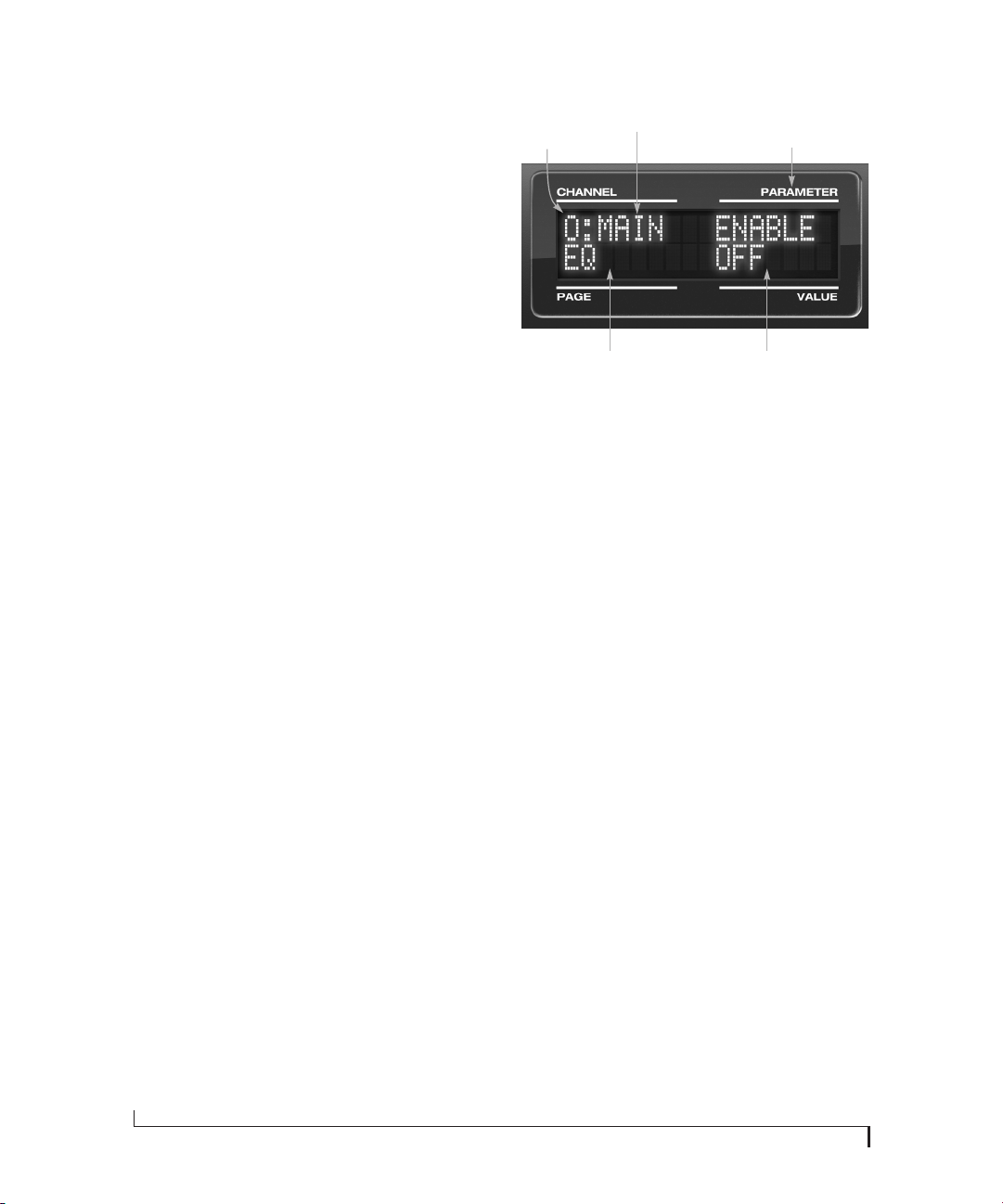
FRONT PANEL OPERATION
48
Turn the PARAMETER knob to scroll through
individual parameters, such as the frequency for
the current band of EQ. This is roughly equivalent
to the parameters in the EQ tab (Figure 9-10 on
page 78), Dynamics tab (Figure 9-21 on page 84)
and Reverb tab (Figure 9-23 on page 87) in the
CueMix FX software.
Adjusting the value of a parameter
Turn the VALUE knob to adjust the value of the
current PARAMETER. Some parameters have
default values. If so, push the VALUE knob to cycle
through them.
Inactive items
If a menu item is inactive for some reason (perhaps
it doesn’t currently apply or it is disabled), it is
displayed in parentheses.
Copying and pasting
EQ, dynamics and Mix Assign settings allow you to
copy and paste settings between EQ bands and/or
channels. Push the VALUE knob to copy, scroll to
the other item and then push again to paste.
Summary of Inputs menu settings
For a summary of Inputs menu settings, see
“Inputs menu” on page 50.
The OUT (Outputs) menu
Push the CHANNEL button repeatedly until you
see “O:” in the channel section of the LCD
(Figure 6-7). This is similar to accessing the
Outputs tab in CueMix FX (“The Outputs tab” on
page 74).
Figure 6-7: The OUT (outputs) menu.
Choosing a channel
Once you see the Outputs menu (Figure 6-7) in the
LCD, turn the CHANNEL knob to select the
desired output that you wish to edit. This is roughly
equivalent to specifying an output channel strip to
work with in the Outputs tab in CueMix FX
software (Figure 9-6 on page 75).
Working with outputs in the LCD
Once you’ve selected an output channel, you can
access the various settings for that channel using
the PAGE and PARAMETER knobs. The knobs
function the same as described for inputs in
“Choosing a setting to modify” on page 47 and
“Adjusting the value of a parameter” on page 48.
Summary of Output menu settings
For a summary of Inputs menu settings, see
“Outputs menu” on page 50.
“ O: ” Indicates
the OUT
(outputs) menu.
The current
channel.
“Pages” are groups of
channel settings, such
as one band of EQ.
Access individual parameters
here, such as the frequency
setting for a band of EQ.
Change the value of the
current parameter here
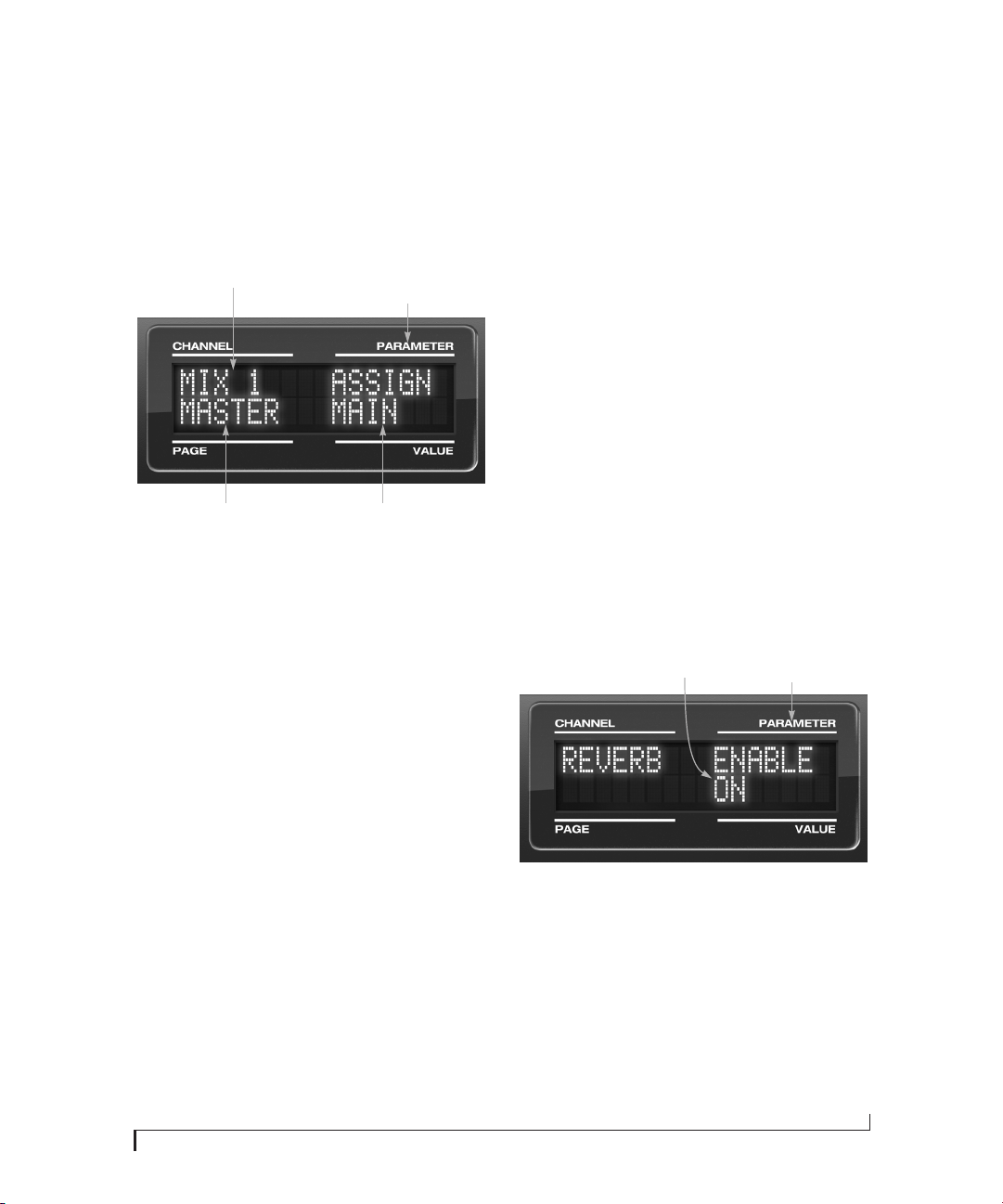
FRONT PANEL OPERATION
49
The MIX (Mixes) menu
Push the CHANNEL button repeatedly until you
see “MIX 1” (or “MIX 2”, etc.) in the channel
section of the LCD (Figure 6-8). This is similar to
accessing the Mixes tab in CueMix FX (“The Mixes
tab” on page 70).
Figure 6-8: The MIX (Mixes) menu.
Choosing a mix bus
Once you see the MIX menu (Figure 6-8) in the
LCD, turn the CHANNEL knob to select the
desired mix that you wish to edit. This is roughly
equivalent to choosing a mix in the Mixes tab in
CueMix FX software (Figure 9-2 on page 70).
Working with mix busses in the LCD
Once you’ve selected a mix, you can access the
various settings for that mix using the PAGE and
PARAMETER knobs. The knobs function the
same as described for inputs in “Choosing a setting
to modify” on page 47 and “Adjusting the value of a
parameter” on page 48. The PAGE knob scrolls
through the following mix bus settings:
■ MASTER — these are master fader settings,
such as the master fader output assignment, master
mute on/off, and the master fader volume. Access
them with the PARAMETER knob.
■ REVERB — these are the reverb send and return
controls for the bus master fader. Access them with
the PARAMETER knob.
■ Individual channels — once you scroll past
MASTER and REVERB, the PAGE knob then
scrolls through all available inputs for the mix bus.
Once you choose an input, access its channel
settings using the PARAM and VALUE knobs.
Summary of Mix menu settings
For a summary of Mix menu settings, see “Mixes
menu” on page 51.
The REVERB menu
Push the CHANNEL button repeatedly until you
see “REVERB” in the channel section of the LCD
(Figure 6-9). This is similar to accessing the Reverb
tab in CueMix FX (“The Reverb tab” on page 87).
☛ The REVERB processor is not available at
sample rates above 48 kHz. Therefore, when the
828x is operating at 88.2 kHz or higher, the
REVERB menu does not appear in the LCD.
Figure 6-9: The REVERB menu.
Working with reverb settings in the LCD
Once you’ve selected the REVERB menu, you can
access all settings using the PARAMETER and
VALUE knobs. The PAGE knob is not needed and
is therefore disabled when editing reverb settings.
Summary of Reverb menu settings
For a summary of Reverb menu settings, see
“Reverb menu” on page 51.
The current
mix bus.
Here, choose master fader
settings, reverb settings, and
individual input channels.
Access individual parameters
here, such as input channel
settings.
Change the value of the
current parameter here
Access individual
parameters here,
such as reverb time.
Change the value of
the current parame-
ter here.
FRONT PANEL OPERATION
50
INPUTS MENU OUTPUTS MENU
CHANNEL PAGE PARAM
INPUTS
mic 1-2
Analog 1-2
Analog 3-4
etc.
INPUT PAIR
PHASE
L-R/M-S (stereo or M/S)
SWAP
WIDTH
TRIM
PAD
PHANTOM
LIMITER
LOOKAHEAD
SOFTCLIP
EQ
(global)
ENABLE
COPY
PASTE
RESET
HPF
(High-pass)
ENABLE
SLOPE
FREQ
LF
(Low w/shelf)
ENABLE
TYPE
FREQ
GAIN
WIDTH
LMF
(Low-mid)
ENABLE
TYPE
FREQ
GAIN
WIDTH
MF
(Mid)
ENABLE
TYPE
FREQ
GAIN
WIDTH
HMF
(High-mid)
ENABLE
TYPE
FREQ
GAIN
WIDTH
HF
(High w/shelf)
ENABLE
TYPE
FREQ
GAIN
WIDTH
LPF
(Low-pass)
ENABLE
SLOPE
FREQ
DYN
(Dynamics)
ENABLE
COPY
PASTE
RESET
COMP
(Compressor)
ENABLE
MODE
THRESH
RATIO
ATTACK
RELEASE
TRIM
LEVELER ENABLE
MODE
REDUCE
MAKEUP
REVERB SEND
SEND PAN (mono only)
Mic
only
CHANNEL PAGE PARAM
OUTPUTS
Main
Analog 1-2
Analog 3-4, etc.
EQ
(global)
ENABLE
COPY
PASTE
RESET
HPF
(High-pass)
ENABLE
SLOPE
FREQ
LF
(Low w/shelf)
ENABLE
TYPE
FREQ
GAIN
WIDTH
LMF
(Low-mid)
ENABLE
TYPE
FREQ
GAIN
WIDTH
MF
(Mid)
ENABLE
TYPE
FREQ
GAIN
WIDTH
HMF
(High-mid)
ENABLE
TYPE
FREQ
GAIN
WIDTH
HF
(High w/shelf)
ENABLE
TYPE
FREQ
GAIN
WIDTH
LPF
(Low-pass)
ENABLE
SLOPE
FREQ
DYN
(Dynamics)
ENABLE
COPY
PASTE
RESET
COMP
(Compressor)
ENABLE
MODE
THRESH
RATIO
ATTACK
RELEASE
TRIM
LEVELER ENABLE
MODE
REDUCE
MAKEUP
REVERB SEND
RETURN
MASTER MONITOR
TALKBACK
LSNBACK

FRONT PANEL OPERATION
51
MIXES MENU
REVERB MENU
STAND-ALONE OPERATION
All settings, including all mix settings and global
settings, are saved in the 828x’s memory, and they
remain in effect even when the 828x is not
connected to a computer. This allows you to use the
828x as a stand-alone 8-bus mixer. You can make
adjustments to any setting at any time from the
front panel.
CHANNEL PAGE PARAM
MIXES
Mix 1
Mix 2
etc.
MASTER ASSIGN
MUTE
FADER
COPY
PASTE
RESET
REVERB SEND
RETURN
MIC 1
MIC 2
(if mono)
MUTE
SOLO
(BAL/WID) - n/a
PAN
FADER
MIC 1-2
(if stereo)
MUTE
SOLO
BAL/WID
WIDTH
FADER
ANALOG 1
ANALOG 2
etc.
(if mono)
MUTE
SOLO
(BAL/WID) - n/a
PAN
FADER
ANALOG 3-4
ANALOG 5-6
etc.
(if stereo)
MUTE
SOLO
BAL/WID
BAL
FADER
SPDIF MUTE
SOLO
BAL/WID
BAL
FADER
ADAT A1-2
ADAT A3-4
etc.
MUTE
SOLO
BALD/WID
BAL
FADER
ADAT B1-2
ADAT B3-4
etc.
MUTE
SOLO
BALD/WID
BAL
FADER
CHANNEL PAGE PARAM
REVERB --- ENABLE
TIME
PREDELAY
WIDTH
CUT Hz
CUT dB
ROOM
REFSIZE
REF LEV
LO %
MID %
HI %
LO XOVR
HI XOVR
SPLIT

FRONT PANEL OPERATION
52
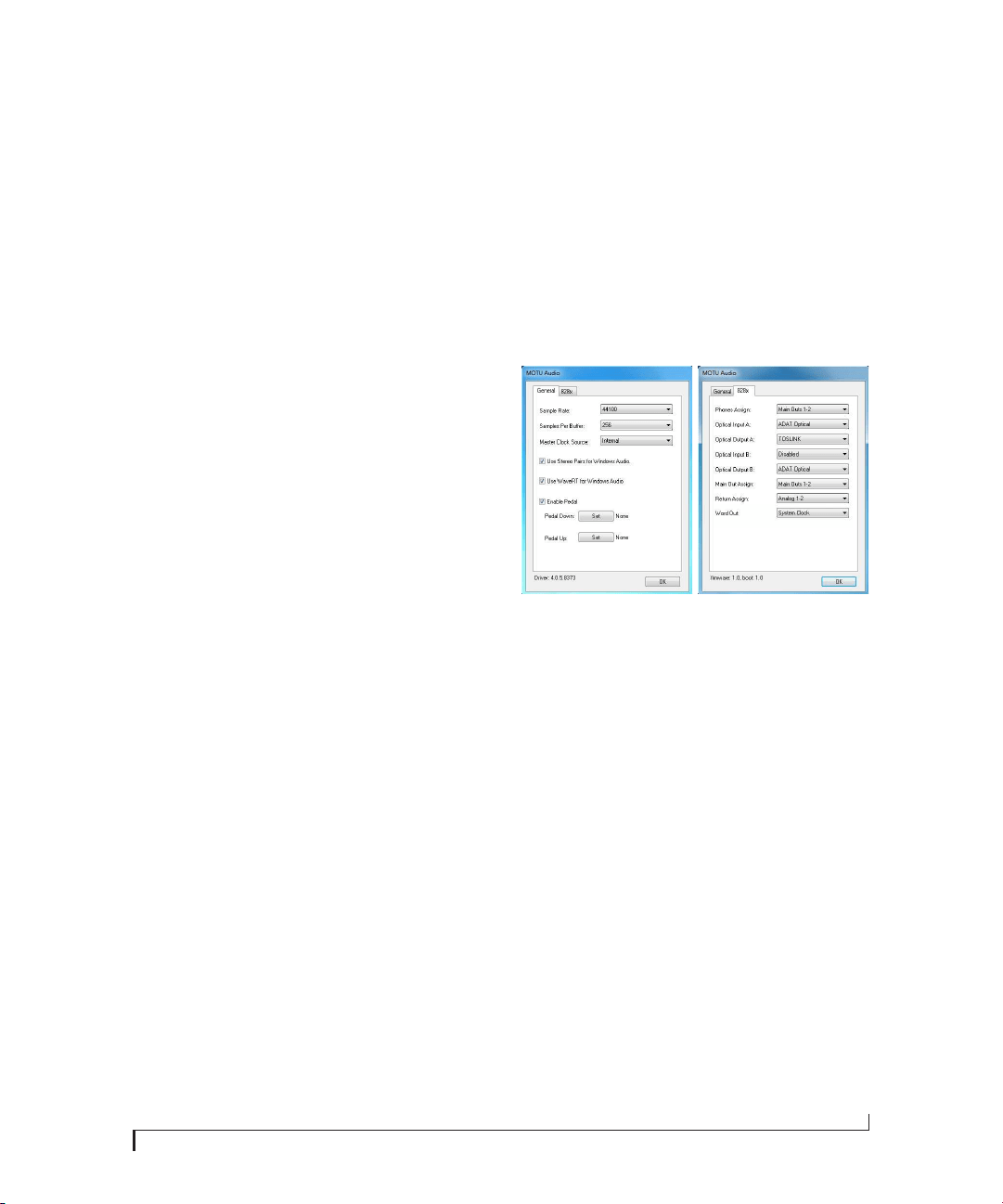
CHAPTER
53
7 Configuring Host Audio Software
OVERVIEW
The 828x provides multi-channel audio input and
output for ASIO- and WDM-compatible audio
applications, including Ableton Live, Avid Pro
Tools, Cockos Reaper, Propellerhead Reason and
Record, Steinberg Cubase and Nuendo, Cakewalk
SONAR, and others.
Additionally, sample-accurate synchronization is
possible with applications that support ASIO 2 or
3’s sample-accurate positioning protocol.
Preparation . . . . . . . . . . . . . . . . . . . . . . . . . . . . . . . . . . . . . . . . . . 53
Run MOTU Audio Console . . . . . . . . . . . . . . . . . . . . . . . . . . . 53
Choosing the MOTU Audio driver. . . . . . . . . . . . . . . . . . . . 54
Reducing latency . . . . . . . . . . . . . . . . . . . . . . . . . . . . . . . . . . . . 58
Working with 828x inputs and outputs . . . . . . . . . . . . . . 58
Processing live inputs with host plug-ins . . . . . . . . . . . . 58
Working with CueMix FX mixing and effects. . . . . . . . . 59
Synchronization . . . . . . . . . . . . . . . . . . . . . . . . . . . . . . . . . . . . . 59
Using a foot switch . . . . . . . . . . . . . . . . . . . . . . . . . . . . . . . . . . 59
PREPARATION
To make sure that everything is ready for your host
audio software, install your host audio software
first (if you haven’t already done so), and then see
these chapters before proceeding:
■ chapter 3, “Installing the 828x Software”
(page 19)
chapter 4, “Installing the 828x Hardware”
(page 21).
RUN MOTU AUDIO CONSOLE
Before you run your host audio software, launch
MOTU Audio Console to configure your 828x
hardware.
MOTU Audio Console provides settings to
configure your audio interface and enable the
desired inputs and outputs. Only enabled inputs
and outputs will be available to your software, so
this is an important step. For complete details see
chapter 5, “MOTU Audio Console” (page 37).
Figure 7-1: MOTU Audio Console.
The following sections provide a brief explanation
of each 828x setting.
Sample rate
Choose the desired overall sample rate for the 828x
system and your host audio software. Newly
recorded audio will have this sample rate.
Master Clock Source
This setting is very important because it
determines which audio clock the 828x will follow.
If you do not have any digital audio connections to
your 828x (you are using the analog inputs and
outputs only), and you will not be slaving your host
software to external SMPTE time code, choose
Internal.
If you have devices connected to the 828x optical
ports, see “Choosing a clock source for optical
connections” on page 26.

CONFIGURING HOST AUDIO SOFTWARE
54
If you are slaving the 828x and your host software
to SMPTE time code, follow the directions in
chapter 10, “MOTU SMPTE Console” (page 113).
☛ In order to use the 828x’s direct SMPTE sync
(and sample-accurate sync) feature, the host audio
software must support the ASIO 2.0 sample-
accurate positioning protocol. Cubase and Nuendo
support this protocol; for other software, check
with its documentation.
Samples Per Buffer
The Samples Per Buffer setting can be used to
reduce the delay — or monitoring latency — that
you hear when live audio is patched through your
828x hardware and host audio software. For
example, you might have MIDI instruments,
samplers, microphones, and so on connected to
the analog inputs of the 828x. If so, you will often
be mixing their live input with audio material
recorded in your audio software. See chapter 8,
“Reducing Monitoring Latency” (page 61) for
complete details.
Phones Assign
This 828x setting lets you choose what you’ll hear
from the headphone jack. For example, if you
choose Main Out 1-2, the headphones will
duplicate the main outs, or you can choose any
other output pair. If you choose Phones 1-2, this
setting makes the headphone jack serve as its own
independent output pair. As a result, you’ll see
Phones 1-2 as an additional audio destination in
your host’s audio output menus.
Optical input and output
To make a 828x optical input or output available in
your host software, choose the appropriate format
(ADAT optical or TOSLINK) from the optical input
and/or output menu. If you won’t be using the
optical connectors, turn them off.
Main Outs Assign
Use the Main Outs Assign setting to determine
what audio you will hear on the main outs of the
828x. If you would like to treat them as their own
separate output pair, choose Main Out 1-2.
Return Assign
In your host audio software audio input menus,
you’ll see an 828x input called Return 1-2. This is a
stereo feed from the 828x that matches the signal of
one of its output pairs. Use the Return Assign menu
in MOTU Audio Console to choose which output
pair you would like to hear on this return. This can
be used, for example, to record back a final stereo
mix that includes effects processing from the 828x
DSP (such as the Leveler) for reference and
archiving purposes.
☛ Warning: the Return inputs can cause
feedback loops! D
O NOT assign this input to a
track that shares the same output as the Return
Assign setting.
Reverb return
The 828x also supplies a return to your host
software that carries the output of its reverb
processor. This return can be used for any purpose
you wish.
CHOOSING THE MOTU AUDIO DRIVER
Once you’ve made the preparations described so
far in this chapter, you’re ready to run your audio
software and enable the MOTU Audio driver.
Check the audio system or audio hardware
configuration window in your software. There is a
menu that lets you choose among various drivers
that may be in your system. Choose the desired
MOTU Audio driver from this menu. Several
driver options are available. For a summary, see
“MOTU Audio drivers” on page 20.
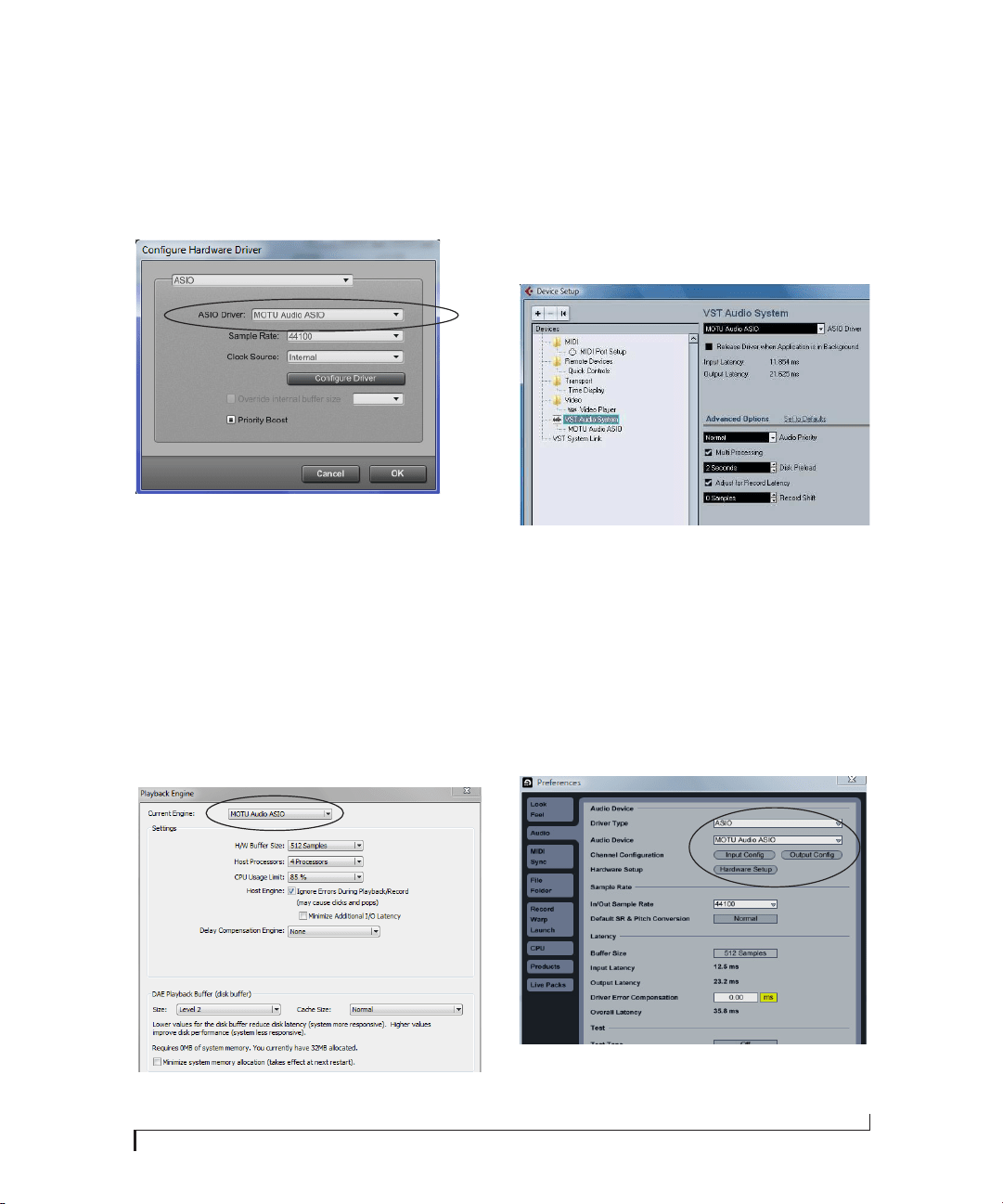
CONFIGURING HOST AUDIO SOFTWARE
55
Digital Performer
In MOTU Digital Performer, choose Configure
Audio System > Configure Hardware Driver from
the Setup menu, as shown in Figure 7-2. Choose
MOTU Audio ASIO from the list of ASIO drivers.
Figure 7-2: Enabling the 828x in Digital Performer
Pro Tools
In Avid Pro Tools, go to the Setup menu and
choose Playback Engine as shown in Figure 7-3.
Choose the MOTU Audio ASIO from the Current
Engine menu. For information about the H/W
Buffer Size setting, see “Adjusting the audio I/O
buffer” on page 63.
☛ Pro Tools 9 or later is required for operation
with the 828x.
Figure 7-3: Enabling the MOTU Audio ASIO driver in Pro Tools
Cubase and Nuendo
In Cubase or Nuendo, go to the Device Setup
window. Click the VST Audio System item in the
Devices list and choose MOTU Audio ASIO from
the VST Audio System menu as shown below in
Figure 7-4. Activate the inputs and outputs within
Cubase or Nuendo as usual.
Figure 7-4: Enabling the MOTU Audio ASIO driver in Cubase
Live
In Ableton Live, access the preferences window and
click the Audio tab. Choose ASIO from the Driver
Ty p e menu. Choose the MOTU Audio ASIO from
the Input Audio Device and Output Audio Device
menus as shown below in Figure 7-5. To enable or
disable input or output channels, click the Input
Config or Output Config buttons.
Figure 7-5: Enabling the MOTU Audio ASIO driver in Live
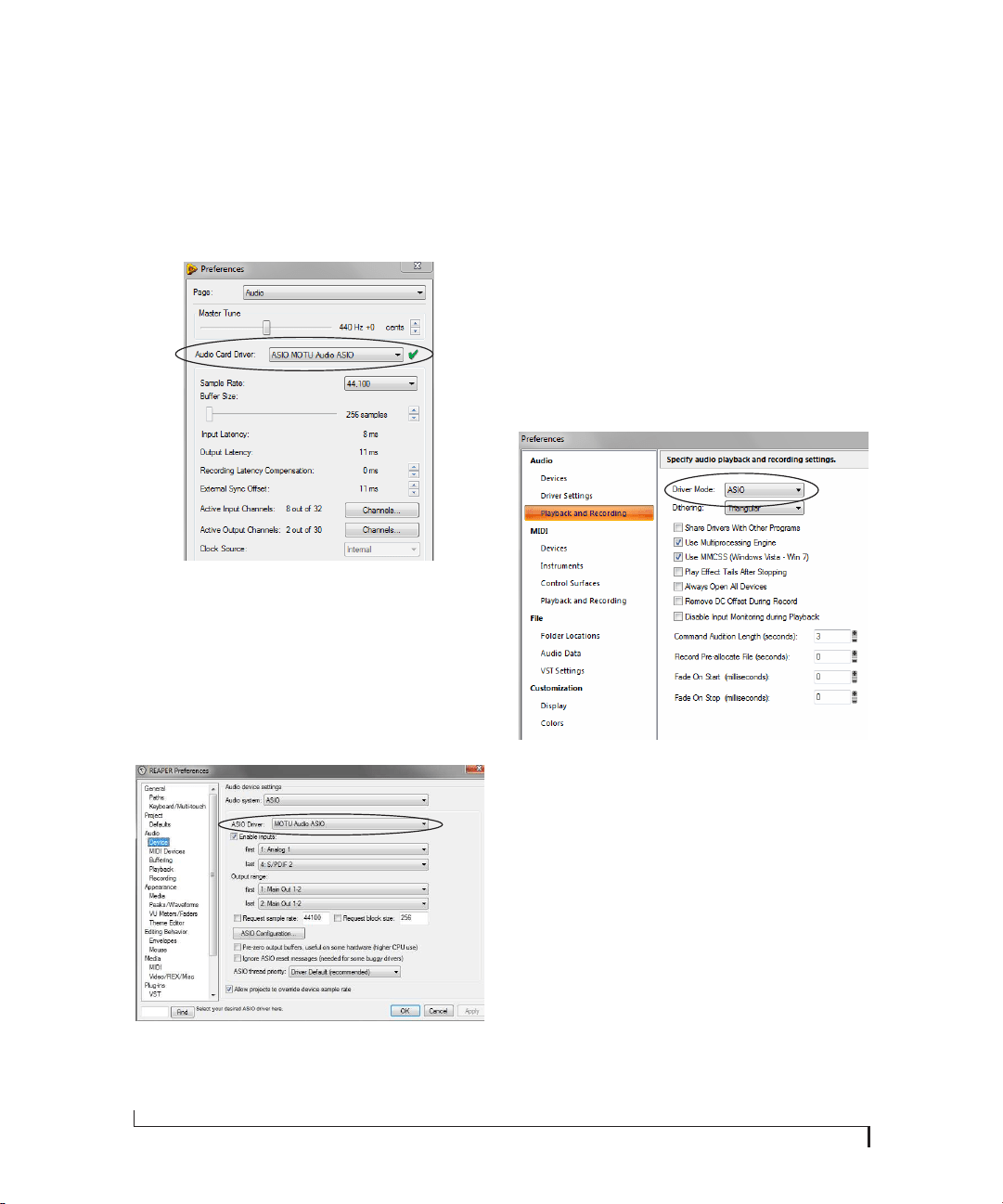
CONFIGURING HOST AUDIO SOFTWARE
56
Reason and Record
In Propellerhead Reason or Record, go to the
Preferences window, choose Audio preferences
from the menu and choose MOTU Audio ASIO
from the Audio Card Driver menu as shown below
in Figure 7-6.
Figure 7-6: Enabling the MOTU Audio ASIO driver in Reason
Reaper
In Cockos Reaper, access the Preferences and click
Devices under the Audio preferences. Choose ASIO
for the audio system and choose MOTU Audio
ASIO from the ASIO driver menu as shown below
in Figure 7-7.
Figure 7-7: Enabling the MOTU Audio ASIO driver in Reaper
SONAR
In Cakewalk SONAR, you can use the MOTU
ASIO driver or the MOTU WDM driver. Note that
when using ASIO, only one audio interface may be
selected for use in SONAR.
Using the MOTU ASIO driver
1 Go to SONAR’s Preferences.
2 In the Audio preferences section, choose
Playback and Recording.
3 Choose ASIO as the Driver Mode, as shown
below.
Figure 7-8: Enabling the MOTU Audio ASIO driver in SONAR.
4 Next, in the Audio preferences section, choose
Devices.
5 Check the 828x inputs and outputs that you
wish to use and uncheck the ones you don’t.
Using the MOTU WDM driver
1 Go to SONAR’s Preferences.
2 In the Audio preferences section, choose
Playback and Recording.
3 Choose WDM/KS as the Driver Mode, as shown
below.
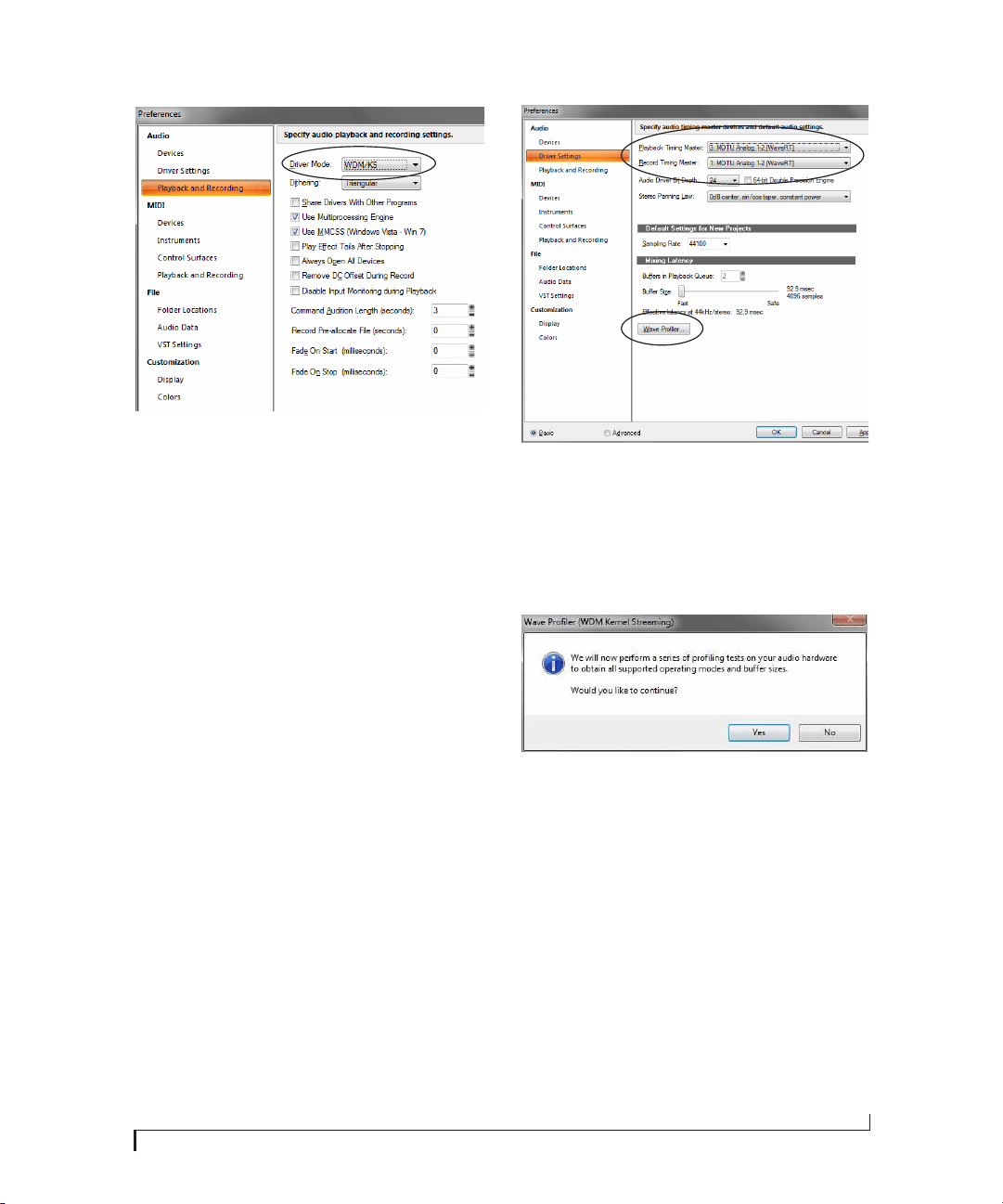
CONFIGURING HOST AUDIO SOFTWARE
57
Figure 7-9: Enabling the MOTU WDM driver in SONAR.
4 Next, in the Audio preferences section, choose
Devices.
5 Check the 828x inputs and outputs that you
wish to use and uncheck the ones you don’t, as
shown in Figure 7-8 on page 56.
Other audio settings in SONAR
There are a few other settings in SONAR that
impact 828x operation:
1 In the Audio preferences section, choose Driver
Settings.
2 Choose a 828x input and output for recording
and playback timing as shown below in
Figure 7-10. It doesn’t matter which input or
output you choose.
Figure 7-10: Make sure you have chosen a 828x input and output for
the playback and recording timing master settings.
3 Additionally, if you are using the MOTU WDM
driver, click the Wave P rofi ler button and run the
Wave Profiler. This process chooses the optimum
settings for the 828x hardware.
Figure 7-11: Running the Wave Profiler in Cakewalk’s SONAR.
Sound Forge
In Sony Sound Forge, go to the Preferences
window, click the Audio tab, and then choose
MOTU Audio from the Audio device type menu.
Other audio software
For other audio applications, the procedure is
similar to that shown above. Consult your owner’s
manual for further information.

CONFIGURING HOST AUDIO SOFTWARE
58
REDUCING LATENCY
On Windows, audio I/O buffer size is handled by
the audio driver rather than the host audio
application.
In the MOTU Audio Console, Samples Per Buffer
provides an adjustable audio buffer setting that lets
you control the amount of delay you’ll hear when
monitoring live inputs through your host audio
software or processing them with software
plug-ins.
For information, see the “Adjusting the audio I/O
buffer” section of chapter 8, “Reducing Monitoring
Latency” (page 61).
WORKING WITH 828X INPUTS AND
OUTPUTS
Once you’ve enabled the 828x’s driver, 828x audio
inputs and outputs will appear in your host
software wherever audio inputs and outputs are
listed. If you don’t see the optical inputs and/or
outputs, check MOTU Audio Console to make sure
they are enabled. If you don’t plan to use either
optical bank, turn it off to conserve computer
bandwidth.
Remember that the main outs and headphone
output can be configured in MOTU Audio Console
to mirror other outputs. In addition, the 828x
optical banks can be disabled or configured as
either ADAT optical or TOSLink. This will affect
how they appear (and if they appear at all) in your
host software’s audio input lists. See “Optical input/
output” on page 41, “Phones Assign” on page 41
and “Main Out Assign” on page 41.
Number of channels
If your host audio software requires that you
specify the number of audio voices or channels you
will be using, be sure to choose enough channels to
cover the 16 inputs and 16 outputs provided by
your 828x.
Mix1 1-2 return bus
In your host audio software audio input menus,
you’ll see an 828x input called Mix1 Return 1-2.
This is a stereo feed from the 828x that matches its
main outs (Mix 1). This can be used, for example,
to record a final stereo mix for reference and
archiving purposes.
☛ Warning: the Mix1 Return 1-2 return inputs
can cause feedback loops! DO NOT assign this
input to a track assigned to the 828x main outs.
For Mix1 Return 1-2, you can choose whether or
not to include audio being sent to the main outs
from the computer. See “Mix1 Return Includes
Computer” on page 92.
The “Phones 1-2” output
Host audio tracks assigned to the Phones 1-2
output pair will be heard on the headphone jack
only. If the Phones are set to mirror another output
(such as the main outs), the mirrored audio stream
is mixed with the phones audio output. For further
explanation, see “Phones Assign” on page 41.
Audio Input and output names
The 828x audio driver supplies text string labels for
its inputs and outputs to clearly identify each one,
but some applications do not display these labels.
For information on how you can identify each
input and output in a numbered list like this, see
Appendix B, “Audio I/O reference” page (121).
PROCESSING LIVE INPUTS WITH HOST
PLUG-INS
If you patch a live input (such as a MIDI
synthesizer) through a plug-in effect in your host
software, you might hear a slight delay. There are
several ways to reduce this delay. For details, see
chapter 8, “Reducing Monitoring Latency”
(page 61).

CONFIGURING HOST AUDIO SOFTWARE
59
WORKING WITH CUEMIX FX MIXING AND
EFFECTS
The 828x provides powerful external mixing, EQ,
compression and reverb, which you can operate
hand-in-hand with your host’s mixing
environment. For example, the 828x can serve as a
monitor mixer, routing channels to musicians, or it
can serve as an integrated extension of your host’s
mixing environment. If you program a 828x
mixing and processing configuration that goes
hand in hand with your host project, be sure to use
the file save features in CueMix FX to save the 828x
settings as a file in your host project folder for
instant recall of all settings. See chapter 9, “CueMix
FX” (page 67) for complete details.
SYNCHRONIZATION
You may encounter situations in which you need to
synchronize your audio software and the 828x to
the other components of your system.
Synchronizing digital audio connections
If you have devices connected to the 828x’s digital
optical ports, you need to be concerned with the
synchronization of the 828x’s digital audio clock
with other devices connected to it digitally (if any).
For example, if you have a digital mixer connected
to the 828x via an ADAT optical light pipe cable,
you need to make sure that their audio clocks are
phase-locked. For details, see “Choosing a clock
source for optical connections” on page 26. If you
don’t have any digital audio devices connected to
the 828x, digital audio phase-lock does not apply
to you.
Resolving directly to time code (with no
synchronizer)
If your host audio software supports ASIO2 or 3’s
sample-accurate positioning protocol, then it can
resolve to the 828x’s built-in time code synchroni-
zation feature. To resolve your 828x directly to
SMPTE time code with no additional synchroni-
zation devices, use the setup shown in “Setting up
for SMPTE time code sync” on page 115.
USING A FOOT SWITCH
Use a foot switch connected to the 828x to trigger
recording punch-in and punch-out, or any other
feature in your host audio software that is assigned
to a computer keystroke. By default, the foot switch
triggers the 3 key on the computer keypad. To
trigger a different set of keystrokes with the foot
switch, visit MOTU Audio Setup. (See “Enable
Pedal” on page 41.)

CONFIGURING HOST AUDIO SOFTWARE
60

CHAPTER
61
8 Reducing Monitoring Latency
OVERVIEW
Monitoring latency is that slight delay you hear
when you run an input signal through your host
audio software. For example, you might hear it
when you drive a live guitar input signal through
an amp modeling plug-in running in your audio
sequencer.
This delay is caused by the amount of time it takes
for audio to make the entire round trip through
your computer, from when it first enters an 828x
input, passes through the 828x hardware into the
computer, through your host audio software, and
then back out to an 828x output.
If you don’t need to process a live input with
plug-ins, the easiest way to avoid monitoring
latency is to use the 828x’s CueMix FX digital
mixer to patch the input directly to your monitor
outs via the 828x audio hardware. The 828x even
provides effects processing (EQ, compression and
reverb), which can be applied on input, output, or
even at the bussing stage, just like a conventional
mixer. For details, see “CueMix FX hardware
monitoring” on page 64.
If you do need to process a live input with host
software plug-ins, or if you are playing virtual
instruments live through your 828x audio
hardware, you can significantly reduce latency —
and even make it completely inaudible, regardless
of what host audio application software you use.
This chapter explains how.
It is important to note that monitoring delay has no
effect on when audio data is recorded to disk or
played back from disk. Actual recording and
playback is extremely precise.
Monitoring live input. . . . . . . . . . . . . . . . . . . . . . . . . . . . . . . . . 62
Adjusting the audio I/O buffer . . . . . . . . . . . . . . . . . . . . . . . 63
Lower latency versus higher CPU overhead . . . . . . . . . . 64
Transport responsiveness . . . . . . . . . . . . . . . . . . . . . . . . . . . . 64
Effects processing and automated mixing . . . . . . . . . . . 64
CueMix FX hardware monitoring. . . . . . . . . . . . . . . . . . . . . 64
Two methods for controlling CueMix FX . . . . . . . . . . . . . 64
Using the CueMix FX app. . . . . . . . . . . . . . . . . . . . . . . . . . . . . 65
Controlling CueMix FX from your audio software . . . . 65
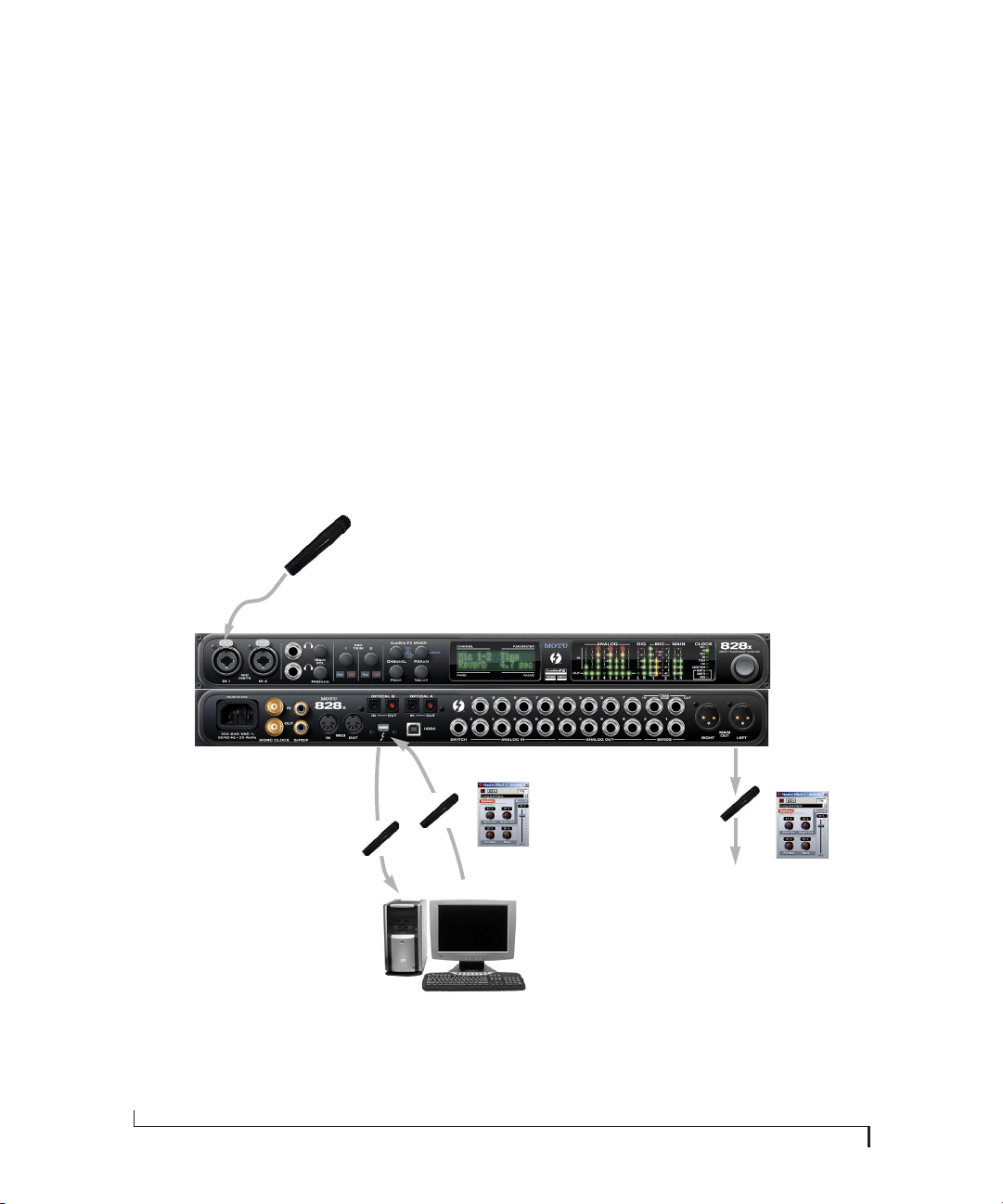
REDUCING MONITORING LATENCY
62
MONITORING LIVE INPUT
There are two ways to monitor live audio input
with an 828x: 1) through the computer or 2) via the
828x CueMix FX hardware mixer. Figure 8-1
shows method 1, which allows you to apply host-
based effects processing via plug-ins in your audio
software. See the next section, “Adjusting the audio
I/O buffer” for details about how to reduce — and
possibly eliminate — the audible monitoring delay
that the computer introduces.
Figure 8-2 shows how to use CueMix FX hardware-
based monitoring, which lets you hear what you are
recording with no monitoring delay and no
computer-based effects processing. Instead, input
is routed directly to an output, either with or
without 828x-based effects processing (EQ,
compression or reverb). See “CueMix FX hardware
monitoring” later in this chapter for details on how
to use CueMix FX with your audio software, or
with the included CueMix FX software.
If the material you are recording is suitable, there is
a third way to monitor live input: use both methods
(Figure 8-1 and Figure 8-2) at the same time. For
example, you could route guitar to both the
computer (for an amp model effect) and mix that
processed signal on the main outs with dry guitar
from CueMix FX — or perhaps with a touch of
828x Classic Reverb.
PC
1. Live input (from mic, guitar, etc.)
enters the MOTU interface.
2. Mic signal goes immedi-
ately to the computer.
3. Mic signal is
‘patched thru’ back to
the audio interface
with host-based
plug-in effects, if any.
Figure 8-1: There are two ways to monitor live audio inputs with an 828x: 1) through the computer or 2) via CueMix FX hardware monitoring.
This diagram shows method 1 (through the computer). When using this method, use your host software’s buffer setting to reduce the slight
delay you hear when monitoring the live input, but don’t lower it too much, or your computer might get sluggish.
4. Mic signal (with plug-in
processing, if any) is routed
to the main outs (or other
outputs that you’ve specified
in the software).
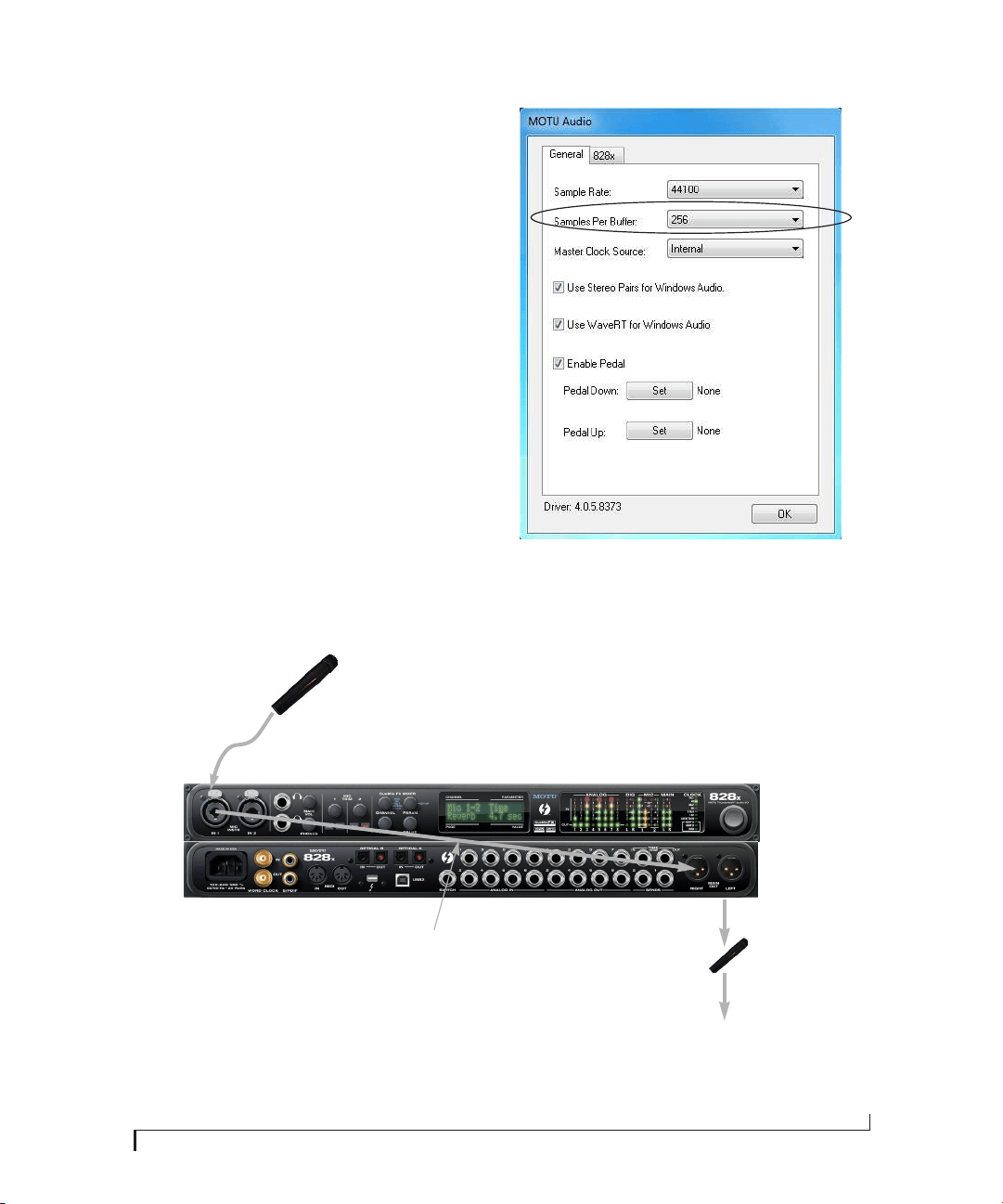
REDUCING MONITORING LATENCY
63
ADJUSTING THE AUDIO I/O BUFFER
A buffer is a small amount of computer memory
used to hold data. For audio interfaces like the
828x, buffers are used for the process of
transferring audio data in and out of the computer.
The size of the buffers determines how much delay
you hear when monitoring live inputs through
your audio software: larger buffers produce more
delay; smaller buffers produce less.
Buffer size adjustment is made in MOTU Audio
Console, as shown in Figure 8-3 via the Samples Per
Buffer setting.
Figure 8-3: Lowering the ‘Samples Per Buffer’ setting in MOTU Audio
Console reduces patch thru latency. But doing so increases the
processing load on your computer, so keep an eye on the Perfor-
mance Monitor in your host audio software.
2. CueMix FX immediately patches the
live mic signal directly to the main outs
(or other output), completely bypassing
the computer. This signal could be dry, or
with 828x effects processing, such as EQ,
compression or Classic Reverb.
3. Mic signal is mixed with the
main outs, and you can control
the volume (relative to the rest
of the mix) with the mic’s fader
in CueMix FX.
Figure 8-2: This diagram shows the signal flow when using CueMix FX no-latency monitoring. Notice that this method does not process the
live input with plug-ins in your audio software. Instead, you can apply 828x effects, such as the reverb, EQ and/or compression.
1. Live input (from mic, guitar, etc.)
enters the MOTU interface.

REDUCING MONITORING LATENCY
64
Lower latency versus higher CPU overhead
The buffer setting has a large impact on the
following things:
■ Patch thru latency
■ The load on your computer’s CPU
■ Possible distortion at the smallest settings
■ How responsive the transport controls are in
your audio software
The buffer setting presents you with a trade-off
between the processing power of your computer
and the delay of live audio as it is being patched
through your software. If you reduce the size, you
reduce patch thru latency, but significantly increase
the overall processing load on your computer,
leaving less CPU bandwidth for things like real-
time effects processing. On the other hand, if you
increase the buffer size, you reduce the load on
your computer, freeing up bandwidth for effects,
mixing and other real-time operations.
If you are at a point in your recording project where
you are not currently working with live, patched-
thru material (e.g. you’re not recording vocals), or
if you have a way of externally processing inputs,
choose a higher buffer size. Depending on your
computer’s CPU speed, you might find that settings
in the middle work best (256 to 1024).
Transport responsiveness
Buffer size also impacts how quickly your audio
software will respond when you begin playback,
although not by amounts that are very noticeable.
Lowering the buffer size will make your software
respond faster; raising the buffer size will make it a
little bit slower, but barely enough to notice.
Effects processing and automated mixing
Reducing latency with the buffer size setting has
another benefit: it lets you route live inputs through
the real-time effects processing and mix
automation of your audio software.
CUEMIX FX HARDWARE MONITORING
The 828x has a more direct method of patching
audio through the system: CueMix FX. CueMix FX
is a digital mixer in the 828x hardware itself.
CueMix FX has two important benefits:
■ First, it completely eliminates the patch thru
delay (reducing it to a small number of samples —
about the same amount as one of today’s digital
mixers).
■ Secondly, CueMix FX imposes no strain on the
computer.
The trade-off, however, is that CueMix FX
bypasses your host audio software. Instead, live
audio inputs are patched directly through to
outputs in the 828x itself and are mixed with audio
playback from your host audio software. This
means that you cannot apply host-based plug-ins,
mix automation, or other real-time effects that
your audio software provides. But for inputs that
don’t need these types of features, CueMix FX is
the way to go.
On the other hand, if you really need to use the
mixing and processing provided by your audio
software, you should not use CueMix FX. Instead,
reduce latency with the buffer setting (as explained
earlier in this chapter).
TWO METHODS FOR CONTROLLING
CUEMIX FX
There are two ways to control CueMix FX:
■ With the 828x’s CueMix FX software
■ From within your host audio software (if it
supports direct hardware monitoring)
You can even use both methods simultaneously.
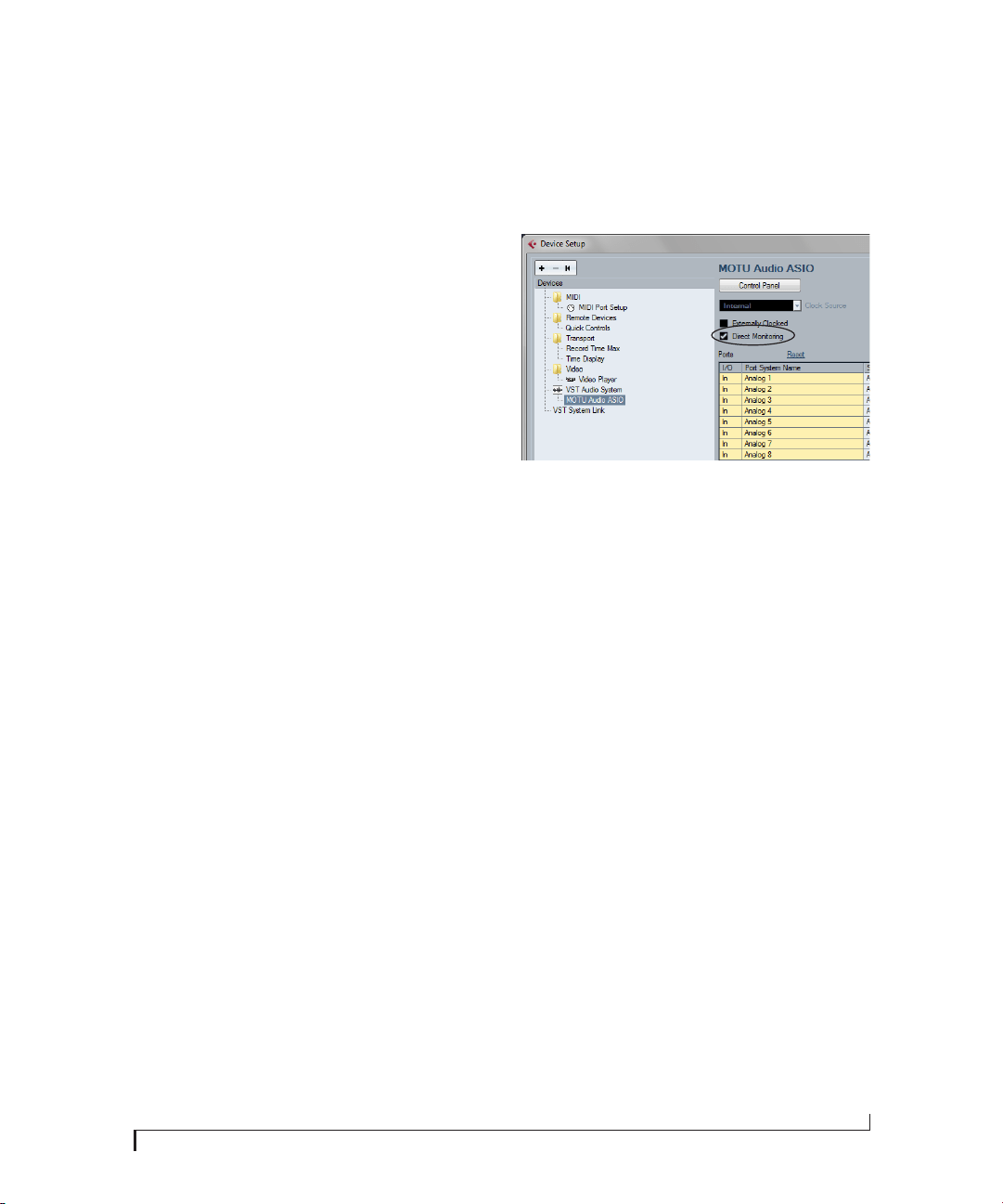
REDUCING MONITORING LATENCY
65
Using the CueMix FX app
If your host audio software does not support direct
hardware monitoring, you can run the CueMix FX
software side-by-side with your audio software and
manage your monitor mix in CueMix FX.
CueMix FX allows you to create up to eight
separate 828x stereo mixes, or any other desired
routing configurations. These routings are
independent of your host audio software. For
complete details, see chapter 9, “CueMix FX”
(page 67).
Controlling CueMix FX from your audio
software
Some ASIO-compatible audio applications, such as
Cubase and Nuendo, allow you to control
CueMix FX monitoring from within the
application (without the need to use CueMix FX).
In most cases, this support consists of patching an
828x input directly to an output when you record-
arm a track. Exactly how this is handled depends
on the application.
CueMix FX routings that are made via host
applications are made “under the hood”, which
means that you won’t see them in CueMix FX.
However, CueMix FX connections made inside
your host audio software dovetail with any other
mixes you’ve set up in CueMix FX. For example, if
your host application routes audio to an output
pair that is already being used in CueMix FX for an
entirely separate mix bus, both audio streams will
simply be merged to the output.
Controlling CueMix DSP from within Cubase or
Nuendo
To turn on CueMix in Cubase or Nuendo, enable
the Direct Monitoring check box in the Device
Setup window.
Figure 8-4: Activating the Direct Monitoring option in Cubase or
Nuendo.
Other ASIO 2.0-compatible host software
If your ASIO-compatible host audio software
supports ASIO’s direct monitoring feature, consult
your software documentation to learn how to
enable this feature. Once enabled, it should work
similarly as described for Cubase (as explained in
the previous section).
Using CueMix DSP with WDM- or Wave-
compatible software
Run CueMix Console (chapter 9, “CueMix FX”
(page 67)) and use it to route live inputs directly to
outputs, control their volume and panning, etc. If
necessary, you can save your CueMix Console
setup with your project file.

REDUCING MONITORING LATENCY
66

CHAPTER
67
9 CueMix FX
OVERVIEW
CueMix FX is a cross-platform software
application that provides graphic, on-screen
control for the 828x’s flexible CueMix FX on-board
mixer and effects processing.
CueMix FX also provides many advanced audio
analysis tools, including a tuner and oscilloscope.
CueMix FX can be used independently of any host
audio software, or together with it. CueMix
dovetails with the direct monitoring features of
your host audio software, allowing you to
seemlessly mix in both environments.
A 16-bus mixer with EQ, compression and reverb. . . . 67
Advantages over host-based mixing and processing 68
Opening CueMix FX . . . . . . . . . . . . . . . . . . . . . . . . . . . . . . . . . 68
CueMix FX basic operation . . . . . . . . . . . . . . . . . . . . . . . . . . 68
The Mixes tab . . . . . . . . . . . . . . . . . . . . . . . . . . . . . . . . . . . . . . . . 70
The Inputs tab . . . . . . . . . . . . . . . . . . . . . . . . . . . . . . . . . . . . . . . 72
The Outputs tab . . . . . . . . . . . . . . . . . . . . . . . . . . . . . . . . . . . . . 74
The Channel Settings section . . . . . . . . . . . . . . . . . . . . . . . . 76
The Monitor Group . . . . . . . . . . . . . . . . . . . . . . . . . . . . . . . . . . 89
DSP meter . . . . . . . . . . . . . . . . . . . . . . . . . . . . . . . . . . . . . . . . . . . 90
Solo light . . . . . . . . . . . . . . . . . . . . . . . . . . . . . . . . . . . . . . . . . . . . 90
Talkback and listenback . . . . . . . . . . . . . . . . . . . . . . . . . . . . . 90
Shortcuts . . . . . . . . . . . . . . . . . . . . . . . . . . . . . . . . . . . . . . . . . . . . 91
File menu . . . . . . . . . . . . . . . . . . . . . . . . . . . . . . . . . . . . . . . . . . . . 92
Edit menu. . . . . . . . . . . . . . . . . . . . . . . . . . . . . . . . . . . . . . . . . . . . 92
Devices menu. . . . . . . . . . . . . . . . . . . . . . . . . . . . . . . . . . . . . . . . 93
FFT and Spectrogram display. . . . . . . . . . . . . . . . . . . . . . . . 93
Oscilloscope . . . . . . . . . . . . . . . . . . . . . . . . . . . . . . . . . . . . . . . . . 96
X-Y Plot . . . . . . . . . . . . . . . . . . . . . . . . . . . . . . . . . . . . . . . . . . . . . 102
Phase Analysis . . . . . . . . . . . . . . . . . . . . . . . . . . . . . . . . . . . . . . 105
Tuner . . . . . . . . . . . . . . . . . . . . . . . . . . . . . . . . . . . . . . . . . . . . . . . 109
Configurations menu . . . . . . . . . . . . . . . . . . . . . . . . . . . . . . . 110
Talkback menu . . . . . . . . . . . . . . . . . . . . . . . . . . . . . . . . . . . . . 110
Phones menu . . . . . . . . . . . . . . . . . . . . . . . . . . . . . . . . . . . . . . . 110
Control Surfaces menu . . . . . . . . . . . . . . . . . . . . . . . . . . . . . 111
A 16-BUS MIXER WITH EQ, COMPRESSION
AND REVERB
All 828x inputs can be routed to the on-board
CueMix FX 16-bus (8 stereo bus) digital mixer
driven by hardware-based DSP with 32-bit floating
point precision.
The CueMix FX mixer allows you to apply no-
latency effects processing to inputs, outputs or
busses directly in the 828x hardware, independent
of the computer. Effects can even be applied when
the 828x is operating stand-alone (without a
computer). Input signals to the computer can be
recorded wet, dry, or dry with a wet monitor mix
(for musicians during recording, for example).
Effects include:
■ Classic Reverb with tail lengths up to 60 seconds
■ 7-band parametric EQ modeled after British
analog console EQs
■ A standard compressor with conventional
threshold/ratio/attack/release/gain controls
■ The Leveler™, an accurate model of the
legendary LA-2A optical compressor, which
provides vintage, musical automatic gain control
The 828x’s flexible effects architecture allows you to
apply EQ and compression on every input and
output (a total of 32 channels), with enough DSP
resources for at least one band of parametric EQ
and compression on every channel at 48 kHz. DSP
resources are allocated dynamically and a DSP
meter in the CueMix FX software allows you to
keep tabs on the 828x’s processing resources.
Each input, output and mix bus provides a send to
the Classic Reverb processor, which then feeds
reverb returns to mix busses and outputs.

CUEMIX FX
68
ADVANTAGES OVER HOST-BASED MIXING
AND PROCESSING
CueMix FX provides several major advantages over
mixing and processing in your host audio software:
■ CueMix has no buffer latency. Thanks to the
828x’s DSP chip, CueMix provides the same
throughput performance as a digital mixer.
■ CueMix mixing and effects processing imposes
no processor drain on the computer’s CPU.
■ CueMix routing can be maintained
independently of individual software applications
or projects.
■ CueMix routing can operate without the
computer, allowing the 828x to operate as a
portable, stand-alone mixer with effects.
OPENING CUEMIX FX
CueMix FX is an application installed with the rest
of your 828x setup software. It can be found in the
Start menu.
CUEMIX FX BASIC OPERATION
The CueMix FX application is simple to operate,
once you know these basic concepts.
Eight stereo mix busses
CueMix provides eight stereo mix busses: Bus 1,
Bus 2, Bus 3, and so on. Each mix bus can take any
number of inputs and mix them down to any 828x
output pair that you choose. For example, Bus 1
could go to the headphones, Bus 2 could go to the
main outs, Bus 3 could go to a piece of outboard
gear connected to analog outputs 7-8, etc.
Many inputs to one output pair
It might be useful to think of each mix bus as some
number of inputs all mixed down to a stereo output
pair. CueMix FX lets you choose which inputs to
include in the mix, and it lets you specify the level,
pan and other input-specific mix controls for each
input being fed into the mix.
Viewing one mix bus at a time
CueMix FX displays one mix bus at a time in the
Mixes tab (Figure 9-2 on page 70). To select which
mix you are viewing, choose it from the mix bus
menu (Figure 9-2). The mix name appears above
the mix bus master fader (Figure 9-2), where you
can click the name to change it.
Each mix bus is independent
Each mix bus has its own settings. Settings for one
bus will not affect another. For example, if an input
is used for one bus, it will still be available for other
busses. In addition, inputs can have a different
volume, pan, mute and solo setting in each bus.
Input channels
The Inputs tab (Figure 9-3 on page 72) gives you
access to settings for individual 828x inputs (or
input pairs), such as phase, trim, EQ and dynamics
processing. Each input also includes a send to the
828x’s global reverb processor. These settings are
applied to the signal before it goes anywhere else
(to a mix bus or the computer).
Output channels
The Outputs tab (Figure 9-6 on page 75) gives you
access to settings for each 828x output pair,
including EQ, dynamics processing and send/
return controls for feeding and returning the
output signal to/from the 828x’s global reverb
processor. These settings are applied to the signal
just before it is sent to the output.
Channel focus and settings
Click the focus button for a channel (Figure 9-1) to
view channel-specific parameters in the Channel
Settings section of the CueMix FX window
(Figure 9-1). Separate tabs are provided for
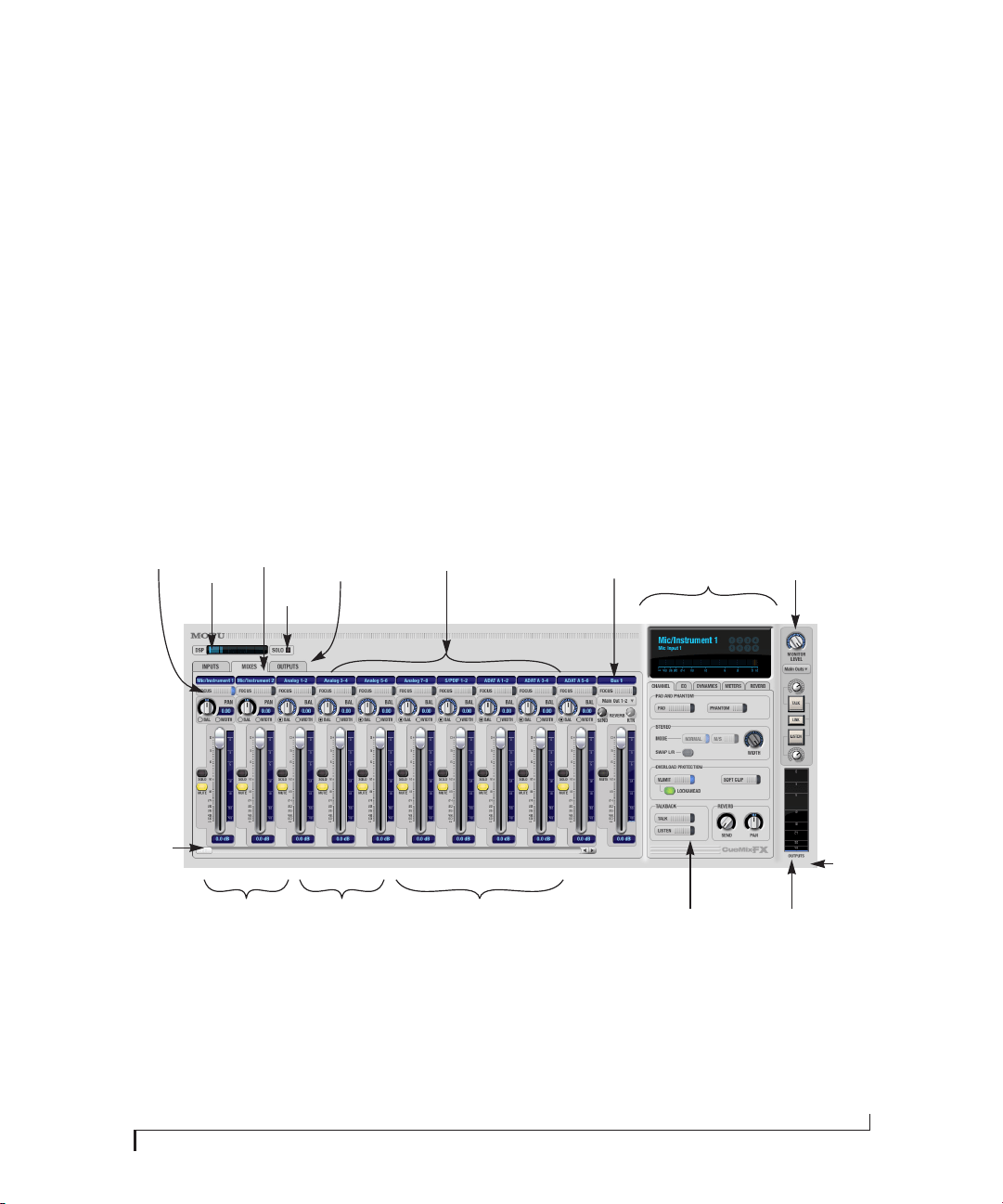
CUEMIX FX
69
channel-specific settings (channel strip, EQ and
dynamics), plus the global meter bridge and reverb
processor.
Global reverb processor
The 828x has a global reverb module (Figure 9-23
on page 87). Once it has been activated, you can
feed signals to the reverb processor from various
points in the 828x mix matrix via input sends, bus
sends and output sends. Stereo output from the
reverb processor can then be fed back to mix
busses or output pairs using reverb returns.
Other features
CueMix offers many additional features, discussed
in this chapter, such as talkback/listenback,
extensive metering, graphic editing of certain
effects parameters, and more.
Widening the CueMix FX window
To view more input faders at once, resize the
window.
Figure 9-1: CueMix FX is a virtual mixer that gives you control over the 828x’s on-board mixing features.
Tabs for inputs,
mix busses and
outputs
DSP
resources
meter
828x
inputs
Mix bus
master
fader
Tabs for channel strip settings,
including EQ and dynamics, as
well as global settings such as
the meter bridge and reverb
processor.
Monitoring/
talkback
section
Monitor
group
metering
Mic inputs Inputs split
into mono
channels
Inputs grouped as
stereo pairs
MIx bus
menu
Channel
settings
Channel
focus
Grow
box
Channel
scroll
bar
Solo
light
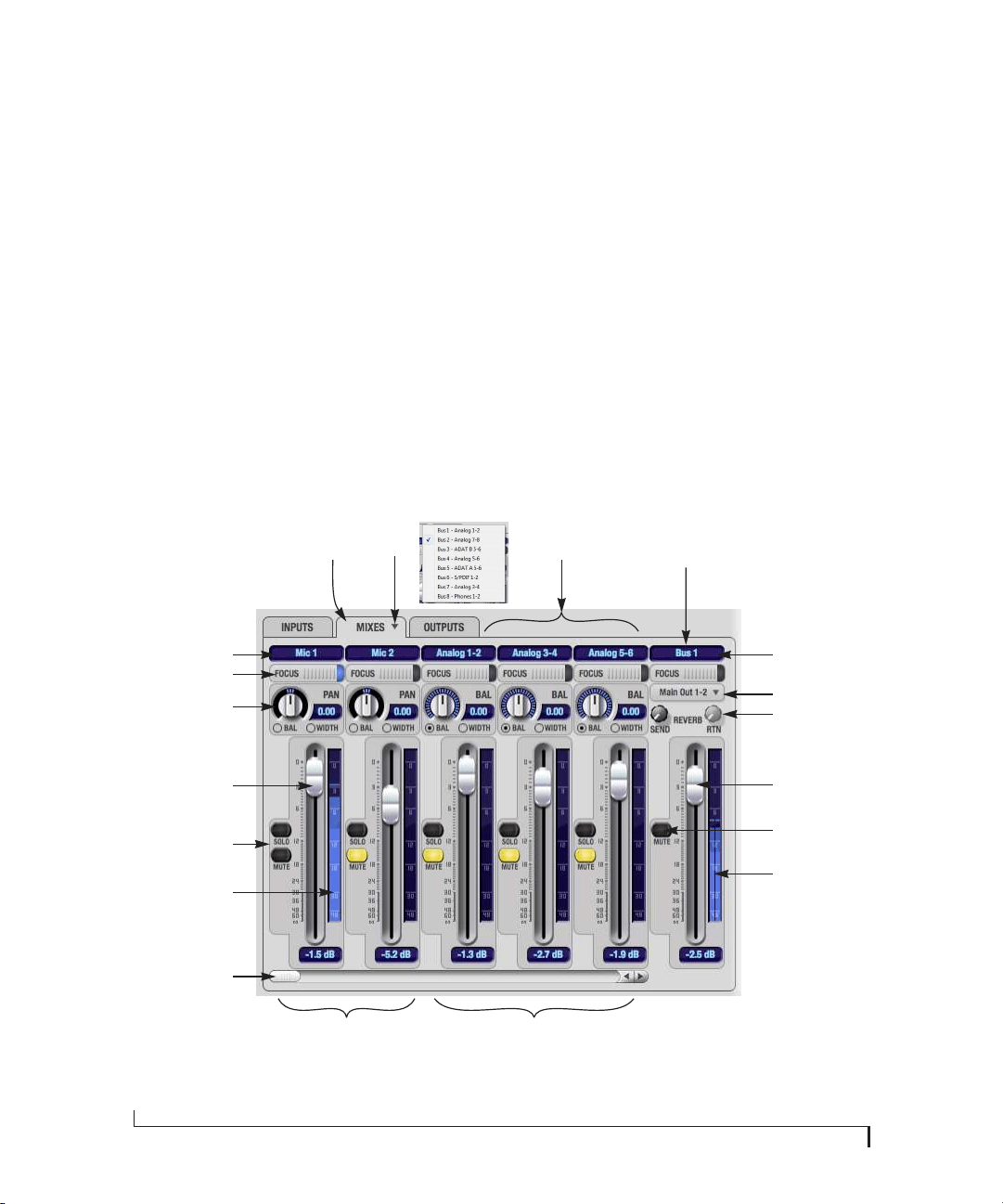
CUEMIX FX
70
THE MIXES TAB
Click the Mixes tab (Figure 9-2) to gain access to
the 828x’s eight stereo mix busses. The Mixes tab
displays one mix bus at a time.
Viewing a mix
Choose the mix you wish to view from the mix bus
menu (in the Mixes tab itself, as shown in
Figure 9-2). The menu shows all mixes by name,
followed by the 828x output pair to which each bus
master fader is assigned. If the optical output bank
is either disabled or set to TOSLink (see “Optical
input/output” on page 41), then bus 5, 6 and 7 are
disabled.
Naming a mix
Click the mix name at the top of the mix bus master
fader (Figure 9-2) to edit the name.
Assigning a mix bus output
Choose the desired output pair for the mix bus
from the bus output menu (Figure 9-2). The bus
output menu displays all current available
(enabled) 828x output pairs. If a bus is already
assigned to an output pair, the bus name appears
next to the output pair name to indicate that the
output pair is already taken by a bus. Only one bus
can be assigned to any given output pair. If you
choose an output already assigned to another bus,
that bus output will become disabled.
Bus fader
The bus fader (Figure 9-2) controls the overall level
of the mix (its volume on its stereo output). Use the
individual input faders to the left to control
individual input levels.
Figure 9-2: The Mixes tab.
828x
inputs
Mix bus 1
master
fader
Mic inputs Inputs grouped as
stereo pairs
Mixes
tab
Input name
Channel focus
Input pan section
Input fader
Scroll bar for input
channels
Bus output
Bus Reverb
send/return
Bus name
Bus fader
Bus mute
Bus level meter
Input mute/solo
Input level meter
Mix bus
menu

CUEMIX FX
71
Bus mute
The bus mute button (Figure 9-2) disables
(silences) the mix.
Bus level meter
The bus level meter, which is post-fader, shows you
the output for the mix’s output.
Bus reverb send/return
The bus reverb send (Figure 9-2) feeds the output
of the mix bus, pre-fader, to the 828x’s global
reverb processor, where it is merged with any other
signals being fed to the reverb. The reverb’s output
can then be fed back into the mixer at various
return points, including the bus return (discussed
below).
The bus reverb return (Figure 9-2) feeds the output
of the 828x’s global reverb processor into the mix
bus, pre-fader. This includes any other signals
currently being fed to the reverb. The bus reverb
return is disabled (grayed out) when the reverb
Split Point is set to Output to eliminate the
possibility for feedback loops created by reverb
send/return loops. See “Split point” on page 88.
Input section
The horizontally scrolling area in the Mix tab to the
left of the master fader (Figure 9-2) displays
channel strips for all currently enabled 828x inputs.
Input channel focus
Click the channel focus button (Figure 9-3) to view
and edit parameters in the channel settings section
of the CueMix FX window (Figure 9-7 on page 76).
Clicking the mix bus master fader focus button
brings the assigned output into focus, if there is
one. Channel focus also determines which
channels are being scoped by CueMix’s audio
analysis tools, as explained in “Choosing channels
for audio analysis” on page 93.
Input pan section
The input pan knob (Figure 9-2) pans the input
across the bus stereo outputs. If the input itself is
grouped as a stereo pair (in the Inputs tab), two
forms of panning control are provided:
Balance
Balance works like the balance knob on some
radios: turn it left and the right channel dims, turn
it right and left channel dims. But the left channel
always stays left and the right channel stays right.
Width
Width spreads the left and right channels across the
stereo image, depending on the knob position.
Maximum value (turning the pan knob all the way
up) maintains the original stereo image: the left
channel goes entirely left and right goes entirely
right, without attenuation. The minimum value
(turning the knob all the way down) creates a
mono effect: equal amounts of left and right are
combined and sent to both outputs. In between,
the left out is a mixture of the left input and some of
the right input (and vice-versa) with the effect of
narrowing the field.
Input fader and mute/solo
To add an input to a mix, or remove it, click its
Mute button. To solo it, use its Solo button. Use the
input fader (Figure 9-2) to adjust the level for the
input in the mix. Note that an input can have
different level, pan, mute and solo settings for
different mixes. Input channel level meters are
post-fader.
If any solo button on the current (active) bus is
enabled, the Solo Light (Figure 9-1) will illuminate.
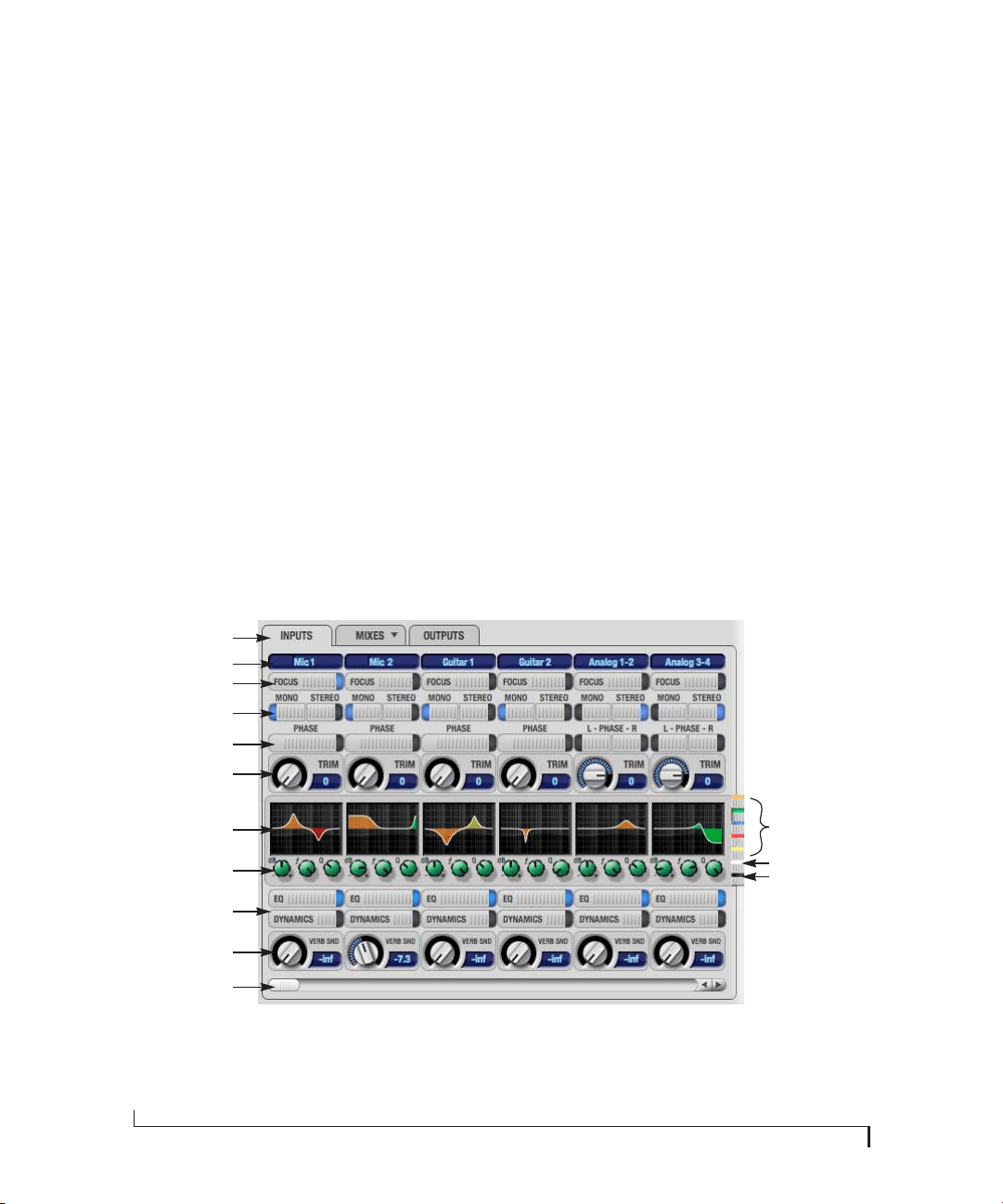
CUEMIX FX
72
THE INPUTS TAB
The 828x provides many features for managing
analog and digital input signals. Some of these
features, such as the 828x’s digitally controlled
analog trims, are implemented in the analog
domain; others are implemented in the digital
domain as DSP applied to the digital signal (after
the A/D converter on analog inputs). Click the
Inputs tab (Figure 9-3) to access and control all of
these input channel settings for each 828x input or
input pair.
Input tab settings are global
Except for the reverb send, all settings you make in
the Input tab are applied to the input signal before
it goes anywhere else (to a mix bus or the
computer). For example, if you apply EQ and
compression to the input signal, you will record the
processed version of the signal in your host audio
software running on the computer. If you need to
record a completely unprocessed input signal, do
not apply any changes to it in the Input tab. The
only exception to this is the reverb send, which
simply splits the input signal and feeds a copy of it
to the 828x’s reverb processor.
Signal flows from top to bottom
Settings in each Input tab channel strip are
generally applied to the signal in order from top to
bottom. Input channel signal flow is as follows:
trim, overload protection, phase, stereo versus M/S
decoding, width, L/R swap, EQ, dynamics and
reverb send.
Input name
The input name appears a the top of the input
channel. This name also appears in host audio
software on the computer (if the software supports
channel names).
Figure 9-3: The Inputs tab.
Input name
Channel focus
Mono/stereo paring
Invert phase
Input trim
EQ/dynamics graph
EQ/dynamics controls
EQ/dynamics
enable/disable
Reverb send
Input scroll bar
EQ band selectors
LP/HP filter selector
Compressor selector
Inputs tab

CUEMIX FX
73
Input channel focus
Click the channel focus button (Figure 9-3) to view
and edit parameters in the channel settings section
of the CueMix FX window (Figure 9-7 on page 76).
Mono/stereo pairing
Click the Mono button (Figure 9-3) if you would
like an input to be treated as a mono channel. If you
would like to work with it as one channel of a
linked stereo pair, click the Stereo button. Inputs
are grouped in odd/even pairs (mic 1-2, Analog
1-2, 3-4, etc.) Stereo pairs appear as a single
channel strip in the CueMix FX mixer (in all tabs).
Invert phase
Click the Phase button (Figure 9-3) to invert the
phase of the input signal. For stereo pairs, you can
invert the phase for the left and right channels
independently.
Input trim
All 828x inputs, both analog and digital, offer
continuously variable input trim. In all cases, trim
level can be controlled digitally in 1 dB increments.
This includes the digitally controlled analog trims
on the eight analog inputs. Here is a summary of
input trim ranges for each type of 828x input:
Once you adjust the trim levels, you can save them
as a file on disk for future instant recall. See “Saving
and loading hardware presets” on page 92 and
“Configurations menu” on page 110.
Input EQ and dynamics
The 828x lets you apply 7-band parametric EQ and
dynamics processing (DSP) to any input, analog or
digital.
The controls in the EQ/Compression section of the
Inputs tab (Figure 9-3) let you edit EQ and
compression settings within the context of the
channel strip. This is ideal when you are comparing
settings among neighboring channels, or perhaps
even applying the same setting across all inputs.
However, for more detailed editing of EQ and
compression settings for an input channel, you can
click its Focus button and view the settings in the
EQ tab in the Channel Section of the CueMix FX
window (Figure 9-1). This section even provides
graphical editing of EQ curves and the compressor
graph, allowing you to click and drag directly on
the graphic. For details see “The Channel Settings
section” on page 76.
The EQ/Dynamics graph
The EQ/Dynamics graph for each input channel
strip (Figure 9-3) provides a thumbnail view of the
EQ curves or Compressor graph for the channel.
This graphic is for display purposes only; it cannot
be edited directly. To change the EQ settings in this
graph, use the two or three knobs below, as
explained in the following sections. If, however,
you would like to edit the EQ curves graphically,
you can do so in the EQ tab (Figure 9-10 on
page 78).
EQ/Dynamics selectors
The EQ/Dynamics selector buttons along the
right-hand edge of the EQ/Dynamics section
(Figure 9-3) allow you to choose what you are
viewing and editing in the EQ/Dynamics section.
Input
Trim
cut
Trim
boost
Trim
Range
Mic/Guitar 0 dB 53 dB 53 dB
TRS analog inputs -96 dB +22 dB 118 dB
S/PDIF (RCA) 0 dB +12 dB 12 dB
ADAT optical 0 dB +12 dB 12 dB
S/PDIF (TOSLink) 0 dB +12 dB 12 dB
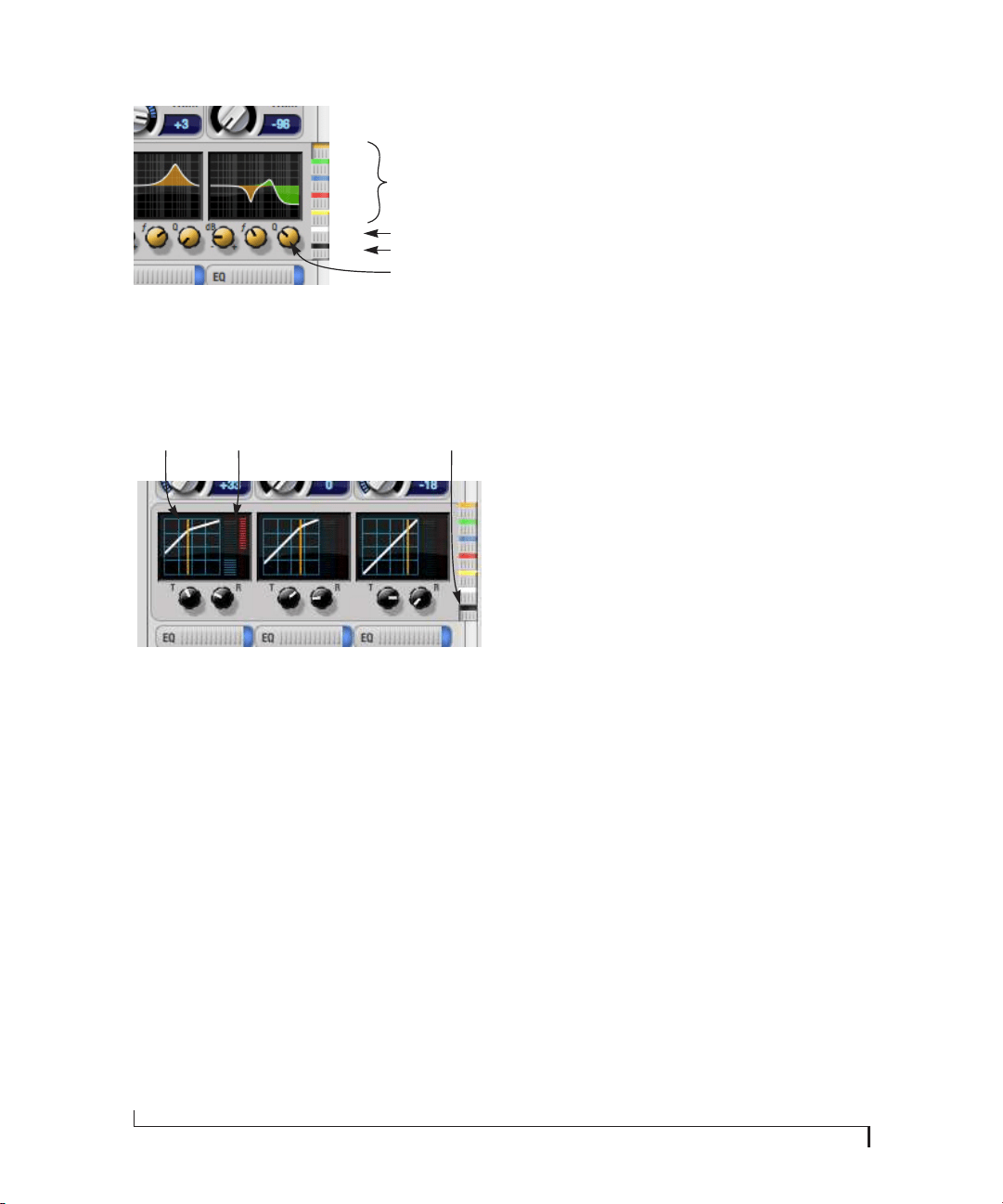
CUEMIX FX
74
Figure 9-4: The EQ/Dynamics selectors.
Click the selector (Figure 9-4) for the desired EQ
band, low-pass (LP) filter, high pass (HP) filter or
compressor to view it across all channels.
Figure 9-5: The Compressor controls.
☛ Shortcut: hold down the Option/Alt key while
clicking an EQ selector button to show just that
band of EQ in the graphs. Click any selector again
to return to viewing all bands.
Using the EQ/Dynamics knobs
Once you have chosen the desired EQ band, or the
compressor, you can modify its settings using the
two or three knobs below the graph. The knobs
match the color of the currently selected effect, to
help remind you of which effect you are currently
editing.
☛ Important: before you can modify the settings
of an EQ band using the three knobs below the
graph, the EQ band must be enabled. This is done
in the EQ tab (Figure 9-10), as explained in
“Enabling EQ” on page 78.
EQ/Dynamics enable/disable buttons
Click the EQ or Dynamics button at the bottom of
the input channel (Figure 9-3) to toggle the effect
on or off. Note that you can program EQ and
compressor settings, even when the effect is
currently disabled. (You just won’t hear the result
until you enable it.)
Reverb send
The input reverb send (Figure 9-3) feeds the input
signal to the 828x’s global reverb processor, where
it is merged with any other signals being fed to the
reverb. The reverb’s output can then be fed back
into a mix or output pair. The send occurs after all
other settings in the input channel strip (phase
invert, EQ, compression, etc.)
THE OUTPUTS TAB
The Outputs tab (Figure 9-6) lets you apply EQ,
dynamics and reverb to any output pair, just before
the signal leaves the 828x. This processing occurs at
the very end of the signal flow, after everything else
(host based effects, 828x input or bus processing,
mixing, and so on). Processing is done in the
digital domain, just before the signal goes analog
through the D/A converter. Output tab processing
is applied to the entire output mix (all signals being
mixed to the output from various sources).
Signal flows from top to bottom
Settings in each Output tab channel strip are
applied to the signal in order from top to bottom.
For example, EQ occurs before Dynamics, which is
applied before the reverb send and return.
Output name
The output name appears a the top of the input
channel. Output names are global and will also
appear in host audio software on the computer (if
the software supports channel names).
EQ band selectors
LP/HP filter selector
Compressor selector
Colored knobs
Orange
Green
Blue
Red
Yellow
White
Black
Compressor
graph
Compressor
meter
Compressor
selector
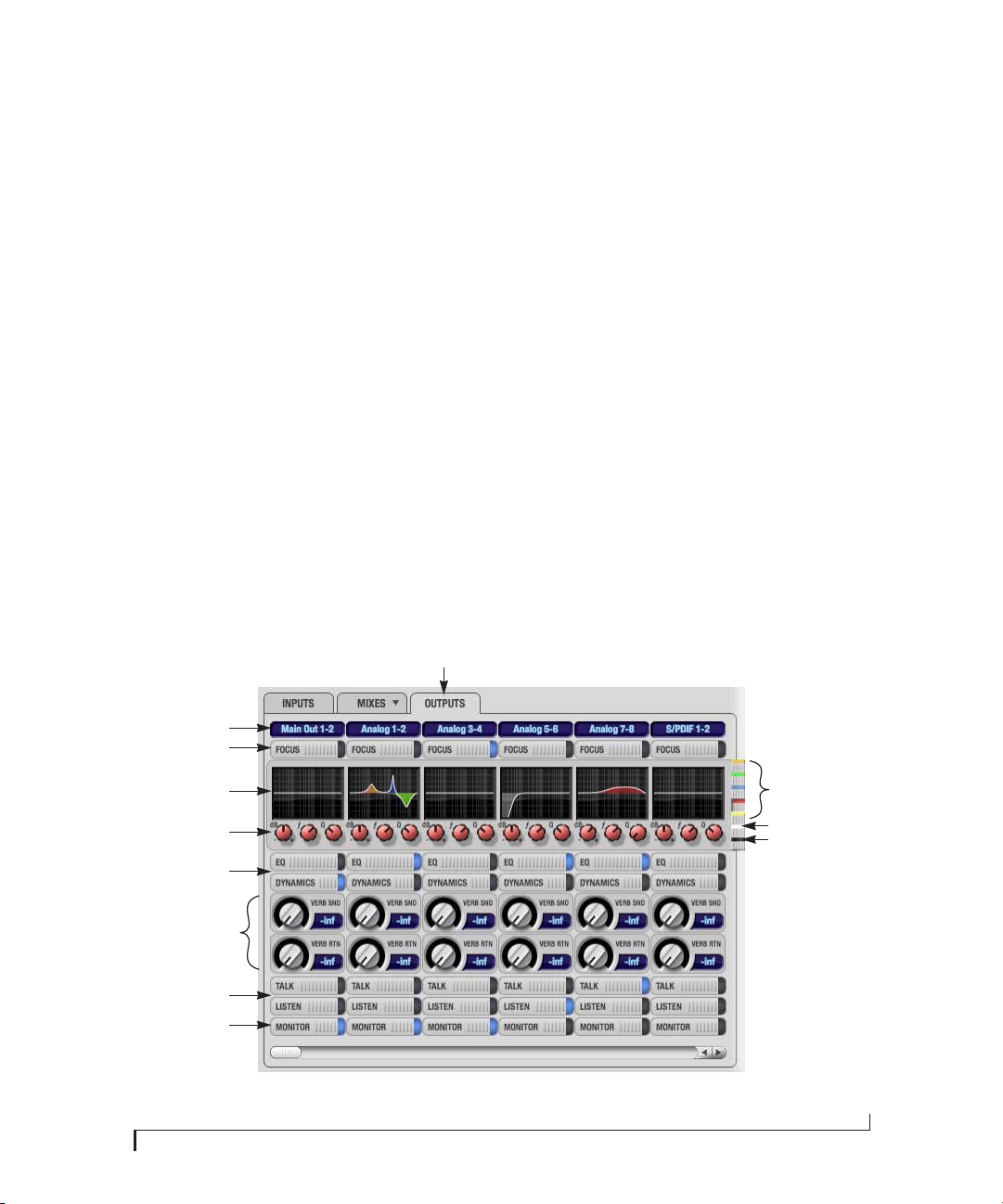
CUEMIX FX
75
Output channel focus
Click the channel focus button (Figure 9-6) to view
and edit parameters in the channel settings section
of the CueMix FX window (Figure 9-7 on page 76).
Channel focus also determines which channels are
being scoped by CueMix’s audio analysis tools, as
explained in “Choosing channels for audio
analysis” on page 93.
Output EQ and Dynamics
The EQ/Dynamics section in the Outputs tab
(Figure 9-6) works identically to the EQ/Dynamics
section for the Inputs tab (Figure 9-3). See “Input
EQ and dynamics” on page 73.
Output reverb send/return
The output reverb send (Figure 9-6) feeds the
signal for the output to the 828x’s global reverb
processor, where it is merged with any other signals
being fed to the reverb. The reverb’s output can
then be fed back into the mixer at various return
points, including the same output from which it
was sent (discussed below). The output reverb
send is disabled (grayed out) when the reverb Split
Point is set to Mixes to eliminate the possibility for
feedback loops created by reverb send/return
loops. See “Split point” on page 88. It is also
disabled when the 828x is operating at the 88.2 kHz
sample rate or above, as the reverb is not available
at high sample rates.
The output reverb return (Figure 9-6) feeds the
output of the 828x’s global reverb processor
directly to the output. This includes any other
signals currently being fed to the reverb.
Both the send and return occur after EQ and
dynamics processing, but before listenback and
talkback.
Talkback/Listenback
Click the Ta l k b a c k or Listenback buttons
(Figure 9-6) to toggle whether the output pair is
included in the Talkback or Listenback group. See
“Talkback and listenback” on page 90.
Figure 9-6: The Outputs tab.
Output name
Channel focus
Outputs tab
EQ band selectors
LP/HP filter selector
Compressor selector
EQ/Dynamics graph
EQ/Dynamics controls
EQ/Dynamics
enable/disable
Output reverb
send/return
Talkback/listenback
enable/disable
Monitor group assign
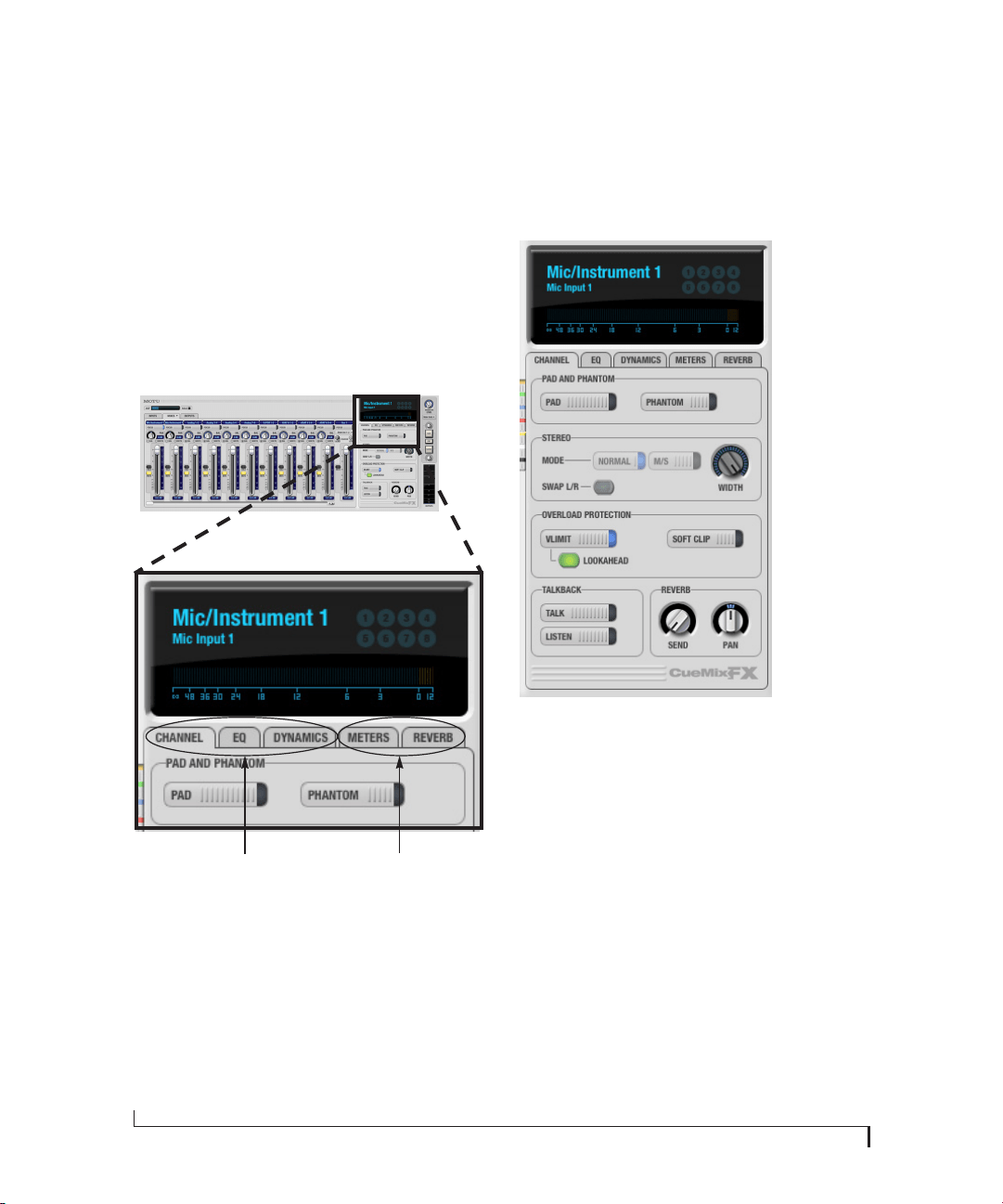
CUEMIX FX
76
Monitor group assign
Click the Monitor buttons (Figure 9-6) to toggle
whether the output pair is included in the Monitor
group. See “The Monitor Group” on page 89.
THE CHANNEL SETTINGS SECTION
The channel settings section in the CueMix FX
window (Figure 9-1) displays three tabs for
Channel, EQ and Dynamics settings for the
channel with the current focus. There are also two
global tabs: the Meter Bridge and the Reverb
Processor, as shown below.
Figure 9-7: The Channel Settings section.
The Channel tab
The Channel tab (Figure 9-8) displays settings for
input channels. Click any focus button in the
Inputs tab to view the Channel tab settings for the
channel.
Figure 9-8: The Channel tab.
Signal flow
Settings in the Channel tab occur just before the
EQ, dynamics and reverb sends in the Input tab
channel strip (Figure 9-3 on page 72). Input
channel signal flow is as follows: trim, overload
protection, phase, stereo versus M/S decoding,
width, L/R swap, EQ, dynamics and reverb send.
Pad and phantom
The Pad and phantom settings become active
(ungrayed) when the focus is on a mic input (or
mic input pair). These are the same -20 dB pad and
48V phantom power settings that you can also
control from the 828x hardware itself. There are
separate settings for each mic input.
Tabs for the channel that
currently has the focus
Tabs for the global meter
bridge and reverb processor
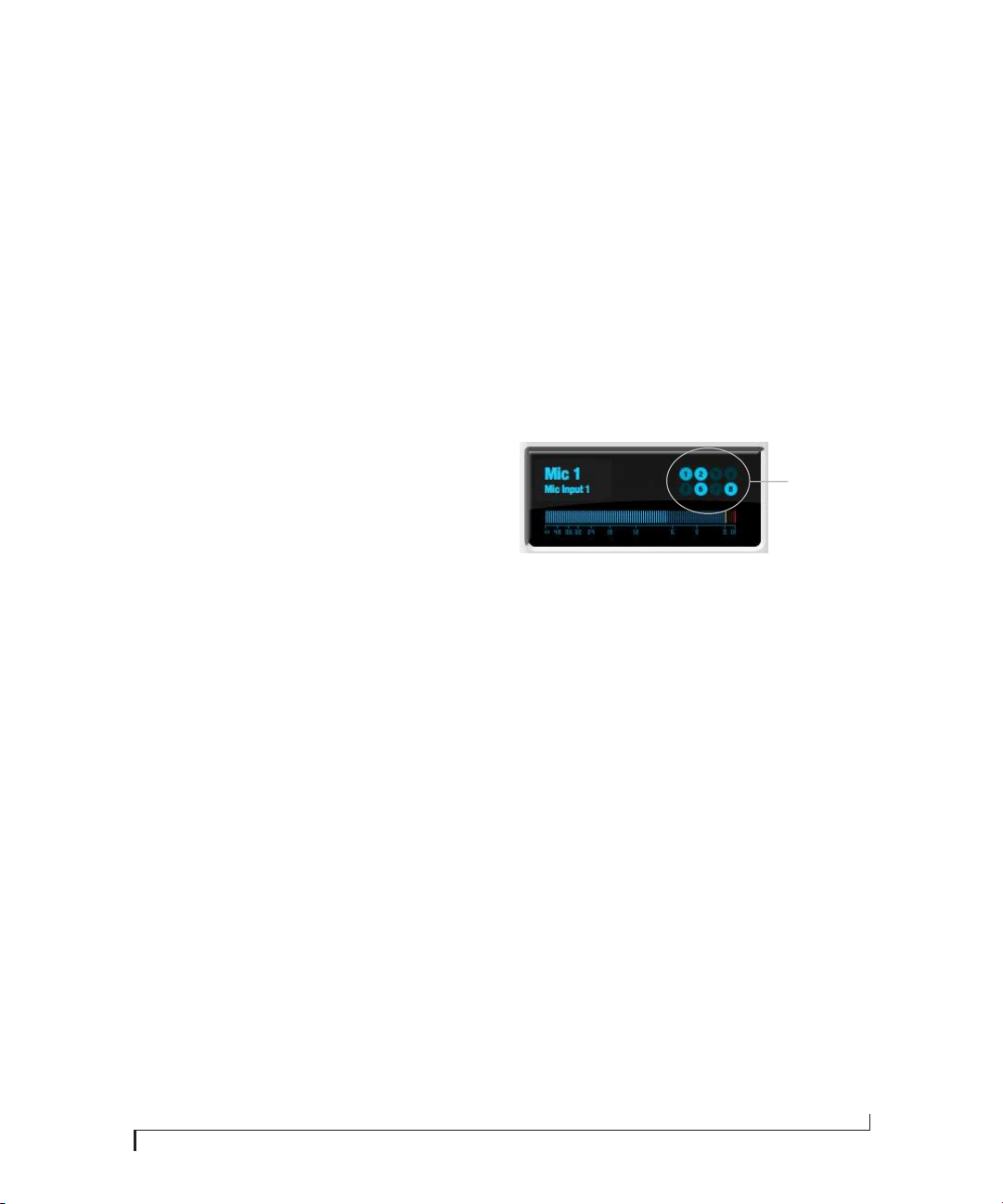
CUEMIX FX
77
Stereo settings
Inputs that have been grouped as stereo pairs in the
Inputs tab (Figure 9-3) provide two stereo modes
(Figure 9-8): Normal and M/S. M/S mode provides
decoding for a mid-side microphone configu-
ration.
The Width knob (Figure 9-8) provides control over
the stereo imaging, going from a full stereo image
to mono (both channels panned equally). See
“Width” on page 71.
The Swap L/R button (Figure 9-8) lets you switch
the left and right channels.
Overload protection (mic/guitar inputs only)
The Overload Protection section (Figure 9-8)
provides two features that help prevent digital
clipping on the two front-panel mic/guitar inputs.
These options are only available on these two
preamp-equipped inputs.
V-Limit™ (Figure 9-8) is a hardware limiter that
helps prevent digital clipping from overloaded
input signals. With V-Limit engaged, signals can go
above zero dB (with limiting applied) to as high as
+12 dB above zero with no distortion due to digital
clipping. Click the Lookahead option for even
better protection against sharp transients.
Additional or alternative protection can be applied
to the mic/guitar inputs by enabling Soft Clip
(Figure 9-8). When enabled, Soft Clip engages just
before clipping occurs and helps further reduce
perceptible distortion.
Ta l k b a ck s e c t i o n
Click the Ta l k b a c k or Listenback button
(Figure 9-8) to toggle whether the input is the
Talkback or Listenback input. Only one input can
be the talkback input, and only one input can be
the listenback input. See “Talkback and listenback”
on page 90.
Reverb section
The Send in the reverb section (Figure 9-8) is the
same control as the reverb send in the Input tab
channel strip (Figure 9-3). See “Reverb send” on
page 74. If the input is currently not grouped as a
stereo pair in the Input tab (it is operating as a
mono input), use the reverb Pan knob (Figure 9-8)
to pan the mono signal for the stereo reverb
processor.
Input meter and bus activity LEDs
When the Channel tab is active (Figure 9-8), the
display above the tab provides a horizontal level
meter and eight bus activity LEDs (Figure 9-9).
Figure 9-9: Input meter and bus activity LEDs.
The input level meter (Figure 9-9) is the same as the
input meters in the Meters tab (Figure 9-22 on
page 87) with the Pre FX button engaged, which
shows the input level on the physical input itself,
before any processing of any kind occurs within the
828x. This meter gives you the most accurate
reading of the actual signal level hitting the input,
regardless of any other settings (such as V-Limit,
Soft Clip and so on). The clip indicator, however,
happens after V-Limit and/or Soft Clip. This allows
you to see when clipping occurs, even with these
overload protection features engaged.
The Bus Activity LEDs (Figure 9-9) show you
which mix busses the input signal is being fed to.
For example, LED #6 will glow under the following
conditions: the input is unmuted in mix bus 6, its
fader is up, and there is signal activity from the
input going into the mix bus.
Bus
activity
LEDs
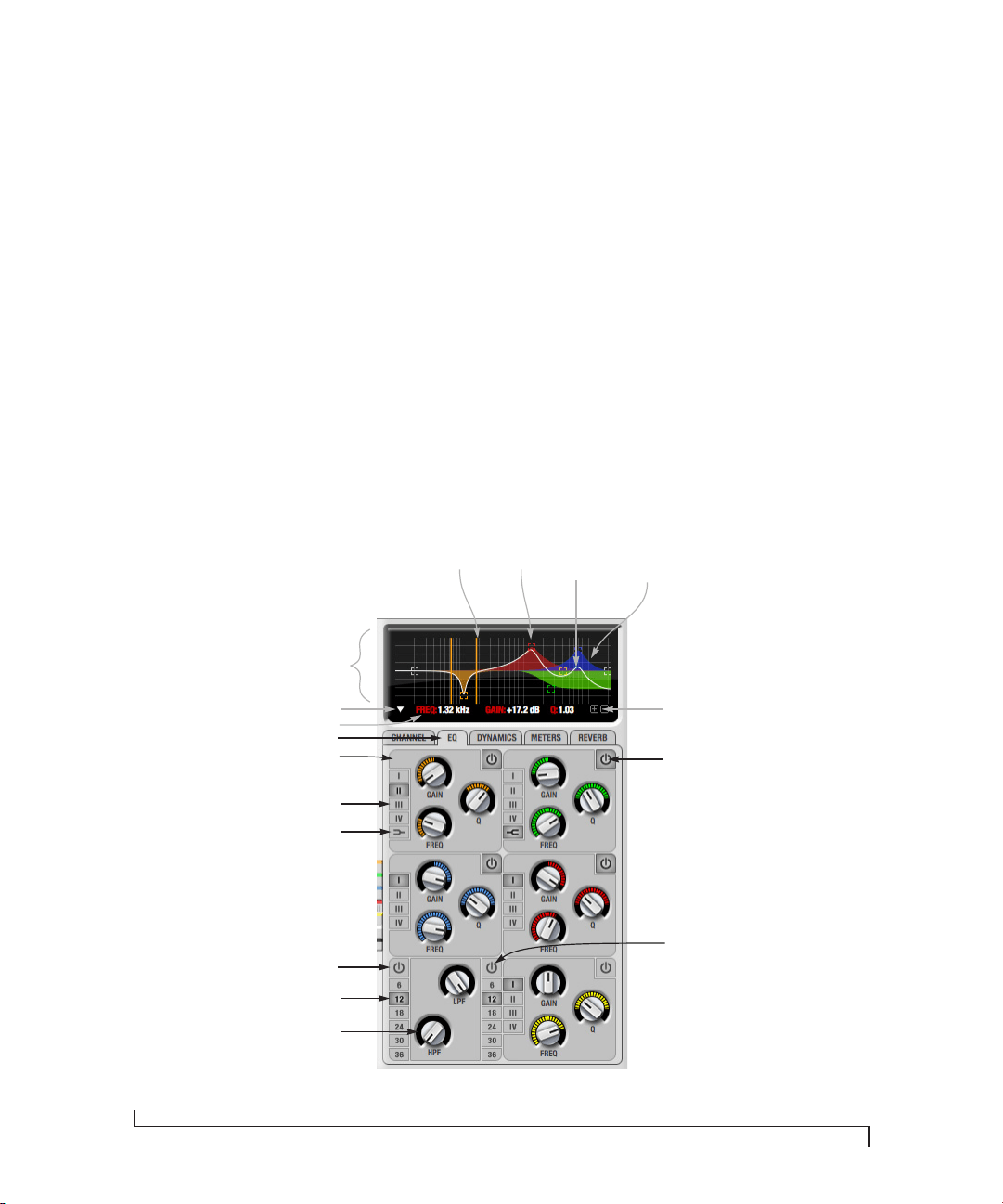
CUEMIX FX
78
The EQ tab
The EQ tab (Figure 9-10) displays the EQ settings
for the input or output channel that currently has
the focus. Click any focus button in the Inputs or
Outputs tab to view the EQ tab settings for the
channel.
Vintage EQ
Inspired by legendary British large console EQs,
the 828x Vintage EQ section (Figure 9-10) gives you
the look, feel and sound of the most sought-after
classic equalizers. Five bands of center frequency
parametric EQ filtering are provided, each with
four EQ types that model current popular EQ
styles and vintage analog EQ styles alike. Two
bands include shelf filtering. Two additional bands
of variable slope low pass and high pass filtering are
provided. The filter response display provides
comprehensive control and visual feedback of the
EQ curve being applied. With 64-bit floating point
processing, the 828x Vintage EQ has been carefully
crafted and meticulously engineered to produce
musical results in a wide variety of applications.
Enabling EQ
Each input and output channel has a global EQ
enable/disable button (Figure 9-3 and Figure 9-6).
This button enables or disables all bands of EQ for
the channel. In addition, each individual band of
EQ has a Filter enable/disable switch (Figure 9-10),
allowing you to enable as few or as many bands as
needed for each individual channel.
☛ Shortcut: hold down the Option/Alt key while
clicking anywhere in the EQ graph that’s not
directly on an EQ filter handle to enable or bypass
the EQ for that input or output.
Filter
handle
Q handles
(colored lines)
Composite
curve
(white line)
Individual
filter curve
(colored area)
Filter response
display
Shelf filter
Parameter display
Vertical scale
Filter enable/disable
EQ Filter types
Slope
Low-pass filter
EQ filter
Figure 9-10: The EQ tab.
EQ tab
Filter display options menu
High-pass filter
High-pass frequency
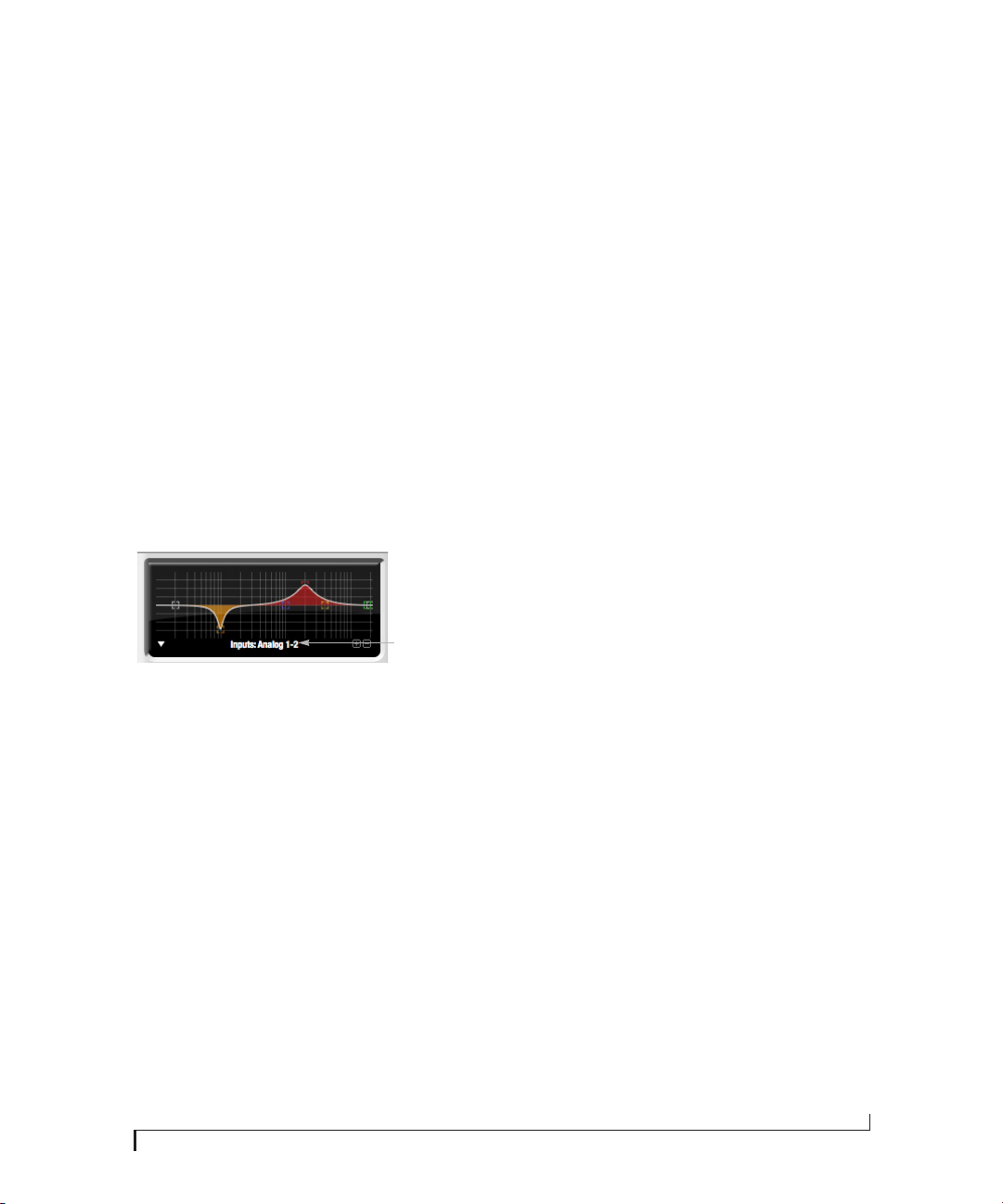
CUEMIX FX
79
☛ EQ is disabled when the 828x is operating at a
4x sample rate ( 176.4 or 192 kHz).
Vintage EQ Quick reference
Filter response display: Shows the response curve
for the current settings.
Vertical scale: Lets you zoom the vertical scale of
the filter response display.
Parameter display: Shows the precise numbers of
the parameter you are adjusting (or hovering over
with the arrow cursor). The labels (frequency, gain,
etc.) match the color of the filter being displayed.
When a filter handle is not selected and when the
cursor is not hovering over the display, the
parameter display shows the name of the current
channel being edited (the channel that currently
has the focus), as shown below:
Figure 9-11: When a filter handle is not selected and when the cursor
is not hovering over the display, the parameter display shows the
name of the current channel being edited (the channel that currently
has the focus).
EQ filter: one of five center bands of EQ that can be
independently enabled and programmed.
Filter type: Lets you choose from one of four or five
EQ styles for each independent band of EQ.
Low/High Pass filter: Both a low pass and high pass
filter are supplied with six different slope settings.
Slope: Lets you choose the slope (fall off) charac-
teristics of the low pass and high pass filter.
Q handle: Drag the Q handle lines to graphically
adjust the Q setting for the currently selected filter.
To select the filter, click its filter handle.
Filter handle: Drag this handle to graphically
adjust the filter’s boost/cut and/or frequency.
Composite curve (white line): shows the overall
response curve of the current settings in the
window.
Individual filter curve: Each filter has a color
(indicated by its knobs). When filter curves are
being displayed (the filter curve option is turned
on), each individual filter’s response curve is
displayed in the filter’s color.
Filter display options menu: Provides several
options for controlling the filter display.
Filter enable/disable: Turns the filter on or off.
How the vintage EQ works
The Vintage EQ operates like a standard EQ filter,
but with much more sophisticated processing
algorithms “under the hood”. There are five bands
of EQ, each with their own unique knob color, plus
additional low pass and high pass filters. Each filter
can be set to any center frequency you wish.
Each filter can be independently turned on or off
with the enable/disable button (Figure 9-10). Each
filter can be set to one of four different filter types
(I, II, III or IV). The two top-most filters (orange
and green) provide an extra low and high shelf
setting, in addition to the four standard band
settings. The additional low pass and high pass
filters (lower left) have gray cutoff frequency knobs
and six settings for slope (in octaves/dB).
Frequency response display
The frequency response display at the top of the
window displays the response curve of the current
settings in the window. The (horizontal) frequency
range is from 10 hertz to 20 KHz. The (vertical)
amplitude scale is in dB and is adjustable between 3
and 24 dB using the vertical scale buttons
(Figure 9-10).
The name of the
channel being
EQ’d.
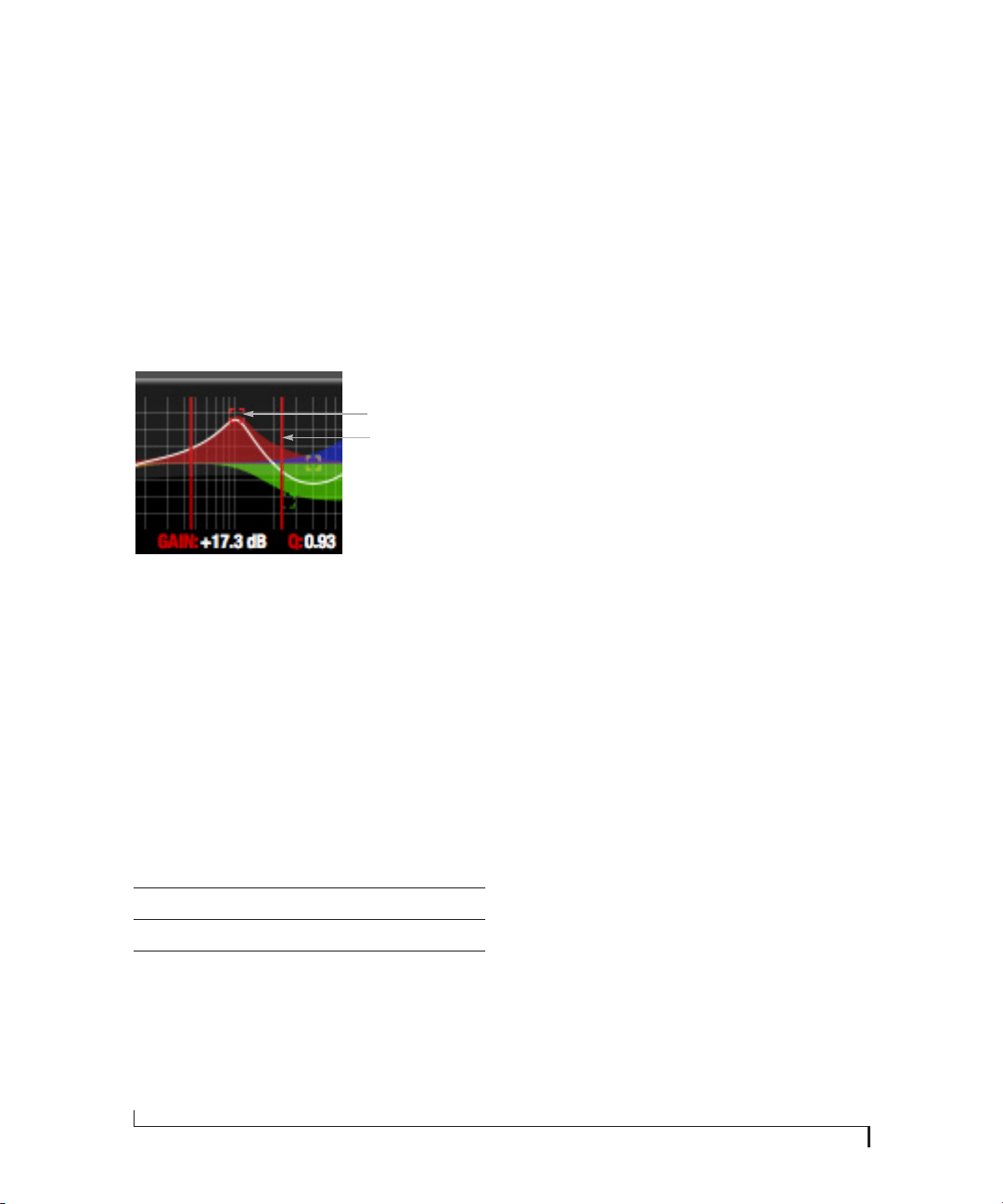
CUEMIX FX
80
Showing and hiding filter curves
To view a filter in the display, turn on the filter. The
shape of the filter, according to its current settings,
is shaded in the same color as the filter’s knob(s).
Use the filter display options menu (Figure 9-10) to
show or hide them in the display.
Adjusting filters in the display
Each filter has a handle, displayed as shown below
in Figure 9-12 (in the filter’s color), for adjusting its
boost/cut and/or frequency:
Figure 9-12: Drag the filter handle to adjust its frequency and/or
boost/cut. Drag the Filter Q handles to adjust the Q.
For the EQ filters, when you click the handle, you’ll
also see lines on either side for adjusting the Q
parameter, as shown above.
☛ Shortcut: hold down the Option/Alt key while
clicking an EQ filter handle to enable or bypass that
EQ filter band. Hold Shift to adjust gain only. Hold
Control to adjust frequency only.
EQ filters
The EQ filters have three parameters:
Q
The Q setting does not have a unit of measurement.
Rather, it is the ratio of the filter’s center frequency
to the bandwidth of the filter. In addition, the
actual Q value for the EQ curve being applied is
dependent on three factors: the gain setting, the
filter style, and the Q setting.
Filter types
Each filter can be independently set to one of four
different filter types: I, II, III and IV. These, and the
additional shelf filters for the LMF and HMF band,
are discussed in the section “EQ filter styles”.
Returning to zero (or nominal frequency)
To return a knob to zero, or it’s nominal frequency,
double-click it.
EQ filter styles
EQ is one of the most widely used processing tools
and can be applied to many different situations,
from minor corrective tasks to highly creative
applications. Over the years, many EQs have been
engineered for specific applications or to achieve a
certain sound. The Vintage EQ has been designed
to be flexible enough to cover a broad range of
applications. To that end, several different filter
types are supplied, varying mostly in the way they
handle the dynamic interaction between Gain and
Q. This crucial relationship has been modeled to
emulate the smooth and musical character of
classic analog EQ circuits, in which the Gain/Q
dependency was dictated by the actual circuit
design and electrical components used. The
following sections describe the character of each
type of EQ filter and their suggested applications.
In the three example illustrations (Figure 9-13
through Figure 9-16), the settings for the curves
are the same for comparison purposes:
■ Frequency = 1.00 kHz
■ Q = 1
■ Gain = +3.2, +10 and +20 dB
Control unit range
Gain dB -20.00 to +20.00
Frequency Hertz 20 Hz to 20 kHz
Q n/a - see note below 0.01 to 3.00
Filter Q
(red line)
Filter handle
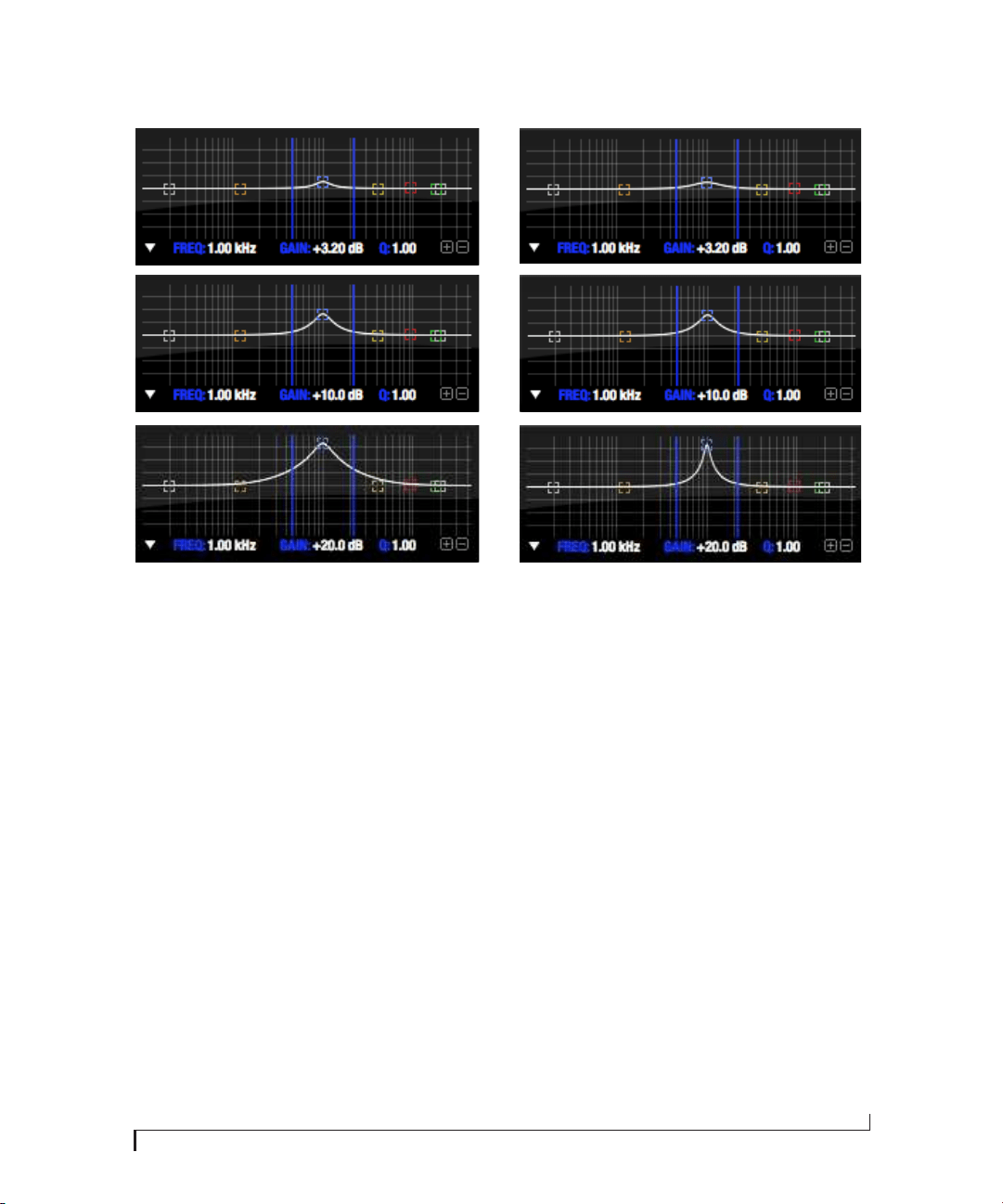
CUEMIX FX
81
Type I
Figure 9-13: Type I EQ filter style.
The Type I EQ filter has the least amount of Gain/Q
interaction, providing the most precision and
control of all the EQ filter types. Even small
adjustments in gain or reduction produce relatively
high Q. This EQ style is best for situations that call
for precise EQ adjustments requiring the
maximum amount of individual parameter
control. For more general shaping (e.g. full mixes)
or subtle control (e.g. vocals), the other styles
discussed in the following sections might be more
appropriate. This filter type is the most similar to a
standard parametric EQ.
Type II
Figure 9-14: Type II EQ filter style.
The Type I I EQ filter produces constant Q response
during boost or cut. The Type II style emulates
several classic legacy EQs and produces good
results for resonance control on drums and
percussion because it provides relatively high Q
values with more extreme gain or cut settings.
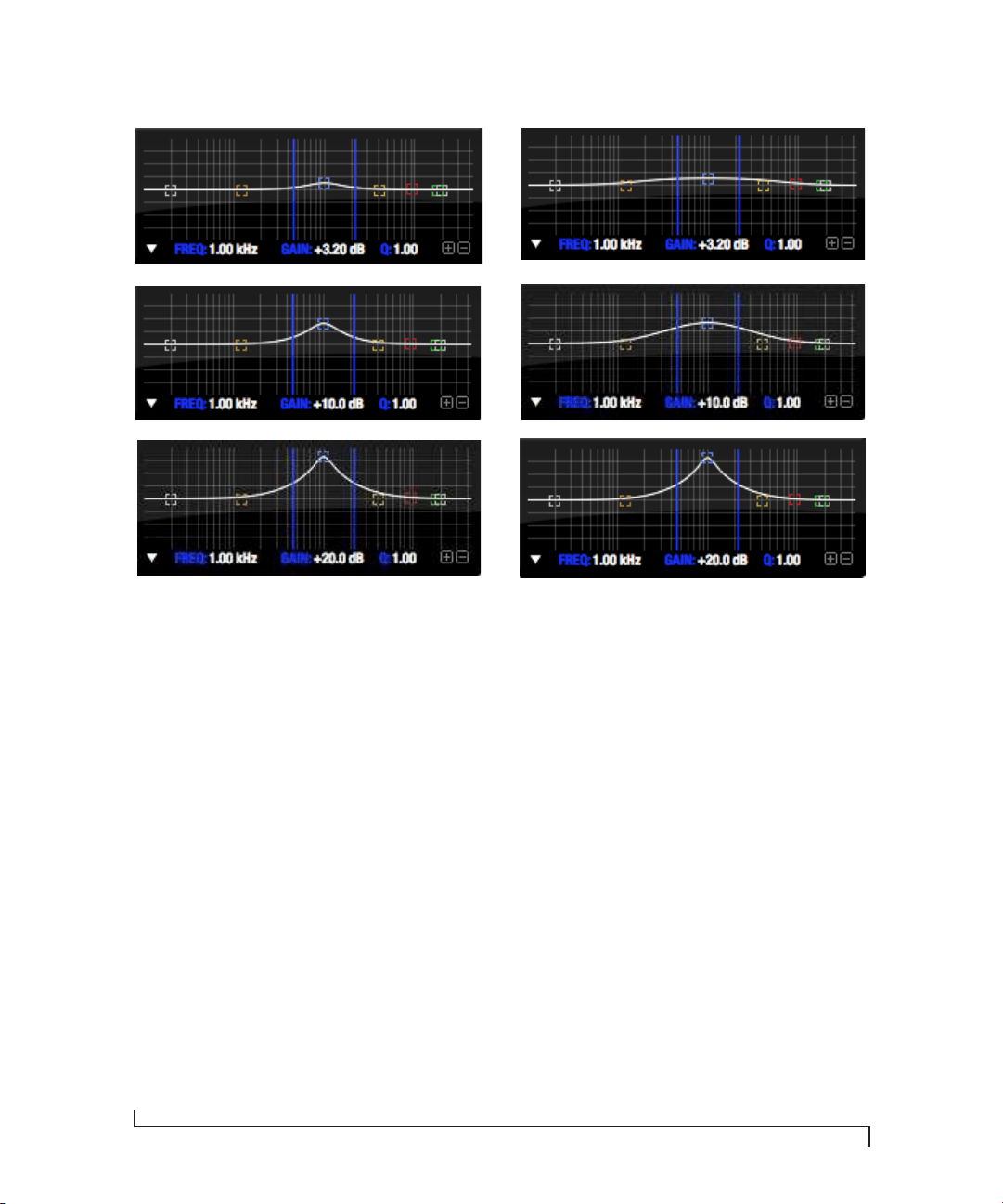
CUEMIX FX
82
Type III
Figure 9-15: Type III EQ filter style.
The Type III EQ filter increases Q as boost is
applied. Therefore, lower amounts of boost
provide a softer, “wider” EQ effect (since the
affected frequency range widens), while higher
boost tends to sound louder and more “up front”,
due to the increase in Q as the gain is increased.
The more gentle Q curve at lower settings is well
suited for overall EQ fills and more subtle
corrections in instrument and vocal sources.
Boosting or cutting by small amounts will seem to
produce the effect that your ear expects, without
the need to adjust Q. As a result, this filter style, and
similar EQs with this characteristic behavior, are
often referred to as being more “musical”. More
specifically, this style emulates the classic Neve
EQs, their modern derivatives and later SSL G
series EQs. Many current popular outboard
“boutique” EQs exhibit this same gain/Q
relationship.
Type IV
Figure 9-16: Type IV EQ filter style.
The Type I V EQ filter is a more extreme form of the
Type III filter. It exhibits a high degree of
interaction between Q and gain in order to
maintain as closely as possible an equal amount of
area under the response curve as gain is adjusted.
Type IV is the most gentle of the four EQ styles and
is ideal for large scale EQ adjustments, especially
on sub-mixes and complete mixes. This EQ style is
also ideal for any situations where subtle changes in
the overall character of the sound are desired. For
example, it can be used for mastering applications,
such as the overall adjustments that must often be
applied to entire tracks to match other tracks on
the album.
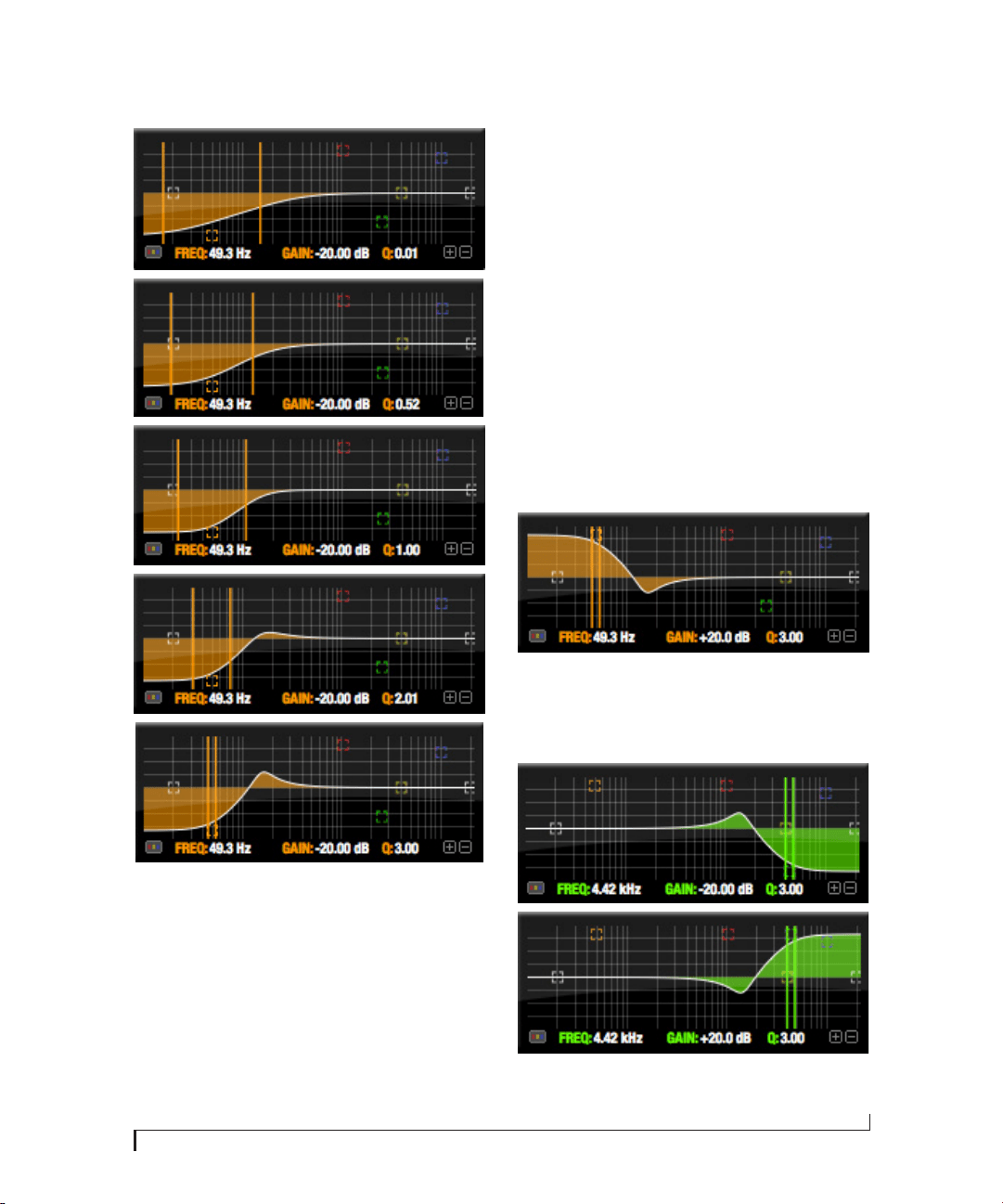
CUEMIX FX
83
Shelf filters
Figure 9-17: Shelf filter Q parameter overshoot.
When two top-most bands in the EQ tab are set to
their shelf filter setting (Figure 9-10), the Q
parameter controls the amount of overshoot
applied to the response curve, as illustrated in
Figure 9-17. When Q = 0.01 (the lowest setting),
normal shelving is applied with no overshoot. This
produces the response provided by a first order
shelf. When Q = 1.0 (the default setting), the
response corresponds to a second order shelf, still
with no overshoot. This is the same response as
conventional parametric EQs. In some situations,
this form of accurate, clean shelving can sound
harsh, especially when compared to legacy analog
EQs. To soften the results, the overshoot is
increased as Q is increased, as shown Figure 9-17
for Q values of 1.00, 2.00 and 3.00. This overshoot
region produces a boost in frequencies just above
the cutoff, which compensates in a smooth, more
pleasing fashion for the perceived drop in low
frequencies being cut.
Conversely, when shelving boost is being applied,
overshoot cuts frequencies just above the cutoff to
again compensate in a smooth and pleasing fashion
for the perceived boost in low frequencies:
Figure 9-18: Overshoot when low shelf boost is applied.
Overshoot is also applied to high shelf boost and
cut:
Figure 9-19: Overshoot when high shelf cut and boost is applied.
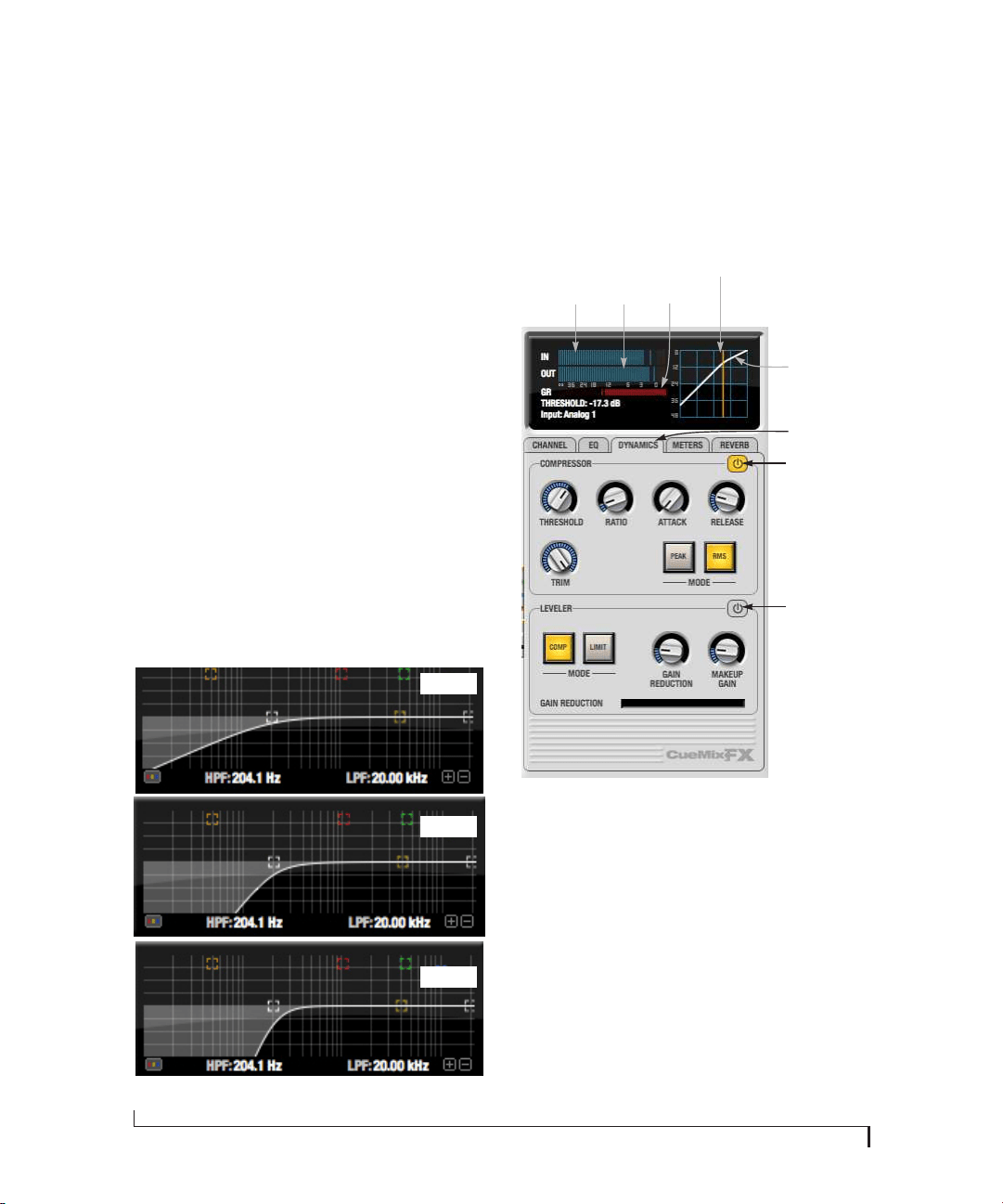
CUEMIX FX
84
Overshoot tends to produce more of what one
would expect to hear when applying shelving and
is therefore considered to be more musical than
shelving without overshoot. This effect, which has
gained tremendous popularity among audio
engineers, was first made popular in original Neve
series EQs and later in the SSL G series.
At the maximum Q setting of 3.00, the overshoot
peaks at half the total boosted (or cut) gain. For
example, with a maximum gain setting of +20dB,
the loss in the overshoot region is -10 dB.
Overshoot curves are symmetrical for both cut and
boost.
Low pass and high pass filters
The Vintage EQ low and high pass filters are similar
to those found in most conventional parametric
EQs (which usually have a fixed slope of 12 dB per
octave), except that Vintage EQ provides six
different slope (roll off) settings: 6, 12, 18, 24, 30
and 36 dB per octave. This control over the shape
of the “knee” gives you a great deal flexibility and
control for a wide variety of applications.
Figure 9-20: The low pass filter with three example slope settings.
The Dynamics tab
The Dynamics tab (Figure 9-21) displays the
Dynamics processing settings for the input or
output channel that currently has the focus. Click
any focus button in the Inputs or Outputs tab to
view the Dynamics tab settings for the channel.
Figure 9-21: The Dynamics tab.
Enabling Dynamics
Each input and output channel has a global
Dynamics enable/disable button (Figure 9-3 and
Figure 9-6). This button enables or disables all
dynamics processing for the channel. In addition,
the Dynamics tab has two different dynamics
processors, the Compressor and Leveler, which can
be individually enabled or disabled (Figure 9-21)
for the channel. The dynamics processor is
disabled when the 828x is operating at a 4x sample
rate ( 176.4 or 192 kHz).
Slope = 6
Slope = 18
Slope = 36
Compressor
enable/disable
Leveler
enable/disable
Dynamics tab
Input
level
meter
Output
level
meter
Gain
reduction
meter
Threshold
Tri m

CUEMIX FX
85
Compressor
The Compressor (Figure 9-21) lowers the level of
the input when it is above the threshold. The
amount of attenuation is determined by the Ratio
and the input level. If the input is 6 dB above the
Threshold and the Ratio is 3:1, then the output will
be 2 dB above the Threshold. When the input level
goes above the threshold, the attenuation is added
gradually to reduce distortion. The rate at which
the attenuation is added is determined by the
Attack parameter. Likewise, when the input level
falls below the Threshold, the attenuation is
removed gradually. The rate at which the
attenuation is removed is determined by the
Release parameter. Long Release times may cause
the audio to drop out briefly when a soft passage
follows a loud passage. Short Release times may
cause the attenuation to pump when the average
input level quickly fluctuates above and below the
Threshold.
These types of issues can be addressed by applying
the Leveler instead.
Graphic adjustment of the Threshold
The Threshold can be adjusted by turning the
Threshold knob or by dragging the Threshold line
directly in the compressor graph (Figure 9-21).
Input level meter
The Input Level meter (Figure 9-21) shows the level
of the input signal before it enters the compressor.
It shows either the peak level or the RMS level,
depending on which mode is currently chosen.
Gain reduction (GR) meter
The Gain reduction (GR) level meter (Figure 9-21)
displays the current amount of attenuation applied
by the compressor.
Output level
The Output Level meter (Figure 9-21) displays the
peaks of the output signal. Trim is applied before
the Output Level meter.
Peak/RMS modes
In RMS mode the compressor uses RMS values (a
computational method for determining overall
loudness) to measure the input level. In Peak mode,
the compressor uses signal peaks to determine the
input level. RMS mode will let peaks through
because the detector sidechain is only looking at
the average signal level. Peak mode will react to
brief peaks. Peak mode is generally used for drums,
percussion and other source material with strong
transients, while RMS mode is mostly used for
everything else.
The input meters show either the peak level or the
RMS level, depending on the mode.
Leveler
The Leveler™ (Figure 9-21) provides an accurate
model of the legendary Teletronix™ LA-2A®
optical compressor, known for its unique and
highly sought-after Automatic Gain Control
(AGC) characteristics. The 828x Leveler faithfully
models the LA-2A using the on-board DSP with
32-bit floating point precision.
A model of an optical compressor
The simplest description of an optical leveling
amplifier device is a light shining on a photore-
sistor. The intensity of the light source is
proportional to the audio signal, and the resistance
of the photoresistor is in turn inversely
proportional to the intensity of the light. Photore-
sistors respond quite quickly to increases in light
intensity, yet return to their dark resistance very
slowly. Thus, incorporation of the photoresistor
into an attenuator followed by an amplifier which
provides make-up gain produces a signal which
maintains a constant overall loudness.
Automatic gain control using light
The Automatic Gain Control (AGC) circuit of the
LA-2A uses a vintage opto-coupler known by its
model number (T4). The T4 contains an electrolu-
minescent panel (ELP) and photoresistor mounted

CUEMIX FX
86
so that the emission of the panel modulates the
resistance. An ELP consists of a thin layer of
phosphorescent material sandwiched between two
insulated electrodes to form a capacitor. Making
one of the electrodes transparent allows the light to
escape. These devices are essentially glow-in-the-
dark paint on a piece of foil covered by metalized
glass or plastic, and are the same devices used in
low-power night lights. Unfortunately, these
devices need high voltages to operate, and are best
driven by tube circuits which can supply voltage
swings of several hundred volts.
Response characteristics
Once the light has faded away, the photoresistor
then decays back to its dark state. The shape of the
decay curve varies depending on how bright the
light was, and how long the light lasted. A general
rule of thumb is that the louder the program, the
slower the release. Typically, the release can take up
to and over one minute. One thing to keep in mind
when using these types of devices is that the typical
concepts of compression ratio, attack, release, and
threshold do not apply. The light intensity is
determined by the highly non-linear interactions
of the input signal, AGC circuit, and ELP, and thus
exhibit a strong program dependence that is
impossible to describe without the mind-numbing
mathematics of statistical mechanics. The actual
results, however, can be almost mystical: even
when you feed the same material (a loop perhaps)
through the Leveler twice, you’ll often see a new
response the second time through a loop, complete
with unique attack times, release times and
compression ratios. Furthermore, two different
input signals with the same RMS levels may be
leveled in a drastically different manner.
It is precisely this self-adjusting behavior that
makes optical compressors the tool of choice for
smoothing out vocals, bass guitar and full-
program mixes without destroying perceived
dynamics.
Compressor/Limit buttons
The Comp and Limit buttons (Figure 9-21) model
the original LA-2A Limit/Compress mode switch.
The effect is very subtle, with the Limit option
behaving only slightly more like a limiter than a
compressor. The switch increases the level of the
input to the AGC model and runs the attenuator at
a slightly lower level. The Leveler then responds
more strongly to transients, but otherwise still
behaves like a leveling amplifier.
Gain Reduction
Gain Reduction (Figure 9-21) sets the strength of
the signal sent to the AGC model.
Makeup Gain
Makeup gain (Figure 9-21) amplifies the output
signal to make up for gain reduction.
Enabling or disabling the Leveler
The Leveler models the LA-2A so closely, it also
models the time it takes for an actual LA-2A to
“warm up” after it is turned on. Therefore, when
you enable the Leveler, give it a moment to “settle”
before you begin processing signals with it.
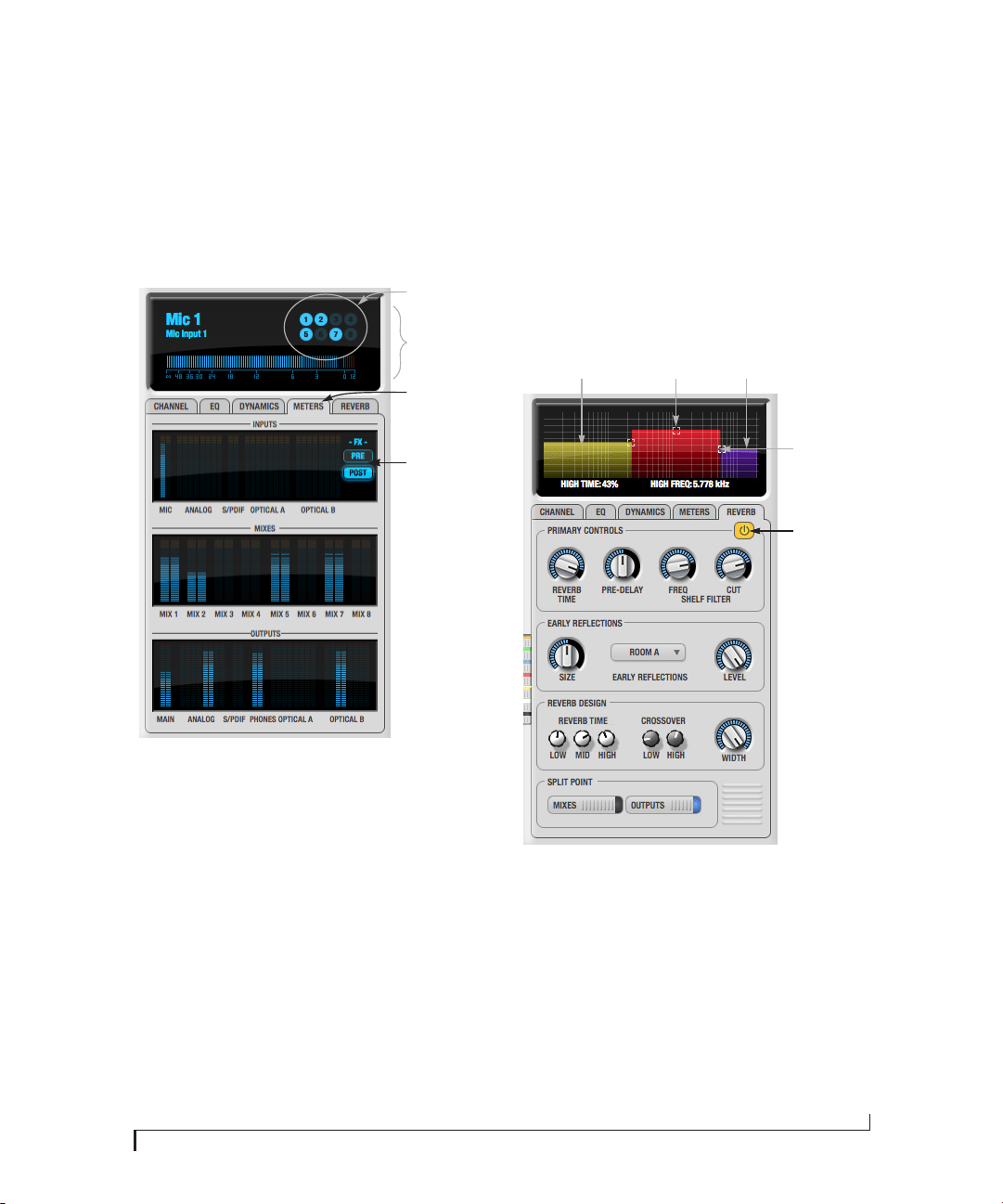
CUEMIX FX
87
The Meters tab
The Meters tab (Figure 9-22) serves as a
comprehensive meter bridge for all inputs, outputs
and mix busses in the 828x. This tab gives you a
“bird’s-eye” view of all signal activity in the 828x; it
is ideal for confirming your signal routing
programming and for troubleshooting.
Figure 9-22: The Meters tab.
Channel meter display
The channel meter display (Figure 9-22) provides a
long-throw meter for the input or output that
currently has the focus in the Input/Output tabs.
Bus activity LEDs (inputs only)
The Bus activity LEDs (Figure 9-22) are present
only for inputs. See “Input meter and bus activity
LEDs” on page 77.
Pre/post processing switch
The pre/post processing switch (Figure 9-22) affects
all input meters (and the meter in the channel
meter display above the tab, if this area is
displaying an input meter). Click Pre to view levels
before any input channel processing besides trim;
click Post to view levels after all channel processing
(EQ, compression, M/S decoding, L/R swap, etc.)
The Reverb tab
The Reverb tab (Figure 9-23) provides access to the
828x’s single, global reverb processor, which
provides high-fidelity reverberation and graphic
control over its parameters.
Figure 9-23: The Reverb tab.
Enabling reverb
Use the enable/disable button (Figure 9-23) to turn
the reverb processor on or off. Since reverb uses
considerable DSP resources, it is best to leave it off
when you are not using it.
☛ The reverb processor is disabled when the
828x is operating at high sample rates (from 88.2 to
192 kHz).
Meters tab
Bus activity LEDs
(inputs only)
Pre/post
processing
switch
Channel meter
display
Reverb
enable/disable
Mid band reverb
time handle
Crossover
handle
Low band
(yellow)
High band
(purple)

CUEMIX FX
88
Routing inputs, busses and outputs to the
reverb processor
The reverb processor is a single, independent unit
that provides stereo reverb.You can route multiple
signals to it from various points (sends) in the
CueMix FX mixer, but all incoming signals to the
reverb processor are merged and processed
together. The resulting stereo output from the
reverb can then be inserted into a mix bus or
output using stereo returns.
Reverb sends
The following signals can be sent to the reverb
processor via their corresponding sends (discussed
earlier in this chapter):
■ Mono or stereo inputs (Figure 9-3 on page 72)
■ Mix bus output (Figure 9-2 on page 70)
■ Outputs (Figure 9-6 on page 75)
Reverb returns
The stereo output from the reverb processor can be
sent to the following destinations via their
corresponding returns (discussed earlier in this
chapter):
■ Mix bus outputs
■ Outputs
■ The computer (via the Reverb Return bus)
Split point
The Split Point (Figure 9-23) prevents feedback
loops that would be caused by a signal being sent to
the reverb processor and then returned to the same
signal path.
Mixes
When the Split Point is set to Mixes, the returns in
the Mix bus tab become active and the sends in the
Output tab gray out. This allows you to send from
inputs and mixes and return to mixes and outputs.
Outputs
When the Split Point is set to Outputs, the sends in
Output tab become active and the returns in the
Mix bus tab gray out. This allows you to send from
inputs, mixes and outputs and return to outputs.
Primary controls
The Primary Controls section (Figure 9-23) in the
Reverb tab provides the following basic parameters
for programming the reverb.
Reverb Time
Reverb time determines the length of decay, or tail,
of the reverb. This is a global setting for the reverb
processor. You can further refine the tails by
independently setting the reverb time of three
separate frequency bands, as discussed below in
the Reverb Design section.
PreDelay
PreDelay is the amount of time before you hear the
very first reflections. If you are in a large room, it
takes a while before the first reflections return.
PreDelay is useful for clarifying the original sound.
For example, with vocals, the reflections won’t start
until after the initial sound of a word has been
sung.
Shelf Filter
The Shelf Filter is a low-pass filter that controls the
high frequency characteristics of the overall effect.
Frequency sets the cutoff frequency for the filter
and Cut sets the amount of signal attenuation
applied by the filter.
Early reflections
Initial reflections give a space its unique sound.
The shape of the room, the angles of the walls, even
furniture in the room will produce a series of Initial
Reflections. Think of the early reflections and
room type as the “flavor” of the reverb. You can
choose between several types of rooms. These are
acoustic models for simulating these different
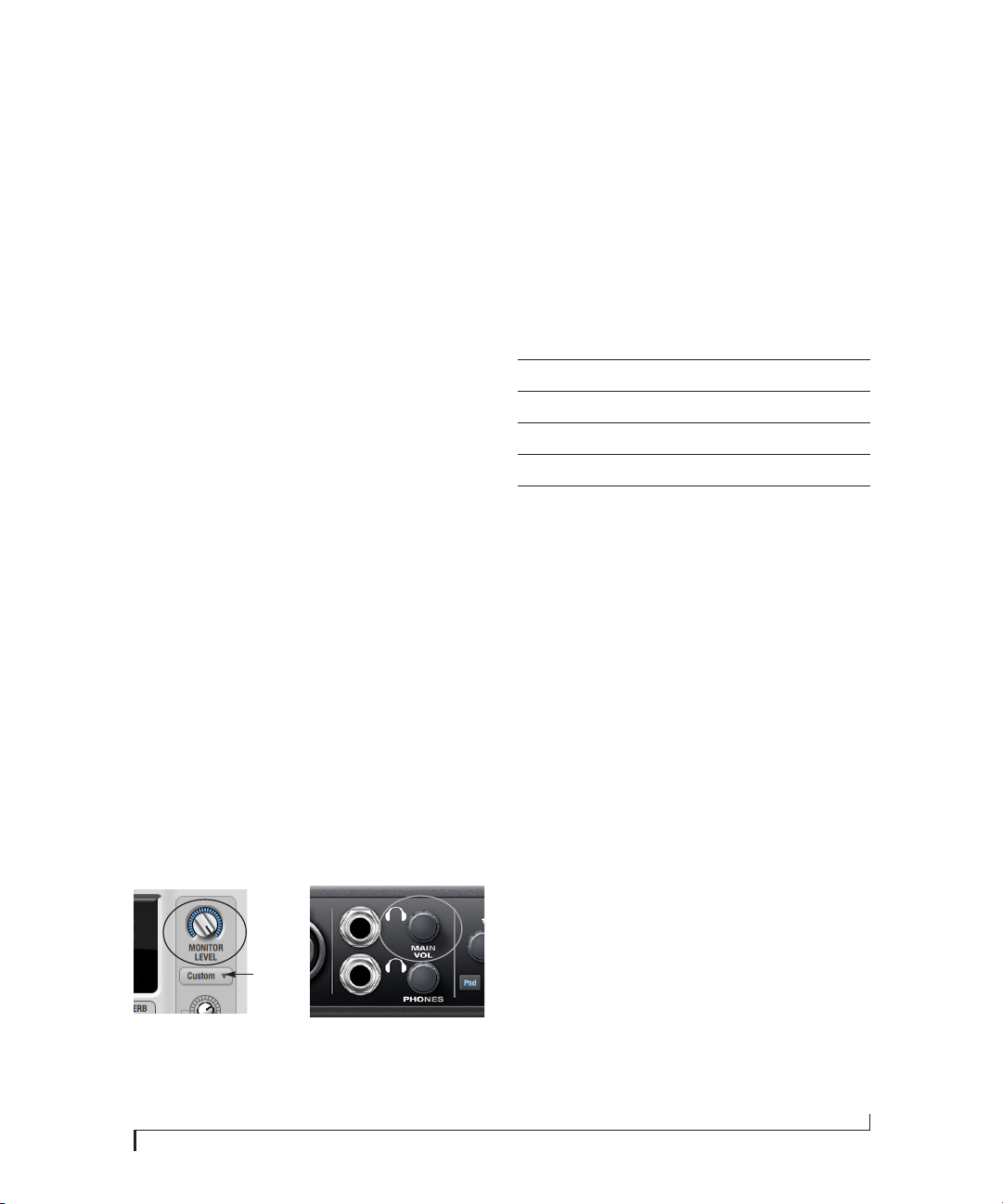
CUEMIX FX
89
types of spaces. The Size and Level parameters let
you control the size of the room and the strength of
the initial reflections.
☛ Here’s a tip: try using initial reflections
without any subsequent reverb (turn the reverb
time down as far as it will go). You’ll hear
interesting and unusual effects.
Reverb design
The Reverb Design section allows you to
independently control the reverb time for three
separate frequency bands (Low, Mid and High)
with adjustable cross-over points between them
(Low and High). The reverb time for each band is
specified in percent of the overall reverb time in the
Primary Controls section at the top of the tab.
You can edit these parameters graphically by
dragging the handles in the graphic display
(Figure 9-23).
Width does what its name implies: if you turn this
control all the way up, the result is maximum stereo
imaging. A position of 12 o’clock produces
essentially a mono image. Turning the control all
the way down completely swaps the stereo image.
THE MONITOR GROUP
The monitor group is a set of 828x outputs that can
be controlled with the master Monitor Level knob
in upper right corner of the CueMix FX mixer
window (Figure 9-24), as well as the MAIN VOL
knob on the 828x front panel.
Figure 9-24: Monitor group volume control from CueMix FX and the
front panel MAIN VOL knob.
Assigning outputs to the monitor group
Any combination of outputs can be assigned to the
monitor group. To include an output pair in the
monitor group, click its Monitor button in the
Outputs tab (Figure 9-6 on page 75).
Monitor group presets menu
The monitor group presets menu (Figure 9-24)
provides several presets for commonly used
monitor groups:
If you program your own monitor output group,
the presets menu displays the words user def. (user
defined).
Monitor group meters
The monitor group meters (Figure 9-1 on page 69)
show levels for any/all output pairs that are
currently included in the monitor group. The
width of the meters scales proportionally so that all
current monitor group outputs will fit within the
prescribed space for the meters. If many outputs
are included, then the meters will look fairly thin,
but they will all be included in the meter.
Monitor
group
presets
menu
Monitor group preset Output assignment
Main Outs Main Out 1-2
Stereo Analog Out 1-2
Quad Analog Out 1-4
5.1 Analog Out 1-6
7.1 Analog Out 1-8
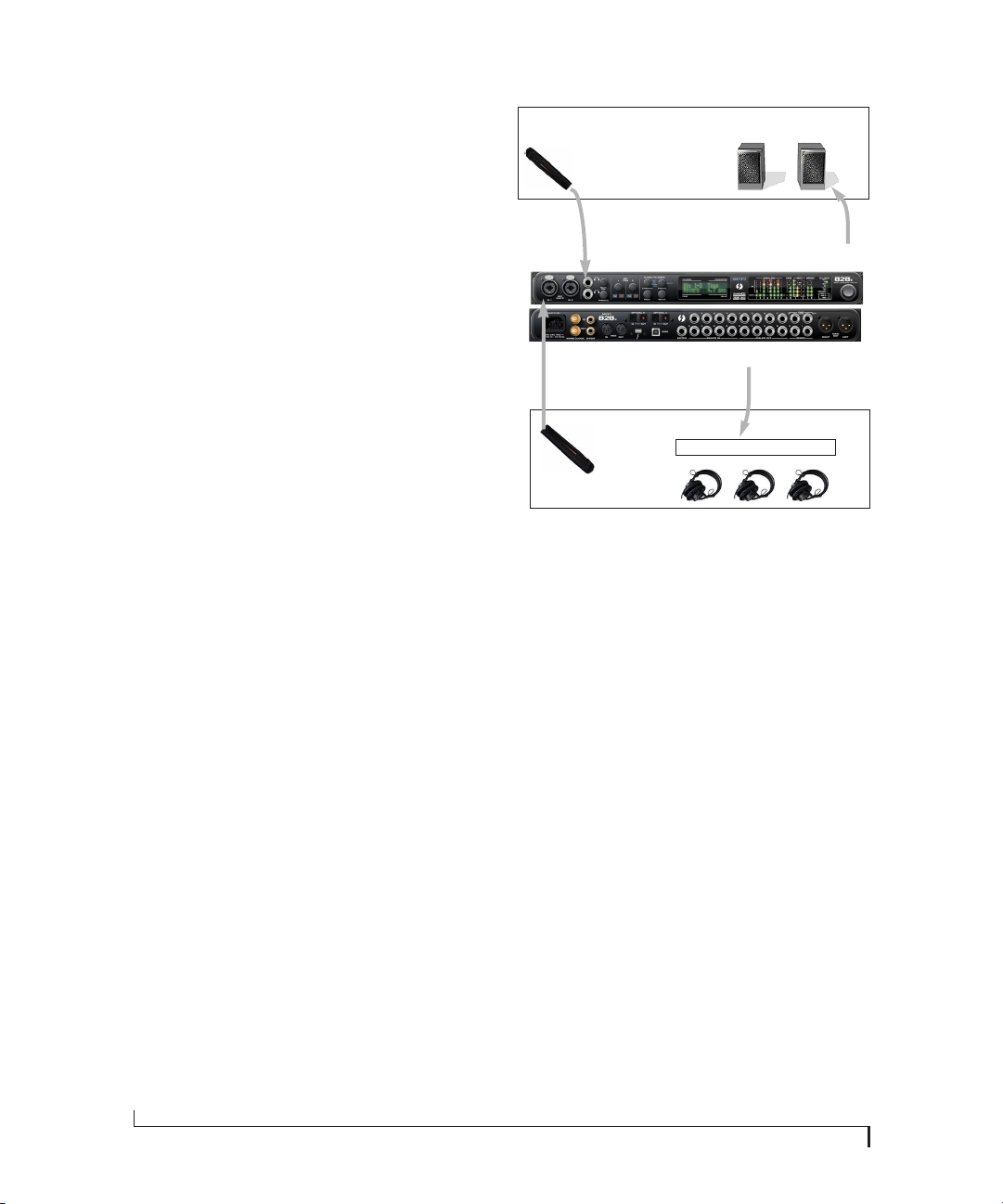
CUEMIX FX
90
DSP METER
The DSP meter (Figure 9-1) shows how much of
the available DSP processing power is currently
being used by the 828x for effects processing. DSP
resources are allocated in channel order from the
first input to the last output. If there aren’t enough
DSP resources for all effects to be enabled on a
channel, none of them are allocated on that
channel or any following channel.
EQ on a stereo channel requires approximately
twice the DSP resources as the same EQ on a mono
channel. The Compressor (2.5 x 1 EQ band) and
Leveler (4 x 1 EQ band) require about the same
DSP resources for a mono or stereo channel.
SOLO LIGHT
The Solo light (Figure 9-1) illuminates when any
input in the current (active) mix bus is soloed
(even if it is currently scrolled off-screen).
TALKBACK AND LISTENBACK
CueMix FX provides Tal kb a c k and Listenback
buttons. Talkback allows an engineer in the control
room to temporarily dim all audio and talk to
musicians in the live room. Conversely, Listenback
allows musicians to talk to the control room.
Hardware setup
Figure 9-25 below shows a typical hardware setup
for Talkback and Listenback. For Talkback, set up a
dedicated mic in your control room and connect it
to a mic input on your MOTU audio interface. For
Listenback, set up a dedicated listenback mic in the
live room for the musicians and connect it to
another mic input (or just use one of the mics you
are recording from). For talkback output, set up a
headphone distribution amp or set of speakers in
the live room, and connect it to any 828x output, as
demonstrated below in Figure 9-25.
Figure 9-25: Typical hardware setup for Talkback and Listenback.
Talkback / Listenback Mic Input
To configure the talkback mic in CueMix FX, go to
the Inputs tab (Figure 9-3 on page 72) and click the
Focus button for the input that the talkback mic is
connected to. Click the Channel tab (Figure 9-8 on
page 76) and enable the Ta l k button.
Repeat this procedure for the Listenback mic,
except click the Listen button in the Channel tab.
Talk / Listen output
To configure the talkback and listen back outputs,
go to the Outputs tab (Figure 9-6 on page 75) and
enable the Tal k button for any output pair on which
you’d like to hear the talkback mic. Similarly,
enable the Listen button for any output pair on
which you’d like to hear the listenback mic.
Talkback / Listenback Monitor Dim
Use the knobs next to the Talk and Listen buttons
(Figure 9-26) to determine the amount of
attenuation you would like to apply to all other
audio signals (besides the talkback/listenback
signal) when Talkback and/or Listenback is
Listenback
mic
Control room
Talkback
mic
Main outs
Live room
Analog out 7-8
Headphone distribution amp
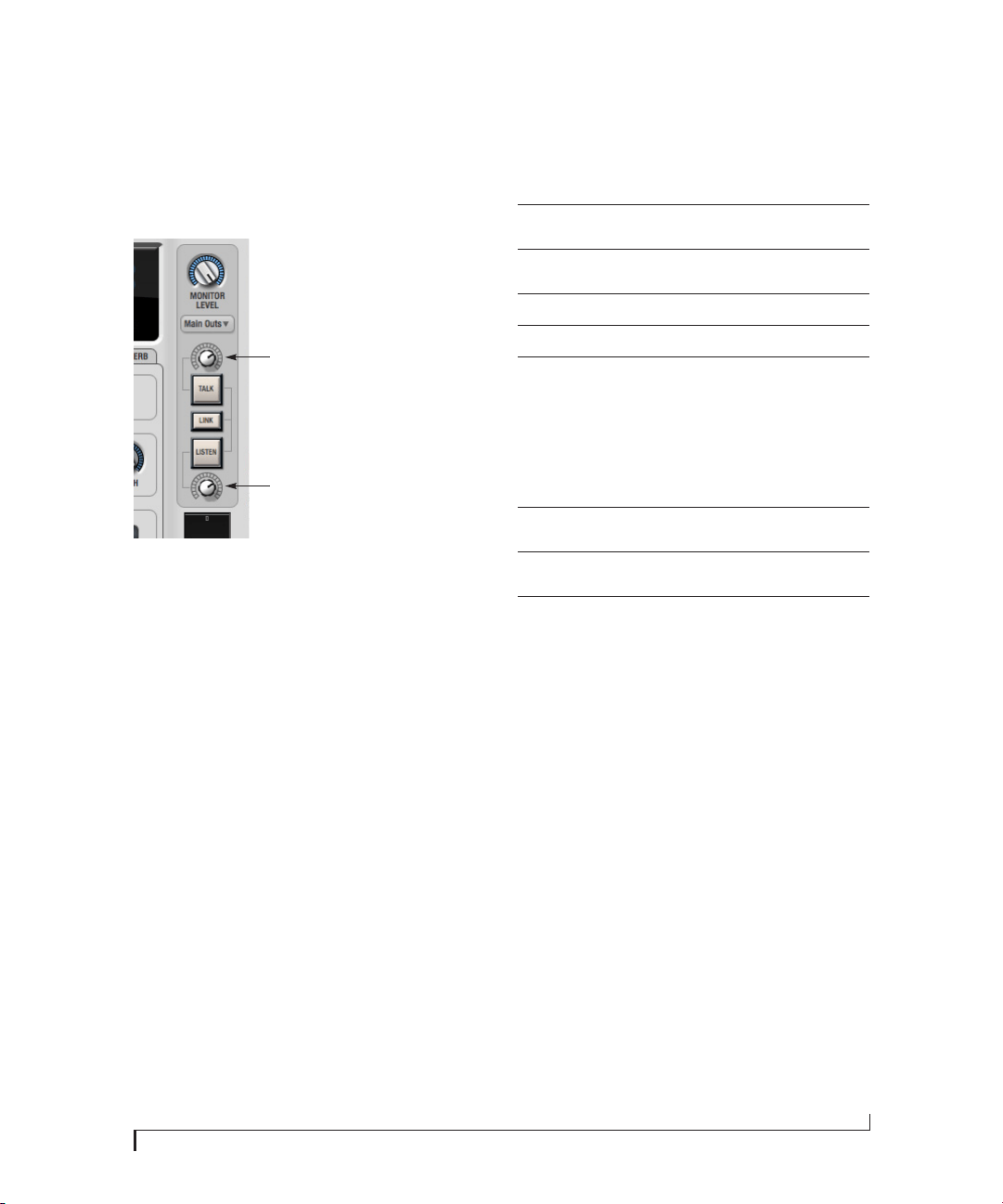
CUEMIX FX
91
engaged. To completely silence all other CueMix
audio, turn them all the way down. attenuation
only occurs when talkback or listenback is
engaged. Audio playing back from disk (your host
software) is not affected.
Figure 9-26: The Talkback/Listenback controls.
Engaging/disengaging Talkback and
Listenback
To engage Talkback or Listenback, press on the
Talk or Listen buttons (Figure 9-26) and then
release to disengage. Talkback and/or Listenback is
engaged for as long as you hold down the mouse
button. Option/Alt-click to make the buttons
“sticky” (stay engaged until you click them again
— so you don’t have to hold down the mouse). Or
use the Talkback menu items.
If you would like to engage both Talkback and
Listenback at the same time, enable the Link button
(Figure 9-26).
Controlling Talkback and Listenback volume
To control the volume of the Talkback and/or
Listenback mics, adjust their input trim in CueMix
FX.
SHORTCUTS
Hold down the following general modifier keys as
shortcuts:
Hold down the following modifier keys as
shortcuts for the EQ tab and controls:
Talk dim
Listen dim
Shortcut Result
Shift key Applies your action to all inputs or all out-
puts in the mix.
Control key Applies your action to the stereo input pair,
even when it is currently configured as mono.
Alt key Applies your action to all busses.
Shift-Alt Applies your action to all inputs and mixes.
Double-click Returns the control to its default value (pan
center, unity gain, etc.)
Shortcut Result
Shift click Applies EQ button change to all input or out-
puts.
Alt-click Applies EQ enable button changes to all
bands in that input or output.
Shift-Alt-click Applies EQ enable button changes to all
bands and all inputs or outputs.

CUEMIX FX
92
FILE MENU
Saving and loading hardware presets
The 828x can store up to 16 presets in its on-board
memory. A preset includes all CueMix FX settings
for all mix busses, but it excludes global settings
like clock source and sample rate.
The Load Hardware Preset and Save Hardware
Preset commands in the CueMix FX file menu let
you name, save and load presets in the 828x.
Peak/hold time
In CueMix FX, a peak indicator is a line
(representing a virtual LED) displayed in a level
meter that indicates the maximum signal level
registered by the meter. The Peak/hold time setting
(File menu) determines how long this indicator
remains visible before it disappears (or begins to
drop). To disable peak/hold indicators altogether,
choose Off from this sub-menu.
Mix1 Return Includes Computer
The Mix1 return includes computer File menu item
applies to other MOTU interfaces products and has
no effect on the 828x.
Hardware follows CueMix Stereo Settings
This File menu item applies to other MOTU
interfaces products and has no effect on the 828x.
EDIT MENU
Undo/Redo
CueMix FX supports multiple undo/redo. This
allows you to step backwards and forwards
through your actions in the software.
Copying & pasting (duplicating) entire mixes
To copy and paste the settings from one mix to
another:
1 Select the source mix (Figure 9-1) and choose
Copy from the Edit menu (or press Control-C).
2 Choose the destination mix and choose Paste
from the Edit menu (or press Control-V).
Clear Peaks
Choose Clear Peaks from the Edit menu to clear all
peak indicators in all CueMix FX meters.
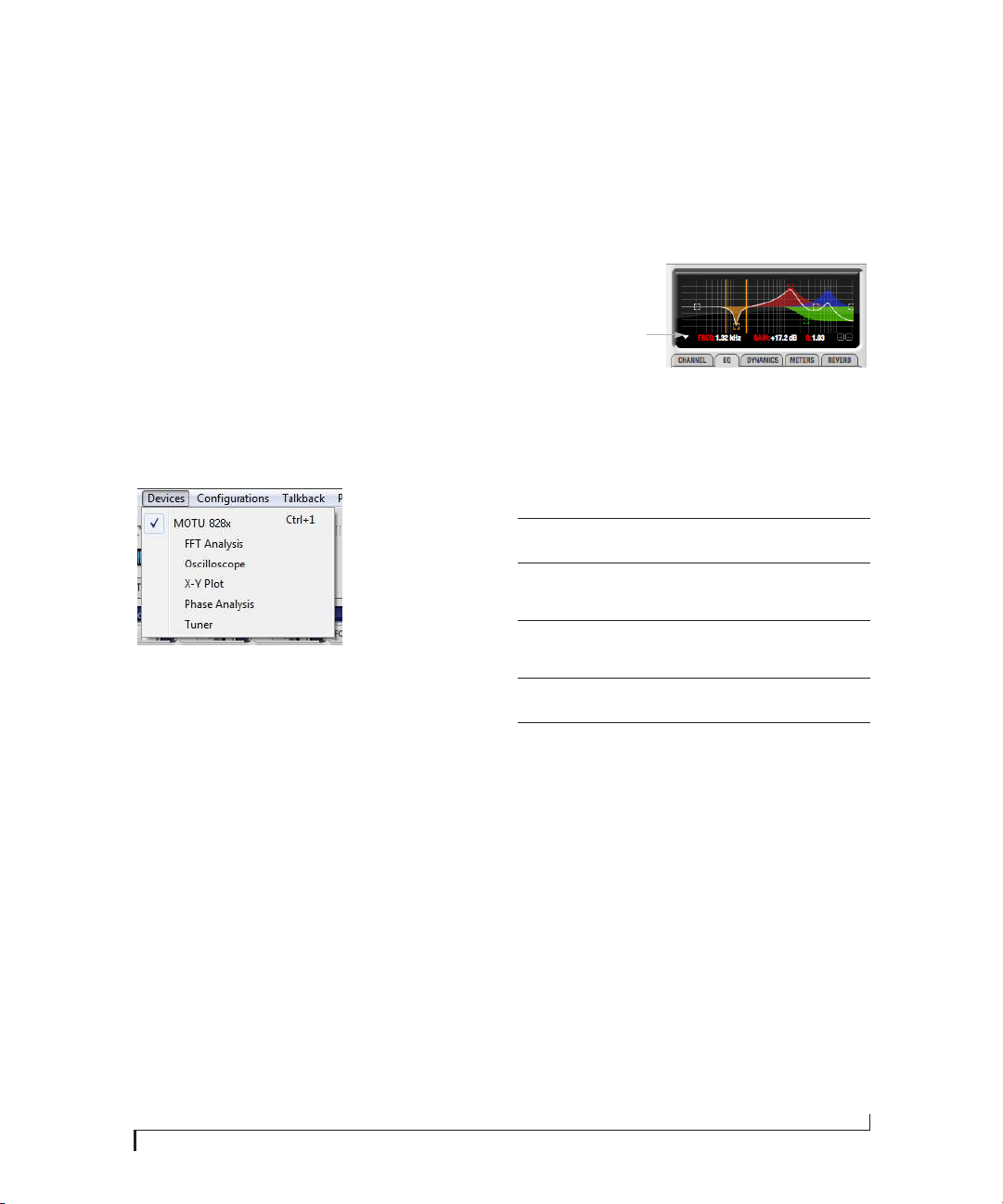
CUEMIX FX
93
DEVICES MENU
If you are working with more than one MOTU
audio interface product, this menu displays all
interfaces that are currently online. Choose any
device from the menu to edit its settings using the
CueMix FX software.
Audio analysis tools
Below each device are its signal analysis tools.
Choose one to open its window. For details on
these features, see the following sections.
FFT and Spectrogram display. . . . . . . . . . . . . . . . . . . . . . . . 93
Oscilloscope . . . . . . . . . . . . . . . . . . . . . . . . . . . . . . . . . . . . . . . . . 96
X-Y Plot . . . . . . . . . . . . . . . . . . . . . . . . . . . . . . . . . . . . . . . . . . . . . 102
Phase Analysis . . . . . . . . . . . . . . . . . . . . . . . . . . . . . . . . . . . . . . 105
Tuner . . . . . . . . . . . . . . . . . . . . . . . . . . . . . . . . . . . . . . . . . . . . . . . 109
Figure 9-27: Opening the signal analysis windows.
Choosing channels for audio analysis
The audio analysis tools follow the currently
focused audio input or output. (See “Channel
focus and settings” on page 68.) If you focus a
mono channel (e.g. Analog 3), its corresponding
stereo pair will be displayed (Analog 3–4).
Scoping host software audio output
If you want to scope audio output from your host
software, send your host’s output to an 828x output
pair, and then set the focus on that output pair.
FFT AND SPECTROGRAM DISPLAY
FFT and spectrogram information can be
displayed in the Filter response display section in
the EQ tab (Figure 9-10 on page 78) or as a
separate window (Figure 9-29 on page 94) opened
from the Devices menu (Figure 9-27).
Figure 9-28: Filter Display options menu
Filter display options
The Filter display options menu (Figure 9-28)
provides several options for the EQ filter display:
Menu option What it does
Show no analysis Turns off both the FFT and
Spectrogram in the Filter display.
Show FFT Shows/hides a real time FFT analysis
of the current signal being EQ’d,
post EQ filter.
Show Spectrogram Shows/hides a real-time spectro-
gram “waterfall” in the background
of the filter display, post EQ filter.
Show Band Response Shows/hides the colored area
beneath EQ filter points.
Show/Hide Full Window
Analysis
Shows/hides the enlarged filter dis-
play in the CueMix FX window.
Filter display options menu

CUEMIX FX
94
FFT display
Choose Show FFT from the Filter display options
menu (Figure 9-10) to superimpose a real-time
Fast Fourier Transform (FFT) frequency
measurement curve over the EQ filter display, as
demonstrated in Figure 9-30:
Figure 9-30: FFT display.
The FFT curve is post-filter. Therefore, the FFT
shows the results of the EQ filter(s) being applied.
Use the global EQ button for the input or output
channel (Figure 9-3 and Figure 9-6, respectively)
to toggle between the EQ’d and non-EQ’d FFT
display for an A/B comparison.
Spectrogram
Choose Show Spectrogram from the Filter display
options menu (Figure 9-10) to superimpose a real-
time spectrogram “waterfall” display in the
background of the EQ filter display, as
demonstrated in Figure 9-31:
Figure 9-31: FFT display.
The spectrogram scrolls from top to bottom, where
the top edge of the display represents what you are
hearing “now”. Color represents amplitude along
the left/right frequency spectrum. The amplitude
color scale runs from black (silence) to red (full
scale) as follows:
Figure 9-32: Spectrogram color-to-amplitude spectrum.
Opening the FFT Analysis window
Choose FFT Analysis from the Devices menu
(Figure 9-27) to open a new window with the filter
EQ display for detailed inspection and adjustment
of the EQ filter, as shown Figure 9-29.
View controls
You can show and hide the FFT display,
spectrogram or EQ band response curves as
desired using the View controls (Figure 9-33).
Figure 9-29: Full window filter display.
View
controls
Y-axis labels for EQ controls
Y-axis labels for FFT display
Horizontal
controls
Vertical
controls
Spectrogram
controls
Grow handle
FFT curve
Black Blue Green Yellow Orange Red
Silence Full scale
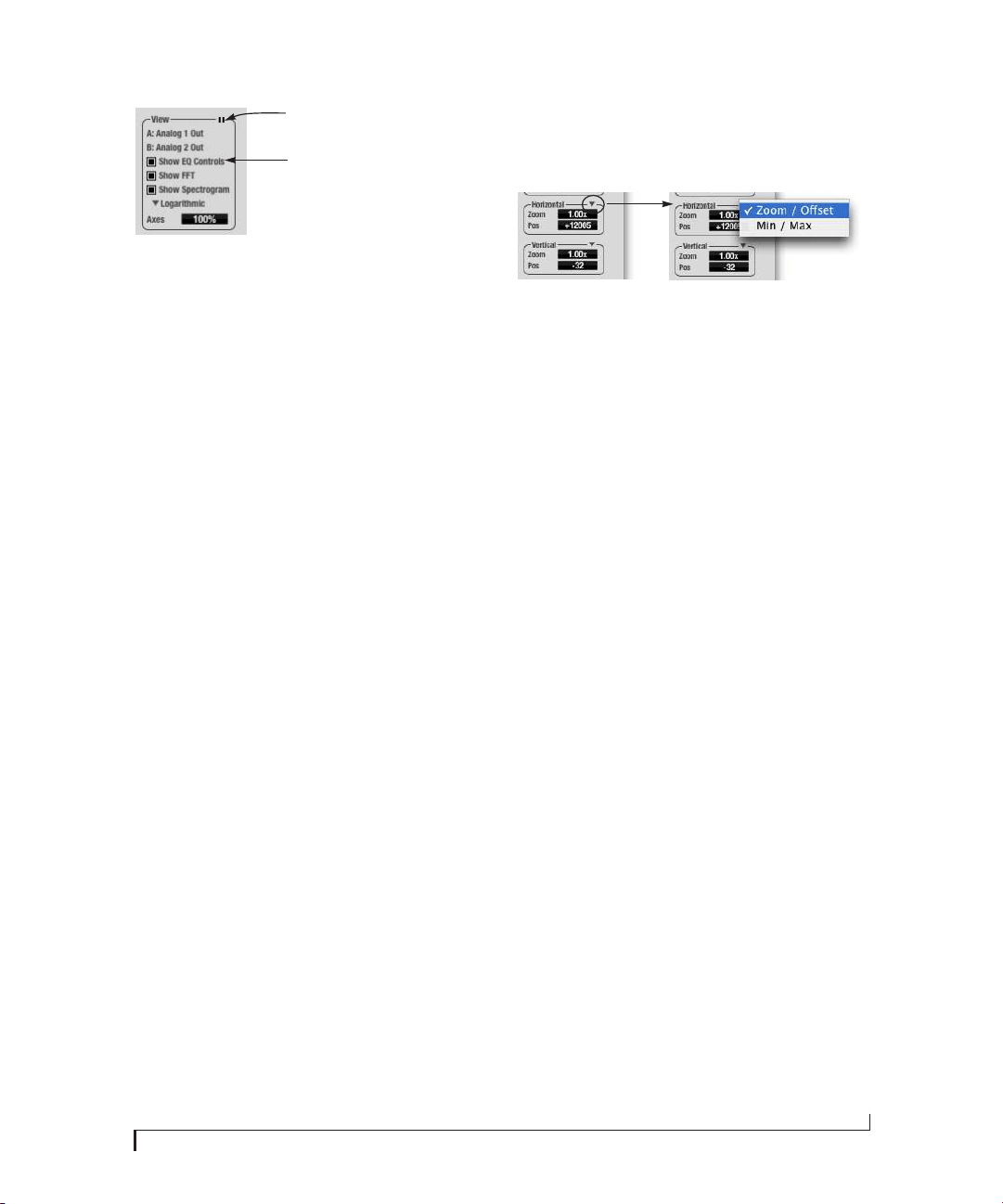
CUEMIX FX
95
Figure 9-33: View controls
These settings are independent of the small graph
display options (Figure 9-10 on page 78), so you
have the flexibility to display different
combinations in each graph.
☛ “Show EQ Controls” will be available only if
the focused pair is a stereo input pair or stereo
output pair.
Logarithmic or Linear X-Axis Scale
The x-axis defaults to a logarithmic scale, but can
be changed to a linear scale if desired. In the View
controls (Figure 9-33), click Logarithmic to access
the x-axis scale options menu. With a linear scale
selected, frequency is constant, but the width of
each octave along the x-axis is different. With a
logarithmic scale selected, octaves are displayed
with a constant width, but frequency is displayed
logarithmically within each octave.
Axes display
The Axes control (Figure 9-33) sets the opacity of
the grid displayed in the graph, from 100% (fully
visible) down to 0% (fully hidden).
Pausing the display
The Pause button in the upper right corner of the
View section (Figure 9-33) allows you to freeze the
display at any time. To resume, click the button
again.
Horizontal controls (frequency axis)
The Horizontal controls (Figure 9-34) configure
the value range of the x-axis (frequency). Click and
drag the values up or down to set them, or double-
click to return to the default value.
There are two modes for the controls: Zoom/Offset
and Min/Max. To change the mode, use the
Horizontal control menu (Figure 9-34).
Figure 9-34: Horizontal control menu
In Zoom/Offset mode, Zoom sets the display zoom
from 1x to 100x, where the number represents the
zoom factor relative to the entire frequency range.
For example, when the horizontal zoom value is 1x,
the entire frequency range from 10 to 24000 Hertz
is displayed; when the horizontal zoom value is 2x,
one half of the entire frequency range is displayed.
Pos determines which frequency is displayed at the
center of the graph.
In Min/Max mode, Min and Max set the lowest and
highest displayed frequencies (in Hertz).
Vertical controls (amplitude axis)
The Ve r t i c a l controls (Figure 9-29) operate
similarly to the Horizontal controls, except that
they configure the y-axis (amplitude).
In Zoom/Offset mode, Zoom sets the display zoom
from 1x to 100x, and Pos sets the center amplitude
of the graph. In Min/Max mode, Min and Max set
the smallest and largest displayed amplitude.
Spectrogram controls
The Floor control (Figure 9-29) sets the amplitude
threshold for the spectrogram display, from -144
dB up to 0 dB.
The Alpha control (Figure 9-29) sets the opacity of
the spectrogram information displayed in the
graph, from 100% (fully visible) to 0% (hidden).
Pause button
Display options
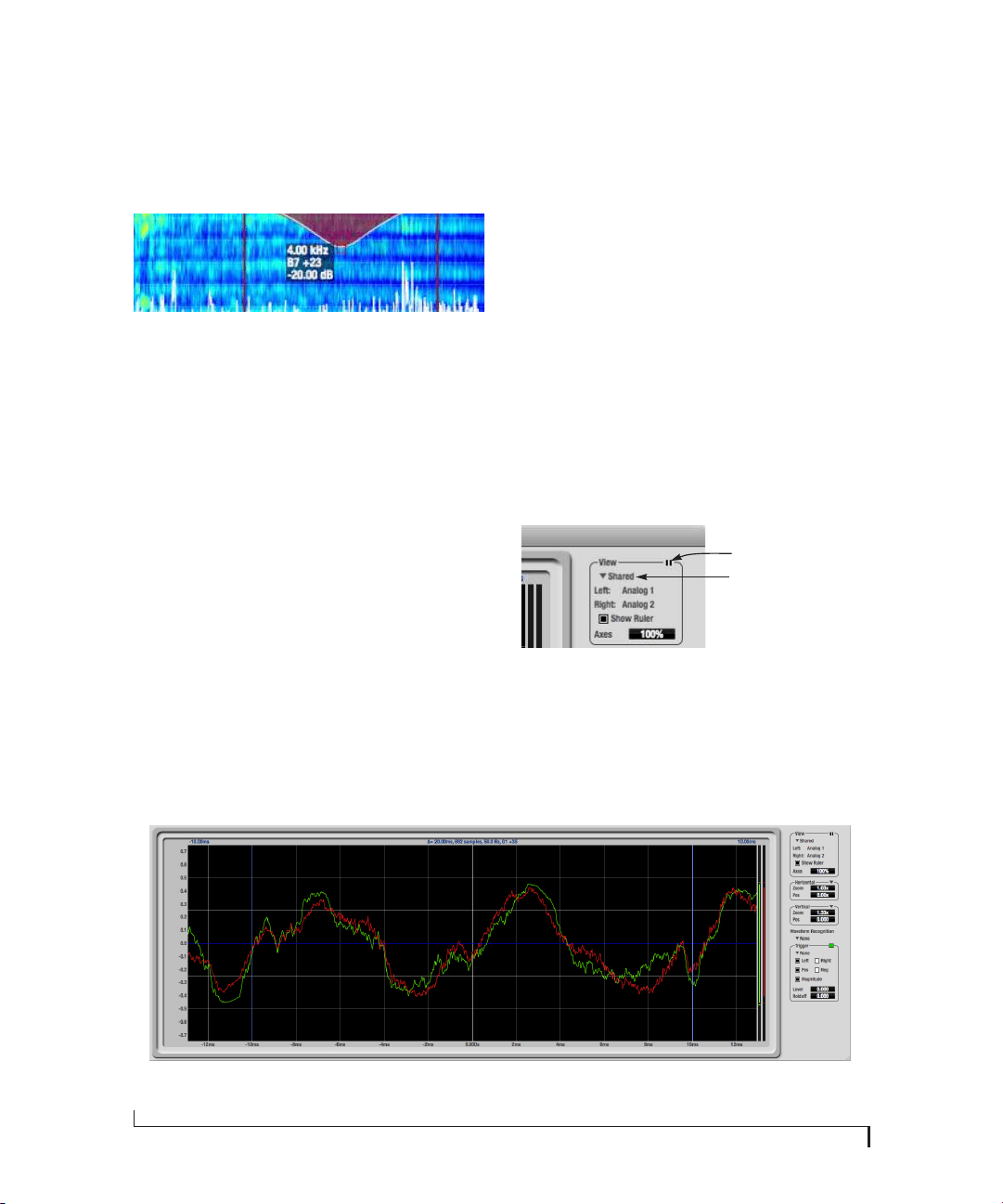
CUEMIX FX
96
The info box
When any EQ filter point is selected or dragged in
the full window graph, the info box is shown next
to the point in the full graph display (Figure 9-35).
Figure 9-35: The Info Box.
The info box includes the industry standard
scientific note (pitch) name when the control point
is located at a frequency that resides within a
prescribed note range, where C4 is middle C. The
note number is accompanied by the number of
cents (±50) above or below the exact frequency for
the note. If the control point is dragged outside the
note range, only the frequency is shown.
OSCILLOSCOPE
The Oscilloscope (Figure 9-36) graphs the
amplitude of an audio signal over time.
Amplitude is displayed on the y-axis and time is
displayed on the x-axis. A thick white vertical line
marks where time equals zero; a thick white
horizontal line marks where amplitude equals zero
(Figure 9-36, below).
Level meters are displayed to the right of the graph.
One or two meters are shown, depending on the
current view mode (see “View controls”).
Opening the oscilloscope
Each 828x has its own oscilloscope. To open an
oscilloscope, choose the Oscilloscope item from the
Devices menu under the desired interface.
Choosing a channel to display
The oscilloscope follows the currently focused
audio input or output. If you focus a mono channel
(e.g. Analog 3), its corresponding stereo pair will
be displayed (Analog 3–4).
View controls
The View controls (Figure 9-37) provide several
options for the oscilloscope display.
Figure 9-37: View controls
Figure 9-36: Oscilloscope
Pause button
View menu
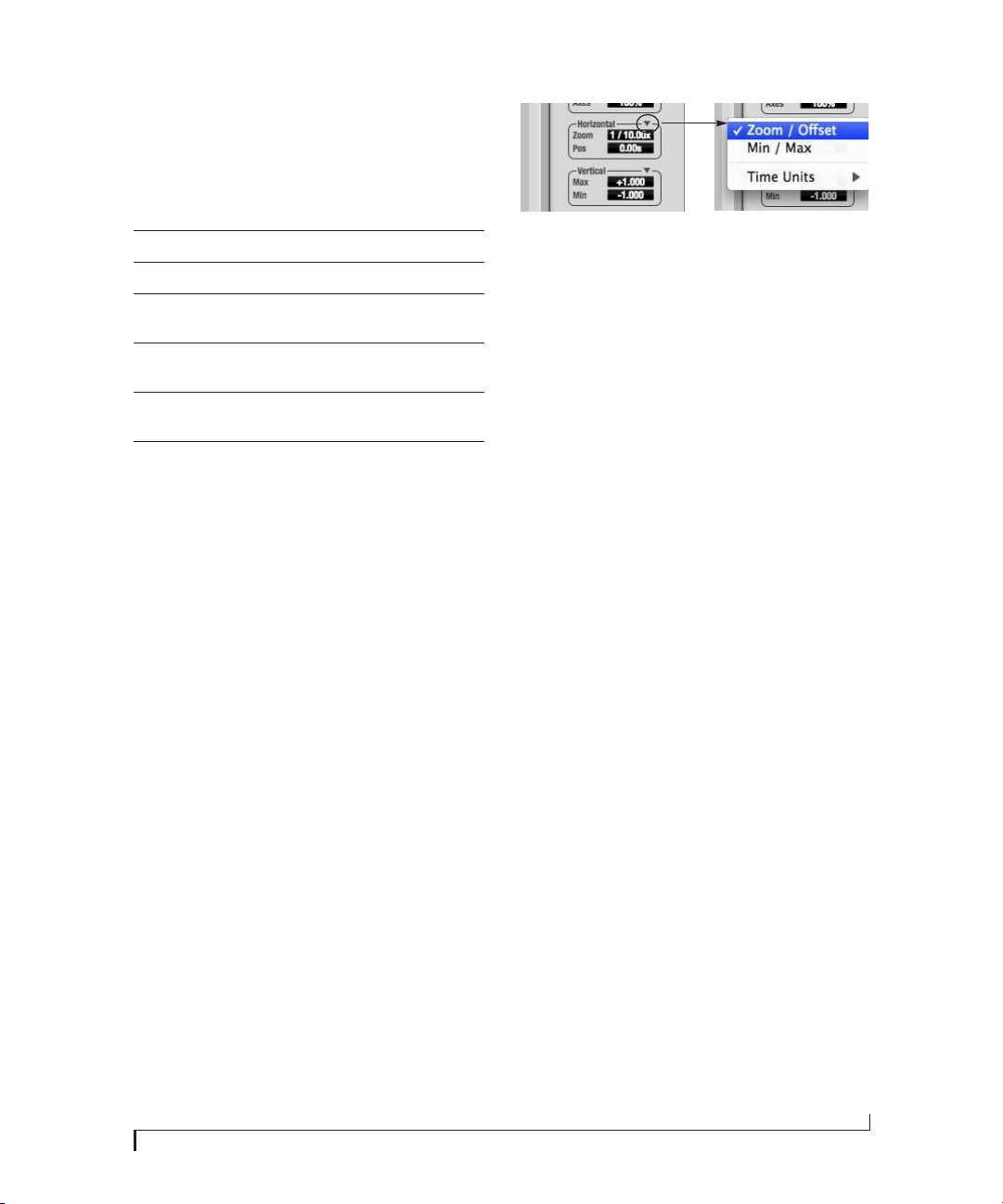
CUEMIX FX
97
View menu
The View menu (Figure 9-37) lets you choose how
you wish to display the audio channel(s) being
displayed.
Display options
The Axes control (Figure 9-37) sets the opacity of
the grid displayed in the graph, from 100% (fully
visible) down to 0% (fully hidden). The Show Ruler
option toggles the measurement items (see
“Measurement information” on page 99).
Pausing the display
The Pause button in the upper right corner of the
View section (Figure 9-37) allows you to freeze the
display at any time. To resume, click the button
again. The level meters will remain active while the
display is paused.
Horizontal controls (time axis)
The Horizontal controls (Figure 9-38) configure
the value range of the x-axis (time). Click and drag
the values up or down to set them, or double-click
to return to the default value.
There are two modes for the controls: Zoom/Offset
and Min/Max. To change the mode, use the
Horizontal control menu (Figure 9-38).
Figure 9-38: Horizontal control menu
In Zoom/Offset mode, Zoom sets the display zoom
from 1/1000x to 10x, where the number represents
the number of pixels per sample. For example,
when the horizontal zoom value is 10x, 10 samples
are displayed in 100 pixels; when the horizontal
zoom value is 1/10x, 100 samples are displayed in
10 pixels. Pos moves the line marking time equals
zero left or right.
In Min/Max mode, Min and Max set the earliest
and most recent displayed time.
Time Units
The Time Units sub-menu (Figure 9-38) provides
the option to view the X axis in Seconds or
Samples.
Vertical controls (amplitude axis)
The Ve r t i c a l controls (Figure 9-38) operate
similarly to the Horizontal controls, except that
they configure the y-axis (amplitude).
In Zoom/Offset mode, Zoom sets the display zoom
from 1/2 to 100x, and Pos moves the line marking
amplitude equals zero line up or down.
In Min/Max mode, Min and Max set the smallest
and largest displayed amplitude.
Waveform Recognition
The Waveform Recognition option searches
through new audio data looking for a waveform
which most resembles that which was previously
displayed. The region where this takes place is a
small window around the line marking time equals
View menu settingWhat it displays
Left Left channel only
Right Right channel only
Split screen Left channel on top; right channel on the bot-
tom
Shared Left and right on top of each other; left is
green, right is red
Add Left and right channels’ amplitudes are added
together
Subtract L-R The right channel’s amplitude is subtracted
from the left channel’s amplitude
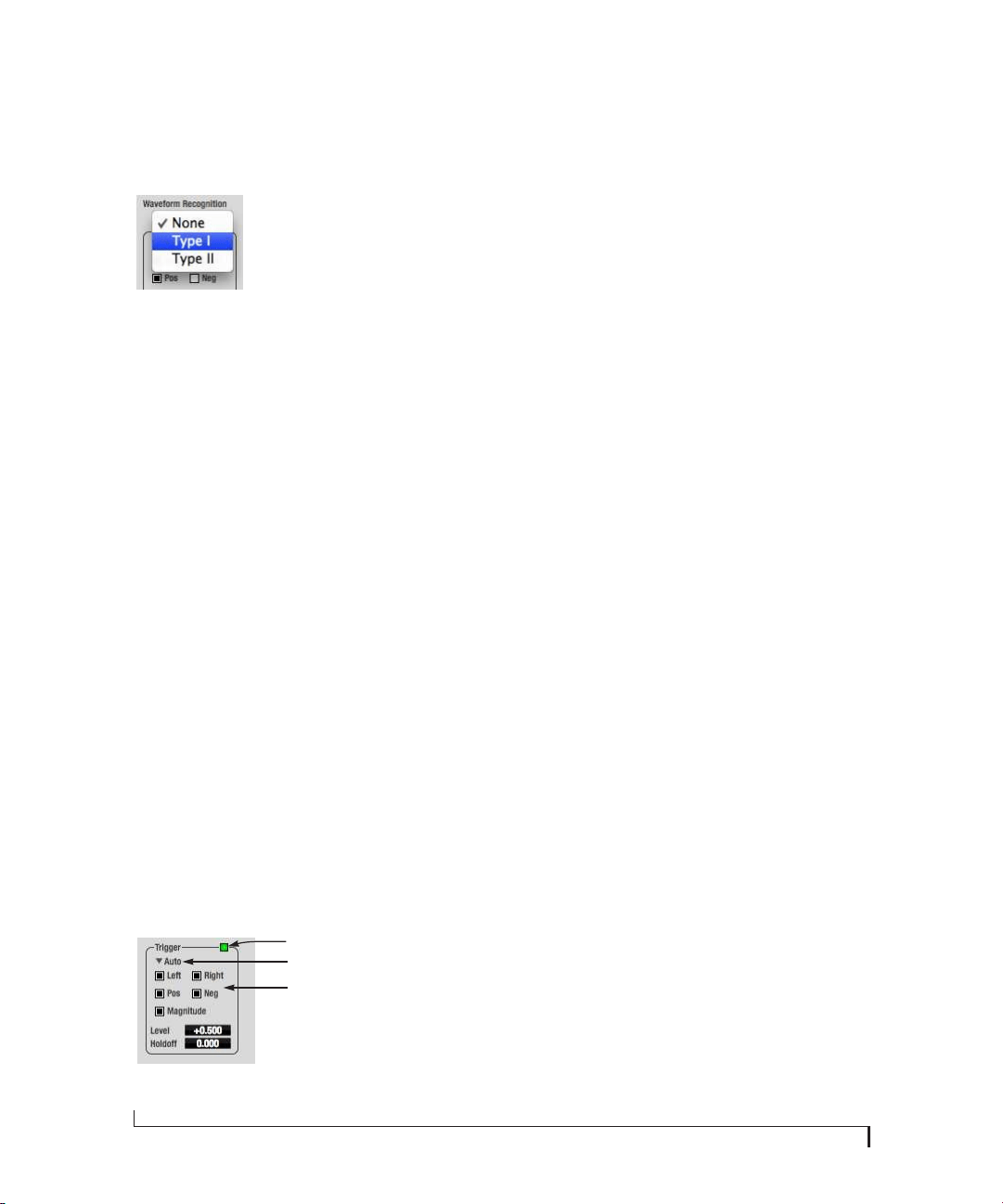
CUEMIX FX
98
zero, denoted by the extra vertical graph lines
surrounding it. There are two kinds of waveform
recognition available: Type I and Type II.
Figure 9-39: Waveform Recognition menu
Type I recognition provides the most stable display
of the waveform. It is the most resistant to change.
Louder transients, such as those produced by a
snare drum, are not displayed inside of the
waveform window. Type I is best for observing the
shape of a signal produced by a synthesizer or
observing the tone of a guitar through a chain of
pedals.
Type II recognition is less resistant to change. It will
include loud transients within the waveform
recognition window. Type II is better for observing
percussive music where the beat itself is to be
centered within the waveform window.
Trigger
When the Tr i g g e r (Figure 9-40) is not enabled (the
Trigger menu is set to None), the graph updates
based on time: after every n samples of the
monitored audio signal, the most recent samples
are displayed. When the Trigger is enabled (set to
any mode other than None), the graph updates in
response to specific conditions in the signal. The
Trigger section defines that criteria and how the
graph will display the events that match.
Figure 9-40: Trigger settings
Criteria
The criteria checkboxes (Figure 9-40) determine
the conditions that the trigger is looking for and
where it will look for them.
The Left checkbox causes the condition to be
looked for in the left channel of the signal; likewise,
the Right checkbox looks for the condition in the
right channel. One or both of these can be enabled
simultaneously. If neither is enabled, the criteria
will not be found because the trigger is not looking
at any audio signal.
The Pos and Neg checkboxes determine the slope of
the event. When the Pos checkbox is enabled, the
trigger will look for an event where amplitude is
increasing; likewise, enabling the Neg checkbox
tells the trigger to look for an event where
amplitude is decreasing. One or both of these can
be enabled simultaneously. If neither is enabled,
the criteria will not be found because the trigger is
not looking for any particular kind of event.
The Level setting defines the amplitude threshold
that the trigger is looking for. The Level is indicated
on the graph by a blue horizontal line (or two blue
horizontal lines, if Magnitude is enabled). Events
which cross this threshold using the enabled
slope(s) in the enabled channel(s) will activate the
trigger. The response of the trigger is set by the
Trigger mode (see “Trigger modes”, below).
Enabling the Magnitude checkbox tells the trigger
to look for both positive and negative Level values,
regardless of whether the Level value is positive or
negative. For example, if Level is set to +0.500 and
Magnitude is enabled, the trigger will look for both
+0.500 and -0.500. You will see a second blue line
appear in the display when Magnitude is enabled to
denote the second value.
Trigger indicator
Trigger menu
Criteria check boxes
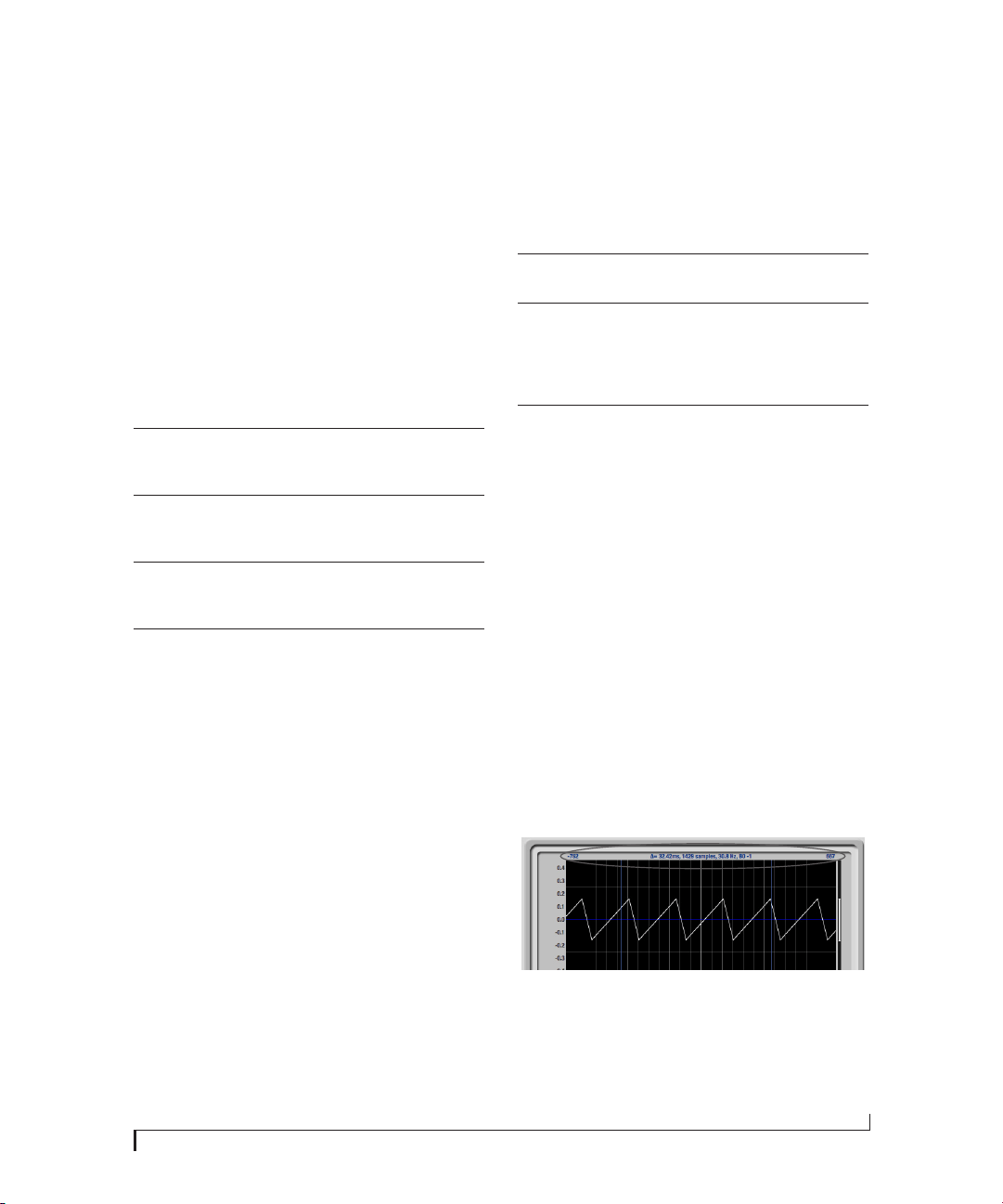
CUEMIX FX
99
Holdoff
Holdoff defines a time interval during which the
oscilloscope does not trigger. The most recent trace
will be displayed during that period. When the
period is over, the trigger is “re-armed’, i.e. it will
begin looking for the criteria again.
Click and drag this value up or down to set it, or
double-click to return to the default value.
Trigger mo des
The Trigger menu (Figure 9-40 on page 98)
provides four modes:
Trigger indic ator
The Trigger indicator (Figure 9-40 on page 98)
displays the state of the trigger, and also provides a
way to manually interact with it. The Trigger
indicator always displays one of three colors:
You can also click on the Trigger indicator to force
certain actions, depending on the Trigger mode. In
Auto and Normal modes, clicking on the Trigger
indicator causes the display to run freely; you may
click & hold to force this to occur for as long as
you’d like. In Single Sweep mode, clicking on the
Trigger indicator re-arms the trigger. When the
Trigger mo de is None, clicking on the Trigger
indicator has no effect.
Measurement information
You can view detailed information about a
particular time range by using the measurement
bars.
Figure 9-41: Measurement information
Trigger modeWhat it does
None The Trigger is not active; this is the default mode.
The incoming audio signal will be displayed contin-
uously as audio is received.
Auto The display is always updating, but when the condi-
tion is met, the trigger event will be displayed cen-
tered around the line marking time equals zero.
Normal The display updates only when the condition is met;
the last trace will be displayed until the next match-
ing event is found.
Single
Sweep
Similar to Normal mode, but the last trace will be
displayed until you manually arm the trigger by
clicking the Trigger indicator (Figure 9-40 on
page 98) or by pressing the spacebar.
Color Status
Green When the current Trigger criteria has been met (includ-
ing when the Trigger mode is None).
Yel-
low
When the Trigger is armed, but has not yet found an
event which matches its criteria. Yellow can also indi-
cate that the graph has been manually paused using the
Pause button in the View section (see “Pausing the dis-
play” on page 97).
Red When the Trigger is being held off, either because the
Trigger mode is set to Single Sweep or the Holdoff time
is not set to zero.
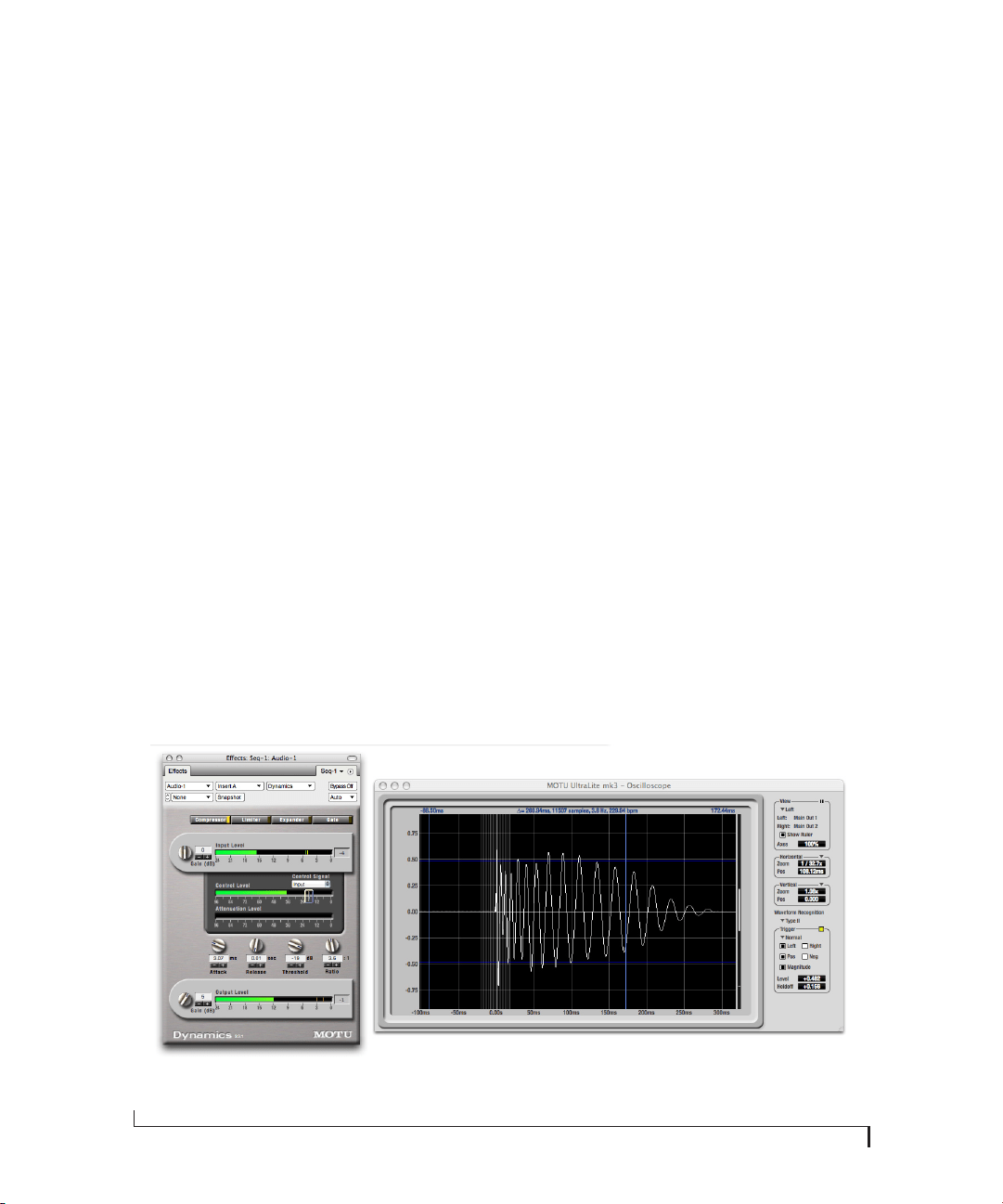
CUEMIX FX
100
To adjust the left and right edges of the
measurement area, click and drag the blue bars in
the graph, or click and drag the blue numbers in
the upper left or right corners. To reset them to the
default value, double-click the numbers.
Information about the measured area is displayed
at the center of the top ruler: the duration (in
seconds and samples), the approximate frequency,
and the scientific note name. If the measured area is
long enough, the approximate beats per minute
(bpm) is displayed.
Ideas for using the Oscilloscope
The Oscilloscope can be used in many useful ways
during the routine operation of your recording
studio. Here are just a few examples.
Analyzing and comparing harmonic content
The oscilloscope lets you “see” the nature of the
harmonic profile in any audio material. You can
also view two signals side by side (in stereo mode)
to compare their profiles and, if necessary, make
adjustments to the source of each signal and view
your changes in real time.
Viewing transients such as drum hits
If you loop a snare hit or other similar transient
audio clip and feed it through the oscilloscope, you
can more or less “freeze” the transient waveform in
the oscilloscope frame. This can be useful, for
example, for viewing the results of real-time
compression that you are applying with an effects
plug-in, as demonstrated in Figure 9-42. In this
example, a snare hit is being compressed by Digital
Performer’s Dynamics plug-in. As you make
adjustments to the compression plug-in’s settings,
you can see the transient waveform change the next
time the Oscilloscope triggers. For compression,
this can be particularly useful for balancing the
effect of the attack on the transient, relative to the
decay portion of the waveform. Conversely, you
can see the effect of the threshold setting directly
on the decay portion, relative to the attack. In
effect, you can see as well as hear the results of your
compression adjustments.
To view a transient waveform in the Oscilloscope
display, turn off Waveform Recognition and use the
Normal Trigger mode. Adjust the level high enough
to encompass the vertical amplitude of most of the
transient. If the transient pulse sweeps across the
screen, try raising the Holdoff level. Once the
Figure 9-42: Viewing transients in the Oscilloscope

CUEMIX FX
101
transient is settled in the display and fairly stable,
you may need to adjust the horizontal position to
center it in the display. These settings are depicted
in the example in Figure 9-42.
You can also pause the display at any time and
adjust the horizontal bounds to locate a transient.
Clip detection
You can use the Oscilloscope to detect clipping in a
digital audio signal. To do so, enable all criteria
(Figure 9-40 on page 98), choose Single Sweep from
the trigger menu (Figure 9-40), set the level to
0.999 and click the trigger indicator (Figure 9-40)
to arm it (yellow). As soon as the signal clips, the
trigger indicator will turn red, and the display will
show the offending clip at the line marking time
equals zero.
Viewing timing pulses
If you have two audio signals with recognizable,
timed pulses in them, and you wish to compare
their timing with respect to each other, you can use
Split Screen or Shared view to visually compare the
timing of the two signals. You can zoom in to the
sample level for sample accurate viewing.
Building synthesizer patches
If you are building a synth patch on a synthesizer
(or forming similar highly periodic audio
material), you can run the audio signal through the
Oscilloscope as you adjust its sound to check in real
time for undesirable (and possibly inaudible)
characteristics, which are easily seen in the
Oscilloscope display. A good example is DC offset.
If a signal develops DC offset, the apparent vertical
center of its overall waveform will drift above or
below the line marking amplitude equals zero. Try
setting Waveform Recognition to Type I and setting
Trigger to None.
Another example is waveform polarity. If you are
combining several raw waveforms, polarity is a
critical, yet not always obvious, factor in
determining the resulting sound. You can use the
Oscilloscope to easily view and compare polarities
to see if they are inverted from one another or not.
The Add and Subtract L - R View menu settings are
particularly useful here.
You can also use the Oscilloscope to help you apply
waveform modulation and keep it “in bounds”. For
example, you could easily see if pulse width
modulation is collapsing in on itself to choke the
sound, an effect that is readily seen in the
Oscilloscope display but not necessarily easy to
determine by ear when using multiple modulation
sources.
Guitarists can also visually observe the effects of
their pedals and processing, while playing. With
the Trigger mode set to None and Waveform
Recognition set to Type I, the waveform will be
tracked automatically.
When applying filters and filter resonance, the
visual effect on the waveform can be invaluable in
reinforcing what you are hearing as you make
adjustments.
Monitoring control voltage output from Volta
MOTU’s Volta instrument plug-in for Mac OS X
turns your audio interface into a control voltage
interface, giving you precise digital control from
your favorite audio workstation software of any
hardware device with a control voltage (CV) input.
The CV signals output from Volta can be
monitored in the Oscilloscope, giving you visual
feedback on LFOs, envelopes, ramps, step
sequencers, and more.
For more information on Volta, see
www.motu.com.

CUEMIX FX
102
X-Y PLOT
The X-Y Plot window (Figure 9-43) graphs the
amplitude of a stereo audio signal on a two-
dimensional grid.
For each unit of time (i.e., each sample), the
amplitude of the left channel is displayed on the x-
axis and the amplitude of the right channel is
displayed on the y-axis. A thick white vertical line
marks where left channel amplitude equals zero; a
thick white horizontal line marks where right
channel amplitude equals zero (Figure 9-43,
below). There are also thick white diagonal lines
for y = x and y = -x.
Metering
Level meters are displayed above and to the right of
the graph for the left (green) and right (red)
channels, respectively. An additional Correlation
meter (blue) is displayed on the right. This meter
displays the correlation between the two channels.
The higher the meter, the higher the correlation
between the two channels. Below are a few
examples:
Opening the X-Y Plot
Each 828x interface has its own X-Y Plot window.
Choose the X-Y Plot item from the Devices menu
under the desired interface.
Figure 9-43: X-Y Plot
Situation Meter level X-Y Plot graph Mathematical
relationship
Perfect correla-
tion
+1 Diagonal line
going from
lower left to
upper right:
y = x
Zero correlation 0 No discern-
ible pattern
None
Perfectly out of
phase
-1 Diagonal line
going from
upper left to
lower right:
y = -x
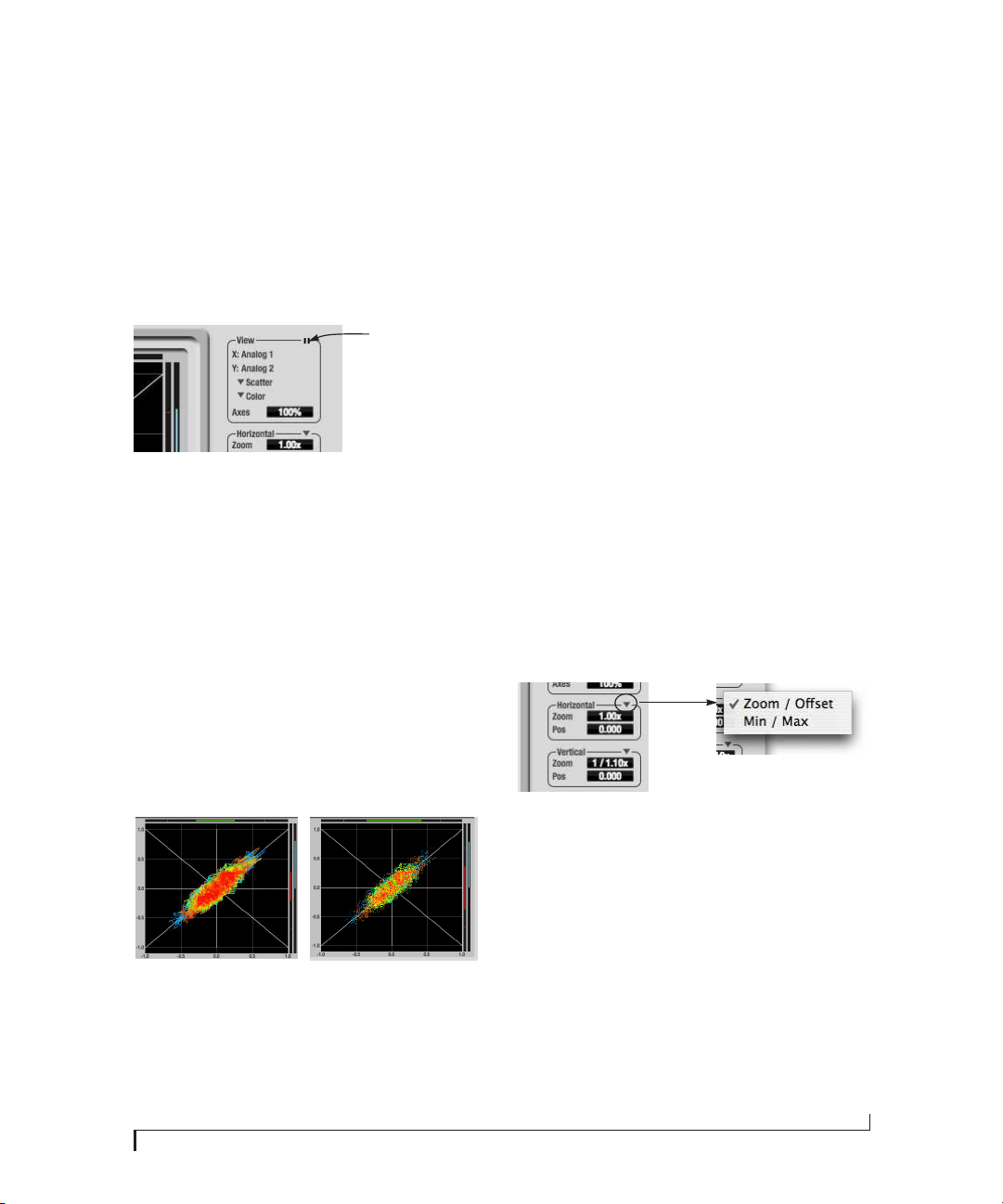
CUEMIX FX
103
Choosing a channel pair to display
The X-Y Plot follows the currently focused audio
input or output. If you focus a mono channel (e.g.
Analog 3), its corresponding stereo pair will be
displayed (Analog 3–4).
View controls
The View controls (Figure 9-44) provide several
options for the X-Y Plot display.
Figure 9-44: View controls
Pausing the display
The Pause button in the upper right corner of the
View section (Figure 9-44) allows you to freeze the
display at any time. To resume, click the button
again. The level meters will remain active while the
display is paused.
Line/Scatter
Choose either Line or Scatter from the menu in the
View section (Figure 9-44) to plot each point
(sample) as either a single pixel or as a continuous
line that connects each plot point to the next, as
shown below in Figure 9-45.
Figure 9-45: The same X-Y Plot displayed in Line versus Scatter mode.
☛ Line mode is significantly more CPU intensive
than Scatter. You can reduce Line mode CPU
overhead on the X-Y Plot by reducing the Length
parameter (described below).
Color/Grayscale
In Color mode (Figure 9-44) the most recently
displayed audio data is shown in red, which fades
to yellow, green and then finally blue, before
disappearing. In Grayscale mode, data is first
shown in white and then fades to gray. To adjust the
scale of this color/brightness change, see “Decay”
on page 104.
Axes
The Axes control (Figure 9-44) sets the opacity of
the grid displayed in the graph, from 100% (fully
visible) down to 0% (fully hidden).
Horizontal and vertical controls
The Horizontal and Ve r t i c a l controls (Figure 9-46)
configure the value range of the x-axis (left channel
amplitude), and y-axis (right channel amplitude),
respectively. Click and drag the values up or down
to set them, or double-click to return to the default
value.
There are two modes for the controls: Zoom/Offset
and Min/Max. To change the mode, use the menu
shown in Figure 9-46.
Figure 9-46: Setting the Horizontal or Vertical control modes.
In Zoom/Offset mode, Zoom scales the axis. Pos
moves the lines marking x = 0 left and right, or y =
0 up and down.
In Min/Max mode, Min and Max let you scale the
grid by moving the -1.0 and +1.0 points along the
axis. Min/Max mode lets you control the graph
boundaries directly.
Pause button

CUEMIX FX
104
Persistence
The Persistence controls (Figure 9-47) affect the
appearance of data from when it is first displayed
until it disappears from the grid.
Figure 9-47: The Persistence controls.
Length
Length (Figure 9-47) sets the number of recent
samples to show on the plot. For example, when
Length is set to 10,000, the 10,000 most recent
samples are shown.
Decay
The brightness (in Grayscale mode) or hue (in
Color mode) of each sample on the plot is
determined by a linear scale, with the most recent
sample displayed at the maximum value and the
oldest sample displayed at the minimum value.
Decay (Figure 9-47 on page 104) determines the
brightness or hue of the minimum value. When
Decay is zero, the oldest sample is black. When
Decay is +1.000, the oldest sample is fully opaque
(in Grayscale mode) or red (in Color mode).
War p
Wa r p (Figure 9-47) determines the position of data
points after they are first drawn. When warp is
zero, data points remain in the same position.
When warp is positive, they contract towards the
origin (center of the grid). When warp is negative,
they expand away from the origin. The further the
warp value is from zero, the greater the effect.
Using the X-Y Plot
The X-Y Plot helps you “see” the width of the stereo
field of a mix. It also helps you determine if a mix
has issues with polarity, as follows:
If a stereo signal is out of phase, it is not mono
compatible because it can cancel itself out, either
partially or nearly completely, when collapsed to
mono.
Figure 9-48: Checking polarity in a stereo signal with the X-Y Plot.
Activity on the X-Y Plot What it indicates
Signal activity occurs mostly
along the x = y axis (lower left
to upper right) and the Corre-
lation meter reading is high
Left and right channels are pre-
dominantly in polarity (the ste-
reo field is relatively narrow)
Signal activity occurs mostly
along the y = -x axis (upper left
to lower right) and the Corre-
lation meter reading is low
(near -1)
Left and right channels are pre-
dominantly out of polarity (not
in phase)
Signal activity occurs in a
seemingly random fashion
throughout the grid
No phase relationship exists
(i.e. it is probably a wide stereo
field)
I
n po
l
ar
i
ty
O
ut o
f
po
l
ar
i
ty
N
o po
l
ar
i
ty
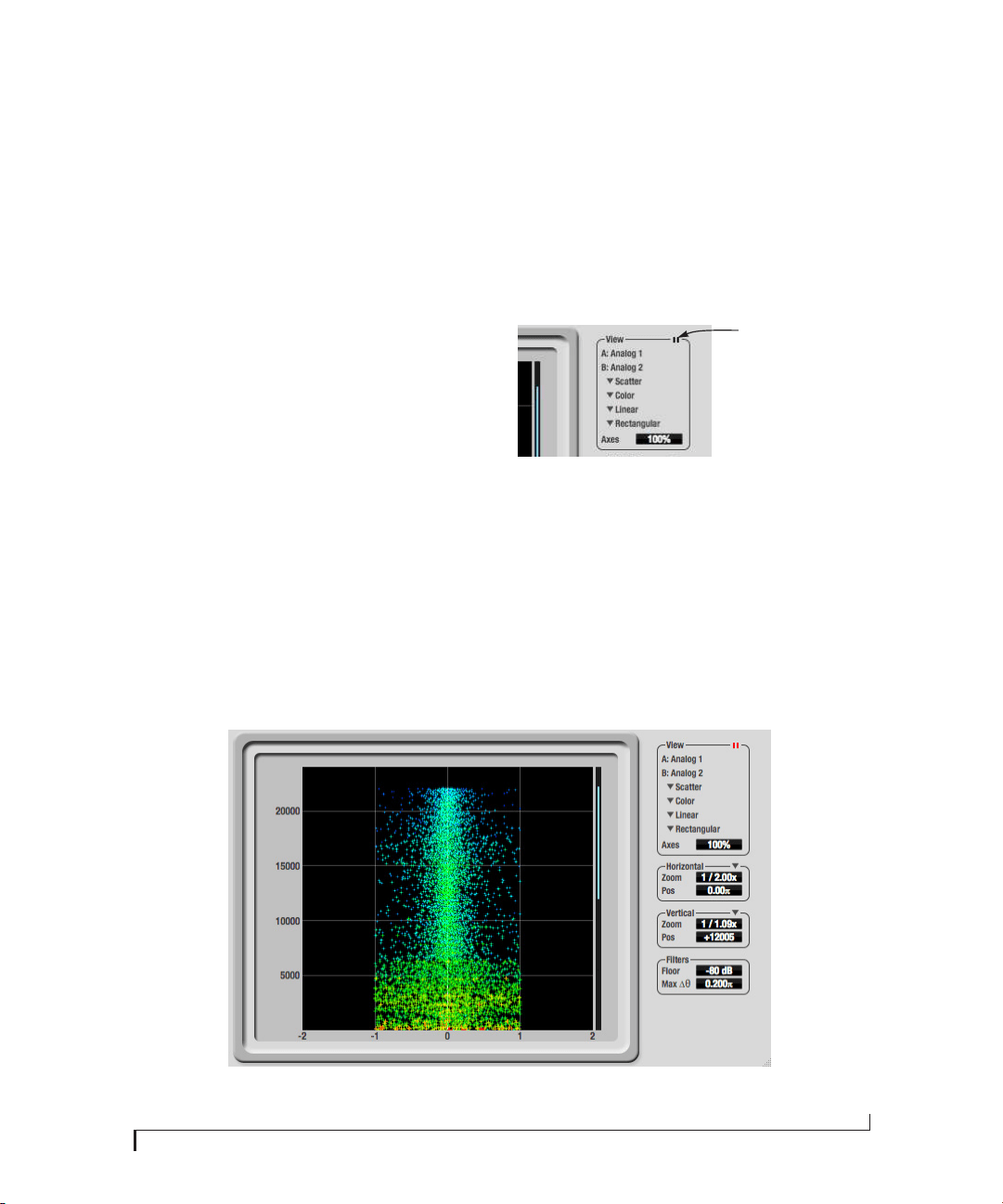
CUEMIX FX
105
PHASE ANALYSIS
The Phase Analysis window (Figure 9-49 on
page 105) graphs frequency versus phase
difference versus amplitude of a stereo signal on
either rectangular or polar coordinates.
In rectangular coordinates, the vertical axis
represents frequency, and the horizontal axis
represents the phase of the left channel minus the
phase of the right channel (measured in radians).
In polar coordinates, the radius represents
frequency and the angle (theta) from the +y
vertical axis represents the phase difference of left
channel minus the right channel.
Correlation Meter
The blue Correlation Meter to the right of the
display shows the correlation between the two
channels. The higher the meter, the higher the
correlation between the two channels.
Opening the Phase Analysis
Each MOTU audio interface has its own Phase
Analysis window. Choose the Phase Analysis item
from the Devices menu under the desired interface
(Figure 9-27 on page 93).
Choosing a channel pair to display
The Phase Analysis window follows the currently
focused audio input or output. If you focus a mono
channel (e.g. Analog 3), its corresponding stereo
pair will be displayed (Analog 3–4).
View controls
The View controls (Figure 9-50) provide several
options for the Phase Analysis display.
Figure 9-50: View controls
Pausing the display
The Pause button in the upper right corner of the
View section (Figure 9-50) allows you to freeze the
display at any time. To resume, click the button
again. The correlation meter will remain active
while the display is paused.
Figure 9-49: Phase Analysis
Pause button
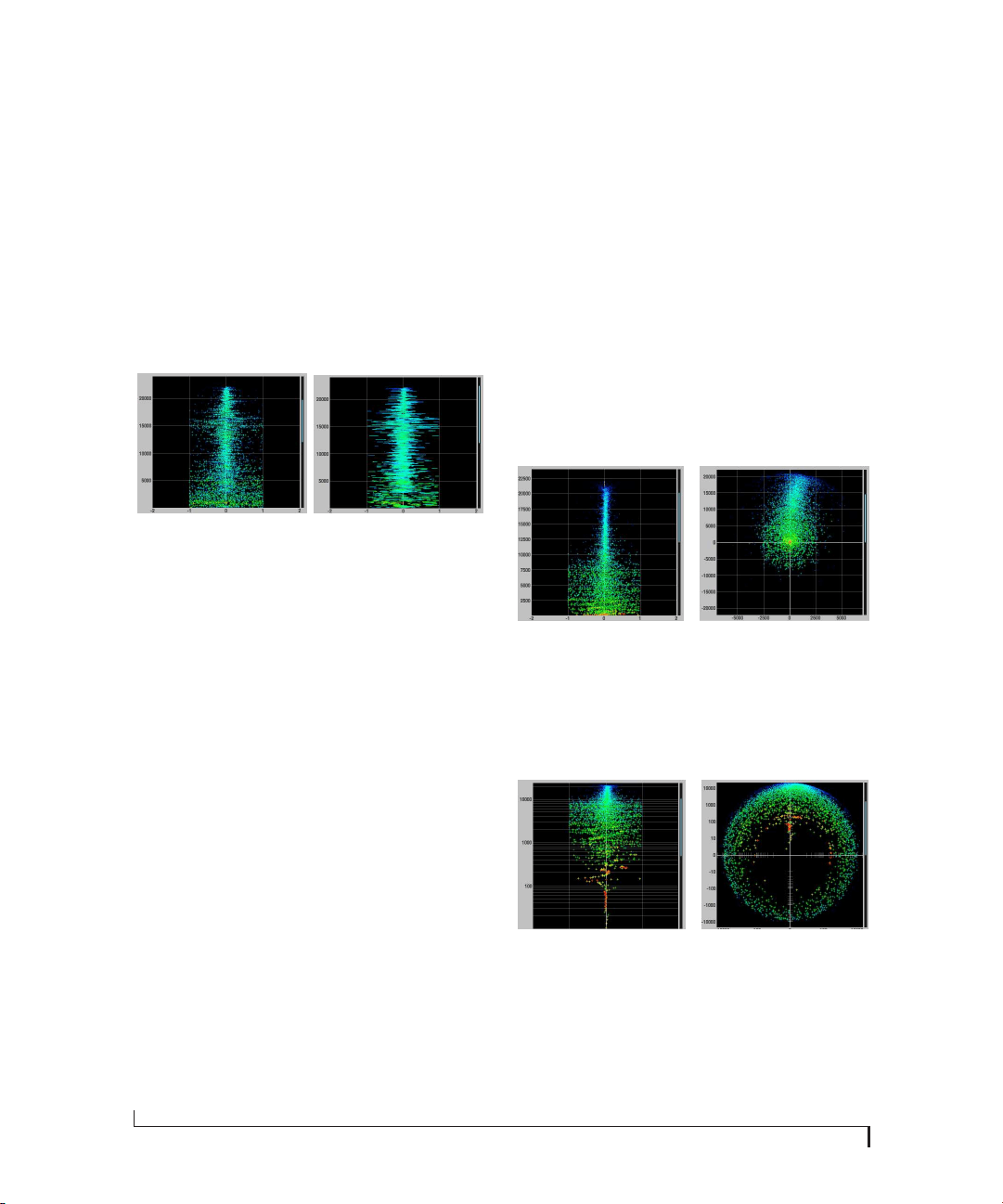
CUEMIX FX
106
A/B (stereo audio channels)
The View section (Figure 9-50) displays the pair of
input or output audio channels you are viewing.
See “Choosing a channel pair to display” above.
Line/Scatter
Choose either Line or Scatter from the menu in the
View section (Figure 9-50) to plot each data point
as either a single pixel or as a continuous line that
connects each frequency data point to the next, as
shown below in Figure 9-45.
Figure 9-51: The same Phase Analysis displayed in Line versus Scatter
mode.
☛ Line mode is significantly more CPU intensive
than Scatter. You can reduce Line mode CPU
overhead for the Phase Analysis display by
increasing the Floor filter and reducing the Max
Delta Theta filters (see “Filters” on page 107).
Color/Grayscale
In Color mode (Figure 9-50) signal amplitude is
indicated by color as follows: red is loud and blue is
soft. In grayscale mode, white is loud and gray is
soft.
Linear/Logarithmic
Choose either Linear or Logarithmic from the
menu in the View section (Figure 9-50) to change
the scale of the frequency axis. In rectangular
coordinates, the vertical axis represents frequency,
and in polar coordinates, the radius from the
center is frequency. With a linear scale, frequencies
are spaced evenly; in a logarithmic scale, each
octave is spaced evenly (frequencies are scaled
logarithmically within each octave).
Linear is better for viewing high frequencies;
logarithmic is better for viewing low frequencies.
Rectangular/Polar
Choose either Rectangular or Polar from the menu
in the View section (Figure 9-50) to control how
audio is plotted on the Phase Analysis grid.
Rectangular plots the audio on an X-Y grid, with
frequency along the vertical axis and phase
difference on the horizontal axis. Polar plots the
data on a polar grid with zero Hertz at its center.
The length of the radius (distance from the center)
represents frequency, and the angle (theta)
measured from the +y (vertical) axis represents the
phase difference in degrees.
Figure 9-52: Rectangular versus Polar display (with a linear plot).
Above, Figure 9-52 shows Rectangular versus Polar
display with a Linear plot. Below, Figure 9-53
shows the same displays (and the same data) with a
Logarithmic plot:
Figure 9-53: Rectangular versus Polar display with a logarithmic plot.
Axes
The Axes control (Figure 9-50) sets the opacity of
the grid displayed in the graph, from 100% (fully
visible) down to 0% (fully hidden).
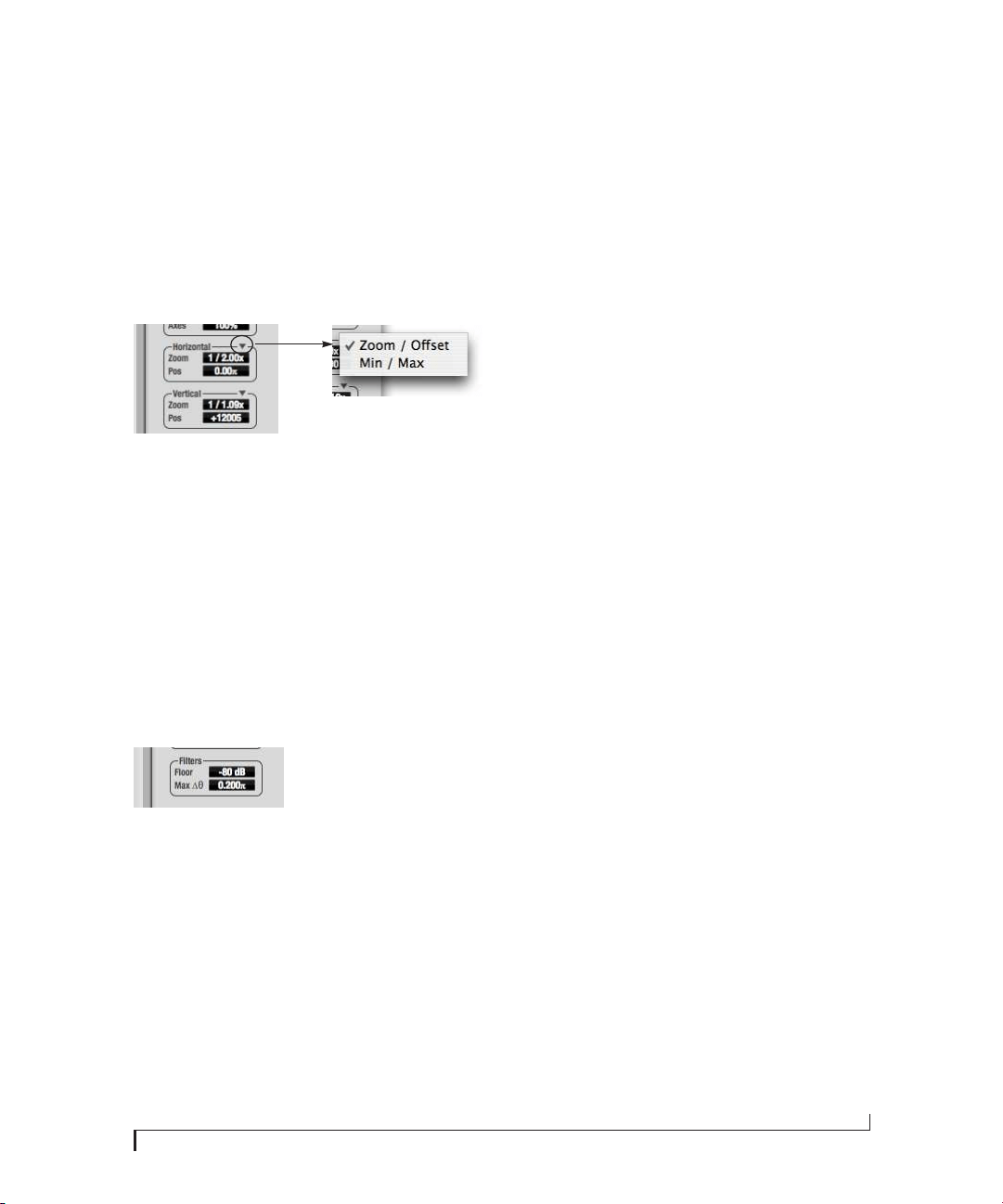
CUEMIX FX
107
Horizontal and vertical controls
The Horizontal and Ve r t i c a l controls (Figure 9-54)
let you scale each axis of the grid and offset its zero
point. Click and drag the values up or down to set
them, or double-click to return to the default value.
There are two modes for the controls: Zoom/Offset
and Min/Max. To change the mode, use the menu
shown in Figure 9-54.
Figure 9-54: Setting the Horizontal or Vertical control modes.
In Zoom/Offset mode, Zoom scales the axis. Pos
moves the zero line.
In Min/Max mode, Min and Max let you scale the
grid by moving the end points along the axis. Min/
Max mode lets you set the boundaries of the graph
directly.
Filters
The Filters section (Figure 9-55) lets you control
the density of the Phase Analysis display.
Figure 9-55: Filters
Floor
Floor (Figure 9-55) determines the amplitude
threshold for the display. When the amplitude of
both channels drops below this threshold, the
signal is not shown.
Max delta theta
Max delta theta (Figure 9-55) only affects Line
view (see “Line/Scatter” on page 106) and sets the
maximum difference in frequency between plot
points in the line plot. For two adjacent
frequencies, if the distance (phase difference)
between the two frequencies is greater than the
Max delta theta, then the line is not drawn.
Using the Phase Analysis
In the polar display (top row of Figure 9-56 on
page 108), stereo material that is predominantly
phase-aligned (correlated) appears along the
vertical axis, as demonstrated in the first column
(Perfectly in phase) in Figure 9-56. If the vertical
line tilts left or right, this indicates general
differences in phase; the more the tilt (delta theta),
the more the phase difference. If the vertical line
points downwards in the polar display, this
indicates that the stereo image is predominantly
out of polarity, as demonstrated by the fourth
column (Inverted) in Figure 9-56. Delays appear as
spirals in the polar display.
The rectangular display (bottom row of
Figure 9-56) also shows a predominantly phase-
aligned stereo image along the vertical axis, and tilt
(or left-right offset) from the center vertical axis
represents differences in phase. If a signal is
predominantly out of polarity, it appears along the
theta = -1.0 or theta = +1.0 lines in the rectangular
display, as demonstrated in the fourth column
(Inverted) in Figure 9-56 on page 108.
Using Phase Analysis for multiple mic placement
The polar display can be very useful when
recording drums or another instrument with
multiple microphones. The slight delays caused by
the differences in distance to the source can often
create a comb filtering (delay) effect between two
mic signals, due to phase cancellation. These comb
filter effects appear as spirals in the polar display. If
you arrange the mics so that the null points (where
the spiral pattern meets the negative y axis) are
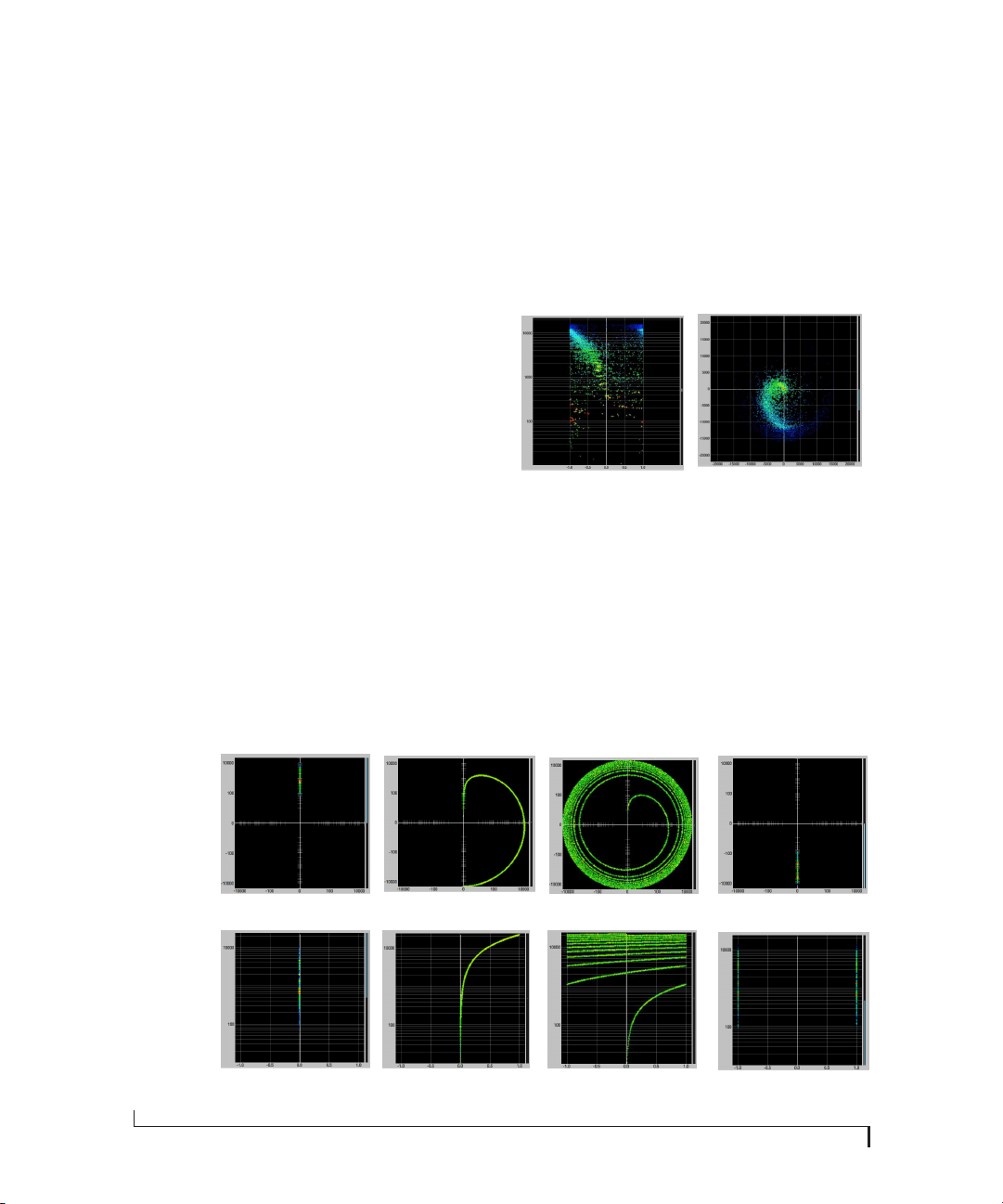
CUEMIX FX
108
outside the critical frequency range of the
instrument being recorded, you can avoid phase
problems among the mic signals.
Tun i ng PA sys te ms
The Phase Analysis window can also be used to
troubleshoot and tune PAs and sound
reinforcement systems by placing microphones in
strategic locations, comparing the two signals in
the Phase Analysis grid and looking for phase
issues at various locations.
Summing to mono
The Phase Analysis window is ideal for checking
stereo audio that needs to be summed to mono.
The Phase Analysis lets you see what frequencies
will be canceled out when summed.
In the rectangular view, any lines in the signal that
touch the +1.0 or -1.0 vertical lines in the grid will
be canceled out at the frequency where they touch,
when the signal is summed to mono.
In the polar view, any signal that falls on the
negative y axis (below zero) will be canceled out
when the signal is summed to mono.
Checking for phase issues in stereo tracks
You can use the Phase Analysis window to check
the overall polarity of a stereo mix. Figure 9-57 is
an example of a full stereo mix that has phase
issues, as indicated by the majority of the signal’s
energy, which is predominantly skewed to the left
side of the rectangular view (left) and spread along
the -y axis in the polar view (right).
Figure 9-57: A stereo mix with phase issues.
Figure 9-56: Two identical audio streams in the Phase Analysis.
Perfectly in phase One-sample delay Twenty-sample delay
Polar view
Rectangular
view
Inverted
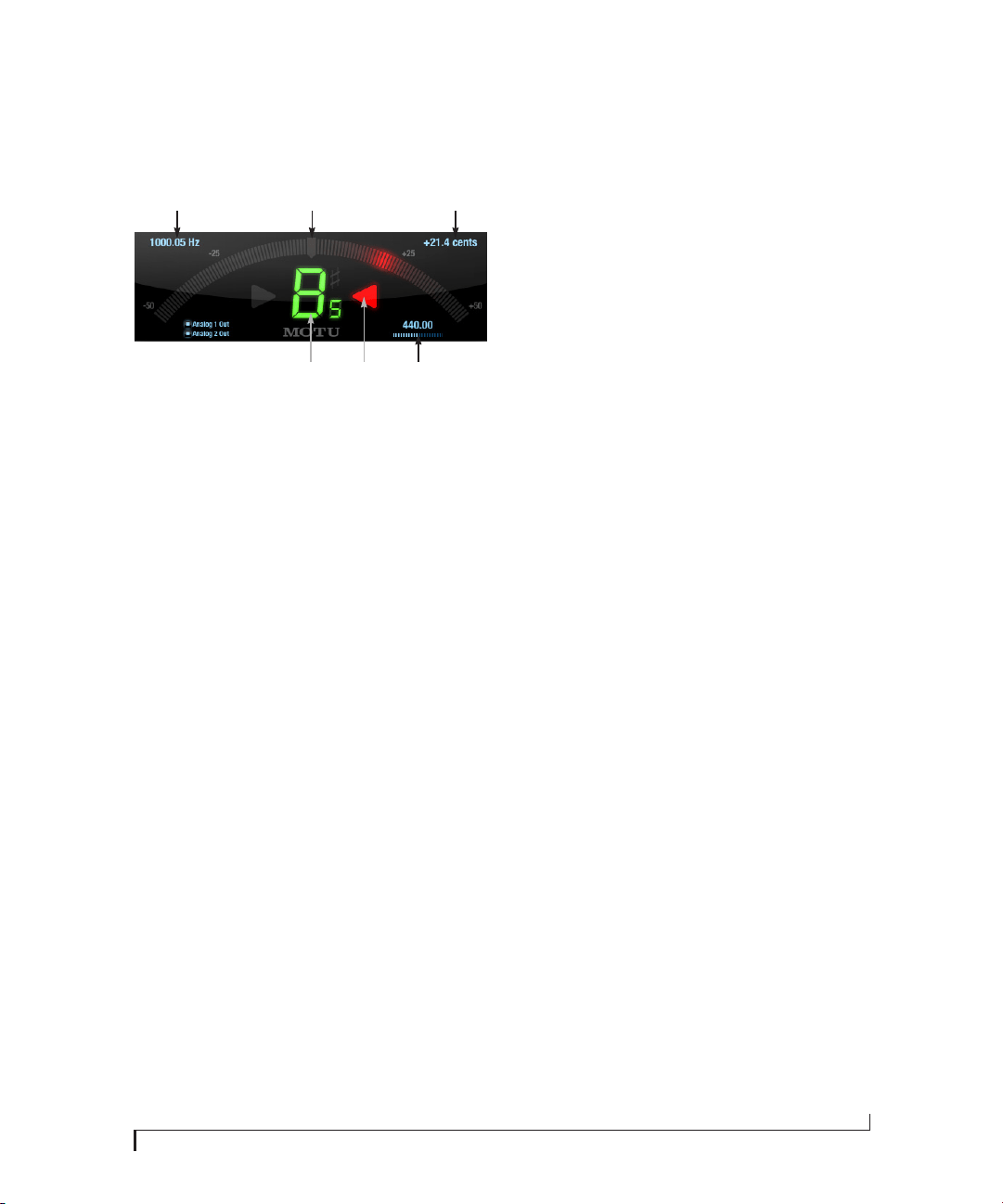
CUEMIX FX
109
TUNER
The Tu n e r window is an accurate and easy to use
tuner.
Opening the Tuner
Each MOTU audio interface has its own Tuner
window. Choose the Tun e r item from the Devices
menu under the desired interface (Figure 9-27 on
page 93).
Choosing a channel to tune
The Tuner window follows the currently focused
audio input or output. If you focus a mono channel
(e.g. Analog 3), its corresponding stereo pair will
be displayed (Analog 3–4).
In the Tuner window, the displayed channel pair is
shown in the lower left corner. Each channel has a
checkbox to enable or disable its input to the tuner.
Tuner controls
Detected frequency: fundamental frequency of the
incoming signal, in Hertz (Hz).
Detected note: note name and octave that
correspond to the detected fundamental
frequency.
Meter: representation of the pitch difference
between the detected note and the detected
fundamental frequency. The horizontal position of
the illuminated segments indicates how far the
detected frequency is from the detected note. The
number of illuminated segments indicates
uncertainty or inharmonicity in the signal; a
greater number of illuminated segments represents
greater uncertainty. The color of the segments
changes gradually from green (in tune) to yellow,
orange, and red (progressively further out of tune).
Meter value: difference between the detected note
and the detected frequency, in cents.
Arrows: the direction in which the detected
frequency needs to move to match the frequency of
the detected note. The color of the arrows changes
progressively in the same manner as the meter
segments. When the detected fundamental
frequency matches the detected note within
three cents, both arrows will be illuminated.
Reference frequency: sets the frequency reference
for the pitch A4, between 400 and 480 Hz. The
default frequency is 440 Hz.The reference
frequency can be adjusted by dragging on the bar
below the number, or by clicking the number and
typing a value. To reset the tuner to the default
frequency, double-click the slider, or click the
number, press the Delete key, and press Enter.
Tuning stereo signals
When tuning a stereo signal, the tuner analyzes the
sum of the two channels. If the channels are not
phase coherent, the tuner may not be able to
measure the frequency of the signal. To tune only
one channel of the channel pair, disable one of the
channels as described in “Choosing a channel to
tune” on page 109.
Meter valueMeter Detected frequency
Reference
frequency
ArrowDetected
note

CUEMIX FX
110
CONFIGURATIONS MENU
A configuration is just like a hardware preset (a
“snapshot” of all settings in CueMix FX and
therefore the 828x hardware itself), except that it
can be created and managed using the CueMix FX
software on your computer, completely
independently of the 828x hardware. The
commands in the Configurations menu let you
create, save, load, import, export and otherwise
manage as many configurations as you wish.
Here is a summary of Configurations menu
operations:
Modifying a configuration
The name of the current configuration is displayed
in the CueMix FX window title bar. If you make any
changes to the settings in CueMix FX, an asterisk
appears in front of the name to remind you that the
current state of CueMix FX doesn’t match the saved
configuration. If you wish to update the saved
configuration with the new changes, use the Save
command. To save the current state of CueMix FX
to another configuration, choose Save To. To save
as a new, separate configuration, choose Create
New.
Saving a CueMix FX configuration as a
hardware preset
To save a CueMix FX configuration as a hardware
preset:
1 Choose the configuration from the
Configurations menu to make it the current active
configuration.
2 Choose File menu> Save Hardware Preset.
3 Type in a name, choose a preset slot and click
OK.
Saving a hardware preset as a CueMix FX
configuration
To save a hardware preset as a CueMix FX configu-
ration:
1 Choose File menu> Load Hardware Preset to
make it the current active preset.
2 Choose Configuration menu> Create New (or
Save To) to save it as a configuration.
TALKBACK MENU
Choose the commands in the Talkback menu to
engage or disengage Talkback or Listenback.
PHONES MENU
The Phones menu allows you to choose what you
will hear on the headphone output, just like the
Phones setting in MOTU Audio Console. However,
this menu provides one extra option that is
exclusive to CueMix FX: Follow Active Mix. This
menu item, when checked, causes the headphone
output to mirror the output of the current mix
being viewed in CueMix FX. For example, if you
are currently viewing mix bus 3, the headphones
will mirror the mix bus 3 output (whatever it is
assigned to).
Configurations
Menu item What it does
Create New Lets you name and save a new configuration,
which appears at the bottom of the Configura-
tions menu.
Save Overwrites the current configuration
(checked in the list at the bottom of the menu)
with the current settings in CueMix FX.
Save To Same as Save above, except that it lets you first
choose the configuration you wish to save to
(instead of the current one).
Delete Lets you choose a configuration to perma-
nently remove from the menu.
Import Loads all configurations from a configuration
file on disk.
Export Saves all current configurations as a file on
disk.
Configuration
list
Choose any configuration to load it. The cur-
rent (last loaded or saved) configuration has a
check mark next to it.

CUEMIX FX
111
CONTROL SURFACES MENU
CueMix FX can be controlled from an automated
control surface such as the Mackie Control™. Use
the commands in the Control Surfaces menu to
enable and configure this feature.
Application follows control surface
When checked, the Application follows control
surface menu command makes the CueMix FX
window scroll to the channel you are currently
adjusting with the control surface, if the channel is
not visible when you begin adjusting it. The same is
true for the bus tabs: if you adjust a control in a bus
that is not currently being displayed, CueMix FX
will jump to the appropriate tab to display the
control you are adjusting.
Share surfaces with other applications
When the Share surfaces with other applications
menu command is checked, CueMix FX releases
the control surface when you switch to another
application. This allows you to control your other
software with the control surface. Here’s a simple
way to understand this mode: the control surface
will always control the front-most application. Just
bring the desired application to the front (make it
the active application), and your control surface
will control it. When you’d like to make changes to
CueMix FX from the control surface, just bring
CueMix FX to the front (make it the active
application).
When this menu item is unchecked, your control
surface will affect CueMix FX all the time, even
when CueMix FX is not the front-most application.
In addition, you will not be able to control other
host audio software with the control surface at any
time (because CueMix FX retains control over it at
all times). This mode is useful when you do not
need to use the control surface with any other
software.
CueMix Control Surfaces
CueMix FX includes support for the following
control surface products:
■ Mackie Control™
■ Mackie HUI™
■ Mackie Baby HUI™
Use the sub-menu commands in the CueMix
Control Surfaces menu item to turn on and
configure control surface support, as described
briefly below.
Enabled
Check this menu item to turn on control surface
operation of CueMix FX. Uncheck it to turn off
control surface support.
Configure…
Choose this menu item to configure your control
surface product. Open the help files for specific,
detailed instructions on configuring CueMix FX
for operation with your control surface product.
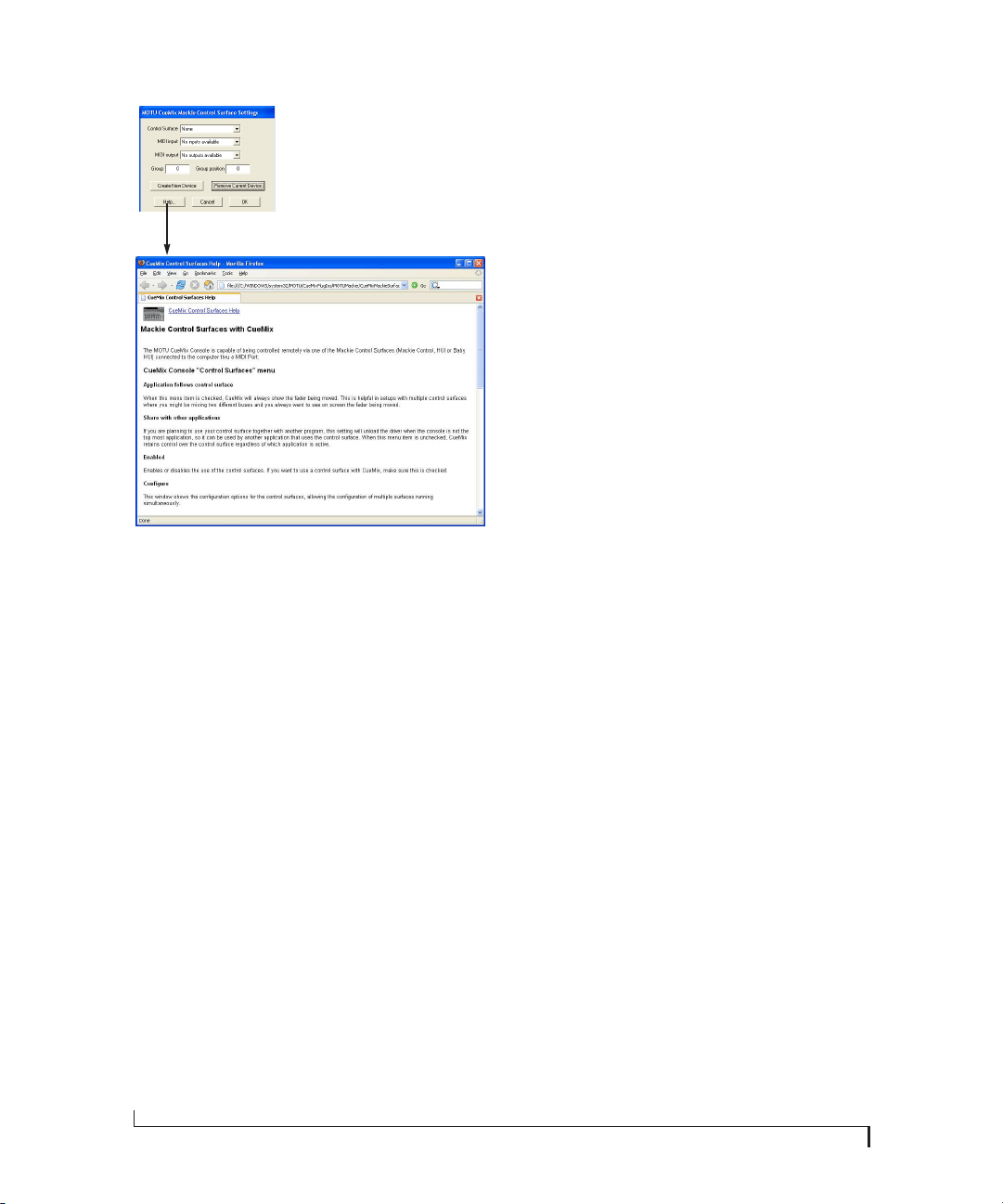
CUEMIX FX
112
Figure 9-58: Refer to the extensive on-line help for details about
configuring CueMix FX for operation with your control surface
product.
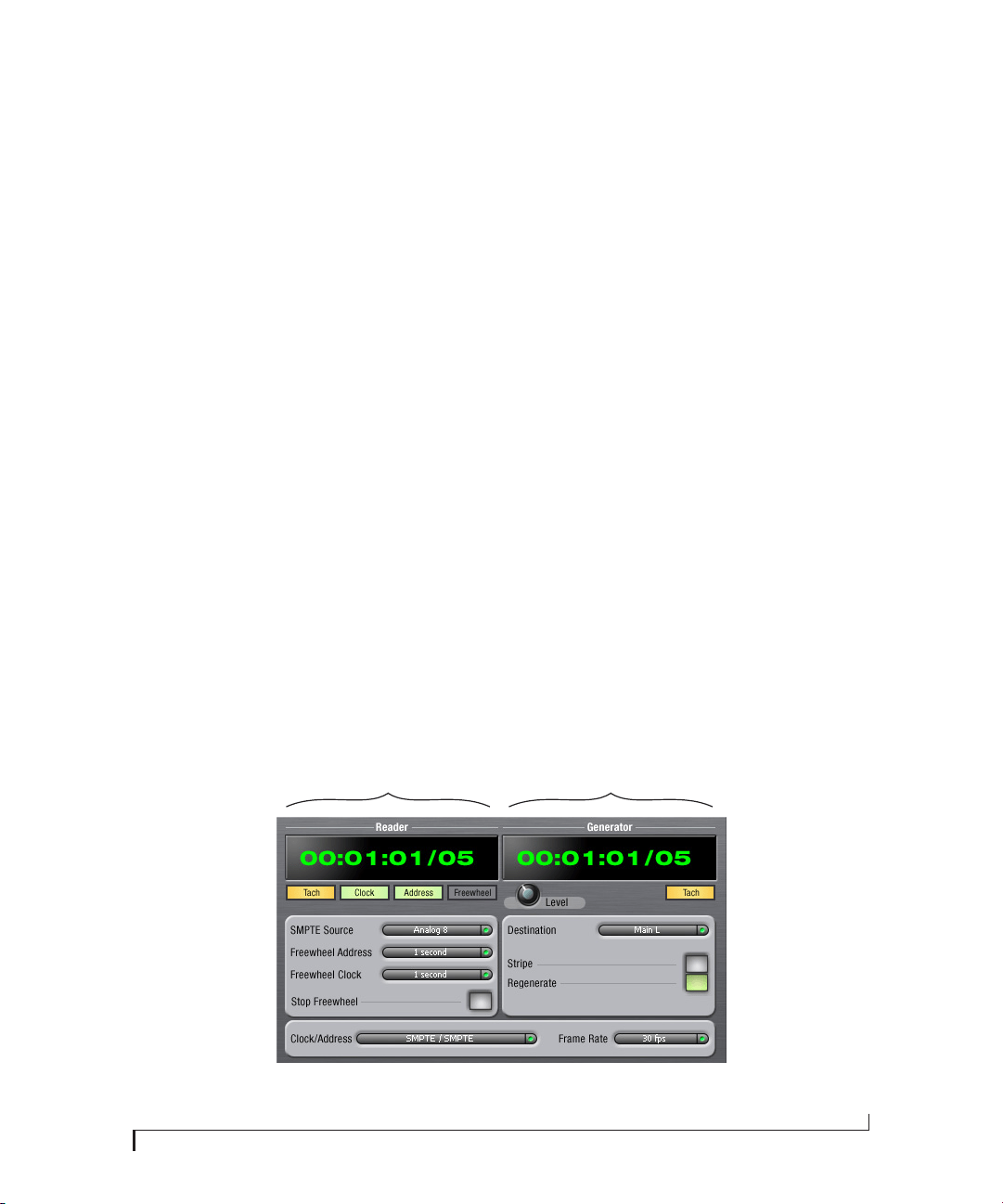
CHAPTER
113
10 MOTU SMPTE Console
OVERVIEW
The 828x can resolve directly to SMPTE time code
via any analog input, without a separate
synchronizer. The 828x can also generate time
code via its time code output. The 828x provides a
DSP-driven phase-lock engine with sophisticated
filtering that provides fast lockup times and sub-
frame accuracy. Direct time code synchronization
is supported by Cubase, Nuendo and other audio
sequencer software that supports the ASIO2
sample-accurate sync protocol. Other hosts, such
as Pro Tools, can resolve to MIDI Time Code
generated by the 828x.
MOTU SMPTE Console . . . . . . . . . . . . . . . . . . . . . . . . . . . . . . 113
Clock/Address . . . . . . . . . . . . . . . . . . . . . . . . . . . . . . . . . . . . . . 113
Frame Rate . . . . . . . . . . . . . . . . . . . . . . . . . . . . . . . . . . . . . . . . . 113
Reader section . . . . . . . . . . . . . . . . . . . . . . . . . . . . . . . . . . . . . . 114
Generator section . . . . . . . . . . . . . . . . . . . . . . . . . . . . . . . . . . 115
Setting up for SMPTE time code sync . . . . . . . . . . . . . . . 115
Resolving Cubase or Nuendo to time code . . . . . . . . . 115
MOTU SMPTE CONSOLE
The included MOTU SMPTE Console™ software
provides a complete set of tools to generate SMPTE
for striping, regenerating or slaving other devices
to the computer.
CLOCK/ADDRESS
The Clock/Address menu (Figure 10-1) provides
the same global Clock Source setting as in MOTU
Audio Console (“Master Clock Source” on
page 38), but it includes additional information:
each setting shows both the clock and the address
(time code or sample location), separated by a
forward slash ( / ). To resolve the 828x to SMPTE
time code, choose the SMPTE / SMPTE setting in
the Clock/Address menu. This means that the
system will use SMPTE as the clock (time base)
and SMPTE as the address.
FRAME RATE
This setting should be made to match the SMPTE
time code frame rate of the time code that the
system will be receiving. The 828x can auto-detect
Figure 10-1: SMPTE Console gives you access to your 828x’s on-board SMPTE
time code synchronization features.
The Reader section provides
settings for resolving to
SMPTE time code.
The Generator section
provides settings for striping
SMPTE time code.

MOTU SMPTE CONSOLE
114
and switch to the incoming frame rate, except that
it cannot distinguish between 30 fps and 29.97 fps
time code, or 23.976 and 24 fps time code. So if you
are working with either of these rates, make sure
you choose the correct rate from this menu.
READER SECTION
The Reader section (on the left-hand side of the
window in Figure 10-1) provides settings for
synchronizing the 828x to SMPTE time code.
Status lights
The four status lights (Tach, Clock, Address and
Freewheel) give you feedback as follows:
Tach
The Tach light blinks once per second when the
828x has successfully achieved lockup to SMPTE
time code and SMPTE frame locations are being
read.
Clock
The Clock light glows continuously when the 828x
has successfully achieved lockup to an external
time base, such as SMPTE time code or the optical
input.
Address
The Address light glows continuously when the
828x has successfully achieved lockup to SMPTE
time code.
Freewheel
The Freewheel light illuminates when the 828x is
freewheeling address (time code), clock or both.
For details about Freewheeling, see “Freewheel
Address” and “Freewheel clock” below.
SMPTE source
Choose the analog input that is connected to the
time code source. This is the input that the 828x
“listens” to for time code.
Freewheel Address
Freewheeling occurs when there is a glitch or
drop-out in the incoming time code for some
reason. The 828x can freewheel past the drop-out
and then resume lockup again as soon as it receives
readable time code. Choose the amount of time
you would like the 828x to freewheel before it gives
up and stops altogether.
The 828x cannot freewheel address without clock.
Therefore, the Freewheel Address setting will always
be lower than or equal to the Freewheel Clock
setting, and both menus will update as needed,
depending on what you choose.
Keep in mind that freewheeling causes the system
to keep going for as long as the duration you choose
from this menu, even when you stop time code
intentionally. Therefore, if you are starting and
stopping time code frequently (such as from the
transports of a video deck), shorter freewheel
times are better. On the other hand, if you are
doing a one-pass transfer from tape that has bad
time code, longer freewheel times will help you get
past the problems in the time code.
The ‘Infinite’ freewheel setting
The Infinite freewheel setting in the Freewheel
Address menu causes the 828x to freewheel
indefinitely, until it receives readable time code
again. To make it stop, click the Stop Freewheeling
button.
Freewheel clock
Freewheeling occurs when there is a glitch or
drop-out in the incoming SMPTE time code for
some reason. The 828x can freewheel past the
drop-out and then resume lockup again as soon as
it receives a stable, readable clock signal.

MOTU SMPTE CONSOLE
115
The 828x cannot freewheel address without clock.
Therefore, the Freewheel Address setting will always
be lower than or equal to the Freewheel Clock
setting, and both menus will update as needed,
depending on what you choose.
The ‘Infinite’ freewheel setting
The Infinite freewheel setting in the Freewheel
Clock menu causes the 828x to freewheel
indefinitely, until it receives readable time code
again. To make it stop, click the Stop Freewheeling
button.
Stop Freewheeling
The Stop Freewheeling button stops the system if it
is currently freewheeling.
GENERATOR SECTION
The Generator section (on the right-hand side of
the window in Figure 10-1) provides settings for
generating SMPTE time code.
Level
Turn the level knob to adjust the volume of the
SMPTE time code being generated by the 828x.
The level knob disappears when the Destination is
set to None.
Tach light
The Tach light blinks once per second when the
828x is generating SMPTE time code.
Destination
In the Destination menu, choose either SMPTE (to
generate time code) or None (to turn it off).
Stripe
Click this button to start or stop time code. To set
the start time, click directly on the SMPTE time
code display in the Generator section and type in
the desired start time. Or drag vertically on the
numbers.
Figure 10-2: Setting the time code start time.
Regenerate
This option, when enabled, causes the generator to
generate time code whenever the 828x is receiving
SMPTE time code.
SETTING UP FOR SMPTE TIME CODE SYNC
To set up direct SMPTE time code synchroni-
zation, see “Syncing to SMPTE timecode” on
page 31.
RESOLVING CUBASE OR NUENDO TO TIME
CODE
To resolve your 828x and Cubase or Nuendo
directly to SMPTE time code with no additional
synchronization devices, use the setup shown in
“Syncing to SMPTE timecode” on page 31. Make
sure the Clock Source setting in the MOTU Audio
Console window is set to SMPTE. Also, make sure
that you’ve connected an LTC input signal to an
828x analog input, and that you’ve specified that
input in the SMPTE Source menu in SMPTE
Console.
Click here to edit
the start time, or
drag vertically on
the numbers.

MOTU SMPTE CONSOLE
116

Part 3
Appendices


APPENDIX
119
A Troubleshooting
Why does the start sound not play through the
828x?
The 828x will only playback audio at a sampling
rate of 44.1, 48, 88.2 or 96 kHz.
The computer freezes when it starts up
If the computer is unable to boot up, it may be a
conflict with the WDM Driver. As soon as the
computer boots up, Windows will try and initialize
the WDM Driver. If this fails, your computer will
hang. To determine if the WDM Driver is the
problem, boot up in Safe Mode or remove the
MOTU Audio software with the Add/Remove
Programs Control Panel then restart. Reinstall the
828x software and choose only to install the
MOTU ASIO driver, not the WDM Driver. Restart
again.
‘New hardware detected’ window
If you connect your 828x before running the
MOTU Audio installer, Windows will prompt you
that new hardware has been detected. Cancel this,
and run the 828x Software Installer, rather than
allowing Windows to locate the drivers.
Clicks and pops under word clock sync
Many problems result from incorrect word
clocking. It is essential that all digital devices in the
system be word locked. Consult “Making sync
connections” on page 30 for detailed information
on how to word clock your gear. Whenever there is
any weird noise or distortion, suspect incorrect
word lock.
Clicks and pops due to hard drive problems
If you have checked your clock settings and you are
still getting clicks and pops in your audio, you may
have a drive related problem. Set your Clock
Source to Internal and try recording just using the
analog inputs and outputs of the 828x. If you
encounter the same artifacts you may want try
using another drive in your computer. Clicks and
pops can also occur when the drive is severely
fragmented or there are other drive-related issues.
Connecting or powering gear during operation
It is not recommended that you connect/
disconnect, or power on/off devices connected to
the 828x while recording or playing back audio.
Doing so may cause a brief glitch in the audio.
828x inputs and outputs are not available in host
audio software
Make sure that the inputs and outputs are enabled.
See “Working with 828x inputs and outputs” on
page 58.
No optical inputs or outputs are available in host
audio application
Check to make sure you have the desired optical
inputs and/or outputs enabled in the MOTU Audio
Console.
Monitoring - How to monitor inputs?
Please refer to the documentation for the audio
application that you are using. If your application
does not support input monitoring, you will need
to use the 828x’s hardware-based CueMix FX
monitoring feature. Please see chapter 8,
“Reducing Monitoring Latency” (page 61).
Controlling monitoring latency
See chapter 8, “Reducing Monitoring Latency”
(page 61).
CUSTOMER SUPPORT
We are happy to provide customer support to our
registered users. If you haven’t already done so,
please take a moment to register online at
MOTU.com, or fill out and mail the included

APPENDIX A: TROUBLESHOOTING
120
registration card. Doing so entitles you to technical
support and notices about new products and
software updates.
REPLACING DISCS
If your installer disc becomes damaged, our
Customer Support Department will be glad to
replace it. You can request a replacement disc by
calling our business office at (617) 576-2760 and
asking for the customer service department. In the
meantime, you can download the latest drivers
from www.motu.com.
TECHNICAL SUPPORT
If you are unable, with your dealer’s help, to solve
problems you encounter with the 828x system, you
may contact our technical support department in
one of the following ways:
■ Tech support hotline: (617) 576-3066 (Monday
through Friday, 9 a.m. to 6 p.m. EST)
■ Online support: www.motu.com/support
Please provide the following information to help us
solve your problem as quickly as possible:
■ The serial number of the 828x system. This is
printed on a sticker placed on the bottom of the
828x rack unit. You must be able to supply this
number to receive technical support.
■ A brief explanation of the problem, including the
exact sequence of actions which cause it, and the
contents of any error messages which appear on the
screen.
■ The pages in the manual which refer to the parts
of the 828x or AudioDesk with which you are
having trouble.
■ The version of your computer’s operating
system.
We’re not able to solve every problem immediately,
but a quick call to us may yield a suggestion for a
problem which you might otherwise spend hours
trying to track down.
If you have features or ideas you would like to see
implemented, we’d like to hear from you. Please
write to the 828x Development Team, MOTU Inc.,
1280 Massachusetts Avenue, Cambridge, MA
02138.

APPENDIX
121
B Audio I/O reference
OVERVIEW
The MOTU Audio drivers supply text string labels
for the 828x’s audio inputs and outputs to clearly
identify each one, but some applications do not
display these labels.
The following sections show how you can identify
each input and output in a numbered list like this.
Inputs at 1x sample rates
Inputs are always listed in the same order as
follows, when operating the 828x at 1x sample rates
(44.1 or 48 kHz):
Inputs at 2x sample rates
When operating the 828x at a 2x sample rate (88.2
or 96 kHz), inputs are listed as follows:
Inputs at 4x sample rates
When operating the 828x at a 4x sample rate (176.4
or 192 kHz), inputs are listed as follows:
Input
Channels List position Comment
Mic-Guitar 2 1-2 -
Analog 8 3-10 -
Reverb
return
2 11-12 See “Reverb return”
on page 54.
Stereo
return
2 13-14 See “Return Assign”
on page 54.
SPDIF 2 15-16 -
Optical A 8 ADAT
2 TOSLink
17-24
17-18
-
Optical B 8 ADAT
2 TOSLink
25-32
19-20
These starting chan-
nel numbers assume
that optical A is
operating with the
same format.
Input
88.2 / 96 kHz Channels List position Comment
Mic-Guitar 2 1-2 -
Analog 8 3-10 -
Reverb
return
not
available
not
available
not
available
Stereo
return
2 11-12 See “Return Assign”
on page 54.
SPDIF 2 13-14 -
Optical A 4 ADAT
2 TOSLink
15-18
15-16
-
Optical B 4 ADAT
2 TOSLink
19-22
17-18
These starting chan-
nel numbers assume
that optical A is
operating with the
same format.
Input
176.4 /192 kHz Channels List position Comment
Mic-Guitar 2 1-2 -
Analog 8 3-10 -
Reverb
return
not
available
not
available
not
available
Stereo return 2 11-12 See “Return
Assign” on page 54.
SPDIF not
available
not
available
not
available
Optical A not
available
not
available
not
available
Optical B not
available
not
available
not
available

APPENDIX B: AUDIO I/O REFERENCE
122
Outputs at 1x sample rates
Outputs are always listed in the same order as
follows, when operating the 828x at 1x sample rates
(44.1 or 48 kHz):
Outputs at 2x sample rates
When operating the 828x at a 2x sample rate (88.2
or 96 kHz), outputs are listed as follows:
Outputs at 4x sample rates
When operating the 828x at a 4x sample rate (176.4
or 192 kHz), outputs are listed as follows:
Output
44.1 / 48 kHz Channels
List
position Comment
Analog 8 1-8 -
Main outs 2 9-10 If the main outs are
assigned to mirror another
output pair (such as the
analog 1-2), they won’t be
listed separately.
Phones 2 11-12 If the phones are assigned
to mirror another output
pair (such as the main
outs), they won’t be listed
separately.
SPDIF 2 13-14 If the phones are mirror-
ing, then subtract 2. If the
main outs are mirroring,
subtract another 2.
Optical A 8 ADAT
2 TOSLink
15-22
15-16
-
Optical B 8 ADAT
2 TOSLink
23-30
17-18
These channel number
ranges assume that optical
A is operating with the
same format.
Output
88.2/ 96 kHz Channels
List
position Comment
Analog 8 1-8 -
Main outs 2 9-10 If the main outs are
assigned to mirror
another output pair
(such as the analog
1-2), they won’t be
listed separately.
Phones Mirror only -- -
SPDIF 2 11-12 If the main outs are
mirroring, then sub-
tract 2.
Optical A 4 ADAT
2 TOSLink
13-16
13-14
-
Optical B 4 ADAT
2 TOSLink
17-20
15-16
These channel num-
ber ranges assume
that optical A is oper-
ating with the same
format.
Output
176.4/ 192 kHz Channels
List
position Comment
Analog 8 1-8 -
Main outs 2 9-10 -
Phones Mirror only -- -
SPDIF Not available -- -
Optical A Not available -- -
Optical B Not available -- -

INDEX
123
+4dB analog input 24
-10dB analog input 24
192kHz
operation 38
24-bit
optical 8, 13
recording 15
48V phantom power 76
828x
channel numbers 121
installing 21
rear panel overview 12
SMPTE setting 40
summary of features 11
tab 37
Word Clock In setting 39
A
Ableton Live 53, 55
Activity LEDs 7, 14
ADAT optical 8, 13, 41
clock source setting 39
connecting 25
SMUX Type 46
sync 31
trim 73
All Notes Off (LCD) 46
Analog activity lights 7, 14
Analog inputs/outputs 8
making connections to 24
trim 73
Analysis tools 93
Application follows control surface 111
ASIO 16, 20
SONAR 56
Attack
compressor 85
Audio
Setup software 19
Audio menu (LCD) 46
AudioDesk 55
Avid Pro Tools 55
B
Balance 71
Balanced analog 24
Bias Peak 16
Buffer Size 40
Bus
activity LEDs 77, 87
fader 70
C
CakeWalk 16
Cakewalk SONAR 56
Channel
names 42
numbers 121
Channel tab 76
reverb settings 77
Clear Peaks 92
Clock
192kHz operation 38
Clock LEDs 7, 14
Clock Source 38
SMPTE setting 40
Clock source 9, 30
Coax 13
Cockos Reaper 56
Comp button 86
Compressor 84, 85
enabling 84
Condenser mic input 7, 24
Configurations menu 110
Control Surfaces menu 111
Controller
connecting 27
Converter mode
setup/example 29
Converters 8
Copy/Paste 92
Correlation Meter 105
Cubase 16, 37, 53
clock source 53
enabling the 828 ASIO driver 56
Mac OS X 55
Main Out Assign 54
optical I/O 54
phones 54
Return Assign 54
reverb return 54
sample rate 53
CueMix FX 64, 67-112
Application follows control surface
111
Configurations menu 110
control surfaces 111
Control Surfaces menu 111
CueMix control surfaces 111
Devices menu 93
Edit Channel Names 42
Edit menu 92
File menu 92
focus 68
installation 68
Listenback explained 90
listenback settings 90
Mixer 43
output jacks 8, 25
overview 67, 68
Phones menu 110
Share surfaces with other applica-
tions 111
shortcuts 91
signal flow 72
stand-alone operation 68
talkback menu 110
talkback settings 90
CueMix menu 47
Customer
support 119
D
DAT
connecting 28
Devices menu 93
Digital converter (see Optical converter)
Digital Performer 55
Disc, replacing 120
Drivers
ASIO 20
audio channel numbers 121
installing USB drivers 19
Legacy MME (Wave) 9, 20
DSP
meter 69, 90
resources 68, 90
Dynamic mic 24
Dynamics
enabling 74, 84
graph 73
inputs 73
outputs 75
tab 84
E
Early reflections 88
Edit Channel Names 42
Enable Pedal 41
EQ
enabling 74, 78
filter types 80
frequency 80
gain 80
graph 73
inputs 73
outputs 75
Q 80
tab 78
F
Factory defaults 46
Feedback loops 54, 58
FFT display 93
File menu
Clear Peaks 92
Copy/Paste 92
Hardware Follows CueMix Stereo
Settings 92
Load Hardware Preset 92
Mix1 return includes computer 92
Peak/Hold Time 92
Save Hardware Preset 92
undo/redo 92
Focus 68
Inputs tab 73
Mixes tab 71
Outputs tab 75
Follow Active Mix 110
Foot switch 14, 41
3rd party OS X software 59
configuring 9
connecting 27
jack 8
Force 1x word out rate 33
Freewheel
address 114
clock 114
infinite 114, 115
Frequency
Index

INDEX
124
EQ 80
Front panel 43
metering 44
G
Gain
EQ 80
reduction 85
reduction (Leveler) 86
GarageBand
clock source 53
Main Out Assign 54
optical I/O 54
phones 54
Return Assign 54
reverb return 54
sample rate 53
General tab 37
GR (gain reduction) 85
Guitar
connecting 24
Guitar/mic inputs
connecting 28
phantom power 7
H
Hardware Follows CueMix Stereo Settings
92
Hardware reset 46
Headphone jack 7, 14, 43
Headphones
connecting 28
controlling output 41
Host audio software
3rd party software sync 59
Main Out Assign 54
Return Assign 54
HUI 111
I
In menu (LCD) 47
Infinite freewheel 114, 115
Inputs
analog 8
name 72
optical 8
pan 71
reverb send 74
S/PDIF (RCA) 8
tab 72
trim 73
Installation
hardware 21
software 19
Installer disc, replacing 120
Internal (sync setting) 39
Invert phase 73
K
Keyboard controller
connecting 27
L
Latency 40, 54, 61, 63, 64, 68
LCD
contrast 46
LCD display 45
Level meter
bus 71
monitor group 89
Leveler 84, 85
Lightpipe 41
2x mode 46
Limit button 86
Listenback
button (channel tab) 77
button (Outputs tab) 75
explained 90
Live 55
Load Hardware Preset 92
Logic Pro/Express 16
clock source 53
Main Out Assign 54
optical I/O 54
phones 54
Return Assign 54
reverb return 54
sample rate 53
M
M/S 77
Mac OS X 53
input and output names 58, 121
Mackie Control 111
Main Out Assign 41
host audio software 54
Main outs
jacks 8
making connections to 25
volume 7, 43
Main volume 7, 43, 89
Makeup gain 86
Master Clock Source 38
Master clock source 9
Master fader
mix busses 70
Meters
monitor group 89
Meters tab 87
Mic/guitar inputs 23, 43
connecting 28
phantom power 7
trim 73
V-Limit 44
Mic/instrument inputs
overview 14
MIDI
Windows driver installation 20
Mid-side micing 77
Mix 1 Return 1-2 58
Mix bus
activity LEDs 77, 87
level meter 71
master fader 70
mute 71
Mix1 return includes computer 92
Mixes tab 70
MME driver 9, 20
Monitor group 89
assigning outputs 89
assigning outputs to 76
level 89
meters 89
presets menu 89
Monitoring 62
thru main outs 25
Mono button 73
MOTU
ASIO driver 20
AudioDesk 55
Digital Performer 55
MOTU Audio Console 37
launching 9
MOTU Audio Setup 19
MOTU SMPTE Console 113
MOTU SMPTE Setup 20
N
Normal 77
Nuendo 37, 53
clock source 53
Mac OS X 55
Main Out Assign 54
optical I/O 54
phones 54
Return Assign 54
reverb return 54
sample rate 53
O
Optical
2x mode 46
choosing format (ADAT or
TOSlink) 41
connectors 8, 25
LEDs 7, 14
overview 13
trim 73
Optical converter mode 46
setup/example 29
Optimization 64
OS X audio software
clock source 53
optical I/O 54
phones 54
reverb return 54
sample rate 53
Oscilloscope 96
Output level (meter in Dynamics plug-in)
85
Outputs
analog 8
dynamics 75
EQ 75
name 74
optical 8
reverb send/return 75
S/PDIF (TOSLink) 8
signal flow 74
tab 74

INDEX
125
Overload Protection 77
P
P LED (pad) 76
Packing list 17
Pad 23, 76
Paste 92
Patch thru
latency 40, 64
Peak 16
Peak mode 85
Peak/Hold Time 92
Pedal 14, 41
3rd party OS X software 59
configuring 9
jack 8
Pedal A 27
Pedal B/LRC 27
Performance 64
Phantom power 23, 24, 76
Phase 73
Phase Analysis 105
Phase-lock 30
Phones 7, 43, 44, 122
menu 110
Phones 1-2 output 58
Phones Assign 41
3rd party software 54
Pre/post FX buttons 77, 87
PreDelay 88
Presets
naming/saving in LCD 46
Pro Tools 53, 55
Propellerhead Reason 56
Propellerhead Record 56
Punch in/out 14
Q
Q 80
R
Ratio
compressor 85
Reaper 53, 56
Reason 53, 56
Record 53, 56
Regenerate 115
Registration 17
Release
Dynamics 85
Return Assign 41, 58
Host audio software 54
Reverb 69
design section 89
early reflections 88
enabling/disabling 87
input sends 74
mix bus send/return 70, 71
outputs send/return 75
predelay 88
returns 88
routing to/from 88
send (channel tab) 77
sends 88
shelf filter 88
tab 87
time 88, 89
trim (channel tab) 77
width 89
Reverb return 88
OS X audio software 54
RMS mode 85
S
S/MUX 46
S/PDIF 13
clock source setting 39
connection 26
lights 7, 14
optical 8, 13
RCA 8
sync 32
trim 73
Sample rate 9, 38
192kHz operation 38
Samplers
connecting 28
Samples per buffer 9, 40, 54, 63
Save Hardware Preset 92
Setup menu (LCD) 46
Share surfaces with other applications 111
Shelf Filter 88
Shortcuts 91
Show
Band Response 93
FFT 93, 94
no analysis 93
Spectrogram 93, 94
Show EQ Controls 95
Show/Hide Full Window Analysis 93
Signal flow (CueMix FX mixer) 72
SMPTE
Console application 113
overview 113
source setting 114
sync 30, 113
Soft Clip 14, 44, 77
Software
installation 19
Solo
light 71, 90
SONAR 53, 56
Sony
Sound Forge 57
Sound Forge 57
Sound module
connecting 27
Soundtrack Pro
clock source 53
Main Out Assign 54
optical I/O 54
phones 54
Return Assign 54
reverb return 54
sample rate 53
Spectrogram 93
Split Point 88
Stand-alone operation 43, 51, 68
Stereo button 73
Stereo settings (Channel tab) 77
Stop Freewheeling 114
Stripe button 115
Studio setup (example) 28
Swap L/R 77
Synchronization 30
host software 59
Synths
connecting 28
System requirements
minimum 17
recommended computer 17
T
TACH
light (SMPTE Console) 114
Talkback
button (Channel tab) 77
button (Outputs tab) 75
explained 90
menu 91, 110
settings 90
Tascam
Sync 31
Technical support 119, 120
Threshold
dynamics 85
Thunderbolt 14
connecting 21
connector 8
Time code sync 113
TOSLink 8, 13, 41
clock source setting 39
connecting 25
trim 73
Trim 23, 73
Troubleshooting
EQ knobs don’t work 74
feedback loop 54, 58
TRS connectors 24
Tuner 109
Type I, II optical mode 46
U
Unbalanced analog 24
Undo/Redo 92
USB
2.0 14, 22
2.0 versus 1.1 22
3.0 22
connecting 22
installing drivers 19
Use Stereo Pairs for Windows Audio 41
Use WaveRT for Windows Audio 41
User def. (monitor group menu) 89
V
V LED (phantom power) 76
Video sync 30, 113
V-Limit 44, 77
Volume
headphone 14