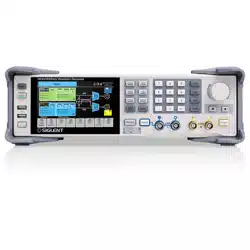
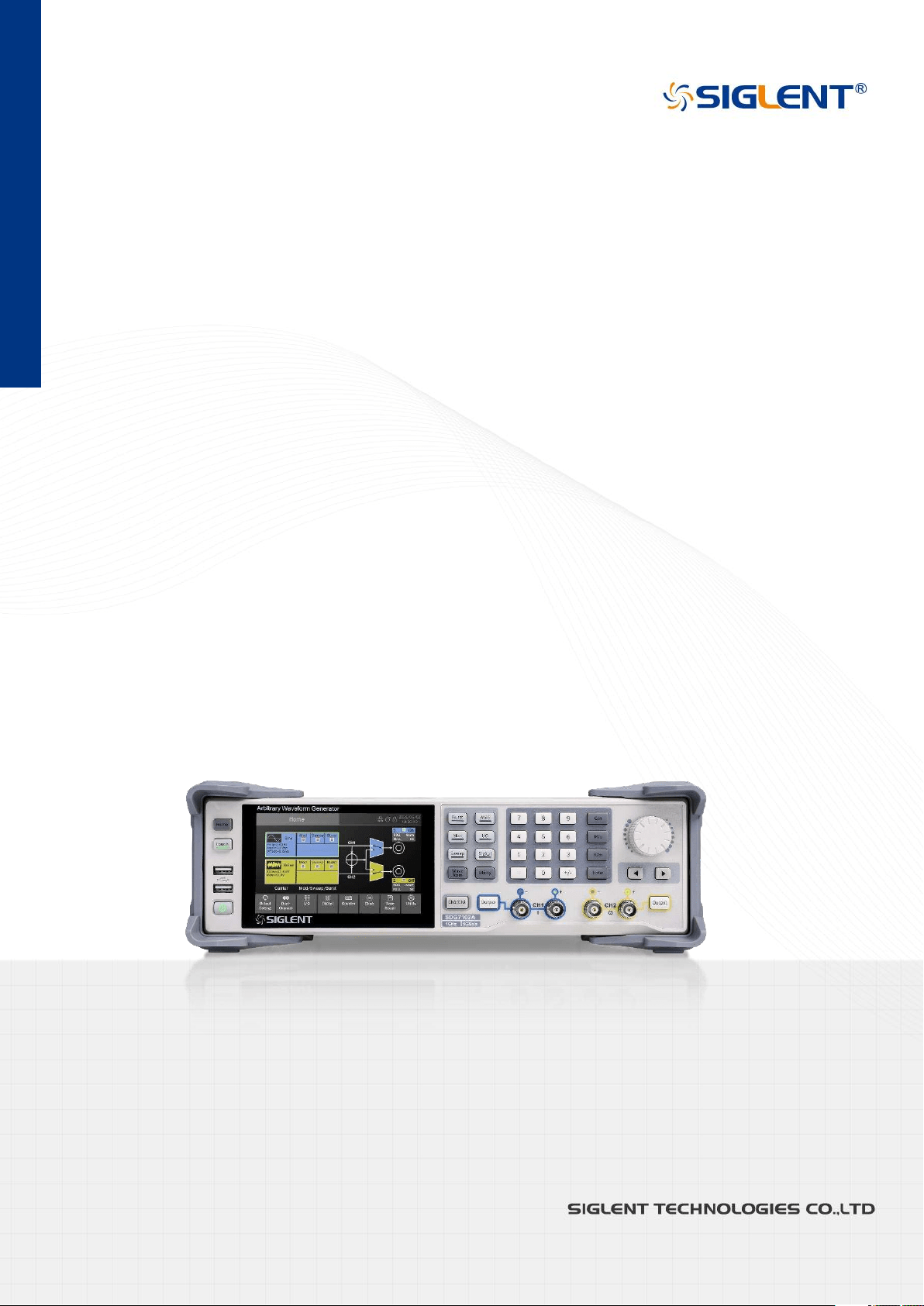
SDG7000A Series
Arbitrary Waveform
Generator
User Manual
EN01A

SDG7000A User Manual
I
Copyright and Declaration
Copyright
SIGLENT TECHNOLOGIES CO., LTD. All Rights Reserved.
Trademark Information
SIGLENT is the registered trademark of SIGLENT TECHNOLOGIES CO., LTD.
Declaration
SIGLENT products are protected by patent law in and outside of P.R.C.
SIGLENT reserves the right to modify or change parts of or all the specifications or pricing
policies at company’s sole decision.
Information in this publication replaces all previously corresponding material.
Any way of copying, extracting or translating the contents of this manual is not allowed without
the permission of SIGLENT.
Product Certification
SIGLENT guarantees this product conforms to the national and industrial stands in China and
other international stands conformance certification is in progress.

SDG7000A User Manual
II
CONTENT
1 INTRODUCTION ....................................................................................................................... 1
2 IMPORTANT SAFETY INFORMATION .................................................................................... 2
2.1 GENERAL SAFETY SUMMARY ........................................................................................................................... 2
2.2 SAFETY TERMS AND SYMBOLS ........................................................................................................................ 4
2.3 WORKING ENVIRONMENT ............................................................................................................................... 4
2.4 COOLING REQUIREMENTS ............................................................................................................................... 6
2.5 POWER AND GROUNDING REQUIREMENTS.................................................................................................... 6
2.6 CLEANING ......................................................................................................................................................... 7
2.7 CALIBRATION .................................................................................................................................................... 7
2.8 ABNORMAL CONDITIONS ................................................................................................................................ 7
2.9 SAFETY COMPLIANCE ....................................................................................................................................... 8
INFORMATIONS ESSENTIELLES SUR LA SÉCURITÉ ................................................................ 9
EXIGENCE DE SÉCURITÉ ................................................................................................................................................ 9
TERMES ET SYMBOLES DE SÉCURITÉ .......................................................................................................................... 10
ENVIRONNEMENT DE TRAVAIL .................................................................................................................................. 11
EXIGENCES DE REFROIDISSEMENT ............................................................................................................................. 13
CONNEXIONS D'ALIMENTATION ET DE TERRE ........................................................................................................... 13
NETTOYAGE ................................................................................................................................................................ 14
CONDITIONS ANORMALES ......................................................................................................................................... 14
CONFORMITÉ EN MATIÈRE DE SÉCURITÉ ................................................................................................................... 15
3 FIRST STEPS .......................................................................................................................... 16
3.1 DELIVERY CHECKLIST...................................................................................................................................... 16
3.2 QUALITY ASSURANCE .................................................................................................................................... 16
3.3 MAINTENANCE AGREEMENT ......................................................................................................................... 16
4 DOCUMENT CONVENTIONS ................................................................................................. 17
5 GETTING STARTED ............................................................................................................... 18
5.1 POWER ON ..................................................................................................................................................... 18
5.2 POWER OFF .................................................................................................................................................... 18
5.3 SYSTEM INFORMATION .................................................................................................................................. 18
5.4 INSTALL NEW OPTIONS ................................................................................................................................. 18
5.5 CHOOSING THE LANGUAGE ........................................................................................................................... 18
6 QUICK START ......................................................................................................................... 19
6.1 FRONT PANEL................................................................................................................................................. 19
6.2 REAR PANEL .................................................................................................................................................... 20
6.3 CONNECTING TO EXTERNAL DEVICES/SYSTEMS .......................................................................................... 21
6.3.1 Power supply .................................................................................................................... 21
6.3.2 Signal output ..................................................................................................................... 21
6.3.3 LAN ................................................................................................................................... 21
6.3.4 USB Peripherals ............................................................................................................... 21
6.3.5 USB device interface ........................................................................................................ 21
6.3.6 Reference clock input/output ............................................................................................ 21

SDG7000A User Manual
III
6.3.7 Trigger in/Trigger out/Synchronous out ............................................................................ 22
6.3.8 External modulation signal/counter input .......................................................................... 22
6.3.9 Marker output .................................................................................................................... 22
6.3.10 Digital signal output ........................................................................................................... 22
7 TOUCH SCREEN DISPLAY .................................................................................................... 23
7.1 HOME PAGE ................................................................................................................................................... 23
7.2 PARAMETER SETTING PAGE ........................................................................................................................... 24
7.3 DESCRIPTION OF ICONS IN THE STATUS BAR ............................................................................................... 25
7.4 GESTURE CONTROL........................................................................................................................................ 25
7.5 MOUSE OPERATION ....................................................................................................................................... 25
8 FRONT PANEL ........................................................................................................................ 26
8.1 OVERVIEW ...................................................................................................................................................... 26
8.2 SHORTCUT BUTTONS ..................................................................................................................................... 26
8.3 NUMERIC KEYPAD AND KNOB ...................................................................................................................... 27
8.4 CHANNEL SETTING BUTTONS........................................................................................................................ 27
8.5 OTHER BUTTONS ........................................................................................................................................... 27
9 BASIC WAVEFORM SETTING ............................................................................................... 28
9.1 STANDARD WAVEFORM SETTING ................................................................................................................. 28
9.2 HARMONIC SETTING ...................................................................................................................................... 34
9.3 NOISE SETTING .............................................................................................................................................. 37
9.4 PRBS SETTING ............................................................................................................................................... 39
9.5 ARBITRARY WAVEFORM SETTING ................................................................................................................. 43
9.5.1 AFG Mode ......................................................................................................................... 43
9.5.2 AWG Mode ....................................................................................................................... 43
9.5.3 Data Source ...................................................................................................................... 45
9.5.4 Sequence Setting .............................................................................................................. 52
9.6 I/Q SETTING ................................................................................................................................................... 57
9.6.1 Working Mode ................................................................................................................... 59
9.6.2 I/Q Adjustment .................................................................................................................. 61
9.6.3 EasyIQ .............................................................................................................................. 61
10 MODULATION/SWEEP/BURST SETTINGS .......................................................................... 64
10.1 OVERVIEW ...................................................................................................................................................... 64
10.2 MODULATION ................................................................................................................................................ 65
10.2.1 Source Selection ............................................................................................................... 65
10.2.2 Modulation Type ............................................................................................................... 66
10.3 SWEEP ............................................................................................................................................................. 76
10.3.1 Sweep Type ...................................................................................................................... 76
10.3.2 Trigger Source .................................................................................................................. 77
10.3.3 Sweep Parameter Settings ............................................................................................... 77
10.4 BURST ............................................................................................................................................................. 81
10.4.1 Burst type .......................................................................................................................... 81
10.4.2 Trigger Source .................................................................................................................. 81
10.4.3 Burst Parameter Setting .................................................................................................... 82
11 DUAL CHANNEL SETUP........................................................................................................ 86
11.1 OVERVIEW ...................................................................................................................................................... 86
11.2 PHASE MODE ................................................................................................................................................. 87

SDG7000A User Manual
IV
11.3 WAVEFORM COMBINE ................................................................................................................................... 89
11.4 CHANNEL TRACKING/COUPLING/COPY ....................................................................................................... 90
12 OUTPUT SETTINGS ............................................................................................................... 92
12.1 OVERVIEW ...................................................................................................................................................... 92
12.2 POLARITY ........................................................................................................................................................ 93
12.3 NOISESUM ..................................................................................................................................................... 93
12.4 AMPLITUDE LIMIT........................................................................................................................................... 94
12.5 DIGITAL FILTERING ......................................................................................................................................... 94
12.6 OUTPUT PROTECTION .................................................................................................................................... 96
12.7 SINGLE-ENDED/DIFFERENTIAL SETTINGS ..................................................................................................... 96
13 DIGITAL CHANNELS .............................................................................................................. 97
13.1 OVERVIEW ...................................................................................................................................................... 97
13.2 DIGITAL CHANNEL SETTINGS ........................................................................................................................ 98
14 COUNTER ............................................................................................................................. 100
14.1 OVERVIEW ................................................................................................................................................... 100
14.2 FREQUENCY METER MODE ........................................................................................................................ 100
14.3 TOTALIZER MODE ....................................................................................................................................... 102
15 SAVE/RECALL ...................................................................................................................... 103
15.1 OVERVIEW ................................................................................................................................................... 103
15.2 SAVE TYPE ................................................................................................................................................... 103
15.3 RECALL TYPE ................................................................................................................................................ 103
15.4 FILE MANAGER ............................................................................................................................................ 105
15.5 SAVE AND RECALL INSTANCE ..................................................................................................................... 106
16 SYSTEM SETUP ................................................................................................................... 108
16.1 GENERAL SETTINGS ..................................................................................................................................... 108
16.1.1 Language ........................................................................................................................ 108
16.1.2 Sound .............................................................................................................................. 108
16.1.3 Screen Saver .................................................................................................................. 108
16.1.4 Keyboard Lock ................................................................................................................ 109
16.1.5 Auto Power On ................................................................................................................ 109
16.1.6 Date and Time ................................................................................................................ 109
16.2 SYSTEM INFORMATION ............................................................................................................................... 110
16.3 INTERFACE SETTINGS .................................................................................................................................. 111
16.3.1 LAN Settings ................................................................................................................... 111
16.3.2 Sync Output Settings ...................................................................................................... 111
16.3.3 Multi-Device Synchronization .......................................................................................... 112
16.4 TEST/CAL ..................................................................................................................................................... 113
16.4.1 Perform Self-Test ............................................................................................................ 113
16.4.2 Perform Self-Calibration .................................................................................................. 116
16.4.3 Time Base Calibration ..................................................................................................... 117
16.4.4 Loading Factory Calibration Data ................................................................................... 118
16.5 PRE-SETTING ............................................................................................................................................... 118
16.6 UPGRADE SOFTWARE ................................................................................................................................. 118
16.7 INSTALLATION OPTIONS ............................................................................................................................. 119

SDG7000A User Manual
V
16.8 HELP ............................................................................................................................................................ 120
17 REMOTE CONTROL ............................................................................................................. 121
17.1 WEB BROWSER ........................................................................................................................................... 121
17.2 OTHER CONNECTIONS ................................................................................................................................ 122
18 TROUBLE SHOOTING ......................................................................................................... 123

SDG7000A User Manual
WWW.SIGLENT.COM 1 / 133
1 Introduction
This user manual includes important safety and installation information related to the SDG7000A
series of arbitrary waveform generator and includes simple tutorials for basic operation of the
instrument.
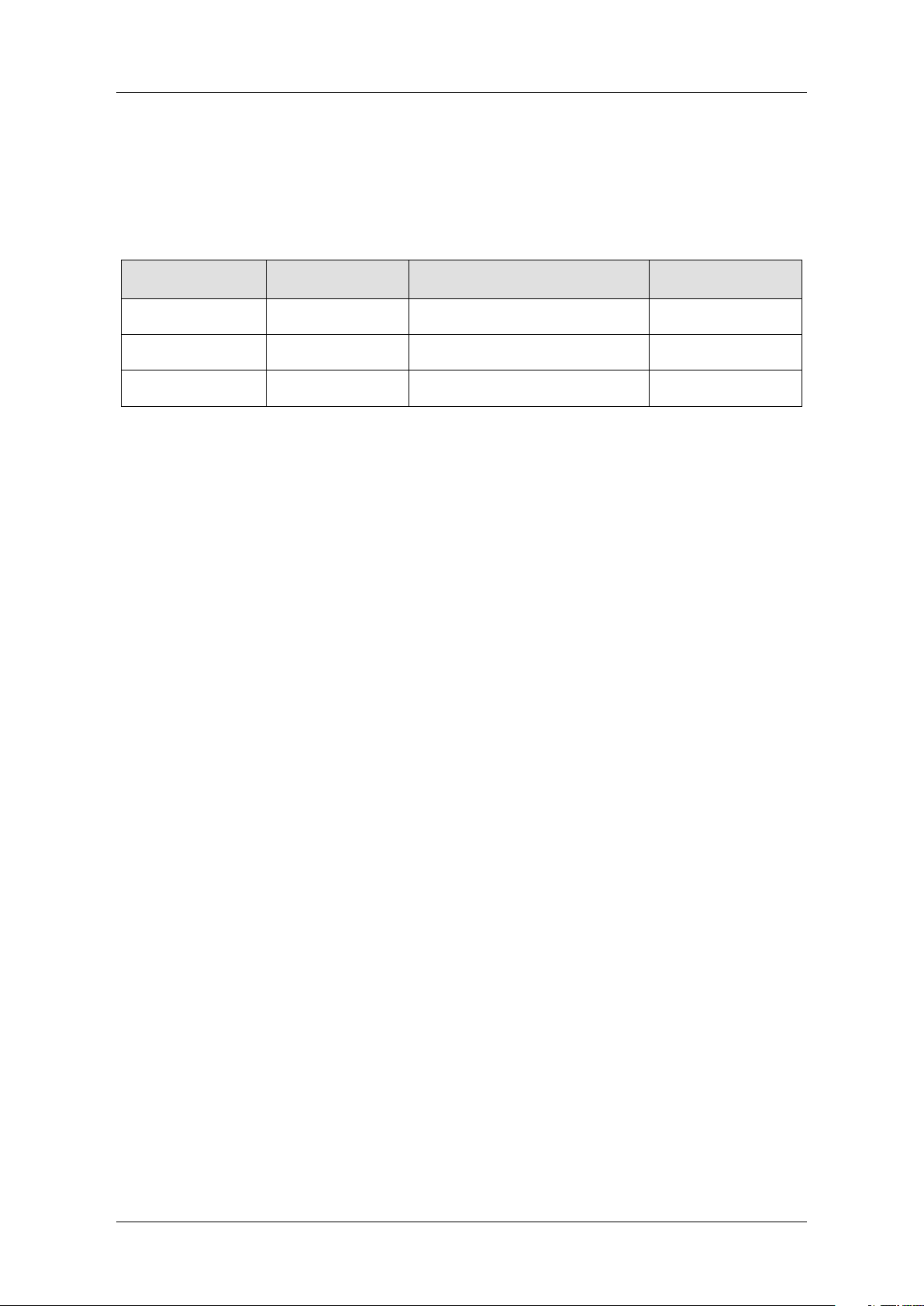
The series includes the following models:
Model
Analogy
Bandwidth
Maximum Sample Rate
Analog Channel
SDG7102A
1 GHz
5 GSa/s
2
SDG7052A
500 MHz
5 GSa/s
2
SDG7032A
350 MHz
5 GSa/s
2

SDG7000A User Manual
2 / 133 WWW.SIGLENT.COM
2 Important Safety Information
This manual contains information and warnings that must be followed by the user for safe
operation and to keep the product in a safe condition.
2.1 General Safety Summary
Carefully read the following safety precautions to avoid personal injury and prevent damage to
the instrument and any products connected to it. To avoid potential hazards, please use the
instrument as specified.
To Avoid Fire or Personal Injure.
Use Proper Power Line.
Use only the special power line approved by the state and local authorities.
Ground the Instrument.
The instrument grounds through the protective terra conductor of the power line. To avoid electric
shock, the ground conductor must be connected to the earth. Make sure the instrument is
grounded correctly before connecting its input or output terminals.
Connect the Signal Wire Correctly.
The potential of the signal wire is equal to the earth, so do not connect the signal wire to a high
voltage. Do not touch the exposed contacts or components.
Look over All Terminals Ratings.
To avoid fire or electric shock, please look over all ratings and signed instructions of the
instrument. Before connecting the instrument, please read the manual carefully to gain more
information about the ratings.
Equipment Maintenance and Service.
In the event of an device failure, please do not dismantle the machine for maintenance. The
device contains capacitors, power supply, transformers and other energy storage devices which
may cause high voltage damage. The internal devices of the device are sensitive to static
electricity and direct contact can easily cause irreparable damage to the device. It is necessary
to return to the factory or to the company's designated maintenance organization for
maintenance. Be sure to pull out the power cord before repairing the device. Live line operation
is strictly prohibited. The device can only be powered on when the maintenance is completed
and the maintenance is confirmed to be successful.

SDG7000A User Manual
WWW.SIGLENT.COM 3 / 133
Identification of Normal State of Equipment.
After the device is started, there will be no alarm information and error information at the interface
under normal conditions. The curve of the interface will scan from left to right freely; if there is a
button, alarm or error prompt, the device may be in an abnormal state. You need to view the
specific prompt information. You can try to restart the setting. If the fault information is still in
place, do not use it for testing. Contact the manufacturer or the maintenance department
designated by the manufacturer to carry out maintenance to avoid the wrong test data caused
by the use of the fault or endanger the personal safety.
Do Not Operate With Suspected Failures.
If you suspect that there is damage to the instrument, please let only qualified service personnel
check it.
Avoid Exposed Circuits, Wire, or Components.
Do not touch exposed contacts or components when the power is on.
Do not operate in wet/damp conditions.
Do not operate in an explosive atmosphere.
Keep the surface of the instrument clean and dry.
Only lithium batteries with the same specification could be used to replace the battery on
the main-board.
The responsible body or operator should refer to the instruction manual to preserve the
protection afforded by the device. If the device is used in a manner not specified by the
manufacturer, the protection provided by the device may be impaired.
Any parts of the device and its accessories are not allowed to be changed or replaced,
other than authorized by the manufacturer or agent.
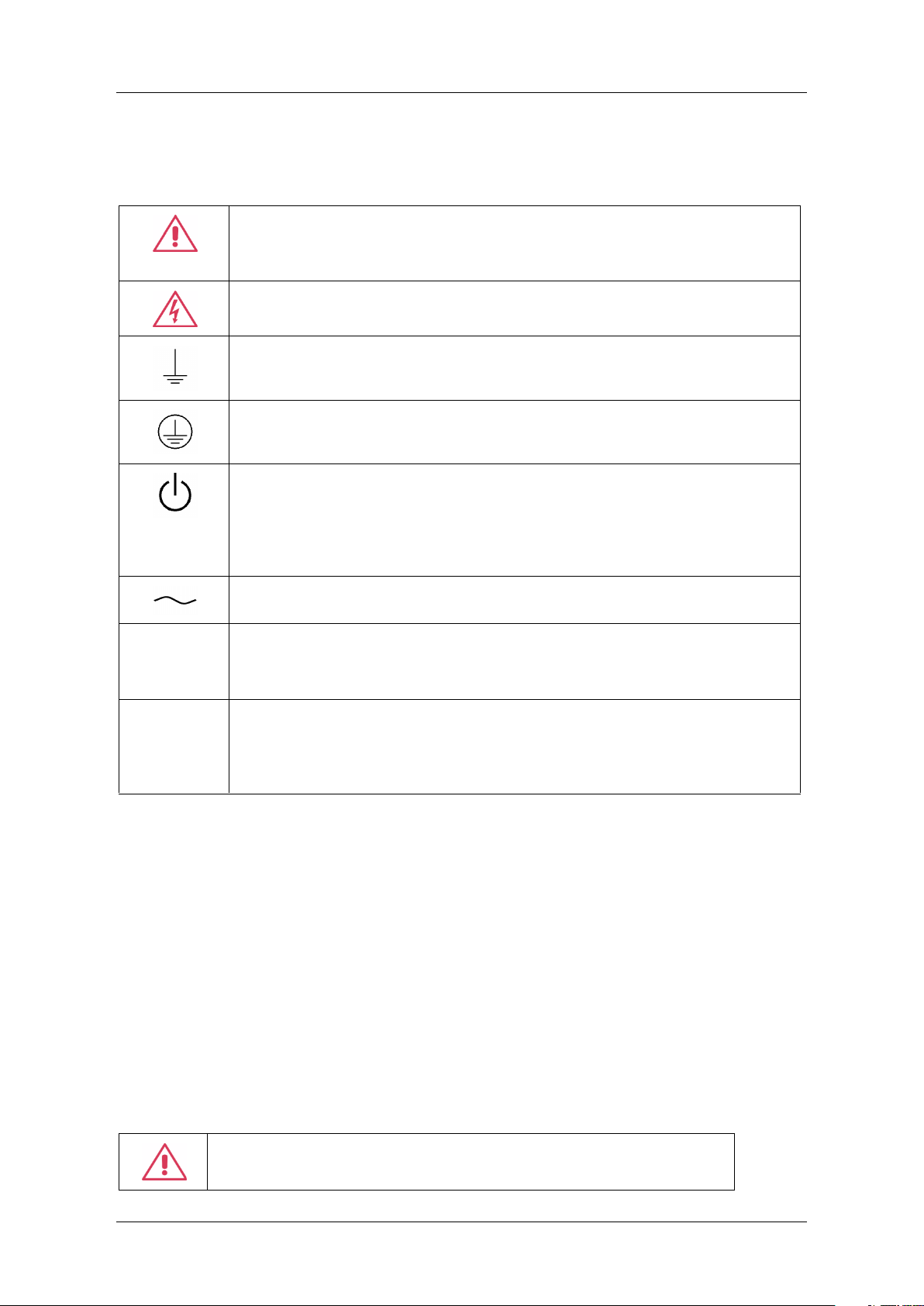
SDG7000A User Manual
4 / 133 WWW.SIGLENT.COM
2.2 Safety Terms and Symbols
When the following symbols or terms appear on the front or rear panel of the instrument or in
this manual, they indicate special care in terms of safety.
This symbol is used where caution is required. Refer to the accompanying
information or documents to protect against personal injury or damage to
the instrument.
This symbol warns of a potential risk of shock hazard.
This symbol is used to denote the measurement ground connection.
This symbol is used to denote a safety ground connection.
This symbol shows that the switch is an On/Standby switch. When it is
pressed, the instrument’s state switches between Operation and Standby.
This switch does not disconnect the device's power supply. To completely
power off the instrument, the power cord must be unplugged from the AC
socket after the instrument is in the standby state.
This symbol is used to represent alternating current, or "AC".
CAUTION
The "CAUTION" symbol indicates a potential hazard. It calls attention to a
procedure, practice, or condition which may be dangerous if not followed.
Do not proceed until its conditions are fully understood and met.
WARNING
The "WARNING" symbol indicates a potential hazard. It calls attention to a
procedure, practice, or condition which, if not followed, could cause bodily
injury or death. If a WARNING is indicated, do not proceed until the safety
conditions are fully understood and met.
2.3 Working Environment
The design of the instrument has been verified to conform to EN 61010-1 safety standard per
the following limits:
Environment
The instrument is used indoors and should be operated in a clean and dry environment with an
ambient temperature range.
Note: Direct sunlight, electric heaters, and other heat sources should be considered when
evaluating the ambient temperature.
Warning: Do not operate the instrument in explosive, dusty, or humid
environments.

SDG7000A User Manual
WWW.SIGLENT.COM 5 / 133
Ambient Temperature
Operating: 0 ℃ to +50 ℃
Non-operation: -20 ℃ to +60 ℃
Note: Direct sunlight, radiators, and other heat sources should be taken into account when
assessing the ambient temperature.
Humidity
Operating: 5% ~ 90 %RH, 30 ℃, derate to 50 %RH at 50 ℃
Non-operating: 5% ~ 95% RH
Altitude
Operating: ≤ 3,048 m, 25 ℃
Non-operating: ≤ 12,192 m
Installation (overvoltage) Category
This product is powered by mains conforming to installation (overvoltage) Category II.
Note: Installation (overvoltage) category I refers to situations where device measurement
terminals are connected to the source circuit. In these terminals, precautions are done to
limit the transient voltage to a correspondingly low level.
Installation (overvoltage) category II refers to the local power distribution level which applies to
devices connected to the AC line (AC power).
Degree of Pollution
The Instrument may be operated in environments of Pollution Degree II.
Note: Degree of Pollution II refers to a working environment that is dry and non-conductive
pollution occurs. Occasional temporary conductivity caused by condensation is expected.
IP Rating
IP20 (as defined in IEC 60529).
SDG7000A User Manual
6 / 133 WWW.SIGLENT.COM
2.4 Cooling Requirements
This instrument relies on forced air cooling with internal fans and ventilation openings. Care must
be taken to avoid restricting the airflow around the apertures (fan holes) at each side of the
instrument. To ensure adequate ventilation it is required to leave a 15 cm (6 inch) minimum gap
around the sides of the instrument.
CAUTION: Do not block the ventilation holes located on both sides of
the instrument.
CAUTION: Do not allow any foreign matter to enter the instrument
through the ventilation holes, etc.
2.5 Power and Grounding Requirements
The instrument operates with a single-phase, 100 to 240 Vrms (+/- 10%) AC power at 50/60 Hz
(+/- 5%).
No manual voltage selection is required because the instrument automatically adapts to line
voltage.
Depending on the type and number of options and accessories (PC port plug-in, etc.), the
instrument can consume up to 110 W of power.
Note: The instrument automatically adapts to the AC line input within the following ranges:
Voltage Range:
90 - 264 Vrms
Frequency Range:
47 - 63 Hz
The instrument includes a grounded cord set containing a molded three-terminal polarized plug
and a standard IEC320 (Type C13) connector for making line voltage and safety ground
connection. The AC inlet ground terminal is connected directly to the frame of the instrument.
For adequate protection against electrical shock hazards, the power cord plug must be inserted
into a mating AC outlet containing a safety ground contact. Use only the power cord specified
for this instrument and certified for the country of use.
Warning: Electrical Shock Hazard!
Any interruption of the protective conductor inside or outside of the
instrument, or disconnection of the safety ground terminal creates a
hazardous situation.
Intentional interruption is prohibited.
SDG7000A User Manual
WWW.SIGLENT.COM 7 / 133
The position of the instrument should allow easy access to the socket. To make the instrument
completely power off, unplug the instrument power cord from the AC socket.
The power cord should be unplugged from the AC outlet if the instrument is not to be used for
an extended period.
CAUTION: The outer shells of the front panel terminals (CH1, CH2)
are connected to the instrument’s chassis and therefore to the safety
ground.
2.6 Cleaning
Clean only the exterior of the instrument, using a damp, soft cloth. Do not use chemicals or
abrasive elements. Under no circumstances allow moisture to penetrate the instrument. To avoid
electrical shock, unplug the power cord from the AC outlet before cleaning.
Warning: Electrical Shock Hazard!
No operator serviceable parts inside. Do not remove covers.
Refer servicing to qualified personnel
2.7 Calibration
The recommended calibration period is one year. Calibration should only be carried out by
qualified personnel.
2.8 Abnormal Conditions
Do not operate the instrument if there is any visible sign of damage or has been subjected to
severe transport stresses.
If you suspect the instrument’s protection has been impaired, disconnect the power cord and
secure the instrument against any unintended operation.
Proper use of the instrument depends on careful reading of all instructions and labels.
Warning: Any use of the instrument in a manner not specified by the
manufacturer may impair the instrument’s safety protection. This
instrument should not be directly connected to human subjects or
used for patient monitoring.

SDG7000A User Manual
8 / 133 WWW.SIGLENT.COM
2.9 Safety Compliance
This section lists the safety standards with which the product complies.
U.S. nationally recognized testing laboratory listing
UL 61010-1:2012/R: 2018-11. Safety Requirements for Electrical Equipment for
Measurement, Control, and Laboratory Use – Part 1: General Requirements.
Canadian certification
CAN/CSA-C22.2 No. 61010-1:2012/A1:2018-11. Safety Requirements for Electrical
Equipment for Measurement, Control, and Laboratory Use – Part 1: General
Requirements.

SDG7000A User Manual
WWW.SIGLENT.COM 9 / 133
Informations essentielles sur la sécurité
Ce manuel contient des informations et des avertissements que les utilisateurs doivent suivre
pour assurer la sécurité des opérations et maintenir les produits en sécurité.
Exigence de Sécurité
Lisez attentivement les précautions de sécurité ci - après afin d 'éviter les dommages corporels
et de prévenir les dommages aux instruments et aux produits associés. Pour éviter les risques
potentiels, utilisez les instruments prescrits.
Éviter l 'incendie ou les lésions corporelles.
Utilisez un cordon d'alimentation approprié.
N'utilisez que des cordons d'alimentation spécifiques aux instruments approuvés par les
autorités locales.
Mettez l'instrument au sol.
L'instrument est mis à la Terre par un conducteur de mise à la terre de protection du cordon
d'alimentation.Pour éviter un choc électrique, le conducteur de mise à la terre doit être mis à la
terre.Assurez - vous que l'instrument est correctement mis à la terre avant de connecter les
bornes d'entrée ou de sortie de l'instrument.
Connectez correctement le fil de signalisation.
Le potentiel de la ligne de signal est égal au potentiel au sol, donc ne connectez pas la ligne de
signal à haute tension.Ne touchez pas les contacts ou les composants exposés.
Voir les cotes de tous les terminaux.
Pour éviter un incendie ou un choc électrique, vérifiez toutes les cotes et signez les instructions
de l'instrument.Avant de brancher l'instrument, lisez attentivement ce manuel pour obtenir de
plus amples renseignements sur les cotes.
Entretien du matériel.
En cas de défaillance de l'équipement, ne pas démonter et entretenir l'équipement sans
autorisation. L'équipement contient des condensateurs, de l'alimentation électrique, des
transformateurs et d'autres dispositifs de stockage d'énergie, ce qui peut causer des blessures
à haute tension. Les dispositifs internes de l'équipement sont sensibles à l'électricité statique.
Le contact direct peut facilement causer des blessures irrécupérables à l'équipement.
L'équipement doit être retourné à l'usine ou à l'organisme de maintenance désigné par
l'entreprise pour l'entretien. L'alimentation électrique doit être retirée pendant l'entretienLa ligne
ne doit pas être mise sous tension tant que l'entretien de l'équipement n'est pas terminé et que

SDG7000A User Manual
10 / 133 WWW.SIGLENT.COM
l'entretien n'est pas confirmé.
Identification de l'état normal de l'équipement.
Après le démarrage de l'équipement, dans des conditions normales, il n'y aura pas d'information
d'alarme et d'erreur au bas de l'interface, et la courbe de l'interface sera balayée librement de
gauche à droite; si un blocage se produit pendant le processus de numérisation, ou si
l'information d'alarme ou d'erreur apparaît au bas de l'interface, l'équipement peut être dans un
état anormal. Pour voir l'information d'alarme spécifique, vous pouvez d'abord essayer de
redémarrerSi l'information sur la défaillance est toujours présente, ne l'utilisez pas pour l'essai.
Contactez le fabricant ou le Service de réparation désigné par le fabricant pour effectuer
l'entretien afin d'éviter d'apporter des données d'essai erronées ou de mettre en danger la
sécurité personnelle en raison de l'utilisation de la défaillance.
Ne pas fonctionner en cas de suspicion de défaillance.
Si vous soupçonnez des dommages à l'instrument, demandez à un technicien qualifié de vérifier.
L 'exposition du circuit ou de l' élément d 'exposition du fil est évitée.
Lorsque l 'alimentation est connectée, aucun contact ou élément nu n' est mis en contact.
Ne pas fonctionner dans des conditions humides / humides.
Pas dans un environnement explosif.
Maintenez la surface de l 'instrument propre et sec.
L'organisme ou l'opérateur responsable doit se référer au cahier des charges pour
protéger la protection offerte par le matériel.La protection offerte par le matériel peut être
compromise si celui - ci est utilisé de manière non spécifiée par le fabricant.
Aucune pièce du matériel et de ses annexes ne peut être remplacée ou remplacée sans
l'autorisation de son fabricant.
Remplacer la batterie dans l 'appareil avec les mêmes spécifications de batterie au lithium.
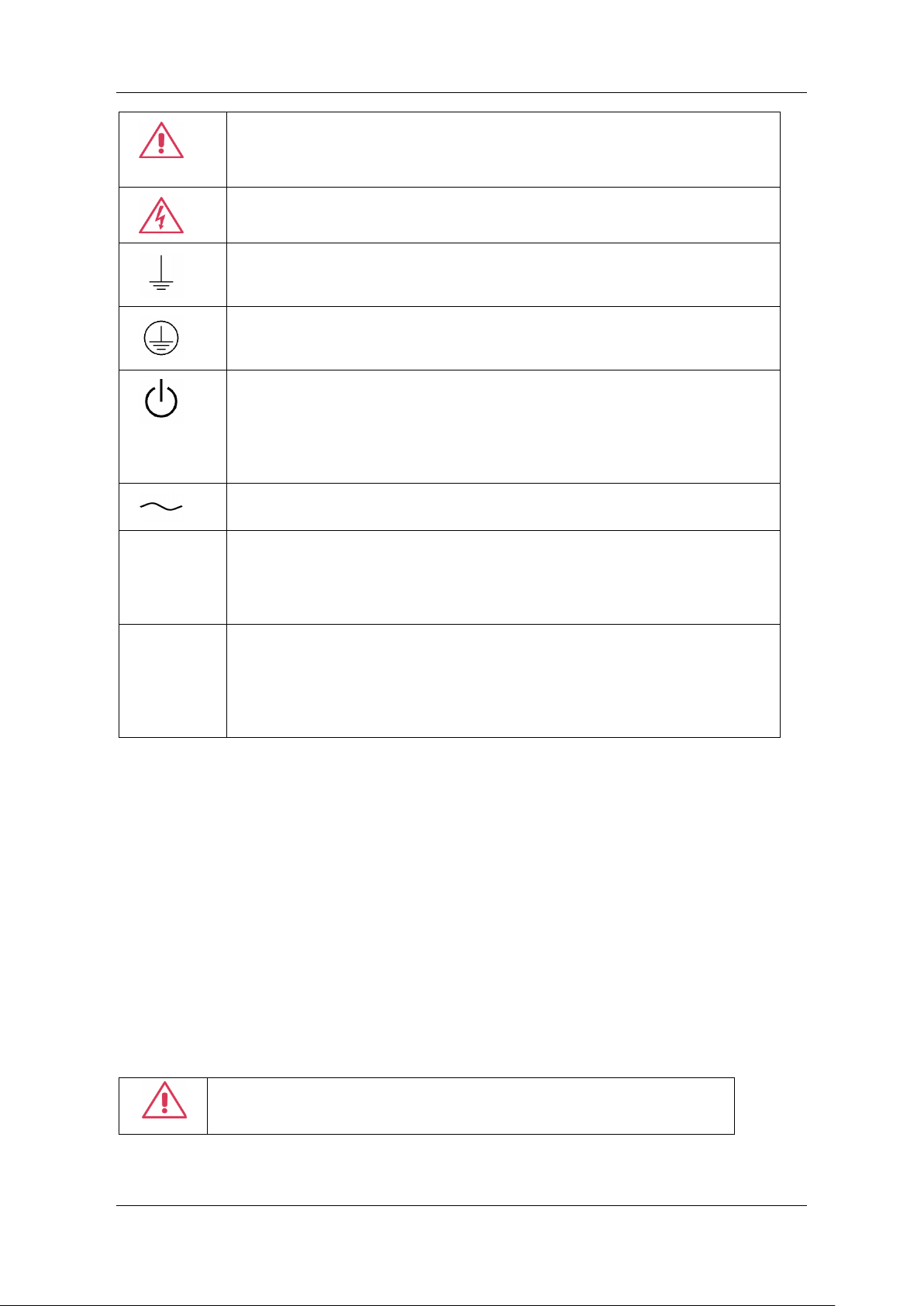
Termes et symboles de sécurité
Lorsque les symboles ou termes suivants apparaissent sur le panneau avant ou arrière de
l'instrument ou dans ce manuel, ils indiquent un soin particulier en termes de sécurité.
SDG7000A User Manual
WWW.SIGLENT.COM 11 /
133
Ce symbole est utilisé lorsque la prudence est requise. Reportez-vous
aux informations ou documents joints afin de vous protéger contre les
blessures ou les dommages à l'instrument.
Ce symbole avertit d'un risque potentiel de choc électrique.
Ce symbole est utilisé pour désigner la connexion de terre de mesure.
Ce symbole est utilisé pour indiquer une connexion à la terre de sécurité.
Ce symbole indique que l'interrupteur est un interrupteur marche / veille.
Lorsqu'il est enfoncé, l'état de l'instrument bascule entre Fonctionnement
et Veille. Ce commutateur ne déconnecte pas l'alimentation de l'appareil.
Pour éteindre complètement l'instrument, le cordon d'alimentation doit
ê t re débranché de la prise secteur une fois l'instrument en état de veille.
Ce symbole est utilisé pour représenter un courant alternatif, ou "AC".
CAUTION
Le symbole " CAUTION" indique un danger potentiel. Il attire l'attention
sur une procédure, une pratique ou une condition qui peut être
dangereuse si elle n'est pas suivie. Ne continuez pas tant que ses
conditions n'ont pas été entièrement comprises et remplies.
WARNING
Le symbole " WARNING" indique un danger potentiel. Il attire l'attention
sur une procédure, une pratique ou une condition qui, si elle n'est pas
suivie, pourrait entraîner des blessures corporelles ou la mort. Si un
AVERTISSEMENT est indiqué, ne continuez pas tant que les conditions
de sécurité ne sont pas entièrement comprises et remplies.
Environnement de travail
La conception de l'instrument a été certifiée conforme à la norme EN 61010-1, sur la base des
valeurs limites suivantes:
Environnement
L'instrument doit être utilisé à l'intérieur dans un environnement propre et sec dans la plage de
température ambiante.
Note: la lumière directe du soleil, les réchauffeurs électriques et d'autres sources de chaleur
doivent être pris en considération lors de l'évaluation de la température ambiante.
Attention: Ne pas utiliser l'instrument dans l'air explosif, poussiéreux
ou humide.

SDG7000A User Manual
12 / 133 WWW.SIGLENT.COM
Température ambiante
En fonctionnement: 0 ℃ à +50 ℃
Hors fonctionnement: -20 ℃ à +60 ℃
Note: pour évaluer la température de l'environnement, il convient de tenir compte des
rayonnements solaires directs, des radiateurs thermiques et d'autres sources de chaleur.
Humidité
Fonctionnement: 5% ~ 90% HR, 30 ° C , 40 ° C réduit à 50% HRHors fonctionnement: 5% ~ 95%
Altitude
Fonctionnement: ≤ 3000 m
À l'arrêt: ≤ 12,191 m
Catégorie d 'installation (surtension)
Ce produit est alimenté par une alimentation électrique conforme à l 'installation (surtension)
Catégorie II.
Installation (overvoltage) Category Definitions Définition de catégorie d 'installation
(surtension)
La catégorie II d'installation (surtension) est un niveau de signal applicable aux terminaux de
mesure d' équipement reliés au circuit source.Dans ces bornes, des mesures préventives sont
prises pour limiter la tension transitoire à un niveau inférieur correspondant.
La catégorie II d'installation (surtension) désigne le niveau local de distribution d 'énergie d' un
équipement conçu pour accéder à un circuit alternatif (alimentation alternative).
Degré de pollution
Un instrument peut être utilisé dans un environnement Pollution Degree II.
Note: Pollution Degree II signifie que le milieu de travail est sec et qu'il y a une pollution non
conductrice.Parfois, la condensation produit une conductivité temporaire.
IP Rating
IP20 (as defined in IEC 60529).
SDG7000A User Manual
WWW.SIGLENT.COM 13 /
133
Exigences de refroidissement
Cet instrument repose sur un refroidissement à air forcé avec des ventilateurs internes et des
ouvertures de ventilation. Des précautions doivent être prises pour éviter de restreindre le flux
d'air autour des ouvertures (trous de ventilateur) de chaque côté de la lunette. Pour assurer une
ventilation adéquate, il est nécessaire de laisser un espace minimum de 15 cm (6 pouces) sur
les côtés de l'instrument.
ATTENTION: Ne bloquez pas les trous de ventilation situés des deux
côtés de la lunette.
ATTENTION: Ne laissez aucun corps étranger pénétrer dans la lunette
par les trous de ventilation, etc.
Connexions d'alimentation et de terre
L'instrument fonctionne avec une alimentation CA monophasée de 100 à 240 Vrms (+/- 10%) à
50/60 Hz (+/- 5%).
Aucune sélection manuelle de la tension n'est requise car l'instrument s'adapte
automatiquement à la tension de ligne.
Selon le type et le nombre d'options et d'accessoires (plug-in de port PC, etc.), l'instrument
peut consommer jusqu'à 110 W d'énergie.
Remarque: l'instrument s'adapte automatiquement à l'entrée de ligne CA dans les plages
suivantes:
Plage de tension:
90 - 264 Vrms
Gamme de
fréquences:
47 - 63 Hz
L'instrument comprend un jeu de cordons mis à la terre contenant une fiche polarisée à trois
bornes moulée et un connecteur standard IEC320 (Type C13) pour établir la tension de ligne
et la connexion de mise à la terre de sécurité. La borne de mise à la terre de l'entrée CA est
directement connectée au châssis de l'instrument. Pour une protection adéquate contre les
risques d'électrocution, la fiche du cordon d'alimentation doit être insérée dans une prise
secteur correspondante contenant un contact de sécurité avec la terre. Utilisez uniquement le
cordon d'alimentation spécifié pour cet instrument et certifié pour le pays d'utilisation.
SDG7000A User Manual
14 / 133 WWW.SIGLENT.COM
Avertissement: Risque de choc électrique!
Toute interruption du conducteur de terre de protection à l'intérieur ou
à l'extérieur de la portée ou la déconnexion de la borne de terre de
sécurité crée une situation dangereuse.
L'interruption intentionnelle est interdite.
La position de l'instrument doit permettre un accès facile à la prise. Pour éteindre
complètement l'instrument , débranchez le cordon d'alimentation de l'instrument de la prise
secteur.
Le cordon d'alimentation doit être débranché de la prise secteur si la lunette ne doit pas être
utilisée pendant une période prolongée.
ATTENTION: les enveloppes extérieures des bornes du panneau
avant (CH1, CH2) sont connectées au châssis de l'instrument et donc
à la terre de sécurité.
Nettoyage
Nettoyez uniquement l'extérieur de l'instrument à l'aide d'un chiffon doux et humide. N'utilisez
pas de produits chimiques ou d'éléments abrasifs. Ne laissez en aucun cas l'humidité pénétrer
dans l'instrument. Pour éviter les chocs électriques, débranchez le cordon d'alimentation de la
prise secteur avant de le nettoyer.
Avertissement: Risque de choc électrique!
Aucune pièce réparable par l'opérateur à l'intérieur. Ne retirez pas les
capots.
Confiez l'entretien à un personnel qualifié
Conditions anormales
Utilisez l'instrument uniquement aux fins spécifiées par le fabricant.
N'utilisez pas la lunette s'il y a des signes visibles de dommages ou si elle a été soumise à de
fortes contraintes de transport.
Si vous pensez que la protection de l'instrument a été altérée, débranchez le cordon
d'alimentation et sécurisez l'instrument contre toute opération involontaire.
Une bonne utilisation de l'instrument nécessite la lecture et la compréhension de toutes les
instructions et étiquettes.
SDG7000A User Manual
WWW.SIGLENT.COM 15 /
133
Avertissement: Toute utilisation de l'instrument d'une manière non
spécifiée par le fabricant peut compromettre la protection de sécurité
de l'instrument. Cet instrument ne doit pas être directement connecté
à des sujets humains ni utilisé pour la surveillance des patients.
Conformité en matière de sécurité
La présente section présente les normes de sécurité applicables aux produits.
U.S. nationally recognized testing laboratory listing
■ UL 61010-1:2012/R:2018-11. Prescriptions en matière de sécurité pour les appareils
électriques utilisés en laboratoire et de mesure - partie 1: prescriptions générales.
Canadian certification
■ CAN/CSA-C22.2 No. 61010-1:2012/A1:2018-11. Prescriptions en matière de sécurité pour les
appareils électriques utilisés en laboratoire et de mesure - partie 1: prescriptions générales.

SDG7000A User Manual
16 / 133 WWW.SIGLENT.COM
3 First steps
3.1 Delivery Checklist
First, verify that all items listed on the packing list have been delivered. If you note any omissions
or damage, please contact your nearest SIGLENT customer service center or distributor as soon
as possible. If you fail to contact us immediately in case of omission or damage, we will not be
responsible for replacement.
3.2 Quality Assurance
The instrument has a 3-year warranty (1-year warranty for probes and attachments) from the
date of shipment, during normal use and operation. SIGLENT can repair or replace any product
that is returned to the authorized service center during the warranty period. We must first
examine the product to make sure that the defect is caused by the process or material, not by
abuse, negligence, accident, abnormal conditions or operation.
SIGLENT shall not be responsible for any defect, damage, or failure caused by any of the
following:
a) Attempted repairs or installations by personnel other than SIGLENT.
b) Connection to incompatible devices/incorrect connection.
c) For any damage or malfunction caused by the use of non-SIGLENT supplies. Furthermore,
SIGLENT shall not be obligated to service a product that has been modified. Spare,
replacement parts and repairs have a 90-day warranty.
The instrument's firmware has been thoroughly tested and is presumed to be functional.
Nevertheless, it is supplied without warranty of any kind covering detailed performance. Products
not made by SIGLENT are covered solely by the warranty of the original device manufacturer.
3.3 Maintenance Agreement
We provide various services based on maintenance agreements. We offer extended warranties
as well as installation, training, enhancement and on-site maintenance, and other services
through specialized supplementary support agreements. For details, please consult your local
SIGLENT customer service center or distributor.
SDG7000A User Manual
WWW.SIGLENT.COM 17 /
133
4 Document Conventions
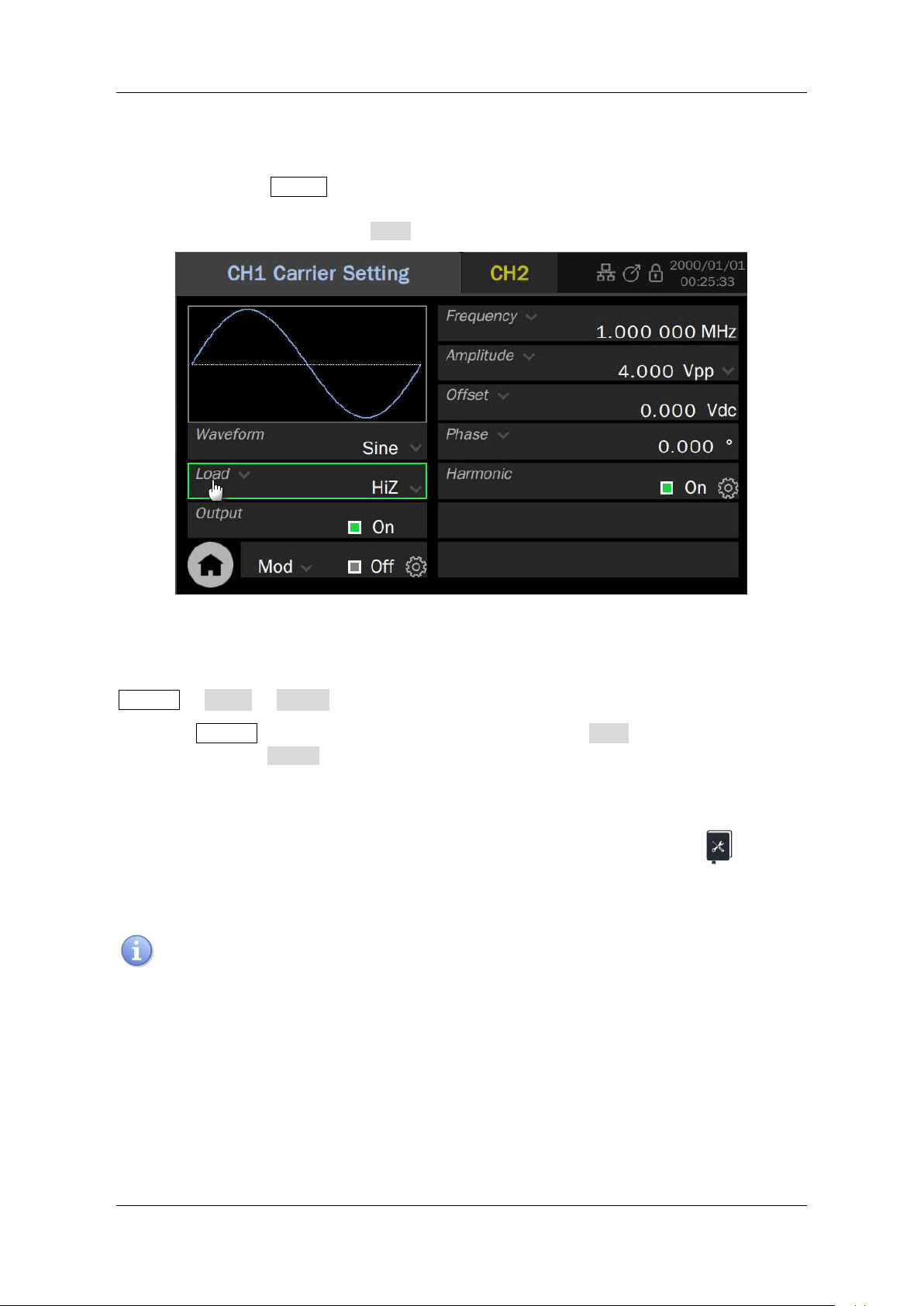
For convenience, text surrounded by a box border is used to represent the button of the front
panel. For example, Enter represents the "Enter" button on the front panel. Italicized text
with shading is used to represent the touchable or clickable menu/option/ Virtual key /button/
on the touch screen. For example, Load represents the "Load" option on the screen:
For the operations that contain multiple steps, the description is in the form of "Step 1 > Step
2 >...". As an example, follow each step in the sequence to enter the upgrade interface:
Home > Utility > Update
Press the Home button on the front panel as step 1, click the Utility option on the screen as
step 2, and click the Update option on the screen as step 3 to enter the upgrade interface.
This user manual provides some application examples to facilitate users to quickly get familiar
with the operation of the instrument. Each application instance is marked with an icon.
The notes in this manual suggest some important information, and each note is marked with an
icon.
SDG7000A User Manual
18 / 133 WWW.SIGLENT.COM
5 Getting Started
5.1 Power on
First, turn on the power switch under the AC socket on the rear panel, and then press the power
button on the front panel to start the device. If it is set to “Auto Power-on ", the device will
automatically boot when the power is connected, as described in the 'Setting Power On' section.
5.2 Power off
Press and hold the power button on the front panel for two seconds to turn off the device, or turn
it off through the following steps:
Utility > Shut Down .
The Power button does not disconnect the instrument from the AC power
supply. The way to fully power down the instrument is to disconnect the AC
power input by turning off the power switch under the AC socket on the rear
panel or unplugging the AC power cord from the outlet.
5.3 System Information
Follow the steps below to examine the software and hardware versions of the device:
Utility > System Info
5.4 Install new Options
A license is necessary to unlock a software option. See the section "
Installation options
" for details.
5.5 Choosing the Language
Utility > Setting > Language.
SDG7000A User Manual
WWW.SIGLENT.COM 19 /
133
6 Quick start
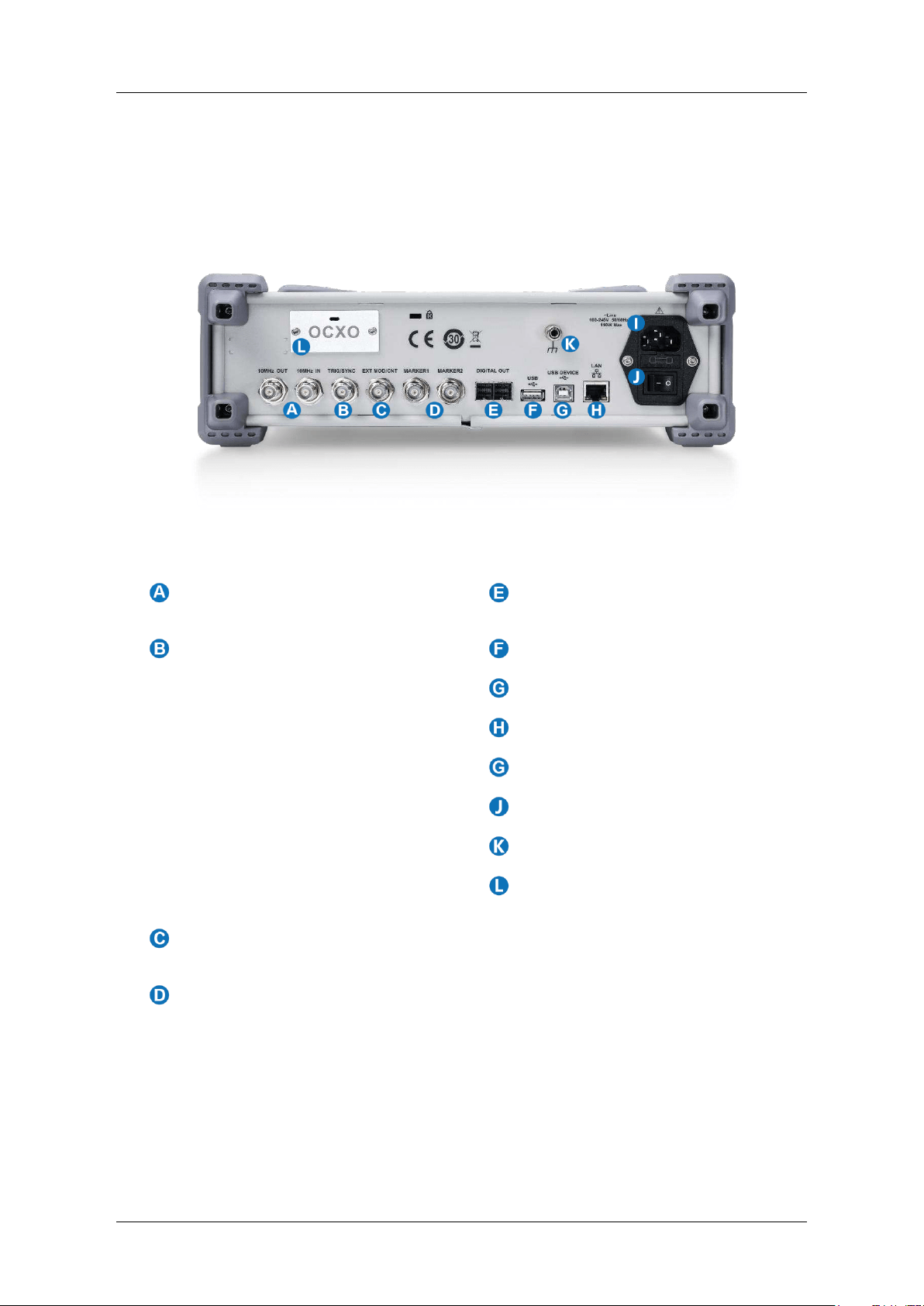
6.1 Front Panel
Touch Screen Display The
control and display center of the
instrument. See "Touch Screen
Display" for details.
CH2 Output Same as CH1
except that when outputting
baseband I / Q signal, CH2 is as
“Q” signal.
Front Panel Keyboard Includes
knobs and keys, which are used
to quickly call or set some
common functions. See "Front
Panel" for details.
USB 2.0 Hosts
Power Button
CH1 Output When the output is
differential, right is "+" and left is
"-"; When the output is single-
ended, it is output from the "+"
port. When outputting baseband I
/ Q signal, CH1 is as “I” signal;
When outputting IF(Intermediate
Frequency) signal, CH1 is as the
IF.
SDG7000A User Manual
20 / 133 WWW.SIGLENT.COM
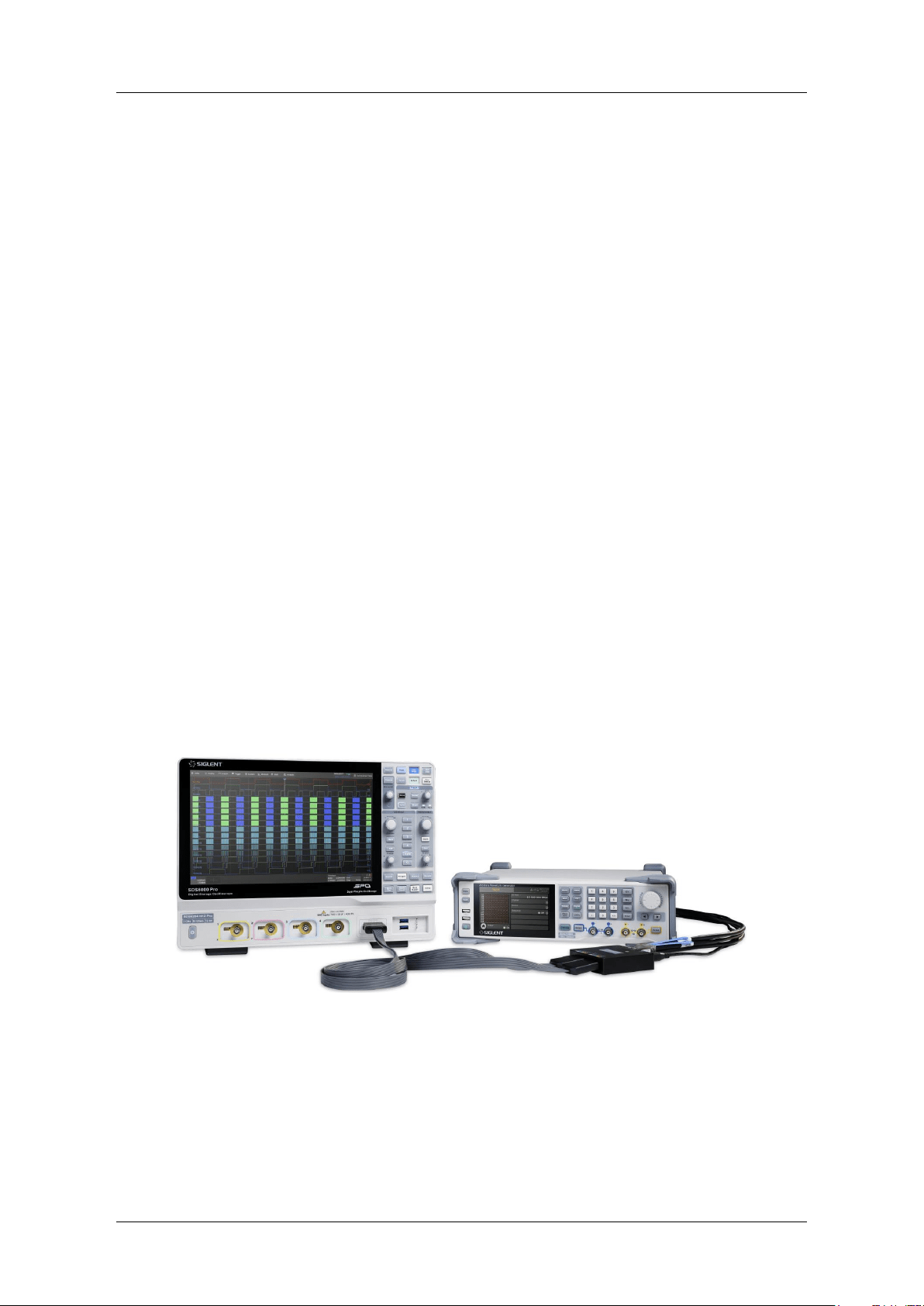
6.2 Rear panel
10 MHz Reference Clock
Output and Input
16-bit Digital Bus Output
Trigger In/Trigger Out /Sync
Out
When an internal trigger or
manual trigger is used for
frequency sweep, burst, and
other functions, a trigger signal
can be output from this port.
When an external trigger is used,
a trigger signal be applied to the
port. It can also output a
synchronization signal with the
same signal frequency and input
as an external modulation signal
for ASK / FSK / PSK.
USB 2.0 Host
USB 2.0 Device
10M/100M LAN
AC Power Input
Power Switch
Earth Terminal
OCXO (factory installed)
External Modulation Signal /
Counter Input
Markers

SDG7000A User Manual
WWW.SIGLENT.COM 21 /
133
6.3 Connecting to External Devices/Systems
6.3.1 Power supply
The standard power supply for the instrument is 100~240 V, 50/60 Hz. Please use the power
cord provided with the instrument to connect it to AC power.
6.3.2 Signal output
The 4 BNC terminals on the front panel are analog signal output ports.
The two left terminals are CH1 outputs, which can also be used as I outputs for baseband I/Q or
IF (Intermediate Frequency) outputs. The two right terminals are CH2 outputs, which can also
be used as Q outputs for baseband I/Q.
When the channel output is defined as differential, the right "+" and left "-" are used. When the
channel output is defined as single-ended, it is output from the "+" terminal.
The CH1/CH2 outputs do not support a floating ground. Please ensure that the
ground on the receiver side is of equal potential to the ground of this device.
6.3.3 LAN
Connect the LAN port on the rear panel to an active network with a standard ethernet network
cable terminated with an RJ45 connector.
Use a network cable to connect the LAN port on the rear panel of the unit to a network device.
Follow the steps below to set LAN connection:
Utility > Interface > LAN Settings
For more information on LAN settings, please refer to the section " LAN Settings".
The instrument is integrated with WebSever and supports direct access control via a browser.
See the section "
Web
Browser" for more information.
6.3.4 USB Peripherals
Connect a USB storage device (FAT32 format) to one of the USB host ports for data transfer, or
connect USB mouse/keyboard to one of the USB host ports for controlling the instrument.
6.3.5 USB device interface
The instrument supports remote control by connecting the instrument to the host computer via
the USB Device port. See the chapter "Remote control" for more information.
6.3.6 Reference clock input/output
When the instrument is using an external clock source, the 10 MHz reference clock is input
from the 10MHz IN port located on the rear panel. The 10 MHz OUT port outputs a 10 MHz sine
wave reference clock, which is synchronized with the active clock source no matter what the
clock source is.
SDG7000A User Manual
22 / 133 WWW.SIGLENT.COM
The reference clock input/output terminals can be cascaded to synchronize multiple devices. For
details, please refer to the section "Multi-Device Synchronization".
6.3.7 Trigger in/Trigger out/Synchronous out
When internal or manual trigger is used for a frequency sweep, burst or other functions, the
trigger signal can be output from this port. When an external trigger is used, a trigger signal is
delivered to the port. It can also be output as a synchronization signal with the same signal
frequency. This enables synchronization with the modulating waveform when modulation is
enabled and synchronization with the carrier when modulation is disabled.
6.3.8 External modulation signal/counter input
When modulation is on, the port is automatically switched to the external modulation input. When
the frequency counter function is on, the port is automatically switched to the counter input,
eliminating the need for manual switching by the user.
6.3.9 Marker output
The output is valid when the specified position of the arbitrary waveform or I / Q signal mark
arrives, or when the specified frequency of the sweep signal arrives.
6.3.10 Digital signal output
The digital outputs are obtained by plugging in a matching Digital Bus Kit (LVDS or LVTTL). The
Digital Bus Kit for LVDS output is passive and requires no power supply. The Digital Bus Kit for
LVTTL output is active and requires a 5V power supply from the USB Host to transfer signals’
level from LVDS level to LVTTL level.
Figure 6-1: SDG7000A and Digital Logic Kit connected to an oscilloscope
SDG7000A User Manual
WWW.SIGLENT.COM 23 /
133
7 Touch Screen Display
The entire display area of the device is a touch screen. You can use your fingers for touch
control or use a mouse for operation. It is recommended that to use the mouse supplied with
the unit since the display area is compact. All displays and controls can be accessed via the
touch screen.
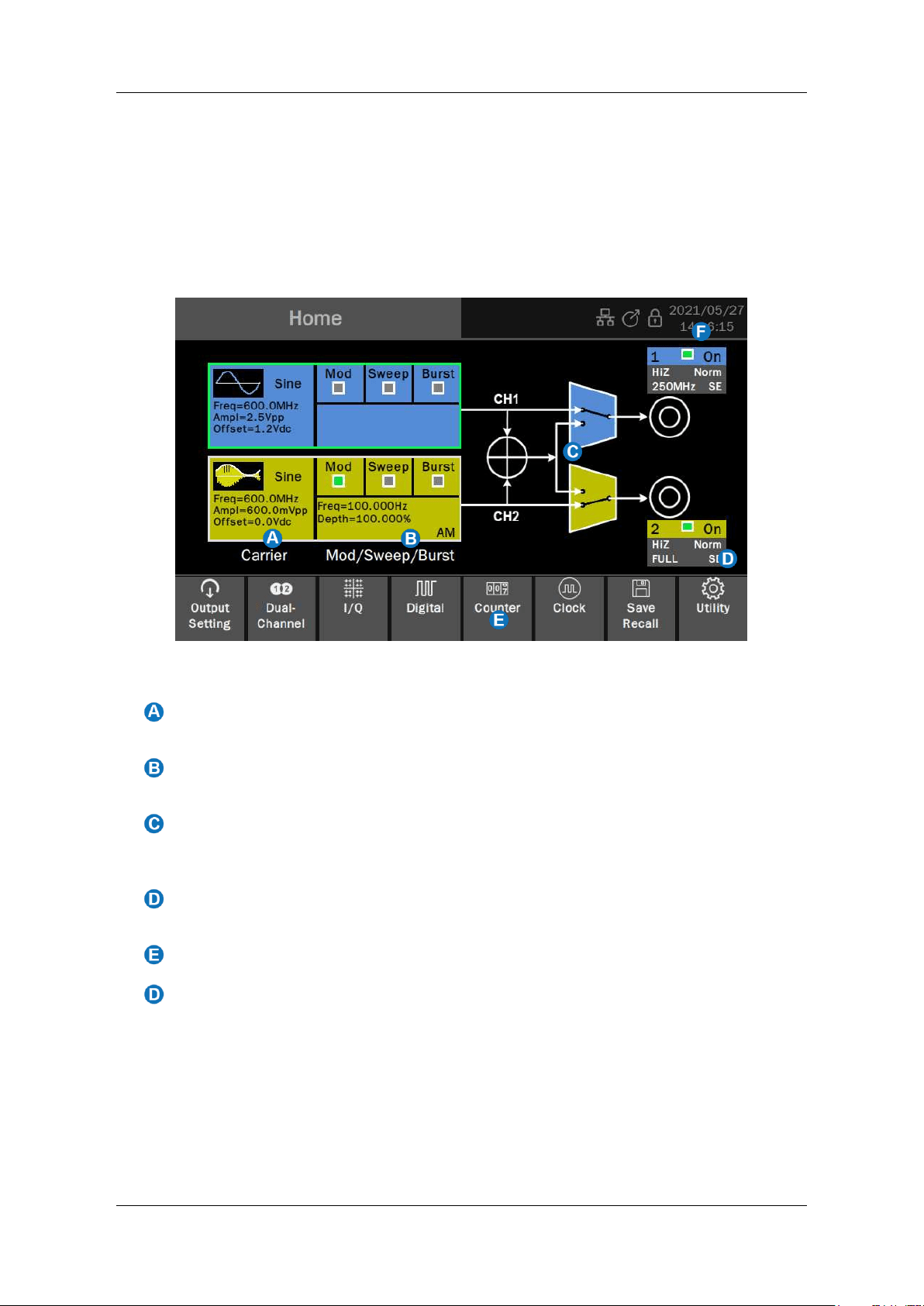
7.1 Home Page
Carrier Setting Boxes set and display parameters of the carrier. Click to enter the
carrier setting page
Modulation/Sweep/Burst Setting Boxes set and display parameters of
modulation/sweep/burst. Click to enter the modulation/sweep/burst setting page.
Waveform Combine Setting provides a schematic diagram and settings for the
channel combination function. Click the switches in the area to switch between
channel output alone and channel output after combination.
Channel Output Setting Boxes set and display output parameters. Click to switch
between On/Off.
Toolbar provides shortcuts to common functions.
Status Bar Displays information such as network connection status, clock status,
phase mode, and time/date.
SDG7000A User Manual
24 / 133 WWW.SIGLENT.COM
7.2 Parameter Setting Page
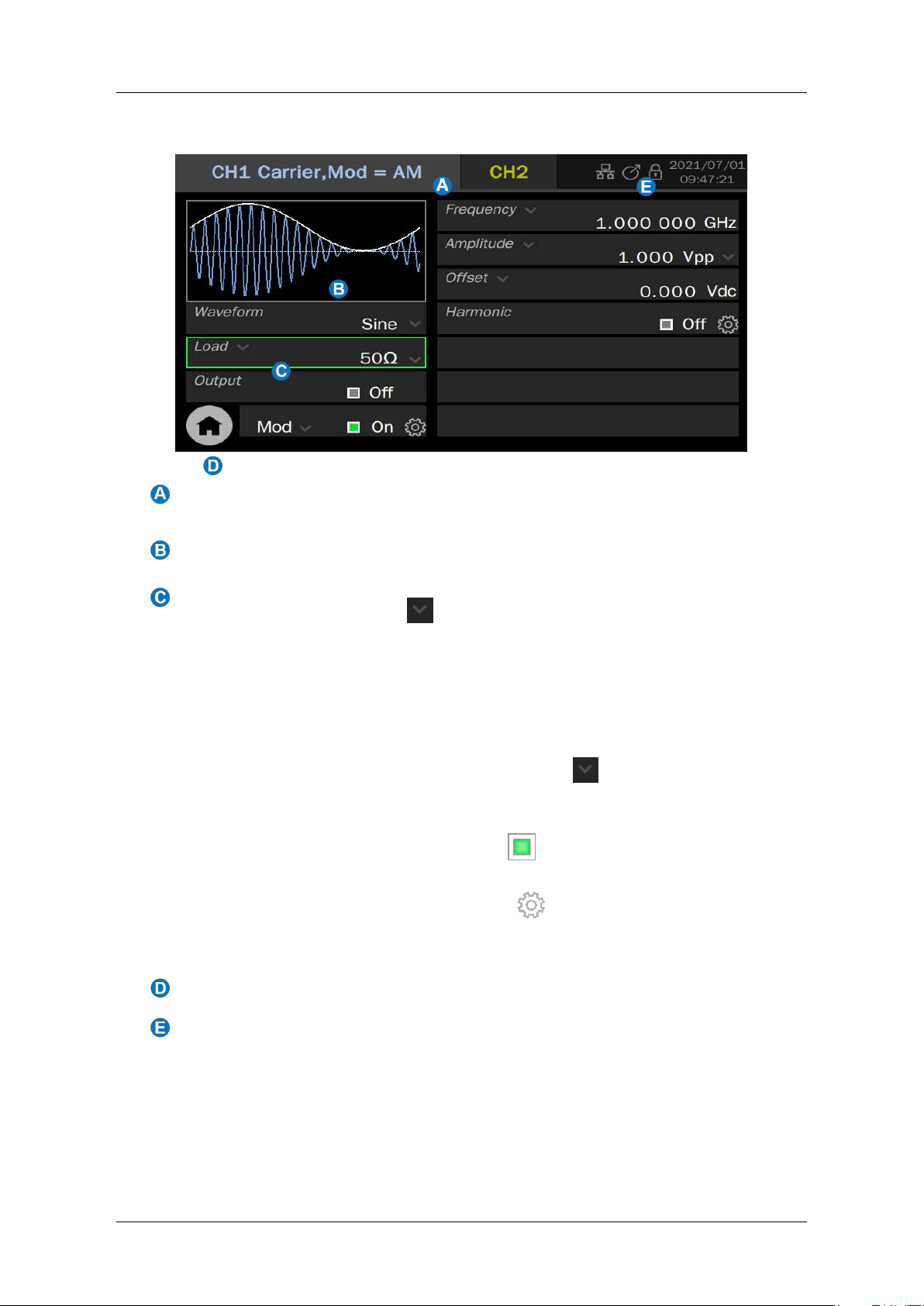
Channel Tab Click the tab corresponding to the channel to switch to the
parameter setting page of the channel.
Waveform Preview Displays the preview of the waveform.
Parameter Setting Box The parameter name is on the left. If the parameter
name is followed by an icon , it indicates that the parameter has alternative
parameters, such as "Frequency" can be switched to "Period". Click here to
switch the parameter.
The parameter value is on the right. If the value has a unit, the unit will be
displayed. Click the parameter value area to set the value by the virtual keyboard
or front panel keyboard.
If the parameter value or unit is followed by an icon , it means that there are
multiple options (for example, the unit of sine wave amplitude can be set to "Vpp",
"Vrms" or "dBm"), click the icon to select.
If the parameter value area is a switch icon , it means that the parameter has
only "ON" and "OFF" states. Click the icon to switch.
If the parameter value is followed by an icon , it indicates that there are more
detailed parameter settings. Click the icon to enter the corresponding next level
page.
Go to the Home Page
Status Bar Displays information such as network connection status, clock
status, phase mode, and time/date.
SDG7000A User Manual
WWW.SIGLENT.COM 25 /
133
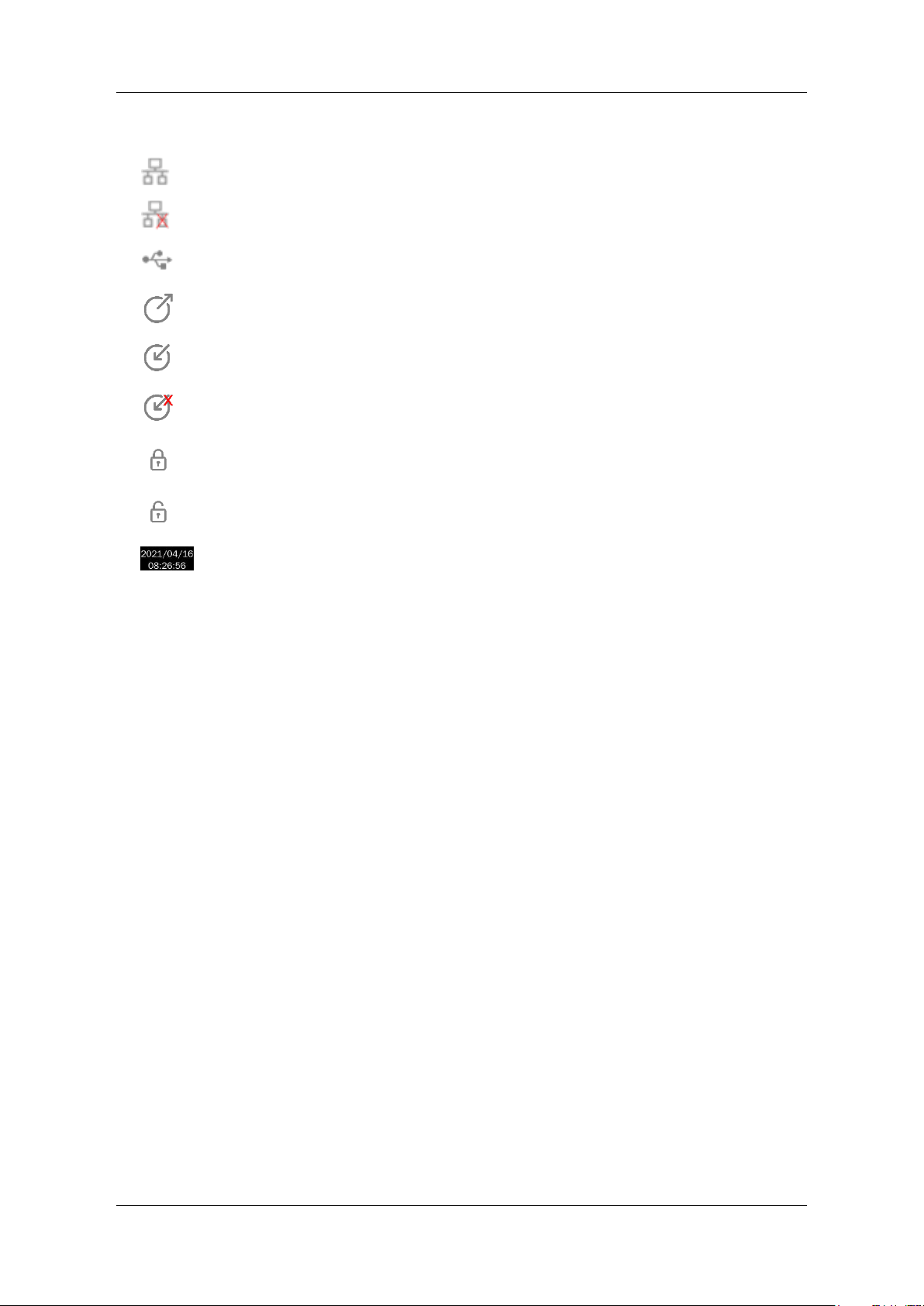
7.3 Description of Icons in the Status Bar
The network is connected. Click this icon to quickly set the LAN.
No network connection. Click this icon to quickly set the LAN.
USB storage device detected.
The clock source is internal. Click this icon to quickly set the clock source.
The clock source is external. Click this icon to quickly set the clock source.
The clock source is external, but no valid external clock was detected. Click
this icon to quickly set the clock source.
The phase mode is "Locked". Click this icon to quickly set the phase mode.
The phase mode is "Independent". Click this icon to quickly set the phase
mode
Time/date. Click this area to quickly set the time/date.
7.4 Gesture Control
The touch screen is capacitive. Operations are mainly done by a single touch.
7.5 Mouse operation
It is recommended to use a mouse for more accurate operations.
SDG7000A User Manual
26 / 133 WWW.SIGLENT.COM
8 Front Panel
8.1 Overview
The SDG7000A Series Arbitrary Waveform Generator has integrated front panel buttons for
frequently used functions, which can be used in conjunction with the touch screen for more
efficient operation.
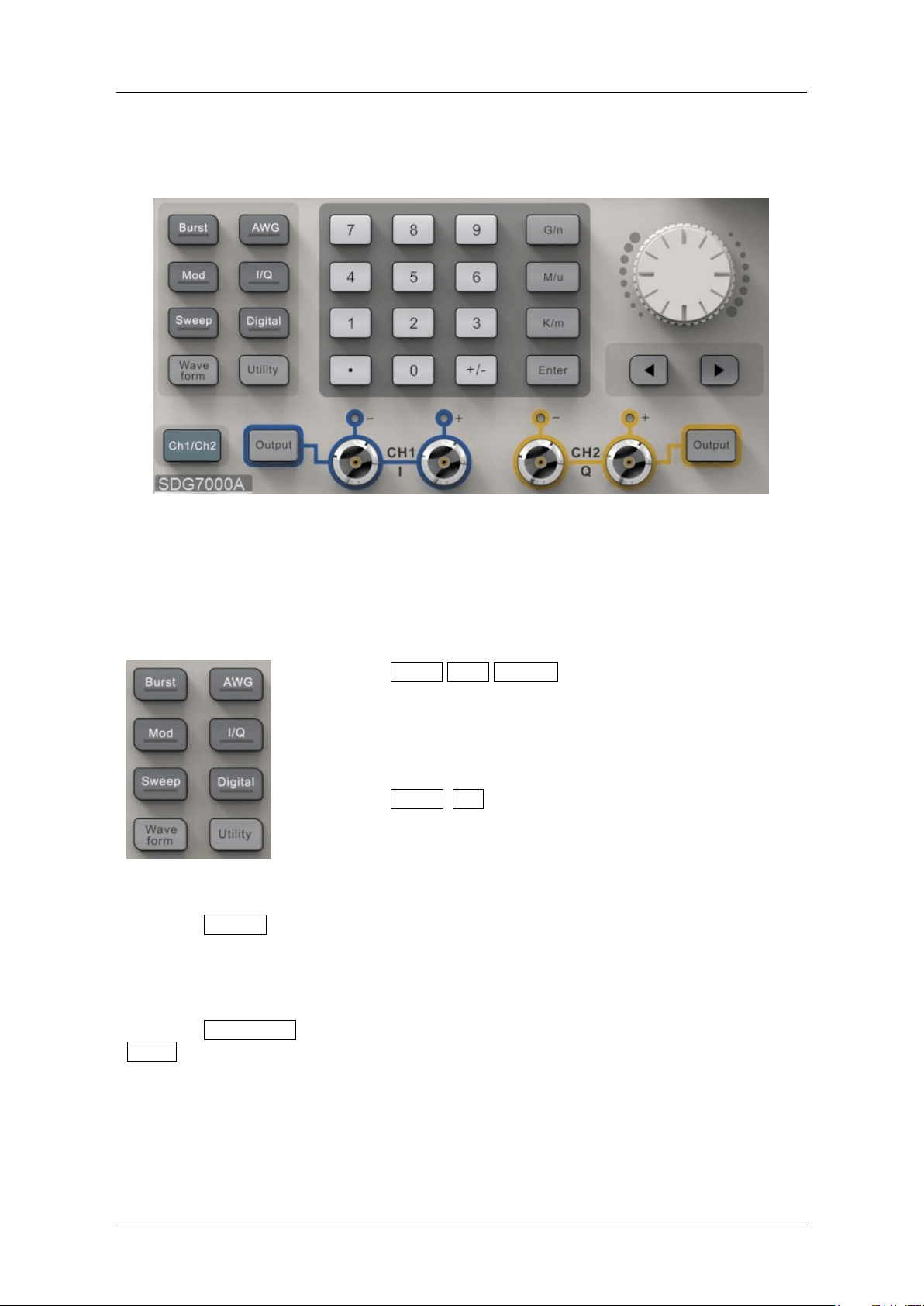
8.2 Shortcut Buttons
Press the Burst / Mod / Sweep button to quickly turn
on/off the burst/modulation/sweep function and jump to the
corresponding parameter setting page. When the function is
turned on, the corresponding button light is on.
Press the AWG / I/Q button to quickly switch the
waveform to arbitrarily waveform/vector signal and jump to
the corresponding parameter setting page. When the
waveform is selected, the corresponding button light is on.
Press the Digital button to quickly turn on / off the digital bus output and jump to the
corresponding parameter setting page. When the digital bus is turned on, the
corresponding button light is on.
Press the Waveform button to quickly recall the waveform selection menu. Press the
Utility button to quickly recall the system setup menu.
SDG7000A User Manual
WWW.SIGLENT.COM 27 /
133
8.3 Numeric Keypad and Knob
Use the numeric keypad to directly enter the
value and order of magnitude of the selected
parameter.
For example, to set the frequency to 1 GHz,
press the keys 1 and G/n in turn. If the
order of magnitude is 1 (10
0
), you can press
Enter directly.
In addition to directly typing parameter values with the
numeric keypad, you can also use the knob for continuous
adjustment of parameters.
Press the knob on the selected parameter box and press
the button ◀ and ▶ below the knob to select the
digit to be adjusted, and then rotate the knob clockwise to
increase the value or counterclockwise to decrease.
8.4 Channel Setting Buttons
Press this button to quickly switch between CH1 and CH2 parameter
setting pages.
Press this button to switch the channel output on/off. When the channel
is ON, the indicator light above the corresponding BNC connector lights
up. Press this button for 2 seconds to switch the channel output load
between 50Ω and high impedance.
8.5 Other Buttons
Press this button to go to the home page
Press this button to turn the touch screen on/off. When the touch screen
is enabled, the corresponding light is on
SDG7000A User Manual
28 / 133 WWW.SIGLENT.COM
9 Basic Waveform Setting
9.1 Standard Waveform Setting
This section applies to sine, square, pulse, triangle, and DC waveform types. This section takes
setting sine wave as an example to explain settings of basic parameters of a standard waveform.
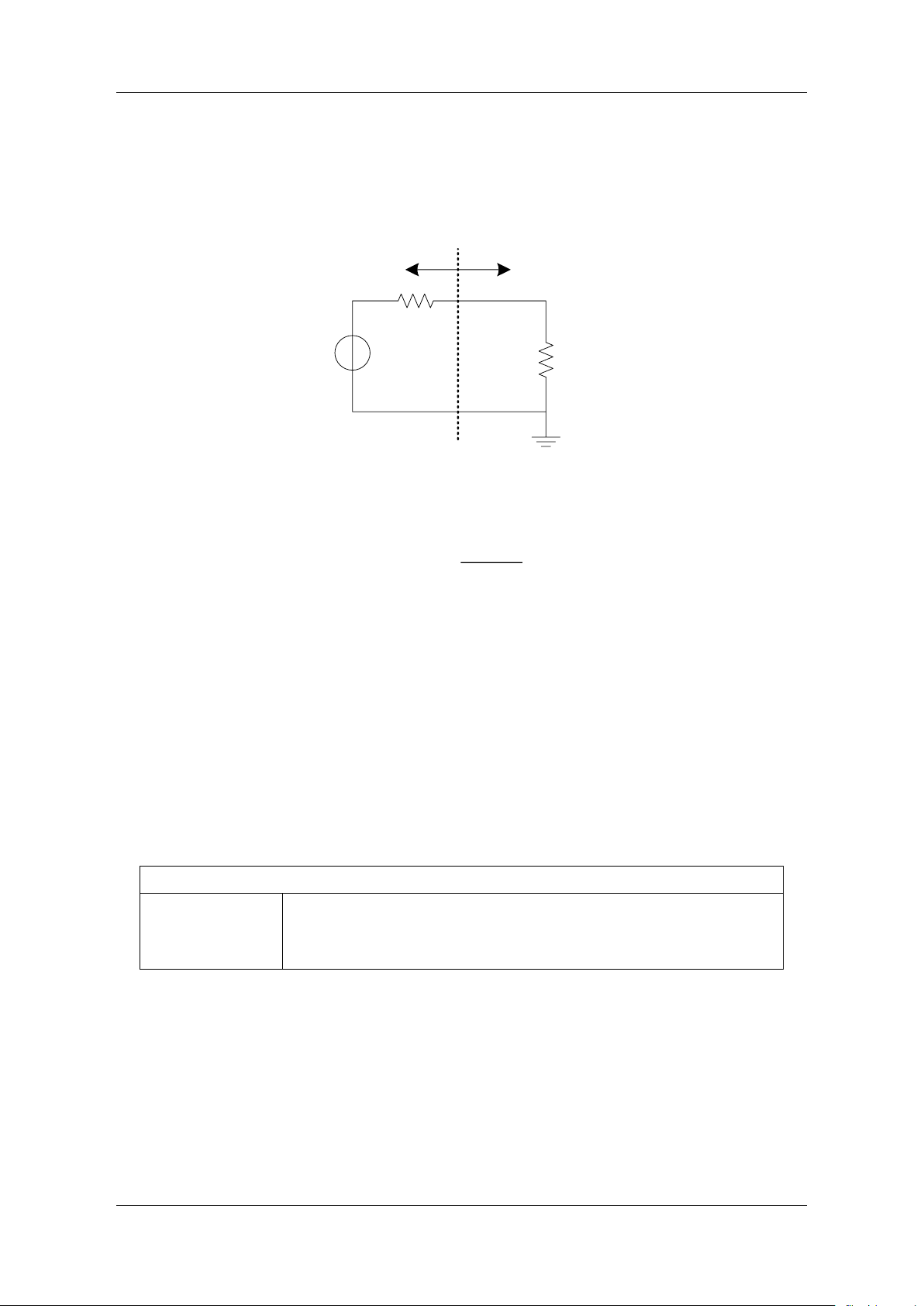
Waveform setting box, where the waveform is selected
Load parameter setting box, which is used to inform the device of the correct
external load value.
Output switch setting
Frequency/Period parameter setting box
Amplitude/High level parameter setting box
Offset/Low level parameter setting box
Phase/Delay parameter setting box
Harmonic parameter setting box (for sine wave only)
Modulation/Sweep/Burst setting
SDG7000A User Manual
WWW.SIGLENT.COM 29 /
133
Load
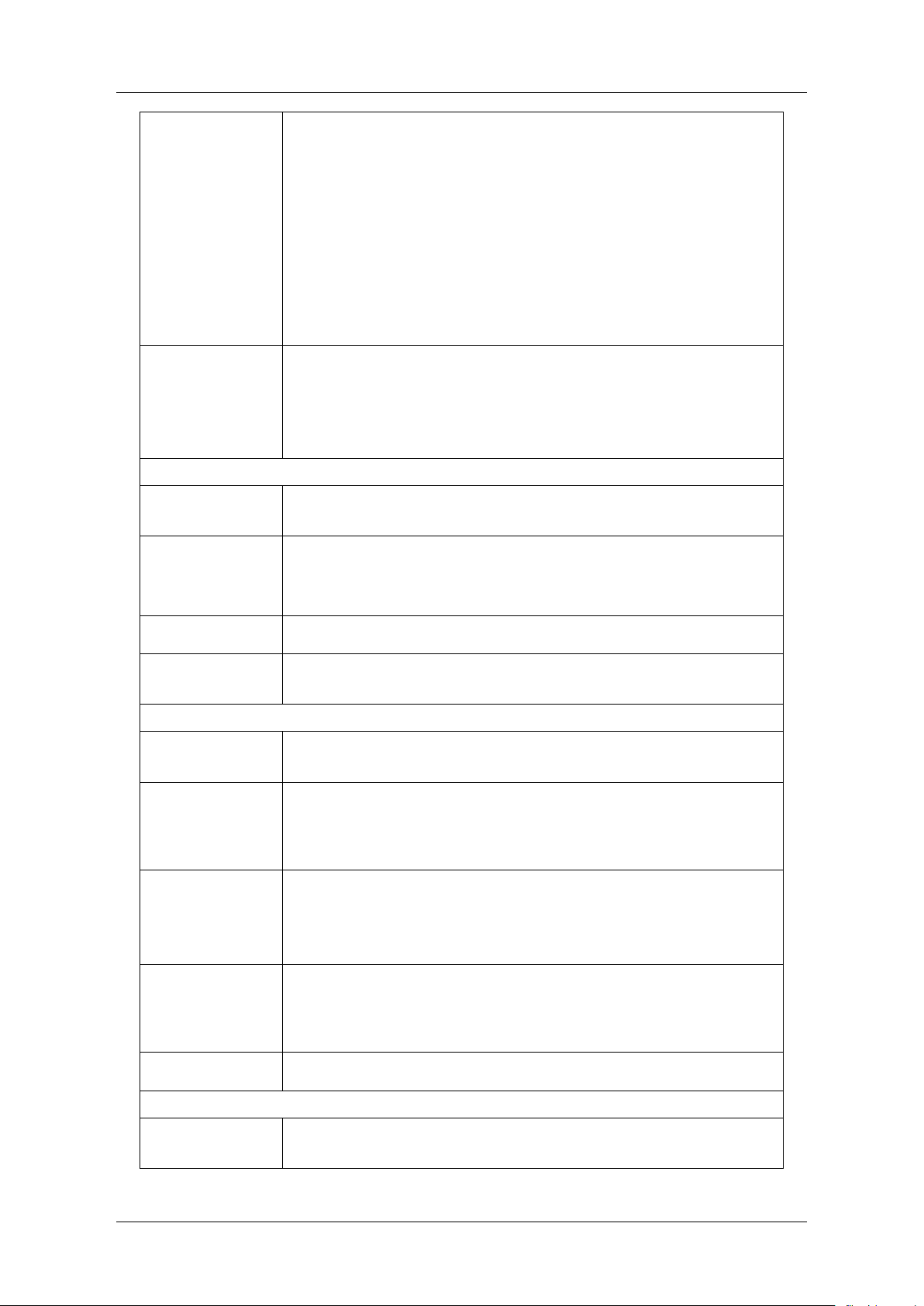
To understand how to set the load, we first need to understand how the voltage of the output
port is obtained (
错误!未找到引用源。). The voltage Vo seen by the user is a variable related to
the load R
L
:
Rs
+
-
RL
Inside
AWG
Outside
AWG
VoVs
Figure 9-1
L
os
Ls
R
VV
RR
=
+
Where Vs is the output voltage of the signal source before the output impedance Rs. Since the
signal source cannot automatically identify the value of RL, the user needs to inform the signal
source of the value by inputting the "load" value, and then the signal source calculates the Vs
according to the RL and Vo set by the user so that the Vo obtained by the user is consistent with
the expected value under any load.
Waveform Parameters
The parameters that can be set for each standard wave are different, as shown in the table below:
Table 9-1 Description of standard waveform parameters
Sine
Frequency/
Period
Frequency/period of the signal. The unit of frequency is Hz and
the unit of period is s. The relationship between the two is:
Frequency = 1/period
SDG7000A User Manual
30 / 133 WWW.SIGLENT.COM
Amplitude/ high
level
Offset/low level
The amplitude/offset of the signal is linked with the high level/low
level. Amplitude value refers to the difference between the highest
point (high level, unit V) and the lowest point (low level, unit V) of
the signal. The supported units include Vpp, Vrms, and dBm
(available when the load ≠ HiZ).
Offset refers to the DC component superimposed on the signal
waveform, in V.
The relationship of the parameters is:
Amplitude value (Vpp) = high level - low level
Offset = (high level + low level) / 2
Phase / Delay
The phase/delay of the signal is meaningful only when the dual-
channel phase mode = Locked, which is used to set the phase
relationship between the two channels. The unit of phase is °, the
unit of delay is s, and the relationship between them is:
Delay = - (period x phase / 360 °)
Square
Frequency/
Period
Same as sine wave
Amplitude/ high
level
Offset/low level
Same as sine wave
Phase / Delay
Same as sine wave
Duty Cycle
Ratio of positive pulse width to the period of the square wave,
unit: %
Pulse
Frequency/
Period
Same as the sine wave
Amplitude/ high
level
Offset/low level
Same as the sine wave
Pulse width /
duty cycle
Pulse width refers to the positive pulse width of the pulse, unit s;
Duty cycle refers to the ratio of positive pulse width to period,
unit %. The relationship between the two is:
Pulse width = Period x Duty cycle
Rising / falling
edge
The rising edge refers to the rising time of 10% ~ 90%, and the
falling edge refers to the falling time of 90% ~ 10%, both in s. The
rising edge and falling edge are independent of each other and
can be set separately
Delay
Same as the "Delay" parameter of sine wave
Ramp
Frequency/
Period
Same as the sine wave

SDG7000A User Manual
WWW.SIGLENT.COM 31 /
133
Amplitude/ high
level
Offset/low level
Same as the sine wave
Phase / Delay
Same as the sine wave
Symmetry
The ratio of the time during which the triangular wave is rising to
the period, unit %
DC
DC Offset
The same as the "DC Offset" parameter of sine wave
SDG7000A User Manual
32 / 133 WWW.SIGLENT.COM
Application example: Set CH1 output sine wave with the following parameters
Load = 50 Ω
Frequency = 1 GHz
Amplitude = 0 dBm
Offset = 0 V
Phase = 180°
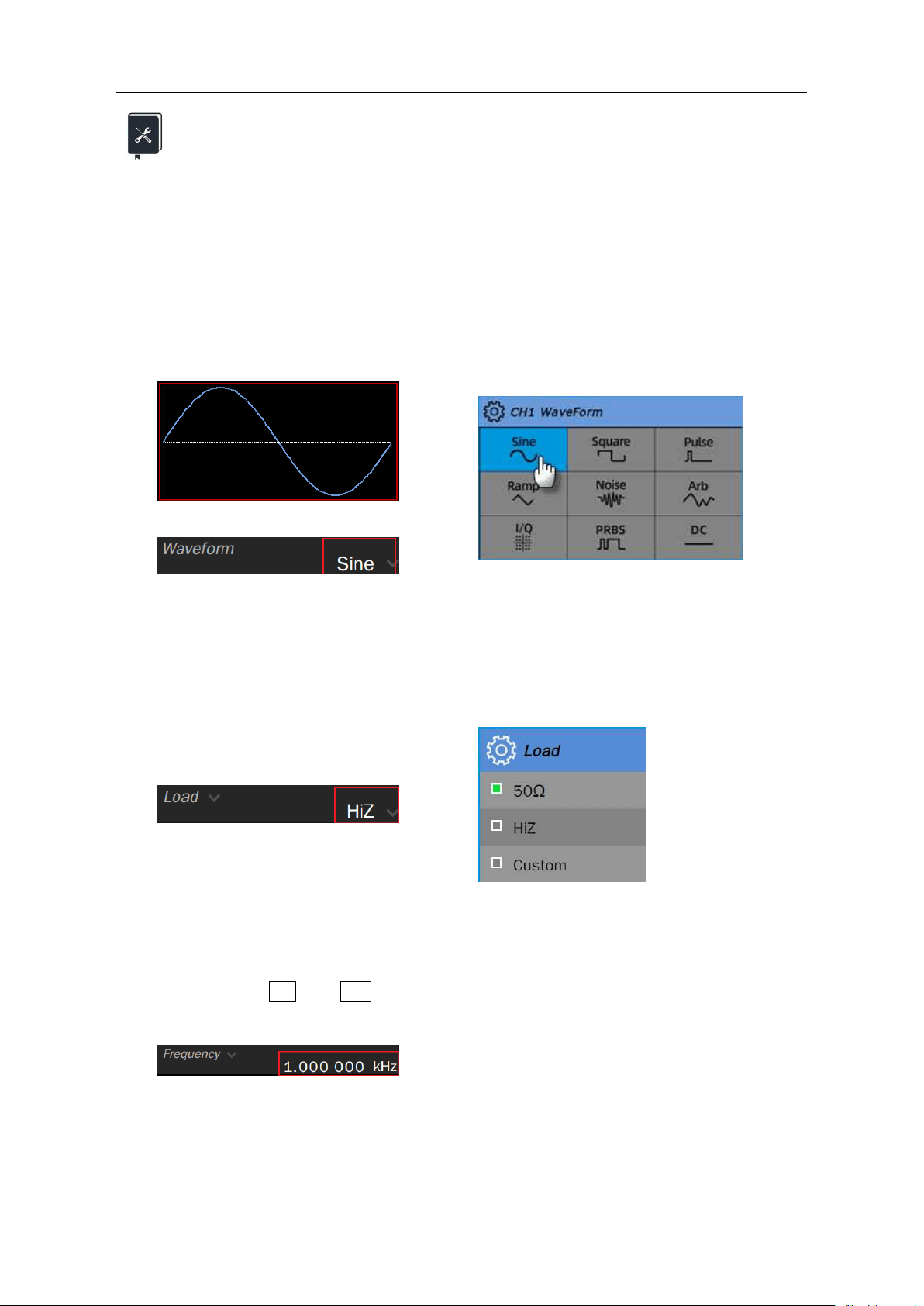
1. Select the waveform
On the carrier setting page, click the waveform preview region or "Waveform" parameter setting
box, and select "sine" in the pop-up waveform selection dialog box.
OR
2. Set the load
Click the parameter value area of load in the "Load" parameter setting box, and select "50 Ω" in
the parameter selection dialog box that pops up later:
3. Set the waveform parameters
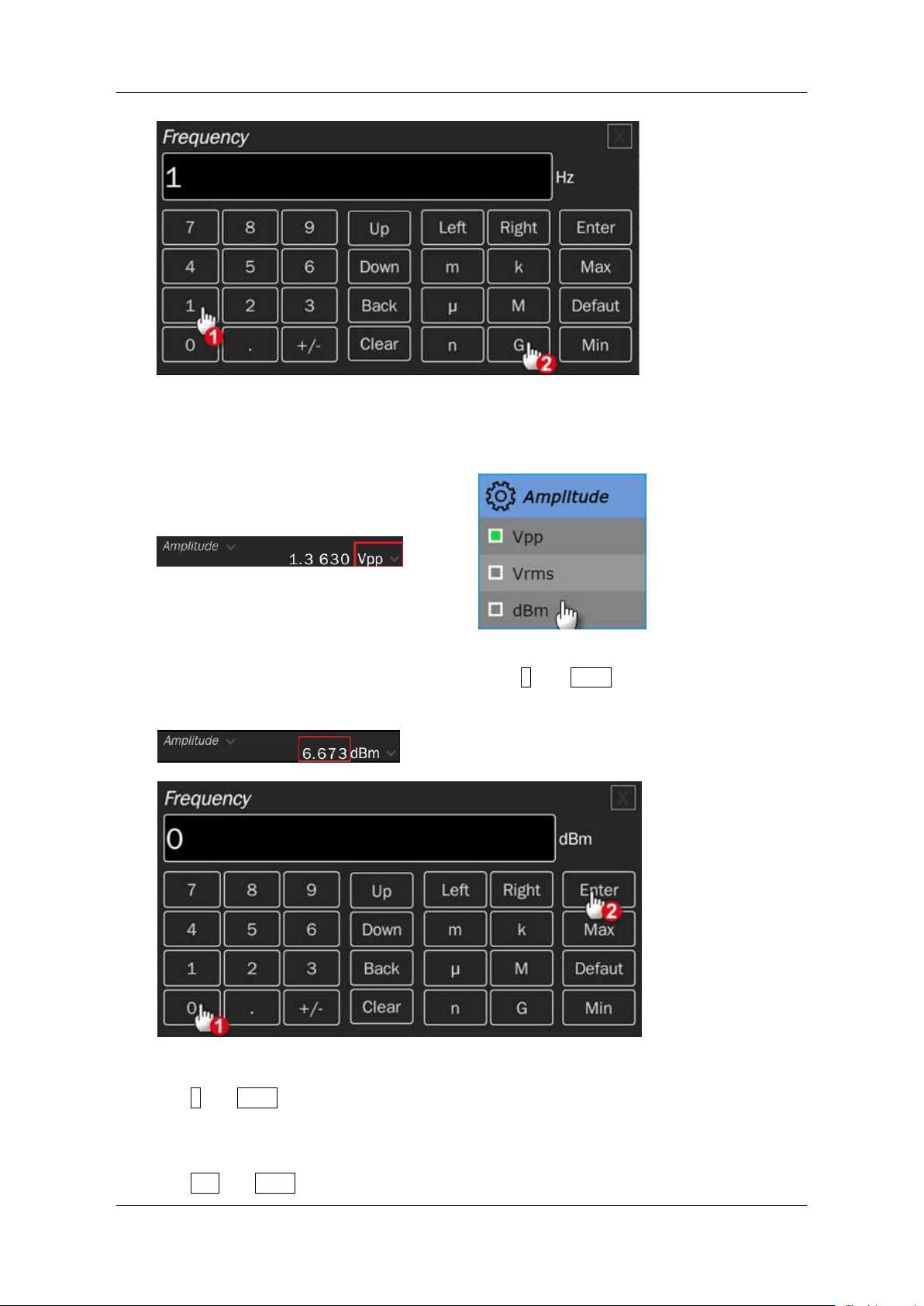
Set frequency: click the parameter value area of frequency in the "Frequency" parameter setting
box, and then type 1 and G in sequence in the pop-up virtual keyboard. The input of
values and units can also be realized using the numeric keyboard and knob on the front panel.
SDG7000A User Manual
WWW.SIGLENT.COM 33 /
133
Set amplitude: Click the unit area in the "Amplitude" parameter setting box, and select "dBm" in
the pop-up selection dialog box:
Click the parameter value area of amplitude and type 0 and Enter in sequence in the virtual
keyboard:
Set offset: Click the parameter value area of offset in the "Offset" parameter setting box, and
then type 0 and Enter in sequence in the pop-up virtual keyboard.
Set phase: Click the parameter value area of phase in the "Phase" parameter setting box, and
then type 180 and Enter in sequence in the pop-up virtual keyboard.
SDG7000A User Manual
34 / 133 WWW.SIGLENT.COM
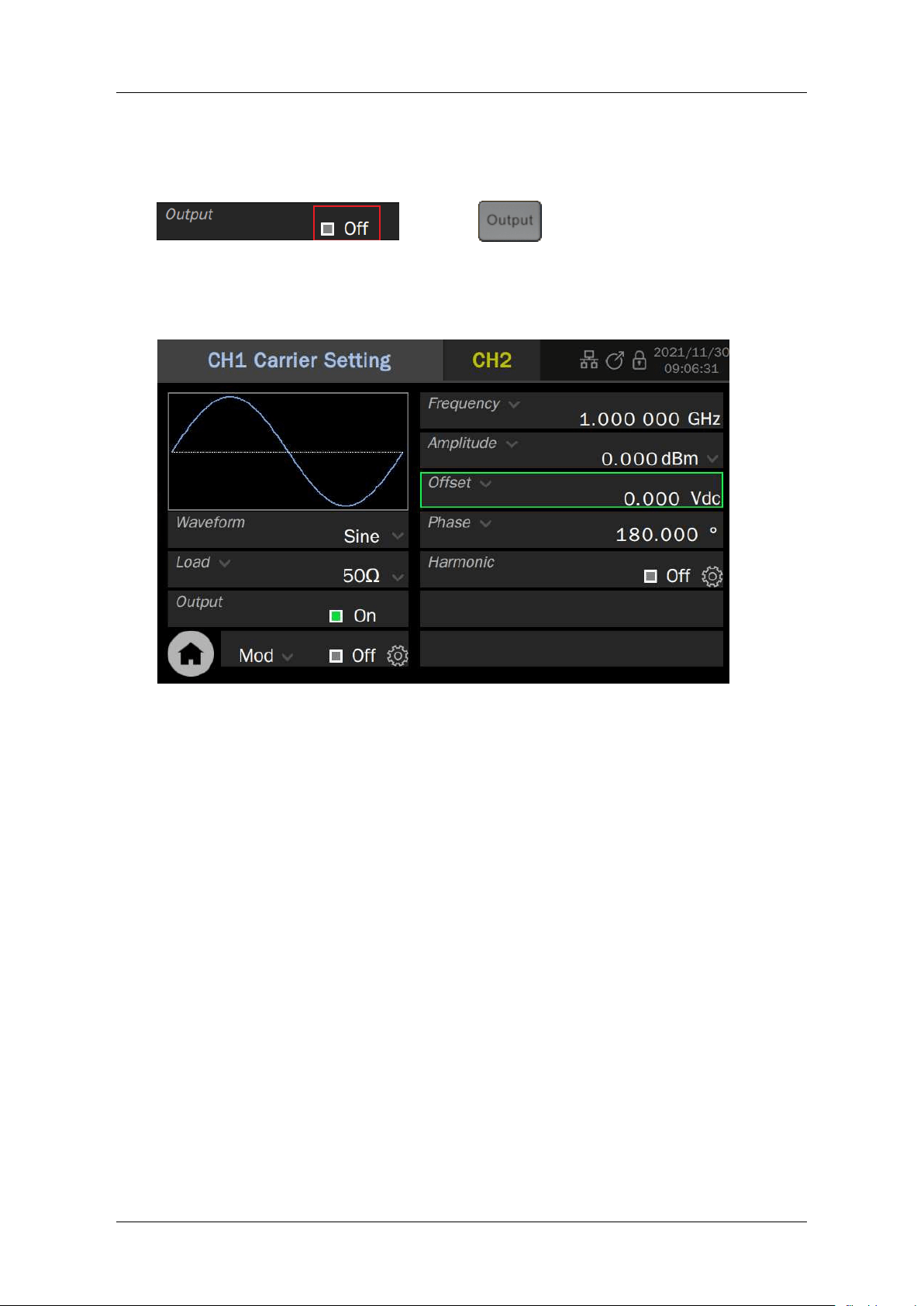
4. Enable the output
Switch the area in the "Output" parameter setting box, or directly press the output button
corresponding to CH1 on the front panel.
Follow the above steps to output the expected sine wave. The carrier page after setting is as
follows:
SDG7000A User Manual
WWW.SIGLENT.COM 35 /
133
9.2 Harmonic Setting
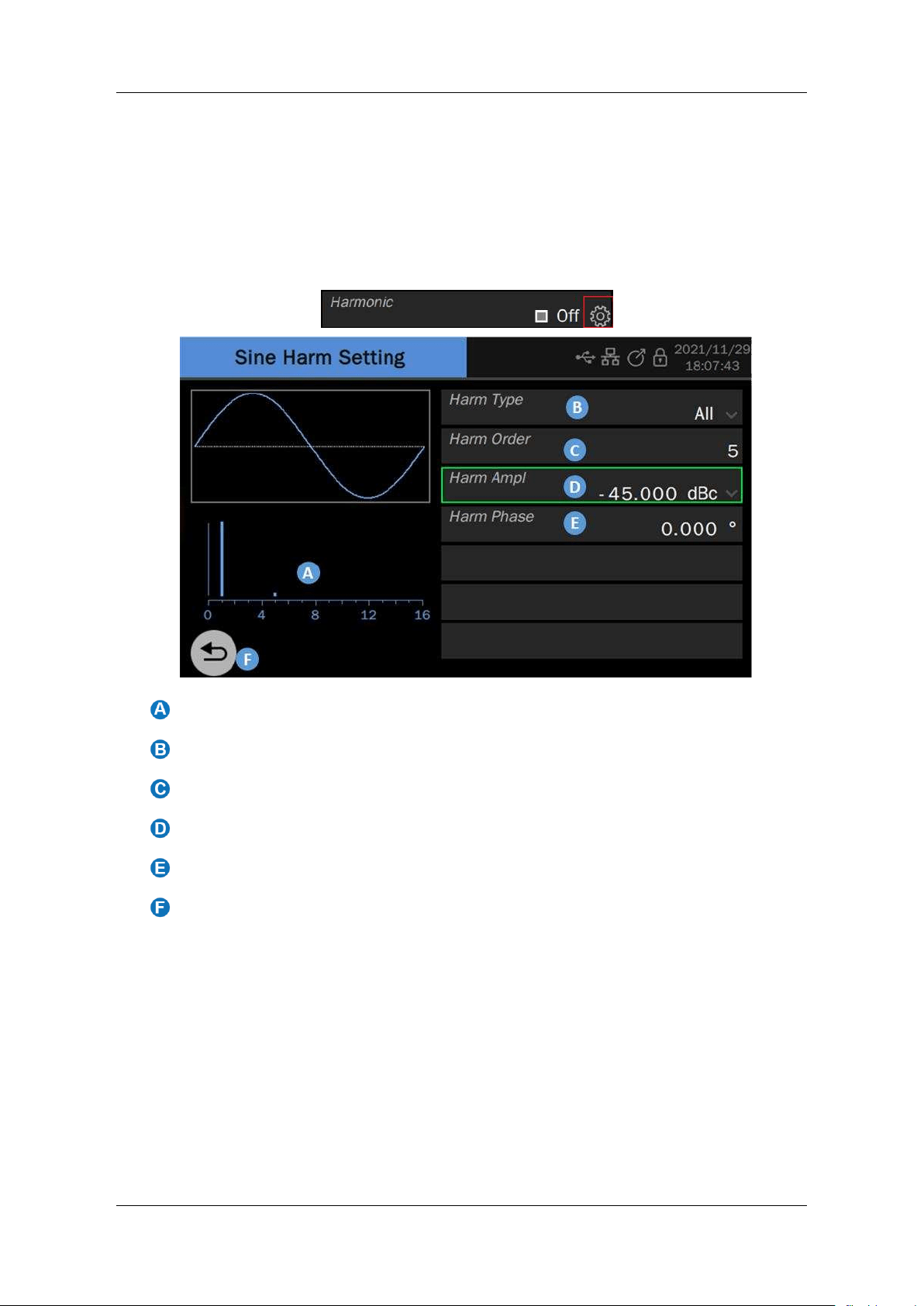
Harmonic is a sub-function of sine wave generation function. It can output harmonics with
specified order, amplitude, and phase settings, which is used to simulate sine waves with non-
linearity.
On the parameter setting page where the carrier is a sine wave, click the setting icon in the
"Harmonic" parameter setting box to enter the harmonic setting page.
Harmonic spectrum
Harmonic type parameter setting box
Harmonic order parameter setting box
Harmonic amplitude parameter setting box
Harmonic phase parameter setting box
Return to previous menu
Set harmonic type
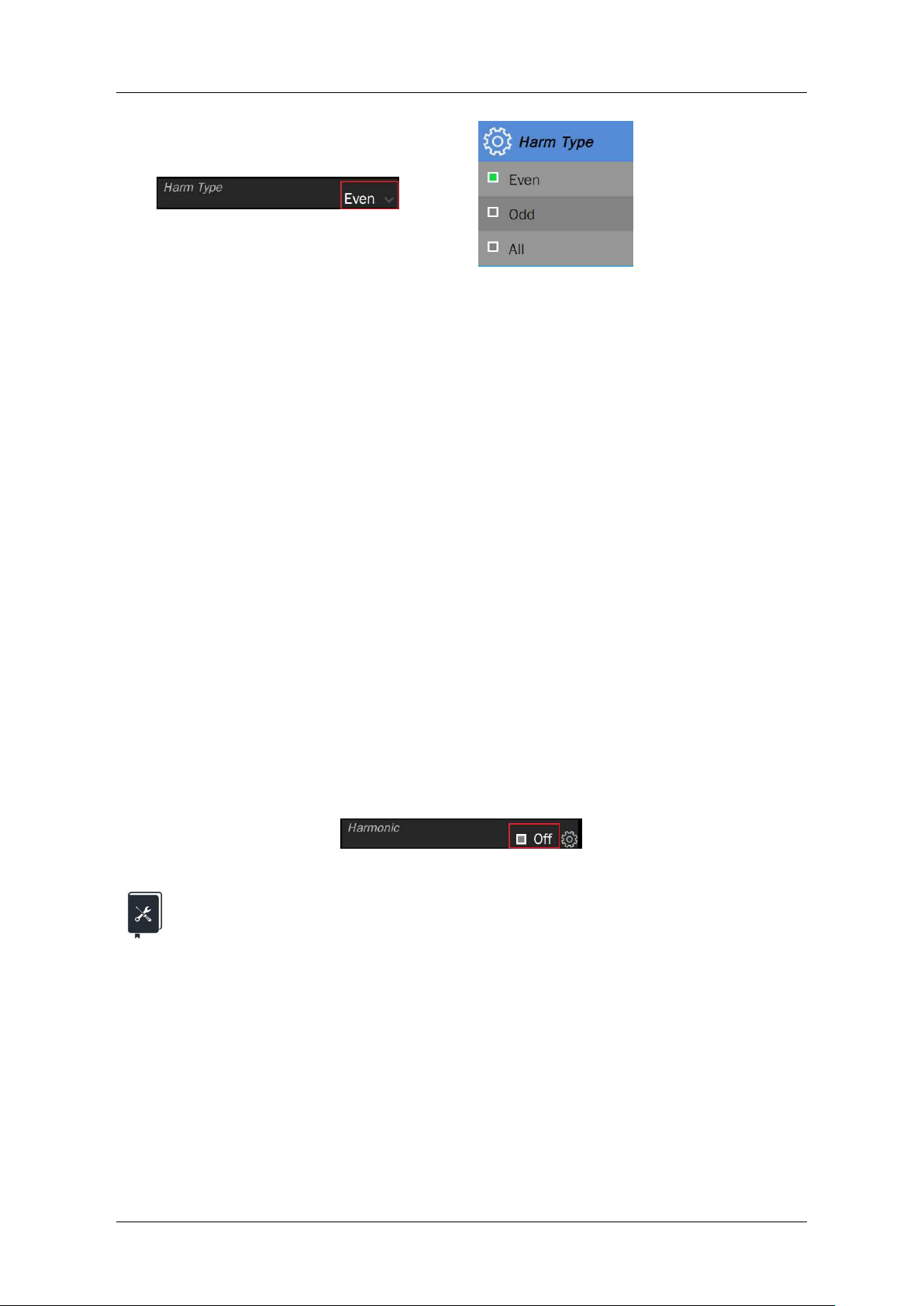
Click the parameter value area in the "Harm Type" parameter setting box, and select the
harmonic type in the parameter selection dialog box that pops up later. If only odd harmonics are
set, select "Odd"; if only even harmonics are set, select "Even"; if both odd and even harmonics
need to be set, select “All”
SDG7000A User Manual
36 / 133 WWW.SIGLENT.COM
Set harmonic number
Click the parameter value area in the "Order" parameter setting box, and type the harmonic
number to be set in the virtual keyboard that pops up later. If type = Odd, only odd value can be
entered; If type = Even, you can only enter even values; If type = All, you can type any integer in
the range of 2 ~ maximum harmonics.
Set harmonic amplitude
Step 1, click the harmonic amplitude unit area in the "amplitude" parameter setting box and select
the unit as "Vpp" or "dBc". The unit "Vpp" is applicable to set the absolute amplitude of harmonic,
and the unit "dBc" is applicable to set the relative amplitude of harmonics relative to the
fundamental frequency signal. Step 2, click the harmonic amplitude parameter value area and
then type the value to be set in the virtual keyboard that pops up.
Set harmonic phase
Click the value area in the "Harm Phase" parameter setting box, and type the value to be set in
the virtual keyboard that pops up later. The unit of phase is °
Turn on harmonic function
After all the harmonic parameters are set, the time domain waveform can be previewed in the
waveform preview region, and the harmonics and their approximate amplitude can be browsed
through the harmonic spectrum. After confirmation, return to the carrier parameter setting page
and click the switch area in the "Harmonic" parameter setting box to turn on the harmonic function.
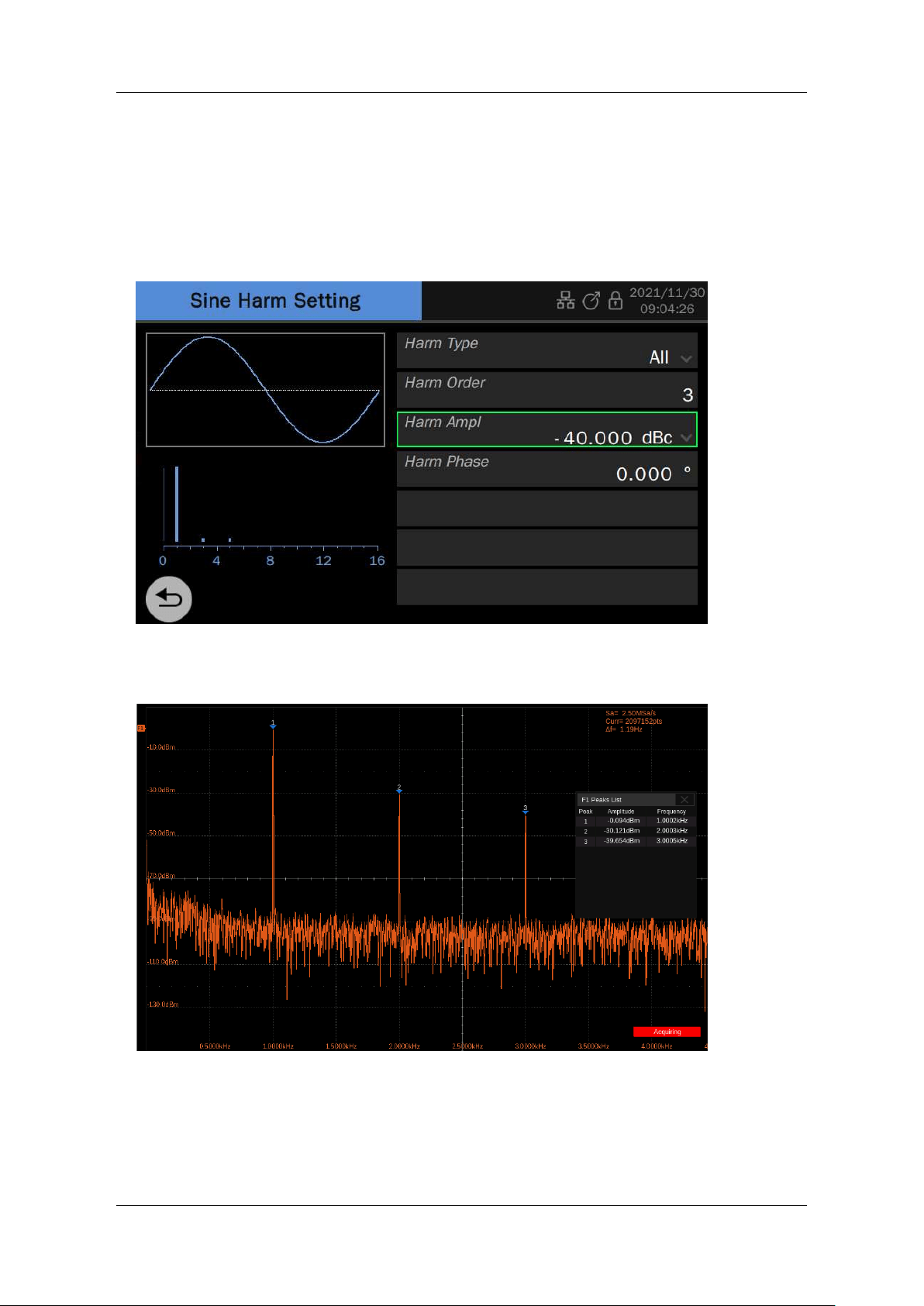
Application example: set CH1 output sine wave and its harmonics, and the
parameters are as followes:
Fundamental frequency = 1 kHz
,
Fundamental amplitude = 0 dBm
Second harmonic amplitude = -30dBc
,
phase = 0°
Third harmonic amplitude = -40dBc
,
phase = 0°
1. Refer to the application example in the previous section to set the waveform, frequency,
and amplitude of the fundamental wave.
2. Set harmonics
Because harmonics contain both 2nd and 3rd, you need to set the type to “All”.
First set the amplitude and phase of the second harmonic: select "Order" as "2". Select the
unit of "Harm Ampl" as "dBc", and then set the value to "-30". Set "Harm Phase" to "0", and
SDG7000A User Manual
WWW.SIGLENT.COM 37 /
133
the default unit is "°".
Then set the amplitude and phase of the third harmonic in the same way.
3. Return to the carrier parameter setting page of the sine wave and set the switch of
"Harmonic" to "On".
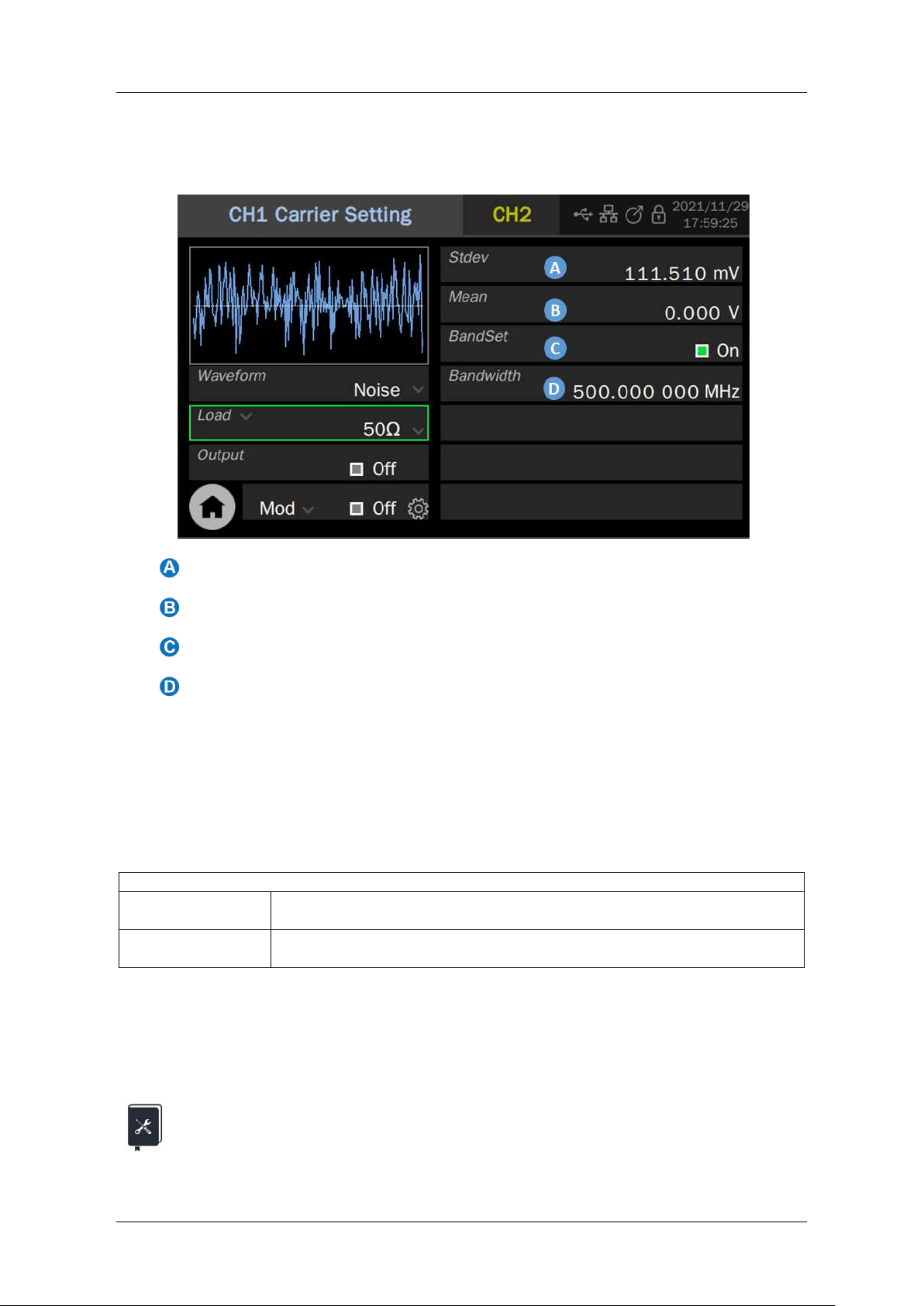
Following the above steps, the expected sine wave and harmonic can be sourced. The harmonic
page after setting is as follows:
The actual output spectrum is as follows:
SDG7000A User Manual
38 / 133 WWW.SIGLENT.COM
9.3 Noise Setting
The noise generation function can provide Gaussian noise with a settable bandwidth.
Standard deviation parameter setting box
Mean parameter setting box
Bandwidth switch setting box
Bandwidth setting box
Set the waveform parameters
The waveform parameters of noise include "Stdev" and "Mean". Since the noise obeys a
Gaussian distribution (normal distribution), mean (m) and standard deviation ( σ ) can
characterize its distribution characteristics. The setting method refers to a sine wave.
Table 9-2 Description of Noise waveform parameters
Noise
Stdev
Standard deviation
Mean
Average value (mathematical expectation)
Set the bandwidth
To set the bandwidth of noise, first click the switch area in the bandwidth switch setting box to
open the bandwidth setting, then click the value area in the bandwidth setting box, at last type
the value and unit in the pop-up virtual keyboard.
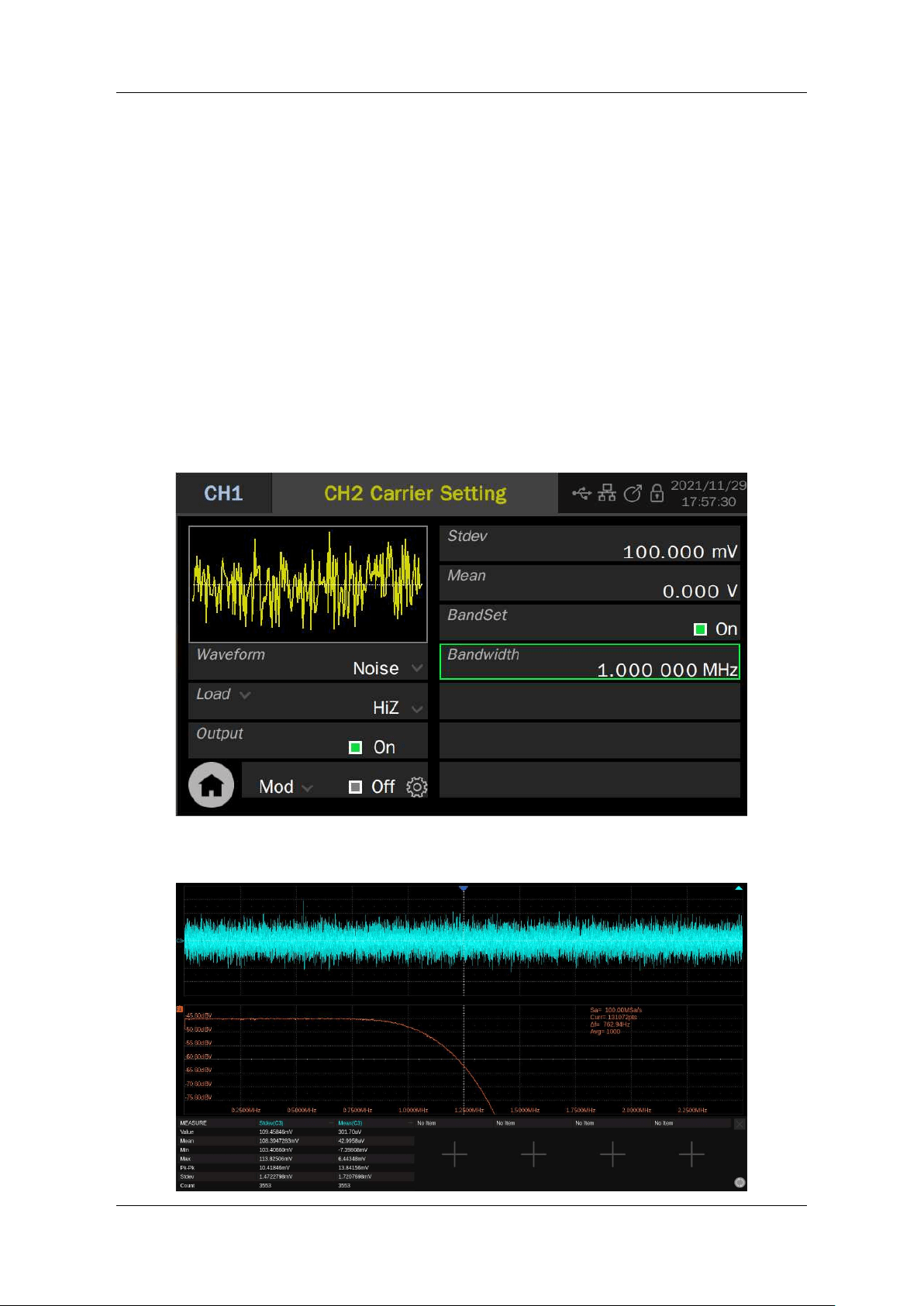
Application example: set CH2 to output noise of the following parameters
Stdev= 100 mVrms
SDG7000A User Manual
WWW.SIGLENT.COM 39 /
133
Mean = 0 V
Bandwidth = 1 MHz
The external load is high resistance
1. If the current parameter setting page is CH1, switch to CH2
2. Set the waveform to "Noise"
3. Set "Load" to "HiZ"
4. Set “Stdev” to 100 mV
5. Set”Mean” to 0 V
6. Open "BandSet" and set the bandwidth to 1MHz in the "Bandwidth" setting box
7. Open output
Following the above steps, the expected noise can be output. The parameter page after setting
is as follows:
The time-domain waveform and spectrum of the actual output noise are as follows:
SDG7000A User Manual
40 / 133 WWW.SIGLENT.COM
9.4 PRBS Setting
The PRBS generation function can generate PRBS sequences with a maximum bit rate of 312.5
Mbps.
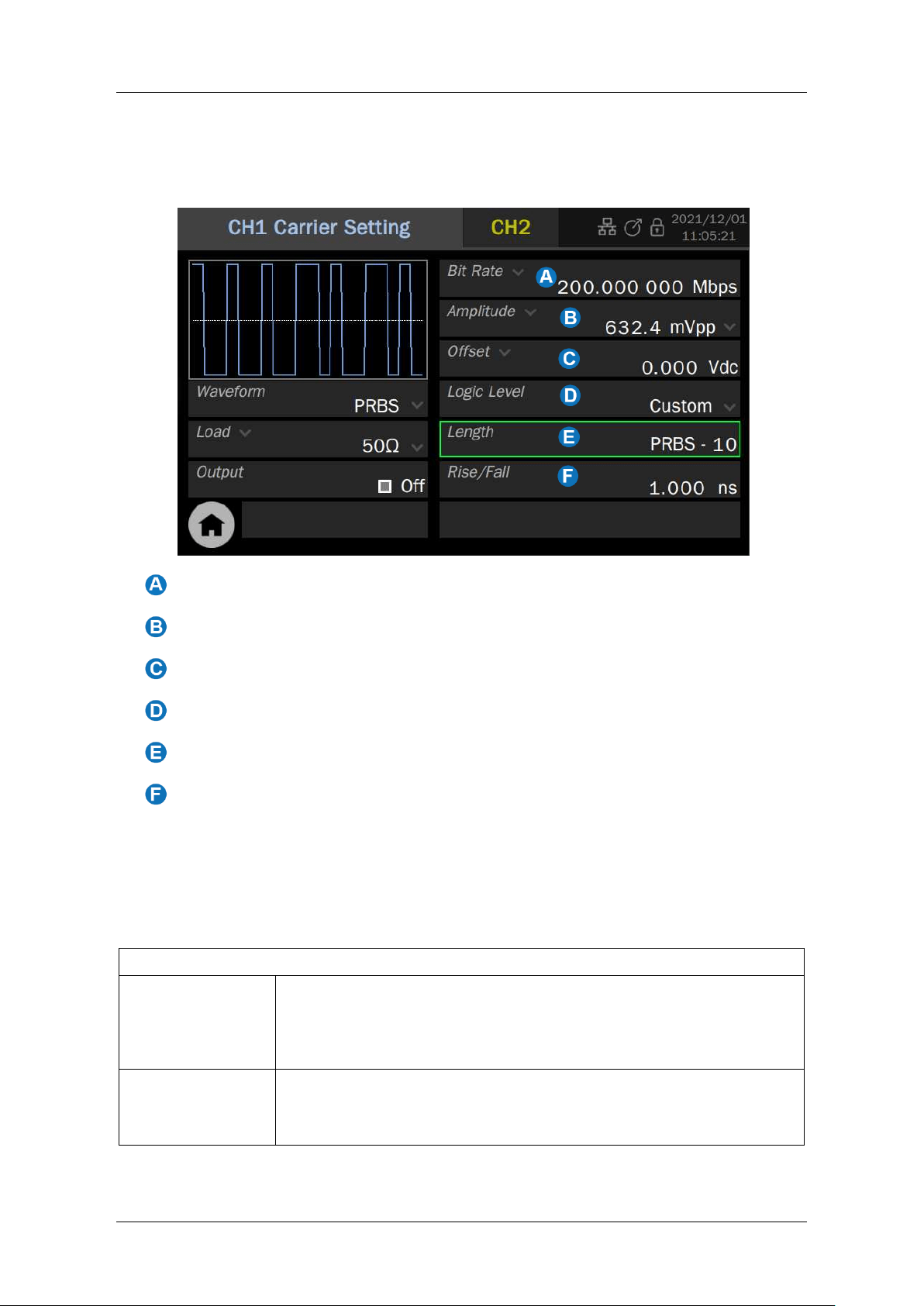
Bit rate / Period parameter setting box
Amplitude / High level parameter setting box
Offset / Low level parameter setting box
Logic level parameter setting box
Length parameter setting box
Rise/Fall edge parameter setting box
Set the waveform parameters
The waveform parameters of PRBS are shown in the table below. The setting method refers to
the sine wave.
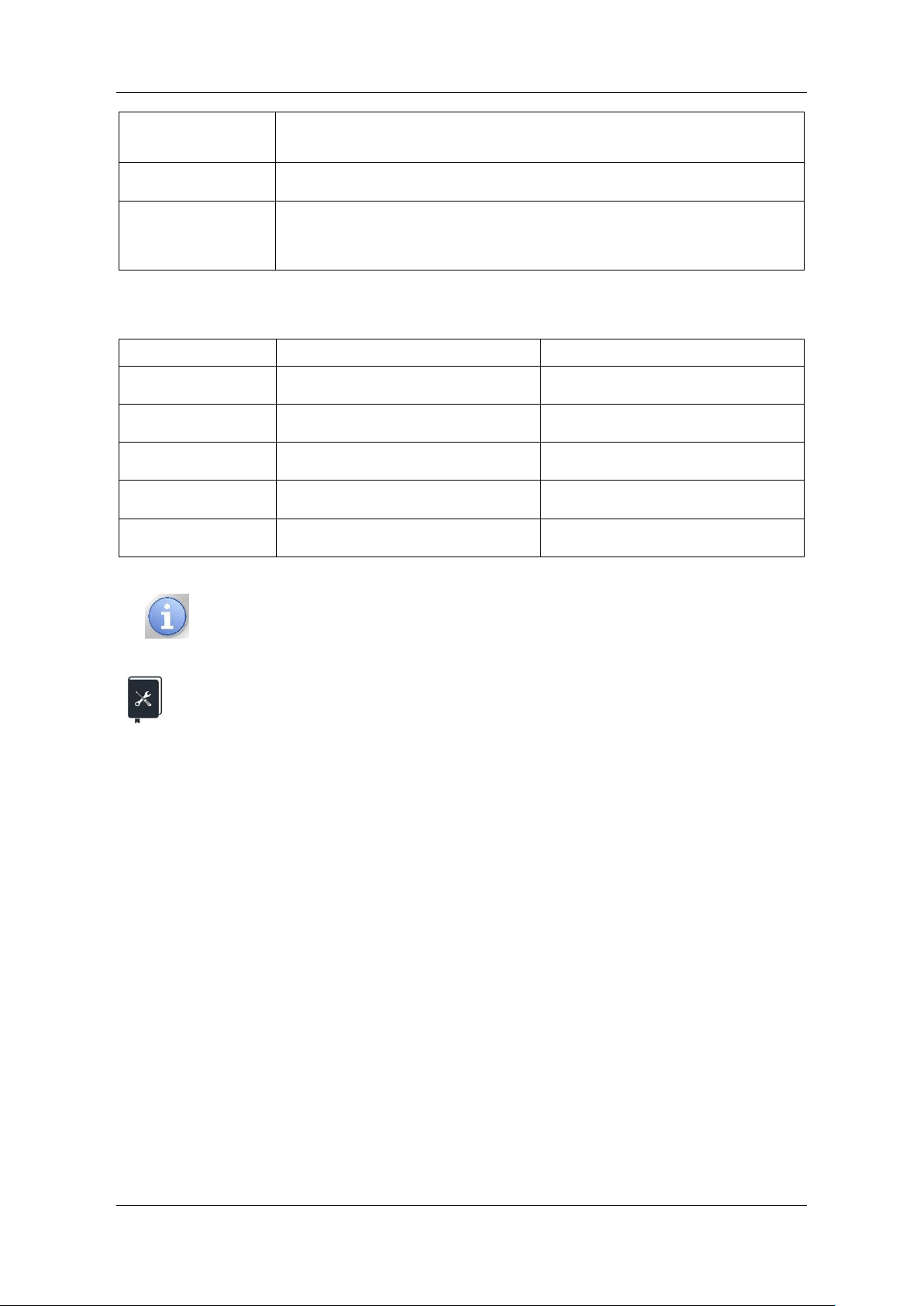
Table 9-3 PRBS waveform parameter description
PRBS
Bit rate/ Period
Bit rate/symbol period of the PRBS sequence. The unit of bit rate is
bps and the unit of symbol period (UI) is s. The relationship between
the two is:
Bit rate = 1 / Period
Amplitude / High
level
Offset /Low level
Same as the sine wave
SDG7000A User Manual
WWW.SIGLENT.COM 41 /
133
Logic Level
Used to quickly set the amplitude to some standard levels. See table
9.4 for details
Length
PRBS-3 ~ 32 can be set, corresponding length (2
3-1
) ~ (2
32-1
)
Edge
Refers to the rise time of 10% ~ 90% and the fall time of 90% ~ 10%,
with the unit of s. Both rising and falling edges are set at the same
time
Table 9-4 Logic levels supported by PRBS
Logic level
Amplitude(Vpp)
Offset(V)
TTL/CMOS
5.00
2.50
LVTTL/LVCMOS
3.30
1.65
ECL
0.80
-1.30
LVPECL
0.80
2.00
LVDS
0.35
1.25
The preset logic levels in the table are valid only when output mode =
single ended.
Application example: set CH1 to output PRBS with the following parameters
Differential output, external differential load 100 Ω
Bit rate = 122.88 Mbps
Amplitude = 300 mVpp
Common Mode= 600 mV
Lengh is PRBS-7
Rise/Fall edge = 1 ns
1. In "Output Setting", set the output mode of CH1CH1 to "Differential" (see "single-end /
differential setting" for details), connect the "+" terminal of CH1CH1 to the "+" end of
the 100 Ω differential load, and the "-" terminal of CH1 to the "-" end of the 100 Ω
differential load
2. On the carrier parameter setting page of CH1CH1, set the "load" to 100 Ω.
3. Set the bit rate to 122.88 Mbps;
4. Set the amplitude to 300 mVpp and the offset to 0
5. Set “Common Mode” to 600 mV
6. Set “Length” to PRBS-7
7. Set ”Rise/Fall” to 1ns
8. Open the output
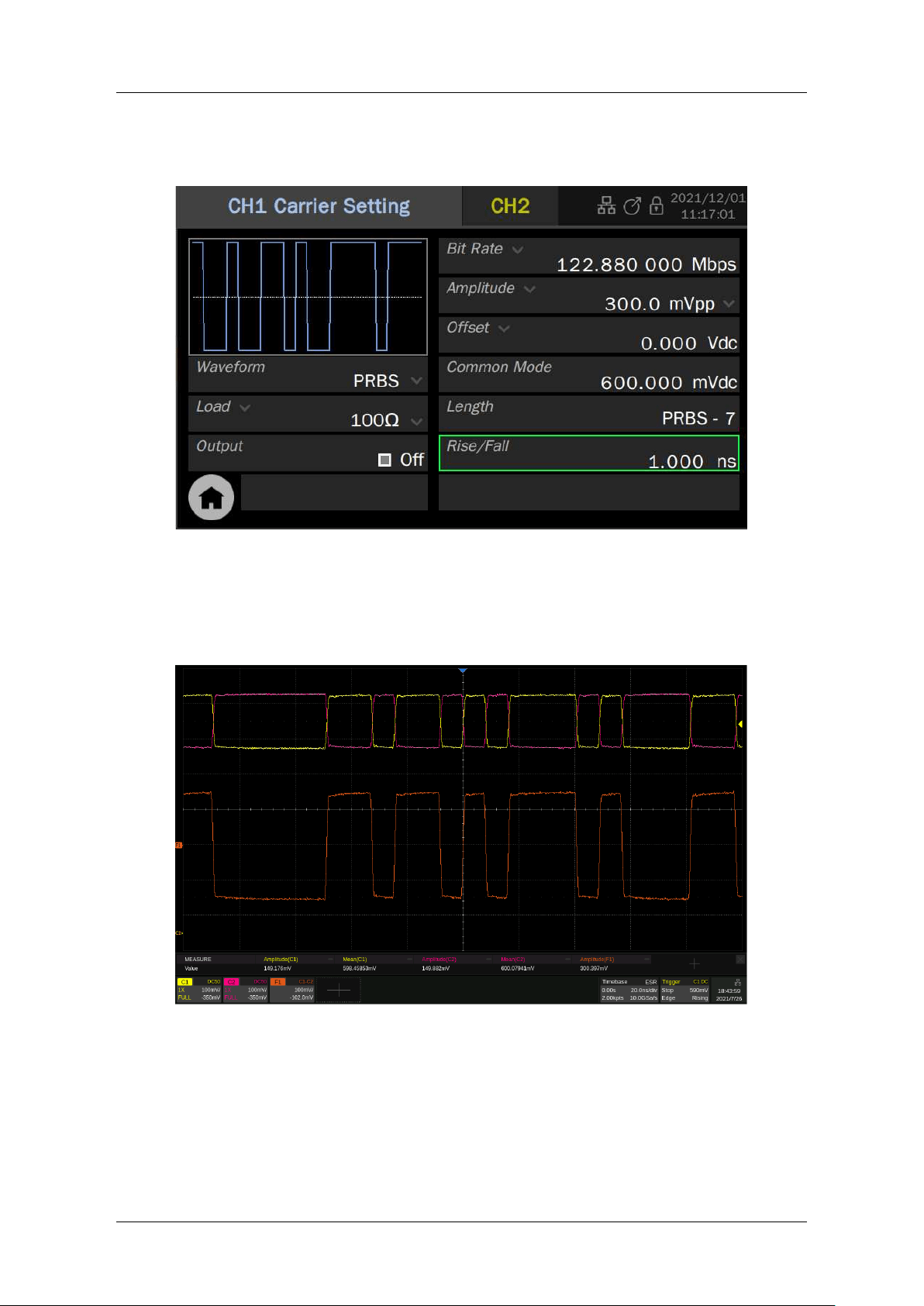
SDG7000A User Manual
42 / 133 WWW.SIGLENT.COM
Following the above steps, the expected PRBS waveform can be output. The parameter page
after setting is as follows:
The actual output PRBS waveform is as follows. C1 of the oscilloscope captures the "+" end of
the differential signal, and C2 captures the "-" end of the differential signal, F1 = C1-C2, that is,
the equivalent differential signal.
In this application example, because the common mode is limited in (-1 V ~ +1 V), some levels
with large common-mode voltages, such as LVDS (1.25 V) and LVPECL (2.0 V), cannot be
simulated. An alternative is to simulate the differential output by two complementary single-
ended outputs.
The following is an example of simulating a pair of differential outputs through two single-ended
outputs.
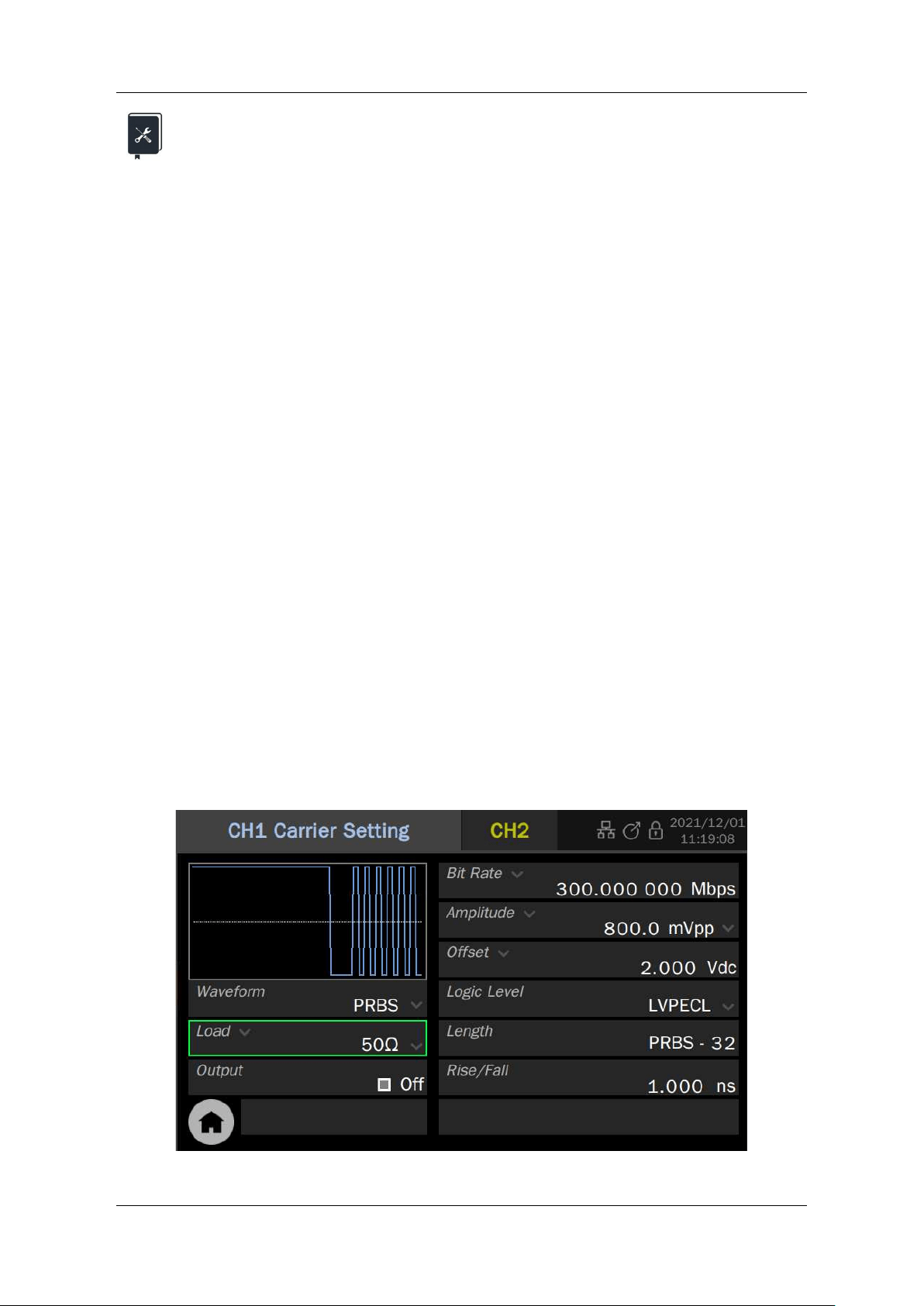
SDG7000A User Manual
WWW.SIGLENT.COM 43 /
133
Application example: Set a PRBS with the following parameters using CH1 as
differential "+" and CH2 as differential "-"
External differential load 100Ω
Bit rate = 300 Mbps
LVPECL level
Length is PRBS-32
Rise/Fall edge = 1 ns
1. In "Output Setting", set the output mode of CH1 to "Single-ended" (see "Single-
ended/Differential Settings" for details), connect the "+" terminal of CH1 to the "+" end
of the 100 Ω differential load, and the "+" terminal of CH2 to the "-" end of the 100 Ω
differential load
2. On the carrier parameter setting page of CH1, set the load to 50 Ω
3. Set the "Bit rate" to 300 Mbps;
4. Set "Logic Level" to "LVPECL", and the device will automatically set "Amplitude" to 800
mVpp and "Offset" to 2V;
5. Set length to PRBS-32;
6. Set ”Rise/Fall” to 1ns;
7. In the "Dual Channel" page, execute the "CH1-> CH2" operation of "Channel Copy" to
copy the parameters of CH1 to CH2. If you want CH2 links changes on CH1, turn on
"Freq Coupling", "Amplitude Coupling" and "Phase Coupling" in "Channel Coupling"
and set "Freq Ratio" = 1, "Ampl Ratio" = 1 "and" Phase Ratio"= 1 (see the section
"Channel Tracking/Coupling/Copy"for details);
8. In output settings, set the polarity of CH2 to “Invert”;
9. Turn on the output of both channels.
Following the above steps, the expected PRBS waveform can be output. The parameter page
after setting is as follows:
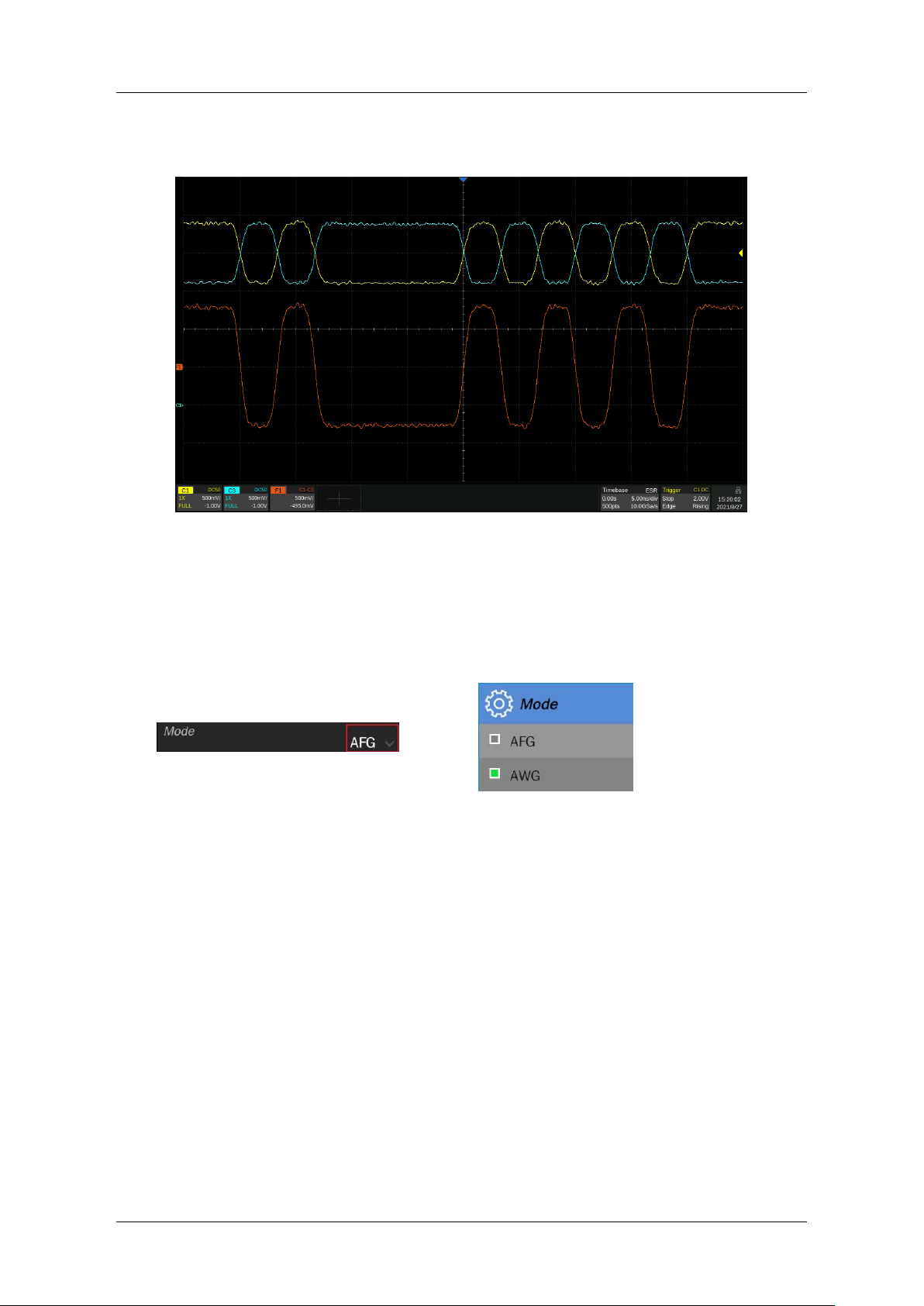
SDG7000A User Manual
44 / 133 WWW.SIGLENT.COM
The actual output PRBS waveform is as follows. C1 of the oscilloscope captures the "+" end of
the differential signal, C3 captures the "-" end, F1 = C1-C3, that is, the equivalent differential
signal.
9.5 Arbitrary Waveform Setting
Arbitrary waveform provides two modes: AFG and AWG. On the parameter setting page where
the carrier is an arbitrary waveform, click the value area of the "Mode" parameter setting box to
select the required mode:
9.5.1 AFG Mode
In AFG mode, the signal generator outputs the specified arbitrary waveform in the way of
traditional Direct Digital Synthesis (DDS) generators. At this time, the basic waveform parameter
setting is the same as that of the sine wave. Refer to the section "Standard waveform setting".
For data source selection and editing of an arbitrary wave, refer to the section "Data source".
9.5.2 AWG Mode
In AWG mode, the signal generator employs SIGLENT’s TrueArb Technology (Figure 9.2) and
outputs the specified waveform sequence point-by-point with a user-specified sample rate.
TrueArb overcomes the intrinsic defects of traditional DDS technology that may increase jitter
and distortion when generating arbitrary waves, while retaining its advantages of low cost,
simplicity and flexibility.
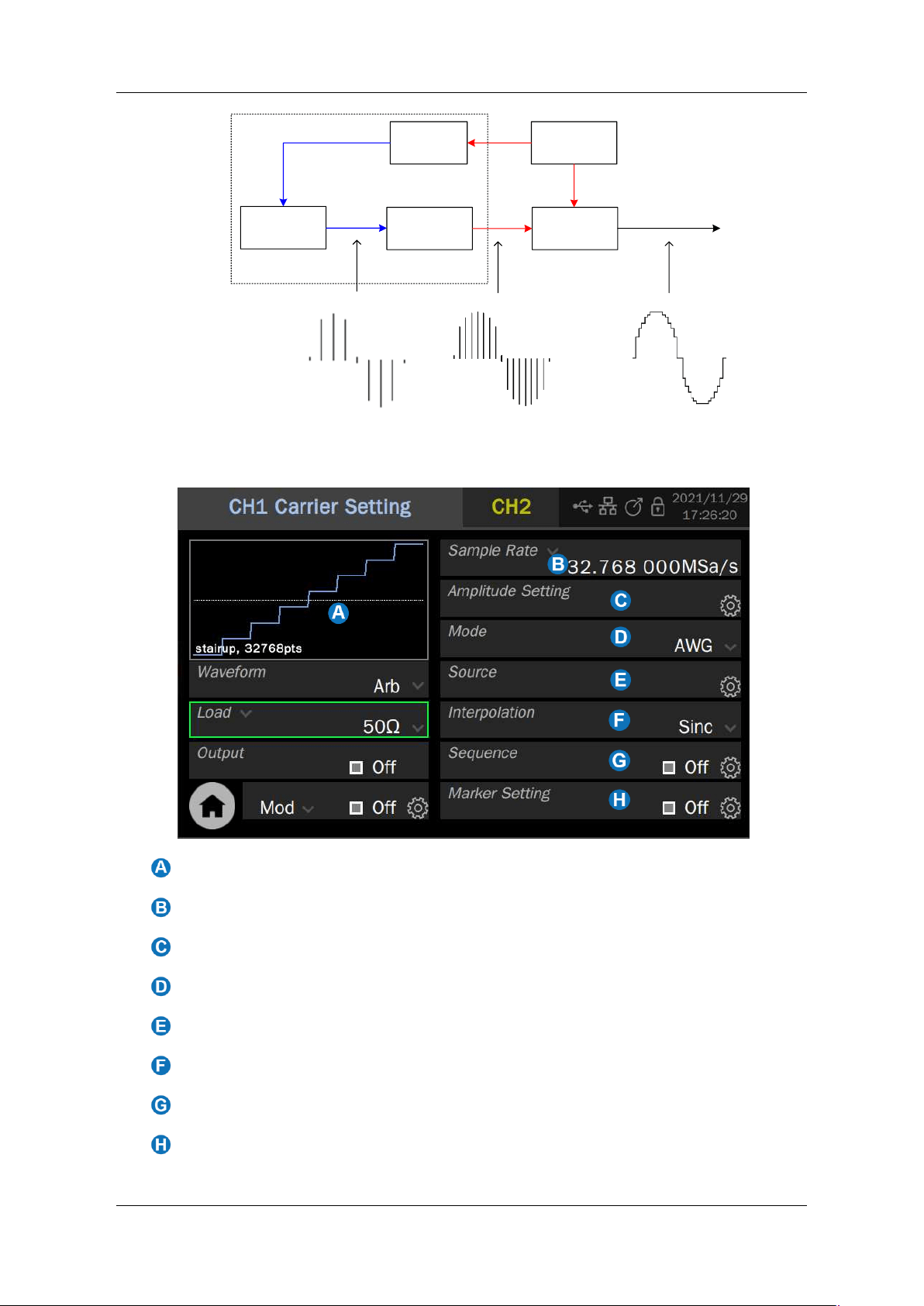
SDG7000A User Manual
WWW.SIGLENT.COM 45 /
133
DDS
Ref Clock
Sampling Rate
Conversion
DAC
f
s
f
s
f
s
L Points
Lookup Table
f
s
' = f
out
*L
f
s
' = f
out
*L
FTW 1
FPGA
Figure 9.2 Principle block diagram of TrueArb Technology
Waveform Preview
Sample rate / Frequency parameter setting box
Amplitude parameter setting box
Mode parameter setting box
Data source selection
Interpolation mode parameter setting box
Sequence setting
Marker setting
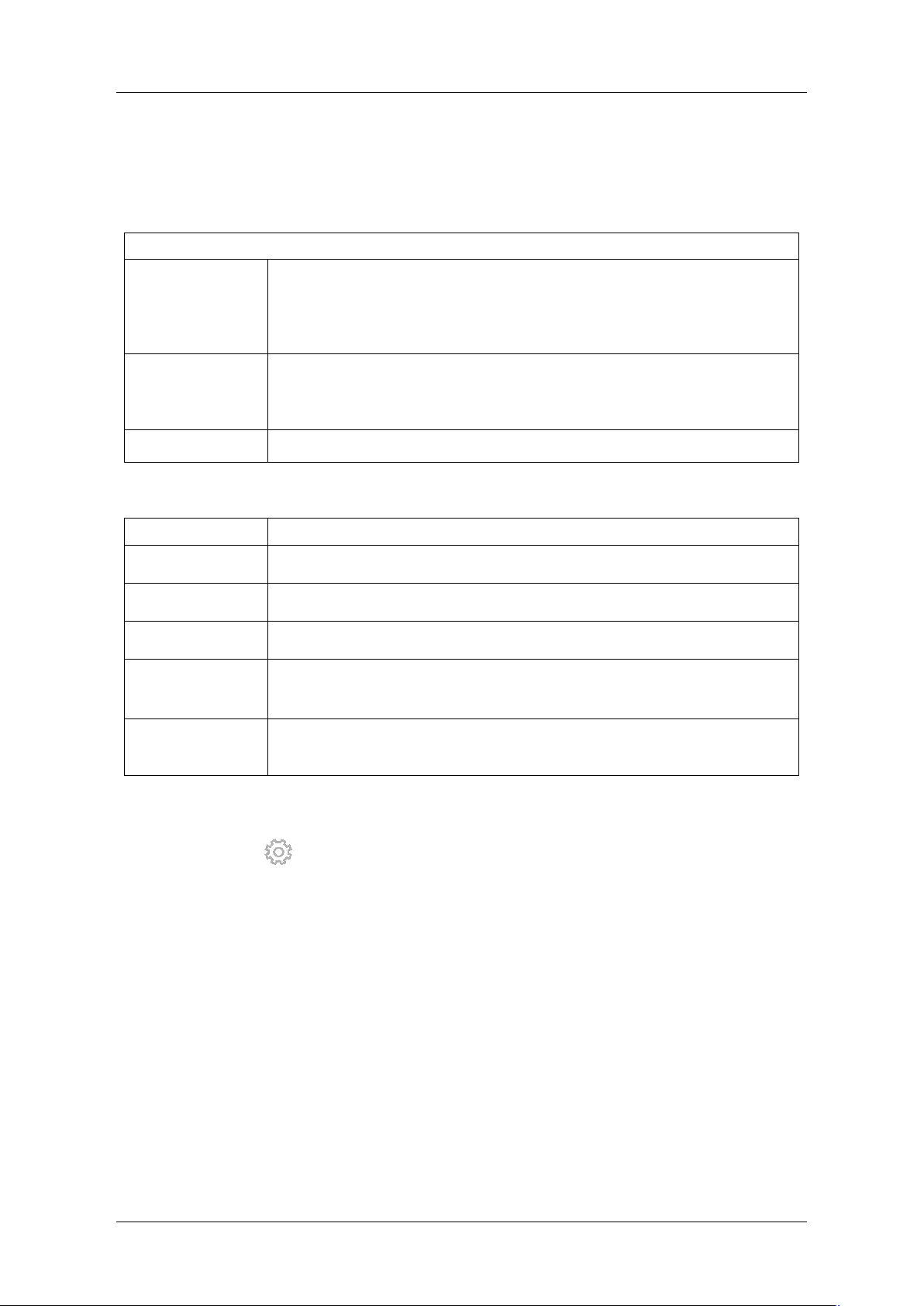
SDG7000A User Manual
46 / 133 WWW.SIGLENT.COM
Set the waveform parameters
The waveform parameters of AWG are shown in the table below. The setting method refers to
that of a sine wave.
Table 9-5 Description of AWG waveform parameters
AWG
Sample rate /
Frequency
Sample rate / Frequency of the signal. The unit of sample rate is Sa/s,
which refers to the clock rate of the waveform. The unit of frequency is
Hz. The relationship between the two is:
Sample rate = Frequency x number of waveform points
Amplitude/High
level
Offset/Low level
Same as the sine wave
Interpolation
Interpolation mode. Refer to Table 9-6 for the details
Table 9-6 Interpolation modes supported by AWG
Interpolation
Explanation
0-order hold
Zero-order hold
Linear
Linear interpolation
Sinc
Sinx/x interpolation
Sinc27
Sinx/x interpolation combined with low-pass filter,bandwidth = 0.27 x
sample rate
Sinc13
Interpolation combined with low-pass filter, bandwidth = 0.13 x sample
rate
9.5.3 Data Source
Click the setting icon in the "Source" parameter setting box to enter the data source selection
page. Data sources include Built-In, From File, and EasyWaveX. Click the data source type area
in the "Source" parameter setting box, and then select the data source in the pop-up list.
Built-In Waveform
The built-in waveforms are a series preset waveforms in the signal generator. There are a few
types: Common, Math, Engineering, Window, Trigo, Square, Medical electronics, Modulation,
Filter and Demo. Under each type, there are a variety of waveforms to choose.
Click the value area of the "Wave Type" parameter setting box, and then select the waveform
from the waveform list on the right. When a page cannot be displayed all the waveforms, a scroll
bar will appear on the right side of the list. Scroll the bar up and down to view the entire list.
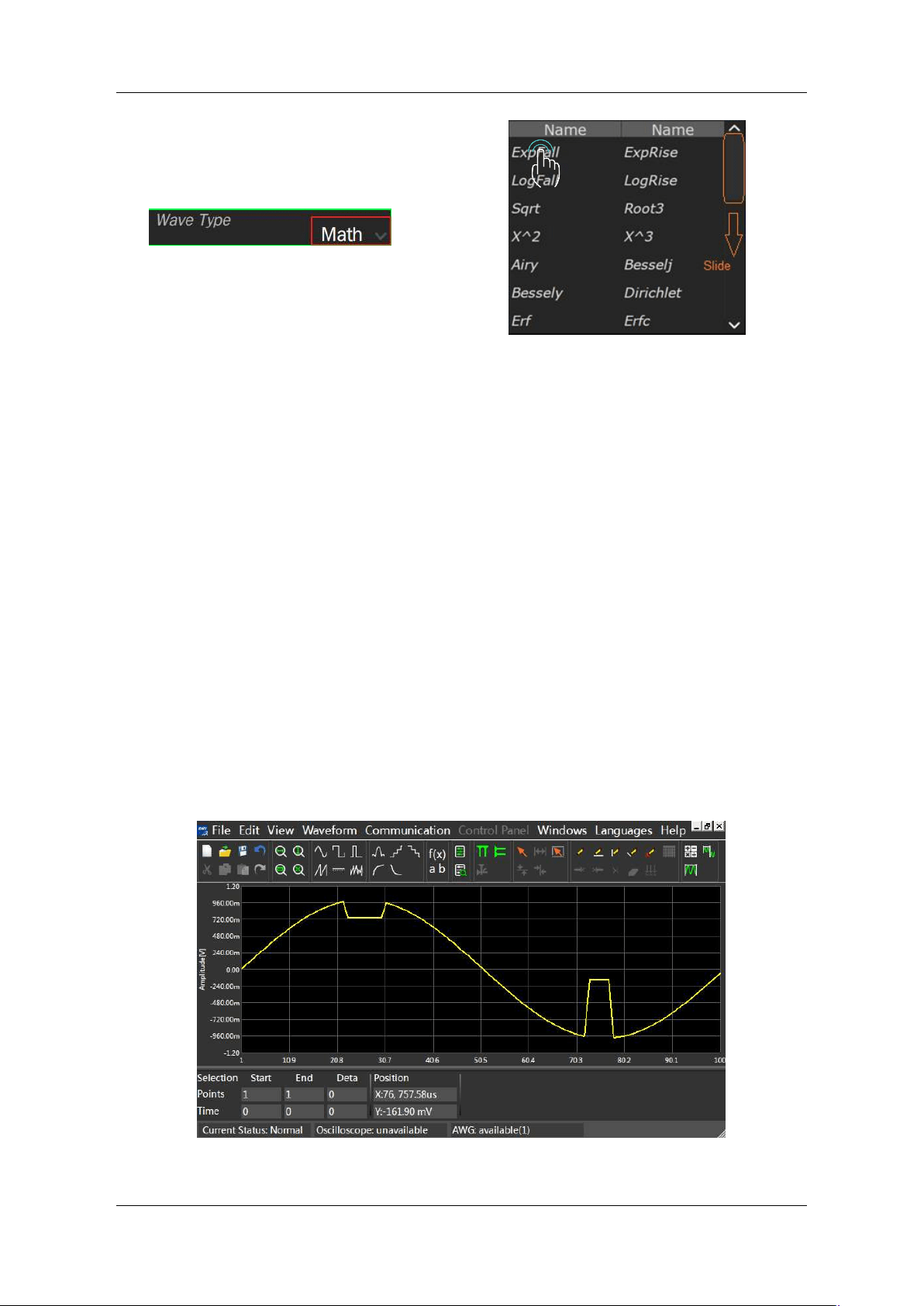
SDG7000A User Manual
WWW.SIGLENT.COM 47 /
133
From File
“From File” is to recall a waveform file saved in the local directory or external USB flash disk.
When the data source is "From File", the File Manager will be called automatically. Select the
waveform, and then click "Load".
For operations of the File Management, please refer to the chapter "Save/Recall".
EasyWaveX
The arbitrary waveform editing software EasyWaveX provides 11 standard waveforms such as
sine, square, ramp, pulse, noise, and DC, which can meet the most basic needs. It also provides
users with manual drawing, line drawing (including horizontal line, vertical line, and two-point
line), coordinate drawing (coordinates can be input through mouse or table, and there are two
ways of connecting line and smoothing) and equation drawing, which makes it easy to create
complex waveforms.
SDG7000A not only supports the waveforms issued by EasyWaveX software running on the PC
but also integrates EasyWaveX into the device as a built-in application so that it supports editing
and saving waveforms directly on the device. When "EasyWaveX" is selected as the data source,
the EasyWaveX software will be automatically run on the device:
Figure 9.3 EasyWaveX operation interface
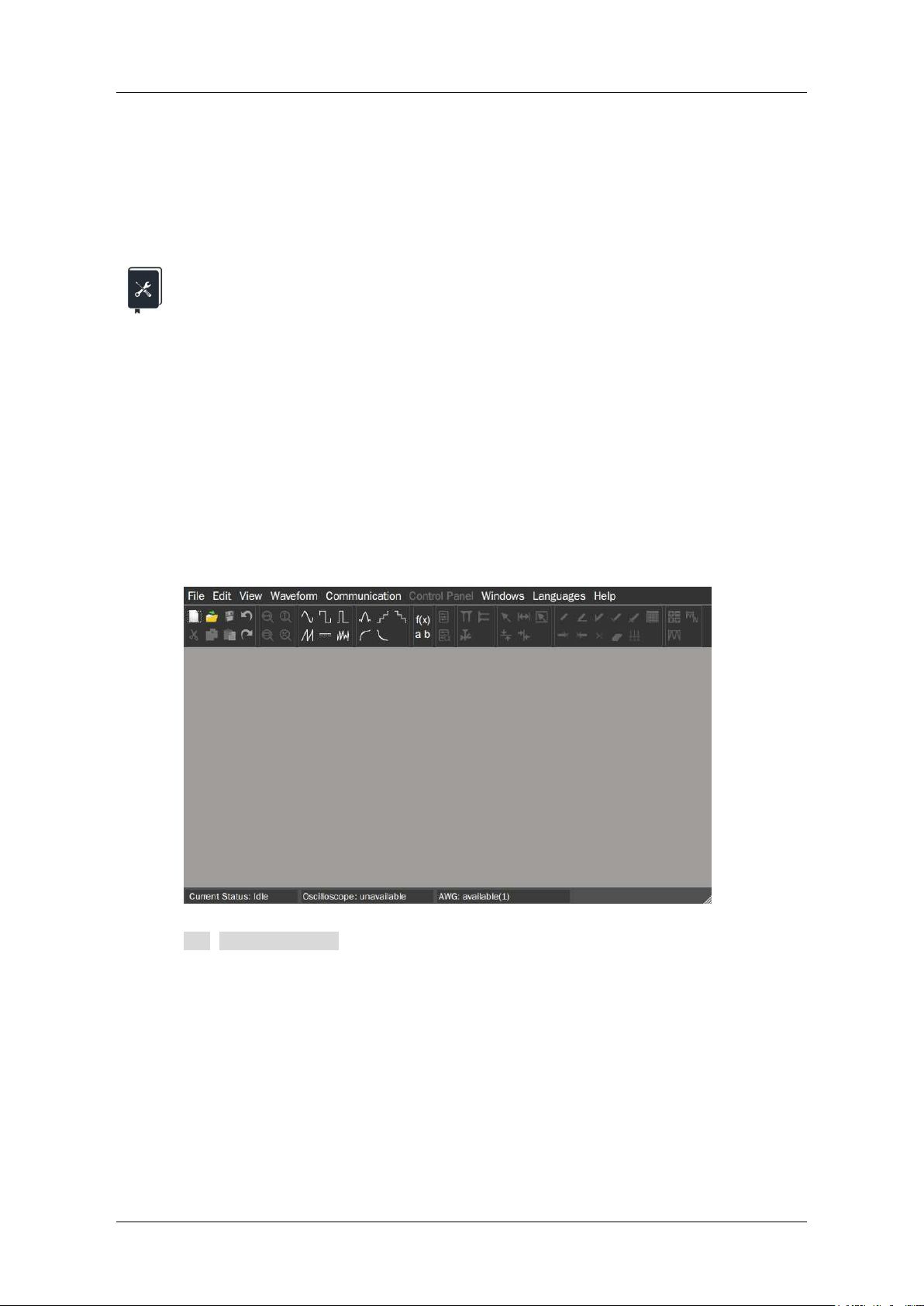
SDG7000A User Manual
48 / 133 WWW.SIGLENT.COM
After the arbitrary waveform is edited in the EasyWaveX, the waveform update can be completed
through the "Send Waveform to AWG" command under the "Communication" menu of the
software. Click File -> exit in the software menu bar to exit. It is recommended to use a mouse
to operate the software or operate it over WebServer.
For the use of EasyWaveX, please refer to the help of the software itself.
Application example: Set CH1 to output the AWG waveform of the following
parameters, and the data source is from the file edited by EasyWaveX
External load 50Ω
Sample rate = 160 MSa/s
Amplitude = 2.5V; Offset = 1.25V
The file has 160 points, and the waveform is a sine wave
Set the interpolation method respectively “Sinc” and”0-order hold”, and compare the
output waveforms.
1. On the carrier parameter setting page of CH1, set "Waveform" to "Arb" and "Mode" to
"AWG"
2. Set "Load" to 50 Ω
3. On the "Source" setting page, select "Source" as "EasyWaveX", and the device will
automatically call the built-in EasyWaveX application.
4. In the operation interface of the EasyWaveX, create a new blank waveform file through
File>Blank Waveform.
5. In the pop-up dialog box, set the number of points to “Variable" and 160 points in the
"Sample" column, and click OK.
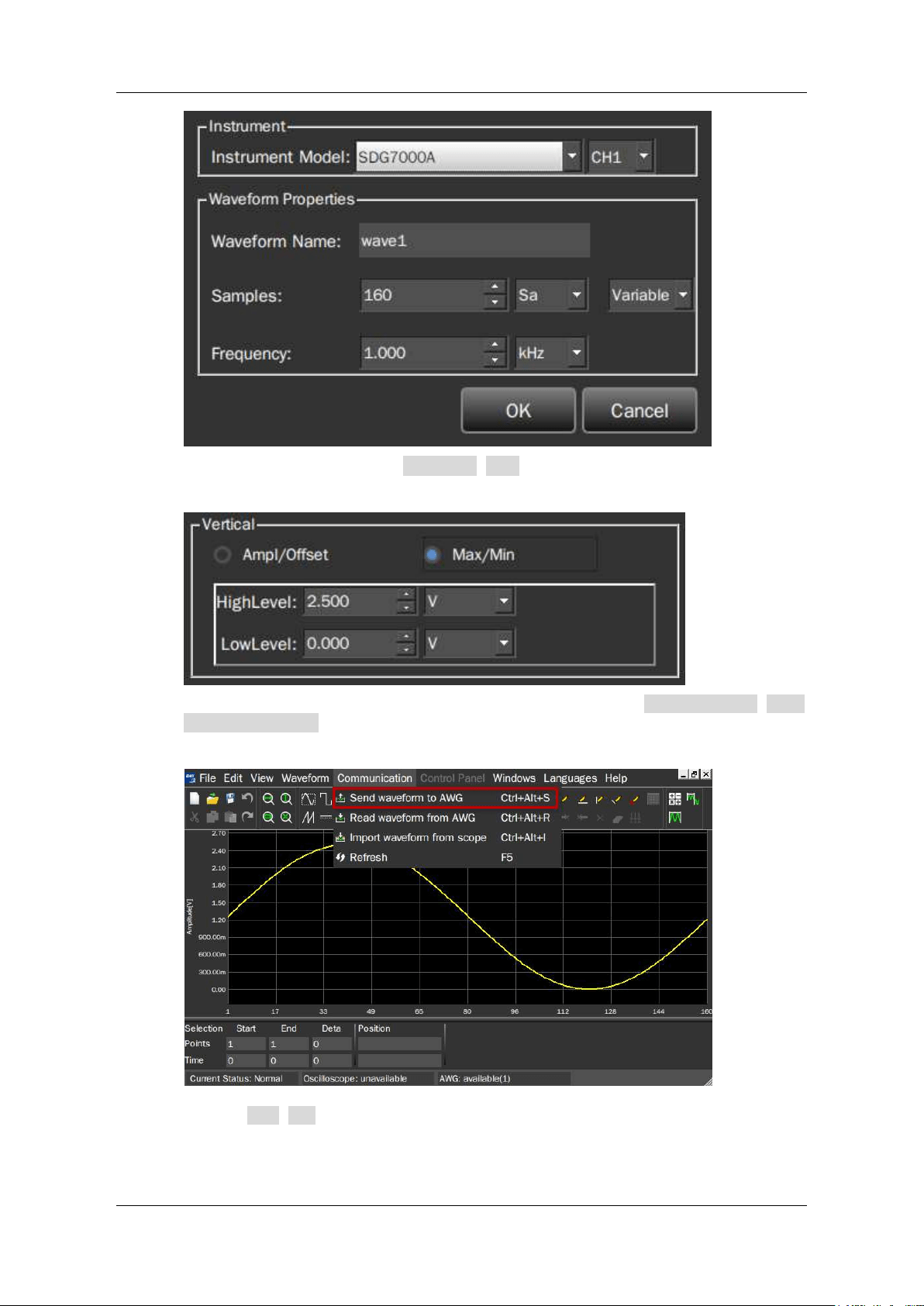
SDG7000A User Manual
WWW.SIGLENT.COM 49 /
133
6. Create a sine wave through Waveform>Sine, and set the amplitude in the pop-up
setting dialog box: select "Max/Min", and then set High Level = 2.5 V and Low Level =
0 V.
7. At this time, the waveform has been generated. Execute Communication>Send
Waveform to AWG to AWG to load the waveform to the waveform memory.
8. Execute File >Exit to exit EasyWaveX, and then select "yes" or "no" according to your
needs in the prompt box of whether to save the file.
9. Return to the waveform parameter setting page, we will find that since the amplitude is
preset in the EasyWaveX, the amplitude parameter has been automatically set as
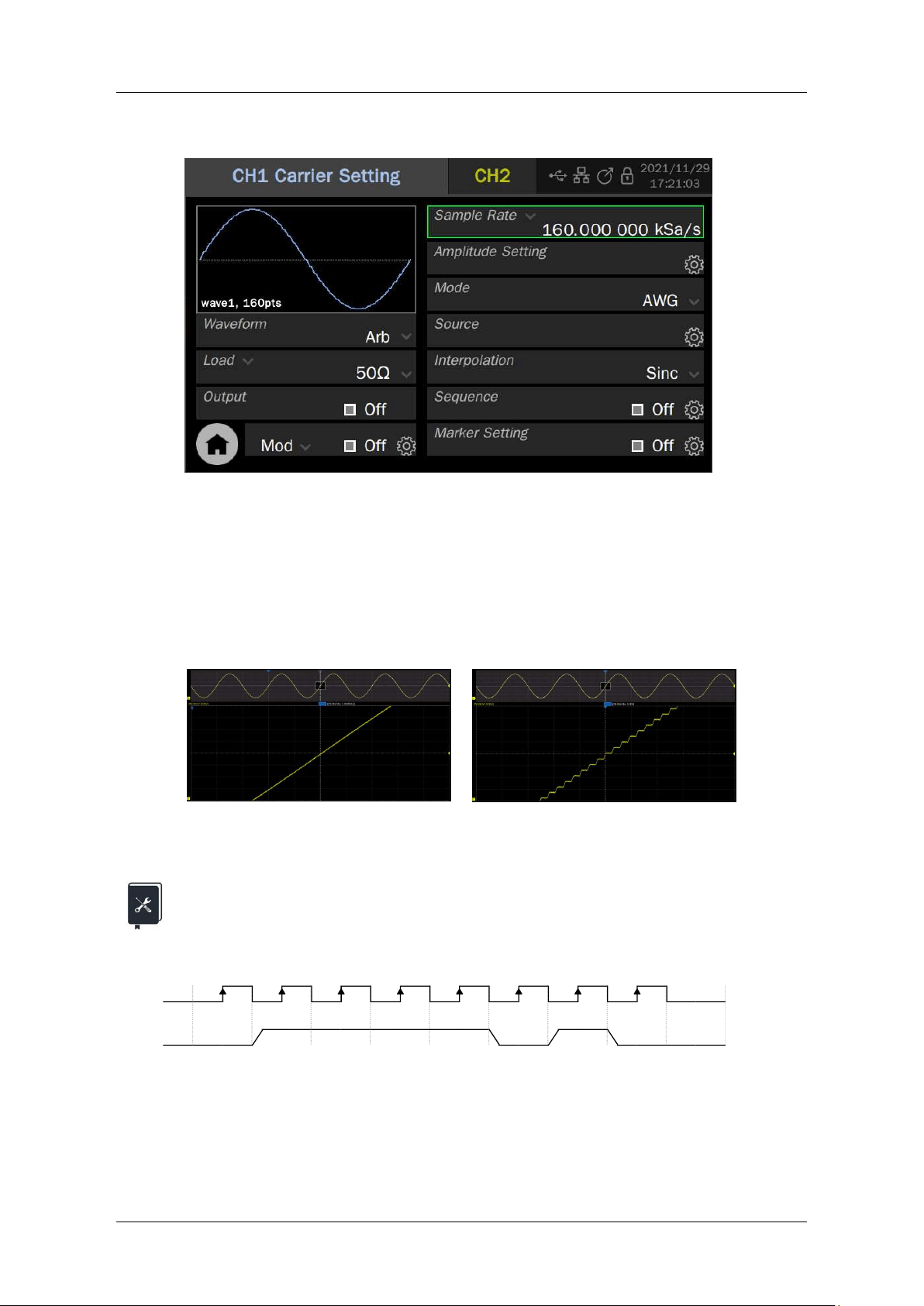
SDG7000A User Manual
50 / 133 WWW.SIGLENT.COM
expected. However, since the frequency is not set (1 kHz by default), the sample rate
(160 kSa/s) is incorrect at this time.
10. Set the sample rate to 160 MSa/s and the interpolation method to Sinc.
11. Enable the output and observe the waveform using a oscilloscope
12. Set the interpolation method to 0-order hold and observe the waveform.
Since the sample rate = 160 MSa/s and the number of waveform points = 160 pts, the observed
waveform frequency (sample rate /number of points) is 1 MHz.
The following is a comparison of waveforms under two interpolation modes:
Sinc interpolation
“0-order hold” interpolation
Application example: The PC software EasyWaveX is used to generate the
waveforms of digital clock and data simulating the following timing relationship,
download them to the signal generator, and output them from CH1 and CH2
with adjustable bit rate.
1. Connect the device and the computer installed with the EasyWaveX by USB or LAN.
2. Start EasyWaveX and create a 30-point arbitrary waveform. The operation
instructions are the same as that of the built-in EasyWaveX device
0 1 2 3 4 5 6 7 8 9
Clock
Data
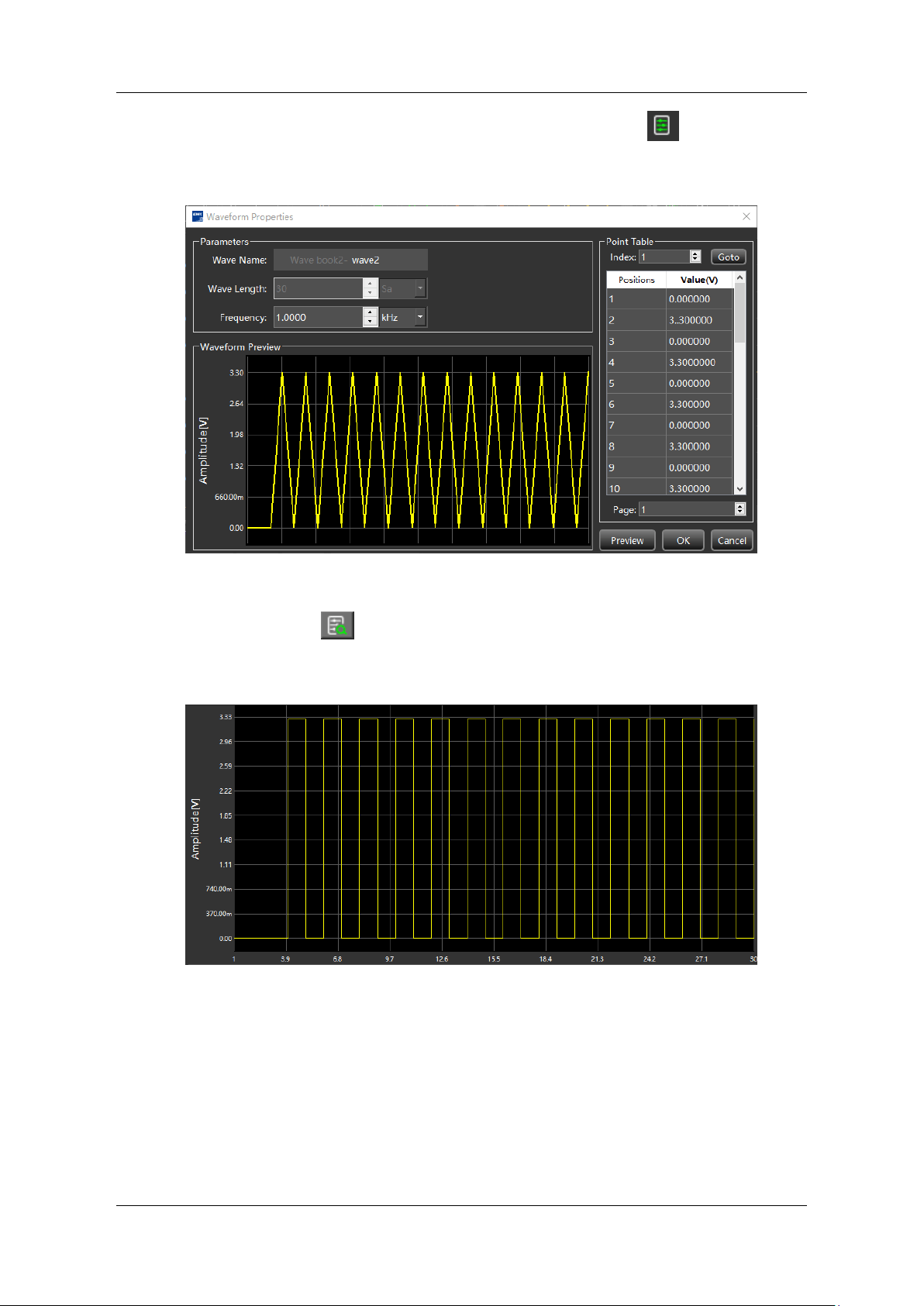
SDG7000A User Manual
WWW.SIGLENT.COM 51 /
133
3. In the "Property" area of the toolbar, select "Waveform Property ", and input the
level of each point one by one in the "Point Table" according to the "0" and "1" pattern
of the clock, as shown in the following figure:
4. The waveform generated can be previewed in the waveform preview window. Select
"Display Properties " in the "Property" area of the toolbar, and change the
"Interpolation" to "0-order hold", to obtain the correct waveform preview of the digital
clock:
5. Execute Communication > Send waveform to AWG, select the device in the pop-up
dialog box, click Connect, and select the target channel as CH1 to download:
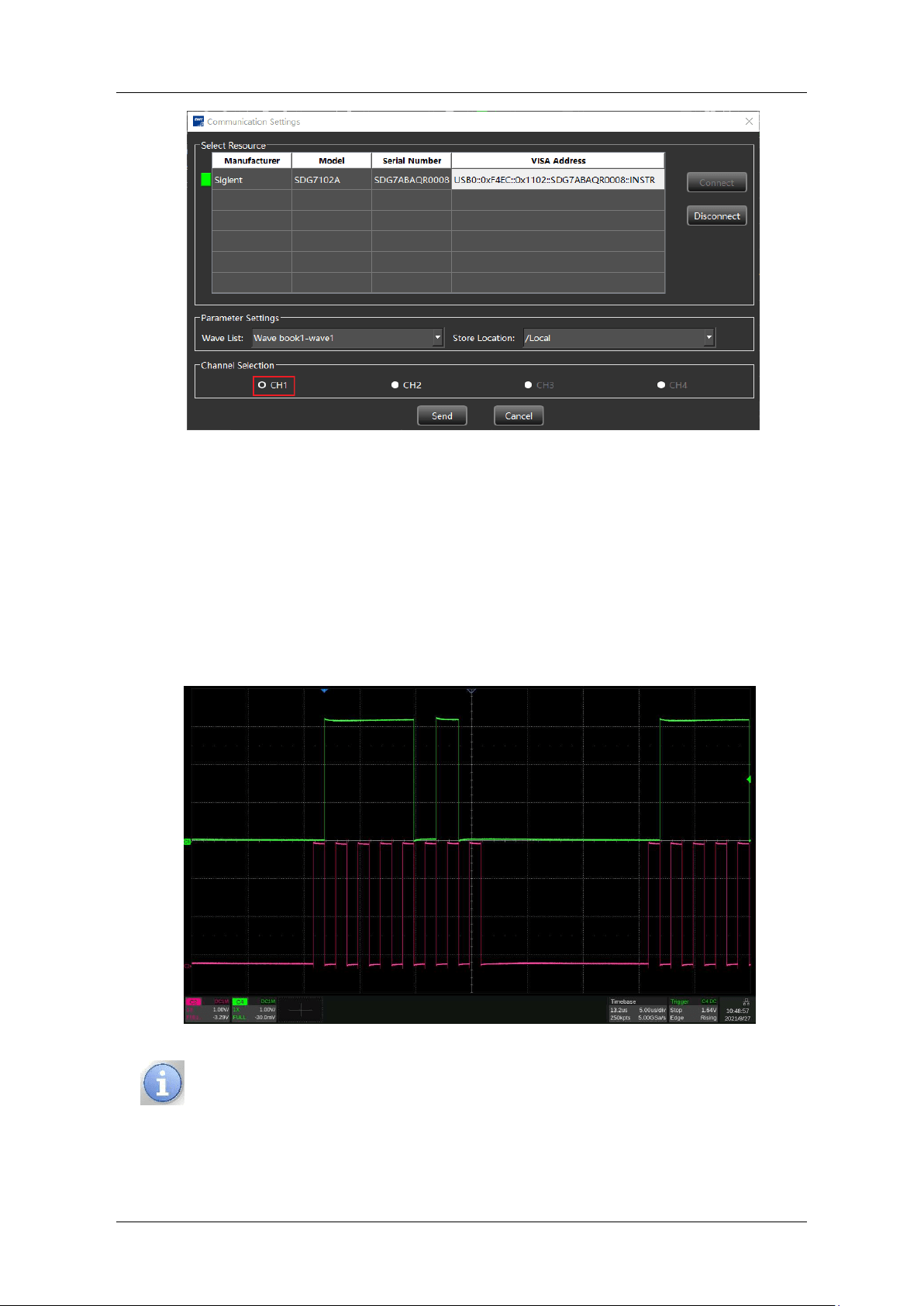
SDG7000A User Manual
52 / 133 WWW.SIGLENT.COM
6. Use the same method to generate the data file and download it to CH2 of the device.
7. Set the “Interpolation” of the two channels to "0-order hold" on the device.
8.
Set the amplitude and rate of the clock and data output on the device as required. For
example, to set the clock frequency to 1 MHz set the "Sample Rate" of the clock
channel to 2 MSa/s. Since the clock and data are synchronized, CH1 and CH2 can be
set as frequency coupling with a ratio of 1 (Read the section "Channel Track/
Coupling/Copy" for the setting method). In this way, only the rate of one channel
needs to be set, and the rate of the other channel can be updated synchronously. The
clock and data signals finally output by the device are as follows:
The waveform generated by EasyWaveX can be saved as a csv file for further
editing. After editing, it can be imported into EasyWaveX and loaded to the
device through EasyWaveX. You can also store the csv file to the USB flash
disk, and the device can recall it directly from the USB flash disk.
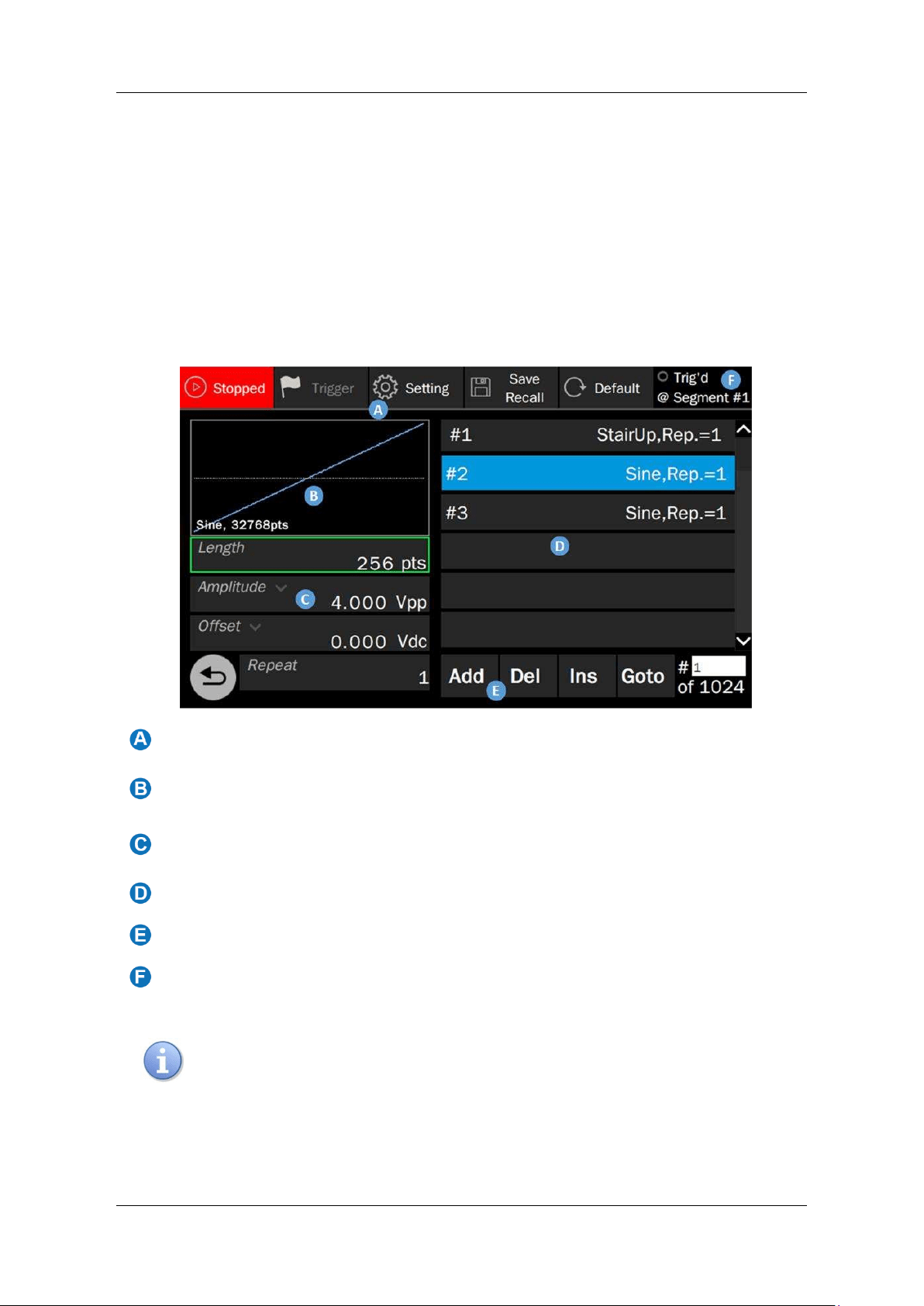
SDG7000A User Manual
WWW.SIGLENT.COM 53 /
133
9.5.4 Sequence Setting
Sequence refers to the combination of multiple arbitrary waveforms in the form of "Segments".
The generation of sequences is realized through the embedded Sequence Editor. The Sequence
Editor can combine up to 1024 segments into a sequence. The source of each segment can be
individually specified as a Built-In waveform, saved waveform, or EasyWaveX waveform. The
number of repetitions of each segment can be set. In addition, the Sequence Editor also provides
some advanced functions of triggering and jumping between segments.
On the carrier parameter setting page of Arb, when the mode is "AWG", or on the parameter
setting page of the digital channels, click the setting icon in the "Sequence" parameter setting
box to enter the editing and playback control of Sequence.
Menu bar
Waveform preview and waveform data source selection, the waveform preview of
the currently active segment is displayed. Click this area to select the waveform.
The waveform parameter setting area is used to set the basic parameters of the
currently active segment.
Segment list, in which the currently active segment is highlighted
Segment setting area
Trigger information display area
In the Sequence Editor, you can directly control the playback or stop of the
sequence. Editing is not allowed during playback. To edit a sequence, you
need to stop the playback first.
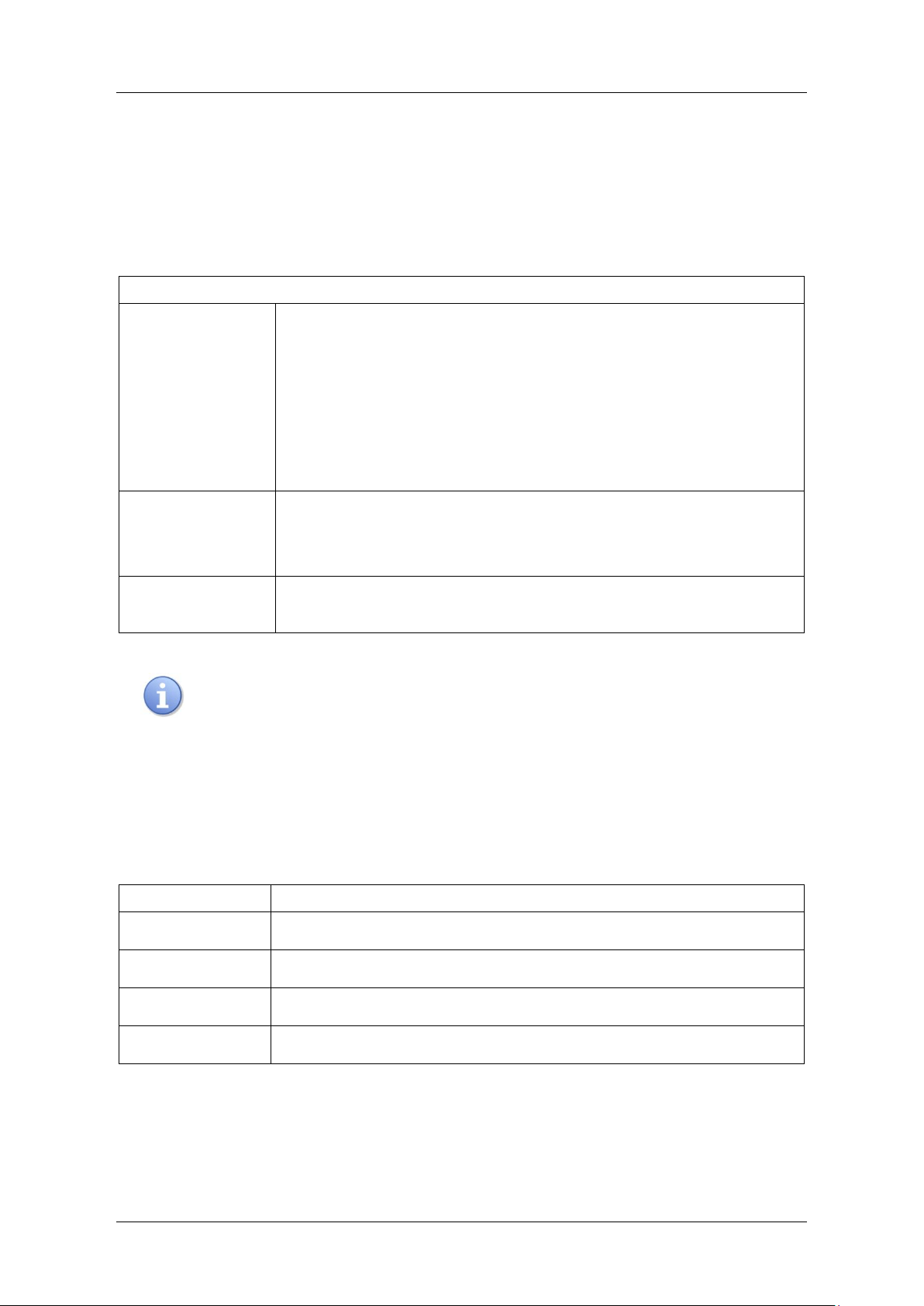
SDG7000A User Manual
54 / 133 WWW.SIGLENT.COM
Set The Waveform Parameters
The waveform parameter area of the Sequence Editor displays the basic parameters of the
currently active segment. The parameters are described in the table below. The setting method
refers to the sine wave.
Table 9-7 Description of waveform parameters of segment
Sequence
Length
The length of the segment can be different from the length of the
specified waveform, and can be set to be less than or greater than the
length of the waveform. When the length of the segment > the length
of the waveform, the device generates the segment by upsampling.
When the length of the segment < the length of the waveform, the
device generates the segment by downsampling. There are several
upsample and downsample methods (refer to table 9.9 and table
9.10), which can be specified by Setting > Increasing and Setting >
Decreasing.
Amplitude/High
Level
Offset/Low Level
Same as the sine wave
Repeat
The number of times this segment is repeated in the sequence,
ranging from 1 to 65535
The length of the segment should be
≥
64. If the length is less than 256, it
must be an integer multiple of 16. If it is greater than or equal to 256, there is
no limit.
Segment Operation
The main parameters information of each segment is displayed in the segment operation area,
and several segment operations are provided at the bottom, as shown in the following table:
:
Table 9-8 Description of segment operation
Operation
Description
Add
Add a new segment at the end of the sequence
Del
Deletes the currently active segment
Ins
Inserts a new segment above the currently active segment
Goto
Jump the segment whose index is specified in the following text box
Setting
Click Setting in the menu bar to enter the parameter setting page of the sequence. This page
provides the following parameter settings:
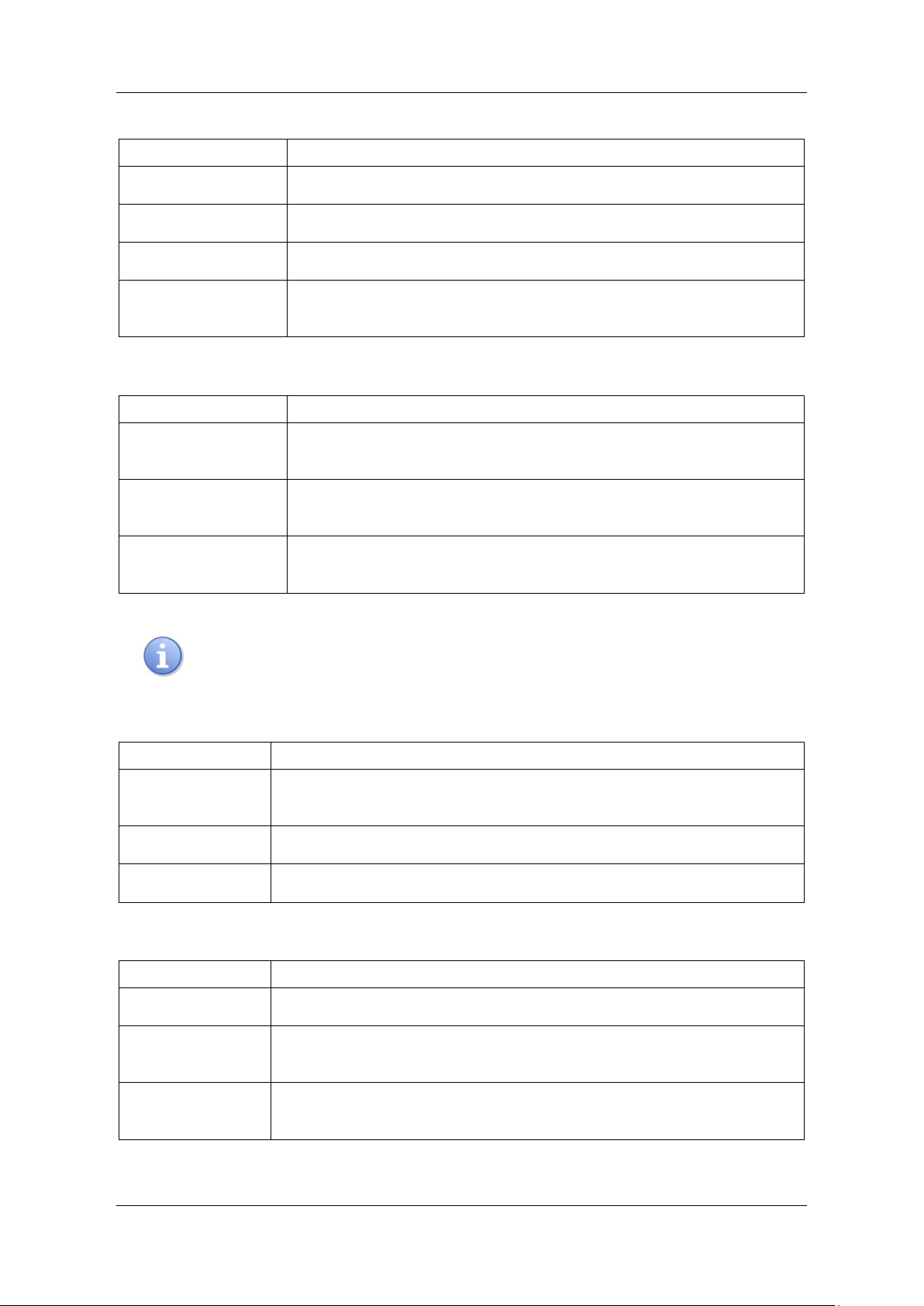
SDG7000A User Manual
WWW.SIGLENT.COM 55 /
133
Table 9-9 Increasing method
Increasing method
Description
Interpolation
Linear interpolation between points
Zero
Fill zero after the waveform’s end
Hold last
Repeat the last point after the waveform’s end
Duplication
After the waveform’s end, repeat the waveform points from the first
point until the length of the segment is reached
Table 9-10 Decreasing method
Increasing method
Description
Decimation
The segment is obtained by proportional decimation of the
waveform.
Cut Tail
Keep the head of the waveform according to the segment length and
cut off the tail.
Cut head
Keep the tail of the waveform according to the segment length and
cut off the head.
The effects of different upsample/downsample methods can be reflected in
the waveform preview.
Table 9-11 Trigger mode
Trigger mode
Description
Button
Click the Trigger button on the menu bar to trigger, equivalent to
manual trigger.
Timer
Triggered by the internal timer.
External
Triggered by the external trigger.
Table 9-12 Run mode
Run mode
Description
Continuous
The continuous cyclic output of the sequence.
Single/Burst
After the trigger conditions are met, the sequence is output for
specified cycles.
Infinite
After the trigger conditions are met, the sequence is output
continuously.
SDG7000A User Manual
56 / 133 WWW.SIGLENT.COM
Step
One segment is output at each trigger, and each segment is output in
sequence.
Advanced
Jump from one segment to any other , and the trigger conditions of a
jump can be set (refer to table 9.11 Trigger mode).
Table 9-13 Marker
Description
Maker Setting
Marker output, synchronous output at the specified segment, and point
Save/Recall
Save the current sequence settings as a file (*.awg), or load a saved sequence file. For the
operation instructions of save/recall see the chapter "Save/Recall".
Application example: Output a sequence with the following segments in turn.
Waveform = Sine, 32768 points, 2 Vpp, repeat once
Waveform = Square_Duty50, 32768 points, 1 Vpp, repeat twice
Waveform = UpRamp, 32768 points, 2 Vpp, repeat 3 times
1. On the carrier parameter setting page, open the "Sequence" function.
2. Enter the "Sequence" setting, and the device will automatically call the Sequence Editor.
3. Click the waveform preview area to specify the data source of segment 1, select
"Source" as "Built-In" in the subsequent data source selection interface, select "Sine"
in the directory of "wave Type" = "Common", and return to the Sequence Editor.
4. Set the number of repeat to 1.
5. Set amplitude to 2 Vpp and offset to 0 V.
6. Click Add to add segment 2.
7. Set the waveform and parameters of segment 2 according to the similar operations in
steps 3 ~ 5.
8. Click Add to add segment 3.
9. Set the waveform and parameters of segment 3 according to the similar operations in
steps 3 ~ 5.
10. Click the “Running/Stopped" button to start the sequence playback.
11. Open the output.
The following figure shows the actual output waveform:
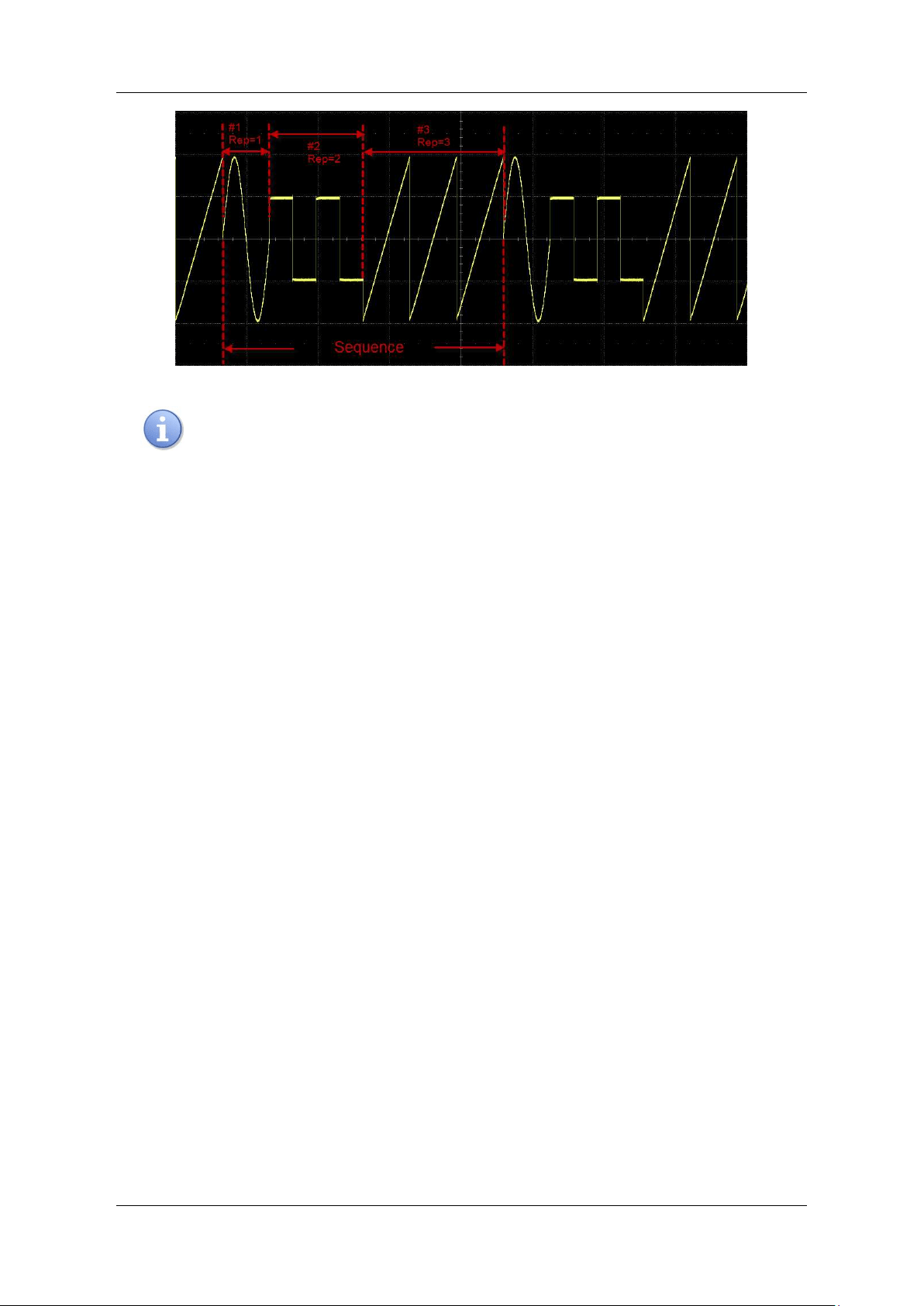
SDG7000A User Manual
WWW.SIGLENT.COM 57 /
133
In sequence mode, the actual output amplitude is also affected by the
amplitude percentage of the carrier setting interface. For example, if the
amplitude set on the sequence page is 2 Vpp and the amplitude percentage
on the carrier setting page is 50%, the actual output amplitude is 1 Vpp.
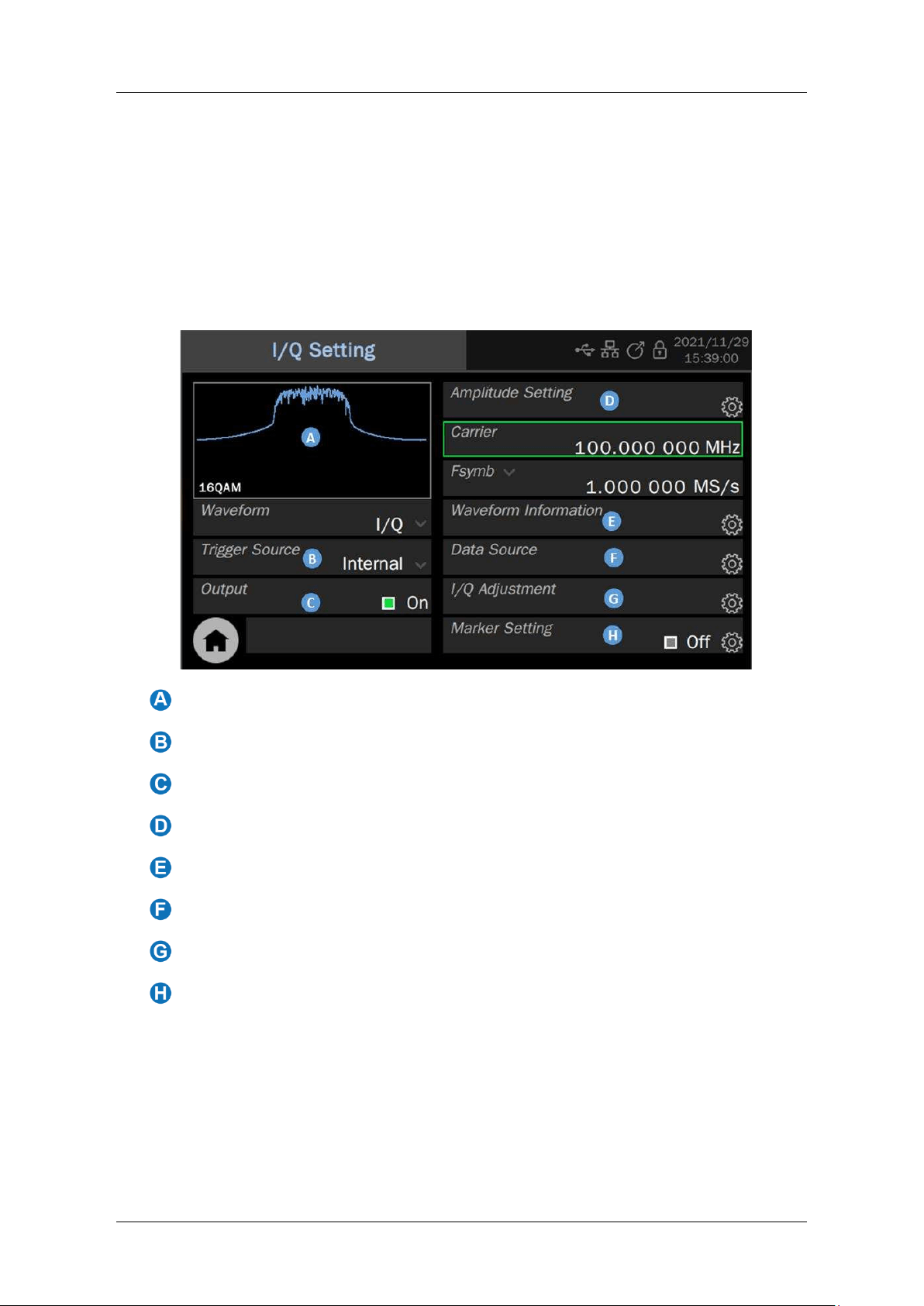
SDG7000A User Manual
58 / 133 WWW.SIGLENT.COM
9.6 I/Q Setting
The SDG7000A can be used as an I/ Q signal generator to provide I / Q vector signals with ASK,
PSK, QAM, FSK, MSK, multi-tone, and other modulations. I/Q source can be generated with the
PC software EasyIQ, which is connected with the device through USB or LAN.
When starting the I/Q function, the device needs to initialize the I/Q related configuration, which
takes about 10 seconds. In I/Q mode, CH1 is used as I-channel output and CH2 is used as Q-
channel output. The two outputs share a set of parameter settings, as shown in the following
figure:
Waveform spectrum preview
Trigger source parameter setting box
Output switch
Waveform parameter setting area
Waveform information
Data source selection
I/Q adjustment setting
Marker setting
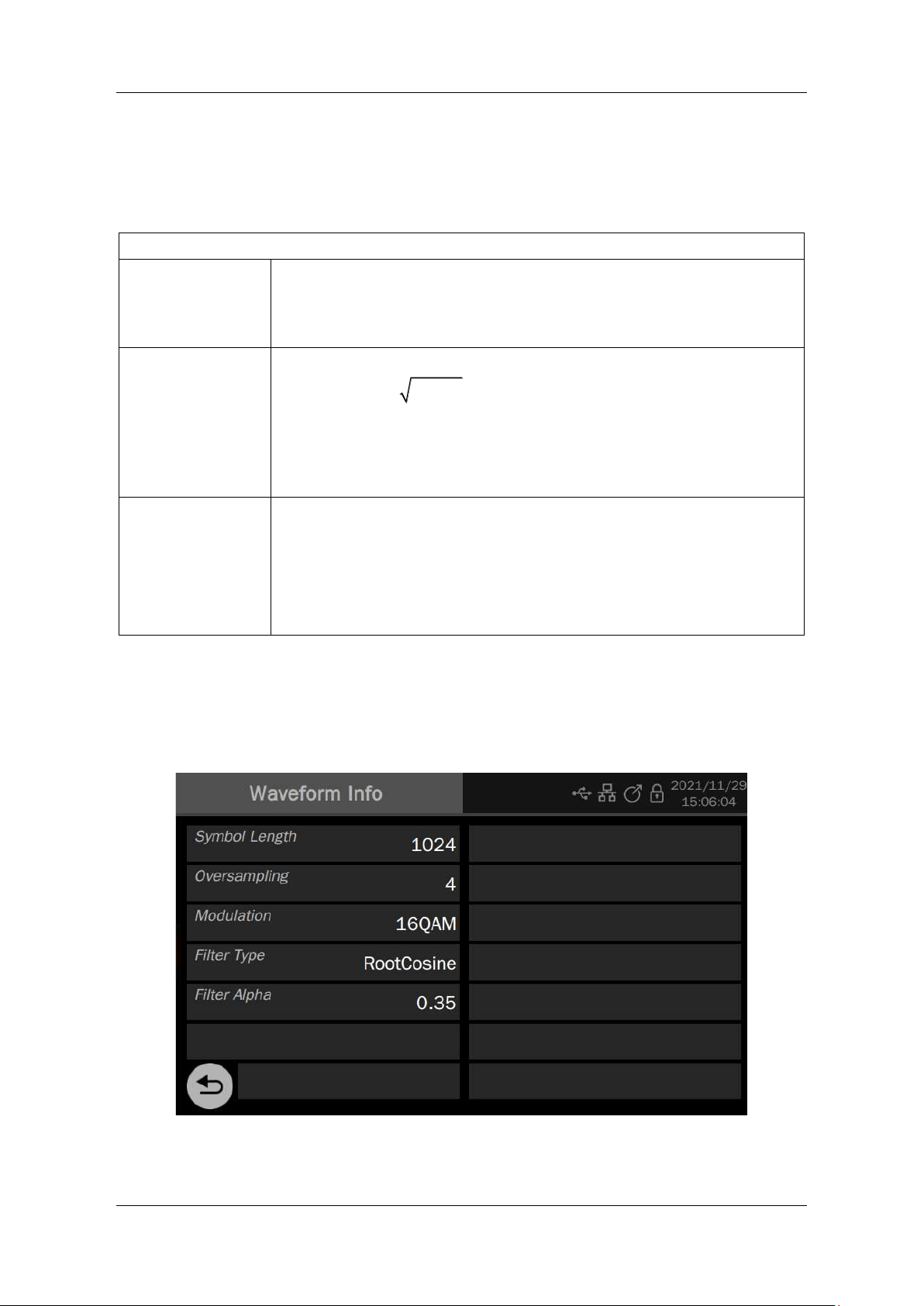
SDG7000A User Manual
WWW.SIGLENT.COM 59 /
133
Waveform Parameter Setting
The waveform parameters of I/Q include "Carrier", "Amplitude Setting" and "Fsymb". The setting
method refers to sine wave.
Table 9-14 I/Q waveform parameter description
I/Q
Carrier
The frequency of the carrier. When the carrier frequency = 0, the
output is baseband I/Q signal; When the carrier frequency ≠ 0, the
output is an IF (Intermediate Frequency) signal. Read the section
"working mode" for the difference between the two.
Amplitude Setting
When the carrier frequency = 0, the amplitude value is the modulus of
the I / Q signal
22
IQ+
.
When the carrier frequency ≠ 0, the signal is only output from I-
channel, and the amplitude value is the root mean square value of I-
channel output
rms
I
.
Fsymb /Fs
The symbol rate (Fsymb) and sample rate (Fs) are converted
according to the parameter oversampling factor (Pts/symbol), and the
conversion relationship:
Fs = fsymb * Pts/symbol.
The information of the oversampling factor can be read in "Waveform
Information".
Waveform Information
The waveform information contains the modulation parameters of the waveform, including
modulation type, symbol length, oversampling factor, filter type, and roll-off factor of the filter. It
is read-only.
SDG7000A User Manual
60 / 133 WWW.SIGLENT.COM
Trigger Source
Trigger sources include Internal, External and Manual trigger。
Table 9-15 Description of I/Q waveform trigger source
Trigger source
Description
Internal
When the trigger source is internal, the IQ waveform is continuously
output.
External
When the trigger source is external, the signal generator receives the
trigger input from the rear panel and outputs a cycle of IQ waveform
every time it receives a trigger edge of CMOS pulse.
Manual
When the trigger source is manual, a Trigger Button will appear on the
parameter page and each time the button is pressed, the IQ signal will
be output for one cycle.
Data Source
Click the setting icon in the "Data Source" parameter setting box to enter the data source
selection interface. You can choose to load the Built-In waveform or the saved waveform
Table 9-16 I/Q waveform data source description
Data Source
Description
Built-In
The built-in waveforms are a series of preset waveforms in the signal
generator, including a variety of ASK, PSK, QAM, and other modulation
waveforms. The selection method of Built-In waveform is the same as
that of Arb.
From File
A saved waveform is the waveform file saved in the local directory or
external USB flash disk by the user. The selection method of the saved
waveform is the same as that of Arb.
9.6.1 Working Mode
The I/Q signal of the SDG7000A can be output in two modes. When the central frequency (carrier)
= 0, the working mode is baseband I/Q. In this mode, CH1 is I-channel and CH2 is Q-channel.
When the central frequency≠ 0, the working mode is IF (Intermediate Frequency). In this mode,
the I and Q data will be sent to the internal quadrature modulator and modulated to the carrier
frequency before output. The output of the quadrature modulator is led out from CH1 after
broadband compensation.
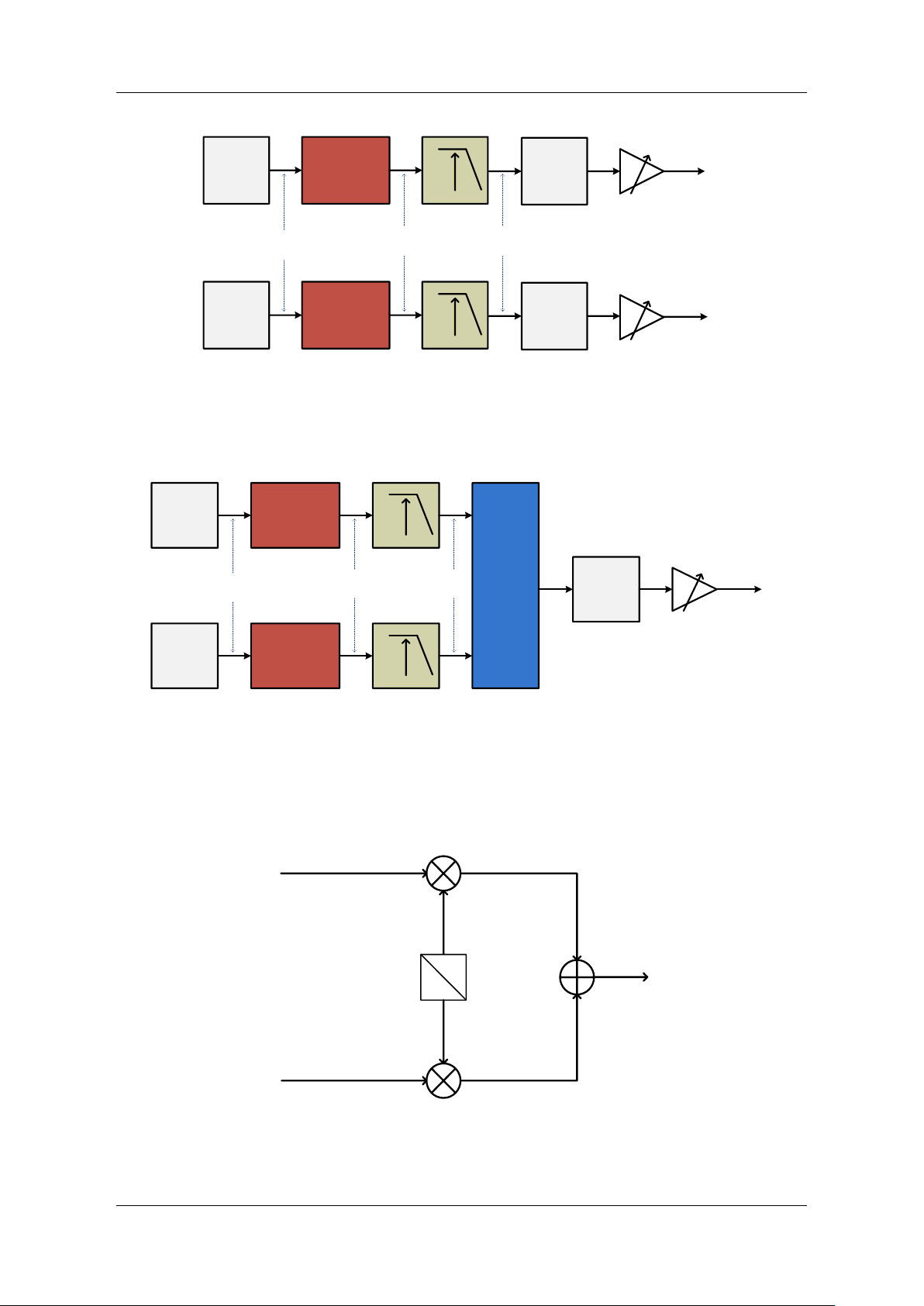
SDG7000A User Manual
WWW.SIGLENT.COM 61 /
133
Resampling
4X
Resampling
4X
D/A
D/A
I Data
RAM
Q Data
RAM
250Sa/s
~1.25GSa/s
1.25GSa/s
5GSa/s
Iout
Qout
IQ Data Flow
Figure 9.4 Baseband I/Q mode
Resampling
4X
Resampling
4X
Digital
Quadrature
Modulator
D/A
I Data
RAM
Q Data
RAM
250Sa/s
~1.25GSa/s
1.25GSa/s 5GSa/s
Sout
IF Data Flow
Figure 9.5 IF mode
The schematic block diagram of the internal quadrature modulator is shown in the figure below:
I(nT)
s(nT)
cos(ω
c
nT)
0°
90°
Q(nT)
sin(ω
c
nT)
-
+
Figure 9.6 Schematic block diagram of quadrature modulator
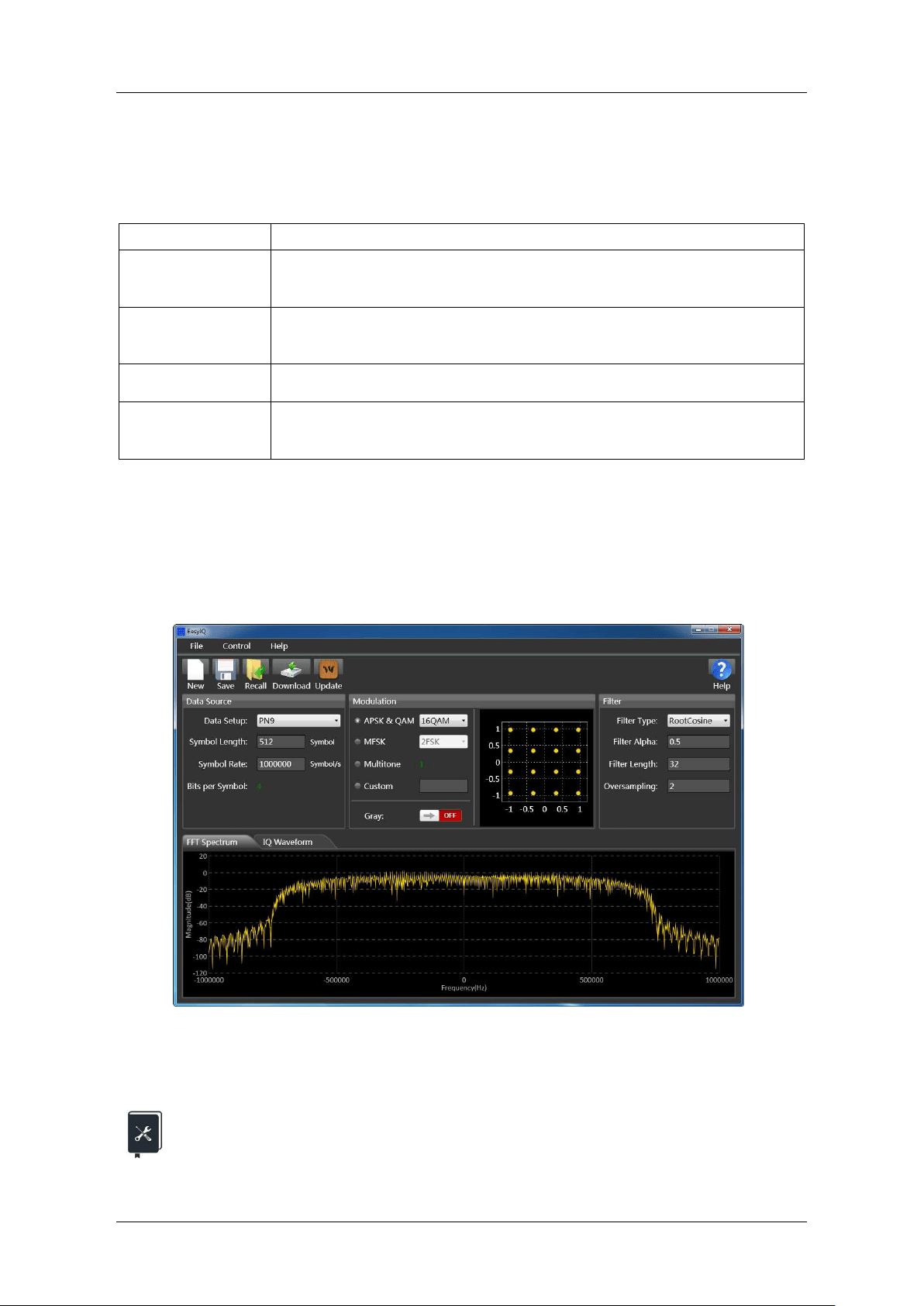
SDG7000A User Manual
62 / 133 WWW.SIGLENT.COM
9.6.2 I/Q Adjustment
In baseband I/Q mode, the SDG7000A provides the option of I/Q adjustment to suppress the
image caused by the imbalance of I/Q channels to the greatest extent.
Table 9-17 Description of I / Q waveform data source
I/Q Adjustment
Description
Gain Balance
Amplitude gain balance, the amplitude difference between the two I/Q
channels is adjustable, the unit is dB
I Offset
The I-channel DC offset is jointly adjusted with the Q-channel DC offset
to compensate for the offset imbalance of the I/Q channels
Q Offset
Q-channel DC offset
Q Angle
The phase angle of the Q-channel is adjusted to compensate for the
phase imbalance of the I / Q channels
9.6.3 EasyIQ
The I/Q signal editing PC software EasyIQ supports the generation of I/Q data of various
modulation types such as 2ASK, 4ASK, 8ASK, BPSK, QPSK, 8PSK, DBPSK, DQPSK, D8PSK,
8QAM, 16QAM, 32QAM, 64QAM, 128QAM, 256QAM, 2FSK, 4FSK, 8FSK, 16FSK, MSK, multi-
tone, etc., and can directly download the data to the device for output.
Figure 9.7 EasyIQ operation interface
For detailed instructions on the use of EasyIQ, please refer to the help of the software itself.
Application example: Use EasyIQ to generate a pair of I/Q signals, download it
to the SDG7000A, modulate the I/Q signals to 100 MHz carrier, and observe the
IF output. The parameters of the I/Q signals are as follows:
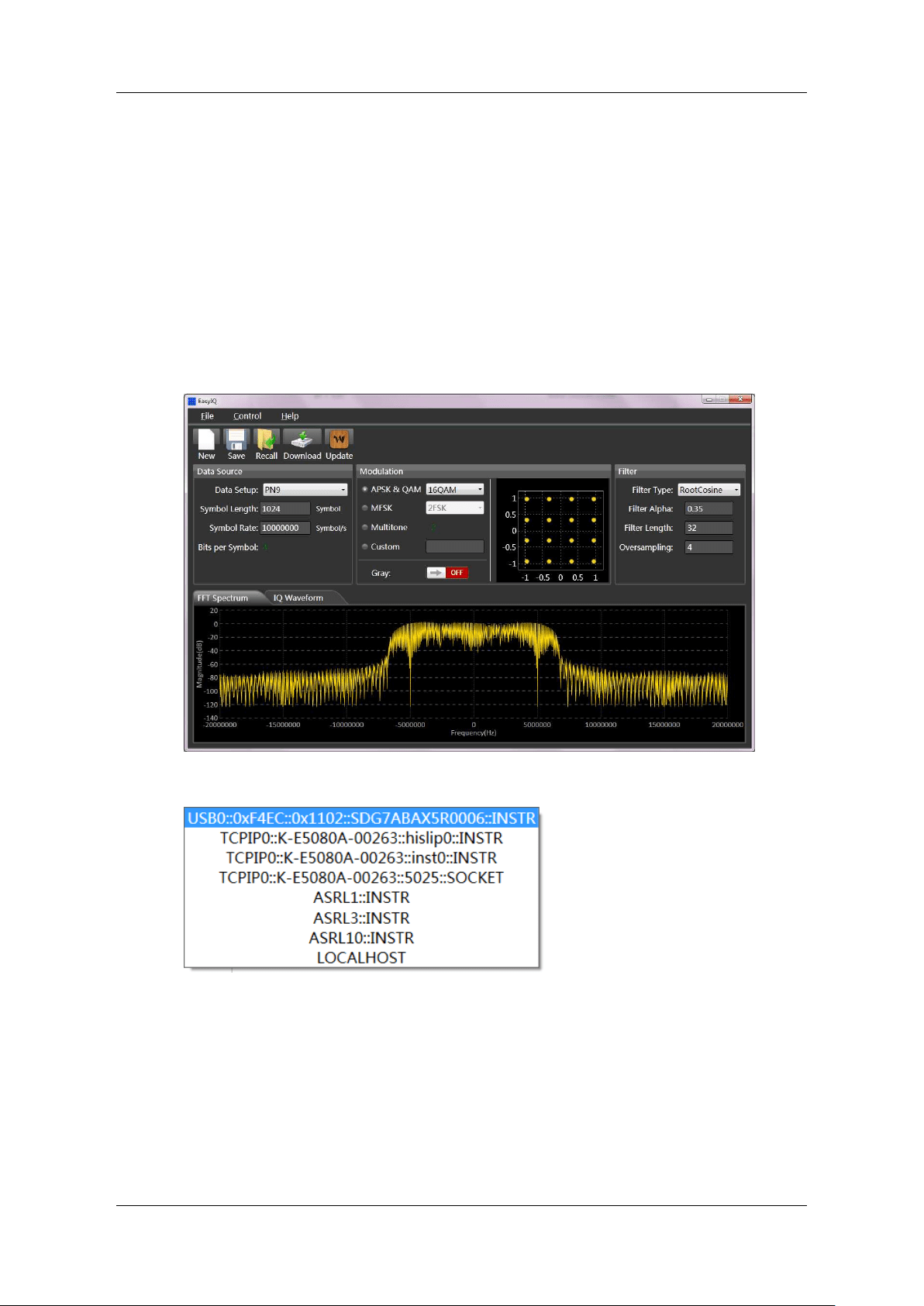
SDG7000A User Manual
WWW.SIGLENT.COM 63 /
133
Modulation = 16QAM
Symbol = 1024
Fsymb = 10 MSymbol/s
Oversampling = 4
Filter Type = RootCosine; Filter Alpha = 0.35
1. Connect the computer with the SDG7000A through the USB cable provided with the
SDG7000A.
2. Set the "Waveform" of the SDG7000A to "I/Q".
3. Start EasyIQ software on the PC, set "Modulation" to "16QAM", "Symbol Length" to
1024 symbol, "Symbol Rate" to 10000000 symbol/s, "Filter Type" to " RootCosine ",
"Filter Alpha" to 0.35, and "Oversampling" to 4. The user interface after setting is shown
in the following figure:
4. Click "Download" in the toolbar of EasyIQ, and select the device number corresponding
to the SDG7000A in the available " VISA Address" list:
5. Click "Download" in the dialog box to complete the waveform download.
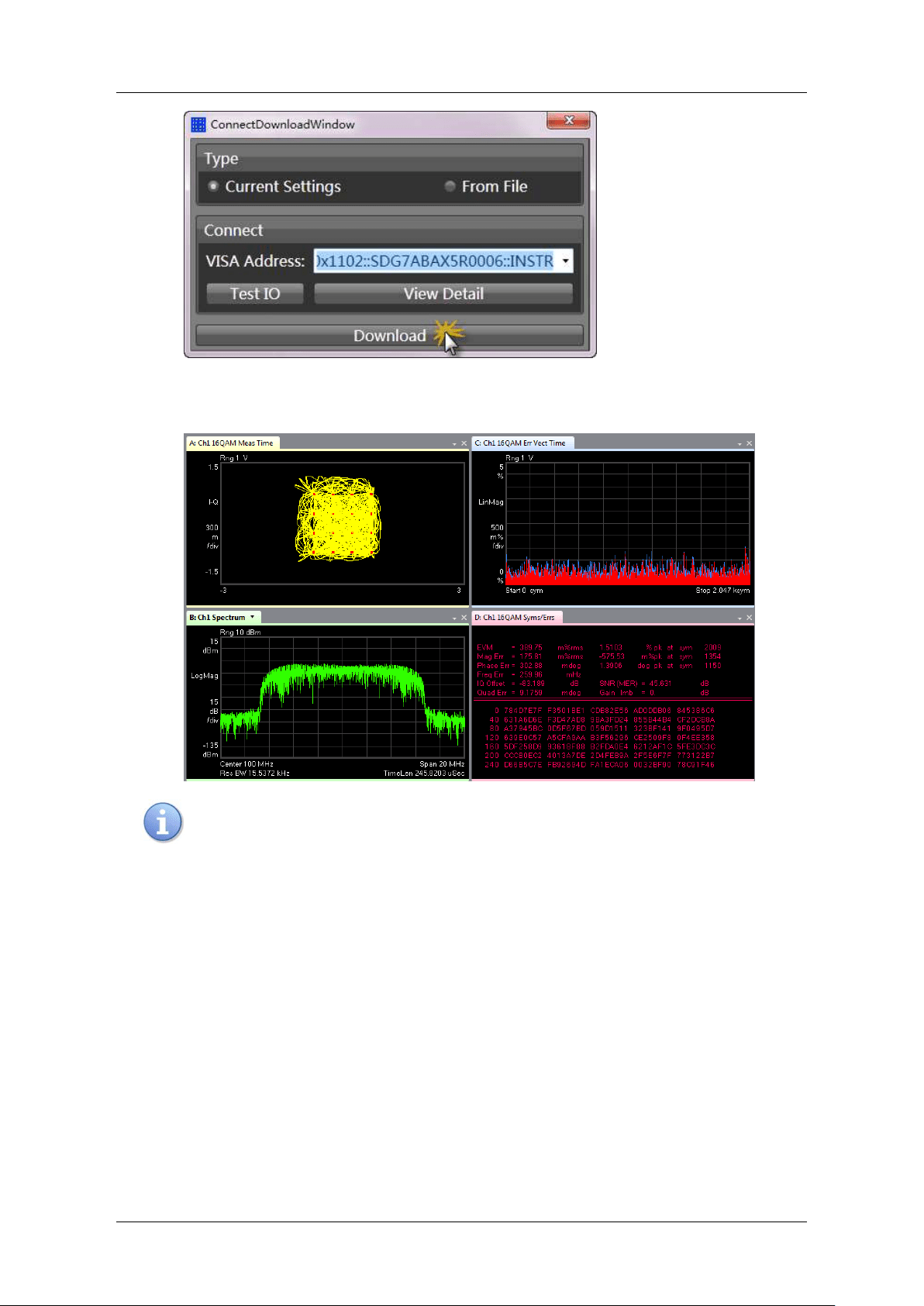
SDG7000A User Manual
64 / 133 WWW.SIGLENT.COM
6. Set the "Carrier” frequency to 100 MHz on the SDG7000A
7. Connect the "+" terminal of CH1 of the SDG7000A to the signal analyzer for
demodulation, and the results are as follows:
If the computer and SDG7000A are connected through a network, enter the
network IP of the SDG7000A device directly in the "visa address" area to
communicate. Read "LAN settings" for network IP settings.
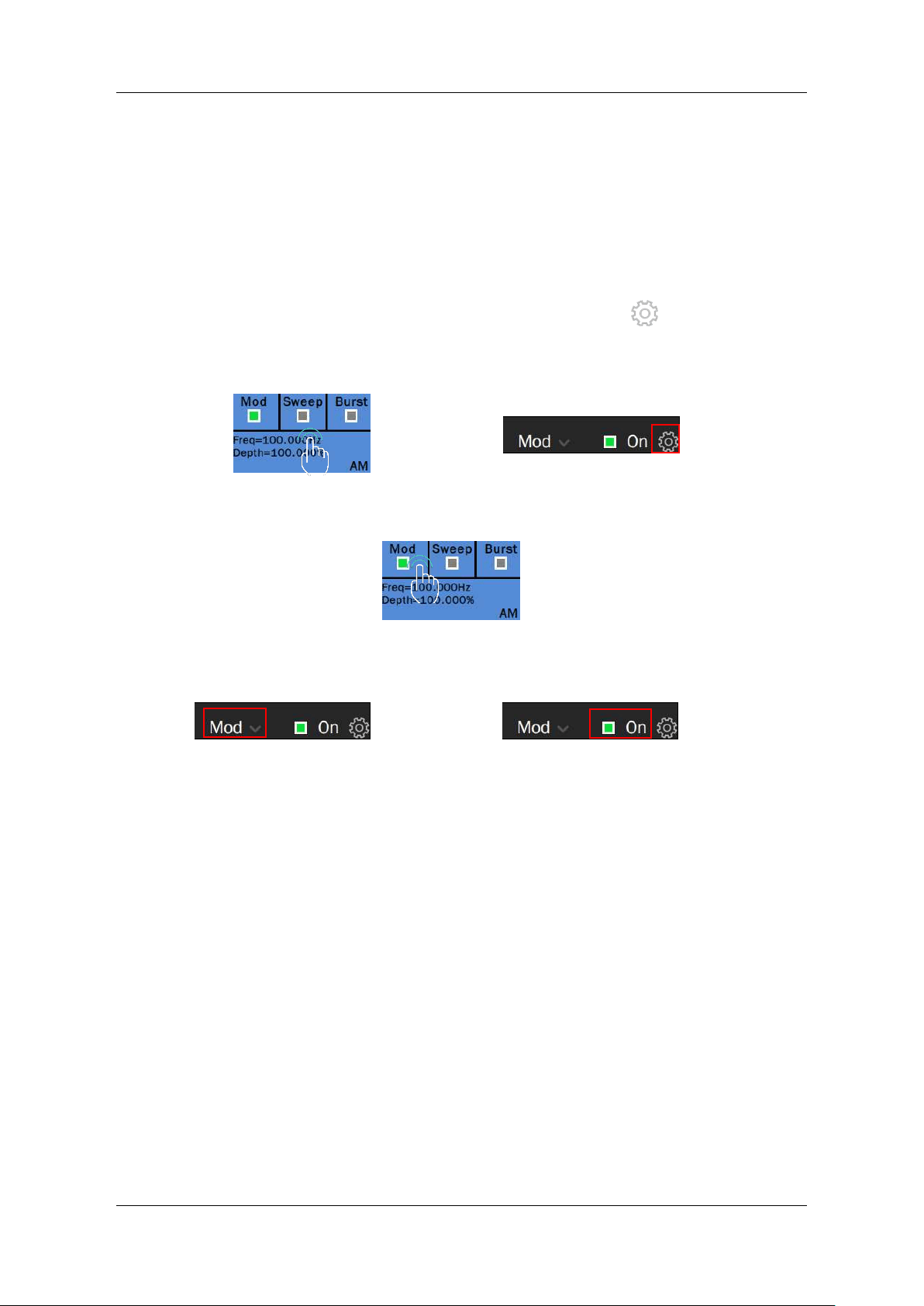
SDG7000A User Manual
WWW.SIGLENT.COM 65 /
133
10 Modulation/Sweep/Burst Settings
10.1 Overview
Modulation, Sweep, and Burst can all be seen as modulation of the carrier. In addition to
conventional modulation, a sweep is a special type of frequency modulation and a burst is a type
of pulse modulation.
Click on the parameter display area of the modulation/sweep/pulse setting block corresponding
to the channel on the home page (left below), or click on the setting icon in the "Mod" setting
box on the carrier parameter setting page (right below) to enter the modulation/sweep/burst
setting page for the corresponding channel.
Clicking in the Mod, Sweep or Burst switch area of the Modulation/Sweep/Burst setting block
allows you to quickly turn the corresponding function on/off.
On the carrier settings page, click on the parameter selection area in the "Mod" setting box to
quickly select Mod, Sweep or Burst (left below), and click on the switch to the right of the
parameter area to quickly turn the selected function on/off (right below).
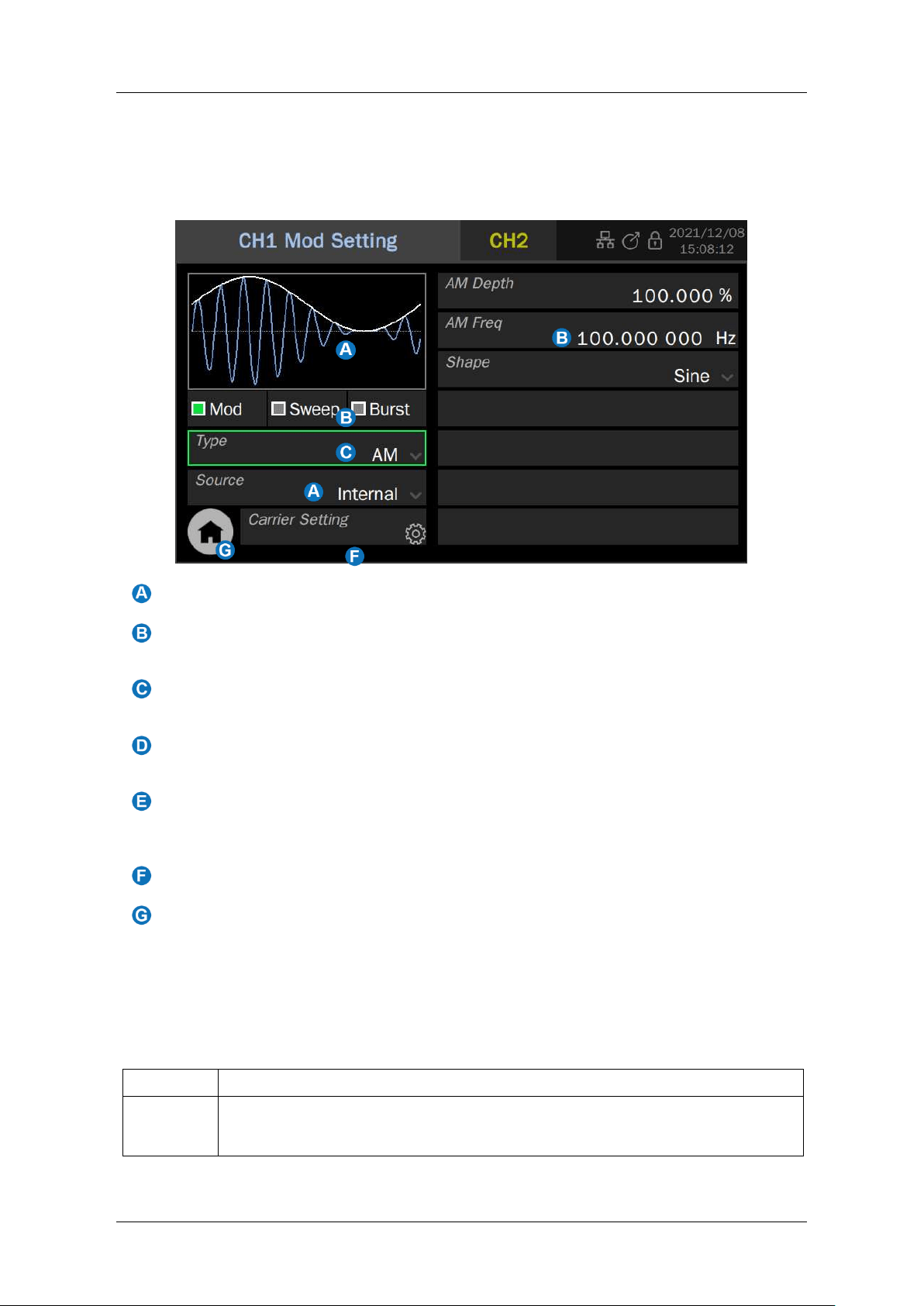
SDG7000A User Manual
66 / 133 WWW.SIGLENT.COM
10.2 Modulation
The SDG7000A supports usual standard analog modulations (AM/DSB-SC/FM/PM/PWM etc.)
and digital keying (ASK/FSK/PSK etc.). The modulation source can be selected from internal,
external, and channel.
Waveform preview
Mod/Sweep/Burst quick setting: Click any one of the three to quickly switch to the
corresponding function and open its parameter setting page
Modulation type selection: Click the modulation type parameter area on the right to
select the modulation type
Modulation source selection: Select the modulation source, as internal, external or
another channel.
Modulation parameter setting area: The parameters of each modulation are
different. The page will automatically switch to the corresponding parameter settings
according to the selected modulation type
Quickly switch to carrier parameter setting page
Return to the Home Page
10.2.1 Source Selection
There are 3 types of sources for modulating signals: Internal, external, and channel. A detailed
description is given in the following table.
Table 10-1 Modulated waveform sources and descriptions
Source
Description
Internal
The modulation signal is generated internally from the DDS module according to
the user's configuration (modulation frequency, modulation waveform), etc.
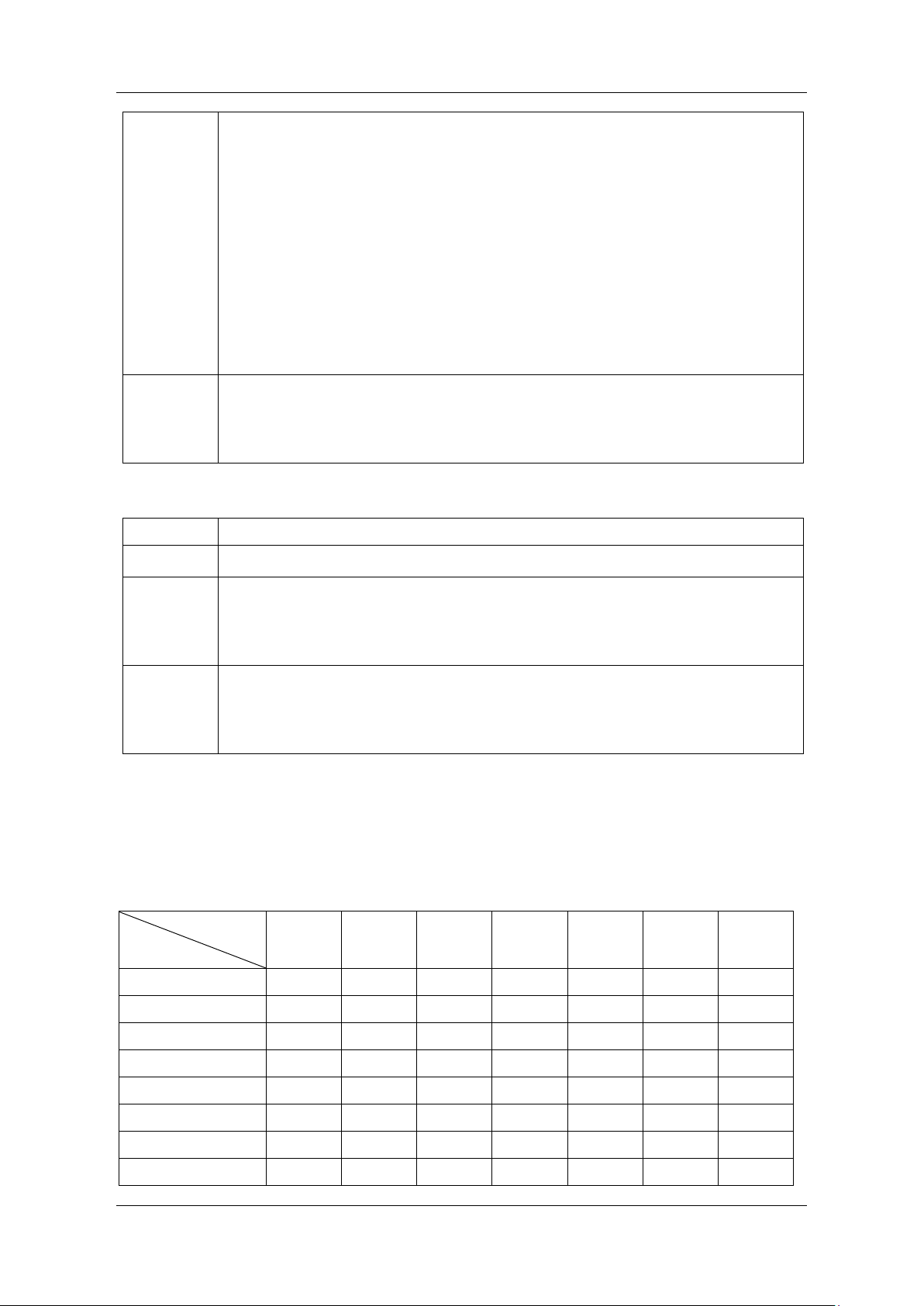
SDG7000A User Manual
WWW.SIGLENT.COM 67 /
133
External
The modulation signal is external.
When the modulation type is analog modulation (AMB/DSB-SC/FM/PM/PWM
etc.), the external source is fed from the external modulation interface on the
rear panel. The amplitude of the input analog signal determines the modulation
factor (modulation depth/frequency deviation /phase deviation etc.).
The requirements for the external modulation amplitude are described in detail
in the datasheet parameter "Amplitude at 100% modulation". See Table 10.2 for
a description of the 100% modulation.
When the modulation type is digital key modulation (ASK/FSK/PSK etc.), the
external source is input from the trigger interface on the rear panel.
The input digital sequence must meet the electrical requirements of the trigger
input (see datasheet for details)
Channel
When the carrier is CH1, CH2 can be directly used as the modulating waveform.
In this case, the device directly uses CH2 to modulate CH1 internally without
introducing the waveform of CH2 to the external modulation interface through an
external cable. Vice versa.
Table 10-2 Description of 100% modulation
Description
AM
Corresponds to the case where modulation depth = 100%
FM
100% modulation is equal to the set frequency deviation. For example, if the
amplitude of the external modulation input is 50% of the corresponding
amplitude when 100% modulation is selected, the resulting frequency deviation
is 50% of the set frequency deviation.
PM
100% modulation is equal to the set phase deviation. For example, if the
amplitude of the external modulation input is 50% of the corresponding
amplitude when 100% modulation is selected, the resulting phase deviation is
50% of the set phase deviation.
10.2.2 Modulation Type
The following table shows the various modulation types supported by the SDG7000A and their
compatibility with carriers.
Table 10-3 Compatibility of modulation types with carriers
Carrier
Modulation
Sine
Square
Pulse
Ramp
Noise
AFG
AWG
AM
⚫
⚫
⚫
⚫
⚫
⚫
⚫
DSB-SC
⚫
⚫
⚫
⚫
⚫
⚫
⚫
FM
⚫
⚫
⚫
⚫
PM
⚫
⚫
⚫
⚫
PWM
⚫
FSK
⚫
⚫
⚫
⚫
ASK
⚫
⚫
⚫
⚫
⚫
⚫
⚫
PSK
⚫
⚫
⚫
⚫
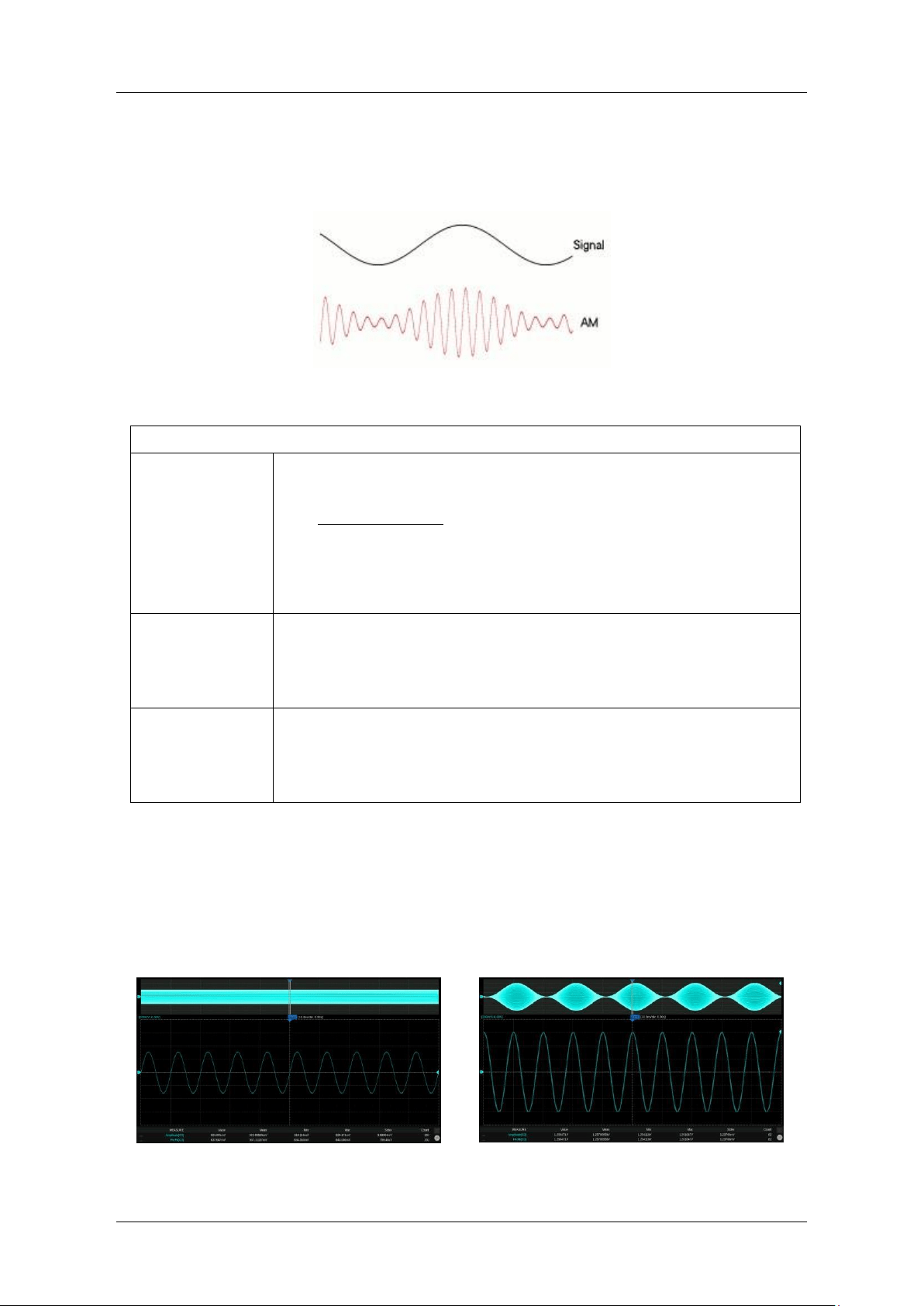
SDG7000A User Manual
68 / 133 WWW.SIGLENT.COM
AM
AM is amplitude modulation, a modulation method that uses the amplitude of the modulating
waveform to control the amplitude of the carrier.
The parameters that can be set for AM are listed in the table below.
Table 10-4 Description of AM modulation parameters
AM
Modulation depth
Also known as amplitude modulation factor (m), determined by the
maximum and minimum amplitude of the envelope:
𝑚 =
U
cm,max
− U
cm,min
U
cm,max
+ U
cm,min
When source = internal or channel, this value can be set directly. When
source = external, it is determined by the amplitude of the external
modulation input.
AM frequency
The frequency of the modulating waveform.
When source = internal, the value can be set directly. When source =
external or channel, it is determined by the frequency of the external
modulation input or another channel.
Shape
The shape of the modulating waveform.
When source = internal, the value can be set directly. When source =
external or channel, it is determined by the external modulation input or
the waveform of another channel.
The AM amplitude strategy is to keep the power of the carrier the same as when it is unmodulated,
i.e.: the power of the carrier is independent of the modulation depth. This will result in the AM
waveform peaking beyond the set value, which is normal. The figure below shows a comparison
of the amplitude of a 100 MHz, 0 dBm carrier with no modulation and at 100% modulation depth,
and it can be seen that the peaks in the time domain become larger when modulation is turned
on, but the power of the carrier remains the same in the frequency domain.
Unmodulated time-domain diagram
100% modulation depth time-domain diagram
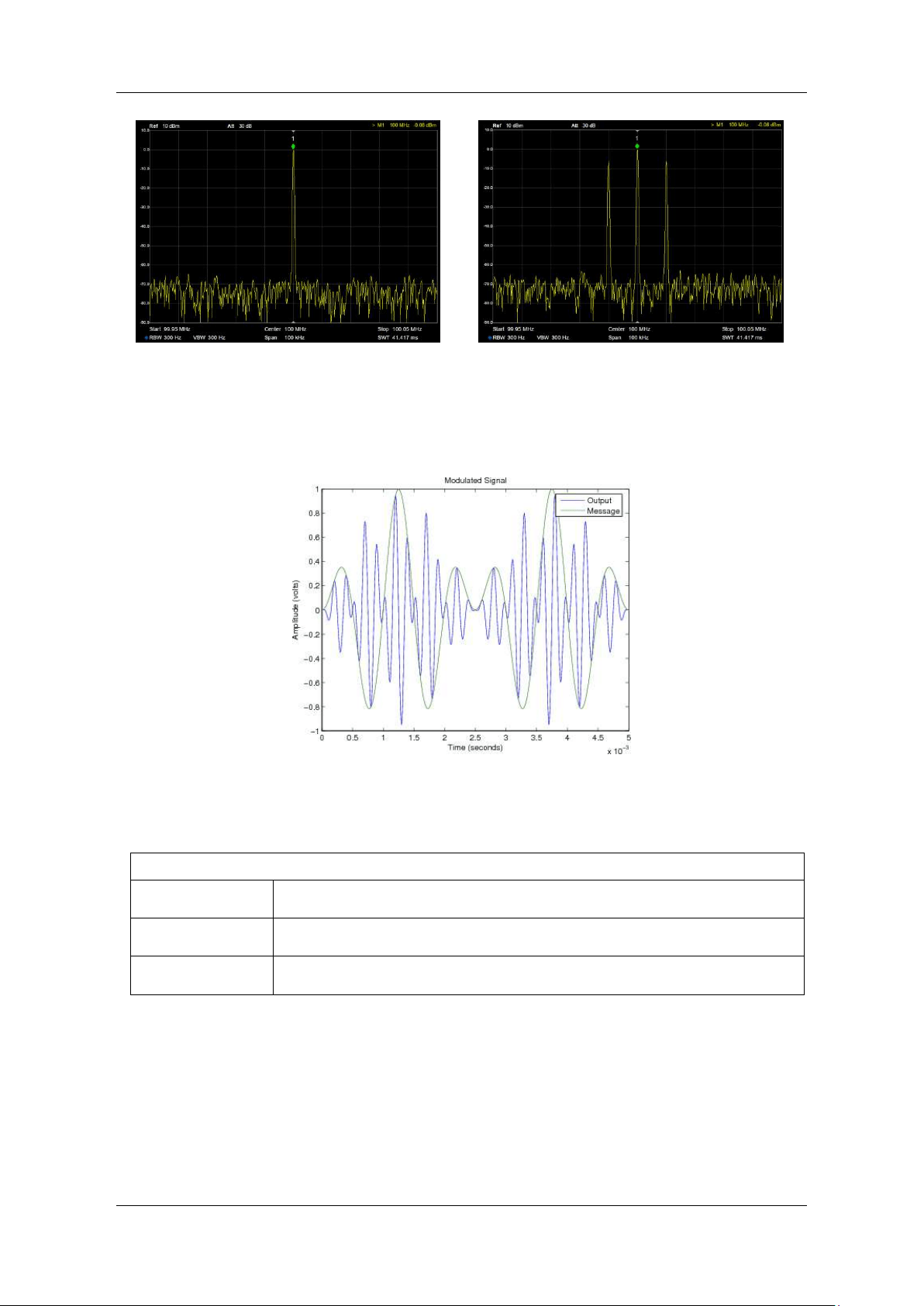
SDG7000A User Manual
WWW.SIGLENT.COM 69 /
133
Unmodulated Spectrogram
100% Modulation Depth Spectrogram
DSB-SC
DSB-SC is double-side-band amplitude modulation with suppressed carrier.
The configurable parameters of the DSB-SC are listed in the table below.
Table 10-5 Description of DSB-SC modulation parameters
DSB-SC
Modulation
Same as AM
DSB frequency
Same as AM
Shape
Same as AM
FM
FM is frequency modulation, a modulation method that uses the amplitude of the modulating
waveform to control the frequency of the carrier.
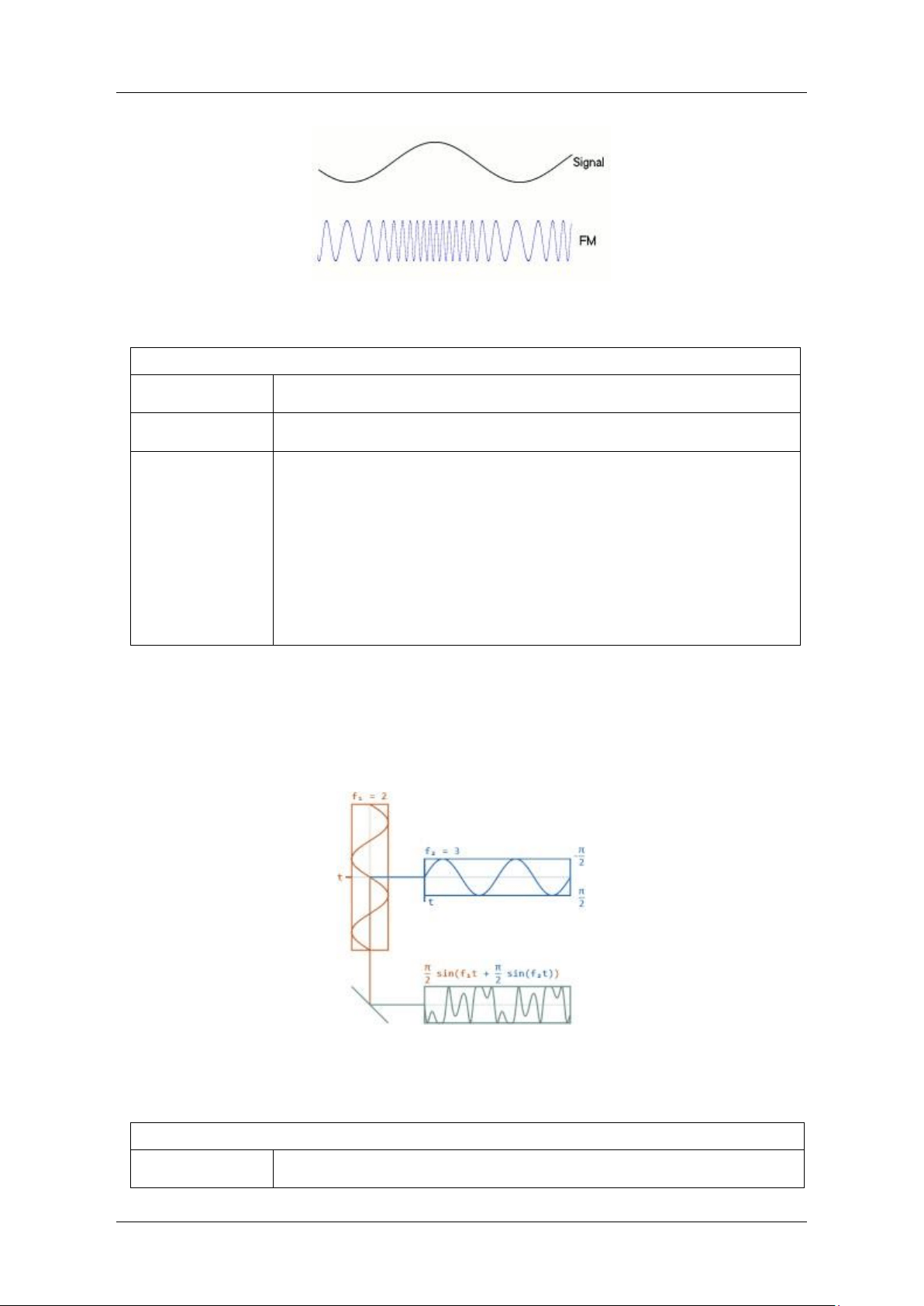
SDG7000A User Manual
70 / 133 WWW.SIGLENT.COM
The parameters that can be set for FM are listed in the table below.
Table 10-6 Description of FM modulation parameters
FM
FM frequency
Same as AM
Shape
Same as AM
Frequency
deviation
The maximum value Δf of the instantaneous frequency deviation from
the carrier frequency fc, which corresponds to the maximum or
minimum value of the modulating waveform amplitude when the
frequency deviation is reached. The modulated carrier frequency varies
in the range fc ± Δf
When source is internal or channel, this value can be set directly.
When source is external, modulated by external. The full amplitude of
the external modulation waveform corresponds to the set frequency
deviation.
PM
PM is phase modulation, a modulation method that uses the amplitude of the modulating
waveform to control the instantaneous phase of the carrier.
The parameters that can be set for PM are listed in the table below.
Table 10-7 Description of PM modulation parameters
PM
PM Frequency
Same as AM
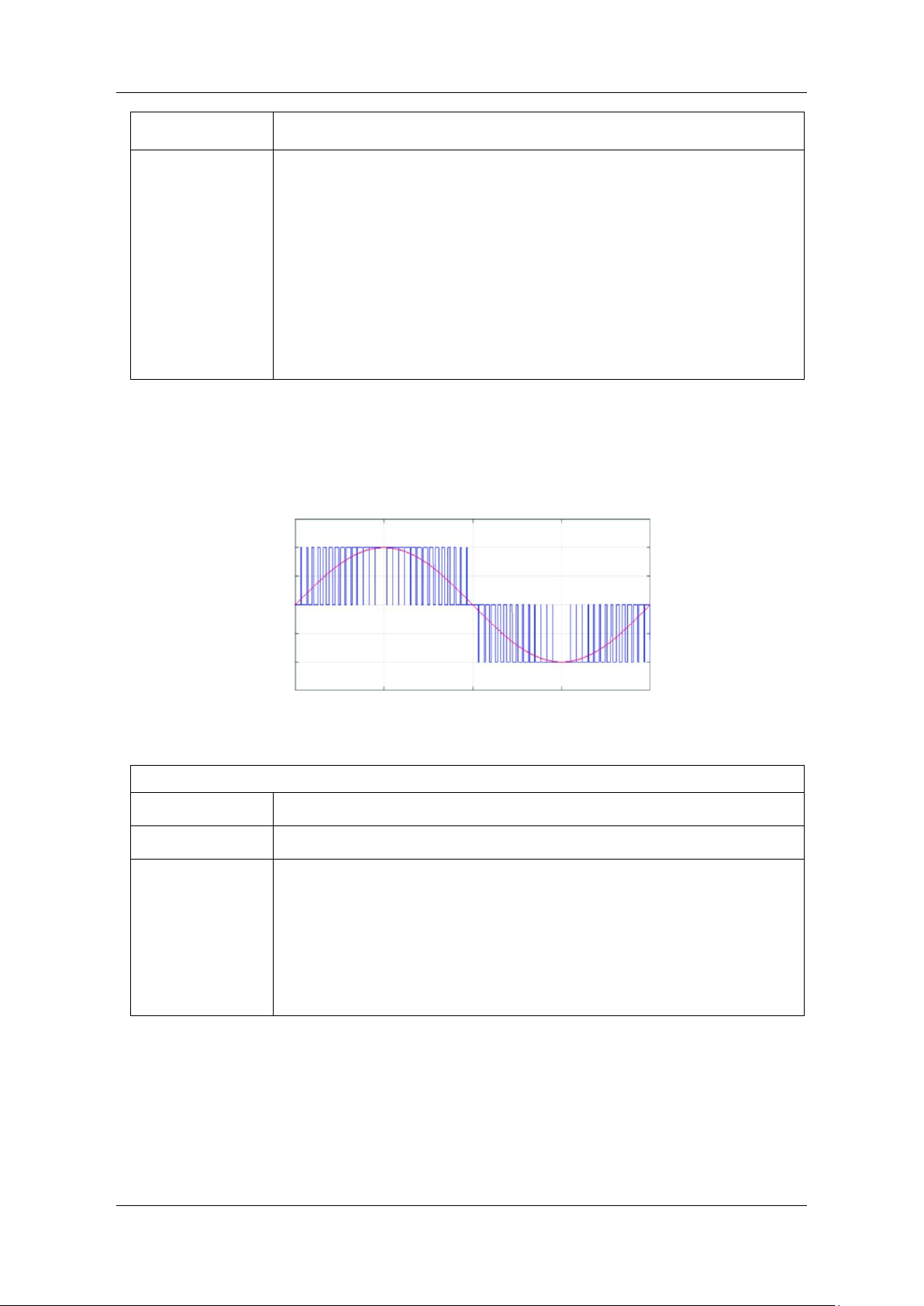
SDG7000A User Manual
WWW.SIGLENT.COM 71 /
133
Shape
Same as AM
Phase deviation
The maximum value Δ𝜑 of the instantaneous phase deviation from the
instantaneous phase 𝜑
c
(
t
)
when the carrier is not modulated. The
maximum phase deviation corresponds to the maximum or minimum
value of the modulating waveform amplitude. The phase of the
modulated waveform is at varies over a range of
( )
c
t
When the source is internal or channel, the value can be set directly;
when the source is external, it is determined by the amplitude of the
external modulation input. The full amplitude of the external modulation
waveform corresponds to the set phase deviation.
PWM
PWM, pulse width modulation, is only applicable when the carrier is pulse and refers to the
modulation method where the amplitude of the modulating waveform is used to control the
positive pulse width of the carrier.
The parameters that can be set for the PWM are listed in the table below.
Table 10-8 Description of PWM Modulation Parameters
PWM
PWM frequency
Same as AM
Shape
Same as AM
Pulse width
deviation
The maximum deviation of the positive pulse width from the positive
pulse width without modulation corresponds to the maximum or
minimum value of the modulating waveform amplitude.
When the source is internal or channel, this value can be set directly.
When the source is external, modulated by external
The full amplitude of the external modulation waveform corresponds to
the set pulse width deviation.
ASK
ASK is amplitude keying, here refers to binary amplitude keying. The amplitude of the carrier
being modulated varies with the 1/0 state of the binary sequence, i.e. the presence or absence
of the carrier amplitude is used to represent a 1 or a 0.
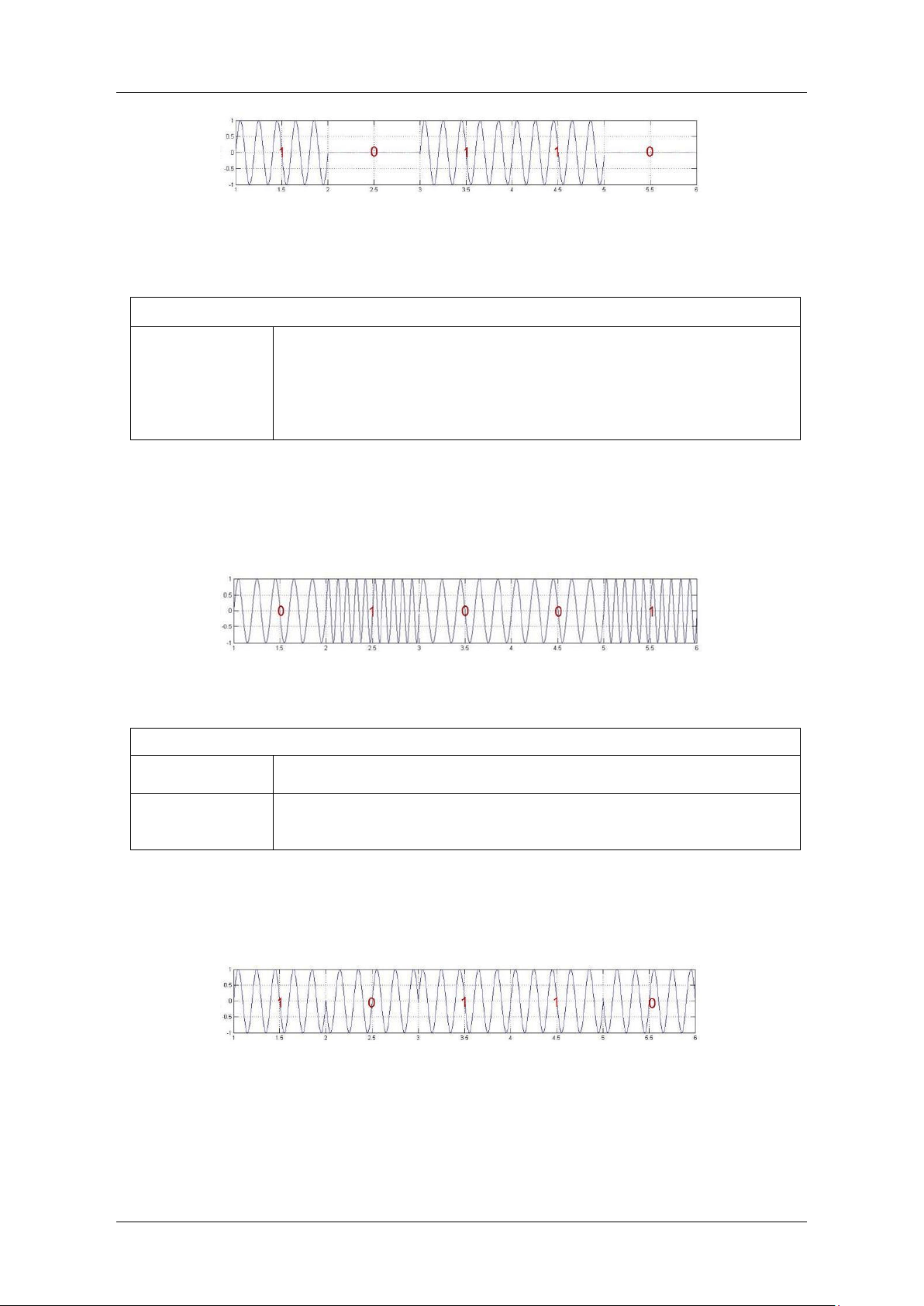
SDG7000A User Manual
72 / 133 WWW.SIGLENT.COM
The parameters that can be set for ASK are listed in the table below.
Table 10-9 ASK parameter descriptions
ASK
Keying frequency
The rate of the binary sequence. This value can be set directly when
the source = internal and the internal source is a clock sequence with
the specified frequency multiplied by 2. When the source = external, the
amplitude of the carrier is determined by the 0/1 state of the external
trigger input
FSK
FSK is frequency keying, here refers to binary frequency keying. The frequency of the modulated
carrier varies with the 1/0 state of the binary sequence, i.e. a carrier frequency of f
0
means that
0 is transmitted and a carrier frequency of f
1
means that 1 is transmitted.
The parameters that can be set for FSK are listed in the table below.
Table 10-10 FSK parameter descriptions
FSK
Keying frequency
Same as ASK
Frequency
hopping frequency
The frequency representing 1, i.e.f
1
. The frequency representing 0 (i.e.f
0
)
is the currently set carrier frequency
PSK
PSK is phase keying, here refers to binary phase keying. The instantaneous phase of the carrier
being modulated varies with the 1/0 state of the binary sequence.
The parameters that can be set for PSK are listed in the table below.
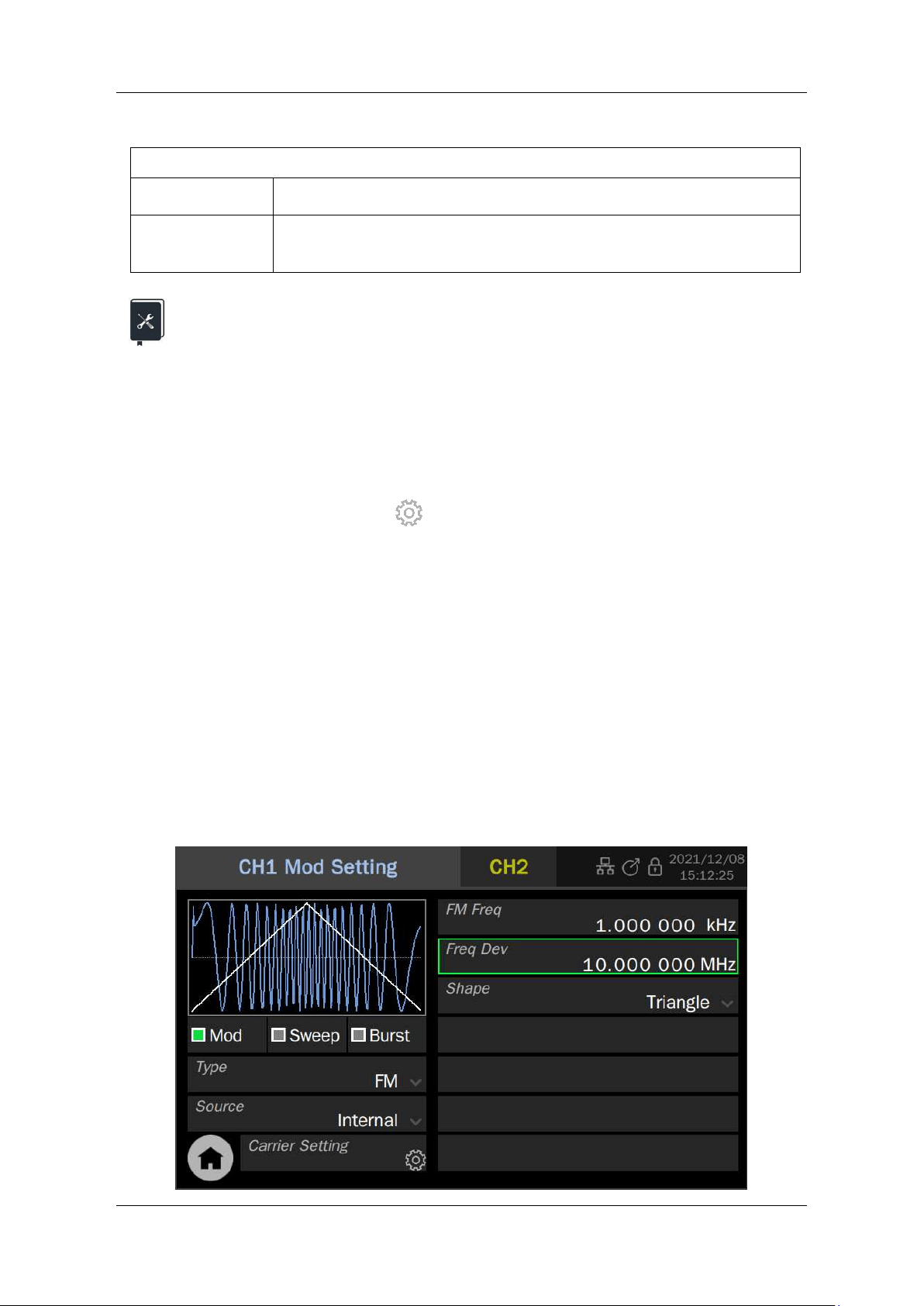
SDG7000A User Manual
WWW.SIGLENT.COM 73 /
133
Table 10-11 PSK parameter descriptions
PSK
Keying rate
Same as ASK
Polarity
Positive phase/inverted phase. In positive phase, the phase is 0° when
varying from 0 to 1 and 180° when 1 to 0. Opposite when inverted
Application example: Generate an FM waveform with an internal modulation
source and the following parameters
Carrier waveform = Sine, frequency = 120 MHz
Modulating waveform = triangle, frequency = 1 MHz, frequency deviation = 10 MHz
1. Set "Waveform" of the carrier to Sine and "Frequency" to 120 MHz in the parameter
setting page of the carrier
2. Click on the settings icon in the Modulation/Sweep/Burst settings box at the
bottom left of the page to enter the interface for modulation/sweep/burst settings
3. Set "Mod" to "On"
4. Set " Type" to "FM"
5. Set "Source" to "Internal"
6. Set the "FM Freq" to 1 MHz
7. Set "Freq Dev" to 10 MHz
8. Set "Shape" to "Triangle"
9. Open the output
Follow the above steps to generate the desired FM waveform. The modulation parameters page
is as follows:
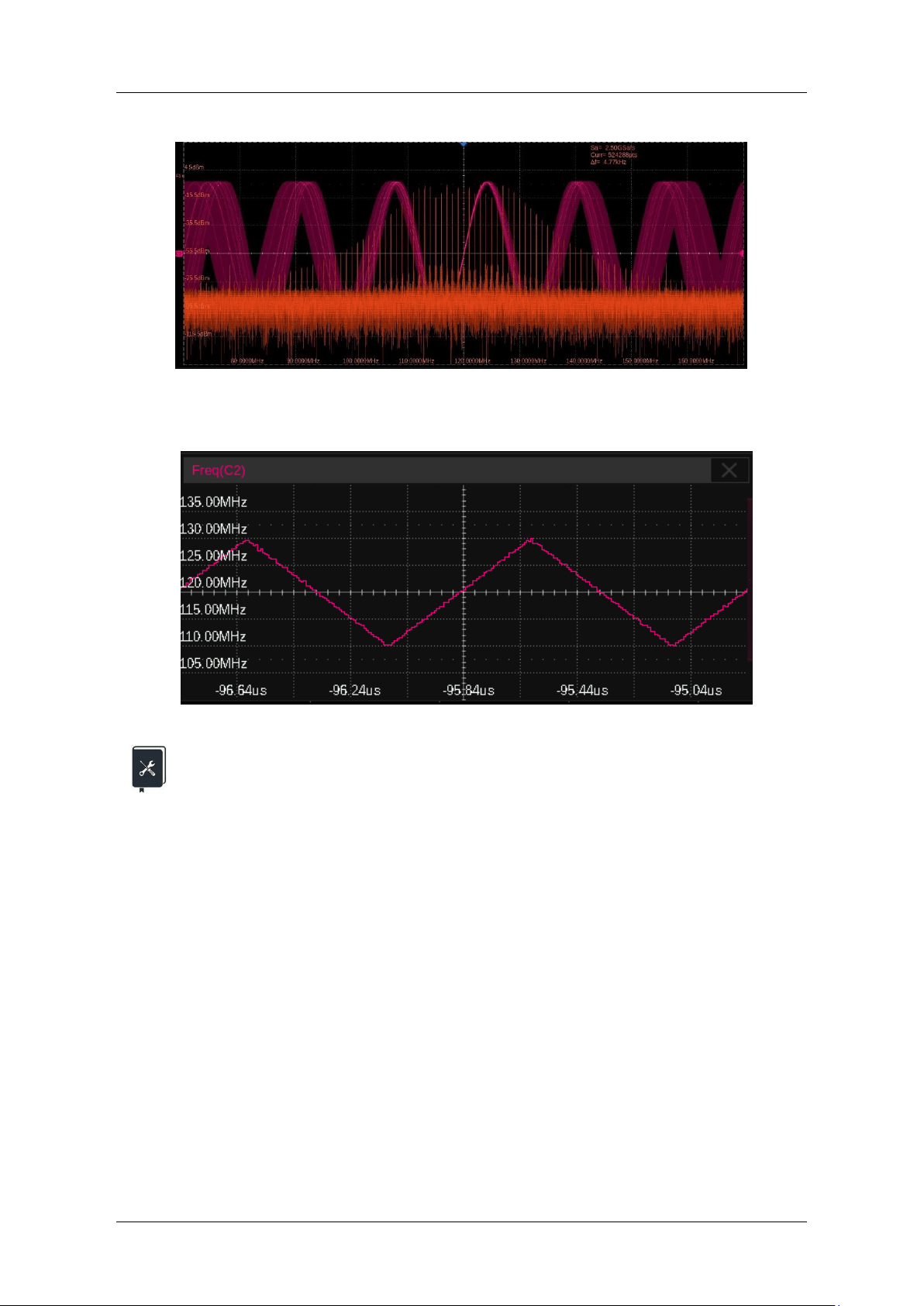
SDG7000A User Manual
74 / 133 WWW.SIGLENT.COM
The time and frequency domain plots of the FM waveform output are as follows:
Frequency measurements were taken on the modulated signal and the frequency versus time
(Tracking diagram) was plotted as follows, reflecting the frequency versus modulating shape
characteristics of the modulated waveform.
Application example: Generate an AM waveform with an external source and
the following parameters
Carrier waveform = Sine, frequency = 20 kHz
Modulating waveform = Sine, frequency = 1 kHz, modulation depth = 50%
1. Set "Waveform" of the carrier to Sine and "Frequency" to 20 kHz in the parameter
setting page of the carrier.
2. Enter the modulation/sweep/burst setting interface and set "Mod" to "On"
3. Set "Type" to "AM"
4. Set "Source" to "External", set the waveform of the external modulation input to Sine
and frequency to 1 kHz, and consult the data sheet for the external input amplitude of
±5V pk-pk, which corresponds to 100% modulation. The amplitude of the external
modulation signal is therefore set to ±2.5 V pk-pk, which gives a modulation depth of
50%. The external modulation signal can be provided by another source or by
another channel of the unit.
5. Open the output
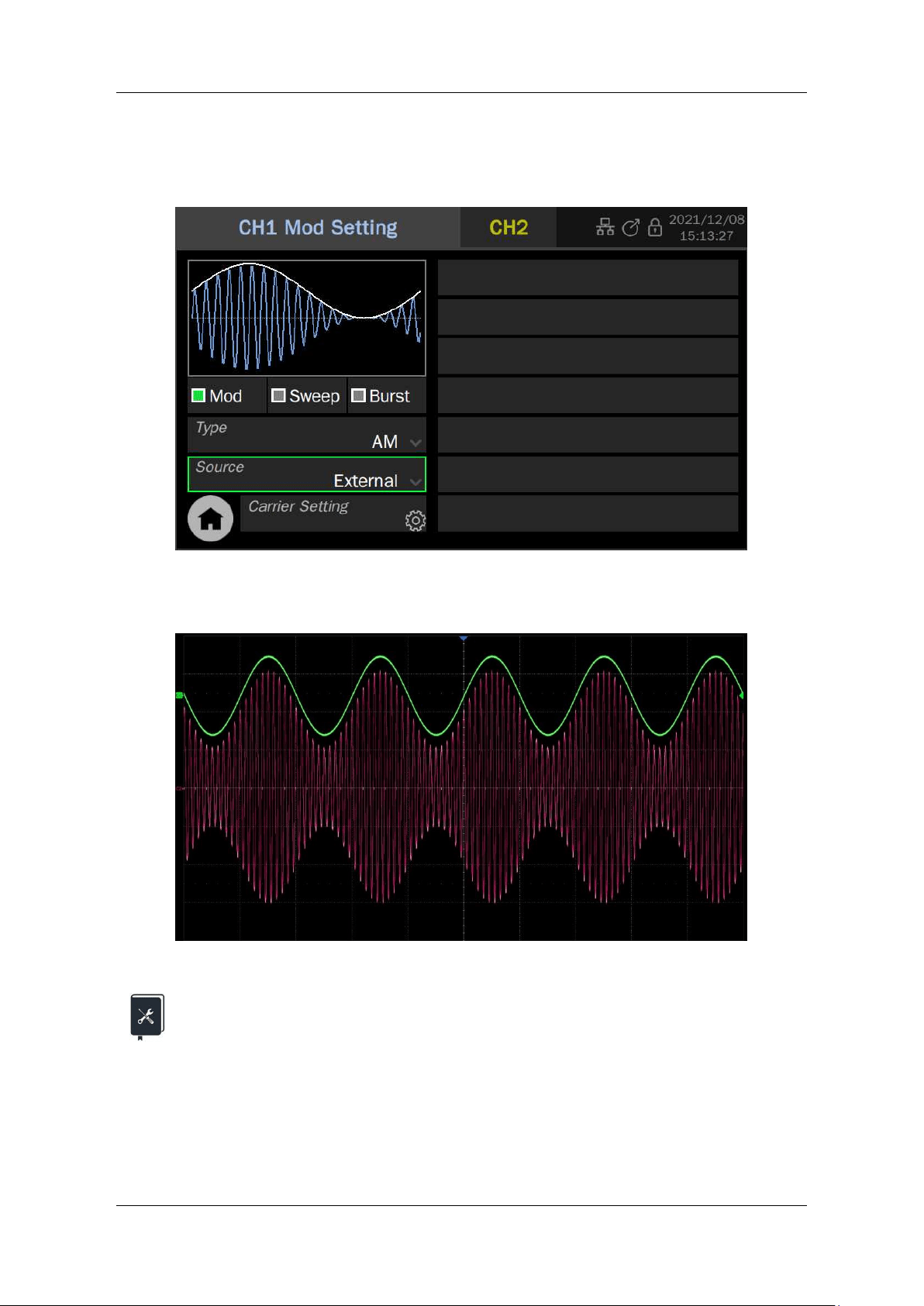
SDG7000A User Manual
WWW.SIGLENT.COM 75 /
133
Follow the above steps to generate the desired FM waveform. The modulation parameters page
after the setup is shown below. Note that since the modulating waveform frequency, shape, and
modulation depth are entirely determined by the external modulating input, the relevant
parameters are not displayed on the setup page.
The waveform of the AM output is as follows:(red trace. The green trace is the modulating
waveform).
Application example: Generate a PWM waveform with another channel as the
modulation source, with the following parameters
Carrier frequency = 1 MHz, pulse width = 500 ns
Modulating waveform = Sine, frequency = 100 kHz, pulse width deviation = 400 ns
1. PWM modulation is only supported when the carrier is Pulse. Set the carrier to Pulse
and the frequency to 1 MHz on the parameter setting page of the carrier
2. Enter the modulation/sweep/burst setting interface and set "Mod" to "On"
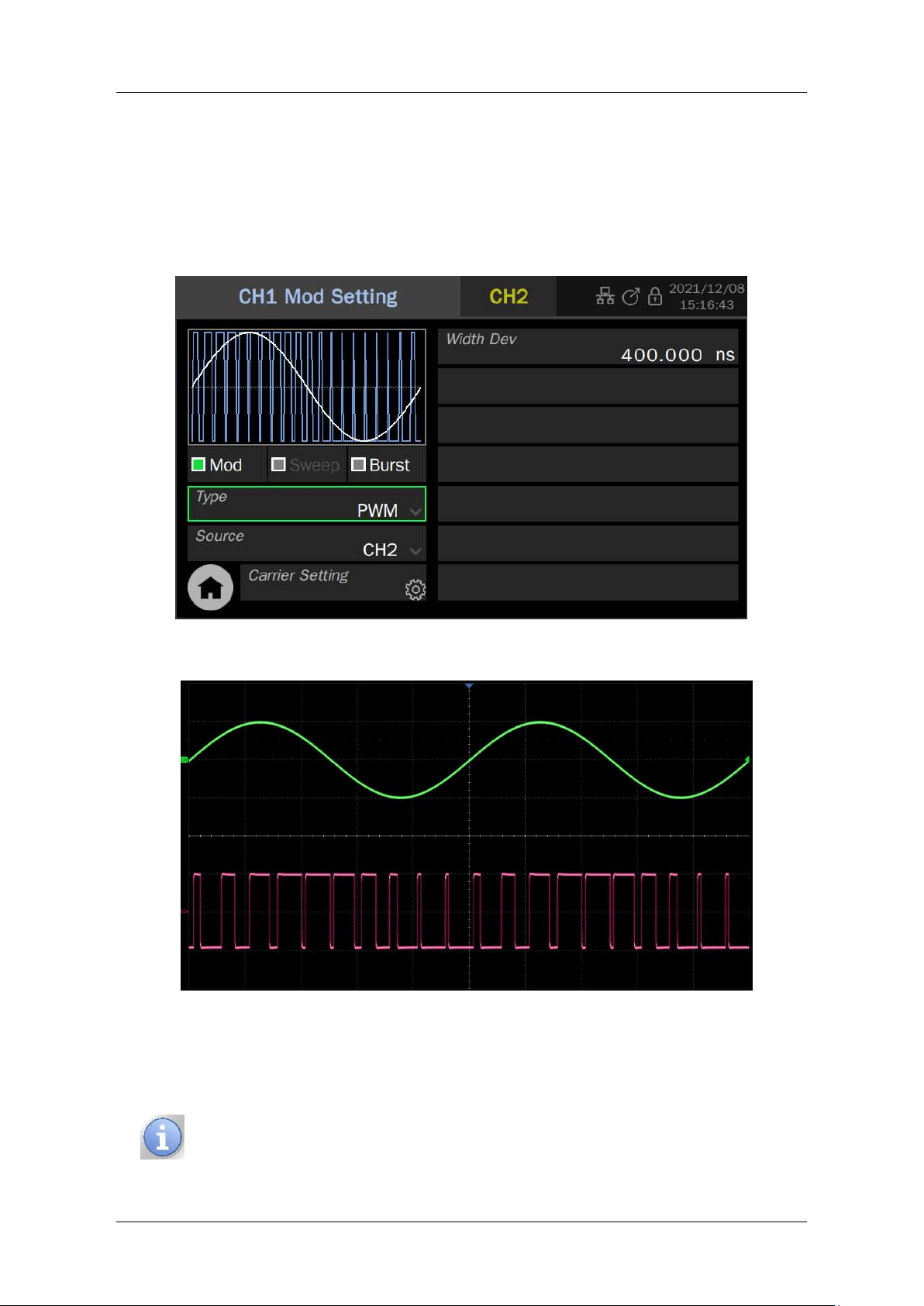
SDG7000A User Manual
76 / 133 WWW.SIGLENT.COM
3. Set "Type" to "PWM" and the pulse width deviation to 400 ns
4. Set "Source" to "CH2"
5. Set "Waveform" of CH2 to Sine and "Frequency" to 100 kHz.
6. Turn on the outputs of CH1 and CH2
Follow the above steps to generate the desired PWM waveform. The modulation parameters
page of CH1 after setup is as follows:
The waveform of the PWM output is as follows: (red trace. The green trace is the modulated
waveform).
In both this example and the previous example, CH2 is used as the modulation source and CH1
as the carrier. The difference is that in the previous example the output of CH2 has to be
connected to the external modulation input of the device via a cable, whereas in this example
the modulating waveform and modulates the carrier directly inside the device without any
external connection.
For the modulation to take effect, the channel that is the source of the
modulation needs to be enabled.
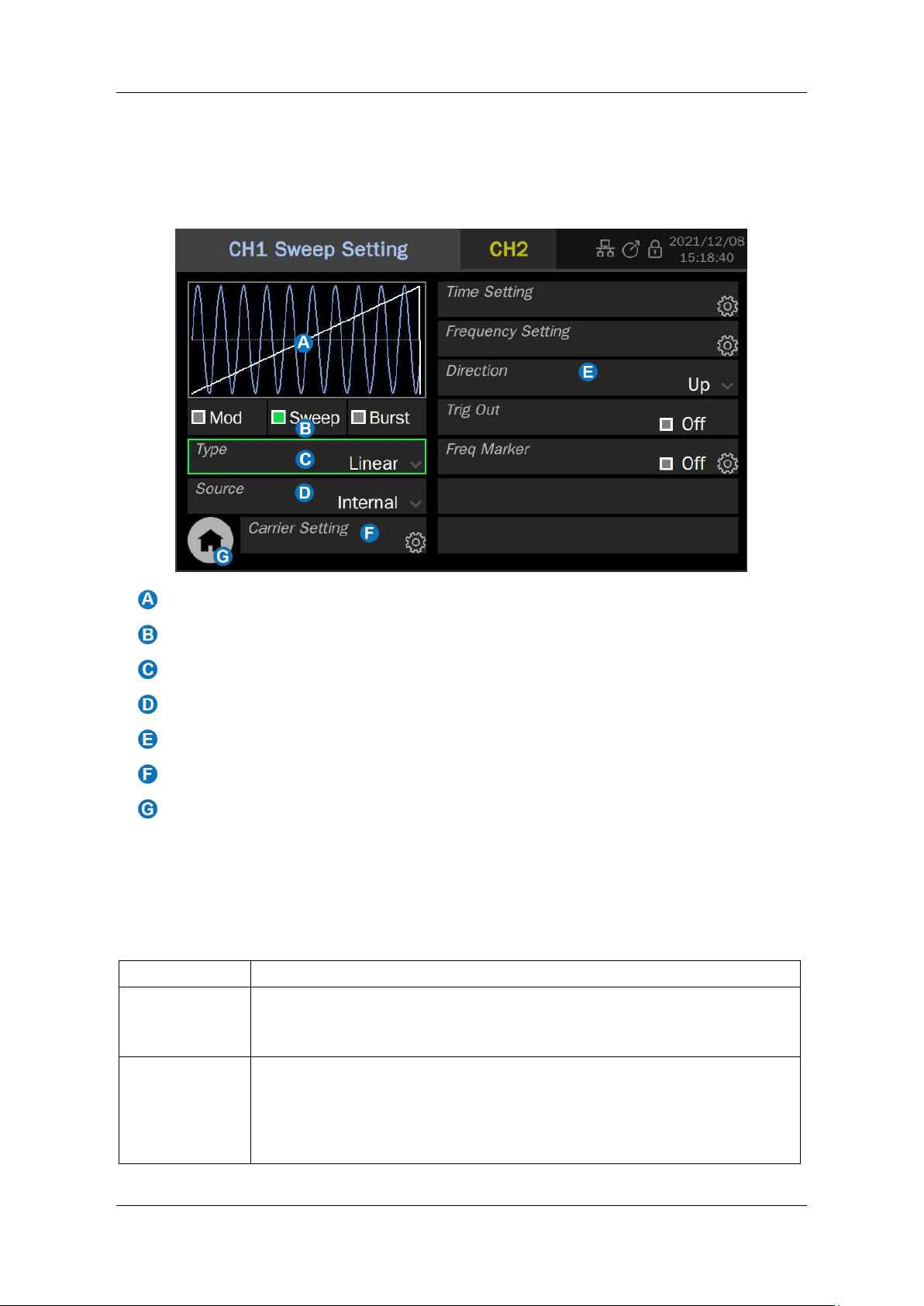
SDG7000A User Manual
WWW.SIGLENT.COM 77 /
133
10.3 Sweep
Sweep is a special type of frequency modulation (FM). When the sweep is on, the carrier output
frequency can be varied according to a set rhythm (linear/logarithmic) and can be controlled by
a trigger signal.
Waveform Preview
Mod/Sweep/Burst quick setting
Sweep type setting
Trigger source selection
Sweep parameter setting area
Quickly switch to carrier parameter setting page
Return to the Home Page
10.3.1 Sweep Type
There are two sweep types, linear and logarithmic, as detailed in the following table.
Table 10-12 Types of sweeps
Sweep Type
Description
Linear
This means that the modulating waveform is a sawtooth, which controls
the frequency moves from the start frequency to the stop frequency
following Linear variation
Log
The frequency variation follows a 10
x
law and is often used for frequency
response testing. The frequency response is generally plotted in
logarithmic coordinates (10 octaves), so to see the frequency response in
a logarithmic plot, a uniform distribution of sample points requires the use
of a logarithmic sweep
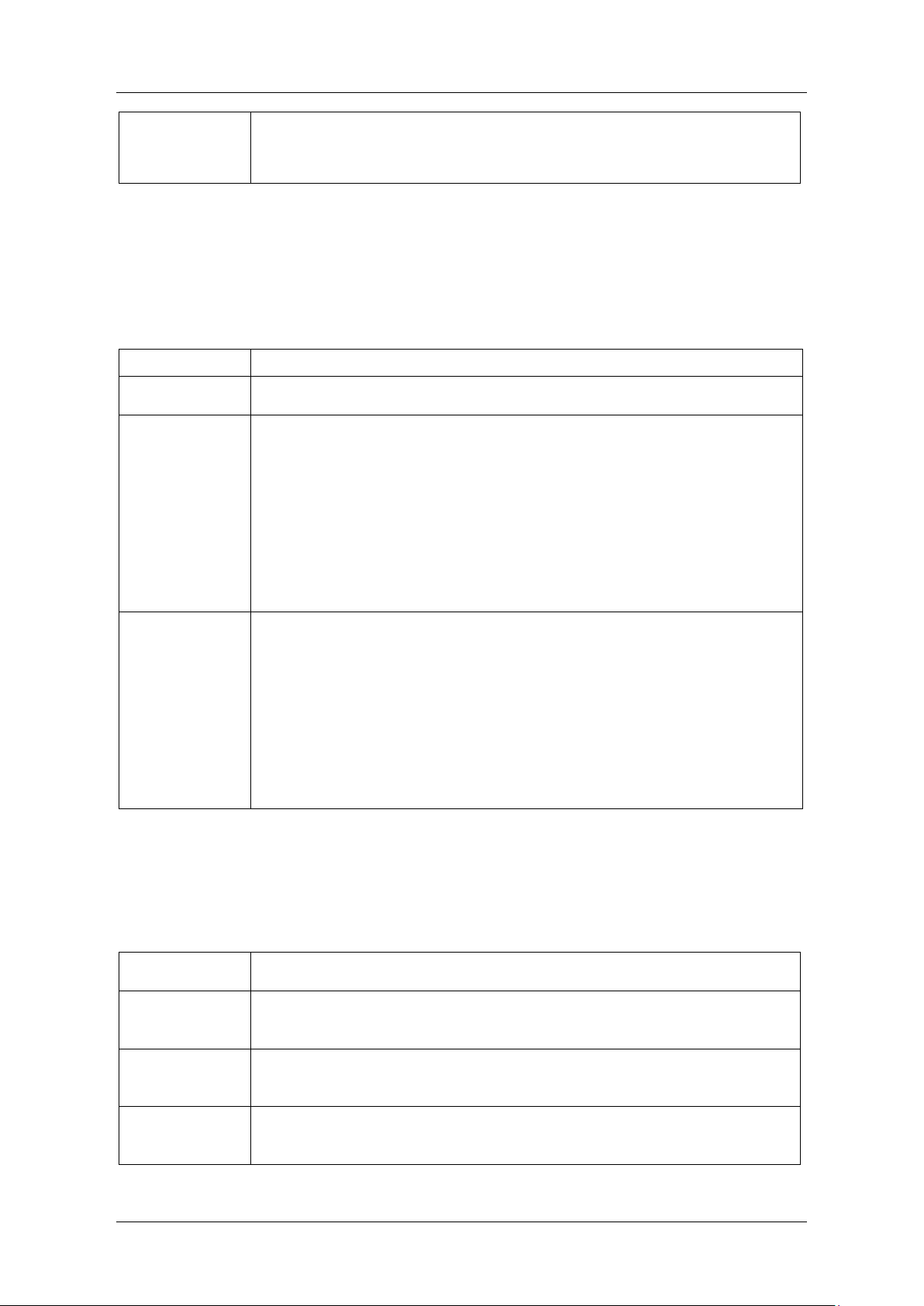
SDG7000A User Manual
78 / 133 WWW.SIGLENT.COM
Step
The output signal frequency varies in a stepped manner from the start
frequency to the end frequency. The frequency points are controlled by the
“Step Number”.
10.3.2 Trigger Source
The three trigger sources used for sweep are internal, external, and manual and are described
in detail in the following table.
Table 10-13 Trigger sources for frequency sweep
Trigger source
Description
Internal
The sweep cycle is controlled by the internal timer
External
The signal generator receives the trigger input on the rear panel and
outputs a frequency sweep every time it receives the trigger edge(rising or
falling edge determined by the edge setting) of a CMOS pulse.
When the trigger signal arrives, the signal generator outputs the carrier of
the start frequency. After the start hold time, it starts sweeping. The
frequency changes from the start frequency to the stop frequency then
maintains the stop frequency until the end hold time has expired. Then it
outputs the offset value, and starts frequency sweeping again after the
back time has expired.
Manual
When the trigger source is manual, a trigger button will appear on the
parameter page, and the frequency sweep will be output every time the
button is pressed.
When the trigger signal arrives, the signal generator outputs the carrier of
the start frequency. After the start hold time, it starts sweeping, the
frequency changes from the start frequency to the stop frequency, then
maintains the stop frequency for the end hold time. And then outputs the
offset value, and starts frequency sweeping again after the back time has
expired.
10.3.3 Sweep Parameter Settings
The sweep parameters and their detailed descriptions are shown in the following table.
Table 10-14 Parameters and description of the sweep
Scanning
parameters
Description
Sweep time
The time spent from the start frequency sweep to the stop frequency.
Start Hold Time
The time that the output signal maintains the starting frequency before
sweeping.
End Hold Time
The time that the output signal maintains the stop frequency after finishing
sweeping.
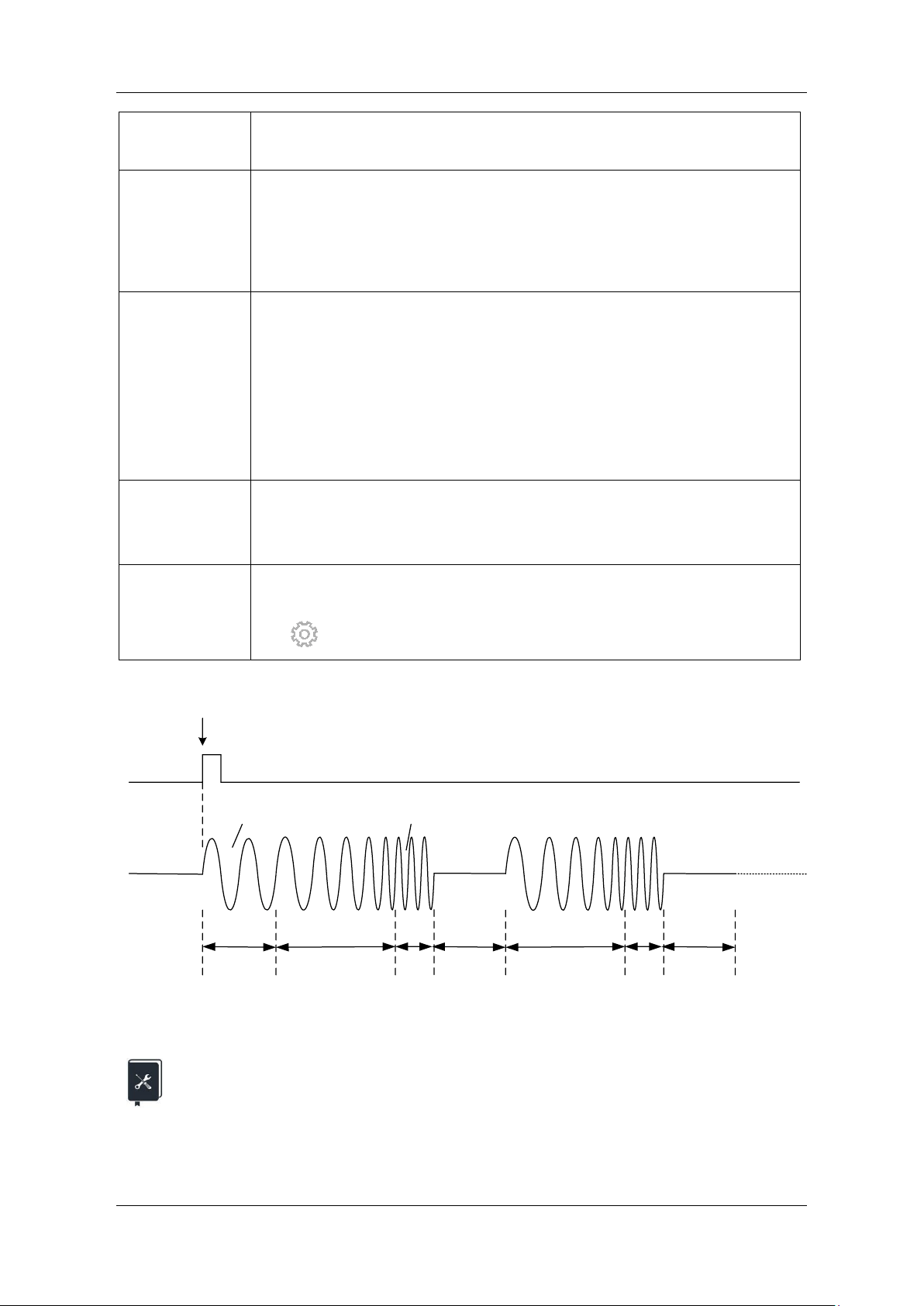
SDG7000A User Manual
WWW.SIGLENT.COM 79 /
133
Back Time
After end hold time, the device outputs the offset value and stays in this
status for back time, and then restart sweep.
Start Freq /
Center
Frequency
Stop Freq / Freq
Span
The frequency parameter of the sweep. The relationships are as follows:
Center frequency = (start frequency + stop frequency)/2
Frequency span = |stop frequency - start frequency|
Sweep direction
There are three modes: Up, down, and up and down.
Up means that the frequency is swept from low to high; down means that
the frequency is swept from high to low; up and down mode is only
applicable to linear sweep, where the frequency is first swept from the start
frequency to the stop frequency and then back to the start frequency. This
mode is equivalent to FM with a triangular waveform as the modulating
source
The symmetry of the sweep cycle can be set
Trigger output
When the trigger source = internal or manual, the trigger signal can be
output from the trigger output on the rear panel.
The trigger edge corresponds to the start of the scan
Freq Marking
The marker from the Marker port on the rear panel is synchronized with
the specified frequency. Click on
the to set the marker frequency
Trigger edge
Start Hold Time
Sweep Time
End Hold
Time
Back Time
Sweep Time
End Hold
Time
Back Time
Re-Sweep
Start Freq
Stop Freq
Figure 10-1 Sweep time description
Application example: A sine wave is output with linear and logarithmic sweeps
respectively, with the following parameters
Sweep
direction = Upward, start frequency = 100 Hz, stop frequency = 100 kHz
Sweep time = 3 ms
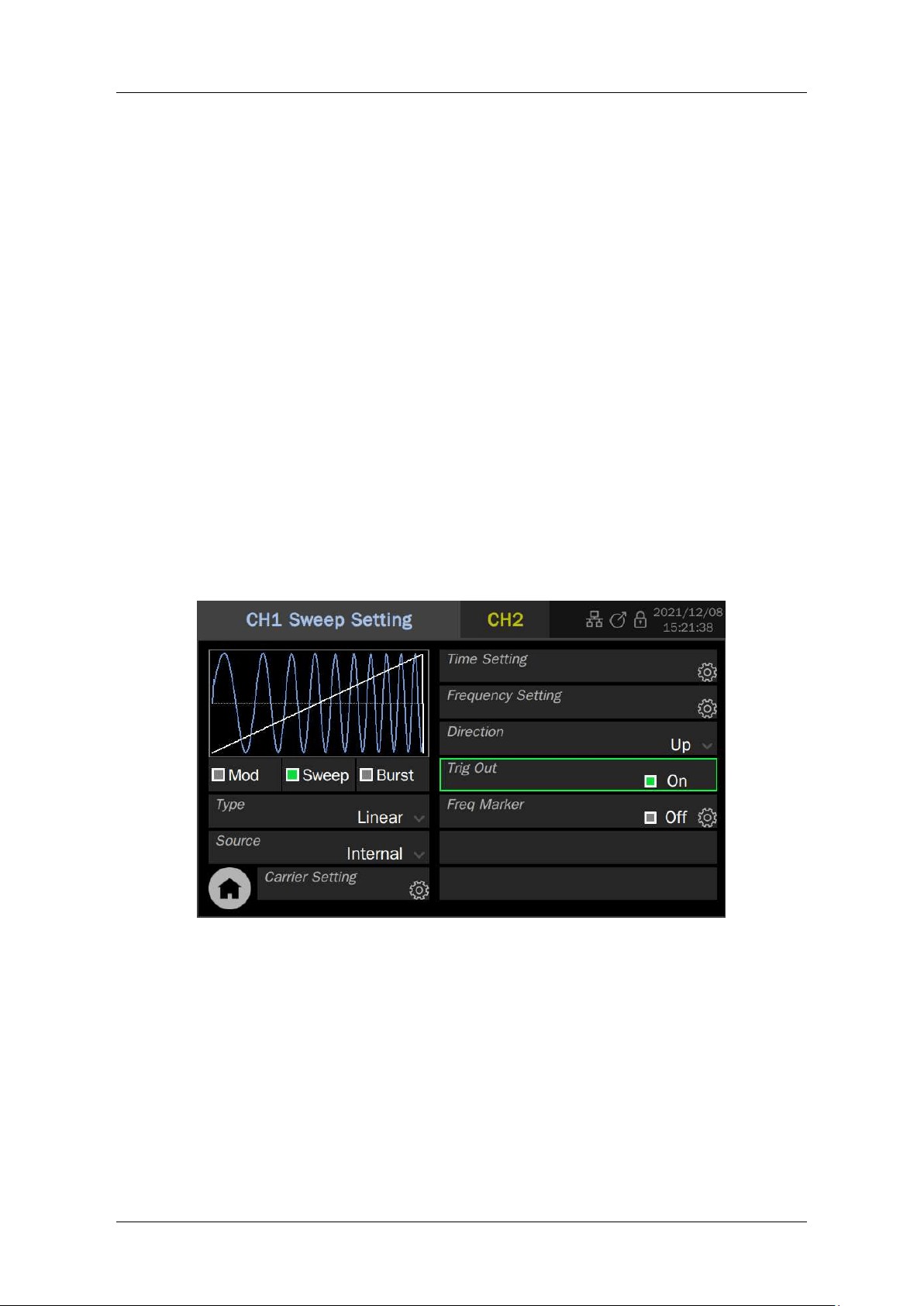
SDG7000A User Manual
80 / 133 WWW.SIGLENT.COM
Trigger source = internal, trigger output = on
1. Set the carrier "waveform" to "Sine" in the CH1 carrier parameter setting page
2. Enter the modulation/sweep/burst settings and set "Sweep" to "On"
3. Set "Type" to "Linear"
4. Set "Source" to "Internal"
5. Set "Sweep Time" to 3 ms
6. Set "Start Hold Time", "End Hold Time", "Back Time" to 0 s
7. Set "Direction" to "Up"
8. Set "Start Freq" to 100 Hz and the “Stop Freq” to 100 kHz
9. Turn on the trigger output. Use the rising edge of the trigger output to synchronize
with the start frequency and use it to trigger the oscilloscope to observe a stable
sweep signal
10. Turn on the output of CH1 and observe the result
11. Change the "Type" to "Log" and observe the results
Follow these steps to generate the desired sweep signal. Once set up the linear sweep
parameters page is as follows. The parameters for the logarithmic sweep differ only in the “Type"
field.
The results of the sweep output are as follows: (red traces are sweep signals, blue traces are
trigger signals).
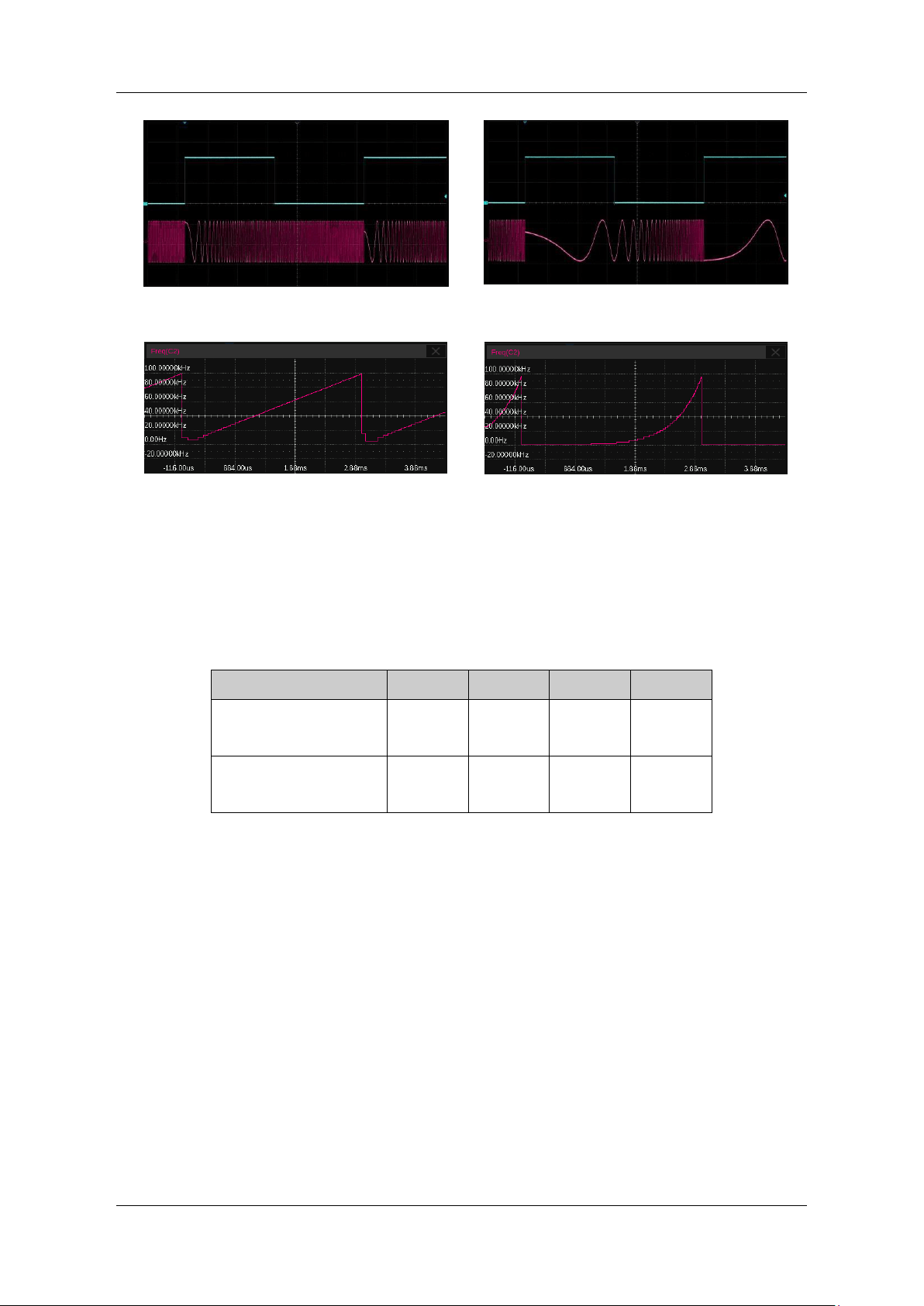
SDG7000A User Manual
WWW.SIGLENT.COM 81 /
133
Linear
sweep
L
og sweep
Linear sweep frequency vs. time
Log sweep frequency vs. time
This example will help the users to better understand the difference between a linear sweep
and a logarithmic sweep: scanning from 100 Hz to 100 kHz with a sweep time of 3 ms
increases the frequency by a factor of 10
3
and by a factor of 10 for every 1 ms in a logarithmic
sweep. The table below shows the frequency values corresponding to each time point in
logarithmic and linear sweep mode.
Time (ms)
0
1
2
3
Frequency (Hz)
-- Logarithmic sweep
100
1000
10000
100000
Frequency (Hz)
-- Linear sweep
100
33400
66700
100000
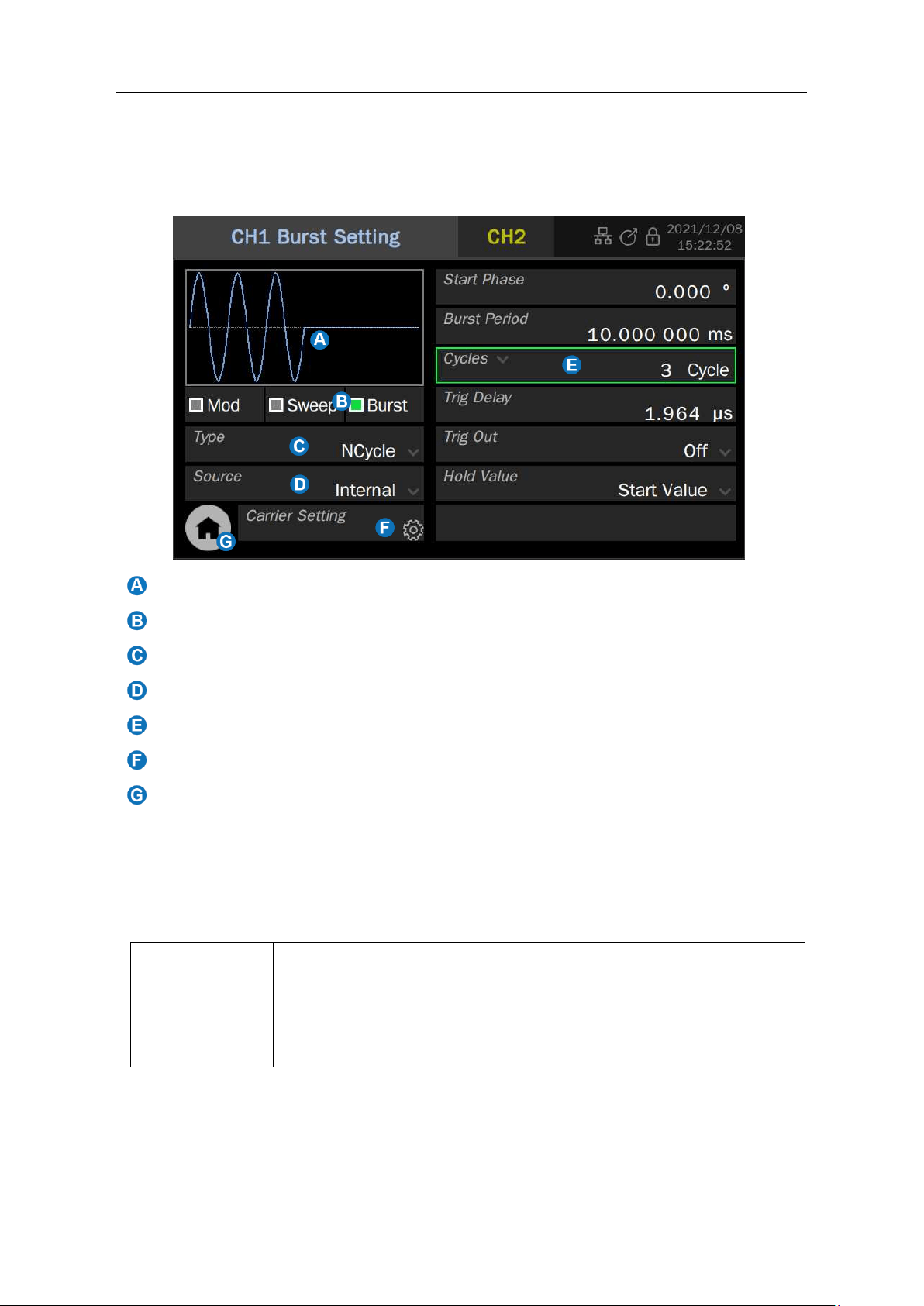
SDG7000A User Manual
82 / 133 WWW.SIGLENT.COM
10.4 Burst
Burst is a signal train with several cycles. The burst train can be triggered by internal, external,
or manual triggers.
Waveform Preview
Mod/Sweep/Burst quick setting
Burst type setting
Trigger source selection
Burst parameter setting area
Quickly switch to the carrier parameter setting page
Return to the Home Page
10.4.1 Burst type
There are two burst types: NCycle and Gated. They are described in detail in the following table.
Table 10-15 Types of Burst
Burst type
Description
NCycle
Outputs a specified number (N) of carrier cycles.
Gated
The carrier outputs only if the gating signal is valid. The gating signal
can be active high or active low.
10.4.2 Trigger Source
Burst uses three kinds of trigger sources: internal, external, and manual. The use method is
similar to frequency sweep. See the following table for details.
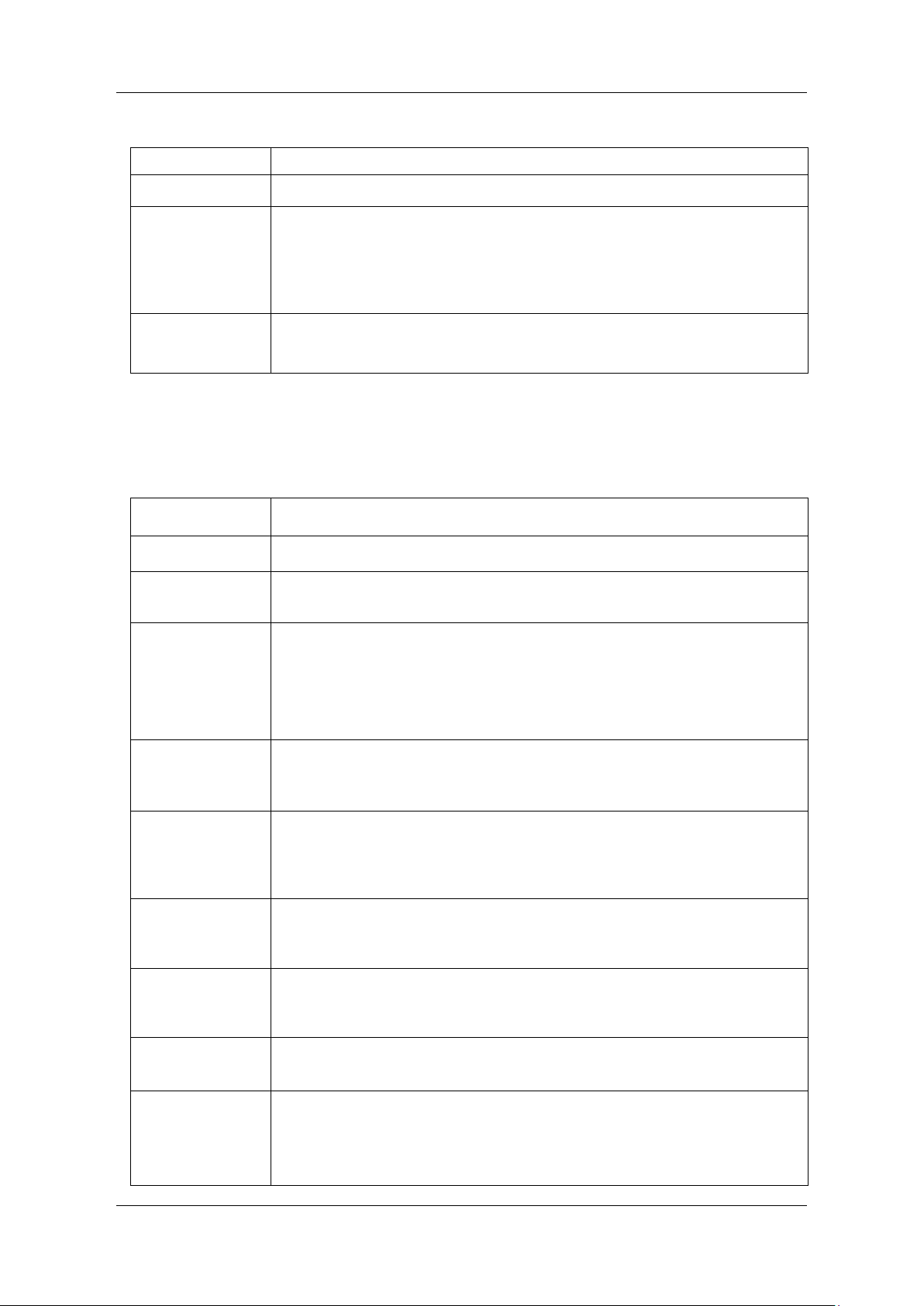
SDG7000A User Manual
WWW.SIGLENT.COM 83 /
133
Table 10-16 Trigger sources for Burst
Trigger source
Description
Internal
The burst train output is controlled by an internal timer.
External
The generator receives the trigger/gating signal from the rear panel of
the instrument. When used as a trigger signal, each time a trigger edge
of a CMOS pulse is received, a burst signal is output. When used as a
gating signal, the high or low level of the signal is used to determine
whether or not to output the carrier.
Manual
When triggering manually, a trigger button will appear in the parameter
setting area and each press of this button will trigger one burst.
10.4.3 Burst Parameter Setting
Burst parameters and their detailed descriptions are shown in the following table.
Table 10-17 Parameters and description of Burst
Scanning
parameters
Description
Start phase
Initial phase at the start of the burst
Burst Period
This parameter is used to set the period of the burst signal (i.e. time
interval between burst trains).
Cycles
This parameter is only available when Burst type = N cycles and is used
to specify the number of periods each burst contains.
The number of periods can be set to "infinite" by clicking on the
parameter name field of the parameter setting box, indicating that a
continuous carrier will be the output after the trigger is received.
Counter
This parameter is only available when trigger source = External or
Manual. This parameter is used to specify the number of burst trains will
be output at every trigger.
Polarity
This parameter is only available when Burst type = Gated and is used to
specify the polarity of the gated signal. When polarity = positive, the
carrier signal is only output when gated high; when polarity = negative,
the carrier signal is only output when gated low
Trigger delay
This parameter is used to set the delay time from the trigger edge to the
head of the burst. The minimum value of the trigger delay represents the
minimum delay that can be achieved in hardware.
Trigger output
This parameter is only available when the trigger source = internal or
manual, and can be set to Up (rising edge align), Down (falling edge
align), or Off (disable trigger output).
Edge
This parameter is only available when the trigger source = external and
is used to specify the rising edge or falling edge as the trigger edge.
Hold Value
This parameter is used to specify the output signal at the end of the
burst.
It can be set to Start Value (start of the burst), End Value (end of the
burst), and Middle Value (offset of the carrier).
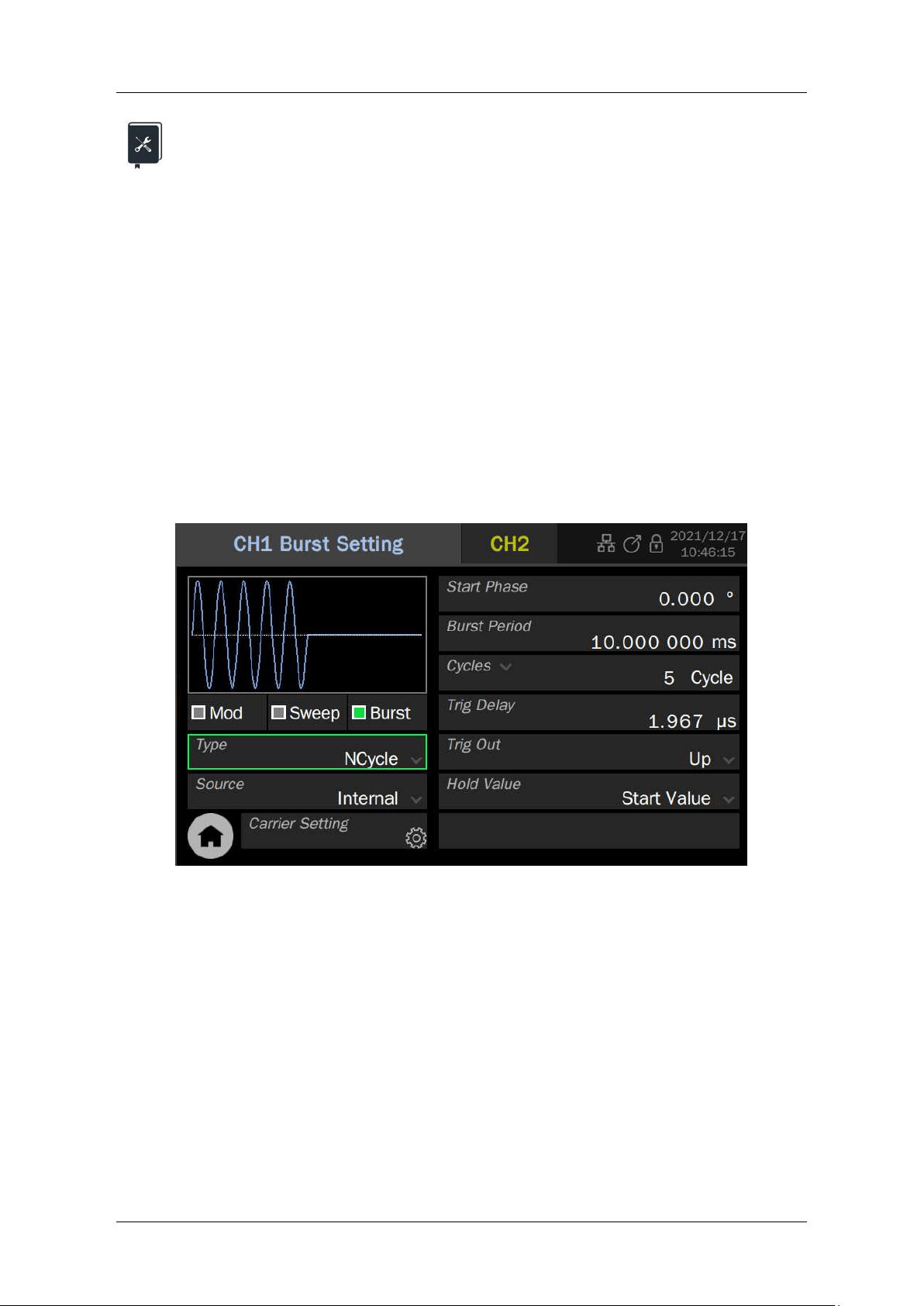
SDG7000A User Manual
84 / 133 WWW.SIGLENT.COM
Application example: 10 kHz sine waveform as thecarrier, with a burst output
every 10 ms, each burst containing 5 periods
1. Set "Waveform" of the carrier to "Sine" and "Frequency" to 10 kHz in the parameter
setting page of the carrier.
2. Enter the Modulation/Sweep/Burst settings and set "Burst" to "On"
3. Set "Type" to "NCycle"
4. Set "Source" to "Internal"
5. Set "Burst Period" to 10 ms
6. Set "Cycles" to 5
7. Set "Trig Out" to "Up", turn on the trigger output. Use the rising edge of the trigger
output to trigger the oscilloscope to steadily capture the burst signal
8. Turn on the channel output and observe the results
Follow these steps to generate the desired burst signal. The burst parameters page after the
setup is shown below.
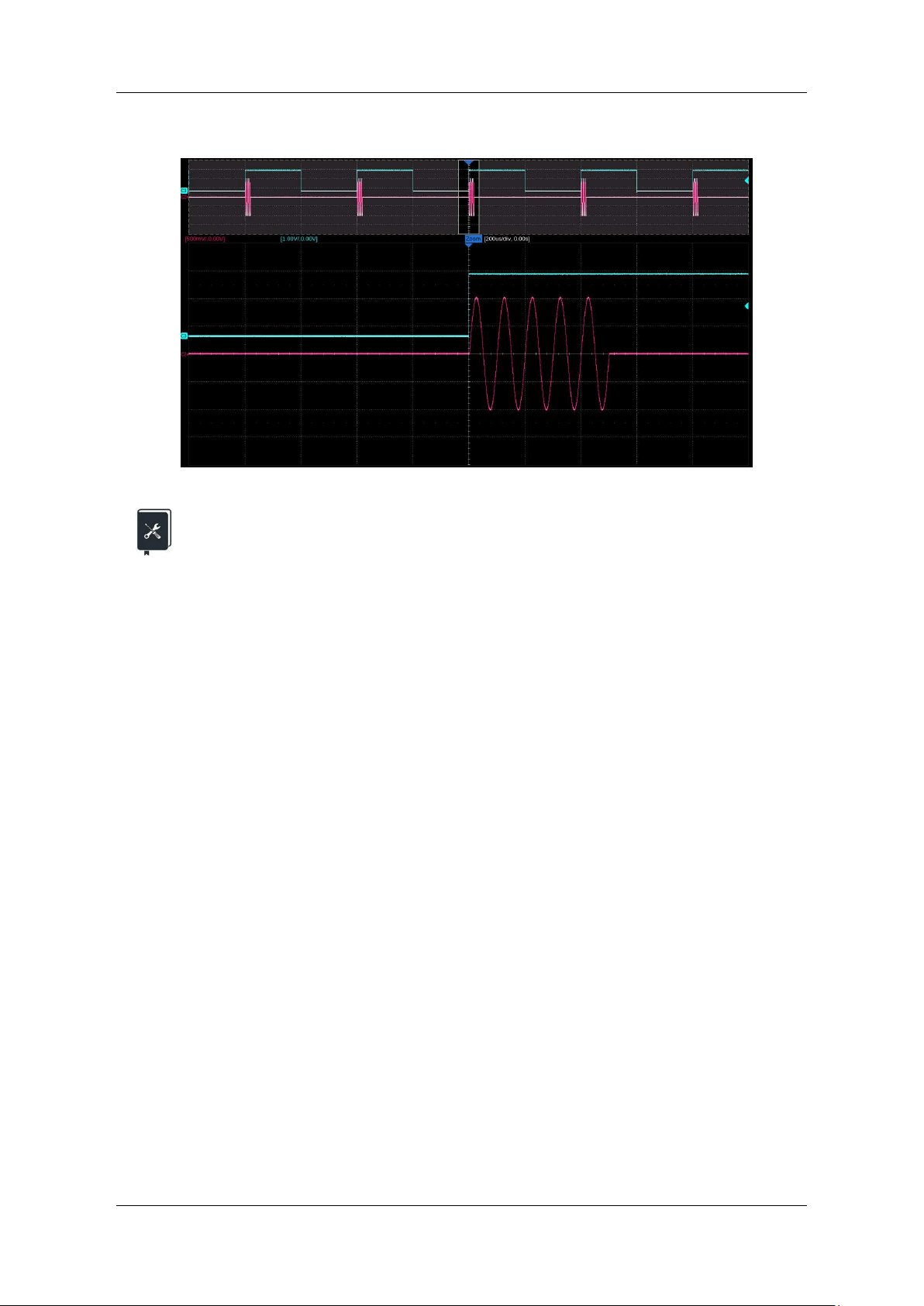
SDG7000A User Manual
WWW.SIGLENT.COM 85 /
133
The results of the burst output are as follows: (red trace is the burst signal and blue trace is the
trigger signal).
Application example: Manual trigger, 3 burst trains per trigger, 10 ms interval
between burst trains and each burst contains 10 pulses, carrier frequency 10
kHz, pulse width 20 us
1. Set "Waveform" of the carrier to "Pulse", "Frequency" to 10 kHz, and "Pulse Width" to
20 us in the parameter setting page of the carrier.
2. Enter the Modulation/Sweep/Burst settings screen and set "Burst" to "On"
3. Set "Type" to "NCycle"
4. Set "Source" to "Manual"
5. Set "Burst Period" to 10 ms
6. Set "Cycles" to 10
7. Set "Counter" to 3
8. Set "Trig Out" to "Up", turn on the trigger output. The rising edge of the trigger output
is synchronized with the burst sequence and can be used as a trigger signal to
capture the burst
9. Open channel output
10. Click on the trigger button in the bottom right corner of the setup page and use the
trigger output signal on the oscilloscope as a trigger for a single capture
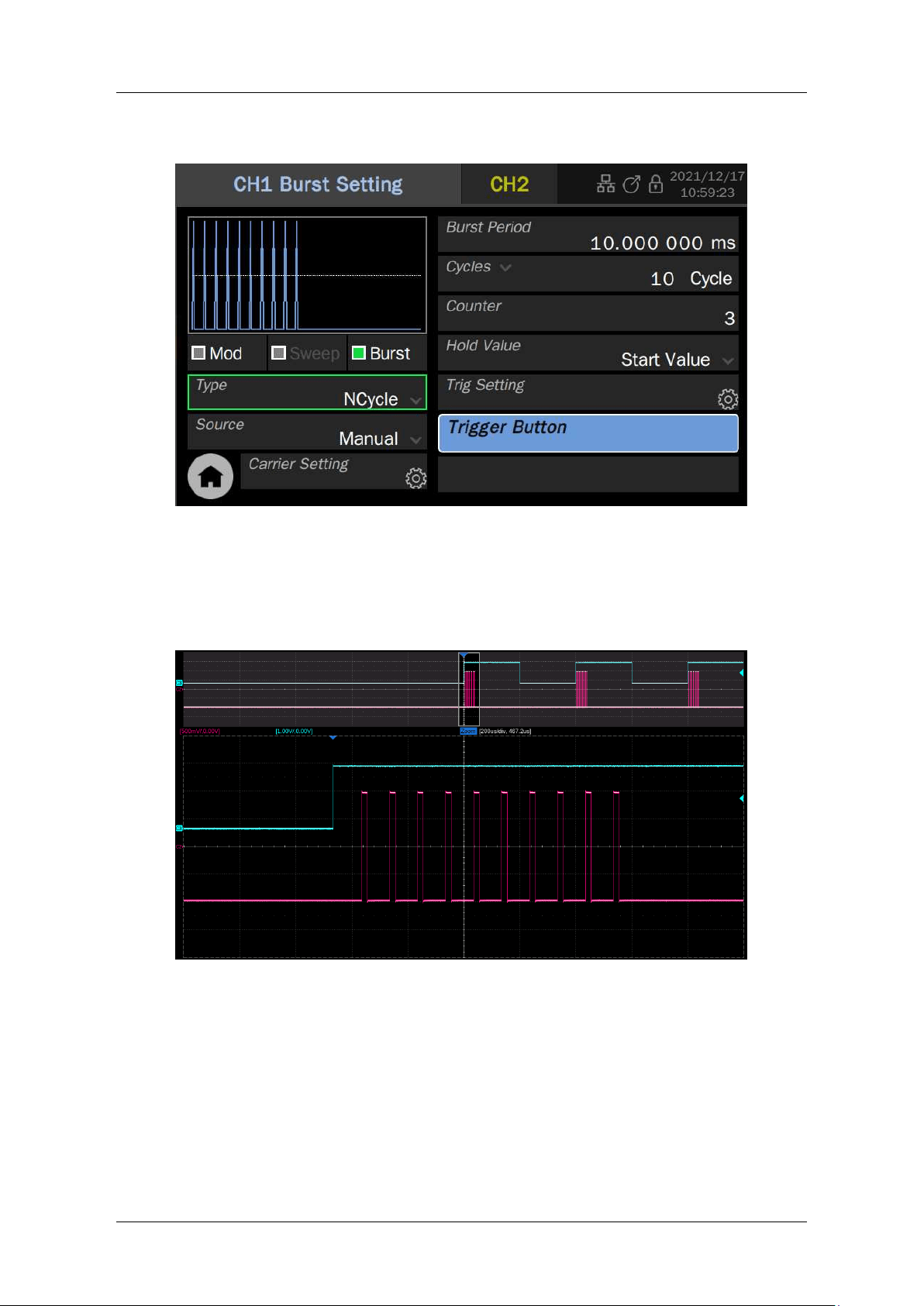
SDG7000A User Manual
86 / 133 WWW.SIGLENT.COM
Follow these steps to generate the desired burst signal. The burst parameters page after the
setup is shown below.
The result of the burst output is shown below (the red trace is the burst signal and the blue trace
is the trigger signal). As you can see, in this example, multiple bursts can be obtained with a
single trigger, each containing a specified carrier period.
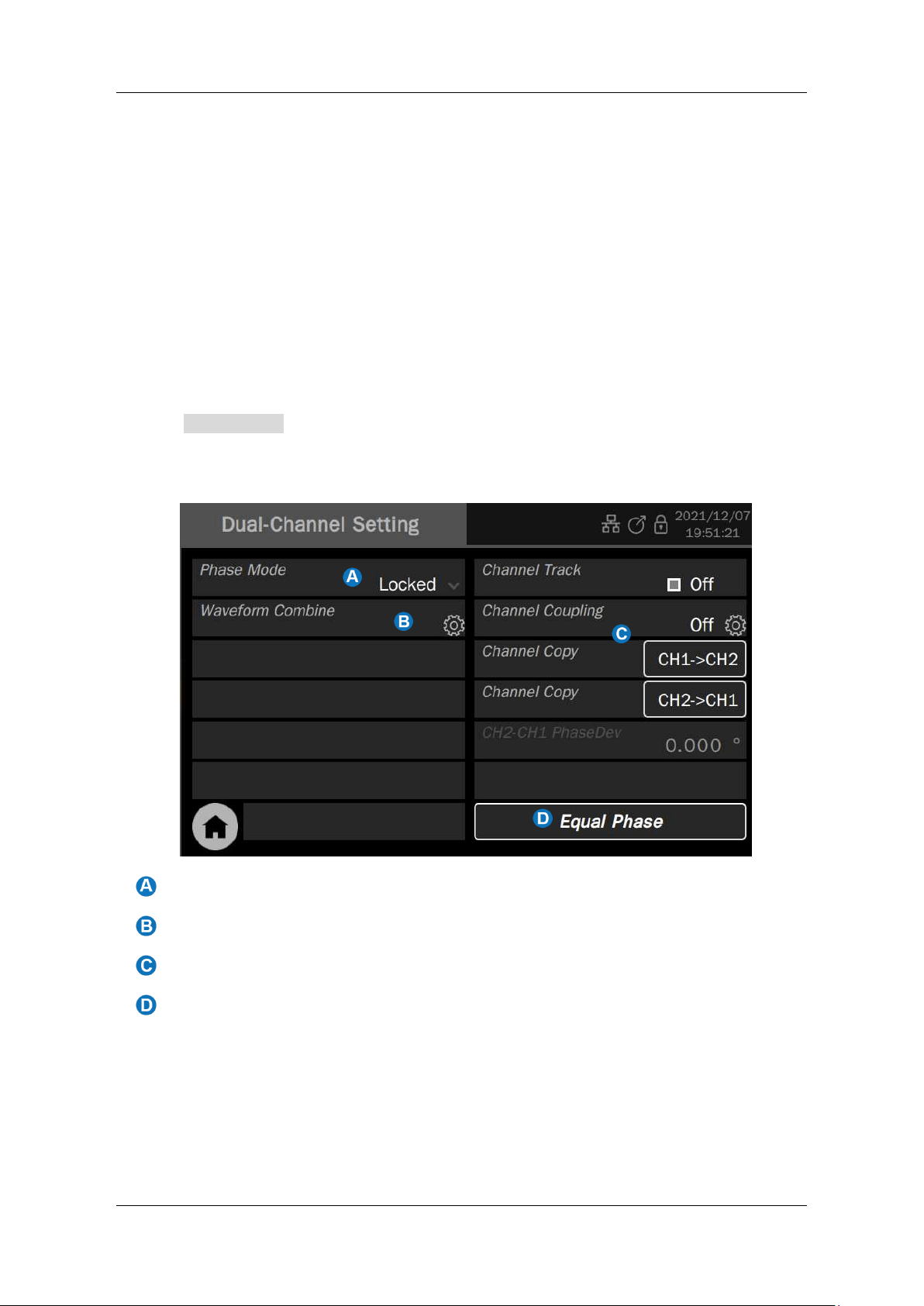
SDG7000A User Manual
WWW.SIGLENT.COM 87 /
133
11 Dual Channel Setup
11.1 Overview
The SDG7000A features enhanced dual channel functionality. With two phase modes, the unit
can be used as two independent signal generators, or the two channels can be output
synchronously. The ability to track, copy, and couple between the two channels ensures that
parameters from one channel are quickly transferred to the other as required, greatly simplifying
operation and meeting the need for fast, simultaneous waveform switching. The ability to
combine two waveforms and output them in real-time, with the ability to superimpose true noise,
modulated signals, sweep signals, burst signals, EasyPulse waveforms, and TrueArb waveforms,
provides users with a new means of accurately generating complex waveforms.
Click on Dual Channel in the toolbar on the home page to access the settings related to Dual
Channel.
Phase mode parameter setting box
Waveform Combine parameter setting box
Channel tracking/coupling/copy parameter setting area
Equal Phase button, click which to force the phase of both channels to equal
SDG7000A User Manual
88 / 133 WWW.SIGLENT.COM
11.2 Phase Mode
The SDG7000A supports two phase modes.
Independent mode: Two channels can be used as two independent signal
generators, setting one
channel does not affect the output of the other
channel
Locked mode: Synchronous output of both channels, initially phase-aligned
and ensuring that they are
phase-locked when the
frequencies are in
teger
multiples of
each other, with
no drift
In "Independent" mode, the two channels can be used as two independent signal generators,
and setting one channel will not affect the output of the other channel.
In "Locked" mode, setting the time parameter of either channel will force the two channels to
reset to ensure that they are phase aligned. In addition, the frequency calculation of the channels
is specially handled in "Locked" mode to ensure that the two channels are phase-locked when
the frequencies are integer multiples of each other and do not drift.
DDS (Direct Digital Synthesis) technology has the advantage of high-frequency resolution and
fast frequency switching compared to PLL (Phase Locked Loop) technology. However, DDS is
an open-loop system and does not allow for true 'locking' between input and output in the same
way as a phase-locked loop, i.e. the input and output of a DDS structure may not be phase-
locked and the output may drift in phase when viewed over long time durations.
As an example, set CH1 to output a 1 MHz frequency clock and CH2 to output a 10 MHz
frequency clock, according to the relationship between the DDS frequency control word (FTW)
and the output frequency f
out
.
out
N
DDS
f
FTW
F2
=
With the DDS operating frequency F
DDS
= 2.5 GHz and the bit width of the frequency control
word N = 52, the actual output frequencies and frequency errors for both channels can be
calculated as shown in the table below. The error is introduced by the rounding of the frequency
control word. As the FTW is passed to the DDS circuit as a fixed-point integer, an error is
inevitably introduced between the theoretical and actual value of the FTW.
Table 11-1 Frequency errors in independent channel mode
Set frequency
1 MHz
10 MHz
Calculated value of
frequency control word
1801439850948.198
18014398509481.98
Frequency control word
rounding
1801439850948
18014398509482
Actual output frequency
0.999999999999998899 MHz
10.000000000000009 MHz
Frequency error
-0.1101288944482803 μHz
0.009313225746154785 μHz
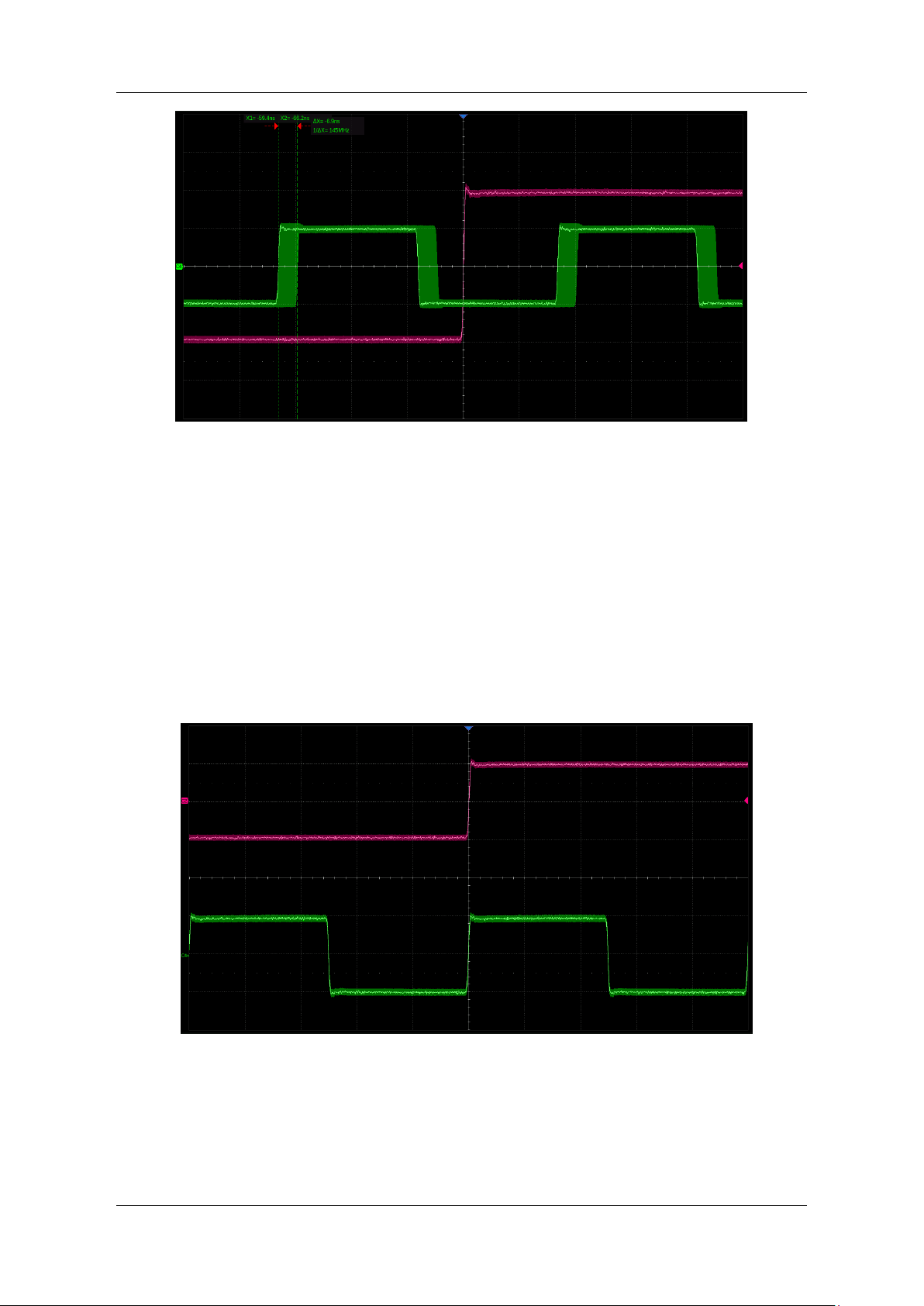
SDG7000A User Manual
WWW.SIGLENT.COM 89 /
133
As we can see from the table above, the frequency errors introduced on both channels are small,
but not proportional, which results in the two frequencies that were integer multiples no longer
being integer multiples, with the result that they are not phase-locked. The following is the phase
drift (approximately 6.9 ns) observed in this example after 17.3 hours for both channels in
“Independent” mode.
In “Lock” mode, the unit forces the higher frequency FTW to be an integer multiple of the lower
frequency FTW for frequencies that are an integer multiple of each other, which may increase
the output error at the higher frequency but ensures phase lock between the two. In this example,
the outputs of the two channels in "Locked" mode are observed over a long period. As we can
see, the phases are always aligned.
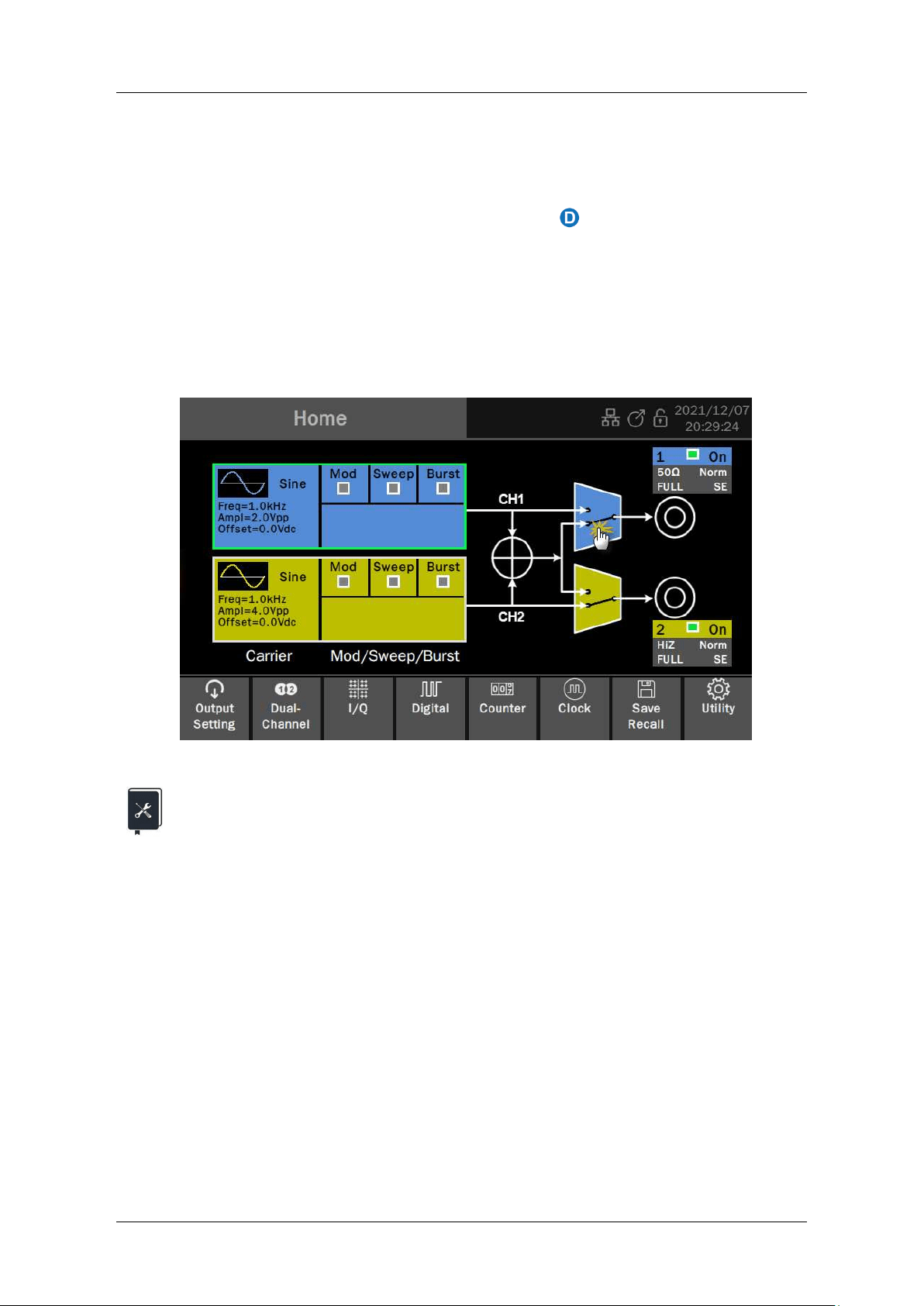
SDG7000A User Manual
90 / 133 WWW.SIGLENT.COM
11.3 Waveform Combine
The waveform combining function superimposes basic waveforms, random noise, modulation
signals, sweep signals, burst signals, EasyPulse waveforms, and TrueArb waveforms
On the "Dual-Channel Settings" page, click on the icon in the "Waveform Combine"
parameter setting box to enter the waveform combine setting.
Output port 1 can be selected to output the waveform of CH1 or CH1+CH2; output port 2 can be
selected to output the waveform of CH2 or CH1+CH2.
You can also set the output of individual channels or a combined waveform by clicking on the
corresponding selector directly from the block diagram on the home page.
Application example: Simulation of a 1 MHz sine wave contaminated by Gaussian
noise with an output amplitude of 1 Vrms with a signal to noise ratio of 20 dB
1. Set "Waveform" of the carrier to "Sine", "Frequency" to 1 MHz and "Amplitude" to 1
Vrms in the parameter setting page of CH1.
2. According to Signal to noise ratio 20 dB, converted to a signal to noise amplitude ratio
(s/σ) of 10:1. from signal amplitude s = 1 Vrms gives noise amplitude σ = 100 mVrms
3. Set "Waveform" to "Noise" and "Standard deviation" to 100 mV on the CH2 carrier
parameter page.
4. Set "Output1" to "CH1+CH2" in the setup of “Waveform Combine”.
5. Turn on the CH1 channel output and observe the results.
By following these steps, the desired signal is output. The output is as follows: (the red trace is
the signal without noise, while the green trace is the signal with noise).
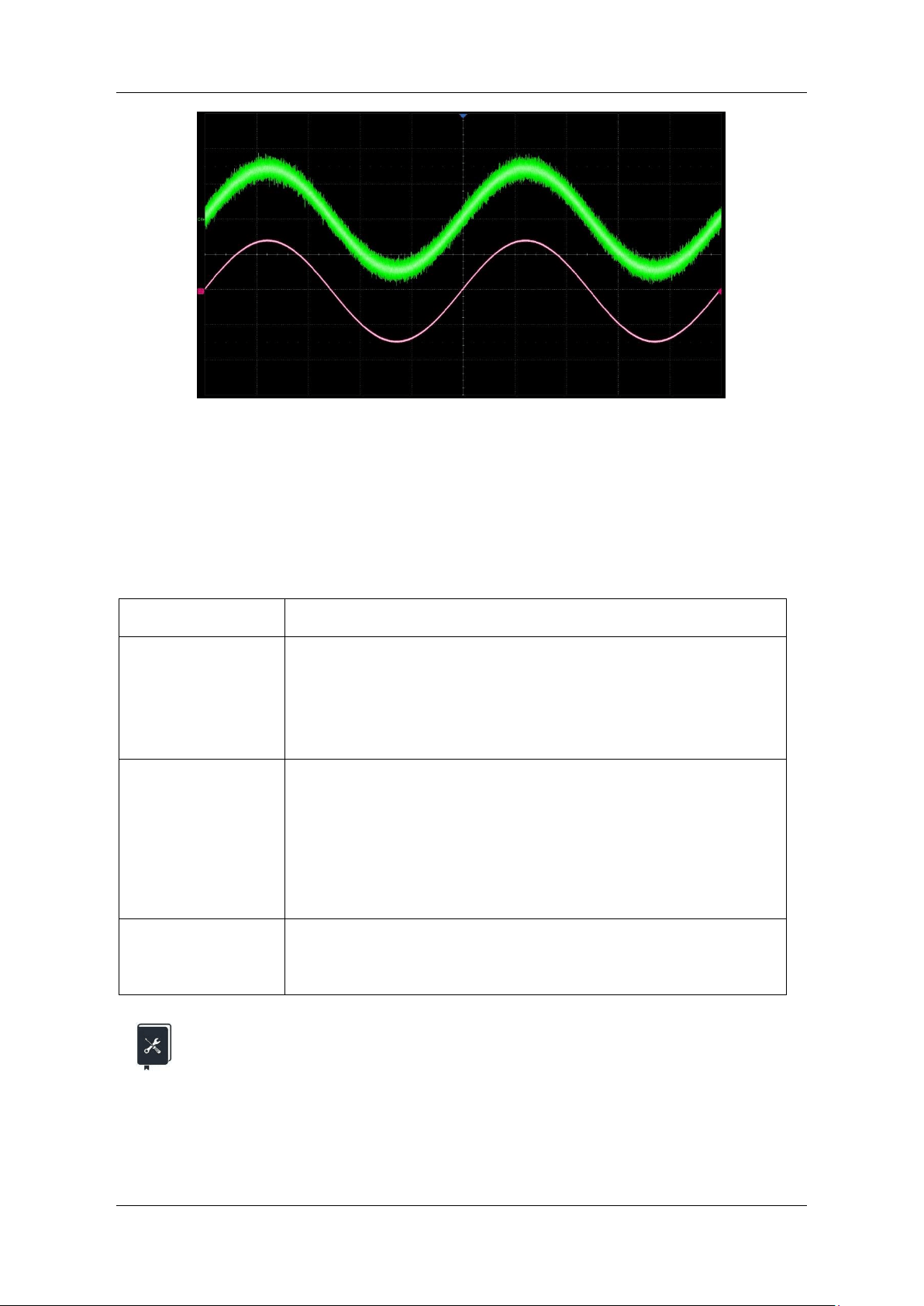
SDG7000A User Manual
WWW.SIGLENT.COM 91 /
133
11.4 Channel Tracking/Coupling/Copy
Channel track/coupling/copy can be set up under the 'Dual-Channel Setting' page. The ability
to track, copy, and couple between two channels ensures that parameters from one channel
are quickly transferred to the other as required, greatly simplifying operation and meeting the
need for fast, simultaneous waveform switching.
Table 11-2 Description of channel tracking/coupling/copy
Type of operation
Description
Track
The parameters of the two channels are fully synchronized and the
parameters set for one channel are automatically passed to the
other channel, where the two channels are duplicates of each other.
In tracking mode, the device will force the phase mode to "Locked"
and only allow the setting of CH1.
Coupling
The parameters of the two channels are coupled in a certain
relationship with CH1 as reference so that the parameters of one
channel are automatically converted and passed to the other
channel according to the coupling relationship.
The coupling parameters that can be set are frequency, amplitude,
and phase, and the coupling relationship can be proportional or
deviated.
Copy
Manually copy parameters from one channel to another. Changing
the parameters of one channel after that will not cause the
parameters of another channel to change.
Application example: Use the channel copy function and the waveform combine
function to generate a two-tone signal at frequencies 10 MHz and 10.1 MHz. the
output amplitude is 0 dBm for both frequencies
1. Set "Waveform" of the carrier to "Sine", "Frequency" to 10 MHz, "Load" to 50 Ω, and
"Amplitude" to 0 dBm in the parameter setting page of CH1.
2. Execute the channel copy function "CH1 -> CH2" on the "Dual-Channel Setting"
page
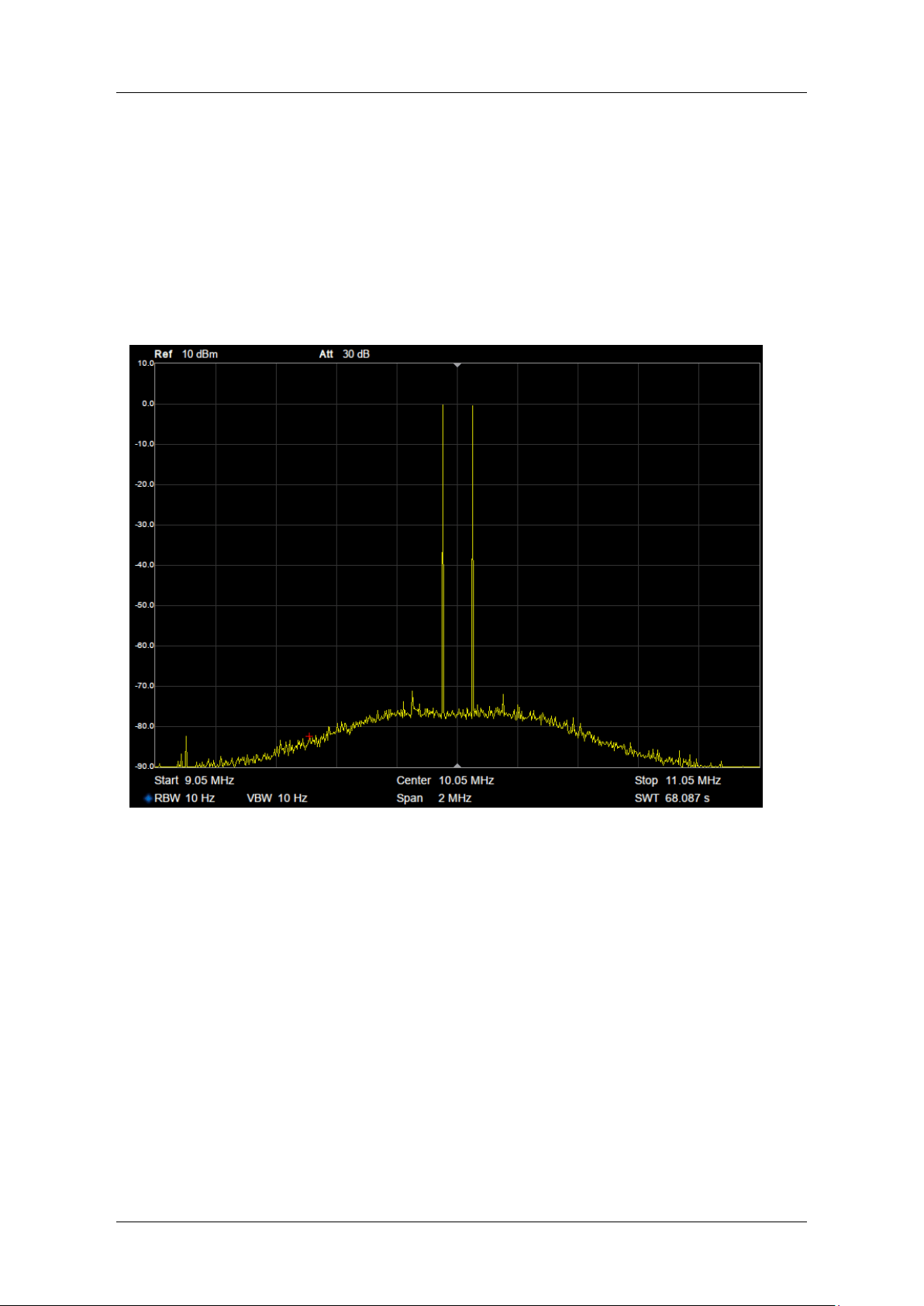
SDG7000A User Manual
92 / 133 WWW.SIGLENT.COM
3. Change "Frequency" to 10.1 MHz under the settings of the CH1 carrier parameters
page
4. Set "Output1" to "CH1+CH2" in the setup of the “Waveform Combine”.
5. Turn on the CH1 channel output and observe the results
By following these steps, the desired signal is output. The results of the spectrum of the output
two-tone signal are as follows:
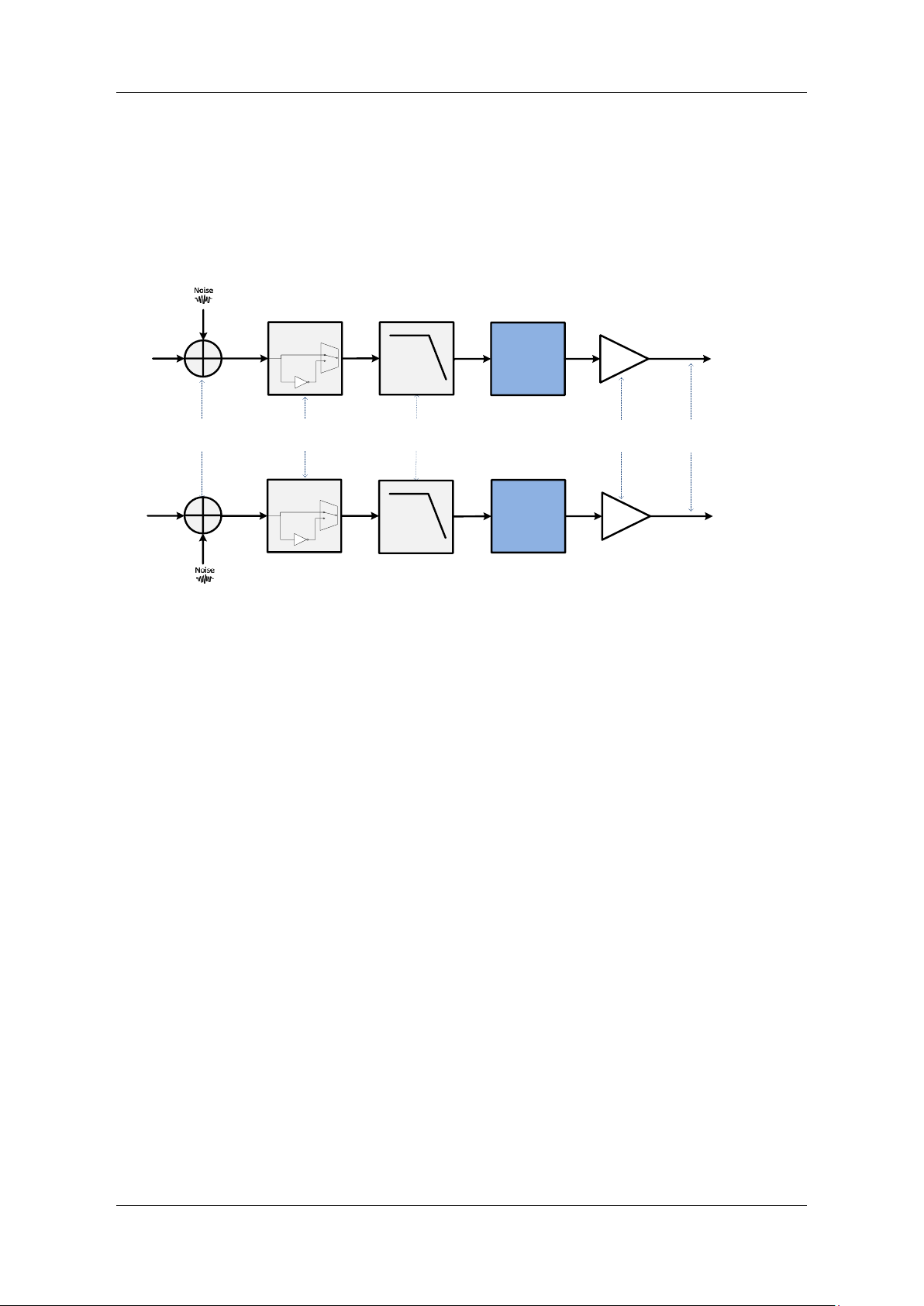
SDG7000A User Manual
WWW.SIGLENT.COM 93 /
133
12 Output Settings
12.1 Overview
Each channel contains several signal processing/settings before/after the waveform is
output, including polarity control, superimposing noise, digital filtering, amplitude limiting,
protection, and single-ended/differential control.
D/A
D/A
NoiseSum
Digital
Filter
Single Ended/
Differential
Output1
Output2
Output Setting
OVP/OCP
Polarity
Figure 12-1 Block diagram of output setting
The relevant settings page can be accessed by clicking on Output Settings in the toolbar on the
home page.
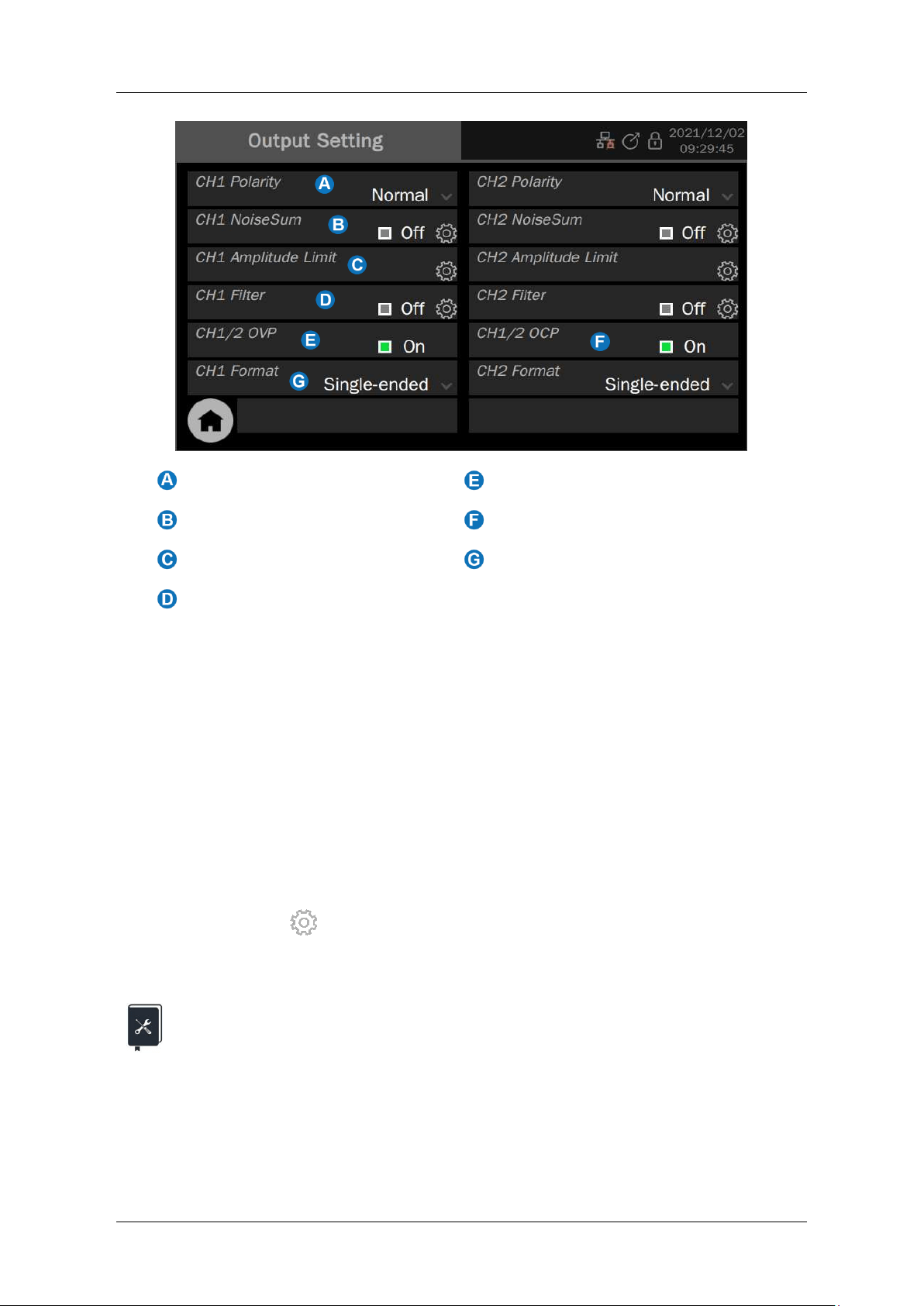
SDG7000A User Manual
94 / 133 WWW.SIGLENT.COM
Polarity setting
Overvoltage protection setting
Noise superimposing setting
Overcurrent protection settings
Amplitude limit setting
Single-ended/differential output
mode setting
Filter settings
12.2 Polarity
Positive or negative polarity output can be set. With negative polarity output, the device inverts
the data and then outputs it, resulting in a signal that is inverted relative to the offset of the
positive polarity output.
12.3 NoiseSum
You can choose to superimpose random noise on the signal and output it to simulate a realistic
scenario where the signal is contaminated by noise. Click on the settings icon in the "NoiseSum"
parameter setting box to enter the Noise superimposing settings page, where you can
enable the noise superimposing and the signal-to-noise ratio. The signal-to-noise ratio is
measured in ratios (dimensionless) or dB.
Application example: Simulation of a 1 MHz sine wave contaminated by
Gaussian noise with an output amplitude of 1 Vrms with a signal to noise ratio of
20 dB
Note that the requirements of this example are the same as those of the application example in
the section "Waveform Combine". The same effect can be achieved by using a NoiseSum
function in this section.
1. Set "Waveform" of the carrier to "Sine", "Frequency" to 1 MHz, and "Amplitude" to 1
Vrms in the parameter setting page of CH1.
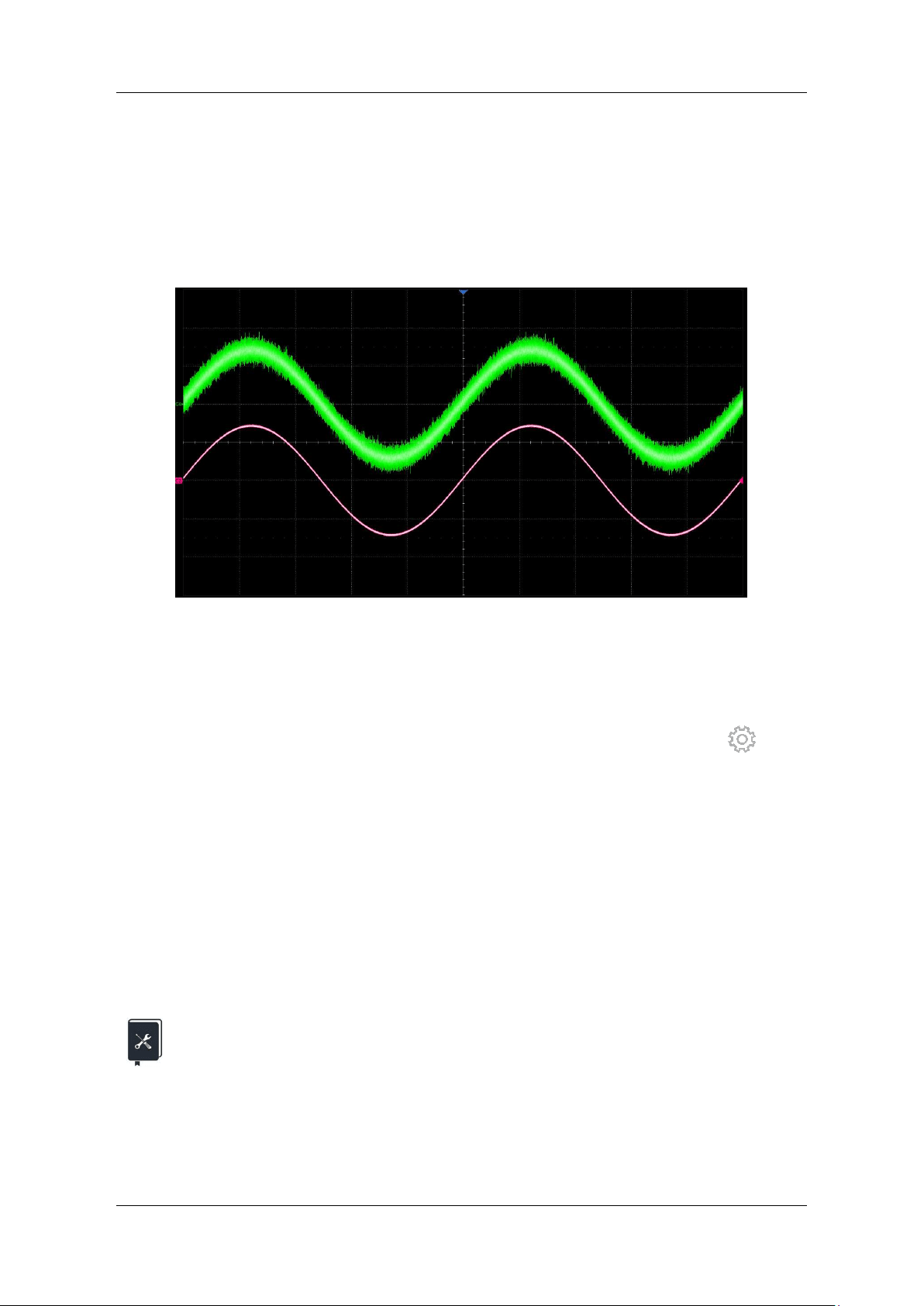
SDG7000A User Manual
WWW.SIGLENT.COM 95 /
133
2. Set the "Signal to Noise Ratio" to 20 dB in NoiseSum setting and turn on the
NoiseSum function
3. Turn on CH1 channel output
The above steps are followed to generate the desired signal. The output is as followed (the red
trace is the signal without noise, while the green trace is the signal with noise) and is consistent
with the results of the previous example.
12.4 Amplitude Limit
In some applications, the user needs to limit the amplitude of the channel output to ensure that
amplitude sensitive signal receiving device is not damaged. Click on the setting icon in the
"Amplitude Limit" parameter box to access the Amplitude Limit.
The default maximum amplitude is the maximum amplitude that the device can provide, see the
datasheet for details.
12.5 Digital Filtering
A 32-tap FIR digital filter is integrated into each channel to support low-pass filtering, with a
settable cut-off frequency. This allows the user to limit the bandwidth of the output signal.
Application example: generate a pulse signal with 1 ns edges and set the
output filter to 100 MHz, then compare the change in the edges when the
output filter is turned on and off
1. In the parameter setting page of the carrier, set "Waveform" "Pulse", "Frequency" to 1
MHz, "Load "50 Ω, "Amplitude" to 1 Vpp, "Duty Cycle" to 50%, and "Rising Edge" to 1
ns.
2. Under the "Output1 filter" settings page, set "Cut-off frequency" to 100 MHz.
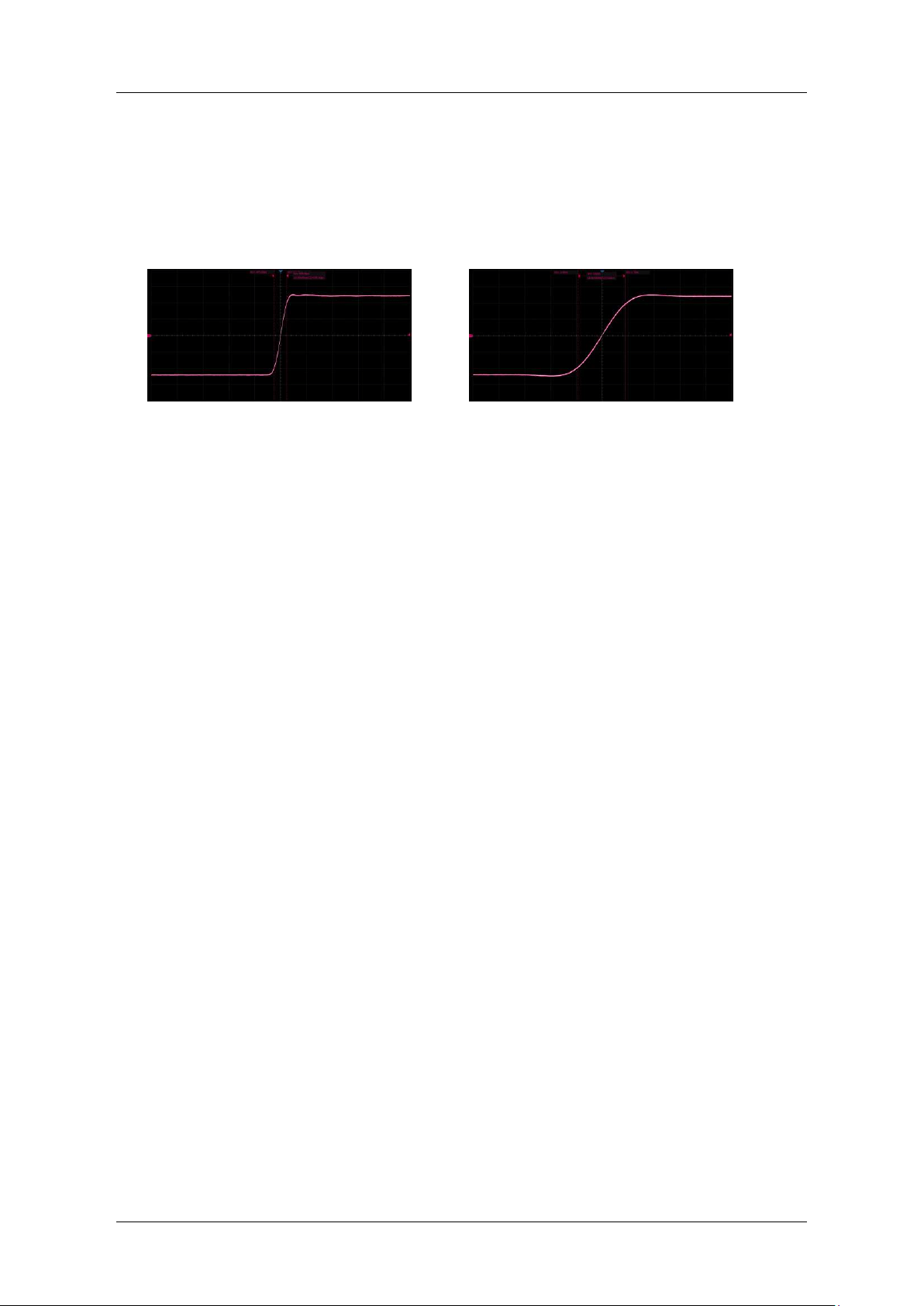
SDG7000A User Manual
96 / 133 WWW.SIGLENT.COM
3. Observe the results without opening the Output1 filter; open the Output1 filter and
observe the results again.
The output results are compared below. The measured rising edge without the output filter is
around 0.94 ns, which roughly complies with the setting, and the measured rising edge with the
output filter on is around 3.6 ns, which roughly complies with the 100 MHz bandwidth.
When the output filter is switched
off
When the output filter is switched on
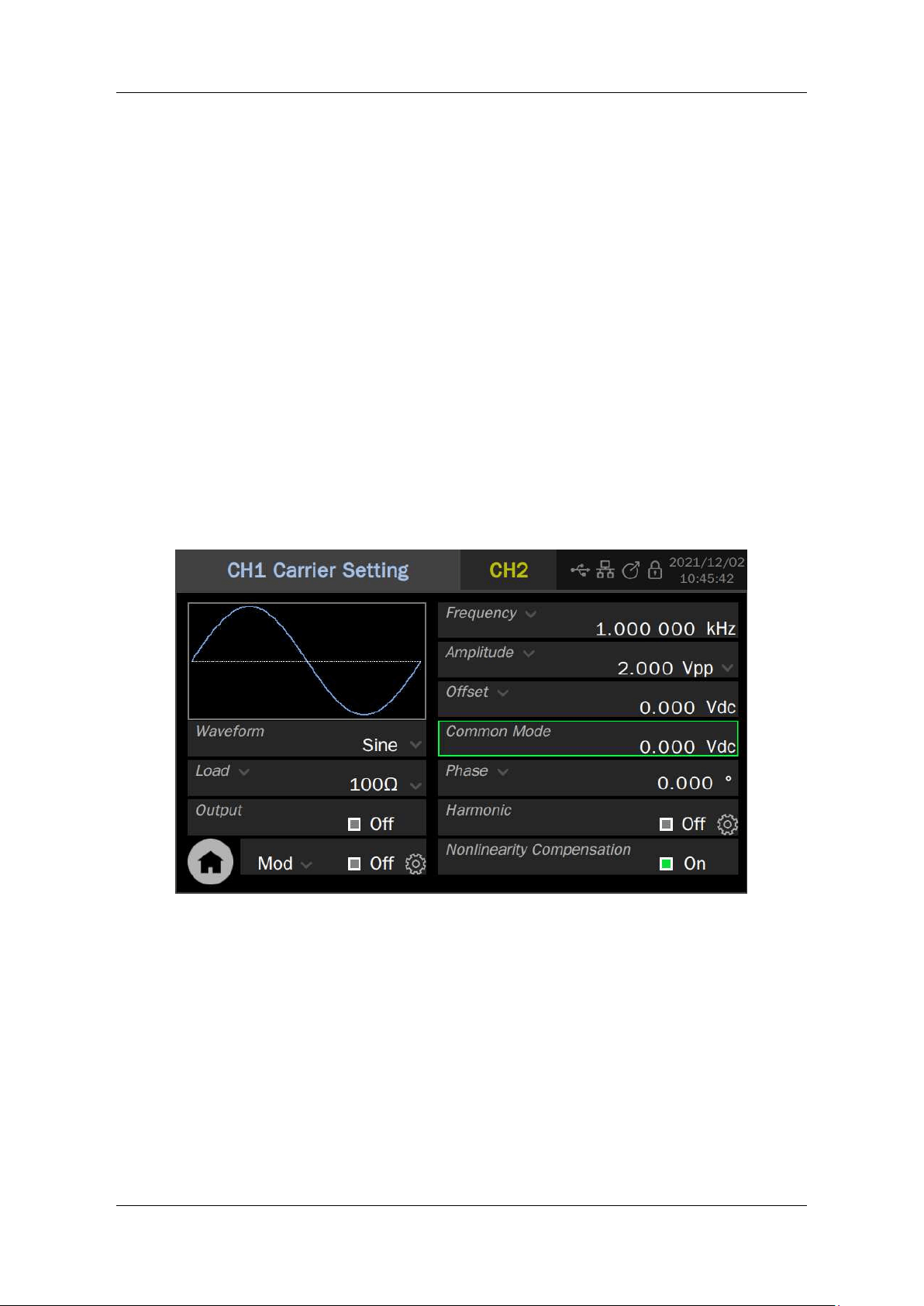
SDG7000A User Manual
WWW.SIGLENT.COM 97 /
133
12.6 Output Protection
The output protection consists of over-voltage protection (OVP) and over-current protection
(OCP). OVP and OCP switches are shared by both outputs. Separate control of OVP or OCP
for both channels is not supported.
12.7 Single-ended/Differential Settings
The unit offers two output modes, single-ended and differential. They can be set directly in the
"Output Settings" page.
The output terminals on the front panel are "+" on the right and "-" on the left when the output is
differential, and "+" on the left when the output is single-ended.
The analog parameters will differ between the single-ended and differential output modes, as
detailed in the datasheet.
After the output is set to "Differential", a parameter setting box for "Common Mode " will appear
on the carrier settings page, providing an entry for setting the common mode of the differential
signal, as shown below:
Note the distinction between the concepts of "common mode" and "offset". Both are DC levels,
but "common mode " refers to the common-mode component of the differential pair, while "offset"
is the differential mode component.
With "differential" output, the "amplitude" of the signal refers to the peak-to-peak value of the
differential mode signal, i.e.:
( )
pp
pk pk
V V V
+−
−
=−
It is related to the peak-to-peak value of the signal on the "+" or "-" alone by a factor of 2.
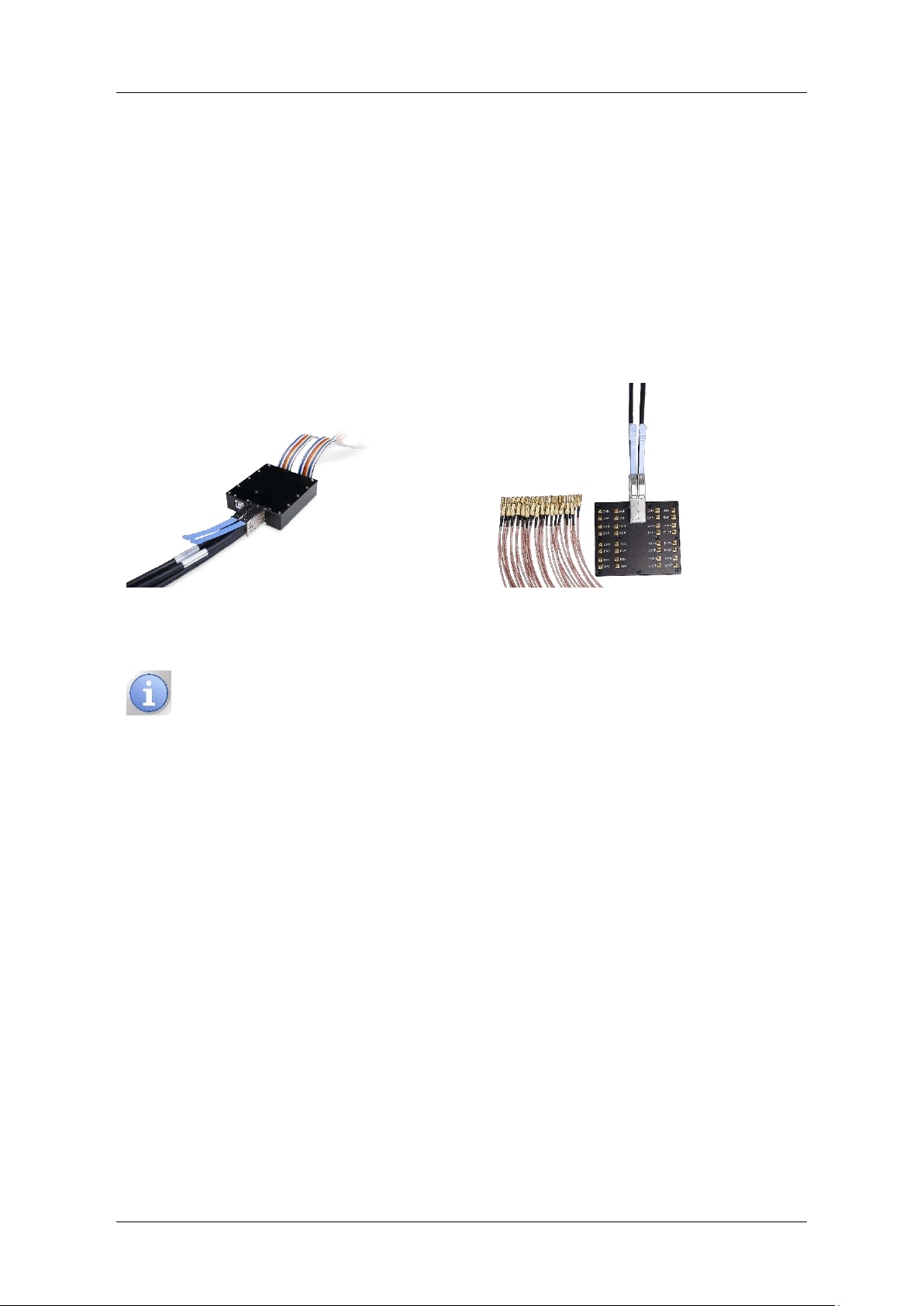
SDG7000A User Manual
98 / 133 WWW.SIGLENT.COM
13 Digital Channels
13.1 Overview
The SDG7000A provides 16 digital signal outputs. The digital output function is available with
the optional digital output kit. There are two digital levels to choose from: LVTTL and LVDS. The
LVTTL kit output converts the LVDS signal output by the device into LVTTL signals and outputs
it. Since the level conversion requires a special chip, the kit needs an external USB power supply.
The kit providing LVDS output directly leads out the LVDS signal of the device without an external
power supply.
LVTTL output Kit
LVDS
output Kit
Since the speed of the LVTTL output kit is limited by the LVTTL level itself, it
supports a lower maximum digital signal rate than LVDS models. Refer to the
datasheet for details
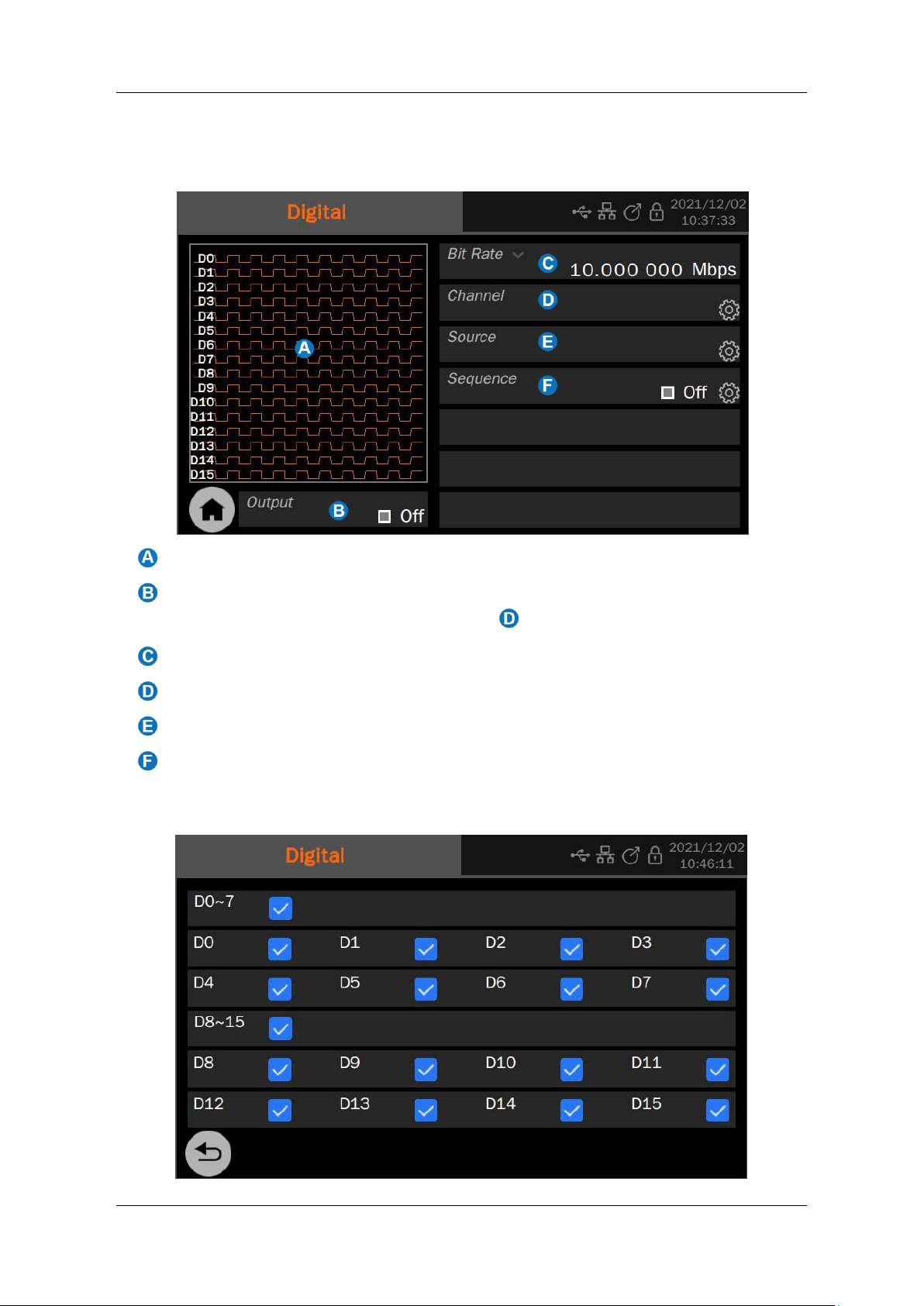
SDG7000A User Manual
WWW.SIGLENT.COM 99 /
133
13.2 Digital Channel Settings
Click on Digital Channels in the toolbar on the home page to access the digital channel settings.
Waveform preview image
Output control: Click the switch on the right side of the setting box to switch
on/ off the output of the specified channel in
Bit rate parameter setting box
Channel setting box
Data source selection
Sequence settings
Channel Settings
Select a specific channel output.

SDG7000A User Manual
1 0 0 / 1 3 3
W W W . S I G L E N T . C O M
Click on the checkboxes to the right of D0~7 to turn on/off all 8 channels from D0~D7, or select
some of the channels from D0~D7 individually at the bottom; the same applies to D8~15.
Data Sources
The data sources include both built-in and stored waveforms. The data sources are recalled in
the same way as Arb. For details, please refer to the "Data Sources" section of the "Arbitrary
Waveform Setup".
Sequence Settings
This is the same as for Arb. See the section "Sequence settings" for details.
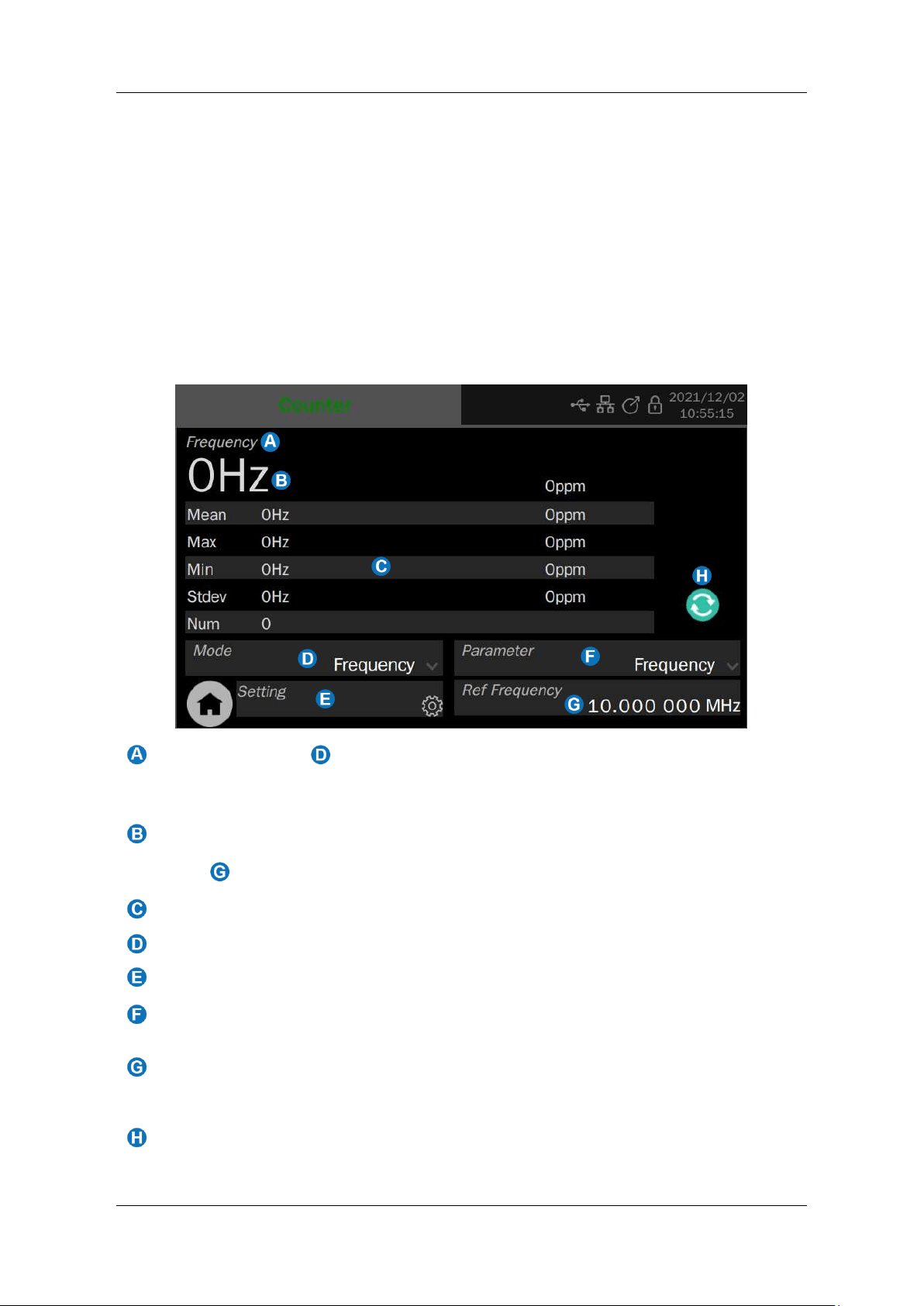
SDG7000A User Manual
WWW.SIGLENT.COM 101 /
133
14 Counter
14.1 Overview
The counter is used to measure the frequency or period of the current signal, or to count the
currently specified trigger event. Click on the Counter in the toolbar on the home page to access
the relevant settings. The counter works in two modes: Frequency meter mode and Totalizer
mode.
14.2 Frequency Meter Mode
The parameter setting page for the frequency meter mode is as follows:
When the mode in is "Frequency ", the measurement parameters relating to the
frequency meter are displayed here (frequency, period or duty cycle). When the mode is
"Counter", the counter is displayed
Measured value of the current parameter. The value shown in small print on the right is
the deviation of the measured value from the reference value entered at the reference
point, expressed in parts per million (ppm)
Parameter statistics display area
Working mode parameter setting box
Frequency meter setting
The parameter setting box is displayed. Parameters that can be displayed include
frequency, period, and duty cycle
Reference frequency parameter setting box, where you enter the desired input frequency
and the frequency meter automatically calculates the deviation of the measured value
from the reference frequency
Clear statistics
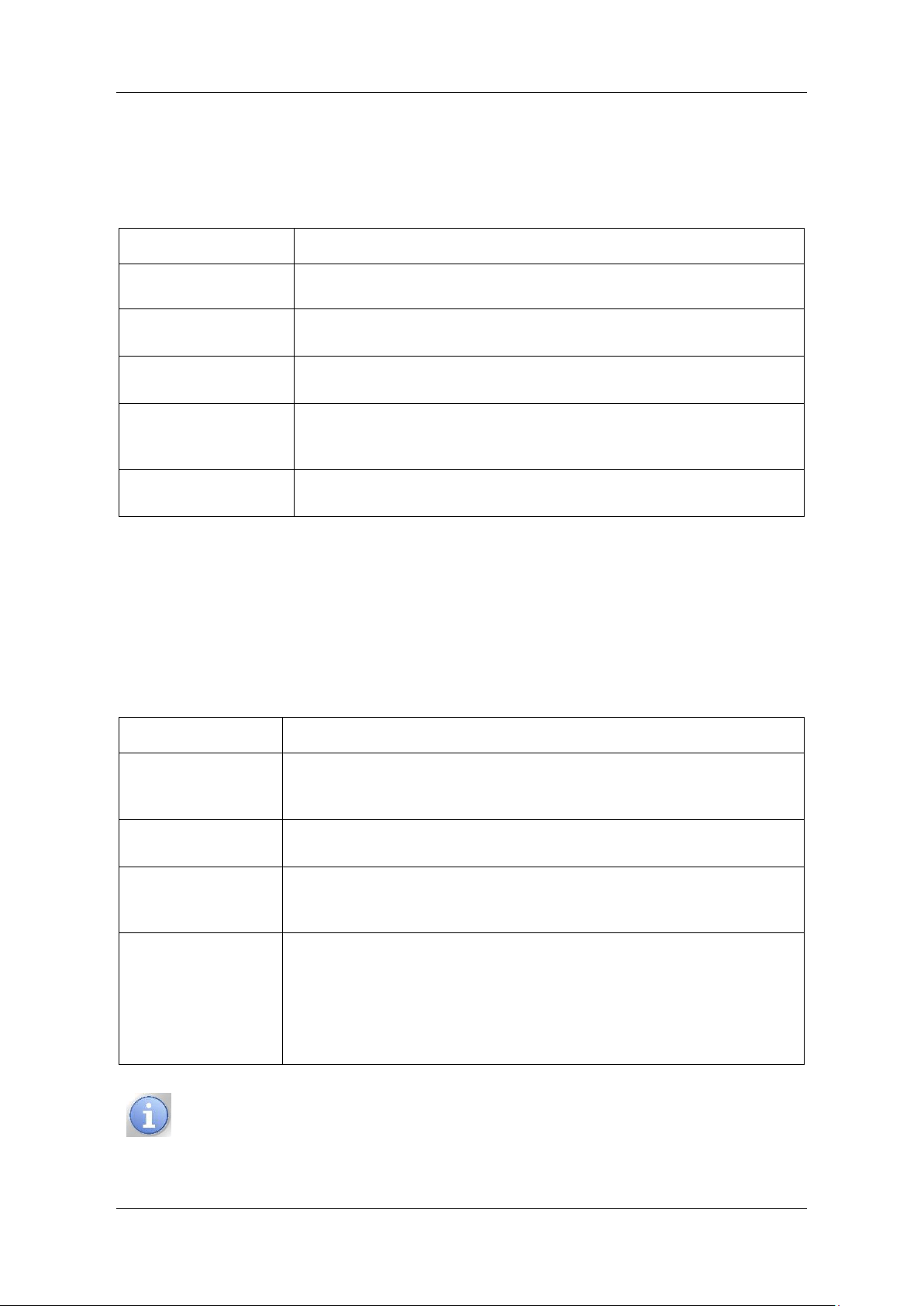
SDG7000A User Manual
1 0 2 / 1 3 3
W W W . S I G L E N T . C O M
Statistics
The frequency meter keeps a tally of the historical measurement data and displays the results
on the screen.
Table 14-1 Description of frequency meter statistics
Statistical values
Description
Mean
Average - Arithmetic average of all historical measurements
Max
Maximum value - Maximum value of all measured values in history
Min
Minimum value - Minimum value of all measured values in history
Stdev
Standard deviation – The standard deviation of all historical
measurements, used to determine the distribution of measured
parameters
Count
Number of statistics - Number of measurements obtained
Click on the icon to the right of the statistics area to restart the statistics.
Settings
Click on the settings icon in the "Settings" parameter setting box to enter the frequency meter
settings. The parameters that can be set and their descriptions are shown in the following table:
Table 14-2 Description of frequency meter parameters
Parameters
Description
Coupling
AC/DC coupling mode is selectable. DC coupling allows all frequency
components to pass, while AC coupling blocks the DC component and
only allows the AC component to pass
High-frequency
rejection
Rejects high-frequency components of the signal. Suitable for testing
low-frequency signals for higher signal-to-noise ratio
Trigger level
The input signal is compared with the trigger level to produce a
counting pulse. The trigger level is generally recommended to be set to
Positioned at 50% of the signal
Close on exit
When set to On, the counter function is automatically switched off when
exiting the counter's setup page, and the EXT MOD/CNT port is
switched to the EXT MOD function.
When set to Off, the counter function remains in the background when
exiting the counter's setup page and the EXT MOD/CNT port remains
CNT enabled.
In most cases, it is recommended to use a configuration with coupling = AC
and trigger level = 0V. Only at frequencies < 1 Hz is it recommended to use DC
coupling and to set the appropriate trigger level according to the signal level.
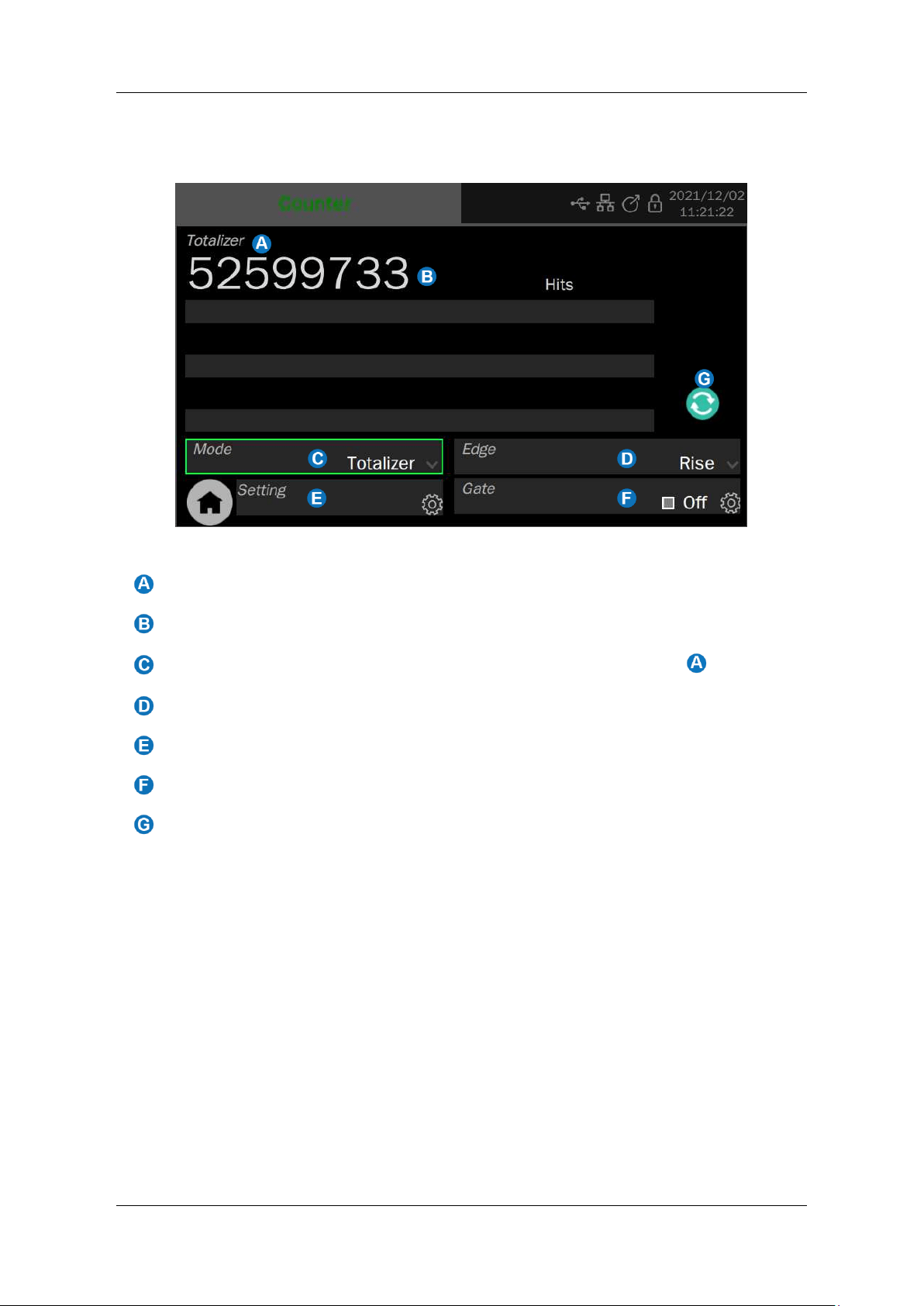
SDG7000A User Manual
WWW.SIGLENT.COM 103 /
133
14.3 Totalizer Mode
The parameter setting page for the Totalizer mode is as follows:
Current operating mode
Current count value
Working mode parameter setting box. The working mode is marked by
Parameter setting box for Totalizer trigger edge
Totalizer settings
Gate setting box
Clear and reset counting
When the Totalizer mode is selected for counting, the edge of the counting signal has to be set
and a gating setting can also be made. The Totalizer will only count if the gating signal meets
the conditions. Touch Gate to bring up the Gate Settings dialog.
When the threshold type is level, set the polarity of the threshold source (positive or negative).
When the threshold type is after edge, set the slope of the threshold source (rising or falling
edge).

SDG7000A User Manual
1 0 4 / 1 3 3
W W W . S I G L E N T . C O M
15 Save/Recall
15.1 Overview
The SDG7000A can save and recall setups, waveform, firmware update files, etc. Save and
recall locations include internal memory (Local), external USB storage devices (e.g. USB stick),
or network storage.
For details of network storage, refer to the section “Network Storage”.
15.2 Save Type
The SDG7000A supports save types: Setup(*.xml), Waveform Data (*.awg). Here are brief
descriptions of save types:
Setup:
The setup is saved with the *.xml file extension.
Setup containing the parameters set by the instrument's functional modules and the auxiliary
function parameters under the system settings menu and system parameters, etc.
AWG Data:
Saves the waveform data in AWG (*.awg) format. Only sequence waveforms can be saved.
On the sequence page, you can select to save the current waveform sequence to storage.
15.3 Recall Type
The SDG7000A supports recall types: Setup(*.xml),Waveform Data (binary/csv/dat/awg/arb),
Calibration Data(*.cal), Firmware update files(*.ads).
Here are brief descriptions of save types:
Setup
You can call the saved settings file to restore various settings, or set them as the default
settings for power on.
AWG Data
On the sequence page, select recall *.awg file to load the saved waveform
。
Binary Data
the Binary arbitrary wave data files, it can be recalled directly in AWG data source settings
without format conversion.
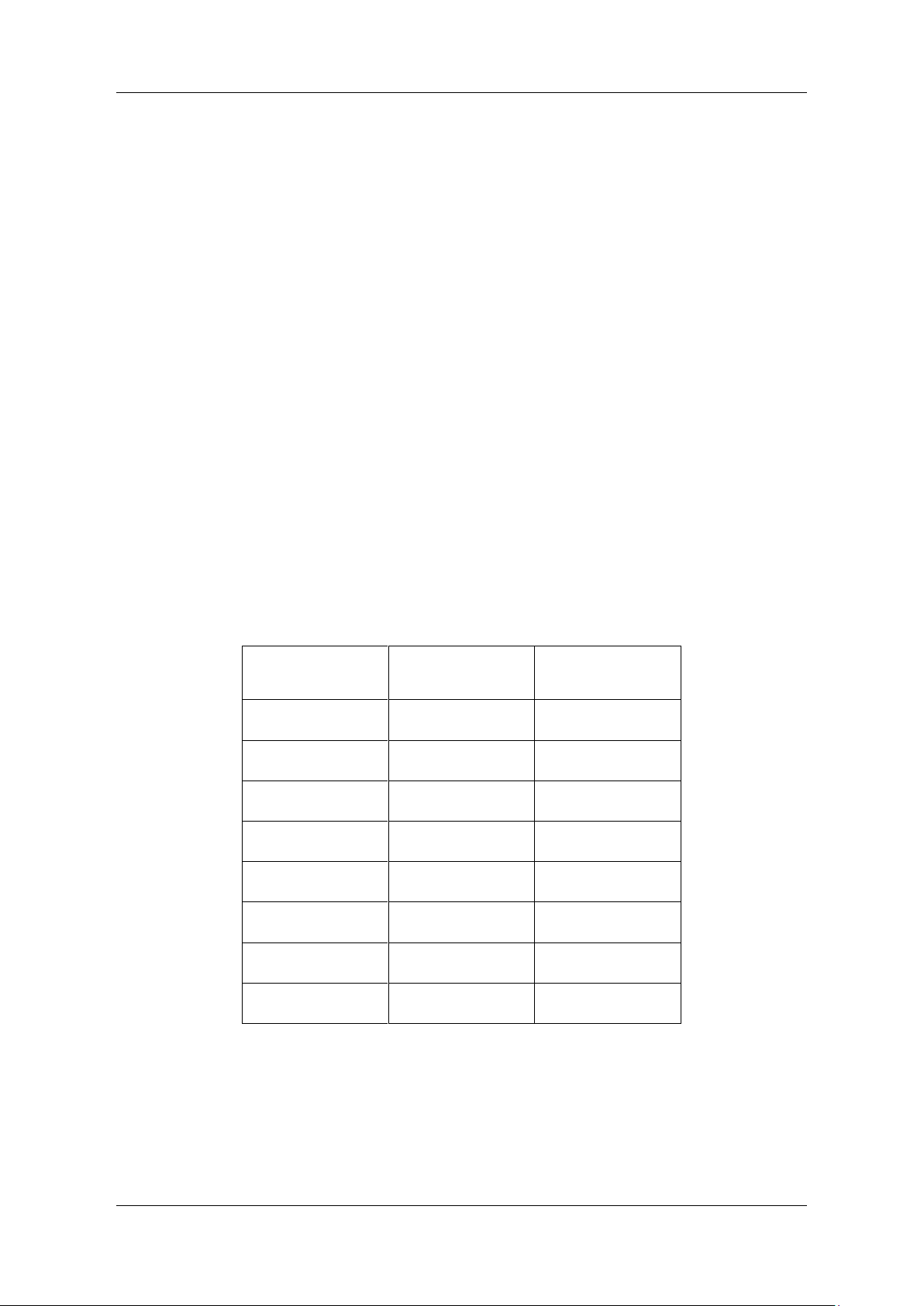
SDG7000A User Manual
WWW.SIGLENT.COM 105 /
133
CSV Data
The arbitrary waveform data (*.csv) supported can be recalled from external memory and
simultaneously converted to *.bin format for storage in internal memory.
DAT Data
The arbitrary waveform data (*.dat) supported can be recalled from external memory and
simultaneously converted to *.bin format for storage in internal memory.
Arb Data
I/Q data files.
Calibration Data
Calibration recovery file which can be used to recover calibration data.
ADS
Firmware upgrade file, recallable from external memory, such as U-Disk or network storage.
The following table shows the relationship between the file types and save/recall operations.
Table 15-1 Save and recall file type
Type
Save to External
Recall
*.xml
√
√
*.awg
√
√
*.bin
×
√
*.csv
×
√
*.dat
×
√
*.arb
×
√
*.ads
×
√
*.cal
×
√
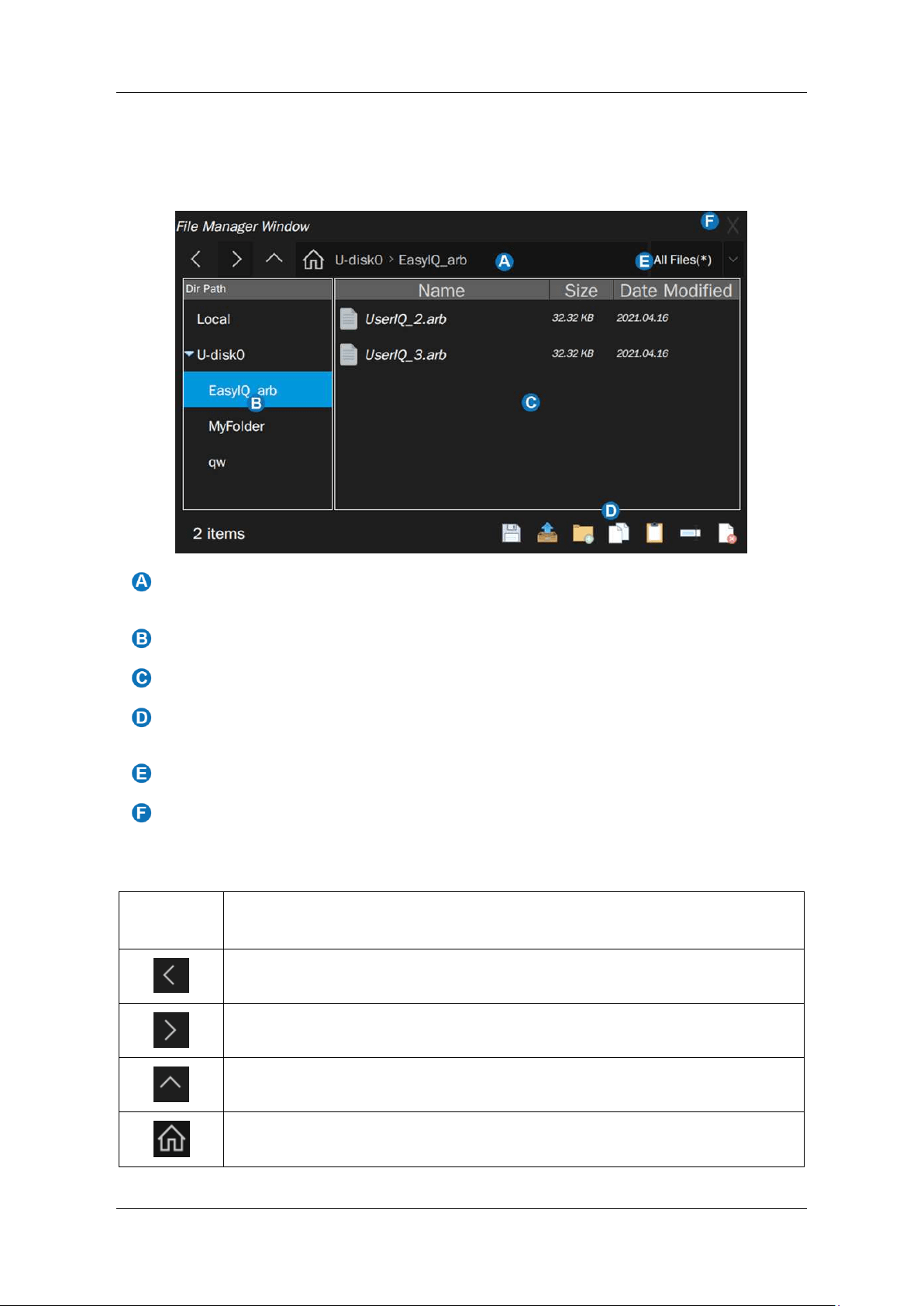
SDG7000A User Manual
1 0 6 / 1 3 3
W W W . S I G L E N T . C O M
15.4 File Manager
The SDG7000A file manager has a similar style and operation with the Windows© operating
systems.
The address bar, which shows the path where the current list of files is located. This
includes some shortcuts to the paths, see Table 15-2 for details.
Navigation panel
File list
The toolbar, which provides a variety of specific operations on the documents, is
detailed in Table 15-2
File type
Close, click here to exit File Manager
Table 15-2 Descriptions of file manager Icon
Operation
icons
Description
Back
Forward
Up one level
Root directory
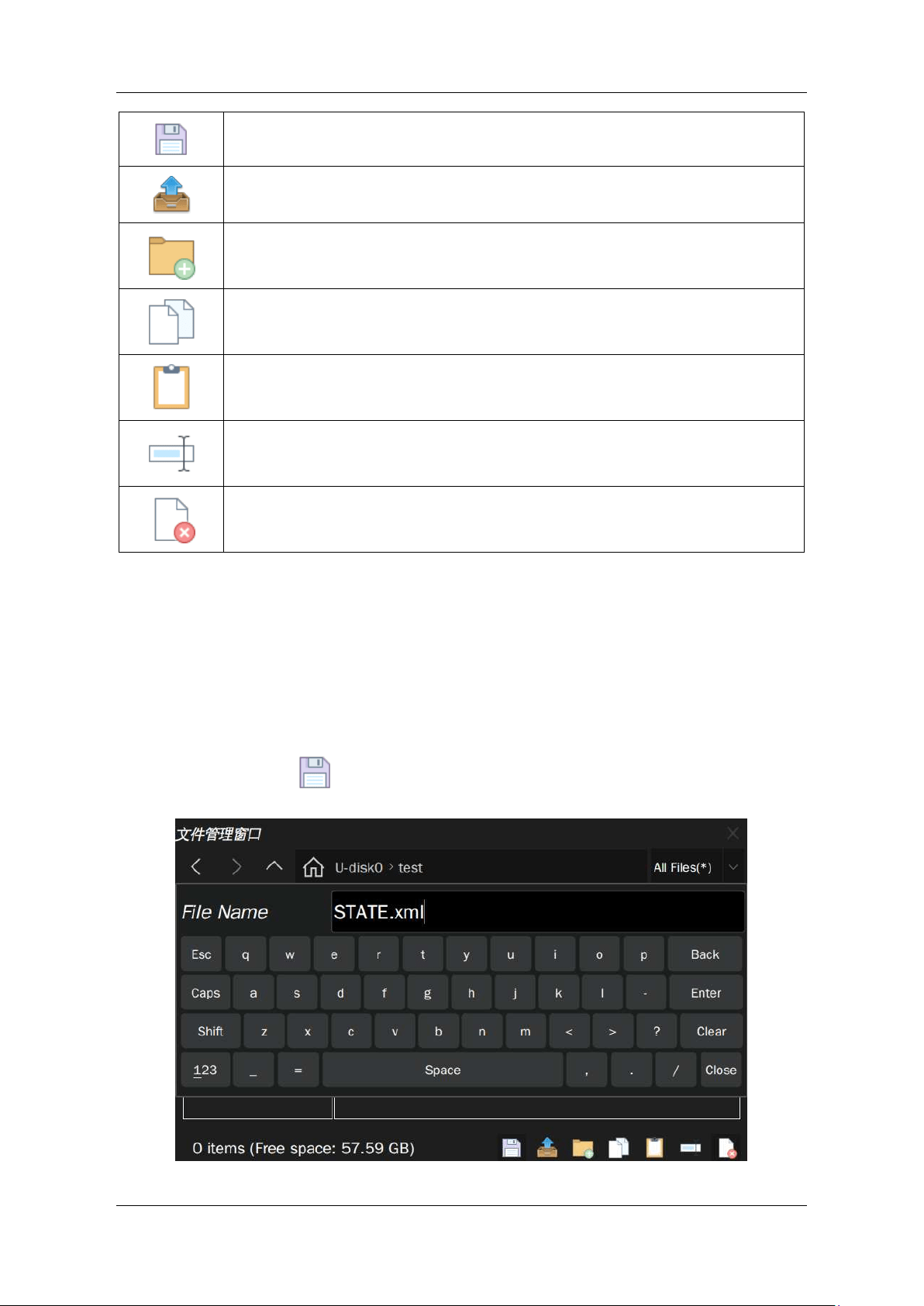
SDG7000A User Manual
WWW.SIGLENT.COM 107 /
133
Save
Recall
New directory
Copy
Paste
Rename
Delete
15.5 Save and Recall Instance
Save the setup to the path “U-disk0\test”.
1. Insert the U disk
2. Click the Save/Recall icon on the HOME page to open file manager
3. Select the “U-disk0\test” directory in the file manager
4. Click the Save icon at the bottom right of the page, and a soft keyboard will pop up.
You can change the file name and press enter to save.
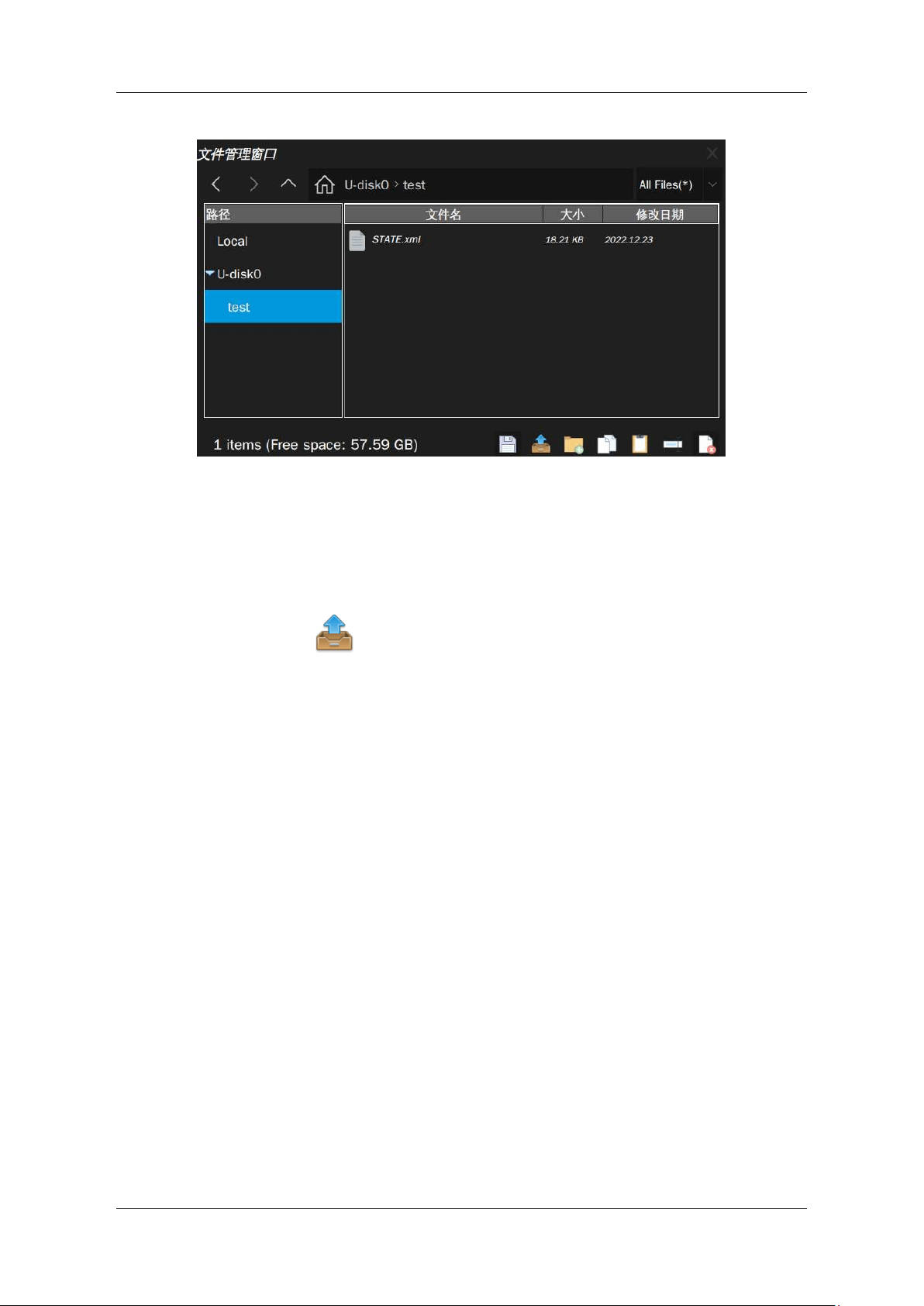
SDG7000A User Manual
1 0 8 / 1 3 3
W W W . S I G L E N T . C O M
Once saved, the new XML file is visible in the file manager:
Recall the setup file "STATE.xml" stored in path “U-disk0\test\”
1. Insert the U disk with the file "STATE.xml" stored folder “U-disk0\test\”
2. Click the Save/Recall icon on the HOME page to open file manager
3. Browse to “U-disk0\test” directory and select the “STATE.xml” file
4. Touch the Recall icon and wait for the device to finish recalling setup.
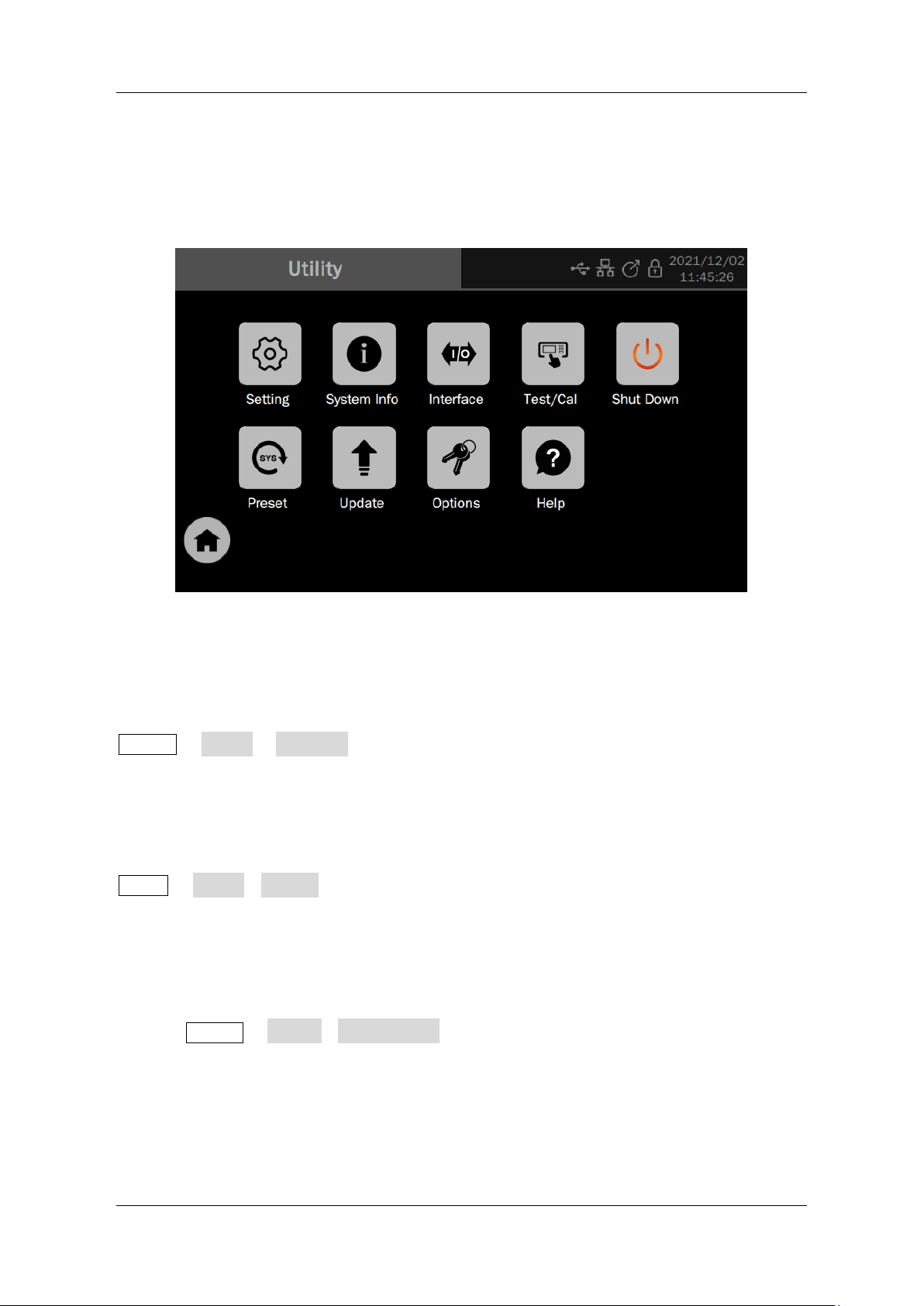
SDG7000A User Manual
WWW.SIGLENT.COM 109 /
133
16 System Setup
System setup supports auxiliary functions of the device such as checking the system status,
setting language and beeper, as well as more advanced settings such as self-calibration,
upgrading firmware, and I/O.
Click on Utility in the toolbar on the home page to access the relevant settings page:
16.1 General Settings
16.1.1 Language
The SDG7000A supports Simplified Chinese and English.
Utility
>
Setting
>
Language, and select the language from the pop-up list.
16.1.2 Sound
Option to enable audible feedback from the beeper each time you touch the screen or perform
on the front panel.
Utility
>
Setting
>
Beeper
,
just set it on/off.
16.1.3 Screen Saver
A screen saver will be activated if the device has not been operated for a period. At this time the
backlight of the display is cut off to save power consumption.
Execute Utility > Setting > Screen Saver , to specify the period before screen saver, or select
"Off" to disable the screen saver.
The available screen saver waiting times are 1 minute, 5 minutes, 15 minutes, 30 minutes, 1
hour. You can also select 'Off' to disable the screensaver.
Any action from the mouse, touch screen, or front panel can disable the screen saver.
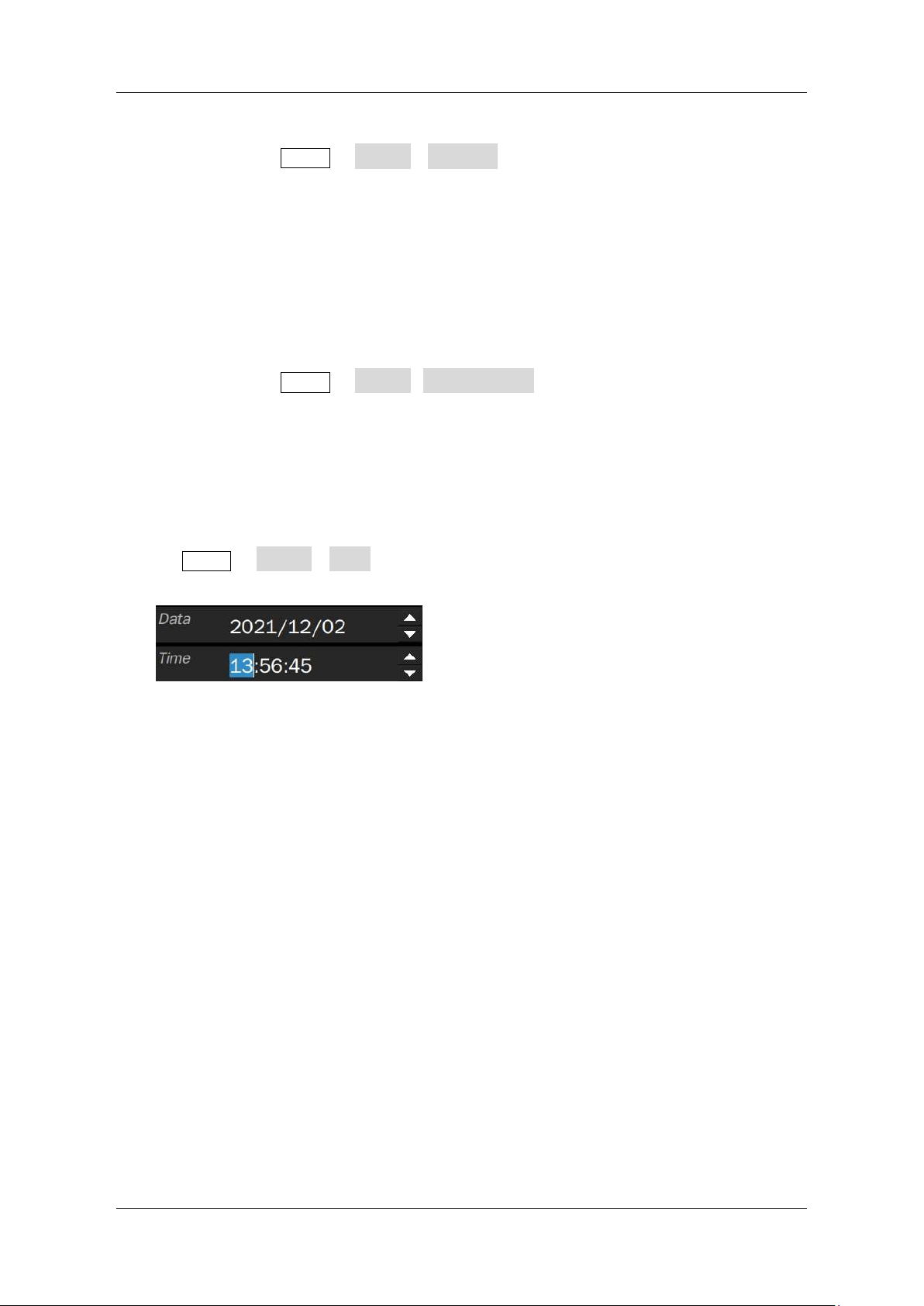
SDG7000A User Manual
1 1 0 / 133
W W W . S I G L E N T . C O M
16.1.4 Keyboard Lock
Settings are made via Utility > Setting > Keyboard, to select “lock” or “unlock” the keyboard.
When set to "lock", the device has no response to any key operation on the front panel. To enable
keyboard operation, set to “unlock” via the touch screen or remote control.
16.1.5 Auto Power On
When the “Auto Power on” option is enabled, once the device is connected to the AC power
supply through the power cord, the device boots automatically. This is useful in automated or
remote applications where physical access to the instrument is difficult/impossible.
Settings are made via Utility > Setting > Auto power-on.
16.1.6 Date and Time
The SDG7000A has a real-time clock (RTC), which helps to record absolute time information for
screenshots, history operations, and other file operations.
Execute Utility > Setting > Time or click the time/date display area in the upper right corner of
the screen to enter the time/date setting page:
Touch the hour, minute, second, day, month, and year areas and adjust the values using the up
and down arrows on the right side of the parameter setting box.
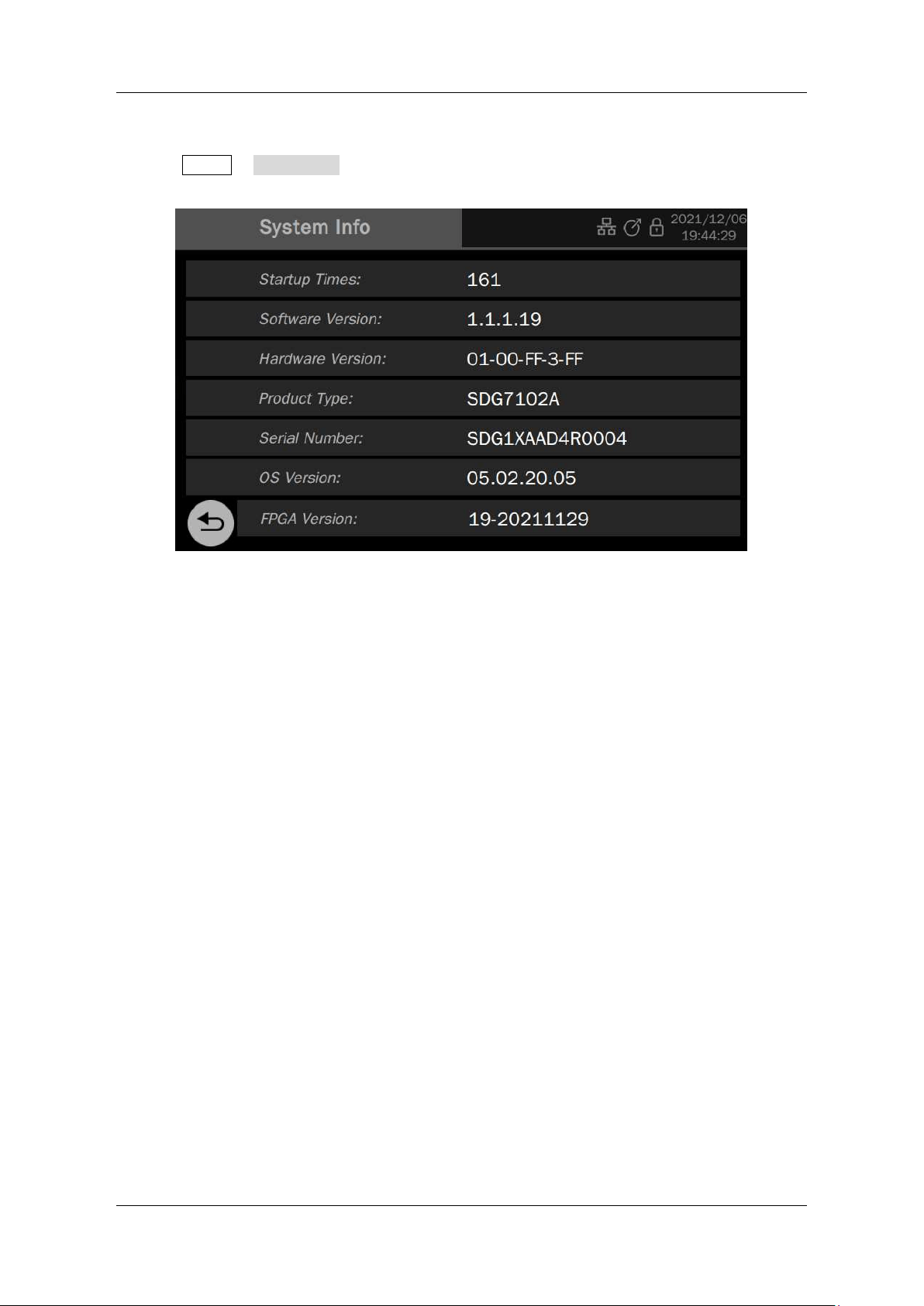
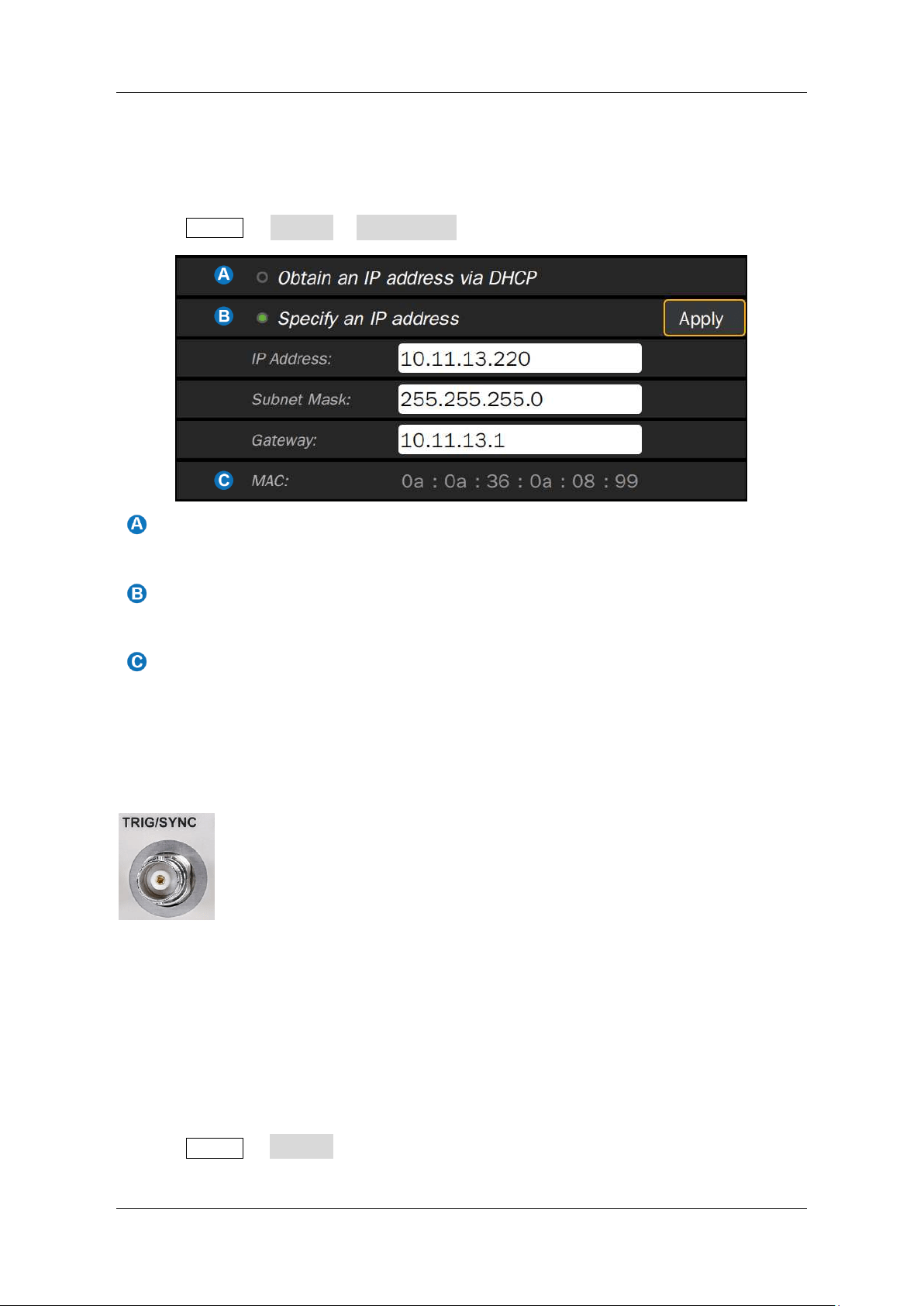
SDG7000A User Manual
1 1 2 / 133
W W W . S I G L E N T . C O M
16.3 Interface Settings
16.3.1 LAN Settings
Operate the following steps to set the LAN port:
Execute Utility
>
Interface
>
LAN Settings to enter the LAN configuration page
:
Select to enable dynamic IP. The device must be connected to a local area network
with a DHCP server. Please contact your network administrator to confirm the
information.
Select to use a static IP. When selected, the device uses a static IP. Set the IP
address, subnet mask, and gateway respectively, and then click Apply to confirm the
configuration.
MAC address information of the device, read-only
If you are still unable to access the LAN properly after the network port has been correctly
configured, please contact your network administrator for assistance.
16.3.2 Sync Output Settings
The TRIG/SYNC port on the rear panel is automatically set as the trig input/output function when
the frequency sweep or burst is turned on. In other cases, it is the sync output function by default.
The device provides Sync output through the TRIG/SYNC connector on the rear panel. When
the synchronization is on, the port will output a CMOS signal with the same frequency as basic
waveforms (except Noise and DC), arbitrary waveforms, and modulated waveforms (except
external modulation).
Execute Utility > Interface. Click the switch in the parameter setting box of "Sync Output" on
the page of "Interface setting" to turn on/off synchronous output. You can select a
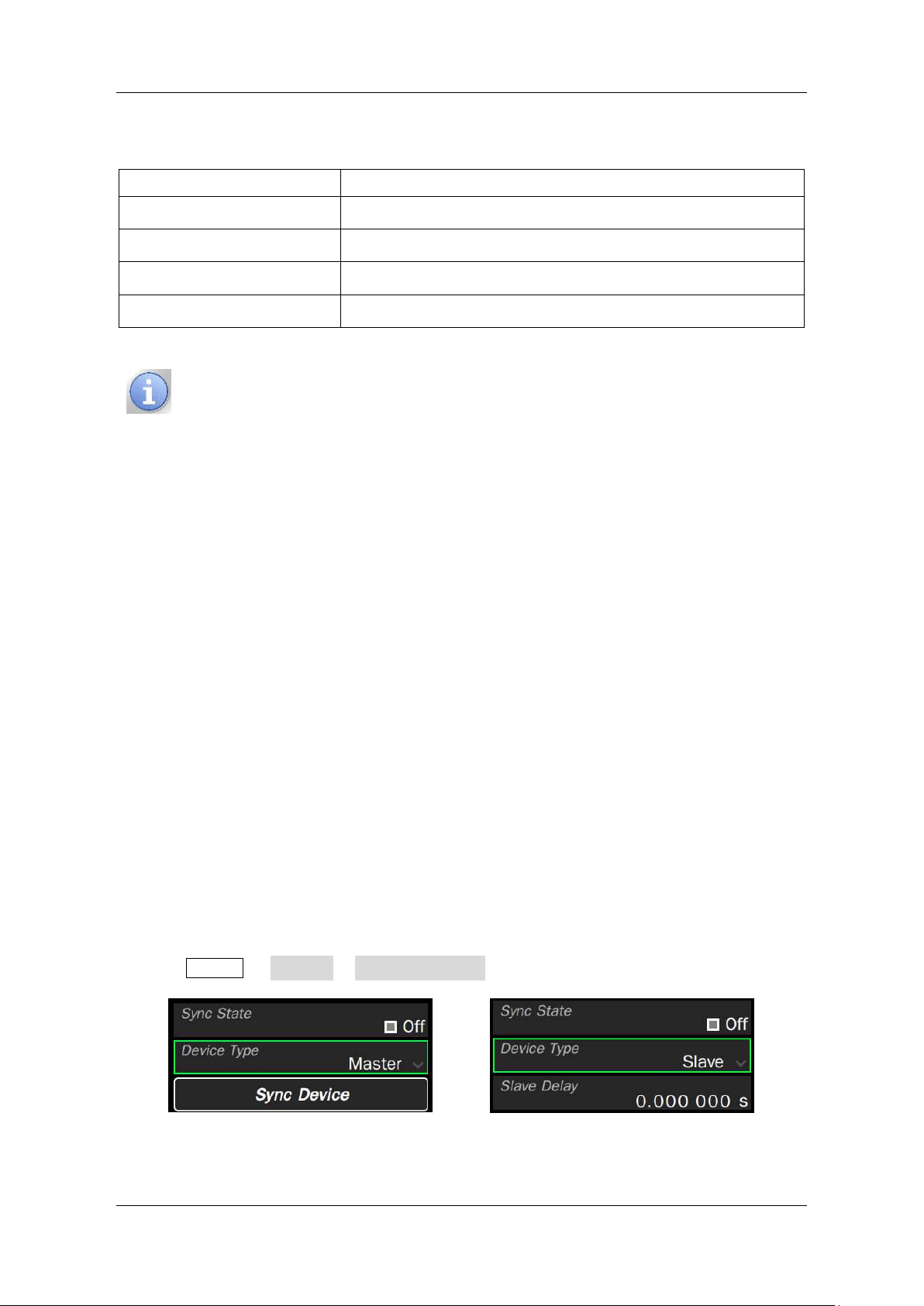
SDG7000A User Manual
WWW.SIGLENT.COM 113 /
133
synchronization source in the "Sync type" parameter setting box:
Table 16-1 Sync Type
Type of synchronization
Description
CH1
Carrier of CH1
CH2
Carrier for CH2
MOD-CH1
Modulated waveform of CH1
MOD-CH2
Modulated waves of CH2
The upper limit of synchronization signal output frequency is 10 MHz. When the
frequency of the synchronization source exceeds this value, the synchronization
output will be turned off automatically.
Sync Signals of Different Waveforms:
⚫ Basic Waveform and Arbitrary Waveform (AFG mode)
1) When the frequency of the waveform is less-than or equal-to 10 MHz, the sync signal is a
pulse with 25.6 ns pulse width and the same frequency as the waveform.
2) When the frequency of the waveform is greater than 10 MHz, there is no sync signal output.
3) Noise and DC: There is no sync signal output.
4) PRBS: The frequency of the sync signal is the same as the bit rate of the waveform.
⚫ Modulated Waveform
1) When internal modulation is selected, the sync signal is a Pulse with 25.6 ns pulse width.
For AM, FM, PM, and PWM, the frequency of the sync signal is the modulating frequency.
For ASK, FSK, and PSK, the frequency of the sync signal is the key frequency.
2) When external modulation is selected, there is no sync signal output, for the [Aux In/Out]
connector on the rear panel is used to input the external modulating signal.
⚫ Sweep and Burst Waveform
When Sweep or Burst function is turned on, there is no sync signal output and the Sync menu is
hidden.
16.3.3 Multi-Device Synchronization
Synchronization of the frequency and alignment of the phase can be realized between two or
more SDG7000A devices by utilizing the Multi-Device Sync function.
Execute Utility
>
Interface
>
Multi-Device Sync to set multi-device synchronization.
Setting parameters of the master
Setting parameters of the slave
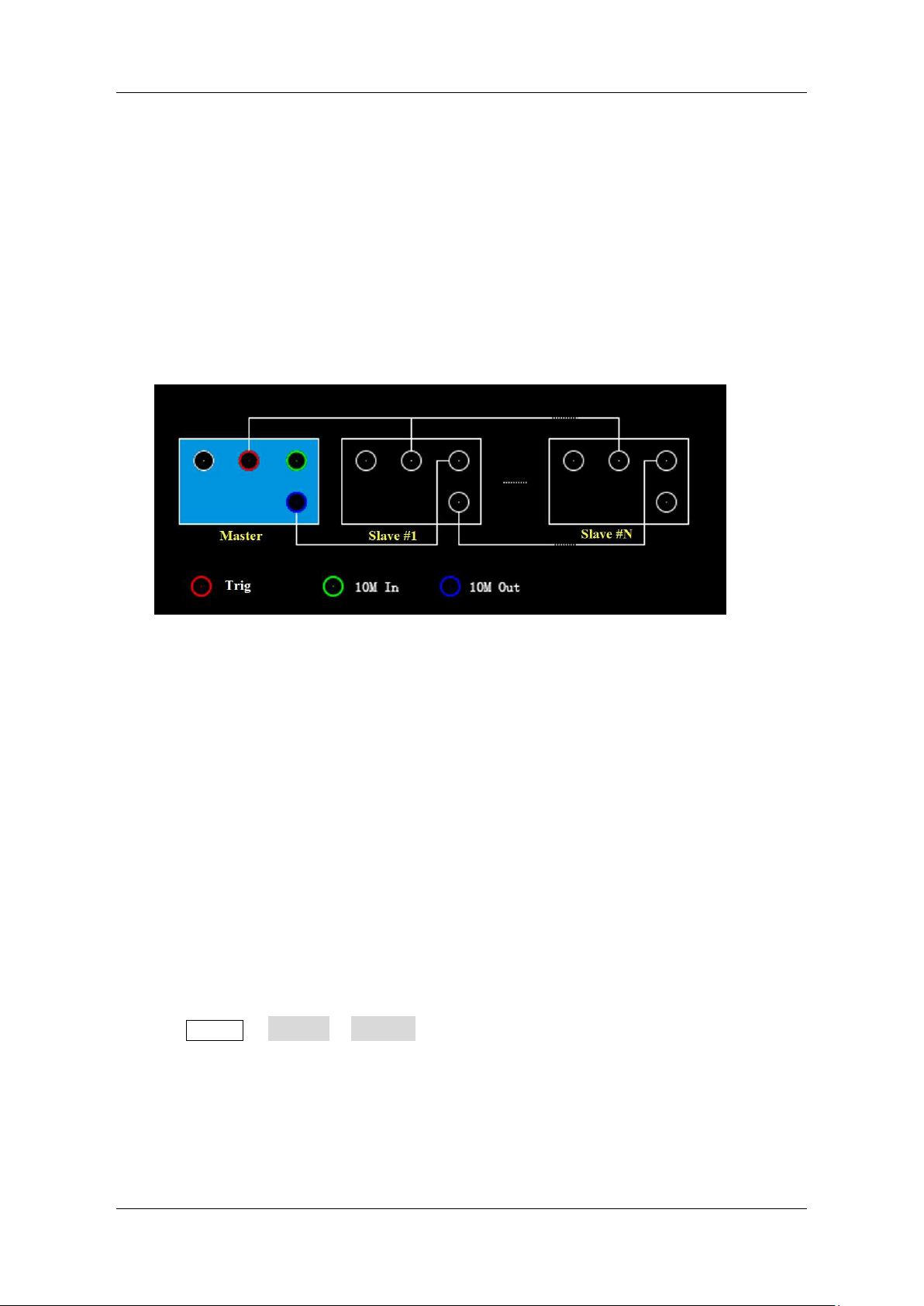
SDG7000A User Manual
1 1 4 / 133
W W W . S I G L E N T . C O M
The specific operation steps are as follows:
1. After entering the multi-device synchronization setting interface, set the "Sync Status" of all
devices to "On".
2. Set one of the devices as "Master" and the other devices as "Slave".
3. Connect the [TRIG/SYNC] of the master to the [TRIG/SYNC] of other slaves respectively.
4. Connect the [10MHz Out] connector of the Master to the [10MHz In] connector of the first
Slave, and then connect the [10MHz Out] connector of the first Slave to the [10MHz In]
connector of the second slave, etc.
5. Set the same output frequency for all the generators.
6. Press the "Sync Device" button on the Master to apply synchronization.
Figure 16-1 wiring diagram of multi-device synchronization
The synchronous signal is transmitted from [TRIG/SYNC] of the Master to [TRIG/SYNC] of the
Slave(s) through the BNC cable when Sync Devices is pressed. There is a certain delay between
the moment when the master sends the synchronous signal and the moment when the Slave(s)
receive it. Therefore, the output waveforms from different generators will have a certain phase
difference related to the BNC cable. Users can adjust the phase of every Slave independently to
compensate for the phase difference.
16.4 Test/Cal
16.4.1 Perform Self-Test
The Self-tests include a screen test, keyboard test, and LED test. It is used to check whether the
device has any electrical or mechanical problems on the user interface such as color distortion,
the sensitivity of buttons and knobs.
Execute Utility > Test/Cal > Self Test to enter self-test setting page.
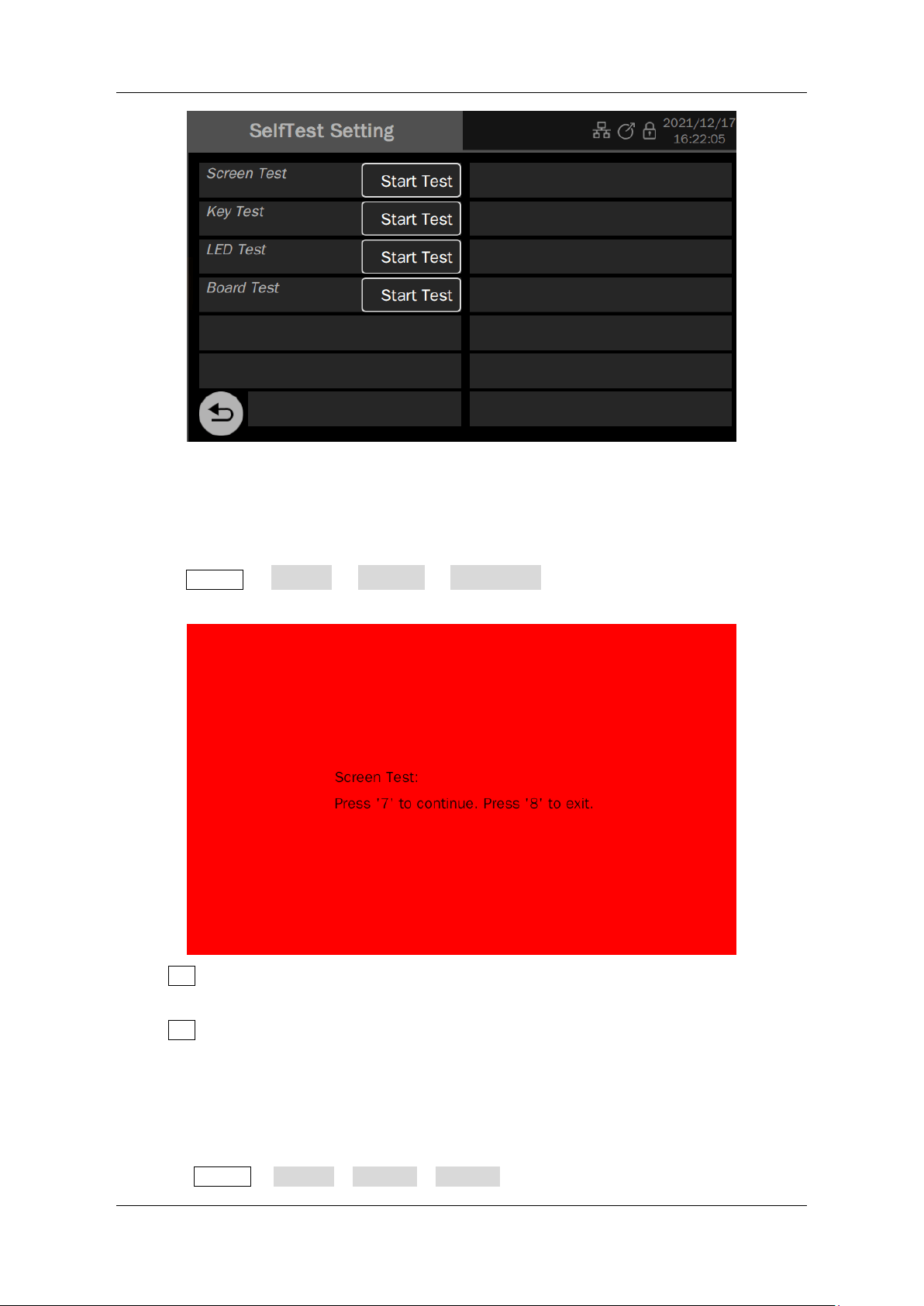
SDG7000A User Manual
WWW.SIGLENT.COM 115 /
133
Screen Test
The screen test is used to find out whether the generator display has serious color distortion,
bad pixels, or screen scratches.
Execute Utility > Test/Cal > Self Test > Screen Test. The device enters the screen test
interface as shown below, and the interface displays pure red.
Press 7 to switch to green and blue screen display mode. Observe whether there is any color
distortion, bad pixel or scratch on the screen.
Press 8 to exit the screen test mode.
Keyboard Test
The keyboard test is used to check whether the device's front panel buttons or knobs are
responsive or sensitive.
Execute Utility > Test/Cal > Self Test > Key Test to enter the following interface:
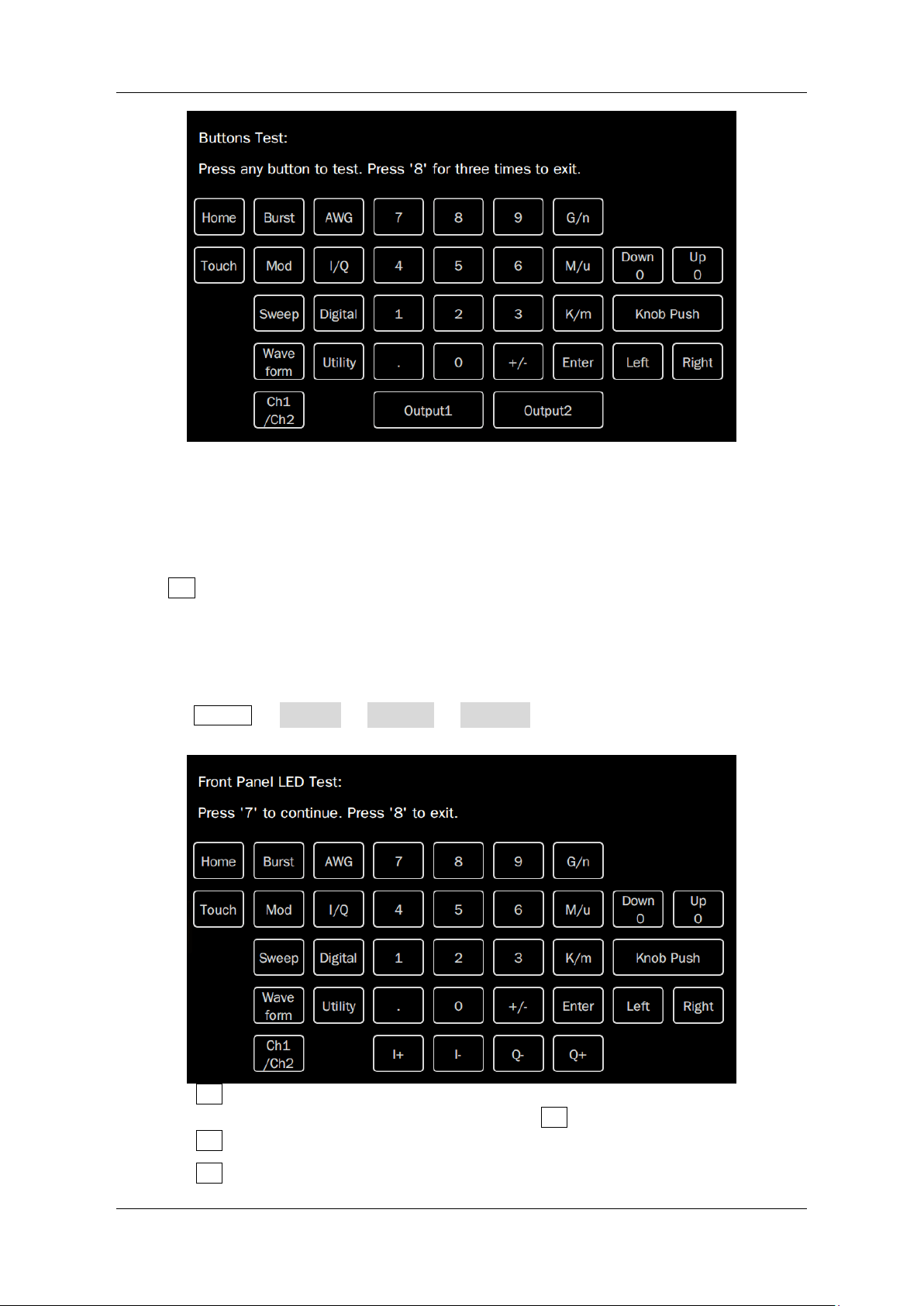
SDG7000A User Manual
1 1 6 / 133
W W W . S I G L E N T . C O M
Knob test: Turn the knob clockwise, counter-clockwise, and press down. Observe whether the
value on the corresponding knob (default 0) on the screen increases or decreases in real-time
and whether the knob lights up when it is pressed.
Button test: Press each button and check whether the corresponding button icon on the screen
lights up in real-time.
Press 8 button three times to exit the keyboard test.
LED Test
The LED test is used to check whether the button backlight on the front panel is functional.
Execute Utility
>
Test/Cal
>
Self Test
>
LED Test, and the device enters the following
interface:
Press the 7 button and the first LED on the front panel will light. The corresponding position
of the key on the screen will also change color. Press the 7 button to check the next button.
Press the 7 button consecutively until all the backlights are tested.
Press the 8 button to exit the LED test.
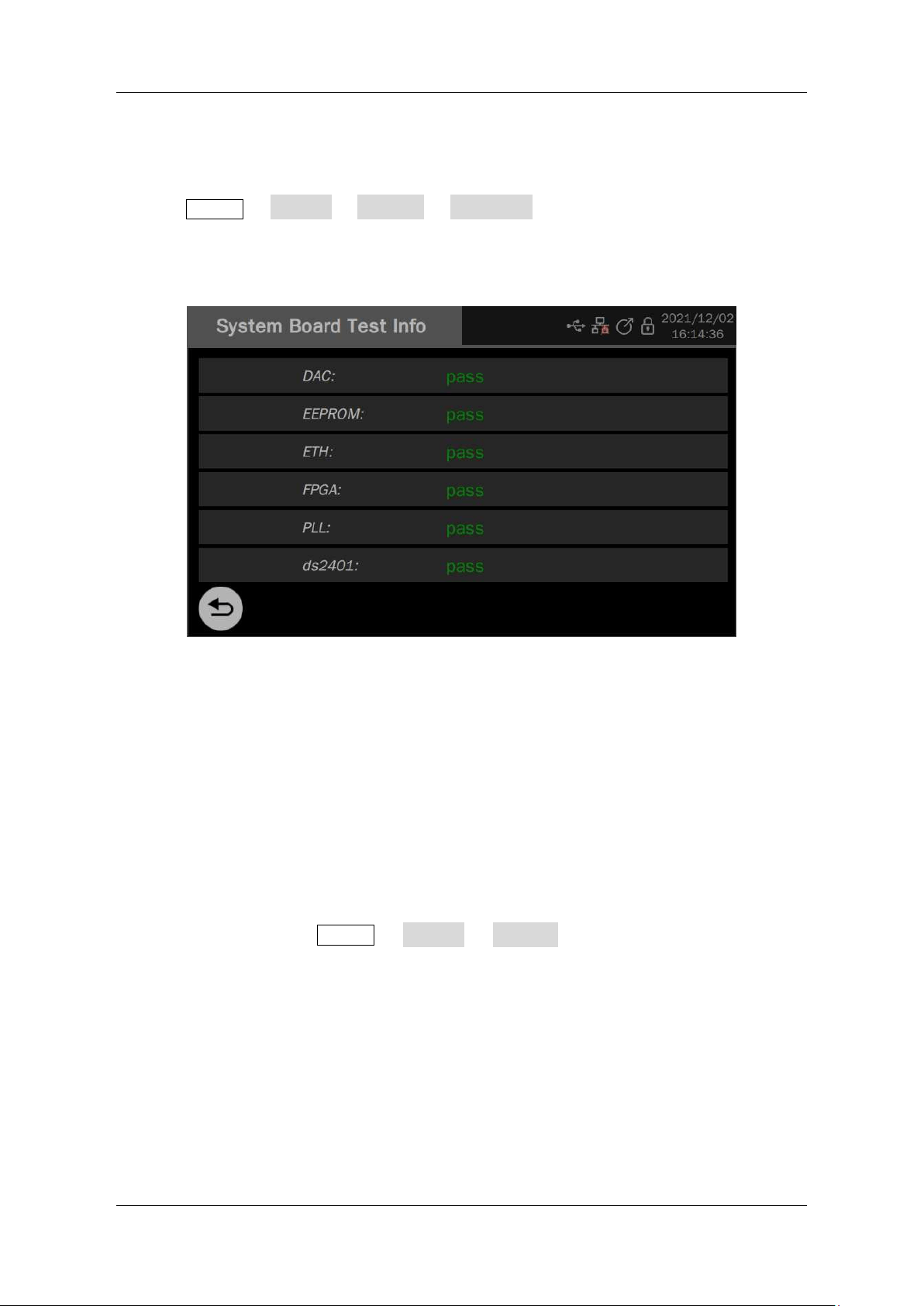
SDG7000A User Manual
WWW.SIGLENT.COM 117 /
133
Board Test
Board test mainly performs self inspection on some key chips of the device. When the device
fails, this item can be executed to confirm whether it is caused by hardware failure.
Execute Utility > Test/Cal > Self Test > Board Test, and the device enters the interface
shown below.
If "Pass" is prompted for all devices, it indicates that the key chips are working normally.
Otherwise, it is necessary to restore the device to normal through maintenance.
16.4.2 Perform Self-Calibration
The self-calibration program can quickly calibrate the generator to reach the best working state
and the most accuracy. It is recommended to perform a self-calibration if the change of ambient
temperature is more than 5 ℃.
Note: Make sure the generator has been warmed up or operated for more than 30 minutes before
performing the self-calibration process.
Please do the self-calibration as follows:
1. Disconnect all signal lines currently connected to the device.
2. After executing Utility
>
Test/Cal
>
Self Cal, the device pops up a prom
pt box and selects confirm to start the self-calibration procedure.
3. After the self-calibration starts, a progress bar will appear on the screen to display the
self-calibration progress. During this process, pressing any other key of the device will
not respond until the end of self-calibration.
The self-calibrated data will overwrite the last calibration data. The original correction value can
be restored by loading the factory correction value. See the section "Loading Factory Calibration
Data" for details.
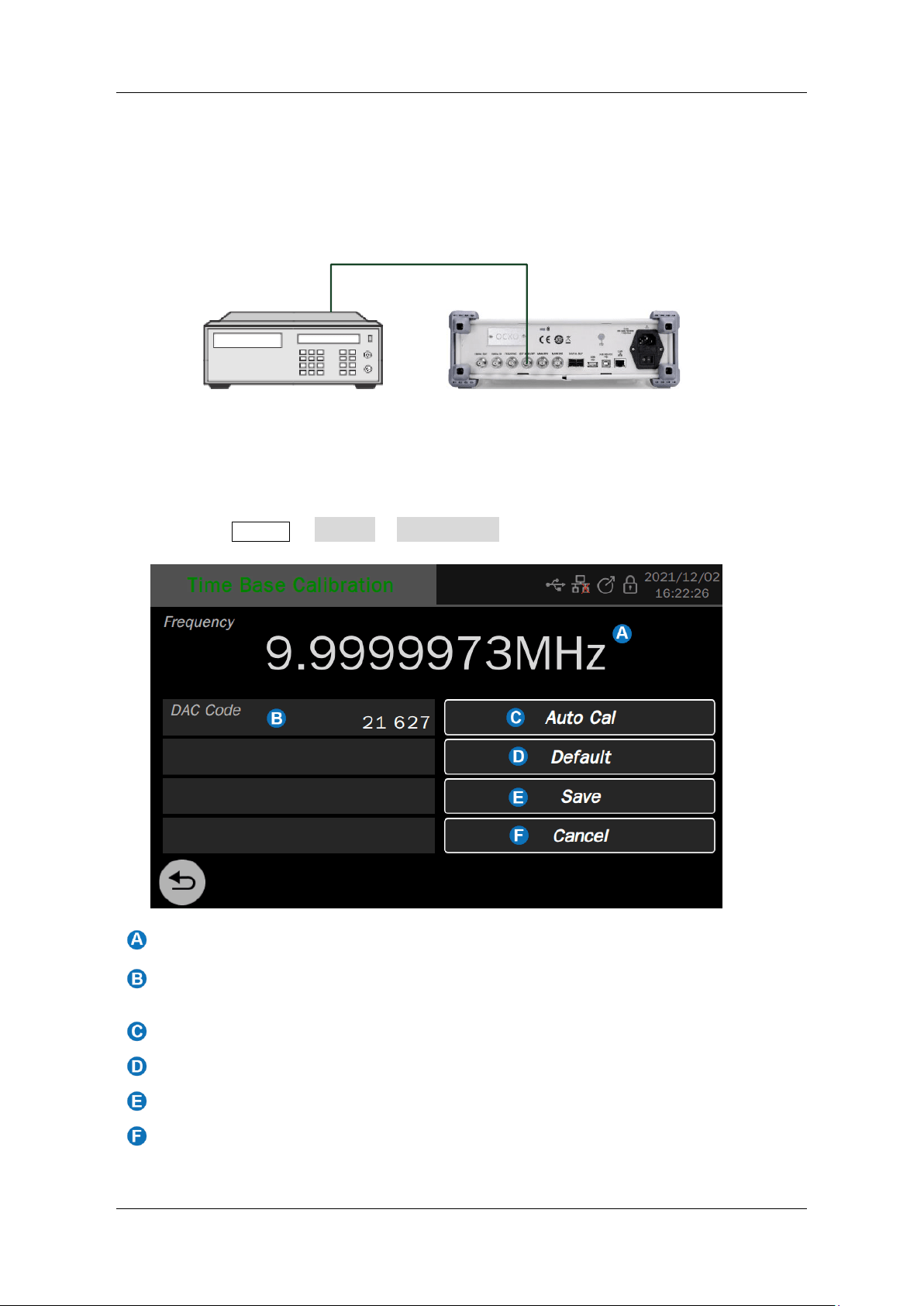
SDG7000A User Manual
1 1 8 / 133
W W W . S I G L E N T . C O M
16.4.3 Time Base Calibration
Time base calibration is used to adjust the time base inside the device to its most accurate state.
This calibration requires the use of an external 10 MHz standard frequency source. The
connection relationship is shown in the figure below. Connect the 10 MHz output of the frequency
source to the frequency meter input of the device:
Frequency
Standard
SDG7000A
10 MHz
Reference
Figure 16-2 time base calibration environmen
After configuring the calibration environment according to the above figure, ensure that the
standard frequency source and the heat engine time of the device exceed the specified minimum
time, execute Utility > Test/Cal > TimeBase Cal to enter the relevant setting page.
Frequency values measured by frequency meters
The DAC code value corresponding to the voltage control voltage of the current
time base oscillator, where the code value can be entered for manual correction
Perform automatic calibration
Restore the default configuration
Save the correction results
Cancel this calibration
SDG7000A User Manual
WWW.SIGLENT.COM 119 /
133
16.4.4 Loading Factory Calibration Data
Execute Utility
>
Test/Cal, and click the "Load" button in the "Default Caldata" parameter
setting box to restore the factory calibration data.
16.5 Pre-Setting
The device provides a variety of preset modes.
Execute Utility
>
Preset to enter the relevant setup page. The following table is a description
of each preset:
Table 16-2 Preset types
Preset type
Description
Restore default
settings
Restore the factory preset default configuration
Recovering files
Configure the device according to the saved configuration file
Power-up settings
Default: factory preset default configuration loaded at power-up
Last: loading the configuration before the last shutdown when
powering up
User: loads the configuration in the user-specified profile at power-up
16.6 Upgrade Software
Upgrade Via USB Disk
The firmware is upgradeable through external USB memory devices/U disk. Make sure the U
disk contains the correct upgrade file (*.ads) is connected to the device before performing the
upgrade.
Execute Utility > Update to recall the upgrade dialog box:
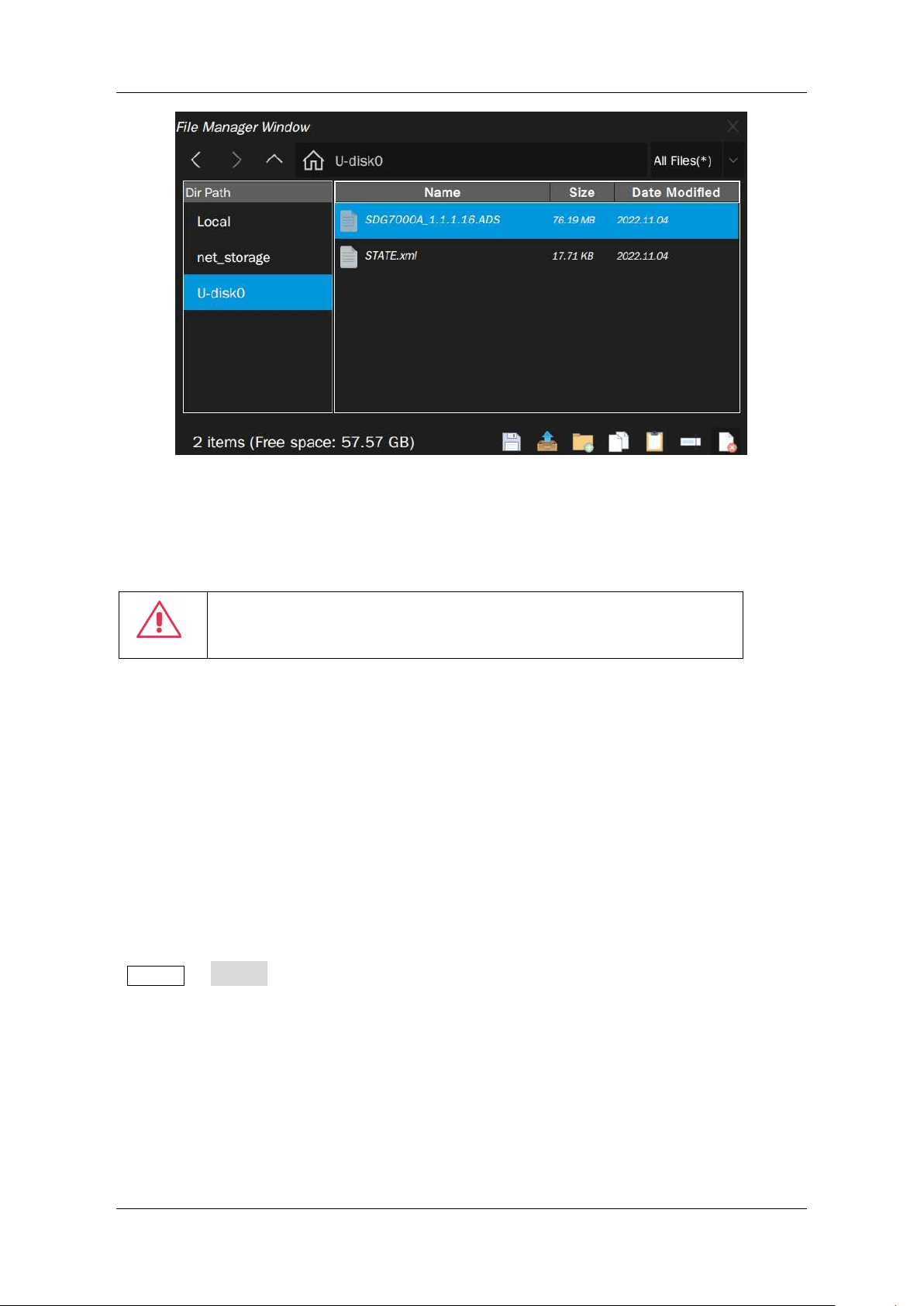
SDG7000A User Manual
1 2 0 / 1 3 3
W W W . S I G L E N T . C O M
Select the correct ads file in the file manager and select Recall to start the upgrade. The device
first copies the upgrade file (*.ads) to the local memory and parses it. If the parse succeeds, it
will upgrade. After the updating is finished, the generator will restart automatically.
After restarting, please check the system status to confirm whether the version upgrade is
successful. See the section "System Information" for details.
Warning: Do not turn off the power during upgrading. Otherwise, the
generator may not boot up any more! Repair for faulty upgrades is not
covered under the warranty.
Upgrade Via WebSever
See the section "
Web
Browser" for details.
16.7 Installation options
SDG7000A provides software options such as the I / Q and bandwidth upgrades to meet the
measurement needs of users. Please contact SIGLENT sales personnel or technical support
personnel to obtain the corresponding option license key. You can view the option information
on the device or activate the newly purchased option license key.
Follow these steps to perform the option installation function:
Utility > Options
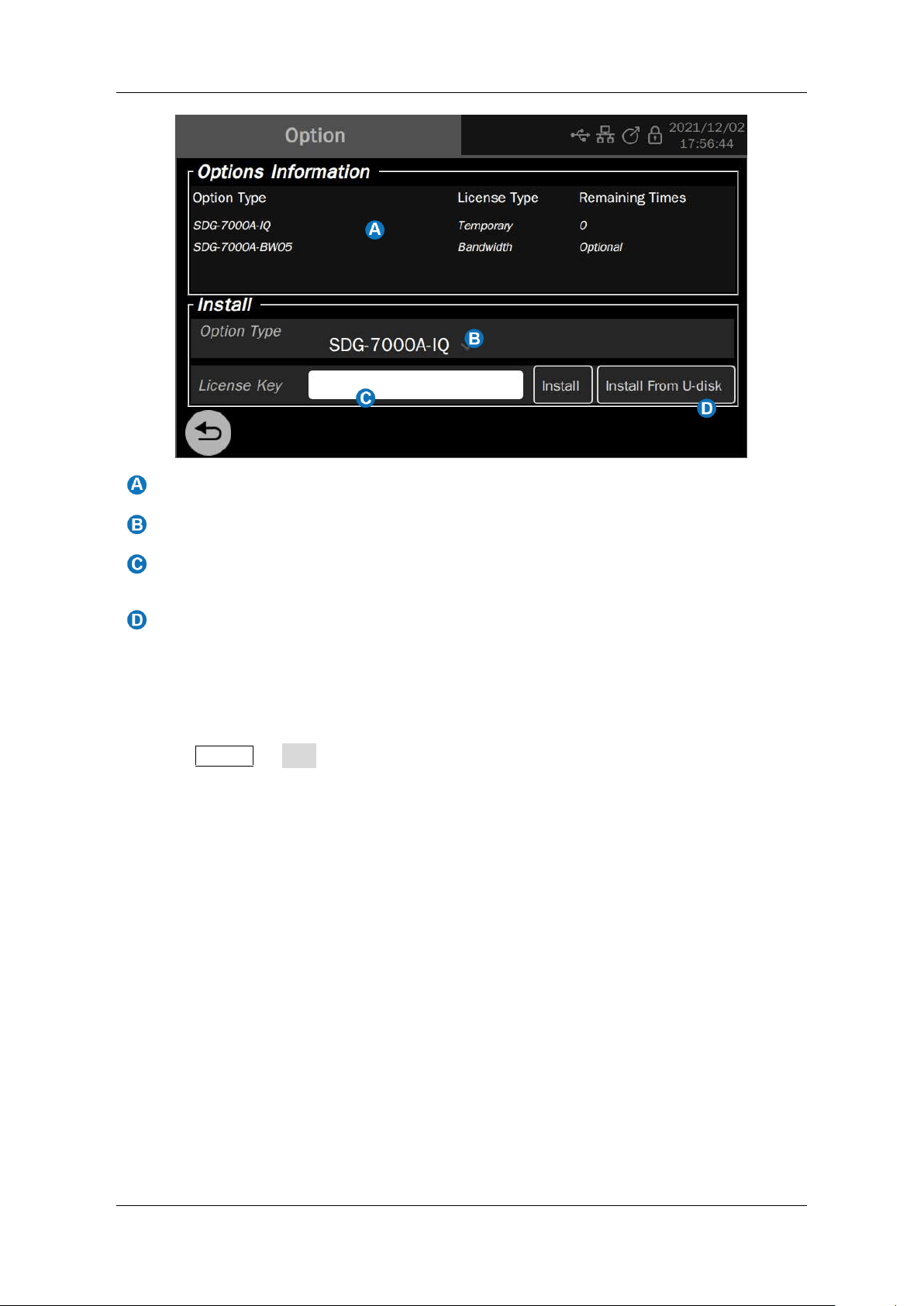
SDG7000A User Manual
WWW.SIGLENT.COM 121 /
133
Option information display area
Option type selection. Select the option to install here
Option secret key entry text box. Enter the secret key required to unlock the option
here, and then click Install on the right to execute
If the USB flash disk contains the obtained secret key file, you can directly click Install
from a USB flash disk after inserting the USB flash disk to unlock it
16.8 Help
Execute Utility
>
Help to call the help system. The help document is equivalent to the
contents of this user manual, and the browsing method is also similar.
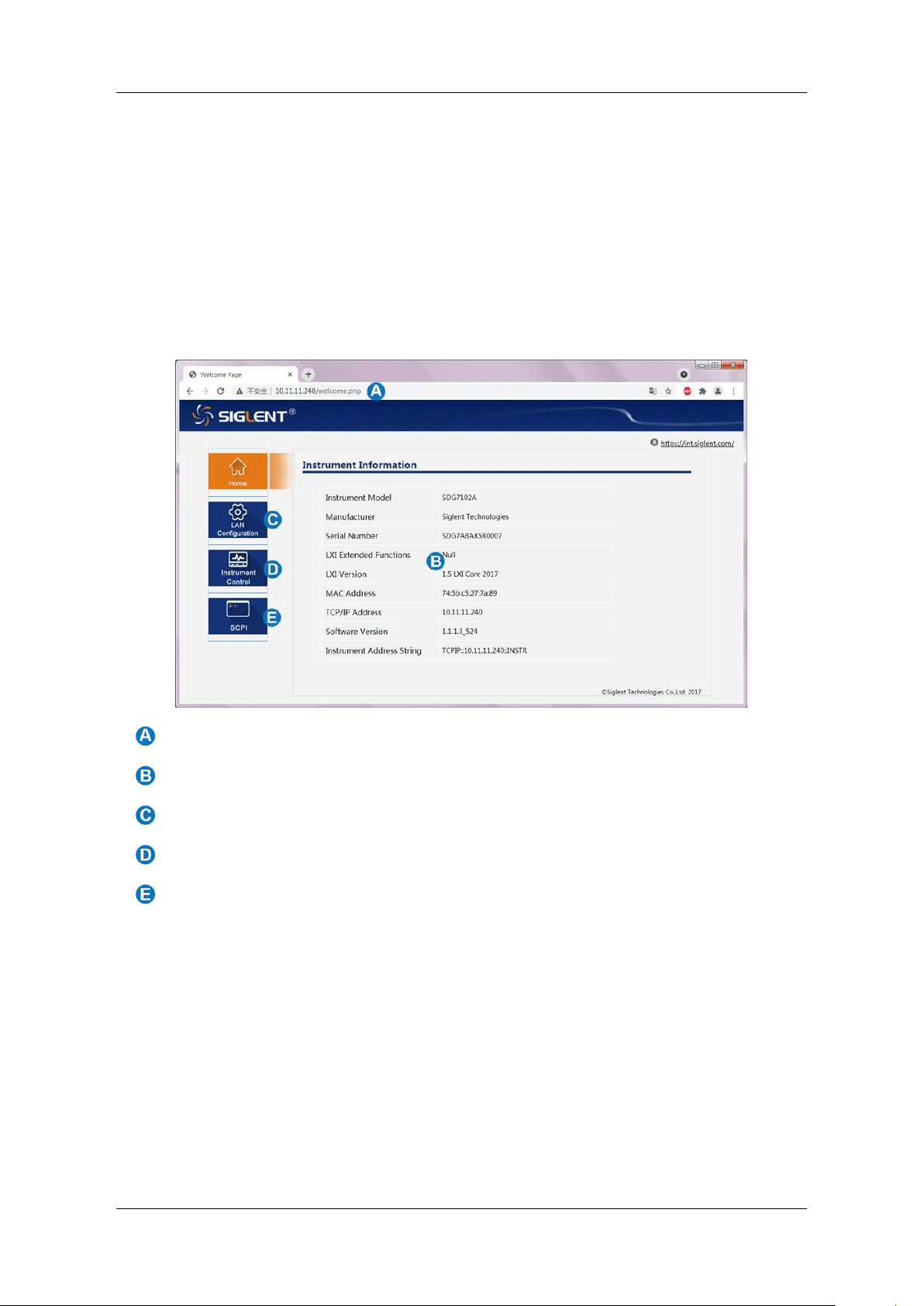
SDG7000A User Manual
1 2 2 / 1 3 3
W W W . S I G L E N T . C O M
17 Remote control
The SDG7000A provides a LAN port and a USB Device port which can be used for remote
control in multiple ways.
17.1 Web Browser
A built-in web server provides an approach to control the generator by using a web browser. It
doesn’t require any additional software to be installed on the computer. Set the LAN port correctly
(see section “LAN Settings” for details), input the IP address of the generator in the browser
address bar, and then the user can browse and control the device in the web.
Input the IP address of the generator
Information of the generator
Remote modification of device LAN parameters
Click here to recall the device control interface
SCPI Command Interaction Interface
The device control interface is shown below:
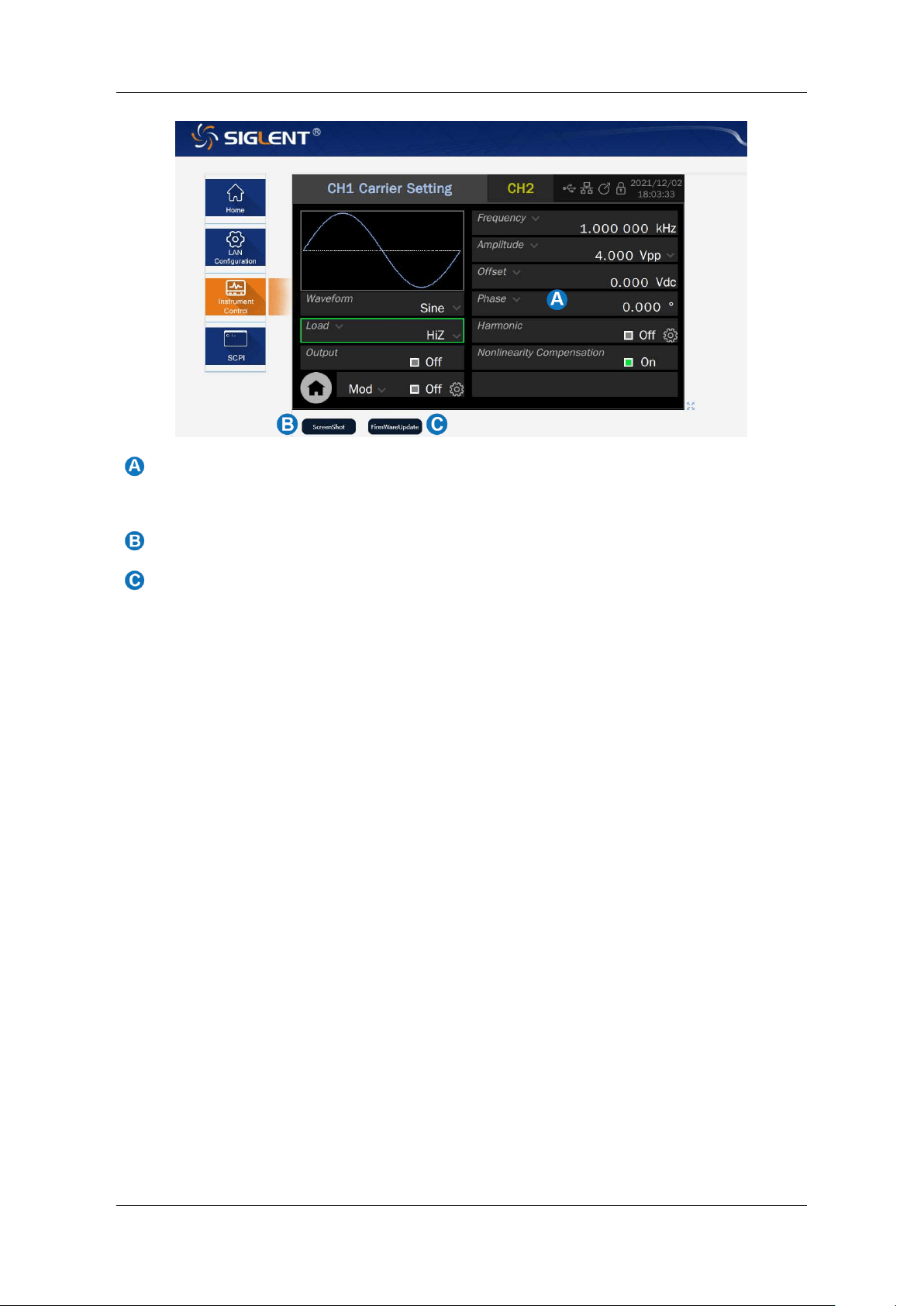
SDG7000A User Manual
WWW.SIGLENT.COM 123 /
133
Display and control area. The content displayed in this area is a copy of the touch
screen display area of the device. Operating in this area with the mouse has the same
effect as directly operating the touch screen display area of the device.
Click to take the current screenshot.
Click to upgrade the software version.
17.2 Other connections
The SDG7000A also supports remote control of the device by sending SCPI commands via NI-
VISA, Telnet, or Socket. For more information, refer to the programming guide of this product.

SDG7000A User Manual
1 2 4 / 1 3 3
W W W . S I G L E N T . C O M
18 Trouble Shooting
The following lists the possible faults and troubleshooting methods during the use of the device.
When you encounter these faults, please follow the corresponding steps. If you can't handle
them, please contact SIGLENT in time.
1. If the power key is pressed, the device remains black and there is no display.
1) Check whether the power connector is connected properly
2) Check whether the power switch is pressed correctly.
3) Check whether the fuse is blown. If the power fuse needs to be replaced, please
contact
SIGLENT
in time and return the instrument to the factory for replacement
by the maintenance personnel authorized by
SIGLENT.
4) After the above inspection, please restart the device.
5) If the product still can’t be started normally, please contact
SIGLENT.
2. No signal output
1) Check whether the channel output is turned on.
2) Check whether the signal connecting line is correctly connected to the BNC.
3) Check whether the set amplitude output is too small.
4) Check whether the digital filter of the channel is on and the cut-off frequency of
the filter is lower than the set signal frequency.
5) Check whether overvoltage protection or overcurrent protection occurs.
6) Restore the default settings and try again.
3. The measured voltage amplitude is larger or smaller than the set value.
1) Check whether the "Load" setting of the channel matches the actual load value.
2) Check that the “Waveform Combine” function is turned on.
3) Check whether the “CHx Filter” of the channel is on and the Cut-off frequency of
the filter is lower than or close to the set signal frequency.
4) Restore the default settings and try again.
4. Two-channel output phase not aligned
1) In the "Dual-Channel" setting, check whether the "Phase Mode" is correctly set to
"Locked".
2) In "Output Setting", check whether the "CHx Polarity" setting of each channel is
inconsistent.
3) Restore the default settings and try again.
5. The touch screen does not respond to touch operation
1) Check whether the Touch
key light on the front panel is on. If not, it means
that the touch screen is not turned on. Press this key to enable the touch screen.
2) Reboot device

SDG7000A User Manual
WWW.SIGLENT.COM 125 /
133
6. Key does not respond to operation
1) Check whether the "KeyBoard" is set to "Lock". See the section “KeyBoard" for
details.
2) Reboot device
7. USB device not recognized
1) Check whether the USB device works normally.
2) If it is a USB storage device, confirm that the flash USB disk is used, and the
device does not support hard disk USB storage.
3) Confirm that the USB flash disk system format used is FAT32.
4) After restarting the device, insert the USB device for inspection.
If it still cannot be used normally, please contact SIGLENT.
SDG7000A User Manual
126 / 133 WWW.SIGLENT.COM
About SIGLENT
SIGLENT is an international high-tech company, concentrating on R&D, sales,
production and services of electronic test & measurement instruments.
SIGLENT first began developing digital oscilloscopes independently in 2002.
After more than a decade of continuous development, SIGLENT has extended
its product line to include digital oscilloscopes, isolated handheld
oscilloscopes, function/arbitrary waveform generators, RF/MW signal
generators, spectrum analyzers, vector network analyzers, digital multimeters,
DC power supplies, electronic loads and other general purpose test
instrumentation. Since its first oscilloscope was launched in 2005, SIGLENT
has become the fastest growing manufacturer of digital oscilloscopes. We
firmly believe that today SIGLENT is the best value in electronic test &
measurement.
Headquarters:
SIGLENT Technologies Co., Ltd
Add: Bldg No.4 & No.5, Antongda Industrial
Zone, 3rd Liuxian Road, Bao'an District,
Shenzhen, 518101, China
Tel: + 86 755 3688 7876
Fax: + 86 755 3359 1582
Email: sales@siglent.com
Website: int.siglent.com
North America:
SIGLENT Technologies America, Inc
6557 Cochran Rd Solon, Ohio 44139
Tel: 440-398-5800
Toll Free: 877-515-5551
Fax: 440-399-1211
Email: info@siglent.com
Website: www.siglentna.com
Europe:
SIGLENT Technologies Germany GmbH
Add: Staetzlinger Str. 70
86165 Augsburg, Germany
Tel: +49(0)-821-666 0 111 0
Fax: +49(0)-821-666 0 111 22
Email: info-eu@siglent.com
Website: www.siglenteu.com
Follow us on
Facebook: SiglentTech