Instruction
2 Zone WiFi Water Timer with WiFi Hub
Model: TTV203WRF + TWG004WRF
Customer Suppo:
Web: www.rainpointonline.com
Email: seice@rainpointus.com
WhatsApp: +1 626-780-5952
US Free Hotline(English):
+1 833-381-5659(MON-FRI 9�30 AM-5�30 PM PST)
UK Free Hotline(English Deutsch):
+44 800-808-5337(MON-FRI 9�00 AM-5�00 PM CET)
*KEEP THIS MANUAL FOR FUTURE REFERENCE.
®
(Please scan the QR code
to get the fast suppo)
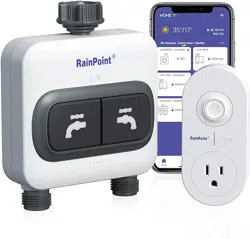
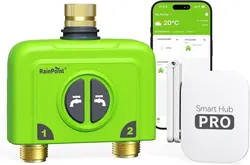
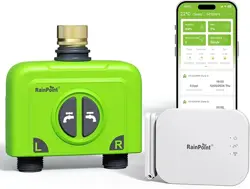
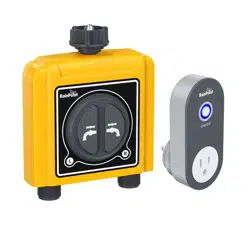
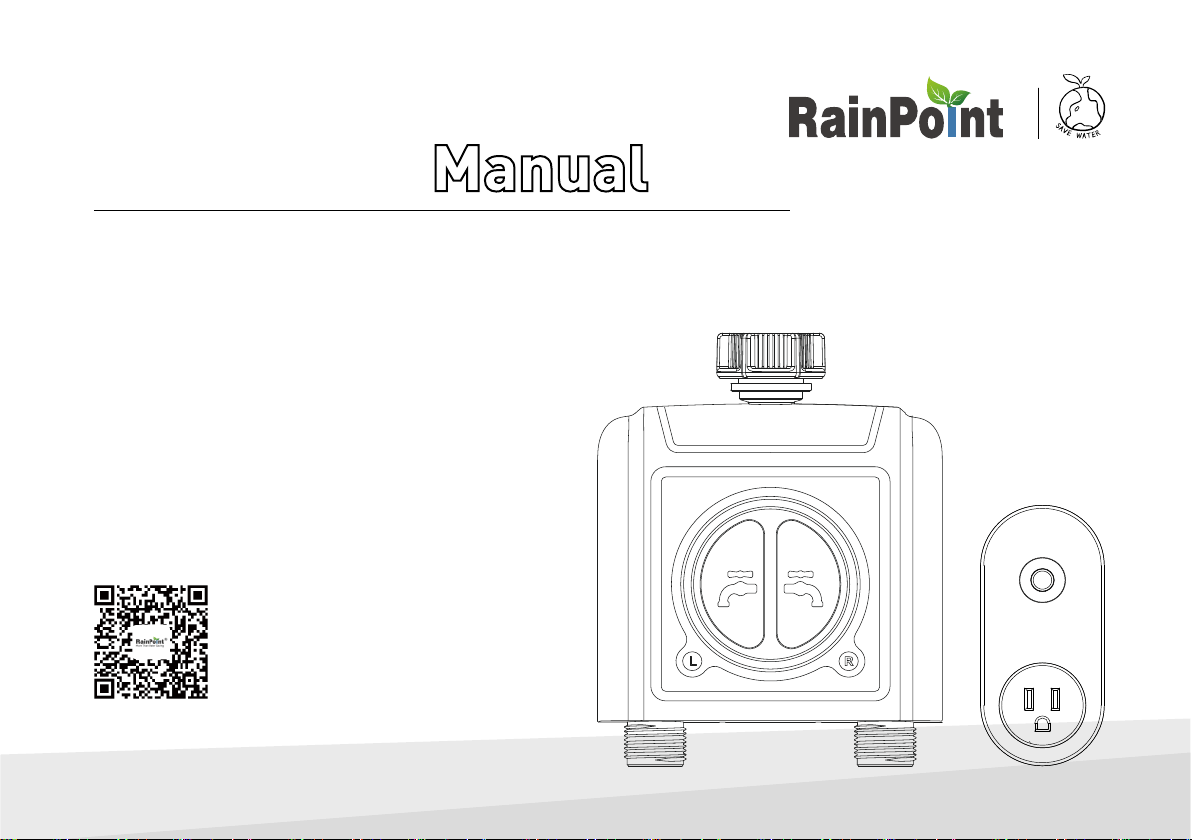
RainPoint is pleased to present the 2 Zone WiFi Water Timer with WiFi Hub (Model: TTV203WRF + TWG004WRF)–a sma sub-zone watering
timer system for residential applications. Designed with the needs of the customer in mind, the model oers 2 high ow valves to water separate
areas, simplied APP programming and an impressive range of features typically found in WiFi water timers costing twice as much.
While it’s aordable, the model is without a doubt a professional grade product. The timer has a large and handsome body, equipped with 2 large
manual buttons, an LCD indicator light and a sturdy casing, which is rain-proof and sun-proof, ve suitable for outdoor use. The WiFi hub increas-
ing range of garden watering and irrigation control equipment that are controllable via your smaphone in both iOS and Android formats.
Whatever your outdoor watering needs, RainPoint provides best-in-class irrigation products to help you more eectively manage and control your
watering. Thank you for choosing RainPoint!
WELCOME TO RAINPOINT
More product information and user guide will happen on
- 02 -
EN
Have Questions?
: WhatsApp: +1 626-780-5952
: Email: seice@rainpointus.com
:US Free Hotline (English): +1 833-381-5659
(MON-FRI 9�30 AM-5�30 PM PST)
UK Free Hotline (English Deutsch): +44 800-808-5337
(MON-FRI 9�00 AM-5�00 PM CET)

CONTENTS
RESET THE DEVICE 25
CONTENTS IN THE BOX 04
TTV203WRF 2 Zone WiFi Water Timer
TWG004WRF WiFi Hub
STEP 1. INSTALL APP ON YOUR PHONE 08
STEP 2. CONNECT THE WIFI HUB 09
PRODUCTS OVERVIEW 05
FEATURES OVERVIEW 07
Device Parameter
Manual Watering
- 03 -
STEP 3. CONNECT THE WIFI TIMER 10
STEP 4. INSTALL THE WIFI TIMER 12
STEP 5. TEST BEFORE USE 13
INSTALLATION 8-13
INTRODUCTION 4-7
APP HOME SCREEN 14
2 ZONE WIFI IRRIGATION TIMER 15
Watering Plan & Manual Rain Delay
WiFi Soil Sensor & Water Flow Meter*
APP PROGRAMMING 14-23
Manual Power ON/OFF
Power ON/OFF By Schedule
WIFI SOCKET 20
SMART AUTOMATION 21
HOME MANAGEMENT 24
Automation & Tap-to-Run
How to set the automatic rain delay?
TROUBLESHOOTING 26
WARRANTY 28
CUSTOMER SUPPORT 28
*WiFi soil sensor is sold separately, this kit does not contain WiFi
soil sensor
EN
ENENEN
INTRODUCTION
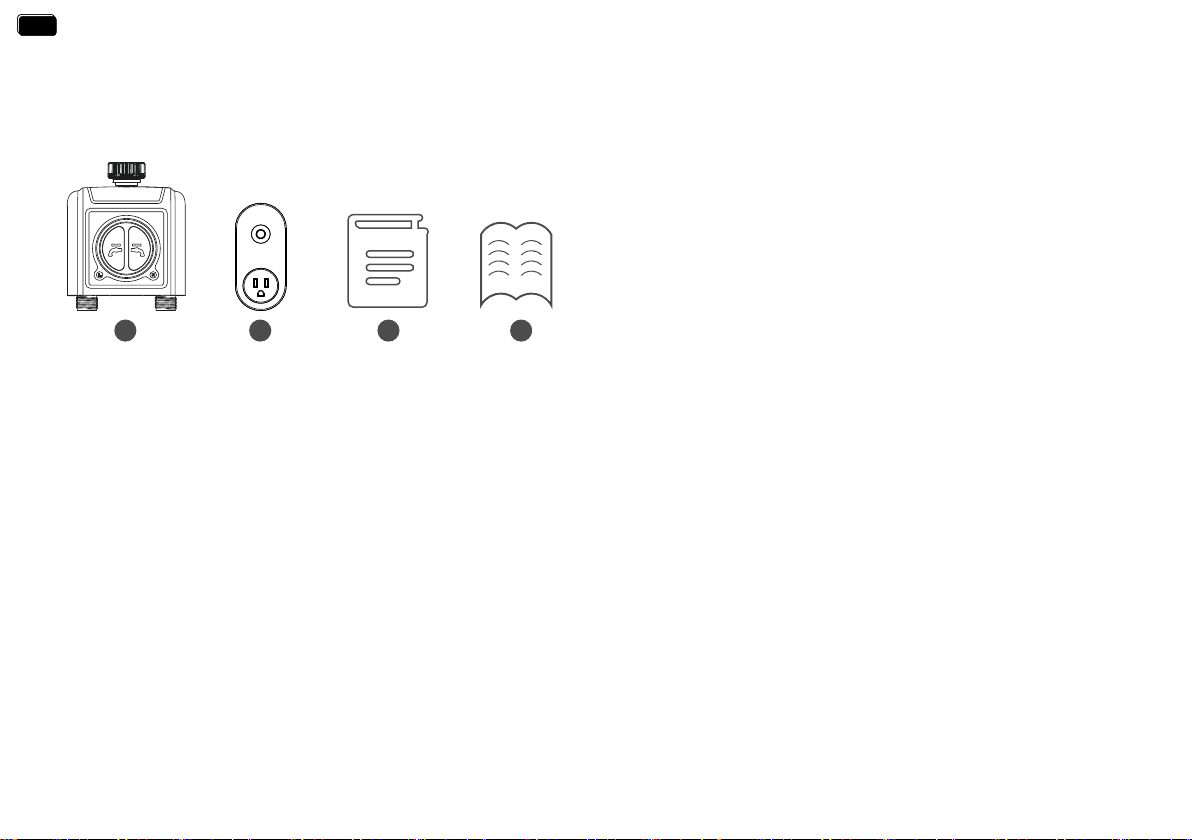
A. 1 x TTV203WRF 2 Zone WiFi Water Timer
B. 1 x TWG004WRF WiFi Hub
C. 1 x Instruction Manual
D. 1 x Quick Setup Guide
FCC Notice:
- 04 -
CONTENTS IN THE BOX
A B C D
EN
EN
FCC STATEMENT: (FCC ID: 2AWDBTTV203WRF, 2AWDBTWG004WRF)
This device complies with Pa 15 of the FCC Rules. Operation is subject to the following two conditions:
(1) This device may not cause harmful inteerence, and
(2) this device must accept any inteerence received, including inteerence that may cause undesired operation.
FCC Warning: Any changes or modications not expressly approved by the pay responsible for compliance could void the user’s authority to operate
this equipment.
Note: This equipment has been tested and found to comply with the limits for a Class B digital device, pursuant to Pa 15 of the FCC Rules. These
limits are designed to provide reasonable protection against harmful inteerence in a residential installation. This equipment generates, uses, and can
radiate radio frequency energy and, if not installed and used in accordance with the instructions, may cause harmful inteerence to radio communica-
tions. However, there is no guarantee that inteerence will not occur in a paicular installation. If this equipment does cause harmful inteerence to
radio or television reception, which can be determined by turning the equipment o and on, the user is encouraged to t to correct the inteerence
by one of the
following measures:
• Reorient or relocate the receiving antenna.
• Increase the separation between the equipment and the receiver.
• Connect the equipment into an outlet on a circuit dierent from that to which the receiver is connected.
• Consult the dealer or an experienced radio/TV technician for help.
Note: The manufacturer is not responsible for any radio or TV inteerence caused by unauthorized modications to this equipment. Such modica-
tions could void the user’s authority to operate the equipment.
Range Between WiFi Hub and Timer: 160 ft in the open area without inteerence
Working Water Pressure : 0.5 bar to 8 bar(7.25-116.03PSI)
Temperature Operating Range : 3°C - 50°C (37°F-122°F )
Power By : 4 AA alkaline batteries (not included)
WaterProof : IP54
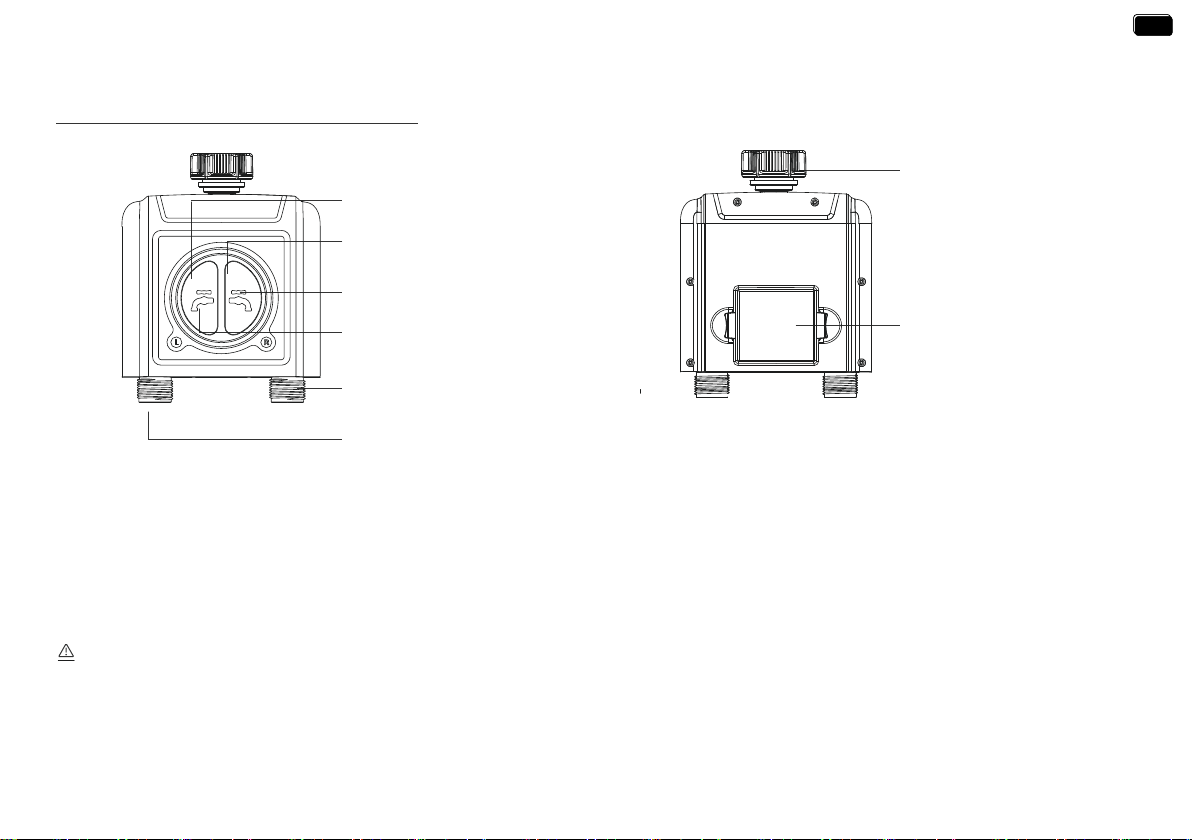
TTV203WRF 2 Zone WiFi Water Timer
Specication
Right Water Outlet
Right Zone Watering Indicator
Left Zone Watering Indicator
Left Zone Button
Right Zone Button
Left Water Outlet
Water Inlet
Batte Compament
For outdoor use with cold water only.
Keep away from freezing. In freezing weather, the timer should be placed indoors. Used up or dead batteries must be removed from the timer
and disposed of properly.
- 05 -
PRODUCTS OVERVIEW
EN
EN
Range Between WiFi Hub and Router: 160 ft in the open area without inteerence
Temperature Operating Range: 3°C - 40°C (37°F-104°F )
WiFi Frequency Band: 2.4Ghz Only
Input: 100-240V ~ 50Hz 16A
For Indoor Use Only
Only applicable to 2.4Ghz WiFi. If your router is a dual-band router, please independently enable the 2.4GHz WiFi band and name it dierently
from the 5GHz WiFi band.
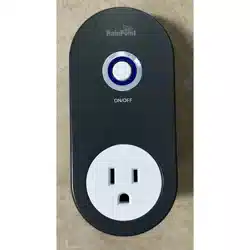
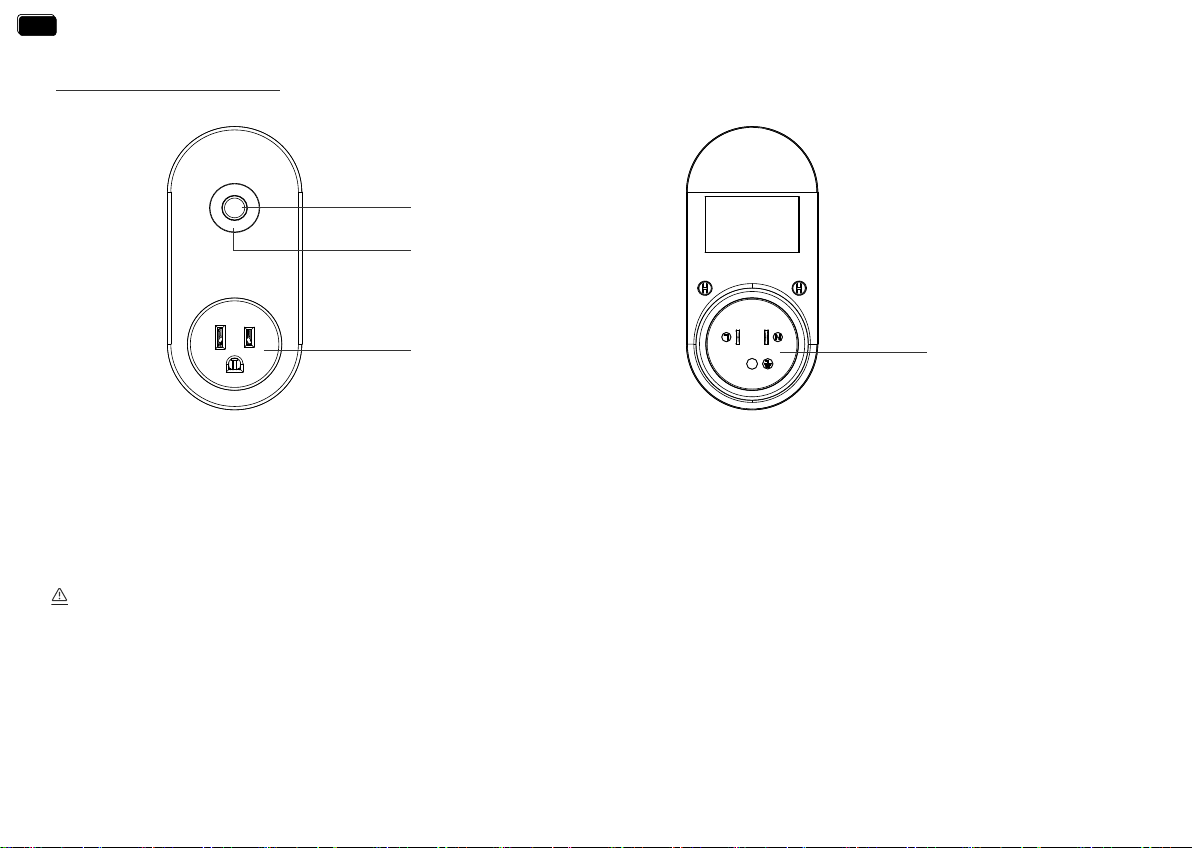
TWG004WRF WiFi Hub
Power Plug
Specication
Hub Button
Power Indicator
WiFi Socket with Power
- 06 -
EN
EN
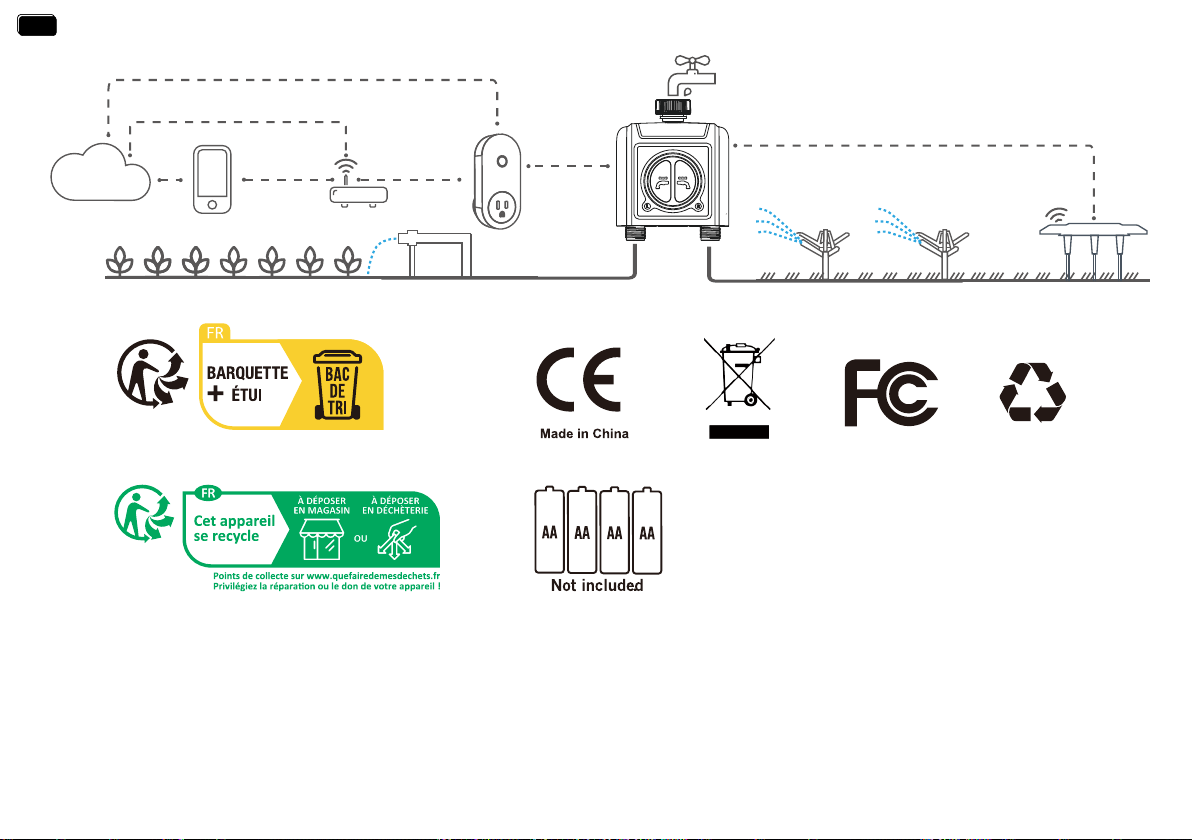
wi
wi
wi
RF
RF
ROUTER
CLOUD
FEATURES OVERVIEW
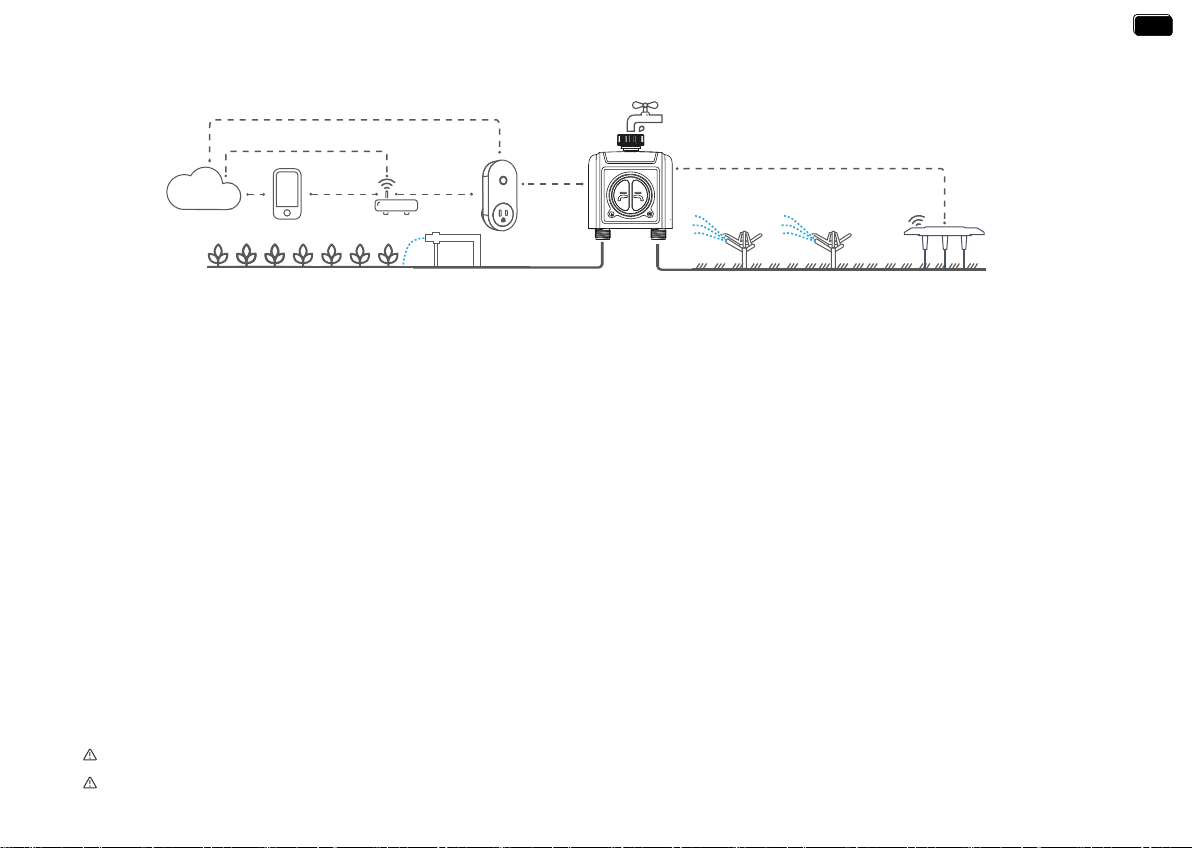
1) WiFi Remote Control: Connect with 2.4GHz WiFi, set and check irrigation schedule by APP.
2) 2 Water Outlets: Watering schedules can be set independently in dierent zones.
3 ) WiFi Socket: The WiFi Hub can be use as WiFi socket.
4) Manual Watering: Manually turn on/o watering and set watering time.
5) Watering on Schedule: Each zone can set up to 3 separate watering programs per day. Each watering programs has dierent sta time and
watering duration.
6) Automatic Watering: ① When the WiFi timer is connected to the WiFi soil sensor (not included), it can automatically irrigate or stop according to
the soil temperature and humidity data;
② When you locate the home address for the timer, the APP will automatically synchronize the local weather information, and the timer can be
automatically executed according to the weather trigger conditions you set.
7) Rain Delay: Manual Rain Delay and Automatic Rain Delay
8) Water Flow Meter: Built-in water ow meter to track water usage in the last 10 days.
9) Two Watering Modes: Irrigation mode and Mist mode.
10) Co-management with family: Home Management allows you to Add family members and give them permissions, manage the irrigation of your
home garden together.
11) Low Batte and Water Leak Alarm: APP will send you ale messages when low batte or product failure.
12) One WiFi hub can pair with maximum 4 WiFi water timers. One WiFi water timer can pair with 2 WiFi soil sensor.
* Only compatible with Rainpoint TCS005FRF Wi-Fi soil sensor (not included).
* Only applicable to 2.4Ghz WiFi
- 07 -
EN
EN
2.4Ghz Wi
STEP 1. INSTALL APP ON YOUR PHONE
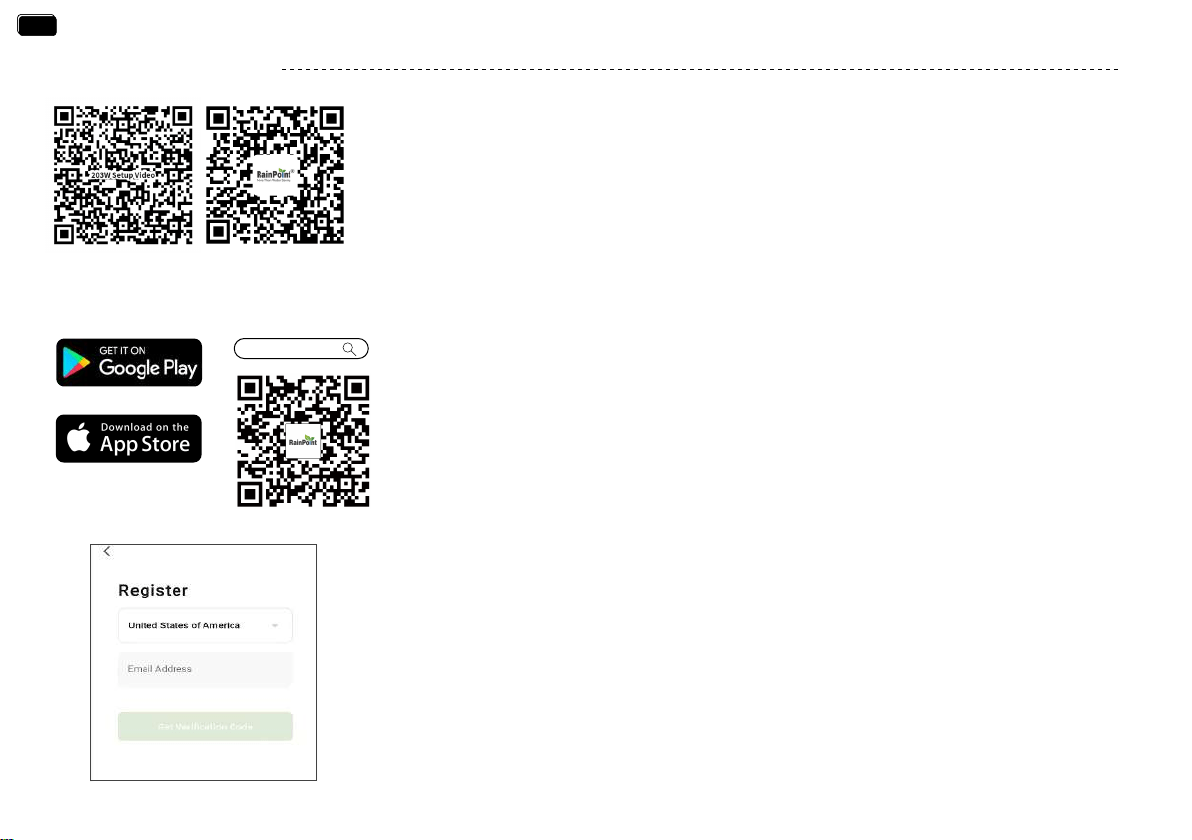
1. Download the RainPoint App
Search for “RainPoint” on Google Play or App Store or scan the QR code to download the
Rainpoint APP.
2. Register your RainPoint account
Open your RainPoint APP, select Set Up
Follow the prompts to register a RainPoint account with your email or mobile number.
Note:
Ensure your count/region details are correct at this stage.
You may be prompted to allow access your location. This allows the app to show weather
information, and can still function if you choose to opt out.
Rainpoint
INSTALLATION
- 08 -
Please scan the QR code or search the link for setup video
or customer suppo to install the device quickly.
Setup Video: www.youtube.com/@rainpoint
Customer Suppo: www.rainpointonline.com/pages/suppo
Tips:
Customer Suppo
Setup Video
EN
EN
STEP 2. CONNECT THE WIFI HUB
- 09 -
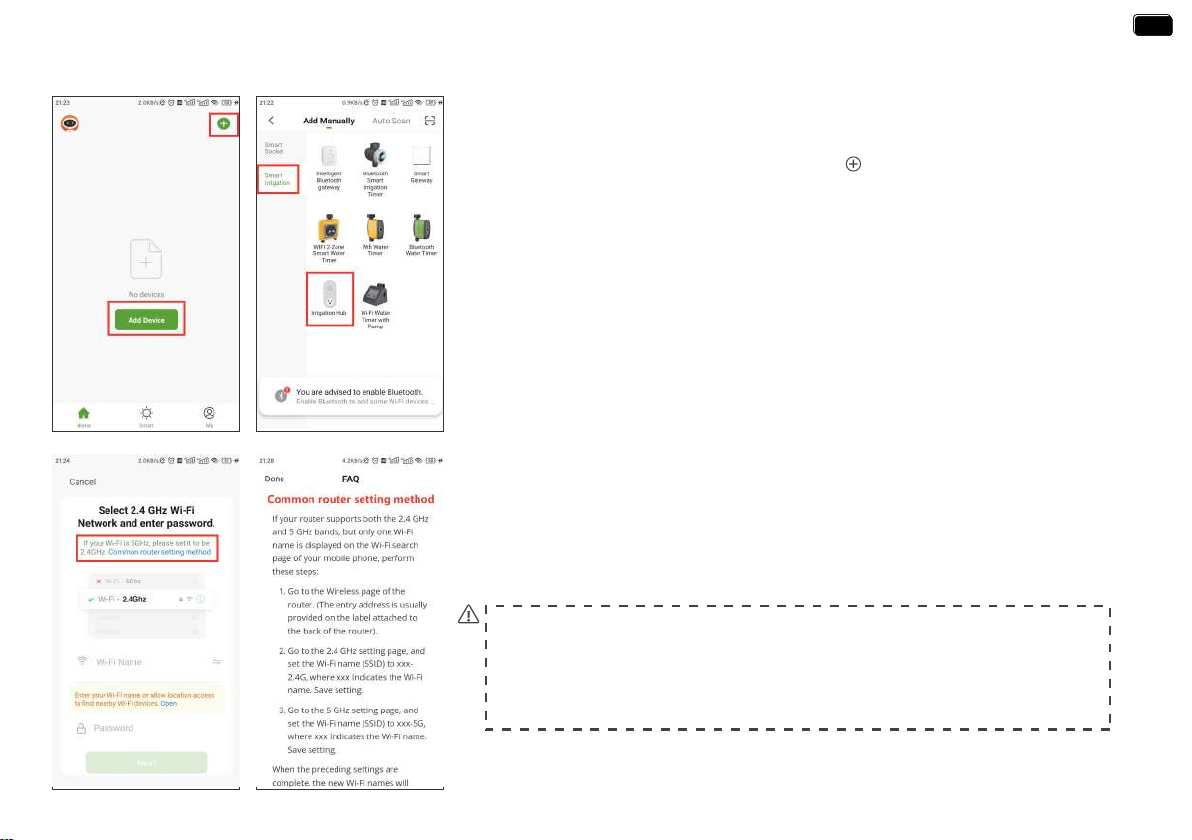
4. select 2.4Ghz WiFi, and enter the password.
Tips:
If your router is a dual-band router, and you cannot identify the 2.4Ghz or 5Ghz WiFi,
please tap the blue words “Common router setting method” to name the 2.4Ghz WiFi
dierently, then you can select it individually.
1. Plug your WiFi Hub to an indoor power source near your WiFi router and the outdoor
outdoor location of your timer.
2. Open RainPoint App and tap Add deviceor to add a new device.
3. Tap Sma Irrigation and Add Manually, then select Irrigation Hub
EN
EN
The device is only connected to a separate 2.4Ghz WiFi, if you need help during
the device WiFi connection, please feel free to contact us.
Email: seice@rainpointus.com
WhatsApp: +1 626-780-5952
STEP 3. CONNECT THE WIFI TIMER
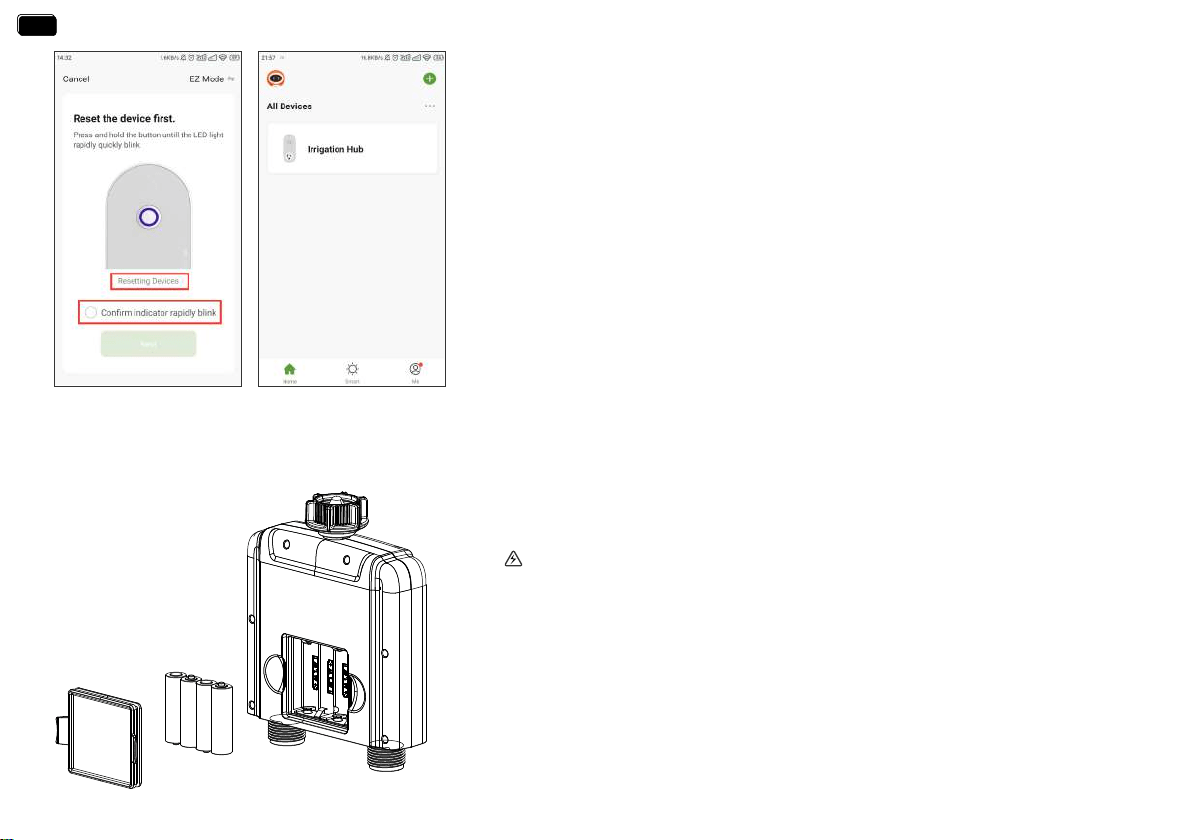
1. Inse 4 new AA alkaline batteries into the batte compament of the timer.
Replace the batte cover and make ceain it is secured.
WARNING:
*Please use only alkaline batteries.
*Do not mix old and new batteries.
*Batteries are to be inseed with the correct polarity.
*Exhausted batteries are to be removed from the product.
*Please remove the batte from long-term no use.
- 10 -
5. Press and hold the WiFi hub button until the power indicator blink rapidly (2 times
per second). Then select "conrm indicator rapidly blink" and tap Next. The APP will
search and pair your WiFi hub automatically.
6. After the connection is successful, the color icon of irrigation hub will be displayed on
the APP home screen.
Note:
If the indicator doesn’t blink rapidly (2 times per second), please tap “Resetting Devices”
and follow the prompts (Or refer to the “RESET THE DEVICE” section of this manual) to
reset the WiFi hub and make the hub indicator blink rapidly.
EN
EN
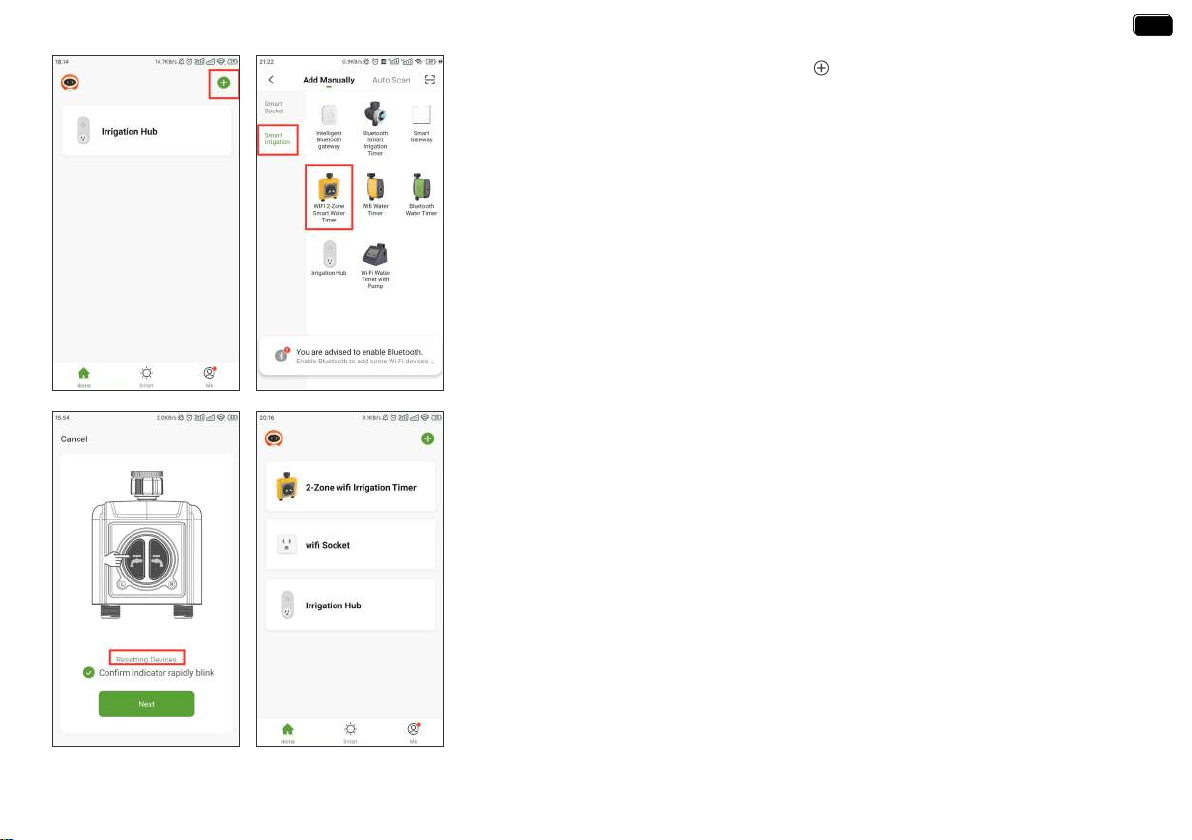
If the indicators don’t blink rapidly (2 times per second), please swipe the page and tap
“Resetting Devices” and follow the prompts (Or refer to the “RESET THE DEVICE” section
of this manual) to reset the WiFi timer and make the timer indicators blink rapidly.
4. Press and hold the left button on the timer until the left and right indicators blink
rapidly at the same time (2 times per second). Then select "conrm indicator rapidly
blink" and tap Next. The APP will search and pair your WiFi timer automatically.
5. After the connection is successful, the color icons of WiFi timer and WiFi socket will be
displayed on the APP home screen.
Note:
Tips:
If necessa, three additional WiFi timers can be added to the RainPoint APP through a
WiFi hub. A separate WiFi timer is available on Amazon.
2. Return to the APP home screen, and tap “ ” to add the WiFi timer.
3. Tap “Sma Irrigation” and “Add Manually”, then select “WIFI 2-Zone Sma Water
Timer”.
- 11 -
EN
EN
- 12 -
STEP 4. INSTALL THE WIFI TIMER
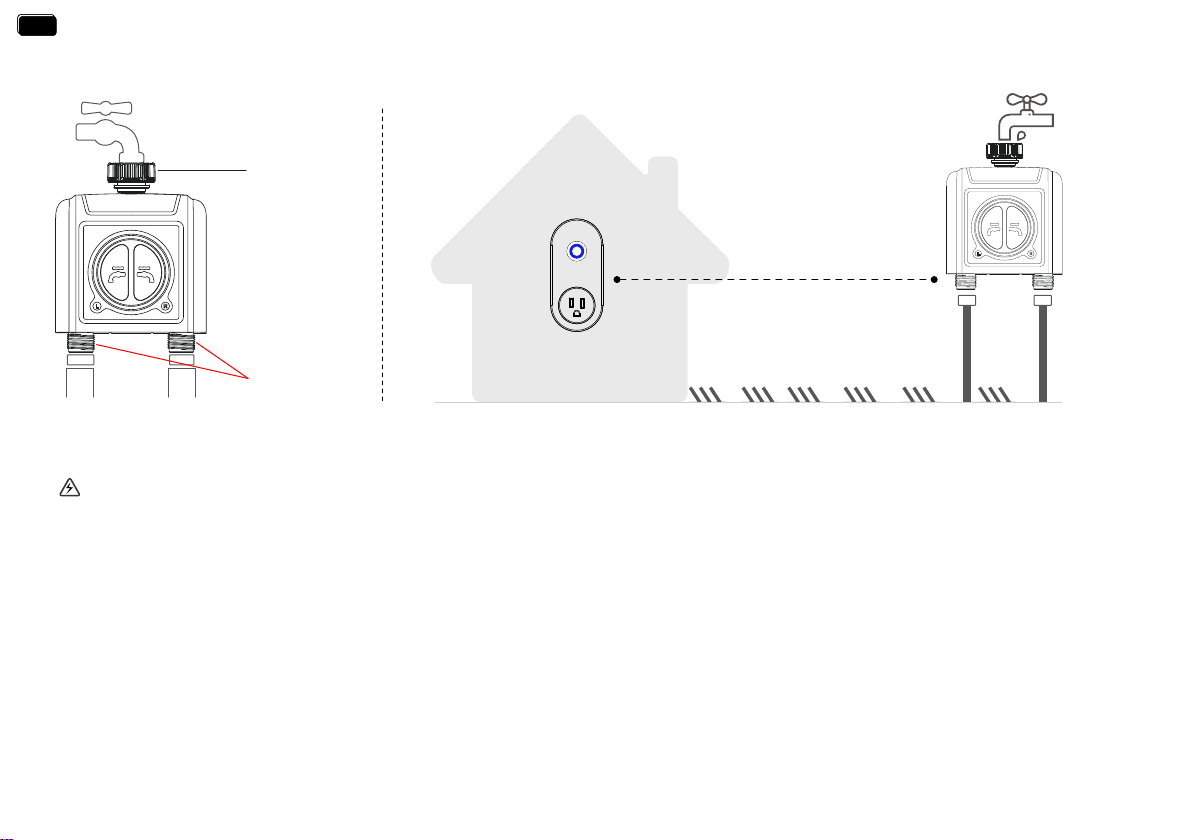
1. Attach the timer inlet to the outdoor faucet/spigot (hand tighten only). From the timer outlet connect a drip irrigation system or a garden hose.
* The WiFi timer can only be used for cold water.
* The WiFi timer uses a 433mHz RF connection to communicate with the WiFi Hub, and must be within a 160ft range, line of sight, of the WiFi Hub.
If there are walls, iron gates or bushes blocking, please shoen the distance between them to better receive the signal.
* Soil will absorb WiFi and RF signals, the best location of the timer is on the faucet 4 to 8 feet (1.2 to 2.4 meters) above the ground.
* Do not place the WiFi timer in an underground valve box or anywhere your WiFi and RF signal will be obstructed.
* Under freezing weather, the water timer should be removed from the tap and placed properly indoor to avoid any danger of freezing.
WARNING:
160 feets
(No bushes, walls blocking)
Timer Inlet
Timer Outlet
EN
EN

- 13 -
STEP 5. TEST BEFORE USE
Congratulations, you have completed the connection and installation of the 2 zone WiFi water timer. Please test
whether the internal valve of your water timer is normal before using it.
1. Keep the faucet turned o.
2. Press the left/right zone button of the timer, with a "click" sound, the left/right valve inside the timer opens for
manual watering. After a few seconds, press the left/right zone button again, the "click" will sound again, and the
left/right zone valve will close.
3. Turn on the faucet a little bit, press the left/right zone button of the timer to check if the water ow out or
shut o as expected. If yes, the valve is normall, please use it with condence! If not, please repeat the above steps
several times.
The test is over, evething is normal, please keep the faucet fully turned on!
Note:
When testing, please keep away from the timer outlet to avoid being splashed and wet.
EN
EN
APP PROGRAMMING
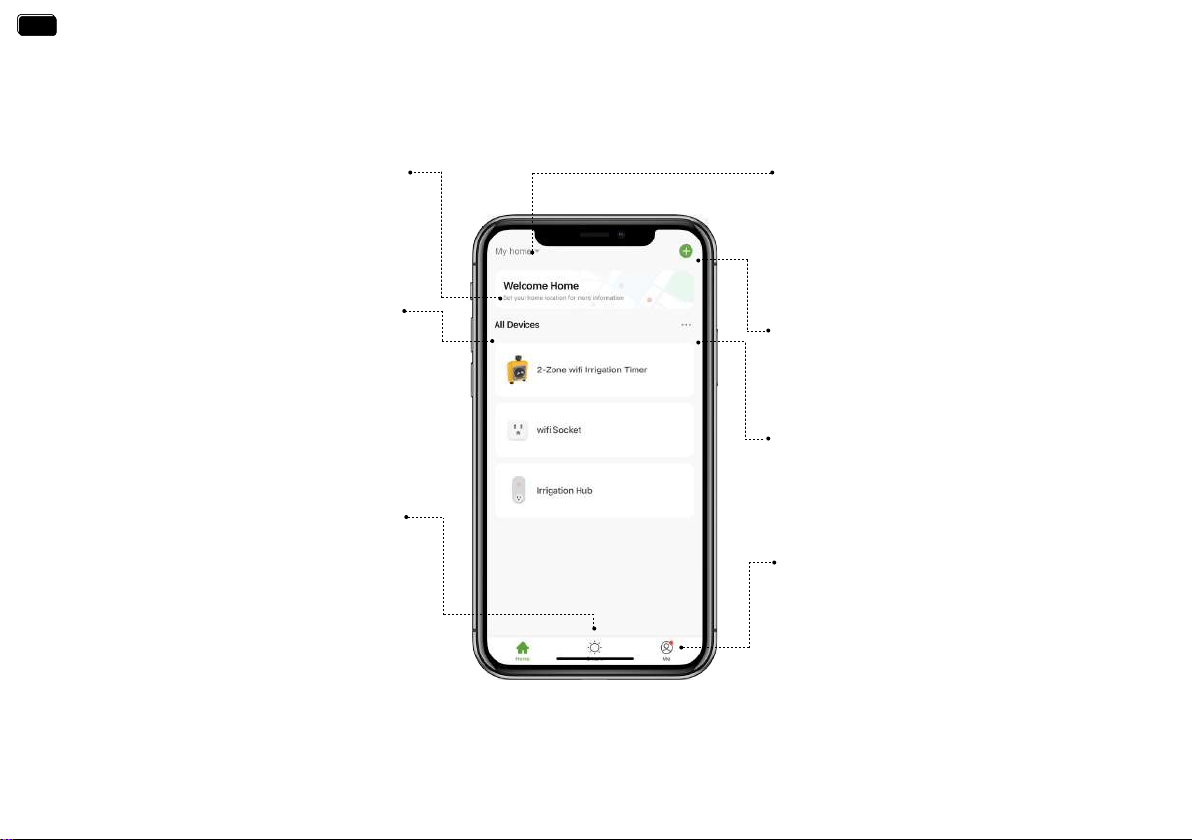
APP HOME SCREEN
Home Management
You can locate your home, customize the home
name and add family members. It is convenient
for you to manage irrigation schedules for
dierent residences.
Local Weather Forecast
Get your local weather forecast from website to
realize intelligent watering.
All Devices
A check list of all the devices you have
connected. Tap to enter the operation page of
devices you have added to program the operation
schedule of the device.
Add Devices
You can add multiple RainPoint devices on the
APP to create a sma home irrigation system.
Room Management
Room Management is for indoor automatic
irrigation system in dierent room.
Sma
On the “Sma” screen, there is “Tap-to-Run”
and “Automation” functions. You can automate
multiple sma products by setting conditions
and tasks.
Me
On the “Me” screen, there is “Message Center”
and “FAQ & Feedback” functions. You will receive
water leak and low batte ales on “Message
Center”. And you can get FAQ and repo issue on
“FAQ & Feedback”.
- 14 -
EN
EN
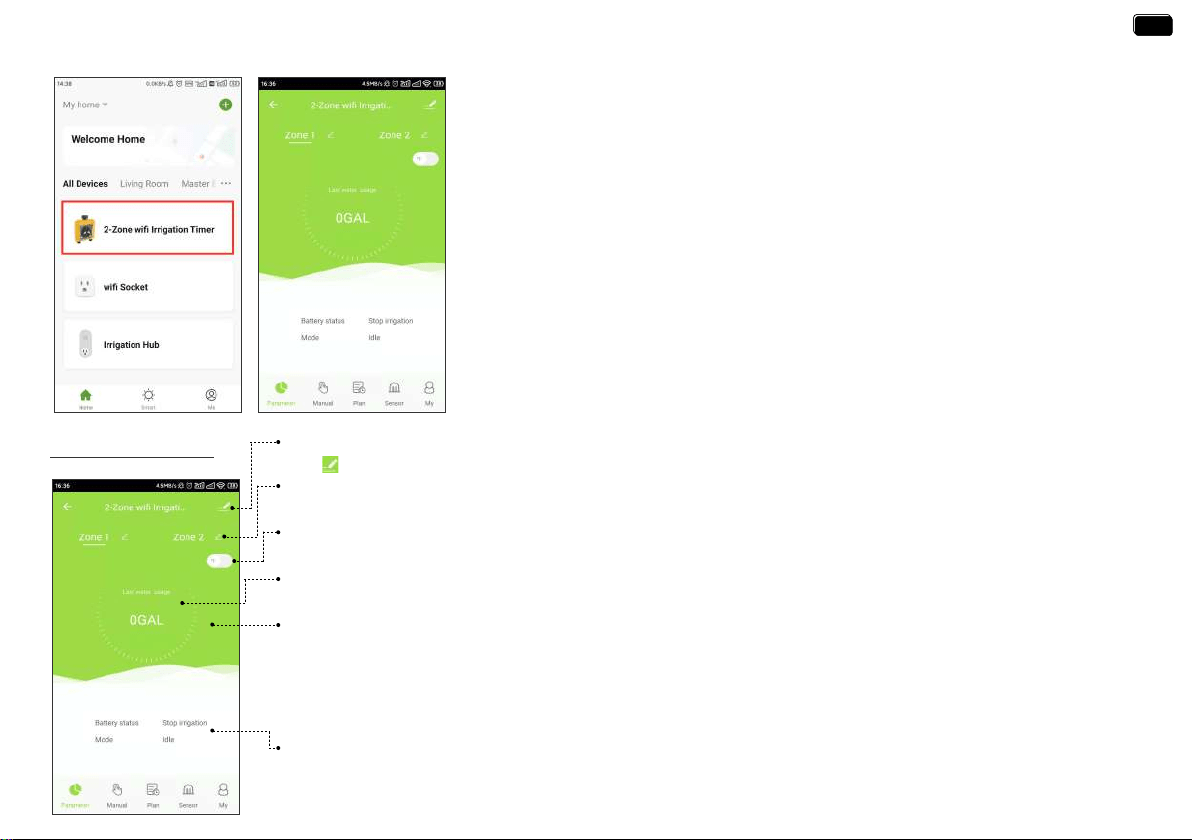
Device Parameter
Device & Third Pay Control
Tap “ ” on the top right of the screen, you will enter the page for device information and third-pay control.
Zone 1 / Zone 2
Select Zone1 or Zone2, the screen will display the data of the corresponding Zone.
Unit Switch
Tap “℉/℃” switch, it will change the unit (℉/℃) of soil temperature and the unit (GAL/L) of water usage.
Last Water Usage
The WiFi water timer has built-in water fow meters, it will display the last water usage on the screen.
Soil Temperature & Moisture
Paired with the RAINPOINT WiFi soil sensor, it can also display soil temperature and moisture.
Working Status
Display the batte level of the timer, the current working mode and the time of the next watering.
Note:
* WiFi soil sensor is sold separately.
* If the soil moisture is higher than the water prohibition level set on the soil sensor, the background color will
change to red.
2-ZONE WIFI IRRIGATION TIMER
Tap the 2-Zone WiFi irrigation timer on the all devices list of APP home screen. It will
display all the parameters and functions of the timer manually set on the APP.
Note:
The WiFi timer will follow and peorm the preset watering schedule after application
set successfully, even if the phone or device loses network connection.
- 15 -
EN
EN
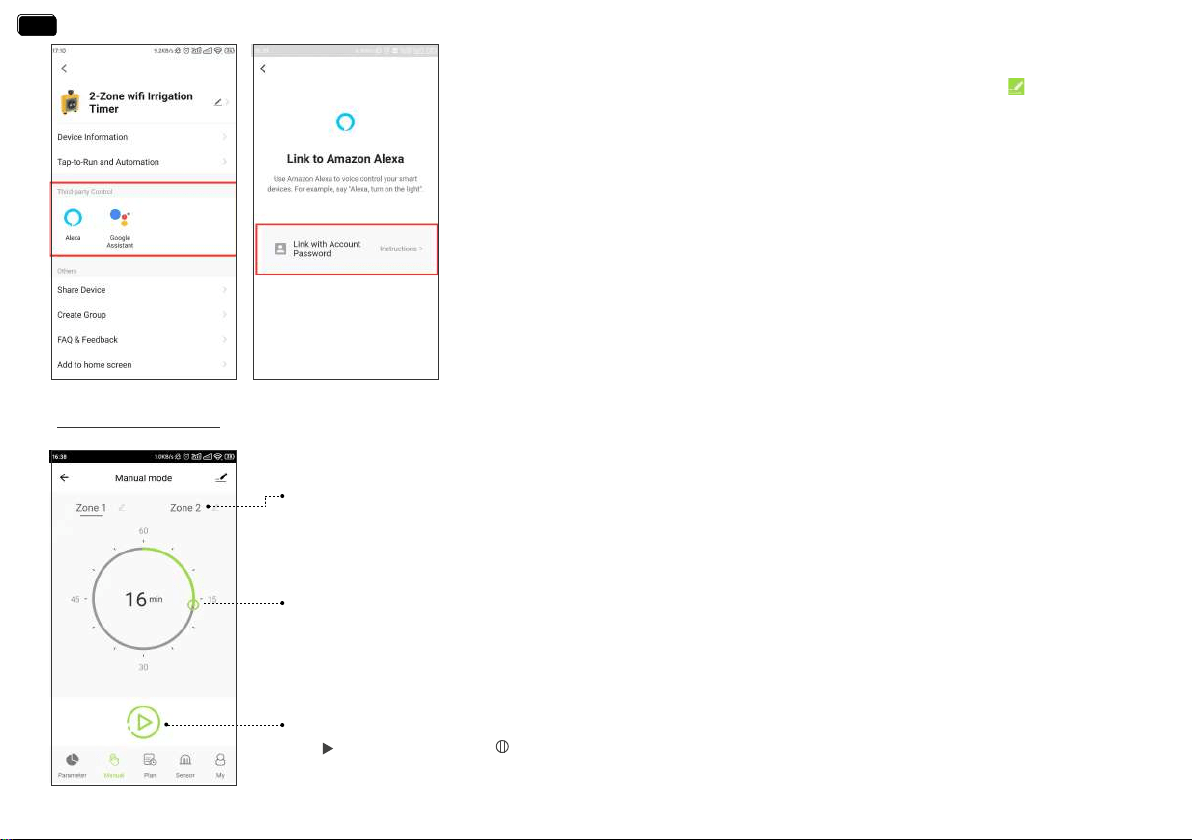
Zone 1 / Zone 2
Select Zone1 or Zone2 for manual watering. Zone 1 controls the left valve of the timer. Zone 2 controls the
right valve of the timer.
Manual Watering Duration
Move the hollow green circle on the dial to set the desired manual watering duration (0~60min).
Sta To Run
Tap to sta watering and to stop
·How to get third-pay control / voice control?
If you have an Amazon Alexa or Google Assistant, please tap the icon “ ” in the upper
right corner of the device page, select a third-pay voice control device you own, then
tap the operation guide, and follow the instructions to connect your WiFi water timer to
the voice control device. After successfully connecting, you can control the WiFi water
timer by voice.
Note:
The WiFi water timer can only peorm simple voice commands, such as “turn on or turn o “.
If you have any questions or suggestions about this feature, please feel free to contact us.
US Free Hotline: +1-833-3815659 UK Free Hotline: +44 800-808-5337
Email: seice@rainpointus.com WhatsApp: +1 626-780-5952
Manual Watering
- 16 -
EN
EN
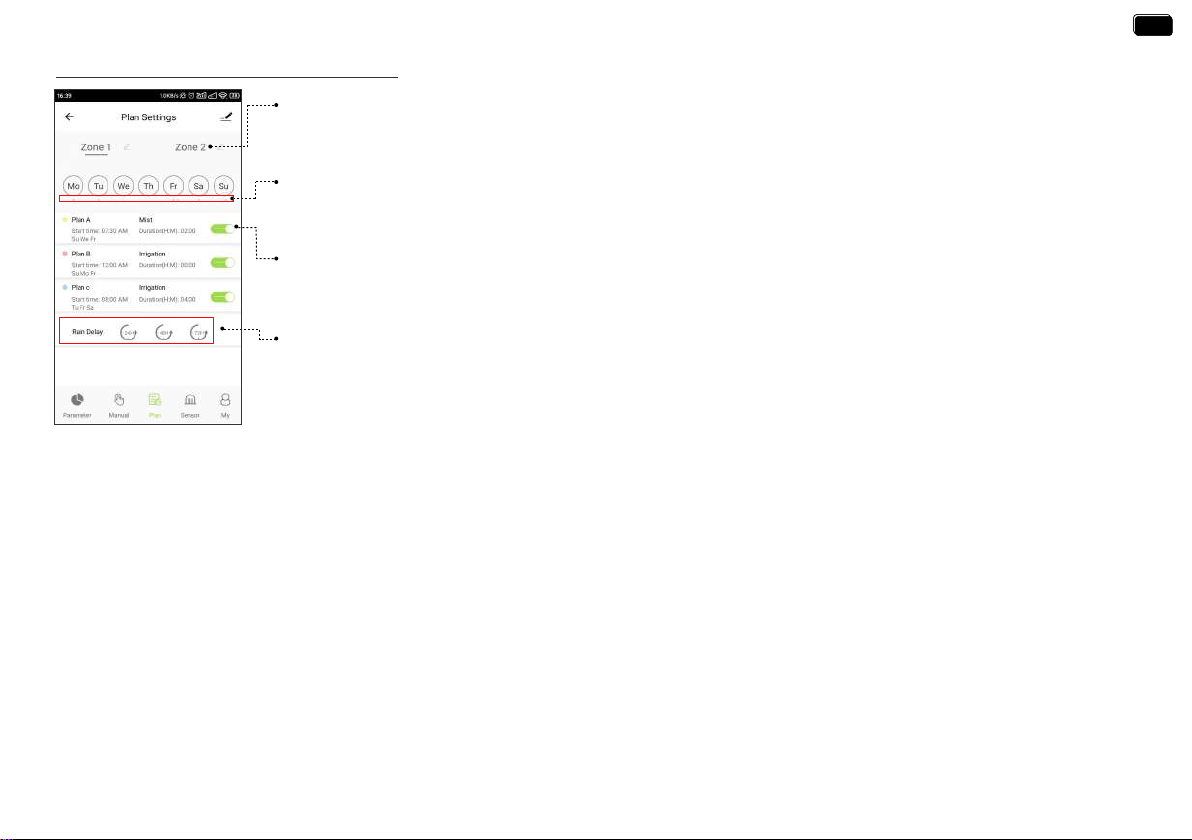
Zone 1 / Zone 2
Select Zone1 or Zone2 for manual watering. Zone 1 controls the left valve of the timer. Zone 2 controls the
right valve of the timer.
Watering Day Of The Week
·How to set the watering plan?
Each plan has a specic color punctuation. The punctuation in a specic color on the day of the week indicates
that there is a corresponding watering plan for that day.
- 17 -
Watering Plan & Manual Rain Delay
Plan A / Plan B / Plan C
Each ZONE can set 3 dierent watering plans eve day. Each watering plan can be set with dierent sta
time, duration and watering day (frequency). Slide the switch of the watering plan to turn it on or o.
Manual Rain Delay
Rain delay applies to rainy days or other weather that causes high soil moisture. During the rain delay, the
timer stops watering. After the rain delay ends, the timer will be executed according to the next watering plan.
Each ZONE can set 24/48/72 hours of rain delay.
1. Tap Plan A/ Plan B/ Plan C on the plan screen of the 2-Zone WiFi irrigation timer.
2. Each watering plan has two watering modes: Irrigation Mode and Mist Mode.
These two modes do not refer to the dierence in the water output of the timer, but the dierent settings of the watering frequency and duration.
Irrigation Mode: Watering at longer inteals
Mist Mode: Watering at shoer inteals
EN
EN
- 18 -
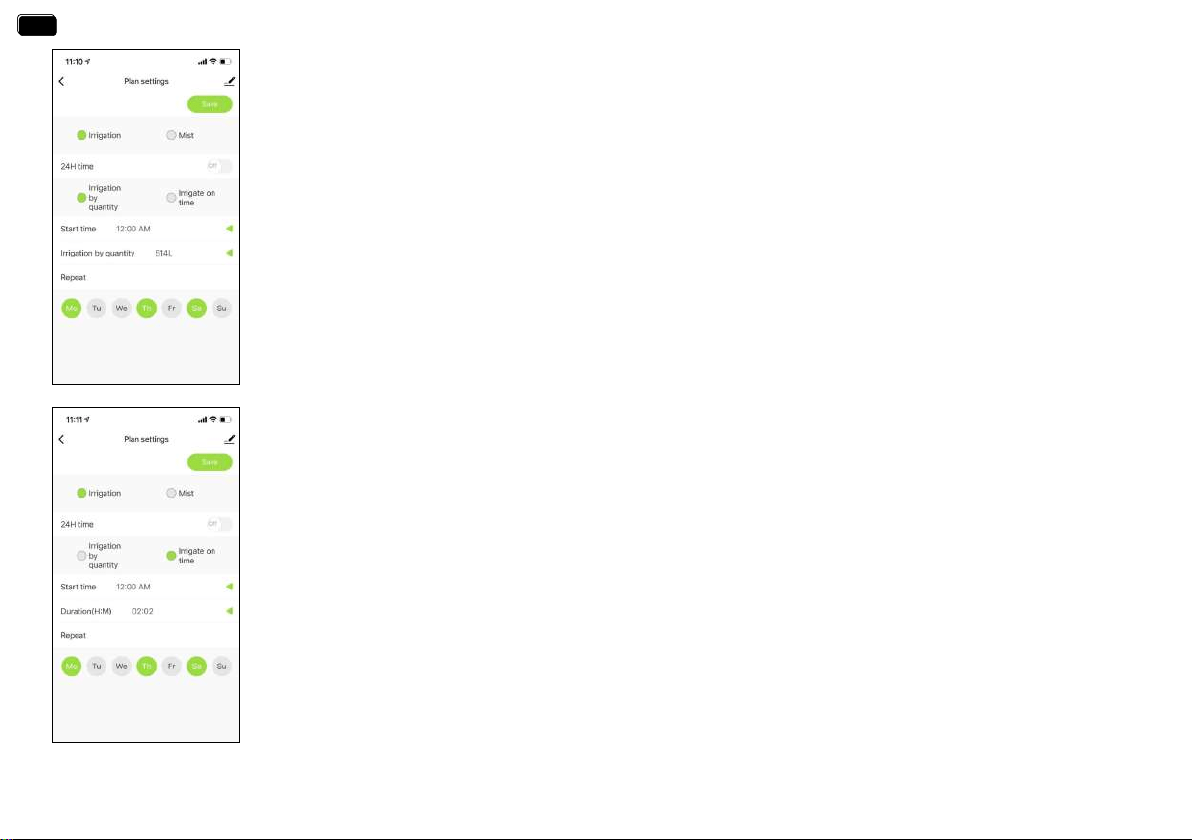
Irrigation Mode (Irrigation by quantity)
3. Tap Irrigation Mode.
4. Use the 24H time switch to toggle between 24hr and AM/PM time.
5. Click to select irrigation on amount.
6. Tap Sta time to open the clock and set a sta time.
7.Click to select irrigation on amount to set the continuous watering volume
(From 1L to 10000L,From 1gallon to 2641 gallons)
8.Select the days to repeat watering eve week as needed.
9. Save your settings.
For example:
The picture on the left shows that the WiFi water timer will water for 514L in irrigation mode.
The sta time is eveMonday, Thursday and Saturday at 12�00 am.
Irrigation Mode (Irrigation on time)
3. Tap Irrigation Mode.
4. Use the 24H time switch to toggle between 24hr and AM/PM time.
5. Click to select irrigation on time.
6. Tap Sta time to open the clock and set a sta time.
7. Tap Duration(H:M) to set a watering duration (from 0 hour 0 minute to 11 hours to 59 minutes).
8. Select the days to repeat watering eve week as needed.
9. Save your settings.
For example:
The picture on the left shows that the WiFi water timer will water for 2 hours and two minutes in irrigation mode.
The sta time is eve Monday, Thursday and Saturday at 12�00 am.
EN
EN
- 19 -
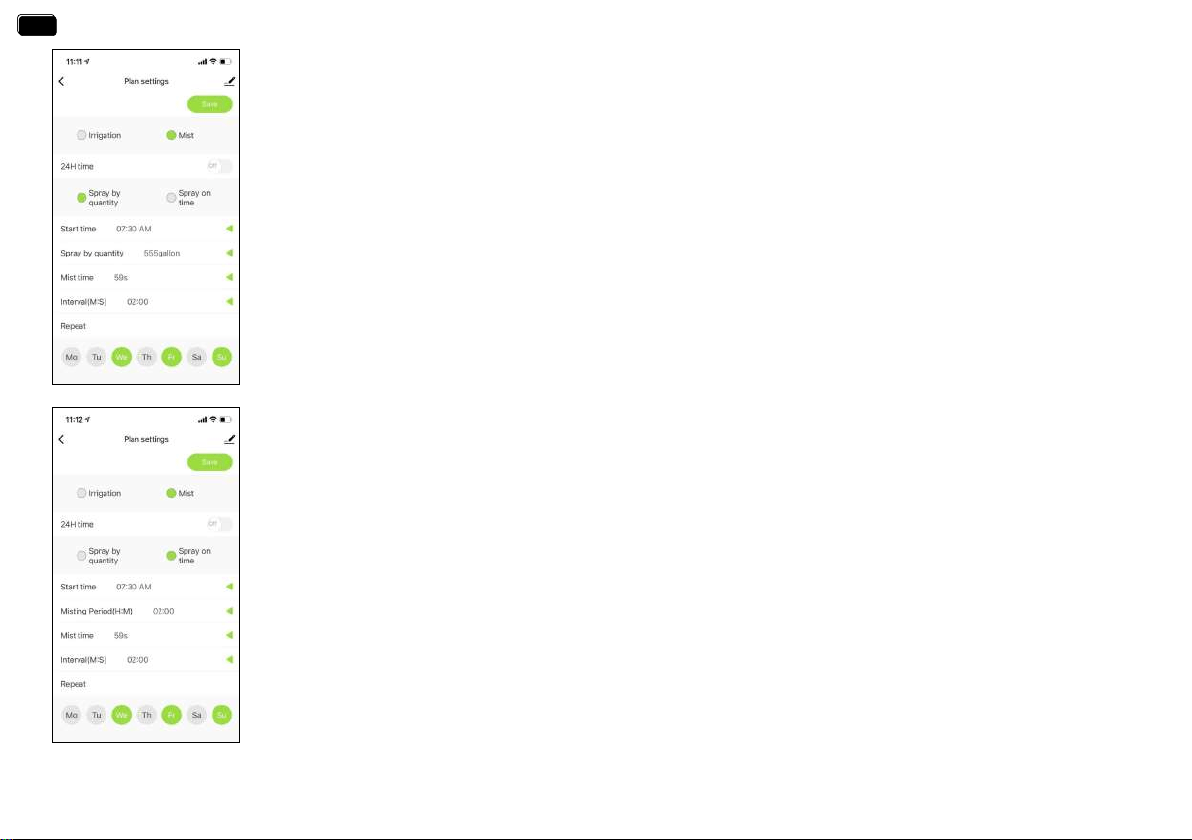
Mist Mode (Spray by quantity)
3. Tap Mist Mode
4. Use the 24H time switch to toggle between 24hr and AM/PM time.
5. Click to select Mist on amount.
6. Tap Sta time to open the clock and set a sta time.
7. Tap Misting on amount to set the overall water volume of the misting program
(from 0 hour 0 minute to 11 hours to 59minutes).
8. Tap Mist time to set the duration for each misting.
9. Tap Inteal to to set the inteal time between each misting.
10. Select the days to repeat watering eve week as needed.
11. Save your settings.
For example:
The picture on the left shows the WiFi water timer will water for 59 seconds and then rest for 2 minutes in mist
mode cyclically. Until it runs out 555 gallons of water, staing at 7�30 in the morning eve Wednesday, Friday and Sunday.
Mist Mode (Spray on time)
3. Tap Mist Mode
4. Use the 24H time switch to toggle between 24hr and AM/PM time.
5. Click to select Mist on time.
6. Tap Sta time to open the clock and set a sta time.
7. Tap Misting Period(H:M) to set the overall duration of the misting program
(from 0 hour 0 minute to 11 hours to 59 minutes).
8. Tap Mist time to set the duration for each misting.
9. Tap Inteal to to set the inteal time between each misting.
10. Select the days to repeat watering eve week as needed.
11. Save your settings.
For example:
The picture on the left shows the WiFi water timer will water for 59 seconds and then rest for 2 minutes in mist mode
cyclically. The cycle lasts for 2 hours, staing at 7�30 in the morning eve Wednesday, Friday and Sunday.
EN
EN
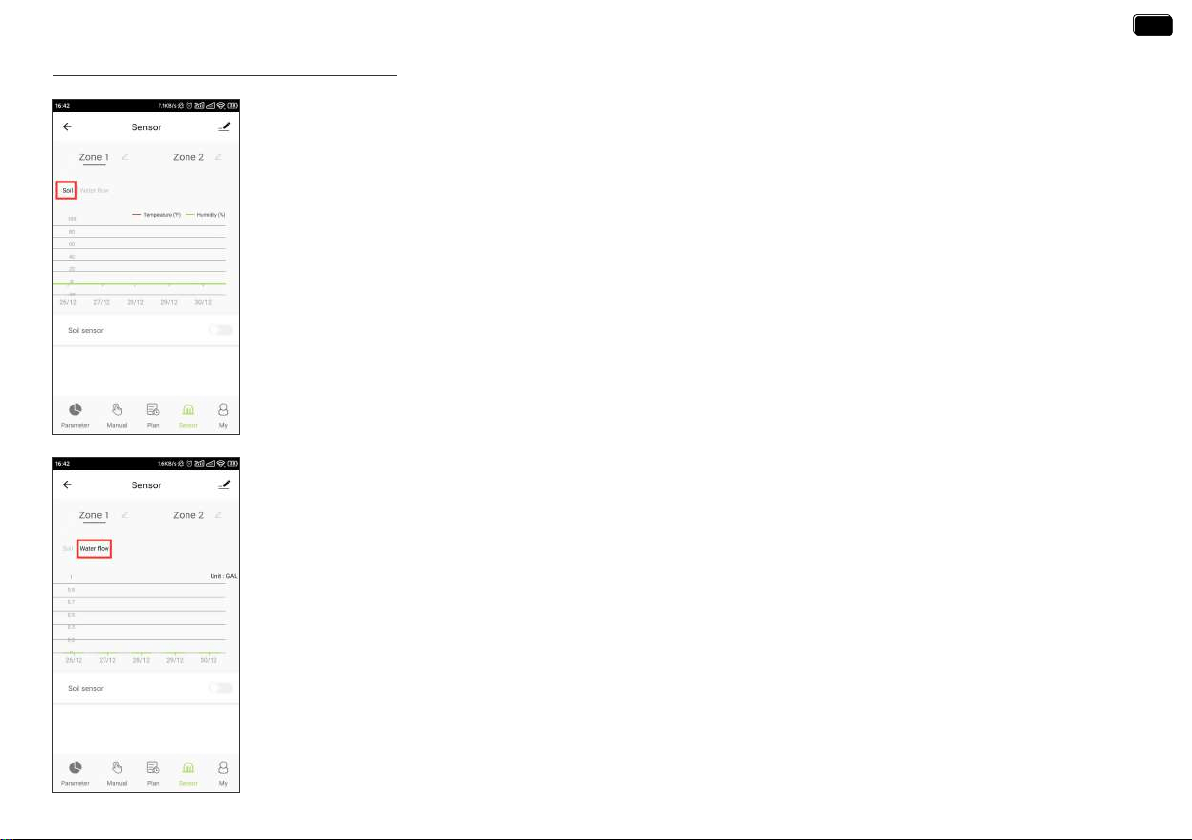
WiFi Soil Sensor & Water Flow Meter
- 20-
WiFi Soil Sensor (sold separately, not included)
If you have a Rainpoint WiFi soil sensor, you can pair it with your Rainpoint WiFi water timer and WiFi hub. Each
zone can be paired with one WiFi soil sensor. And the soil temperature and moisture data monitored by the soil
sensor will be displayed on your Rainpoint APP.
The soil sensor can also control the watering schedule of the timer. When the soil moisture is higher than the
water prohibition level set on the soil sensor, the timer automatically interrupts the watering plan and stops
watering until the soil moisture decreases.
Water Flow Meter
Each zone of the WiFi water timer has buil-in a water ow meter.
It will show you the daily water consumption in the last few days and help you quantify the daily water
consumption to save water.
Note:
How to switch the unit of soil temperature and moisture and water ow meter ?
Please tap the parameter screen and then tap “℉/℃” switch to toggle the unit.
EN
EN
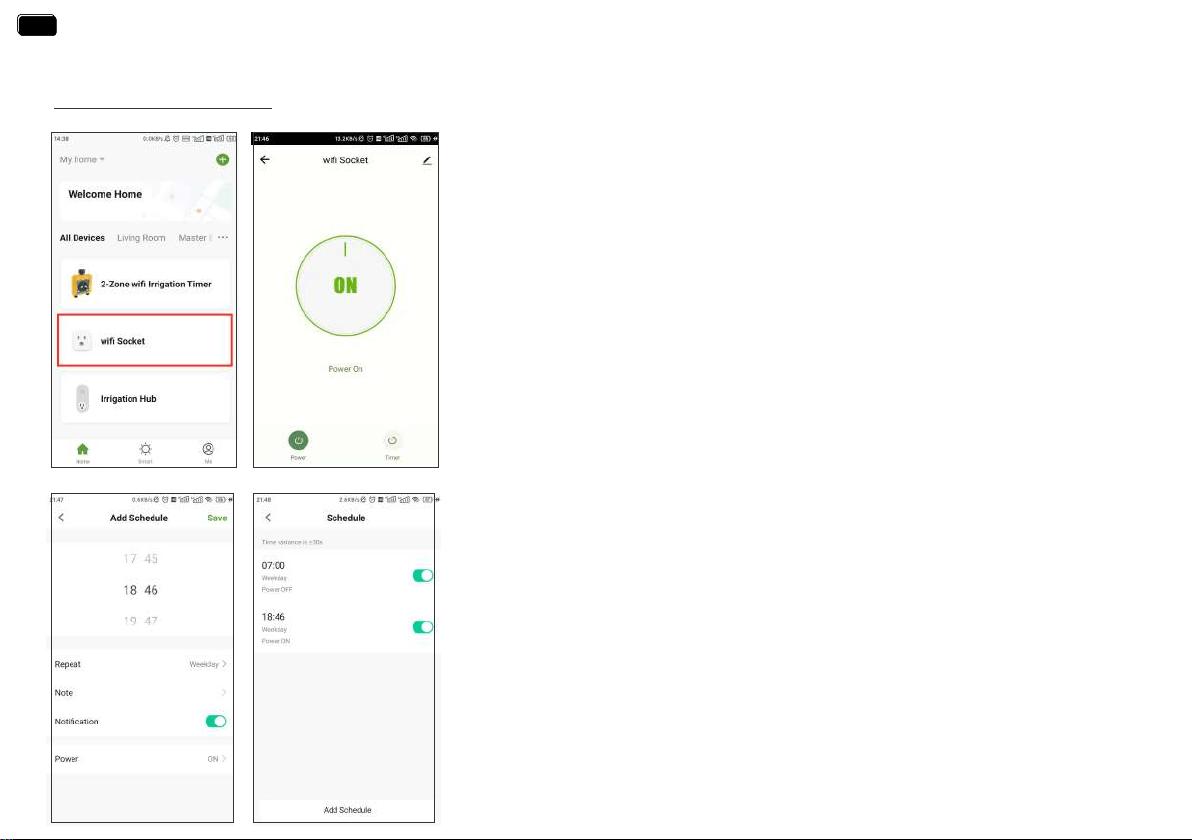
Manual Power ON/OFF
- 21 -
WIFI SOCKET
Note:
Each RainPoint WiFi hub can be used as a WiFi socket. But only when the WiFi timer is
successfully paired with the WiFi hub, the WiFi socket device can be added to the APP.
1. Tap the WiFi Socket on the all devices list of APP home screen.
2. Tap the Power to toggle the WiFi socket power on or o.
1. Tap the Timer on the WiFi Socket screen.
2. Tap the Add Schedule to setup a schedule for the WiFi Socket.
3. Use the clock wheels to set the desired switch time of day.
4. Tap Repeat to choose which days of the week to toggle the socket.
5. Tap Note to add a custom description to your schedule.
6. Toggle the Notication switch to receive ales when the schedule is triggered.
7. Tap Save to set your schedule, or exit without saving.
8. The schedule of the WiFi socket will be displayed on the previous add schedule screen.
EN
EN
- 22 -
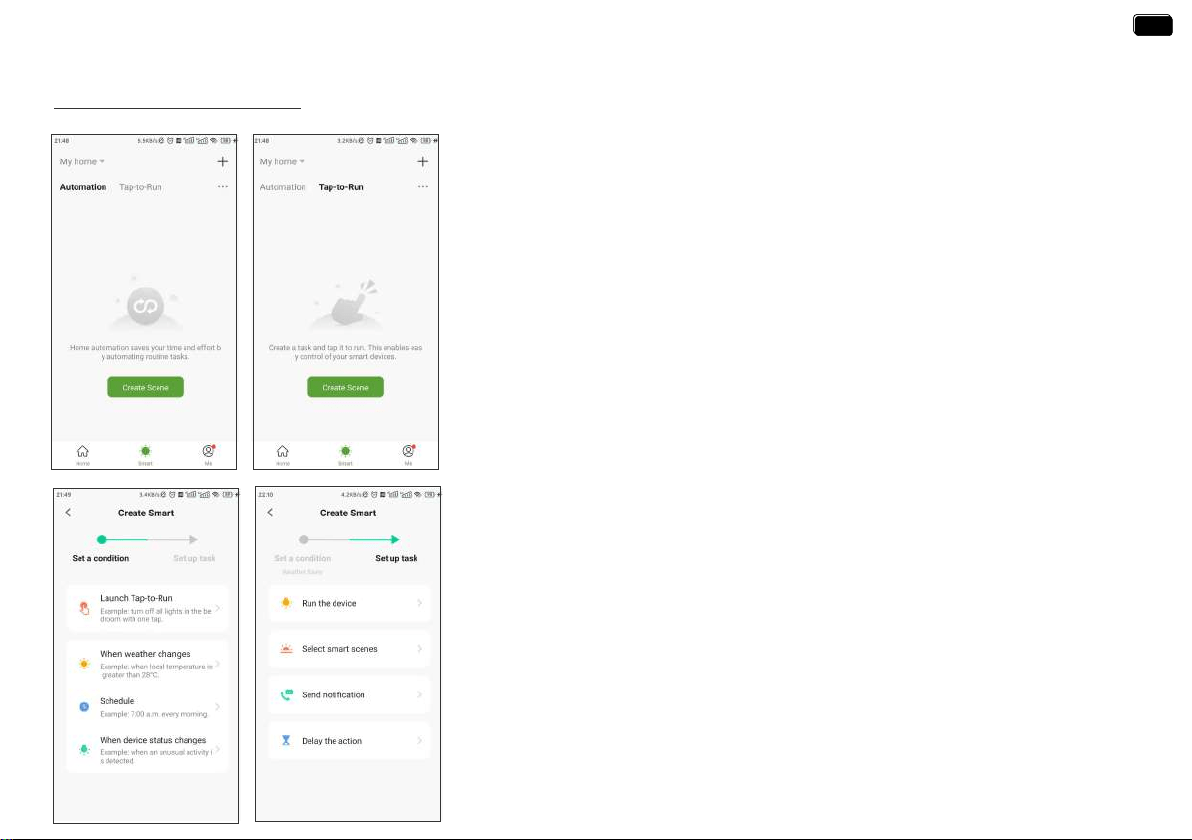
SMART AUTOMATION
3 Steps To Set Automation Or Tap-To-Run
1. Set a condition: According to your needs, set the conditions for automation or tap-to-run.
2. Set tasks: Set the tasks that the device needs to peorm when the conditions are met
3. Save the settings: Please remember to save all the settings. The device will automatically
execute according to what you set.
Automation means the devices can execute automatically according to the set conditions
such as the local weather, device status and time.
For example, RAINPOINT APP can obtain the weather forecast information of your home
location. When you set the conditions for immediately delaying the watering plan when it
rains, the timer will automatically execute the watering delay when it rains in your local area.
When you travel, you don’t need to wor about whether the weather at home is raining.
Tap-to-Run means you can control multiple devices and plans with one tap.
Automation & Tap-to-Run
EN
EN
- 23 -
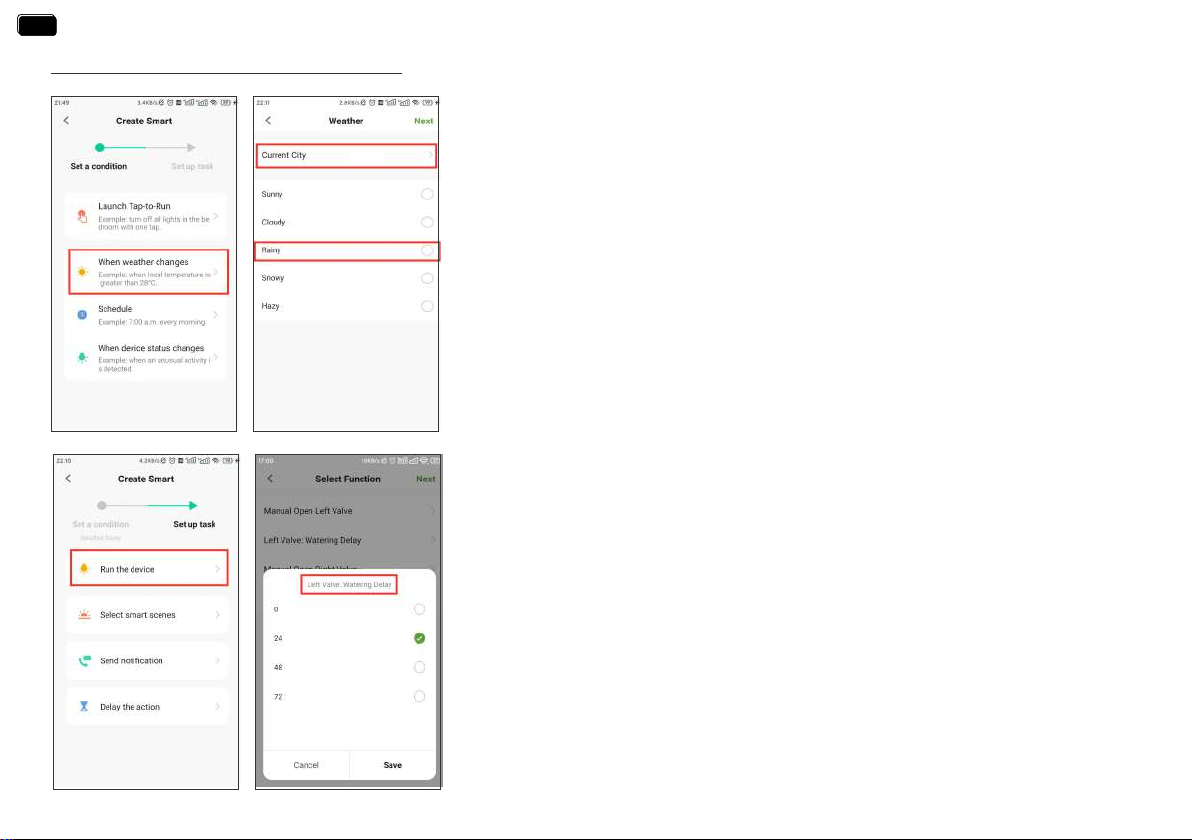
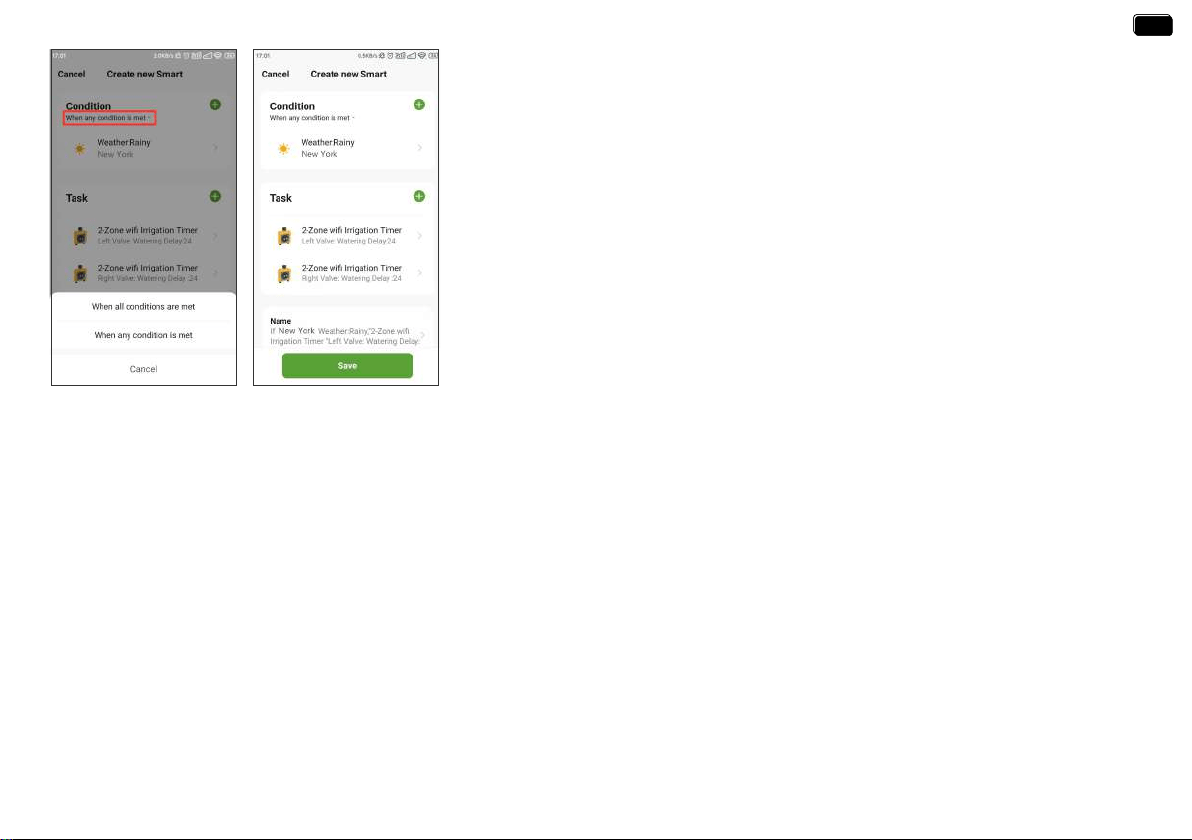
How to set the automatic rain delay?
Note:
Please accurately locate the city where your home is located. The APP will automatically
obtain weather forecast data based on the city you locate. When the weather forecast turns
to rain, the conditions for execution will be triggered.
Note:
For the task peormed by the device, select Run the device
1. Tap Sma at the bottom of the APP home screen.
2. Select Automation and tap Create Scene.
3. Set a condition when the weather changes to rain.
4. Tap Run the device to set up a task about device operation.
5. Select 2-Zone WiFi Irrigation Timer
6. Set the watering delay time of the left valve rst, and then set the watering delay time
of the right valve.
EN
EN
- 24 -
For example:
The picture on the left shows that when it rains in New York, the left and right valves of the
2-Zone WiFi irrigation timer will be automatically closed, and watering will be delayed for
24 hours.
7. Select the trigger condition of your condition to be when all conditions are met or when
any one of the conditions is met. If there is only one trigger condition, there is no need
to set it here.
8. Check your execution conditions and tasks.
9. Save your settings.
EN
EN
- 25 -
Note:
Home location is related to the weather forecast information obtained by the system.
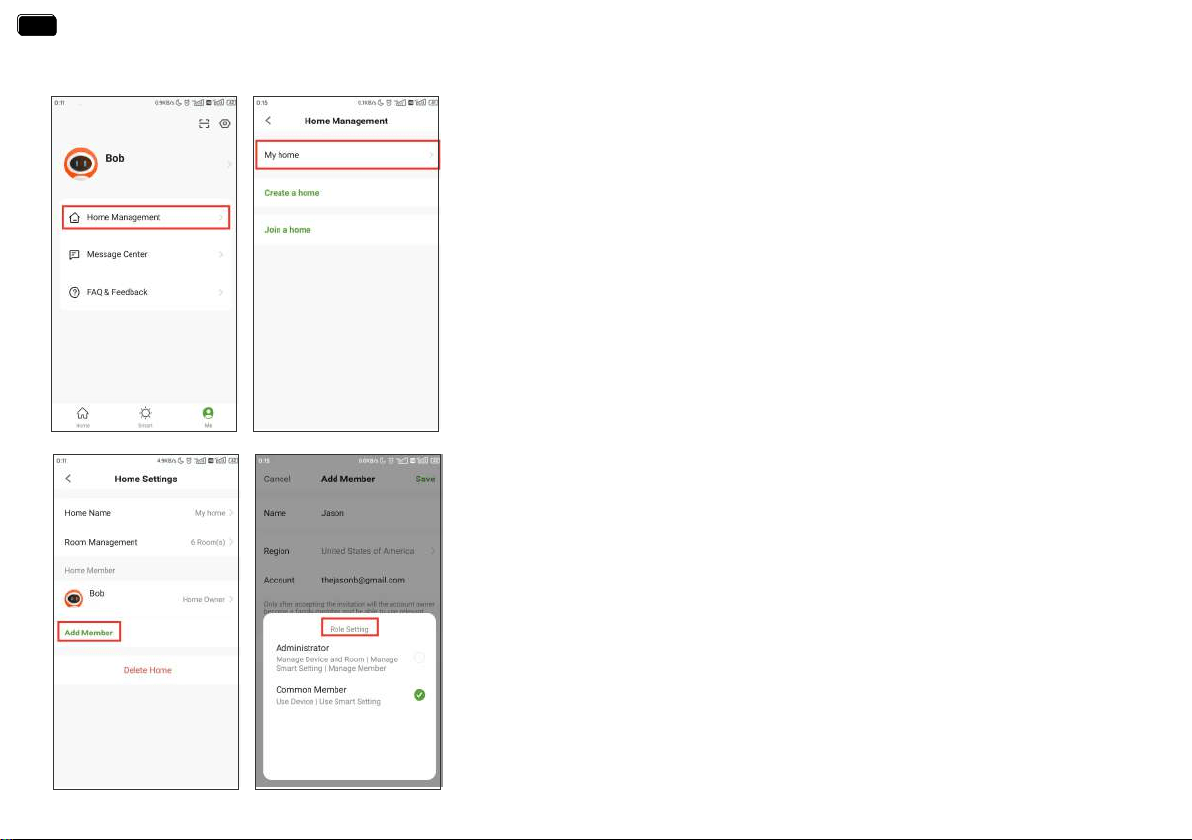
Rainpoint suppos adding family members and sharing your home device to achieve
co-management the home irrigation system with your family.
3. Set your home name, room management and home location.
4. Add Home Member and set the corresponding usage permissions for the members.
1. Tap Me at the bottom of the APP home screen.
2. Select Home Management. You can set the current home or create a home or join
another home.
SMART AUTOMATION
EN
EN

RESET THE DEVICE
- 26 -
Step 1. Press and hold the button. Please don’t release until the end.
Step 2. Plug in the hub and wait for the BLUE light on (Still keep holding the button)
Step 3. Keep holding the button. Wait for the BLUE light on for a few seconds and then rapidlyash,
then the hub is restored to pair mode.
How to reset the WiFi Hub ?
Step 1. Remove all batteries from the batte compament.
Step 2. After 10 seconds, inse 4 fresh AA Alkaline batteries into the batte compament of the timer.
Step 3. While installing the batte, press and hold the left and right button on the timer without releasing the button until the LED indicator
quickly ashed (2 times per second), then the WiFi timer is restored to pair mode.
How to reset the WiFi timer ?
Search the link below to visit the WiFi Hub resetting video
https://youtu.be/ykucYsxRtTs
Search the link below to visit the WiFi Timer resetting video
https://www.youtube.com/playlist?list=PLOUGxY_wJOY-7zzm_D_4jkAjgJITS7p
Please scan the QR code below to get the resetting video quickly.
EN
EN
TROUBLESHOOTING
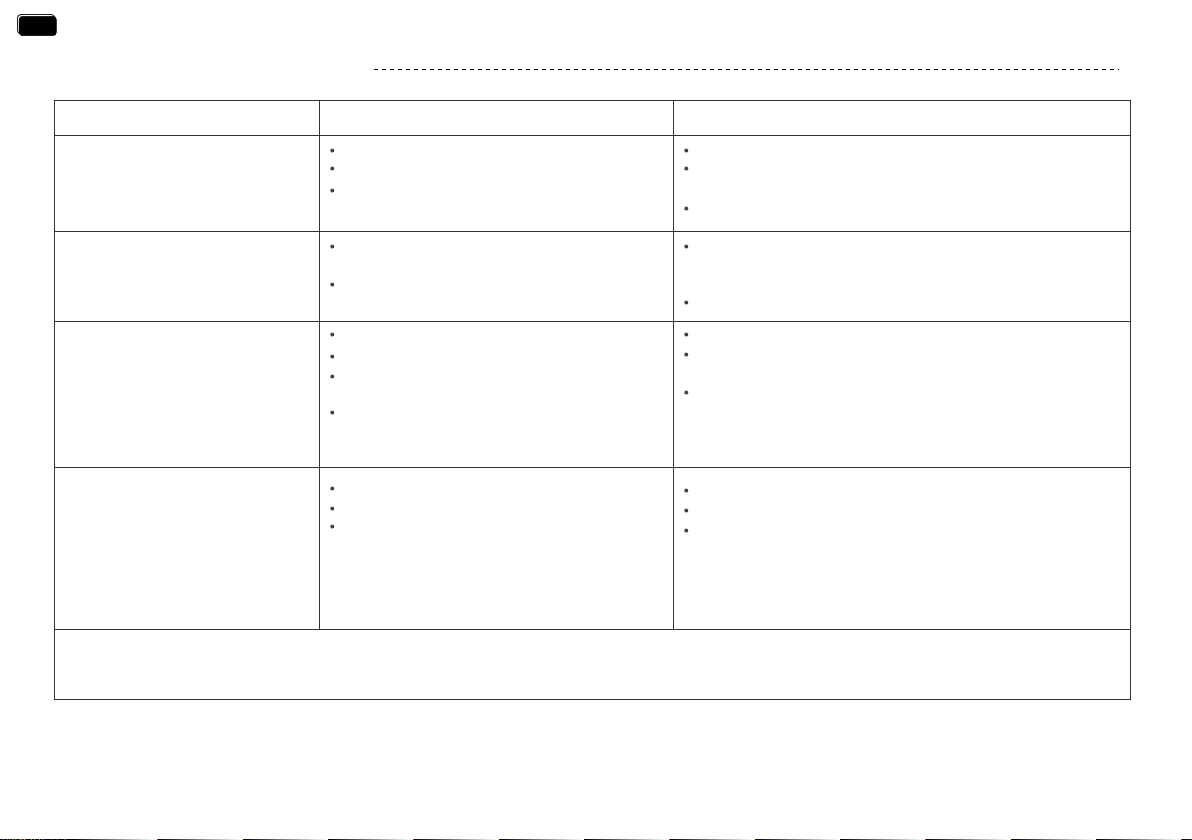
Problem Possible Cause Possible Solution
Can't turn on /o the valve
Inaccurate water ow meter
- 27 -
Impurities in water inlet lter.
Rainfall delay parameters are set.
Setting the plan for channel 1 to channel
2 by mistake.
In a low power state, the timer goes into a
low powerprotection state and does not
execute the schedule.
Timer won't connect
Low batte
Impurities in water inlet
Unstable network or delayed response.
Inaccurate statistics due to tilted mounting
angle.
Low or erratic water pressure from the tap
Replace fresh batteries
Regularly clean the lter po of impurities to avoid
disruptions in use.
Wait a while and t again.
The water timer needs to be installed perpendicular to
the ground and it is recommended that it is not
installed at an angle to avoid aecting the water count.
Normal error values for water counts ± 5%
Check that the WIFI network environment is working.
Close to hubs and routers when connected to irrigation
timers.
Re-pair the timer: Press and hold the left button of the
timer until the left and right indicators ash rapidly at the
same time to indicate pairing. (Or remove the device from
the homepage and reconnect)
Hub cannot connect
Not using 2.4GHZ WIFI.
Incorrect WIFI password.
Hub not in pairing state.
Conrm 2.4GHZ WIFI connection.
Conrm that the WIFI password has been entered correctly.
Press and hold the middle button and inse it into the socket again
without releasing the button, do not release the button during this
time. After a few seconds the indicator light will come on for a while
and then sta ashing rapidly.
This means that pairing has been entered.
If your Rainpoint product does not operate properly after ting the troubleshooting steps, please contact us by phone or
email : +1-833-3815659 (US Free Hotline) ▏+44-800-808-5337 (UK Free Hotline) ▏seice@rainpointus.com
EN
EN

- 28 -
The meaning of LED light
The meaning of App background color
Green means evething works well.
Red means the soil moisture is too high over the set level.
1. Power-on reset: The red and white lights ash alternately 4 times when the machine is turned on.
2. Restore facto settings: Press and hold the timer button while turning on the timer, release the button after the red light ashes, and the timer
will enter the facto reset state.
3. Irrigation status: The white light ashes for 3 seconds and lights for 200mS, indicating that the timer is in irrigation status.
4. Water leakage alarm: The red light ashes alternately for 1 second.
5. Pairing state: The white light ashes quickly (2 times per second) to indicate that the timer enters the timing pairing status, and waits for the
60-second pairing timeout to end.
6. Low batte state: The red light ashes for 3 seconds, and 200mS on indicates that the batte is in a low voltage state.
LED indicator color of TTV203WRF WiFi water timer
1. Sma pairing status: Blue LED light ashing fast(2 times per second)
2. AP pairing status: Blue LED light slow ashing
3. Socket function open: Blue LED light is always on
4. Socket function o: No light
Power indicator color of TWG004WRF WiFi Hub
EN
EN

- 29 -
WARRANTY
RainPoint provides a 1-year warranty against manufacturing defects in materials and workmanship from the date of purchase.During the warranty
period , we’ll replace free of charge the product found to be defective under reasonable use and seice as determined solely by RainPoint.
To extend and activate your warranty, please email us with your order ID at seice@rainpointus.com and we'll respond within 24 hours.
CUSTOMER SUPPORT
If you nd it dicult to set up and want to watch the setting tutorial video, please subscribe to our channel: RainPoint on YouTube.
If the app and the user manual don’t have what you’re looking for, and you need some help, please prepare the Model NO. and LOT NO. of your
device and contact us before returning the Rainpoint to the store.
Email: seice@rainpointus.com
WhatsApp: +1 626-780-5952
US Free Hotline (English): +1 833-381-5659
(MON-FRI 9�30 AM-5�30 PM PST)
UK Free Hotline (English Deutsch): +44 800-808-5337
(MON-FRI 9�00 AM-5�00 PM CET)
Please scan the QR code to visit the RainPoint channel on YouTube quickly.
EN
EN
- 30 -
EN
EN
wi
wi
wi
RF
RF
ROUTER
CLOUD
2.4Ghz Wi
EC REP
NAME:VIAJE ELECTRONIC COMPANY LIMITED
ADDRESS:E588, 13 ADELAIDE ROAD, DUBLIN,
D02 P950, IRELAND
Email:[email protected]