Quick Start Guide

Contents
What’s in the box
...................................................................................................................................................................
2
ClearDryve
®
Parts ...........................................................................................................................................3
Function Button Layout ..................................................................................................................................4
Getting Started with ClearDryve
®
.....................................................................................................................6
Charge the Battery ........................................................................................................................................6
Power ClearDryve
®
On and Off ......................................................................................................................7
Pair With a Device over Bluetooth
®
................................................................................................................7
Call Mode .............................................................................................................................................................9
Quick Access .................................................................................................................................................9
Answer an Incoming Call .............................................................................................................................10
End a Call .................................................................................................................................................... 10
Ignore an Incoming Call ............................................................................................................................... 10
Redial the Last Number ................................................................................................................................ 11
Mute/Unmute a Call ....................................................................................................................................11
Turn the Volume Up and Down ...................................................................................................................12

Streaming Music ...............................................................................................................................................13
Quick Access ...............................................................................................................................................13
Play and Pause ............................................................................................................................................. 13
Turn the Volume Up and Down ...................................................................................................................14
Go to the Next/Previous Song ......................................................................................................................14
Connect to a Wired Device ..........................................................................................................................15
More Functions .................................................................................................................................................16
Add/Remove the Stereo Earpiece .................................................................................................................17
Reset to Factory Settings .............................................................................................................................. 18
Troubleshooting & FAQ .................................................................................................................................... 19
Help and Support .............................................................................................................................................. 20
Warnings, End-User License Agreement, and Warranty ................................................................................21

2
What’s in the Box
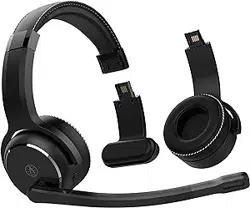
In-box contents includes:
• ClearDryve
®
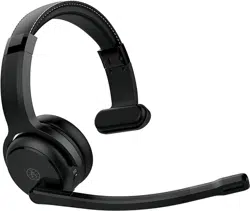
100 headphones
• Audio cable
• Charging cable
• Hard case
• Detachable headpad
Dimensions: approx. 7.5" x 7.3" x 3.3"
3
ClearDryve
®
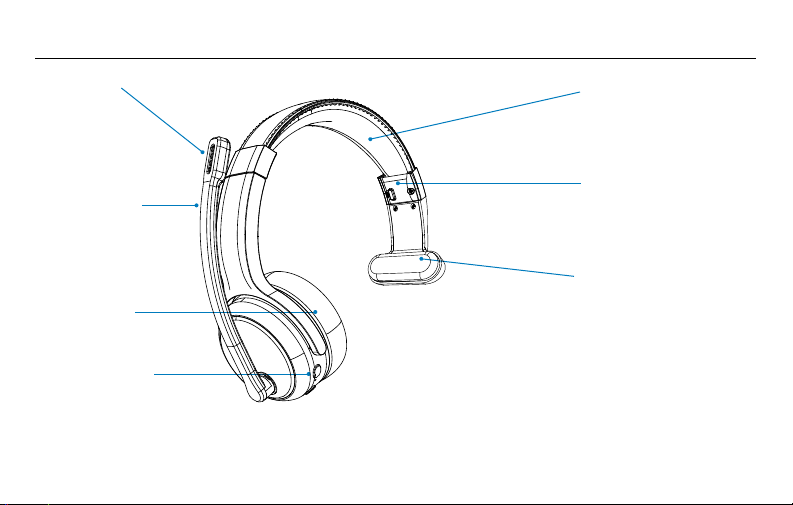
Parts
Microphone
Mic Boom Arm
Fixed Earpiece
Function Buttons
Head Band
Earpiece Release
Note: The earpiece release
button is located on the inside
of the headband.
Detachable Headpad
Dimensions: approx. 7.5" x 7.3" x 3.3"
4
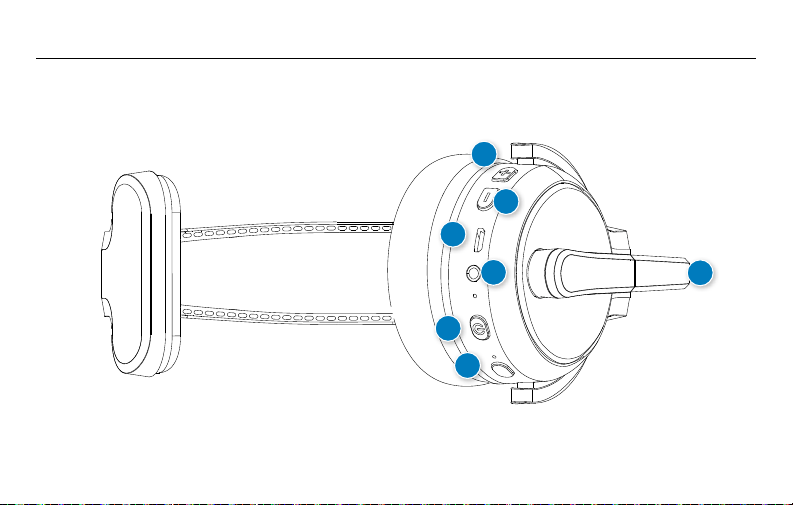
Function Button Layout
6
7
1
2
3
4
5

5
The mic boom arm, ports, LEDs, and function buttons on the ClearDryve
®
headphones are on the same
earpiece. You can use this earpiece on either ear. ClearDryve
®
automatically adjusts for either side when
you extend the mic arm. To switch the earpiece with controls from one ear to the other, swivel the mic
boom up and over to the other side.
1. Vol + button
2. Vol – button
3. Micro-USB port
4. 3.5mm audio input
5. Multi-function button (MFB)
6. EQ preset button
7. Mic boom arm
You can press, long-press, and hold the buttons on ClearDryve
®
. Each does a different function:
1. Press: Press the button firmly and release it immediately.
2. Long-press: Press the button firmly, and keep it depressed for about a second.
3. Hold: Press and hold the button down for the amount of time listed.
6
Getting Started with ClearDryve
®
To get started using ClearDryve
®
, first you need to charge the battery. After you power it on, then you
can pair ClearDryve
®
to your Bluetooth
®
- enabled phone, tablet or laptop. Once ClearDryve
®
is paired,
you can immediately start taking and managing calls or listening to music.
Charge the Battery
Before use, you need to charge the battery on ClearDryve
®
.
Connect the USB cable to the micro-USB port on ClearDryve
®
.
Connect the other end to a charger.
When you turn on ClearDryve
®
on, it announces the battery level as a percentage of its capacity.
If the battery level is low when you power on ClearDryve
®
, you will hear an intermittent “beep”
up-to 5 times, as a reminder to charge it.

7
Power ClearDryve
®
On and Off
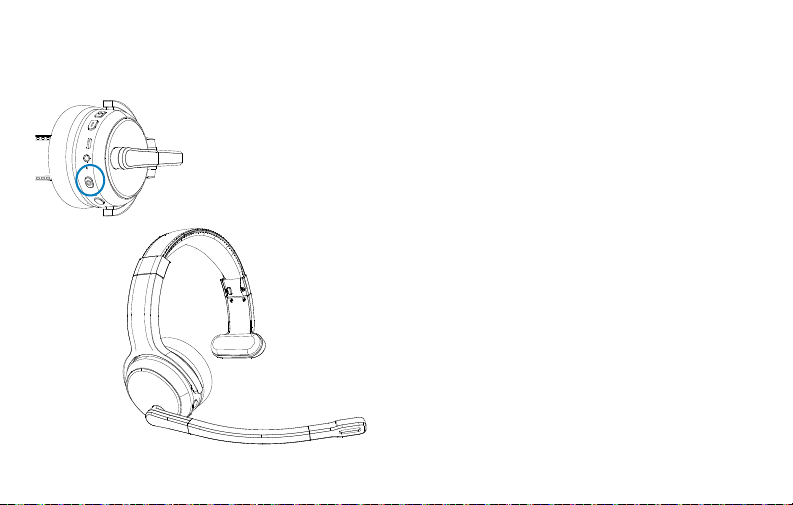
To turn ClearDryve
®
on and off:
1. To power ClearDryve
®
on, press the MFB.
2. You will hear “Power on.”
3. To power ClearDryve
®
off, press and hold the MFB.
4. You will hear “Power off.”
When you power ClearDryve
®
on for the first time, it automatically enters pairing mode.
The next time you turn it on, it will automatically attempt to connect with the most
recently-paired device.
Pair with a Device over Bluetooth
®
When you power ClearDryve
®
on for the first time, it automatically enters pairing mode.
In pairing mode, the LED indicator blinks red and blue, and you will hear “Pairing.”

8
Once a device is paired, the LED stays solid blue. ClearDryve
®
will reconnect automatically when Bluetooth
®
is enabled and the device is within range.
To pair ClearDryve
®
with a BT device:
1. Power on ClearDryve
®
.
2. Enable Bluetooth
®
on your device.
3. ClearDryve
®
will display on your device as ClearDryve
®
50. Select it.
4. The LED will change to solid blue.
You can pair ClearDryve
®
to a new device at any time by entering pairing mode again.
To enter pairing mode again:
1. If the headphones is on, turn it off by pressing and holding the MFB.
2. Press and hold the MFB.
2. The LED indicator blinks blue and red, and you will hear “Pairing.”
As soon as it is paired with a device, ClearDryve
®
is ready to make calls or stream music.
Note: When ClearDryve
®
is turned on and not in pairing mode, it will automatically connect with the most recently paired device when it is on.
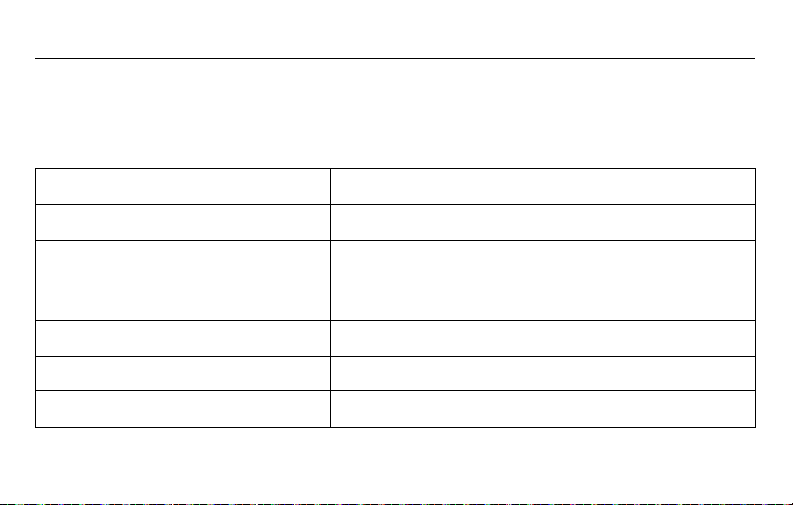
Answer a call Press the MFB.
End a call Press the MFB.
Ignore a call Press and hold the MFB.
Note: The duration of the press should more than 1 second but less than 3
seconds. Holding down the MFB for too long (i.e., over 3 seconds) will cause
ClearDryve
®
to power down.
Redial Double-press the MFB
Mute/Unmute Rotate the mic arm up (to mute) or down (to unmute)
Adjust volume Press Vol + or Vol -
9
Call Mode
In Call Mode, you can answer incoming calls, and use your smartphone’s voice assistant to make
hands-free calls.
Quick Access
Answer a call Press the MFB.
End a call Press the MFB.
Ignore a call Press and hold the MFB.
Note: The duration of the press should more than 1 second but less than 3
seconds. Holding down the MFB for too long (i.e., over 3 seconds) will cause
ClearDryve
®
to power down.
Redial Double-press the MFB
Mute/Unmute Rotate the mic arm up (to mute) or down (to unmute)
Adjust volume Press Vol + or Vol -
10
Answer an Incoming Call
To answer an incoming call:
1. Press the MFB.
2. ClearDryve
®
will
beep once to confirm.
The call will be live
immediately.
Note: Make sure the mic boom arm is down.
End a Call
To end a call:
1. Press the MFB to hang up.
2. ClearDryve
®
will beep once
to confirm.
Ignore an Incoming Call
To ignore an incoming call:
1. Press and hold the MFB
for about 3 seconds.
2. ClearDryve
®
will beep
once to confirm.
Note: Holding down the MFB for too long
(i.e., over 5 seconds) will cause ClearDryve
®
to power down.
➡
11
Redial the Last Number
To redial the last connected number:
1. Quickly press the MFB twice.
2. ClearDryve
®
will beep once
to confirm.
Mute/Unmute a Call
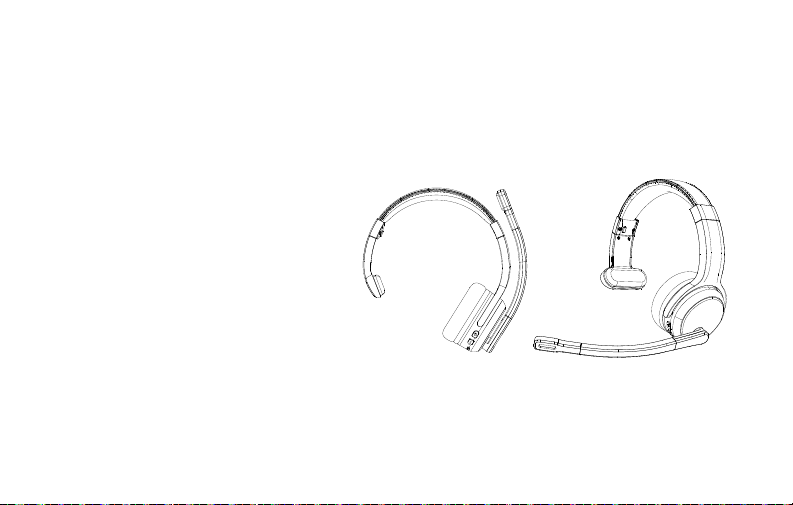
The moveable mic arm provides an easy
way to mute or unmute the mic when you
are on a call.
To mute the call:
1. Move the mic arm up and
away from your mouth, to
about 30 degrees or more
above horizontal.
2. ClearDryve
®
will beep once
to confirm.
To unmute the call:
1. Move the mic arm arm back
down in front of your mouth.
2. ClearDryve
®
will beep once
to confirm.
Note: You can use ClearDryve
®
with the mic arm on either
ear. These steps work the same on both sides. To switch sides,
rotate the mic arm all the way around.
Mute
Unmute
12
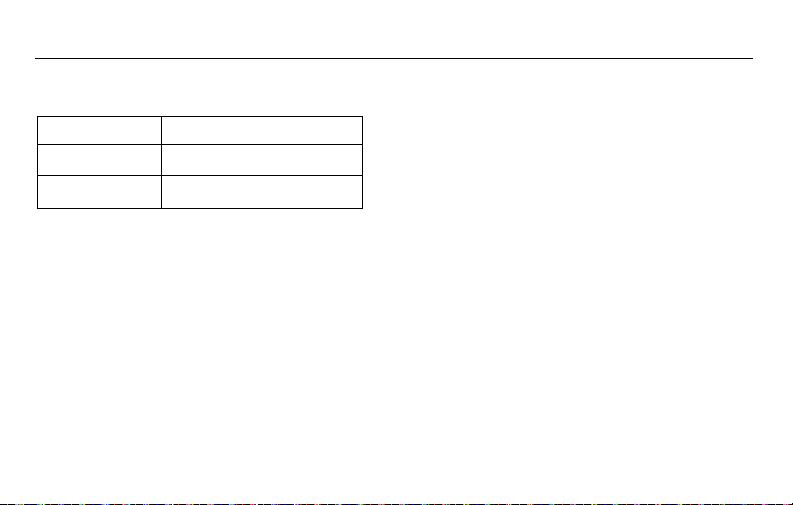
Play/Pause Press the MFB
Adjust volume Press Vol + or Vol -
Next/Previous Long-press Vol + or Vol -
Turn the Volume Up and Down
At any time, you can press the volume buttons to turn the volume of the call up or down.
There are 16 different volume levels available.
To change the volume:
1. Press Vol + to increase the volume.
2. Press Vol – to decrease the volume.
3. ClearDryve
®
will beep when you
reach the lowest or highest
volume settings.
Note: Depending on your device, the volume buttons may behave differently. On some devices the ClearDryve
™’
volume buttons may
control the device volume instead of ClearDryve
®
volume.
13
Play/Pause Press the MFB
Adjust volume Press Vol + or Vol -
Next/Previous Long-press Vol + or Vol -
Streaming Music
Quick Access
Play and Pause
To play or pause music:
1. Press the MFB while in Music Mode.
Note: ClearDryve
®
does not have a “Stop” function.

14
Turn the Volume Up and Down
At any time, you can press the volume buttons
to turn the volume of ClearDryve
®
up or down.
There are 16 different volume settings
available.
To change the volume:
1. Press Vol + to increase the volume.
2. Press Vol – to decrease the
volume.
3. ClearDryve
®
will beep when you
reach the lowest or the highest
volume.
Go to the Next/Previous Song
To switch to a different song:
1. Long-press Vol + to advance to
the next song.
2. Long-press Vol – to go back to
the beginning of the current song.
Long-press again to go to the
previous song.
Note: Depending on your device, the volume buttons may behave differently. On some devices the ClearDryve
®
volume buttons control the
device volume instead of ClearDryve
®
volume.

15
Connect to a Wired Device
You can connect ClearDryve
®
to any
standard 3.5mm audio aux jack.
1. Connect the included 3.5mm
audio cable to the audio in jack
on ClearDryve
®
.
2. Connect the cable to the aux out
on your music device.
Note: You must use the included aux cable to connect your device to ClearDryve
®
. When using ClearDryve
®
in wired mode, Bluetooth
®
functions including volume control on the headphones will not work.

16
More Functions
EQ preset
Your ClearDryve allows you to pick from 5 preset equalizer (EQ) settings. This allows you to pick the
ideal settings for the specific type of music you are listening to. When you first turn on power to your
ClearDryve, the first equalizer setting (EQ1) is active by default. Pressing the EQ button will result in EQ
2 becoming the active preset. Keep tapping on the EQ button to toggle through the presets till you find
one that delivers the best sound quality.
17
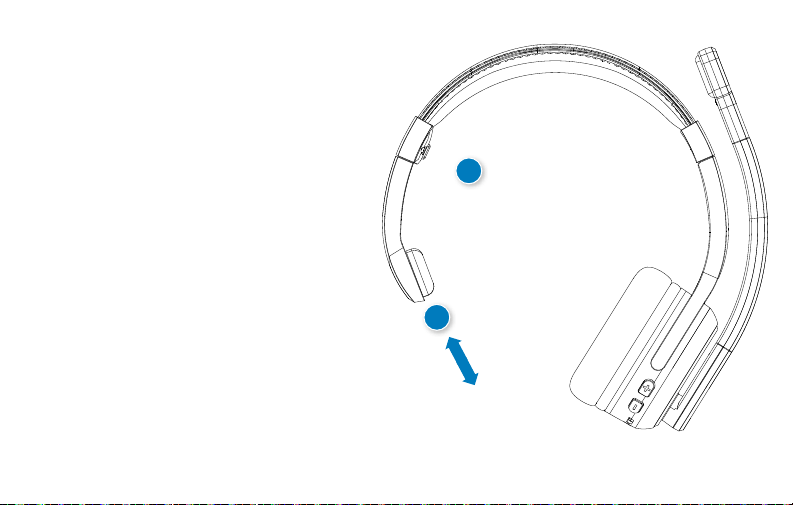
Add/Remove the Optional
Detachable Stereo Earpiece
ClearDryve
®
can convert from mono
(one earpiece plus headpad) to stereo
(two earpieces). The detachable headpad
can be replaced with the earpiece* for
stereo configuration.
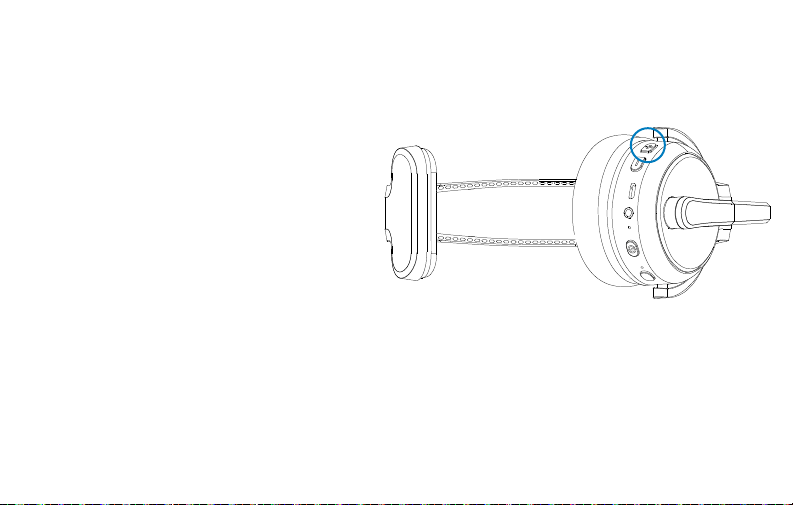
To remove the earpiece or the headpad:
1. Hold the black earpiece
release tab.
2. Slide the headpad off.
To attach the earpiece or the headpad:
3. Slide the earpiece/headpad onto
the ClearDryve
®
head band.
4. The earpiece will click when
connected.
➡
1
2
* Earpiece can be bought separatly.

18
Issue: Possible Causes:
Can I connect more than one
device to my headphones.
Yes, your headphones can be simultaneously connected to more
than one device. To add new connections after connecting to the first
device, turn off the headphones, then press and hold the MFB. The
headphones will enter pairing mode. Follow the steps for your unique
device (smartphone, laptop, tablet) to connect to the headphones.
I am confident batteries are
fully charged, yet they do
not seem to work.
In the rare event that your headphones “locks up,” it can be
“rebooted” by simply plugging in a micro-USB cable into the charging
port of your ClearDryve
®
. The other end of the cable should be
plugged into to a USB power source. ClearDryve
®
will turn off and
start charging. Let it charge for around 15 minutes, unplug and turn it
on to resume operation.
Reset to Factory Settings
You may need to restore ClearDryve
®
back to its factory state, typically when switching over to newer
model smartphones / laptops for daily use. Clearing the “pairing history” on your headphones can help
improve connection times between your headphones and new devices.
To reset ClearDryve
™
:
1. Make sure ClearDryve
®
is powered off. Now press and hold MFB to place
it in pairing mode.
2. Press and hold Vol - and MFB at the same time until you hear 2 beeps.
Your ClearDryve
®
’s pairing history is now cleared and it is in pairing mode. You can turn off the
headphones or proceed to pair it with your device(s).
Note: The next time you turn on the device, it will automatically be in pairing mode.
19
Troubleshooting & FAQ
Issue: Possible Causes:
Can I connect more than one
device to my headphones.
Yes, your headphones can be simultaneously connected to more
than one device. To add new connections after connecting to the first
device, turn off the headphones, then press and hold the MFB. The
headphones will enter pairing mode. Follow the steps for your unique
device (smartphone, laptop, tablet) to connect to the headphones.
I am confident batteries are
fully charged, yet they do
not seem to work.
In the rare event that your headphones “locks up,” it can be
“rebooted” by simply plugging in a micro-USB cable into the charging
port of your ClearDryve
®
. The other end of the cable should be
plugged into to a USB power source. ClearDryve
®
will turn off and
start charging. Let it charge for around 15 minutes, unplug and turn it
on to resume operation.

20
Help and Support
Contact Rand McNally customer support for assistance:
• By phone: 1-877-446-4863
• On the web: http://www.randmcnally.com/support

21
Warnings, End-User License Agreement, and Warranty
WARNING: Safe Driving Practices
Never attend to or handle the headphones while driving. Always use your best judgment and exercise common sense when the vehicle is in motion and do not allow
yourself to be distracted by the headphones while driving. Pull over in a safe and legal manner before attempting to attend to or handle the headphones.
End-User License Agreement
Rand McNally hereby grants you (“User”) a single-user non-exclusive, non-transferable license to use the software and associated data incorporated in the headphones
and related documentation (collectively referred to herein as the “Software Materials”) for User’s own business or personal use and not for resale, sublicense or commercial
use. The Software Materials are furnished under license and may be used only in accordance with this license. Except as permitted by such license, the Software Materials
may not be disclosed to any third party, copied or duplicated in any form, in whole or in part, without the prior written permission of Rand McNally. The Software Materials
contain proprietary and confidential information of Rand McNally and its licensors. Rand McNally grants User a limited license for use of this product and the Software
Materials for its normal operation. By using the Software Materials, User acknowledges that such Software Materials are the property of Rand McNally and its licensors and
are protected by U.S. copyright, trademark and patent laws and international treaties.
THE USER MAY NOT:
• Use the Software Materials on a network or file server, for time-sharing or to process data for third parties.
• Copy, loan or otherwise transfer or sublicense the Software Materials or any of its content.
• Modify, adapt, decompile, disassemble, reverse engineer or reduce to human readable form the Software Materials for any purpose whatsoever.
• Alter, remove or obscure any copyright notice, trademark notice, or proprietary legend from the product, the Software Materials or its content.
This license will terminate automatically if User fails to comply with any of the terms of this license and, in such case, User agrees to immediately stop using the Software
Materials. Rand McNally may revise or update the product or Software Materials, but is not obligated to furnish any revisions or updates to User.

22
Warranty
Rand McNally warrants that the product and the component parts thereof, will be free of defects in workmanship and materials for a period of one (1) year from the date of
purchase. This warranty may be enforced by the first consumer purchaser (“Customer”) only, provided that the product is utilized within the U.S.A. or Canada. During the
warranty period, Rand McNally will, without charge, repair or replace (with a new or newly reconditioned unit), at its option, a defective product or component part. For
repair or replacement of a defective product, Customer must contact Rand McNally at 877-446-4863 for return authorization and instructions. Customer will be required
to provide proof of date of first Customer purchase, such as a duplicate copy of the original sales receipt, for the warranty to be valid. The Customer must pay any initial
shipping charges required to ship the product for warranty service, but if the product is under warranty, the return charges will be at Rand McNally’s expense. Repairs or
replacements have a 90-day warranty. If the product is still under its original warranty, then the new warranty is 90 days or to the end of the original one (1) year warranty,
whichever is longer. This warranty gives the Customer specific rights. Other rights may be available to Customer, which vary from state to state.
Exclusions: This limited warranty does not apply: 1) to any product damaged by accident; 2) in the event of misuse or abuse of the product or as a result of unauthorized
alterations or repairs; 3) if the serial number has been altered, defaced or removed; or 4) if the owner of the product resides outside of the U.S.A. or Canada.
RAND MCNALLY AND ITS LICENSORS DO NOT MAKE ANY OTHER WARRANTY OR REPRESENTATION, EITHER EXPRESS OR IMPLIED, WITH RESPECT TO THE PRODUCT,
INCLUDING ANY WARRANTY AS TO MERCHANTABILITY, FITNESS FOR A PARTICULAR PURPOSE, QUALITY, PERFORMANCE, TITLE OR NON- INFRINGEMENT. IN NO EVENT
WILL RAND MCNALLY OR ITS LICENSORS BE LIABLE FOR ANY INDIRECT, SPECIAL, INCIDENTAL, OR CONSEQUENTIAL DAMAGES ARISING OUT OF THE USE OF OR
INABILITY TO USE THE PRODUCT, EVEN IF ADVISED OF THE POSSIBILITY OF SUCH DAMAGES. Some states do not allow limitations on how long an implied warranty lasts
and/or do not allow the exclusion or limitation of incidental or consequential damages, so the above limitations may not apply to some consumers.
©2020 Rand McNally. All rights reserved. Rand McNally, the Rand McNally globe logo and ClearDryve are trademarks of
RM Acquisition, LLC, d/b/a Rand McNally.

25
Support
www.randmcnally.com/support
877-446-4863
CD100-031720_V1