4K Ultra HD NDI Camera
User Manual
Article No: RGB-RD-UM-4K Ultra HD NDI
Camera-E000
Version: V1.0

4K Ultra HD NDI CAMERA User Manual
1
Content
Declarations
..................................................................................................................................................................................
3
FCC/Warranty
............................................................................................................................................................................
3
Operators Safety Summary
.......................................................................................................................................................
3
Installation Safety Summary
.....................................................................................................................................................
4
Chapter 1 Your Product
................................................................................................................................................................
6
1.1 In the Box
.............................................................................................................................................................................
6
1.2 Product Overview
................................................................................................................................................................
6
1.2.1 Interface
.......................................................................................................................................................................
7
1.2.2 Dimension
..................................................................................................................................................................
10
Chapter 2 Install Your Product
................................................................................................................................................
11
2.1 Power-on Initial Configuration
..........................................................................................................................................
11
2.2 Video Output
.....................................................................................................................................................................
11
2.3 Bracket Mount
...................................................................................................................................................................
12
Chapter 3 Use Your Product
.......................................................................................................................................................
14
3.1 Remote Control
.................................................................................................................................................................
14
3.1.1 Match Code for Wireless Remote Control
.................................................................................................................
14
3.1.2 Keys Introduction for IR Remote Control
...................................................................................................................
14
3.2 Menu Introduction
............................................................................................................................................................
18
3.2.1 Main Menu
.................................................................................................................................................................
18
3.2.2 System Setting
............................................................................................................................................................
18
3.2.3 Camera Setting
...........................................................................................................................................................
19
3.2.4 P/T/Z
...........................................................................................................................................................................
22
3.2.5 Video Format
..............................................................................................................................................................
23
3.2.6 Version
.........................................................................................................................................................................
23
3.2.7 Restore Default
...........................................................................................................................................................
23
3.3 Network Connection
.........................................................................................................................................................
24
3.3.1 Connecting Mode
.......................................................................................................................................................
24
3.4 IE Login
..............................................................................................................................................................................
26
3.4.1 Web Client
...................................................................................................................................................................
26
3.4.2 Preview
.......................................................................................................................................................................
26
3.4.3 Playback
......................................................................................................................................................................
27
3.4.4 Configuration
..............................................................................................................................................................
27
3.4.5 Video Configuration
....................................................................................................................................................
28
3.4.6 Network Configuration
...............................................................................................................................................
30
3.4.7 System Configuration
.................................................................................................................................................
31
3.4.8 Logout
.........................................................................................................................................................................
32
Chapter 4 Ordering Codes
..........................................................................................................................................................
33
4.1 Product
..............................................................................................................................................................................
33
Chapter 5 Support
.......................................................................................................................................................................
34
5.1 Contact us
..........................................................................................................................................................................
34
5.2 Camera Maintenance and Troubleshooting
.....................................................................................................................
35
5.2.1 Camera Maintenance
.................................................................................................................................................
35
5.2.2 Troubleshooting
.........................................................................................................................................................
35
Chapter 6 Appendix
....................................................................................................................................................................
37
6.1 Specification
......................................................................................................................................................................
37
6.2 VISCA Protocol List
............................................................................................................................................................
38
6.2.1 Camera Return Command
..........................................................................................................................................
38
6.2.2 Camera Control Command
.........................................................................................................................................
38

4K Ultra HD NDI CAMERA User Manual
2
6.2.3 Inquiry Command
.......................................................................................................................................................
41
6.3 Pelco-D Protocol Command List
........................................................................................................................................
43
6.4 Pelco-P Protocol Command List
........................................................................................................................................
44
6.5 Terms & Definitions
...........................................................................................................................................................
45
6.6 Revision History
.................................................................................................................................................................
49

4K Ultra HD NDI CAMERA User Manual
3
Thank you for choosing our product!
This User Manual is designed to show you how to use this camera quickly and make use of all the features. Please
read all directions and instructions carefully before using this product.
Declarations
FCC/Warranty
Federal Communications Commission (FCC) Statement
This camera has been tested and found to comply with the limits for a class A digital device, pursuant to Part 15 of the
FCC rules. These limits are designed to provide reasonable protection against harmful interference when the equipment is
operated in a commercial environment. This equipment generates, uses, and can radiate radio frequency energy and, if not
installed and used in accordance with the instruction manual, may cause harmful interference to radio communications.
Operation of this equipment in a residential area may cause harmful interference, in which case the user will be
responsible for correcting any interference.
Guarantee and Compensation
RGBlink provides a guarantee relating to perfect manufacturing as part of the legally stipulated terms of
guarantee. On receipt, the purchaser must immediately inspect all delivered goods for damage incurred during
transport, as well as for material and manufacturing faults. RGBlink must be informed immediately in writing of any
complains.
The period of guarantee begins on the date of transfer of risks, in the case of special systems and software on the date
of commissioning, at latest 30 days after the transfer of risks. In the event of justified notice of compliant, RGBlink can
repair the fault or provide a replacement at its own discretion within an appropriate period. If this measure proves to be
impossible or unsuccessful, the purchaser can demand a reduction in the purchase price or cancellation of the contract. All
other claims, in particular those relating to compensation for direct or indirect damage, and also damage attributed to the
operation of software as well as to other service provided by RGBlink, being a component of the system or independent
service, will be deemed invalid provided the damage is not proven to be attributed to the absence of properties
guaranteed in writing or due to the intent or gross negligence or part of RGBlink.
If the purchaser or a third party carries out modifications or repairs on goods delivered by RGBlink, or if the goods are
handled incorrectly, in particular if the systems are commissioned operated incorrectly or if, after the transfer of risks, the
goods are subject to influences not agreed upon in the contract, all guarantee claims of the purchaser will be rendered
invalid. Not included in the guarantee coverage are system failures which are attributed to programs or special electronic
circuitry provided by the purchaser, e.g. interfaces. Normal wear as well as normal maintenance are not subject to the
guarantee provided by RGBlink either.
The environmental conditions as well as the servicing and maintenance regulations specified in this manual must be
complied with by the customer.
Operators Safety Summary
The general safety information in this summary is for operating personnel.
Do Not Remove Covers or Panels
There are no user-serviceable parts within the unit. Removal of the top cover will expose dangerous voltages. To avoid
personal injury, do not remove the top cover. Do not operate the unit without the cover installed.
Power Source
This product is intended to operate from a power source that will not apply more than 230 volts rms between the
supply conductors or between both supply conductor and ground. A protective ground connection by way of grounding
conductor in the power cord is essential for safe operation.
Grounding the Product
This product is grounded through the grounding conductor of the power cord. To avoid electrical shock, plug the
power cord into a properly wired receptacle before connecting to the product input or output terminals. A
protective-ground connection by way of the grounding conductor in the power cord is essential for safe operation.
Use the Proper Power Cord
Use only the power cord and connector specified for your product. Use only a power cord that is in good condition.
4K Ultra HD NDI CAMERA User Manual
4
Refer cord and connector changes to qualified service personnel.
Use the Proper Fuse
To avoid fire hazard, use only the fuse having identical type, voltage rating, and current rating characteristics. Refer
fuse replacement to qualified service personnel.
Do Not Operate in Explosive Atmospheres
To avoid explosion, do not operate this product in an explosive atmosphere.
Installation Safety Summary
Safety Precautions
For all device installation procedures, please observe the following important safety and handling rules to avoid
damage to yourself and the equipment.
To protect users from electric shock, ensure that the chassis connects to earth via the ground wire provided in the AC
power Cord.
The AC Socket-outlet should be installed near the equipment and be easily accessible.
Unpacking and Inspection
Before opening device shipping box, inspect it for damage. If you find any damage, notify the shipping carrier
immediately for all claims adjustments. As you open the box, compare its contents against the packing slip. If you find any
shortages, contact your sales representative.
Once you have removed all the components from their packaging and checked that all the listed components are
present, visually inspect the system to ensure there was no damage during shipping. If there is damage, notify the shipping
carrier immediately for all claims adjustments.
Site Preparation
The environment in which you install your device should be clean, properly lit, free from static, and have adequate
power, ventilation, and space for all components.
Electric Safety
Installation and operation must accord with electric safety standard
Polarity of power supply
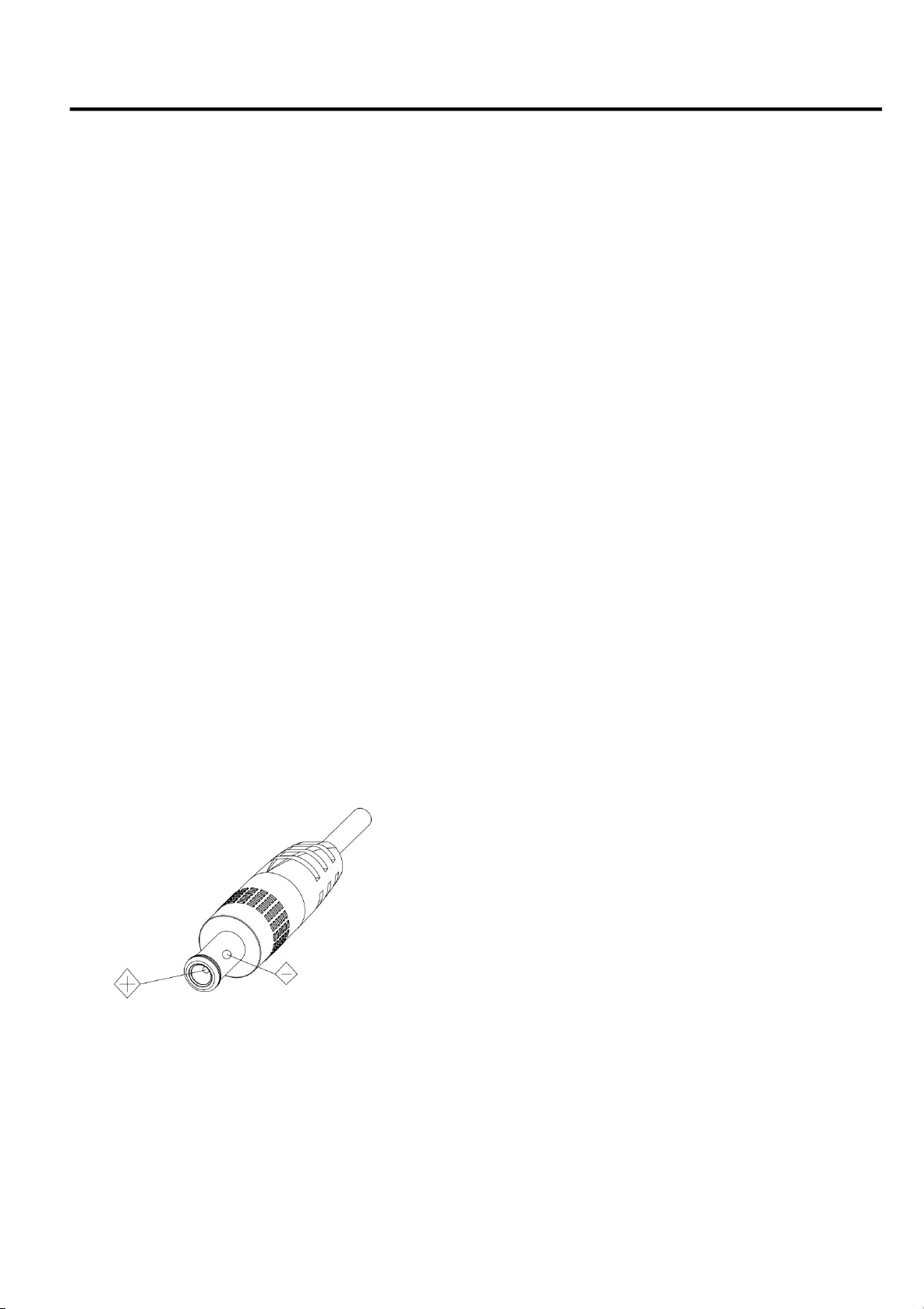
The power supply of the product is DC12V, the max electrical current is 2A .Polarity of the power
supply as the following drawing.
Careful of installation
Never move the camera by seizing the camera head. Don’t rotate camera head by hand; otherwise, mechanical
trouble will occur.
This series item must be put on the smooth desk or platform, and it can not be installed slant ways;
If the camera is installed on TV or computer, the base can be fixed by four double-sided adhesive trays.
Don’t apply in corrosive liquid, as or solid environment to avoid the cover which is made up of organic material.
To make sure no obstacle in rotation range.
Never power on before installation is completed.

4K Ultra HD NDI CAMERA User Manual
5
Don’t disassemble discretionarily.
There are no parts that users can repair by themselves on this product. We are not responsible for any unauthorized
modification or dismantling.
Avoid Magnetic Interference
Magnetic field under specific frequency may affect this product image; this is Class A product. Application in domestic
environment may cause radio interference. Therefore, user should take corresponding measures.
Caution
If the power cord need to be extended, must only extend the cord connect to outlet 220V/110V. Do not extend the
DC 12V power cord, otherwise malfunction could be caused.
4K Ultra HD NDI CAMERA User Manual
6
Chapter 1 Your Product
1.1 In the Box
Power Adapter × 1
USB3.0 Cable (U3) × 1
IR Remote Control × 1
Mounting Bracket× 1
1.2 Product Overview
4K Ultra HD NDI Camera is a new Ultra HD 4K camera, 12X optical zoom, 80.4° wide angle lens. It has perfect functions,
superior performance and rich video output interfaces. Featuring with advanced ISP processing algorithms, offering vivid
and high resolution video with a strong sense of depth and fantastic color rendition.
It features built-in Built with SONY high quality CMOS sensor, which allows it to output 4K@60fps video. It fully satisfies all
scenario demand of Tele-education, Lecture Capture, Webcasting, Videoconferencing, Tele-training, Tele-medicine,
Interrogation and Emergency command systems.
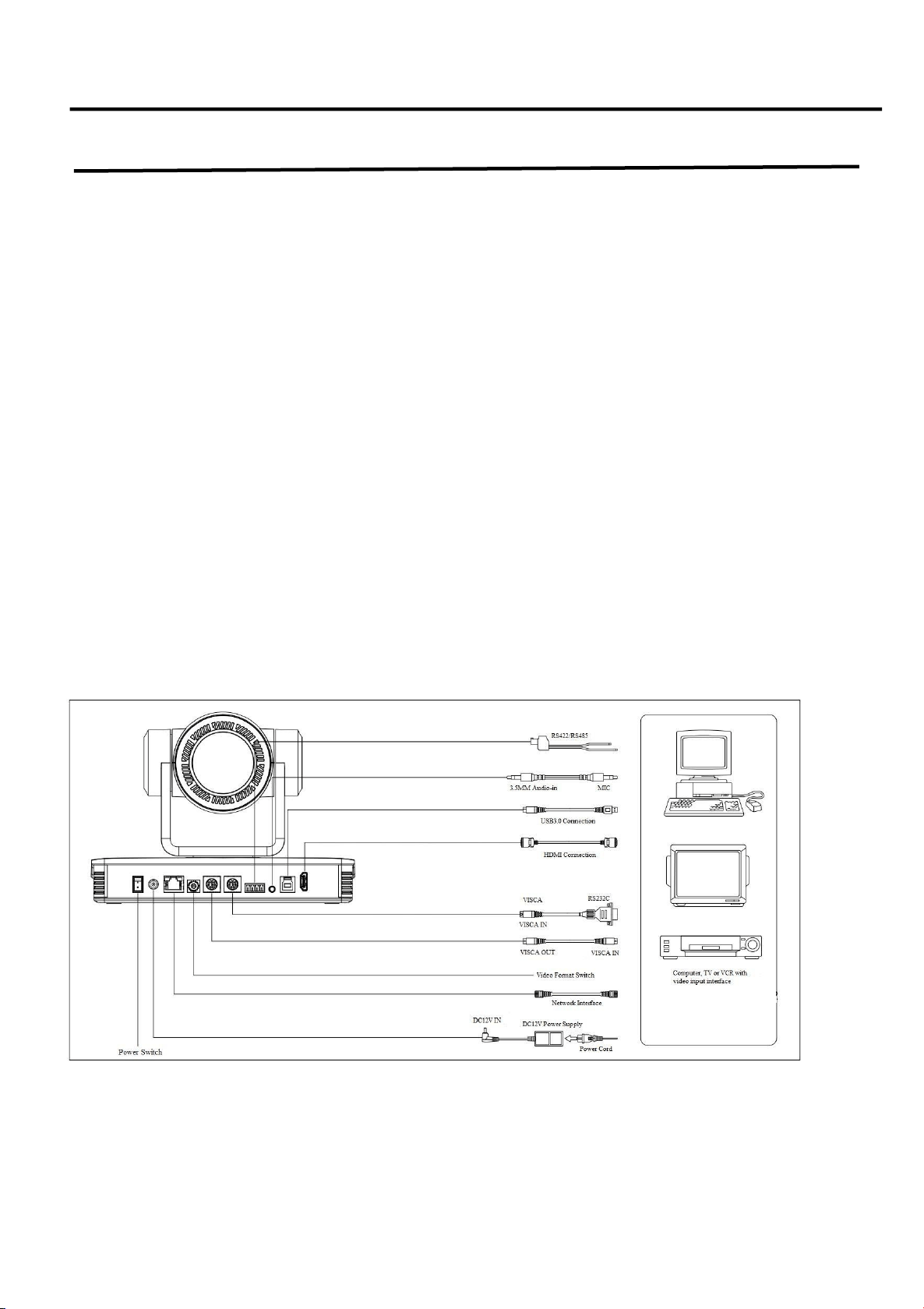
Wiring Diagram
4K Ultra HD NDI CAMERA User Manual
7
Product Features
● 4K Ultra HD Resolution: 1/2.5inch high quality SONY CMOS sensor. Resolution is up to 4K with frame rate up to
60fps.
● Dual Stream Output: USB can support the main stream and sub stream output at the same time, and can
meet the needs of near-end and far-end.
● Optical Zoom Lens: 12X optical zoom lens and 80.4° wide angle lens.
● Rich and perfect interfaces: Support HDMI, USB 3.0, LAN, and output 4K audio and video at the same time.
● Leading Auto Focus Technology: Fast, accurate and stable auto focusingtechnology.
● Low Noise and High SNR: Super high SNR image is achieved with low noise CMOS. Advanced2D/3D noise
reduction technology further reduces the noise while ensuring high image clarity.
● Multiple Audio/Video Compression Standards: LAN interface supports H.264/H.265 videocompression,
USB3.0 interface supports MJPG, H264, YUY2, NV12, H265; support AAC, MP3 and G.711A audio compression,
8000, 16000, 32000, 44100, 48000 sampling frequency.
● Multiple Network Protocol: Support ONVIF, GB/T28181, RTSP, RTMP ,NDI protocols; support RTMP push
mode, which can easily link with streaming media server (Wowza, FMS); support RTP multicast mode, support
VISCA control protocol over Network.
● Control Interface: RS422 input(compatible with RS485), RS232 input/output, RS232 (cascade connection)
● Multiple Control Protocol: Support VISCA, PELCO-D, PELCO-P protocols; Supportautomatic
identification protocols.
1.2.1 Interface
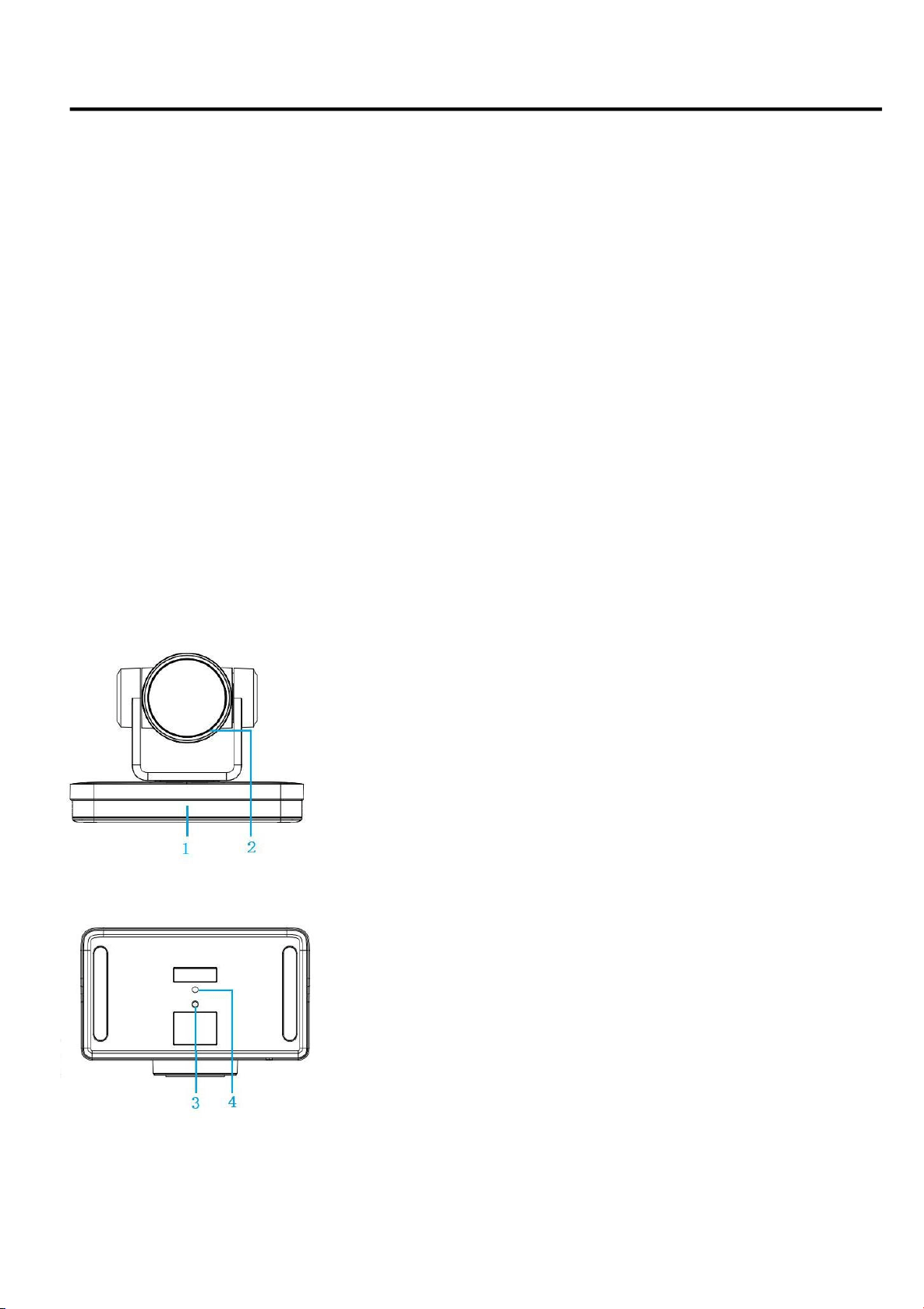
Front view
Bottom
view
1. Remote Control Receiving Indicator
2. Camera Lens
3. Tripod Screw Hole
4. Screw Hole for Tripod
4K Ultra HD NDI CAMERA User Manual
8
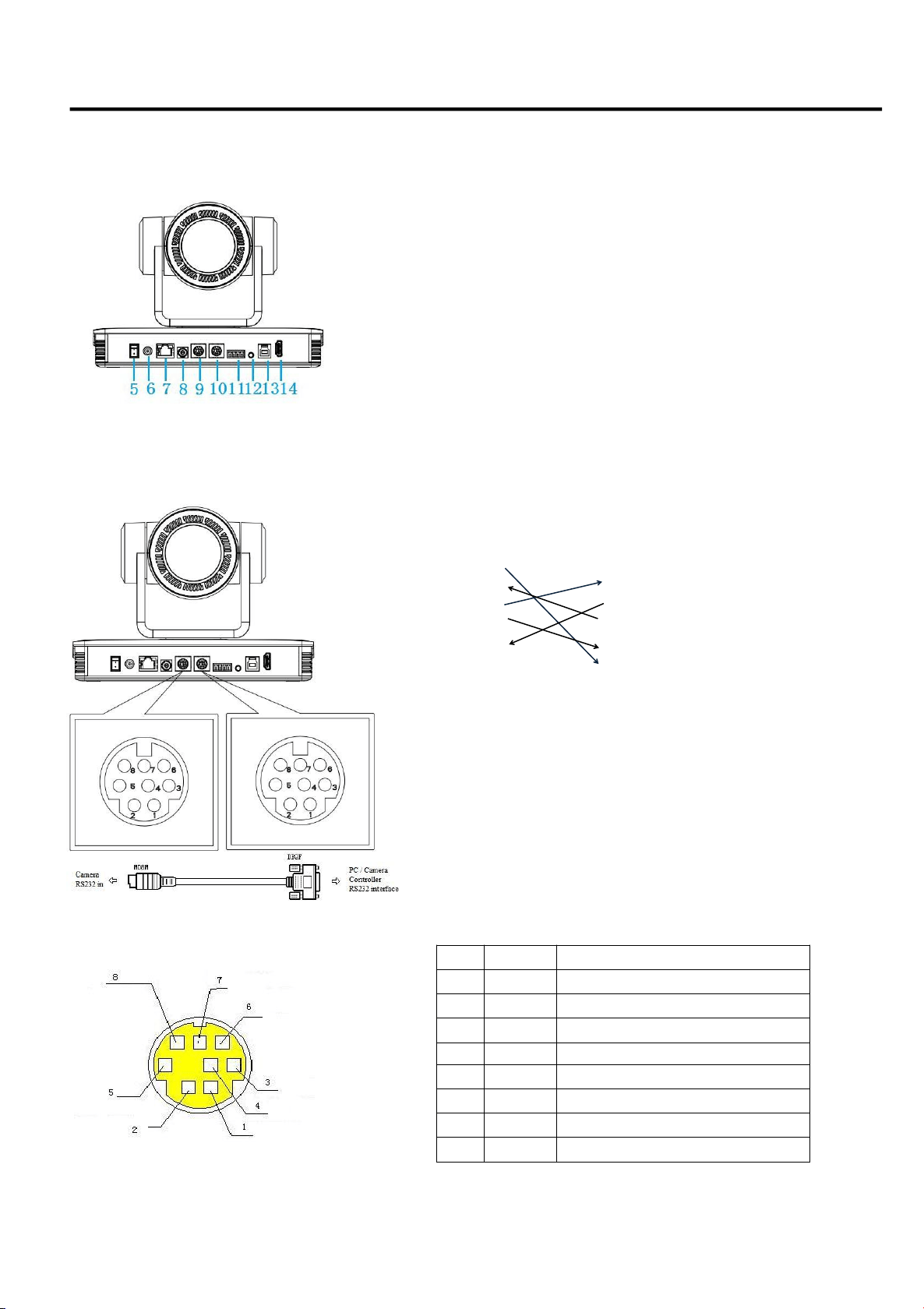
Back
view
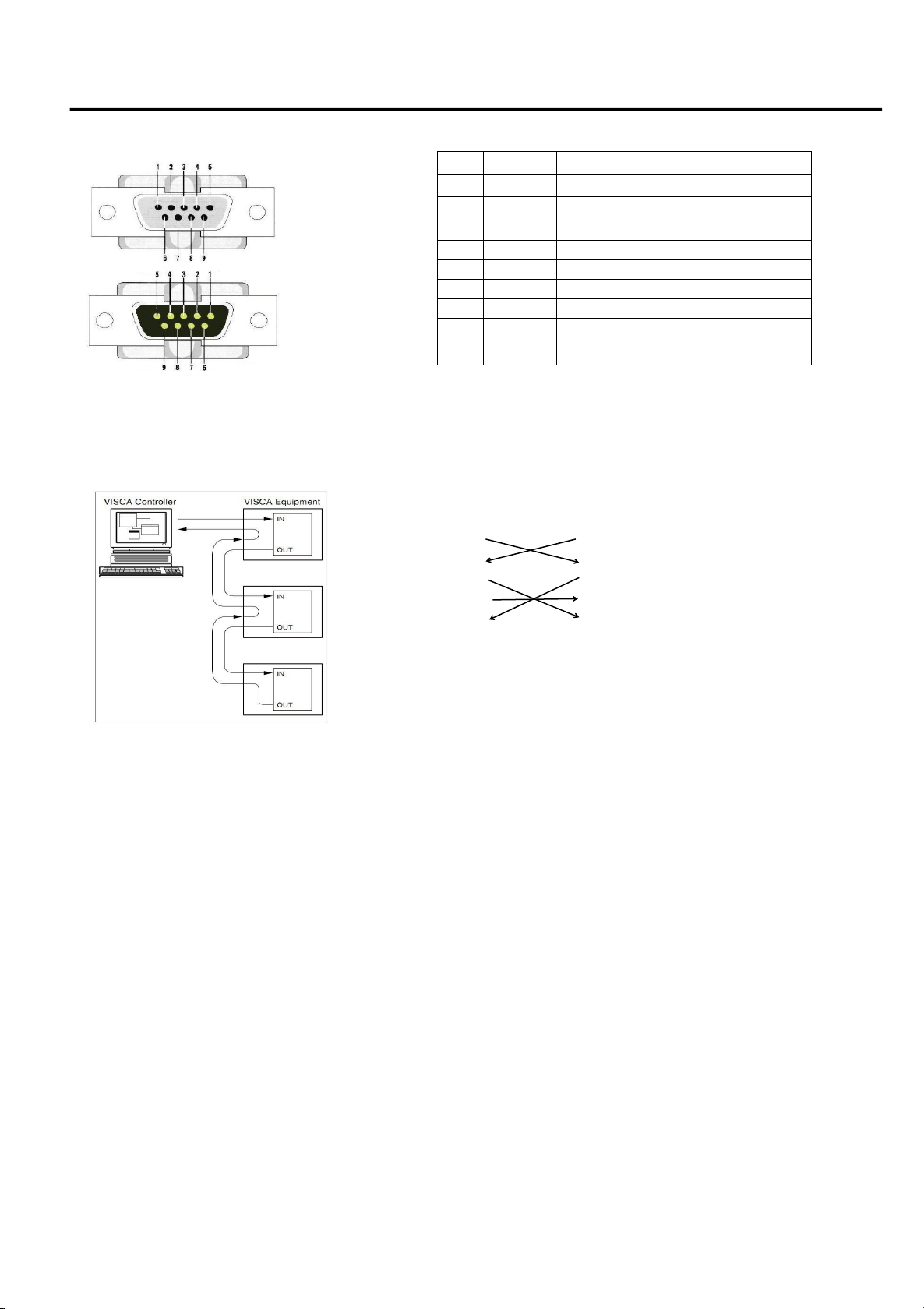
1)
RS-232 Interface Definition
2)
RS-232 Mini-DIN 8-pin Port Definition
3)
RS232(DB9) Port Definition
NO.
Port
Definition
1
DTR
Data Terminal Ready
2
DSR
Data Set Ready
3
TXD
Transmit Data
4
GND
Signal Ground
5
RXD
Receive Data
6
GND
Signal Ground
7
IR OUT
IR Commander Signal
8
NC
No Connection
5. Power Switch
6. DC12V Input Power Supply Socket
7. LAN Port
8. Rotary DIP Switch
9. RS232 Control Interface (input )
10. RS232 Control Interface (output )
11. RS422/RS485 Input
12. Audio Input
13. USB 3.0 Output
14. HDMI Output
Connection to PC or Camera Controller
Camera WindowsDB-9
1.DTR 1.DCD
2.DSR 2.RXD
3.TXD 3.TXD
4.GND 4.DTR
5.RXD 5.GND
6.GND 6.DSR
7.IR OUT 7.RTS
8.NC 8.CTS
9.RI
4K Ultra HD NDI CAMERA User Manual
9
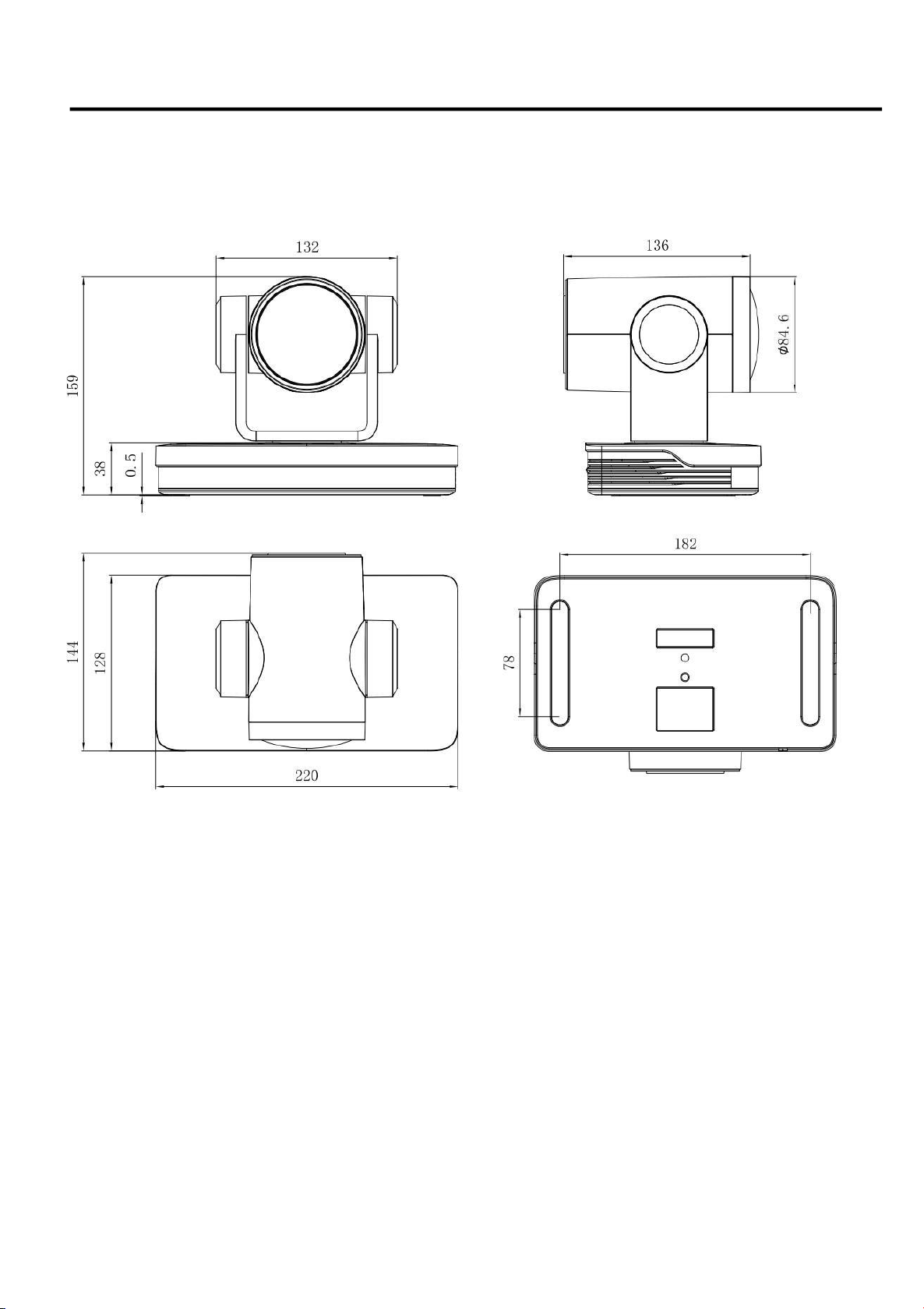
3) RS232(DB9) Port Definition
4) VISCA networking as shown below
NO.
Port
Definition
1
DCD
Data Carrier Detect
2
RXD
Receive Data
3
TXD
Transmit Data
4
DTR
Data Terminal Ready
5
GND
System Ground
6
DSR
Data Set Ready
7
RTS
Request to Send
8
CTS
Clear to Send
9
RI
Ring Indicator
Camera cascade connection
Camera 1 Camera 2
1.DTR 1.DTR
2.DSR 2.DSR
3.TXD 3.TXD
4.GND 4.GND
5.RXD 5.RXD
6.GND 6.GND
7.IR OUT 7.OPEN
8.NC 8.OPEN
4K Ultra HD NDI CAMERA User Manual
10
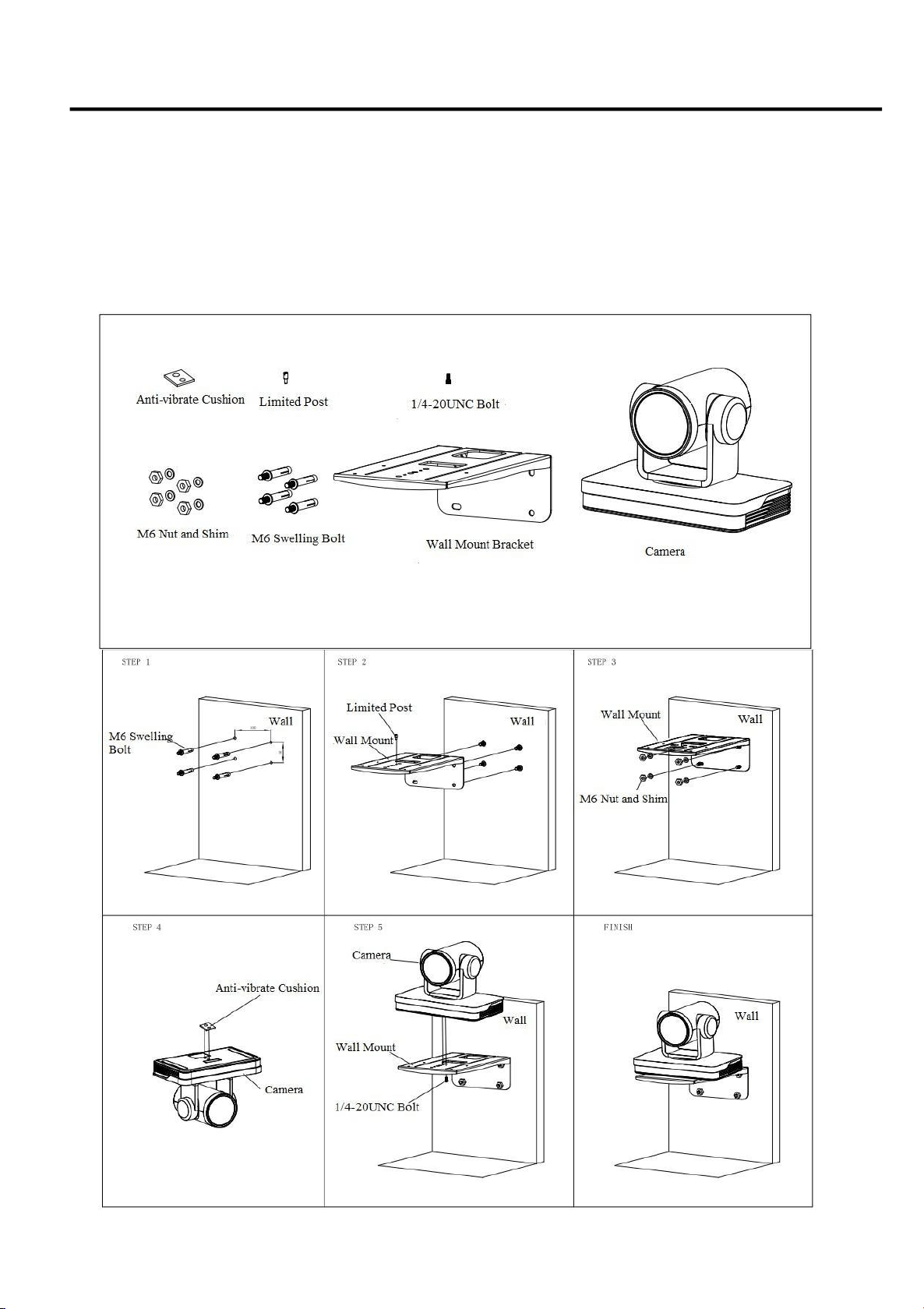
1.2.2 Dimension
Ultra HD NDI Camera dimension

4K Ultra HD NDI CAMERA User Manual
11
Chapter 2 Install Your Product
2.1 Power-on Initial Configuration
1)Power-on: Connect DC12V power supply adapter with power supply socket
2)Initial Configuration: The remote control receiving indicator flashes after power on, the pan-tilt turns left to the
lowest left to the lowest, and then turns to the HOME position (both the horizontal and vertical positions are in the
middle), while the movement first shrinks and then stretches. When remote control receiving indicator stops flashing,
the self-checking is completed.
Notes:
1. After power on and self-checking, the camera will automatically return to the preset 0 position if it’s pre-set.
2. The default address for the IR remote control is 1#. If the menu restored to factory defaults, the remote
control default address will restore to 1#.
2.2 Video Output
1) Network output
A.Network cable connection: as shown in Figure 1.1 label 7
B.Webpage Login: open your browser and enter 192.168.5.163 (factory default) in the address bar; press Enter to
enter into the login page, click on the “player is not installed, please download and install !" and follow the
installation steps for installation. Then enter the user name admin and password admin (factory default); press Enter
to enter into the preview page, users can carry out PTZ control, video recording, playback, configuration and other
operations.
2) HDMI Video Output
A.HDMI video cable connection: as shown in Figure1.1 label 14
B.Connect the camera and the monitor via HDMI video cable, and the video output is available after the camera
self-test.
3) USB3.0 Video Output
A. USB 3.0 video cable connection: as shown in Figure1.1 label 13
B. Connect the camera and the computer via USB3.0 video cable, open the video software and select the image
device to output the video.
If the recording and broadcasting host supports LAN network control port, the concentrator can be replaced by LAN
network switch.
4K Ultra HD NDI CAMERA User Manual
12
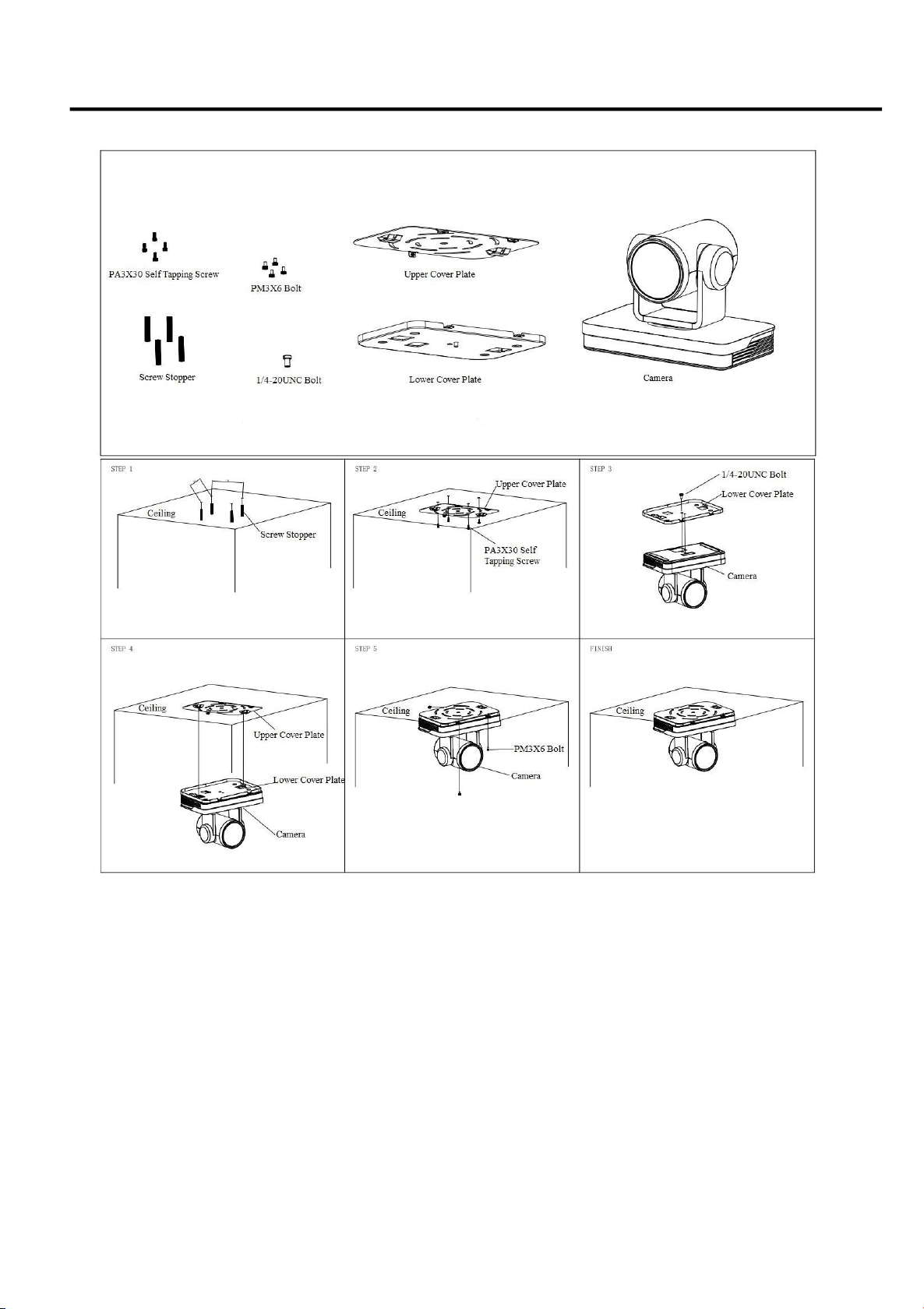
2.3 Bracket Mount
Notes:
A.Ceiling or wall mounting brackets can only be mounted on template and concrete wall.
B.For safety reason, plasterboard is not recommended.
1)Wall Mounting
4K Ultra HD NDI CAMERA User Manual
13
2) Ceiling Mounting
4K Ultra HD NDI CAMERA User Manual
14
Chapter 3 Use Your Product
3.1 Remote Control
3.1.1 Match Code for Wireless Remote Control
One to One Code Matching:
Press the "set" and "*" keys combined for 3 seconds, LED indicator starts flashing. Camera
receive the signal and power on, LED indicator will go off if code matching successfully. The
camera can be controlled by this wireless remote control only after one to one code pairing.
Otherwise please clear the code matching of this remote control, or use other remote
control to pair with the camera again.
If one to one code matching failed, the red LED light flashes for 20 seconds and then goes off,
camera will stop code match and turn on sleep mode; Press any key to wake up the camera
and re-match code.
Note: After code matching successfully, please select the camera address to control it.
Clear Code:
Press the "set" and "*" keys combined for 3 seconds, LED indicator starts flashing. Camera
will power off and on, the LED indicator will go off if clear code successfully.
Sleep Mode and Wake Up:
Press any key to wake up the camera from sleep mode.
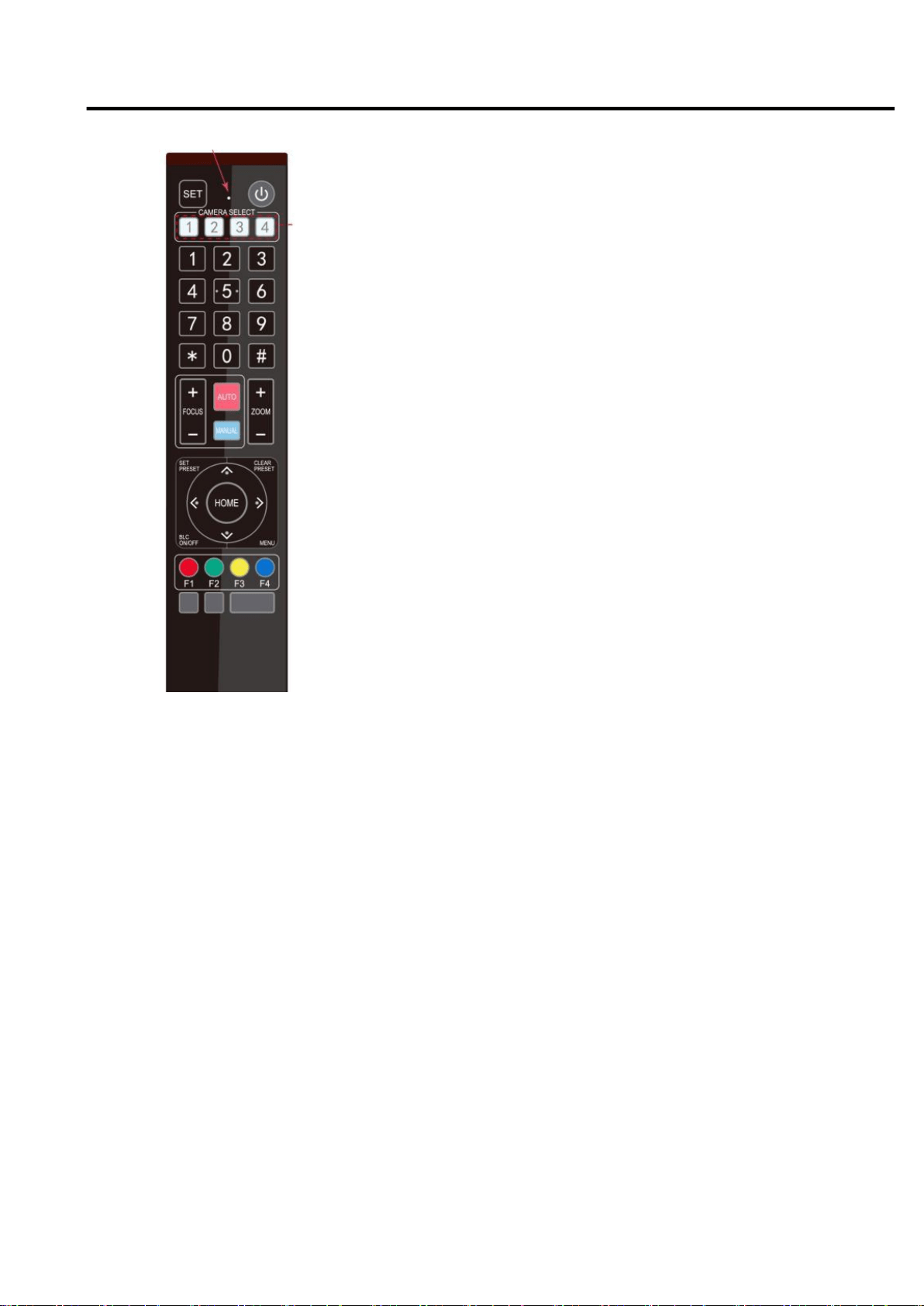
3.1.2 Keys Introduction for IR Remote Control
1) In this manual, “press the key” means a click rather than a long-press, and a special note will be given if a
long-press for more than one second is required.
2) When a key-combination is required, do it in sequence. For example,“
【
*
】
+
【#】
+
【
F1
】
”means press“
【
*
】
first
and then press“【#】” and last press“【F1】”.
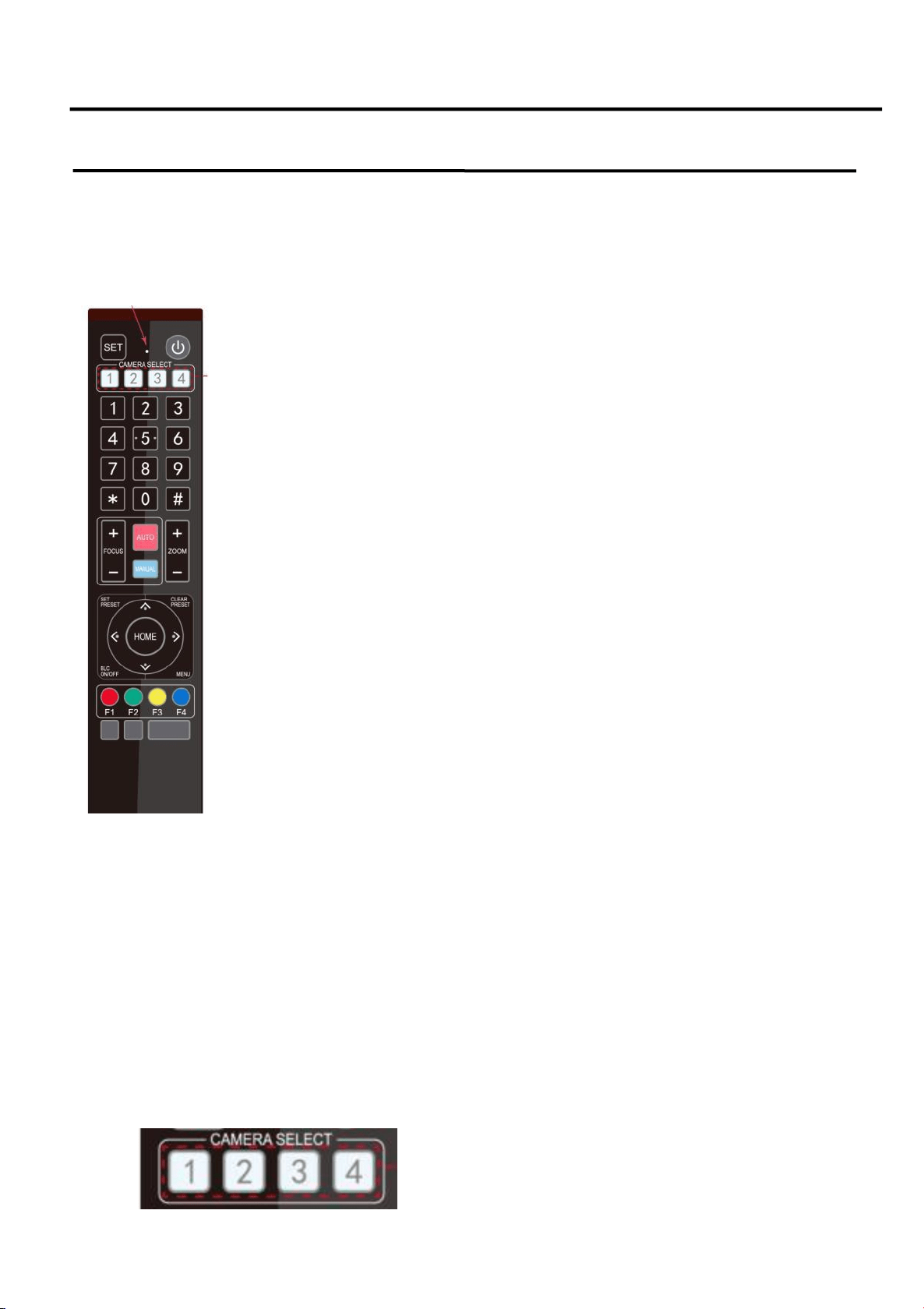
1.Standby Key
The camera enters standby mode if long press 3s on standby key;
Long press 3s again on the standby key, the camera will self-check again and return to HOME position (If preset 0
position is set, the camera will return to preset 0 position).
2. Camera Selection
Select the camera address to control
4K Ultra HD NDI CAMERA User Manual
15
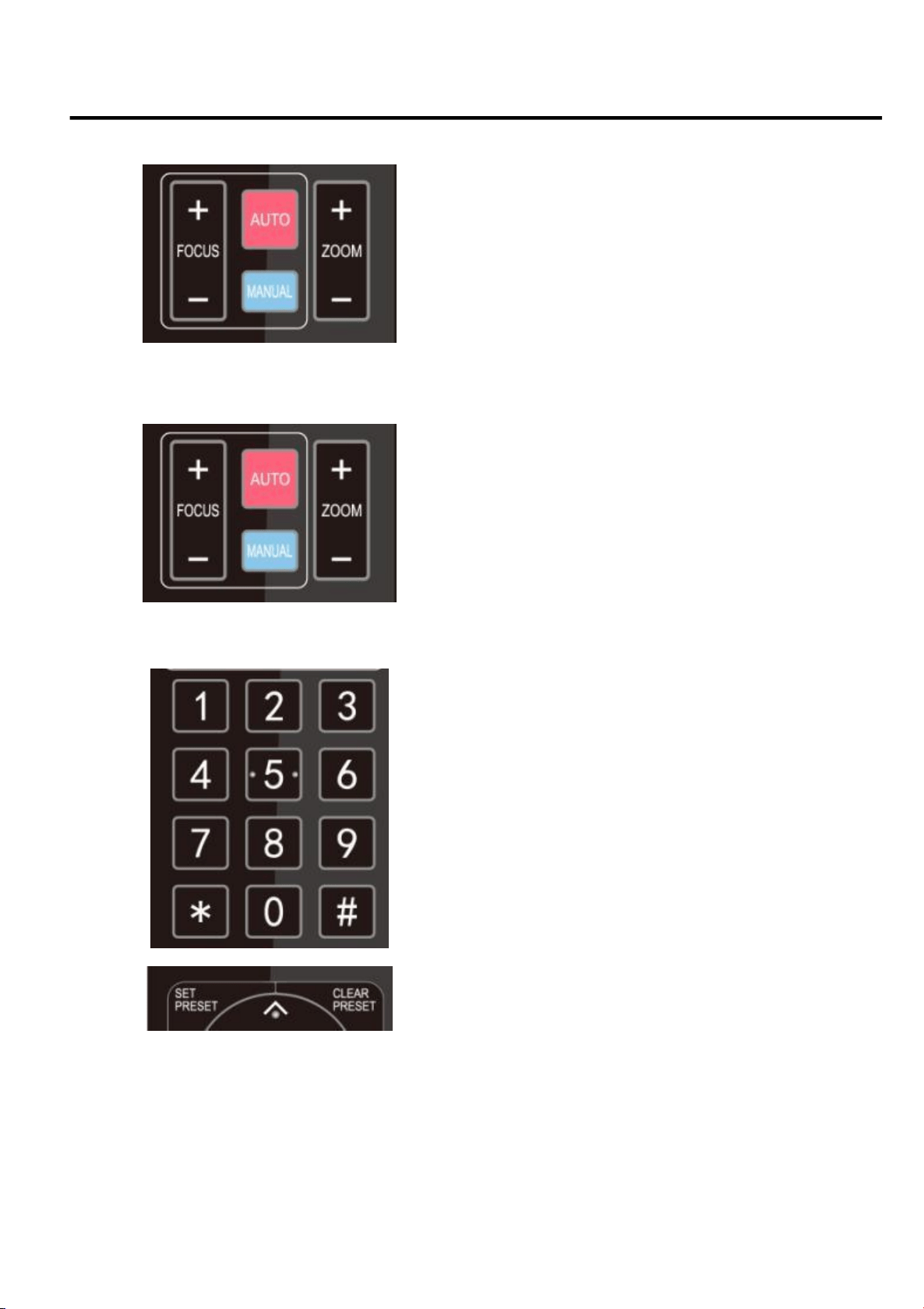
3. Focus Control
4. Zoom Control
5. Set and Clear Presets
Auto: auto focus mode Manual:
manual focus mode
Focus + (near):Press【FOCUS +】 key (Valid only in
manual focus mode)
Focus - (far): Press【FOCUS -】 key (Valid only in manual
focus mode)
Press and hold the keys, the action of focus will keep
continue and stop as soon as the key is released.
ZOOM +: press【ZOOM +】key to zoom in
ZOOM - : press
【
ZOOM -
】
key to zoom out
Press and hold the keys, the action of focus will keep
continue and stop as soon as the key is released.
Set Preset: press
【
SET PRESET
】
button, and then press
the number key 0-9 to set preset positions.
Note: 10 presets via remote control.
Call Preset: Press a number key 0-9 directly to call a preset
position.
Clear Preset: press
【
CLEAR PRESET
】
button, and then
press the number key 0-9 to clear preset positions.
Note : press the
【
#
】
key three times continually to clear all
presets.
4K Ultra HD NDI CAMERA User Manual
16
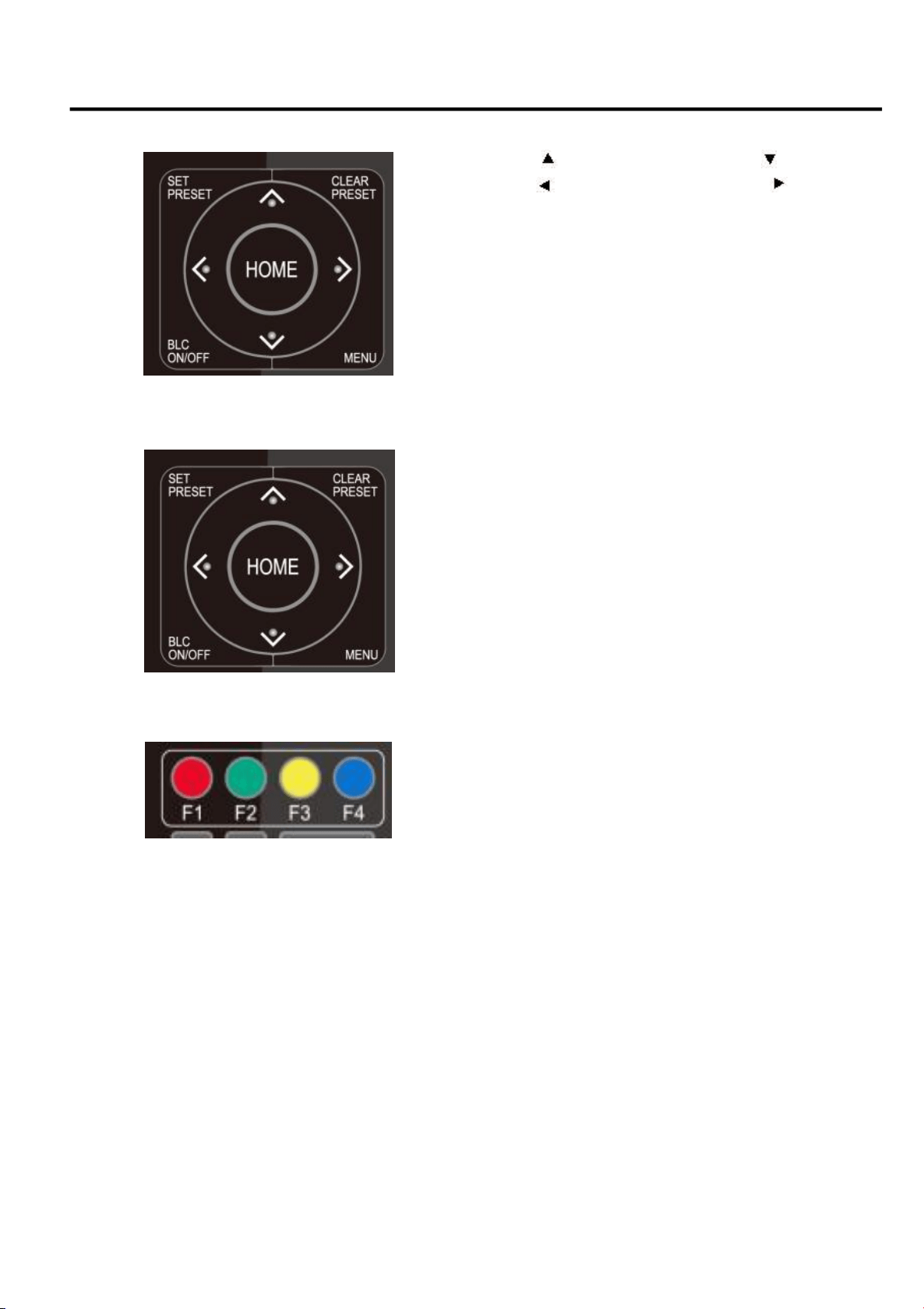
6. Pan/Tilt Control
7. Menu Setting
Up: press Down: press
Left:press Right: press
Back to middle position: press“【HOME】”
Press and hold the up/down/left/right key, the pan/tilt
movements will keep running, from slow to fast, until it
runs to the endpoint; stop as soon as the key is released.
【MENU】: Open / close the OSD menu
【
HOME
】
: Camera lens back to the middle position; Confirm
button; Enter next menu
【↑】【↓】
: Choose item
【←】【→】
: Modify values
【
BLC ON/OFF
】
: Turn on or off the back light compensation
8. Camera Remote Address Setting
【*】+【#】+【F1】: Camera Address No.1
【*】+【#】+【F2】: Camera Address No. 2
【*】+【#】+【F3】: Camera Address No. 3
【*】+【#】+【F4】: Camera Address No. 4
4K Ultra HD NDI CAMERA User Manual
17
9. Key Combination
1)【#】+【#】+【#】: Clear all presets
2)
【
*
】
+
【
#
】
+
【
6
】
: Restore factory defaults
3)【*】+【#】+【3】: Menu set to Chinese
4)
【
*
】
+
【
#
】
+
【
4
】
: Menu set to English
5)【*】+【#】+【9】: Flip switch
6)
【
*
】
+
【
#
】
+Auto: Enter aging mode
7)【#】+【*】+Auto: Exit aging mode
8)【*】+【#】+Manual: Restore the default user name, password, and IP address
9)【#】+【#】+【0】: Switch the video format to 4KP60
10)【#】+【#】+【1】: Switch the video format to 4KP50
11)
【
#
】
+
【
#
】
+
【
2
】
: Switch the video format to 4KP30
12)
【
#
】
+
【
#
】
+
【
3
】
:Switch the video format to 4KP25
13)
【
#
】
+
【
#
】
+
【
4
】
: Switch the video format to 1080P60
14)【#】+【#】+【5】:Switch the video format to 1080P50
15)【#】+【#】+【6】: Switch the video format to 1080I60
16)【#】+【#】+【7】: Switch the video format to 1080I50
17)
【
#
】
+
【
#
】
+
【
8
】
: Switch the video format to 1080P30
18)【#】+【#】+【9】:Switch the video format to 1080P25

4K Ultra HD NDI CAMERA User Manual
18
3.2 Menu Introduction
3.2.1 Main Menu
In normal working mode, press【MENU】key to display the menu, using scroll arrow to point at or highlight the
selected items.
MENU
================
Language English
(
Setup
)
(
Camera
)
(P/T/Z)
(Video Format)
(Version)
(Restore Default)
[↑↓]Select[← →]Change Value
[Menu]Back [Home]OK
3.2.2 System Setting
Move the pointer to the (Setup) in the Main Menu, click the 【HOME 】 key and enter into the (System
Setting) as shown below,
SETUP
================
Protocol Auto
Visca Address 1
Visca Address Fix OFF
PELCO-PAddress 1
PELCO-D Address 1
Baudrate 9600
Auto Filp OFF
Language: Language setting, Chinese / English
Setup: System parameter setting
Camera: Camera parameter setting
P/T/Z: Enter into sub menu
Version: Enter into sub menu
Restore Default: Enter into reset setting, select YES or NO to confirm
[↑↓] Select: For selecting menu
[← →] Change Value: For modifying parameters
[MENU] Back: Press [Menu] to return
[Home] OK: Press [Home] to confirm

4K Ultra HD NDI CAMERA User Manual
19
CAMERA
=================
(
Exposure
)
(Color)
(
Image
)
(
Focus
)
(
Noise Reduction
)
Style Default
[↑↓]Select [← →]Change
Value [Menu]Back [Home]OK
Protocol: VISCA/Pelco-P/Pelco-D/Auto
Visca Address: VISCA=1~7 Pelco-P=1~255 Pelco-D=1~255
Baudrate: 2400/4800/9600/115200
Visca Address Fix: On/Off
Auto Filp: On/Off
3.2.3 Camera Setting
Move the pointer to the (CAMERA) in the Main Menu, click the 【 HOME 】 key and enter the (CAMERA)
as follow,.
1) Exposure Setting
Move the pointer to the (EXPOSURE) in the Main Menu, click the【HOME】key and enter into the (Exposure
Sub menu)as shown below,
EXPOSURE
=================
Mode Auto
EV OFF
BLC OFF
Flicker 50Hz
G.Limit 6
DRC 关闭
[
↑↓
]Select [
← →
]Change
Value [Menu]Back
Exposure: Enter into Exposure setting
Color: Enter into color setting
Image: Enter into image setting
Focus: Enter into focus setting
Noise Reduction: Enter into noise reduction

4K Ultra HD NDI CAMERA User Manual
20
2) Color
Move the pointer to the (COLOR) in the Main Menu, click the
【
HOME
】
and enter the (COLOR sub menu) as
follow,
COLOR
================
WB Mode Auto
RG Tuning -10
BG Tuning -10
Saturation 100%
Hue 7
AWB Sensitivity High
[↑↓]Select [← →]Change Value
[Menu]Back
WB Mode: Auto, Manual, One Push, 3000K, 3500K, 4000K, 4500K, 5000K, 5500K, 6000K, 6500K,7000K
Saturation: 60%,70%,80%,90%,100%,110%,120%,130%,140%,150%,160%,170%,180%,190%,200%
Red fine-tuning: -10~10 (only available in automatic mode)
Blue fine-tunable: -10~10 (only available in automatic mode)
RED GAIN: 0~255(only available in Manual mode)
BLUE GAIN: 0~255(only available in Manual mode)
AWB Sensitivity: high/middle/low
Chroma: 0~14
Mode: Auto, Manual, Shutter priority, Iris priority and Brightness priority.
EV: On/Off (only available in auto mode)
Compensation Level: -7~7 (only available in auto mode when EV is ON)
BLC: ON/OFF for options (only available in auto mode)
Dynamic Range: 1~8, close
Anti-Flicker: OFF/50Hz/60Hz for options (only available in Auto/Iris priority/Brightness priority modes)
Gain limit: 0~15(only available in Auto/ Iris priority /Brightness priority mode)
WDR: Off, 1~8
ShutterPriority:1/25,1/30,1/50,1/60,1/90,1/100,1/120,1/180,1/250,1/350,1/500,1/1000,1/2000,1/3000,1/4000,
1/60
00, 1/10000 (only available in Manual and Shutter priority mode)
IRIS Priority: OFF, F11.0, F9.6, F8.0, F6.8, F5.6, F4.8, F4.0, F3.4, F2.8, F2.4, F2.0, F1.8(only available in
Manual and Iris priority mode)
Brightness: 0~23 (only available in Brightness priority mode)

4K Ultra HD NDI CAMERA User Manual
21
3) Image
Move the pointer to the (IMAGE) in the Menu, click the
【
HOME
】
and enter into the (IMAGE sub menu) as follow,
IMAGE
================
Brightness 7
Contrast 7
Sharpness 6
Flip-H OFF
Flip-V OFF
B&W-Mode Color
Gamma Default
DZoom OFF
DCI Close
Low-Light Mode Close
[
↑↓
]Select [
← →
]Change Value
[Menu]Back
4) Focus
Move the pointer to the (FOCUS) in the Menu, click the
【
HOME
】
and enter the (FOCUS) as follow,
FOCUS
=================
Focus Mode Auto
AF-Zone Center
AF-Sensitivity Low
[
↑↓
]Select
[Menu]Back
[
← →
]Change Value
Brightness: 0~14
Contrast: 0~14
Sharpness: 0~15
Flip-H: On/Off
Flip-V: On/Off
B&W Mode: color, black/white
Gamma: Default/0.45/0.50/0.5/0.63
DCI: Dynamic Contrast: Off/1~8
Minimum Illumination: On/Off

4K Ultra HD NDI CAMERA User Manual
22
NOISE REDUCTION
=================
NR-2D 3
NR-3D 3
Dynamic Hot Pixel 3
[↑↓]Select
[Menu]Back
[← →]Change Value
5) Noise Reduction
Move the pointer to the (NOISE REDUCTION) in the Menu, click the 【 HOME 】 and enter the (NOISE REDUCTION) as
follow,
3.2.4 P/T/Z
Move the pointer to the (P/T/Z) in the Main Menu, click the
【
HOME
】
and enter the (P/T/Z) as follow,
P/T/Z
================
Speed by zoom ON
Zoom speed 5
Image Freezing OFF
Acc Curve Slow
[↑↓]Select [← →]Change Value
[Menu]Back
Depth of Field: Only effective for the remote controller, On/ Off;
(When zooming in, the PT control speed by remoter will become slow)
Zoom Speed: Set the zoom speed for the remote controller, 1~8
Image Freezing: On/Off
Accelerating Curve: Fast/Slow
Focus Mode: Auto/manual
AF-Zone: Up/middle/down
AF-Sensitivity: High/middle/low
2D Noise Reduction: Auto, close, 1~7
3D Noise Reduction: Close, 1~8
Dynamic Hot Pixel: Close, 1~5

4K Ultra HD NDI CAMERA User Manual
23
VERSION
=================
VIDEO FORMAT
================
4KP60 4KP50
4KP30 4KP25
1080P60 1080P50
1080I60 1080I50
720P60 720P50
[↑↓]Select
[Menu]Back
[Home]OK
RESTORE DEFAULT
=================
Restore Default? NO
[
↑↓
]Select
[Menu]Back
[
← →
]Change Value
[Home]OK
3.2.5 Video Format
Move the pointer to the (Video Format) in the Menu, click the【HOME】and enter the (Video Format) as follow,
Note: Exit menu after modifying parameter to save it after powered off
3.2.6 Version
Move the pointer to the (VERSION) in the Main Menu, click the
【
HOME
】
and enter the (VERSION) as follow,
3.2.7 Restore Default
Move the pointer to the (RESTORE DEFAULT) in the Main Menu, click the
【
HOME
】
and enter the (RESTORE DEFAULT) as
follow,
Restore default: YES/NO. Color style and video format cannot be restored to factory default
Note: If the address of former remoter is not 1 but another one from 2, 3, 4, the corresponding camera address will
restore to 1 when all parameters or system parameters are restored. User should change the remoter address to be
1 (press No.1 according to the camera so to get normal operation)
MCU Version
3.1.0
2019-11-23
Camera Version
1.0.0
2019-12-4
AF Version
1.0.0
2019-08-20
4K Ultra HD NDI CAMERA User Manual
24
3.3 Network Connection
3.3.1 Connecting Mode
Direct connection: Connect the camera via network cable to external Internet access of the PC
Internet connection mode: Connect the camera to Internet by Router or Switch and user can log in the device by
browser.
Note: Please do not put the power and network cable in places where can be easily touched to prevent video quality
lowered by unstable signal transmission due to poor contact of cables.
The computer must have the network segment where the camera IP address belong to. The device will not be
accessible if without the segment. I.E. The camera default IP address is 192.168.5.163, then segment 5 must be
added in the computer. Specific steps are as below:
Firstly open the window of Local Area Connection Properties on computer, select the
“
Internet protocol version
4(TCP/IPv4)
”
as shown by picture on the left. Double click or click the property
“
Internet
”
protocol version 4
(TCP/IPv4)to enter into the Internet Protocol Version 4(TCP/IPv4) Properties window, select “Advanced” to enter into
the Advanced TCP/IP Setting and add IP and subnet mask in the IP browser as picture shown below. Click the
“Confirm” to finish the adding of IP segment. User can add the corresponding network segment according to the
revised IP address of the camera.
Note: The IP address to be added cannot be same with that of other computers or devices. The existence of this IP
address needs to be verified before adding.
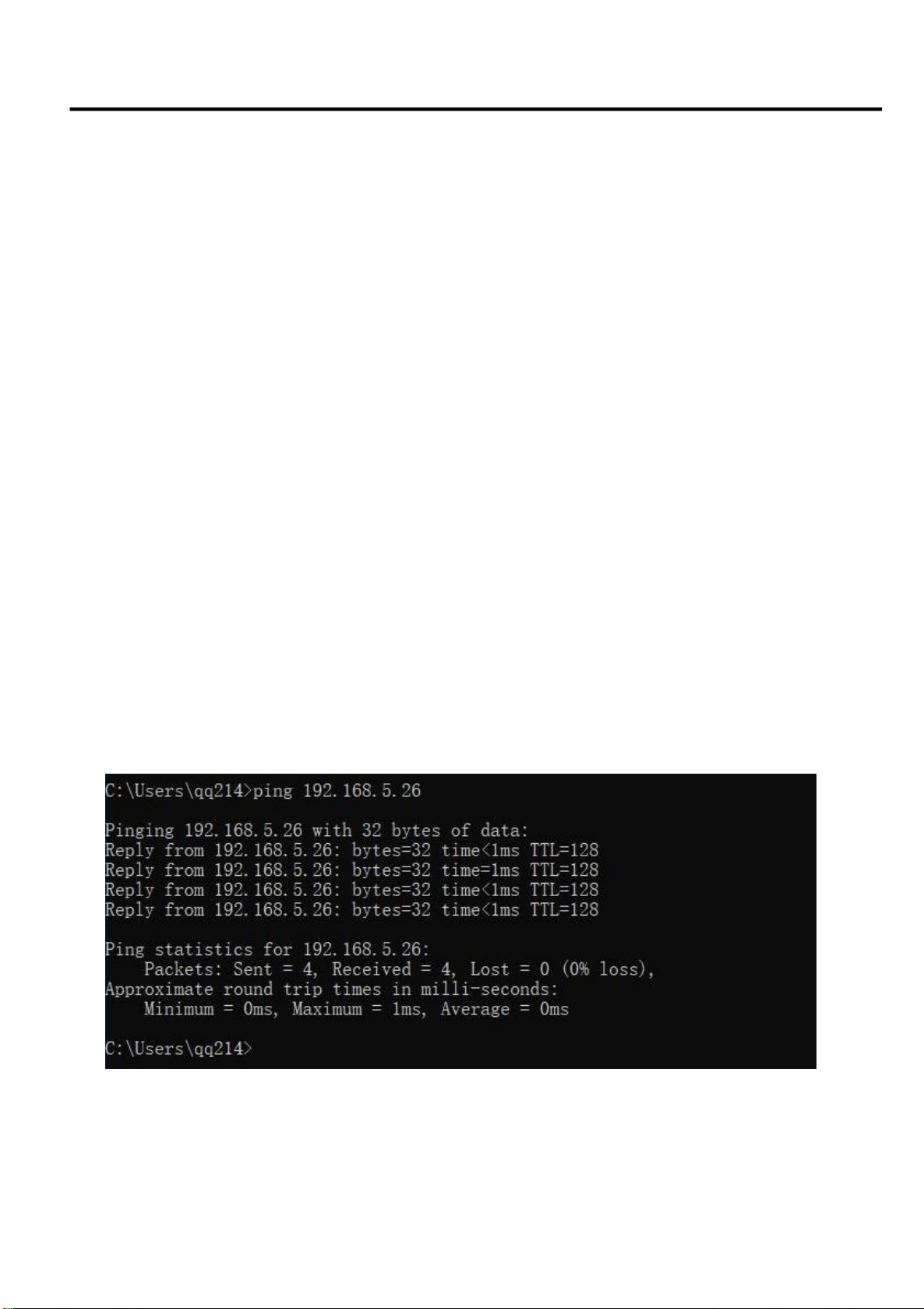
To verify whether the network segment has been successfully added, click the “Start” and select “Operation” to input
cmd, then click OK and open DOS command window, type ping 192.168.5.26, press Enter key to display information
shown below, which means network segment adding is succeeded.
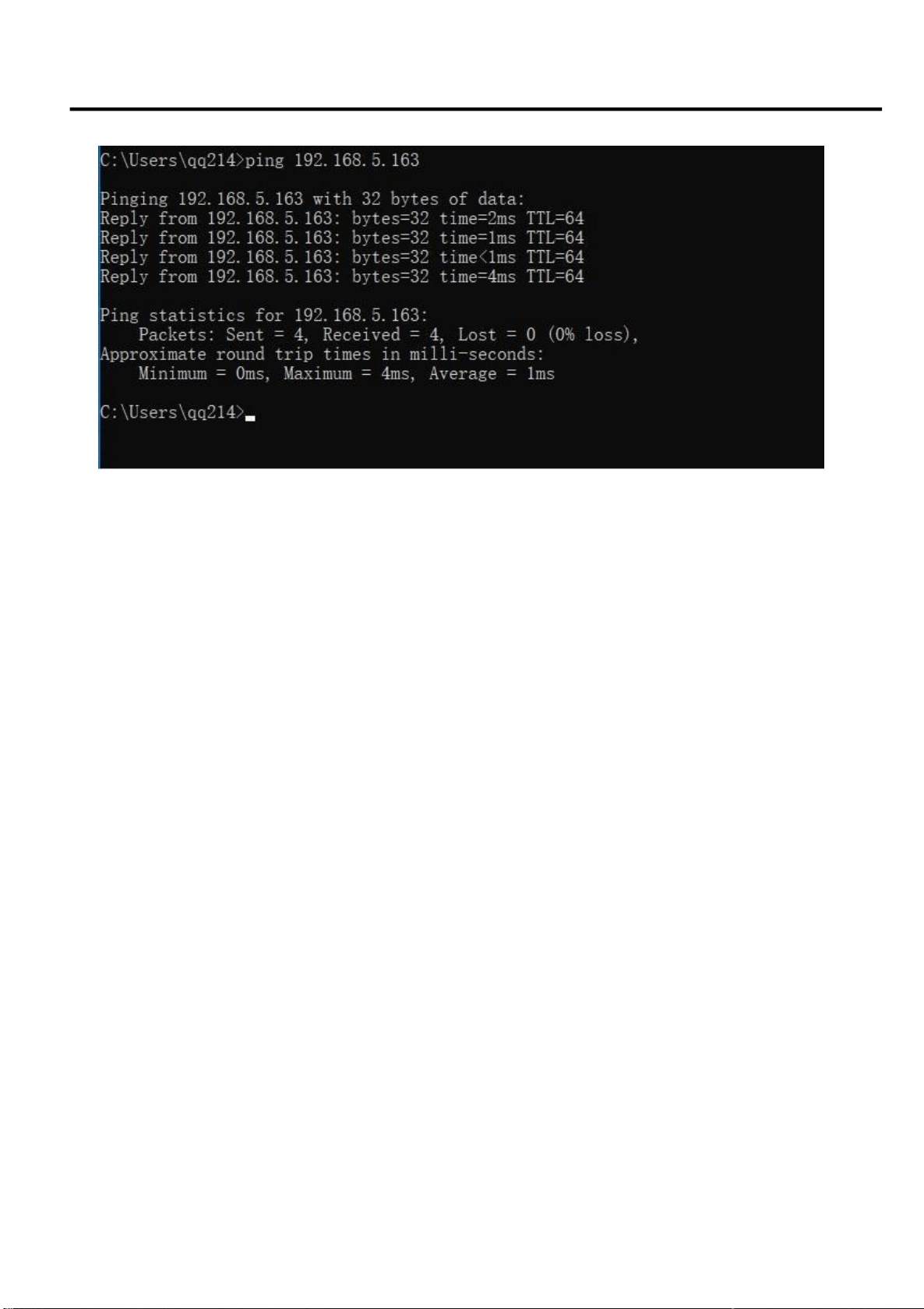
User can also to verify network connection as steps above mentioned after the finish of camera self-check. If IP is
default, open DOS command window and input 192.168.5.163, then press Enter key, It will show the message as
below, which means network connection is normal.
4K Ultra HD NDI CAMERA User Manual
25

4K Ultra HD NDI CAMERA User Manual
26
3.4 IE Login
3.4.1 Web Client
1
)
Web Client Login
Input the IP address 192.168.5.163 of the device in the address filed of browser and click Enter button to enter
into Web Client login page as below picture. User can login as administrator and normal user. If login as
administrator (Default User name/Password: admin), users can preview, playback, configuration and cancel in the
Web Client; If login in as normal user (Default User name/Password: user1 or user2), users can only preview,
playback and logout, no option for configuration.
Note: Web access support browsers: IE, 360 browsers, and other conventional browsers.
Language Selection: click Chinese/English in the upper right corner of the login page to select the language type
of the web interface.
2
) Download/Install Plug in
When first using IE browser to access the web conferencing camera, the login page will appear
“
Playback plug-in is
not installed, please download and install!” Click on this message, download and install MRWebXinstall.exe,
according to information prompts.
After installing the plug, enter user name and password, click and Sign (initial default user name and password:
"admin", users can change the user name and password on their own after entering) into the Web client
management interface.
3.4.2 Preview
After successful login into the management interface, it enter the video preview interface. In the preview screen,
users can control PTZ, zoom, focus, video capture, sound, focus, full screen and set the preset position, run, delete
and other operations.
You can record the video and save it on SD Card when SD Card built-in. Video can be saved on the Computer at
Local.
1)
Login as administrator
User name, password the default admin
PTZ control can be carried out, zoom, focus, video capture, sound, zoom, full screen and set the preset position,
run, and delete; you can preview, playback, configuration, logoff.
2)
Login as normal user
Default User name/password: user1 or user2
PTZ control can be carried out, zoom, focus, video capture, sound, zoom, full screen and set the preset position,
run, and delete; you can preview, playback and logout.
Note : There are no configuration rights for normal user login.

4K Ultra HD NDI CAMERA User Manual
27
3.4.3 Playback
1)
Playback video files
First, please record, snapshot and save the file when previewing. Click "Playback" to enter recording file and
picture files playback page, and then select the file "Video File" and click Search, and search out the video file,
click Play to play the video file.
2)
Playback picture files
First, please record, snapshot and save the file when previewing. Click "Playback" to enter recording file and
picture files playback page, and then select the file "Image File" and click Search, and search out the video file,
click Play to play the image file.
The default storage directory of local video/capture files is D:\MyIPCam\
3.4.4 Configuration
Click G to enter into the device parameters setting page
There are the following options: Local configuration, audio configuration, video configuration, network
configuration, PTZ configuration, internet access configuration, system configuration, detailed description see the
following table.
Menu
Explanation
Local
configure
Including video preview mode, record video packing time ,record video storage route settings etc.
Audio
configure
Including audio compressing format, sampling frequency, sampling precision, compressing code
rate settings etc.
Video
configure
Including video encoding, video parameters, character-overlapping, character size, video output
setting etc.
Network
configure
Including basic parameters, Ethernet, DNS, GB28181, wireless network setting etc.
System
configure
Including equipment property, system time, user management, version update, reset, reboot
device settings etc.
1)
Local configuration
Video Preview Mode: User can choose real-time priority or fluency priority: The delay will be small when under
real time priority mode and fluency will be good when under fluency priority mode. Setting based on the user
need (Default value: real time normal (2), real time best (1), fluency normal (3), fluency good (4) and fluency best
(5))
Recording packing time (minute): Set recording video packing time (default is 10, range from 1~120 minutes)
Recording file packaging format type: Set the video file packaging format type (default MP4, TS optional)
Recording/Snapshot file storage route: Set local recording video/snapshot file storage route. (Default
D:\MyIPCam\)
Click the Save button to make settings effective.
2)
Audio Configuration
Switch: Choose to enable the audio or not.
Compressing Format: Set audio compressing format and the device will reboot automatically after change
(default MP3, AAC, G.711A optional)
Sampling Frequency: Set sampling frequency and the device will reboot automatically after change (default

4K Ultra HD NDI CAMERA User Manual
28
44100, 8000, 16000, 32000 and 48000 optional, G.711A default 8000)
Sampling Precision: Set sampling precision (default 16bits)
Compressing Code Rate: Set audio compressing code rate (default 64bits, 32, 48, 96, 128bits optional)
Input Volume: Set the input volume (default 2, 1-10 optional)
Click
“
Save
”
, it will remind
”
Enable has changed. Restart the device to take effect after the success of the save.
”
,
then please reboot the camera to make new setting effect.
3.4.5 Video Configuration
1)
Video Encoding
Code stream: Stream: Different video output mode setting, use different streams.(Main stream, secondary
stream)
Compression Format: Set the video compression format, save and reboot to take it effect (main / secondary
stream default: H.264, H.265 optional)
Profile: Set Profile mode (default HP, BP, MPoptional)
Video Size: Set video image resolution, save and reboot to take it effect (main stream default
1920*1080, 3840*2160, 2592*1944, 2304*1296, 1920*1080, 1280*720 optional; default secondary
stream320*180, 640*360, 320*240, 640*480, 320*180, 1280*720 optional )
Stream Rate control: Set rate control mode, save and reboot to take it effect (main / secondary stream default
variable bit rate, fixed rate is for option).
Image Quality: Set the image quality, image quality can be changed only when rate control is variable bit
rate,(main stream defaulted is better, secondary stream default is not good, there are best, better, good, bad,
worse, worst for options).
Rate (Kb / s): Set the video bit rate (main stream default 8192b/s, 64-40960Kb/s optional; secondary stream
default 512Kb/s, 64-40960Kb/s optional).
Frame rate (F/S): Set the video frame rate (main/ secondary stream default 25F/S, main stream 5-60F/S optional,
secondary stream 5-30F/S optional).
Key frame interval: Set the key frame interval (main / secondary stream default 100, main stream 1-300F optional.
secondary stream 1-150F optional).
Stream Name: When streaming via rtsp or rtmp, user can modify stream name. Main Stream (live/av0), secondary
stream (live/av1)
Click the "Save" button to display the "saved successfully" message, then settings take effect.
2)
Stream Release
Switch: To turn on/off the main / secondary stream.
Protocol: Primary / secondary stream applies RTMP protocol.
Host Port: Server port number (default 1935, 0-65535 optional)
Host Address: Server IP addresses (default 192.168.5.11)
Stream Name: Choose a different stream name (live / av0, live / av1 optional).
User: Set the user name.
Password: Set the password.
Click on the "Save" button to display the "Save successful" message, then settings take effect.
Method of obtaining RTSP: RTSP: // device IP address: 554 / live / av0 (av0 main stream; av1 secondary stream)

4K Ultra HD NDI CAMERA User Manual
29
3) RTP Broadcasting
Main/Sub Stream:On/off
Protocol: RTP or TS
Address: Default 224.1.2.3. It can be edited.
Port: Main Stream Default Port: 4000, Sub Stream Default Port: 4002
Visit: Address comes up after setting. Eg ; rtp: //224.1.2.3:4000; udp: //@224.1.2.3:4000
4) Video Parameters
a.Focus: Focus mode, focus range, focus sensitivity can be set.
Focus Mode: Set the focus mode (the default auto, manual optional)
Focus range: Set the focus range (the default middle, the upper and lower optional)
Focus Sensitivity: Set the focus sensitivity (default is low, high, medium optional)
b.Exposure: Exposure mode, exposure compensation, back light compensation, anti-flicker, gain limit, wide dynamic,
shutter speed, aperture value and brightness can be set.
Exposure Mode: Set the exposure mode (the default automatic, manual, shutter priority, aperture priority, Brightness
priority optional)
Exposure compensation: Exposure compensation setting is active when it is auto status (default is off). Exposure
compensation value: Set the exposure compensation value, valid when it is set for auto (default 0, -7 to 7 optional).
BLC: Set back light compensation, valid when it is auto status (default is off).
Anti-flicker: Set up anti-flicker mode, valid when status of automatic, aperture or brightness priority (default
50Hz, closed, 60Hz optional).
Gain limit: Set the gain limits, auto, active when it is status of aperture or brightness priority (default 4, 0-15
optional).
Dynamic range: Set the dynamic range (default 4, 1-8 optional).
Shutter speed: Active when it is status of manual or shutter-priority (default 1/100,
1/25, 1/30, 1/50, 1/60, 1/90, 1/100,
1/120,1/180,1/250,1/350,1/500,1/1000,1/2000,1/3000,1/4000,1/6000,1/10000
optional).
Aperture value: Set the aperture value, active when it is status of manual or aperture-priority(default F1.8, closed F11,
F9.6, F8.0, F6.8, F5.6, F4.8, F4.0, F3.4, F2.8, F2.4, F2.0, F1.8 optional).
Brightness: Set the brightness value, active when it is a state of brightness priority (default 7, 0-23 optional).
c.Color: White balance, saturation, color, white balance, sensitivity, color temperature, gain red and blue gain can
be set.
White balance modes: Set the white balance mode (the default automatic, 3000K, 3500K, 4000K, 4500K,
5000K,5500K, 6500K, 7000K manual, One-push optional).
Note: Click the “Correction” button when selected the One-push white balance mode.
Red fine-tuning: Default -10~10 (only available in automatic mode)
Blue fine-tunable: Default -10~10 (only available in automatic mode)
Saturation: Set the saturation (default 60%, 70%, 80%, 90%, 100%, 110%, 120%, 130%, 140%, 150%, 160%,
170%, 180%, 190%, 200% optional).
Auto white balance Sensitivity: Sensitivity Auto white balance settings (default is low, high, medium optional).
Chroma: Set the chroma (default 7, 0-14 optional).
White balance sensitivity: Set the white balance sensitivity (Default setting: High, with low, middle for options)
Red Gain: Set the red gain, effective when it is manual (default 145, 0-255 optional).
Blue Gain: Sets the Blue gain, effective when it is manual (default 56, 0-255 optional).
d.Image: Brightness, contrast, sharpness, black and white mode, the gamma curve, Horizontal Flip and Vertical
Flip can be set.
Brightness: Set the brightness (default 7, 0-14 optional).
Contrast: Set the contrast (default 7, 0-14 optional).
Sharpness: Set the sharpness value (default 6, 0-15 optional).
Black and white mode: Set black and white mode (default color, black/white optional ).

4K Ultra HD NDI CAMERA User Manual
30
Gamma: Gamma value setting (default, 0.45, 0.50, 0.55, 0.63 optional).
Dynamic Contrast: Set the dynamic contrast (default off, 1~8 optional)
Flip Horizontal: Set Flip Horizontal (default Off, On optional).
Flip Vertical: Set vertical flip (default Off, On optional). Electronic
Zoom: Set the electronic zoom (default Off, Onoptional)
a.
Noise Reduction: 2D noise reduction, 3D noise reduction and dynamic dead pixel correction
available. 2D Noise Reduction: Set 2D noise reduction level (default 3, Auto, 1-7 and Off optional).
3D Noise Reduction: Set 3D noise reduction level (default 5, 1-8 and Off optional).
Dynamic dead pixel correction: Set Dynamic dead pixel correction (default Off, 1-5 optional).
Note: Click “Refresh” to make revision of any video parameters of a, b, c, d, e effective.
5) Character-Overlapping
Display date and time: Set whether to display the time and date (default display).
Display Title: Set whether to display the title (default display).
Font Color of Time: Set font color of time and date (default white, black, yellow, red, and blue optional).
Font Color of Title: Set font color of title (default white, black, yellow, red, and blue optional).
Moving characters: Set the display position of moving date, time and title, click on the "up, down, left, right"
buttons to move the corresponding character position.
Title Content: Set title content (defaultCAMERA1).
Time Content: Set time content (default 1970/01/10 05:36:00)
Click on the "Save" button and display the "Save successful" message, then valid
6) Character Size
Main stream character size: Set the character size of the display, the device will restart
automatically after changed and saved (default 48, 28-200 optional)
Secondary stream character size: Set the character size of the display, the device will restart automatically after
changed and saved (default 48, 28-200 optional)
Click on the "Save" button to display "Parameter saved successfully" message, set to take effect
7) Video output
Output format: 3840x2160P60, 3840x2160P50, 3840x2160P30,3840x2160P25,
1080P60, 1080P50, 1080P30, 1080P25, 1080I60, 1080I50, 720P60, 720P50
Click on the "Save" button, it will be valid when display "Save successful".
3.4.6
Network Configuration
1)
Network port
Data port: Set the data port, the device will restart automatically after changed (default 3000, 0-65535
optional)
Web Port: Set Web port, the device will restart automatically after changed (default is 80, 0-65535 is optional)
Onvif Port: Set Onvif port, the device will restart automatically after changed (default 2000, 0-65535 optional)
Soap Port: Set Soap port (default 1936, 0-65535 optional)
RTMP Port: Set RTMP port (default 1935, 0-65535 optional)
RTSP Port: Set RTSP port, the device will restart automatically after changed (default 554, 0-65535 optional).
Visca Port: Set Visca port, the device will restart automatically after changed (default 3001,0-65535 optional).
Click on the "Save" button, it will be valid when display "Save successful".
RTSP Obtaining method: rtsp: // device IP address: 554 / live / av0 (av0 main stream; av1 secondary stream)
RTMP Obtaining method: rtmp: // device IP address: 1935 / live / av0 (av0 main stream; av1 secondary stream)

4K Ultra HD NDI CAMERA User Manual
31
2)
Ethernet parameters
DHCP: Enable or disable obtain IP automatically can be set. Save changes and reboot the device to takes effect
(default: OFF)
IP Address: Set the IP address, save changes and reboot the device to takes effect (default 192.168.5.163). Note:
This IP address is the same with the one used to login Web page.
Subnet Mask: Set the subnet mask (default 255.255.5.0).
Default Gateway: Set the default gateway (default 0.0.0.0).
Physical Address: Set the physical address (the parameter is read-only but can not be modified).
Click on the "Save" button, it will be valid when display "Save successful". (Note: To prevent IP conflicts When
modify)
3)
DNS parameters
Preferred DNS server: Set the preferred DNS server. (Default 0.0.0.0).
Alternate DNS server: Alternate DNS server settings. (Default 0.0.0.0). Click
on the "Save" button, it will be valid when display "Save successful".
4)
GB28181
Switch: Set whether open GB28181, can check
Time Synchronization: Whether synchronization time is set, you can check
Stream Type: Stream type setting (the default main stream, secondary stream optional)
Sign effective time (in seconds): 3600 Range 5-65535
Heartbeat time (seconds): 60 Range 1-65535
Register ID: 34020000001320000001
Register User name:IPC
Register Password:12345678
Equipment ownership: Users can add their own
Administrative regions: Users can add their
own Alarm Zone: Users can add their own
Equipment installation address: Users can add their
own Local SIP Port: 5060 Range 0-65535
GB28181 Server Address: IP address of the computer
Server SIP Port: 5060 Range 0-65535
Server ID: 34020000002000000001
Click on the "Save" button, it will be valid when display "Save successful".
3.4.7 System Configuration
1)
Device Properties
Device Name: Set the device name (the default Camera1, user can add their
own). Device ID: Set the device ID (default 1, Read-Only).
System Language: Set the system language (default Simplified Chinese, English optional).Need to re-login after
modify and save the setting.
Click on the "Save" button, it will be valid when display "Save successful".
2)
System Time
Date Format: Set the date format (YYYY-MM-DD default That year - month - day, MM-DD-YYYY namely
Month - Day - Year, DD-MM-YYYY date - month - year Optional).
Date separator: Set the date separator (default '/','.','-' Optional).
Time Zone: Set the time zone (default East eight districts, other time zones optional).
Time Type: Set the time types (default 24 hours, optional 12 hours).
Time setting: Set time mode (to choose the computer time synchronization, NTP server time synchronization, or
set manually).
Computer Time: Set the computer synchronization valid.

4K Ultra HD NDI CAMERA User Manual
32
Update interval: Set the NTP server automatic updated time interval. Valid after setting NTP
server synchronization (default one day, 2-10 days Optional).
NTP server address or domain name: Set NTP server address or domain name (default time.nits.gov). Valid
after setting NTP server synchronization.
NTP Server Port: Sets the NTP server port (default 123).Valid after setting NTP server synchronization.
Set the time manually, Effective when set manually.
Click on the "Save" button, it will be valid when display "Save successful".
3)
User Management
Select users: Set the user type (the default administrator, Common User 1, Common User 2 optional)
User name: Set the user name (Select User Administrator default admin; select a common user1 default user1; to
select a common user 2 default user2; user can modify their own)
Password: Set a password (Select User Administrator default admin; select a common user1 default user1; to
select a common user 2 default user2; user can modify their own).
Password confirmation: Confirm the input passwords are the same or not.
Click on the "Save" button to display the "Save successfully" message, then the set is to take effect.
Please note the case-sensitivity of the user name and password.
If login page by a common user’s name and password, one does not have configuration privileges but can only
operate to preview, playback, logout.
4)
Version upgrade
Users only read the version information above which is consistent with the menu version but can not modify.
Different types of the machine has different information.
Update file: Click "Browse ..." installation, to select the upgrade file in the pop-up window.
Click on the "Upgrade" button, the upgrade dialog will appear, the device will reboot automatically after update
successfully.
(Note: Make sure the power and network is keeping connected during the process, or the upgrade will fail)
Note: After the version upgrade is complete, you need to restore factory defaults; a. through web to restore the
factory default configuration; b. through the recovery menu; c. remote control shortcut * # 6;
Choose one of the above three ways. The IP account and password of mode a are also restored to default.
5)
Restore factory setting
Click on pop-up "Restore Factory Defaults" button and choose “yes” or “no”, then the device will restart
automatically and restore factory setting.
6)
Reboot
Click on the pop-up "Reboot" button and choose
“
yes
”
or
“
no
”
, then the device will restart automatically.
3.4.8 Logout
Point "Logout" pop-up "Confirmation" dialog; select "Yes" or "No", choose “Yes” to exit the current page and
return to the user login interface again.

4K Ultra HD NDI CAMERA User Manual
33
Chapter 4 Ordering Codes
4.1 Product
981-0011-10-0
RGB12X-UNDI-WH 4K Ultra HD NDI Camera
4K Ultra HD NDI CAMERA User Manual
34
Chapter 5 Support
5.1 Contact us

4K Ultra HD NDI CAMERA User Manual
35
5.2 Camera Maintenance and Troubleshooting
5.2.1 Camera Maintenance
1) Please power off the camera and disconnect the power adapter and socket, if it’s not used for a long run.
2) Use soft cloth or tissue to clean the camera cover.
3) Wipe it with a soft, dry cloth when cleaning the camera lens. Wipe it gently with a mild detergent if
needed. Do not use strong or corrosive detergents to avoid scratching the lens and affecting the video
quality.
5.2.2 Troubleshooting
1) No video output
——a, Check whether the camera power supply is connected,the voltage is normal,the power indicator is lit.
b, Whether the machine could do self-inspection after restarted.
c, Check whether the bottom of the DIP switch is the normal operating mode (see Table 2.2 and Table 2.3)
d, Check whether the video output cable or video display is normal
2) No image sometimes
——a, Check whether the video output cable or video display is normal
3) Image dithering when zoom-in or zoom-out
——a, Check whether the camera installation position is solid
b,Whether there is shaking machine or objects around the camera
4) Remote controller can not work
——a, Remote control address is set to 1 (if the machine is set back to the factory defaults,remote
control addresses need to be back to 1 too)
b, Check whether the battery is installed on the remote controller or low .
c, Check the camera working mode is the normal operating mode
d, Check the menu whether is closed,camera control through remote controller is only available after
exiting the menu.If video output from LAN,menu will not be displayed,menu will automatically exists 30s
later,then it can be controlled by remote controller.
5) Serial port can not work.
——a, Check whether the camera serial device protocol,baud rate,address is consistent
b, Check whether the control cable is connected properly
c, Check whether the camera working mode is the normal operating mode
6) Web pages can not log in
——a, Check whether the camera is showing normally.
b, Check whether the network cable is connected properly(Ethernet port yellow light flashes to indicate
normal network cable connection)
c, Check whether your computer is added the segment and the segment is consistent with the IP
address of the camera
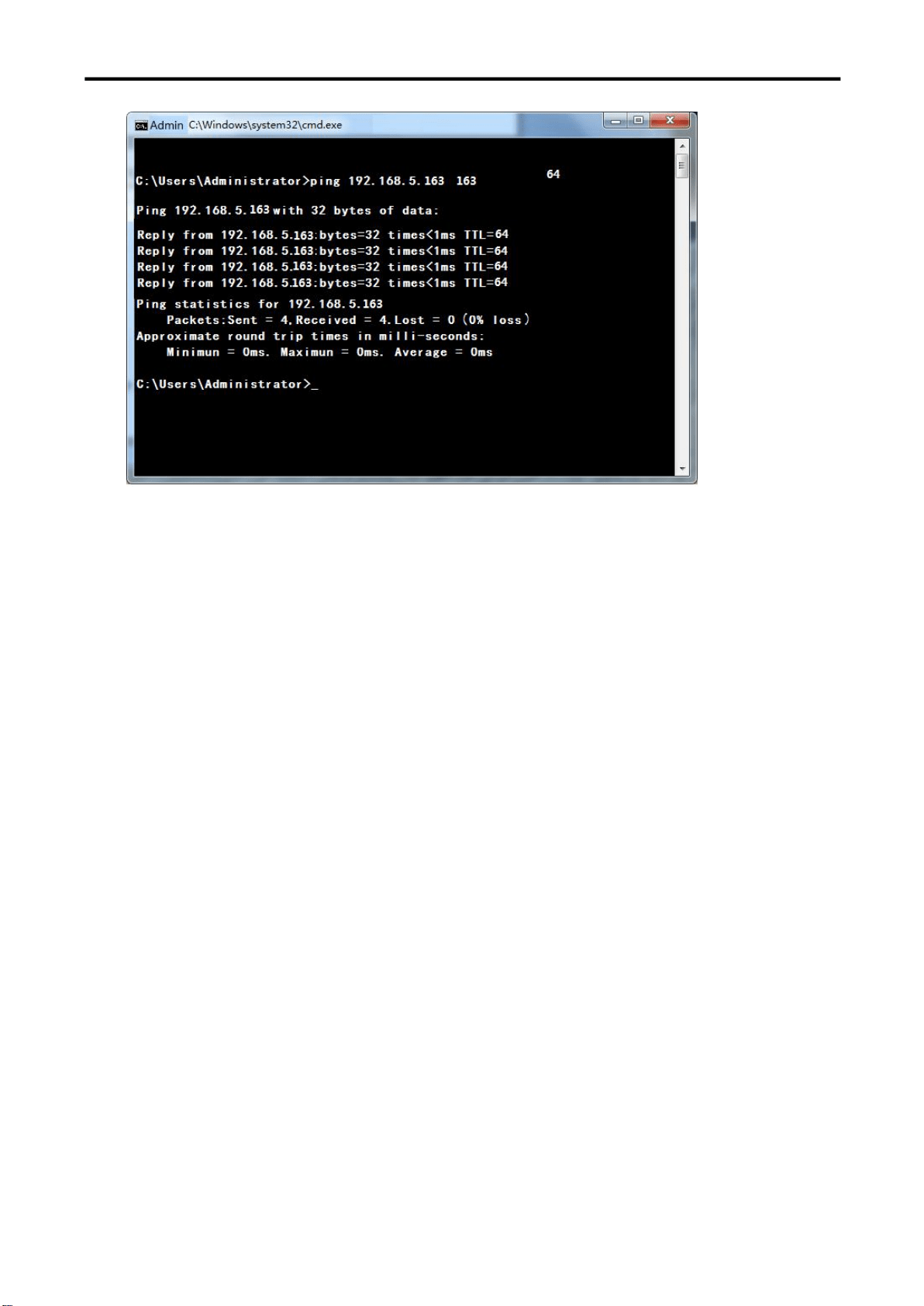
d, Click "Start" and select "Run" and then type “cmd” in the computer;Click "OK" then turn on a DOS
command window to enter ping 192.168.5.163. Press the Enter key to appear message as follows: Description
network connection is normal
4K Ultra HD NDI CAMERA User Manual
36

4K Ultra HD NDI CAMERA User Manual
37
Chapter 6 Appendix
6.1 Specification
Connectors
Video(Output)
HDMI
1×HDMI-A
USB3.0
1×USB-B
LAN
1×RJ45
Audio
Input
1×3.5mm Stereo Jack
Communication
RS232 In/Out
2×DIN 8
RS422 (RS485)
1×4Pin Terminal
Performance
Camera
Optical Zoom
12X
Focus
f=3.85 mm
~
43.06 mm ±5%
View Angle
Horizontal: 7.59°
(
tele
)~
80.4°
(
wide
)
Tilt:4.6°
(
tele
)~
50.0°
(
wide
)
Effective Pixels
8.51m,16:9
Aperture
F1.8
~
F3.56±5%
Minimum Illumination
0.05 lux
(
F1.8, AGC ON
)
DNR
2D & 3D DNR
White Balance
Auto / Manual/ One Push/ Specified color temperature
Focus Mode
Auto / Manual/ One Push
Explosure Mode
Auto / Manual / Shutter Priority / Iris Priority / Whiteness Priority
Shutter Speed
1/25
~
1/10000
Dynamic range
OFF/ Dynamic level adjustment
BLC
ON/OFF
Video Adjustment
Brightness/Color/Saturation/Contrast/Sharpness/B/W mode/Gamma
curve
SNR
≥50dB
Pan-and-Tilt
Parameter
Pan/Tilt
Rotation
-110°
~
+110°/-30°- +30°
Pan/Tilt Control Speed
0.1
~
100°/S ; 0.1
~
70°/S
Preset Speed/Numbers
Pan:100°/S, Tilt:70°/S; Up to 255 preset positions (10 remote control)
Audio Compression
Format
AAC,MP3,G.711A
Video Compression
Format
LAN:H.264, H.265
USB3.0: MGPG, H.264, YUY2, NV12
Output Resolutions
HDMI
SMPTE
720p@50/60 | 1080i@50/60 | 1080p@25/30/50/60 |
2160p@25/30/50/60
USB 3.0
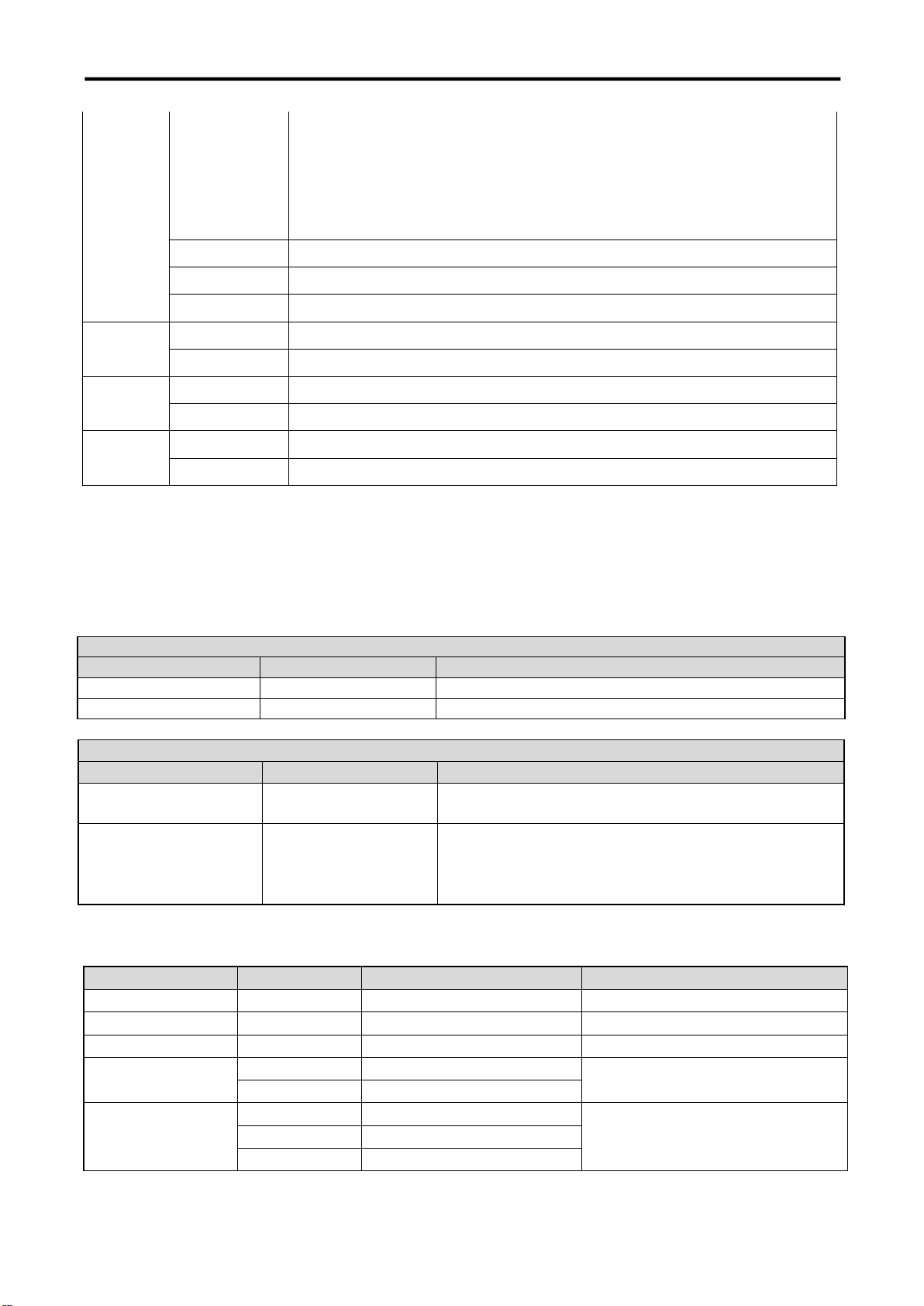
4K Ultra HD NDI CAMERA User Manual
38
YUY2/NV12
320×176@25/30 | 640
×
360@25/30 | 640
×
480@25/30 | 960
×
540@25/30 | 1280×720@25/30 | 1920×1080@25/30
MJPEG/H.264/H.265
320×176@25/30 | 640×360@25/30 | 640×480@25/30 | 960
×540@25/30 | 1280×720@25/30 | 1920×1080@25/30
3840
×
2160@25/30
Control Protocol
VISCA | Pelco-D | Pelco-P
Baud Rate(bps)
115200 | 9600 | 4800 | 2400bps
Network Protocol
RTSP | RTMP | ONVIF | GB/T28181 | NDI | VISCA
Power
Input Voltage
DC12V
Max Power
18W
Environment
Temperature
-10℃~50℃
Humidity
20%~80%
Physical
Weight
Net
1.7kg
Dimension
Net
220mm×144mm×159mm
6.2 VISCA Protocol List
6.2.1 Camera Return Command
Ack/Completion Message
Command packet
Note
ACK
z0 41 FF
Returned when the command is accepted.
Completion
z0 51 FF
Returned when the command has been executed.
z = camera address + 8
Error Messages
Command packet
Note
Syntax Error
z0 60 02 FF
Returned when the command format is different or when
a command with illegal command parameters is accepted
Command Not
Executable
z0 61 41 FF
Returned when a command cannot be executed due to
current conditions. For example, when commands
controlling the focus manually are received during auto
focus.
6.2.2 Camera Control Command
Command
Function
Command packet
Note
AddressSet
Broadcast
88 30 0p FF
p:Address setting
IF_Clear
Broadcast
88 01 00 01 FF
I/F Clear
CommandCancel
8x 21 FF
CAM_Power
On
8x 01 04 00 02 FF
Power ON/OFF
Off
8x 01 04 00 03 FF
CAM_Zoom
Stop
8x 01 04 07 00 FF
Tele(Standard)
8x 01 04 07 02 FF
Wide(Standard)
8x 01 04 07 03 FF

4K Ultra HD NDI CAMERA User Manual
39
Command
Function
Command packet
Note
Tele(Variable)
8x 01 04 07 2p FF
p = 0(low) - F(high)
Wide(Variable)
8x 01 04 07 3p FF
Direct
8x 01 04 47 0p 0q 0r 0s FF
pqrs: Zoom Position
CAM _Focus
Stop
8x 01 04 08 00 FF
Far(Standard)
8x 01 04 08 02 FF
Near(Standard)
8x 01 04 08 03 FF
Far(Variable)
8x 01 04 08 2p FF
p = 0(low) - F(high)
Near (Variable)
8x 01 04 08 3p FF
Direct
8x 01 04 48 0p 0q 0r 0s FF
pqrs: Focus Position
Auto Focus
8x 01 04 38 02 FF
Manual Focus
8x 01 04 38 03 FF
CAM _Zoom Focus
Direct
8x 01 04 47 0p 0q 0r 0s
0t 0u 0v 0w FF
pqrs: Zoom Position
tuvw: Focus Position
CAM_WB
Auto
8x 01 04 35 00 FF
3000K
8x 01 04 35 01 FF
4000k
8x 01 04 35 02 FF
One Push mode
8x 01 04 35 03 FF
5000k
8x 01 04 35 04 FF
Manual
8x 01 04 35 05 FF
6500k
8x 01 04 35 06 FF
CAM _RGain
Reset
8x 01 04 03 00 FF
Manual Control of R Gain
Up
8x 01 04 03 02 FF
Down
8x 01 04 03 03 FF
Direct
8x 01 04 43 00 00 0p 0q FF
pq: R Gain
CAM_ Bgain
Reset
8x 01 04 04 00 FF
Manual Control of B Gain
Up
8x 01 04 04 02 FF
Down
8x 01 04 04 03 FF
Direct
8x 01 04 44 00 00 0p 0q FF
pq: B Gain
CAM_AE
Full Auto
8x 01 04 39 00 FF
Automatic Exposure mode
Manual
8x 01 04 39 03 FF
Manual Control mode
Shutter priority
8x 01 04 39 0A FF
Shutter Priority Automatic Exposure
mode
Iris priority
8x 01 04 39 0B FF
Iris Priority Automatic Exposure
mode
Bright
8x 01 04 39 0D FF
Bright mode
CAM_Shutter
Reset
8x 01 04 0A 00 FF
Shutter Setting
Up
8x 01 04 0A 02 FF
Down
8x 01 04 0A 03 FF
Direct
8x 01 04 4A 00 00 0p 0q FF
pq: Shutter Position
CAM_Iris
Reset
8x 01 04 0B 00 FF
Iris Setting
Up
8x 01 04 0B 02 FF
Down
8x 01 04 0B 03 FF
Direct
8x 01 04 4B 00 00 0p 0q FF
pq: Iris Position
CAM_Gain Limit
Gain Limit
8x 01 04 2C 0p FF
p: Gain Positon
CAM_Bright
Reset
8x 01 04 0D 00 FF
Bright Setting
Up
8x 01 04 0D 02 FF
Down
8x 01 04 0D 03 FF

4K Ultra HD NDI CAMERA User Manual
40
Command
Function
Command packet
Note
Direct
8x 01 04 4D 00 00 0p 0q FF
pq: Bright Positon
CAM_ExpComp
On
8x 01 04 3E 02 FF
Exposure Compensation ON/OFF
Off
8x 01 04 3E 03 FF
Reset
8x 01 04 0E 00 FF
Exposure Compensation Amount
Setting
Up
8x 01 04 0E 02 FF
Down
8x 01 04 0E 03 FF
Direct
8x 01 04 4E 00 00 0p 0q FF
pq: ExpComp Position
CAM_Back Light
On
8x 01 04 33 02 FF
Back Light
Compensation
Off
8x 01 04 33 03 FF
CAM_WDRStrength
Reset
8x 01 04 21 00 FF
WDR Level Setting
Up
8x 01 04 21 02 FF
Down
8x 01 04 21 03 FF
Direct
8x 01 04 51 00 00 00 0p FF
p: WDR Level Positon
CAM_NR(2D)
8x 01 04 53 0p FF
P=0-7 0:OFF
CAM_NR
(
3D
)
8x 01 04 54 0p FF
P=0-8 0:OFF
CAM_Gamma
8x 01 04 5B 0p FF
p = 0 – 4 0
:
Default 1
:
0.45 2
:
0.50 3
:
0.55 4
:
0.63
CAM_Flicker
OFF
8x 01 04 23 00 FF
OFF
50HZ
8x 01 04 23 01 FF
50HZ
60HZ
8x 01 04 23 02 FF
60HZ
CAM_Aperture
Reset
8x 01 04 02 00 FF
Aperture Control
Up
8x 01 04 02 02 FF
Down
8x 01 04 02 03 FF
Direct
8x 01 04 42 00 00 0p 0q FF
pq: Aperture Gain
CAM_Memory
Reset
8x 01 04 3F 00 pq FF
pq: Memory Number(=0 to 254)
Corresponds to 0 to 9 on the Remote
Commander
Set
8x 01 04 3F 01 pq FF
Recall
8x 01 04 3F 02 pq FF
CAM_LR_Reverse
On
8x 01 04 61 02 FF
Image Flip Horizontal ON/OFF
Off
8x 01 04 61 03 FF
CAM_PictureFlip
On
8x 01 04 66 02 FF
Image Flip Vertical ON/OFF
Off
8x 01 04 66 03 FF
CAM_ColorSaturatio
n
Direct
8x 01 04 49 00 00 00 0p FF
P=0-E
0:60% 1:70% 2:80% 3:90%
4:100% 5:110% 6:120%
7:130% 8:140% 9:150%
10:160% 11:160% 12:180%
13:190% 14:200%
CAM_IDWrite
8x 01 04 22 0p 0q 0r 0s FF
pqrs: Camera ID (=0000 to FFFF)
SYS_Menu
ON
8x 01 04 06 06 02 FF
Turn on the menu screen
OFF
8x 01 04 06 06 03 FF
Turn off the menu screen
IR_Receive
ON
8x 01 06 08 02 FF
IR(remote commander)receive
On/Off
OFF
8x 01 06 08 03 FF
IR_ReceiveReturn
On
8x 01 7D 01 03 00 00 FF
IR(remote commander)receive
message via the VISCA
communication ON/OFF
Off
8x 01 7D 01 13 00 00 FF
CAM_SettingReset
Reset
8x 01 04 A0 10 FF
Reset Factory Setting
CAM_Brightness
Direct
8x 01 04 A1 00 00 0p 0q FF
pq: Brightness Position

4K Ultra HD NDI CAMERA User Manual
41
Command
Function
Command packet
Note
CAM_Contrast
Direct
8x 01 04 A2 00 00 0p 0q FF
pq: Contrast Position
CAM_Flip
OFF
8x 01 04 A4 00 FF
Single Command For Video Flip
Flip-H
8x 01 04 A4 01 FF
Flip-V
8x 01 04 A4 02 FF
Flip-HV
8x 01 04 A4 03 FF
CAM_VideoSystem
Set camera
video system
8x 01 06 35 00 0p FF
P: 0~E Video format
0:1080P60
8:720P30
1:1080P50
9:720P25
2:1080i60 A:
1080P59.94
3:1080i50 B
:
1080i59.94
4:720P60 C:
720P59.94
5:720P50 D:
1080P29.97
6:1080P30 E
:
720P29.97
7:1080P25
Pan_tiltDrive
Up
8x 01 06 01 VV WW 03 01 FF
VV: Pan speed 0x01 (low speed) to
0x18 (high speed)
WW: Tilt speed 0x01 (low speed) to
0x14 (high speed)
YYYY: Pan Position
ZZZZ: Tilt Position
Down
8x 01 06 01 VV WW 03 02 FF
Left
8x 01 06 01 VV WW 01 03 FF
Right
8x 01 06 01 VV WW 02 03 FF
Upleft
8x 01 06 01 VV WW 01 01 FF
Upright
8x 01 06 01 VV WW 02 01 FF
DownLeft
8x 01 06 01 VV WW 01 02 FF
DownRight
8x 01 06 01 VV WW 02 02 FF
Stop
8x 01 06 01 VV WW 03 03 FF
AbsolutePositio
n
8x 01 06 02 VV WW
0Y 0Y 0Y 0Y 0Z 0Z 0Z 0Z FF
RelativePosition
8x 01 06 03 VV WW
0Y 0Y 0Y 0Y 0Z 0Z 0Z 0Z FF
Home
8x 01 06 04 FF
Reset
8x 01 06 05 FF
Pan-tiltLimitSet
Set
8x 01 06 07 00 0W
0Y 0Y 0Y 0Y 0Z 0Z 0Z 0Z FF
W:1 UpRight 0:DownLeft
YYYY: Pan Limit Position(TBD)
ZZZZ: Tilt Limit Position(TBD)
Clear
8x 01 06 07 01 0W
07 0F 0F 0F 07 0F 0F 0F FF
6.2.3 Inquiry Command
Command
Function
Command packet
Note
CAM_PowerInq
8x 09 04 00 FF
y0 50 02 FF
On
y0 50 03 FF
Off(Standby)
CAM_ZoomPosInq
8x 09 04 47 FF
y0 50 0p 0q 0r 0s FF
pqrs: Zoom Position
CAM_FocusAFModeInq
8x 09 04 38 FF
y0 50 02 FF
Auto Focus
y0 50 03 FF
Manual Focus
CAM_FocusPosInq
8x 09 04 48 FF
y0 50 0p 0q 0r 0s FF
pqrs: Focus Position
CAM_WBModeInq
8x 09 04 35 FF
y0 50 00 FF
Auto

4K Ultra HD NDI CAMERA User Manual
42
y0 50 01 FF
3000K
y0 50 02 FF
4000K
y0 50 03 FF
One Push Mode
y0 50 04 FF
5000K
y0 50 05 FF
Manual
y0 50 00 FF
6500K
CAM_RGainInq
8x 09 04 43 FF
y0 50 00 00 0p 0q FF
pq: R Gain
CAM_BGainInq
8x 09 04 44 FF
y0 50 00 00 0p 0q FF
pq: B Gain
CAM_AEModeInq
8x 09 04 39 FF
y0 50 00 FF
Full Auto
y0 50 03 FF
Manual
y0 50 0A FF
Shutter priority
y0 50 0B FF
Iris priority
y0 50 0D FF
Bright
CAM_ShutterPosInq
8x 09 04 4A FF
y0 50 00 00 0p 0q FF
pq: Shutter Position
CAM_IrisPosInq
8x 09 04 4B FF
y0 50 00 00 0p 0q FF
pq: Iris Position
CAM_Gain LimitInq
8x 09 04 2C FF
y0 50 0p FF
p: Gain Positon
CAM_ BrightPosiInq
8x 09 04 4D FF
y0 50 00 00 0p 0q FF
pq: Bright Position
CAM_ExpCompModeInq
8x 09 04 3E FF
y0 50 02 FF
On
y0 50 03 FF
Off
CAM_ExpCompPosInq
8x 09 04 4E FF
y0 50 00 00 0p 0q FF
pq: ExpComp Position
CAM_BacklightModeInq
8x 09 04 33 FF
y0 50 02 FF
On
y0 50 03 FF
Off
CAM_WDRStrengthInq
8x 09 04 51 FF
y0 50 00 00 00 0p FF
p: WDR Strength
CAM_NRLevel(2D) Inq
8x 09 04 53 FF
y0 50 0p FF
P: 2DNRLevel
CAM_NRLevel(3D) Inq
8x 09 04 54 FF
y0 50 0p FF
P:3D NRLevel
CAM_FlickerModeInq
8x 09 04 55 FF
y0 50 0p FF
p: Flicker Settings(0: OFF, 1:
50Hz, 2:60Hz)
CAM_ApertureInq
8x 09 04 42 FF
y0 50 00 00 0p 0q FF
pq: Aperture Gain
CAM_PictureEffectModeInq
8x 09 04 63 FF
y0 50 00 FF
Off
y0 50 04 FF
B&W
CAM_MemoryInq
8x 09 04 3F FF
y0 50 0p FF
p: Memory number last
operated.
SYS_MenuModeInq
8x 09 06 06 FF
y0 50 02 FF
On
y0 50 03 FF
Off
CAM_LR_ReverseInq
8x 09 04 61 FF
y0 50 02 FF
On
y0 50 03 FF
Off
CAM_PictureFlipInq
8x 09 04 66 FF
y0 50 02 FF
On
y0 50 03 FF
Off
CAM_ColorSaturationInq
8x 09 04 49 FF
y0 50 00 00 00 0p FF
p: Color Gain setting 0h (60%)
to Eh (130%)
CAM_IDInq
8x 09 04 22 FF
y0 50 0p FF
p: Gamma ID
IR_ReceiveInq
8x 09 06 08 FF
y0 50 02 FF
On
y0 50 03 FF
Off
IR_ReceiveReturn
y0 07 7D 01 04 00 FF
Power ON/OFF
y0 07 7D 01 04 07 FF
Zoom tele/wide
y0 07 7D 01 04 38 FF
AF ON/OFF
y0 07 7D 01 04 33 FF
Camera _Backlight
y0 07 7D 01 04 3F FF
Camera _Memery
y0 07 7D 01 06 01 FF
Pan_titleDriver
CAM_BrightnessInq
8x 09 04 A1 FF
y0 50 00 00 0p 0q FF
pq: Brightness Position
CAM_ContrastInq
8x 09 04 A2 FF
y0 50 00 00 0p 0q FF
pq: Contrast Position
CAM_FlipInq
8x 09 04 A4 FF
y0 50 00 FF
Off
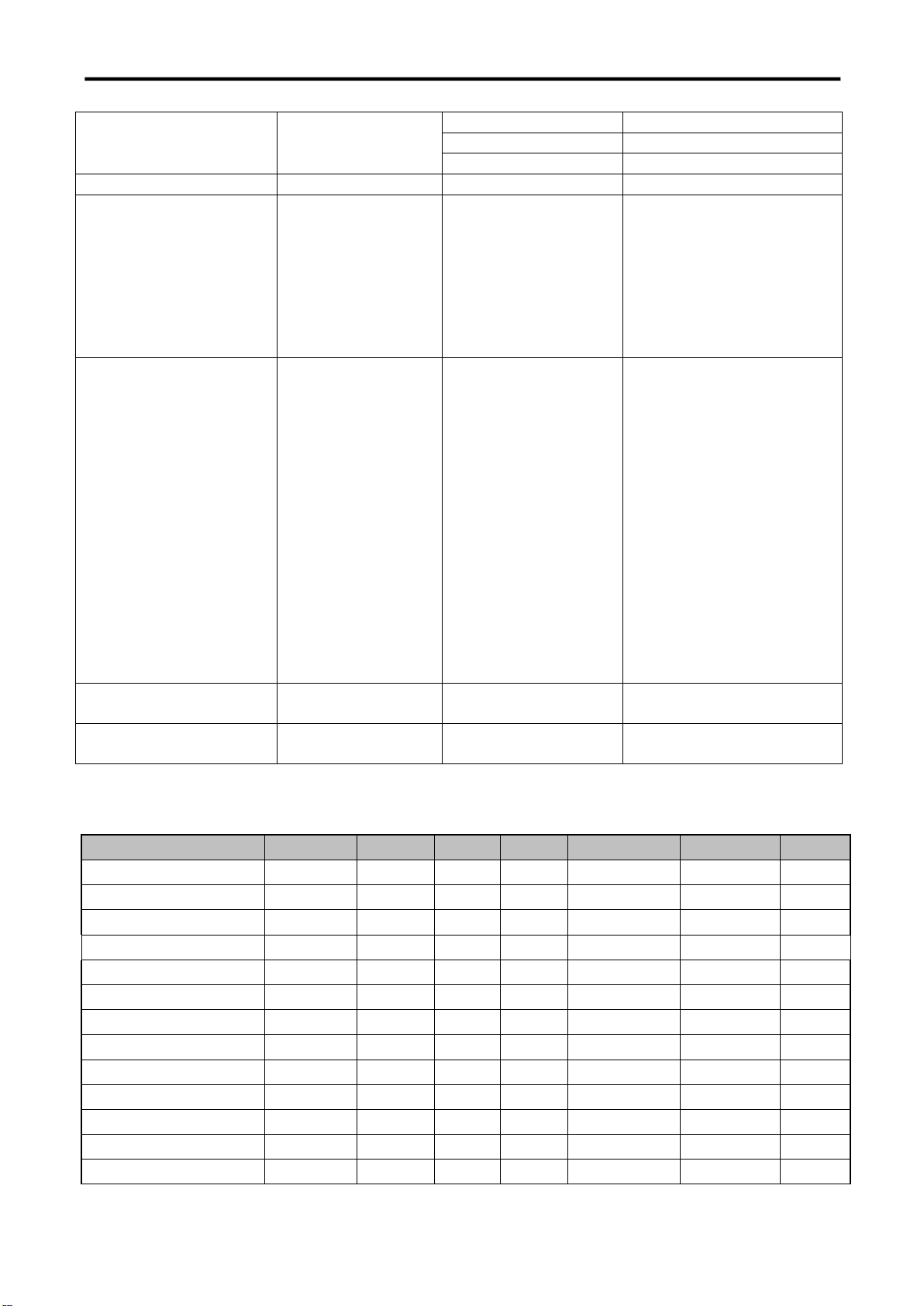
4K Ultra HD NDI CAMERA User Manual
43
y0 50 01 FF
Flip-H
y0 50 02 FF
Flip-V
y0 50 03 FF
Flip-HV
CAM_GammaInq
8x 09 04 5B FF
y0 50 0p FF
p: Gamma setting
CAM_VersionInq
8x 09 00 02 FF
y0 50 ab cd
mn pq rs tu vw FF
ab cd : vender ID
( 0220 )
mn pq : model ID ST
( 0510 ) 、
U2( 0512 )
、
U3 ( 0513 )
、
HD
(??)
rs tu : ARM Version
vw : reserve
VideoSystemInq
8x 09 06 23 FF
y0 50 0p FF
P: 0~E Video format
0:1080P60
8:720P30
1:1080P50
9:720P25
2:1080i60 A:
1080P59.94
3:1080i50 B
:
1080i59.94
4:720P60 C:
720P59.94
5:720P50 D:
1080P29.97
6:1080P30 E
:
720P29.97
7:1080P25
Pan-tiltMaxSpeedInq
8x 09 06 11 FF
y0 50 ww zz FF
ww: Pan Max Speed zz:
Tilt Max Speed
Pan-tiltPosInq
8x 09 06 12 FF
y0 50 0w 0w 0w 0w
0z 0z 0z 0z FF
wwww: Pan Position zzzz:
Tilt Position
Note:[X] in the above table indicates the camera address to be operated,
【
y
】
=
【
x + 8
】
.
6.3 Pelco-D Protocol Command List
Function
Byte1
Byte2
Byte3
Byte4
Byte5
Byte6
Byte7
Up
0xFF
Address
0x00
0x08
Pan Speed
Tilt Speed
SUM
Down
0xFF
Address
0x00
0x10
Pan Speed
Tilt Speed
SUM
Left
0xFF
Address
0x00
0x04
Pan Speed
Tilt Speed
SUM
Right
0xFF
Address
0x00
0x02
Pan Speed
Tilt Speed
SUM
Upleft
0xFF
Address
0x00
0x0C
Pan Speed
Tilt Speed
SUM
Upright
0xFF
Address
0x00
0x0A
Pan Speed
Tilt Speed
SUM
DownLeft
0xFF
Address
0x00
0x14
Pan Speed
Tilt Speed
SUM
DownRight
0xFF
Address
0x00
0x12
Pan Speed
Tilt Speed
SUM
Zoom In
0xFF
Address
0x00
0x20
0x00
0x00
SUM
Zoom Out
0xFF
Address
0x00
0x40
0x00
0x00
SUM
Focus Far
0xFF
Address
0x00
0x80
0x00
0x00
SUM
Focus Near
0xFF
Address
0x01
0x00
0x00
0x00
SUM
Stop
0xFF
Address
0x00
0x00
0x00
0x00
SUM
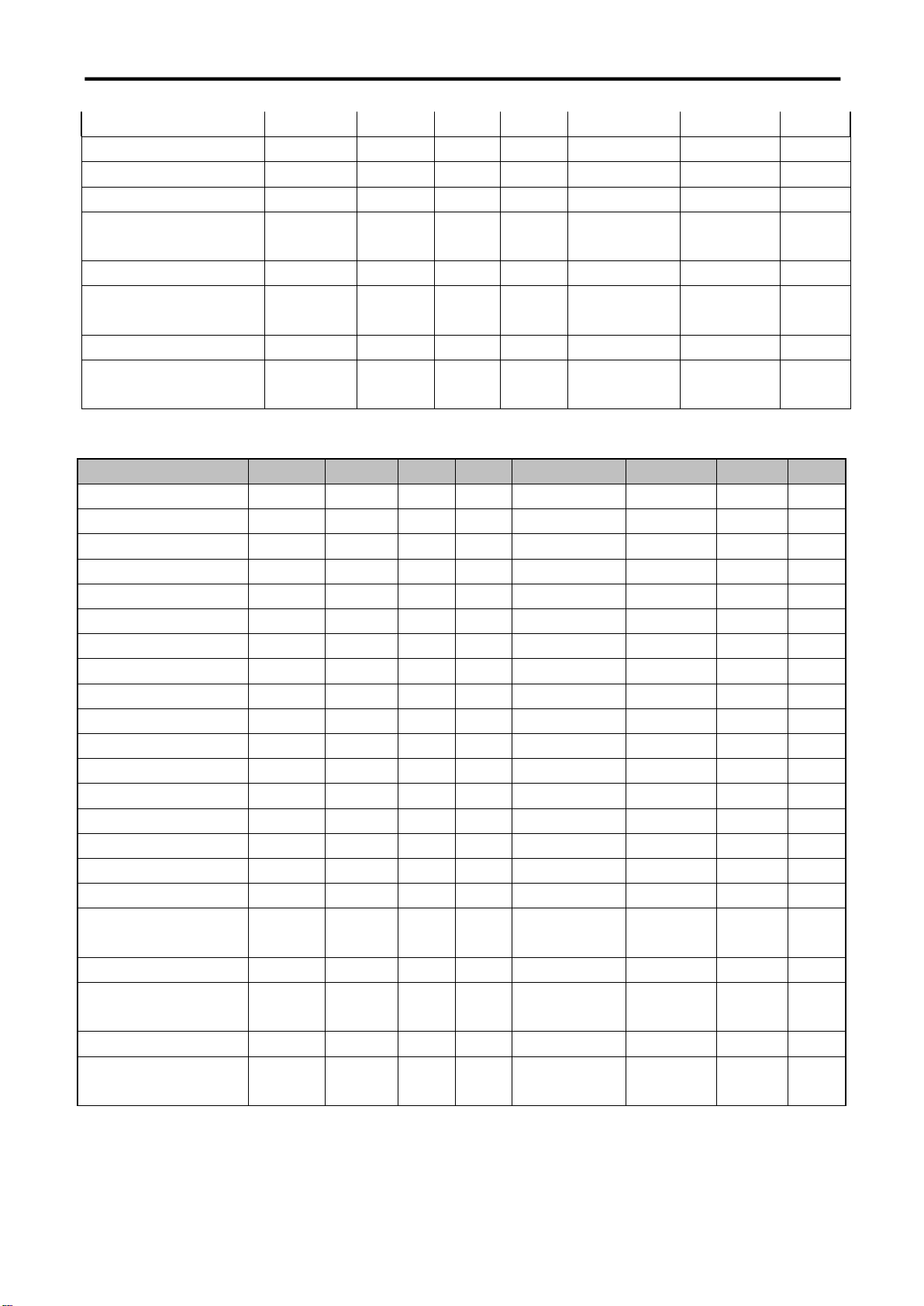
4K Ultra HD NDI CAMERA User Manual
44
Set Preset
0xFF
Address
0x00
0x03
0x00
Preset ID
SUM
Clear Preset
0xFF
Address
0x00
0x05
0x00
Preset ID
SUM
Call Preset
0xFF
Address
0x00
0x07
0x00
Preset ID
SUM
Query Pan Position
0xFF
Address
0x00
0x51
0x00
0x00
SUM
Query Pan Position Response
0xFF
Address
0x00
0x59
Value High Byte
Value Low
Byte
SUM
Query Tilt Position
0xFF
Address
0x00
0x53
0x00
0x00
SUM
Query Tilt Position Response
0xFF
Address
0x00
0x5B
Value High Byte
Value Low
Byte
SUM
Query Zoom Position
0xFF
Address
0x00
0x55
0x00
0x00
SUM
Query Zoom Position
Response
0xFF
Address
0x00
0x5D
Value High Byte
Value Low
Byte
SUM
6.4 Pelco-P Protocol Command List
Function
Byte1
Byte2
Byte3
Byte4
Byte5
Byte6
Byte7
Byte8
Up
0xA0
Address
0x00
0x08
Pan Speed
Tilt Speed
0xAF
XOR
Down
0xA0
Address
0x00
0x10
Pan Speed
Tilt Speed
0xAF
XOR
Left
0xA0
Address
0x00
0x04
Pan Speed
Tilt Speed
0xAF
XOR
Right
0xA0
Address
0x00
0x02
Pan Speed
Tilt Speed
0xAF
XOR
Upleft
0xA0
Address
0x00
0x0C
Pan Speed
Tilt Speed
0xAF
XOR
Upright
0xA0
Address
0x00
0x0A
Pan Speed
Tilt Speed
0xAF
XOR
DownLeft
0xA0
Address
0x00
0x14
Pan Speed
Tilt Speed
0xAF
XOR
DownRight
0xA0
Address
0x00
0x12
Pan Speed
Tilt Speed
0xAF
XOR
Zoom In
0xA0
Address
0x00
0x20
0x00
0x00
0xAF
XOR
Zoom Out
0xA0
Address
0x00
0x40
0x00
0x00
0xAF
XOR
Stop
0xA0
Address
0x00
0x00
0x00
0x00
0xAF
XOR
Focus Far
0xA0
Address
0x01
0x00
0x00
0x00
0xAF
XOR
Focus Near
0xA0
Address
0x02
0x00
0x00
0x00
0xAF
XOR
Set Preset
0xA0
Address
0x00
0x03
0x00
Preset ID
0xAF
XOR
Clear Preset
0xA0
Address
0x00
0x05
0x00
Preset ID
0xAF
XOR
Call Preset
0xA0
Address
0x00
0x07
0x00
Preset ID
0xAF
XOR
Query Pan Position
0xA0
Address
0x00
0x51
0x00
0x00
0xAF
XOR
Query Pan Position
Response
0xA0
Address
0x00
0x59
Value High Byte
Value Low
Byte
0xAF
XOR
Query Tilt Position
0xA0
Address
0x00
0x53
0x00
0x00
0xAF
XOR
Query Tilt Position
Response
0xA0
Address
0x00
0x5B
Value High Byte
Value Low
Byte
0xAF
XOR
Query Zoom Position
0xA0
Address
0x00
0x55
0x00
0x00
0xAF
XOR
Query Zoom Position
Response
0xA0
Address
0x00
0x5D
Value High Byte
Value Low
Byte
0xAF
XOR

4K Ultra HD NDI CAMERA User Manual
45
6.5 Terms & Definitions
●RCA
:
Connector used primarily in consumer AV equipment for both audio and video. The RCA connector was
developed by the Radio Corporation of America.
●
BNC:
Stands for Bayonet Neill-Concelman. A cable connector used extensively in television (named for its
inventors). A cylindrical bayonet connector that operates with a twist-locking motion .
●CVBS
:
C
VBS or Composite video, is an analog video signal without audio. Most commonly CVBS is used for
transmission of standard definition signals. In consumer applications the connector is typically RCA type, while in
professional applications the connector is BNC type.
●YPbPr: Used to describe the colour space for progressive-scan. Otherwise known ascomponent video.
●VGA : Video Graphics Array. VGA is an analog signal typically used on earlier computers. The signal is
non-interlaced in modes 1, 2, and 3 and interlaced when using in mode
●DVI
:
Digital Visual Interface. The digital video connectivity standard that was developed by DDWG (Digital
Display Work Group). This connection standard offers two different connectors: one with 24 pins that handles
digital video signals only, and one with 29 pins that handles both digital and analog video.
●SDI
:
Serial Digital Interface. Standard definition video is carried on this 270 Mbps data transfer rate. Video pixels
are characterized with a 10-bit depth and 4:2:2 color quantization. Ancillary data is included on this interface and
typically includes audio or other metadata. Up to sixteen audio channels can be transmitted. Audio is organised into
blocks of 4 stereo pairs. Connector is BNC.
●HD-SDI: high-definition serial digital interface (HD-SDI), is standardized in SMPTE 292M this provides a nominal
data rate of 1.485 Gbit/s.
● 3G-SDI: standardized in SMPTE 424M, consists of a single 2.970 Gbit/s serial link that allows replacing dual link
HD-SDI.
●6G-SDI: standardized in SMPTE ST-2081 released in 2015, 6Gbit/s bitrate and able to support 2160p@30.
●12G-SDI:standardized in SMPTE ST-2082 released in 2015, 12Gbit/s bitrate and able to support 2160p@60.
●U-SDI:Technology for transmitting large-volume 8K signals over a single cable. a signal interface called the ultra
high definition signal/data interface (U-SDI) for transmitting 4K and 8K signals using a single optical cable. The interface
was standardized as the SMPTE ST 2036-4.
●HDMI
:
H
igh Definition Multimedia Interface: An interface used for the transmission of uncompressed high
definition video, up to 8 channels of audio, and control signals, over a single cable.
●HDMI 1.3: released on June 22 2006, and increased the maximum TMDS clock to 340 MHz (10.2 Gbit/s). Support
resolution 1920 × 1080 at 120 Hz or 2560 × 1440 at 60 Hz). It added support for 10 bpc, 12 bpc, and 16 bpc color depth
(30, 36, and 48 bit/px), called deep color.
● HDMI 1.4 : released on June 5, 2009, added support for 4096 × 2160 at 24 Hz, 3840 × 2160 at 24, 25, and 30 Hz,
and 1920 × 1080 at 120 Hz. Compared to HDMI 1.3, 3 more features added which are HDMI Ethernet Channel (HEC) ,
audio return channel (ARC),3D Over HDMI, a new Micro HDMI Connector, an expanded set of color spaces.
● HDMI 2.0, released on September 4, 2013 increases the maximum bandwidth to 18.0 Gbit/s. Other features of
HDMI 2.0 include up to 32 audio channels, up to 1536 kHz audio sample frequency, the HE-AAC and DRA audio
standards, improved 3D capability, and additional CEC functions.
● HDMI 2.0a: was released on April 8, 2015, and added support for High Dynamic Range (HDR) video with static
metadata.

4K Ultra HD NDI CAMERA User Manual
46
● HDMI 2.0b: was released March, 2016, support for HDR Video transport and extends the static metadata
signaling to include Hybrid Log-Gamma (HLG).
● HDMI 2.1 : released on November 28, 2017. It adds support for higher resolutions and higher refresh rates,
Dynamic HDR including 4K 120 Hz and 8K 120 Hz.
● DisplayPort: A VESA standard interface primarily for video, but also for audio, USB and other data. DisplayPort
(orDP) is backwards compatible with HDMI, DVI and VGA.
● DP 1.1: was ratified on 2 April 2007, and version 1.1a was ratified on 11 January 2008. DisplayPort 1.1 allow a
maximum bandwidth of 10.8 Gbit/s (8.64 Gbit/s data rate) over a standard 4-lane main link, enough to support
1920x1080@60Hz
● DP 1.2: introduced on 7 January 2010, effective bandwidth to 17.28 Gbit/s support increased resolutions, higher
refresh rates, and greater color depth, maximum resolution 3840 × 2160@60Hz
● DP 1.4: publish on 1 Mar, 2016.overall transmission bandwidth 32.4 Gbit/s ,DisplayPort 1.4 adds support for
Display Stream Compression 1.2 (DSC), DSC is a "visually lossless" encoding technique with up to a 3:1 compression
ratio. Using DSC with HBR3 transmission rates, DisplayPort 1.4 can support 8K UHD (7680 × 4320) at 60 Hz or 4K UHD
(3840 × 2160) at 120 Hz with 30 bit/px RGB color and HDR. 4K at 60 Hz 30 bit/pix RGB/HDR can be achieved without the
need for DSC.
●Multi-mode Fiber: Fibers that support many propagation paths or transverse modes are called multi-mode fibers,
generally have a wider core diameter and are used for short-distance communication links and for applications where
high power must be transmitted.
●Single-mode Fiber: Fiber that support a single mode are called single-mode fibers. Single-mode fibers are used
for most communication links longer than 1,000 meters (3,300 ft).
●SFP : small form-factor pluggable , is a compact, hot-pluggable network interface module used for
both telecommunication and data communications applications.
●optical fiber connector: terminates the end of an optical fiber, and enables quicker connection and disconnection
than splicing. The connectors mechanically couple and align the cores of fibers so light can pass. 4 most common types
of optical fiber connectors are SC, FC, LC,ST.
●SC:(Subscriber Connector), also known as the square connector was also created by the Japanese company –
Nippon Telegraph and Telephone. SC is a push-pull coupling type of connector and has a 2.5mm diameter. Nowadays, it
is used mostly in single mode fiber optic patch cords, analog, GBIC, and CATV. SC is one of the most popular options, as
its simplicity in design comes along with great durability and affordable prices.
● LC:(Lucent Connector) is a small factor connector (uses only a 1.25mm ferrule diameter) that has a snap coupling
mechanism. Because of its small dimensions, it is the perfect fit for high-density connections, XFP, SFP, and SFP+
transceivers.
● FC :(Ferrule Connector) is a screw type connector with a 2.5mm ferrule. FC is a round shaped threaded fiber
optic connector,mostly used on Datacom, telecom, measurement equipment, single-mode laser.
● ST: (Straight Tip) was invented by AT&T and uses a bayonet mount along with a long spring-loaded ferrule to
support the fiber.
● USB: Universal Serial Bus is a standard that was developed in the mid-1990s that defines cables, connectors and
communication protocols. This technology is designed to allow a connection, communication and power supply for
peripheral devices and computers.
● USB 1.1: Full–Bandwidth USB, specification was the first release to be widely adopted by the consumer market.
This specification allowed for a maximum bandwidth of 12Mbps.
●USB 2.0:or Hi–Speed USB, specification made many improvements over USB 1.1. The main improvement was an
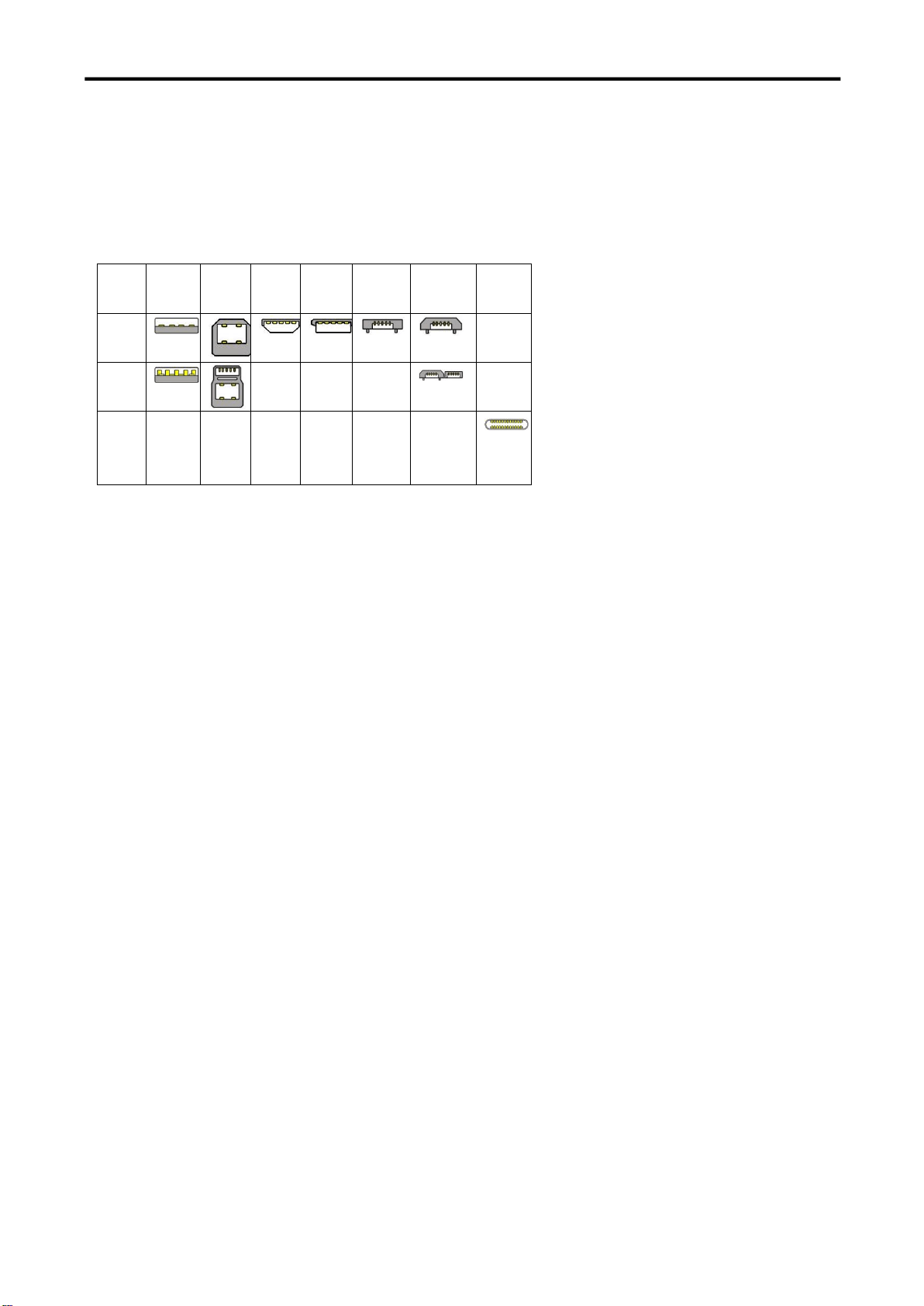
4K Ultra HD NDI CAMERA User Manual
47
increase in bandwidth to a maximum of 480Mbps.
● USB 3.2: Super Speed USB with 3 varieties of 3.2 Gen 1(original name USB 3.0), 3.2Gen 2(original name USB 3.1),
3.2 Gen 2x2 (original name USB 3.2) with speed up to 5Gbps,10Gbps,20Gbps respectively.
USB version and connectors figure:
●
NTSC :
The colour video standard used in North America and some other parts of the world created by
the National Television Standards Committee in the 1950s. NTSC utilizes an interlaced video signals.
●
PAL:
Phase Alternate Line. A television standard in which the phase of the colour carrier is alternated from line to
line. It takes four full images (8 fields) for the colour-to-horizontalimages (8 fields) for the colour-to-horizontal phase
relationship to return to the reference point. This alternation helps cancel out phase errors. For this reason, the hue
control is not needed on a PAL TV set. PAL, is widely used in needed on a PAL TV set. PAL, is widely used in Western
Europe, Australia, Africa, the Middle East, and Micronesia. PAL uses 625-line, 50-field (25 fps) composite colour
transmission system.
●
SMPTE
:
Society of Motion image and Television Engineers. A global organization, based in the United States, that
sets standards for baseband visual communications. This includes film as well as video and television standards.
●
VESA:
Video Electronics Standards Association. An organization facilitating computer graphics through standards.
●
HDCP:
High-bandwidth Digital Content Protection (HDCP) was developed by Intel Corporation an is in wide
use for protection of video during transmission between devices.
●
HDBaseT:
A video standard for the transmission of uncompressed video (HDMI signals) and related features using
Cat 5e/Cat6 cabling infrastructure.
●ST2110: A SMPTE developed standard, ST2110 describes how to send digital video over and IP networks. Video is
transmitted uncompressed with audio and other data in a separate streams.
SMPTE2110 is intended principally for broadcast
production and distribution facilities where quality and flexibility are
more important.
●
SDVoE:
Software Defined Video over Ethernet (SDVoE) is a method for transmission, distribution and
management AV signals using a TCP/IP Ethernet infrastructure for transport with low latency. SDVoE is commonly used
in integration applications.
●
Dante AV:
The Dante protocol was developed for and widely adopted in audio systems for
the transmission of
uncompressed digital
audio on IP based networks. The more recent Dante AV specification includes support for digital
video.
●
NDI:
Network Device interface (NDI) is a software standard developed by NewTek to enable
video-compatible
Type
A
Type
B
Mini
A
Mini
B
Micro-
A
Micro-
B
Type
C
USB
2.0
USB
3.0
USB
3.1&
3.2

4K Ultra HD NDI CAMERA User Manual
48
products to communicate,
deliver, and receive broadcast quality video in a high quality, low latency manner that is
frame-accurate and suitable for switching in
a live production environment over TCP (UDP) Ethernet based networks.
NDI is
commonly found in broadcast applications.
●RTMP: Real-Time Messaging Protocol (RTMP) was initially a proprietary protocol developed by Macromedia (now
Adobe) for streaming audio, video and data over the Internet, between a Flash player and a server.
●RTSP :
The Real Time Streaming Protocol (RTSP) is
a network control protocol designed for use in entertainment
and communications systems to control streaming media servers. The protocol is used for establishing and controlling
media sessions between end points.
●MPEG: Moving Picture Experts Group is a working group formed from ISO and IEC developing standards that
allow audio/video digital compression and Transmission.
●H.264: Also known as AVC (Advanced Video Coding) or MPEG-4i is a common video
compression standard.
H.264 was standard
ized by the ITU-T Video Coding Experts Group (VCEG) together with the ISO/IEC JTC1 Moving
Picture Experts Group (MPEG).
●H.265: Also known as HEVC (High Efficiency Video Coding ) H.265 is the successor to the widely used
H.264/AVC digital video coding standard. Developed under the auspices of ITU, resolutions up to 8192x4320 may be
compressed.
●
API:
An Application Programming Interface (API) provides a predefined function which allows access
capabilities andfeatures orroutinesviaa
software or hardware, without accessing source
code or understanding the
details of inner working mechanism. An API call may execute a
function and/or provide datafeedback/report.
●
DMX512:
The communication standard developed by USITT for entertainment and digital lighting systems.The
wide adoption of the Digital Multiplex (DMX) protocol has seen the protocol used for a wide
range of other devices
including video controllers.
DMX512 is delivered over cable of 2 twisted pairs with 5pin XLR cables for connection.
●ArtNet: An ethernet protocol based on TCP/IP protocol stack, mainly used in entertainment/events applications.
Built on the DMX512 data format, ArtNet enables multiple “universes” of DMX512 to be transmitted using ethernet
networks for transport.
●
MIDI:
MIDI is the abbreviation of Musical Instrument Digital Interface. As the name indicates the protocol was
developed for
communication between electronical musical
instruments and latterly computers. MIDI instructions are
triggers or commands sent over twisted pair cables, typically using 5pin DIN connectors.
●OSC:
The principle of Open Sound Control
(OSC) protocol is for networking sound
synthesizers, computers, and
multimedia
devices for musical performance or show control. As with XML and JSON, the OSC protocol allows sharing
data. OSC is transported via UDP packets between devices connected on an Ethernet.
●Brightness:
Usually refers to the amount or intensity
of video light produced on a screen without regard to colour.
Sometimes called black level.
●
Contrast
Ratio:
The ratio of the high light output level divided by the low light output level. In theory, the
contrast ratio of the television system should be at least 100:1, if not 300:1. In reality, there are several limitations.
Well-controlled viewing conditions should yield a practical contrast ratio of 30:1 to 50:1.
●
Colour
Temperature: The colour quality, expressed in degrees Kelvin (K), of a light source. The higher the
colour
temperature, the bluer the light. The lower the temperature, the redder the light. Benchmark colour temperature
for the A/V industry include 5000°K, 6500°K,and 9000°K.
●
Saturation:
Chroma, Chroma gain. The intensity of the colour, or the extent to which a given colour in any image is
free from white. The less white in a colour, the truer the colour or the greater its saturation. Saturation is the amount of
pigment in a colour, and not the intensity.

4K Ultra HD NDI CAMERA User Manual
49
●
Gamma:
The light output of a CRT is not linear with respect to the voltage input. The difference between
what you should have and what is actually output is known as gamma.
●Frame: In interlaced video, a frame is one complete image.A video frame is made up of two fields, or two sets
of interlaced lines. In a film, a frame is one still image of a series that makes up a motion image.
●
Genlock:
Allows synchronisation of otherwise video devices. A signal generator provides a signal pulses which
connected devices can reference. Also see Black Burst and Color Burst.
●Blackburst:
The video waveform without the video elements.It includes the vertical sync, horizontal sync,
and the Chroma burst information. Blackburst is used to synchronize video equipment to align the video output.
●ColourBurst: In colour TV systems, a burst of subcarrier frequency located on the back part of the composite
video signal. This serves as a colour synchronizing signal to establish a frequency and phase reference for the Chroma
signal. Colour burst is 3.58 MHz for NTSC and 4.43 MHz for PAL.
●Colour Bars
:
A standard test pattern of several basic
colours (white, yellow, cyan, green, magenta, red, blue, and
black) as a reference for system alignment and testing. In NTSC video, the most commonly used colour bars are the
SMPTE standard colour bars. In PAL video, the most commonly used colour bars are eight full field bars. On
computer monitors the most commonly used colour bars are two rows of reversed colour bars
●Seamless Switching: A feature found on many video switchers. This feature causes the switcher to wait until the
vertical interval to switch. This avoids a glitch (temporary scrambling) which often is seen when switching between
sources.
●Scaling: A conversion of a video or computer graphic signal from a starting resolution to a new resolution. Scaling
from one resolution to another is typically done to optimize the signal for input to an image processor, transmission
path or to improve its quality when presented on a particular display.
●
PIP:
Picture-In-Picture. A small image within a larger image created by scaling down one of image to make it
smaller. Other forms of PIP displays include Picture-By-Picture (PBP) and Picture- With-Picture (PWP), which are
commonly used with 16:9 aspect display devices. PBP and PWP image formats require a separate scaler for each video
window .
●HDR: is a high dynamic range (HDR) technique used in imaging and photography to reproduce a greater dynamic
range of luminosity than what is possible with standard digital imaging or photographic techniques. The aim is to
present a similar range of luminance to that experienced through the human visual system.
●UHD:
Standing for Ultra High Definition and comprising
4Kand 8Ktelevision standards with a 16:9 ratio, UHD
follows the 2K HDTV standard. A UHD 4K display has a physical resolution of3840x2160 which is four times the area
and twice both the width andheightofaHDTV/FullHD(1920 x1080) video signal.
●EDID: Extended Display Identification Data. EDID is a data structure used to communicate
video display
information, including native resolution and vertical interval refresh rate
requirements, to a source device. The source
device will then output the provided EDID data, ensuring proper video image quality.
6.6 Revision History

4K Ultra HD NDI CAMERA User Manual
50
The table below lists the changes to the User Manual.
All information herein is © Xiamen RGBlink Science & Technology Co Ltd. excepting where noted.
is a registered trademark of Xiamen RGBlink Science & Technology Co Ltd. While all efforts are made
for accuracy at time of printing, we reserve the right to alter, vary or otherwise make change without notice. E&O
M excepted.
Format
Time
ECO#
Description
Principle
V1.0
2021-5-8
0000#
Release
Sylvia