Before using the soundbar, please read this manual thoroughly and retain
it for future reference.
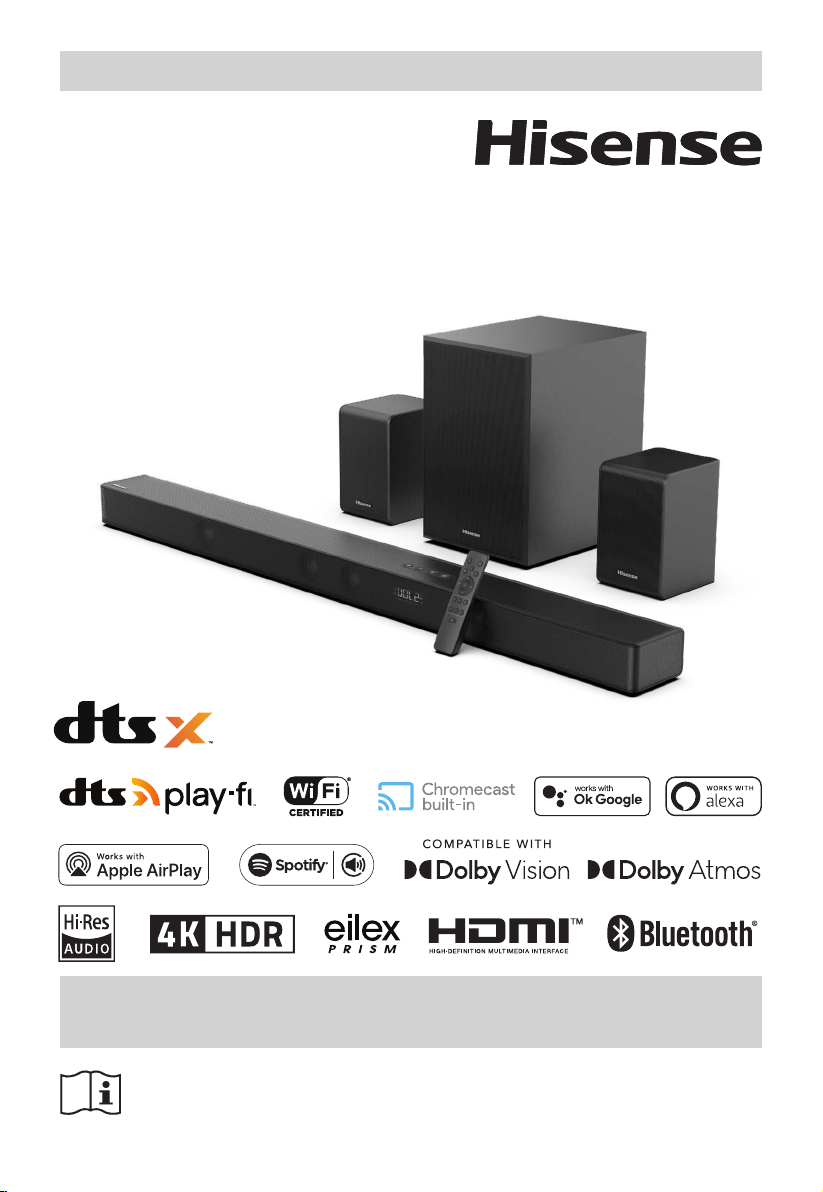
USER MANUAL
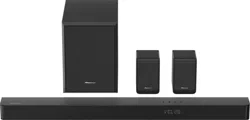
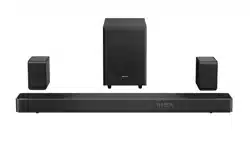
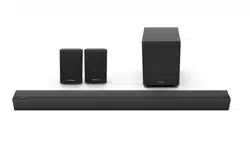
7.1.2CH Soundbar with Wireless Subwoofer
Model: U5120GW+

2
Contents
1. Important Safety Instructions ......................................................................................................... 3
1.1 Safety .........................................................................................................................................................................................................3
1.2 Warning ....................................................................................................................................................................................................4
2. What’s in the Box .............................................................................................................................. 8
3. Identifying the Parts ........................................................................................................................ 9
3.1 Main Unit ................................................................................................................................................................................................9
3.2 Wireless Subwoofer ........................................................................................................................................................................... 10
3.3 Wireless Rear Speaker ......................................................................................................................................................................10
3.4 Remote Control ..................................................................................................................................................................................10
4. Preparations ................................................................................................................................... 11
4.1 Prepare the Remote Control .......................................................................................................................................................... 11
4.2 Replace the Remote Control Battery .......................................................................................................................................... 11
4.3 Placement and Mounting ............................................................................................................................................................... 11
4.4 Mounting the Soundbar on a Wall ..............................................................................................................................................12
4.5 Mounting the Rear Speakers on a Wall ...................................................................................................................................... 12
5. Connections .................................................................................................................................... 13
5.1 Dolby Atmos® ......................................................................................................................................................................................13
5.2 DTS: X .....................................................................................................................................................................................................13
5.3 Use the HDMI Socket ........................................................................................................................................................................ 13
5.4 Use the OPTICAL Socket .................................................................................................................................................................. 14
5.5 Use the COAXIAL Socket ................................................................................................................................................................. 14
5.6 Connect Power ................................................................................................................................................................................... 14
5.7 Pair up with the subwoofer ............................................................................................................................................................ 14
5.8 Pair up with the Rear Speakers .....................................................................................................................................................15
6. Connect to Wi-Fi .............................................................................................................................. 15
6.1 WPS mode ............................................................................................................................................................................................ 15
6.2 AirPlay setup ........................................................................................................................................................................................16
6.3 DTS Play-Fi app setup .......................................................................................................................................................................16
6.4 Multi-room audio ............................................................................................................................................................................... 17
6.5 Chromecast built-in ..........................................................................................................................................................................17
7. Basic Operation .............................................................................................................................. 17
7.1 Standby/ON ......................................................................................................................................................................................... 17
7.2 Auto-Standby / Auto-Wake Feature ............................................................................................................................................ 17
7.3 Select Modes ....................................................................................................................................................................................... 17
7.4 Adjust the Bass/Treble Level .......................................................................................................................................................... 18
7.5 Turn the Surround Sound ON/OFF .............................................................................................................................................. 18
7.6 Adjust the Volume ............................................................................................................................................................................. 18
7.7 Adjust the Brightness ....................................................................................................................................................................... 18
7.8 Select Equalizer (EQ) Eect ............................................................................................................................................................. 18
7.9 Set the Audio Delay (AV SYNC) ..................................................................................................................................................... 18
7.10 Factory Reset ...................................................................................................................................................................................... 18
8. DTS: X Operation ............................................................................................................................ 18
8.1 Neural:X / DRC / Dialog Control Feature ....................................................................................................................................18
9. OPTICAL / COAXIAL / HDMI / ARC Operation ................................................................................ 19
10. Bluetooth Operation ...................................................................................................................... 19
10.1 Pair Bluetooth-enabled Devices ...................................................................................................................................................19
10.2 Listen to Music from Bluetooth Device ......................................................................................................................................20
11. USB Operation ................................................................................................................................ 20
12. Setup Menu ..................................................................................................................................... 21
13. Troubleshooting ............................................................................................................................. 22
14. Specications.................................................................................................................................. 23
3
the third prong is provided for your safety.
If the provided plug does not t into your
outlet, consult an electrician for replacement
of the obsolete outlet.
10 Protect the power cord from being walked on
or pinched particularly at plugs, convenience
receptacles, and the point where they exit
from the apparatus.
11 Only use attachments/accessories specied
by the manufacturer.
12
Use only with the cart, stand,
tripod, bracket or table specied
by the manufacturer, or sold with
the apparatus. When a cart or rack
is used, use caution when moving the cart/
apparatus combination to avoid injury from
tip-over.
13 Unplug the apparatus during lightning
storms or when unused for long periods of
time.
14 Refer all servicing to qualied personnel.
Servicing is required when the apparatus has
been damaged in any way, such as power
supply cord or plug is damaged, liquid has
been spilled or objects have fallen into the
apparatus, the unit has been exposed to rain
or moisture, does not operate normally, or
has been dropped.
15
This equipment is a Class II or double
insulated electrical appliance. It has been
designed in such a way that it does not
require a safety connection to electrical
earth.
16 The apparatus shall not be exposed to
dripping or splashing. No objects lled with
liquids, such as vases, shall be placed on the
apparatus.
17 Minimum distance around the apparatus for
sucient ventilation is 5cm.
18 The ventilation should not be impeded by
covering the ventilation openings with items,
such as newspapers,table-cloths, curtains,
etc…
19 No naked ame sources, such as lighted
candles, should be placed on the apparatus.
20 Batteries should be recycled or disposed of
as per state and local guidelines.
21 The use of apparatus in moderate or tropical
climates.
1. Important Safety Instructions
The lightning ash with arrowhead
symbol, within an equilateral triangle, is
intended to alert the user to the presence
of uninsulated “dangerous voltage” within
the product’s enclosure that may be of
sucient magnitude as to constitute a
risk of electric shock to persons.
The exclamation point within an
equilateral triangle is intended to
alert the user to the presence of
important operating and maintenance
(servicing) instructions in the literature
accompanying the appliance.
1.1 Safety
1 Read these instructions – All the safety and
operating instructions should be read before
this product is operated.
2 Keep these instructions – The safety and
operating instructions should be retained for
future reference.
3 Heed all warnings – All warnings on the
appliance and in the operating instructions
should be adhered to.
4 Follow all instructions – All operating and
usage instructions should be followed.
5 Do not use this apparatus near water – The
appliance should not be used near water or
moisture – for example, in a wet basement or
near a swimming pool and the like.
6 Clean only with a dry cloth.
7 Do not block any ventilation openings.
Install in accordance with the manufacturer’s
instructions.
8 Do not install near any heat sources such as
radiators, heaters, stoves, or other apparatus
(including ampliers) that produce heat.
9 Do not defeat the safety purpose of the
polarized or grounding plug. A polarized
plug has two blades with one wider than the
other. A grounding plug has two blades and
a third grounding prong. The wide blade or
CAUTION
RISK OF ELECTRIC SHOCK
DO NOT OPEN
AVIS
RISQUE DE CHOC
ÉLECTRIQUE NE PAS OUVRIR

4
Caution:
- Use of controls or adjustments or
performance of procedures other than those
described herein, may result in hazardous
radiation exposure or other unsafe operation.
- To reduce the risk of re or electric shock, do
not expose this apparatus to rain or moisture.
The apparatus must not be exposed to
dripping or splashing and objects lled with
liquids, such as vases, must not be placed on
apparatus.
- The mains plug/appliance coupler is used as
the disconnect device, the disconnect device
must remain readily operable.
- Danger of explosion if battery is incorrectly
replaced. Replace only with the same or
equivalent type.
1.2 Warning
• The battery (batteries or battery pack) shall
not be exposed to excessive heat such as
sunshine, re or the like.
• Before operating this system, check the
voltage of this system to see if it is identical
to the voltage of your local power supply.
• Do not place this unit close to strong
magnetic elds.
• Do not place this unit on the amplier or
receiver.
• If any solid object or liquid falls into the
system, unplug the system and have it
checked by qualied personnel before
operating it any further.
• Do not attempt to clean the unit with
chemical solvents as this may damage the
nish. Use a clean, dry or slightly damp cloth.
• When removing the power plug from the
wall outlet, always pull directly on the plug,
never yank on the cord.
• Changes or modications to this unit not
expressly approved by the party responsible
for compliance will void the user’s authority
to operate the equipment.
• The rating label is pasted on the bottom or
back of the equipment.
Battery usage CAUTION
To prevent battery leakage which may result in
bodily injury, property damage, or damage to
the apparatus:
- Install all batteries correctly, + and - as
marked on the apparatus.
- Do not mix old and new batteries.
- Do not mix alkaline, standard (Carbon-
Zinc) or rechargeable (Ni-Cd, Ni- MH, etc.)
batteries.
- Remove batteries when the unit is not used
for a long time.
For 5G Wi-Fi Device
The device for operation in the band 5150–5350 MHz is
only for indoor use to reduce the potential for harmful
interference to co-channel mobile satellite systems.
Correct Disposal of this product. This
marking indicates that this product
should not be disposed with other
household wastes throughout the EU.
To prevent possible harm to the
environment or human health from
uncontrolled waste disposal, recycle it
responsibly to promote the sustainable
reuse of material resources. To return
your used device, please use the return
and collection systems or contact the
retailer where the product was
purchased. They can take this product
for environmental safe recycling.
We hereby declares that this product
is in compliance with the essential
requirements and other relevant
provisions of RED Directive 2014/53/EU
and UK Radio Equipment Regulations
2017.
Trademarks:
• For DTS patents, see http://patents.dts.com.
Manufactured under license from DTS, Inc.
(for companies headquartered in the U.S./
Japan/Taiwan) or under license from DTS
Licensing Limited (for all other companies).
DTS, DTS Play-Fi, Play-Fi and the DTS Play-Fi
and Play-Fi logos are registered trademarks
or trademarks of DTS, Inc. in the United
States and other countries. © 2021 DTS, Inc.
ALL RIGHTS RESERVED.
• The Wi-Fi CERTIFIED™ Logo is a registered
trademark of Wi-Fi Alliance®.
• To control this AirPlay 2–enabled speaker,
iOS 11.4 or later is required. Use of the Works
with Apple badge means that an accessory
has been designed to work specically with
the technology identied in the badge and
has been certied by the developer to meet
Apple performance standards.
Apple® and AirPlay® are trademarks of Apple
Inc., registered in the U.S. and other countries.
• The Spotify Software is subject to third party
licenses found here: www.spotify.com/
connect/third-party-licenses.
5
• Google, Google Play and Chromecast built-
in are trademark of Google LLC. Google
Assistant is not available in certain languages
and countries.
• Dolby, Dolby Vision, Dolby Atmos, and the
double-D symbol are registered trademarks
of Dolby Laboratories Licensing Corporation.
Manufactured under license from Dolby
Laboratories. Condential unpublished
works. Copyright © 2012-2020 Dolby
Laboratories. All rights reserved.
• The terms HDMI and HDMI High-Denition
Multimedia Interface, and the HDMI Logo are
trademarks or registered trademarks of HDMI
Licensing Administrator, Inc.
• The Bluetooth® word mark and logos are
registered trademarks owned by Bluetooth
SIG, Inc. and any use of such marks by Hisense
is under license. Other trademarks and trade
names are those of their respective owners.
Supported input audio formats
Format Function
OPTICAL COAXIAL
HDMI
ARC
HDMI IN 1
HDMI IN 2
HDMI
eARC
LPCM 2ch
● ● ● ● ●
LPCM 5.1ch
-- -- -- ● ●
LPCM 7.1ch
-- -- -- ● ●
Dolby Atmos - Dolby TrueHD
-- -- -- ● ●
Dolby Atmos - Dolby Digital Plus
-- -- ● ● ●
Dolby TrueHD
-- -- -- ● ●
Dolby Digital Plus
-- -- ● ● ●
Dolby Digital
● ● ● ● ●
DTS
● ● ● ● ●
DTS-ES Discrete 6.1
● ● ● ● ●
DTS-ES Matrix 6.1
● ● ● ● ●
DTS 96/24
● ● ● ● ●
DTS-HD High Resolution Audio
-- -- -- ● ●
DTS-HD Master Audio
-- -- -- ● ●
DTS-HD LBR
-- -- -- ● ●
DTS:X
-- -- -- ● ●
●
: Supported format.
--
: Unsupported format.
Note: The HDMI IN 1/2 jack does not support copy-protected audio formats such as Super Audio CD or
DVD-Audio.

6
Supported HDMI video formats
Resolution Frame rate 3D Color space
Color
depth
[HDMI Signal
Format] setting
4K
4096 x 2160p
3840 x 2160p
50/59.94/60 Hz
-
RGB 4:4:4
YCbCr
4:4:4
8 bit
[enhanced format]
1)
-
YCbCr
4:2:2
8/10/12
bit
-
YCbCr
4:2:0
10/12
bit
23.98/24/25/
29.97/30 Hz
-
RGB 4:4:4
YCbCr
4:4:4
10/12
bit
4K
4096 x 2106p
3840 x 2106p
50/59.94/60 Hz -
YCbCr
4:2:0
8 bit
[standard format]
2)
23.98/24/25/
29.97/30 Hz
-
RGB 4:4:4
YCbCr
4:4:4
8 bit
-
YCbCr
4:2:2
8/10/12
bit
1920 x 1080p
25/29.97/30/50/
59.94/60 Hz
-
RGB 4:4:4
YCbCr
4:4:4
YCbCr
4:2:2
8/10/12
bit
23.98/24 Hz
◎
1920 x 1080i 50/59.94/60 Hz
○
1280 x 720p
50/59.94/60 Hz
◎
23.98/24/29.97/
30 Hz
-
720 x 480p 59.94/60 Hz -
720 x 576p 50 Hz -
640 x 480p 59.94/60 Hz - RGB 4:4:4
○
:
Compatible with side-by-side (half width) format 3D signals
◎
:
Compatible with frame packing and 3D signals in
format
1) Please use a high-quality high-speed HDMI Ethernet cable that supports 18Gbps.
2) Please use a high quality high speed HDMI Ethernet cable.

7
FCC INFORMATION (for US customers)
Warning:
- This equipment should be installed and operated with
minimum distance 20cm between the radiator & your
body.
- Changes or modications to this unit not expressly
approved by the party responsible for compliance could
void the user’s authority to operate the equipment.”
NOTE:
• This equipment has been tested and found to
comply with the limits for a Class B digital device,
pursuant to Part 15 of the FCC Rules. These limits are
designed to provide reasonable protection against
harmful interference in a residential installation. This
equipment generates, uses and can radiate radio
frequency energy and, if not installed and used in
accordance with the instructions, may cause harmful
interference to radio communications.
• However, there is no guarantee that interference will not
occur in a particular installation. If this equipment
does cause harmful interference to radio or television
reception, which can be determined by turning the
equipment o and on, the user is encouraged to try
to correct the interference by one or more of the
following measures:
- Reorient or relocate the receiving antenna.
- Increase the separation between the equipment and
receiver.
- Connect the equipment into an outlet on a circuit
dierent from that to which the receiver is connected.
- Consult the dealer or an experienced radio / TV
technician for help.
This device complies with Part 15 of the FCC Rules.
Operation is subject to the following two conditions:
(1) this device may not cause harmful interference, and
(2) this device must accept any interference received,
including interference that may cause undesired
operation.
• Shielded cables must be used with this unit to ensure
compliance with the Class B FCC limits.
This device contains licence-exempt transmitter(s)/receiver(s)
that comply with Innovation, Science and Economic
Development Canada’s licence-exempt RSS(s). Operation is
subject to the following two conditions:
1. This device may not cause interference.
2. This device must accept any interference, including
interference that may cause undesired operation of
the device.
Réglement de la FCC (pour les clients américains)
Avertissement :
- Pour rester en conformité avec les consignes d’exposition aux
RF, placez le produit à au moins 20 cm des personnes proches.
- Les changements ou modications de cet appareil non
expressément approuvées par la partie responsable de la
conformité pourraient annuler l’autorisation de l’utilisateur à
utiliser l’équipement.
REMARQUE :
• Ce dispositif a été testé et déclaré conforme aux limites
d’un dispositif numérique de classe B, conformément à
la partie 15 des règles de la FCC.
• Cependant, il n’est pas garanti que des interférences
ne se produiront pas dans une installation particulière.
Si cet appareil provoque des interférences nuisibles
à la réception radio ou de télévision, ce qui peut être
déterminé en mettant l’appareil hors tension, l’utilisateur
est encouragé à essayer de corriger l’interférence par
une ou plusieurs des mesures suivantes :
- Réorienter ou déplacer l’antenne de réception.
- Augmenter la distance entre l’appareil et le récepteur.
- Brancher l’appareil à une prise sur un circuit diérent de
celui sur lequel le récepteur est branché.
- Consulter le revendeur ou un technicien radio/TV
expérimenté.
Cet appareil est conforme à la partie 15 des règles de la
FCC. Son fonctionnement est soumis aux deux conditions
suivantes :
(1) ce dispositif ne peut pas causer d’interférences nuisibles et
(2) cet appareil doit accepte r toute inter férence reçue, y
compris les interférences qui peuvent causer un mauvais
fonctionnement.
• Des câbles blindés doivent être utilisés avec cet apparei
l pour assurer la conformité avec les limites de la classe B
de la FCC.fonctionnement de I'appareil.
L’émetteur/récepteur exempt de licence contenu dans le
présent appareil est conforme aux CNR d’Innovation, Sciences et
Développement économique Canada applicables aux appareils
radio exempts de licence. L’exploitation est autorisée aux deux
conditions suivantes :
1. L’appareil ne doit pas produire de brouillage;
2. L’appareil doit accepter tout brouillage radioélectrique
subi, même si le brouillage est susceptible d’en
compromettre le fonctionnement.
EN
FR
Ces limites ont pour but d'assurer une protection
raisonnable contre le brouillage nuisible dans une
installation résidentielle. Cet équipement produit,
utilise et peut émettre de l'énergie en radio fréquence
et, s'il n'est pas installé et utilisé conformément aux
directives, il peut causer un brouillage nuisible dans les
communications radio.
WARNING: This product can expose you
to chemicals including Lead, which is
known to the State of California to cause
cancer. For more information go to:
www.P65Warnings.ca.gov.
IC Notice: CAN ICES-3(B)/NMB-3(B)
Avis d’Industrie Canada: CAN ICES-3(B)/NMB-3(B)
8
2. What’s in the Box
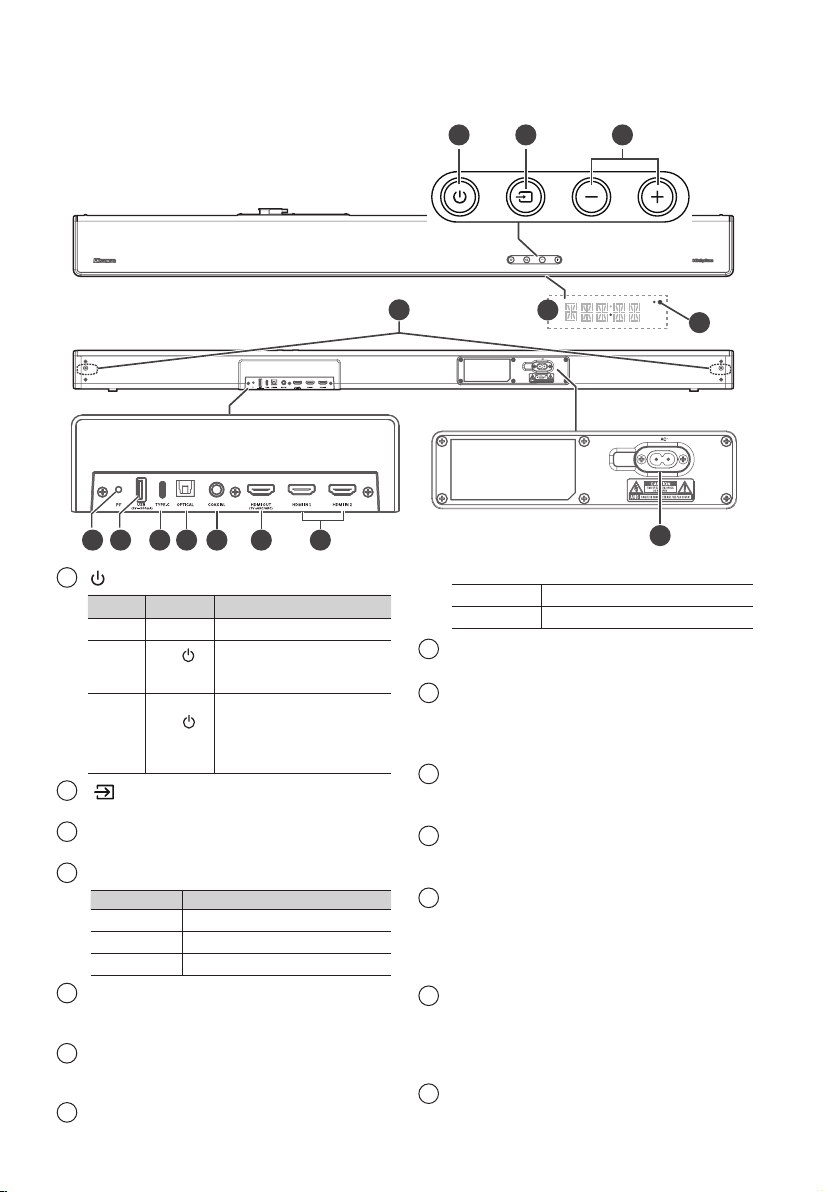
* Power cord quantity and plug type vary by regions.
• Images, illustrations and drawings shown on this User Manual are for reference only.
Actual product may vary in appearance.
• Design and specications are subject to change without notice.
AC power Cord *
(x4)
Main Unit Remote Control /
AAA Batteries x 2
Wireless Subwoofer
Wall Mounting Screws (x2) / Brackets (x2) /
Bracket Screw (x4) / Wall Anchors (x4)
(for main unit)
Wall mounting kit
(for rear speaker)
Rear speaker (x2) Dongle
User Manual /
Quick Start Guide
HDMI Cable Optical Cable
9
9 1110 12 13
6
1 2 3
14
87
4
5
3. Identifying the Parts
3.1 Main Unit
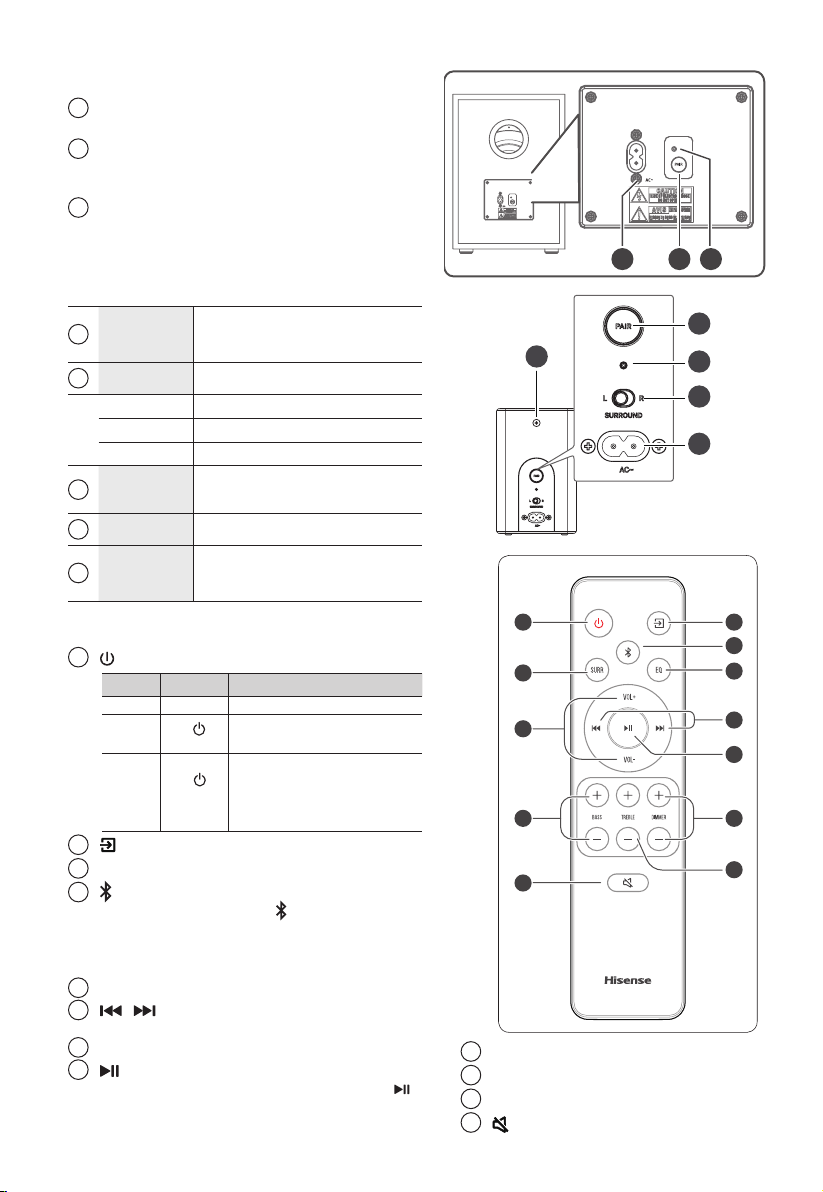
1
(ON/OFF) button
State Action
Function
On • Follow source state
Semi
Standby
Press
once
• Wi-Fi is still on.
• It still supports Play-Fi and
Airplay2.
Eco
Standby
Press and
hold
5 seconds
• Wi-Fi is o.
• The product enters the lower
power consumption mode.
• Restarting the system will
take a relatively longer time.
2
(SOURCE) button
Select the play function.
3
VOL+/VOL- buttons
Increase/decrease the volume level.
4
Wi-Fi LED indicator
LED State Status
Blink
Wi-Fi Access Point (AP) mode
Double blink
Wi-Fi Protected Setup (WPS) mode
Constant on
Connected / Paired successful
5
Display Window / Remote Control Sensor
Show the current status.
Receive signal from the remote control.
6
Screws
Remove the screws then install the wall
mounting screws into the back of the unit.
7
PF (Wi-Fi Setup) button
• Trigger Wi-Fi setup for Play-Fi.
• Press and hold the button
:
8 seconds
Wi-Fi Access Point (AP) mode
3 seconds
Wi-Fi Protected Setup (WPS) mode
8
USB Socket
Insert the USB device to play music.
9
TYPE-C Socket
For the Dongle of wireless rear surround speaker.
This port can't be used to connect to other
Type C devices.
10
OPTICAL Socket
Use to connect to the OPTICAL OUT socket
on an external device.
11
COAXIAL Socket
Use to connect to the COAXIAL OUT socket
on an external device.
12
HDMI OUT (TV eARC/ARC) Socket
The port for connecting a TV. The port
supports the eARC/ARC HDMI feature, which
allows the soundbar to play audio that
originates on the connected TV.
13
HDMI IN (1/2) Sockets
Two HDMI ports for connecting HDMI source
devices, such as a DVD player, Blu-ray Disc™
player, or gaming console. Note that only
one HDMI input is usable at a time.
14
AC~ Socket
Connect to power supply.
10
3.2 Wireless Subwoofer
1
AC~ Socket
Connect to power supply.
2
PAIR button
Press activate the pairing function between
the main unit and the subwoofer.
3
PAIR Indicator
Light stops blinking once the Subwoofer is
paired with the Soundbar.
3.3 Wireless Rear Speaker
1
PAIR button
Press activate the pairing function
between the main unit and the
surround.
2
Indicator
• Fast blink Rear Speaker in pairing mode
• Constant on Connected / Paired successful
• Slow blink Connection / Pairing Failed
3
Surround
L/R
Set to Left or Right Surround
Speaker
4
AC ~
Connect an AC power cord
5
Screws
Remove the screws then install the
wall screws into the back of the
Rear Speaker
1 2 3
3.4 Remote Control
1
(ON/OFF)
State Action
Function
On • Follow source state
Semi
Standby
Press
once
• Wi-Fi is still on.
• It still supports Play-Fi and Airplay2.
Eco
Standby
Press and
hold
5 seconds
• Wi-Fi is o.
• The product enters the lower
power consumption mode.
• Restarting the system will take
a relatively longer time.
2
(SOURCE)
Select the play function.
3
SURR Adjust the surround ON/OFF.
4
(BT) Select the Bluetooth mode. Press
and hold the (BT) button to
activate the pairing function in
Bluetooth mode or disconnect the
existing paired Bluetooth device.
5
EQ Select a preset sound eect.
6
/
Skip to previous/next track in BT /
USB mode.
7
VOL+/VOL- Increase/decrease the volume level.
8
Play/pause/resume playback in BT
/USB mode. Press and hold the
button for 3s to enter setup menu.
Conrm a selection.
1
3
7
9
2
4
5
6
8
11
10
12
5
1
2
3
4
9
BASS+/- Adjust bass level.
10
TREBLE+/- Adjust treble level.
11
DIMMER+/- Adjust display brightness.
12
(MUTE)
Mute or resume the sound.
11
4. Preparations
4.1 Prepare the Remote Control
The provided Remote Control allows the unit to
be operated from a distance.
• Even if the Remote Control is operated within
the eective range 19.7 feet (6m), remote
control operation may be impossible if there
are any obstacles between the unit and the
remote control.
• If the Remote Control is operated near other
products which generate infrared rays, or if
other remote control devices using infra-red
rays are used near the unit, it may operate
incorrectly. Conversely, the other products
may operate incorrectly.
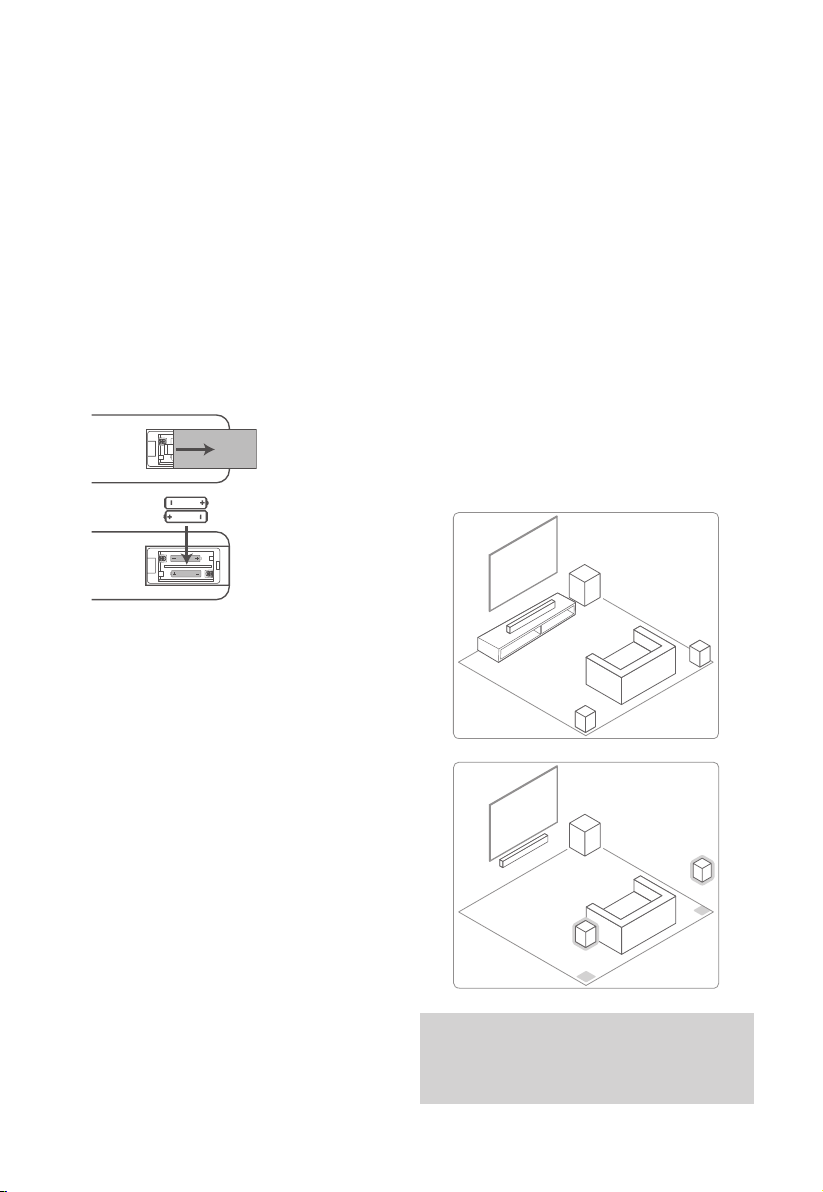
4.2 Replace the Remote Control Battery
1 Press and slide the back cover to open the
battery compartment of the remote control.
2 Insert two AAA size batteries. Make sure the (+)
and (–) ends of the batteries match the (+) and
(–) ends indicated in the battery compartment.
3 Close the battery compartment cover.
Precautions Concerning Batteries
• Be sure to insert the batteries with correct
positive “
” and negative “
” polarities.
• Use batteries of the same type. Never use
dierent types of batteries together.
• Either rechargeable or non-rechargeable
batteries can be used. Refer to the
precautions on their labels.
• Be aware of your ngernails when removing
the battery cover and the battery.
• Do not drop the remote control.
• Do not allow anything to impact the remote
control.
• Do not spill water or any liquid on the remote
control.
• Do not place the remote control on a wet
object.
• Do not place the remote control under direct
sunlight or near sources of excessive heat.
• Remove the battery from the remote control
when not in use for a long period of time,
as corrosion or battery leakage may occur
and result in physical injury, and/or property
damage, and/or re.
• Do not use any batteries other than those
specied.
• Do not mix new batteries with old ones.
• Never recharge a battery unless it is
conrmed to be a rechargeable type.
4.3 Placement and Mounting
Placement
The following are available when the rear speakers
are used with the soundbar.
• You can enjoy the surround sound that
makes you feel as if you were actually
listening to a live performance.
• You can update the software of the rear
speakers. For details, refer to the Operating
Instructions supplied with the soundbar.
Note
• The rear speakers are designed exclusively for use
with the soundbar and cannot be used with other
devices.
• Install the rear speakers vertically.
12
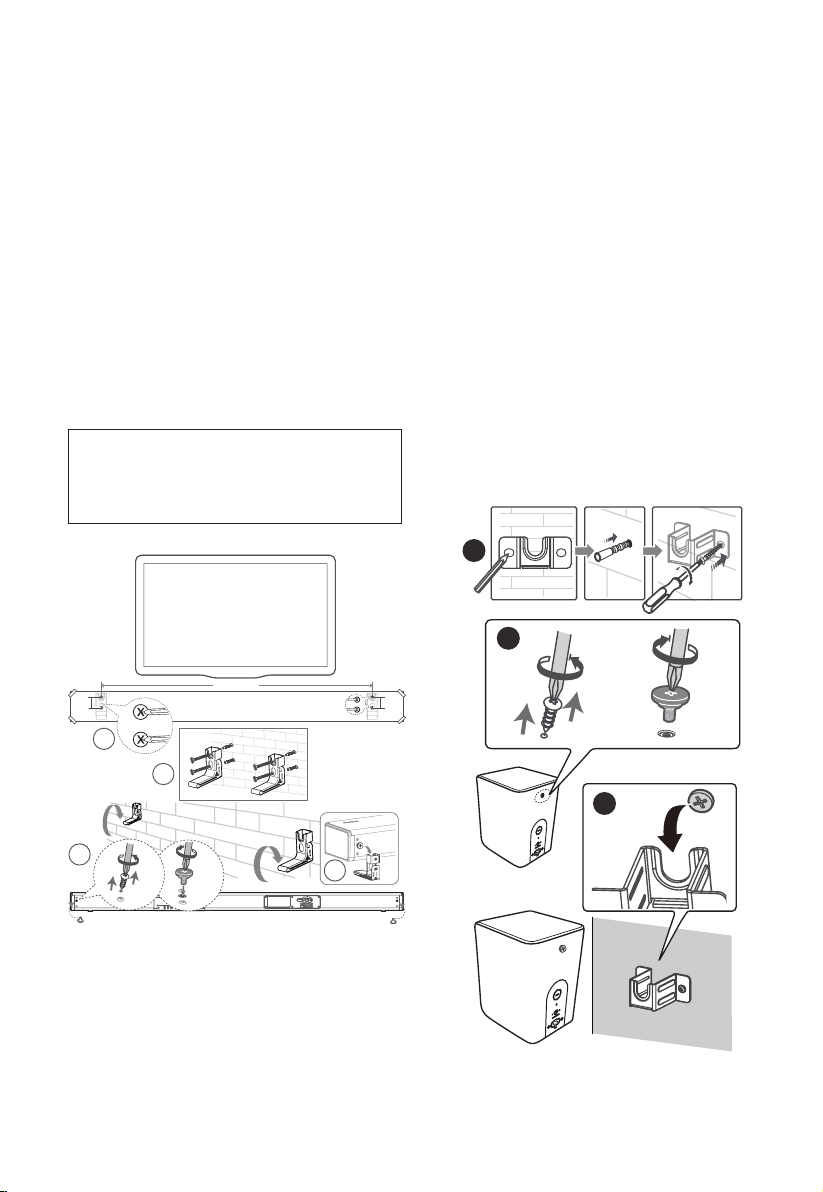
4.4 Mounting the Soundbar on a Wall
Note:
- Installation must be carried out by qualied
personnel only. Incorrect assembly can
result in severe personal injury and property
damage (if you intend to install this product
yourself, you must check for installations
such as electrical wiring and plumbing
that may be buried inside the wall). It is the
installer’s responsibility to verify that the wall
will safely support the total load of the unit
and wall brackets.
- Additional tools (not included) are required
for the installation.
- Do not overtighten screws.
- Keep this instruction manual for future
reference.
- Use an electronic stud nder to check the
wall type before drilling and mounting.
WARNING
• To prevent injury, this apparatus must be securely
attached to the oor/wall in accordance with the
installation instructions.
• Suggested wall mounting height: ≤ 1.5 meters.
1156mm
1
3
2
4
SS
SS
1. Drill 4 parallel holes (Ø 5.5-6 mm each according
to wall type) in the wall. The distance between
the holes should be 1156 mm.
2. Firmly x 1 dowel into each hole in the wall if
necessary. Tighten the wall mount brackets
on the wall with screws and screwdriver. Make
sure that they are securely installed.
3. Remove the screws at the back of the unit.
Install the wall mounting screws into the
back of the unit.
4. Lift the unit onto the wall mount brackets
and slot into place.
4.5 Mounting the Rear Speakers on a Wall
You can mount the rear speakers on a wall.
1 Tighten the wall mount brackets on the wall
with screws and screwdriver (not included).
Make sure that they are securely installed.
2 Remove the screws at the back of the unit.
Install the wall mounting screws into the
back of the unit.
3 Hang the rear speaker by conrming the
right/left of the rear speaker.
Check the Surround L/R on the rear of the
rear speaker. “Surround R” is for the right,
“Surround L” is for the left.
1
2
3
13
5. Connections
5.1 Dolby Atmos®
Dolby Atmos® gives you immersive listening
experience by delivering sound in three
dimensional space, and all the richness, clarity,
and power of Dolby sound. For more information,
please visit dolby.com/technologies/dolby-atmos
5.2 DTS: X
DTS: X The border sound is no longer constrained
by xed-position speaker placement or specic
channel signals. It can be exibly debugged
according to the playback environment to achieve
the best sound performance in this environment.
For using Dolby Atmos® / DTS: X
Dolby Atmos® / DTS: X is available in HDMI IN 1
/ HDMI IN 2 and HDMI eARC/ARC mode. For the
details of the connection, please refer to “HDMI
Connection”.
1. To use Dolby Atmos® / DTS: X in HDMI IN 1
and HDMI IN 2 mode, Your TV had to support
Dolby Atmos® / DTS: X or HDMI audio
passthrough.
2. Make sure that “Bitstream“, ”RAW“ or ”No
Encoding“ is selected for bitstream in the
audio output of the connected external
device (e.g. Blu-ray DVD player, TV etc.).
3. While entering Dolby Atmos / DTS: X / Dolby
Digital / PCM format, the soundbar will show
DOLBY ATMOS / DTS: X / DOLBY AUDIO / PCM
AUDIO.
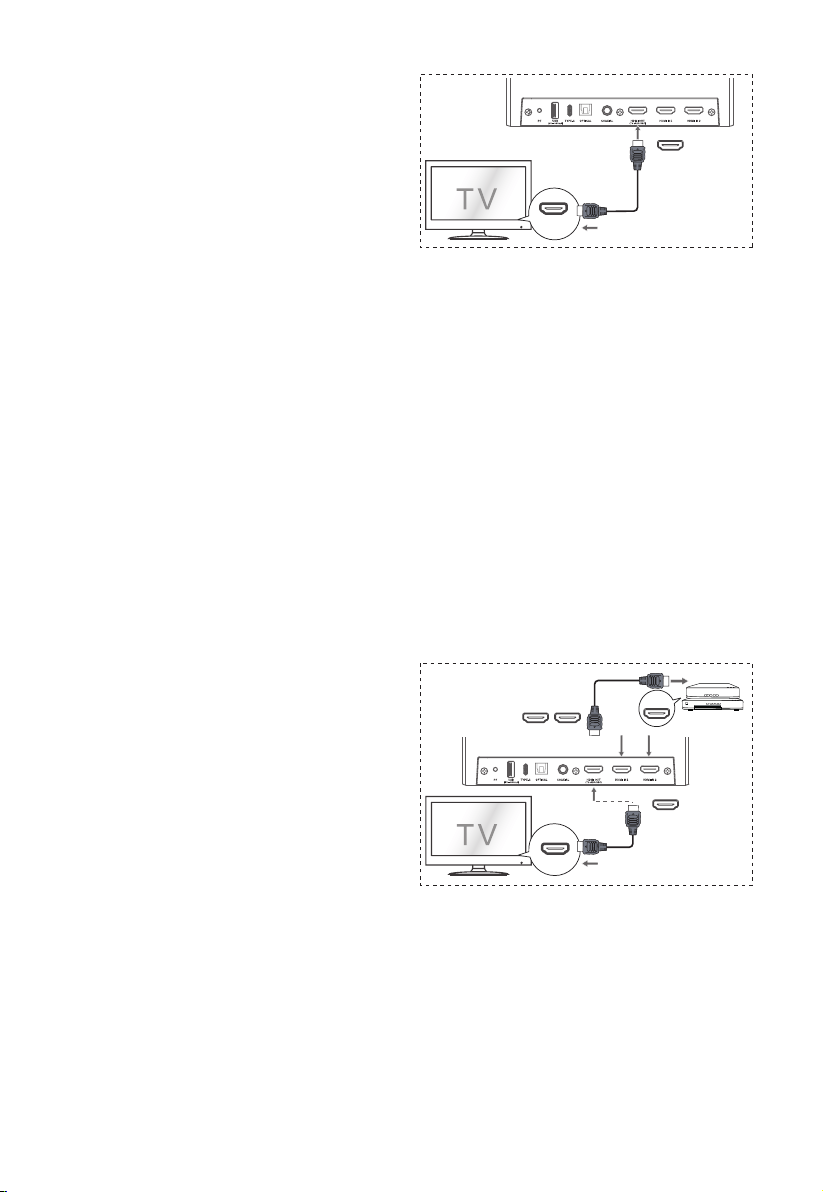
5.3 Use the HDMI Socket
Some 4K HDR TVs require the HDMI input or picture
settings to be set for HDR content reception. For
further setup details on HDR display, please refer to
the instruction manual of your TV.
Using HDMI to connect the soundbar, AV
equipment and TV:
Method 1:
eARC / ARC (Audio Return Channel)
The eARC / ARC (Audio Return Channel) function
allows you to send audio from your ARC- compliant
TV to your soundbar through a single HDMI
connection. To enjoy the ARC function, please ensure
your TV is both HDMI-CEC and ARC compliant and
set up accordingly. When correctly set up, you can
use your TV remote control to adjust the volume
output (VOL +/- and MUTE) of the soundbar.
HDMI
eARC/ARC
HDMI OUT
(TV eARC/ARC)
- Connect the HDMI cable from unit's HDMI
OUT (TV eARC/ARC) socket to the HDMI (ARC)
socket on your ARC compliant TV. Then press
the remote control to select HDMI eARC.
Tips:
• Your TV must support the HDMI-CEC and ARC
function. HDMI-CEC and ARC must be set to On.
• The setting method of HDMI-CEC and ARC
may dier depending on the TV. For details
about ARC function, please refer to the
owner’s manual.
• ARC only works with devices that are HDMI
ARC capable as well as with an HDMI 1.4
cable (and higher).
Method 2: Standard HDMI
- If your TV is not HDMI ARC-compliant,
connect your soundbar to the TV through a
standard HDMI connection.
HDMI IN
Blu-ray Player / DVD Player /
Recorder / Set-top Box...
HDMI OUT
HDMI OUT
(TV eARC/ARC)
HDMI IN 1 HDMI IN 2
1. Use an HDMI cable to connect the soundbar's
HDMI OUT (eARC/ARC) socket to the TV’s
HDMI IN socket.
2. Use an HDMI cable to connect the soundbar's
HDMI IN (1 or 2) socket to your external
devices (e.g. games consoles, DVD players and
blu-ray).
14
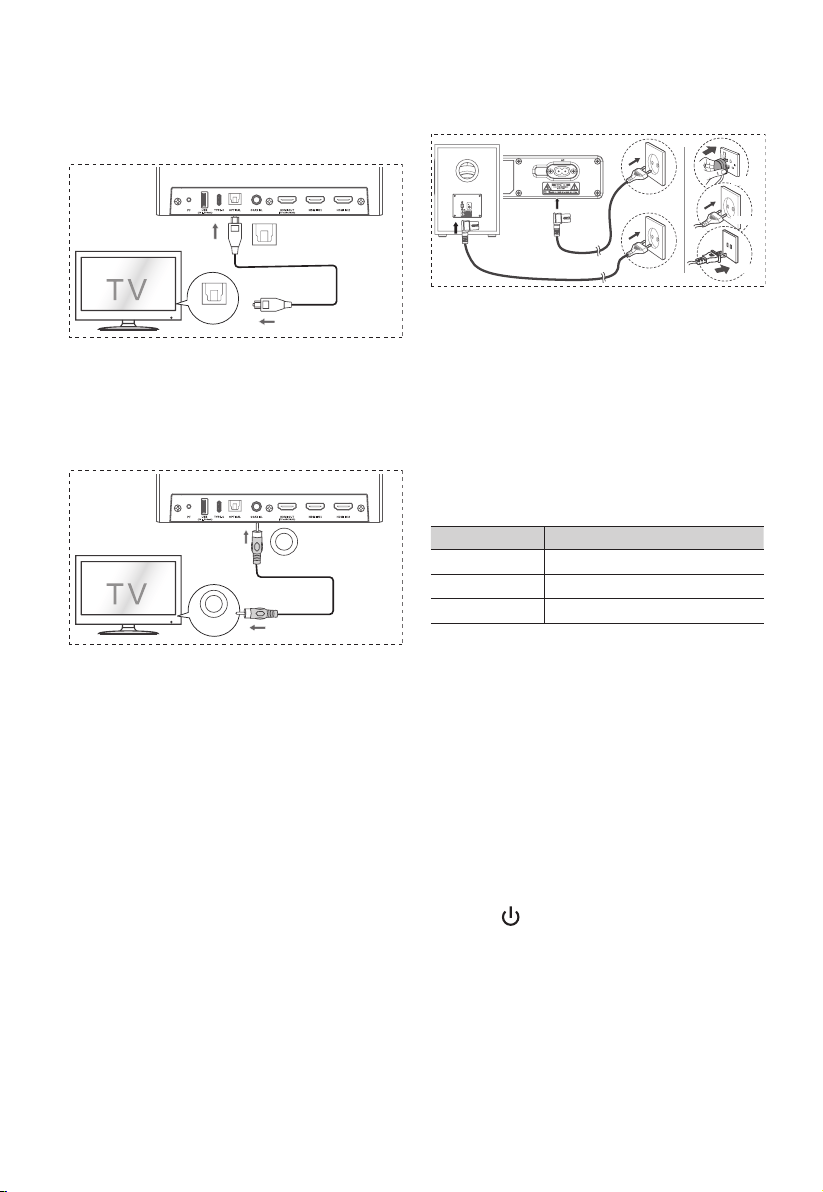
5.4 Use the OPTICAL Socket
- Connect an OPTICAL cable to the TV’s
OPTICAL OUT socket and the OPTICAL
socket on the unit.
OPTICAL
OPTICAL
5.5 Use the COAXIAL Socket
• You also can use the COAXIAL cable to
connect the TV's COAXIAL OUT socket and
COAXIAL socket on the unit.
COAXIAL
COAXIAL
Tip: The unit may not be able to decode all digital
audio formats from the input source. In this case,
the unit will mute. This is NOT a defect. Ensure
that the audio setting of the input source (e.g. TV,
game console, DVD player, etc.) is set to PCM or
Dolby Digital (Refer to the user manual of the
input source device for its audio setting details)
with HDMI / OPTICAL / COAXIAL input.
5.6 Connect Power
•
Risk of product damage!
Ensure that
the power supply voltage corresponds to the
voltage printed on the back or the underside
of the unit.
• Before connecting the AC power cord, ensure
you have completed all other connections.
• Soundbar
Connect the mains cable to the AC~ socket
of the main unit and then into a mains
socket.
• Subwoofer
Connect the mains cable to the AC~ socket of
the Subwoofer and then into a mains socket.
* Power cord quantity and plug very by regions.
5.7 Pair up with the subwoofer
Automatic pairing
The subwoofer and soundbar will automatically
pair when both units are plugged into the mains
sockets and turned on. No cable is needed for
connecting the two units.
• Determine the status based on the wireless
Subwoofer indicator.
LED State Status
Fast blink
Subwoofer in pairing mode
Constant on
Connected / Paired successful
Slow blink
Connection / Pairing Failed
NOTE:
- Do not press the Pair button on the rear of
the subwoofer, except for manual pairing.
- If the automatic pairing fails, pair the
subwoofer with the main unit manually.
Manual pairing
1. Ensure that all the cables are well connected
and the main unit is in Standby mode.
2. Press and hold the Pair button on the rear
of the subwoofer for a few seconds. The
subwoofer will enter the pairing mode and
the Pair Indicator will blink quickly.
3. Press
the button on the main unit or on
the remote control to switch the main unit on.
4. After the wireless connection succeeded, the
Pair Indicator will light up.
5. If the Pair indicator blinks, the wireless
connection has failed. Unplug the cable of
the subwoofer and then reconnect the main
cable after 3 minutes. Repeat step 1 ~ 4.

15
NOTE:
• If the wireless connection fails again, check
if there is conict or strong interference
(for example, interference from an electronic
device) around your location. Remove these
conicts or strong interferences and repeat
the above procedures.
• The subwoofer should be within 6m (18 feet)
of the soundbar in an open area.
• If the main unit is not connected with the
subwoofer and it is in On mode, the POWER
Indicator will ash. Follow step 1 ~ 4 above
to pair the subwoofer to the main unit.
5.8 Pair up with the Rear Speakers
Note
• Surround should be installed within a 6m range of
the main soundbar.
• When manually pair up soundbar with surround L,
the surround R must be powered off. When manually
pair up soundbar with surround R, the surround L
must be powered off.
• Do not press the Pair button on the rear of the
surround except for manual pairing.
Automatic Pairing
To the mains socket
1 Insert the Dongle of wireless rear surround
speaker.
2 Connect the power cord to both soundbar &
surround & connect both to a power source.
3 Turn on the soundbar. Both soundbar &
surround R/L will connect automatically
wirelessly.
Manual pairing
• If no audio from the surround can be heard,
manually pair up the surround.
1. Ensure that all the cables are well connected
and the soundbar is in Standby mode.
2. Press and hold the Pair button on the rear of
the surround for a few seconds. The surround
will enter the pairing mode and the Pair
Indicator will blink quickly.
3 Turn on the soundbar. Both soundbar &
surround R/L will connect automatically
wirelessly.
• The Pair indicator on the surround will
become solid when successful.
4. If the Pair indicator blinks, the wireless
connection has failed. Unplug the cable of
the surround and then reconnect the main
cable after 4 minutes. Repeat step 1 ~ 3.
6. Connect to Wi-Fi
6.1 WPS mode
If your router has Wi-Fi Protected Setup (WPS),
you can set up the connection without entering a
password.
1. Press and hold the PF (Wi-Fi Setup) button
for 4 seconds. You will hear a tone and the
Wi-Fi light will begin double blink.
2. Press the WPS button on your router. The
button is normally marked with this WPS logo.
WPS
3. Follow the instructions in the DTS Play-Fi app
to start pairing.

16
Note
• WPS is not a standard feature on all routers. If your
router does not have WPS then use Standard Wi-Fi
Setup.
• Press the PF (Wi-Fi Setup) button once if you want
to exit the WPS mode or it will automatically exit
after 2 minutes.
6.2 AirPlay setup
Use AirPlay to set up the Wi-Fi connection of iOS
device (iOS7 or later) and Soundbar.
1 Press and hold PF (Wi-Fi Setup) button
located at the back cabinet for 8 sec to
trigger the Wi-Fi connection.
2 Wait until the Wi-Fi light indicator turns from
a fast blink to a slow pulse. A slow pulse
indicates that the speaker is entering the Wi-
Fi setup mode.
3 On your iOS device go to: Settings > Wi-Fi >
select network [Play-Fi device (xxxxxx)]
iOS Wi-Fi set up by AIRPLAY
Settings Wi-Fi
Wi-Fi
Networks
SET UP NEW AIRPLAY SPEAKER…
Play-Fi DeviceXXXXXXXX
4. Soundbar will be automatically recognized
as Airplay device. Tap on [Set up new Air-Play
speaker].
5. Tap on [Show Other Networks…] and select
your home network to which you want
soundbar to connect.
6. After a successful Wi-Fi connection, the
Wi-Fi light indicator stops pulsing and stays
on. After setting up this product on your
Wi-Fi network, you can control it from any
smartphone or tablet on the same network.
6.3 DTS Play-Fi app setup
(For iOS and Android version)
By connecting this unit and mobile phones,
tablets (such as iPad, iPhone, iPod touch, Android
phones, etc.) to the same Wi-Fi network, you can
then use the DTS Play-Fi to control the soundbar
to listen to audio les.
1. Connect your phone or tablet to the same
Wi-Fi network that you want to connect your
soundbar.
2. Download and install the DTS Play-Fi on a
phone or tablet.
Play-Fi
• Make sure your router is turned on and
working properly.
3 Press and hold PF (Wi-Fi Setup) button
located at the back cabinet for 8 sec to
trigger the Wi-Fi connection.
• Until the speaker make a second tone and
then release the button.
4 Wait until the Wi-Fi light indicator on the back
cabinet goes from a fast blink to a slow pulse.
When it begins pulsing slowly, it indicates that
the speaker is entering the Wi-Fi setup mode.
5 Launch the DTS Play-Fi. Follow the
instructions in the App to connect this
product to your Wi-Fi network.
6 After a successful Wi-Fi connection, the Wi-Fi
light indicator stops pulsing and stays on. After
setting up this product on your Wi-Fi network,
you can control it from any smartphone or
tablet on the same network.
• When using the app to play music, the
display panel will show PLAY-FI.
7 After connection, you can change the device
name. There are several names to choose
from or create your own by choosing Custom
Name at the end of the name list. Otherwise,
it follows the default name.
8 After connection, this product may perform
a software update. Upgrade to the latest
software when it is your rst time set up. The
software upgrade may take several minutes. Do
not unplug your speaker, turn o your device,
or leave the network during the update.

17
Note
• After connection, the product may perform a
software update. Upgrade is required after initial
setup. Without the upgrade, not all product features
can be available.
• When the rst time setup is not successful, hold
down the Wi-Fi button on Soundbar for 8 seconds
until you hear the second tone and the Wi-Fi light
changes to slow pulse. Reset the Wi-Fi connection,
restart the app and start the setup again.
• If you want to change from one network to another,
you need to setup the connection again. Press hold
down the PF (Wi-Fi Setup) button on the Soundbar
for 8 seconds to reset the Wi-Fi connection.
6.4 Multi-room audio
• This soundbar can be used as part of multi-
room speaker setup. This means that the
same music can be played from your
soundbar and other compatible speakers
simultaneously throughout your home.
• To use this feature, make sure the soundbar
and your smartphone / tablet are on the
same network. You can use Google Home,
Airplay 2 or DTS Play-Fi app to control
compatible multiroom speakers. You can
then play the music on multiple speakers at
the same time, assign speakers to dierent
groups, control the volume individually, or
use master volume to change the volume on
all speakers at the same time.
6.5 Chromecast built-in
• This soundbar supports Chromecast built-
in feature that allows you to cast music
from Chromecast compatible apps to your
soundbar.
• To use this feature, make sure the soundbar
and your smartphone / tablet are on the
same network. Start playing music on a
Chromecastenabled app and cast it to your
soundbar simply by clicking the (cast) button
and selecting the soundbar from the list.
7. Basic Operation
7.1 Standby/ON
When you rst connect the main unit to the mains
socket, the main unit will be in Standby mode.
• Press the
button on the unit or on the
remote control to switch the unit ON.
• Press the
button again to switch the unit
back to STANDBY mode.
State Action
Function
On • Follow source state
Semi
Standby
Press
once
• Wi-Fi is still on.
• It still supports Play-Fi and
Airplay2.
Eco
Standby
Press and
hold
5 seconds
• Wi-Fi is o.
• The product enters the lower
power consumption mode.
• Restarting the system will
take a relatively longer time.
• Disconnect the mains plug from the mains socket
if you want to switch the unit OFF completely.
7.2 Auto-Standby / Auto-Wake Feature
• [Auto-Standby] Your soundbar has been
programmed to enter Standby mode
automatically when no audio is detected for
15 minutes. For example, this would happen
when pausing playback, or should the
soundbar be left on accidentally.
• [Auto-Wake] If a TV or an external device is
connected (COAXIAL/OPTICAL socket), the
unit will switch on automatically when the
TV or the external device is switched on.
To disable this feature, please follow the steps
below:
1. During ON mode, pointing the remote at the
soundbar, press and hold the
button for 3
seconds to open the menu.
- The unit’s display will scroll “MENU”.
2. Press the
button 6 times in succession
:
the display shows: Auto Wake [ON / OFF].
or
Press the
button 7 times in succession,
the display shows: Auto Standby [ON / OFF].
3. Select the content with VOL +/- button on the
remote control, and then press
to conrm
your selection and exit the settings.
• Repeating these steps will toggle the feature
"ON" and "OFF".
7.3 Select Modes
• Press the
(SOURCE) button repeatedly on
the unit or on the remote control to select
the OPTICAL, COAXIAL, HDMI ARC, HDMI 1,
HDMI 2, BT (Bluetooth) and USB mode.

18
7.9 Set the Audio Delay (AV SYNC)
• Video image processing, sometimes longer
than the time required to process the audio
signal. This is called “delayed.” Audio Delay
feature is designed to remedy this delay.
• Set the audio delay, provided only for the
current playback mode. (As provided in
the HDMI ARC audio delay mode, the delay
mode is valid only for the HDMI ARC).
- By default, the audio delay is set to 00.
1. During ON mode, press and hold the
button for 3 seconds to open the menu, then
press the button 9 times in succession.
The unit’s display will scroll “ LT 00”.
2. Press the VOL+/- buttons will be a 10 ms
frequency hopping to adjust the delay time.
Set 200 ms maximum delay.
3. Press the
button or exit settings 10S.
Tip:
• Adjustment range: [00~200ms]
• The audio delay setting is only valid for
digital audio (eg HDMI IN, HDMI ARC,
COAXIAL, OPTICAL).
7.10 Factory Reset
Reset device to default setting
• In standby mode, press the [
,
, VOL+,
BASS-] buttons on the remote control them
in sequence, the display shows “RESET” to
reset the factory default settings of the host.
• Set is ON, press and hold the
(MUTE) button
until the display shows “RESET” to reset the Wi-
Fi module to the factory default settings.
8. DTS: X Operation
8.1 Neural:X / DRC / Dialog Control
Feature
- DTS:X® technologies provide users with
virtual multi-channel virtual surround eects,
creating an immersive audio volume.
1. During ON mode, pointing the remote at the
soundbar, press and hold the
button for 3
seconds to open the menu.
2. The unit’s display will scroll “MENU”.
3. Neural:X Setting: Press the
button 11
times in succession
:
the display shows: Dts
Neural [ON / OFF].
or
• Press the
button on the remote control to
select the BT (Bluetooth) mode.
• The selected mode will show on the display.
Display Mode
ARC
HDMI IN 1
HDMI IN 2
OPTICAL
COAXIAL
Bluetooth
Connected
Connection
USB
Note
• Play-Fi is not an optional source. Play-Fi needs to be
directly controlled by app.
7.4 Adjust the Bass/Treble Level
• Press the BASS +/- buttons on the remote
control to adjust bass level (bass +5 ~ bass -5).
• Press the TREBLE +/- buttons on the remote
control to adjust treble level (treble +5 ~
treble -5).
7.5 Turn the Surround Sound ON/OFF
• Press the SURR button on the remote control
to turn on the surround sound. Press this
button again to turn o the surround sound.
7.6 Adjust the Volume
• Press the VOL+ / VOL- buttons on the unit or
on the remote control to adjust the volume.
• If you wish to turn the sound o, press the
(MUTE) button on the remote control.
Press the
(MUTE) button again or press
the VOL+ / VOL- buttons to resume normal
listening.
7.7 Adjust the Brightness
- Press the DIMMER +/- button on the remote
control to select brightness level.
7.8 Select Equalizer (EQ) Eect
• While playing, press the EQ button on the
remote control to select desired preset
equalizers: MUSIC, MOVIE, NEWS, SPORT,
NIGHT, GAME, AI EQ.

19
DRC Setting: Press the
button 12 times
in succession, the display shows: Dts Drc
Heavy / Dts Drc Mid / Dts Drc Min.
or
Adjust the Dialog Control: Press the
button 13 times in succession, the display
shows: Dts Dialog Control 0~6.
4. Select the content with VOL +/- buttons on
the remote control, and then press
to
conrm your selection and exit the settings.
- Repeating these steps will toggle the feature
ON and OFF.
9. OPTICAL / COAXIAL / HDMI /
ARC Operation
1 Ensure that the unit is connected to the TV or
audio device.
2 Press the
(SOURCE) repeatedly on the
unit or on the remote control to select the
OPTICAL, COAXIAL, HDMI 1, HDMI 2, HDMI
ARC mode.
3 Operate your audio device directly for
playback features.
4 Press the VOL +/– button to adjust the
volume to your desired level.
Tip:
• The unit may not be able to decode all digital
audio formats from the input source. In this
case, the unit will mute. This is NOT a defect.
Ensure that the audio setting of the input
source (e.g. TV, game console, DVD player, etc.)
is set to PCM or Dolby Digital (Refer to the
user manual of the input source device for its
audio setting details) with HDMI IN 1 / HDMI 2
/ HDMI ARC / OPTICAL / COAXIAL input.
• When selecting a dierent audio format, the
unit will display the following as follows:
Audio (abbreviation) Display
LPCM 2ch PCM AUDIO
LPCM 5.1ch PCM AUDIO
LPCM 7.1ch PCM AUDIO
Dolby Digital DOLBY AUDIO
Dolby TrueHD DOLBY AUDIO
Dolby Digital Plus DOLBY AUDIO
Dolby Atmos -
Dolby TrueHD
DOLBY ATMOS
Dolby Atmos -
Dolby Digital Plus
DOLBY ATMOS
DTS DTS
DTS Discrete Surround DTS
DTS-ES 6.1 Matrix DTS
DTS-ES 6.1 Discrete DTS
DTS 96/24 DTS
DTS 96/24 ES Matrix DTS
DTS Express DTS
DTS-ES 8-Channel Discrete DTS
DTS-HD High Resolution DTS-HD
DTS-HD Master Audio DTS-HD
DTS:X DTS:X
DTS:X Master Audio DTS:X
10. Bluetooth Operation
10.1 Pair Bluetooth-enabled Devices
The rst time you connect your bluetooth device to
this player, you need to pair your device to this player.
Note:
- The operational range between this player
and a Bluetooth device is approximately 26
feet (8m) (without any object between the
Bluetooth device and the unit).
- Before you connect a Bluetooth device to this
unit, ensure you know the device’s capabilities.
- Compatibility with all Bluetooth devices is
not guaranteed.
- Any obstacle between this unit and a Bluetooth
device can reduce the operational range.
- If the signal strength is weak, your Bluetooth
receiver may disconnect, but it will re-enter
pairing mode automatically.
1 During ON mode, press the
button
repeatedly on the unit or the
button on
the remote control to select Bluetooth mode.
“NO BT” will show on the display if the unit is
not paired to any Bluetooth device.
2 Activate your Bluetooth device and select
the search mode. “Hisense U5120GW+” will
appear on your Bluetooth device list.
- If you cannot nd the unit, press and hold
the
button to be searchable. The display
will show “BT Pairing” and you will hear
"Pairing" from the unit.
3 Select “Hisense U5120GW+” in the pairing
list. After successful pairing, you will hear
"Paired" from the unit, and the display panel
shows “BT_IN”.
20
4 Play music from the connected Bluetooth
device.
To disconnect the Bluetooth function, you can :
- Switch to another function on the unit.
- Disable the function from your Bluetooth
device.The Bluetooth device will be
disconnected from the unit after the
“Disconnected” voice prompt.
- Press and hold the
button.
Tips:
• Enter "0000" for the password if necessary.
• If no other Bluetooth device pairs with this
player within two minutes, the player will
recover its previous connection.
• The player will also be disconnected when
your device is moved beyond the operational
range.
• If you want to reconnect your device to this
player, place it within the operational range.
• If the device is moved beyond the
operational range, when it is brought back,
please check if the device is still connected to
the player.
• If the connection is lost, follow the
instructions above to pair your device to the
player again.
10.2 Listen to Music from Bluetooth Device
- If the connected Bluetooth device supports
Advanced Audio Distribution Prole (A2DP),
you can listen to the music stored on the
device through the player.
- If the device also supports Audio Video
Remote Control Prole (AVRCP), you can use
the player's remote control to play music
stored on the device.
1. Pair your device with the player.
2. Play music via your device (if it supports
A2DP).
3. Use supplied remote control to control play (if
it supports AVRCP).
Start, pause or resume play.
/
Skip to the previous or next track.
11. USB Operation
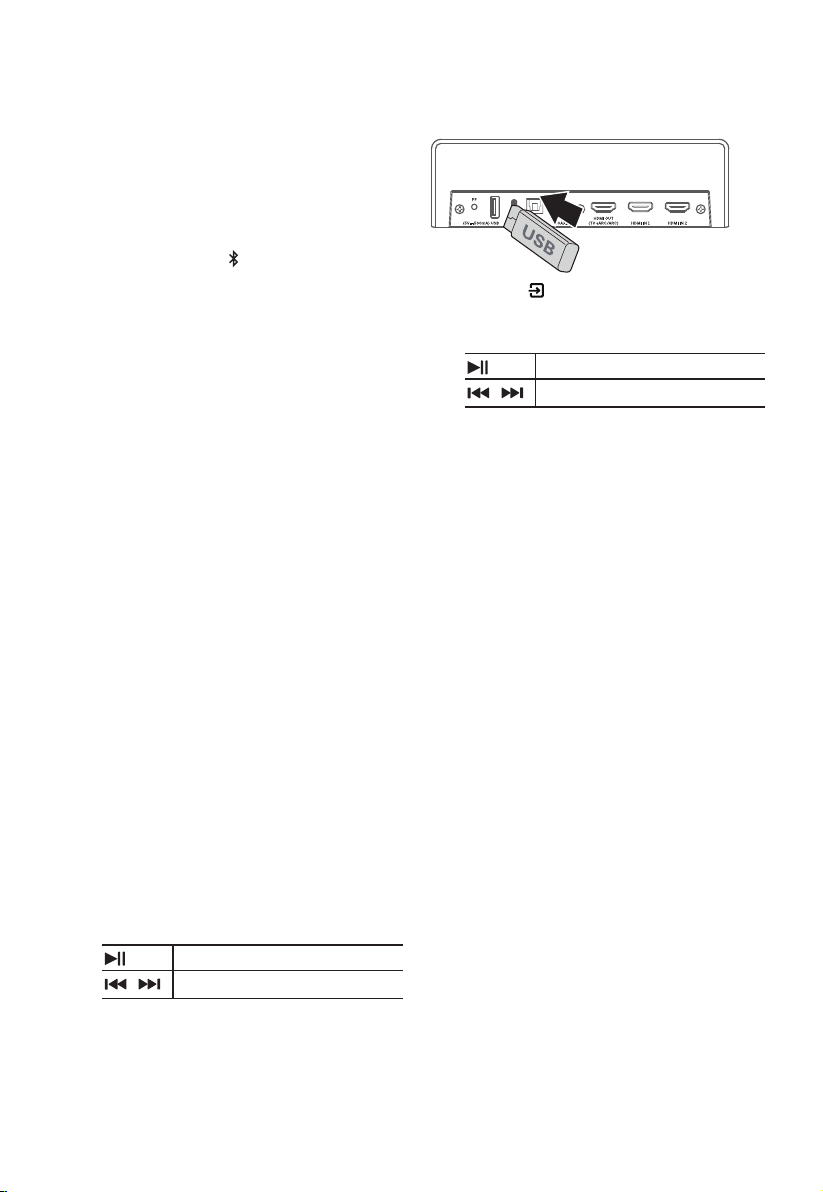
1 Insert the USB device.
2 Press the button repeatedly on the unit or
on the remote control to select USB mode.
3 During playback:
Start, pause or resume play.
/
Skip to the previous or next track.
Tips:
• The unit can support USB devices with up to
32 GB of memory.
• This unit can play WAV / WMA / MP3 / FLAC /
DSD / ALAC.
• This product may not be compatible with
certain types of USB storage devices.
• If you use a USB extension cable, USB hub,
or USB Multifunctional card reader, the USB
storage device may not be recognized.
• Do not remove the USB storage device while
reading les.
21
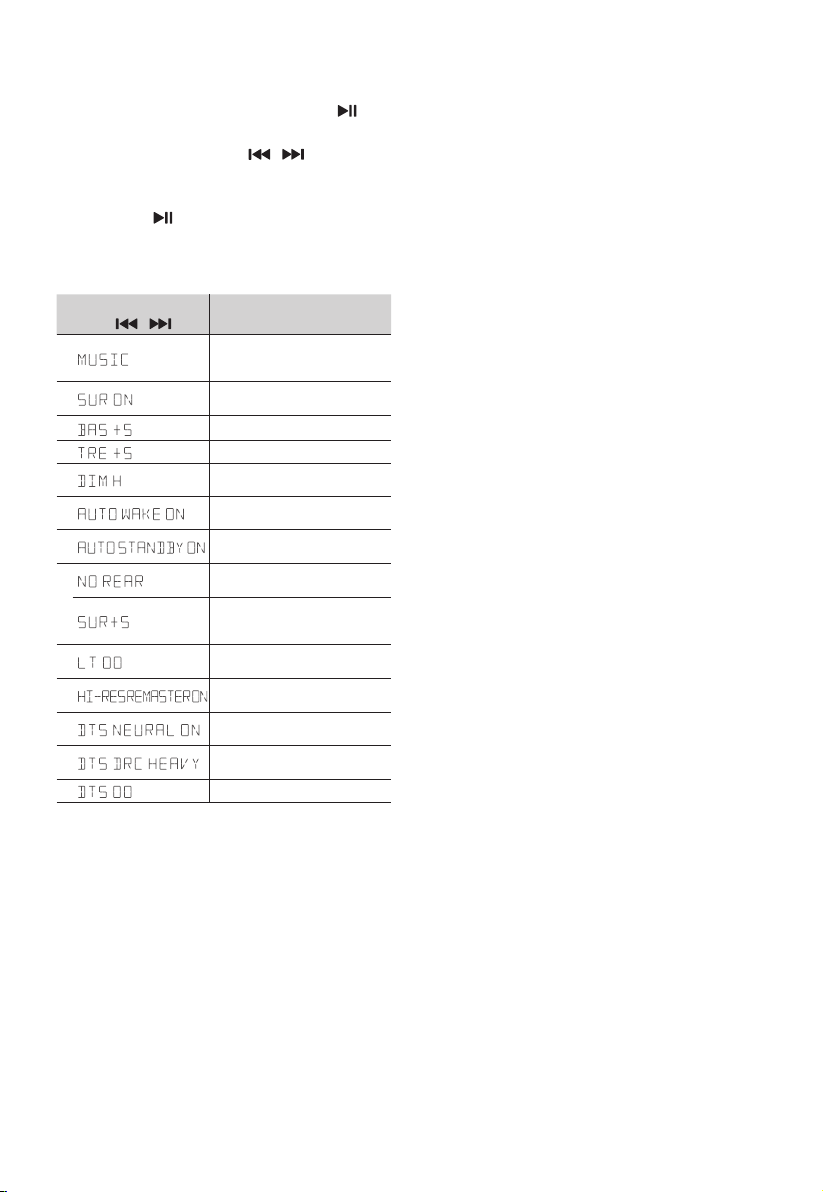
12. Setup Menu
1. During ON mode, press and hold the
button for 3 seconds to open the menu.
2. Select the content with
/
buttons.
3. Change the initial values for each of the
settings with VOL +/- buttons.
4. Press the
button to conrm your selection
and exit the settings.
• If no button is pressed within 15 seconds, the
system will automatically exit the menu.
Display
(press
/
)
Description
(press VOL + / - )
1
Select Equalizer (EQ) Eect
.
(
MUSIC, MOVIE, NEWS, SPORT,
NIGHT, GAME, AI EQ)
2
Switch Surround Sound
[ON / OFF]
3
Adjust the Bass Level
4
Adjust the Treble Level
5
Adjust the Brightness
(
Exit menu to take eect)
6
Switch Auto Wake
[ON / OFF]
7
Switch Auto Standby
[ON / OFF]
8
If there is no surround
connection. Not adjustable.
If there is surround connected.
Adjust the surround speakers
Volume
9
Set the Audio Delay
(AV SYNC)
10
Switch: HI-RES Remaster
[ON / OFF]
11
Switch: Dts Neural
[ON / OFF]
12
Switch: Dts Drc Heavy / Dts
Drc Mid / Dts Drc Min
13
Dts Dialog Control Value

22
13. Troubleshooting
To keep the warranty valid, never try to repair the
system yourself. If you encounter problems when
using this unit, check the following points before
requesting service.
No power
• Ensure that the AC cord of the apparatus is
properly connected .
• Ensure that there is power at the AC outlet.
• Press standby button to turn the unit on.
Remote control does not work
• Before you press any playback control
button, rst select the correct source.
• Reduce the distance between the remote
control and the unit.
• Insert the battery with its polarities (+/-)
aligned as indicated.
• Replace the battery.
• Aim the remote control directly at the sensor
on the front of the unit.
No sound
• Make sure that the unit is not muted. Press
or VOL+/– button to resume normal
listening.
• Press
button on the unit or on the remote
control to switch the soundbar to standby
mode. Then press the button again to
switch the soundbar on.
• Unplug both the soundbar and the
subwoofer from the mains socket, then plug
them again. Switch on the soundbar.
• Ensure the audio setting of the input source
(e.g. TV, game console, DVD player, etc.) is set to
PCM or Dolby Digital mode while using digital
(e.g. HDMI, OPTICAL, COAXIAL) connection.
• The subwoofer is out of range, please move
the subwoofer closer to the soundbar. Make
sure the subwoofer is within 5 m of the
soundbar (the closer the better).
• The soundbar may have lost connection with
the subwoofer. Re-pair the units by following
the steps on the section “Pairing the Wireless
Subwoofer with the Soundbar”.
• The unit may not be able to decode all digital
audio formats from the input source. In this
case, the unit will mute. This is NOT a defect.
device is not muted.
I can’t nd the Bluetooth name of this unit
on my Bluetooth device for Bluetooth
pairing
• Ensure the Bluetooth function is activated on
your Bluetooth device.
• Ensure you have paired the unit with your
Bluetooth device.
The Soundbar turns o
• When the unit's external input signal level is
too low, the Sound Bar will be automatically
turn o after 15 minutes. Please increase the
volume level of your external device.
The subwoofer is idle or the indicator of
subwoofer do not light up.
• Please unplug power cord from the mains
sockect, and plug it in again after 4 minutes
to reset the subwoofer.
Wi-Fi
Wi-Fi connection cannot be established.
• Check the availability of WLAN network on
the router.
• Place the Wi-Fi router closer to the unit.
• Make sure the password is correct.
• Check the WLAN function or reboot the
modem and Wi-Fi router.
Play-Fi
Cannot discover the Play-Fi supported devices
from the app.
Make sure the device is connected to the Wi-Fi.
Cannot play Play-Fi music.
• Certain network service or contents available
through the device may not be accessible
in case the service provider terminates its
service.
• When the rst time setup is not successful,
close the DTS Play-Fi. Restart the app.
• When the speaker is set as Stereo Pairs or
Surround Sound, the speaker need to be
disconnected in the app before being used
separately.
23
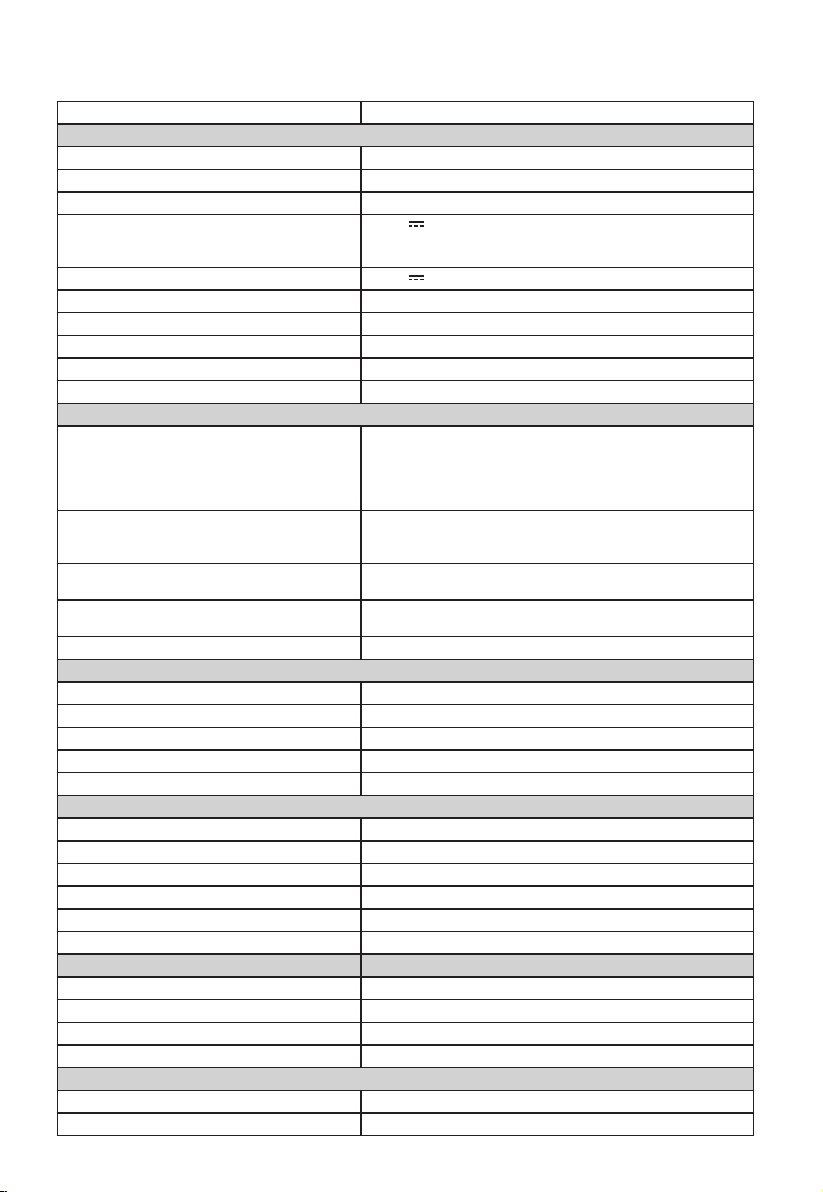
14. Specications
Model Name U5120GW+
Soundbar
Power Supply AC 100-240V~ 50/60Hz
Power Consumption 45 W
Standby Consumption < 0.5 W
USB port for playback
USB Compatibility
USB Playback support / le formats
5V
500mA
Hi-Speed USB (2.0) / FAT32 / FAT16
32G (max) , WAV/WMA/MP3/FLAC/DSD/ALAC
TYPE-C for the Dongle of wireless rear speaker 5V
500mA
Dimension (WxHxD) 1200 x 75 x 112 mm / 47.2" x 2.9" x 4.4
Net weight 5 kg / 11 lbs
Frequency Response 120Hz ~ 40KHz
Operating Humidity Range 40% ~ 60%
Operating Temperature 0°C - 45°C
Wireless Specication
Network supported
WiFi IEEE 802.11a/b/g/n/ac Wireless Frequency Band
(Wi-Fi) / Radio Frequency Power Transmitted (EIRP)
2.4G Wi-Fi: 2400 MHz~2483.5 MHz / ≤20dBm
5.1G Wi-Fi: 5150 MHz~5350 MHz / ≤20dBm
5.8G Wi-Fi: 5725 MHz~5850 MHz / ≤14dBm
Bluetooth version / proles
Bluetooth frequency range
Bluetooth Max. transmitting power (EIRP)
V 4.2 (A2DP, AVRCP)
2400 MHz ~ 2483.5 MHz
≤ 5 dBm
2.4G Wireless frequency range
2.4G Max. transmitting power (EIRP)
2400 MHz ~ 2483 MHz
≤ 10 dBm
5.8G Wireless frequency range
5.8G Max. transmitting power (EIRP)
5725 MHz ~ 5850 MHz
≤ 3 dBm
Modulation Type GFSK, π/4 DQPSK
Subwoofer
Power Supply AC 100-240V~ 50/60Hz
Power Consumption 50 W / < 0.5 W (StandBy)
Dimension (WxHxD) 250 x 355 x 250 mm / 9.8" x 14" x 9.8"
Net weight 7 kg / 15.4 lbs
Frequency Response 40Hz~120Hz
Rear Speakers
Power Supply AC 100-240V~ 50/60Hz
Power Consumption 15 W / < 0.5 W (StandBy)
Speaker
imped
ance
8 Ω (2.5” X 2)
Dimension (WxHxD) 91 x 144 x 113 mm / 3.6" x 5.6" x 4.4"
Net weight 0.7 kg / 1.5 lbs
Frequency Response 40Hz~120Hz
Amplier (audio output power)
Soundbar 330 W (30 W x 11
)
Subwoofer 180 W
Rear speaker 60W (30Wx2)
Total 570 W
Remote Control
Distance/Angle 19.7 feet (6m) / 30°
Battery type AAA (1.5V X 2)

U5120GW+
Hisense_U5120GW+_IFU (EN) V0.5_220310