

Ver. 3 07/22
Trademarks
• AccuBlend and MultiPresenter are trademarks or registered trademarks of Sharp NEC Display Solutions, Ltd. in
Japan, in the United States and other countries.
• Apple and Mac are trademarks of Apple Inc. registered in the U.S. and other countries.
• Microsoft and Windows are either a registered trademark or trademark of Microsoft Corporation in the United
States and/or other countries.
• Micro Saver is a registered trademark of Kensington Computer Products Group, a division of ACCO Brands in the
U.S. and other countries.
• The terms HDMI and HDMI High-Definition Multimedia Interface, and the HDMI Logo are trademarks or registered
trademarks of HDMI Licensing Administrator, Inc. in the United States and other countries.
• PJLink trademark and logo are trademarks applied for registration or are already registered in Japan, the United
States of America and other countries and areas.
• Blu-ray is a trademark of Blu-ray Disc Association.
• CRESTRON and ROOMVIEW are registered trademarks of Crestron Electronics, Inc. in the United States and other
countries.
• Other product names and logos mentioned in this user’s manual may be the trademarks or registered trademarks
of their respective holders.
• GPL/LGPL Software Licenses
The product includes software licensed under GNU General Public License (GPL), GNU Lesser General Public
License (LGPL), and others.
For more information on each software, see “readme.pdf” in the “about GPL&LGPL” folder on the supplied CD-
ROM.
NOTES
(1) The contents of this user’s manual may not be reprinted in part or whole without permission.
(2) The contents of this user’s manual are subject to change without notice.
(3) Great care has been taken in the preparation of this user’s manual; however, should you notice any questionable
points, errors or omissions, please contact us.
(4) Notwithstanding article (3), NEC will not be responsible for any claims on loss of profit or other matters deemed
to result from using the Projector.
(5) This manual is commonly provided to all regions so they may contain descriptions that are pertinent for other
countries.
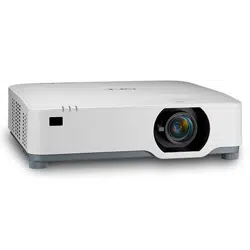
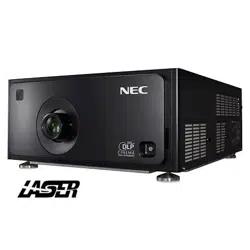
(6) PE506UL/PE506WL and PE456USL/PE456WSL differ only in the appearance of the lens. Unless it involves the
introduction of lens-related functions, the drawings of other projector cabinets are shown with PE506UL as an
example.
I
Important Information
Important Information
Safety Cautions
Precautions
Please read this manual carefully before using your NEC projector and keep the manual handy for future reference.
CAUTION
To turn off main power, be sure to remove the plug from power outlet.
The power outlet socket should be installed as near to the equipment as possible, and should be easily
accessible.
CAUTION
TO PREVENT SHOCK, DO NOT OPEN THE CABINET.
THERE ARE HIGH-VOLTAGE COMPONENTS INSIDE.
REFER SERVICING TO QUALIFIED SERVICE PERSONNEL.
This symbol warns the user that uninsulated voltage within the unit may be sufficient to cause electrical
shock. Therefore, it is dangerous to make any kind of contact with any part inside of the unit.
This symbol alerts the user that important information concerning the operation and maintenance of this
unit has been provided.
The information should be read carefully to avoid problems.
WARNING: TO PREVENT FIRE OR SHOCK, DO NOT EXPOSE THIS UNIT TO RAIN OR MOISTURE.
DO NOT USE THIS UNIT’S PLUG WITH AN EXTENSION CORD OR IN AN OUTLET UNLESS ALL THE PRONGS
CAN BE FULLY INSERTED.
Machine Noise Information Regulation - 3. GPSGV,
The highest sound pressure level is less than 70 dB (A) in accordance with EN ISO 7779.
CAUTION
Avoid displaying stationary images for a prolonged period of time.
Doing so can result in these images being temporarily sustained on the surface of the LCD panel.
If this should happen, continue to use your projector. The static background from previous images will
disappear.
Disposing of your used product
In the European Union
EU-wide legislation as implemented in each Member State requires that used electrical and electronic
products carrying the mark (left) must be disposed of separately from normal household waste. This in-
cludes projectors and their electrical accessories. When you dispose of such products, please follow the
guidance of your local authority and/or ask the shop where you purchased the product.
After collecting the used products, they are reused and recycled in a proper way. This effort will help us
reduce the wastes as well as the negative impact to the human health and the environment at the mini-
mum level.
The mark on the electrical and electronic products only applies to the current European Union Member
States.
Outside the European Union
If you wish to dispose of used electrical and electronic products outside the European union, please
contact your local authority and ask for the correct method of disposal.
For EU: The crossed-out wheeled bin implies that used batteries should not be put to the general household
waste! There is a separate collection system for used batteries, to allow proper treatment and recycling
in accordance with legislation.
According to EU directive 2006/66/EC, the battery can’t be disposed improperly. The battery shall
be separated to collect by local service.
II
Important Information
FCC Information (for USA only)
WARNING
• The Federal Communications Commission does not allow any modifications or changes to the unit EXCEPT those
specified by Sharp NEC Display Solutions of America, Inc. in this manual. Failure to comply with this government
regulation could void your right to operate this equipment.
• This equipment has been tested and found to comply with the limits for a class A digital device, pursuant to Part
15 of the FCC Rules. These limits are designed to provide reasonable protection against harmful interference when
the equipment is operated in a commercial environment. This equipment generates, uses, and can radiate radio
frequency energy and, if not installed and used in accordance with the instruction manual, may cause harmful
interference to radio communications. Operation of this equipment in a residential area is likely to cause harmful
interference in which case the user will be required to correct the interference at his own expense.
Supplier’s declaration of conformity (for USA only)
This device complies with Part 15 of the FCC Rules. Operation is subject to the following two conditions.
(1) This device may not cause harmful interference, and (2) this device must accept any interference received, includ-
ing interference that may cause undesired operation.
U.S.Responsible Party: Sharp NEC Display Solutions of America, Inc.
Address: 3250 Lacey Rd, Ste 500
Downers Grove, IL 60515
Telephone Number: 630-467-3000
Type of Product: Projector
Equipment Classification: Class A Peripheral
Model Number: NP-PE506UL/NP-PE456USL/NP-PE506WL
For UK only: In UK, a BS approved power cord with moulded plug has a Black (five Amps) fuse installed for use with
this equipment. If a power cord is not supplied with this equipment please contact your supplier.
NOTE:
• UKCA is for PE506UL/PE506WL model only.
(For Germany only)
Machine Noise Information Regulation - 3. GPSGV,
The highest sound pressure level is less than 70 dB (A) in accordance with EN ISO 7779.
Information of the AUDIO OUT mini jack
The AUDIO OUT mini jack does not support earphone/headphone terminal.
III
Important Information
(For Customers in U.K.)
IMPORTANT
• The wires in this mains lead are coloured in accordance with the following code:
GREEN-AND-YELLOW: “Earth”
BLUE: “Neutral”
BROWN: “Live”
• As the colours of the wires in the mains lead of this apparatus may not correspond with the coloured markings
identifying the terminals in your plug proceed as follows:
• The wire which is coloured GREEN-AND-YELLOW must be connected to the terminal in the plug which is marked
by the letter E or by the safety earth symbol or coloured green or green-and-yellow.
• The wire which is coloured BLUE must be connected to the terminal which is marked with the letter N or co-
loured black.
• The wire which is coloured BROWN must be connected to the terminal which is marked with the letter L or
coloured red.
• Ensure that your equipment is connected correctly. If you are in any doubt consult a qualified electrician.
“WARNING: THIS APPARATUS MUST BE EARTHED.”
Important Safeguards
These safety instructions are to ensure the long life of your projector and to prevent fire and shock. Please read
them carefully and heed all warnings.
Installation
• Do not place the projector in the following conditions:
- on an unstable cart, stand, or table.
- near water, baths, or damp rooms.
- in direct sunlight, near heaters, or heat radiating appliances.
- in a dusty, smoky or steamy environment.
- on a sheet of paper or cloth, rugs or carpets.
• Avoid locations with extremes of temperature and humidity.
The usage environment of this projector is as follows.
- The operating temperature: 0° to 40°C (32° to 104° F) / humidity: 20 to 80% (with no condensation)
- The storage temperature: –10°C to 50°C (14 to 122°F) / humidity: 20 to 80% (with no condensation)
• If you wish to have the projector installed on the ceiling:
- Do not attempt to install the projector yourself.
- The projector must be installed by qualified technicians in order to ensure proper operation and reduce the risk
of bodily injury.
- In addition, the ceiling must be strong enough to support the projector and the installation must be in accordance
with any local building codes.
- Please consult your dealer for more information.
• Do not install and store the projector in the below circumstances. Failure to do so may cause of malfunction.
- In powerful magnetic fields
- In corrosive gas environment
- Outdoors
• If intense light like laser beams enters from the lens, it could lead to malfunction.
CAUTION
This equipment is designed to be used in the condition of the power cord connected to earth. If the
power cord is not connected to the earth, it may cause electric shock. Please make sure the power
cord is earthed properly.
Do not use a 2-core plug converter adapter.
Cable information
CAUTION
Use shielded cables or cables attached ferrite cores so as not to interfere with radio and television
reception. For details, please refer to “Making Connections” in this user’s manual.
IV
Important Information
Notice Concerning Electromagnetic Interference (EMI)
WARNING:
Operation of this equipment in a residential environment could cause radio interference.
WARNING
• Operation of this equipment in a residential environment could cause radio interference.
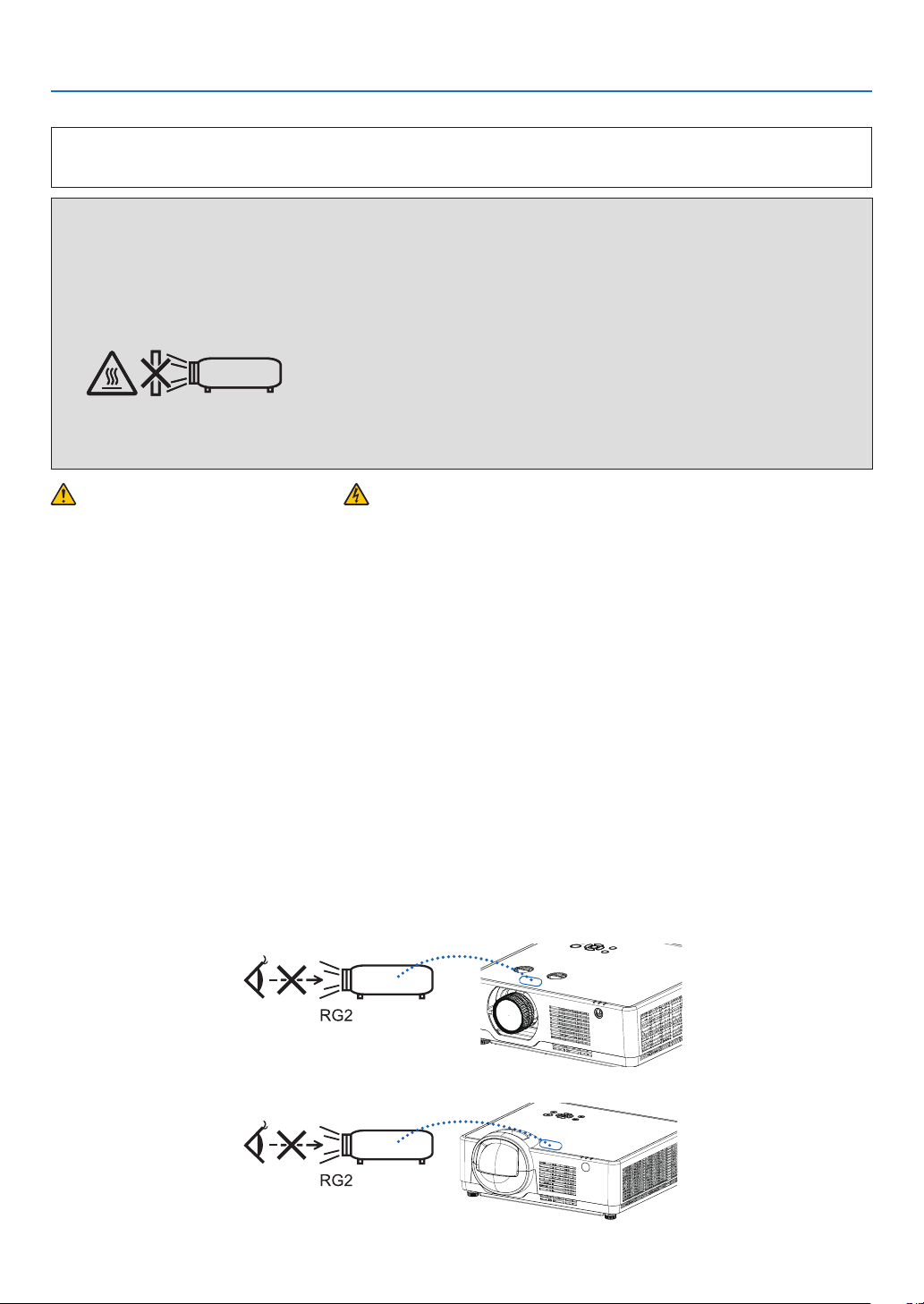
• Do not cover the lens with the lens cap or equivalent while the projector is on. Doing so can lead to melting
of the cap due to the heat emitted from the light output.
• Do not place any objects, which are easily affected by heat, in front of the projection lens. Doing so could lead
to the object melting from the heat that is emitted from the light output.
• Do not use a spray containing flammable gas to get rid of accumulated dust and dirt on the filter and the
projection window. It may cause of fire.
Fire and Shock Precautions
• Ensure that there is sufficient ventilation and that vents are unobstructed to prevent the build-up of heat inside
your projector. Allow at least 4 inches (10 cm) of space between your projector and a wall.
• Prevent foreign objects such as paper clips and bits of paper from falling into your projector. Do not attempt to
retrieve any objects that might fall into your projector. Do not insert any metal objects such as a wire or screwdriver
into your projector. If something should fall into your projector, disconnect it immediately and have the object
removed by a qualified service personnel.
• Do not place any objects on top of the projector.
• Do not touch the power plug during a thunderstorm. Doing so can cause electrical shock or fire.
• The projector is designed to operate on a power supply of 100-240V AC 50/60 Hz. Ensure that your power supply
fits this requirement before attempting to use your projector.
• About the projector’s light source
- Do not look into the projector’s lens.
Strong light that could damage your eyes is projected when the projector is operating. Be especially careful
when children are around.
- Do not look at the projected light using optical devices (magnifying glasses, reflectors, etc.). Doing so could
result in vision impairment.
- Check that there is no one looking at the lens within the projection range before turning on the projector.
- Do not allow children to operate the projector alone. When a child is operating the projector an adult should
always be present and watch the child carefully.
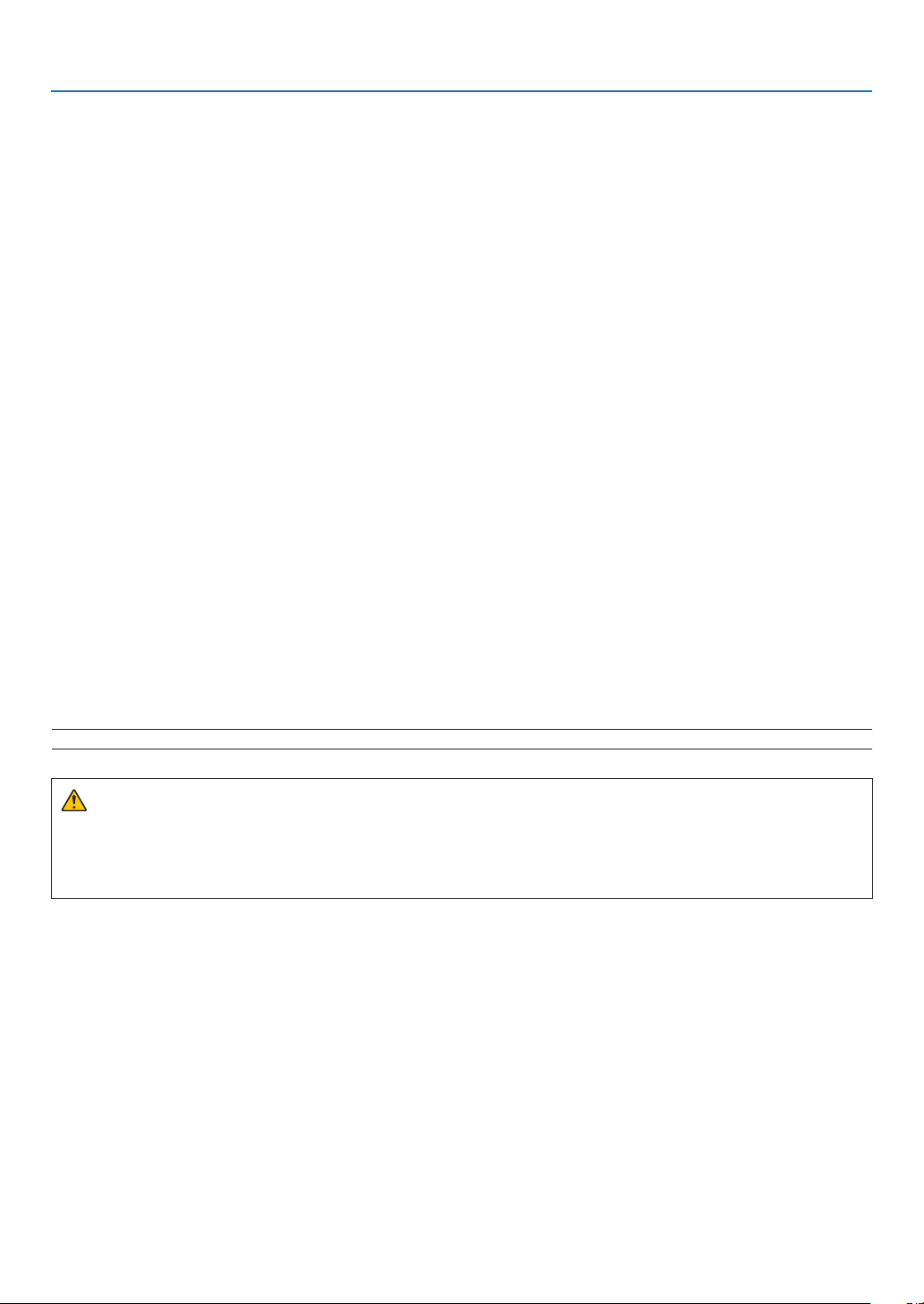
- The below pictogram, that is indicated near the lens on the cabinet, describes this projector is categorized in
the risk group 2 of IEC/EN 62471-5:2015. As with any bright light source, do not stare into the beam, RG2 IEC/
EN 62471-5:2015.
(Model for PE506UL and PE506WL only)
(Model for PE456USL and PE456WSL only)
V
Important Information
• Keep any items such as magnifying glass out of the light path of the projector. The light being projected from the
lens is extensive, therefore any kind of abnormal objects that can redirect light coming out of the lens, can cause
unpredictable outcome such as fire or injury to the eyes.
• Do not place any objects, which are easily affected by heat, in front of a projector exhaust vent.
Doing so could lead to the object melting or getting your hands burned from the heat that is emitted from the
exhaust.
• Do not splash water over the projector. Doing so can cause electrical shock or fire. If the projector gets wet, turn
off the projector, unplug the power cord and have the projector serviced by a qualified service personnel.
• Handle the power cord carefully. A damaged or frayed power cord can cause electric shock or fire.
- Do not use any power cord other than the one supplied with the projector.
- Do not bend or tug the power cord excessively.
- Do not place the power cord under the projector, or any heavy object.
- Do not cover the power cord with other soft materials such as rugs.
- Do not heat the power cord.
- Do not handle the power plug with wet hands.
• Turn off the projector, unplug the power cord and have the projector serviced by a qualified service personnel
under the following conditions:
- When the power cord or plug is damaged or frayed.
- If liquid has been spilled into the projector, or if it has been exposed to rain or water.
- If the projector does not operate normally when you follow the instructions described in this user’s manual.
- If the projector has been dropped or the cabinet has been damaged.
- If the projector exhibits a distinct change in performance, indicating a need for service.
• Disconnect the power cord and any other cables before carrying the projector.
• Turn off the projector and unplug the power cord before cleaning the cabinet.
• Turn off the projector and unplug the power cord if the projector is not to be used for an extended period of time.
• When using a LAN cable:
For safety, do not connect to the terminal for peripheral device wiring that might have excessive voltage.
• Lens shift, focus and zoom operations.
- When shifting the lens or adjusting the focus or zoom, do so from either behind or to the side of the projector.
If these operations are performed from the front, your eyes could be exposed to strong light and get injured..
- Keep your hands away from the lens area when performing the lens shift operation. If not, your fingers could get
caught in the cap between the cabinet and the lens.
CAUTION
• Do not use the adjustable tilt foot for purposes other than originally intended. Misuses such as gripping the
tilt-foot or hanging on the wall can cause damage to the projector.
• Do not turn off the AC power for 60 seconds after the light source is turned on and while the POWER indicator
is blinking blue. Doing so could cause premature Light failure.
Remote Control Precautions
• Handle the remote control carefully.
• If the remote control gets wet, wipe it dry immediately.
• Avoid excessive heat and humidity.
• Do not short, heat, or take apart batteries.
• Do not throw batteries into fire.
• If you will not be using the remote control for a long time, remove the batteries.
• Ensure that you have the batteries’ polarity (+/−) aligned correctly.
• Do not use new and old batteries together, or use different types of batteries together.
• Dispose of used batteries according to your local regulations.
NOTE: [Lens shift] functions are only available for PE506UL/PE506WL.

VI
Laser Safety Caution
!
WARNING
CLASS 1 OF IEC 60825-1 THIRD EDITION LASER PRODUCT
• The laser module is equipped in this product. Use of controls or adjustments of procedures other than those
specified herein may result in hazardous radiation exposure.
For USA
COMPLIES WITH 21 CFR 1040.10 AND 1040.11 EXCEPT FOR CONFORMANCE AS A RISK GROUP 2 LIP AS DE-
FINED IN IEC/EN 62471-5:ED.1.0. FOR MORE INFORMATION SEE LASER NOTICE NO. 57, DATED MAY 8, 2019.
For other regions (including USA)
This product is classified as Class 1 of IEC 60825-1 Third edition 2014-05 and RG2 of IEC/EN 62471-5 First edition
2015-06.
• Obey the laws and regulations of your country in relation to the installation and management of the device.
• Outline of laser emitted from the built-in light module:
Wave length: 449-461nm
Maximum power: 105W
• Radiation pattern from the protective housing:
Wave length: 449-461nm
Maximum laser radiation output: 66.6mW(PE506UL/PE506WL)
19.04mW(PE456USL/PE456WSL)
The laser module is equipped in this product. Use of controls or adjustments of procedures other than those
specified herein may result in hazardous radiation exposure.
Light Module
• A light module containing multiple laser diodes is equipped in the product as the light source.
• These laser diodes are sealed in the light module. No maintenance or service is required for the performance
of the light module.
• End user is not allowed to replace the light module.
• Contact qualified distributor for light module replacement and further information.
Important Information
VII
• As with any bright light source, do not stare into the beam, RG2 IEC/EN 62471-5:2015.
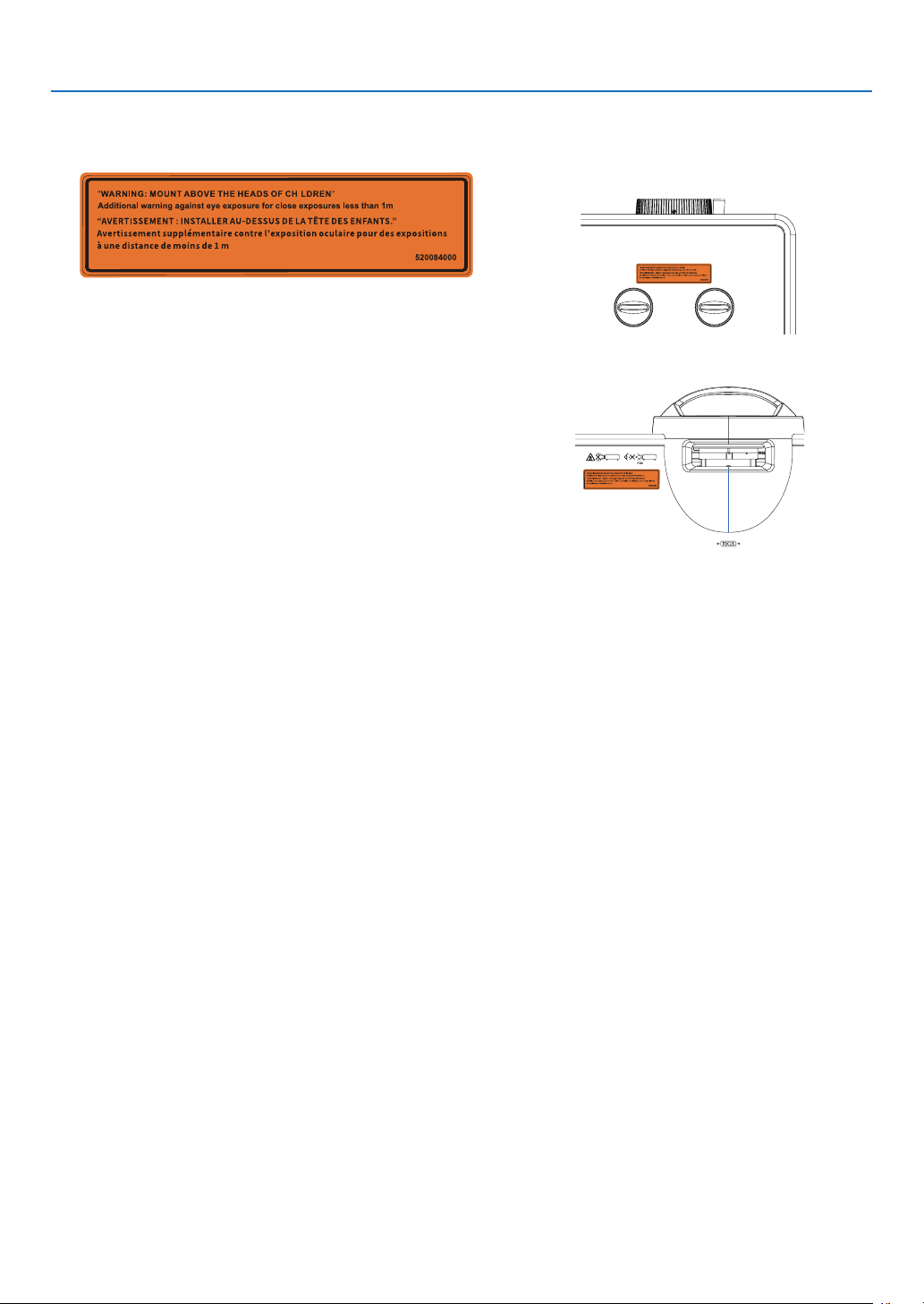
Label 1
FDA additional warning label (For USA only)
NP-PE506UL
LABEL(Warning)
520084000
2021/08/30
SONG
SONG
I
[PE506UL/PE506WL]
I
[PE456USL/PE456WSL]
• The laser module is equipped in this product Use of controls or adjustments of procedures other than those
specified herein may result in hazardous radiation exposure.
• Additional instructions to supervise children, no staring, and not use optical aids.
• Notice is given to supervise children and to never allow them to stare into the projector beam at any distance
from the projector.
• Notice is given to use caution when using the remote control for starting the projector while in front of the
projection lens.
• Notice is given to the user to avoid the use of optical aids such as binoculars or telescopes inside the beam.
• When turning on the projector, make sure no one within projection range is looking at the lens.
• Keep any items (magnifying glass etc.) out of the light path of the projector. The light path being projected
from the lens is extensive, therefore any kind of abnormal objects that can redirect light coming out of the lens.
can cause an unpredictable outcome such as a fire or injury to the eyes.
• WARNING:MOUNT ABOVE THE HEADS OF CHILDREN.
The use of a ceiling mount is recommended with this product to place it above the eyes of children.
• Any operation or adjustment not specifically instructed by the user's guide creates the risk of hazardous
radiation.
Important Information
VIII
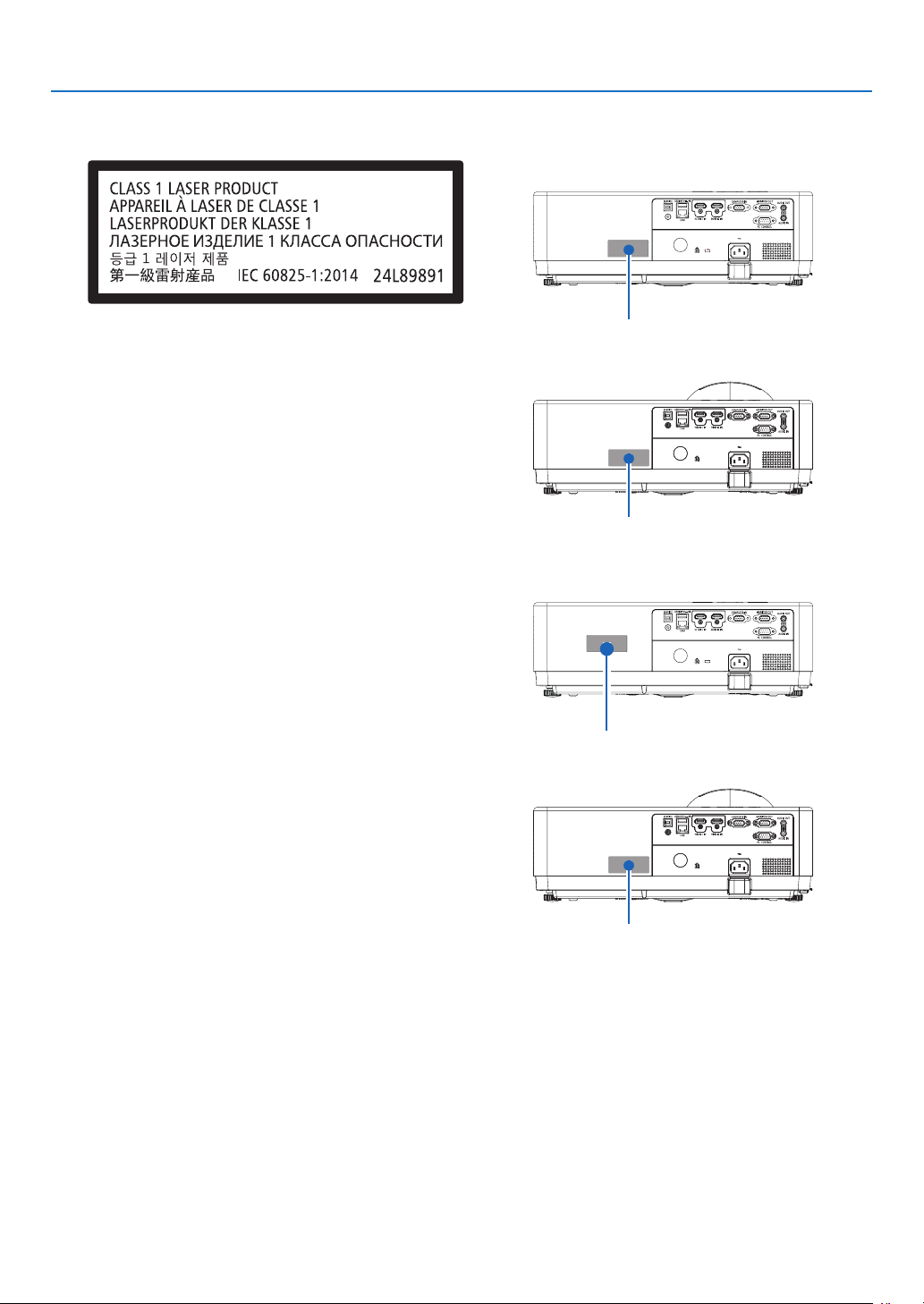
Label 2
Class 1 laser product label (For other regions)
NP-PA1004ULG
LABEL(LASER G)(PA1004UL)
24L8989□
T01L636□
2020/02/21
Abe
Lee
Utsunomiya
Yamada
For USA
[PE506UL/PE506WL]
Label 2
[PE456USL]
Label 2
For other regions
[PE506UL/PE506WL]
Label 2
[PE456USL/PE456WSL]
Label 2
Important Information
IX
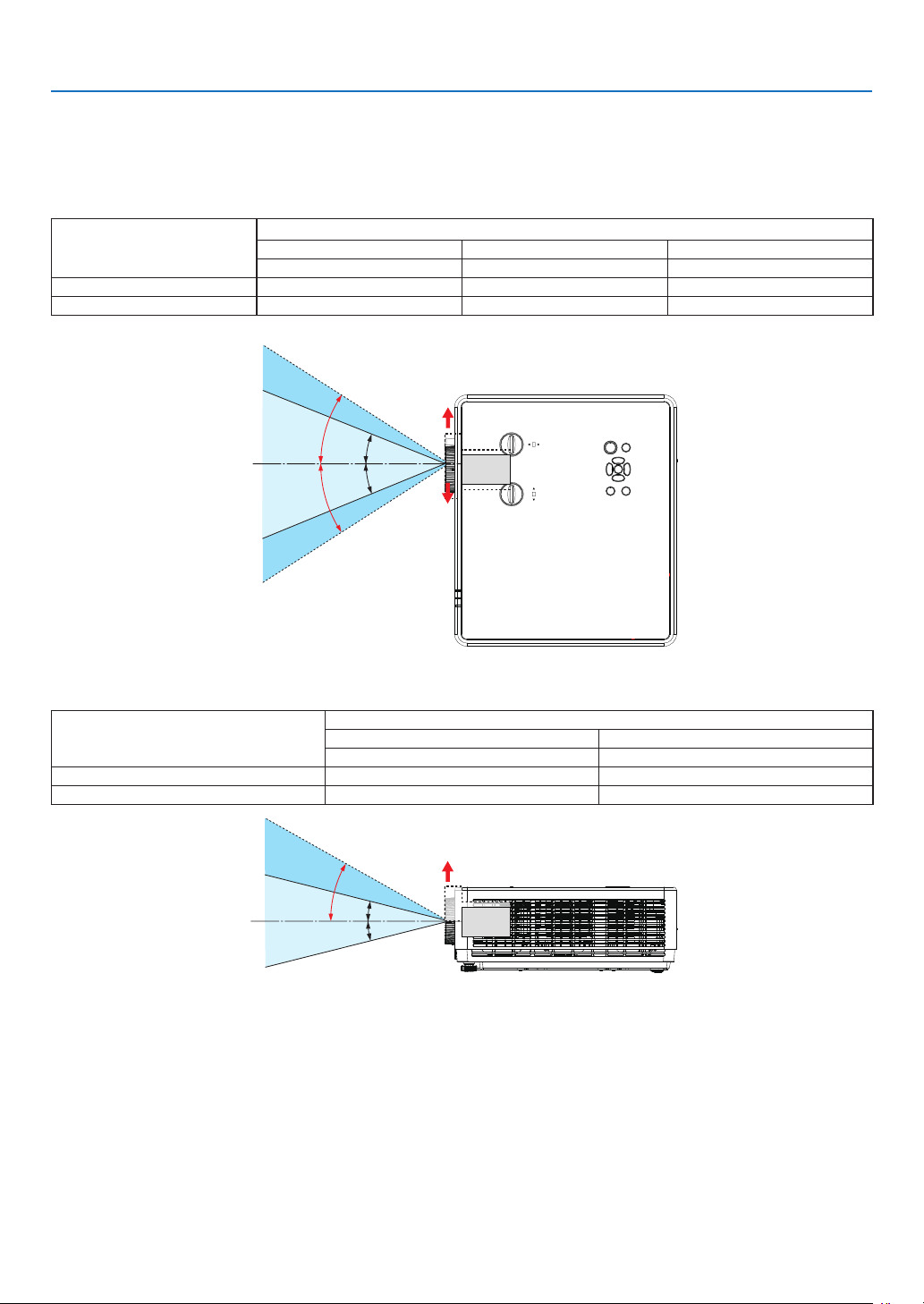
Laser light radiation range
The figure below shows the maximum radiation range of the laser light.
[PE506UL/PE506WL]
Horizontal angle (unit: degree)
Zoom
Lens position
Right most Center (Reference value) Left most
HR HC HL
Wide 33.0 22.3 33.0
Tele 21.8 14.2 21.8
Vertical angle (unit: degree)
Zoom
Lens position
Upper most Center (Reference value)
VU VC
Wide 29.5 14.4
Tele 19.2 9.0
HC
HC
HL
HR
VU
VC
VC
Upper
Left
Right
Important Information
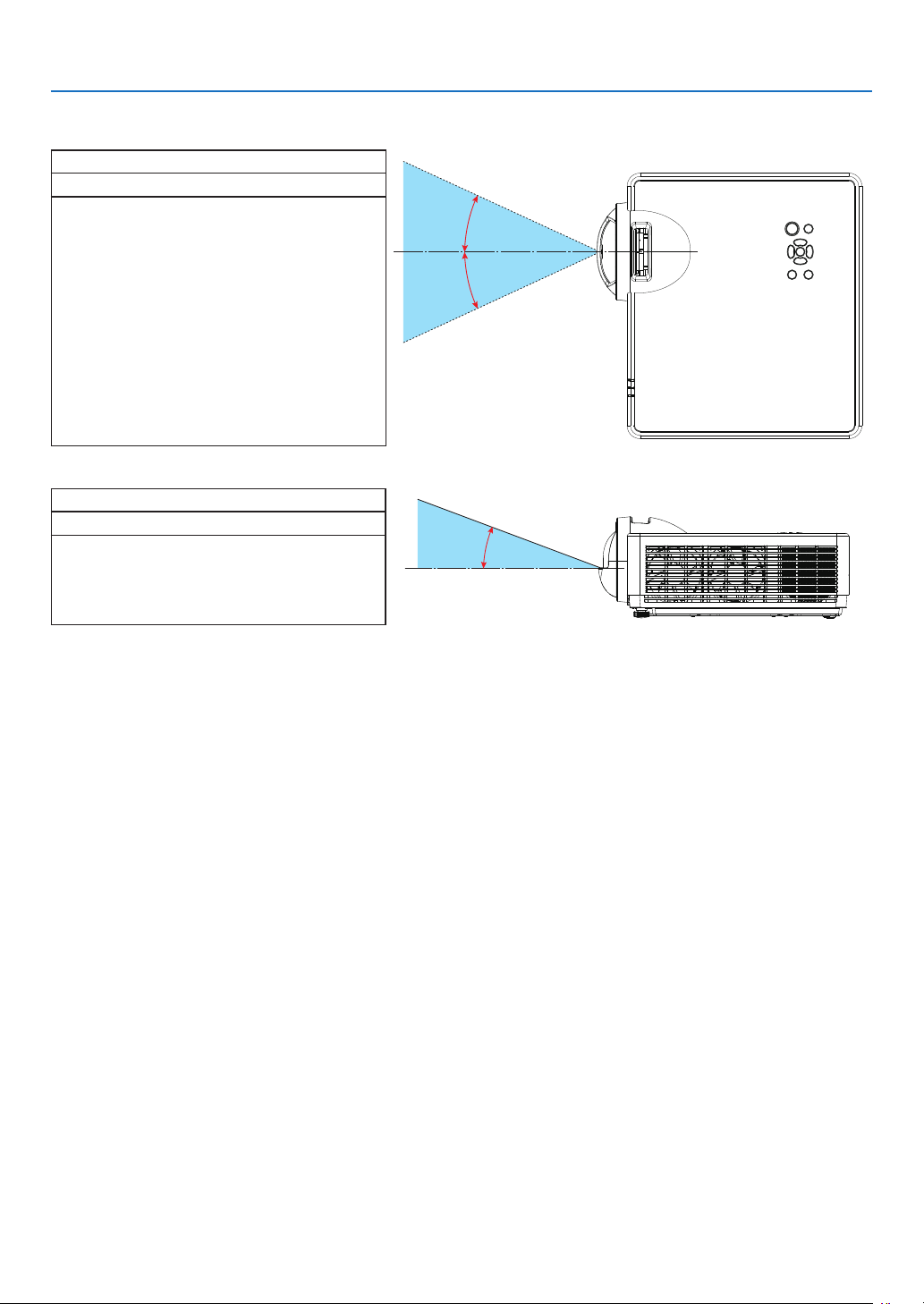
X
[PE456USL/PE456WSL]
Horizontal angle (unit: degree)
Lens position
HC
HC
HC
49.0
Vertical angle (unit: degree)
Lens position
VC
VC
55.2
Important Information
XI
About High Altitude mode
• Set [High altitude] to [ON] in the Setting menu when using the projector at altitudes approximately 1700
meters / 5577 feet or higher.
Using the projector at an altitude of about 1700 meters / 5577 feet or more without setting [High altitude] to
[ON] can cause the projector to overheat and shut down the protector.
• Using the projector at altitudes approximately 1700 meters / 5577 feet or higher can shorten the life of optical
components such as the light module.
• When the projector is at altitudes approximately 1700 meters / 5577 feet or higher, it will switch from [OFF] to
[ON]automatically.
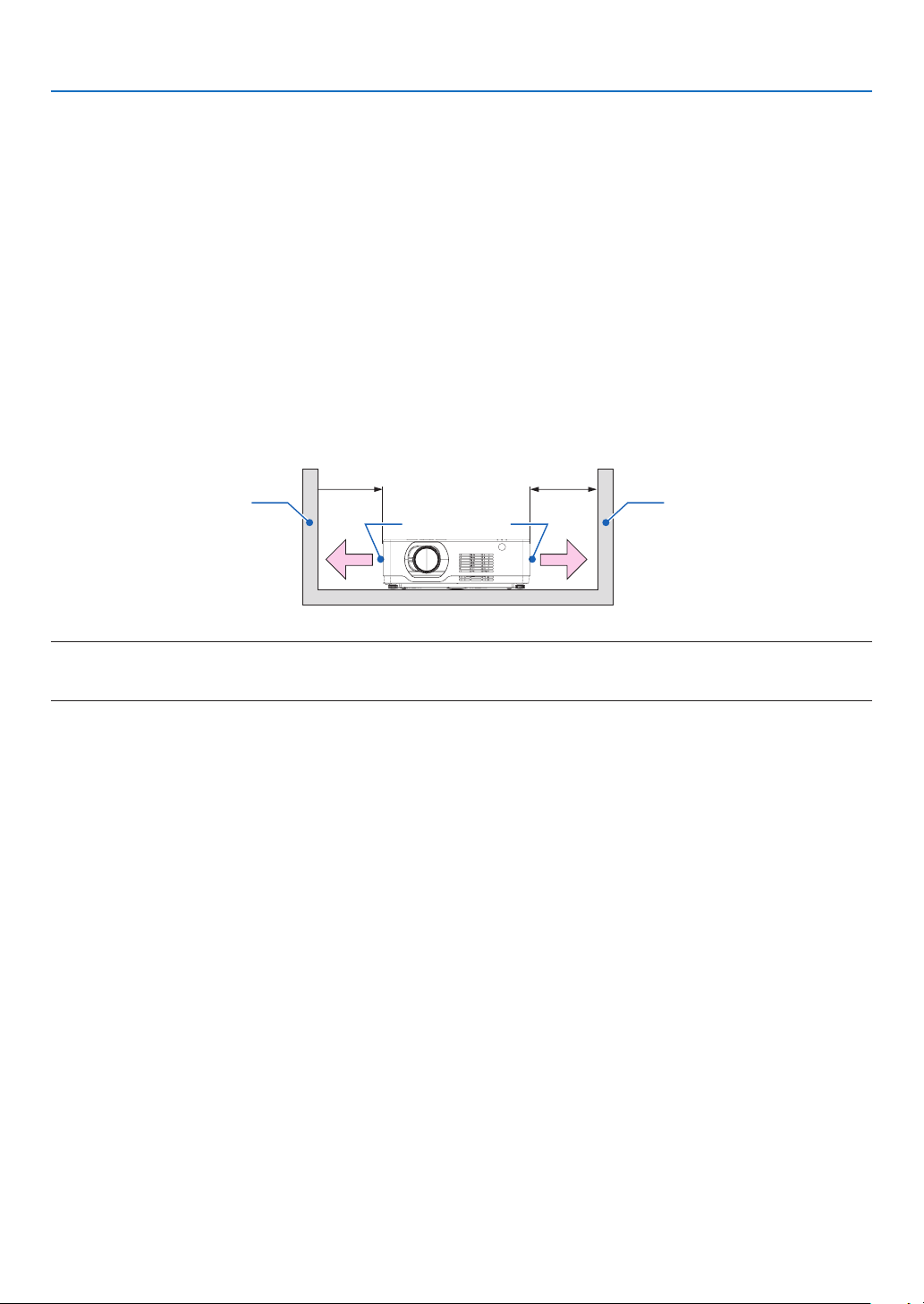
Clearance for Installing the Projector
When installing the projector, keep sufficient space around it, as described below. If not, the hot exhaust emitted
from the projector may be taken back in.
Also, make sure no wind from an air-conditioner hits the projector. The projector’s heat control system may detect
an abnormality (temperature error) and automatically shut off the power.
20 cm/8" or greater20 cm/8" or greater
Exhaust
vent
Intake
vent
Wall
Wall
NOTE:
In the above figure, it is assumed that there is sufficient space above the projector. There is also an intake vent in the front. Leave about
10 cm or more space behind, and even more space for installing the cables.
Precautions for Ceiling Installation
Do not install the projector in the following places. Attached substances such as oil, chemicals and
moisture may cause deformation or cracks of the cabinet, corrosion of the metal parts, or malfunction.
• Outdoors and places with humid or dust.
• Places exposed to oil smoke or steam.
• Places where corrosive gases are generated.
About Copyright of original projected pictures:
Please note that using this projector for the purpose of commercial gain or the attraction of public attention in a venue
such as a coffee shop or hotel and employing compression or expansion of the screen image with the following
functions may raise concern about the infringement of copyrights which are protected by copyright law.
[ASPECT], [KEYSTONE], Magnifying feature and other similar features.
Turkish WEEE information relevant for Turkish market
AEEE Yonetmeliğine Uygundur.
This device is not intended for use in the direct field of view at visual display workplaces. To avoid incommoding
reflections at visual display workplaces this device must not be placed in the direct field of view.
Power management function
The projector has power management functions. To reduce power consumption, the power management functions
(1 and 2) are factory preset as shown below. To control the projector from an external device via serial cable con-
nection, use the on-screen menu to change the settings for 1 and 2.
Important Information
XII
1. STANDBY MODE (Factory preset: NORMAL)
To control the projector from an external device, select [NETWORK STANDBY] or [SLEEP] for [STANDBY MODE].
NOTE:
• When [NORMAL] is selected for [STANDBY MODE], the following terminals and functions will not work:
MONITOR OUT terminal, AUDIO OUT terminal, LAN functions. Please refer to page 39 about details.
2. Power management (Factory preset: Ready)
To control the projector from an external device, select [OFF] for [Power management].
NOTE:
• When [5 Min] is selected for [Timer], you can enable the projector to automatically turn off in 5 Min if there is no signal received by any
input or if no operation is performed.
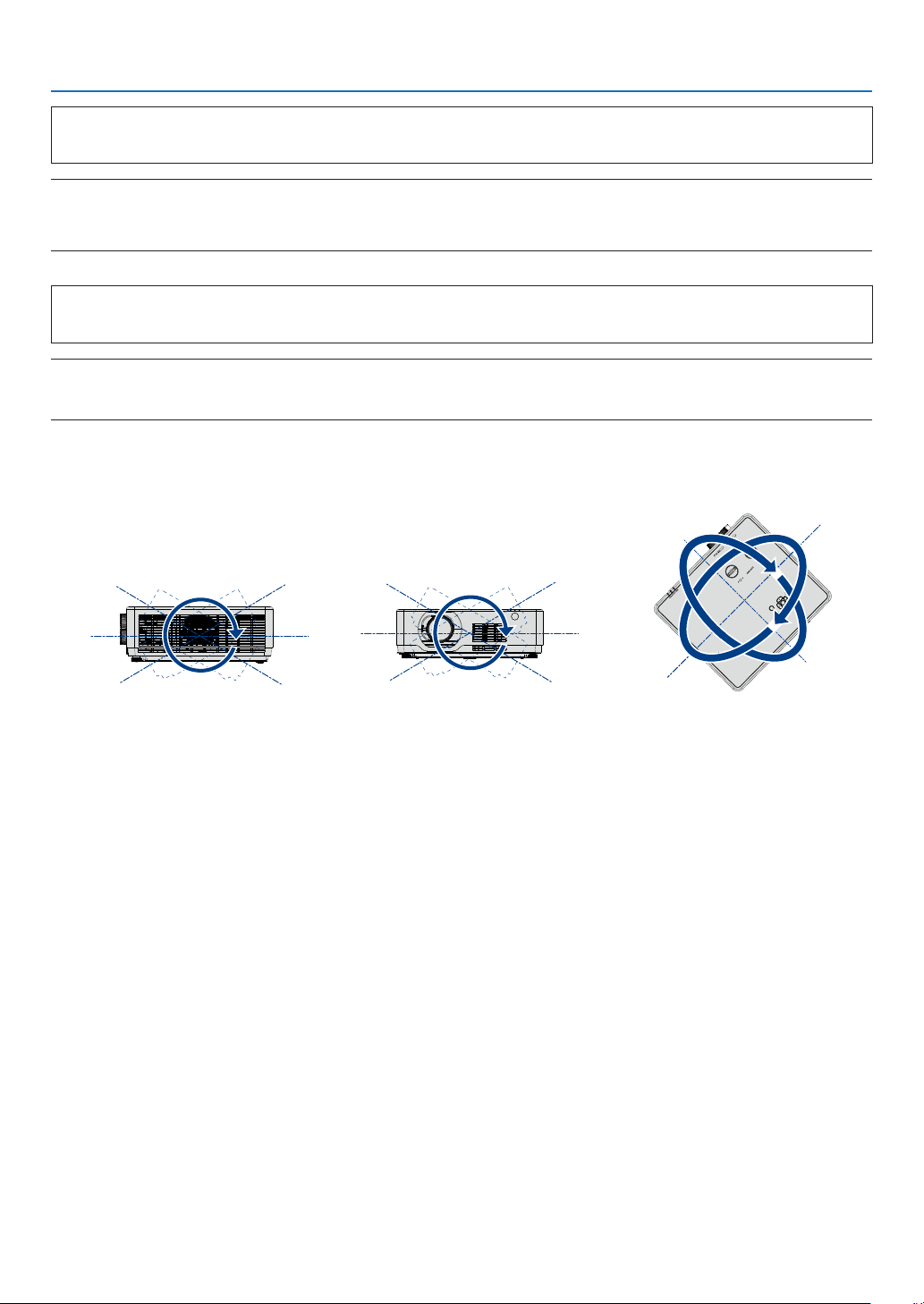
360° projection function
Our projector support 360° projection.
Vertical 360°
菜单
信号源
退出
决定
横向 360°
竖向 360°
(竖向与横向的组合)
Horizontal 360°
菜单
信号源
退出
决定
横向 360°
竖向 360°
(竖向与横向的组合)
Vertical & Horizontal 360°
菜单
MENU
信号源
SOURCE
退出
EXIT
决定
ENTER
横向 360°
竖向 360°
(竖向与横向的组合)
Important Information

Table of Contents
Table of Contents
Important Information ............................................................... I
1. Introduction ......................................................................... 1
❶ What’s in the Box? ........................................................................................................ 1
❷ Introduction to the Projector ......................................................................................... 2
About this user’s manual ......................................................................................... 2
❸ Part Names of the Projector .......................................................................................... 3
Front/Top ................................................................................................................. 3
Rear ......................................................................................................................... 4
Top Features ............................................................................................................ 5
Terminal Panel Features ........................................................................................... 6
❹ Part Names of the Remote Control ............................................................................... 7
Battery Installation ................................................................................................... 8
Remote Control Precautions ................................................................................... 8
Operating Range for Wireless Remote Control ....................................................... 8
Angle sensor ............................................................................................................ 9
2. Projecting an Image (Basic Operation) ............................... 10
❶ Flow of Projecting an Image ........................................................................................ 10
❷ Connecting Your Computer/Connecting the Power Cord ........................................... 11
❸ Turning on the Projector .............................................................................................. 12
❹ Change the On-Screen menu language ...................................................................... 13
5 Selecting a Source ...................................................................................................... 14
Selecting the computer source .............................................................................. 14
6 Adjusting the Picture Size and Position ...................................................................... 15
Adjust the Tilt Foot................................................................................................. 17
Zoom...................................................................................................................... 18
Focus ..................................................................................................................... 18
Lens shift ............................................................................................................... 19
7 Correcting Keystone Distortion [KEYSTONE] ............................................................. 21
8 Optimizing Computer Signal Automatically ................................................................ 23
Adjusting the Image Using Auto Adjust ................................................................. 23
9 Turning Up or Down Volume ....................................................................................... 23
❿ Turning off the Projector .............................................................................................. 24
When Moving the Projector ......................................................................................... 25
3. Convenient Features .......................................................... 26
❶ Turning off the Image and Sound ................................................................................ 26
❷ Freezing a Picture ........................................................................................................ 26
❸ Magnifying a Picture .................................................................................................... 26
4. Using the VIEWER .............................................................. 28
USB-A function ................................................................................................................ 28
5. Using On-Screen Menu ...................................................... 30
❶ Menu item overview .................................................................................................... 30
❷ List of Menu Items ....................................................................................................... 31

Table of Contents
❸ Menu Descriptions & Functions [INPUT] ..................................................................... 34
Computer ............................................................................................................... 34
HDMI1 and HDMI2 ................................................................................................ 34
USB-A .................................................................................................................... 34
LAN ........................................................................................................................ 34
❹ Menu Descriptions & Functions [Display menu] .......................................................... 35
[Auto PC adj.] ......................................................................................................... 35
[Fine sync] .............................................................................................................. 35
[H position] ............................................................................................................. 35
[V position] ............................................................................................................. 36
[H. size] .................................................................................................................. 36
[Aspect] .................................................................................................................. 36
[Orientation] ........................................................................................................... 37
[Menu position] ...................................................................................................... 37
[Background display] ............................................................................................. 38
[Signal format] ........................................................................................................ 38
❺ Menu Descriptions & Functions [Color adjust] ............................................................ 39
[Image mode] ......................................................................................................... 39
[Contrast] ............................................................................................................... 40
[Brightness] ............................................................................................................ 40
[Color temp.] .......................................................................................................... 40
[Red]....................................................................................................................... 40
[Green] ................................................................................................................... 40
[Blue] ...................................................................................................................... 40
[Sharpness] ............................................................................................................ 40
6 Menu Descriptions & Functions [Setting] .................................................................... 41
[On start] ................................................................................................................ 41
[Standby mode] ..................................................................................................... 42
[High altitude] ......................................................................................................... 42
[Cooling fast] .......................................................................................................... 43
[Key lock] ............................................................................................................... 44
[Contrast optimization] ........................................................................................... 44
[Baud rate] ............................................................................................................. 44
[Laser control] ........................................................................................................ 45
[Sound]................................................................................................................... 46
[HDMI setup] .......................................................................................................... 46
❼ Menu Descriptions & Functions [Expand] ................................................................... 47
[Language] ............................................................................................................. 47
[Auto setup]............................................................................................................ 48
[Keystone] .............................................................................................................. 49
[Security] ................................................................................................................ 52
[Power management] ............................................................................................. 53
[Filter] ..................................................................................................................... 54
[Test pattern] .......................................................................................................... 54
[Network setup]...................................................................................................... 55
[Control ID] ............................................................................................................. 56
[Factory default] ..................................................................................................... 57
❽ Menu Descriptions & Functions [USB-A] .................................................................... 57
[Set slide] ............................................................................................................... 58
[Slide transition effect] ........................................................................................... 58
[Sort order] ............................................................................................................. 58
[Rotate] .................................................................................................................. 58
[Best fit] .................................................................................................................. 58

Table of Contents
[Repeat].................................................................................................................. 59
[Apply] .................................................................................................................... 59
❾ Menu Descriptions & Functions [Info.] ........................................................................ 60
6. Network control ................................................................. 61
❶ Network control operation ........................................................................................... 61
❷ Enter through a Web browser ...................................................................................... 62
Connecting Your Computer ................................................................................... 62
❸ [System status] page ................................................................................................... 63
4 [General setup] page ................................................................................................... 63
❺ [Picture setup] page .................................................................................................... 63
❻ [Image setup] page ...................................................................................................... 64
❼ [Network setup] page .................................................................................................. 65
7. Installation and Connections ............................................. 66
❶ Setting Up the Screen and the Projector .................................................................... 66
Tables of screen sizes and dimensions ................................................................. 69
Example of installation on a desktop ..................................................................... 70
Lens shift range ..................................................................................................... 73
❷ Making Connections ................................................................................................... 75
Connecting Your Computer ................................................................................... 75
Cautions when using a DVI signal ......................................................................... 76
Connecting an External Monitor ............................................................................ 77
Connecting Component Input ............................................................................... 78
Connecting HDMI Input ......................................................................................... 79
Connecting to a Wired LAN ................................................................................... 80
Connecting to a Wireless LAN ............................................................................... 80
8. Connecting with MultiPresenter app .................................. 83
1 Things you can do by connecting the projector with MultiPresenter app................... 83
2 Connecting to MultiPresenter ...................................................................................... 84
9. Maintenance ...................................................................... 85
❶ Cleaning the Filter ....................................................................................................... 85
❷ Cleaning the Lens ........................................................................................................ 87
❸ Cleaning the Cabinet ................................................................................................... 87
10. Appendix .......................................................................... 88
❶ Troubleshooting ........................................................................................................... 88
Common Problems & Solutions............................................................................. 88
If there is no picture, or the picture is not displayed correctly. .............................. 89
Feature of each indicator ....................................................................................... 90
Indicator Message (Status message) .................................................................... 90
Indicator Message (Error message) ....................................................................... 91
❷ Specifications .............................................................................................................. 93
❸ Cabinet Dimensions .................................................................................................... 95
❹ Pin Assignments of D-Sub COMPUTER Input Terminal ............................................. 98
❺ Compatible Input Signal List ....................................................................................... 99

Table of Contents
❻ PC Control Codes and Cable Connection ................................................................ 100
❼ Troubleshooting Check List ....................................................................................... 102
❽ REGISTER YOUR PROJECTOR! (for residents in the United States, Canada, and
Mexico) ................................................................................................................ 104
1
1. Introduction
❶ What’s in the Box?
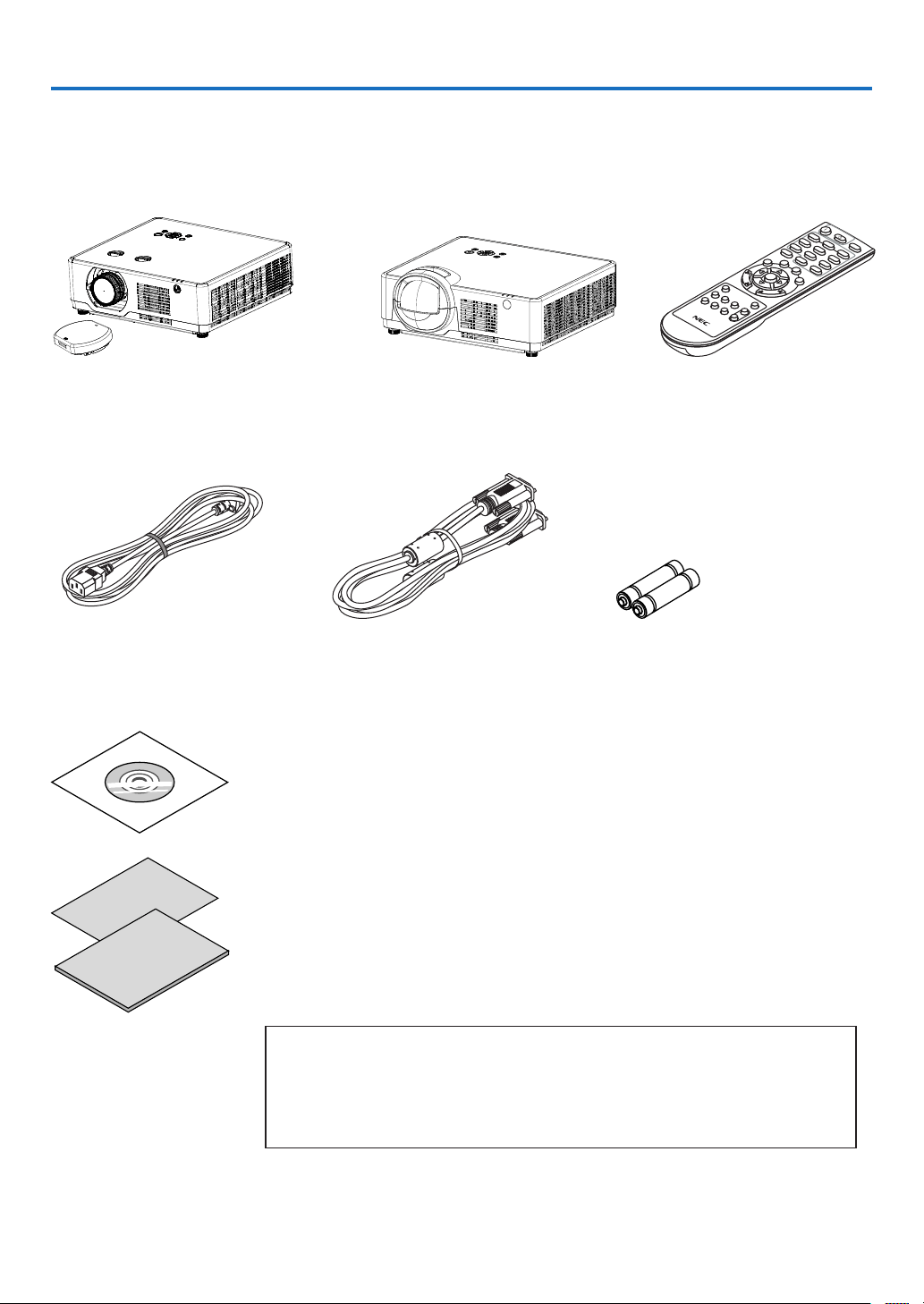
Make sure your box contains everything listed. If any pieces are missing, contact your dealer.
Please save the original box and packing materials if you ever need to ship your projector.
Projector
[PE506UL/PE506WL]
Lens cap × 1
(440165301)
(Only for PE506UL )
[PE456USL/PE456WSL] Remote control
(393004710)
Power cord
(US: 310004900)
(EU: 310003100)
Computer cable (VGA)
(310002200)
Batteries (AAA × 2)
(391003200)
NEC Projector CD-ROM
User’s manual (PDF) (510054502)
• Important Information (510054602)
[PE506UL/PE506WL]
• Quick Setup Guide
(For North America: 510054802)
(For Other countries than North
America: 510054701 and 510054802)
[PE456USL/PE456WSL]
• Quick Setup Guide
(For North America: 510066100)
(For Other countries than North
America: 510066200 and 510066100)
For North America only
Limited warranty
For customers in Europe:
You will find our current valid Guarantee Policy on our Web Site:
https://www.sharpnecdisplays.eu

2
1. Introduction
❷ Introduction to the Projector
This section introduces you to your new projector and describes the features and controls.
• Support High Resolution Signal
The projector has the Multi-scan system to conform to many output signals. Up to WUXGA (COMPUTER),
4K@30Hz (HDMI).
• Useful Functions for Presentations
The digital zoom function allows you to focus on the crucial information during a presentation.
• Light source • Brightness
• A long-life laser diode is equipped in the light module.
The product can be operated at low cost because the laser light source can be used for a long time without
replacement or maintenance.
• Brightness can be adjusted
Unlike with ordinary light source, the brightness can be adjusted from 50 to 100% when Normal mode.
• Multi-language Menu Display
The screen menu of the projector is available in 27 languages: English, German, French, Italian, Spanish, Pol-
ish, Swedish, Dutch, Portuguese, Japanese, Simplified Chinese, Traditional Chinese, Korean, Russian,Arabic,
Turkish, Finnish, Norwegian, Danish, Indonesian, Hungarian, Czech, Kazakh, Vietnamese, Thai, Farsi, Roma-
nia.
• Convenient Maintenance Functions
Filter maintenance functions provide for better and proper maintenance of the projector.
• Security Function
The Security function helps you to ensure security of the projector. With the Key lock function, you can lock
the operation on the control panel. PIN code lock function prevents unauthorized use of the projector.
• Color board Function
At the time of simple projection on the colored wall, you can get the close color image to the color image pro-
jected on a white screen by selecting the similar color to the wall color from the preset four colors.
• Energy-saving
The Power management function reduces power consumption and maintains the light source life.
• Lot6, Lot26 supported with energy saving technology.
Select [Standby mode] supports Lot6, Select [Network Standby] supports Lot26.
• [ECO MODE] for low power consumption and [CARBON METER] display.
The projector has ECO MODE to refrain power consumption. Furthermore, the power-saving effect when the
[ECO MODE] is set is converted into the amount of reductions of CO2 emissions and this is indicated on the
confirmation message displayed on-screen menu [CARBON METER].
• Network
• CRESTRON ROOMVIEW compatibility
• Support the “MultiPresenter” Function.
About this user’s manual
The fastest way to get started is to take your time and do everything right the first time. Take a few minutes now to
review the user’s manual. This may save you time later on. At the beginning of each section of the manual you’ll find
an overview. If the section doesn’t apply, you can skip it.
3
1. Introduction
❸ Part Names of the Projector
Front/Top
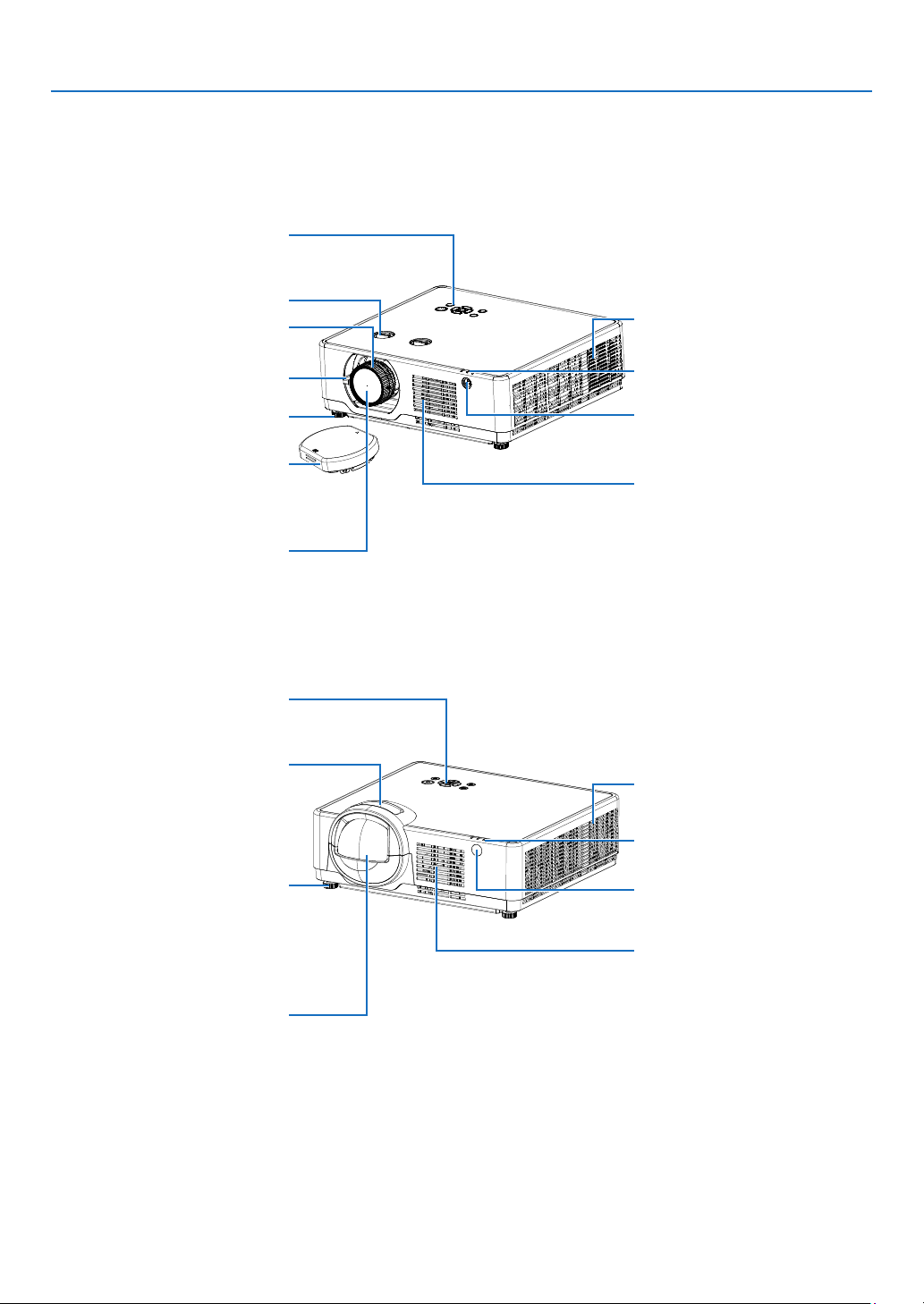
[PE506UL/PE506WL]
Controls
(→ page 5)
Controls
(→ page 5)
Lens shift dial (→ page 19)
Front Remote Sensor
(→ page
8)
Front Remote Sensor
(→ page
8)
Intake Vent
Intake Vent
Exhaust Vent
Heated air is exhausted from here.
Exhaust Vent
Heated air is exhausted from here.
Indicators
(→ page 5)
Indicators
(→ page
5)
Zoom Lever
(→ page 18)
Focus Ring
(→ page
18)
Focus Ring
(→ page 18)
Adjustable Tilt Foot
(→ page
17)
Adjustable Tilt Foot
(→ page
17)
Lens
Lens
Lens Cap
(For PE506UL only)
For protecting lens.
Make sure to take it off during
projection.
[PE456USL/PE456WSL]
4
1. Introduction
Rear
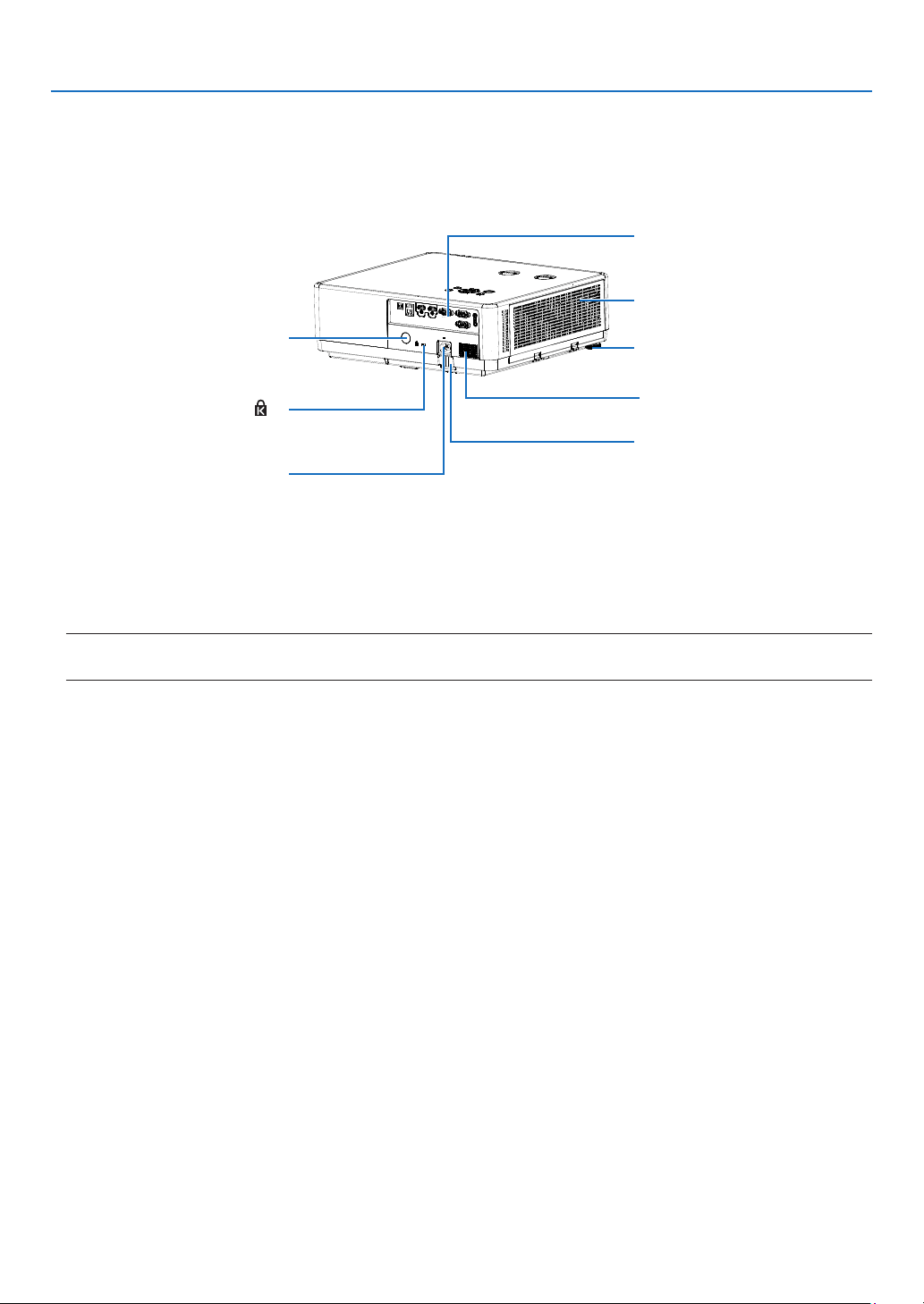
* This security slot supports the Micro Saver
®
Security System.
NOTE:
• Security and theft protection lock compatible with Kensington security cables/equipment. For products, visit Kensington’s website.
Security chain opening
Attach an anti-theft device.
The security chain opening accepts
security wires or chains up to
0.18 inch/4.6 mm in diameter.
Rear Remote Sensor
(→ page
8)
Built-in Security Slot (
)*
Use for the theft prevention measure.
AC Input
Connect the supplied power cord’s
three-pin plug here, and plug the
other end into an active wall outlet.
(→ page
11)
Terminal Panel
(→ page 6)
Intake Vent / Filter Cover
(→ page 85)
Adjustable Tilt Foot
(→ page
17)
Monaural Speaker (16 W)
5
1. Introduction
Top Features
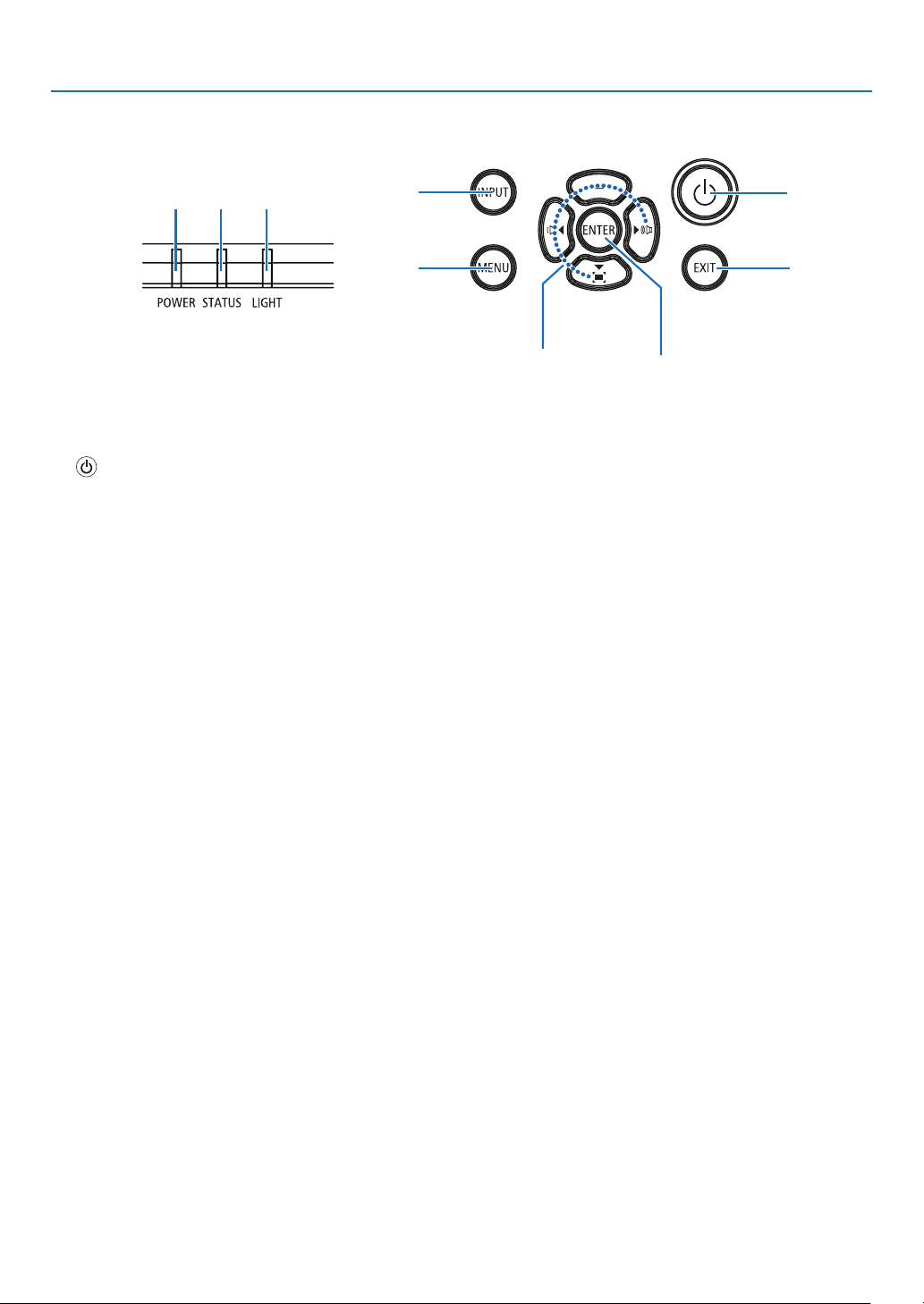
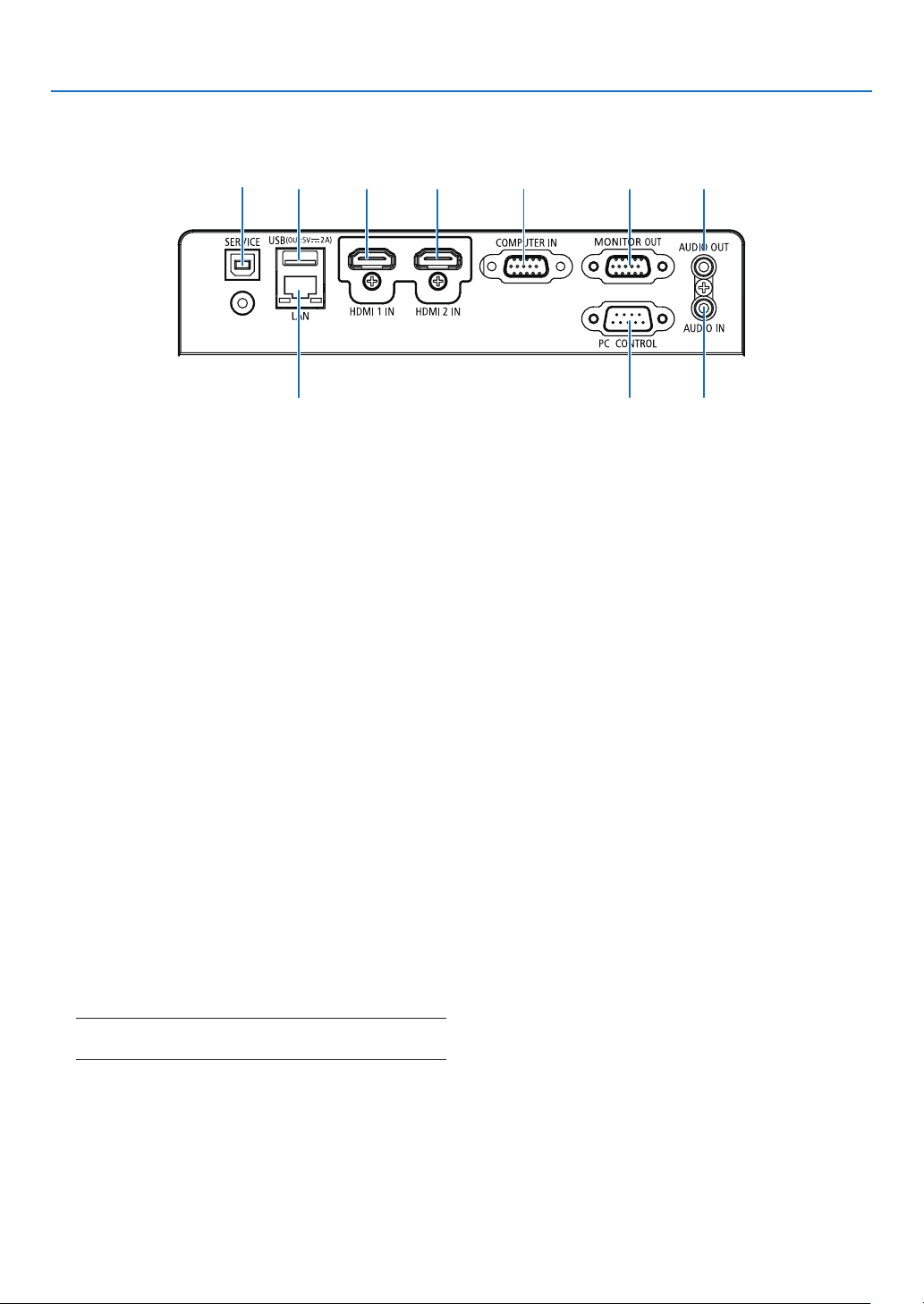
1.
(POWER) Button
(→ page 12, 24)
2. LIGHT Indicator
(→ page
90 )
3. STATUS Indicator
(→ page
90)
4. POWER Indicator
(→ page
12, 24, 25, 90)
5. INPUT Button
(→ page
14)
6. MENU Button
(→ page
30)
7. EXIT Button
8. ▲▼◀▶ / Volume Buttons ◀▶ / Keystone Button ▼
(→ page
21, 23)
9. ENTER Button
4 3 2
7
5
6
1
8
9
6
1. Introduction
Terminal Panel Features
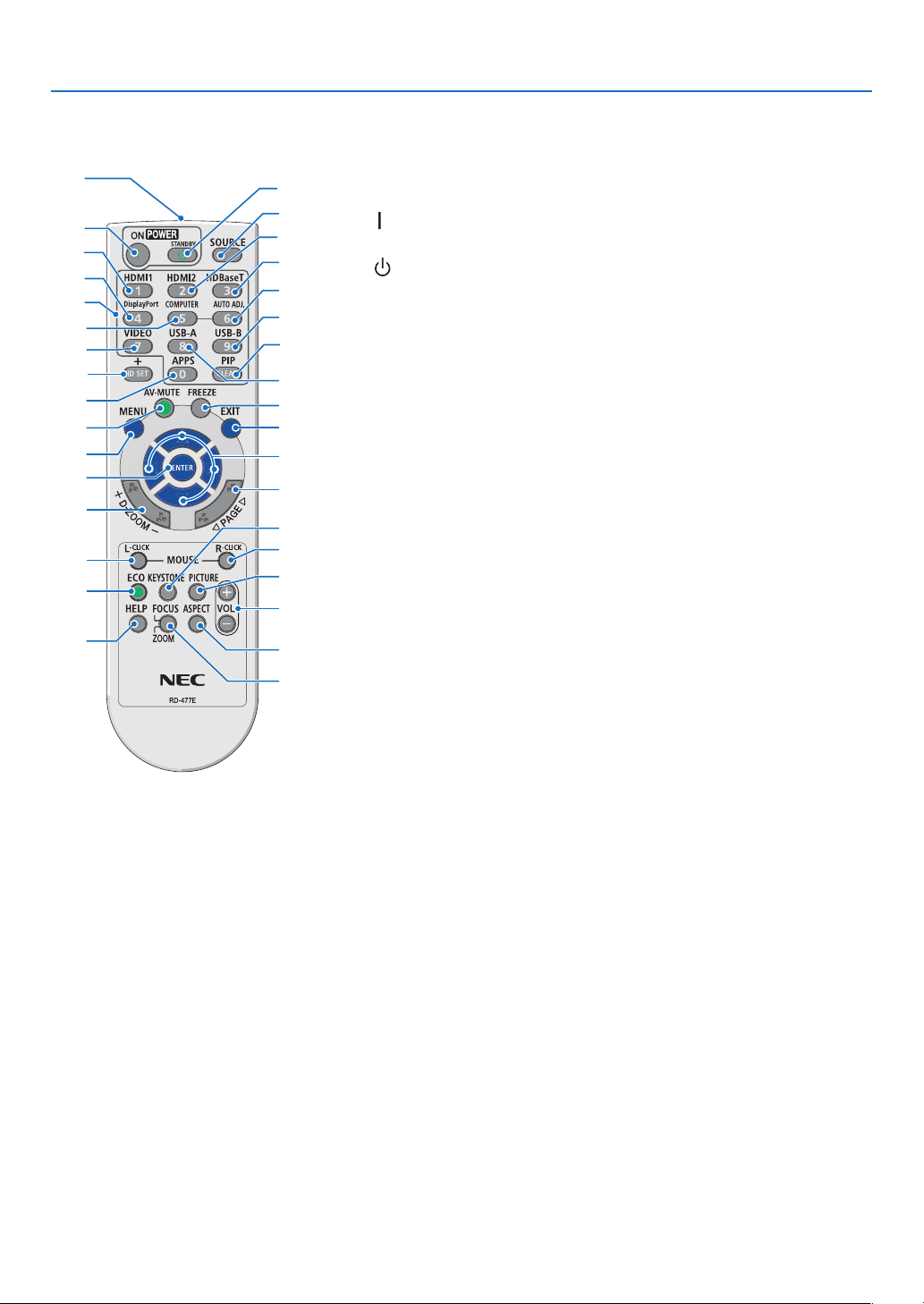
1. SERVICE Port (USB Type B)
(for service purpose only)
2. USB Port (Type A)
For USB memory
(→ page
28)
3. LAN Port (RJ-45)
(→ page
80)
4. HDMI 1 IN Terminal (Type A)
(→ page
75, 76, 79)
5. HDMI 2 IN Terminal (Type A)
(→ page
75, 76, 79)
6. COMPUTER IN/ Component Input Terminal
(Mini D-Sub 15 Pin)
(→ page
11, 75, 78)
7. MONITOR OUT Terminal (Mini D-Sub 15 Pin)
(→ page
77)
8. PC CONTROL Port (D-Sub 9 Pin)
(→ page
100)
Use this port to connect a PC or control system.
This enables you to control the projector using serial
communication protocol. If you are writing your own
program, typical PC control codes are on page 100.
9. AUDIO OUT Mini Jack (Stereo Mini)
(→ page
77)
NOTE: The AUDIO OUT mini jack does not support earphone/
headphone terminal.
10. AUDIO IN Mini Jack (Stereo Mini)
(→ page 78)
10
14
5 6 7
3
9
2
8
7
1. Introduction
❹ Part Names of the Remote Control
6
1
15
17
31
32
33
21
22
27
29
30
26
25
24
23
28
34
20
19
12
11
3
4
7
2
9
5
8
14
18
10
13
16
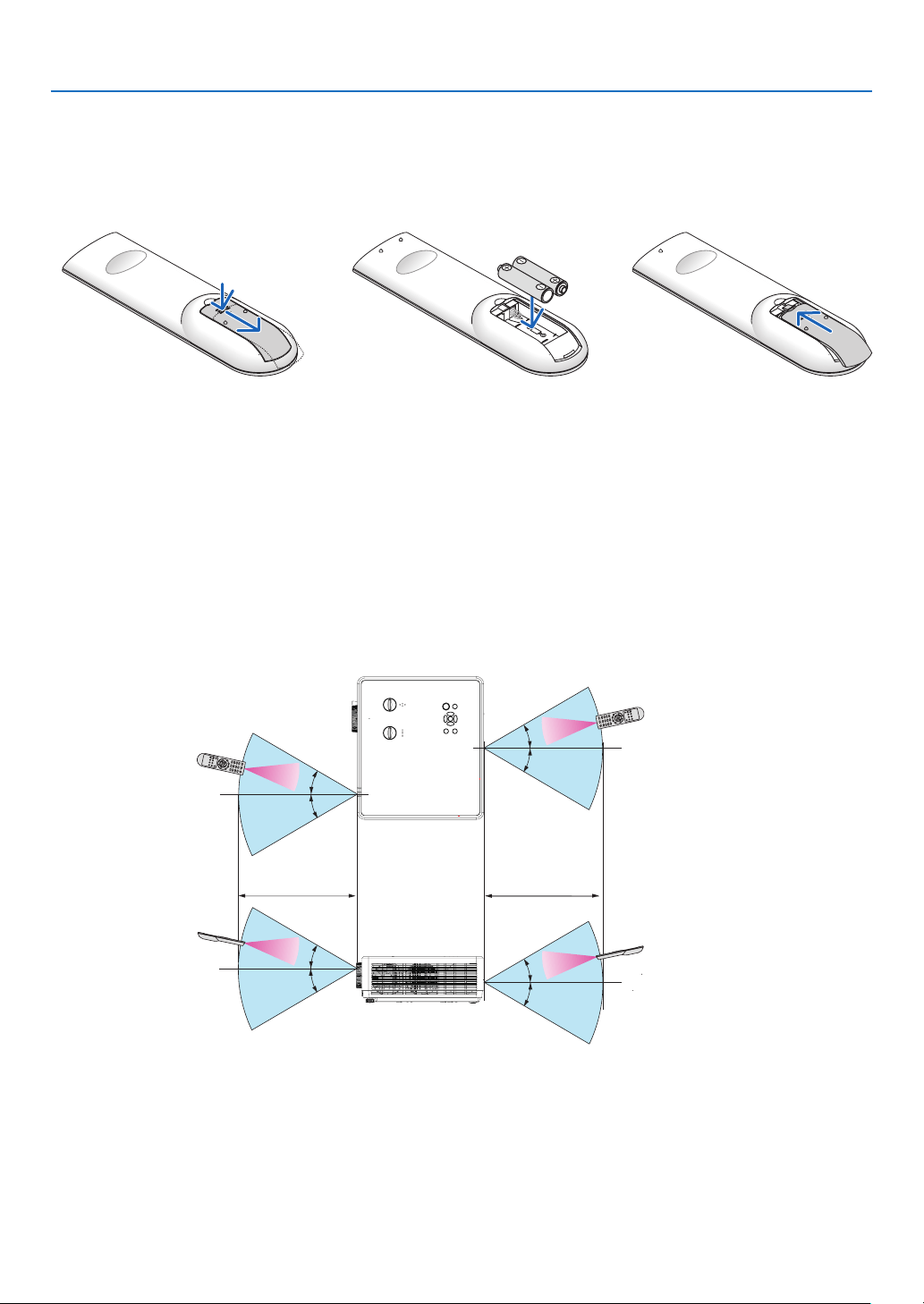
1. Infrared Transmitter
(→ page 8)
2. (
) POWER ON Button
(→ page 12)
3. (
)POWER STANDBY
Button
(→ page
24)
4. SOURCE Button
(→ page
14)
5. HDMI 1 Button
(→ page
14)
6. HDMI 2 Button
(→ page
14)
7. HDBaseT Button
(This button does not work on this
series of projectors)
8. DisplayPort Button
(This button does not work on this
series of projectors)
9. COMPUTER Button
(→ page 14)
10. AUTO ADJ. Button
(→ page
23)
11. VIDEO Button
(This button does not work on this
series of projectors)
12. USB-A Button
(→ page
14, 28)
13. USB-B Button
(This button does not work on this
series of projectors)
14. APPS Button
(→ page
14, 83)
15. ID SET Button
(→ page
56)
16. Numeric Keypad Button/
CLEAR Button
(→ page
56)
17. PIP Button
(PIP button does not work on this
series of projectors)
18. FREEZE Button
(→ page
26)
19. AV-MUTE Button
(→ page
26)
20. MENU Button
(→ page
30)
21. EXIT Button
22. ▲▼◀▶ Button
23. ENTER Button
24. D-ZOOM (+)(–) Button
(→ page
26, 27)
25. MOUSE L-CLICK Button*
(This button does not work on this
series of projectors)
26. MOUSE R-CLICK Button*
(This button does not work on this
series of projectors)
27. PAGE ▽/△ Button
(This button does not work on this
series of projectors)
28. ECO Button
(→ page
45)
29. KEYSTONE Button
(→ page
21, 49)
30. PICTURE Button
(→ page
39)
31. VOL. (+)(–) Button
(→ page
23)
32. ASPECT Button
(→ page
36)
33. FOCUS/ZOOM Button
(This button does not work on this
series of projectors)
34. HELP Button
(→ page
60)
8
1. Introduction
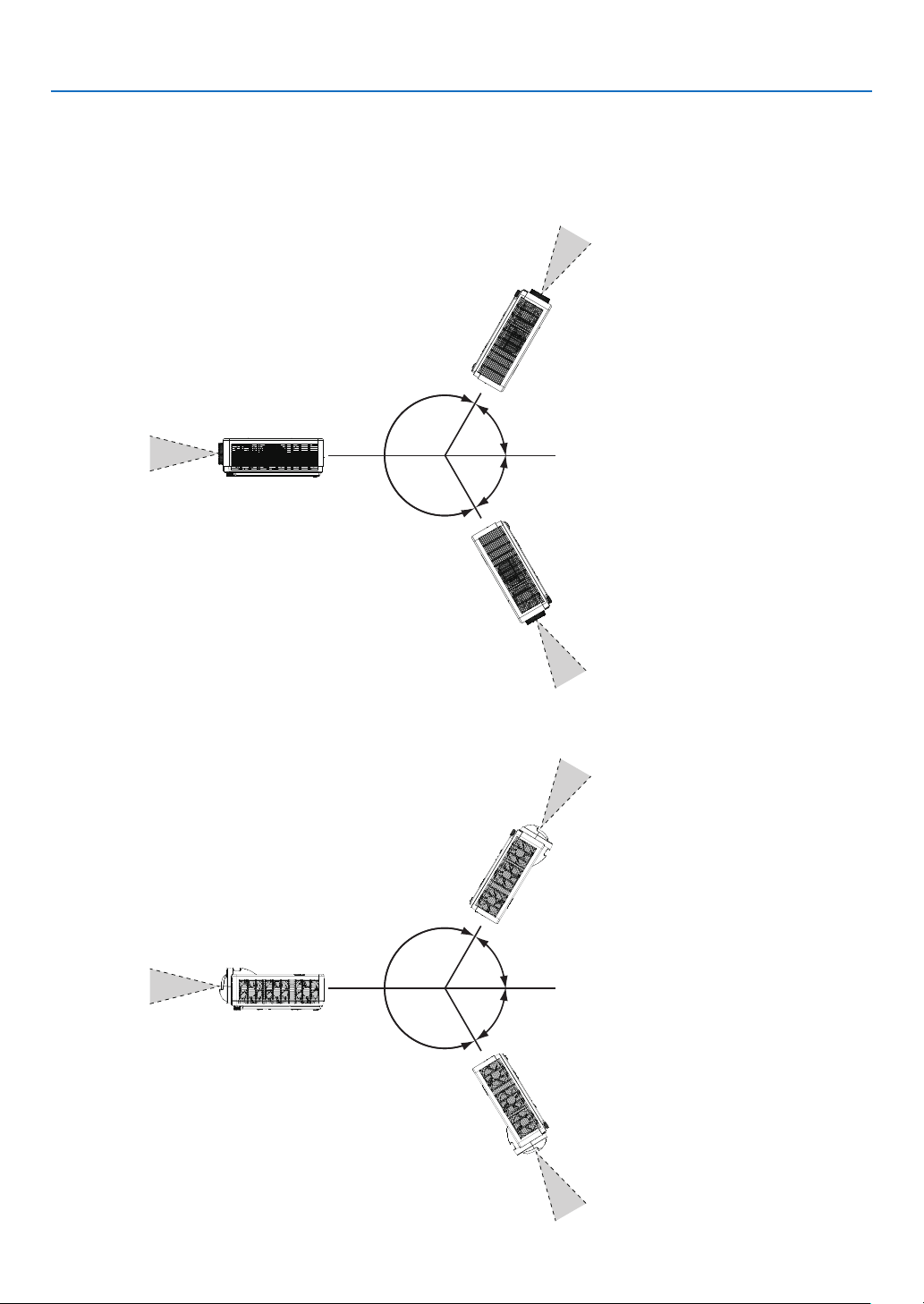
Battery Installation
1. Press firmly and slide the bat-
tery cover off.
2. Install new batteries (AAA).
Ensure that you have the bat-
teries’ polarity (+/−) aligned
correctly.
3. Slip the cover back over the
batteries until it snaps into
place. Do not mix different
types of batteries or new and
old batteries.
OPEN
OPEN
Remote Control Precautions
• Handle the remote control carefully.
• If the remote control gets wet, wipe it dry immediately.
• Avoid excessive heat and humidity.
• Do not short, heat, or take apart batteries.
• Do not throw batteries into fire.
• If you will not be using the remote control for a long time, remove the batteries.
• Ensure that you have the batteries’ polarity (+/−) aligned correctly.
• Do not use new and old batteries together, or use different types of batteries together.
• Dispose of used batteries according to your local regulations.
Operating Range for Wireless Remote Control
30°
30°
30°
30°
30°
30°
30°
30°
22 feet/7 m22 feet/7 m
Remote control
• The infrared signal operates by line-of-sight up to a distance of about 22 feet/7 m and within a 30-degree angle
of the remote sensor on the projector cabinet.
• The projector will not respond if there are objects between the remote control and the sensor, or if strong light
falls on the sensor. Weak batteries will also prevent the remote control from properly operating the projector.
9
1. Introduction
Angle sensor
The installation angle range that the built-in angle sensor of the projector can detect is shown in the figure
below.
120°
120°
120°
120°
When selecting [Auto ceiling /
Front] or [Auto ceiling / Rear] as
projection way, the projector will
be judged as the front projection
automatically .
When selecting [Auto ceiling /
Front] or [Auto ceiling / Rear] as
projection way, the projector will
be judged as the front projection
automatically .
When selecting [Auto ceiling /
Front] or [Auto ceiling / Rear] as
projection way, the projector will
be judged as the front projection
automatically .
When selecting [Auto ceiling /
Front] or [Auto ceiling / Rear] as
projection way, the projector will
be judged as the front projection
automatically .
When selecting [Auto ceiling /
Front] or [Auto ceiling / Rear] as
projection way, the projextor will
be judged as the ceiling projection
automatically .
When selecting [Auto ceiling /
Front] or [Auto ceiling / Rear] as
projection way, the projextor will
be judged as the ceiling projection
automatically .
60°
60°
60°
60°
[PE456USL/PE456WSL]
[PE506UL/PE506WL]]

10
This section describes how to turn on the projector and to project a picture onto the screen.
❶ Flow of Projecting an Image
Step 1
• Connecting your computer / Connecting the power cord (→ page
11)
Step 2
• Turning on the projector (→ page
12)
• Change the On-Screen menu language (→ page
13)
Step 3
• Selecting a source (→ page
14)
Step 4
• Adjusting the picture size and position (→ page
15)
• Correcting keystone distortion [KEYSTONE] (→ page
21)
Step 5
• Adjusting a picture and sound
- Optimizing a computer signal automatically (→ page
23)
- Turning up or down volume (→ page
23)
Step 6
• Making a presentation
Step 7
• Turning off the projector (→ page
24)
Step 8
• When Moving the Projector (→ page
25)
2. Projecting an Image (Basic Operation)
11
2. Projecting an Image (Basic Operation)
❷ Connecting Your Computer/Connecting the Power Cord
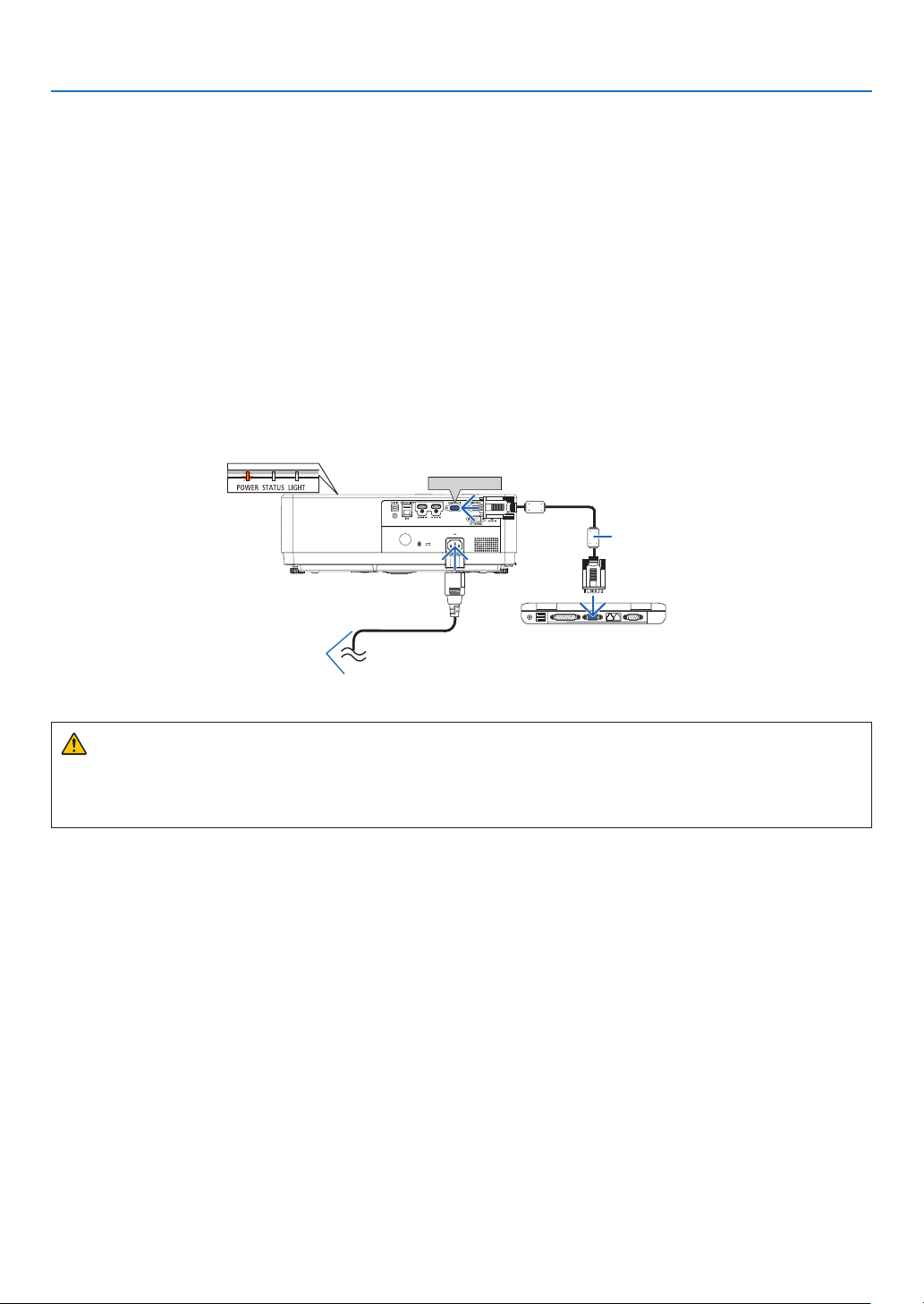
1. Connect your computer to the projector.
This section will show you a basic connection to a computer. For information about other connections, see
"7. Installation and Connections" on page
75.
Connect the computer cable (VGA) between the projector’s COMPUTER IN terminal and the computer’s port (mini
D-Sub 15 Pin). Turn two thumb screws of both terminals to fix the computer cable (VGA).
2. Connect the supplied power cord to the projector.
First connect the supplied power cord’s three-pin plug to the AC IN terminal of the projector, and then connect
another plug of the supplied power cord directly in the wall outlet. Do not use any plug converter.
The projector’s power indicator will start blinking orange.
* This will apply for both indicators when [NORMAL] is selected for [STANDBY MODE]. See the Power Indicator
section. (→ page
91)
COMPUTER IN
→ To wall outlet
Make sure that the
prongs are fully inserted
into both the AC IN and
the wall outlet.
Computer cable (VGA)
(supplied)
CAUTION:
Parts of the projector may become temporarily heated if the projector is turned off with the POWER button or if
the AC power supply is disconnected during normal projector operation.
Be careful to handle the projector.
12
2. Projecting an Image (Basic Operation)
❸ Turning on the Projector
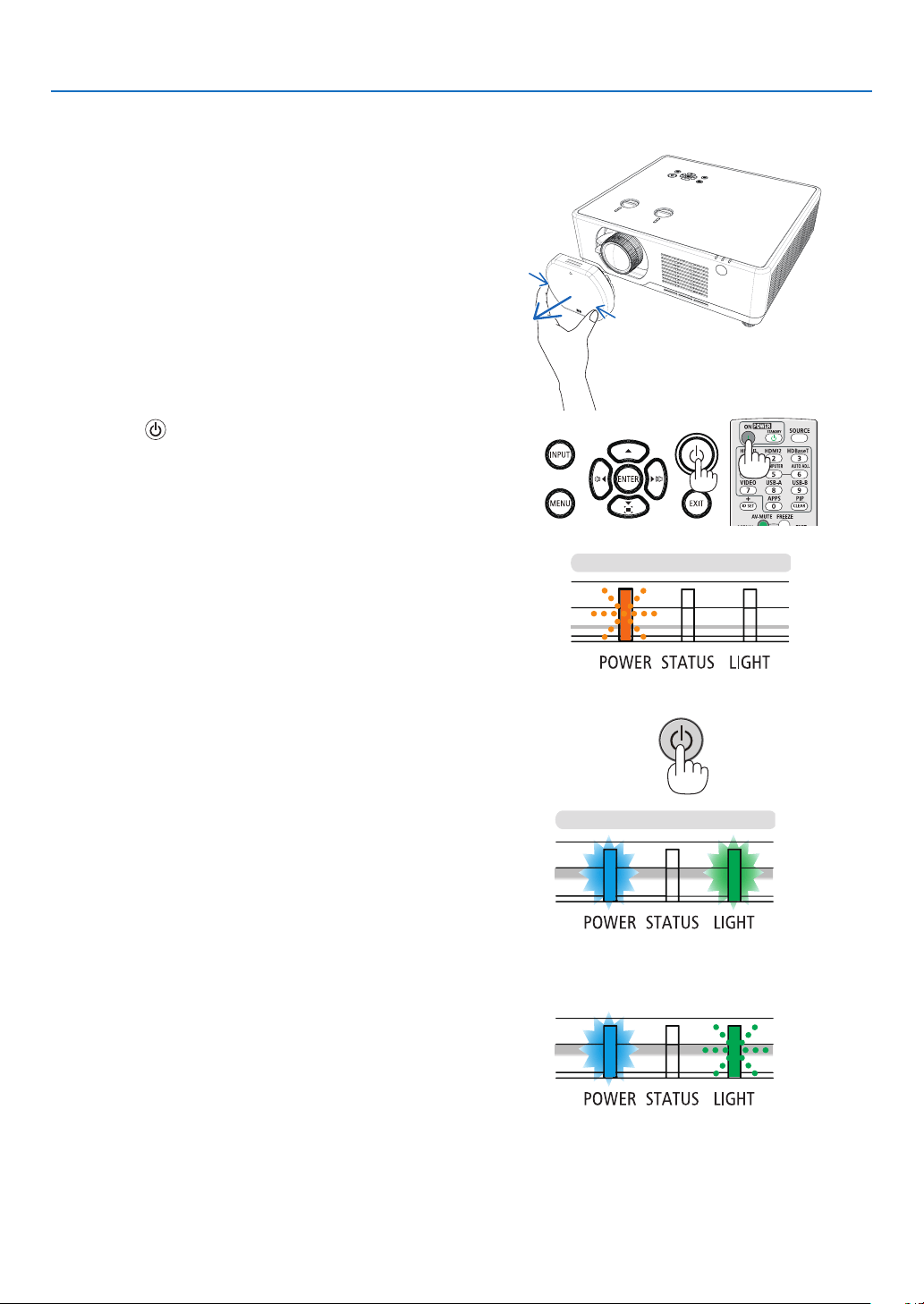
1. Remove the lens cap.
(For PE506UL only )
Press and hold both ends of the lens cap and pull it toward
you.
2. Press the (POWER) button on the projector cabinet
or the POWER ON button on the remote control.
The POWER indicator will blink and the projector will
become ready to use.
TIP:
• When the message “PIN code” is displayed, it means that the
[SECURITY] feature is turned on.
(→ page
52)
After you turn on your projector, ensure that the computer
or video source is turned on.
Power On
or
Steady blue light
Steady blue light
Steady green light
Blanking green light
Blanking orange light
Standby
(→ page 91)
13
2. Projecting an Image (Basic Operation)
❹
Change the On-Screen menu
language
Selecting the On-Screen
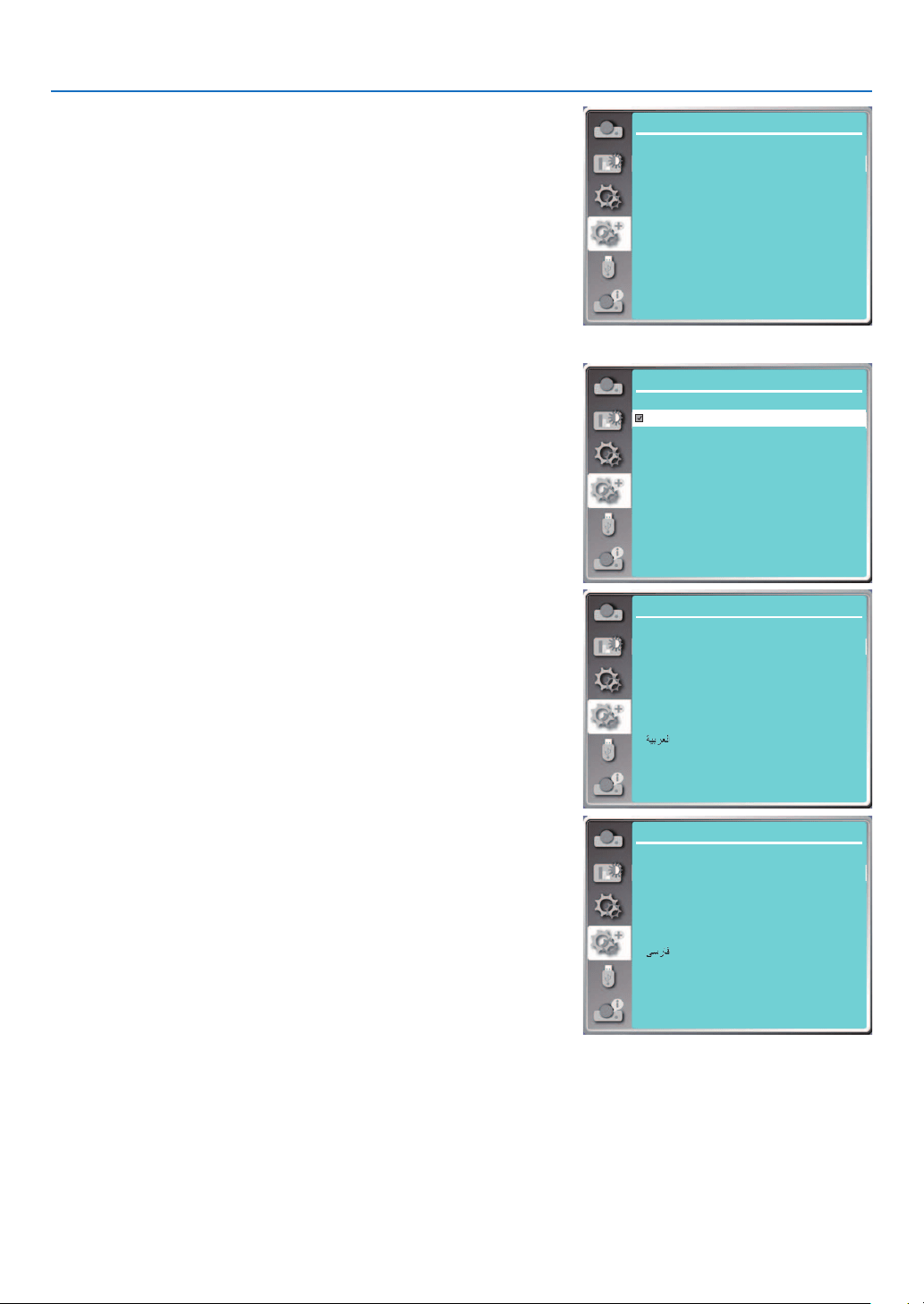
1. Press the MENU button on the remote control or on the top control
panel to display the On-Screen menu.
2. Press
▲
▼
button to select the Expand menu, then press the EN-
TER or
▶
button to select the Language option.
3. Then press
▲
▼
button to select the required language.
(
→
page
47)
Expand
Language
Auto setup
Keystone
Security
Power management
Test pattern
Network setup
Control ID
Factory default
Filter
Expand
Language 1/3
Deutsch
Français
Italiano
Español
Svenska
Suomi
Norsk
Português
Nederlands
English
Expand
Language 2/3
Dansk
Polski
český
Magyar
Русский
Қазақ
Tiếng Việt
한글
Türkçe
Expand
Language 3/3
ภาษาไทย
Bahasa Indonesia
Română
14
2. Projecting an Image (Basic Operation)
5 Selecting a Source
Selecting the computer source
NOTE: Turn on the computer source equipment connected to the projector.
Detecting the Signal Automatically
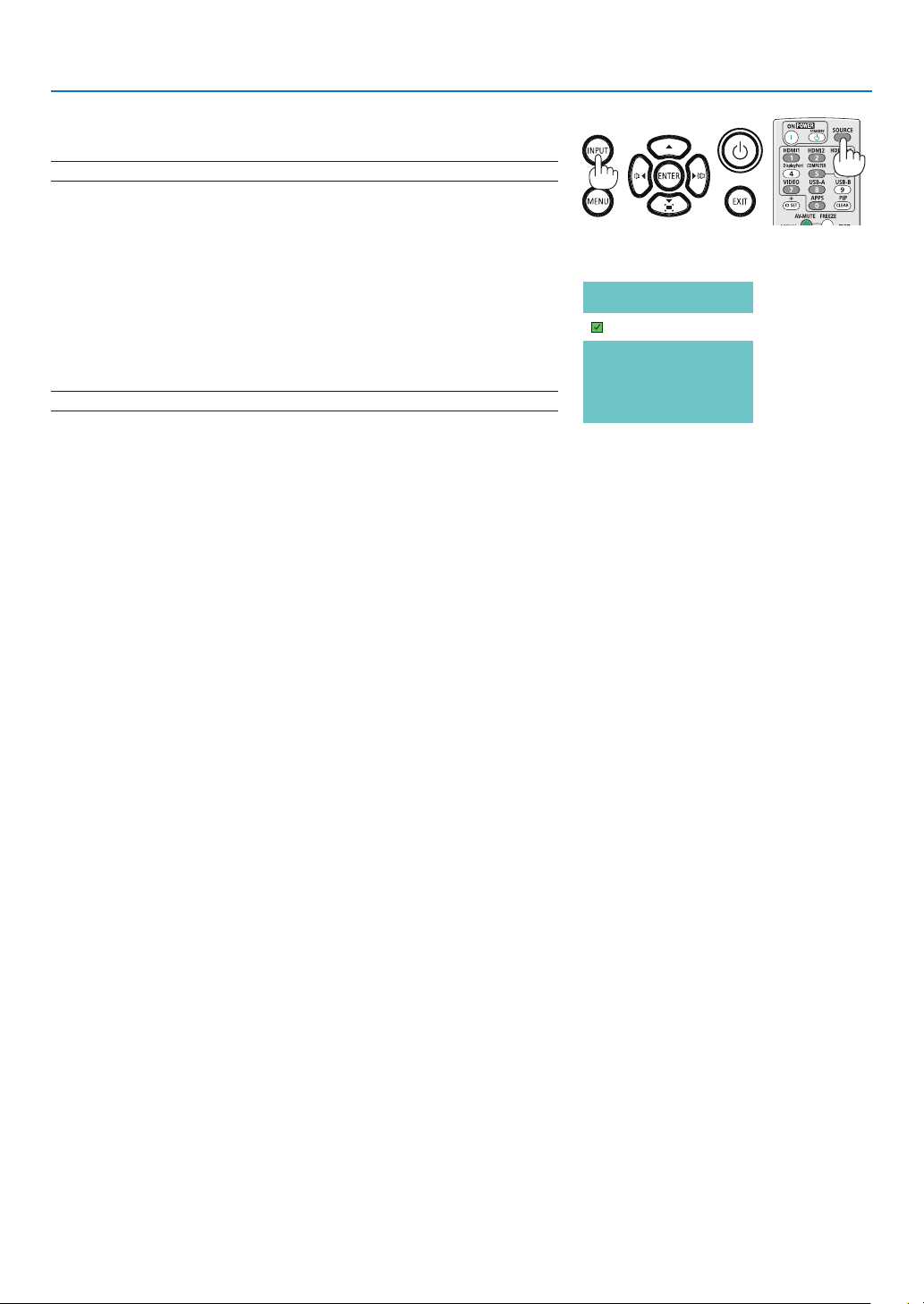
Press the INPUT button. The projector will search for the available input
source and display it. The input source will change as follows:
Computer →HDMI1 → HDMI2 → USB-A → LAN
• With the INPUT screen displayed, you can press the
▼
▼ button to
select the input source.
TIP: If no input signal is present, the input will be skipped.
Using the Remote Control
Press any one of the Computer, HDMI1, HDMI2, USB-A, or APPS buttons.
Computer
HDMI 1
HDMI 2
USB-A
LAN
15
2. Projecting an Image (Basic Operation)
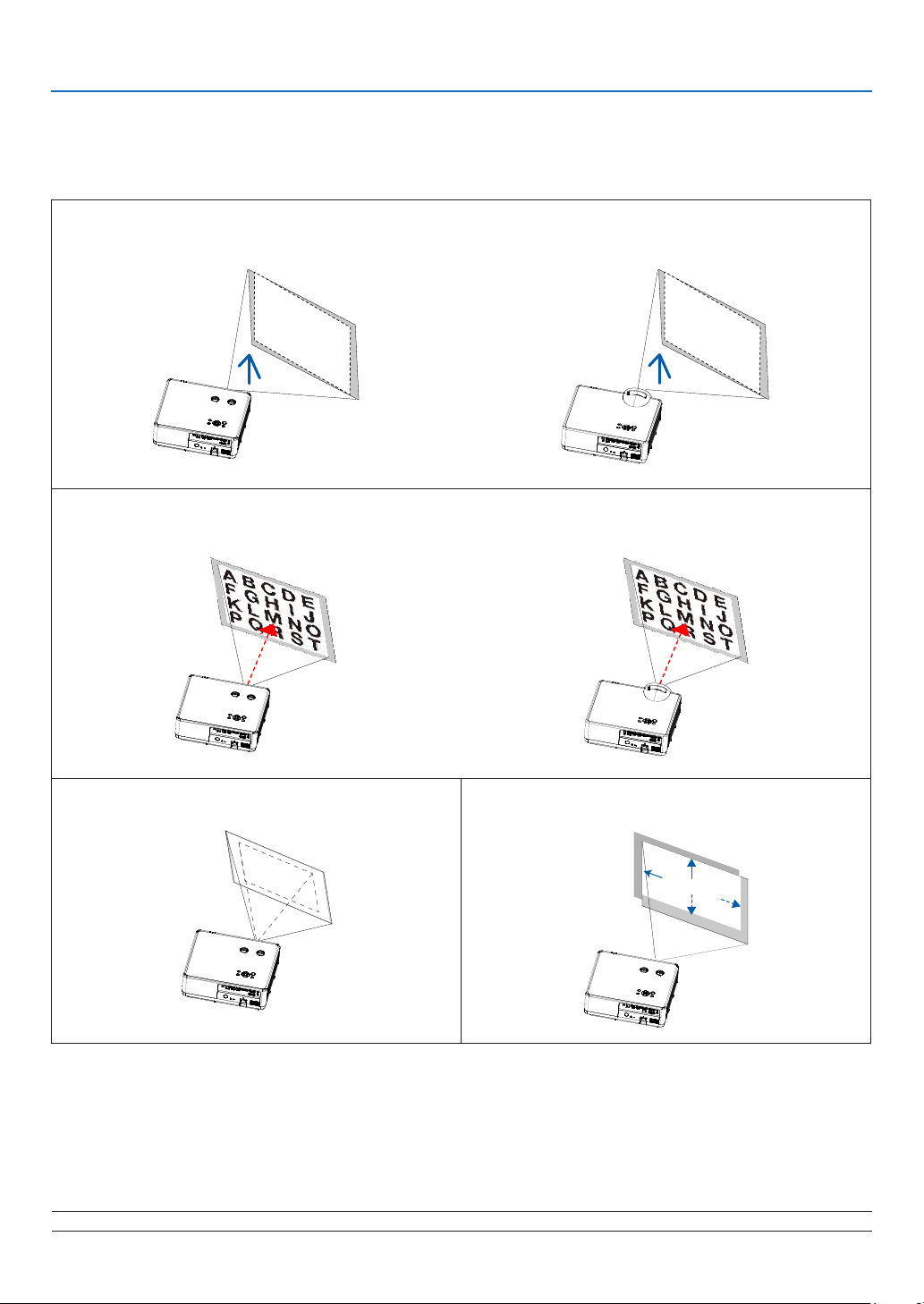
6 Adjusting the Picture Size and Position
Use the adjustable tilt foot, the zoom function or the focus ring to adjust the picture size and position.
In this chapter drawings and cables are omitted for clarity.
Adjusting the throw angle (the height of an image) [Tilt foot] (→ page 17)
[PE506UL/PE506WL]
[PE456USL/PE456WSL]
Adjusting the focus [Focus ring] (→ page 18)
[PE506UL/PE506WL]
[PE456USL/PE456WSL]
Finely adjusting the size of an image
[Zoom lever] (→ page 18)
A B C
Adjusting the projected image’s vertical and
horizontal position [Lens shift](→ page 19)
A B C
NOTE: [Zoom lever] and [Lens shift] functions are only available for PE506UL /PE506WL.
16
2. Projecting an Image (Basic Operation)
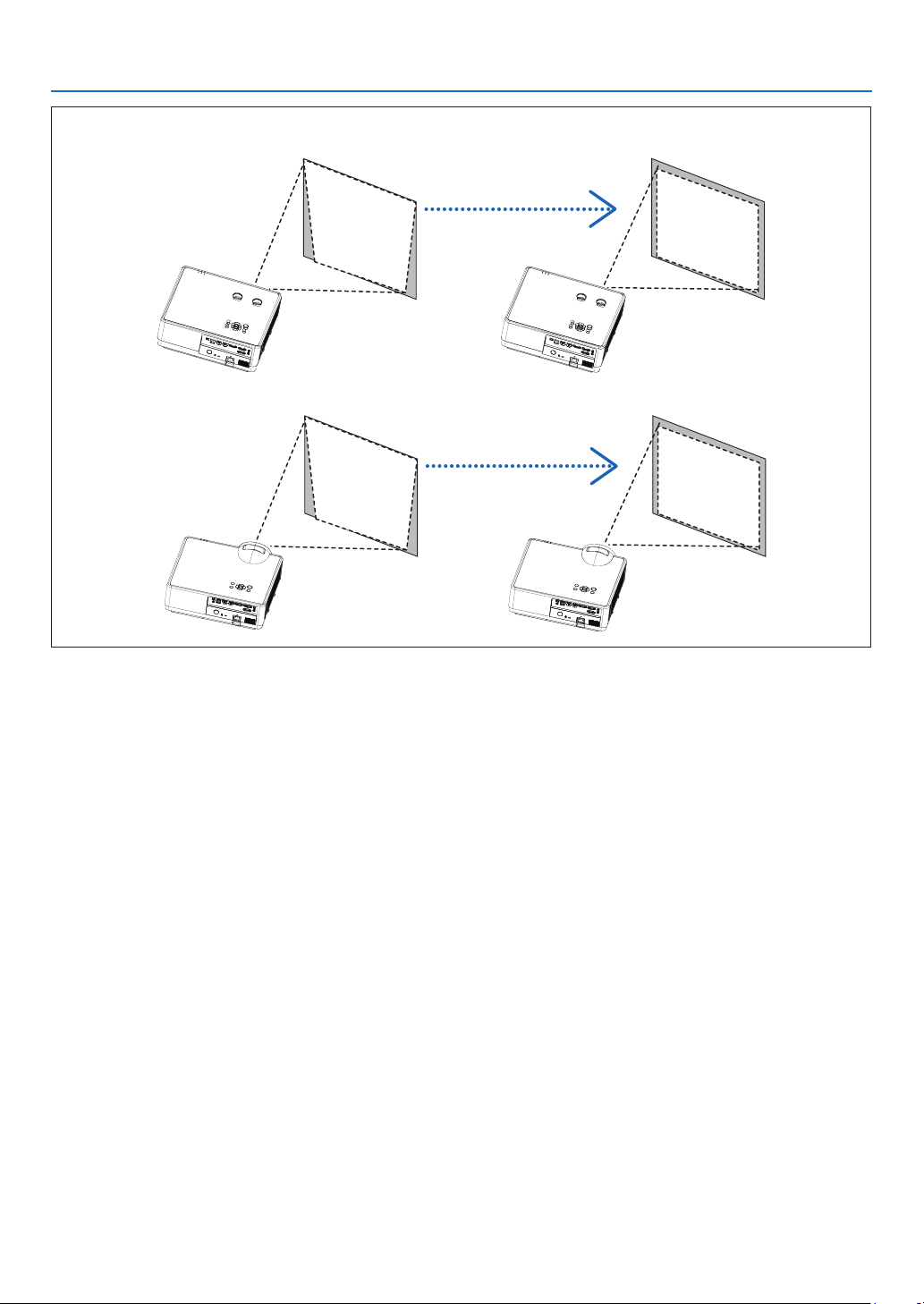
Adjusting the keystone correction [KEYSTONE]* (→ page 21)
[PE506UL/PE506WL]
[PE456USL/PE456WSL]
Automatic Keystone Correction function is turned off at the time of shipment.
To perform keystone correction manually, see “❻ Correcting Keystone Distortion [KEYSTONE]” on page 21.
17
2. Projecting an Image (Basic Operation)
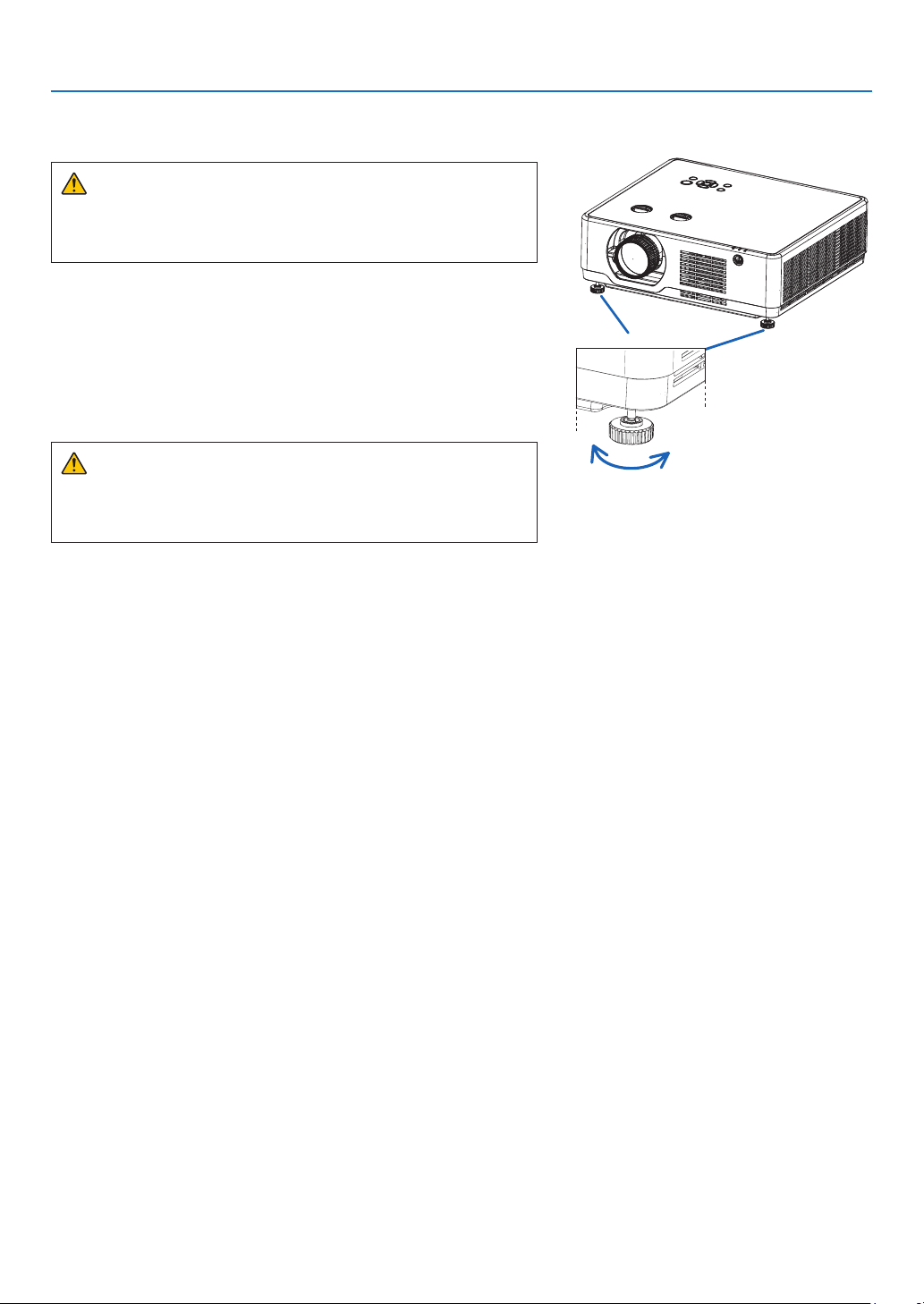
Adjust the Tilt Foot
1. Place the projector perpendicular to the screen..
CAUTION:
Do not try to touch the exhaust vent during tilt foot adjustment as
it can become heated while the projector is turned on and after it
is turned off.
2. Rotate the left and right adjustable tilt foot to make adjust-
ments to the desired height.
• Rotate the tilt clockwise to raise the projector, and counterclock-
wise to lower the projector or retract the adjustable foot.
• The tilt foot can be extended up to 0.71 inch/18 mm.
• There is approximately 3.5 degrees (up) of adjustment for the
front of the projector.
CAUTION:
• Do not use the tilt-foot for purposes other than originally intended.
Misuses such as using the tilt foot to carry or hang (from the wall
or ceiling) the projector can cause damage to the projector.
Tilt foot
Down
Up
18
2. Projecting an Image (Basic Operation)
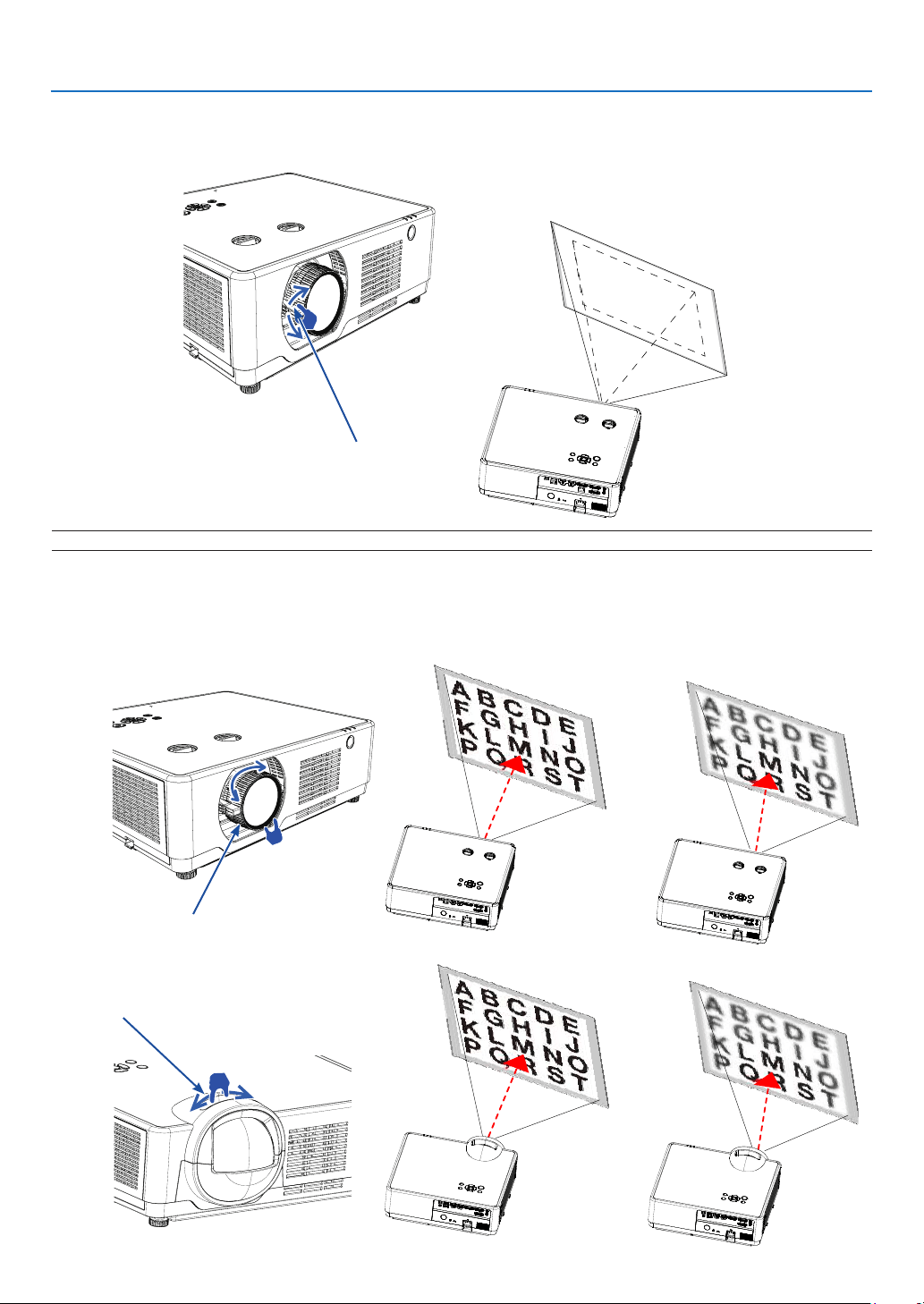
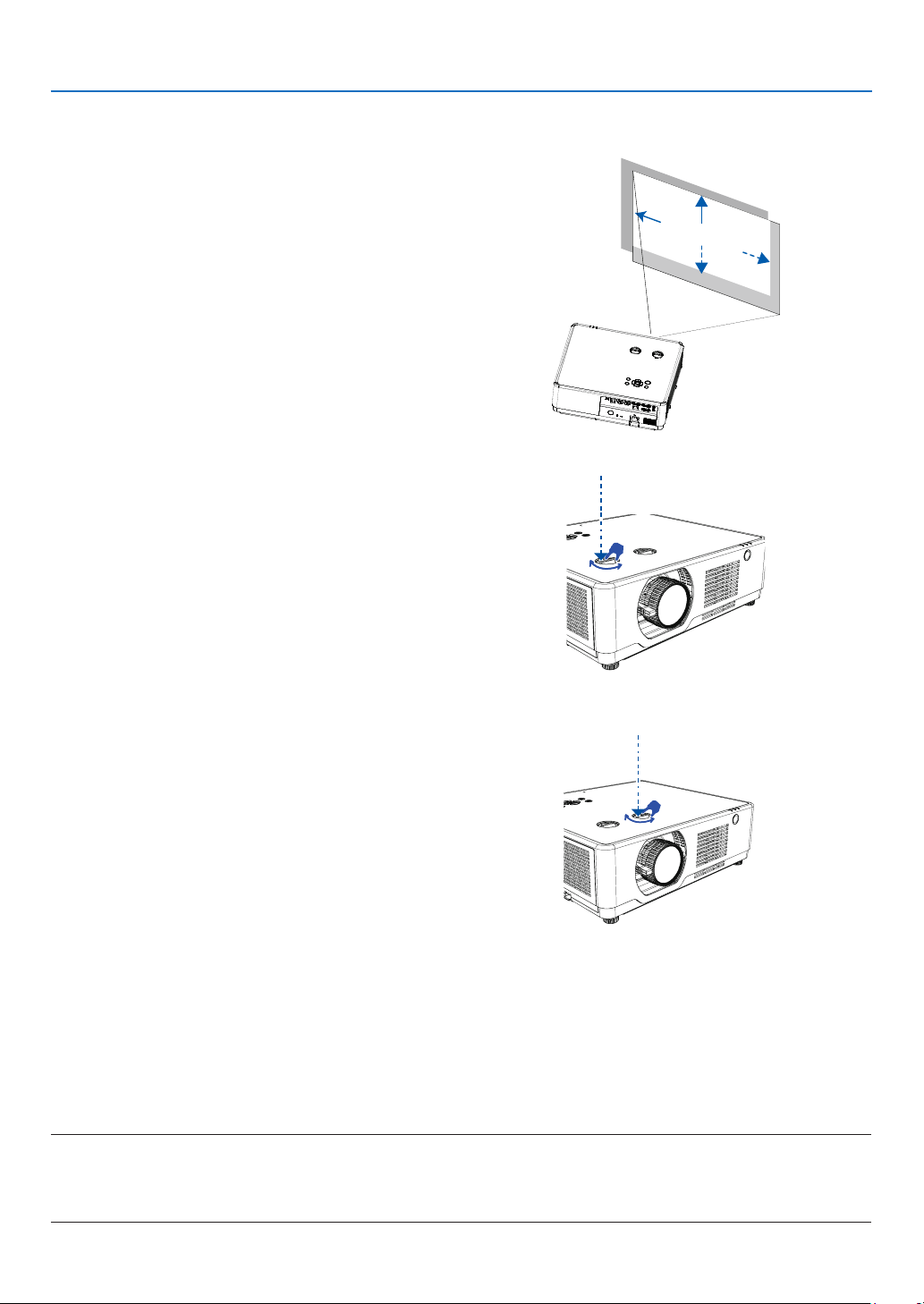
Zoom
Use the ZOOM lever to adjust the image size on the screen.
Focus
Use the FOCUS ring to obtain the best focus.
NOTE: [Zoom lever] functions are only available for PE506UL /PE506WL.
[PE506UL/PE506WL]
[PE456USL/PE456WSL]
Focus Ring
Zoom Lever
A B C
Focus Ring
19
2. Projecting an Image (Basic Operation)
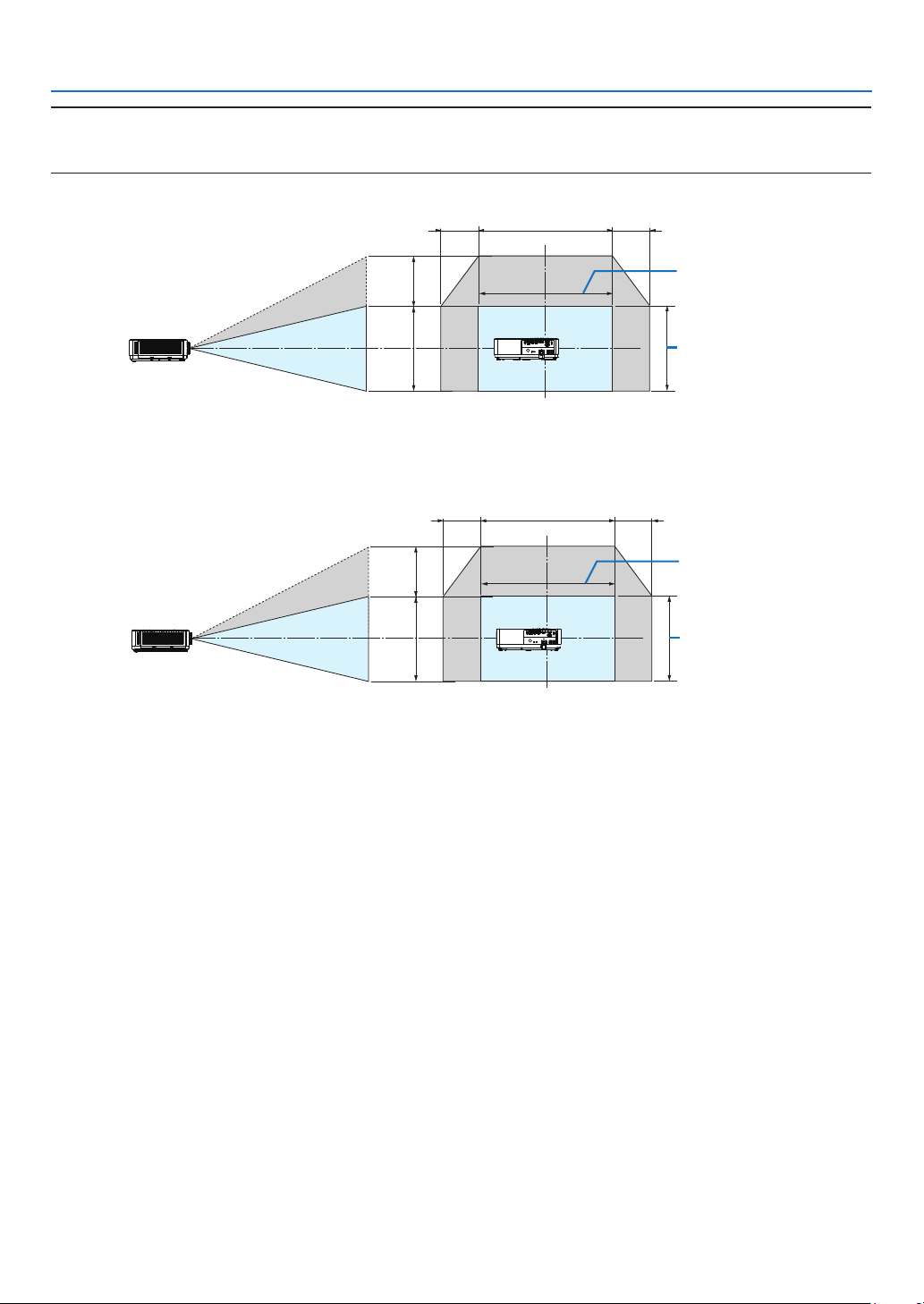
Lens shift
Press the ① and ② dial to make Lens shift adjustment
manually.
A B C
Rotate ① dial , then you can move upward and downward
the image with a distance up to +55% (PE506WL) and
60% (PE506UL) between the upper and lower range of
the image.
①
Len shift V
Rotate ② dial, then you can move rightward and leftward
the image with a distance up to -26% ~ +26% (PE506WL)
and -29% ~ +29% (PE506UL) of the width of the image.
②
Len shift H
NOTE:
• After turning the lens shift dial to align the projection position, turn the lens shift dial slightly to the opposite side to loosen it.
• If the lens shift dial is stopped at the aligned position, the lens shift position may drift due to vibrations or environmental temperature.
• [Lens shift] functions are only available for PE506UL /PE506WL.
20
2. Projecting an Image (Basic Operation)
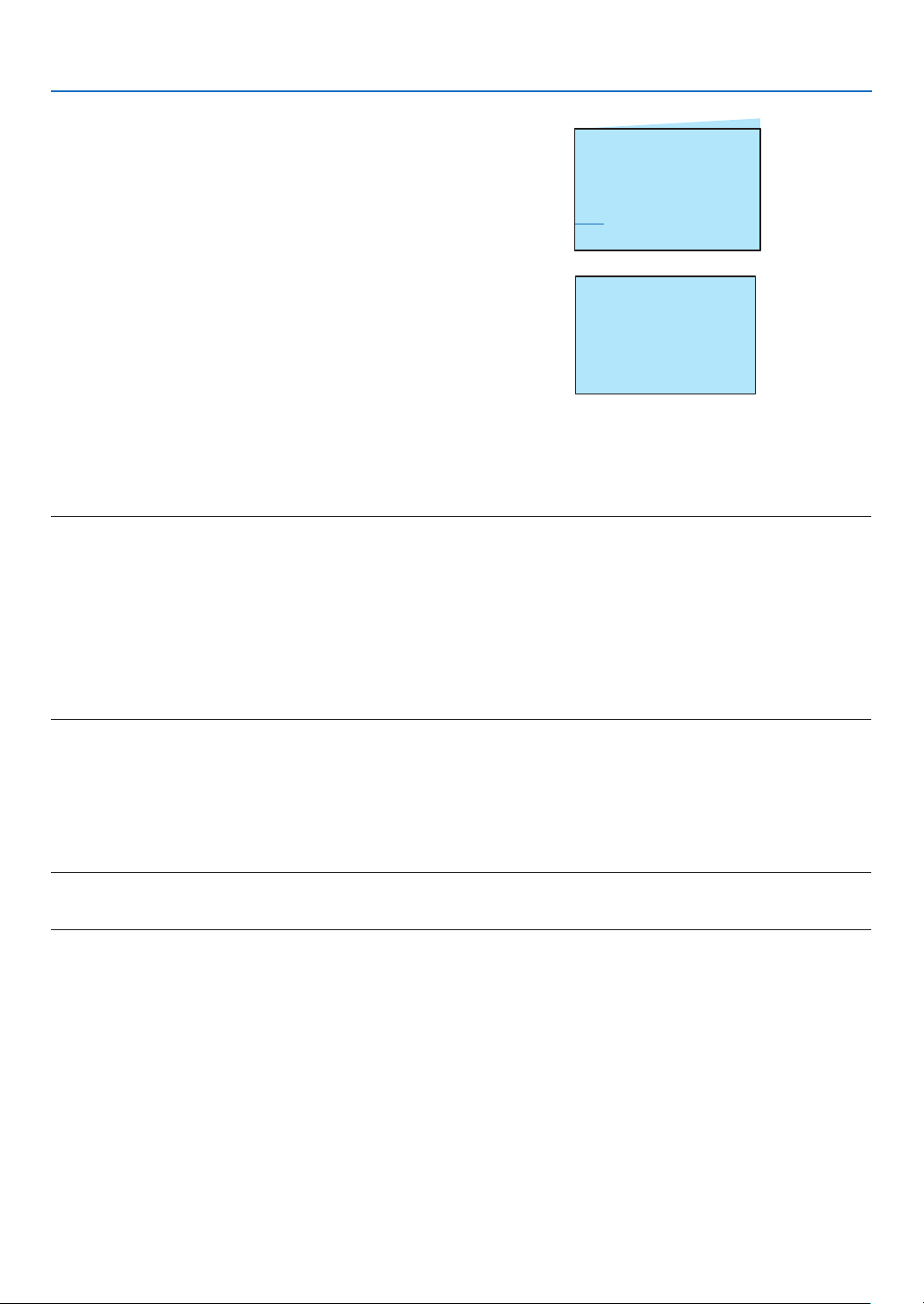
TIP:
• The diagram below shows the lens shift adjustment range ([ORIENTATION]: [DESKTOP FRONT]).
• For the lens shift adjustment range regarding the [CEILING FRONT] projection, see page 73-74.
[PE506UL]
Width of projected
image
29% H29% H 100% H
60% V
100% V
Height of projected
image
[PE506WL]
Width of projected
image
26% H26% H 100% H
55% V
100% V
Height of projected
image
Description of symbols: V indicates vertical (height of the projected image), H indicates horizontal (width of the
projected image).

21
2. Projecting an Image (Basic Operation)
7 Correcting Keystone Distortion [KEYSTONE]
You may adjust keystone distortion of image in your projector with the H/V keystone adjustment. Follow steps below
to adjust keystone distortion of projected image manually.
Before performing KEYSTONE correction
Press the KEYSTONE button on your remote control. The keystone adjustment dialog box displays ( including H/V
keystone, 4-Corner correction, 6-Corner correction, Curved correction, Grid Image Tune, Reset), press ▲▼◀ ▶
button to adjust keystone distortion.
You may save your settings for keystone adjustment.
• H/V keystone......Adjust the projected image when the projector is on the horizontal or vertical keystone distortion.
• 4-Corner correction......Adjust the projected image when the projector is keystone distortion of four corners .
• 6-Corner correction......Adjust the projected image when the projector is keystone distortion of six corners.
• Curved correction......Adjust the projected image when the projector linearity is uneven or the projected images
bent vertically and horizontally.
• Grid image tune......Adjust the local points of the projected image.
• Reset......The correction values will be restored to the factory defaults.
H/V keystone
4-Corner correction
6-Corner correction
Curved correction
Grid image Tune
Reset value
1. Press the ▼ button on the projector cabinet.
The H/V keystone screen will be displayed on the
screen.
● Press the KEYSTONE button when using the remote
control.
2. Press the ▼ button to select H/V keystone, then
press the ENTER button to select the H keystone.
And press the button to make adjustment so
that the left and right sides of the projected image are
parallel.
● Adjust the horizontal keystone distortion.
Projected area
Screen frame
22
2. Projecting an Image (Basic Operation)
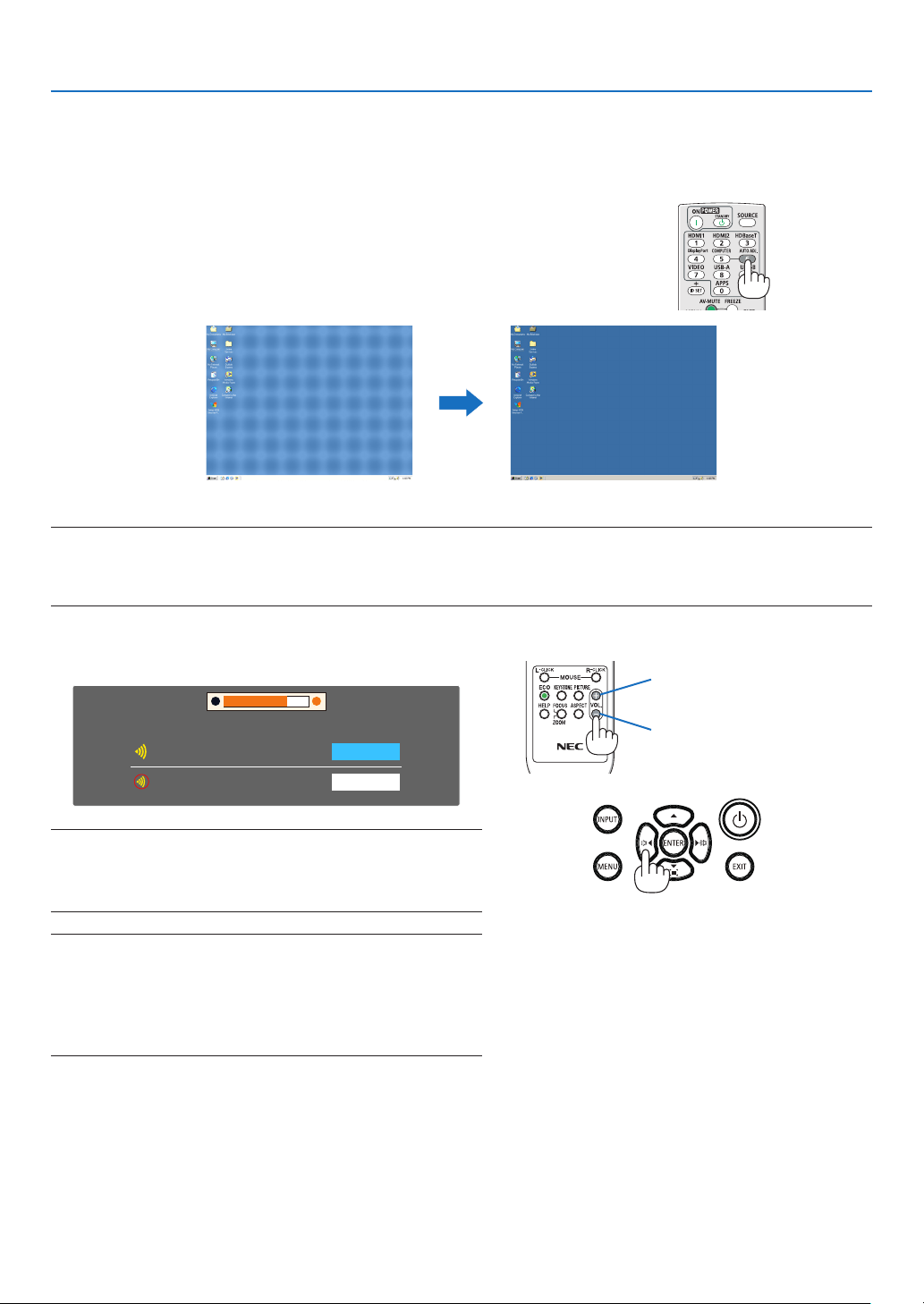
3. Align the left (or right) side of the screen with the left
(or right) side of the projected image.
● Use the shorter side of the projected image as the
base.
● In the right example, use the left side as the base.
Align left side
4. Press the ▼ button to select V KEYSTONE and then
use the ▲▼ button so that the top and bottom sides
of the projected image are parallel.
● Adjust the vertical keystone distortion.
5. Repeat steps 2 and 4 to correct keystone distortion.
6. After completing Keystone correction, press the EXIT
button for some time to turn off the menu.
NOTE:
• The arrow mark looks white when there is no keystone adjustment in existence.
• The arrow mark indicating the adjustment direction turns red.
• The arrow mark disappears when the maximum H/V keystone adjustment limit reaches.
• The keystone prompt box will disappear if you press the keystone button again when it is displaying. Press the
ENTER button again to switch the six correction items.
• The adjustable range is subject to source of signal input.
• For further details about keystone function, please turn to page 49-52.
• When using the VIEWER, you cannot use the ▼ button on the panel to directly call up the keystone correction
menu.
To return the keystone adjustments to default:
1. The Keystone screen will be displayed on the screen.
2. Press ▼ button to select Reset.
3. Press the or the ENTER button.
● The adjustments will be reset.
NOTE:
All adjusted values set in the [KEYSTONE] adjustment are reset to initial values
23
2. Projecting an Image (Basic Operation)
8 Optimizing Computer Signal Automatically
Adjusting the Image Using Auto Adjust
Optimizing a computer image automatically. (Auto PC adj.)
Press the AUTO ADJ. button to optimize a computer image automatically.
This adjustment may be necessary when you connect your computer
for the first time.
[Poor picture] [Adjusted picture]
NOTE:
• Some signals may take some time to display or may not be displayed correctly.
• If the Auto Adjust operation cannot optimize the computer signal, try to adjust [Fine sync], [H position], [V position], and [H. size] manually.
(→ page
35, 36)
9 Turning Up or Down Volume
Sound level from the speaker or audio output can be adjusted.
Volume
Mute
Off
19
TIP: When no menus appear, the ◀ and ▶ buttons on the projector cabinet
work as a volume control.
When the above volume adjustment menu appears, press ▲ and ▼ buttons
to control the mute on and off.
NOTE:
• Volume control is available with the ◀ or ▶ button but invaild through
the remote control when an image is magnified by using the D-ZOOM
(+) button or when the menu is displayed.
• Volume control is not available with the ◀ or ▶ button when VIEWER
is used.
Increase volume
Decrease volume
24
2. Projecting an Image (Basic Operation)
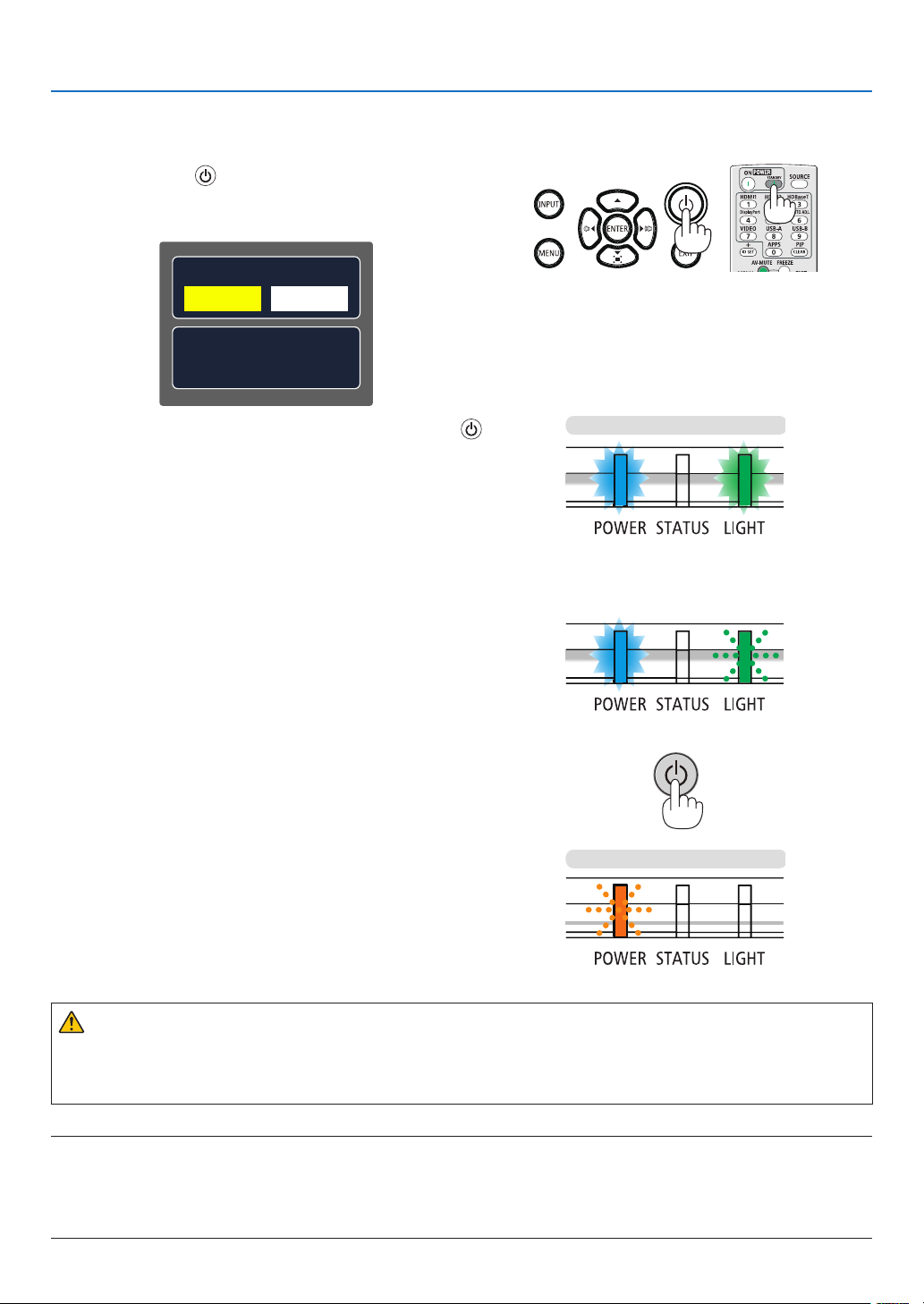
❿ Turning off the Projector
To turn off the projector:
1. First, press the
(POWER) button on the projector
cabinet or the STANDBY button on the remote control.
The confirmation message will be displayed.
Carbon savings-session
[g-CO2]66.5200
Power off?
Yes No
2. Secondly, press the ENTER button or press the
(POWER) or the STANDBY button again.
The light source will turn off and the projector will go into
standby mode. When in standby mode, the POWER indica-
tor will blinking orange and the STATUS and LIGHT indica-
tor will turn off when [Normal] is selected for [STANDBY
MODE].
Power On
or
Steady blue light
Steady blue light
Steady green light
Blanking green light
Blanking orange light
Standby
CAUTION:
Parts of the projector may become temporarily heated if the projector is turned off with the POWER button or if
the AC power supply is disconnected during normal projector operation.
Use caution when picking up the projector.
NOTE:
• While the power indicator is blinking blue in short cycles, the power cannot be turned off.
• You cannot turn off the power for 60 seconds immediately after turning it on and displaying an image.
• Do not disconnect the AC power supply to the projector within 10 seconds after making adjustment or setting changes and closing the
menu. Doing so can cause loss of adjustments and settings.

25
2. Projecting an Image (Basic Operation)
When Moving the Projector
Preparation: Make sure that the projector is turned off.
1. Put on the lens cap(For PE506UL only ).
2. Unplug the power cord.
3. Disconnect any other cables.
• Remove the USB memory or the USB Wireless LAN Unit if it is inserted into the projector.
(→ page
28,80)
26
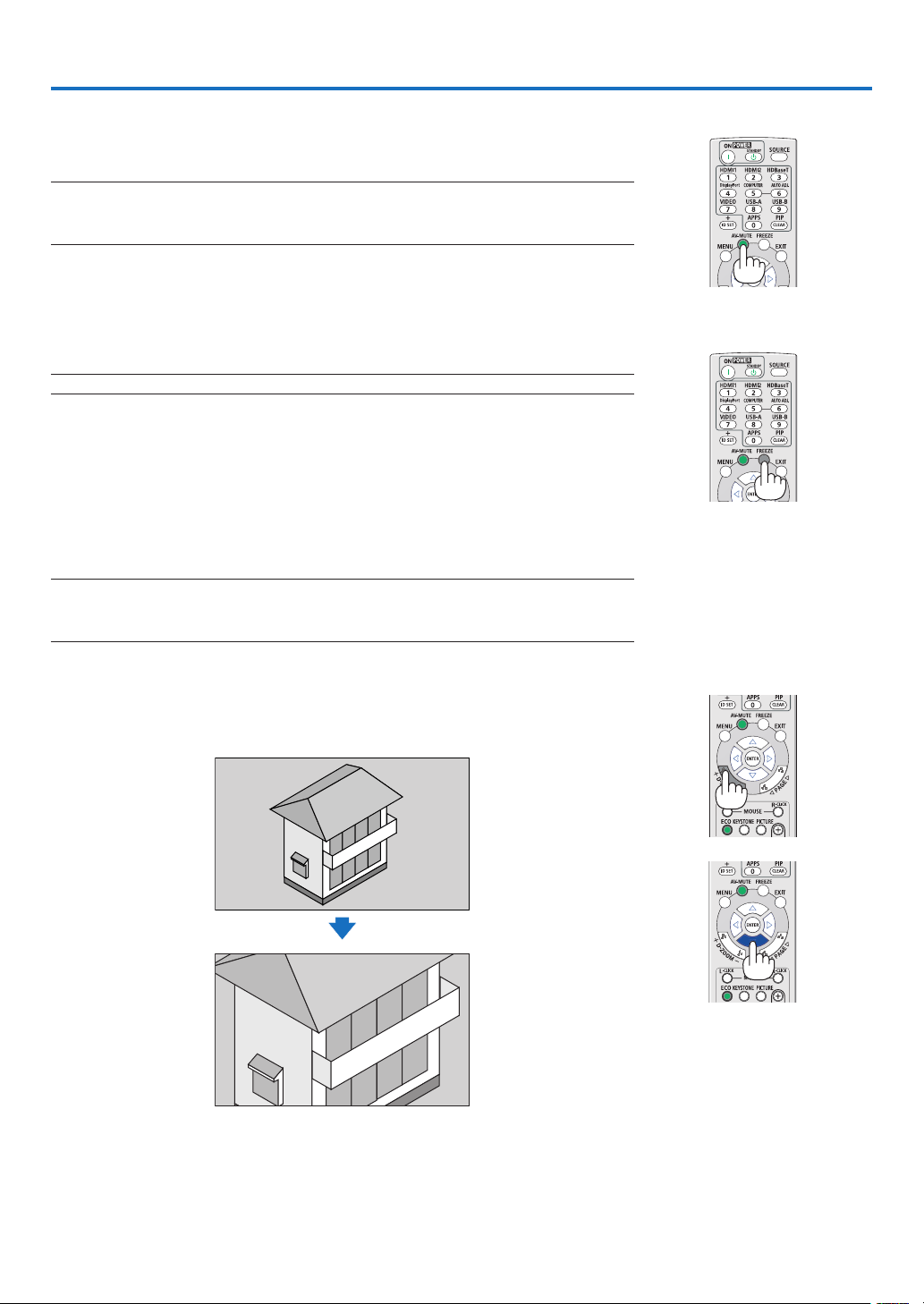
❶ Turning off the Image and Sound
Press the AV-MUTE button to turn off the image and sound for a short period of
time. Press again to restore the image and sound.
NOTE:
• Even though the image is turned off, the menu still remains on the screen.
• Sound from the AUDIO OUT jack (Stereo mini) can be turned off.
❷ Freezing a Picture
Press the FREEZE button to freeze a picture. Press again to resume motion.
NOTE: The image is frozen but the original video is still playing back.
• This feature can not be used when LAN, and USB-A is selected as the input
terminal.
❸ Magnifying a Picture
You can enlarge the picture up to four times.
NOTE:
• The maximum magnification may be less than four times depending on the signal.
• This feature can not be used when LAN, and USB-A is selected as the input terminal.
To do so:
1. Press the D-ZOOM (+) button to magnify the picture.
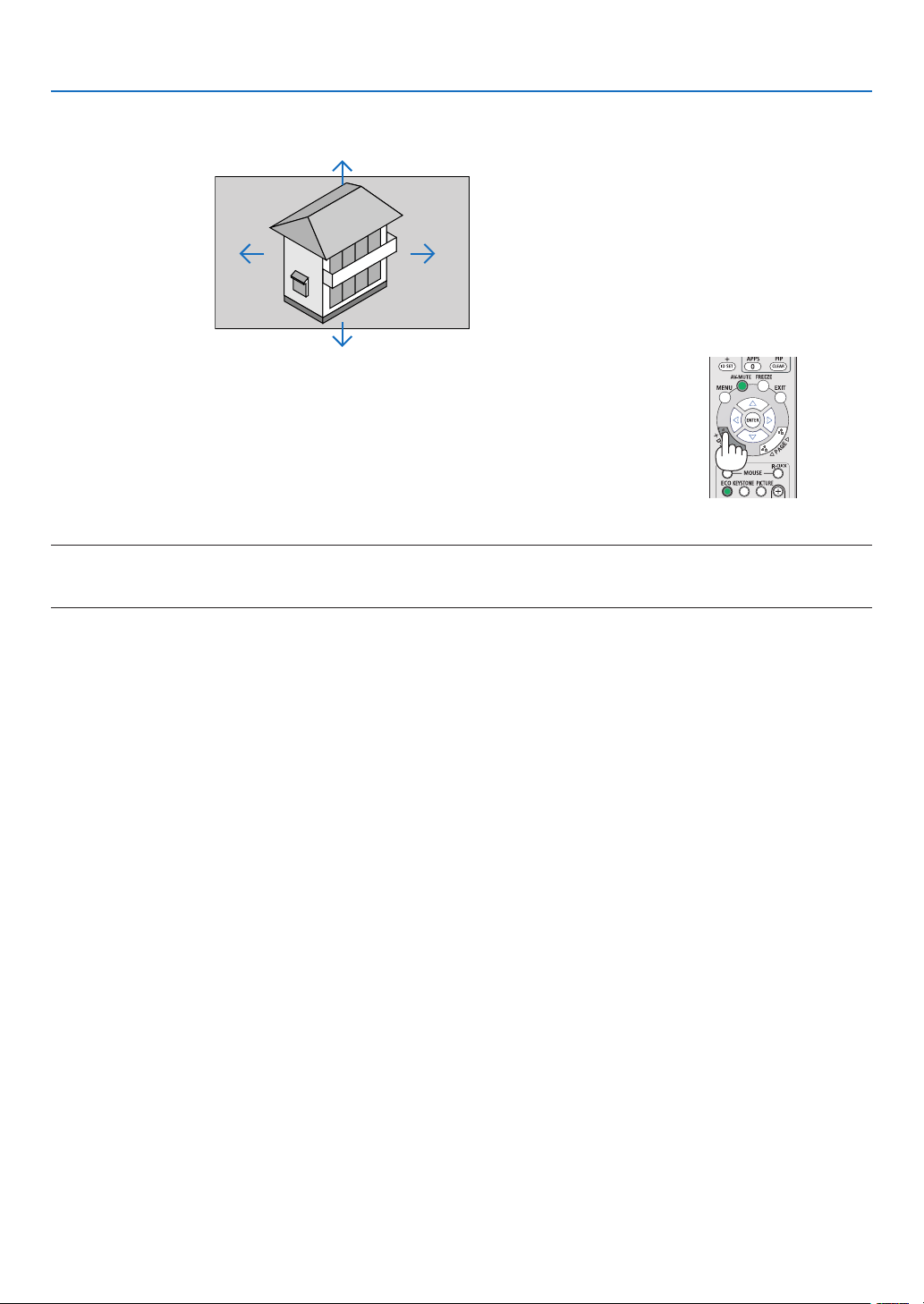
To move the magnified image, use the ▲,▼,◀ or ▶ button.
3. Convenient Features
27
3. Convenient Features
2. Press the ▲▼◀▶ button.
The area of the magnified image will be moved.
3. Press the D-ZOOM (-) button to magnify the picture.
Each time the D-ZOOM (-) button is pressed, the image is reduced.
NOTE:
• The image will be magnified or demagnified at the center of the screen.
• Press the ASPECT button on the remote control or select the Aspect function on the Display menu can cancel the current magnification.
28
4. Using the VIEWER
USB-A function
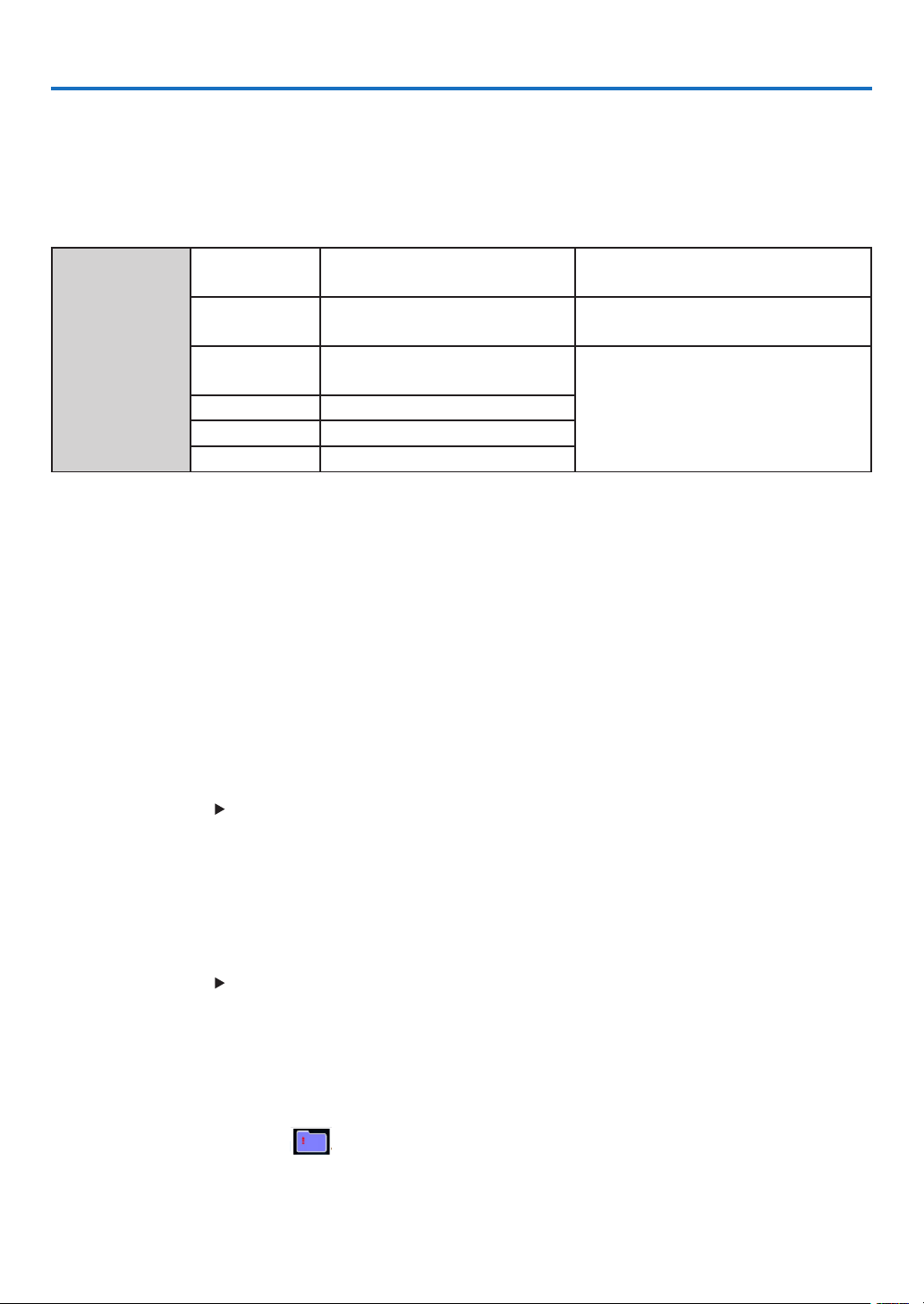
When the USB memory insert into the projector, the USB-A function can project pictures which is stored in the USB
memory.
The projected content of USB-A function
USB-A function supports the following picture files.
Maps
Extension
name
Format Description
jpg/jpeg
Baseline encoder 24
Progressive RGB24 bit
Max resolution: 10000x10000
Max resolution: Panel Resolution
bmp
1.4.8 bit palette-based
RGB24,32 bit
Max resolution: 1280X800
png 24, 48-bit True Color
gif 1,4,8-bit palette-based
tiff
Display USB-A screen
When the USB memory insert into the projector, the USB-A function can project pictures which is stored in the USB
memory.
1) Press SOURCE button on the remote control or INPUT on the top control, then select the input source of [USB-A].
2) Insert the USB memory into the USB Port (Type A) directly.
• Press the ENTER button to display standby screen instantly, while the USB memory icon display in the lower
left corner of the screen.
• When the USB memory is independent of the partition, it will display more than one USB icon.
3) Press ▲ ▼ button to switch required items.
• The root directory of the USB memory is displayed in a thumbnail.
Play image
Only one image show on the screen when you play it.
1) Press ▲ ▼ button to select a image.
2) Press the ENTER or
button.
• Full screen display
3) Press the ENTER button.
• Press the ENTER button to return the thumbnail.
Play slide
Turn on set slide in the USB-A menu to play the file, other files in the same folder can play automatically.
1) Press button to select a file.
2) Press the ENTER or button.
• Full screen display.
3) Press the ENTER button.
• Press the ENTER button to return the thumbnail.
The termination of USB-A
The slide transition effect in the USB-A menu is set to "Slide right" or "Slide down", all images in the same folder
can play automatically.
1) Press ▲ ▼ button to select , displayed in the upper left corner of the screen.
2) Press the ENTER button.
3) Unplug the USB memory directly.

29
4. Using the VIEWER
NOTE:
• Only USB memory up to FAT32 (32GB) can be read.
• When you insert a USB memory, please make sure insertion direction to avoid damaging the port.
• Please note the following points when inserting and removing USB memory:
a. The indicator flashes, when the USB memory insert into the projector or the projector is reading data. DO NOT remove the USB memory
when the light is flashing.
b. Do not insert and remove USB memory frequently. Then remove it after the installation of at least 5 seconds. After removing at least
5 seconds and then reinsert it.
c. Due to the file format, some pictures cannot display thumbnails.
Precautions on processing and storage of USB memory
• If smoke or produce abnormal smell, close the external device and contact the dealer.
• Do not put foreign matter or metal items in the USB port. Static electricity may cause data loss or data damage.
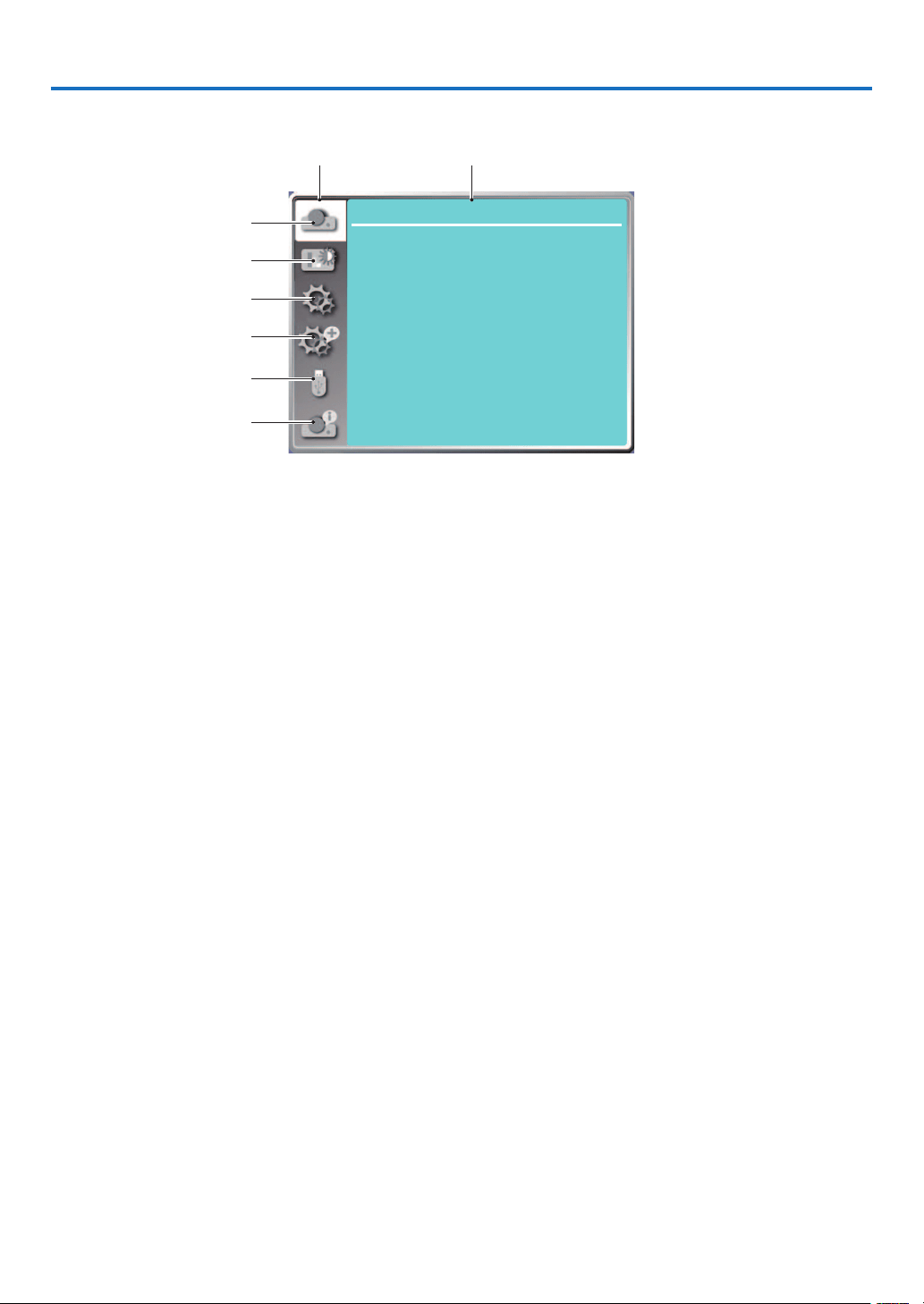
30
5. Using On-Screen Menu
❶ Menu item overview
...
Display
Auto PC adj.
Fine sync 0
0
0
0
H position
V position
Aspect Normal
Front
Upper left
Blue
Orientation
Menu position
Background display
Signal format
H.size
1. Display menu
• Select Auto PC adj., Fine sync, H position, V position, H. size to adjust the parameters to match the VGA
format.
• Aspect: Normal/Wide/Full/4:3.
• Orientation: Choose Front, Auto ceiling/Rear, Auto ceiling/Front, Ceiling / Rear, Ceiling / Front and Rear.
• Menu position: Set screen menu display position on the screen.
• Background display: Set the background color of the projection screen.
• Signal format: Select the compatible system signal format with input source.
2. Color adjust menu
Available options in the Image mode menu are Dynamic, Standard, Cinema, Blackboard (Green), Color
board, or User image.
The available color adjust options: Contrast, Brightness, Color temp. , Red, Green, Blue and Sharpness.
3. Setting menu
Configuration of the basic function operation on the projector: On start, Standby mode, High altitude,
Cooling fast, Key lock, Baud rate, Contrast optimization, Laser control, Sound and HDMI setup.
4. Expand menu
Available adjust options are Language, Auto setup, Keystone, Security, Power management, Filter, Test
pattern, Network setup, Control ID and Factory default.
5. USB-A menu
Select parameter of Set slide, Slide transition effect, Sort order, Rotate, Best fit, Repeat, Apply.
6. Information menu
Display information about the projector.
①
②
③
④
⑤
⑥
Main menu Submemu
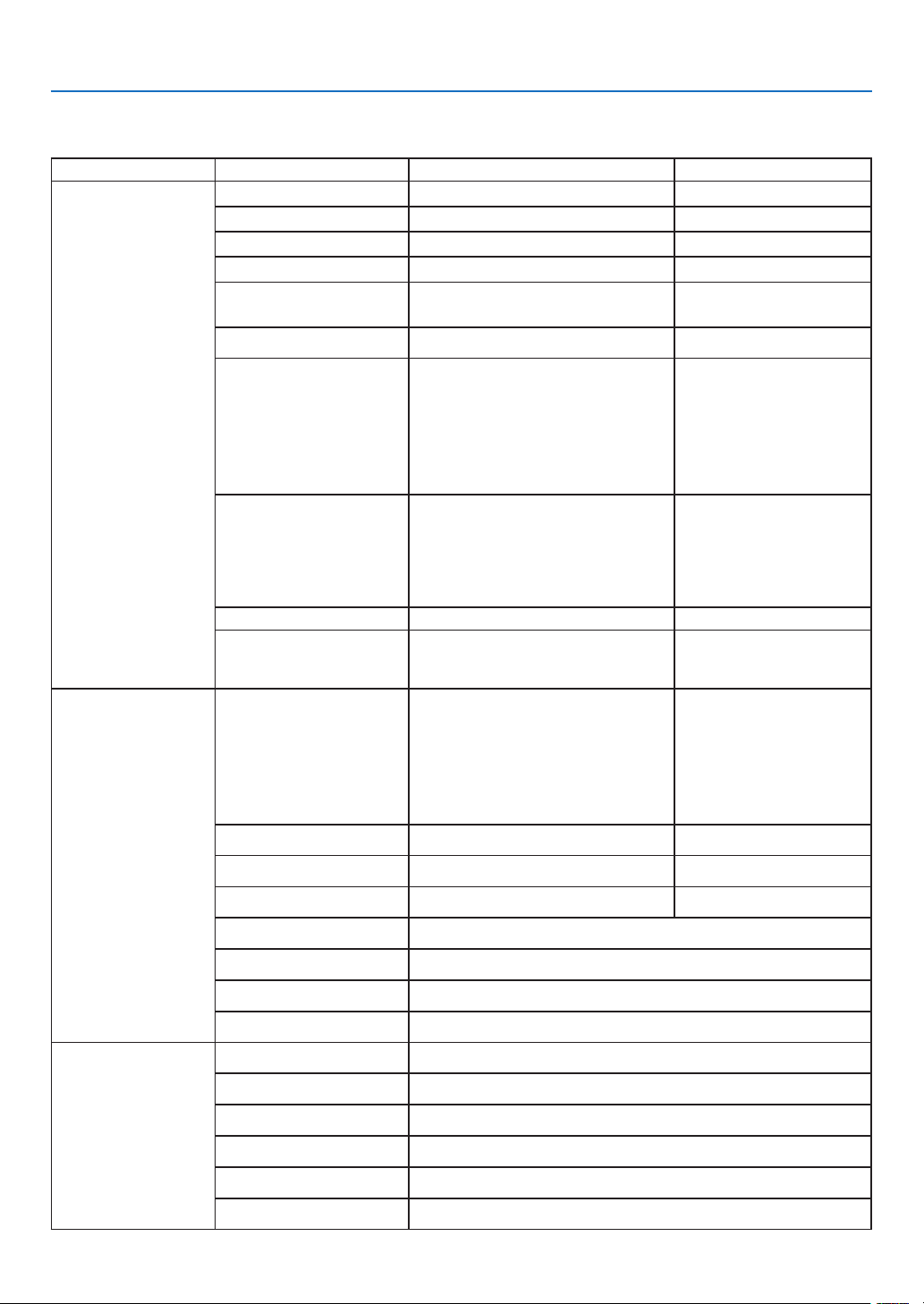
31
5. Using On-Screen Menu
❷ List of Menu Items
Some menu items are not available depending on the input source.
* The asterisk (*) indicates that the default setting varies depending on the signal.
Main menu Sub-menu Setting Remarks
Display
Auto PC adj.
Fine sync 0-31
H position -5 - +5
V position -5 - +5
H. Size -15 - +15
The range of H. size
differs from signals.
Aspect Normal*/Wide/Full/4:3
Orientation
Front *
Rear
Ceiling / Front
Ceiling / Rear
Auto ceiling / Front
Auto ceiling / Rear
Menu position
Upper left*
Upper right
Center
Lower left
Lower right
Background display Black,Blue*,Logo
Signal format ---
The selected Signal format
displays in the Signal for-
mat menu
Color adjust
Image mode
Standard*
Cinema
Blackboard(Green)
Color board
User image
Dynamic
Contrast
0-63 (32
*
)
Brightness
0-63 (32
*
)
Color temp High/Mid*/Low/User
Red
0-63 (32
*
)
Green
0-63 (32
*
)
Blue
0-63 (32
*
)
Sharpness
0-15 (8
*
)
Setting
On start On/Off*
Standby mode Normal*/Sleep/Network standby
High altitude On/Off*
Cooling fast 60 Sec/0 Sec*/30 Sec
Key lock On/Off*
Contrast optimization On/Off*
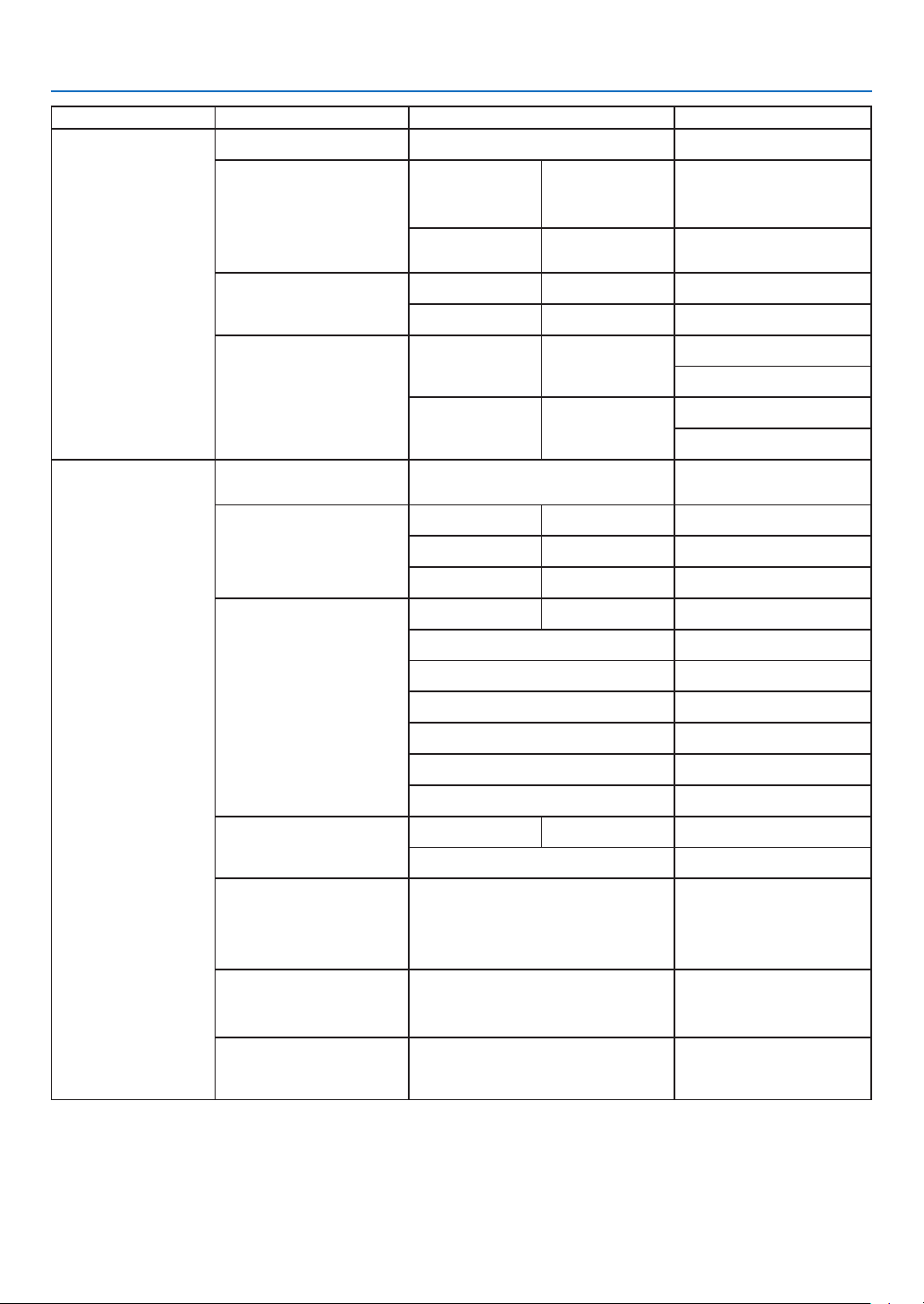
32
5. Using On-Screen Menu
* The asterisk (*) indicates that the default setting varies depending on the signal.
Main menu Sub-menu Setting Remarks
Setting
Baud rate 4800/9600/19200
*
/38400
Laser control
ECO mode
Normal*/ECO1/
ECO2/Full
Normal
Laser adjust.
50%-100%
(100%
*
)
Only for Normal mode
Sound
Volume 0-25(12
*
)
Mute On/Off*
HDMI setup
Image
Auto*/64-940/
0-1023
Sound
HDMI*/
Computer
Expand
Language
Projector provides multiple
language support (English*)
Auto setup
Input search On*/Off
Auto PC adj. On*/Off
Auto keystone On/Off*
Keystone
Keystone Store* / Reset
H/V keystone
4-Corner correction
6-Corner correction
Curved correction
Grid image tune
Reset
Security
PIN code lock On/Off*
PIN code change
Power management
Ready*
Shut down
Off
Timer
Ready countdown
Filter
Filter counter
Timer
Filter counter reset
Test pattern
Off
*
,Gray scale(1-4),Color bar,
Red, Green, Blue,
Cross hatch
,White, Black,
Raster gray
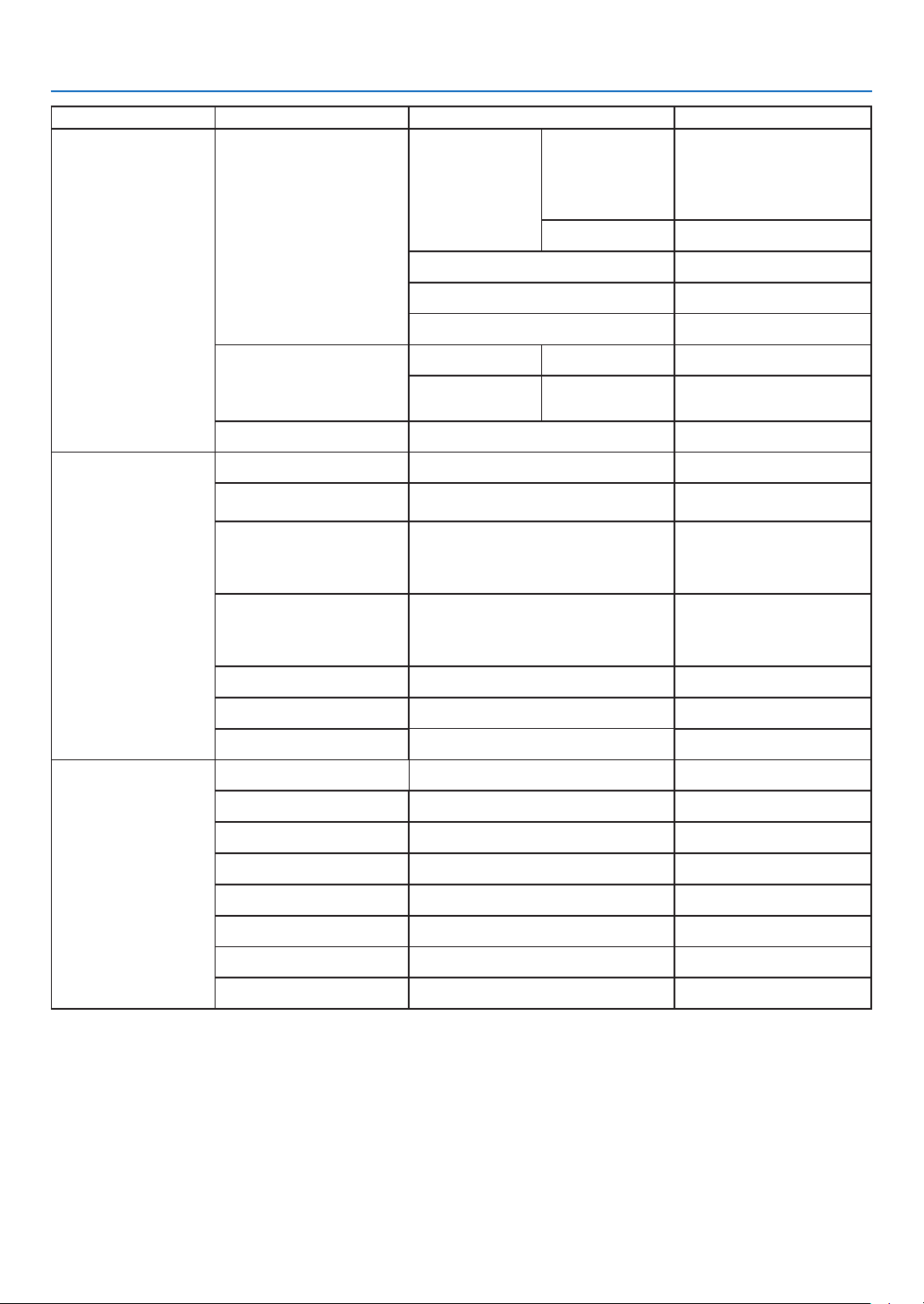
33
5. Using On-Screen Menu
* The asterisk (*) indicates that the default setting varies depending on the signal.
Main menu Sub-menu Setting Remarks
Expand
Network setup
Network setting
Wired LAN
DHCP(On/Off*)
IP address
Subnet
Gateway
DNS
Wireless LAN Setting
(On/Off*)
Network information
MAC address
IP address
Control ID
Control ID
On/Off
*
Control ID
number
1-254(1
*
)
Factory default
USB-A
Set slide
Slide transition effect
Slide down
Slide right*
Sort order
Extend order
Name order*
Time order
Size order
Rotate
No rotate*
270 degree
180 degree
90 degree
Best fit On/Off*
Repeat On/Off*
Apply
Info.
Input
H- sync freq.
V- sync freq.
Light counter
Model name
S/N
Firmware version
SUBCPU

34
5. Using On-Screen Menu
❸ Menu Descriptions & Functions [INPUT]
Computer
HDMI 1
HDMI 2
USB-A
LAN
Computer
Selects the computer connected to your Computer input terminal signal.
NOTE: When the component input signal is connected to the COMPUTER IN terminal, select [Computer].
HDMI1 and HDMI2
Selects the HDMI compatible equipment connected to your HDMI1 or 2 IN terminal.
USB-A
This feature enables you to make presentations using a USB memory that contains pictures.
(→ page
28 “4. Using the VIEWER”)
LAN
Selects a signal from the LAN port (RJ-45).
35
5. Using On-Screen Menu
❹ Menu Descriptions & Functions [Display menu]
...
Display
Auto PC adj.
Fine sync 0
0
0
0
H position
V position
Aspect Normal
Front
Upper left
Blue
Orientation
Menu position
Background display
Signal format
H.size
[Auto PC adj.]
Select Auto PC Adj. function can adjust Fine sync, H position, V position , H. size to be compatible with the com-
puter automatically.
Press the MENU button on the remote control or on the top control panel to display the On-Screen menu.
Press ▲ ▼ button to select the Display menu, then press the ENTER or ▶ button.
1) Press ▲ ▼ button to select [Auto PC adj.] menu.
2) press the ENTER button.
NOTE:
• The projector will perform Auto PC adj. function automatically,when its signal is input for the first time.
• Auto PC adj. function may fail to work if computer models is not compatible with the input signal .
• Auto PC adj. function may fail to work if you select the following system signal format: 480i, 576i, 480p, 576p, 720p, 1080i,1080p, or
signals from the HDMI terminal.
[Fine sync]
(Only for PC signal input)
Adjust image to the best state When the image jitters, or the image outline dims.
1) Press ▲ ▼ button to select [Fine sync] menu.
2) Press the ENTER button.
3) Press ▲ ▼ button to adjust Fine sync.
Adjustment range is from 0 to +31. Please adjust to the least interference state.
[H position]
(Only for PC signal input)
On the premise that the relative position of both projector and the screen is set up right,you can move the image
horizontal position,if the position of the projected image on the screen is deviated.
1) Press ▲ ▼ button to select [H position] menu.
2) Press the ENTER button.
3) Press ▲ ▼ button to adjust image H position.
Adjustment range is from -5 to +5.
36
5. Using On-Screen Menu
[V position]
(Only for PC signal input)
On the premise that the relative position of both projector and the screen is set up right, you can move the image
vertical position, if the position of the projected image on the screen is deviated.
1) Press ▲ ▼ button to select [V position] menu.
2) Press the ENTER button.
3) Press ▲ ▼ button to adjust image V position.
Adjustment range is from -5 to +5.
[H. size]
(Only for PC signal input)
You can adjust and reduce the interference caused by patterns of the projected vertical stripes.The following pro-
jected patterns may cause a circular pattern (Noise). Adjust the amount of interference to the minimum. Users can
point the clock to adjust images.
1) Press ▲ ▼ button to select [H. size] menu.
2) press the ENTER button.
3) Press ▲ ▼ button to adjust H. size level .
Adjustment range is from -15 to +15.
[Aspect]
Adjust the image to fit the screen size, while keeping aspect of input signal's unchanged.
Press the MENU button on the remote control or on the top control panel to display the On-Screen menu. Press ▲
▼ button to select the Display menu, then Press the ENTER or ▶ button.
1) Press ▲ ▼ button to select [Aspect] menu.
2) Press the ENTER button.
3) Press ▲ ▼ button to select the required item.
Normal........... Use the maximum size to project while keeping the aspect of input signal's unchanged.
Wide............... Project images at the aspect of 16: 9.
Full..................Project images to the maximum.
4:3...................Project images at the aspect of 4:3.
16:10...............Project images at the aspect of 16:10.
NOTE:
• This projector can be selected from Normal / Wide / Full / 4:3.
• 16:10 will be grayed out on this projector.
H.size
...
Display
Auto PC adj.
Fine sync 0
0
0
0
H position
V position
Aspect Normal
Front
Upper left
Blue
Orientation
Menu position
Background display
Signal format
37
5. Using On-Screen Menu
[Orientation]
Select this function to set the project way.
Please change the projection way, if the On-Screen menu displays inversely or reversedly.
Press the MENU button on the remote control or on the top control panel to display the On-Screen menu. Press ▲
▼ button to select the Display menu, then press the ENTER or ▶ button.
1) Press ▲ ▼ button to select [Orientation] menu.
2) Press the ENTER button.
3) Press ▲ ▼ button to switch.
Front: When the projector is installed on the table and projected in front of the screen.
Rear: When the projector is installed on the table and projected in rear of the screen (using translucent screen)
Ceiling / Front: When use the ceiling mount (Commercially available) to lift the projector in front of the screen.
Ceiling / Rear: When use the ceiling mount (Commercially available) to lift the projector in rear of the screen (using
translucent screen).
Auto ceiling / Front: When the projector is projected in front of the screen. The built-in angle sensor detects the
angle of the projector automatically and then switches to [Front] or [Ceiling/Rear]. When front
projection, please set it to this option. (→ page
9 )
Auto ceiling / Rear: When the projector is projected in front of the screen. The built-in angle sensor detects the angle
of the projector automatically and then switches to [Rear] or [Ceiling/Rear]. When rear projec-
tion, please set it to this option.(→ page 9 )
H.size
...
Display
Auto PC adj.
Fine sync 0
0
0
0
H position
V position
Aspect Normal
Front
Upper left
Blue
Orientation
Menu position
Background display
Signal format
WARNING
• Should special works be required, for example to suspend the projector from the ceiling, consult your dealer.
• Never try to install the projector yourself in such cases. The projector could drop and cause injury.
[Menu position]
Select this function to set the On-Screen Menu position.
Press the MENU button on the remote control or on the top control panel to display the On-Screen menu. Press ▲
▼ button to select the display menu, then press the ENTER or ▶ button.
1) Press ▲ ▼ button to select [Menu position] menu.
2) Press the ENTER button.
3) Press ▲ ▼ button to change menu position.
Upper left ......The menu display on the upper left corner of the screen.
Upper right ....The menu display on the upper right corner of the screen.
Center............The menu display in the center of the screen.
Lower left ......The menu display on the lower left corner of the screen.
Lower right ....The menu display on the lower right corner of the screen.
38
5. Using On-Screen Menu
H.size
...
Display
Auto PC adj.
Fine sync 0
0
0
0
H position
V position
Aspect Normal
Front
Upper left
Blue
Orientation
Menu position
Background display
Signal format
[Background display]
Select this function can adjust background color when there is no input signal.
Press the MENU button on the remote control or on the top control panel to display the On-Screen menu. Press ▲
▼ button to select the Display menu, then press the ENTER or ▶ button.
1) Press ▲ ▼ button to select [Background display] menu.
2) Press the ENTER button.
3) Press ▲ ▼ button to select required item .
Blue....... The entire projection area display blue.
Black......The entire projection area display black.
Logo.......The entire projection area display NEC PROJECTOR background.
NOTE:
• This function will be invalid once you select input signal as USB-A and LAN.
H.size
...
Display
Auto PC adj.
Fine sync 0
0
0
0
H position
V position
Aspect Normal
Front
Upper left
Blue
Orientation
Menu position
Background display
Signal format
[Signal format]
If a PC is selected as the input signal source, your projector will detect and adapt to its signal format automatically.
Correct image can be displayed without any setup operation.
Your projector will display one of the following:
Auto: The Auto PC Adjusting function will make necessary adjustment to your projector to project valid images. If
images are displayed incorrectly, adjust it manually.
---- : No PC signals detected. Check the connection between PC and your projector.
NOTE:
• Your projector may save data generated by the Auto PC adj. function.
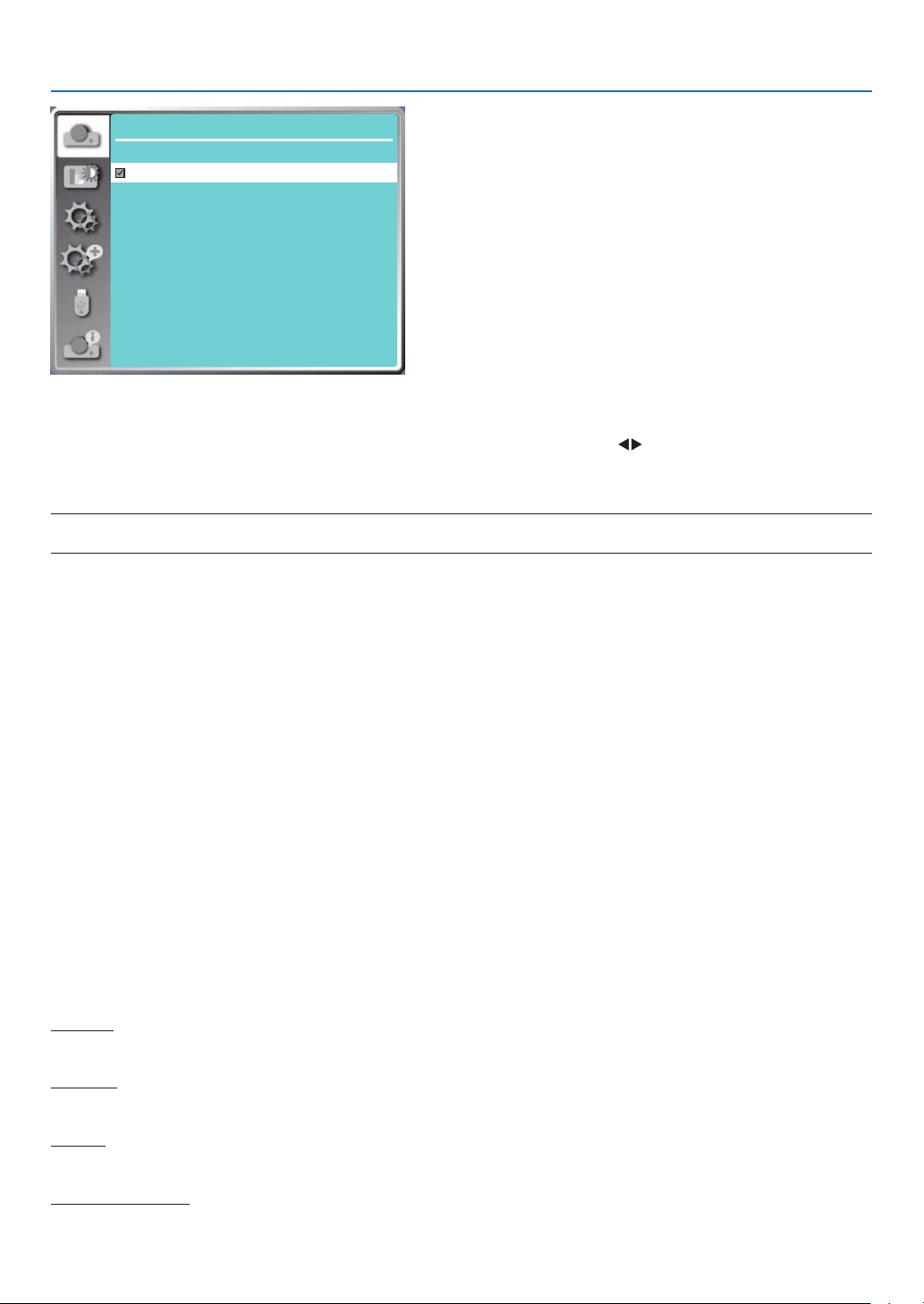
39
5. Using On-Screen Menu
Display
Signal format
1024 x 768 , 60 HZ
1920 x 1080 , 60 HZ
- - - -
- - - -
1280 x 800 , 60 HZ
• The selected Signal format displays in the Signal format menu.
Select the computer Signal format manually.
1. Press the MENU button on remote control and the On-Screen displays. Press button to point to the Input icon,
press ▲ ▼ button or the ENTER button and the Input menu displays.
2. Press ▲ ▼ button to select Signal format, then press ENTER button.
NOTE:
• The computer Signal format menu will be disabled once HDMI 1, HDMI 2, USB-A, LAN has been selected.
❺ Menu Descriptions & Functions [Color adjust]
Select color adjustment to set the image mode and adjust the quality of the projected image.
Menu operation
Press the MENU button on the remote control or on the top control panel to display the On-Screen menu. Press ▲
▼ button to select the Color adjust menu, then press the ENTER or ▶ button.
1) Press ▲ ▼ button to select required item.
2) Press the ENTER button.
3) Press ▲ ▼ button to select adjust set point.
[Image mode]
Direct operation
Press the PICTURE select button on remote control to select required image mode.
Menu operation
Press the MENU button on the remote control or on the top control panel to display the On-Screen menu. Press ▲
▼ button to select the color adjust menu, then press the ENTER or ▶ button.
1) Press ▲ ▼ button to select [Image mode] menu.
2) Press the ENTER button.
3) Press ▲ ▼ button to select required item.
Dynamic
An image mode suitable for viewing in bright room.
Standard
The default mode of your projector, can come to natural color.
Cinema
Enriched gray scale for viewing movies.
Blackboard (Green)
An image mode designed for displaying on a blackboard (Green). It boosts quality of image projected on blackboard
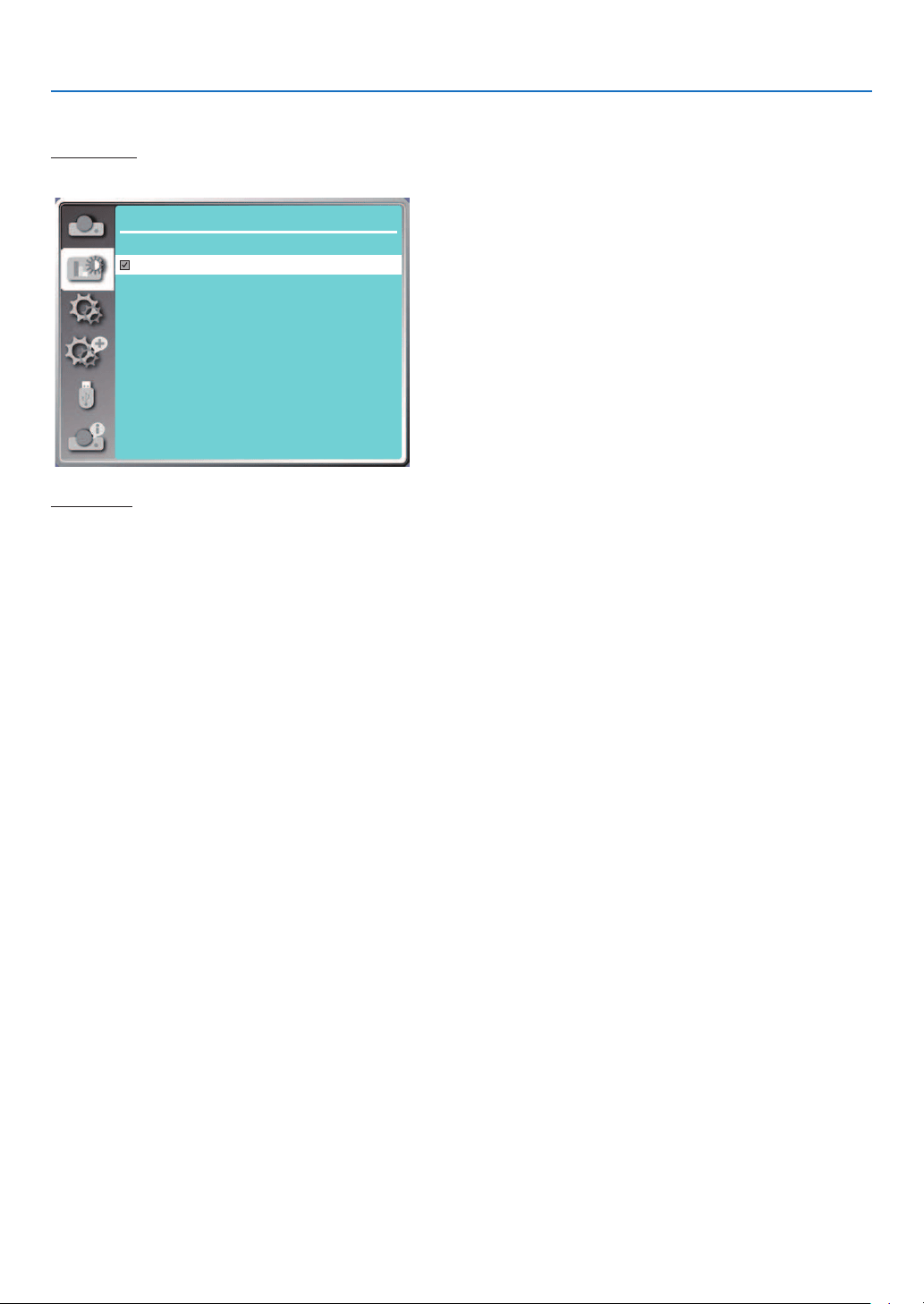
40
5. Using On-Screen Menu
(Green). This is designed for a board in green rather than black as indicated by its name.
Color board
A image mode suitable for image projecting on surface of wall in red, blue, yellow or green. Press the ENTER button
to enter Color board menu, then press ▲ ▼ button to select Red, Blue, Yellow or Green, press the ENTER button.
Color adjust
Colorboard
Red
Blue
Green
Yellow
User image
Users can customize the color adjustment.
[Contrast]
Press ▼ button to decrease contrast, range from 0 - +63.
Press ▲ button to increase contrast, range from 0 - +63.
[Brightness]
Press ▼ button to decrease brightness, range from 0 - +63.
Press ▲ button to increase brightness, range from 0 - +63.
[Color temp.]
Press ▲ ▼ button to select required color temperature (Low, Mid., High and User)
High temp: Become blue gradually.
Mid temp: Suitable natural color.
Low temp: Become red gradually.
User:You can adjust the Red, Green, Blue and Yellow values by yourself.
[Red]
Press ▼ button to decrease red tint and ▲ button to increase it.
[Green]
Press ▼ button to decrease green tint and ▲ button to increase it.
[Blue]
Press ▼ button to decrease blue tint and ▲ button to increase.
[Sharpness]
Press ▼ button to soften image and ▲ button to sharpen, range from 0 - +15.
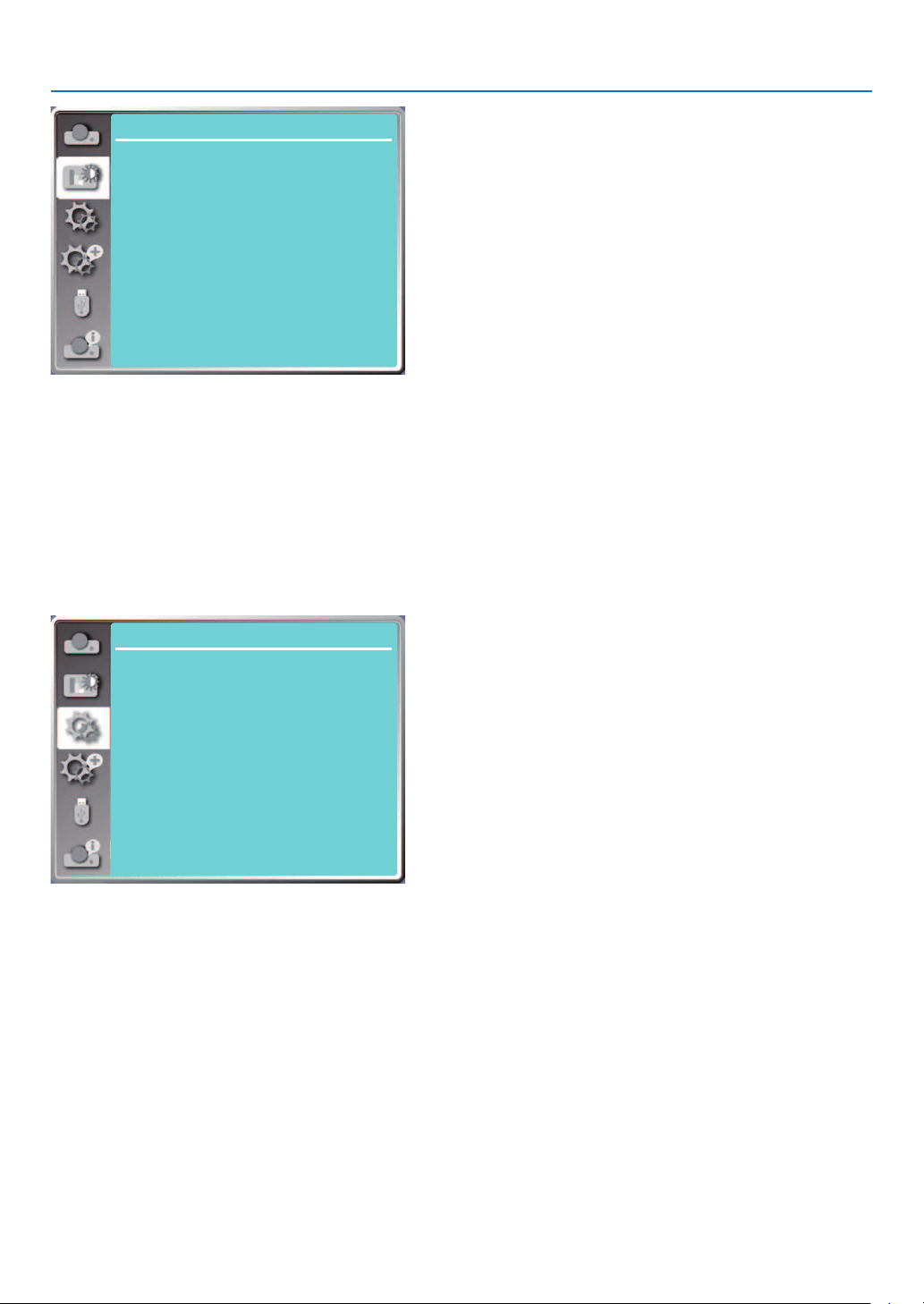
41
5. Using On-Screen Menu
Color adjust
Image mode
Contrast
Brightness
Color temp.
Red
Green
Blue
Sharpness
32
32
Mid
32
32
32
0
Standard
6 Menu Descriptions & Functions [Setting]
The projector has setting function, you can select other functions as described below.
Menu operation
Press the MENU button on the remote control or on the top control panel to display the On-Screen menu. Press ▲
▼ button to select the setting menu, then press the ENTER or ▶ button.
1) Press ▲ ▼ button to select required item.
2) Press the ENTER button.
3) Press ▲ ▼ button to set options.
Setting
On start
Standby mode
High altitude
Key lock
Contrast optimization
Baud rate
Laser control
Sound
HDMI setup
Off
Normal
Off
Off
Cooling fast 60 Sec
Off
9600
[On start]
Set the option to "On" if selecting this function, the projector will automatically turn on when the power cord is con-
nected to the power outlet.
1) Press ▲ ▼ button to select [ On start ] menu.
2) Press the ENTER button.
3) Press ▲ ▼ button to select required item.
Off...... Get into standby mode.
On.......Start up immediately.
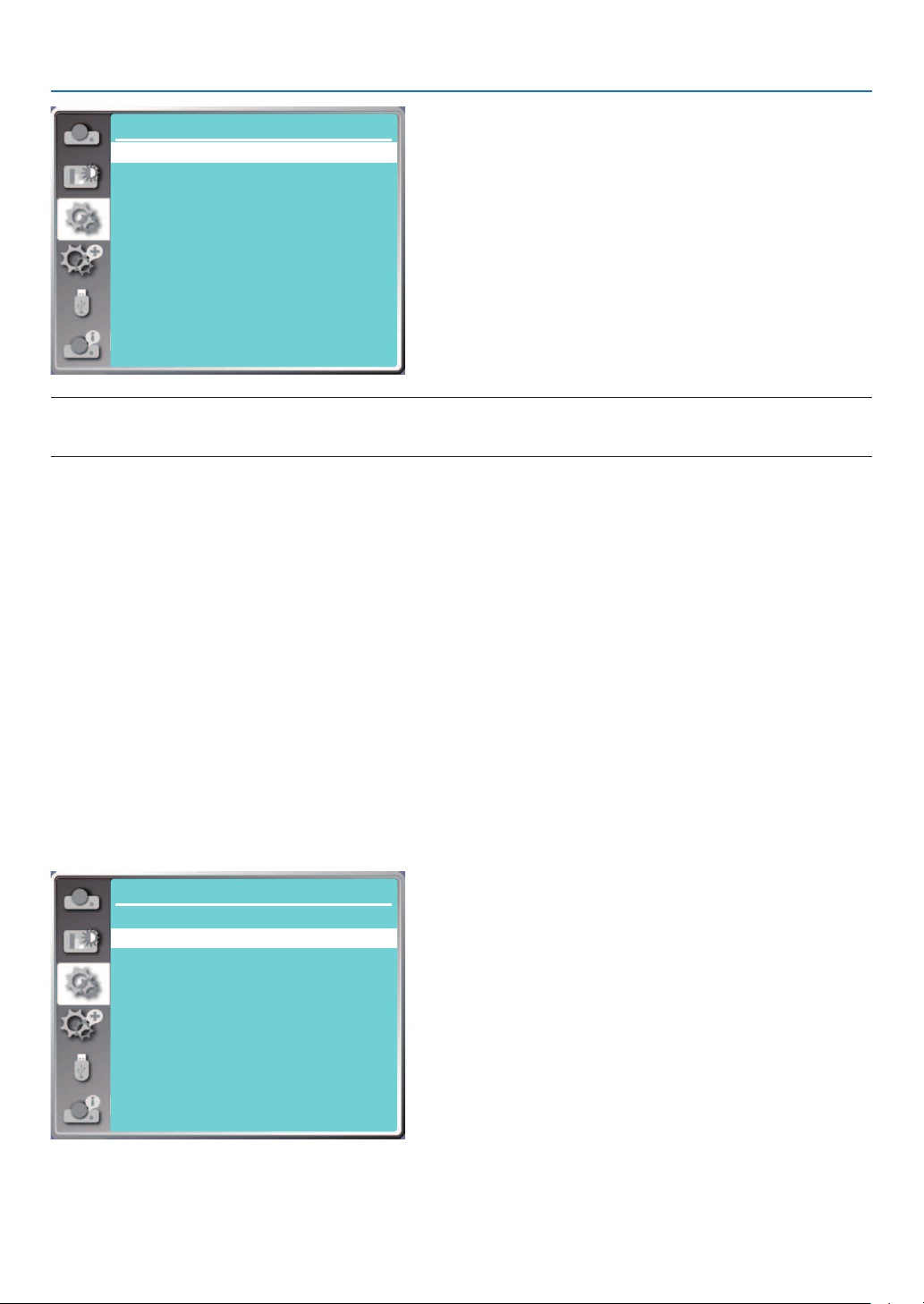
42
5. Using On-Screen Menu
Setting
On start
Standby mode
High altitude
Key lock
Laser control
Sound
HDMI setup
Off
Normal
Off
Off
Cooling fast 60 Sec
Contrast optimization
Baud rate
Off
9600
Note:
• After the power is turned off, please wait about 20s after unplugging the AC, and then you can turn on the power. If the power is turned
on immediately, it may not work properly.
[Standby mode]
Select this function to switch different standby mode.
1) Press ▲ ▼ button to select [Standby mode] menu.
2) Press the ENTER button.
3) Press ▲ ▼ button to adjust levels.
Normal...... Although the power consumption on this mode is lower than on the [Network standby] or [Sleep] mode,
when this mode is selected, only the POWER button on the top control panel or the remote control will work..
Network standby...... Although the power consumption on this mode is higher than on the [Normal] mode, this mode
allows you to turn on the projector from standby condition by using the Wake on LAN feature
(hereafter referred to as WoL) via LAN.
Consult your network administrator for more information about WoL.
Sleep ........ Although the power consumption on this mode is higher than on the [Network standby] mode, this mode
spends less time to turn on the projector from standby condition via LAN compared to the [Network
standby] mode.
To control the projector by using our application software NaViSet Administrator 2, select the [Sleep]
mode.
Setting
On start
Standby mode
High altitude
Key lock
Laser control
Sound
HDMI setup
Off
Normal
Off
Off
Cooling fast 60 Sec
Contrast optimization
Baud rate
Off
9600
[High altitude]
You can change the setting about speed of cooling fan according to the altitude your projector is operating at.
1) Press ▲ ▼ button to select [High altitude] menu.
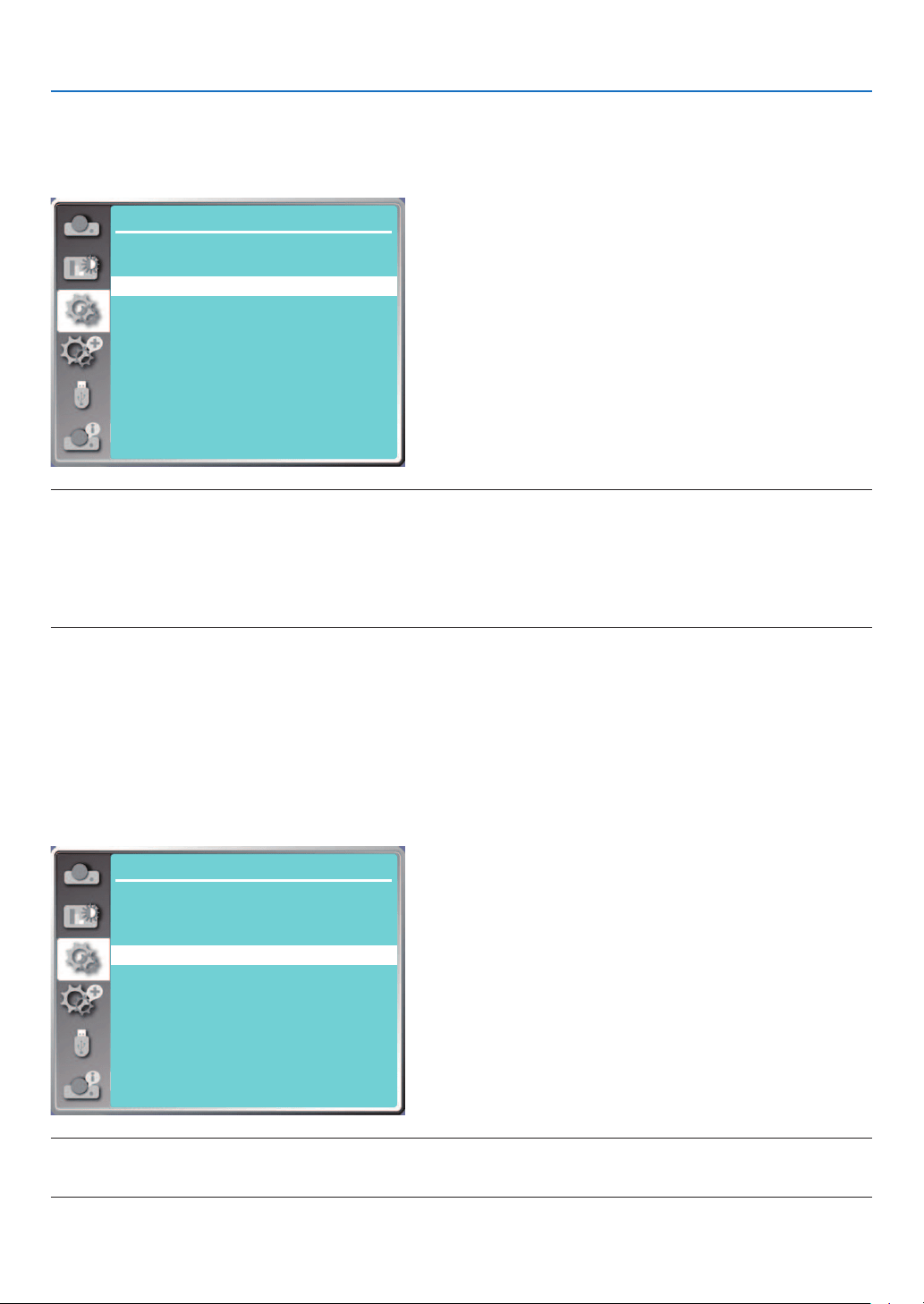
43
5. Using On-Screen Menu
2) Press the ENTER button.
3) Press ▲ ▼ button to select required menu.
Off: Normal speed. set the option off when operating the operator, if the altitude is not too high.
On: Faster than when in off mode .set the option on when operating the operator in high land.
Setting
On start
Standby mode
High altitude
Key lock
Laser control
Sound
HDMI setup
Off
Normal
Off
Off
Cooling fast 60 Sec
Contrast optimization
Baud rate
Off
9600
Note:
• The air pressure sensor will sense the altitude automatically. When the altitude is at an altitude of approximately 1700 meters/ 5577 feet
or higher, projector will turn on the High altitude function automatically, thus the On-screen menu of High altitude will change to "On".
• If the air pressure sensor is damaged, the projector OSD menu will turn red for reminding that the automatic transfer to high altitude
function is invalid. User could set High altitude to "On" manually .
• When setting condition is over approximately 2600 meters / 8530 feet , automatically brightness is reduced to protect unit.
• This unit can be used at approximately 3000 meters / 9843 feet , once over that altitude units automatically turn down to protect unit.
[Cooling fast]
Select the cooling time after projector is turned off.
1) Press ▲ ▼ button to select [Cooling fast] menu.
2) Press the ENTER button.
3) Press ▲ ▼ button to switch required menu.
60 Sec.....Cooling down in 60 seconds after the projector is turned off.
30 Sec...... Cooling down in 30 seconds after the projector is turned off. And the cooling fan will runs faster then in
the normal cooling way with shorter time but it will sounds louder.
0 Sec.......Cooling down instantly after the projector is turned off.
Setting
On start
Standby mode
High altitude
Key lock
Laser control
Sound
HDMI setup
Off
Normal
Off
Off
Cooling fast 60 Sec
Contrast optimization
Baud rate
Off
9600
Note:
• Cooling fast function depends on whether user needs to move the projector immediately. If the user needs to unplug the power to
move the projector immediately, you can choose “0 Sec”, or we can select the "60 Sec" option.
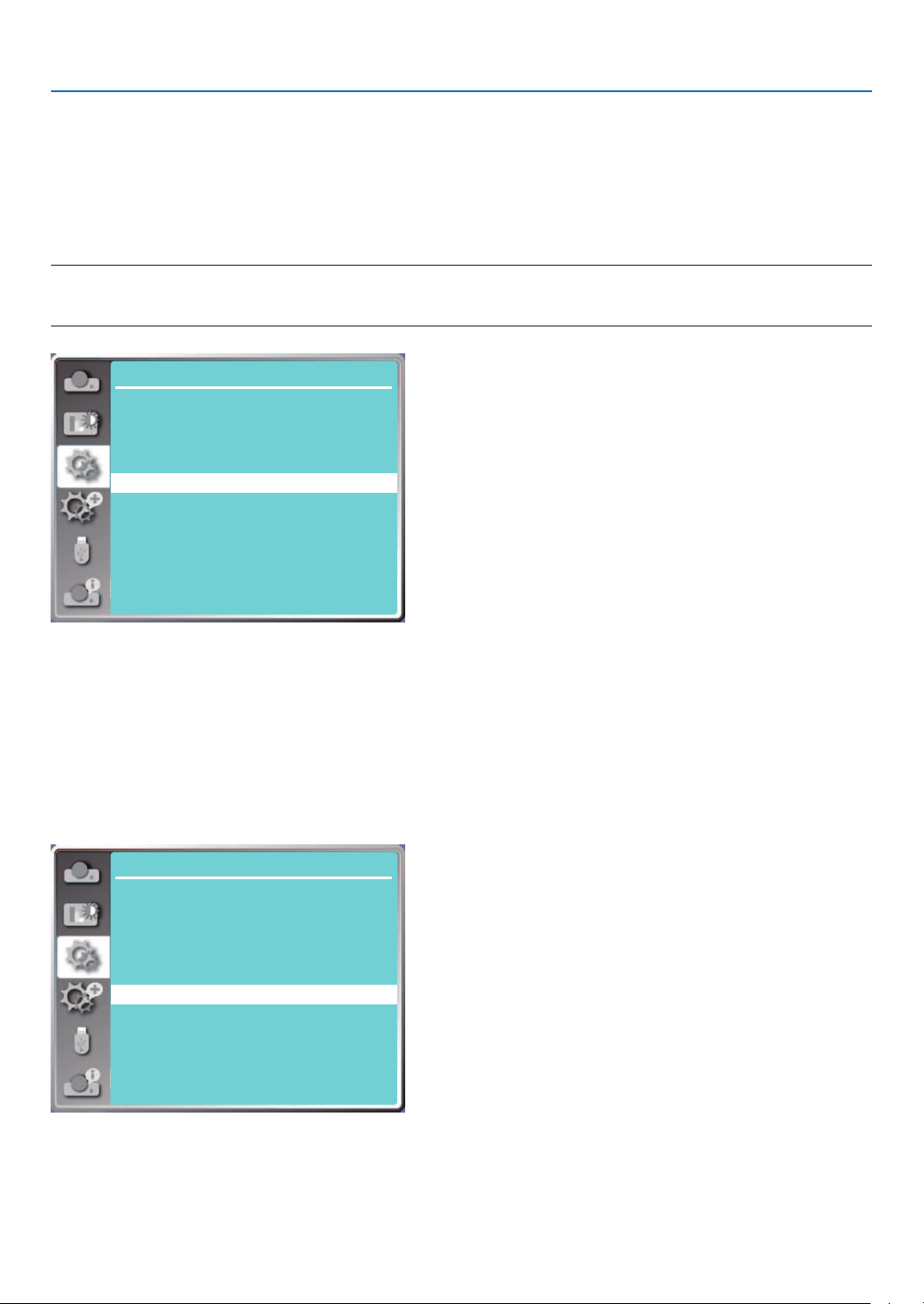
44
5. Using On-Screen Menu
[Key lock]
Select this function to lock and unlock the control panel keypads. 1) Press ▲ ▼ button to select [Key lock] menu.
2) Press the ENTER button.
3) Press ▲ ▼ button to switch required menu.
Off......The control panel keypads are effective.
On......The control panel keypads is invalid.
NOTE:
• When you lock the top of the control panel keypads, but the remote control is lost or something wrong with it, please contact your dealer
or service center.
Setting
On start
Standby mode
High altitude
Key lock
Laser control
Sound
HDMI setup
Off
Normal
Off
Off
Cooling fast 60 Sec
Contrast optimization
Baud rate
Off
9600
[Contrast optimization]
Select this function to optimize and compensate signal automatically on the basis of the image, to get the best
contrast image.
1) Press ▲ ▼ button to select [Contrast optimization] menu.
2) Press the ENTER button.
3) Press ▲ ▼ button to adjust.
Off......No optimization.
On......Optimize contrast.
Setting
On start
Standby mode
High altitude
Key lock
Laser control
Sound
HDMI setup
Off
Normal
Off
Off
Cooling fast 60 Sec
Contrast optimization
Baud rate
Off
9600
[Baud rate]
Select this function to adjust the projector transmission rate.
1) Press ▲ ▼ button to select [Baud rate] menu.
2) Press the ENTER button.
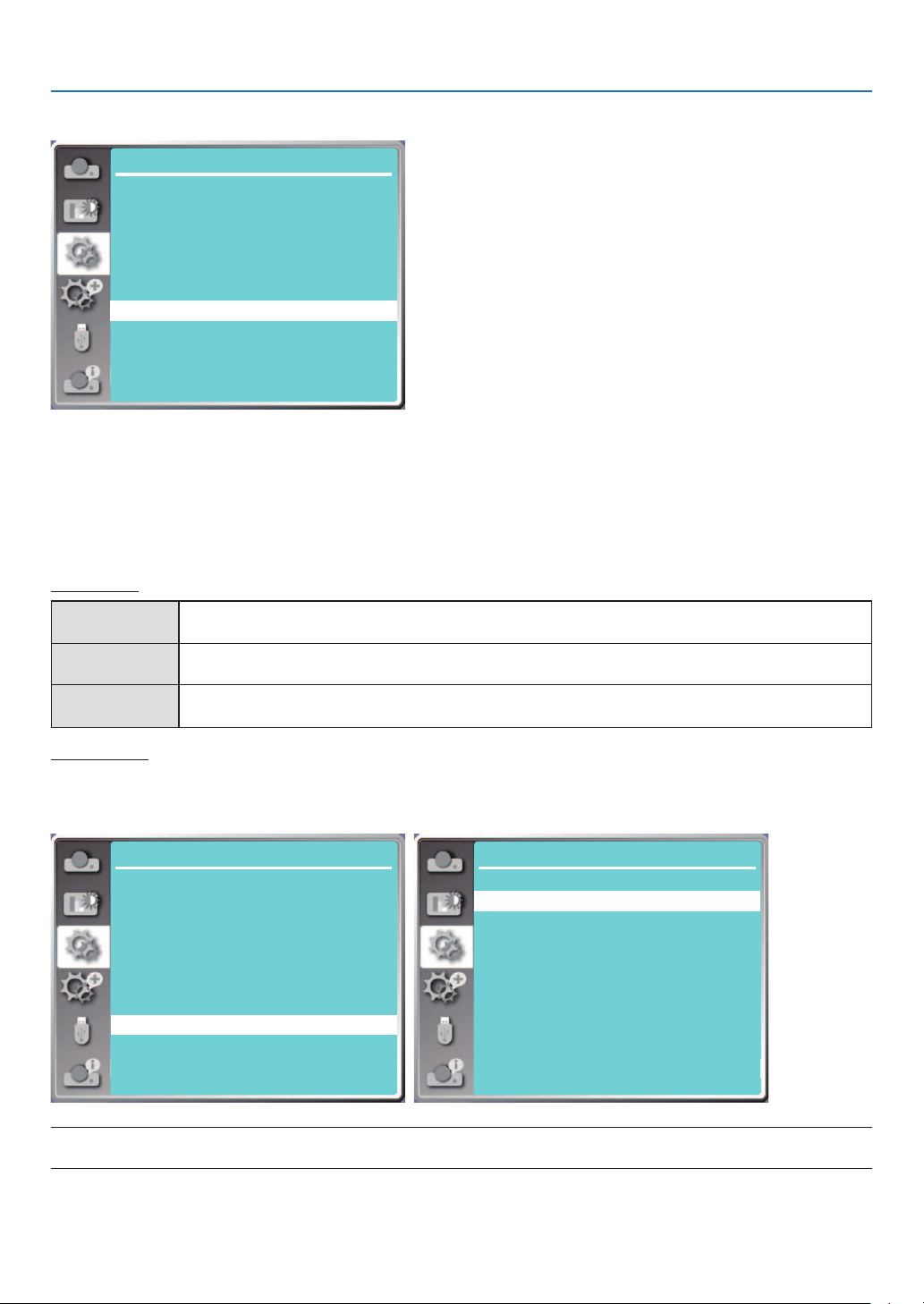
45
5. Using On-Screen Menu
3) Press ▲ ▼ button to select rate: 4800/9600/19200/38400.
Setting
On start
Standby mode
High altitude
Key lock
Laser control
Sound
HDMI setup
Off
Normal
Off
Off
Cooling fast 60 Sec
Contrast optimization
Baud rate
Off
9600
[Laser control]
Change light source brightness according to the environment and aim your projector is operating.
1) Press ▲ ▼ button to select [Laser control] menu.
2) Press the ENTER button.
3) Press ▲ ▼ button to select [ECO mode] or [Laser adjust].
4) Press the ENTER button.
ECO mode
Normal
Normal brightness, the screen becomes brighter. Alternatively, you can adjust from
50%~100%. Default is 100%.
ECO.1/ECO.2 Lower the brightness and reduce energy consumption.
Full normal
The brightness is the same as normal mode, but it is not adjustable
Laser adjust
This function is valid only in Normal mode, and the adjustable range is 50%-100%. And the menu will turn gray on
ECO.1, ECO2 and Full normal mode.
Setting
On start
Standby mode
High altitude
Key lock
Laser control
Sound
HDMI setup
Off
Normal
Off
Off
Cooling fast 60 Sec
Contrast optimization
Baud rate
Off
9600
Setting
Laser control
ECO mode
Laser adjust
Normal
100%
NOTE:
• Laser adjust option can be chosen only in Normal mode.
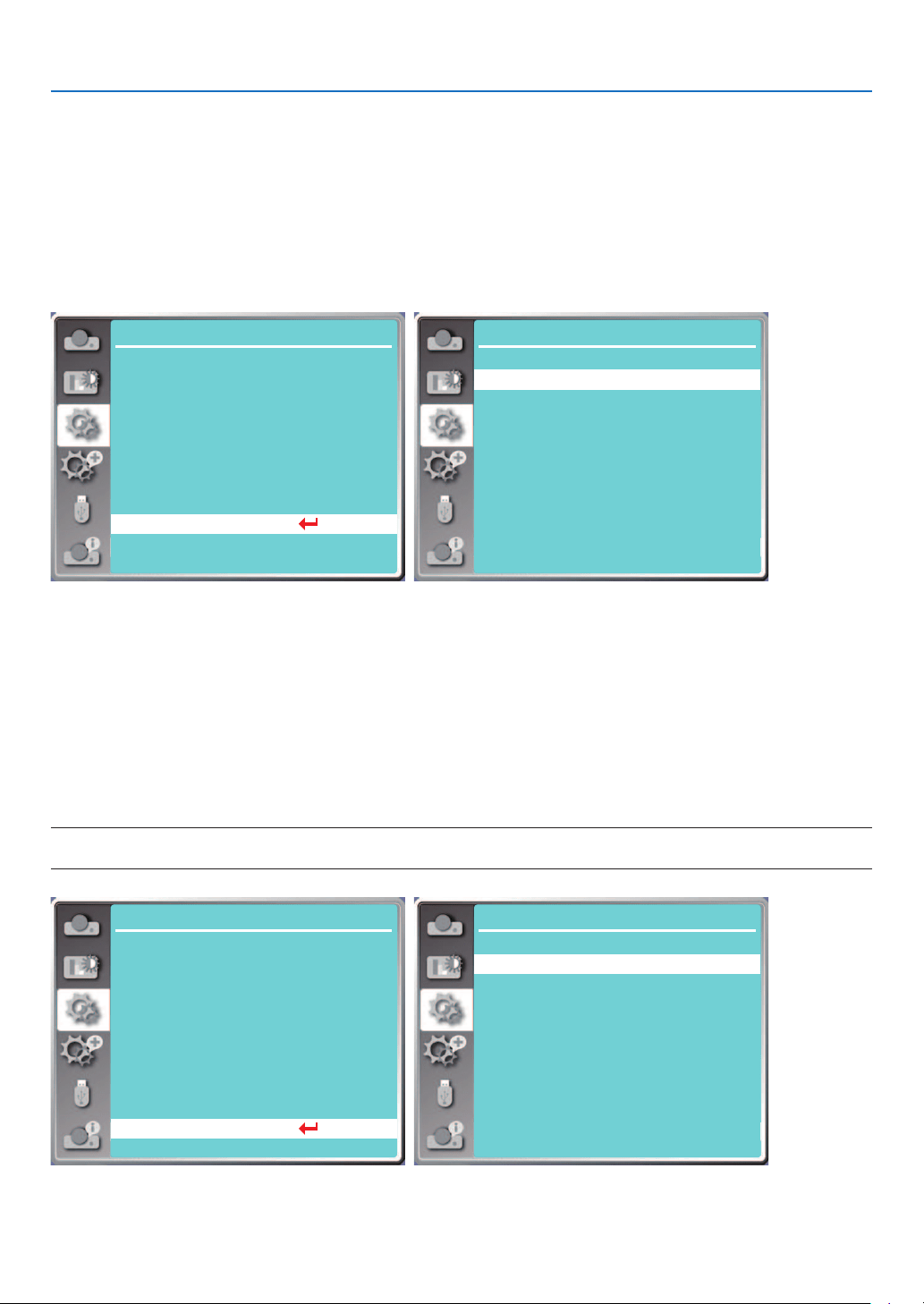
46
5. Using On-Screen Menu
[Sound]
Select this function to adjust the sound.
1) Press ▲ ▼ button to select [Sound] menu.
2) Press the ENTER button.
3) Press ▲ ▼ button to switch required menu.
Volume......Press ◀ button to turn down the volume and ▶ button to turn up the volume, range from 0 - +25
Mute..........Select "Off" to output audio, and select "On" to disable audio.
Setting
On start
Standby mode
High altitude
Key lock
Laser control
Sound
HDMI setup
Off
Normal
Off
Off
Cooling fast 60 Sec
...
Contrast optimization
Baud rate
Off
9600
Setting
Sound
Volume
Mute
12
Off
[HDMI setup]
When the external device is connected to the HDMI terminal of the projector, and the images can not be projected
normally, please switch on the image or sound setting.
Press the MENU button on the remote control or on the top control panel to display the On-Screen menu. Press ▲
▼ button to select the setting menu, then press the ENTER or ▶ button to enter the sub-menu.
1) Press ▲ ▼ button to select [HDMI setup] menu.
2) Press the ENTER button.
• Display [HDMI setup] instantly.
3) Press ▲ ▼ button to select [Image] or [Sound]].
4) Press the ENTER button.
NOTE:
• HDMI setup option can be chosen only in HDMI 1 and HDMI 2 channel.
...
Setting
On start
Standby mode
High altitude
Key lock
Laser control
Sound
HDMI setup
Off
Normal
Off
Off
Cooling fast 60 Sec
Contrast optimization
Baud rate
Off
9600
Setting
HDMI setup
Image
Sound
0-1023
HDMI
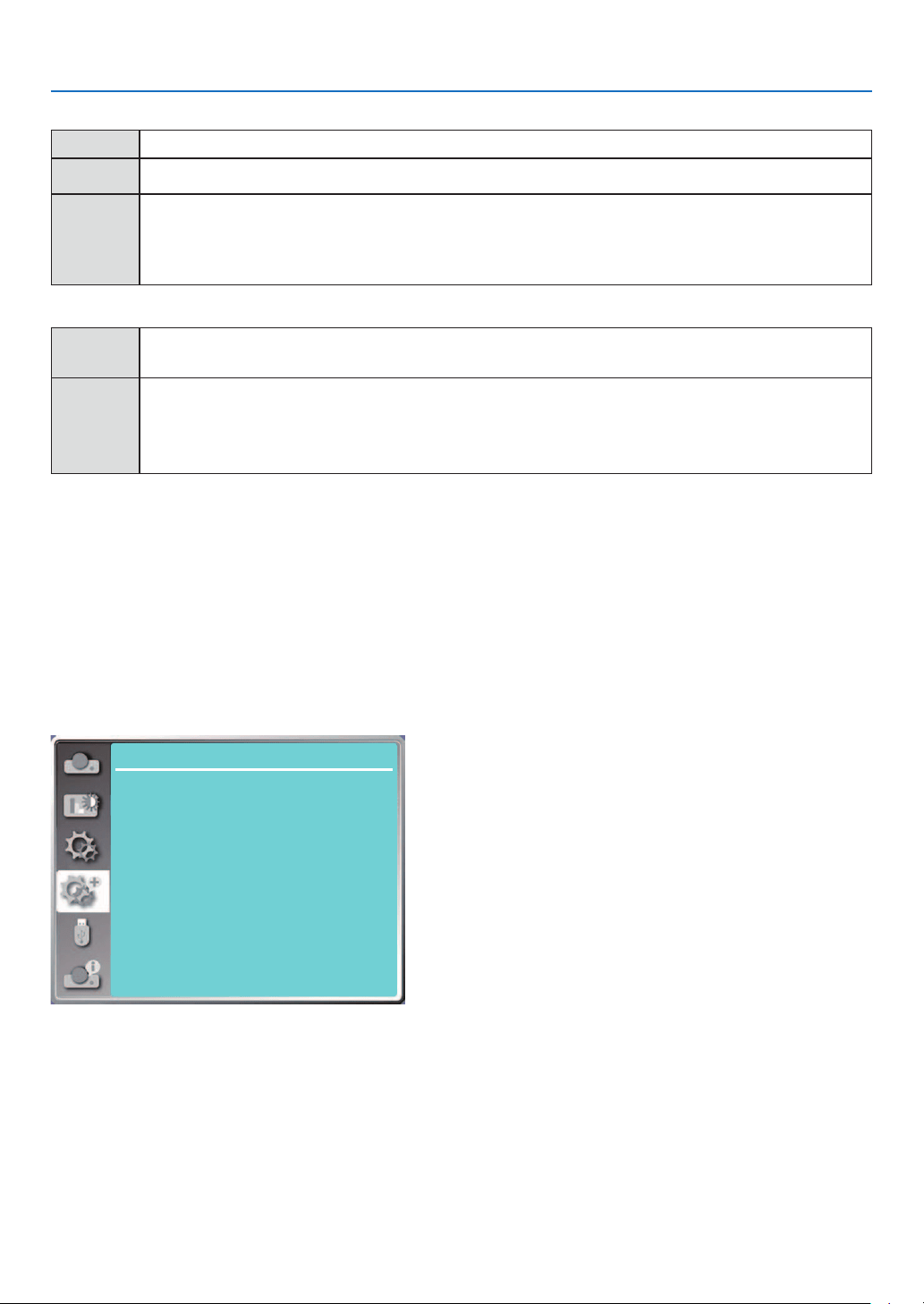
47
5. Using On-Screen Menu
Image
Auto Set the signal level automatically.
[
64-940
] When external device (such as: a Blu-ray Disc player) is connected to the HDMI setup terminal .
[
0-1023
]
When the output of an external device (such as a computer), via a conversion cable or a similar cable,
is connected to the HDMI setup terminal.
Select this option
when
the output of
the PC or any other device is connected to the HDMI setup ter-
minal also.
Sound
[
HDMI
]
When connect to the HDMI cable to transmit images and audio while the users do not need connect
to audio signal separately.
[
Computer
]
When the output of an external device (such as a computer), via a conversion cable or a similar
cable ,
is connected to the HDMI terminal .
The audio signal would be output according the connection of AUDIO IN terminal.
❼ Menu Descriptions & Functions [Expand]
The projector has expand function, you can select other functions as described below.
Menu operation
Press the MENU button on the remote control or on the top control panel to display the On-Screen menu. Press ▲
▼ button to select the Expand menu, then press the ENTER or ▶ button.
1) Press ▲ ▼ button to select required item.
2) Press the ENTER button.
3) Press ▲ ▼ button to set options.
4) Press the ENTER button.
Expand
Language
Auto setup
Keystone
Security
Power management
Test pattern
Network setup
Control ID
Factory default
Filter
[Language]
Users can selected the language displayed on the screen.
1) Press ▲ ▼ button to select [Language] menu.
2) Press the ENTER button.
3) Press ▲ ▼ button to select required language.
4) Press the ENTER button.
Various menus, settings, adjustment screens, names of control panel keypads, etc., will be displayed in the selected
language.
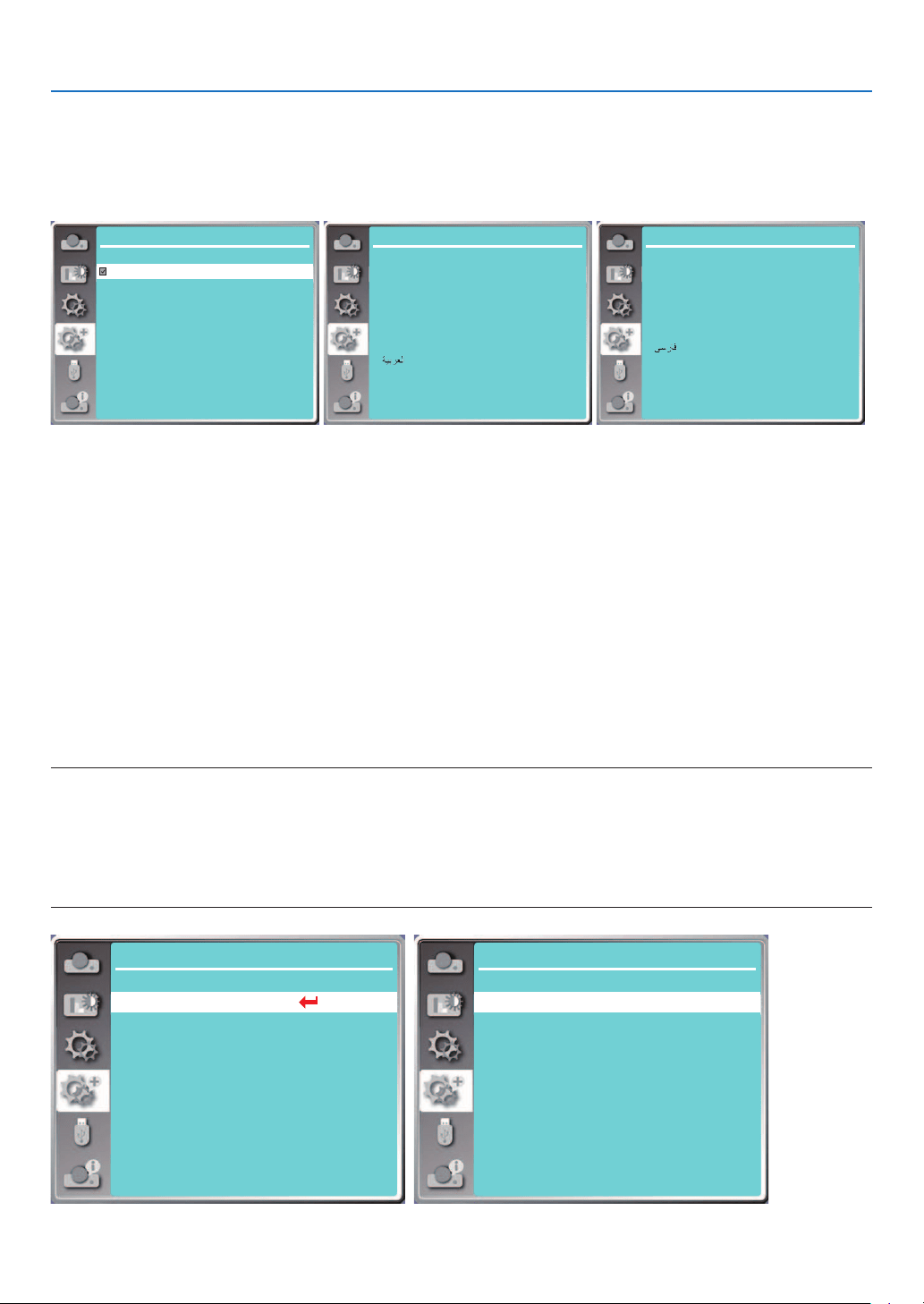
48
5. Using On-Screen Menu
Your projector comes with multiple language support. You may select required one from them, such as: English,
German, French, Italian, Spanish, Polish, Swedish, Dutch, Portuguese, Japanese, Simplified Chinese, Traditional
Chinese, Korean, Russian, Arabic, Turkey, Finland, Norway, Denmark, Indonesia, Hungary, Czech Republic, Ka-
zakhstan, Vietnamese, Thai, Farsi, Romania.
Expand
Language 1/3
Deutsch
Français
Italiano
Español
Svenska
Suomi
Norsk
Português
Nederlands
English
Expand
Language 2/3
Dansk
Polski
český
Magyar
Русский
Қазақ
Tiếng Việt
한글
Türkçe
Expand
Language 3/3
ภาษาไทย
Bahasa Indonesia
Română
[Auto setup]
Select this function to store or reset the keystone or some related setting after unplugging the AC power.
Press the MENU button on the remote control or on the top control panel to display the On-Screen menu. Press ▲
▼ button to select the Expand menu, then press the ENTER or ▶ button.
Press the AUTO ADJ. button on your remote control to execute the following functions: Input search, Auto PC adj.
and Auto keystone.
1) Press ▲ ▼ button to select [Auto setup] menu.
2) Press the ENTER button.
3) Press ▲ ▼ button to select required items.
Input search: Select this function to detect the signal, then project images automatically.
Auto PC adj.: When Auto PC adj. is set to "On", the projector inputs an analog signal, then press the "Auto ADJ."
button on the remote control to adjust [Fine sync], [H.Position], [V position] and [H. size] automati-
cally.
When Auto PC Adjust is set to "Off", the "Auto ADJ." button on the remote control is invalid.
Auto keystone: Select this function to correct vertical distortion of the projected image automatically.
NOTE:
• Please adjust the projector manually, if the image is displayed abnormal even if you have selected Auto keystone function.
• When you set Project way as Ceiling / Front or Ceiling / Rear, Auto keystone function is invalid.
• When you set Project way as Auto ceiling / Front or Auto ceiling / Rear, and users put their projector in ceiling state, the Auto keystone
function will be invalid.
• When select auto search for input source search, USB-A and LAN signals are not in the scope of auto search function.
• Input search function does not support signal input from BNC to VGA.
...
Expand
Language
Auto setup
Keystone
Security
Power management
Test pattern
Network setup
Control ID
Factory default
Filter
Expand
Auto setup
On
On
Off
Input search
Auto PC adj.
Auto keystone
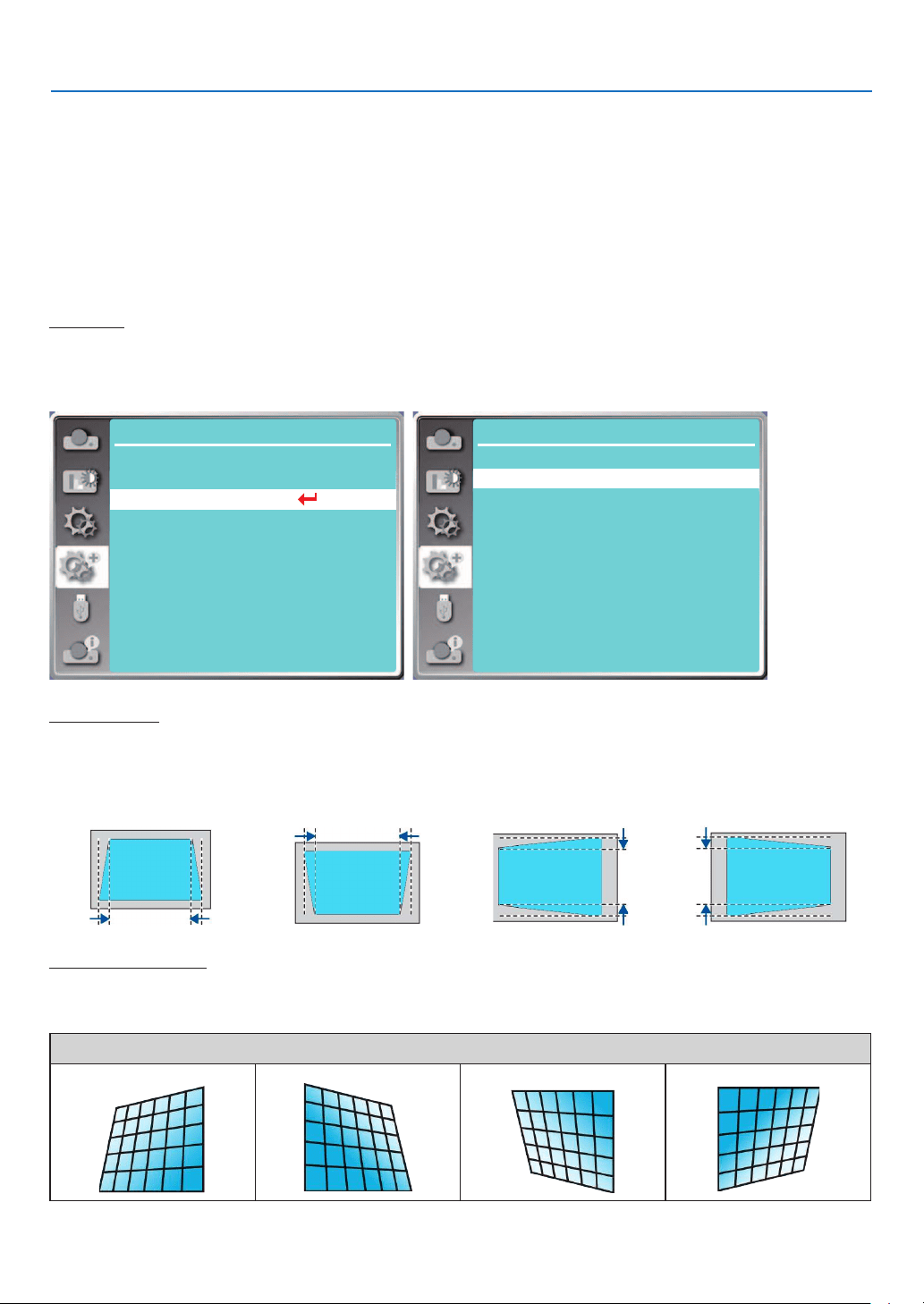
49
5. Using On-Screen Menu
[Keystone]
Select this function to store or reset the keystone or some related setting after unplugging the AC power cord.
Press the MENU button on the remote control or on the top control panel to display the On-Screen menu. Press ▲
▼ button to select the expand menu, then press the ENTER or ▶ button to enter.
1) Press ▲ ▼ button to select [Keystone] menu.
2) Press the ENTER button.
3) Press ▲ ▼ button to select required item.
4) Press the ENTER button.
Keystone
Select this function to store and reset keystone after turning off the projector or unplugging the AC power cord.
Store......Store keystone after turning off the projector or unplugging the AC power cord.
Reset......Keystone function will be canceled after turning off the projector or unplugging the AC power.
...
Expand
Language
Auto setup
Keystone
Security
Power management
Test pattern
Network setup
Control ID
Factory default
Filter
Expand
Keystone
StoreKeystone
H/V Keystone
6-Corner correction
Grid image tune
Reset value
Curved correction
4-Corner correction
H/V Keystone
Select this function to correct the projected images horizontally or vertically.
Press ▲ button to
reduce upper width
Press ▼ button to
reduce bottom width
Press
▶
button to
reduce left width
Press ▶ button to
reduce right width
4-Corner correction
Select this function to correct the projected images of four corners distorted.
Press ▲ ▼
▶
▶ button to keystone at four corners of the screen. The four corners are looped in sequence shown below:
Corner correction
Upper left
Upper right Bottom left Bottom right
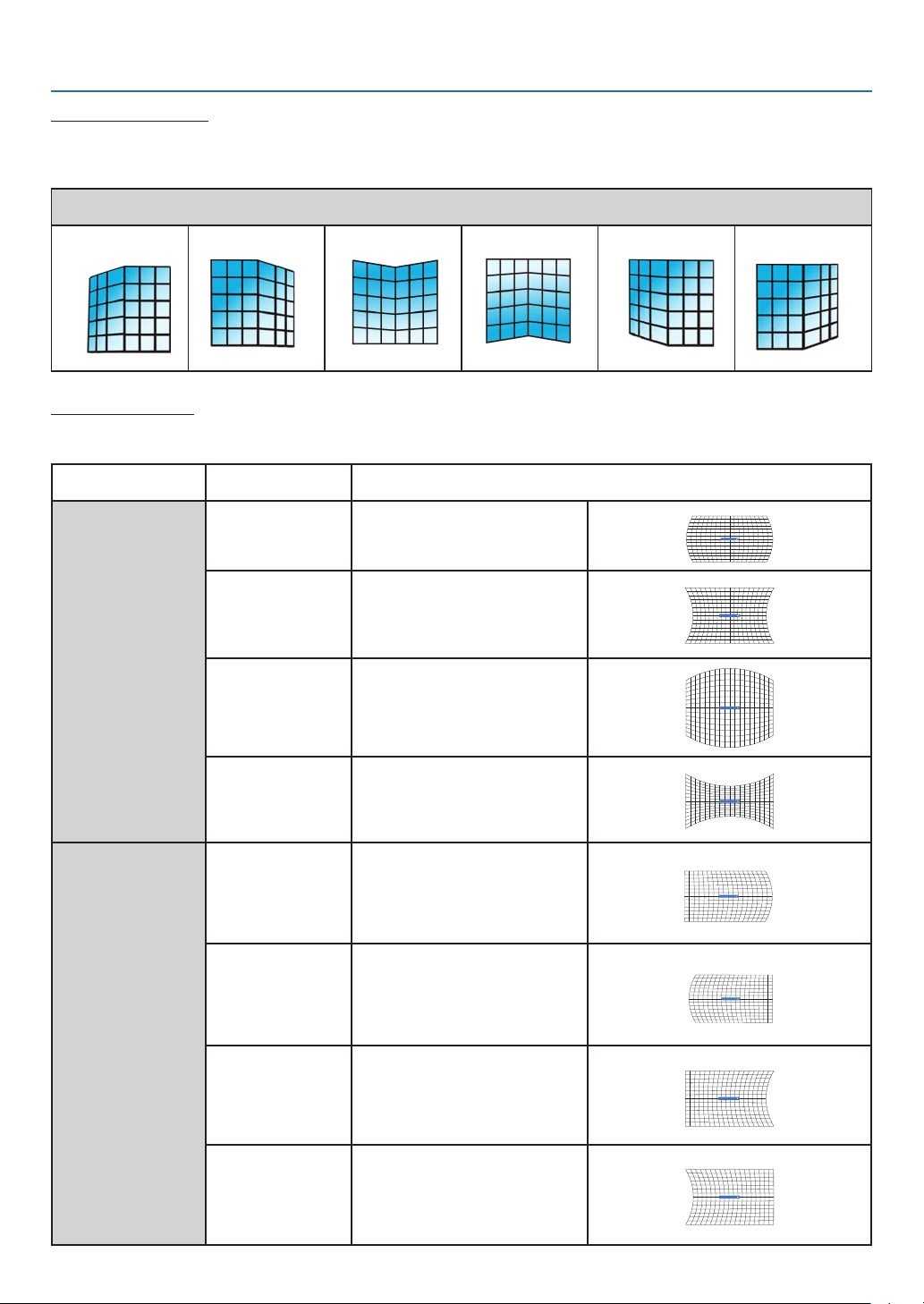
50
5. Using On-Screen Menu
6-Corner correction
Select this function to correct the projected images of six corners distorted.
Press ▲ ▼
▶
▶ button to keystone at six corners of the screen. The six corners are looped in sequence shown below:
Corner correction
Upper left
Upper right Upper middle Bottom middle Bottom left Bottom right
Curved correction
Select this function to correct the projected images with linearity uneven or vertical and horizontal bending deformation.
press ▲ ▼
▶
▶ button to adjust options.
Item Operation Adjustment
Curved correction
X/Y gain
Press
The lines on the left and right
sides expand outward.
Curved cerrection X/Y gain
Press
The lines on the left and right
sides shrink inward.
Curved cerrection X/Y gain
Press
▼
The top and bottom lines
expand outward.
Curved cerrection X/Y gain
Press
The top and bottom lines shrink
inward.
Curved cerrection X/Y gain
Curved correction
X offset
Press
Correct the vertical line on the
left.
Extend the left vertical line
outward while maintaining the
right area.
Curved cerrection X Offset
Press
Correct the vertical line on the
right.
Expand the right vertical line
outward while maintaining the
left area.
Curved cerrection X Offset
Press
Correct the vertical line on the
left.
Extend the left vertical line
outward while maintaining the
right area.
Curved cerrection X Offset
Press
Correct the vertical line on the
right.
Expand the right vertical line
outward while maintaining the
left area.
Curved cerrection X Offset
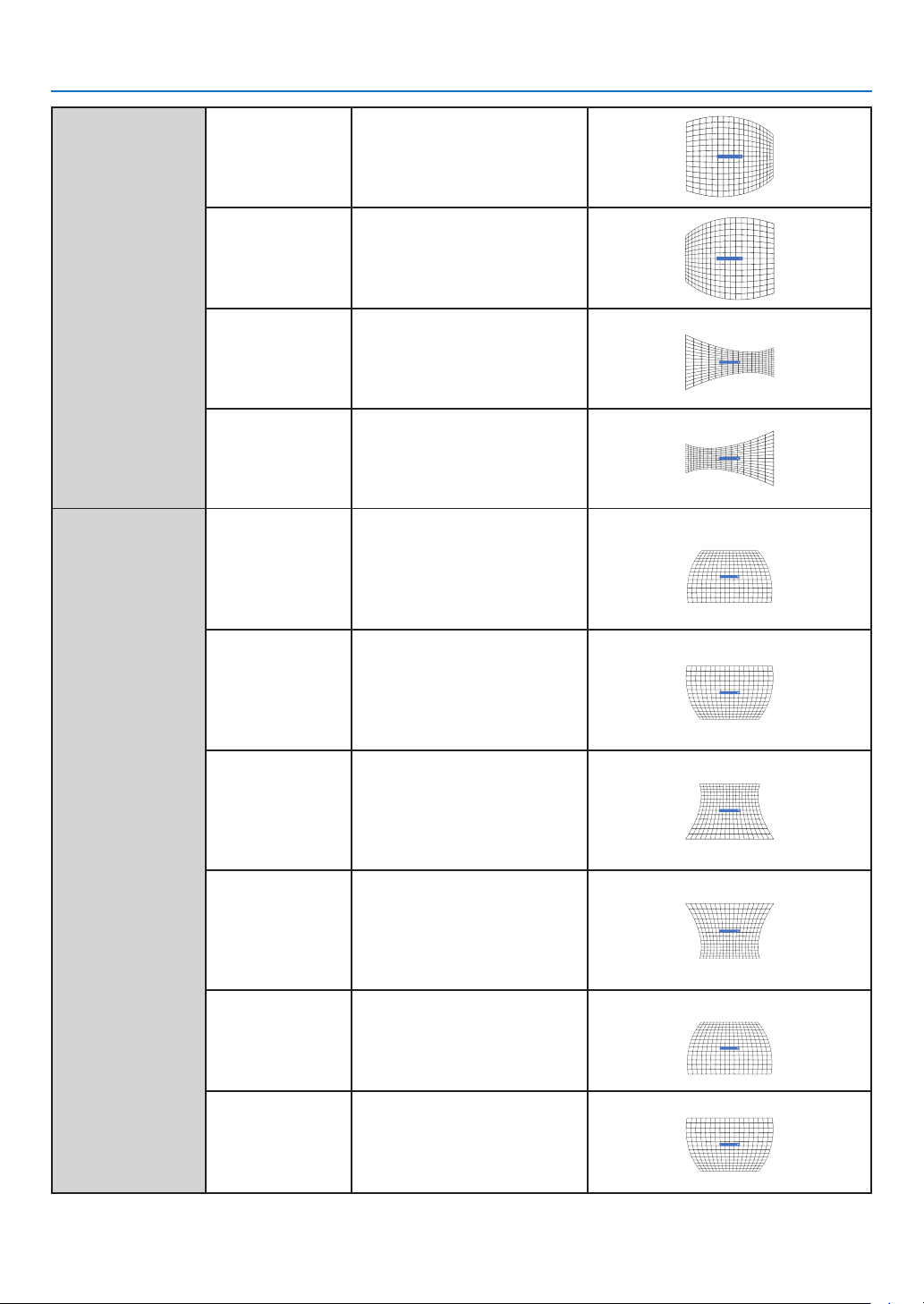
51
5. Using On-Screen Menu
Curved correction
X offset
Press
Correct the horizontal line on
the left.
While maintaining the right area,
expand the left top and bottom
horizontal lines outward.
Curved cerrection X Offset
Press
Correct the horizontal line on
the right.
While maintaining the left area,
expand the top and bottom
horizontal lines on the right.
Curved cerrection X Offset
Press
Correct the horizontal line on
the left.
While maintaining the right area,
expand the top and bottom
vertical lines on the left.
Curved cerrection X Offset
Press
Correct the horizontal line on
the right.
While maintaining the left area,
expand the top and bottom
horizontal lines on the right.
Curved cerrection X Offset
Curved correction
Y offset
Press
▼
Correct the vertical lines on the
left and right sides.
Extend the vertical lines on
the left and right sides of the
bottom while maintaining the
top area.
Curved cerrection Y Offset
Press
Correct the vertical lines on the
left and right sides.
Extend the vertical lines on the
left and right sides of the top
while maintaining the bottom
area.
Curved cerrection Y Offset
Press
▼
Correct the vertical lines on the
left and right sides.
Extend the vertical lines on
the left and right sides of the
bottom while maintaining the
top area.
Curved cerrection Y Offset
Press
Correct the vertical lines on the
left and right sides.
Extend the vertical lines on the
left and right sides of the top
while maintaining the bottom
area.
Curved cerrection Y Offset
Press
▼
Correct the horizontal line at the
bottom.
Extend the bottom horizontal
line down while maintaining the
top area.
Curved cerrection Y Offset
Press
Correct the horizontal line at the
top.
Expand the top horizontal line
up while maintaining the bottom
area.
Curved cerrection Y Offset
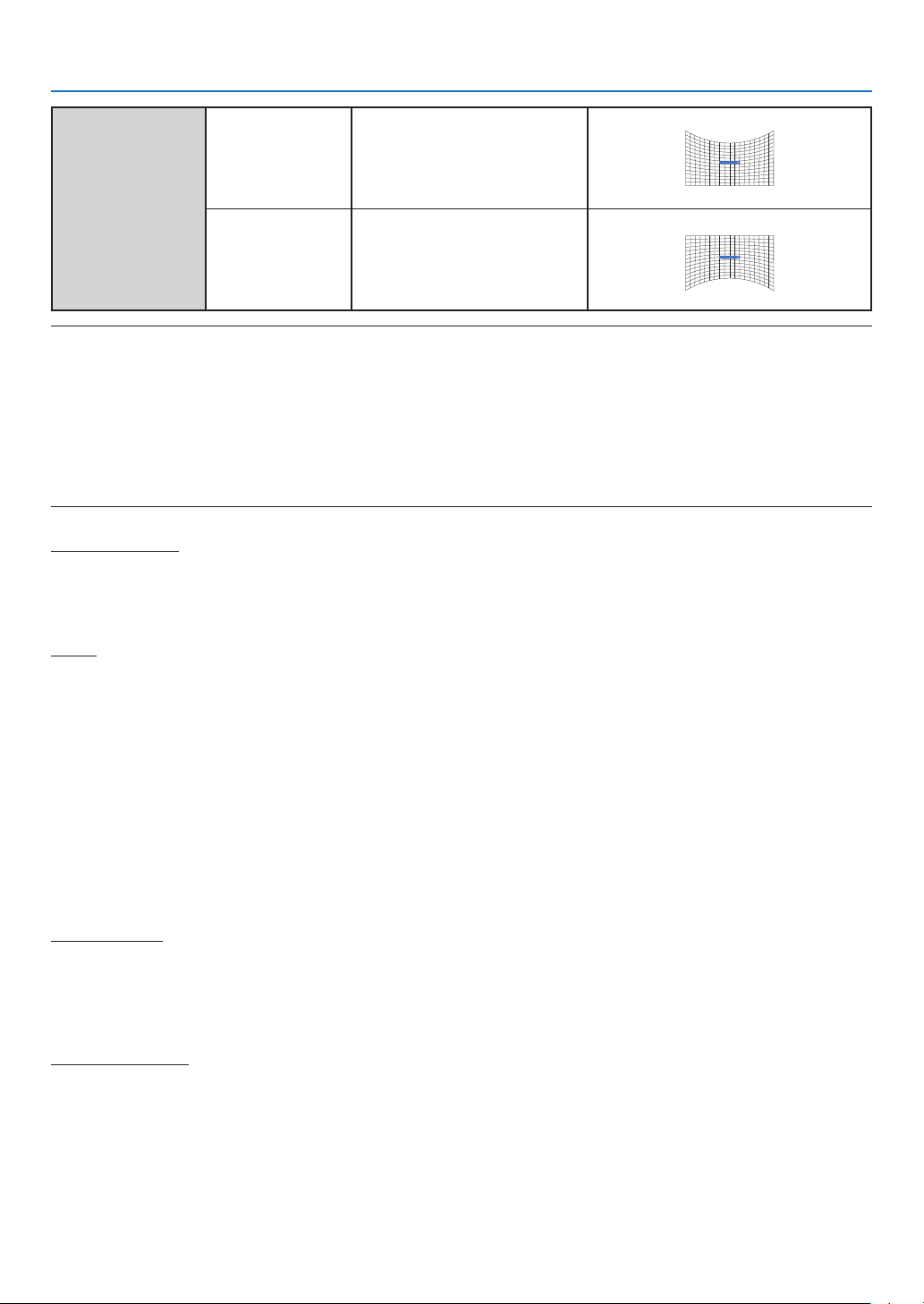
52
5. Using On-Screen Menu
Press
▼
Correct the horizontal line at the
bottom.
Extend the bottom horizontal
line down while maintaining the
top area.
Curved cerrection Y Offset
Press
Correct the horizontal line at the
top.
Expand the top horizontal line
up while maintaining the bottom
area.
Curved cerrection Y Offset
NOTE:
• After adjusting values about H/V keystone, if users adjust corner correction, values about H/V keystone will be reset. And after adjusting
values about Corner correction, if users adjust about H/V keystone, values about Corner correction will be reset also.
• Curved correction X offset and Curved correction Y offset can not be adjusted individually. Adjust Curved correction X offset and Curved
correction Y offset after adjusting the X/Y Curved correction.
• Maximum keystone range up to ±30° (PE506UL and PE506WL) and ±15° (PE456USL and PE456WSL) vertically and horizontally. However,
the image quality will deteriorate, and become more difficult to focus. install the projector with the minimal correction value.
• The screen size will be changed with various H/V keystone adjustments.
• Keystone may influence image aspect.
Grid image tune
Select this function to adjust the local points of the projected image.
1) Press ▲ ▼
▶
▶ button to select [Grid image tune] option.
2) Press the ENTER button.
Reset
Select this function to make adjustment value back to the factory default.
1) Press ▲ ▼
▶
▶ button to select [Reset] option.
2) Press the ENTER button.
• Release keystone mode.
[Security]
Set a PIN code to lock the usage of the projector to prevent unauthorized personnel from operating your projector.
Once the projector is on, the [PIN code] screen will be displayed.
1) Press ▲ ▼ button to select [Security] menu.
2) Press the ENTER button.
3) Press ▲ ▼ button to switch required item.
PIN code lock
This function helps preventing unauthorized personnel from changing projector setting.
Off......PIN code lock function is not available.
On......The [PIN code] screen will appear when the projector is on. If you want to change the PIN code lock or PIN
code (for three digits), you must enter the PIN code. The factory default PIN code is "111."
PIN code change
• You can change the PIN code. Click the ENTER button and select [PIN code change]. When the [PIN code] dialog
box is displayed, press the button to enter a valid PIN code, and select [Set] to display the [New PIN code]
dialog box. Set a new PIN code, confirm the contents in the dialog box, and select Set to set a new PIN code.
• The number you typed is displayed as “ * ”. To edit number you have entered, press the MENU button to move the
cursor to the number you want to change, press button to select the correct one.
• Repeat this step to type in a 3-digit number.
• Enter a three-digit number, move the cursor to [set]. Press the ENTER button, you can start to operate the projector.
• If the PIN code is invalid, the PIN code displayed as “ *** ” will be in red. Please try again with a valid one.
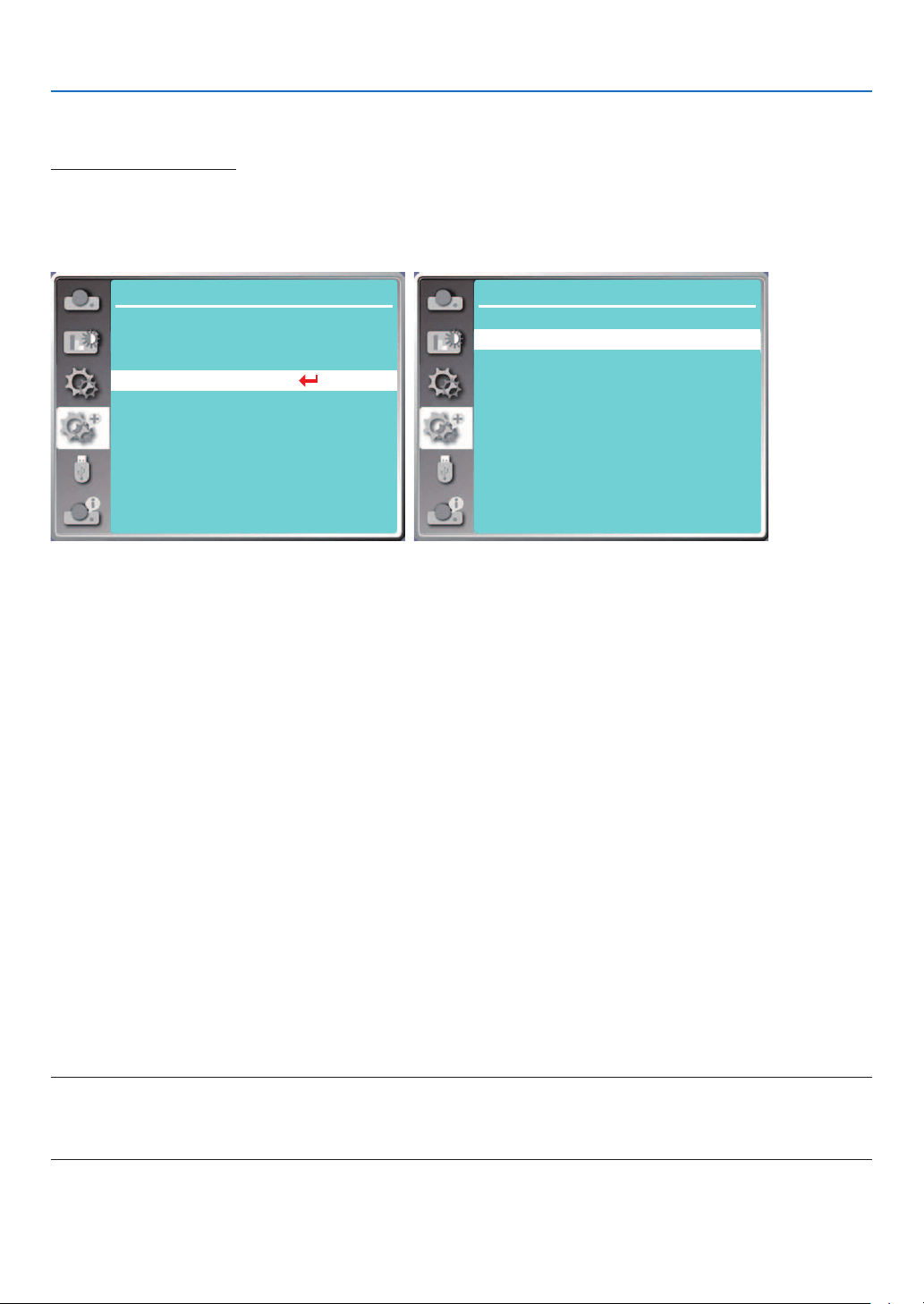
53
5. Using On-Screen Menu
• Please remember your new PIN code and keep it safe.
To cancel the PIN code
(1) While simultaneously pressing the POWER button and the ENTER button on the projector, plug the power cord
into the projector. After a while keep pressing the button, the PIN code input screen appears. Enter "111".
(2) Select On-Screen menu [Security] >> [PIN code lock] >> "On". As the input screen appears again, enter the
default value (111) and set the PIN code to "off" or set a new PIN code.
...
Expand
Language
Auto setup
Keystone
Security
Power management
Test pattern
Network setup
Control ID
Factory default
Filter
Expand
Security
OffPIN code lock
PIN code change
[Power management]
To reduce power consumption and maintain life cycle of light source, the power management function will turn off
the projection light source if your projector has no signals for a period of time.
1) Press ▲ ▼ button to select [Power management] menu.
2) Press the ENTER button.
3) Press ▲ ▼ button to switch required item.
Ready...... The power light indicator turns steady green when the light source is fully cooled down. The light source
turns on again if an input signal is connected or any button (except the power button) on the top control
panel or remote control is pressed during this period of time.
Shut down......The projector shut down after the light source is fully cooled down.
Off......Disable the power management function.
Timer...... Once the input signal is interrupted and no buttons has been pressed for 30 seconds afterwards, the “No
signal” message displays in the timer. The timer counts down until the light source turns off. Press arrow
button to set up the timer in range of 1~30 minutes.
Ready countdown...... Set the interval from the Ready mode change to the Standby mode (0 to 30 minutes) auto-
matically.
When it is set it to zero, the projector will never change automatically. Press the Power but-
ton to change your projector into the Standby mode and press any other button (except the
Power button) to power on.
NOTE:
• Factory default for standby time: 5 minutes. Count down for ready mode: 5 minutes.
• When selecting [Off], the [Timer] and [Ready countdown] is unavailable.
• When selecting [Shut down], the [Timer] is unavailable.
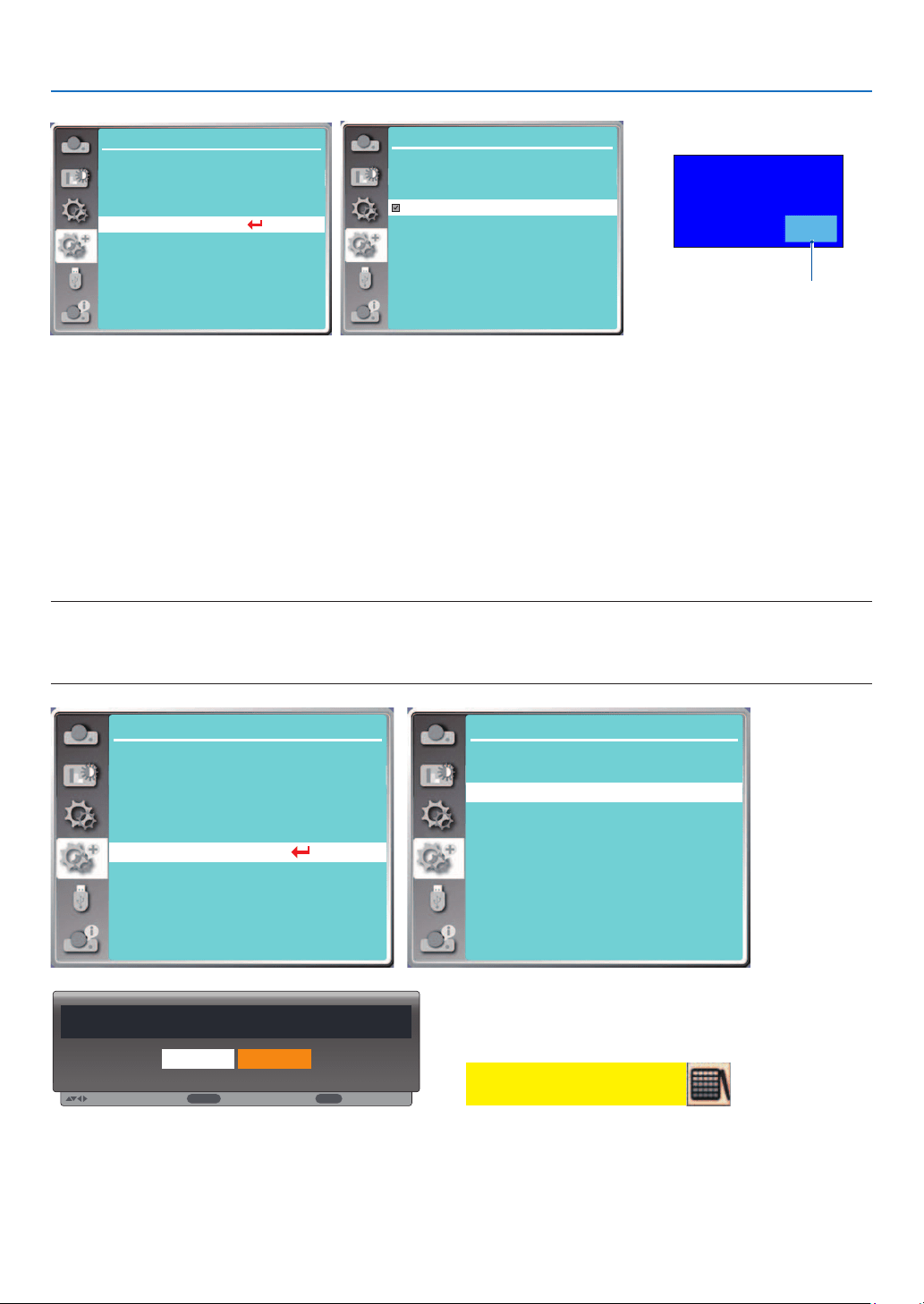
54
5. Using On-Screen Menu
...
Expand
Language
Auto setup
Keystone
Security
Power management
Test pattern
Network setup
Control ID
Factory default
Filter
Expand
Power management
5 Min
5 Min
Ready
Off
Timer
Ready countdown
Shut down
Remaining time before
power off the light source.
01: 20
No signal
[Filter]
Set this function to reset the filter usage time and set up warning display.
1) Press ▲ ▼ button to select [Filter] menu.
2) Press the ENTER button.
3) Press ▲ ▼ button to switch required item.
When the projector reaches the user-set cleaning time, filter warning icon will appear on the screen to notify the user
to clean the projector filter. Reset the filter counter after cleaning it and filter warning icon will be closed.
Filter counter......Displays the filter usage time.
Timer......Set the time to display a warning icon.
Filter counter reset......Reset filter counter.
NOTE:
• The screen will display the icon "Filter warning! Please change the filter! " when the projector has checks one warning. And the the warn-
ing icon will disappear 30 seconds later automatically, while only the Power button is effective during that period. The projector will give
warning again if the projector has checked filter block and will record the information.
...
Expand
Language
Auto setup
Keystone
Security
Power management
Test pattern
Network setup
Control ID
Factory default
Filter
Filter
Expand
5H
1000H
Filter counter
Filter counter reset
Timer
Select
ENTER
Back
EXIT
Move
Filter counter reset?
Yes No
Filter warning
[Test pattern]
Select this function to display the projector's built-in test pattern.
1) Press ▲ ▼ button to select [Test pattern] menu.
2) Press the ENTER button.
3) Press ▲ ▼ button to switch required item.
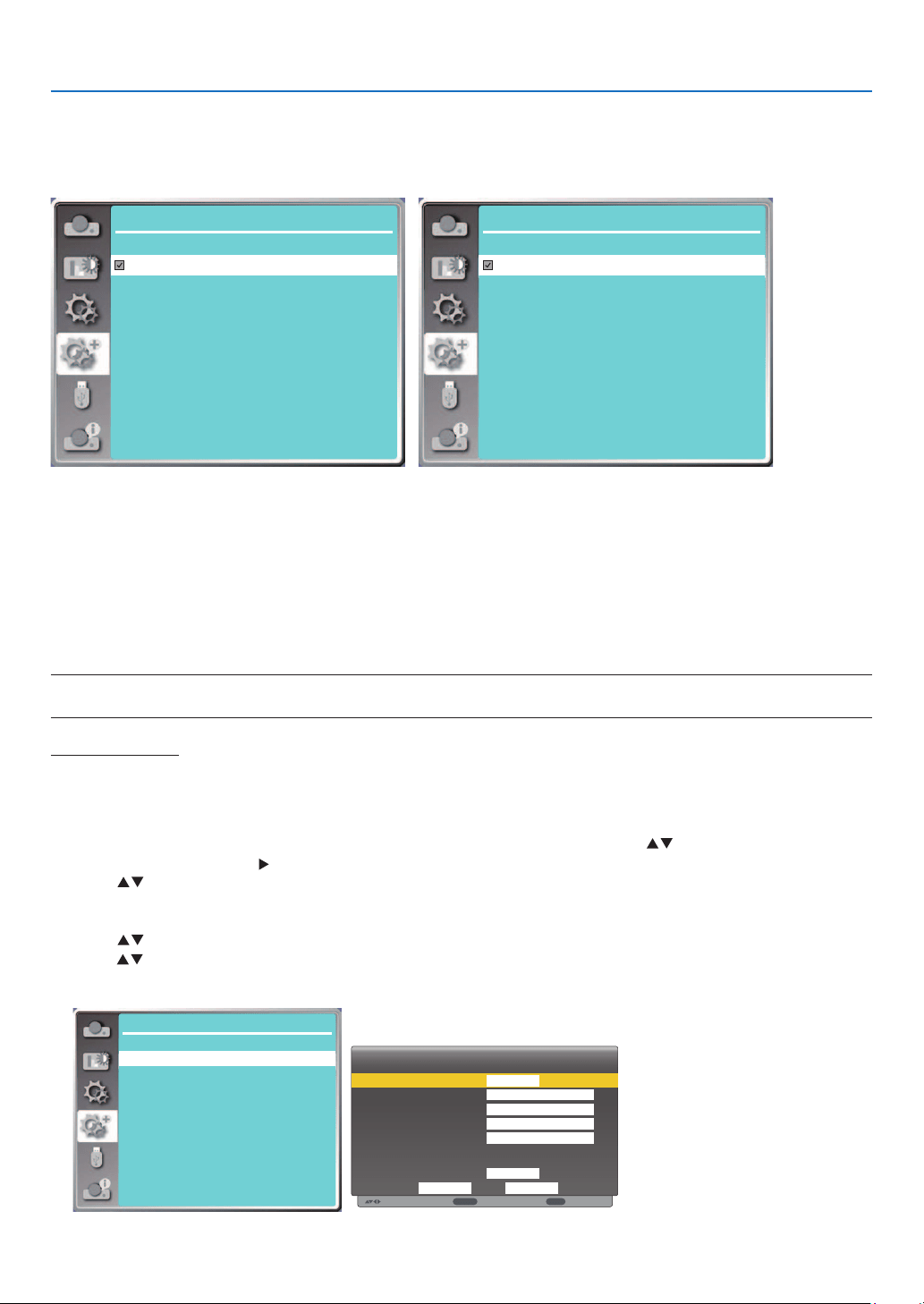
55
5. Using On-Screen Menu
4) Press the ENTER button.
Off / Gray scale 1 / Gray scale 2 / Gray scale 3 / Gray scale 4 / Color bar / Red / Green / Blue / Cross hatch /
White / Black / Raster gray: Use the On-Screen menu to display the test pattern.
Expand
Test pattern 1/2
Off
Gray scale1
Gray scale2
Gray scale3
Gray scale4
Color bar
Red
Green
Blue
Cross hatch
Expand
Test pattern
2/2
White
Black
Raster gray
[Network setup]
Function: This function is designed to allow the computer control the projector remotely via network.
1.Required equipment: Projector, computer, network cable
2. Connection:
Connect the projector to the router or switch in the LAN with a straight or crossover network cable. If you connect
the projector and the computer directly, you cannot connect with a straight-through network cable. It is recom-
mended to use a crossover network cable.
3.Turn on the computer. The LAN port on computer and projector are flashing after turn on the projector.
NOTE:
• It is recommended that users use a Category 5 or higher LAN cable.
Operation steps
1. Turn on your projector.
2. Acquire the IP address, with DHCP set to on and auto IP allocation set to On. (You may set DHCP to Off and set
up IP address manually if you are somehow familiar with networking.)
3. Enter the network setup menu.
(1) Press the MENU button on remote control or the top control panel, press
button to select [Expand]
icon. Press the ENTER or button.
(2) Press button select [Network setup] and press the ENTER button to enter.
MAC address......Display the MAC address of wired LAN.
IP address...........Display the IP address of wired LAN.
(3) Press button select [Network setting] and press the ENTER button to enter.
(4) Press button to set DHCP "On" to obtain an IP address, Subnet, Gateway and DNS automatically, and press
the ENTER button to confirm.
7C:6F:F8:4E:B9:2F
192.168.1.100
Expand
Network Setup
Network setting
Network information
MAC address:
IP address
Move
Wired LAN
Wireless LAN
DHCP
IP address
Subnet
Gateway
DNS
Setting
On
On
CancelSet
. . .
. . .
. . .
. . .
Next
ENTER
Back
EXIT
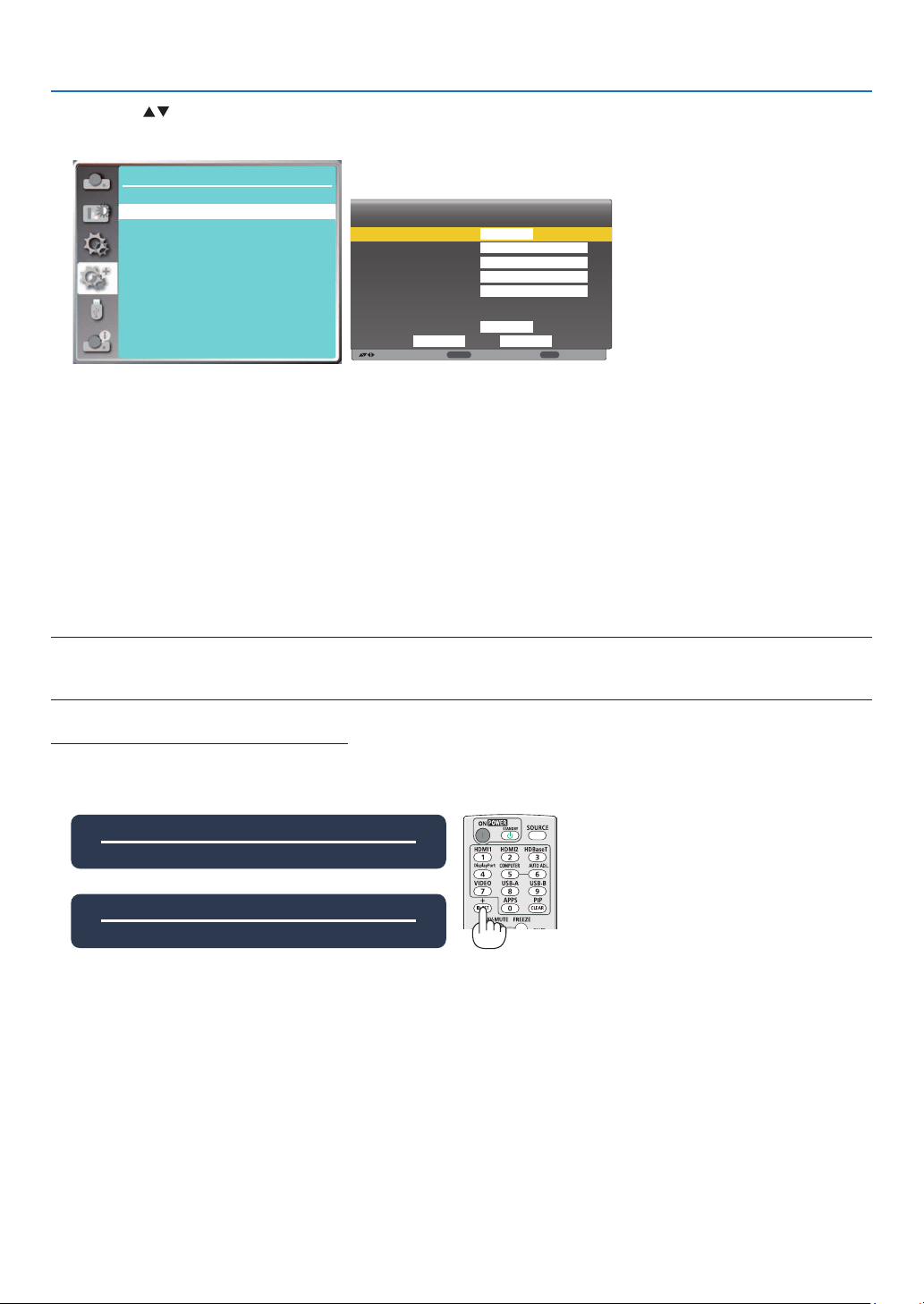
56
5. Using On-Screen Menu
Press the button to set DHCP "Off", then press the ENTER button to enter an IP address, then press ▼ button
to select Subnet , Gateway and DNS manually. And press the ENTER button to confirm.
7C:6F:F8:4E:B9:2F
192.168.1.100
Expand
Network Setup
Network setting
Network information
MAC address:
IP address
Move
Next
Back
Wired LAN
Wireless LAN
DHCP
IP address
Subnet
Gateway
DNS
Setting
off
On
CancelSet
ENTER
EXIT
192 . 168 . 1 . 1
255 . 255 . 255 . 0
192 . 168 . 1 . 1
0 . 0 . 0 . 0
[Control ID]
Select this function to operate multiple projectors separately and independently with the single remote control that
has the [Control ID] function. If you assign the same ID to all the projectors, you can conveniently operate all the
projectors together using the single remote control. To do so, you have to assign an ID number to each projector.
1) Press ▲ ▼ button to select [Control ID] menu.
2) Press the ENTER button.
3) Press ▲ ▼ button to switch required item.
4) Press the ENTER button.
Control ID......Select [Off] to turn off the [Control ID] setting and select [On] to turn on the [Control ID] setting.
Control ID Number......Select a number from 1 to 254 you wish to assign to your projector.
NOTE:
• When [On] is selected for [Control ID], the projector cannot be operated by using the remote control that does not support the Control ID
function. (In this case the buttons on the projector cabinet can be used.)
Assigning or Changing the Control ID
1. Turn on the projector.
2. Press the ID SET button on the remote control.
The Control ID screen will be displayed.
Control ID(Inactive)
Control ID Number 5
Control ID(Active)
Control ID Number 5
If the projector can be operated with the current remote control ID, the [Active] will be displayed. If the projector
cannot be operated with the current remote control ID, the [Inactive] will be displayed. To operate the inactive
projector, assign the control ID used for the projector by using the following procedure (Step 3).
3. Press one of numeric keypad buttons while pressing and holding the ID SET button on the remote control.
Example:
To assign “3”, press the “3” button on the remote control.
No ID means that all the projectors can be operated together with a single remote control. To set “No ID”, enter
“000” or press the CLEAR button.
TIP: The range of IDs is from 1 to 254.
4. Release the ID SET button.
The updated Control ID screen will be displayed.
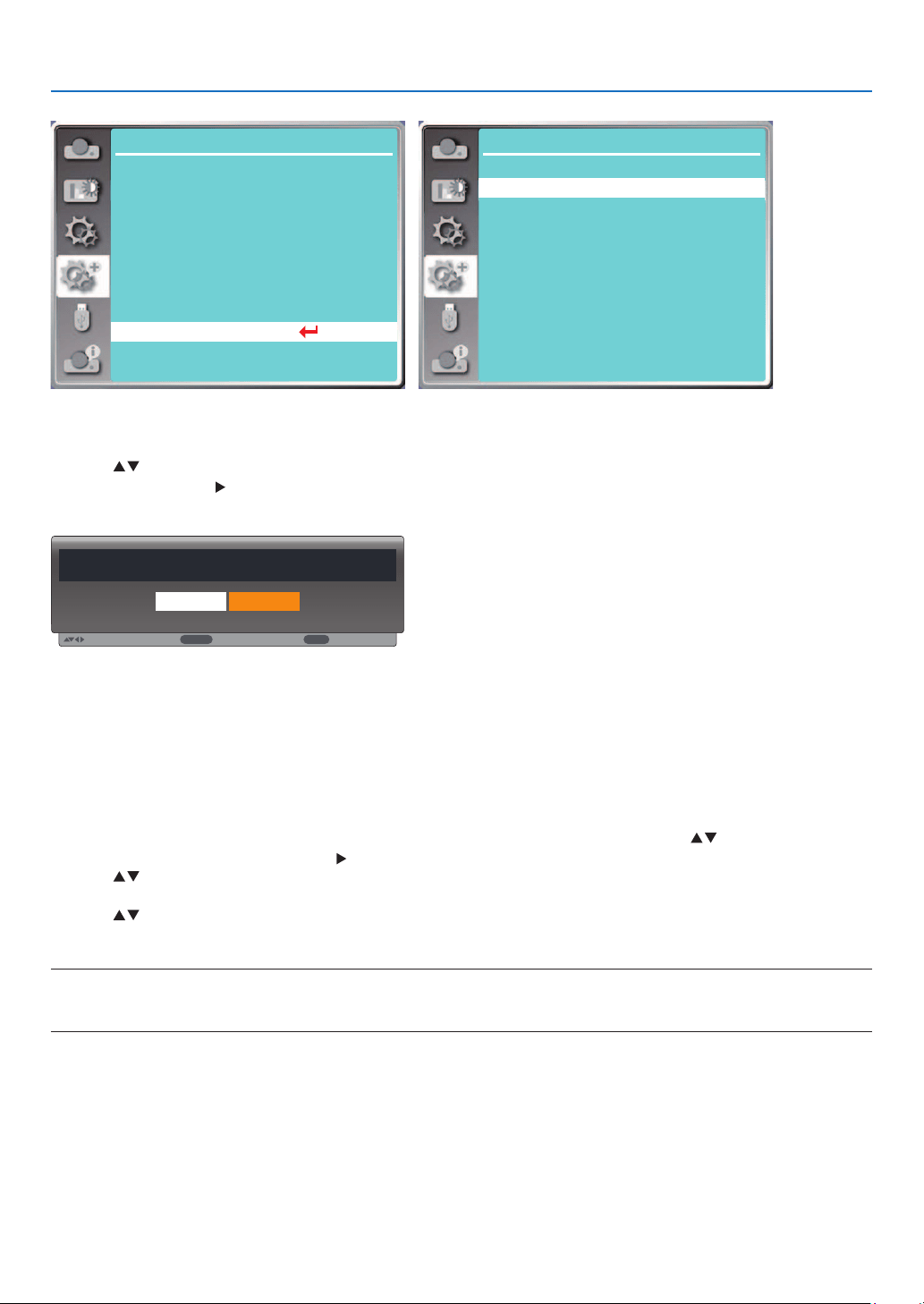
57
5. Using On-Screen Menu
...
Expand
Language
Auto setup
Keystone
Security
Power management
Test pattern
Network setup
Control ID
Factory default
Filter
Expand
Control ID
Control ID
Control ID Number
Off
1
[Factory default]
This function resets all your settings to factory default.
1) Press
button to select [Factory default] menu.
2) Press the ENTER or button.
3) Press button to select "Yes", then press the ENTER button.
Return to factory default?
Yes No
Move
Select
ENTER
Back
EXIT
❽ Menu Descriptions & Functions [USB-A]
The projector has expand function, you can select other functions as described below.
When the USB memory inset into the projector, the USB-A function can project pictures stored in the USB
memory.
Press the MENU button on the remote control to display the On-Screen menu. Press the
button to select the
USB-A menu, then press the ENTER or button.
1) Press button to select required item.
2) Press the ENTER button.
3) Press button to set options.
4) Press the ENTER button.
NOTE:
• When selecting [USB-A] as input signal, the "USB-A" menu is available.
• In addition to "Set slide" menu, even change the settings, If you do not implement the [Apply], the setting value of the change is invalid.
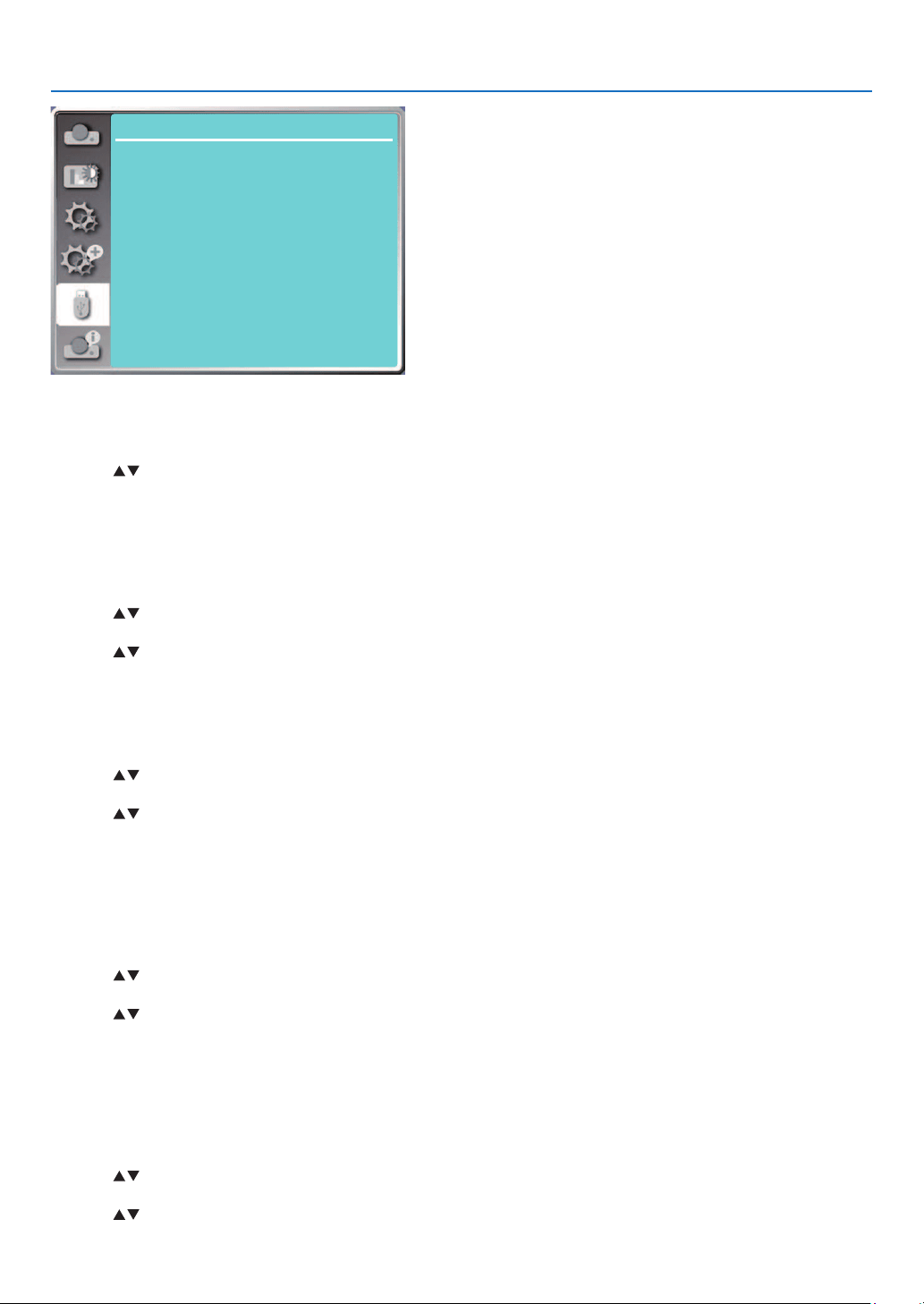
58
5. Using On-Screen Menu
USB-A
Set slide
Slide transition effect
Sort order
Rotate
Best fit
Repeat
Apply
Slide right
Name order
No rotate
Off
On
[Set slide]
Select this function to play slides.
1) Press button to select a file.
2) Press
button to select [Set slide] menu.
3) Press the ENTER or button.
• Full screen display
• Press the ENTER to return to the thumbnail.
[Slide transition effect]
Select this function to set the slide's playback, when switching slides.
1) Press
button to select [Slide transition effect] menu.
2) Press the ENTER or button.
3) Press button to switch required item.
Slide down.....Switch slides from top to bottom .
Slide right...... Switch slides from left to the right.
[Sort order]
Select this function to set the slide's order.
1) Press
button to select [Sort order] menu.
2) Press the ENTER button.
3) Press button to switch required item.
Extend order...... Sort by extend names of file or folder.
Size order...........Sort by size of file or folder.
Time order..........Sort by the time of file or folder.
Name order........ Sort by names of file or folder.
[Rotate]
Set the rotation direction of images.
1) Press
button to select [Rotate] menu.
2) Press the ENTER button.
3) Press button to switch required item.
No rotate ........Rotation is invalid.
270 degree......Rotate clockwise by 270 degrees.
180 degree......Rotate clockwise by 180 degrees.
90 degree........Rotate clockwise by 90 degrees.
[Best fit]
Set the image to be compatible with projection screen.
1) Press
button to select [Best fit] menu.
2) Press the ENTER button.
3) Press button to switch required item.
On.....Display image by the aspect ratio of the screen.

59
5. Using On-Screen Menu
Off.....Display image by the normal pixels.
[Repeat]
Select this function to play images repeatedly.
1) Press button to select [Repeat] menu.
2) Press the ENTER or button.
3) Press button to switch required item.
On.....Replay the first image, after playing the last one.
Off.....Return to the thumbnail display screen, after playing the last image.
[Apply]
Only be used in playing slides.
1) Press
button to select [Apply] menu.
2) Press the ENTER or button.
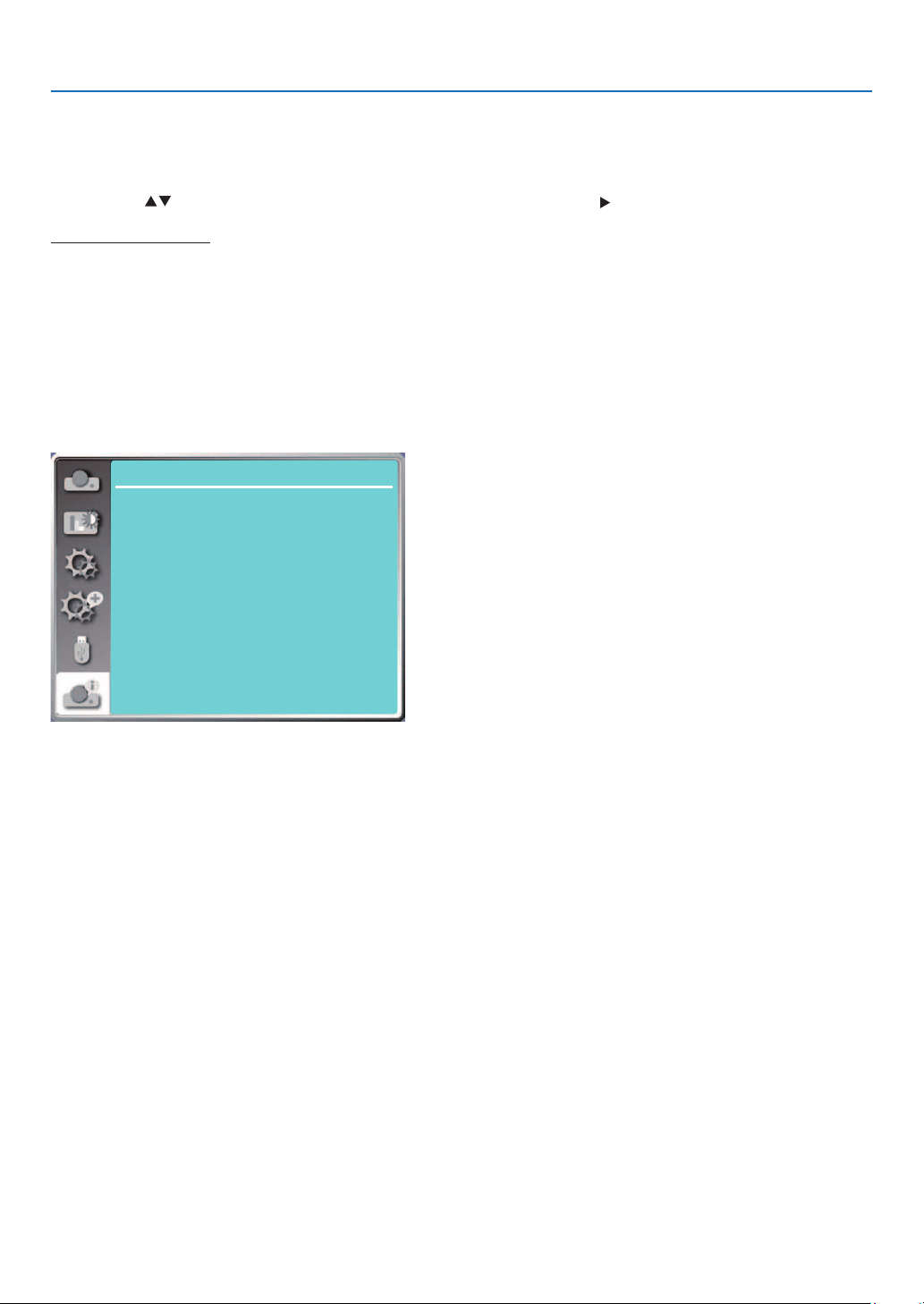
60
5. Using On-Screen Menu
❾ Menu Descriptions & Functions [Info.]
Select Info. function to detect the projected image signal and the projector operating status.
Press the HELP button on the remote control or the MENU button on the control panel to display the On-Screen
menu. Press
button to select the [Info. ] menu, then press the ENTER or button.
Info. display as follows:
Input......Display selected input source.
H- sync freq.......Display H- sync freq. of input signal in unit of KHz. Show “---KHz” when no signals are in existence.
V- sync freq.......Display V- sync freq. of input signal in unit of KHz. Show “---Hz” when no signals are in existence.
Light counter......Display the light's usage time and remaining time in percentage .
Model name......Display the projector's model name.
S/N......Display the projector's serial number.
Firmware version......Display the projector's firmware version.
SUBCPU......Display the projector's SUBCPU's Version.
Info.
Input
V-sync freq.
H-sync freq.
Laser counter
Computer
...
31.50 kHZ
59.99 HZ
99.85%
30 H
Model name
S/N
Firmware version
SUBCPU
xxxxx
xxxxx
1.00.010
0.10
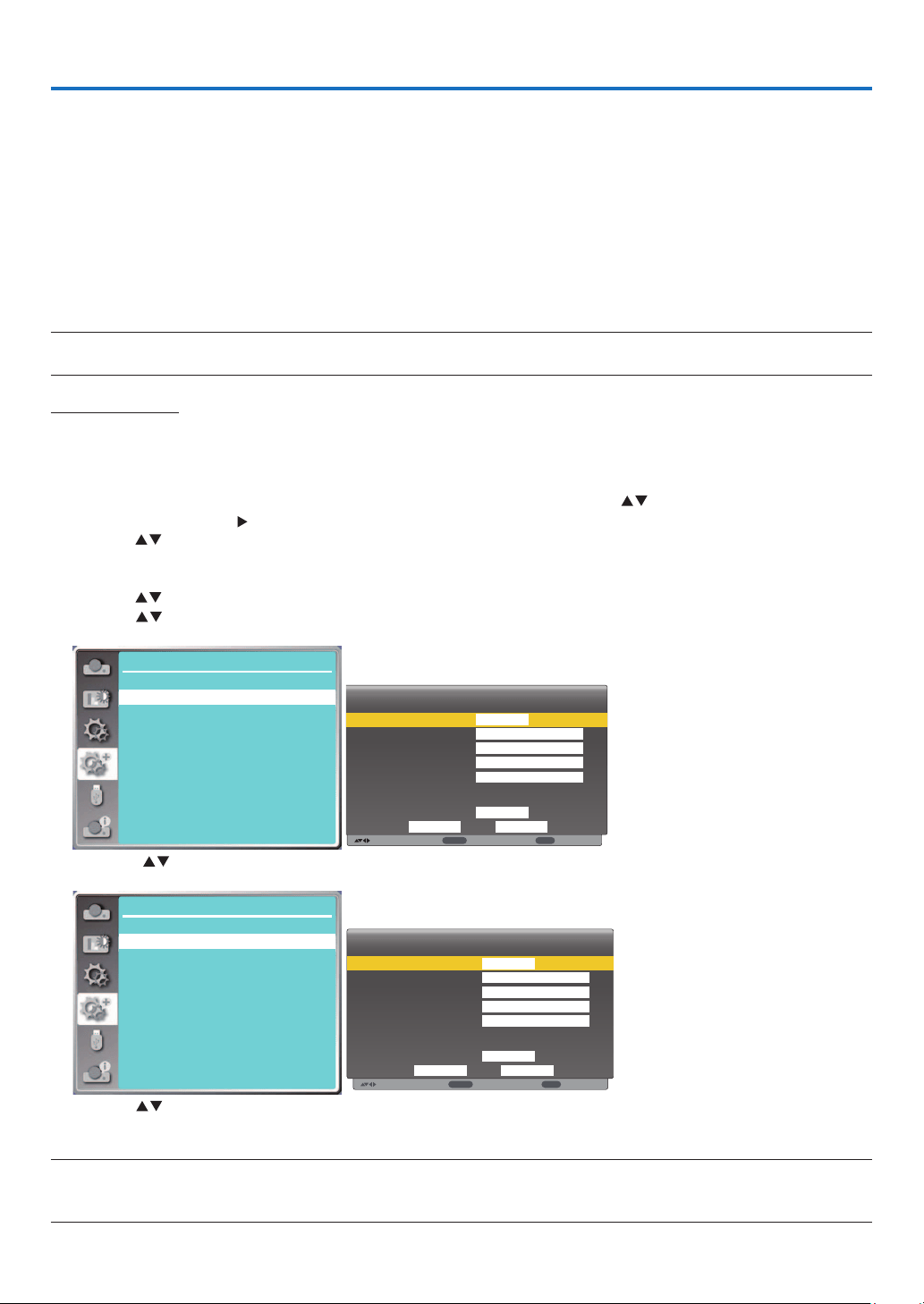
61
6. Network control
❶ Network control operation
Function: This function is designed to remote control the projector from your computer in the same LAN.
Preparation
1. Required equipment: Projector, Computer, Network cable
2. Connection:
Connect the projector to the router or switch in the LAN with a straight or crossover network cable. If you connect
the projector and the computer directly, you cannot connect with a straight-through network cable.
It is recommended to use a crossover network cable.
3. Turn on the computer. The LAN port on computer and projector are flashing after turn on the projector.
NOTE:
• It is recommended that users use a Category 5 or higher LAN cable.
Operation steps
1. Turn on your projector.
2. Acquire the IP address, with DHCP set to "On" and auto IP allocation set to on. (You may set DHCP to "Off" and
set up IP address manually if you are somehow familiar with networking.)
3. Enter the network setup menu.
(1) Press the MENU button on remote control or the top control panel, press
button to select [Expand] icon.
Press the ENTER or
button.
(2) Press
button select [Network setup] and press the ENTER button to enter.
MAC address......Display the MAC address of wired LAN.
IP address...........Display the IP address of wired LAN.
(3) Press button select [Network setting] and press the ENTER button to enter.
(4) Press button to set DHCP "On" to obtain an IP address, Subnet , Gateway and DNS automatically, and
press the ENTER button to confirm.
7C:6F:F8:4E:B9:2F
192.168.1.100
Expand
Network Setup
Network setting
Network information
MAC address:
IP address
Move
Next
Back
Wired LAN
Wireless LAN
DHCP
IP address
Subnet
Gateway
DNS
Setting
off
On
CancelSet
ENTER
EXIT
192 . 168 . 1 . 1
255 . 255 . 255 . 0
192 . 168 . 1 . 1
0 . 0 . 0 . 0
Press the button to set DHCP "Off", then press the ENTER button to enter an IP address, then press ▼ button
to enter Subnet , Gateway and DNS manually. And press the ENTER button to confirm.
7C:6F:F8:4E:B9:2F
192.168.1.100
Expand
Network Setup
Network setting
Network information
MAC address:
IP address
Move
Wired LAN
Wireless LAN
DHCP
IP address
Subnet
Gateway
DNS
Setting
On
On
CancelSet
. . .
. . .
. . .
. . .
Next
ENTER
Back
EXIT
(5) Press button to select [Set], press the ENTER button to wait until the “Please wait.” message disappears.
NOTE:
• If you are using the wireless LAN connection, please check the SSID / ESSID and wireless IP address in the network setting status, and
write down the information.
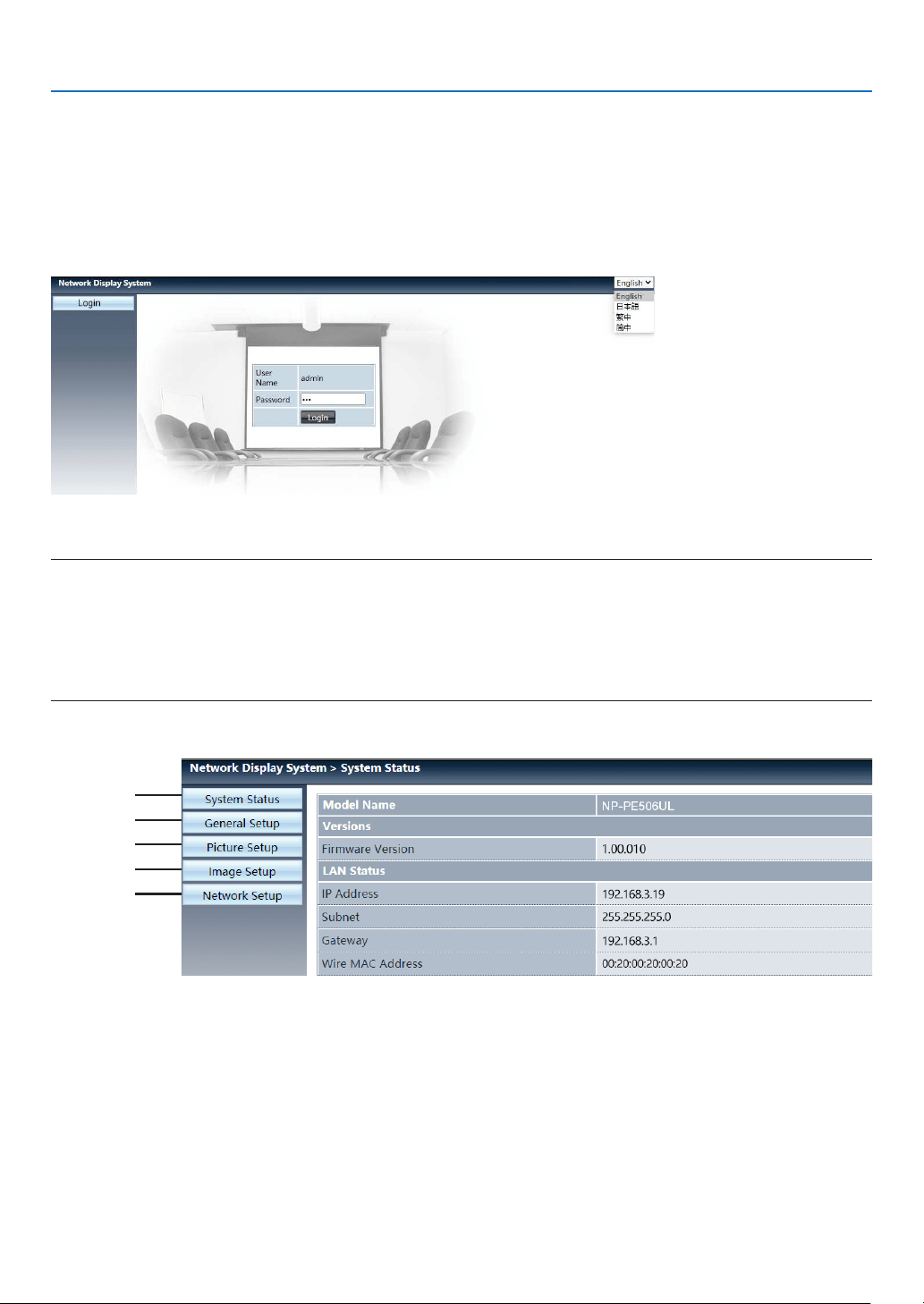
62
6. Network control
❷ Enter through a Web browser
Connecting Your Computer
1) Start the computer's Web browser.
2) Enter the IP address on the projector set in the URL input field of the Web browser. The "Network Display System"
window for your projector will be displayed.
3) Click [Login] at the top left of the window.
4) Enter the password in the [Password], then click [Login]
"* " the factory default setting is the user name: "admin" (administrator privileges), password: "admin".
NOTE:
• Users can click on the top right corner of the Web browser screen to select the display language and available languages are English,
Japanese, Traditional Chinese, Simplified Chinese.
• Do not start multiple Web browser settings or control. Do not use more than one computer set or control the projector.
• Please change your password.
• If the network does not appear on screen controls, please consult your network administrator.
• Please refresh the web page before operating the projector.
Description of each option
①
②
③
④
⑤
System status: Click this option to display the [System status] page.
General setup: Click this option to display the [General setup] page.
Picture setup: Click this option to display the [Picture setup] page.
Image setup: Click this option to display the [Image setup] page.
Network setup: Click this option to display [Network setup] page.
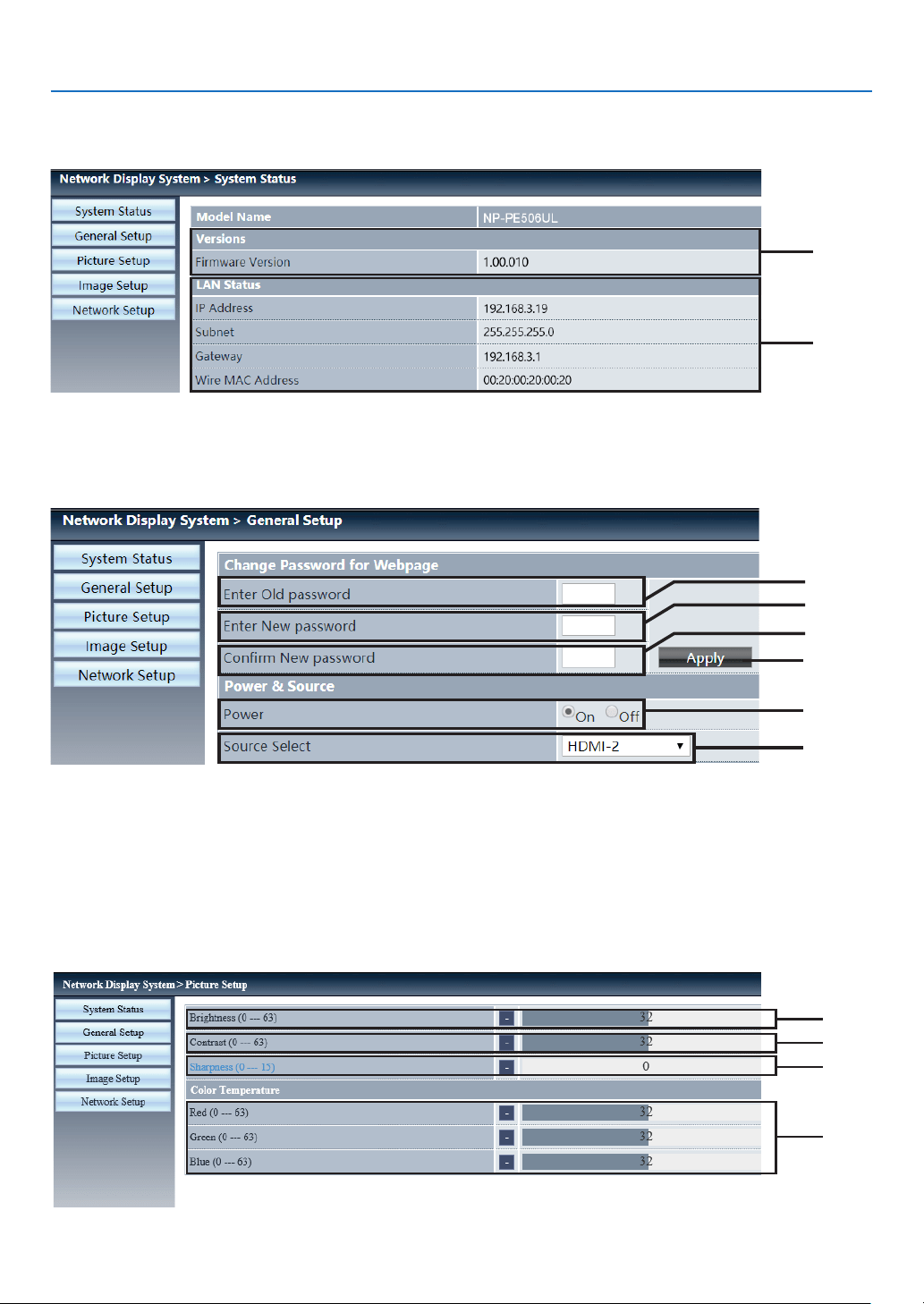
63
6. Network control
❸ [System status] page
①
②
Versions: Displays the firmware version of the projector.
LAN status: Displays the LAN connection status.
4 [General setup] page
①
②
③
④
⑤
⑥
Enter old password: Enter the password for the configuration.
Enter new password: Enter a new password.
Confirm new password: Re-enter the new password to confirm.
Apply: Update settings.
Power: Switch on the power of the projector on / off.
Source select: Switch the input source of the projector.
❺ [Picture setup] page
①
②
③
④
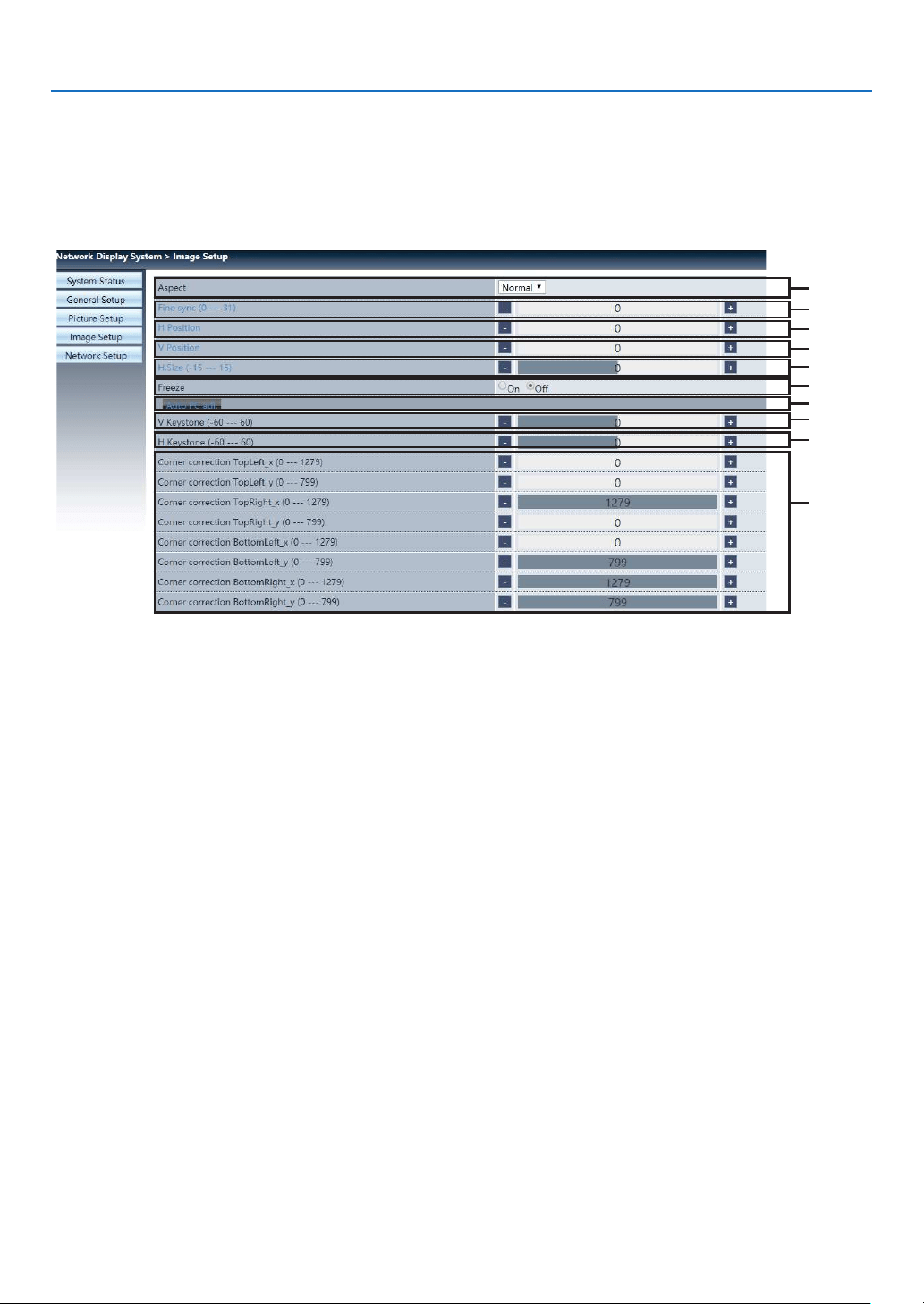
64
6. Network control
BrightnessAdjust the brightness of the projected image.
ContrastAdjust the contrast of the projected image.
SharpnessAdjust the sharpness of the projected image.
Color TemperatureAdjust the color temperature of the projected image.
❻ [Image setup] page
①
②
③
④
⑤
⑥
⑦
⑧
⑨
⑩
Aspect: Switch the aspect ratio of the projected image.
Fine sync: Adjust the phase of the projected image.
H position: Adjust the horizontal position of the projected image.
V position: Adjust the vertical position of the projected image.
H. size: Adjust the horizontal dimension of the projected image.
Freeze: Select the function to switch the screen freeze on and off.
Auto PC adj.: Implement the automatic computer adjustment function.
V keystone: Correct trapezoidal distortion in vertical direction.
H keystone: Correct horizontal distortion in horizontal direction.
Corner correction: Correct four angles of the projected image.
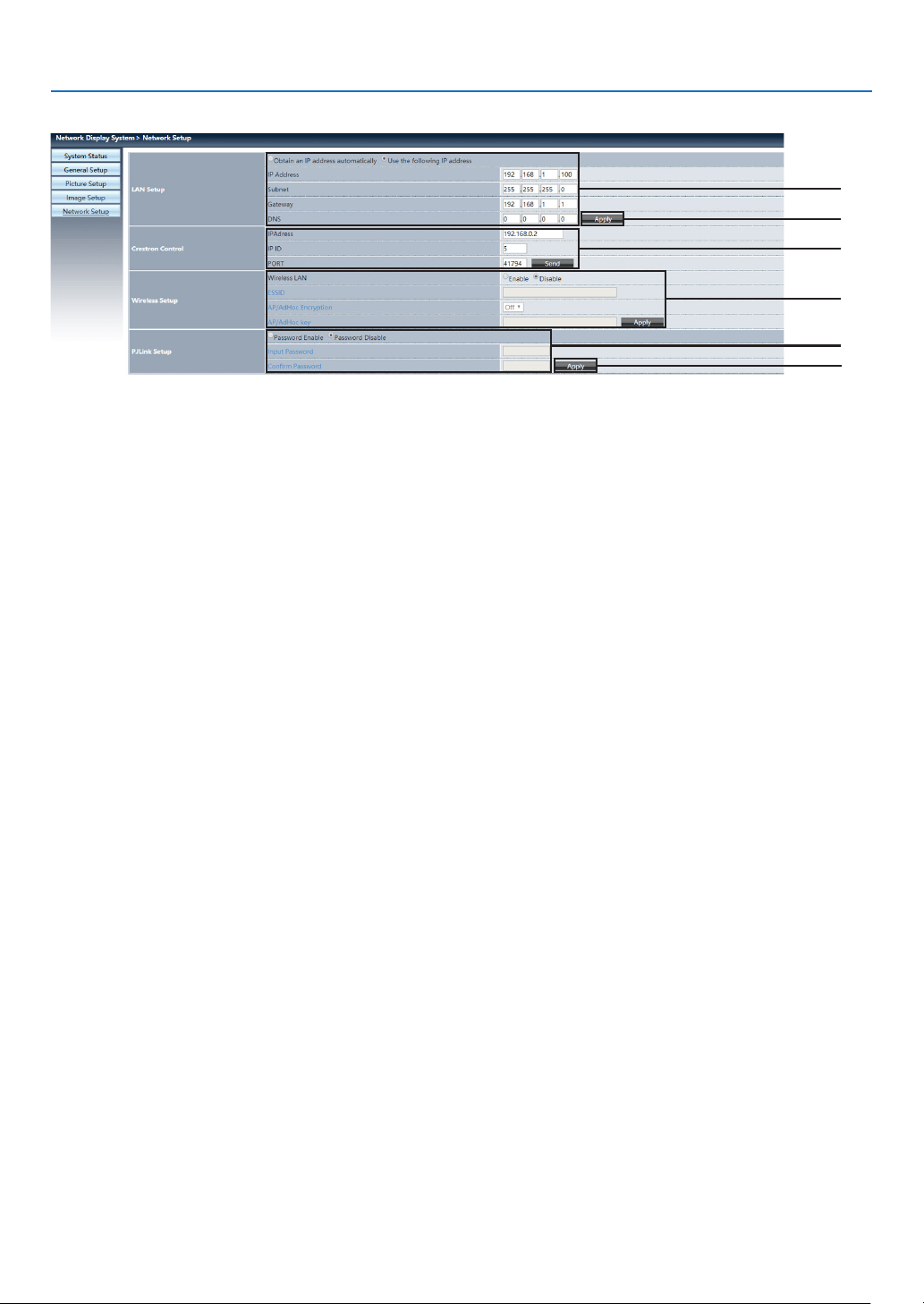
65
6. Network control
❼ [Network setup] page
①
②
②
③
④
⑤
Network setup
If you want to enable the DHCP client, select the IP address automatically.
IP address:
Please enter the IP address when you do not use the DHCP server.
Subnet :
Please enter a subnet shield when you do not use the DHCP server .
Gateway:
Please enter the gateway when you do not use the DHCP server.
DNS:
Please enter the DNS address, when you do not use the DHCP server.
Available character : digital (0 - 9), a period (.)
(For example: 192.168.0.253)
Apply
Update settings.
Crestron control
Connect Crestron tool by setting IP address, IP ID and PORT options.
Wireless Setup
Wireless LAN: Please select wireless LAN on or off.
ESSID: Please enter the ESSID.
AP/AdHoc Encryption: Please select password set on or off.
AP/AdHoc key: Please set password.
⑤
PJLink setup
Input password: Input the PJLink password.
Confirm password: Input the PJLink password once again and confirm.
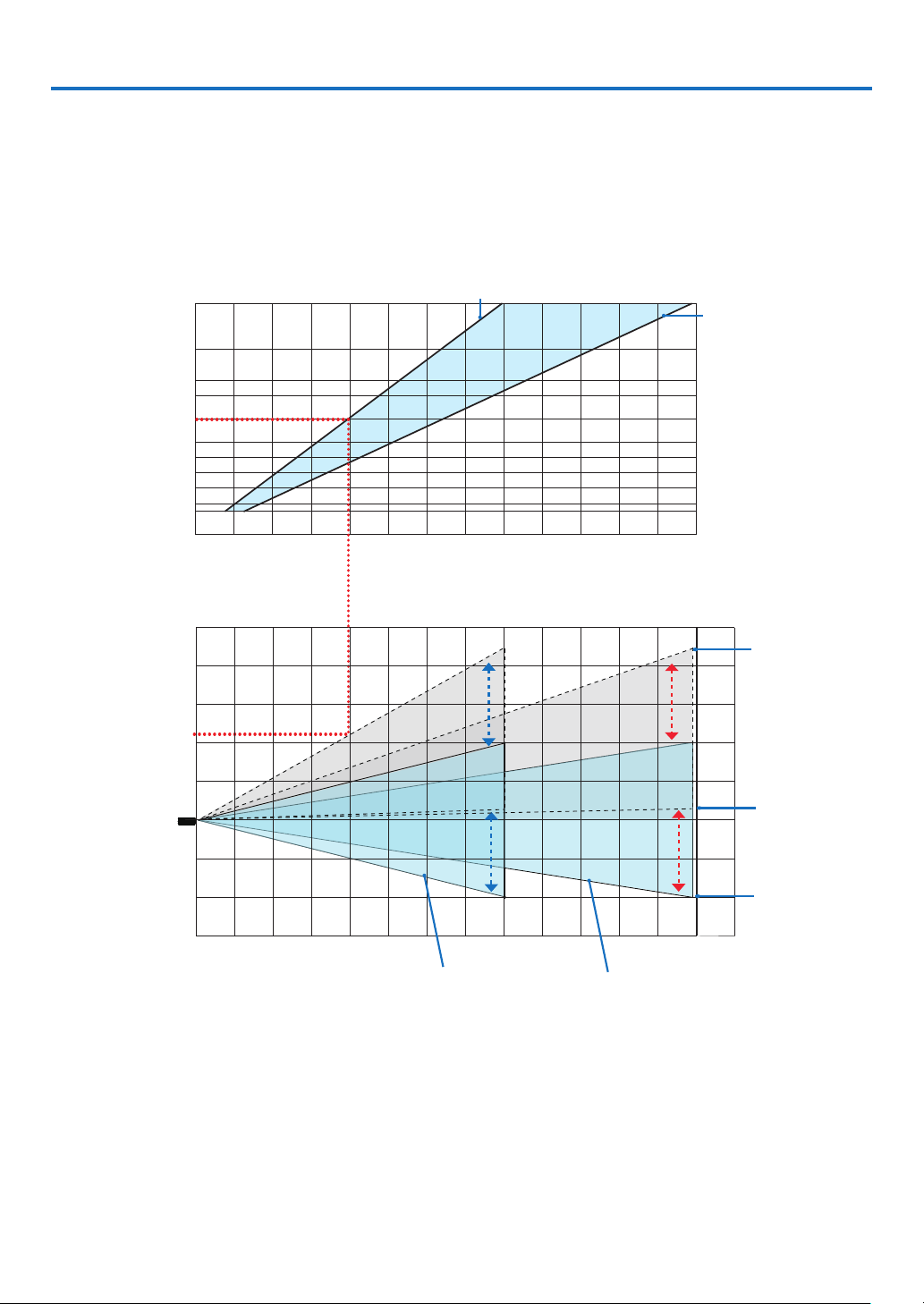
66
7. Installation and Connections
❶ Setting Up the Screen and the Projector
Use this to get a general idea of what the screen size will be when set in a certain position, what size screen you will
need, and what distance you will need to project images of the desired size.
[PE506UL]
The projection distance range at which focusing is possible is 0.77 m (for 30 inches) to 12.89 m (for 300 inches).
Install within this range.
0123 56789 10 11 12 13
40
30
60
80
100
120
150
180
200
240
300
4
123456789
12 13
14
0
1
2
3
4
5
-1
-2
-3
10 11
When zoom lever turned to wide
(inch)
(m)
(m)
(m)
[Projection distance]
Screen size
Screen height from the center of the
projector lens
* The figures indicated for “height of screen from projector lens center” on the projection distance table are for a
lens shift of 60% V.
Reading the Table
From the upper table on this page, to project wide images on a 150 inch screen, install at about 4.0 m from the front.
Also, from the lower table we can see that about 2.2 m are required from the projector’s lens center to the upper
edge of the screen. Use this to see whether or not enough height can be provided from the projector to the ceiling
and for installing the screen. The diagram shows the projection distance when the projector is installed horizontally.
The projected image can be moved up and down, left and right using the lens shift function. (→ page
19 )
The top of the screen
when the lens shift is
the largest
Projector lens center
and screen center
The bottom edge
of the screen at the
minimum lens shift
When zoom
lever turned to
telescopic
When the zoom lever is turned wide When the zoom lever is turned to telescopic
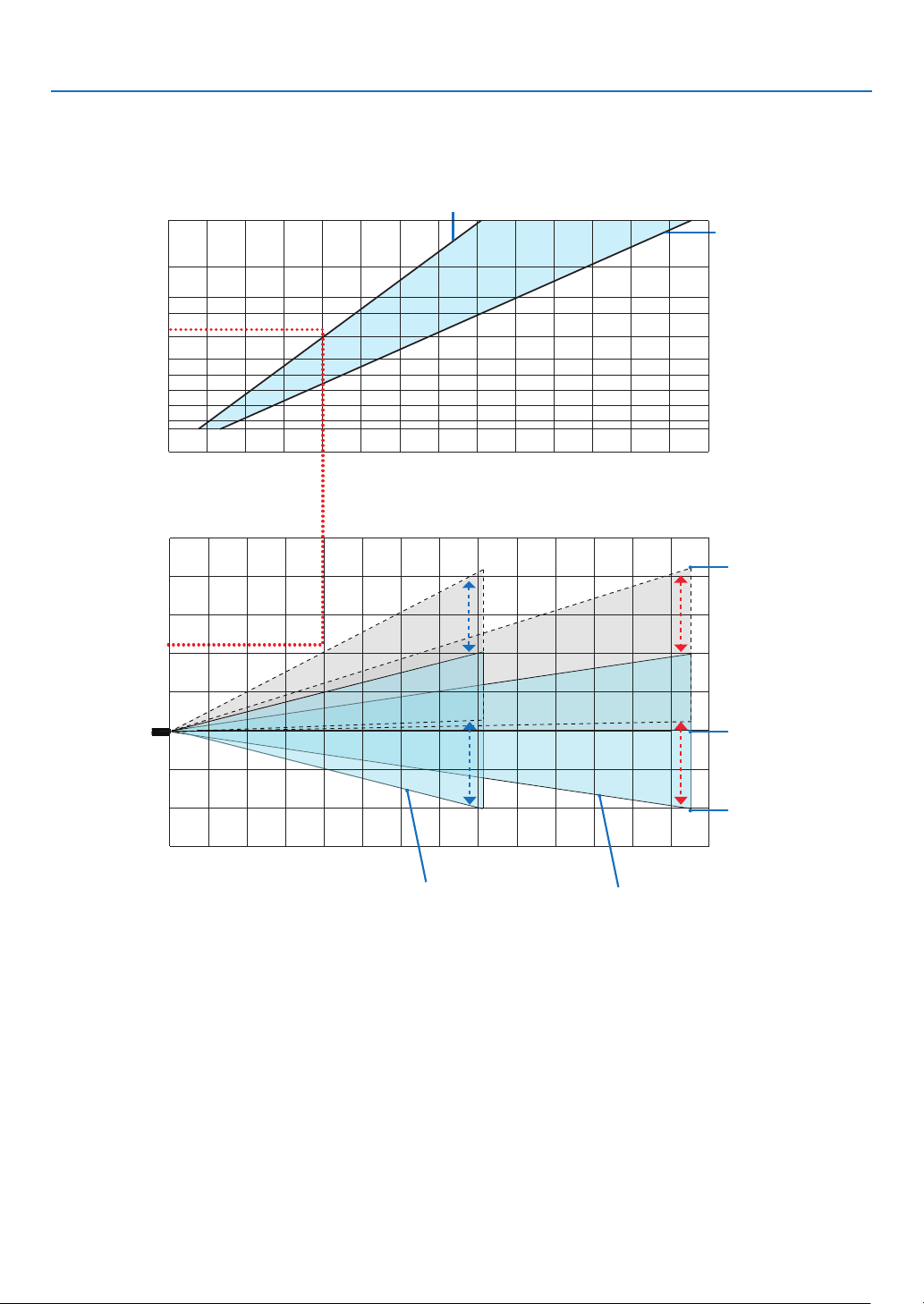
67
7. Installation and Connections
[PE506WL]
The projection distance range at which focusing is possible is 0.78 m (for 30 inches) to 13.55 m (for 300 inches).
Install within this range.
300
240
0
0
150
0
0
80
60
40
30
012345 7 8 9 10 11 12 13 146
123456789
12 13
14
0
1
2
3
4
5
-1
-2
-3
10 11
When zoom
lever turned to
telescopic
When zoom lever turned to wide
(inch)
(m)
(m)
(m)
[Projection distance]
Screen size
Screen height from the center of the projector
lens
* The figures indicated for “height of screen from projector lens center” on the projection distance table are for a
lens shift of 55% V.
Reading the Table
From the upper table on this page, to project wide images on a 150 inch screen, install at about 4.0 m from the front.
Also, from the lower table we can see that about 2.1 m are required from the projector’s lens center to the upper
edge of the screen. Use this to see whether or not enough height can be provided from the projector to the ceiling
and for installing the screen. The diagram shows the projection distance when the projector is installed horizontally.
The projected image can be moved up and down, left and right using the lens shift function. (→ page
19 )
The top of the screen
when the lens shift is
the largest
Projector lens center
and screen center
The bottom edge
of the screen at the
minimum lens shift
When the zoom lever is turned wide When the zoom lever is turned to telescopic
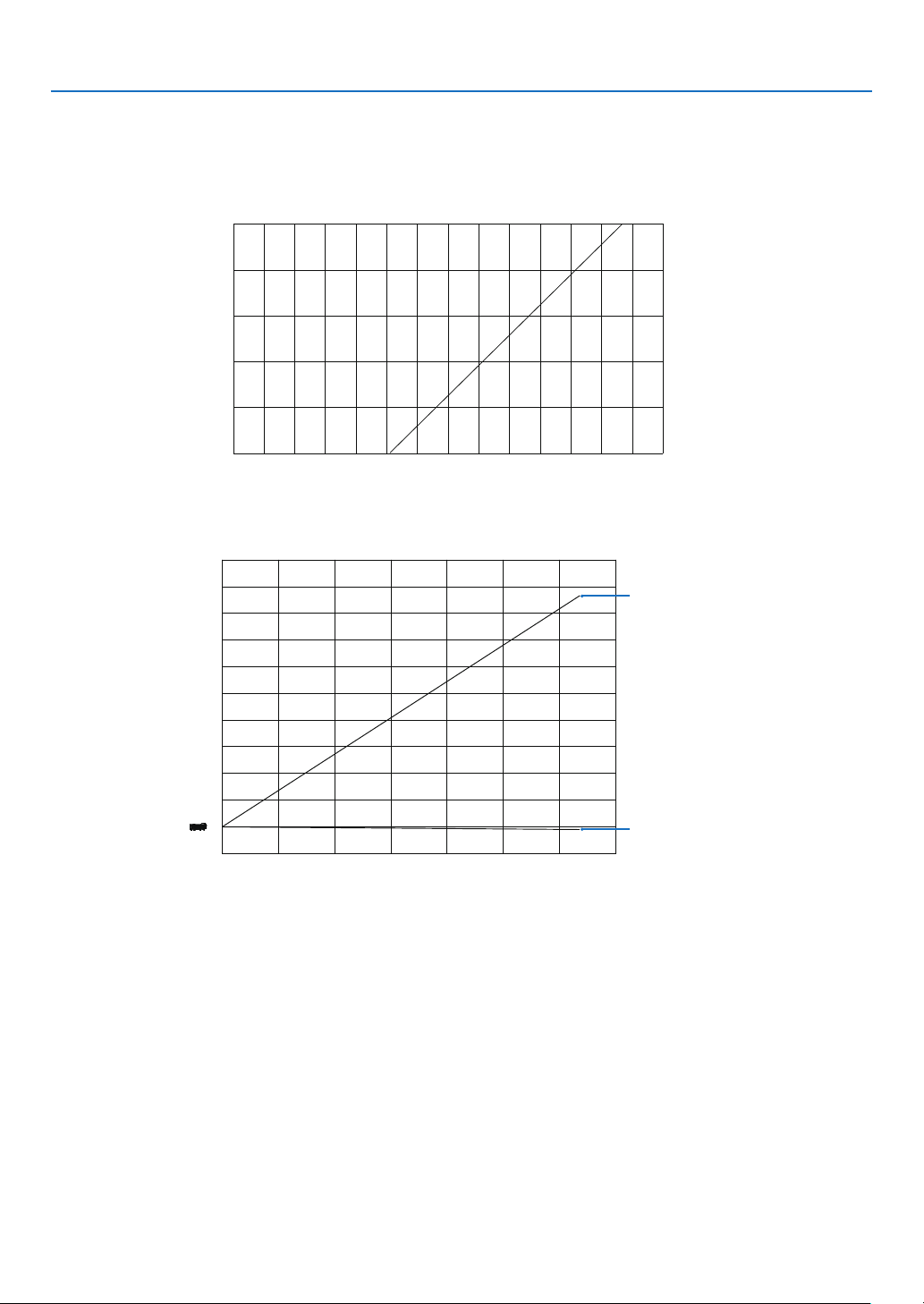
68
7. Installation and Connections
[PE456USL/PE456WSL]
The projection distance range at which focusing is possible is 0.517 m (for 55 inches) to 1.268 m (for 130 inches).
Install within this range.
(inch)
(m)
(m)
(m)
[Projection distance]
Screen size
Screen height from the center of the projector lens
Reading the Table
From the upper table on this page, to project wide images on a 80 inch screen, install at about 0.768 m from the front.
Also, from the lower table we can see that about 1.066 m are required from the projector’s lens center to the upper
edge of the screen. Use this to see whether or not enough height can be provided from the projector to the ceiling
and for installing the screen. The diagram shows the projection distance when the projector is installed horizontally.
The Top of Screen
The bottom of Screen
[Projection distance]
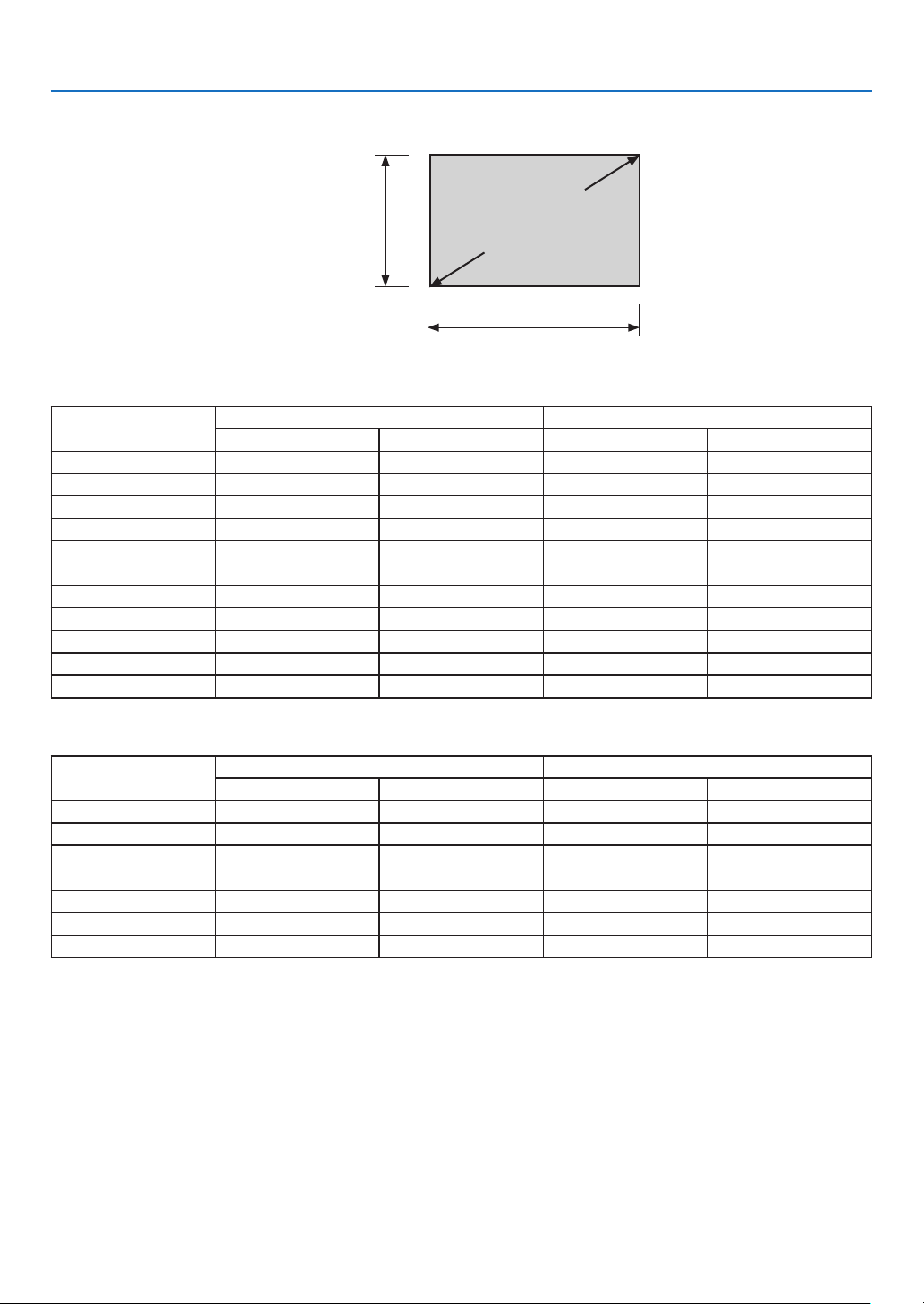
69
7. Installation and Connections
Tables of screen sizes and dimensions
Screen size
(diagonal)
Screen width
Screen height
[PE506UL/PE506WL]
Size (inches)
Screen width Screen height
(cm) (inches) (cm) (inches)
30 64.6 25.4 40.4 15.9
40 86.2 33.9 53.8 21.2
50 107.7 42.4 67.3 26.5
60 129.2 50.9 80.8 31.8
80 172.3 67.8 107.7 42.4
100 215.4 84.8 134.6 53.0
120 258.5 101.8 161.5 63.6
150 323.1 127.2 201.9 79.5
200 430.8 169.6 269.2 106.0
250 538.5 212.0 336.5 132.5
300 646.2 254.4 403.9 159.0
[PE456USL/PE456WSL]
Size (inches)
Screen width Screen height
(cm) (inches) (cm) (inches)
55 118.5 46.6 74.0 29.1
60 129.2 50.9 80.8 31.8
70 150.8 59.4 94.2 37.1
80 172.3 67.8 107.7 42.4
90 193.9 76.3 121.2 47.7
100 215.4 84.8 134.6 53.0
130 280.0 110.2 175.0 68.9
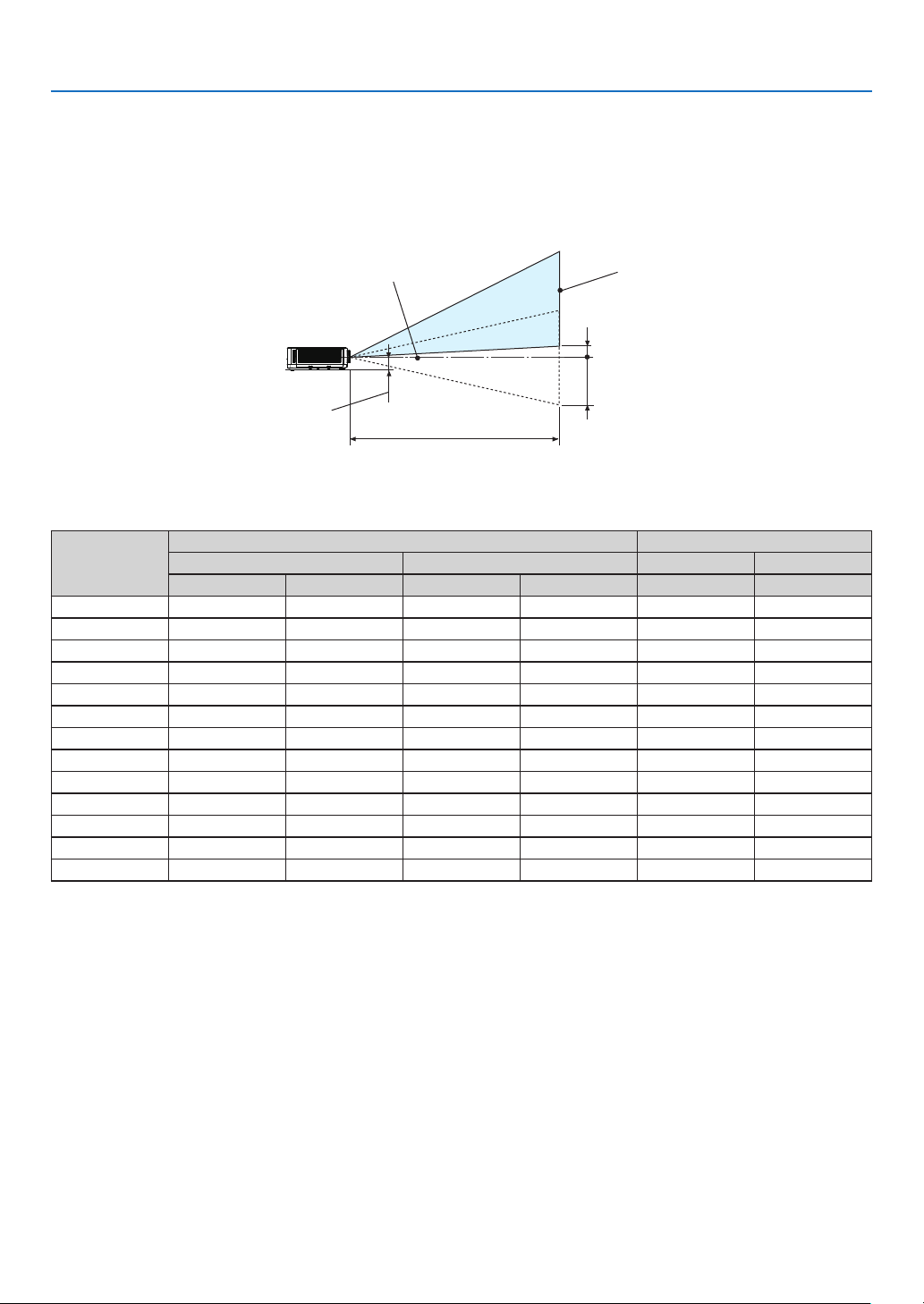
70
7. Installation and Connections
Example of installation on a desktop
The diagram below shows an example of when the projector is used on a desktop.
Horizontal projection position: Equal distance to the left and right from the center of the lens vertical projection
position: (see table below)
[PE506UL]
Screen surface
Approximately 82 mm
Lens center
Measurement +H
Measurement −H
Projection distance L
(NOTE) Height from lens center to lower edge of screen (with tilt feet screwed in)
Screen size
(inches)
Throw distance L Height H
(m) (inches) (cm) (inches)
Wide Tele Wide Tele 0%V – 60%V 0%V – 60%V
30 0.77 1.26 30.1 49.5 −20.2 – +4.0 −7.9 – +1.6
40 1.03 1.69 40.6 66.5 −26.9 – +5.4 −10.6 – +2.1
60 1.56 2.55 61.6 100.4 −40.4 – +8.1 −15.9 – +3.2
80 2.10 3.41 82.6 134.3 −53.8 – +10.8 −21.2 – +4.2
90 2.36 3.84 93.1 151.3 −60.6 – +12.1 −23.8 – +4.8
100 2.63 4.27 103.6 168.2 −67.3 – +13.5 −26.5 – +5.3
120 3.16 5.13 124.6 202.1 −80.8 – +16.2 −31.8 – +6.4
150 3.96 6.43 156.1 253.0 −101.0 – +20.2 −39.7 – +7.9
180 4.76 7.72 187.6 303.8 −121.2 – +24.2 −47.7 – +9.5
200 5.30 8.58 208.6 337.8 −134.6 – +26.9 −53.0 – +10.6
250 6.36 10.30 250.5 405.6 −161.5 – +32.3 −63.6 – +12.7
270 7.16 11.59 282.0 456.4 −181.7 – +36.3 −71.5 – +14.3
300 7.96 12.89 313.5 507.3 −201.9 – +40.4 −79.5 – +15.9
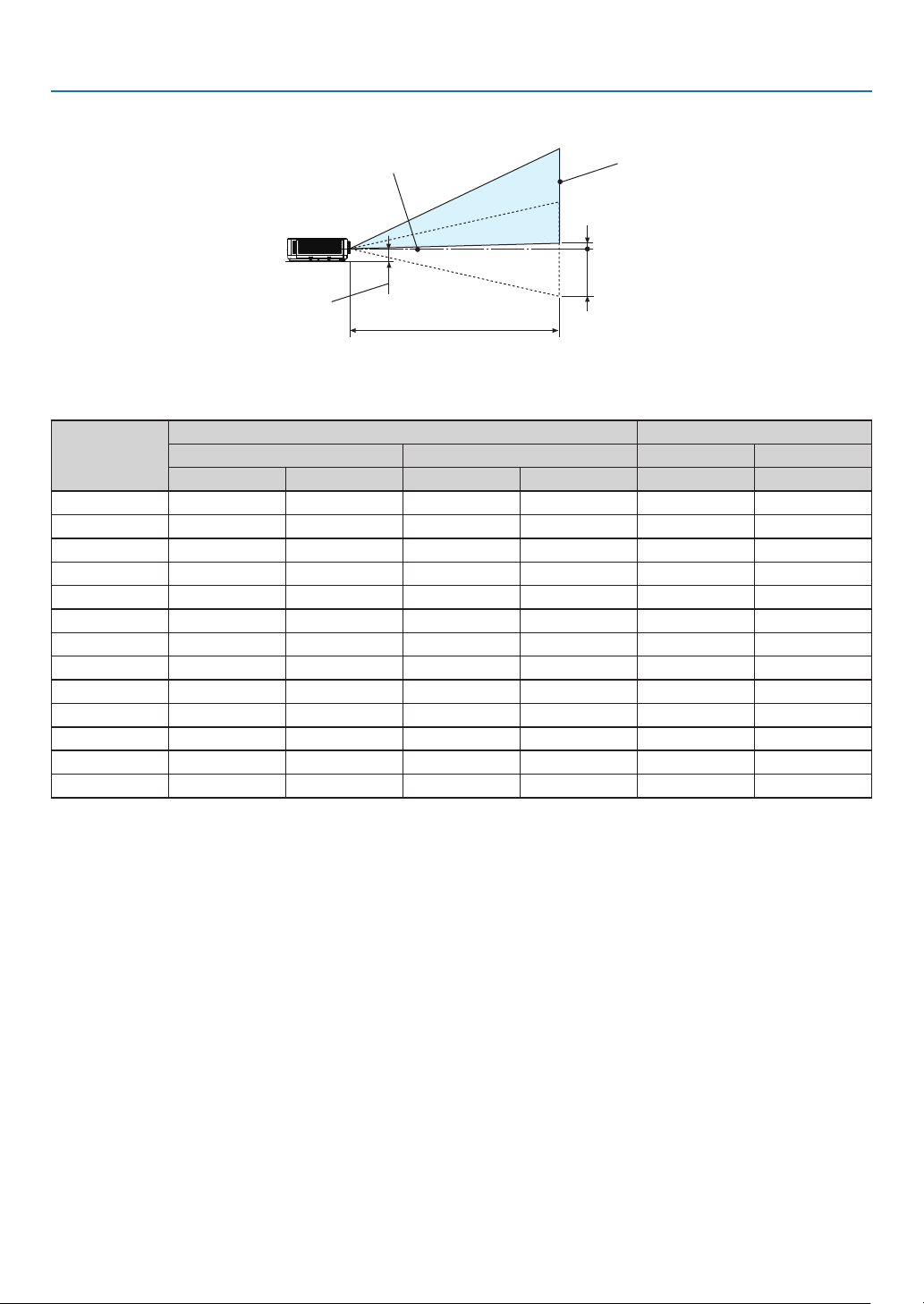
71
7. Installation and Connections
[PE506WL]
Screen surface
Approximately 82 mm
Lens center
Measurement +H
Measurement −H
Projection distance L
(NOTE) Height from lens center to lower edge of screen (with tilt feet screwed in)
Screen size
(inches)
Throw distance L Height H
(m) (inches) (cm) (inches)
Wide Tele Wide Tele 0%V – 55 %V 0%V – 55%V
30 0.78 1.32 41.4 52.0 –20.2 – +2.0 –7.9 – +0.8
40 1.05 1.77 41.4 69.8 –26.9 – +2.7 –10.6 – +1.1
60 1.60 2.68 62.9 105.5 –40.4 – +4.0 –15.9 – +1.6
80 2.14 3.59 84.4 141.1 –53.8 – +5.4 –21.2 – +2.1
90 2.42 4.04 95.2 159.0 –60.6 – +6.1 –23.8 – +2.4
100 2.69 4.49 105.9 176.8 –67.3 – +6.7 –26.5 – +2.6
120 3.24 5.40 127.4 212.5 –80.8 – +8.1 –31.8 – +3.2
150 4.06 6.76 159.6 266.0 –101.0 – +10.1 –39.7 – +4.0
180 4.87 8.12 191.9 319.5 –121.2 – +12.1 –47.7 – +4.8
200 5.42 9.02 213.4 355.2 –134.6 – +13.5 –53.0 – +5.3
250 6.51 10.83 256.3 426.5 –161.5 – +16.2 –63.6 – +6.4
270 7.33 12.19 288.6 426.5 –181.7 – +18.2 –71.5 – +7.2
300 8.15 13.55 320.8 533.5 –201.9 – +20.2 –79.5 – +7.9
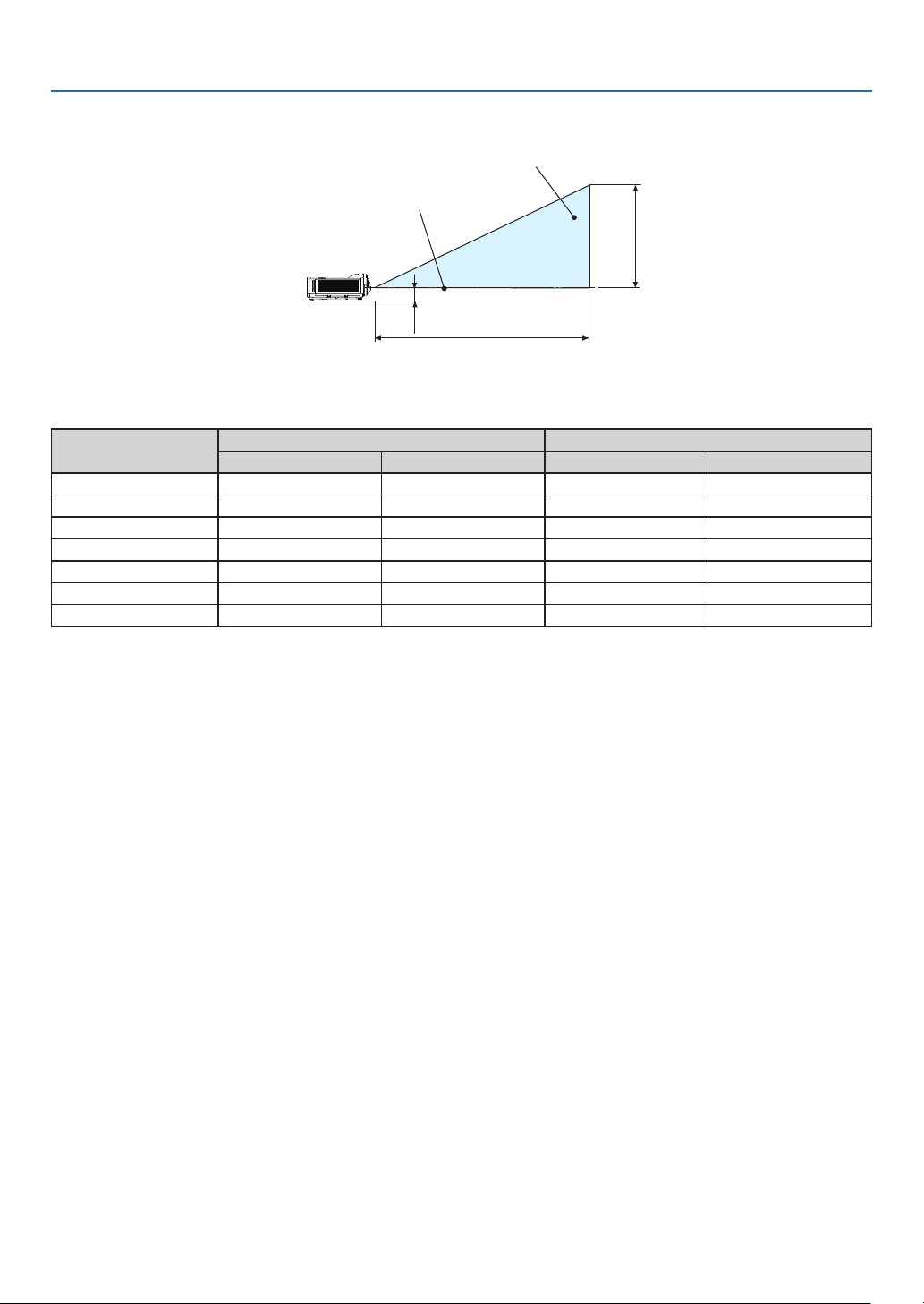
72
7. Installation and Connections
[PE456USL/PE456WSL]
Screen surface
Approximately 82 mm
Lens center
Projection distance L
Height H
(NOTE) Height from lens center to lower edge of screen (with tilt feet screwed in)
Screen size
(inches)
Throw distance L Height H
(m) (inches) (cm) (inches)
55 0.52 20.37 74.04 29.15
60 0.57 22.34 80.77 31.80
70 0.67 26.28 94.23 37.10
80 0.77 30.22 107.70 42.40
90 0.87 34.16 121.16 47.70
100 0.97 38.09 134.62 53.00
130 1.27 49.91 175.01 68.90
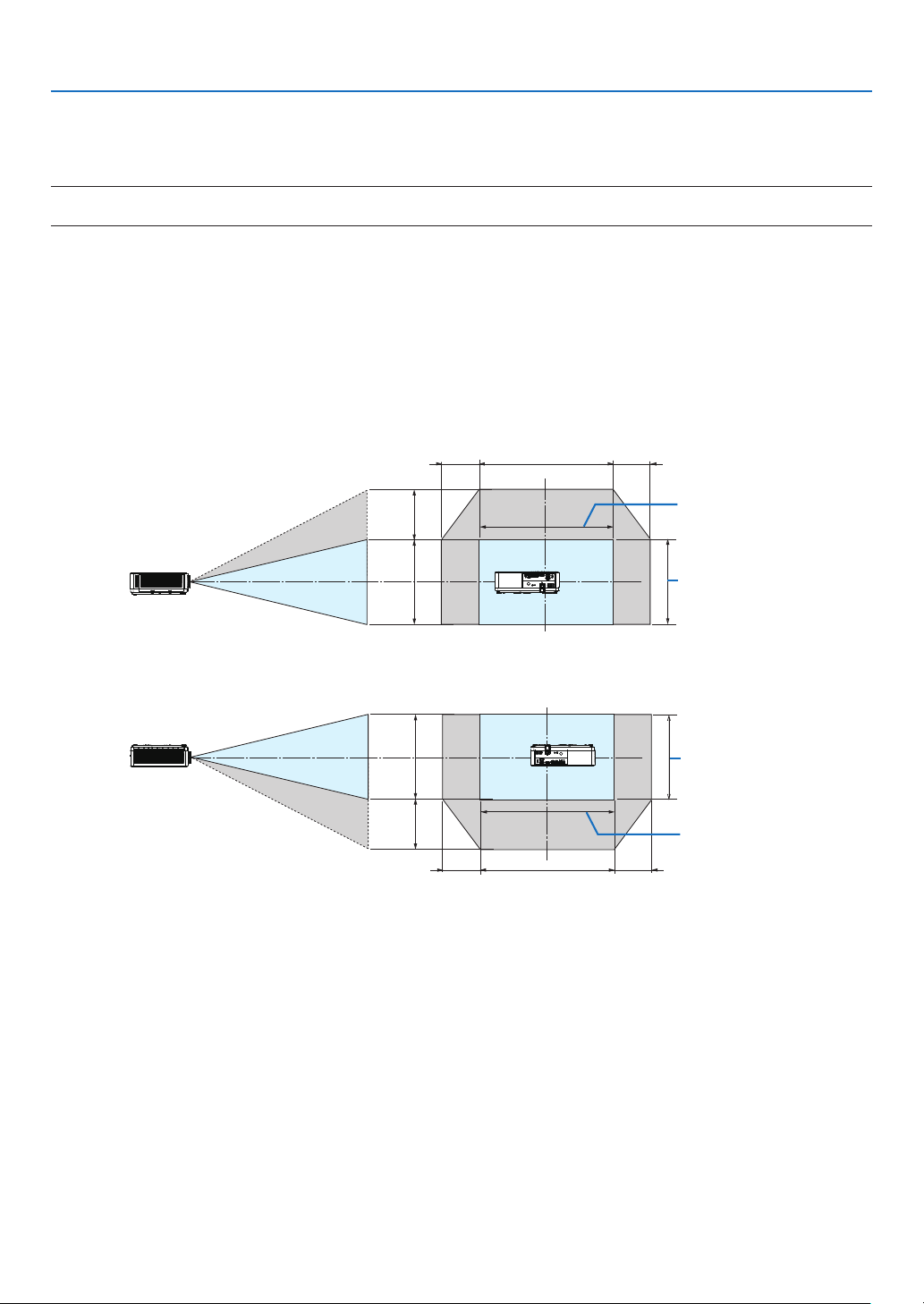
73
7. Installation and Connections
Lens shift range
This projector is equipped with a lens shift function (→ page
19) for adjusting the image position using dials. Lens
shifting is possible within the range shown below.
NOTE:
• In case lens shifted volume exceeds the below illustrated range, blur and shade may appear around ends of projected image.
Legend: V “Vertical” refers to the screen height and H “Horizontal” refers to the screen width. The lens shift range
is expressed as a ratio of height and width, respectively.
[PE506UL]
Lens shifting range:
Vertical direction: +60%, −0%
Horizontal direction: ±29%
DESKTOP FRONT, DESKTOP REAR
Width of projected
image
29% H29% H 100% H
60% V
100% V
Height of projected
image
CEILING FRONT, CEILING REAR
29% H29% H 100% H
60% V
100% V
Width of projected
image
Height of projected
image
(Example) When using to project on a 150" screen
According to the “Table of screen sizes and dimensions” (→ page 69) , H = 127.2"/323.1 cm, V = 79.5"/201.9 cm.
Adjustment range in the vertical direction: the projected image can be moved upwards 0.60 × 79.5"/201.9 cm ≈
47.7"/121 cm (when the lens is at the center position).
Adjustment range in the horizontal direction: the projected image can be moved to the left 0.29 × 127.2"/323.1 cm
≈ 36.9"/94 cm, to the right approximately 36.9"/94 cm.
* Figures differ by several % because the calculation is approximate.
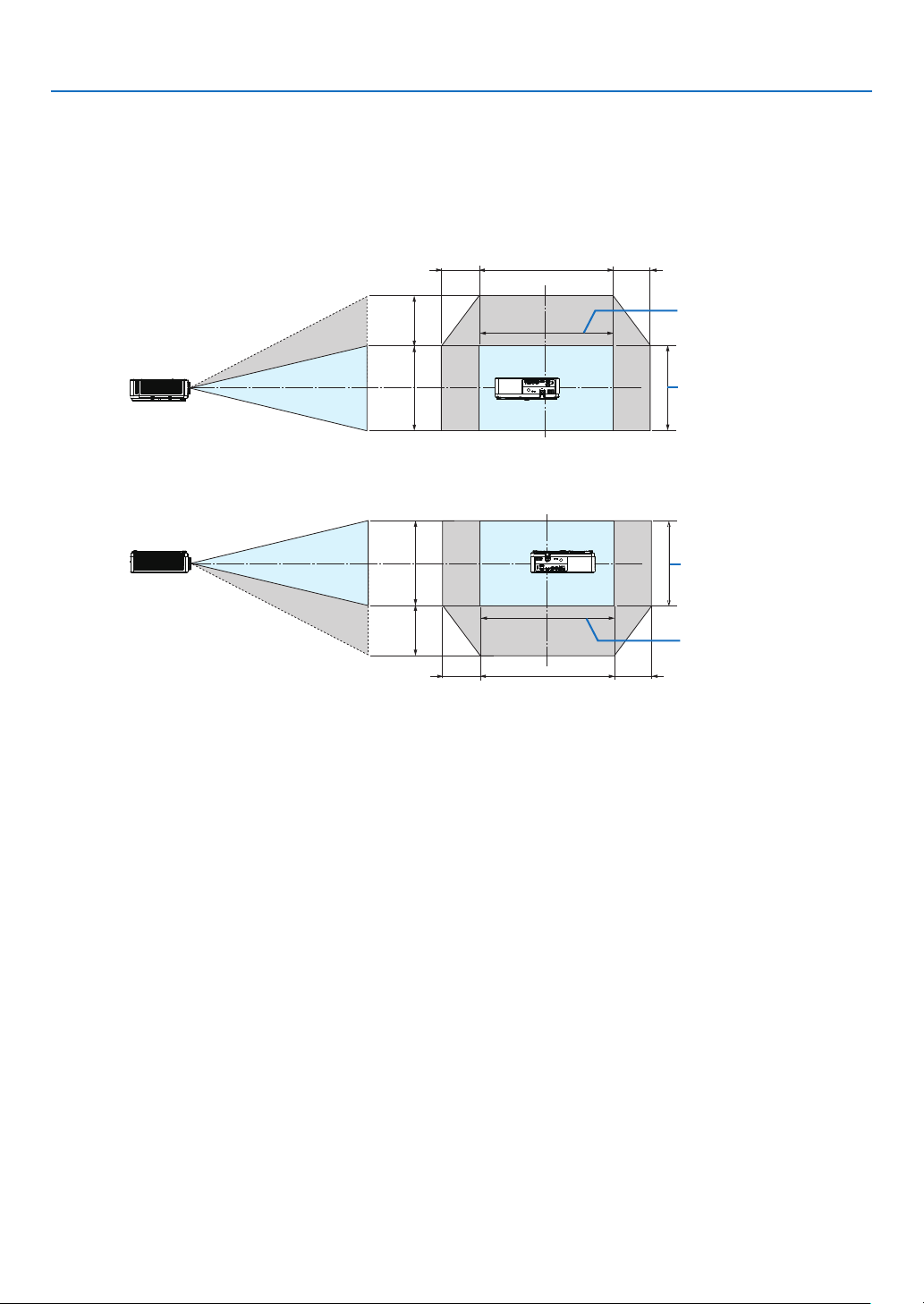
74
7. Installation and Connections
[PE506WL]
Lens shifting range:
Vertical direction: +55%, −0%
Horizontal direction: ±26%
DESKTOP FRONT, DESKTOP REAR
Width of projected
image
26% H26% H 100% H
55% V
100% V
Height of projected
image
CEILING FRONT, CEILING REAR
26% H26% H 100% H
55% V
100% V
Width of projected
image
Height of projected
image
(Example) When using to project on a 150" screen
According to the “Table of screen sizes and dimensions” (→ page
69), H = 127.2''/323.1 cm, V = 79.5''/201.9 cm.
Adjustment range in the vertical direction: the projected image can be moved upwards 0.55 × 79.5''/ 201.9 cm ≈
43.7''/111cm (when the lens is at the center position).
Adjustment range in the horizontal direction: the projected image can be moved to the left 0.26 × 127.2''/ 323.1cm
≈ 33.1''/84 cm, to the right approximately 33.1''/84 cm.
* Figures differ by several % because the calculation is approximate.
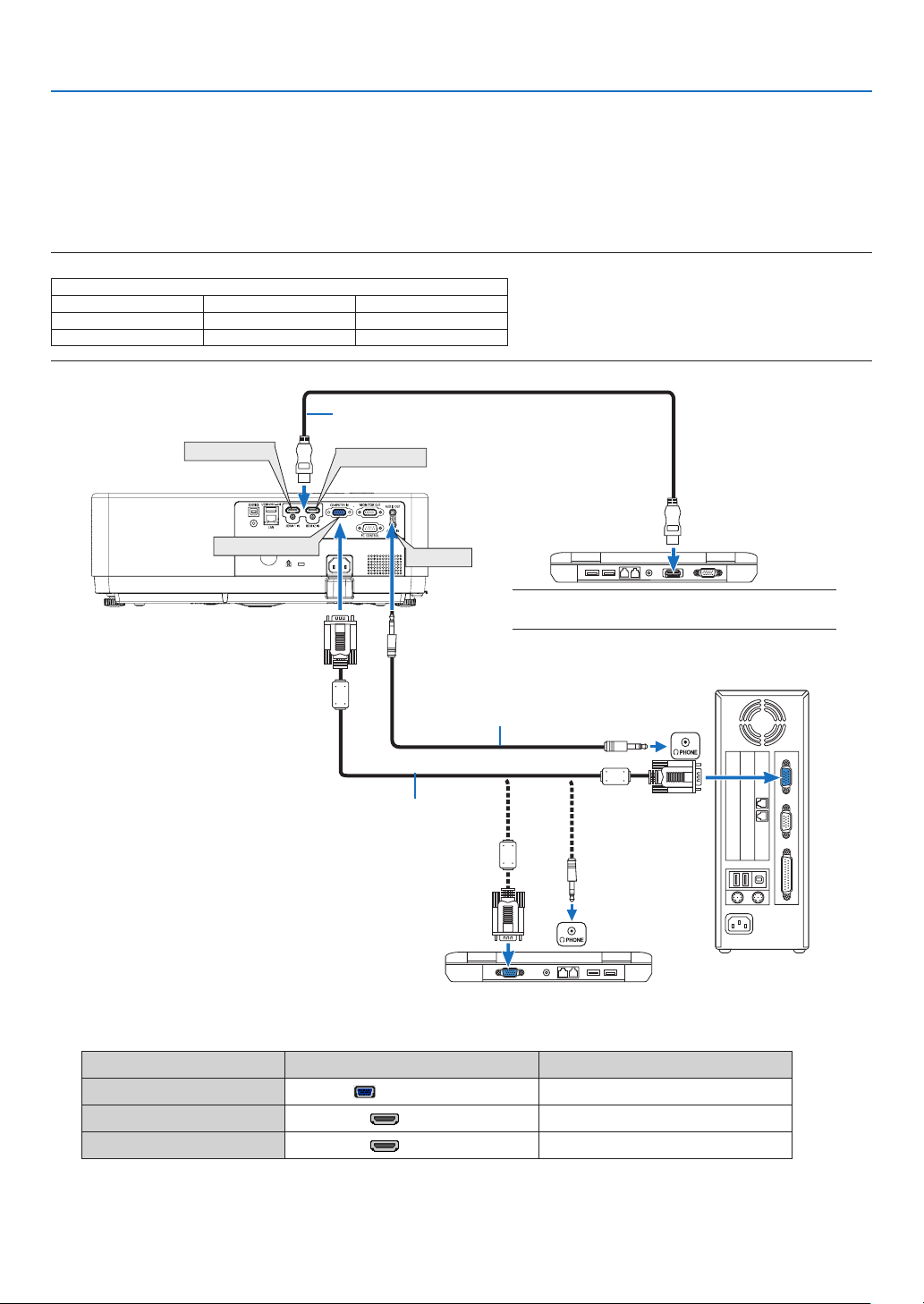
75
7. Installation and Connections
❷ Making Connections
Connecting Your Computer
Computer cable or HDMI can be used to connect to a computer. A computer cable (VGA) is supplied with the pro-
jector. Please get ready a suitable cable for the connection.
NOTE: Signals supported by Plug & Play (DDC2)
INPUT
COMPUTER IN HDMI 1 IN HDMI 2 IN
analog digital digital
Yes Yes Yes
• Select the source name for its appropriate input terminal after turning on the projector.
Input terminal
INPUT button on the projector cabinet
Button on the remote control
COMPUTER IN
COMPUTER
(COMPUTER)
HDMI 1 IN
HDMI1 (HDMI 1)
HDMI 2 IN HDMI2 (HDMI 2)
HDMI 1 IN
HDMI 2 IN
COMPUTER IN
AUDIO IN
Computer cable (VGA) (supplied)
To mini D-Sub 15-pin terminal on the
projector. It is recommended that you
use a commercially available distribu-
tion amplifier if connecting a signal cable
longer than the cable supplied.
Stereo mini-plug audio cable (not supplied)
HDMI cable (not supplied)
Use High Speed HDMI
®
Cable.
NOTE: For Mac, use a commercially available pin adapter
(not supplied) to connect to your Mac’s video port.
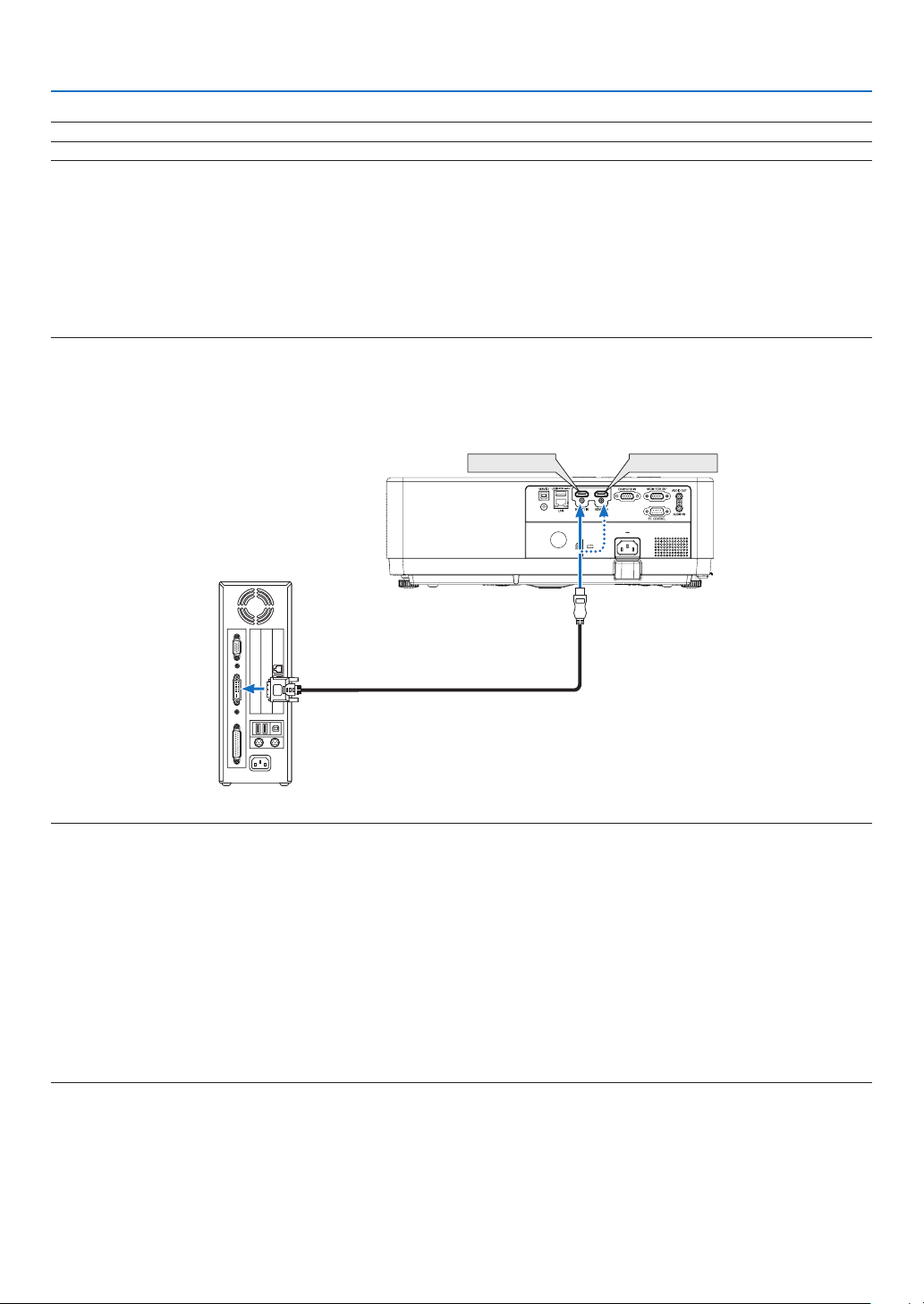
76
7. Installation and Connections
NOTE: The projector is not compatible with video decoded outputs of the NEC ISS-6020 switcher.
NOTE: An image may not be displayed correctly when a Video source is played back via a commercially available scan converter.
This is because the projector will process a video signal as a computer signal at the default setting. In that case, do the following.
* When an image is displayed with the lower and upper black portion of the screen or a dark image is not displayed correctly:
Project an image to fill the screen and then press the AUTO ADJ. button on the remote control or the projector cabinet.
Enabling the computer’s external display
Displaying an image on the notebook PC’s screen does not necessarily mean it outputs a signal to the projector.
When using a PC compatible laptop, a combination of function keys will enable/disable the external display.
Usually, the combination of the “Fn” key along with one of the 12 function keys gets the external display to come on or off. For example, NEC
laptops use Fn + F3, while Dell laptops use Fn + F8 key combinations to toggle through external display selections.
Cautions when using a DVI signal
• When the computer has a DVI output terminal, use a commercially available converter cable to connect the com-
puter to the projector’s HDMI 1 or HDMI 2 input terminal (only digital video signals can be input).
HDMI 1 IN HDMI 2 IN
NOTE: When Viewing a DVI Digital Signal
• Turn off the power of the computer and projector before connecting.
• When a video deck is connected via a scan converter, etc., the display may not be correct during fast-forwarding and rewinding.
• Use a DVI-to-HDMI cable compliant with DDWG (Digital Display Working Group) DVI (Digital Visual Interface) revision 1.0 standard.
The cable should be within 197"/5 m long.
• Turn off the projector and the PC before connecting the DVI-to-HDMI cable.
• To project a DVI digital signal: Connect the cables, turn the projector on, then select the HDMI input. Finally, turn on your PC.
Failure to do so may not activate the digital output of the graphics card resulting in no picture being displayed. Should this happen, restart
your PC.
• Do not disconnect the DVI-to-HDMI cable while the projector is running. If the signal cable has been disconnected and then reconnected,
an image may not be correctly displayed. Should this happen, restart your PC.
• The COMPUTER video input terminals support Windows Plug and Play.
• A Mac signal adapter (commercially available) may be required to connect a Mac computer.
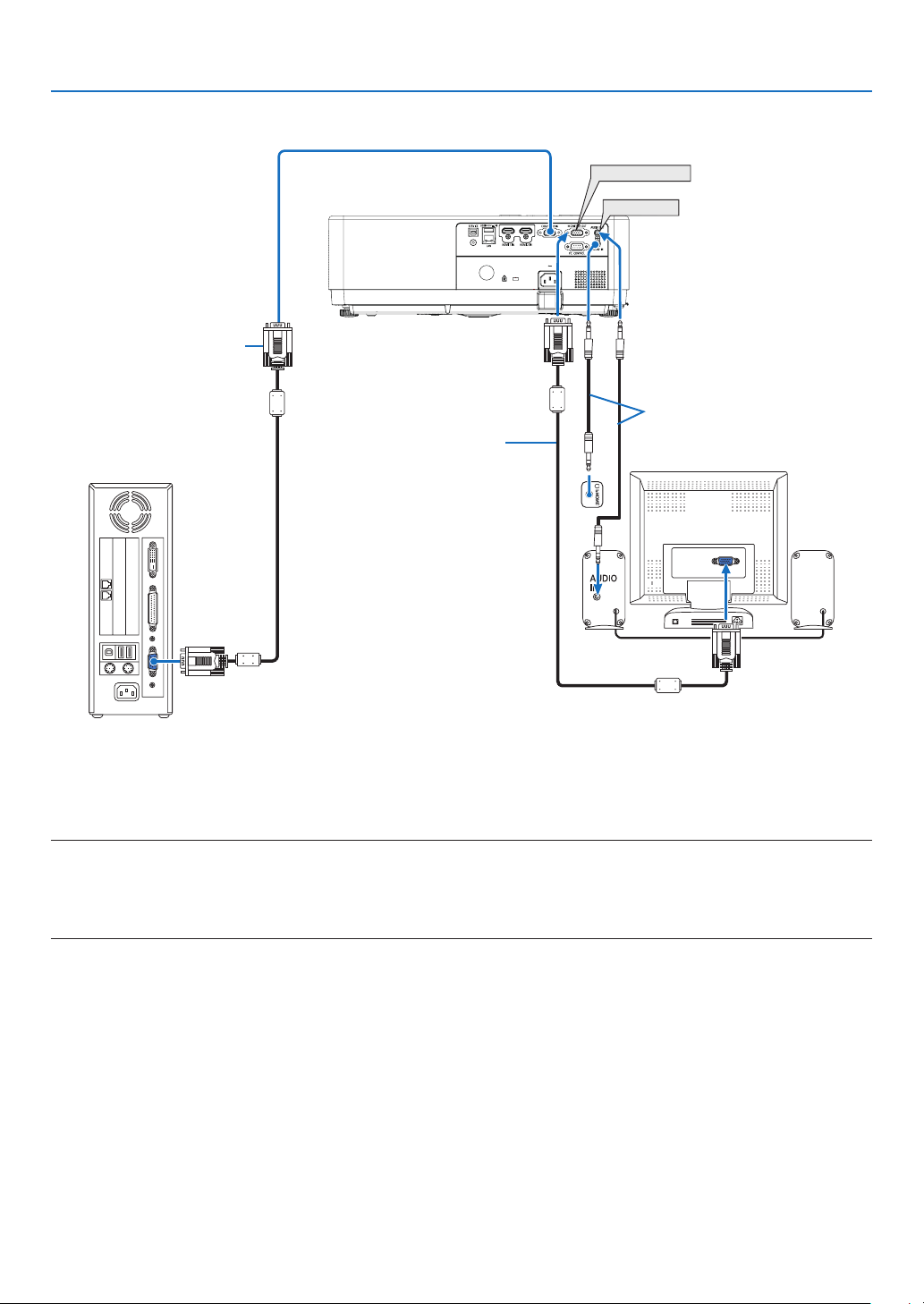
77
7. Installation and Connections
Connecting an External Monitor
You can connect a separate, external monitor to your projector to simultaneously view on a monitor the computer
analog image you’re projecting.
NOTE:
• The AUDIO OUT mini jack does not support earphone/headphone terminal.
• When audio equipment is connected, the projector speaker is disabled.
• The signal output from the MONITOR OUT of this projector is for projecting image on exclusive one display.
• MONITOR OUT function is not available in Standby mode: Normal and Standby mode: Network standby.
AUDIO OUT
MONITOR OUT
Computer cable
(VGA) (supplied)
Computer cable
(VGA) (not supplied)
Stereo mini-plug audio
cable (not supplied)
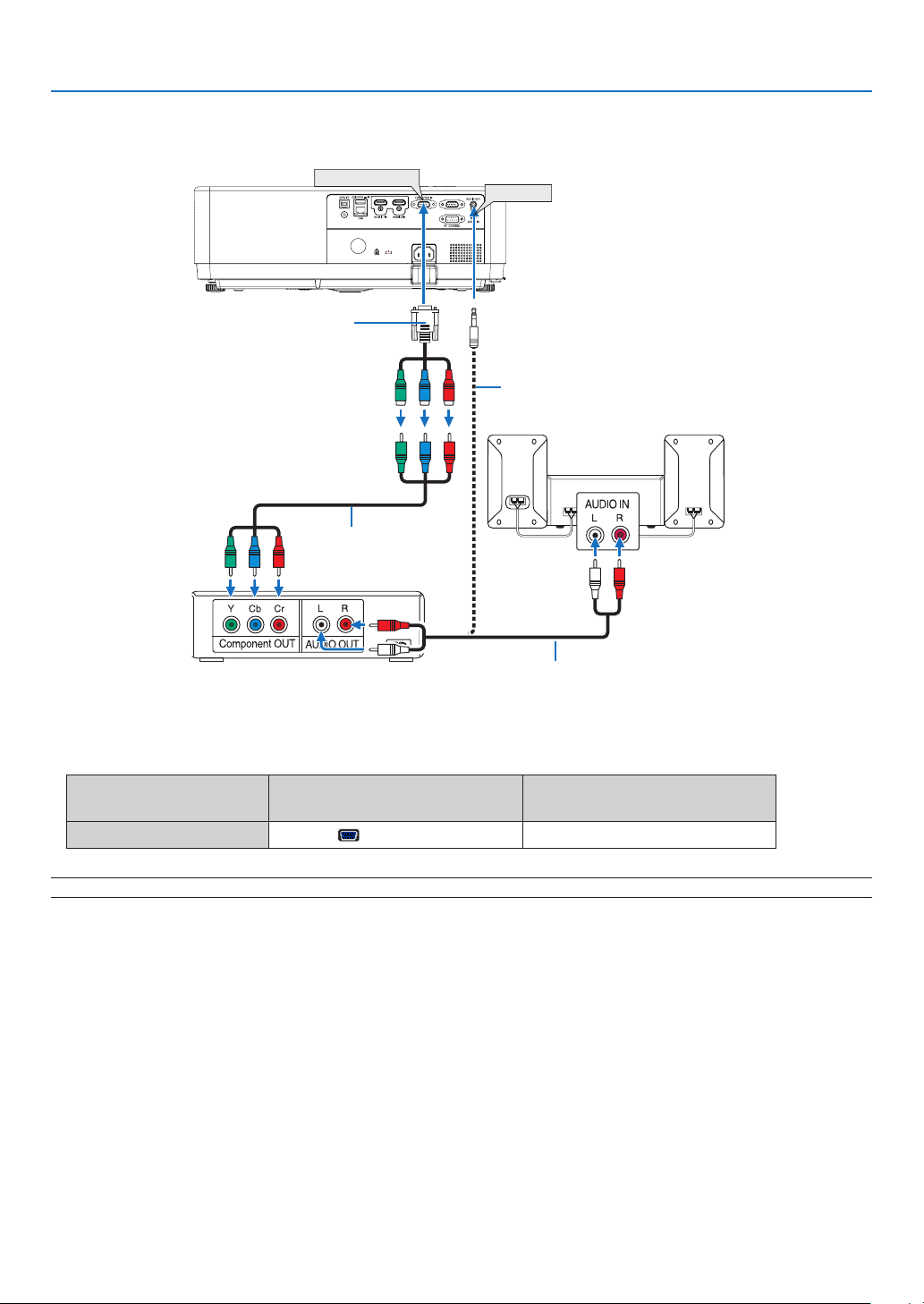
78
7. Installation and Connections
Connecting Component Input
COMPUTER IN
AUDIO IN
15-pin - to - RCA (female) × 3 cable adapter
(ADP-CV1E)
Stereo mini plug - to - RCA audio cable (not supplied)
Component video RCA ×
3 cable (not supplied)
Audio cable (not supplied)
DVD player
Audio Equipment
• Select the source name for its appropriate input terminal after turning on the projector.
Input terminal
INPUT button on the projector
cabinet
Button on the remote control
COMPUTER IN
COMPUTER
(COMPUTER)
NOTE: Refer to your DVD player’s owner’s manual for more information about your DVD player’s video output requirements.
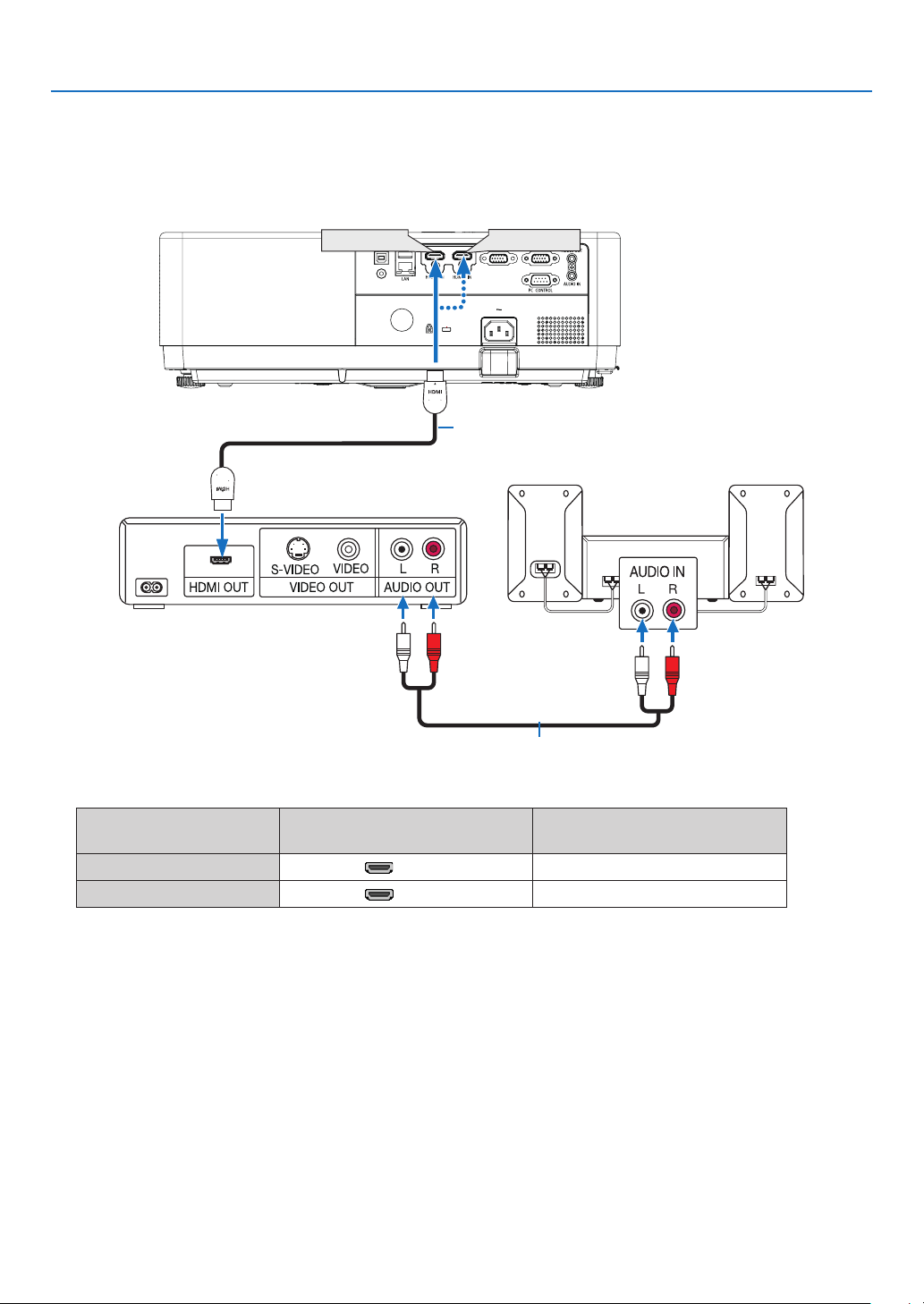
79
7. Installation and Connections
Connecting HDMI Input
You can connect the HDMI output of your DVD player, hard disk player, Blu-ray player, or notebook type PC to the
HDMI IN terminal of your projector.
• Select the source name for its appropriate input terminal after turning on the projector.
Input terminal
INPUT button on the projector
cabinet
Button on the remote control
HDMI 1 IN
HDMI1 (HDMI1)
HDMI 2 IN
HDMI2 (HDMI2)
HDMI 1 IN
HDMI 2 IN
HDMI cable (not supplied)
Use High Speed HDMI
®
Cable.
Audio cable (not supplied)
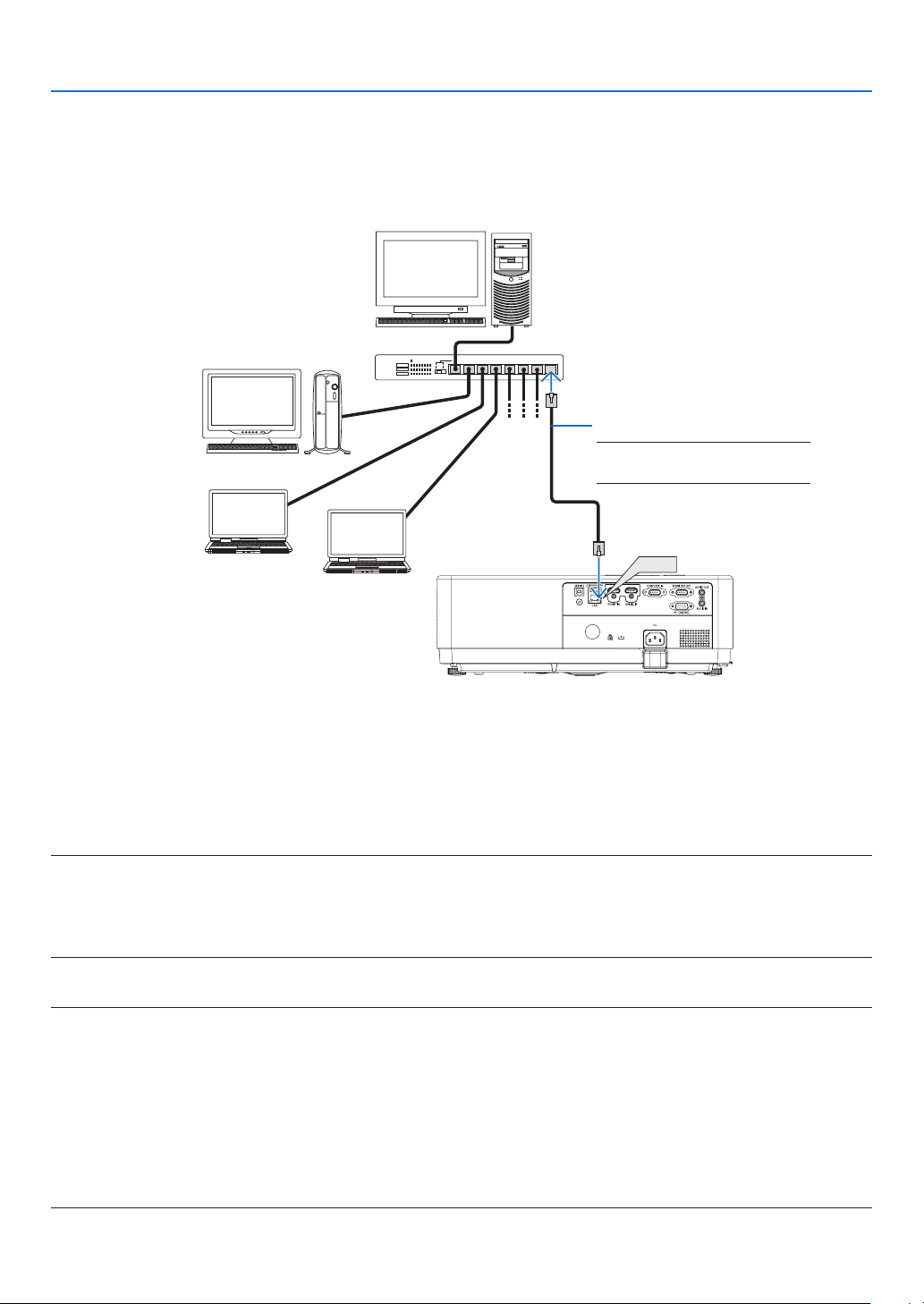
80
7. Installation and Connections
Connecting to a Wired LAN
The projector comes standard with a LAN port (RJ-45) which provides a LAN connection using a LAN cable.
To use a LAN connection, you are required to set the LAN on the projector menu. (→ page
55)
Example of LAN connection
LAN
Server
Hub
LAN cable (not supplied)
NOTE: Use a Category 5 or higher
LAN cable.
Connecting to a Wireless LAN
The USB Wireless LAN Unit also provides a wireless LAN connection.
Important:
• If you use the projector with the USB Wireless LAN Unit in the area where the use of wireless LAN equipment is
prohibited, remove the USB Wireless LAN Unit from the projector.
• Buy the appropriate USB Wireless LAN Unit for your country or area.
NOTE:
• The green LED on the USB Wireless LAN Unit flashes to show that the USB Wireless LAN Unit is working.
• Your computer’s wireless LAN adapter (or unit) must be complied with IEEE802.11b/g/n standard.
• When connecting a USB device and a network cable at the same time, there is highly possibility of interference when using a USB device
that is too large..It is recommended that users use smaller USB devices.
Attaching the USB Wireless LAN Unit
NOTE:
• The USB Wireless LAN Unit must be inserted into the USB Wireless LAN Unit port in the correct direction. It cannot be inserted in the
reverse direction. If the USB Wireless LAN Unit is inserted in the reverse direction with excessive force applied, the USB port may break.
• Before touching the USB Wireless LAN Unit, touch a metallic object (such as a door knob or aluminum window frame) to discharge the
static electricity from your body.
• Always insert or remove the USB Wireless LAN unit when the main power is turned off. Failure to do so may cause projector malfunction
or damage to the USB wireless LAN unit. If the projector will not work correctly, turn off the projector, disconnect the power cord, and
then connect it again.
• The USB port of the projector is common use for the VIEWER. When the USB memory is installed and activate the VIEWER, you can not
utilize wireless LAN.
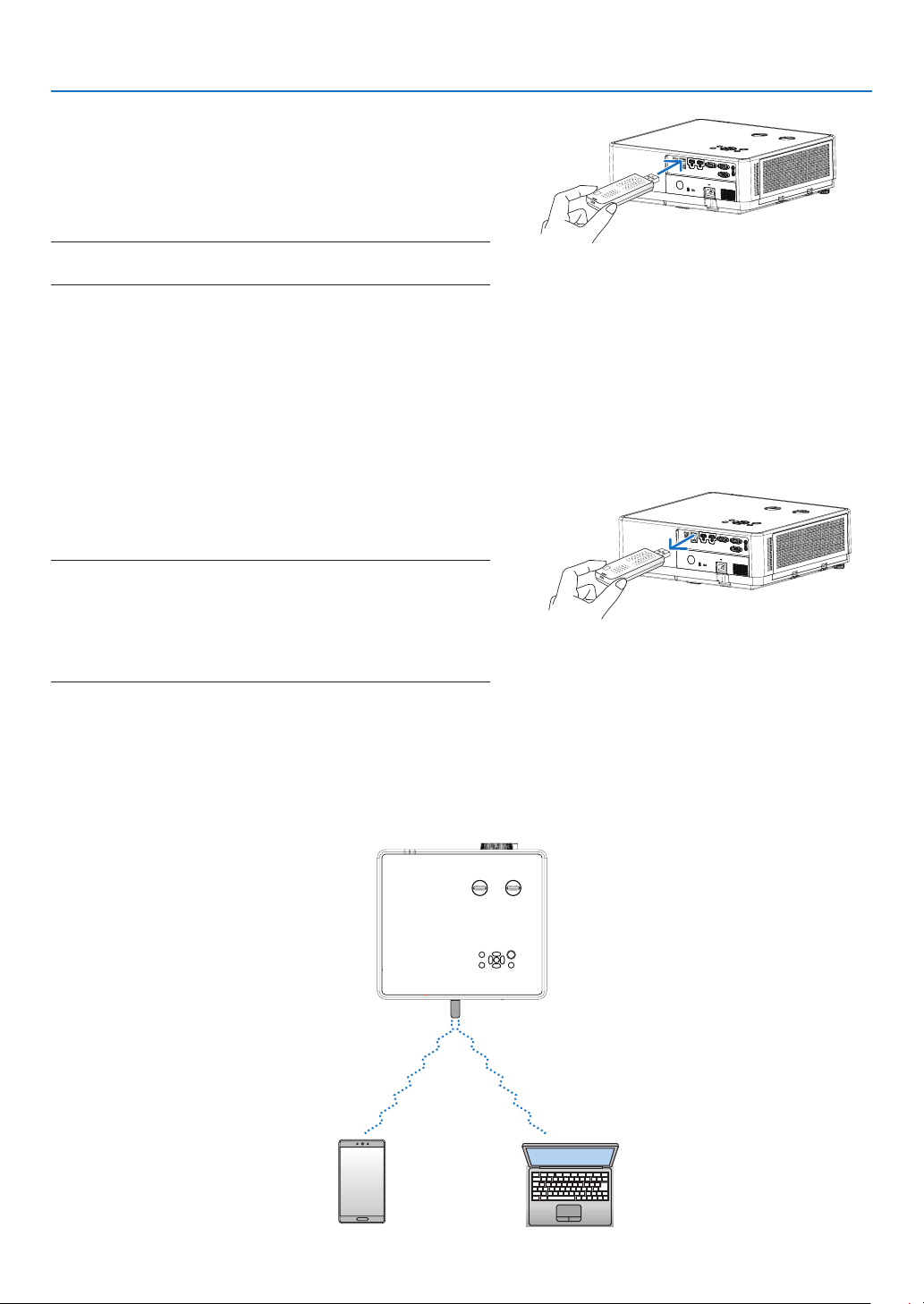
81
7. Installation and Connections
1. Press the POWER button to turn off the projector and set
it into standby condition, and disconnect the power cord.
2. Slowly insert the USB Wireless LAN Unit into the USB port.
Remove the cap from the USB Wireless LAN Unit, and then
insert it with the surface (side of indicator) facing down. Keep
the cap for later use.
NOTE:
• Do not force to insert the USB Wireless LAN Unit.
To remove the USB Wireless LAN Unit, disconnect the power cord
and use the above procedure.
NOTE:
• The green LED on the USB Wireless LAN Unit flashes to show that Wireless
LAN Unit is working. If the USB Wireless LAN Unit is incorrectly
attached, the blue LED will not flash.
• Do not press the button on the USB Wireless LAN Unit. The button will
not work with this model.
Connection Example [SIMPLE ACCESS POINT]
Set the projector as SIMPLE ACCESS POINT for connecting to terminals as computers and smart phones.

82
7. Installation and Connections
(1) Press the MENU button on remote control or the top control panel, press button select [Expand] icon.
Press the ENTER or button.
(2) Press button select [Network setup] and press the ENTER or button.
(3) Press button select [Network setting] and press the ENTER button to enter.
(4) Press button to set Wireless LAN Setting "On" and press the ENTER button to confirm.
(5) Press button to select [Set], press the ENTER button to wait until the “Please wait..” message disappears.
NOTE:
• Data transmission between wireless LAN and wired LAN is not possible.
up to 20 units can be connected simultaneously. Recommend to connect approx. 10 units for normal operation.

83
8. Connecting with MultiPresenter app
1 Things you can do by connecting the projector with
MultiPresenter app
• You can send screen images via a wired LAN/wireless LAN from a terminal installed with our MultiPresenter app
to the projector and project them onto a screen.
See our company’s website for more details about MultiPresenter.
https://www.sharp-nec-displays.com/dl/en/soft/multipresenter/index.html
• Multiple computers or tablet terminals can be connected at the same time. A maximum of 16 units can be con-
nected.
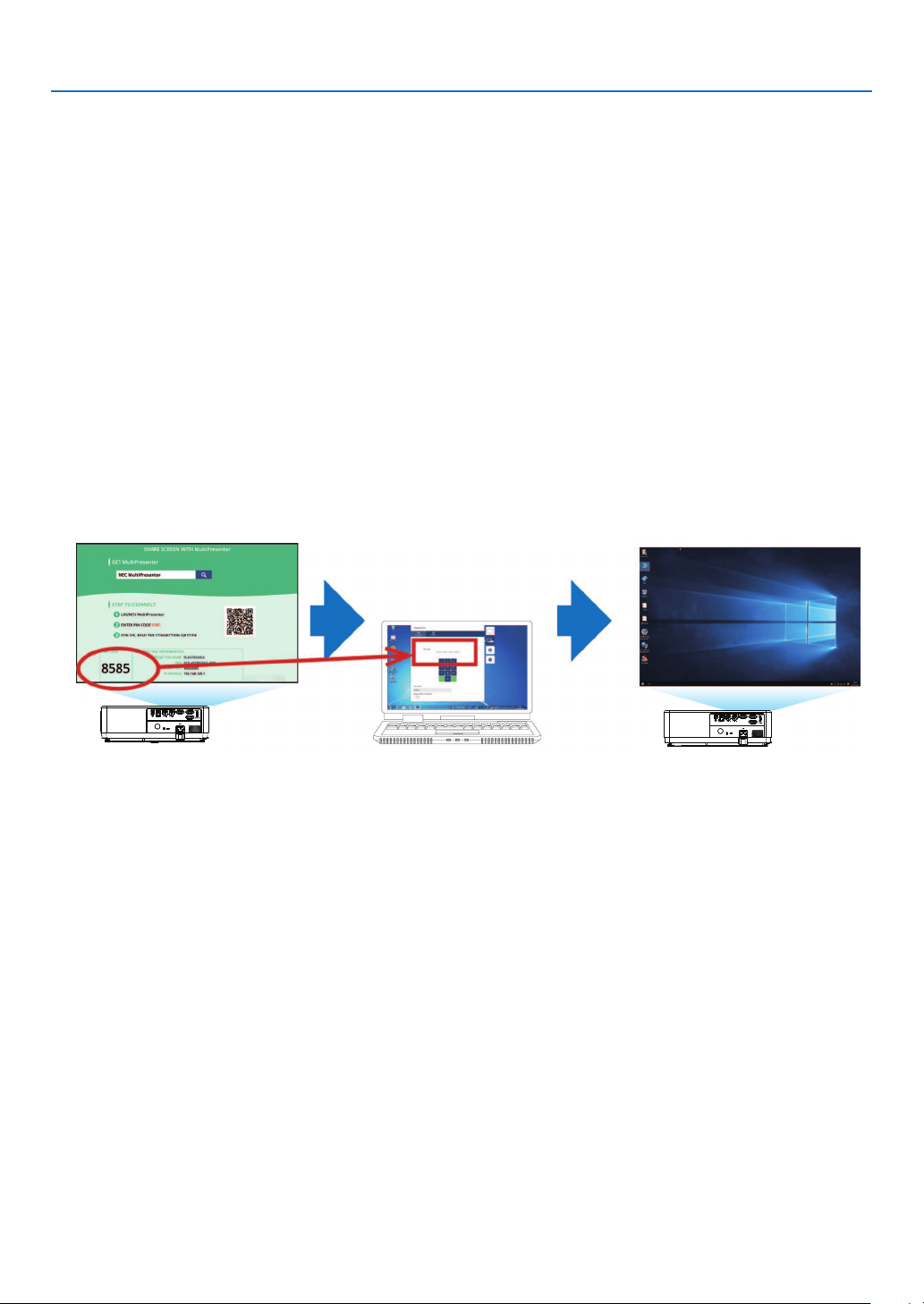
8. Connecting to a Network
84
2 Connecting to MultiPresenter
Preparations:
• When connecting the projector to a wired LAN, connect a LAN cable to the projector. (→ page
80)
• When connecting the projector to a wireless LAN, install a separately-sold LAN unit (NP05LM) in the projector.
(→ page
80)
• Configure the NETWORK SETTINGS of the projector. (→ page
55)
• Install the MultiPresenter app in the computer or tablet terminal.
https://www.sharp-nec-displays.com/dl/en/soft/multipresenter/index.html
① When connecting using a Wired LAN
1. Turn on the projector and press the APPS button on the remote control.
The start-up screen of MultiPresenter is displayed.
2. Start MultiPresenter.
The target device screen is displayed.
3. Enter the 4-digit PIN code displayed in the start-up screen in the target device screen.
When connection with the projector is completed, the screen of the computer or tablet terminal is projected on
the screen.
② When connecting using a Wireless LAN
1. Turn on the projector and press the APPS button on the remote control.
The start-up screen of MultiPresenter is displayed.
2. Connect your computer or tablet terminal to the access point matching the “SSID” displayed in the start-
up screen.
3. Start MultiPresenter.
The target device screen is displayed.
4. Enter the 4-digit PIN code displayed in the start-up screen in the target device screen.
When connection with the projector is completed, the screen of the computer or tablet terminal is projected on
the screen.
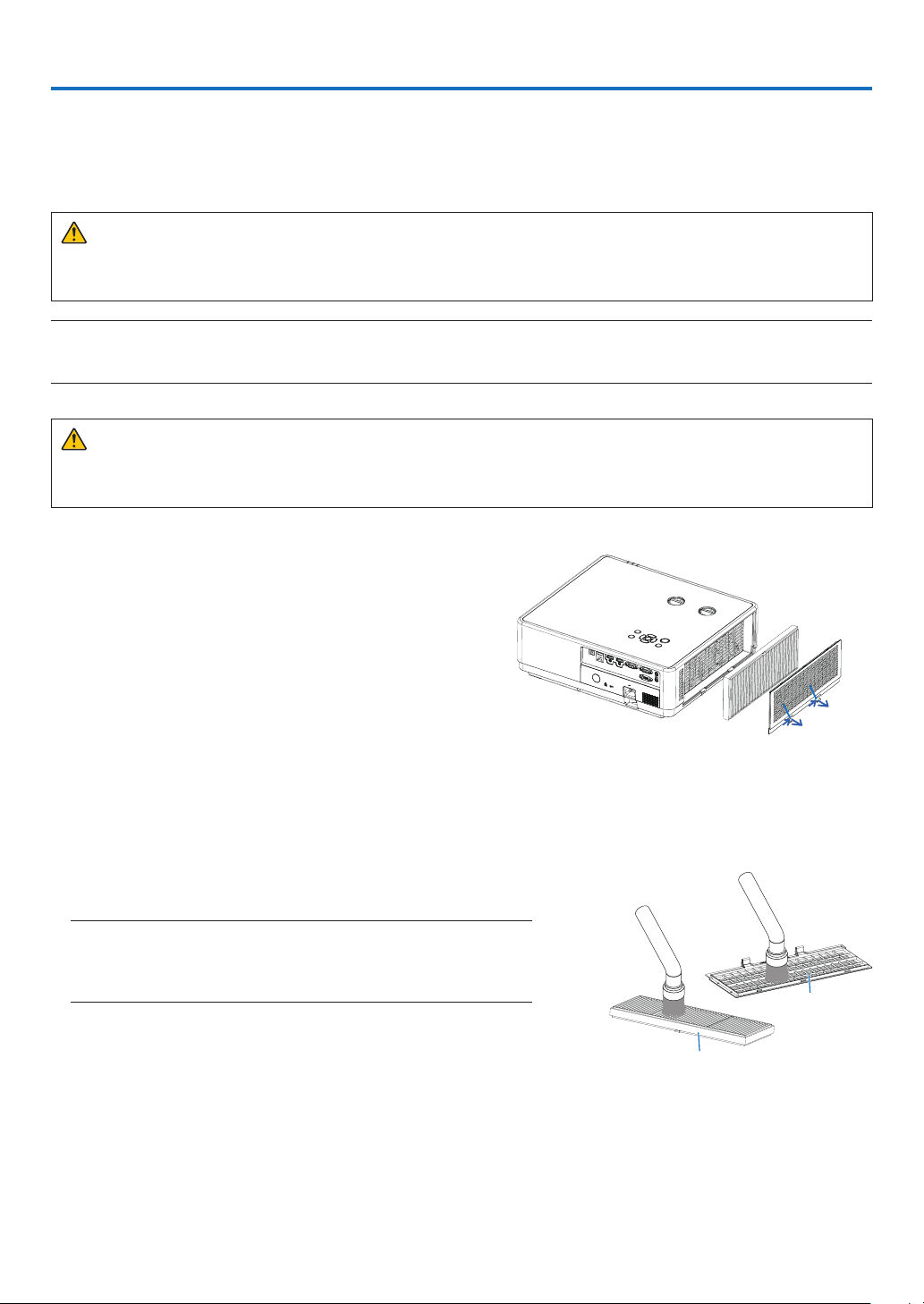
85
9. Maintenance
This section describes the simple maintenance procedures you should follow to clean the filter, the lens and the cabinet.
❶ Cleaning the Filter
The air-filter sponge keeps dust and dirt from getting inside the projector and should be frequently cleaned. If the
filter is dirty or clogged, your projector may overheat.
WARNING
• Please do not use a spray containing flammable gas to remove dust attached to the filter, etc. Doing so may
result in fires.
NOTE: The message for filter cleaning will be displayed for one minute after the projector is turned on or off. When the message is displayed,
clean the filter. The time to clean the filter is set to [1000 H] at time of shipment.
To cancel the message, press any button on the projector cabinet or the remote control.
To clean the filter, detach the filter and the filter cover.
CAUTION
• Before cleaning the filter, turn off the projector, disconnect the power cord and then allow the cabinet to cool.
Failure to do so can result in electric shock or burn injuries.
1. Push button to release the filter cover and pull it out.
Button
Button
2. Remove the filter.
• Remove the filter from the filter cover.
3. Remove dust from the filter and the filter cover.
• Clean both outside and inside.
NOTE:
• Whenever you dust the filter, use the soft brush attachment to dust. This is
to avoid damage to the filter.
• Do not wash the filter with water. Doing so can result in filter clogging.
Filter
Filter cover
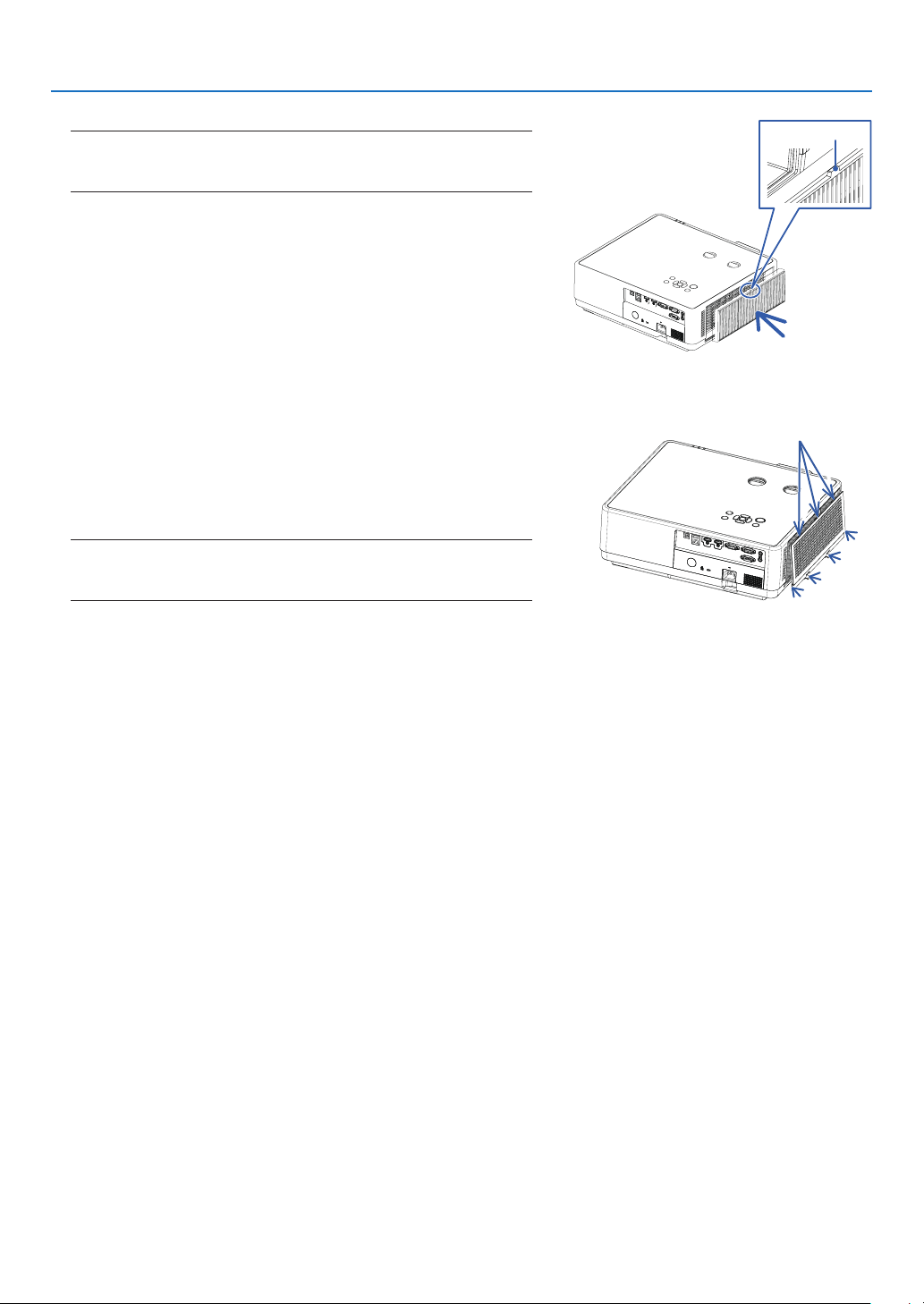
86
9. Maintenance
5. Put the filter cover back to the projector cabinet.
Insert the three catches of the tip of the filter cover into the
groove of the cabinet, and then push the A button to close the
filter cover.
• Push the filter cover until it clicks into place.
NOTE:
• After installing the filter cover to the cabinet, please press the left and right
ends (B) of the filter cover manually to ensure that it is fully installed.
A
A
B
B
Catch
6. Clear the filter usage hours.
Plug the power cord into the wall outlet, and then turn on the
projector.
From the menu, select [Filter] → [Filter counter reset].
(→ page
54)
The interval time to clean the filter is set to [1000H] at time of
shipment. When using the projector as it is, you do not clear the
filter usage.
4. Attach the filter to the projector.
NOTE:
• When installing the filter, please make sure that the catch of the filter is facing
outwards, otherwise the installation is reversed.
Catch
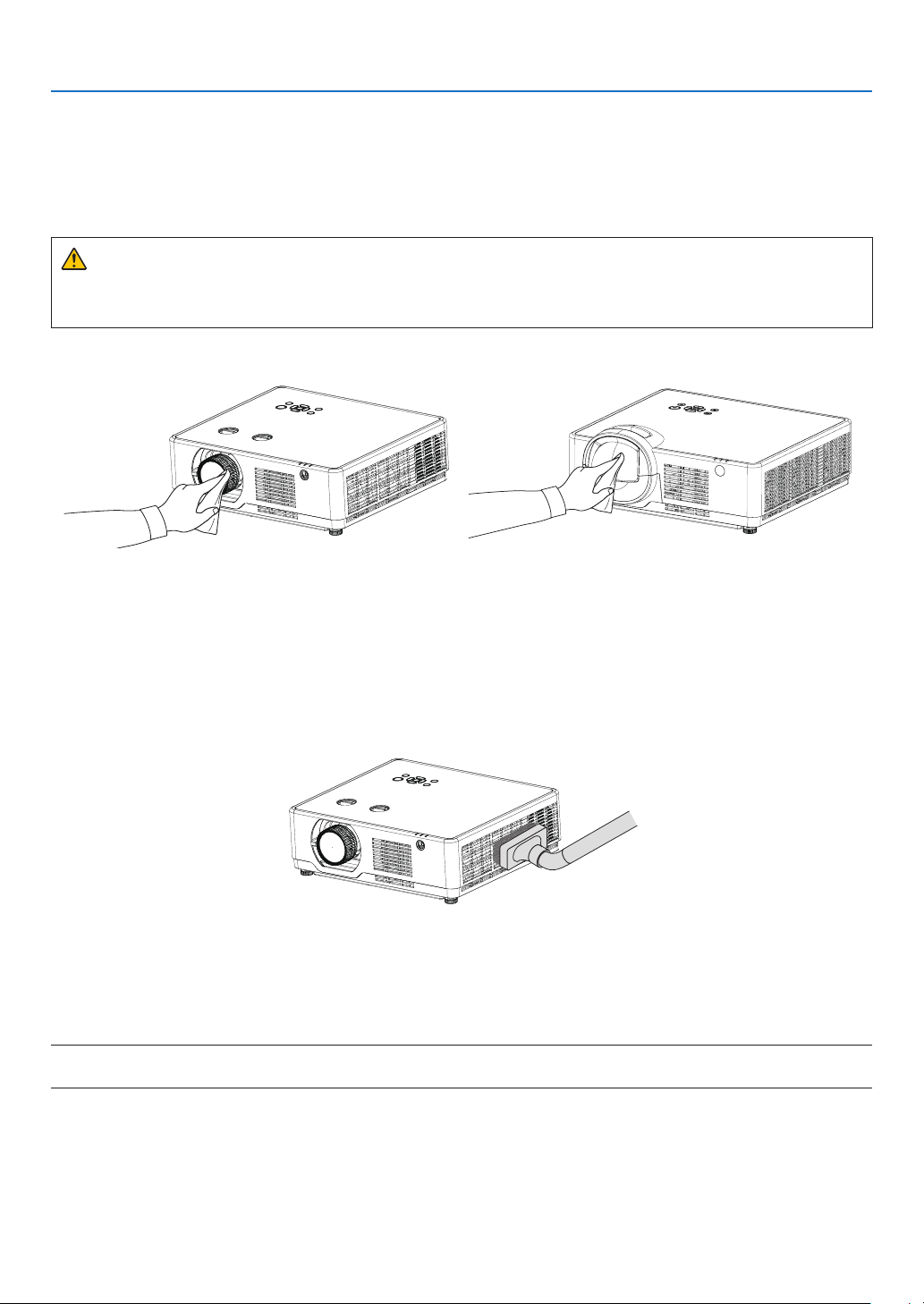
87
9. Maintenance
❷ Cleaning the Lens
• Turn off the projector before cleaning.
• The projector has a plastic lens. Use a commercially available plastic lens cleaner.
• Do not scratch or mar the lens surface as a plastic lens is easily scratched.
• Never use alcohol or glass lens cleaner as doing so will cause damage to the plastic lens surface.
WARNING
• Please do not use a spray containing flammable gas to remove dust attached to the lens, etc. Doing so may
result in fires.
❸ Cleaning the Cabinet
Turn off the projector, and unplug the projector before cleaning.
• Use a dry soft cloth to wipe dust off the cabinet.
If heavily soiled, use a mild detergent.
• Never use strong detergents or solvents such as alcohol or thinner.
• When cleaning the vents or the speaker using a vacuum cleaner, do not force the brush of the vacuum cleaner
into the slits of the cabinet.
Vacuum the dust off the vents.
• Clogged vents may cause a rise in the internal temperature of the projector, resulting in malfunction.
• Do not scratch or hit the cabinet with your fingers or any hard objects.
• Contact your dealer for cleaning the inside of the projector.
NOTE: Do not apply volatile agent such as insecticide on the cabinet, the lens, or the screen. Do not leave a rubber or vinyl product in pro-
longed contact with it. Otherwise the surface finish will be deteriorated or the coating may be stripped off.

88
10. Appendix
10. Appendix
❶ Troubleshooting
This section helps you resolve problems you may encounter while setting up or using the projector.
Common Problems & Solutions
Problem Check These Items
Does not turn on or shut
down
• Check that the power cord is plugged in and that the power button on the projector
cabinet or the remote control is on. (→ page
11,12)
• Check to see if the projector has overheated. If there is insufficient ventilation
around the projector or if the room where you are presenting is particularly warm,
move the projector to a cooler location.
• The light module may fail to light. Wait a full minute and then turn on the power
again.
• Check setting altitude is over 1700 meters / 5577 feet.
• Set [High altitude] to"On" when using the projector at altitudes approximately 1700
meters / 5577 feet or higher. Using the projector at altitudes approximately 1700
meters / 5577 feet or higher without setting [High altitude] to "On" can cause the
projector to overheat and the projector could shut down. If this happens, wait a cou-
ple minutes and turn on the projector. (→ page 42)
If you turn on the projector immediately after the light module is turned off, the fans
run without displaying an image for some time and then the projector will display
the image. Wait for a moment.
• In case it’s hard to think the trouble is not caused on the above mentioned condi-
tions, unplug the power cord from the outlet. Then wait 5 minutes before plugging it
in again. (→ page 24)
Will turn off
• Ensure that the [Power management] is “Off”. (→ page
53)
No picture
• Check if the appropriate input is selected. (→ page
14) If there is still no picture,
press the SOURCE button or one of the source buttons again.
• Ensure your cables are connected properly.
• Use menus to adjust the brightness and contrast. (→ page 40)
• Check that the AV-MUTE (image off) buttons are not pressed.
• Reset the settings or adjustments to factory default using the [Factory default] in the
Expand Menu. (→ page
57)
• Enter your registered keyword if the Security function is enabled. (→ page 52)
• If the HDMI 1 IN or the HDMI 2 IN signal cannot be displayed, try the following.
• - Reinstall your driver for the graphics card built in your computer, or use the up-
dated driver.
For reinstalling or updating your driver, refer to the user guide accompanied with
your computer or graphics card, or contact the support center for your computer
manufacturer.
Install the updated driver or OS on your own responsibility.
We are not liable for any trouble and failure caused by this installation.
• Be sure to connect the projector and notebook PC while the projector is in standby
mode and before turning on the power to the notebook PC.
In most cases the output signal from the notebook PC is not turned on unless con-
nected to the projector before being powered up.
* If the screen goes blank while using your remote control, it may be the result of the
computer’s screen-saver or power management software.
• See also the page
89.
Picture suddenly becomes
dark
• Check for contrast and brightness settings.
• Check for correct image mode settings.
• When setting condition is over approximately 2600 meters /8530 feet, automatically
brightness is reduced to protect unit.When setting condition is over approximately
2600m, automatically brightness is reduced to protect unit.
Picture looks fuzzy
• Adjust the focus. (→ page
18)
• Reposition the projector to improve its angle to the screen. (→ page 17)
• Ensure that the distance between the projector and screen is within the adjustment
range of the lens. (→ page
66)
• Has the lens been shifted by an amount exceeding the guaranteed range?
(→ page 73)
• Condensation may form on the lens if the projector is cold, brought into a warm
place and is then turned on. Should this happen, let the projector stand until there is
no condensation on the lens.
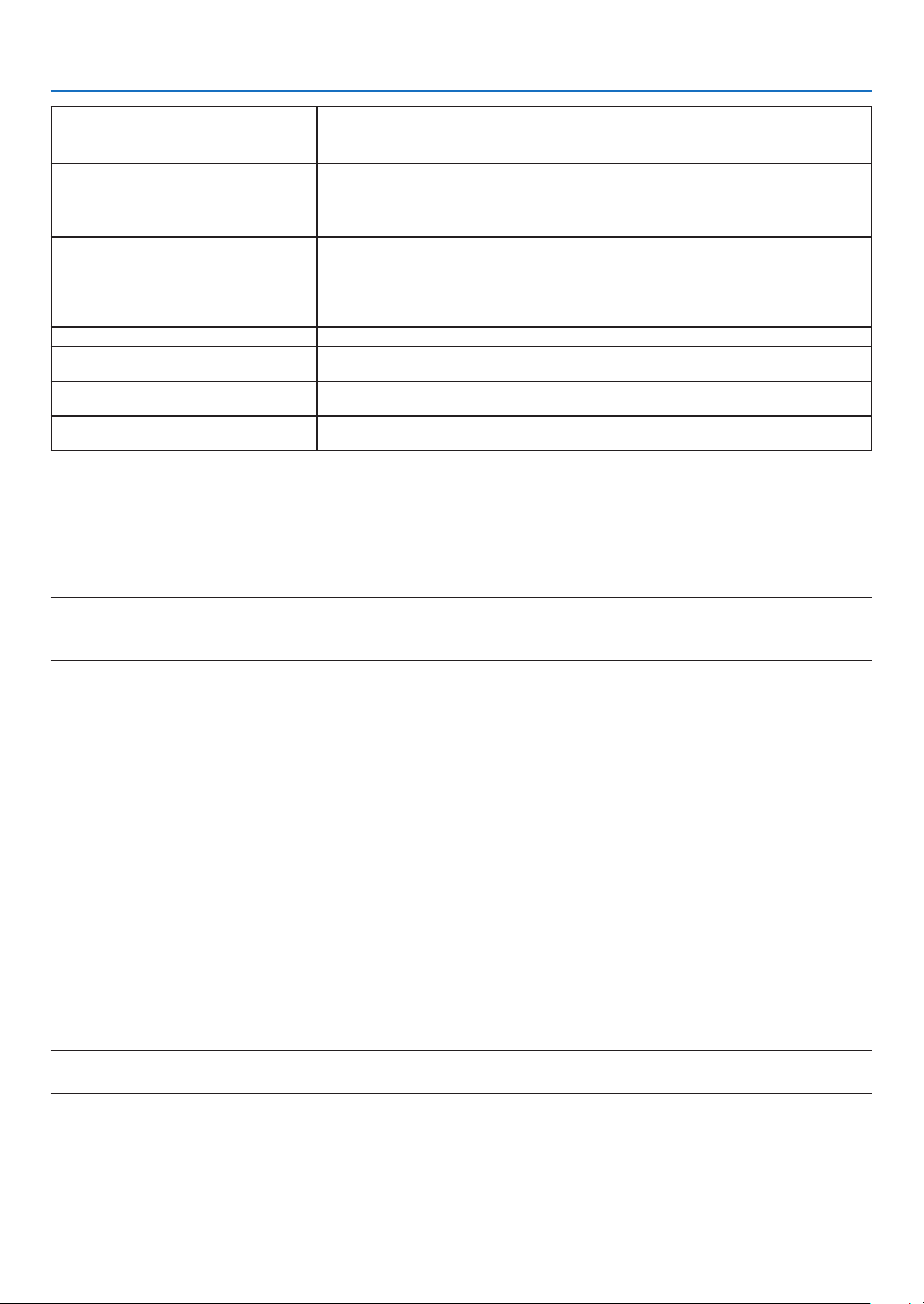
89
10. Appendix
Image isn’t square to the
screen
• Reposition the projector to improve its angle to the screen. (→ page
15)
• Use the Keystone correction function to correct the trapezoid distortion.
(→ page 21)
Image is scrolling vertically, horizontally
or both
• Check the computer’s resolution and frequency. Make sure that the resolution you
are trying to display is supported by the projector. (→ page
99)
• Adjust the computer image manually with the [H position] or [V position] in the [Dis-
play] menu. (→ page 35, 36)
Remote control does not
work
• Install new batteries. (→ page
8)
• Make sure there are no obstacles between you and the projector.
• Stand within 23 feet (7 m) of the projector. (→ page 8)
• The remote control sensor on the back of the projector cannot be used when the
cable cover is mounted on the projector.
Indicator is lit or blinking
• See the POWER/STATUS/LIGHT Indicator. (→ page
90)
Control panel does not function • Disable the key lock on control panel function in the Safety option of the Setup
menu.
Cannot remove the Logo Select, Key
Lock, and PIN code lock
• Please call your dealer or service center.
The Logo screen differs from the stand-
ard settings.
• Make sure you did not select "User" or "Off" in the Logo Select option of the Logo
menu.
For more information contact your dealer.
If there is no picture, or the picture is not displayed correctly.
• Power on process for the projector and the PC. Be sure to connect the projector and notebook PC while the
projector is in standby mode and before turning on the power to the notebook PC.
In most cases the output signal from the notebook PC is not turned on unless connected to the projector before
being powered up.
NOTE:
• You can check the horizontal frequency of the current signal in the projector’s menu under Information. If it reads “0kHz”, this means
there is no signal being output from the computer. (→ page
60 or go to next step)
• Enabling the computer’s external display.
Displaying an image on the notebook PC’s screen does not necessarily mean it outputs a signalto the projector.
When using a PC compatible laptop, a combination of function keys will enable/ disable the external display.
Usually, the combination of the “Fn” key along with one of the 12 function keys gets the external display to come
on or off. For example, NEC laptops use Fn + F3, while Dell laptops use Fn + F8 key combinations to toggle
through external display selections.
• Non-standard signal output from the computer
If the output signal from a notebook PC is not an industry standard, the projected image may not be displayed
correctly. Should this happen, deactivate the notebook PC’s LCD screen when the projector display is in use.
Each notebook PC has a different way of deactivate/reactivate the local LCD screens as described in the previ-
ous step. Refer to your computer’s documentation for detailed information.
• Image displayed is incorrect when using a Mac
When using a Mac with the projector, set the DIPswitch of the Mac adapter (not supplied with the projector) ac-
cording to your resolution. After setting, restart your Mac for the changes to take affect.
For setting display modes other than those supported by your Mac and the projector, changing the DIP switch
on a Mac adapter may bounce an image slightly or may display nothing. Should this happen, set the DIP switch
to the 13" fixed mode and then restart your Mac. After that, restore the DIP switches to a displayable mode and
then restart the Mac again.
NOTE:
• A Video Adapter cable manufactured by Apple Inc. is needed for a MacBook which does not have a mini D-Sub 15-pin terminal.
• Mirroring on a MacBook
* When using the projector with a MacBook, output may not be set to the display resolution of the projector un-
less “mirroring” is off on your MacBook. Refer to owner’s manual supplied with your Mac computer for mirroring.
• Folders or icons are hidden on the Mac screen
Folders or icons may not be seen on the screen. Should this happen, select [View] → [Arrange] from the Apple
menu and arrange icons.
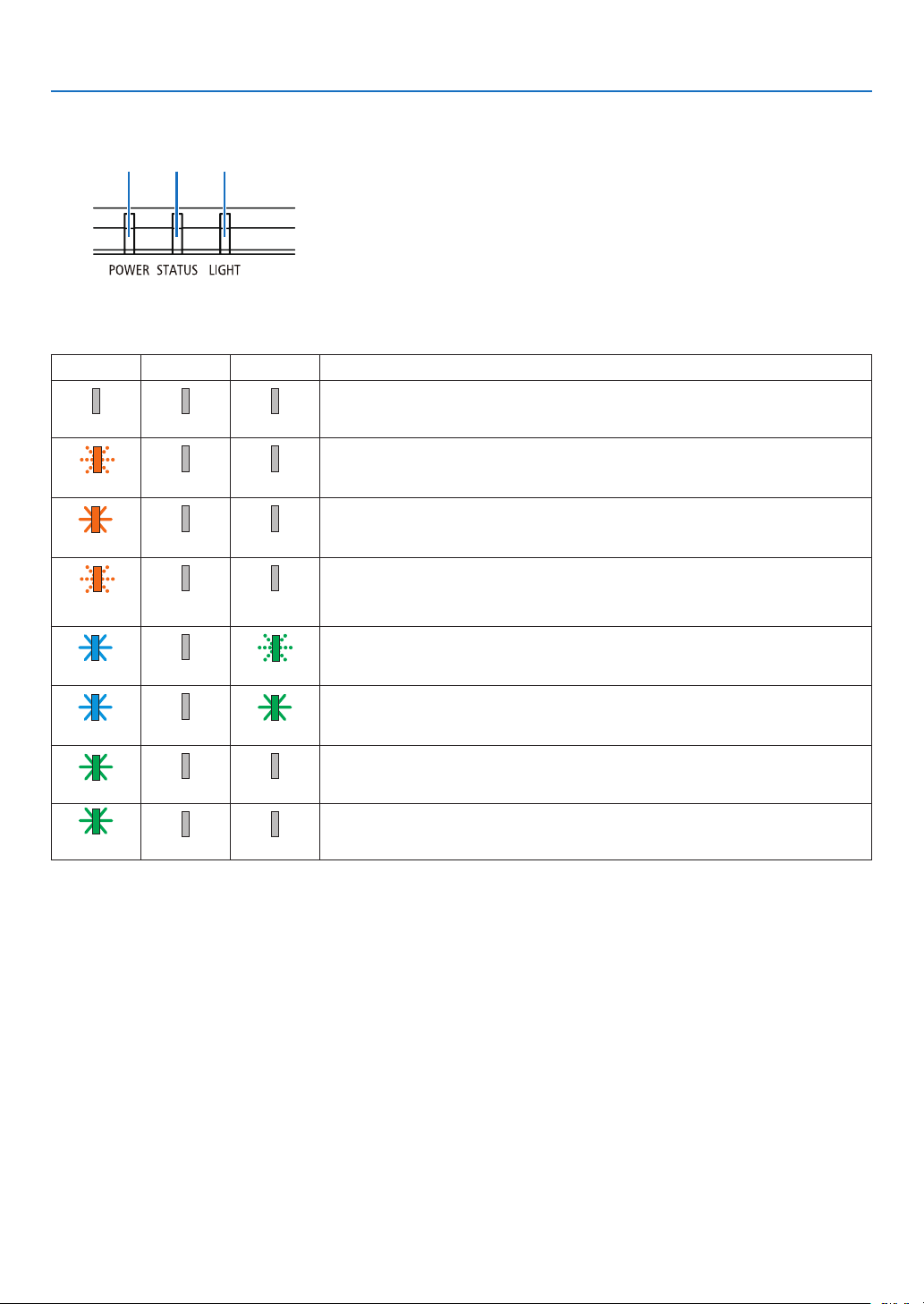
90
10. Appendix
Feature of each indicator
POWER indicator
This indicator informs the power status of the projector.
STATUS indicator
This indicator lights/blinks when a button is pressed while the key
lock function is utilized, or while performing the specific operations.
LIGHT indicator
This indicator informs the state of light source, usage time of the light
source.
Indicator Message (Status message)
POWER STATUS LIGHT Projector status
Power is off.
Off Off Off
In the state of Standby (Standby mode is Normal standby).
Orange (Blink*
2
) Off Off
Standby state (Standby mode is Network standby).
Orange (Light) Off Off
In the state of Standby (Standby mode is Sleep standby).
Orange (Blink*
1
) Off Off
Powered state (ECO mode:On).
Blue (Light) Off Green (Blink*
3
)
Powered state (ECO mode:Off).
Blue (Light) Off Green (Light)
Green (Blink*
4
)
Off Off
In the state of Cooling.
Green (Light)
Off Off
In the state of Sleep.
*1 Repetition to light on for 1.5 seconds / off for 1.5 seconds
*2 Repetition to light on for 1.5 seconds / off for 7.5 seconds
*3 Repetition to light on for 2.5 seconds / off for 0.5 seconds
*4 Repetition to light on for 0.5 seconds / off for 0.5 seconds
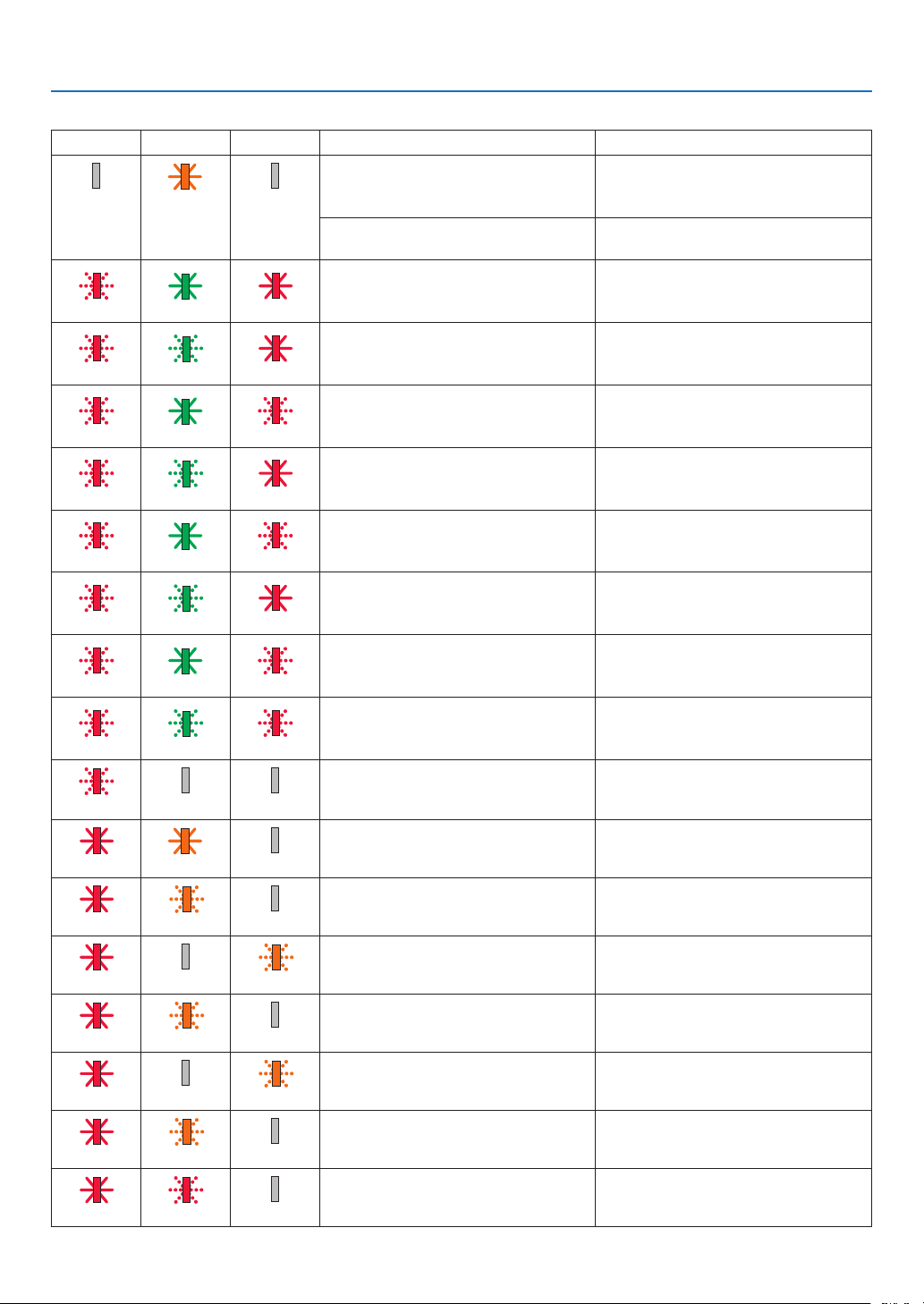
91
10. Appendix
Indicator Message (Error message)
POWER STATUS LIGHT Projector status Procedure
A button has been pressed while the
KEY LOCK is activated.
The projector's keys are locked. The
setting must be canceled to operate the
projector. (→ page 43)
Off Orange (Light) Off
ID numbers for the projector and the
remote control do not match.
Check the control IDs (→ page
56)
Red (Blink*
4
) Green (Light) Red (Light)
When LD-driver current value is too low Please contact your dealer or service
personnel.
Red (Blink*
4
) Green (Blink*
4
) Red (Light)
When LD-driver SPI commumication
error
Please contact your dealer or service
personnel.
Red (Blink*
4
)
Green (Light)
Red (Blink*
4
)
When LD-driver 55V error Please contact your dealer or service
personnel.
Red (Blink*
4
)
Green (Blink*
1
)
Red (Light)
When LD-driver 13V error Please contact your dealer or service
personnel.
Red (Blink*
4
) Green (Light) Red (Blink*
1
)
When LD-driver output current is ab-
normal
Please contact your dealer or service
personnel.
Red (Blink*
4
) Green (Blink*
3
) Red (Light)
When LD-driver is not ready Please contact your dealer or service
personnel.
Red (Blink*
4
)
Green (Light)
Red (Blink*
3
)
When LD-driver error Please contact your dealer or service
personnel.
Red (Blink*
4
)
Green (Blink*
3
)
Red (Blink*
3
)
When Laser Cover switch Error Please contact your dealer or service
personnel.
When Temperature status is error Ambient temperature is out of the opera-
tion temperature. Check if any obstruc-
tion stays near the exhaust vent.
Red (Blink*
4
) Off Off
Red (Light) Orange (Light)
Off
When Fan-1status is error Please contact your dealer or service
personnel.
Red (Light)
Orange (Blink*
4
)
Off
When Fan-2 status is error Please contact your dealer or service
personnel.
Red (Light)
Off
Orange (Blink*
4
)
When Fan-3 status is error Please contact your dealer or service
personnel.
Red (Light)
Orange (Blink*
1
)
Off
When Fan-4 status is error Please contact your dealer or service
personnel.
Red (Light)
Off
Orange (Blink*
1
)
When Fan-5 status is error Please contact your dealer or service
personnel.
Red (Light)
Orange (Blink*
3
)
Off
When Fan-6 status is error Please contact your dealer or service
personnel.
Red (Light) Red (Blink*
4
)
Off
When power status is error Please contact your dealer or service
personnel.
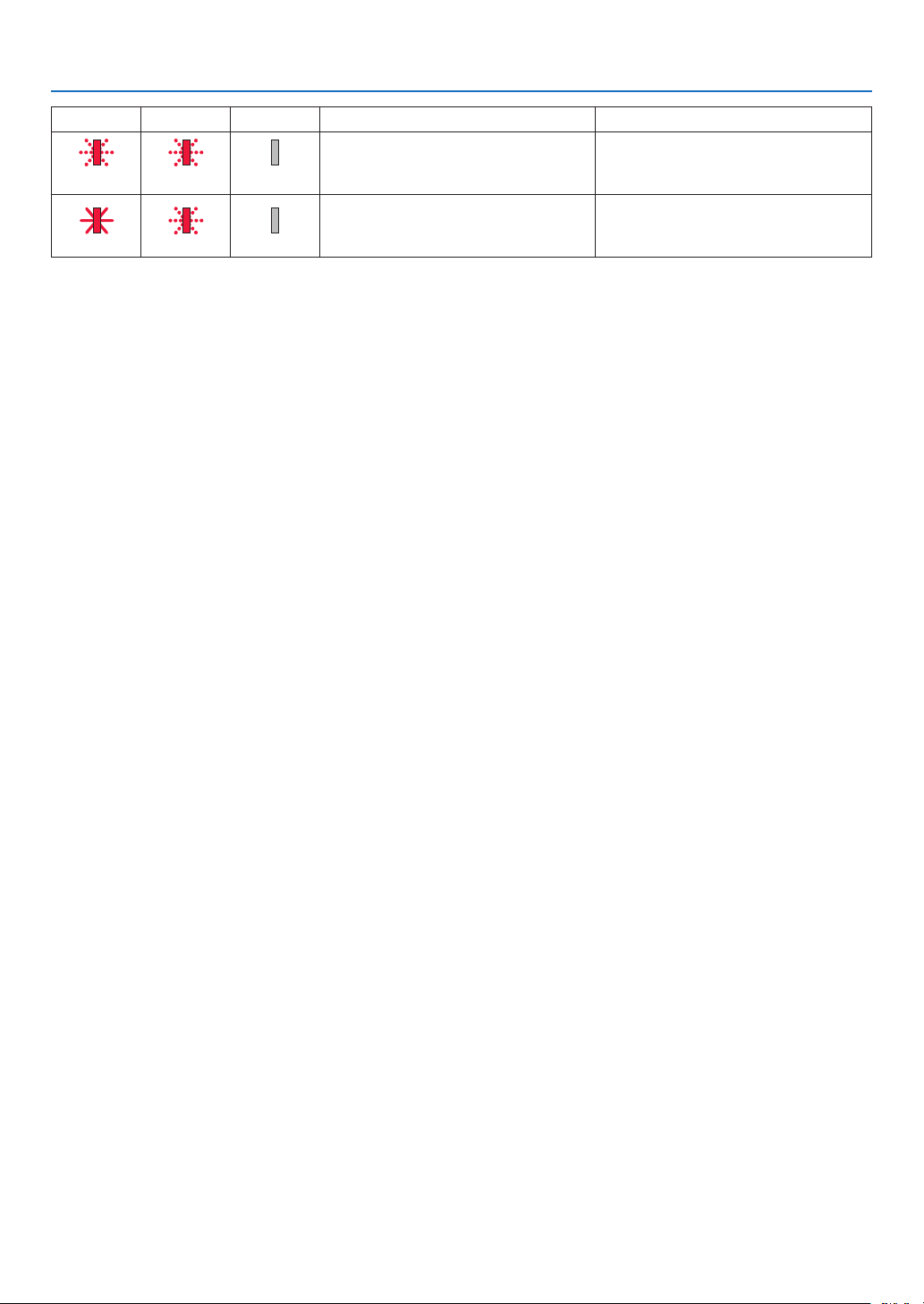
92
10. Appendix
POWER STATUS LIGHT Projector status Procedure
Red (Blink*
4
) Red (Blink*
4
)
Off
When phosphor wheel status is error Please contact your dealer or service
personnel.
Red (Light) Red (Blink*
3
)
Off
Filter over time Waring Please clean up the filter and set filter
counter reset. (→ page 54)
*1 Repetition to light on for 1.5 seconds / off for 1.5 seconds
*2 Repetition to light on for 1.5 seconds / off for 7.5 seconds
*3 Repetition to light on for 2.5 seconds / off for 0.5 seconds
*4 Repetition to light on for 0.5 seconds / off for 0.5 seconds
• When the thermal protector is activated:
When inside temperature of the projector becomes too high or low, the POWER indicator start to red blink in a
short cycle. After this happened, the thermal protector will activate and the projector may be turned off.
In this case, please take the below measures:
- Pull out the power plug from the wall inlet.
- Place the projector in cool place if it has been placed in high ambient temperature.
- Clean the exhaust vent if dust has accumulated on.
- Leave the projector for about one hour until inside temperature gets lower.
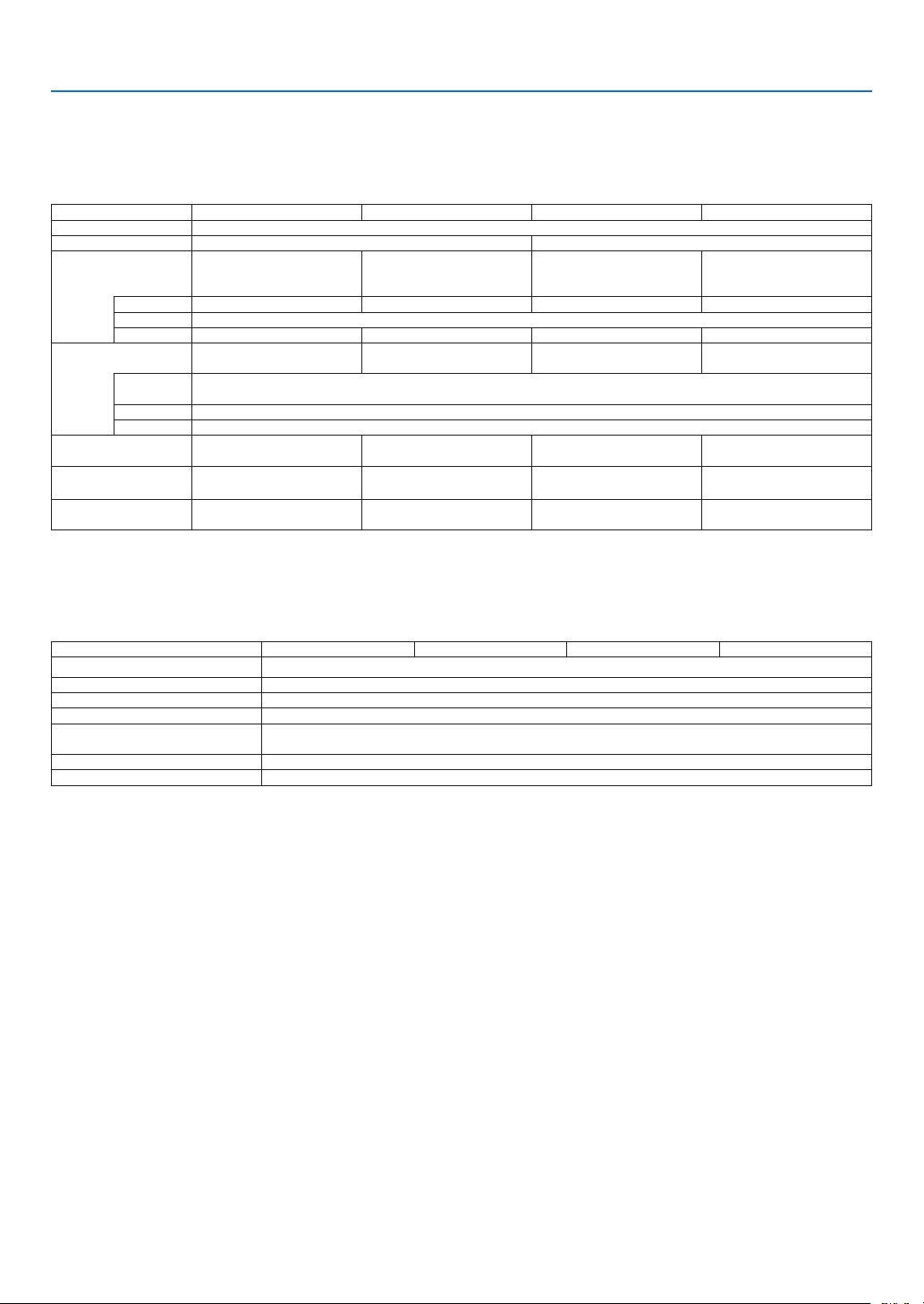
93
10. Appendix
❷ Specifications
This section provides technical information about projector’s performance.
Optical
Model name PE506UL PE456USL PE506WL PE456WSL
LCD Panel 0.64 inch with MLA (aspect ratio 16:10)
Resolution*
1
WUXGA (1920 dots × 1200 lines) WXGA (1280 dots × 800 lines)
Lens ZOOM Ratio=1.6
F=1.5-2.08 /
f: 17.2mm~27.7mm
F=1.6 / f: 6.39mm ZOOM Ratio=1.7
F=1.7-2.21 /
f: 17.42mm~28.99mm
F=1.6 / f: 6.39mm
Zoom Manual - Manual -
Focus Manual
Lens shift H: ±29%, V: +60%, −0% - H: ±26%, V: +55%, −0% -
Brightness*
2
5200 lm 4500 lm 5200 lm 4500 lm
Full Normal/
Normal (%)
Approx. 100%
ECO 1 (%) Approx. 60%
ECO 2 (%) Approx. 50%
Screen Size
(Diagonal)
30-300 inches 55-130 inches 30-300 inches 55-130 inches
Projection Distance
(Min.-Max.)
31.5 inches- 507.9 inches
0.8m-12.9m
20.3 inches- 49.9 inches
0.5m-1.3m
31.5 inches- 535.4 inches
0.8m -13.6m
20.3 inches- 49.9 inches
0.5m-1.3m
Projection Angle 0°-17.0° (Wide)
0°-10.8° (Tele)
0°-55.2° 0°-15.9° (Wide)
0°-9.6° (Tele)
0°-55.2°
*1 Effective pixels are more than 99.99%.
*2 This is the light output value (lumens) when the [Image mode] is set to [Dynamic] and the [ECO mode] is set to [Normal].
Compliance with ISO21118-2012
Electrical
Model name PE506UL PE456USL PE506WL PE456WSL
Inputs 2 × HDMI Type A (19P, HDMI
®
Terminal) HDCP supported*
3
, 1 × Stereo Mini Audio, 1 ×Mini D-Sub 15pin
Outputs 1 × RGB (D-Sub 15 P), 1 × Stereo Mini Audio
PC Control 1 × PC Control Port (D-Sub 9 P)
Wired LAN Port 1 × RJ-45 (10BASE-T/100BASE-TX)
Wireless LAN Port
(Optional)
IEEE 802.11 b/g/n (optional USB Wireless LAN Unit required)
USB Port 1 × Type A, 1 × Type B
Color Reproduction 10-bit signal processing (1.07 billion colors) (VIEWER, Network: 16.7 million colors)
*3 If you are unable to view material via the HDMI input input, this does not necessarily mean the projector is not functioning properly. With the
implementation of HDCP technology, there may be cases in which certain content is protected with HDCP and might not be displayed due to
the decision/intention of the HDCP community (Digital Content Protection, LLC).
Audio: LPCM; up to 2 ch, sample rate 32/44.1/48 KHz, sample bit; 16/20/24-bit
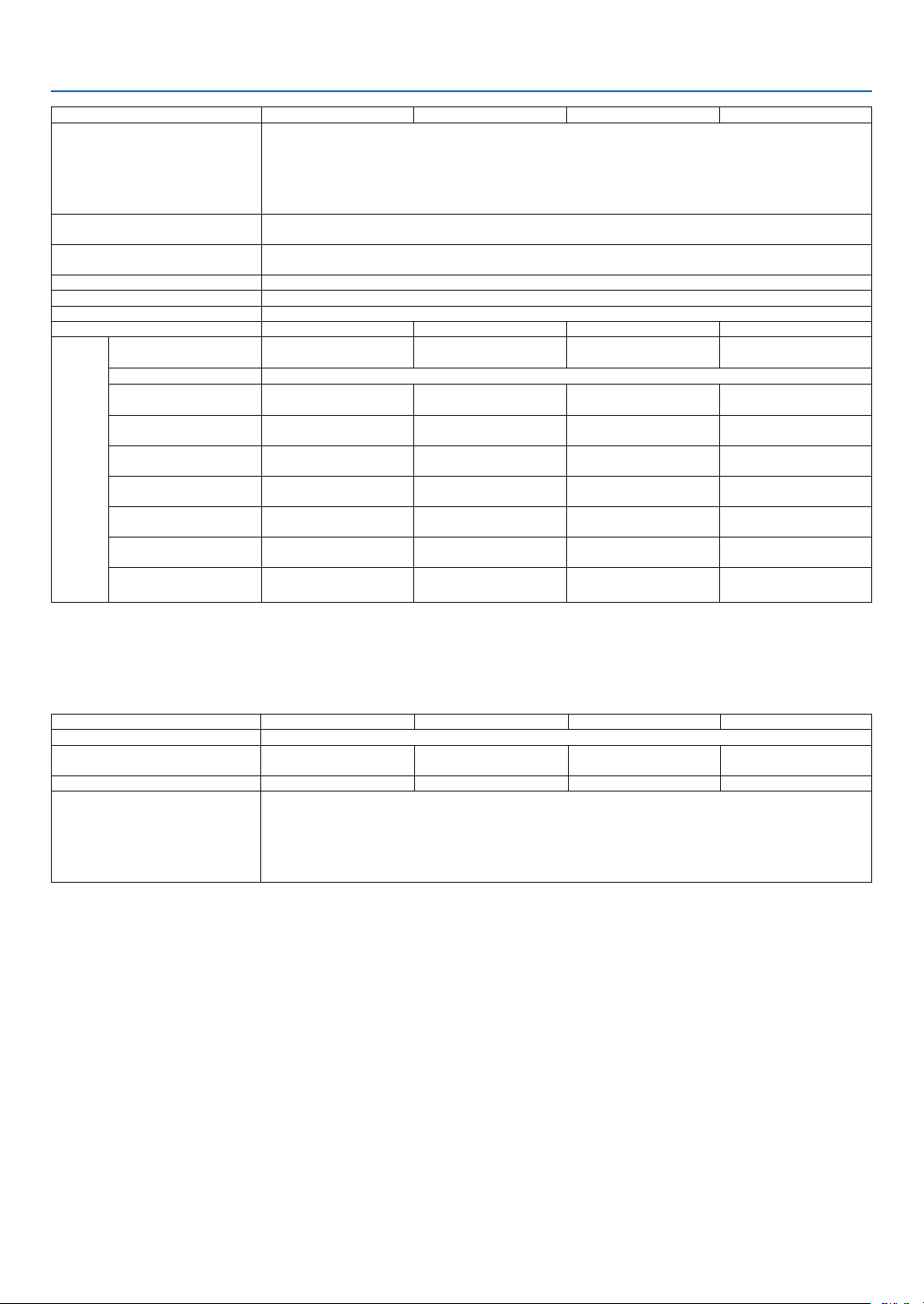
94
10. Appendix
Model name
PE506UL PE456USL PE506WL PE456WSL
Compatible Signals*
4
Analog: VGA/SVGA/XGA/WXGA/Quad-VGA/SXGA/SXGA+/WXGA+/WXGA++/UXGA/WSXGA+/HD/Full HD/
WUXGA
Mac 13", 16", 23"
Component: 480i/480p/576i/576p/720p/1080i/1080p
HDMI: VGA/SVGA/XGA/WXGA/Quad-VGA/SXGA/SXGA+/WXGA+ /WXGA++/WSXGA+/4K/480p/576p/720p
/1080i/1080p
Horizontal Resolution 540 TV lines: NTSC/PAL
300 TV lines: SECAM
Scan Rate Horizontal: 15 kHz to 100 kHz (RGB: 24 kHz or over)
Vertical: 24 Hz to 85 Hz
Sync Compatibility Separate Sync
Built-in Speaker 1×16 W (monaural)
Power Requirement 100 to 240 V AC, 50/60 Hz
Input Current 4.5 -1.5A 3.6 -1.6A 4.5 -1.5A 3.5 -1.5A
Power
consum-
ption
Full normal 352W(100V-130V)/
335W(200V-240V)
323W(100V-130V)/
313W(200V-240V)
330W(100V-130V)/
319W(200V-240V)
319W(100V-130V)/
309W(200V-240V)
Normal
-
ECO1 mode 228W(100V-130V)/
219W(200V-240V)
220W(100V-130V)/
214W(200V-240V)
212W(100V-130V)/
203W(200V-240V)
217W(100V-130V)/
210W(200V-240V)
ECO2 mode 201W(100V-130V)/
194W(200V-240V)
197W(100V-130V)/
191W(200 -240V)
187W(100V-130V)/
177W(200V-240V)
191W(100V-130V)/
186W(200 -240V)
Sleep (typ.) *
5
7.7W(100V-130V)/
7.8W(200V-240V)
7.7W(100V-130V)/
7.8W(200V-240V)
7.7W(100V-130V)/
7.8W(200V-240V)
7.7W(100V-130V)/
7.8W(200V-240V)
Network stand-by (typ.) 0.7W(100V-130V)/
0.8W(200V-240V)
0.7W(100V-130V)/
0.8W(200V-240V)
0.7W(100V-130V)/
0.8W(200V-240V)
0.7W(100V-130V)/
0.8W(200V-240V)
Normal stand-by (typ.) 0.2W(100V-130V)/
0.3W(200V-240V)
0.2W(100V-130V)/
0.3W(200V-240V)
0.2W(100V-130V)/
0.3W(200-240V)
0.2W(100V-130V)/
0.3W(200-240V)
Network stand-by (for erp) 2.0W or less (100V-130V)/
2.0W or less (200V-240V)
2.0W or less (100V-130V)/
2.0W or less (200V-240V)
2.0W or less (100V-130V)/
2.0W or less (200V-240V)
2.0W or less (100V-130V)/
2.0W or less (200V-240V)
Normal stand-by (for erp) 0.5W or less (100V-130V)/
0.5W or less (200V-240V)
0.5W or less (100V-130V)/
0.5W or less (200V-240V)
0.5W or less (100V-130V)/
0.5W or less (200V-240V)
0.5W or less (100V-130V)/
0.5W or less (200V-240V)
*4 An image with higher or lower resolution than the projector’s native resolution (PE506WL/PE456WSL: 1280 × 800, PE506UL/PE456USL: 1920 ×
1200) will be displayed with Advanced AccuBlend. (→ page
99)
*5 All wired network ports are connected and active.
Mechanical
Model name PE506UL PE456USL PE506WL PE456WSL
Installation Orientation Desktop/Front, Desktop/Rear, Ceiling/Front, Ceiling/Rear
Dimensions 405(W) * 372.8(D) * 137(H)
(includingprotrusions)
405(W) * 404(D) * 164(H)
(includingprotrusions)
405(W) * 358(D) * 137(H)
(includingprotrusions)
405(W) * 404(D) * 164(H)
(includingprotrusions)
Weight 17.53lbs(7.95 kg) 17.86lbs(8.1 kg) 17.31lbs (7.85kg) 17.86lbs(8.1 kg)
Environmental Considerations Operational Temperatures: 0° to 40°C (32° to 104° F)
20% to 80% humidity (non-condensing)
Storage Temperatures: -10° to 50°C (14° to 122°F)
20% to 80% humidity (non-condensing)
Operating altitude: 0 to 3000 meters / 9843 feet (Set [High Altitude] to [On]. approximately 1700 meters/5577
feet or higher.)
For additional information visit:
US :
https://www.sharpnecdisplays.us
Europe : https://www.sharpnecdisplays.eu
Global : https://www.sharp-nec-displays.com/global/
For information on our optional accessories, visit our website or see our brochure.
The specifications are subject to change without notice.
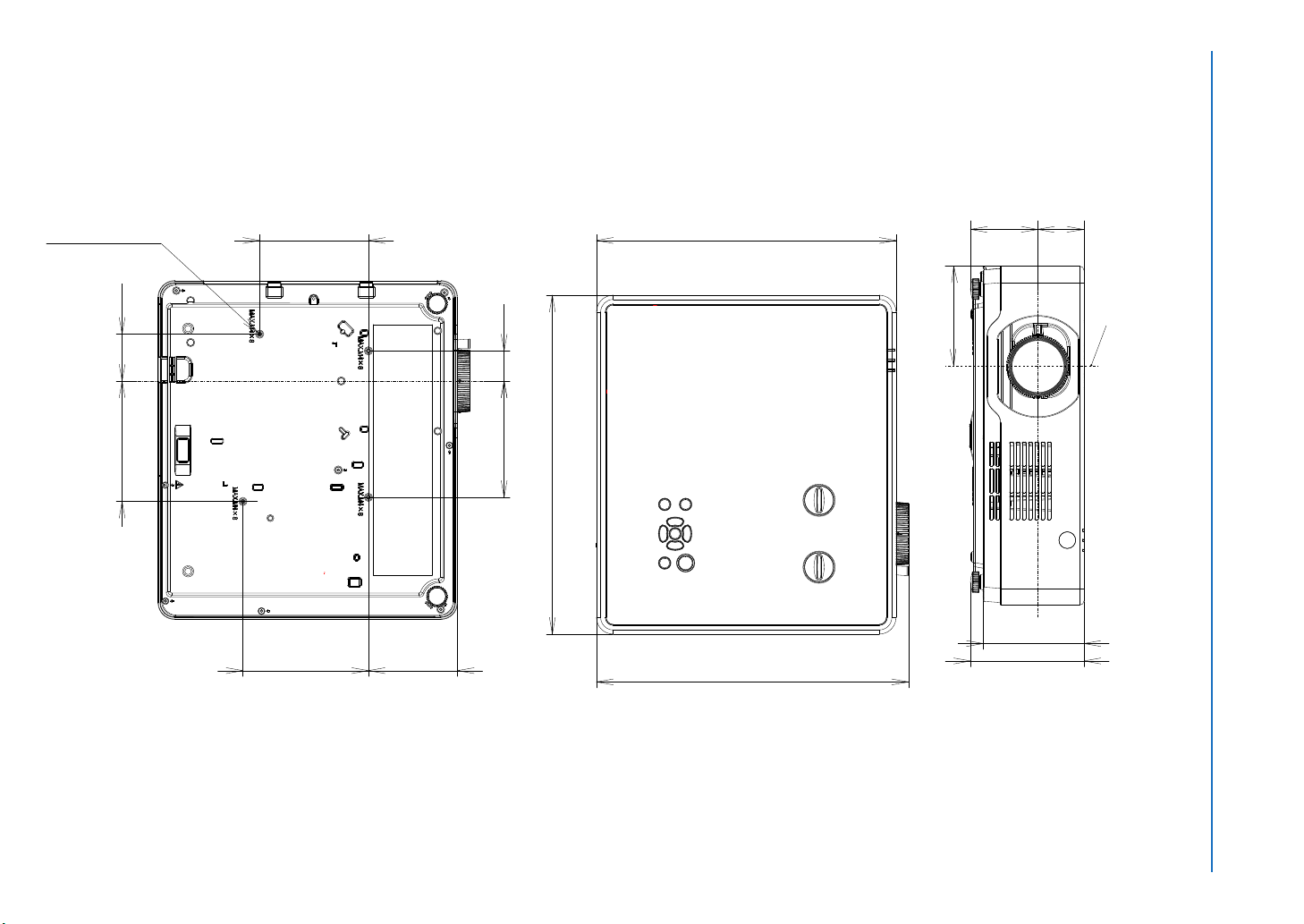
95
10. Appendix
373 (14.7)
358 (14.1)
405 (15.9)
❸ Cabinet Dimensions
Unit: mm (inch)
[PE506UL]
4-M4*10 [0.16-M0.16*0.4]
135 (5.3)
120.5 (4.7)
119.5 (4.7)
82 (3.2) 53 (2.1)
Lens center
150 (5.9)
130 (5.1)
4-M4*10 [0.16-M0.16*0.4]
36 (1.4) 139 (5.5)
106.5 (4.2)
144 (5.7)56 (2.2)
Lens center
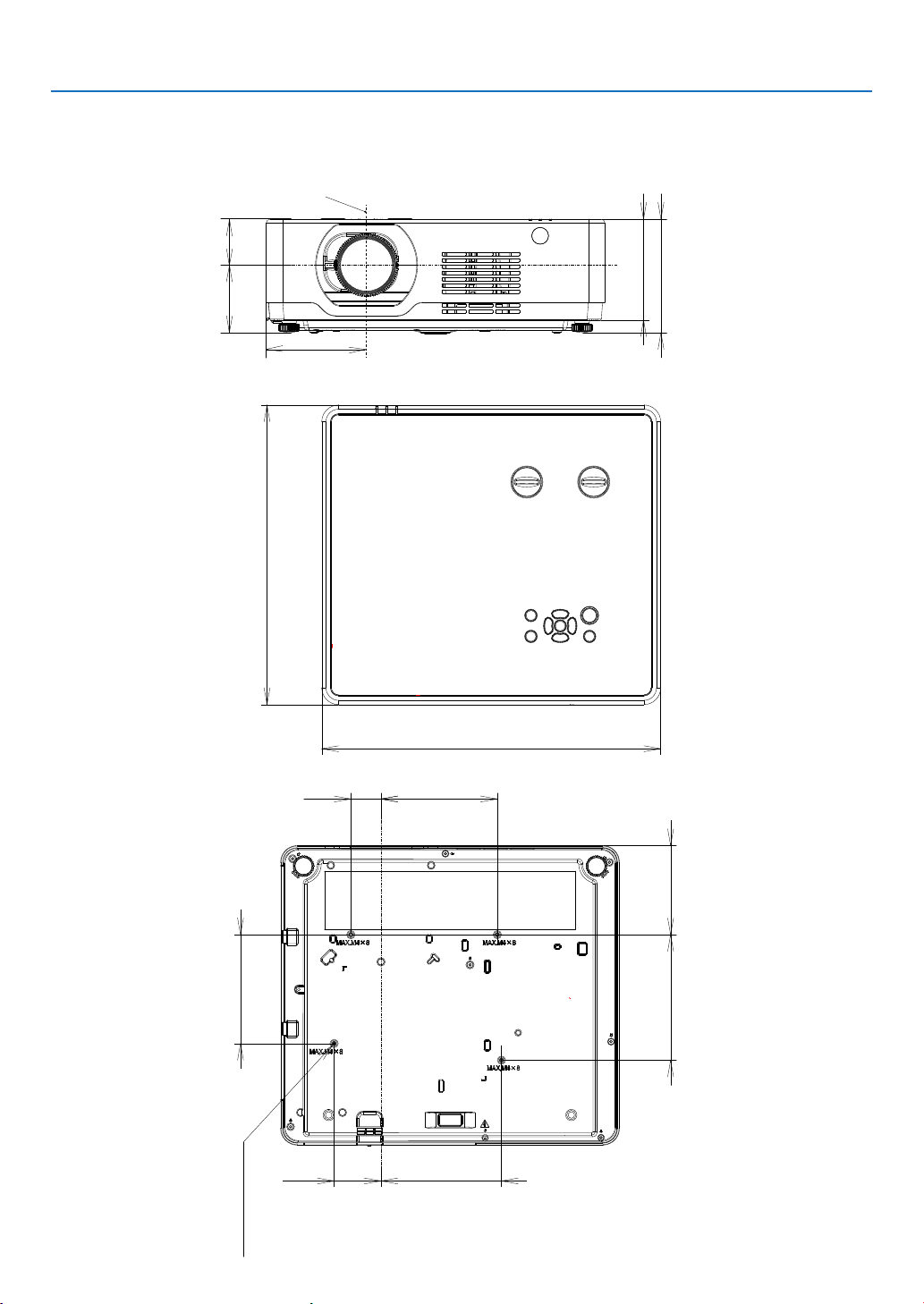
96
10. Appendix
Unit: mm (inch)
[PE506WL]
358 (14.1)
405 (15.9)
4-M4*10 [0.16-M0.16*0.4]
135 (5.3)
120.5 (4.7)
119.5 (4.7)
82 (3.2) 53 (2.1)
Lens center
130 (5.1)
4-M4*1[0.16-M0.16*0.4]
144 (5.7)56 (2.2)
36 (1.4) 139 (5.5)
150 (5.9) 106.5 (4.2)
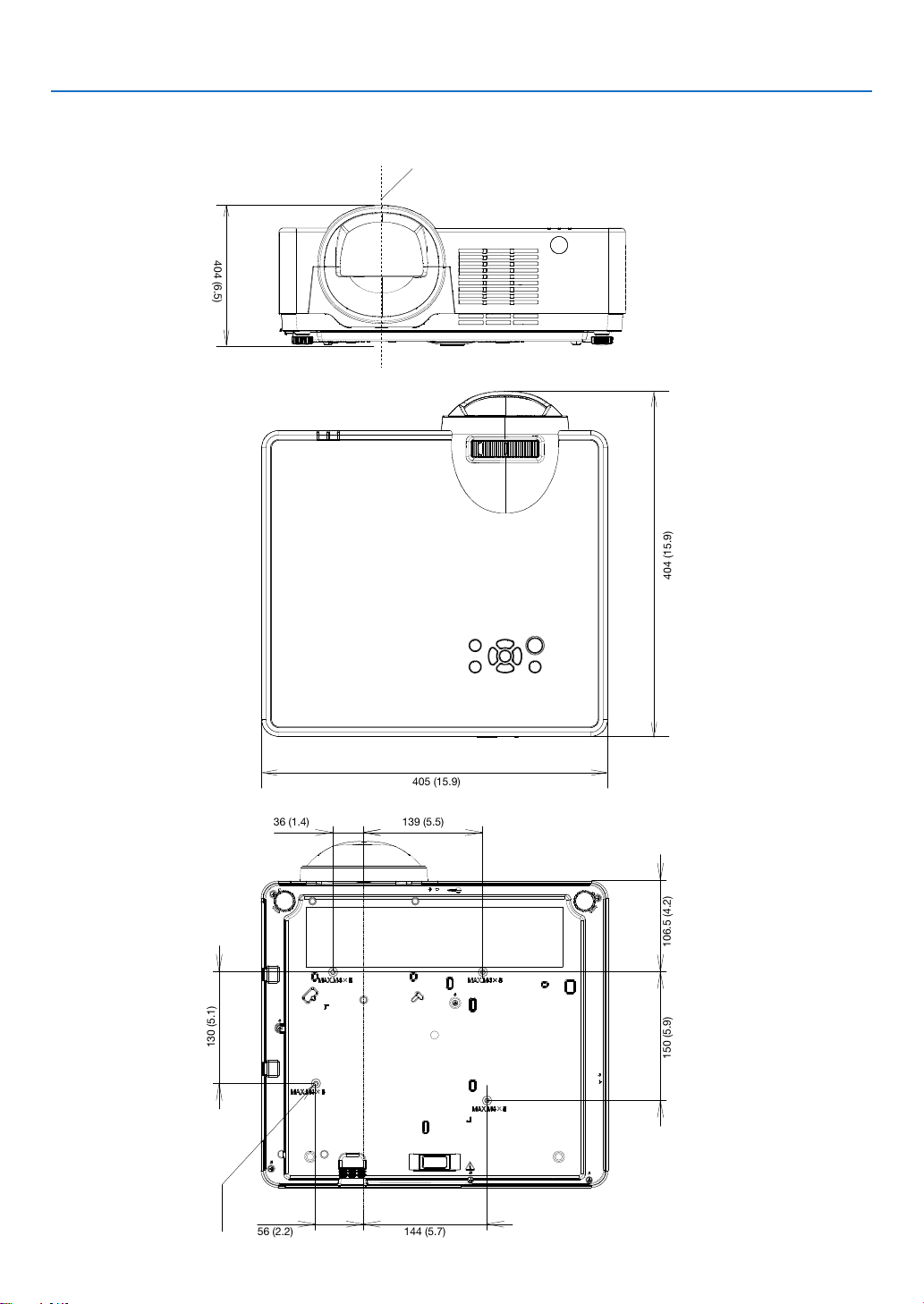
97
10. Appendix
Unit: mm (inch)
[PE456USL/PE456WSL]
404 (15.9)
150 (5.9)
106.5 (4.2)
404 (6.5)
Lens center
405 (15.9)
404 (15.9)
405 (15.9)
150 (5.9)
130 (5.1)
106.5 (4.2)
139 (5.5)
36 (1.4)
144 (5.7)
56 (2.2)
4-M4*10
[0.16-M0.16*0.4]
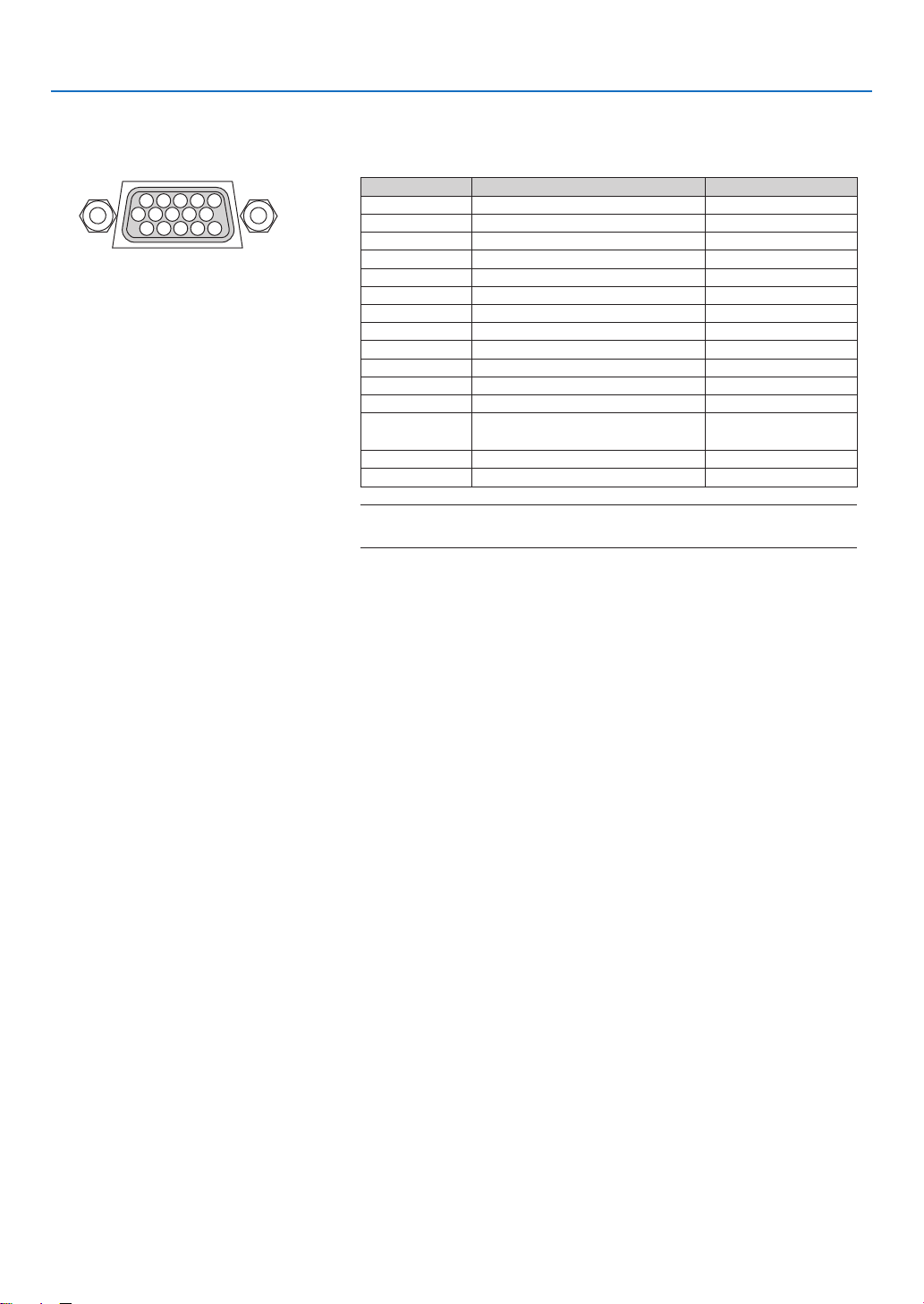
98
10. Appendix
Pin Assignments of D-Sub COMPUTER Input Terminal
Mini D-Sub 15 Pin Terminal
Signal Level
Video signal : 0.7Vp-p (Analog)
Sync signal : TTL level
51 42 3
10
11 12 13 14 15
6 97 8
Pin No. RGB Signal (Analog) YCbCr Signal
1 Red Cr
2 Green or Sync on Green Y
3 Blue Cb
4 Ground
5 Ground
6 Red Ground Cr Ground
7 Green Ground Y Ground
8 Blue Ground Cb Ground
9 Hotplug
10 Sync Signal Ground
11 No Connection
12 Bi-directional DATA (SDA)
13 Horizontal Sync or Composite
Sync
14 Vertical Sync
15 Data Clock
COMPUTER IN
NOTE: Pin Nos. 12 and 15 are required for DDC/CI.
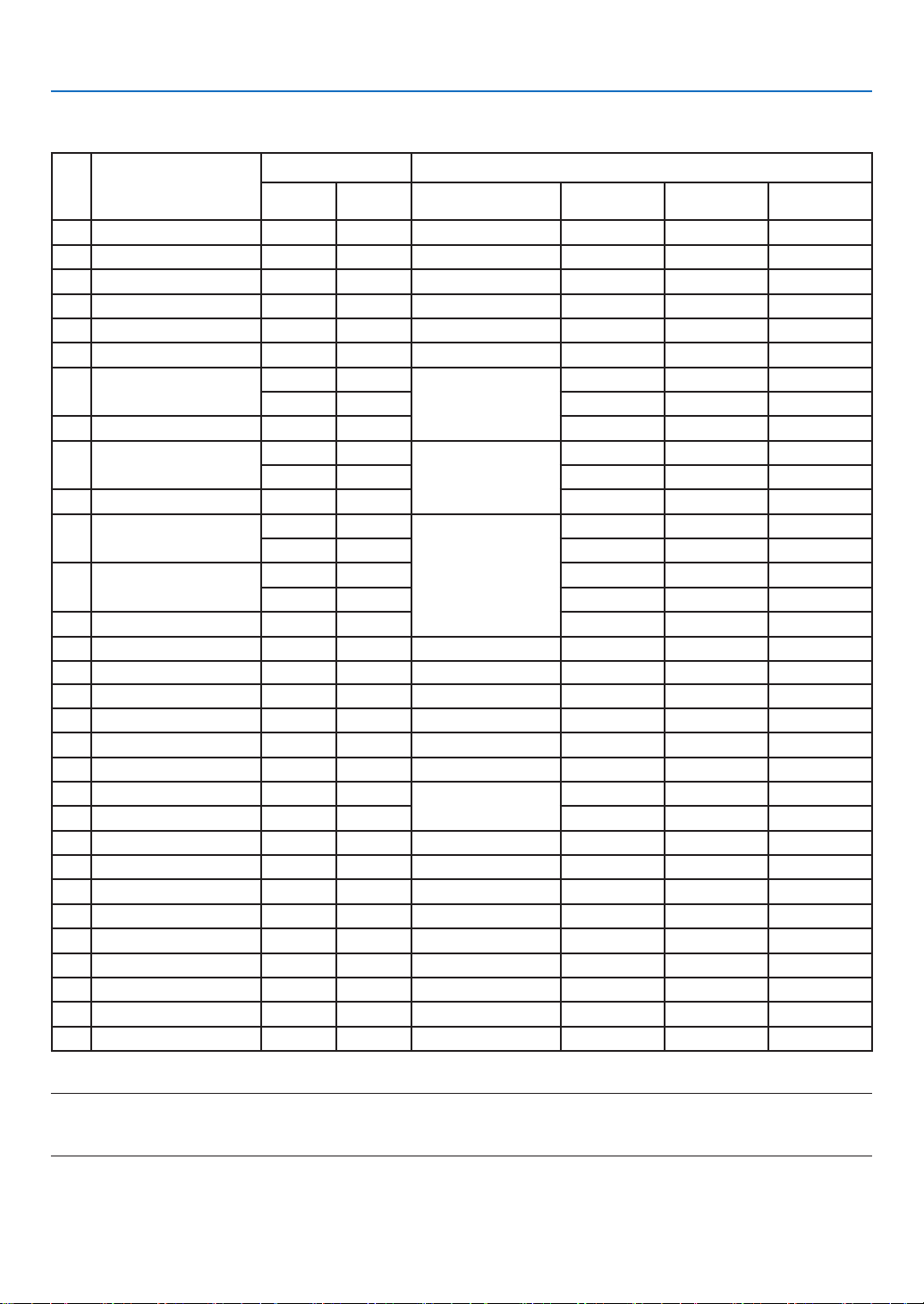
99
10. Appendix
Compatible Input Signal List
No OSD Display
Source Specification
RGB HDMI Resolution
Pixel clock
(MHz)
H-freq(KHz) V-freq(Hz)
1 720x480i 60Hz
○ -
720x480i 13.500 15.734 59.940
2 720x576i 50Hz
○ -
720x576i 13.500 15.625 50.000
3 720x480i 60Hz
- ○
720 (1440) x480i 27.000 15.734 59.940
4 720x576i 50Hz
- ○
720 (1440) x576i 27.000 15.625 50.000
5 720x483 60Hz
○ ○
720x483(480P) 27.000 31.469 59.940
6 720x576 50Hz
○ ○
720x576(576P) 27.000 31.250 50.000
7 1280x720p 60Hz
- ○
1280x720p
74.250 45.000 60.000
○ ○
74.176 44.955 59.940
8 1280x720p 50Hz
- ○
74.250 37.500 50.000
9 1920x1080i 60Hz
○ ○
1920x1080i
74.250 33.750 60.000
○ ○
74.176 33.716 59.940
10 1920x1080i 50Hz
○ ○
74.250 28.125 50.000
11 1920x1080p 24Hz
○ ○
1920x1080p
74.250 27.000 24.000
○ ○
74.176 26.970 23.980
12 1920x1080p 60Hz
○ ○
148.500 67.500 60.000
○ ○
148.352 67.433 59.940
13 1920x1080p 50Hz
○ ○
148.500 56.250 50.000
14 640x480,60Hz
○ ○
640x480 25.175 31.469 59.940
15 800x600,56Hz
○ -
800x600 36.000 35.156 56.250
16 1024x768,60Hz
○ ○
1024x768 65.000 48.363 60.004
17 1280x720,60Hz
○ ○
1280x720 74.500 44.772 59.855
18 1280x768,60Hz
○ ○
1280x768 79.500 47.776 59.870
19 1280x800,60Hz
○ ○
1280x800 83.500 49.702 59.810
20 1280x960,60Hz
○ ○
1280x960
108.000 60.000 60.000
21 1280x960,75Hz
○ -
126.000 75.000 75.080
22 1280x1024,60Hz
○ ○
1280x1024 108.000 63.981 60.020
23 1366x768,60Hz
○ ○
1366x768 85.500 47.712 59.790
24 1400x1050,60Hz
○ ○
1400x1050 121.750 65.317 59.978
25 1440x900,60Hz
○ ○
1440x900 106.500 55.935 59.887
26 1600x1200,60Hz
○ ○
1600x1200 162.000 75.000 60.000
27 1680x1050,60Hz
○ ○
1680x1050 146.250 65.290 59.954
28 1920x1080,60Hz
○ ○
1920x1080 148.500 67.500 60.000
29 1920x1200,60Hz
○ ○
1920x1200 154.000 74.038 59.950
30 3840x2160,30Hz
- ○
3840x2160 297.000 67.500 30.000
NOTE:
“○” Shows input signal source support this format.
“-” Shows input signal source DO NOT support.
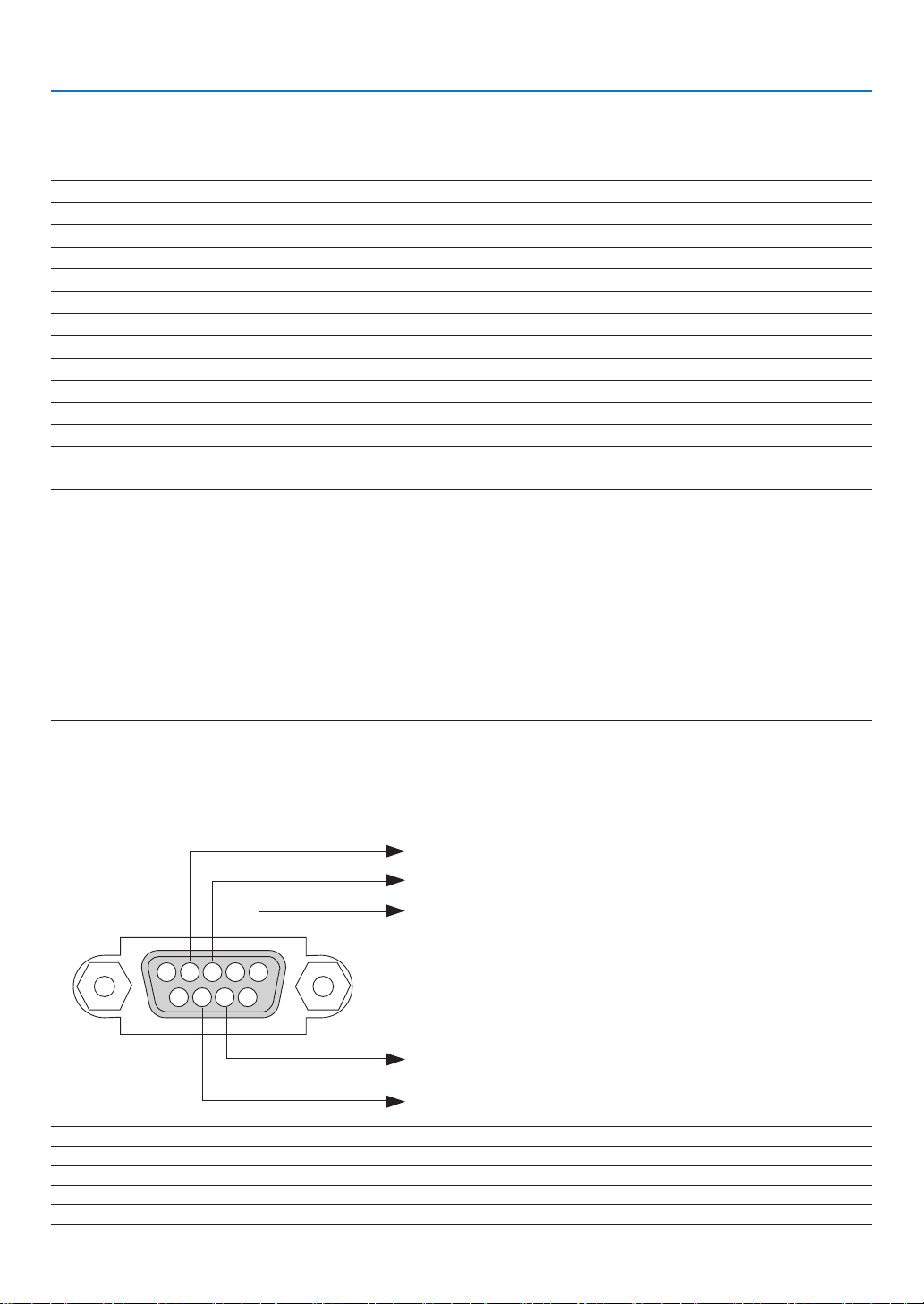
100
10. Appendix
PC Control Codes and Cable Connection
PC Control Codes
Function Code Data
POWER ON 02H 00H 00H 00H 00H 02H
POWER OFF 02H 01H 00H 00H 00H 03H
INPUT SELECT COMPUTER 02H 03H 00H 00H 02H 01H 01H 09H
INPUT SELECT HDMI1 02H 03H 00H 00H 02H 01H 1AH 22H
INPUT SELECT HDMI2 02H 03H 00H 00H 02H 01H 1BH 23H
INPUT SELECT USB-A 02H 03H 00H 00H 02H 01H 1FH 27H
INPUT SELECT LAN 02H 03H 00H 00H 02H 01H 20H 28H
PICTURE MUTE ON 02H 10H 00H 00H 00H 12H
PICTURE MUTE OFF 02H 11H 00H 00H 00H 13H
SOUND MUTE ON 02H 12H 00H 00H 00H 14H
SOUND MUTE OFF 02H 13H 00H 00H 00H 15H
NOTE: Contact your local dealer for a full list of the PC Control Codes if needed.
Cable Connection
Communication Protocol
Baud rate ........................................... 4800/9600/19200/38400 bps
Data length ........................................ 8 bits
Parity ................................................. No parity
Stop bit .............................................. One bit
X on/off .............................................. None
Communications procedure ................ Full duplex
NOTE: Depending on the equipment, a lower baud rate may be recommended for long cable runs.
PC Control Terminal (D-SUB 9P)
NOTE 1: Pins 1, 4, 6 and 9 are no used.
NOTE 2: Jumper “Request to Send” and “Clear to Send” together on both ends of the cable to simplify cable connection.
NOTE 3: For long cable runs it is recommended to set communication speed within projector menus to 9600 bps.
15243
67 98
To GND of PC
To RxD of PC
To TxD of PC
To RTS of PC
To CTS of PC
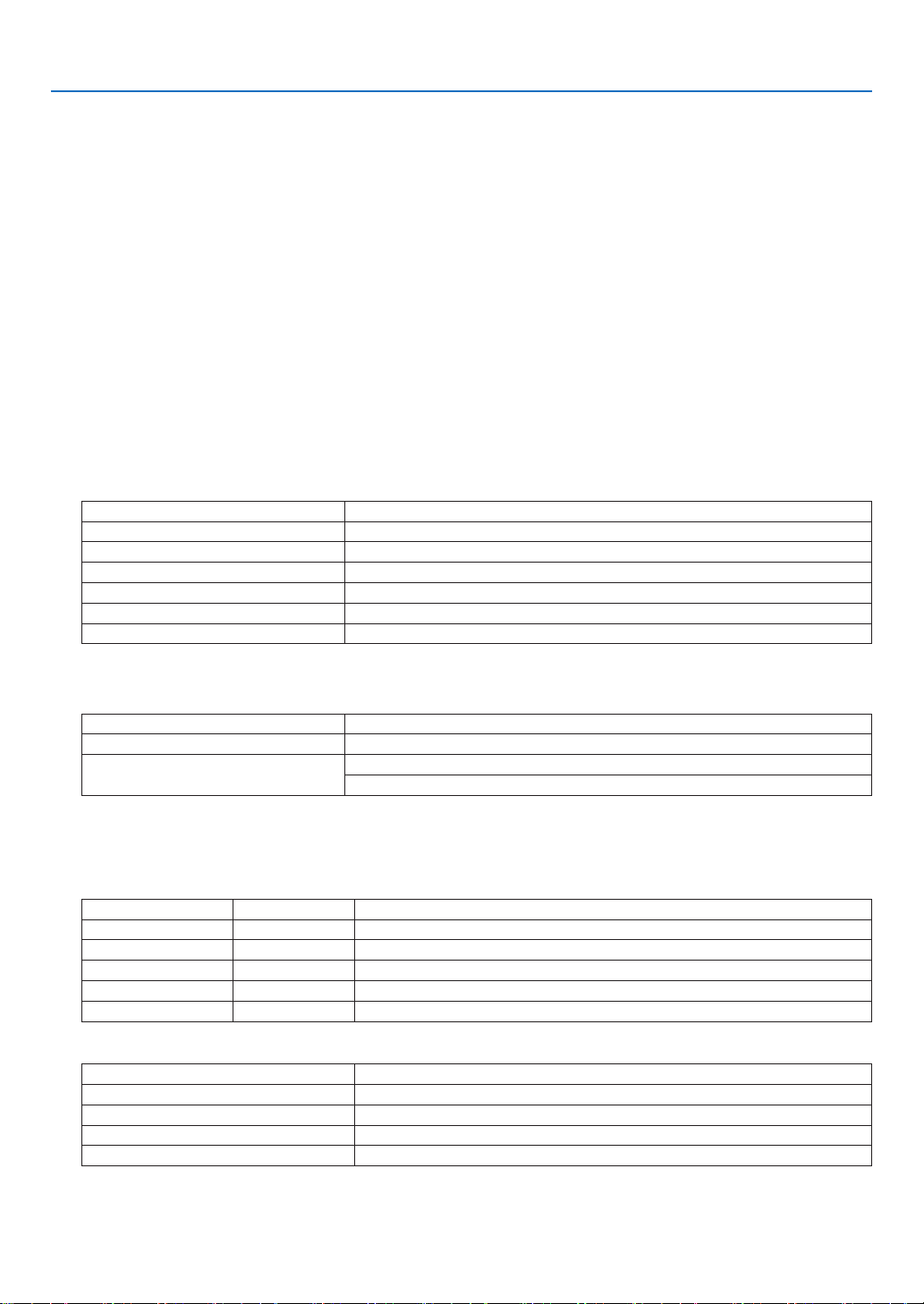
101
10. Appendix
ABOUT THE ASCII CONTROL COMMAND
This device supports the common ASCII control Command for controlling our projector and monitor.
Please visit our web site for detailed information about the command.
https://www.sharp-nec-displays.com/dl/en/pj_manual/lineup.html
HOW TO CONNECT WITH AN EXTERNAL DEVICE
There are two methods to connect the projector with an external device such as a computer.
1. Connection thru the serial port.
Connects the projector to a computer by a serial cable (a cross cable).
2. Connection via network (LAN)
Connects the projector to a computer by a LAN cable.
Concerning to the type of LAN cable, please ask to your network administrator.
CONNECTION INTERFACE
1. Connection thru the serial port.
Communication Protocol
Item Information
Baud rate 4800/9600/19200/38400 bps
Data length 8 bits
Parity bit No parity
Stop bit 1 bit
Flow control None
Communications procedure Full duplex
2. Connection via network
Communication Protocol (Connection via LAN)
Item Information
Communication speed Set automatically (10/100 Mbps)
Supported standard IEEE802.3 (10BASE-T)
IEEE802.3u (100BASE-TX, Auto-Negotiation)
Use the TCP port number 7142 for transmitting and receiving command.
PARAMETERS FOR THIS DEVICE
Input command
Input terminal Response Parameter
Computer Computer computer1, computer, rgb, rgb1, vga, vga1
HDMI1 HDMI1 hdmi1
HDMI2 HDMI2 hdmi2
USB-A USB-A usb-a
LAN LAN lan
Status command
Response Error status
Error:temp Temperature error
Error:fan Fan trouble
Error:light Light source trouble
Error:system System trouble
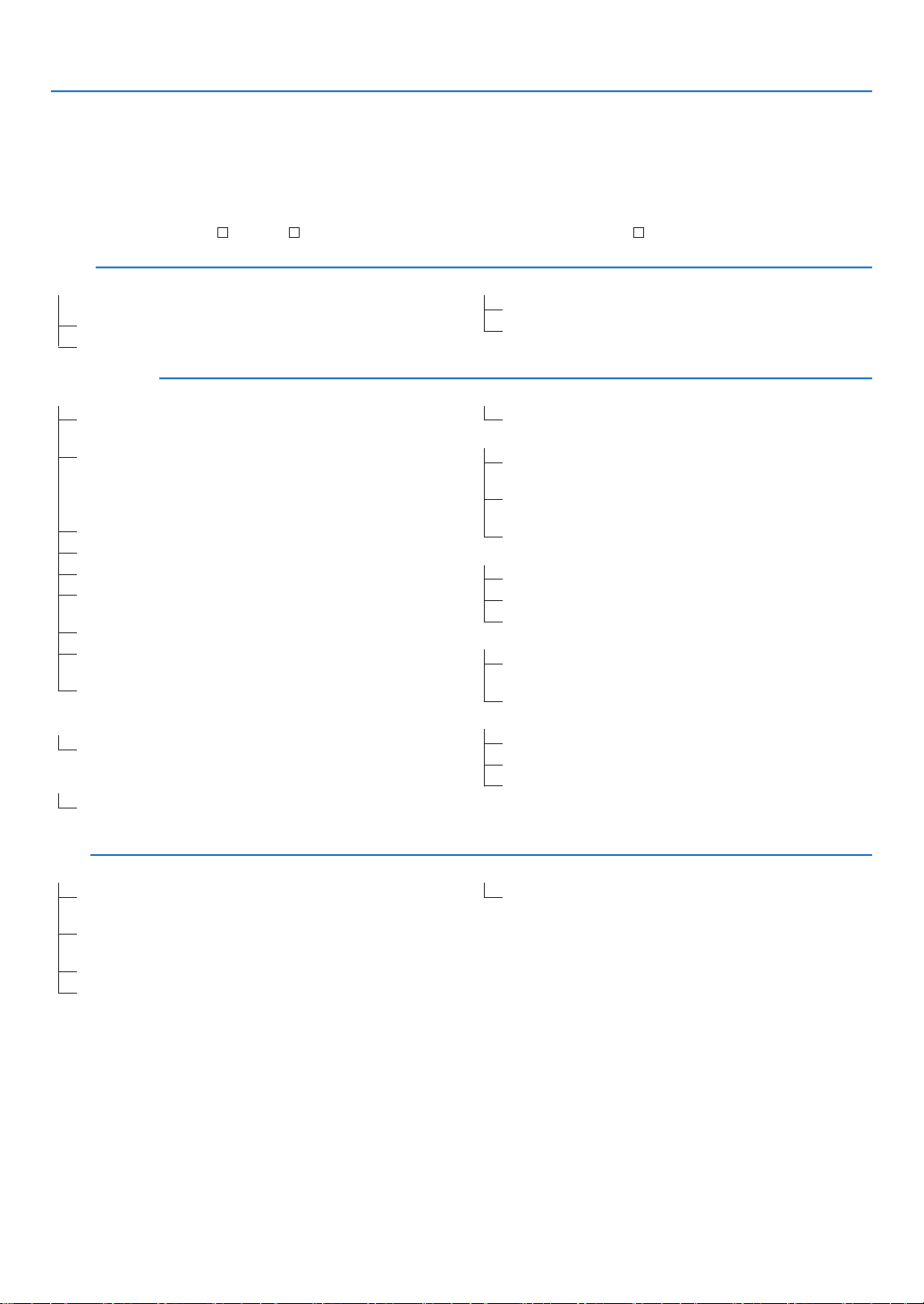
102
10. Appendix
Troubleshooting Check List
Before contacting your dealer or service personnel, check the following list to be sure repairs are needed also by
referring to the “Troubleshooting” section in your user’s manual. This checklist below will help us solve your problem
more efficiently.
* Print this page and the next page for your check.
Frequency of occurrence
always sometimes (How often?_____________________) other (__________________)
Power
No power (POWER indicator does light orange). See also “Status Indica-
tor (STATUS)”.
Power cord’s plug is fully inserted into the wall outlet.
No power even though you press and hold the POWER button.
Shut down during operation.
Power cord’s plug is fully inserted into the wall outlet.
[Timer] is turned off.
Video and Audio
No image is displayed from your PC or video equipment to the projector.
Still no image even though you connect the projector to the PC
first, then start the PC.
Enabling your notebook PC’s signal output to the projector.
• A combination of function keys will enable/disable the external
display. Usually, the combination of the “Fn” key along with one
of the 12 function keys turns the external display on or off.
No image (blue or black background, no display).
Still no image even though you press the AUTO ADJUST button.
Signal cable’s plug is fully inserted into the input terminal.
A message appears on the screen.
( _____________________________________________ )
The source connected to the projector is active and available.
Still no image even though you adjust the brightness and/or the
contrast.
Input source’s resolution and frequency are supported by the
projector.
Image is too dark.
Remains unchanged even though you adjust the brightness and/
or the contrast.
Image is distorted.
Image appears to be trapezoidal (unchanged even though you carry
out the [KEYSTONE] adjustment).
Parts of the image are lost.
Still unchanged even though you press the AUTO ADJUST button.
Image is shifted in the vertical or horizontal direction.
Horizontal and vertical positions are correctly adjusted on a
computer signal.
Input source’s resolution and frequency are supported by the
projector.
Some pixels are lost.
Image is flickering.
Still unchanged even though you press the AUTO ADJUST button.
Image shows flickering or color drift on a computer signal.
Still unchanged even though you change [High altitude] to [Off].
Image appears blurry or out of focus.
Still unchanged even though you checked the signal’s resolution
on PC and changed it to projector’s native resolution.
Still unchanged even though you adjusted the focus.
No sound.
Audio cable is correctly connected to the audio input of the projector.
Still unchanged even though you adjusted the volume level.
AUDIO OUT is connected to your audio equipment (only models with
the AUDIO OUT terminal).
Other
Remote control does not work.
No obstacles between the sensor of the projector and the remote
control.
Projector is placed near a fluorescent light that can disturb the
infrared remote controls.
Batteries are new and are not reversed in installation.
ID for the projector and for the remote are same.
Buttons on the projector cabinet do not work
[Key lock] is not turned on or is disabled in the menu.
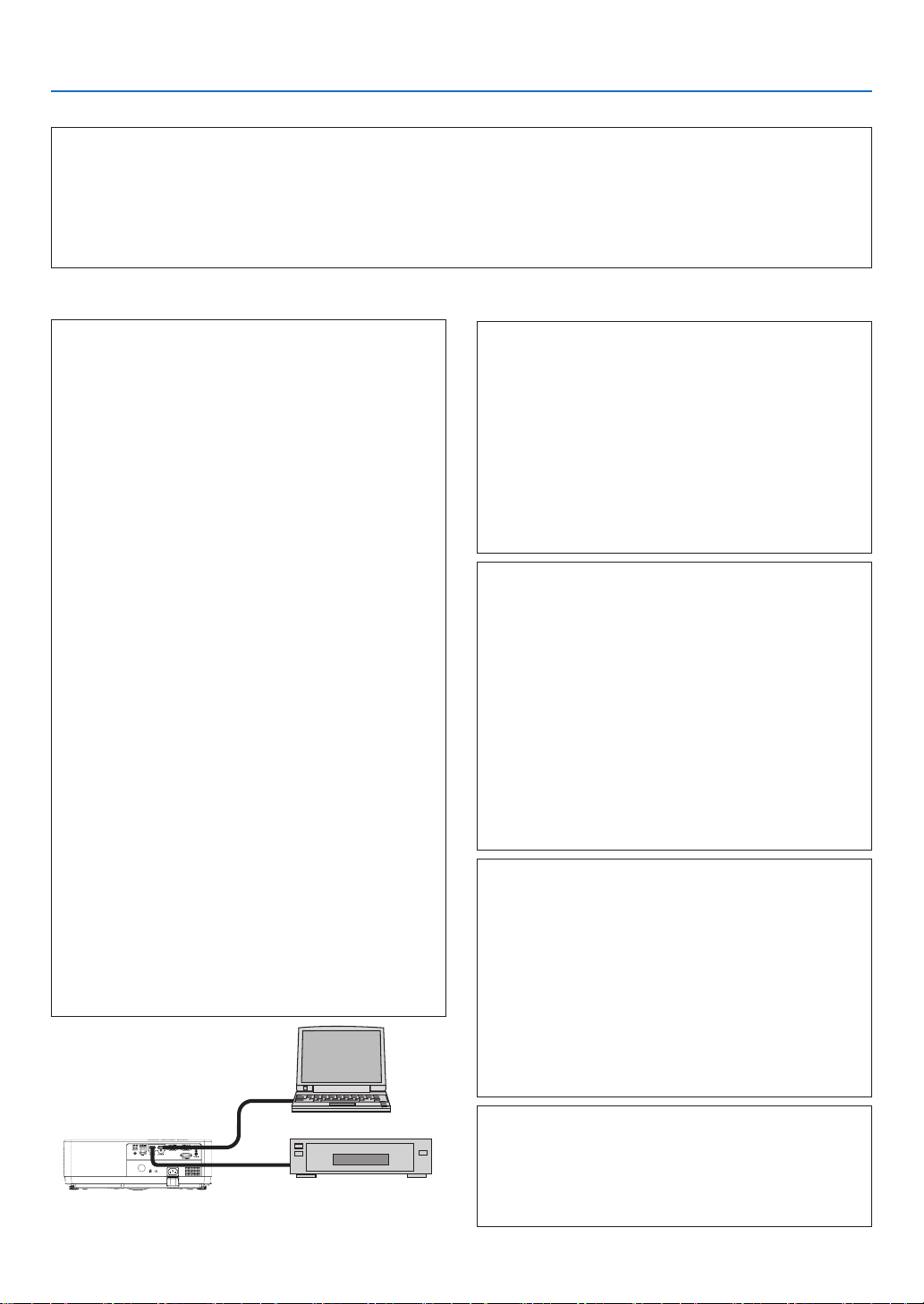
103
10. Appendix
In the space below please describe your problem in detail.
Information on application and environment where your projector is used
Projector
PC
DVD player
Projector
Model number:
Serial No.:
Date of purchase:
Light operating time (hours):
Eco Mode: OFF AUTO ECO
NORMAL ECO
Information on input signal:
Horizontal synch frequency [ ] kHz
Vertical synch frequency [ ] Hz
Synch polarity H (+) (−)
V (+) (−)
Synch type Separate Composite
Sync on Green
Indicator Message:
POWER
Blinks in Blue Green Orange Red
[ ] cycles
Lights in Blue Green Orange Red
STATUS
Blinks in Blue Green Orange Red
[ ] cycles
Lights in Blue Green Orange Red
Light
Blinks in Blue Green Orange Red
[ ] cycles
Lights in Blue Green Orange Red
Remote control model number:
Installation environment
Screen size: inch
Screen type: White matte Beads Polarization
Wide angle High contrast
Throw distance: feet/inch/m
Orientation: Ceiling mount Desktop
Power outlet connection:
Connected directly to wall outlet
Connected to power cord extender or other (the number
of connected equipment______________)
Connected to a power cord reel or other (the number of
connected equipment______________)
Computer
Manufacturer:
Model number:
Notebook PC / Desktop
Native resolution:
Refresh rate:
Video adapter:
Other:
Video equipment
VCR, DVD player, Video camera, Video game or other
Manufacturer:
Model number:
Signal cable
NEC standard or other manufacturer’s cable?
Model number: Length: inch/m
Distribution amplifier
Model number:
Switcher
Model number:
Adapter
Model number:
the drawings for the projector cabinet show examples
of the
PE506UL.

104
10. Appendix
REGISTER YOUR PROJECTOR! (for residents in the United
States, Canada, and Mexico)
Please take time to register your new projector. This will activate your limited parts and labor warranty and InstaCare
service program.
Visit our web site at https://www.sharpnecdisplays.us, click on support center/register product and submit your
completed form online.
Upon receipt, we will send a confirmation letter with all the details you will need to take advantage of fast, reliable
warranty and service programs from the industry leader, Sharp NEC Display Solutions of America, Inc.

© Sharp NEC Display Solutions, Ltd. 2022