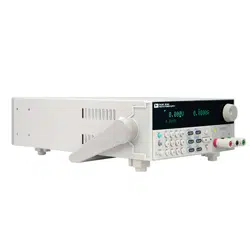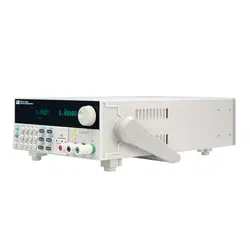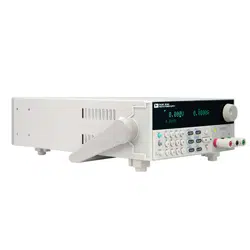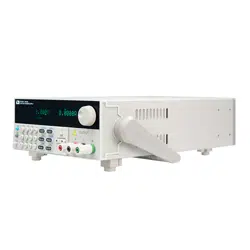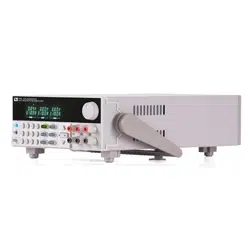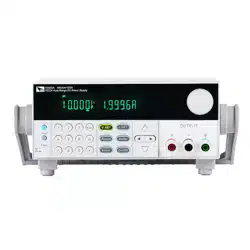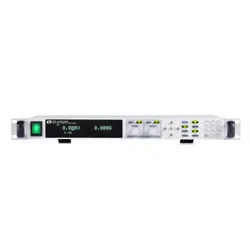

Highpowered and Programmable
Switching Power supply
Series IT6500 User’s Manual
Model: IT6512/IT6513/IT6512A/IT6513A/IT6502D
Version No.: 2.1
Notices
© Itech Electronic, Co., Ltd. 2018
No part of this manual may be reproduced
in any form or by any means (including
electronic storage and retrieval or
translation into a foreign language) without
prior permission and written consent from
Itech Electronic, Co., Ltd. as governed by
international copyright laws.
Manual Part Number
IT6500-402006
Revision
Second Edition: July 09, 2018
Itech Electronic, Co., Ltd.
Trademarks
Pentium is U.S. registered trademarks of
Intel Corporation.
Microsoft, Visual Studio, Windows and MS
Windows are registered trademarks of
Microsoft Corporation in the United States
and/or other countries and regions.
Warranty
The materials contained in this
document are provided “as is”, and is
subject to change, without prior notice,
in future editions. Further, to the
maximum extent permitted by
applicable laws, ITECH disclaims all
warrants, either express or implied,
with regard to this manual and any
information contained herein,
including but not limited to the implied
warranties of merchantability and
fitness for a particular purpose.
ITECH shall not be held liable for
errors or for incidental or indirect
damages in connection with the
furnishing, use or application of this
document or of any information
contained herein. Should ITECH and
the user enter into a separate written
agreement with warranty terms
covering the materials in this document
that conflict with these terms, the
warranty terms in the separate
agreement shall prevail.
Technology Licenses
The hardware and/or software described
herein are furnished under a license and
may be used or copied only in accordance
with the terms of such license.
Restricted Rights Legend
Restricted permissions of the U.S.
government. Permissions for software and
technical data which are authorized to the
U.S. Government only include those for
custom provision to end users. ITECH
follows FAR 12.211 (technical data),
12.212 (computer software). DFARS
252.227-7015 (technical data--commercial
products) for national defense and DFARS
227.7202-3 (permissions for commercial
computer software or computer software
documents) while providing the customized
business licenses of software and technical
data.
Safety Notices
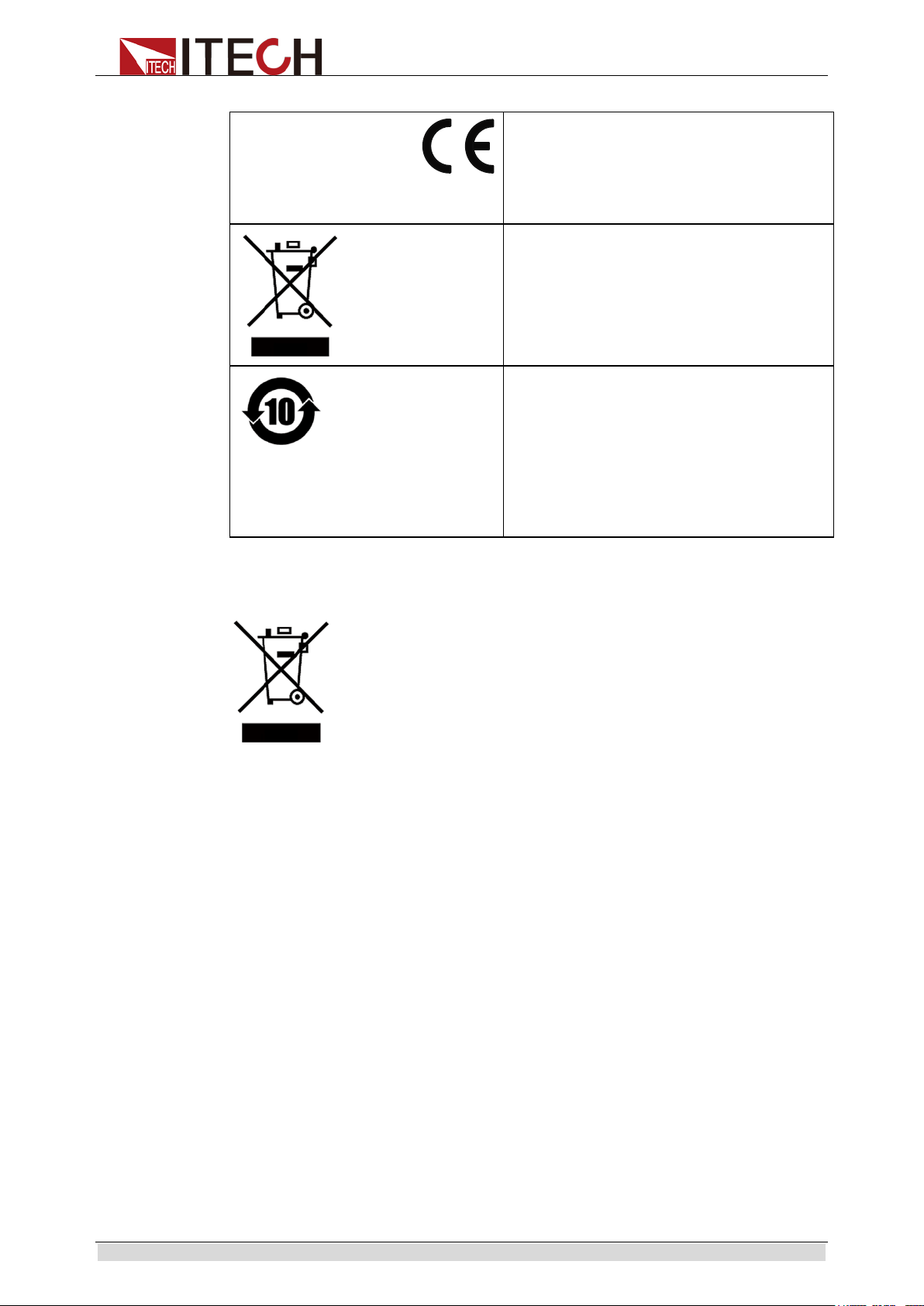
A CAUTION sign denotes a
hazard. It calls attention to an
operating procedure or practice
that, if not correctly performed or
adhered to, could result in damage
to the product or loss of important
data. Do not proceed beyond a
CAUTION sign until the indicated
conditions are fully understood and
met.
A WARNING sign denotes a
hazard.
It calls attention to an
operating procedure or practice
that, if not correctly performed or
adhered to, could result in personal
injury or death. Do not proceed
beyond a WARNING sign until the
indicated conditions are fully
understood and met.
NOTE
A NOTE sign denotes important
hint. It calls attention to tips or
supplementary information that is
essential for users to refer to.
IT6500 User’s Manual
i
Quality Certification and Assurance
We certify that IT6500 series power supply meets all the published specifications at
time of shipment from the factory.
Warranty
ITECH warrants that the product will be free from defects in material and
workmanship under normal use for a period of one (1) year from the date of delivery
(except those described in the Limitation of Warranty below).
For warranty service or repair, the product must be returned to a service center
designated by ITECH.
The product returned to ITECH for warranty service must be shipped PREPAID.
And ITECH will pay for return of the product to customer.
If the product is returned to ITECH for warranty service from overseas, all the
freights, duties and other taxes shall be on the account of customer.
Limitation of Warranty
This Warranty will be rendered invalid if the product is:
Damaged resulting from customer-wired circuits or customer-supplied parts or
accessories;
Modified or repaired by customer without authorization;
Damaged resulting from customer-wired circuits or use in an environment not
designated by us;
The product model or serial number is altered, deleted, removed or made illegible
by customer;
Damaged as a result of accidents, including but not limited to lightning, moisture,
fire, improper use or negligence.
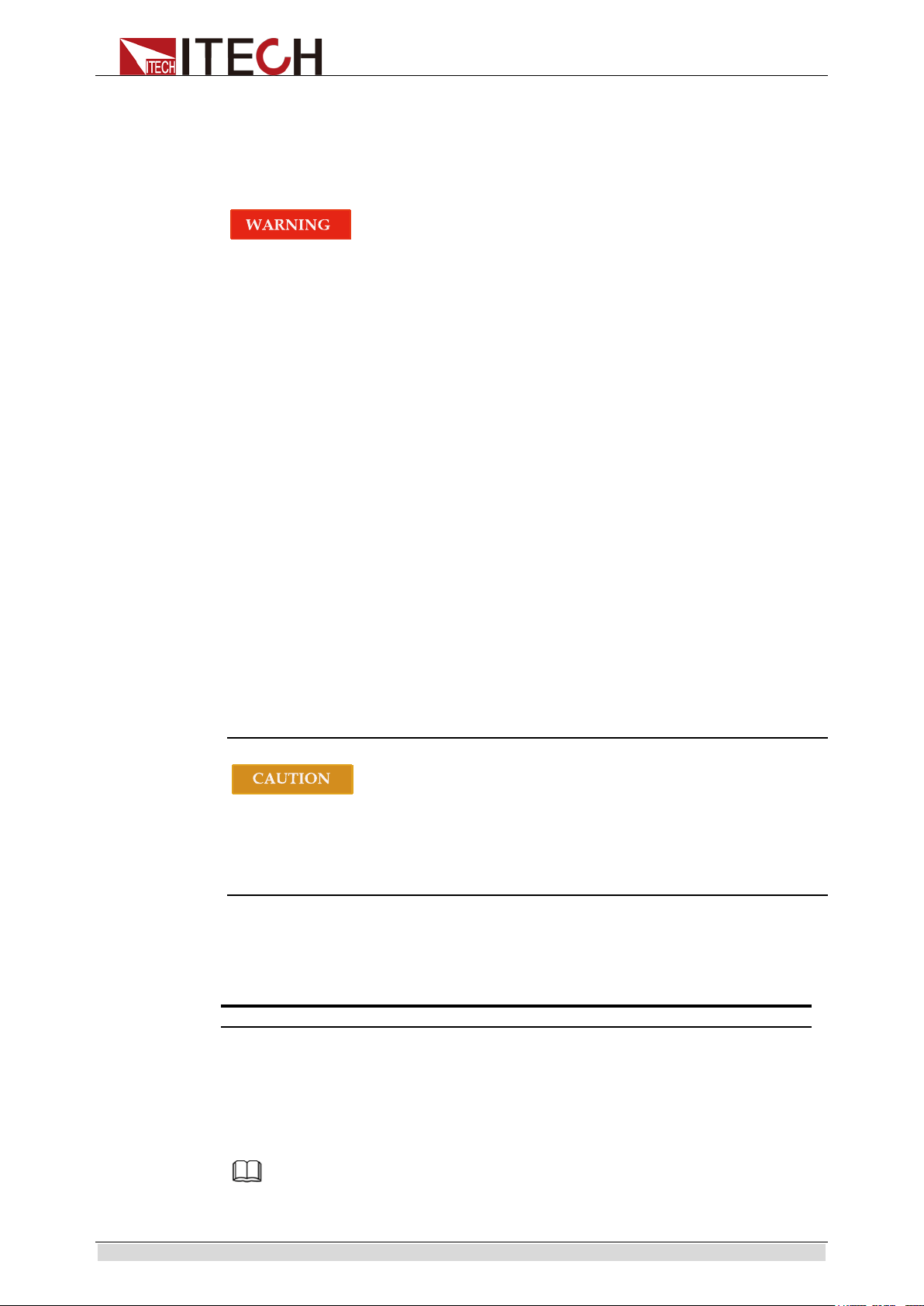
Safety Symbols
Direct current
ON (power)
Alternating current
OFF (power)
Both direct and alternating
current
Power-on state
Chassis (earth ground) symbol.
Power-off state
Earth (ground) terminal
Reference terminal
Caution
Positive terminal
Warning (refer to this manual for
specific Warning
or Caution
information)
Negative terminal
A chassis terminal
-
-
IT6500 User Manual
Copyright ©ITECH Electronic Co., Ltd.
Safety Precautions
The following safety precautions must be observed during all phases of operation of
this instrument. Failure to comply with these precautions or specific warnings
elsewhere in this manual will constitute a default under safety standards of design,
manufacture and intended use of the instrument. ITECH assumes no liability for the
customer’s failure to comply with these precautions.
Do not use the instrument if it is damaged. Before operation, check the casing
to see whether it cracks. Do not operate the instrument in the presence of
inflammable gasses, vapors or dusts.
The power supply is provided with a three-core power line during delivery
and should be connected to a three-core junction box. Before operation, be
sure that the power supply is well grounded. Make sure to use the power cord
supplied by ITECH.
Check all marks on the instrument before connecting the instrument to
power supply.
Use electric wires of appropriate load. All loading wires should be capable of
bearing maximum short-circuit of electronic load without overheating. If
there are multiple loads, each pair of the load power cord must be carry out
the full rated short-circuit output current of the power securely.
Ensure the voltage fluctuation of mains supply is less than 10% of the
working voltage range in order to reduce risks of fire and electric shock.
Do not install alternative parts on the instrument or perform any
unauthorized modification.
Do not use the instrument if the detachable cover is removed or loosen.
To prevent the possibility of accidental injuries, be sure to use the power
adapter supplied by the manufacturer only.
Never use the instrument with a life-support system or any other equipment
subject to safety requirements.
Failure to use the instrument as directed by the manufacturer may render its
protective features void.
Always clean the casing with a dry cloth. Do not clean the internals.
Make sure the vent hole is always unblocked.
Environmental Conditions
The instrument is designed for indoor use and an area with low condensation. The
table below shows the general environmental requirements for the instrument.
Environmental Conditions
Requirements
Operating temperature
0°C to 40°C
Operating humidity
20%-80% (non-condensation)
Storage temperature
-20°C to 70 °C
Altitude
Operating up to 2,000 meters
Installation category
II
Pollution degree
Pollution degree 2
Note
To make accurate measurements, allow the instrument to warm up for 30 min.
IT6500 User Manual
Copyright ©ITECH Electronic Co., Ltd.
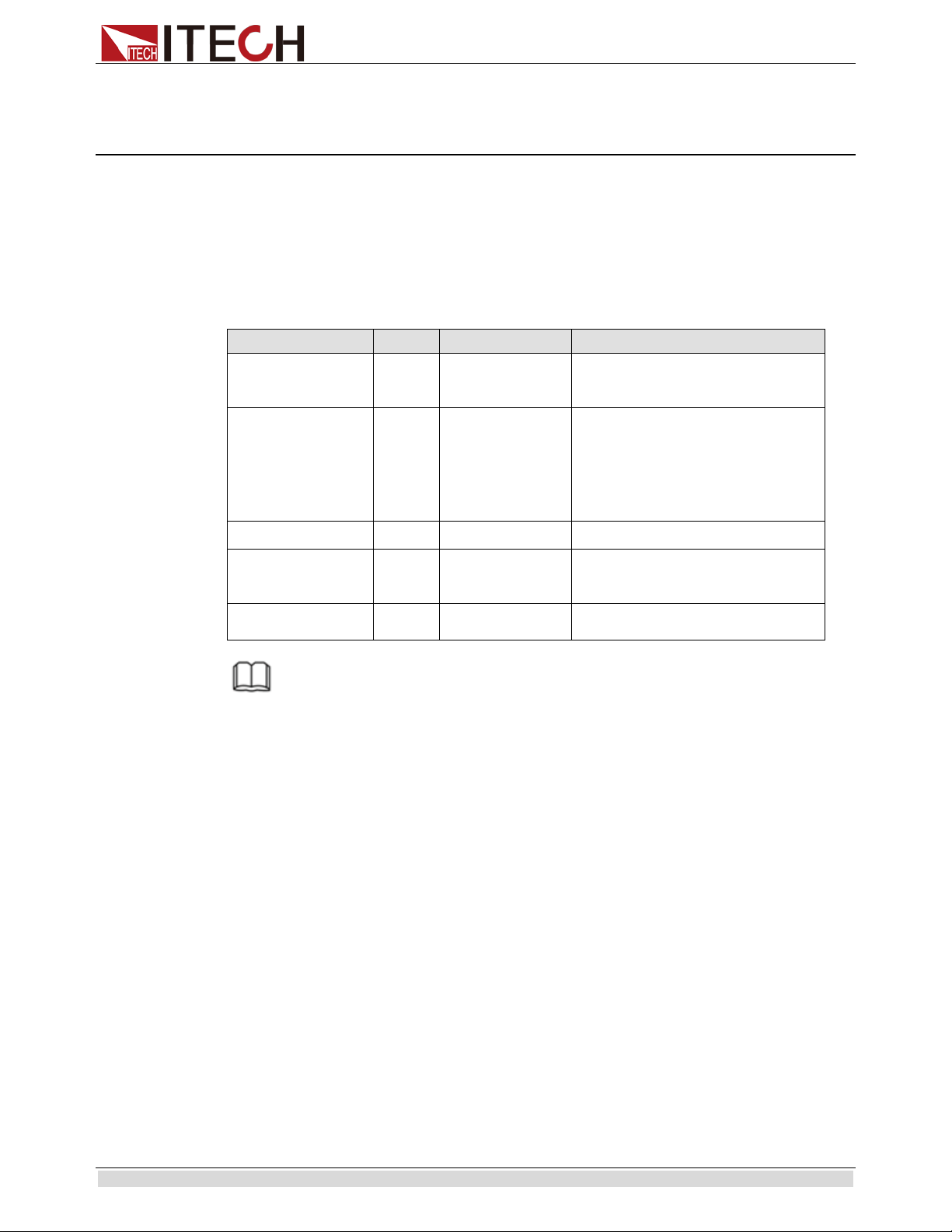
Regulatory Markings
The CE mark indicates that the product
complies with all the relevant European legal
directives. The specific year (if any) affixed
refers to the year when the design was
approved.
The instrument complies with the WEEE
Directive (2002/96/EC) marking requirement.
This affix product label indicates that you
must not discard the electrical/electronic
product in domestic household waste.
This symbol indicates the time period during
which no hazardous or toxic substances are
expected to leak or deteriorate during normal
use. The expected useful life of the product is
10 years. The product can be used safely
during the 10-year Environment Friendly Use
Period (EFUP). Upon expiration of the EFUP,
the product must be immediately recycled.
Waste Electrical and Electronic Equiment (WEEE) Directive
2002/96/EC Waste Electrical and Electronic Equipment (WEEE)
Directive
This product complies with the WEEE Directive (2002/96/EC)
marking requirement. This affix product label indicates that you must
not discard the electrical/electronic product in domestic household
waste.
Product Category
With reference to the equipment classifications described in the
Annex 1 of the WEEE Directive, this instrument is classified as a
“Monitoring and Control Instrument”.
To return this unwanted instrument, contact your nearest ITECH
office.

IT6500 User’s Manual
iv
Compliance Information
Complies with the essential requirements of the following applicable European
Directives, and carries the CE marking accordingly:
Electromagnetic Compatibility (EMC) Directive 2014/30/EU
Low-Voltage Directive (Safety) 2014/35/EU
Conforms with the following product standards:
EMC Standard
IEC 61326-1:2012/ EN 61326-1:2013 ¹²³
Reference Standards
CISPR 11:2009+A1:2010/ EN 55011:2009+A1:2010 (Group 1, Class A)
IEC 61000-4-2:2008/ EN 61000-4-2:2009
IEC 61000-4-3:2006+A1:2007+A2:2010/ EN 61000-4-3:2006+A1:2008+A2:2010
IEC 61000-4-4:2004+A1:2010/ EN 61000-4-4:2004+A1:2010
IEC 61000-4-5:2005/ EN 61000-4-5:2006
IEC 61000-4-6:2008/ EN 61000-4-6:2009
IEC 61000-4-11:2004/ EN 61000-4-11:2004
1. The product is intended for use in non-residential/non-domestic environments. Use of the
product in residential/domestic environments may cause electromagnetic interference.
2. Connection of the instrument to a test object may produce radiations beyond the specified
limit.
3. Use high-performance shielded interface cable to ensure conformity with the EMC standards
listed above.
Safety Standard
IEC 61010-1:2010/ EN 61010-1:2010

IT6500 User Manual
Copyright ©ITECH Electronic Co., Ltd.
Content
Quality Certification and Assurance .................................................................................................................... 1
Warranty .............................................................................................................................................................. 1
Limitation of Warranty ........................................................................................................................................ 1
Safety Symbols .................................................................................................................................................... 1
Safety Precautions ............................................................................................................................................... 2
Environmental Conditions ................................................................................................................................... 2
Regulatory Markings ........................................................................................................................................... 3
Waste Electrical and Electronic Equiment (WEEE) Directive ............................................................................ 3
Compliance Information ................................................................................................................................... 4
Chapter1 Inspection and Installation .................................................................................. 1
1.1 Verifying the Shipment .................................................................................................................................. 1
1.2 Instrument Size Introduction ......................................................................................................................... 1
1.3 Connecting the Power Cord .......................................................................................................................... 3
Chapter2 Quick Start ......................................................................................................... 5
2.1 Brief Introduction .......................................................................................................................................... 5
2.2 Front Panel Introduction ................................................................................................................................ 5
2.3 keyboard introduction.................................................................................................................................... 6
2.4 VFD Indicator Lamps Description ................................................................................................................ 7
2.5 Rear Panel Introduction ................................................................................................................................. 8
2.6 Power-on selftest ........................................................................................................................................... 8
2.7 Output Checkout ......................................................................................................................................... 10
Chapter3 Function and Features ....................................................................................... 11
3.1 Local/Remote .............................................................................................................................................. 11
3.2 Setting voltage ............................................................................................................................................. 11
3.3 Setting current ............................................................................................................................................. 12
3.4 On/off button ............................................................................................................................................... 12
3.5 Setting value/Actual value........................................................................................................................... 12
3.6 Voltage and current adjustment ................................................................................................................... 12
3.7 Save operation ............................................................................................................................................. 13
3.8 Trigger operation ......................................................................................................................................... 13
3.9 Menu Operation ........................................................................................................................................... 13
3.10 Protection Function ................................................................................................................................... 26
3.11 Rising time and Fall time setup ................................................................................................................. 27
3.12 Key Lock Function .................................................................................................................................... 27
3.13 Connection and Setup ................................................................................................................................ 27
3.14 Rear terminal functions ............................................................................................................................. 29
3.15 Analogue Interface .................................................................................................................................... 30
Chapter4 Remote Control ................................................................................................. 36
4.1 RS232 Interface ........................................................................................................................................... 36
4.2 USB Interface .............................................................................................................................................. 37
4.3 GPIB Interface ............................................................................................................................................. 38
4.4 RS485 Interface ........................................................................................................................................... 38
Chapter5 Specification ..................................................................................................... 39
4.1 Main technical parameters ........................................................................................................................... 39
4.2 Supplemental characteristics ....................................................................................................................... 41
Inspection and Installation
Copyright ©ITECH Electronic Co., Ltd. 1
Chapter1 Inspection and Installation
1.1 Verifying the Shipment
Unpack the box and check the contents before operating the instrument. If wrong items
have been delivered, if items are missing, or if there is a defect with the appearance of the
items, contact the dealer from which you purchased the instrument immediately. The
package contents include:
Checklist of Package Contents
Item
Qty.
Model
Remarks
IT6500 power
supply
x1 IT6500 series
The IT6500 series include:
IT6512/IT6513/IT6512A/IT6513A/I
T6502D
Power cord
x1
IT-E171/IT-E172/
IT-E173/IT-E174
User may select an appropriate
power cord that matches the
specifications of power socket used
in the area. See the Section
Connecting the Power Cord for
details.
USB cable
x1
- -
CD x1 -
It contains IT6500 power supply
User’s Manual, Programming Guide
and other user documentations.
Ex-factory Test
Report
x1 -
It is the test report of the instrument
before delivery.
NOTE
Upon verification of the shipment, keep the package and relevant contents thereof in a safe place.
When returning the instrument for warranty service or repair, the specified packing requirements shall
be met. Refer to IT6500 User’s Manual for detailed requirements on returns.
1.2 Instrument Size Introduction
The instrument should be installed at well-ventilated and rational-sized space. Please
select appropriate space for installation based on the power supply size.
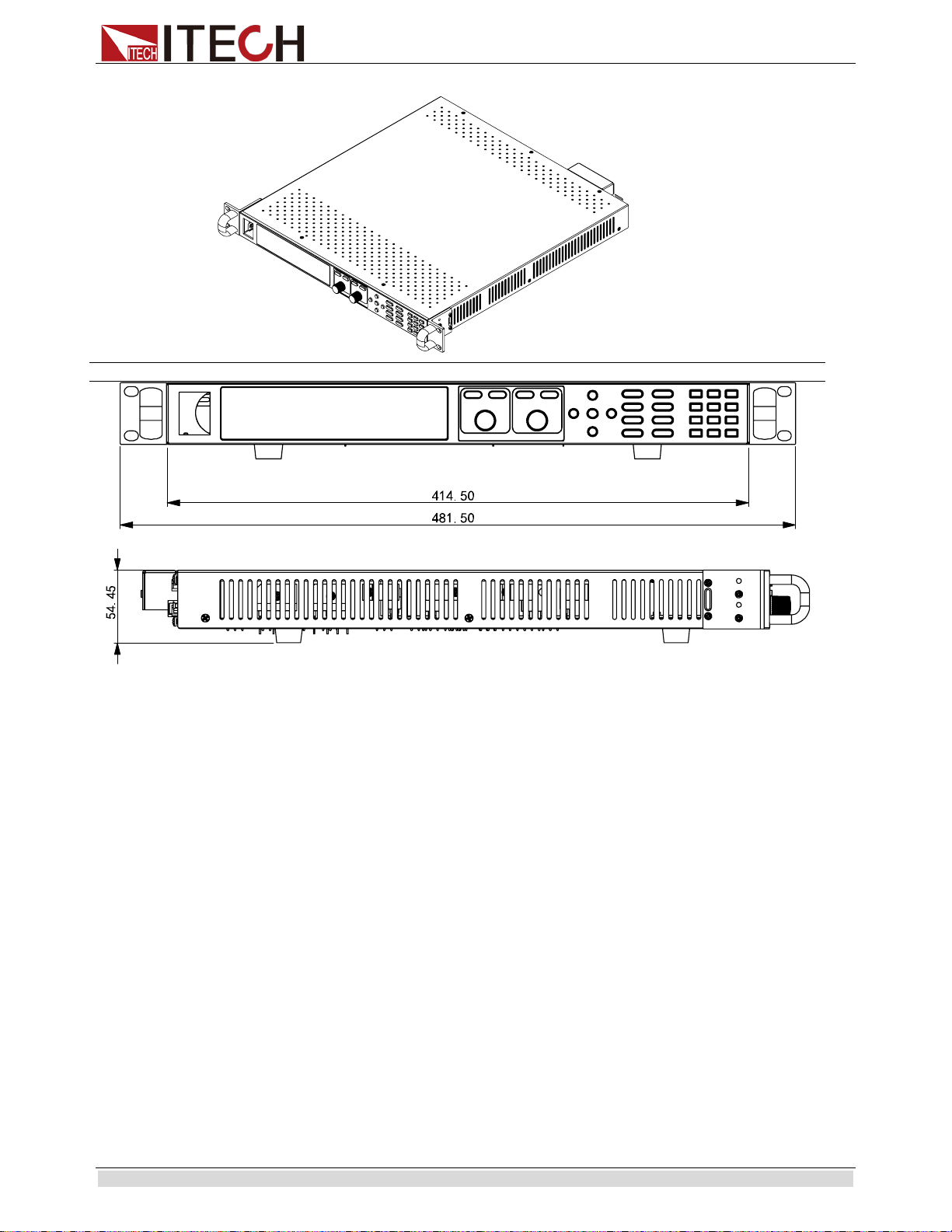
IT6500 series power supply different models are not the same size, the detail size of the
power supply are shown as below.
Inspection and Installation
Copyright ©ITECH Electronic Co., Ltd. 2
Detailed Dimension Drawing

Inspection and Installation
Copyright ©ITECH Electronic Co., Ltd. 3
1.3 Connecting the Power Cord
Before connecting the power cord, please ensure the power switch of the instrument is
turned OFF. Only use the power cord supplied as a standard accessory. A summary of
connection procedures is given below.
AC power input level
Support two kinds of AC input voltage:110VAC and 220VAC.There is no need to
switch the input mode.
AC input grade:
Option Opt.01: 220VAC ± 10%, 47 to 63 Hz
Option Opt.02: 110 VAC ± 10%, 47 to 63 Hz
Categories of power cords
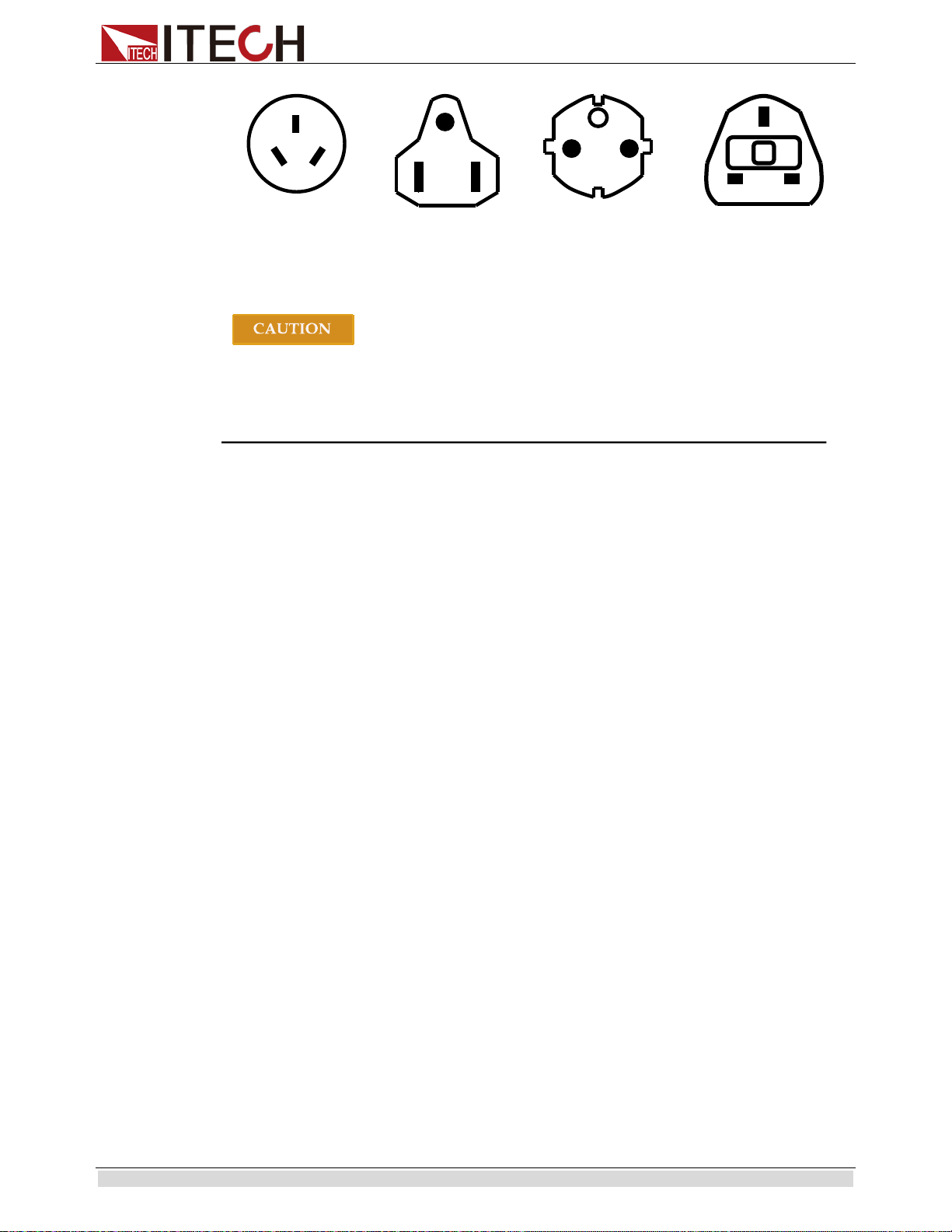
IT6500 series power supply provides the standard power cords as below.
Please select appropriate power cords appropriate to local voltage based on the
specifications of power cords below. If purchased model fails to meet local voltage
requirements, please contact distributor or factory for change.
Inspection and Installation
Copyright ©ITECH Electronic Co., Ltd. 4
China
IT-E171
America,
Canada,Japan
IT-E172
Europe
IT-E173
Britain
IT-E174
The power cords supplied with this product is certified for safety. In case the supplied
lines assembly needs to be replaced, or an extension lines must be added, be sure that
it can meet the required power ratings of this product. Any misuse voids the
warranty of this product.
E
N L
E
L N
E
N L
E
L N
Quick Start
Copyright ©ITECH Electronic Co., Ltd. 5
Chapter2 Quick Start
This chapter introduces power-on check steps of IT6500D series to ensure normal start-up
and usage under initialization status. This part also introduces the front panel, the rear
panel, key functions and VFD display function of the power supply, make sure that you
can quickly know the appearance, instruction and the key function before you operate the
power supply, Help you make better use of this series of power supply.
2.1 Brief Introduction
IT6500 series is a flexiable range single output high power supply.With wide power
ranges from 800W to 6KW,currents from 30A to 240A.Standard RS232,USB,
GPIB,RS485 and LAN interfaces included on the rear board provide flexibility for remote
operation of the power supply.Its compact 1U(1200W) to 4U(6KW) size form factor
makes it ideal for use in a standard 19-inch rack.IT6500 series is specially designed for
automobile electronic industry.It provides built-in DIN40839 and ISO16750-2 waveforms
to test the anti-jamming performance of products,such as DVD and sound equipment.
Convenient bench-top features:
Auto-Range function
High Resolution Display (1mV/1mA)
Small size of 1U and 2U
RS232/USB/GPIB/RS485 standard interfaces
Analog Control Interface
Master/Slave Mode for Series/Parallel connectivity
Adjustable voltage slope (rise and fall time)
Sequence programming (List mode)
Built-in DIN40839 and ISO16750-2 waveform(IT6512/IT6513 characteristic)
OVP and OPP protection
Low ripple and low noise
Intelligent fans control
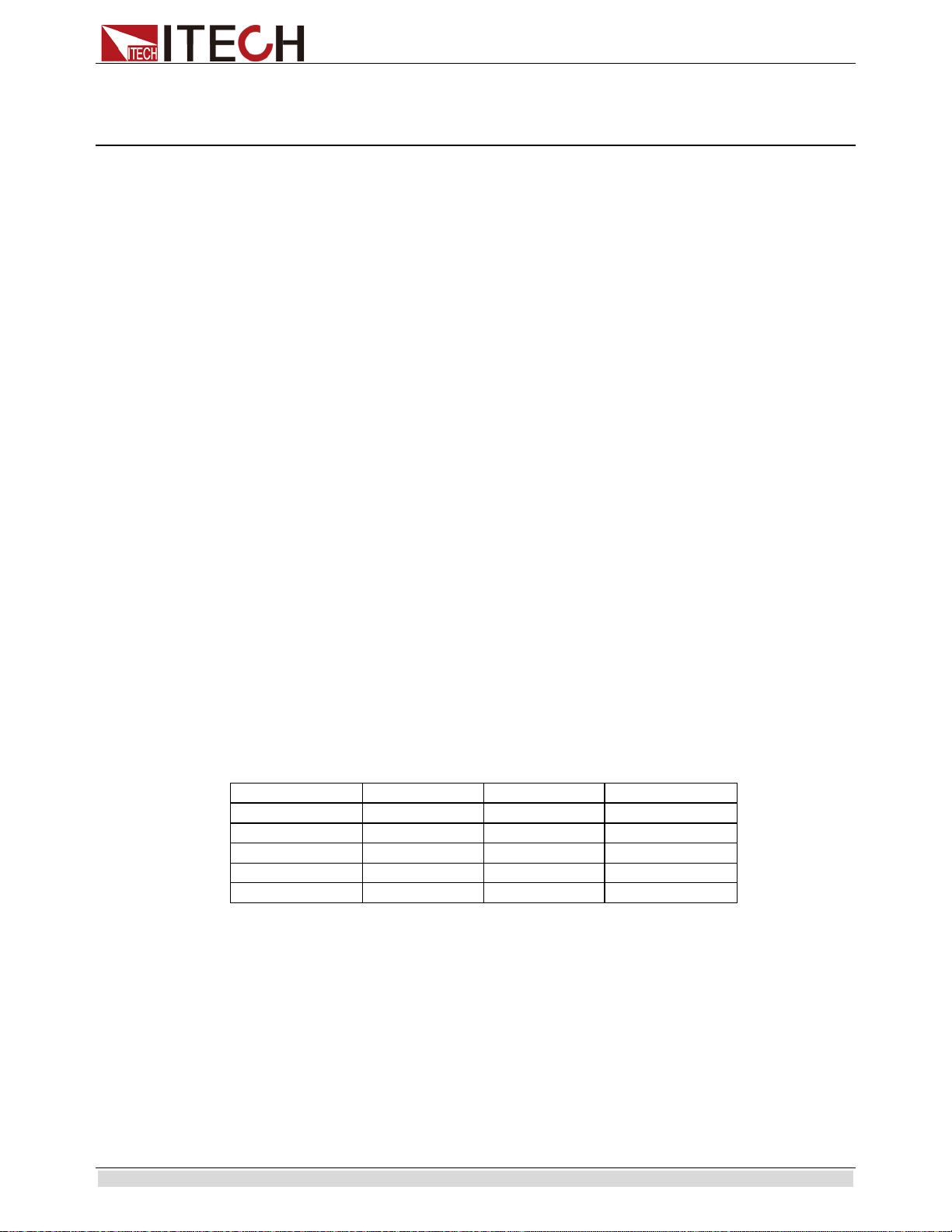
Model
Voltage
Current
Power
IT6502D
80V
60A
800W
IT6512
80V
60A
1200W
IT6513
150V
30A
1200W
IT6512A
80V
60A
1200W
IT6513A
150V
30A
1200W
2.2 Front Panel Introduction
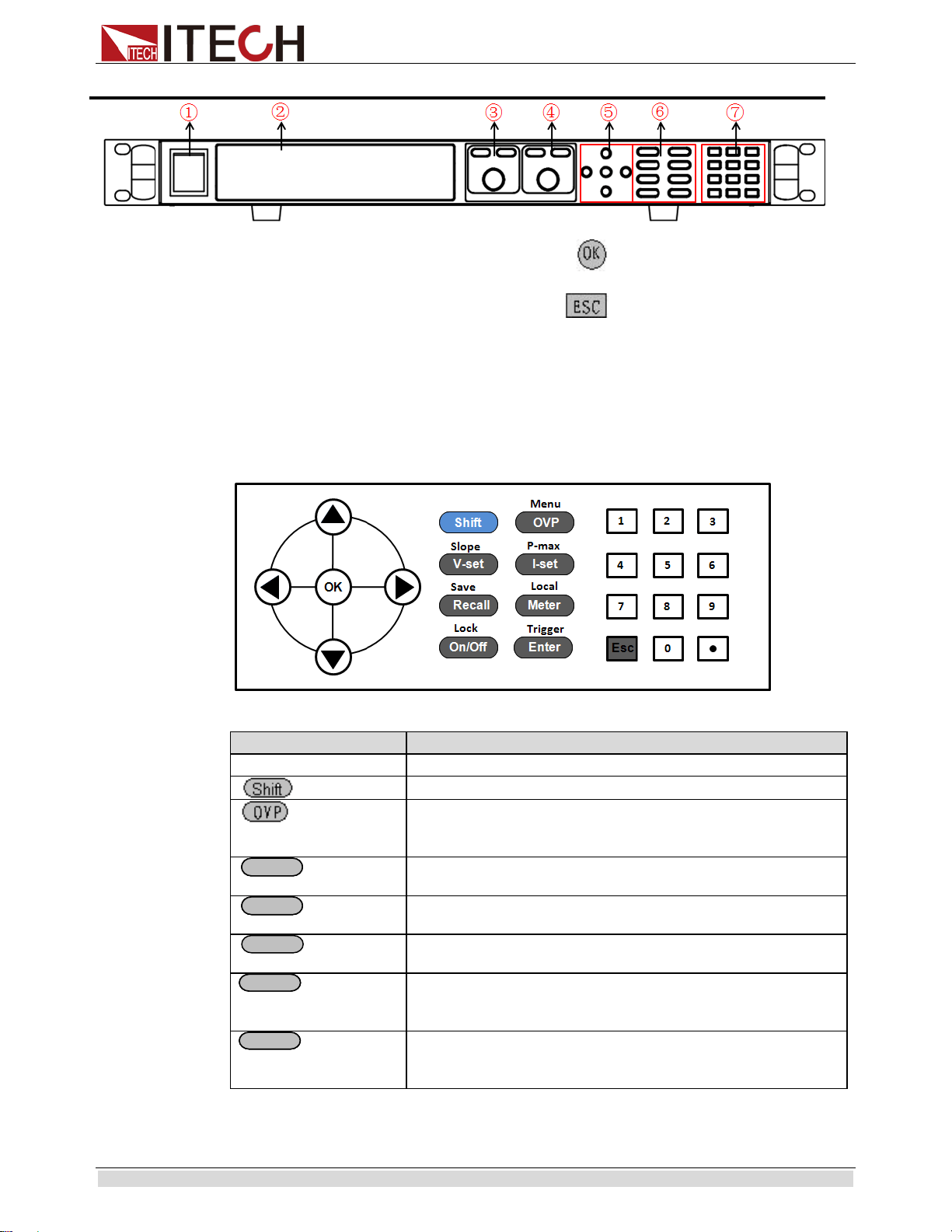
IT6500 series power supply different models are not the same front board. the detail front
board and key function schematic graph of the power supply are shown as below.
Quick Start
Copyright ©ITECH Electronic Co., Ltd. 6
2.3 keyboard introduction
IT6500 series power supply different models are same the key function in front board,
schematic graph as follow.
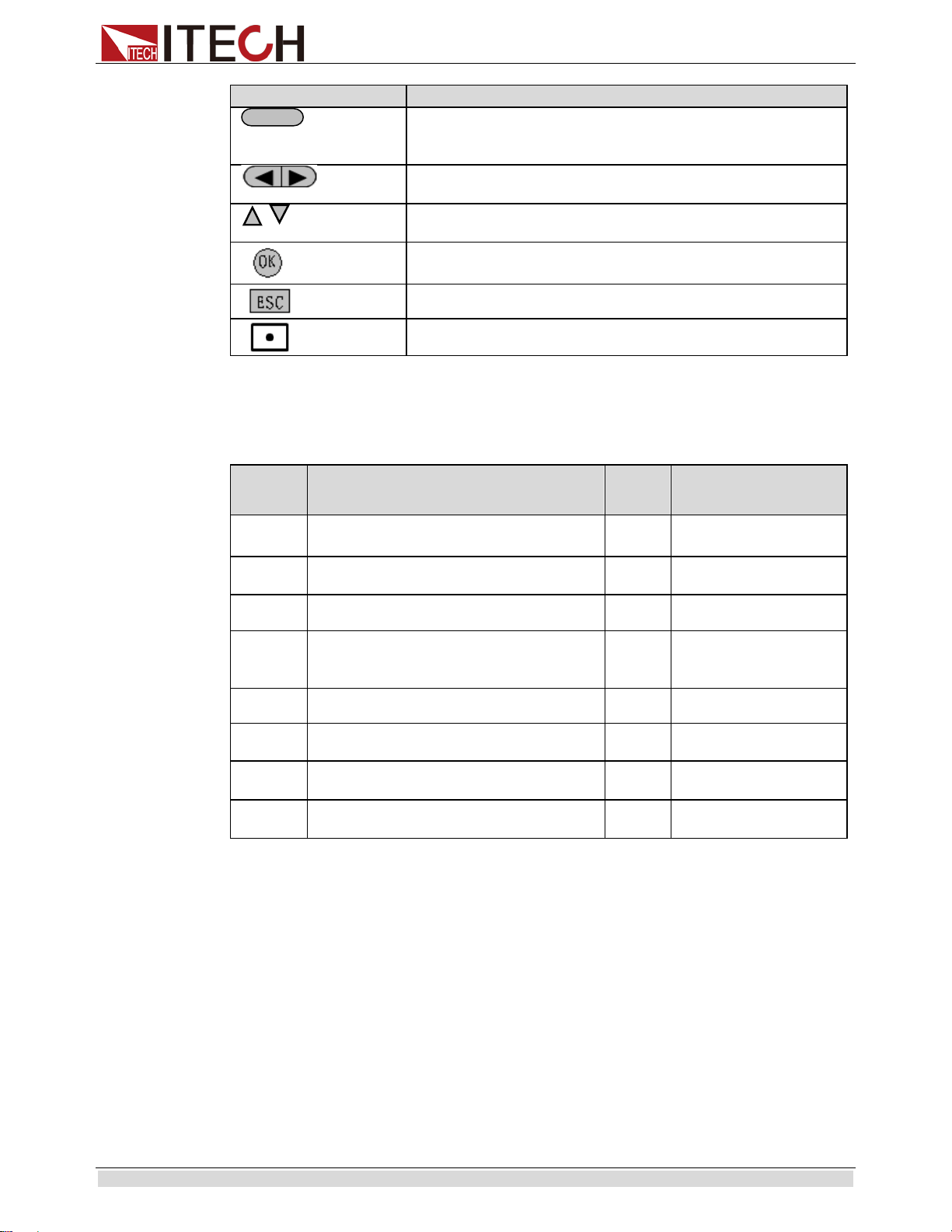
Detailed description of keys:
keys
Name and functions
0-9
Numeric button
Composite key
Menu
OVP setting button,the button used to set the ovp value/menu
function button which used to set the related parameters of
power supply
Slope
Voltage setting button,used to set the ouput voltage value/set the
rising time and fall time of voltage
Pmax
Current setting button,used to set the output current value/set the
maximum power value
Save
Callback button,used to recall a saved setting parameter/save
button,used to save a setting parameter
Local
Meter button,used to switch the display between actual value
and setting value /switch to the loacl mode
Trigger
Confirm button,to confirm the setting numbers or
functions/trigger button,used to provide a trigger single for list
operation
V-setV-set
I-setI-set
Recall
MeterMeter
EnterEnter
①
Power Switch
②VFD Screen
③
pulsating knob to control voltage,coarse
button,fine botton
④
pulsating knob to control current,coarse
button,fine botton
⑤ directioin key and key
⑥function keys and composite key
⑦ numeric key and key
Quick Start
Copyright ©ITECH Electronic Co., Ltd. 7
keys
Name and functions
Lock
Ouput on/off button,used to control the output status of power
supply/kelock function button,used to lock the front board
buttons
Left and right direction button,used to adjust the location of the
cursor
Up and down direction button,used to select the items of the
menu or increase(decrease) the output voltage and current value
Confirm button
Quit buttion
Dot
2.4 VFD Indicator Lamps Description
As follows:
Flag
Function Description
chart
function description
OFF
Power supply in off mode
Timer
none
CV
Power supply in CV mode
Sense
none
CC
Power supply in CC mode
Ext
none
*
Open the keylock function
Adrs
Displayed for 3s when
remote operation is
connected successfully.
Meter
“Meter” buttion in on mode
Rmt
Remote control mode
Shift
using composite function
Error
Error occur
Rear
Start external analog quantity function
Prot
Protections for OV or
OT
SRQ
Serial request query
Trig
waiting for triggering
signal
On/Off
Quick Start
Copyright ©ITECH Electronic Co., Ltd. 8
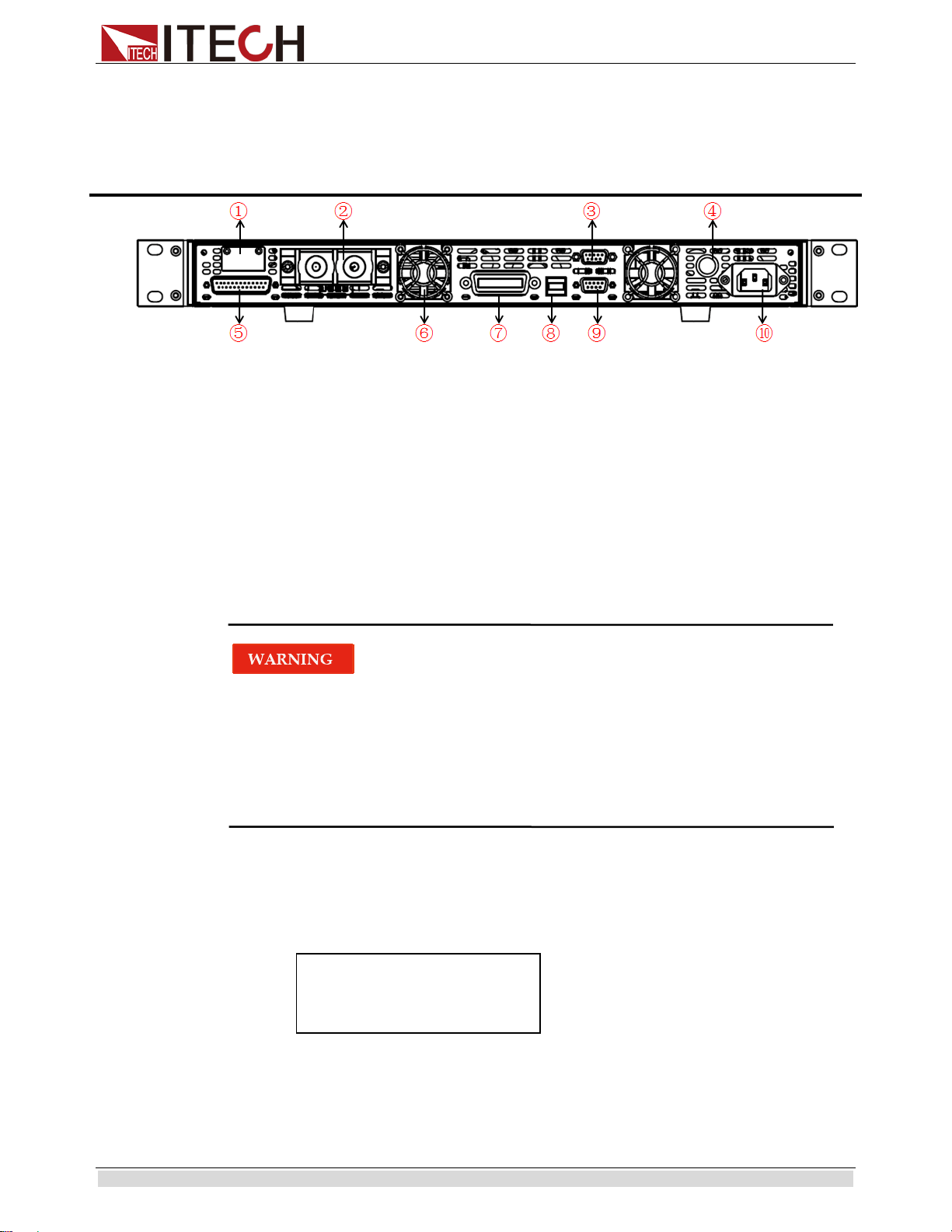
2.5 Rear Panel Introduction
IT6500 series power supply different models are not the same rear board. the detail rear
board schematic graph of the power supply are shown as below.
①
remote sense and ouput terminals
②Output terminal
③RS485 communication interface
④Fuses
⑤Analog control interface
⑥Cooling fans
⑦
GPIB communication interface
⑧USB communication interface
⑨RS232 communication interface
⑩AC power input socket
2.6 Power-on selftest
A successful selftest indicates that the purchased power product meets delivery standards
and is available for normal usage.
Before operation, please confirm that you have fully understood the safety instructions.
To avoid burning out, be sure to confirm that power voltage matches with supply
voltage.
Be sure to connect the main power socket to the power outlet of protective grounding.
Do not use terminal board without protective grounding. Before operation, be sure
that the power supply is well grounded.
To avoid burning out, pay attention to marks of positive and negative polarities before
wiring.
Selftest steps
Normal selftest procedures:
1. Correctly connect the power cord. Press Power key to start up.
2.
After selftest, VFD display the output voltage and current status as below:
Error Information References
The following error information may occur when an error occurs during Power On
self-test:
OFF
0.000V 0.000A
0.0W
Quick Start
Copyright ©ITECH Electronic Co., Ltd. 9
If the EEPROM was damaged, the VFD will display “EEPROM FAILURE”.
If the lastest operation data in EEPROM is lost, then VFD will display “Config Data
Lost”.
If the calibration data in EEPROM is lost, then VFD will display “Calibration Data
Lost”.
If the factory calibration data in EEPROM is lost, and then the VFD will display
“FactoryCal.Data Lost”.
If the system setting data in EEPROM is lost,the VFD will display
“MainframeInitializeLost”.
Exception handling
If the power supply can not start normally, please check and take measures by reference to
steps below.
1. Check whether the power cord is correctly connected and confirm whether the power
supply is powered.
Correct wiring of power cord = > 2
Incorrect wiring of power cord = > Re-connect the power cord and check whether the
exception is removed.
2. Check whether the power in On. Power key is under “” On status.
Yes = > 3
No = > Please check the Power key to start power and check whether the exception is
removed.
3. Check whether the fuse of power supply is burned out.
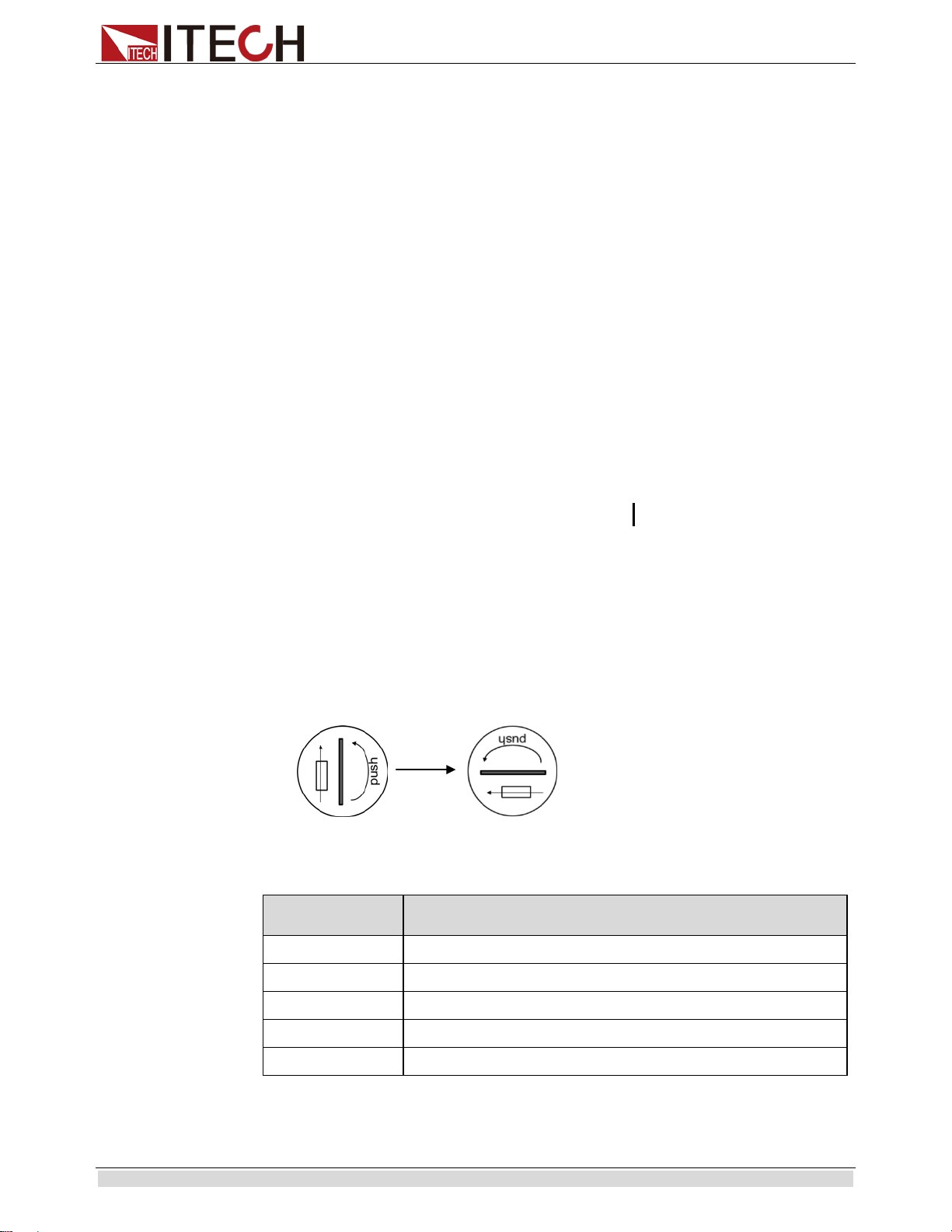
If yes, change fuse. Detailed steps:
1. Use a screwdriver to push and turn the fuse box on the rear board of the power
supply, refer to the below picture. After the fuse box is opened, you can see the
fuse in it. Please replace with a fuse of the same specification.
2. If the fuse is fused, please change fuse of same specification based on machine
model. See the table blow for matching information of fuse and machine model.
Fuse specification list
Model
Fuse Sepcification
(110/220VAC)
IT6512
15A 250V
IT6513
15A 250V
IT6512A
15A 250V
IT6513A
15A 250V
IT6502D
15A 250V
3. When install, use a screwdriver to push and turn the fuse box. Refer to the picture
below.

Quick Start
Copyright ©ITECH Electronic Co., Ltd. 10
2.7 Output Checkout
The following procedures check to ensure that the power supply develops its rated outputs
and properly responds to operation from the front board.
Voltage Output Checkout
The following steps verify basic voltage functions without load.
1. Turn on the power supply
2. Set the ouput current (≥0.1A)
3. Open the ouput
Press on/off button,the CV indicator lamp will be lit.
4. Open the Meter button
5. Set the ouput voltage
Set different voltage and check whether the VFD display voltage is approximate to the
setting voltage.
6. Ensure the output voltage can be adjusted from 0V to full rated value
Output current checkout
The following steps check basic current functions with a short across the power supply’s
output
1. Turn on the power supply.
2. Disable the output
Press key to ensure that the output is disabled.
3. Connect a short across (+) and (-) output terminals with an insulated test lead.
Use a wire size sufficient to handle the maximum current.
4. Enable the output and open the Meter function button
To ensure the CC indicator lamp is lit
5. Adjust the current
Set different current values and check whether the voltage display is approximate to
0V,the display current value is approximate to the setting value
6. Ensure that the current can be adjusted from zero to the full rated value.
7. Turn off the power supply and remove the short wire from the output terminals.
The wires with closure discharge over 10 A should be used.
On/Off
Function and Features
Copyright ©ITECH Electronic Co., Ltd. 11
Chapter3 Function and Features
This chapter describes in detail the use of the front-panel keys and shows how they are
used to accomplish power supply operation.
This chapter is divided into the following sections:
Local mode/Remote mode
Setting voltage
Setting current
On/off
Actual value display/setting value dislay
Adjustment of current/voltage/power
Save operation
Trigger operation
Menu operation
Protection function
Setting rising time and fall time of voltage
Keylock function
Functions of rear terminals
Anolog interfaces
3.1 Local/Remote
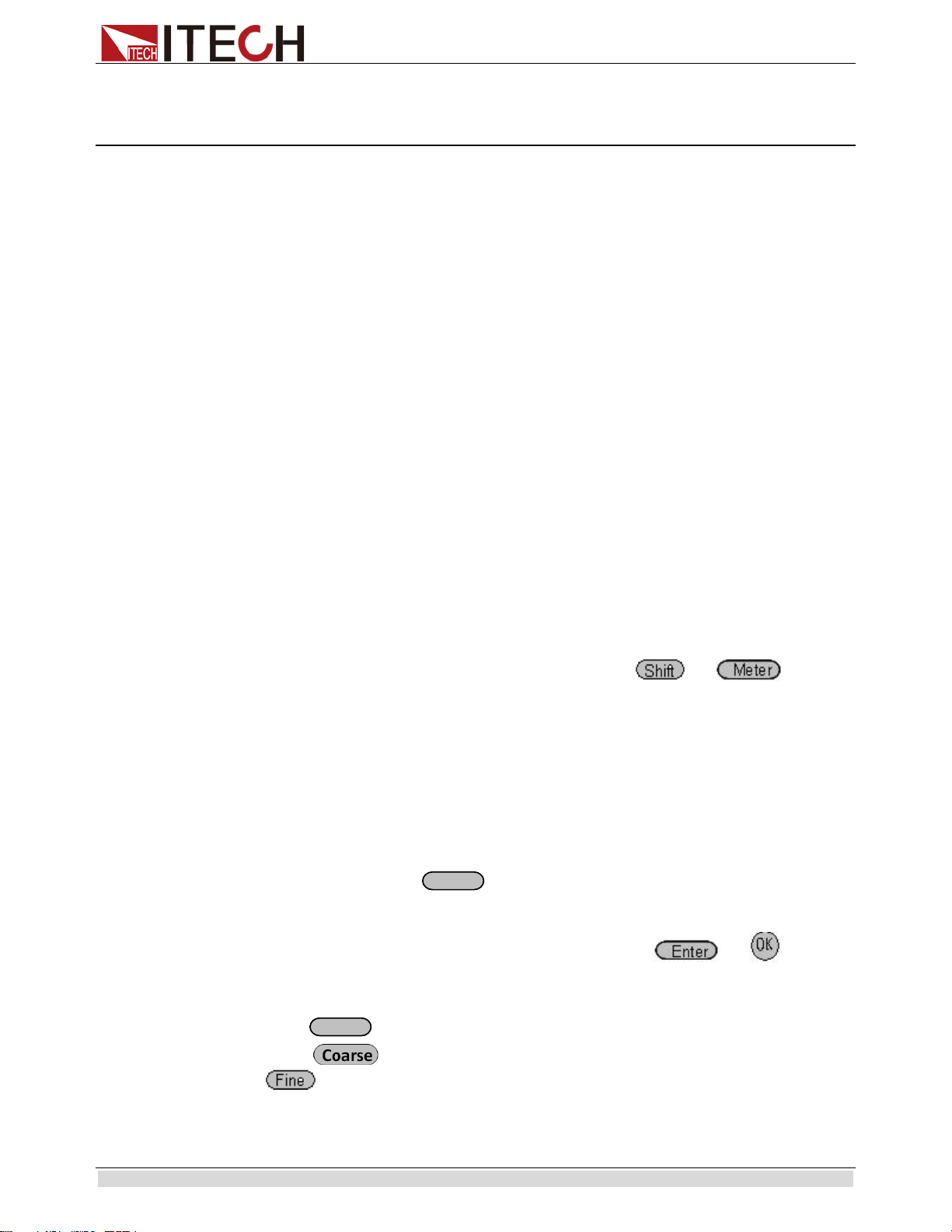
You can switch from remote mode to local mode by press + buttons.
When you turn on the unit,it will default in local mode and all buttons are available.That’s
to say,in remote mode,the front board buttons can not be used.The two operating mode can
be switched through PC.When the operating mode is changed,all the output parameters
will not be effected.
3.2 Setting voltage
The constant voltage range is from 0V to the maximum voltage value. It is very easy for
you to set the constant voltage output. You have 3 solutions to set the constant voltage
value.And when you press ,this button will be lit.
directly input through number keys
Input the value you want to set and then please press or button to
confirm.
using knob to set value
Press button
Press button(coarse adjustment,change the value in integer bit) or
button(fine adjustment,change the value in decimal bit),and then rotate the
knob to set the value
using left and right direction key to set value
V-setV-set
V-setV-set
Function and Features
Copyright ©ITECH Electronic Co., Ltd. 12
Press button
Press button(coarse adjustment,change the value in integer bit) or
button(fine adjustment,change the value in decimal bit),and then through left
and right keys to adjust the cursor location,press ▲and ▼ to set the voltage value
3.3 Setting current
The constant current range is from 0A to the maximum current value. It is very easy for
you to set the constant current output. You have 3 solutions to set the constant current
value.And when you press ,this button will be lit.
directly input through number keys
Input the value you want to set and then please press or button to
confirm.
using knob to set value
Press button
Press button (coarse adjustment,change the value in integer bit) or
button(fine adjustment,change the value in decimal bit),and then rotate the
knob to set the value
using left and right direction key to set value
Press button
Press button (coarse adjustment,change the value in integer bit) or
button(fine adjustment,change the value in decimal bit),and then through left
and right keys to adjust the cursor location,press ▲and ▼ to set the current value
3.4 On/off button
button is used to control the output state of power supply. If button
is lit,this represents output is open.And in on mode,the indicator lamp(CC/CV) will be lit.
Note:please ensure that the DC source and product under test have been connected well
before you press button.
NOTE
Make sure you have connected power supply and the test unit well, then press button. If
there is no voltage output, you should first check the voltage and current set.
3.5 Setting value/Actual value
button is used to switch the display between actual value and setting
value.When button is lit,this represents that VFD board display is actual
value.Reversely,if button is dark,VFD board display is corresponding to setting
value.
3.6 Voltage and current adjustment
Power supply’s output voltage and Electronic load’s resistance determine the output
V-setV-set
I-setI-set
I-setI-set
I-setI-set
On/Off
On/Off
On/Off
On/Off
MeterMeter
MeterMeter
MeterMeter
Function and Features
Copyright ©ITECH Electronic Co., Ltd. 13
current.Only when the actual current value is lower than the setting current value,can the
power supply works in CV mode.And the CV indicator lamp will be lit.
If the actual current value is limited by the setting current value or rated current,then
IT6512 will change to CC mode.And the CC indicator lamp will be lit.
3.7 Save operation
IT6512 can enable you to save some often used parameters in nonvolatile memory up to
100sets.So that you can recall the parameters quickly.The following ways can help you
achieve the save and recall operations:by pressing composite button +
(Save) button or through command *SAV,*RCL.Save operation should work in with
GROUP.Each GROUP can save 10sets,IT6512 includes 10 GROUP from 0-9.
Save parameters include setting voltage and setting current
Save method:
Using composite button + +number keys 1…9,and then pressing
button to save the preset value into specified memory region.
Using button +number keys 1-9,and then pressing button to recall the
saved parameters from specified memory region.
3.8 Trigger operation
Please select the trigger mode in the menu setup before you start a trigger operation.
Before you want to run a list sequence file,please provide a trigger signal by press
composited button + (trigger).During the list file running,the button
(trigger) will be alight.
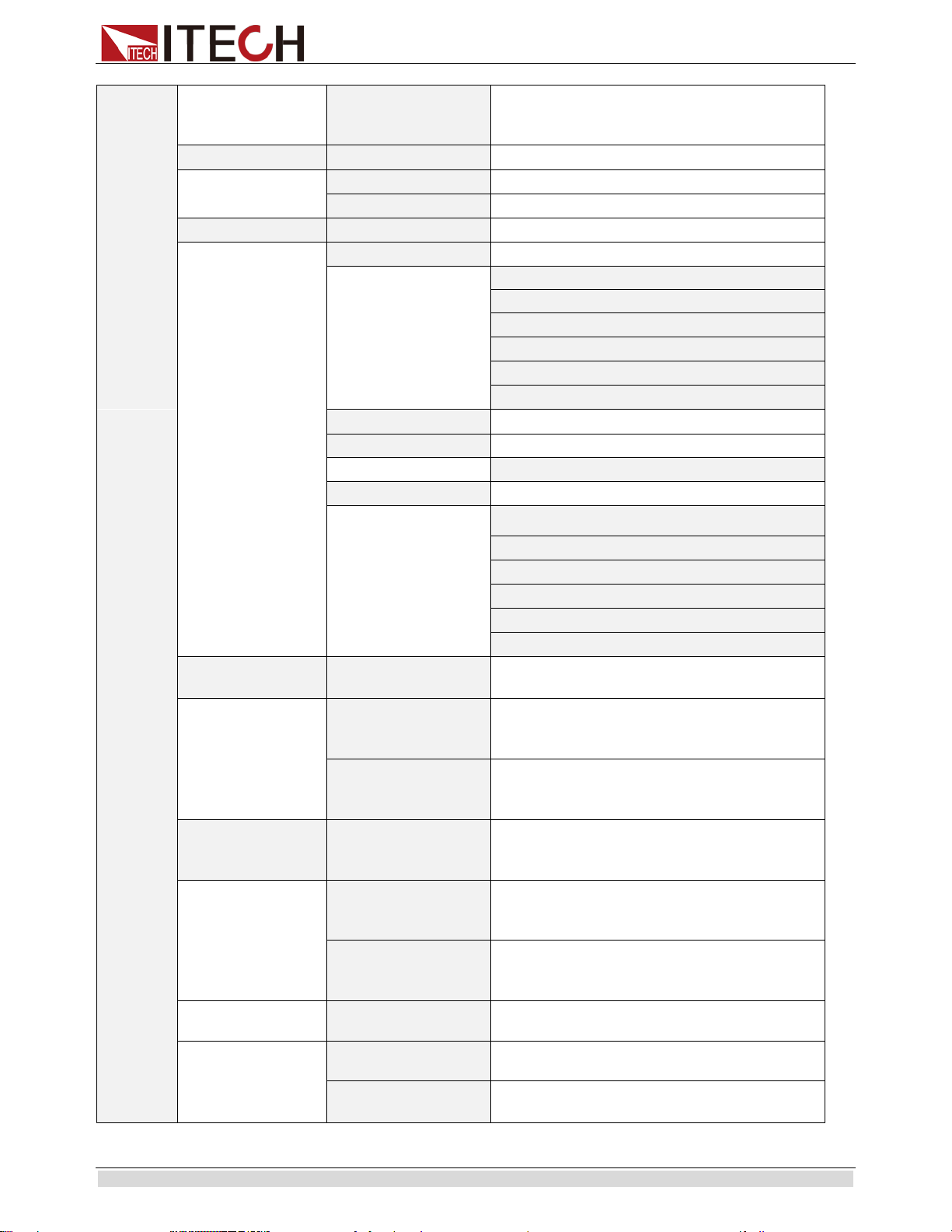
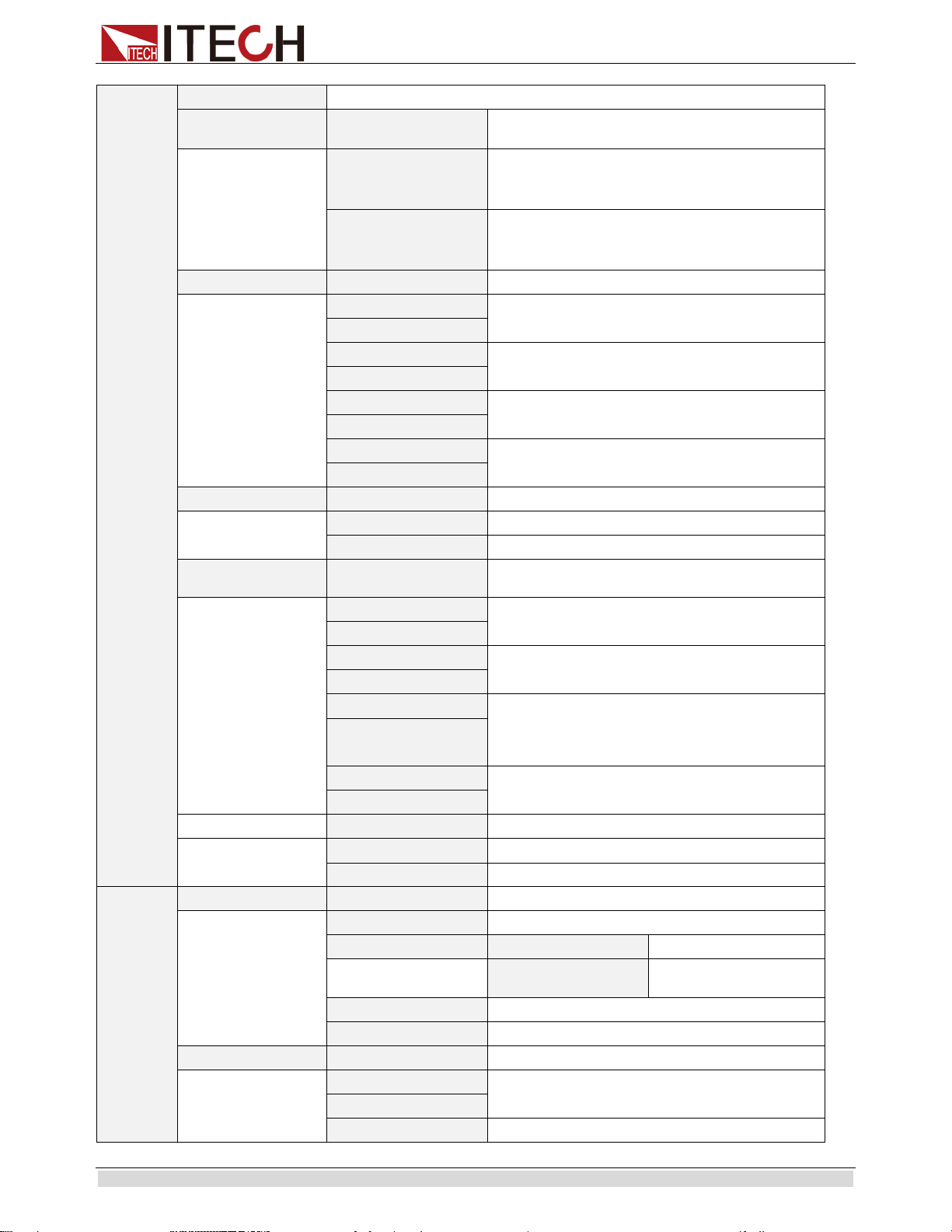
3.9 Menu Operation
Press + (Menu) to enter the menu function.View the meun in VFD,and use
right and left direction key or knob to scroll through the complete menu list as following.If
press button,you could get the selected menu function.Press back to the
previous menu selection page.
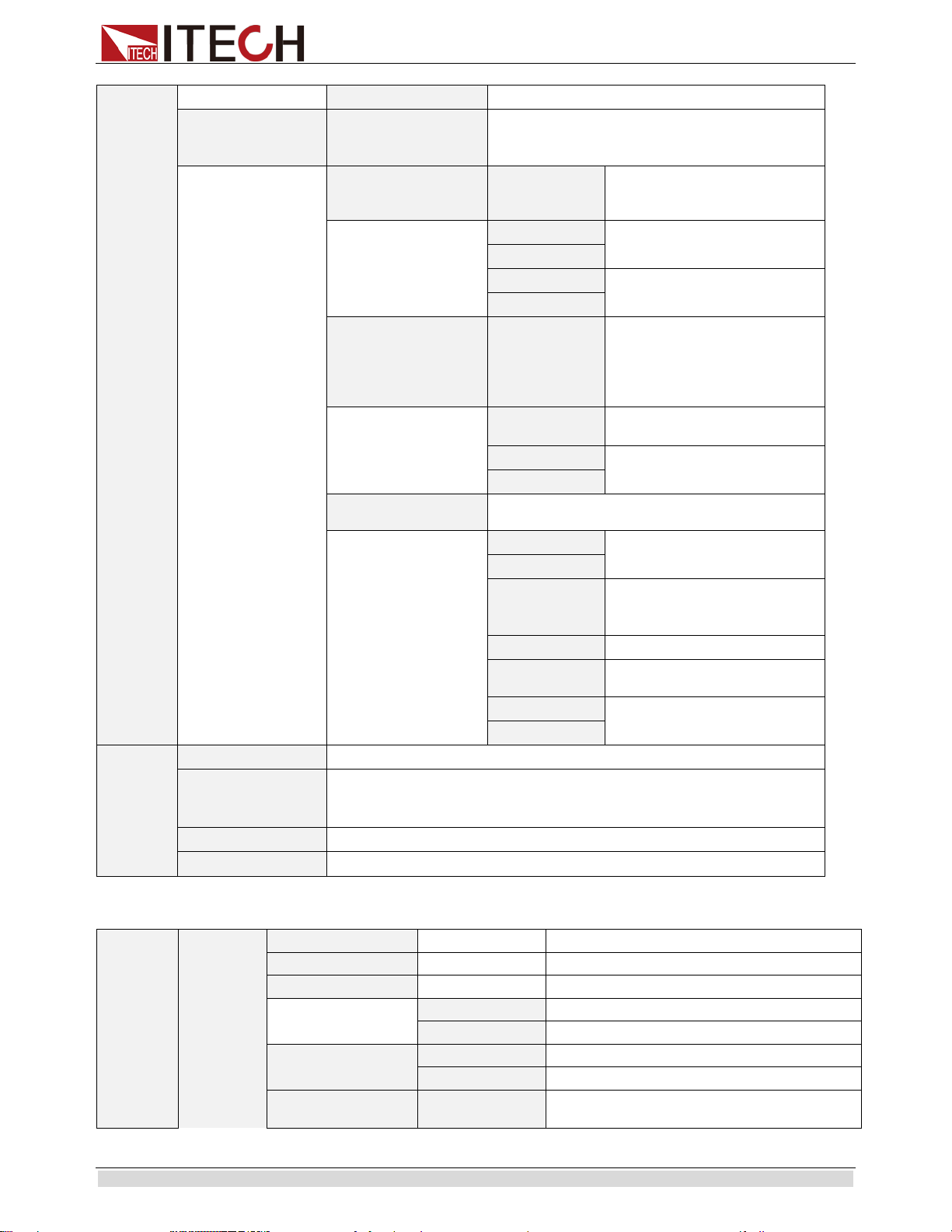
Menu of IT6512 and IT6513
SYSTEM
SYSTEM MENU
System menu
Initialize
Initialize the system
Power On
POWER-ON
PARAMENT
Set power on parameters
Rst(Def)
Restore to factory defaults
Sav0
Remain last shutdown parameters
Trigger
TRIGGER SOURCE
Set the trigger mode
Manual(Def)
Manual trigger
Bus
Bus trigger
Memory MEMORY
Work with recall button to recall 100sets saved
parameters
Recall
Recall
Enter
Recall
Enter
Enter
Enter
Enter
Function and Features
Copyright ©ITECH Electronic Co., Ltd. 14
Group = 0
0:represents 1-10sets;
1:represents:11-20sets,
by parity of reasoning
Buzzer
BUZZER STATE
Set the buzzer function
On(Def)
enable the buzzer function
Off
disable the buzzer function
Communication
COMMUNICATION
Select the communication interface
RS232(Def)
Select RS232 communication interface
4800, 8, None parity 1 , Addr...
9600 Odd parity (0~31)
19200
Even parity
38400
57600
115200
USB
Select USB communication interface
GPIB
Select GPIB communication interface
Addr= 0 set the communication address
RS485
Select RS485 communication interface
4800, 8, None parity, 1 , Addr...
9600 Odd parity (0~31)
19200 Even parity
38400
57600
115200
ReturnMeter
RETURN METER
Enables automatic delay to switch display
from setting to measured value (meter).
Off(Def)
Automatically Return Meter function
disabled.
Delay
The function of Automatically return meter
after 5s enabled.
P-Out
P-On Output
Set the output status of power supply power
on
Off(Def)
After power on, the power supply output
status will be Off.
Last
The output status of power supply will be
same as last output status before power off.
Sense-Protect Sense Protect
Enable sense protection function
Enable
Disable sense protection function
Disable(Def)
Enables dummy load to increase speed of
voltage fall time.
Function and Features
Copyright ©ITECH Electronic Co., Ltd. 15
CONFIG
CONFIG MENU
Configuration Menu
Load
Load Setup
Enables the dummy load.
Off
Automatically Return Meter function
disabled.
On
The function of Automatically return meter
after 5s enabled.
Ext-Ctrl Ext-Ctrl Setup
Ext-Ctrl mode and related parameter setting
10v-M
10V/5V monitoring mode options
5v-M
10V/10K-P
10V/10K or 5V/5K setting mode selection 5V/5K-P
V-P
Voltage(resistance)setting mode selection
R-P
Off
Disable this function
On
Limit
Voltage Range
Set the range of voltage.
Vmin= 1.000V Minimum voltage setting
Vmax= 80.000V
Maximum voltage setting
Online Online Setup
Online
connection mode
Parallel
Parallel/Series connection, press up/down key to
select.
Series
Master
Act as master/slave, press up/down key to select. Slave
Mount…
When as master, it will display “Mount…” (need
to set the count of slave) ; when as slave, it will
display “Addr…”(need to set the address of
instrument, range is 0 to 31)
Addr…
Off
Disable/Enable this function
On
OCP
OCP Setup
Set the status of OCP
Off
Disable over current protection function
On
Enable over current protection function
Func.
LIST
LIST MENU
List Menu
Off
Quit list mode
Recall
RECALL LIST
Recall the list file
Recall List File= 1
Select the list file
number
EditList
Edit list operation
EditSeq
Edit sequence operation
DIN40839
DIN40839
Evaluation of automobile starting waveform
12V
Select the 12V or 24V system
24V
Off
Enable/Disable DIN40839 function
Function and Features
Copyright ©ITECH Electronic Co., Ltd. 16
On
ISO16750-2
ISO16750-2 profile
simulate the waveform to verify the
anti-interference performance of the automotive
electronics’ products.
Short voltage drop
Short voltage
drop
This test simulates the effect
when a conventional fuse
element melts in another circuit
12V
Select 12V or 24V waveform
24V
Off
Enable or Disable the Short
voltage drop function.
On
Profile for the reset
test
Profile for the
reset test
This test verifies the reset
behaviour of the DUT at
different voltage drops. This test
is applicable to equipment
with reset function
Usmin…
The minmum supply voltage
Usmin
Off
Enable/Disable this function
On
Starting profile
This test verifies the behaviour of a DUT during
and after cranking.
12V
Select 12V or 24V test system
24V
1
Set the
levels/voltages/duration of
starting profile
Repeat
Set the cycle times(1-100)
Delay
Set the delay time
(0.01s-100.00s)
Off
Enable/Disable this function
On
INFO
Power Info…
Product information
Model:IT65XX
Ver:1.00-1.00
SN:0123456789AF
model, software version, SN
No Information
Reserved for calibration information
Exit Menu
Quit menu operation
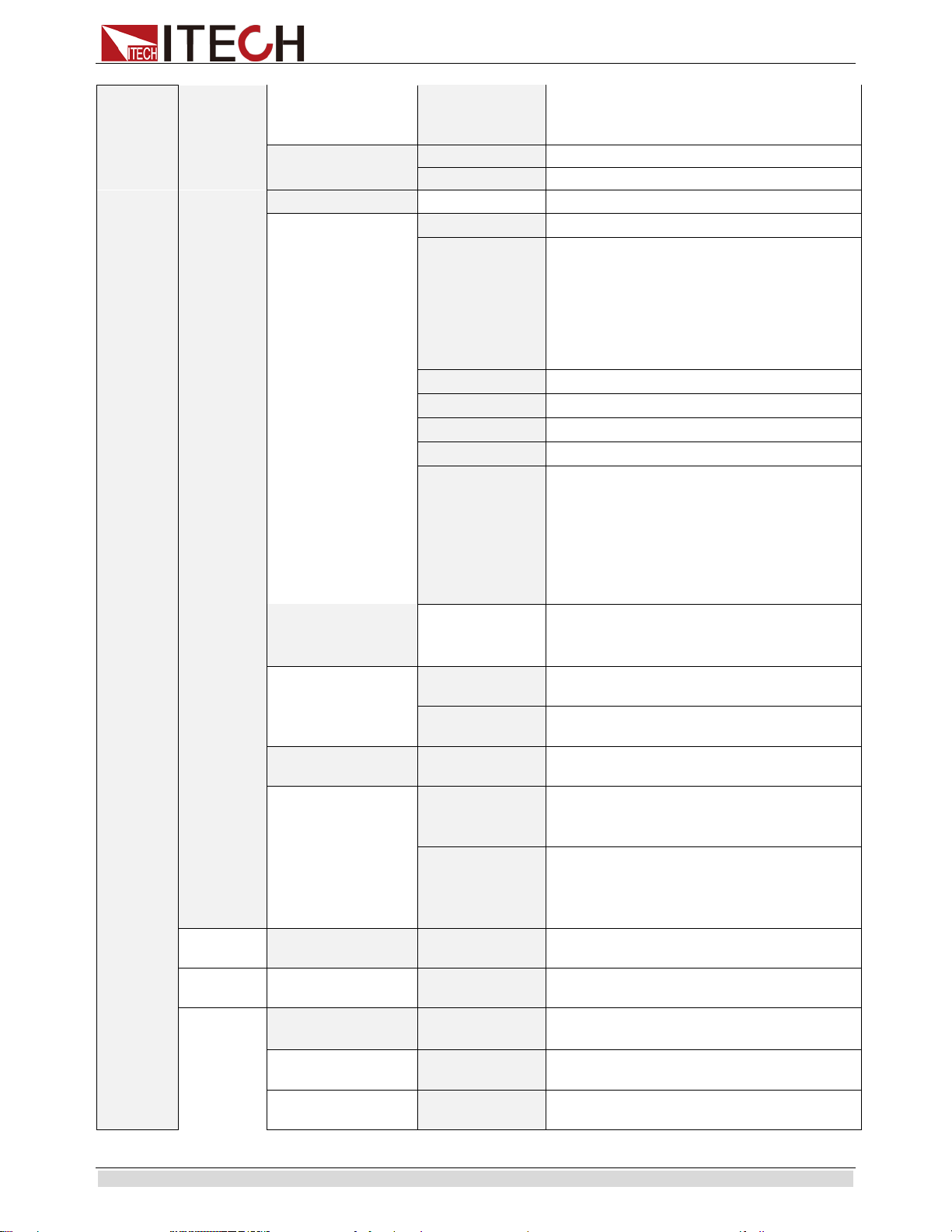
IT6512A/IT6513A/IT6502D
DEVICE
MENU
SYSTEM
System menu
Initialize
Initialize the system
Power On
Set power on parameters
Rst(Def)
Restore to factory defaults
Sav0
Remian last shutdown parameters
Trigger
Manual(Def)
Manual trigger
Bus
Bus trigger
Memory
Memory
Work with recall button to recall 100sets
saved parameters
Function and Features
Copyright ©ITECH Electronic Co., Ltd. 17
Group = 0
0:represents 1-10sets;
1:represents:11-20sets,
by parity of reasoning
Buzzer
On(Def)
enable the buzzer function
Off
disable the buzzer function
Communication
Select the communication interface
RS232(Def)
Select RS232 communication interface
4800, 8, None parity 1 , Addr...
9600 Odd parity (0~31)
19200 Even parity
38400
57600
115200
USB
Select USB communication interface
GPIB
Select GPIB communication interface
Addr= 0 set the communication address
RS485
Select RS485 communication interface
4800, 8, None parity, 1 , Addr...
9600 Odd parity (0~31)
19200 Even parity
38400
57600
115200
ReturnMeter
Enables automatic delay to switch
display from setting to measured value
(meter).
OFF
Return Meter function disabled.
Delay
Enables return meter function
P-Out
P-On output
Power whether power supply was on
Off(def)
After power on,the instrument will be in
the off state.
Last
If output was on prior to turning the
power off,the ON state will be resumed
after power on.
Sense-Protect
Enable(Def)
Enable sense protection function
Disable
Disable sense protection function
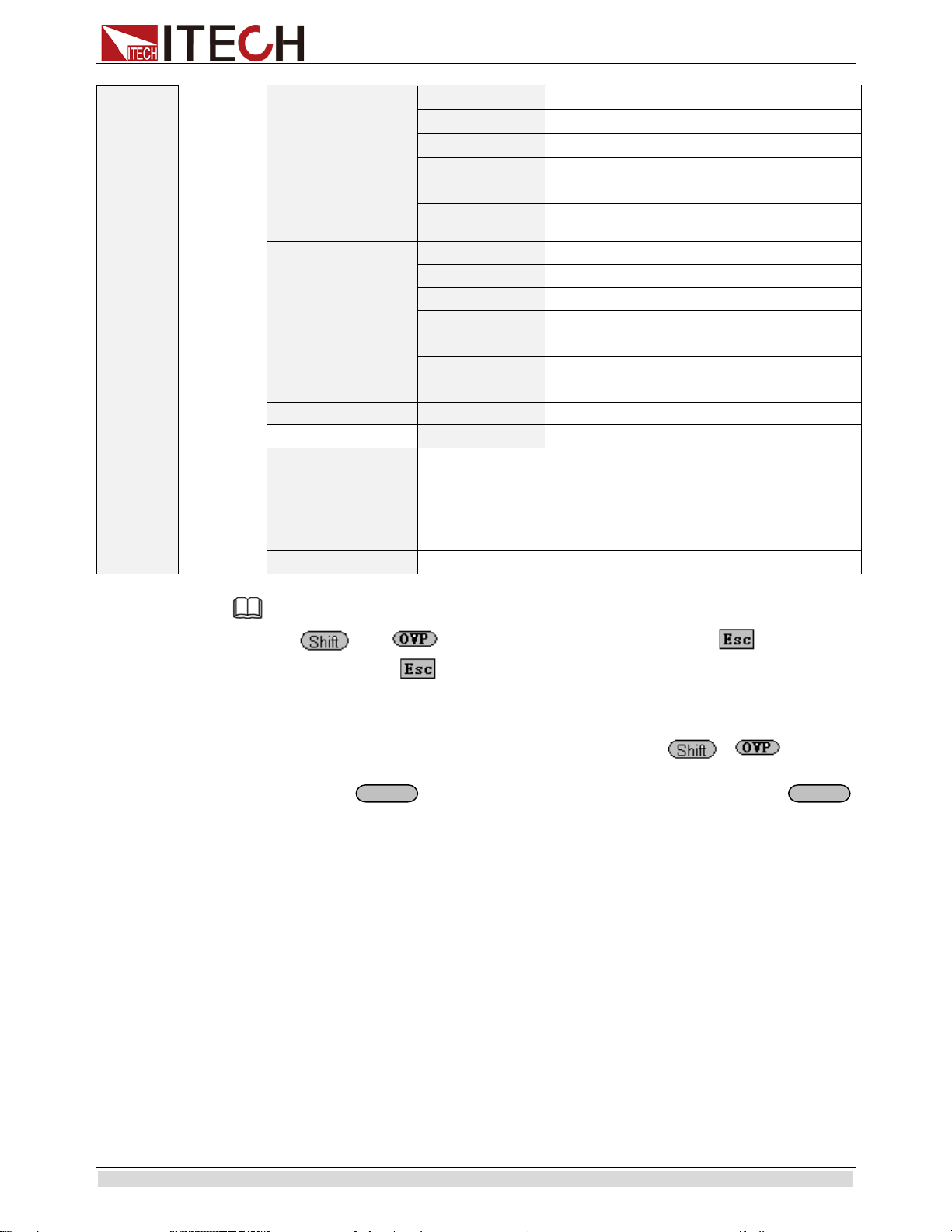
Config
Load Load setup
Enables dummy load to increase speed of
voltage fall time.
Off
Disables the dummy load (default).
On
Enables the dummy load.
Function and Features
Copyright ©ITECH Electronic Co., Ltd. 18
Ext-Ctrl mode and
related parameter
setting
10v-M
10V/5V monitoring mode options
10V/10K-P
10V/10K or 5V/5K setting mode selection
V-P
Voltage(resistance)setting mode selection
Off
Disable this function
Limit
Vmin= 1.000V
Minmum voltage setting
Vmax=
80.000V
Maximum voltage setting
Online
connection mode
Parallel
Parallel connection
Series
Series connection
Master
Act as a master
Slave
Act as a slave
Addr…
Address
Off
Disable this function
On
Enable this function
OCP
Off
Disable over current protection function
On
Enable over current protection function
INFO
informati
on about
this
machine
Model:IT6512
Ver:1.00-1.00
SN:0123456789AF
model,software version,SN
No Information
Reserved for calibration information
Exit Menu
Quit menu operation
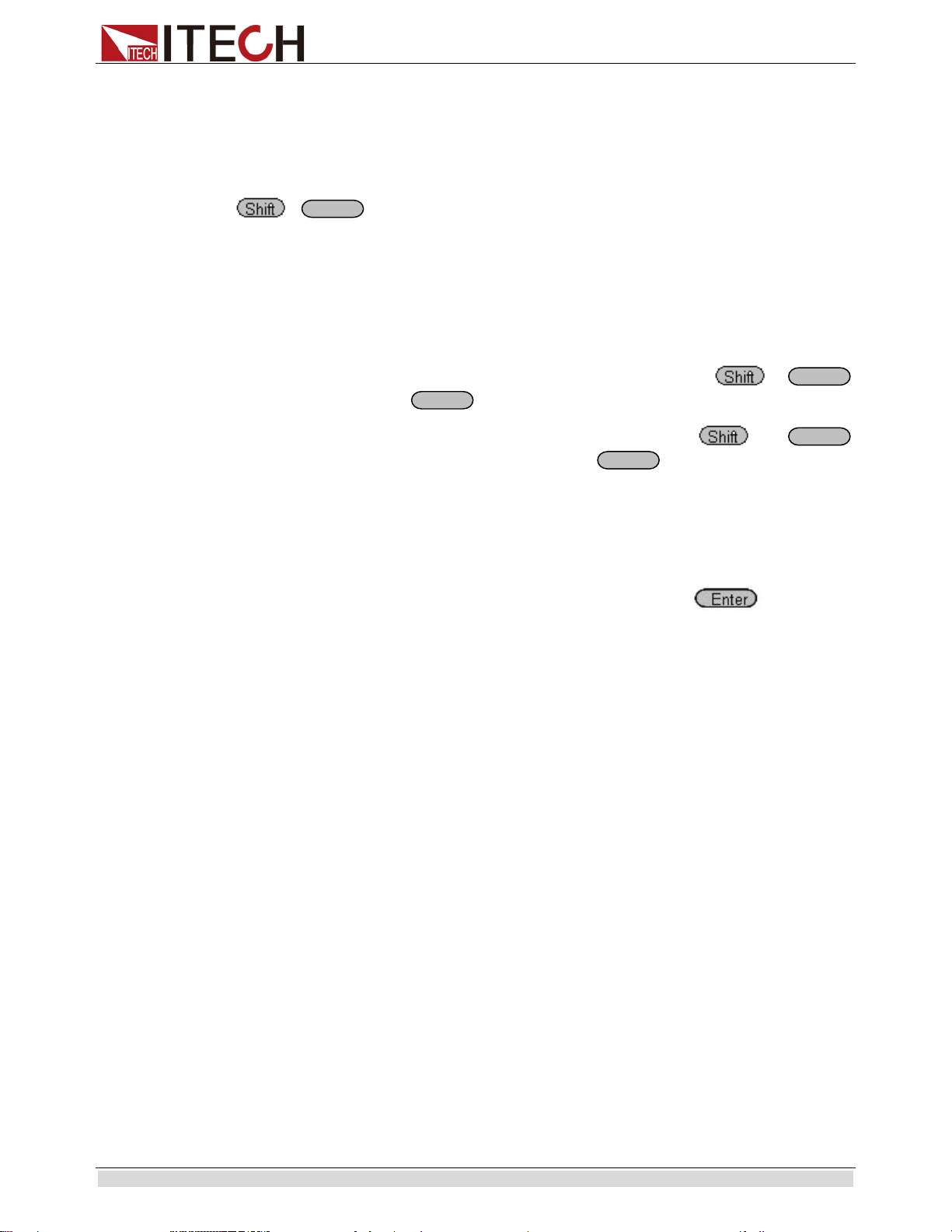
Note
press + (Menu) to view the menu items,press to quit menu
operation.Besides,press button can enable you quit the function operation state.
Output voltage set (>Vmax,Vmin)
The voltage can be set between 0A and rated voltage.Pressing + (Menu) to
entry into Config item,and then using knob or direction keys to select Vmin option under
Limit item.Press button,then set the minmum voltage.After pressing
button,you could set the maximum voltage.After the setting operation,the voltage can only
be adjusted within the limitation of Vmin and Vmax.
Default Vmax value is the rated voltage,and Vmin is 0V.
Communication Set(>Communication )
Under this item,you can set the concrete communication mode.This unit has provided
multiple communication interfaces:RS232/USB/GPIB/RS485.Of which,the GPIB are
addressable from 0-31.The baudrate options of RS232 are
4800,9600,19200,38400,57600,11.52K.Data bit is 8bits.Parity bit has three
options:NONE,ODD,EVEN.Please ensure the configuration consistency between our
instrunment and PC,so that you could have a successful communication.
Key Sound Set(>Buzzer)
This item can set the buzzer state.On option indicates that when you push buttons,the
buzzer will sound.OFF option indicates that the buzzer function is disabled.Factory
Enter
Enter
Function and Features
Copyright ©ITECH Electronic Co., Ltd. 19
default is On option.
Trigger Mode (>Trigger)
This item is used to set the trigger source,to be Manual tigger mode or Bus trigger mode.It
often be used to provide a trigger signal for a list operation.In Manual option,press
+ (Trigger) could generate a trigger signal.If in BUS option,this indicates
in BUS trigger mode.Factory default is Manual option.
Save Group Operation (Memory)
Power source can save 100sets parameters in nonvolatile memory by the save group
setting.This operation provides the customer with a convenient and quick save/recall using
condition.
GRP0:save(recall) power source parameters in 0-9 sets.Press +
(Save)+0-9 numeric keys( +0-9 numeric keys to recall the parameters)
GRP1:save(recall) parameters in 10
th
-19
th
sets.Press +
(save)+numbers1-9 to save the parameters( +numbers1-9 to recall
parameters).Under this condition,number “1” represents to save or recall the 10
th
parameters.Number “2” represents to save or recall the eleventh parameter.GRP2-GRP9
can be understanded in the same manner.
Initialize setting (> Initialize )
This item can enable all setup of the menu to factory default.Press to confirm.
Configure Power-On State(>Power-on)
The initial power-On state of the power supply can be configured by following the steps
below:
1. From the SYSTEM menu, select Power-On and press enter.
2. There are two options:
Rst(Def) – Factory Default.
Sav0 – Settings before last power up.
3. Select the settings you want during power up, and press enter to save changes.
4. To exit the menu at any time, press esc button twice.
Return to Meter state(> Return Meter)
This option allows users to enable an internal fixed timer delay (5 seconds) for the power
supply to automatically switch from setting display to measured display. When enabled, if
the power supply output state is ON (enabled) and if the display shows setting voltage and
current, it will automatically switch to measured voltage and current display after 5
seconds. The backlight of the Meter button will also be lit. In this state, pushing Meter
button again to toggle back to setting display will reset the 5-second timer again before the
supply changes back to measured display.
Load Setup Option (<Load)
The power supply has an internal dummy load that can be enabled to increase the speed of
Enter
Recall
Recall
Recall
Recall
Function and Features
Copyright ©ITECH Electronic Co., Ltd. 20
the voltage fall time for high speed test applications. The effectiveness of this function is
dependent on the DUT (device under test) and may or may not be useful for some
applications.
This feature should only be used with caution, as it is not designed for all applications.
DO NOT enable this function for applications such as connecting devices for battery
charging or powering electric motors. All other applications that may behave similarly as a
load should NOT use this function. This function is disabled by default.
List Operation(>List )
Please preset the trigger mode before you run a list file.
Press + (Menu) to enter the menu setup.Then press up and down buttons
to select item >System,press to confirm.After that,press up and down buttons to
select >Trigger item to set the trigger mode,and press enter to confirm.
Operation steps
1. Press + (Menu) to enter the menu setup
2. VFD display SYSTEM,press to select LIST,press to confirm
3. VFD display OFF,press to select EDITLIST item,press to confirm
4. VFD display File Name xx---,input the sequence file name(1---10) to be edited
5. VFD display List Power = xxxxxW----,input the maximum power value
6. VFD display List Repeat = xxxxx----,input the repeat running times(1---65535) of
LIST file
7. VFD display Active Seq:0987654321 ----select the sequence name to be linked in
one LIST file.After you select the sequence number,then according number will
change to “Y”
8. VFD display Seq n Repeat:xxxxx----,set the repeat runing times of the linked
sequence n(1---65535)
9. Save list to File?----,press or to finish the edit operation
Sequence Operation(>Seq )
Please preset the trigger mode before you edit a sequence file
Press + (Menu) to enter the menu setup.Then press up and down buttons
to select item >System,press to confirm.After that,press up and down buttons to
select >Trigger item to set the trigger mode,and press enter to confirm.
You could edit various kinds of sequence with variable ouput by setting up every step’s
parameters.The parameters includes step-voltage,step-current,step-time and time
unit.Besides the fomer parameters,you should also edit whether continue to the next
step,repeat times and whether to save the file.After you finish the sequence file edition,if
the instrument receives a trigger signal,the sequence file will begin to run until finishing
the sequence, or receive another trigger signal.The following will take a three sequence
file to be an example:
Operation Steps:
Enter
Enter
Enter
Enter
Function and Features
Copyright ©ITECH Electronic Co., Ltd. 21
1. Press + (Menu) to enter the menu setup
2. VFD display SYSTEM,press to select LIST,press to confirm
3. VFD display OFF,press to select EDITSeq,press to confirm.
4. VFD display Seq Name: xx,input the sequence name to be edited (1-10)
5. VFD display Active Step:0987654321, activate the sequence steps,when step is
activated, according number will change to “Y”(for example:select step 1)
6. VFD display Seq Step n Voltage = xxxxxV,set the voltage of activated sequence
step(for example:3V)
7. VFD display Seq Seq n Current = xxxxxA,set the current of activated sequence
step(for example:1A)
8. VFD display Seq Step n Width = xxxxxms,set the duration of time of the activated
step(0.1s--24h),(for example:3000ms)
9. VFD display Seq Step n Slope= xxxxxms.Set the voltage rising time of the activated
step(0-65535),for example:30ms
10. VFD display Active Step:0987654321,input step number,for example:2
11. VFD display Seq Step n Voltage= xxxxxV,set the voltage of activated sequence
step(for example:5V)
12. VFD display Seq Step n Current= xxxxxA, set the current of activated sequence step
n(for example:4A)
13. VFD display Seq Step n Width= xxxxxms.for example 3000ms
14. VFD display Seq Step n Slope= xxxxxms,for example 30ms
15. VFD display Active Step:0987654321,for example 3
16. VFD display Seq Step n Voltage= xxxxxV,for example 7V
17. VFD display Seq Step n Current= xxxxxA,for example 8A
18. VFD display Seq Step n Width= xxxxxms,for example 3000ms
19. VFD display Seq Step n Slope= xxxxxms,for example 30ms
20. VFD display Save Seq To File?----Press or button to finish the edition
Trigger the sequence file
:
1. Press + (Menu) to enter the menu setup
2. VFD display SYSTEM,press to select LIST,press to confirm
3. VFD display OFF,press to select CALLSeq,press to confirm
4. Press + (Trigger) button to give a trigger signal
Enter
Enter
Enter
Enter
Function and Features
Copyright ©ITECH Electronic Co., Ltd. 22
DIN40839 (Specialized function for model IT6512/6513)
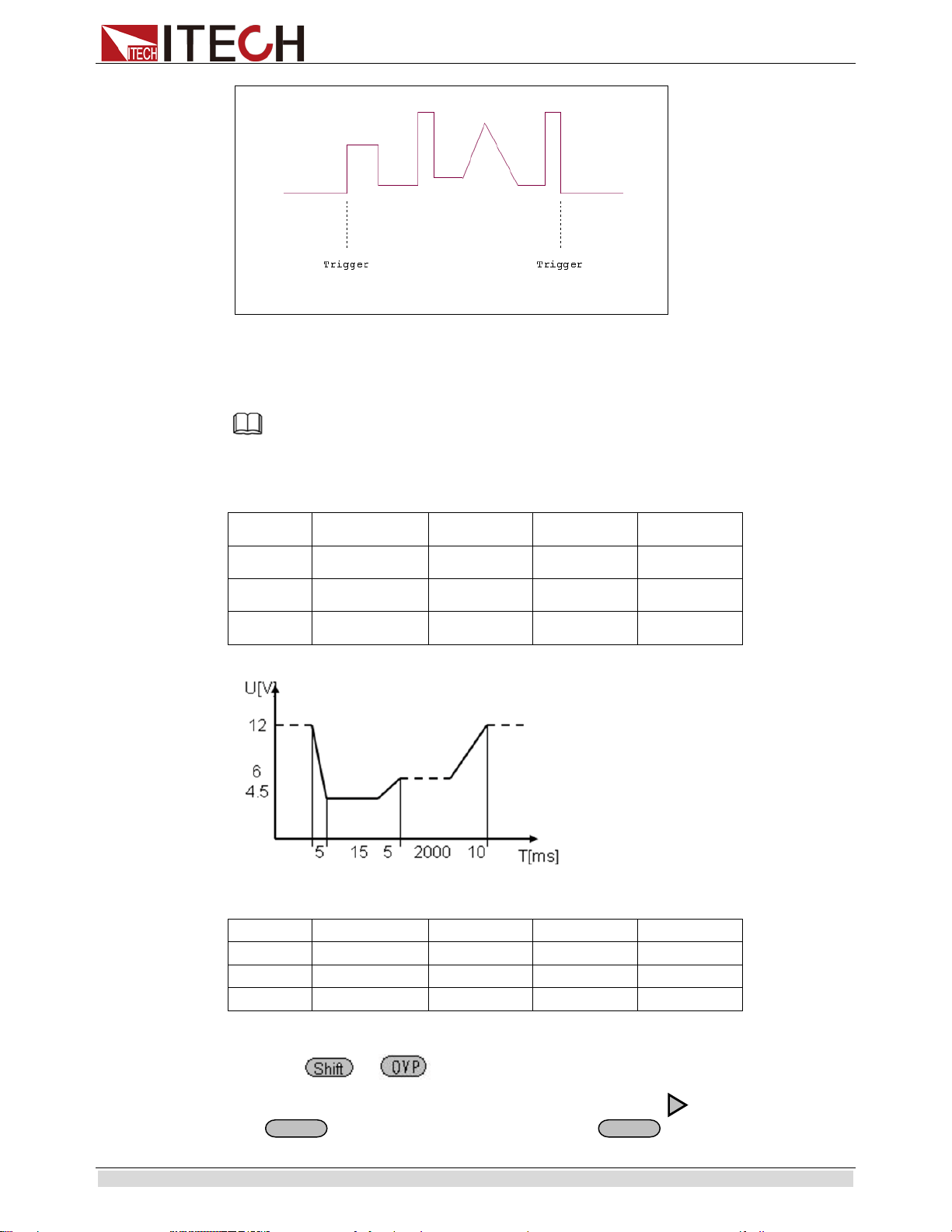
IT6512/IT6513 models have built in DIN40839 waveform.This test verifies the behaviour
of a DUT during and after cranking.
Note
When recall the DIN40839 waveform, user need to enable the internal dummy load function at first. To
ensure the DIN40839 waveform is excellent.
DIN40839 for 12V system:
Step
Voltage (V)
Current(A)
Width(mS)
Slope(mS)
1
4.5
60
15
5
2
6
60
2000
5
3
12
60
10
DIN40839 for 24V system:
Steps
Voltage (V)
Current(A)
Width(mS)
Slope(mS)
1
8V
60
50
10
2
12
60
2000
5
3
24V
60
10
How to recall “DIN40839 waveform” from menu (take 12V system as a example):
1. Press + (Menu) to enter the menu operation
2. VFD displays SYSTEM CONFIG FUNC. INFO, Press to select FUNC. Press
to confirm,then select DIN40839,press to confirm
Enter
Enter
Function and Features
Copyright ©ITECH Electronic Co., Ltd. 23
3. Press or to select 12V system,press to confirm.
4. Press to select Off/On,press or to select On,press to confirm.The
Trig indicator lamp will be lit and display on the VFD.
5. Press
to quit menu operation
6. VFD will display DIN40839 in the lower right corner
7. Press ,turn on the output
8. press
+ (Trigger)to generate a trigger signal.The DC source will
output DIN40839 waveform.
ISO16750-2 (Specialized function for model IT6512/6513)
IT6512/IT6513 models has built-in ISO16720-2 waveforms.To verify the anti-interference
performance of the automotive electronics’ products.
1* Short voltage drop
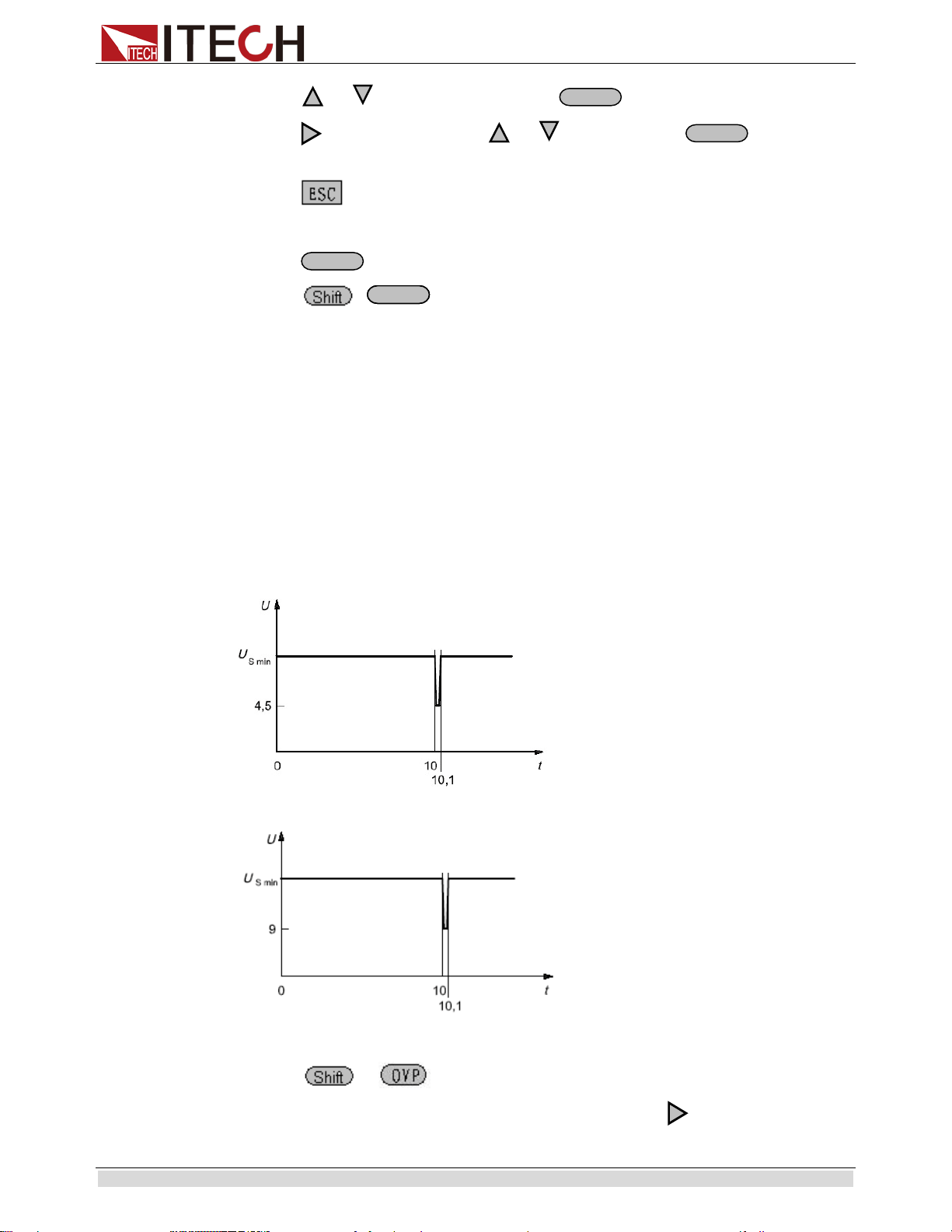
This test simulates the effect when a conventional fuse element melts in another circuit.
Apply the test pulse (see Figures below) simultaneously to all relevant inputs (connections)
of the DUT. The rise time and fall time shall be not more than 10 ms.
12V system:
24V system:
How to recall “Short voltage drop” waveform from menu (take 12V system as a example):
1. Press + (Menu) to enter the menu operation
2. VFD displays SYSTEM CONFIG FUNC. INFO, Press to select FUNC. Press
Enter
Enter
On/Off
EnterEnter
Function and Features
Copyright ©ITECH Electronic Co., Ltd. 24
to confirm,then select ISO16750-2,press to confirm
3. Press or to select Short voltage drop,press to confirm.
4. Press or to select 12V system,press to confirm.
5. Press to select Off/On,press or to select On,press to confirm.The
Trig indicating lamp will be lit and display on the VFD.
6. Press
to quit menu operation
7. VFD will display Short voltage drop in the lower right corner
8. Press ,turn on the output
9. press
+ (Trigger)to generate a trigger signal.The DC source will
output Short voltage drop waveform.
Note
Please make sure the trigger source is selected in MANUAL item in above operations(refer to step
9th).And user need to turn on the internal dummy load to speed up the falling time during
ISO16750-2/DIN40839 waveform operations.
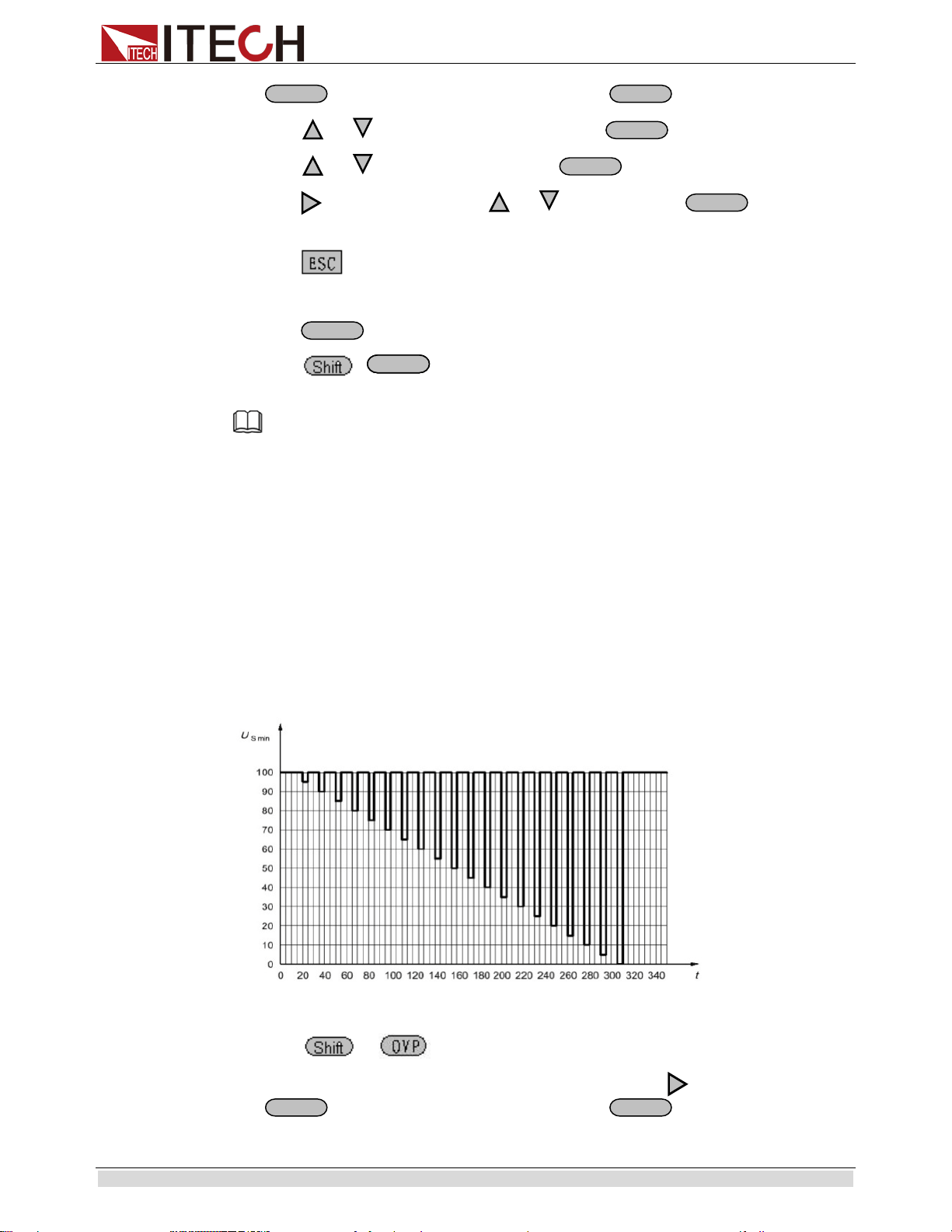
2* Profile for the reset test
This test verifies the reset behaviour of the DUT at different voltage drops. This test is
applicable to equipment with reset function, e.g. equipment containing microcontroller.
Apply the test pulse simultaneously in figure below to all relevant inputs (connections)
and check the reset behaviour of the DUT.Decrease the supply voltage by 5 % from the
minimum supply voltage, USmin, to 0,95USmin. Hold this voltage for 5 s. Raise the
voltage to USmin. Hold USmin for at least 10 s and perform a functional test. Then
decrease the voltage to 0,9USmin. Continue with steps of 5 % of USmin, as shown in
Figure 6, until the lower value has reached 0 V. Then raise the voltage to USmin again.
How to recall “Profile for the reset test” waveform from menu (take 12V system as a example):
1. Press + (Menu) to enter the menu operation
2. VFD displays SYSTEM CONFIG FUNC. INFO, Press to select FUNC. Press
to confirm,then select ISO16750-2,press to confirm
Enter
Enter
Enter
Enter
Enter
On/Off
EnterEnter
Enter
Enter
Function and Features
Copyright ©ITECH Electronic Co., Ltd. 25
3. Press or to select Profile for the reset test,press to confirm.
4. VFD display Usmin…,press to confirm.VFD will display Usmin=
12.000V,user can select the Usmin level.
5. Press to select Off/On,press or to select On,press to confirm.The
Trig indicating lamp will be lit and display on the VFD.
6. Press
to quit menu operation
7. VFD will display Profile for the reset in the lower right corner
8. Press ,turn on the output
9. press
+ (Trigger)to generate a trigger signal.The DC source will
output Short voltage drop waveform.
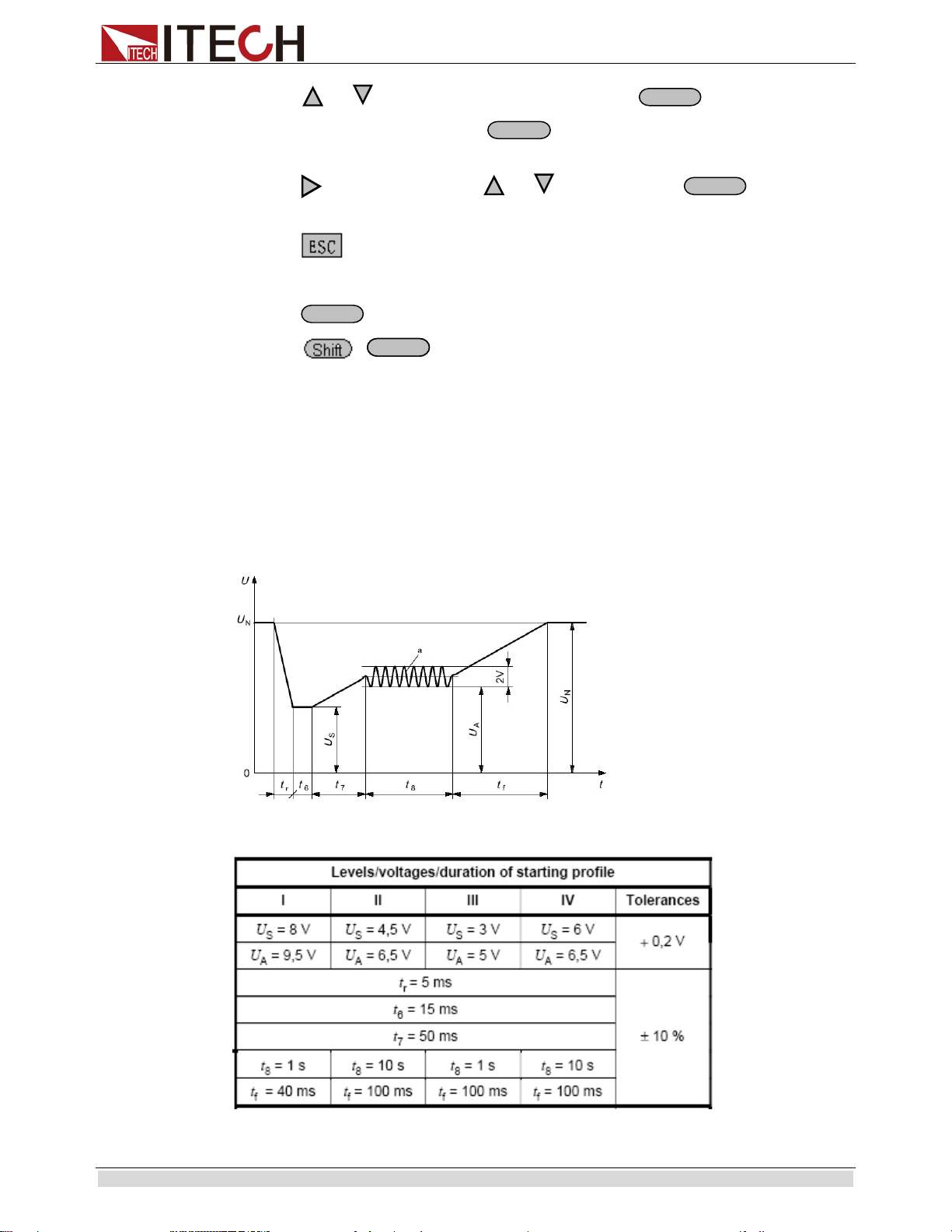
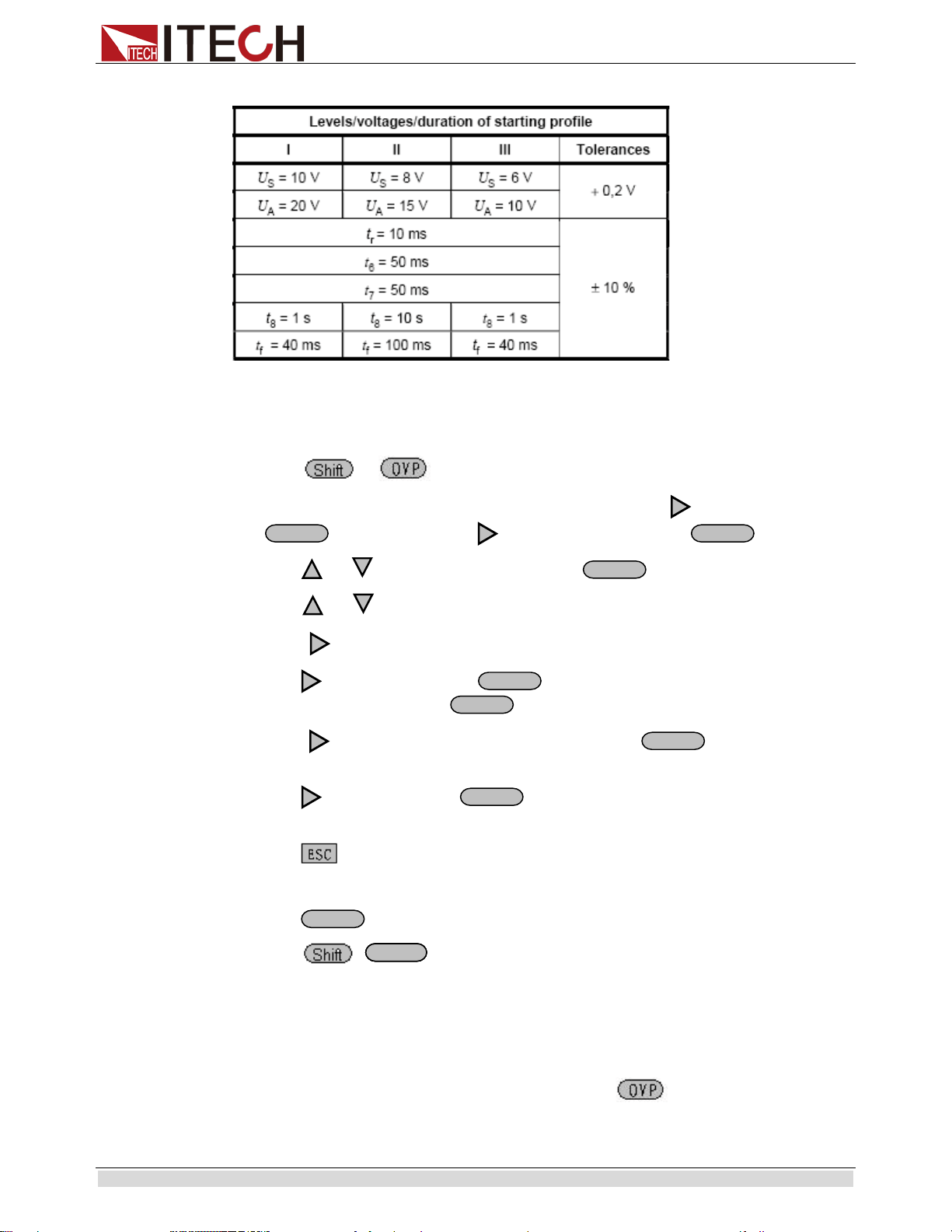
3* Starting profile
This test verifies the behaviour of a DUT during and after cranking.
Apply the starting profile ten times, as specified in Figure and Table below simultaneously
to all relevant inputs (connections) of the DUT. A break of 1 s to 2 s between the starting
cycles is recommended.One or more profiles as described in Tables 3 and 4 shall be
chosen in accordance with the application.
af= 2HZ
Standards for 12V system:
Enter
Enter
Enter
On/Off
EnterEnter
Function and Features
Copyright ©ITECH Electronic Co., Ltd. 26
Standards for 24V system:
How to recall “Starting Profile” waveform from menu (take 12V system as a example):
1. Press + (Menu) to enter the menu operations
2. VFD displays SYSTEM CONFIG FUNC. INFO,Press to select FUNC.Press
to confirm,then press to select ISO16750-2,press to confirm.
3. press or to select Starting profile,press to confirm.
4. Press or to select 12V/24V;
5. Press to select level (12V: 1-4) / (24V:1-3) ;
6. Press to select Repeat,press to confirm,”Count= 1” item is used to set the
cycle times (1-100) ,press to confirm.
7. Press to select Delay,set delay time,press to confirm,Delay=
0.01.Adjustable delay time range is 0.01s-100.00s.
8. Press to select ON,press to confirm.The Trig indicator lamp will be lit
and display on the VFD.
9. Press
to quit menu operations.
10. VFD will display Starting profile in the lower right corner.
11. Press button to turn on the output.
12. Press
+ (Trigger)to generate a trigger signal.The Starting profile will
output as standard.
3.10 Protection Function
IT6512 has provided with OVP,OCP,OPP,OTP functions.
You could set the over voltage protection value by press button.Many reasons could
cause a over voltage error.For example, caused by internal defect,misoperation,or too high
Enter
Enter
Enter
Enter
Enter
Enter
Enter
On/Off
EnterEnter
Function and Features
Copyright ©ITECH Electronic Co., Ltd. 27
external voltage.Once the power supply is over voltage protected,will the output be shut
down at once,and “OVP” indicator lamp will be lit.
One superior function of IT6512 is that it can enable you to set the protection delay
time(Tovpdly) within the range of 1~600ms.
Please avoid inputing a external voltage higher than 120% rated value of IT6512,or the
instrument will be damaged.
When the power source is in OVP state,you should check the external cause firstly.When
the external factors are excluded,please press ON/OFF button.Then the unit could have a
output voltage again.If in remote control mode,you should clear the OVP state,then could
you open the output by OUTP ON command.
About OPP:IT6512 will be over power protected if the actual power is higher than Pmax
which we set in the menu.
3.11 Rising time and Fall time setup
Press + (Slope),VFD will display Trise = xxxms.Set the rising time
through numeric keys,knob or ▲▼buttons.Press or button to
confirm,simultaneously it will enter the fall time setup page Tfall= xxxms.Setting way are
the same with rising time.The time range is 1ms---24h.
3.12 Key Lock Function
+ (Lock) button can enable you to lock the front board buttons,then VFD will
display “*”.In keylock mode,all buttons will not work except ON/OFF,Meter and
buttons.Re-press + (Lock) button will release the keylock
function.
3.13 Connection and Setup
Connecting multiple power supplies in parallel or in series can increase the overall current
output or voltage output respectively. For this configuration to function properly, there are
several items that must be set up first. Follow the instructions in this section carefully for
setup.
Connection
Determine the total number of power supplies that you want to connect in parallel or series.
Disable the output of the power supplies and power OFF the power supplies.
For safety, always turn OFF the power supplies before connecting or
disconnecting wires to the output terminal.
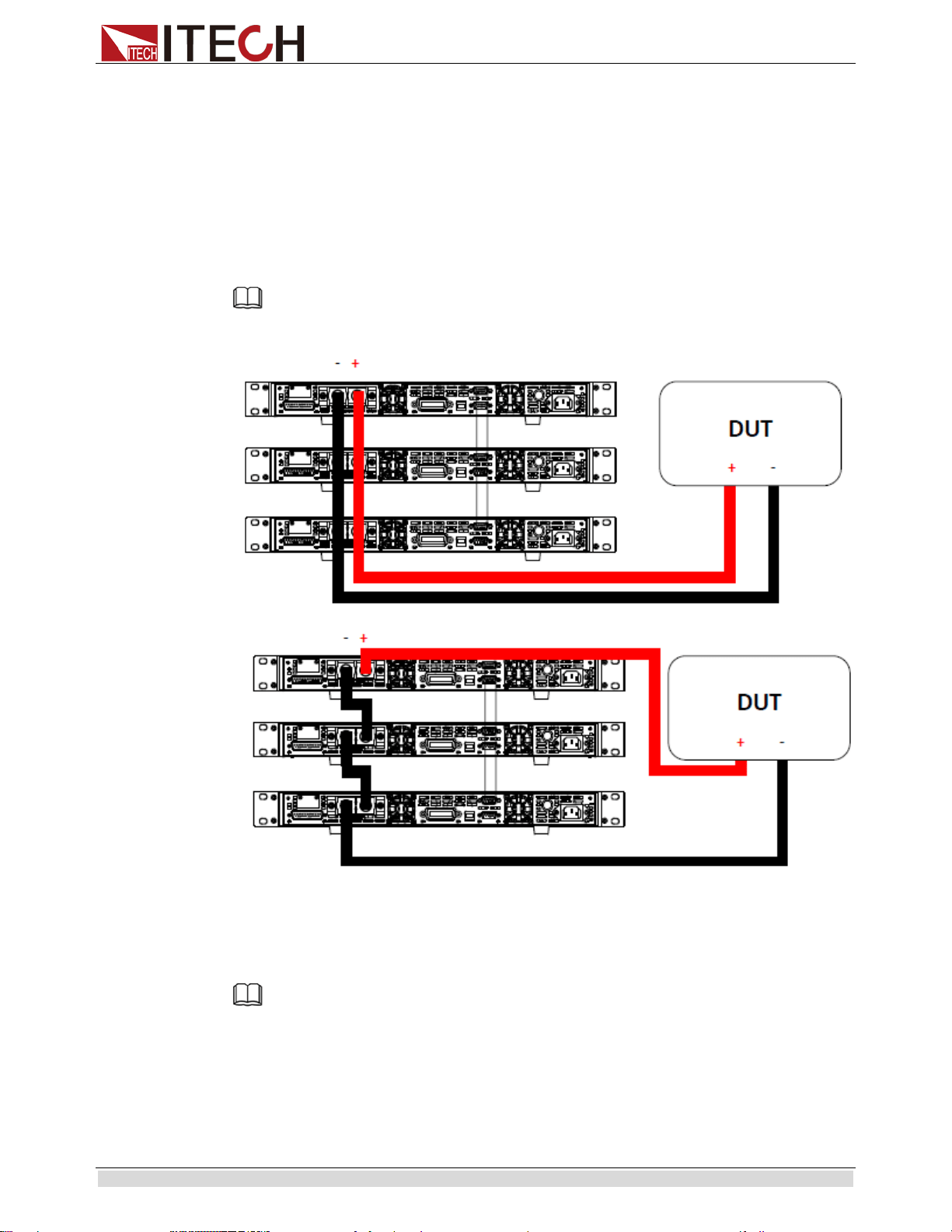
In this solution, up to 3 instruments can be connected in parallel or in series.
For parallel connection:
On/Off
Function and Features
Copyright ©ITECH Electronic Co., Ltd. 28
Connect each power supplies’ positive (+) terminals together. Do the same for the negative
(-) terminals.
For series connection:
Connect one power supply’s positive (+) terminal to the negative (-) terminal of another.
Do the same for all the power supplies.
Then, connect all of the power supplies’ Pin 1 of the RS-485 interface together. Do the
same for Pin 5.
Below illustrates the connection diagram for parallel connection.
Note
Be sure to use wires that can support the amount of output current that you want to output from the power
supplies. Refer to “2.2 Output Connetction” for details.
Master/Slave Setup
Only one power supply has to be configured as a Master. The rest must be configured as
Slave. Up to 3 units can be configured in total.
Note
Configure Slave power supplies FIRST, and configure the Master power supply LAST. For remote or
front board operation, only control the Master power supply.
Master/Slave Configuration
After physically connecting the power supplies for parallel or series operation, power ON
the power supplies and follow the steps below to configure a power supply as a master or
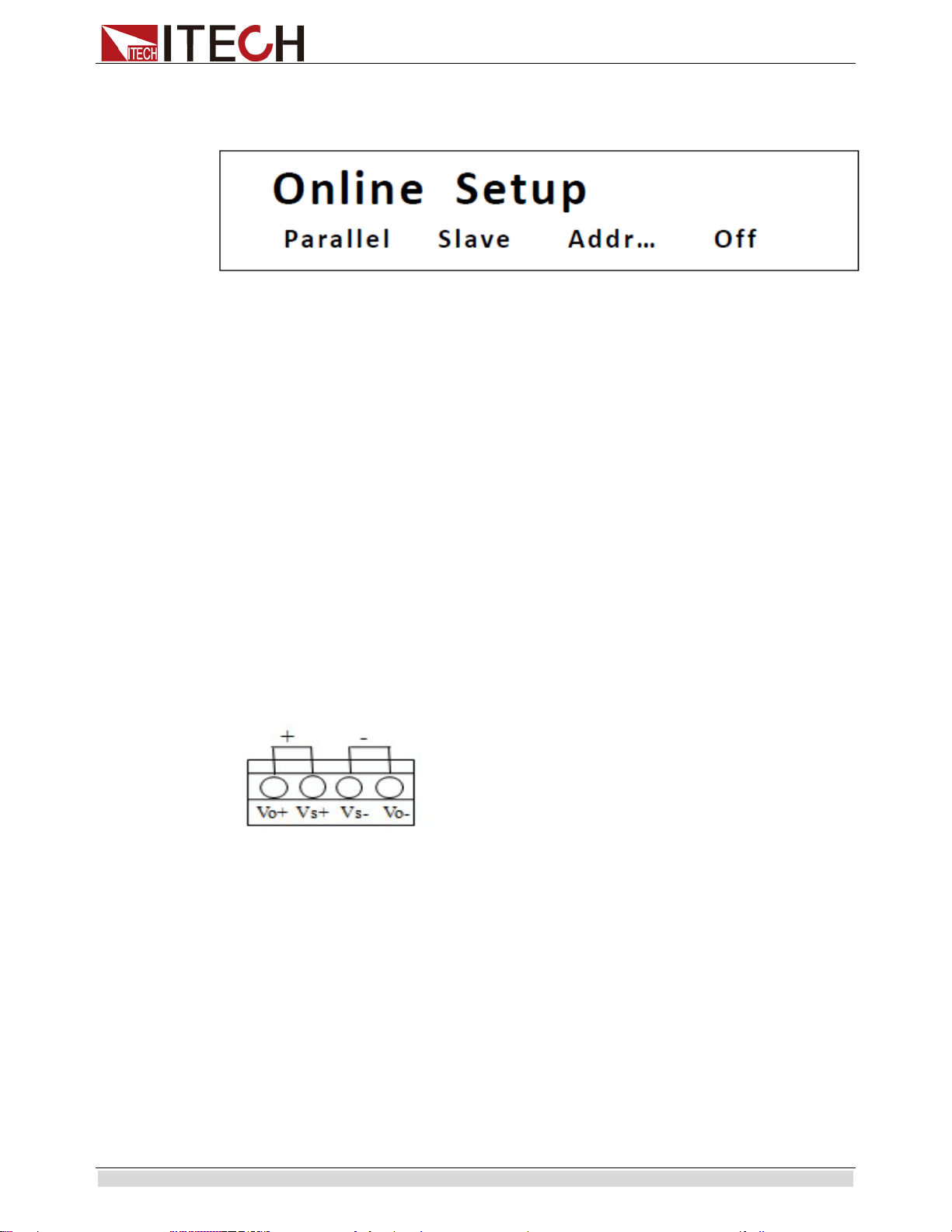
Function and Features
Copyright ©ITECH Electronic Co., Ltd. 29
slave.
1. From the CONFIG menu, select Online and press enter.The following will display:
2. While Parallel or Series is flashing, use keys to toggle between the two options. Set to
Parallel for parallel connection and Series for series connection.
3. Press the key to select Slave or Master. Use the keys to select between the two options.
Select Master to set the power supply as a master, or select Slave to set the power
supply as a slave. Always set the Slave supplies first and Master supply last.
4. Press the key to select Addr…. Press Enter button and the display will prompt to enter
an address. Use the numeric keypad to enter an Address, which must be different than
all other power supplies that you want to connect together in parallel. Enter any
number between 0 – 31.
5. Press Enter button to save the changes.
6. Exit the menu by pressing Esc button several times.
3.14 Rear terminal functions
If the tested instrument consumes large current, a large voltage drop will be
detected in connection line between tested instrument and power supply terminal.
To ensure measurement accuracy, a remote sense measurement terminal is
provided at load rear board to compensate voltage drop lost in wire.
Vo+,Vo-: output terminals,the same with the rear board output terminals
Vs+,Vs-: remote sense terminal,when using the remote sense function,please cut
off the connection between Vo+ and Vs+,so will the line between Vo- and Vs-
terminals.Then extending lines from Vs+ to the positive terminal of undertested
product and line from Vs- to the negative terminal of undertested product.
Use local sense:
Local sense doesn’t compensate the voltage drop on the connection wire, the operation is:
1. Connect the Vo+ and Vs+ , Vo- and Vs- for short circuit using the short clips on the
back panel of the instrument or electric wire,
illustrated below.
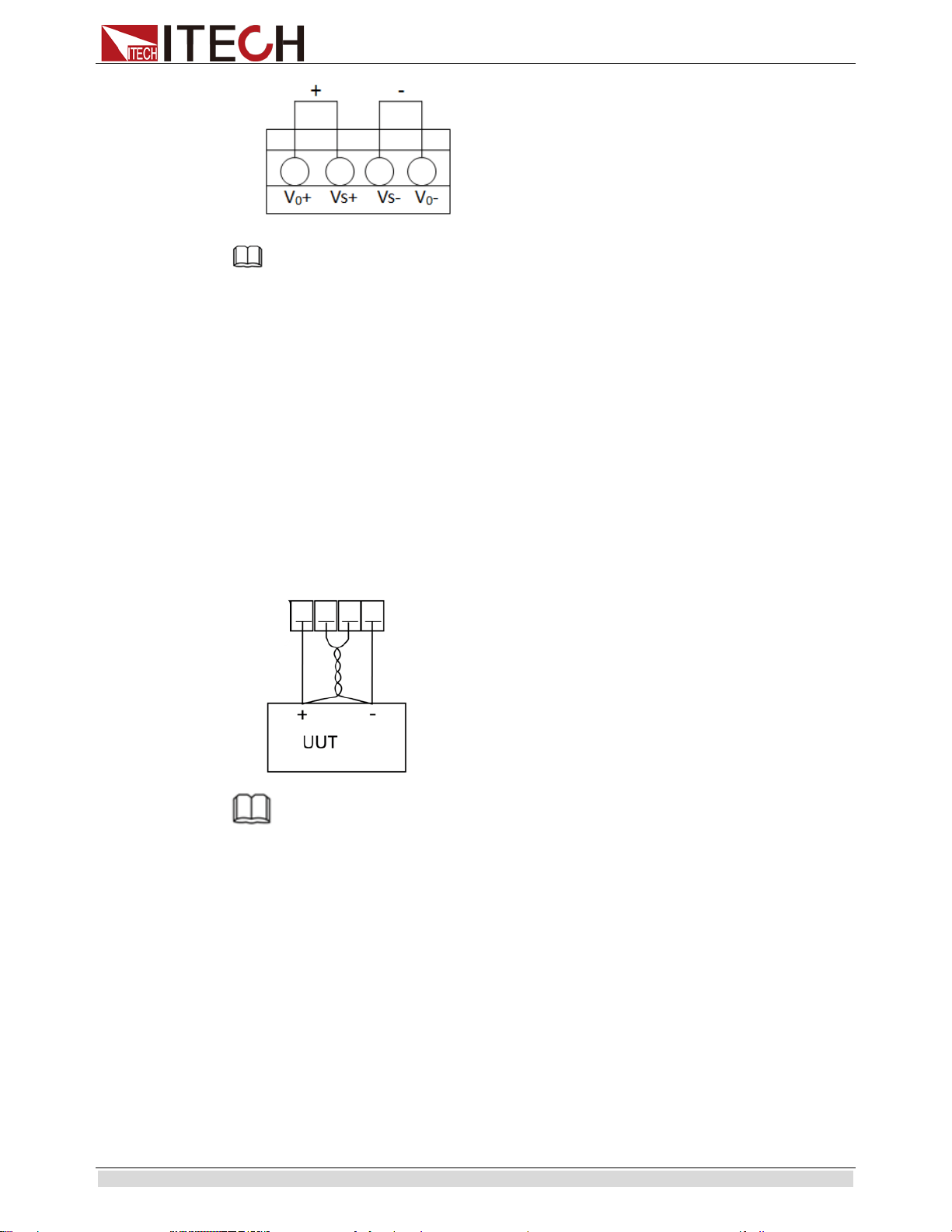
Function and Features
Copyright ©ITECH Electronic Co., Ltd. 30
Note
DO not disconnect the wires if remote sense is not used. Doing so will cause erratic behavior and may
damage the power supply under certain conditions
2. Connect the the positive and negative terminals of the front board to the device under
test.
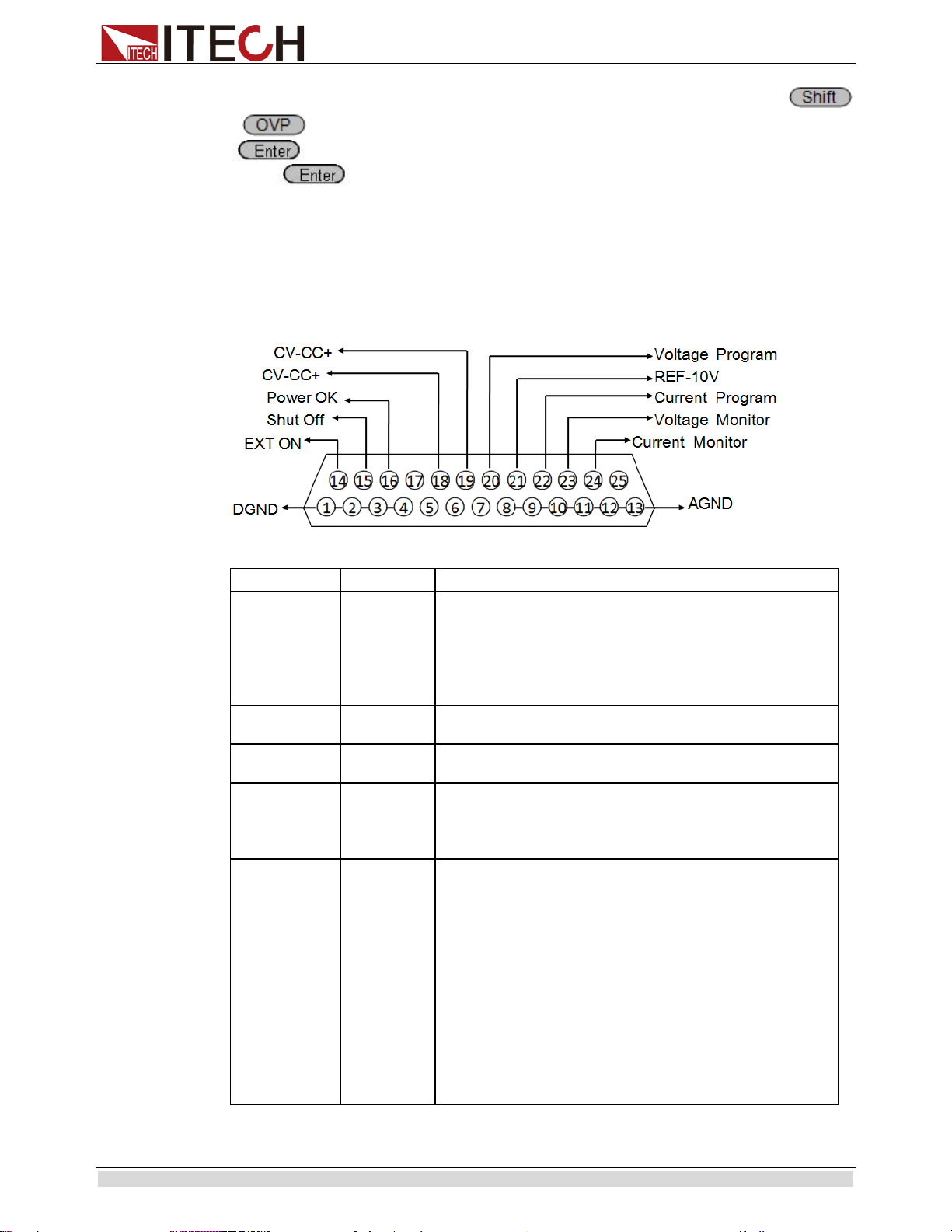
Use remote sense:
Disconnect the wires between “+, -”pins if you want to use remote sense function.Then
lead a wire from S+, S- pins and connect to the under test objects.
1. Disconnect the wires/short clips between Vo+ and Vs+, Vo- and Vs-.
2. Connect the S+ to the DUT’s positive (+) terminal, and connect the S- to the
DUT’s negative (-) terminal.
3. Connect wires from Vo+ , Vo- to the device under test.
NOTE
In order to ensure the stability of the system, using armored twisted pair cable between the remote
sense terminal of IT6500 and load.
Please note that the positive and negative polarity when wiring, otherwise it will damage the
instrument!
3.15 Analogue Interface
IT6500 series power supply have a DB25 analog interface.It can enable you to control
0-100% voltage and 0-100% current with a adjustable voltage or resistance. Besides, you
could also monitor the output voltage and current with a 0-10V or 0-5V voltage.
This function has several modes:
10v-M
5v-M, used for selecting the 10V/5V monitoring mode
10v/10k-P
5v/5k-P, used for selecting the 10V/10K or 5V/5K setting mode
V-P
R-P, used for selecting the voltage/resistance setting mode
On
Off, used for switching on/off the analog quantity interface function
Vo+ Vs+ Vs- Vo-
Function and Features
Copyright ©ITECH Electronic Co., Ltd. 31
The above parameters can be selected through the configuration menu. Press the
+ (Menu) to enter the menu. Press the Right Key to select CONFIG and press
to enter the configuration menu; press the Right Key to select the Ext-Ctrl and
press to enter the configuration of external analog quantity parameters.
When setting every item, please coordinate the Up/Down Key for selection.
For example, if 0-10V external analog is applied for control and internal 5V voltage is
adopted for monitoring the front board output, slections will be made as below:
5v-M 10v/10k-P V-P On
After selecting the Ext-Ctrl as “On”, exit the Menu. At this time, the Rear indicator on the
VFD status bar will be lighted on and the right corner will display “Analog”.
DB-25
Pin
Name
Instruction
Pin 1 and Pin
14
DGND
EXT ON
Used for controlling the ON/OFF of the power supply.
When Pin 1 is connected to Pin 14,
the power supply
supports the output disable function; in case of high level,
the output is controlled by On/Off; in case of low level, the
output is disabled. This function is invalid under on-line
status.
Pin 15
Shut Off
Used for switching off the function under emergency
status (in normal circumstances, the pin is not used).
Pin 16
Power OK
Used for indicating whether the power output is normal; if
so, output 5V; in case of power supply failure, output 0V.
Pin 18 and
Pin 19
CV_CC+
CV_CC-
The output between these two pins is used for indicating
the working status of power supply; under CV mode, the
output between these two pins is 5V; and under CC mode,
- 5V.
Pin 20
Voltage
Program
(Voltage
setting)
Output voltage of analog quantity control:
In setting the V-PRG and 10v/10k-
P, the input analog
quantity range should be 0-10V voltage, and the regulated
output voltage should be from 0 to full range;
In setting the V-PRG and 5v/5k-
P, the input analog
quantity range should be 0-5V voltage, and the regulated
output voltage should be from 0 to full range;
In setting the R-PRG and 10v/10k-
P, the input analog
quantity range should be 0-
10K resistance, and the
regulated output voltage should be from 0 to full range;
In setting the R-PRG and 5v/5k-P, the
input analog
quantity range should be 0-
5K resistance, and the
regulated output voltage should be from 0 to full range;
Function and Features
Copyright ©ITECH Electronic Co., Ltd. 32
Pin 21
REF_10V
The 10V reference voltage output by the power supply can
be connected to a resistance subdivision for analog
quantity control.
Pin 22
Current
Program
(Current
Setting)
Output current of analog quantity control:
In setting the V-PRG and 10v/10k-
P, the input analog
quantity range should be 0-10V voltage, and the regulated
output current should be from 0 to full range;
In setting the V-PRG and 5v/5k-
P, the input analog
quantity range should be 0-5V voltage, and the regulated
output current should be from 0 to full range;
In setting the R-PRG and 10v/10k-
P, the input analog
quantity range should be 0-
10K resistance, and the
regulated output current should be from 0 to full range;
In setting the R-PRG and 5v/5k-
P, the input analog
quantity range should be 0-
5K resistance, and the
regulated output current should be from 0 to full range;
Pin 23
Voltage
Monitor
(Voltage
monitoring)
The actual value from monitoring is the corresponding
monitor voltage value. For example, when the analog
quantity voltage is 10V, IT6512A control voltage 0~80V
and the IT6512A output voltage 20V, this pin will output
2.5V voltage. Similarly, when the analog quantity voltage
is 5V, control voltage 0~80V and the IT6512A output
voltage 20V, this pin will output 1.25V voltage.
Pin 24
Current
Monitor
(Current
monitoring)
The actual value from monitoring is the corresponding
monitor voltage value.
For example, when the analog
quantity voltage is 10V, IT6512A control current 0~60A
and the IT6512A output current 6A, this pin will output 1V
voltage. Similarly, when the analog quantity voltage is 5V,
control current 0~60A and the IT6512A output voltage 6A,
this pin will output 0.5V voltage.
Pins 8, 9, 10,
11, 12 and 13
Connection
to AGND
Ground wires for analog quantity interfaces (including Pin
20 VPRG, Pin 21 REF_10V, Pin 22 IPRG, Pin 23 VMON,
Pin 24 IMON).
Pins 1, 2, 3, 4
Internal
connection
to DGND
Ground wires for Pin 14 EXT ON, Pin 15 SHUT OFF and
Pin 16 POWER OK.
Voltage setting (Voltage Program)
This function enables change of voltage output through external analog signal by
connecting external DC voltage (under voltage mode) or an external resistor (under
resistor mode) to Pin 20. To enable this function, the output control should be under the
external analog control mode. Used for controlling the external voltage range of full-scale
output voltage or the resistor can be selected from 0~10V/0~10KΩ or 0~5V/0~5KΩ. To
switch on the voltage setting, open the MENU (Menu) → CONFIG (Configure) →
Ext-Ctrl (External Analog Control). Press the Right Key to select V-P (or R-P). Press the
Up/Down Key to select the voltage mode or resistor mode.
Voltage Mode
OFF
Ext-Ctrl Setup
5v-M 5v/5k-P V-P off
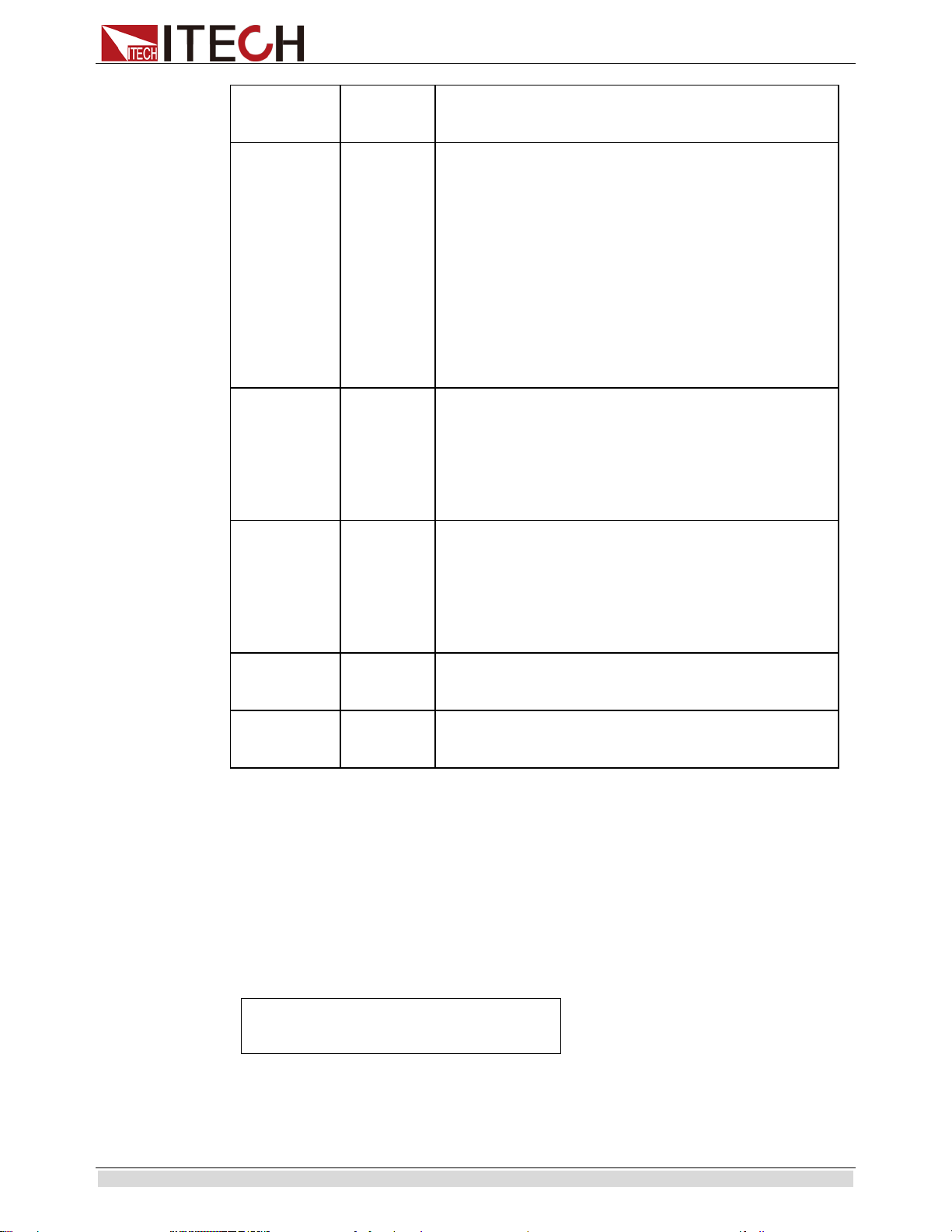
Under voltage mode, the user can set the voltage output value of power supply through Pin
20.
Function and Features
Copyright ©ITECH Electronic Co., Ltd. 33
Resistor Mode
OFF
Ext-Ctrl Setup
5v-M 5v/5k-P R-P off
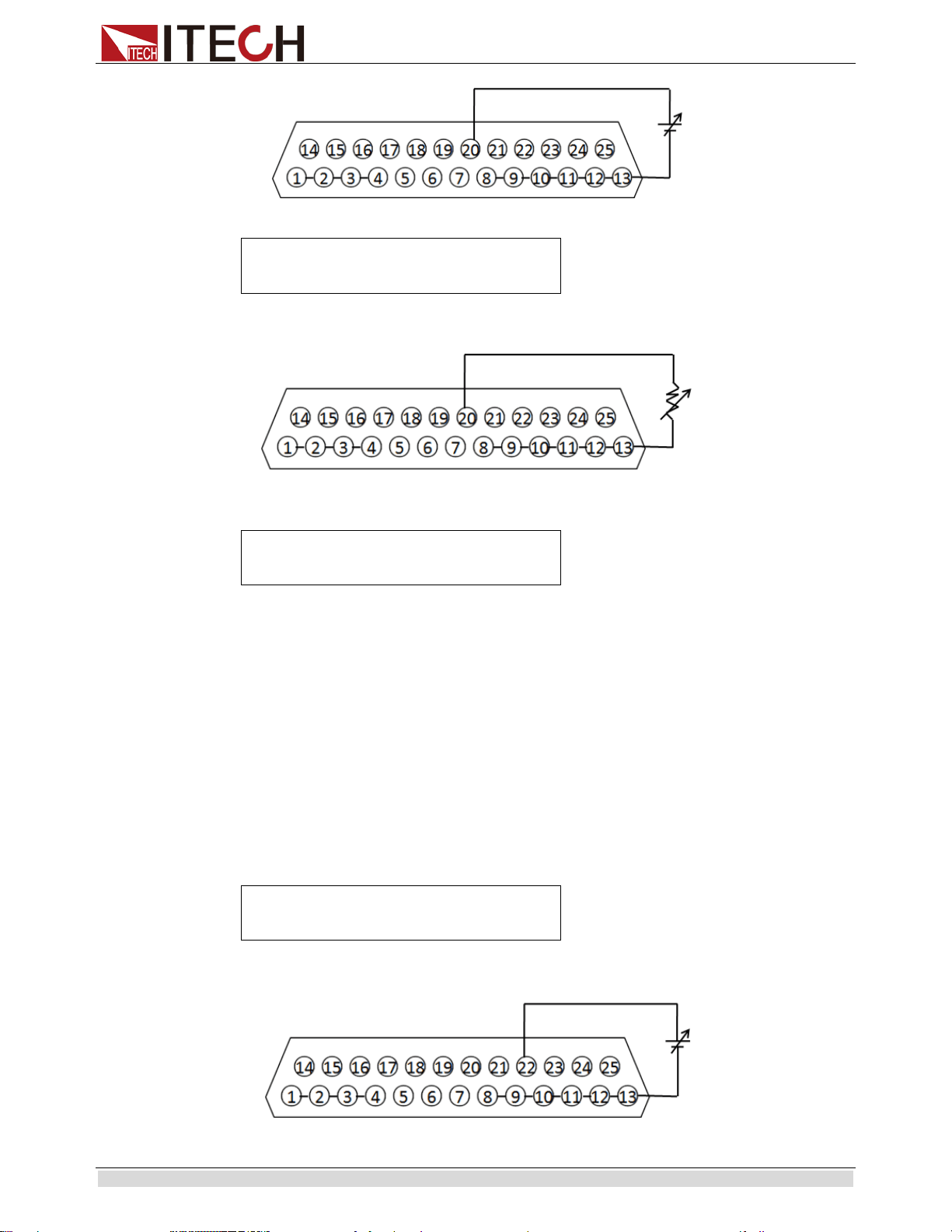
Pin 20 and Pin 13 (GND wire) can be connected to a resistor for setting the output voltage
value of the power supply.
To set the 10V/10KΩ or 5V/5KΩ external analog setting range, open the MENU (Menu)
→ CONFIG (Configure) → Ext-Ctrl (External Analog Control).
OFF
Ext-Ctrl Setup
5v-M 5v/5k-P R-P off
Press the Right Key to select 5v/5k-P (or 10v/10k-P). Press the Up/Down Key to select
within the full scale scope under 10V/10KΩ or 5V/5KΩ program.
Current Setting (Current Program)
This function enables change of current output through external analog signal by
connecting external DC voltage (under voltage mode) or an external resistor (under
resistor mode) to Pin 22. To enable this function, the output control should be under the
external analog control mode. Used for controlling the external voltage range of full-scale
output voltage or the resistor can be selected from 0~10V/0~10KΩ or 0~5V/0~5KΩ. To
switch on the current setting, open the MENU (Menu) → CONFIG (Configure) →
Ext-Ctrl (External Analog Control). Press the Right Key to select V-P (or R-P). Press the
Up/Down Key to select the voltage mode or resistor mode.
Voltage Mode
OFF
Ext-Ctrl Setup
5v-M 5v/5k-P V-P off
Under the voltage mode, the user can set the voltage output value of the power supply
through Pin 22.
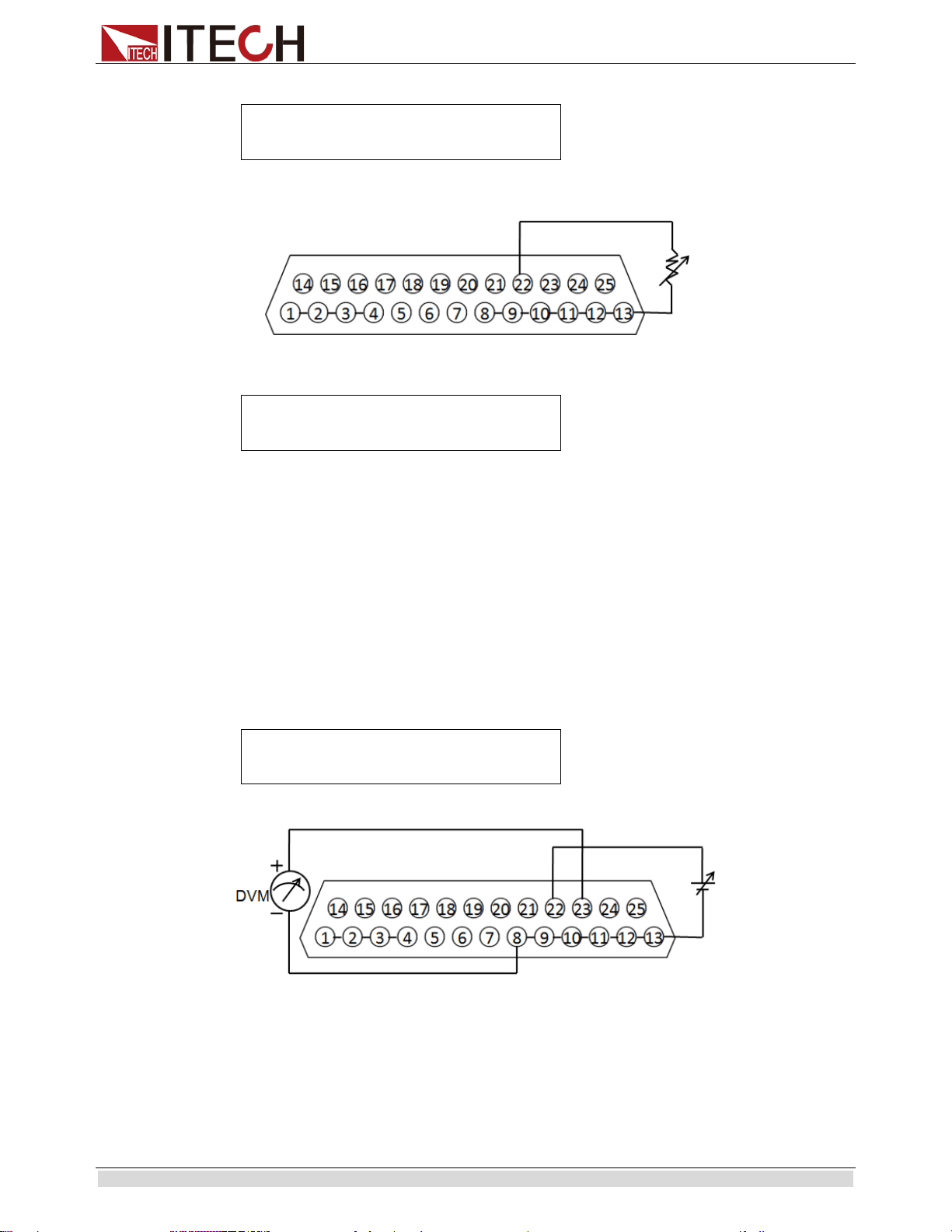
Function and Features
Copyright ©ITECH Electronic Co., Ltd. 34
Resistor Mode
OFF
Ext-Ctrl Setup
5v-M 5v/5k-P R-P off
Pin 22 and Pin 13 (GND wire) can be connected to a resistor for setting the output voltage
value of the power supply.
To set the 10V/10KΩ or 5V/5KΩ external analog setting range, open the MENU (Menu)
→ CONFIG (Configure) → Ext-Ctrl (External Analog Control).
OFF
Ext-Ctrl Setup
5v-M 5v/5k-P R-P off
Press the Right Key to select 5v/5k-P (or 10v/10k-P). Press the Up/Down Key to select
within the full scale scope under 10V/10KΩ or 5V/5KΩ program.
Voltage monitoring
This function enables monitoring of voltage output via Pin 23 or the GND pin (i.e., Pin 13),
which can be connected to a digital voltmeter (DVM). To use this function, the output
control should be under the external analog control mode. The output voltage monitoring
range (which reflects the power supply output voltage from zero to full scale) can be
selected from 0-10V or 0-5V. To switch on the monitoring range setting, open the MENU
(Menu) → CONFIG (Configure) → Ext-Ctrl (External Analog Control). Press the Right
Key to select 10v-M (or 10v-M). Press the Up/Down Key to select the output voltage
monitoring range (0~10V or 0~5V).
OFF
Ext-Ctrl Setup
5v-M 5v/5k-P R-P off
The connection setting of digital voltmeter is shown below.
Current monitoring
This function enables monitoring of current output via Pin 24 or the GND pin (i.e., Pin 13),
which can be connected to a digital voltmeter (DVM). To use this function, the output
control should be under the external analog control mode. The output current monitoring
range (which reflects the power supply output current from zero to full scale) can be
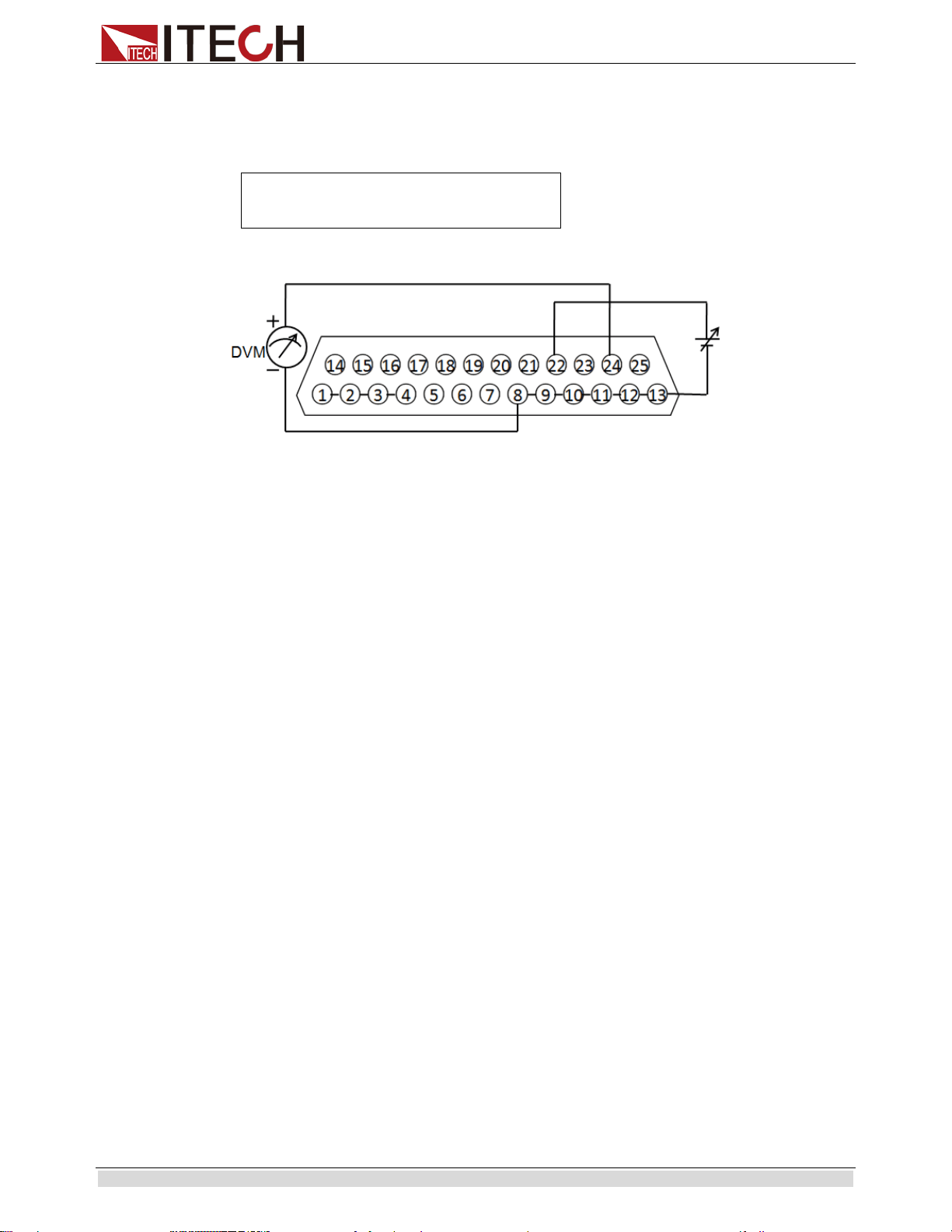
Function and Features
Copyright ©ITECH Electronic Co., Ltd. 35
selected from 0-10V or 0-5V. To switch on the monitoring range setting, open the MENU
(Menu) → CONFIG (Configure) → Ext-Ctrl (External Analog Control). Press the Right
Key to select 10v-M (or 10v-M). Press the Up/Down Key to select the output current
monitoring range (0~10V or 0~5V).
OFF
Ext-Ctrl Setup
5v-M 5v/5k-P R-P off
The connection setting of digital voltmeter is shown below.
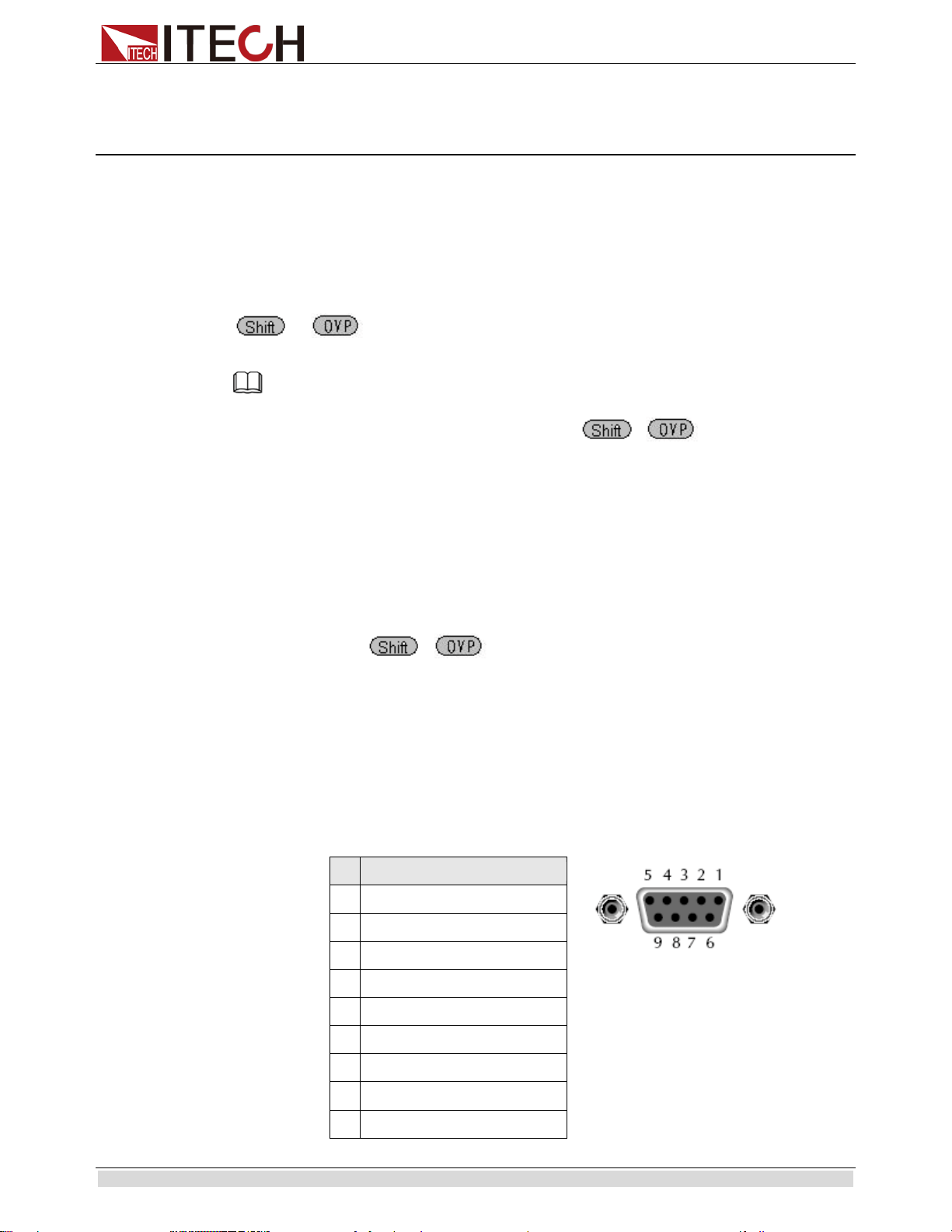
Remote Control
Copyright ©ITECH Electronic Co., Ltd. 36
Chapter4 Remote Control
IT600 serise power supply have four standard communication
interfaces:RS232,USB,GPIB,RS485. The customer can choose any one according to his
demands.
4.1 RS232 Interface
Using a cable with two COM ports to connect power supply and PC.Then please press
+ (Menu) button to enter the menu to configure the communication
parameters.You could do the secondary development with all SCPI commands.
Note
The setup about RS232 in the program should agree with the configuration in the system set.If you want
to change the communication parameters,please press + (Menu) button to enter the
system set.
RS-232 Data style
RS232 is a 10-bit data with start bit and stop bit.The start bit and stop bit can not be
edited.While you could select the odd parity or even parity under the system set.
Odd or EVEN options have been saved in the nonvolatile memory.
Baudrate
Edit baudrate:press + (Menu) to enter the menu setup,you could select the
baudrate among the following options:
4800 9600 19200 38400 57600 115200
RS-232 connection
Please use a straight-through RS232 cable with DB-9 interface and connect the RS232
serial port with the controller’s serial port(for example.PC). Form 2-2 give a detailed
description for each pin.
RS-232 pins description
Pin
description
1
connectionless
2
TXD,transmit data
3
RXD,receive data
4
connectionless
5
GND
6
connectionless
7
connectionless
8
connectionless
9
connectionless

Remote Control
Copyright ©ITECH Electronic Co., Ltd. 37
RS-232 Troubleshooting:
If you meet some problems when communicating with PC by RS232 interface,please
check the following items:
Please check the parameters setting
PC and power supply must have the same configuration in the following items:
baudrate, parity bit,data bit and flow control.Please note that power supply has been
configured with a start bit and stop bit(the two values are fixed).
Check the cable
Ensure you have used the correct communication cable.Please pay attention that some
cable may not have a correct internal wiring even it is with a appropriate DB9
interface.
The RS232 communication cable should have been connected to a correct serial port
of the PC.
Communication Setup
Please ensure the PC and power supply have the same configuration in the following
items.
baudrate: 9600(4800, 9600, 19200, 38400, 57600, 115200).You could enter the system
menu to set the baudrate.
Data bit: 8
Stop bit: 1
Parity bit: (none, even, odd)
EVEN 8 data bits have even parity
ODD 8 data bits have odd parity
NONE 8 data bits have no parity
Native machine address: (0 ~31, factory default is 0)
Parity= None Start Bit 8 Data Bits Stop Bit
4.2 USB Interface
Use a cable with two USB ports to connect power supply and PC.You can program
through USB interface to achieve all functions of power supply.
The functions of USB488 interface are as follows:
Interface is 488.2 USB488 interface
Receive the following request: REN_CONTROL, GO_TO_LOCAL, and
LOCAL_LOCKOUT
When the interface receives MsgID = TRIGGER USBTMC command,it will
transmit the TRIGGER command to the function layer
The functions of power supply’s USB488 are as follows:
receive all SCPI commands
device is SR1 enabled
device is RL1 enabled
device is DT1 enabled
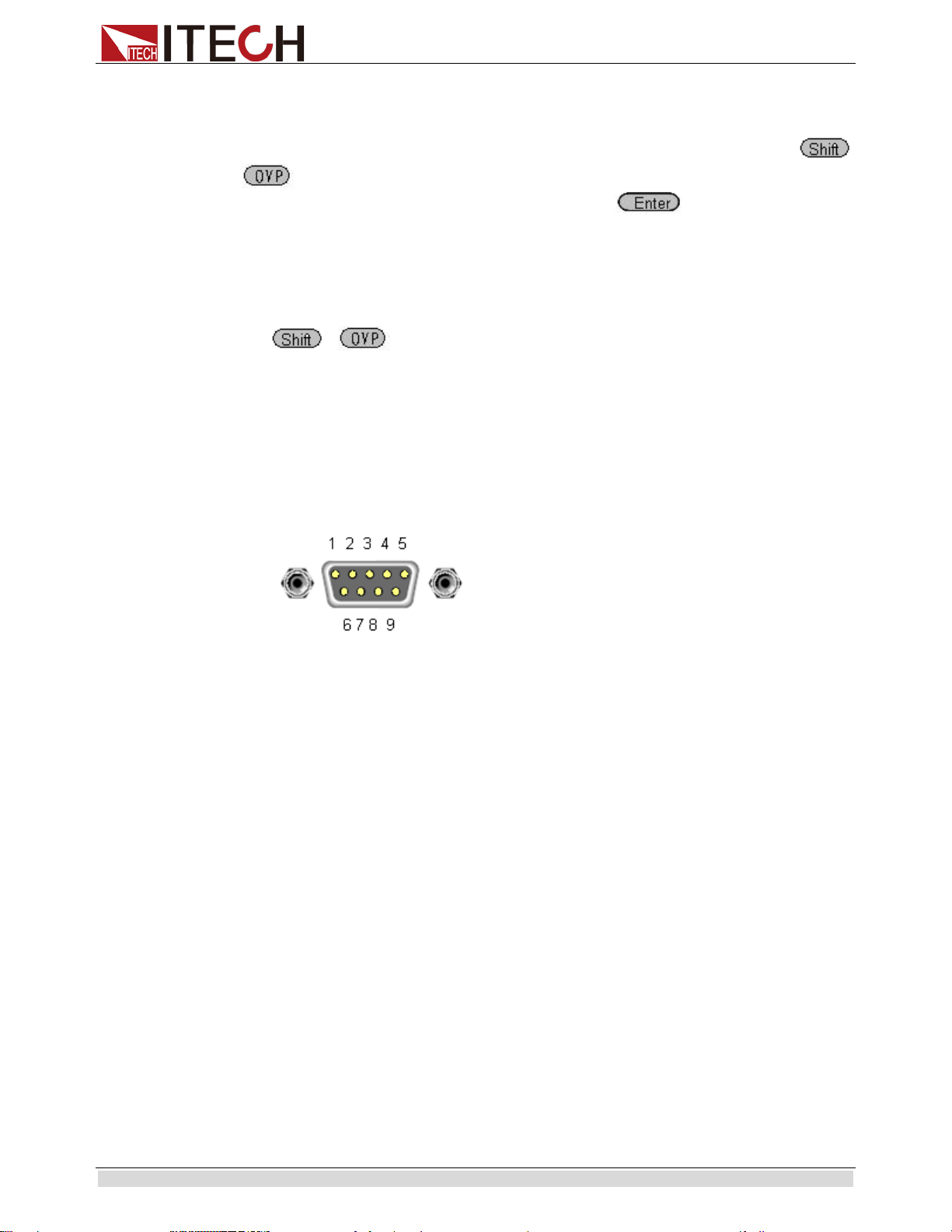
Remote Control
Copyright ©ITECH Electronic Co., Ltd. 38
4.3 GPIB Interface
Use a IEEE488 bus to connect GPIB interfaces of power supply and PC.Please ensure that
the screws have been screwed down in order to have a full connection.Then press
+ (Menu) to enter the system menu to set the address.The address range of power
supply is 0-31.After you set the address,please press button to confirm.GPIB
address is saved in nonvolatile memory.
4.4 RS485 Interface
Use a straight-through cable with two RS485 ports to connect power supply and PC.
Press + (Menu) button to enter the system set.Please set the following
parmeters:baudrate,data bit,stop bit,parity bit,native machine address.The setting way is
the same with RS232 setting.
The definition for each pins of RS485:
1. Pin1 is B line of RS485 interfacE
2. Pin5 is B line of RS485 interface
3. The other pins are suspended
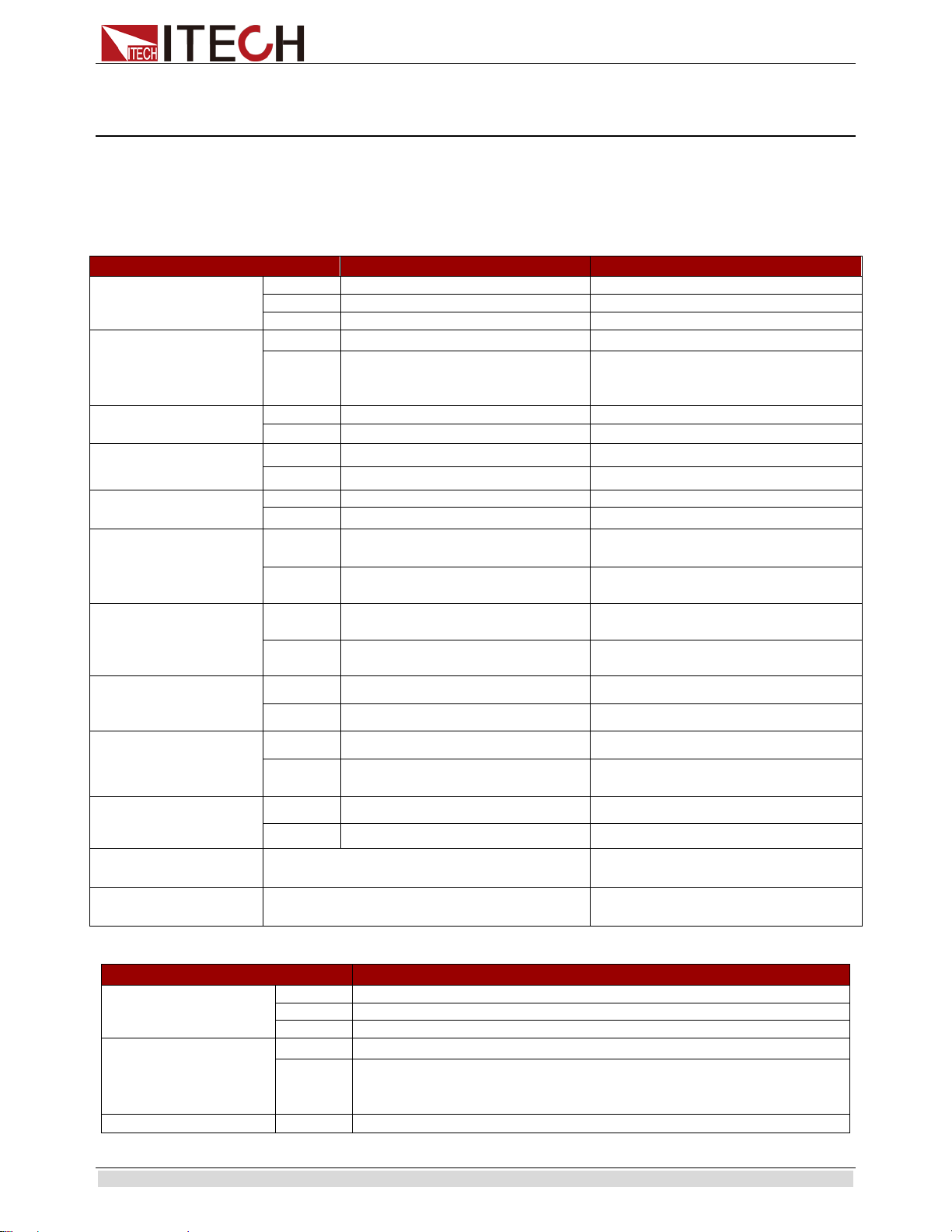
Specification
Copyright ©ITECH Electronic Co., Ltd. 39
Chapter5 Specification
This chapter will introduce the rated voltage, current, power and many other main
parameters of IT6500 series.
4.1 Main technical parameters
parameters IT6512 IT6513
Rated value
( 0 °C - 40 °C)
voltage
0~80V
0-150V
current
0~60A
0-30A
power
0~1200W
0-1200W
(in remote sense
mode)
Load regulation
±(%of*output+offset)
voltage <0.01%+8mV
<0.05%+30mV
current ≤0.1%+10mA ≤0.1%+30mA
Line regulation
±(%of output+offset)
voltage
<0.02%+2mV
<0.02%+20mV
current
<0.02%+2mA
<0.02%+10mA
Setting resolution
voltage
1mV 3mV
current
1mA 1mA
Readback
resolution
voltage
1mV
3mV
current 1mA 1mA
Setting accuracy
(within twelve
months) (25°C±5°C)
±
(%of output+offset)
voltage
≤0.02%+30mV ≤0.05%+30mV
current
≤0.1%+0.1%FS ≤0.2%+0.1%FS
Readback accuracy
(25°C±5°C)
±
(%of output+offset)
voltage
≤0.02%+30mV ≤0.05%+30mV
current
≤0.1%+0.1%FS
≤0.2%+0.1%FS
Ripple
(20Hz ~20MHz)
voltage
≤30mVp-p ≤60mVp-p
current ≤20mArms ≤40mArms
Tem coefficient (0 °C ~
40 °C)
±(%of
output+offset)
voltage 0.02%+30mV <0.02%+30mV
current
≤0.05%+10mA ≤0.05%+10mA
Readback Tem coefficient
±(%of output+offset)
voltage
0.02%+30mV <0.02%+30mV
current
≤0.05%+5mA ≤0.05%+5mA
dimension (mm)
415mmW×44mmH×500mmD 415mmW×44mmH×500mmD
weight (Kg) 8.5Kg 8.5Kg
parameters IT6512A
Rated value
( 0 °C - 40 °C)
voltage
0~80V
current
0~60A
power
0~1200W
(in remote sense
mode)
Load regulation
±(%of*output+offset)
voltage
<0.01%+8mV
current ≤0.1%+10mA
Line regulation
voltage
<0.02%+2mV
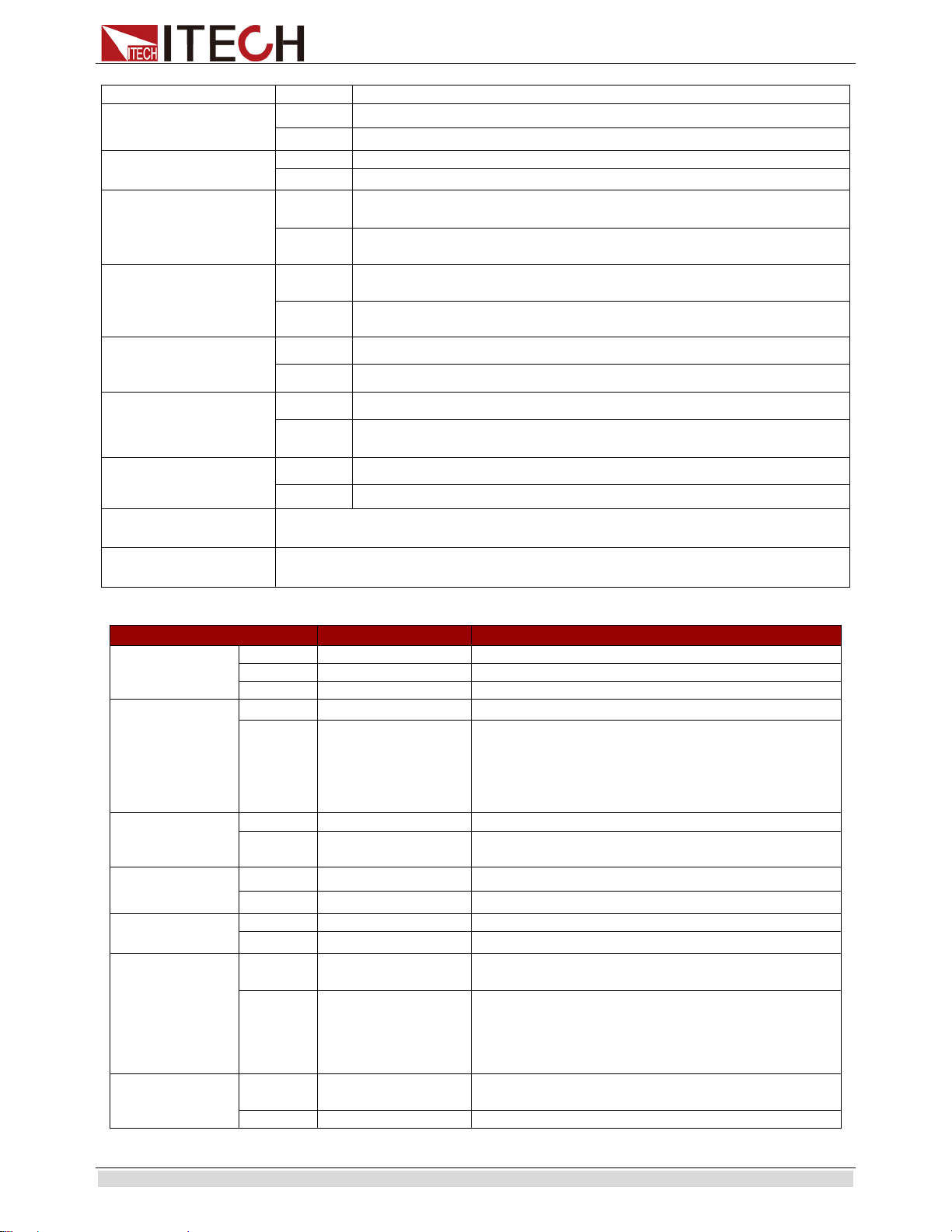
Specification
Copyright ©ITECH Electronic Co., Ltd. 40
±(%of output+offset)
current
<0.02%+2mA
Setting resolution
voltage
1mV
current
1mA
Readback
resolution
voltage
1mV
current 1mA
Setting accuracy
(within twelve
months) (25°C±5°C)
±
(%of output+offset)
voltage
≤0.02%+30mV
current ≤0.1%+0.1%FS
Readback accuracy
(25°C±5°C)
±
(%of output+offset)
voltage
≤0.02%+30mV
current
≤0.1%+0.1%FS
Ripple
(20Hz ~20MHz)
voltage ≤30mVp-p
current ≤20mArms
Tem coefficient (0 °C ~
40 °C)
±(%of
output+offset)
voltage ≤0.02%+30mV
current
≤0.05%+10mA
Readback Tem coefficient
±(%of output+offset)
voltage ≤0.02%+30mV
current
≤0.05%+5mA
dimension (mm)
415mmW×44mmH×500mmD
weight (Kg) 8.5Kg
parameters IT6513A IT6502D
Rated value
( 0 °C - 40 °C)
voltage
0~150V
0~80V
current
0~30A
0~60A
power
0~1200W
0~800W
(in remote
sense mode)
Load
regulation
±(%of*output+
offset)
voltage
<0.05%+30mV
<0.01%+8mV
current
≤0.1%+30mA ≤0.1%+10mA
Line regulation
±
(%of
output+offset)
voltage
<0.02%+20mV
≤0.02%+2mV
current <0.02%+10mA <0.02%+2mA
Setting
resolution
voltage
3mV 1mV
current
1mA 1mA
Readback
resolution
voltage
1mV
1mV
current
1mA 1mA
Setting
accuracy
(within
twelve months)
(25°C±5°C)
±
(%of
output+offset)
voltage
≤0.05%+30mV ≤0.02%+30mV
current
≤0.2%+0.1%FS ≤0.1%+0.1%FS
Readback
accuracy
(25°C±5°C)
voltage
≤0.05%+30mV ≤0.02%+30mV
current
≤0.2%+0.1%FS
≤0.2%+0.1%FS
Specification
Copyright ©ITECH Electronic Co., Ltd. 41
parameters IT6513A IT6502D
±(%of
output+offset)
Ripple
(20Hz ~20MHz)
voltage
≤60mVp-p ≤30mVp-p
current
≤40mArms ≤20mArms
Tem coefficient
(0 °C ~ 40 °C)
±(%of
output+offset)
voltage
≤0.02%+30mV ≤0.02%+30mV
current ≤0.05%+10mA ≤0.05%+10mA
Readback Tem
coefficient
±(%of
output+offset)
voltage
≤0.02%+30mV ≤0.02%+30mV
current ≤0.05%+5mA ≤0.05%+5mA
dimension
(mm)
415mmW×44mmH×500mmD 415mmW×44mmH×500mmD
weight (Kg) 8.5Kg 8.5Kg
4.2 Supplemental characteristics
State storage capacity
100 sets
Recommended calibration frequency
once a year
Cooling style
fans
Operation Temperature
0 to 40 °C
Storage Temperature
-20 to 70 °C.
Environmental Conditions
Designed for indoor use and operated at maximum relative humidity of 95%