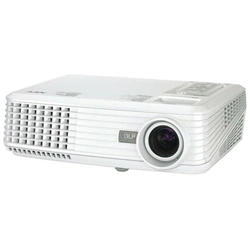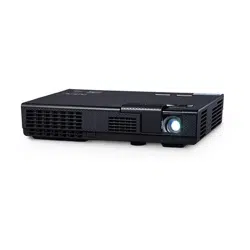

Projector
L50W
User’s Manual
Model No.
NP-L50W
2nd edition November 2011
• DLP and BrilliantColor are trademarks of Texas Instruments.
• IBM is a trademark or registered trademark of International Business Machines Corporation.
• Macintosh, iPod, and PowerBook are trademarks of Apple Inc., registered in the U.S. and other
countries.
• Microsoft, Windows, Windows Vista, and PowerPoint are either a registered trademark or trade-
mark of Microsoft Corporation in the United States and/or other countries.
• Adobe, Adobe PDF, Adobe Reader, and Acrobat are either registered trademarks or trademarks of
Adobe Systems Incorporated in the United States and/or other countries.
• MicroSaver is a registered trademark of Kensington Computer Products Group, a division of ACCO
Brands.
• HDMI, the HDMI Logo and High-Denition Multimedia Interface are trademarks or registered
trademarks of HDMI Licensing LLC.
• Blu-ray is a trademark of Blu-ray Disc Association
• SDHC, SD, microSD and microSDHC logo is a trademark of SD-3C, LLC.
• Linux is a registered trademark of Linus Torvalds in the U.S. and other countries.
• Other product and company names mentioned in this user’s manual may be the trademarks or
registered trademarks of their respective holders.
• GPL/LGPL Software Licenses
The product includes software licensed under GNU General Public License (GPL), GNU Lesser Gen-
eral Public License (LGPL), and others.
For more information on each software, see “readme.pdf” inside the “about GPL&LGPL” folder on
the supplied CD-ROM.
NOTES
(1) The contents of this user’s manual may not be reprinted in part or whole without permission.
(2) The contents of this user’s manual are subject to change without notice.
(3) Great care has been taken in the preparation of this user’s manual; however, should you notice any
questionable points, errors or omissions, please contact us.
(4) Notwithstanding article (3), NEC will not be responsible for any claims on loss of prot or other
matters deemed to result from using the Projector.
i
English ...
Important Information
Safety Cautions
Precautions
Please read this manual carefully before using your NEC L50W projector and keep the manual handy for
future reference.
CAUTION
To turn off main power, be sure to remove the plug from power outlet.
The power outlet socket should be installed as near to the equipment as possible, and should be
easily accessible.
CAUTION
TO PREVENT SHOCK, DO NOT OPEN THE CABINET.
THERE ARE HIGH-VOLTAGE COMPONENTS INSIDE.
REFER SERVICING TO QUALIFIED SERVICE PERSONNEL.
This symbol warns the user that uninsulated voltage within the unit may be sufcient to cause
electrical shock. Therefore, it is dangerous to make any kind of contact with any part inside of
the unit.
This symbol alerts the user that important information concerning the operation and mainte-
nance of this unit has been provided.
The information should be read carefully to avoid problems.
WARNING: TO PREVENT FIRE OR SHOCK, DO NOT EXPOSE THIS UNIT TO RAIN OR MOISTURE.
DO NOT USE THIS UNIT’S PLUG WITH AN EXTENSION CORD OR IN AN OUTLET UNLESS ALL
THE PRONGS CAN BE FULLY INSERTED.
DOC Compliance Notice (for Canada only)
This Class B digital apparatus meets all requirements of the Canadian Interference-Causing Equipment
Regulations.
Machine Noise Information Regulation - 3. GPSGV,
The highest sound pressure level is less than 70 dB (A) in accordance with EN ISO 7779.
Disposing of your used product
EU-wide legislation as implemented in each Member State requires that used electrical and
electronic products carrying the mark (left) must be disposed of separately from normal house-
hold waste. This includes projectors and their electrical accessories. When you dispose of such
products, please follow the guidance of your local authority and/or ask the shop where you
purchased the product.
After collecting the used products, they are reused and recycled in a proper way. This effort will
help us reduce the wastes as well as the negative impact to the human health and the environ-
ment at the minimum level. The mark on the electrical and electronic products only applies to the
current European Union Member States.
WARNING TO CALIFORNIA RESIDENTS:
Handling the cables supplied with this product will expose you to lead, a chemical known to the State of
California to cause birth defects or other reproductive harm. WASH HANDS AFTER HANDLING.
ii
English ...
Important Information
RF Interference (for USA only)
WARNING
The Federal Communications Commission does not allow any modications or changes to the unit
EXCEPT those specied by NEC Display Solutions of America, Inc. in this manual. Failure to comply with
this government regulation could void your right to operate this equipment. This equipment has been test-
ed and found to comply with the limits for a Class B digital device, pursuant to Part 15 of the FCC Rules.
These limits are designed to provide reasonable protection against harmful interference in a residential
installation. This equipment generates, uses, and can radiate radio frequency energy and, if not installed
and used in accordance with the instructions, may cause harmful interference to radio communications.
However, there is no guarantee that interference will not occur in a particular installation.
If this equipment does cause harmful interference to radio or television reception, which can be deter-
mined by turning the equipment off and on, the user is encouraged to try to correct the interference by one
or more of the following measures:
• Reorient or relocate the receiving antenna.
• Increase the separation between the equipment and receiver.
• Connect the equipment into an outlet on a circuit different from that to which the receiver is connected.
• Consult the dealer or an experienced radio / TV technician for help.
For UK only: In UK, a BS approved power cord with moulded plug has a Black (ve Amps) fuse installed for
use with this equipment. If a power cord is not supplied with this equipment please contact your supplier.
Important Safeguards
These safety instructions are to ensure the long life of your projector and to prevent re and shock. Please
read them carefully and heed all warnings.
Installation
• Do not place the projector in the following conditions:
- on an unstable cart, stand, or table.
- near water, baths, or damp rooms.
- in direct sunlight, near heaters, or heat radiating appliances.
- in a dusty, smoky or steamy environment.
- on a sheet of paper or cloth, rugs or carpets.
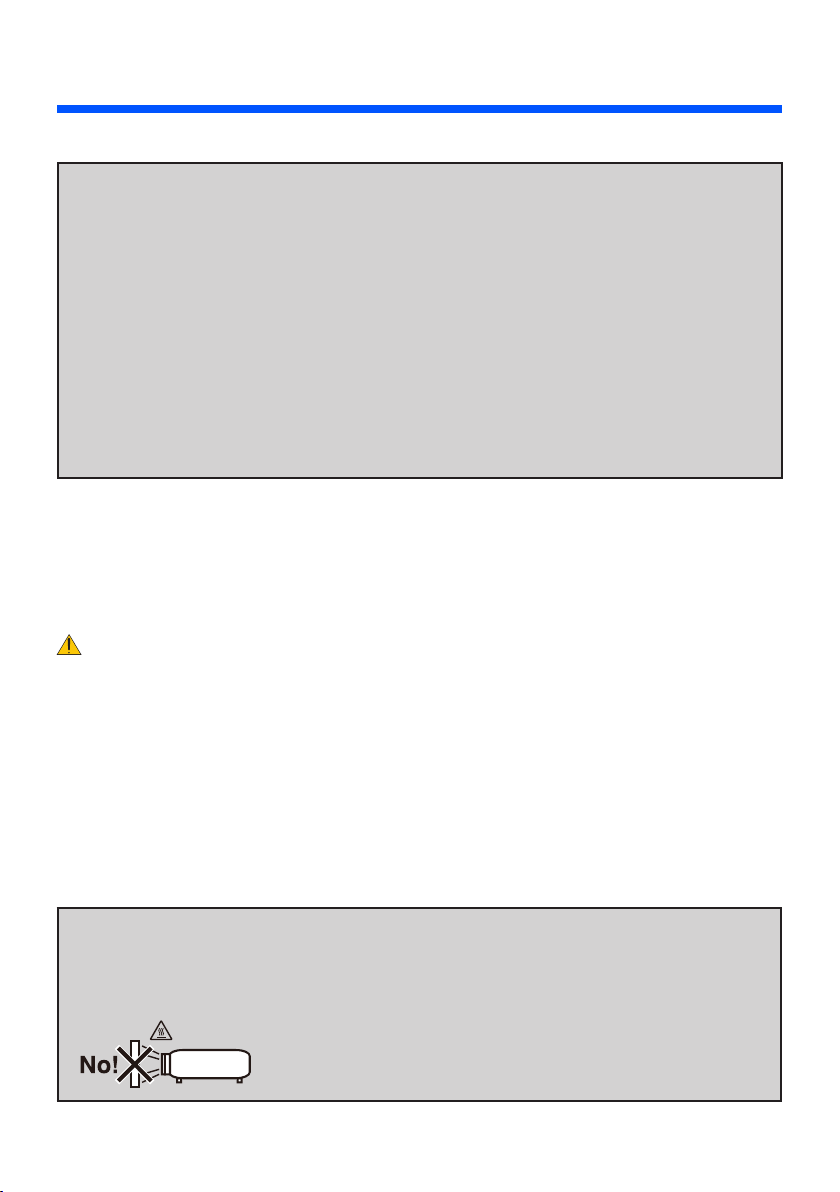
WARNING
• Do not use any other object than the projector’s sliding lens cover to cover the lens while the projector is
on. Doing so can cause the object to get extremely hot, and possibly resulting in a re or damage due to
the heat emitted from the light output.
• Do not place any objects, which are easily affected by heat, in front of the projector lens. Doing so could
lead to the object melting from the heat that is emitted from the light output.
iii
English ...
Important Information
Fire and Shock Precautions
• Ensure that there is sufcient ventilation and that vents are unobstructed to prevent the build-up of heat
inside your projector. Allow at least 4 inches (10cm) of space between your projector and a wall.
• Do not try to touch the ventilation outlet as it can become heated while the projector is turned on and im-
mediately after the projector is turned off.
• Prevent foreign objects such as paper clips and bits of paper from falling into your projector. Do not at-
tempt to retrieve any objects that might fall into your projector. Do not insert any metal objects such as a
wire or screwdriver into your projector. If something should fall into your projector, disconnect it immedi-
ately and have the object removed by a qualied service personnel.
• Do not place any objects on top of the projector.
• Do not touch the power plug during a thunderstorm. Doing so can cause electrical shock or re.
• The projector is designed to operate on a power supply of 100-240V AC 50/60 Hz. Ensure that your power
supply ts this requirement before attempting to use your projector.
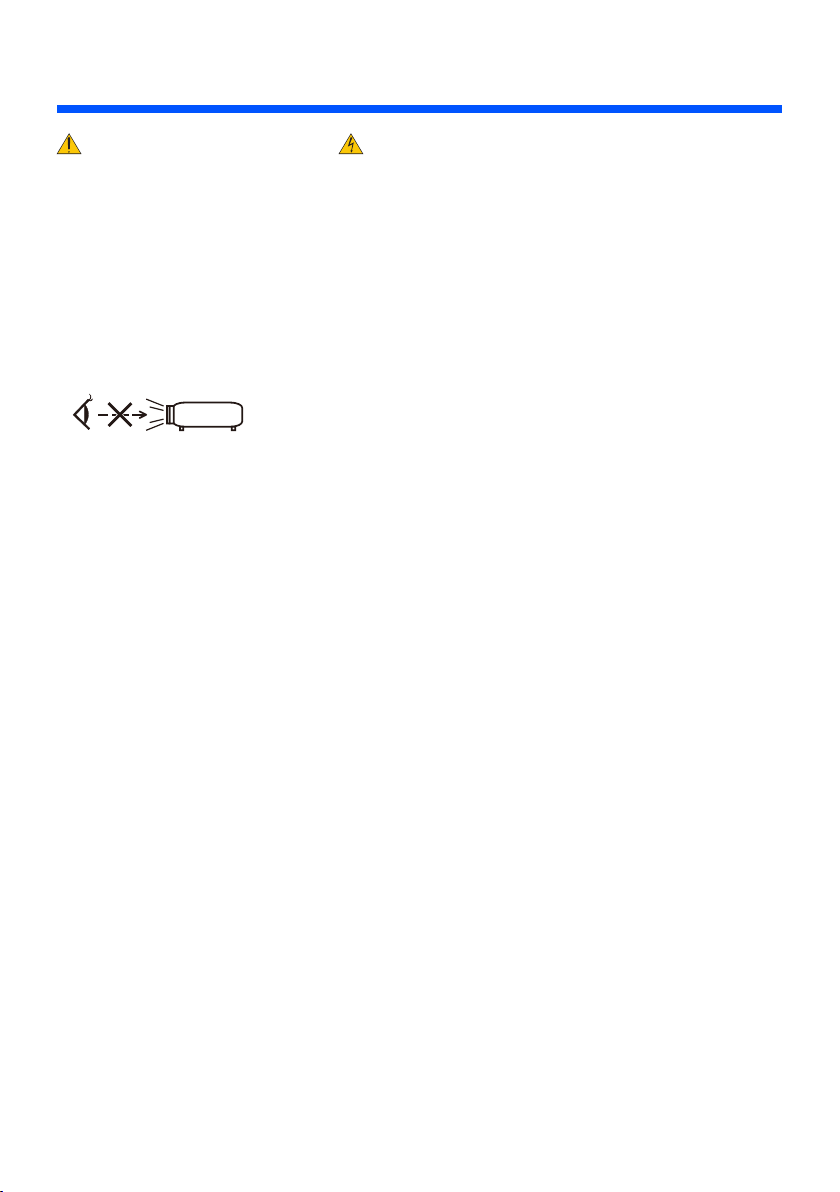
• Do not look into the lens while the projector is on. Serious damage to your eyes could result.
• Keep any items (magnifying glass etc.) out of the light path of the projector. The light path being projected
from the lens is extensive, therefore any kind of abnormal objects that can redirect light coming out of the
lens, can cause unpredictable outcome such as a re or injury to the eyes.
• Do not block the light path between the light source and the lens with any objects. Doing so could cause the
object to catch on re.
• Handle the power cord carefully. A damaged or frayed power cord can cause electric shock or re.
- Do not use any power cord other than the one supplied.
- Do not bend or tug the power cord excessively.
- Do not place the power cord under the projector, or any heavy object.
- Do not cover the power cord with other soft materials such as rugs.
- Do not heat the power cord.
- Do not handle the power plug with wet hands.
• Turn off the projector, unplug the power cord and have the projector serviced by a qualied service per-
sonnel under the following conditions:
- When the power cord or plug is damaged or frayed.
- If liquid has been spilled into the projector, or if it has been exposed to rain or water.
- If the projector does not operate normally when you follow the instructions described in this user’s
manual.
- If the projector has been dropped or the cabinet has been damaged.
- If the projector exhibits a distinct change in performance, indicating a need for service.
• Disconnect the power cord and any other cables before carrying the projector.
• Turn off the projector and unplug the power cord if the projector is not to be used for an extended period
of time.
• Do not send the projector in the soft case by parcel delivery service or cargo shipment. The projector inside
the soft case could be damaged.

iv
English ...
Important Information
Remote Control Precautions
• Handle the remote control carefully.
• If the remote control gets wet, wipe it dry immediately.
• Avoid excessive heat and humidity.
• Do not short, heat, or take apart battery.
• Do not throw battery into re.
• If you will not be using the remote control for a long time, remove the battery.
• Dispose of used battery according to your local regulations.
• Do not place the battery upside down.
NOTE:
* Keep the coin cell battery out of reach of children so as not to allow them to swallow the cell battery.

v
English ...
Important Information
About High Altitude mode
• Set [Fan Mode] to [High] when using the projector at altitudes approximately 2500 feet/760 meters or
higher.
• Using the projector at altitudes approximately 2500 feet/760 meters or higher without setting to [High]
can cause the projector to overheat and the projector could shut down. If this happens, wait a couple min-
utes and turn on the projector.
About Copyright of original projected pictures:
Please note that using this projector for the purpose of commercial gain or the attraction of public attention
in a venue such as a coffee shop or hotel and employing compression or expansion of the screen image with
the following func tions may raise concern about the infringement of copyrights which are protected by copy-
right law. [Aspect Ratio], [Keystone], [D-ZOOM] feature and other similar features.

1
... English
Table of Contents
Table of Contents...............................1
Usage Notice
.....................................2
Precautions .........................................2
Introduction ........................................4
Product Features ................................4
Package Overview
..............................5
Product Overview
...............................6
Projector ................................................. 6
Connection Ports
.................................... 7
Control Panel.......................................... 8
Remote Control
...................................... 9
Battery Installation
................................ 11
Installation .......................................12
Connecting the Projector ..................12
Connect to Computer/Notebook ........... 12
Connect to Video Sources
.................... 13
Powering On/Off the Projector ..........14
Powering On the Projector ................... 14
Powering
Off the Projector ................... 15
Warning Indicator
................................. 16
Adjusting the Projected Image ..........17
Adjusting the Height of Projector
Image ................................................... 17
Adjusting the Projector Focus
.............. 18
Adjusting Projection Image Size........... 18
User Controls...................................19
On Screen Display ............................19
How to operate .................................... 19
Menu Tree
........................................... 20
IMAGE
.................................................. 22
IMAGE | Advanced
............................... 24
SCREEN
.............................................. 26
SETTING
.............................................. 27
SETTING | Signal (RGB)
...................... 29
SETTING | Advanced
........................... 30
OPTIONS
............................................. 31
OPTIONS | Information
........................ 33
OPTIONS | Advanced
.......................... 34
Using Multimedia ..............................35
How to operate .................................... 36
Multimedia Menu Tree ......................... 37
Supported Formats .............................. 38
Using the Projector as a Storage
Device
...............................................40
Projecting Your Computer’s Screen
Image from the Projector via the USB
Cable (USB Display) .........................41
Appendices ......................................42
Troubleshooting ................................42
Specications
....................................46
Compatibility Modes
.........................48
Analog RGB ......................................... 48
Component
........................................... 48
HDMI
.................................................... 49
Composite Video
.................................. 49
Tripod Stand Installation ...................50
Cabinet Dimensions
..........................51
Pin Assignments of D-Sub
COMPUTER Input Connector
...........52
Troubleshooting Check List...............53
TravelCare Guide
..............................55

2
English ...
Usage Notice
Precautions
Follow all warnings, precautions and maintenance as recom-
mended in this user’s guide to maximize the life of your unit.
■ Warning-
Turn on the projector rst and then the signal
sources.
Turkish RoHS information relevant for Turkish market
EEE Yonetmeliğine Uygundur.
High gain type screens are not optimal for use with this
projector. The lower the screen gain (i.e., screen gain on the
order of 1), the better the appearance of the projected image.

3
... English
Usage Notice
Do:
■ Turn off the product before cleaning.
■ Use a soft cloth moistened with mild detergent to clean the
cabinet.
■ Disconnect the power plug from AC outlet if the product is not
being used for a long period of time.
■ If the lens is soiled, use a commercially available cleaning cloth
for lens.
Do not:
■ Use abrasive cleaners, waxes or solvents to clean the unit.
■ Use under the following conditions:
- Extremely heat, cold or humidity.
- In areas susceptible to excessive dust and dirt.
- In direct sunlight.
- Apply excessively strong pressure against the lens.

4
English ...
Introduction
Product Features
This product is a WXGA single chip 0.45” DLP
TM
projector.
Features you’ll enjoy:
■ Light and small LED projector
The projector uses LED as a light source instead of lamp.
■ Display popular wide screen
High resolution display - 1,039,680 pixels (similar to WXGA)
■ Quick start (4 seconds), Quick Power Off (0.5 second), Direct Power Off
4 seconds after turning on the power, the projector is ready to display PC or video images.
The projector can be put away immediately after the projector is powered down. No cool down period is
required after the projector is turned off from the remote control or cabinet control panel.
The projector has a feature called “Direct Power Off”. This feature allows the projector to be turned off
(even when projecting an image) by disconnecting the AC power supply.
To turn off the AC power supply when the projector is powered on, use a power strip equipped with a
switch and a breaker.
■ 0.5W in standby condition with energy saving technology
The projector consumes only 0.5W in standby mode.
■ Eco Mode
This feature will save electricity cost when “Eco Mode” is set to “On” in the Options menu.
■ HDMI input port provides digital signal
The HDMI input provides HDCP compatible digital signals. The HDMI input also supports audio signal.
■ 2W built-in speaker for an integrated audio solution
Monaural 2 watt speaker provides volume need for large rooms.
■ USB Display
Using a commercially available USB cable (compatible with USB 2.0 specications) to connect the
computer with the projector allows you to send your computer screen image to the projector without the
need of a traditional computer cable (VGA)
■ Multimedia
This allows you to view photo, music, video, or Ofce Reader supported le (Adobe PDF or Microsoft
Word/Excel/PowerPoint) stored in SD card or USB memory device.
This also allows you to use part of the memory inside the projector as your storage device.
■ Auto Power On and Auto Power Off features
The Auto Power On, Auto Power Off, and Off Timer features eliminate the need to always use the
POWER button on the remote control or projector cabinet.
■ Wall Color Correction
Built-in Wall Color correction presets provide for adaptive color correction when projecting onto non-
white screen material.
5
... English
Introduction
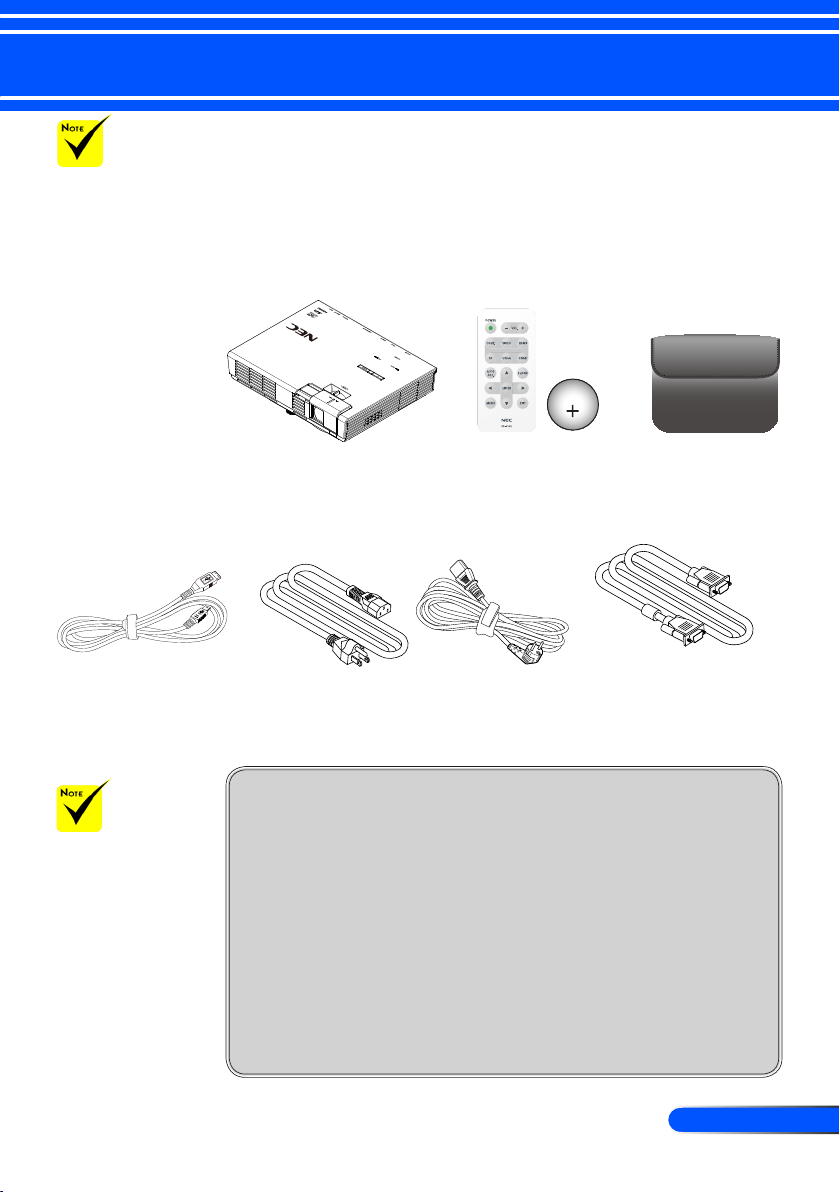
Power Cord x1 Computer Cable (VGA)
(P/N:79TC5061)
Remote Control
(P/N:79TC5091)
Battery (CR2025)
Projector
Package Overview
This projector comes with all the items shown below. Check to
make sure your unit is complete. Contact your dealer immedi-
ately if anything is missing.
Due to the differ-
ence in applications
for each country, some
regions may have dif-
ferent accessories.
Cleaning Cloth (For cleaning the
cabinet only)
(P/N: 79TC5081)
Documentation:
NEC Projector CD-ROM
(P/N: 7N951673)
Quick Setup Guide (P/N:
7N8N2201)
Important Information (For
North America: 7N8N2182)
(For Other countries than
North America: 7N8N2182
and 7N8N2192)
For North America:
Registration Card
Limited Warranty
Inner Case
(P/N: 79TC5011)
For Europe:
Guarantee Policy
For customers in Europe:You will nd our current valid Guarantee
Policy on our Web Site:www.nec-display-solutions.com
Please save the
original box and pack-
ing materials if you
ever need to ship your
projector.
US (P/N:79TC5021) EU (P/N:79TC5031)
CR2025
3V
USB Cable
(P/N: 79TC5071)
6
English ...
Introduction
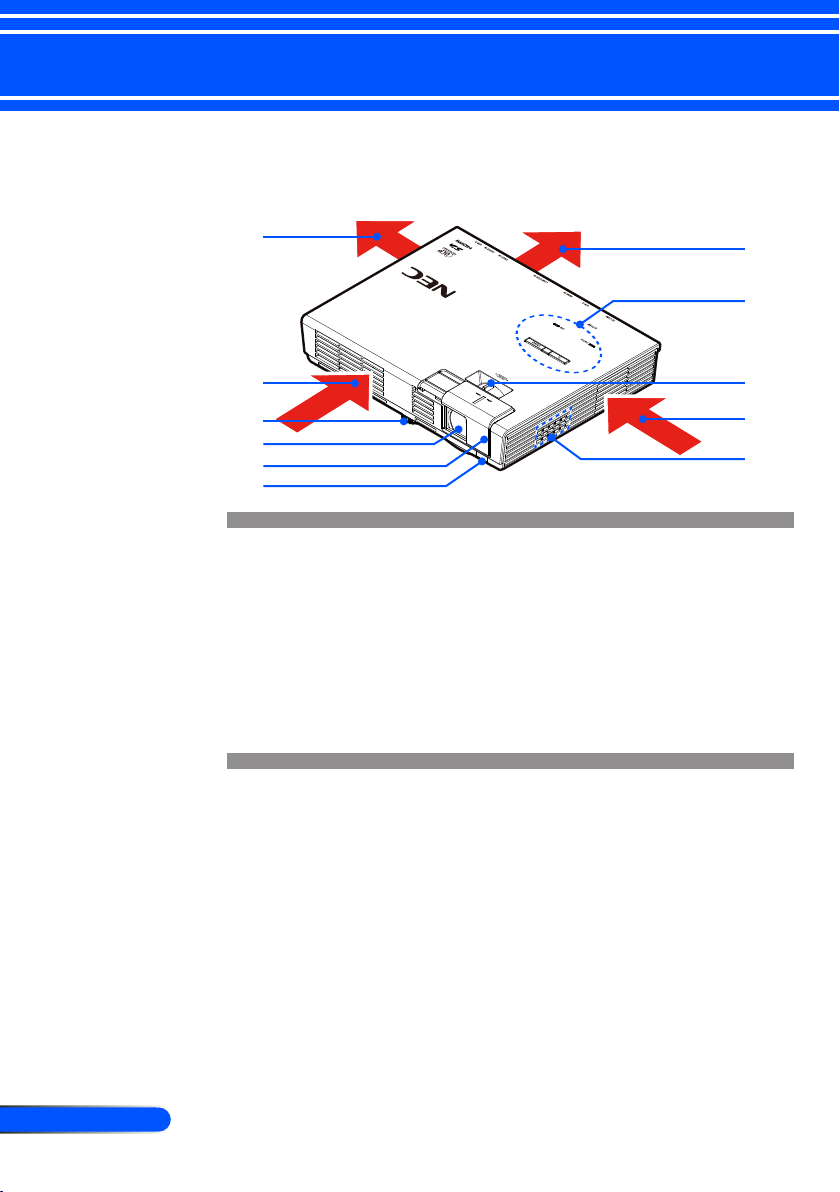
1. Ventilation (outlet)
2. Ventilation (inlet)
3. Tilt Adjusting Foot
4. Lens
5. Lens Cover
6. Remote Sensor
7. Control Panel
8. Focus Lever
9. Speaker
Projector
Product Overview
1
4
2
1
2
7
9
3
8
5
6
7
... English
Introduction
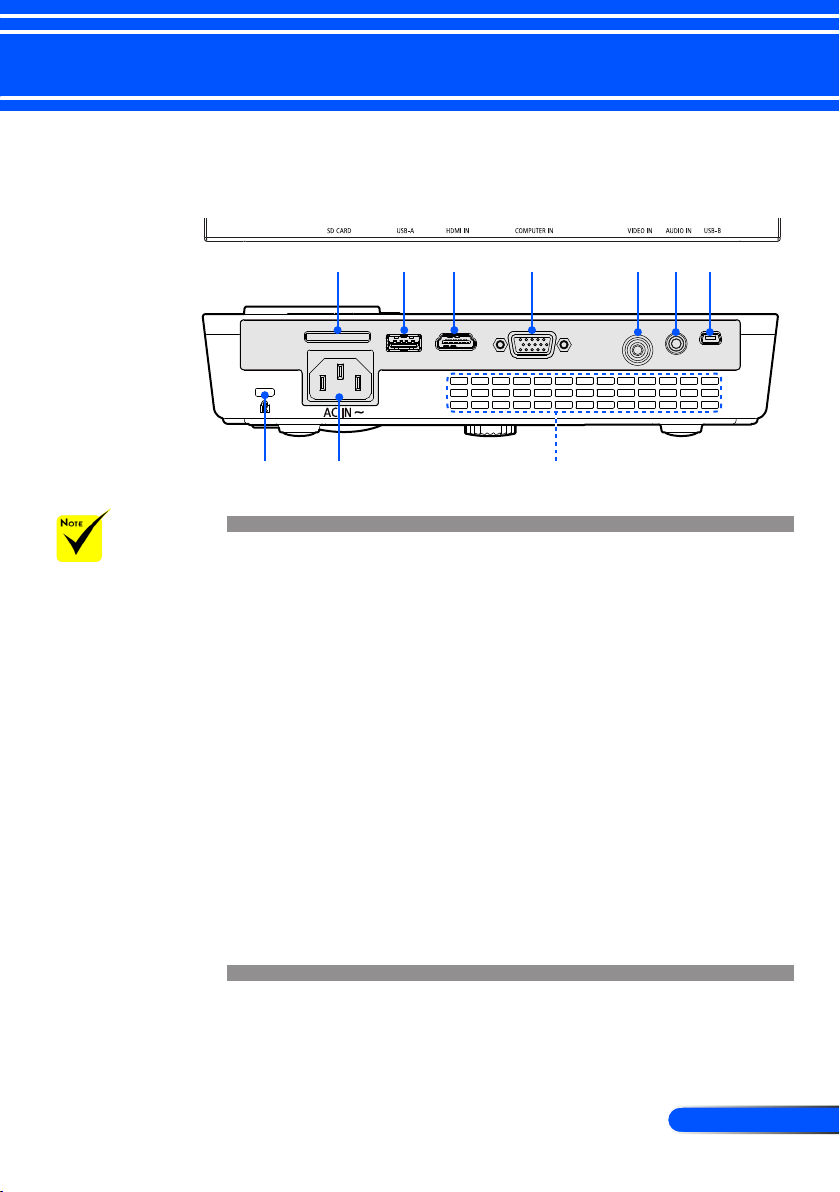
Connection Ports
1. SD CARD Slot
Used for Multimedia.
Note:
Supported SD card types are:
- SD card up to 2 GB
- SDHC card up to 32 GB
(Mini/Micro SD and Mini/Micro SDHC cards require an adapter.)
2. USB-A Port
Connect a commercially available USB device. Used for Multimedia.
3. HDMI IN Connector
4. COMPUTER IN Connector
5. VIDEO IN Connector
6. AUDIO IN Connector
7. USB-B Port
Used for Multimedia and USB Display.
8. Kensington
TM
Lock Port (This security slot supports the
MicroSaver
®
Security System)
9. AC IN
10. Ventilation (outlet)
1 2 3 4 5 6
98
7
10
We do not warrant
that the projector sup-
ports all SD cards and
all USB devices in the
market.
Mobile phones or
iPod cannot be con-
nected to the USB-A
port.
8
English ...
Introduction
Control Panel
1 2
43
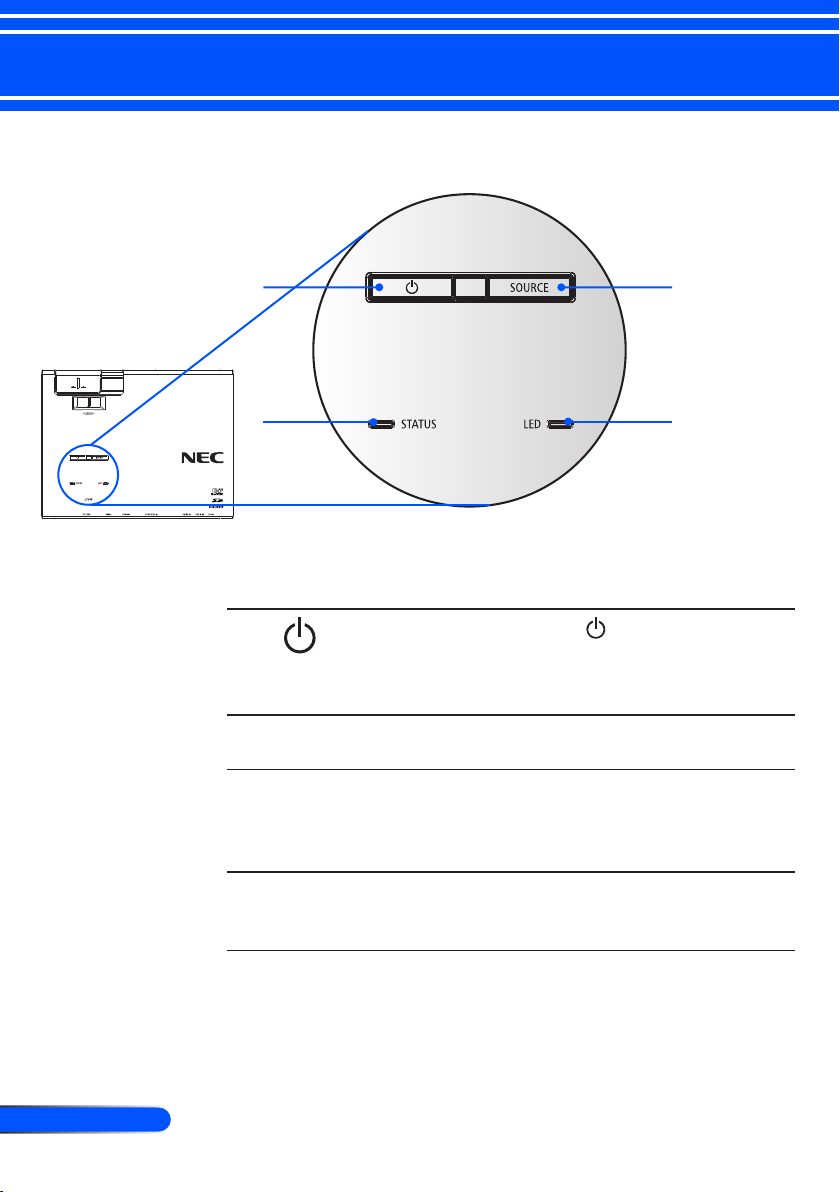
1 POWER and
indicator
Press the “ ” button to turn
on the projector. Refer to the
“Power On/Off the Projector”
section on pages 14-15.
2 SOURCE Press “SOURCE” to select an
input signal.
3 STATUS indi-
cator
Indicate the projector’s tempera-
ture status and Control Panel
Lock is enabled. Refer to the
Status Indicator on page 45.
4 LED indicator Indicate the projector’s light
source (LED) status. Refer to the
LED Indicator on page 45.
9
... English
Introduction
Remote Control
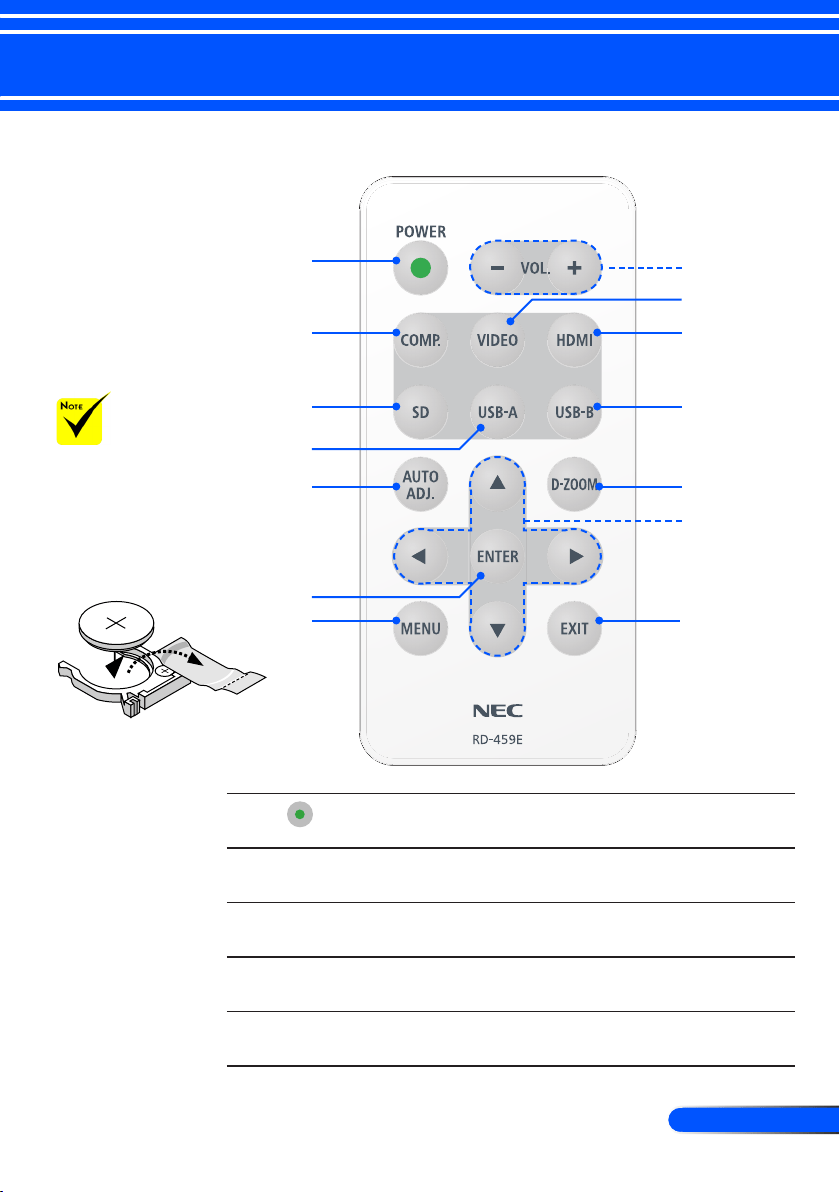
1 POWER Refer to the “Power On/Off the
Projector” section on pages 14-15
2 VOL. +/- Increase/decrease speaker vol-
ume.
3 COMP. Press “COMP.” to choose COM-
PUTER IN connector.
4 VIDEO Press “VIDEO” to choose the
VIDEO IN connector.
5 HDMI Press “HDMI” to choose the
HDMI IN connector.
Before using the
remote control for the
rst time, remove the
transparent insulation
tape. See page 11 for
battery installation.
3
V
O
L
T
S
CR2025
1
3
4
6
9
11
5
7
8
10
14
12
13
2
10
English ...
Introduction
6 SD Press “SD” to choose the SD
CARD slot. Multimedia will
start.
7 USB-A Press “USB-A” to choose the
USB-A port. Multimedia will
start.
8 USB-B Press “USB-B” to choose the
USB-B port. (USB Display)
9 AUTO ADJ. Optimizing a computer image
automatically.
10 D-ZOOM Zoom in/out the projected im-
age.
11 MENU Press “MENU” to launch the
Onscreen display (OSD), back to
the top level of OSD for the OSD
main menu operation
12 Four
Directional
Select Buttons
Use or or or to select
items or make adjustments to
your selection.
13 ENTER Conrm your section of items in
sub menu operation.
14 EXIT Exit the settings.
11
... English
Introduction
Battery Installation
Remote Control Precautions
• Handle the remote control carefully.
• If the remote control gets wet, wipe it dry immediately.
• Avoid excessive heat and humidity.
• Do not place the battery upside down.
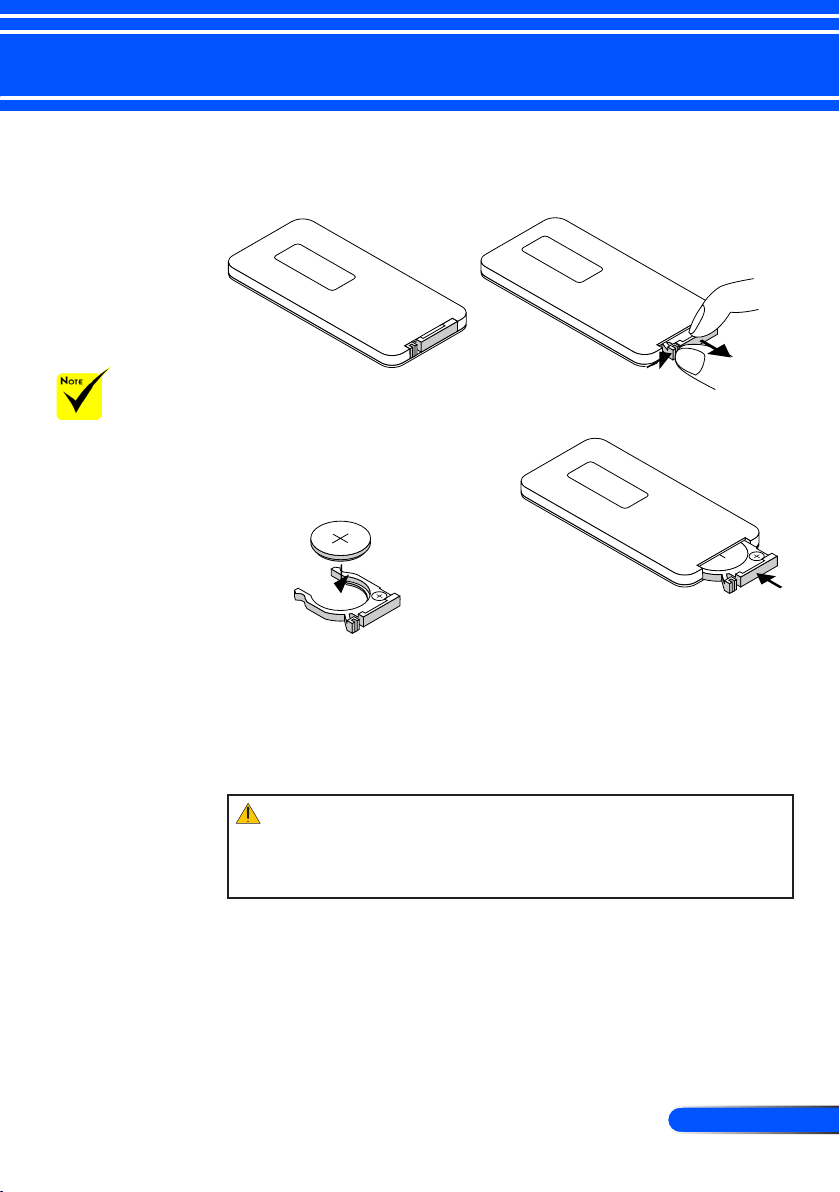
1. Press rmly and slide the battery cover off.
2. Remove the old Lithium
coin cell and install new one
(CR2025). Ensure that the
side with a “+” is facing up.
3. Put the cover back.
The infrared signal
operates by line-of-
sight up to a distance
of about 22 feet/7 m
and within a 60-degree
angle of the remote
sensor on the projector
cabinet.
The projector will
not respond if there
are objects between
the remote control
and the sensor, or if
strong light falls on the
sensor. Weak battery
will also prevent the
remote control from
properly operating the
projector.
Keep the coin cell
battery out of reach of
children so as not to
allow them to swallow
the cell battery.
M
n
O
2
-
L
i
C
E
L
L
3
V
O
L
T
S
J
A
P
A
N
H
CR2025
3
V
O
L
T
S
CR2025
M
3
V
O
L
T
S
CR2025
CAUTION:
Danger of explosion if battery is incorrectly replaced.
Replace only with the same or equivalent type recommended by the manufacturer.
Dispose of used batteries according to your local regulations.
12
English ...
Installation
m o l e x
MOLEX
E62405SP
R
SD CARD
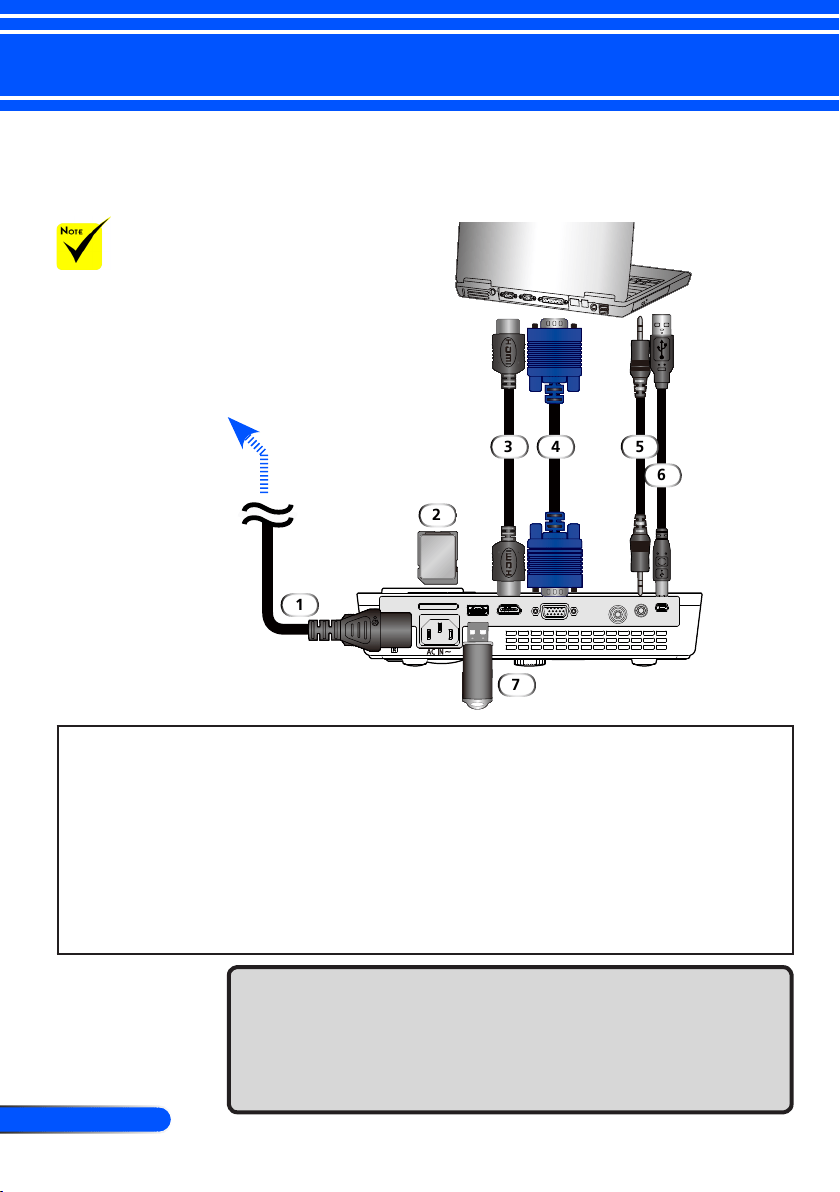
Connecting the Projector
1.............................................................................................Power cord (supplied)
2......................................................................................................................SD Card
3...............................................................................................................HDMI cable
4........................................................................ Computer cable (VGA) (supplied)
5...........................................................................................................Audio in cable
6................................................................................................USB cable (supplied)
7................................................................................................ USB memory device
1
3
2
4 5
To the wall outlet
Make sure that the
power plug is fully
inserted into both the
projector AC inlet and
the wall outlet.
Connect to Computer/Notebook
6
7
Note:
When Viewing a DVI Digital Signal
• Use a DVI-to-HDMI cable compliant with DDWG (Digital Display Working Group) DVI (Digital Visual
Interface) revision 1.0 standard. The cable should be within 197”/5 m long.
• Turn off the projector and the PC before connecting the DVI-to-HDMI cable.
• To project a DVI digital signal: Connect the cables, turn the projector on, then select the HDMI input.
Finally, turn on your PC.
Failure to do so may not activate the digital output of the graphics card resulting in no picture being dis-
played. Should this happen, restart your PC.
• Some graphics cards have both analog RGB (15-pin D-Sub) and DVI (or DFP) outputs. Use of the 15-pin
D-Sub connector may result in no picture being displayed from the digital output of the graphics card.
• Do not disconnect the DVI-to-HDMI cable while the projector is running. If the signal cable
13
... English
Installation
E62405SP
R
SD CARD
Due to the differ-
ence in applications
for each country, some
regions may have differ-
ent accessories.
Video Output
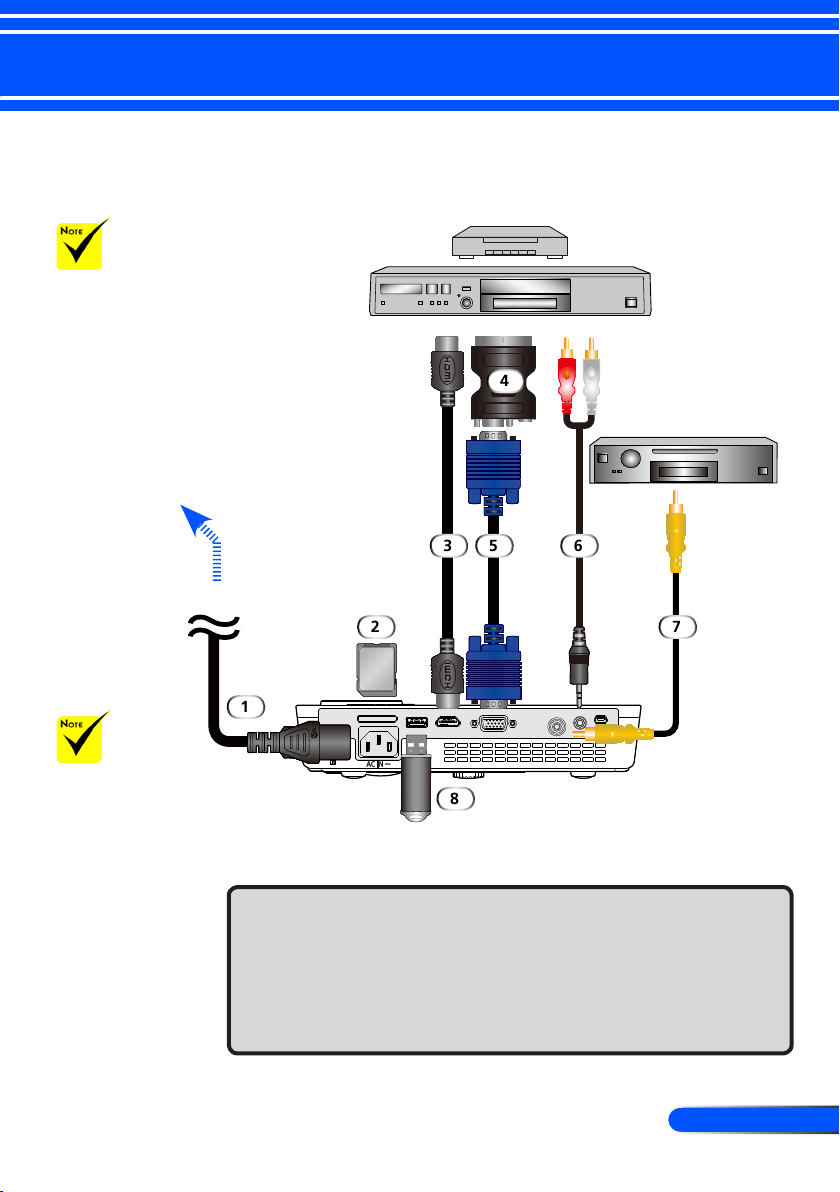
Connect to Video Sources
DVD Player, Blu-ray Player,
Set-top Box, HDTV receiver
1.............................................................................................Power cord (supplied)
2......................................................................................................................SD Card
3...............................................................................................................HDMI cable
4.............................................................................................SCART/VGA adaptor
5........................................................................ Computer cable (VGA) (supplied)
6...........................................................................................................Audio in cable
7............................................................................................ Composite video cable
8................................................................................................ USB memory device
To the wall outlet
Make sure that the
power plug is fully
inserted into both the
projector AC inlet and
the wall outlet.
1
2
3
4
65
7
8
HDMI cable: Use High Speed HDMI
®
Cable.
14
English ...
Installation
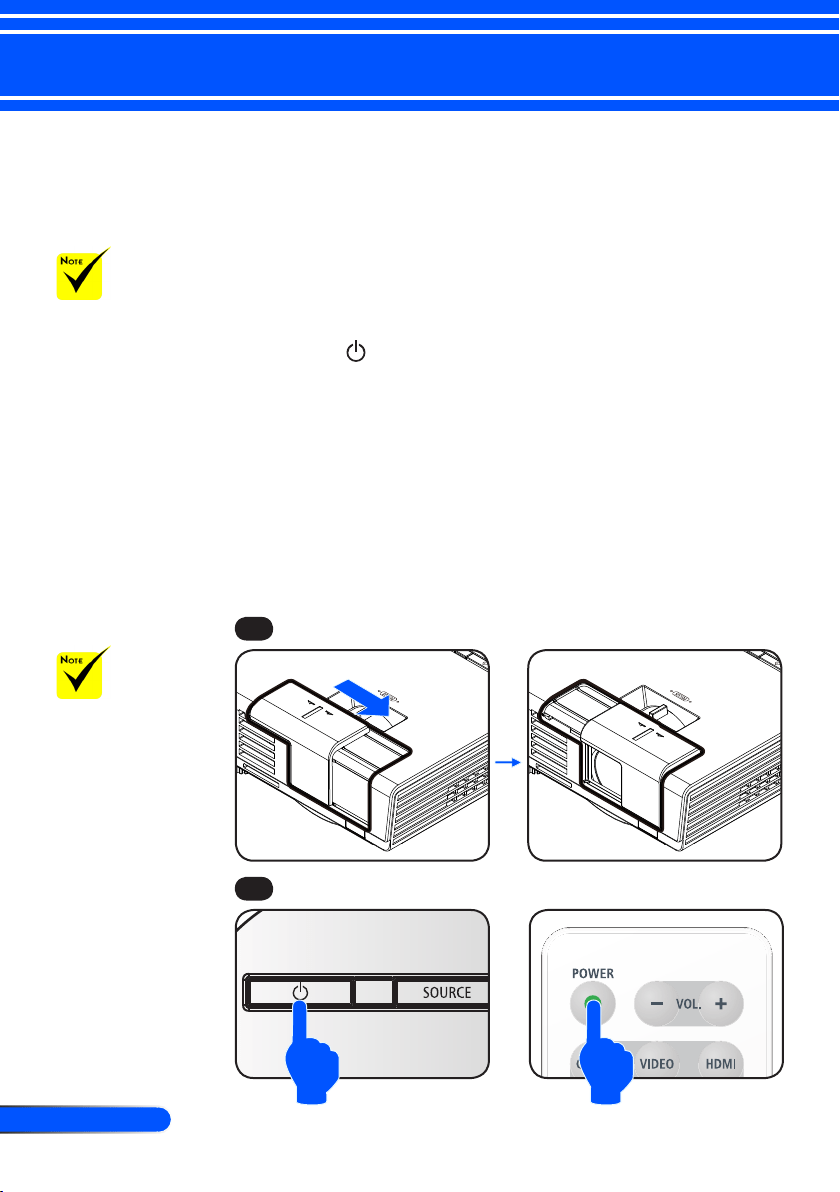
Powering On the Projector
1. Slide the lens cover.
1. Ensure that the power cord and signal cable are securely
connected. The Power indicator will turn red.
2. Turn on the projector by pressing “POWER” on the remote
control or on the control panel. The Power indicator
will ash blue. The startup screen (NEC logo) will display
and the Power indicator will turn steady blue.
4. Turn on your source (computer, notebook, video player,etc.)
The projector will detect your source automatically.
If you connect multiple sources at the same time, use the
“SOURCE” button on the control panel or use “COMP.”,
“VIDEO”, “HDMI”, “SD”, “USB-A”, “USB-B” on the remote
control to switch inputs.
Powering On/Off the Projector
Turn on the projector
rst and then the signal
sources.
or
1
2
Lens Cover
POWER
When you rst
turn on the projec-
tor, you will get the
Startup menu. This
menu gives you the op-
portunity to select the
menu languages. Select
your language. Refer to
Language on page 27.
15
... English
Installation
Powering Off the Projector
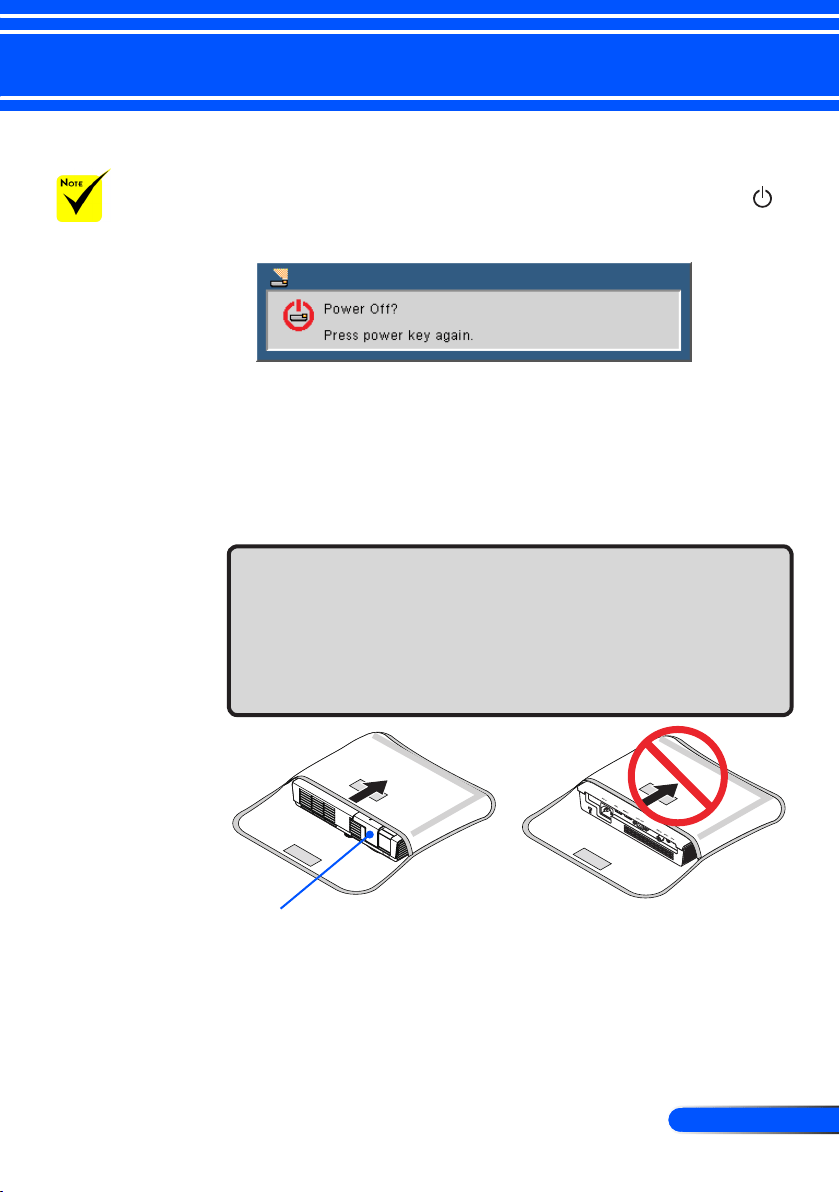
1. Press the “POWER” button on the remote control or the
button on the control panel to turn off the projector, you will
see a message as below on the on-screen display.
2. Press the “POWER” button again to conrm. When the light
turns red, the projector has entered standby mode.
3. Disconnect the power cord from the electrical outlet and the
projector.
4. Do not turn on the projector immediately following a power
off procedure.
After Use
When storing the projector in the supplied soft case, insert
the projector with the top cabinet facing upward.
The remote control can be stored in the inner pocket inside
the soft case.
Lens cover
In some cases the
POWER indicator can
stay light for a certain
period of
time after the power
cord is unplugged.
This is not a fault. Press
the POWER button
again with the power
cord unplugged and
the indicator light will
go off.
16
English ...
Installation
Warning Indicator
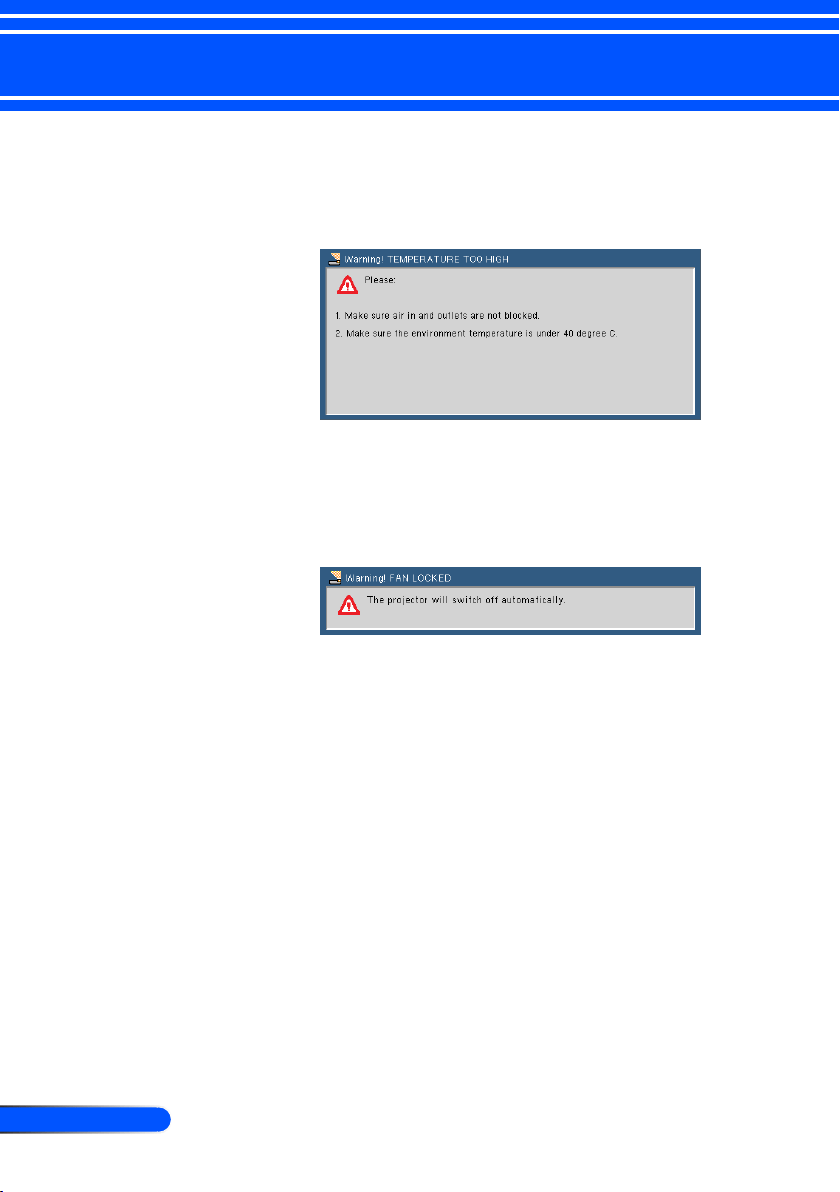
When the “STATUS” indicator ashes red in two cycles, it
indicates the projector has overheated. The projector will
automatically shut itself down.
When the “STATUS” indicator ashes red in four cycles and
the message below displays on-screen, it indicates the fan
failed. Stop using the projector and disconnect the power
cord from the electrical outlet, then contact your local dealer
or our service center.
17
... English
Installation
Adjusting the Projected Image
Adjusting the Height of Projector Image
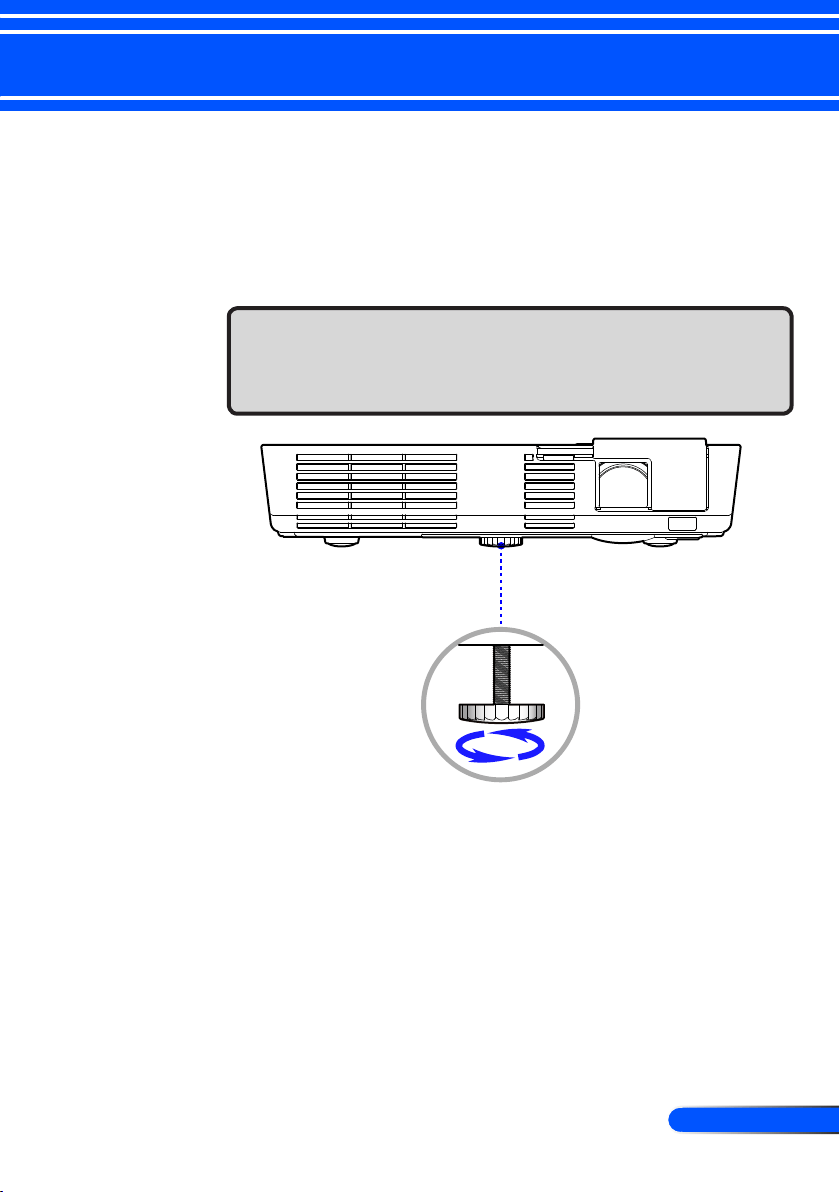
The projector is equipped with an adjustable foot to raise and
lower the image to ll the screen.
Tilt adjusting foot
Rotate the tilt adjustable foot counter clockwise to raise the
projector or clockwise to lower it.
18
English ...
Installation
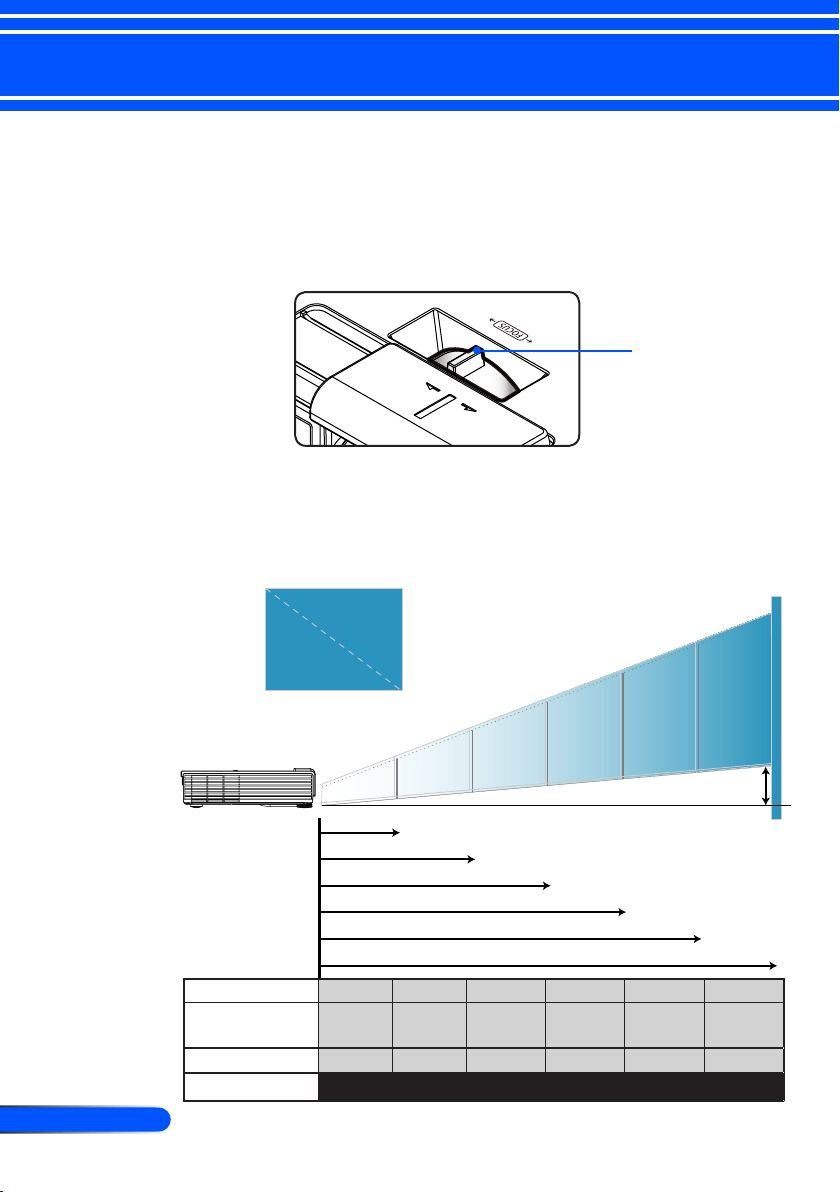
Focus Lever
Adjusting the Projector Focus
Adjusting Projection Image Size
To focus the image, rotate the focus lever until the image is
clear.
L50W series: The projector will focus at distances from 20.5”
to 118.1”/52 to 300 cm.
L50W series: Projection Image Size from 17” to 100” (0.438 to
2.540 meters).
17"
(43.8cm)
30"
(76.7cm)
50"
(126.4cm)
66"
(168.5cm)
80"
(203.2cm)
100"
(254.0cm)
1.7'
9.8'
7.9'
6.6'
4.9'
3.0'
(0.52m)
(3.00m)
(2.40m)
(2.00m)
(1.50m)
(0.91m)
D
This graph is for user’s reference only.
Screen (Diagonal)
17” (43.8cm) 30” (76.7cm) 50” (126.4cm) 66” (168.5cm) 80” (203.2cm) 100” (254.0cm)
Screen Size
(Width x Height)
14.6” x 9.1”
37.1 x 23.2cm
25.6” x 16.0”
65.0 x 40.6cm
42.2” x 26.4”
107.1 x 67.0cm
56.2” x 35.2”
142.9 x 89.3cm
67.8” x 42.4”
172.3 x 107.7cm
84.4” x 52.7”
214.3 x 134.0cm
D (cm/inch)
1.2/0.47” 2.0/0.79” 3.3/1.3” 4.5/1.78” 5.4/2.13” 6.7/2.64”
Distance
1.7’ (0.52m) 3.0’ (0.91m) 4.9’ (1.5m) 6.6’ (2.0m) 7.9’ (2.4m) 9.8’ (3.0m)
Height
Width
Diagonal
19
... English
User Controls
The Projector has a multilingual On Screen Display (OSD)
that allows you to make image adjustments and change a
variety of settings. The projector will automatically detect the
source.
How to operate
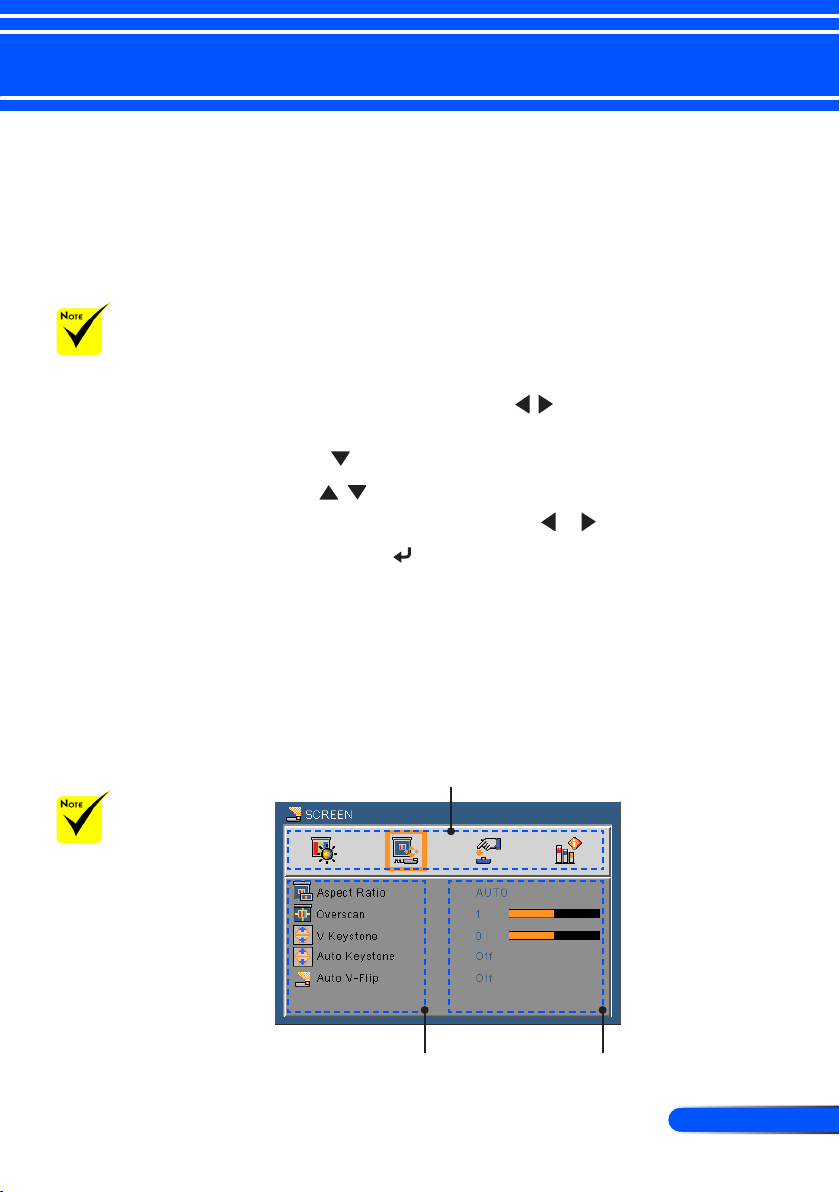
1. To open the OSD, press the MENU button on the Remote Control.
2. When OSD is displayed, use the buttons to select any item
in the main menu. While making a selection on a particular page,
press the button to enter sub menu.
3. Use the buttons to select the desired item in the sub menu
and adjust the settings by using the or button.
4. If the setting has icon, you could press the ENTER button to
enter another sub menu. Press the MENU button to close the sub
menu after adjustment.
5. After adjusting the settings, press the MENU button to go back to
the main menu.
6. To exit, press the MENU button again. The OSD will be closed and
the projector will automatically save the new settings.
On Screen Display
Main Menu
Sub Menu
If no button operation
is made for 30 seconds,
the OSD will be closed
automatically.
Setting
When “Advanced”,
“Signal”, or “Informa-
tion” is selected for the
sub menu, you cannot
select any item in the
main menu.
20
English ...
User Controls
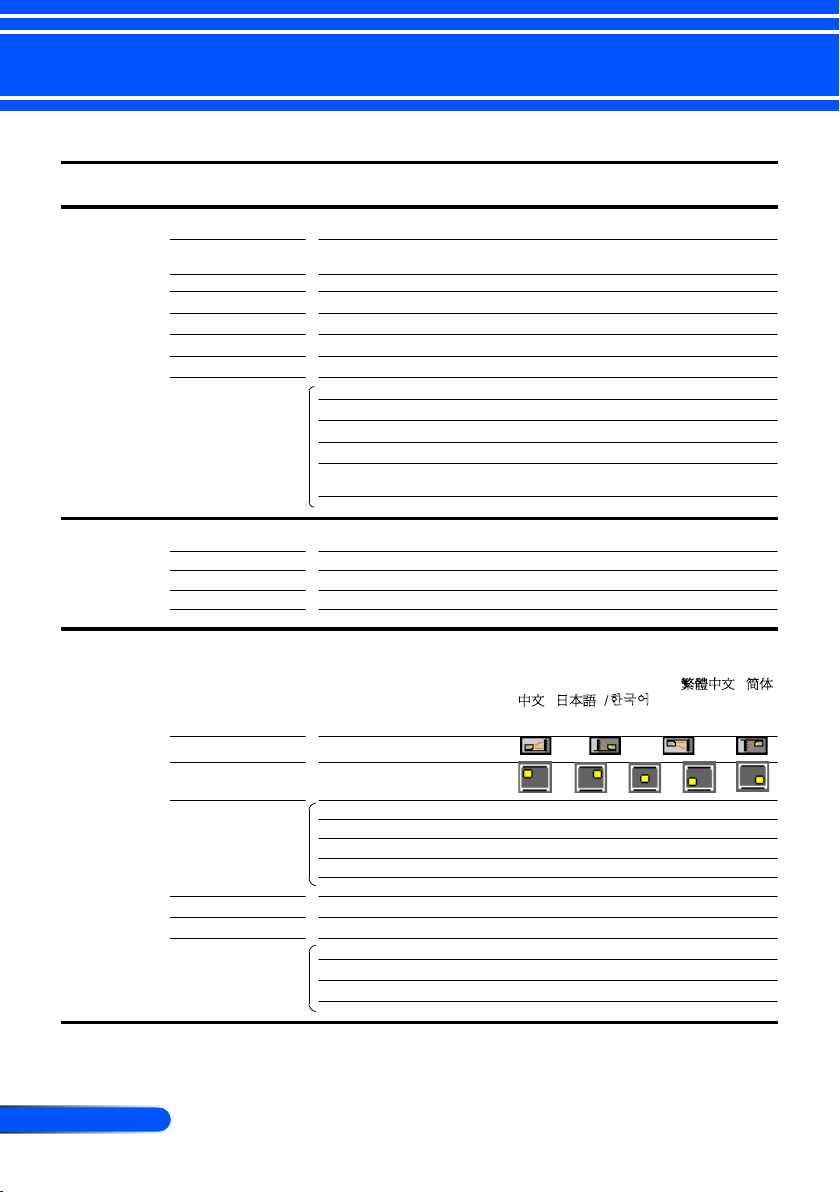
Menu Tree
Main Menu Sub Menu Settings
IMAGE
Picture Mode
Wall Color
Brightness 0~100
Contrast 0~100
Sharpness 0~31
Saturation 0~100
Hue 0~100
Advanced Gamma Film / Video / Graphics / PC / Blackboard
0~10
Color Temp. Low / Medium / High
Color Space AUTO / RGB / YUV
Input
Exit
SCREEN
Aspect Ratio AUTO / 4:3 / 16:9 / Fill
0~3
V Keystone -40 ~40
Auto Keystone Off / On
Auto V-Flip Off / On
SETTING
Language
Image Flip
Menu Location
Signal Phase 0~31
Clock -5~5
H. Position -10~10
V. Position -10~10
Exit
ʳ
Mute Off / On
Volume
#1
0~20
Advanced Logo Off / On
Closed Caption Off / CC1 / CC2 / CC3 / CC4
Video Level AUTO / Normal / Enhance
Exit
Presentation / High-Bright / Video / Movie /
sRGB / Blackboard / AdobeRGB / User
Off / Red / Green / Blue / Cyan / Magenta /
Yellow
BrilliantColor™
HDMI / Computer / Video / Multimedia /
Exit
Overscan
English / Deutsch / Français / Italiano /
Español / Português / Polski / Ɋɭɫɫɤɢɣ /
Svenska / Norsk / Türkçe / Nederlands /
İȜȜȘȞȚțȐ / ýeština / ϲΑήϋ /
᧯խ֮ʳ/ 亞
խ֮ʳ/ ֲء!0ᾂ᱑ʳ/ Indonesia /
Suomi
21
... English
User Controls
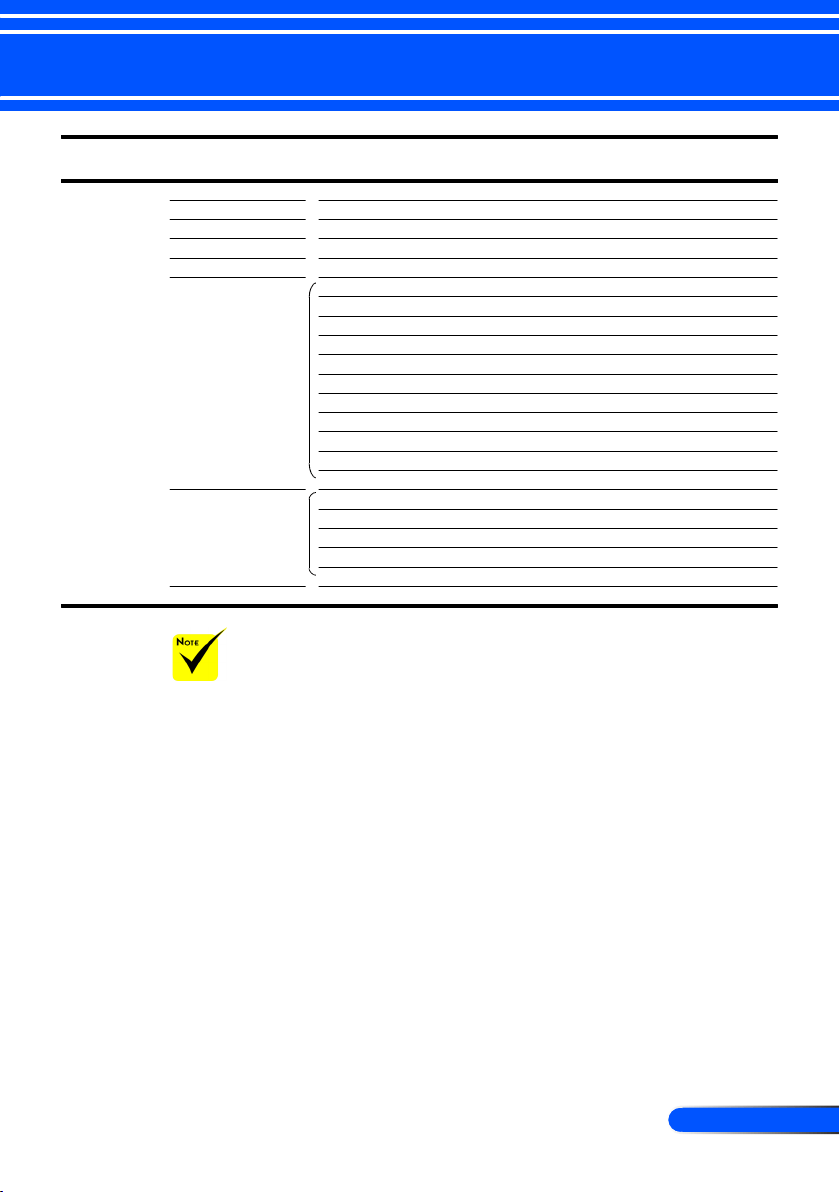
Main Menu Sub Menu Settings
OPTIONS
Input Search Off / On
Fan Mode AUTO / High Speed
Eco Mode Off / On
Information Hide Off / On
Background Color Black / Blue
Information Model Name
Serial Number
Source
Resolution
Software Version
Software2 Version
Video Level
Aspect Ratio
Color Space
Projector Hours Used
Exit
Advanced Direct Power On Off / On
Auto Power Off (min.) 0~180
Off Timer (min.) 0~995
Control Panel Lock Off / On
Exit
Reset No / Yes
Please note that the on-screen display (OSD) menus vary according to the
signal type selected and the projector model you are using.
(#1) 10 at factory default
22
English ...
User Controls
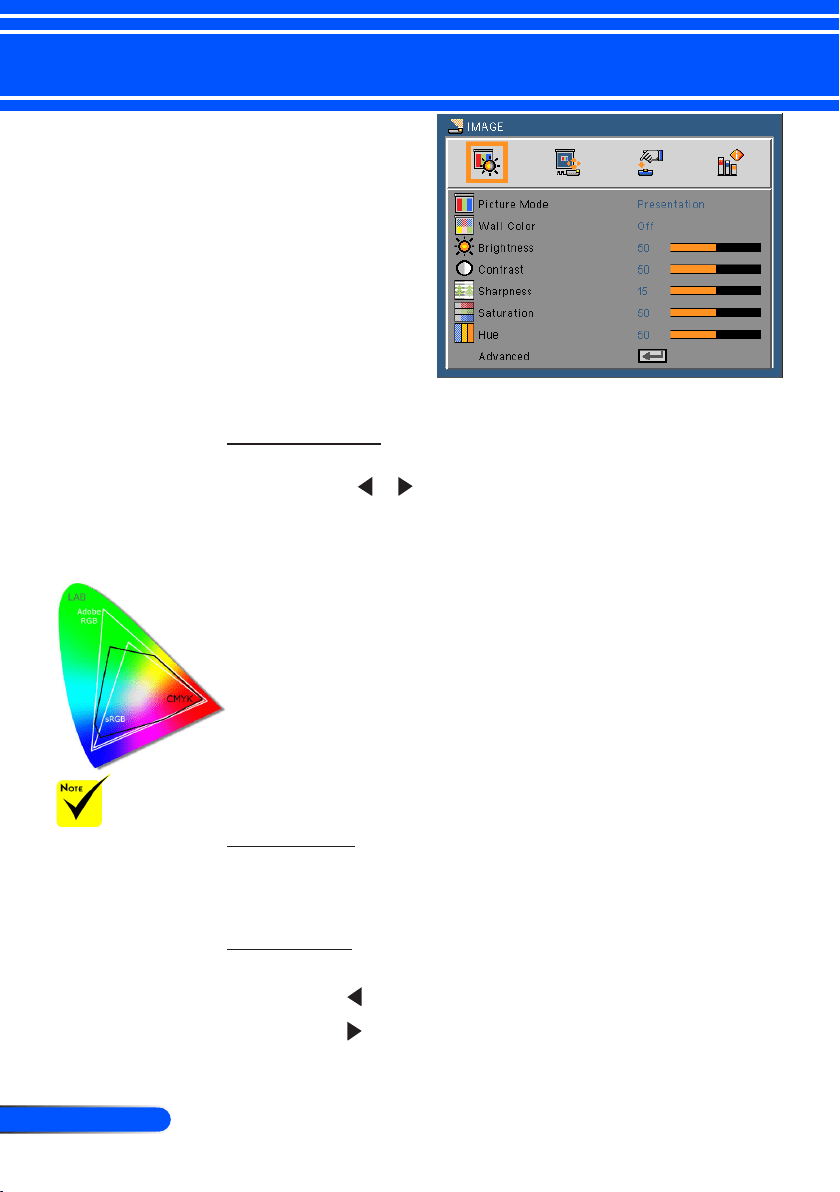
Picture Mode
There are many factory presets optimized for various types of im-
ages. Use the or button to select the item.
Presentation: For computer or notebook.
High-Bright: Maximum brightness from PC input.
Video: This mode is recommended for typical TV program view-
ing.
Movie: For home theater.
sRGB: Standardized accurate color.
Blackboard: This mode should be selected to achieve optimum
color settings when projecting onto a blackboard (green).
User: Memorize user’s settings.
AdobeRGB: AdobeRGB is an RGB color space developed by
Adobe Systems. AdobeRGB is a wider gamut color space than
sRGB. It is suitable for printing photos.
Wall Color
Use this function to choose a proper color according to the wall. It
will compensate the color deviation due to the wall color to show
the correct image tone.
Brightness
Adjust the brightness of the image.
Press the button to darken image.
Press the button to lighten the image.
IMAGE
The Wall Color
function does not
work for Video
signals.
23
... English
User Controls
Contrast
The contrast controls the degree of difference between the lightest
and darkest parts of the picture. Adjusting the contrast changes the
amount of black and white in the image.
Press the button to decrease the contrast.
Press the button to increase the contrast.
Sharpness
Adjust the sharpness of the image.
Press the button to decrease the sharpness.
Press the button to increase the sharpness.
Saturation
Adjust a video image from black and white to fully saturated color.
Press the button to decrease the amount of saturation in the
image.
Press the button to increase the amount of saturation in the
image.
Hue
Adjust the color balance of red and green.
Press the button to increase the amount of green in the image.
Press the button to increase the amount of red in the image.
Advanced
Refer to next page.
“Sharpness”, “Satu-
ration” and “Hue”
functions are only
supported under
Video mode.
24
English ...
User Controls
IMAGE | Advanced
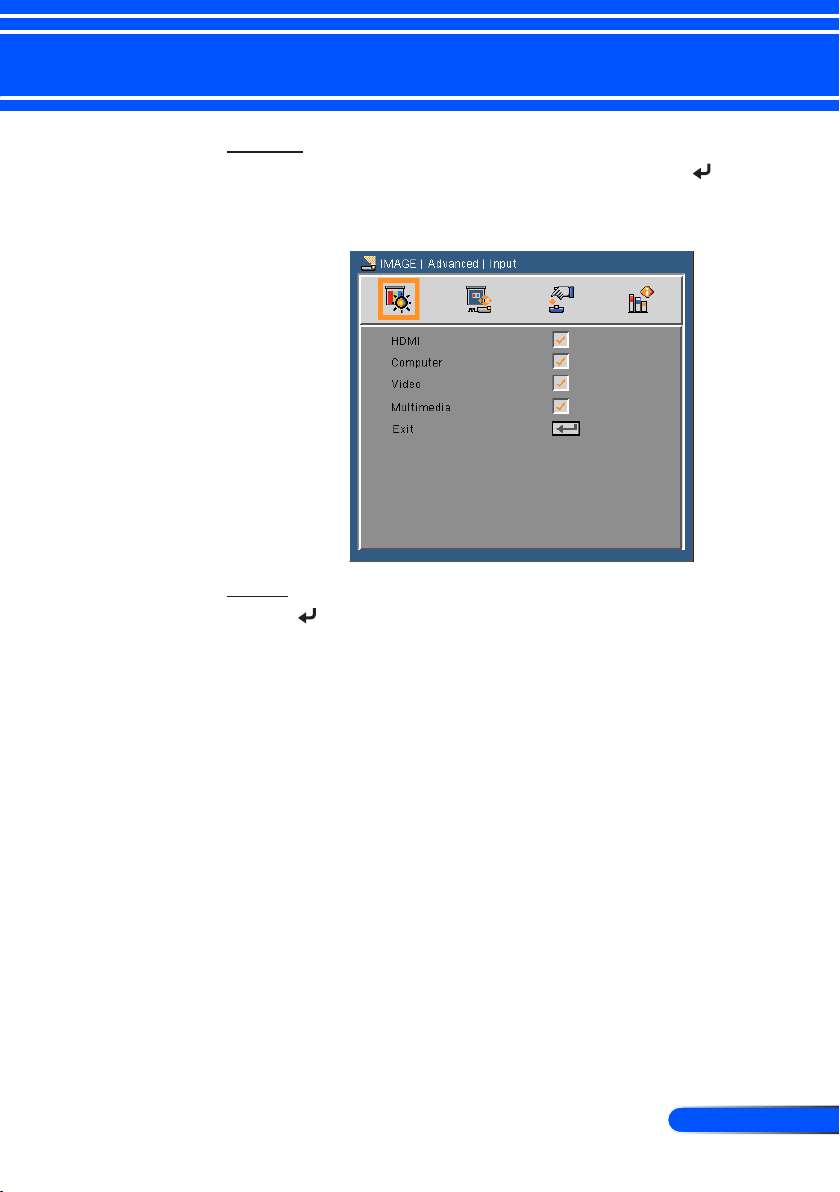
Gamma
This allows you to choose a gamma table that has been ne-tuned
to bring out the best image quality for the input.
Film: for home theater.
Video: for video or TV source.
Graphics: for image source.
PC: for PC or computer source.
Blackboard: This mode should be selected to achieve optimum
color settings when projecting onto a blackboard (green).
BrilliantColor™
This adjustable item utilizes a new color-processing algorithm
and system level enhancements to enable higher brightness while
providing true, more vibrant colors. The range is from “0” to “10”.
If you prefer a stronger enhanced image, adjust toward the maxi-
mum setting. For a smoother, more natural image, adjust toward
the minimum setting.
Color Temp.
Adjust the color temperature. At higher temperature, the screen
looks colder; at lower temperature, the screen looks warmer.
Color Space
Select an appropriate color matrix type from AUTO, RGB or YUV.
25
... English
User Controls
Input
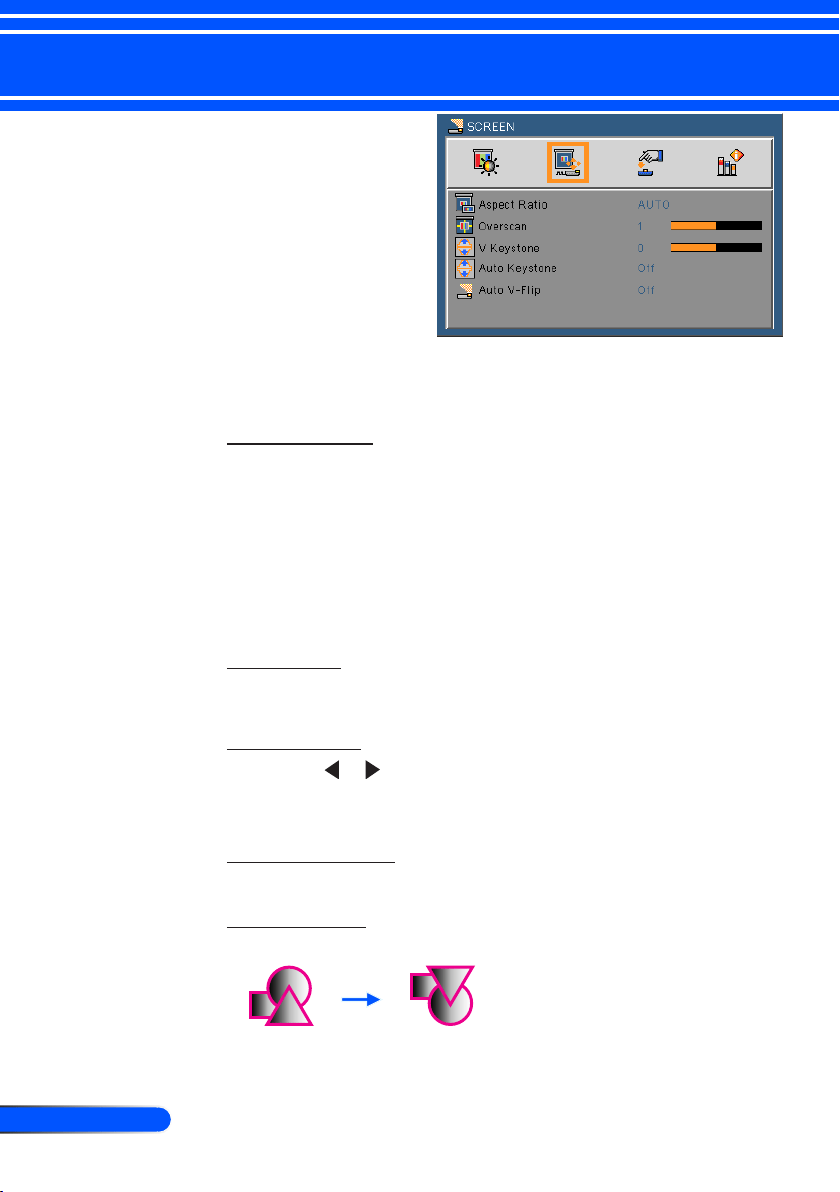
Use this option to enable / disable input sources. Press to enter
the sub menu and select which sources you require. Press the EN-
TER button to finalize the selection. The projector will not search for
inputs that are not selected.
Exit
Press to return to the previous menu.
26
English ...
User Controls
SCREEN
Aspect Ratio
Use this function to choose your desired aspect ratio.
4:3: This format is for 4×3 input sources.
16:9: This format is for 16×9 input sources, like HDTV and DVD
enhanced for Wide screen TV.
Fill: for Fullscreen.
AUTO: Automatically selects the appropriate display format.
Overscan
Overscan function removes the noise in a video image. Overscan the
image to remove video encoding noise on the edge of video source.
V Keystone
Press the or button to adjust image distortion vertically. If
the image looks trapezoidal, this option can help make the image
rectangular.
Auto Keystone
Automatically adjusts vertical image distortion.
Auto V-Flip
Automatically ip vertical image.
27
... English
User Controls
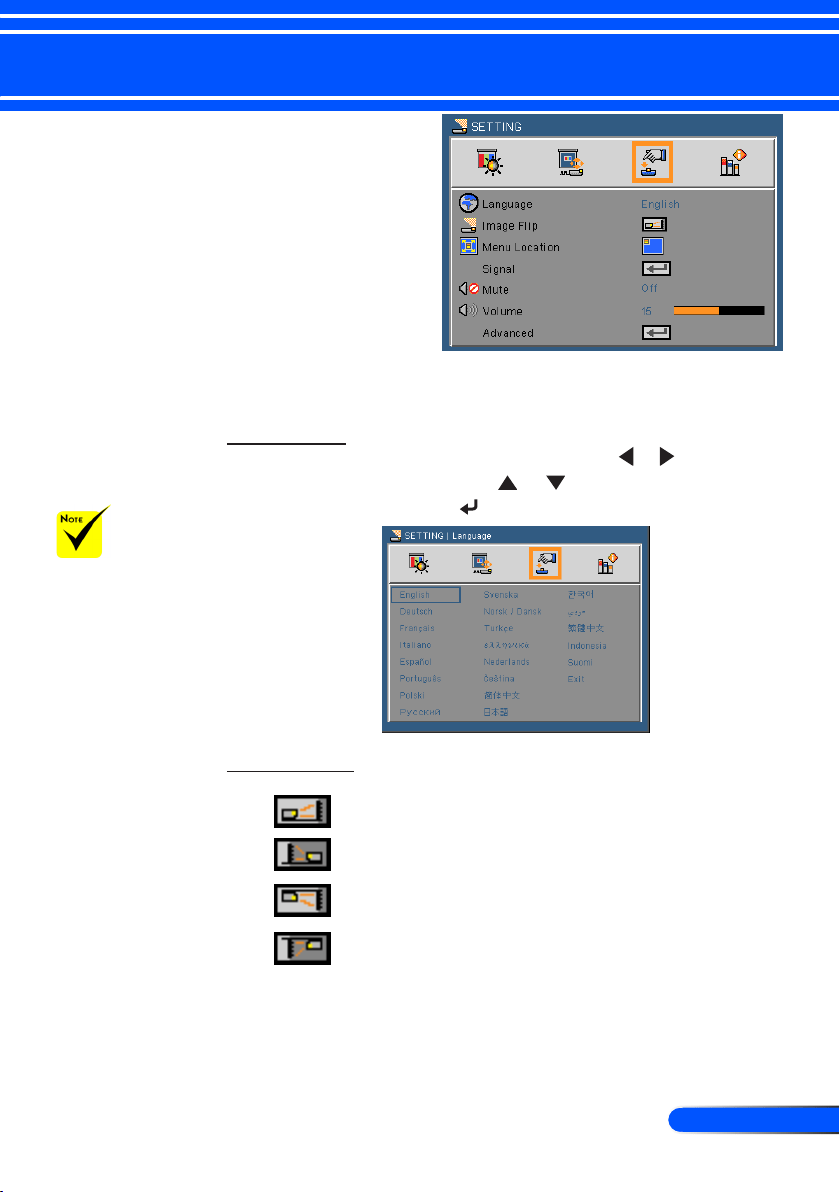
SETTING
Language
Choose the multilingual OSD menu. Press the or button into
the sub menu and then use the or button to select your
preferred language. Press to nalize the selection.
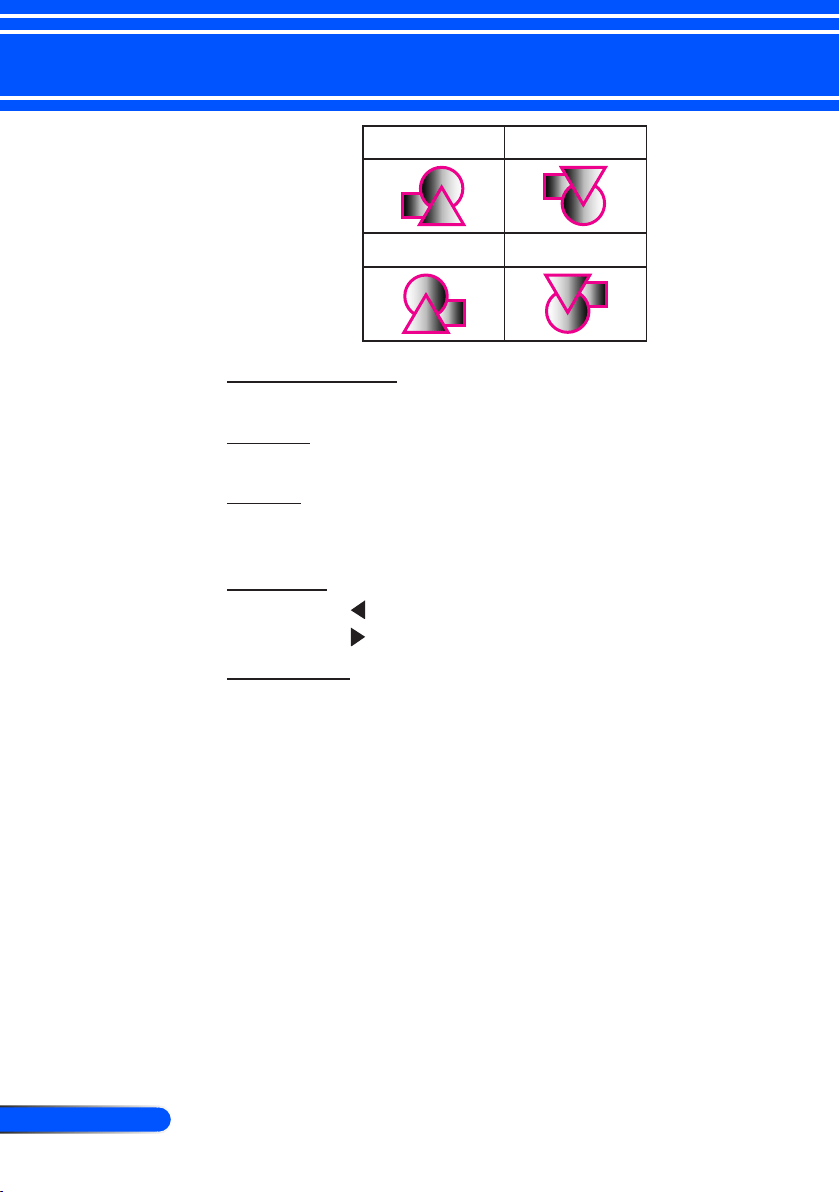
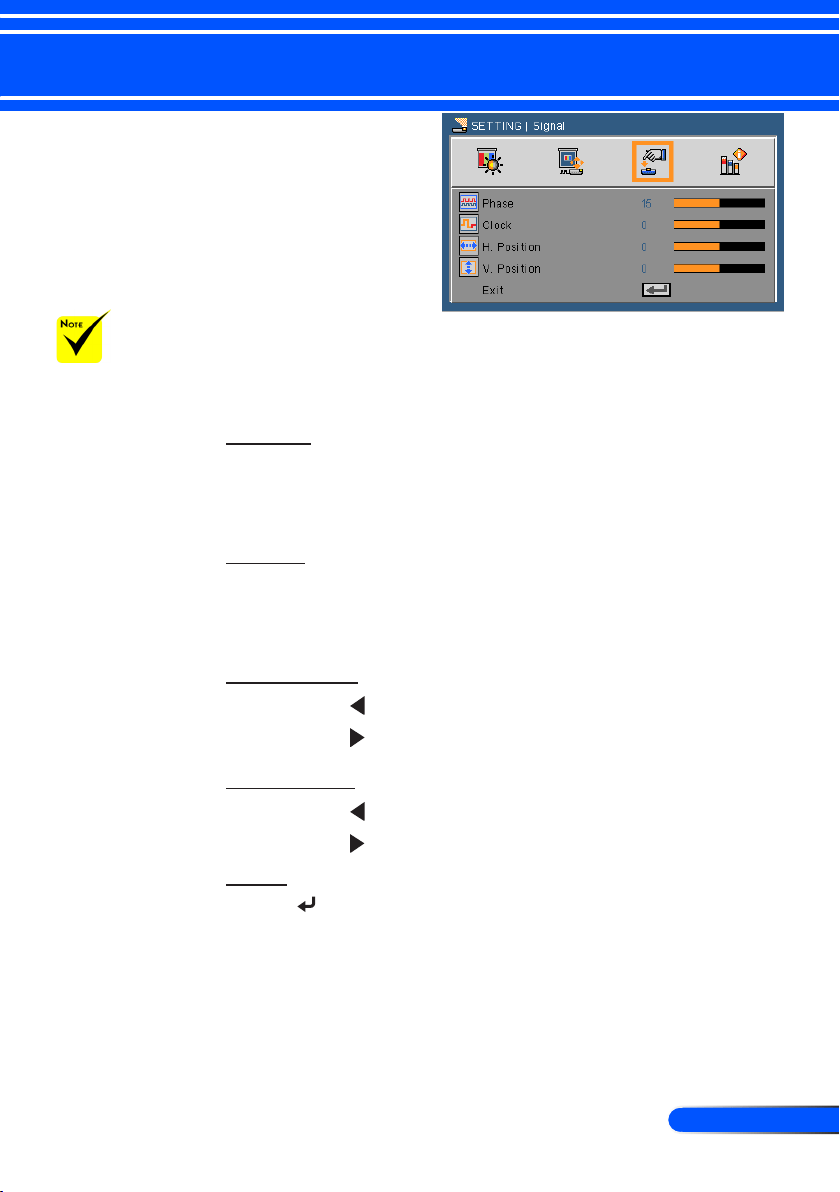
Image Filp
Standard: Normal screen.
H Flip: Horizontally ip the image.
V Flip: Vertically ip the image.
H+V Flip: Flip the image by horizontal and vertical.
The rear projection
is to be used with a
translucent screen.
28
English ...
User Controls
Standard V Flip
H Flip H+V Flip
Menu Location
Choose the menu location on the display screen.
Signal
Refer to next page.
Mute
Choose “On” to turn mute on.
Choose “Off” to turn mute off.
Volume
Press the button to decrease the volume.
Press the button to increase the volume.
Advanced
Refer to page 30.
29
... English
User Controls
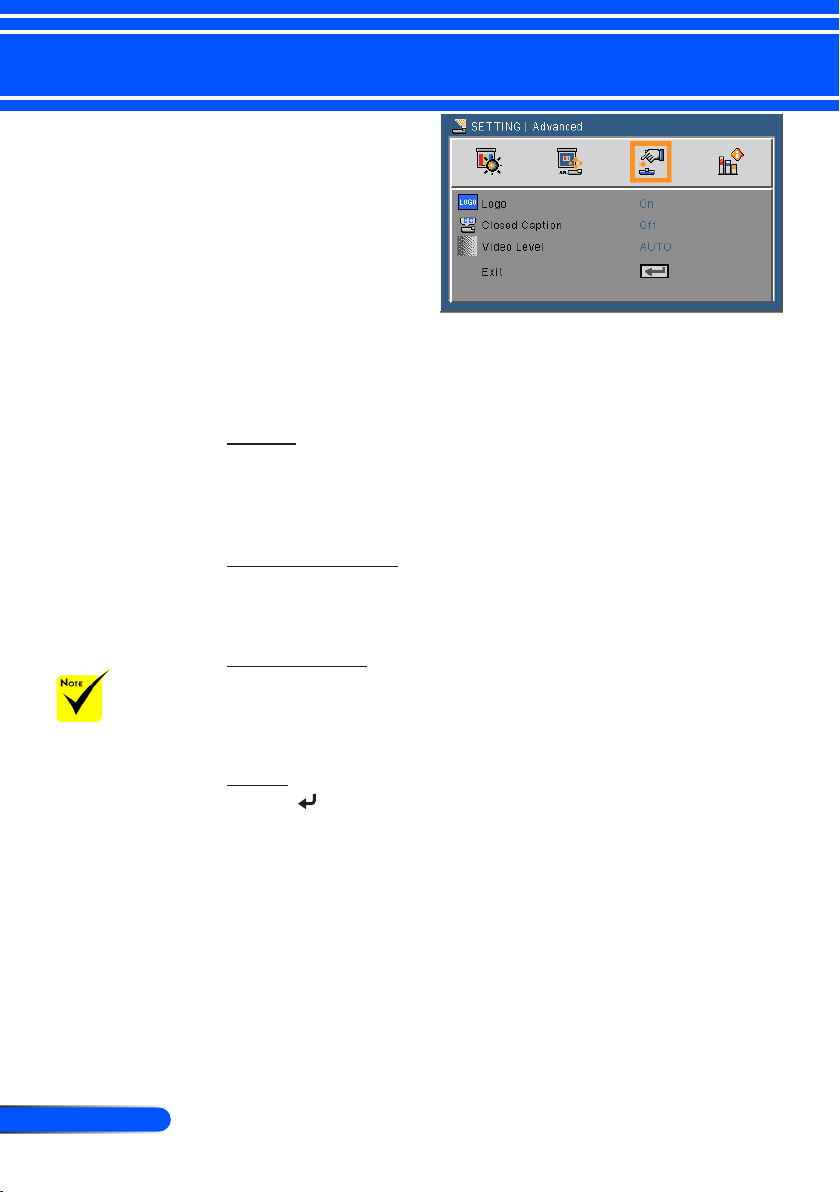
SETTING | Signal
(RGB)
Phase
Synchronize the signal timing of the display with the graphic card.
If the image appears to be unstable or ickers, use this function to
correct it.
Clock
Change the display data frequency to match the frequency of
your computer’s graphic card. Use this function only if the image
appears to icker vertically.
H. Position
Press the button to move the image left.
Press the button to move the image right.
V. Position
Press the button to move the image down.
Press the button to move the image up.
Exit
Press to return to the previous menu.
“Signal” is only
supported in
Analog VGA (RGB)
signal.
30
English ...
User Controls
SETTING |
Advanced
Logo
Use this function to display the startup screen (NEC logo).
On: Displays the NEC logo.
Off: No logo is displayed.
Closed Caption
Use this function to enable close caption and activate the closed
caption menu. Select an appropriate closed captions option: Off,
CC1, CC2, CC3 and CC4.
Video Level
Select “AUTO” to automatically detect video level. If automatic
detection may not work well, select “Normal” to disable the “En-
hance” feature of your HDMI equipment or select “Enhance” to
improve image contrast and increase detail in the dark areas.
Exit
Press to return to the previous menu.
“Video Level” is
only supported un-
der HDMI source.
31
... English
User Controls
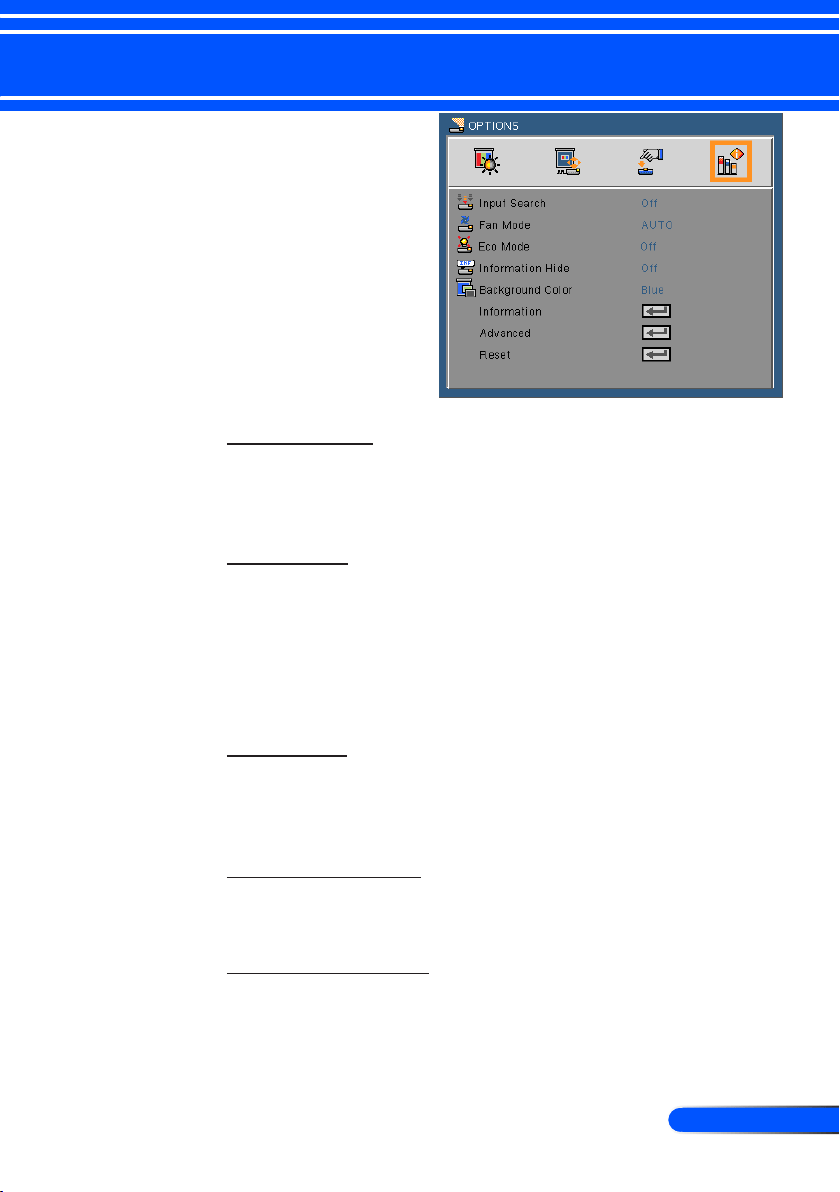
Input Search
On: The projector will search for other signals if the current
input signal is lost.
Off: The projector will only search current input connection.
Fan Mode
AUTO: The built-in fans automatically run at a variable speed
according to the internal temperature.
High Speed: The built-in fans run at high speed.
The built-in fans run at a high speed. Select this option when using
the projector at altitudes approximately 2500 feet/760 meters or
higher.
Eco Mode
On: Dim the projector light source which will lower power
consumption and extend the light source life.
Off: Normal mode.
Information Hide
On: Choose “On” to hide the info message.
Off: Choose “Off” to show the “searching” message.
Background Color
Use this feature to display a “Black”or “Blue” screen when no
signal is available.
OPTIONS

33
... English
User Controls
OPTIONS |
Information
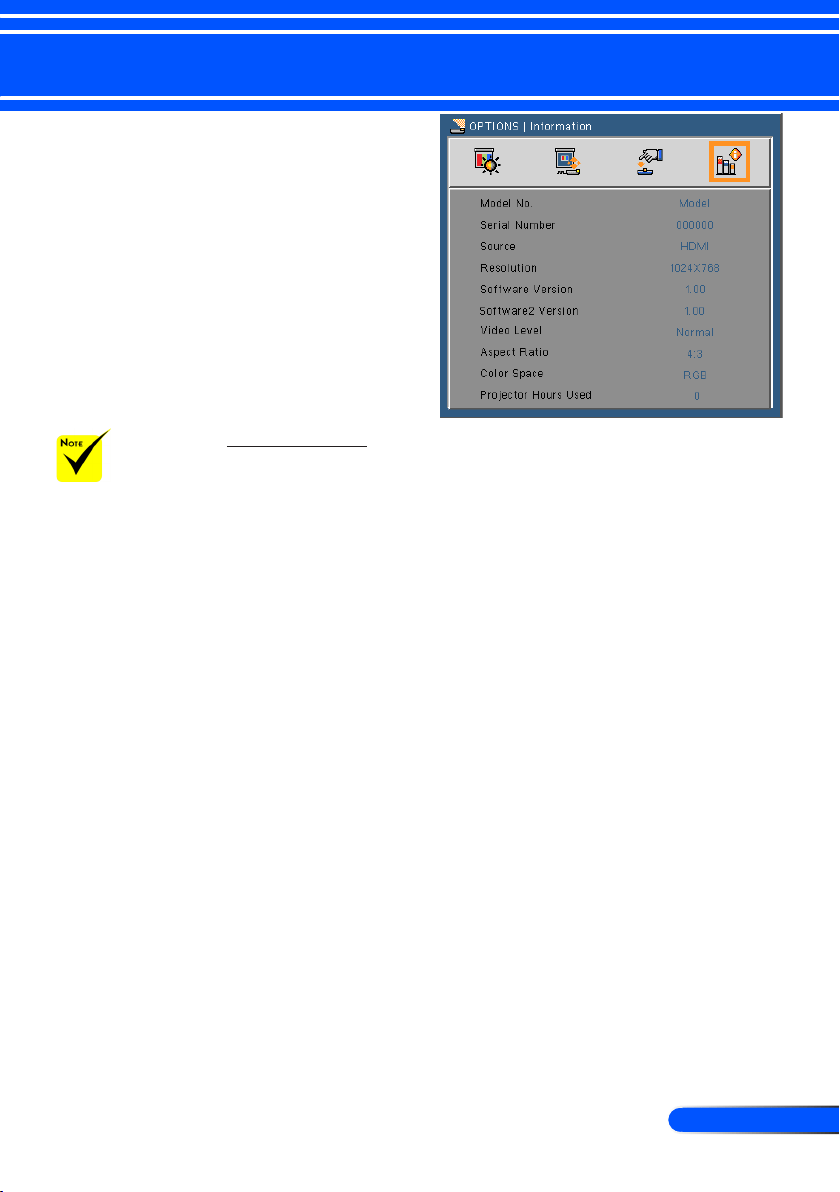
Information
To display the projector information for source, resolution, and
software version on the screen.
“Video Level”,
“Aspect Ratio”, and
“Color Space” are
only supported un-
der HDMI source.
34
English ...
User Controls
OPTIONS |
Advanced
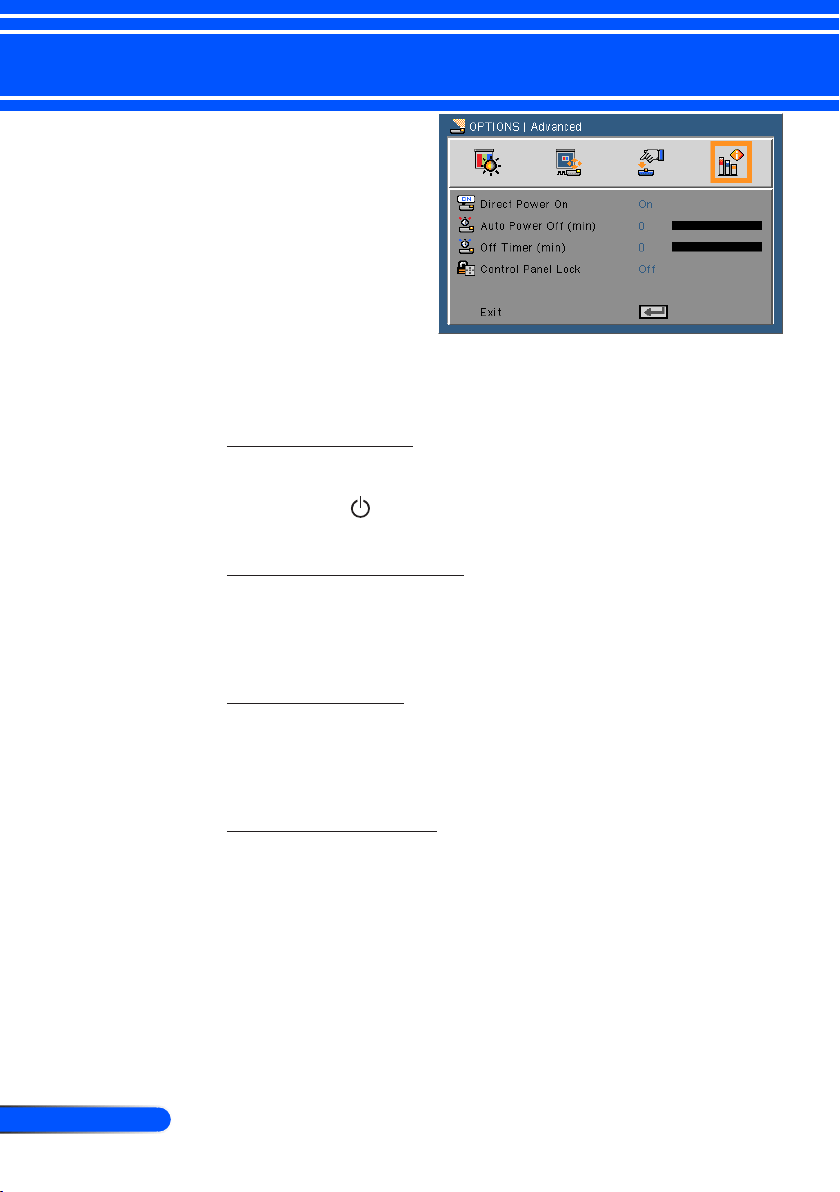
Direct Power On
Choose “On” to activate Direct Power mode. The projector will
automatically power on when AC power is supplied, without
pressing the buton on the projector control panel or the POWER
ON button on the remote control.
Auto Power Off (min)
Sets the countdown timer interval. The countdown timer will start,
when there is no signal being sent to the projector. The projector
will automatically power off when the countdown has nished (in
minutes).
Off Timer (min)
Sets the countdown timer interval. The countdown timer will start,
with or without a signal being sent to the projector. The projector
will automatically power off when the countdown has nished (in
minutes).
Control Panel Lock
When the keypad lock function is “On”, the control panel will
be locked however, the projector can be operated by the remote
control. By selecting “Off”, you will be able to reuse the control
panel. Press and hold the SOURCE button on the projector cabinet
for about 10 seconds to turn off “Control Panel Lock”.
35
... English
User Controls
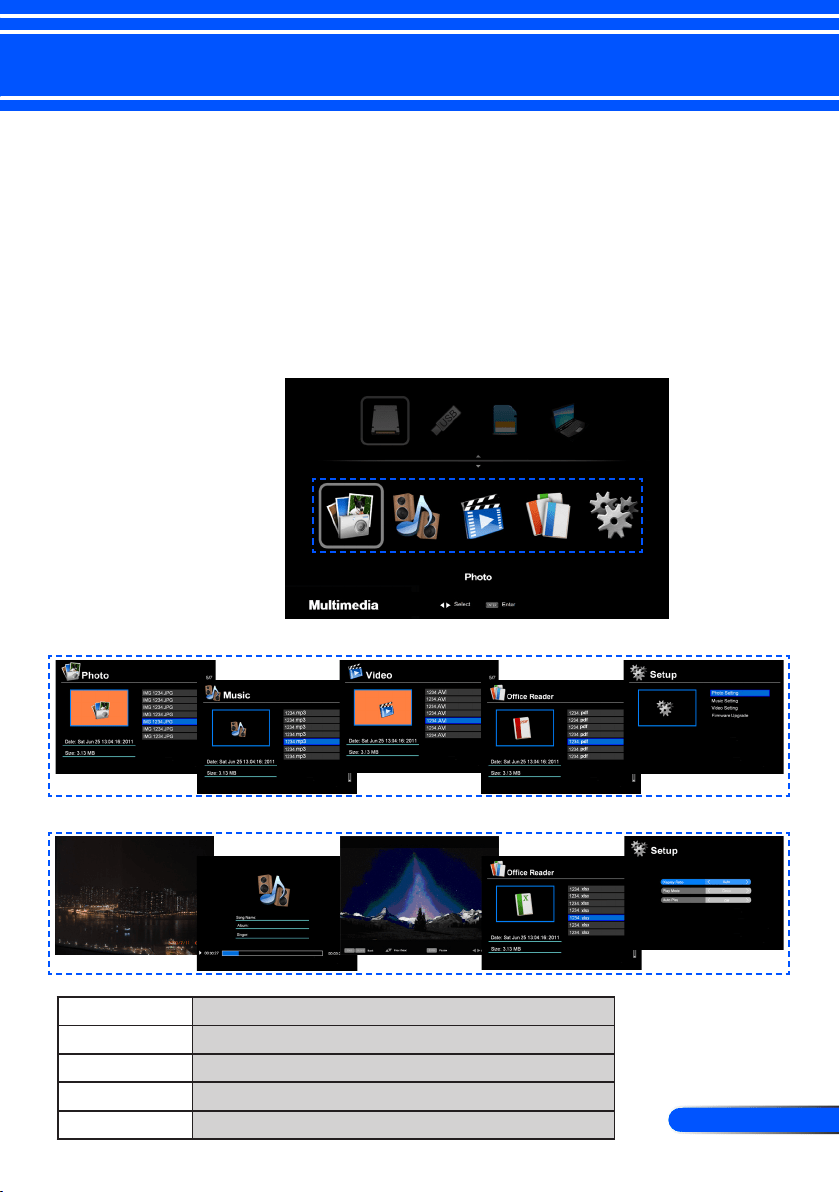
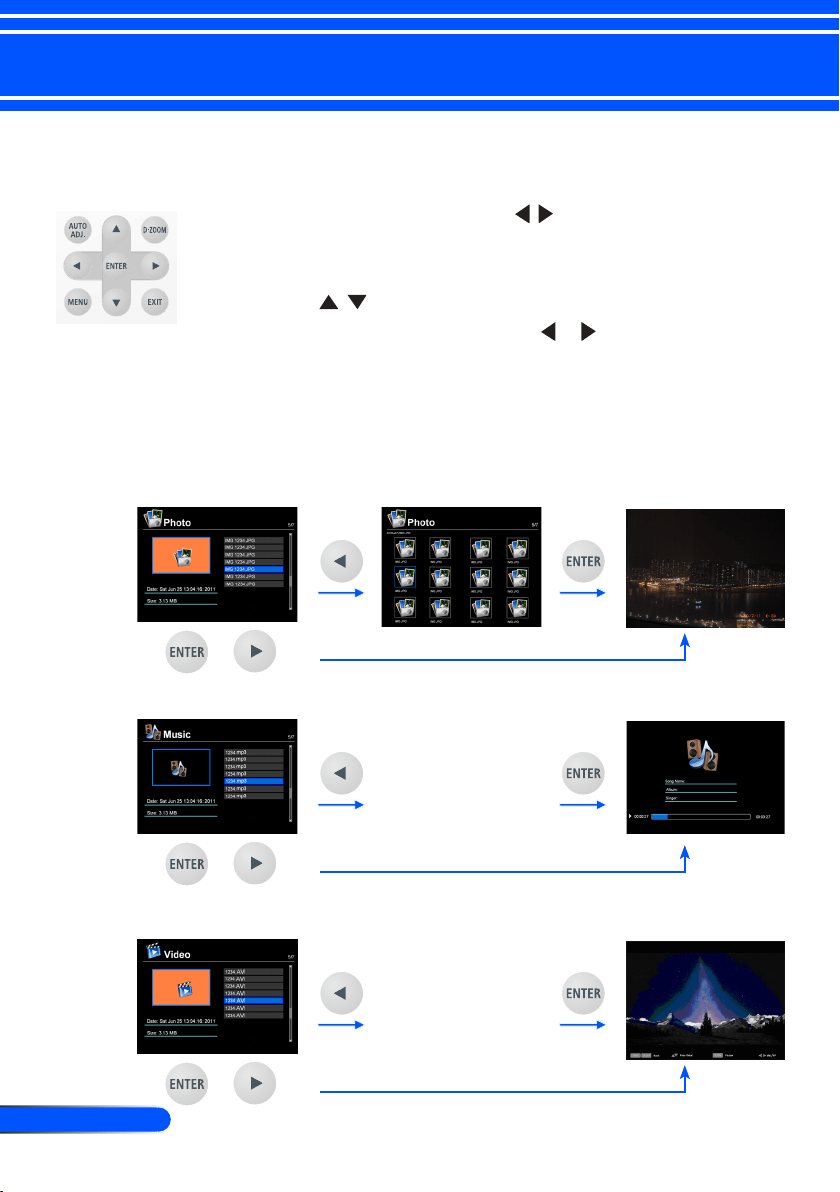
Multimedia is an interactive PC-less presentation solution. It
equipped several mode (Photo, Video, Music, Ofce Reader, and
Setting) with user-friendly user interface.
To display the main menu of the Multimedia, press the USB-
A, USB-B or SD button on the remote control or press the
SOURCE button.
Using Multimedia
Layer1: Main Menu
Layer2: Sub Menu
Layer3: Setting
Photo
Min:64x64, Max: Over 4000x4000
Music
File size: Max. 2GB
Video
File size: Max. 2GB
OfceReader
Support Word/Excel/PowerPoint/Adobe PDF playback
Settings
Photo/Music/Video/Ofce Reader settings
36
English ...
User Controls
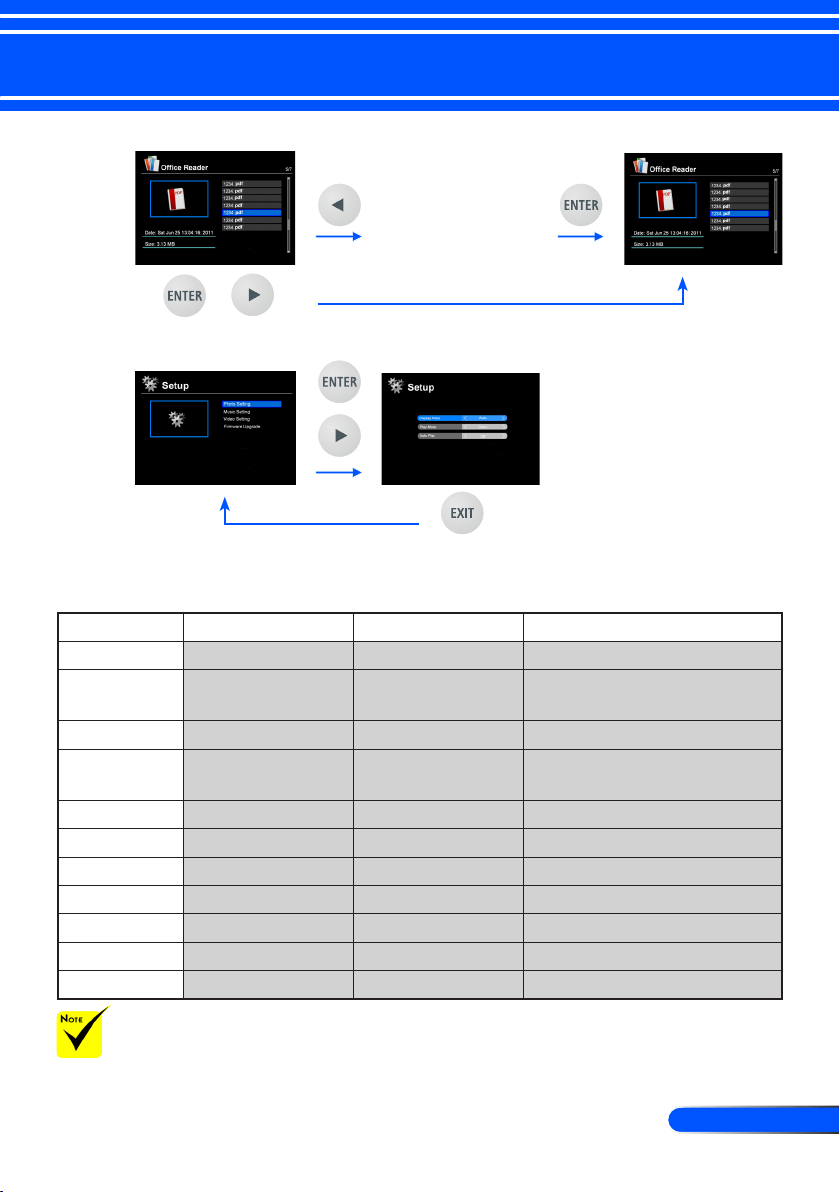
How to operate
1. To open the OSD, press the MENU button on the Remote Control.
2. When OSD is displayed, use the buttons to select any item
in the main menu. While making a selection on a particular page,
press the ENTER button to enter sub menu.
3. Use the buttons to select the desired item in the sub menu
and adjust the settings by using the or button.
5. After adjusting the settings, press the EXIT button to go back to the
main menu.
6. To exit, press the MENU button again. The OSD will be closed and
the projector will automatically save the new settings.
or
or
Photo Viewer
Music Player
File list mode
File list mode
or
Video Player
File list mode
37
... English
User Controls
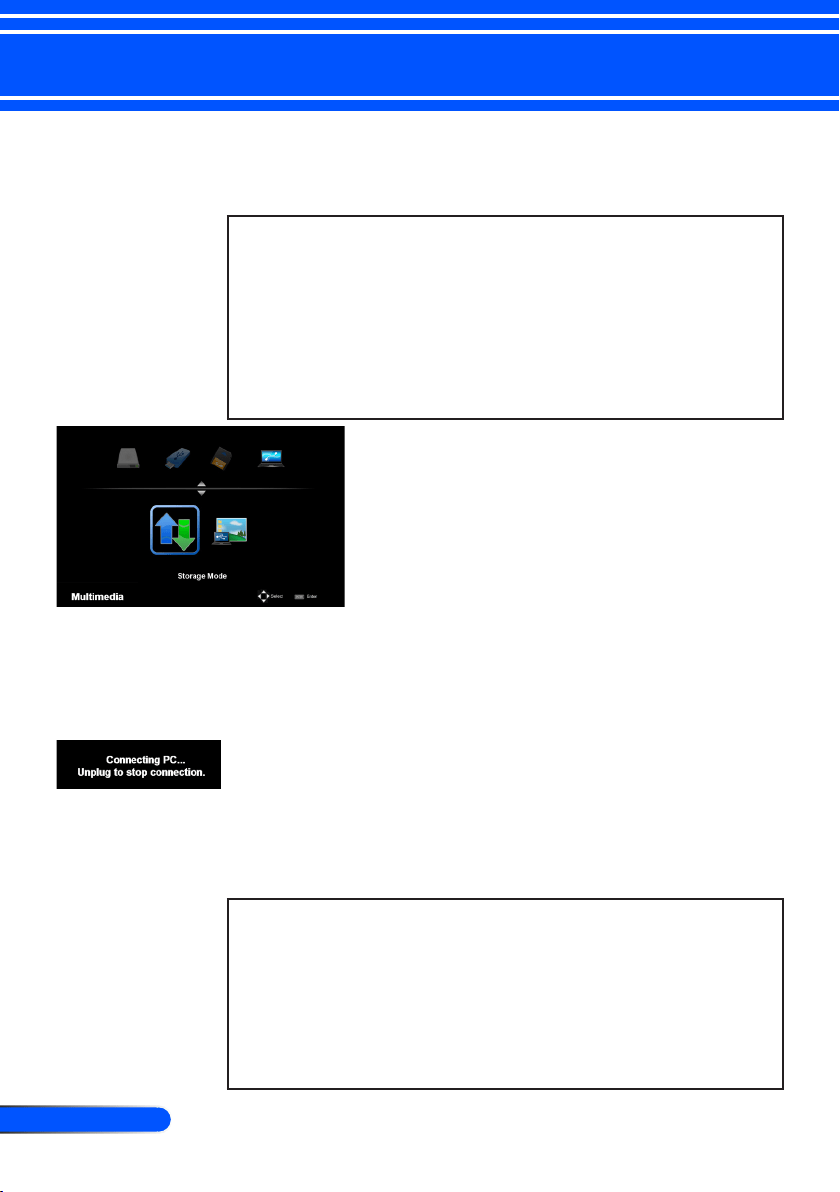
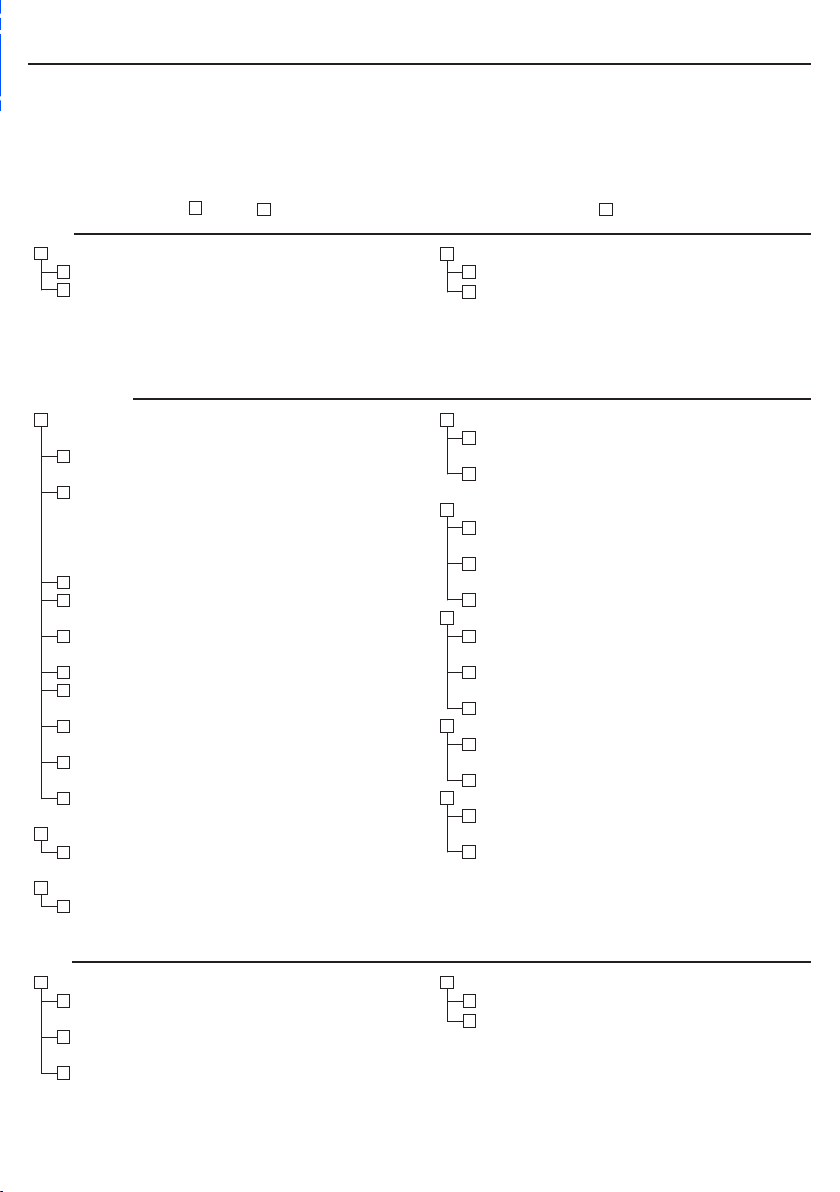
Multimedia Menu Tree
Level 1 Level 2 Level 3 Level 4
Settings
Photo Setup Display Ratio Auto/Full
Slideshow Duration
5 sec./15 sec./30 sec./1 min./5 min./15
min.
Slideshow Repeat On/Off
Slideshow Effect
Random/Snake/Partition/Erase/Blinds/
Lines/GridCross/Cross/Spiral/Rect/Off
Music Setup Play Mode Once/Repeat Once/Repeat/Random
Show Spectrum On/Off
Auto Play On/Off
Video Setup Display Ratio Auto/Orignal Size
Play Mode Once/Repeat Once/Repeat/Random
Auto Play On/Off
Firmware Upgrade Yes/No
To upgrade the rmware, visit at: http://www.nec-display.com/dl/en/index.html
To check the version of your projector, from the menu, select [Options] -> [Information] -> [Software2
Version].
or
Ofce Reader
File list mode
or
Setup

38
English ...
User Controls
Supported Formats
■ Supported graphic formats:
JPG, BMP
JPG le supports JPEG Baseline and progressive JPEG.
BMP le supports full color only.
- Some les supported by the above requirements may not be
displayed
■ Supported audio formats:
WAV, MP3, WMA
WAV supports PCM and AD-PCM.
- Some les supported by the above requirements may not be
played.
■ Supported video formats:
AVI, MOV, MPG, MP4, WMV, MKV
Motion JPEG, MPEG2, MPEG4 (H.264, AAC), and Windows Me-
dia Video (VC-1) are supported.
- Some les supported by the above requirements may not be
played.
■ Supported formats for Ofce Reader:
•Microsoft Word
97/2000/XP/2003/2007
•Microsoft Excel
97/2000/XP/2003/2007
•Microsoft PowerPoint
97/2000/XP/2003/2007
•PDF
1.0/1.1/1.2/1.3/1.4/1.5/1.6/1.7

39
... English
User Controls
Restrictions on displaying Microsoft Ofce
les and PDF les
The Ofce Reader allows you to give a simplied display of a
Microsoft Ofce le or PDF le.
Due to simplied display, however, actual display may be dif-
ferent from the one on your computer application program.
■ Some restrictions on Microsoft Ofce les
• Fonts will be automatically converted to the fonts installed in
the projector. Fonts can vary in size or width, causing layout
corruption.
Some characters or fonts may not be displayed.
• Some functions included in the le are not supported.
Example: There are some restrictions on animation, screen
switching, font embedding, hyperlink, Word Arts, or some
graphs.
• It may take longer time to feed pages compared with a computer
• In some cases Microsoft Ofce 97-2007 format les may not be
displayed.
■ Some restrictions on PDF les
• Fonts not embedded at the time of PDF creation may not be
displayed.
• Some functions included in the le are not supported.
Example: There are some restrictions on bookmark, image de-
forming, or screen switching.
• It may take longer time to feed pages compared with a computer
• In some cases Adobe Acrobat format les may not be displayed.
40
English ...
User Controls
Using the Projector as a Storage
Device
Important:
• Use the projector’s storage area as a temporary storage.
Back up your data on your computer’s hard disk drive before using the projector
as a storage device. We will not be liable for any data loss or damage that could
result from using the projector.
If your data is not to be used for a long period time, delete them from the projec-
tor’s storage area.
• We will not be liable for any data loss or damage that could result from the
projector’s failure or any cause, and we will not be liable for your loss of busi-
ness arising from the data loss or damage.
Our service includes hardware only (not including data recovery).
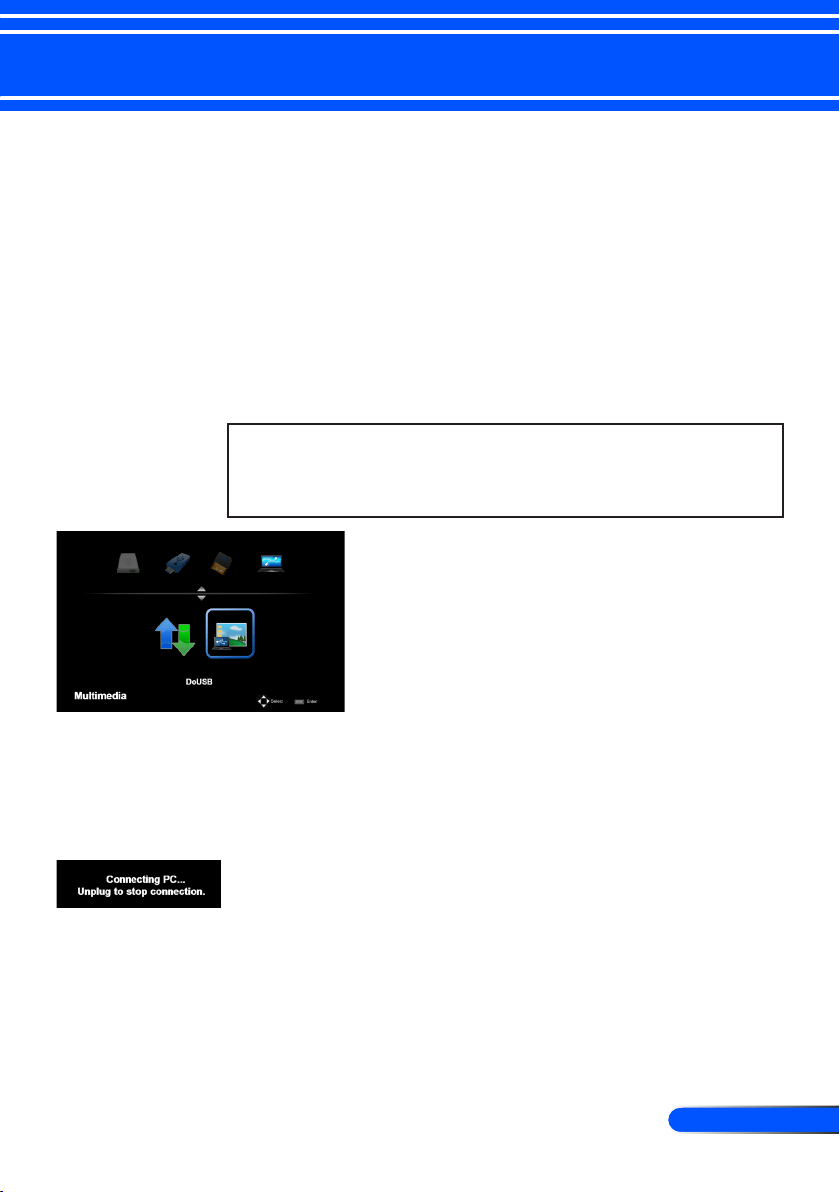
You can use part of the memory inside the pro-
jector as your storage device.
This memory area can be used for saving and
loading your photos, audio, video, and Ofce
Reader les.
1. Turn on the projector.
2. Display the Multimedia and select USB-B (Connect PC) source.
3. Use the supplied USB cable to connect the USB-B port of the projec-
tor and the USB port (A type) of your computer.
4. Select “Storage Mode” and then press “Enter”.
When you see a message as left, the drive has been added to your
computer. This allows you to read and write les to the drive of the
projector.
5. Double clicks the drive of the projector on the Windows “My Com-
puter” on your computer.
You can access the drive of the projector to read or write les.
Note:
• Wait at least 5 seconds after disconnecting a USB memory device before recon-
necting it and vice versa. The computer may not identify the USB memory
device if it is repeatedly connected and disconnected in rapid intervals.
• To disconnect the USB cable from the projector, rst click the USB icon on the
Windows taskbar on your computer.
• Do not disconnect the power cord during data writing.
• Files in the drive of the projector will not be affected even when “Reset” is
done from the menu.
• Data of up to 1GB can be stored in the drive of the projector.
41
... English
User Controls
Projecting Your Computer’s Screen
Image from the Projector via the USB
Cable (USB Display)
Using the supplied USB cable (or a commercially available USB
cable compatible with USB 2.0 specications) to connect the
computer with the projector allows you to send your computer
screen image to the projector for displaying. Power On/Off and
source selection of the projector can be done from your com-
puter without connecting a computer cable (VGA).
Note:
• To make USB DISPLAY available on Windows XP, the Windows user account
must have “Administrator” privilege.
• USB Display will not work in standby condition.
1. Turn on the projector.
2. Display the Multimedia and select USB-B (Connect PC)
source.
3. Use the supplied USB cable to connect the USB-B port of
the projector and the USB port (A type) of your computer.
4. Select “DoUSB” and then press “Enter”.
When you see a message as left; Wait at least 10 seconds. This
allows you to project your computer’s screen image.

42
English ...
Appendices
Problem: No image appears on screen
Ensure all the cables and power connections are correctly and
securely connected as described in the “Installation” section.
Ensure the pins of connectors are not crooked or broken.
Make sure the projector is switched on.
Problem: Partial, scrolling or incorrectly displayed image
Press “AUTO ADJ.” on the remote control.
If you are using a PC:
For Windows 95, 98, 2000, XP, Windows 7:
1. From the “My Computer” icon, open the “Control Panel” folder,
and double click the “Display” icon.
2. Select the “Settings” tab
3. Click on the “Advanced Properties”.
For Windows Vista:
1. From the “My Computer” icon, open the “Control Panel” folder,
and double click the “Appearance and Personalization”
2. Select “Personalization”
3. Click “Adjust screen resolution” to display “Display Settings”.
Click on the “Advanced Settings”.
If the projector is still not projecting the whole image, you will
also need to change the monitor display you are using. Refer to
the following steps.
4. Verify the resolution setting is less than or equal to 1280 x 1024
resolution.
5. Select the “Change” under the “Monitor” tab .
Troubleshooting
If you experience trouble with the projector, refer to the fol-
lowing information. If the problem persists, please contact
your local dealer or service center.
43
... English
Appendices
6. Click on “Show all devices”. Next, select “Standard monitor
types” under the SP box; choose the resolution mode you need
under the “Models” box.
If you are using a Notebook:
1. First, follow the steps above to adjust resolution of the com-
puter.
2. Press the toggle output settings. example: [Fn]+[F4]
Compaq=> [Fn]+[F4]
Dell => [Fn]+[F8]
Gateway=> [Fn]+[F4]
IBM=> [Fn]+[F7]
Macintosh Apple:
System Preference-->Display-->Arrangement-->Mirror
display
Hewlett
=> [Fn]+[F4]
Packard
NEC=> [Fn]+[F3]
Toshiba => [Fn]+[F5]
If you experience difculty changing resolutions or your monitor
freezes, restart all equipment including the projector.
Problem: The screen of the Notebook or PowerBook com-
puter is not displaying a presentation
If you are using a Notebook PC:
Some Notebook PCs may deactivate their own screens when a
second display device is in use. Each has a different way to be
reactivated. Refer to your computer’s documentation for detailed
information.
Problem: Image is unstable or ickering
Adjust the “Phase” to correct it. Refer to the “SETTING” section
for more information.
Change the monitor color setting from your computer.
Problem: Image has vertical ickering bar
Use “Clock” to make an adjustment.
Check and recongure the display mode of your graphic card to
make it compatible with the product.
44
English ...
Appendices
Problem: Image is out of focus
Adjust the Focus Lever on the projector lens.
Make sure the projection screen is between the required distance
20.5” to 118.1”/52 to 300 mm from the projector (refer to page 18).
Problem: The image is stretched when displaying 16:9 DVD
The projector automatically detects 16:9 DVD and adjusts the aspect
ratio by digitizing to full screen with 4:3 default setting.
If the image is still stretched, you will also need to adjust the aspect
ratio by referring to the following:
Please select 4:3 aspect ratio type on your DVD player if you are
playing a 16:9 DVD.
If you can’t select 4:3 aspect ratio type on your DVD player,
please select 4:3 aspect ratio in the on screen menu.
Problem: Image is reversed
Select “SETTING-->Image Flip” from the OSD and adjust the
projection direction.
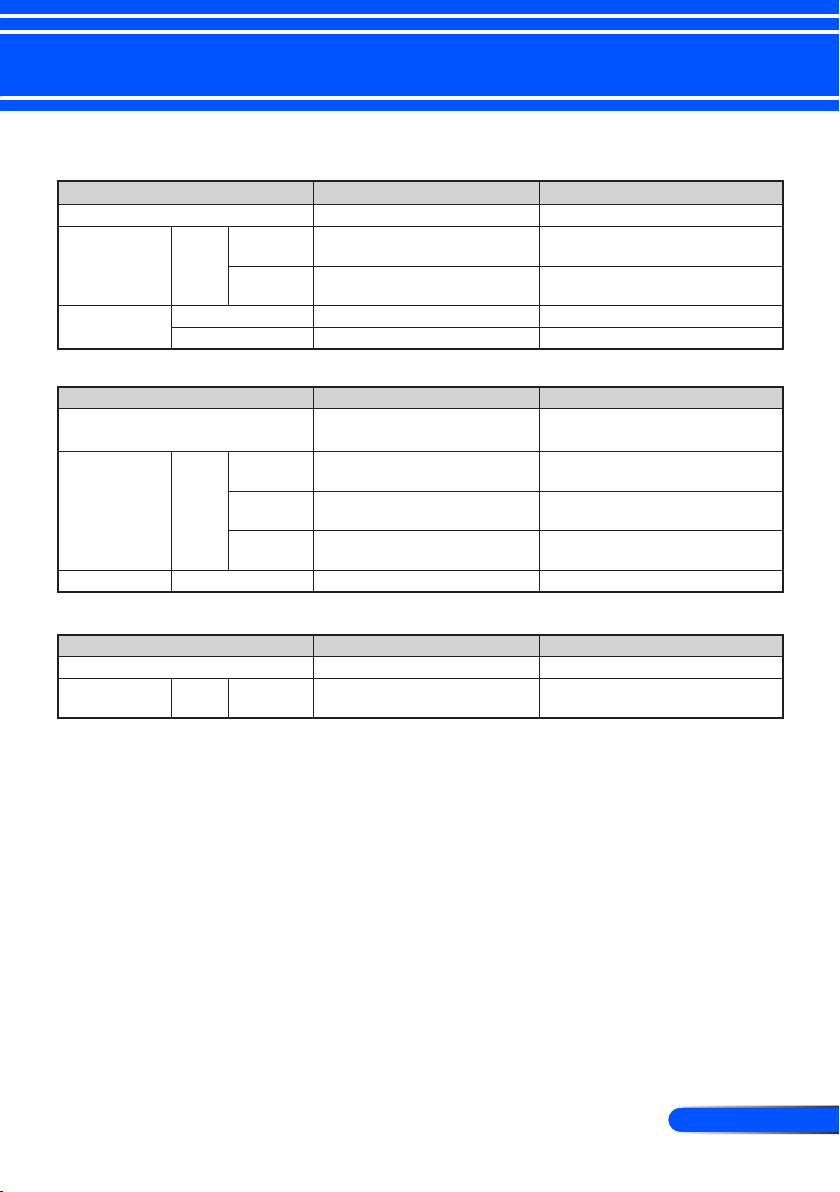
Problem: Message Reminders
Over temperature - the projector has exceeded its recommended
operating temperature and must be allowed to cool down before
it may be used.
Fan failed - the system fan is not working.
45
... English
Appendices
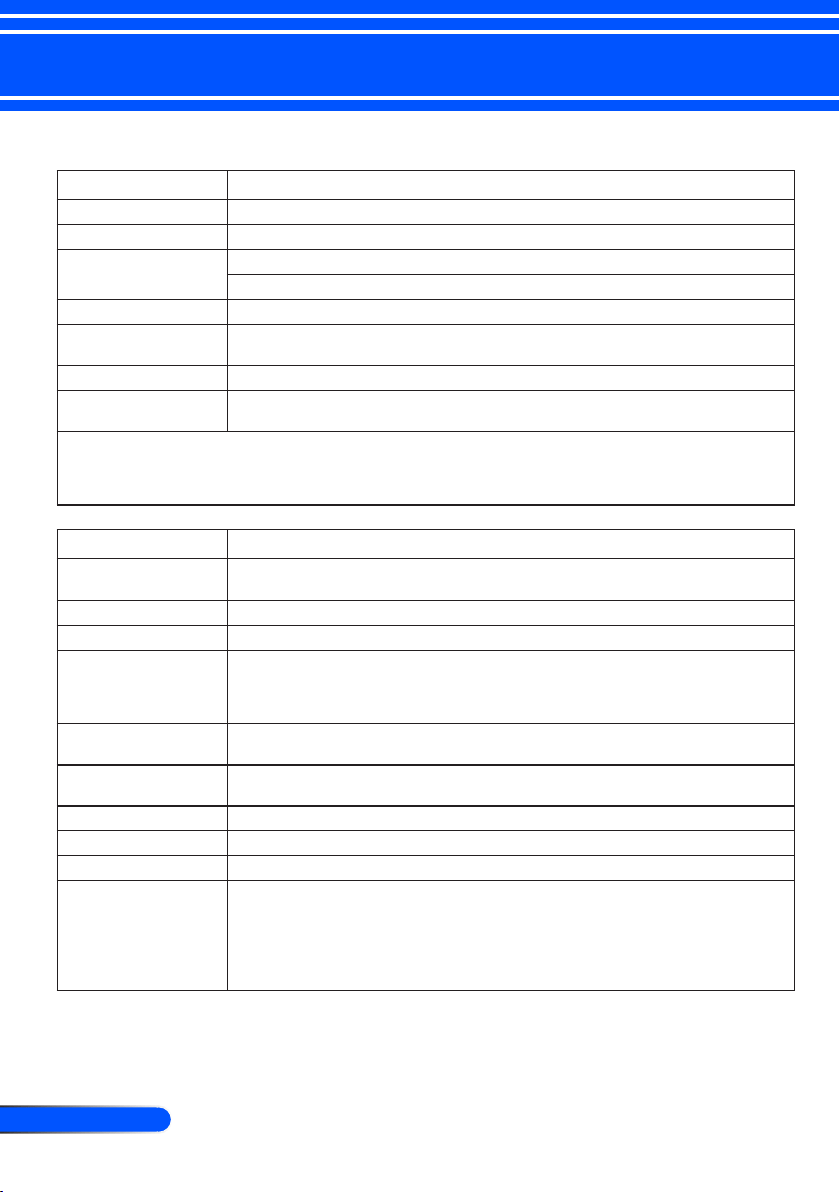
Problem: Indicator lighting message
Power Indicator
Indicator Condition Projector Condition Note
Off The main power is off --
Blinking light Blue 0.5 sec On,
0.5 sec Off
The projector is getting ready to turn on. Wait for a moment.
2.5 sec On,
0.5 sec Off
Off Timer is enabled. --
Steady light Blue The projector is turned on. --
Red The projector is in standby. --
Status Indicator
Indicator Condition Projector Condition Note
Off Normal --
Blinking light Red 1 cycle (0.5 sec
On, 0.5 sec Off)
light source error Light source fails to light. Wait for a moment.
2 cycle (0.5 sec
On, 0.5 sec Off)
Temperature error The projector is overheated. Move the projector to a
cooler location.
4 cycle (0.5 sec
On, 0.5 sec Off)
Fan error Fans will not work correctly. Contact your dealer.
Steady light Red Control Panel Lock is enabled. To disable Control Panel Lock, see page 34.
LED Indicator
Indicator Condition Projector Condition Note
Off Normal --
Blinking light Red LED light source fails to light. Try to turn on the projector again. If the problem still
remains unsolved, contact your dealer.
46
English ...
Appendices
Specications
Optical
Projection System Single DLP® chip (0.45”, aspect ratio 16:10)
Resolution
*1
1,039,680 pixels (similar to WXGA)
Lens Fixed lens, manual focus
F/1.5
Light Output
*2 *3
500 lumens
Contrast Ratio
*3
(full white:full black)
2500:1
Image Size (Diagonal) 17 to 100 inches / 0.432 to 2.540 m
Projection Distance
(mini. - max.)
20.5 to 118.1 inches / 52 to 300 mm
*1 Effective pixels are more than 99.99%.
*2 This is the light output value (lumens) when [Picture Mode] is set to [High-Bright] in the menu. If any other
mode is selected as [Picture Mode], the light output value may drop slightly.
*3 Compliance with ISO21118-200
Electrical
Inputs 1 x RGB/Component (D-Sub 15P), 1 x HDMI (19P) HDCP supported
*4
, 1 x SD Slot, 1 x
Video (RCA), 1 x USB Type-A, 1 x USB mini-B, 1 x Stereo Mini Audio
Service Port 1 x mini-B USB (for service purpose /shared with USB Display)
Color Reproduction 16.7 million colors simultaneously, Full color
Compatible Signals
*5
Analog: VGA/SVGA/XGA/WXGA/Quad-VGA/SXGA/SXGA+/WSXGA+/
480i/480p/576i/576p/720p/1080i/1080p
HDMI: VGA/SVGA/XGA/WXGA/Quad-VGA/SXGA/SXGA+/WSXGA+/
480p/576p/720p/1080i/1080p
Horizontal Resolution 540 TV lines: NTSC/NTSC4.43/PAL/PAL-M/PAL-N/PAL60
300 TV lines: SECAM
Scan Rate Horizontal: 30kHz to 100kHz
Vertical: 50 Hz to 85 Hz
Built-in Speaker 2W (monaural)
Power Requirement 100 – 240V AC, 50/60 Hz
Input Current 100 – 240V AC, 50-60Hz, 1.3-0.5A
Power Consumption Eco Mode: Off
110W +/-25%@ 110V AC(100-130V) / 105W +/-25%@ 220V AC(200-240V)
Eco Mode: On
75W +/-25% @ 110V AC(100-130V) / 70W +/-25% @ 220V AC(200-240V)
Standby: <0.5W (100-130V)/ <0.5W (200-240V)
47
... English
Appendices
*4 HDMI
®
(Deep Color) with HDCP
What is HDCP/HDCP technology?
HDCP is an acronym for High-bandwidth Digital Content Protection. High bandwidth Digital Content Protec-
tion (HDCP) is a system for preventing illegal copying of video data sent over a Digital Visual Interface (DVI).
If you are unable to view material via the HDMI input, this does not necessarily mean the projector is not
functioning properly. With the implementation of HDCP, there may be cases in which certain content is pro-
tected with HDCP and might not be displayed due to the decision/intention of the HDCP community (Digital
Content Protection, LLC).
*5 An image with any resolution will be displayed with scaling technology.
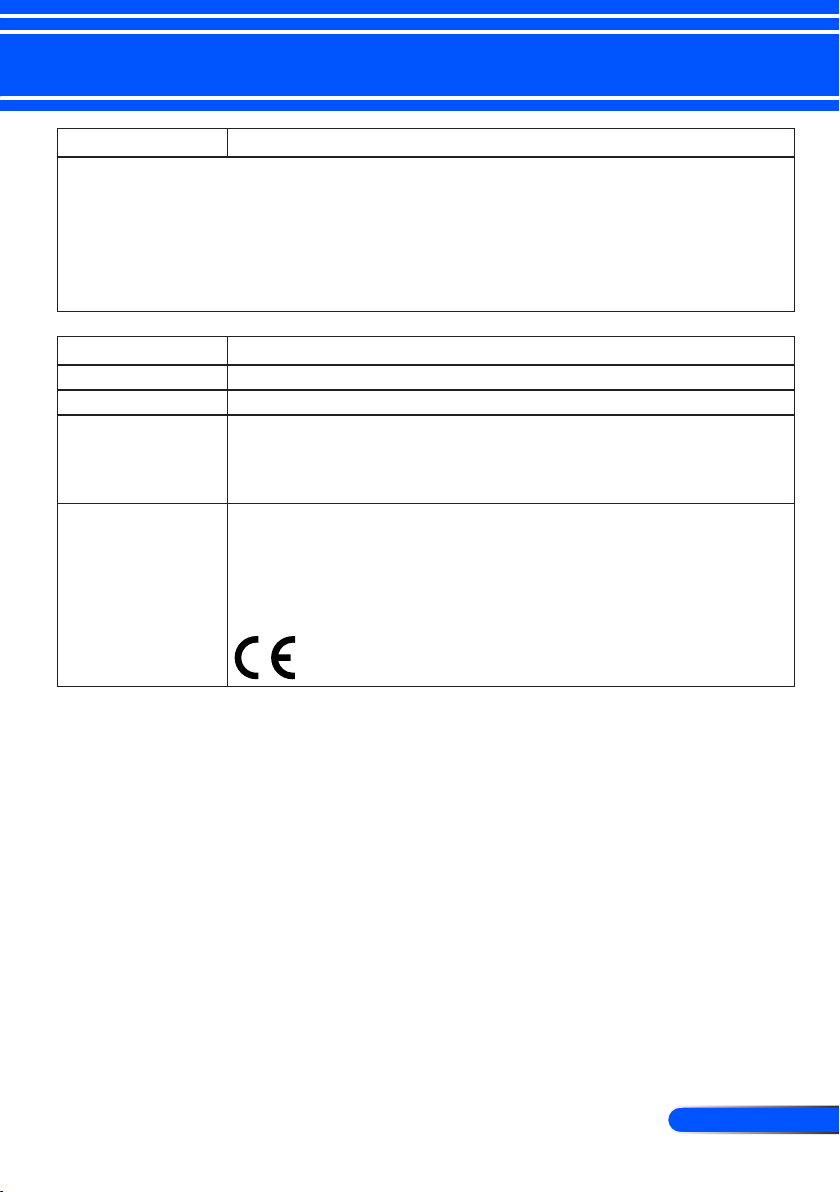
Mechanical
Dimensions 8.89” (W) × 1.69” (H) × 6.87” (D) /225.8 mm (W) × 43 mm (H) × 174.4 mm (D)
Weight 2.6 lb / 1.2 kg
Environmental Consid-
erations
Operational Temperatures : 41° to 95°F (5° to 35°C),
20% to 80% humidity (non-condensing)
Storage Temperatures : -4° to 140°F (-20° to 60°C),
20% to 80% humidity (non-condensing)
Regulations UL/C-UL Approved (UL 60950-1, CSA 60950-1)
Meets DOC Canada Class B requirements
Meets FCC Class B requirements
Meets AS/NZS CISPR.22 Class B
Meets EMC Directive (EN55022, EN55024, EN61000-3-2, EN61000-3-3)
Meets Low Voltage Directive (EN60950-1, TÜV GS Approved)
For additional information visit:
US: http://www.necdisplay.com/
Europe: http://www.nec-display-solutions.com/
Global: http://www.nec-display.com/global/index.html
For information on our optional accessories, visit our website or see our
brochure.
The specications are subject to change without notice.
Electrical
48
English ...
Appendices
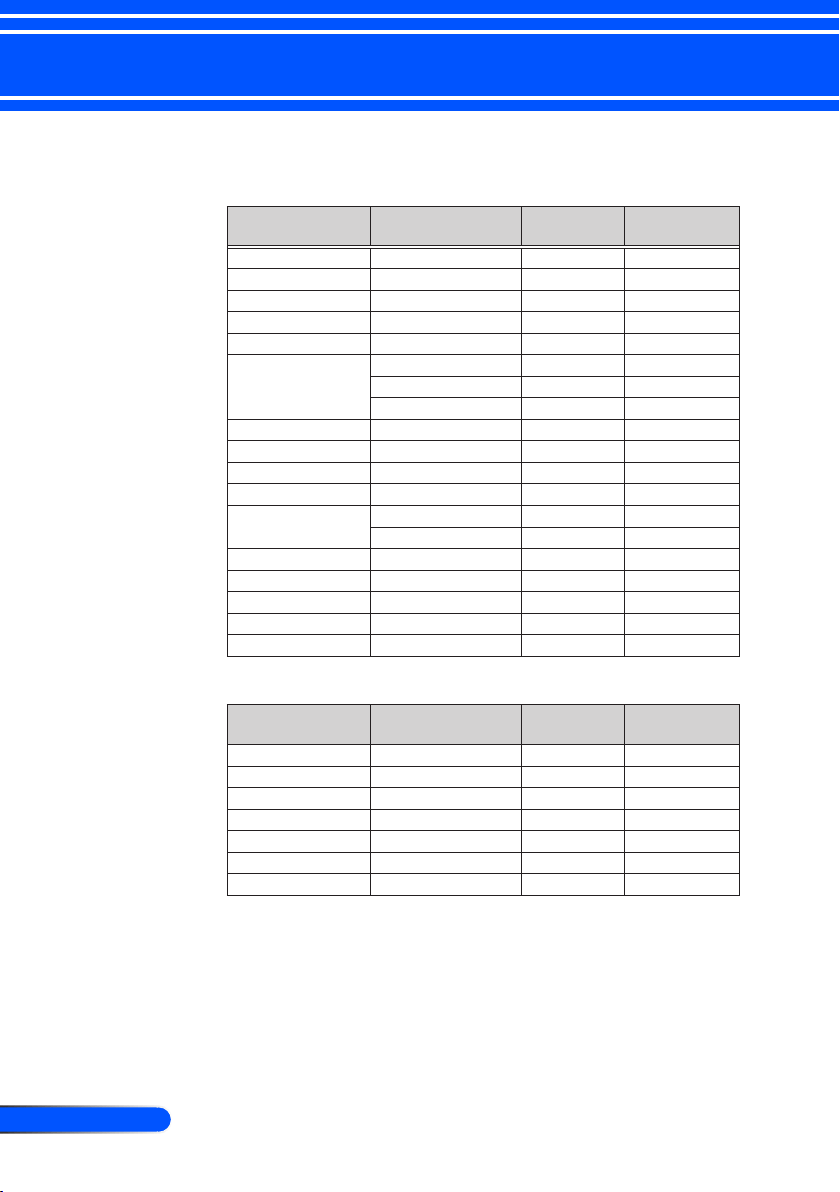
Compatibility Modes
Signal Resolution (dots)
Aspect
Ratio
Refresh Rate
(Hz)
VGA 640x480 4:3 60/72/75/85
SVGA 800x600 4:3 56/60/72/75/85
XGA 1024x768 4:3 60/70/75/85
XGA+ 1152x864 4:3 70/75/85
HD 1280x720 16:9 60
WXGA
1280x768 15:9 60/75/85
1280x800 16:10 60
1366x768 16:9 60
Quad-VGA 1280x960 4:3 60/75
SXGA 1280x1024 5:4 60/72/75
SXGA+ 1400x1050 4:3 60
WXGA+ 1440x900 16:10 60
WXGA++
1680x1050 16:10 60
1920x1080 16:9 60
MAC 13” 640x480 4:3 60/67
MAC
800x600 4:3 60
MAC 19” 1024x768 4:3 60/75
MAC 21” 1152x870 4:3 75
MAC 1280x960 4:3 75
Analog RGB
Signal Resolution (dots)
Aspect
Ratio
Refresh Rate
(Hz)
HDTV(1080i) 1920x1080 16:9 50/60
HDTV(1080p) 1920x1080 16:9 60
HDTV(720p) 1280x720 16:9 50/60
SDTV(480p) 720x480 4:3/16:9 60
SDTV(576p) 720x576 4:3/16:9 50
SDTV(480i) 720x480 4:3/16:9 60
SDTV(576i) 720x576 4:3/16:9 50
Component
49
... English
Appendices
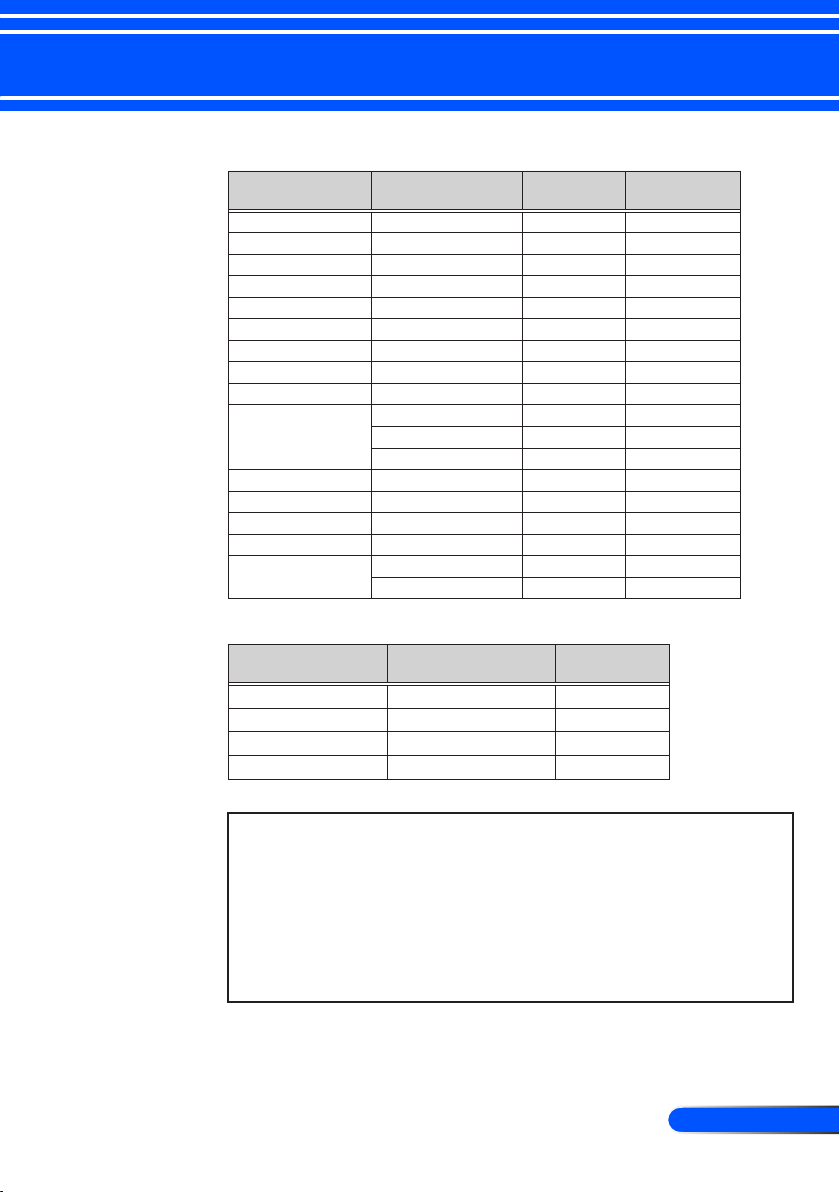
Signal Aspect Ratio
Refresh Rate
(Hz)
NTSC 4:3 60
PAL 4:3 50
PAL60 4:3 60
SECAM 4:3 50
Composite Video
TIP:
• An image with any resolution will be displayed with scaling technology.
• Sync on Green and Composite sync signals are not supported.
• Signals other than those specied in the table above may not be displayed
correctly. If this should happen, change the refresh rate or resolution on
your PC. Refer to Display Properties help section of your PC for proce-
dures.
Signal Resolution (dots)
Aspect
Ratio
Refresh Rate
(Hz)
VGA 640x480 4:3 60/72/75/85
SVGA 800x600 4:3 56/60/72/75/85
XGA 1024x768 4:3 60/70/75/85
XGA+ 1152x864 4:3 70/75/85
HDTV(1080p) 1920x1080 16:9 50/60
HDTV(1080i) 1920x1080 16:9 50/60
HDTV(720p) 1280x720 16:9 50/60
SDTV(480p) 720x480 4:3/16:9 60
SDTV(576p) 720x576 4:3/16:9 50
WXGA
1280x768 15:9 60/75/85
1280x800 16:10 60
1366x768 16:9 60
Quad-VGA 1280x960 4:3 60/75
SXGA 1280x1024 5:4 60/72/75
SXGA+ 1400x1050 4:3 60
WXGA+ 1440x900 16:10 60
WXGA++
1680x1050 16:10 60
1920x1080 16:9 60
HDMI
50
English ...
Appendices
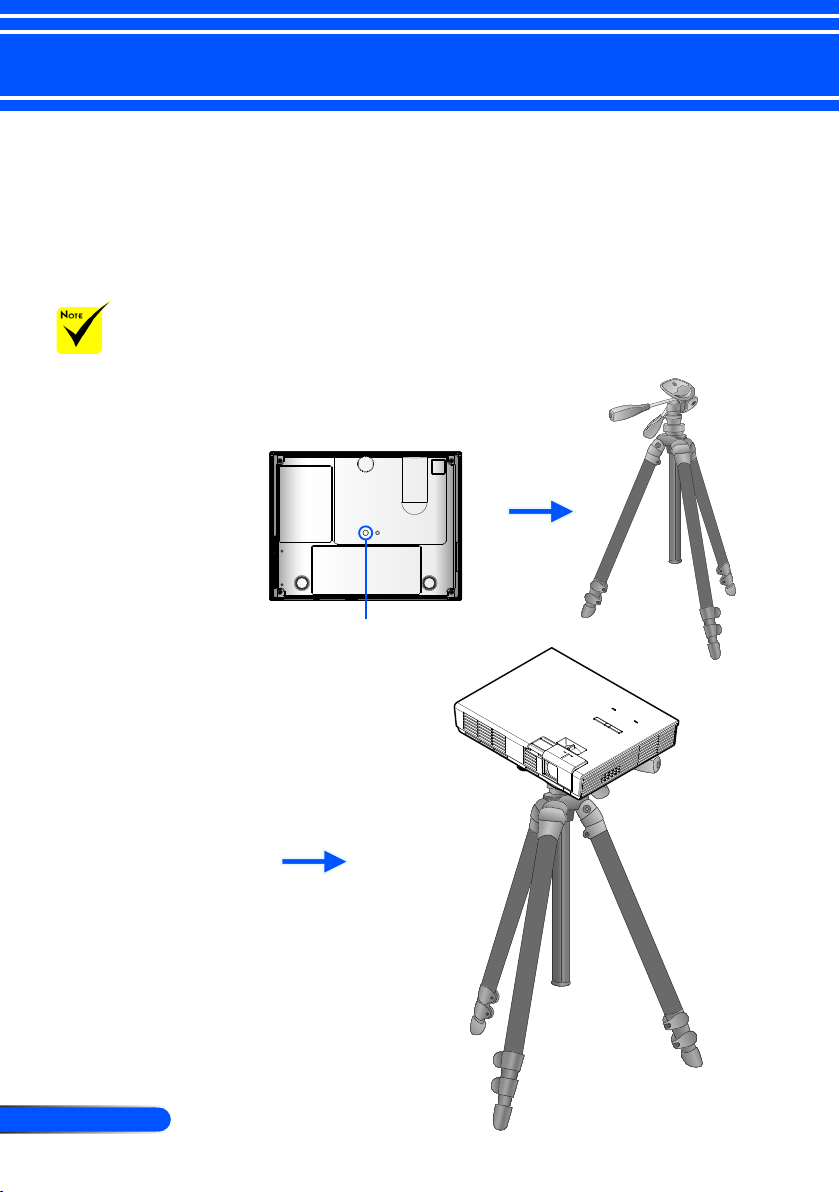
Tripod Stand Installation
1. You can install this projector using a camera tripod.
2. The tripod specications:
Type: 1/4”-20UNC
Connect to the tripod
Camera Tripod
CAUTION:
- Do not use on an
unstable surface.
Doing so may cause
the tripod to fall over,
resulting in damage.
- Refer to the user’s
manual packaged
with your tripod.
- Use a tripod with 1.2
kg or over of maxi-
mum load.
- Spread the legs wide
open and evenly when
mounting or installing
the projector.
- Do not extend the feet
when using the eleva-
tor tripod.
51
... English
Appendices
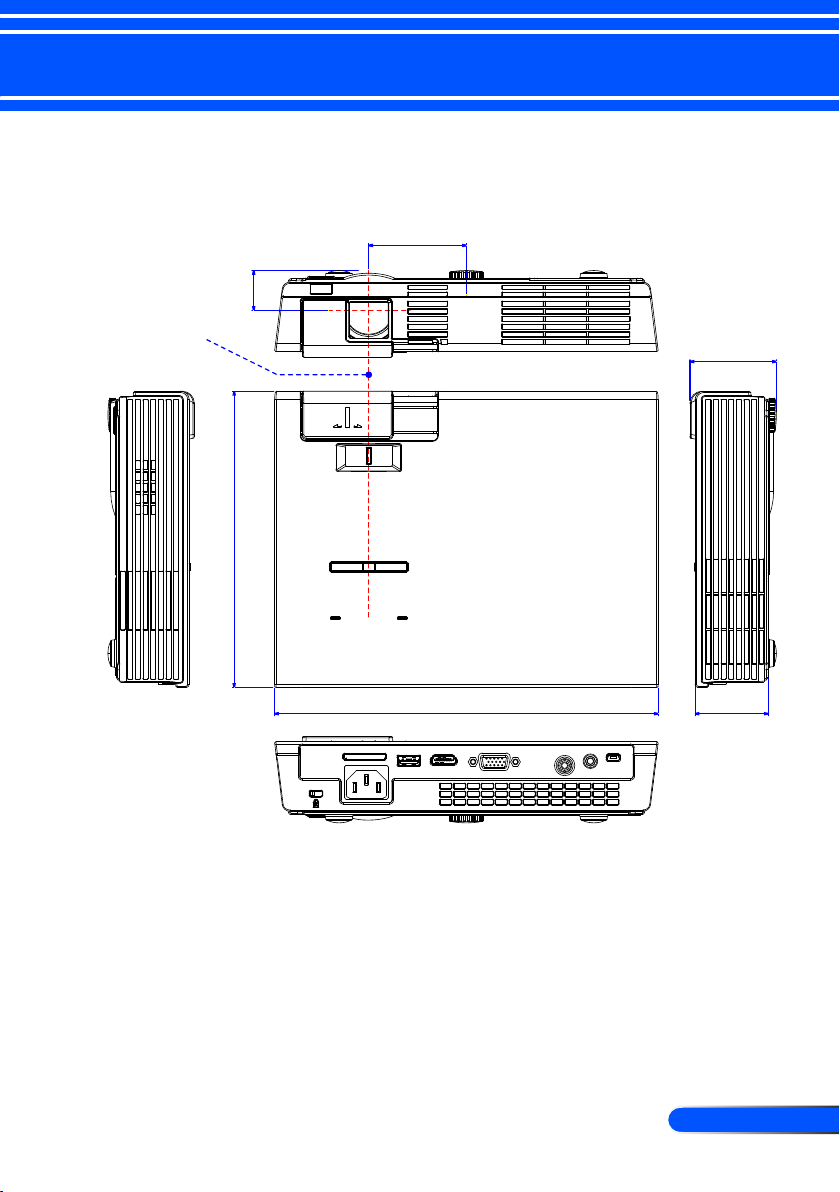
Cabinet Dimensions
43.0/1.69"226.0/8.90"
174.4/6.87"
57.5/2.26"
51.0/2.01"
23.4/0.92"
Lens Center
Unit: mm/inch
52
English ...
Appendices
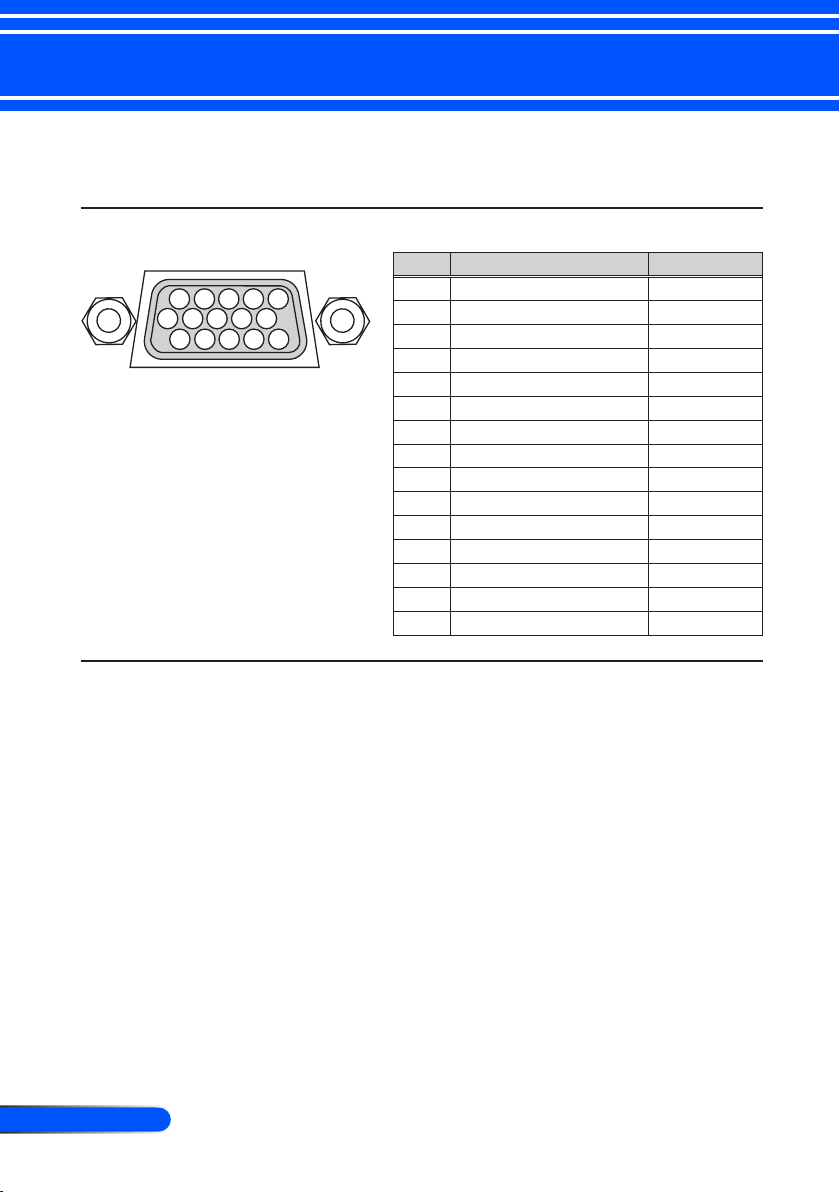
Pin Assignments of D-Sub COMPUTER Input
Connector
Mini D-Sub 15 Pin Connector
1 2 3 4 5
11 12 13 14 15
6 7 8 9 10
Signal Level
Video signal : 0.7Vp-p (Analog)
Sync signal : TTL level
Pin No. RGB Signal (Analog) YCbCr Signal
1 Red Cr
2 Green Y
3 Blue Cb
4 Ground
5 Ground
6 Red Ground Cr Ground
7 Green Gro Y Ground
8 Blue Ground Cb Ground
9 No Connection
10 Sync Signal Ground
11 No Connection
12 Bi-directional DATA (SDA)
13 Horizontal Sync
14 Vertical Sync
15 Data Clock
Power
No power (POWER indicator does not light blue).
Power cable’s plug is fully inserted into the wall outlet.
No power even though you press and hold the POWER
button for a minimum of 1 second.
Shut down during operation.
Power cable’s plug is fully inserted into the wall outlet.
Power Management is turned off (only models with the
Power Management function).
Video and Audio
No image is displayed from your PC or video equipment to the
projector.
Still no image even though you connect the projector to the
PC rst, then start the PC.
Enabling your notebook PC’s signal output to the projector.
• A combination of function keys will enable/disable the
external display. Usually, the combination of the “Fn” key
along with one of the 12 function keys turns the external
display on or off.
No image (blue background).
Still no image even though you press the AUTO ADJ. but-
ton.
Still no image even though you carry out [RESET] in the
projector’s menu.
Signal cable’s plug is fully inserted into the input connector
A message appears on the screen.
( _____________________________________________ )
The source connected to the projector is active and avail-
able.
Still no image even though you adjust the brightness and/or
the contrast.
Input source’s resolution and frequency are supported by
the projector.
Image is too dark.
Remains unchanged even though you adjust the brightness
and/or the contrast.
Image is distorted.
Image appears to be trapezoidal (unchanged even though
you carry out the [KEYSTONE] adjustment).
Parts of the image are lost.
Still unchanged even though you press the AUTO ADJ.
button.
Still unchanged even though you carry out [RESET] in the
projector’s menu.
Image is shifted in the vertical or horizontal direction.
Horizontal and vertical positions are correctly adjusted on a
computer signal.
Input source’s resolution and frequency are supported by
the projector.
Some pixels are lost.
Image is ickering.
Still unchanged even though you press the AUTO ADJ.
button.
Still unchanged even though you carry out [RESET] in the
projector’s menu.
Image shows ickering or color drift on a computer signal.
Image appears blurry or out of focus.
Still unchanged even though you checked the signal’s reso-
lution on PC and changed it to projector’s native resolution.
Still unchanged even though you adjusted the focus.
No sound.
Audio cable is correctly connected to the audio input of the
projector.
Still unchanged even though you adjusted the volume level.
Other
Remote control does not work.
No obstacles between the sensor of the projector and the
remote control.
Projector is placed near a uorescent light that can disturb
the infrared remote controls.
Batteries are new and are not reversed in installation
Buttons on the projector cabinet do not work.
[CONTROL PANEL LOCK] is not turned on in the menu.
Still unchanged even though you press and hold the
SOURCE button on the cabinet for minimum of 10 seconds.
Troubleshooting Check List
Before contacting your dealer or service personnel, check the following list to be sure repairs are needed also by
referring to the “Troubleshooting” section in your user’s manual. This checklist below will help us solve your
problem more efciently.
* Print the following pages.
Frequency of occurrence always sometimes (How often?_______________________) other (__________________)
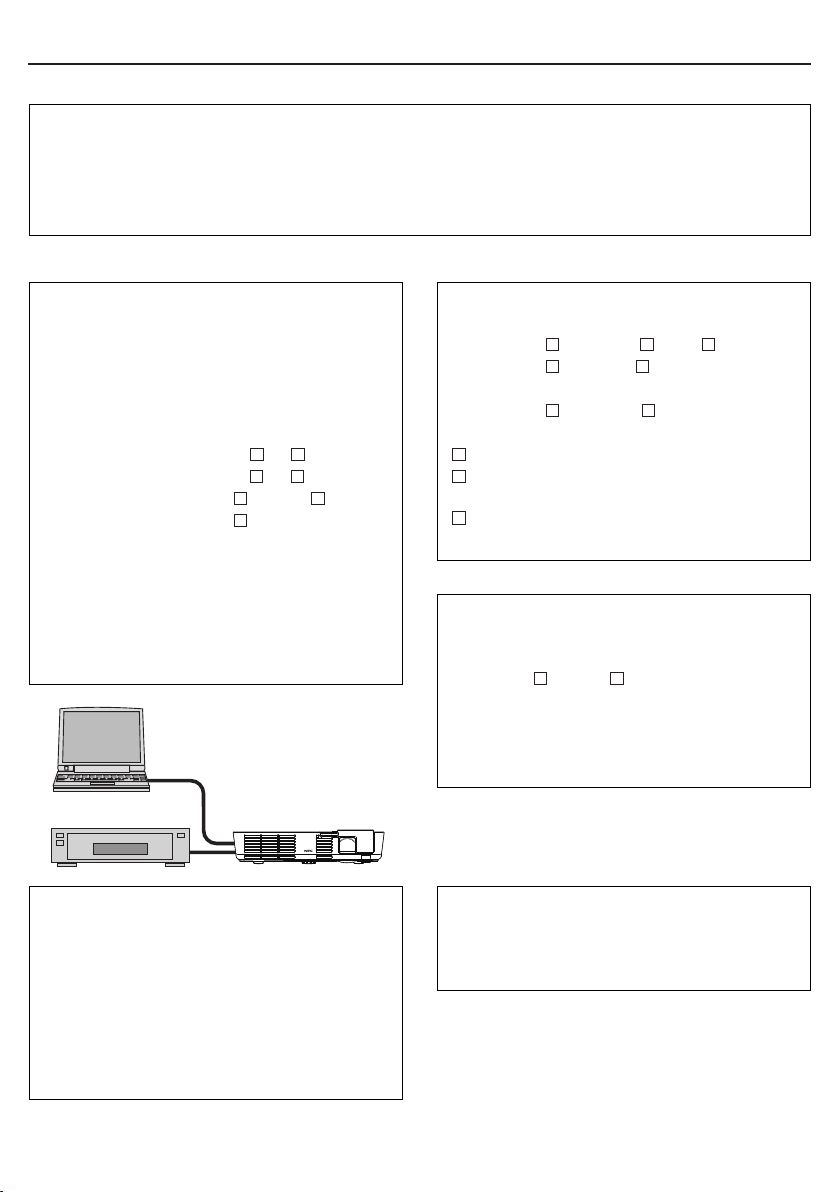
In the space below please describe your problem in detail.
Information on application and environment where your projector is used
Projector
Model number:
Serial No.:
Date of purchase:
Information on input signal:
Horizontal synch frequency [ ] kHz
Vertical synch frequency [ ] Hz
Synch polarity H (+) (–)
V (+) (–)
Synch type Separate Composite
Sync on Green
STATUS Indicator:
Steady light/Flashing light [ ] cycles
Remote control model number:
Installation environment
Screen size: inch
Screen type: White matte Beads Polarization
Wide angle High contrast
Throw distance: feet/inch/m
Orientation: Desktop Other
Power outlet connection:
Connected directly to wall outlet
Connected to power cord extender or other (the number
of connected equipment______________)
Connected to a power cord reel or other (the number of
connected equipment______________)
Computer
Manufacturer:
Model number:
Notebook PC / Desktop
Native resolution:
Refresh rate:
Video adapter:
Other:
Video equipment
VCR, DVD player, Video camera, Video game or other
Manufacturer:
Model number:
Signal cable
NEC standard or other manufacturer’s cable?
Model number: Length: inch/m
Distribution amplier
Model number:
Switcher
Model number:
Adapter
Model number:
Projector
PC
DVD Player

TravelCare Guide
TravelCare - a service for international travelers
This product is eligible for “TravelCare”, NEC’s unique international warranty and repair service.
For more information on TravelCare service, visit our website (in English only).
http://www.nec-display.com/dl/en/pj_support/travel_care.html

© NEC Display Solutions, Ltd. 2011 7N951673