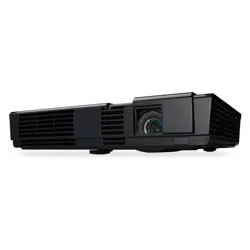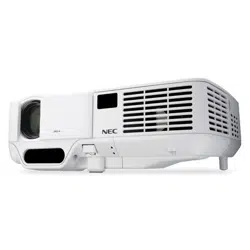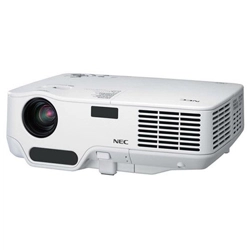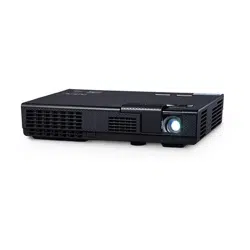
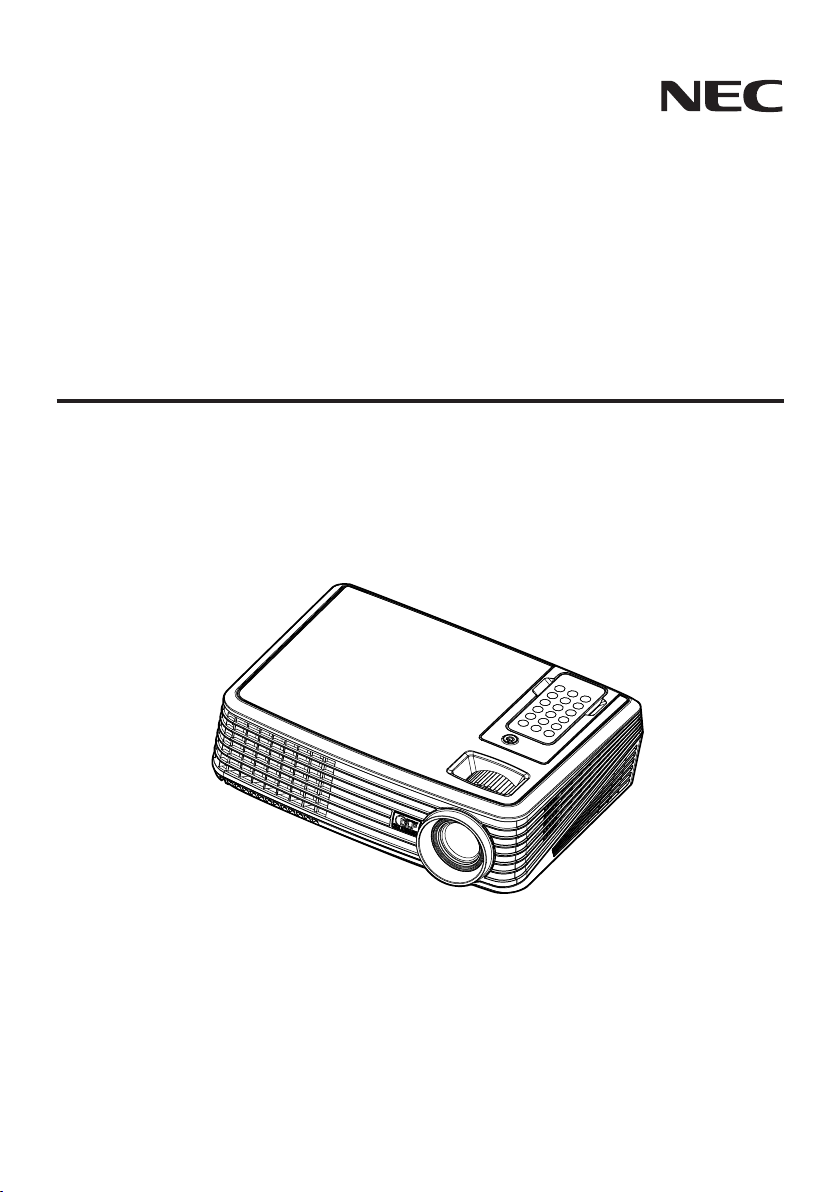
Portable Projector
NP200/NP100
User’s Manual

© NEC Display Solutions, Ltd. 2007
First edition December 2007
• DLP and BrilliantColor are trademarks of Texas Instruments.
• IBM is a trademark or registered trademark of International Business Machines Corporation.
• Macintosh, PowerBook, iMac, and Power Mac are trademarks of Apple, Inc., registered in the U.S.
and other countries.
• Windows, Windows 98, Windows Me, Windows XP, Windows 2000, or Windows Vista are trade-
marks or registered trademarks of Microsoft Corporation.
• Other product and company names mentioned in this user’s manual may be the trademarks or regis-
tered trademarks of their respective holders.
NOTES
(1) The contents of this user’s manual may not be reprinted in part or whole without permission.
(2) The contents of this user’s manual are subject to change without notice.
(3) Great care has been taken in the preparation of this user’s manual; however, should you notice
any questionable points, errors or omissions, please contact us.
(4) Notwithstanding article (3), NEC will not be responsible for any claims on loss of prot or other mat-
ters deemed to result from using the Projector.
i
English ...
Important Information
Safety Cautions
Precautions
Please read this manual carefully before using your NEC NP100/NP200 projector and keep the manual
handy for future reference.
CAUTION
To turn off main power, be sure to remove the plug from power outlet.
The power outlet socket should be installed as near to the equipment as possible, and should be
easily accessible.
CAUTION
TO PREVENT SHOCK, DO NOT OPEN THE CABINET.
THERE ARE HIGH-VOLTAGE COMPONENTS INSIDE.
REFER SERVICING TO QUALIFIED SERVICE PERSONNEL.
This symbol warns the user that uninsulated voltage within the unit may be sufcient to cause
electrical shock. Therefore, it is dangerous to make any kind of contact with any part inside of
the unit.
This symbol alerts the user that important information concerning the operation and mainte-
nance of this unit has been provided.
The information should be read carefully to avoid problems.
WARNING: TO PREVENT FIRE OR SHOCK, DO NOT EXPOSE THIS UNIT TO RAIN OR MOISTURE.
DO NOT USE THIS UNIT’S PLUG WITH AN EXTENSION CORD OR IN AN OUTLET UNLESS ALL THE
PRONGS CAN BE FULLY INSERTED.
DOC Compliance Notice (for Canada only)
This Class B digital apparatus meets all requirements of the Canadian Interference-Causing Equipment
Regulations.
Machine Noise Information Regulation - 3. GPSGV,
The highest sound pressure level is less than 70 dB (A) in accordance with EN ISO 7779.
Disposing of your used product
EU-wide legislation as implemented in each Member State requires that used electrical and elec-
tronic products carrying the mark (left) must be disposed of separately from normal household
waste. This includes projectors and their electrical accessories or lamps. When you dispose of
such products, please follow the guidance of your local authority and/or ask the shop where you
purchased the product.
After collecting the used products, they are reused and recycled in a proper way. This effort will
help us reduce the wastes as well as the negative impact such as mercury contained in a lamp
to the human health and the environment at the minimum level. The mark on the electrical and
electronic products only applies to the current European Union Member States.
WARNING TO CALIFORNIA RESIDENTS:
Handling the cables supplied with this product will expose you to lead, a chemical known to the State of
California to cause birth defects or other reproductive harm. WASH HANDS AFTER HANDLING.

ii
English ...
Important Information
RF Interference (for USA only)
WARNING
The Federal Communications Commission does not allow any modications or changes to the unit EX-
CEPT those specied by NEC Display Solutions of America, Inc. in this manual. Failure to comply with this
government regulation could void your right to operate this equipment. This equipment has been tested
and found to comply with the limits for a Class B digital device, pursuant to Part 15 of the FCC Rules.
These limits are designed to provide reasonable protection against harmful interference in a residential
installation. This equipment generates, uses, and can radiate radio frequency energy and, if not installed
and used in accordance with the instructions, may cause harmful interference to radio communications.
However, there is no guarantee that interference will not occur in a particular installation.
If this equipment does cause harmful interference to radio or television reception, which can be determined
by turning the equipment off and on, the user is encouraged to try to correct the interference by one or
more of the following measures:
• Reorient or relocate the receiving antenna.
• Increase the separation between the equipment and receiver.
• Connect the equipment into an outlet on a circuit different from that to which the receiver is connected.
• Consult the dealer or an experienced radio / TV technician for help.
For UK only: In UK, a BS approved power cable with moulded plug has a Black (ve Amps) fuse installed for
use with this equipment. If a power cable is not supplied with this equipment please contact your supplier.
Important Safeguards
These safety instructions are to ensure the long life of your projector and to prevent re and shock. Please
read them carefully and heed all warnings.
Installation
• Do not place the projector in the following conditions:
- on an unstable cart, stand, or table.
- near water, baths, or damp rooms.
- in direct sunlight, near heaters, or heat radiating appliances.
- in a dusty, smoky or steamy environment.
- on a sheet of paper or cloth, rugs or carpets.
• If you wish to have the projector installed on the ceiling:
- Do not attempt to install the projector yourself.
- The projector must be installed by qualied technicians in order to ensure proper operation and reduce
the risk of bodily injury.
- In addition, the ceiling must be strong enough to support the projector and the installation must be in
accordance with any local building codes.
- Please consult your dealer for more information.
Place the projector in a horizontal position
The tilt angle of the projector should not exceed 15 degrees, nor should the projector be installed in any way
other than the desktop and ceiling mount, otherwise lamp life could decrease dramatically.

iii
English ...
Important Information
Fire and Shock Precautions
• Ensure that there is sufcient ventilation and that vents are unobstructed to prevent the build-up of heat
inside your projector. Allow at least 4 inches (10cm) of space between your projector and a wall.
• Do not try to touch the ventilation outlet as it can become heated while the projector is turned on and im-
mediately after the projector is turned off.
• Prevent foreign objects such as paper clips and bits of paper from falling into your projector. Do not attempt
to retrieve any objects that might fall into your projector. Do not insert any metal objects such as a wire or
screwdriver into your projector. If something should fall into your projector, disconnect it immediately and
have the object removed by a qualied service personnel.
• Do not place any objects on top of the projector.
• Do not touch the power plug during a thunderstorm. Doing so can cause electrical shock or re.
• The projector is designed to operate on a power supply of 100-240V AC 50/60 Hz. Ensure that your power
supply ts this requirement before attempting to use your projector.
• Do not look into the lens while the projector is on. Serious damage to your eyes could result.
• Keep any items such as magnifying glass out of the light path of the projector. The light being projected
from the lens is extensive, therefore any kind of abnormal objects that can redirect light coming out of the
lens, can cause unpredictable outcome such as re or injury to the eyes.
• Do not cover the lens with the black lens cap or equivalent while the projector is on. Doing so can lead to
melting of the cap and possibly burning your hands due to the heat emitted from the light output.
• Do not place any objects, which are easily affected by heat, in front of the projector lens or a projector
exhaust vent.
Doing so could lead to the object melting or getting your hands burned from the heat that is emitted from the
light output and exhaust.
• Handle the power cable carefully. A damaged or frayed power cable can cause electric shock or re.
- Do not use any power cables than the supplied one.
- Do not bend or tug the power cable excessively.
- Do not place the power cable under the projector, or any heavy object.
- Do not cover the power cable with other soft materials such as rugs.
- Do not heat the power cable.
• Turn off the projector, unplug the power cable and have the projector serviced by a qualied service person-
nel under the following conditions:
- When the power cable or plug is damaged or frayed.
- If liquid has been spilled into the projector, or if it has been exposed to rain or water.
- If the projector does not operate normally when you follow the instructions described in this user’s
manual.
- If the projector has been dropped or the cabinet has been damaged.
- If the projector exhibits a distinct change in performance, indicating a need for service.
• Disconnect the power cable and any other cables before carrying the projector.
• Turn off the projector and unplug the power cable before cleaning the cabinet or replacing the lamp.
• Turn off the projector and unplug the power cable if the projector is not to be used for an extended period of
time.
CAUTION
• Do not use the tilt-foot for purposes other than originally intended. Misuses such as using the tilt foot to
carry or hang (from the wall or ceiling) the projector can cause damage to the projector.
• Do not send the projector in the soft case by parcel delivery service or cargo shipment. The projector
inside the soft case could be damaged.
• Select [On] in Fan mode if you continue to use the projector for consecutive days. (From the menu, select
[Default setting] → [Fan Control] → [On].)
• Do not turn off the AC power for 60 seconds after the lamp is turned on and while the POWER indicator
is blinking blue.
Doing so could cause premature lamp failure.
iv
English ...
Important Information
Remote Control Precautions
• Handle the remote control carefully.
• If the remote control gets wet, wipe it dry immediately.
• Avoid excessive heat and humidity.
• Do not place the battery upside down.
NOTE:
* Keep the coin cell battery out of reach of children so as not to allow them to swallow the cell battery.
CAUTION:
Danger of explosion if battery is incorrectly replaced.
Replace only with the same or equivalent type recommended by the manufacturer.
Dispose of used batteries according to your local regulations.
CAUTION:
Use the remote control away from audio tapes, video tapes, credit cards, hard disk drive of the computer,
or cardiac pacemakers.
The remote control contains a magnet that may affect or damage them.
Lamp Replacement
• To replace the lamp, follow all instructions provided on page 33 to 34.
• Be sure to replace the lamp when the message appears. If you continue to use the lamp after the lamp
has reached the end of its usable life, the lamp bulb may shatter, and pieces of glass may be scattered in
the lamp case. Do not touch them as the pieces of glass may cause injury.
If this happens, contact your dealer for lamp replacement.
A Lamp Characteristic
The projector has a high-pressure mercury lamp as a light source.
A lamp has a characteristic that its brightness gradually decreases with age. Also repeatedly turning the
lamp on and off will increase the possibility of its lower brightness.
CAUTION:
When removing the lamp from a ceiling-mounted projector, make sure that no one is under the projector.
Glass fragments could fall if the lamp has been burned out.
Note for US Residents
The lamp in this product contains mercury. Please dispose according to Local, State or Federal Laws.

1
... English
Table of Contents
Table of Contents ......................................................................................... 1
Usage Notice ................................................................................................ 2
Precautions...........................................................................................................2
Introduction................................................................................................... 4
Product Features ..................................................................................................4
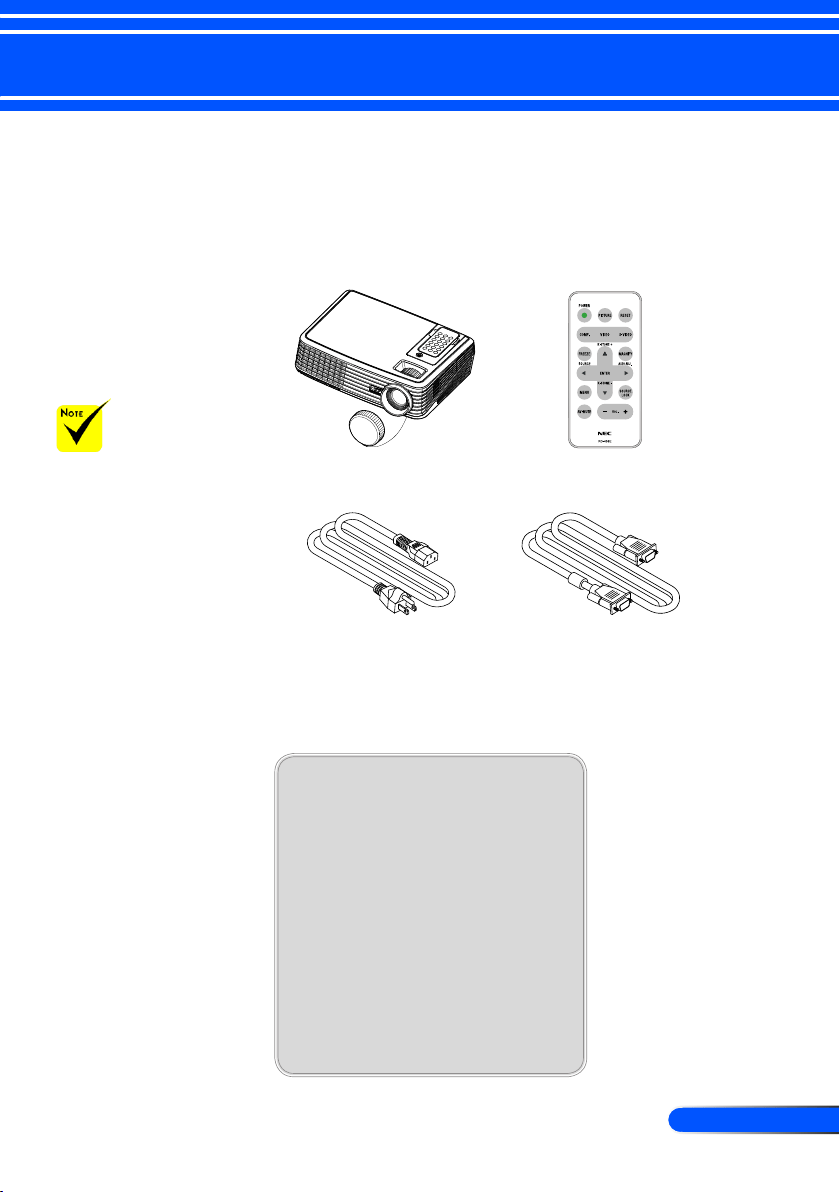
Package Overview................................................................................................5
Product Overview .................................................................................................6
Projector .........................................................................................................................6
Connection Ports ...........................................................................................................7
Wireless Remote Control ...............................................................................................8
Replacing the Coin Cell ...............................................................................................10
Installation .................................................................................................. 11
Connecting the Projector ....................................................................................11
Powering On/Off the Projector............................................................................12
Powering On the Projector ...........................................................................................12
Powering Off the projector ...........................................................................................14
Warning Indicator .........................................................................................................14
Adjusting the Projected Image............................................................................15
Adjusting the Height of Projector Image ......................................................................15
Adjusting the Projector Zoom / Focus ..........................................................................16
Adjusting Projected Image Size ...................................................................................16
User Controls ............................................................................................. 17
On Screen Display..............................................................................................17
How to operate .............................................................................................................17
Image (PC Mode) .........................................................................................................18
Image (Video Mode) ....................................................................................................20
Display Setting .............................................................................................................22
Default Setting .............................................................................................................24
Language .....................................................................................................................26
Information ...................................................................................................................27
Appendices................................................................................................. 28
Troubleshooting ..................................................................................................28
Replacing the lamp .............................................................................................33
Specications .....................................................................................................35
Compatibility Modes ...........................................................................................36
Cabinet Dimensions ...........................................................................................37
Troubleshooting Check List / TravelCare Guide

2
English ...
Usage Notice
Precautions
Follow all warnings, precautions and maintenance as recom-
mended in this user’s guide to maximize the life of your unit.
■ Warning-
Do not look into the projector’s lens when the
lamp is on. The bright light may hurt your eyes.
■ Warning-
To reduce the risk of re or electric shock, do not
expose this projector to rain or moisture.
■ Warning-
Please do not open or disassemble the projector
as this may cause electric shock.
■ Warning-
When replacing the lamp, please allow unit to
cool down, and follow all replacement instruc-
tions..
■ Warning-
This projector will detect the life of the lamp
itself. Please be sure to change the lamp when it
shows warning messages.
■ Warning-
Reset the “Clear Lamp Hours” function from the
on-screen display “Default Setting” menu after
replacing the lamp module (refer to page 25).
■ Warning-
When switching the projector off, please ensure
the cooling cycle has been completed before
disconnecting power. Allow 120 seconds for the
projector to cool down.
■ Warning-
Do not use lens cap when projector is powered
on.
■ Warning-
Turn on the projector rst and then the signal
sources.
■ Warning-
When the lamp reaches the end of its life, it will
burn out and may make a loud popping sound.
If this happens, the projector will not turn back
on until the lamp module has been replaced. To
replace the lamp, follow the procedures listed
under “Replacing the Lamp”.

3
... English
Usage Notice
Do:
■ Turn off the product before cleaning.
■
Use a soft cloth moistened with mild detergent to clean the
display housing.
■
Disconnect the power plug from AC outlet if the product is not
being used for a long period of time.
Do not:
■ Block the slots and openings on the unit provided for ventila-
tion.
■ Use abrasive cleaners, waxes or solvents to clean the unit.
■ Use under the following conditions:
-
Extremely heat, cold or humidity.
-
In areas susceptible to excessive dust and dirt.
-
Near any appliance generating a strong magnetic eld.
-
In direct sunlight.

4
English ...
Introduction
Product Features
This product is an SVGA/XGA single chip 0.55” DLP
TM
pro-
jector. Outstanding features include:
■ NP100: True SVGA, 800 x 600 addressable pixels
NP200: True XGA, 1024 x 768 addressable pixels
■ Single chip DarkChip2
TM
DLP
TM
technology
■ NTSC/NTSC4.43/PAL/PAL-M/PAL-N/SECAM and
SDTV(480i/576i), EDTV(480p/576p), HDTV(720p/1080i)
compatible
■ Multi-Auto functions: Auto detection, Auto image and
Auto saving the adjustments
■ Full function remote control
■ User friendly multilingual on screen display
■ Advanced digital keystone correction and high quality
full screen image re-scaling
■ Built-in mono 2-Watt speaker.
■ NP100: SXGA, XGA compression and VGA re-sizing
NP200: SXGA+, SXGA compression and VGA, SVGA re-
sizing
■ Macintosh compatible
5
... English
Introduction
Power Cable
US (P/N:79TC1031)
EU (P/N: 79TC1041)
CH (P/N: 79TC1051)
VGA Cable
(P/N : 79TC1001)
Wireless Remote Control
(P/N:79TC1021)
Projector with lens cap
(P/N:79TC1011)
Package Overview
This projector comes with all the items shown below. Check to
make sure your unit is complete. Contact your dealer immedi-
ately if anything is missing.
Due to the differ-
ence in applications
for each country, some
regions may have dif-
ferent accessories.
Documentation:
CD-ROM User’s Manual
Quick Setup Guide
Important Information
For North America:
Registration Card
Limited Warranty
For Europe:
Guarantee Policy
6
English ...
Introduction
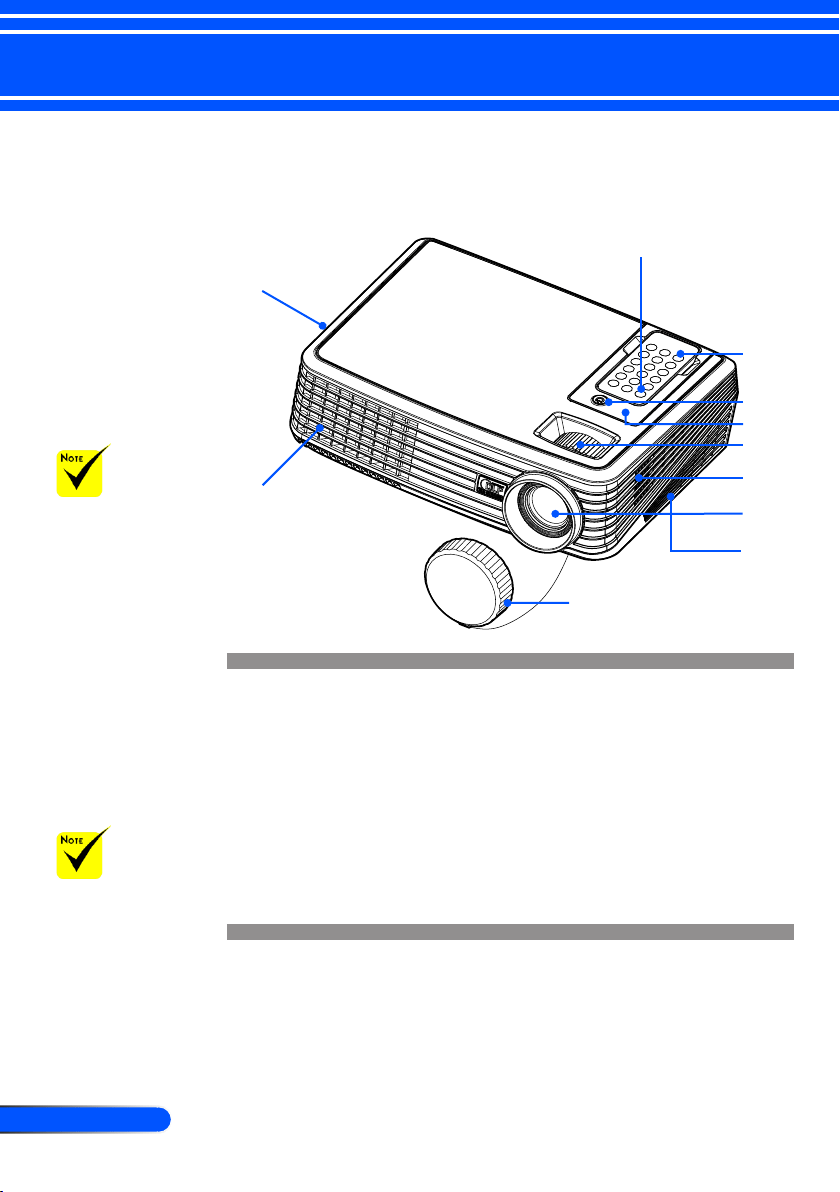
1. Power
2. Remote Control
3. Power (LED indicator)
4. Zoom and Focus Rings
5. Speaker
6. Lens
7. Lens Cap
8. Ventilation (inlet)
9. Ventilation (outlet)
10. Remote Sensor
Projector
Product Overview
1
2
3
4
5
6
7
8
8
9
To release the
remote control from the
projector gently press
down on the top of the
remote control above
the “Picture” button.
This will cause the
bottom of the remote
control to pop-up for
removal from the cabi-
net. Be careful not to
push any of the buttons
on the remote control
while removing it from
the cabinet.
10
Point the remote
control toward the
remote sensor.
(You can also point the
remote control toward
the ceiling when in the
front desk to bounce
the signal off the ceil-
ing.)
7
... English
Introduction
Connection Ports
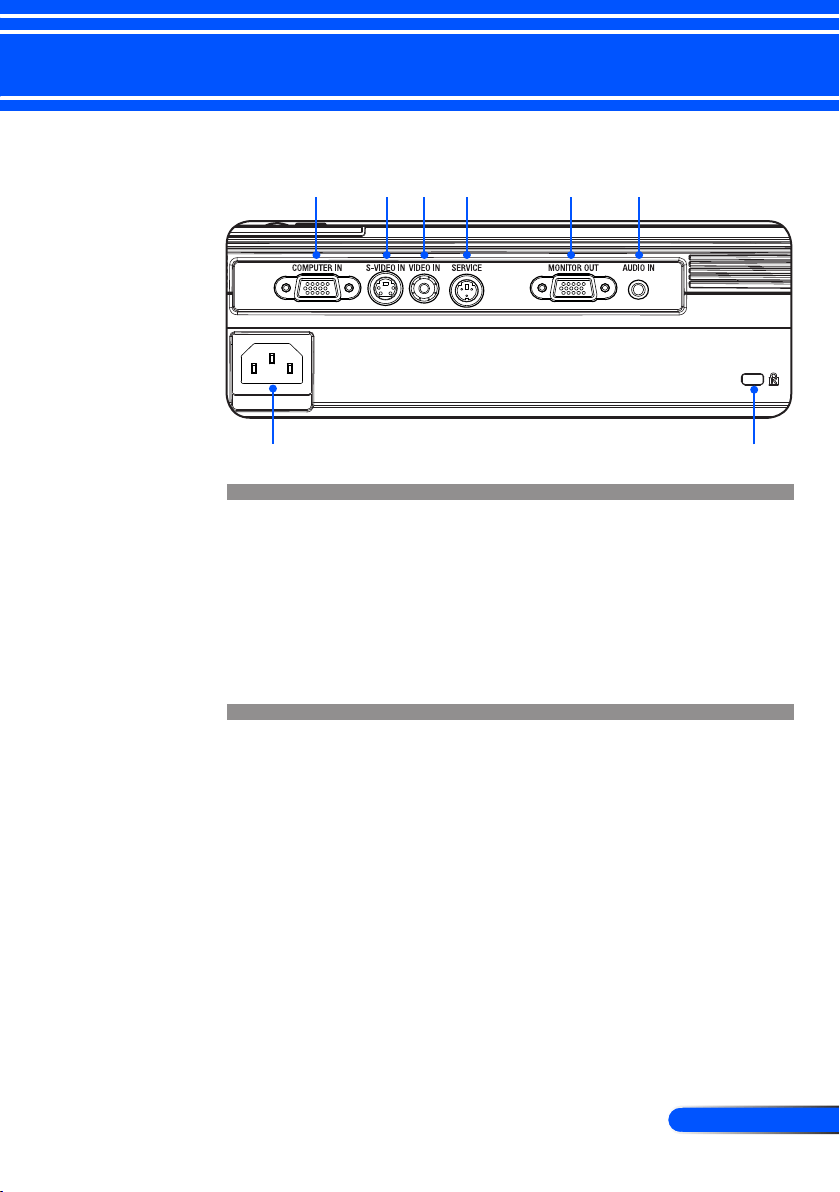
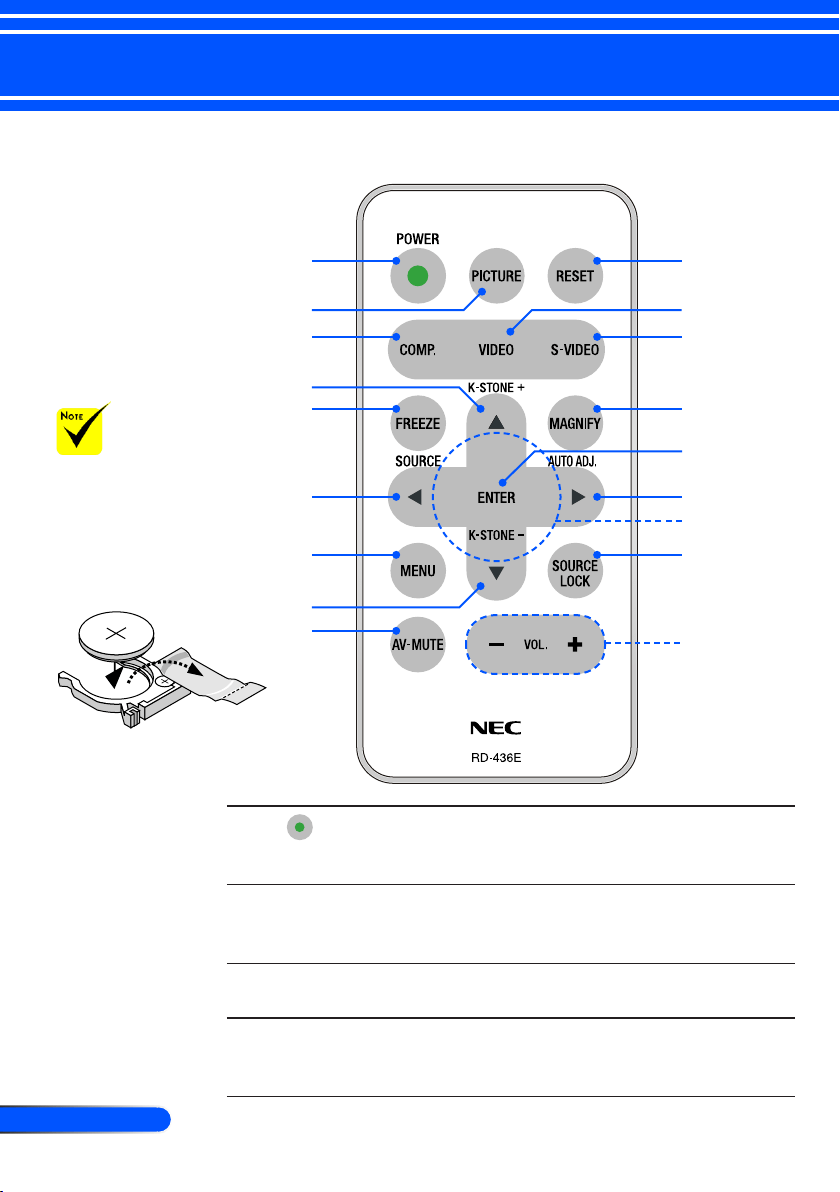
1. COMPUTER IN Connector
2. S-VIDEO IN Connector
3. VIDEO IN Connector
4. SERVICE Port
5. MONITOR OUT Connector
6. AUDIO IN Jack
7. AC IN
8. Kensington
TM
Lock Port
1 2 3 4 5 6
7 8
8
English ...
Introduction
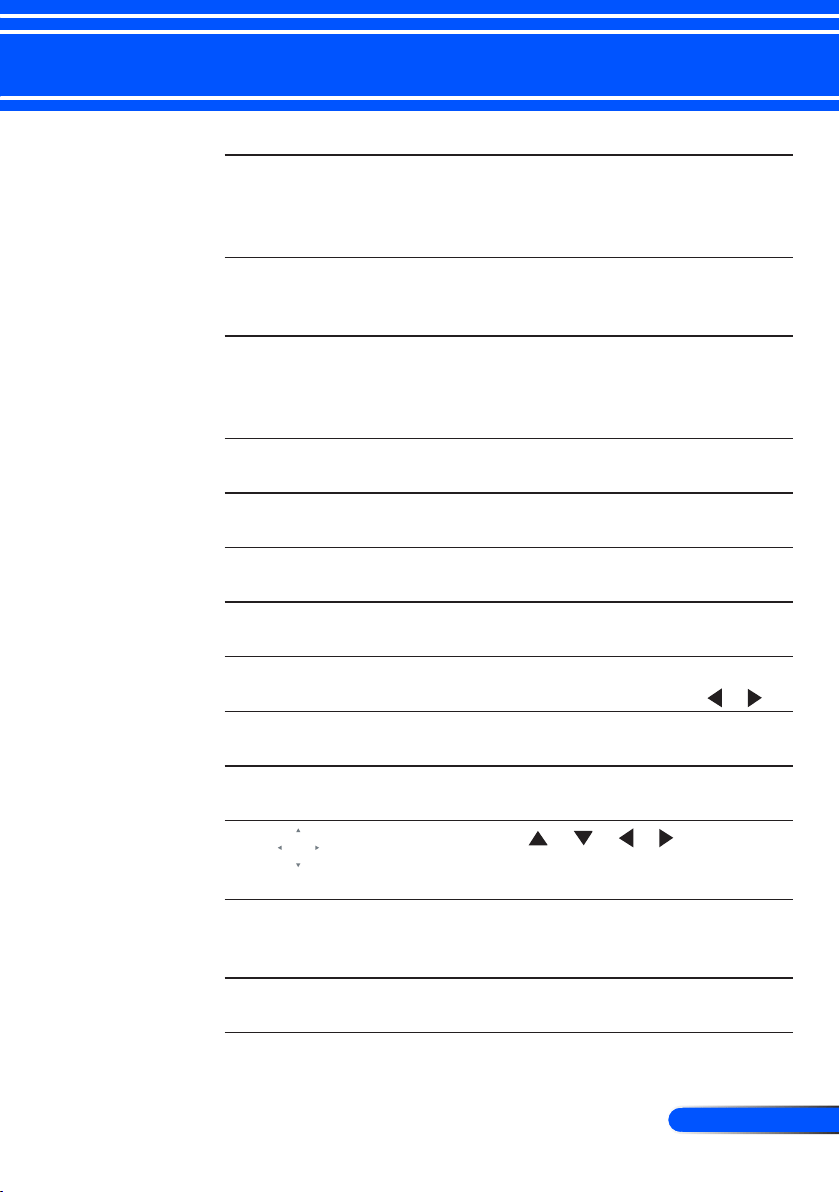
Wireless Remote Control
1
Power Refer to the “Power On/Off
the Projector” section on pages
12-13.
2 Picture Mode Select the Picture mode from
Presentation, Movie, sRGB,
Game and User.
3 Computer
Source
Press “Computer” to choose
Computer connector.
4 Freeze Freeze To pause the screen im-
age. Press again to resume the
screen image.
1
2
3
10
4
6
7
8
9
11
5
12
13
14
16
17
15
5
Before using the
remote control for the
rst time, remove the
transparent insulation
tape. See page 10 for
battery installation.
3
V
O
L
T
S
CR2025
9
... English
Introduction
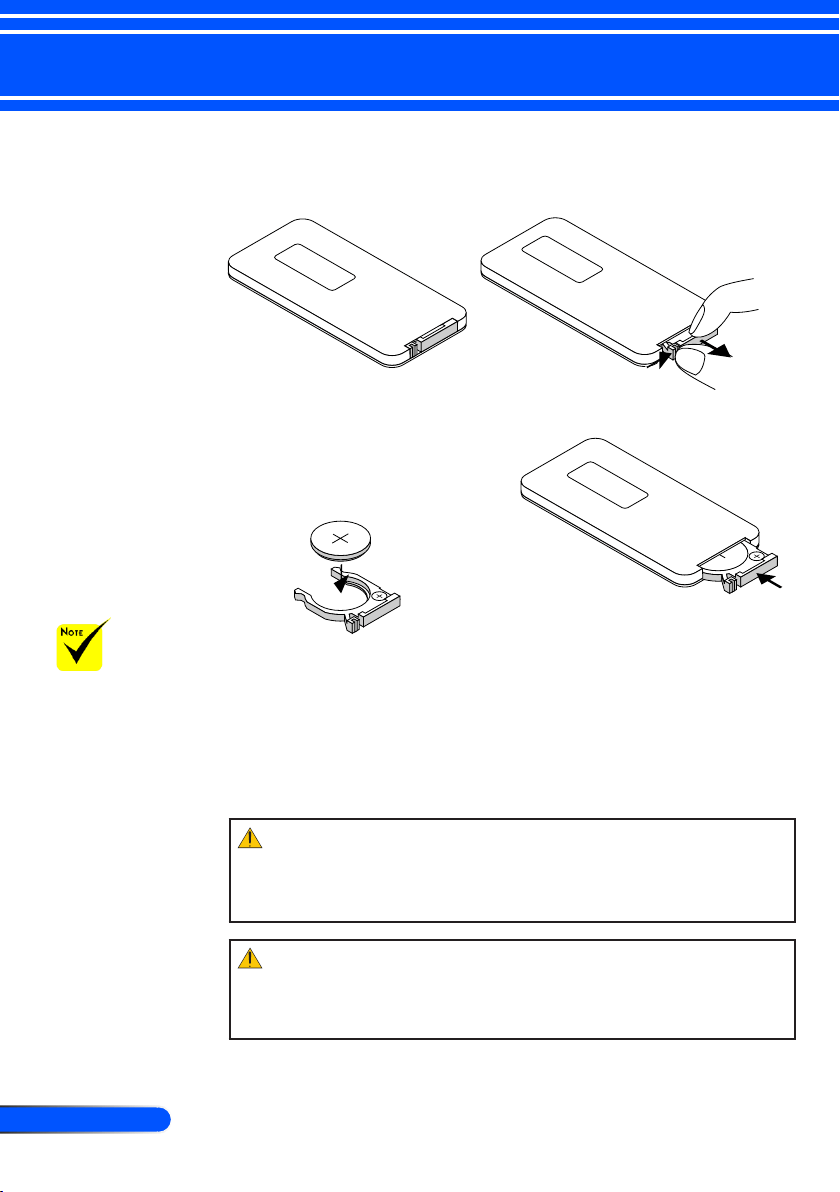
5 Keystone
Correction
Adjust the image to compensate
for distortion caused by tilt-
ing the projector (vertical ± 40
degrees).
6 Source Press “Source” to choose RGB,
Component, S-Video, Composite
and HDTV sources.
7 Menu Press “Menu” to launch the
Onscreen display (OSD), back to
the top level of OSD for the OSD
main menu operation
8 AV-Mute Momentarily turn off/on the
audio and video.
9 Reset Change the adjustments and set-
tings to the factory default value.
10 Video Source Press “Video” to choose Video
connector.
11 S-Video Source Press “S-Video” to choose S-
Video connector.
12 Magnify Zoom the projector display in or
out. Use “Magnify”, not
or
13 Enter Conrm your section of items in
sub menu operation.
14 Auto Adjust Automatically synchronize the
projector to the input source.
15
Four
Directional
Select Keys
Use
or or or to select
items or make adjustments to
your selection.
16 Source Lock Press “Source Lock” to lock
specied connection port; press
this again to unlock.
17 Volume +/- Increase/decrease speaker vol-
ume.
10
English ...
Introduction
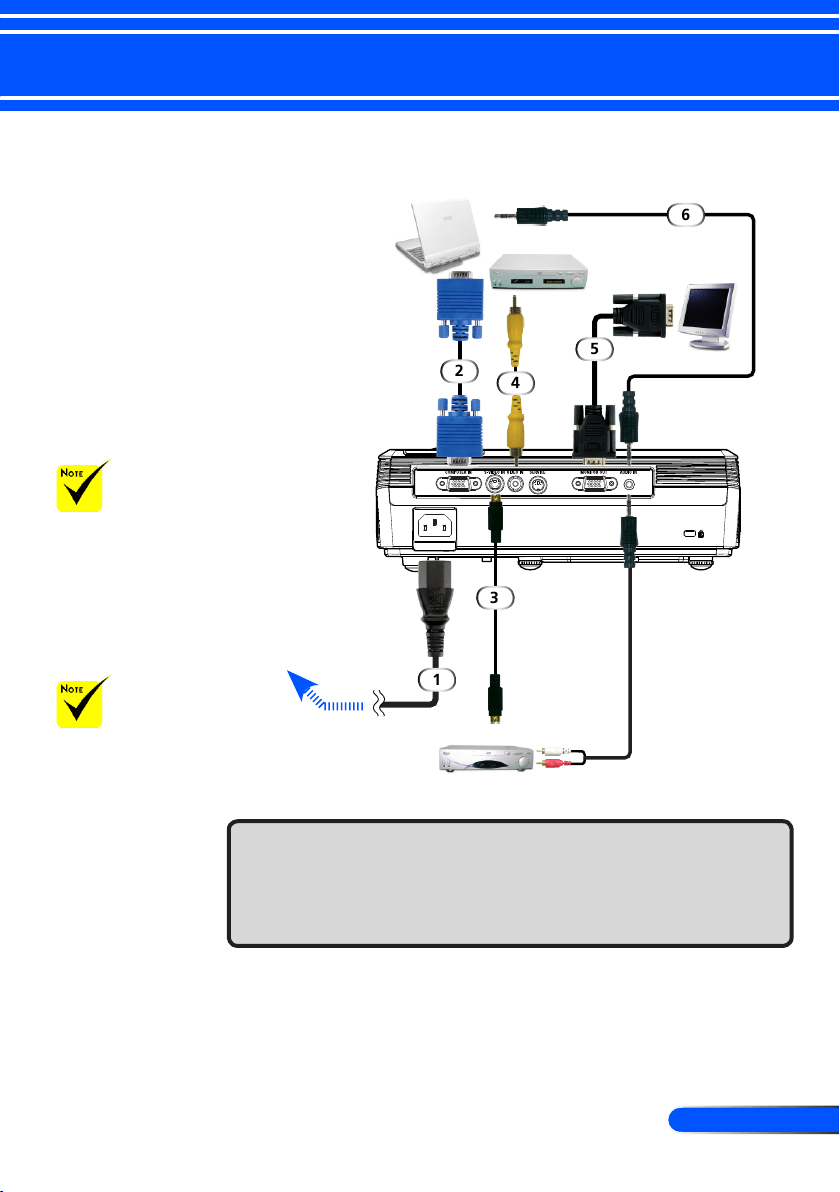
Battery Installation
Remote Control Precautions
• Handle the remote control carefully.
• If the remote control gets wet, wipe it dry immediately.
• Avoid excessive heat and humidity.
• Do not place the battery upside down.
1. Press rmly and slide the battery cover off.
M
n
O
2
-
L
i
C
E
L
L
3
V
O
L
T
S
J
A
P
A
N
H
CR2025
2. Remove the old Lithium
coin cell and install new one
(CR2025). Ensure that the
side with a “+” is facing up.
3
V
O
L
T
S
CR2025
3. Put the cover back.
M
3
V
O
L
T
S
CR2025
Keep the coin cell
battery out of reach of
children so as not to
allow them to swallow
the cell battery.
CAUTION:
Danger of explosion if battery is incorrectly replaced.
Replace only with the same or equivalent type recommended by the manufacturer.
Dispose of used batteries according to your local regulations.
CAUTION:
Use the remote control away from audio tapes, video tapes, credit cards, hard disk
drive of the computer, or cardiac pacemakers.
The remote control contains a magnet that may affect or damage them.
11
... English
Installation
Connecting the Projector
Due to the differ-
ence in applications
for each country, some
regions may have differ-
ent accessories.
To ensure the projector works well with your computer,
please make sure the timing of the display mode is
compatible with your projector.
1............................................................................................Power cable (supplied)
2.............................................................................................. VGA cable (supplied)
3............................................................................................................ S-Video cable
4............................................................................................ Composite video cable
5...........................................................................................................VGA out cable
6...........................................................................................Audio cable jack to jack
6
1
2
3
4
5
Video Output
S-Video Output
To the wall outlet
VGA, DVI
Make sure that the
power plug is fully
inserted into both the
projector AC inlet and
the wall outlet.
12
English ...
Installation
Powering On the Projector
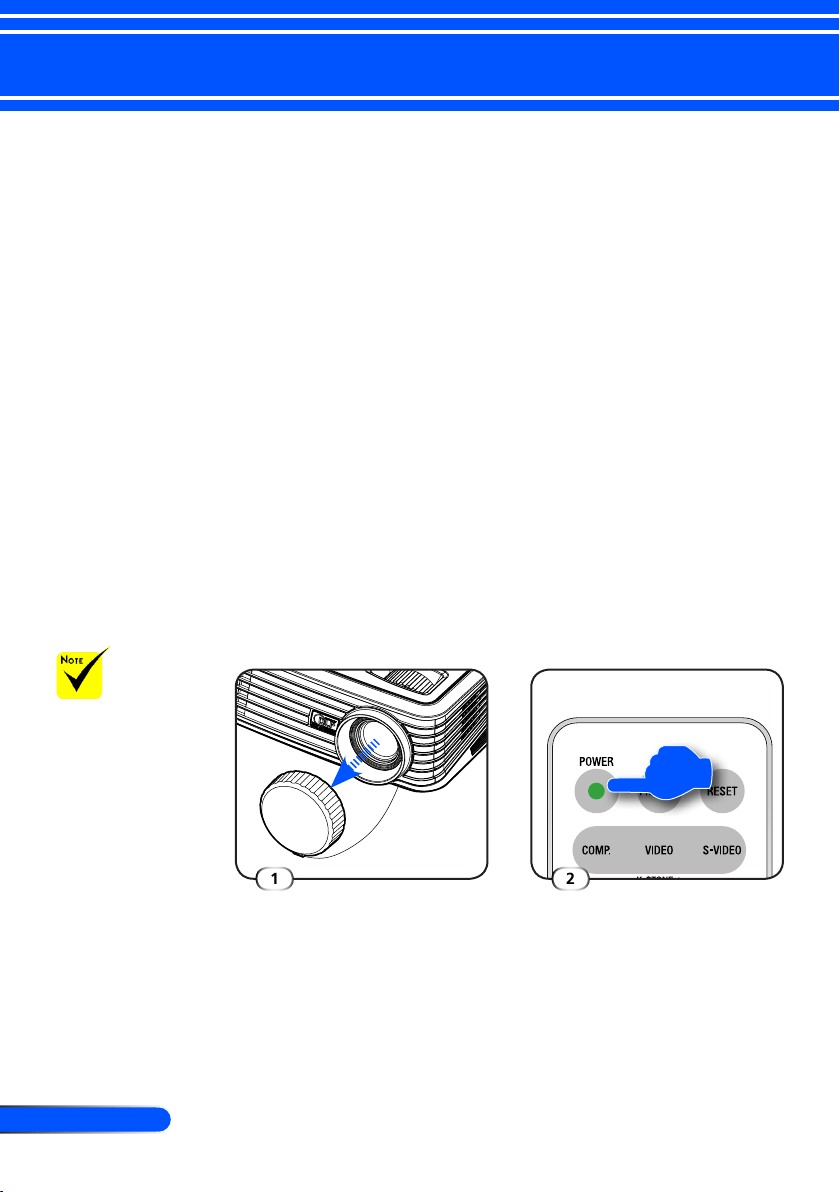
1. Ensure that the power cable and signal cable are securely
connected. The Power LED will ash blue.
2. Remove the lens cap.
3. Turn on the lamp by pressing “Power” on the control panel.
The startup screen (NEC logo) will display and the Power
LED will turn blue.
4. Turn on your source (computer, notebook, video player,etc.)
The projector will detect your source automatically.
If you connect multiple sources at the same time, use the
“Source” on the remote control or use “Computer”, “S-Vid-
eo”, “Video” on the remote control to switch inputs.
Powering On/Off the Projector
Turn on the projector
rst and then the signal
sources.
Lens Cap
1
Power
2

13
... English
Installation
Powering Off the Projector
1. Press the “Power” to turn off the projector lamp, you will
see a message as below on the on-screen display.
2. Press the “Power” again to conrm.
3. The cooling fan continues to operate for about 120 seconds
during the cool down period and the Power LED will ash
blue. When the light starts ashing, the projector has entered
standby mode.
If you wish to turn the projector back on, you must wait
until the projector has completed the cooling cycle and has
entered standby mode. Once in standby mode, simply press
“Power” to restart the projector.
4. Disconnect the power cable from the electrical outlet and the
projector.
5. Do not turn on the projector immediately following a power
off procedure.
14
English ...
Installation
Warning Indicator
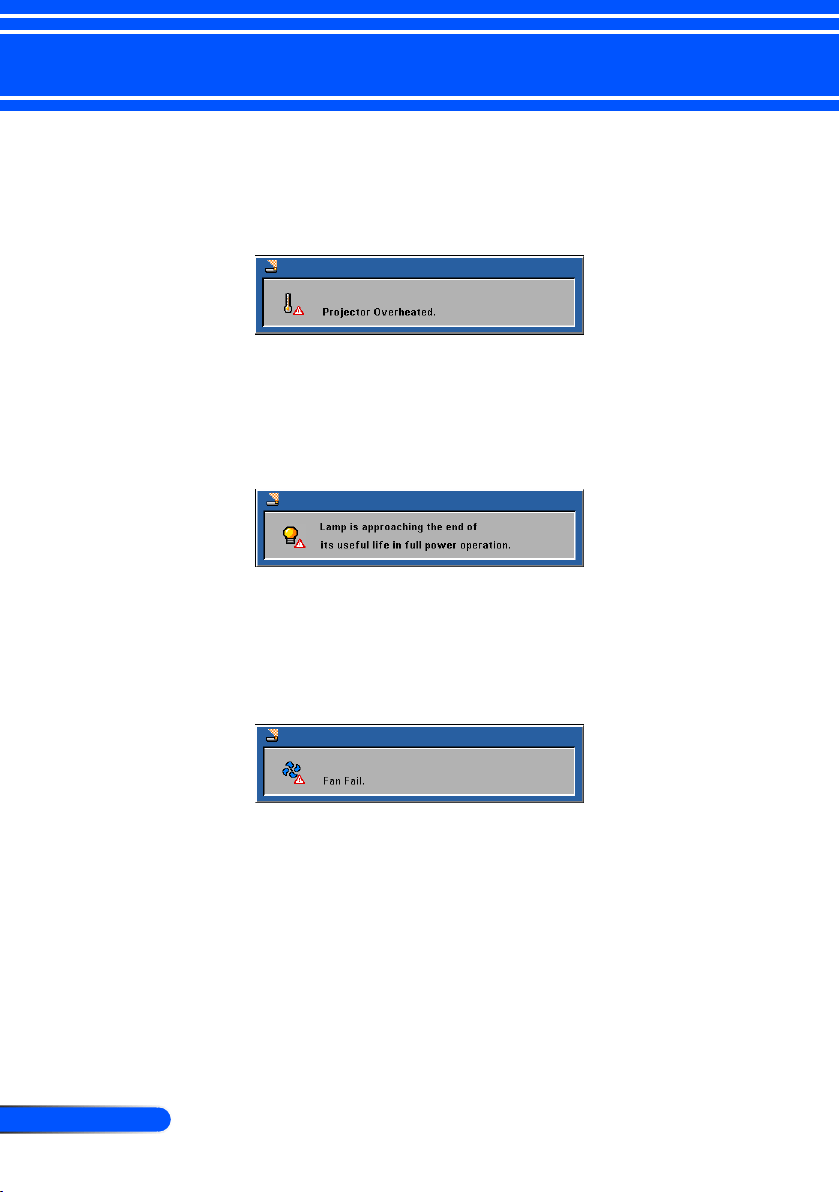
When the “Power” LED indicator turns red, it indicates the
projector has overheated. The projector will automatically
shut itself down.
When the “Power” LED indicator ashes red and the mes-
sage below displays on-screen, the projector has detected
that the lamp is approaching its end of life. When you see
this message, change the lamp as soon as possible or contact
your local dealer or our service center.
When the “Power” LED indicator ashes red and the mes-
sage below displays on-screen, it indicates the fan failed.
Stop using the projector and disconnect the power cable
from the electrical outlet, then contact your local dealer or
our service center.
15
... English
Installation
Adjusting the Projected Image
Adjusting the Height of Projector Image
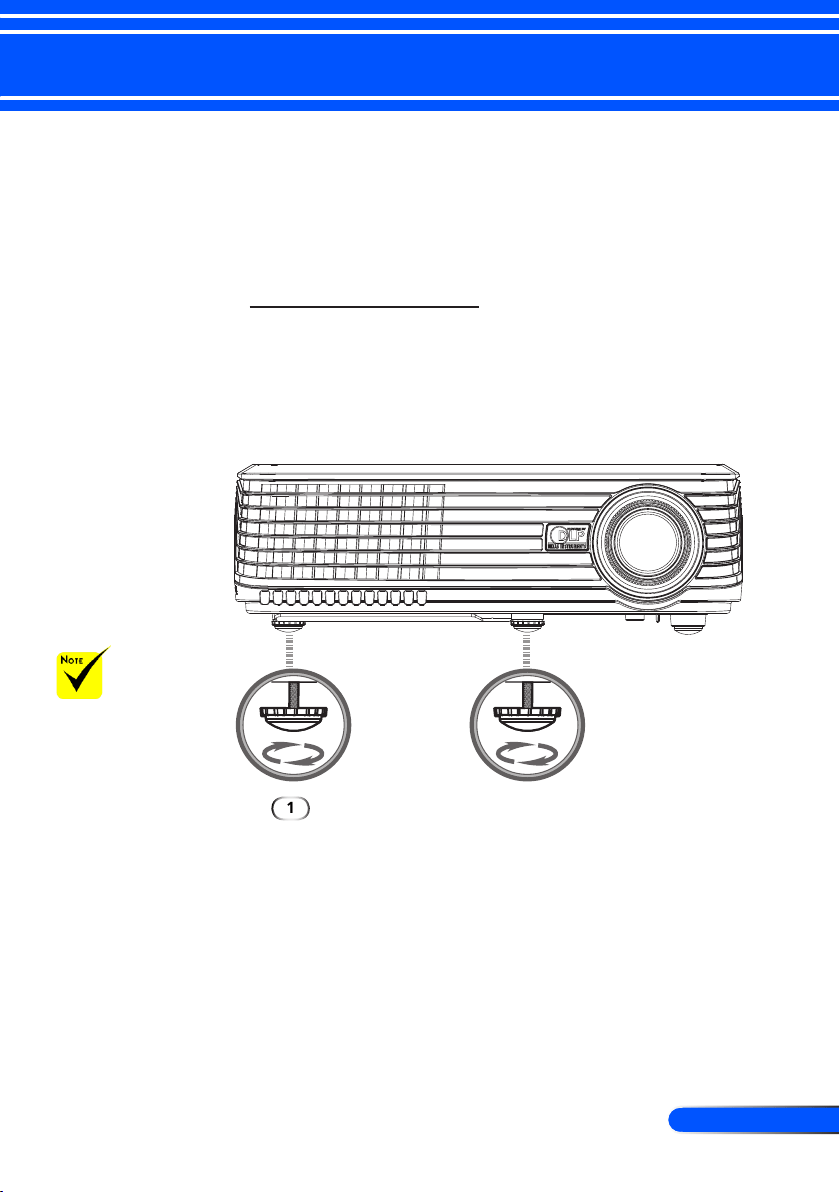
The projector is equipped with adjustable feet to raise and lower
the image to ll the screen.
To raise/lower the image:
1. Use to ne-tune the display angle.
Tilt adjusting wheel
1
The tilt angle of the
projector should not
exceed 15 degrees, nor
should the projector be
installed in any way other
than the desktop and
ceiling mount, otherwise
lamp life could decrease
dramatically.
You can raise the
projector front up to 4
degrees by rotating the
tilt foot.
16
English ...
Installation
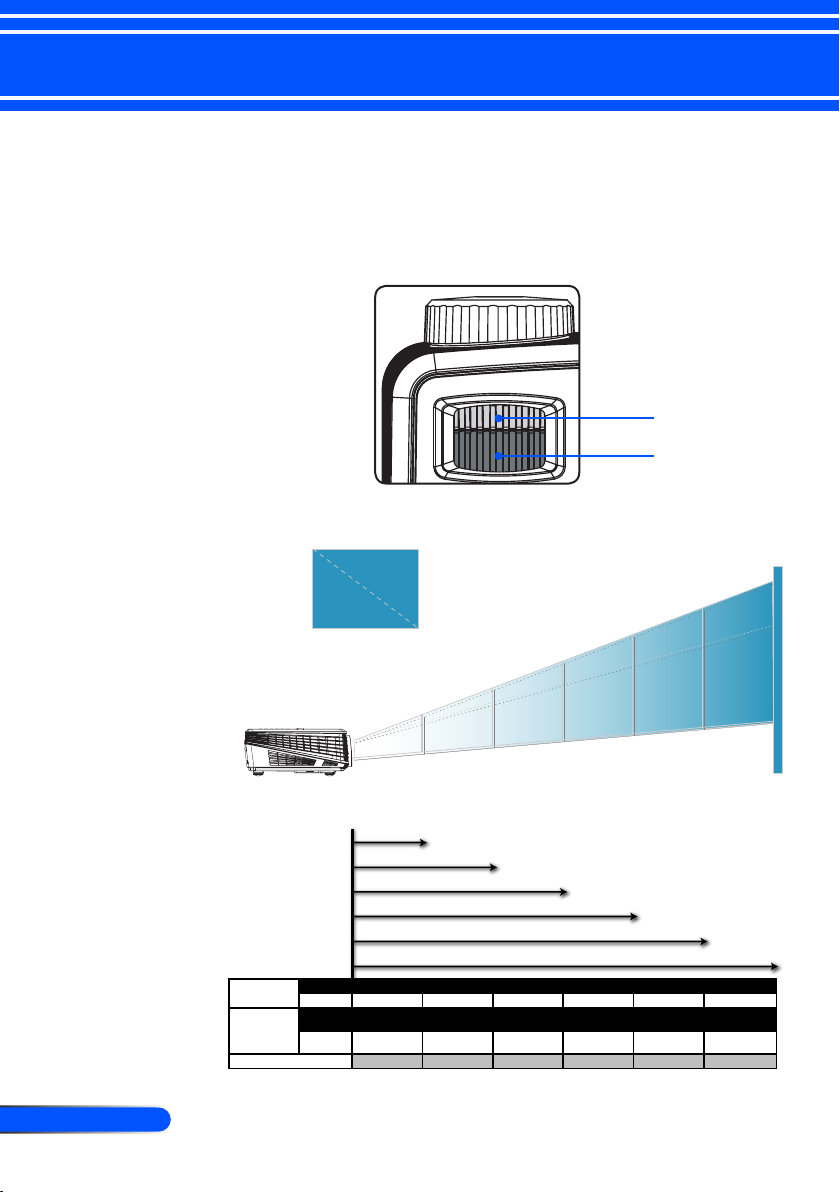
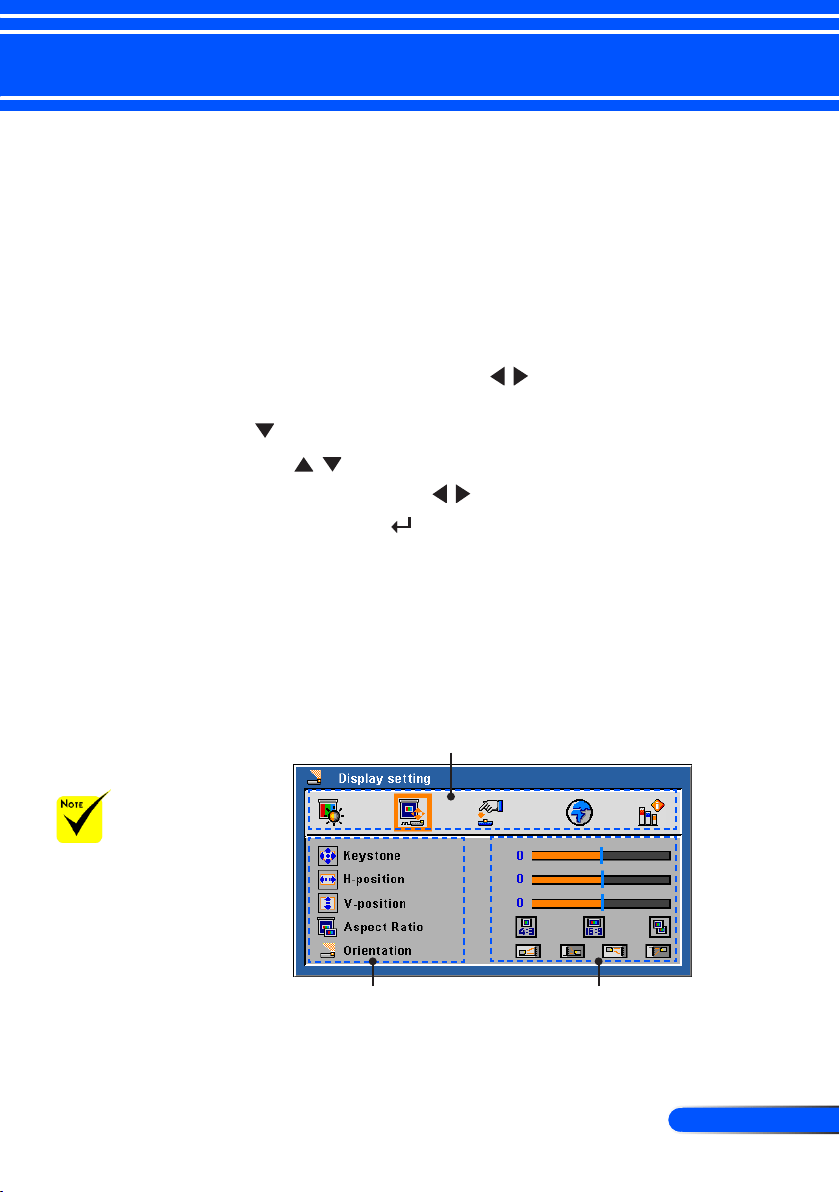
Max. 30.3"(76.9cm) 75.7"(192.3cm) 126.2"(320.5cm) 176.7"(448.7cm) 227.1"(576.9cm) 302.8"(769.2cm)
Min. 27.5"(69.8cm) 68.7"(174.4cm) 114.4"(290.7cm) 160.2"(407.0cm) 206.0"(523.3cm) 274.7"(697.7cm)
Max.(WxH)
24.2" x 18.2"
(61.5 x 46.2cm)
60.8" x 45.4"
(154.4 x 115.3cm)
101.0" x 75.7"
(256.5 x 192.3cm)
141.3" x 106.0"
(358.9 x 269.2cm)
181.7" x 136.3"
(461.5 x 346.2cm)
242.3" x 181.7"
(615.4 x 461.5cm)
Min.(WxH)
22.0" x 16.5"
(55.9 x 41.9cm)
54.9" x 41.2"
(139.4 x 104.6cm)
91.6" x 68.7"
(232.7 x 174.5cm)
128.2" x 96.1"
(325.6 x 244.1cm)
164.8" x 123.6"
(418.6 x 313.9cm)
219.7" x 164.8"
(558.0 x 418.6cm)
3.9'(1.2m) 9.8'(3.0m) 16.4'(5.0m) 23.0'(7.0m) 29.5'(9.0m) 39.4'(12.0m)
68.7"
(174.4cm)
114.4"
(290.7cm)
160.2"
(407.0cm)
206.0"
(523.3cm)
274.7"
(697.7cm)
30.3"
(76.9cm)
75.7"
(192.3cm)
126.2"
(320.5cm)
176.7"
(448.7cm)
227.1"
(576.9cm)
302.8"
(769.2cm)
3.9'
39.4'
29.5'
23.0'
16.4'
9.8'
(1.2m)
(12.0m)
(9.0m)
(7.0m)
(5.0m)
(3.0m)
27.5"
(69.8cm)
Screen
(Diagonal)
Screen Size
Distance
Diagonal
Focus Ring
Zoom Ring
Adjusting the Projector Zoom / Focus
You may turn the zoom ring to zoom in or out. To focus the im-
age, rotate the focus ring until the image is clear. The projector
will focus at distances from 3.9 to 39.4 feet (1.2 to 12.0 meters)
with mechanical travel.
Adjusting Projection Image Size
This graph is for user’s reference only.
17
... English
User Controls
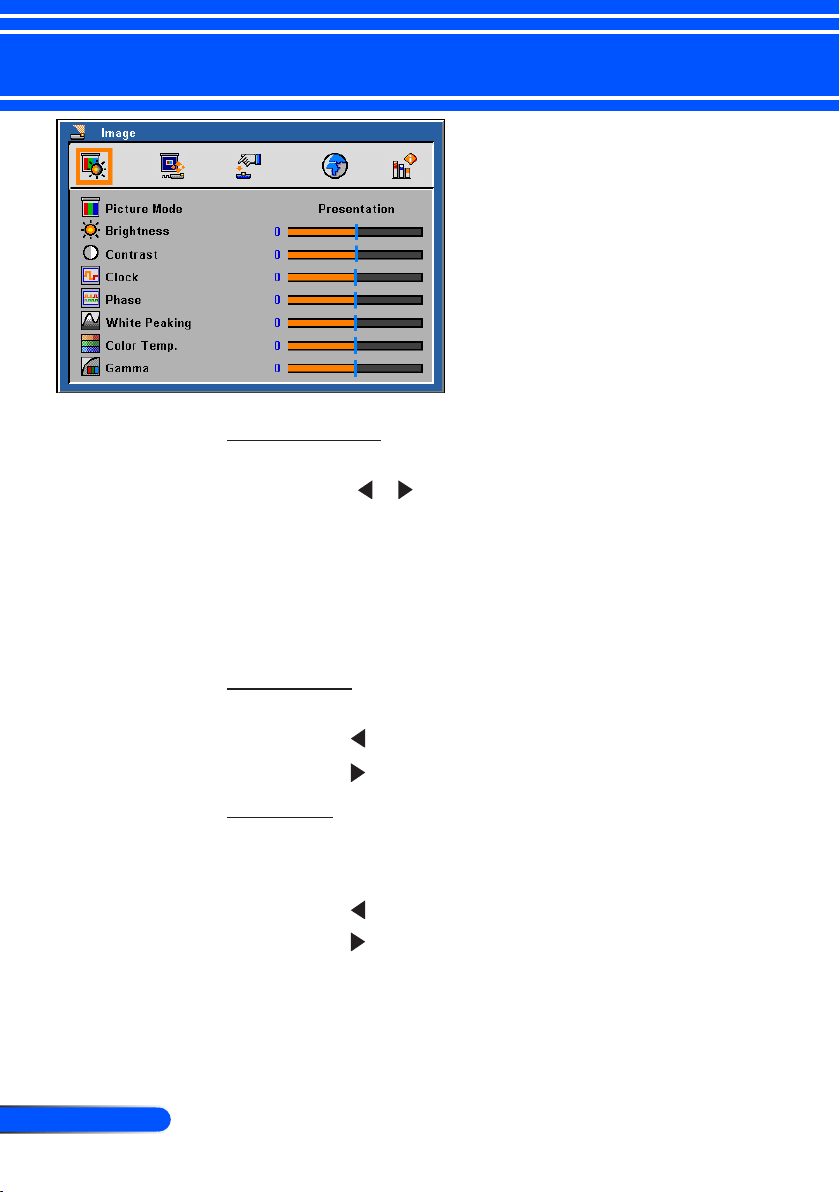
The Projector has a multilingual On Screen Display that allows
you to make image adjustments and change a variety of set-
tings. The projector will automatically detect the source.
How to operate
1. To open the OSD, press “Menu” on the Remote Control.
2. When OSD is displayed, use keys to select any item in the
main menu. While making a selection on a particular page, press
key to enter sub menu.
3. Use keys to select the desired item in the sub menu and
adjust the settings by
key.
4. If the setting has icon, you could press “Enter” to enter another
sub menu. Press “Menu” to close the sub menu after adjustment.
5. After adjusting the settings, press “Menu” go back to the main
menu.
6. To exit, press “Menu”again. The OSD will be closed and the projec-
tor will automatically save the new settings.
On Screen Display
Main Menu
Sub Menu Setting
If no button operation
is made for 30 seconds,
the OSD will be closed
automatically.
18
English ...
User Controls
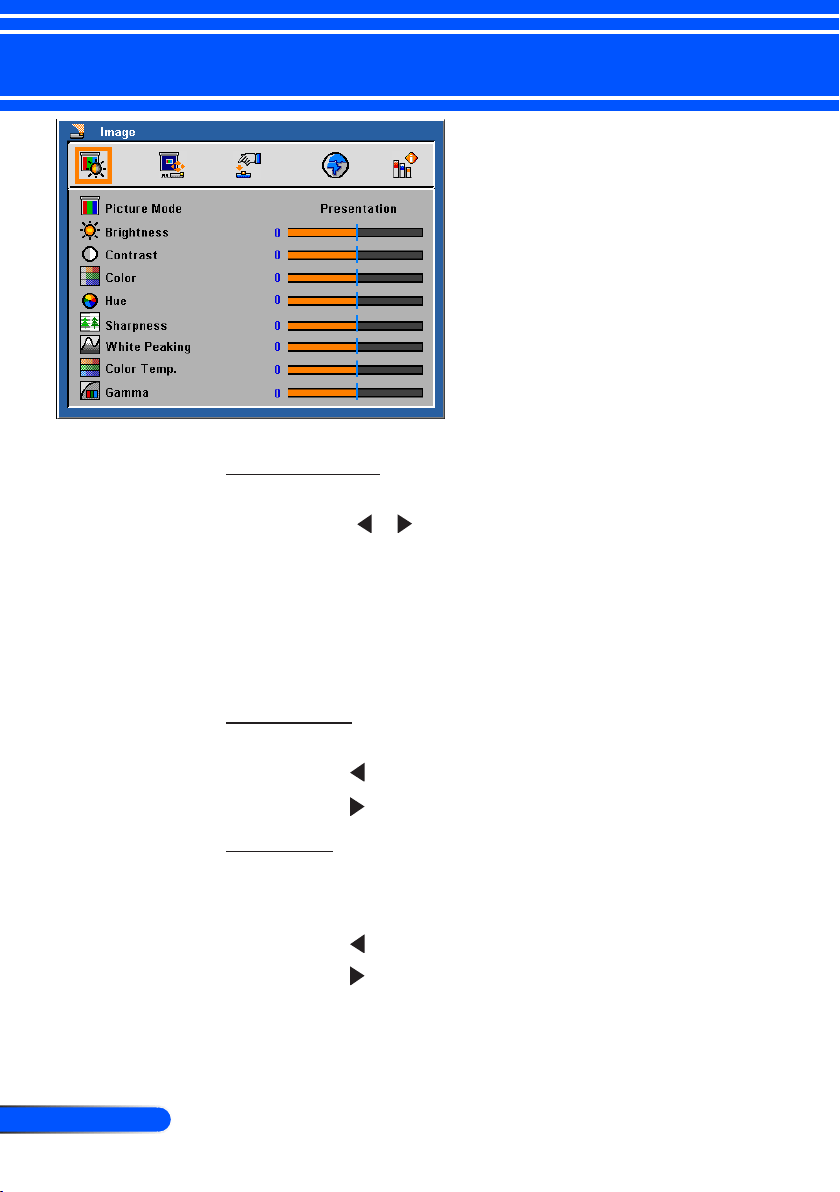
Image
(PC Mode)
Picture Mode
There are many factory presets optimized for various types of im-
ages. Use the or to select the item.
Presentation: For computer or notebook.
Movie: For home theater.
sRGB: For standard color.
Game: For game.
User: Memorize user’s settings.
Brightness
Adjust the brightness of the image.
Press the to darken image.
Press the to lighten the image.
Contrast
The contrast controls the degree of difference between the lightest
and darkest parts of the picture. Adjusting the contrast changes the
amount of black and white in the image.
Press the to decrease the contrast.
Press the to increase the contrast.

19
... English
User Controls
Clock
“Clock” changes the display data frequency to match the frequency
of your computer’s graphic card. If you experience a vertical icker-
ing bar, use this function to make an adjustment.
Phase
Synchronize the signal timing of the projector with the graphics
card. If you experience an unstable or ickering image, use this
function to correct it.
White Peaking
Use the white peaking control to set the white peaking level of
DMD chip. 0 stands for minimal peaking, and 10 stands for maxi-
mum peaking. If you prefer a stronger image, adjust towards the
maximum setting. For a smooth and more natural image, adjust
towards the minimum setting.
Color Temp.
Adjust the color temperature. At higher temperature, the screen
looks colder; at lower temperature, the screen looks warmer.
Gamma
This allows you to choose a gamma table that has been ne-tuned to
bring out the best image quality for the input.
20
English ...
User Controls
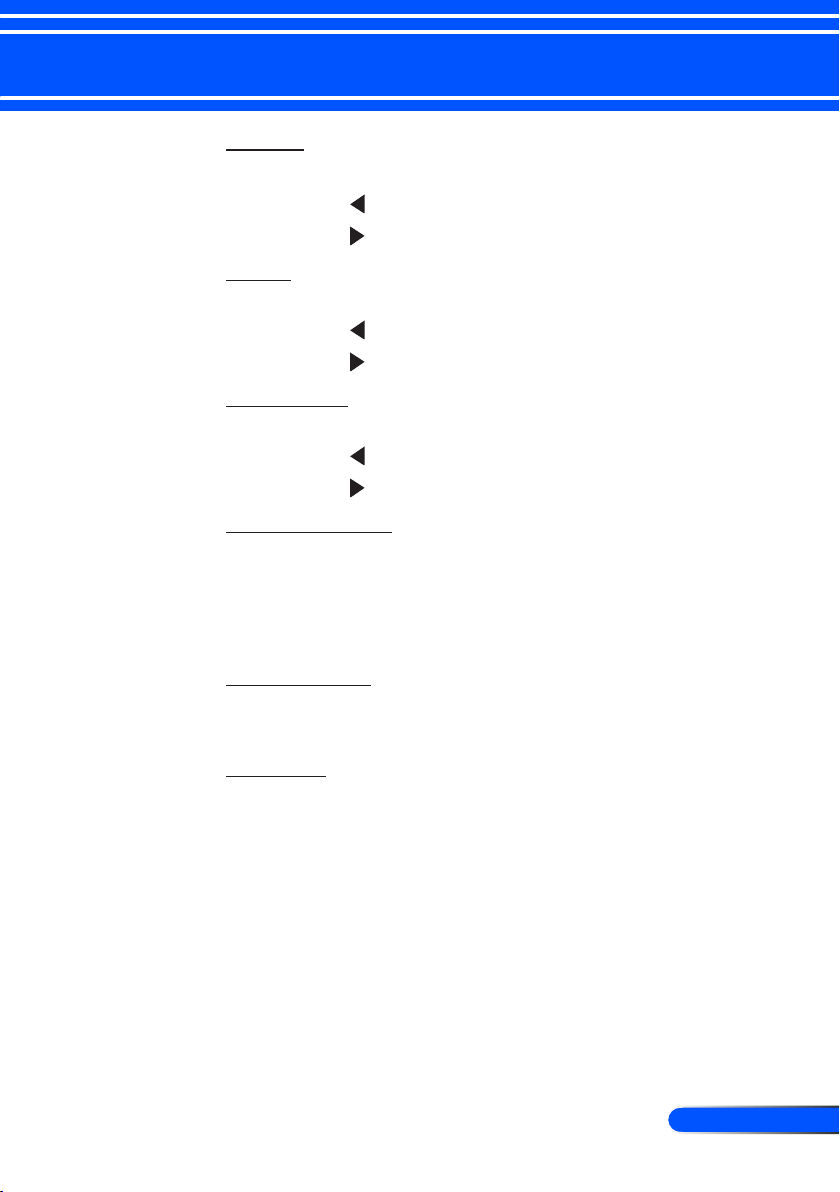
Image
(Video Mode)
Picture Mode
There are many factory presets optimized for various types of im-
ages. Use the or to select the item.
Presentation: For computer or notebook.
Movie: For home theater.
sRGB: For standard color.
Game: For game.
User: Memorize user’s settings.
Brightness
Adjust the brightness of the image.
Press the to darken image.
Press the to lighten the image.
Contrast
The contrast controls the degree of difference between the lightest
and darkest parts of the picture. Adjusting the contrast changes the
amount of black and white in the image.
Press the to decrease the contrast.
Press the to increase the contrast.
21
... English
User Controls
Color
Adjust a video imge from black and white to fully saturated color.
Press the to decrease the amount of color in the image.
Press the to increase the amount of color in the image.
Hue
Adjust the color balance of red and green.
Press the to increase the amount of green in the image.
Press the to increase the amount of red in the image.
Sharpness
Adjust the sharpness of the image.
Press the to decrease the sharpness.
Press the to increase the sharpness.
White Peaking
Use the white peaking control to set the white peaking level of
DMD chip. 0 stands for minimal peaking, and 10 stands for maxi-
mum peaking. If you prefer a stronger image, adjust towards the
maximum setting. For a smooth and more natural image, adjust
towards the minimum setting.
Color Temp.
Adjust the color temperature. At higher temperature, the screen
looks colder; at lower temperature, the screen looks warmer.
Gamma
This allows you to choose a gamma table that has been ne-tuned to
bring out the best image quality for the input.
22
English ...
User Controls
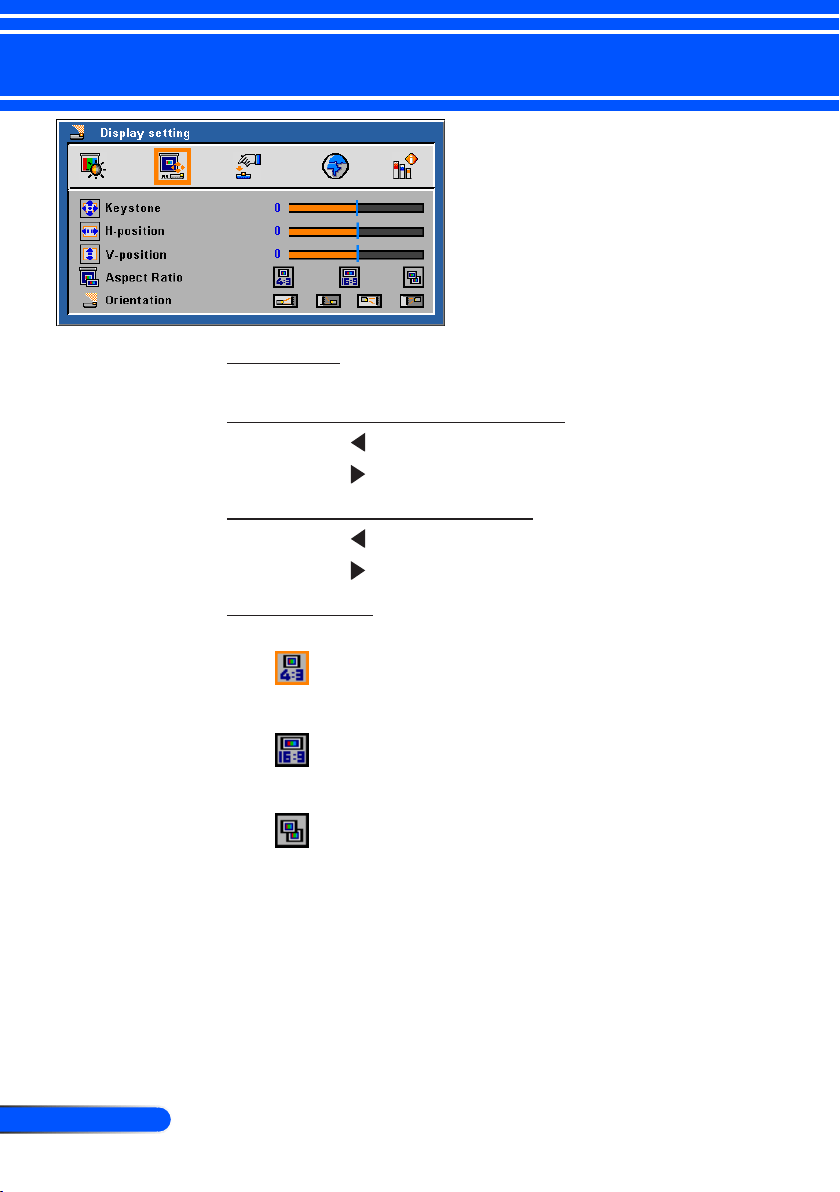
Display Setting
Keystone
Adjust image distortion caused by tilting projector. (±40 degrees).
H-Position (Horizontal Position)
Press the to move the image left.
Press the to move the image right.
V-Position (Vertical Position)
Press the to move the image down.
Press the to move the image up.
Aspect Ratio
Use this function to choose your desired aspect ratio.
4:3
This format is for 4x3 input sources not enhanced for Wide-
screen TV.
16:9
This format is for 16:9 input sources, like HDTV and DVD en-
hanced for Widescreen TV.
Native
This format displays the original image without any scaling.
23
... English
User Controls
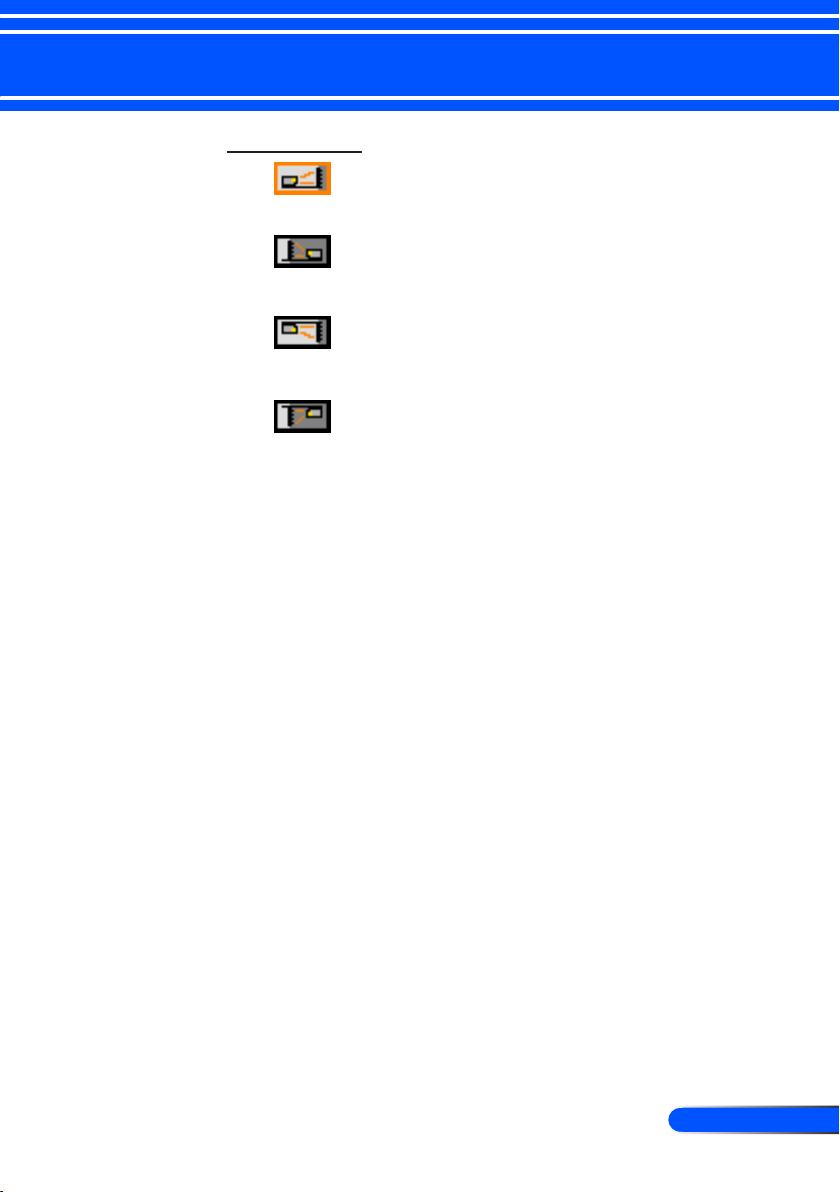
Orientation
Front-Desktop
The factory default setting.
Rear-Desktop
When you select this function, the projector reverses the image
so you can project behind a translucent screen.
Front-Ceiling
When you select this function, the projector turns the image
upside down for ceiling-mounted projection.
Rear-Ceiling
When you select this function, the projector reverses and turns
the image upside down at same time. You can project from be-
hind a translucent screen with ceiling mounted projection.
24
English ...
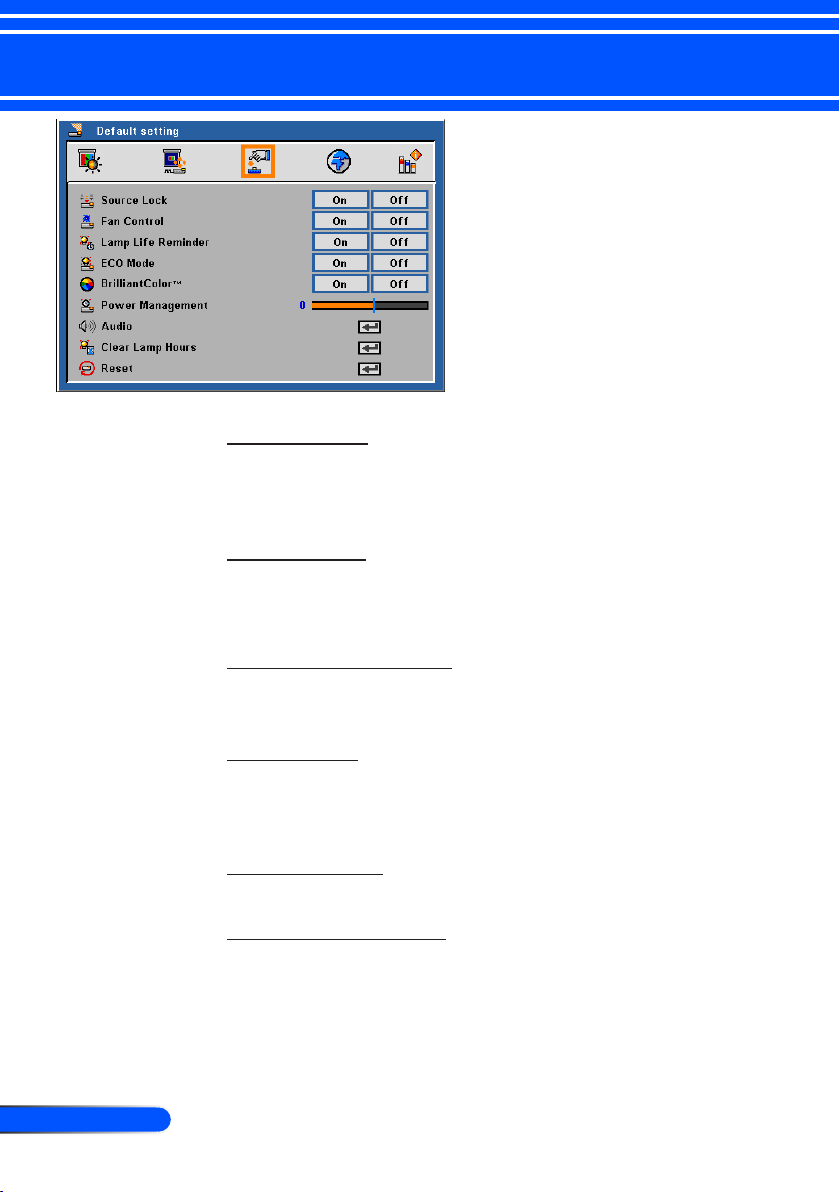
User Controls
Source Lock
When this function is turned “Off”, the projector will search for
other signals if the current input signal is lost. When this function is
turned “On”, it will only search a specied connection port.
Fan Control
Choose “On” to turn on Fan Control mode. Operate the fan at full
speed continuously to allow for proper high altitude cooling of the
projector.
Lamp Life Reminder
Choose this function to show or to hide the lamp end of life warning
message. The message will show up 100 hours before end of life.
ECO Mode
Choose “On” to dim the projector lamp which will lower power
consumption and extend the lamp life. Choose “Off” to return to
normal mode.
BrilliantColor
TM
Choose “On” to provide true, more vibrant colors.
Power Management
Set the interval of power-off of the system, if there is no signal
input. (In minutes)
Default Setting
25
... English
User Controls
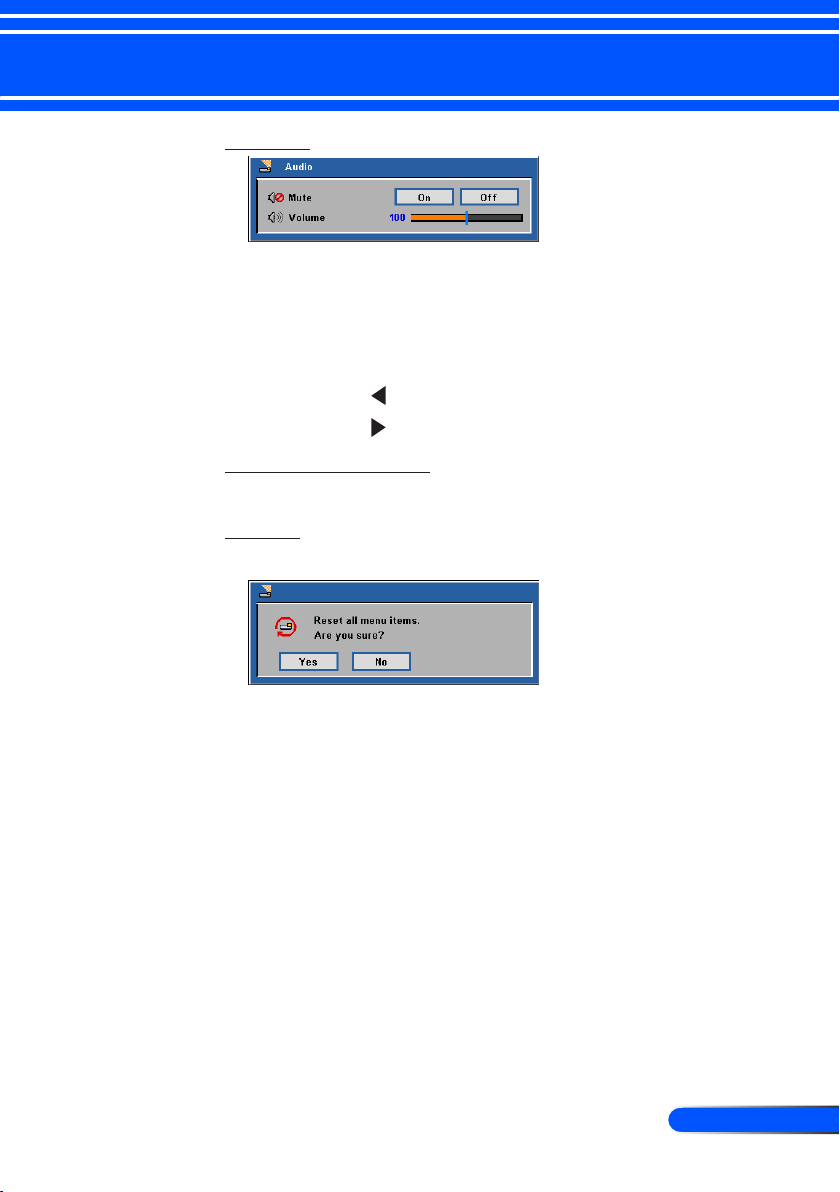
Audio
Mute:
■ Choose “On” to mute the volume.
■ Choose “Off” to restore the volume.
Volume:
■ Press the to decrease the volume.
■ Press the to increase the volume.
Clear Lamp Hours
Reset the lamp life hour after replacing a new lamp.
Reset
Return the adjustments and settings to the factory default values.
26
English ...
User Controls
Language
Choose the multilingual OSD. Press into the sub menu and then
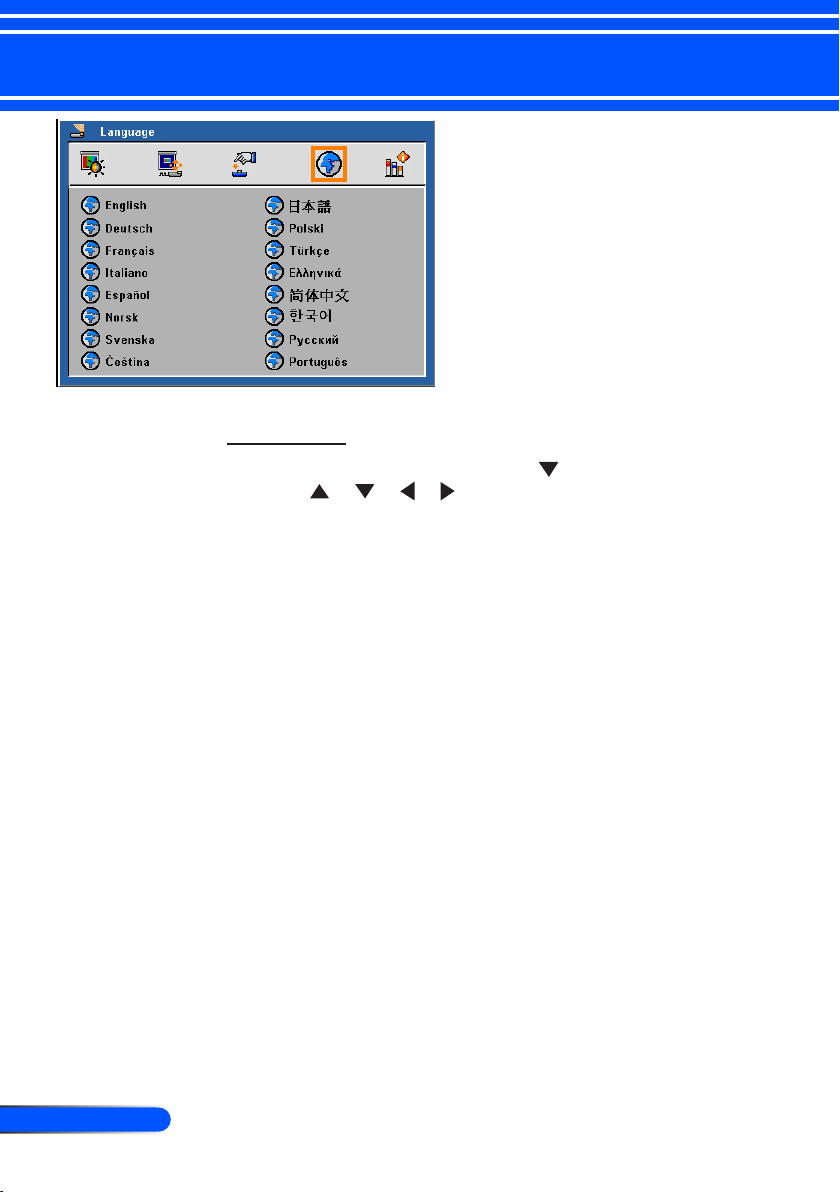
use the or or or key to select your preferred
language. Press “Enter” to nalize the selection.
Language

27
... English
User Controls
Information
To display the projector information on the screen.
Information

28
English ...
Appendices
Problem: No image appears on screen
Ensure all the cables and power connections are correctly and
securely connected as described in the “Installation” section.
Ensure the pins of connectors are not crooked or broken.
Check if the projection lamp has been securely installed. Please
refer to the “Replacing the lamp” section.
Make sure you have removed the lens cap and the projector is
switched on.
Ensure that the “AV-Mute” feature is not turned on.
Problem: Partial, scrolling or incorrectly displayed image
Press “Auto Adj.” on the remote control.
If you are using a PC:
For Windows 95, 98, 2000, XP:
1. From the “My Computer” icon, open the “Control Panel” folder,
and double click the “Display” icon.
2. Select the “Settings” tab
3. Click on the “Advanced Properties”.
For Windows Vista:
1. From the “My Computer” icon, open the “Control Panel” folder,
and double click the “Appearance and Personalization”
2. Select “Personalization”
3. Click “Adjust screen resolution” to display “Display Settings”.
Click on the “Advanced Settings”.
If the projector is still not projecting the whole image, you will
also need to change the monitor display you are using. Refer to
the following steps.
Troubleshooting
If you experience trouble with the projector, refer to the fol-
lowing information. If the problem persists, please contact
your local dealer or service center.
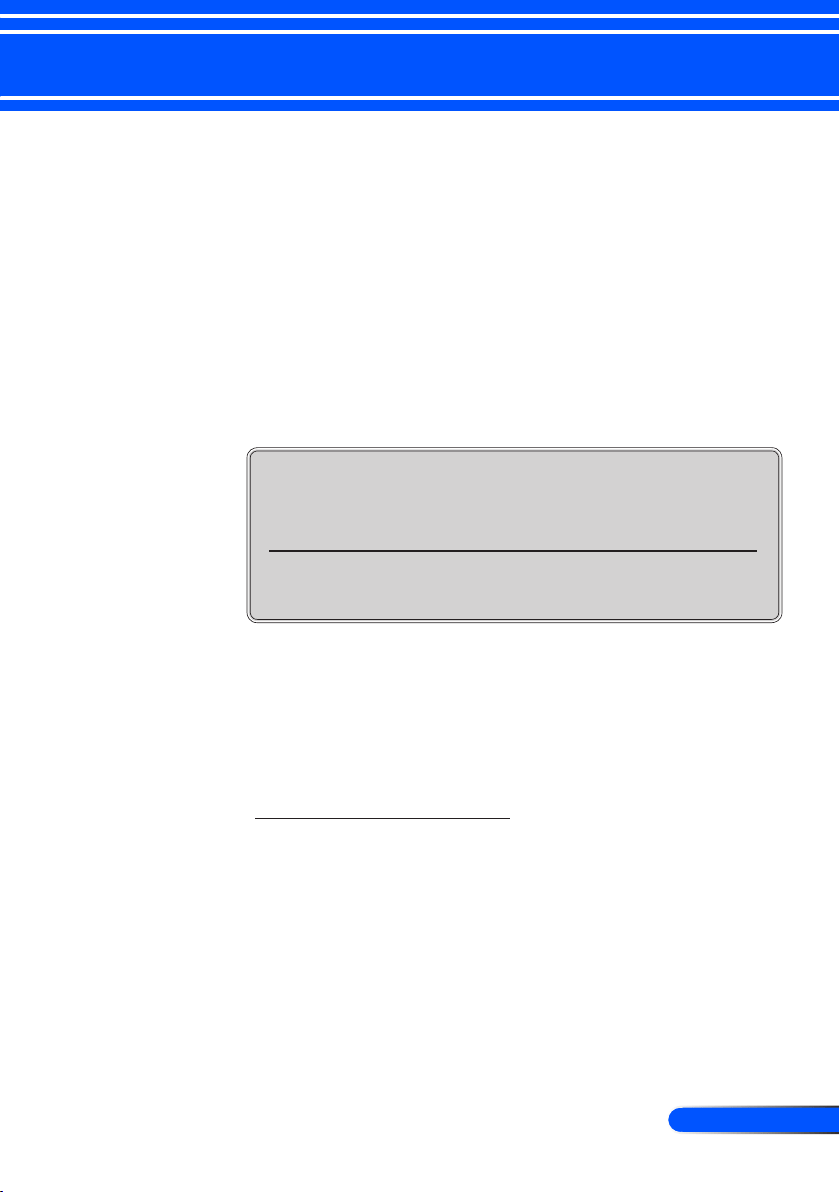
29
... English
Appendices
4. Verify the resolution setting is less than or equal to 1280 x 1024
resolution.
5. Select the “Change” under the “Monitor” tab .
6. Click on “Show all devices”. Next, select “Standard monitor
types” under the SP box; choose the resolution mode you need
under the “Models” box.
If you are using a Notebook:
1. First, follow the steps above to adjust resolution of the com-
puter.
2. Press the toggle output settings. example: [Fn]+[F4]
If you experience difculty changing resolutions or your monitor
freezes, restart all equipment including the projector.
Problem: The screen of the Notebook or PowerBook com-
puter is not displaying a presentation
If you are using a Notebook PC:
Some Notebook PCs may deactivate their own screens when a
second display device is in use. Each has a different way to be
reactivated. Refer to your computer’s documentation for detailed
information.
Problem: Image is unstable or ickering
Adjust the “Phase” to correct it. Refer to the “Image” section for
more information.
Change the monitor color setting from your computer.
Compaq=> [Fn]+[F4]
Dell => [Fn]+[F8]
Gateway=> [Fn]+[F4]
IBM=> [Fn]+[F7]
Macintosh Apple:
System Preference-->Display-->Arrangement-->Mirror
display
Hewlett
=> [Fn]+[F4]
Packard
NEC=> [Fn]+[F3]
Toshiba => [Fn]+[F5]

30
English ...
Appendices
Problem: Image has vertical ickering bar
Use “Clock” to make an adjustment.
Check and recongure the display mode of your graphic card to
make it compatible with the product.
Problem: Image is out of focus
Adjust the Focus Ring on the projector lens.
Make sure the projection screen is between the required distance
3.9 to 39.4 feet (1.2 to 12.0 meters) from the projector (refer to page
16).
Problem: The image is stretched when displaying 16:9 DVD
The projector automatically detects 16:9 DVD and adjusts the aspect
ratio by digitizing to full screen with 4:3 default setting.
If the image is still stretched, you will also need to adjust the aspect
ratio by referring to the following:
Please select 4:3 aspect ratio type on your DVD player if you are
playing a 16:9 DVD.
If you can’t select 4:3 aspect ratio type on your DVD player,
please select 4:3 aspect ratio in the on screen menu.
Problem: Image is reversed
Select “Display Setting-->Orientation” from the OSD and adjust
the projection direction.
Problem: Lamp burns out or makes a popping sound
When the lamp reaches its end of life, it will burn out and may
make a loud popping sound. If this happens, the projector will
not turn on until the lamp module has been replaced. To replace
the lamp, follow the procedures in the “Replacing the Lamp”.
31
... English
Appendices
Steady light =>
No light =>
Message
Power-LED
(Blue) (Red) (Purple)
Standby (Input power cable)
Flashing
(0.5 sec.)
Power on (Warming up)
Lamp lighting (Displaying)
Power off (Cooling-I)
Power off (Cooling-II)
Flashing
(0.5 sec.)
Error (Lamp failed)
Flashing
(1 sec.)
Error (Fan lock)
Flashing
(0.5 sec.)
Error (Over temp.)
Standby mode (Lamp failed)
Flashing
(1 sec.)
Standby mode (Fan lock)
Flashing
(0.5 sec.)
Standby mode (Over temp.)
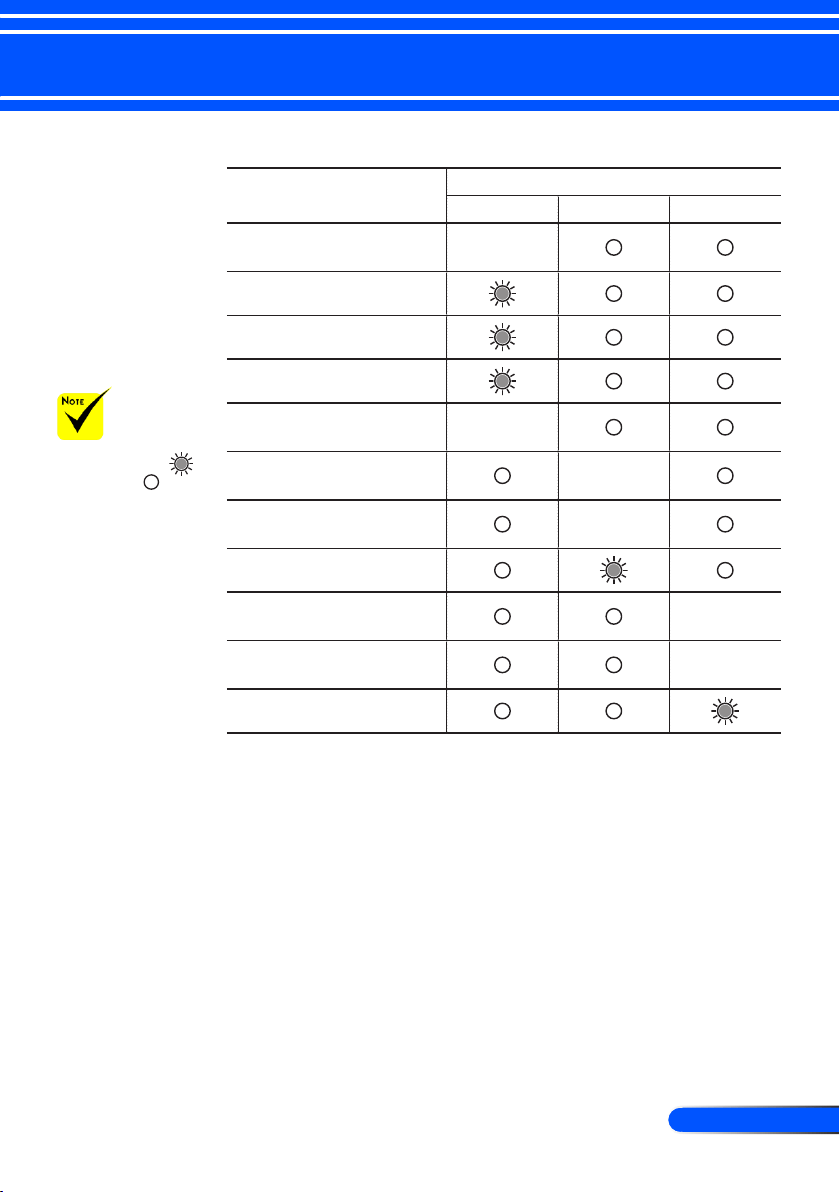
Problem: LED lighting message
32
English ...
Appendices
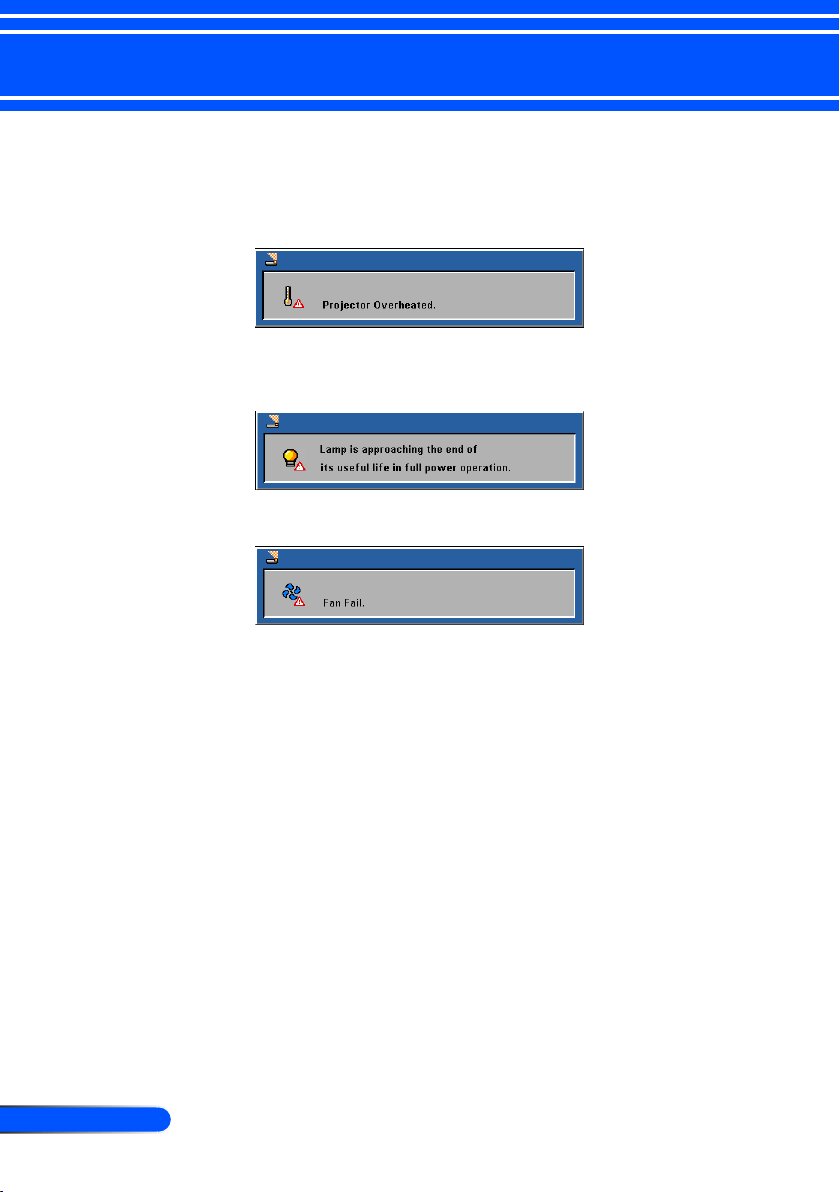
Problem: Message Reminders
Over temperature - the projector has exceeded its recommended
operating temperature and must be allowed to cool down before it
may be used.
Replacing the lamp - the lamp is about to reach its maximum life-
time. Prepare to replace it soon.
Fan failed - the system fan is not working.
33
... English
Appendices
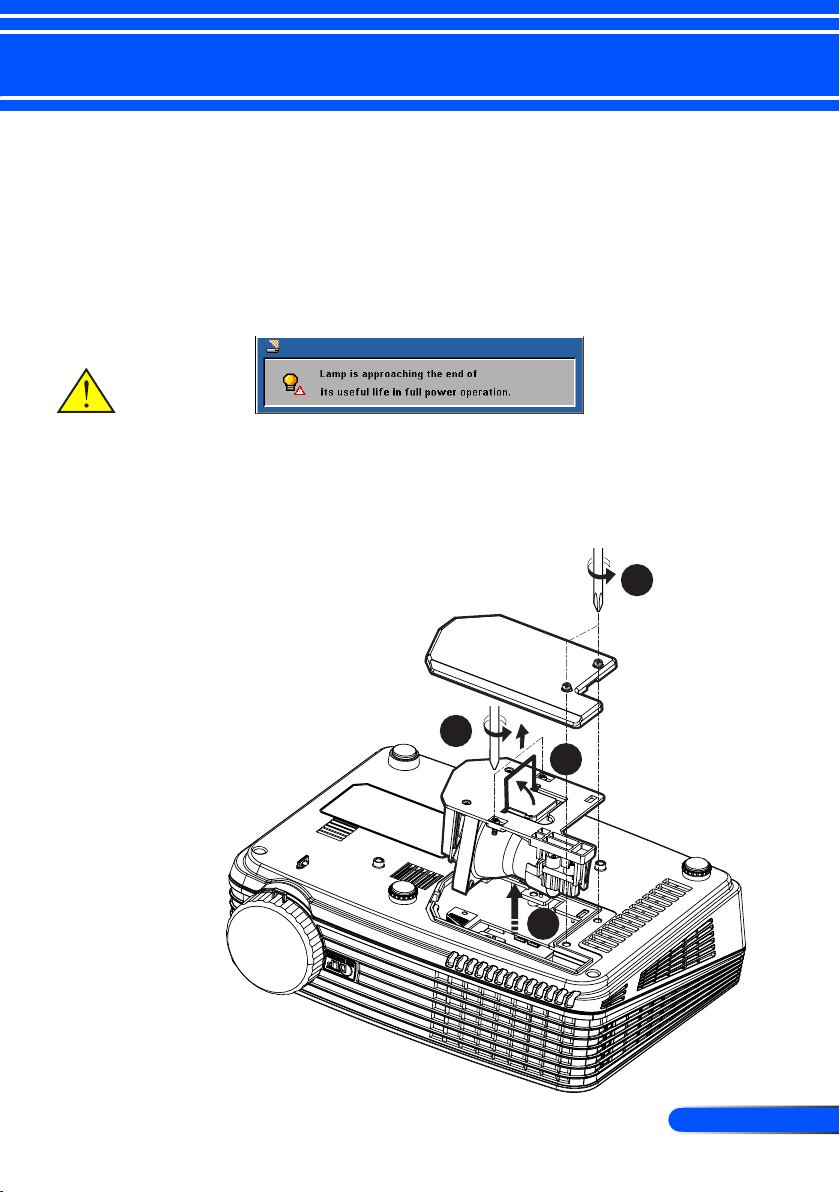
Replacing the lamp
(optional lamp NP10LP)
The projector will detect the lamp life at 3400 hours in Normal
mode. When the “Power” LED indicator ashes red and the
message below displays on-screen, the projector has detected
that the lamp is approaching its end of life. (Use the same ex-
planations on page 14) It will show you a warning message
When you see this message, change the lamp as soon as pos-
sible. Make sure the projector has been cooled down for at
least 60 minutes before changing the lamp.
Warning: To avoid
burns, allow the projec-
tor to cool for at least
60 minutes before you
replace the lamp!
1
3
4
2
34
English ...
Appendices
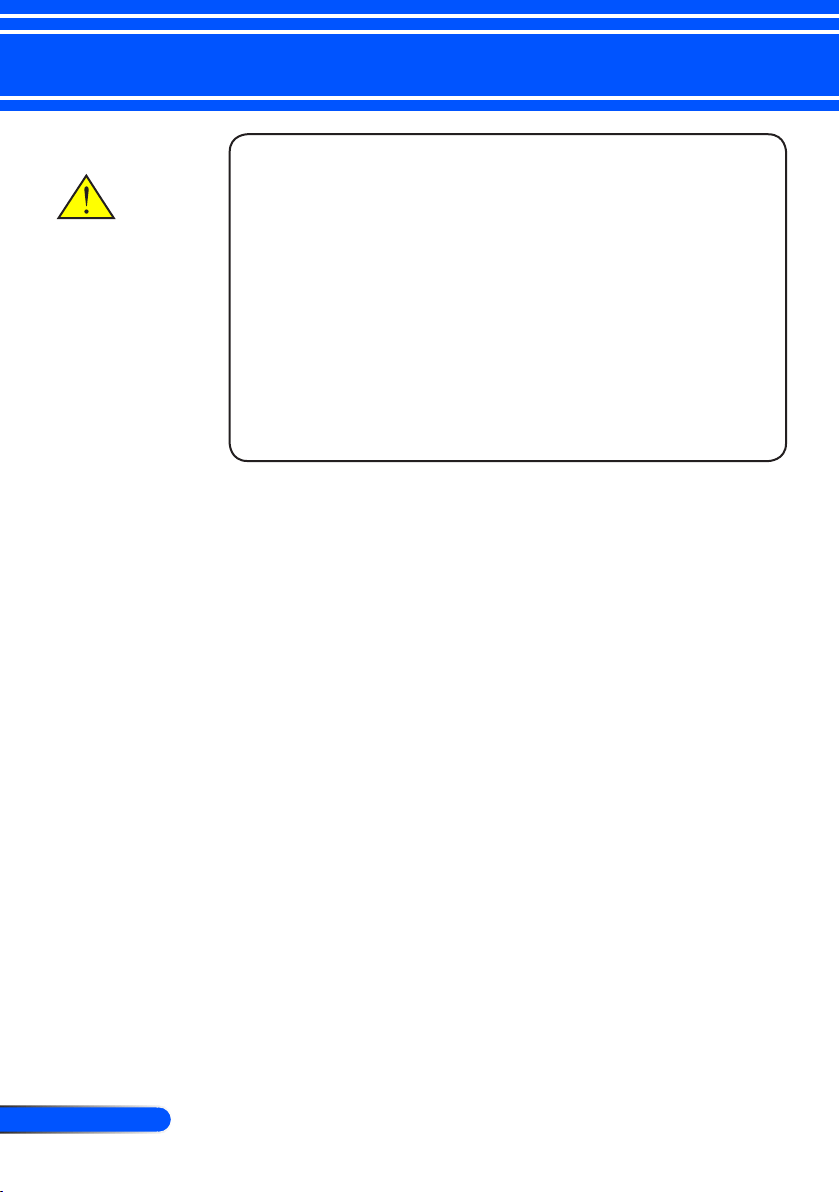
Warning: To reduce the
risk of personal injury,
do not drop the lamp
module or touch the
lamp bulb. The bulb
may shatter and cause
injury if it is dropped.
Lamp Replacing Procedure:
1. Switch off the power to the projector by pressing the Power.
2. Allow the projector to cool down at least 60 minutes.
3. Disconnect the power cable.
4. Use a screwdriver to remove the 2 screws from the cover.
5. Push up and remove the cover.
6. Remove the 2 screws from the lamp module and pull up
the lamp bar.
7. Pull out the lamp module by force.
8. Install the new lamp module by reversing the previous steps.
9. After replacing the lamp, turn on the power, and select the
menu ->[Reset] ->[Clear Lamp Hours] to reset the lamp usage
hours. See page 25.

35
... English
Appendices
Specications
Projection System Single Chip DLP
TM
Technology by Texas Instruments
Number of Pixels* NP100: 800 pixels(H) X 600 lines(V), up to SXGA (1280 X 1024) with scaling
technology
NP200: 1024 pixels(H) X 768 lines(V), up to SXGA+(1400 X 1050) with scaling
technology
Displayable Color 16.7M colors
Lamp 180W (150W on ECO mode)
Light Output NP200: 2100 lumens (approx. 80% in ECO mode)
NP100: 2000 lumens (approx. 80% in ECO mode)
Contrast Ratio
(full white:full black)
NP200: 1300:1
NP100: 1200:1
Projection Lens F/2.41~2.55 f=21.83~24mm with 1.1x Manual zoom lens
Projection Screen Size
(Diag.)
27.5 to 302.8 inches (0.69 to 7.69 meters) Diagonal
Projection Distance 3.9 to 39.4 feet (1.2 to12.0 meters)
Video Compatibility - NTSC-M/NTSC-4.43/PAL-M/PAL-B, D, G, H, I/PAL-N/SECAM
- Component: SDTV(480i/576i), EDTV(480p, 576p), HDTV(720p, 1080i)
H. Frequency NP100:31.35kHz~68.7kHz horizontal scan
NP200:31.35kHz~80kHz horizontal scan
V. Frequency 56Hz~85Hz vertical refresh
Power Supply Universal AC input 100-240V ; Input Frequency 50-60Hz
Power Consumption Normal mode:228W
ECO mode:190W
Standby mode <7 Watt
Input Current 2.5-1.0A (100-240V AC)
I/O Connectors - Power: AC power input socket
- Computer Input: 1x 15-pin D-Sub VGA for analog/component and HDTV
signal
- Video Input:
1x Composite video RCA input
1x S-Video input
- Audio Input: 1x Stereo Mini Jack
- Computer Output: 1x 15-pin D-Sub for Monitor output
Built-in Speaker 2W (monaural)
Weight 5.0 lbs (2.3 kgs)
Dimensions (W x D x H) 10.7 x 7.8 x 3.2 inches (272 x 199 x 80 mm) (not including protrusions)
Environmental - Operating Temperature: 41~95
o
F (5~ 35
o
C)
Humidity: 80% maximum (Non-condensing)
- Storage Temperature: -4~140
o
F (-20~60
o
C)
Humidity: 80% maximum (Non-condensing)
Safety Regulation Safety Regulation: UL/CUL, TUV-GS
EMC: CB Report, CE Class B, FCC Class B, C-Tick
* Effective pixels are more than 99.99%.
36
English ...
Appendices
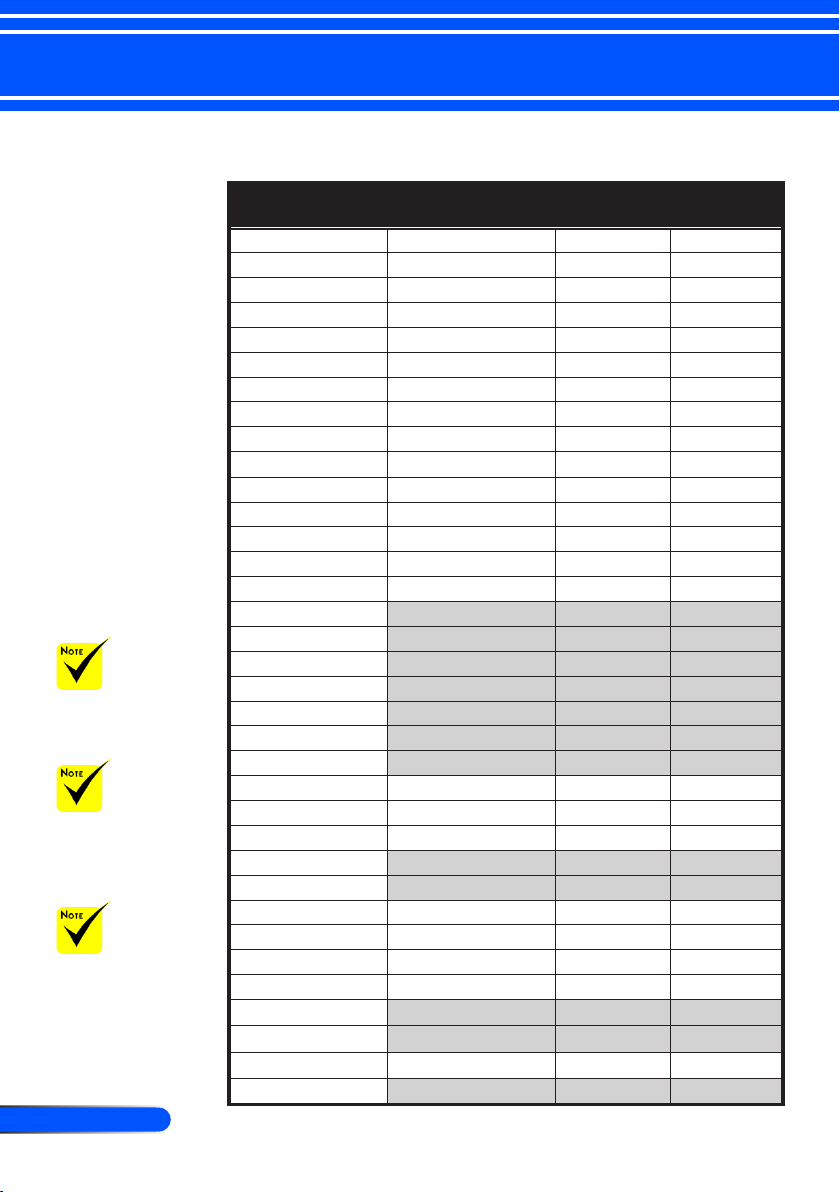
Compatibility Modes
Modes Resolution
V.Frequency
(Hz)
H.Frequency
(kHz)
VGA 640 x 480 60 31.50
640 x 480 72 37.90
640 x 480 75 37.50
640 x 480 85 43.30
720 x 400 70 31.50
720 x 400 85 37.90
SVGA 800 x 600 56 35.20
800 x 600 60 37.90
800 x 600 72 48.10
800 x 600 75 46.90
800 x 600 85 53.70
XGA 1024 x 768 60 48.40
1024 x 768 70 56.50
1024 x 768 75 60.00
1024 x 768 85 68.70
SXGA 1152 x 864 70 63.80
1152 x 864 85 77.10
* 1152 x 864 75 67.50
1280 x 1024 60 63.98
* 1280 x 1024 72 76.97
* 1280 x 1024 75 79.98
SXGA+ * 1400 x 1050 60 63.98
Power Mac G4 640 x 480 66.6 (67) 34.93
800 x 600 60 37.90
1024 x 768 60 48.40
1152 x 870 75 68.68
* 1280 x 960 75 75.00
PowerBook G4 640 x 480 60 31.35
640 x 480 66.6 (67) 34.93
800 x 600 60 37.90
1024 x 768 60 48.40
1152 x 870 75 68.68
* 1280 x 960 75 75.00
i Mac DV 1024 x 768 75 60.00
1152 x 870 75 68.49
Note: “*” for XGA
model only.
Note: Shaded signals
are compressed with
scaling technology.
Note: The projector
only support a separate
sync signal. Composite
sync and sync on green
are not supported.
37
... English
Appendices
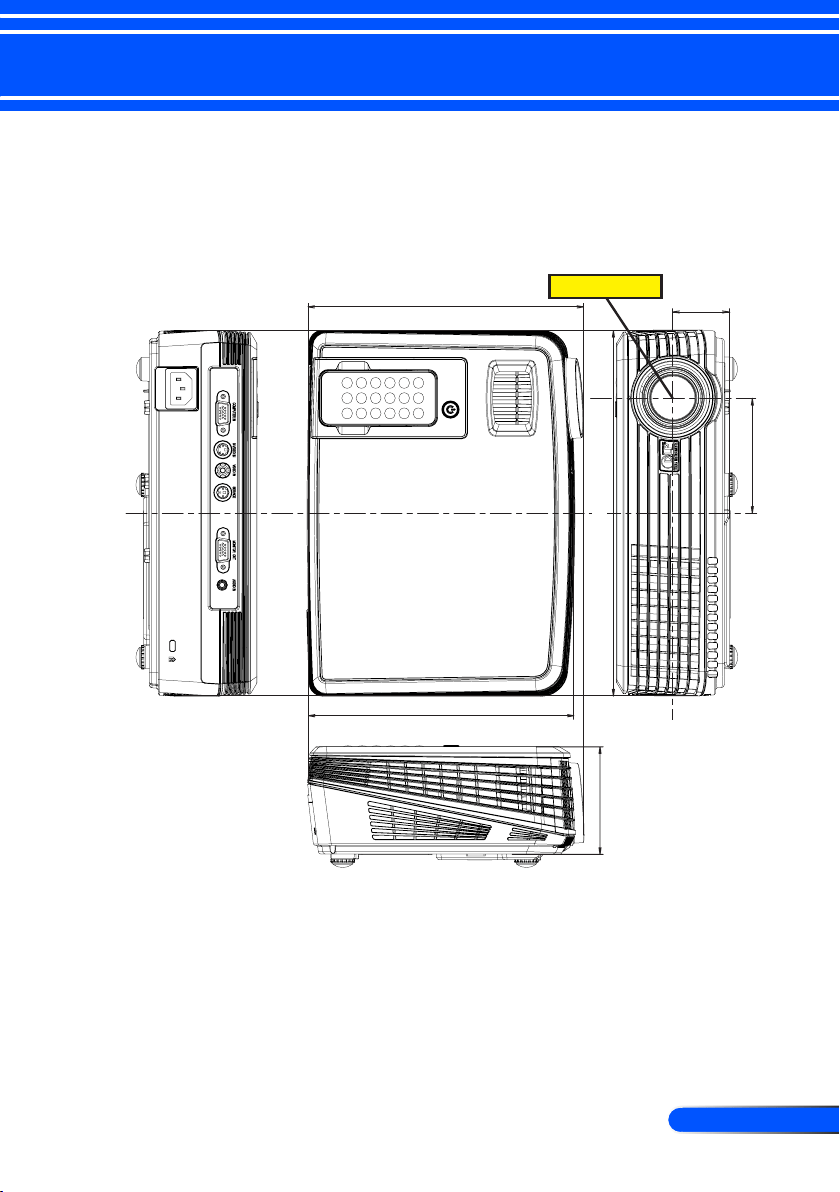
Cabinet Dimensions
10.7"/272mm
3.4"/86mm
1.7"/42mm
7.8"/199mm
3.2"/80mm
8.1"/206mm
Lens Center
Power
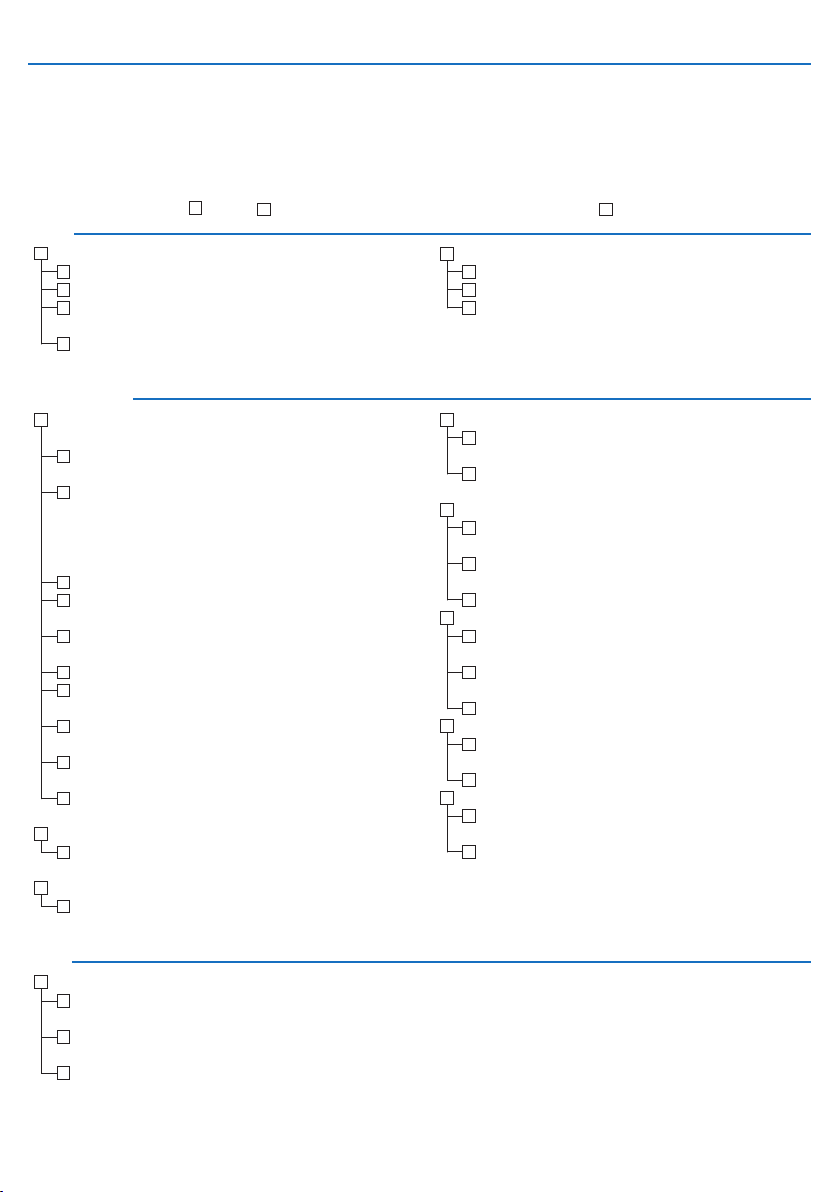
No power (POWER indicator does not light blue).
Power cable’s plug is fully inserted into the wall outlet.
Lamp cover is installed correctly.
Lamp Hours Used (lamp operation hours) was cleared after
lamp replacement.
No power even though you press and hold the POWER
button for a minimum of 1 second.
Shut down during operation.
Power cable’s plug is fully inserted into the wall outlet.
Lamp cover is installed correctly .
Power Management is turned off (only models with the
Power Management function).
Video and Audio
No image is displayed from your PC or video equipment to the
projector.
Still no image even though you connect the projector to the
PC rst, then start the PC.
Enabling your notebook PC’s signal output to the projector.
• A combination of function keys will enable/disable the
external display. Usually, the combination of the “Fn” key
along with one of the 12 function keys turns the external
display on or off.
No image (blue background).
Still no image even though you press the AUTO ADJUST
button.
Still no image even though you carry out [RESET] in the
projector’s menu.
Signal cable’s plug is fully inserted into the input connector
A message appears on the screen.
( _____________________________________________ )
The source connected to the projector is active and avail-
able.
Still no image even though you adjust the brightness and/or
the contrast.
Input source’s resolution and frequency are supported by
the projector.
Image is too dark.
Remains unchanged even though you adjust the brightness
and/or the contrast.
Image is distorted.
Image appears to be trapezoidal (unchanged even though
you carry out the [KEYSTONE] adjustment).
Parts of the image are lost.
Still unchanged even though you press the AUTO ADJUST
button.
Still unchanged even though you carry out [RESET] in the
projector’s menu.
Image is shifted in the vertical or horizontal direction.
Horizontal and vertical positions are correctly adjusted on a
computer signal.
Input source’s resolution and frequency are supported by
the projector.
Some pixels are lost.
Image is ickering.
Still unchanged even though you press the AUTO ADJUST
button.
Still unchanged even though you carry out [RESET] in the
projector’s menu.
Image shows ickering or color drift on a computer signal.
Image appears blurry or out of focus.
Still unchanged even though you checked the signal’s reso-
lution on PC and changed it to projector’s native resolution.
Still unchanged even though you adjusted the focus.
No sound.
Audio cable is correctly connected to the audio input of the
projector.
Still unchanged even though you adjusted the volume level.
Other
Remote control does not work.
No obstacles between the sensor of the projector and the
remote control.
Projector is placed near a uorescent light that can disturb
the infrared remote controls.
Batteries are new and are not reversed in installation
Troubleshooting Check List
Before contacting your dealer or service personnel, check the following list to be sure repairs are needed also by
referring to the “Troubleshooting” section in your user’s manual. This checklist below will help us solve your problem
more efciently.
* Print the following pages.
Frequency of occurrence always sometimes (How often?_______________________) other (__________________)
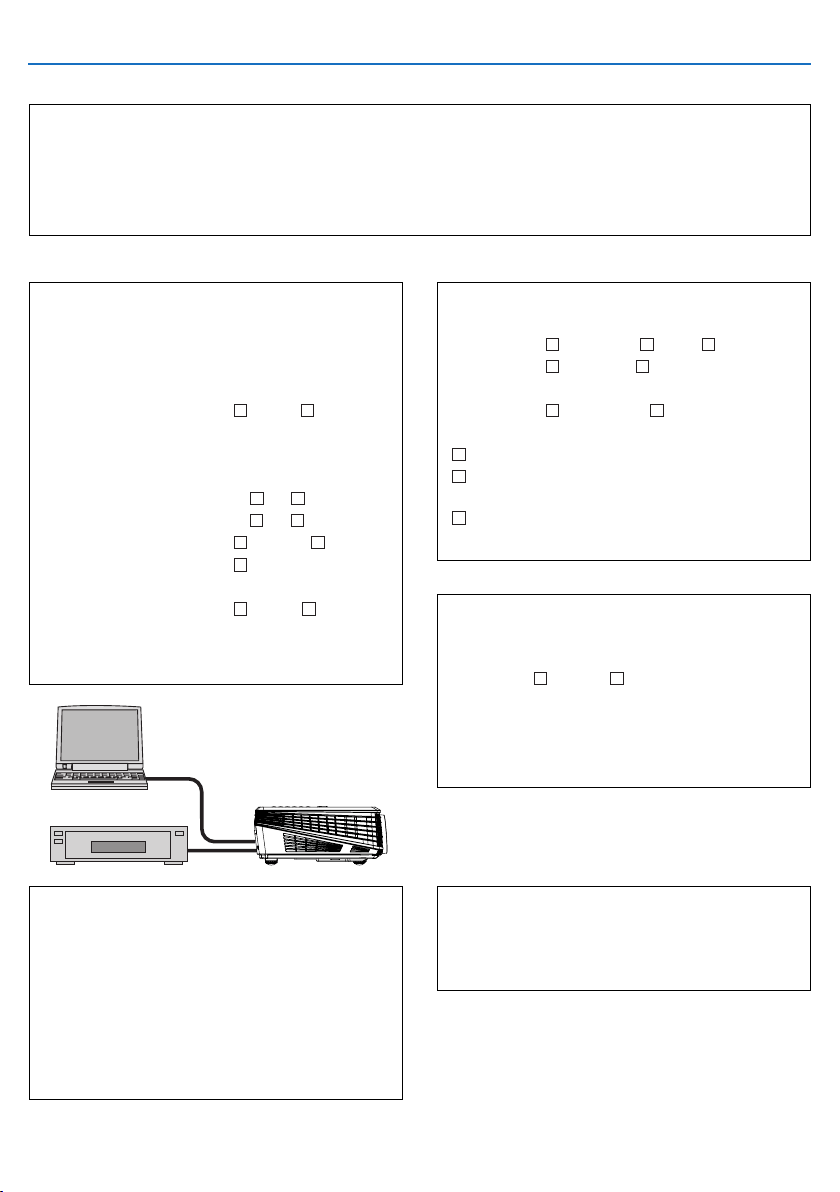
In the space below please describe your problem in detail.
Information on application and environment where your projector is used
Projector
Model number:
Serial No.:
Date of purchase:
Lamp operating time (hours):
Lamp Mode:
Normal Eco
Information on input signal:
Horizontal synch frequency [ ] kHz
Vertical synch frequency [ ] Hz
Synch polarity H
(+) (–)
V
(+) (–)
Synch type
Separate Composite
Sync on Green
STATUS Indicator:
Steady light
Orange Blue
Flashing light [ ] cycles
Remote control model number:
Installation environment
Screen size: inch
Screen type:
White matte Beads Polarization
Wide angle High contrast
Throw distance: feet/inch/m
Orientation:
Ceiling mount Desktop
Power outlet connection:
Connected directly to wall outlet
Connected to power cord extender or other (the number
of connected equipment______________)
Connected to a power cord reel or other (the number of
connected equipment______________)
Computer
Manufacturer:
Model number:
Notebook PC
/ Desktop
Native resolution:
Refresh rate:
Video adapter:
Other:
Video equipment
VCR, DVD player, Video camera, Video game or other
Manufacturer:
Model number:
Signal cable
NEC standard or other manufacturer’s cable?
Model number: Length: inch/m
Distribution amplier
Model number:
Switcher
Model number:
Adapter
Model number:
Projector
PC
DVD Player

TravelCare Guide
TravelCare - a service for international travelers
This product is eligible for “TravelCare”, NEC’s unique international
warranty.
Please note that TravelCare coverage differs in part from coverage
under the warranty included with the product.
Services offered with TravelCare
This warranty allows customers to receive service on their product at
the NEC and NEC-designated service stations in the countries listed
herein when temporarily traveling internationally for business or plea-
sure.
For details on services offered by the different service stations, please
refer to the “List of TravelCare Outlets” below.
1 Repair services
The product will be repaired and delivered within 10 business days,
not including shipping time.
During the term of warranty, the cost of maintenance parts, labor
costs for repairs and shipping costs within the service station’s cov-
erage area are covered by the warranty.
2 Replacement product rental service
If the customer desires, he or she can rent a replacement product
while the original product is being repaired.
Fee: US$200 for 12 days
This fee must be paid at the local service station in cash or credit
card.
The US$200 rental fee is non-refundable even if the customer rents
it less than 12 days before returning.
The replacement product will be delivered within 3 business days.
If the customer did not return the replacement product within 12
days, the customer will be charged the price of the unit.
If the customer returned the replacement product in a faulty or
damaged condition, the repair cost will be charged to the customer.
Note that this service is not offered in all countries and regions.
Please refer to the “List of TravelCare Outlets”.
In addition, this replacement product rental service is not offered
after the product’s warranty has expired.
Term of warranty
1
a. Upon presentation of the warranty or receipt received upon
purchase:
Valid for the term indicated on the warranty or the normal term
of warranty for the country of purchase.
b. When only the product is brought in:
Valid for a period of within 14 months of the date of manufac-
ture indicated by the serial number attached to the product.
2 When a product whose term of warranty is expired is brought in:
Repairs will be offered for a fee. In this case the customer is not
eligible for the replacement product rental service.
3 In the following cases, repairs may be charged, even if the product’
s warranty is still in effect:
1) If the term of warranty, model name, serial number and name
of the store of purchase are not indicated on the warranty or
have been altered.
2) Problems or damage caused by dropping or shocks during
shipment or movement by the customer or by improper han-
dling by the customers.
3) Problems or damage caused by improper usage or unwarrant-
able alterations or repairs by the customer.
4) Problems or damage caused by fire, salt damage, gas dam-
age, earthquakes, lightning damage, storm or flood damage or
other natural disasters or such external factors as dust, ciga-
rette smoke, abnormal voltage, etc.
5) Problems or damage caused by use in hot or humid places, in
vehicles, boats or ships, etc.
6) Problems or damage caused by expendable supplies or de-
vices connected to the product other than those designated by
NEC.
7) Problems caused by natural consumption, wear or deteriora-
tion of parts under normal usage conditions.
8) Problems or damage to lamps and other expendable supplies,
included parts or optional parts.
9) Other conditions stipulated in the warranty included with the
product also apply.
NOTE: The product can be used overseas with voltages of 100 to 120V and
200 to 240V by using a power cable suited for the standards and power source
voltage of the country in which the product is being used.
List of TravelCare Outlets
This list applies as of October 1, 2007.
For the most up-to-date information, please refer to the websites of
the service stations in the various countries on the List of TravelCare
Outlets or to the NEC website at http://www.nec-pj.com.
In Europe
NEC Europe, Ltd. / European Technical Centre
Address: Unit G, Stafford Park 12, Telford TF3 3BJ, U.K.
Telephone: +44 1952 237000
Fax Line: +44 1952 237006
Email Address: [email protected].com
WEB Address: http://www.neceur.com
(Regions Covered)
EU:
Austria*, Belgium*, Denmark*, Finland*, France*, Germany*,
Greece*, Ireland*, Italy*, Luxembourg*, The Netherlands*,
Portugal*, Spain*, Sweden* and the United Kingdom*
EEA: Norway*, Iceland and Liechtenstein
In North America
NEC Display Solutions of America, Inc.
Address: 500 Park Boulevard, Suite 1100
Itasca, Illinois 60143, U.S.A.
Telephone: +1 800 836 0655
Fax Line: +1 800 356 2415
Email Address: vsd.tech-support@necdisplay.com
WEB Address: http://www.necdisplay.com/
(Regions Covered)
U.S.A. *, Canada*
In Oceania
NEC Australia Pty., Ltd.
Address:
New South Wales;
184 Milperra Road, Reversby NSW 2212
Telephone: +61 2 9780 8688 Fax Line: +61 2 9780 8659
Victoria;
Unit 1/6 Garden Road, Clayton VIC 3168
Telephone: +61 3 8562 6245 Fax Line: +61 3 8562 6220
Newcastle;
120 Parry Street Newcastle West NSW 2300
Telephone: +61 2 4926 2466
Queensland;
Unit 4/305 Montague Road West End QLD 4101
Telephone: +61 7 3840 5858 Fax Line: +61 7 3840 5866
Goldcoast QLD;
Shop1 48 Ferry Road Southport QLD 4215
Telephone: +61 7 5591 3670
South Australia;
84A Richmond Road, Keswick SA 5035
Telephone: +61 8 8375 5707 Fax Line: +61 8 8375 5757
Western Australia;
45 Sarich Court Osborne Park WA 6017
Telephone: +61 8 9445 5901 Fax Line: +61 8 9445 5999

Hyosung ITX Co., Ltd.
Address: 2nd Fl., Ire B/D. #2, 4Ga, Yangpyeng-Dong,
Youngdeungpo-Gu, Seoul, Korea 150-967
Telephone: +82 2 2163 4193
Fax Line: +82 2 2163 4196
Email Address: moneybear@hyosung.com
(Regions Covered)
South Korea
Lenso Communication Co., Ltd.
Address:
292 Lenso House 4, 1st Floor, Srinakarin Road,
Huamark, Bangkapi, Bangkok 10240, Thailand
Telephone: +66 2 375 2425
Fax Line: +66 2 375 2434
Email Address: pattara@lenso.com
WEB Address: http://www.lenso.com
(Regions Covered)
Thailand
ABBA Electronics L.L.C.
Address: Tariq Bin Ziyad Road, P.O.Box 327, Dubai,
United Arab Emirates
Telephone: +971 4 371800
Fax Line: +971 4 364283
Email Address: ABBA@emirates.net.ae
(Regions Covered)
United Arab Emirates
Samir Photographic Supplies
Address: P.O.Box 599, Jeddah 21421, Saudi Arabia
Telephone: +966 2 6828219
Fax Line: +966 2 6830820
Email Address: asif@samir-photo.com
Riyadh
Address: P.O.Box 5519, Riyadh 11432, Saudi Arabia
Telephone: +966 1 4645064
Fax Line: +966 1 4657912
Email Address: bhimji@samir-photo.com
Alkhobar
Address: P.O.Box 238, Alkhobar 31952, Saudi Arabia
Telephone: +966 3 8942674
Fax Line: +966 3 8948162
Email Address: chamsedin@samir-photo.com
(Regions Covered)
Saudi Arabia
NOTE: In countries designated with an asterisk(*), replacement product rental
service are offered.
WEB Address: http://www.nec.com.au
(Regions Covered)
Australia*, New Zealand
In Asia and Middle East
NEC Display Solutions, Ltd.
Address: 686-1, Nishioi, Oi-Machi, Ashigarakami-Gun,
Kanagawa 258-0017, Japan
Telephone: +81 465 85 2369
Fax Line: +81 465 85 2393
Email Address: [email protected].nec.co.jp
WEB Address: http://www.nec-pj.com
(Regions Covered)
Japan*
NEC Solutions (China) Co.,Ltd.
Address: Rm 1903, Shining Building, 35 Xueyuan Rd,
Haidian District Beijing 100083, P.R.C.
Telephone: +8610 82317788
Fax Line: +8610 82331722
Email Address: [email protected]
WEB Address: http://www.necsl.com.cn
(Regions Covered)
China
NEC Hong Kong Ltd.
Address:
25/F.,The Metropolis Tower, 10 Metropolis Drive,
Hunghom, Kowloon, Hong Kong
Telephone: +852 2369 0335
Fax Line: +852 2795 6618
Email Address: [email protected]
WEB Address: http://www.nec.com.hk
(Regions Covered)
Hong Kong
NEC Taiwan Ltd.
Address:
7F, No.167, SEC.2, Nan King East Road, Taipei,
Taiwan, R.O.C.
Telephone: +886 2 8500 1714
Fax Line: +886 2 8500 1420
Email Address: [email protected]
WEB Address: http://www.nec.com.tw
(Regions Covered)
Taiwan
NEC Asia Pte.Ltd.
Address: 401 Commonwealth Drive, #07-02, Haw Par
Technocentre, Singapore 149598
Telephone: +65 6 273 8333
Fax Line: +65 6 274 2226
Email Address: [email protected].nec.com.sg
WEB Address: http://www.nec.com.sg/ap
(Regions Covered)
Singapore
NEC Systems Integration Malaysia Sdn Bhd
Address:
Ground Floor, Menara TA One, 22, Jalan P. Ramlee,
50250 Kuala Lumpur, Malaysia
Telephone: +6 03 2178 3600 (ISDN)
Fax Line: +6 03 2178 3789
Email Address: [email protected].jp
WEB Address: http://www.necarecenter.com
(Regions Covered)
Malaysia
TO: NEC or NEC’s Authorized Service Station:
FM:
(Company & Name with signature)
Dear Sir (s),
I would like to apply your TravelCare Service Program based on attached registration and qualification sheet and agree with
your following conditions, and also the Service fee will be charged to my credit card account, if I don’t return the Loan units
within the specified period. I also confirm following information is correct. Regards.
Application Sheet for TravelCare Service Program
P-1/ ,
Country,
product purchased :
User’s Company Name :
User’s Company Address :
Phone No., Fax No. :
User’s Name :
User’s Address :
Phone No., Fax No. :
Local Contact office :
Local Contact office Address :
Phone No., Fax No. :
User’s Model Name :
Date of Purchase :
Serial No. on cabinet :
Problem of units per User :
Required Service : (1) Repair and Return (2) Loan unit
Requested period of Loan unit :
Payment method : (1) Credit Card (2) Travelers Cheque (3) Cash
In Case of Credit Card :
Card No. w/Valid Date :
Date: / / ,

5. Loan Service Charges and Conditions:
Upon acceptance of this NEC Projector, Customer agrees to assume
liability for this loan unit.
The current cost of use of this loan unit is $200.00 USD for 12 calen-
dar days.
If Customer does not return the unit within the 12 calendar days, Cus-
tomer will be charged the next highest cost up to and including the full
list price to Credit Cards, which price will be informed by NEC Autho-
rized Service Stations. Please see the attached listing of contacts for
each country to arrange for pickup of the loan unit.
If you return to their country of origin with the loan unit, you will be
charged additional freight to return the unit to the loaning country.
Thank you for your understanding of this program.
Condition of your TravelCare Service Program
Enduser is requested to understand following condition of TravelCare
Service Program and complete the necessary information on the ap-
plication sheet.
1. Service Options:
There are 3 types of “Service” available. Enduser has to understand
following condition and is required to fill in the Application Sheet.
1) Repair and Return:
The ’Faulty unit’ is sent or collected from the customer. It is repaired
and returned within 10 days to the customer, excluding transport
time.
There may have a case, repair and return can’t be done by NEC
Authorized Service Station, because of shortage of spare parts due
to same model is not sold in the territory.
2) Repair and Return with Loan: (This service is limited to some Ser-
vice Stations)
This service is offered to the Enduser, who cannot wait until their
unit is repaired.
The customer can borrow a unit for $200 up to 12 days. Customer
then sends in inoperable unit to nearest NEC Authorized Service
Station for service. In order to prevent collection problem, Enduser
is required to fill in Application Sheet.
Enduser needs to confirm the availability of the Service to NEC Au-
thorized Service Stations.
3) Loan Only:
For this service, NEC Authorized Service Station supplies the cus-
tomer with a loan unit for US$200 up to 12 days. Customer keeps
the inoperable unit and when customer returns home, customer
arranges to have the projector serviced in the home country.
2. Warranty Exclusions:
This program does not apply if the Projector’s serial number has been
defaced, modified or removed.
If, in the judgement of NEC Authorized Service Station or its agent the
defects or failures result from any cause other than fair wear and tear
or NEC neglect, or fault including the following without limitation:
1) Accidents, transportation, neglect, misuse, abuse, water, dust,
smoke or default of or by the Customer its employees or agents or
any third party;
2) Failure or fluctuation of electrical power, electrical circuitry, air con-
ditioning, humidity control or other environmental conditions such
as use it in smoking area;
3) Any fault in the attachments or associated products or components
(whether or not supplied by NEC or its agents which do not form
part of the Product covered by this warranty);
4) Any act of God, fire, flood, war, act of violence or any similar occur-
rence;
5) Any attempt by any person other than any person authorized by
NEC to adjust, modify, repair, install or service the product.
6) Any Cross-border charges such as, duty, insurance, tax etc.
3. Charges for Warranty Exclusions and Out of Warranty Case:
In case faulty unit is under warranty exclusions case or under Out of
Warranty period, NEC Authorized Service Station will Inform estima-
tion of actual service cost to the Enduser with reason.
4. Dead on Arrival (DOA):
Enduser must take this issue up with their original supplier in the
country of purchase.
NEC Authorized Service Station will repair the DOA unit as a Warranty
repair, but will not exchange DOA unit with new units.