User Manual
Lefant Intelligent
Robot Vacuum Cleaner
F1
Please keep the manual properly and read it carefully before using the product.

1
Congratulations on the purchase of your Lefant ROBOTS!
We hope it brings you satisfaction. We trust your purchase will keep your home clean and provide you
a high-quality life.
Should you encounter situations that have not been properly addressed in this User Manual, please
contact our Customer Service Center, we will solve your specific problem.
For more information, please visit the Lefant ROBOTICS official website:
www.lefantlife.com or send email to [email protected]
The Company reserves the right to make technological and/or design changes to this product for
continuous improvement.

2
For Household use only
Important Safety Instructions
IMPORTANT SAFETY INSTRUCTIONS
READ ALL INSTRUCTIONS BEFORE
USING THIS APPLIANCE.
When using an electrical appliance, basic
precautions should always be followed,
including the following:
WARNING: Read all safety warnings and
instructions. Failure to follow the warnings
and instructions may result in electric
shock, fire or serious injury.
Do not allow to be used as a toy. Close attention
is necessary when used by or near children.
Do not allow children to sit on the vacuum.
Clear the area to be cleaned. Remove power
cords and small objects from the floor that
could entangle the Robot. Tuck rug fringe under
the rug base, and lift items such as curtains and
table cloths off the floor.
If there is a drop off in the cleaning area due to
a step or stairs, you should operate the Robot
to ensure that it can detect the step necessary
to place a physical barrier at the edge to keep
the unit from falling. Make sure the physical
barrier is not a trip hazard.
1
2
3
Only use as described in this manual. Only use
attachments recommended or sold by the
manufacturer.
Please make sure your power supply voltage
matches the power voltage marked on the
Docking Station.
Do not handle or plug appliance with wet
hands.
Non-rechargeable batteries are prohibited.
Do not use without dust bin and/or filters in
place.
Do not operate the robot in an area where
there are lit candles or fragile objects on the
floor to be cleaned.
Do not use and store in extremely hot or cold
environments (below -5°C /23°F or above
40°C/104°F). Please charge the robot in
temperature above 0°C/32°F and below
40°C/104°F.Follow all charging instructions
5
4
6
7
8
9
10
11
The robot must be used in accordance with
the directions in this User Manual. Our company
cannot be held liable or responsible for any
damages or injuries caused by improper use.
.
.
.
.
.
.
.
.
.
.
.

3
Keep hair, loose clothing, fingers, and all parts
of body away from any openings and moving
parts.
Do not operate the robot in a room where
an infant or child is sleeping.
For INDOOR use ONLY. Do not use the
robot in outdoor, commercial or industrial
environments. Do not use Appliance on wet
surfaces or surfaces with standing water.
Do not allow the robot to pick up large
objects like stones, large pieces of paper or any
item that may clog the robot.
Do not use the robot to pick up flammable or
combustible materials such as gasoline, printer
or copier toner, or use in areas where they may
be present.
Do not use the robot to pick up anything that
is burning or smoking, such as cigarettes,
matches, hot ashes, or anything that could
cause a fire.
Do not put any object into openings. Do not
use with any opening blocked; keep free of
dust, lint, hair, and anything that may reduce
air flow.
12
13
14
15
16
17
18
Take care not to damage the power cord. Do
not pull on or carry the robot or the Docking
Station by the power cord, use the power cord
as a handle, close a door on the power cord, or
pull power cord around sharp edges or corners.
Do not run the robot over the power cord.
Keep power cord away from hot surfaces. Do
not unplug by pulling on cord, To unplug, grasp
the plug, not the cord.
If the power cord is damaged, it must be
replaced by the manufacturer or its service
agent in order to avoid a hazard.
Do not use the Docking Station if it is damaged.
Do not use the robot or the Docking Station if
it is not working properly, has been dropped,
damaged, left outdoors, or come in contact
with water. It must be repaired by the manufac
turer or its service agent in order to avoid a
hazard.
Turn OFF the power switch before cleaning or
maintaining the robot. Turn off all controls
before unplugging.
19
20
21
22
23
and do not charge the battery pack or appliance
outside of the temperature range specified in the
instructions. Charging improperly or at tempera-
tures outside of the specified range may
damage the battery and increase the risk of fire.
.
.
.
.
.
.
.
.
.
.
.
.

4
The plug must be removed from the receptacle
before cleaning or maintaining the Docking
Station.
Remove the robot from the Docking Station,
and turn OFF the power switch to the Appliance
before removing the battery for disposal of the
robot.
The battery must be removed and discarded
according to local laws and regulations before
disposal of the robot.
Please dispose of used batteries according to
local laws and regulations.
Do not incinerate the robot even if it is severely
damaged. The batteries can explode in a fire.
When not using the Docking Station for a long
period of time, please unplug it.
24
25
26
27
28
29
Prevent unintentional starting. Ensure the switch
is in the off position before connecting to battery
pack, picking up or carrying the appliance.
Carrying the robot with your finger on the switch
or energizing the robot that have the switch on
invites accidents.
When battery pack is not in use, keep it away
from other metal objects, like paper clips, coins,
keys, nails, screws,ect, that can make a connection
from one terminal to another. Shorting the battery
terminals together may cause burns or a fire.
Under abusive conditions, liquid may be ejected
from the battery; avoid contact. If contact
accidentally occurs, flush with water. If liquid
contacts eyes, additionally seek medical help.
Liquid ejected from the battery may cause
irritation or burns.
Do not use a battery pack that is damaged or
modified. Damaged or modified batteries may
exhibit unpredict
able behavior resulting in fire,
explosion or risk of injury.
Do not expose a battery pack or appliance to fire
or excessive temperature. Exposure to fire or
temp-
erature above 130°C/265°F may cause explosion.
31
32
33
34
30
Have servicing performed by a qualified repair
person using only identical replacement parts.
Do not modify or attempt to repair the robot or
the battery pack (as applicable) except as
indicated in the instructions.
Do not operate the robot in a room that has lit
candles on furniture that the vacuum may
accidentally hit or bump into.
35
36
37
1
.
.
.
.
.
.
.
.
.
.
.
.
.
.
5
Recharge only with the charger specified by the
manufacturer. A charger that is suitable for one
type of battery pack may create a risk of fire when
used with another battery pack.
Use the robot only with specifically
designated battery packs. Use of any other
battery packs may create a risk of injury
and fire.
SAVE THESE INSTRUCTIONS
38
39
The robot contains batteries that are only
replaceable by skilled persons. To replace the
robot's battery, please contact Customer
Service.
If the robot is not going to be used for a long
time, fully charge the robot, power it OFF,
and unplug the Docking Station.
41
40
.
.
.
.

6
Federal Communications Commission (FCC)
Interference Statement
• Consult the dealer or an experienced radio/TV
technician for help.
This device complies with Part 15 of the FCC Rules.
Operation is subject to the following two conditions:
(1) This device may not cause harmful interference.
(2) This device must accept any interference
received, including interference that may cause
undesired operation.
FCC Caution: Any changes or modifications not
expressly approved by the party responsible for
compliance could void the user 5s authority to oper-
ate this equipment.
RF exposure warning
This equipment complies with FCC radiation expo-
sure limits set forth for an uncontrolled environment.
This equipment must be installed and operated in
accordance with provided instructions and the
antenna(s) used for this transmitter must be installed
to provide a separation distance of at least 20 cm
from all persons and must not be collocated or
operating in conjunction with any other antenna or
transmitter.
This equipment has been tested and found to comply
with the limits for a Class B digital device, pursuant to
Part 15 of the FCC Rules.
These limits are designed to provide reasonable
protection against harmful interference in a residential
installation. This equipment generate, uses and can
radiate radio frequency energy and, if not installed and
used in accordance with the instructions, may cause
harmful interference to radio communications.
However, there is no guarantee that interference will
not occur in a particular installation. If this equipment
does cause harmful interference to radio or television
reception, which can be determined by turning the
equipment off and on, the user is encouraged to try to
correct the interference by one of the following mea-
sures:
• Reorient or relocate the receiving antenna.
• Increase the separation between the equipment and
receiver.
• Connect the equipment into an outlet on a circuit
different from that to which the receiver is connected.

7
Contents
. Product composition
··························································································
8
. Using the product
····························································································
11
. Maintenance and servicing
··············································································
18
. Lighting effect and alarm prompt
·····································································
21
. Troubleshooting
·······························································································
23
. Technical parameters
······················································································
26
8
1. Product composition / 1.1 Packing list
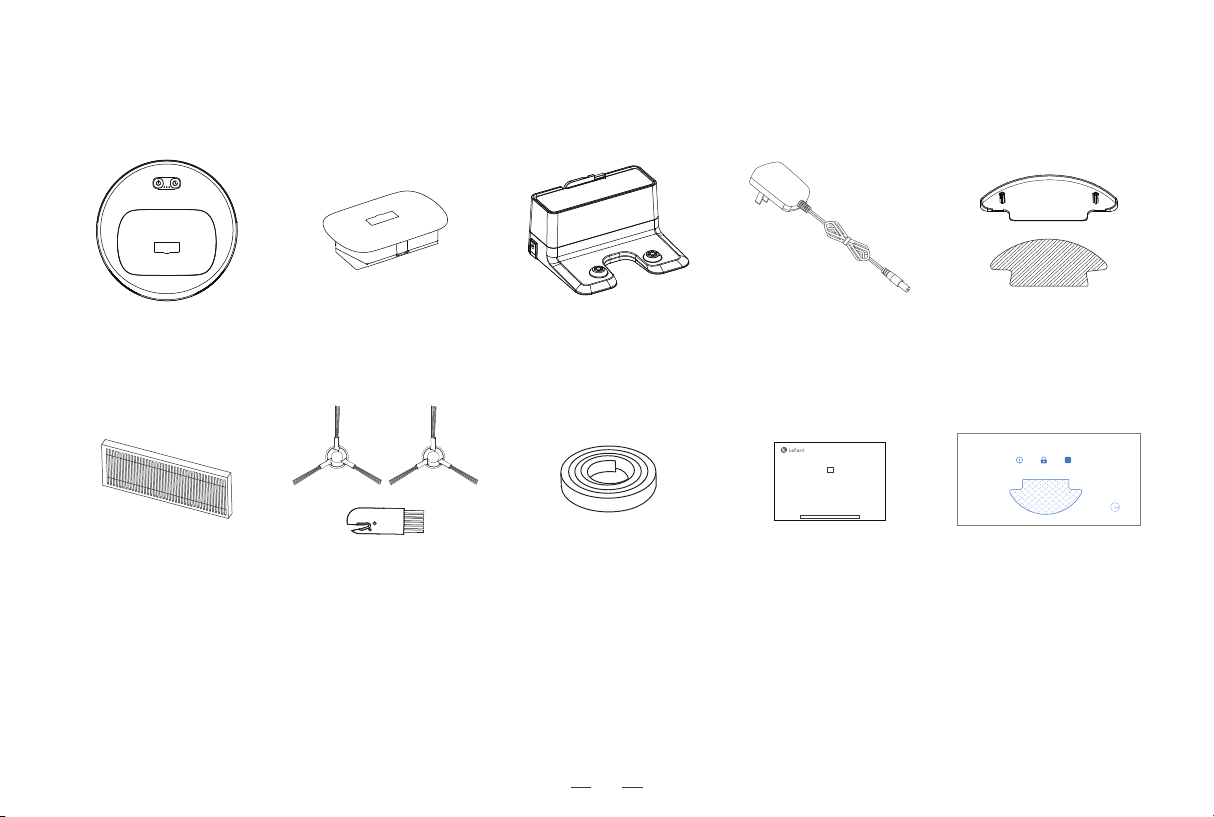
Robot vacuum cleaner
X 1
High Efficient Particulate Air
(HEPA) Filter
X 2
Side brush X2
&
Cleaning tool X 1
AC Adapter
X 1
Mop support X 1
&
Re-usable mop X 2
The figures in this manual are only for reference. The actual appearance may differ.
User manual
X 1
Disposable wet mop
X 2
Dust bin
X 1
Docking Station
X 1
Magnetic strip
X 1
Note:
Fast dry without any water stains
DisposableLocking WaterNon-woven fabric
5
User Manual
Lefant Intelligent
Robot Vacuum Cleaner
F1
Please keep the manual properly and read it carefully before using the product.
9
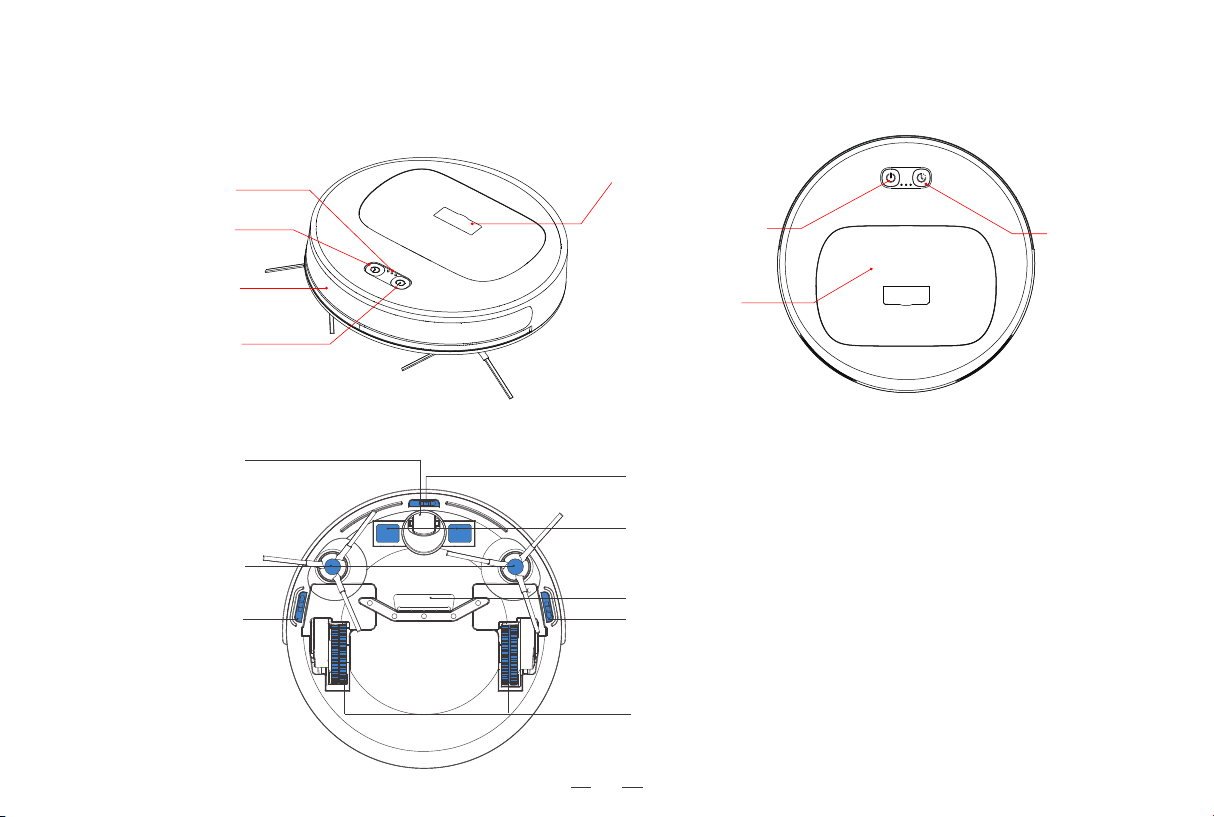
Anti-falling sensor
Suction port
mecanum wheel
Side brush
Anti-falling sensor Anti-falling sensor
Charging electrode
Top view
Botton view
1. Product composition / 1.2 Part name
Dust bin handle
[Timer button]
[Start/pause button]
Anti-collision sensor
[Start/pause button]
Dust bin
[Timer button]
Gear indicator light
Driving Wheels
10
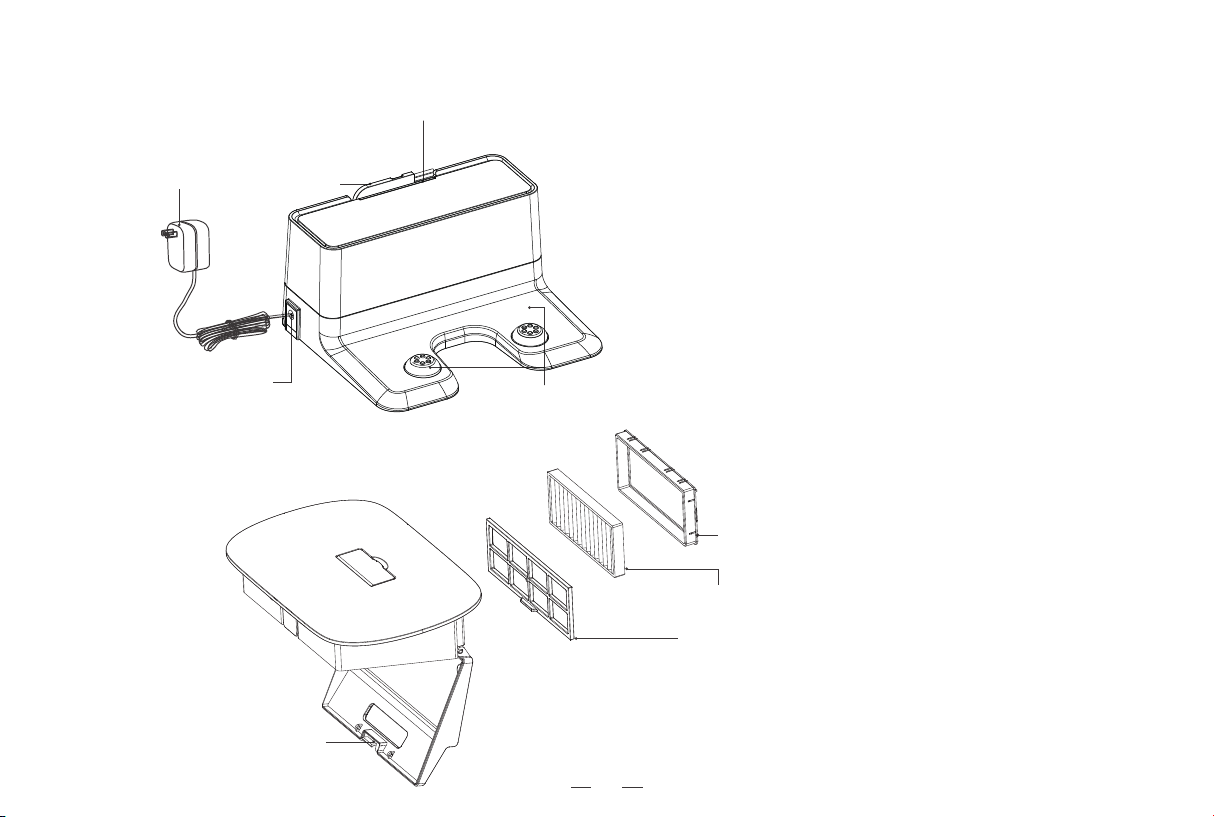
Dust bin
Docking Station
Cleaning tool
Charging Electrodes
Power adapter
Power adapter socket
High Efficient Particulate Air (HEPA) Filter
HEPA support
Pre-filter
Dust bin padlock
Indicator light
11
2. Using the product / 2.1 Precautions
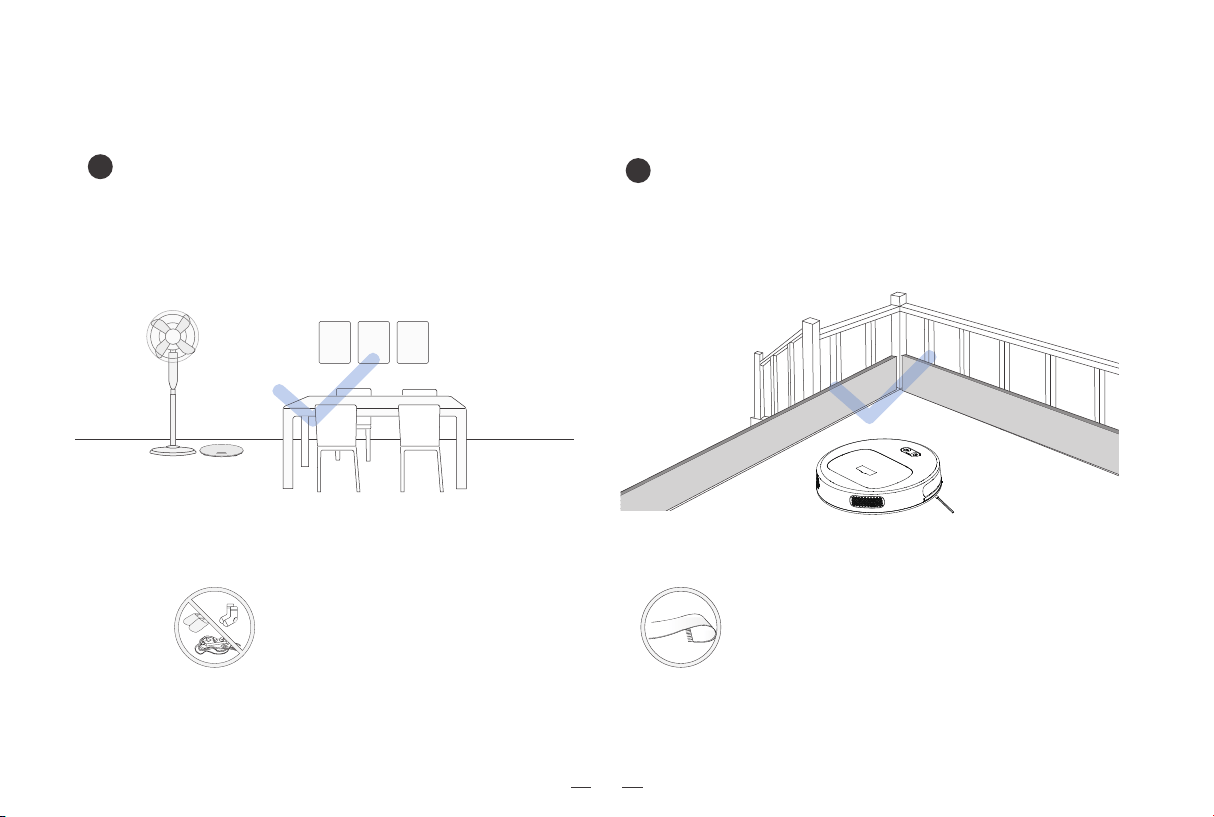
Arrangement of room to be cleaned
1
2
If your carpet has tassels, please put the
tassels below the carpet to prevent them
from getting stuck in the robot. Please do
not use the floor-mopping function of
product on carpets.
Put away wires, cleaning pads,
slippers, etc. to prevent them
from getting stuck in the robot.
Please put tables, chairs, floor fan, weighing scale, etc. in place
before using the robot to maximize the cleaning area.
Prevention of robot falling
Although the robot has built-in anti-falling sensors, it is still a good
idea to put a physical barrier around steep edges to prevent the
robot from falling.
12
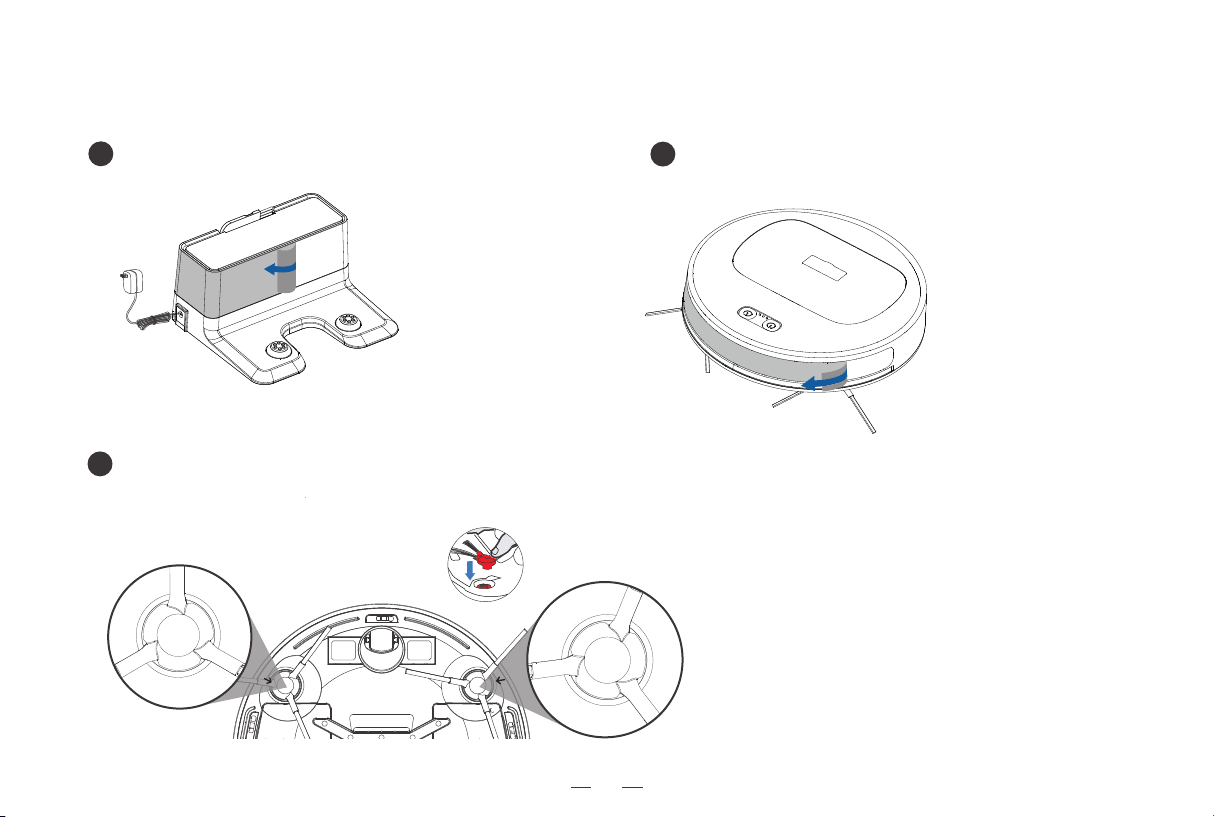
Remove the protective film on the Docking Station
3
1
Installation of the side brushes
2
Remove the protective film on the Robot
2. Using the product / 2.2 Preparation
Please install the side brushes in the side brush sockets at the bottom of product.
A click sound indicates a proper installation.
13
1
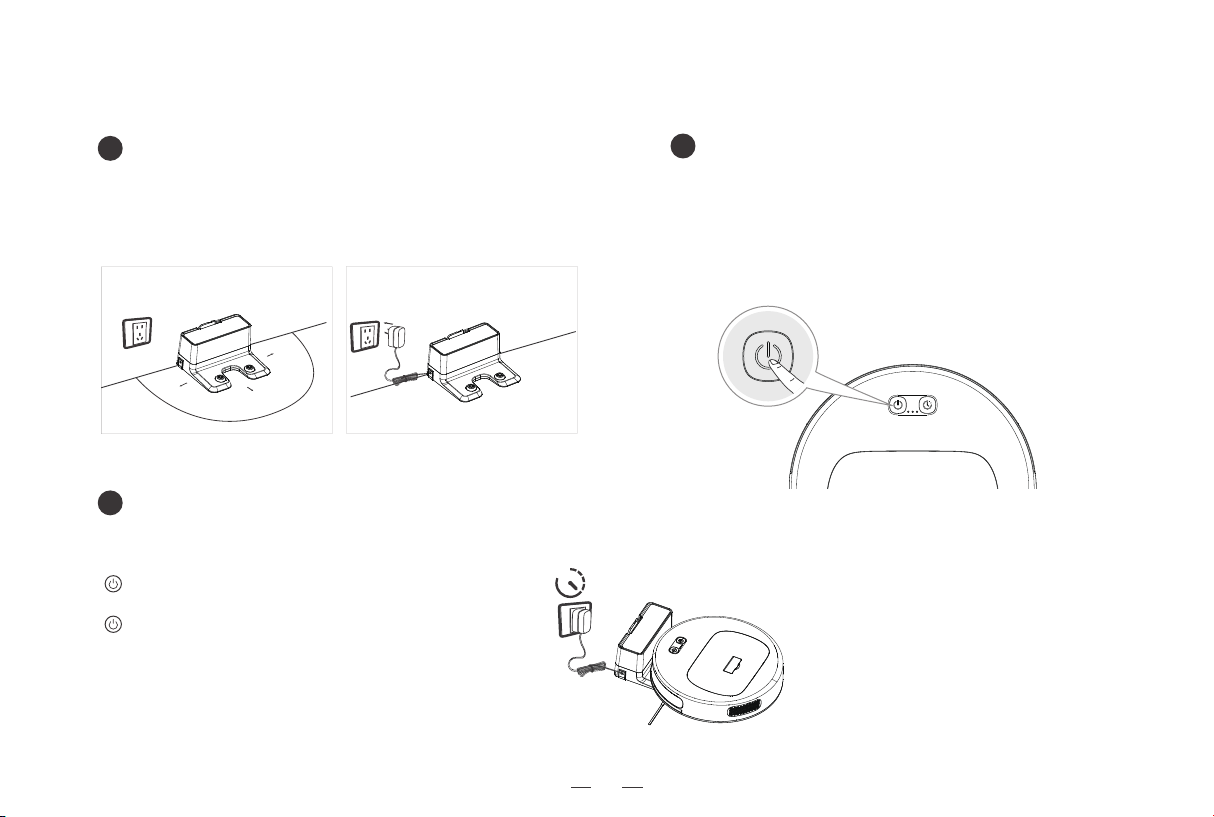
Placement of the charging base/
connection of power supply
2
Turning on the robot
3
Charging the robot
2. Using the product / 2.3 Charging the robot
≥
4-5h
Place the robot at Docking Station and make sure to align the charging electrodes
on the robot and the Docking Station.
[Start/pause button] Slow lighting and dimming
of the ice blue color indicates the product is charging;
[Start/pause button] After the robot is fully charged,
the Start/pause button will turn off.
A full charge takes 4 – 5 hours.
Keep pressing the [start/pause button] for three seconds to turn
on/off the robot.
To charge the robot, the robot must be turned on.
It is recommended not to turn off the robot after it finishes cleaning.
Keep the robot in its charging base to prevent unnecessary loss of
battery life.
* Place the charging base against the wall and on flat ground. Make sure that
no objects are placed within 0.5m on both sides and 1.5m in the front.
* Connect the power supply.
* Please arrange power line to avoid machine twining.
Placement of the Docking Station Connection of the AC adapter

14
2. Using the product / 2.4 Controlling the robot with buttons
Keep pressing the [start/pause button] for 3 seconds
Button operation
Single press of the [start/pause button]
Double clicking the [start/pause button]
Single press of [Timer button]
Double clicking the [Timer button]
Function
ON/OFF
Start/pause
Automatic recharge
Setting/Refreshing a scheduled daily
cleaning at the current time of day.
Timing turn off
Keep pressing the [Timer button] for 3 seconds
Changing suction level
Simultaneously pressing the [start/pause button]
and the [Timer button] for 3 seconds
Entering WiFi pairing mode
15
2. Using the product / 2.5 Floor-mopping functions
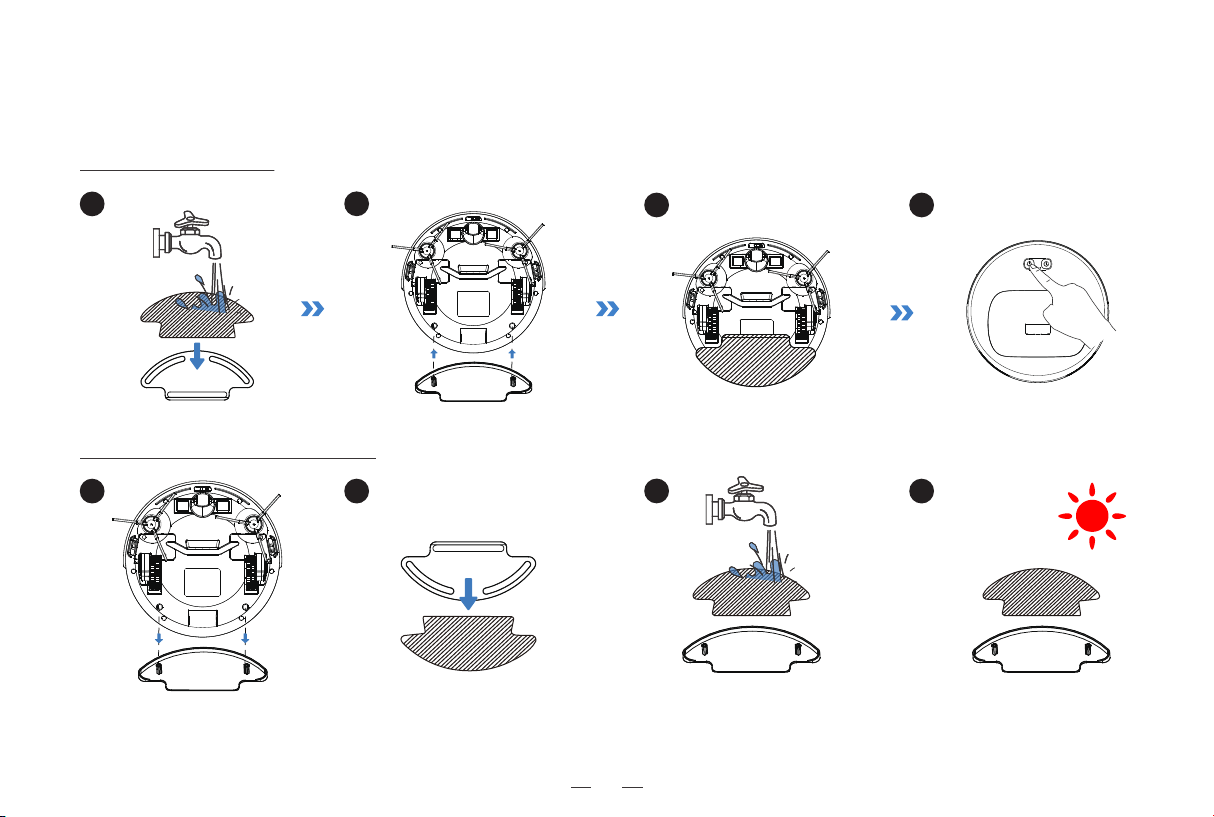
Mopping the floor
Maintenance and servicing
2
2
3
3
4
1
1
4
16
2. Using the product / 2.6 Application of virtual wall with magnetic strip
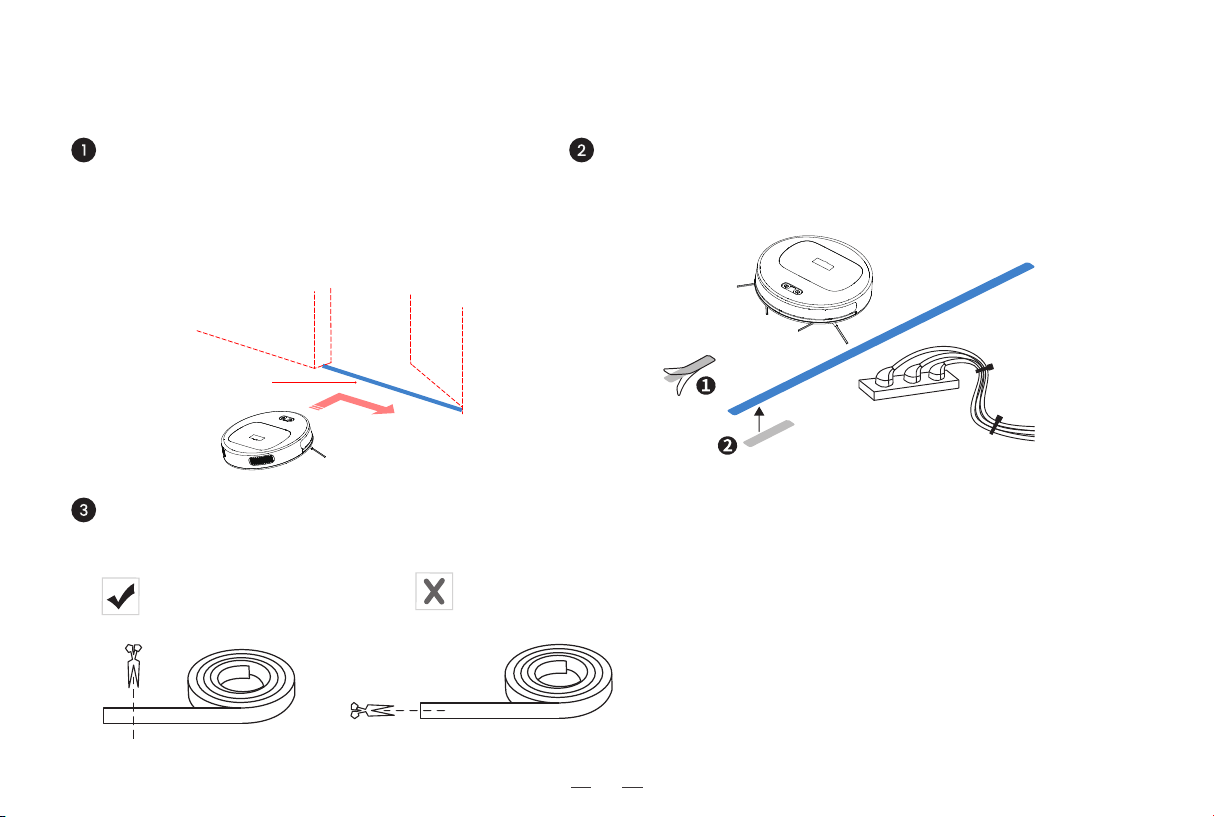
Virtual wall with magnetic strip
A magnetic strip can be used to separate an area not
expected to be cleaned (e.g. bathrooms or an area
where the robot may get stuck).
The magnetic strip shall be placed on the ground
across the entrance to the area.
Cut the magnetic strip short with scissors if necessary.
Please place the virtual wall with magnetic strip on dry ground for
best performance.
17
iOS 9.0
or above
Android 4.0
or above
Method II :
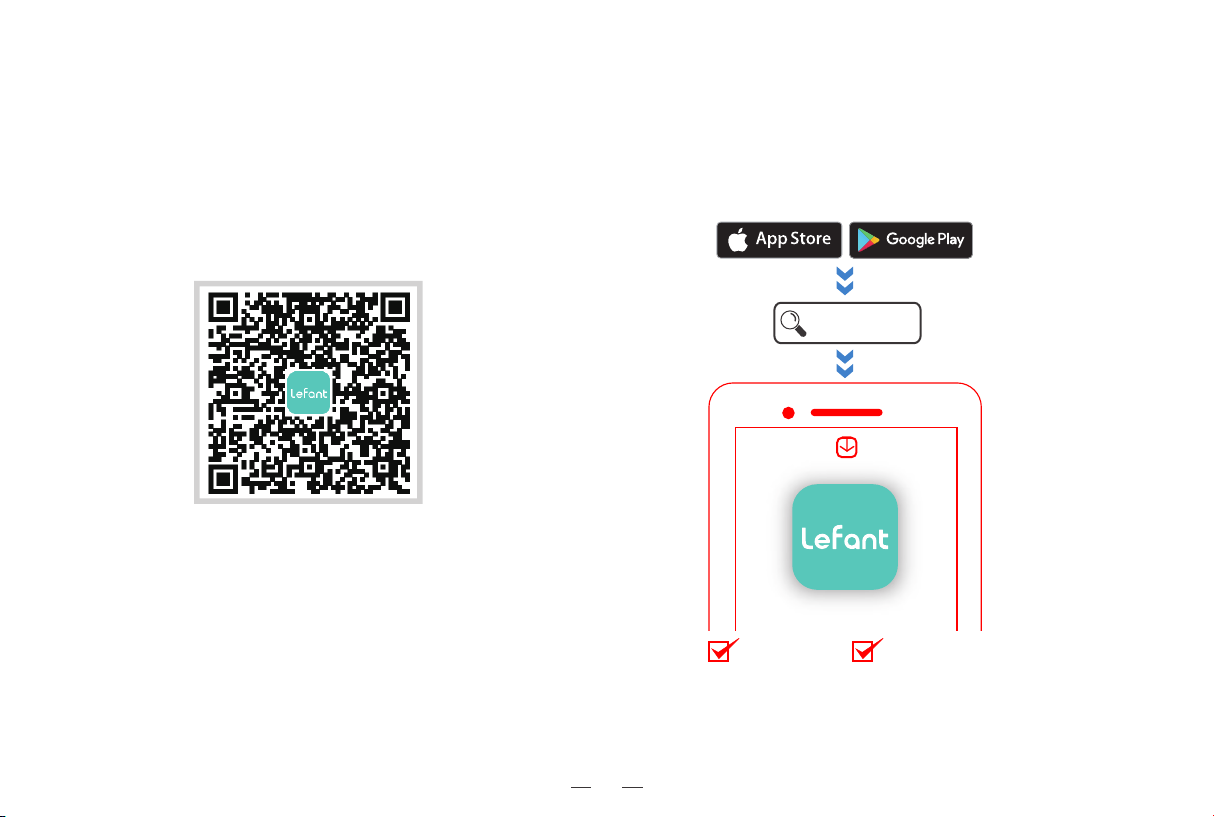
Search "Lefant" in the app store, download and
install the Lefant app.
2. Using the product / 2.7 App download and configuration
Downloading and installation of the Lefant app
Method I :
Scan the following QR code (also printed on the
robot), and then download and install App
according to the prompt.
Tips:
* Follow the guidance in the Lefant app to register, login, and pair the robot.
* Please make sure that the mobile phone is connected to your WiFi network before paring the robot vacuum cleaner.
* Note that the robot works with 2.4-GHz WiFi networks only.
Lefant
18
3. Maintenance and servicing / 3.1 Dust bin and HEPA filter
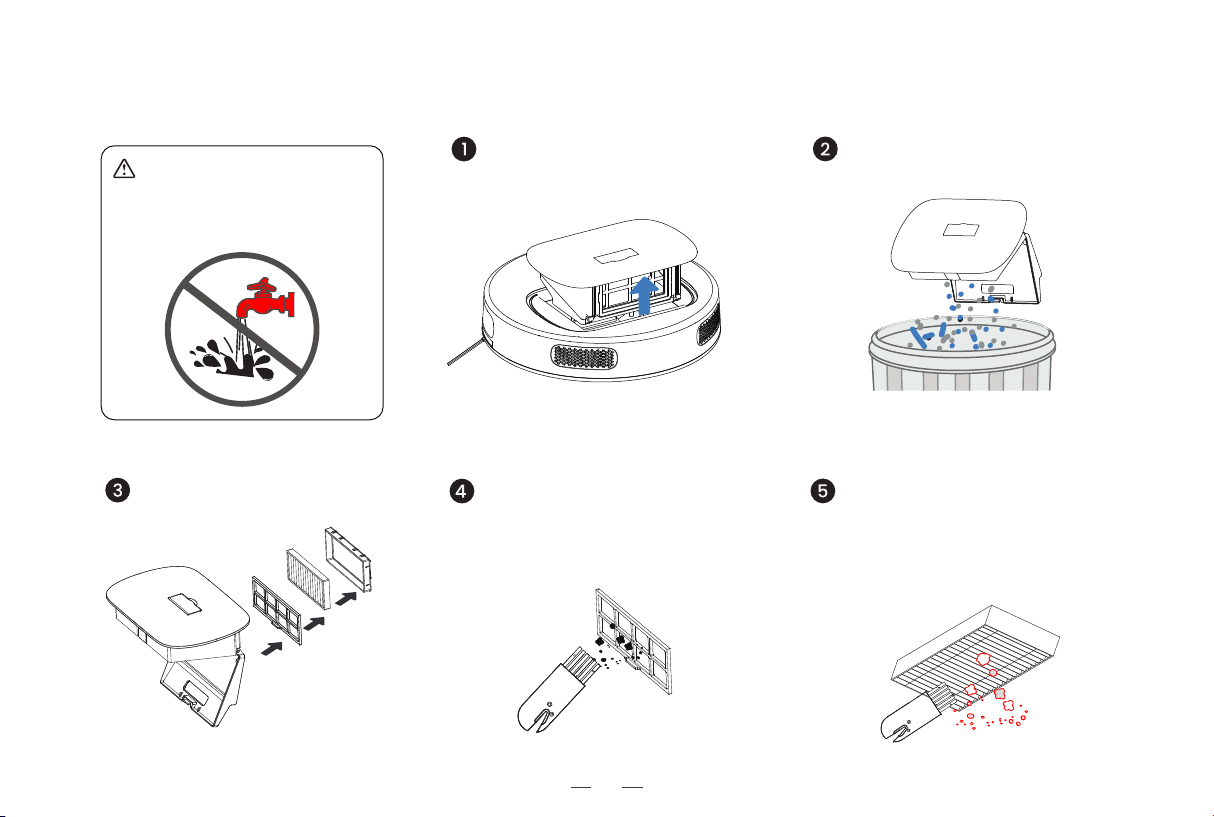
Warning:
Neither the dust bin nor the HEPA
filter can be washed with water.
Open the dust bin lock latch,
to dump the dust.
Remove the dust filtering
components.
Lift up the handle on the top
surface of dust bin to take it out.
Clean the dust on the pre-filter
with the brush on the cleaning
tool. It’s a good idea to clean up
both the inner and outer surfaces.
Clean the dust on the HEPA
filter with the brush of the
cleaning tool.
19
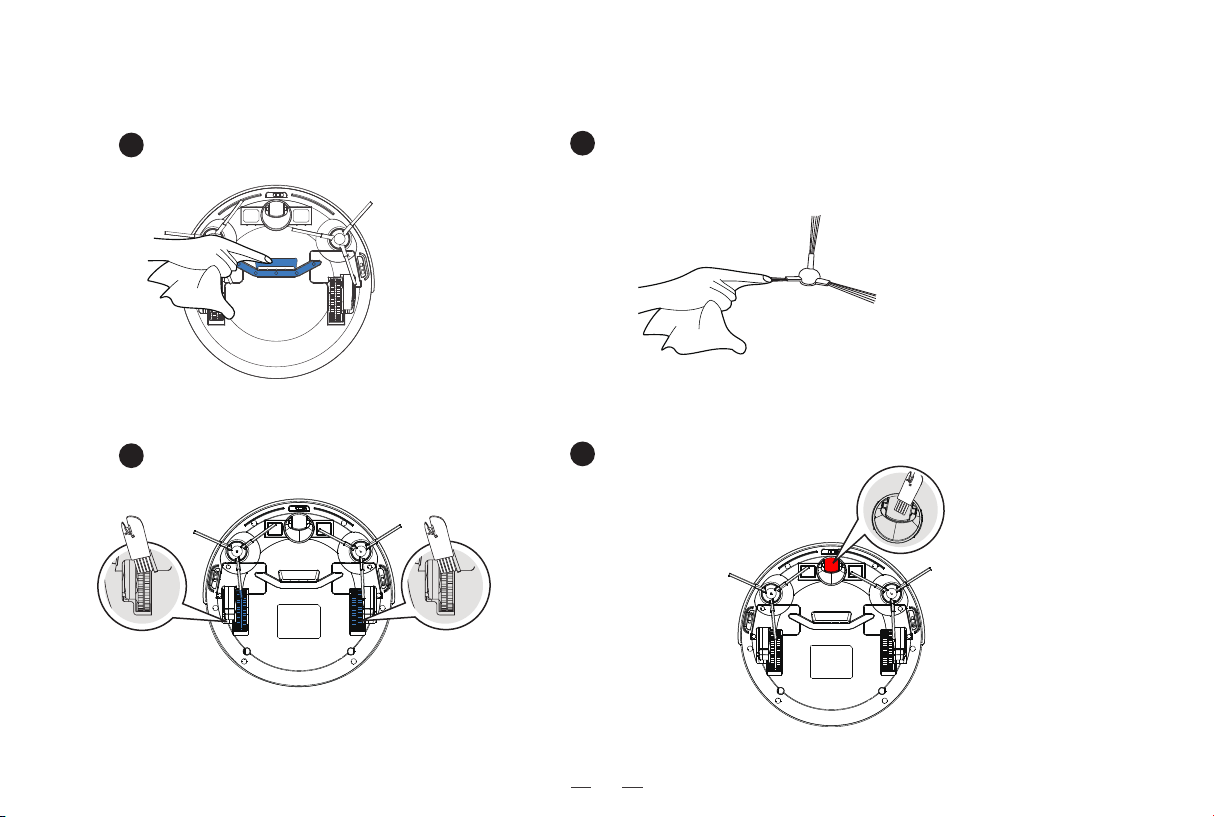
1
2
Clean the suction inlet
Clean side brush
Unplug the side brushes and wipe them with a piece of clean cloth.
3
4
Clean the driving wheels
Clean the mecanum wheel and remove
any hair tangles
3. Maintenance and servicing / 3.2 Suction inlet and side brushes

20
3. Maintenance and servicing / 3.3 Other components
Clean the anti-collision sensor Clean the anti-falling sensors to guarantee
the sensitivity of sensor
Clean the charging electrodes
Please clean the charging electrodes of the robot and the Docking Station, respectively, with duster cloth.
1 2
3
21
[Start/pause button] The ice blue light slowly lights up and dims
[Start/pause button] The light turns off
Robot status
Charging
Charging complete
4. Lighting effects and alarm prompts / 4.1 Lighting effects
Display status of indicator light
[Start/pause button] A red light turns on or flashes
The robot runs into error
[Start/pause button] The ice blue light or red light turns on
Charging automatically
[Start/pause button] The ice blue light turns on
Cleaning
[Start/pause button] + [Timer button] flash slowly, and the three indicator
lights flash sequentially.
Entering pairing mode
Exit pairing mode after 3 minutes of no operation.Paring failure
Restore to the status before pairing. Pairing complete
[Timer button] The ice blue light is normally on
After setting up a scheduled clean
[Timer button] The ice blue light is off
After removing a scheduled clean
22
4. Lighting effects and alarm prompts / 4.2 Alarm prompts
Warm prompt: If the above method cannot solve the problem,
please attempt the following operations: Keep long press of [start/pause button] for 3 seconds to restart robot.
3
4
2
1
The red light is normally on
S/N
Fault cause
Prompt sound
False prompt of APP and solution
The fan is abnormal. Please check the waste in dust bin and the air
channel mouth.
The side brush is abnormal. Please check whether the side brush is twined,
and clean up the side brush.
The driving wheel is abnormal. Please check whether the driving wheel
is twined, and clean up the driving wheel.
Abnormal fan
Abnormal side brush
Abnormal driving wheel
3 beeps for three times
The dust bin is undetected. Please install the dust bin in machine. Undetected dust bin 5 beeps for three times
2 beeps for three times
1 beep for three times
4
5
3
2
1
S/N
Fault cause
Prompt sound
False prompt of APP and solution
Red light flashes
Please manually move machine to charging base position for charging.
Fail to get rid of dilemma, please move to empty place.
Machine hangs in the air, please move it to the ground.
5 beeps for three times
4 beeps for three times
3 beeps for three times
2 beeps for three times
The charging is abnormal. Please clean the machine and charging
electrodes of charging base.
6 beeps for three times
Abnormal adapter
Low battery
Dilemma elimination alarm
Ground penetrating alarm
Abnormal charging
When the robot runs into trouble, it will turn on or flash its red indicator light, and send out buzzing "beep" with different durations and separations.
The following table summarizes the corresponding causes:
Check whether the connector of charging base and charging voltage are loose,
and ensure the application of original adapter.
23
5. Troubleshooting / 5.1 Robot working
Ensure the sufficient connection of the robot and the charging
electrodes of charging base. Check whether the robot and the
charging electrodes of charging base are dirty, and clean by
reference of Chapter [Maintenance and Servicing ] in instruction
book.
The robot doesn't support the 5G network temporarily.
Please use the 2.4-GHz distribution network upon networking.
The user name and password of router are inaccurate.
The robot is beyond the coverage range of network
signal of router.
The robot is at the status to be configured or not.
2.4-GHz network isn't used.
Charging base is placed at inaccurate position.
Charging base powers down or is manually moved.
The robot gets stuck in the ground obstacles
(such as wire, electric fan base, etc.), which causes
it can't arrive at the position of charging base.
The robot doesn't start from charging base for cleaning.
The robot
can't
access to App
1
2
3
Please place charging base correctly in the method in
Chapter [Robot Charging] of instruction book.
Please check whether the charging base connects the power
supply. Do not manually move the charging base position in
the operation of the robot.
It is suggested to arrange the ground articles before use of robot
by reference of [Precautions] in the instruction book in order to
guarantee smooth robot running and avoid jamming, and keep
the change-back route smooth.
The router network is configured to ensure that the "user name"
and "password" of router are accurate.
The robot can't be
charged.
The robot change-
back is difficult.
The robot and the charging electrodes of
charging base have poor contact.
Charging base fails to connect power.
Ensure the charging base power has been connected and
the interface of charging base has been plugged.
S/N Fault Possible causes Solution
Ensure that the robot is within the coverage range of network
signal of router.
The network can be configured only when the robot is at the status
to be configured. Please refer to [distribution network mode].
Nonuse for a long time causes the battery function
attenuation.
It is suggested to use the product frequently. If the nonuse for a
long time causes the battery can't be charged, please contact the
after-sales service personnel.
It is suggested that the robot starts from charging base for
cleaning.
If the following problems occur in the application process of product, user can solve them independently by comparison and inquiry.
24
5. Troubleshooting / 5.1 Robot working
Upon running, the
robot has disorderly
route, deviates from
line, repeats cleaning,
and omits sweeping in
small area, etc.
Robot is in a dilemma
upon running.
The robot generates great
sound upon running.
The wire, slipper and other objects on the ground
influence the normal running of robot.
The robot easily slips when running on the floor
waxed and polished just due to less friction between
driving wheel and ground.
Robot can't enter individual area for cleaning in
different families.
The robot is twined or hindered by the scattered wire
on the ground, the drooping curtain cloth or carpet
tassels, etc.
The robot may get stuck in the furniture with the similar
height with it.
Side brush is twined, the dust bin and filter
materials are blocked, etc.
It is suggested to regularly clean and maintain the
side brush, dust bin, filter materials, etc.
It is suggested to bolster the furniture or manually
shield the furniture.
The robot would independently attempt various methods
to get rid of the dilemma. If not, it is suggested to manually
help.
Please do not run the robot on the floor waxed and
polished just.
It is suggested to arrange the domestic environment to
guarantee the normal cleaning of the robot.
S/N
Fault
Possible causes Solution
Please arrange the wire, slipper and other objects
scattered on the ground before robot running to reduce
the scattered articles on the ground as far as possible. In
case of sweeping omission, the robot will automatically
supplement the omitted area. Please do not interfere
manually (such as moving the robot or obstructing the
robot route).
The regular cleaning is
inoperative.
7
The robot has low electricity.
It is suggested to charge the robot at first. The regular
cleaning can start when the dump energy is more than
30%.
If the faults can't be removed according to the above operations, contact the after-sales service personnel.
* This product shall be subject to the material object. Our company reserves the right to update the product without prior notice.

25
5. Troubleshooting / 5.2 Wi-Fi Connection
Before Wi-Fi setup, make sure Robot, Mobile Phone, and Wi-Fi network meet the following requirements.
Robot and Mobile Phone Requirements
•The power switch of Robot is turned on.
•Robot is ready for network setup.
Wi-Fi Network Requirement
•You are using a 2.4-GHz or 2.4/5-GHz mixed network.
•Your router supports 802.11b/g/n and IPv4 protocol.
•Do not use a VPN (Virtual Private Network) or Proxy Server.
•Do not use a hidden network.
•WRA and WPA2 using TKIR PSK, AES/CCMP encryption.
•WEP EAP (Enterprise Authentication Protocol) is not supported.
•Use Wi-Fi channels 1-11 in North America and channels 1-13 outside North America (refer to local regulatoryagency).
•If you are using a network extender/repeater, the network name (SSID) and password are the same as your primary
network.
26
6. Technical parameters
Note: Since the product needs continuous improvement, the product in the instruction book shall
be subject to the material object. Our company reserves the right to update the product.
Product model F1
Rated input of machine 19 V
1A 19W
Docking Station Model
C2
Power Adapter Model
A934-190100W-US1
Power Adapter Input
100-240V~ 50-60Hz 0.5A
Off/Standby Mode Power
Networked Standby Power
Less than 0.5W
Less than 2.0W
Power Adapter Output
DC 19V, 1A, CLASS II
Rated Output Voltage Rated Output Current
19 V
1A

27
Warranty
This warranty covers the repair or replacement of the malfunction device at our company’s discretion for a period of 1-year.
In addition this certificate is void if altered. The serial number must be provided as well as all accessories to be eligible for
warranty coverage. Please kindly fill in below form accurately and completely.
Important:
When returning this device, carefully pack the product to avoid damage in shipping. Damage in shipping is not covered by the
Warranty and shall be the sole responsibility of Buyer. Damage or loss not covered by this Warranty or occurring outside the
Warranty Period will require a fee to cover the cost of handling and shipping. All such fees and costs shall be the sole responsibility
of Buyer.
Exclusion
Unless agreed in writing, the warranty will not apply if the defects relate to:
• Consumable parts such as filters, or brushes etc, that are subject to normal wear and tear, and require regular maintenance and/or
replacement to ensure the proper functioning of your unit.
• Defects caused by rough or inappropriate handling or use or damage caused by accident, misuse, neglect, fire, water, lighting
or other acts of nature, external sources such as weather, electrical outages or power surges.
• Improper operation or maintenance, use not in accordance with the product instructions or connection to improper voltage supply.
• Accident, abuse, misapplication, or any unauthorized repair, modification, or disassembly of the product.
• Any failure to adequately package the Product for transportation.
• Use of parts not in accordance with the product instructions.
• Use of parts and accessories other than those produced or recommended by our company.
• Use in a commercial environment as the Product is designed for residential use only.
• Consequential and incidental damages.
• Any product(s) purchased from unauthorized dealers/resellers.
• Products used outside the country of purchase.
• Lost and/or stolen products.
Order Number:
Serial Number:
Date of Purchase:
ShenZhen Lohas Technology Lo.,Ltd
Email: [email protected]
Website: http://www.lefantlife.com
Building 2, Fashion Brand Industrial Park, E'Bu Town,
Shenzhen-Shanwei Special Cooperation Zone, Shenzhen, Guangdong, China.
Official website
F1-LH20210811-V02
903-0601-0001