Thank you for purchasing your new Eureka vacuum!
Important instructions
For easy assembly, please take a few moments to read this
owner’s guide.
If you have questions about your new vacuum, please
contact our customer service HELPLINE at 1-800-282-2886.
We’re here to help!
www.eureka.com
Owner’s Guide
NER650
Robotic vacuum cleaner; household type

Contents
Important safeguards
............................................
2-6
FCC Compliance Statement
. . . . . . . . . . . . . . . . . . . . . . . . . . . . . . . . . . . . . . . . . . . . . . .
6
What comes in the box
................................................
8
How to identify parts of your robot 9
Assembling and charging robot 10-11
How to use your robot
....................................................
12
How to set up app, connect Wi-Fi and use app
.........................
...
13
How to maintain your robot
How to maintain brushroll, other routine maintenance
...........................................
. .
14
14-15
The Eureka limited warranty
...........................................
16
Troubleshooting 17-20
Disposal of robot and battery pack
.........................................
20
How to order replacement parts 21
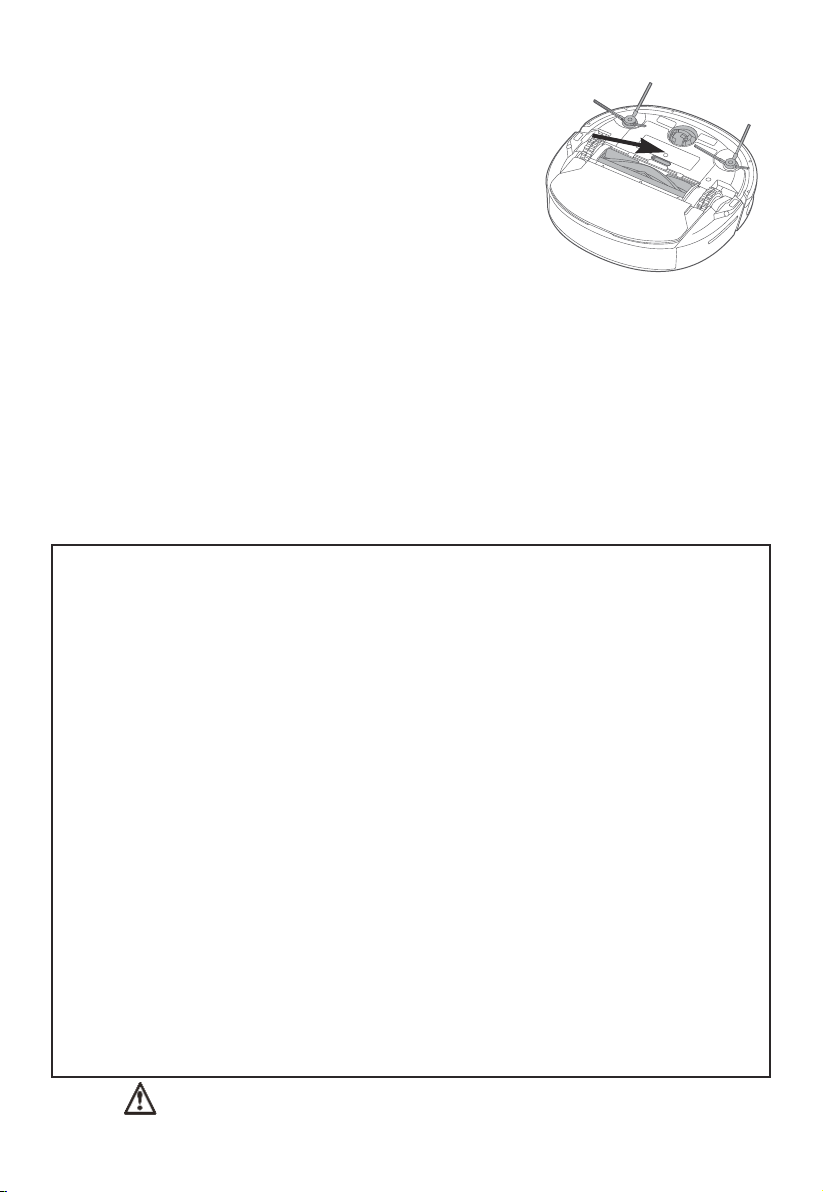
Follow caution information wherever you see this symbol.
Write the model, type and serial number here:
Date of purchase (keep your receipt)
______________
Model number and type
_________________________
Serial number ________________________________
Find these numbers on a label on the vacuum,
battery, and charger. Refer to these numbers when
ordering parts and accessories, or if service is needed.
To register your product visit www.eureka.com and click on the
Carefully unpack and inspect your new Eureka vacuum cleaner for shipping
damage. Each unit is tested and thoroughly inspected before shipping. For instructions
regarding any shipping damage, call the Eureka Customer Service HELPLINE
at 1-800-282-2886 immediately.
www.eureka.com
1
...............
This Owner’s Guide provides important instructions
to use and maintain your Eureka vacuum cleaner
‘Register Your Product’ link in the top right corner.
Registration:
Inspection:
Where to find important vacuum information
Keep this information
Technical data 7
..
................................
. .
.....................................
.........................................................
.....................................................
.......................................

WARNING
When using an electrical appliance, basic precautions should
always be followed, including the following:
• Before using, clear area of power
cords, pull cords for curtains or
blinds, clothing and fragile items.
• Do not operate in a room where a
child or infant is sleeping.
• Do not pour or spray any liquids on
or in your robot.
• If you live in an area that is prone to
electrical storms, we recommend
using a surge protector.
• Do not operate the robot in a room
that has lit candles or lit fireplace.
• Do not allow children to sit on
vacuum.
• Do not use the docking station if it
is damaged.
• Do not operate in areas with
exposed electrical outlets on the
floor.
• Be aware that the robot moves
around on its own. Take care when
walking in the area when it is in
operation.
• Do not place the robot on any
unstable surfaces.
• Prevent unintentional starting.
Ensure the switch is in the
off-position before picking up or
carrying the appliance. Carrying the
appliance with your finger on the
switch or energizing appliance that
has the switch on invites accidents.
• Danger. Do not touch nozzle when
the vacuum cleaner is on.
• Do not put any object into
openings. Do not use with any
READ ALL INSTRUCTIONS BEFORE USING THIS VACUUM CLEANER
Failure to follow the warnings and instructions may result in
electric shock, fire and/or serious injury.
This vacuum should not be used by children under the age of eight or those with
reduced physical, sensory or mental capabilities without supervision.
openings blocked; keep free of dust,
lint, hair and anything that may reduce
air flow.
• Do not use outdoors or on wet
surfaces.
• Do not operate the vacuum cleaner
or charger if it has been damaged in
any way. If vacuum cleaner is not
working as it should, has been
dropped, damaged, left outdoors, or
dropped into water or other liquid, call
the Eureka Customer Service
HELPLINE at 1-800-282-2886.
• To avoid excessive heat and damage
to the unit or battery, the vacuum
cleaner will not operate while charging.
• Do not allow to be used as a toy.
Close attention is necessary when used
by or near children, pets or plants.
• Use only as described in this manual.
Use only manufacturer’s recommended
attachments.
• Recharge only with the charger
specified by the manufacturer. A
charger that is suitable for one type of
battery pack may create a risk of fire
when used with another battery pack.”
• Do not pull or carry the charger by
cord, use cord as a handle, close a door
on cord, or pull cord around sharp
edges or corners. Do not run appliance
over cord. Keep cord away from
heated surfaces.
• This charger is not intended for use
by travelers.
IMPORTANT SAFEGUARDS
2
Eureka Customer Service HELPLINE 1-800-282-2886

• Do not use extension cords or outlets
with inadequate current-carrying
capacity for the charger.
• Do not unplug by pulling on cord. To
unplug, grasp the plug, not the cord.
• Do not handle charger or vacuum
cleaner with wet hands.
• Use appliances only with specifically
designated battery packs. Use of any
other battery packs may create a risk
of injury and fire.
• DO NOT MUTILATE OR INCINERATE
BATTERIES. THEY BECOME
DANGEROUS AT HIGH
TEMPERATURES.
• Liquid ejected from the battery may
cause irritation or burns. If the liquid
gets on the skin, (1) seek medical
attention, (2) wash quickly with soap
and water, and (3) neutralize with a
mild acid such as lemon juice or
vinegar. If the liquid gets into the eyes,
flush them immediately with clean
water for a minimum of 10 minutes.
• When battery pack is not in use, keep
it away from other metal objects, like
paper clips, coins, keys, nails, screws or
other small metal objects, that can
make a connection from one terminal
to another. Shorting the battery
terminals together may cause burns or
a fire.
• This product is functioning at
temperature range within 40°F - 104°F.
• Do not use a battery pack or
appliance that is damaged or modified.
Damaged or modified batteries may
exhibit unpredictable behavior resulting
in fire, explosion or risk of injury.
• Do not expose a battery pack or
appliance to fire or excessive
temperature. Exposure to fire or
temperature above 266°F may cause
explosion.
• Follow all charging instructions and
do not charge the battery pack or
IMPORTANT SAFEGUARDS
appliance outside of the temperature
range specified in the instructions.
Charging improperly or at temperatures
outside of the specified range may
damage the battery and increase the
risk of fire.
• Have servicing performed by a
qualified repair person using only
identical replacement parts. This will
ensure that the safety of the product is
maintained.
• Do not modify or attempt to repair
the appliance or the battery pack
except as indicated in the instructions
for use and care.
• The terminals on both the vacuum
cleaner and battery should be kept free
and clear of objects. Do not insert metal
objects inside the terminals.
• This vacuum cleaner creates suction.
Keep hair, loose clothing, fingers, and all
parts of body away from openings and
moving parts.
• Do not pick up anything that is
burning or smoking, such as cigarettes,
matches, or hot ashes.
• Do not use without filters in place.
• Do not use the robot to pick up
flammable or combustible liquids, such
as gasoline, or use in areas where they
may be present.
• Store vacuum cleaner and charger
indoors in a cool, dry area.
To avoid electric shock and/or damage,
do not expose to weather elements.
• Keep your work area well lit. Unplug
electrical appliances before vacuuming
them.
• Overcharging, short circuiting, reverse
charging, mutilating or incinerating the
cells and the batteries must be avoided.
• If a cell or a battery has leaked or
vented, it should be replaced
immediately using protective gloves.
www.eureka.com 3

• If and when necessary, these cells or
batteries must be replaced with
identical new ones from the same
manufacturer. If a cell or a battery to
be replaced is connected with other
cells or batteries in series, it is
recommended that the other cells or
batteries be replaced with new ones
at the same time.
• Reverse polarity installation of the
cell or the battery in the end product
must be avoided.
• Do not incinerate this appliance even
if it is severely damaged.
Contact local waste facility before
discarding in trash.
• Do not operate the vacuum in an
area where there are lit candles or
fragile objects on the floor to be
cleaned.
• Do not operate the vacuum in a
room that has lit candles on furniture
that the vacuum may accidentally hit
or bump into.
• The power cord must be unplugged
from docking station before cleaning
or maintaining the docking station.
• Remove the appliance from the
docking station and turn off the
power switch to the appliance before
removing the battery for disposal of
the appliance.
• If the robot will not be used for a
long time, fully charge the robot and
power OFF for storage and unplug the
charger.
• Use only with eureka DC2106
docking station.
• Docking station is only for use with
the Eureka NER650 robot.
• Warning: The battery charger
(Docking station) is not intended to
charge non-rechargeable batteries.
IMPORTANT SAFEGUARDS
• Keep hair, loose clothing, fingers, and
all parts of body away from openings
and moving parts.
• Under abusive conditions, liquid may
be ejected from the battery; avoid
contact. If contact accidentally occurs,
flush with water. If liquid contacts eyes,
seek medical help immediately.
Liquid ejected from the battery may
cause irritation or burns.
• Do not use and store in extremely hot
or cold environments (below 23°F or
above 104°F). Please charge the robot in
temperature above 39.2°F and below
104°F.
• Place the cords from other appliances
out of the area to be cleaned.
• Turn off the power switch before
cleaning or maintaining the appliance.
• WARNING: This product can expose
you to chemicals including
Di(2-ethylhexyl)phthalate (DEHP), which
is known to the State of California to
cause cancer and to cause birth defects
or other reproductive harm. For more
information go to
www.P65Warnings.ca.gov.
4
Eureka Customer Service HELPLINE 1-800-282-2886
WARNING FOR BATTERY
• The product must be powered off
before removing the battery.
• Do not disassemble the battery by
yourself.
• If you need to replace it, please
contact the after-sales service center.
• Please dispose of used battery
according to local laws and
regulations.
• Do not dismantle, open or shred the
battery.
• Do not expose batteries to heat or
fire. Avoid storing or keeping robot in
direct sunlight.
• Do not short-circuit a battery.
• Do not store batteries haphazardly
in a box or drawer where they may
short-circuit each other or be
short-circuited by other metal
objects.
• Do not subject batteries to
mechanical shock.
• In the event of a leaking, do not
allow the liquid to come in contact
with the skin or eyes. If contact has
been made, wash the affected area
with copious amounts of water and
seek medical advice.
• Do not use any charger other than that
specifically provided for use with the
equipment.
• Do not use any battery which is not
designed for use with the equipment.
• Do not mix different manufacture,
capacity, size or type within a device.
Keep batteries out of the reach of
children.
• Seek medical advice immediately if the
battery has been swallowed.
• Keep batteries clean and dry.
• Do not leave a battery on prolonged
charge when not in use.
• After extended periods of storage, it
may be necessary to charge and
discharge the batteries several times to
obtain maximum performance.
• The batteries give their best
performance when they are operated at
normal room temperature (59 °F - 77
°F).
• Retain the original product literature
for future reference.
• The battery may be irreversibly
damaged if the battery is in low power
for a long time. It is recommended that
the battery retain sufficient power
before storage.
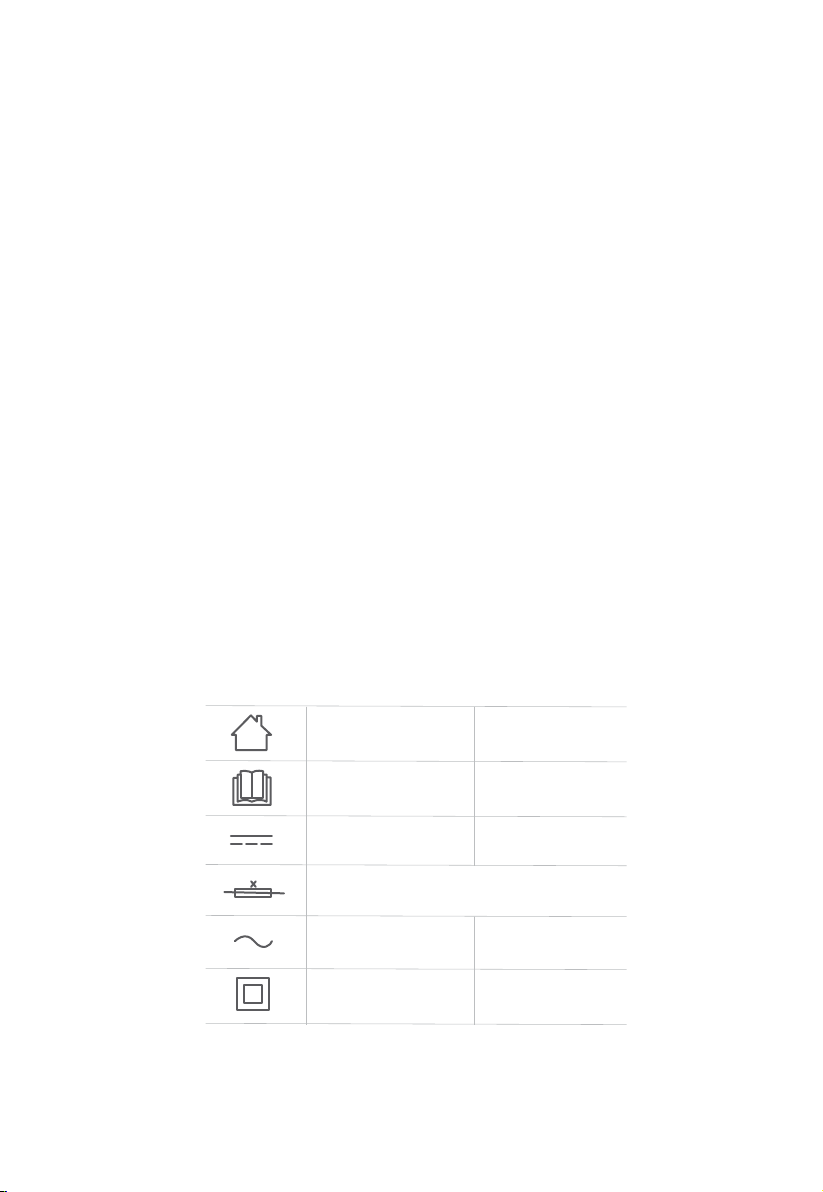
[symbol IEC 60417-5957
( 2004-12 )]
[symbol ISO 7000-0790
( 2004-01 )]
[symbol IEC 60417-5031
( 2002-10 )]
[symbol IEC 60417-5032
( 2002-10 )]
[symbol IEC 60417-5172
( 2003-02 )]
time-lag miniature fuse-link where X is the symbol for
the time/current characteristic as given in IEC 60127
for indoor use only
read operator's manual
direct current
alternating current
class II equipment
SAVE THESE INSTRUCTIONS
Household use only
IMPORTANT SAFEGUARDS
www.eureka.com 5

CAUTION:
Please read the instruction sheet carefully before use
This device complies with Part 15 of
the FCC Rules. Operation is subject
to the following two conditions:
- This device may not cause harmful
interference.
- This device must accept any
interference received, including
interference that may cause
undesired operation.
- Changes or modifications not
expressly approved by the party
responsible for compliance could
void the user's authority to operate
the equipment.This equipment has
been tested and found to comply
with the limits for a Class B digital
device, pursuant to part 15 of the
FCC Rules. These limits are designed
to provide reasonable protection
against harmful interference in a
residential installation.
This equipment can radiate radio
frequency signals and, if not installed
and used according to the
instructions, may cause harmful
interference to radio communications.
However, there is no guarantee that
interference will not occur in a
particular installation. If this equipment
does cause harmful interference to
radio or television reception, which
can be determined by turning the
equipment off and on, the user is
encouraged to try to correct the
interference by one or more of the
following measures:
- Reorient or relocate the receiving
antenna.
- Increase the separation between the
equipment and receiver.
- Connect the equipment into an
outlet on a circuit different from that
to which the receiver is connected.
- Consult the dealer or an experienced
radio/TV technician for help.
To satisfy FCC RF exposure
requirements, a separation distance of
20 cm or more should be maintained
between the antenna of this device
and persons during device operation.
Enter energy saving mode: Wait 2 minutes after powering on, press and hold the
recharge button for 20s, the recharge light will turn on and then off, and the
distribution network light will turn off, and then the machine enters energy saving
mode.
Exit energy saving mode: In energy saving mode state, press the power button to
power off the machine and exit energy saving mode.
CLASS 1 LASER PRODUCT
INVISIBLE LASER RADIATION
This device complies with DHHS Radiation Rules, 21CFR Chapter 1, SubchapterJ.
1.
2.
FCC Compliance Statement
IMPORTANT SAFEGUARDS
6
Eureka Customer Service HELPLINE 1-800-282-2886

TECHNICAL DATA
Product Model: NER650
Host Charging Voltage: 16.7 V
Host Rated Voltage:14.4 V
Host Rated Power:55 W
Docking Station Model:DC2106
Docking Station Input:100-240V~,50-60Hz, 24W
Docking Station Output:16.7V , 1A
Battery Model:BP14433A
Battery Rated Voltage:14.4V
Battery Capacity:3350mAh 48.24Wh
Charging Limit Voltage:16.8V
1.
2.
3.
4.
5.
6.
7.
8.
9.
10.
11.
Midea America Corp 300 Kimball Drive
Parsippany NJ 07054, U.S.A
www.eureka.com 7
Owner’s
Manual
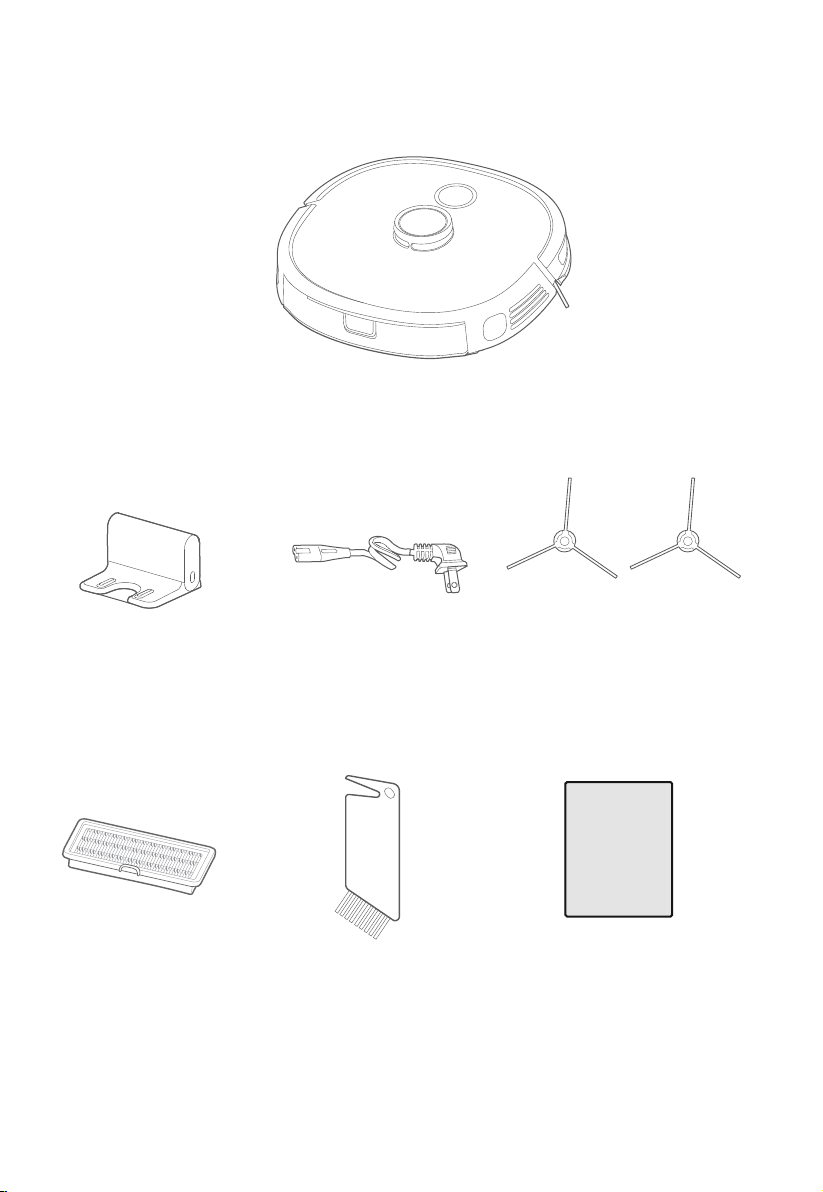
Robot (Vacuum)
Charging dock Charger 2 Spinning side brushes
Filter
Left Right
Brush cleaning tool
(located on top of dustbin)
Owner’s manual
Parts and Components
What comes in the box
8
Eureka Customer Service HELPLINE 1-800-282-2886
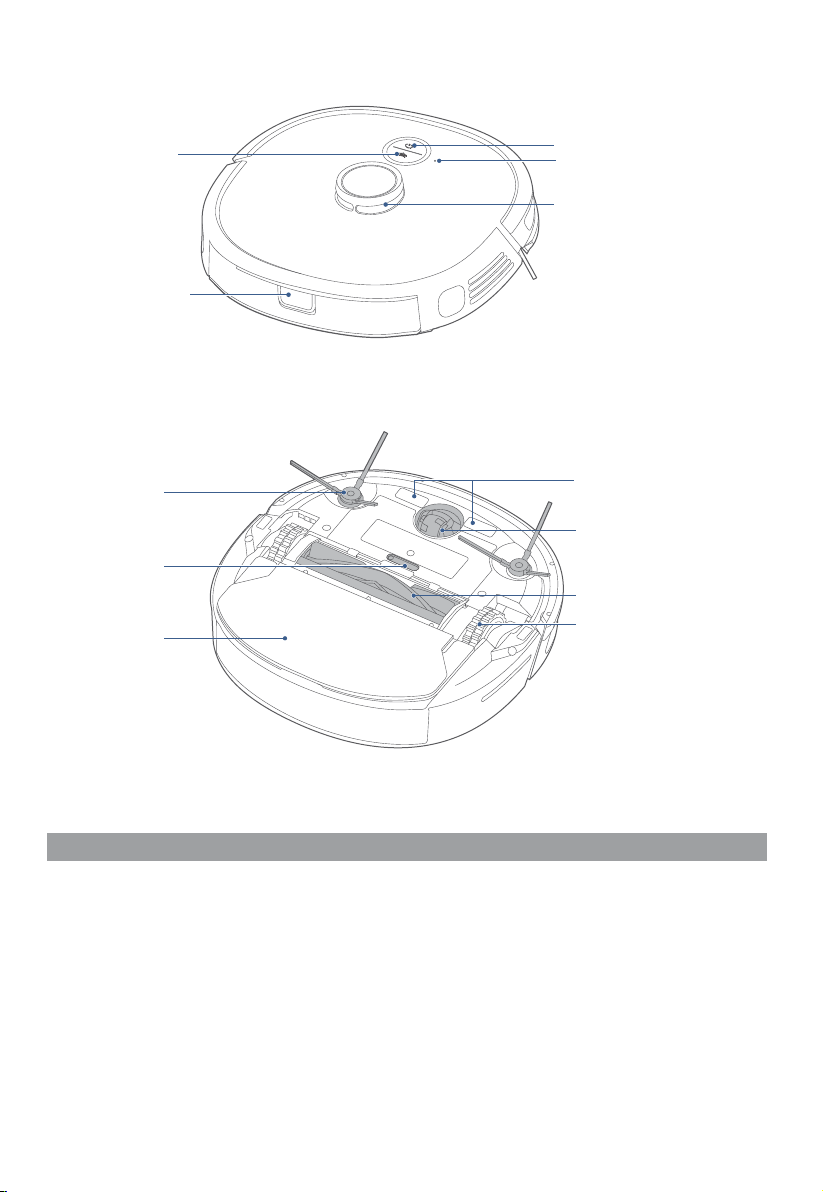
On/Off button
Recharge button/
Wi-Fi button
Wi-Fi indicator light
LIDAR
Dustbin
release button
Charging contact points
Roller Brush
Drive wheel
Side brush
Reset button
Dustbin
How to identify parts of your robot
Front caster wheel
Buttons on Robot
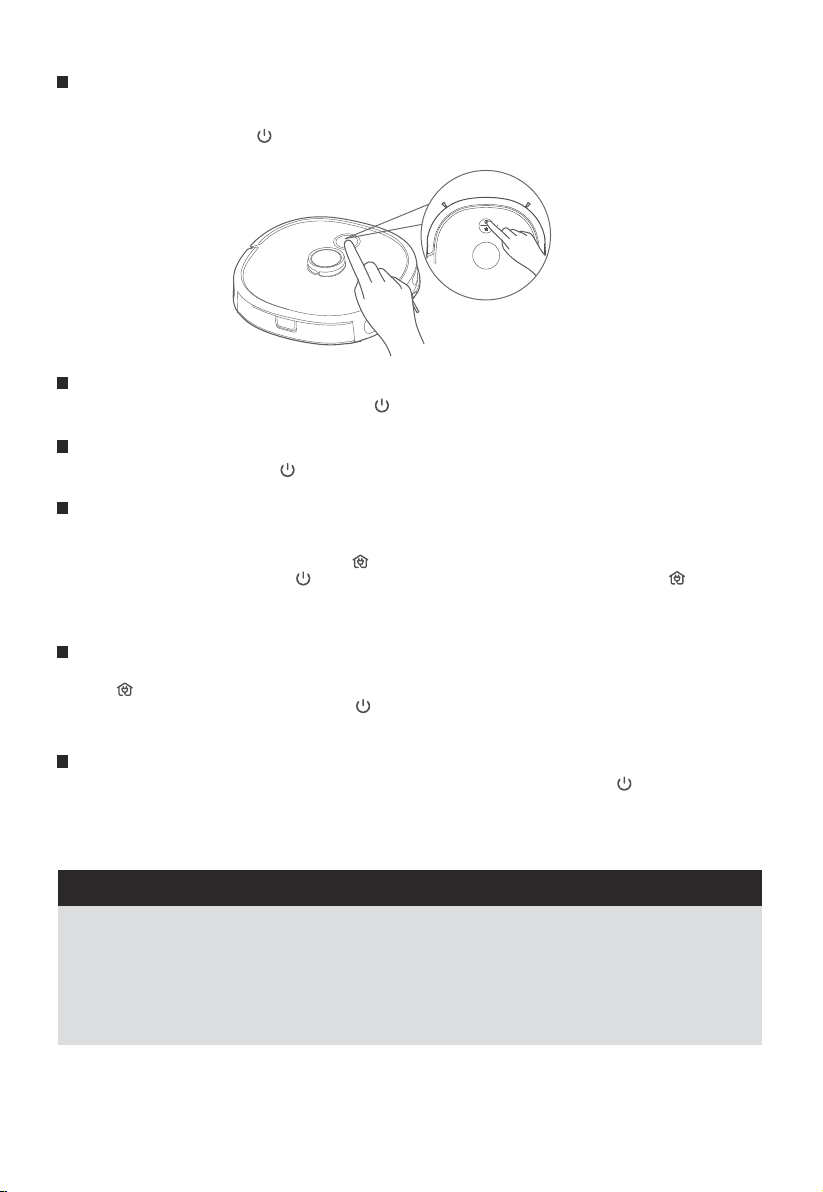
Press power button for 1 second to turn
robot on.
When robot is on, the power button will be lit up.
When the robot is on, to start the robot cleaning,
press the power button.
When the robot is running press the power
button to pause it.
To fully turn off the power, press and hold the
power button for 3 seconds; the power indicator begins
to flash. The cleaner makes a chord sound, and when
the power indicator turns off, the robot shuts down
successfully.
www.eureka.com 9
Before running the robot, clear area of power cords,
pull cords for curtains or blinds, clothing and fragile items.
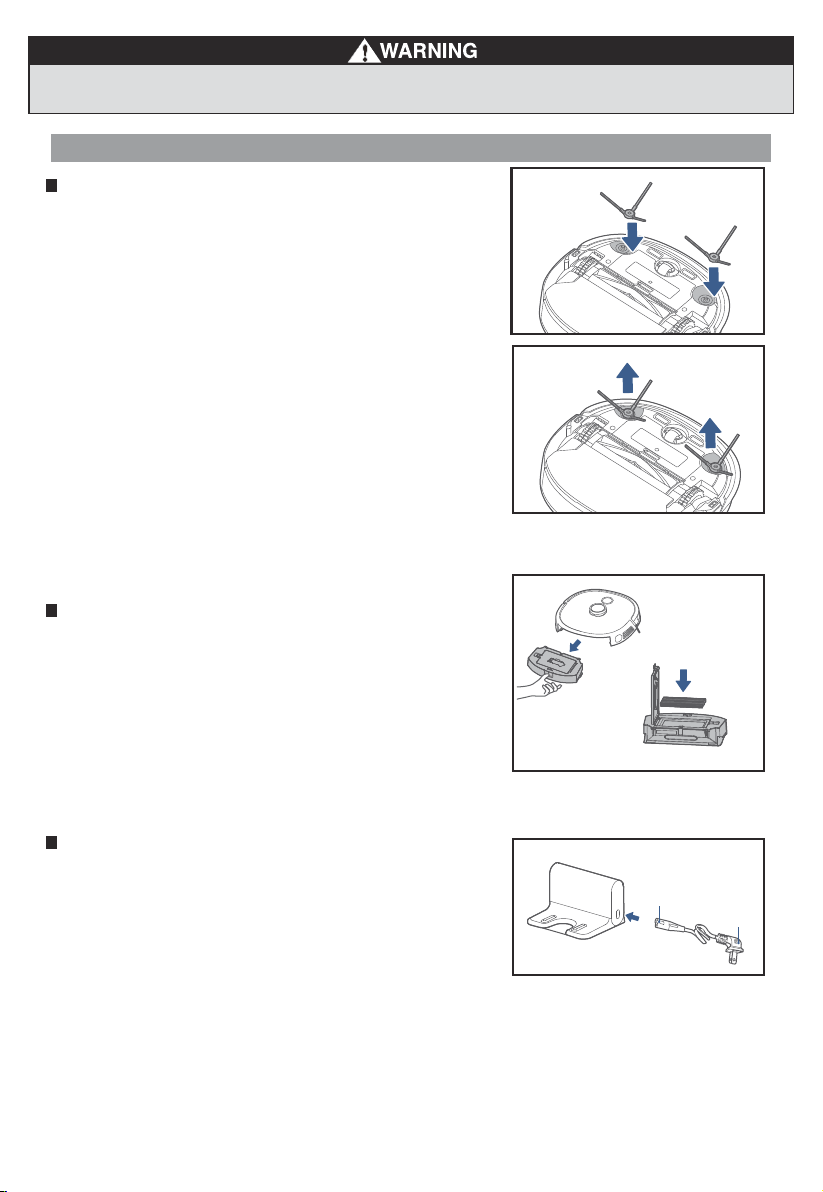
Setting up charging dock
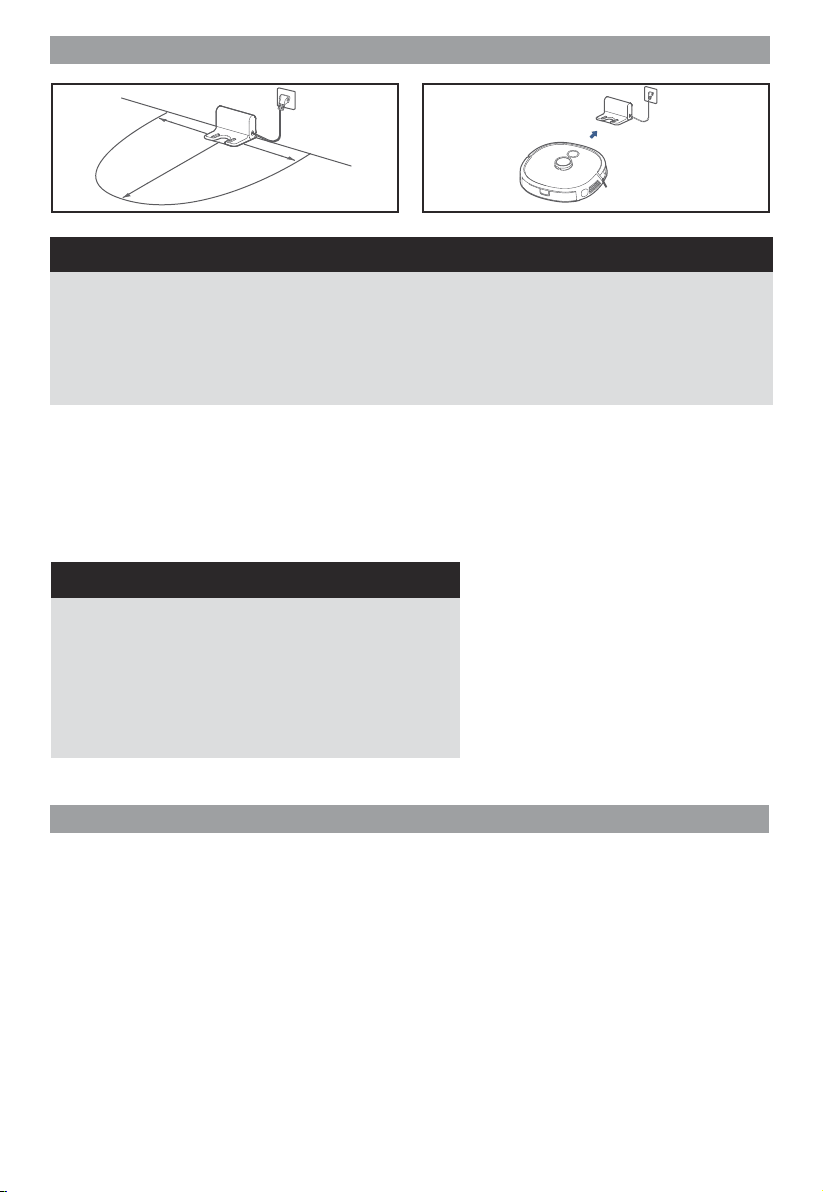
Place the back of the charging dock flush against a wall and ensure
there are at least 3 feet of free space along the wall on either side
and 4.5 feet of free space in front of the dock so the robot is not blocked.
Connect the end of the charger into the port on the lower right side of
the dock ensuring that it is securely attached. Then plug other end of the
charger into a power outlet.
1.
2.
Installation of side brushes
Attach the correct color side brush to the matching post and push
down until you hear it "click" into place.
1.
To remove the side brushes for maintenance, place the robot on a
flat surface with the bottom facing up, use two hands to carefully
pull up on the rubber legs of the side brush and remove any caught
hair or debris.
2.
End A
End B
Quick Assembly
Filter installation
Robot comes with filter installed. Before use, ensure the filter is securely
in place. If not, remove dustbin from robot, pull up lid of dustbin and make
sure filter is snapped into place. Ensure dustbin lid and bottom latch
are securely closed and place back dustbin onto robot.
10
Eureka Customer Service HELPLINE 1-800-282-2886
Initial mapping of your home
Before use, clear the cleaning area of power cords, pull cords for curtains or blinds, clothing, large debris and fragile
items that robot may get caught in. Do not operate in a room with lit candles or lit fireplace. Clean up any liquids prior
to use. Also be sure to turn on lights in all parts of the house you want the robot to map, if it is too dark the robot may
not enter those zones to map.
The first use of the robot is a mapping mission so that it can create a map that you can edit, use to create specific
cleaning schedules and set up cleaning zones and no-go zones. Please note that while the robot is on its initial
mapping mission it will not be cleaning, it will just be exploring. Also during the initial mapping the robot may bump
into furniture, walls and objects as it learns your house, do not be alarmed. As the robot goes out on more cleaning
runs it will continue to improve its mapping of your house.
It is recommended to regularly monitor the robot during its initial mapping mission to assist if it gets stuck or runs into
issues. If it gets stuck simply pick it up move it away from the obstacle, and remove obstacles if necessary, place it back
on the ground and press start button on robot for it to resume mapping.
Once the robot has completed its mapping mission you can create cleaning zones if you would like to set up cleaning
in special areas such as high traffic spots, add no-go zones and set cleaning schedules that correspond to the specific
areas in your house.
1.
2.
3.
4.
3ft
3ft
4.5ft
1. Ensure that the charging dock is located in an area covered by a Wi-Fi signal.
2. Do not place the charging dock in direct sunlight.
3. Charging dock should be placed on a hard floor, do not place on a carpeted area.
4. Regularly dust off the charging dock to keep charging contacts and front panel clean so they operate properly.
5. Secure excess power cord to prevent the robot from dragging the charging dock.
6. Keep charging area dry.
NOTES
When the battery power reaches less than 20% the robot
will shut off the suction power and automatically return to
the charging dock.
The robot may occasionally back up off the charger and
then go forward back onto charger to realign itself if a
better connection is needed with the metal charging contacts.
Please note the robot will arrive with a partially charged
battery. If you start using it before fully charging the battery,
the cleaning cycle will be shorter than normal as it will return to
the dock to recharge when it reaches 20% battery power.
NOTES
Charging
For the first use, please charge for at least
4 hours.
When the battery is low, please charge as soon
as possible.
If you do not use the appliance for an extended
period of time, fully charge the battery and store
in a well ventilated and dry place.
If the appliance is not used for more than
3 months, charge the appliance for 12 hours.
a.
b.
c.
d.
To effectively extend the battery life, you should:
Place robot on charger and ensure that the metal charging contacts on the bottom of the robot and those on the
charging dock are touching. When the charging contacts are correctly lined up the robot will make an audible beep
and the power light will illuminate.
The white light on the power button will blink while the robot is charging and will turn to a solid white light once the
robot is fully charged.
Before initial use fully charge the robot for at least 4 hours.
1.
2.
3.
www.eureka.com 11
When the robot detects an error, the return-to-charge indicator turns red. Please fix the issue then briefly
press " " for 1 second to indicate to return the robot to standby mode.
Place the robot on the floor then briefly press " " for 1 second to restart cleaning.
After completion of the cleaning, the robot will automatically return to charge. It is recommended that the
robot should be kept in the charging dock.
Startup methods
In normal operation, it is recommeded that cleaning is started using the app or the power button while the robot
is on the charging dock.
To power on the robot, press " " for 3 seconds. The power indicator light will flash and the robot will make a chord
sound. The lit power indicator shows that the robot is in standby mode.
1.
2.
The robot will not start cleaning when the battery charge level is too low. Please charge the robot on the
charging dock before starting to clean.
During cleaning, the robot will automatically return to the charge dock when the battery charge level is
too low. The robot will return to the same position to resume cleaning after the battery is fully charged.
The robot will enter sleep mode after being in standby mode for more than 10 minutes. When in the sleep
mode, press any key will wake up the robot.
The power indicator flashes to signal that the battery is charging and is on continuously when the battery is
fully charged.
1.
2.
3.
4.
Start the cleaning
When the robot is in standby mode, briefly press " " for 1 second, and it will start to clean the whole room.1.
Pause the cleaning
During the cleaning, briefly press " " for 1 second, and the robot will pause the cleaning and enter its standby
status.
1.
After completion of the cleaning, the robot will enter its return-to-charge status.
If return-to-charge is required during the cleaning, proceed as follows:
① When the robot is in standby, briefly press " " for 1 second, and the robot will start to return to charge.
② During the cleaning, briefly press " " for 1 second, and the robot will pause the cleaning; press " " for
another 1 second, and the robot will start to return to charge.
The robot may not be able to return to the charging dock in some situations, for example if the battery charge level
is too low or the robot has become stuck. In these situations, place the robot on the charging dock manually.
Return to charge
1.
2.
3.
Troubleshooting
1.
2.
3.
If the robot will not be used for a long time period and needs to be shut down, long press " " for 3 seconds,
and the power indicator begins to flash.
The robot makes a sound, and when the power indicator turns off, the robot shuts down successfully.
The robot can not fully shut down when it is on the charging dock. If you want to shutdown the robot you must
remove it from the charging dock.
Shutdown
1.
2.
3.
NOTES
How to use your robot
12
Eureka Customer Service HELPLINE 1-800-282-2886
The app supports iOS versions 10.0 and above and
Android versions 6.0 and above. The app is not available
for use with tablets.
This model does not support a WEP encrypted router.
The home Wi-Fi name and password must contain only
letters, numbers and standard symbols.
The network accessing configuration of the robot
requires a Wi-Fi network of 2.4GHz frequency range.
The robot must be connected to Wi-Fi to enable
controlling the robot using the app. Once you have set up
the app and connected the robot to Wi-Fi, the app can be
used to control the robot in Wi-Fi/2G/3G/4G/5G network
environment.
If your home Wi-Fi password is changed or the router is
replaced, the robot will show as oine in the app; you will
need to reconnect the robot to Wi-Fi following the Wi-Fi
connection instructions.
NOTES
NOTES
●
●
●
●
●
●
In the App Store or Google Play, search for
Eureka Robot, download and install the app.
Open the Eureka app and complete the
registration process, which includes an email
address confirmation, and once you have
confirmed your email address you can log in
and follow the setup instructions in the app.
Connect your phone to your home Wi-Fi
network.
In the app select Add Devices and choose
Robot NER650.
Connect your robot to your Wi-Fi
After assembling and powering on the robot,
press and hold down the " " button for
3 seconds until a beep is heard.
The Wi-Fi indicator light should start to flicker.
Follow instructions on app for next steps.
1.
2.
3.
4.
5.
If the Wi-Fi in your home is unstable, it may cause
issues with the operation of the Eureka Robot App.
The content of the Eureka Robot App may change
when the version is updated.
Please refer to the Eureka Robot interface
for details.
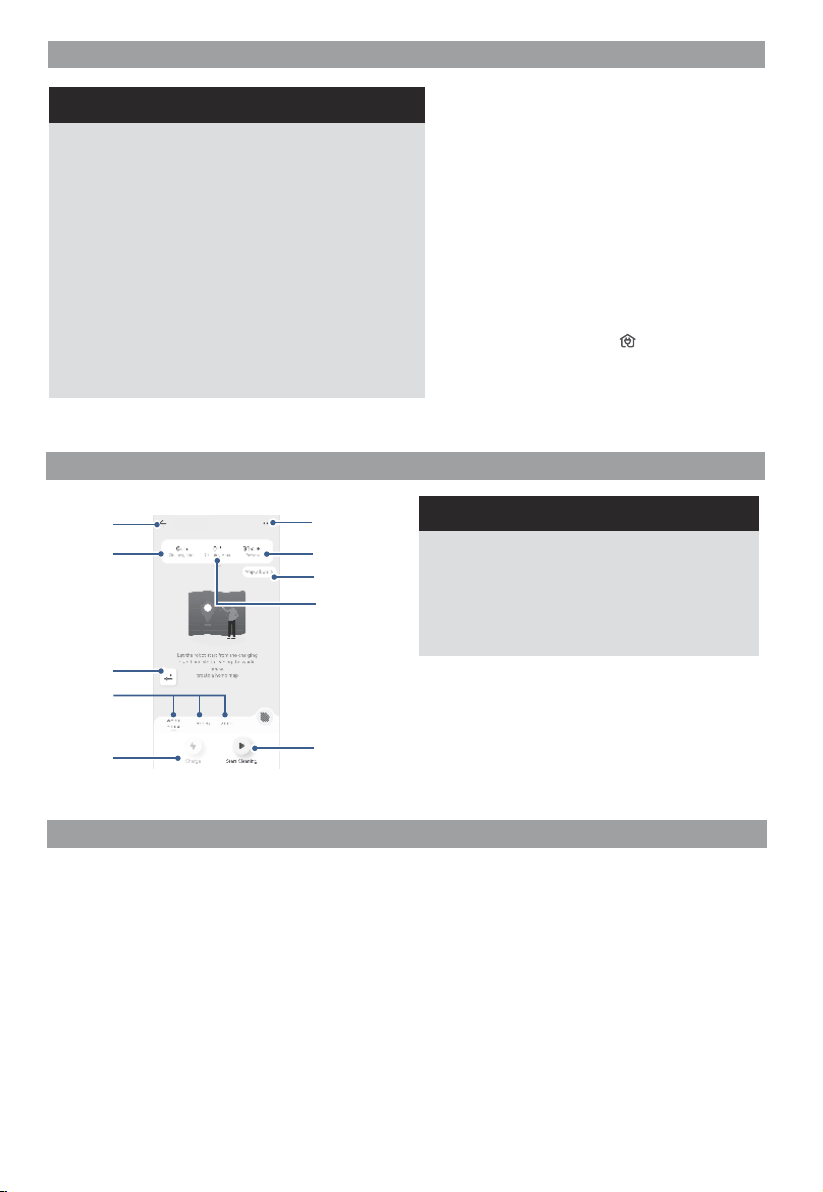
Back to
previous
page
Robot
settings
Cleaning area
Start cleaning
Battery
Cleaning
mode
Charge
Note: This interface will be upgraded later, this interface
is for reference only.
NOTES
Amazon Alexa
1. Open Amazon Alexa App
2. Select ‘Skills & Games’ and search for
Eureka Robot and select
3. Enable the Eureka robot skill
4. Your Eureka robot app will then open and you will
login using your Eureka robot app credentials
5. The Eureka robot skill and the app should now be
successfully linked, and this will be indicated on the
Amazon Alexa app.
6. You can now use the following commands to
control the robot:
“Alexa, tell Eureka robot to start cleaning”
“Alexa, tell Eureka robot to stop cleaning”
“Alexa, tell Eureka robot to go home”
Google Home
1. Open Google Home App
2. Search for Eureka robot and select
3. Link Eureka robot skill
4. Your Eureka robot app will then open and you
will login using your Eureka robot app credentials
5. The Eureka robot skill and the app should now
be successfully linked
6. You can now use the following commands to
control the robot:
“Ask Eureka robot to start cleaning”
“Ask Eureka robot to stop cleaning”
“Ask Eureka robot to go home”
Setting Up App and Connecting to Wi-Fi
Using Eureka Robot App
Using Amazon Alexa or Google Home
Cleaning
time
Customized
cleaning
Map album
www.eureka.com 13
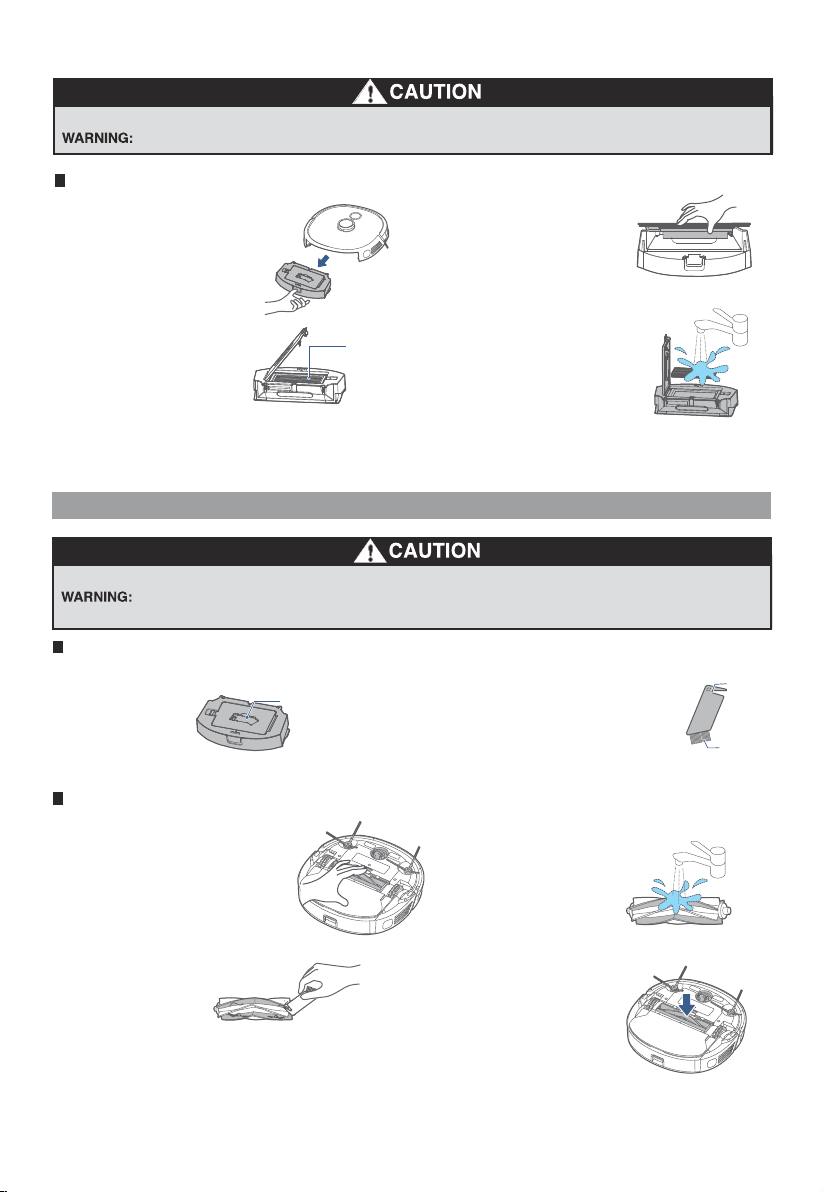
Dustbin maintenance (weekly cleaning recommended)
Press the dustbin release button to pull
out the dustbin backwards;
1. Open the top cover of the
dustbin to pour out dust from
the dustbin;
2.
Remove the filter assembly
from the dustbin;
3.
Wipe clean the dustbin and tap
clean the filter assembly then
reinstall them in the robot. If the
filter is excessively dirty, it may
be washed under a tap then left
to dry completely before
reinstalled in the robot. Ensure
that the filter and dustbin are
installed correctly and robot’s
cover is completely closed.
4.
Moving parts! Recharge robot vacuum cleaner after each use.
Never operate robot without all filters, filter screen and dustbin in proper position.
Filter assembly
Make sure robot is turned off and not plugged into a power source.
Do not attempt to remove belt. Call the Eureka Customer Service HELPLINE
at 1-800-282-2886.
Cleaning tools
Cleaning tools are located above the
dustbin;
1. Cleaning brushes are used for the
following purposes:
① The blade is used to cut off hair
from rolling brushes;
② The hair brush is used to brush
off the cut hair.
2.
Cleaning brush
Hair
brush
Blade
Rolling brush maintenance (weekly cleaning recommended)
Turn over the robot, and by
putting your hand at the upper
dent of the rolling brush cover, press
to remove the cover and pull it out,
then take out the rolling brush from
the red end cover of the brush;
1.
Reinstall the rolling brush
components and rolling
brush cover onto the robot.
5.
Clean the rolling brush cover and
rolling brush with a cleaning
brush or soft cloth;
2.
If necessary, pull off the red end cover to
remove tangled hair or debris;
3.
If the rolling brush is excessively
dirty, it may be cleaned under a
tap then dried completely;
4.
How to maintain your robot
How to maintain brushroll
Washable brushroll – clean frequently
14
Eureka Customer Service HELPLINE 1-800-282-2886
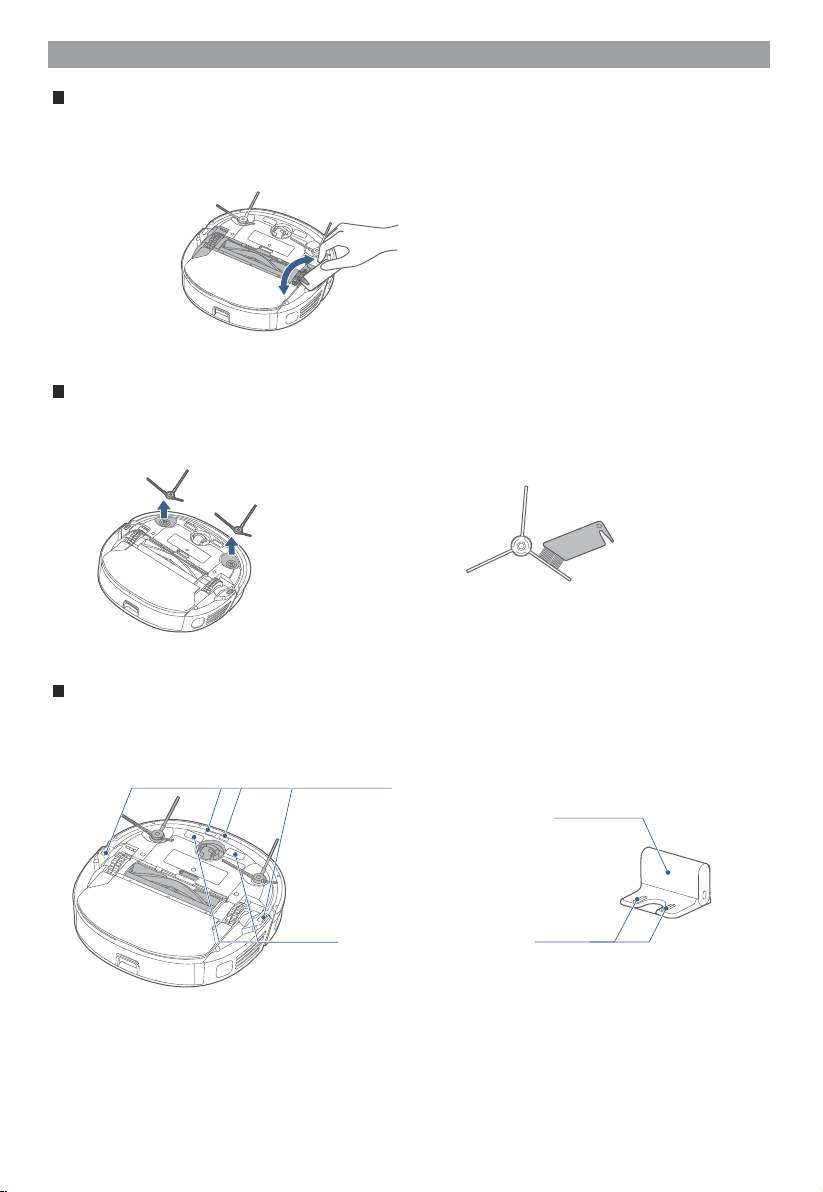
Use soft cloth to slightly
wipe charger contact
points to ensure
normal charging
Use soft cloth to
slightly wipe the
sensors and
remove dust
from its surface
Drive wheel cleaning (weekly cleaning recommended)
Turn back and forth the wheel to remove debris. By using a cleaning
tool or soft cloth, clean the wheel and remove hair or debris.
1.
Side brushes cleaning (weekly cleaning recommended)
Sensor and charging contact point cleaning (weekly cleaning recommended)
Remove the side brushes;1. Clean dust accumulating on
the side brush.
2.
Drive wheel, side brushes, sensor and charging contact point cleaning
www.eureka.com 15
Midea America Corp. (“Eureka”), subject to the terms and conditions
herein, warrants this vacuum cleaner to be free from defects in material and
workmanship for a term of two years from the date of original purchase
when used in accordance with the Eureka operating and maintenance
instructions and under normal household usage. This warranty is granted
only to the original purchaser and members of immediate household, and is
applicable only to original purchases from Eureka authorized resellers.
Eureka will, at its option, repair or replace a defective vacuum or vacuum
part that is covered by this warranty. Repairs may be performed using new
or refurbished parts that meet or exceed Eureka specifications for new
parts. If Eureka elects to replace the vacuum, the replacement may be a
reconditioned unit. Depending on availability of products, Eureka reserves
the right to provide you with a replacement product that is the same or
similar, or substitute equivalent of the original product. As a matter of
warranty policy, Eureka will not refund the consumer’s purchase price.
• Battery module and battery components. The battery module and its
components are covered by a separate one-year limited battery warranty.
• Normal wear and tear of the vacuum and vacuum parts that require
replacement under normal use such as disposable dust bags, filters, drive
belts, light bulbs, brush-roll, bristles, impellers and cleaning.
• Damages or malfunctions resulting from: improper or unreasonable use
or maintenance, abuse, negligence, failure to follow instructions contained
in any written materials that accompany the product, deterioration by
reason of excess moisture, corrosive atmosphere, lightning, power
surges, connections to improper voltage supply, unauthorized alteration,
or other external causes such as extremes in temperature or humidity,
modifications, scratches or discoloration, accidents, misuse, or acts of
God. This warranty also does not cover damage resulting from repair or
attempted repair by anyone other than Eureka or an authorized Eureka
Warranty Station. This warranty is not applicable to any product that has
been altered or on which the serial number has been defaced, modified or
removed. Altering, erasing, or forging any proof-of-purchase documents
voids any applicable product warranty.
To obtain warranty service you must contact the Eureka Service Team,
toll free, at 1-800-282-2886 or email [email protected],
to discuss the warranty claim and procedures to be followed. All warranty
claims must include submission of proof-of-purchase documentation. For
additional information, you may also visit www.eureka.com .
You will be responsible for any initial shipping and insurance charges if
the defective product(s) must be shipped for warranty service or warranty
evaluation; however, Eureka or a Eureka Authorized Warranty Station will
pay the return shipping charges if repairs are covered by the warranty.
When returning parts for repair, you must include the model, type and serial
number located on the rating plate. If any product submitted for warranty
service is found to be ineligible, an estimate of repair cost will be furnished
and the repair performed only if requested by the owner and upon receipt of
payment or acceptable arrangements for payment.
Any warranty that may be implied in connection with your purchase or use
of the vacuum, including any warranty of Merchantability or any warranty
of Fitness For A Particular Purpose is limited to the duration of this limited
warranty. Some states do not allow limitations on how long an implied
warranty lasts, so the above limitations may not apply to you.
Your relief for the breach of this warranty is limited to the relief expressly
provided above. In no event shall the manufacturer be liable for any
consequential or incidental damages you may incur in connection with your
purchase or use of the vacuum. Some states do not allow the exclusion or
limitation of incidental or consequential damages, so the above limitation
or exclusion may not apply to you. This warranty gives you specific legal
rights. You may also have other rights, which may vary by state.
Midea America Corp. (“Eureka”), subject to the terms and conditions
herein, warrants this Battery Module to be free from defects in material
and workmanship for a term of one year from the date of original purchase
when used in accordance with the Eureka operating and maintenance
instructions and under normal household usage. This warranty is granted
only to the original purchaser and members of immediate household, and
is applicable only to original purchases from Eureka authorized resellers.
:
Eureka will, at its option, repair or replace a defective Battery Module or
battery part that is covered by this warranty. Repairs may be performed
using new or refurbished parts that meet or exceed Eureka specifications
for new parts. If Eureka elects to replace the Battery Module, the
replacement may be a reconditioned unit. Depending on availability of
products, Eureka reserves the right to provide you with a replacement
product that is the same or similar, or substitute equivalent of the original
product. As a matter of warranty policy, Eureka will not refund the
consumer’s purchase price.
• Normal wear and tear of the Battery Module and battery parts that require
replacement under normal use.
• Damages or malfunctions resulting from: improper or unreasonable
use or maintenance, abuse, negligence, failure to follow instructions
contained in any written materials that accompany the product,
deterioration by reason of excess moisture, corrosive atmosphere,
lightning, power surges, connections to improper voltage supply,
unauthorized alteration, or other external causes such as extremes in
temperature or humidity, modifications, scratches or discoloration,
accidents, misuse, or acts of God. This warranty also does not cover
damage resulting from repair or attempted repair by anyone other than
Eureka or an authorized Eureka Warranty Station. This warranty is not
applicable to any product that has been altered or on which the serial
number has been defaced, modified or removed. Altering, erasing, or
forging any proof-of-purchase documents voids any applicable product
warranty.
To obtain warranty service you must contact the Eureka Service Team,
toll free, at 1-800-282-2886 or email [email protected],
to discuss the warranty claim and procedures to be followed. All warranty
claims must include submission of proof-of-purchase documentation. For
additional information, you may also visit www.eureka.com.
You will be responsible for any initial shipping and insurance charges if
the defective product(s) must be shipped for warranty service or warranty
evaluation; however, Eureka or a Eureka Authorized Warranty Station will
pay the return shipping charges if repairs are covered by the warranty.
When returning parts for repair, you must include the model, type and
serial number located on the rating plate. If any product submitted for
warranty service is found to be ineligible, an estimate of repair cost will
be furnished and the repair performed only if requested by the owner and
upon receipt of payment or acceptable arrangements for payment.
Any warranty that may be implied in connection with your purchase or use
of the Battery Module, including any warranty of Merchantability or any
warranty of Fitness For A Particular Purpose is limited to the duration of
this limited warranty. Some states do not allow limitations on how long an
implied warranty lasts, so the above limitations may not apply to you.
Your relief for the breach of this warranty is limited to the relief expressly
provided above. In no event shall the manufacturer be liable for any
consequential or incidental damages you may incur in connection with
your purchase or use of the Battery Module. Some states do not allow
the exclusion or limitation of incidental or consequential damages, so the
above limitation or exclusion may not apply to you.
This warranty gives you specific legal rights. You may also have other
rights, which may vary by state.
Midea America Corp.• 300 Kimball Drive • Parsippany, NJ 07054 • USA
16
Eureka Customer Service HELPLINE 1-800-282-2886
Robot moves back from
dock but doesn't begin
cleaning
Problem Scenarios Solutions
-
-
-
App shows the robot
is disconnected
- Reconnect the robot to Wi-Fi.
- Restart the router.
- Turn on the power switch of the robot cleaner.
-
- After system startup, long press the network
pairing key on the robot for 3 seconds, and
release it after you hear a beep, and then add a
new device according to guidelines in the app.
App operations show
delayed reactions
- Restart the router and reduce the number of
users connected to the router.
- Check the settings of your mobile itself to
ensure it is connected to Wi-Fi and that the
Wi-Fi is working properly.
Unable to charge
- Verify power is connected and all plugs are
- Make sure that the metal plates on the bottom
- The power indicator of the robot flashes to
indicate the robot is charging, or check
the power level display through App.
-
If robot hasn't been used in a long time it will
need to fully recharge before use.
Robot speaker not
working
- Turn off the silence mode in the App.
- Turn up the volume in the Eureka App.
The battery cannot be charged below
freezing. Robot must be charged and
stored at room temperature.
-
Troubleshooting
Make sure robot is off and charging plug is unplugged.
Check if there is any debris or objects stuck in
or around the wheels and in between the front
bumper sensor plate.
Remove any obstacles in front of or around the
robot.
Clean dust from the front sensors and bottom
sensors on the robot.
If necessary try adding the robot again per the
initial pairing instructions.
of the robot and the contact points on the
charging dock are contacting correctly.
securely connected.
www.eureka.com 17
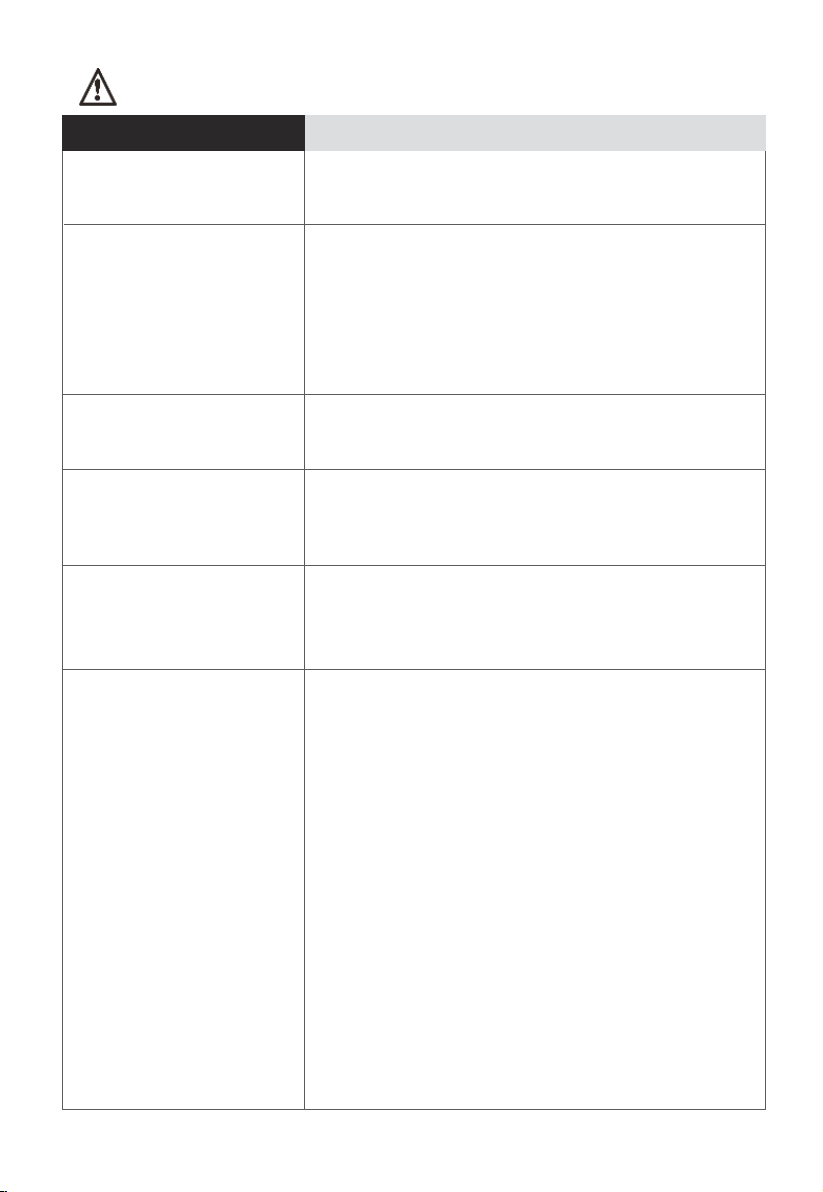
Robot not returning to
charging dock
- See the "Initial Use" section.
Robot is not cleaning
when scheduled
- Reset the scheduled cleaning time in the app.
- Make sure to disable the Do Not Disturb mode.
Robot is not moving
- Charge the robot.
- Place the robot flat against the ground.
- Contact the service department.
Robot does not clean
at scheduled times
- Ensure the robot is turned on.
- Ensure the remaining battery level is sufficient.
- Check scheduled cleaning times in the App:
check whether the status key is turned on, the
scheduled cleaning time is correct, and the
cleaning frequency is only one time (if you
want the robot to have a reoccuring cleaning
time, reset the timing schedule in the App).
-
- In "Setup" menu items, click "Device Info Item",
then click "Sync Now" under the time zone
section to ensure robot is programmed to your
correct time zone.
Robot is stuck
- The robot should activate its escape mode
- Clean any entangled debris or hair from side
brush, and restart the robot to check for
normal operation, or otherwise contact service
department.
- Remove obstacles from area robot is cleaning.
Robot returns to charge
without completing the
cleaning
- Charge the robot.
Make sure robot is off and charging plug is unplugged.
automatically, but if not then pick it up and
move it away from the obstacle.
Make sure the robot is sitting correctly on the
charging dock and has fully recharged. Ensure
there is no dust blocking the front sensors and
the contact charging points on the bottom of
robot.
Problem Scenarios Solutions
Troubleshooting
18
Eureka Customer Service HELPLINE 1-800-282-2886
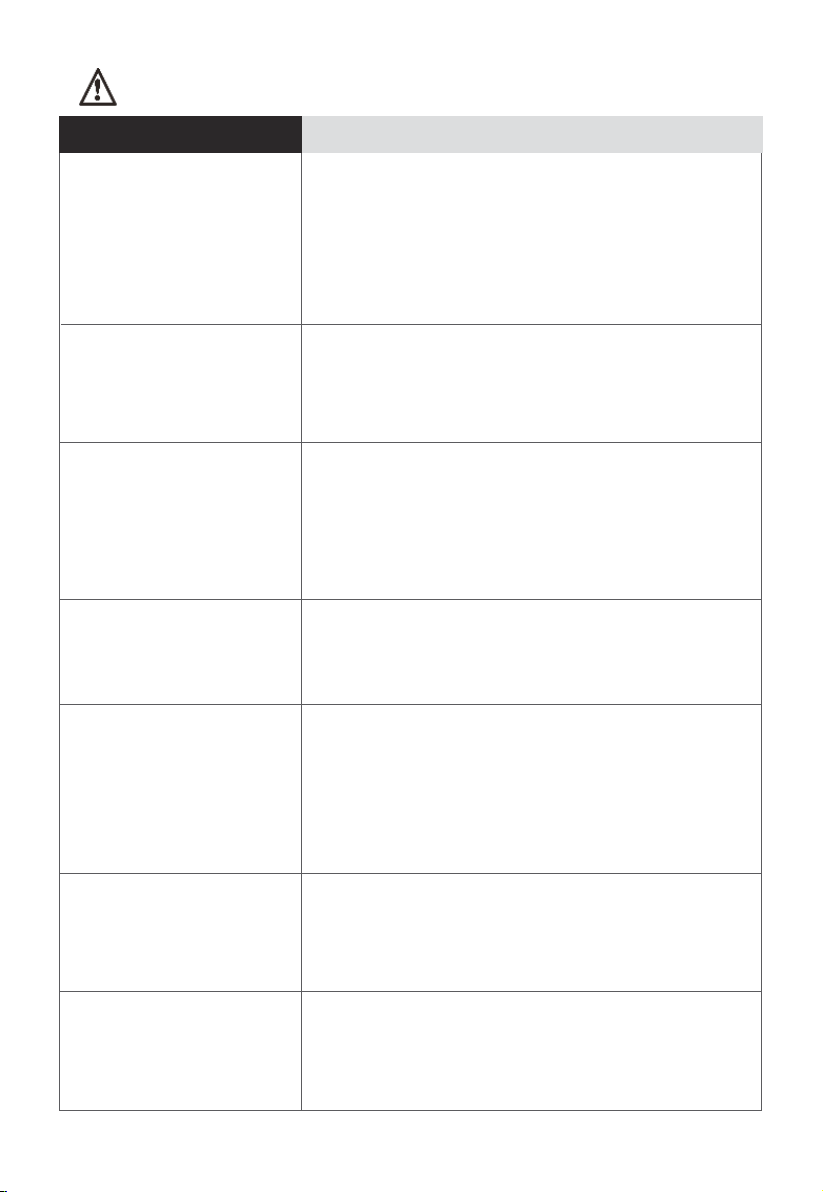
Robot will not turn off
- Move the robot off of the charging dock,
and long press the power key for about 3s,
then remove your finger after the power
indicator begins to flash.
- Turn over the robot, press the red key under
the nameplate for 1s with a small cleaning tool
or pointed object.
Rolling brush does not
rotate or gets stuck,
triggering an alarm
- Turn over the robot, and turn the rolling
brush to check for any tangles or debris that
may be stuck. If necessary remove brushroll
cover to access brush roll, pull brushroll out
and use cleaning tool to remove any tangles
or debris.
Note: Be sure to clean the brushroll regularly.
Abnormal noise from the
rolling brush
- Turn over robot, remove the rolling brush
cover and then the rolling brush, using the
cleaning tool remove anything that is
entangled in the rolling brush.
Laser radar not working
- Press around the radar house to verify whether
it will rebound, and whether there is a "click"
sound from switch closure.
- Check for any debris, and then manually turn
the radar slightly to see whether it can rotate.
- Wipe off dust regularly to ensure radar is
Front bumper not
working
- Tap the front bumper to see whether it will
rebound smoothly, and check the bumper for
debris around the front and bottom.
- Clean dust from radar sensors.
Wheels are not rotating
or side brushes are not
spinning
Turn over the robot, and turn the wheel
back and forth to check for hair and debris.
Clear the debris.
Clean the side brush regularly.
-
-
Robot goes in circles
- Turn over the robot, check whether
anything is stuck or entangled in the wheels
and remove it.
clean for best performance.
Make sure robot is off and charging plug is unplugged.
Problem Scenarios Solutions
Troubleshooting
www.eureka.com 19
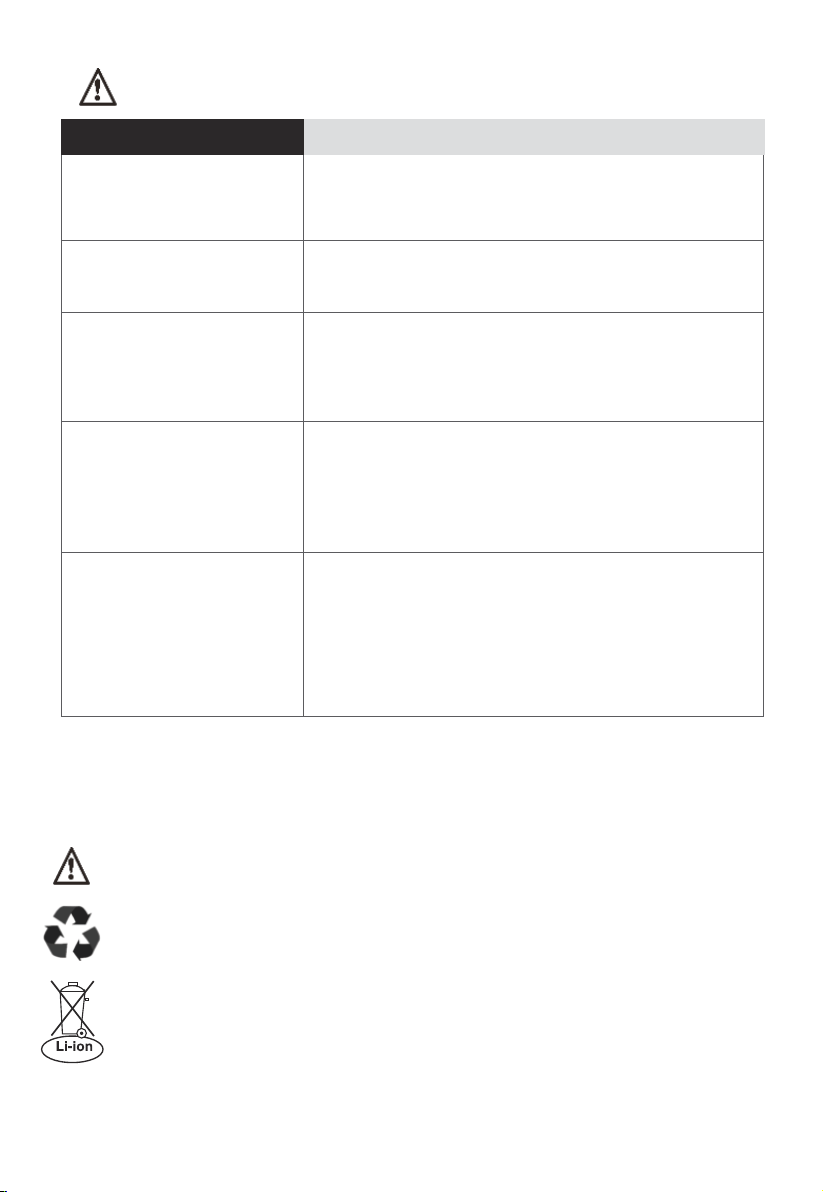
Slow app reactions
- Ensure that your Wi-Fi is working properly and
that the robot is properly paired in the app.
Delayed device
reactions
-
Device ID not found
- Long press the return-to-charge key for 3
seconds to enter the network pairing mode
(Check whether the Wi-Fi indicator begins to
flash).
Software failed to update
- Place the robot on the charging dock
and ensure it is fully charged.
-
Ensure your Wi-Fi connection is stable and
device is properly paired when updating
software.
Map cannot be deleted
or is unavailable
- Make sure Wi-Fi connection is stable and device
is properly paired with the app.
If map is still not available follow instructions to
repeat the initial mapping process to create a
new map.
Make sure robot is off and charging plug is unplugged.
Disposal of robot and battery pack
Before you discard this vacuum, dispose of battery in an environmentally
safe manner. Do not discard battery with your regular household trash.
Important battery disposal information.
To find a disposal location nearest you, call 1-800-822-8837.
To preserve natural resources, please recycle or dispose of expired battery
pack properly. This product contains a lithium-ion battery. It must be disposed
of properly. Local laws may prohibit disposal of lithium-ion batteries in ordinary
trash. Consult your local waste authority for information regarding available
recycling and/or disposal options.
Dust off all the sensors to make sure they are
not getting blocked.
-
Problem Scenarios Solutions
Troubleshooting
20
Eureka Customer Service HELPLINE 1-800-282-2886
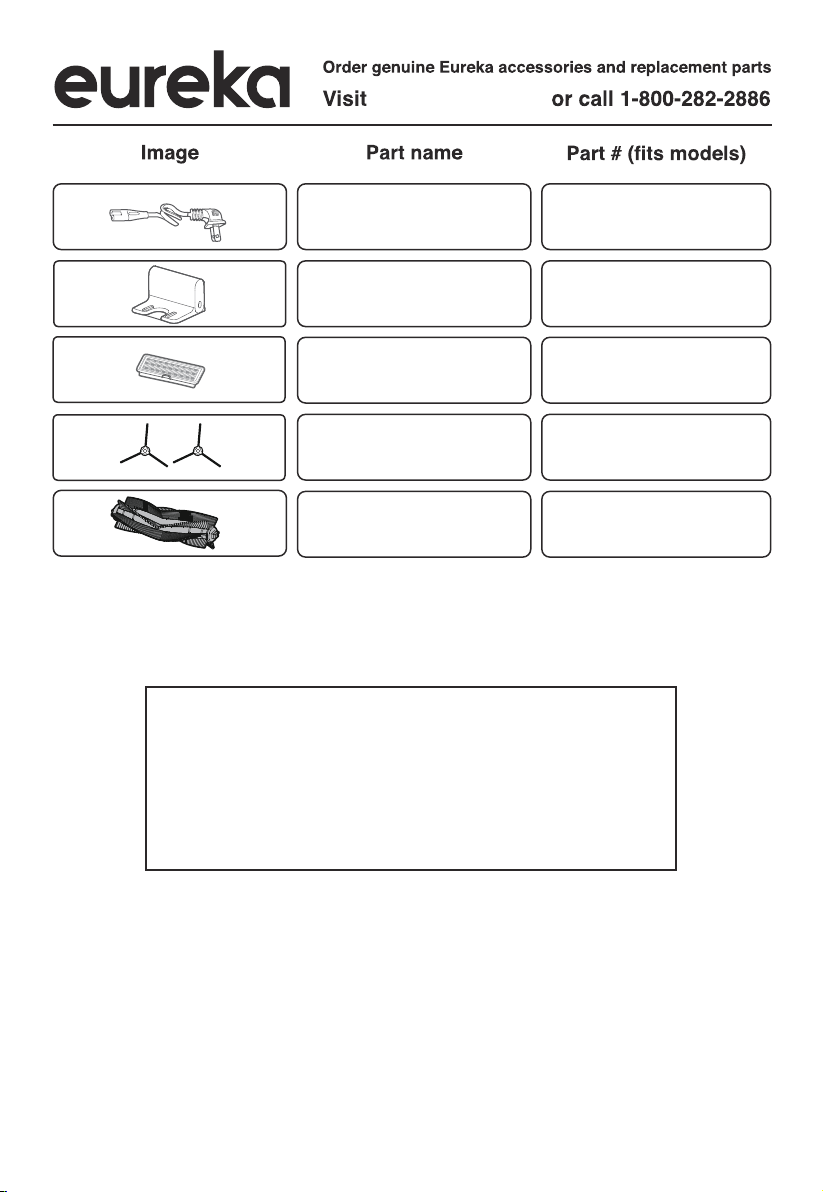
Charger
Charging dock
Filter
Side brush set
Roller brush
@2022 Midea America Corp. Printed in China.
www.eureka.com
Free 3 months extension of the
original limited warranty period!
Just text proof of purchase to
844 224 1614
* The extension is for the three months immediately following the
www.eureka.com 21
completion of the product’s original warranty period.
R2016
R2017
R2018
R2019
R2020