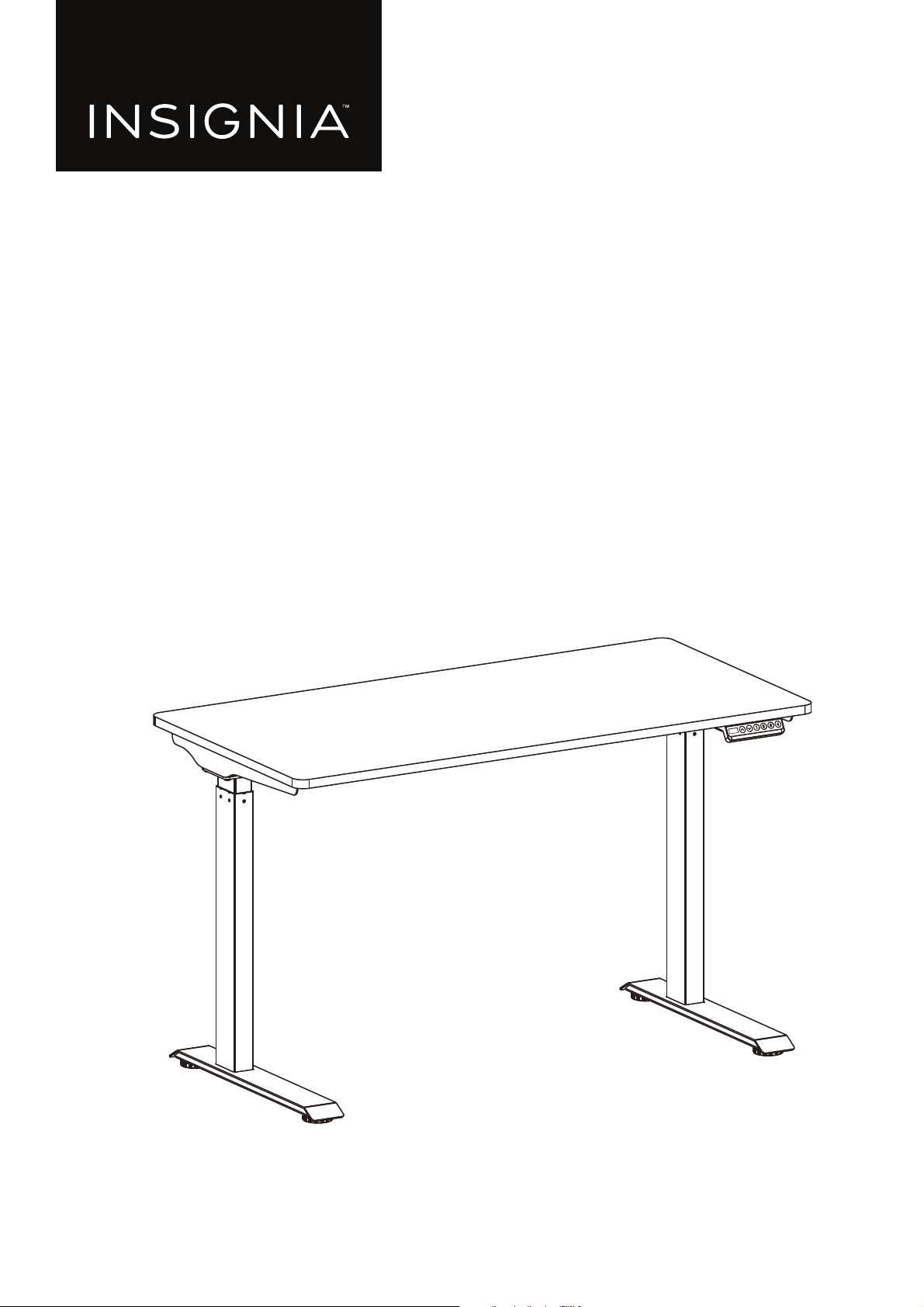
Before using your new product, please read these instructions to prevent any damage.
USER GUIDE
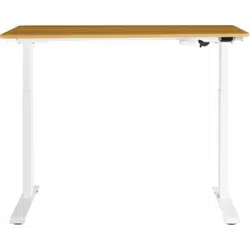
55" Black Standing Desk
NS-SDSKB553

www.insigniaproducts.com
2
Contents
Safety information . . . . . . . . . . . . . . . . . . . . . . . . . . . . . . . . . . . . . . . . . . . . . . . . . . . . . . . . . . . . . . . . . . . . . . . . . . . . . . . . . . . . . . . . . . . . . . . .2
Features . . . . . . . . . . . . . . . . . . . . . . . . . . . . . . . . . . . . . . . . . . . . . . . . . . . . . . . . . . . . . . . . . . . . . . . . . . . . . . . . . . . . . . . . . . . . . . . . . . . . . . . . . .3
Dimensions. . . . . . . . . . . . . . . . . . . . . . . . . . . . . . . . . . . . . . . . . . . . . . . . . . . . . . . . . . . . . . . . . . . . . . . . . . . . . . . . . . . . . . . . . . . . . . . . . . . . 3
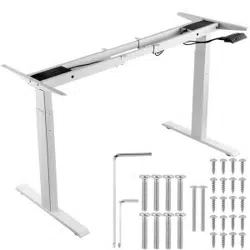
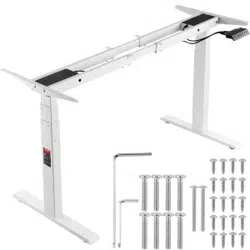
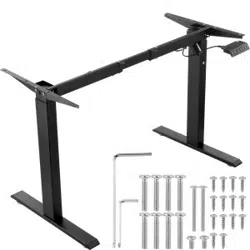
Parts included . . . . . . . . . . . . . . . . . . . . . . . . . . . . . . . . . . . . . . . . . . . . . . . . . . . . . . . . . . . . . . . . . . . . . . . . . . . . . . . . . . . . . . . . . . . . . . . . . 4
Hardware included. . . . . . . . . . . . . . . . . . . . . . . . . . . . . . . . . . . . . . . . . . . . . . . . . . . . . . . . . . . . . . . . . . . . . . . . . . . . . . . . . . . . . . . . . . . . . 4
Preparing to assemble your desk . . . . . . . . . . . . . . . . . . . . . . . . . . . . . . . . . . . . . . . . . . . . . . . . . . . . . . . . . . . . . . . . . . . . . . . . . . . . . . . . . .5
Assembling your desk. . . . . . . . . . . . . . . . . . . . . . . . . . . . . . . . . . . . . . . . . . . . . . . . . . . . . . . . . . . . . . . . . . . . . . . . . . . . . . . . . . . . . . . . . . . . .5
STEP 1: Install the columns . . . . . . . . . . . . . . . . . . . . . . . . . . . . . . . . . . . . . . . . . . . . . . . . . . . . . . . . . . . . . . . . . . . . . . . . . . . . . . . . . . . . . 5
STEP 2: Install the feet: . . . . . . . . . . . . . . . . . . . . . . . . . . . . . . . . . . . . . . . . . . . . . . . . . . . . . . . . . . . . . . . . . . . . . . . . . . . . . . . . . . . . . . . . . 7
STEP 3: Install the switch . . . . . . . . . . . . . . . . . . . . . . . . . . . . . . . . . . . . . . . . . . . . . . . . . . . . . . . . . . . . . . . . . . . . . . . . . . . . . . . . . . . . . . . 8
STEP 4: Install the adapter . . . . . . . . . . . . . . . . . . . . . . . . . . . . . . . . . . . . . . . . . . . . . . . . . . . . . . . . . . . . . . . . . . . . . . . . . . . . . . . . . . . . . . 9
STEP 5: Connect and tie down the cables . . . . . . . . . . . . . . . . . . . . . . . . . . . . . . . . . . . . . . . . . . . . . . . . . . . . . . . . . . . . . . . . . . . . . .10
Using the switch . . . . . . . . . . . . . . . . . . . . . . . . . . . . . . . . . . . . . . . . . . . . . . . . . . . . . . . . . . . . . . . . . . . . . . . . . . . . . . . . . . . . . . . . . . . . . . . . .11
Adjusting the height . . . . . . . . . . . . . . . . . . . . . . . . . . . . . . . . . . . . . . . . . . . . . . . . . . . . . . . . . . . . . . . . . . . . . . . . . . . . . . . . . . . . . . . . . .11
Saving a height position . . . . . . . . . . . . . . . . . . . . . . . . . . . . . . . . . . . . . . . . . . . . . . . . . . . . . . . . . . . . . . . . . . . . . . . . . . . . . . . . . . . . . .12
Adjusting the anti-collision sensitivity . . . . . . . . . . . . . . . . . . . . . . . . . . . . . . . . . . . . . . . . . . . . . . . . . . . . . . . . . . . . . . . . . . . . . . . . .12
Resetting the switch . . . . . . . . . . . . . . . . . . . . . . . . . . . . . . . . . . . . . . . . . . . . . . . . . . . . . . . . . . . . . . . . . . . . . . . . . . . . . . . . . . . . . . . . . .12
Clearing error codes . . . . . . . . . . . . . . . . . . . . . . . . . . . . . . . . . . . . . . . . . . . . . . . . . . . . . . . . . . . . . . . . . . . . . . . . . . . . . . . . . . . . . . . . . .12
Cleaning your desk. . . . . . . . . . . . . . . . . . . . . . . . . . . . . . . . . . . . . . . . . . . . . . . . . . . . . . . . . . . . . . . . . . . . . . . . . . . . . . . . . . . . . . . . . . . . . . .12
Troubleshooting . . . . . . . . . . . . . . . . . . . . . . . . . . . . . . . . . . . . . . . . . . . . . . . . . . . . . . . . . . . . . . . . . . . . . . . . . . . . . . . . . . . . . . . . . . . . . . . . .12
Specifications . . . . . . . . . . . . . . . . . . . . . . . . . . . . . . . . . . . . . . . . . . . . . . . . . . . . . . . . . . . . . . . . . . . . . . . . . . . . . . . . . . . . . . . . . . . . . . . . . . . .13
ONE-YEAR LIMITED WARRANTY . . . . . . . . . . . . . . . . . . . . . . . . . . . . . . . . . . . . . . . . . . . . . . . . . . . . . . . . . . . . . . . . . . . . . . . . . . . . . . . . . . .14
Safety information
CAUTION:
1 Unplug the power plug before cleaning. Wipe the dust from the surface with a slightly damp cloth. Be careful not to
let the internal parts get wet. Do not loosen the adapter, switch, or motor connectors.
2 The electric box contains electronic components, metals, plastics, wires etc., so dispose of it in accordance with each
country's environmental legislation, not with the general household waste.
3 Check carefully to ensure correct and complete assembly before using.
4 Be familiar with all functions and program settings of the product before first use.
5 Children are forbidden to play on the product because of unforeseen action when playing, so any dangerous
consequences caused by this improper action will not be on manufacturers.
6 Slight noise caused by the V-ribbed belt or brake system due to structure will not have any effect on the use of the
equipment.
7 Corrosive or abrasive materials are forbidden to clean the equipment. Must ensure that the cleaner used will not
pollute the environment.
8 This appliance can be used by children aged from 7 years and above and persons with reduced physical, sensory or
mental capabilities or lack of experience and knowledge if they have been given supervision or instruction concerning
use of the appliance in a safe way and understand the hazards involved. Children shall not play with the appliance.
9 Cleaning and user maintenance shall not be made by children without supervision.
10 If the supply cord is damaged, it must be replaced by the manufacturer, its service agent or a similarly qualified person
in order to avoid a hazard.
11 Please make sure there are no hazard sources in your operating environment. e.g., do not litter the tools around.
Always be careful to treat the packaging materials in order to avoid any possible danger, e.g. plastic bag may lead to
choking hazard to children.
12 Keep the original package of the equipment if necessary in case of the future use in transportation.
3
55" Black Standing Desk
www.insigniaproducts.com
Features
• Adjusts electronically up to 48.4 in. (123 cm) to move between standing and sitting
• Easy to access switch effortlessly raises or lowers the desk height
• Memory function remembers up to four different height positions
• Steel frame with particle board tabletop provides a stable work surface and holds up to 110 lbs. (50 kg)
• Hardware included for quick and easy assembly
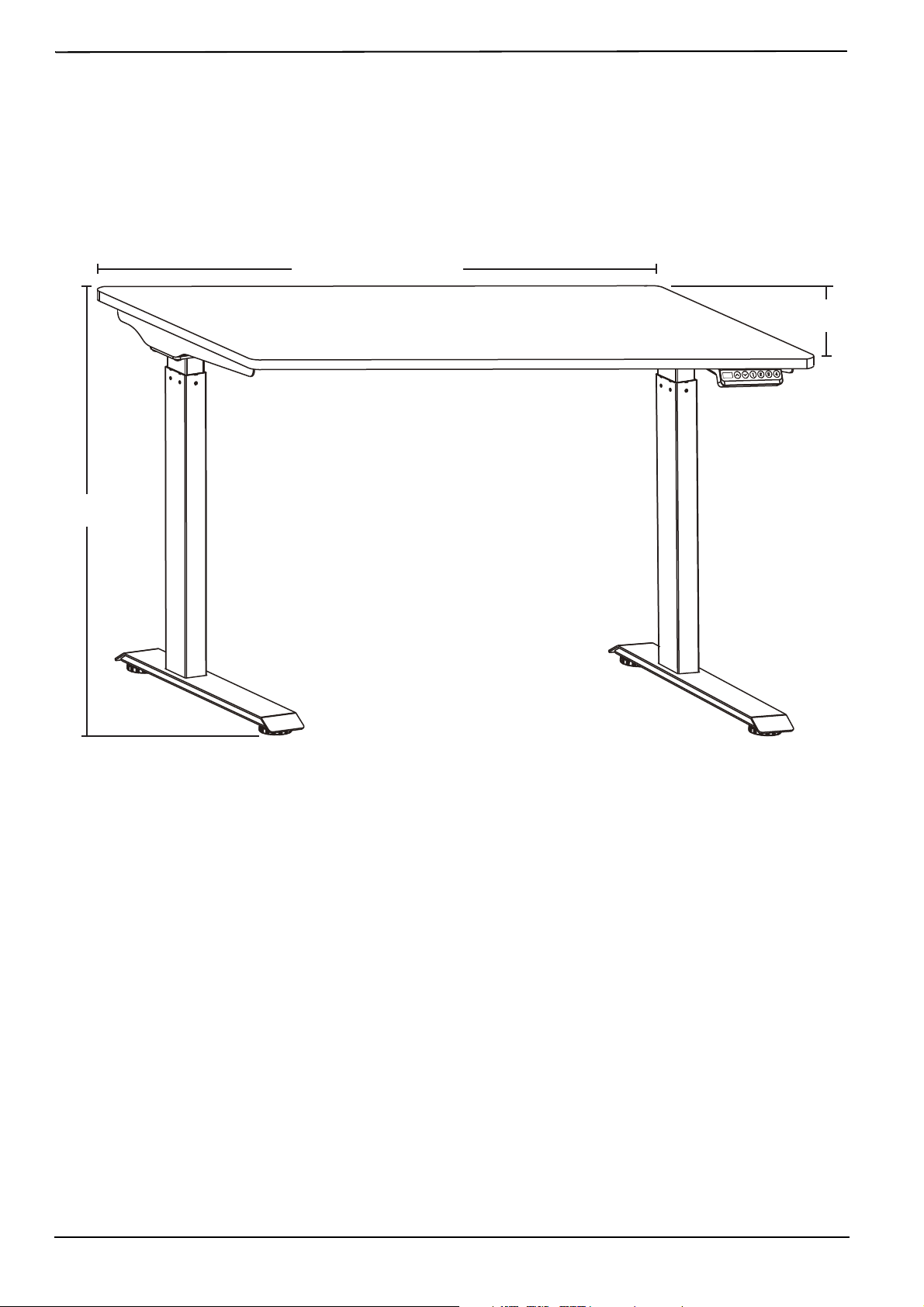
Dimensions
28.7 in. ~ 48.4 in.
(73 cm ~ 123 cm)
55.1 in. (140 cm)
27.6 in. (70 cm)
4
www.insigniaproducts.com
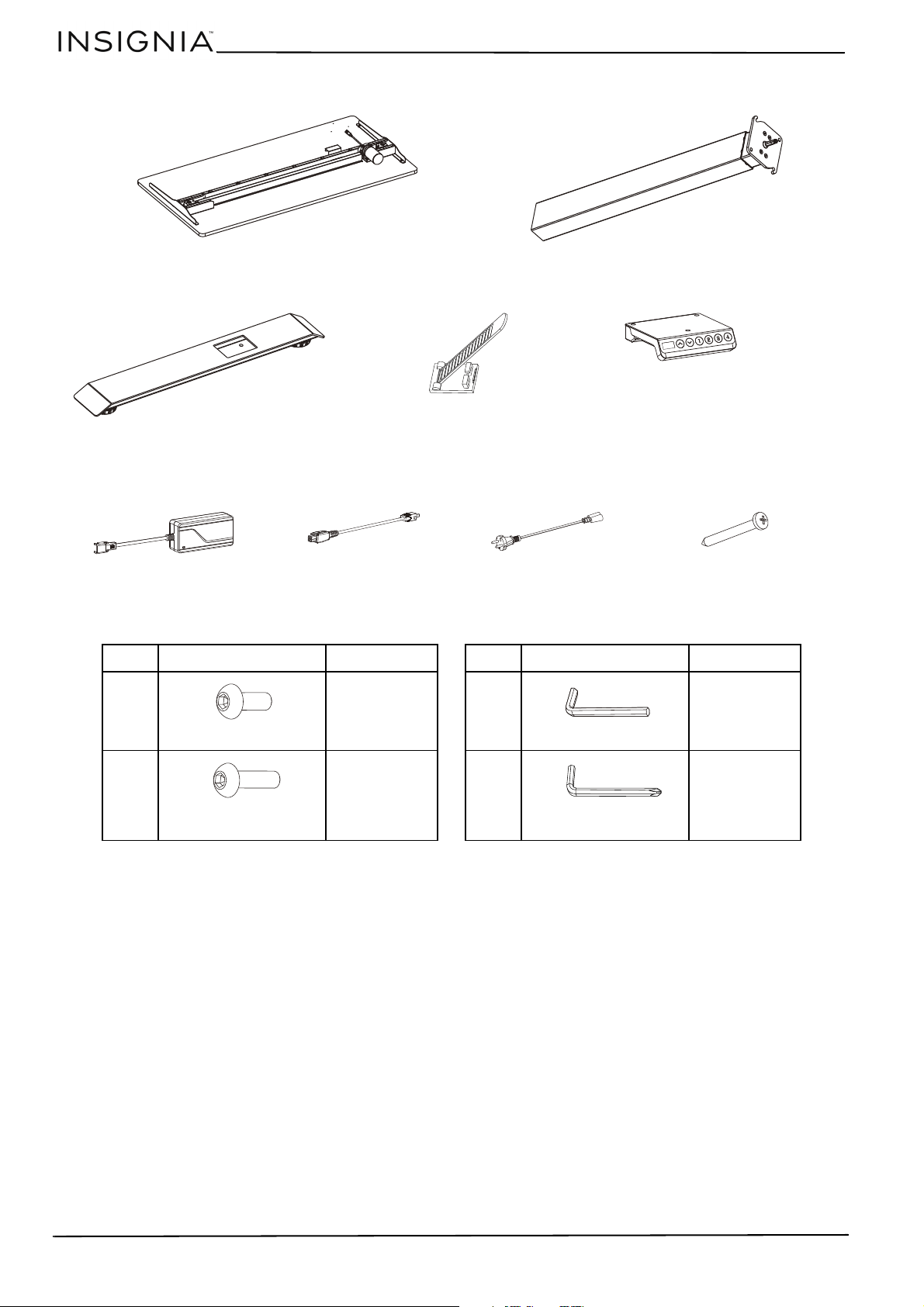
Parts included
Hardware included
LABEL PART QTY LABEL PART QTY
A4C1
B8D1
1
Tabletop (1)
2
Column (2)
3
Foot (2)
4
Cable tie (4)
5
Switch (1)
6
Adapter (1)
7
Adapter cable (1)
8
Power cable (1)
9
Switch screw (3)
Short hex-head screw
4 × 4 hex wrench
Long hex-head screw
5 × 5 hex wrench with
Phillips head
5
55" Black Standing Desk
www.insigniaproducts.com
Preparing to assemble your desk
1 Make sure that all parts and hardware are included.
2 To prevent product damage, assemble your desk on a carpet.
3 Have another person help you with lifting and assembly.
4 For the best results, do not fully tighten the screws until you have assembled all the other parts.
Assembling your desk
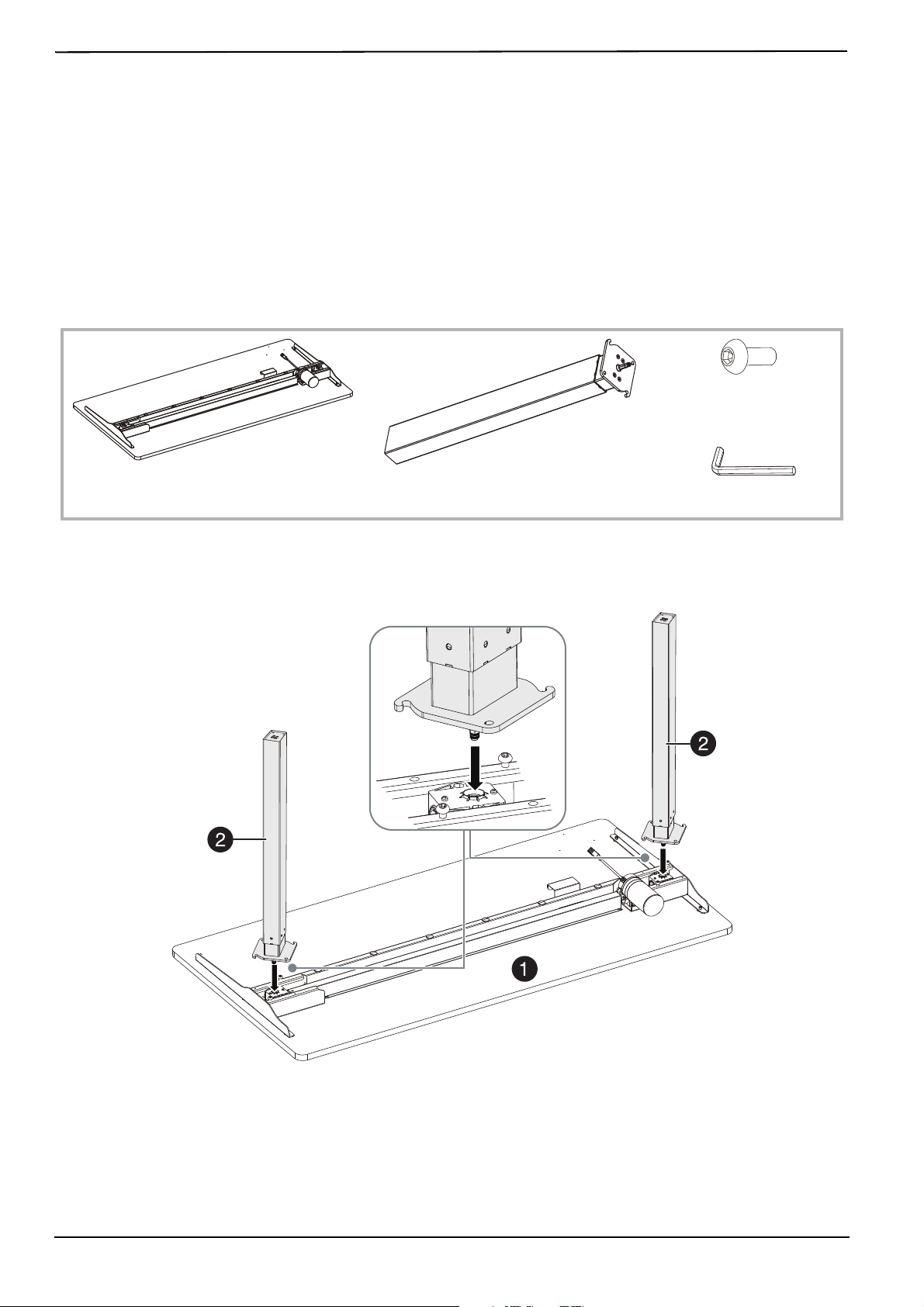
STEP 1: Install the columns
You n eed:
1 Turn the tabletop (1) face down on a carpet to prevent scratches.
2 Align the hooks on one column (2) with the screw holes on the column facing the front and back of the tabletop,
then insert the post on the column into the post hole on the tabletop.
C
4 × 4 hex wrench (1)
1
Tabletop (1)
2
Column (2)
A
Short hex-head
screw (4)
6
www.insigniaproducts.com
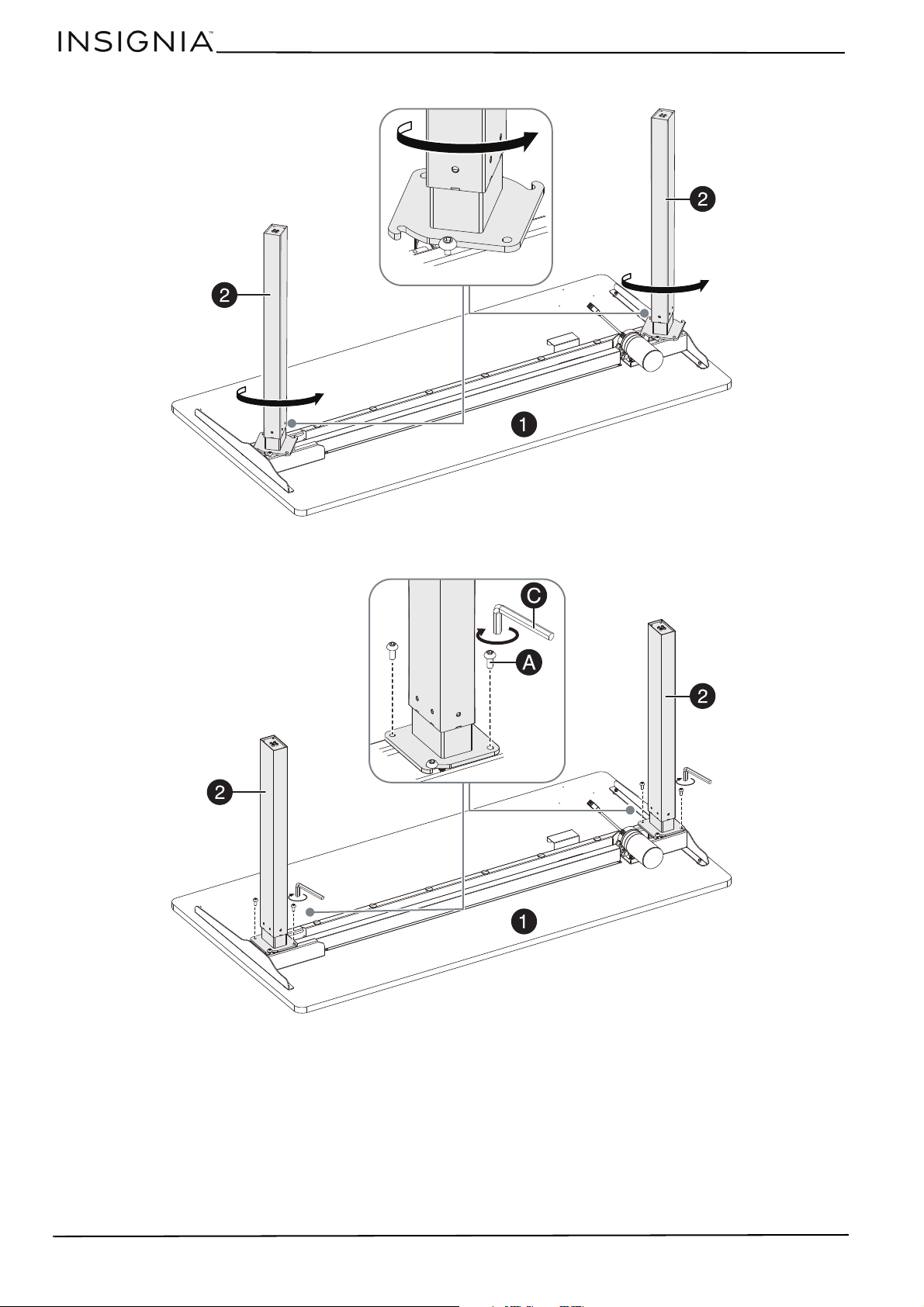
3 Rotate the column counter-clockwise until the column hooks are under the pre-installed screws on the tabletop.
4 Insert two short hex-head screws (A) through the screw holes on the column and into the tabletop. Tighten the
screws with the 4 × 4 hex wrench (C).
5 Repeat these steps to install the other column.
7
55" Black Standing Desk
www.insigniaproducts.com
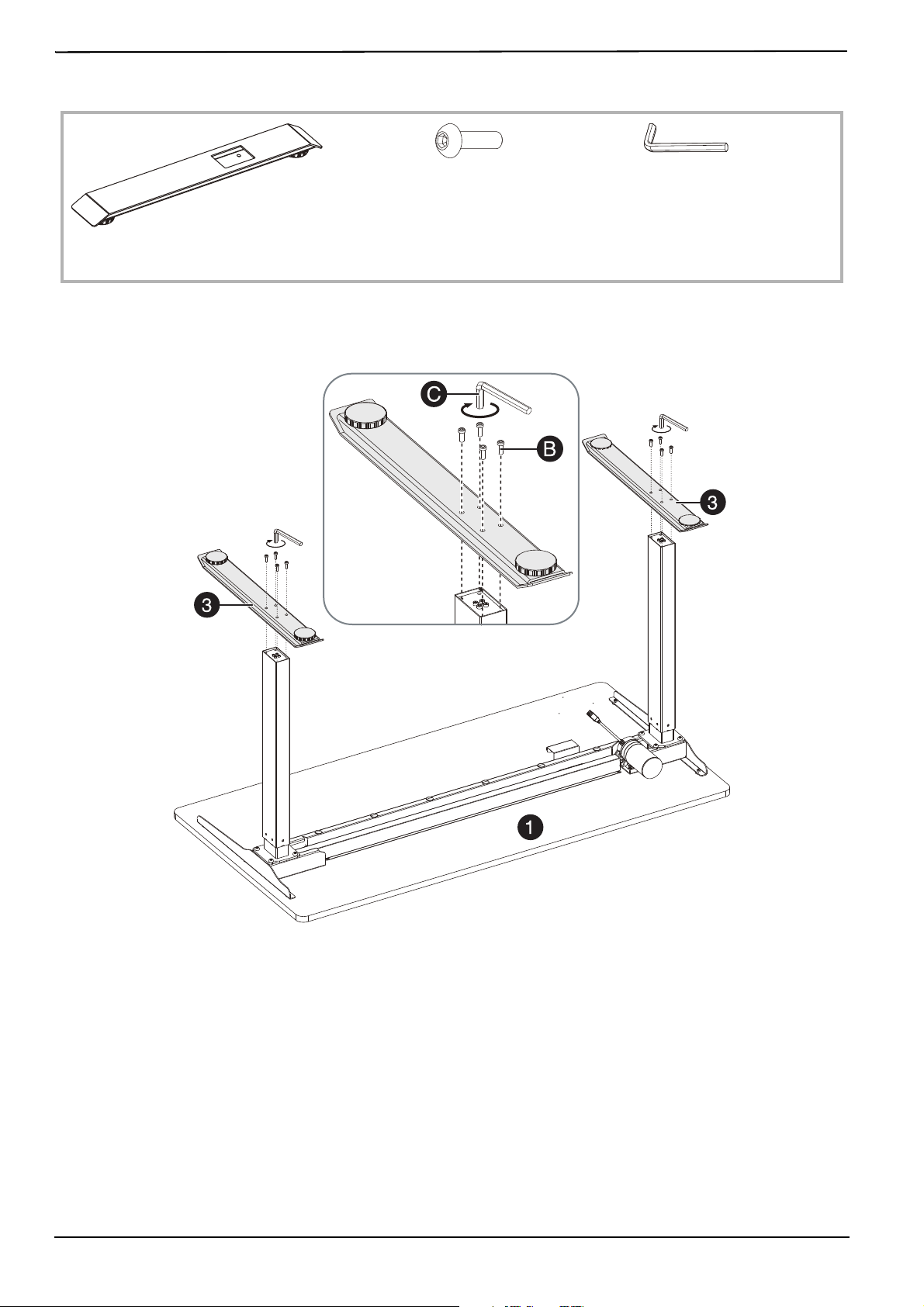
STEP 2: Install the feet:
1 Align the screw holes on the bottom of one foot (3) with the screws on the end of the column.
2 Insert four long hex-head screws (B) through the holes on the foot and into the holes on the column, then tighten
the screws with the 4 × 4 hex wrench (C).
3 Repeat these steps to install the other foot.
3
Foot (2)
C
4 × 4 hex wrench (1)
B
Long hex-head screw (8)
8
www.insigniaproducts.com
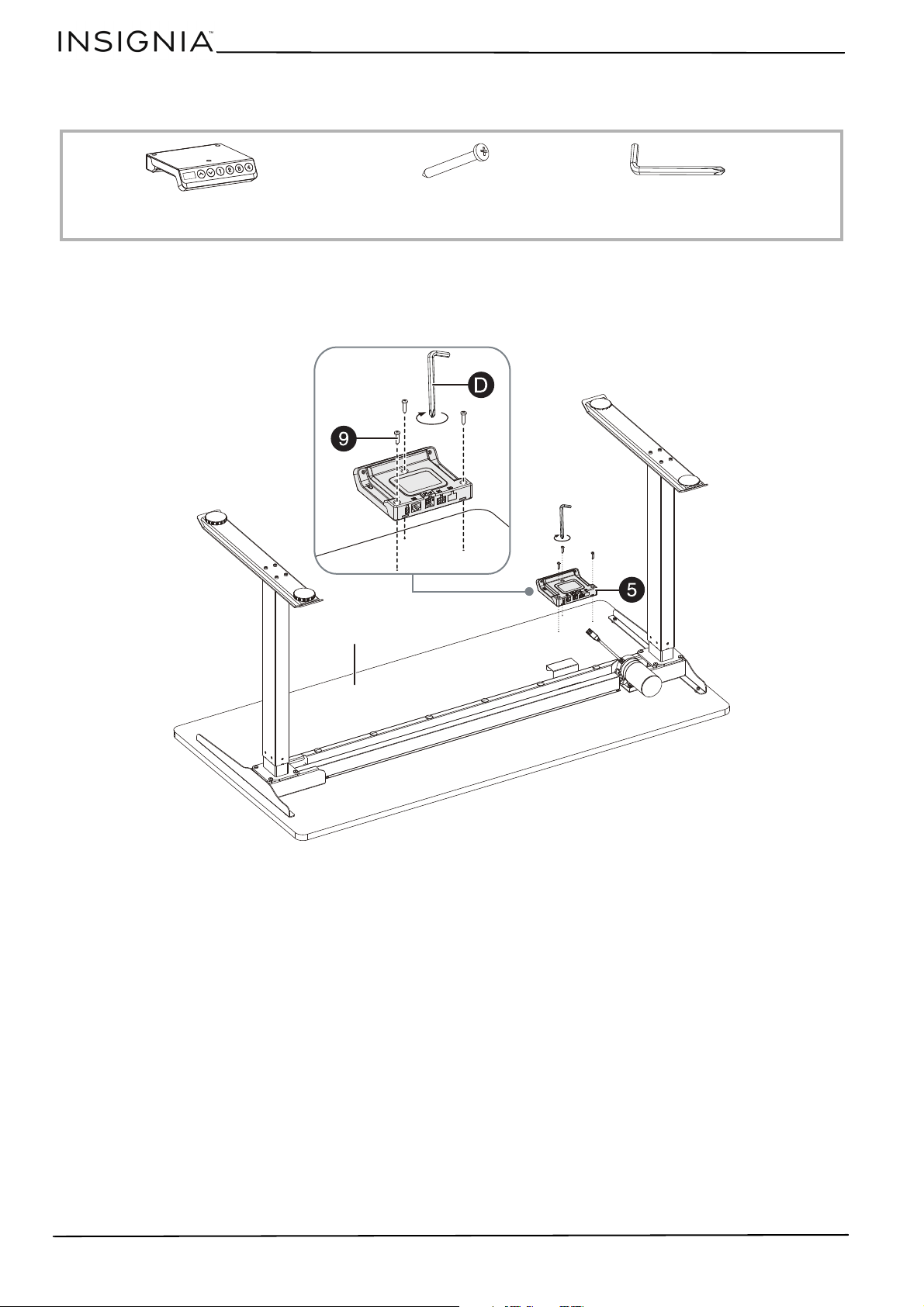
STEP 3: Install the switch
You n eed:
1 Place the switch (5) on the tabletop with the buttons facing the front of the tabletop. Align the screw holes in the
switch with the screw holes in the tabletop.
2 Insert three switch screws (9) through the holes on the switch and into the holes on the tabletop. Tighten the
screws with the 5 × 5 hex wrench with Phillips head (D).
9
Switch screw (3)
D
5 × 5 hex wrench with Phillips head
(1)
5
Switch (1)
Front
9
55" Black Standing Desk
www.insigniaproducts.com
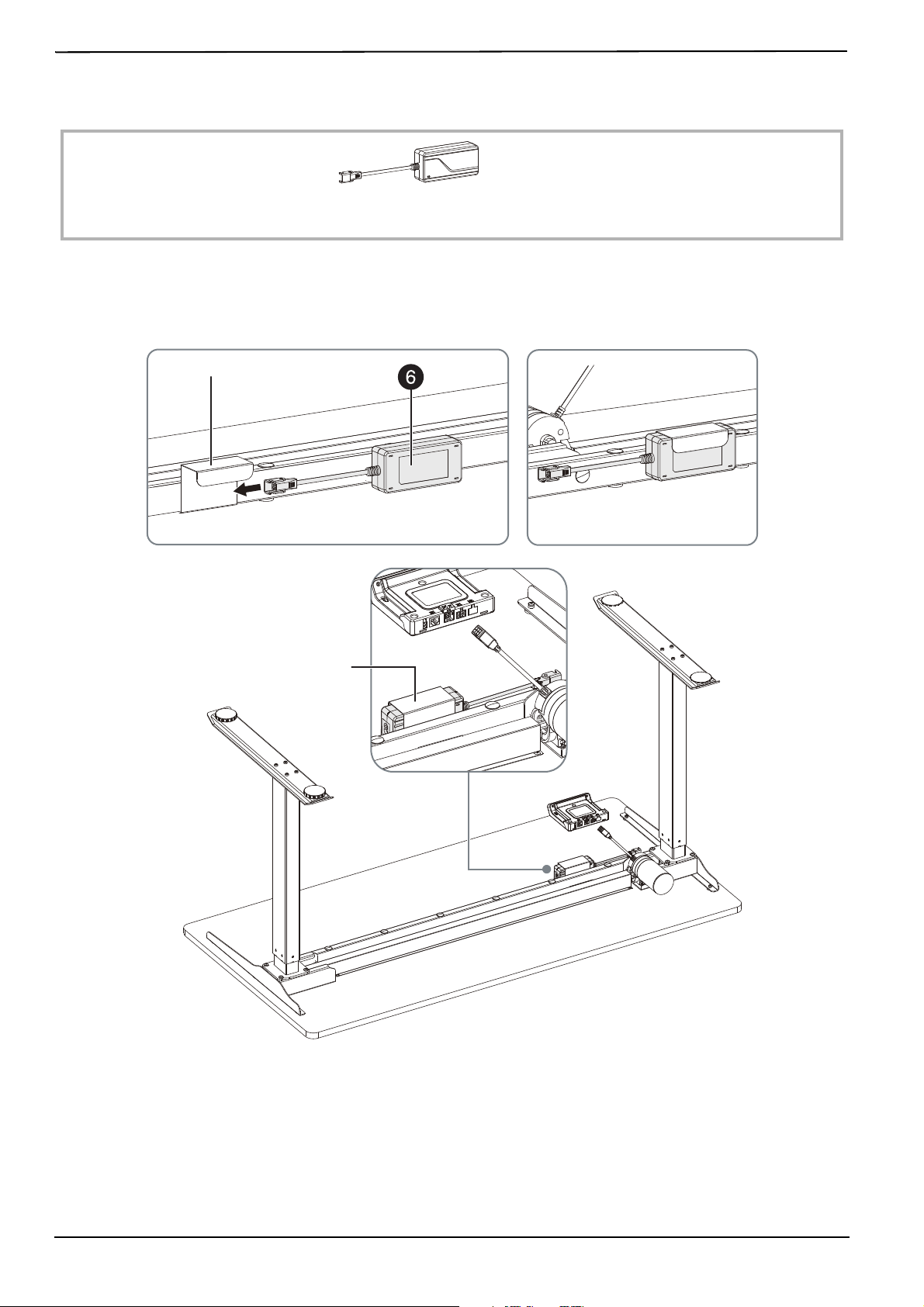
STEP 4: Install the adapter
You n eed:
•Slide the adapter (6) into the adapter bracket. Make sure that the adapter connector points to the nearest
column.
6
Adapter (1)
Adapter bracket
Note: For clarity, the adapter shown below is viewed from the switch side of the
tabletop.
Adapter bracket
10
www.insigniaproducts.com
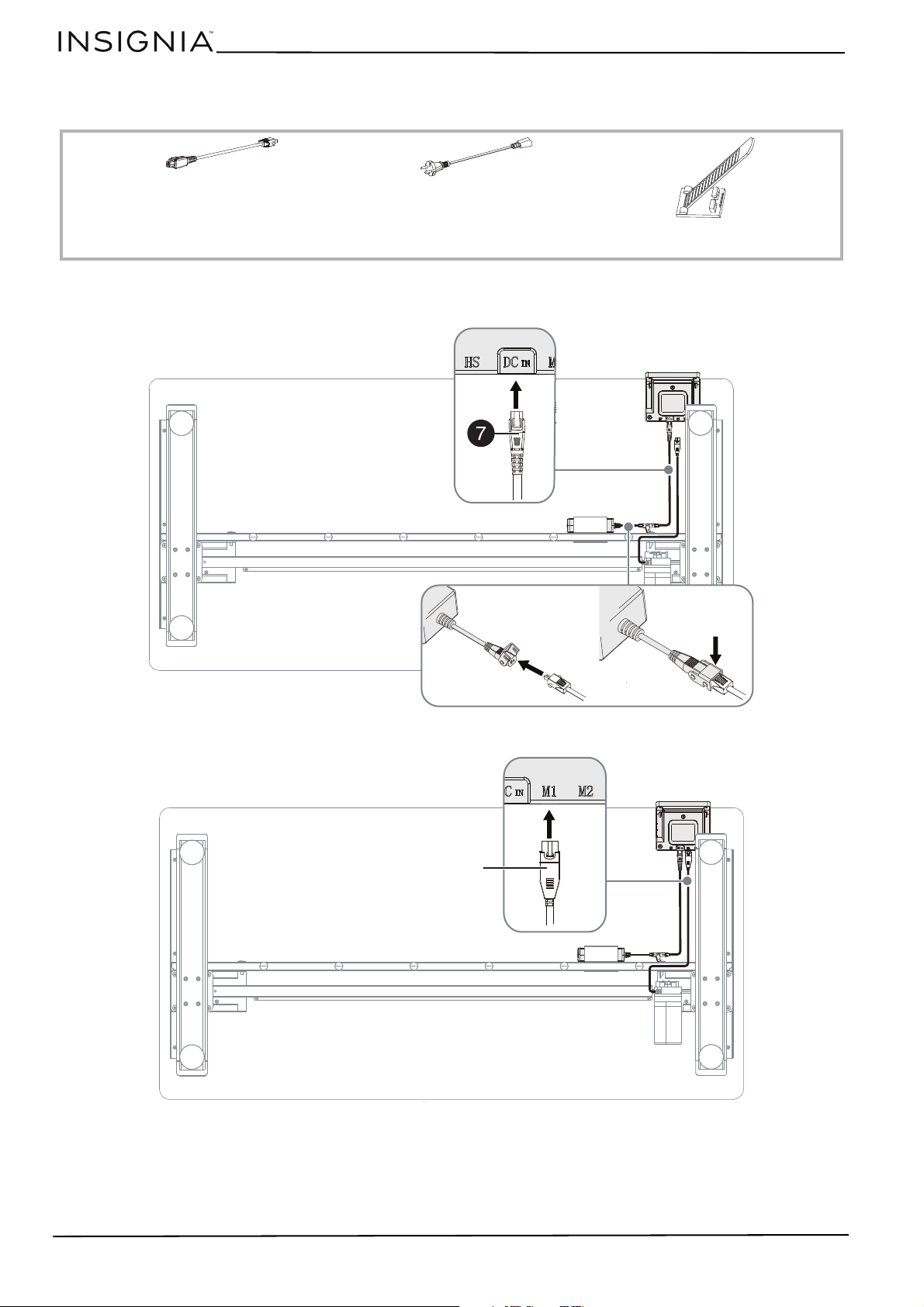
STEP 5: Connect and tie down the cables
You n eed:
1 Plug one end of the adapter cable (7) into the adapter connection, then plug the other end of the cable into the
DC IN port on the switch.
2 Plug the motor cable on the bottom of the tabletop into the M1 port.
8
Power cable
7
Adapter cable
4
Cable tie (4)
Motor cable
11
55" Black Standing Desk
www.insigniaproducts.com
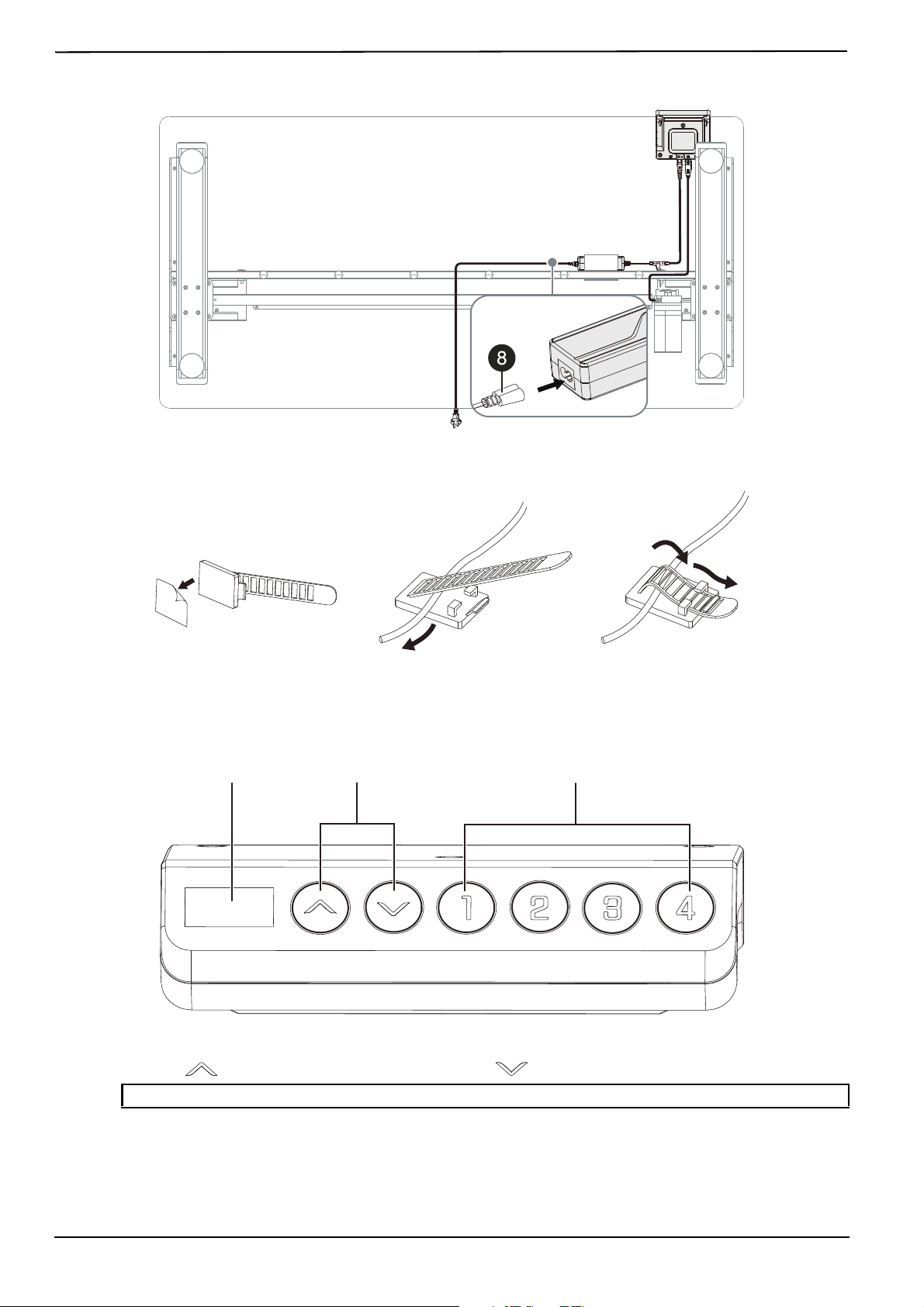
3 Plug the power cable (8) into the connector on the adapter.
4 Open a cable tie (4), slide the base of the tie under a cable, loop the cable tongue over the top of the cable, then
slide the end of the tongue into the tie bracket.
You can attach the cables to the bottom of the desktop with the provided cable ties.
Using the switch
Adjusting the height
• Press the (up) button to raise your desk or press the (down) button to lower your desk.
Note: The LED shows the height for 10 seconds.
Up and down Height memory positionsLED
12
www.insigniaproducts.com
Saving a height position
Your can save four height positions.
1 Adjust your desk to the height you want to save. The LED shows the height for 10 seconds.
2 Press and hold a height position button (1, 2, 3, or 4) for three seconds, then release the button. The height position
is saved and the LED shows S-1, S-2, S-3, or S-4.
3 To automatically adjust the height of your desk to the saved position, press 1, 2, 3, or 4.
Adjusting the anti-collision sensitivity
When the lifting system’s built-in sensor encounters resistance, the lifting system pauses, then reverses motion and
stops.
• Simultaneously press and hold the (up) and (down) buttons for five seconds to switch the sensitivity
level, then release the buttons. Repeat to select another sensitivity level. You can select:
• A-0 Turns off the anti-collision function
• A-1 Sets the sensitivity to low
• A-2 Sets the sensitivity to medium
• A-3 Sets the sensitivity to high
The default setting is A2.
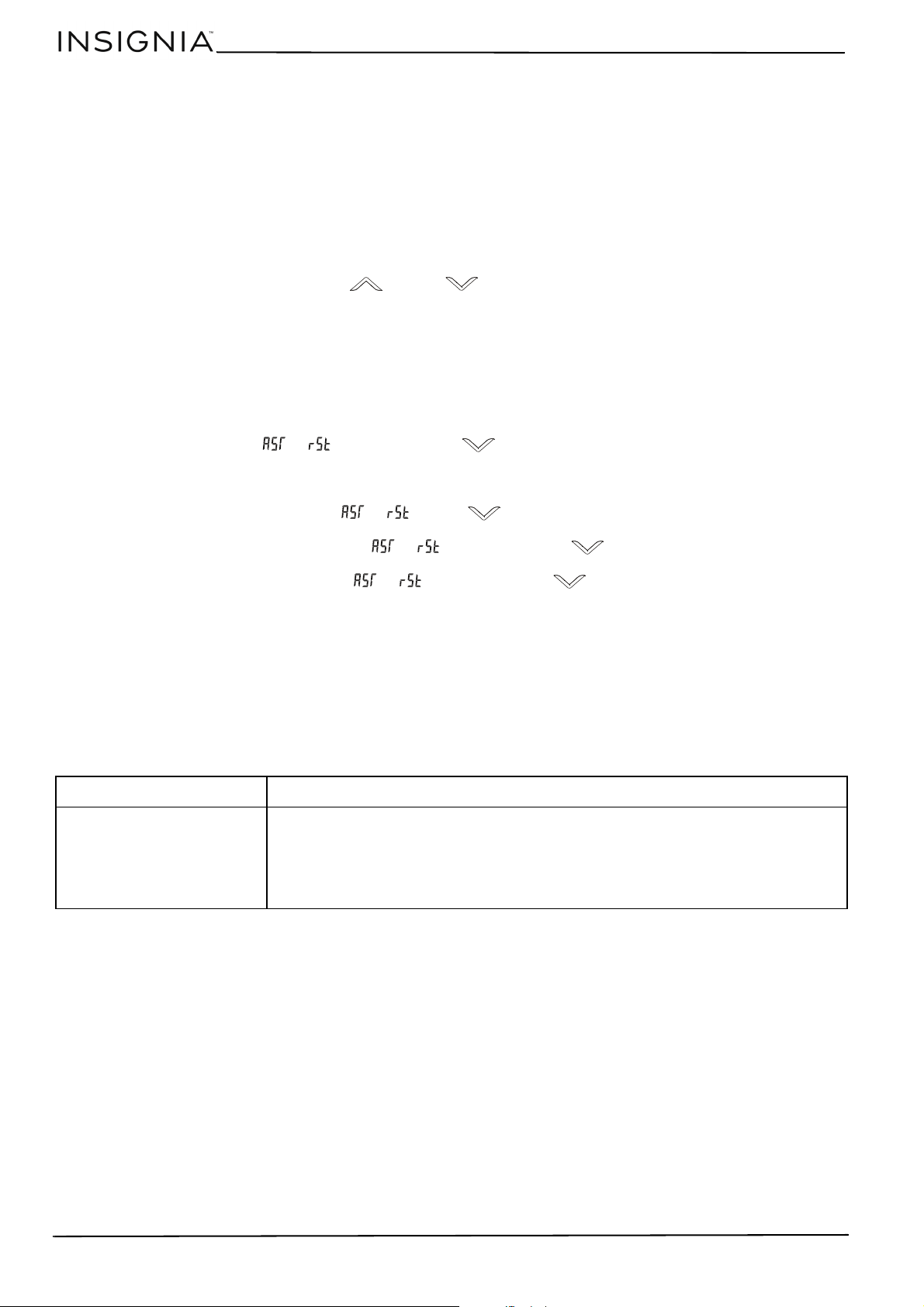
Resetting the switch
• When the LED shows or , press and hold the (down) button until the tabletop reaches the lowest
level and rebounds, then release the button. The LED shows the lowest position.
Clearing error codes
If the LED shows error codes other than or and the (down) button doesn’t respond:
• Make sure that the power cord isn’t damaged, then unplug the cord from the outlet. Wait two minutes, then plug
the cord back in. When the LED shows or , press and hold the (down) button to reset the switch.
• If the LED shows E01 or E02, unplug the cord from the outlet. Wait at least 18 minutes, then plug the cord back in
and try again. When the LED shows or , press and hold the (down) button to reset the switch.
• If the LED still shows an error code, contact Customer Support.
Cleaning your desk
• Clean the surface of your desk with a duster or damp cloth only.
• Do not use abrasive cleaners.
Troubleshooting
PROBLEM POSSIBLE SOLUTIONS
The tabletop won’t raise or
lower
• Make sure that all cables are securely connected.
• Make sure that the tabletop is not overloaded. The maximum weight shouldn’t exceed
110 lbs. (50 kg).
• Reset the switch.
• Unplug the power plug and try again after 18 minutes.
• If you still have a problem, contact Customer Support.

13
55" Black Standing Desk
www.insigniaproducts.com
Specifications
Dimensions (H × W × D) Raised: 48.4 × 55.1 × 27.6 in. (123 × 140 × 70 cm)
Lowered: 28.7 × 55.1 × 27.6 in. (73 × 140 × 70 cm)
Weight 77.3 lbs (35.1 kg)
Maximum supported weight 110 lbs. (50 kg)
Maximum speed 1.0 in./s (25 mm/s)
Lowest position 28.7 in. (73 cm)
Highest position 48.4 in. (123 cm)
Column stage 2 stage: (outer tube and inner tube)
Power supply AC100 V - 240 V, 50/60 HZ
Operating environment 32° to 104° F (0° to 40° C)

ONE-YEAR LIMITED WARRANTY
Definitions:
The Distributor* of Insignia branded products warrants to you, the original purchaser of this new Insignia-branded product (“Product”), that the
Product shall be free of defects in the original manufacturer of the material or workmanship for a period of one (1) year from the date of your
purchase of the Product (“Warranty Period”).
For this warranty to apply, your Product must be purchased in the United States or Canada from a Best Buy branded retail store or online at
www.bestbuy.com
or www.bestbuy.ca and is packaged with this warranty statement.
How long does the coverage last?
The Warranty Period lasts for 1 year (365 days) from the date you purchased the Product. Your purchase date is printed on the receipt you received
with the Product.
What does this warranty cover?
During the Warranty Period, if the original manufacture of the material or workmanship of the Product is determined to be defective by an
authorized Insignia repair center or store personnel, Insignia will (at its sole option): (1) repair the Product with new or rebuilt parts; or (2) replace
the Product at no charge with new or rebuilt comparable products or parts. Products and parts replaced under this warranty become the property
of Insignia and are not returned to you. If service of Products or parts are required after the Warranty Period expires, you must pay all labor and
parts charges. This warranty lasts as long as you own your Insignia Product during the Warranty Period. Warranty coverage terminates if you sell or
otherwise transfer the Product.
How to obtain warranty service?
If you purchased the Product at a Best Buy retail store location or from a Best Buy online website (www.bestbuy.com or www.bestbuy.ca), please
take your original receipt and the Product to any Best Buy store. Make sure that you place the Product in its original packaging or packaging that
provides the same amount of protection as the original packaging.
To obtain warranty service, in the United States and Canada call 1-877-467-4289. Call agents may diagnose and correct the issue over the phone.
Where is the warranty valid?
This warranty is valid only in the United States and Canada at Best Buy branded retail stores or websites to the original purchaser of the product in
the country where the original purchase was made.
What does the warranty not cover?
This warranty does not cover:
• Food, beverage, and or medicine loss/spoilage.
• Customer instruction/education
•Installation
•Set up adjustments
• Cosmetic damage
• Damage due to weather, lightning, and other acts of God, such as power surges
• Accidental damage
•Misuse
•Abuse
•Negligence
• Commercial purposes/use, including but not limited to use in a place of business or in communal areas of a multiple dwelling condominium
or apartment complex, or otherwise used in a place of other than a private home.
• Modification of any part of the Product, including the antenna
• Display panel damaged by static (non-moving) images applied for lengthy periods (burn-in).
• Damage due to incorrect operation or maintenance
• Connection to an incorrect voltage or power supply
• Attempted repair by any person not authorized by Insignia to service the Product
• Products sold “as is” or “with all faults”
• Consumables, including but not limited to batteries (i.e. AA, AAA, C etc.)
• Products where the factory applied serial number has been altered or removed
• Loss or Theft of this product or any part of the product
• Display panels containing up to three (3) pixel failures (dots that are dark or incorrectly illuminated) grouped in an area smaller than one
tenth (1/10) of the display size or up to five (5) pixel failures throughout the display. (Pixel based displays may contain a limited number of
pixels that may not function normally.)
• Failures or Damage caused by any contact including but not limited to liquids, gels or pastes.
REPAIR REPLACEMENT AS PROVIDED UNDER THIS WARRANTY IS YOUR EXCLUSIVE REMEDY FOR BREACH OF WARRANTY. INSIGNIA SHALL NOT
BE LIABLE FOR ANY INCIDENTAL OR CONSEQUENTIAL DAMAGES FOR THE BREACH OF ANY EXPRESS OR IMPLIED WARRANTY ON THIS
PRODUCT, INCLUDING, BUT NOT LIMITED TO, LOST DATA, LOSS OF USE OF YOUR PRODUCT, LOST BUSINESS OR LOST PROFITS. INSIGNIA
PRODUCTS MAKES NO OTHER EXPRESS WARRANTIES WITH RESPECT TO THE PRODUCT, ALL EXPRESS AND IMPLIED WARRANTIES FOR THE
PRODUCT, INCLUDING BUT NOT LIMITED TO ANY IMPLIED WARRANTIES OF AND CONDITIONS OF MERCHANTABILITY AND FITNESS FOR A
PARTICULAR PURPOSE, ARE LIMITED IN DURATION TO THE WARRANTY PERIOD SET FORTH ABOVE AND NO WARRANTIES, WHETHER EXPRESS
OR IMPLIED, WILL APPLY AFTER THE WARRANTY PERIOD. SOME STATES, PROVINCES AND JURISDICTIONS DO NOT ALLOW LIMITATIONS ON
HOW LONG AN IMPLIED WARRANTY LASTS, SO THE ABOVE LIMITATION MAY NOT APPLY TO YOU. THIS WARRANTY GIVES YOU SPECIFIC LEGAL
RIGHTS, AND YOU MAY ALSO HAVE OTHER RIGHTS, WHICH VARY FROM STATE TO STATE OR PROVINCE TO PROVINCE.
Contact Insignia:
1-877-467-4289
www.insigniaproducts.com
INSIGNIA is a trademark of Best Buy and its affiliated companies.
*Distributed by Best Buy Purchasing, LLC
7601 Penn Ave South, Richfield, MN 55423 U.S.A
©2022 Best Buy. All rights reserved.

For product inquiries, please contact us with the information below:
1-877-467-4289
www.insigniaproducts.com
INSIGNIA is a trademark of Best Buy and its affiliated companies.
Distributed by Best Buy Purchasing, LLC
7601 Penn Ave South, Richfield, MN 55423 U.S.A.
©2022 Best Buy. All rights reserved.
V1 ENGLISH
22-0095