TREAD
®
XL-BAJA RACE EDITION
TREADXL-BAJACHASEEDITION
Owner’s Manual

© 2022 Garmin Ltd. or its subsidiaries
All rights reserved. Under the copyright laws, this manual may not be copied, in whole or in part, without the written consent of Garmin. Garmin reserves the right to change
or improve its products and to make changes in the content of this manual without obligation to notify any person or organization of such changes or improvements. Go to
www.garmin.com for current updates and supplemental information concerning the use of this product.
Garmin
®
, the Garmin logo, inReach
®
, TracBack
®
, and Tread
®
are trademarks of Garmin Ltd. or its subsidiaries, registered in the USA and other countries. BaseCamp
™
, Garmin
Adventurous Routing
™
, Garmin Drive
™
, Garmin Explore
™
, Garmin Express
™
, Garmin PowerSwitch
™
, Garmin Response
SM
, and myTrends
™
are trademarks of Garmin Ltd. or its
subsidiaries. These trademarks may not be used without the express permission of Garmin.
Android
™
is a trademark of Google Inc. Apple
®
and Mac
®
are trademarks of Apple Inc., registered in the U.S. and other countries. The BLUETOOTH
®
word mark and logos are owned
by the Bluetooth SIG, Inc., and any use of such name by Garmin is under license. iOverlander
™
is a trademark of iOverlander. Iridium
®
is a registered trademark of Iridium Satellite
LLC. microSD
®
and the microSD logo are trademarks of SD-3C, LLC. Tripadvisor
®
is a registered trademark of Tripadvisor LLC. Windows
®
is a registered trademark of Microsoft
Corporation in the United States and other countries. Wi‑Fi
®
is a registered trademark of Wi-Fi Alliance. Other trademarks and trade names are those of their respective owners.

Table of Contents
Getting Started................................. 1
Setting Up Your Device........................... 1
Device Overview...................................... 1
Tread XL Dock Overview......................... 2
Turning the Device On or Off.................. 4
Acquiring GPS Signals............................ 4
Status Bar Icons...................................... 5
Using the Touchscreen........................... 5
Using the On-Screen Buttons................. 5
Adjusting the Screen Brightness............ 5
Vehicle Profiles....................................... 6
Adding a Vehicle Profile...................... 6
Choosing a Vehicle Profile.................. 6
Editing a Vehicle Profile...................... 6
Installation....................................... 7
Installing the Tread XL-Baja Race
Edition Device.......................................... 7
Mounting Considerations................... 7
Power Cable Overview........................ 7
External Antenna Mounting
Considerations.................................... 8
Installing the External GNSS
Antenna............................................ 8
Installing the External Iridium
Antenna............................................ 9
Installing the Dock on a Vehicle
Surface................................................. 9
Bail Mounting the Dock..................... 10
Connecting the Device to the Dock.. 12
Removing the Device from the
Dock................................................... 13
Installing the Tread XL-Baja Chase
Edition Device........................................ 14
Mounting and Powering the Device in
Your Vehicle....................................... 14
Off-Road Racing Features...............15
Importing GPX Files with a Memory
Card........................................................ 15
Starting a Race...................................... 15
Race Navigation.................................... 16
Using the Chase Map............................ 17
Creating Waypoints............................... 17
Locking and Unlocking the
Touchscreen.......................................... 17
Off-Road Navigation Features........ 18
Routes.................................................... 18
Adventure Roads and Trails................. 18
Straight Line Routes..............................19
Stopping the Route............................ 19
Tracks.................................................... 19
Recording Tracks.............................. 19
Splitting a Track................................ 20
Reviewing Tracks.............................. 20
Editing Tracks.................................... 20
Navigating a Track............................ 20
Viewing Your Garmin Explore™ or Race
File Collections on the Map.............. 20
Viewing the Altimeter, Barometer, and
Compass................................................20
Calibrating the Compass.................. 21
Group Ride............................................. 21
Starting a Group Ride........................ 21
Joining a Group Ride......................... 21
Rejoining a Recent Group Ride......... 21
Adding Riders to a Group Ride......... 22
Broadcasting a Message.................. 22
Broadcasting a Location................... 22
Viewing a Group Ride Notification... 22
Exiting a Group Ride.......................... 22
Group Ride Settings.......................... 23
Radio...................................................... 23
Selecting a Preset............................. 23
Selecting a Radio Channel................ 23
Adjusting the Squelch....................... 23
Adding a Custom Radio Preset........ 23
Selecting a Roger Tone..................... 24
Turning the Radio Off........................ 24
Enabling Push-to-Talk with a
Headset.............................................. 24
Transmitting Your Voice................... 24
Adjusting the Radio Volume............. 24
Radio Settings................................... 24
inReach Features............................25
Activating the Device............................ 25
Team Tracking Using Built-in inReach
Technology............................................ 25
Table of Contents i

Starting and Stopping Team
Tracking............................................. 25
Sharing Your MapShare Web Page.. 26
inReach Tracking Settings................ 26
Messages.............................................. 26
Sending a Preset inReach
Message............................................ 26
Sending a Text Message.................. 26
Replying to a Message...................... 26
Checking for Messages.................... 27
Navigating to a Message Location.. 27
Deleting a Message...........................27
SOS.........................................................27
Initiating an SOS Rescue...................28
Canceling an SOS Rescue.................28
Contacts................................................ 28
Adding a Contact............................... 28
Editing a Contact............................... 29
Deleting a Contact............................. 29
Viewing Plan and Usage Details.......... 29
Using the Map................................ 29
Map Tools.............................................. 29
Viewing a Map Tool...........................29
Customizing the Map............................ 30
Customizing the Map Layers............ 30
Viewing the Public Lands Map
Key.................................................. 30
Enabling Adventure Roads and Trails
Map Layers........................................ 30
Changing the Map Data Field........... 30
Changing the Map Buttons............... 30
Changing the Map Perspective........ 30
Using the Apps............................... 31
Viewing the Owner's Manual on
YourDevice............................................31
BirdsEye Imagery.................................. 31
Downloading BirdsEye Imagery........31
Garmin PowerSwitch™ App.................. 32
Activating a Power Switch................ 32
Turning Off All Switches................... 32
Customizing a Button....................... 33
Assigning a Switch to a Control
Input................................................... 33
Adding a Custom Layout.................. 33
Adding a Button to a Custom
Layout.............................................34
Arranging Buttons In a Custom
Layout.............................................34
Deleting a Custom Layout or
Button............................................. 34
Routines............................................. 34
Adding a Routine........................... 35
Editing a Routine............................35
Deleting a Routine......................... 35
Tread Audio App................................... 36
LED Controls...................................... 36
Enabling LED Groups..................... 37
Changing the Media Source..........37
LED Light Settings......................... 37
Audio Zone Settings.......................... 37
Pairing with Your Smartphone........ 38
Tips After Pairing the Devices.............. 38
Pairing Additional Bluetooth Devices.. 38
Enabling or Disabling Bluetooth
Features................................................. 38
Enabling or Disabling Bluetooth Features
for Your Headset................................... 38
Disconnecting a Bluetooth Device....... 39
Deleting a Paired Phone....................... 39
Street Navigation............................39
Starting a Route.....................................39
Starting a Route by Using the Map...39
Your Route on the Map......................... 40
Viewing Turns and Directions...........41
Viewing the Entire Route on the
Map.................................................... 41
Changing Your Active Route.................41
Adding a Location to Your Route..... 41
Shaping Your Route...........................41
Avoiding Delays, Tolls, and Areas........ 41
Avoiding Toll Roads.......................... 41
Avoiding Road Features.................... 42
Custom Avoidances.......................... 42
Avoiding a Road............................. 42
Avoiding an Area........................... 42
Disabling a Custom Avoidance.....42
Deleting Custom Avoidances....... 42
Arriving at Your Destination.............. 42
ii Table of Contents

Changing the Route Calculation
Mode...................................................... 43
Taking a Route Using Garmin
Adventurous Routing™.......................... 43
Taking a Detour..................................... 43
Going Home...........................................43
Editing Your Home Location.............43
Parking Near Your Destination............. 43
Finding and Saving Locations......... 44
Finding a Location Using the Search
Bar.......................................................... 44
Location Search Results....................... 45
Changing the Search Area.................... 45
Finding a Location by Category............45
Navigating to Points of Interest Within
a Venue.............................................. 46
Points of Interest...................................46
Finding National Parks...................... 46
Finding Campgrounds.......................46
Finding Ultimate Campgrounds Points
of Interest...........................................47
Finding iOverlander™ Points
of Interest...........................................47
Finding Adventure Points..................47
Tripadvisor......................................... 47
Finding Tripadvisor Points of
Interest........................................... 47
Finding Parking Near Your Current
Location................................................. 48
Search Tools..........................................48
Finding an Address........................... 48
Finding a Location Using
Coordinates....................................... 48
Viewing Recently Found Locations...... 48
Clearing the List of Recently Found
Locations........................................... 48
Viewing Current Location
Information............................................ 48
Finding Emergency Services and
Fuel..................................................... 49
Getting Directions to Your Current
Location............................................. 49
Adding a Shortcut................................. 49
Removing a Shortcut......................... 49
Saving Locations................................... 49
Saving a Location.............................. 49
Saving a Waypoint on the Map......... 50
Saving Your Current Location........... 50
Editing a Saved Location.................. 50
Assigning Categories to a Saved
Location............................................. 50
Deleting a Saved Location................ 50
Settings..........................................51
Navigation Settings............................... 51
Map Display Settings............................ 51
Enabling Maps................................... 51
Connecting to a Wireless Network.......51
Enabling Bluetooth Wireless
Technology............................................ 51
Display Settings.....................................52
Adjusting Sound and Notification
Volume................................................... 52
Setting the Text Language....................52
Date and Time Settings........................ 52
Device Settings......................................52
Enabling or Disabling Location
Services................................................. 52
Device Information......................... 52
Viewing E-label Regulatory and
Compliance Information....................... 52
Specifications........................................53
Charging the Device.............................. 53
Device Maintenance....................... 53
Garmin Support Center......................... 53
Map and Software Updates.................. 53
Updating Maps and Software Using a
Wi‑Fi Network.................................... 54
Product Updates................................54
Updating Maps and Software with
Garmin Express............................. 55
Device Care............................................56
Cleaning the Outer Casing................ 56
Cleaning the Touchscreen................ 56
Avoiding Theft................................... 56
Restarting the Device............................ 56
Troubleshooting............................. 56
My device is not acquiring satellite
signals....................................................56
My battery does not stay charged for
very long................................................ 56
Table of Contents iii

My device does not connect to my
phone..................................................... 57
My device does not appear as a
removable drive on my computer........ 57
Appendix........................................ 57
Garmin PowerSwitch............................ 57
Mounting Considerations................. 57
Mounting the Device......................... 58
Opening the Front Cover................... 59
Connecting Accessories................... 60
Connecting a Control Input............... 61
Connecting the Device to Vehicle
Power................................................. 61
Pairing with a Garmin Navigation
Device.................................................62
Garmin PowerSwitch
Specifications.................................... 62
Garmin PowerSwitch
Troubleshooting................................ 62
My Garmin PowerSwitch will not
stay connected.............................. 62
My accessories are not receiving
power..............................................63
Tread Audio........................................... 63
Tools and Materials Needed............ 63
Tread Audio Box Mounting
Considerations.................................. 63
Mounting the Tread Audio Box Black
Box Device..................................... 64
Connections................................... 64
Port Identification...................... 64
Speaker and LED Wiring Harness
Wire and Connector
Identification.............................. 65
RCA Wiring Harness Wire and
Connector Identification............67
Connecting the Device to Vehicle
Power..........................................68
Using the Heat-Shrink Crimp
Connectors................................. 69
Complete System Wiring........... 70
Speaker Zones........................... 70
Single-Zone System Wiring
Example...................................... 71
Wireless Remote Mounting
Considerations.................................. 71
Mounting the Wireless Remote.... 71
Mounting the Speakers and
Brackets............................................. 72
Wiring............................................. 73
Wire Gauge Guide...................... 73
Additional Speakers...................73
Wireless Remote Overview............... 74
Connecting the Wireless Remote to
your Tread Audio Box.................... 74
Pairing with a Garmin Navigation
Device.................................................75
Tread Audio Box Specifications....... 75
Tread 6.5" XS-LED Tower Speakers
Specifications.................................... 76
Dimensions.................................... 76
Bracket Specifications...................... 77
Bracket Side Dimensions.............. 77
Bracket Top Dimensions............... 77
Data Management................................ 77
About Memory Cards........................ 78
Installing a Memory Card for Maps
and Data............................................. 78
Formatting the Memory Card........... 78
Connecting the Device to Your
Computer........................................... 78
Transferring GPX Files From Your
Computer........................................... 78
Transferring Data From Your
Computer........................................... 79
Disconnecting the USB Cable........... 79
Adding BaseCamp™ Data to
Garmin Explore.................................. 79
Exporting Data from BaseCamp with
a PC................................................ 79
Exporting Data from BaseCamp with
an Apple Computer........................79
Importing Data to Garmin
Explore........................................... 80
Purchasing Additional Maps................ 80
iv Table of Contents
Getting Started
WARNING
See the Important Safety and Product Information guide in the product box for product warnings and other
important information.
Setting Up Your Device
To take full advantage of the Tread XL device, complete these tasks.
1 Install the device and connect it to vehicle power (Installation, page7).
2 Update the device software (Updating Maps and Software Using a Wi‑Fi Network, page54).
3 Set up inReach
®
team tracking features (Activating the Device, page25).
4 Import .gpx files to your device (Importing GPX Files with a Memory Card, page15).
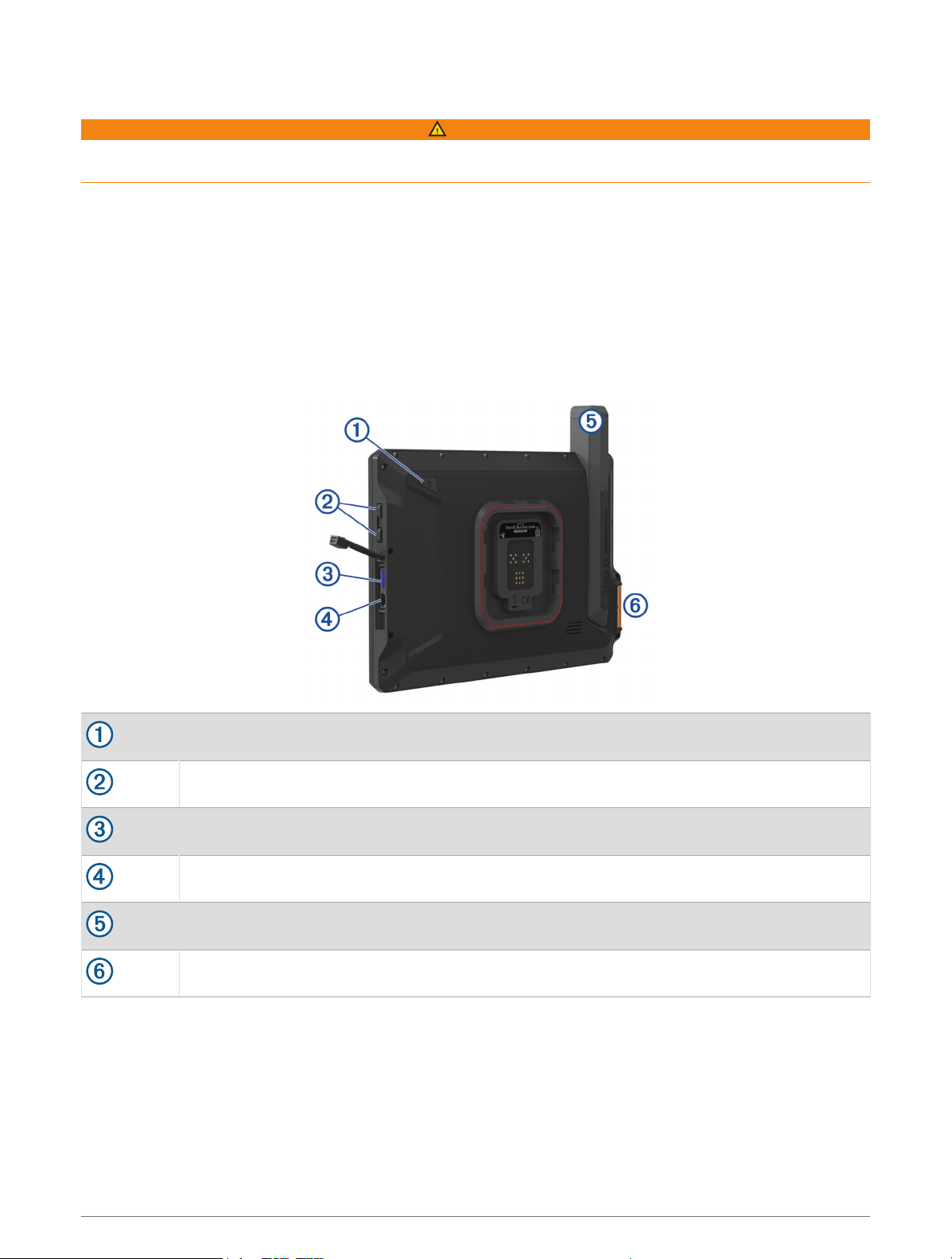
Device Overview
Power button
Volume control
microSD
®
memory card slot
USB power and data port
Iridium
®
antenna
SOS button (under protective cover)
Getting Started 1
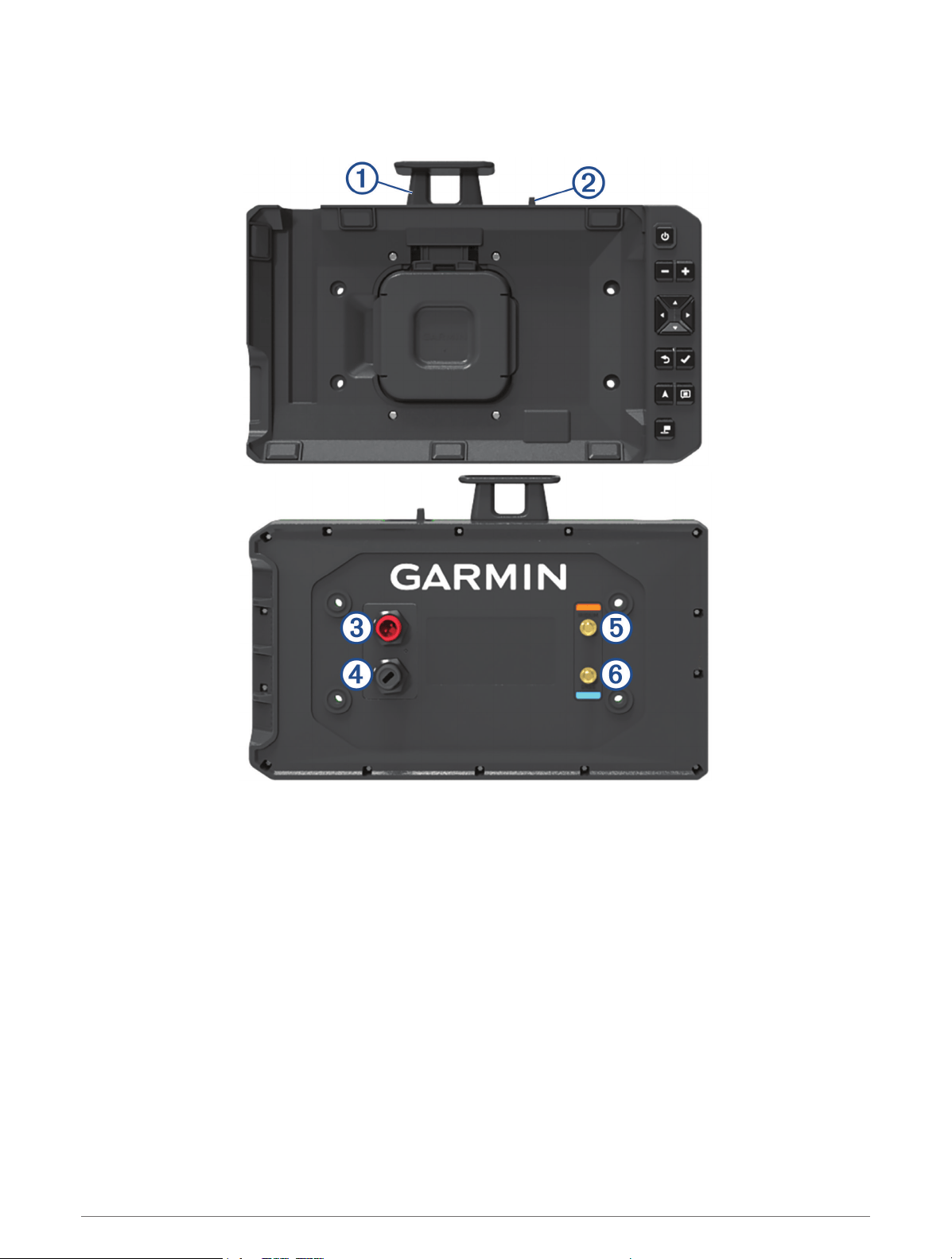
Tread XL Dock Overview
The Tread XL Dock accessory securely holds your device while you travel over rough terrain. Before you can use
the dock features, you must install the dock and connect it to vehicle power.
2 Getting Started
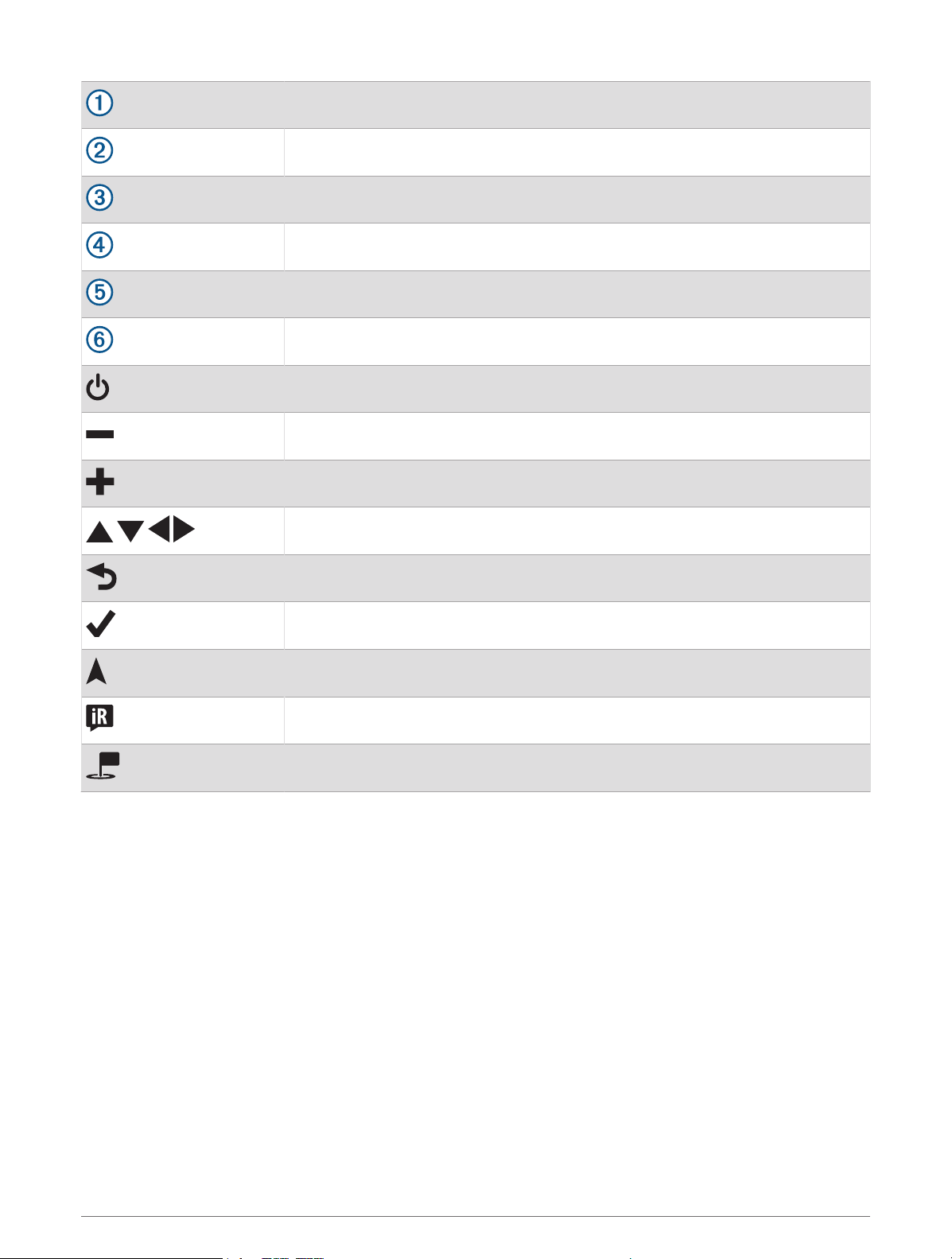
Latch
Press down to secure the navigation device in the dock.
Lock switch
Slide the switch toward the latch to lock the navigation device in the dock.
Power port
Connect to vehicle power using the included power cable.
Data port
Connect to an optional Group Ride accessory.
Iridium antenna port
Connect to an external Iridium antenna.
GNSS antenna port
Connect to an external GNSS antenna.
Press to turn on the navigation device.
Press to zoom out the map.
Press to zoom in the map.
Press to move through menu items or scroll the map.
Press to return to the previous screen.
Press to select an option.
Press to open the map.
Press to open the Team Tracking map tool.
Press to save a waypoint.
Getting Started 3
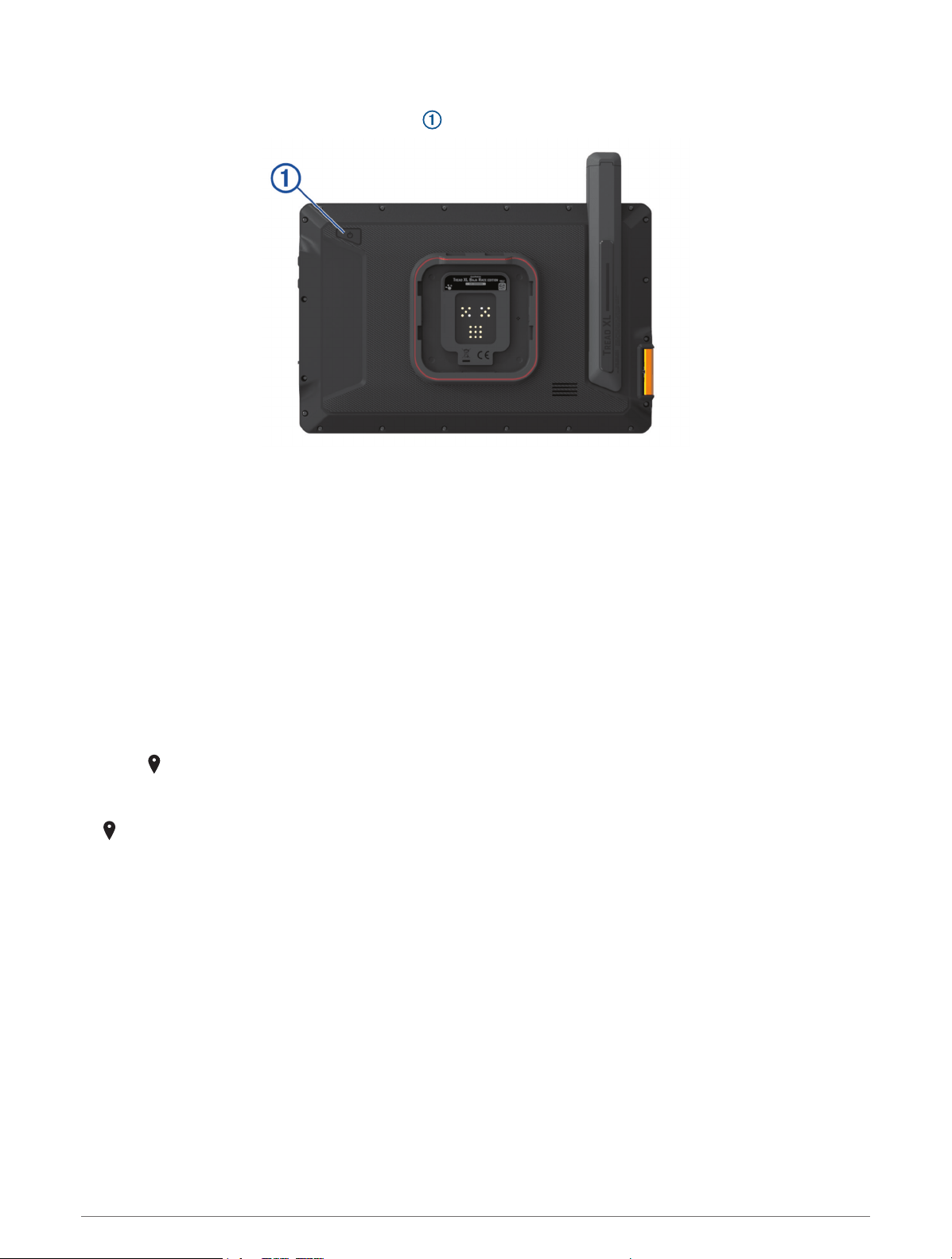
Turning the Device On or Off
• To turn the device on, press the power button , or connect the device to power.
• To put the device in power saving mode, press the power button while the device is on.
While in power saving mode, the screen is off and the device uses very little power, but it can wake instantly
for use.
TIP: You can charge your device faster by putting it in power saving mode while charging the battery.
• To turn off the device completely, hold the power button until a prompt appears on the screen, and select
Power off.
Acquiring GPS Signals
When you turn on your navigation device, the GPS receiver must collect satellite data and establish the current
location. The time required to acquire satellite signals varies based on several factors, including how far you are
from the location where you last used your navigation device, whether you have a clear view of the sky, and how
long it has been since you last used your navigation device. The first time you turn on your navigation device, it
may take several minutes to acquire satellite signals.
1 Turn on the device.
2 Verify appears in the status bar, and enable location services if it does not (Enabling or Disabling Location
Services, page52).
3 If necessary, go to an open area with a clear view of the sky, away from tall buildings and trees.
appears at the top of the navigation map until the device determines your location.
4 Getting Started

Status Bar Icons
The status bar is located at the top of the main menu. The status bar icons display information about features
on the device. You can select some icons to change settings or view additional information.
Location services status. Indicates your location has been established.
Wi‑Fi
®
signal strength.
Active vehicle profile.
Current time.
Battery charge level.
Tread app connection status (Pairing with Your Smartphone, page38).
Using the Touchscreen
• Tap the screen to select an item.
• Drag or swipe your finger across the screen to pan or scroll.
• Pinch two fingers together to zoom out.
• Spread two fingers apart to zoom in.
Using the On-Screen Buttons
On-screen buttons allow you to navigate the pages, menus, and menu options on your device.
• Select to return to the previous menu screen.
• Hold to quickly return to the main menu.
• Select or to scroll through lists or menus.
• Hold or to scroll faster.
• Select to see a context-based menu of options for the current screen.
Adjusting the Screen Brightness
You can adjust the brightness manually, using either the notification panel or the settings menu.
1 Select an option:
• Swipe down twice from the top of the screen to expand the quick settings in the notification panel.
• Select > Tools > > Device > Display > Brightness level.
2 Use the slider to adjust the brightness.
Getting Started 5
Vehicle Profiles
WARNING
Entering your vehicle profile characteristics does not guarantee that your vehicle’s characteristics will be
accounted for in all route suggestions. Limitations may exist in map data for some route suggestions. Always
defer to all posted road signs and conditions during vehicle operation. Failure to do so could lead to an accident
involving personal injury or death.
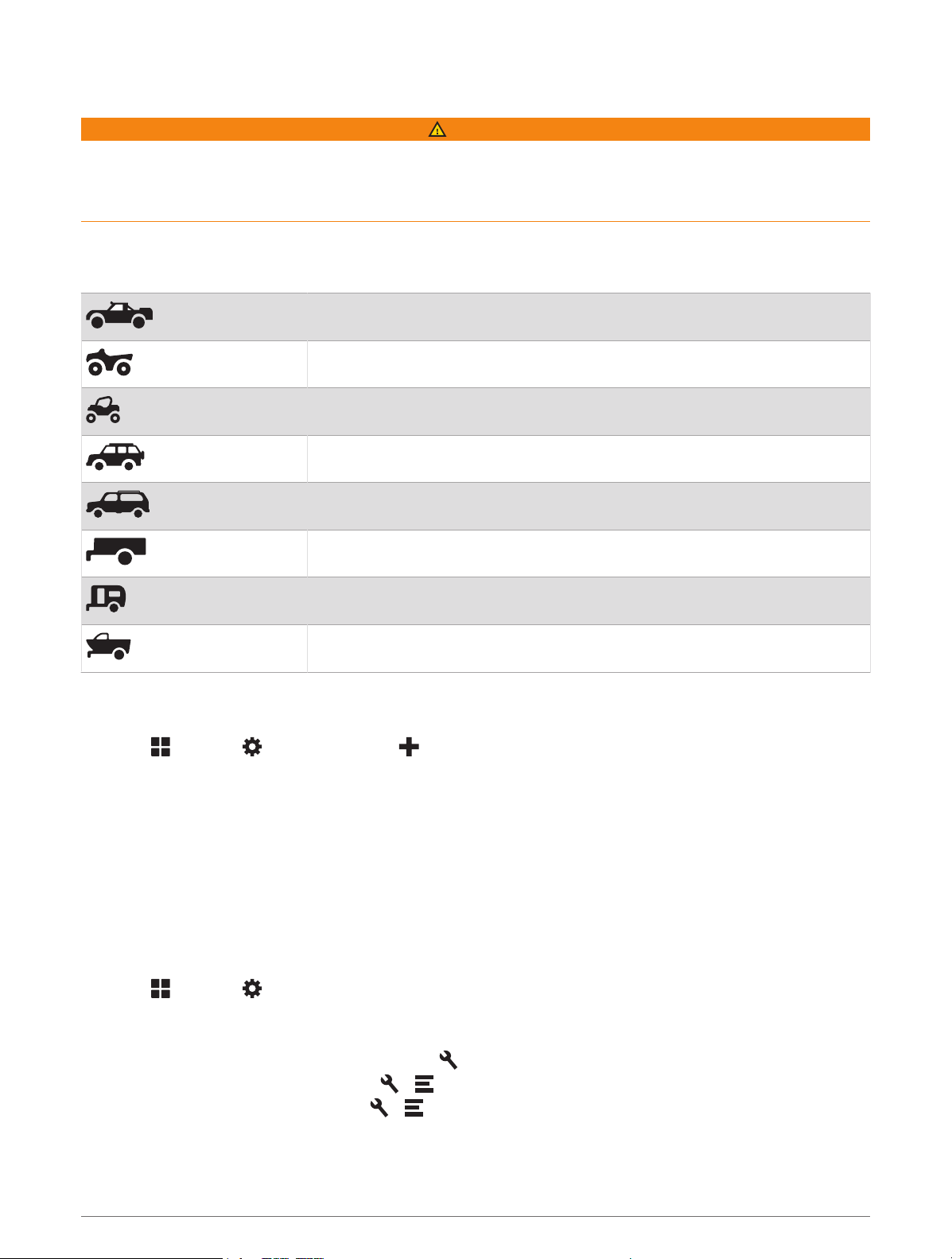
Vehicle profiles allow you to choose different settings based on each vehicle you use with the device. The
current vehicle profile is indicated by an icon in the status bar. If your vehicle profile includes a trailer, an icon of
the trailer appears with the vehicle icon.
Race profile
ATV profile
Side-by-Side profile
Full Size profile
Other profile
Profile with a trailer
Profile with a travel trailer
Profile with a boat trailer
Adding a Vehicle Profile
You can add a vehicle profile for each vehicle to be used with your device.
1 Select > Tools > > Vehicle Profile > .
2 Select your current vehicle.
3 Follow the on-screen instructions to enter the vehicle characteristics.
Choosing a Vehicle Profile
1 Swipe down twice from the top of the screen.
2 Select the vehicle profile icon on the status bar.
Editing a Vehicle Profile
You can change basic vehicle profile information or add detailed information to a vehicle profile, such as
maximum speed.
1 Select > Tools > > Vehicle Profile.
2 Select the vehicle profile to edit.
3 Select an option:
• To edit the vehicle profile information, select , and select a field to edit.
• To rename the vehicle profile, select > > Rename Profile.
• To delete the vehicle profile, select
> > Delete.
6 Getting Started
Installation
WARNING
See the Important Safety and Product Information guide in the product box for product warnings and other
important information.
Garmin
®
strongly recommends having an experienced installer with the proper knowledge of electrical systems
install the device. Incorrectly wiring the power cable can result in damage to the vehicle or the battery and can
cause bodily injury.
CAUTION
To avoid possible personal injury, always wear safety goggles, ear protection, and a dust mask when drilling,
cutting, or sanding.
NOTICE
Avoid wires, gauges, air bags, air bag covers, HVAC, and other items when drilling pilot holes and attaching the
mount to the vehicle. Garmin is not responsible for any damages or consequences arising from the installation.
Installing the Tread XL-Baja Race Edition Device
Mounting Considerations
You can flush mount the device in the dashboard, or bail mount the device on the dashboard.
When selecting a mounting location, observe these considerations.
• You must select a location that is strong enough to support the weight of the dock and the device.
• You must select a location that allows room for the routing and connection of all of the cables.
• You should mount the device to provide an optimal viewing angle as you operate your vehicle.
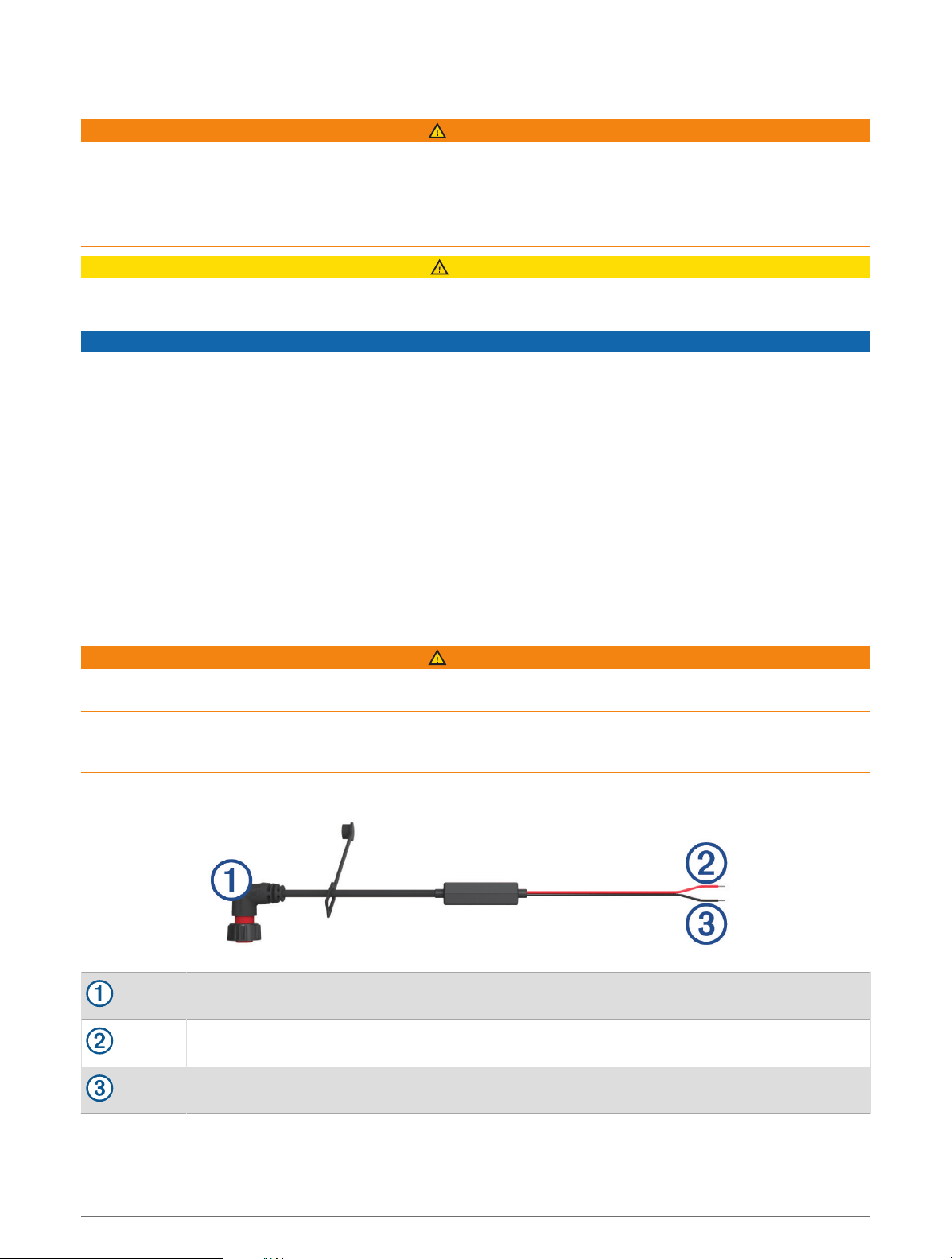
Power Cable Overview
WARNING
See the Important Safety and Product Information guide in the product box for product warnings and other
important information.
Garmin strongly recommends having an experienced installer with the proper knowledge of electrical systems
install the device. Incorrectly wiring the power cable can result in damage to the vehicle or the battery and can
cause bodily injury.
Mount connector
12to24 Vdc system power (red)
System ground (black)
Installation 7
External Antenna Mounting Considerations
You can install the external antennas on your vehicle to get the most accurate position data for your navigation
device. For best performance, consider these guidelines when selecting the antenna mounting location.
NOTE: External antennas are included only with the Tread XL-Baja Race Edition device.
• To ensure the best reception, you should mount the antennas in a location that has a clear, unobstructed
view of the sky in all directions.
• You should not mount the antennas near the engine or other sources of electromagnetic interference (EMI).
• You must mount the antennas at least 5 cm (2 in.) apart from each other.
Installing the External GNSS Antenna
CAUTION
To avoid possible personal injury, always wear safety goggles, ear protection, and a dust mask when drilling,
cutting, or sanding.
NOTICE
When drilling or cutting, always check what is on the opposite side of the surface to avoid damaging the vehicle.
This antenna can be installed to provide a more accurate position from the GPS signal for your navigation
device. This antenna uses a BNC connector to connect to the dock.
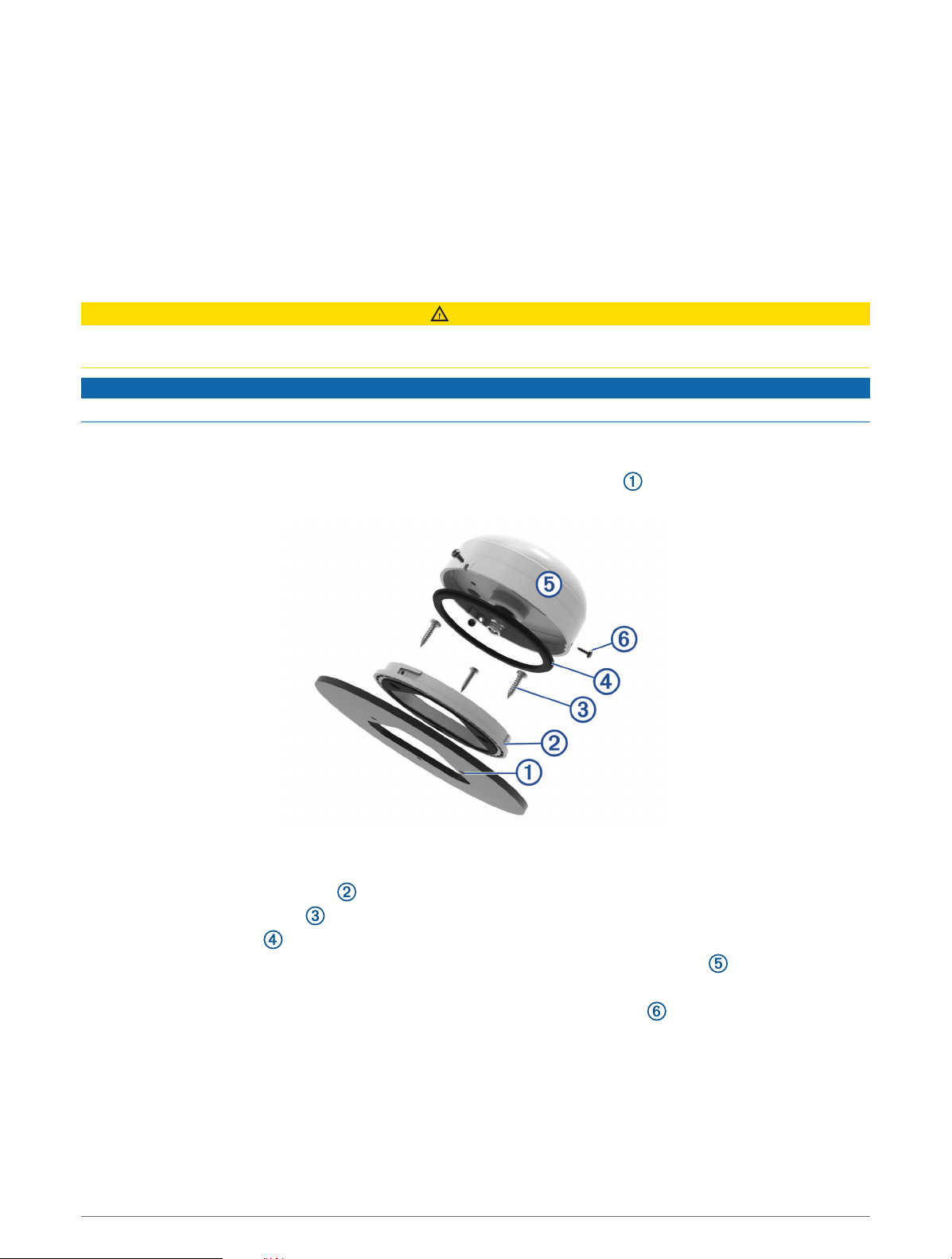
1 Using the included mounting template, mark the three pilot-hole locations and trace the cable hole in the
center of the template.
2 Drill the three 3.2mm (
1
/
8
in.) pilot holes.
3 Use a 25mm (1in.) hole saw to cut the cable hole in the center.
4 Place the surface-mount bracket on the mounting surface, aligning the screw holes.
5 Use the included M4 screws to secure the surface-mount bracket to the mounting surface.
6 Place the large gasket on top of the surface-mount bracket.
7 Route the antenna cable through the 25mm (1in.) hole, and connect it to the antenna .
8 Place the antenna on the surface-mount bracket, and twist it clockwise to lock it in place.
9 Secure the antenna to the mounting bracket with the included M3 set screws .
10 Route the cable into the vehicle and away from sources of electronic interference.
11 Connect the cable to GNSS on the dock.
8 Installation
Installing the External Iridium Antenna
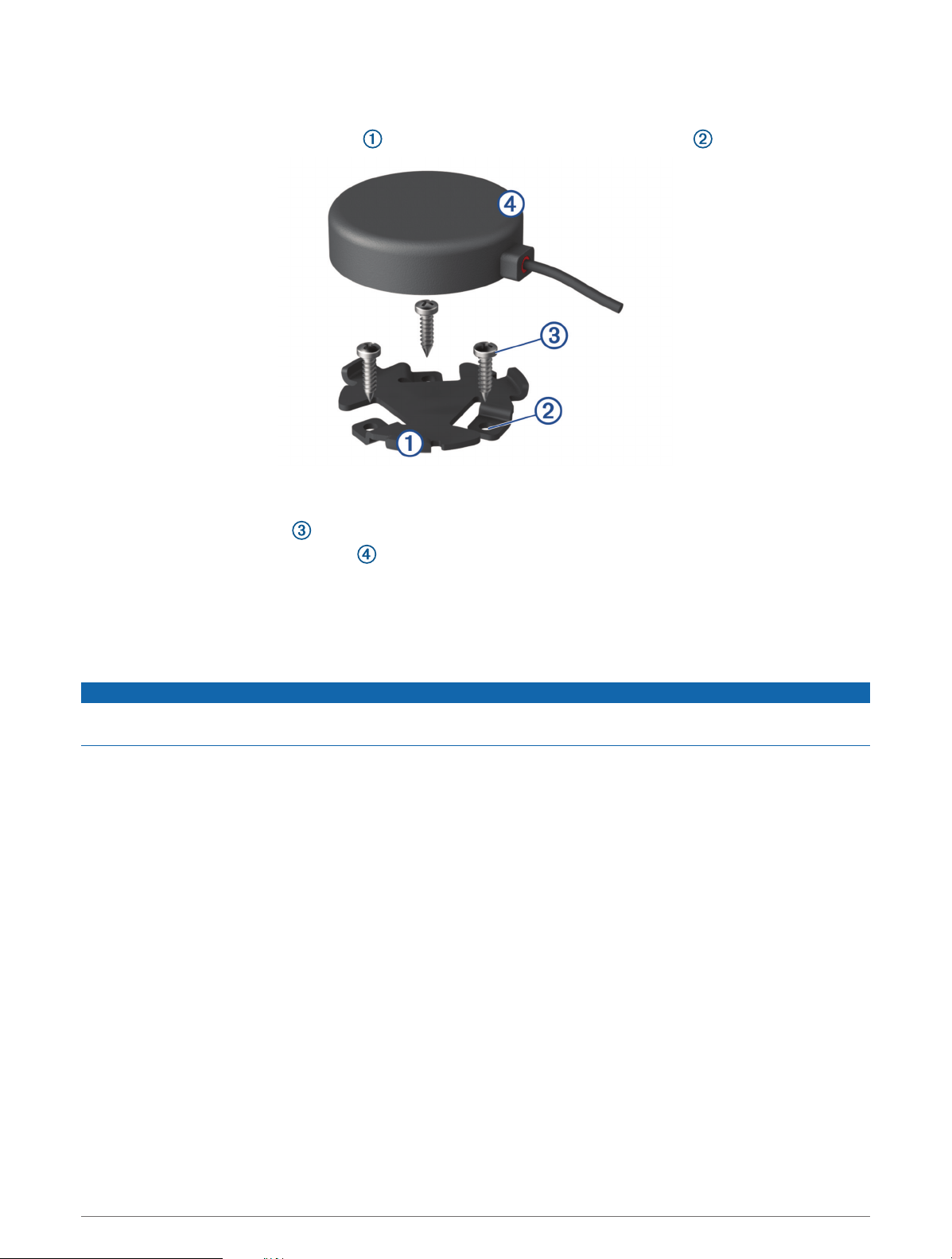
You can use the included bracket to mount the Iridium antenna to an external surface on your vehicle.
1 Using the antenna mounting bracket as a template, mark the pilot hole locations .
2 Drill the three 3.2mm (
1
/
8
in.) pilot holes (optional).
For some types of mounting material, drilling pilot holes is necessary. Do not drill through the mount.
3 Using the included screws , secure the mounting bracket to the mounting location.
4 Place the magnetic Iridium antenna in the mounting bracket.
5 Route the antenna cable into the vehicle and connect it to IRIDIUM on the dock.
Installing the Dock on a Vehicle Surface
Before you can mount the dock, you must select a mounting location and purchase the appropriate hardware for
your mounting surface.
NOTICE
Avoid wires, gauges, air bags, air bag covers, HVAC, and other items when drilling pilot holes and attaching the
mount to the vehicle. Garmin is not responsible for any damages or consequences arising from the installation.
1 Trim the included mounting template and place it in the location where you want to mount the device.
2 Using a jigsaw or rotary tool, cut the mounting surface along the inside of the dashed line indicated on the
template.
3 Place the dock into the cutout to test the fit.
4 Remove the dock from the cutout.
5 If necessary, use a file and sandpaper to refine the size of the cutout.
6 Drill the pilot holes in the locations marked on the mounting template.
7 Remove the template from the mounting surface.
8 If you will not have access to the back of the dock after you mount it, connect all of the necessary cables to
the dock before placing it into the cutout.
Installation 9
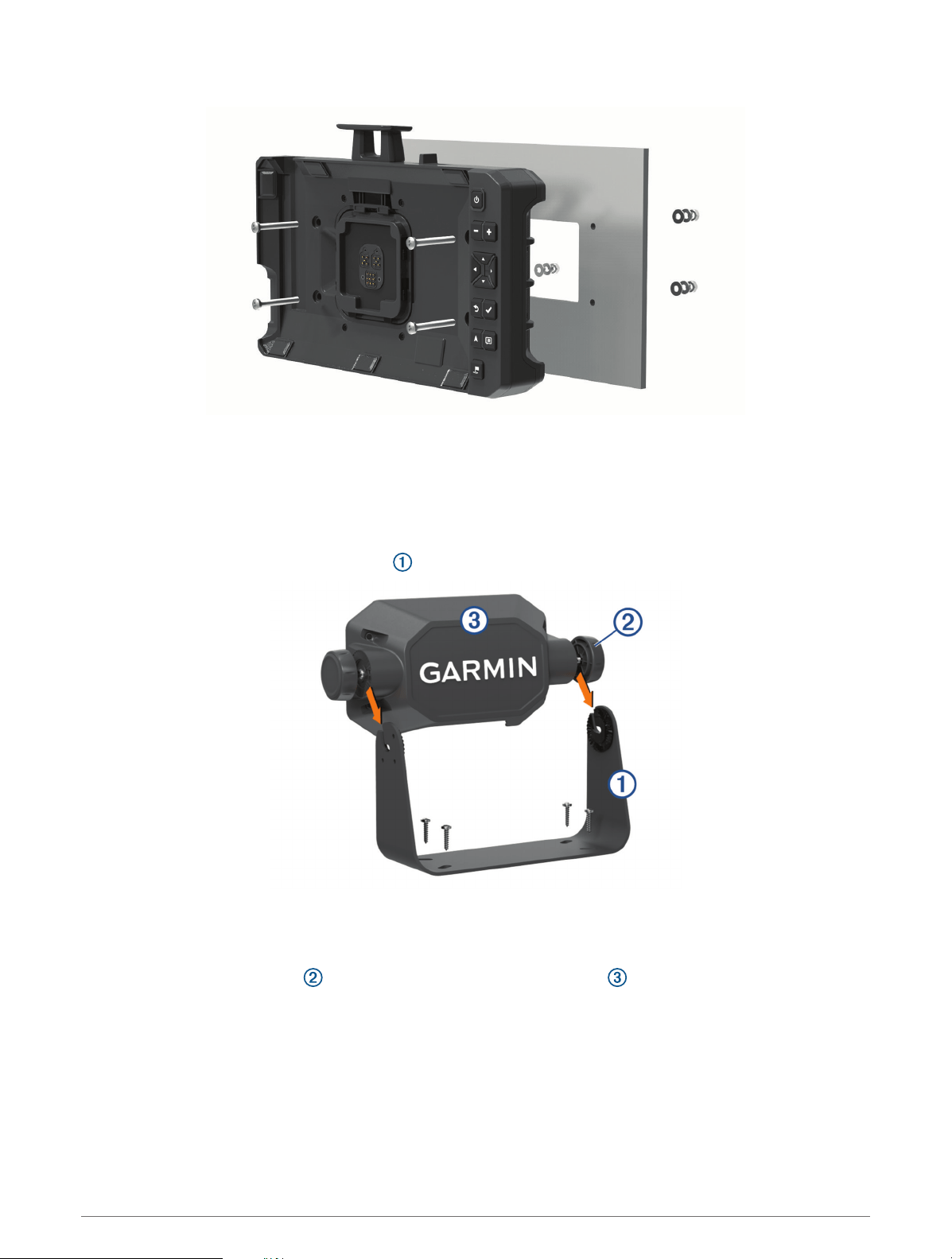
9 Place the dock into the cutout.
10 Secure the dock to the mounting surface using the appropriate hardware.
Bail Mounting the Dock
Before you can install the bail-mount bracket, you must select a mounting location and purchase or fabricate
the appropriate hardware for your mounting surface.
You can use the included brackets to bail mount the device on a flat surface.
1 Using the base of the bail-mount bracket as a template, mark the pilot holes.
2 Using the appropriate size drill bit for your mounting hardware, drill the pilot holes.
Do not drill through the mount.
3 Secure the bail-mount bracket to the mounting surface using the appropriate hardware.
4 Screw the bail-mount knobs into the sides of the bail-mount adapter .
5 Place the bail-mount adapter into the bail-mount bracket, and tighten the bail-mount knobs.
10 Installation
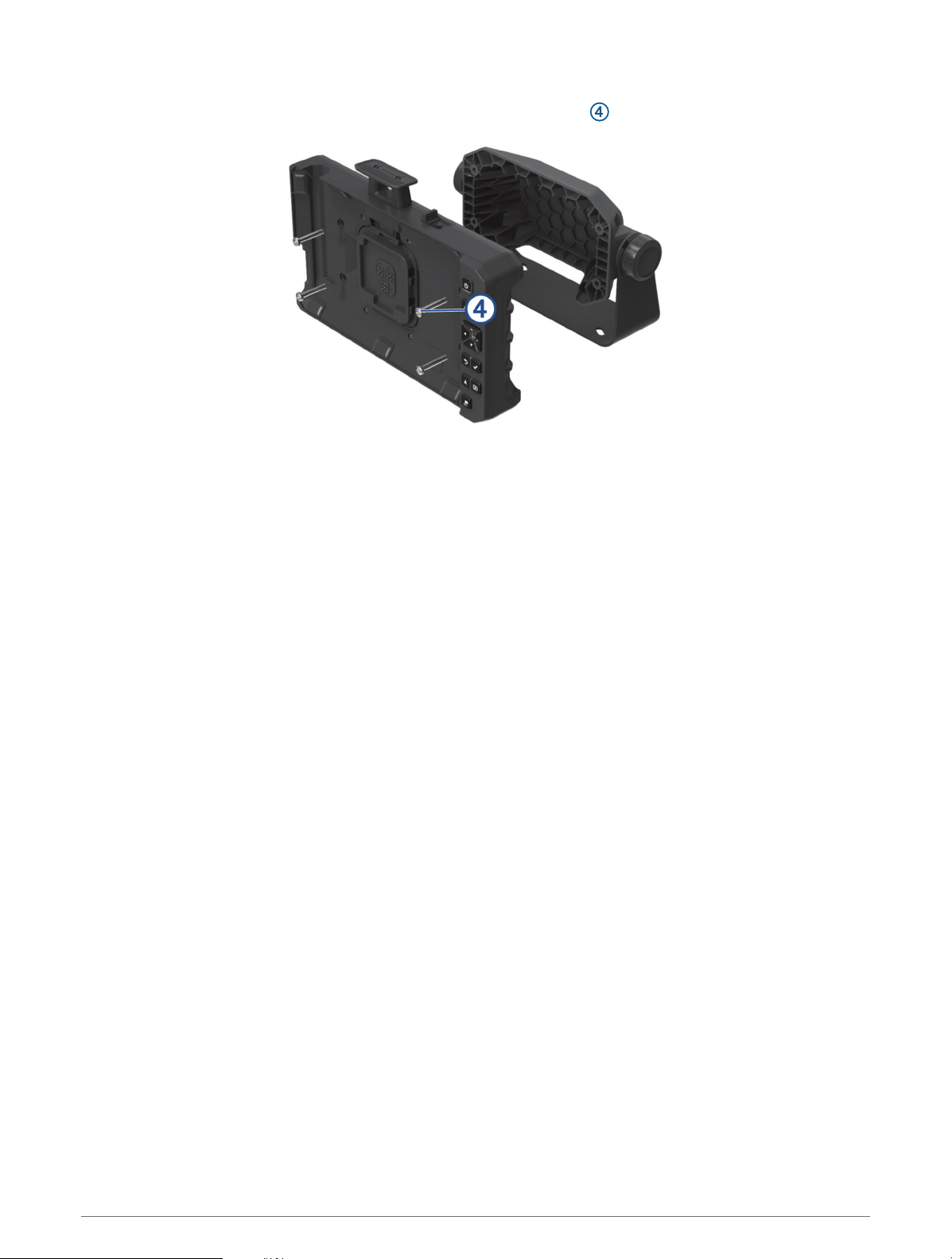
6 Connect all of the necessary cables to the back of the dock.
7 Secure the dock to the bail-mount adapter using the included screws .
Installation 11
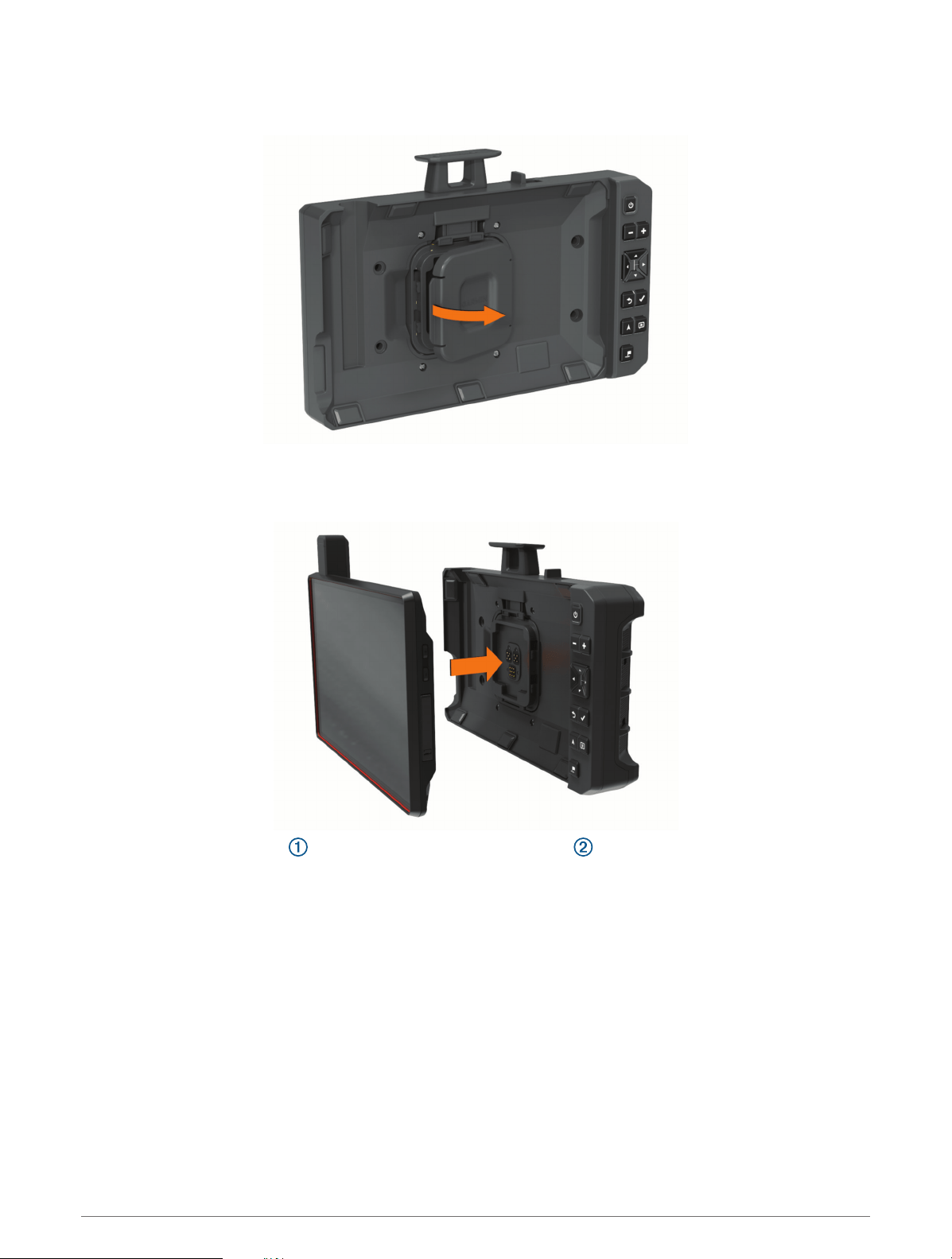
Connecting the Device to the Dock
1 Remove the protective cover from the dock.
TIP: You should keep the protective cover for future use. Always use the protective cover while the device is
removed from the dock.
2 Place the navigation device into the magnetic mount.
3 Press down the lock latch completely, and slide the lock switch toward the latch.
12 Installation
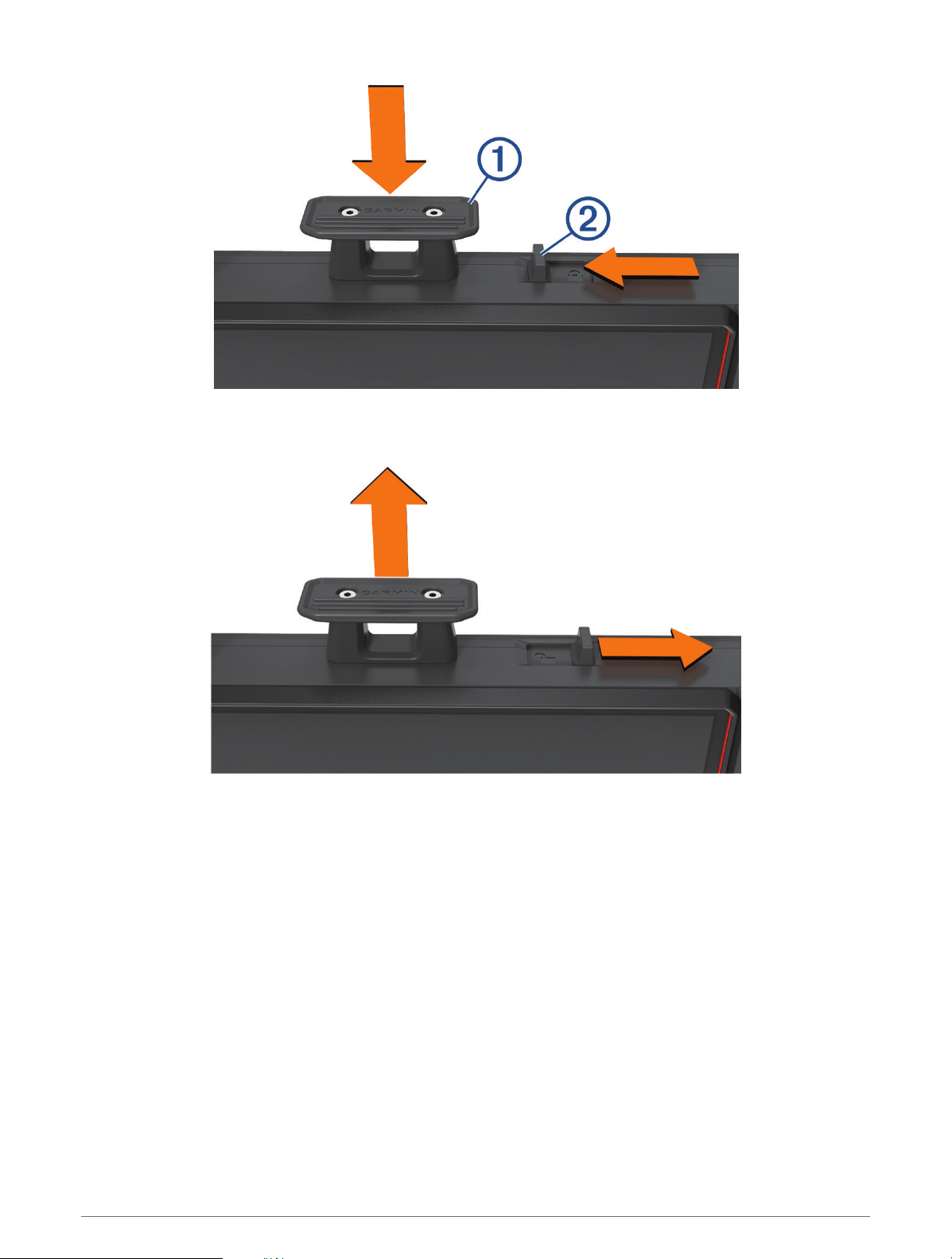
Removing the Device from the Dock
1 Slide the lock switch away from the latch.
2 Pull up the latch.
3 Pull the navigation device out of the dock.
Installation 13
Installing the Tread XL-Baja Chase Edition Device
Mounting and Powering the Device in Your Vehicle
WARNING
This product contains a lithium-ion battery. To prevent the possibility of personal injury or product damage
caused by battery exposure to extreme heat, store the device out of direct sunlight.
Both the device and its mount contain magnets. Under certain circumstances, magnets may cause interference
with some internal medical devices and electronic devices, including pacemakers, insulin pumps, or hard drives
in laptop computers. Keep the device away from medical devices and electronic devices.
Before you use your device on battery power, you should charge it.
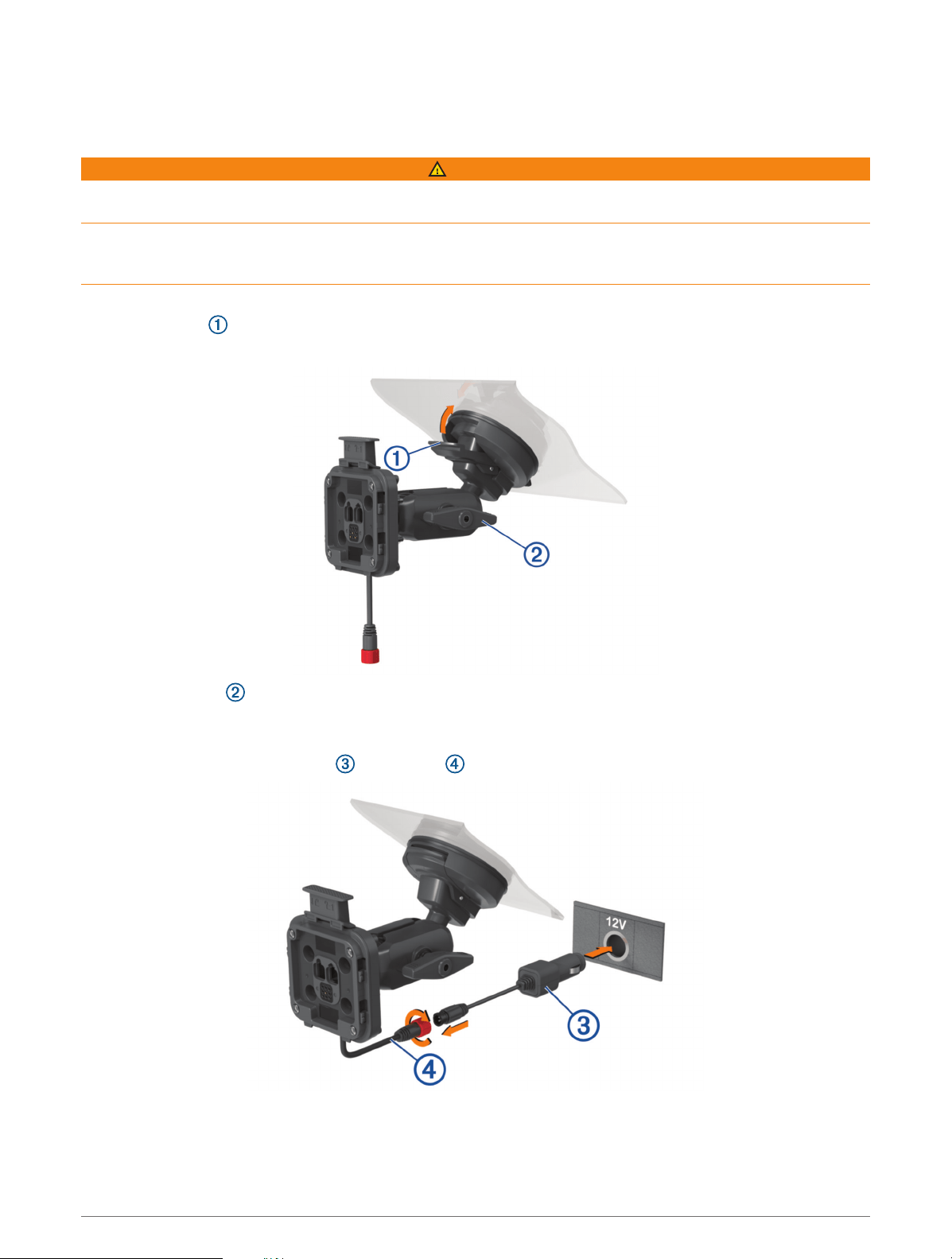
1 Open the lever , press the suction cup to the windshield, and flip the lever back toward the windshield.
The lever must be oriented toward the top of the windshield.
2 Tighten the knob slightly.
3 If necessary, adjust the mount for better viewing and operation.
4 Tighten the knob to secure the mount.
5 Connect the vehicle power cable to the cable on the mount.
6 Tighten the collar around the connected power cables.
7 Plug the other end of the vehicle power cable into a power outlet in your vehicle.
14 Installation
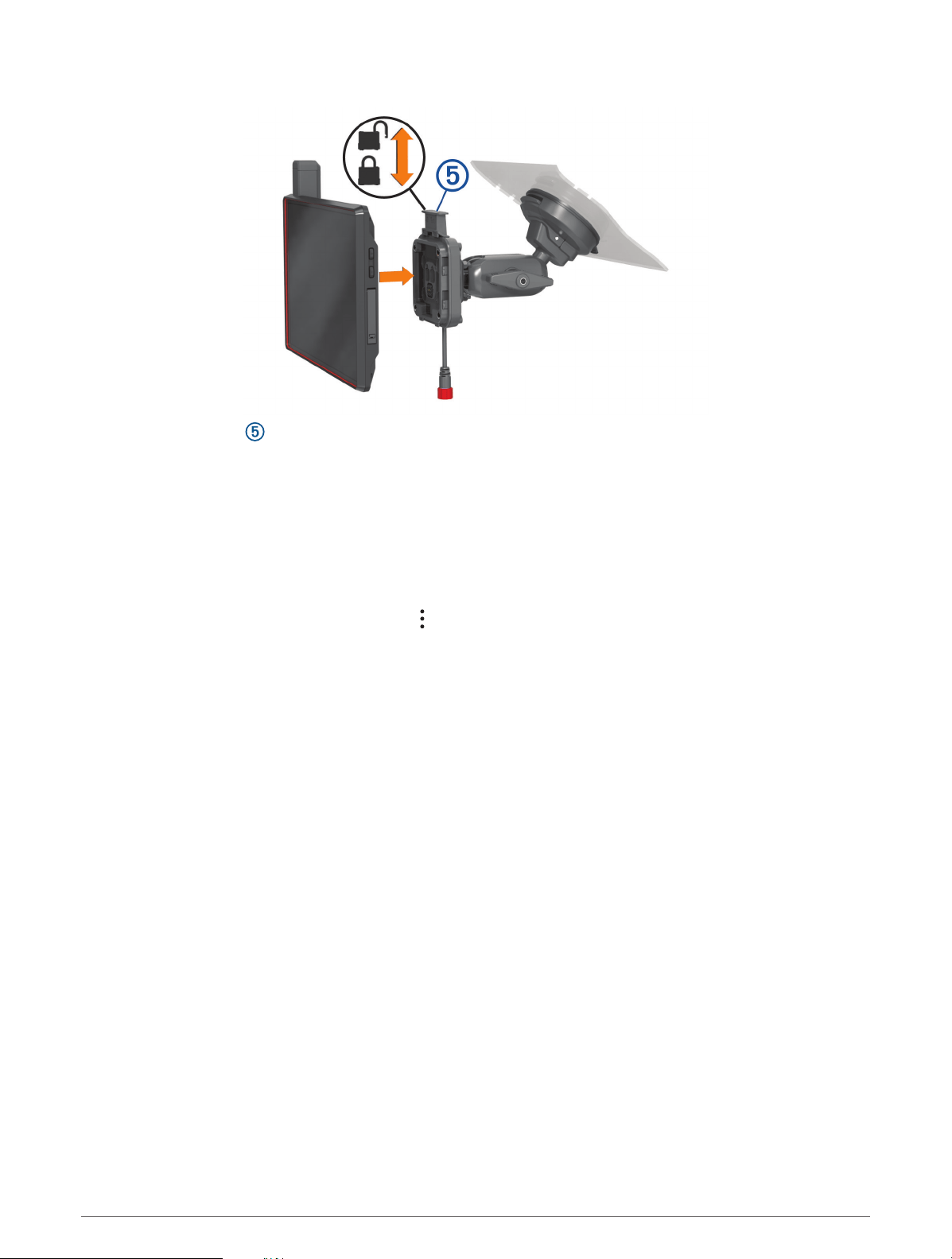
8 Place the device onto the magnetic mount.
9 Push down the lock to secure the device to the mount.
Off-oad acing Features
Importing GPX Files with a Memory Card
You can import data, such as waypoints and tracks in GPX file format from a compatible microSD card.
1 Insert a compatible microSD card containing one or more .gpx files into the memory card slot on your device
(Installing a Memory Card for Maps and Data, page78).
2 On your Tread XL device, select Race Files > > Import.
3 Select one or more .gpx files, and select OK.
4 Select an option:
• To import all waypoints and tracks, select Select All.
• To import specific locations, select Waypoints or Tracks, and select one or more locations.
5 Select an option:
• To import the data to a new collection, select New Collection, and enter a name for the collection.
• To import the data to an existing collection, select a collection.
6 Select Import.
Starting a Race
Before you can start a race, you must import .gpx files to your device (Importing GPX Files with a Memory Card,
page15).
1 From the main menu, select Race.
NOTE: If you have previously configured a race, the device shows the most recent race.
2 Select one or more tracks, and select Next.
3 If necessary, adjust the order of the tracks, and select Next.
If you select more than one track, the device displays a preview of the combined tracks.
4 Select Go!.
Off-Road Racing Features 15
Race Navigation
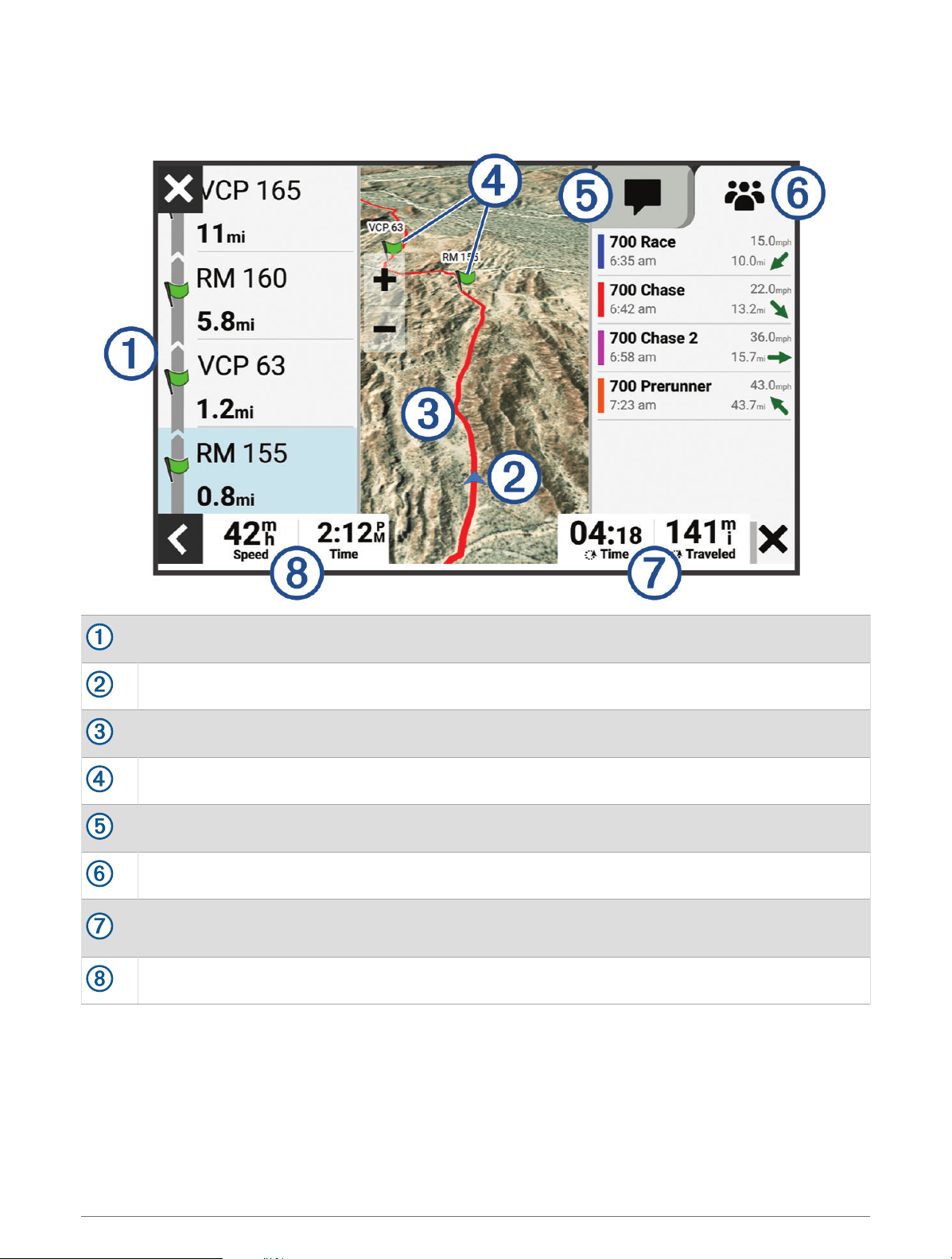
As you travel, the device displays your map location and the waypoints ahead of you on your route.
Upcoming waypoints along your route.
Vehicle location.
Route highlighted on the map.
Upcoming waypoints on the map.
inReach messages.
Tracked team member locations.
Data fields.
TIP: You can tap these fields to change the information they show.
Vehicle speed.
16 Off-Road Racing Features
Using the Chase Map
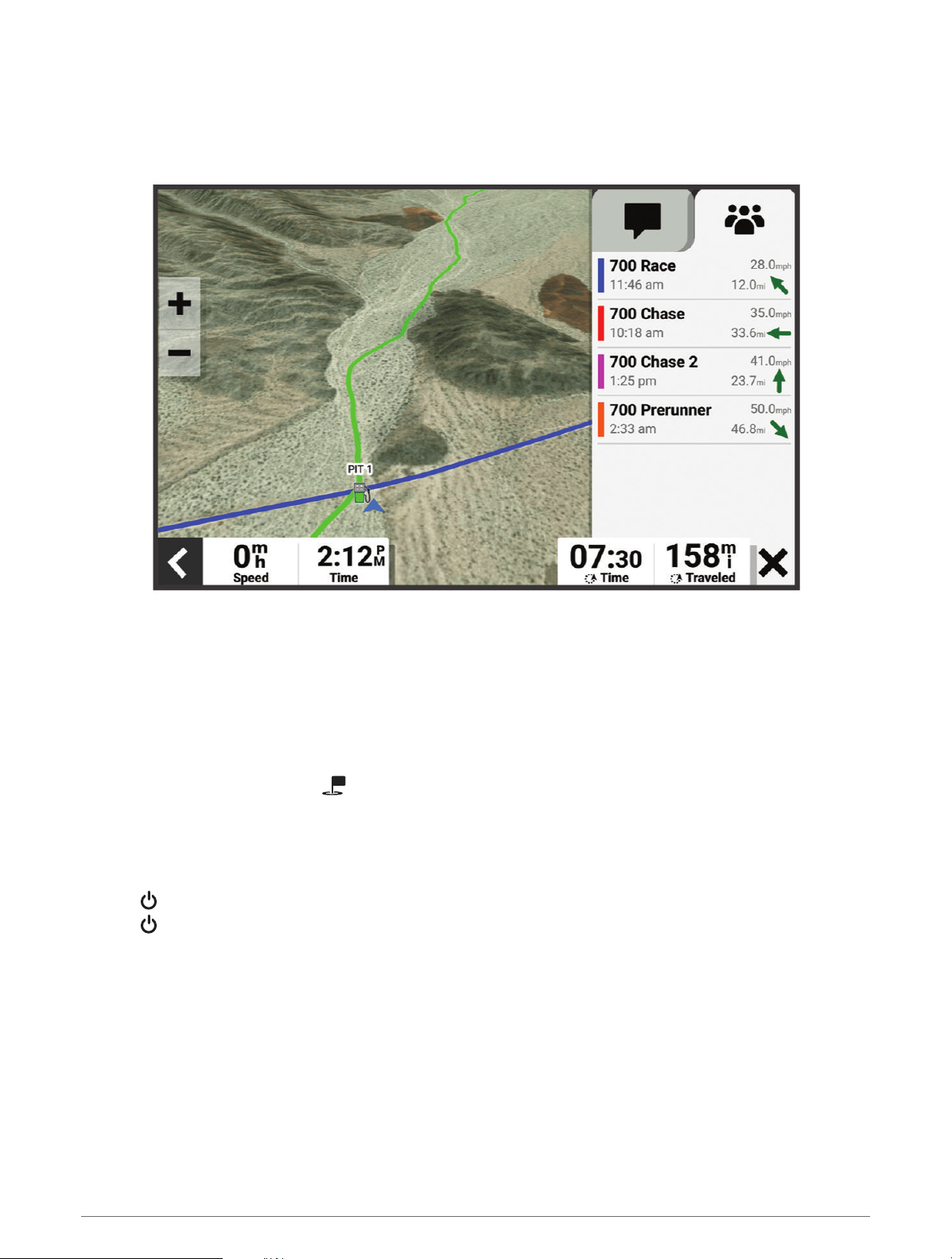
You can use the Chase Map feature to keep track of your team members.
1 From the main menu, select Chase Map.
2 Select an option:
• To view a team member's location, select the team member.
• To navigate to a point on the map, tap a map location, and select Go!.
Creating Waypoints
Your co-driver can mark waypoints as you drive. You can customize each waypoint with pace notes and
symbols.
1 While navigating a track, press .
2 If necessary, select the notification to enter information about the waypoint.
Locking and Unlocking the Touchscreen
You can lock the screen to prevent inadvertent screen touches.
1 Hold , and select Lock Screen to lock the touchscreen.
2 Hold , and select Unlock Screen to unlock the touchscreen.
Off-Road Racing Features 17
Off-oad Navigation Features
Routes
A route is a path from your current location to one or more destinations.
• For off-road use, you can set the device to calculate point-to-point routes in a straight line (Straight Line
Routes, page19).
• The device calculates a recommended route to your destination based on the preferences you set, including
the route calculation mode (Changing the Route Calculation Mode, page43) and avoidances (Avoiding
Delays, Tolls, and Areas, page41).
• The device can automatically avoid roads that are not appropriate for the active vehicle profile.
• You can start navigating to your destination quickly using the recommended route, or you can select an
alternate route (Starting a Route, page39).
• If there are specific roads you need to use or avoid, you can customize the route (Shaping Your Route,
page41).
• You can add multiple destinations to a route (Adding a Location to Your Route, page41).
Adventure Roads and Trails
WARNING
Entering your vehicle profile characteristics does not guarantee that your vehicle's characteristics will be
accounted for in all route suggestions. Limitations may exist in map data for some route suggestions. Always
defer to all posted road signs and conditions during vehicle operation. Failure to do so could lead to an accident
involving personal injury or death.
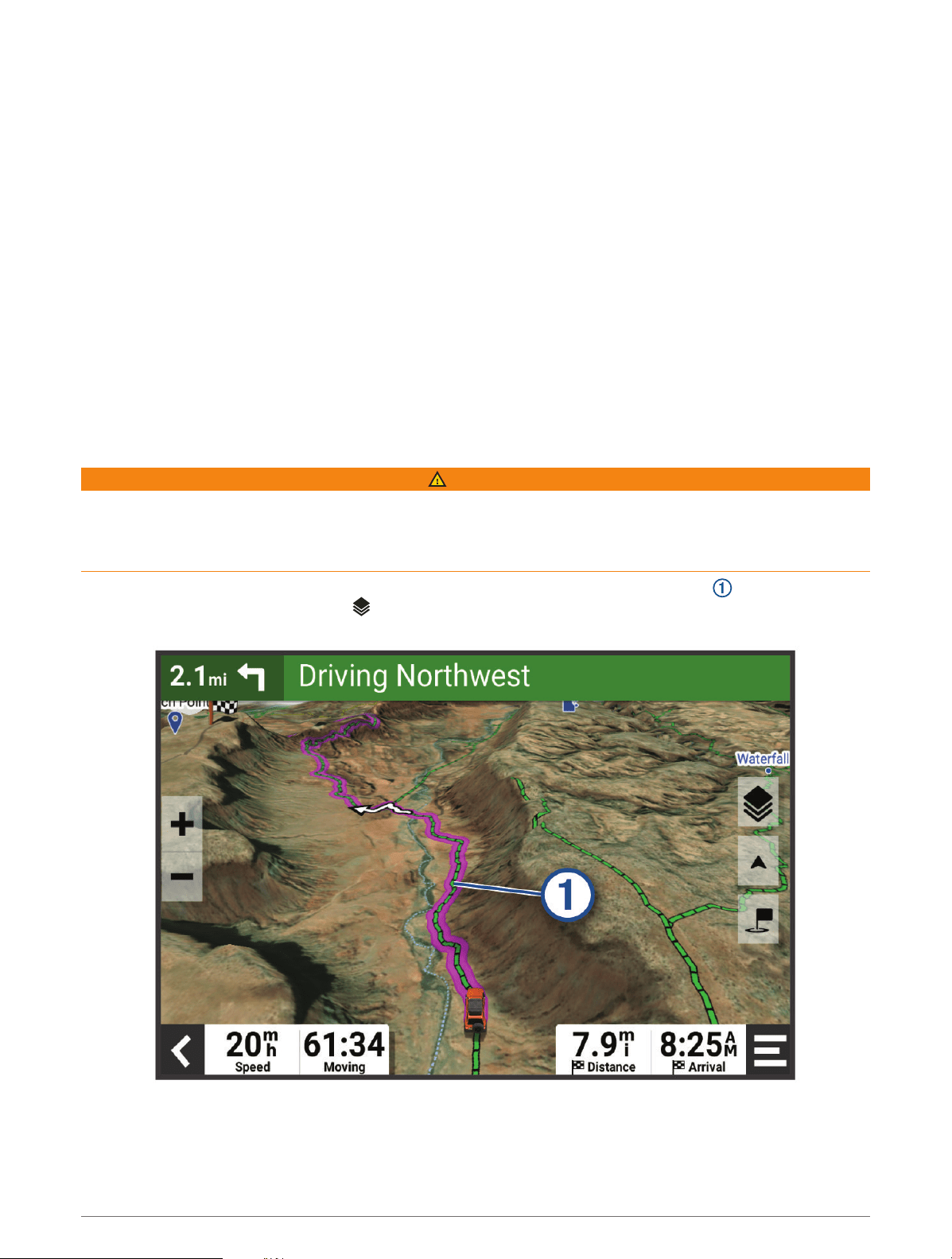
This device can navigate off-highway roads and trails based on your vehicle profile. Trails are color coded
based on accessibility. You can select to set which adventure roads and trails appear on the map.
18 Off-Road Navigation Features
Straight Line Routes
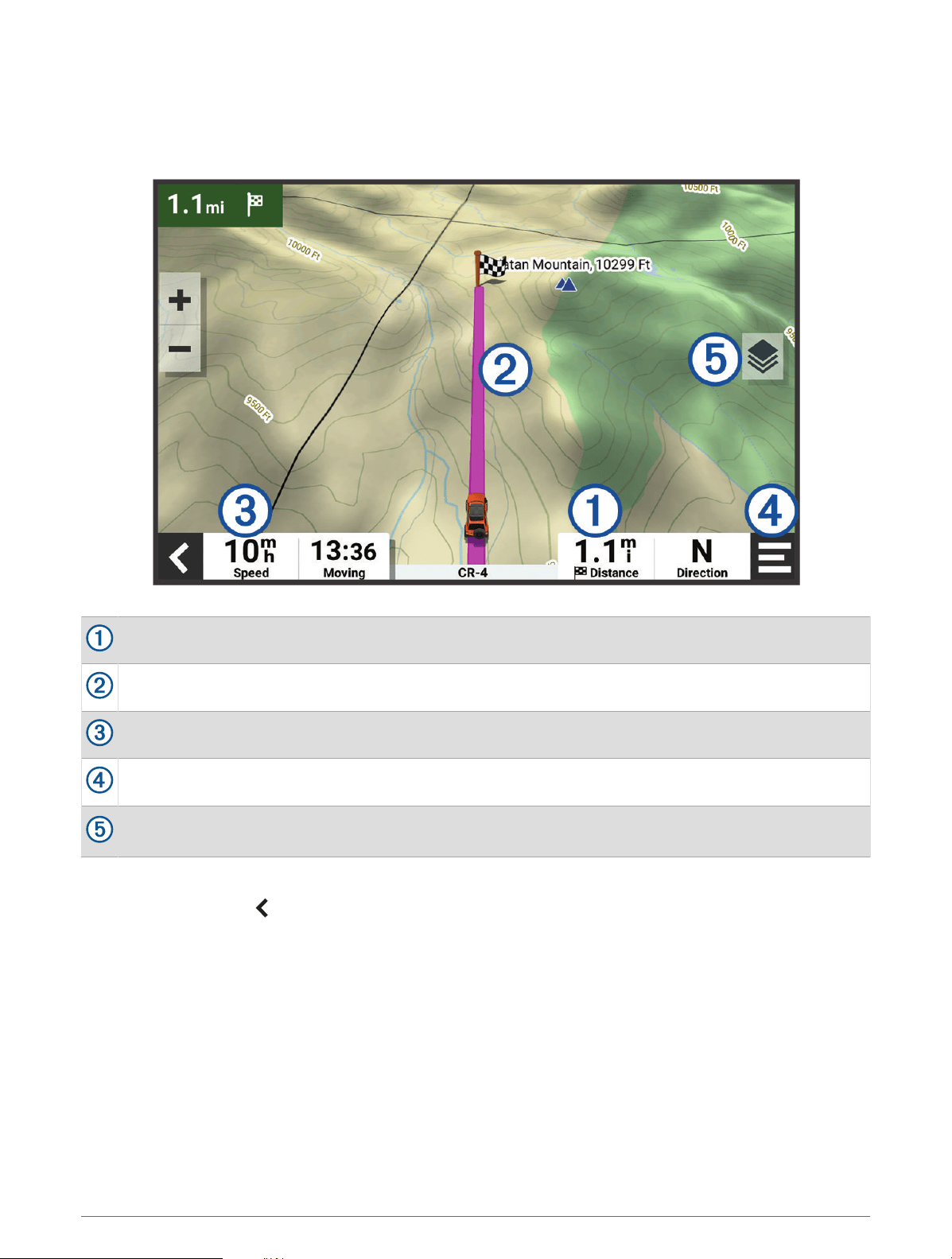
For areas without defined roads or trails, the device guides you to your destination using a straight line route.
You can set multiple waypoints to navigate a route through areas without roads.
Distance to the destination.
Route highlighted on the map.
Vehicle speed.
Map tools. Provides tools to show you more information about your route and surroundings.
Map layers. Allows you to change the map orientation and add topographic and BirdsEye imagery to your
map view.
Stopping the Route
From the map, select > Stop.
Tracks
A track is a recording of your path. The track log contains information about the recorded path, including time,
location, and elevation information.
Recording Tracks
Tracking records your path. When you start tracking, your device logs your location and updates the track line.
Select Track Recorder > Start.
Off-Road Navigation Features 19

Splitting a Track
You can split tracks to divide longer tracks into segments. You can use this information to compare the time,
speed, and distance traveled for each split.
While recording a track, select Split.
Reviewing Tracks
You can review tracks that you have previously recorded.
1 From the main menu, select > Apps > Tracks.
2 Select a track, and select .
The track appears on the map with the recorded statistics about the track.
3 If necessary, select to change the track shading.
Editing Tracks
You can edit tracks that you have previously recorded.
1 From the main menu, select > Apps > Tracks.
2 Select a track, and select .
The track appears on the map.
3 Select an option:
• To add points to a track or extend the track, select Add, and follow the on-screen instructions.
• To delete a point from the track, select Delete, and select a point on the track.
• To move a point on the track, select Move, and follow the on-screen instructions.
• To reverse the track, select Reverse.
• To join the current track with another track, select Join, and select a track.
TIP: You can select to undo the last action.
Navigating a Track
You can navigate a saved track using the Race Files app on your device.
1 Select > Race > Race Files.
2 Select a track.
3 Select Go!.
Viewing Your Garmin Explore
™
or Race File Collections on the Map
You can view your Garmin Explore and race file collections directly on the map. You must enable the collections
map layer to use this feature.
NOTE: If you do not assign a collection category to your Garmin Explore data, it appears as an unorganized
collection.
1 Select > Tools > > Map Display > Map Layers > Collections.
2 Select one or more collection categories from the list.
3 Select Save.
Your collections appear as icons on the map.
Viewing the Altimeter, Barometer, and Compass
The device contains internal altimeter, barometer, and compass sensors with automatic calibration.
Select > Apps > ABC.
TIP: You can also select the Altimeter or Barometer widget to open the ABC app.
20 Off-Road Navigation Features
Calibrating the Compass
NOTICE
Calibrate the electronic compass outdoors. To improve heading accuracy, do not stand near metal objects or
objects that influence magnetic fields, such as vehicles, electronic devices, buildings, or overhead power lines.
When your device is connected to the mount, it uses GPS data to determine your compass heading. When you
remove the device from the mount, it uses a built-in compass to show your heading.
Each time you disconnect your device from the mount, you may need to calibrate the compass.
If you experience irregular compass behavior, for example, after moving long distances or after extreme
temperature changes, you can manually calibrate the compass to improve accuracy.
1 Disconnect the device from the mount and move away from objects that influence magnetic fields.
2 From the main menu, select > Apps > ABC > > Calibrate Compass.
3 Follow the on-screen instructions.
Group Ride
The Group Ride app allows you to coordinate rides and communicate with nearby riders using preset text
messages, live map locations, and voice communications. You can pair your Tread XL device with the Tread app
on your smartphone to enable Group Ride tracking features.
Voice communication and preset messaging require a Group Ride accessory, which is not included with all
product models. The voice communication feature is not available in all areas. Go to garmin.com/tread for more
information, or to purchase a Group Ride accessory.
Starting a Group Ride
You can create a group ride that allows you to choose the group radio channel, view and remove riders who join
your group ride, and set the group ride name. You can create a group ride using a connected Group Ride mount,
the Tread app, or both.
1 From the main menu, select > Apps > Group Ride > Start a Group Ride.
2 Select an option:
• To start a group ride with riders that have a Group Ride mount, select Create a Radio Group Ride.
• To start a group ride with riders using the Tread app, select Create a Mobile Group Ride.
3 If necessary, select the radio channel, and select Next.
4 Enter your rider name, and select Done.
5 Enter the ride name, and select Done.
As riders join your group ride, their names appear on the list.
6 Select Start.
The group ride begins after all of the riders sync with the group ride.
Joining a Group Ride
You can join a nearby group ride that was created by another rider.
1 From the main menu, select > Apps > Group Ride > Join a Group Ride.
2 Select a nearby group ride, and select Join.
Rejoining a Recent Group Ride
You can rejoin any of your ten most-recent group rides.
1 From the main menu, select > Apps > Group Ride > Recent Group Rides.
2 Select a recent group ride, and select Join.
Off-Road Navigation Features 21
Adding Riders to a Group Ride
You can add riders to a group ride that is already in progress.
1 From the main menu, select > Apps > Group Ride.
2 If necessary, select .
3 Select Add.
As new riders join the group ride, they appear on the list.
4 Select Continue.
Broadcasting a Message
WARNING
Do not read, send, or reply to any messages while driving, because doing so can cause a distraction that could
lead to an accident resulting in serious personal injury or death.
You can broadcast a preset message to the members in your active group ride that are in range of the VHF
radio.
1 From the main menu, select > Apps > Group Ride.
2 If necessary, select .
3 Select Broadcast to Group.
4 Select a preset message, and select Send.
Broadcasting a Location
WARNING
While driving, do not interact with the display to broadcast your location, because doing so can cause a
distraction that could lead to an accident resulting in serious personal injury or death.
You can broadcast a location to the members in your active group ride that are in range of the VHF radio.
1 From the main menu, select > Apps > Group Ride.
2 If necessary, select .
3 Select Broadcast to Group > Broadcast a Location, and select a location.
4 Select Share.
Viewing a Group Ride Notification
WARNING
Do not read or reply to any notifications while driving, because doing so can cause a distraction that could lead
to an accident resulting in serious personal injury or death.
For most pages, a notification appears when the device receives a broadcasted group ride location or message.
You can also view group ride notifications in the Group Ride app.
NOTE: When you are viewing the map, new notifications appear in a map tool at the edge of the screen.
1 From the main menu, select > Apps > Group Ride > , and select a notification.
2 Select Go! to navigate to a shared location.
Exiting a Group Ride
1 From the main menu, select > Apps > Group Ride.
2 If necessary, select .
3 Select Exit > Yes.
22 Off-Road Navigation Features

Group Ride Settings
From the main menu, select > Apps > Group Ride > .
Edit Rider Name: Allows you to set your name that displays during a group ride. This setting is not available
during an active group ride.
Rider Map Labels: Sets the label displayed for each active rider on the map.
Show Tracks on Map: Shows the track that each group ride member takes on the map.
Reset Default Settings: Allows you to reset all group ride settings to default values. This setting is not available
during an active group ride.
Radio
NOTE: This feature is not available on all product models.
NOTE: Before you can use the Radio app, you must install a Group Ride accessory. Go to garmin.com to
purchase a Group Ride accessory.
You can use the Radio app to create radio presets, select a radio channel, and select squelch codes. To use this
feature, you must connect the device and the antenna to the Group Ride mount. The Tread XL device configures
radio settings automatically when you join or create a group ride.
Selecting a Preset
NOTE: For some product models, the Radio app is located in the apps menu.
1 From the main menu, select > Apps > Radio.
2 Select an option:
• To move through the available presets, select or .
• To select a preset from the menu, select Preset.
Selecting a Radio Channel
1 From the main menu, select > Apps > Radio.
2 Select an option:
• To move to a different channel, select or .
• To select a MURS channel from the menu, select Channel.
Adjusting the Squelch
You can adjust the squelch and change between CTCSS, DCS, and Open squelch modes to improve audio
quality and avoid radio interference in your area.
1 From the main menu, select > Apps > Radio.
2 Select an option:
• To choose a squelch code within the current mode, select or .
• To adjust the squelch mode, select Open.
Adding a Custom Radio Preset
1 Select > Apps > Radio > Preset > .
2 Select or to select a channel and squelch code.
3 Select Save.
Off-Road Navigation Features 23

Selecting a Roger Tone
You can select the tone other devices play when you operate your radio.
1 Select > Apps > Radio > > Roger Tone.
2 Select a roger tone.
The device plays the selected tone.
3 Select Save.
Turning the Radio Off
Select > Apps > Radio > > Yes.
Enabling Push-to-Talk with a Headset
You can enable push-to-talk controls for use with a compatible Bluetooth
®
headset. This allows you to transmit
your voice using the voice dial feature on your headset.
1 Select > Apps > Radio > > Push to Talk with Headset.
2 If necessary, follow the on-screen instructions to pair your headset with the device.
3 Select Push to Talk with Headset.
4 Select .
Transmitting Your Voice
Before you can transmit your voice, you must pair your Tread XL device with a compatible Bluetooth headset or
connect the fist microphone.
You can transmit your voice over the radio using the connected fist microphone or a compatible Bluetooth
headset.
Select an option:
• Hold the push-to-talk button on the side of the connected fist microphone.
• From the main menu, select > Apps > Radio > Push to Talk.
• Use the voice dial feature on your connected Bluetooth headset (Enabling Push-to-Talk with a Headset,
page24).
TIP: You can press the pause or stop button to manually close the radio.
NOTE: You must enable the Push to Talk with Headset setting to use this feature (Radio Settings,
page24).
Adjusting the Radio Volume
1 Select > Apps > Radio > .
2 Use the slider bars to adjust the volume.
Radio Settings
From the main menu, select > Apps > Radio > .
Push to Talk with Headset: Enables you to transmit your voice using the push-to-talk button on your compatible
headset.
Roger Tone: Sets the roger tone the device plays when you operate your radio.
Reset Default Settings: Resets all radio settings and presets to factory default values.
24 Off-Road Navigation Features
ineach Features
WARNING
Before you can use the inReach features of your Tread XL device, including messaging, SOS, and team tracking,
you must have an active satellite subscription. Always test your device outdoors before you use it.
Ensure you have a clear view of the sky when using the messaging, tracking, and SOS functions, because these
features require satellite access to operate properly.
NOTICE
Some jurisdictions regulate or prohibit the use of satellite communications devices. It is the responsibility of the
user to know and follow all applicable laws in the jurisdictions where the device is intended to be used.
Activating the Device
WARNING
Before you can use the inReach features of your Tread XL device, including messaging, SOS, and team tracking,
you must activate the device.
1 From your computer or smartphone, go to garmin.com/teamtracking to create an account and activate a
service plan.
2 Turn on the device.
3 From the main menu on your device, select Team Tracking.
4 Follow the on-screen instructions.
NOTE: You must enter the device IMEI number and authorization code to complete the online portion of the
activation before you go outdoors.
5 Go outdoors to an open area with a clear view of the sky, and point the antenna on the device toward the sky
for optimal performance.
6 Wait while the device communicates with the Iridium satellite network.
NOTE: It may take up to 20 minutes to activate your device. The device must send and receive several
messages, which takes longer than sending a single message during regular use. Your device should remain
outdoors until activation finishes.
Team Tracking Using Built-in inReach Technology
NOTICE
Team tracking requires an active inReach team subscription. Some jurisdictions regulate or prohibit the use of
satellite communications devices. It is the responsibility of the user to know and follow all applicable laws in the
jurisdictions where the device is intended to be used.
You can use the team tracking feature on your Tread XL device to record track points and transmit them
over the Iridium satellite network. Your team members can view your location while inReach team tracking is
enabled.
Starting and Stopping Team Tracking
Before you can start a team tracking session, you must activate a service plan (Activating the Device, page25).
• To start team tracking, select Team Tracking > .
• To stop team tracking, select Team Tracking > .
inReach Features 25
Sharing Your MapShare Web Page
You can enable MapShare at inreach.garmin.com.
You can share a link to your MapShare webpage with other people. The system automatically adds text,
including link information, to the end of your message.
1 Select Team Tracking > > Send MapShare.
2 Select To:, and add one or more contacts.
3 Select Message:, and enter a message.
4 Select Send.
inReach Tracking Settings
Select Team Tracking > .
Tracking Sync: Sets the device to use the track recorder and inReach tracking simultaneously.
Auto Track: Sets the device to start tracking when you turn on the device.
Send Interval: Sets the frequency at which the device records a track point and transmits it over the satellite
network when you are moving. If you are on a professional plan, you can specify the interval when you are
stationary.
NOTE: This setting is not available for all satellite plans.
Messages
WARNING
Do not read or send any messages while driving, because doing so can cause distraction that could lead to an
accident resulting in serious personal injury or death.
Your Tread XL device sends and receives text messages using the Iridium satellite network. You can send
messages to an SMS phone number, an email address, or another device that uses inReach technology. Each
message you send includes your location details where allowed.
Sending a Preset inReach Message
Preset messages have predefined text and predetermined recipients. You must set up preset messages using
the Garmin Explore website at inreach.garmin.com.
1 Select Team Tracking > Presets.
2 Select a preset message, and select Send.
Sending a Text Message
1 Select Team Tracking > Compose.
2 Select one or more contacts, and select Done.
3 Enter a message.
4 Select Send.
Replying to a Message
1 Select Team Tracking.
2 Select a conversation, and select Reply.
3 Select an option:
• To start with a pre-written message, select a quick text message from the top of the screen.
NOTE: You can add and edit quick text messages on the Garmin Explore website.
• To write a custom message, enter a message.
4 Select Done.
26 inReach Features
Checking for Messages
When you send a message, your device listens for replies for 10 minutes. The device also checks for new
messages every hour. When you are using the inReach tracking feature, your device automatically checks for
messages at your tracking interval.
NOTE: To receive messages, your device must have a clear view of the sky and be in view of a satellite when it
checks for the messages.
You can force a check for messages by manually checking for messages, sending a message, or sending a
track point. During a check, your device connects to satellites and receives messages waiting to be sent to your
device.
Select Team Tracking > Check.
Navigating to a Message Location
When you send or receive a message from another device with inReach technology, the message may include
location information. For these messages, you can navigate to the location from which the message was sent.
1 Select Team Tracking, and select a conversation.
2 Select a message with location information, and select Go!.
Deleting a Message
1 Select Team Tracking.
2 Select a conversation.
3 Select Delete > Yes.
SOS
WARNING
Before you can use the SOS function, you must have an active satellite subscription. Always test your device
before you use it outdoors.
Ensure you have a clear view of the sky when using the SOS function, because this feature requires satellite
access to operate properly.
NOTICE
Some jurisdictions regulate or prohibit the use of satellite communications devices. It is the responsibility of the
user to know and follow all applicable laws in the jurisdictions where the device is intended to be used.
During an emergency, you can use your Tread XL device to contact the Garmin Response
SM
center to request
help. Pressing the SOS button sends a message to the Garmin Response team, and they notify the appropriate
emergency responders of your situation. You can communicate with the Garmin Response team during your
emergency while you wait for help to arrive. You should only use the SOS function in a real emergency situation.
inReach Features 27
Initiating an SOS Rescue
CAUTION
While the device is in SOS mode, do not turn off or attempt to turn off the device. Doing so could prevent this
feature from operating properly and could delay receipt of assistance in the event of an emergency.
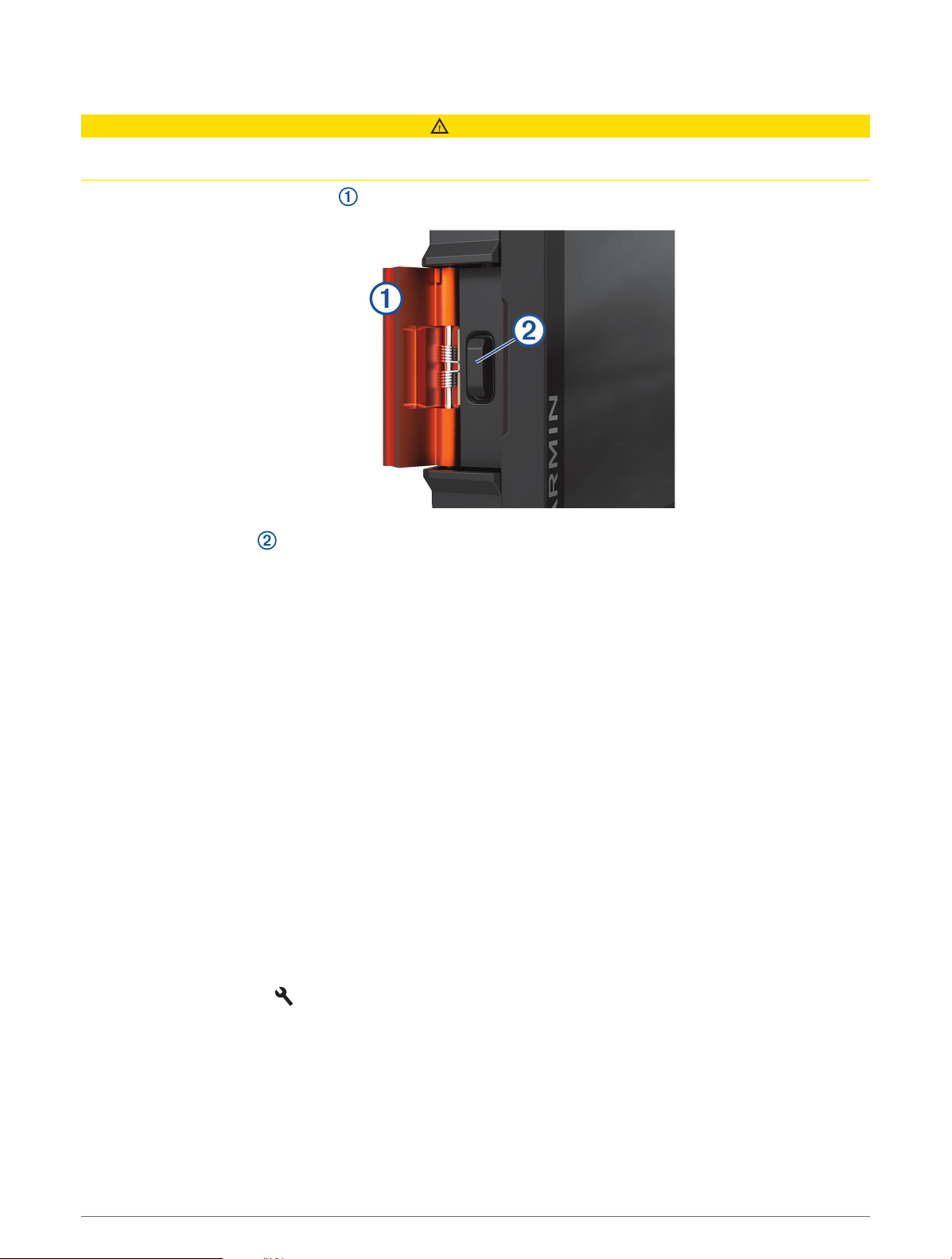
1 Open the SOS door on the device .
2 Press the SOS button .
3 Wait for the SOS countdown.
The device sends a default message to the emergency response service with details about your location.
4 Reply to the confirmation message from the emergency response service.
Your reply lets the emergency response service know that you are capable of interacting with them during
the rescue.
For the first 10 minutes of your rescue, an updated location is sent to the emergency response service every
minute. To conserve battery power after the first 10 minutes, an updated location is sent every 10 minutes
when moving, and every 30 minutes when stationary.
Canceling an SOS Rescue
If you no longer need assistance, you can cancel an SOS rescue after it is sent to the emergency response
service.
Select Cancel SOS.
Your device transmits the cancellation request. When you receive a confirmation message from the emergency
response service, the device returns to normal operation.
Contacts
You can add, delete, and edit contacts on the Tread XL device.
Adding a Contact
1 Select Team Tracking > > inReach Contacts > New Contact.
2 Enter the new information.
3 Select Save.
28 inReach Features

Editing a Contact
1 Select Team Tracking > > inReach Contacts.
2 Select a contact.
3 Select an item to edit.
4 Enter the new information.
5 Select Save.
Deleting a Contact
1 Select Team Tracking > > inReach Contacts.
2 Select a contact.
3 Select > Yes.
Viewing Plan and Usage Details
Select Team Tracking > > About This Device.
Using the Map
You can use the map to navigate a route (Your Route on the Map, page40) or to view a map of your
surroundings when no route is active.
1 Select Chase Map.
2 Touch anywhere on the map.
3 Select an option:
• To pan left, right, up, or down, drag the map.
• To add or remove map layers such as topographic and BirdsEye imagery, select .
• To zoom in or out, select or .
• To switch between map views, select .
• To start a route, select a location on the map, and select Go! (Starting a Route by Using the Map,
page39).
Map Tools
Map tools provide quick access to information and device functions while you view the map. When you activate
a map tool, it appears in a panel at the edge of the map.
Track Recorder: Displays the track data for your active route.
Group Ride: Displays the distance and direction of the members in your group ride (Group Ride, page21).
Radio: Allows you to use the push-to-talk feature with a compatible Bluetooth headset (Enabling Push-to-Talk
with a Headset, page24).
inReach Team Tracking: Allows you to view and send inReach messages, and start inReach team tracking
(Team Tracking Using Built-in inReach Technology, page25).
Viewing a Map Tool
1 From the map, select .
2 Select a map tool.
The map tool appears in a panel at the edge of the map.
3 When you are done using the map tool, select .
Using the Map 29

Customizing the Map
Customizing the Map Layers
You can customize which data appear on the map, such as topographic maps and BirdsEye imagery.
1 Select > Tools > > Map Display > Map Layers.
2 Select the check box next to each layer you want to show on the map.
Viewing the Public Lands Map Key
Public lands are color-coded on the map to show who owns a specific plot of land. For example, you can see if
a plot of land is privately owned or if it is part of a national park. You must enable the public lands map layer to
use this feature (Customizing the Map Layers, page30).
You can view the legend for these colors on the device.
Select > Map Display > Map Layers > > Public Lands.
Enabling Adventure Roads and Trails Map Layers
You can enable or disable map layers that display accessible or inaccessible roads for different types of motor
vehicles.
1 Select > Tools > > Map Display > Map Layers > > Adventure Roads & Trails.
2 Select a road or trail type.
Changing the Map Data Field
1 From the map, select a data field.
NOTE: You cannot customize Speed.
2 Select a type of data to display.
Changing the Map Buttons
1 From the map, hold a map button.
2 Select an option:
• To replace a map button, select a map button, and select a map button to display.
• To remove a map button, select .
3 Select Save.
Changing the Map Perspective
1 Select > Tools > > Map Display > Driving Map View.
2 Select an option:
• Select Track Up to display the map in two dimensions (2D), with your direction of travel at the top.
• Select North Up to display the map in 2D with north at the top.
• Select 3-D to display the map in three dimensions.
• Select Auto Zoom to Group to automatically adjust the zoom level so all riders in a group ride are visible
on the map.
NOTE: This setting is available only while using the group ride feature.
3 Select Save.
30 Using the Map

Using the Apps
Viewing the Owner's Manual on YourDevice
You can view the complete owner's manual on the device screen in many languages.
1 Select > Tools > Owner's Manual.
The owner's manual appears in the same language as the software text.
2 Select to search the owner's manual (optional).
BirdsEye Imagery
BirdsEye imagery provides downloadable, high-resolution map imagery, including detailed satellite imagery and
raster-based topographical maps. You can download BirdsEye Satellite Imagery directly to your device when it is
connected to a Wi‑Fi network.
Downloading BirdsEye Imagery
Before you can download BirdsEye imagery directly to your device, you must connect to a wireless network
(Connecting to a Wireless Network, page51).
1 Select > Race > BirdsEye Direct.
2 Select .
3 Select an option:
• To download BirdsEye imagery files for a specific location or area, select Location, and select a category.
NOTE: The location defaults to your current location.
• To select an image quality option, select Detail.
• To define the size of the area to be shown in the downloaded imagery files, select Size, and enter a
distance from the selected location.
• To select where to save the downloaded imagery, select Save To.
4 Select Download.
5 Enter a name for the downloaded imagery and select Done.
Using the Apps 31
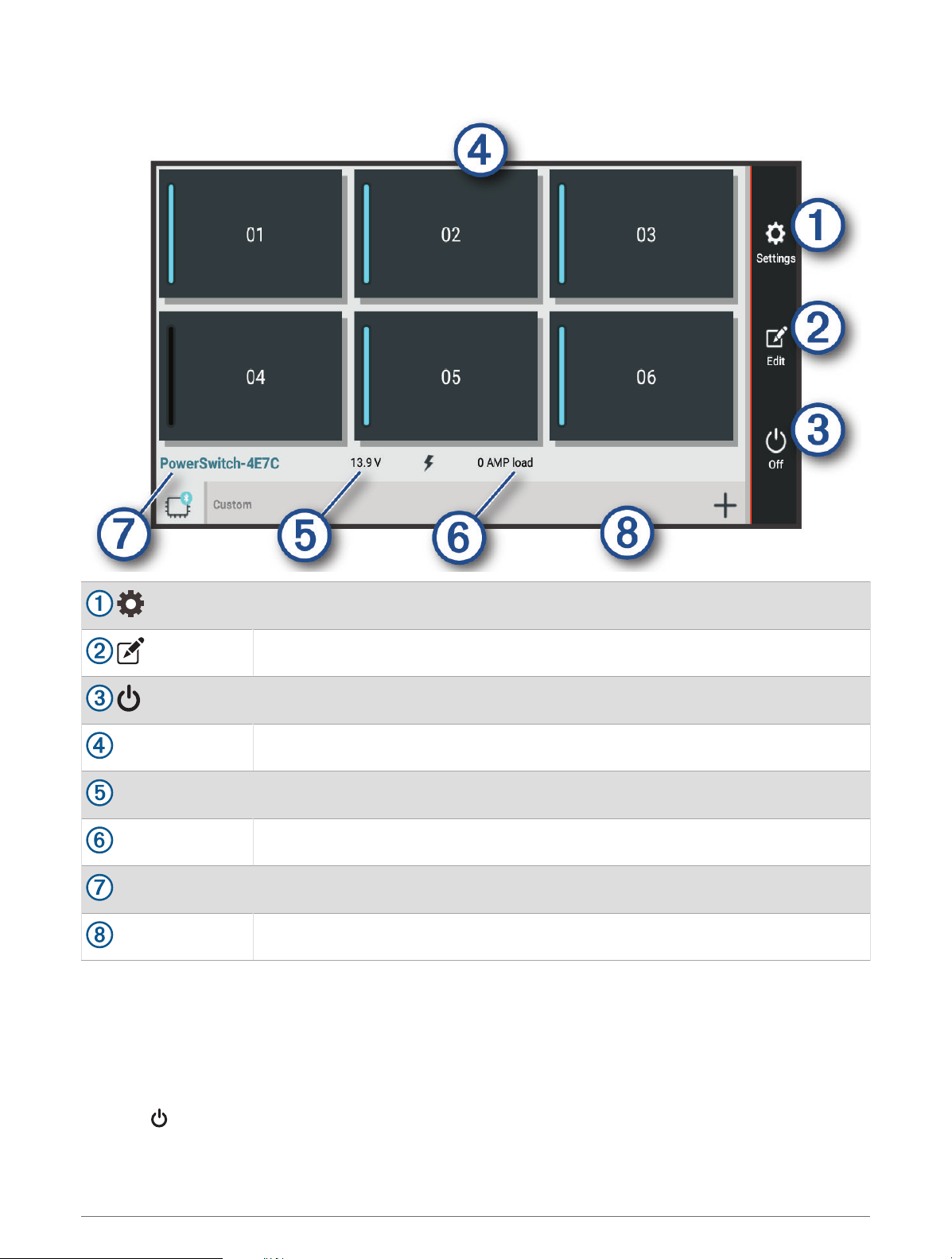
Garmin PowerSwitch
™
App
Opens the app settings menu
Enters editing mode to customize the app layout and functions
Turns off all outputs
Power buttons
Activates each connected output
Displays input voltage
Displays the total amperage of the selected Garmin PowerSwitch device
Displays the device name
Displays Garmin PowerSwitch device tabs and custom layout tabs
Activating a Power Switch
Before you can use the Garmin PowerSwitch app to activate a switch, you must install your Garmin
PowerSwitch device in your vehicle and pair it with the Garmin PowerSwitch app.
From the Garmin PowerSwitch app, select a power button to turn a switch on or off.
Turning Off All Switches
Select .
32 Using the Apps

Customizing a Button
1 From the Garmin PowerSwitch app screen, select .
The app enters editing mode.
2 Select on the button you want to customize.
3 Select an option:
• To change the name of the button, select the Button Label field, and enter a name.
• To add an icon to the button, select the Icon field, and select an icon.
• To change the button color, select a color.
• To change the button mode, select a button mode.
• To adjust the intensity of the switch, use the slider.
• To set the button to activate with a control input, select a control input.
4 Select .
5 Select Done.
Assigning a Switch to a Control Input
Before you can use control input functions, you must connect a control input to your Garmin PowerSwitch
device (Connecting a Control Input, page61).
You can assign one or more switches to turn on when the Garmin PowerSwitch device receives a signal from a
control input.
1 Select .
2 Select your Garmin PowerSwitch device.
3 Select a control input.
4 Select one or more switches.
Adding a Custom Layout
You can add a custom layout tab to the Garmin PowerSwitch app. Buttons added to a custom layout can control
multiple switches at the same time.
1 From the Garmin PowerSwitch app, select .
The device enters editing mode.
2 Select .
Using the Apps 33

Adding a Button to a Custom Layout
1 From the Garmin PowerSwitch app, select a custom layout tab.
2 Select .
The app enters editing mode.
3 Select Add Button.
4 On the new button, select .
5 Select an option:
• To change the name of the button, select the Button Label field, and enter a name.
• To add an icon to the button, select the Icon field, and select an icon.
• To change the button color, select a color.
6 Select Add Action.
7 If necessary, select a Garmin PowerSwitch device and a switch.
8 Select an action:
• To set the button to turn the switch on or off with each press, select Toggle.
• To set the button to turn on the switch, select Turn On.
• To set the button to turn off the switch, select Turn Off.
9 Select a button mode:
• To set the button to activate with one touch, select Normal.
• To set the button to activate only while touching the button, select Momentary.
• To set the button to turn on and off repeatedly, select Strobe, and select time intervals.
10 If applicable, use the slider to set the brightness of lights.
11 Select .
12 If necessary, select Add Action to add additional actions for the button.
You can add one action for every switch on the Garmin PowerSwitch device.
Arranging Buttons In a Custom Layout
1 From the Garmin PowerSwitch app, select a custom layout tab.
2 Select .
The app enters editing mode.
3 On the button you want to move, hold , and drag the button to a new location.
Deleting a Custom Layout or Button
1 From the Garmin PowerSwitch app, select a custom layout tab.
2 Select .
The app enters editing mode.
3 Select an option:
• To delete a button, select on the button you want to delete.
• To delete a layout tab, select on the layout tab.
Routines
Routines automate your Garmin PowerSwitch device. When you define a routine on your compatible Garmin
navigation device, it turns switches on or off automatically when the conditions of the routine are met. For
example, you can set a routine to turn on a switch at specific time each day or when your vehicle reaches a
specific speed. Routines are available only when using a compatible Garmin navigation device.
34 Using the Apps

Adding a Routine
1 From the Garmin PowerSwitch app, select > Routines.
2 If necessary, select Add Routine.
3 Select When.
4 Select a trigger:
• To set a switch to trigger when your vehicle reaches a specific speed, select Speed > Next, and follow the
on-screen instructions to enter speed thresholds.
• To set a switch to trigger at a specific time each day, select Time > Next, and enter a time.
• To set a switch to trigger at sunrise, select Sunrise.
• To set a switch to trigger at sunset, select Sunset.
5 Select Add Action.
6 Select a device, a switch, an action, and a button mode.
7 If necessary, use the slider to adjust the dimmer.
8 Select Save.
Editing a Routine
1 From the Garmin PowerSwitch app, select > Routines.
2 Select on the routine you want to edit.
3 Select an option:
• To change the trigger for the routine, select When, and select a trigger.
• To change an action, select on the action you want to change, and update the action.
• To add an action to the routine, select Add Action, and enter information about the action.
4 Select Save.
Deleting a Routine
1 From the Garmin PowerSwitch app, select > Routines.
2 Select on the routine you want to delete.
Using the Apps 35
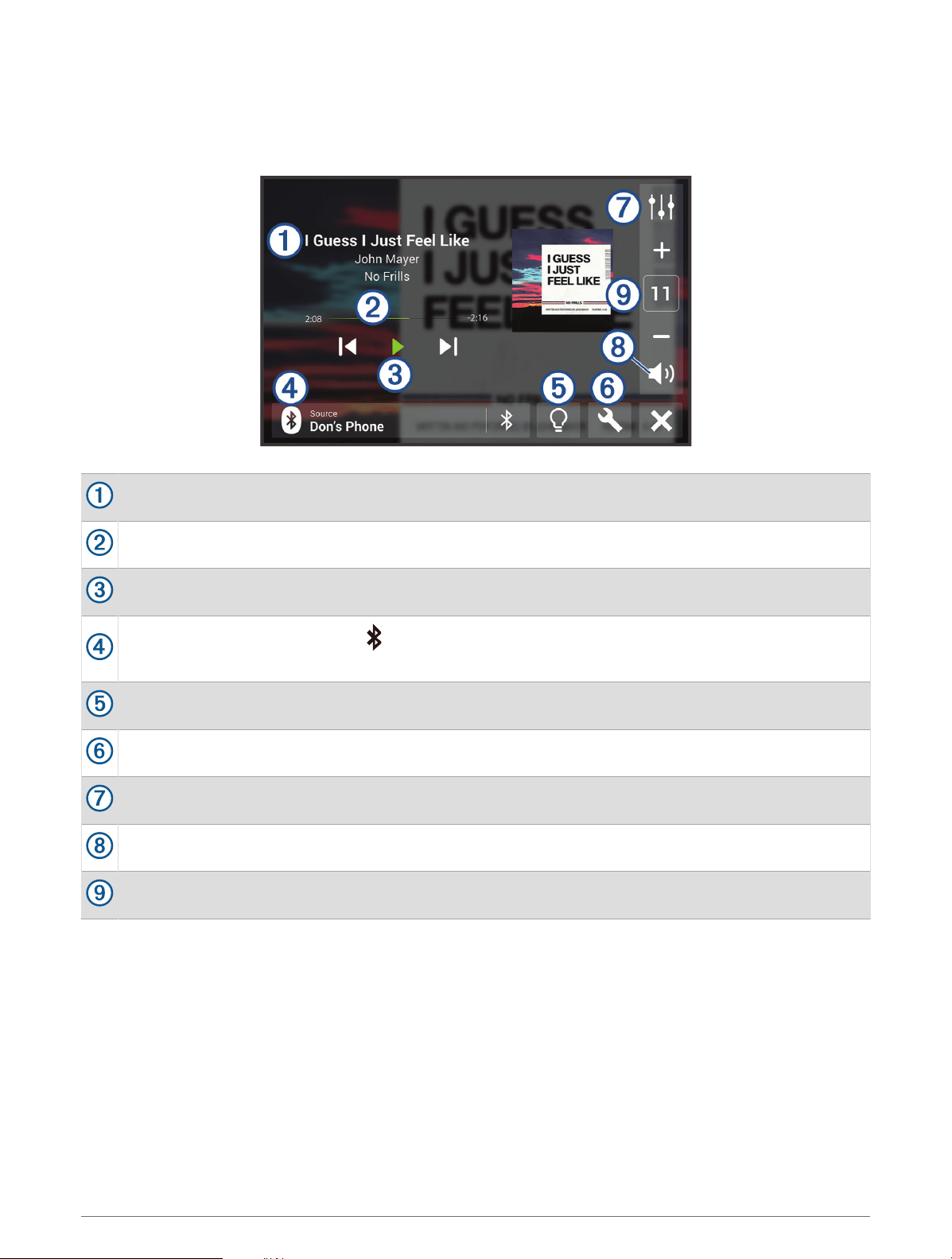
Tread Audio App
Before you can use the controls in the Tread Audio app, you must install your Tread Audio Box and Tread 6.5"
XS-LED Tower Speakers in your vehicle and pair the Tread Audio Box with the Tread Audio app.
Displays information about the currently playing media, such as title, artist, album, station, or channel.
Displays progress through the current media item.
Displays playback controls. The controls change based on the service providing the media.
Displays the current audio source. indicates the media is being played by another media app on your
phone and sent to the device using a Bluetooth media connection.
Opens the LED controls.
Opens the app settings menu.
Opens the volume zone controls.
Mutes the audio.
Increases or decreases the volume.
LED Controls
The LED controls allow you to control the LED lights on your connected Tread 6.5" XS-LED Tower Speakers and
optional, addressable LEDs. You can set the color of the LEDs, sync the LEDs to your music or the speed of your
vehicle, and display a call sign color during a group ride.
36 Using the Apps
Enabling LED Groups
By default, the controls for LED groups RGB 1 and RGB 2 are enabled. Enabling an LED group allows you to
use the LED lighting controls for that group. You can enable the LED group for the Tread 6.5" XS-LED Tower
Speakers or any additional speakers or addressable LEDs after you set up and pair them with your Tread Audio
Box.
1 Select .
2 Select the LED group.
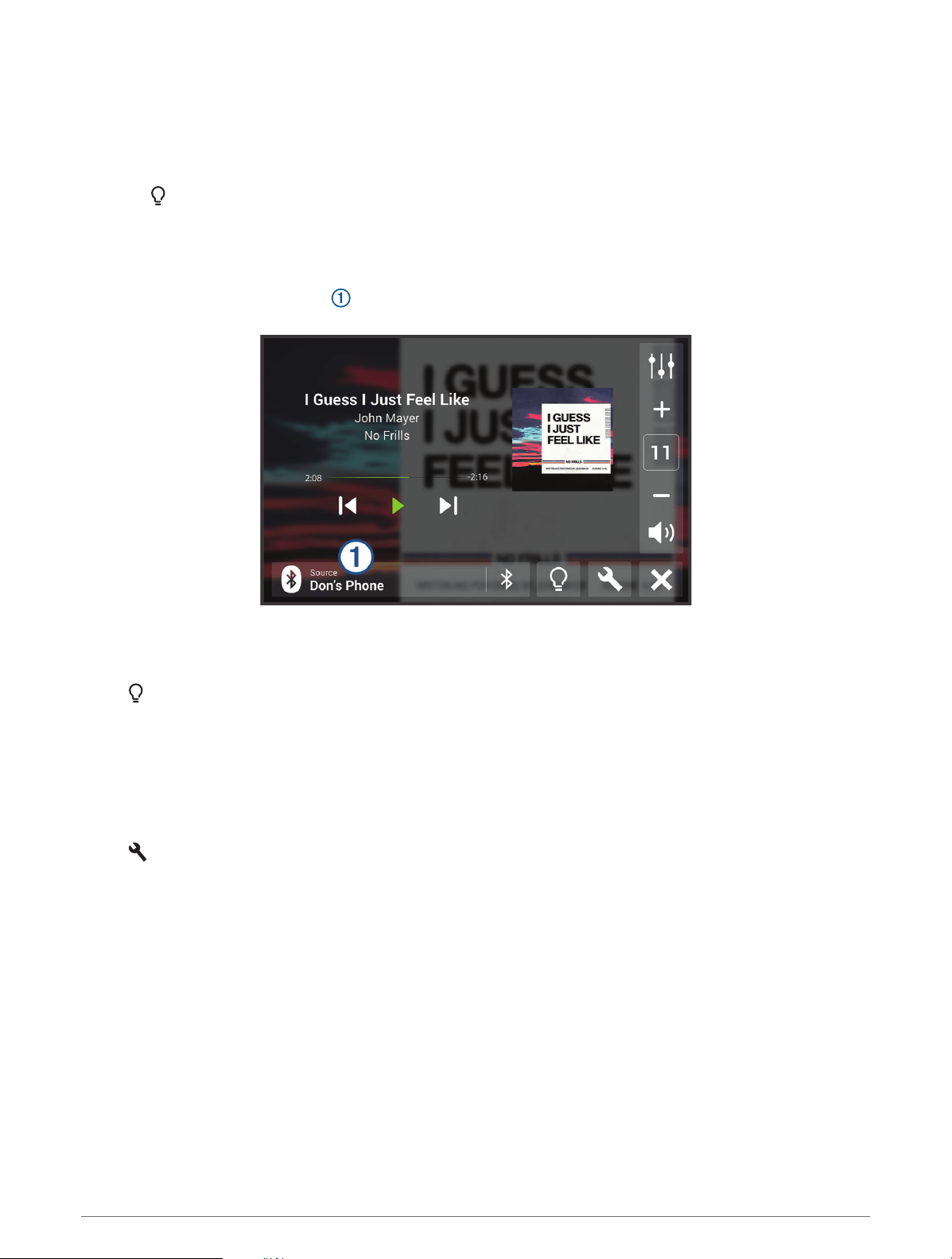
Changing the Media Source
You can change the source from which media is played on your device.
1 Select the current media source .
2 Select an available media source from the list.
LED Light Settings
Select .
Set Color: Sets the color of the LED lights.
Music Sync: Syncs the LED lights to music playback.
Speed Sync: Syncs the LED lights to the vehicle's speed.
Group Ride Sync: Sets the LED lights to display a call sign color during a group ride.
Audio Zone Settings
Select > Stereo Settings > Audio Zones, and if necessary, select a zone.
Zone Name: Sets the name of the zone.
Loud: Boosts the high and low frequencies.
Subwoofer Filter: Sets the low-pass frequency of the subwoofer.
Bass: Sets the relative volume of low-frequency audio.
Middle: Sets the relative volume of middle-frequency audio.
Treble: Sets the relative volume of high-frequency audio.
Using the Apps 37

Pairing with Your Smartphone
You can pair your Tread XL device with your smartphone and the Tread app to enable additional features and
access live information.
1 From the app store on your smartphone, install the Tread app.
2 Turn on your Tread XL device, and place the device and your smartphone within 3m (10ft.) of each other.
3 On your phone, open the Tread app.
4 Follow the on-screen instructions to sign in to a Garmin account and complete the pairing and setup
process.
The main app dashboard appears. After the devices are paired, they connect automatically when they are turned
on and within range.
Tips Afer Pairing the Devices
• After the initial pairing, the two devices can connect automatically each time you turn them on.
• When you turn on the device, it tries to connect to the last phone to which it was connected.
• You might need to set your phone to connect to the device automatically when the device is turned on.
• You should verify the Bluetooth features you want to use are enabled (Enabling or Disabling Bluetooth
Features, page38).
Pairing Additional Bluetooth Devices
1 Place your headset or phone and your Bluetooth device within 33ft. (10m) of each other.
2 On your device, enable Bluetooth wireless technology.
3 On your headset or phone, enable Bluetooth wireless technology and ensure it is visible to other Bluetooth
devices.
4 On your device, select > Tools > > Wireless Networks > Bluetooth > Pair new device.
A list of nearby Bluetooth devices appears.
5 Select your headset or phone from the list.
6 If necessary, select Pair.
Enabling or Disabling Bluetooth Features
You can enable or disable Bluetooth features such as phone calls, media audio, and live services for your paired
smartphone.
1 Select > Tools > > Wireless Networks > Bluetooth.
2 Select your phone name.
3 Select a feature to enable or disable it.
Enabling or Disabling Bluetooth Features for Your Headset
By default, all compatible Bluetooth features are enabled when you pair your headset. You can enable or disable
certain features.
1 Select > Tools > > Wireless Networks > Bluetooth.
2 Select the headset name, and select .
3 Select an option:
• To disconnect the headset, select Disconnect.
• To disable audio from streaming media, select Media Audio.
38 Pairing with Your Smartphone

Disconnecting a Bluetooth Device
You can temporarily disconnect a Bluetooth device without deleting it from the paired devices list. The
Bluetooth device can connect to your Tread device automatically in the future.
1 Select > Tools > > Wireless Networks > Bluetooth.
2 Select the device to disconnect.
3 Select Disconnect.
Deleting a Paired Phone
You can delete a paired phone to prevent it from automatically connecting to your device in the future.
1 Select > Tools > > Wireless Networks > Bluetooth.
2 Select the phone, and select Forget.
Street Navigation
Starting a Route
1 Select > Apps > Search, and search for a location.
2 Select a location.
3 Select an option:
• To start navigating using the recommended route, select Go!.
• To choose an alternate route, select , and select a route.
Alternate routes appear to the right of the map.
• To edit the course of the route, select > Edit Route, and add shaping points to the route (Shaping Your
Route, page41).
The device calculates a route to the location and guides you using voice prompts and information on the map
(Your Route on the Map, page40). A preview of the major roads in your route appears at the edge of the map
for several seconds.
If you need to stop at additional destinations, you can add the locations to your route (Adding a Location to Your
Route, page41).
Starting a Route by Using the Map
You can start a route by selecting a location from the map.
1 Select Chase Map.
2 Drag and zoom the map to display the area to search.
3 Select a location on the map.
4 Select Go!.
Street Navigation 39
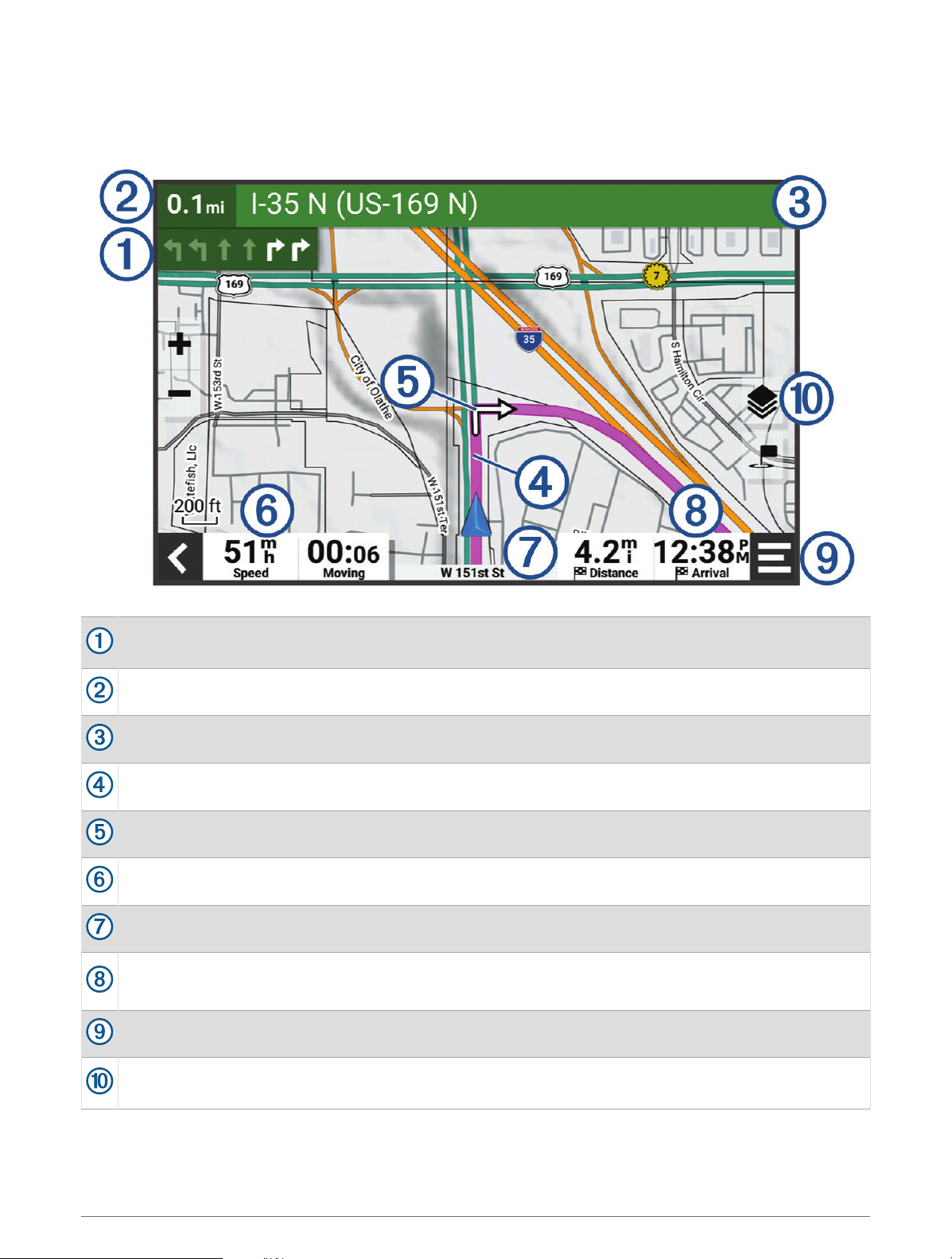
Your Route on the Map
As you travel, the device guides you to your destination using voice prompts and information on the map.
Instructions for your next turn or exit, or other actions appear across the top of the map.
Next action in the route. Indicates the next turn, exit, or other action and the lane in which you should
travel, if available.
Distance to the next action.
Name of the street or exit associated with the next action.
Route highlighted on the map.
Next action in the route. Arrows on the map indicate the location of upcoming actions.
Vehicle speed.
Name of the road on which you are traveling.
Estimated arrival time.
TIP: You can touch this field to change the information it shows.
Map tools. Provides tools to show you more information about your route and surroundings.
Map layers. Allows you to change the map orientation and add topographic and BirdsEye imagery to your
map view.
40 Street Navigation

Viewing Turns and Directions
While navigating a route, you can view upcoming turns, lane changes, or other directions for your route.
1 Select the text bar at the top of the map.
2 Select a turn or direction (optional).
Detailed information appears. An image of the junction may appear for junctions on major roadways, if
available.
Viewing the Entire Route on the Map
1 While navigating a route, select anywhere on the map.
2 Select .
Changing Your Active Route
Adding a Location to Your Route
Before you can add a location to your route, you must be navigating a route (Starting a Route, page39).
You can add locations to the middle or end of your route. For example, you can add a fuel station as the next
destination in your route.
1 From the map, select > > Apps > Search.
2 Search for a location.
3 Select a location.
4 Select Go!.
5 Select an option:
• To add the location as the next destination in your route, select Add as Next Stop.
• To add the location to the end of your route, select Add as Last Stop.
• To add the location and edit the order of destinations in your route, select Add to Active Route.
The device re-calculates the route to include the added location and guides you to the destinations in order.
Shaping Your Route
Before you can shape your route, you must start a route (Starting a Route, page39).
You can manually shape your route to change its course. This allows you to direct the route to use a certain
road or go through a certain area without adding a destination to the route.
1 Touch anywhere on the map.
2 Select Shape Route.
TIP: You can select to zoom in on the map and select a more precise location.
The device enters route shaping mode and recalculates the route to travel through the selected location.
3 Select Go!.
4 If necessary, select an option:
• To add more shaping points to the route, select additional locations on the map.
• To remove a shaping point, select the shaping point and select Remove.
Avoiding Delays, Tolls, and Areas
Avoiding Toll Roads
Your device can avoid routing you through areas that require tolls, such as toll roads, toll bridges, or congestion
areas. The device may still include a toll area in your route if no other reasonable routes are available.
1 Select
> Tools > > Navigation > Avoidances > Toll Roads.
2 Select Save.
Street Navigation 41

Avoiding Road Features
1 Select > Tools > > Navigation > Avoidances.
2 Select the road features to avoid on your routes, and select Save.
Custom Avoidances
Custom avoidances allow you to select specific areas or sections of road to avoid. When the device calculates a
route, it avoids these areas and roads unless no other reasonable route is available.
Avoiding a Road
1 Select > Tools > > Navigation > Custom Avoidances.
2 If necessary, select Add Avoidance.
3 Select Add Avoid Road.
4 Select the starting point of the section of road to avoid, and select Next.
5 Select the ending point of the road section, and select Next.
6 Select Done.
Avoiding an Area
1 Select > Tools > > Navigation > Custom Avoidances.
2 If necessary, select Add Avoidance.
3 Select Add Avoid Area.
4 Select the upper-left corner of the area to avoid, and select Next.
5 Select the lower-right corner of the area to avoid, and select Next.
The selected area is shaded on the map.
6 Select Done.
Disabling a Custom Avoidance
You can disable a custom avoidance without deleting it.
1 Select > Tools > > Navigation > Custom Avoidances.
2 Select an avoidance.
3 Select > Disable.
Deleting Custom Avoidances
1 Select > Tools > > Navigation > Custom Avoidances > .
2 Select an option:
• To delete all custom avoidances, select Select All > Delete.
• To delete one custom avoidance, select the avoidance, and select Delete.
Arriving at Your Destination
When you approach your destination, the device provides information to help you complete your route.
• indicates the location of your destination on the map, and a voice prompt announces you are approaching
your destination.
• When you approach some destinations, the device automatically suggests parking areas. You can select
More to view a full list of suggested parking areas (Parking Near Your Destination, page43).
• When you stop at your destination, the device automatically ends the route. If the device does not detect your
arrival automatically, you can select > Stop to end your route.
42 Street Navigation

Changing the Route Calculation Mode
1 Select > Tools > > Navigation > Calculation Mode.
2 Select an option:
• Select Turn-by-Turn to calculate routes on streets and trails.
• Select Straight Line to calculate off-road, point-to-point routes in a straight line.
Taking a Route Using Garmin Adventurous Routing
™
Your device can calculate adventurous routes that prefer curvy roads, hills, and fewer highways. This feature
can provide a more enjoyable ride, but it may increase the time or distance to your destination.
1 Select > Apps > Search, and search for a location.
2 Select a location.
3 Select .
4 Use the slider to increase or decrease the level of adventure of your route.
5 Select Go!.
Taking a Detour
You can take a detour for a specified distance along your route or detour around specific roads. This is useful if
you encounter construction zones, closed roads, or poor road conditions.
1 From the map, select > Edit Route.
2 Select an option:
• To detour your route for a specific distance, select Detour by Distance.
• To detour around a specific road on the route, select Detour by Road.
Going Home
The first time you start a route home, the device prompts you to enter your home location.
1 Select > Apps > Search > Go Home.
2 If necessary, enter your home location.
Editing Your Home Location
1 Select > Apps > Search > > Set Home Location.
2 Enter your home location.
Parking Near Your Destination
Your device can help you find a parking spot near your destination. When you approach some destinations, the
device automatically suggests parking areas.
1 Select an option:
• When the device suggests parking, select More to see all suggested parking areas.
NOTE: When you select a suggested parking area, the device automatically updates your route.
• If the device does not suggest parking locations, select > Apps > Search > Categories > Parking, and
select > My Destination.
2 Select a parking location, and select Go!.
The device guides you to the parking area.
Street Navigation 43

Finding and Saving Locations
The maps loaded in your device contain locations, such as restaurants, hotels, auto services, and detailed street
information. The Search menu helps you find your destination by providing several methods to browse, search,
and save this information.
From the main menu, select Search.
• To quickly search all locations on your device, select Search (Finding a Location Using the Search Bar,
page44).
• To find an address, select Address.
• To browse or search pre-loaded points of interest by category, select Categories (Finding a Location by
Category, page45).
• To search near a different city or area, select next to the current search area (Changing the Search Area,
page45).
• To view and edit your saved locations, select Waypoints (Saving Locations, page49).
• To view locations you have recently selected from the search results, select Recent (Viewing Recently Found
Locations, page48).
• To browse and search Tripadvisor
®
traveler ratings, select Tripadvisor (Finding Tripadvisor Points of Interest,
page47).
• To find national parks and explore park maps, select National Parks (Finding National Parks, page46).
• To navigate to specific geographic coordinates, select Coordinates (Finding a Location Using Coordinates,
page48).
Finding a Location Using the Search Bar
You can use the search bar to search for locations by entering a category, brand name, address, or city name.
1 Select > Apps > Search.
2 Select Search in the search bar.
3 Enter all or part of the search term.
Suggested search terms appear below the search bar.
4 Select an option:
• To search for a type of business, enter a category name (for example, "movie theaters").
• To search for a business name, enter all or part of the name.
• To search for an address near you, enter the house number and street name.
• To search for an address in another city, enter the house number, street name, city, and state.
• To search for a city, enter the city and state.
• To search for coordinates, enter latitude and longitude coordinates.
5 Select an option:
• To search using a suggested search term, select the term.
• To search using the text you entered, select .
6 If necessary, select a location.
44 Finding and Saving Locations
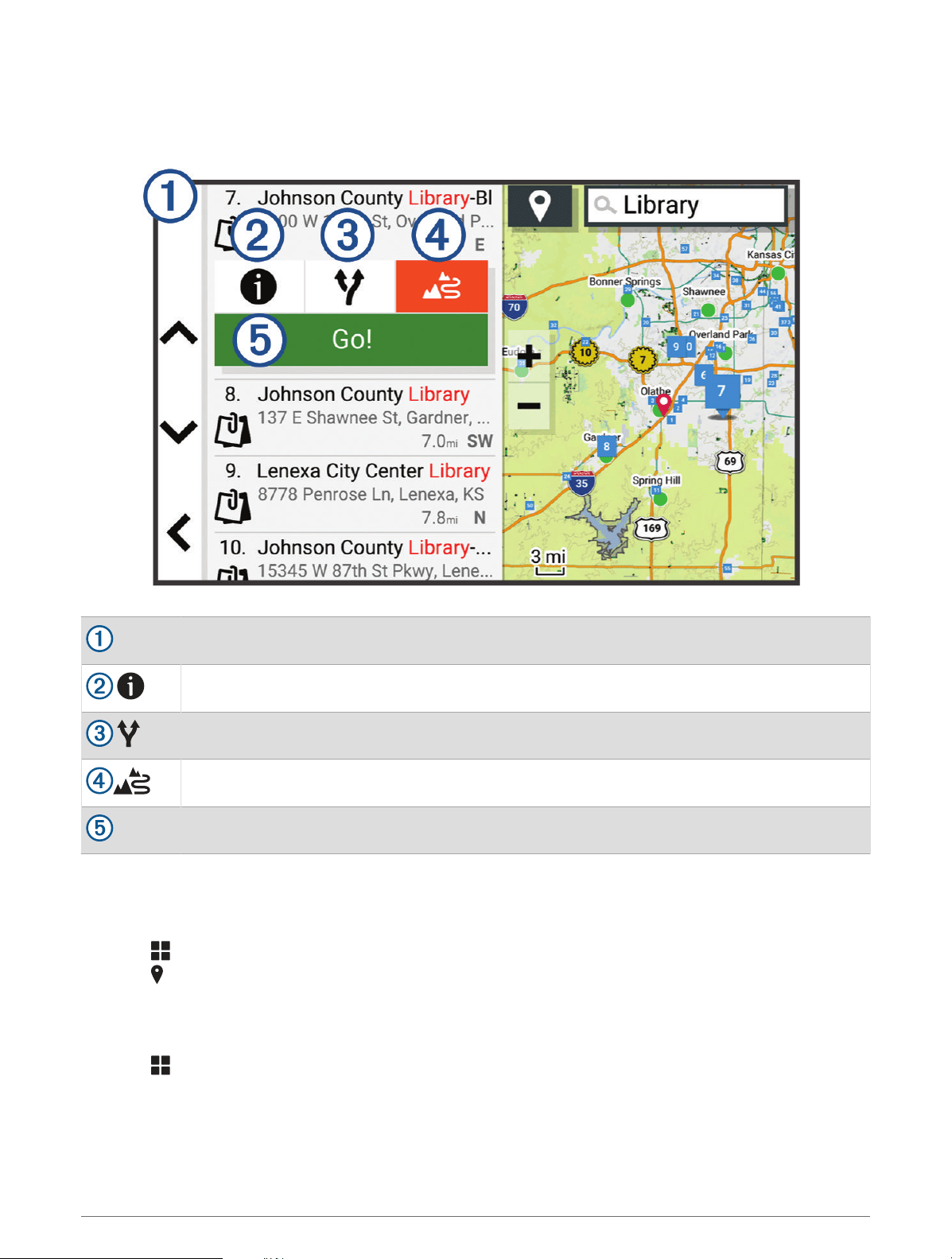
Location Search Results
The location search results appear in a list, with the nearest location at the top. Each numbered location also
appears on the map. You can scroll down to view more results.
Select a location to view the option menu.
Select to view detailed information about the location.
Select to view alternate routes to the location.
Select to start navigating using Garmin Adventurous Routing.
Go!
Select to start navigating to the location using the recommended route.
Changing the Search Area
By default, the device searches near your current location. You can also search other areas, such as near your
destination, near another city, or along your active route.
1 Select > Apps > Search.
2 Select .
3 Select an option.
Finding a Location by Category
1 Select > Apps > Search.
2 Select a category, or select Categories.
3 If necessary, select a subcategory.
4 Select a location.
Finding and Saving Locations 45
Navigating to Points of Interest Within a Venue
NOTE: This feature may not be available in all areas or for all product models.
You can create a route to a point of interest (POI) within a larger venue, such as a store in a shopping mall or a
specific terminal in an airport.
1 Select > Apps > Search > Search.
2 Enter the name of the venue, and select .
3 Select the venue.
A list of categories for POIs within the venue appears.
4 Select a category, select a location, and select Go!.
The device creates a route to the parking area or venue entrance closest to the POI. When you arrive at the
destination, a checkered flag indicates the recommended parking area. A labeled point indicates the location of
the POI within the venue.
Points of Interest
A point of interest is a place that you may find useful or interesting. Points of interest are organized by category
and can include popular travel destinations such as gas stations, restaurants, hotels, and entertainment venues.
Finding National Parks
Device models that include maps for North America or the United States also include detailed information for
national parks in the United States. You can navigate to a national park or to a location within a national park.
NOTICE
You are responsible for understanding and complying with any applicable rules, laws, or regulations associated
with national parks.
1 Select > Apps > Search > National Parks.
A list of national parks appears, with the nearest park at the top.
2 Select Search, and enter all or part of the park name to narrow the results (optional).
3 Select a national park.
A list of categories for locations of features and amenities within the park appears below the park name.
4 Select an option:
• To start navigating to the park, select Go!.
• To view more park information or explore the park features and amenities, select .
• To quickly find a location within the park, select a category from the list below the park name, and select a
location.
Finding Campgrounds
NOTICE
You are responsible for understanding and complying with any applicable rules, laws, or regulations associated
with campgrounds.
Select > Apps > Search > Categories > All Campgrounds.
46 Finding and Saving Locations
Finding Ultimate Campgrounds Points of Interest
NOTE: This feature is not available in all areas.
NOTICE
You are responsible for understanding and complying with any applicable rules, laws, or regulations associated
with campsites and points of interest.
Your device includes Ultimate Campgrounds points of interest, which allow you to find public campgrounds near
your location.
1 Select > Apps > Search > Ultimate Public Campgrounds.
2 If necessary, select Search Filters, select one or more search filters, and select Search.
3 Select a location.
Finding iOverlander
™
Points of Interest
NOTICE
You are responsible for understanding and complying with any applicable rules, laws, or regulations associated
with campsites and points of interest.
Your device includes iOverlander points of interest, which allow you to find points of interest useful for
overlanding, such as camp sites, repair services, and lodging.
1 Select > Apps > Search > iOverlander.
2 Select a category.
3 Select a location.
Finding Adventure Points
NOTICE
You are responsible for understanding and complying with any applicable rules, laws, or regulations associated
with campsites and points of interest.
Your device includes adventure points of interest, which allow you to find outdoor points of interest such as
campsites, hiking trails, OHV trails, fishing locations, and water activities.
1 Select > Apps > Search > USFS Adventure Points.
2 If necessary, select Search Filters, select one or more search filters, and select Save.
3 Select a location.
Tripadvisor
NOTICE
Garmin is not responsible for the accuracy or timeliness of the Tripadvisor information.
You are responsible for understanding and complying with any applicable rules, laws, or regulations associated
with points of interest.
Your device includes Tripadvisor traveler ratings. Tripadvisor ratings appear automatically in the search results
list for restaurants, hotels, and attractions. You can also search for nearby Tripadvisor points of interest and
sort by distance or popularity.
Finding Tripadvisor Points of Interest
1 Select > Apps > Search > Tripadvisor.
2 Select a category.
3 If necessary, select a subcategory.
A list of nearby Tripadvisor points of interest for the category appears.
4 Select Sort Results to filter the displayed points of interest by distance or popularity (optional).
5 Select
, and enter a search term (optional).
Finding and Saving Locations 47

Finding Parking Near Your Current Location
1 Select > Apps > Search > Categories > Parking.
2 Select a parking location.
3 Select Go!.
Search Tools
Search tools allow you to search for specific types of locations by responding to on-screen prompts.
Finding an Address
NOTE: The order of the steps may change depending on the map data loaded on your device.
1 Select > Apps > Search.
2 If necessary, select to search near a different city or area.
3 Select Address.
4 Follow the on-screen instructions to enter address information.
5 Select the address.
Finding a Location Using Coordinates
You can find a location using latitude and longitude coordinates.
1 Select > Apps > Search > Coordinates.
2 If necessary, select , and change the coordinate format or datum.
3 Select Coordinates.
4 Enter the latitude and longitude coordinates, and select Done.
5 Select an option:
• To save the coordinates as a location, select Save.
• To start a route to the coordinates, select Go!.
Viewing Recently Found Locations
Your device stores a history of the last 50 locations you have found.
Select > Apps > Search > Recent.
Clearing the List of Recently Found Locations
Select > Apps > Search > Recent > > Clear > Yes.
Viewing Current Location Information
You can use the Where Am I? page to view information about your current location. This feature is helpful if you
need to tell emergency personnel your location.
From the map, select the vehicle.
48 Finding and Saving Locations

Finding Emergency Services and Fuel
You can use the Where Am I? page to find the nearest hospitals, police stations, and fuel stations.
1 From the map, select the vehicle.
2 Select Hospitals, Police Stations, or Fuel.
NOTE: Some service categories are not available in all areas.
A list of locations for the selected service appears, with the nearest locations at the top.
3 Select a location.
4 Select an option:
• To navigate to the location, select Go!.
• To view the phone number and other location details, select .
Getting Directions to Your Current Location
If you need to tell another person how to get to your current location, your device can give you a list of
directions.
1 From the map, select the vehicle.
2 Select > Directions to Me.
3 Select a starting location.
4 Select Select.
Adding a Shortcut
You can add shortcuts to the Where To? menu. A shortcut can point to a location, a category, or a search tool.
The Where To? menu can contain up to 36 shortcut icons.
1 Select > Apps > Search > Add Shortcut.
2 Select an item.
Removing a Shortcut
1 Select > Apps > Search > > Remove Shortcut(s).
2 Select a shortcut to remove.
3 Select the shortcut again to confirm.
4 Select Done.
Saving Locations
Saving a Location
1 Search for a location (Finding a Location by Category, page45).
2 From the search results, select a location.
3 Select > Save.
4 If necessary, enter a name, and select Done.
5 Select Save.
Finding and Saving Locations 49

Saving a Waypoint on the Map
1 Select Chase Map.
2 Drag and zoom the map to display the area to search.
3 Select an option:
• Select a location marker.
• Select a point, such as a street, intersection, or address location.
4 Select .
5 Enter a name, and select Save.
Saving Your Current Location
1 From the map, select the vehicle icon.
2 Select Save.
3 Enter a name, and select Done.
Editing a Saved Location
1 Select > Apps > Search > Waypoints.
2 If necessary, select a category.
3 Select a location.
4 Select .
5 Select > Edit.
6 Select an option:
• Select Name.
• Select Phone Number.
• Select Categories to assign categories to the saved location.
• Select Map Symbol to change the symbol used to mark the saved location on a map.
7 Edit the information.
8 Select Done.
Assigning Categories to a Saved Location
You can add custom categories to organize your saved locations.
NOTE: Categories appear in the saved locations menu after you have saved at least 12 locations.
1 Select > Apps > Search > Waypoints.
2 Select a location.
3 Select .
4 Select > Edit > Categories.
5 Enter one or more category names, separated by commas.
6 If necessary, select a suggested category.
7 Select Done.
Deleting a Saved Location
NOTE: Deleted locations cannot be recovered.
1 Select > Apps > Search > Waypoints.
2 Select a waypoint.
3 Select Edit > Delete > Yes.
50 Finding and Saving Locations

Settings
Navigation Settings
Select > Tools > > Navigation.
Calculation Mode: Sets the route calculation method.
Off-Route Recalculation: Sets recalculation preferences when navigating away from an active route.
Avoidances: Sets road features to avoid on a route.
Custom Avoidances: Allows you to avoid specific roads or areas.
Environmental Zones: Sets the avoidance preferences for areas with environmental or emissions restrictions
that may apply to your vehicle.
Restricted Mode: Disables all functions that require significant operator attention.
Voice Language: Sets the language for navigation voice prompts.
Travel History: Allows the device to store a record of the places you go. This allows you to view the trip log, use
the Trip History feature, and use myTrends
™
suggested routes.
Clear Travel History: Allows you to clear all travel history from the device.
Map Display Settings
Select > Tools > > Map Display.
Map Vehicle Icon: Sets the vehicle icon that represents your position on the map.
Driving Map View: Sets the perspective on the map.
Map Detail: Sets the level of detail on the map. More detail may cause the map to draw slower.
Map Theme: Changes the color of the map data.
Map Layers: Sets the data that appears on the map page (Customizing the Map Layers, page30).
Adventure Roads & Trails: Sets the trails visible on the map. Trails are organized by vehicle accessibility.
Waypoint Decluttering: Hides waypoints at high map zoom levels.
Auto Zoom: Automatically selects the zoom level for optimal use of your map. When disabled, you must zoom
in or out manually.
Skip Next Stop Confirmation: Sets a confirmation message to appear when skipping a location on your route.
Units: Sets the units of measure.
myMaps: Sets which installed maps the device uses.
Enabling Maps
You can enable map products installed on your device.
TIP: To purchase additional map products, go to garmin.com/maps.
1 Select > Tools > > Map Display > myMaps.
2 Select a map.
Connecting to a Wireless Network
1 Select > Tools > > Wireless Networks > Wi-Fi.
2 If necessary, select the toggle switch to turn on wireless network technology.
3 Select a wireless network.
4 If necessary, enter the encryption key.
The device connects to the wireless network. The device remembers the network information and connects
automatically when you return to this location in the future.
Enabling Bluetooth Wireless Technology
Select > Tools > > Wireless Networks > Bluetooth.
Settings 51

Display Settings
Select > Tools > > Device > Display.
Brightness level: Sets the display brightness level on your device.
Dark theme: Enables or disables the dark color theme.
Wallpaper: Sets the wallpaper background on your device.
Screen timeout: Allows you to set the amount of idle time before your device turns off the display while using
battery power.
Font size: Increases or decreases the font size on your device.
Auto-rotate screen: Enables the screen to rotate automatically between portrait and landscape display modes
based on the device orientation or to remain in the current orientation.
Adjusting Sound and Notification Volume
1 Select > Tools > > Device > Sound & Notification.
2 Use the sliders to adjust the sound and notification volume.
Setting the Text Language
You can select the language for text in the device software.
1 Select > Tools > > Personal > Language & Input > Languages.
2 Select a language.
Date and Time Settings
Select > Tools > > System > Date & Time.
Use network-provided time: Automatically sets the time zone based on information from the connected
network.
Use network-provided time zone: Sets the time zone on your device when the Use network-provided time
setting is disabled.
Use 24-hour format: Enables or disables the 24-hour time format.
Device Settings
Select > Tools > > About Device.
Legal Information: Allows you to view the end-user license agreement (EULA)and software license information.
Regulatory Information: Displays e-label regulatory and compliance information.
Garmin Device Information: Displays hardware and software version information.
Enabling or Disabling Location Services
The location services feature must be enabled for your device to find your location, calculate routes, and provide
navigational assistance. You can disable location services to plan a route when GPS signals are not available.
When location services are disabled, the device enables a GPS simulator to calculate and simulate routes.
TIP: Disabling location services can help save battery power.
1 Select > Tools > > Personal > Location.
2 Select the toggle switch to enable or disable location services.
Device Information
Viewing E-label Regulatory and Compliance Information
1 From the settings menu, swipe to the bottom of the menu.
2 Select About Device > Regulatory Information.
52 Device Information
Specifications
Water and dust resistance IEC 60529 IP67
1
Operating temperature range From-20° to 55°C (from-4° to 131°F)
Charging temperature range From0° to 45°C (from32° to 113°F)
Power input (vehicle power cable or external power) From 12 to 30Vdc
Battery type Lithium-ion battery
Battery voltage range From3.5to4.1V
Wireless frequencies and transmit power
2.4 Ghz @ 9.5 dBm maximum
5.1 Ghz @ 12.8 dBm maximum
5.2 Ghz @ 15.6 dBm maximum
1.6 Ghz @ 31.7 dBm maximum
EU SAR 0.74 W/kg torso, 0.74 W/kg limb
Charging the Device
NOTE: This Class III product shall be powered by an LPS power supply.
You can charge the battery in the device using any of these methods.
• Install the device in the mount, and connect the mount to vehicle power.
• Connect the device to an optional power adapter accessory, such as a wall power adapter.
You can purchase an approved Garmin AC-DC adapter suitable for home or office use from a Garmin dealer
or www.garmin.com. The device may charge slowly when connected to a third-party adapter.
Device Maintenance
Garmin Support Center
Go to support.garmin.com for help and information, such as product manuals, frequently asked questions,
videos, and customer support.
Map and Sofware Updates
For the best navigation experience, you should keep the maps and software on your device up to date.
Map updates provide the newest available changes to roads and locations in the maps used by your device.
Keeping maps up to date helps your device find recently added locations and calculate more accurate routes.
Map updates are large and may take several hours to complete.
Software updates provide changes and improvements to the device features and operation.
You can update your device using two methods.
• You can connect the device to a Wi‑Fi network to update directly on the device (recommended). This option
allows you to update your device conveniently without connecting it to a computer.
• You can connect the device to a computer and update it using the Garmin Express
™
application (garmin.com
/express).
1
The device is protected against the ingress of dust and withstands incidental exposure to water of up to 1 m for up to 30 min.
Device Maintenance 53
Updating Maps and Sofware Using a Wi‑Fi Network
NOTICE
Map and software updates may require the device to download large files. Regular data limits or charges from
your internet service provider apply. Contact your internet service provider for more information about data
limits or charges.
You can update the maps and software by connecting your device to a Wi‑Fi network that provides access to the
internet. This allows you to keep your device up to date without connecting it to a computer.
1 Using the included USBcable, connect the device to external power.
NOTE: A USB power adapter is not included. Go to the product page on garmin.com to purchase a power
adapter accessory.
2 Connect the device to a Wi‑Fi network (Connecting to a Wireless Network, page51).
While connected to a Wi‑Fi network, the device checks for available updates automatically and displays a
notification when an update is available.
3 Select an option:
• When an update notification appears, swipe down from the top of the screen, and select An update is
available..
• To manually check for updates, select > Tools > > Updates.
The device displays available map and software updates. When an update is available, Update Available
appears below Map or Software.
4 Select an option:
• To install all available updates, select Download.
• To install only map updates, select Map.
• To install only software updates, select Software.
5 If necessary, read the license agreements, and select Accept All to accept the agreements.
NOTE: If you do not agree with the license terms, you can select Reject. This stops the update process. You
cannot install updates until you accept the license agreements.
6 Keep the device connected to external power and within range of the Wi‑Fi network until the update process
is complete.
NOTE: If a map update is interrupted or canceled before it completes, your device may be missing map data. To
repair missing map data, you must update the maps again.
Product Updates
On your computer, install Garmin Express (www.garmin.com/express).
This provides easy access to these services for Garmin devices:
• Software updates
• Map updates
• Product registration
54 Device Maintenance
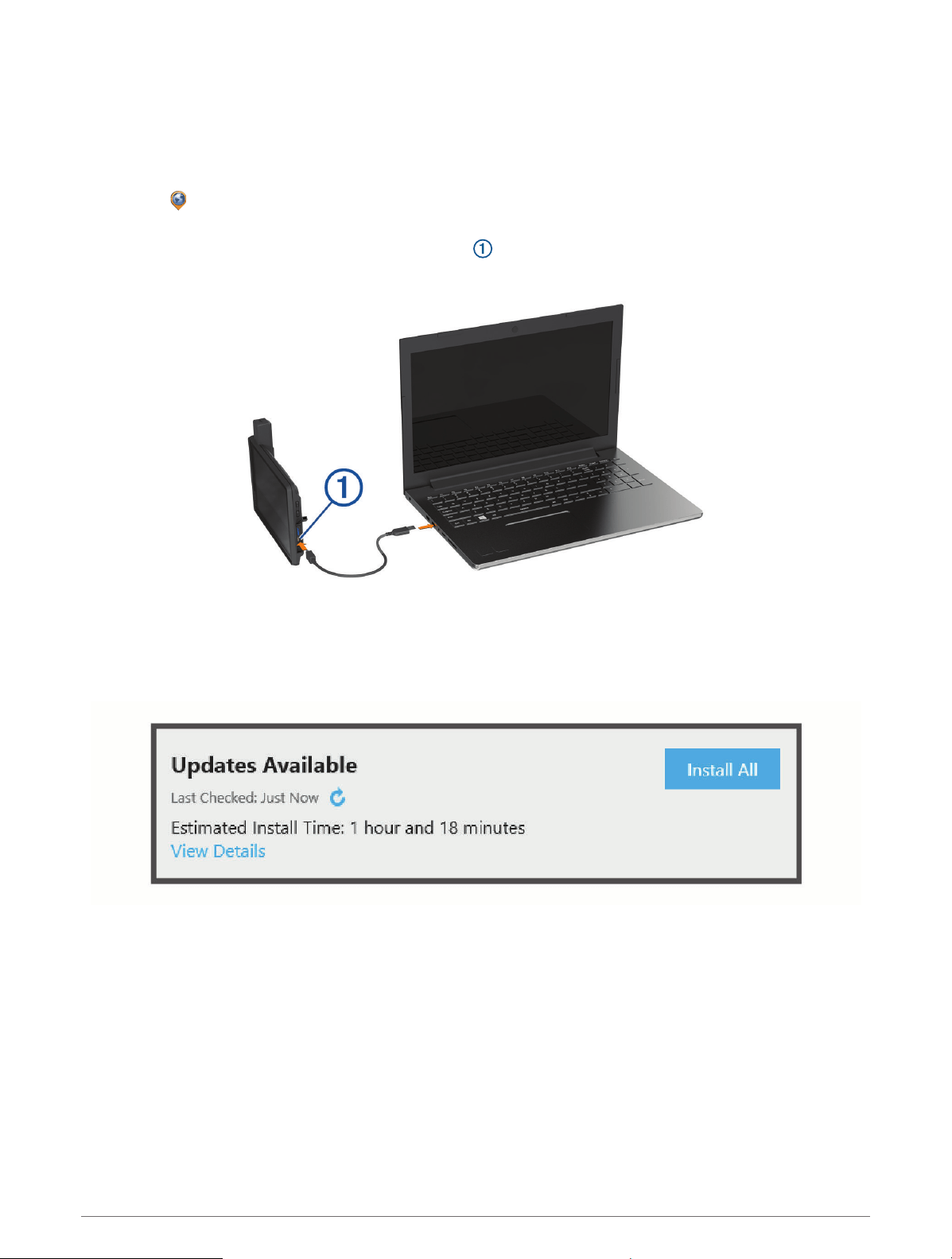
Updating Maps and Sofware with Garmin Express
You can use the Garmin Express application to download and install the latest map and software updates for
your device.
1 If you do not have the Garmin Express application installed on your computer, go to garmin.com/express and
follow the on-screen instructions to install it.
2 Open the Garmin Express application.
3 Connect your device to your computer using a USBcable.
The small end of the cable connects to the USB port on your Tread XL device, and the large end connects
to an available USBport on your computer.
4 In the Garmin Express application, click Add a Device.
The Garmin Express application searches for your device and displays the device name and serial number.
5 Click Add Device, and follow the on-screen instructions to add your device to the Garmin Express application.
When setup is complete, the Garmin Express application displays the updates available for your device.
6 Select an option:
• To install all available updates, click Install All.
• To install a specific update, click View Details, and click Install next to the update you want.
The Garmin Express application downloads and installs the updates onto your device. Map updates are very
large, and this process may take a long time on slower internet connections.
NOTE: If a map update is too large for the internal storage of the device, the software may prompt you to
install a microSD card in your device to add storage space (Installing a Memory Card for Maps and Data,
page78).
7 Follow the on-screen instructions during the update process to finish installing updates.
For example, during the update process, the Garmin Express application may instruct you to disconnect and
reconnect your device.
Device Maintenance 55
Device Care
NOTICE
Avoid dropping your device.
Do not store the device where prolonged exposure to extreme temperatures can occur, because it can cause
permanent damage.
Never use a hard or sharp object to operate the touchscreen, or damage may result.
Cleaning the Outer Casing
NOTICE
Avoid chemical cleaners and solvents that can damage plastic components.
1 Clean the outer casing of the device (not the touchscreen) using a cloth dampened with a mild detergent
solution.
2 Wipe the device dry.
Cleaning the Touchscreen
1 Use a soft, clean, lint-free cloth.
2 If necessary, lightly dampen the cloth with water.
3 If using a dampened cloth, turn off the device and disconnect the device from power.
4 Gently wipe the screen with the cloth.
Avoiding Thef
• Remove the device and mount from sight when not in use.
• Remove the residue left on the windshield by the suction cup.
• Do not keep your unit in the glove compartment.
• Register your device using the Garmin Express software (garmin.com/express).
Restarting the Device
You can restart your device if it stops functioning.
Hold the power button for 12 seconds.
Troubleshooting
My device is not acquiring satellite signals
• Verify the location services feature is enabled (Enabling or Disabling Location Services, page52).
• Take your device out of parking garages and away from tall buildings and trees.
• Remain stationary for several minutes.
My battery does not stay charged for very long
• Decrease the screen brightness (Display Settings, page52).
• Shorten the display timeout (Display Settings, page52).
• Decrease the volume (Adjusting Sound and Notification Volume, page52).
• Turn off the wi-fi radio when it is not in use (Connecting to a Wireless Network, page51).
• Put the device in power saving mode when not in use (Turning the Device On or Off, page4).
• Keep your device away from extreme temperatures.
• Do not leave your device in direct sunlight.
56 Troubleshooting
My device does not connect to my phone
• Enable Bluetooth wireless technology on your phone, and bring your phone within 10m (33ft.) of the device.
• Verify your phone is compatible.
Go to www.garmin.com/bluetooth for more information.
• Complete the pairing process again.
To repeat the pairing process, you must unpair your phone and device (Disconnecting a Bluetooth Device,
page39), and complete the pairing process (Pairing with Your Smartphone, page38).
My device does not appear as a removable drive on my computer
On most computers, the device connects using Media Transfer Protocol (MTP). In MTP mode, the device
appears as a portable device and not as a removable drive.
Appendix
Garmin PowerSwitch
WARNING
Garmin strongly recommends having an experienced installer with the proper knowledge of electrical systems
install the device. Incorrectly wiring the power cable can result in damage to the vehicle or the battery and can
cause bodily injury.
You can use a connected Garmin PowerSwitch device to control lights, fans, and more from your Tread XL
device.
Mounting Considerations
• The device must be mounted close to the battery and within the range of the supplied power cable.
• The mounting surface must be strong enough to support the weight of the device.
• The location must allow room for the routing and connection of all cables.
Appendix 57
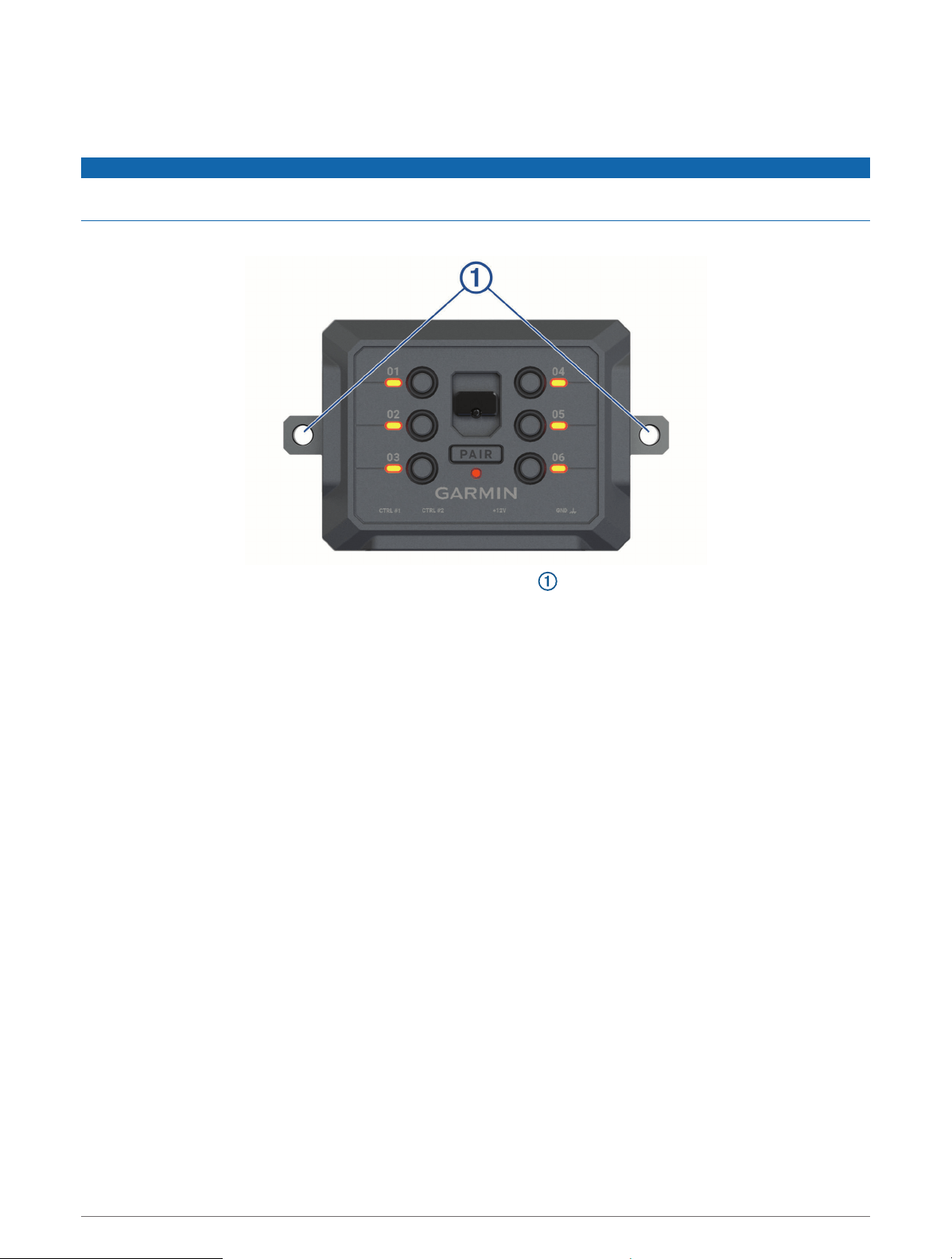
Mounting the Device
Before you can mount the device, you must select a mounting location and purchase the appropriate hardware
for your mounting surface.
NOTICE
Avoid wires, gauges, air bags, air bag covers, HVAC, and other items when drilling pilot holes and attaching the
mount to the vehicle. Garmin is not responsible for any damages or consequences arising from the installation.
1 Place the mount on the selected location.
2 Using the mount as a template, mark the two screw locations .
3 Drill pilot holes (optional).
For some types of mounting material, drilling pilot holes is necessary. Do not drill through the mount.
4 Securely fasten the mount to the surface using the appropriate hardware for your mounting surface.
58 Appendix
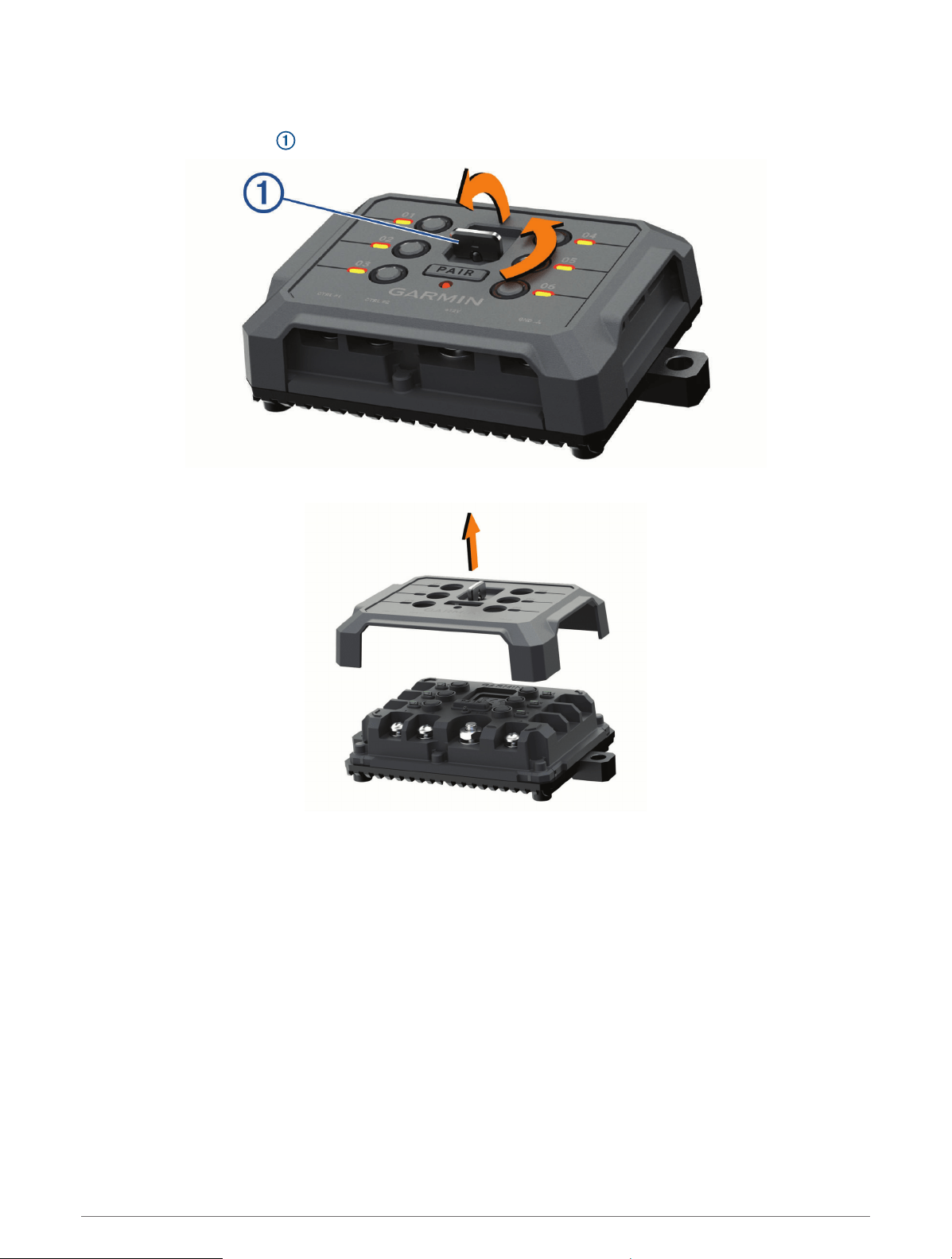
Opening the Front Cover
You must open the front cover to make electrical connections.
1 Lift the front cover latch and rotate it counter-clockwise.
2 Pull the front cover off of the device.
Appendix 59
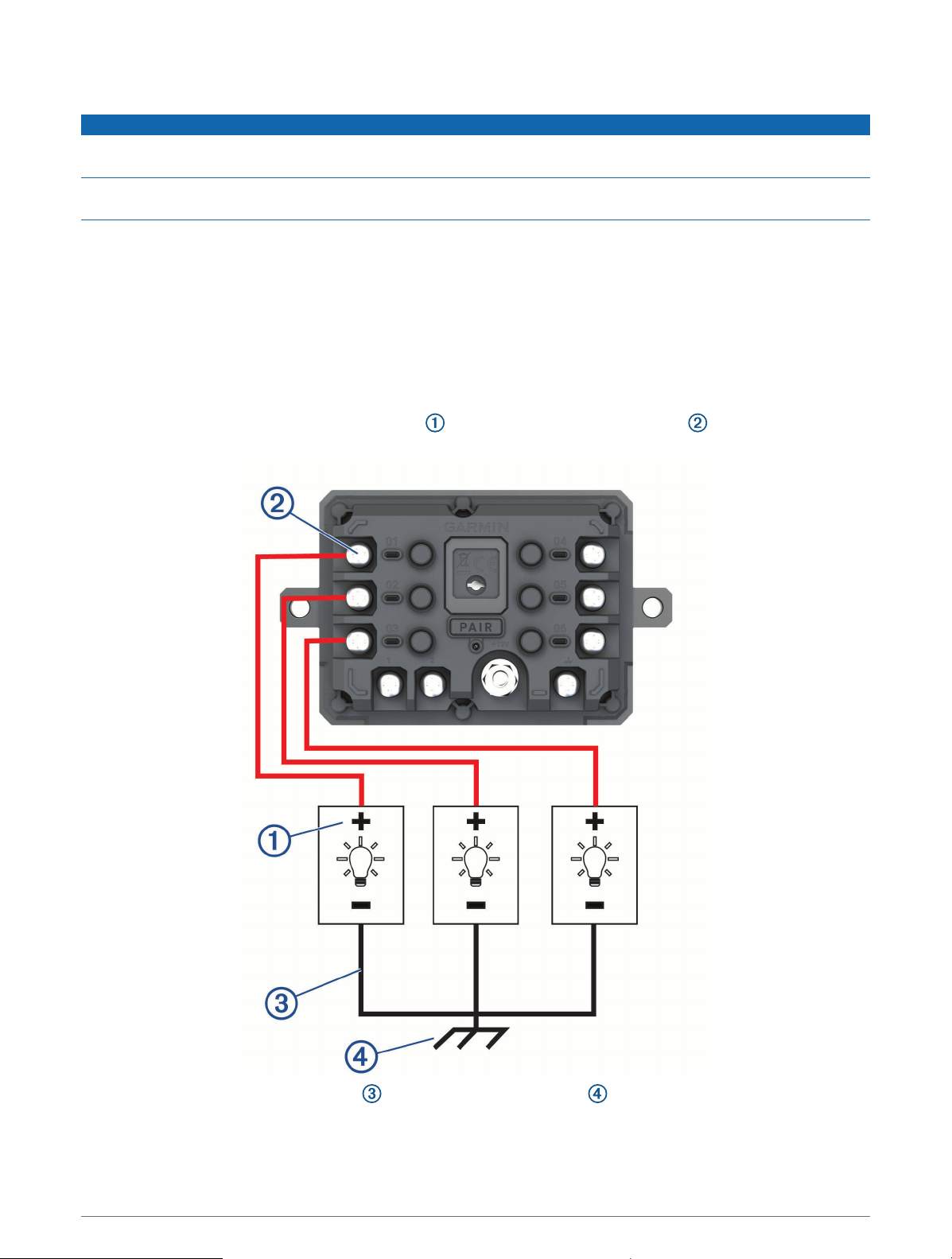
Connecting Accessories
NOTICE
Do not use the device to control or power a winch. Failure to follow this notice could cause damage to your
vehicle or your device.
Do not connect a power source to an accessory output terminal. Failure to follow this notice could cause
damage to your vehicle or your device.
Accessory requirements:
• Verify the amperage rating of each accessory before wiring it to the Garmin PowerSwitch device. The device
supports accessories up to 30A for each channel and a maximum of 100A for the entire system.
• Use 10AWG (6mm
2
) wires for accessories that use 20 to 30A.
• Use 12AWG (4mm
2
) wires for accessories that use 10 to 20A.
• Use 14AWG (2.5mm
2
) wires for accessories that use less than 10A.
• Use the appropriate size terminals for all accessory connections.
• Crimp all terminal connectors securely.
1 Connect the positive wire from the accessory to one of the accessory terminals on the Garmin
PowerSwitch device.
2 Connect the negative or ground wire to an unpainted ground stud on the vehicle frame, to a ground
distribution block, or directly to the negative terminal on the battery.
60 Appendix
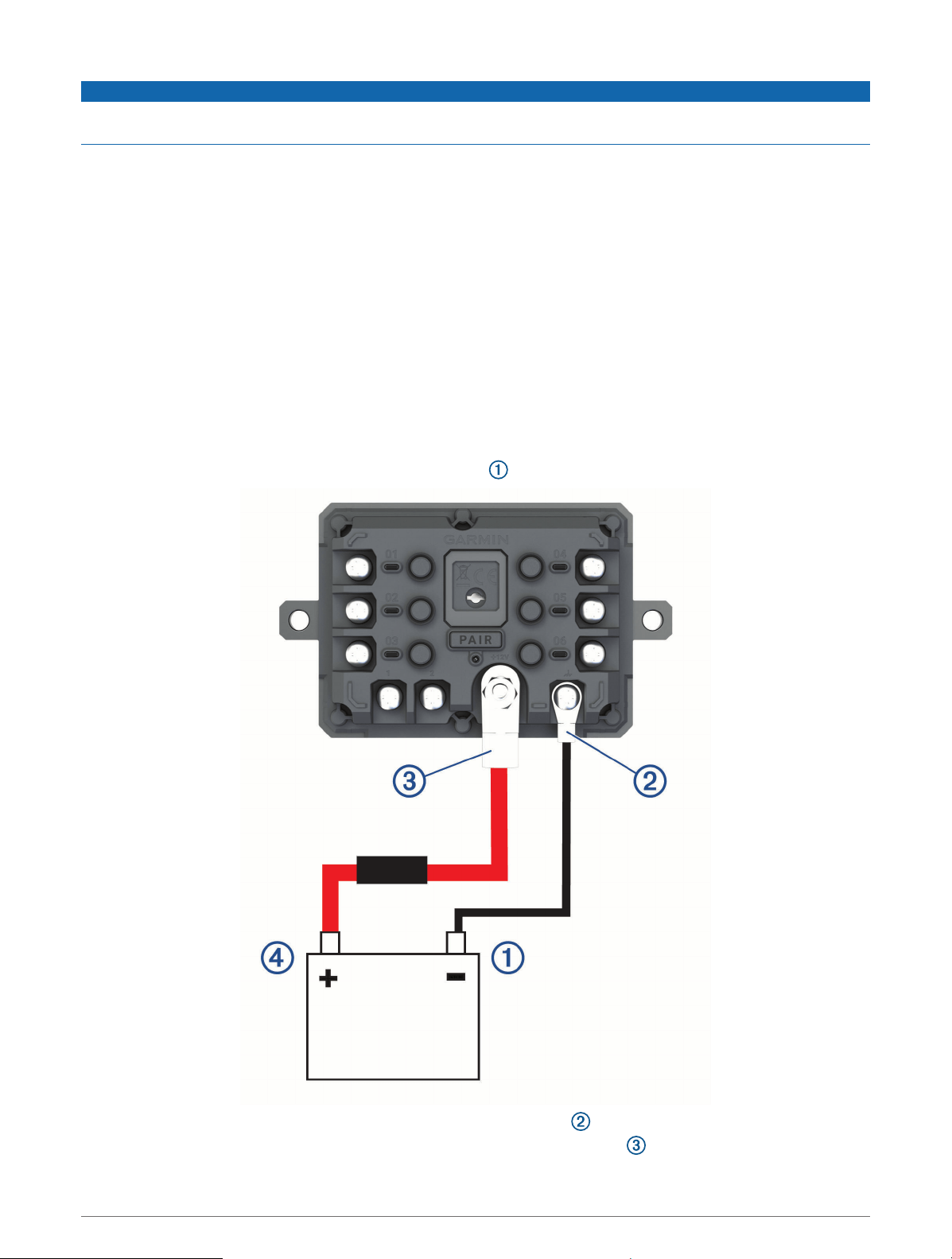
NOTICE
Do not connect the accessory ground wires to the ground terminal (GND) on the Garmin PowerSwitch device.
Failure to heed this notice could result in personal or property damage, or negatively impact device functionality.
3 Verify that all electrical connections are tight and will not come loose during use.
Connecting a Control Input
You can connect to the control terminals to enable the Garmin PowerSwitch device to turn on customizable
outputs. For example, you can connect your vehicle ignition switch to a control input terminal to turn on
accessories automatically each time you start your vehicle. The control terminals detect a signal from 3.3V to
18V. You can configure output functions with the Garmin PowerSwitch app.
Connect the control wire from the control source in your vehicle to one of the two control terminals on the
Garmin PowerSwitch device.
Connecting the Device to Vehicle Power
Before you can connect the device to vehicle power, you must remove the warning tag from the +12V terminal
on the device.
You should always confirm all electrical connections are secure and will not come loose while operating the
device.
1 Connect the large ring end of the included ground wire to the negative terminal on the vehicle battery.
2 Connect the small ring end of the ground wire to the GND terminal on the device.
3 Connect the small ring end of the included 12V cable to the +12V terminal on the device.
Appendix 61
4 Tighten the
3
/
8
in. nut on the +12V terminal to a maximum torque specification of 4.52N-m (40lbf-in.).
You should confirm the nut cannot be loosened by hand.
NOTICE
Do not overtighten the +12V terminal to prevent damage to the terminal.
5 Connect the large ring end of the 12V cable to the positive terminal on the vehicle battery.
Pairing with a Garmin Navigation Device
You can pair your Garmin PowerSwitch device with a compatible Garmin navigation device.
1 Turn on power to your Garmin PowerSwitch device, and place your compatible Garmin navigation device
within 1m (3.3ft.) of it.
2 On your compatible navigation device, open the Garmin PowerSwitch app.
3 Follow the on-screen instructions to complete the pairing and setup process.
The main app dashboard appears. After the devices are paired, they connect automatically when they are turned
on and within range.
Garmin PowerSwitch Specifications
Dimensions (DxWxH) 75 x 125 x 32mm (2.95 x 4.92 x 1.26in.)
Operating temperature range From -25° to 85°C (from -13° to 185°F)
Wireless frequency 2.4GHz @ 10 dBm
Power input From 12 to 16V using the included vehicle power cable.
Maximum accessory output 30A
Maximum system output 100A
Current draw with all outputs off 3mA
Water rating IEC 60529 IPX7
2
Garmin PowerSwitch Troubleshooting
My Garmin PowerSwitch will not stay connected
• Verify the Garmin PowerSwitch device is receiving power.
• Verify that Bluetooth technology is enabled on your paired navigation device or smartphone.
• Move the navigation device or smartphone closer to your Garmin PowerSwitch device.
• Verify that your vehicle's battery is supplying at least 12V of power.
The Garmin PowerSwitch device turns off all outputs automatically to preserve your vehicle's battery if it is
receiving less than 11V of power (My accessories are not receiving power, page63).
2
The device withstands incidental exposure to water of up to 1m for up to 30min. For more information, go to
www.garmin.com/waterrating.
62 Appendix
My accessories are not receiving power
• Verify the Garmin PowerSwitch device is receiving power from the vehicle battery.
• Verify that your vehicle's battery is supplying at least 12V of power.
The Garmin PowerSwitch device turns off all outputs automatically to preserve your vehicle's battery if it is
receiving less than 11V of power. Outputs turn back on when the device detects more than 12V of power.
• Verify that all electrical connections are secure and will not come loose while operating the vehicle.
• Verify that each connected accessory draws less than 30A.
If an accessory draws more than 30A, the device turns off that output automatically.
• Verify that the total system load is less than 100A.
If the device detects a system load of more than 100A, it turns off all outputs automatically.
• Inspect all electrical connections for an electrical short circuit.
Tread Audio
WARNING
Garmin strongly recommends having an experienced installer with the proper knowledge of electrical systems
install the device. Incorrectly wiring the power cable can result in damage to the vehicle or the battery and can
cause bodily injury.
You can use a connected Tread Audio system to control audio and LED lights from your Tread XL device.
Tools and Materials Needed
• Phillips screwdriver
• Electric drill
• Drill bit (the size varies based on the surface material and screws used)
• Crimping pliers
• Wire strippers
• Heat gun
• 4 mm and 5 mm hex drivers or hex keys
NOTE: For customized installations, additional tools and materials may be needed.
Tread Audio Box Mounting Considerations
CAUTION
In high ambient temperatures and after extended use, the device enclosure may reach temperatures deemed
dangerous to touch. Therefore, you must install the device in a location where it is not touched during operation.
NOTICE
The storage and operating temperature ranges for this device are listed in the product specifications. Extended
exposure to temperatures exceeding the specified temperature range, in storage or operating conditions,
may cause device failure. Device damage and related consequences caused by extended exposure to these
conditions are not covered by the warranty.
• You must mount the device in a location with adequate ventilation where it is not exposed to extreme
temperatures.
• You should mount the device so that the cables can be connected easily.
• To achieve IP67 water ingress protection and optimal heat sink cooling, you must mount the device on a
vertical surface with the connectors pointing downward.
• You can mount the device on a horizontal surface, but such positioning might not achieve IPX67 water
ingress protection.
• To avoid interference with a magnetic compass, you should install the device at least 203 mm (8 in.) away
from a compass.
Appendix 63
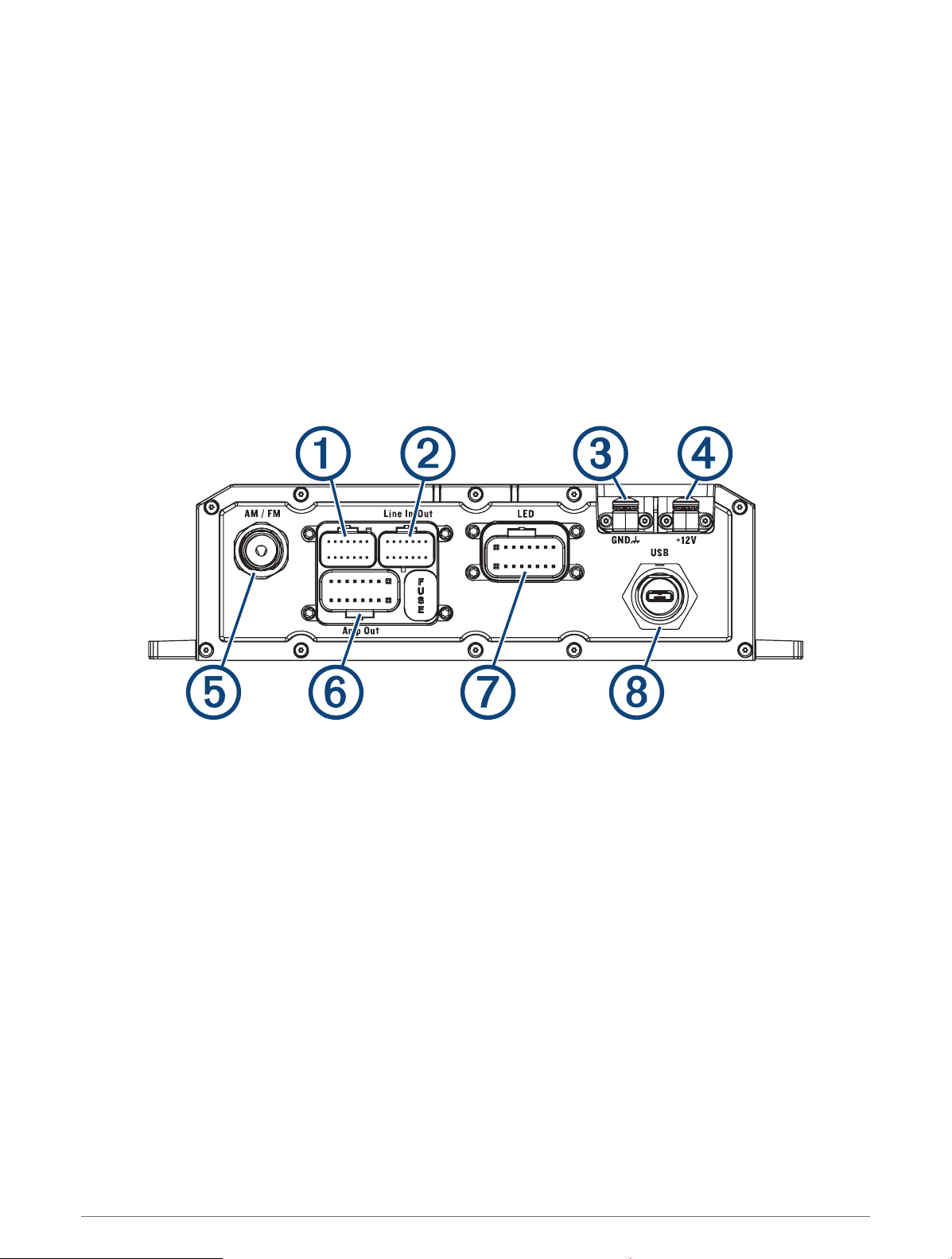
Mounting the Tread Audio Box Black Box Device
Before you mount the device, you must select a mounting location, and determine what screws and other
mounting hardware are needed for the surface.
1 Place the black box device in the mounting location, and mark the location of the pilot holes.
2 Drill a pilot hole for one corner of the device.
3 Loosely fasten the device to the mounting surface with one corner, and examine the other three pilot-hole
marks.
4 Mark new pilot-hole locations if necessary, and remove the device from the mounting surface.
5 Drill the remaining pilot holes.
6 Secure the device to the mounting location.
Connections
The stereo must be connected to power, to speakers, and to media input sources to function correctly. You
should carefully plan the layout of the stereo, speakers, and your input sources before making any connections.
Port Identification
64 Appendix
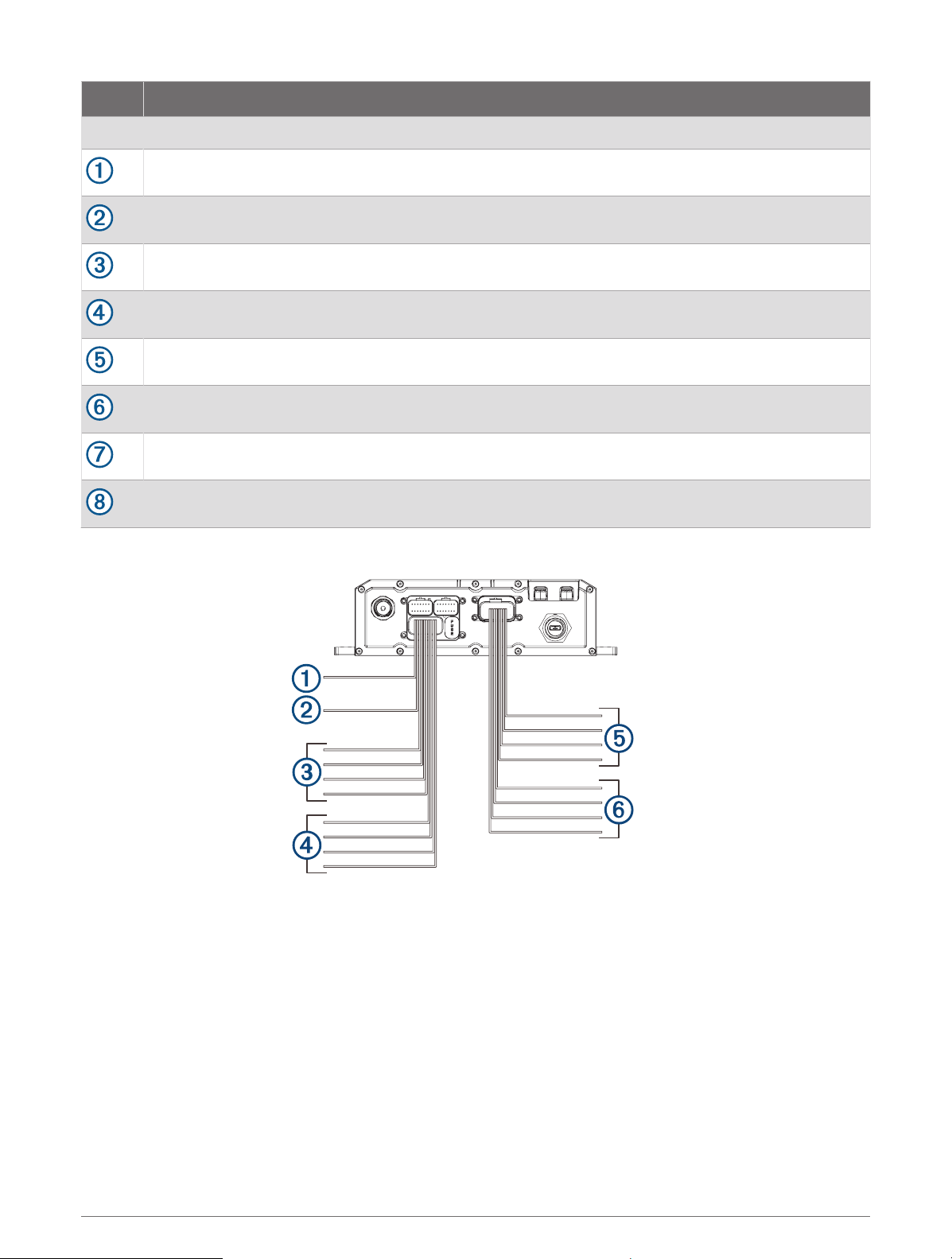
Item Description
FUSE Contains the 15 A fuse for the LED outputs.
Not used.
Connects the device to the auxiliary in and line/subwoofer out wiring harness.
Connects the device to the ground terminal wire (GND).
Connects the device to the +12V terminal wire.
Connects the device to the AM/FM antenna.
Connects the device to the speaker wiring harness.
Connects the device to the LED wiring harness.
Connects the device to an optional USB accessory.
Speaker and LED Wiring Harness Wire and Connector Identification
Appendix 65
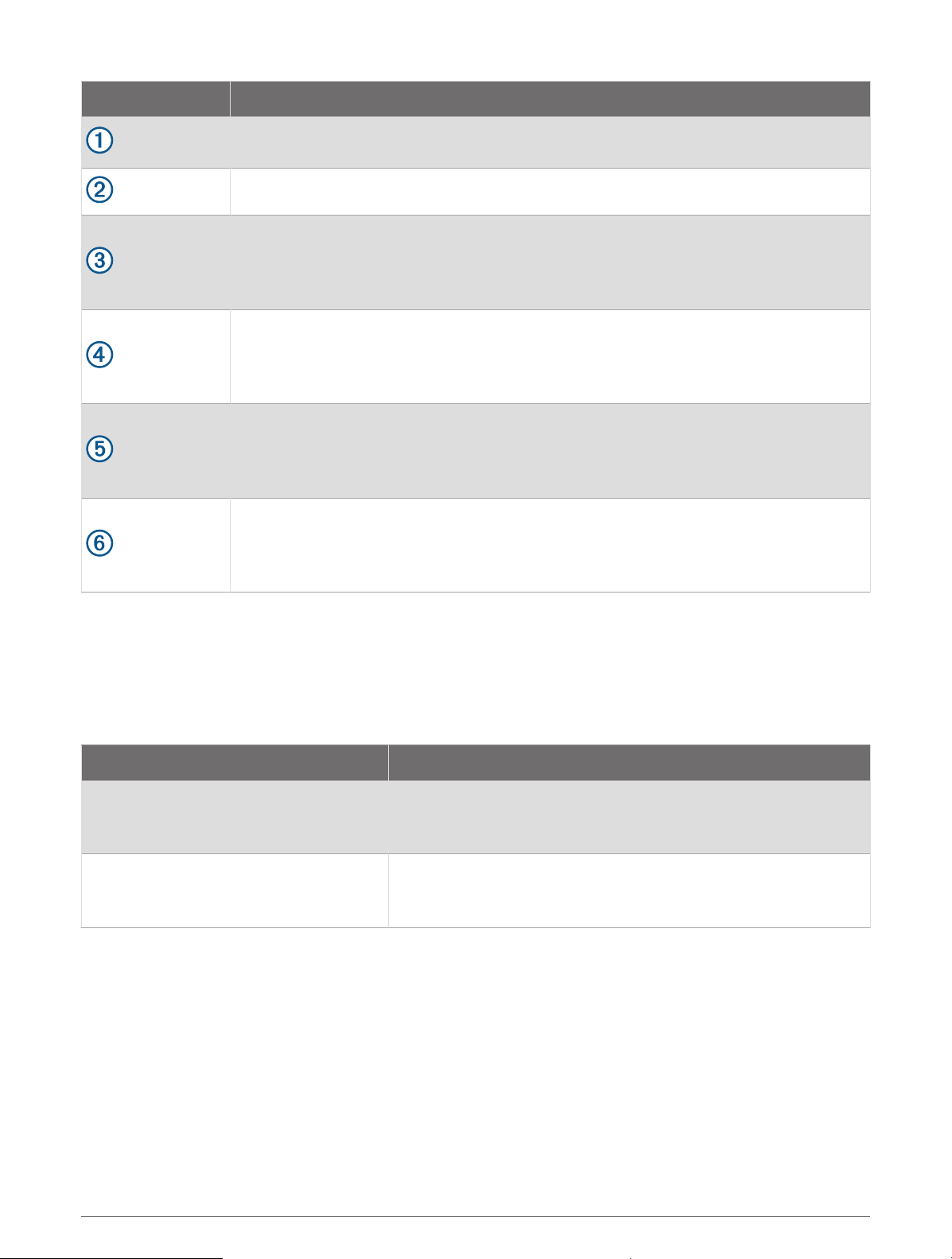
Wire Group Wire Color and Description
Ignition
Red: Connects to the vehicle accessory line. If the ignition wire is unused, ground the
ignition wire or leave it disconnected.
Amplifier on
Blue: Connects to an optional external amplifier to turn it on when the stereo turns on.
Speaker zone 1
White: Left (+), Connects to the included speaker.
White with a black stripe: Left (-), Connects to the included speaker.
Gray: Right (+), Connects to the included speaker.
Gray with a black stripe: Right (-), Connects to the included speaker.
Speaker zone 2
Green: Left (+), Connects to an additional speaker.
Green with a black stripe: Left (-), Connects to an additional speaker.
Purple: Right (+), Connects to an additional speaker.
Purple with a black stripe: Right (-), Connects to an additional speaker.
LED RGB1
Black: Power
Red: Red LED
Green: Green LED
Blue: Blue LED
LED RGB2
Black: Power
Red: Red LED
Green: Green LED
Blue: Blue LED
Addressable LED Wiring Considerations
You can wire addressable LED lights to your Tread Audio Box. For more information, see the manual for your
addressable LED lights.
Compatible addressable LED types:
• WS2812B
• WS2813
Addressable LED LED Wire Color and Function
Addressable LED 1
Red: +5V Power
White: Ground
Green with a black stripe: Data
Addressable LED 2
Red: +5V Power
White: Ground
Green with a black stripe: Data
66 Appendix
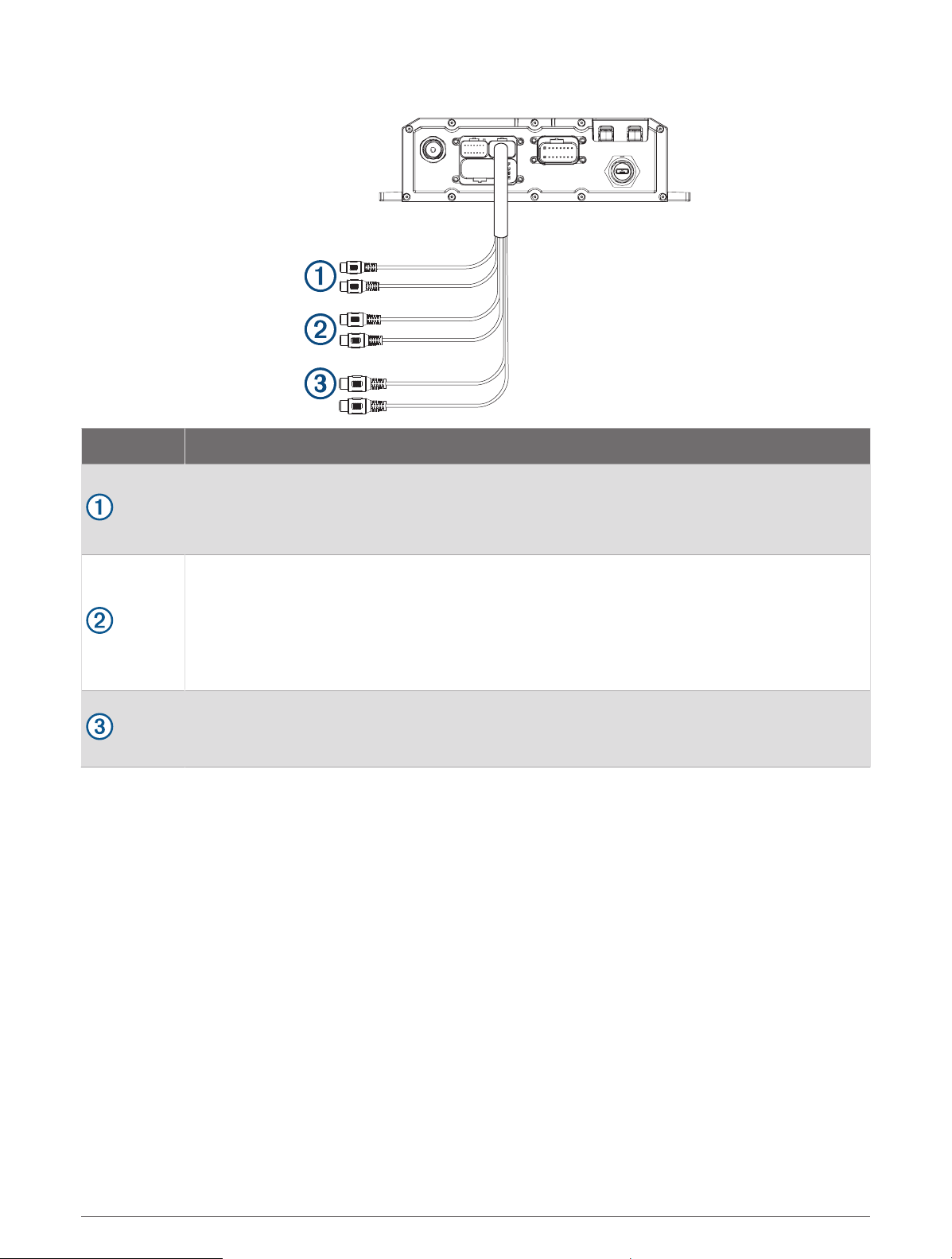
RCA Wiring Harness Wire and Connector Identification
Wire Number Wire Function
Auxiliary in left: Provides a red and white RCA stereo line input for audio sources, such as a CD
or MP3 player.
Auxiliary in right: Provides a red and white RCA stereo line input for audio sources, such as a CD
or MP3 player.
Line out left: Provides a full-range output to an external amplifier, and is associated with the
volume control.
Line out right: Provides a full-range output to an external amplifier, and is associated with the
volume control.
NOTE: If you are connecting to an external amplifier, you should use a ground loop isolator to
ensure a clear signal.
Subwoofer out: Provides a single mono output to a powered subwoofer or subwoofer amplifier.
NOTE: If you are connecting to an external amplifier, you should use a ground loop isolator to
ensure a clear signal.
Appendix 67
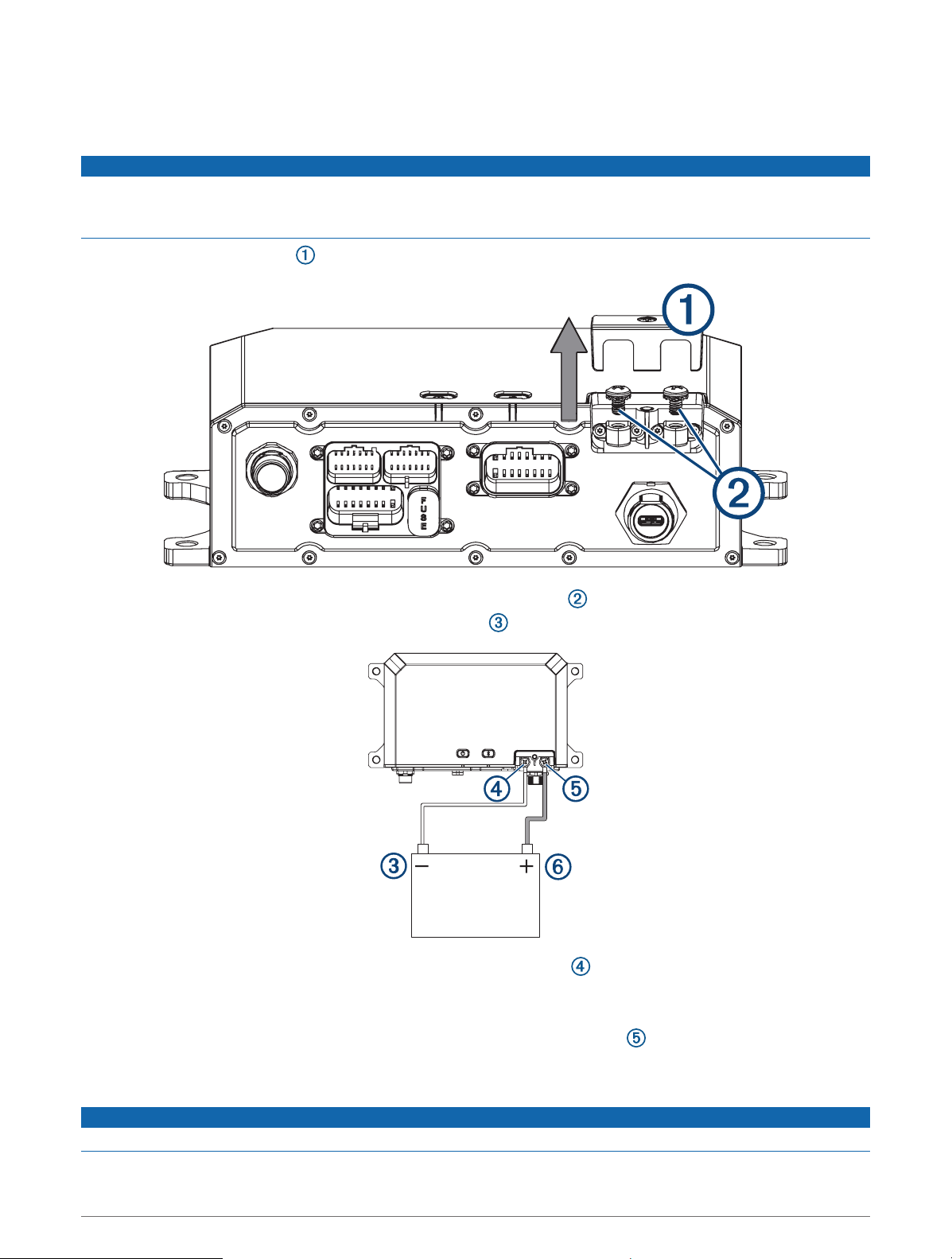
Connecting the Device to Vehicle Power
You should always confirm all electrical connections are secure and will not come loose while operating the
device.
NOTICE
If the ignition wire is not used, do not tie the ignition to the positive terminal on the vehicle battery. Ground the
ignition wire or leave it disconnected. Failure to ground or disconnect the ignition wire when the ignition is not
used could prevent the device from powering on.
1 Remove the terminal cover using a Phillips screwdriver.
2 Remove the screws from the GND terminal and the +12V terminal .
3 Connect the large ring end of the included ground wire to the negative terminal on the vehicle battery.
4 Connect the small ring end of the ground wire to the GND terminal on the device.
5 Tighten the screw on the GND terminal.
You should confirm the screws cannot be loosened by hand.
6 Connect the small ring end of the included 12V cable to the +12V terminal on the device.
7 Tighten the screw on the +12V terminal.
You should confirm the screws cannot be loosened by hand.
NOTICE
Do not overtighten the screw on the +12V terminal to prevent damage to the terminal.
68 Appendix
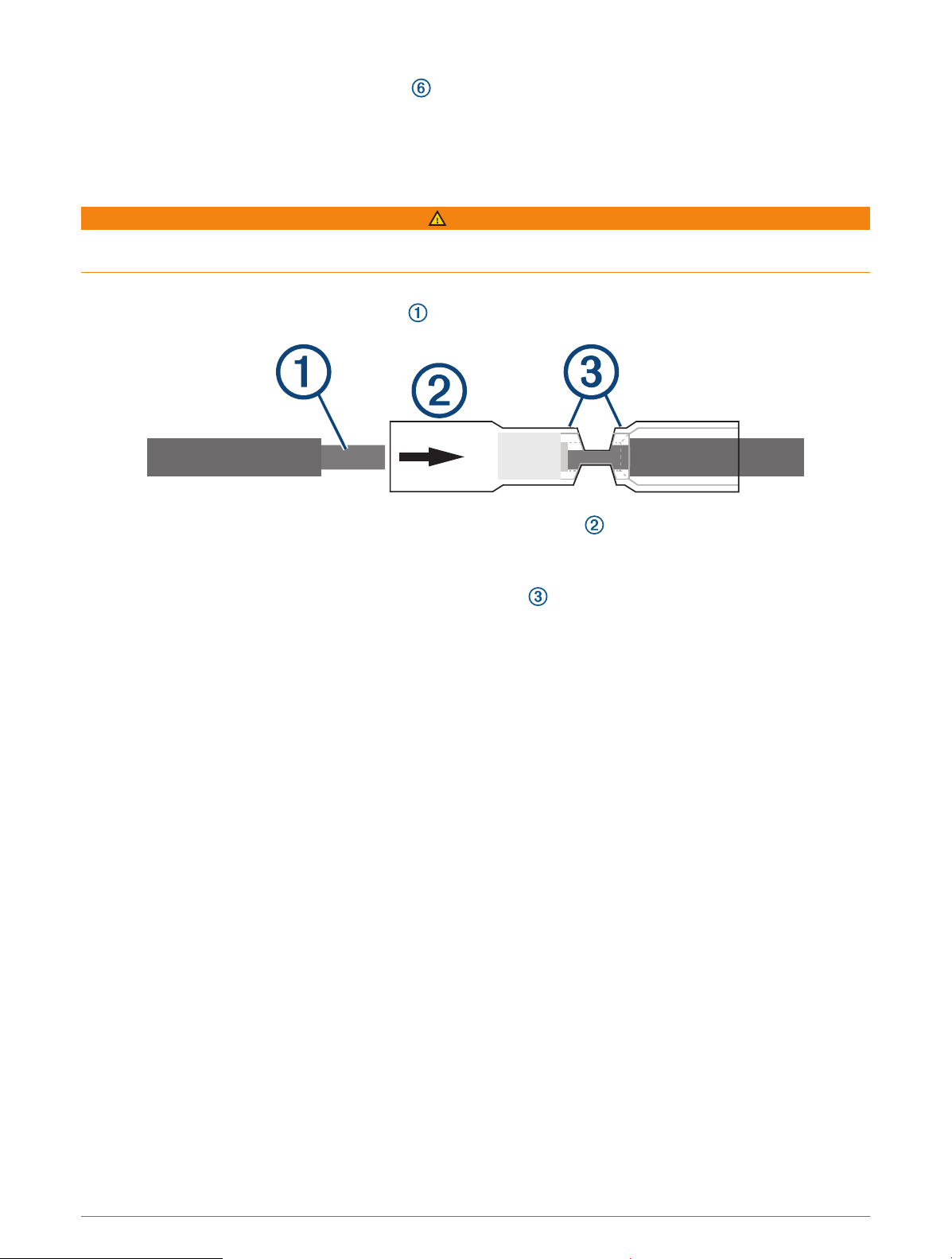
8 Connect the large ring end of the 12V cable to the positive terminal on the vehicle battery.
9 Replace and tighten the terminal cover on the device.
Using the Heat-Shrink Crimp Connectors
You should use the included heat-shrink crimp connectors to make a water-tight connection between the bare
wires.
WARNING
Only use the heat gun to apply heat to the heat-shrink crimp connectors in a well-ventilated area. Do not use the
heat gun near clothing or bare skin. Doing so can result in property damage or serious injury.
1 Using wire strippers, strip 6 mm (
1
/
4
in.) off the end of each bare wire.
2 If necessary, twist the strands of each wire clockwise to bundle them together.
3 Insert one bare wire into one end of the heat-shrink crimp connector .
The bare wires are not secure until they are crimped and sealed.
4 Insert the corresponding bare wire into the other end of the heat-shrink crimp connector.
5 Using pliers, crimp both sides of the center of the connector to secure the connection.
6 Using a heat gun, apply heat to the heat-shrink crimp connector until the connector is sealed to the wires.
Do not apply heat to the wires directly.
Appendix 69
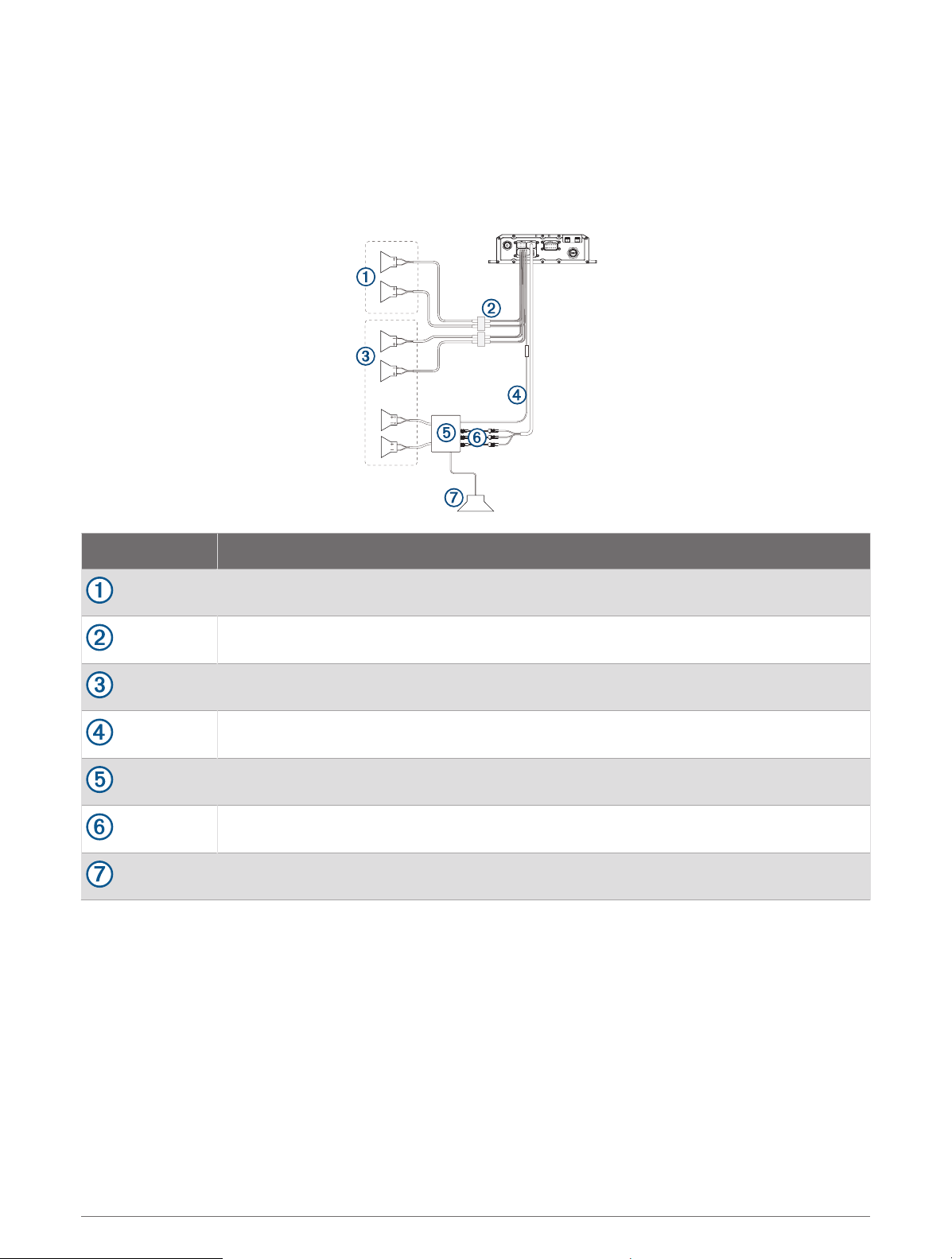
Complete System Wiring
This diagram illustrates a system installation with an external amplifier and subwoofer connected to the stereo
using a line out.
NOTE: You can also connect speakers to the speaker wires for the internal stereo amplifier while using an
external amplifier connected to the line out. Adjusting the volume affects speakers connected to the internal
amplifier and speakers connected to the line out. This may result in uneven volume levels.
Item Description
Zone 2 speakers
Water-tight connection
Zone 1 speakers
Amplifier-on signal wire
Powered amplifier
Line out and subwoofer out
Subwoofer
Speaker Zones
You can group speakers in one area into speaker zones. This enables you to control the audio level of the each
zone individually.
Zones 1 and 2 are powered by the on-board amplifier. To use the RCA line output, you must connect an external
amplifier.
You can set the balance, tone, and name for each zone, and the fade between zones.
70 Appendix
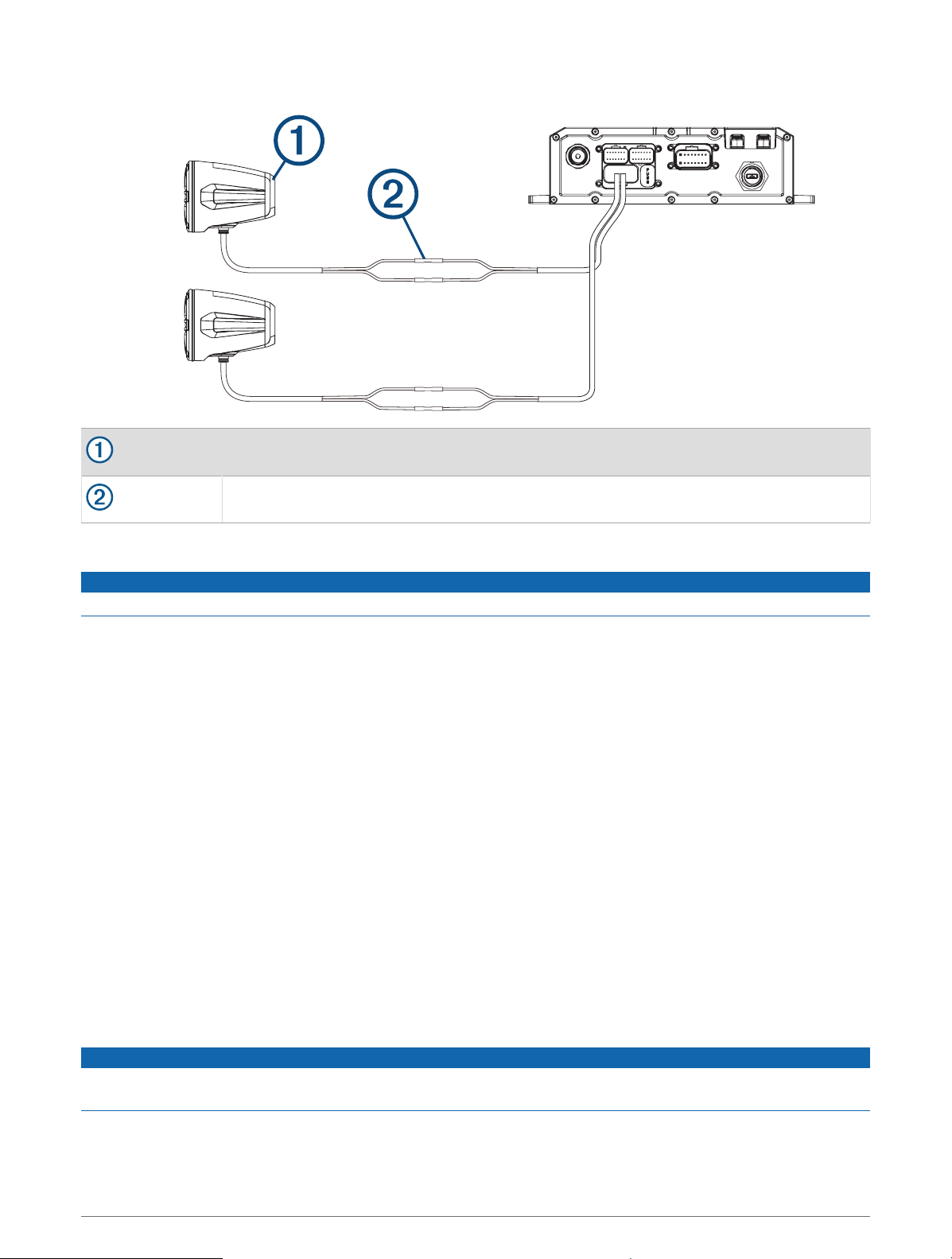
Single-Zone System Wiring Example
Speakers
Water-tight connection
Wireless Remote Mounting Considerations
NOTICE
Selecting the correct mounting location is critical to optimize the performance of the wireless remote.
• You must mount the wireless remote in a location that is within 10m (33ft.) of the stereo.
• You must mount the wireless remote in a location where it is not submerged.
• You should select a flat mounting surface for the best results.
• The mounting surface must be free of dirt, debris, wax, or coatings.
• Move away from sources that can interfere with the wireless remote's operation. Sources of interference
may include strong electromagnetic fields, some 2.4GHz wireless sensors, high-voltage power lines, electric
motors, and wireless LAN access points.
• You should install the wireless remote in a location where you can allow the adhesive to dry at room
temperature for 72 hours.
Mounting the Wireless Remote
1 Select an appropriate location for the remote control (Wireless Remote Mounting Considerations, page71).
2 Test the range at the selected location by holding the wireless remote at the location, pressing a few buttons,
and confirming the correct operation.
3 Thoroughly clean and dry the mounting surface using a mixture of water and isopropyl alcohol.
The mounting surface must be free of dirt, debris, wax, or coatings.
4 Place the wireless remote on the mount, and rotate the remote until you hear a click.
5 Remove the backing from the adhesive.
6 Carefully orient the wireless remote in the mount with the Fusion
®
logo at the bottom.
NOTICE
It is extremely difficult to remove the adhesive. Some mounting surfaces might be damaged after removing the
adhesive.
7 Press the wireless remote in the mount firmly onto the mounting surface, maintaining pressure for at least
60 seconds.
Appendix 71
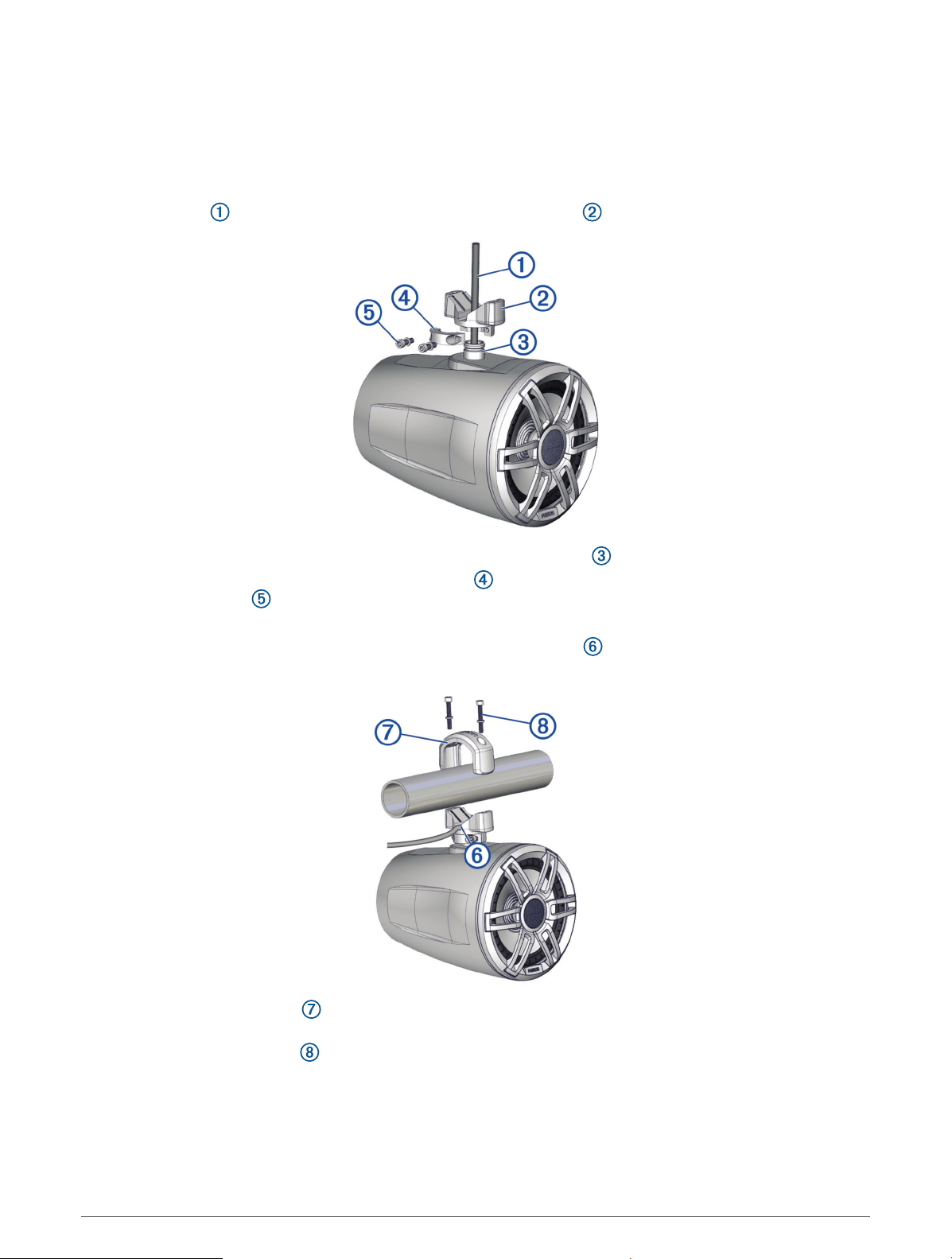
Mounting the Speakers and Brackets
You can mount the Tread 6.5" XS-LED Tower Speakers to a roll bar using the included brackets.
When installing the speaker and bracket, you can route the speaker and LED cable along the roll bar.
1 If necessary, mark the locations on the roll bar where you plan to mount the speakers.
2 Route the speaker and LED power wires along the roll bar to the mounting locations.
3 Feed the cable from the speaker through the base of the bracket .
4 Place the base of the bracket over the mounting knob on the speaker .
5 Using a 4mm hex driver or hex key, attach the collar to the base of the bracket using the two shorter
screws and washers , but do not fully tighten them.
6 Connect the speaker and LED wires (Wiring, page73).
7 Place the connected wires in the channel on the base of the bracket , and route the wires along the roll
bar.
8 Place the top of the bracket over the roll bar, and hold it against the base of the bracket.
9 Using a 5mm hex driver or hex key, attach the top of the bracket to the base of the bracket using the two
longer screws and washers , but do not fully tighten them.
72 Appendix
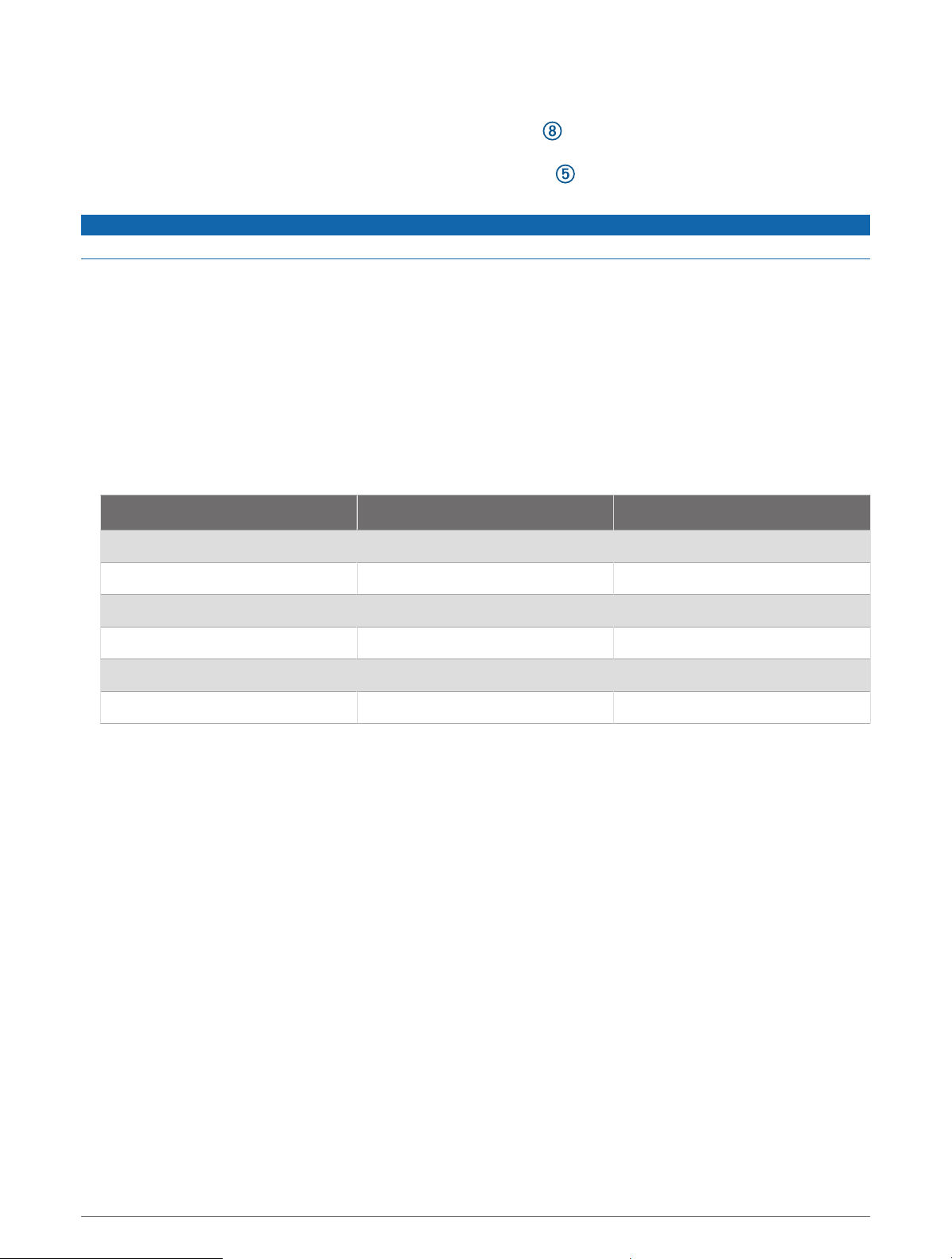
10 Adjust the angle of the speakers, and tighten all of the screws to secure the speaker to the roll bar, observing
these maximum torque measurements:
• For the longer screws that secure the bracket to the roll bar , do not tighten to more than 4N-m
(2.95lbf-ft.).
• For the shorter screws that secure the bracket to the speaker , do not tighten to more than 2.5N-m
(1.84lbf-ft.).
NOTICE
Tightening the screws more than the specified maximum torque measurement can damage the bracket.
11 Repeat these steps for additional brackets.
12 Route the speaker and LED wires along a suitable path in your vehicle, and secure them using the included
zip ties.
Wiring
When connecting the speakers and LED lights to your stereo or amplifier, observe these considerations.
• You should use the included wire to connect the speakers to the stereo or amplifier. If necessary, you can use
a larger gauge of wire (Wire Gauge Guide, page73).
• You should make all of the wiring connections using the included heat-shrink crimp connectors. You should
plan and select the best connection type for your installation needs.
• You can use this table to identify the polarity of the leads on the speaker.
Lead color Polarity Use
White Positive (+) Speaker
White with a black stripe Negative (-) Speaker
Red Red LED
Green Green LED
Blue Blue LED
Black +12V Power
Wire Gauge Guide
If necessary, you can use longer cables for your installation.
NOTE: If you are using aluminum or tinned wire, you should use a wire two gauges larger than the gauge listed
below to compensate for a potential voltage drop due to the wire material.
• Use 16 AWG (1.31mm
2
) for speaker wires.
• Use 20 AWG (0.52mm
2
) for LED wires.
Additional Speakers
You can wire additional Tread 6.5" XS-LED Tower Speakers together. Refer to the owner's manual for your
stereo system at garmin.com/express for more information.
Appendix 73
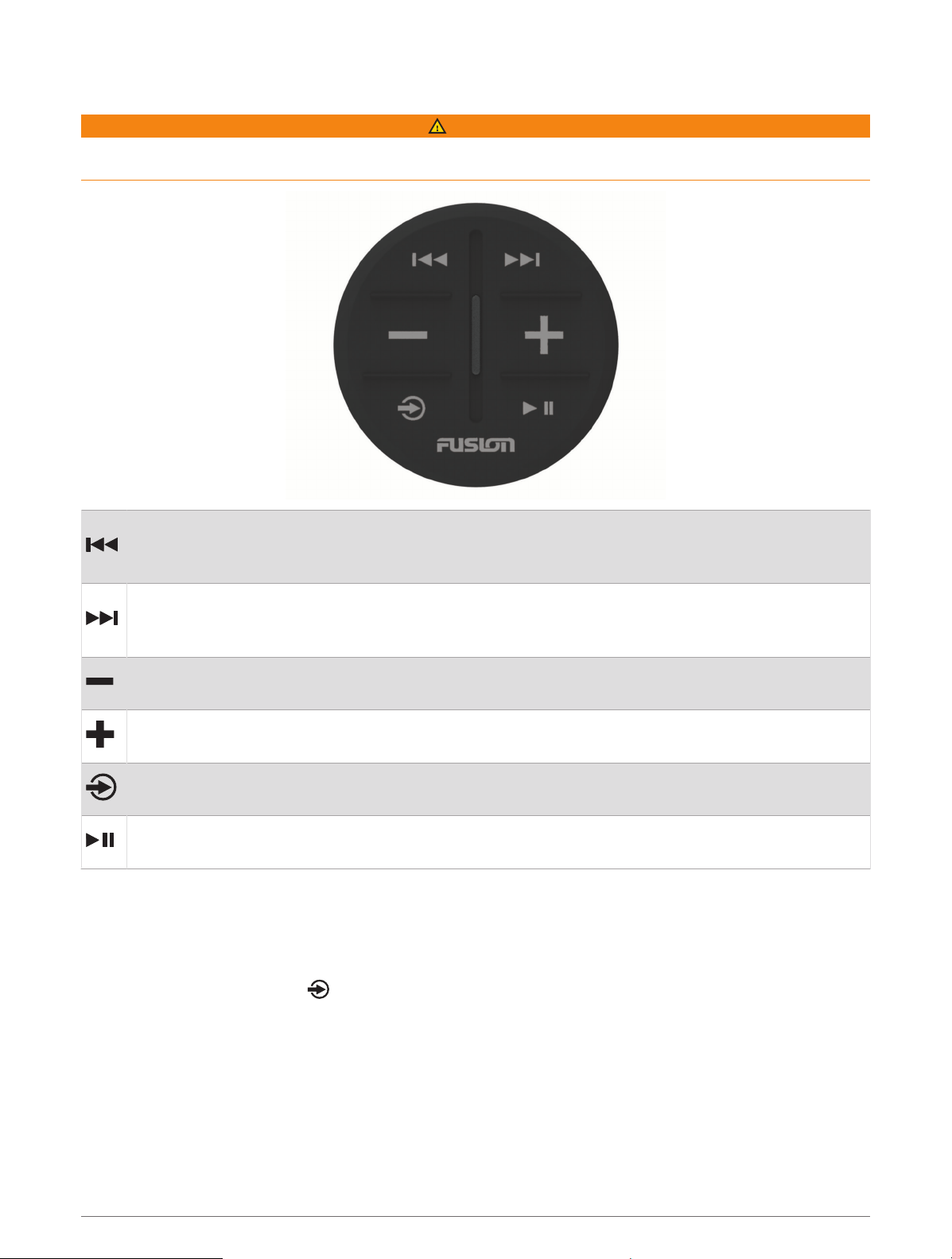
Wireless Remote Overview
WARNING
See the Important Safety and Product Information guide in the product box for product warnings and other
important information.
Radio sources: Press to tune to the previous station.
AUX sources: Press to decrease gain.
Other sources: Press to skip to the beginning of the track or to the previous track.
Radio sources: Press to tune to the next station.
AUX sources: Press to increase gain.
Other sources: Press to skip to the next track.
Press to decrease the volume.
Hold to quickly decrease the volume.
Press to increase the volume.
Hold to quickly increase the volume.
Press to cycle through the available sources.
Hold to pair with a stereo (Connecting the Wireless Remote to your Tread Audio Box, page74).
Radio and AUX sources: Press to mute or un-mute.
Other sources: Press to pause or resume.
Connecting the Wireless Remote to your Tread Audio Box
1 Bring the Tread Audio System remote within 10m (33ft.) of the compatible stereo.
NOTE: Stay 10m (33ft.) away from other ANT
®
devices while pairing.
2 On the Tread Audio Box, enable Bluetooth discoverable mode.
3 On the wireless remote, hold until the status LED flashes green and red.
The remote searches for the stereo. When the remote pairs successfully, the status LED flashes green briefly
and turns off.
If the remote cannot find the stereo, the status LED flashes red briefly and turns off.
74 Appendix
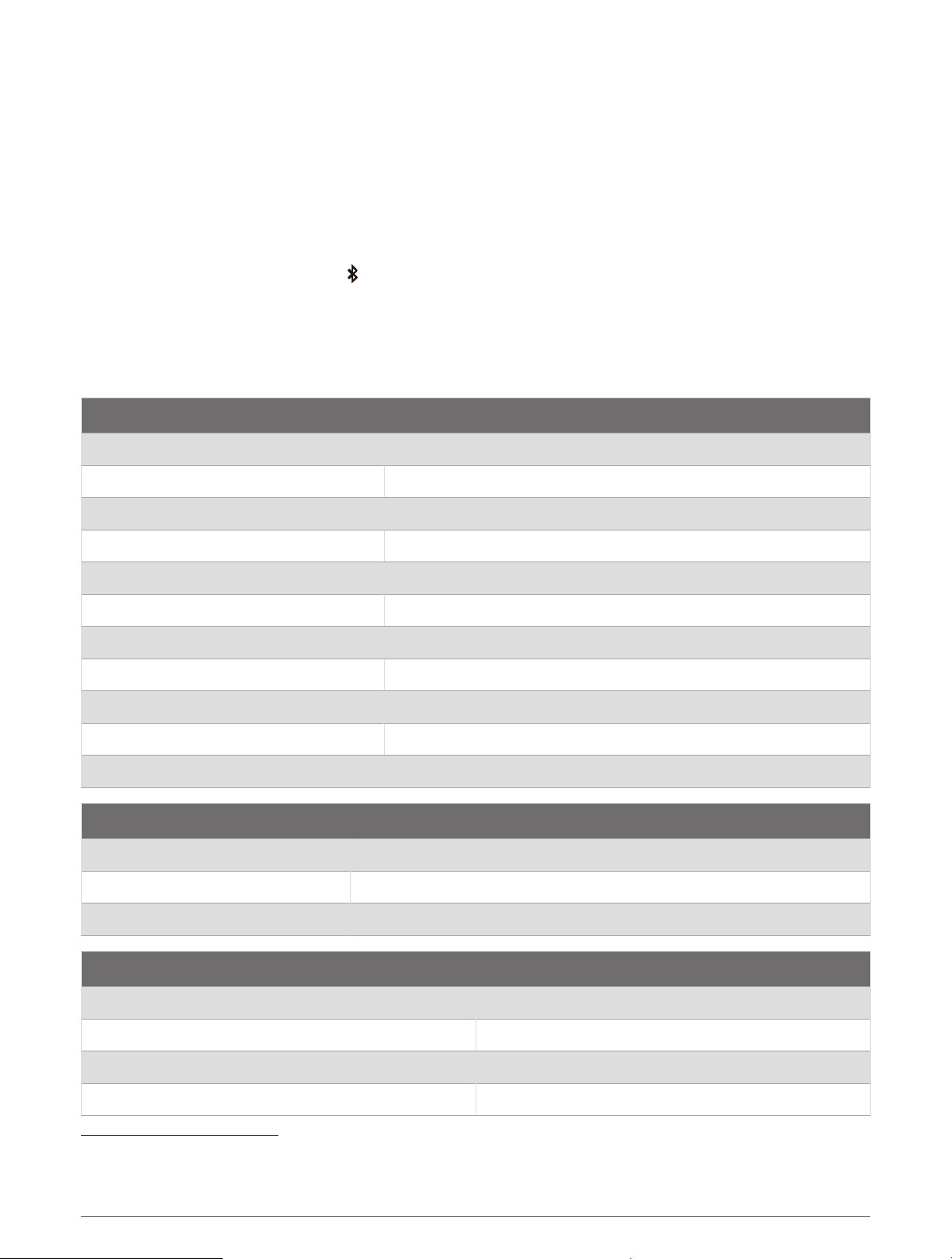
Pairing with a Garmin Navigation Device
You can pair your Tread Audio device with a compatible Garmin navigation device.
1 Update your compatible navigation device to the latest software.
Your navigation device may not support the Tread Audio device without the latest software. For more
information about updating the device software, see the owner's manual for your navigation device.
2 Turn on power to your Tread Audio device, and place your compatible Garmin navigation device within 1m
(3.3ft.) of it.
3 On your compatible navigation device, open the Tread Audio app.
4 On your Tread Audio device, press .
5 Follow the on-screen instructions to complete the pairing and setup process.
The main app dashboard appears. After the devices are paired, they connect automatically when they are turned
on and within range.
Tread Audio Box Specifications
General
Weight 997 g (2.2 lbs.)
Water resistance IEC 60529 IPX7 (water), IEC 60529 IP6X (dust)
3
Operating temperature range From -20 to 70°C (from -4 to 158°F)
Storage temperature range From -40 to 85°C (from -40 to 185°F)
Input voltage From 8 to 14.4 Vdc
Current (max.) 40A
Current (muted) less than 650mA
ANT wireless range Up to 3m (10ft.)
Compass-safe distance 203 mm (8 in.)
Fuse 15 A mini-blade type
Bluetooth wireless range Up to 10 m (30 ft.)
On-board, Class D Amplifier
Output power per channel 4 x 100 W RMS at 14.4 Vdc input, 4 ohm, 10% THD
4
Line output level (max.) 6.0 V (peak to peak)
Aux input level (typical) 1 V (RMS)
Tuner
FM radio frequency range 87.5 to 107.9 MHz
FM frequency step 200 kHz
AM radio frequency range 530 to 1710 kHz
AM frequency step 10 kHz
3
The device withstands incidental exposure to water of up to 1m for up to 30min, and is protected against powerful jets of water. For more information, go to
www.garmin.com/waterrating.
4
The stereo may limit the output power to prevent the amplifier from overheating, and to maintain the audio dynamics.
Appendix 75
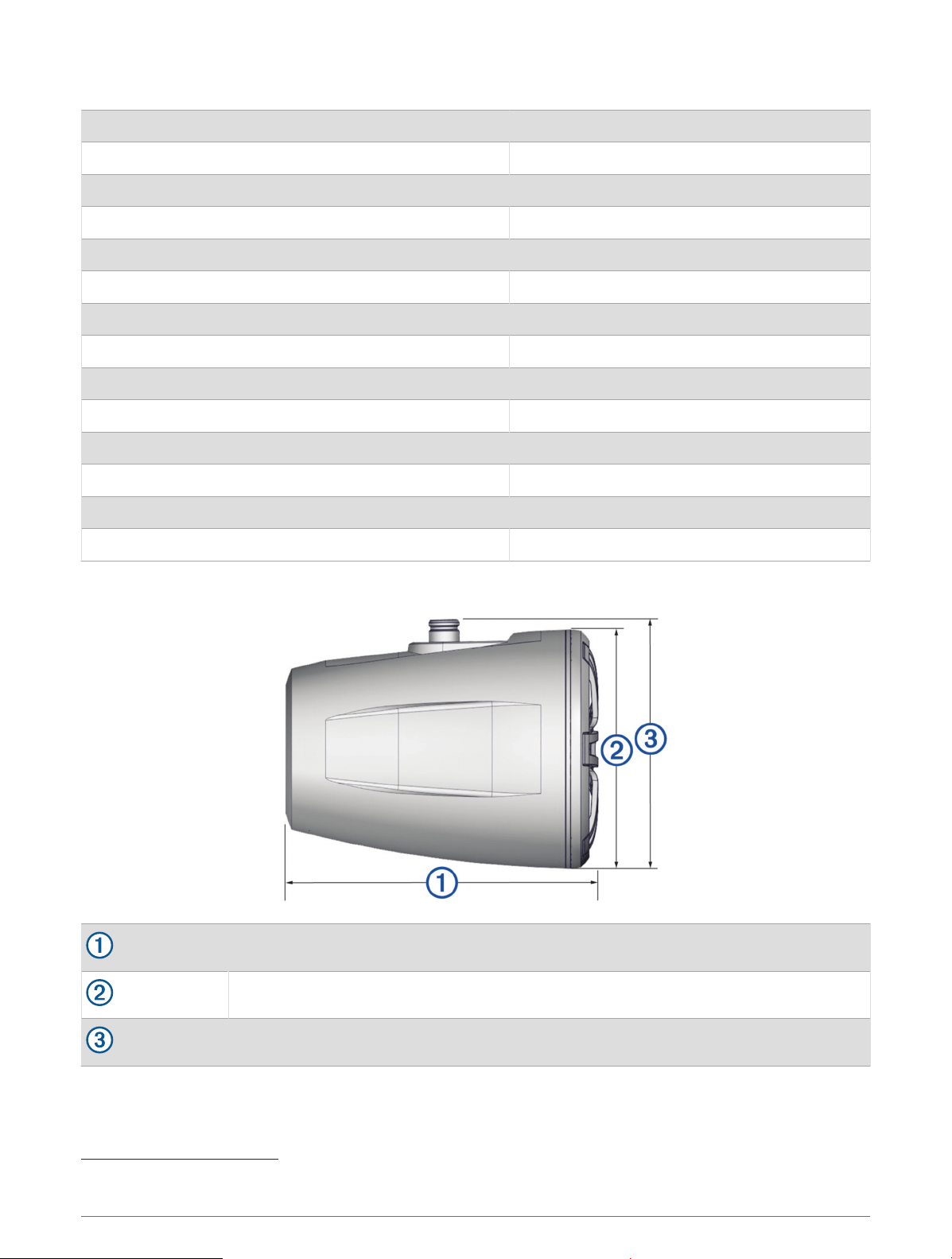
Tread 6.5" XS-LED Tower Speakers Specifications
Max. power 200W
RMS power 50W
Sensitivity (1W/1m) 91dB
Frequency response From 80Hz to 18kHz
Recommended amplifier power (RMS, playing music) From 20 to 150W
Nominal voice coil diameter 30mm
Impedance 4ohms
Operating temperature range From 0 to 50°C (from 32 to 122°F)
Storage temperature range From -20 to 70°C (from -4 to 158°F)
Cone material Polypropylene (PP) cone with cloth surround
Tweeter type Aluminum dome
Water and dust rating IEC60529 IP67
5
Compass-safe distance 310cm (122in.)
Weight 2.49 kg. (5.5 lb.)
Dimensions
223mm (8
13
/
16
in.)
Ø 176mm (6
15
/
16
in.)
180mm (7
1
/
8
in.)
5
Protected against dust and water ingress.
76 Appendix
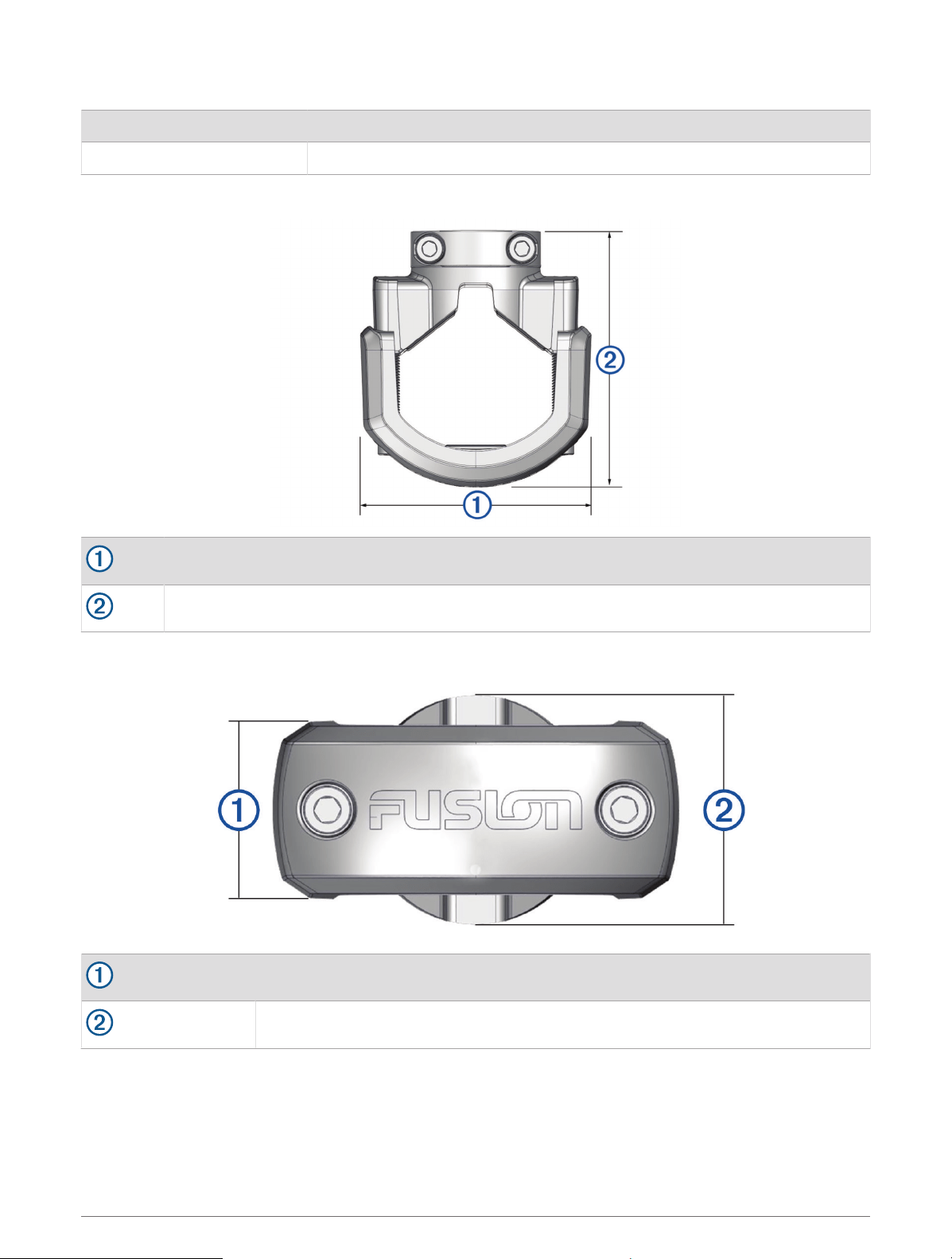
Bracket Specifications
Material Aluminum alloy with silicone pads
Supported roll bar sizes From 33.4mm (1.31in.) to 50.8mm (2.00in.) outer diameter
Bracket Side Dimensions
85mm (3
3
/
8
in.)
From 74mm (2
7
/
8
in.) to 94mm (3
11
/
16
in.)
Bracket Top Dimensions
37mm (1
7
/
16
in.)
48mm (2in.)
Data Management
The device has a memory card slot for additional data storage.
NOTE: The device is compatible with Windows
®
7 and newer, and Mac
®
OS 10.7 and newer.Apple
®
computers
may require additional third-party software to read and write files.
Appendix 77

About Memory Cards
You can purchase memory cards from an electronics supplier, or purchase pre-loaded Garmin mapping
software (www.garmin.com). Memory cards can be used to store files such as maps and POIs.
Installing a Memory Card for Maps and Data
You can install a memory card to increase the storage space for maps and other data on your device. You can
purchase memory cards from an electronics supplier. The device supports microSD memory cards from 4 to
256GB. Memory cards must use the FAT32 file system format. Memory cards greater than 32GB must be
formatted using the device (Formatting the Memory Card, page78).
1 Locate the map and data memory card slot on your device (Device Overview, page1).
2 Insert a memory card into the slot.
3 Press it in until it clicks.
Formatting the Memory Card
The device requires a memory card formatted using the FAT32 file system. You can use the device to format
your card using this file system.
You must format a brand new memory card if it is not formatted using the FAT32 file system.
NOTE: Formatting the memory card deletes all data on the card.
1 Select > Tools > > Device > Storage & USB.
2 Select your memory card.
3 Select > Storage settings > Format > FORMAT SD CARD.
4 Select Done.
Connecting the Device to Your Computer
You can connect the device to your computer using a USB cable.
1 Plug the small end of the USB cable into the port on the device.
2 Plug the larger end of the USB cable into a port on your computer.
Depending on your computer operating system, the device appears as either a portable device, a removable
drive, or a removable volume.
Transferring GPX Files From Your Computer
Apple computers may require additional third-party software, such as Android File Transfer, to read and write
files on this device.
If you have already created routes that you want to use on your device, you can transfer GPX files directly from
your computer.
1 Connect the device to your computer (Connecting the Device to Your Computer, page78).
The device appears as a portable device.
2 On your computer, open the file browser.
3 Select a GPXfile.
4 Select Edit > Copy.
5 Browse to the GPX folder on the device.
6 Select Edit > Paste.
78 Appendix

Transferring Data From Your Computer
1 Connect the device to your computer (Connecting the Device to Your Computer, page78).
Depending on your computer operating system, the device appears as either a portable device, a removable
drive, or a removable volume.
2 On your computer, open the file browser.
3 Select a file.
4 Select Edit > Copy.
5 Browse to a folder on the device.
NOTE: For a removable drive or volume, you should not place files in the Garmin folder.
6 Select Edit > Paste.
Disconnecting the USB Cable
If your device is connected to your computer as a removable drive or volume, you must safely disconnect your
device from your computer to avoid data loss. If your device is connected to your Windows computer as a
portable device, it is not necessary to safely disconnect the device.
1 Complete an action:
• For Windows computers, select the Safely Remove Hardware icon in the system tray, and select your
device.
• For Apple computers, select the device, and select File > Eject.
2 Disconnect the cable from your computer.
Adding BaseCamp
™
Data to Garmin Explore
You can export your BaseCamp data files and import them to Garmin Explore for use with your Tread XL device.
1 Export your data from BaseCamp:
• If you are using an Apple computer, see Exporting Data from BaseCamp with an Apple Computer, page79.
• If you are using a PC, see Exporting Data from BaseCamp with a PC, page79.
2 Import your BaseCamp data to the Garmin Explore website (Importing Data to Garmin Explore, page80).
3 Synchronize your Garmin Explore data with your Tread XL device.
Exporting Data from BaseCamp with a PC
1 Select an option:
• To export all BaseCamp data stored on your computer, select My Collection, and select File > Export >
Export 'My Collection'.
• To export one or more items or a list, select one or more items or a list, and select File > Export > Export
Selection.
2 Enter a name, select a location for the exported file, select the file format, and select Save.
Exporting Data from BaseCamp with an Apple Computer
1 Select an option:
• To export all BaseCamp data stored on your computer, select My Collection, and select File > Export 'My
Collection'.
• To export one or more items or a list, select one or more items or a list, and select File > Export Selected
User Data.
2 Enter a name.
3 Select a location for the exported file.
4 Select the file format.
5 Select Export.
Appendix 79



support.garmin.com
GUID-B3443908-7800-44A1-BE1E-0D780C075CBA v2February 2023