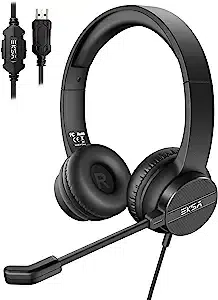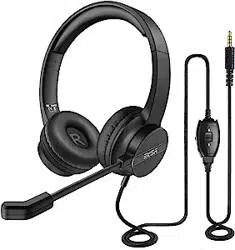
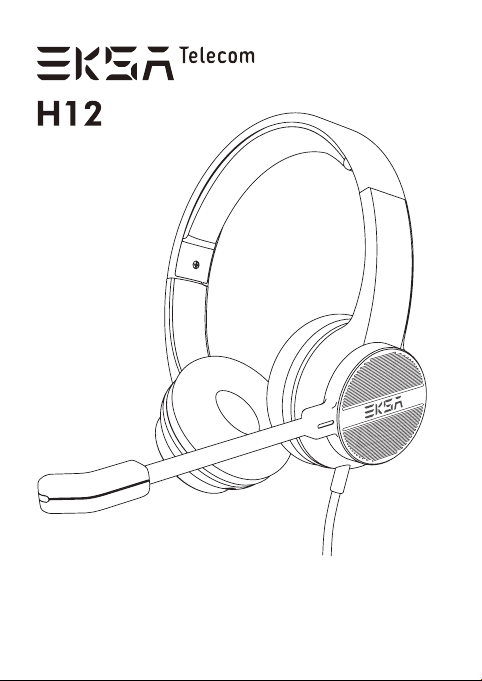
Telecom Headset For Hands-free
Communication

1
Compatible computer models: All windows & Mac system
Compatible phone models: Most cellphones
Compatible laptop & ipad & game controller
Compatible with any device which support a 3.5mm jack
Wide Compatibility 3.5mm Jack
Specification
Weight
Cable Length
Plug
150±10 g
1750~1850mm
3.5mm plug
Directivity
Frequency response
Working voltage
Sensitiveness
Diameter
Sensitiveness
Rated power
Maximum power
Impedance
Frequency response
40 mm
105dB±3dB
10MW
20MW
32Ω±15%
20Hz-20KHz
Omni-directional microphone
100Hz-5000Hz
1.5-3.3V
-42±3dB
Headphones
Microphone
Drivers

2
1.Plug directly the 3.5mm jack into the computer's 3.5mm jack
port, the headset can use automatically, plug in and play, no
driver installation needed.
2. Check the audio setting, ensure the PC online calls speaker
and microphone have been set to EKSA H12 telecom headset
for hands-free communication.
◎PC audio settings of Windows 7 and Windows 8
Switch to"control panel"--〉 "sound"--〉"play", and set the item
to default communication device.
◎PC audio settings of Windows XP
Switch to "control panel" ->sound and audio device, select
"audio setting" then select "sound play", and set to EKSA H12
telecom headset for hands-free communication.
3. Can make a call or voice chat by network app.
Operating Instruction
▲ Connect Computer
3
Button Function
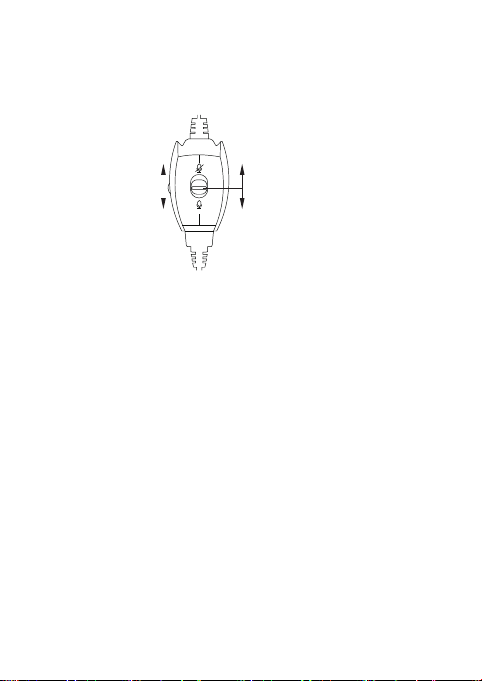
▲ Volume Control
Volume up and down: simply adjust the scroll wheel up and
down to increase or decrease the volume.
▲ Speaker mute
Push and Slide the button switch up to the mute mark on
wired remote shutter, you can use the mute function.
▲Adjust the mircophone
Bend the microphone tube, then make the tube aim at your
mouth to gain best voice clarity.
Volume“+”
Volume“-”
Mute
Unmute

4
Headphone FAQ
▲I can't hear the voice from an other side or the music is
soundless while playing
Possible causes and Solutions:
◎ Check the controller on the cable, please adjust the
volume.
◎ Check that your external speakers are still supplied with
power and there have no loose connector.
when you are using a laptop, you may have accidentally
turned off the sound switch. Pay attention to the loudspeaker
symbol on the respective key.
◎ Check whether the sound is switched on in the system tray
at the bottom right next to the loudspeaker symbol. When the
sound is off, you'll see a red circle icon here.
If the sound is switched on, the controller may be lowered to
Zero. Click on the loudspeaker symbol in the system tray and,
if necessary, lift the controller upwards.
◎ Check the audio settings of your computer to see whether
you have selected EKSA H12 Telecom Headset as the input
device.
▲Another side cannot hear my voice
Possible causes and Solutions:
Maybe you've turned off the microphone. Press the switch to
turn on microphone.
Maybe the microphone lever is misaligned. Adjust the
microphone lever to come closer to your mouth.
Maybe you haven't default the EKSA 3.5mm headset for
audio device on PC.

5
◎For Windows XP system:
Switch to "Control Panel" -> "Sound and Audio Device" ->
"audio" choose your earphone for the default audio device.
◎For Windows Vista and Windows 7 systems:
Switch to "Control Panel" and select "Audio"
to highlight earphone, please select "Default Setting" in the list,
then select "Default Communication Device”, and click "OK".
◎For Mac OS X system:
Choose Apple menu, and enter "System Preference" -> "audio"
->"Output"/ Select your earphone EKSA H12 for "Audio Output
Device".
▲The sound from the earphone is distorted, and I hear
echoes from it.
Possible causes and Solutions:
◎Turn down the volume of online calls until the sound
distortion is solved.
◎ If you hear your own voice echoed during voice calls, the
echo cancelling function is not working properly on the other
person's device and the sound from the earpiece is sent back
to you through the microphone. advise the person you are
talking to set his device as below, under “Settings> About
Threema> Troubleshooting” to change the “Echo Suppression”
(from “Software Echo Suppression” to “Hardware Echo
Suppression” or vice versa).

6
▲Another earphone for playing music doesn't work
Possible causes and Solutions:
Maybe EKSA 3.5mm earphone has been set as the default
audio device.
◎For Windows XP System:
Switch to" Control Panel" -> " Sound and Audio Device" -> "
Audio".
Set your selected device as default device in “Audio”.
◎For Windows Vista and Windows 7 System:
Switch to" Control panel" and select" audio".
lb highlight the device you selected, please select" Default
Setting" in the list,and click" OK".
◎For Mac OS X system:
Choose Apple menu, and enter" System Preference" and click"
Audio".
▲The sound is loud even though in the minimum volume.
Possible causes and Solutions:
Turn down the volume of online calls or the media players on
your PC.
▲All the buttons on remote shutter are infeasible
The 3.5mm headset will no longer power on when the PC is in
standby or hibernation mode. Please ensure that your PC
keeps on.

37
保証書
Garantie limitée
Garanzia limitata
Eingeschränkte
Garantie
Limited Warranty
Our friendly customer service team are ready and waiting to help. Here is how
we can connect:
私たちのカスタマーサービスチームはいつでもお手伝いします。連絡先は次のと
お り:
Unser freundliches Kundenservice-Team ist bereit, Ihnen zu bedienen. So
können Sie uns kontaktieren:
Nuestro amable equipo de atención al cliente está listo y esperando para
ayudar:
Notre gentil service client est toujours à votre écoute. Vous pouvez nous
contacter par une des manières suivantes :
Il nostro cordiale team di assistenza clienti è pronto e in attesa di aiutare. Ecco
come possiamo connetterci:
GLOBAL: [email protected]
INDIA: [email protected]
GLOBAL: +852 6940 4955 (Mon to Fri 9:00 am-6:30 pm, UTC +8 HKT)
INDIA: +91-8929-369-620 (Mon to Fri IST 9:30 am-5:30 pm)
www.eksatelecom.com/pages/warranty
Garantía limitada