LAUNCH CReader VII+ Upgrade Process
Notes: There are 2 methods to upgrade the Creader VII+ scan tool, we
would recommend method 2(Via TF card) which is easier than the
method 1( Via USB Cable).
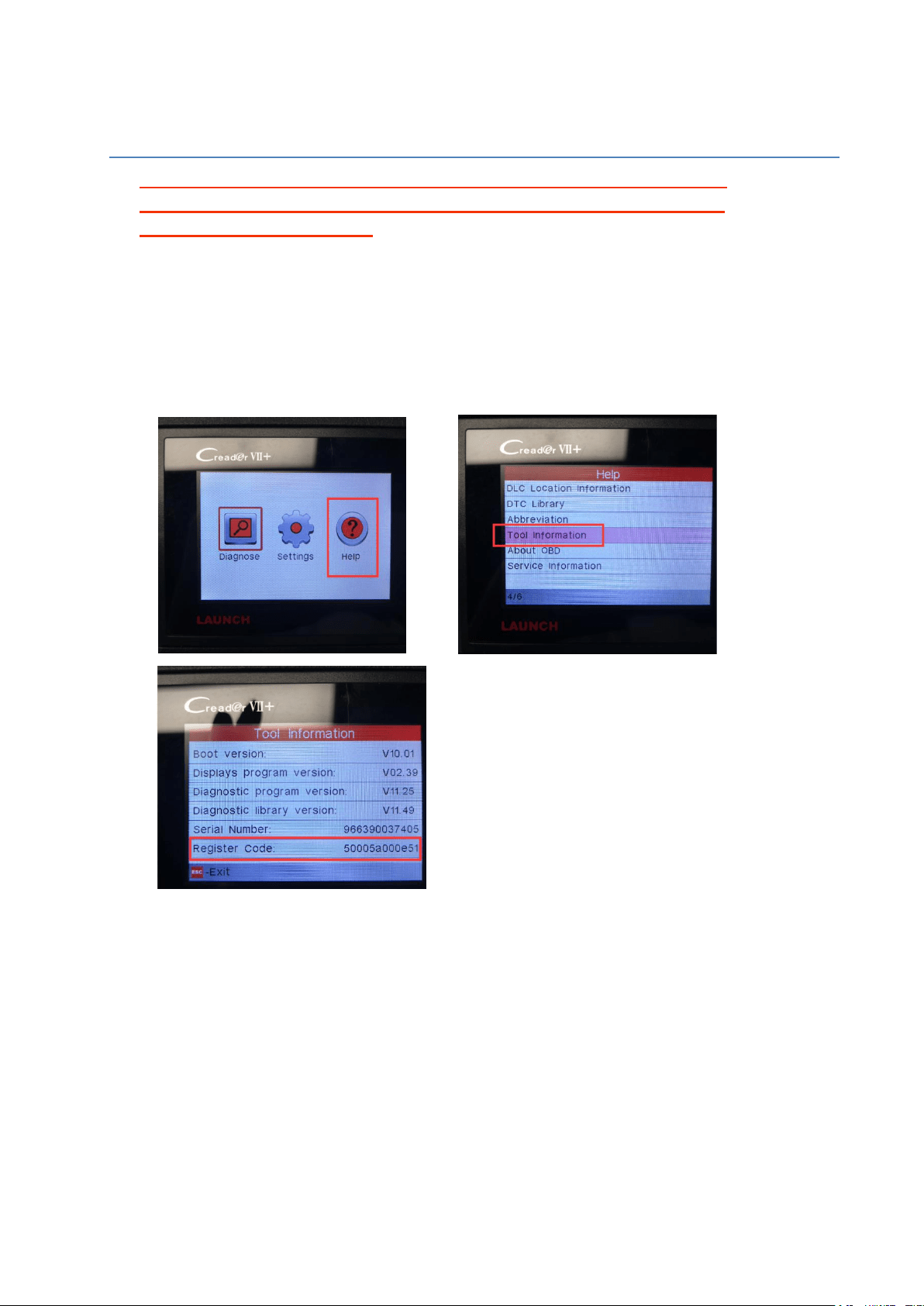
Step 1: Before starting the upgrade, please connect a computer to this device
via its USB, enter the device’s screen menu "Help --> Tool Information -->
Register Code" and take a photo to record the information displayed. (It
supports WIN XP, 7, 8,10 laptop.)
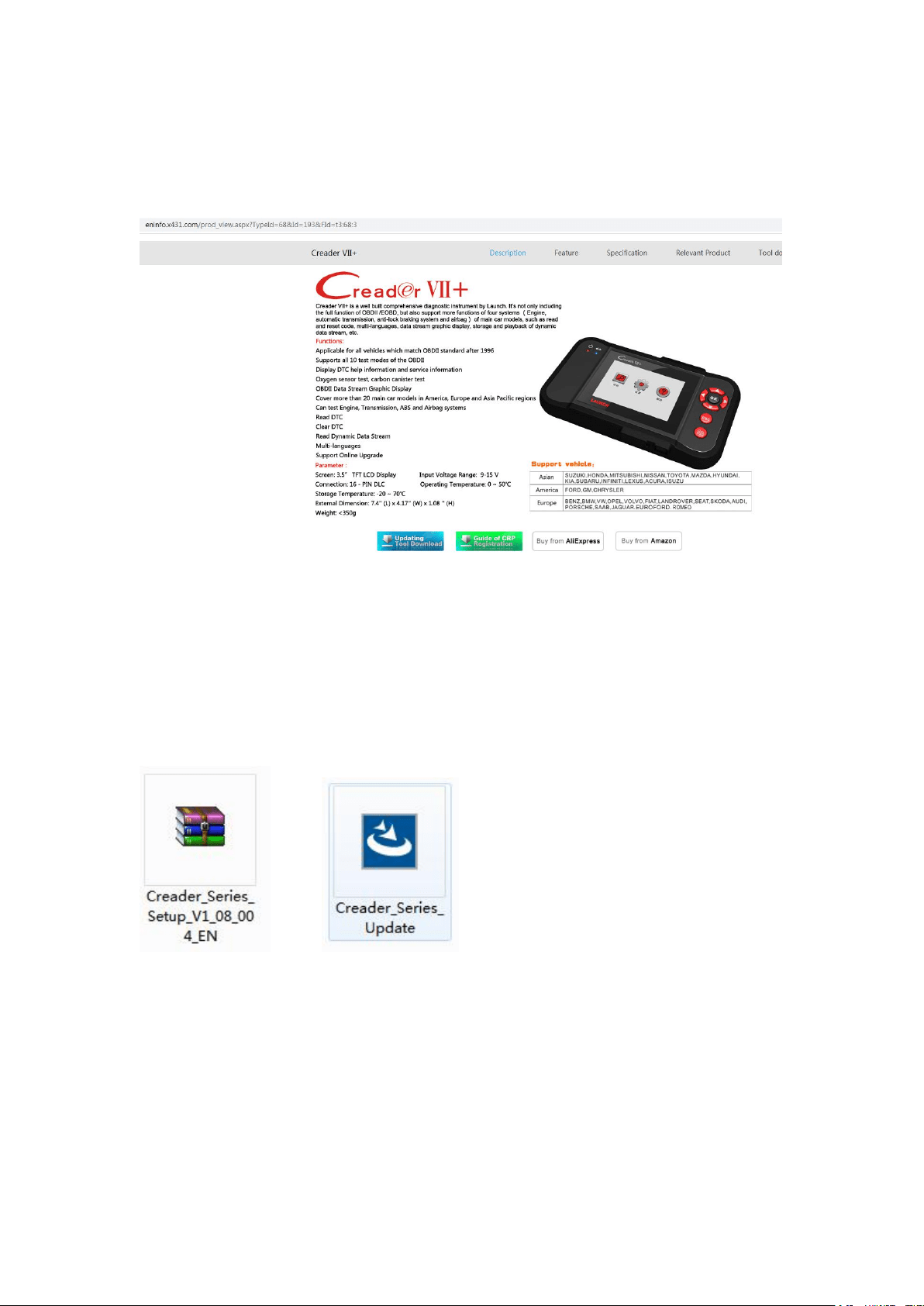
Step 2: Go to the the Creader VII+ product page on the official website of
LAUNCH and click “Updating Tool Download” icon. The path is as follows:
https://eninfo.x431.com/prod_view.aspx?TypeId=68&Id=193&FId=t3:68:3
(NOTE: Our website is safe, please rest assured to enter in!)
Step 3: Download the (Creader_Series_Setup_V1_08_004_EN.rar) and
extract it to
(Creader_Series_Update.exe)
--->
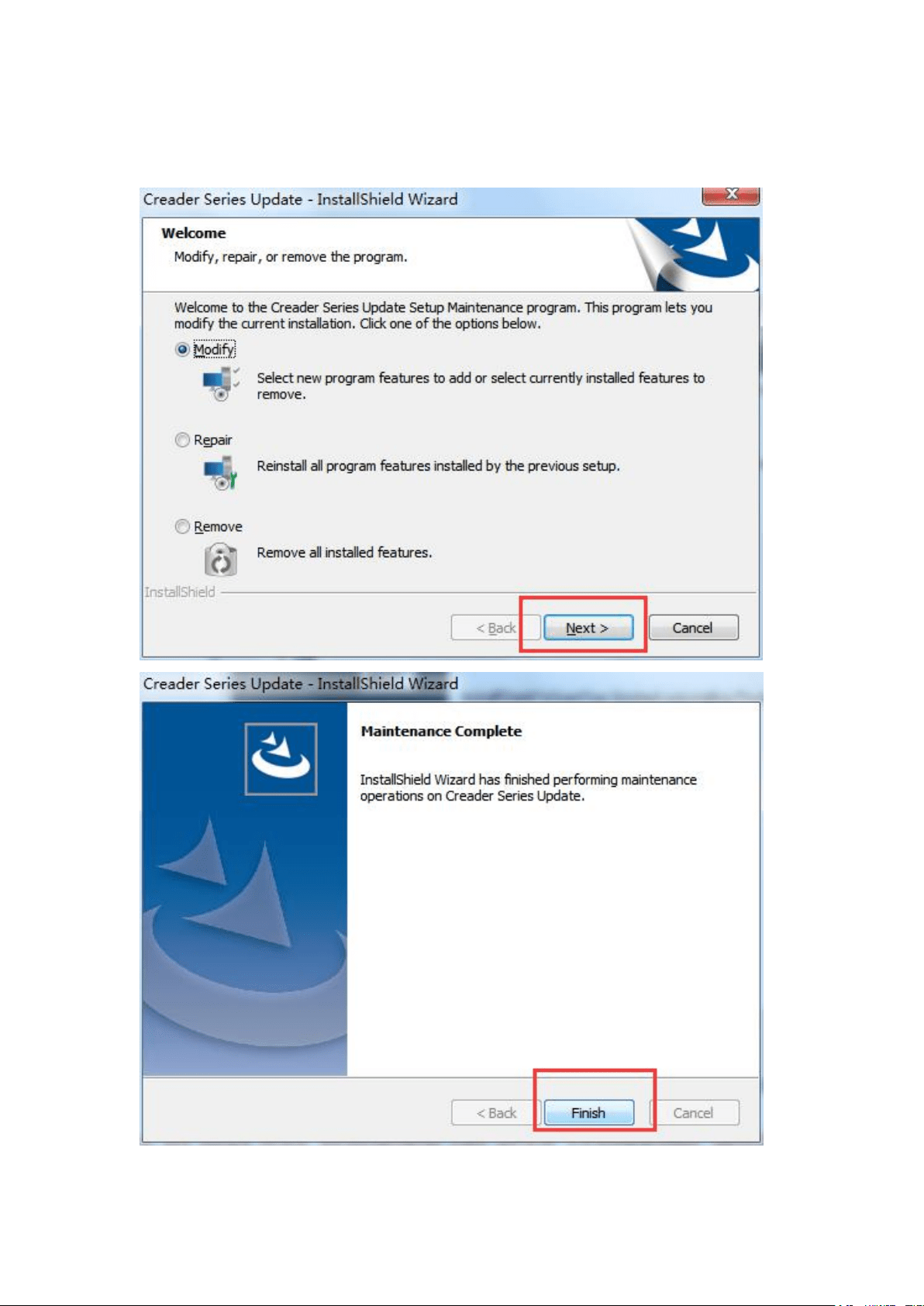
Step 4: Click the (Creader_Series_Update.exe) file and install the updating
tool.
--
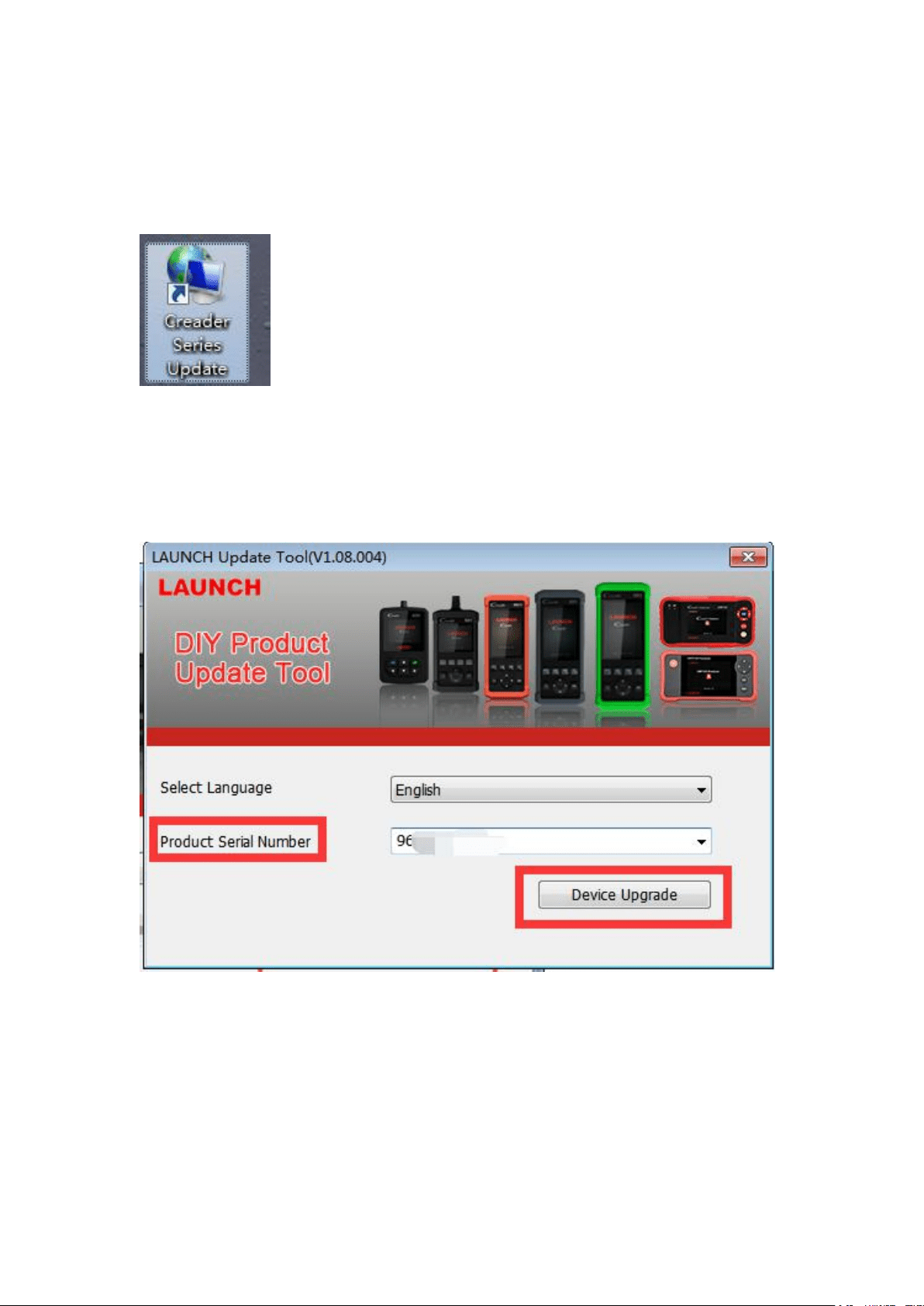
Step 5: Please try to find this software on your computer and open client
software “Creader Series Update”.
(NOTE: Our Setup is safe, please rest assured to install!)
Step 6: When you see this page, insert the TF card into its reader, then contact
the TF card reader to your PC port, type in the "Serial Number" which is
located on the back of the VII+ device.
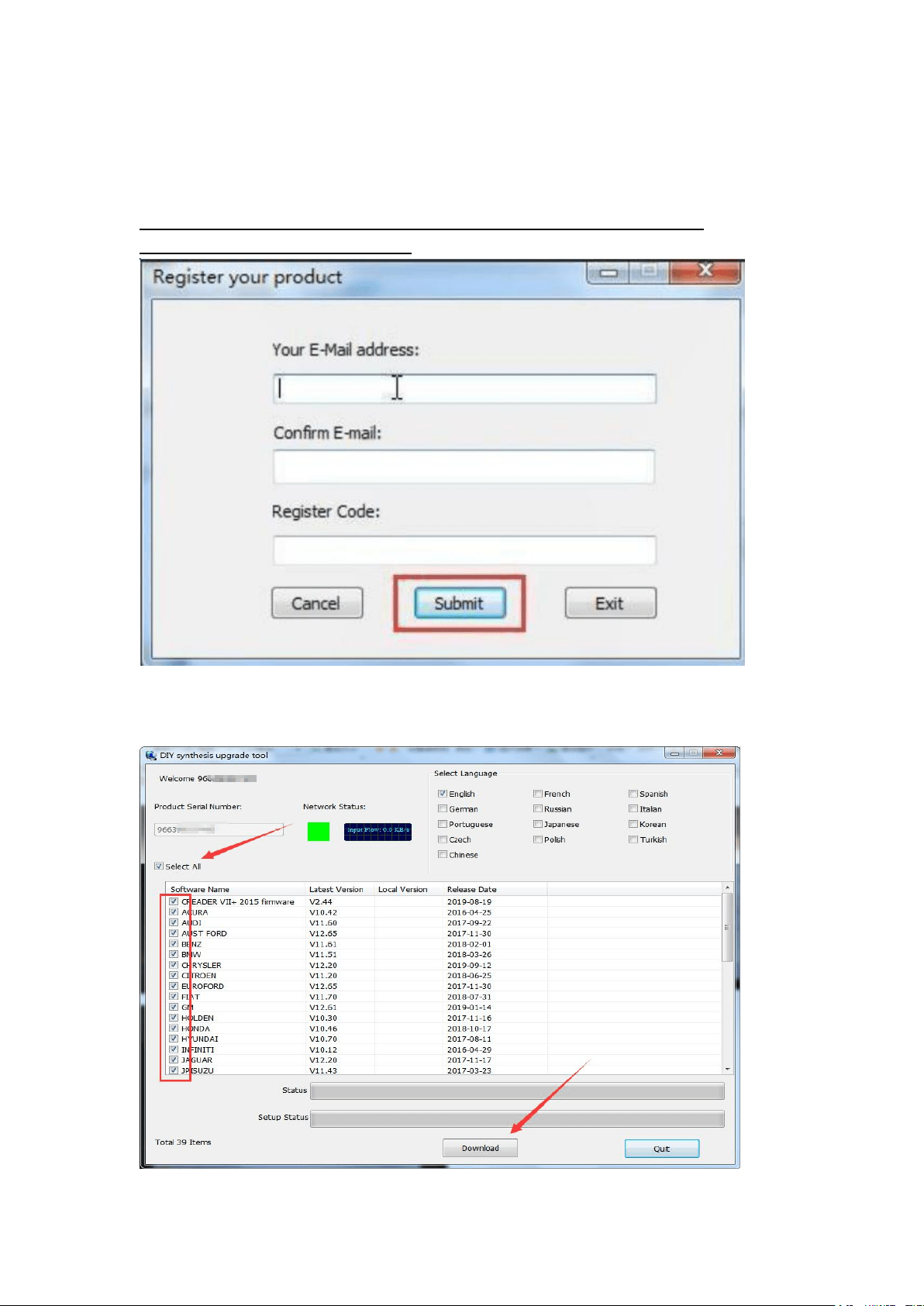
Step 7: Hit [Device Upgrade] and move to the register page, type your email
address and Register Code (check the Register Code on the picture you have
taken before.), then hit [Submit].
Note: "Register Code" is equal to "user password",you don’t need to
create any password by yourself.
Step 8: Choose “Select All” and click [Download] to start downloading.

Step 9: Once all steps are complete, reinsert the TF card into the tool and
power the tool via USB in computer or via OBD2 port in vehicle. The tool will
prompt you to upgrade, select OK button on tool to proceed.
Step 10: The upgrade process is now complete!
Note: Finally, if you have any question, please do not hesitate to contact us via
will be here to help you.