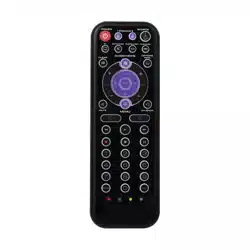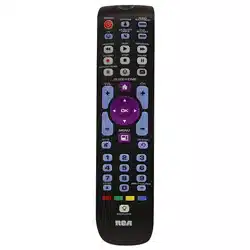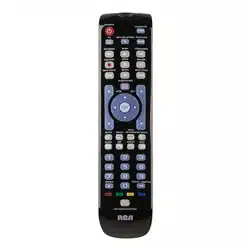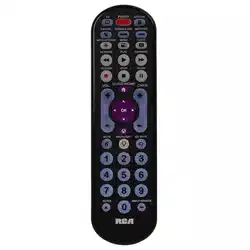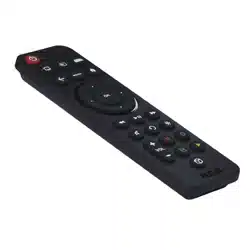
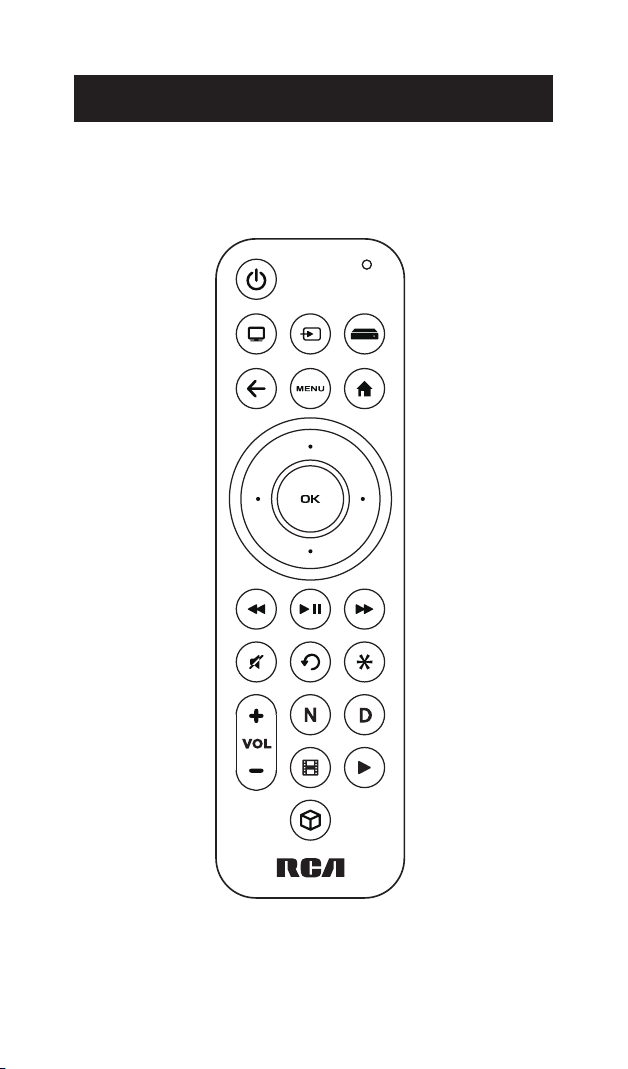
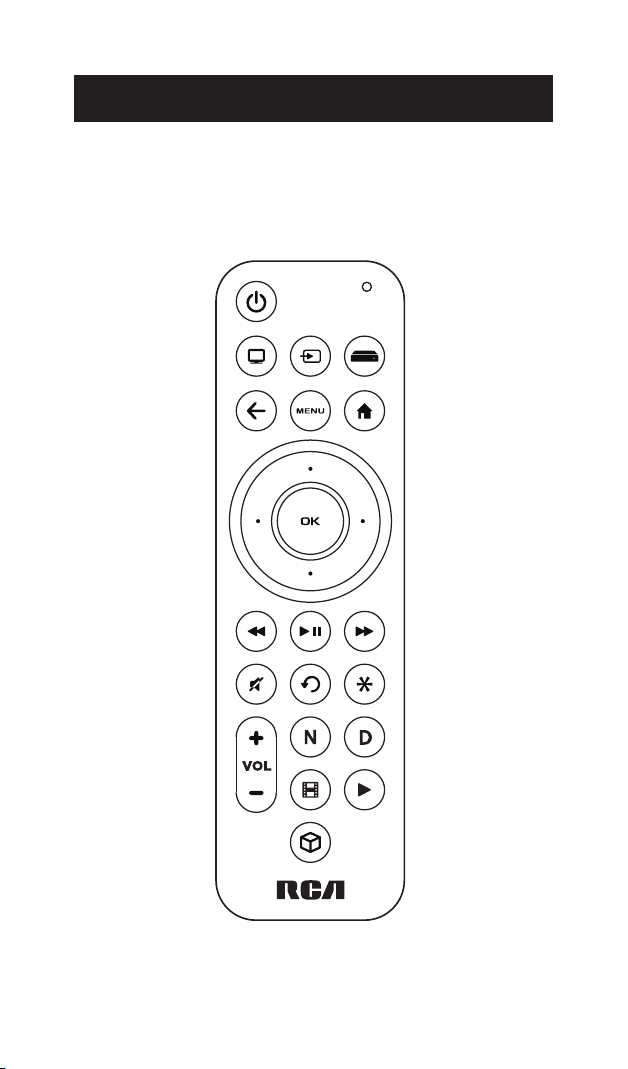
Actual model may vary from
illustration
Tour of the Remote
In most cases, the keys on this remote perform the same functions
as the keys on your original remotes once you’ve programmed this
remote to operate your components. Many keys on this remote
have other functions as well.
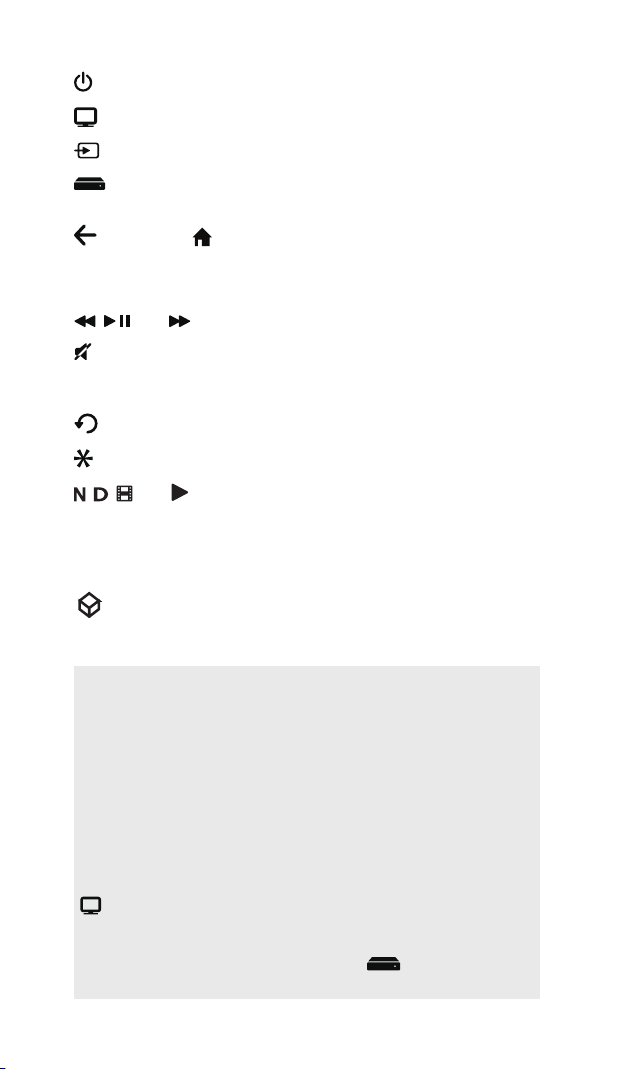
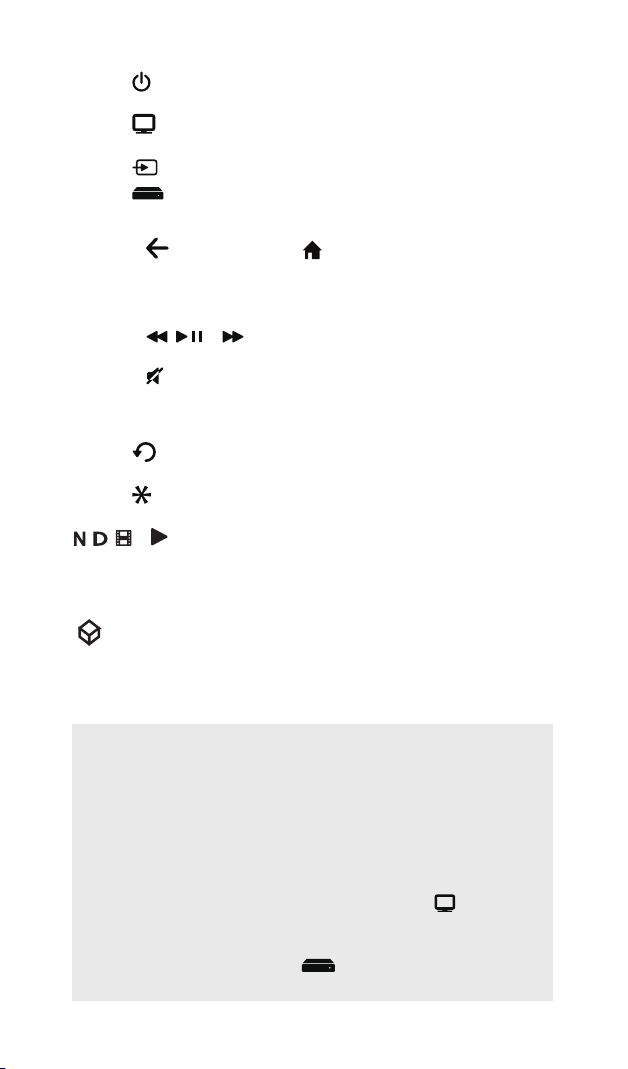
key turns your TV or streaming player on and off.
puts the remote in TV mode (to control your TV).
switches between inputs on your TV.
puts the remote in streaming mode (to control your streaming
player).
, MENU, and have the same functions as on your original
remotes.
Arrow keys and OK act as navigation and selection keys.
, , and provide playback control for streaming content.
and VOL +/– mute and control the volume of your soundbar if
you’ve programmed the remote to control one. Otherwise, they
mute and control the volume of your TV.
replays the last few seconds of streaming content.
accesses the options menu for your device or streaming App.
, , , and provide direct access to Netix, Disney+, Hulu, and
YouTube if supported by your streaming player or smart TV. These
keys also provide additional functionality on other components and
can execute macro functions if programmed (see the Shortcut /
Macro Keys section).
controls Samsung Hub functionality on TVs. It may also control
similar functionality on other devices (see your device manual for
information).
IMPORTANT
The shortcut keys mimic the functionality of your device’s
original remote — for example, if the original remote that came
with your SmartTV doesn’t have a YouTube key, chances are
this remote’s YouTube key will not automatically give you direct
access to YouTube on your SmartTV. You can, however, set up a
macro on that key to perform this function. See the Shortcut /
Macro Keys section for more information.
Because this remote controls more than one device, you must
rst “tell” the remote which device you wish to operate. That
means, if you wish to operate your TV, you must rst press the
key to put the remote in the TV Mode. The remote stays
in that device mode until you press a different device key. For
example, if your remote is in TV Mode and you want to operate
the streaming player, you must press the key to change
device modes.
Advanced Functions
Shortcut/Macro Keys
In addition to providing one-press access to streaming services on
Smart TVs and streaming players that support this function, the
, , , and keys can also be programmed to execute multi-step
functions (or “macros”).
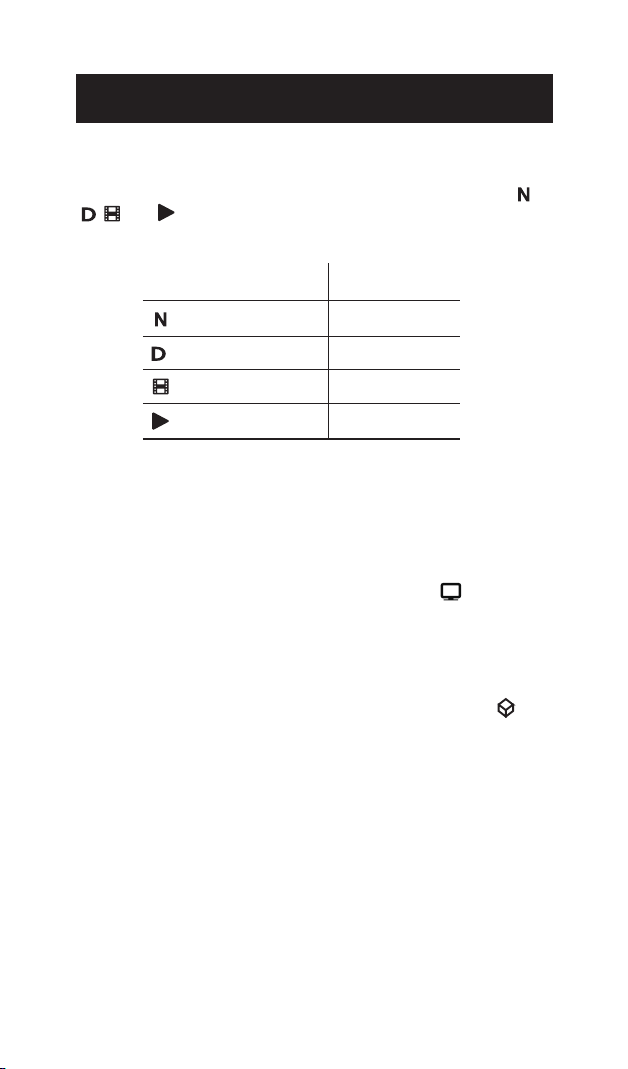
Press
Press & Hold
(2+ seconds)
Netix
Macro 1
Disney+ Macro 2
Hulu
Macro 3
YouTube
Macro 4
Setting Up Macros
Macros are multi-step functions you can program to a single
keypress, like accessing a streaming service directly if your streaming
player or TV doesn’t support hot keys.
To set up a macro:
1. Press and hold the device key for the device you want to use
the macro on. (For example, press and hold the key to
program a macro for TV.) The indicator light illuminates.
Note: Each macro works for a single device only.
2. Press the shortcut key you want to use to store the macro. The
indicator light blinks and stays illuminated.
3. Press the keys you want in the order you want for the macro. (For
example, to access a streaming service on your TV, press ,
then use the arrow keys to highlight the service, and press OK).
Note: Each shortcut key can store a maximum of 14 macro
steps overall.
4. Press the shortcut key again to store the macro. The indicator
light turns off.
To use the macro: Make sure you’re in the right device mode. Then
press and hold the shortcut key storing the macro.

Device Lock
Device lock sets the remote to send commands to one device only,
either your TV or your streaming player.
To turn on Device Lock: Press and hold both the key and the
device key you want to lock to until the indicator light illuminates
and stays on. Then release the keys. The remote now controls that
device only.
To turn off Device Lock: Press and hold both the and keys
until the indicator light illuminates and stays on. Then release
the keys. The remote goes back to controlling all the devices it’s
programmed to control.

Troubleshooting
Problem: The remote does not operate your device.
• Make sure the remote is in the correct mode by pressing the
corresponding device key ( for TV or for a streaming player). This
tells the remote which device to operate.
• Remove any obstacles between the remote and the device. Make sure
you’re aiming the remote at the device’s IR sensor.
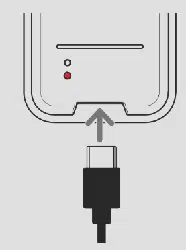
• Make sure the remote is charged. Insert the charging cable into the
charging port on the bottom of the remote. Plug the other end of the
cable into a USB power source, like a computer or USB adapter (not
included). The red indicator on the back of the remote illuminates while
the remote is charging. The green indicator turns on when the remote is
fully charged.
Problem: The remote can’t be programmed to operate your device.
• If you are testing the remote while programming it, you may be too
far away from the device or at a wrong angle. There must be an
unobstructed path between the remote and the IR sensor on the device.
Move closer and make sure you point the remote at the device you’re
trying to control.
• Make sure the remote is charged. Insert the charging cable into the
charging port on the bottom of the remote. Plug the other end of the
cable into a USB power source, like a computer or USB adapter (not
included). The red indicator on the back of the remote illuminates while
the remote is charging. The green indicator turns on when the remote is
fully charged.
Problem: The remote doesn’t perform commands properly.
• Make sure the remote is in the correct mode by pressing the
corresponding device key ( for TV or for a streaming player). This
tells the remote which device to operate.
• The shortcut keys mimic the functionality of your device’s original
remote — for example, if the original remote that came with your
SmartTV doesn’t have a YouTube key, chances are this remote’s YouTube
key will not automatically give you direct access to YouTube on your
SmartTV. You can, however, set up a macro on that key to perform this
function. See the Shortcut / Macro Keys section for more information.
• You may have pressed an invalid key for the mode the remote is in.
Problem: The remote’s indicator does not light when you press a key.
• You may have pressed an invalid key for the mode the remote is in.
• Make sure the remote is in the correct mode by pressing the
corresponding device key ( for TV or for a streaming player). This
tells the remote which device to operate.
• Make sure the remote is charged. Insert the charging cable into the
charging port on the bottom of the remote. Plug the other end of the
cable into a USB power source, like a computer or USB adapter (not
included). The red indicator on the back of the remote illuminates while
the remote is charging. The green indicator turns on when the remote is
fully charged.

Problem: The device’s menu does not appear on the TV screen.
• Make sure you have connected the device to your TV properly and
selected the correct input. (See your devices’ Owner’s Manuals for
proper connection procedures.)
• Make sure the remote is in the correct mode by pressing the
corresponding device key ( for TV or for a streaming player). This
tells the remote which device to operate.
• Menu access isn’t supported for all brands. You may need to use your
original remote control to access menu functions for some devices.
Problem: The Shortcut keys don’t access the correct streaming
services on my SmartTV or streaming player.
• Make sure the remote is in the correct mode by pressing the
corresponding device key ( for TV or for a streaming player). This
tells the remote which device to operate.
• The shortcut keys mimic the functionality of your device’s original
remote — for example, if the original remote that came with your
SmartTV doesn’t have a YouTube key, chances are this remote’s YouTube
key will not automatically give you direct access to YouTube on your
SmartTV. You can, however, set up a macro on that key to perform this
function. See the Shortcut / Macro Keys section for more information.
RCA, the RCA logo are trademarks used under license by
Jem Accessories Inc.– further information at www.rca-brand.com.
Jem Accessories Inc., 900 US-9, 5th Floor, Woodbridge, NJ 07095
www.rcaantennas.net 1-866-754-3600
RCTSB3B1 IB 01
El modelo actual puede ser diferente
al ilustrado
Recorrido del control remoto
En la mayoría de los casos, las teclas del control remoto
desempeñan las mismas funciones que las teclas de los controles
remotos originales una vez programa este control remoto para
manejar los componentes. La mayoría de las teclas de este control
remoto tienen otras funciones.
La tecla permite encender y apagar el televisor y el reproductor
de streaming.
La tecla permite colocar al control remoto en el modo de
televisor (para controlar el televisor).
La tecla permite cambiar entre las entradas del televisor.
La tecla permite colocar el control remoto en el modo
de reproductor de streaming (para controlar el reproductor de
streaming).
Las teclas , MENU (MENÚ) y tienen las mismas funciones que
en los controles remotos originales.
Las teclas de echa y OK (Aceptar) actúan como teclas de
navegación y selección.
Las teclas , , y permiten controlar la reproducción del
contenido de streaming.
Las teclas y VOL +/– permiten silenciar y controlar el volumen de
la barra de sonido si programó el control remoto para controlar una.
De lo contrario, estas teclas silenciarán y controlarán el volumen del
televisor.
La tecla vuelve a reproducir los últimos segundos del contenido
de streaming.
La tecla permite acceder al menú de opciones del dispositivo o
aplicación de streaming.
, , , y proporcionan acceso directo a Netix, Disney+, Hulu
y YouTube si el reproductor multimedia o Smart TV admiten estas
funciones. Estas teclas también ofrecen una funcionalidad adicional
en otros componentes y pueden ejecutar funciones de macro si están
programadas (consulte la sección Teclas de acceso directo/macro).
controla la funcionalidad del Concentrador de Samsung en los
televisores. También podría controlar una funcionalidad similar en
otros dispositivos (consulte el manual de su dispositivo para obtener
información).
IMPORTANTE
Las teclas de acceso directo imitan la funcionalidad del control remoto
original de su dispositivo; por ejemplo, si el control remoto incluido con su
Smart TV no tiene una tecla de YouTube, lo más probable es que la tecla
de YouTube de este control remoto no le permita obtener acceso directo
automático a YouTube en su Smart TV. Sin embargo, puede congurar una
macro en esa tecla para ejecutar esta función. Para obtener más información,
consulte la sección Teclas de acceso directo/macro.
Dado que este control remoto maneja más de un dispositivo, deberá primero
“indicarle” al control remoto cuál dispositivo desea manejar. En otras palabras,
si desea manejar el televisor, deberá primero oprimir la tecla para poner el
control remoto en el Modo TV. El control remoto permanece en ese modo de
dispositivo hasta que oprima una tecla de dispositivo diferente. Por ejemplo, si
el control remoto se encuentra en el Modo TV y desea manejar el reproductor
de streaming, deberá oprimir la tecla para cambiar los modos de
dispositivo.
Funciones Avanzadas
Teclas de acceso directo/macro
Además de proporcionar un acceso con solo oprimir una tecla a los
servicios de streaming de Smart TV y reproductores de streaming que
admitan esta función, las teclas , , , y también se pueden
programar para ejecutar funciones de varios pasos (o “macros).
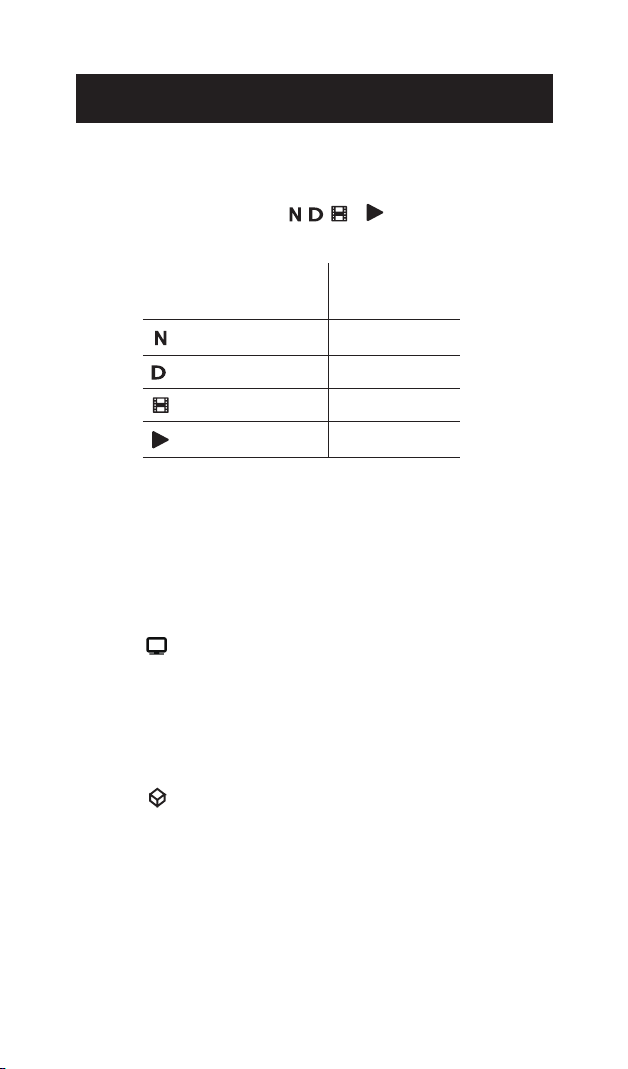
Oprimir
Mantener
oprimido
(2+ segundos)
Netix
Macro 1
Disney+ Macro 2
Hulu
Macro 3
YouTube
Macro 4
Conguración de macros
Las macros son funciones de varios pasos que puede programar
en una sola pulsación de tecla, como acceder directamente a
un servicio de streaming si el reproductor multimedia o la TV no
admiten las teclas de acceso directo.
Para congurar una macro:
1. Mantenga oprimida la tecla de dispositivo para el dispositivo en
el que quiere utilizar la macro. (Por ejemplo, mantenga oprimida
la tecla para programar una macro para TV). Se encenderá la
luz indicadora.
Nota: Cada macro funciona únicamente para un solo dispositivo.
2. Oprima la tecla de acceso directo que quiere utilizar para
almacenar la macro. La luz indicadora parpadeará y permanecerá
encendida.
3. Oprima las teclas deseadas en el orden deseado para la macro.
(Por ejemplo, para acceder a un servicio de streaming en su TV,
oprima y, a continuación, utilice las teclas de echa para
seleccionar el servicio y oprima OK).
Nota: Cada tecla de acceso directo puede almacenar hasta un
máximo de 14 pasos de macro.
4. Oprima la tecla de acceso directo nuevamente para almacenar la
macro. La luz indicadora se apaga.
Para utilizar la macro: asegúrese de estar en el modo de dispositivo
correcto. A continuación, mantenga oprima la tecla de acceso directo
que tiene almacenada la macro.
Bloqueo de dispositivo
La función de bloqueo de dispositivo permite establecer el control
remoto para enviar comandos a únicamente un dispositivo, ya sea su
TV o reproductor de streaming.
Para activar la función de bloqueo de dispositivo: Mantenga oprimida
la tecla y la tecla de dispositivo en el que desea bloquear hasta
que la luz indicadora permanezca encendida. A continuación, suelte las
teclas. El control remoto ahora controla únicamente ese dispositivo.
Para desactivar la función de bloqueo de dispositivo: Mantenga
oprimida las teclas y hasta que la luz indicadora permanezca
encendida. A continuación, suelte las teclas. El control remoto vuelve
a controlar todos los dispositivos para los que está programado para
hacerlo.

Resolución de Problemas
Problema: El control remoto no maneja su dispositivo.
• Asegúrese que el control remoto se encuentre en el modo correcto oprimiendo
la tecla de dispositivo correspondiente ( para TV o para reproductor de
streaming). Esto le indica al control remoto el dispositivo que debe manejar.
• Retire los obstáculos ubicados entre el control remoto y el dispositivo. Asegúrese
de apuntar el control remoto directamente al sensor infrarrojo del dispositivo.
• Asegúrese de que el control remoto esté cargado. Inserte el cable de carga en
el conector de carga ubicado en la parte inferior control remoto. Conecte el otro
extremo del cable de alimentación en una fuente de alimentación USB, como
una computadora o adaptador de USB (no incluido). El indicador rojo ubicado
en la parte posterior del control remoto se encenderá durante la carga del
control remoto. El indicador verde se enciende cuando el control remoto está
completamente cargado.
Problema: El control remoto no puede programarse para manejar su dispositivo.
• Si está probando el control remoto mientras lo está programando, podría
estar demasiado alejado del dispositivo o en un ángulo incorrecto.
Deberá haber una trayectoria sin obstáculos entre el control remoto y el
sensor infrarrojo del dispositivo. Acérquese más y asegúrese de apuntar
directamente al dispositivo que está intentando manejar.
• Asegúrese de que el control remoto esté cargado. Inserte el cable de carga
en el conector de carga ubicado en la parte inferior control remoto. Conecte
el otro extremo del cable de alimentación en una fuente de alimentación
USB, como una computadora o adaptador de USB (no incluido). El indicador
rojo ubicado en la parte posterior del control remoto se encenderá durante
la carga del control remoto. El indicador verde se enciende cuando el control
remoto está completamente cargado.
Problema: El control remoto no ejecuta los comandos debidamente.
• Asegúrese que el control remoto se encuentre en el modo correcto oprimiendo
la tecla de dispositivo correspondiente ( para TV o para reproductor de
streaming). Esto le indica al control remoto el dispositivo que debe manejar.
• Las teclas de acceso directo imitan la funcionalidad del control remoto original
de su dispositivo; por ejemplo, si el control remoto incluido con su Smart TV
no tiene una tecla de YouTube, lo más probable es que la tecla de YouTube
de este control remoto no le permita obtener acceso directo automático a
YouTube en su Smart TV. Sin embargo, puede congurar una macro en esa
tecla para ejecutar esta función. Para obtener más información, consulte la
sección Teclas de acceso directo/macro.
• Puede haber oprimido una tecla inválida para el modo en que se encuentra el
control remoto.
Problema: La luz indicadora no se ilumina cuando oprime una tecla.
• Puede haber oprimido una tecla inválida para el modo en que se encuentra el
control remoto.
• Asegúrese que el control remoto se encuentre en el modo correcto oprimiendo
la tecla de dispositivo correspondiente ( para TV o para reproductor de
streaming). Esto le indica al control remoto el dispositivo que debe manejar.
• Asegúrese de que el control remoto esté cargado. Inserte el cable de carga en
el conector de carga ubicado en la parte inferior control remoto. Conecte el otro
extremo del cable de alimentación en una fuente de alimentación USB, como
una computadora o adaptador de USB (no incluido). El indicador rojo ubicado
en la parte posterior del control remoto se encenderá durante la carga del
control remoto. El indicador verde se enciende cuando el control remoto está
completamente cargado.

Problema: El menú del dispositivo no aparece en la pantalla del televisor.
• Asegúrese de haber conectado debidamente el dispositivo al televisor y haber
seleccionado la entrada correcta. (Consulte el Manual del Propietario de los
dispositivos para informarse sobre los procedimientos de conexión correctos.)
• Asegúrese que el control remoto se encuentre en el modo correcto oprimiendo
la tecla de dispositivo correspondiente ( para TV o para reproductor de
streaming). Esto le indica al control remoto el dispositivo que debe manejar.
• El acceso a los menús no es respaldado por todas las marcas. Posiblemente sea
necesario utilizar el control remoto original para lograr acceso a las funciones
de menú de algunos dispositivos.
Problema: Las teclas de acceso directo/macro del control remoto no
funcionan como se espera.
• Asegúrese que el control remoto se encuentre en el modo correcto oprimiendo
la tecla de dispositivo correspondiente ( para TV o para reproductor de
streaming). Esto le indica al control remoto el dispositivo que debe manejar.
• Las teclas de acceso directo imitan la funcionalidad del control remoto original
de su dispositivo; por ejemplo, si el control remoto incluido con su Smart TV
no tiene una tecla de YouTube, lo más probable es que la tecla de YouTube
de este control remoto no le permita obtener acceso directo automático a
YouTube en su Smart TV. Sin embargo, puede congurar una macro en esa
tecla para ejecutar esta función. Para obtener más información, consulte la
sección Teclas de acceso directo/macro.