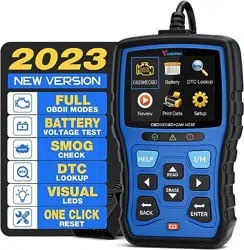
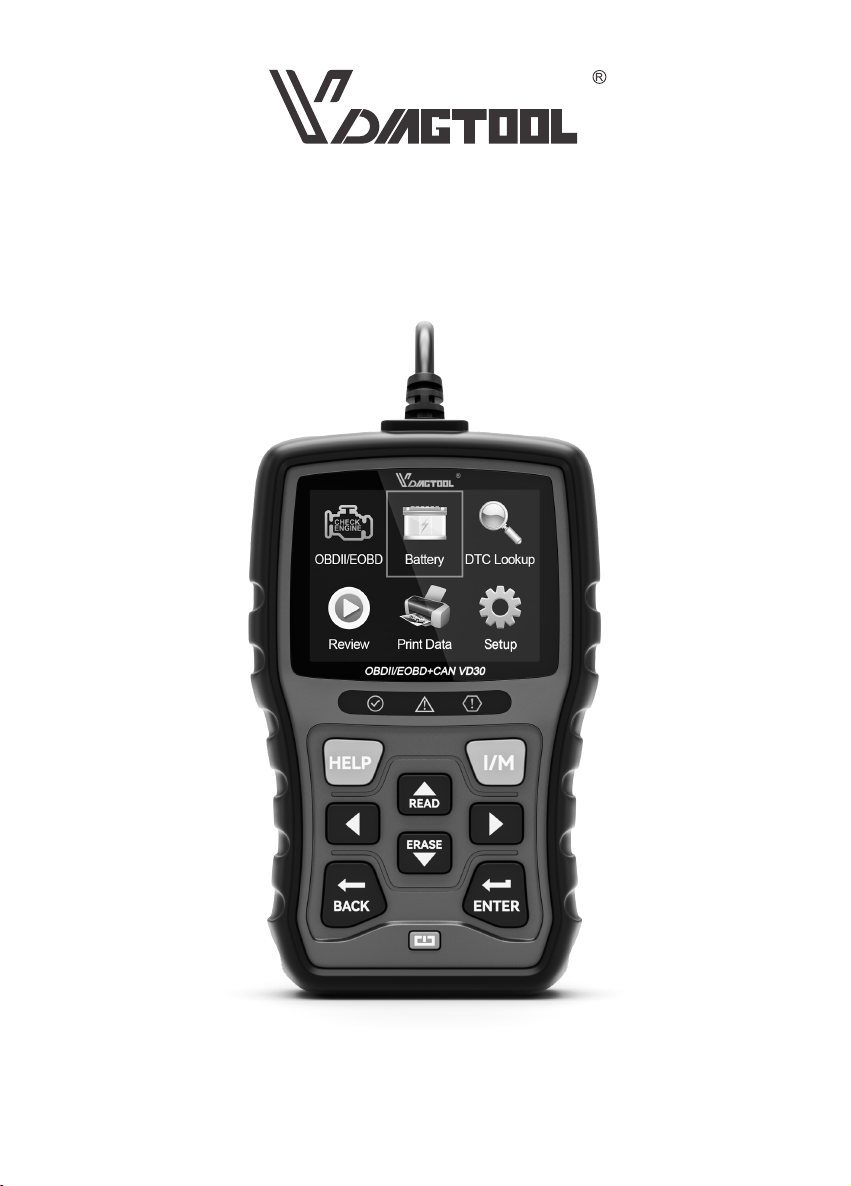
OBDII/EOBD+CAN VD30 Code Reader
USER MANUAL
Shenzhen Chuangxinhong Technology Co., Ltd
Copyright @ 2022 Chuangxinhong

General Notice
For your own safety and the safety of others, and to prevent damage to the equipment and vehicles,
read this manual thoroughly before operating your code reader. The safety messages presented below
and throughout this user’s manual are reminders to the operator to exercise extreme care when using
this device. Always refer to and follow safety messages and test procedures proviced by vehicle
manufacturer. Read, understand and follow all safety messages and instructions in this manual.
Safety Precautions and Warnings
To prevent presonal inju or damage to vehicles and/or the scan tool, read this instruction manual rst
and obsee the following safety precautions at a minimum whenever working on a vehicle:
Always peorm automotive testing in a safe environment. Wear safety eye protection that meets ANSI
standards, Keep clothing, hair, hands, tools, test equiprment, etc. away from all moving or hot engine
pas.
Operate the vehicle in a well-ventilated work area: Exhaust gases are poisonous.
Put blocks in front of the drive wheels and never leave the vehicle unattended while running tests.
Use extreme caution when working around the ignition coil, distributor cap, igniton wires and spark
plugs, These components create hazarodus voltages when the engine is running.
Put the transmission in PARK (for automatic transmission) or NEUTRAL (for manual transmission) and
make sure the parking brake is engaged.
Keep a frie extinguisher suitable for gasoline / chemical / electrical res nearby. Ignition is on or the
engine is running.
Keep the scan tool d, clean, free from oil / water or grease. Use a mild detergent on a clean cloth to
clean the outside of the scan tool, when necessa.
Limited One Year Warranty
Warranty and Seice
We warrants to its customers that this product will be free from all defects in materials and
workmanship for a period of one (1) year from the date of the original purchase, subject to the follow-
ing terms and conditions:
1) The sole responsibility of our company under the Warranty is limited to either the repair or, at the
option of our company, replacement of the scan tool at no charge with Proof of Purchase. The sales
receipt may be used for this purpose.
2) This warranty does not apply to damages caused by improper use, accident, ood, lightning, or if
the product was altered or repaired Center.
3) We shall not be liable for any incidental or consequential damages arising from the use, misuse, or
mounting of the scan tool. Some states do not allow limitations on how long an implied warranty lasts,
so the above limitations may not apply to you.

1 GENERAL INFORMATION.........................................................................................................................1
1.1 On-Board Diagnostics (OBDII)...............................................................................................................................1
1.2 Location of the Data Link Connector (DLC)......................................................................................................1
2 USE THE SCAN TOOL................................................................................................................................2
2.1 Tool Descriptions.........................................................................................................................................................2
2.2 Accesso Descriptions.............................................................................................................................................3
2.3 Technical Specications............................................................................................................................................3
Table of Contents
3 GETTING STARTED....................................................................................................................................3
3.1 Connecting to Vehicle.............................................................................................................................................3
3.2 Providing Power to Code Reader...........................................................................................................................4
3.2.1 Connectiong to Vehicle Power........................................................................................................................4
3.2.2 Connectiong to Personal Computer with USB Cable.............................................................................4
3.3 Application Oveiew.................................................................................................................................................4
4 OBDII/EOBD DIAGNOSTICS....................................................................................................................5
4.1 Read Codes...................................................................................................................................................................5
4.2 Erase Codes...................................................................................................................................................................6
4.3 Live Data ........................................................................................................................................................................6
4.3.1 View Data...............................................................................................................................................................6
4.3.1.1 Complete Data Set.....................................................................................................................................6
4.3.1.2 Custom Data List........................................................................................................................................6
4.3.2 Record Data..........................................................................................................................................................7
4.3.3 Playback Data.......................................................................................................................................................8
4.4 View Freeze Frame......................................................................................................................................................8
4.5 Read I/M Readiness Status Data...........................................................................................................................8
4.6 On-board Monitor Test...........................................................................................................................................11
4.7 Component Test........................................................................................................................................................12
4.8 Request Vehicle Information................................................................................................................................13
4.9 Modules Present.......................................................................................................................................................13
4.10 Unit of Measure......................................................................................................................................................13
9 SEYSTEM SETUP......................................................................................................................................15
9.1 Select Language.......................................................................................................................................................15
9.2 Congure Monitors..................................................................................................................................................15
9.2.1 Spark IGN Required Monitors.....................................................................................................................16
9.2.2 Compression IGN Required Monitors......................................................................................................16
9.2.3 Allowed INC Monitors....................................................................................................................................17
9.2.4 Reset Facto Default....................................................................................................................................17
7 REIVEW DATA..........................................................................................................................................14
5 BATTERY...................................................................................................................................................13
6 DTC LOOKUP...........................................................................................................................................14
8 PRINT DATA..............................................................................................................................................14

11 UPDATING SOFTWARE AND PRINTING...........................................................................................19
11.1 Updating the Code Reader.................................................................................................................................19
11.2 Printing.......................................................................................................................................................................21
11.3 Searching DTC.........................................................................................................................................................22
11.4 User Manual.............................................................................................................................................................22
11.5 Update Tool Settings............................................................................................................................................22
10 TOOL INFORMATION...........................................................................................................................19
9.3 Unit of measure.........................................................................................................................................................17
9.4 Key Beep Set..............................................................................................................................................................17
9.5 Diag Beep Set.............................................................................................................................................................17
9.6 Tool Seft-test..............................................................................................................................................................18
9.6.1Display Test.........................................................................................................................................................18
9.6.2 Keypad Test.......................................................................................................................................................18
9.6.3 LED Test..............................................................................................................................................................18
9.7 Update Mode.............................................................................................................................................................18

1.1 On- Board Diagnositcs (OBDII)
1 General Information
The rst generation of On-Board Diagnostics (called OBD I) was developed by the California Air
Resources Board (ARB) and implemented in 1988 to monitor some of the emission control
components on vehicles. As technology evolved and the desire to improve the On-Board
Diagnostic system increased, a new generation of On-Board Diagnostic system was developed.
This second generation of On-Board Diagnostic regulations is called “OBDII”. The OBDII system is
designed to monitor emission control systems and key engine components by peorming either
continuous or periodic tests of specic components and vehicle conditions. When a problem is
detected, the OBD |I system tums on a waming lamp (MIL) on the vehicle instrument panel to ale the
driver typically by the phrase of “Check Engine" or “Seice Engine Soon".
The system will also store impoant information about the detected malfunction so that a technician
can accurately nd and x the problem. Here below follow three pieces of such valuable information:
1) Whether the Malfunction Indicator Light (MIL) is commanded “on” or “o”;
2) Which, if any, Diagnostic Trouble Codes (DTCs) are stored;
3) Readiness Monitor status.
1.2 Location of the Data Link Connector (DLC)
The DLC (Data link Connector or Diagnostic Link Connector) is the standardized 16-cavity connector
where diagnostic code readers inteace with the vehicle’s on-board computer. The DLC is usually
locater 12 inches from the center of the instrument panel (dash), under or around the driver’s side
for most vehicles. If Data Link Connector is not locater under dashboard, a label should be there telling
location. For some Asian and European vehicles, the DLC is located behind the sahtray and the ashtray
must be removed to access the connector. If the DLC cannot be found, refer to the vehicle’s seice
manual for the location.
OBDII / EOBD+CAN VD30 Code Reader User Manual
1
NEAR CENTER
OF DASH

2.1 Tool Descripritions
2 Use the scan tool
This section illustrates extermal features, pos and connectors of the code reader.
A OBDII Cable- Provides communication for vehicle DLC.
B LCD Display- Shows menus,test results and operation tips.
C Green LED Display- Indicates the engine system is working mormally (all monitors on the vehicles
are active and peorming their diagnostic testing), and no DTCs are found.
D Yellow LED Display- Shows the tool nds a possible problem, Pending DTCs exist or / and some of
the case, the MIL lamp on the insument panel is on.
E Red LED Display- Indicates there are some problems in one or more of the vehicle’s systems. In this
case, the MIL lamp on the instrument panel is on.
F UP Key- Quick access to the Read Codes function before going to diagnostic menu and moves
selection up, When looking up DTC, it is used to change value of selected character.
G DOWN Key- Quick access the Clear Codes function before going to diagnostic menu and moves
selection down. When looking up DTC,it is used to change value of selected character.
H LEFT SCROLL Key- Goes to previous character when looking up DTCs. Scrolls back and foh
through codes found and through dierent screens of data. Also it is used to make selection of PIDs
when viewing custom PID list, and to view PID graphs.
I RIGHT SCROLL Key- Goes to next character when looking up DTCs. Scrolls back and foh through
codes found and through dierent screens of data. Also it is used to cancel all selections of PIDs
when viewing custom PID list.
J One Click I/M Readiness Key- Quick checks state emissions readiness and drive cycle verication.
OBDII / EOBD+CAN VD30 Code Reader User Manual
2
B
A
E
D
J
I
F
G
L
N
P
C
M
H
K
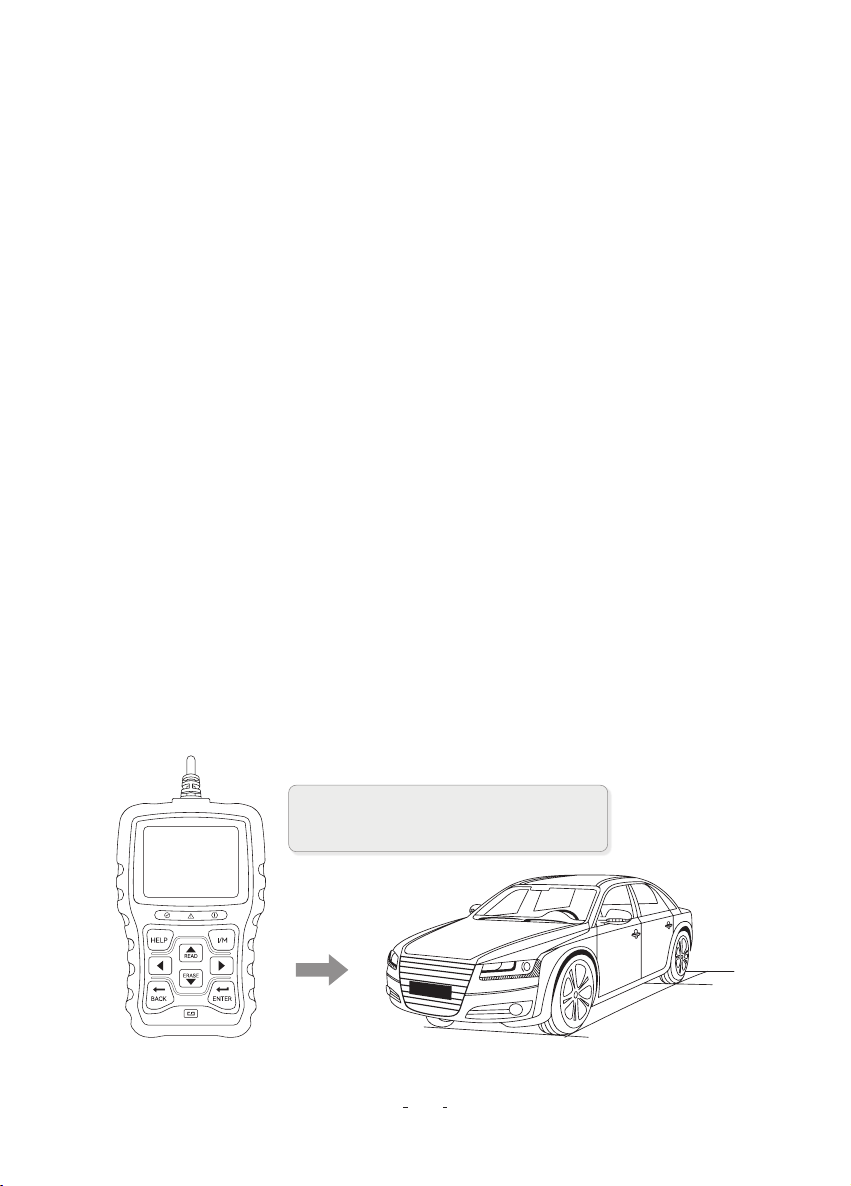
3.1 Connecting to Vehicle
3 Getting Staed
2.2 Accesso Descriptions
This section lists the accessories that go with the code reader. If you nd any of the following items
missing from your package, contact your local dealer fo assistance.
1 User’s Guide- Provides operation instructions for the usage of the code reader.
2 USB Cable- Provides connection between the code reader and a computer to upgrade the tool.
2.3 Technical Specications
Display: 2.8” TFT color display
Working Temperature: 0 to 60°C (32 to 140°F)
Storage Temperature: -20 to 70°C (-4 to 158°F)
Powerr Supply: 8-18V vehicle power
Suppoed Protocols: J1850-PWM / J1850-VPW / ISO9141 / KWP2000 (ISO 14230), and CAN
(Control Area Network ISO 11898)
Dimesions(L×W×H): 147 × 90 × 30mm
Weight: 0.35kg
K BACK Key- Cancels an action and returns to previous screen or level.
L ENTER Key- Conrms an action or movement and moves to next level.
H HELP Key - Accesses to the Help function and it is also used to update the code reader when long
pressed.
N Resta- Resta the code reader.
P USB Po- Provides a USB connection between the code reader and PC or laptop.
OBDII / EOBD+CAN VD30 Code Reader User Manual
3
Connect the end of the diagnostic cable to
the DLC connector in the car.

3.2 Providing Power to Code Reader
Before using the code reader, make sure to provide power to the code reader.
The unit operates on any of the following sources:
•12-Volt vehicle power
•USB connection to personal computer
3.2.1 Connetcing to Vehicle Power
The code reader normally powers on whenever it is connected to the data link connector(DLC).
To connect to vehicle power:
1. Turn the ignition o.
2. Locate the data link connector (DLC). The DLC is generally located under the dash on the drievr side
of the vehicle.
3. Connect the code reader with the DLC
4. Switch the ignition key to the ON position.
5. The code reader auto matically boots up.
3.2.2 Connecting to Personal Computer with USB Cable
The Code Reader also receives power through the USB po when it is connected to a PC for updating
software and transferning saved les.
1. Inse the small end of the USB cable to the USB Po at the right side of the code reader and the
large end to computer.
2. Press the power switch of the code reader to power it on.
3.3 Application Oveiew
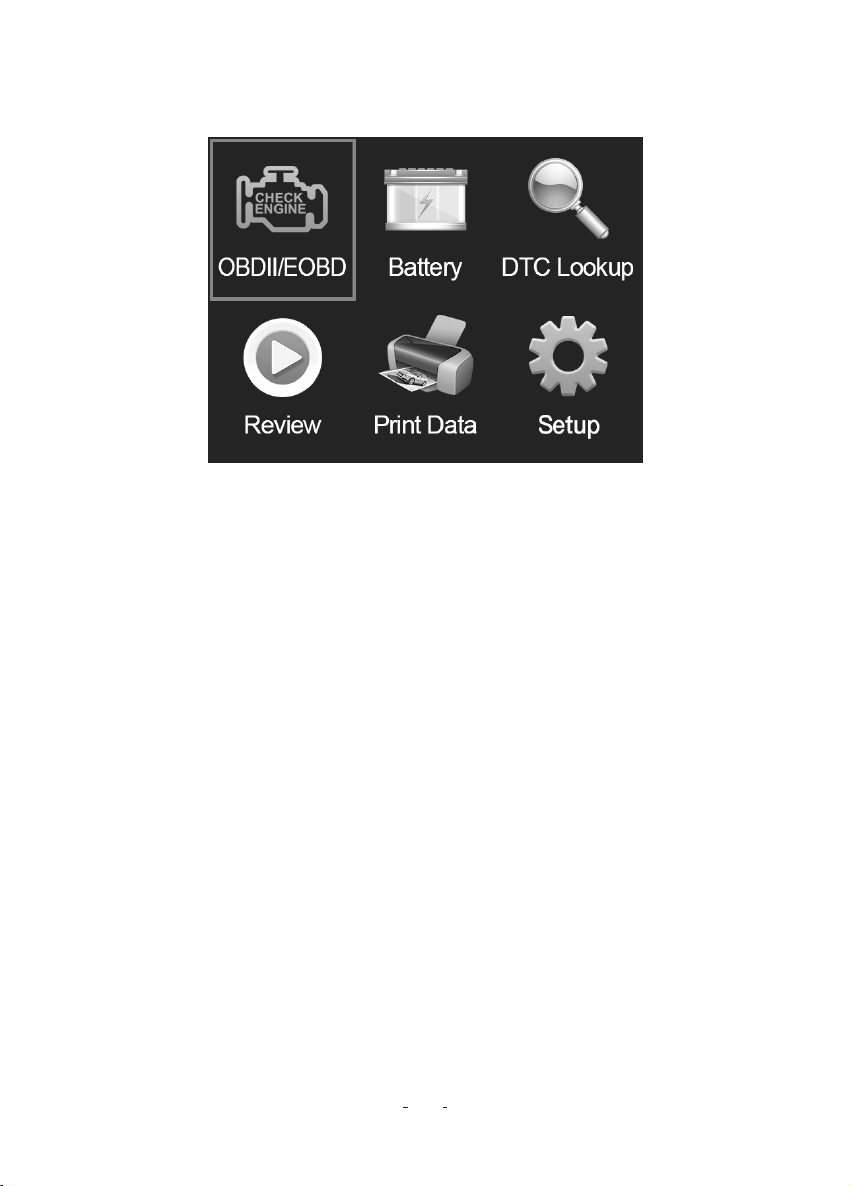
When the code reader boots up, the Home screen opens. This screen shows all applications loaded
on the unit.
Following applications are preloaded into the code reader:
•OBDII/EOBD- Shows OBDII screens for all 9 generic OBD System tests.
•Batte- Shows screen that tests and displays voltage of batte of vehicle.
•DTC Lookup- Shows screens for diagnostic trouble code lookup.
•Review- Shows screens for access to tested data les.
•Print Data- Shows screens for access to printing function.
OBDII / EOBD+CAN VD30 Code Reader User Manual
4
IMPORTANT
Never t to provide power for the code reader from USB cconnection when the code reader is
communicating with a vehicle.
4 OBDII / EOBD Diagnostics
4.1 Read Codes
Read Codes menu lets you read stored codes, pending codes and permanent does found in the
control unit. Typical menu options include:
•Stored Codes
•Pending Codes
•Permanent Codes
To Read codes from a vehicle:
1. Press the Read hot key to directly read the codes from home screen. Or scroll with the UP / DOWN
key to highlight Read Codes from Diagnostic Menu and Press the ENTER key.
2. Select Store Codes / Pending Codes / Permanent Codes and press the ENTER key to conrm.
3. A code list including code number and its description displays
When Diagnostics application is selected from Home screen, the code reader stas to detect the
communication protocol automatically. Once the connection has been established, a menu that lists
all of the tests available on the identied vehicle displays. Menu options typically include:
•Read Codes
•Erase Codes
•Live Data
•View Freeze Frame
•I/M Readiness
•On-board Monitor Test
•Component Test
•Vehicle Information
•Modules Present
•Unit of measure
OBDII / EOBD+CAN VD30 Code Reader User Manual
5

4.2 Erase Codes
There are two ways to erase codes:
•Press the Erase hot key to erase codes from home screen.
•Traditional way: Select Erase Codes from the diagnostic menu.
1. Press the Erase hot key to directly erase the codes from the home menu. Or use the UP / DOWN key
to highlight Erase Codes from Diagnostic Menu and press the ENTER key.
2. Follow the on-screen instructions and answer questions about the vehicle being tester to complete
the procedure.
3. Check the codes again. If any codes remain, repeat the Erase Codes steps.
4.3 Live Data
Live Data menu lets you view, record and playback real time PID data from the electronic control
module.
•View Data
•Record Data
•Playback Data
4.3.1 View Data
The View Data function allows real time viewing of the vehicle’s electronic control unit’s PID data,
including sensor data, operation of switches, solenoids and relays.
Menu options typically include:
•Complete Data
•Custom Data
•Graph Data Set
•Unit of measure (Please refer to Chapter 7 System Setup)
4.3.1.1 Complete Data Set
Complete Data Set displays all suppoed PIDs of the cehicle being tester.
To view all live PID data:
1. Use the UP / DOWN key to highlight Live Data from Diagnostice Menu and press the ENTER key.
2. Select View Data or Complete Data Set from the list and press ENTER key to conrm.
3. Press the ENTER key to view PID graph if the PID gives a numeric reading.
4.3.1.2 Custom Data List
Custom Data List menu lets you to minimize the number of PIDs on the data list and focus on any
suspicious or symptom-specic data parameters.
To create a custom data list:
1. Select Custom List from the menu and press the ENTER key.
2. Use the RIGHT key to select or deselect a line or press LEFT key to deselect all if needed. Press the
ENTER key to conm and BACK key to cancel.
OBDII / EOBD+CAN VD30 Code Reader User Manual
6

4.3.2 Record Data
The Record Data function is used to record PIDs to help diagnose intermittent drivability problems that
can’t be determined by any other method.
Menu options typically include:
•Complete Data
•Custom Data
•Graph Data Set
•Unit of measure (Please refer to Chapter 7 System Setup)
NOTE
There are two types of trigger methods used.
•Manual Trigger-truggers recording whenever operators press the ENTER key.
•DTC trigger-automatically triggers recording when a code is detected by vehicle. DTC trigger is
not available on all vehicles. Some vehicles need to be driven for a long period of time to store a
code after a drivability fault occurs. If DTC trigger is selected to make a recording, the might not
be drastic change in the data before and after trigger.
NOTE
Dierent vehicles communicate at dierent speeds and suppo a dierent number of PIDs
Therefore, the maximum number of frames that can be recorded varies. The coder reader keeps
recording data unit.
•The memo is full.
•The operator presses the BACK key.
CAUTION
Do not operate the code reader whilt driving; always have two persons in vehicle when recording-one
to drive and the other to operate the code reader.
To record data:
1. Select Reocrd data from the menu and press the ENTER key.
2. Refer to View Data to set up Complete Data Set or Customer Data Set to record.
3. If the recording is to be overwritten, selected Yes ; If data is not to be overwritten, pick No to
return to select Memo screen and choose another one.
4. If Manual Trigger is selected, following screen display.
5. If DTC Trigger is picked, following screen displays.
6. Press the ENTER key to sta recording or wait codes to trigger.
7. After recording, the code reader displays a prompt to Playback.
8. Select YES to view recorded data; pick NO or press the BACK key to return to Record Data.
OBDII / EOBD+CAN VD30 Code Reader User Manual
7

4.3.3 Playback Data
The Playback Data is used to playback recorded PID data.
To playback data:
1. Scroll with the up and down arrow key to select Playback Data from the Menu.
2.Use the UP / DOWN key to select a memo area that is marked with an asterisk (*) and press the
ENTER to cinrm.
4.4 View Freeze Frame
Freeze Frame munu displays freeze frame data, a snapshot of critical vehicle operating conditions
automatically recorded by the on-board computer at the time of the DTC set. It is a good function to
help determine what caused the fault.
To view freeze frame data:
1. Select View Freeze Frame from the Diagnostic Menu. Details of freeze frame data displays.
2. Use the UP /DOWN arrow keys to scroll through data to select lines, and LEFT / RIGHT arrow keys
to scroll back and foh through dierent screens of data. If no freeze frame detected, the massage
“No freeze frame data stored!” is dispalyed.
3. Use the BACK key to return to Diagnostic Menu.
4.5 Read I/M Readiness Status Data
I/M Readiness option allows to view a snapshot of the operations for the emission system on OBDII /
EOBD vehicles.
I/M Readiness is a useful function used to check if all monitors are OK or N/A. The vehicle's computer
peorms tests on the emission system during normal driving conditions. After a specic amount of
drive time (each monitor has specic driving conditions and time required), the computer's monitors
decide if the vehicles emission system is working correctly.
When the monitor's status is:
•OK - vehicle was driven enough to complete the monitor.
•INC (Incomplete) - vehicle was not driven enough to complete the monitor.
•N/A (Not Applicable) - vehicle does not suppo that monitor.
There are two types of I/M Readiness tests:
•Since DTCs Cleared - shows status of the monitors since the DTCs were last cleared.
•This Drive Cycle - shows status of monitors since the sta of the current drive cycle.
Below is a list of abbreviations and names of OBD II monitors suppoed by the code reader.
OBDII / EOBD+CAN VD30 Code Reader User Manual
8

There are two ways to retrieve I/M Readiness Status data:
•One-click I/M readiness key
•Typical way: select I/M Readiness from Diagnostic Menu
To retrieve I/M Readiness Status data by one-click I/M readiness key:
1. Press the One-Click I/M Readiness Key on the keypad and the following screen displays.
2. Colored LED and build-in beeper provide both visual and audible reminders for emission check
and DTCs. Below is the interpretation of the LED and build-in beeper.
When the LED is:
NOTE
•To review I/M Readiness status, make sure that the ignition key is switched to ON with the engine
o.
•Not all monitors are suppoed by all vehicles
OBDII / EOBD+CAN VD30 Code Reader User Manual
9
AbbreviationNo
Name
1
Misre Monitor
2
Fuel System Monitor
3
Comprehensive Components Monitor
4
Catalyst Monitor
5
Heated Catalyst Monitor
6
Evaporative Syatem Monitor
7
Air Conditioning Refrigerant Monitor
8
Oxygen Sensor Monitor
9
Oxygen Sensor Heater Monitor
MIS
FUEL
CCM
CAT
HCAT
EVAP
AIR
O2S
HTR
EGR10
Exhaust Gas Recirculation System Monitor

•Green - Indicates that engine systems are "OK" and working properly (the number of Monitors
equipped with the vehicle which have run and peormed their self-diagnostic testing is in the
allowed range. MIL is o. ) No stored and pending DTCs exist. The vehicle is ready for an
Emissions Test.
•Yellow - The tool nds a possible problem. It indicates the following two conditions:
(1) Pending DCs exist. Please check the I/M Readiness test result screen and use the Read
Codes function to view detailed codes information.
(2) Some of the vehicle's emission monitors have not working properly. If the I/M Readiness
screen shows no DTC (including pending DTC), but the Yellow LED is still illuminated, it
indicate a "Monitor Has Not Run" status.
•Red- Indicates some problems exist with one or more of the vehicle's system, and the vehicle is
not ready for an Emissions Test. As well there are DTCs found. The MIL lamp on the vehicle's
instrument panel will lignt steady. The problem that is causing the illumination of Red LED should
be xed before an Emissions Test or driving the vehicle fuher.
The built-in beeper works with the colored LED simultaneous, as an assistance to reect the I/M
Readiness test results:
•Green - two long beeps.
•Yellow - sho, long, sho beeps.
•Red - four sho beeps.
To retrieve I/M Readiness Status data by typical way:
1. Scroll with UP/DOWN key to highlight I/M Readiness from Diagnostic Menu and press the
ENTER key. If vehicle suppos both types of monitors, a screen for monitor type selection
displays. Select a monitor type and press the ENTER key.
2. If thevehicle is tested suppos both types monitors, following screen displays
3. Depending on readinesstest, one of these 2 screens will be present, Use the up and down
arrow keys to scroll through data. Press the BACK key to exit.
NOTE
The built-in beeper which makes dierent tones corresponding to dierent LED indicators is
invaluable when the test is peormed while driving or in bright areas where LED illumination may not
be visible.
OBDII / EOBD+CAN VD30 Code Reader User Manual
10
I/M Readiness 1/2
Since DTCS cleared
This driving cycle

Or
4.6 On-Board Monitor Test
The On-Board Monitor Test function is useful after seicing or after clearing a vehicle ECU's memo.
It receives test results for emission-related powerain components and systems that are not
continuously monitored for Non-CAN vehicles. And for CAN vehicles, it receives test data for
emission-related powerain components and systems that are and are not continuously
monitored. It is vehicle manufacturer who is responsible for assigning test and component IDs.
To request on-board monitor test results:
1. Use the UP / DOWN key to highlight On-Board Monitor Test from Diagnostic Menu and press
the ENTER key.
2. Depending on the protocol the vehicle used, one of these 2 screens shows
NOTE
Test results do not necessarily indicate a faulty component or system
OBDII / EOBD+CAN VD30 Code Reader User Manual
11
This diing cycle 1
MIS
OK
FUEL
OK
CCM
OK
CAT
INC
HCAT
N/A
EVAP
N/A
AIR
N/A
Since DTCs cleared 8
O2S
INC
HTR
INC
EGR
INC
Since DTCs cleared 1
MIL
OFF
MIS
N/A
FUEL
N/A
CCM
OK
CAT
N/A
HCAT
N/A
EVAP
N/A
Since DTCs cleared 8
AIR
N/A
O2S
N/A
HTR
N/A
EGR
N/A

Or
4.7 Component Test
Component Test allows the code reader to control operation of vehicle components, tests of systems.
To peorm a component test:
1. Use the UP / DOWN key to highlight Component Test from Diagnostic Menu and press the
ENTER key.
2. Use the UP / DOWN key to highlight a system or component, press the ENTER key to sta test
and the code reader displays the message “Command Sent!”.
3. Press the BACK key to exit and return.
3. Use the UP / DOWN key to highlight a test group and press the ENTER key to conrm, A screen
with details of the selected sensor displays. Use the UP / DOWN arrow keys to scroll through
data to select lines, and LEFT / RIGHT arrow keys to scroll back and foh through dierent
screens of data.
4. Press the BACK key to exit and return.
NOTE
•Some manufactures do not allow tools to control vehicle systems.
•The manufacturer sets the criteria to automatically stop test. Refer to appropriate vehicle seice
manual before using this function.
OBDII / EOBD+CAN VD30 Code Reader User Manual
12
On-Board Monitor Test 1/25
EGR MON. B1S1
EGR MON. B1S2
EGR MON. B2S1
EGT MON. B2S2
Catalyst Mon. B1
Catalyst Mon. B2
EGR Monitor Bank1
On-Board Moniator Test 1/5
Oxygen Sensor Monitors and Const...
O2 Sensor Heater System Time to...
Exhaust Gas Recirulation Syustem...
Ehancad Evaporative System Monit...
Catalyst Eciency Monitor

4.8 Request Vehicle Information
Vehicle Information allows to request the vehicle's VIN number, calibration ID(s) which identies
software version in vehicle control module(s), calibration verication numbers (CVN(s)) and
in-use peormance tracking on model year 2000 and newer OBD II compliant vehicles.
CVNs are calculated values required by OBD I regulations. They are repoed to check if emission-
related calibrations have been changed. Multiple CVs may be repoed for a control module. It may
take several minutes to do the CV calculation. In-use peormance tracking tracks peormance of
key readiness monitors.
4.9 Modules Present
The code reader idneties module IDs and communication protocols for OBD2 modules in the vehicle.
To view module IDs and communication types:
1. Use the UP / DOWN key to highlight Modules Present from Diagnostic Menu and press the
ENTER key.
2. A screen with the module IDs and protocols dispalys.
3. Press the BACK key to exit an return.
4.10 Unit of Measure
The code reader idneties module IDs and communication protocols for OBD2 modules in the vehicle.
To view module IDs and communication types:
1. Use the UP / DOWN key to highlight Modules Present from Diagnostic Menu and press the
ENTER key.
2. A screen with the module IDs and protocols dispalys.
3. Press the BACK key to exit an return.
To request vheicle information:
1. Use the UP / DOWN key to highlight Vehicle Info. from Diagnostic Menu and press the ENTER
key.
2. Use the UP / DOWN key to highlight an available option and press the ENTER key. A screen
with details of the selected option displays.
3. Press the BACK key to exit an return.
NOTE
Available options will va depending on the vehicle under test.
5 Batte
Selecting Batte option opens a screen that tests and display voltage of batte.
OBDII / EOBD+CAN VD30 Code Reader User Manual
13

6 DTC Lookup
DTC Lookup menus allows to request DTC denitions stored in the code reader.
To Lookup DTCs:
1. Use the LEFT / RIGHT key to highlight DTC Lookup from Home Screen and press the ENTER
key.
2. Use the LEFT / RIGHT key to select the desired character, then press the UP / DOWN key to
change the digit you want to enter a valid code number. Press the ENTER key to conrm.
3. A screen with code number and its denition displays. If denition could not be found (SAE or
Manufacturer Specic), the code reader displays:“DTC denition not found! Please refer to
vehicle seice manual!” If a P1xxx, C1xxx, B1xxx or U1xxx code is entered, select a vehicle make
to look for DTC denitions. Press the BACK key to exit.
7 Reivew Data
The Playback option leads to screens for review of recorded test results.
To review recorded data:
1. Use the LEFT / RIGHT key to highlight Review Data from home screen and press the ENTER
key.
2. A screen with a list of test records displays. If no data is recorded, the message “No Data
available!” is displayed.
3. Use the UP / DOWN key to highlight an optional record and press the ENTER key. Details of the
tset record displays. View and analysis the recorded information then press BACK to exit.
OBDII / EOBD+CAN VD30 Code Reader User Manual
14
8 Print Data
The Print Data function is used to print test results through computer.
To print test results:
1. Connect the tool to computer with the supplied USB cable to power it on.
2. Use the LEFT / RIGHT key to select Print Data from home screen of the tool and press the
ENTER key to conrm. Use the UP / DOWN key to select desired data to print. If all recorded
data to be printed, use the UP / DOWN key to select Print All Data.
3. Press the ENTER key to conrm and printing.
Print Data 1/4
I/M Readiness
Vehicle Infromation
Modules Present
Print All Data

9.1 Select Language
Selectiong Language opens a screen that allows you to choose system language.
To congure system language:
1. Use the LEFT / RIGHT key to highlight Setup from home screen and press the ENTER key.
2. A screen of a list of ment options displays.
3. Press the UP / DOWN key select a language and press the ENTER key to conrm, Press the
BACK key to exit and return.
9.2 Congure Monitors
This menu allows the users to congure the monitors required to test spark ignition and compression
ignition, the number of monitors to pass diagnosis, and restore the default settings.
Menu options typically include:
•Spark IGN Required Monitors.
•Compression IGN Required Monitors.
•Allowed INC Monitors.
•Reset Facto Default.
There are two dierent types of monitors: continuous and non-continuous. Continuous monitors are
dierent in design from the non-continuous monitors. Continuous monitors are being constantly
tested and evaluated by the car's computer while the car is running. Conversely, the non-continuous
monitors require ceain conditions to be met before a test or series of tests can be completed.
Continuous Monitors:
•Misre
•Fuel System
•Comprehensive Component
Non-Continuous Monitors:
9 System Setup
This section illustrates how to program the code rader to meet your specic needs.
When Setup application is selected, a menu with available seice options displays. Menu options
tyically include:
•Language
•Congure monitors
•Unit of measure
•Key Beep Set
•Diag Beep Set
•Tool self-test
•Update mode
•About
OBDII / EOBD+CAN VD30 Code Reader User Manual
15

9.2.1 Spark IGN Required Monitors
In this menu, the operators can congure monitors for spark ignition cars (gasoline engines).
To congure spark IGN required monitors:
1. Use the UP / DOWN key to highlight Spark IGN required Monitors from menu and press the
ENTER key to conrm.
2. The custom monitors selsction screen displays.
3. Use the RIGHT key to select or deselect a monitor or press the LEFT key to deselect all the
monitors. Press the ENTER key to conrm and BACK key to cancel.
9.2.2 Compression IGN Required Monitors
In this menu, the operators can congure monitors for compression ignition cars (diesel engines).
To cingure spark compression required monitors:
1. Use the UP / DOWN key to highlight Compression IGN Required Monitors from the menu and
press the ENTER key to conrm.
2. The custom monitors selection screen displays and Use the RIGHT key to select or deselect a
monitor or press the LEFT key to deselect all the monitors/ Press the ENTER key to conrm and
BACK key to cancel.
NOTE
Non-Continuous monitors are dierent for spark ignition cars (gasoline engines) and comperssion
ignition card (diesel engines).
Spark ignition vehicles (Gas)
•Catalyst (CAT)
•Heated Catalyst
•Evaporative (EVAP) System
•Seconda Air System
•Oxygen (O2) Sensor
•Oxygen Sensor Heater
•GER (Exhaust Gas Recirculation) and / or VVT System
Compression ignition vehicles (Diesel)
•NMHC Catalyst
•NOx / SCR After treatment
•Boost Prseeure
•Exhaust Gas Sensor
•PM Filter
•EGR and / or VVT System
To conigure monitors:
Use the UP / DOWN key to highlight Congure Monitors from Setup menu and press the
ENTER key to conrm.
NOTE
The number to the upper right comer of display indicates the total number of optional monitors and
sequence of currently selected monitor.
OBDII / EOBD+CAN VD30 Code Reader User Manual
16

9.2.3 Allowed INC Monitors
Emissions tests va depending on the geographic or regional area in which the vehicle is registered.
This tool provides a more exible way to meet dierent standards, which allows the user to select 0, 1,
2, 3 INC monitors in test.
To congure allowed INC monitors:
1. Use the UP / DOWN key to highlight Allowed INC Monitors from the menu and press the ENTER
key to conrm.
2. The custom INC monitors selection screen displays and scroll with the up and down arrow keys
to select. Press the ENTER key to conrm and BACK key to cancel.
9.2.4 Reset Facto Default
This menu will allow the users to restore the default conguration settings in the Congure Monitors
menu, and delete any customized settings. In this case, it will include all the available monitors for the
Spark IGN Required Monitors and Compression IGN Required Monitors. Still the Allowed INC Monitors
will be set to 1.
To reset facto default:
1. Use the UP / DOWN key to highlight Reset Facto Default from the menu and press the ENTER
key to conrm.
2. A message prompting to reset facto default displays. Answer Yes to conrm the request or
answer No to abo and return.
9.3 Unit of Measure
Unit of measure opens a dialog box that allows you to choose between US custorma or metric units
of measure.
1. Scroll the UP / DOWN keys to highlight Unit of Measure from Setup menu and press the ENTER
key.
2. Press the UP / DOWN arrow key select an item and press the ENTER key to save and return.
9.4 Key Beep Set
Key beep set opens a dialog box that allows you to turn on / o the built-in speaker for key pressing.
To set the key beep:
1. Use the UP / DOWN key to highlight Key beep set from Setup menu and press the ENTER key.
2. Press the UP / DOWN arrow key select an item and press the ENTER key to save and return.
9.5 Diag Beep Set
Key beep set opens a dialog box that allows you trun on / o the built-in speaker when peorming
diagnostics.
To set the Diag beep:
1. Use the UP / DOWN key to highlight Key Beep Set from Setup menu and press the ENTER key.
2. Press the UP / DOWN key to select an item and press the ENTER key to save and return..
OBDII / EOBD+CAN VD30 Code Reader User Manual
17

9.6 Tool Self-test
Key beep set Opens a dialog box that allows you to check if the LCD diaplay and the operation of
keypad and LED are working correctly. Typical menu includes:
•Display Test
•Keypad Test
•LED Test
9.6.1 Display Test
Selecting Display Test option opens a screen that allows you to check the functionality of the display.
To test the display:
1. Use the UP / DOWN key to highlight Display Test from Setup menu and press the ENTER key to
sta test.
2. Check if there are any missing spots in the LCD screen.
3. To quit the test, press the BACK key.
9.6.2 Keypad Test
Selecting Key Test option opens a screen that allows you to check the functionality of the keypad.
To test the keypad:
1. Use the UP / DOWN key to highlight Keyboard Test from Setup menu and press the ENTER key.
2. Press any key sta test. Key name or scroll direction should show on display when you press a
key. Double press BACK to return.
9.6.3 LED Test
Selecting LED Test option opens a screen that allows you to check the functionality of the LED.
To test the LED:
1. Use the UP / DOWN key to highlight LCD Test from Setup menu and press the ENTER key to
sta test.
2. Scroll with the up and down arrow keys to select the desired LED lamps to check. The LED should
turn on / o according to the selected commands.
3. To quit the test, press the BACK key.
9.7 Update Mode
This function allows you enter the update model automatically. For details, please refer to 10.1.
OBDII / EOBD+CAN VD30 Code Reader User Manual
18

10 Tool Information
Selecting Setup > About option opens a screen that shows information about your code reader,such
aseserial number and software version.
To view information of your code reader:
1. Use the LEFT / RIGHT key to highlight Setup from home menu and press the ENTER key.
2. Use the UP / DOWN key to highlight About menu and press the ENTER key, a screen with detailed
information of the code reader displays.
11.1 Updating the Code Reader
11 Updating Software and Printing
To update the code reader, you need following tools:
•OBDII / EOBD Code Reader
•Update Tool VD30
•PC or laptop with USB Pos and Internet explorer
•USB cable
To be able to use update tool, PC or laptop must meet the following minimum requirements:
•Operation System: All Windows systems, Win 98 to Win 10.
•CPU:Intel PⅢ or better
•RAM: 64MB or better
•Hard Disk Space: 30MB or better
•Display: 800×600 pixel. 16 byte true color display or better
•Internet Explorer 4.0 or newer
OBDII / EOBD+CAN VD30 Code Reader User Manual
19

Update Procedure
1. Download the update tool VD30 and update les from our website www.vdiagtool.com and save
the applications and les in computer disk.
2. Unzip the update tool le. Follow instructions on computer screen to install the tool and driver.
3. Double click the VD30 desk Top icon to launch the application.
4. Click Setting and select the language you want to update.
5. Press and hold HELP key. Do not release the HELP key, then connect the USB cable.
6. When the tool enters the Update Mode, the application would detect the tool automatically.
7. Tick the le to update.
OBDII / EOBD+CAN VD30 Code Reader User Manual
20

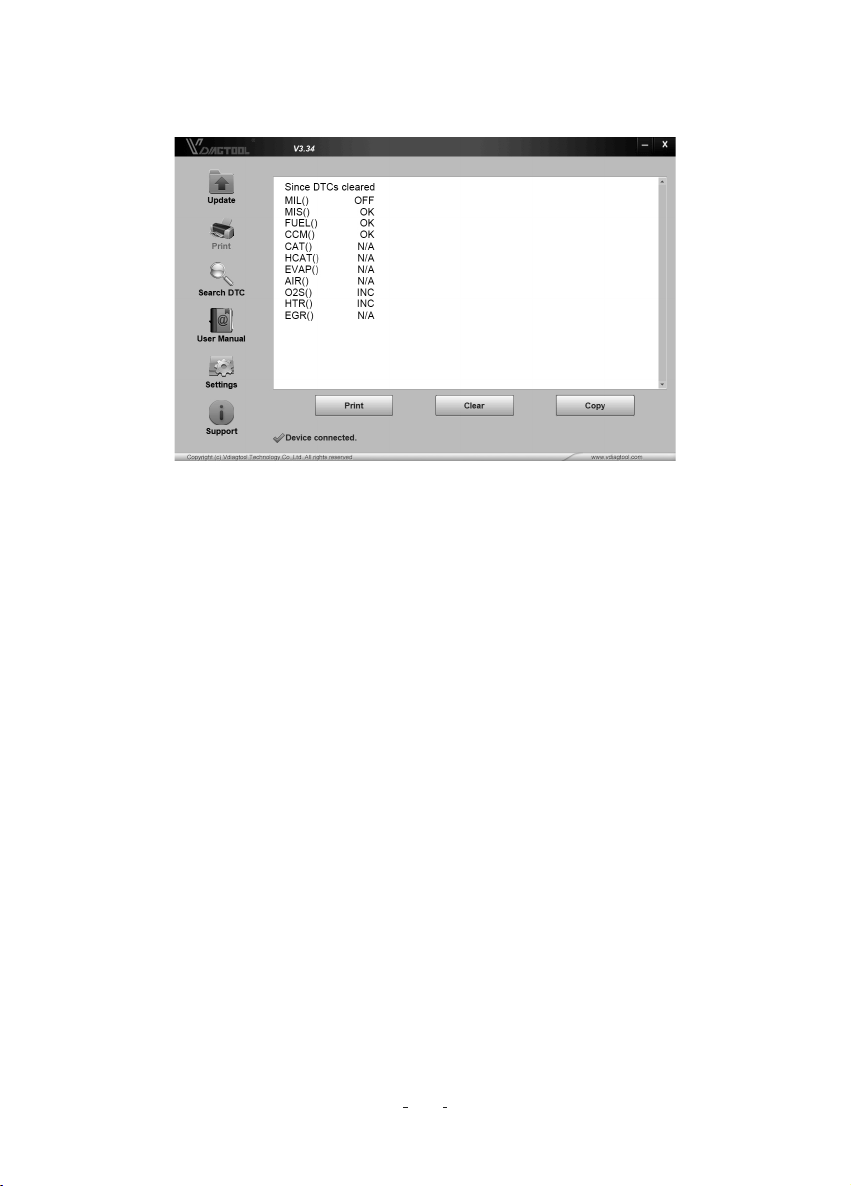
11.2 Printing
The Print Data function is used to print test reults through computer. It is not available to perom this
function when the device is in Update Mode.
To Print test results:
1. Download and launch VD30
2. Activate the application by clicking the Print Button from the menu.
3. Connect the tool to computer with the USB cable supplied to power it on.
4. Use the LEFT / RIGHT key to select Print Data from home screen of the tool and press the
ENTER key to conrm. Use the UP / DOWN key to select desired data to print. If all recorded
data to be printed, use the UP / DOWN key to select Print All Data.
5. Press the ENTER key to load data to the edit box of update tool VD30. Click the Clear key to
delete the data and Use Copy key to save the data to the clipboard on computer. It also allows
the users to edit the text by moving the cursor to the edit box.
A Update Finished message displays when the update is completed
OBDII / EOBD+CAN VD30 Code Reader User Manual
21
11.3 Searching DTC
Searching DTC option opens a screen that allows you to look up the DTC.
To search DTC:
1. Click the Search DTC Button from the menu.
2. Input the valid code number and the denition of the code will be highlighted on the screen.
11.4 User Manual
Here is copy of user manual in PDF format. Please visit our website to download user manual in
German, Spanish and French.
11.5 Update Tool Settings
Settings option opens a screen that allows you to set the language of the tool.
6. With the printer correctly connected, use the Print key to print the testing data. Press the BACK
key to return to home screen.
OBDII / EOBD+CAN VD30 Code Reader User Manual
22

OBDII / EOBD+CAN VD30 Code Reader User Manual
23
