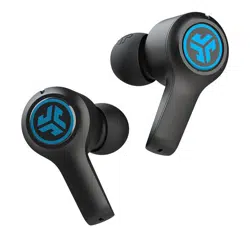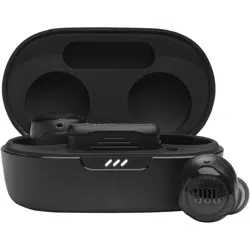
TWS Air
OWNER’S MANUAL

TABLE OF CONTENTS
INTRODUCTION............................................................................................................ 1
WHAT’S IN THE BOX .................................................................................................... 2
PRODUCT OVERVIEW ................................................................................................. 3
Controls on earbuds .....................................................................................................................................3
Controls on charging case ........................................................................................................................4
Controls on 2.4GHz USB wireless dongle ........................................................................................4
GETTING STARTED ...................................................................................................... 5
JBL headphones app (for mobile phone only) ............................................................................5
First-time setup (for PC only) ..................................................................................................................5
How to wear ......................................................................................................................................................6
USING YOUR EARBUDS .............................................................................................. 7
First time use .....................................................................................................................................................7
Charging ..............................................................................................................................................................7
Power on & connect via 2.4GHz ............................................................................................................8
Power on & connect via Bluetooth .................................................................................................10
Dual source switching .............................................................................................................................. 11
Controls .............................................................................................................................................................12
Additional features .....................................................................................................................................14
Power off ..........................................................................................................................................................16
LED BEHAVIOR ...........................................................................................................17
CLEANING THE PRODUCT ........................................................................................ 18
PRODUCT SPECIFICATIONS ....................................................................................19
TROUBLESHOOTING ................................................................................................. 21

- 1 -
Introduction
Congratulations on your purchase! This manual includes information on the JBL
Quantum TWS Air gaming earbuds. We encourage you to take a few minutes to read
this manual, which describes the product and includes step-by-step instructions to
help you to set up and get started. Read and understand all the safety instructions
before using your product.
If you have any questions about this product or its operation, please contact your
retailer or customer service, or visit us at www.JBLQuantum.com
- 2 -
What’s in the box
01
04
02
05
03
06
S / M / L
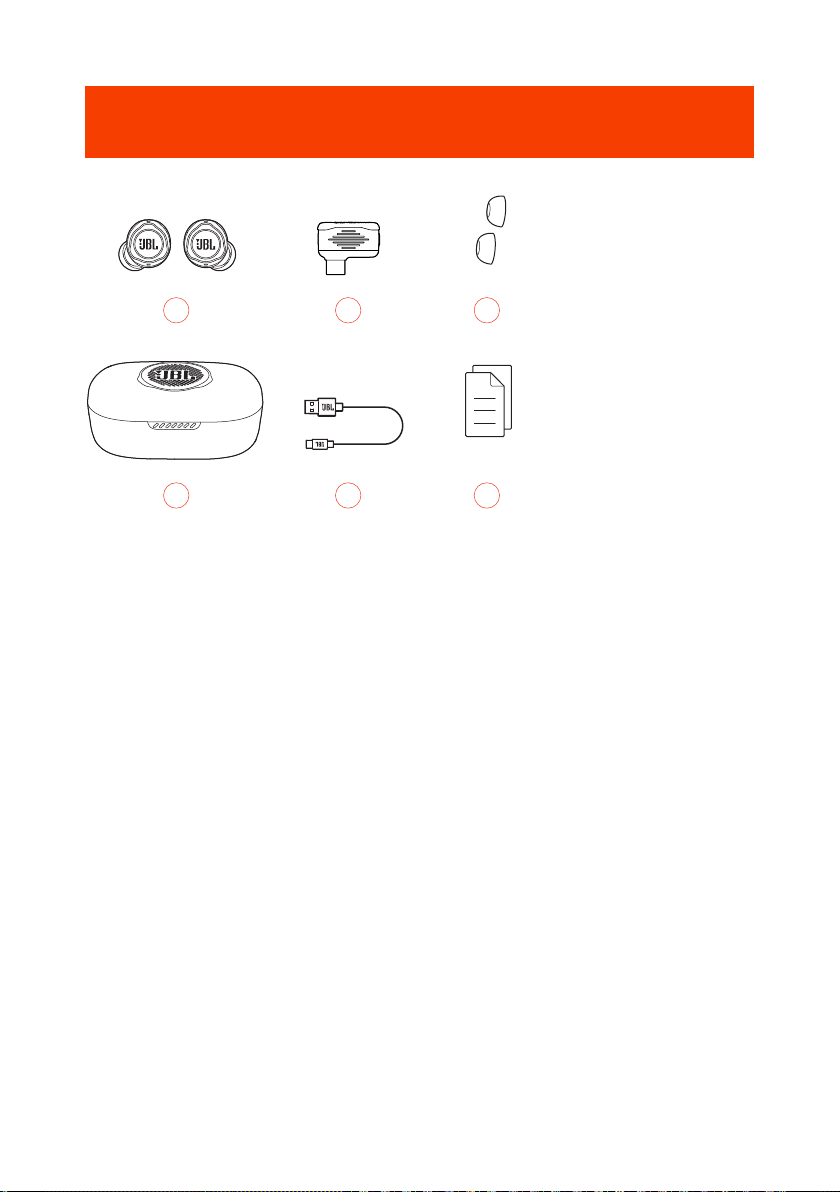
01 JBL Quantum TWS Air earbuds
02 2.4GHz USB wireless dongle (USB-C)
03 Silicone ear tips
04 Charging case
05 USB charging cable (USB-A to USB-C)
06 QSG, warranty card and safety sheet
- 3 -
PRODUCT OVERVIEW
Controls on earbuds
05
04
03
02
01
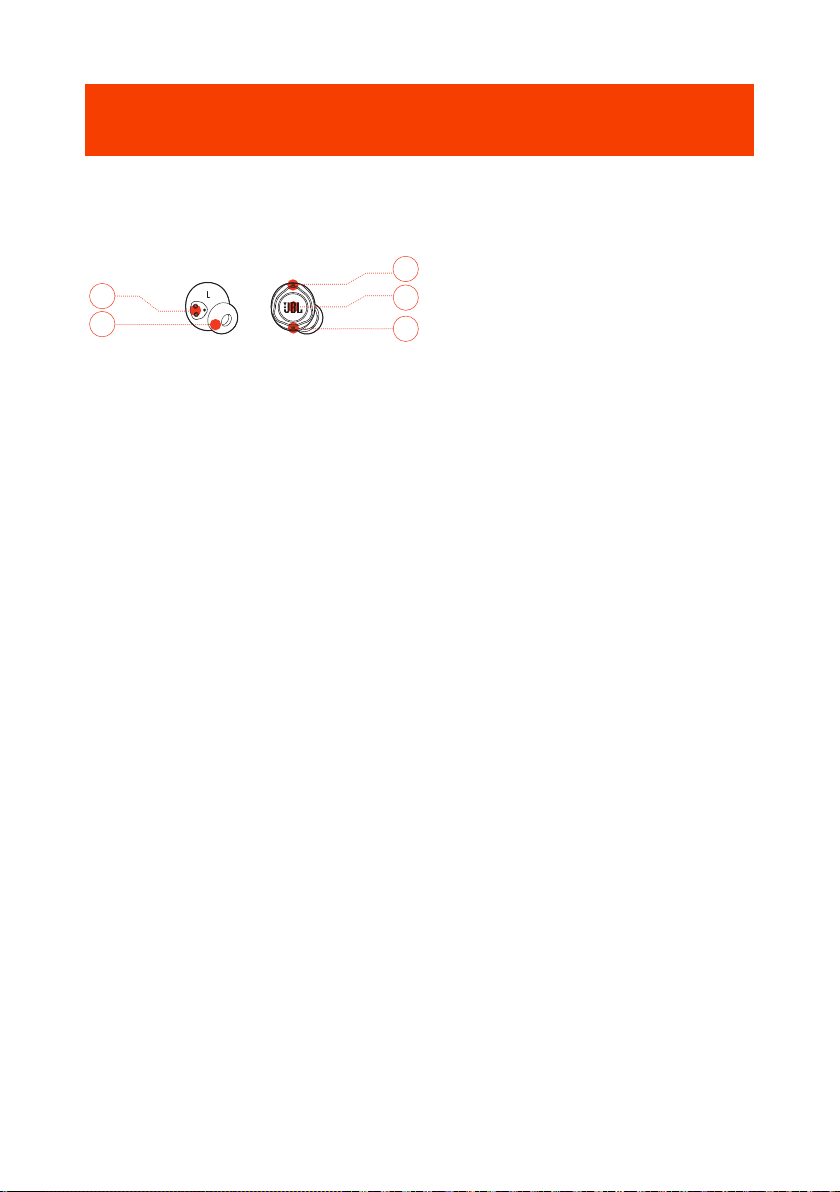
01 Charging pin
02 Replaceable silicone ear tip
03 Microphone
04 Touch control
05 LED indicator
- 4 -
Controls on charging case
05
04
03
01
02
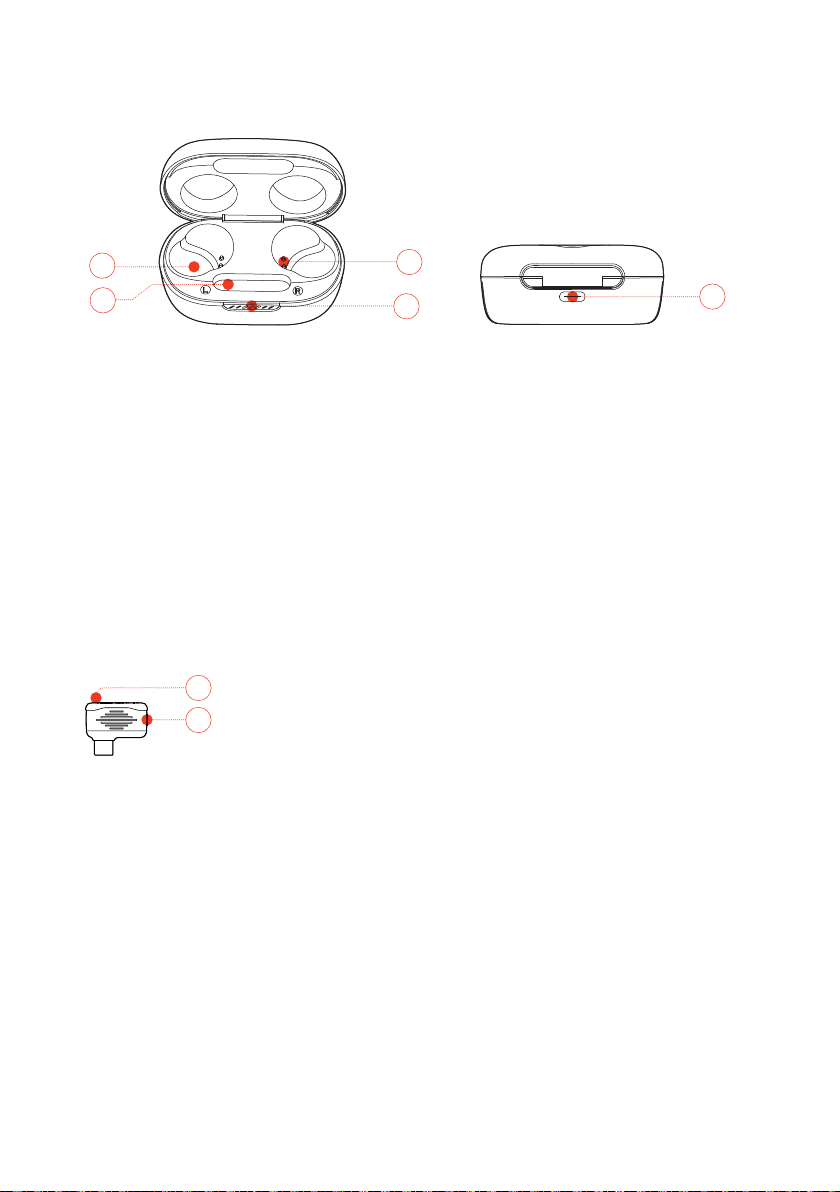
01 Earbud holder
02 Dongle holder
03 LED indicator
04 Charging pin
05 Charging port
Controls on 2.4GH
z
USB wireless dongle
02
01
01 Pairing button
• Hold for more than 5 seconds to enter 2.4GHz wireless pairing mode.
02 LED indicator
• Indicates the status of 2.4GHz wireless connection.
- 5 -
Getting started
JBL headphones app (for mobile phone only)
On your mobile phone, download the JBL Headphones app from Apple App Store
or on Google Play to get even more control and personalization of your listening
experience.
First-time setup (for PC only)
Download from www.jblquantum.com/engine to gain full
access to features on your JBL Quantum earbuds.
Software requirements
Platform: Windows 10 (64 bit only) / Windows 11
500MB of free hard drive space for installation
TIPS:
• Always use the latest version of Windows 10 (64 bit) or Windows 11 for the
most optimal experience on JBL QuantumENGINE
• JBL QuantumSURROUND available on Windows only. Software installation
required.
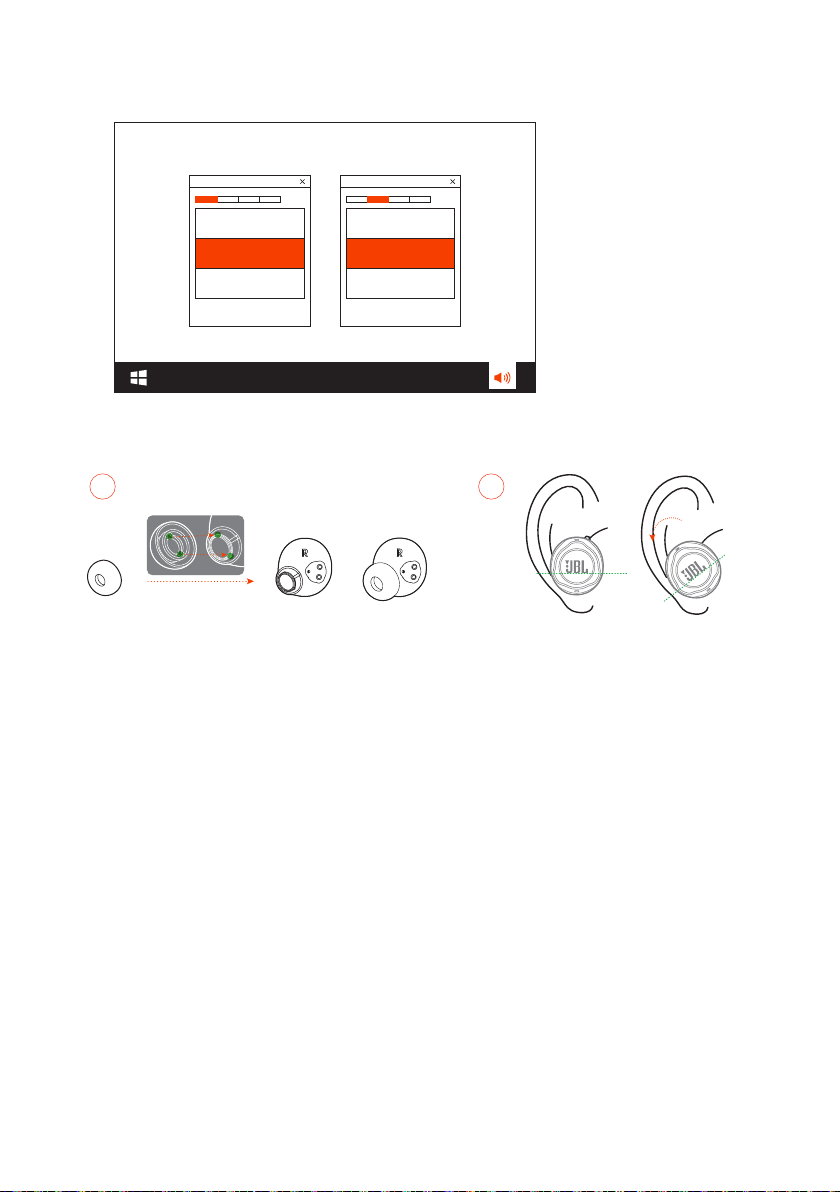
1. Connect the earbuds to your PC via 2.4GHz USB wireless connection. (See “Power
on & connect via 2.4GHz”).
2. Go to “Sound Settings” -> “Sound Control Panel”.
3. Under “Playback” highlight “JBL Quantum TWS Air“ and select “Set Default”
-> “Default Device”.
4. Under “Recording” highlight “JBL Quantum TWS Air“ and select “Set Default”
-> “Default Device”.
- 6 -
5. Follow the onscreen instructions to personalize your sound settings.
JBL QUANTUM TWS Air JBL QUANTUM TWS Air
How to wear
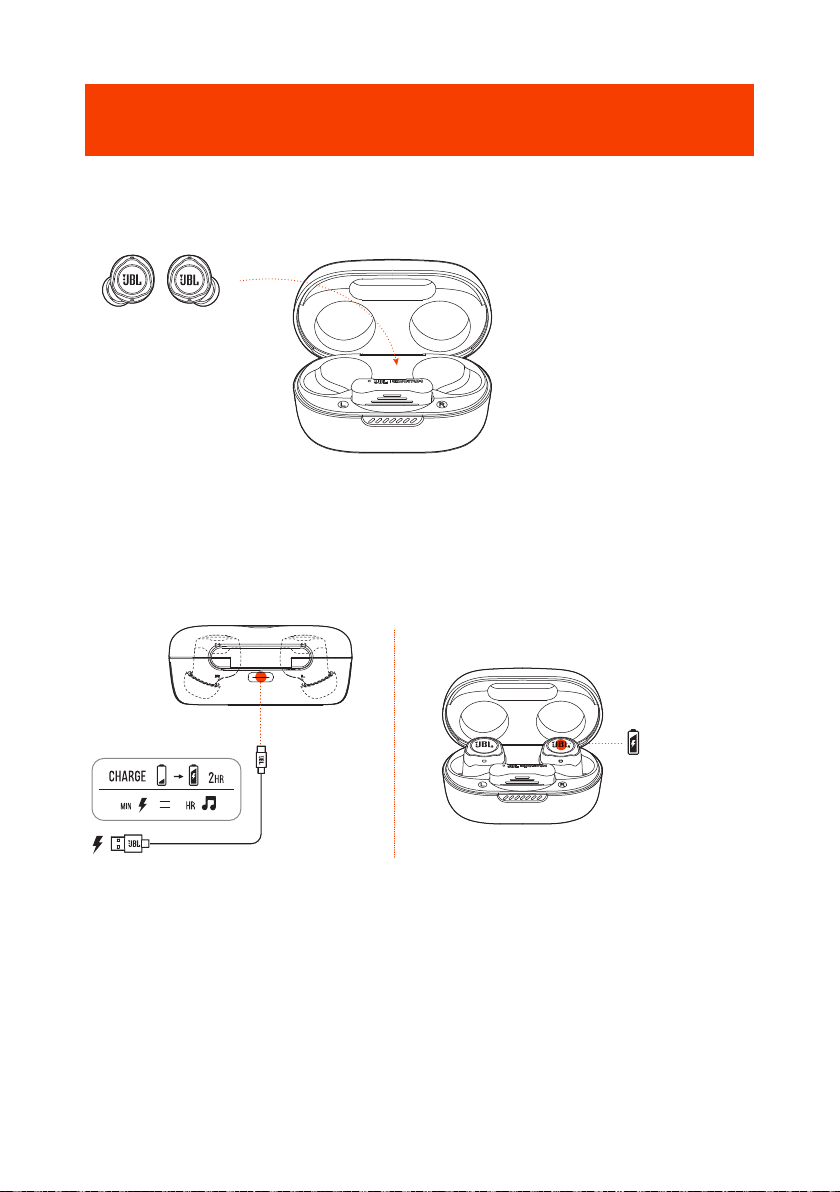
01 02
1. Choose a pair of silicone ear tips that best fits your ear size.
2. Turn the earbuds in your ears as shown for the best fit and audio performance.
- 7 -
Using your earbuds
First time use
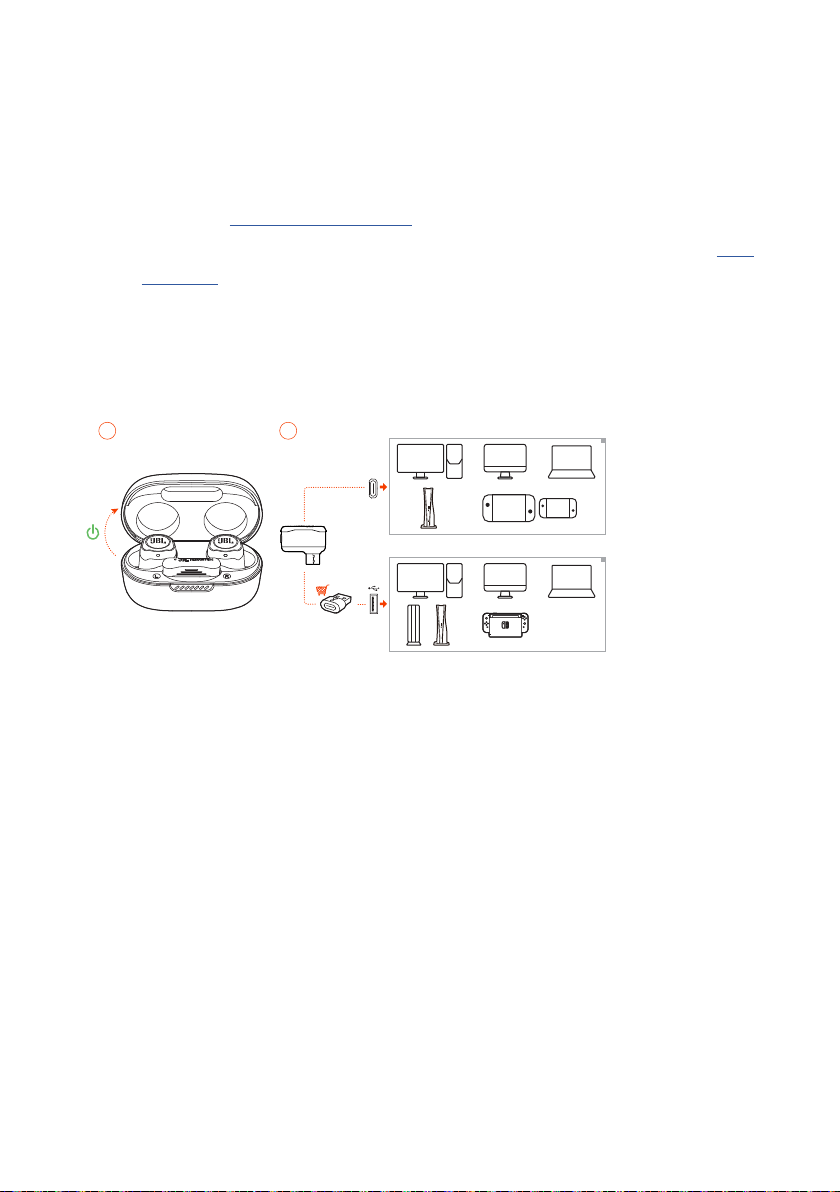
Before first time use, put the earbuds into the charging case for activation.
Charging
315
• It takes around two hours to fully charge your earbuds through the charging case.
• As a fast charging feature, a fifteen minute charge powers up your earbuds for
three hours of music playback.
- 8 -
TIPS:
• During charging, make sure that the charging pins on the earbuds and
charging case are aligned and in good contact.
• Clean the earbuds and charging case regularly to avoid possible charging
issues (see “Cleaning the product”).
• Open the lid to check the battery level of the charging case. See “LED
behavior” for details. Use the provided USB cable to charge the charging case
when necessary.
Power on & connect via 2.4GHz
USB
TYPE-C
USB
TYPE-A
0201
1. Plug the 2.4GHz USB wireless dongle into a USB-C port on your PC, Mac, laptop,
PS5 console, or Nintendo Switch™ controller.
• With a USB-C to USB-A converter (not supplied), you can connect the dongle to
a USB-A port on your PC, Mac, desktop, PS4/PS5 console, or Nintendo Switch™
console.
2. Just open the lid of the charging case, or take out either or both of the earbuds
to power up.
The earbuds connect to the dongle automatically.
After successful connection, the LED on the dongle turns solid white, and you
can hear “Dongle connected” from the earbuds.
TIP:
• Compatibility with all USB ports is not guaranteed.
- 9 -
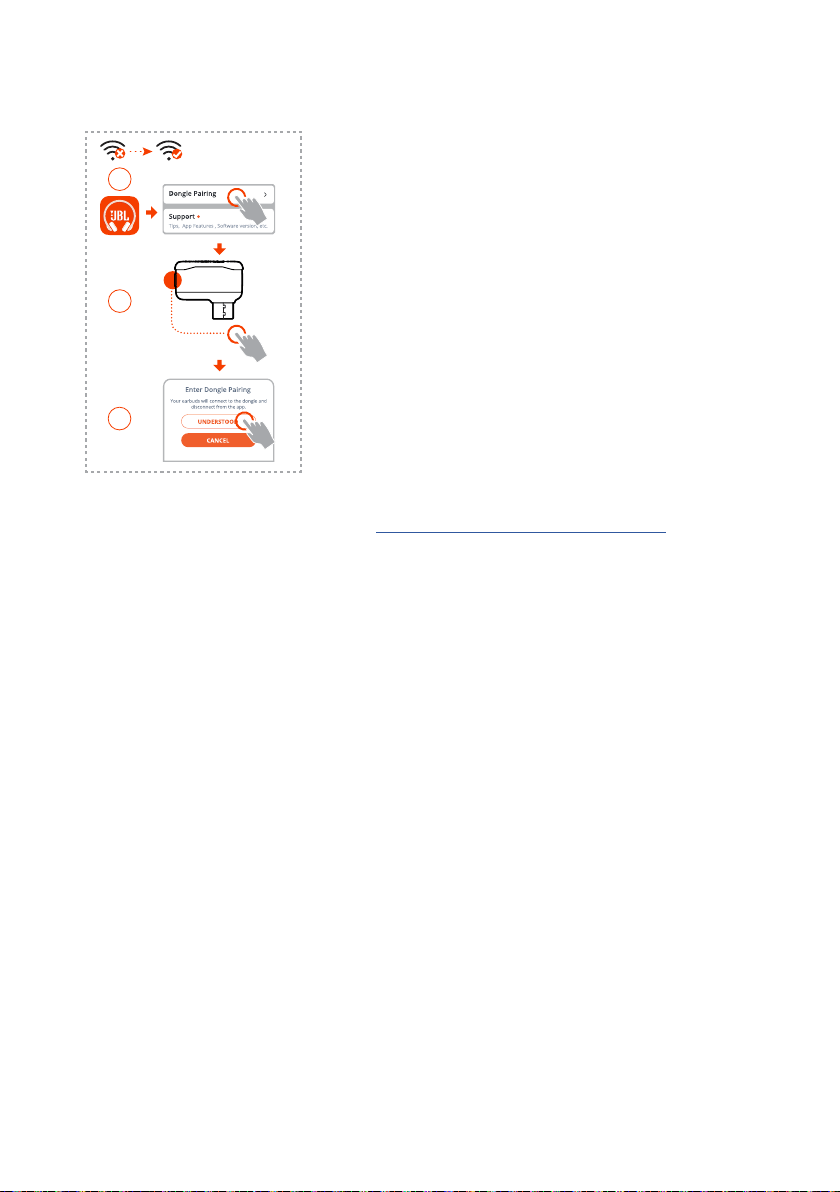
To pair manually
01
03
>5S
02
1. After Bluetooth connection (see “Power on & connect via Bluetooth”), open the
JBL Headphones app to find the earbuds, then choose “Dongle pairing“ from
the app screen.
2. Follow the onscreen instructions to hold the pairing button on the 2.4GHz USB
wireless dongle for more than 5 seconds until the LED flashes white quickly.
3. Choose “UNDERSTOOD“ to disconnect the earbuds from the app.
The earbuds start to pair with the dongle.
After successful connection, the LED on the dongle turns solid white, and you
can hear “Dongle connected” from the earbuds.
- 10 -
Power on & connect via Bluetooth
ON
Settings
Bluetooth
Bluetooth
DEVICES
Now Discoverable
Connected
JBL QUANTUM TWS AIR
• now
JBL QUANTUM TWS AIR
Tap to pair. Device will be tied to
Your Google Account
Google fast pair (for Android 6.0+ phones only)
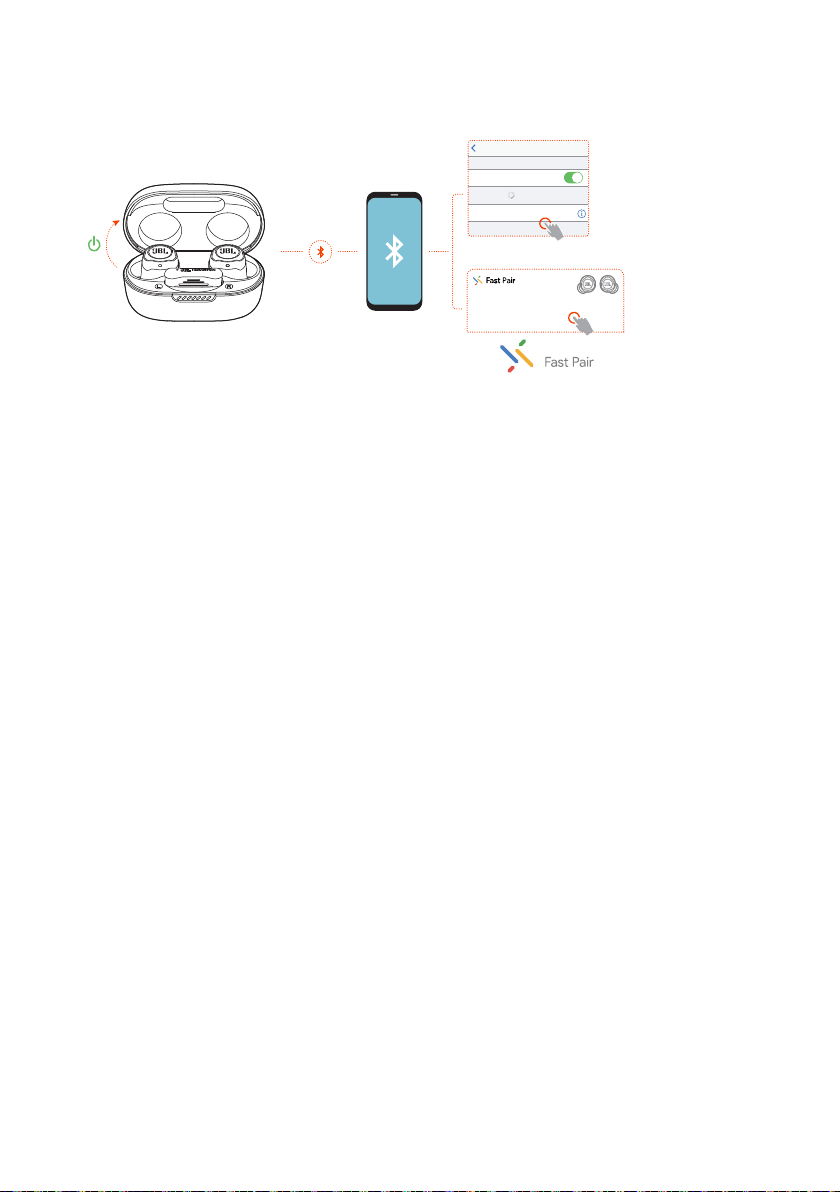
1. Make sure that your mobile phone is unlocked, with the Google Play Service
and Location service enabled.
2. Just open the lid of the charging case, or take out either or both of the earbuds
to power up.
3. Keep your mobile phone close to the earbuds.
4. Tap the popup fast pair notification on your mobile phone.
After successful connection, you can hear “BT connected” from the earbuds.
Manual pairing
1. Just open the lid of the charging case, or take out either or both of the earbuds
to power up.
2. Enable Bluetooth on your mobile phone and choose “JBL Quantum TWS Air”
from the bluetooth device list.
After successful connection, you can hear “BT connected” from the earbuds.
To disconnect the current device:
On the earbuds, tap and then hold the touch control for five seconds.
The earbuds enter Bluetooth pairing mode again.
- 11 -
Dual connect + sync
L/R
L
r
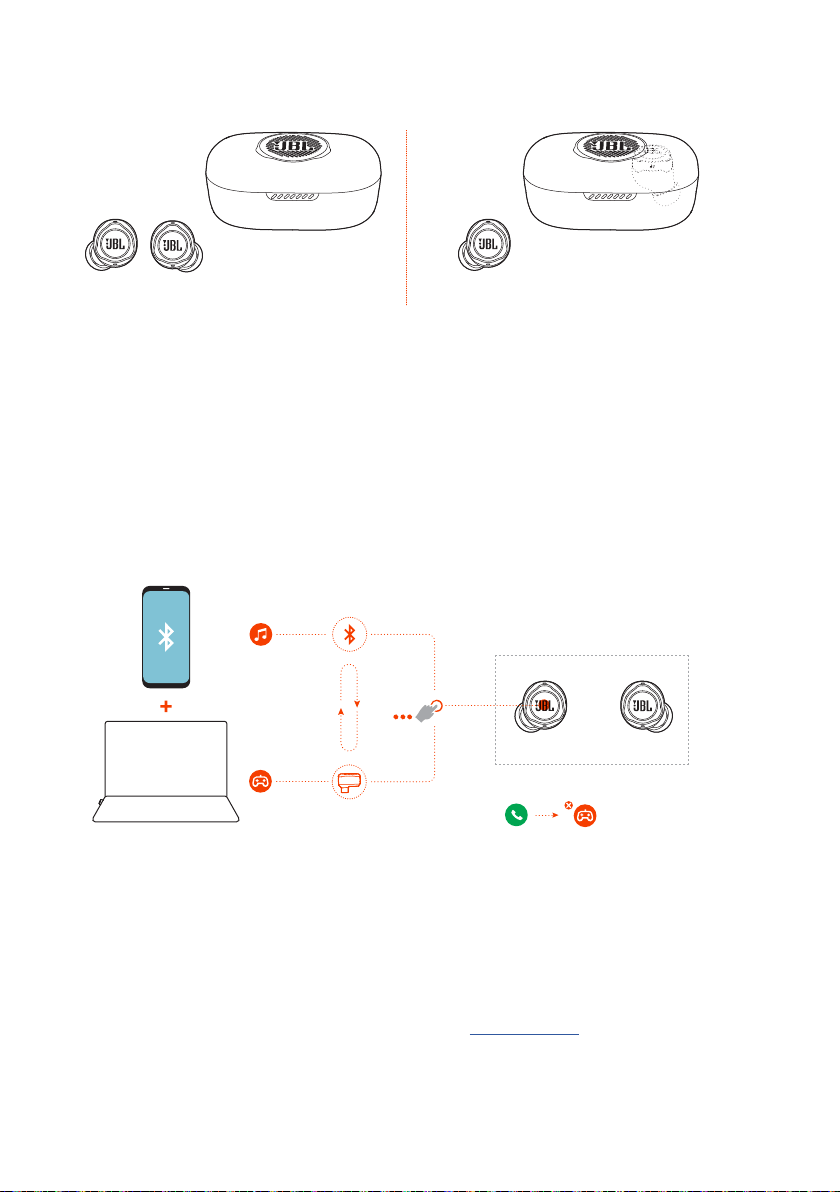
You can wear both earbuds (stereo mode), or just one (mono mode), either left or
right, at a time.
Dual source switching
This feature allows you to switch from game audio to incoming calls or music sources
quickly and easily.
L
r
ON
*
*
2.4GHz
1. Ensure that your earbuds are connected to your mobile phone through Bluetooth
and to your PC through 2.4GHz at the same time.
2. When you are playing games on your PC with the earbuds:
• if there is an incoming call to your mobile phone, the game audio will be
interrupted by the ring tone. You can double tap the touch area on either
earbud to answer / hang up the call (See “Call controls” for details).
- 12 -
• you can triple tap the touch area of the left earbud to switch to music source
on your mobile phone (See “Playback controls” for detailed music operation).
• To switch back to game audio from music source, triple tap the touch area of
the left earbud again.
TIP:
• You can hear a prompt tone each time when you switch source successfully.
Controls
NOTES:
• The description of controls in this section is based on default settings of the
earbuds.
• Enable advance controls by connecting your JBL Quantum TWS Air to JBL
Headphones App on your mobile phone or JBL QuantumEngine on your
PC.
• Enable your voice assistant through JBL headphones app and assign it to your
preferred earbud (L/R).
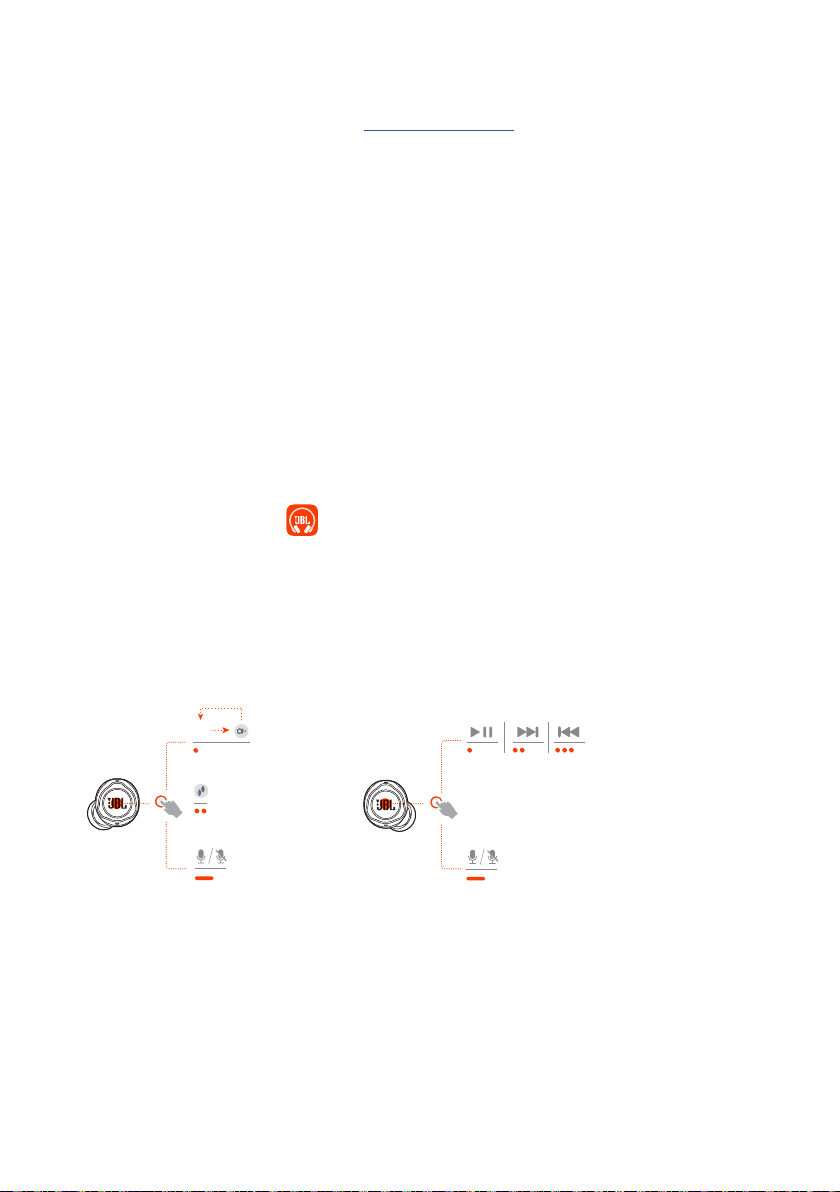
Controls available in 2.4Ghz connection
L r
OFF
- 13 -
Controls available in Bluetooth connection
L
BIXBY/SIRI
®
/...BIXBY/SIRI
®
/...
OFF
r
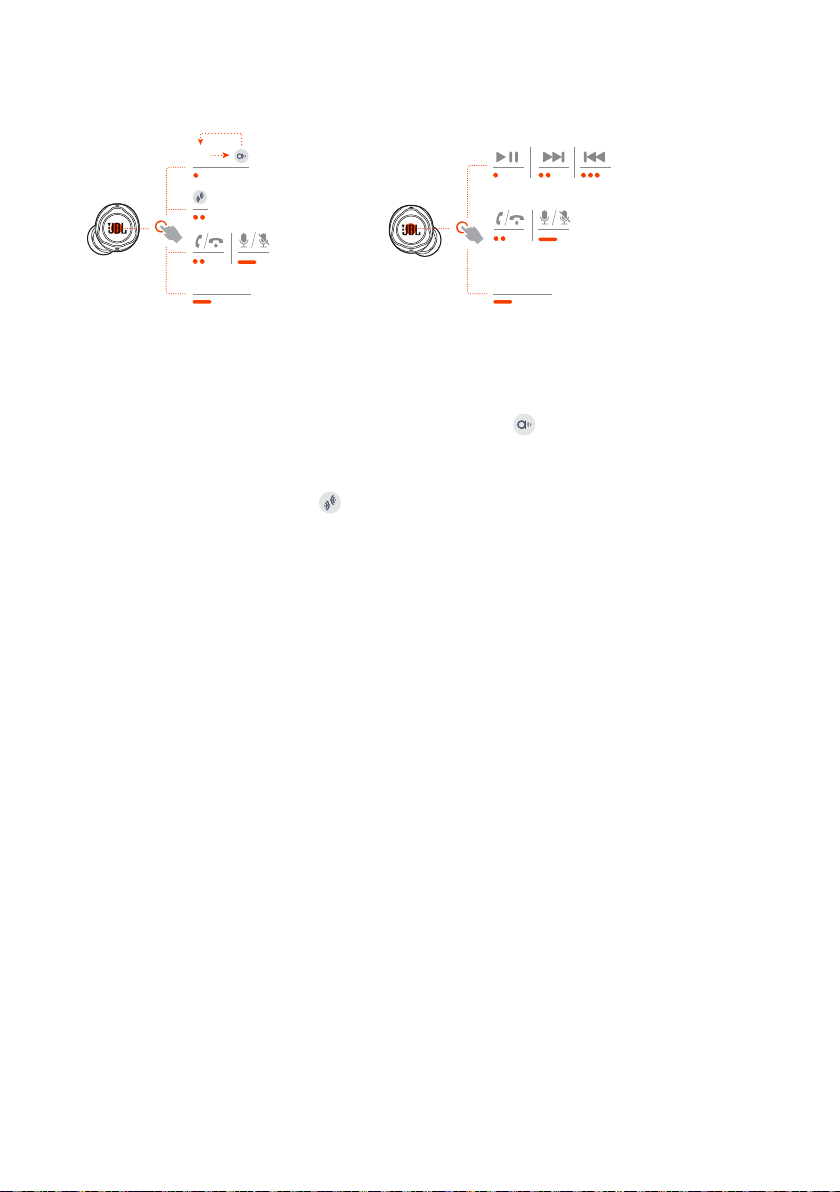
Sound mode switching
To switch between OFF (default) and Ambient Aware :
• Tap the touch area on the left earbud.
To enable or disable Talkthru :
• Double tap the touch area on the left earbud.
Call controls
When there is an incoming call:
• Tap or double tap the touch area on either earbud to answer the call.
• Hold the touch area on either earbud for two seconds to reject the call.
During a call:
• Double tap the touch area on either earbud to hang up.
When making an outgoing call:
• Double tap the touch area on either earbud to cancel the call.
Mute/unmute
• During gaming in 2.4GHz connection, hold the touch area on either earbud for
two seconds to mute or unmute the microphone.
• During a call in Bluetooth connection, hold the touch area on either earbud for
two seconds to mute or unmute the microphone.
- 14 -
Playback controls
• Tap the touch area on the right earbud to pause or resume playback.
• Double tap the touch area on the right earbud to skip to the previous track.
• Triple tap the touch area on the right earbud to skip to the next track.
Voice assistants
• Hold the touch area on either earbud for two seconds to trigger the built-in voice
assistant of your mobile phone, such as BIXBY and SIRI® etc.
• Tap the touch area on either earbud or hold it for two seconds to exit.
Additional features
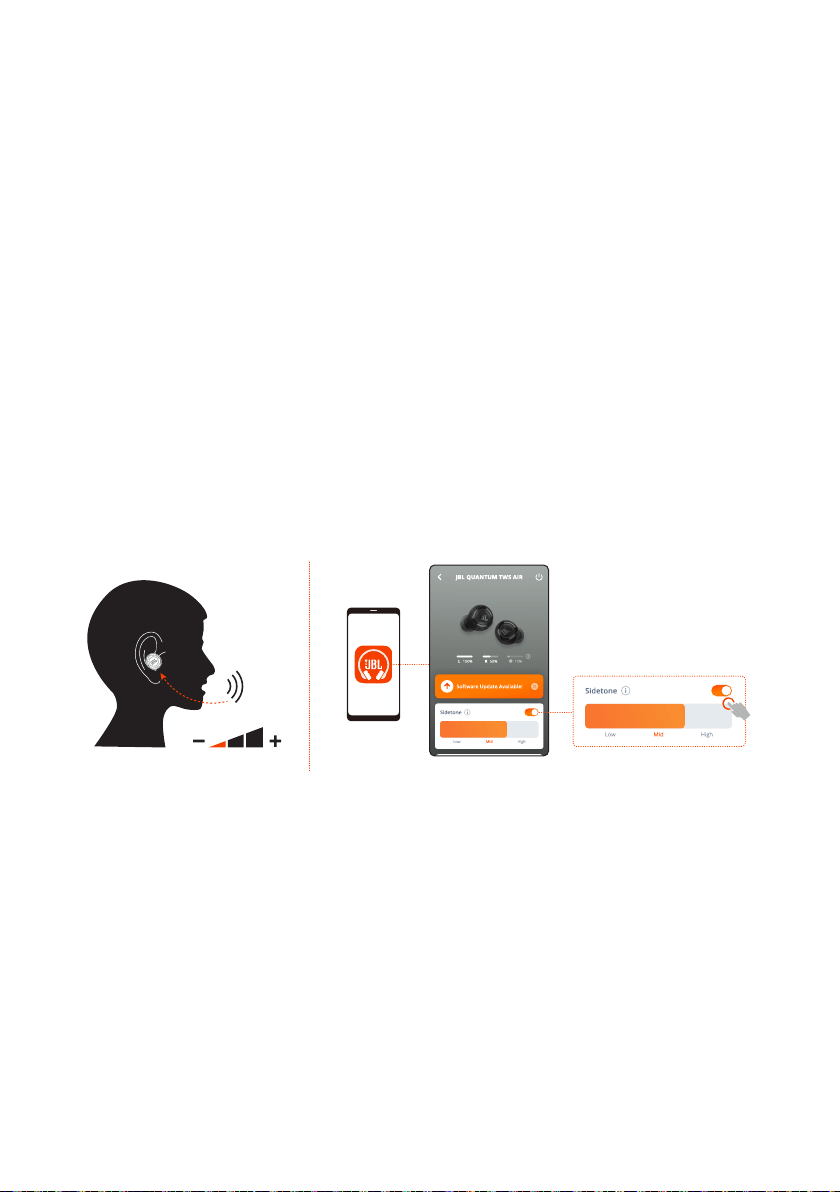
Sidetone
On the app, you can adjust the volume of your own voice that you can hear during
a call.
- 15 -
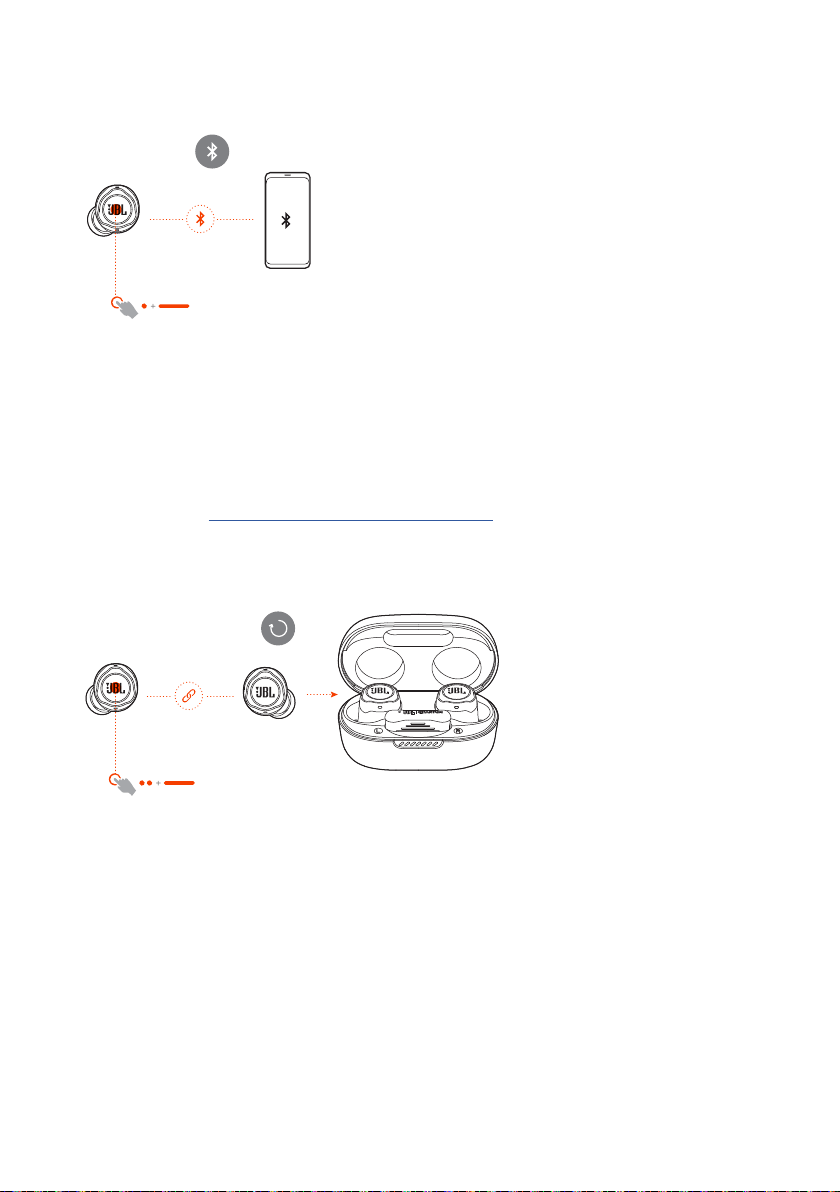
Connecting to a new Bluetooth device
L/R
L/R
1. Take out both earbuds from the charging case.
2. Tap and then hold the touch area on either earbud for five seconds.
The earbuds enter Bluetooth pairing mode.
3. Repeat the Bluetooth pairing procedures for connection to a new Bluetooth
device (See “Power on & connect via Bluetooth”).
Factory reset
L/R
L/R
1. Take out both earbuds from the charging case.
2. Double tap and then hold the touch area on either earbud for five seconds.
The LEDs on both earbuds flash blue twice quickly.
You can hear “Power o“ from the earbuds.
• To power on again, put the earbuds back into the charging case and then open
the lid.
- 16 -
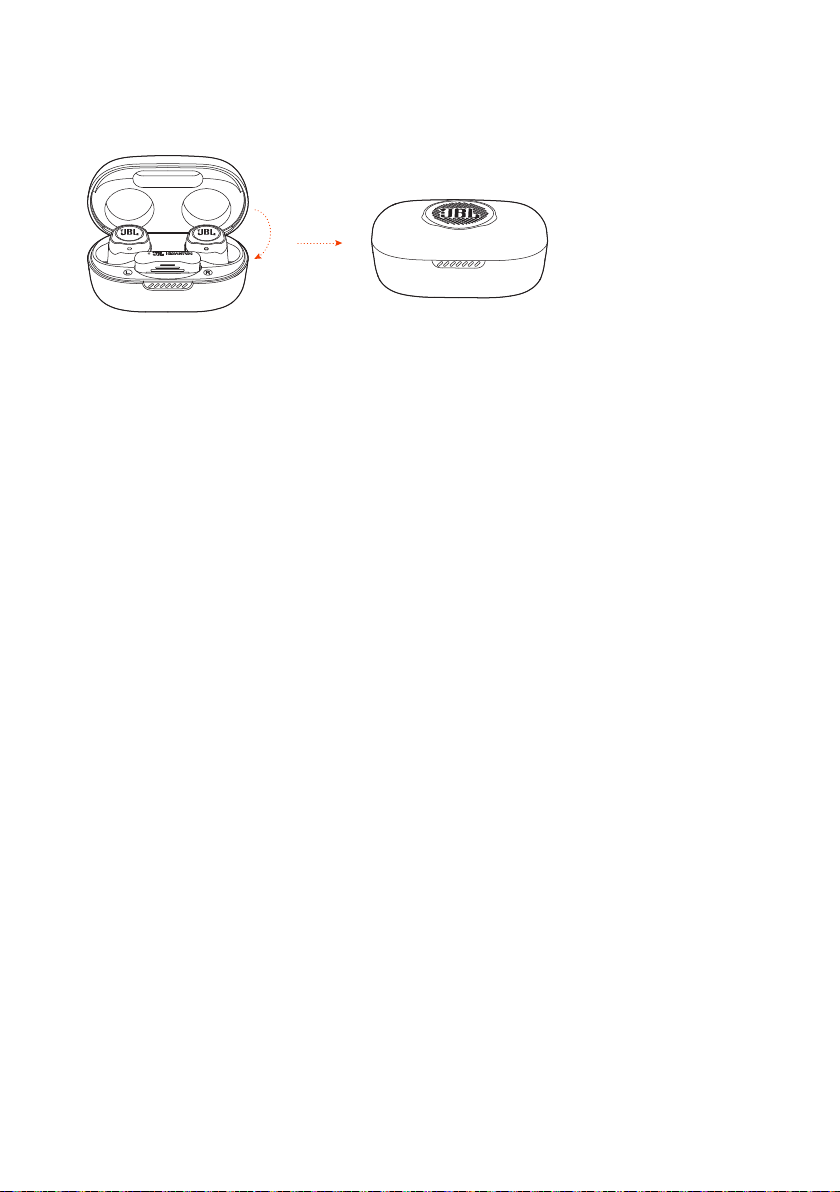
Power off
To power off, put the earbuds into the charging case and close the lid.
- 17 -
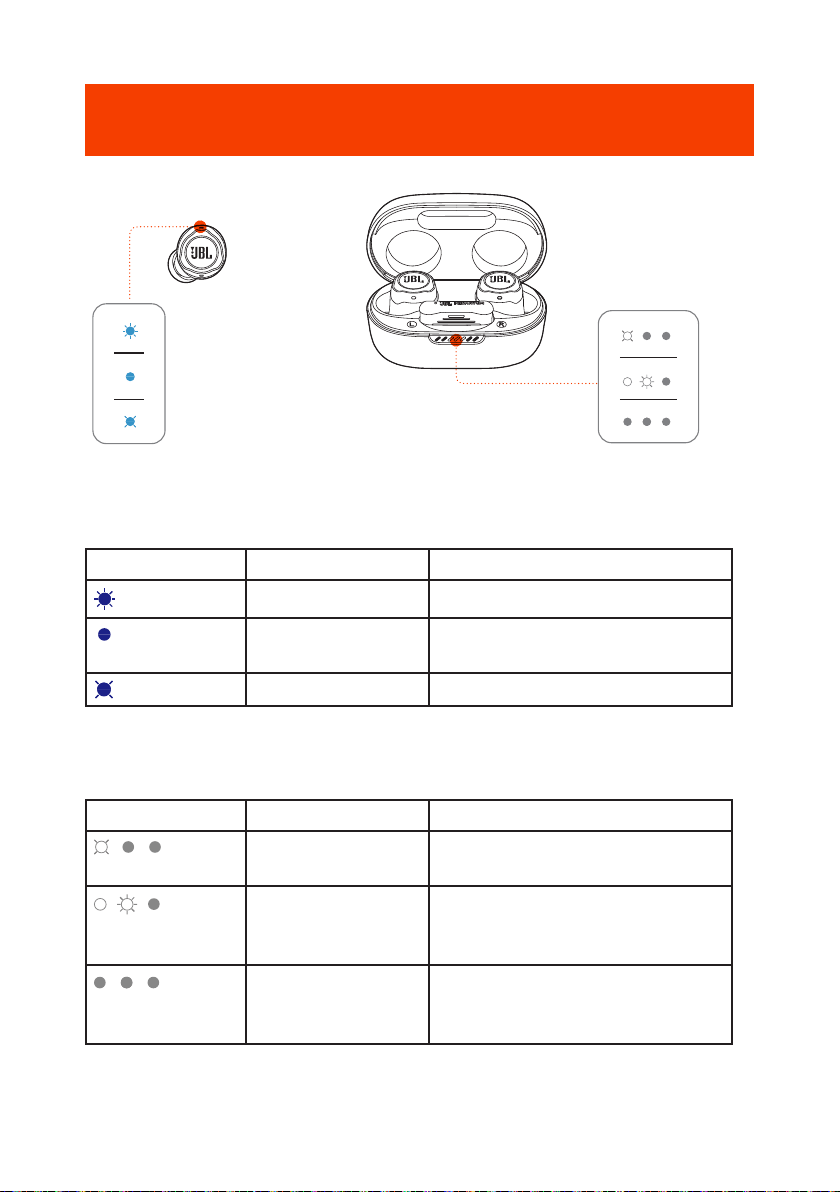
LED behavior
LED on earbud:
LED indication Status Meaning
Flashing blue quickly BT connecting
Solid blue for five
seconds
BT connected
Flashing blue slowly BT not connected
LEDs on charging case:
LED indication Status Meaning
1
st
LED flashing
white for five times
Low battery
2
nd
or 3
rd
LED solid
white for five
seconds
Charging
All three LEDs
solid white for five
seconds
Fully charged
- 18 -
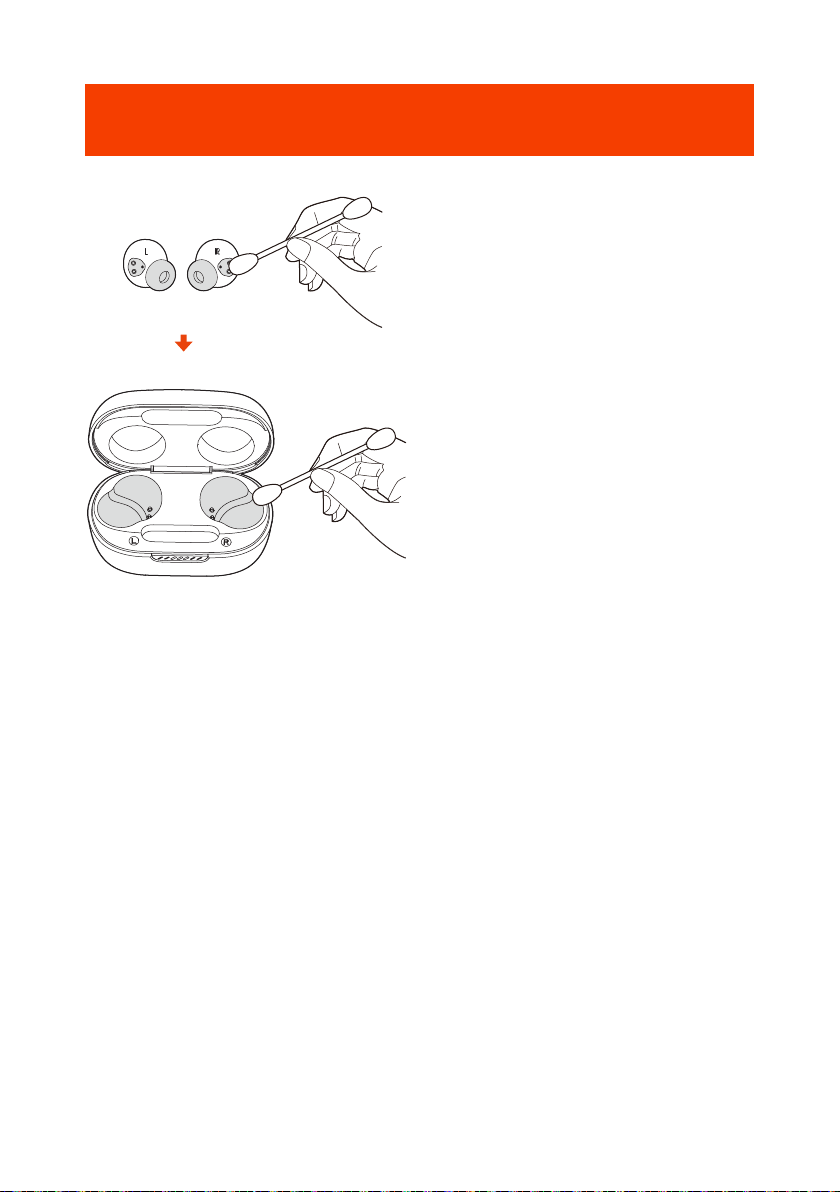
Cleaning the product
Use a clean cotton swab slightly moistened with alcohol to:
1. Remove earwax and dirt from the ear tips on your earbuds.
2. Clean the charging pins on your earbuds and in the charging case respectively.
Then use a dry and soft cotton to rub down the dust and lint.
3. Clean the grooves on the cover and at the bottom of the charging case.
After cleaning, make sure the charging case and earbuds are dry before putting
the earbuds back into the charging case.
TIP:
• You are recommended to repeat the operation every few weeks or so to keep
your earbuds clean and not affect the charging speed or quality.

- 19 -
Product Specifications
• Model: QUANTUM TWS AIR
• Driver size: 6.8 mm/0.268" Dynamic Driver
• Power supply: 5 V 1 A
• Earbud: 4.4 g per pc (8.8 g combined)/ 0.0097 lbs per pc (0.0194 lbs combined)
• Dongle: 2.6 g / 0.0057 lbs
• Charging case: 35.4 g / 0.078 lbs
• Earbud battery type: Lithium-ion polymer (50 mAh/3.85 V)
• Charging case battery type: Lithium-ion polymer (330 mAh/3.7 V)
• Charging time: 2 hrs from empty
• Music playtime with BT on: Up to 8 hrs
• Music playtime with 2.4GHz on: Up to 5 hrs
• Talk time with BT on: Up to 4 hrs
• Talk time with 2.4GHz on: Up to 4 hrs
• Frequency response: 20 Hz - 20 kHz
• Impedance: 16 ohm
• Sensitivity: 98 dB SPL@1 kHz
• Maximum SPL: 94 dB SPL
• Microphone sensitivity: -38 dBV/Pa@1 kHz
• Bluetooth version: 5.2
• Bluetooth profile version: A2DP V1.4, AVRCP V1.6.2, HFP V1.8
• Bluetooth transmitter frequency range: 2.4 GHz - 2.4835 GHz
• Bluetooth transmitter power: <9 dBm (EIRP)
• Bluetooth transmitter modulation: GFSK, π/4-DQPSK, 8-DPSK
• 2.4GHz Wireless transmitter frequency range: 2.4 GHz - 2.4835 GHz
• 2.4GHz Wireless transmitter power: <10 dBm (EIRP)
• 2.4GHz Wireless transmitter modulation: GFSK, π/4-DQPSK
• Maximum operation temperature: 45°C

- 20 -
NOTE:
• Technical specifications are subject to change without prior notice.

- 21 -
Troubleshooting
If you have problems using this product, check the following points before you
request service.
No power
• Put the earbuds back into the charging case, close the lid, and then open the lid
to power on again.
• Recharge the earbuds (see ”Charging”).
2.4Ghz pairing failed between earbuds and 2.4Ghz USB wireless
dongle
• Move the earbuds closer to the dongle. If the issue remains, pair the earbuds with
the dongle again manually (see ”To pair manually”).
No sound or poor sound
• Make sure you have chosen JBL Quantum TWS Air as the default device in the
game sound settings of your PC, Mac or gaming console device.
• Adjust volume on your PC, Mac or gaming console device.
• You may experience obvious sound quality degradation when using the earbuds
near a USB 3.0 enabled device. This is not a malfunction. Use an extension USB
dock instead to keep the dongle as far from the USB 3.0 port as possible.
In 2.4GHz wireless connection:
• Make sure the earbuds and 2.4GHz wireless dongle are paired and connected
successfully.
• The USB-A or USB-C ports on some gaming console devices may be incompatible
with JBL Quantum TWS Air. This is not a malfunction.

- 22 -
In Bluetooth connection:
• The volume control on the earbuds (customizable on the JBL Headphones app)
does not work for the Bluetooth connected device. This is not a malfunction.
• Keep away from sources of radio interference such as microwaves or wireless
routers.
UNABLE TO RECHARGE MY EARBUDS
• Recharge the charging case.
• Clean the charging pins on the earbuds and in the charging case (see “Cleaning
the product”).
My voice cannot be heard by my teammates
• Make sure you have chosen JBL Quantum TWS Air as the default device in the
chat sound settings of your PC, Mac or gaming console device.
• Make sure the microphone is not muted.
I can’t hear myself when I’m talking
• When using with a PC, enable sidetone via to hear
yourself clearly over game audio.
• When using with a mobile phone, adjust sidetone via the JBL Headphones app
(see “Sidetone”).
No response or malfunction of the earbuds
• Restore factory settings (see “Factory reset”).
• Put the earbuds back into the charging case and close the lid. Wait for 10 seconds
to finish hardware reboot before opening the lid to power on the earbuds again.
My earbuds fall off easily
• Try a pair of silicone ear tips that best fits your ear size. Adjust the earbud positions
in your ears for the best fit (see “How to wear”).

HP_JBL_Quantum TWS Air_OM_SOP_EN_V1