PX560-ES-1B
EN/ES
Safety Precautions
Before trying to use the Digital Piano, be sure to
read the separate “Safety Precautions”.
Precauciones de seguridad
Antes de intentar usar el piano digital, asegúrese
de leer las “Precauciones de seguridad” separadas.
USER’S GUIDE
GUÍA DEL USUARIO
Please keep all information for future reference.
Guarde toda información para tener como referencia futura.
EnglishEspañol
PX
-
560M
This recycle mark indicates that the packaging conforms to
the environmental protection legislation in Germany.
Esta marca de reciclaje indica que el empaquetado se
ajusta a la legislación de protección ambiental en Alemania.
MA1612-B Printed in China
C
PX560-ES-1B.indd 1 2016/12/15 15:39:23
B
TO REDUCE THE RISK OF FIRE OR ELECTRIC SHOCK, REFER SERVICING TO QUALIFIED SERVICE PERSONNEL.
Important!
Please note the following important information before using this product.
• Before using the AD-A12150LW Adaptor to power the product, be sure to check the AC Adaptor for any damage first. Carefully check the
power cord for breakage, cuts, exposed wire and other serious damage. Never let children use an AC adaptor that is seriously damaged.
• The product is not intended for children under 3 years.
• Use only the CASIO AD-A12150LW adaptor.
• The AC adaptor is not a toy.
• Be sure to disconnect the AC adaptor before cleaning the product.
IMPORTANT SAFETY INSTRUCTIONS
1. Read these instructions.
2. Keep these instructions.
3. Heed all warnings.
4. Follow all instructions.
5. Do not use this apparatus near water.
6. Clean only with dry cloth.
7. Do not block any ventilation openings. Install in accordance with the manufacturer’s instructions.
8. Do not install near any heat sources such as radiators, heat registers, stoves, or other apparatus (including amplifiers) that produce heat.
9. Do not defeat the safety purpose of the polarized or grounding-type plug. A polarized plug has two blades with one wider than the other.
A grounding type plug has two blades and a third grounding prong. The wide blade or the third prong are provided for your safety. If the
provided plug does not fit into your outlet, consult an electrician for replacement of the obsolete outlet.
10. Protect the power cord from being walked on or pinched particularly at plugs, convenience receptacles, and the point where they exit
from the apparatus.
11. Only use attachments/accessories specified by the manufacturer.
12. Use only with the cart, stand, tripod, bracket, or table specified by the manufacturer, or sold with the
apparatus. When a cart is used, use caution when moving the cart/apparatus combination to avoid injury
from tip-over.
13. Unplug this apparatus during lightning storms or when unused for long periods of time.
14. Refer all servicing to qualified service personnel. Servicing is required when the apparatus has been damaged in any way, such as
power-supply cord or plug is damaged, liquid has been spilled or objects have fallen into the apparatus, the apparatus has been
exposed to rain or moisture, does not operate normally, or has been dropped.
The apparatus shall not be exposed to dripping or splashing and that no objects filled with liquids, such as vases, shall be placed on the apparatus.
The P (POWER) indicator being unlit does not mean the apparatus is completely disconnected from the MAINS.
When you need to have the apparatus completely disconnected from the MAINS, you must unplug the power cord. For that purpose, locate
the apparatus in a way that secures easy access to the power cord.
Declaration of Conformity
Model Number: PX-560M
Trade Name: CASIO COMPUTER CO., LTD.
Responsible party: CASIO AMERICA, INC.
Address: 570 MT. PLEASANT AVENUE, DOVER, NEW JERSEY 07801
Telephone number: 973-361-5400
This device complies with Part 15 of the FCC Rules, Operation is subject to the following two conditions:
(1) This device may not cause harmful interference, and (2) this device must accept any interference received, including interference that
may cause undesired operation.
NOTICE
This equipment has been tested and found to comply with the limits for a Class B digital device, pursuant to Part 15 of the FCC Rules.
These limits are designed to provide reasonable protection against harmful interference in a residential installation. This equipment
generates, uses and can radiate radio frequency energy and, if not installed and used in accordance with the instructions, may cause
harmful interference to radio communications. However, there is no guarantee that interference will not occur in a particular installation. If
this equipment does cause harmful interference to radio or television reception, which can be determined by turning the equipment off and
on, the user is encouraged to try to correct the interference by one or more of the following measures:
• Reorient or relocate the receiving antenna.
• Increase the separation between the equipment and receiver.
• Connect the equipment into an outlet on a circuit different from that to which the receiver is connected.
• Consult the dealer or an experienced radio/TV technician for help.
FCC CAUTION
Changes or modifications not expressly approved by the party responsible for compliance could void the user’s authority to operate the
equipment.
Manufacturer:
CASIO COMPUTER CO., LTD.
6-2, Hon-machi 1-chome, Shibuya-ku, Tokyo 151-8543, Japan
Responsible within the European Union:
Casio Europe GmbH
Casio-Platz 1, 22848 Norderstedt, Germany
www.casio-europe.com
Declaration of Conformity According to EU Directive
EN-1
PX560-ES-1B.indd 3 2016/12/15 15:39:23
EN-2
Contents
General Guide EN-4
Installing the Music Stand . . . . . . . . . . . . . . . . . EN-5
Saving Settings and Using Panel Lock . . . . . . . EN-6
Returning the Digital Piano to Its Factory
Default Settings . . . . . . . . . . . . . . . . . . . . . . . EN-6
Power Outlet EN-7
Using an AC Adaptor . . . . . . . . . . . . . . . . . . . . EN-7
Turning Power On or Off. . . . . . . . . . . . . . . . . . EN-7
Connections EN-9
Connecting Headphones. . . . . . . . . . . . . . . . . . EN-9
Connecting a Pedal. . . . . . . . . . . . . . . . . . . . . . EN-9
Connecting Audio Equipment or an
Amplifier . . . . . . . . . . . . . . . . . . . . . . . . . . . . EN-10
Bundled and Optional Accessories . . . . . . . . . EN-11
Operations Common to All Modes EN-12
Using the Display Screen . . . . . . . . . . . . . . . . EN-12
Performing Operations . . . . . . . . . . . . . . . . . . EN-13
Playing with Different Tones EN-15
Selecting and Playing a Tone . . . . . . . . . . . . . EN-15
Splitting the Keyboard between Two Tones . . EN-16
Layering Two Tones . . . . . . . . . . . . . . . . . . . . EN-17
Splitting the Keyboard for Duet Play . . . . . . . . EN-17
Adjusting the Keyboard Volume Balance . . . . EN-19
Using the Metronome . . . . . . . . . . . . . . . . . . . EN-19
Changing the Tempo Setting . . . . . . . . . . . . . EN-20
Using the Pitch Bend Wheel . . . . . . . . . . . . . . EN-20
Modifying Notes with the Modulation
Wheel and Knobs. . . . . . . . . . . . . . . . . . . . . EN-20
Shifting the Pitch of the Digital Piano in
Semitone Units (Transpose) . . . . . . . . . . . . EN-21
Sounding Arpeggio Phrases Automatically
(Arpeggiator) . . . . . . . . . . . . . . . . . . . . . . . . EN-22
Editing a Tone EN-23
Editing a Tone. . . . . . . . . . . . . . . . . . . . . . . . . EN-23
Changing the Name of a Tone . . . . . . . . . . . . EN-24
Deleting a Tone. . . . . . . . . . . . . . . . . . . . . . . . EN-24
Using Auto Accompaniment EN-38
Playing an Auto Accompaniment . . . . . . . . . . EN-38
Using Recommended Tones and Tempos
(One-Touch Presets) . . . . . . . . . . . . . . . . . . EN-41
Adding Harmony to Melody Notes
(Auto Harmonize). . . . . . . . . . . . . . . . . . . . . EN-42
Editing a Rhythm (Rhythm Edit) . . . . . . . . . . . EN-42
Deleting a User Rhythm . . . . . . . . . . . . . . . . . EN-44
Demo Song EN-45
Playing the Demo Tunes. . . . . . . . . . . . . . . . . EN-45
Music Presets EN-46
Recalling Preset Data . . . . . . . . . . . . . . . . . . . EN-46
Creating an Original User Preset
(User Presets) . . . . . . . . . . . . . . . . . . . . . . . EN-47
Deleting a User Preset . . . . . . . . . . . . . . . . . . EN-51
Registering Tone and
Rhythm Setups EN-52
Recording and Playback EN-54
Recording to Digital Piano Memory
(MIDI Recorder) . . . . . . . . . . . . . . . . . . . . . . EN-56
Recording to a USB Flash Drive
(Audio Recorder) . . . . . . . . . . . . . . . . . . . . . EN-65
Configuring Digital Piano Settings EN-68
Configuring Digital Piano Settings. . . . . . . . . . EN-68
USB Flash Drive EN-82
Connecting a USB Flash Drive to and
Detaching It from the Digital Piano. . . . . . . . EN-83
Formatting a USB Flash Drive . . . . . . . . . . . . EN-84
Saving Standard Song Data to a
USB Flash Drive. . . . . . . . . . . . . . . . . . . . . . EN-84
Saving Digital Piano Data to a
USB Flash Drive. . . . . . . . . . . . . . . . . . . . . . EN-84
Loading Data from a USB Flash Drive to
Digital Piano Memory. . . . . . . . . . . . . . . . . . EN-85
Deleting Data from a USB Flash Drive . . . . . . EN-85
Connecting to a Computer EN-86
Minimum Computer System Requirements . . EN-86
Using MIDI . . . . . . . . . . . . . . . . . . . . . . . . . . . EN-87
Reference EN-88
Error Messages. . . . . . . . . . . . . . . . . . . . . . . . EN-88
Troubleshooting . . . . . . . . . . . . . . . . . . . . . . . EN-89
Product Specifications. . . . . . . . . . . . . . . . . . . EN-91
Operating Precautions . . . . . . . . . . . . . . . . . . EN-93
B
PX560-ES-1B.indd 4 2016/12/15 15:39:24
Contents
EN-3
English
Information A-1
Fingering Guide. . . . . . . . . . . . . . . . . . . . . . . . . . A-1
Chord Example List. . . . . . . . . . . . . . . . . . . . . . . A-3
Part and MIDI Channel Assignments and
Diagram . . . . . . . . . . . . . . . . . . . . . . . . . . . . . . A-5
Block Diagram. . . . . . . . . . . . . . . . . . . . . . . . . . . A-6
MIDI Implementation Chart
Company and product names used in this
manual may be registered trademarks of others.
PX560-ES-1B.indd 5 2016/12/15 15:39:24
EN-4
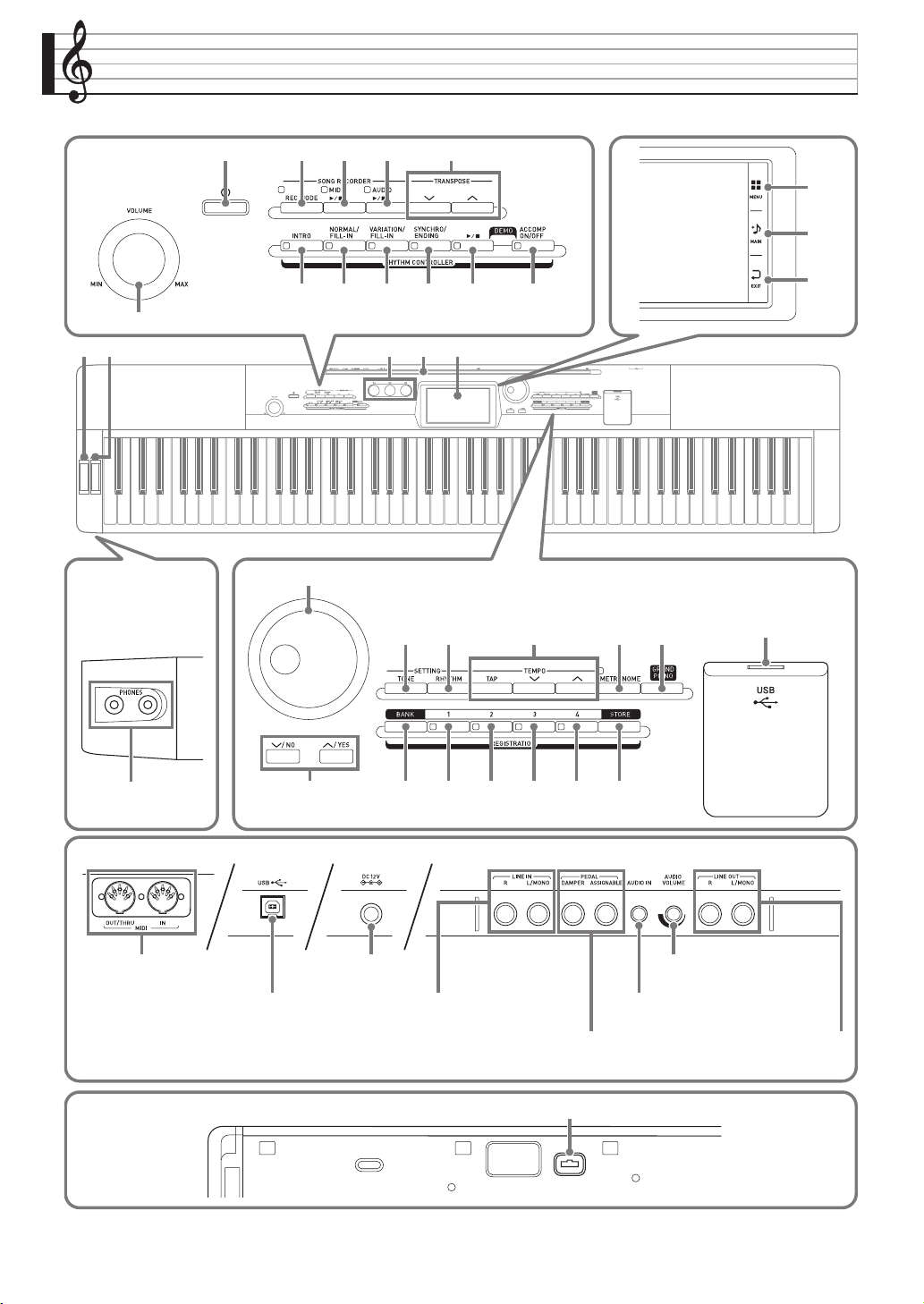
General Guide
cp cq cr cs ct dk
ck cl cn co
bs
dl
2
bp
bq
br
7 8 9 bk bl bm
bt
531 4
bodm dn
∗
6
bn
cm
Bottom
Back
PHONES jacks
Front
AUDIO VOLUME controller
LINE OUT R, L/MONO jacks
Pedal connector
MIDI OUT/THRU, IN
terminals
USB port
DAMPER, ASSIGNABLE PEDAL jacks
AUDIO IN jacks
DC 12V terminal
LINE IN R, L/MONO jacks
PX560-ES-1B.indd 6 2016/12/15 15:39:24
General Guide
EN-5
English
• This manual uses the numbers and names below to refer to buttons and controllers.
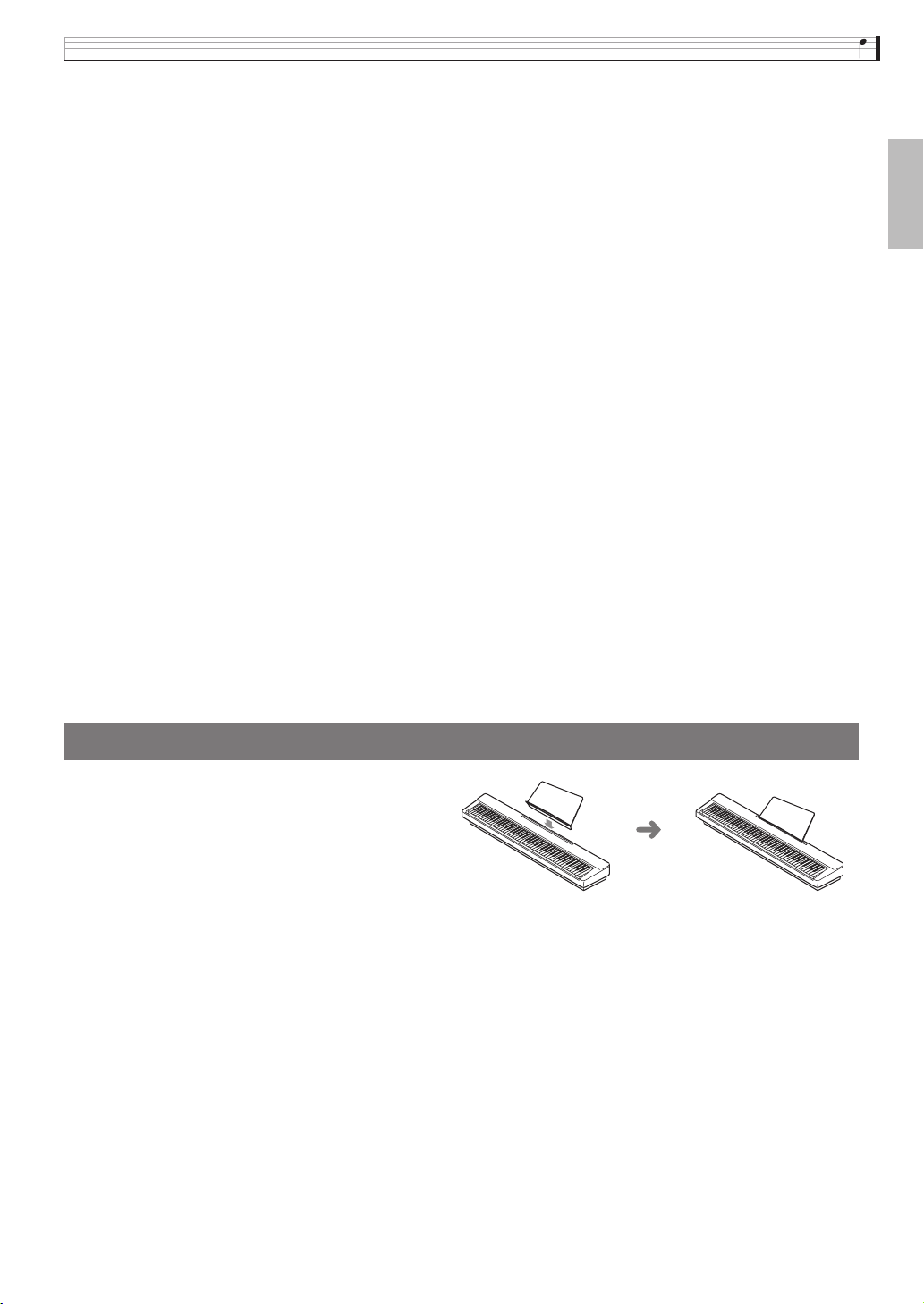
Insert the bottom of the music stand into the
groove on the top of the Digital Piano’s
console.
* Installing the Music Stand
1P (Power) button
2VOLUME controller
3REC MODE button
4MIDI a button
5AUDIO a button
6TRANSPOSE w, q buttons
7INTRO button
8NORMAL/FILL-IN button
9VARIATION/FILL-IN button
bkSYNCHRO/ENDING button
bla button
bmACCOMP ON/OFF button
bnK1 through K3 knobs
boDisplay
bpMENU
bqMAIN
brEXIT
bsDial
btw/NO, q/YES buttons
ckTONE button
clRHYTHM button
cmTEMPO buttons
cnMETRONOME button
coGRAND PIANO button
cpBANK button
cqREGISTRATION 1 button
crREGISTRATION 2 button
csREGISTRATION 3 button
ctREGISTRATION 4 button
dkSTORE button
dlUSB
flash drive port
dmPITCH BEND wheel
dnMODULATION wheel
PX560-ES-1B.indd 7 2016/12/15 15:39:24
EN-6
General Guide
The liquid crystal panel of the monitor screen uses
high-precision technology that provides a pixel yield in
excess of 99.99%. This means that some very small
number of pixels may not light or may remain lit at all
times. This is due to the characteristics of the liquid
crystal panel, and does not indicate malfunction.
Your Digital Piano lets you save its current settings,
and lock its buttons to protect against operation errors.
For details, see “Auto Resume” (page EN-75) and
“Operation Lock” (page EN-74).
Perform the following procedure when you want to
return the Digital Piano’s stored data and settings to
their initial factory defaults.
1.
Turn off the Digital Piano.
2.
While holding down the cm TEMPO w, q
buttons, press the 1 P button.
• The Digital Piano will turn on and initialize its
internal system. You will be able to use the Digital
Piano in a short while.
• See “Turning Power On or Off” (page EN-7) for
information about turning power on and off.
LCD Panel
Saving Settings and Using
Panel Lock
Returning the Digital Piano to
Its Factory Default Settings
PX560-ES-1B.indd 8 2016/12/15 15:39:24
EN-7
English
Power Outlet
Your Digital Piano runs on standard household power.
Be sure to turn off power whenever you are not using
the Digital Piano.
Use only the AC adaptor (JEITA Standard, with unified
polarity plug) that comes with this Digital Piano. Use
of a different type of AC adaptor can cause
malfunction of the Digital Piano.
Specified AC Adaptor: AD-A12150LW
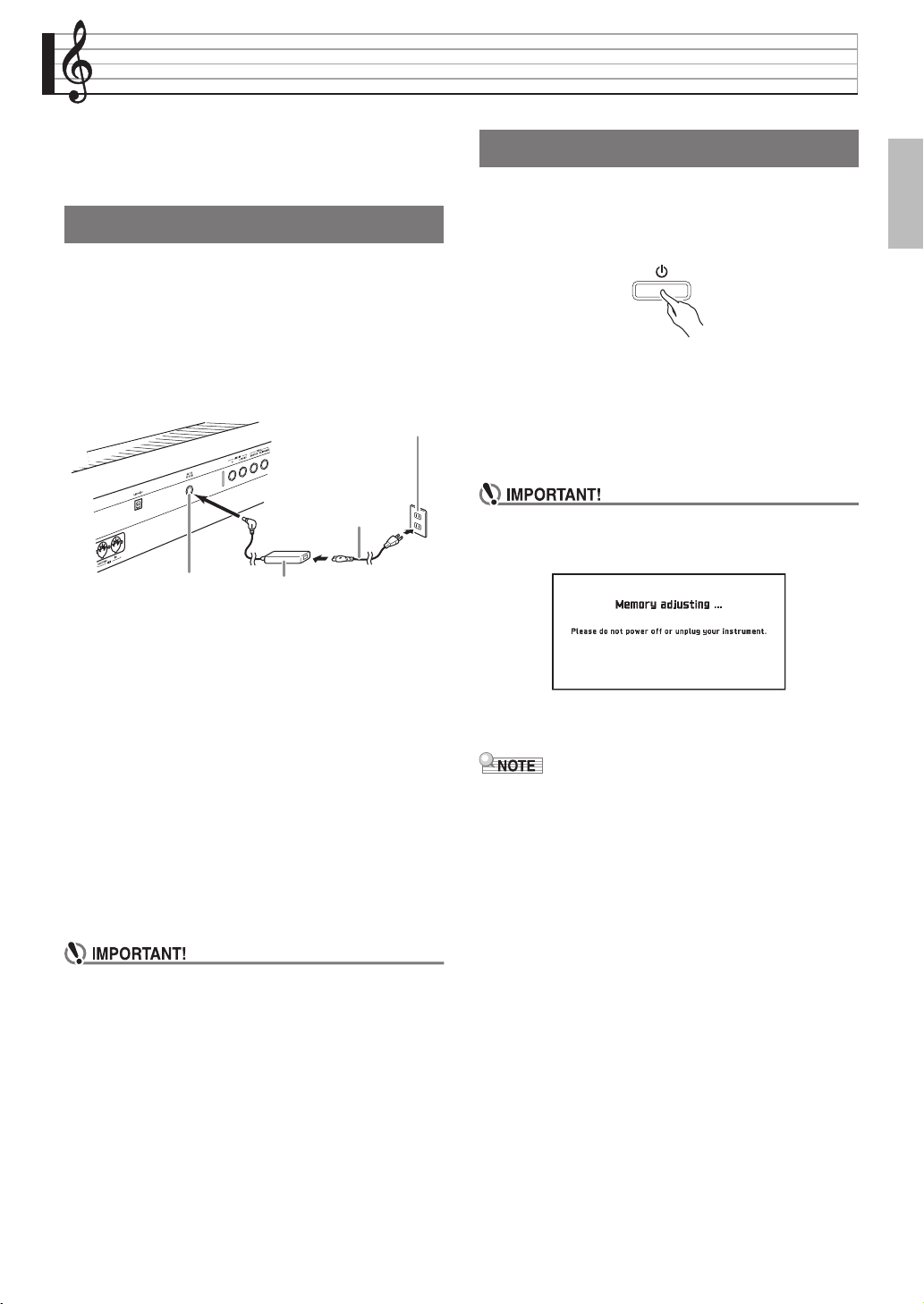
• Use the supplied power cord to connect the AC
adaptor as shown in the illustration below.
Note the following important precautions to avoid
damage to the power cord.
During Use
• Never pull on the cord with excessive force.
• Never repeatedly pull on the cord.
• Never twist the cord at the base of the plug or
connector.
During Movement
• Before moving the Digital Piano, be sure to unplug
the AC adaptor from the power outlet.
During Storage
• Loop and bundle the power cord, but never wind it
around the AC adaptor.
• Never connect the AC adaptor (JEITA Standard,
with unified polarity plug) that comes with this Digital
Piano to any other device besides this Digital Piano.
Doing so creates the risk of malfunction.
• Make sure the Digital Piano is turned off before
plugging in or unplugging the AC adaptor.
• The AC adaptor will become warm to the touch after
very long use. This is normal and does not indicate
malfunction.
• Use the AC adaptor so its label surface is pointed
downwards. The AC adaptor becomes prone to
emitting electromagnetic waves when the label
surface is facing upwards.
1.
Press the 1 P button to turn on power.
• Do not touch the keyboard, pedals, or buttons while
the startup screen is on the display. Doing so will
cause malfunction.
• Use the Digital Piano’s VOLUME controller (2) to
adjust the volume.
2.
To turn off the Digital Piano, hold down the
1 P button until the Digital Piano’s display
goes blank.
• The message shown below may appear while data is
being saved to Digital Piano memory or immediately
after you turn on the Digital Piano.
Never turn off Digital Piano power while this
message is displayed.
• Pressing the 1 P button to turn off power actually
puts the Digital Piano into a standby state. Minute
amounts of current continue to flow within the
Digital Piano in the standby state. If you do not plan
to use the Digital Piano for a long time or if there is a
lightning storm in your area, be sure to unplug the
AC adaptor from the power outlet.
Using an AC Adaptor
Household power outlet
Power cord
DC 12V terminal AC adaptor
• Configuration and type depends
on your geographic location.
Turning Power On or Off
PX560-ES-1B.indd 9 2016/12/15 15:39:24
EN-8
Power Outlet
This Digital Piano is designed to turn off automatically
to avoid wasting power after no operation is
performed for a preset amount of time. The Auto
Power Off trigger time is about four hours.
• You can disable Auto Power Off, if you want. For
details, see “Auto Power Off” under “SYSTEM
SETTING Screen” (page EN-74).
Auto Power Off
PX560-ES-1B.indd 10 2016/12/15 15:39:25
EN-9
English
Connections
• Before connecting headphones, be sure to use the
Digital Piano’s 2 VOLUME controller to turn the
volume down to a low level. After connecting, you
can adjust the volume to the level you want.
• While sound output from the speakers is disabled,*
the Digital Piano automatically optimizes sound for
headphones and LINE OUT listening. During
speaker output, it automatically switches to
optimization for listening with speakers.
* Plug inserted into the PHONES jack or “Speaker”
SYSTEM SETTING Screen (page EN-74) turned
off.
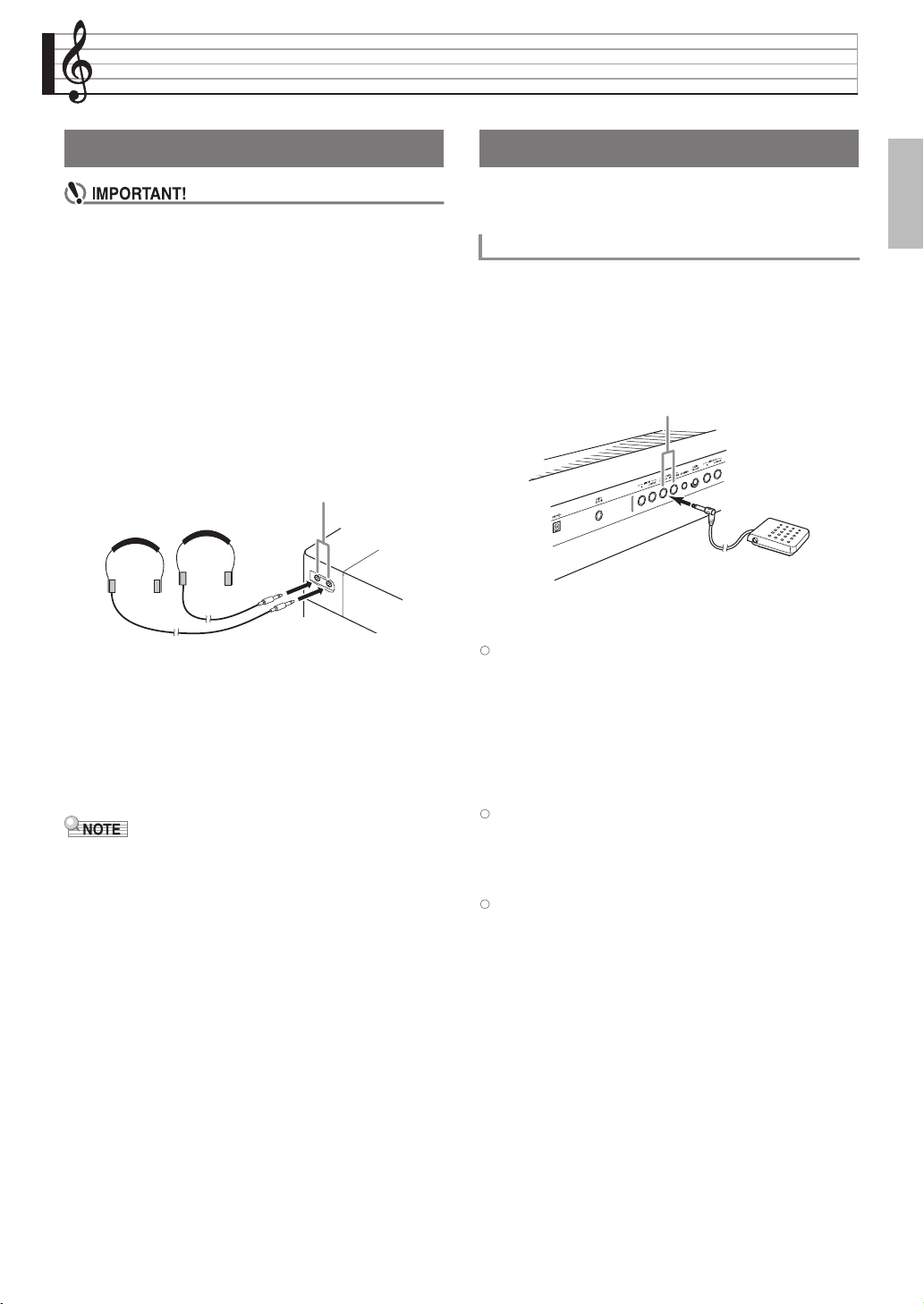
Front
Connect commercially available headphones to the
PHONES jacks. Connecting headphones to either of
the PHONES jacks cuts off output to the speakers,
which means you can practice even late at night
without bothering others. To protect your hearing,
make sure that you do not set the volume level too high
when using headphones.
• Be sure to push the headphones plug into the
PHONES jacks as far as it will go. If you don’t, you
may hear sound from only one side of the
headphones.
• If the plug of the headphones you are using does not
match the PHONES jacks, use the applicable
commercially available adaptor plug.
• If you are using headphones that require an adaptor
plug, make sure you do not leave the adaptor
plugged in when you unplug the headphones. If you
do, nothing will sound from the speakers when you
play.
The back of the Digital Piano has two pedal jacks, one
for a damper pedal and one for a soft/sostenuto pedal.
Depending on the type of operation you want the
pedal to perform, connect the pedal’s cable either to the
Digital Piano’s DAMPER PEDAL jack or
ASSIGNABLE PEDAL jack.
Back
Pedal Functions
z Damper Pedal
Pressing the damper pedal while playing will cause the
notes you play to reverberate.
• Whenever a piano tone is selected, pressing this
pedal will activate the Digital Piano’s Damper
Resonance effect, which causes notes to resonate in
the same way they do when the damper pedal on an
acoustic piano is pressed.
z
Soft Pedal
Pressing this pedal suppresses notes played on the
keyboard after the pedal was pressed, and makes them
sound softer.
z Sostenuto Pedal
Only the notes of the keys that are depressed when this
pedal is pressed are sustained, even if the keyboard
keys are released, until the pedal is released.
Connecting Headphones
PHONES jacks
Commercially available
headphones
Connecting a Pedal
To connect to the pedal jack
PEDAL jacks
PX560-ES-1B.indd 11 2016/12/15 15:39:25
EN-10
Connections
z Expression Pedal
You can use a pedal to control the volume level and
effect application.
Connect an expression pedal to the ASSIGNABLE
PEDAL jack. Also, use “Pedal Edit” on the
CONTROLLER screen to specify that an expression
pedal is assigned to the ASSIGNABLE PEDAL jack.
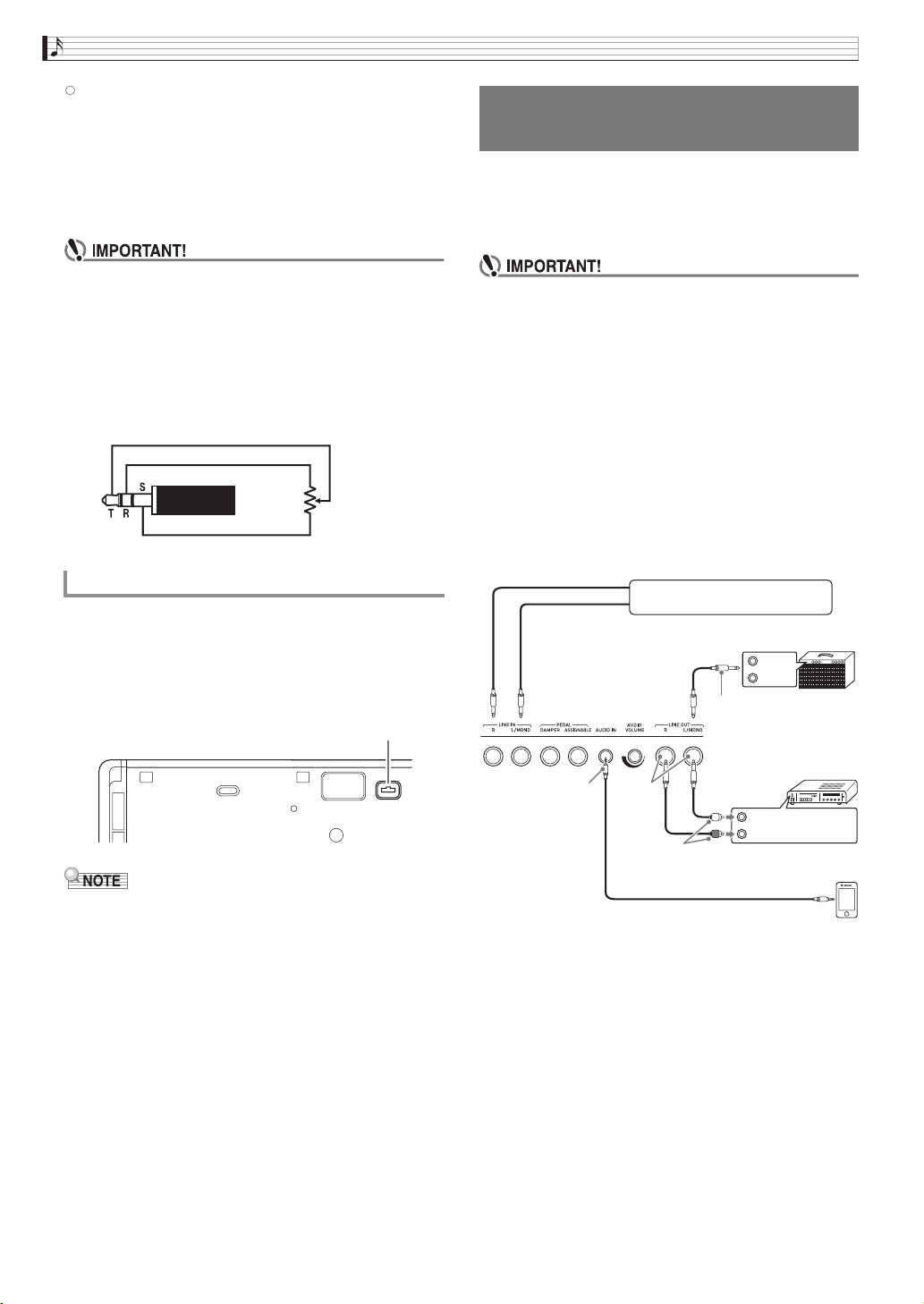
• Use a commercially available expression pedal that
meets the specifications below.* Note that the
polarity of the pedals of some manufacturers is
different from the polarity required by this Digital
Piano.
* Operation has been verified for the pedals below.
Roland EV-5: Set minimum volume to 0 (zero).
KURZWEIL CC-1
FATAR VP-25, VP-26
You can connect the optionally available 3-Pedal Unit
(SP-33) to the pedal connector on the bottom of the
Digital Piano. You can then use the pedals for
expression that is similar to that available on an
acoustic piano.
• The optionally available CS-67P special stand is
required in order to use the SP-33 Pedal Unit.
You can connect audio equipment or a music amplifier
to the Digital Piano and then play through external
speakers for more powerful volume and better sound
quality.
• While sound output from the speakers is disabled,*
the Digital Piano automatically optimizes sound for
headphones and LINE OUT listening. During
speaker output, it automatically switches to
optimization for listening with speakers.
* Plug inserted into the PHONES jack or “Speaker”
SYSTEM SETTING Screen (page EN-74) turned
off.
• Whenever connecting a device to the Digital Piano,
first use the VOLUME controller to set the volume to
a low level. After connecting, you can adjust the
volume to the level you want.
• Whenever you connect any device to the Digital
Piano, be sure to read the user documentation that
comes with the device.
Pedal Connector
10KΩ ±20%
Pedal connector
Bottom
Connecting Audio Equipment
or an Amplifier
INPUT 1
INPUT 2
4
1
3
2
Guitar amplifier
Keyboard amplifier, etc.
Standard plug
Standard
jack
LEFT (White)
RIGHT (Red)
MIDI sound source, etc.
Pin plug
Audio amplifier
AUX IN jack, etc.
Smartphone, etc.
Stereo mini plug
B
PX560-ES-1B.indd 12 2016/12/15 15:39:25
Connections
EN-11
English
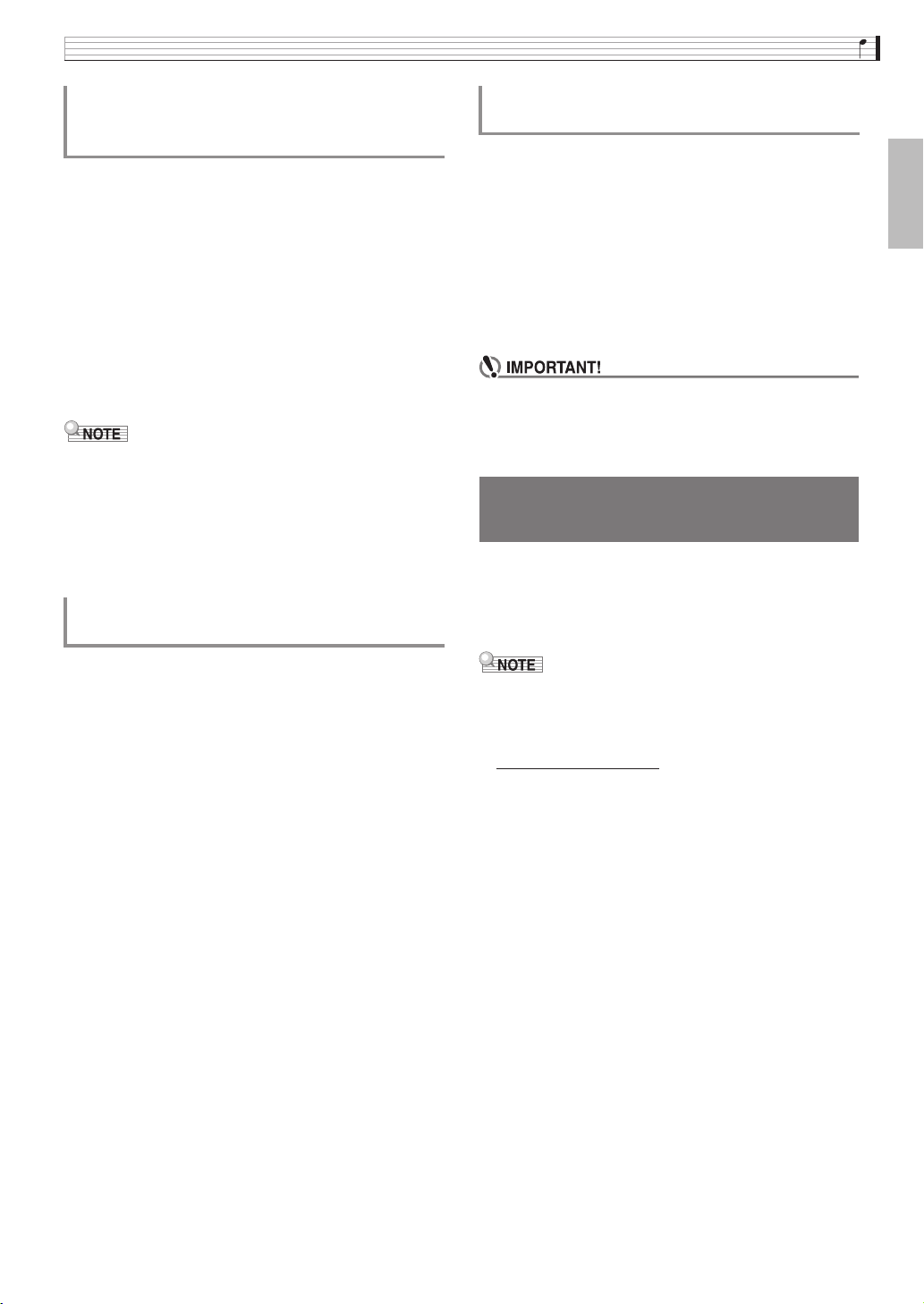
An external source connected to LINE IN R (right) is
output from the Digital Piano’s right speaker, while a
source connected to LINE IN L/MONO is output from
the left speaker. Use commercially available connection
cords that match the equipment being connected to.
When an external source is connected to LINE IN L/
MONO only, the input is output from both speakers.
You can connect a smartphone or other music player to
AUDIO IN.
Use the AUDIO VOLUME knob to adjust the volume
level from a smartphone. Volume from a smartphone
cannot be adjusted using the 2 VOLUME knob.
• Digital Piano built-in effects (reverb, chorus, DSP)
are also applied to LINE IN terminal input. LINE IN
input can be recorded with the Audio Recorder.
• Digital Piano built-in effects (reverb, chorus, DSP)
are not applied to AUDIO IN terminal input.
AUDIO IN input cannot be recorded with the
Audio Recorder.
Use commercially available cables to connect the
external audio equipment to the Digital Piano’s
LINE OUT jacks as shown in Figure
2
. LINE OUT R
jack output is right channel sound, while LINE OUT
L/MONO jack output is left channel sound. It is up to
you to purchase connecting cables like the ones shown
in the illustration for connection of audio equipment.
Normally in this configuration you must set the audio
equipment’s input selector to the setting that specifies
the terminal (such as AUX IN) to which the Digital
Piano is connected. Use the Digital Piano’s VOLUME
controller to adjust the volume level.
Use commercially available cables to connect the
amplifier to the Digital Piano’s LINE OUT jacks as
shown in Figure
3
. LINE OUT R jack output is right
channel sound, while LINE OUT L/MONO jack
output is left channel sound. Connecting to the
LINE OUT L/MONO jack only outputs a mixture of
both channels. It is up to you to purchase a connecting
cable like the one shown in the illustration for
connection of the amplifier. Use the Digital Piano’s
VOLUME controller to adjust the volume level.
• When using the LINE OUT jack, insert a plug or turn
off the “Speaker” setting on the SYSTEM SETTING
Screen (page EN-74). This will switch to a timbre
suitable for line out.
Use only accessories that are specified for use with this
Digital Piano.
Use of unauthorized accessories creates the risk of fire,
electric shock, and personal injury.
• You can get information about accessories that are
sold separately for this product from the CASIO
catalog available from your retailer, and from the
CASIO website at the following URL.
http://world.casio.com/
Using the Digital Piano to Produce
Sounds from an External Source
(Figures
1
and
4
)
Connecting to Audio Equipment
(Figure
2
)
Connecting to a Musical Instrument
Amplifier (Figure
3
)
Bundled and Optional
Accessories
PX560-ES-1B.indd 13 2016/12/15 15:39:25
EN-12
Operations Common to All Modes
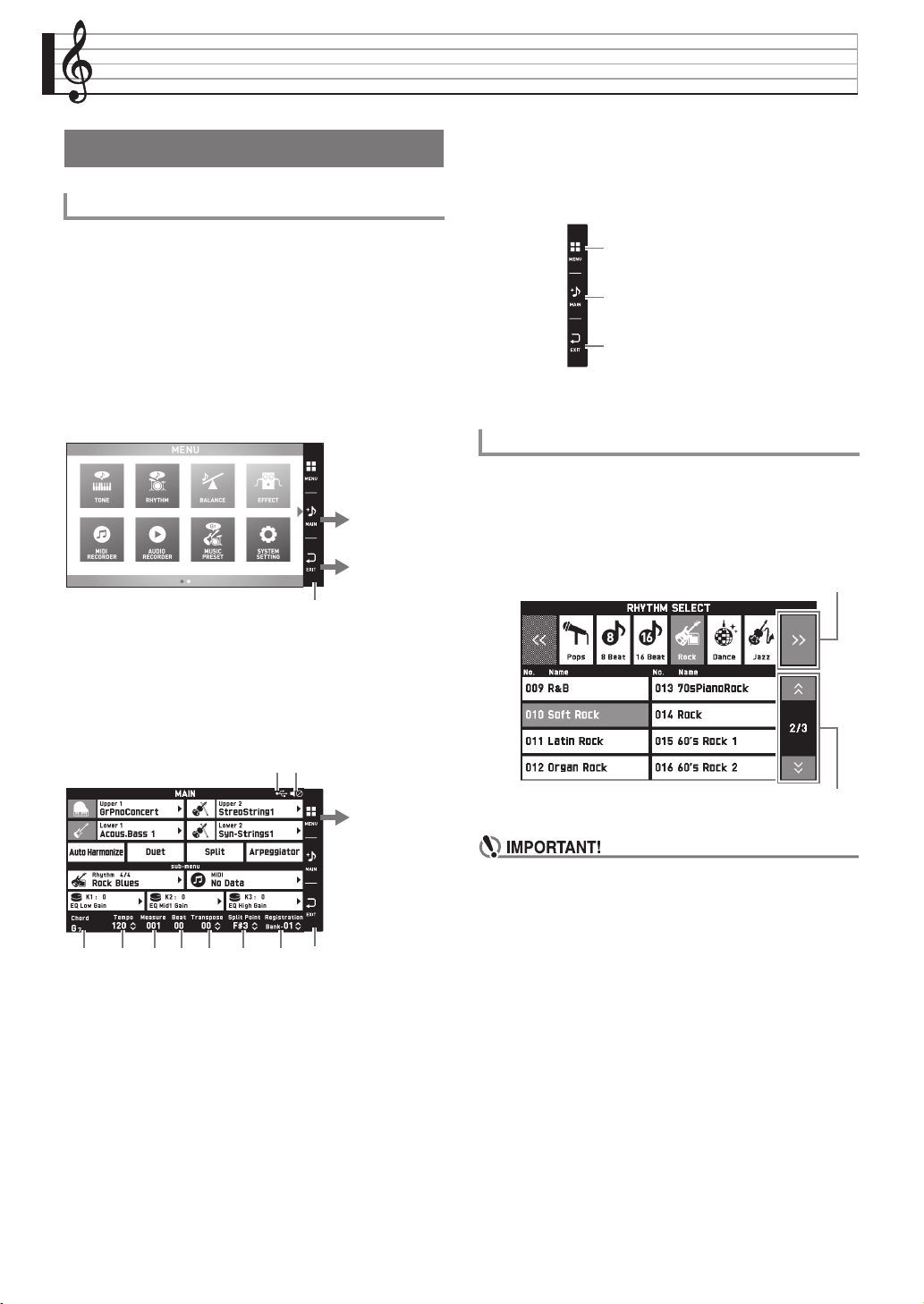
When you turn on the Digital Piano, a MENU screen
and a MAIN screen (which shows the current setup)
appear on the display. You can use these screens to
configure a variety of different functions. A quick
palette of navigation icons along the right side of the
display are for navigating between screens.
■ MENU screen
Touching a menu icon displays a screen for configuring
tone, rhythm, and other settings.
■ MAIN screen
The MAIN screen is for checking and modifying main
settings. Current settings are shown along the bottom
of the screen.
1
USB flash drive mounted
2
Speakers off
3
Chord
4
Tempo
5
Measure
6
Beat
7
Transpose
8
Split point
9
Registration bank
■ Quick Palette
The Quick Palette is always displayed along the right
side of the screen. Touch the Quick Palette icons to
navigate between screens.
You can tell the currently selected items and operation
enabled icons by their colors;
Red: Currently selected or turned on
Blue: Operation enabled
Example: “Soft Rock” selected in the Rock group.
• The meanings of symbols that appear after data is
recorded or edited are explained below.
! : Unsaved data
*: Saved data
Unsaved data ( ! ) will be discarded if you exit the
editing or recording operation by selecting a different
number. If you do not want saved or edited data to
be discarded, be sure to save it before doing
anything else.
Using the Display Screen
Display Screen Layout
Displays the MAIN
screen.
Returns to the
previous screen.
Quick Palette
3 4 5 6 7 8 9
Displays the
MENU screen.
Quick Palette
21
Screen Contents
bp MENU: Displays the MENU screen.
bq MAIN: Displays the MAIN screen.
br EXIT: Returns to a previous screen.
Goes to the next group.
Goes to the previous or next page.
PX560-ES-1B.indd 14 2016/12/15 15:39:25
Operations Common to All Modes
EN-13
English
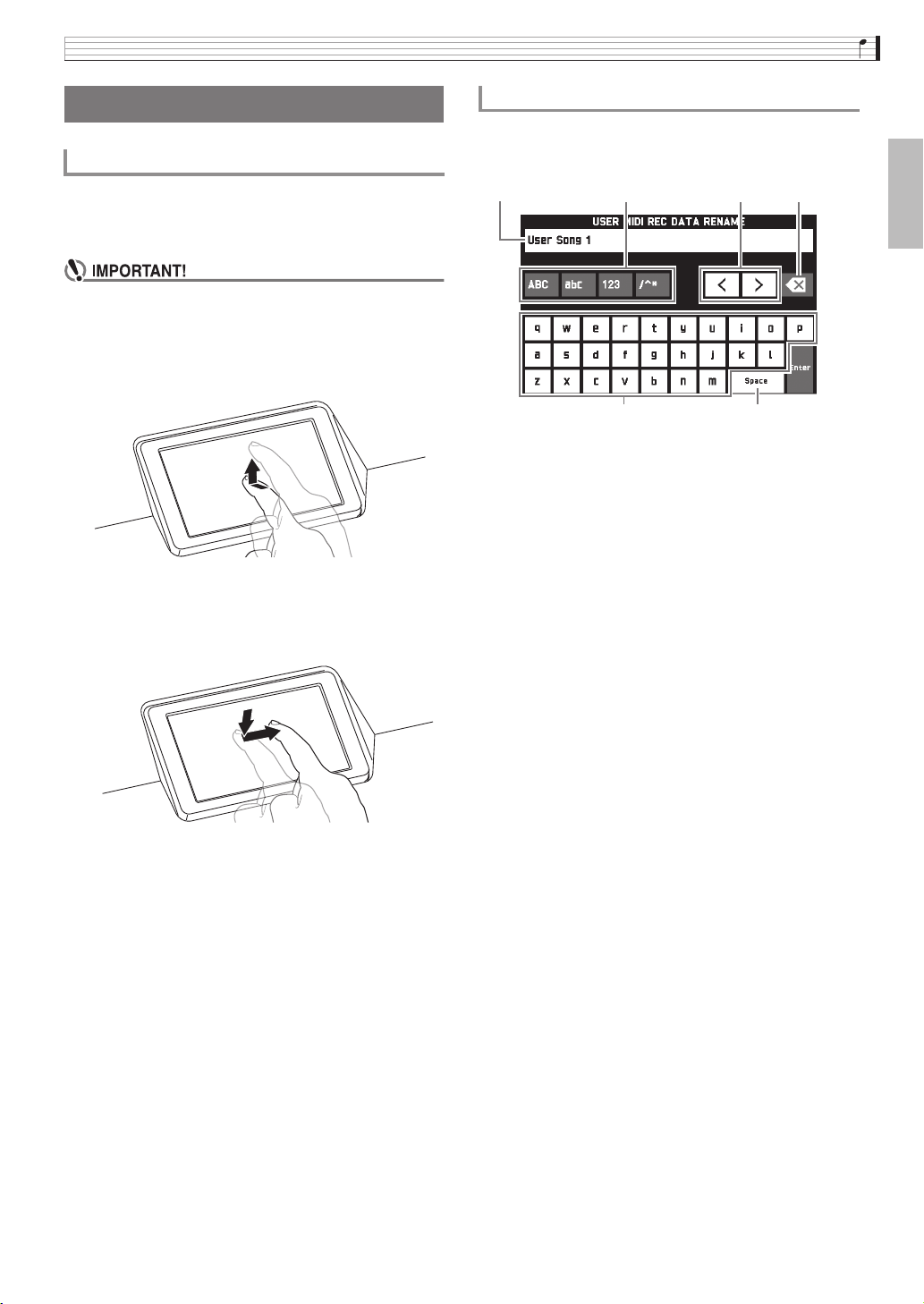
Your Digital Piano has a touch panel. You can use the
touch panel to configure a variety of different
functions.
• Do not perform touch panel operations with a sharp
or hard pointed object. Doing so can damage the
LCD.
Touch
Press the display lightly with your finger.
Swipe
Swipe the display from left to right with your finger.
Swiping a MENU screen changes to another page of
menu items.
You can touch the keys of an on-screen touch keyboard
to input data file names. The Digital Piano supports
input of alpha characters and symbols.
1
Shows the letters you input.
2
Selects the character type.
3
Moves the cursor forward and back.
4
Deletes the letter to the left at the cursor.
5
Input letters at the cursor position.
6
Inputs a space at the cursor position.
Performing Operations
To use the touch panel
To input text characters
1 3 4
65
2
PX560-ES-1B.indd 15 2016/12/15 15:39:26
EN-14
Operations Common to All Modes
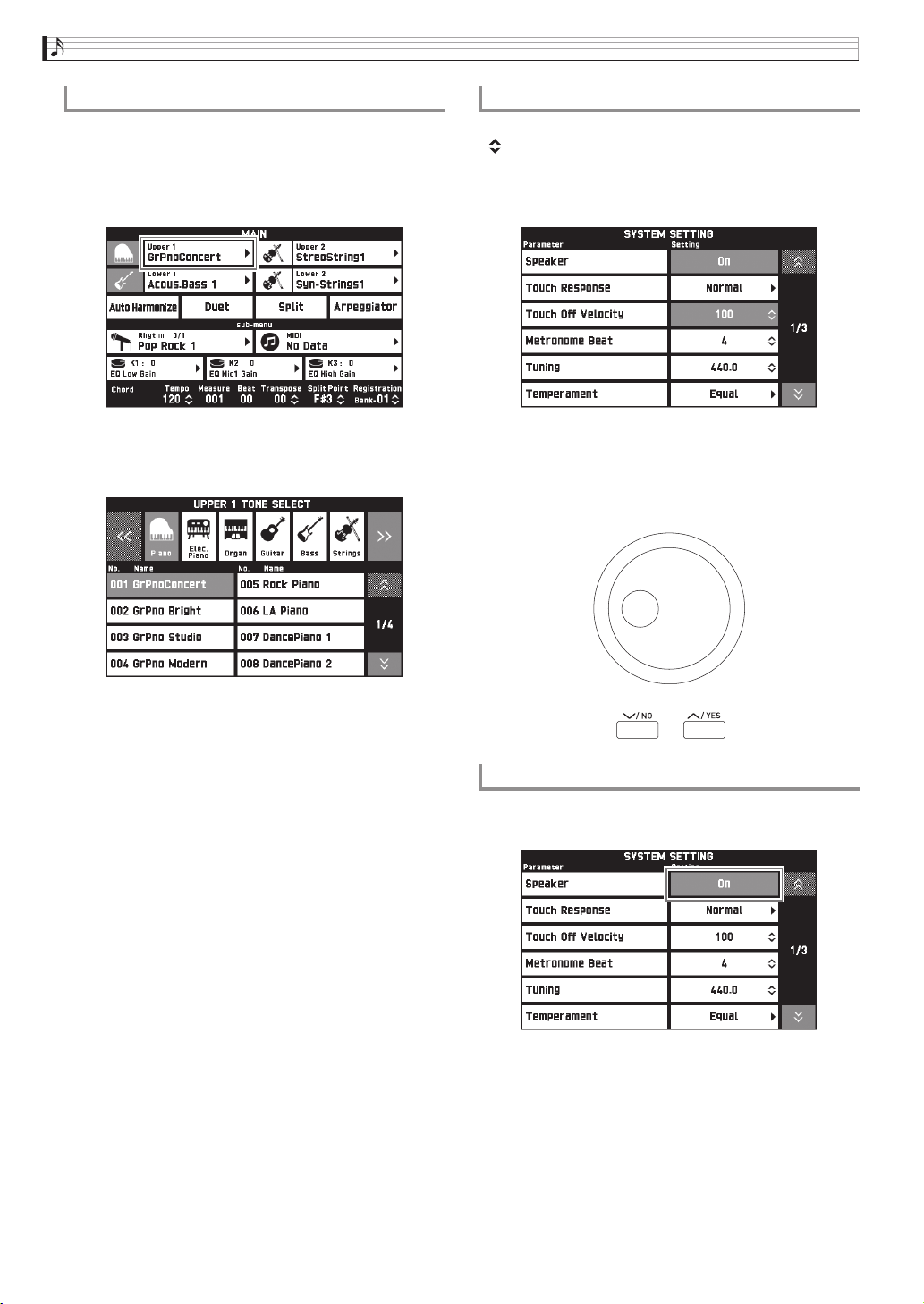
An item that can be selected using a list is indicated by
the “X” icon.
1.
Touch the item whose setting you want to
change.
2.
On the list that appears, touch the item to
which you want to change.
A setting value that can be changed is indicated by a
“ ” icon.
1.
Touch the item whose setting you want to
change.
2.
Use the bs Dial or the bt w, q buttons to
change setting value.
• Holding down either of the bt w, q buttons
scrolls through values at high speed.
To toggle a function between on or off, touch its item or
icon.
To select an item in a list To change a setting value
To toggle a function on or off
PX560-ES-1B.indd 16 2016/12/15 15:39:26
EN-15
English
Playing with Different Tones
Your Digital Piano has 650 tones. Tones are divided
into 13 groups.
• Refer to the separate Appendix for details.
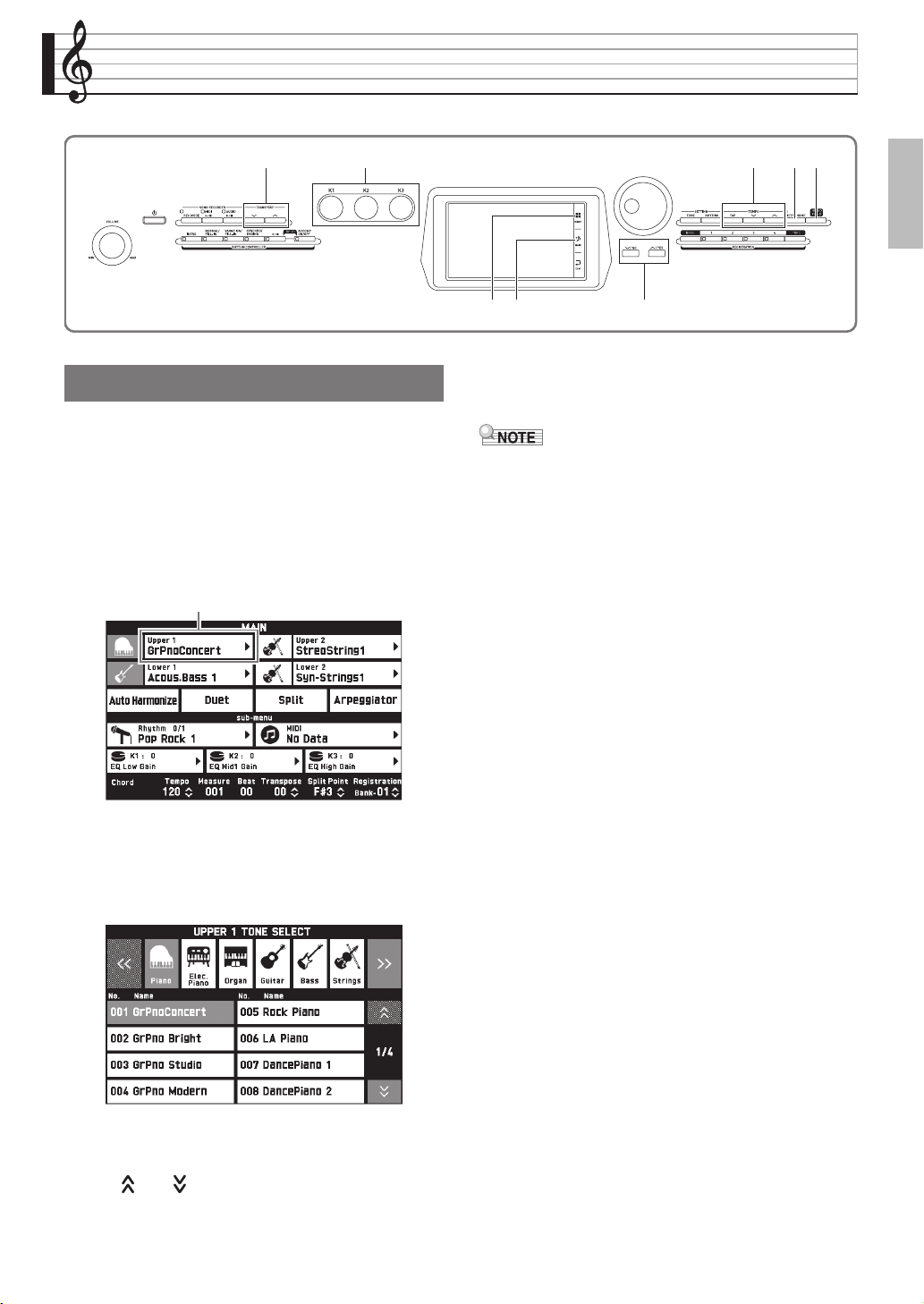
1.
On the screen, touch bq MAIN.
This displays the MAIN screen.
2.
Touch the “Upper 1” tone.
This displays the TONE SELECT screen.
3.
Touch the group that contains the tone you
want to use.
• You can navigate between groups by touching “UU”
or “II”.
4.
Touch the tone you want to use.
• You can navigate between tone list pages by touching
“ ” or “ ”.
5.
On the screen, touch bq MAIN to return to
the MAIN screen.
• Touching the Upper 1 icon to turn it off will deselect
the keyboard tone so nothing will sound on the
keyboard.
• Pressing the co GRAND PIANO button will switch
to the grand piano tone and reconfigure Digital
Piano settings so they are optimized for grand piano
play. Refer to the separate Appendix for details.
bq
co
bt
cncm6 bn
bp
Selecting and Playing a Tone
Upper 1
PX560-ES-1B.indd 17 2016/12/15 15:39:26
EN-16
Playing with Different Tones
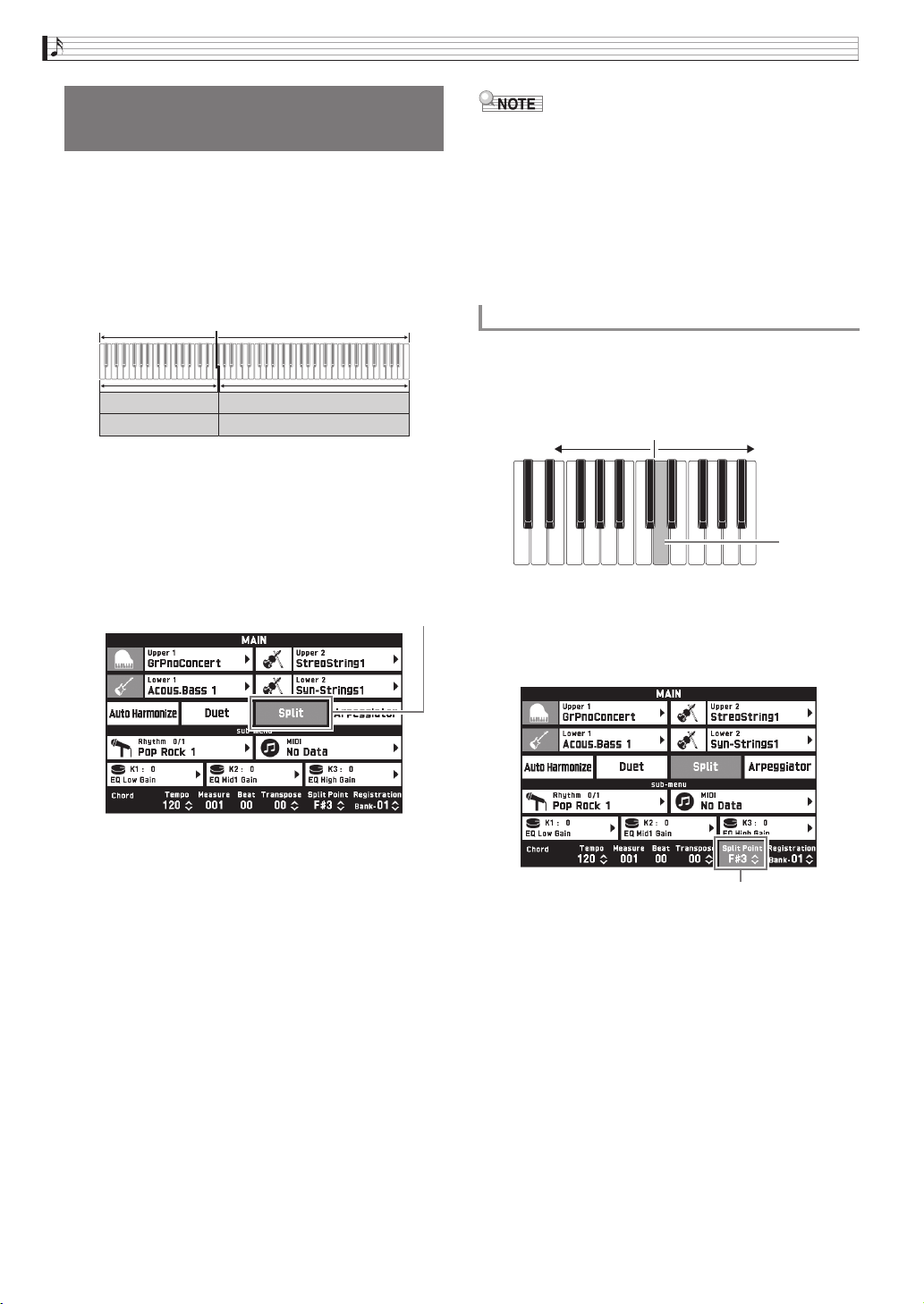
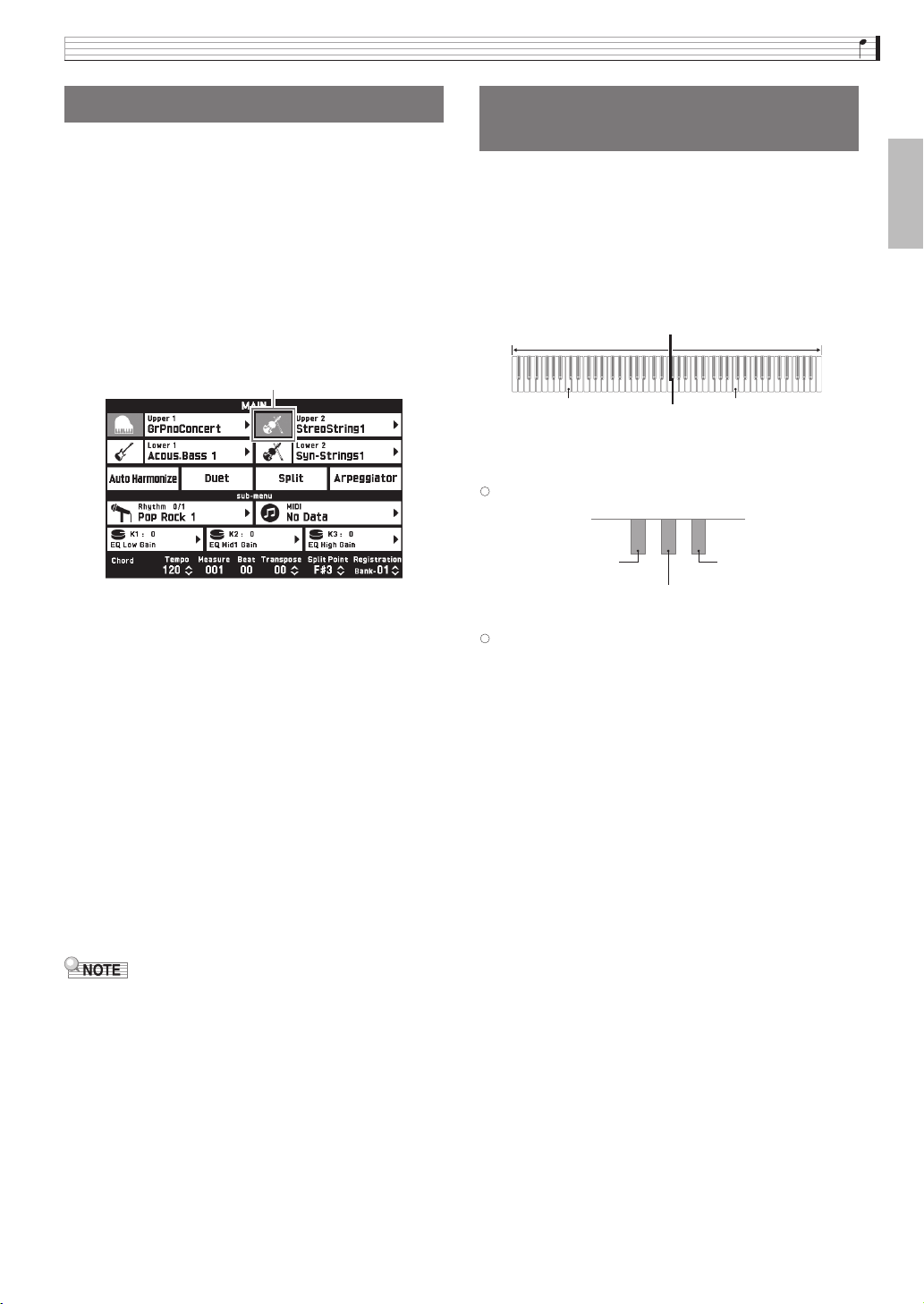
You can split the keyboard so the left side (lower
range) plays one tone and the right side (upper range)
plays a different tone.
• On a split keyboard, a tone assigned to the low range
is called a “split tone” (Lower 1).
Example: When “GM Slap Bass 1” is selected as the split
tone
1.
On the screen, touch bq MAIN.
This displays the MAIN screen.
2.
Select the main tone.
3.
On the MAIN screen, touch “Split”.
This turns on split.
4.
Touch “Lower 1”.
This displays the TONE SELECT screen.
5.
Touch the group that contains the tone you
want to use as the split tone.
6.
Touch the tone you want to use as the split
tone.
7.
On the screen, touch bq MAIN to return to
the MAIN screen.
8.
To unsplit the keyboard and return it to a
single tone, touch “Split” on the MAIN screen.
This unsplits the keyboard.
• You can layer both the main tone and the split tone
with another by turning on layer (page EN-17). You
can also configure the layer setting after turning on
the split.
• Turning off Upper 1, Upper 2, Lower 1, or Lower 2
by touching its icon will mute the applicable tone.
• When tones with DSP are assigned as both the main
tone and the split tone, the effect of one of the tones
becomes disabled.
You can use the procedure below to specify the
location on the keyboard where it splits between the
left side and the right side. That location is called the
“split point”.
1.
On the screen, touch bq MAIN.
This displays the MAIN screen.
2.
Touch “Split Point”.
3.
Use the bt w, q buttons to specify the
split point, which is the leftmost key of the
upper range.
• You can also specify the split point by touching and
holding “Split Point” as you press the desired
keyboard key.
Splitting the Keyboard
between Two Tones
Lower 1
Lower 2
Upper 1
Upper 2
Split tone:
GM Slap Bass 1
Main tone:
Grand Piano Concert
Red
To move the keyboard split point
Low Range High Range
Split Point
Red
PX560-ES-1B.indd 18 2016/12/15 15:39:26
Playing with Different Tones
EN-17
English
You can layer two different tones so they play at the
same time when you press a keyboard key.
• The Upper 1 tone is called the “main tone”, while the
Upper 2 tone is called the “layered tone”.
1.
On the screen, touch bq MAIN.
This displays the MAIN screen.
2.
Select the main tone.
3.
Touch the Upper 2 icon.
This turns on layer and layers the two tones.
4.
Touch the “Upper 2” tone.
This displays the TONE SELECT screen.
5.
Touch the group that contains the tone you
want to use as the layer tone.
6.
Touch the tone you want to use as the layer
tone.
7.
On the screen, touch bq MAIN to return to
the MAIN screen.
8.
To unlayer the keyboard and return to a
single tone, touch the Upper 2 icon on the
MAIN screen.
This unlayers the tones.
• You can adjust the balance between the main tone
and layered tone.
See “Adjusting the Keyboard Volume Balance”
(page EN-19).
• Touching the Upper 1 or Upper 2 icon will turn off
the applicable tone so it does not sound.
• When tones with DSP are assigned as both the main
tone and the layered tone, the effect of one of the
tones becomes disabled.
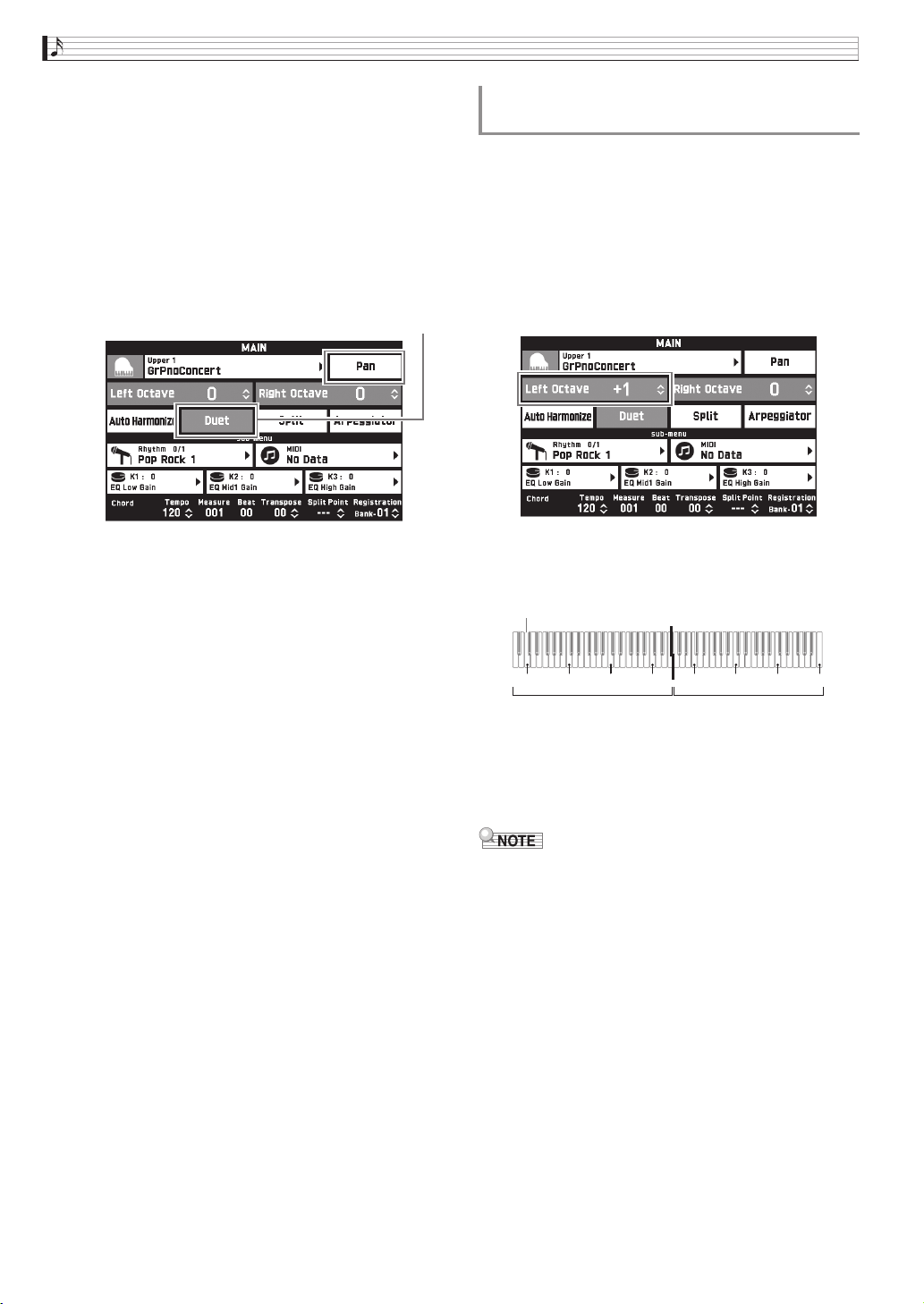
You can split the keyboard in the center for duet play
so the left and right sides have the same ranges. The
left outer pedal operates as the left side damper pedal,
while the right outer pedal is the right side damper
pedal.
The duet play can be used with the teacher showing
how to play on the left side as the student plays the
same melody on the right side.
Pedals
z Using the Optional SP-33 Pedal Unit
z
Using the Provided SP-3 Pedal Unit
For use as the right keyboard damper pedal, connect to
the DAMPER PEDAL terminal.
For use as the left keyboard damper pedal, connect to
the ASSIGNABLE PEDAL terminal.
1.
On the screen, touch bq MAIN.
This displays the MAIN screen.
Layering Two Tones
Red
Splitting the Keyboard for
Duet Play
C4 C4
Right keyboardLeft keyboard
(Middle C)(Middle C)
Left and right side damper pedal
Left keyboard
damper pedal
Right side damper pedal
(Half-pedal operation
supported)
PX560-ES-1B.indd 19 2016/12/15 15:39:26
EN-18
Playing with Different Tones
2.
Touch “Duet”.
This turns on duet play.
• Touch “Pan” to turn on Duet Pan. While Duet Pan is
enabled (on), the left side keyboard tone is output
from the left speaker, while the right side keyboard
tone is output from the right speaker. The effects
below are not applied.
– Acoustic Simulator (except for Hammer Response)
– Reverb
– Delay
– Chorus
– DSP
3.
To turn off duet play, touch “Duet” again.
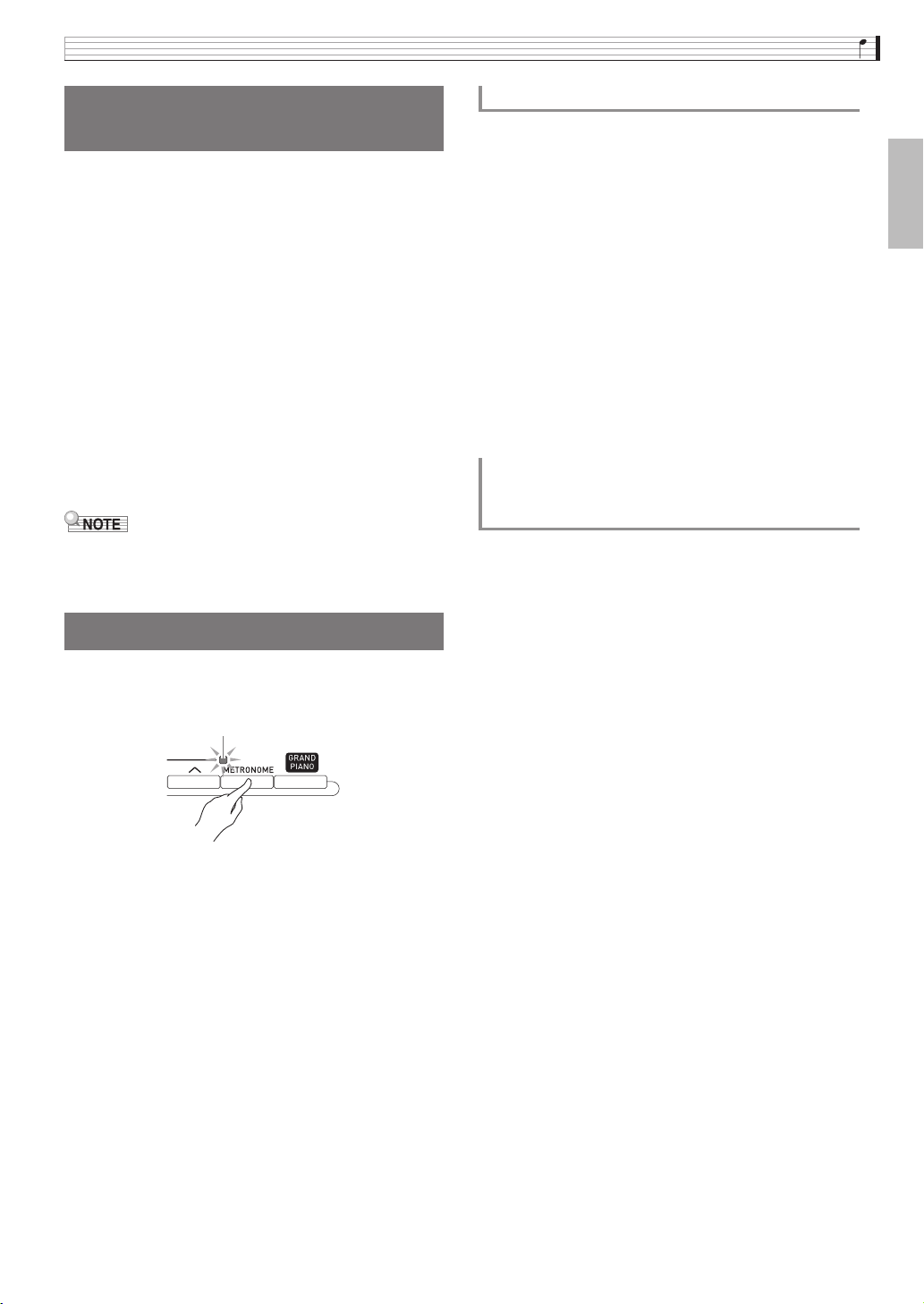
The returns to the state in effect before you turned on
duet play.
You can use the following procedure to change the
octave of the left and right Duet Mode keyboards.
1.
Perform steps 1 and 2 of the procedure under
“Splitting the Keyboard for Duet Play”.
2.
Touch “Left Octave” and then use the bt w,
q buttons to change the octave of the left
keyboard.
Example: The illustration below shows how changing
the left octave shift setting to “+1” affects the
left keyboard octave.
3.
Touch “Right Octave” and then use the bt
w, q buttons to change the octave of the
right keyboard.
• Turning off duet play clears octave shift settings and
returns the keyboard to its initial default octave
settings.
Red
To change the octave of a Duet Mode
keyboard (Duet Octave Shift)
C4 C5 C6 C7 C3 C4 C5 C6
1 octave higher than initial setting Unchanged
Leftmost C key
PX560-ES-1B.indd 20 2016/12/15 15:39:27
Playing with Different Tones
EN-19
English
Use this procedure to adjust the volume balance
between the main tone and the layered tone.
1.
On the screen, touch bp MENU.
This displays the MENU screen.
2.
Touch “BALANCE”.
3.
Touch the tone you want to adjust and then
use the bt w, q buttons to adjust volume.
Upper 1: Main tone
Upper 2: Layered tone
Lower 1: Split (main) tone
Lower 2: Split (layered) tone
4.
On the screen, touch bq MAIN to return to
the MAIN screen.
• For other BALANCE screen settings, see
“BALANCE Screen” under “Configuring Digital
Piano Settings” (pages EN-68 through EN-81).
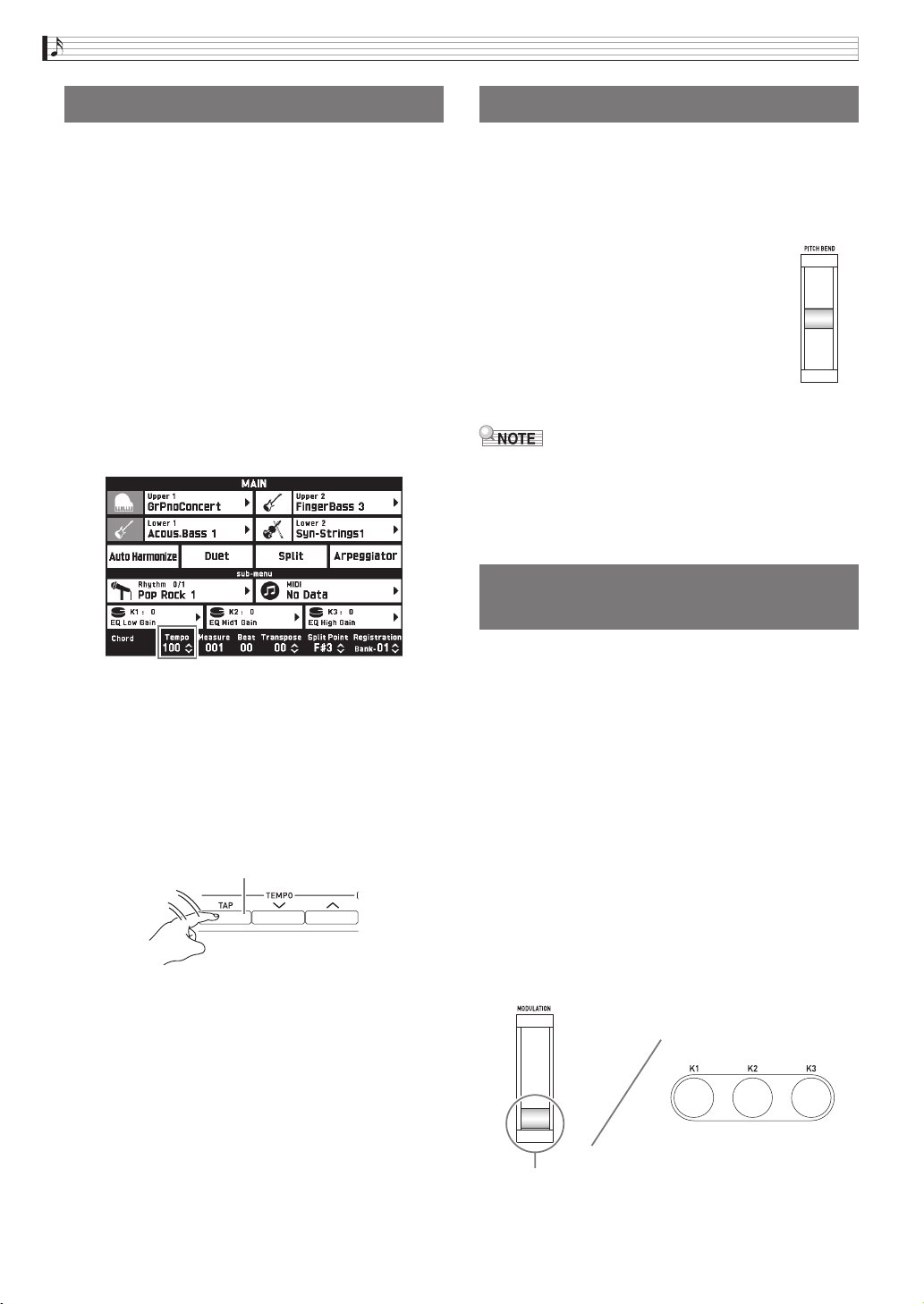
1.
Press the cn METRONOME button.
This starts the metronome.
2.
Press the cn METRONOME button again to
stop the metronome.
This stops the metronome.
You can specify from 0 to nine beats per measure for
the metronome.
Specifying 0 will cause each beat to be indicated by the
same sound. This setting lets you practice with a steady
beat.
1.
On the MENU screen, touch “SYSTEM
SETTING”.
2.
Touch “Metronome Count”.
3.
Use the bt w, q buttons to select a beats
per measure value.
4.
On the screen, touch bq MAIN.
This returns to the MAIN screen.
You can use the following procedure to adjust the
volume level of the metronome, without affecting the
volume of keyboard output.
1.
On the screen, touch bp MENU.
This displays the MENU screen.
2.
Touch “BALANCE”.
3.
Touch “Metronome Volume”.
4.
Use the bt w, q buttons to adjust the
metronome volume setting (0 to 127).
5.
On the screen, touch bq MAIN.
This returns to the MAIN screen.
Adjusting the Keyboard
Volume Balance
Using the Metronome
Flashes in time with the beat.
To change the beats per measure
Adjusting the Balance between
Metronome and Keyboard Volume
(Metronome Volume)
PX560-ES-1B.indd 21 2016/12/15 15:39:27
EN-20
Playing with Different Tones
There are two different methods you can use to change
the tempo setting: using the cm TEMPO w, q
buttons for gradual change, or by tapping a beat with
the cm TEMPO TAP button (tap input).
■ Method 1:
To adjust the tempo setting using the
cm
TEMPO w, q buttons
1.
Use the cm TEMPO w, q buttons to adjust
the tempo setting.
Each press of a button increases or decreases the tempo
value (beats per minute) by one.
• Holding down either button changes the value at
high speed.
• You can specify a tempo value in the range of 20 to
255.
■ Method 2:
To adjust the tempo by tapping a beat (tap
input)
1.
Tap the cm TEMPO TAP button a number of
times at the tempo you want to set.
• The tempo setting will change in accordance with
your tapping.
• After you use this method to specify the approximate
tempo, you can then use the procedure under “To
adjust the tempo setting using the cm TEMPO w,
q buttons” to adjust the setting to a more exact
value.
You can use the pitch bend wheel to slide the pitch of
notes smoothly upwards and downwards. This
capability makes it possible to reproduce saxophone
and electric guitar choking effects.
1.
While playing a note on the
keyboard, rotate the dm PITCH
BEND wheel on the left of the
keyboard upwards or downwards.
The amount the note bends depends on
how much you rotate the pitch bend
wheel.
• Do not touch the pitch bend wheel as
you turn on the Digital Piano.
• You also can configure pitch bend wheel operation
by specifying the amount of pitch change at
maximum rotation in either direction. See
“CONTROLLER Screen” (page EN-76) for more
information.
You can modify notes even while you are playing. Each
tone is preset with effects that are appropriate for it.
1.
While playing on the keyboard with your right
hand, use your left hand to operate the dn
MODULATION wheel or the bn knobs (K1
through K3).
The amount effect applied depends on how much the
applicable control is moved.
• The normal position (no modulation) of the
MODULATION wheel is downwards (towards you)
as far as it will go. Use this position for normal play.
• Rotating the MODULATION wheel upwards (away
from you) will apply modulation according to how
much the wheel is rotated (more rotation provides
more modulation).
• Do not touch the wheel or knobs as you turn on the
Digital Piano.
Changing the Tempo Setting
Tap two or more times.
Using the Pitch Bend Wheel
Modifying Notes with the
Modulation Wheel and Knobs
Normal play position (rotated fully downwards)
B
PX560-ES-1B.indd 22 2016/12/15 15:39:27
Playing with Different Tones
EN-21
English
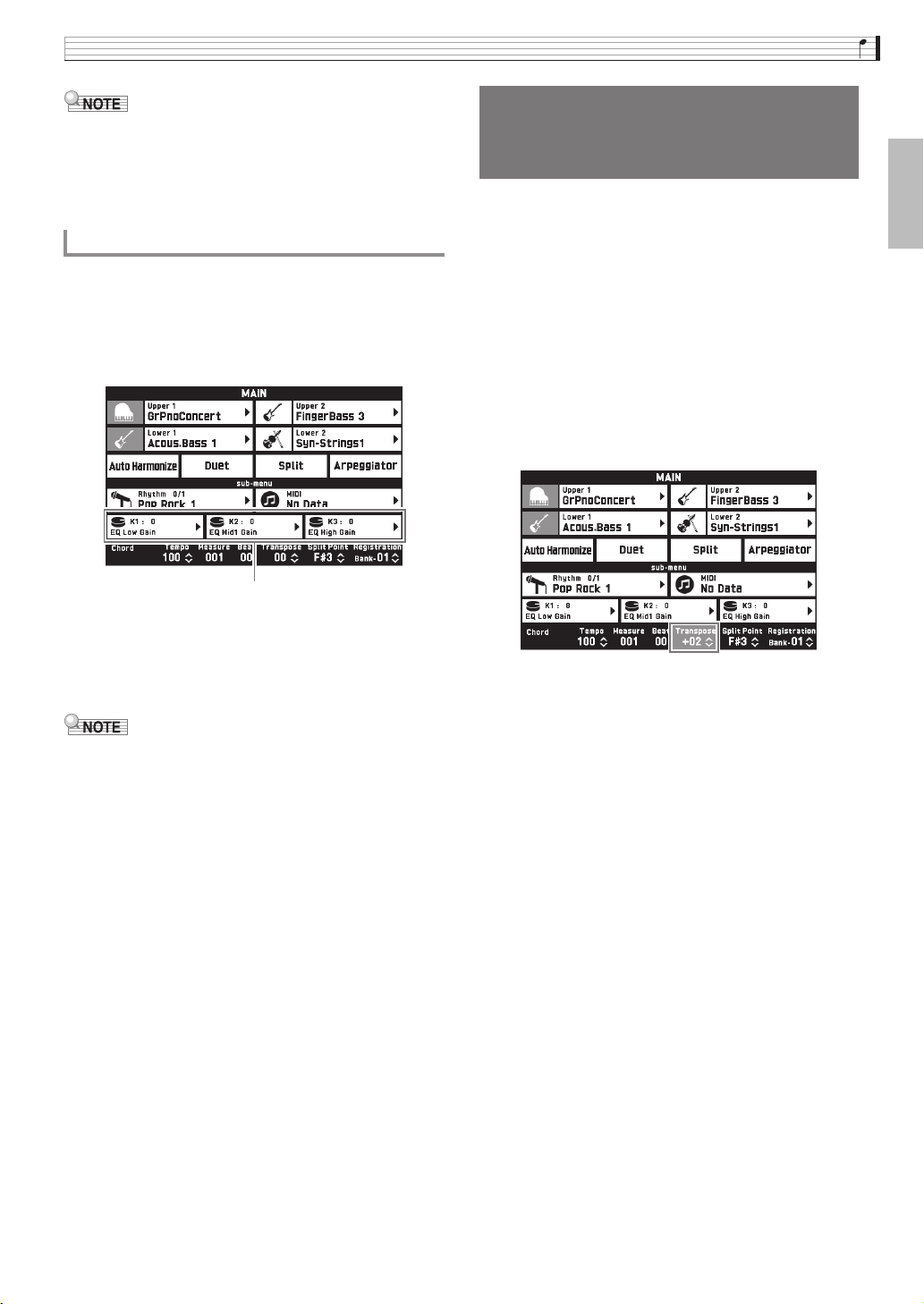
• You can change the effects and functions assigned to
the modulation wheel and knobs. See
“CONTROLLER Screen” under “Configuring
Digital Piano Settings” (pages EN-68 through
EN-81).
1.
On the screen, touch bq MAIN.
This displays the MAIN screen.
2.
On the MAIN screen, touch the knob whose
setting you want to change.
3.
Change the setting.
For detailed information about settings, see
“CONTROLLER Screen” under “Configuring Digital
Piano Settings” (pages EN-68 through EN-81).
• Two targets can be assigned to a knob. When there
are two targets assigned to a knob, the display
shows the first target and its setting.
• When there is a control change (CC) or other MIDI
message that can be assigned to each part assigned
to the first target, the display shows the setting of
Part 1.
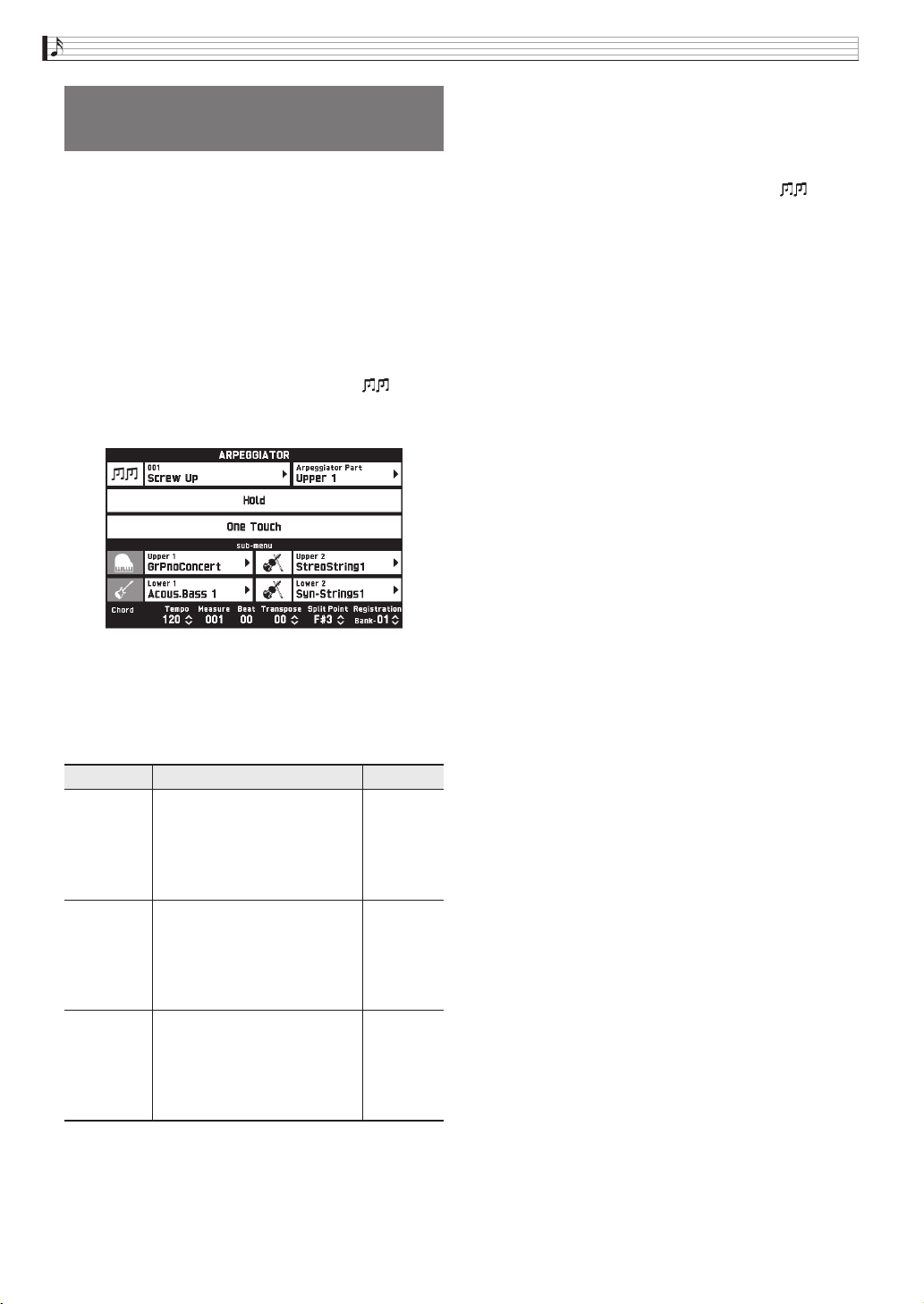
The transpose feature lets you raise or lower the overall
pitch of the Digital Piano in semitone steps. You can
use this feature to adjust keyboard tuning to a key that
better matches a vocalist, another musical instrument,
etc.
1.
Use the 6 TRANSPOSE w, q buttons to
change the setting value.
• You can change the tuning of the keyboard within the
range of –12 to 00 to +12.
• Pressing the 6 TRANSPOSE w, q buttons at the
same time changes the setting to 0.
• The current transpose setting is shown on the MAIN
screen.
To change a function assigned to a knob
Current setting, Assigned target
Shifting the Pitch of the Digital
Piano in Semitone Units
(Transpose)
B
PX560-ES-1B.indd 23 2016/12/15 15:39:27
EN-22
Playing with Different Tones
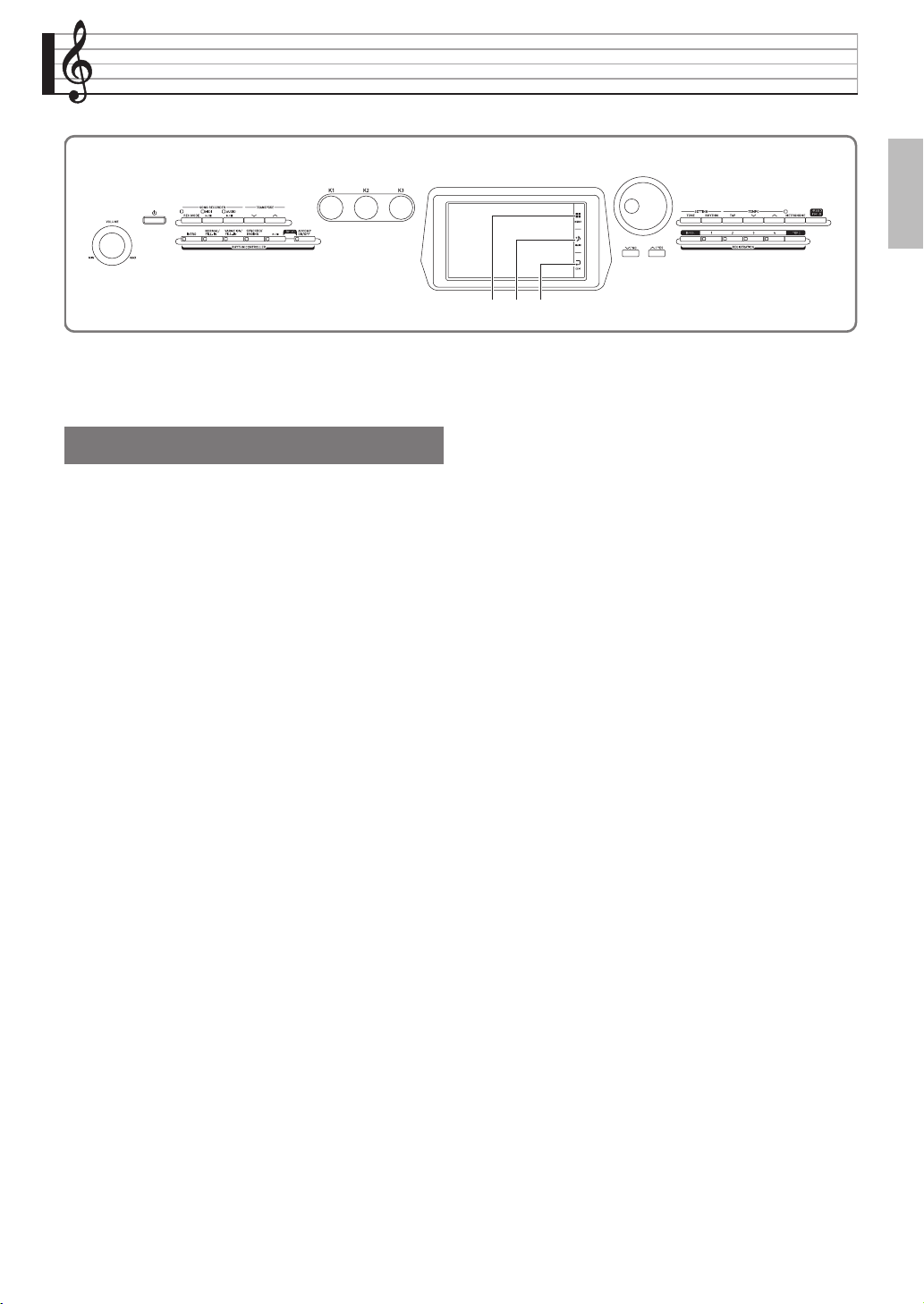
With the arpeggiator, you can play various arpeggios
and other phrases automatically by simply pressing
keys on the keyboard. You can select from a number of
different arpeggio options, including playing
arpeggios from a chord, playing various phrases
automatically, and more.
1.
On the MENU screen, touch
“ARPEGGIATOR”.
This displays the ARPEGGIATOR screen.
2.
To enable the arpeggiator, touch “ ”.
• You can also toggle the arpeggiator between on and
off by touching “Arpeggiator” on the MAIN screen.
3.
Touch the displayed arpeggio name.
4.
Touch the arpeggiator type you want to use.
5.
Configure arpeggiator settings as required.
6.
On the keyboard, play a chord or a single
note.
Arpeggio is played in accordance with the currently
selected arpeggiator type and the note(s) you play.
7.
To disable the arpeggiator, touch “ ”.
Sounding Arpeggio Phrases
Automatically (Arpeggiator)
Item Description Setting
Arpeggiator
Part
You can specify either Upper or
Lower as the keyboard that
plays the arpeggio.
Upper All,
Upper 1,
Upper 2,
Lower All,
Lower 1,
Lower 2
Hold ON: The arpeggio will continue
to play even after keyboard
keys are released.
OFF: The arpeggio will play
while keyboard keys are
pressed.
One Touch Touching “One Touch”
automatically selects the tone
recommended for the currently
selected arpeggiator type. The
tone is assigned to the part
selected by Arpeggiator Part.
B
PX560-ES-1B.indd 24 2016/12/15 15:39:27
EN-23
English
Editing a Tone
You can use the procedures below to edit tones and
apply effects to the desired Upper 1 (main) tone.
1.
Specify Upper 1 as the tone to be edited.
2.
Touch bp MENU.
3.
On the MENU screen, touch “TONE”.
4.
Touch “Edit”.
5.
Touch “Edit”.
This displays the editing screen.
6.
Touch the item whose setting you want to
change.
• The setting items that appear on the editing screen
depend on the tone you select.
• For information about editable parameters, see the
explanations about each tone category table from
“Editable Melody Tone Parameters” (page EN-25)
through “Editable Hex Layer Tone Parameters” (page
EN-30).
7.
Change parameter settings as desired.
8.
After you finish with your edits, press
br EXIT.
9.
After editing everything you want, touch
“Write”.
10.
Touch “Rename”.
11.
Input a name for the tone.
12.
After inputting the tone name, touch “Enter”.
13.
Touch the destination tone number.
• If the tone number already has data assigned to it,
there will be an asterisk (*) next to it.
14.
Touch “Execute”.
If the selected preset number does not have any data
assigned to it, the message “Sure?” will appear. If it
does have data assigned to it, the message “Replace?”
will appear.
15.
Touch “Yes”.
This stores the data.
• To return to the screen in step 13 without saving,
touch “No”.
bqbp br
Editing a Tone
PX560-ES-1B.indd 25 2016/12/15 15:39:28
EN-24
Editing a Tone
1.
On the MENU screen, touch “TONE”.
2.
Touch “Edit”.
3.
Touch “Rename”.
4.
Touch the tone you want to rename.
5.
Input the new name.
6.
After you are finished inputting the name,
touch “Enter”.
1.
On the MENU screen, touch “Edit”.
2.
Touch “Edit”.
3.
Touch “Clear”.
4.
Touch the tone you want to delete.
5.
Touch “Execute”.
6.
Touch “Yes”.
• To cancel the delete operation, touch “No”.
Changing the Name of a Tone
Deleting a Tone
PX560-ES-1B.indd 26 2016/12/15 15:39:28
Editing a Tone
EN-25
English
Editable Parameters
• Shaded cells indicate a group made up of multiple setting items. Touching “Enter” displays the setting items of a
group.
■ Editable Melody Tone Parameters
Display Text Description Settings
Pitch Pitch envelope. The editable parameters in this group affect the pitch of
notes.
Octave Shift Octave shift. Changes the tone of notes in octave units. –2 to 0 to +2
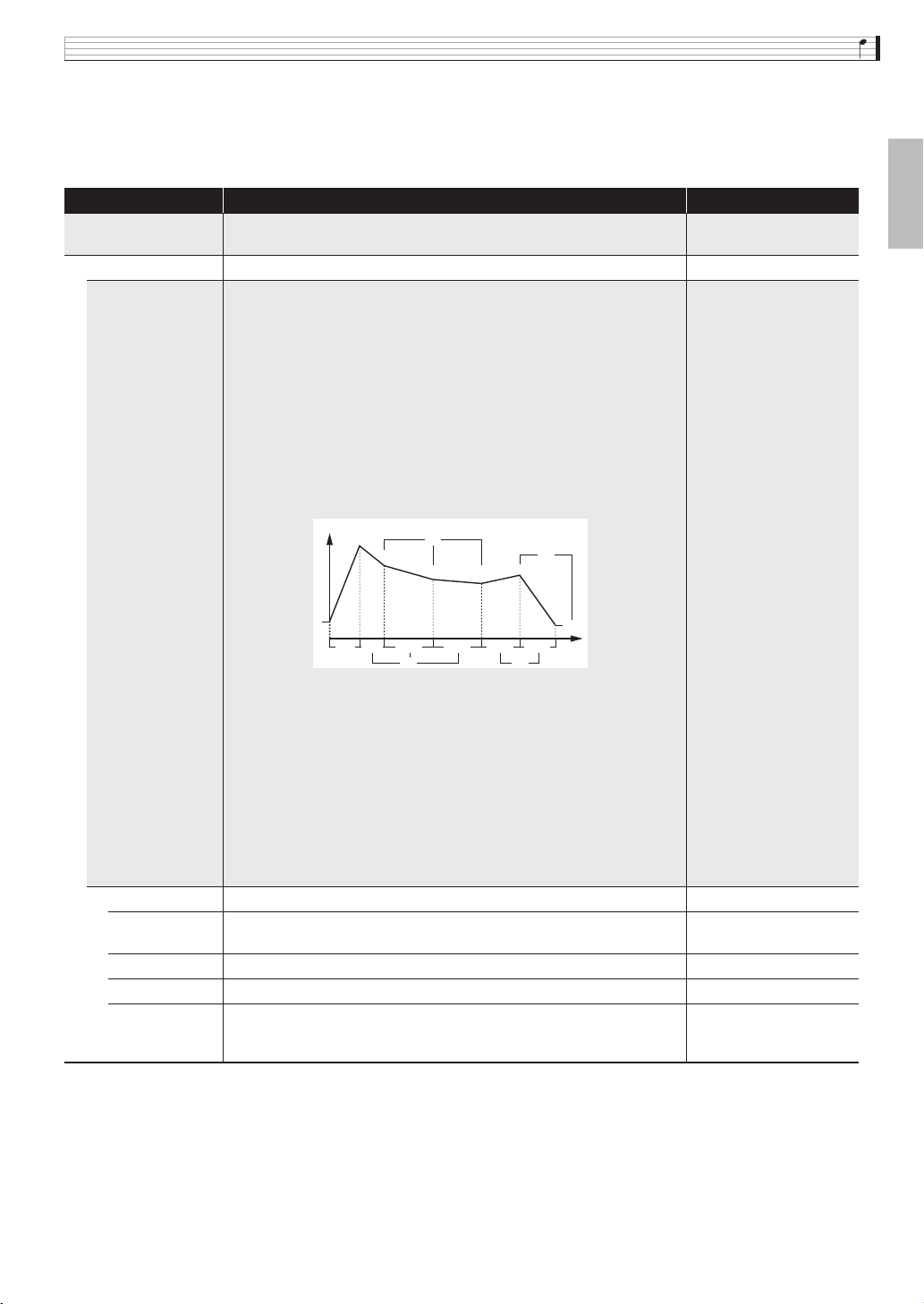
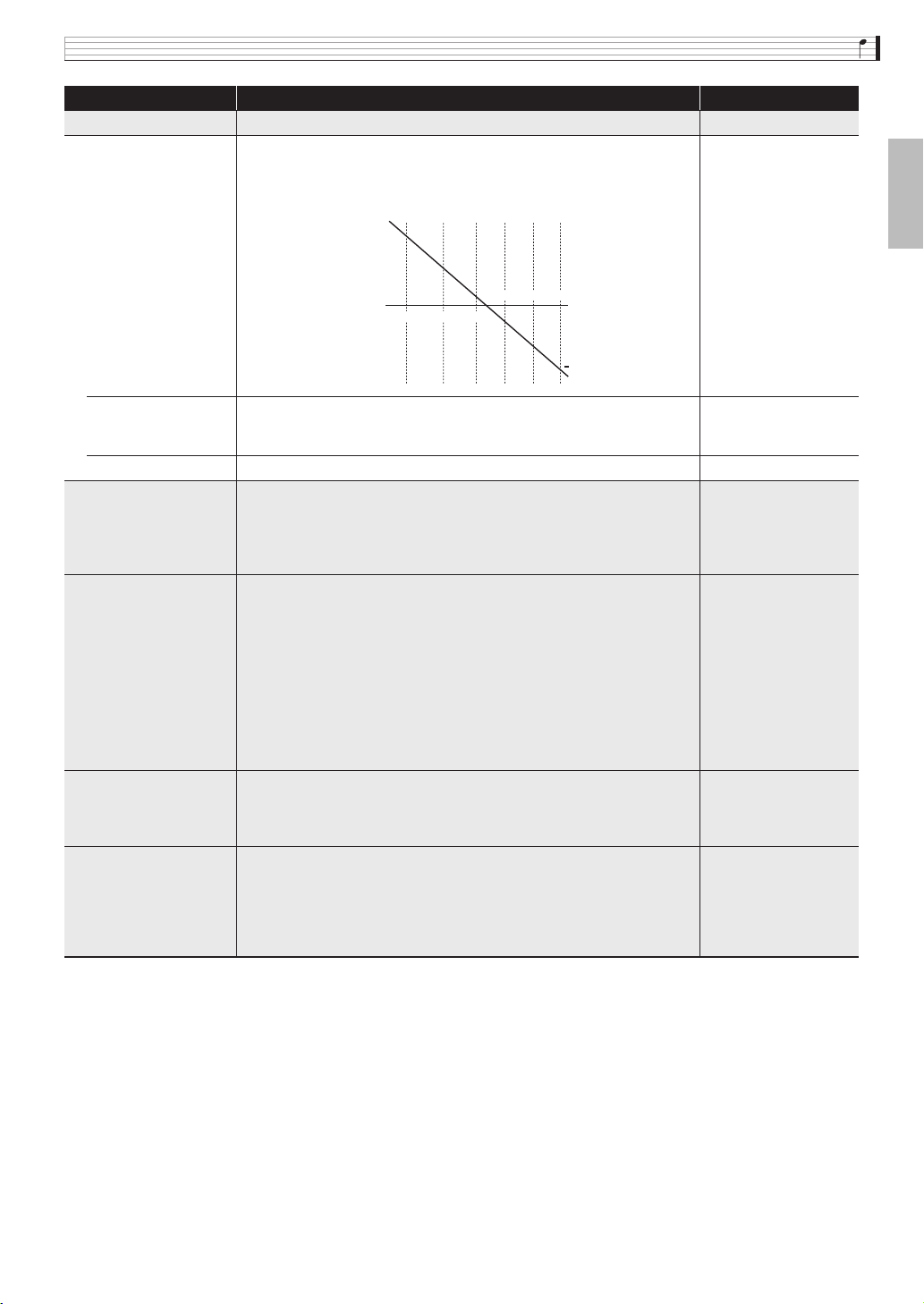
Envelope • The figure below also applied to filter, amp, and other envelopes. With
the pitch envelope, the pitch of the sound corresponds to the vertical
(Level) axis.
• With a hex layer tone envelope, Decay Time can be divided into three
parts and Release Time can be divided into two parts and edited.
• When Decay Level 3 is reached during key release note on, an
immediate transition is made to Release Level 1 without sustain.
• The setting ranges of the parameters below are relative changes
(relative to the presets of the tone) in the case of melody tones and
drum tones. When editing a hex layer tone, they are absolute changes
that have no relation to the presets of the tone.
– Time and level of each envelope
– Rate, depth, delay, rise, modulation depth of LFO (page EN-27)
Initial Level Initial level. Pitch of the sound at initial note on. –64 to 0 to +63
Attack Time Attack time. Time it takes until the attack level is reached from the initial
level.
–64 to 0 to +63
Release Time Release time. Time it takes to reach Release Level after a key is released. –64 to 0 to +63
Release Level Release level. Target level reached immediately after a key is released. –64 to 0 to +63
Stretch Tune Stretch tuning. Sharpens high notes and flattens low notes to achieve
characteristic piano stretch tuning. Turn off this setting to play with
normal (non-stretch) tuning.
Off, Piano1, Piano2,
Piano3, Piano4, Piano5,
E.Piano1, E.Piano2
IL
AL
DL1
DL2 DL3
RL1
RL2
AT DT1 DT3DT2 RT1 RT2
Level
Time
DT RT
DL
RL
IL : Initial Level RT : Release Time
AT : Attack Time (RT1: Release Time 1)
AL
DT
: Attack Level (RT2: Release Time 2)
: Decay Time RL : Release Level
(DT1: Decay Time 1) (RL1: Release Level 1)
(DT2: Decay Time 2) (RL2: Release Level 2)
(DT3: Decay Time 3)
DL : Decay Level
(DL1: Decay Level 1)
(DL2: Decay Level 2)
(DL3: Decay Level 3)
PX560-ES-1B.indd 27 2016/12/15 15:39:28
EN-26
Editing a Tone
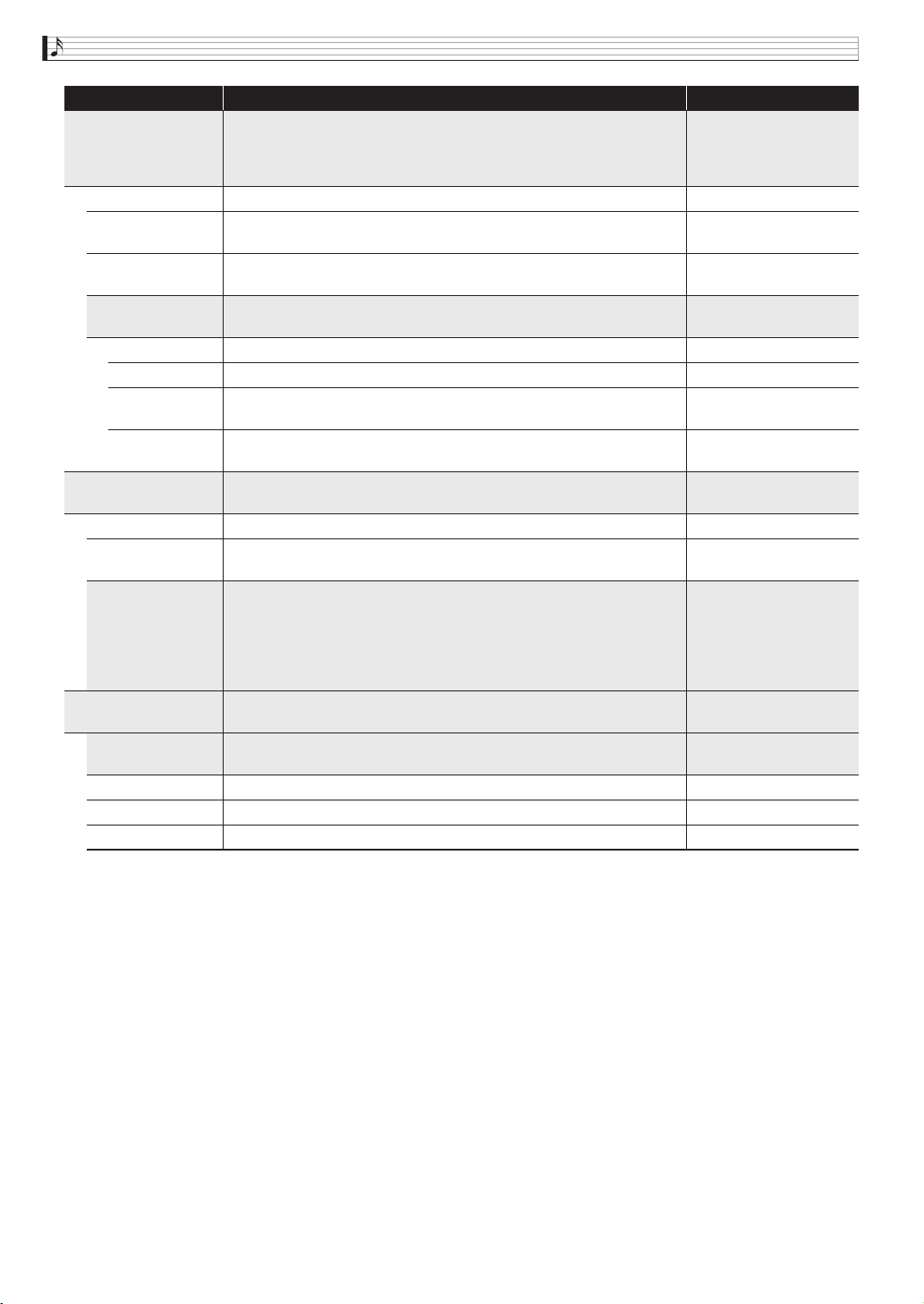
Filter Filter. This is a group of editable parameters associated with filters
(tones).
• With this group, the vertical (Level) axis in the pitch envelope diagram
corresponds to how the filter is applied.
Cutoff Cutoff frequency. Specifies the filter cutoff frequency. –64 to 0 to +63
Resonance Resonance. Specifies the resonance of the tone in the vicinity of the cutoff
frequency.
–64 to 0 to +63
Velocity Sense Velocity sense. Specifies the degree of change in the filter in accordance
with change in keyboard playing touch.
–64 to 0 to +63
Envelope • For details about the parameters below, see “Pitch Envelope”.
Initial Level, Attack Time, Release Time, Release Level
Envelope Depth Envelope depth. Specifies how the envelope is applied. 0 to 127
Attack Level Attack level. Target level reached immediately after note on. –64 to 0 to +63
Decay Time Decay time. Time it takes for the sound to reach the decay level from the
attack level.
–64 to 0 to +63
Decay Level Decay level. Level the sound is sustained as long as a key or pedal is
depressed.
–64 to 0 to +63
Amp Amp. This is a group of editable parameters associated with the amp
(volume).
Volume Volume. Specifies the amp volume. 0 to 127
Velocity Sense Velocity sense. Specifies the degree of change in volume in accordance
with change in keyboard playing touch.
–64 to 0 to +63
Envelope • The vertical (Level) axis in the pitch envelope diagram corresponds to
the volume in the case of this group.
• For details about the parameters below, see “Pitch Envelope”.
Initial Level, Attack Time, Release Time
• For details about the setting items below, see “Filter”, above.
Attack Level, Decay Time, Decay Level
Effect Effect. This is a group of editable effect function parameters. For more
information, see “EFFECT Screen” (page EN-71).
DSP DSP edit. This is a group of editable effect function DSPs (page EN-34).
Touching “ENTER” displays the DSP editing screen.
Reverb Send Reverb send. Specifies how reverb (page EN-71) is applied to a tone. 0 to 127
Chorus Send Chorus send. Specifies how chorus (page EN-71) is applied to a tone. 0 to 127
Delay Send Delay send. Specifies how delay (page EN-71) is applied to a tone. 0 to 127
Display Text Description Settings
PX560-ES-1B.indd 28 2016/12/15 15:39:28
Editing a Tone
EN-27
English
LFO Low Frequency Oscillator. This is a group of editable LFO parameters
applied to pitch, filter, and amp.
Pitch Wave
FilterAmpWave
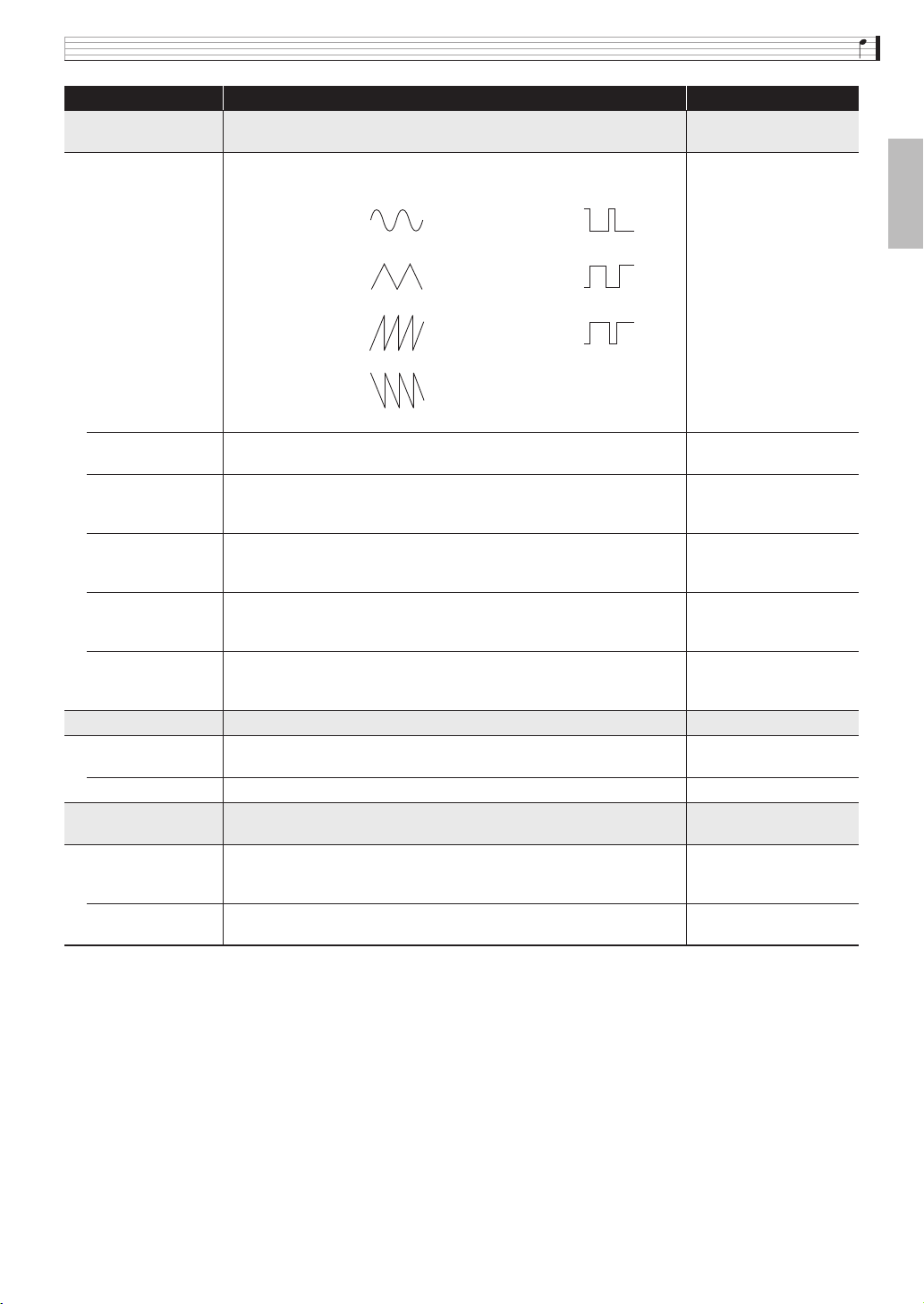
Wave type. Specifies one of the following wave types to be used for LFO.
FilterAmpWave is shared by filter and amp.
Refer to the cell to the left.
Pitch Rate
FilterAmpRate
Rate. LFO speed (frequency). FilterAmpRate is shared by filter and amp. –64 to 0 to +63
Pitch Depth
Filter Depth
Amp Depth
Depth. Specifies how LFO is applied. –64 to 0 to +63
Pitch Delay
Filter Delay
Amp Delay
Delay. Specifies the degree of delay in the timing for applying LFO. –64 to 0 to +63
Pitch Rise
Filter Rise
Amp Rise
Rise. Specifies the time it takes from the start of application of the LFO
until the effect reaches the level specified by Depth, above.
–64 to 0 to +63
Pitch Mod.Depth
Filter Mod.Depth
Amp Mod.Depth
Modulation depth. Specifies how modulation is applied to the LFO. –64 to 0 to +63
Portamento Portamento. This is a group of editable portamento parameters.
Portamento On/Off Portamento On/Off. Select “On” for a smooth glide from one tone to the
next, or “Off” when a smooth glide is not required.
Off, On
Portamento Time Time. Specify the length of time for the tone change. 0 to 127
Pan Pan. This is a group of editable parameters associated with pan (sound
stereo position) operation.
Dynamic Panning Dynamic panning. To reflect changes in part panning in the sound being
produced, select “On” for this setting. Select “Off” if you do not want
changes reflected.
Off, On
Pan Position Panning position. Select “PreDSP” to apply panning before the DSP, or
“PostDSP” to apply panning after the DSP.
PreDSP, PostDSP
Display Text Description Settings
Sin
(sine wave)
Puls 1:3
(square wave 1:3)
Tri
(triangle wave)
Puls 2:2
(square wave 2:2)
Saw up
(sawtooth up
wave)
Puls 3:1
(square wave 3:1)
Saw down
(sawtooth down
wave)
PX560-ES-1B.indd 29 2016/12/15 15:39:28
EN-28
Editing a Tone
■ Editable Drum Tone Parameters
Display Text Description Settings
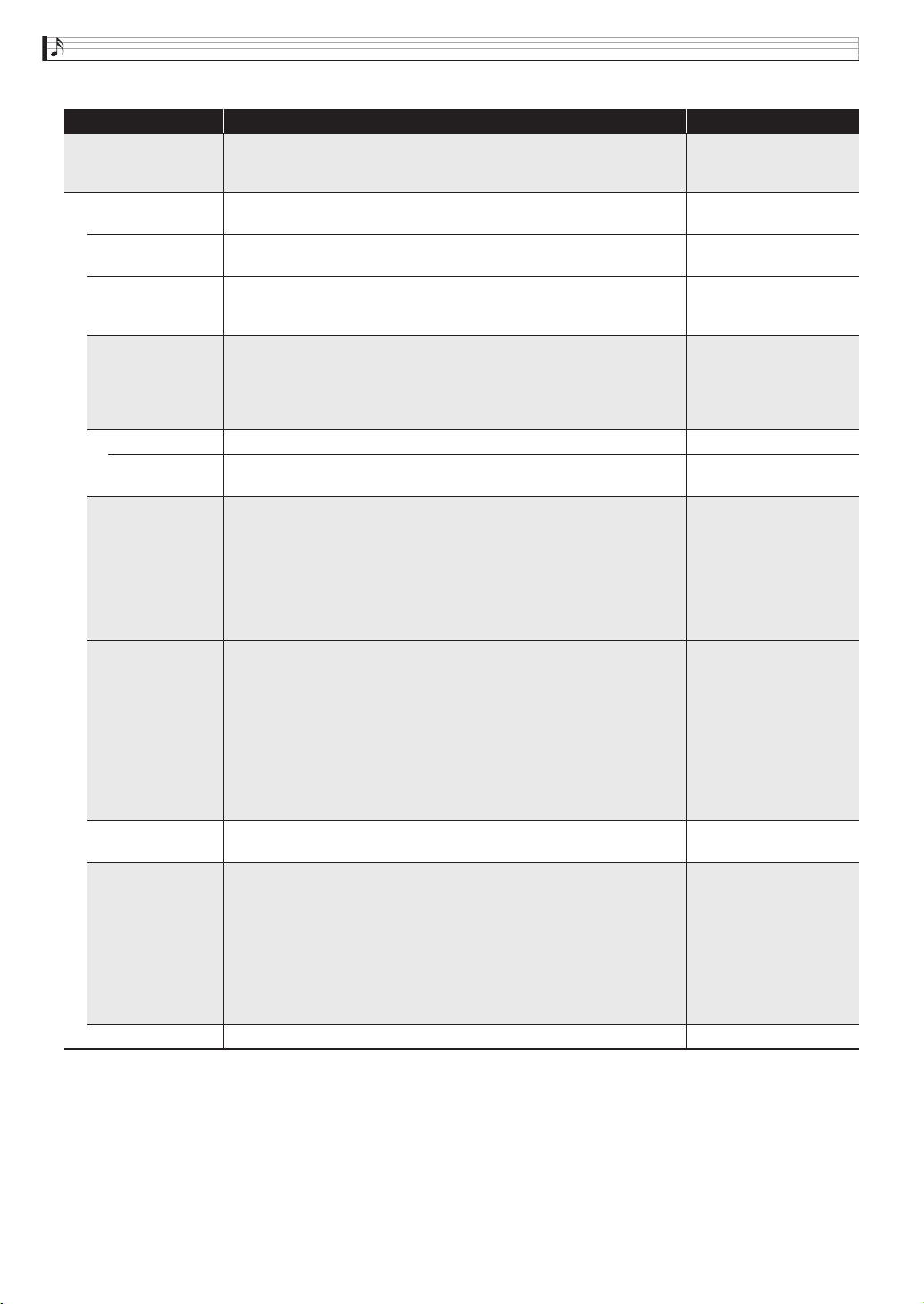
Inst Edit Instrument edit. This is a group of editable instruments assigned to each
keyboard.
• Press a keyboard key to specify the key to be edited.
C-1 - G9
Inst Select Instrument number select. Specifies the number of the drum tone
assigned to each key.
See the “Instrument List”
in the separate Appendix.
Note Off Mode Note off mode. Turning on this setting causes note off to be performed
when a key is released.
Off, On
Assign Group Assign group. Specifies as a value from 1 to 15 which group the currently
selected key should be placed into. Only one keyboard in a group is
sounded at any time (non-polyphonic).
Off, 1 to 15
Pitch Pitch envelope. For details, see the melody tone “Pitch Envelope” (page
EN-25).
• For details about the setting items below, see the melody tone “Pitch
Envelope” (page EN-25).
Initial Level, Attack Time
Coarse Tune Coarse tune. Changes the pitch of notes by semitone units. –24 to 0 to +24
Fine Tune Fine tune. Fine tunes the pitch of the sound. Lowers the value up to
–256 or raises the value up to +255 in semitone steps.
–256 to 0 to +255
Filter Filter. For details, see the melody tone “Filter” (page EN-26).
• For details about the setting items below, see the melody tone “Filter”
(page EN-26).
Cutoff, Resonance, Envelope Depth, Attack Level, Decay Time,
Decay Level
• For details about the setting items below, see the melody tone “Pitch
Envelope” (page EN-25).
Initial Level, Attack Time
Amp Amp. For details, see the melody tone “Amp” (page EN-26).
• For details about the setting items below, see the melody tone “Amp”
(page EN-26).
Volume
• For details about the setting items below, see the melody tone “Pitch
Envelope” (page EN-25).
Initial Level, Attack Time
• For details about the setting items below, see the melody tone “Filter”
(page EN-26).
Attack Level, Decay Time, Decay Level
Pan Pan. Controls whether the sound of the part can be heard from the left
side or right side.
–64 to +63
Effect Effect. This is a group of editable effect function parameters.
• For details about the setting items below, see the melody tone “Effect”
(page EN-26).
Chorus Send, Delay Send, Reverb Send
• Values produced by multiplying send values configured for
instrument-specific effects (Effect) and send values configured for
global effects (Effect) are sent to the system.
• When “DSP On/Off” is turned on (DSP applied), chorus, delay, and
reverb settings can be configured within “Effect” below.
DSP On/Off DSP on/off. Specifies whether or not DSP should be applied to tones. Off, On
PX560-ES-1B.indd 30 2016/12/15 15:39:28
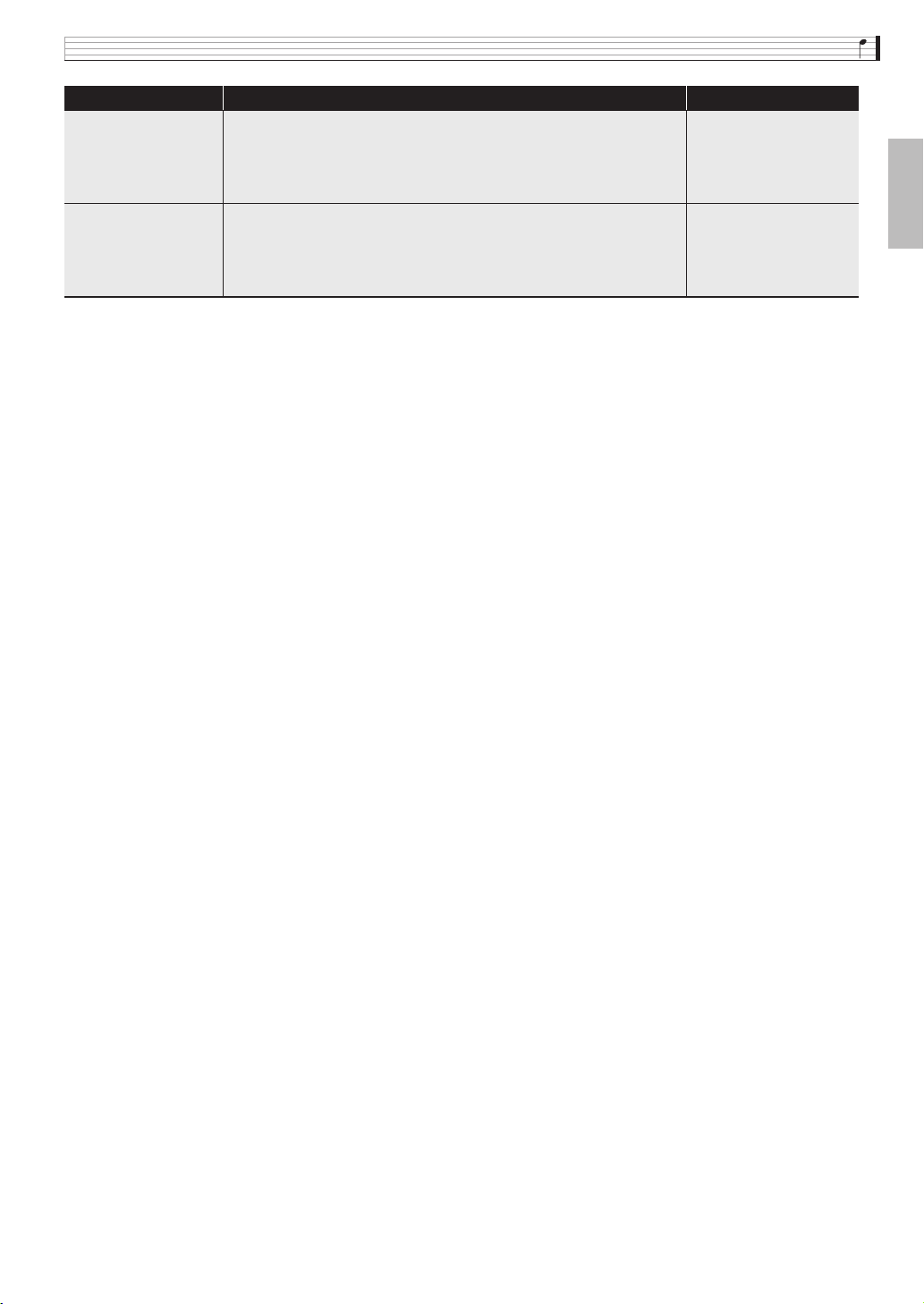
Editing a Tone
EN-29
English
Effect Common effect. This is a group of editable effect function parameters. For
details, see the melody tone “Effect” (page EN-26).
• For details about the setting items below, see the melody tone “Effect”
(page EN-26).
Chorus Send, Delay Send, Reverb Send
Pan Pan. This is a group of editable parameters associated with pan (sound
stereo position) operation.
• For details about the setting items below, see the melody tone “Pan”
(page EN-27).
Dynamic Panning, Pan Position
Display Text Description Settings
PX560-ES-1B.indd 31 2016/12/15 15:39:28
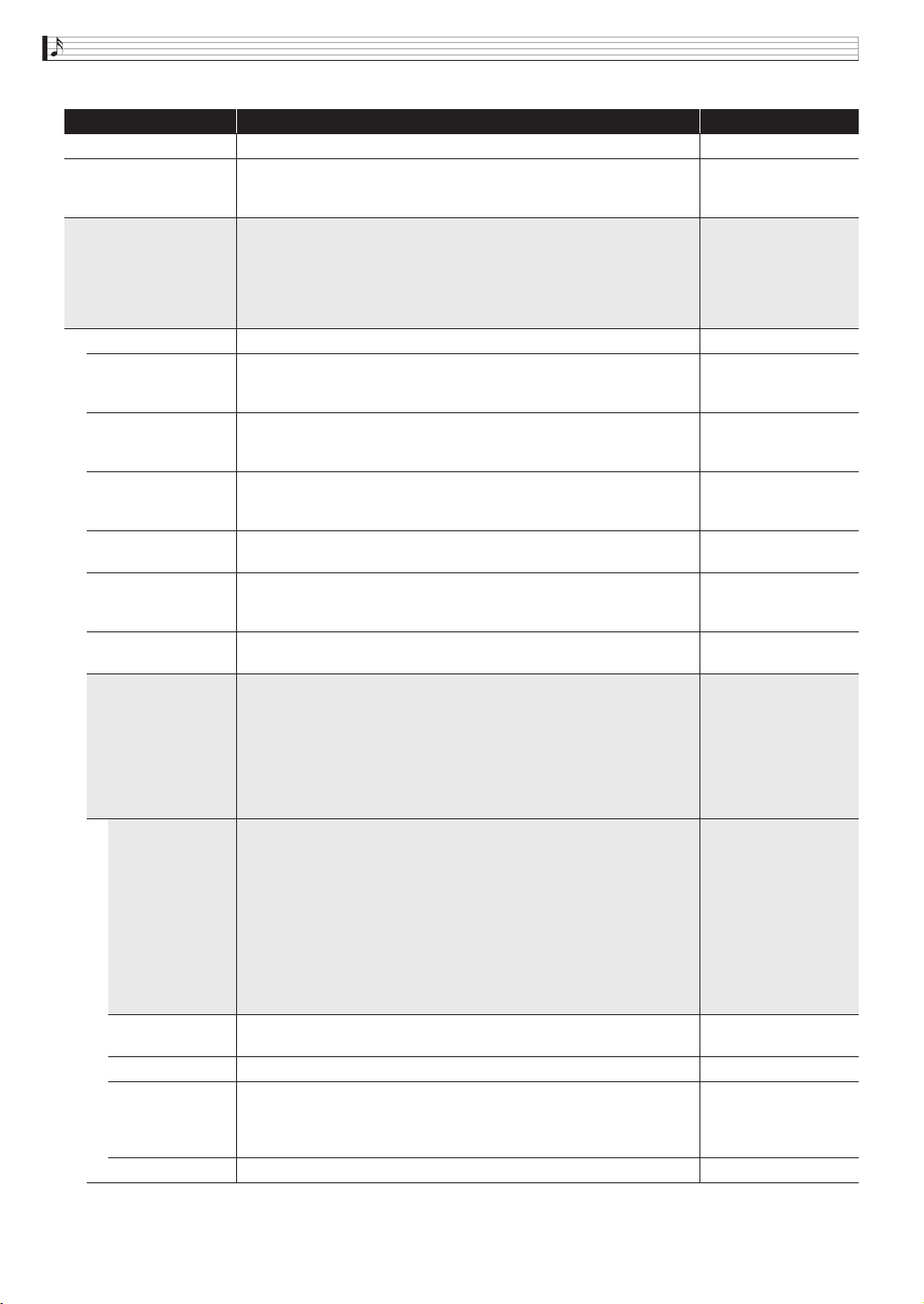
EN-30
Editing a Tone
■ Editable Hex Layer Tone Parameters
Display Name Description Settings
Volume Volume. Overall hex layer volume. 0 to 127
Keyoff Velocity Mode Key off velocity mode. Select “KeyOff” to use the key off velocity as the
key off velocity, or “KeyOn” to select the key on velocity. Select “Both” to
reflect both (key on and key off) velocities.
KeyOff, KeyOn, Both
Layer Layer. This is a group of editable parameters for each layer. Touch the
layer you want to edit and then modify setting items as required.
• When “ALL” (all layers) is selected as the layer number, an x-mark
may be displayed on the left side of the display showing the part being
edited. This indicates that all of the layers do not have the same setting
for the currently selected parameter.
Layer On/Off Layer on/off. Selecting off disables layer. Off, On
Wave Number Wave number. Selects a wave type.
Refer to the “Wave List” in the separate Appendix for information about
wave types.
See “Wave List” in the
separate Appendix.
Key Range Low Key Range Low. Specifies the lower limit of the enabled keyboard range.
Nothing sounds when any keyboard key below this range is pressed.
• Touch a setting and then use the keyboard keys to change it.
C-1 - G9
Key Range High Key Range High. Specifies the upper limit of the enabled keyboard range.
Nothing sounds when any keyboard key above this range is pressed.
• Touch a setting and then use the keyboard keys to change it.
C-1 - G9
Velocity Range Low Velocity range low. Specifies the minimum value of the effective velocity.
No sound is produced when playing at a velocity less than this setting.
0 to 127
Velocity Range High Velocity range high. Specifies the maximum value of the effective
velocity. No sound is produced when playing at a velocity greater than
this setting.
0 to 127
Start Trigger Start trigger. Specifies whether a note is sounded when a keyboard key is
pressed (KeyOn) or when a keyboard key is released (KeyOff).
KeyOn, KeyOff
Pitch Pitch envelope. For details, see the melody tone “Pitch Envelope” (page
EN-25).
• For details about the setting items below, see the melody tone “Pitch
Envelope” (page EN-25).
Octave Shift
• For details about the setting items below, see drum tone “Pitch
Envelope” (page EN-28).
Coarse Tune, Fine Tune
Envelope • For details about the setting items below, see the melody tone “Pitch
Envelope” (page EN-25). You can input “Initial Level”, “Attack Level”,
and “Release Level” values in the range of –256 to 0 to +255. You can
input “Attack Time”, “Decay Time”, and “Release Time” values in the
range of 0 to 127.
Initial Level, Attack Time, Release Time, Release Level
• For details about the setting items below, see the melody tone “Filter”
(page EN-26). You can input “Attack Level” and “Decay Level” values
in the range of –256 to 0 to +255. You can input a “Decay Time” in the
range of 0 to 127.
Attack Level, Decay Time, Decay Level
Key Follow Key follow. Adjusts the amount of pitch change between neighboring
keyboard keys. A higher value represents greater change.
–128 to 0 to +127
Key Follow Base Key follow base. Keyboard key that is the center of key follow. C-1 - G9
Split Shift Split shift. Counting from the keyboard key that is pressed, the waveform
that sounds is the one assigned to the keyboard key that is the specified
split shift amount above or below the pressed key. The pitch used is the
one that corresponds to the pressed keyboard key.
–12 to 0 to +12
LFO Layer Depth LFO layer depth. Adjusts how LFO is applied to each layer. 0 to 127
PX560-ES-1B.indd 32 2016/12/15 15:39:28
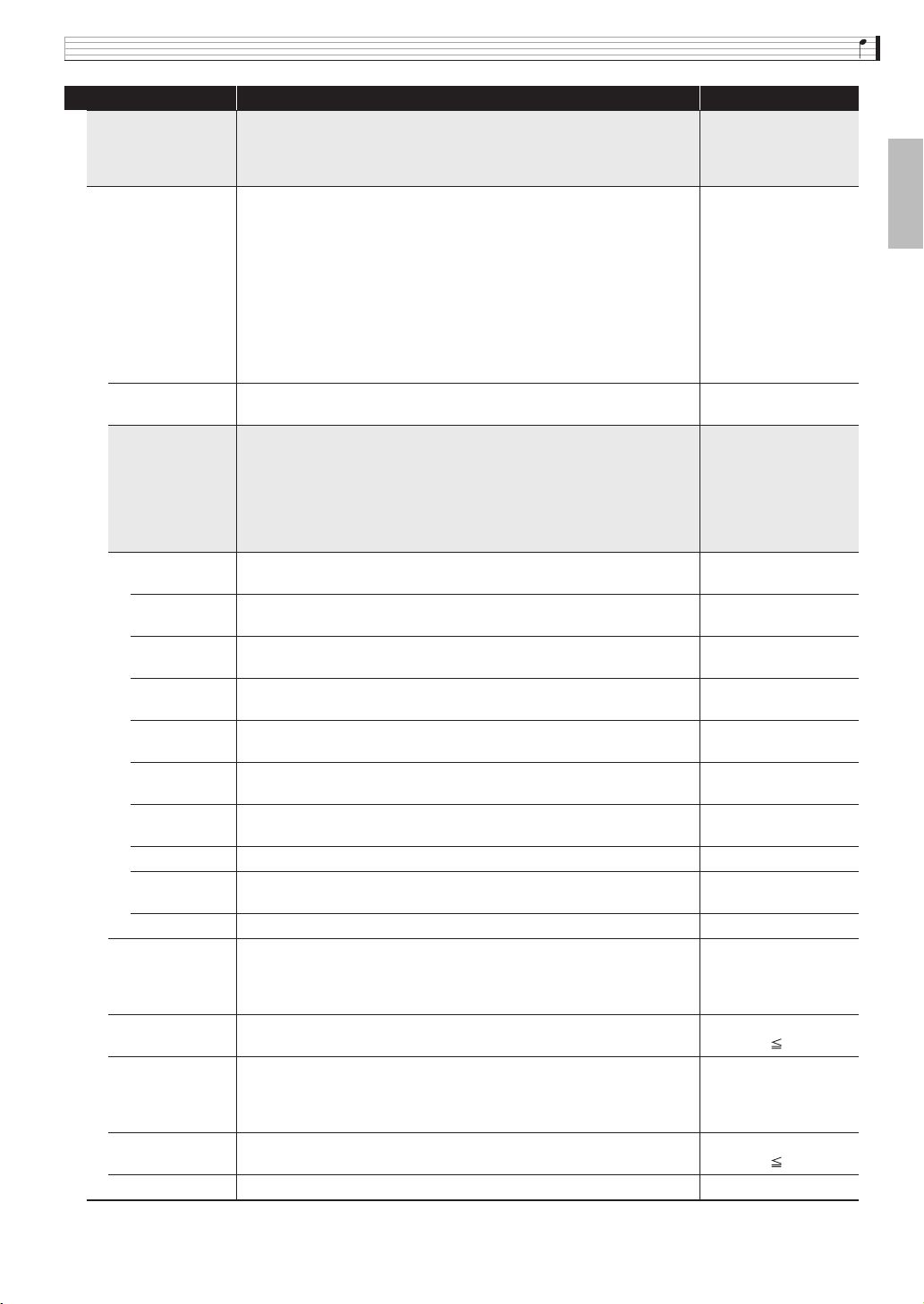
Editing a Tone
EN-31
English
Filter Filter. For details, see the melody tone “Filter” (page EN-26).
• For details about the setting items below, see the melody tone “Filter”
(page EN-26). You can input a value in the range from 0 to 127.
Cutoff, Resonance
Filter Type Filter type. Specifies the range cut by the filter.
LPF1: 6dB/oct filter for low-frequency band components. No resonance
effect. Suitable for acoustic instruments.
LPF2: 12dB/oct filter for low-frequency band components. No
resonance effect. Suitable for acoustic instruments.
LPF3: 12dB/oct filter for low-frequency band components. With
resonance effect. Suitable for synthesized tones.
BPF: 6dB/oct filter for band components in the vicinity of the cutoff
frequency. With resonance effect.
HPF: 12dB/oct filter for high-frequency band components. With
resonance effect.
Refer to the cell to the
left.
Velocity Sense Velocity sense. Specifies the degree of change in the filter in accordance
with keyboard press velocity.
–64 to 0 to +63
Envelope • For details about the setting items below, see the melody tone “Filter”
(page EN-26). You can input a value in the range from 0 to 127.
Attack Level, Envelope Depth
• For details about the setting items below, see the melody tone “Pitch
Envelope” (page EN-25). You can input a value in the range from 0 to
127.
Initial Level, Attack Time
Decay 1 Time Decay 1 time. Time it takes for the sound to reach the Decay 1 level from
the attack level.
0 to 127
Decay 1 Level Decay 1 level. Target level for change from the attack level up to the
Decay 1 level.
0 to 127
Decay 2 Time Decay 2 time. Time it takes for the sound to reach the Decay 2 level from
the Decay 1 level.
0 to 127
Decay 2 Level Decay 2 level. Second target level for change from Decay 1 level up to the
Decay 2 level.
0 to 127
Decay 3 Time Decay 3 time. Time it takes for the sound to reach the Decay 3 level from
the Decay 2 level.
0 to 127
Decay 3 Level Decay 3 level. Third target level for change from Decay 2 level up to the
Decay 3 level.
0 to 127
Release 1 Time Release 1 time. Time it takes to reach Release Level 1 after a key is
released.
0 to 127
Release 1 Level Release 1 level. Target level reached immediately after a key is released. 0 to 127
Release 2 Time Release 2 time. Time it takes to reach Release Level 2 from Release
Level 1.
0 to 127
Release 2 Level Release 2 level. Second target level reached after a key is released. 0 to 127
Low Key Follow Low key follow. Adjusts the amount of filter change between
neighboring keyboard keys. A greater value represents greater change. A
positive (+) value specifies a lower cut off frequency for the low-range
keyboard.
–128 to 0 to +127
Low Key Low Key. Applies the low key follow effect to the keys on the low range
(left) side of the key specified by this setting.
C-1 - G9
(Low Key High Key)
High Key Follow High key follow. Adjusts the amount of filter change between
neighboring keyboard keys. A greater value represents greater change. A
positive (+) value specifies a higher cut off frequency for the high-range
keyboard.
–128 to 0 to +127
High Key High key. Applies the high key follow effect to the keys on the high range
(right) side of the key specified by this setting.
C-1 - G9
(Low Key High Key)
LFO Layer Depth LFO layer depth. Adjusts how LFO is applied to each layer. 0 to 127
Display Name Description Settings
PX560-ES-1B.indd 33 2016/12/15 15:39:29
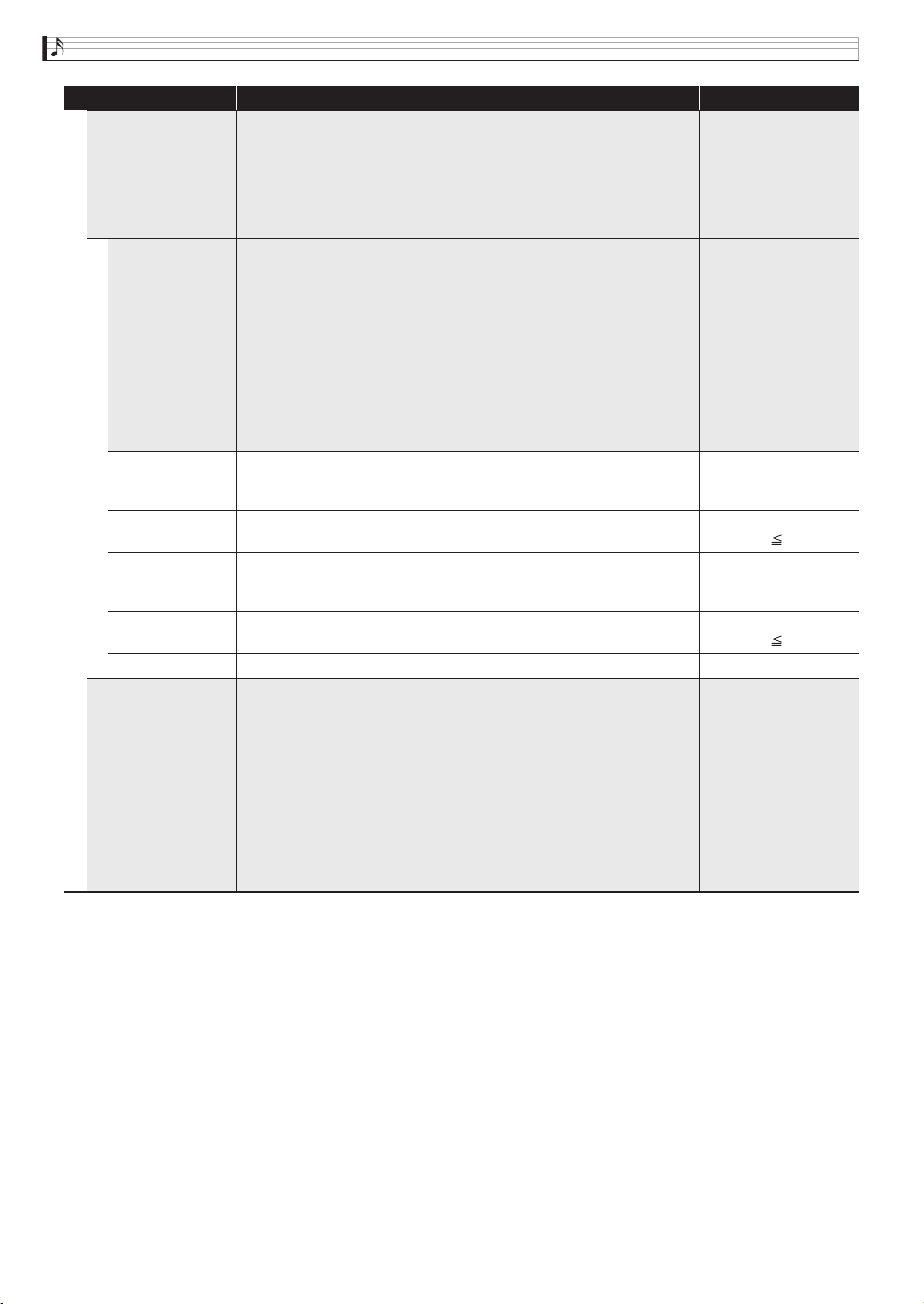
EN-32
Editing a Tone
Amp Amp. For details, see the melody tone “Amp” (page EN-26).
• For details about the setting items below, see the melody tone “Amp”
(page EN-26).
Volume, Velocity Sense
• For details about the setting items below, see the drum sound “Amp”
(page EN-28).
Pan
Envelope • For details about the setting items below, see the melody tone “Pitch
Envelope” (page EN-26). You can input a value in the range from 0 to
127.
Initial Level, Attack Time
• For details about the setting items below, see the melody tone “Filter”
(page EN-26). You can input a value in the range from 0 to 127.
Attack Level
• For details about the setting items below, see the hex layer “Filter”
(page EN-31).
Decay 1 Time, Decay 1 Level, Decay 2 Time, Decay 2 Level,
Decay 3 Time, Decay 3 Level, Release 1 Time, Release 1 Level,
Release 2 Time
Low Key Follow Low key follow. Adjusts the amount of volume change between
neighboring keyboard keys. A greater value represents greater change. A
positive (+) value specifies a lower volume for the low-range keyboard.
–128 to 0 to +127
Low Key Low Key. Applies the low key follow effect to the keys on the low range
(left) side of the key specified by this setting.
C-1 - G9
(Low Key High Key)
High Key Follow High key follow. Adjusts the amount of volume change between
neighboring keyboard keys. A greater value represents greater change. A
positive (+) value specifies a greater volume for the high-range keyboard.
–128 to 0 to +127
High Key High key. Applies the high key follow effect to the keys on the high range
(right) side of the key specified by this setting.
C-1 - G9
(Low Key High Key)
LFO Layer Depth LFO layer depth. Adjusts how LFO is applied to each layer. 0 to 127
Effect For details, see the melody tone “Effect” (page EN-26).
• For details about the setting items below, see the drum tone “Effect”
(page EN-28).
DSP On/Off
• For details about the setting items below, see the melody tone “Effect”
(page EN-26).
Chorus Send, Delay Send, Reverb Send
• The send value set for the effect of each layer (Effect) is multiplied by
the send value set for the overall instrument effect (Effect) and the
results are batch sent to the system.
• When “DSP On/Off” is turned on (DSP applied), chorus, delay, and
reverb settings can be configured within “Effect” below.
Display Name Description Settings
PX560-ES-1B.indd 34 2016/12/15 15:39:29
Editing a Tone
EN-33
English
Pitch Pitch. The editable parameters in this group affect the pitch of notes.
Detune Detune. Causes the tuning of Layers 1 through 6 to be slightly different
from each other. A larger setting value increases the amount of detuning.
The maximum value (31) results in a difference of 100 cents (semitones)
between Layer 1 and Layer 6.
0 to 31
Pitch Lock Layer 1&2
Pitch Lock Layer 3&4
Pitch Lock Layer 5&6
Pitch lock. When this setting is turned on for Layers 1 and 2, the Layer 2
pitch is changed to the same pitch as Layer 1 so both pitches are the same.
The same is true for Layers 3 and 4, and Layers 5 and 6.
Off, On
Stretch Tune For details, see the melody tone “Stretch Tune” (page EN-25).
Effect Common effect. This is a group of editable effect function parameters. For
details, see the melody tone “Effect” (page EN-26).
• For details about the setting items below, see the melody tone “Effect”
(page EN-26).
Chorus Send, Delay Send, Reverb Send
LFO Low Frequency Oscillator. This is a group of editable LFO parameters
applied to the pitch of a layered tone. For details, see the melody tone
“LFO” (page EN-27).
• For details about the setting items below, see the melody tone “LFO”
(page EN-27). You can input a value in the range from 0 to 127.
Pitch Rate, Pitch Delay, Pitch Rise, Pitch Mod.Depth, Filter Amp Rate,
Filter Delay, Filter Rise, Filter Mod.Depth, Amp Delay, Amp Rise,
Amp Mod.Depth
• For details about the setting items below, see the melody tone “LFO”
(page EN-27). The setting range of each “Depth” is –128 to 0 to +127.
Pitch Wave, FilterAmpWave, Pitch Depth, Filter Depth, Amp Depth
Portamento Portamento. This is a group of editable portamento parameters.
• For details about the setting items below, see the melody tone
“Portamento” (page EN-27).
Portamento On/Off, Portamento Time
Pan Pan. This is a group of editable parameters associated with pan (sound
stereo position) operation. For details, see the melody tone “Pan” (page
EN-27).
• For details about the setting items below, see the melody tone “Pan”
(page EN-27).
Dynamic Panning, Pan Position
Display Name Description Settings
Detune = 31
+50cent
−
50cent
Detune = 0
Layer2 Layer3Layer1
Layer6Layer5Layer4
PX560-ES-1B.indd 35 2016/12/15 15:39:29

EN-34
Editing a Tone
■ Editable DSP Parameters
• Select “Through” if you want to disable application
of DSP.
- -: Through
Select this option if you do not want to apply a DSP effect. There are
no parameters that can be set while this option is selected.
01: Equalizer
This is a three-band equalizer.
Parameter Value Ranges:
1 :EQ1 Frequency (100, 125, 160, 200, 250, 315, 400, 500, 630,
800, 1.0k, 1.3k, 1.6k, 2.0k, 2.5k, 3.2k, 4.0k, 5.0k, 6.3k, 8.0k [Hz])
Adjusts the center frequency of Equalizer 1.
2 :EQ1 Gain (–12 to 0 to +12)
Adjusts the gain of Equalizer 1.
3 :EQ2 Frequency (100, 125, 160, 200, 250, 315, 400, 500, 630,
800, 1.0k, 1.3k, 1.6k, 2.0k, 2.5k, 3.2k, 4.0k, 5.0k, 6.3k, 8.0k [Hz])
Adjusts the center frequency of Equalizer 2.
4 :EQ2 Gain (–12 to 0 to +12)
Adjusts the gain of Equalizer 2.
5 :EQ3 Frequency (100, 125, 160, 200, 250, 315, 400, 500, 630,
800, 1.0k, 1.3k, 1.6k, 2.0k, 2.5k, 3.2k, 4.0k, 5.0k, 6.3k, 8.0k [Hz])
Adjusts the center frequency of Equalizer 3.
6 :EQ3 Gain (–12 to 0 to +12)
Adjusts the gain of Equalizer 3.
7 :Input Level (0 to 127)
Adjusts the input level.
8 :Wet Level (0 to 127)
Adjusts the level of the effect sound.
9 :Dry Level (0 to 127)
Adjusts the level of the direct sound.
Note: The Gain value is not a dB value.
02: Compressor
Compresses the input signal, which can have the effect of
suppressing level variation and can make it possible to sustain
dampened sounds longer.
Parameter Value Ranges:
1 :Attack (0 to 127)
Adjusts the attack amount of the input signal. A smaller value
causes prompt compressor operation, which suppresses the attack
of the input signal. A larger values delays compressor operation,
which causes the attack of the input signal to be output as-is.
2 :Release (0 to 127)
Adjusts the time from the point the input signal drops below a
certain level until the compression operation is stopped.
When an attack feeling is desired (no compression at the onset of
sound), set this parameter to as low a value as possible. To have
compression applied at all times, set a high value.
3 :Depth (0 to 127)
Adjusts compression of the audio signal.
4 :Wet Level (0 to 127)
Adjusts the level of the effect sound.
Output volume changes in accordance with the Depth setting and
the characteristics of the input tone.
5 :Dry Level (0 to 127)
Adjusts the level of the direct sound.
03: Limiter
Limits the input signal level so it does not rise above a preset level.
Parameter Value Ranges:
1 :Limit (0 to 127)
Adjusts the volume level of the limit at which limiting is applied.
2 :Attack (0 to 127)
Adjusts the attack amount of the input signal.
3 :Release (0 to 127)
Adjusts the time from the point the input signal drops below a
certain level until the limit operation is stopped.
4 :Wet Level (0 to 127)
Adjusts the level of the effect sound. Output volume changes in
accordance with the Limit setting and the characteristics of the
input tone. Use this parameter to correct for such changes.
5 :Dry Level (0 to 127)
Adjusts the level of the direct sound.
04: Enhancer
Enhances the profiles of the low range and high range of the input
signal.
Parameter Value Ranges:
1 :Low Frequency (0 to 127)
Adjusts the low range enhancer frequency.
2 :Low Gain (0 to 127)
Adjusts the low range enhancer gain.
3 :High Frequency (0 to 127)
Adjusts the high range enhancer frequency.
4 :High Gain (0 to 127)
Adjusts the high range enhancer gain.
5 :Input Level (0 to 127)
Adjusts the input level.
6 :Wet Level (0 to 127)
Adjusts the level of the effect sound.
7 :Dry Level (0 to 127)
Adjusts the level of the direct sound.
05: Early Reflection
An effector that extracts early reflections from reverb.
Applies acoustic presence to notes.
Parameter Value Ranges:
1 :Wet Level (0 to 127)
Adjusts the level of the effect sound.
2 :Feedback (0 to 127)
Adjusts the repeat of the reflected sound.
3 :Tone (0 to 127)
Adjusts the tone of the reflected sound.
4 :Input Level (0 to 127)
Adjusts the input level.
5 :Dry Level (0 to 127)
Adjusts the level of the direct sound.
06: Phaser
Produces a distinctive pulsating, broad sound by using an LFO to
change the phase of the input signal and then mixes it with the
original input signal.
Parameter Value Ranges:
1 :Resonance (0 to 127)
Adjusts the strength of feedback
2 :Manual (–64 to 0 to +63)
Adjusts the reference phaser shift amount.
3 :LFO Rate (0 to 127)
Adjusts the LFO rate.
4 :LFO Depth (0 to 127)
Adjusts the LFO depth.
5 :LFO Waveform (Sin, Tri, Random)
Selects the LFO waveform.
6 :Input Level (0 to 127)
Adjusts the input level.
7 :Wet Level (0 to 127)
Adjusts the level of the effect sound.
8 :Dry Level (0 to 127)
Adjusts the level of the direct sound.
B
PX560-ES-1B.indd 36 2016/12/15 15:39:29

Editing a Tone
EN-35
English
07: Chorus
Gives notes depth and breadth.
Parameter Value Ranges:
1 :LFO Rate (0 to 127)
Adjusts the LFO rate.
2 :LFO Depth (0 to 127)
Adjusts the LFO depth.
3 :LFO Waveform (Sin, Tri)
Selects the LFO waveform.
4 :Feedback (–64 to 0 to +63)
Adjusts the strength of feedback
5 :Wet Level (0 to 127)
Adjusts the level of the effect sound.
6 :Polarity (–, +)
Inverts the LFO of one channel.
7 :Input Level (0 to 127)
Adjusts the input level.
8 :Dry Level (0 to 127)
Adjusts the level of the direct sound.
08: Flanger
Applies wildly pulsating and metallic reverberation to notes. Selects
the LFO waveform.
Parameter Value Ranges:
1 :LFO Rate (0 to 127)
Adjusts the LFO rate.
2 :LFO Depth (0 to 127)
Adjusts the LFO depth.
3 :LFO Waveform (Sin, Tri, Random)
Selects the LFO waveform.
4 :Feedback (–64 to 0 to +63)
Adjusts the strength of feedback
5 :Wet Level (0 to 127)
Adjusts the level of the effect sound.
6 :Input Level (0 to 127)
Adjusts the input level.
7 :Dry Level (0 to 127)
Adjusts the level of the direct sound.
09: Tremolo
Shifts the volume of the input signal using an LFO.
Parameter Value Ranges:
1 :LFO Rate (0 to 127)
Adjusts the LFO rate.
2 :LFO Depth (0 to 127)
Adjusts the LFO depth.
3 :LFO Waveform (Sin, Tri, Tra)
Selects the LFO waveform.
4 :Wet Level (0 to 127)
Adjusts the level of the effect sound.
5 :Dry Level (0 to 127)
Adjusts the level of the direct sound.
10: Auto Pan
Shifts the continual left-right panning of the input signal using an
LFO.
Parameter Value Ranges:
1 :LFO Rate (0 to 127)
Adjusts the LFO rate.
2 :LFO Depth (0 to 127)
Adjusts the LFO depth.
3 :LFO Waveform (Sin, Tri, Tra)
Selects the LFO waveform.
4 :Manual (–64 to 0 to +63)
Adjusts the pan (stereo position). –64 is full left, 0 is center, and
+63 is full right.
5 :Wet Level (0 to 127)
Adjusts the level of the effect sound.
6 :Dry Level (0 to 127)
Adjusts the level of the direct sound.
11: Rotary
This effect is a rotary speaker simulator.
Parameter Value Ranges:
1 :Speed (Slow, Fast)
Switches the speed mode between fast and slow.
2 :Brake (Rotate, Stop)
Stops speaker rotation.
3 :Fall Accel (0 to 127)
Adjusts acceleration when the speed mode is switched from fast
to slow.
4 :Rise Accel (0 to 127)
Adjusts acceleration when the speed mode is switched from slow
to fast.
5 :Slow Rate (0 to 127)
Adjusts the speaker rotation speed in the slow speed mode.
6 :Fast Rate (0 to 127)
Adjusts the speaker rotation speed in the fast speed mode.
7 :Vibrato/Chorus (Off, V1, C1, V2, C2, V3, C3)
Selects the vibrato (V) and the chorus (C) type.
8 :Wet Level (0 to 127)
Adjusts the level of the effect sound.
9 :Dry Level (0 to 127)
Adjusts the level of the direct sound.
12: Drive Rotary
This is a rotary speaker simulator that makes overdrive possible.
Parameter Value Ranges:
1 :Overdrive Gain (0 to 127)
Adjusts overdrive gain.
2 :Overdrive Level (0 to 127)
Adjusts the overdrive output level.
3 :Speed (Slow, Fast)
Switches the speed mode between fast and slow.
4 :Brake (Rotate, Stop)
Stops speaker rotation.
5 :Fall Accel (0 to 127)
Adjusts acceleration when the speed mode is switched from fast
to slow.
6 :Rise Accel (0 to 127)
Adjusts acceleration when the speed mode is switched from slow
to fast.
7 :Slow Rate (0 to 127)
Adjusts the speaker rotation speed in the slow speed mode.
8 :Fast Rate (0 to 127)
Adjusts the speaker rotation speed in the fast speed mode.
9 :Vibrato/Chorus (Off, V1, C1, V2, C2, V3, C3)
Selects the vibrato (V) and chorus (C) type.
10:Wet Level (0 to 127)
Adjusts the level of the effect sound.
11:Dry Level (0 to 127)
Adjusts the level of the direct sound.
PX560-ES-1B.indd 37 2016/12/15 15:39:29

EN-36
Editing a Tone
13: LFO Wah
This is a “wah” effect that can automatically affect the frequency
using an LFO.
Parameter Value Ranges:
1 :Input Level (0 to 127)
Adjusts the input level. The input signal can become distorted
when the level of the sound being input, the number of chords, or
the Resonance value is large. Adjust this parameter to eliminate
such distortion.
2 :Resonance (0 to 127)
Adjusts the strength of feedback
3 :Manual (0 to 127)
Adjusts the wah filter reference frequency.
4 :LFO Rate (0 to 127)
Adjusts the LFO rate.
5 :LFO Depth (0 to 127)
Adjusts the LFO depth.
6 :LFO Waveform (Sin, Tri, Random)
Selects the LFO waveform.
7 :Wet Level (0 to 127)
Adjusts the level of the effect sound.
8 :Dry Level (0 to 127)
Adjusts the level of the direct sound.
14: Auto Wah
This is a “wah” effect that can automatically shift the frequency in
accordance with the level of the input signal.
Parameter Value Ranges:
1 :Input Level (0 to 127)
Adjusts the input level. The input signal can become distorted
when the level of the sound being input, the number of chords, or
the Resonance value is large. Adjust this parameter to eliminate
such distortion.
2 :Resonance (0 to 127)
Adjusts the strength of feedback
3 :Manual (0 to 127)
Adjusts the wah filter reference frequency.
4 :Depth (–64 to 0 to +63)
Adjusts the depth of the wah in accordance with the level of the
input signal.
Setting a positive value causes the wah filter to open in direct
proportion with the size of the input signal, producing a bright
sound. Setting a negative value causes the wah filter to close in
direct proportion with the size of the input signal, producing a dark
sound.
5 :Wet Level (0 to 127)
Adjusts the level of the effect sound.
6 :Dry Level (0 to 127)
Adjusts the level of the direct sound.
15: Distortion
Distortion + Wah + Amp Simulator
Parameter Value Ranges:
1 :Dist Gain (0 to 127)
Adjusts the distortion input signal gain.
2 :Dist Level (0 to 127)
Adjusts the distortion output level.
3 :Dist Low (0 to 127)
Adjusts the distortion low-range gain.
4 :Dist High (0 to 127)
Adjusts the distortion high-range gain.
5 :Wah Depth (–64 to 0 to +63)
Adjusts the depth of the wah in accordance with the level of the
input signal.
6 :Wah Manual (0 to 127)
Adjusts the wah filter reference frequency.
7 :Routing (Dist, Wah, Wah-Dist, Dist-Wah)
Specifies the distortion and wah connection.
8 :Amp (Bypass, TCombo, FCombo, ACombo, BCombo, JCombo,
MStack, RStack, BassC, BassS)
Specifies the amp simulation type.
9 :Wet Level (0 to 127)
Adjusts the level of the effect sound.
10:Dry Level (0 to 127)
Adjusts the level of the direct sound.
16: Pitch Shifter
This effect transforms the pitch of the input signal.
Parameter Value Ranges:
1 :Pitch (–24 to 0 to +24)
Adjusts the pitch shift amount in quarter tone steps.
2 :High Damp (0 to 127)
Adjusts the high-range damp. A smaller number increases
damping.
3 :Feedback (0 to 127)
Adjusts the feedback amount.
4 :Input Level (0 to 127)
Adjusts the input level.
5 :Wet Level (0 to 127)
Adjusts the level of the effect sound.
6 :Dry Level (0 to 127)
Adjusts the level of the direct sound.
7 :Fine (–50 to 0 to +50)
Adjusts the pitch shift amount.
–50 means quarter tone lower.
+50 means quarter tone higher.
17: Multi Chorus
This is a chorus effect with six different LFO phases.
Parameter Value Ranges:
1 :LFO Rate (0 to 127)
Adjusts the LFO rate.
2 :LFO Depth (0 to 127)
Adjusts the LFO depth.
3 :Wet Level (0 to 127)
Adjusts the level of the effect sound.
4 :Dry Level (0 to 127)
Adjusts the level of the direct sound.
18: Ring Modulator
Multiplies the input signal with an internal oscillator signal to create a
metallic sound.
Parameter Value Ranges:
1 :OSC frequency (0 to 127)
Sets the reference frequency of the internal oscillator.
2 :LFO Rate (0 to 127)
Adjusts the LFO rate.
3 :LFO Depth (0 to 127)
Adjusts the LFO depth.
4 :Tone (0 to 127)
Adjusts the timbre of the ring modulator input sound.
5 :Wet Level (0 to 127)
Adjusts the level of the effect sound.
6 :Dry Level (0 to 127)
Adjusts the level of the direct sound.
B
PX560-ES-1B.indd 38 2016/12/15 15:39:29

Editing a Tone
EN-37
English
19: Delay
Delays the input signal and feeds it back to create a repeating effect.
Parameter Value Ranges:
1 :Delay Time (0 to 127)
Adjusts the total delay time.
2 :Delay Ratio L (0 to 127)
Adjusts the ratio of the left channel relative to the total delay time.
3 :Delay Ratio R (0 to 127)
Adjusts the ratio of the right channel relative to the total delay
time.
4 :Delay Level L (0 to 127)
Adjusts the level of the left channel.
5 :Delay Level R (0 to 127)
Adjusts the level of the right channel.
6 :Feedback Type (Stereo, Cross)
Selects the feedback type.
Stereo: Stereo feedback
Cross: Cross feedback
7 :Feedback (0 to 127)
Adjusts the feedback amount.
8 :High Damp (0 to 127)
Adjusts the high-range damp. A smaller number increases
damping.
9 :Delay Tempo Sync (Off, 1/4, 1/3, 3/8, 1/2, 2/3, 3/4, 1)
Specifies how the actual total delay time is synced with tempo.
• Off: Uses Delay Time value.
• 1/4 to 1: Uses value in accordance with number of beats.
10:Input Level (0 to 127)
Adjusts the input level.
11:Dry Level (0 to 127)
Adjusts the level of the direct sound.
12:Wet Level (0 to 127)
Adjusts the level of the effect sound.
20: Piano Effect
This effect is suited to acoustic piano play.
Parameter Value Ranges:
1 :Lid Type (Closed, Semi Opened, Full Opened)
Adjusts how sound resonates in accordance with the opening
state of a piano lid.
2 :Reflection Level (0 to 127)
Adjusts the level of the initial reflection.
3 :Input Level (0 to 127)
Adjusts the input level.
4 :Wet Level (0 to 127)
Adjusts the level of the effect sound.
5 :Dry Level (0 to 127)
Adjusts the level of the direct sound.
PX560-ES-1B.indd 39 2016/12/15 15:39:30
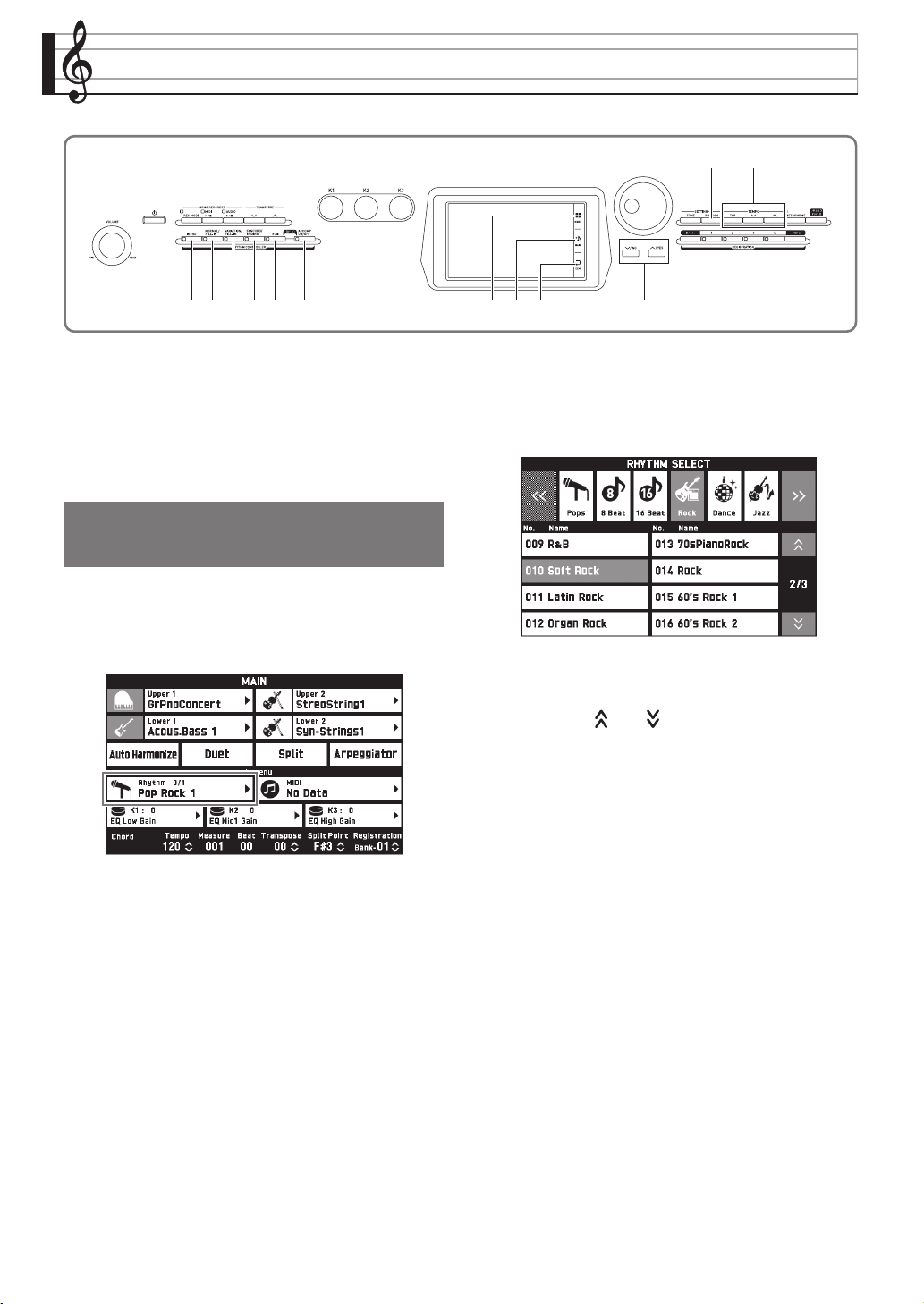
EN-38
Using Auto Accompaniment
With Auto Accompaniment, simply select the
accompaniment rhythm you want and the matching
accompaniment (drums, guitar, etc.) will play
automatically when you play a chord with your left
hand. It’s like having your own personal backup group
along with you wherever you go.
1.
On the screen, touch bq MAIN.
This displays the MAIN screen.
2.
Touch the “Rhythm” rhythm name.
3.
Touch the group that contains the rhythm you
want to use.
• You can navigate between groups by touching “UU”
or “II”.
4.
Touch the rhythm you want to use.
• You can navigate between rhythm list pages by
touching “ ” or “ ”.
5.
Use the cm TEMPO w, q buttons to adjust
the tempo setting.
• For information about the tempo adjustment method,
see “Changing the Tempo Setting” (page EN-20).
• To return a rhythm to its recommended tempo
setting, press the cm TEMPO w, q buttons at the
same time.
bq bt
cmcl
7 8 9 bp brbk bl bm
Playing an Auto
Accompaniment
B
PX560-ES-1B.indd 40 2016/12/15 15:39:30
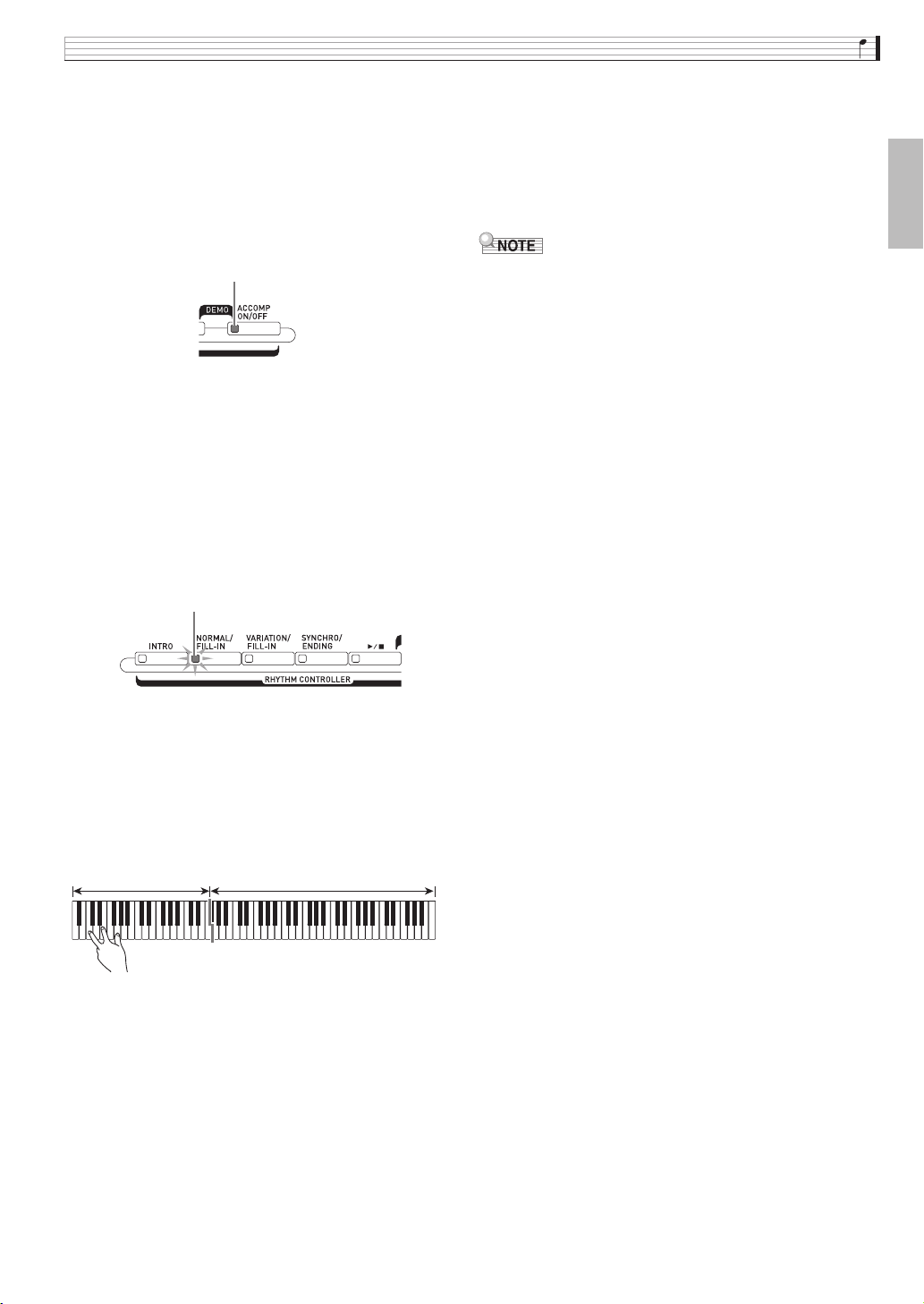
Using Auto Accompaniment
EN-39
English
6.
Press the bm ACCOMP ON/OFF button so its
lamp is lit.
This turns ACCOMP on, so all accompaniment parts
sound.
• Turning ACCOMP off so the ACCOMP lamp is unlit
causes only the percussion instrument parts (Drums,
Percussion) to sound.
• Each press of the button toggles ACCOMP between
on and off.
7.
Press the bk SYNCHRO/ENDING button.
This puts Auto Accompaniment into “synchro
standby”. Playing a chord during synchro standby will
cause Auto Accompaniment to start to play
automatically.
• Pressing the 7 INTRO button while Auto
Accompaniment is in synchro standby will enter
intro standby. Pressing the 9 VARIATION button
will enter variation standby. For details about intro
and variation patterns, see “Modifying Auto
Accompaniment Patterns” (page EN-41).
8.
Play the chord you want on the chord
keyboard (left keyboard keys).
Auto Accompaniment will start playing when you play
the chord.
• To start percussion part play without playing a
chord, press the bl a button.
Example: To play a C chord
9.
Play other chords with your left hand as you
play the melody with your right hand.
• You can use “CASIO Chord” or other simplified
chord fingering modes to play chords. For details, see
“To select a chord fingering mode” in the following
section.
• You can use the 8 NORMAL and 9 VARIATION
buttons to modify accompaniment patterns. For
details, see “Modifying Auto Accompaniment
Patterns” (page EN-41).
10.
When you are finished, press the bl a
button again to stop Auto Accompaniment.
• Pressing the bk SYNCHRO/ENDING button instead
of the bl a button will play an ending pattern
before stopping Auto Accompaniment play. For
details about ending patterns, see “Modifying Auto
Accompaniment Patterns” (page EN-41).
• You can adjust the volume level of the Auto
Accompaniment, without affecting the volume of
Digital Piano output. For details, see “BALANCE
Screen” (page EN-70).
• You can change the size of the chord keyboard by
using the split feature to move the split point (page
EN-16). The keyboard keys to the left of the split
point make up the chord keyboard.
Lit
Flashing
Chord keyboard Melody keyboard
PX560-ES-1B.indd 41 2016/12/15 15:39:30
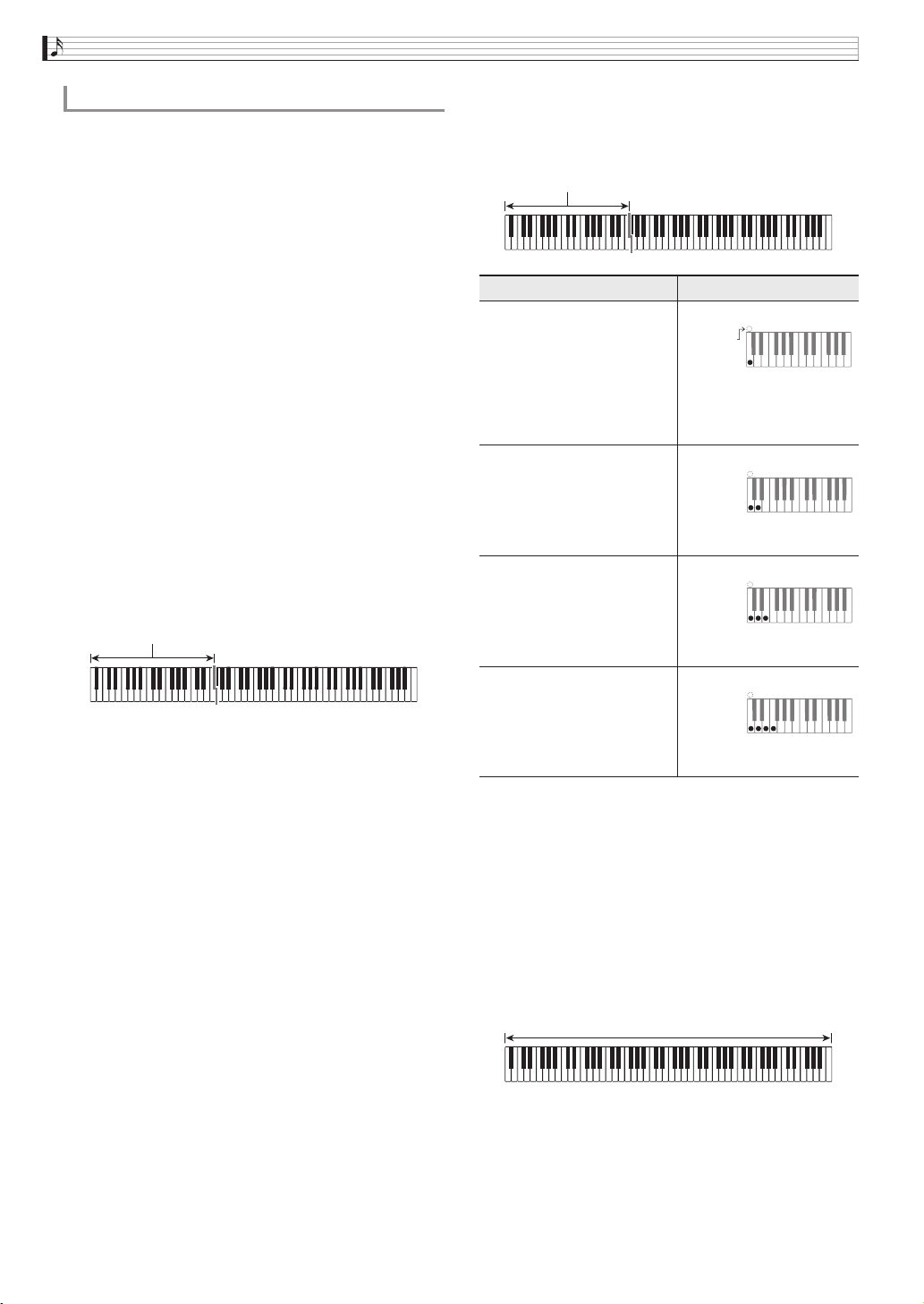
EN-40
Using Auto Accompaniment
You can select from among the following five chord
fingering modes.
Fingered 1
Fingered 2
Fingered 3
CASIO Chord
Full Range
1.
On the MENU screen, touch “RHYTHM”.
2.
Touch “Chord Input Type”.
3.
Touch the chord input method you want to
use.
This changes to the selected chord input method.
■ Fingered 1, 2, 3
With these three chord fingering modes, you play
chords on the chord keyboard using their normal
chord fingerings. Some chord forms are abbreviated,
and can be fingered with one or two keys.
For information about the types of chords you can
finger and their fingerings, see the “Fingering Guide”
(page A-1).
■ CASIO CHORD
With “CASIO Chord”, you can use simplified
fingerings to play the four types of chords described
below.
When pressing more than one chord keyboard key,
makes no difference whether the additional keys are
white or black.
■ FULL RANGE CHORD
With this chord fingering mode, you can use the full
range of the keyboard to play chords and the melody.
For information about the types of chords you can
finger and their fingerings, see the “Fingering Guide”
(page A-1).
To select a chord fingering mode
Fingered 1: Play the component notes of the chord on the
keyboard.
Fingered 2: Unlike Fingered 1, 6th input is not possible with
this mode.
Fingered 3: Unlike Fingered 1, this mode allows input of
fraction chords with the lowest keyboard note as
the bass note.
Chord keyboard
Chord Type Example
Major Chords
Press one key, whose note
corresponds to the chord
name.
• To play C Major, press any
C key in the chord
keyboard. The octave of the
note does not matter.
C (C Major)
Minor Chords
Press the chord keyboard key
that corresponds to the major
chord, while also pressing one
other chord keyboard key to
the right.
Cm (C minor)
Seventh Chords
Press the chord keyboard key
that corresponds to the major
chord, while also pressing
two other chord keyboard
keys to the right.
C7 (C seventh)
Minor Seventh Chords
Press the chord keyboard key
that corresponds to the major
chord, while also pressing
three other chord keyboard
keys to the right.
Cm7 (C minor seventh)
Chord keyboard
C
C
DE F
#
b
E
F
#
G
A
b
A
B
B
b
C
C
DE F
E
#
b
Note name
C
C
DE F
#
b
E
F
#
G
A
b
A
B
B
b
C
C
DE F
E
#
b
C
C
DE F
#
b
E
F
#
G
A
b
A
B
B
b
C
C
DE F
E
#
b
C
C
DE F
#
b
E
F
#
G
A
b
A
B
B
b
C
C
DE F
E
#
b
Melody keyboard
Chord keyboard
PX560-ES-1B.indd 42 2016/12/15 15:39:30
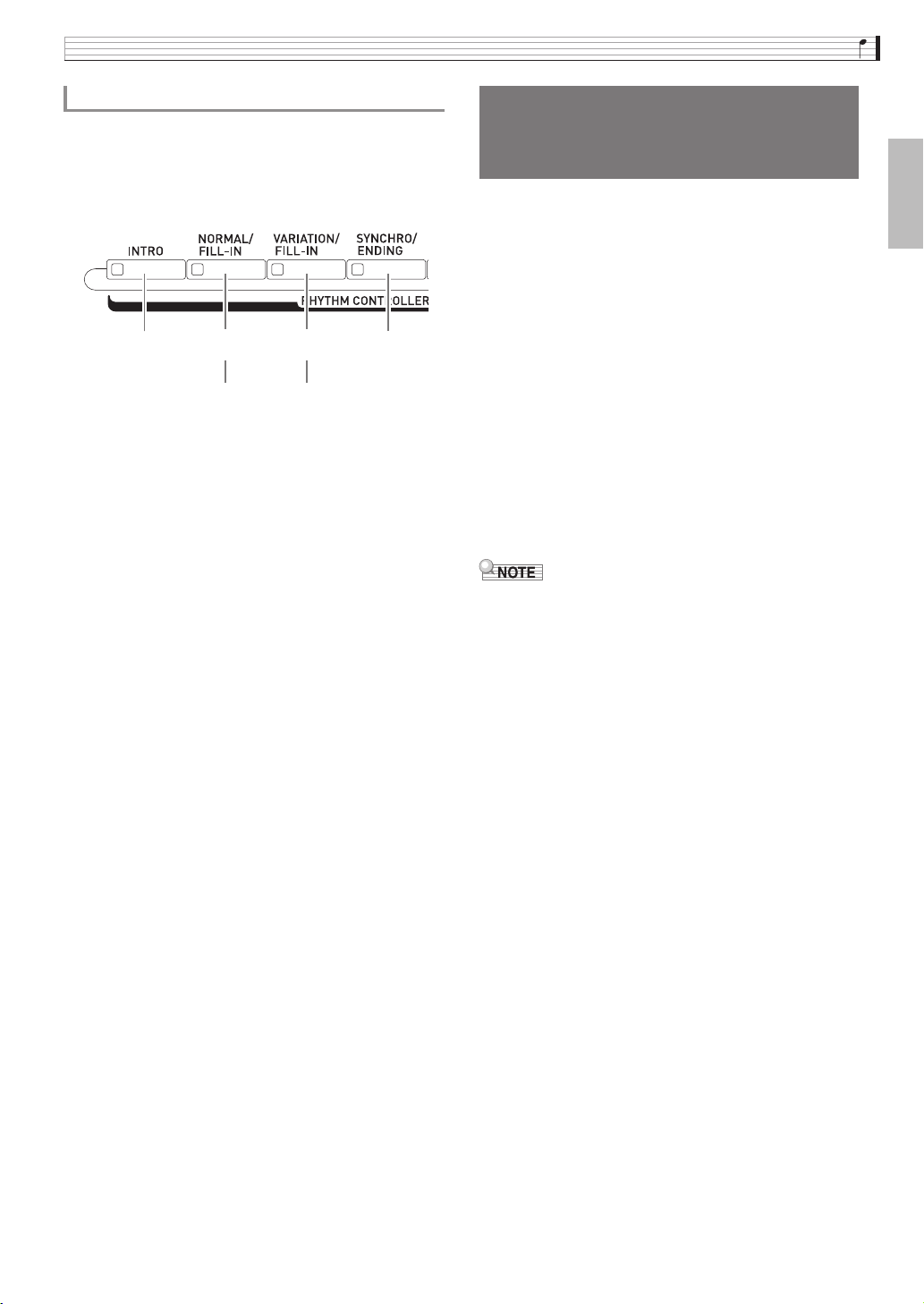
Using Auto Accompaniment
EN-41
English
There are six different Auto Accompaniment patterns,
shown below. You can switch between patterns during
accompaniment play and even modify patterns. Use
buttons 7 through bk to select the pattern you want.
*1 Press at the beginning of a song.
Accompaniment play proceeds with the normal
pattern after the intro pattern is complete. Pressing
the 9 VARIATION/FILL-IN button before the
intro pattern is finished will proceed with the
variation pattern after the intro pattern is complete.
*2 Press while a normal pattern is playing to insert a
fill-in pattern.
*3 Press while a variation pattern is playing to insert a
fill-in variation pattern.
*4 Press at the end of a song.
This will play an ending pattern and then stop Auto
Accompaniment.
One-Touch Preset gives you one-touch access to tone
and tempo settings that go well with the currently
selected Auto Accompaniment rhythm pattern.
1.
On the MENU screen, touch “RHYTHM”.
This displays the RHYTHM screen.
• You can also display the RHYTHM screen by
pressing the cl RHYTHM button.
2.
Touch “One Touch”.
This configures tone, tempo, and other settings to
match the currently selected rhythm pattern.
At this time, Auto Accompaniment play also will go
into synchro standby, which means that Auto
Accompaniment will start to play automatically when
you finger a chord.
3.
Play a chord on the keyboard.
This will start Auto Accompaniment play.
• One-Touch Presets are not supported for user
rhythms (001 through 030 of the user group).
Modifying Auto Accompaniment Patterns
Intro *
1
Normal Variation Ending *
4
7 8 9 bk
Normal fill-in *
2
Variation fill-in *
3
Using Recommended Tones
and Tempos (One-Touch
Presets)
PX560-ES-1B.indd 43 2016/12/15 15:39:30
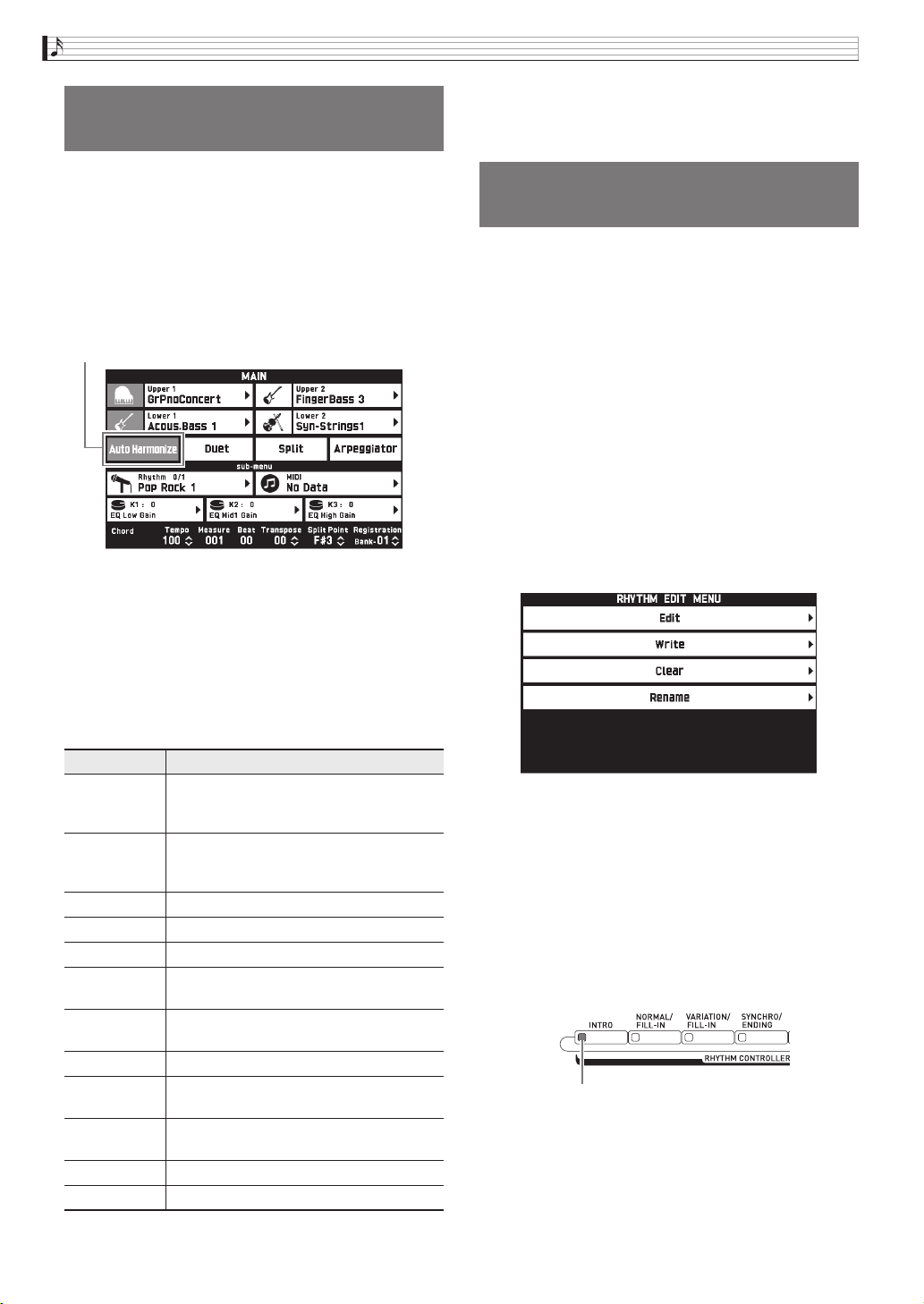
EN-42
Using Auto Accompaniment
Auto Harmonize lets you add harmony to melody
notes you play with your right hand for more melodic
depth. You can select any one of 12 Auto Harmonize
types.
1.
On the screen, touch bq MAIN.
This displays the MAIN screen.
2.
Touch “Auto Harmonize” to turn it on.
3.
Touch bp MENU.
4.
On the MENU screen, touch “RHYTHM”.
5.
Touch “Auto Harmonize Type”.
6.
Touch the Auto Harmonize type you want to
use.
7.
Play chords and the melody on the keyboard.
Harmony will be added to your melody notes based on
the chords you play.
You can use the rhythm editor to modify a built-in
Auto Accompaniment and save the result as a “user
rhythm”.
You can select a part (Drums, Bass, etc.) of a normal,
intro, or other pattern (page EN-41) and turn it on or
off, adjust its volume level, and perform other
operations.
1.
Perform steps 1 through 4 under “Playing an
Auto Accompaniment” (page EN-38) to select
the rhythm you want to edit.
2.
On the MENU screen, touch “RHYTHM”.
3.
Touch “Edit”.
4.
Touch “Edit”.
5.
Use buttons 7 through bk to select the
accompaniment pattern you want to edit.
The button you press will light, indicating that the
pattern is being edited.
• Each press of the 8 toggles between NORMAL and
FILL-IN, and each press of 9 toggles between
VARIATION and FILL-IN. The applicable button
flashes while the fill-in pattern is selected.
Example: When intro is selected
Adding Harmony to Melody
Notes (Auto Harmonize)
Type Name Description
Duet 1 Adds close (separated by two to four
degrees) 1-note harmony below the
melody note.
Duet 2 Adds open (separated by more than 4 to 6
degrees) 1-note harmony below the
melody note.
Country Adds country style harmony.
Octave Adds the note from the next lower octave.
5th Adds the fifth degree note.
3-Way Open Adds 2-note open harmony, for a total of
three notes.
3-Way Close Adds 2-note close harmony, for a total of
three notes.
Strings Adds harmony that is optimal for strings.
4-Way Open Adds 3-note open harmony, for a total of
four notes.
4-Way Close Adds 3-note close harmony, for a total of
four notes.
Block Adds block chord notes.
Big Band Adds big band style harmony.
Red
Editing a Rhythm (Rhythm
Edit)
789bk
Lit
B
PX560-ES-1B.indd 44 2016/12/15 15:39:31
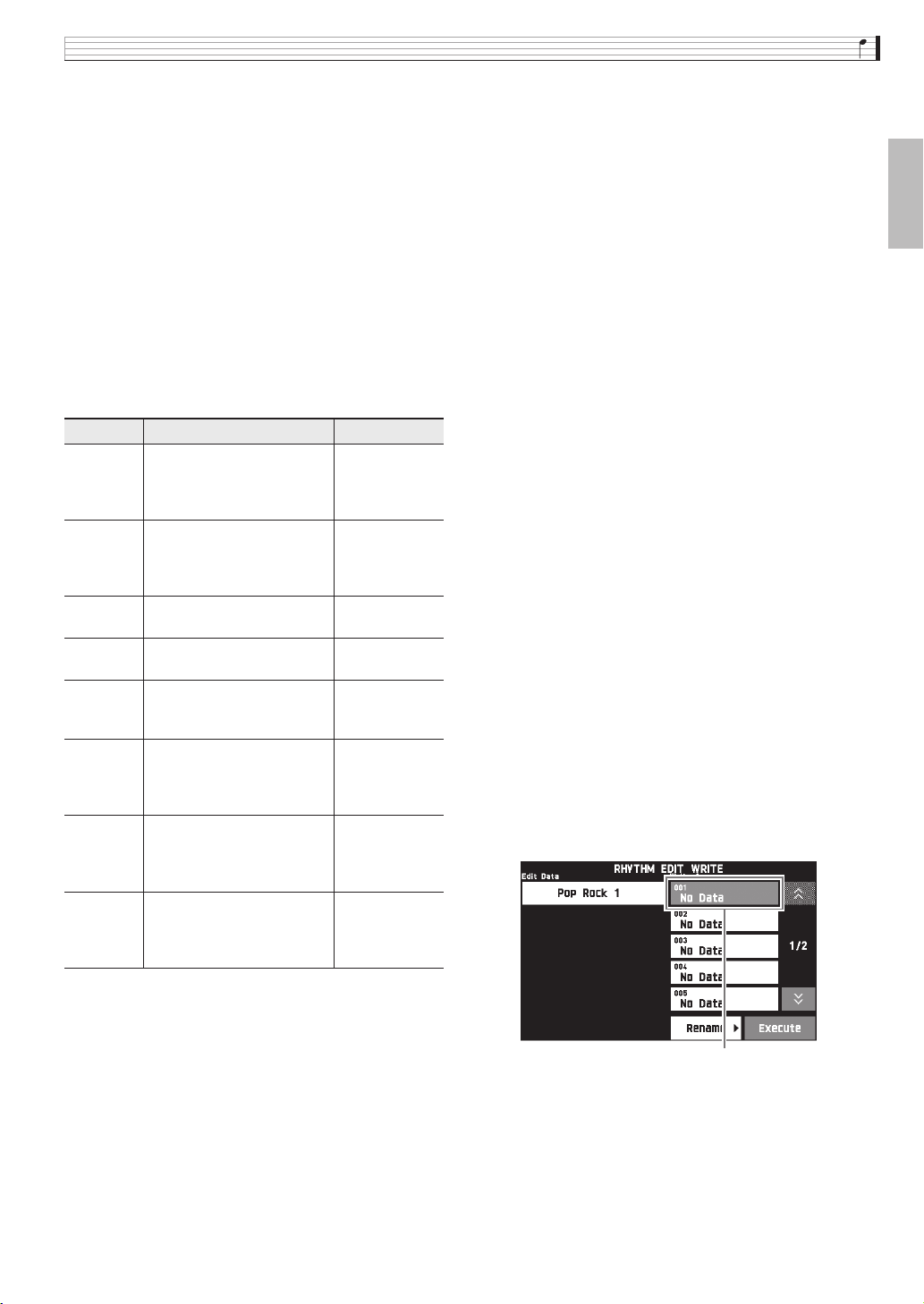
Using Auto Accompaniment
EN-43
English
6.
Touch the display item for the instrument part
you want to edit.
Rhythm, tone: Touch the display item and then select
from the list that appears.
To change the settings of items other than those above,
use the bt w, q buttons to change the displayed
value.
• Rhythm patterns are made up of the eight parts
below.
Drums, Percussion, Bass, Chord 1, Chord 2, Chord 3,
Chord 4, Chord 5
• Pressing the bl a button during an editing
operation will sound the accompaniment pattern
with the edits you have made up to that point.
Touching “Solo” will sound only the instrument part
you are editing.
• The table below describes the parameters you can
edit.
7.
After editing is complete, adjust the tempo of
the rhythm as desired.
• The tempo you set here becomes the initial default
tempo.
8.
On the screen, touch br EXIT.
9.
Touch “Write”.
This displays a screen for specifying the destination
user rhythm number and rhythm name.
• If you want to exit the editing operation without
saving, touch br EXIT.
10.
Touch “Rename”.
11.
Input a name for the rhythm.
12.
After inputting the rhythm name, touch
“Enter”.
13.
Touch the destination user rhythm number.
• If the rhythm number already has data assigned to it,
there will be an asterisk (*) next to it.
14.
Touch “Execute”.
If the selected rhythm number does not have any data
assigned to it, the message “Sure?” will appear. If it
does have data assigned to it, the message “Replace?”
will appear.
Item Description Setting
Rhythm
(Rhythm)
Replaces the part
accompaniment data with
that of the specified rhythm
number. *
1
Rhythm
number *
2
Part Toggles each part on or off. White:
Part is muted.
Red:
Part sounds.
Tone
(Tone)
Changes the tone
(instrument) for part play.
Tone name *
3
Volume
(Volume)
Controls the volume level of
each part.
000 to 127
Pan (Pan) Controls whether the sound
of the part can be heard from
the left side or right side.
–64 to 0 to 63 *
4
Reverb
Send
(Reverb
Send)
Specifies how much reverb
(page EN-71) is applied to
each part.
000 to 127
Chorus
Send
(Chorus
Send)
Specifies how much chorus
(page EN-71) is applied to
each part.
000 to 127
Delay
Send
(Delay
Send)
Specifies how much delay
(page EN-71) is applied to
each part.
000 to 127
*1 Replacing part accompaniment data clears all edits made
up to that point.
*2 For an intro, the same rhythm number is applied to all of
the eight instrument parts. For example, if you assign
rhythm 003 to Chord 1, rhythm 003 is automatically
assign to the other seven instrument parts as well. If you
later change Chord 2 to rhythm 004, the Chord 1 rhythm
also changes to 004.
Like the intro, all of the eight parts of an ending also are
the same rhythm number.
*3 Only drum set tones can be selected for Drums and
Percussion parts.
Drum set sounds cannot be selected for the Bass and the
Chord 1 through Chord 5 parts.
*4 A smaller value shifts the pan position to the left while a
larger value shifts to the right. A value of zero specifies
center.
Destination user rhythm number
PX560-ES-1B.indd 45 2016/12/15 15:39:31
EN-44
Using Auto Accompaniment
15.
Touch “Yes”.
This stores the data.
• To return to the screen in step 4 without saving, touch
“No”.
• Saving user rhythm data to a user rhythm number
that already has data will cause the existing data to
be replaced by the new data.
• If the size of the accompaniment pattern or
instrument part data is too large to be edited, a
memory full message (Memory Full) will appear on
the display. If that happens, select a different
accompaniment pattern or instrument part for
editing.
1.
On the MENU screen, touch “RHYTHM”.
2.
Touch “Edit”.
3.
Touch “Clear”.
4.
Touch the user rhythm you want to delete and
then touch “Execute”.
5.
Touch “Yes”.
This deletes the selected user rhythm.
• To cancel the delete operation, touch “No”.
Deleting a User Rhythm
PX560-ES-1B.indd 46 2016/12/15 15:39:31
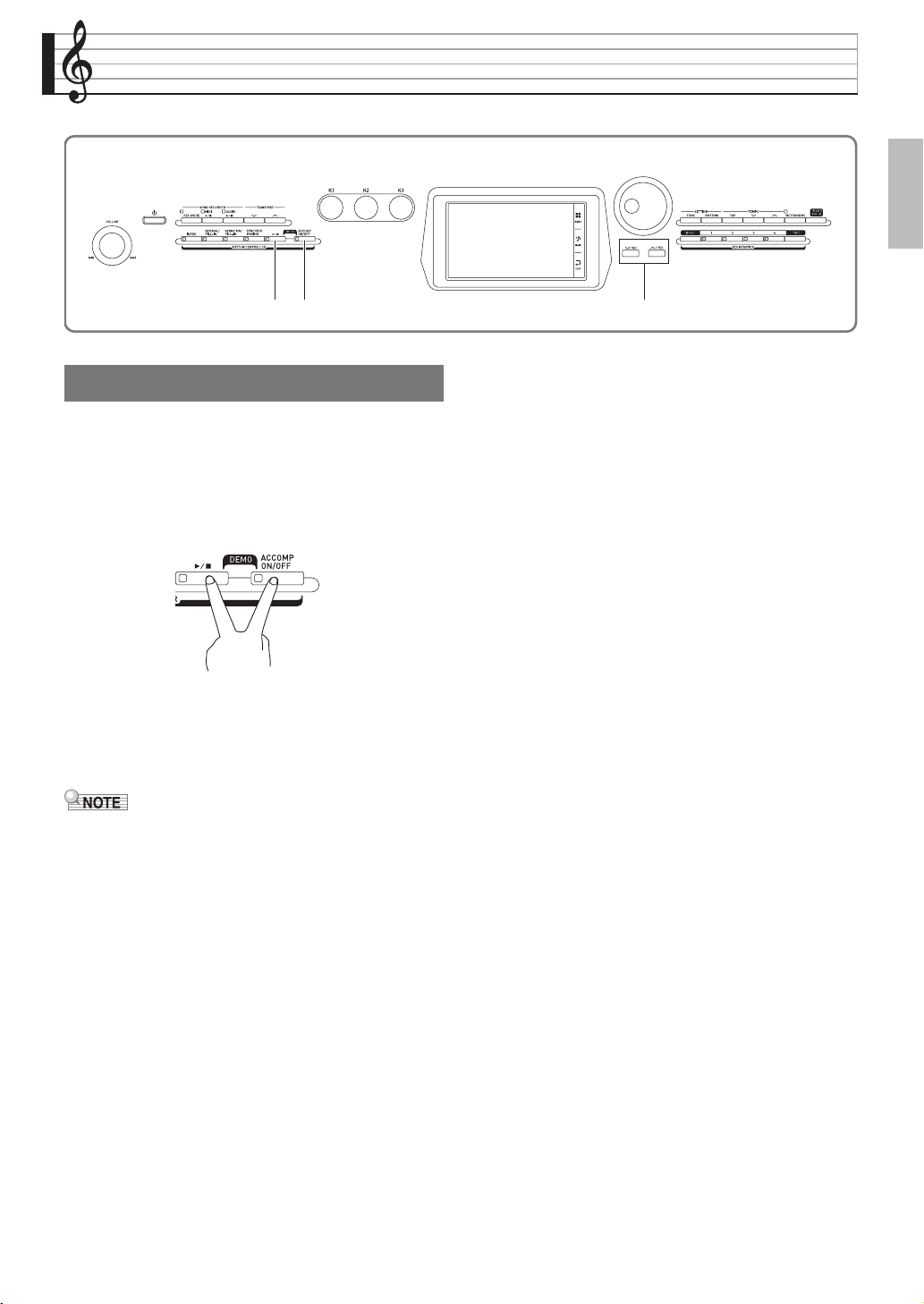
EN-45
English
Demo Song
1.
While holding down the bm ACCOMP ON/
OFF button, press the bl a button.
This will start sequential playback of the demo songs,
starting from song 1.
• You can use the bt w, q buttons to change to
another demo song.
2.
Press the bl a button.
This stops demo song playback.
Playback of the demo songs will continue in an endless
loop until you press the bl a button to stop it.
• Only the operations described above can be
performed while demo song playback is in progress.
btbl bm
Playing the Demo Tunes
PX560-ES-1B.indd 47 2016/12/15 15:39:31
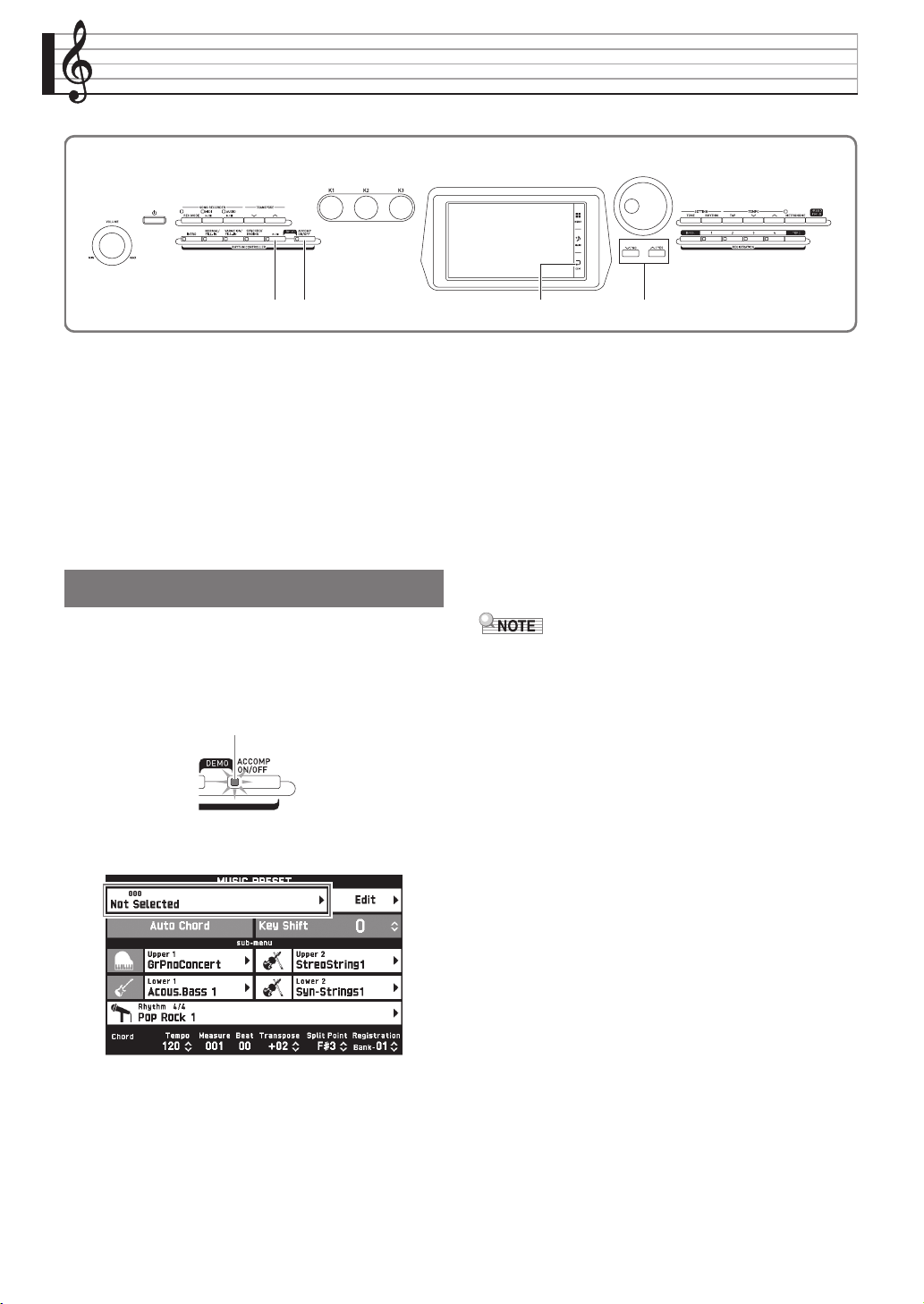
EN-46
Music Presets
Music Presets provide you with one-touch tone,
rhythm, chord, and other settings that are optimized
for specific musical genres and songs.
In addition to built-in presets, you can create your own
original Music Presets (user presets).
There is a total of 305 built-in music presets, which are
divided into nine groups. A tenth group is provided
for user presets.
• Refer to the separate Appendix for details.
1.
On the MENU screen, touch “MUSIC
PRESET”.
This displays the MUSIC PRESET screen and turns on
Auto Chord.
2.
Touch the preset name.
3.
Touch the group that contains the preset you
want to use and then touch the preset name.
This configures the Digital Piano with the settings
(tone, rhythm, etc.) of the selected preset.
4.
Press the bl a button to start Auto
Accompaniment with the preset chord
progression. Play the melody on the
keyboard.
• The preset chord progression repeats until you stop it
by pressing the bl a button again.
• Touching “Auto Chord” to turn it off turns off the
preset chord progression, which enables play of the
normal Auto Accompaniment pattern.
• To change the key of a preset chord progression,
touch “Key Shift” and then use the bt w, q
buttons to make the change.
• To turn off Auto Chord, press the bm ACCOMP
ON/OFF button.
• For details about the settings for a recalled preset,
see the separate Appendix.
btbrbl bm
Recalling Preset Data
Flashing
PX560-ES-1B.indd 48 2016/12/15 15:39:31
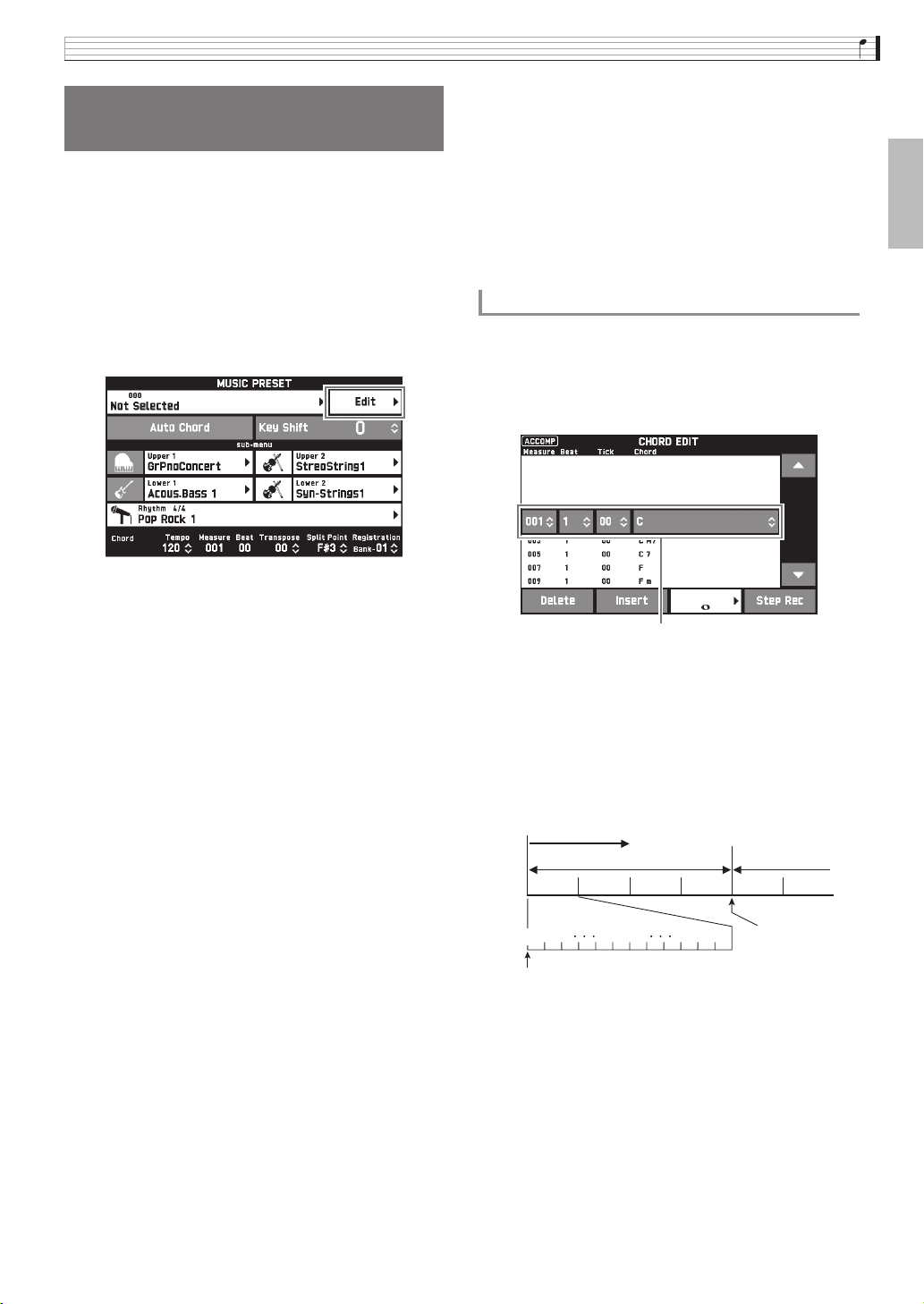
Music Presets
EN-47
English
A music preset editor is provided to allow you to create
your own original music presets (user presets). Up to
100 user presets can be stored in the user group.
1.
Perform step 1 through 3 in the procedure
under “Recalling Preset Data” (page EN-46)
to select the preset you want to use as the
basis for your user preset.
2.
Touch “Edit”.
3.
Edit the music preset parameters.
4.
After editing everything you want, touch
“Write”.
5.
Touch “Rename”.
6.
Input a name for the preset.
7.
After inputting the preset name, touch “Enter”.
8.
Touch the destination preset number.
• If the preset number already has data assigned to it,
there will be an asterisk (*) next to it.
9.
Touch “Execute”.
If the selected preset number does not have any data
assigned to it, the message “Sure?” will appear. If it
does have data assigned to it, the message “Replace?”
will appear.
10.
Touch “Yes”.
This stores the data.
• To return to the screen in step 8 without saving, touch
“No”.
1.
On the editing operation selection screen
(page EN-47), touch “Chord Edit” to display
the chord progression editing screen shown
below.
Step (timing and chord)
The timing of a chord progression is expressed as
a series of three values (such as 001:1:00)
indicating measure
*1
(001), beat (1), and tick
(00)
*2
. This series of three values is referred to
collectively as a “step”.
*1 Up to 999 measures
*2 There are 12 ticks per beat, as shown below.
2.
Edit the step as desired.
• You can playback and check the edited progression
by pressing the bl a button. Chord progression
editing cannot be performed while chord progression
playback is in progress.
Creating an Original User
Preset (User Presets)
3-1. To edit the chord progression
Touch “Chord Edit” to display the chord
progression editing screen.
Next, perform the editing operation described
under “To edit a chord progression” (page
EN-47). After you are finished, touch br EXIT to
return to the screen above.
3-2. To change how an Auto Accompaniment is
played
Touch “Parameter Edit” to display the parameter
editing screen.
Next, perform the editing operation described
under “To change how an Auto Accompaniment
is played” (page EN-49). After you are finished,
touch br EXIT to return to the screen above.
To edit a chord progression
Step (timing and chord)
01 02 09 10 1100
Chord progression
Measure 1
Beat 1 Beat 2 Beat 3 Beat 4 Beat 1 Beat 2
Tick
001:1:00
002:1:00
For the sample display
above, the chord change
from C to Am7 occurs
here.
Measure 2
PX560-ES-1B.indd 49 2016/12/15 15:39:32
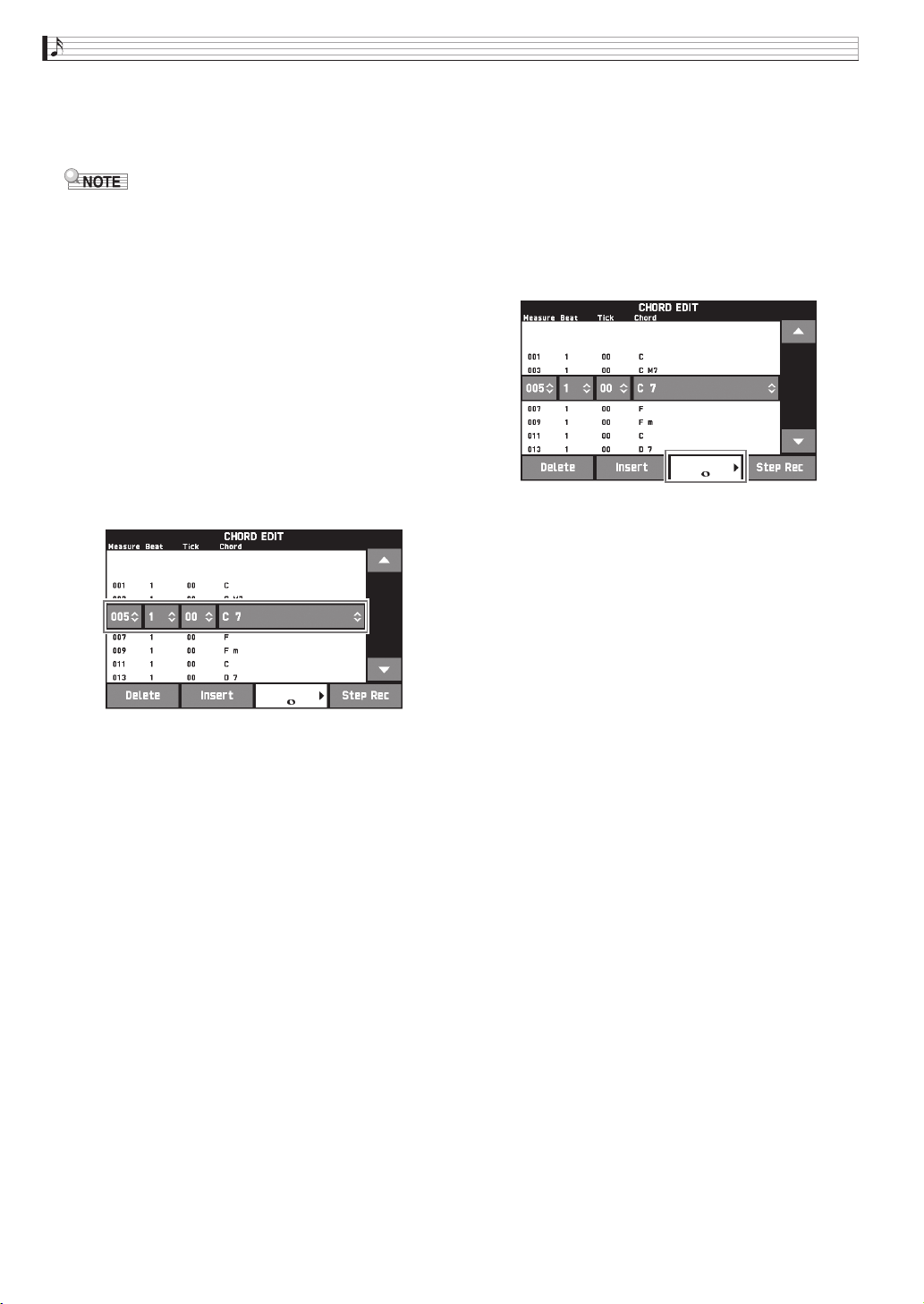
EN-48
Music Presets
3.
After you are finished, touch br EXIT to
return to the editing type selection screen
(page EN-47).
• Up to approximately 999 measures can be contained
in a single preset.
If your edits cause this limit to be exceeded, the
message “Measure Limit” will appear on the screen
and further editing will become impossible.
■ To edit preset chord information
1.
Use the on-screen “e” and “r” icons to
select the step you want to change.
2.
Input timing information or a chord.
• To change the timing, touch the current “Measure”,
“Beat”, or “Tick” value, and then use the bt w, q
buttons to change the timing value.
• To change a chord, touch it and then play the desired
chord on the keyboard.
• The timing of the first step (001:1:00) is fixed and
cannot be changed. Also, the final step is always one
measure, regardless of the resolution.
■ To insert a new chord
1.
Use the on-screen “e” and “r” icons to
select the step that comes immediately
before the location where you want to insert a
new chord.
2.
Touch “Insert” and then play the desired
chord on the keyboard.
■ To insert a sequential series of steps
1.
Use the on-screen “e” and “r” icons to
select the step that comes immediately
before the location where you want to insert
the step.
2.
Touch “Step Rec”.
3.
Touch the note icon.
4.
Touch the note you want to use.
5.
Play a chord on the keyboard.
This inputs a step of the length you specified in step 4
above, and then advances to input of the next step.
• Touching “Tie” without inputting a chord will
specify a tie.
• Touching “Rest” without inputting a chord will
result in no chord being played during that step.
6.
After you are finished inserting steps, touch
“Step Rec” again to exit data editing.
■ To delete a step
1.
Use the on-screen “e” and “r” icons to
select the step you want to delete.
2.
Touch “Delete”.
• You cannot delete the first step or the last step.
PX560-ES-1B.indd 50 2016/12/15 15:39:32
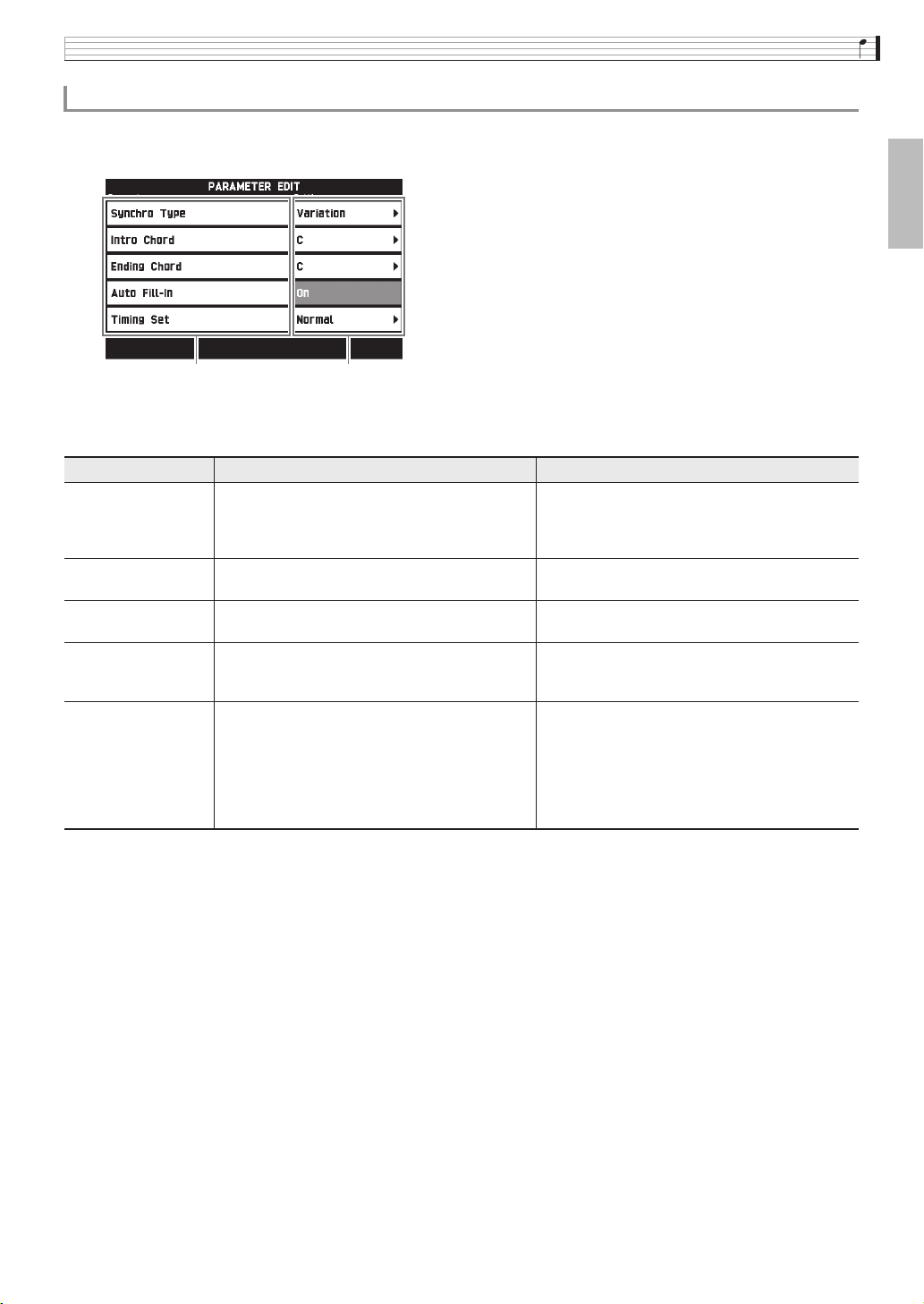
Music Presets
EN-49
English
1.
On the editing type selection screen (page EN-47), touch “Parameter Edit” to display the auto
accompaniment play editing screen shown below.
2.
Touch the parameter whose setting you want to change, and then use the bt w, q buttons to
change the setting value.
3.
After you are finished, touch br EXIT to return to the editing type selection screen (page EN-47).
To change how an Auto Accompaniment is played
Parameter Description Setting
Synchro Type:
Synchro type
Selects the synchro standby status and type when
the music preset is selected.
Off (no standby)
Normal: From standby to normal pattern
Variation: From standby to variation pattern
Intro: From standby to intro pattern
Intro Chord:
Intro chord
Selects from among major (12 keys) and minor (12
keys) for the intro chords.
C to B: Major (C to B)
Cm to Bm: Minor (Cm to Bm)
Ending Chord:
Ending chord
Selects from among major (12 keys) and minor (12
keys) for the ending chords.
C to B: Major (C to B)
Cm to Bm: Minor (Cm to Bm)
Auto Fill-In:
Auto fill-in on/off
Specifies whether or not a fill-in should be
inserted into the final measure of a chord
progression.
Off: Fill-in not inserted
On: Fill-in inserted
Timing Set:
Chord progression
variation
This parameter lets you add different variations to
the timing of the chord progression being edited.
You can use it to match the chord progression to
the beat of a specific rhythm.
For information about differences in playback for
each setting value, see “Timing Setting and Chord
Progression Playback” (page EN-50).
Normal, Half, Double, 3/4, 3/2
Parameter Setting
PX560-ES-1B.indd 51 2016/12/15 15:39:32
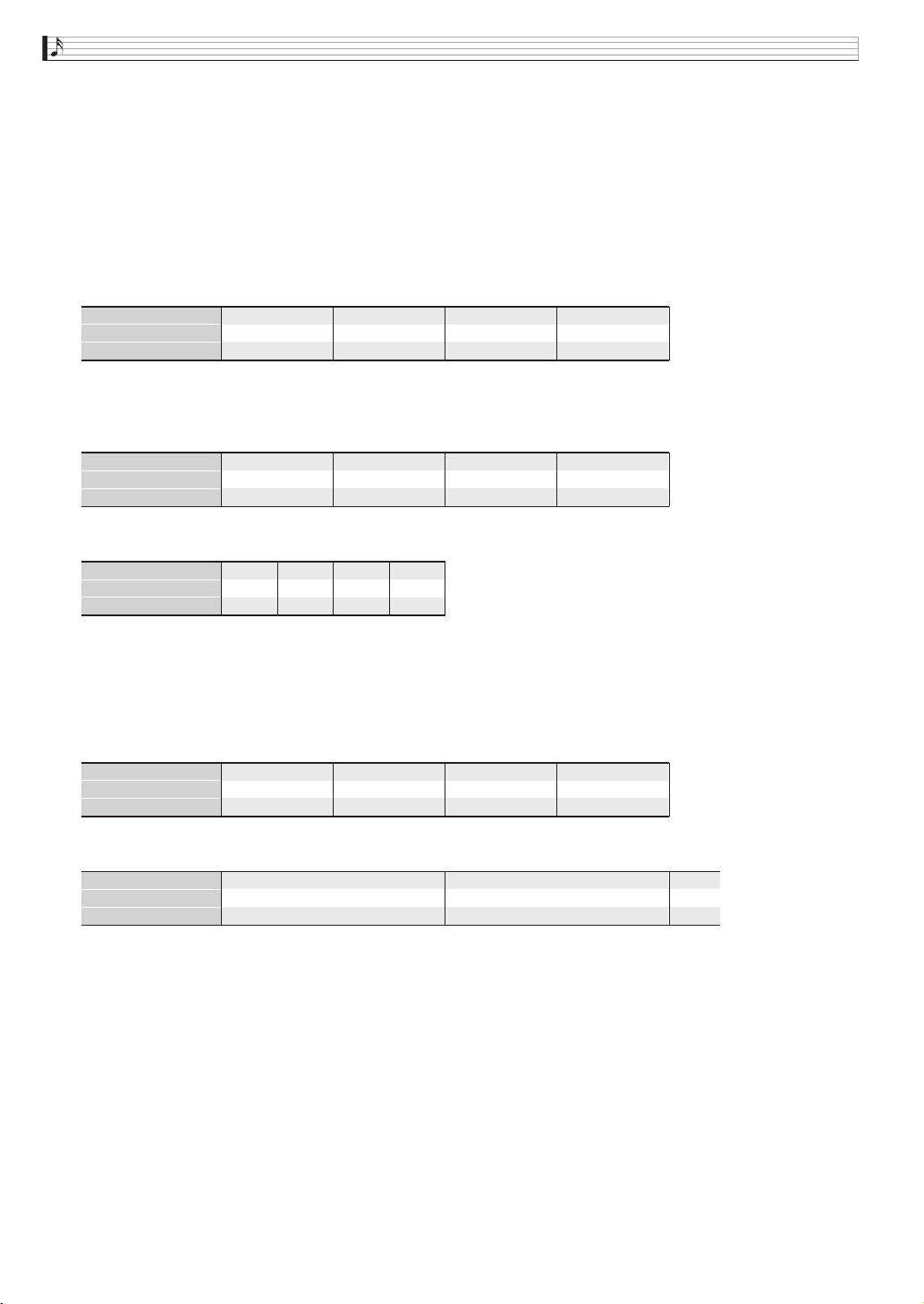
EN-50
Music Presets
■ Timing Setting and Chord Progression Playback
This section explains how chord progressions are played in accordance with the “Timing Set” settings in step 2
under “To change how an Auto Accompaniment is played” (page EN-49). Note that this setting affects playback
only. It does not change the chord progression data.
z Normal
Plays chords at the same timing as the recording.
z Half
Plays chords measure-by-measure at a timing that is half that of the recording.
Example:
The following shows what happens when the “Half” setting is used to play back a user preset that was created
based on a music preset whose rhythm is a 4/4 time.
Half Playback when a 4/4 time rhythm is assigned to the user preset
Half Playback when a 2/4 time rhythm is assigned to the user preset
z Double
Plays chords measure-by-measure at a timing that is double that of the recording.
Playing back a chord progression like that shown for “Half” above while “Double” is specified results in the
progression shown below.
Double Playback when a 4/4 time rhythm is assigned to the user preset
Double Playback when an 8/4 time rhythm is assigned to the user preset
1 2 3 4
Dm A7
1
1 2 3 4
Dm G7
2
1 2 3 4
C Em
3
1 2 3 4
Am C7
4
Measure
Beat
Chord progression
1 2 3 4
Dm A7
1
1 2 3 4
Dm G7
2
1 2 3 4
C Em
3
1 2 3 4
Am C7
4
Measure
Beat
Chord progression
1 2 1 2
Dm A7
1
1 2 1 2
C EmDm G7 Am C7
324
Measure
Beat
Chord progression
1 2 3 4
Dm
1
1 2 3 4
Dm
2
1 2 3 4
C
3
1 2 3 4
Am
4
Measure
Beat
Chord progression
1 2 3 4
Dm
1
5 6 7 8
A7
1 2 3 4
Dm
2
5 6 7 8
G7
1 2
C
3
Measure
Beat
Chord progression
PX560-ES-1B.indd 52 2016/12/15 15:39:32
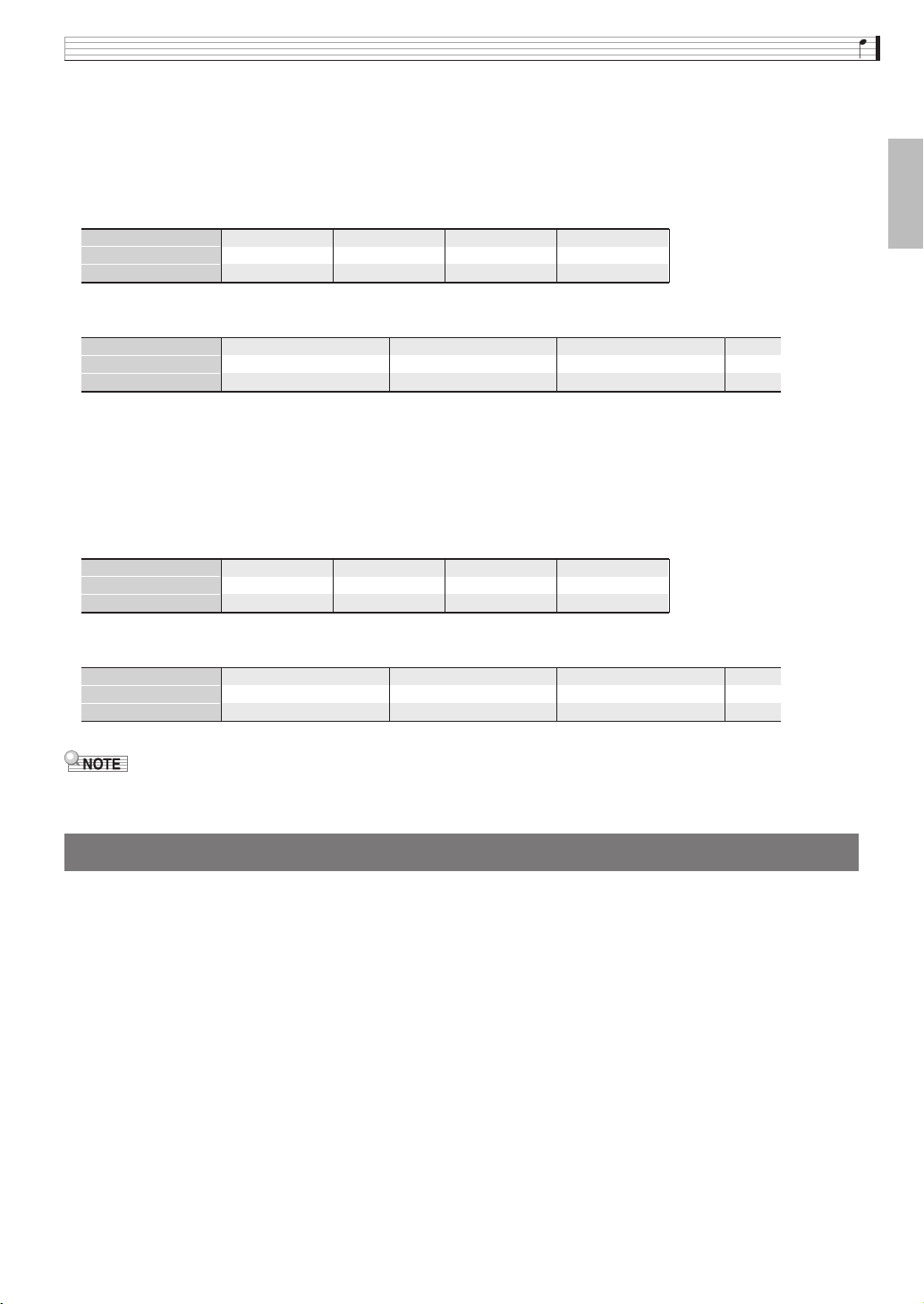
Music Presets
EN-51
English
z 3/4
Plays chords measure-by-measure at a timing that is 3/4 times that of the recording. This setting is best for use
with a 6/8 time rhythm.
Playing back a chord progression like that shown for “Half” above while “3/4” is specified results in the
progression shown below.
3/4 Playback when a 4/4 time rhythm is assigned to the user preset
3/4 Playback when a 6/8 time rhythm is assigned to the user preset
z 3/2
Plays chords measure-by-measure at a timing that is 3/2 times that of the recording. This setting is best for use
with a 6/4 time rhythm.
Playing back a chord progression like that shown for “Half” above while “3/2” is specified results in the
progression shown below.
3/2 Playback when a 4/4 time rhythm is assigned to the user preset
3/2 Playback when a 6/4 time rhythm is assigned to the user preset
• When “Double” or “3/2” is selected, chord timing is shifted to a later timing. Any chords that do not fit within a
measure are not played.
1.
On the MENU screen, touch “MUSIC PRESET”.
2.
Touch “Edit”.
3.
Touch “Clear”.
4.
Touch the user preset you want to delete and then touch “Execute”.
5.
Touch “Yes”.
This deletes the selected user preset.
• To cancel the delete operation, touch “No”.
Deleting a User Preset
1 2 3 4
Dm A7
1
1 2 3 4
Dm G7
2
1 2 3 4
C Em
3
1 2 3 4
Am C7
4
Measure
Beat
Chord progression
1 2 3 4
Dm A7 Dm G7 C Em Am
1
5 6 1 2
2
3 4 5 6
3
1 2 3 4 5 6 1 2
4
Measure
Beat
Chord progression
1 2 3 4
Dm A7
1
1 2 3 4
Dm G7
2
1 2 3 4
C Em
3
1 2 3 4
Am C7
4
Measure
Beat
Chord progression
1 2 3 4
Dm A7 Dm G7 C Em Am
1
5 6 1 2
2
3 4 5 6
3
1 2 3 4 5 6 1 2
4
Measure
Beat
Chord progression
PX560-ES-1B.indd 53 2016/12/15 15:39:32
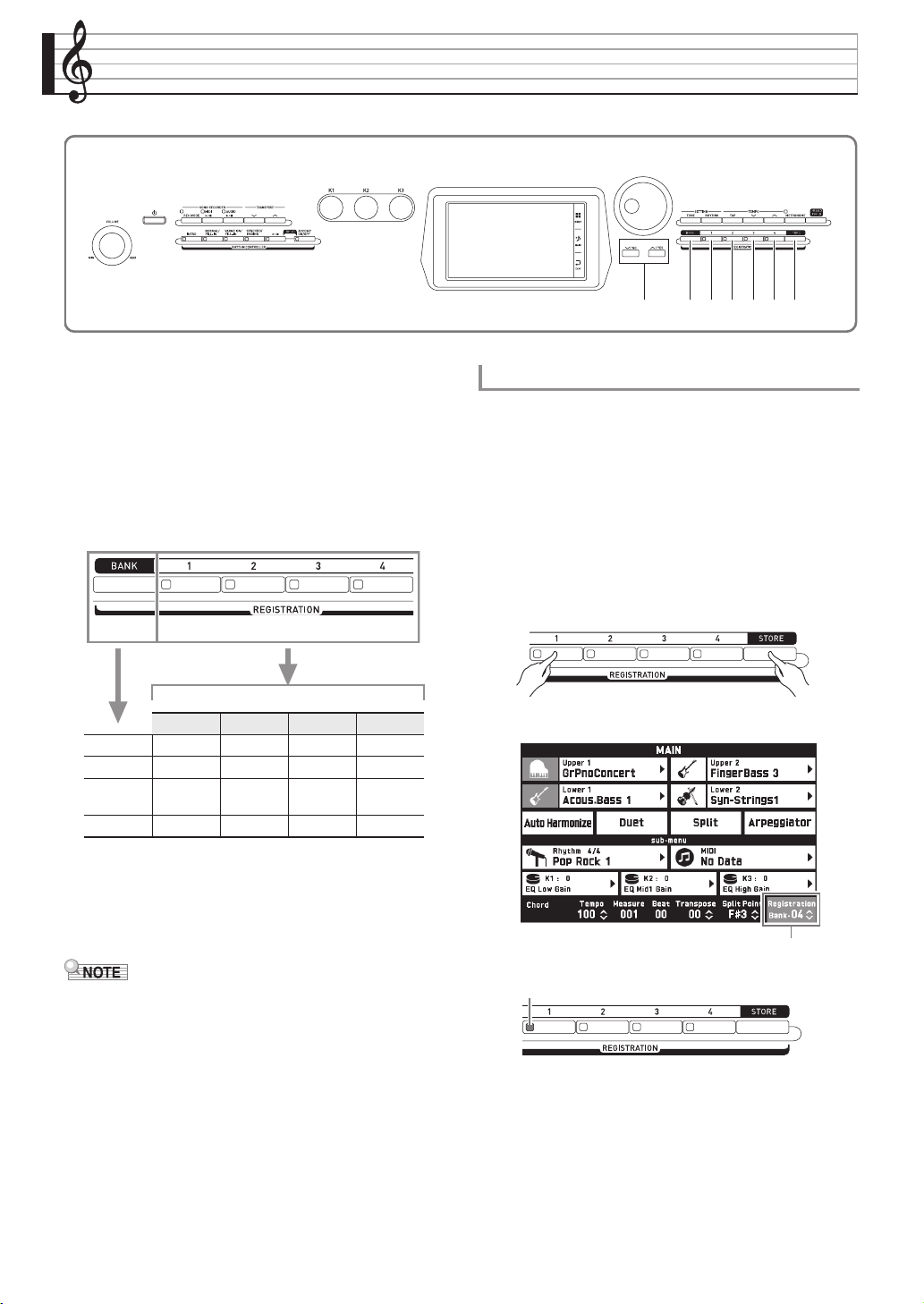
EN-52
Registering Tone and Rhythm Setups
Registration memory lets you store Digital Piano
setups (tone, rhythm, etc.) for instant recall whenever
you need them. Registration memory simplifies
performance of complex pieces that require successive
tone and rhythm changes.
You can have up to 96 setups in Registration memory
at one time. To select a setup, use the cp BANK button
and REGISTRATION buttons cq through ct.
• Press the cp BANK button and then use the bt w,
q buttons to change the bank number.
• Pressing a REGISTRATION button (cq through
ct) selects the corresponding area in the currently
selected bank.
• Refer to the separate Appendix for details.
1.
Configure the Digital Piano with the tone,
rhythm, and other settings you want to save.
2.
While holding down the dk STORE button,
perform the operation below.
Use the bt w, q buttons to select the bank where
you want to store the data, and then press a
REGISTRATION button (cq through ct) to specify an
area.
The data will be saved to the bank and area you specify.
Example: Bank 4, Area 1
bt cs ct dkcp cq cr
Area 1 Area 2 Area 3 Area 4
Bank 1 Setup 1-1 Setup 1-2 Setup 1-3 Setup 1-4
Bank 2 Setup 2-1 Setup 2-2 Setup 2-3 Setup 2-4
.
.
.
.
.
.
.
.
.
.
Bank 24 Setup 24-1 Setup 24-2 Setup 24-3 Setup 24-4
cp cq cr cs ct
To save registration data
dkcq cr cs ct
Bank
Lit
PX560-ES-1B.indd 54 2016/12/15 15:39:33
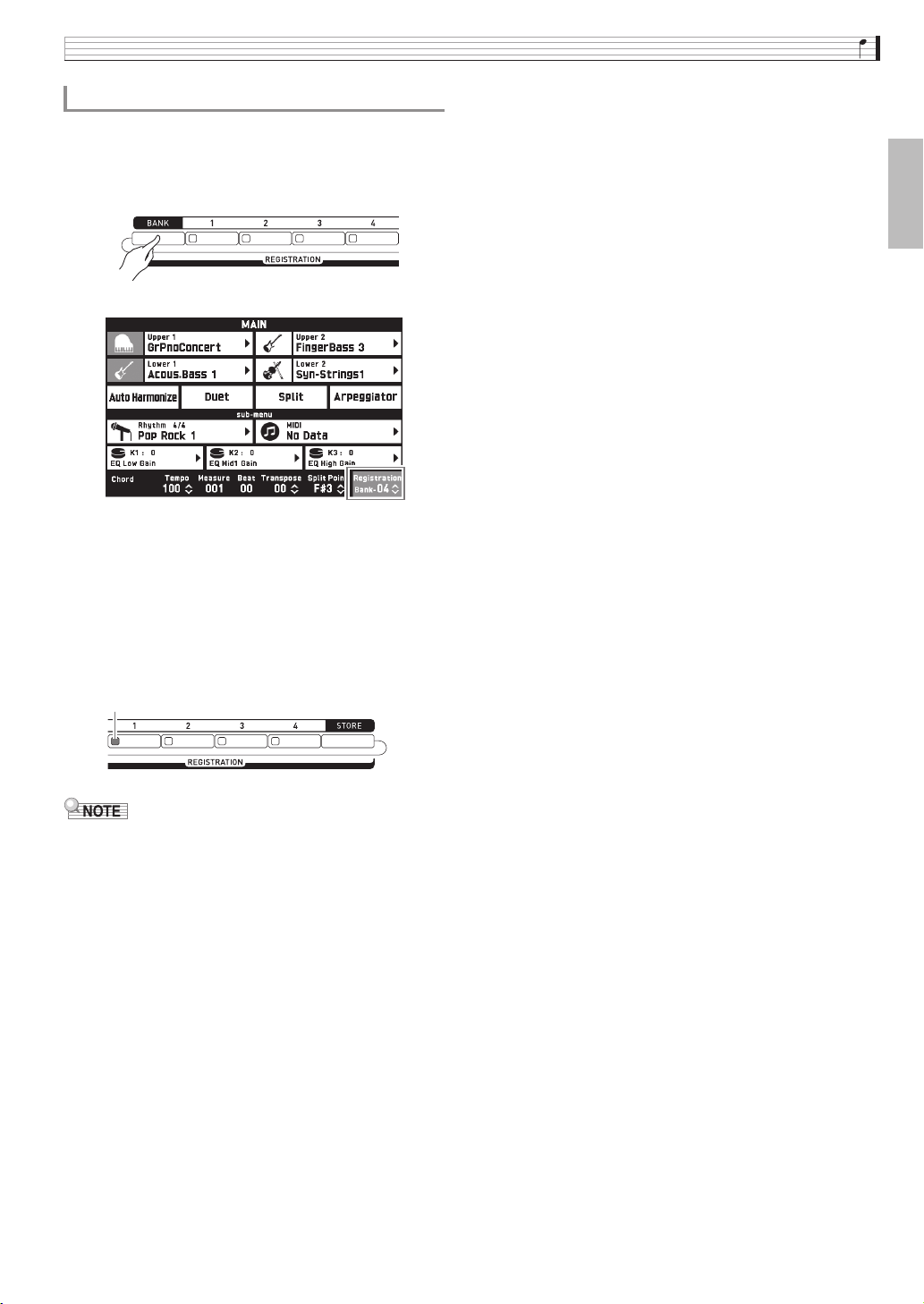
Registering Tone and Rhythm Setups
EN-53
English
1.
Press the cp BANK button to select the bank
that contains the setup you want to recall.
• The currently selected bank and area numbers are
shown on the MAIN screen and button lamps.
2.
Use the REGISTRATION buttons (cq
through ct) to select the area whose setup
you want to recall.
This recalls the registration memory setup and
automatically configure the Digital Piano settings
accordingly.
Example: When recalling the registration data in Bank 4,
Area 1
• You can specify which particular items should
remain unchanged when a registration function
setup is applied. For details, see “REGISTRATION
Screen” under “Configuring Digital Piano Settings”
(pages EN-68 through EN-81).
■ Saving Setup Registration Data to an
External Device
See “Connecting to a Computer” (page EN-86).
To recall a registration setup
Lit
PX560-ES-1B.indd 55 2016/12/15 15:39:33
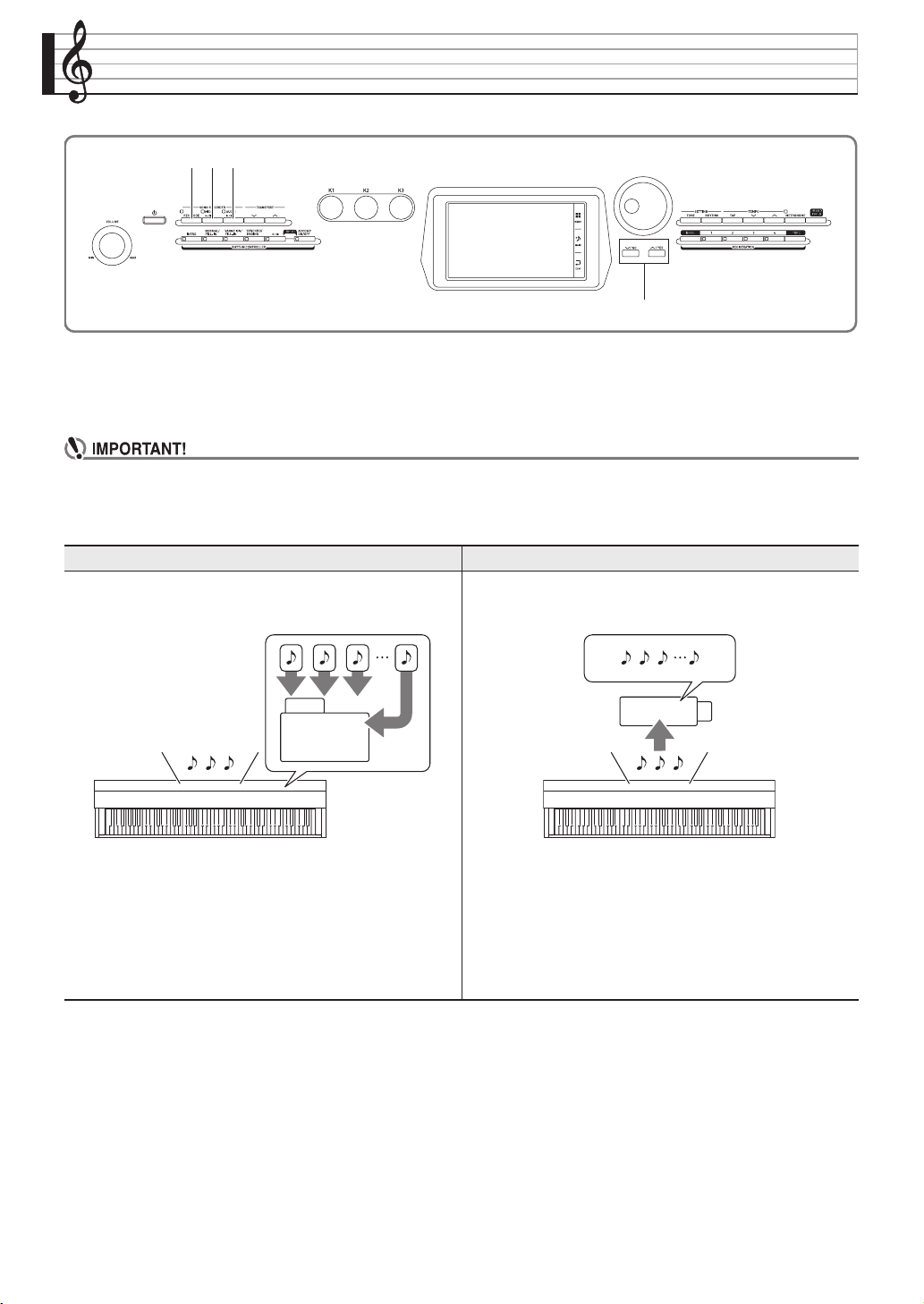
EN-54
Recording and Playback
Your Digital Piano can record what you play on the keyboard and play it back when you want. The Digital Piano
has two recording functions: a MIDI Recorder and an Audio Recorder. Select the function that suits the needs for the
type of recording you want to make.
• CASIO COMPUTER CO., LTD. takes no responsibility for any damages, lost profits, or claims by third parties
arising from the deletion of recorded data due to malfunction, repair, or for any other reason.
■ Recording Features
MIDI Recorder Audio Recorder
Keyboard performance information is recorded as MIDI data*
to a system track or 16 tracks (storage areas for keyboard
performance data) in Digital Piano memory.
Keyboard performance information is recorded to a USB flash
drive as audio data.
• Keyboard performance information (keyboard keys press/
release, touch pressure, etc.) is recorded as MIDI data.
• The size of MIDI data is much smaller when compared with
audio data, making it easier to edit later on a computer, etc.
• Supported recording capacity: 100 songs approximately
50,000 notes per song (total of all tracks)
• Like a portable music player or tape recorder, notes are
recorded as audio data.
• Audio data files are much larger compared to MIDI data
files. The advantage of audio data files is that they can be
easily played back on a computer, portable music player,
etc.
• Supported recording capacity: Up to 100 files, each file up to
a maximum length of 74 minutes
bt
3 4 5
MIDI
USB
PX560-ES-1B.indd 56 2016/12/15 15:39:33
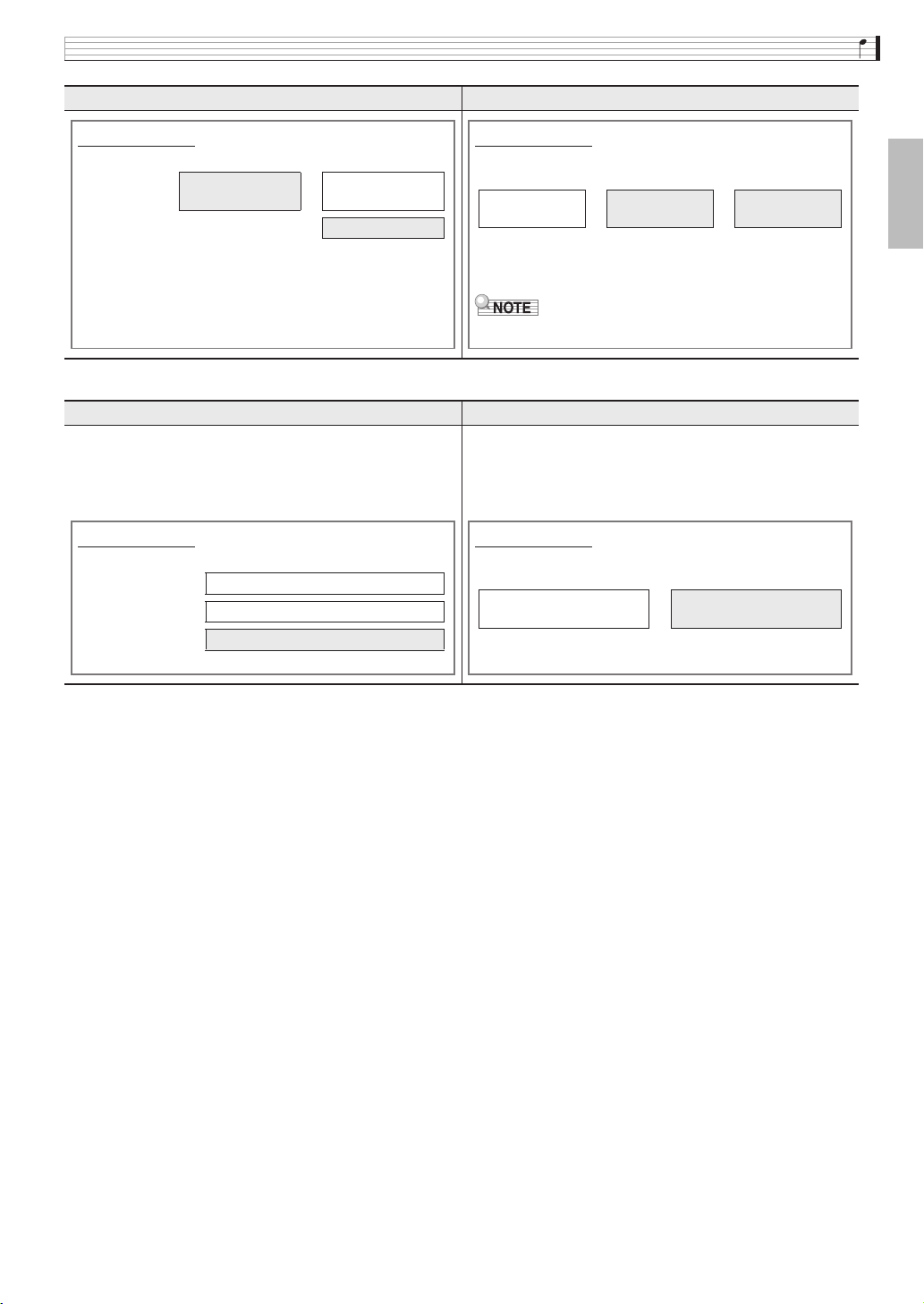
Recording and Playback
EN-55
English
■ Playback Features
* MIDI
MIDI is short for “Musical Instrument Digital Interface”. It is a universal standard that makes it possible for
musical instruments, computers, and other devices to exchange performance information (keyboard key press/
release, touch pressure, etc.) regardless of manufacturer. Performance data in this case is called “MIDI data”.
MIDI Recorder Audio Recorder
Playback plays the system track and tracks 1 through 16.
• With the MIDI Recorder, the Digital Piano automatically
performs playback using its internal sound source in
accordance with the performance information recorded as
MIDI data.
You can play back audio data from a USB flash drive.
• The Audio Recorder plays back the waveform of sound
recorded as audio data.
MIDI Recorder Audio Recorder
What you can do...
Record to one track while playing back from the other track
System Track
Keyboard play
3
While playing
back...
Track 1
Keyboard play
·
·
·
What you can do...
Record performance while playing back a song recorded
with the MIDI Recorder
MIDI Recorder
song playback
+
Keyboard play 3 Record
Record input of an external device connected to the LINE
IN terminal along with Digital Piano performance and
playback
• AUDIO IN terminal input is not recorded.
What you can do...
Play on the keyboard along with playback of tracks
System Track 3 While playing back...
Track 1 3 While playing back...
Keyboard play
What you can do...
You can play along on the keyboard while the audio data is
playing.
Playback of a song on a
USB flash drive
+
Keyboard play
PX560-ES-1B.indd 57 2016/12/15 15:39:33
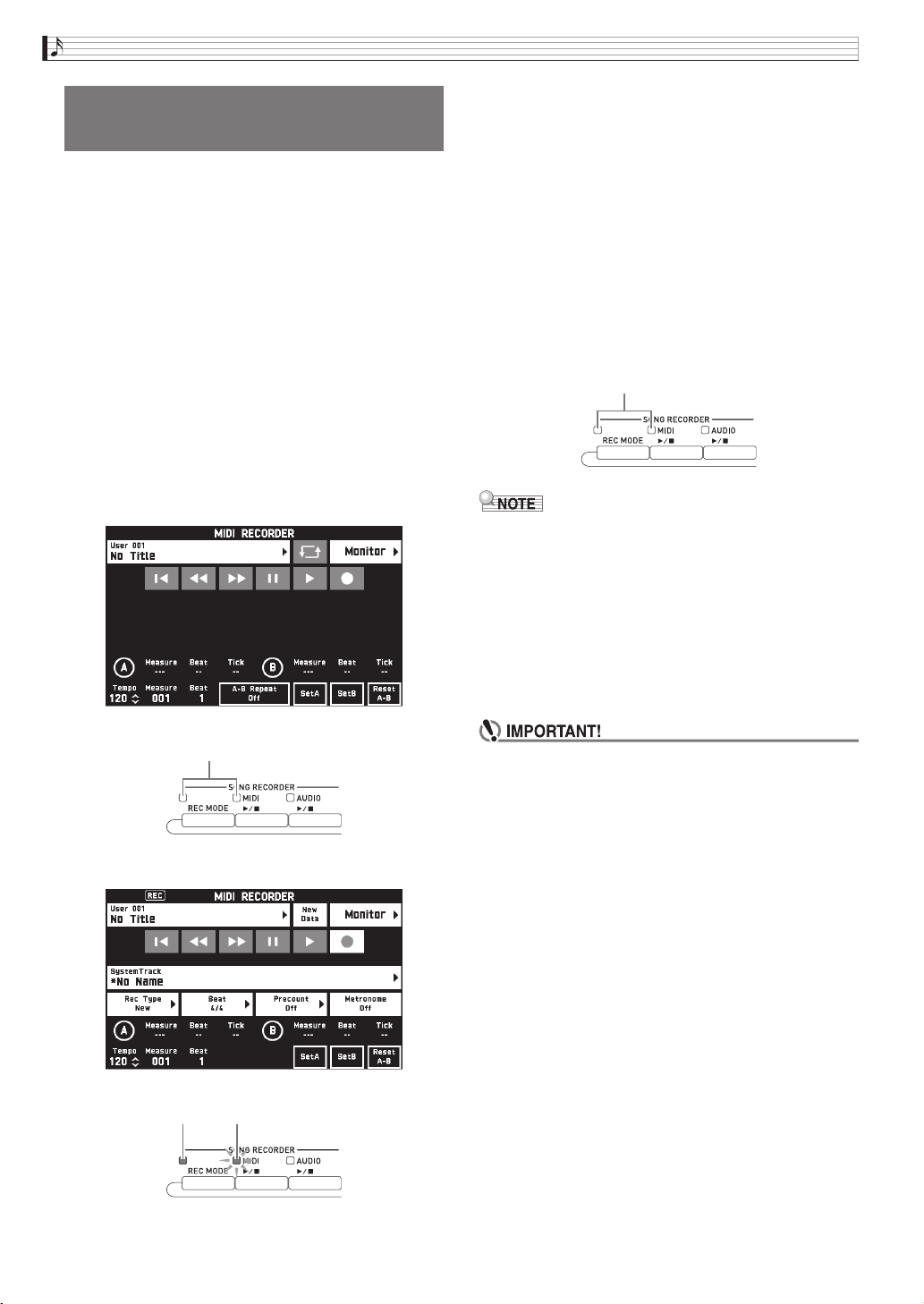
EN-56
Recording and Playback
Perform the steps below to record your keyboard play
to Digital Piano Memory.
1.
Configure the tone, rhythm, and other
settings you want to use.
• The settings you configure here will be included as
part of the recorded MIDI data.
• For details about what is included in the recorded
MIDI data, see “System Track” (page EN-57).
2.
On the MENU screen, touch “MIDI
RECORDER”.
3.
Touch “0”.
This turns on the recorder and enters record mode.
• Each touch of “0” cycles through modes as shown
below.
Playback mode
Recording mode
4.
Touch “New Data”.
This enables recording of new data to the system track.
5.
Play something on the keyboard.
Recording starts as soon as you play something.
• You can also start recording by touching “X”.
• You also can configure the piano so Auto
Accompaniment is included in the recorded data.
• The 4 MIDI a button is lit while recording is in
progress.
6.
After you finish recording, touch “Y”.
This causes the 3 REC MODE button and 4 MIDI
a button lamps to become unlit, and enters the
playback mode.
• You can also enter the recording mode by pressing
the 3 REC MODE button and then touching
“MIDI RECORDER”. This method can be used to
enter the recording mode only for making a new
recording.
• Recording memory capacity is approximately 50,000
notes per song. When remaining capacity is 100 or
fewer notes, the 4 MIDI a button lamp will
flash at high speed. Recording will stop
automatically when the allowable limit is reached.
• The Digital Piano has memory for 100 songs.
• If power to the Digital Piano is cut off while recording
is in progress, everything you recorded up to that
point will be lost. Take care so power is not turned
off accidentally during recording operations.
Recording to Digital Piano
Memory (MIDI Recorder)
Unlit
Lit Flashing
Unlit: Playback mode
PX560-ES-1B.indd 58 2016/12/15 15:39:33
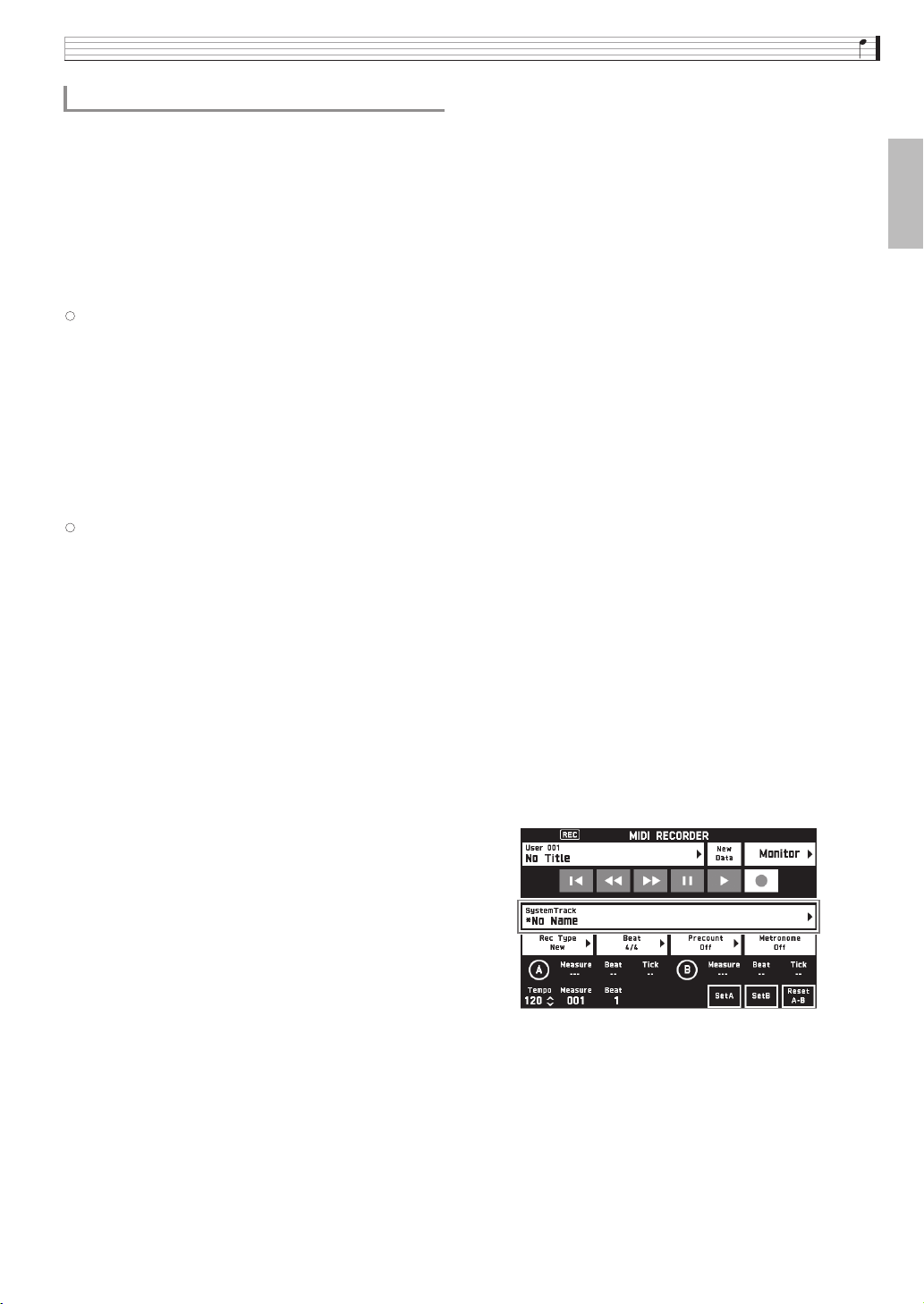
Recording and Playback
EN-57
English
You can record specific instruments, the left hand and
right hand, or other parts of a song individually, and
then combine them into a final song.
■ What is a track?
A “track” is a separate recorded part of a song. The
MIDI Recorder of this Digital Piano has a total of 17
tracks, one of which is a system track as described
below.
z
System Track
In addition to notes you play on the keyboard and
other performance operation data, the system track
also includes a wide range of setup information for
the song, including layer on/off, split on/off, tempo,
Auto Accompaniment settings, reverb type, etc.
When you record a single-track song to recorder
memory, as shown under “Recording to Digital
Piano Memory (MIDI Recorder)” (page EN-56)
everything is recorded to the system track.
z Tracks 01 through 16
These tracks can be used to record notes, as well as
pitch bend wheel and pedal operations, and the
keyboard tone setting. These tracks can be combined
with the system track and each other to create the
final song.
■ Supported Track Data
The following describes the data that can be recorded
to each type of track.
System Track, Tracks 01 through 16
Keyboard performance*
1
, the keyboard tone setting*
1
,
pedal and pitch bend wheel operation, mixer settings
(except for part on/off), part manipulation by a
controller
System Track only
Rhythm, balance setting, effect setting (reverb, chorus,
delay), tempo, Auto Accompaniment performance/
setting, one-touch preset, music preset performance*
2
,
registration*
2, 3
, system manipulation by a controller*
4
1.
Record the first part to the system track.
• Use the procedure under “Recording to Digital Piano
Memory (MIDI Recorder)” (page EN-56) to record to
the system track.
2.
Next, select the tone of the part you want to
play and record.
3.
On the MENU screen, touch “MIDI
RECORDER”.
4.
Touch “0” to enter the recording mode.
5.
Touch the track name.
6.
Touch the track (Solo Track 1 through Solo
Track 16) you want to record.
7.
Start playing something on the keyboard.
This starts recording along with playback of what you
recorded to the system track, so you can play along
with system track.
To record to a specific track (Part)
*1 Upper 1 only for Tracks 1 through 16
*2 Recall only
*3 The Auto Accompaniment volume level and
transpose setting of the recalled data is not included
in the recording.
*4 However, the settings of functions such as Master
Comp and Master EQ are not recorded.
PX560-ES-1B.indd 59 2016/12/15 15:39:34
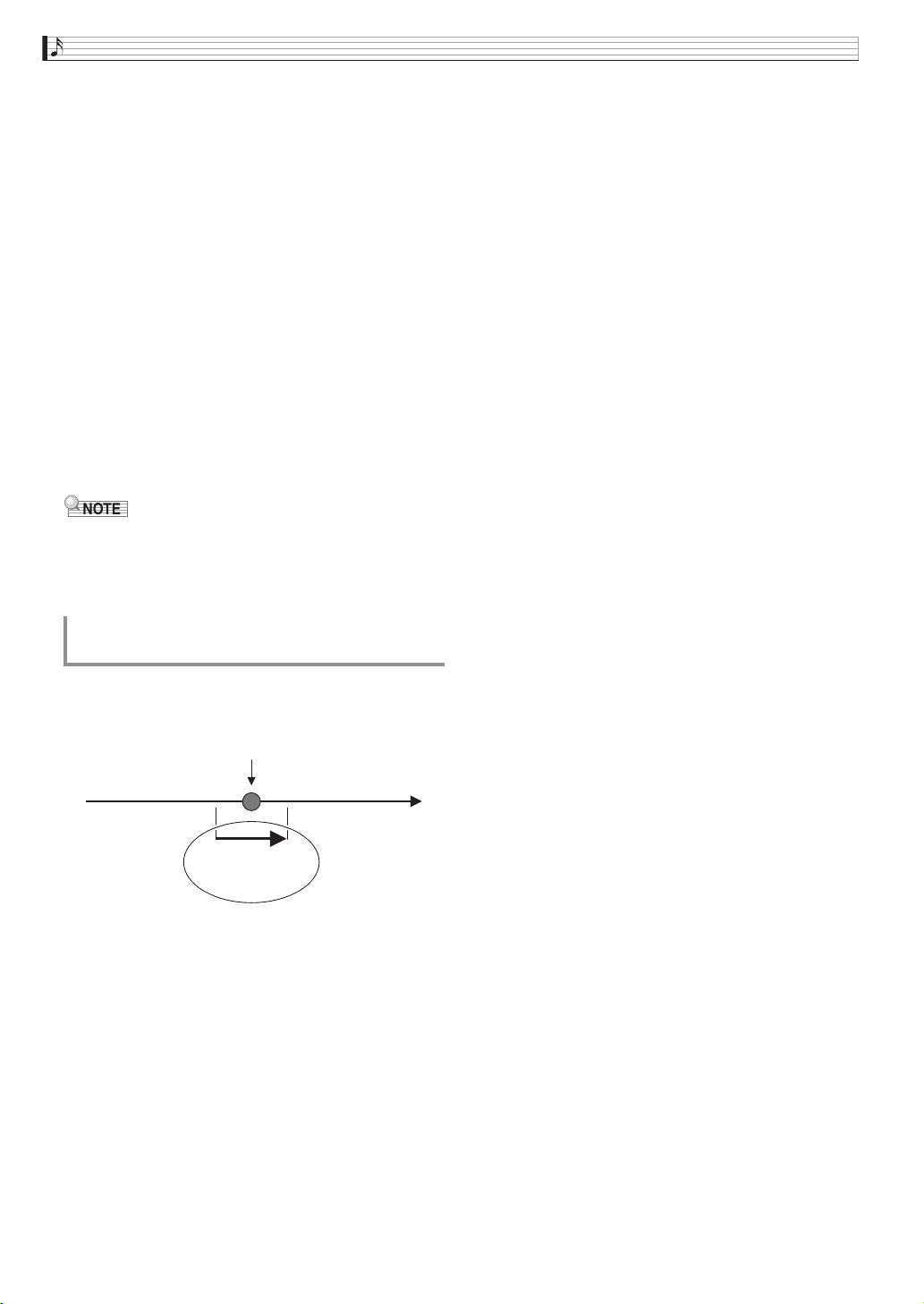
EN-58
Recording and Playback
8.
After you are finished playing, touch “Y”.
This enters the playback mode. Touch “X”to play back
what you recorded up to this point. To stop playback,
touch “Y”.
• You can use the following procedure to turn specific
tracks on (play enabled) and off (play disabled). This
allows you to listen only to the track(s) you want
when recording a new track.
You can mute specific recorded tracks so they do not
play as you record a new track.
9.
Repeat steps 2 through 8 above as required
to record all of the parts you need to complete
your song.
• You can re-record the currently selected track
without changing any settings. Simply touch “Rec
Type” on the screen that is displayed in the
recording mode, and then select “Re-Recording”.
You can use punch-in recording to re-record a specific
part of recorder song that you want to improve or
correct.
1.
Enter the MIDI recorder recording mode and
then select the track where you want to
perform punch-in recording.
• For information about how to select a track, see steps
4 and 5 under “To record to a specific track (Part)”
(page EN-57).
2.
Touch “Rec Type”.
3.
Touch “Punch In Sync”.
• If you want to delete all of the data in the track
following the section you recorded with punch-in
recording, touch “Punch Out Erase”.
4.
Touch “X”.
This will start playback of the selected track.
5.
When playback reaches the point you want to
re-record, play the desired note(s) on the
keyboard.
This starts punch-in recording, so continue to play.
• Performing a pedal or pitch bend wheel operation
also will start punch-in recording.
• Besides keyboard play, you can also start punch-in
recording by performing the operation below.
Touch “Punch In”*
1
, change the tone, change the
rhythm*
2
, change the tempo*
2
.
*1 Used when you want to start punch-in recording
without modifying play or settings.
*2 System track only
• During punch-in playback, you can touch “s” to
skip back or “d” to skip forward. This lets you
jump more quickly to the location you want to
record. You can also pause playback by touching
“k”.
6.
After you are finished punch-in recording,
touch “Y”.
Anything in the track following the point where you
touched “Y” will be retained as-is.
• If you want to cancel punch-in recording part way
through and retain the original track data, touch
“Cancel Punch”.
(1) Touch “Monitor”.
This displays the MIDI Recorder playback
properties screen.
(2) You can select “Mute” or “Solo” for each of the
tracks.
Mute: Track is not played.
Solo: Selected track is played alone.
To re-record part of a recorder song
(Punch-in Recording)
Mistake
Playback
Use punch-in
recording to re-record
only this part.
PX560-ES-1B.indd 60 2016/12/15 15:39:34
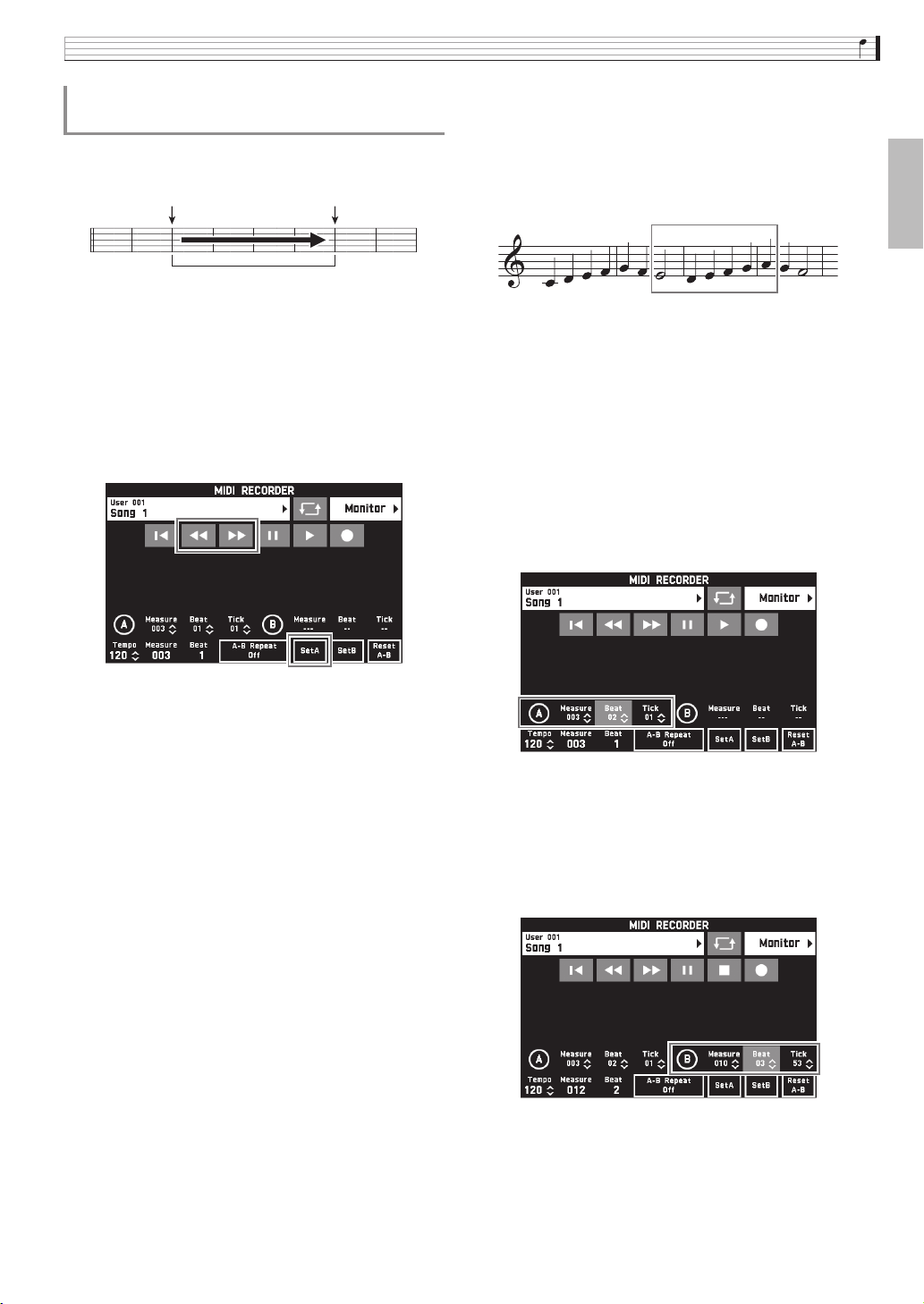
Recording and Playback
EN-59
English
You can use the following procedure to specify a
particular range for punch-in recording.
1.
Enter the MIDI recorder recording mode and
then select the song that contains the section
you want to re-record.
2.
Use “s” and “d” to display the first
measure of the section you want to record
and then touch “Set A”.
3.
Use “s” and “d” to display the last
measure and then touch “Set B”.
4.
Touch “
Y
W” to return to the beginning of the
song, or use “
s” and “d” to adjust the
position to start playback.
5.
Touch “0”.
This enters record standby.
6.
Touch “Rec Type”.
7.
Touch “Punch In A-B”.
8.
Touch “X”.
• Punch in recording will start from the start measure
and stop with the end measure automatically.
■ To re-record an area smaller than one
measure
Use the procedure below to specify a punch-in
recording area that includes a part of a measure.
Example: To re-record from beat 3 of measure 2 up to beat
1 of measure 4
1.
Use the MIDI Recorder to start playback of
the song that contains the section you want to
re-record.
2.
When playback reaches the point where you
want to start punch-in recording, touch “Set
A”.
• After touching “Measure”, “Beat”, or “Tick” for Point
A, you can then use the bt w, q buttons to make
fine adjustments to the start point.
3.
When playback reaches the point where you
want to end punch-in recording, touch “Set
B”.
• After touching “Measure”, “Beat”, or “Tick” for Point
B, you can then use the bt w, q buttons to make
fine adjustments to the end point.
4.
Touch “Y” to stop play back.
To re-record a specific range
(Auto Punch-in Recording)
Start measure End measure
Punch-in recording range
To re-record this section
PX560-ES-1B.indd 61 2016/12/15 15:39:34
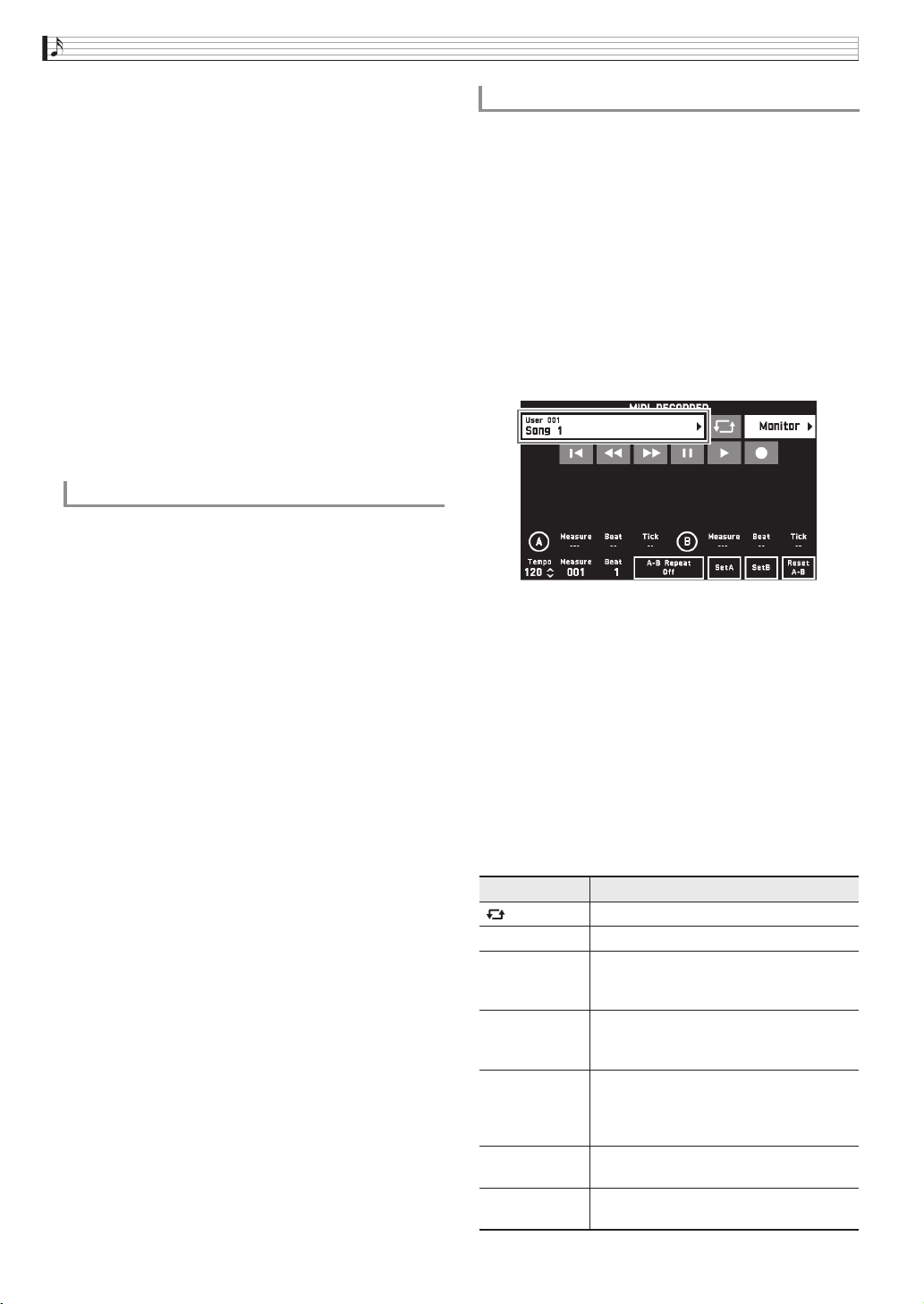
EN-60
Recording and Playback
5.
Touch “
Y
W” to return to the beginning of the
song, or use “
s” and “d” to adjust the
position to start playback.
6.
Touch “0” to enter the recording mode and
select the track where you want to perform
punch-in recording.
• For information about how to select a track, see steps
4 and 5 under “To record to a specific track (Part)”
(page EN-57).
7.
Touch “Rec Type”.
8.
Touch “Punch In A-B”.
9.
Touch “X”.
• Punch-in recording automatically starts when
playback reaches the start point and ends when it
reaches the end point you specified in step 3.
* When you start playing, various mixer settings are
recorded to the MIDI data header as header
information.
Rewritten Information
1.
On the MENU screen, touch “MIDI
RECORDER”.
This displays the MIDI RECORDER screen.
2.
Touch the name of the MIDI data file that
contains the header information you want to
rewrite.
3.
On the MENU screen, touch “MIXER”.
This displays the MIXER screen.
4.
Select a part and then change the parameter
settings you want.
• Repeat step as required to rewrite other parameters.
5.
After all of the parameters are the way you
want, hold down the dk STORE button as
you press the 4 MIDI a button.
The message “Complete!” will appear when rewriting
of the MIDI data header information is complete.
You can use the procedure below to perform auto play
of MIDI data (MIDI recording data or SMF files) stored
in Digital Piano memory or on a USB flash drive, and
practice along on the keyboard.
• For information about loading a USB flash drive on
the Digital Piano and importing MIDI data to Digital
Piano memory, see “Loading Data from a USB Flash
Drive to Digital Piano Memory” (page EN-85).
1.
On the MENU screen, touch “MIDI
RECORDER”.
This displays a MIDI RECORDER screen.
2.
Touch the file name.
3.
Touch the “User” tab to play back MIDI data
stored in Digital Piano memory or the “Media”
tab to play back from a USB flash drive.
4.
Touch the MIDI data you want to play.
5.
Touch “X”.
This starts playback.
• You can also start playback by pressing the 4 MIDI
a button.
• The operations below are supported while MIDI data
is playing back, during playback standby, or while
playback is paused.
To rewrite MIDI data header information*
Parts : System track (Port B parts 1 to 5), Tracks 01 to 16
(Port C parts 1 to 16)
Parameters : Tone, Volume, Pan, Coarse Tune, Fine
Tune, Bend Range, Reverb Send, Chorus
Send, Delay Send
To play MIDI data
This icon: Does this:
Performs repeat play.
Y
W Returns to the beginning of a song.
s Rewinds. A single touch rewinds one
measure, holding down performs
continuous rewind.
d Fast forwards. A single touch fast
forwards one measure, holding down
performs continuous fast forward.
k Pauses or resumes the currently playing
MIDI data.
The icon flashes while playback is
paused.
a Starts playback MIDI data or stops
playback.
0 Toggles between the recording mode and
playback mode.
B
PX560-ES-1B.indd 62 2016/12/15 15:39:34
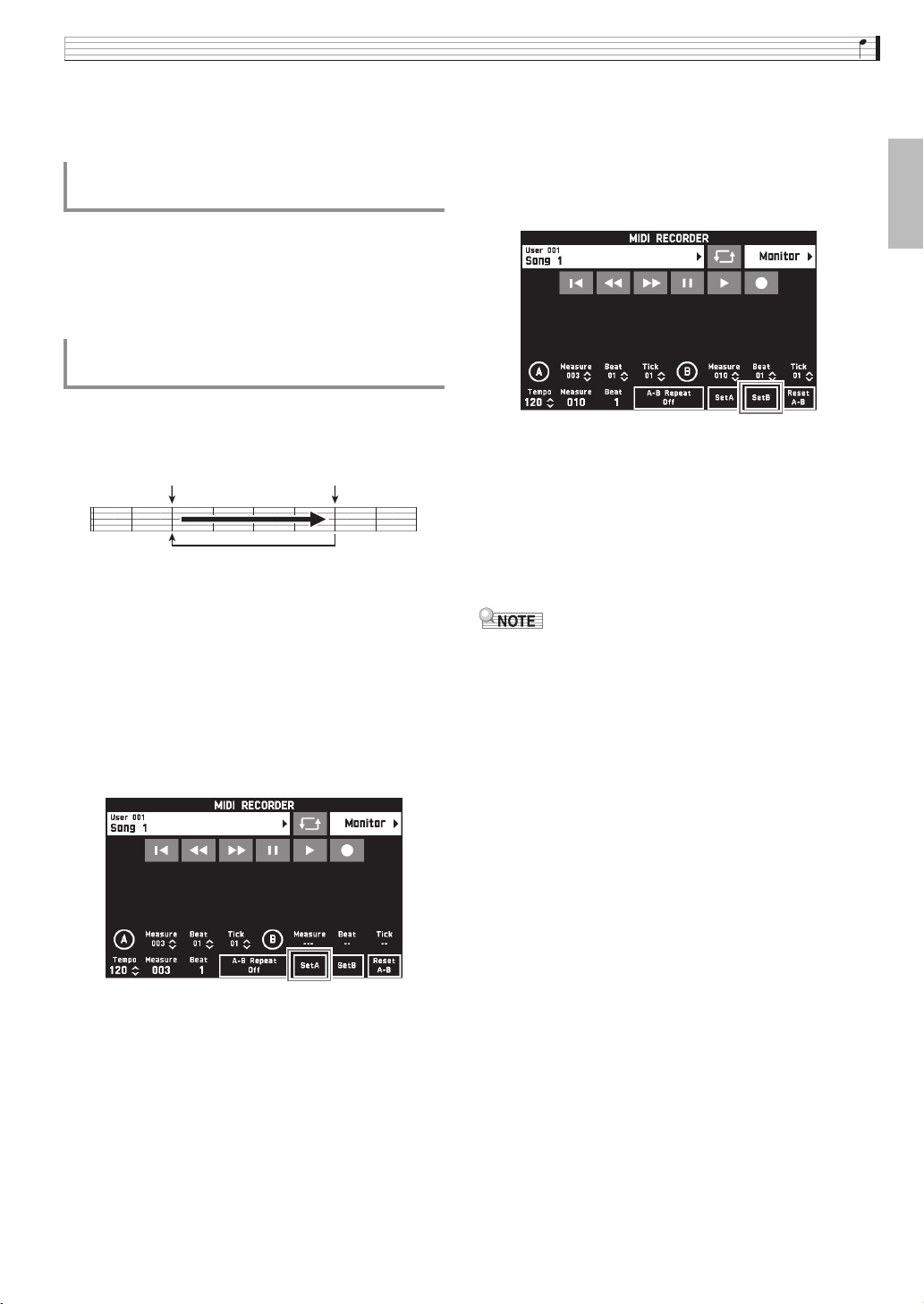
Recording and Playback
EN-61
English
6.
To stop playback, touch “Y”.
• You can also stop playback by pressing the 4 MIDI
a button.
You can change the volume level of the MIDI data auto
play only, without affecting the volume of the
keyboard. For details, see “BALANCE Screen” under
“Configuring Digital Piano Settings” (pages EN-68
through EN-81).
You can configure the piano to repeat the section of a
song you want to practice. You could, for example,
specify repeat play from measure 5 to measure 8.
1.
Touch “X”.
This starts auto play.
2.
When play reaches the beginning of the
section you want to repeat, touch “Set A”.
This makes the measure where you touched “Set A” the
“start measure”.
• You can also make fine adjustments to the start point.
After touching “Measure”, “Beat”, or “Tick” for Point
A, you can then use the bt w, q buttons to adjust.
3.
When play reaches the end of the section you
want to repeat, touch “Set B”.
This makes the measure where you touched “Set B” the
“end measure”.
• You can also make fine adjustments to the end point.
After touching “Measure”, “Beat”, or “Tick” for Point
B, you can then use the bt w, q buttons to adjust.
4.
Touch “A-B Repeat” to enable repeat
playback.
This starts repeat playback of the specified section.
5.
To disable repeat playback, touch “A-B
Repeat” again, which will return to normal
playback.
• To clear the start measure and end measure settings,
touch “Reset A-B”.
To adjust the Balance between Playback
and Keyboard Volume (MIDI Volume)
To repeat playback of a specific section
(Repeat)
Beginning End
Repeated measures
B
PX560-ES-1B.indd 63 2016/12/15 15:39:34
EN-62
Recording and Playback
1.
On the MENU screen, touch “MIDI
RECORDER”.
2.
Touch the data name.
3.
Touch “User Data Edit”.
4.
Touch “Rename”.
5.
Touch the data you want to rename.
6.
Input the new name.
7.
After you are finished inputting the name,
touch “Enter”.
8.
Touch “Yes”.
• To cancel the rename operation, touch “No”.
1.
On the MENU screen, touch “MIDI
RECORDER”.
2.
Touch the data name.
3.
Touch “User Data Edit”.
4.
Touch “Copy”.
5.
Touch the data you want to copy.
6.
Touch “Execute”.
7.
Touch “Yes”.
• To cancel the copy operation, touch “No”.
1.
On the MENU screen, touch “MIDI
RECORDER”.
2.
Touch the data name.
3.
Touch “User Data Edit”.
4.
Touch “Delete”.
5.
Touch the data you want to delete.
6.
Touch “Execute”.
7.
Touch “Yes”.
This deletes the MIDI data you selected.
• To cancel the delete operation, touch “No”.
1.
On the MENU screen, touch “MIDI
RECORDER”.
2.
Touch “Monitor”.
3.
Touch “Edit”.
4.
Touch “Rename”.
5.
Touch the track you want to rename.
6.
Input the new name.
7.
After you are finished inputting the name,
touch “Enter”.
8.
Touch “Yes”.
• To cancel the rename operation, touch “No”.
To rename recorded MIDI data
To copy recorded MIDI data
To delete recorded data
To rename a track
PX560-ES-1B.indd 64 2016/12/15 15:39:35
Recording and Playback
EN-63
English
1.
On the MENU screen, touch “MIDI
RECORDER”.
2.
Touch “Monitor”.
3.
Touch “Edit”.
4.
Touch “Copy”.
5.
In the “Source” list, touch the track you want
to copy.
6.
In the “Destination” list, touch the destination
track.
7.
Touch “Execute”.
8.
Touch “Yes”.
• To cancel the copy operation, touch “No”.
1.
On the MENU screen, touch “MIDI
RECORDER”.
2.
Touch “Monitor”.
3.
Touch “Edit”.
4.
Touch “Clear”.
5.
Touch the track you want to clear.
6.
Touch “Execute”.
7.
Touch “Yes”.
• To cancel the delete operation, touch “No”.
1.
On the MENU screen, touch “MIDI
RECORDER”.
2.
Touch “Monitor”.
3.
Touch “Edit”.
4.
Touch “Insert Measure”.
5.
Touch the track into which you want to insert
a blank measure.
6.
Touch the item whose setting you want to
change, and then use the bt w, q buttons
to change it.
Measure: Specifies the measure number from which
insertion starts.
Size: Specifies the number of measures to be inserted.
7.
After you are finished configuring settings,
touch “Execute”.
8.
Touch “Yes”.
• To cancel the insert operation, touch “No”.
• If a Point A and Point B are specified using the
procedure under “To repeat playback of a specific
section (Repeat)” (page EN-61) before performing
this operation “Measure” and “Size” settings will be
configured automatically.
To copy one track to another
To clear a track
To insert a blank measure at a specific
position in a specific track
PX560-ES-1B.indd 65 2016/12/15 15:39:35
EN-64
Recording and Playback
1.
On the MENU screen, touch “MIDI
RECORDER”.
2.
Touch “Monitor”.
3.
Touch “Edit”.
4.
Touch “Delete Measure”.
5.
Touch the track that contains the measure
you want to delete.
6.
Touch the item whose setting you want to
change, and then use the bt w, q buttons
to change it.
Measure: Specifies the measure number from which
delete starts.
Size: Specifies the number of measures to be deleted.
7.
After you are finished configuring settings,
touch “Execute”.
8.
Touch “Yes”.
• To cancel the delete operation, touch “No”.
• If a Point A and Point B are specified using the
procedure under “To repeat playback of a specific
section (Repeat)” (page EN-61) before performing
this operation “Measure” and “Size” settings will be
configured automatically.
* Quantize is an operation that automatically adjusts
the timing of the note on operation of each step to
match a reference note.
1.
On the MENU screen, touch “MIDI
RECORDER”.
2.
Touch “Monitor”.
3.
Touch “Edit”.
4.
Touch “Quantize”.
5.
Touch the track you want to quantize.
6.
Touch the note icon.
7.
Touch the note you want to use as the
quantize reference note.
8.
Touch the item whose setting you want to
change, and then use the bt w, q buttons
to change it.
Measure: Specifies the measure number from which
quantize starts.
Size: Specifies the number of measures to be
quantized.
9.
Touch “Execute”.
10.
Touch “Yes”.
• To cancel the quantize operation, touch “No”.
• If a Point A and Point B are specified using the
procedure under “To repeat playback of a specific
section (Repeat)” (page EN-61) before performing
this operation “Measure” and “Size” settings will be
configured automatically.
To delete a specific measure from a
specific track
To quantize a specific step*
PX560-ES-1B.indd 66 2016/12/15 15:39:35
Recording and Playback
EN-65
English
1.
On the MENU screen, touch “MIDI
RECORDER”.
2.
Touch “Monitor”.
3.
Touch “Edit”.
4.
Touch “Key Shift”.
5.
Touch the track you want to key shift.
6.
Touch the item whose setting you want to
change, and then use the bt w, q buttons
to change it.
Shift: Specifies the extent of the key shift. You can
specify a value in the range of –24 to +24.
Measure: Specifies the measure number from which
key shift starts.
Size: Specifies the number of measures to be key
shifted.
7.
After you are finished configuring settings,
touch “Execute”.
8.
Touch “Yes”.
• To cancel the key shift operation, touch “No”.
• If a Point A and Point B are specified using the
procedure under “To repeat playback of a specific
section (Repeat)” (page EN-61) before performing
this operation “Measure” and “Size” settings will be
configured automatically.
Anything played on the Digital Piano is recorded to the
USB flash drive as audio data (WAV files*). If you play
along on the Digital Piano as you play back data stored
in Digital Piano memory, the memory playback and
your keyboard play are both recorded to USB flash
drive.
* Linear PCM, 16bit, 44.1 kHz, Stereo
• Each new recording of audio data to a USB flash
drive is automatically assigned a new file name, so
existing data is not overwritten.
• Never remove the USB flash drive while Audio
Recorder recording or playback is in progress. Doing
so can corrupt the data on the USB flash drive and
damage the USB flash drive port.
PREPARATION
• Be sure to format the USB flash drive on the Digital
Piano before using it. See “USB Flash Drive” on page
EN-82 for more information.
1.
Insert the USB flash drive into the Digital
Piano’s USB flash drive port.
• When you perform a USB flash drive operation or
turn on the Digital Piano while a USB flash drive is
plugged in, the Digital Piano initially needs to
perform a “mounting” sequence to prepare for data
exchange with the USB flash drive. Digital Piano
operations may be momentarily disabled while a
mounting sequence is being performed. While the
mounting process is in progress, the message “Media
Mounting” will be displayed on the display. It may
take up to 10 or 20 seconds or even longer for a USB
flash drive to be mounted. Do not attempt to perform
any operation on the Digital Piano while a mounting
sequence is in progress. A USB flash drive needs to be
mounted each time it is connected to the Digital
Piano.
2.
On the MENU screen, touch “AUDIO
RECORDER”.
To key shift a specific measure from a
specific track
Recording to a USB Flash
Drive (Audio Recorder)
To record keyboard play to a USB flash
drive
PX560-ES-1B.indd 67 2016/12/15 15:39:35
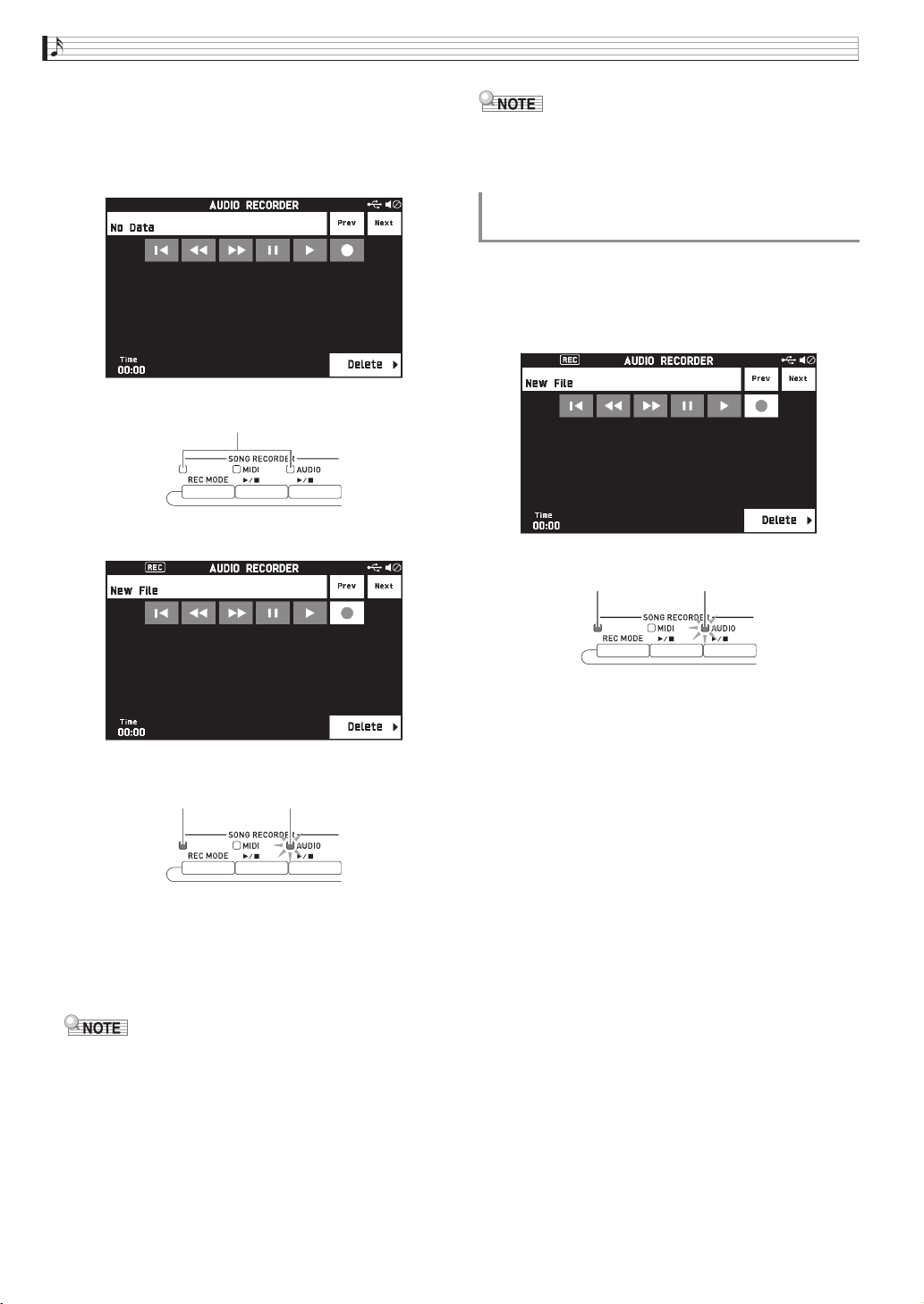
EN-66
Recording and Playback
3.
Touch “0”.
This turns on the recorder and enters recording mode.
• Each touch of “0”cycles through modes as shown
below.
Playback mode
Recording mode
4.
Start playing something on the keyboard.
This will cause recording to the USB flash drive to start.
• You can also start recording by touching “X”.
• The 5 AUDIO a button is lit while recording is
in progress.
• Do not remove the USB flash drive from the USB
flash drive port while the 5 AUDIO a button
lamp is lit or flashing. Doing so will interrupt
recording and may corrupt data.
5.
To stop recording, touch “Y”.
• You can also enter the recording mode by pressing
the 3 REC MODE button and then touching
“AUDIO RECORDER”.
1.
On the MENU screen, touch “AUDIO
RECORDER”.
2.
Touch “0” to enter the recording mode.
3.
Touch “X”.
4.
Press the 4 MIDI a button.
• This starts playback of the Digital Piano’s memory
contents. Play along on the keyboard.
5.
To stop recording, touch “Y”.
Unlit
Lit Flashing
To record keyboard play with playback
from Digital Piano memory
Lit Flashing
PX560-ES-1B.indd 68 2016/12/15 15:39:35
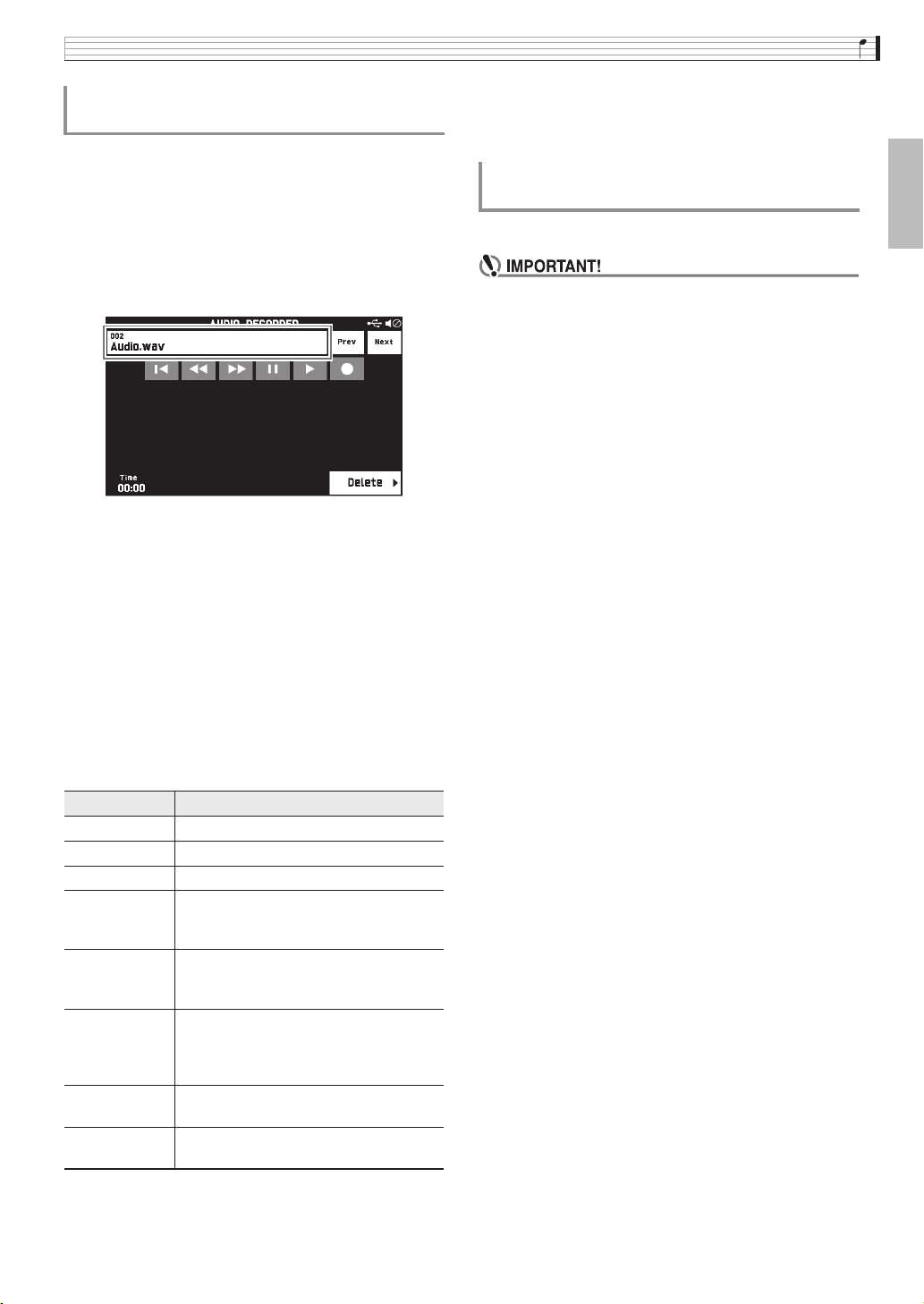
Recording and Playback
EN-67
English
1.
On the MENU screen, touch “AUDIO
RECORDER”.
• The above step is not necessary if you are playing
back recorded data immediately after recording it
(while the AUDIO RECORDER screen is displayed).
2.
Touch the file name.
This displays the audio file selection screen.
3.
Touch the song you want to play.
4.
Touch “X”.
This starts playback of the selected song.
• You can also start playback by pressing the 5
AUDIO a button.
• The 5 AUDIO a button is flashing while
playback is in progress.
• The operations below are supported while audio data
is playing back, during playback standby, or while
playback is paused.
Note that rewind (s) and fast forward (d)
operations are supported only while audio data is
playing back or while playback is paused.
5.
To stop the song, touch “Y”.
• You can also stop playback by pressing the 5
AUDIO a button.
Files can be deleted one at time.
• The procedure below deletes all of the data of the
selected song. Note that the delete operation cannot
be undone. Check to make sure you really do not
need the data in Digital Piano memory before you
perform the following steps.
1.
On the MENU screen, touch “AUDIO
RECORDER”.
2.
Touch the file name.
3.
Touch “Delete”.
4.
Touch the data you want to delete.
5.
Touch “Execute”.
6.
Touch “Yes”.
This deletes the audio data you selected.
• To cancel the delete operation, touch “No”.
To play along with data recorded on a
USB flash drive
This icon: Does this:
Prev Plays the previous audio data.
Next Plays the next audio data.
Y
W Returns to the beginning of a song.
s Rewinds. A single touch rewinds one
second, holding down performs
continuous rewind.
d Fast forwards. A single touch fast
forwards one second, holding down
performs continuous fast forward.
k Pauses or resumes the currently playing
audio data.
The icon flashes while playback is
paused.
a Starts playback from the beginning of
audio data or stops playback.
0 Toggles between the recording mode and
playback mode.
To delete an audio file from a USB flash
drive
PX560-ES-1B.indd 69 2016/12/15 15:39:36
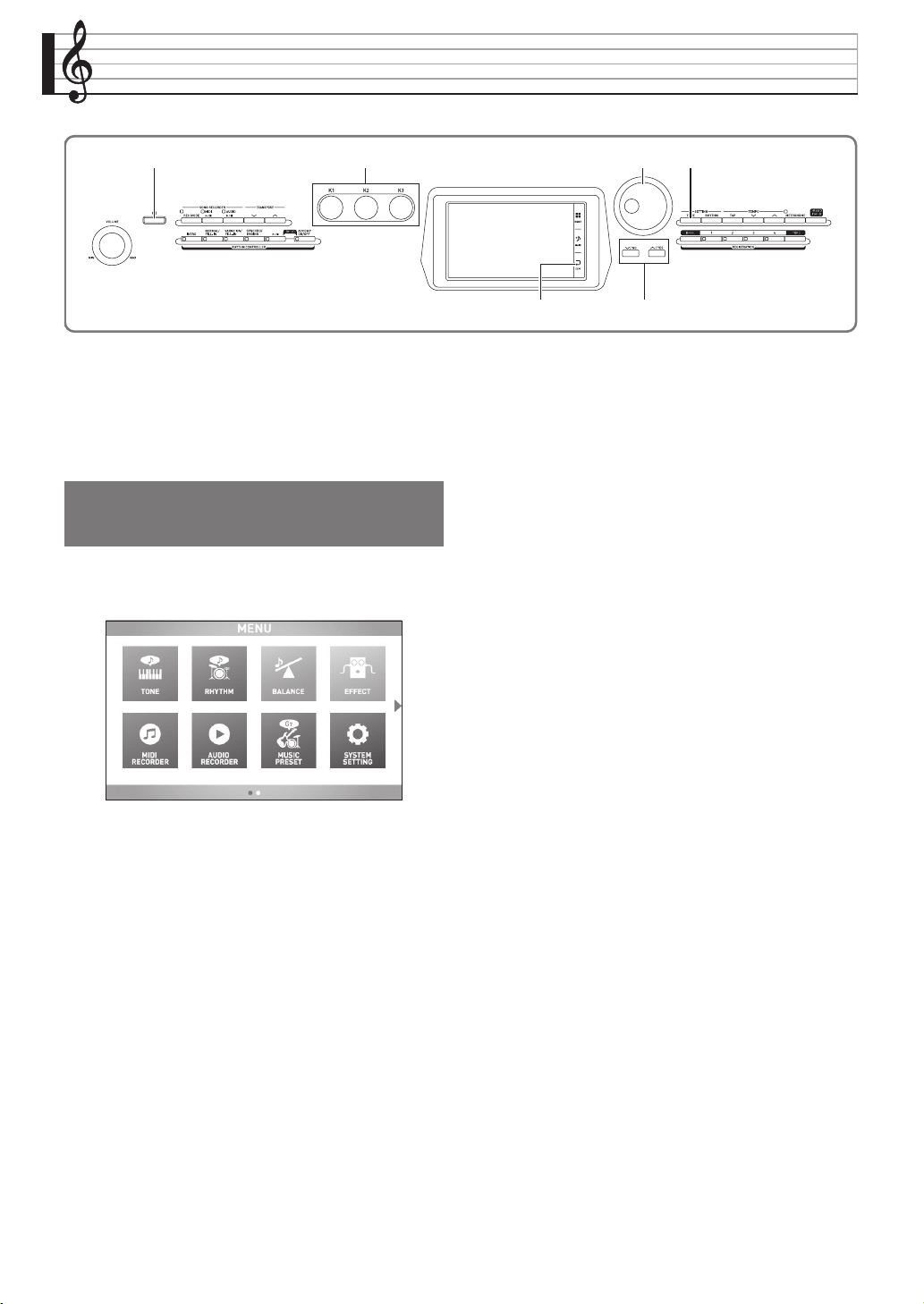
EN-68
Configuring Digital Piano Settings
On the MENU screen, you can change the selected tone
and rhythm, and also change the keyboard key and
touch settings, pedal and MIDI settings, and more. This
means you can tailor Digital Piano operation to suit
your particular needs.
1.
On the MENU screen, touch the menu for the
settings you want to configure.
2.
Touch the item whose setting you want to
change.
3.
Use the bs Dial or the bt w, q buttons to
change the setting.
bt
bs ckbn1
br
Configuring Digital Piano
Settings
PX560-ES-1B.indd 70 2016/12/15 15:39:36
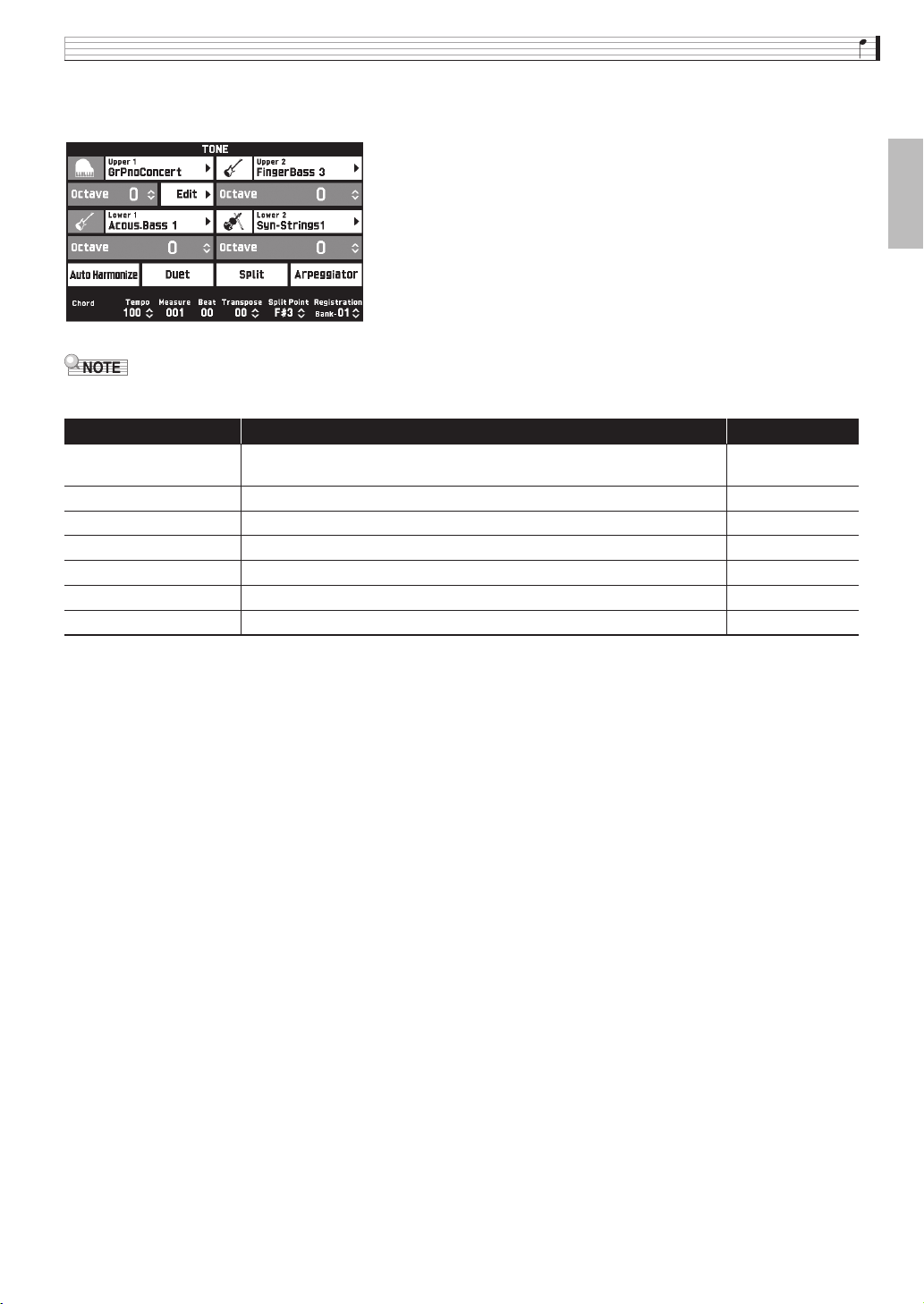
Configuring Digital Piano Settings
EN-69
English
■ TONE Screen
Use this screen to configure tone and other keyboard settings.
• You can also display the TONE screen by pressing the ck TONE button.
■ RHYTHM Screen
Use this screen to configure Auto Accompaniment settings. See “Using Auto Accompaniment” (page EN-38) for
more information.
Item Description Setting
Upper 1, Upper 2,
Lower 1, Lower 2
Turns each part on or off, and specifies its tone. Off, On
Edit See page EN-23. –
Octave Change the range of each part in octave units. –2 to 0 to 2
Auto Harmonize See page EN-42. Off, On
Duet See page EN-17. Off, On
Split See page EN-16. Off, On
Arpeggiator Turns the arpeggiator on or off. Off, On
PX560-ES-1B.indd 71 2016/12/15 15:39:36
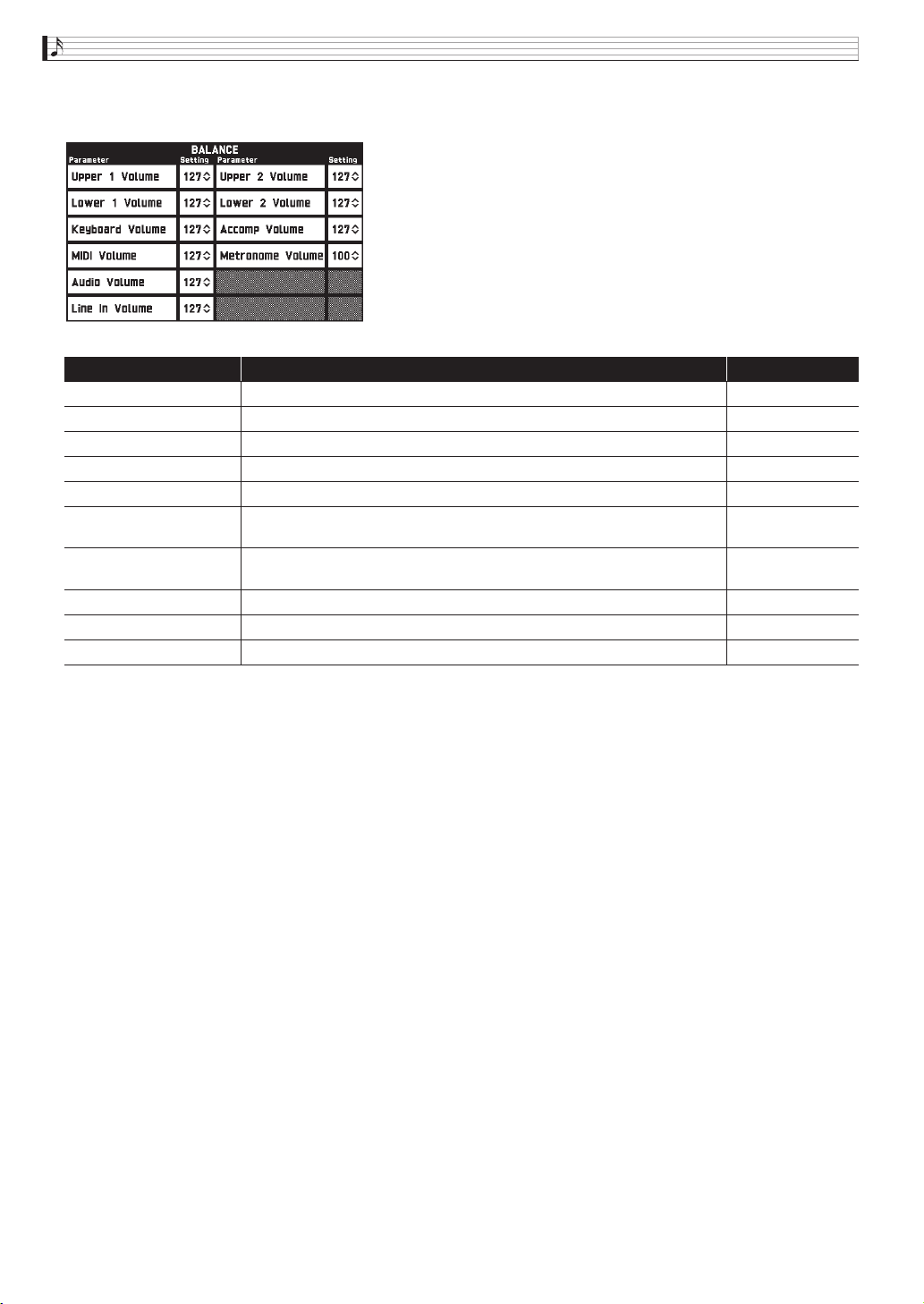
EN-70
Configuring Digital Piano Settings
■ BALANCE Screen
Use this screen to adjust volume settings for the keyboard, Auto Accompaniment, etc.
Item Description Setting
Upper 1 Volume See page EN-19. 0 to 127
Upper 2 Volume See page EN-19. 0 to 127
Lower 1 Volume See page EN-19. 0 to 127
Lower 2 Volume See page EN-19. 0 to 127
Keyboard Volume Adjusts the volume levels of all parts that are controlled by the keyboard. 0 to 127
Accomp Volume Adjusts the volume level of the Auto Accompaniment without changing the
keyboard tone volume level.
0 to 127
MIDI Volume Adjusts the volume level of the MIDI data without changing the keyboard
tone volume level.
0 to 127
Audio Volume Adjusts the volume level of audio data stored on a USB flash drive. 0 to 127
Line In Volume Adjusts the volume of LINE IN terminal input. 0 to 127
Metronome Volume See page EN-19. 0 to 127
PX560-ES-1B.indd 72 2016/12/15 15:39:36
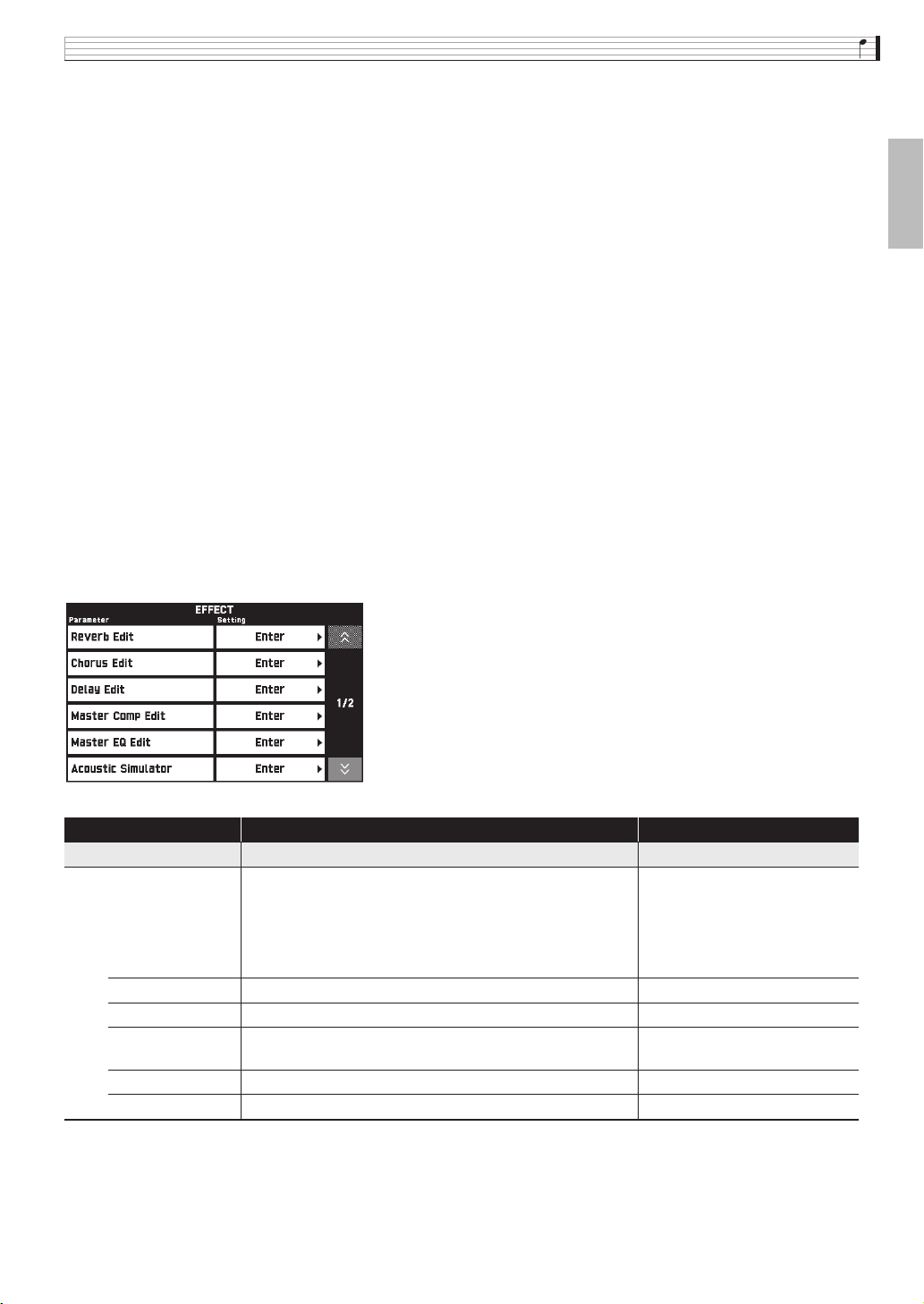
Configuring Digital Piano Settings
EN-71
English
■ EFFECT Screen
Use this screen to apply variety of acoustic effects to notes.
Your Digital Piano has three types of effects, each of which includes the effects described below.
A) Digital Signal Processor (DSP)
A collection of versatile Normal DSP effects help to enhance the sound of tones. For example, distortion can be
applied to an electric guitar sound to make it sound more powerful. There are 20 different Normal DSP types, and
the most appropriate one for the selected tone is applied automatically.
B) System Effects (SYSTEM)
These effects are shared by all Digital Piano parts. The depth of an effect can be adjusted by specifying the send level
from the part to each system effect.
• Chorus (Chorus): Combines multiple layers of the same note to create a sound with more depth.
• Delay (Delay): Delays the input signal and feeds it back to create a repeating effect and give notes more breadth.
• Reverb (Reverb): Adds reverberation to make it sound like you are playing in a room or in a hall.
• Acoustic Simulator (Acoustic Simulator): Simulates the resonance of acoustic piano strings. String Resonance
(String Reso): Generates resonance for the strings of keys being pressed. Damper Resonance (Damper Reso):
Generates string resonance when the damper pedal is pressed. Note that use of string resonance and damper
resonance is supported only for certain tones.
C) Master Effects (MASTER)
These effects are applied to the Digital Piano master output signal.
• Equalizer (Master Equalizer (EQ)): Adjusts the master frequency characteristics. The Master Equalizer can be
used to adjust the frequency and gain of four frequency bands: low, mid1, mid2, and high.
• Compressor (Master Compressor): Compresses the instrument master output signal. This effect can be used to
suppress level dispersion and limit the level of the input signal so it does not exceed the setting value.
Item Description Setting
Reverb Edit
Reverb Type Selects the reverb type. Room1, Room2, Room3, Hall1,
Hall2, Hall3, Plate1, Plate2,
Plate3, Delay, Pan Delay,
Large Room1, Large Room2,
Stadium1, Stadium2,
Long Delay1, Long Delay2
Time Adjusts the reverb time. 0 to 127
Early Reflection Adjusts the level of the initial reflection. 0 to 127
High Damp Adjusts the high-range damp. A smaller number increases
damping.
0 to 127
Tone Adjusts the tone. 0 to 127
Return Adjusts the return level. 0 to 127
PX560-ES-1B.indd 73 2016/12/15 15:39:36
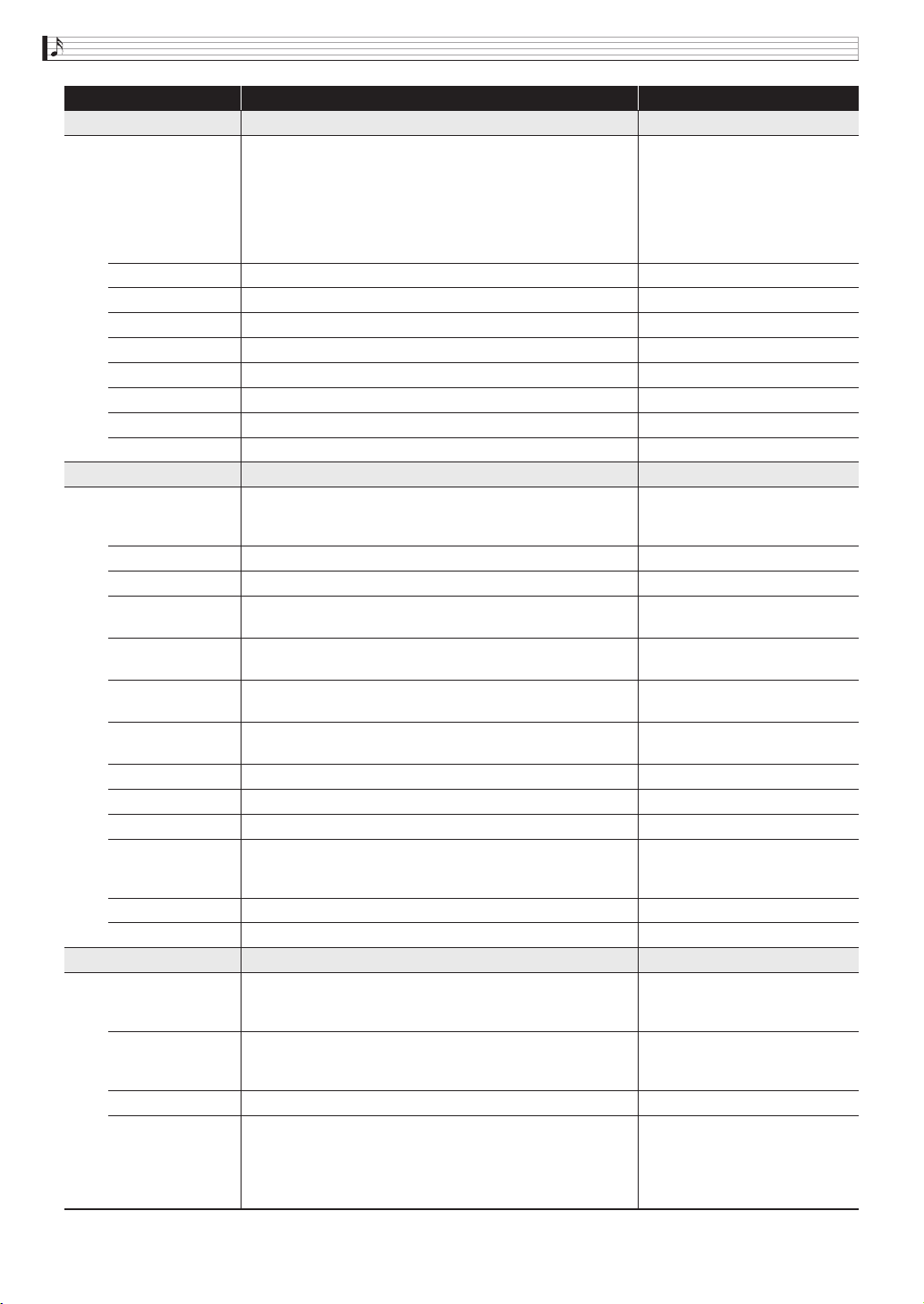
EN-72
Configuring Digital Piano Settings
Chorus Edit
Chorus Type Selects the chorus type. Chorus1, Chorus2, Chorus3,
Chorus4, FB Chorus, Flanger1,
Flanger2, Flanger3, Flanger4,
Short Delay1, Short Delay2,
Short Delay3, Short Delay4,
Soft Chorus, Bright Chorus,
Deep Chorus
LFO Rate Adjusts the LFO rate. 0 to 127
LFO Depth Adjusts the LFO depth. 0 to 127
Feedback Adjusts the feedback amount. 0 to 127
Tone Adjusts the tone. 0 to 127
Delay Time Adjusts the delay time. 0 to 127
Delay Send Adjusts the send level to system delay. 0 to 127
Reverb Send Adjusts the send level to system reverb. 0 to 127
Return Adjusts the return level. 0 to 127
Delay Edit
Delay Type Selects the delay type. Short 1, Short 2, Echo,
Short Tempo, Mid Tempo,
Long Tempo
Time Adjusts the total delay time. 0 to 127
Feedback Adjusts the feedback amount of the center channel. 0 to 127
High Damp Adjusts the high-range damp. A smaller number increases
damping.
0 to 127
Ratio L Adjusts the ratio of the left channel relative to the total delay
time.
0 to 127
Ratio C Adjusts the ratio of the center channel relative to the total
delay time.
0 to 127
Ratio R Adjusts the ratio of the right channel relative to the total delay
time.
0 to 127
Level L Adjusts the level of the left channel. 0 to 127
Level C Adjusts the level of the center channel. 0 to 127
Level R Adjusts the level of the right channel. 0 to 127
Tempo Sync Specifies how the actual total delay time is synced with tempo.
Off: Uses Delay Time value.
1/4 to 2: Uses value in accordance with number of beats.
Off, 1/4, 1/3, 3/8, 1/2, 2/3, 3/4,
1, 4/3, 3/2, 2
Reverb Send Adjust the send level to system reverb. 0 to 127
Return Adjusts the return level. 0 to 127
Master Comp Edit
Threshold Adjusts the threshold (where application of an effect starts)
level. Set a lower value for a compressor effect, and a higher
value for a limiter effect.
0 to 127
Ratio Adjusts the compression ratio. Set a lower value to for a
compressor effect, and the maximum value to for a limiter
effect.
0 to 127
Level Adjusts the output level. 0 to 127
Attack Adjusts the time until the compression effect starts. A smaller
value causes prompt compressor operation, which suppresses
the attack of the input signal. A larger values delays
compressor operation, which causes the attack of the input
signal to be output as-is.
0 to 127
Item Description S etting
PX560-ES-1B.indd 74 2016/12/15 15:39:36
Configuring Digital Piano Settings
EN-73
English
■ MIDI RECORDER Screen
Use this screen to record a performance to Digital Piano memory and to play back recordings. For more
information, see “Recording to Digital Piano Memory (MIDI Recorder)” (page EN-56).
■ AUDIO RECORDER Screen
Use this screen to record a performance on a commercially available USB flash drive, and to play back recorded
audio data on the Digital Piano. For more information, see “Recording to a USB Flash Drive (Audio Recorder)”
(page EN-65).
■ MUSIC PRESET Screen
Music presets provide you with one-touch tone, rhythm, chord, and other settings that are optimized for specific
musical genres and songs. In addition to built-in presets, you can create your own original music presets (user
presets). For more information, see “Music Presets” (page EN-46).
Release Adjusts the release time. Adjusts the time until the
compression effect is released.
0 to 127
Position Selects the connection position with the compressor EQ. PreEQ, PostEQ
Master EQ Edit See page EN-81.
Acoustic Simulator
Hammer Response Controls the time deviation between when a key is pressed
and the note actually sounds.
0 to 7: A greater value produces
slower timing.
Damper Resonance Adjusts the damper resonance send level. 0 to 15: A greater value increases
the send level.
String Resonance Adjusts the string resonance that is characteristic of an
acoustic piano.
0 to 15: A larger value increases
the resonance level.
Damper Noise
Level
Specifies the noise volume output when the damper pedal is
pressed.
0 to 15: A greater value increases
the noise volume.
SysFX Bypass Temporarily disables (bypasses) system effects. Off, On
MasFX Bypass Temporarily disables (bypasses) master effects. Off, On
DSP Bypass Temporarily disables (bypasses) DSP effects. Off, On
Item Description S etting
PX560-ES-1B.indd 75 2016/12/15 15:39:37
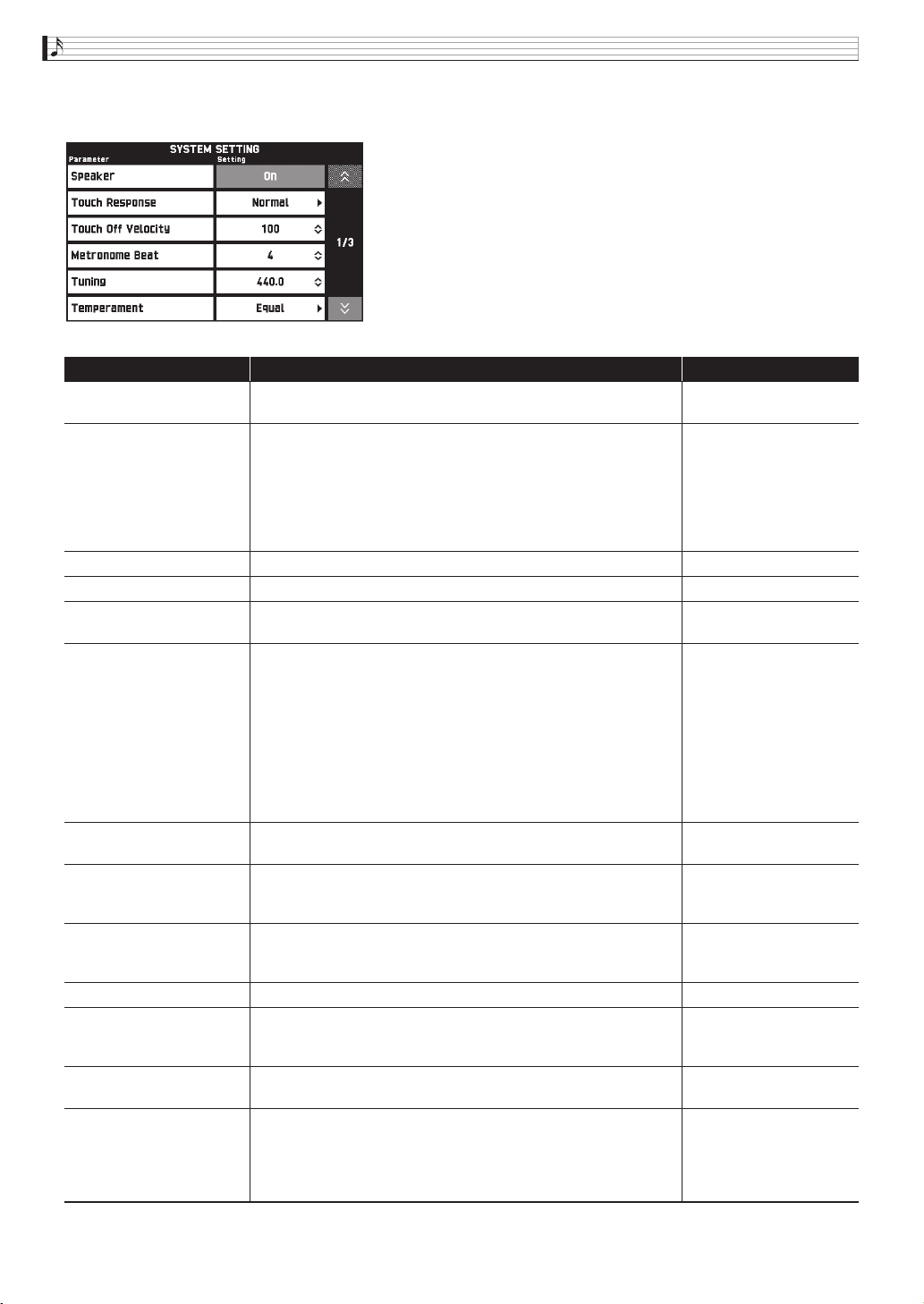
EN-74
Configuring Digital Piano Settings
■ SYSTEM SETTING Screen
Use this screen to configure global Digital Piano settings.
Item Description Setting
Speaker Specifies whether sound should be output from the Digital Piano
speakers (On) or muted (Off).
Off, On
Touch Response Adjusts keyboard touch Off: Disabled
Light: Strong sound even
with light pressure
Normal: Normal key
touch
Heavy: Normal sound
even with strong pressure
Touch Off Velocity Specifies the velocity value when the Touch Response setting is Off. 0 to 127
Metronome Beat Specifies the number of metronome beats per measure. 0 to 9
Tuning Raises or lowers the overall pitch of the Digital Piano from the
standard pitch of A4 = 440 Hz in 0.1Hz units.
415.5Hz to 440.0Hz to
465.9Hz
Temperament Changes the temperament of the keyboard and Auto
Accompaniment from the standard equal temperament to another
tuning more suitable for playing classics, Arabian music, etc.
Equal, Pure Major,
Pure Minor, Pythagorean,
Kirnberger 3,
Werckmeister,
Mean-Tone, Rast, Bayati,
Hijaz, Saba, Dashti,
Chahargah, Segah,
Gurjari Todi,
Chandrakauns,
Charukeshi
Temperament Base Note Pressing a keyboard key makes the pressed key the root of the
temperament.
C to B (12 types)
Acmp Temperament Turn this setting off to play Auto Accompaniment using standard
equal temperament, regardless of the current scale setting selected
with the Temperament Base Note parameter above.
Off, On
Stretch Tuning Sharpens high notes and flattens low notes to achieve stretch tuning.
This type of tuning is called “stretch tuning”.
Turn off this setting to play with normal (non-stretch) tuning.
Off, On
Brightness Use this item to adjust display brightness. 1 to 13
N. Gate Thresh Cuts LINE IN terminal input sound that is below a preset level,
which reduces noise. A larger setting value raises the sound cutoff
level.
1, 2, 3
Int By Wave Select “On” to link the envelope and other parameters when a wave
is selected or “Off” not to link.
Off, On
Operation Lock When this setting is turned on, the Digital Piano’s buttons (except
for the 1 P button and buttons required for unlock) are locked, so
no operation can be performed. Turn on operation lock when you
want to protect against unintentional button and control panel
operations.
Off, On
PX560-ES-1B.indd 76 2016/12/15 15:39:37
Configuring Digital Piano Settings
EN-75
English
Auto Resume When “On” is selected for this setting, the Digital Piano will
remember its settings whenever it is turned off, and restore them
when it is turned on again.
When “Off” is selected, settings are reset to their initial defaults
whenever the Digital Piano is turned on.
Off, On
Auto Power Off Specifies if Auto Power Off (page EN-8) is enabled (On) or disabled
(Off).
Off, On
Exp.pedal Calibration Performs an expression pedal calibration operation.
1. When the message “Move the expression pedal to the highest
position and Press "OK"” appears, keep the pedal depressed (your
toe down) as you touch “OK”.
2. When the message “Move the expression pedal to the lowest
position and Press "OK"” appears, keep the pedal released (heel
depressed) as you touch “OK”.
The message “Complete” will appear on the display when the
operation is complete.
• Touch br EXIT to exit the calibration operation.
–
Factory Reset Use this screen to return the piano’s stored data and settings to their
initial factory defaults.
–
Information Shows the version of the firmware installed on the Digital Piano.
Also use this item when updating the Digital Piano firmware.
–
Item Description Setting
B
PX560-ES-1B.indd 77 2016/12/15 15:39:37
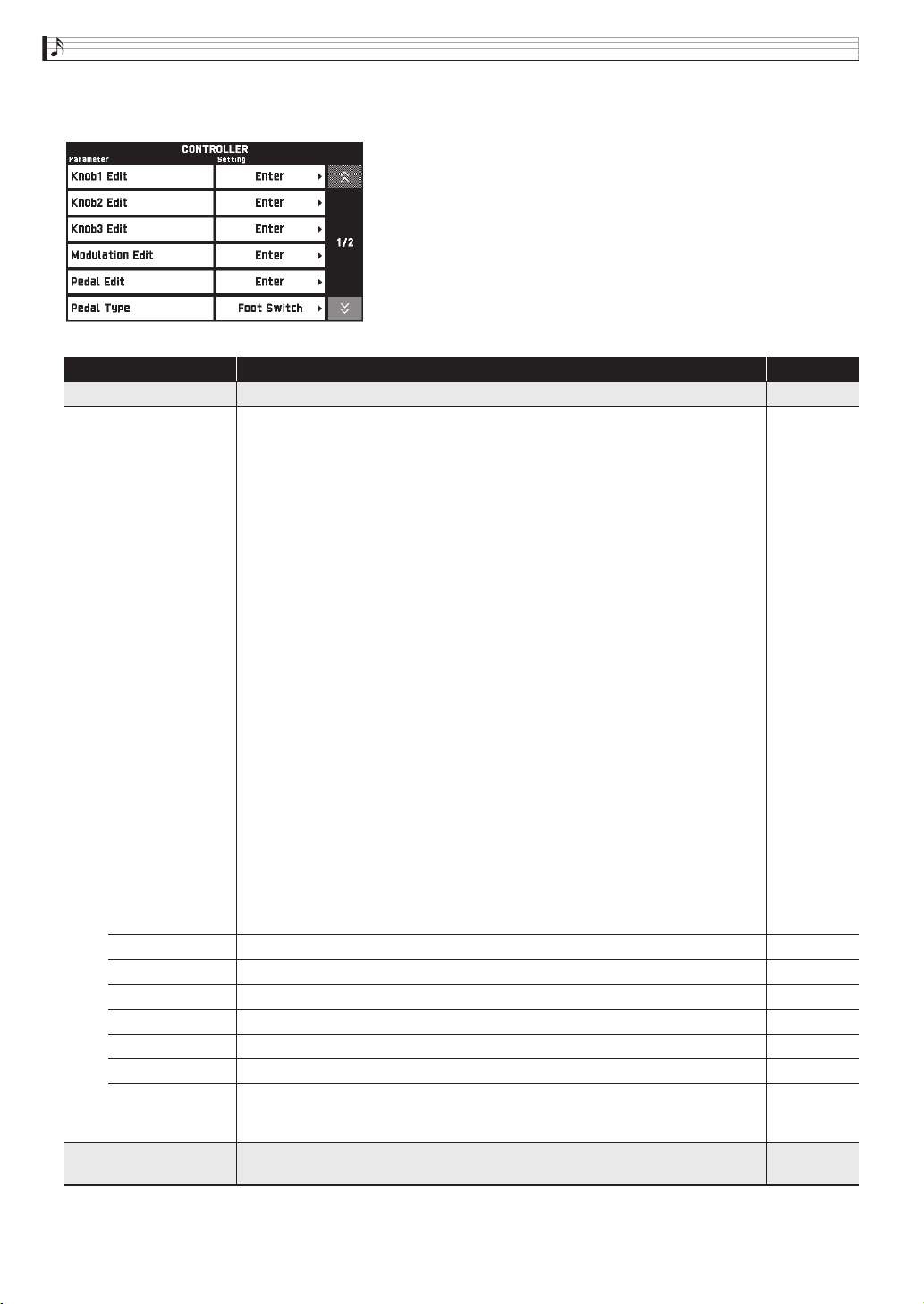
EN-76
Configuring Digital Piano Settings
■ CONTROLLER Screen
Use this to configure pedal and pitch bend wheel settings.
Item Description Setting
Knob1-3 Edit This is a group editable parameters for bn knobs (K1 to K3).
Target Selects the parameters to be controlled by a controller. For example, the “CC67:Soft”
setting specifies a soft pedal effect.
• Two targets can be specified for a single controller.
No Assign: No target specified.
CC00 to CC97: MIDI control change*
1
NRPN, RPN: MIDI NRPN and RPN parameters*
1
*
2
Pressure: MIDI channel pressure*
1
Tempo: Tempo setting (page EN-20)
EQ Low Gain - EQ High Gain: Master EQ >Low Gain - High Gain (page EN-81)
Upper 1 On/Off to Lower 2 On/Off: On/Off setting of each tone
Upper 1 Volume to Metronome Volume: Balance adjustment of keyboard, Auto
Accompaniment, and other volume levels
Layer Detune: Layer detune (page EN-33)
Layer 1 - Layer 6: Tone parameter settings of each layer
• The following can be assigned: On/Off, Volume (Volume), Pan (panning),
OctShift (octave shift), DspOnOff (DSP on/off), LfoPitch (LFO pitch),
LfoFiltr (LFO filter), LfoAmp (LFO amp). For details about each setting, see the
editable parameters under “Editing a Tone” (page EN-23).
DSP Bypass: Temporarily bypasses the DSP.
Dsp Param 1-16: DSP parameters
SysFX Bypass: Temporarily bypasses system effects.
MasFX Bypass: Temporarily bypasses master effects.
Refer to the
information
to the left.
Min Value Controller minimum output value setting. 0 to 127
Max Value Controller maximum output value setting. 0 to 127
Upper1 Enable Turning on this setting applies output MIDI messages to the Upper1 tone. Off, On
Upper2 Enable Turning on this setting applies output MIDI messages to the Upper2 tone. Off, On
Lower1 Enable Turning on this setting applies output MIDI messages to the Lower1 tone. Off, On
Lower2 Enable Turning on this setting applies output MIDI messages to the Lower2 tone. Off, On
Auto Resolution
(Knobs 1, 2, 3
only)
Turning on this setting causes the amount of change applied when a knob is rotated
to be in accordance with the “Target”, “Min Value”, and “Max Value” settings.
When this setting is off, each click of a knob changes the applicable setting by one.
Off, On
Modulation Edit This is a group of dn MODULATION wheel editable parameters. Details of the
editable parameters are the same as “Knob1 Edit”, above.
*1 For details about each setting, see the MIDI Implementation Chart and/or
MIDI documentation.
*2 After selecting these parameters, adjust the parameters below.
MSB: CC99 for NRPN, CC101 for RPN (Setting range: 000 to 127)
LSB: CC98 for NRPN, CC100 for RPN (Setting range: 000 to 127)
Data Entry MSB/LSB: Specifies which Data Entry (MSB (CC06) or LSB
(CC38)) is controlled by a controller operation. (Settings: MSB, LSB)
PX560-ES-1B.indd 78 2016/12/15 15:39:37
Configuring Digital Piano Settings
EN-77
English
Pedal Edit This is a group of editable parameters for the pedal connected to the ASSIGNABLE
PEDAL terminal. Details of the editable parameters are the same as “Knob1 Edit”,
above.
Pedal Type Specifies whether the pedal connected to the ASSIGNABLE PEDAL jack is to be
used as a foot switch or an expression pedal. Do not change this setting while the
pedal is depressed.
Foot Switch,
Exp. Pedal
Pedal Mode Selects the operation performed when the pedal is pressed.
Momentary: On while the pedal is depressed, off while the pedal is released.
Toggle: On after the pedal is pressed and remains on even if the pedal is released.
Off when the pedal is pressed again.
Momentary,
Toggle
Upper1 Pedal Turning on this setting applies the effect to the Upper1 tone when the pedal
connected to the DAMPER PEDAL terminal or pedal connector is depressed.
Off, On
Upper2 Pedal Turning on this setting applies the effect to the Upper2 tone when the pedal
connected to the DAMPER PEDAL terminal or pedal connector is depressed.
Off, On
Lower1 Pedal Turning on this setting applies the effect to the Lower1 tone when the pedal
connected to the DAMPER PEDAL terminal or pedal connector is depressed.
Off, On
Lower2 Pedal Turning on this setting applies the effect to the Lower2 tone when the pedal
connected to the DAMPER PEDAL terminal or pedal connector is depressed.
Off, On
Bend Range Specifies (in semitone units) how much the pitch of the keyboard performance parts
(Port A parts 1 through 5) changes when the pitch bend wheel is rotated all the way
upwards or downwards.
00 to 24
Item Description Setting
B
PX560-ES-1B.indd 79 2016/12/15 15:39:37
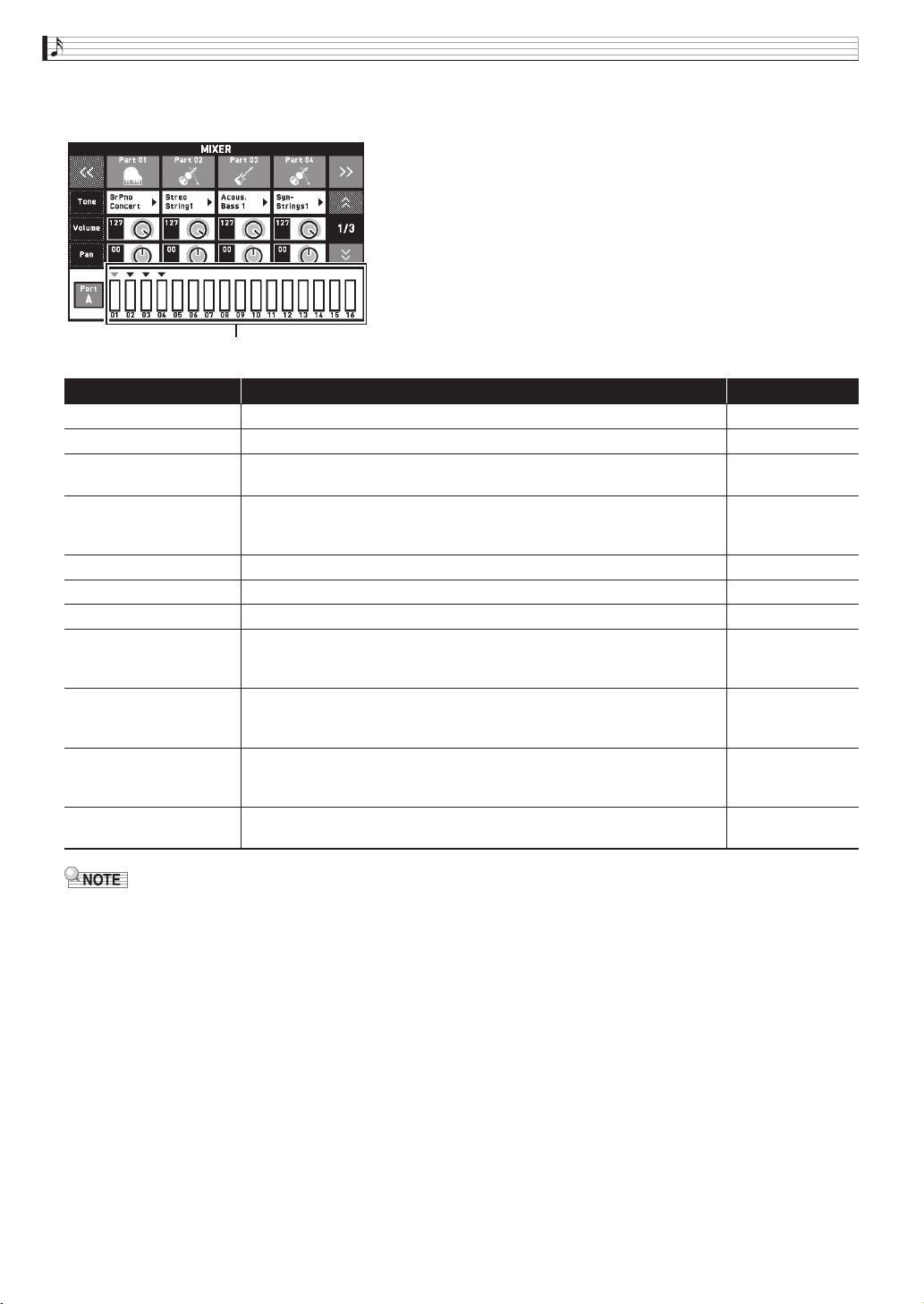
EN-78
Configuring Digital Piano Settings
■ MIXER Screen
Use this screen to change the tone of each part, and to adjust its volume and reverb.
• While an individual part (A01 through A16, B01 through B16) is selected for setting, pressing a keyboard key will
sound only notes of the selected part. All other types of performance operations (layer, split, Auto
Accompaniment, etc.) are disabled.
Item Meaning Setting
Part A part that is turned on is sounded. Turn off parts you do not want to sound. Off, On
Tone Changes the tone. 650
Volume Adjusts the volume. The volume level of each part is shown by an on-screen
level meter.
0 to 127
Pan Specifies the stereo pan position of the sound output by the Digital Piano. 0
indicates the center, while a smaller values shifts to the left and a larger value
shifts to the right.
–64 to 0 to +63
Coarse Tune Specifies, in semitone steps, the pitch of the notes of each part. –24 to 0 to +24
Fine Tune Specifies, in cent steps, the pitch of the notes of each part. –99 to 0 to +99
Bend Range Adjusts, in semitone steps, the bend range of each part. 0 to 24
Reverb Send Specifies how much reverb is applied to each part.
No reverb is applied at all when this setting is 0, while maximum reverb is
applied when it is 127.
0 to 127
Chorus Send Specifies how much chorus is applied to each part.
No chorus is applied at all when this setting is 0, while maximum chorus is
applied when it is 127.
0 to 127
Delay Send Specifies how much delay is applied to each part.
No delay is applied at all when this setting is 0, while maximum delay is
applied when it is 127.
0 to 127
Port Specifies the port. For information about MIDI channels assigned to each
port, see “Part and MIDI Channel Assignments and Diagram” (page A-5).
Port A, Port B,
Port C
Level meter
B
PX560-ES-1B.indd 80 2016/12/15 15:39:37
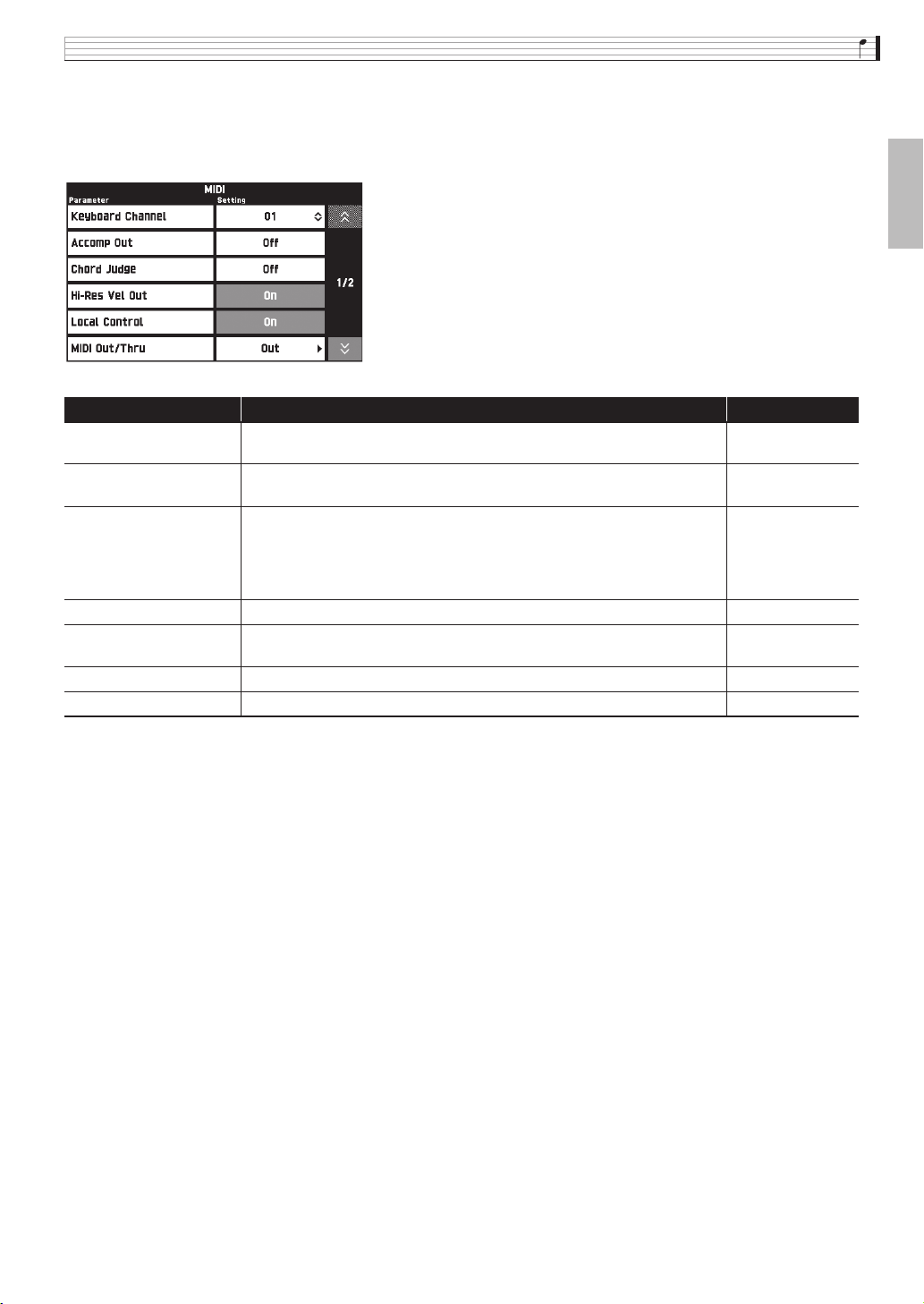
Configuring Digital Piano Settings
EN-79
English
■ MIDI Screen
Use this screen to configure MIDI settings.
For information about MIDI channels assigned to each port, see “Part and MIDI Channel Assignments and
Diagram” (page A-5).
■ MEDIA Screen
Use this screen to save data to a USB flash drive inserted in the Digital Piano and to import data from a USB flash
drive to Digital Piano memory. For more information, see “USB Flash Drive” (page EN-82).
■ ARPEGGIATOR Screen
Screen for configuring arpeggiator settings. For details, see “Sounding Arpeggio Phrases Automatically
(Arpeggiator)” (page EN-22).
Item Description Setting
Keyboard Channel Selects the channel for sending keyboard play MIDI data to an external
device (keyboard channel).
01 to 16
Accomp Out Turn on this setting to send MIDI data corresponding to Auto
Accompaniment to an external device.
Off, On
Chord Judge Turning on this setting enables Auto Accompaniment chord input in
accordance with the keyboard key press information input in the MIDI
channel (any one of ports A, B, or C) specified by the Keyboard Channel
from MIDI IN. Just as when chords are input on the Digital Piano keyboard,
the chord input keyboard range is for Auto Accompaniment chord input.
Off, On
Hi-Res Vel Out Turns high-resolution velocity MIDI out on or off. Off, On
Local Control Selecting “Off” for Local Control cuts off the Digital Piano’s sound source, so
no sound is produced by the Digital Piano when keys are pressed.
Off, On
MIDI Out/Thru Specifies either Out or Thru as the MIDI OUT terminal function. Out, Thru
MIDI In Port Select the port to be used for input from the MIDI In. A, B, C
PX560-ES-1B.indd 81 2016/12/15 15:39:37
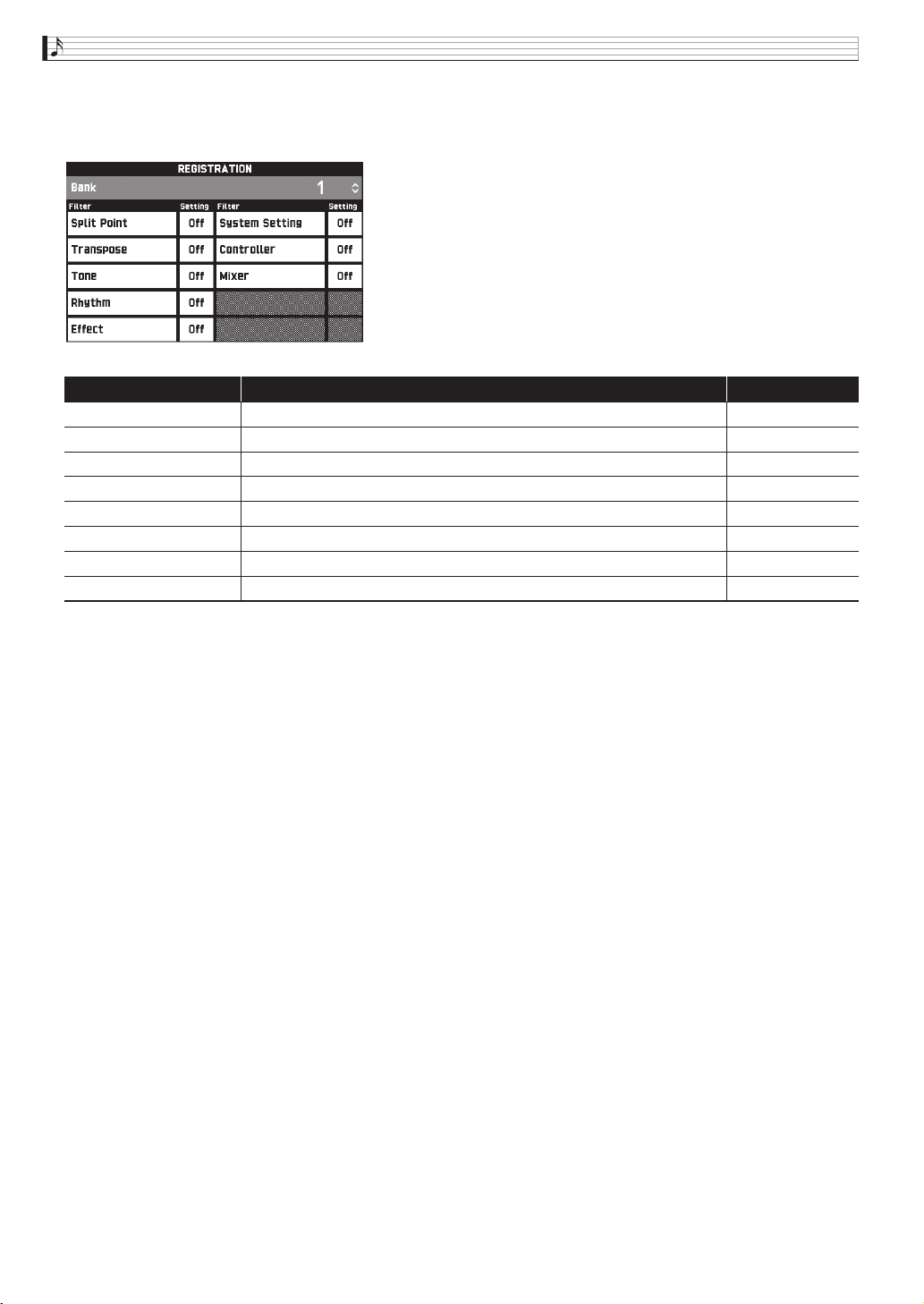
EN-80
Configuring Digital Piano Settings
■ REGISTRATION Screen
You can specify which current settings should be left unchanged when parameter settings are recalled using the
registration function.
• For details about setting items saved by registration, refer to the setting item list in the separate Appendix.
Item Description Setting
Split Point Turning on this setting disables recall of the split point setting. Off, On
Transpose Turning on this setting disables recall of the transpose setting. Off, On
Tone Turning on this setting disables recall of TONE related settings. Off, On
Rhythm Turning on this setting disables recall of RHYTHM related settings. Off, On
Effect Turning on this setting disables recall of EFFECT related settings. Off, On
System Setting Turning on this setting disables recall of SYSTEM SETTING related settings. Off, On
Controller Turning on this setting disables recall of CONTROLLER related settings. Off, On
Mixer Turning on this setting disables recall of MIXER related settings. Off, On
PX560-ES-1B.indd 82 2016/12/15 15:39:38
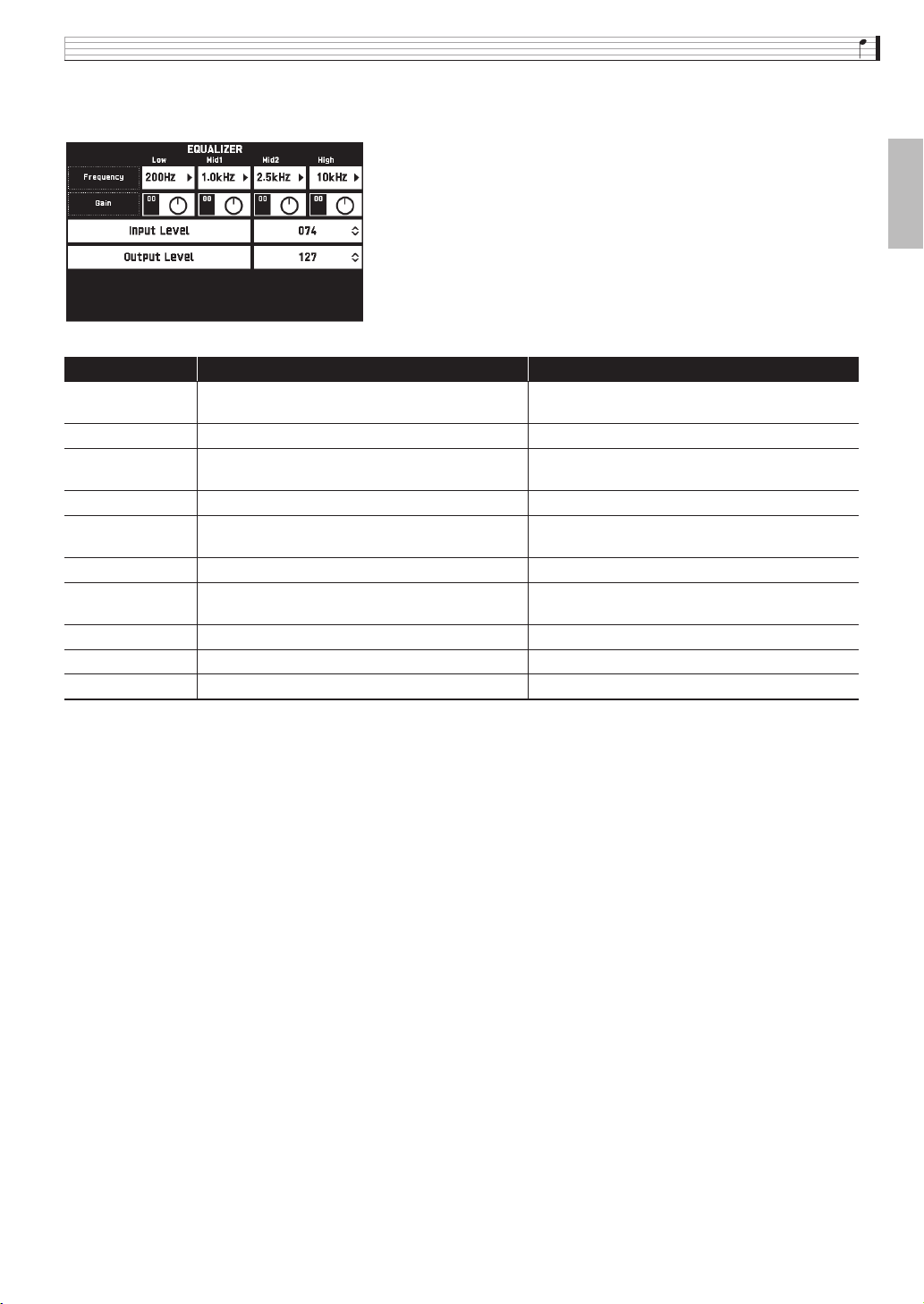
Configuring Digital Piano Settings
EN-81
English
■ EQUALIZER Screen
Adjusts the frequency characteristics of all tones.
Item Description Setting
Low Frequency Selects the low-range cutoff frequency. 50, 63, 80, 100, 125, 160, 200, 250, 315, 400, 500, 630,
800 (Hz)
Low Gain Adjusts the low-range gain. –12 to 0 to +12
Mid1 Frequency Selects the low mid-range frequency. 100, 125, 160, 200, 250, 315, 400, 500, 630, 800, 1.0k,
1.3k, 1.6k, 2.0k, 2.5k, 3.2k, 4.0k, 5.0k, 6.3k, 8.0k (Hz)
Mid1 Gain Adjusts the low mid-range gain. –12 to 0 to +12
Mid2 Frequency Selects the middle high-range frequency. 100, 125, 160, 200, 250, 315, 400, 500, 630, 800, 1.0k,
1.3k, 1.6k, 2.0k, 2.5k, 3.2k, 4.0k, 5.0k, 6.3k, 8.0k (Hz)
Mid2 Gain Adjusts the middle high-range gain. –12 to 0 to +12
High Frequency Selects the high-range cutoff frequency. 2.0k, 2.5k, 3.2k, 4.0k, 5.0k, 6.0k, 8.0k, 10k, 13k,
16k (Hz)
High Gain Adjusts the high-range gain. –12 to 0 to +12
Input Level Adjusts the input level. 0 to 127
Output Level Adjusts the output level. 0 to 127
PX560-ES-1B.indd 83 2016/12/15 15:39:38
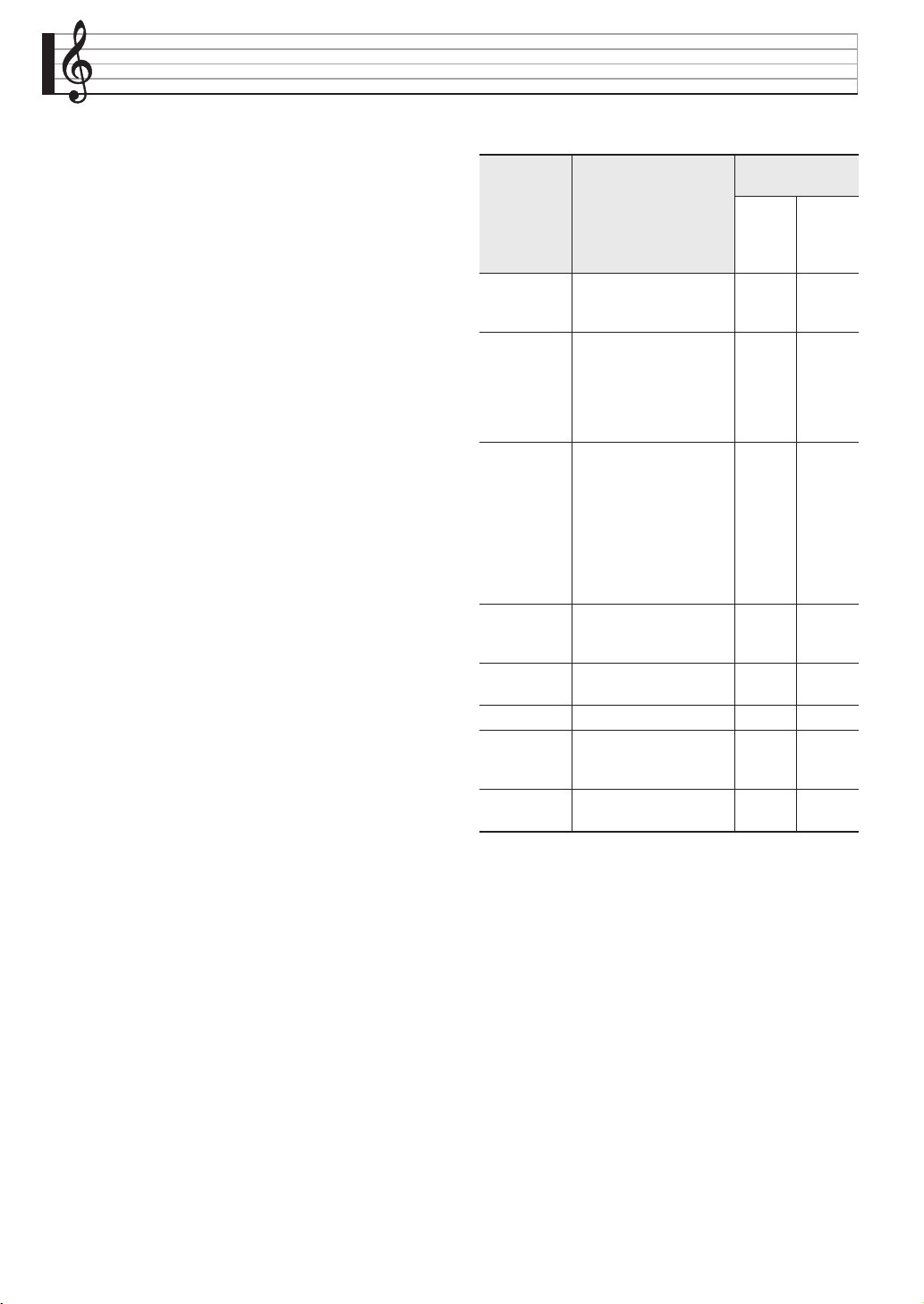
EN-82
USB Flash Drive
Your Digital Piano supports the following USB flash
drive operations.
z USB flash drive formatting
z Data storage to a USB flash drive
z USB flash drive data loading to Digital Piano
memory
z Delete data from a USB flash drive
z Easy play back of song data from a USB flash drive
■ Types of Data
* Your Digital Piano also supports import of rhythm
data created on another device. Supported file name
extensions are: ac7, z00, and ckf.
• Song data recorded with the Digital Piano’s MIDI
recorder is stored on a USB flash drive as-is or
stored as a MIDI file (SMF format 0).
• Standard audio data from a computer (WAV files)
can also be stored on a USB flash drive and
played back on the Digital Piano.
• Digital Piano play can be recorded directly to a
USB flash drive.
For details, see “Recording to a USB Flash Drive
(Audio Recorder)” (page EN-65).
• Storage of edited Auto Accompaniment data on a
USB flash drive
• MIDI files and CASIO format files stored on a
USB flash drive can be loaded into the Digital
Piano memory (page EN-60).
Data Type
Description
(File Name Extension)
Supported
Operations
Save to
USB
Flash
Drive
Load
from USB
Flash
Drive
User
rhythms*
(page EN-42)
Auto Accompaniment
data edited with this
Digital Piano (AC7)
OO
User Tones Tone data edited with
this Digital Piano.
1. Melody tones (ZTN)
2. Hex layer tones (ZLT)
3. Drum sound data
(ZDR)
OO
User MIDI
data (pages
EN-60,
EN-54)
One of the following
two types of music data
1. Standard MIDI files
(MID)
SMF Format 0 or
Format 1
2. MIDI data recorded
on this Digital Piano
(ZMF)
OO
User Music
Presets (page
EN-47)
Music Preset data edited
on this Digital Piano
(ZMP)
OO
Registration
(page EN-52)
Tone and rhythm setup
settings (ZRM)
OO
All tones All user tone data (ZTA) OO
All Auto
Accompani-
ments
All user Auto
Accompaniment data
(ZAA)
OO
All
registrations
All registration data
(ZRA)
OO
B
PX560-ES-1B.indd 84 2016/12/15 15:39:38
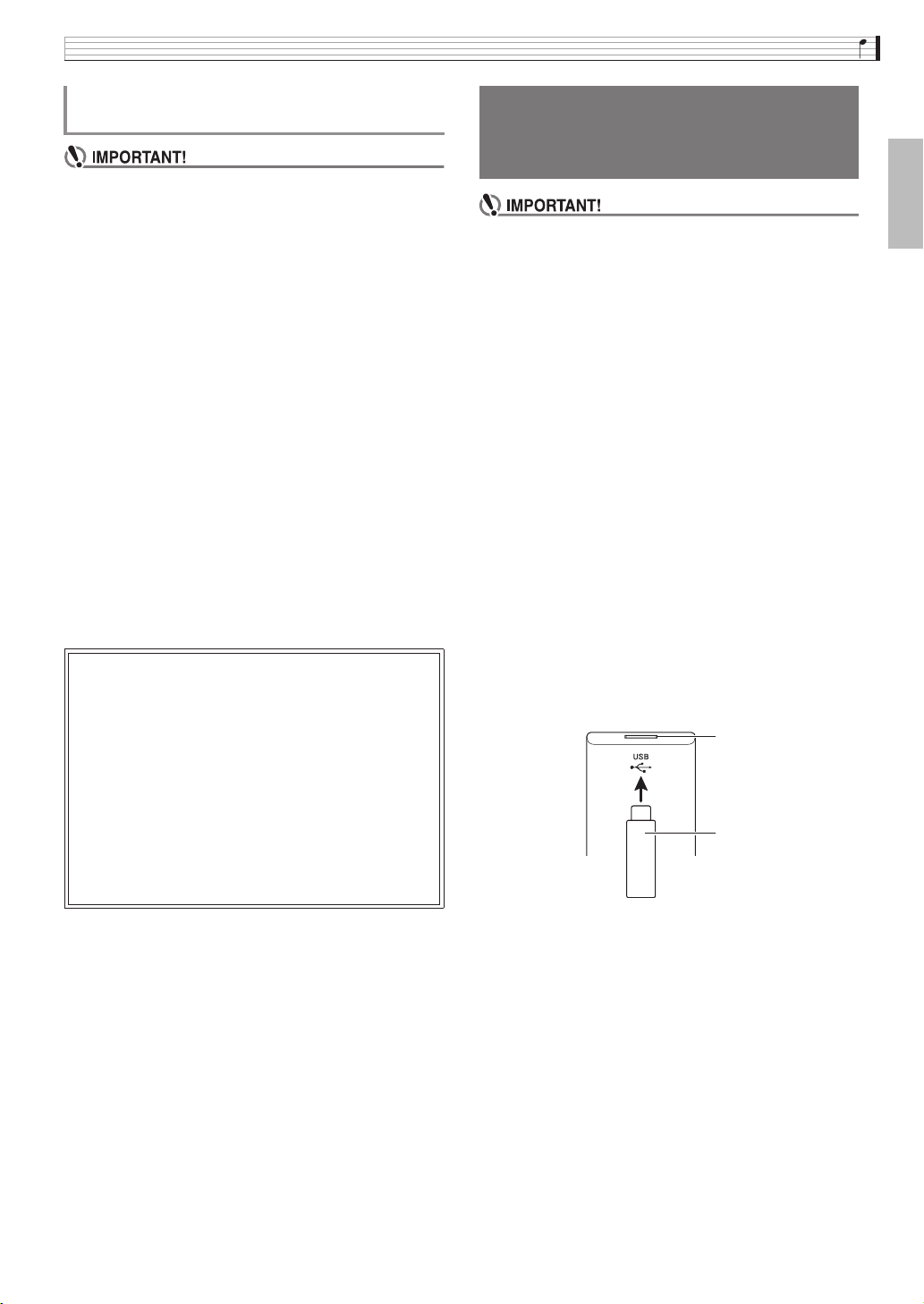
USB Flash Drive
EN-83
English
• Be sure to observe the precautions provided in the
documentation that comes with the USB flash drive.
• Avoid using a USB flash drive under the following
conditions. Such conditions can corrupt data stored
on the USB flash drive.
• Areas subjected to high temperature, high
humidity, or corrosive gas
• Areas subjected to strong electrostatic charge and
digital noise
• Never remove the USB flash drive while data is
being written to or loaded from it. Doing so can
corrupt the data on the USB flash drive and damage
the USB flash drive port.
• Never insert anything besides a USB flash drive into
the USB flash drive port. Doing so creates the risk of
malfunction.
• A USB flash drive can become warm after very long
use. This is normal and does not indicate
malfunction.
• Static electricity conducted to the USB flash drive
port from your hand or from a USB flash drive can
cause malfunction of the Digital Piano. If this
happens, turn the Digital Piano off and then back on
again.
• Never plug any other device besides a USB flash
drive into the USB flash drive port.
• When you perform a USB flash drive operation or
turn on the Digital Piano while a USB flash drive is
plugged in, the Digital Piano initially needs to
perform a “mounting” sequence to prepare for data
exchange with the USB flash drive. Digital Piano
operations may be momentarily disabled while a
mounting sequence is being performed. While the
mounting process is in progress, the message
“Media Mounting” will be displayed. It may take up to
10 or 20 seconds or even longer for a USB flash
drive to be mounted. Do not attempt to perform any
operation on the Digital Piano while a mounting
sequence is in progress. A USB flash drive needs to
be mounted each time it is connected to the Digital
Piano.
■ To insert a USB flash drive
1.
As shown in the illustration below, insert the
USB flash drive into the Digital Piano’s USB
flash drive port.
• Carefully push the USB flash drive in as far as it will
go. Do not use undue force when inserting the USB
flash drive.
■ To remove a USB flash drive
1.
Check to confirm that there is no data
exchange operation being performed, and
then pull the USB flash drive straight out.
USB Flash Drive and USB Flash Drive Port
Handling Precautions
Copyrights
You are allowed to use recordings for your own
personal use. Any reproduction of an audio or music
format file, without the permission of its copyright
holder, is strictly prohibited under copyright laws
and international treaties. Also, making such files
available on the Internet or distributing them to third
parties, regardless of whether such activities are
conducted with or without compensation, is strictly
prohibited under copyright laws and international
treaties. CASIO COMPUTER CO., LTD. shall not be
held in any way liable for any use of this Digital
Piano that is illegal under copyright laws.
Connecting a USB Flash Drive
to and Detaching It from the
Digital Piano
USB flash drive
USB flash drive port
PX560-ES-1B.indd 85 2016/12/15 15:39:38
EN-84
USB Flash Drive
• Be sure to format a USB flash drive on the Digital
Piano before using it for the first time.
• Before formatting a USB flash drive, make sure it
does not have any valuable data stored on it.
• The format operation performed by this Digital Piano
is a “quick format”. If you want to completely delete
all of the data in USB flash drive, format it on your
computer or some other device.
Supported USB Flash Drives
This Digital Piano supports USB flash drives formatted
to FAT32. If your USB flash drive is formatted to a
different file system, use the Windows format function
to reformat it to FAT32. Do not use quick format.
1.
Insert the USB flash drive to be formatted into
the Digital Piano’s USB flash drive port.
2.
On the MENU screen, touch “MEDIA”.
3.
Touch “FORMAT”.
This displays a confirmation message (“Sure?”).
4.
Touch “Yes”.
• The message “Please Wait” remains on the display
while the operation is being performed. Do not
perform any operation while this message is on the
display. “Complete” appears on the display after
formatting is complete.
• To cancel the format operation, touch “No”.
Even when the file format is WAV (general audio data)
or SMF (standard MIDI file), the procedure below can
be used to save data to USB flash drive and play it back
on the Digital Piano.
1.
Connect the USB flash drive to your
computer.
2.
Move the song data file you want to play back
to the MUSICDAT folder on the USB flash
drive.
• For information about playback see “To play along
with data recorded on a USB flash drive” (page
EN-67).
Digital Piano memory data (MIDI recorder songs) can
be saved to a USB flash drive.
• MIDI Recorder songs can be converted to standard
MIDI (SMF) files and stored on the USB flash drive.
• During recording of an Audio Recorder song, the
data is stored directly to the USB flash drive, so the
operation below is not required.
1.
Insert the USB flash drive into the Digital
Piano’s USB flash drive port.
2.
On the MENU screen, touch “MEDIA”.
3.
Touch “Save”.
4.
Touch the data type you want to save.
5.
Touch the data you want to save.
6.
Rename the file as required.
7.
After renaming the file, touch “Enter”.
This displays a confirmation message (“Sure?”). If there
already a file with the same name on the USB flash
drive, a confirmation message (“Replace?”) will appear
asking if you want to overwrite it with the new data.
8.
Touch “Yes”.
• The message “Please Wait” remains on the display
while the operation is being performed. Do not
perform any operation while this message is on the
display. “Complete” appears on the display after
data save is complete.
• To cancel the save operation, touch “No”.
Formatting a USB Flash Drive
Saving Standard Song Data to
a USB Flash Drive
Saving Digital Piano Data to a
USB Flash Drive
PX560-ES-1B.indd 86 2016/12/15 15:39:38
USB Flash Drive
EN-85
English
You can use the procedure below to load data from a
USB flash drive into Digital Piano memory.
• Place the data (file) you want to load into the
MUSICDAT folder on the USB flash drive.
1.
Insert the USB flash drive into the Digital
Piano’s USB flash drive port.
2.
On the MENU screen, touch “MEDIA”.
3.
Touch “Load”.
4.
Touch the data type of the data you want to
import.
5.
On the “USB” list, touch the data you want to
import.
6.
On the “User Area” list, touch the import
destination you want.
• If you are importing MIDI data, you will not be able
to specify an import destination.
7.
Touch “Execute”.
This displays an import confirmation message
(“Sure?”). If there is already data in the import
destination in Digital Piano memory, a message
(“Replace?”) will appear asking if you want to replace it
with the new data.
8.
Touch “Yes”.
• The message “Please Wait” remains on the display
while the operation is being performed. Do not
perform any operation while this message is on the
display. “Complete” appears on the display after
data import is complete.
• To cancel the import operation, touch “No”.
Use the following procedure to delete USB flash drive
data (files).
1.
Insert the USB flash drive into the Digital
Piano’s USB flash drive port.
2.
On the MENU screen, touch “MEDIA”.
3.
Touch “Delete”.
4.
Touch the data type of the data you want to
delete.
5.
Touch the data you want to delete.
6.
Touch “Execute”.
This displays a delete confirmation message (“Sure?”).
7.
Touch “Yes”.
• The message “Please Wait” remains on the display
while the operation is being performed. Do not
perform any operation while this message is on the
display. “Complete” appears on the display after
data delete is complete.
• To cancel the delete operation, touch “No”.
Loading Data from a USB
Flash Drive to Digital Piano
Memory
Deleting Data from a USB
Flash Drive
PX560-ES-1B.indd 87 2016/12/15 15:39:39
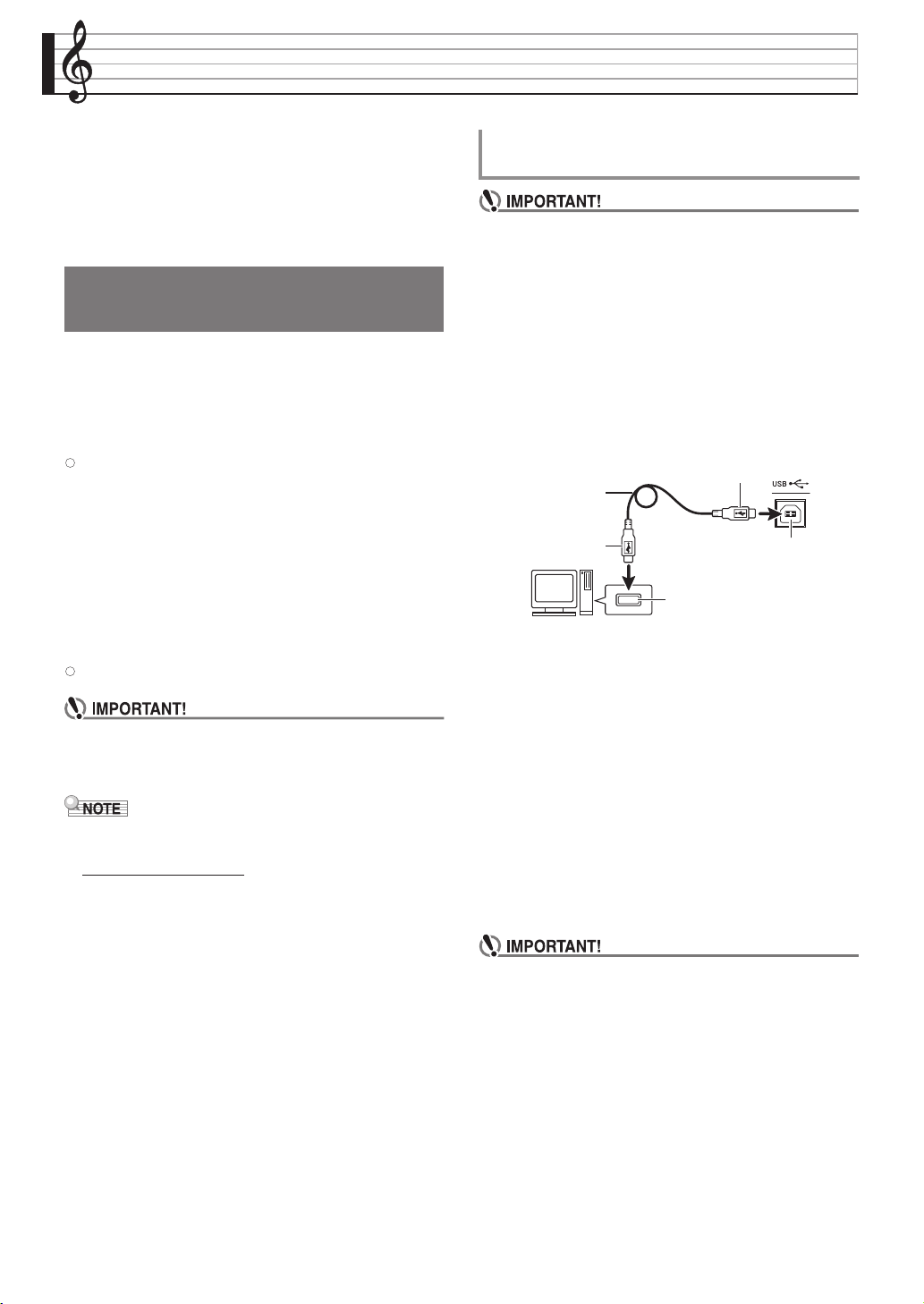
EN-86
Connecting to a Computer
You can connect the Digital Piano to a computer and
exchange MIDI data between them. You can send play
data from the Digital Piano to commercially available
music software running on your computer, or you can
send MIDI data from your computer to the Digital
Piano for playback.
The following shows the minimum computer system
requirements for sending and receiving MIDI data.
Check to make sure that your computer complies with
these requirements before connecting the Digital Piano
to it.
z
Operating System
Windows Vista
®
*1
Windows
®
7
*2
Windows
®
8
*3
Windows
®
8.1
*4
Mac OS
®
X (10.6.X, 10.7.X, 10.8.X, 10.9.X, 10.10.X)
z
USB port
• Never connect to a computer that does not conform
to the above requirements. Doing so can cause
problems with your computer.
• For the latest news about supported operating
systems, visit the website at the URL below.
http://world.casio.com/
• Make sure you follow the steps of the procedure
below exactly. Connecting incorrectly can make data
send and receive impossible.
1.
Turn off the Digital Piano and then start up
your computer.
• Do not start up the music software on your computer
yet!
2.
After starting up your computer, use a
commercially available USB cable to connect
it to the Digital Piano.
3.
Turn on the Digital Piano.
• If this is the first time you are connecting the Digital
Piano to your computer, the driver software required
to send and receive data will be installed on your
computer automatically.
4.
Start up commercially available music
software on your computer.
5.
Configure the music software settings to
select “CASIO USB-MIDI” as the MIDI device.
• For information about how to select the MIDI device,
see the user documentation that comes with the
music software you are using.
• Be sure to turn on the Digital Piano first before
starting up your computer’s music software.
Minimum Computer System
Requirements
*1: Windows Vista (32-bit)
*2: Windows 7 (32-bit, 64-bit)
*3: Windows 8 (32-bit, 64-bit)
*4: Windows 8.1 (32-bit, 64-bit)
To connect the Digital Piano to your
computer
Computer USB port
A connector
B connector
Digital Piano USB port
USB cable
(A-B type)
PX560-ES-1B.indd 88 2016/12/15 15:39:39
Connecting to a Computer
EN-87
English
• Once you are able to connect successfully, there is no
problem with leaving the USB cable connected when
you turn off your computer and/or Digital Piano.
• This Digital Piano conforms to General MIDI Level 1
(GM).
• For detailed specifications and connections that
apply to MIDI data send and receive by this Digital
Piano, see the latest support information provided
by the website at the following URL.
http://world.casio.com/
The letters MIDI stand for Musical Instrument Digital
Interface, which is the name of a worldwide standard
for digital signals and connectors that makes it possible
to exchange musical data between musical instruments
and computers (machines) produced by different
manufacturers.
For details about the MIDI specifications of this Digital
Piano, see the “MIDI Implementation” document at the
website located at the URL below.
http://world.casio.com/
• You can alter the Digital Piano’s MIDI setup by
changing the MIDI data send channel or other
settings. For details, see “MIDI Screen” (page
EN-79).
• Use a separately available or commercially available
MIDI cable to connect the MIDI terminals of your
Digital Piano and another electronic musical
instrument for exchange of MIDI data.
• MIDI terminals are disabled while the Digital Piano
is connected to a computer via the USB port.
Using MIDI
What is MIDI?
PX560-ES-1B.indd 89 2016/12/15 15:39:39
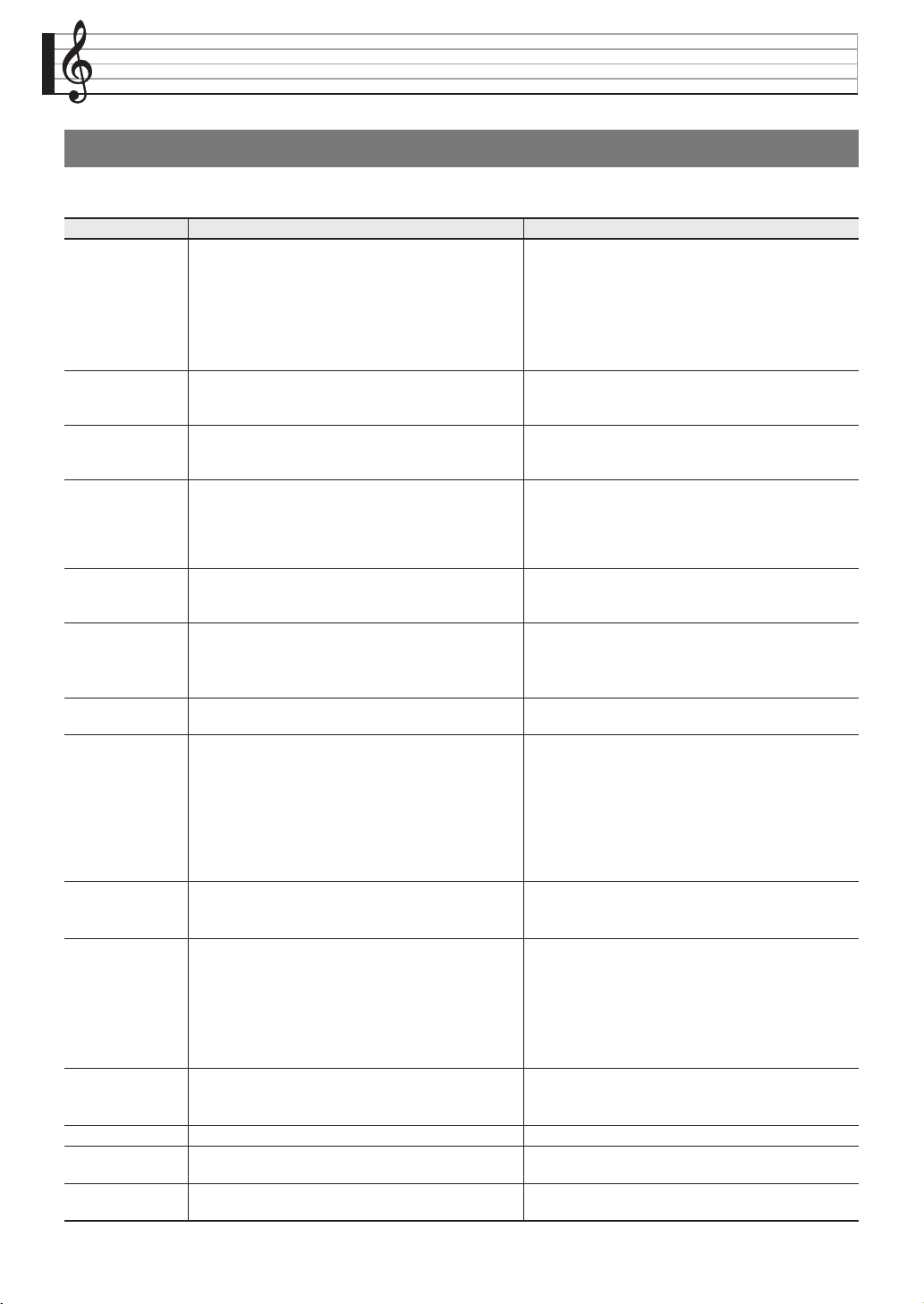
EN-88
Reference
One of the error messages below appears on the display when a problem occurs.
• To clear an error message and return to the normal display, touch br EXIT on the display.
Error Messages
Display Message Cause Action
No Media 1. The USB flash drive is not connected to the
Digital Piano’s USB flash drive port.
1. Correctly plug the USB flash drive into the USB
flash drive port.
2. The USB flash drive was removed while some
operation was in progress.
2. Do not remove the USB flash drive while any
operation is in progress.
3. The USB flash drive is write-protected. 3. Unprotect the USB flash drive.
4. The USB flash drive has anti-virus software. 4. Use a USB flash drive that does not have anti-
virus software.
No File There is no loadable file or no playable file in the
“MUSICDAT” folder.
Move the file you want to load or play into the
appropriate location (pages EN-84, EN-85) in the
“MUSICDAT” folder.
No Data You are attempting to save user data (user preset,
user rhythm, MIDI data, etc.) when there is no data
to save.
Select a user data item for which there is data to
save.
Read Only A read-only file with the same name you are trying
to use is already stored on USB flash drive.
• Change the name and then save the new data.
• Remove the read-only attribute from the existing
USB flash drive file and overwrite it with the new
data.
• Use a different USB flash drive.
Media Full There is not enough space available on the USB flash
drive.
Delete some of the files on the USB flash drive to
make room for new data (page EN-85) or use a
different USB flash drive.
Too Many Files 1. There are too many files on the USB flash drive. 1. Delete some of the files on the USB flash drive to
make room for new data.
2. There is a file named TAKE99.WAV in the
“MUSICDAT” folder.
2. Delete the WAV file in the “MUSICDAT” folder.
Not SMF01 You are attempting to play back SMF Format 2 song
data.
This Digital Piano supports playback of SMF Format
0 or Format 1 only.
Size Over 1. The MIDI recording data on the USB flash drive
cannot be played because it is too big.
1. The Digital Piano supports playback of MIDI
recording data up to approximately 700KB.
2. The SMF file on the USB flash drive cannot be
played because it is too big.
2. The Digital Piano supports playback of SMF files
up to 320 KB.
3. The data you are trying to import cannot be
imported because it is too big.
3. The Digital Piano supports import of data (per
item) up to the maximum sizes shown below.
User Rhythms: Approximately 32 KB
User Presets: Approximately 6 KB
Wrong Data 1. The USB flash drive data is corrupted. —
2. USB flash drive contains data that is not
supported by this Digital Piano.
Memory Full 1. There is not enough Digital Piano memory
available to convert a MIDI recorder song to SMF
data and store it on the USB flash drive.
1. Reduce the size of the song data.
Example:
Delete any tracks that are not required.
2. There is not enough memory remaining for
rhythm editing operations.
2. Select a different accompaniment pattern.
3. Remaining memory became too low during
music preset editing.
3. The Digital Piano supports input of
approximately 1,000 chords.
Format Error 1. The USB flash drive format is not compatible
with this Digital Piano.
1. Format the USB flash drive on the Digital Piano.
2. The USB flash drive is corrupted. 2. Use a different USB flash drive.
Media Error The USB flash drive is corrupted. Use a different USB flash drive.
Measure Limit Attempting to input MIDI recording data or music
preset that has more than 999 measures.
The Digital Piano supports input of up to 999
measures.
Data Full Attempting to store data that exceeds the maximum
allowable number of data items.
Delete unneeded data.
PX560-ES-1B.indd 90 2016/12/15 15:39:39
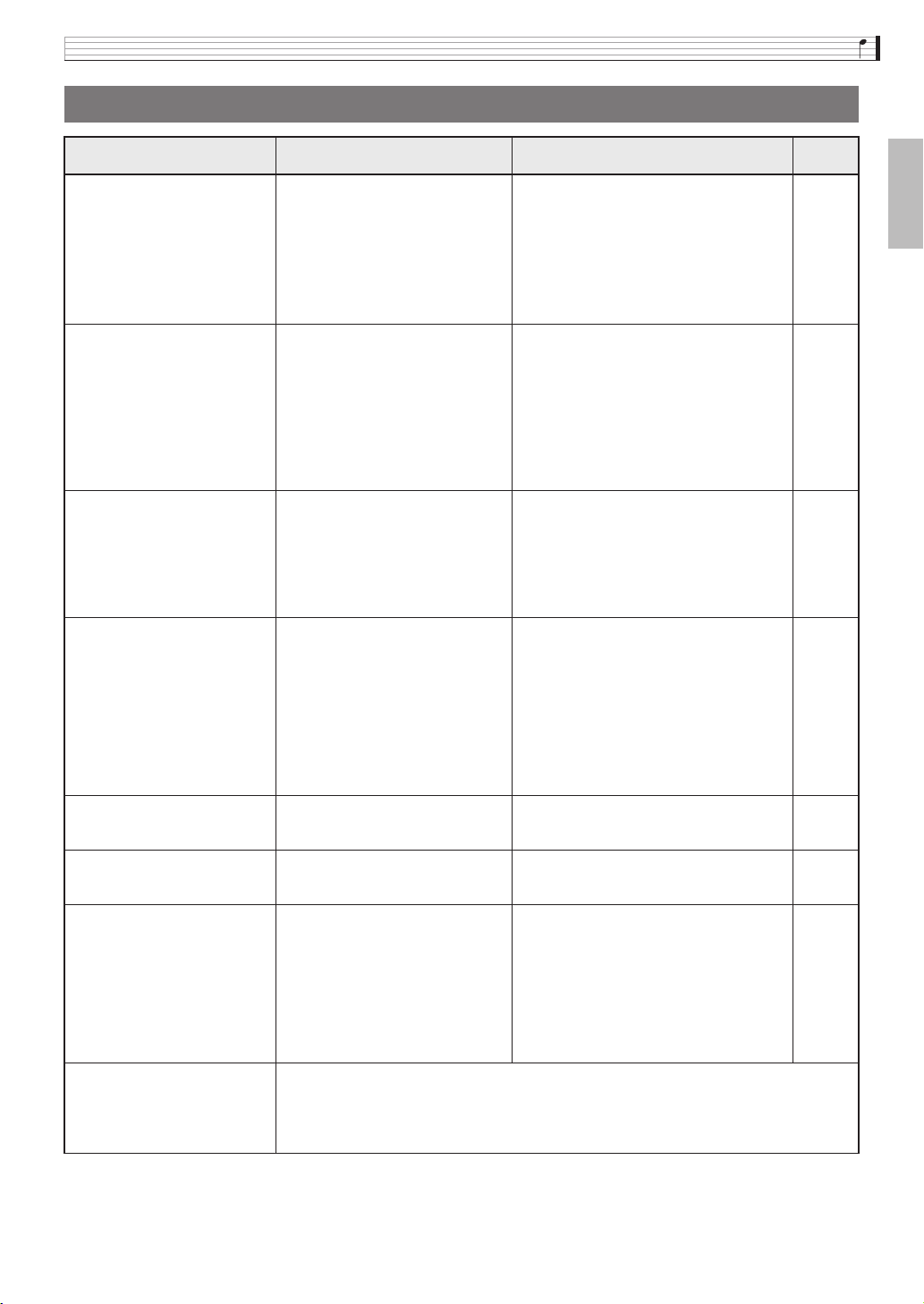
Reference
EN-89
English
Troubleshooting
Problem Cause Action
See
Page
No sound is produced when I
press a keyboard key.
1. The VOLUME controller is set to
“MIN”.
1. Rotate the VOLUME controller more
towards “MAX”.
) EN-7
2. Headphones or an adaptor plug is
plugged into one of the PHONES
jacks.
2. Disconnect whatever is connected to the
PHONES jack.
) EN-9
3. Upper 1 icon is off. 3. Touch the Upper 1 icon to turn it on. ) EN-15
4. The “Speaker” SYSTEM
SETTING is off.
4. Turn on the “Speaker” SYSTEM
SETTING.
) EN-74
The pitch of the Digital Piano
is off.
1. Digital Piano tuning is incorrect. 1. Adjust Digital Piano tuning, or turn the
Digital Piano off and then back on again.
) EN-21
2. The Digital Piano’s key setting is
something other than “440.0 Hz”.
2. Change the key setting to “440.0 Hz”, or
turn Digital Piano power off and then
back on again.
) EN-74
3. A non-standard temperament
setting is being used.
3. Change the temperament setting to
“Equal”, which is the standard modern
tuning.
) EN-74
4. Octave shift is enabled. 4. Change the octave shift setting to 0. ) EN-69
Tones and/or effects sound
strange. Turning power off
and then back on again does
not eliminate the problem.
Example:
Note intensity does
not change even though I alter
key pressure.
The “Auto Resume” feature is turned
on.
Turn off “Auto Resume”. Next, turn power
off and then back on again.
) EN-75
I cannot transfer data after
connecting the Digital Piano
to a computer.
— 1. Check to make sure that the USB cable
is connected to the Digital Piano and
computer, and that the correct device is
selected with your computer’s music
software.
) EN-86
2. Turn off the Digital Piano and then exit
the music software on your computer.
Next, turn the Digital Piano back on and
then restart the music software on your
computer.
I cannot record chord
accompaniment data on my
computer.
“Accomp Out” is turned off. Turn on “Accomp Out”. ) EN-79
I cannot store data to a USB
flash drive or load data from a
USB flash drive.
— See “Error Messages”. ) EN-88
Playback stops part way
through while transferring
song data from my computer.
Digital noise from the USB cable or
power cord caused data
communication between your
computer and Digital Piano to be
interrupted.
Stop song playback, disconnect the USB
cable from the Digital Piano, and then
reconnect it. Next, try playing back the song
again.
If this does not solve the problem, quit the
MIDI software you are using, disconnect the
USB cable from the Digital Piano, and then
reconnect it. Next, restart the MIDI software
and then try playing back the song again.
) EN-86
A tone’s quality and volume
sounds slightly different
depending where it is played
on the keyboard.
This is an unavoidable result of the digital sampling process,
*
and does not indicate
malfunction.
* Multiple digital samples are taken for the low range, middle range, and high range of the
original musical instrument. Because of this, there may be a very slight difference in tonal
quality and volume between sample ranges.
PX560-ES-1B.indd 91 2016/12/15 15:39:39
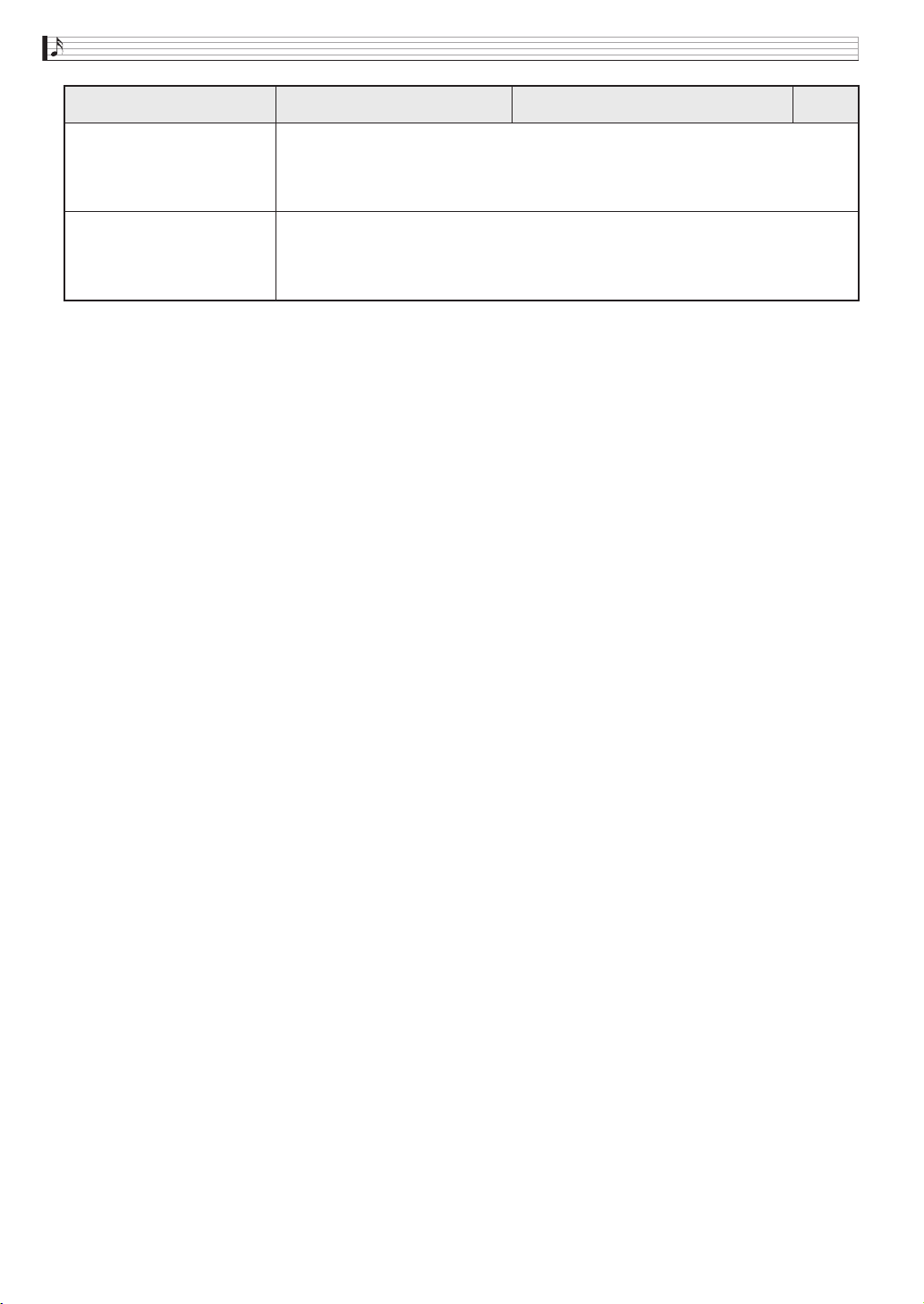
EN-90
Reference
When I press a button, the
note that is sounding cuts out
momentarily or there is a
slight change in how effects
are applied.
Performing a button operation while playing with the Duet Mode, Auto Accompaniment, the
recorder, or other functions can cause such phenomena when the Digital Piano switches
internal tone effects. It does not indicate malfunction.
Even though I play on
different ranges of the
keyboard, the notes do not
change octaves.
The ranges of certain tones are limited, which means that octaves change normally up to a
certain low note or high note. With such a tone, the notes of the lowest octave will be
repeated to the left of the lowest possible note, and the highest octave will be repeated to the
right of the highest possible note. This is due do limitations in the range of the original musical
instrument for each tone, and does not indicate malfunction of the Digital Piano.
Problem Cause Action
See
Page
PX560-ES-1B.indd 92 2016/12/15 15:39:40
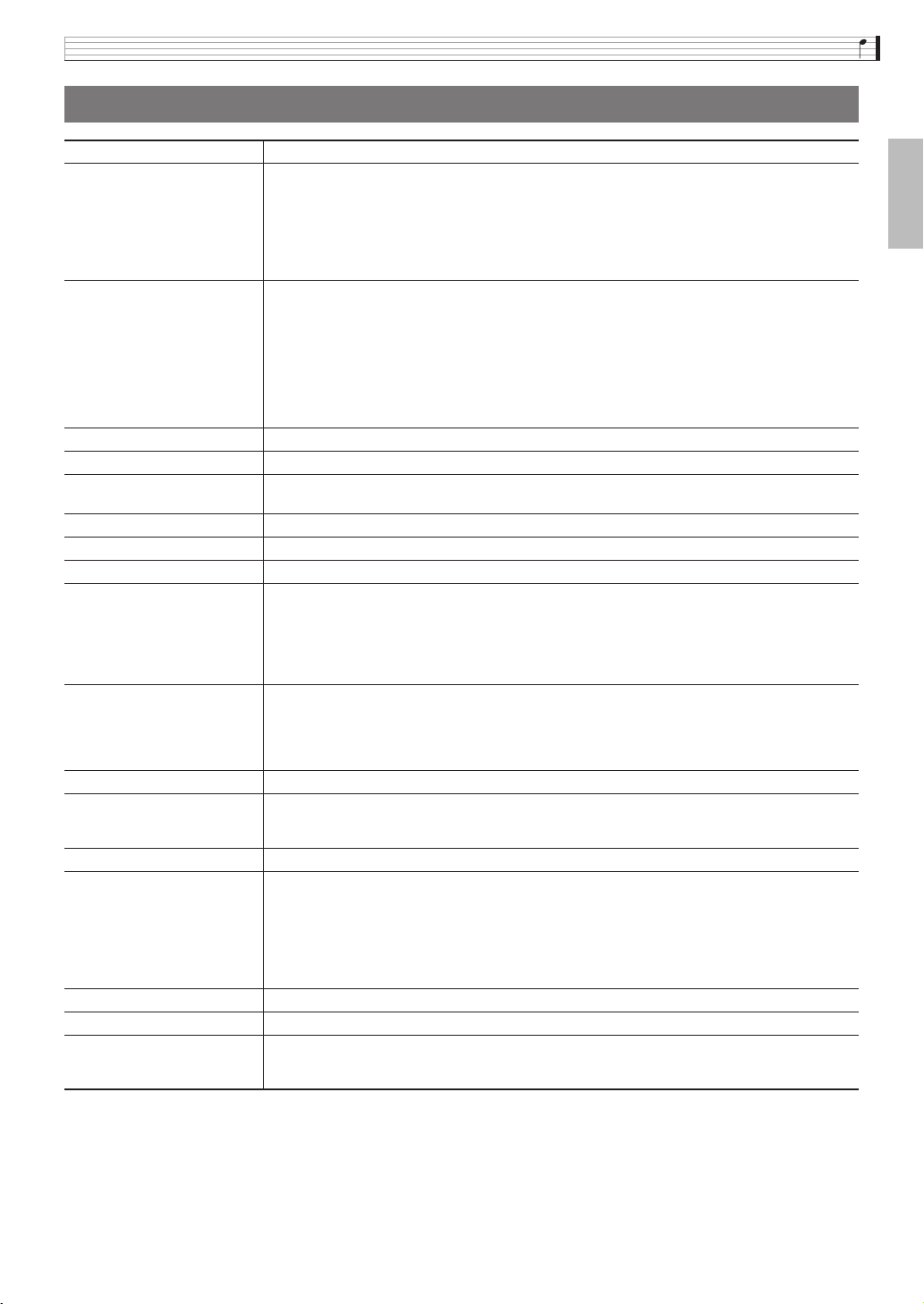
Reference
EN-91
English
Product Specifications
Model PX-560MBE
Keyboard 88-key piano keyboard
• Velocity resolution: 16,256 maximum
• Layer, Split
• Duet: 4 octaves (–2 to 0 to +2)
• Transpose: 2 octaves (–12 to 0 to +12)
• Octave shift: 4 octaves (–2 to 0 to +2)
• Key off velocity
Sound Source • Number of Tones: 650
Melody Tones: Preset 532/User 280
Hex Layer Tones: Preset 100/User 100
Drum Sounds: Preset 18/User 20
• Maximum polyphony: 256 notes
• Touch Response (3 sensitivity levels, Off)
• Tuning: 415.5 Hz to 440.0 Hz to 465.9 Hz (0.1 Hz units)
• Temperament: Equal temperaments plus 16 other types
• Stretch Tuning: On, Off
Display 5.3-inch touch panel (5.0-inch 528 × 320-dot TFT color LCD)
Acoustic Simulator Linear Morphing, Damper Resonance, Hammer response, String resonance
Effects Reverb (17 types), Chorus (16 types), Delay (6 types), DSP, 4-band equalizer
Editable
Auto Accompaniment Data items: 220 preset, 30 user
Music Preset Data items: 305 preset, 100 user
Demo Song 6
MIDI Recorder • Functions: Real-time recording, playback
• Number of Song: 100
• Number of Tracks: 17
• Capacity: Up to approximately 50,000 notes per song
• Recorded Data Protection: Built-in flash memory
• MIDI Recorder Volume Level: Adjustable
Audio Recorder • Real-time recording and playback to USB flash drive*
* Linear PCM, 16bit, 44.1 kHz, stereo .WAV format
• Songs: 100 files
• Approximately 74 minutes maximum recording per file.
• Audio Recorder Volume Level: Adjustable
Registration 96 (4 setups × 24 banks)
Metronome • Beats: 0 to 9
• Tempo Range: 20 to 255
• Metronome Volume Level: Adjustable
Pedals Damper (with half-pedal operation), Soft, Sostenuto, Expression
Other Functions • Dedicated piano tone buttons
• Modulation wheel
• Arpeggiator
• Control knobs
• Balance adjustment
• Setting backup
• Operation Lock
MIDI 16-channel multi-timbre receive
Pitch Bend Wheel Pitch Bend Range: 00 to 24 semitones
USB Flash Drive • Capacity: 32GB or less recommended
• SMF direct playback, data storage, data loading, USB flash drive format,
audio data playback and storage
B
PX560-ES-1B.indd 93 2016/12/15 15:39:40
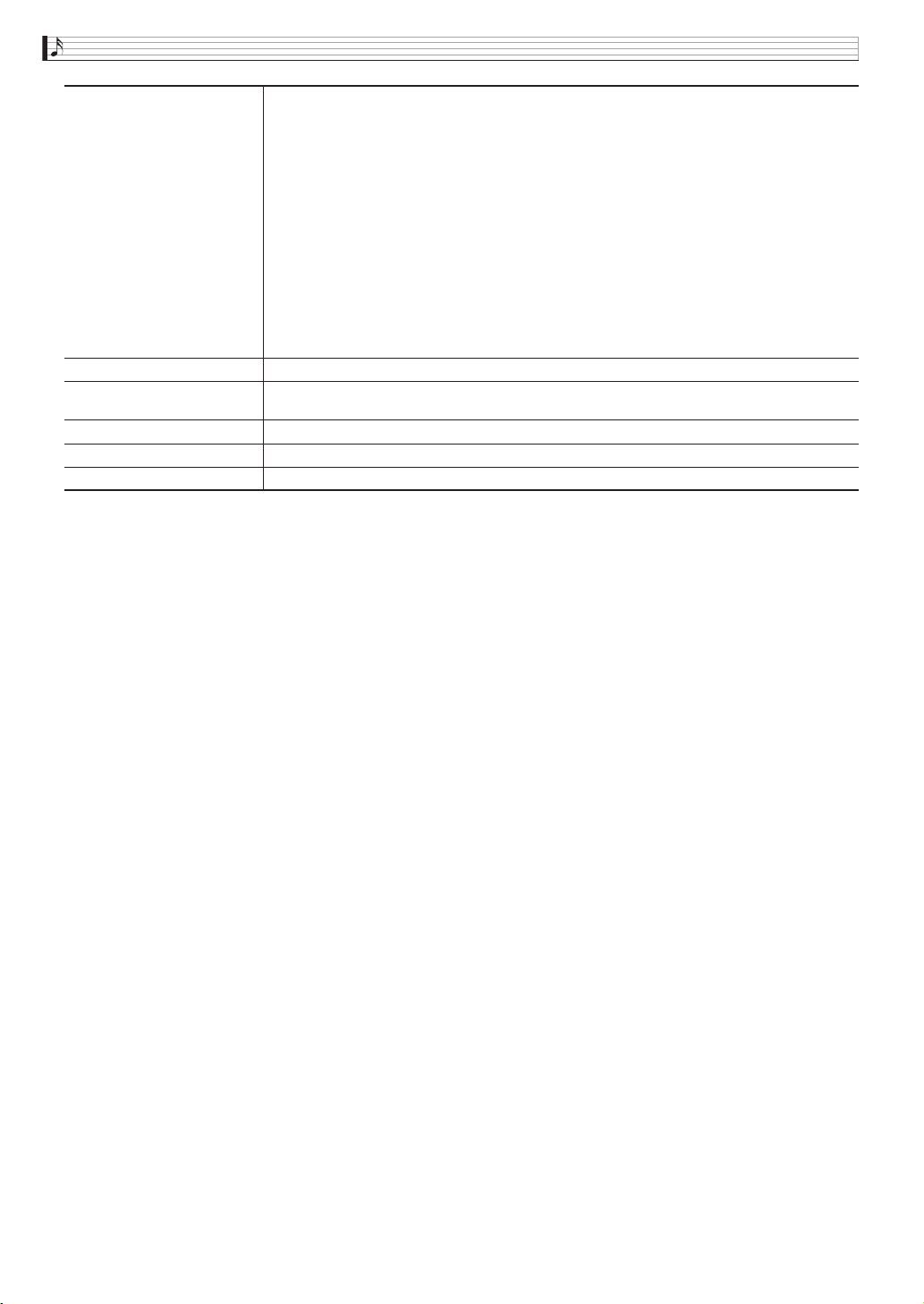
EN-92
Reference
• Specifications and designs are subject to change without notice.
Inputs/Outputs • PHONES jacks: Stereo mini jacks × 2
• DAMPER PEDAL jack: Standard jack × 1
• ASSIGNABLE PEDAL jack: Stereo standard jack × 1
• Power: 12V DC
• MIDI OUT/IN terminals
• LINE IN R, L/MONO jacks: Standard jacks × 2
Input impedance: 9.0K
Ω
Input voltage: 200mV
• LINE OUT R, L/MONO jacks: Standard jacks × 2
Output impedance: 2.3K
Ω
Output voltage: 1.8V (RMS) MAX
• Audio In: Stereo mini jack
Input impedance: 9.0K
Ω
Input voltage: 200mV
• USB port: Type B
• USB flash drive port: Type A
• Pedal connector (for optional SP-33 only)
Speakers
φ
12cm × 2 +
φ
5cm × 2 (Output 8W + 8W)
Power Requirements AC Adaptor: AD-A12150LW
• Auto Power Off: Approximately 4 hours after last operation. Auto Power Off can be disabled.
Power Consumption 12V = 10W
Dimensions 132.2 (W) × 29.3 (D) × 14.7 (H) cm (52
1
/
16
× 11
9
/
16
× 5
13
/
16
inch)
Weight approximately 12kg (26.5 lbs)
B
PX560-ES-1B.indd 94 2016/12/15 15:39:40
Reference
EN-93
English
Be sure to read and observe the following operating
precautions.
• With a model that has a recording function or other
data storage function, be sure to back up any data
you want to maintain to another medium before
submitting this product for servicing or repair.
Stored data may be accessed or even deleted as part
of servicing or repair procedures.
■ Location
Avoid the following locations for this product.
• Areas exposed to direct sunlight and high humidity
• Areas subjected to temperature extremes
• Near a radio, TV, video deck, or tuner
• The above devices will not cause malfunction of the
product, but the product can cause interference in
the audio or video of a nearby device.
■ User Maintenance
• Never use benzine, alcohol, thinner, or other
chemical agents to clean the product.
• To clean the product or its keyboard, wipe with a
soft cloth moistened in a weak solution of water and
a mild neutral detergent. Wring all excess moisture
from the cloth before wiping.
■ Included and Optional Accessories
Use only accessories that are specified for use with this
product. Use of unauthorized accessories creates the
risk of fire, electric shock, and personal injury.
■ Weld Lines
Lines may be visible on the exterior of the product.
These are “weld lines” that result from the plastic
molding process. They are not cracks or scratches.
■ Musical Instrument Etiquette
Always be aware of others around you whenever using
this product. Be especially careful when playing late at
night to keep the volume at levels that do not disturb
others. Other steps you can take when playing late at
night are closing windows and using headphones.
• Any reproduction of the contents of this manual,
either in part or its entirety, is prohibited. Except for
your own, personal use, any other use of the
contents of this manual without the consent of
CASIO is prohibited under copyright laws.
• IN NO EVENT SHALL CASIO BE LIABLE FOR
ANY DAMAGES WHATSOEVER (INCLUDING,
WITHOUT LIMITATION, DAMAGES FOR LOSS
OF PROFITS, BUSINESS INTERRUPTION, LOSS
OF INFORMATION) ARISING OUT OF THE USE
OF OR INABILITY TO USE THIS MANUAL OR
PRODUCT, EVEN IF CASIO HAS BEEN ADVISED
OF THE POSSIBILITY OF SUCH DAMAGES.
• The contents of this manual are subject to change
without notice.
■ AC Adaptor Handling Precautions
• Use a power outlet that is easily accessible so you
can unplug the AC adaptor when a malfunction
occurs or whenever else you need to do so.
• The AC adaptor is intended for indoor use only. Do
not use it where it might be exposed to splashing or
moisture. Do not place any container, such as a
flower vase, that contains liquid on the AC adaptor.
• Store the AC adaptor in a dry place.
• Use the AC adaptor in an open, well-ventilated area.
• Never cover the AC adaptor with newspaper, a table
cloth, a curtain, or any other similar item.
• Unplug the AC adaptor from the power outlet if you
do not plan to use the Digital Piano for a long time.
• Never try to repair the AC adaptor or modify it in
any way.
• AC adaptor operating environment
Temperature: 0 to 40°C
Humidity: 10% to 90% RH
Output polarity:&
Operating Precautions
PX560-ES-1B.indd 95 2016/12/15 15:39:40
EN-94
Reference
AC Adaptor Handling Precautions
Model: AD-A12150LW
1. Read these instructions.
2. Keep these instructions on hand.
3. Heed all warnings.
4. Follow all instructions.
5. Do not use this product near water.
6. Clean only with a dry cloth.
7. Do not install near radiators, heat registers, stoves, or any other source of heat (including amplifiers).
8. Use only attachments and accessories specified by the manufacturer.
9. Refer all servicing to qualified service personnel. Servicing is required after any of the following occurs:
when the product is damaged, when the power supply cord or plug is damaged, when liquid is spilled into
the product, when a foreign object falls into the product, when the product is exposed to rain or moisture,
when the product does not operate normally, when the product is dropped.
10. Do not allow the product to be exposed to dripping or splashing liquid. Do not place any object containing
liquid on the product.
11. Do not allow the electrical load output to exceed the label rating.
12. Make sure the surrounding area is dry before plugging into a power source.
13. Make sure the product is oriented correctly.
14. Unplug the product during lightning storms or when you do not plan to use it for a long time.
15. Do not allow product ventilation openings to become blocked. Install the product in accordance with the
manufacturer’s instructions.
16. Take care the power cord is located where it will not be stepped upon or bent severely, particularly in
locations close to plugs and convenience receptacles, and in locations where it exits from the product.
17. The AC adaptor should be plugged into a power outlet as close to the product as possible to allow
immediate disconnection of the plug in case of emergency.
The symbol below is an alert indicating un-insulated hazardous voltage inside the product’s enclosure, which
may be sufficient to constitute the risk of electric shock to users.
’
The symbol below is an alert indicating the presence of important operating and maintenance (servicing)
instructions in the documentation that accompanies the product.
*
PX560-ES-1B.indd 96 2016/12/15 15:39:40

Reference
EN-95
English
STLport
Copyright 1994 Hewlett-Packard Company
Copyright 1996,97 Silicon Graphics Computer Systems, Inc.
Copyright 1997 Moscow Center for SPARC Technology.
Permission to use, copy, modify, distribute and sell this software and
its documentation for any purpose is hereby granted without fee,
provided that the above copyright notice appear in all copies and that
both that copyright notice and this permission notice appear in
supporting documentation. Hewlett-Packard Company makes no
representations about the suitability of this software for any
purpose. It is provided "as is" without express or implied warranty.
Permission to use, copy, modify, distribute and sell this software and
its documentation for any purpose is hereby granted without fee,
provided that the above copyright notice appear in all copies and that
both that copyright notice and this permission notice appear in
supporting documentation. Silicon Graphics makes no representations
about the suitability of this software for any purpose. It is provided
"as is" without express or implied warranty.
Permission to use, copy, modify, distribute and sell this software and
its documentation for any purpose is hereby granted without fee,
provided that the above copyright notice appear in all copies and that
both that copyright notice and this permission notice appear in
supporting documentation. Moscow Center for SPARC Technology makes no
representations about the suitability of this software for any
purpose. It is provided "as is" without express or implied warranty.
PX560-ES-1B.indd 97 2016/12/15 15:39:40
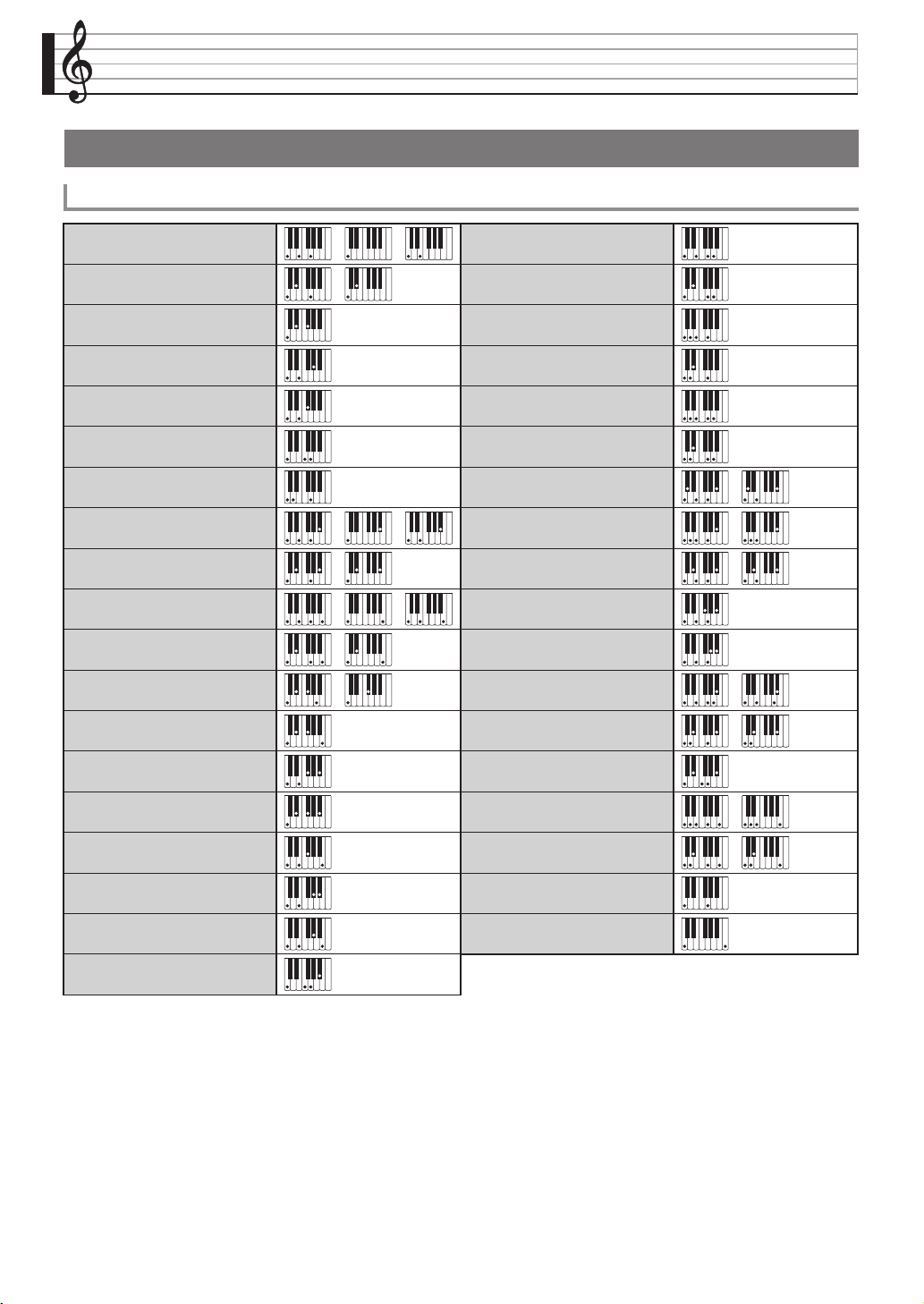
A-1
Information/Información
Fingering Guide/Guía de digitación
Fingered 1, Fingered 2 Chords/Acordes Fingered 1, Fingered 2
C
Cm
Cdim
Caug
*3
C
5
Csus4
*3
Csus2
*3
C7
Cm7
*3
CM7
CmM7
Cdim7
*3
CdimM7
C7
5
*3
Cm7
5
*3
CM7
5
Caug7
CaugM7
C7sus4
C6
*1 *3
Cm6
*2 *3
Cadd9
Cmadd9
C69
*3
Cm69
*3
C7
(
9)
C7
(9)
C7
(
9)
C7
(
11)
C7
(
13)
C7
(13)
Cm7
(9)
Cm7
(11) *3
CM7
(9)
CmM7
(9)
C5
C8
(Root and 5th only) *
4
(La raíz y la 5ta. solamente) *
4
(Root only, or root plus octave) *
4
(La raíz solamente o la raíz más la
octava) *
4
*1With Fingered 2, interpreted as Am7.
*2With Fingered 2, interpreted as Am7
b
5
.
*3Inverted form not supported in some cases.
*4Full Range Chord not supported.
*1Con Fingered 2, se interpreta como Am7.
*2Con Fingered 2, se interpreta como Am7
b
5
.
*3En algunos casos no se puede usar de forma invertida.
*4No es compatible con Full Range Chord.
PX560-ES-1B.indd 194 2016/12/15 15:40:04
Information/Información
A-2
In addition to the chords that can be fingered with
Fingered 1 and Fingered 2, the following chords also
are recognized.
Además de los acordes que se pueden digitar con
Fingered 1 y Fingered 2, también se pueden reconocer
los siguientes acordes.
• With Fingered 3, the lowest note fingered is
interpreted as the base note. Inverted forms are not
supported.
• With Full Range Chord, when the lowest fingered is
a certain distance from the neighboring note, the
chord is interpreted as a fraction chord.
• Unlike Fingered 1, 2, and 3, Full Range Chord
requires pressing of at least three keys to form a
chord.
• Con Fingered 3, la nota más baja digitada se
interpreta como nota base. No se pueden usar
formas invertidas.
• Con Full Range Chord, cuando la nota digitada más
baja se encuentre a cierta distancia de la nota
adyacente, el acorde se interpreta como un acorde
bitonal.
• A diferencia de Fingered 1, 2, y 3, Full Range Chord
requiere la pulsación de tres teclas como mínimo
para formar un acorde.
Fingered 3, Full Range Chords/
Acordes Fingered 3, Full Range
C
#
C
D
C
F
#
C
F
C
G
C
A
b
C
A
C
Gm
C
Am
C
B
b
m
C
Ddim
C
Fdim
C
FM7
C
A
b
M7
C
F
#
m7
b
5
C
Gdim
C
Adin
C
Bdin
C
A
b
7
C
F7
C
Fm7
C
B
b
C
C
#
m
C
Dm
C
Fm
C
Bm
C
A
b
m
C
F
#
m
C
Gm7
C
A
b
add9
C
C
#
dim
C
F
#
din
C
A
b
din
C
PX560-ES-1B.indd 195 2016/12/15 15:40:05
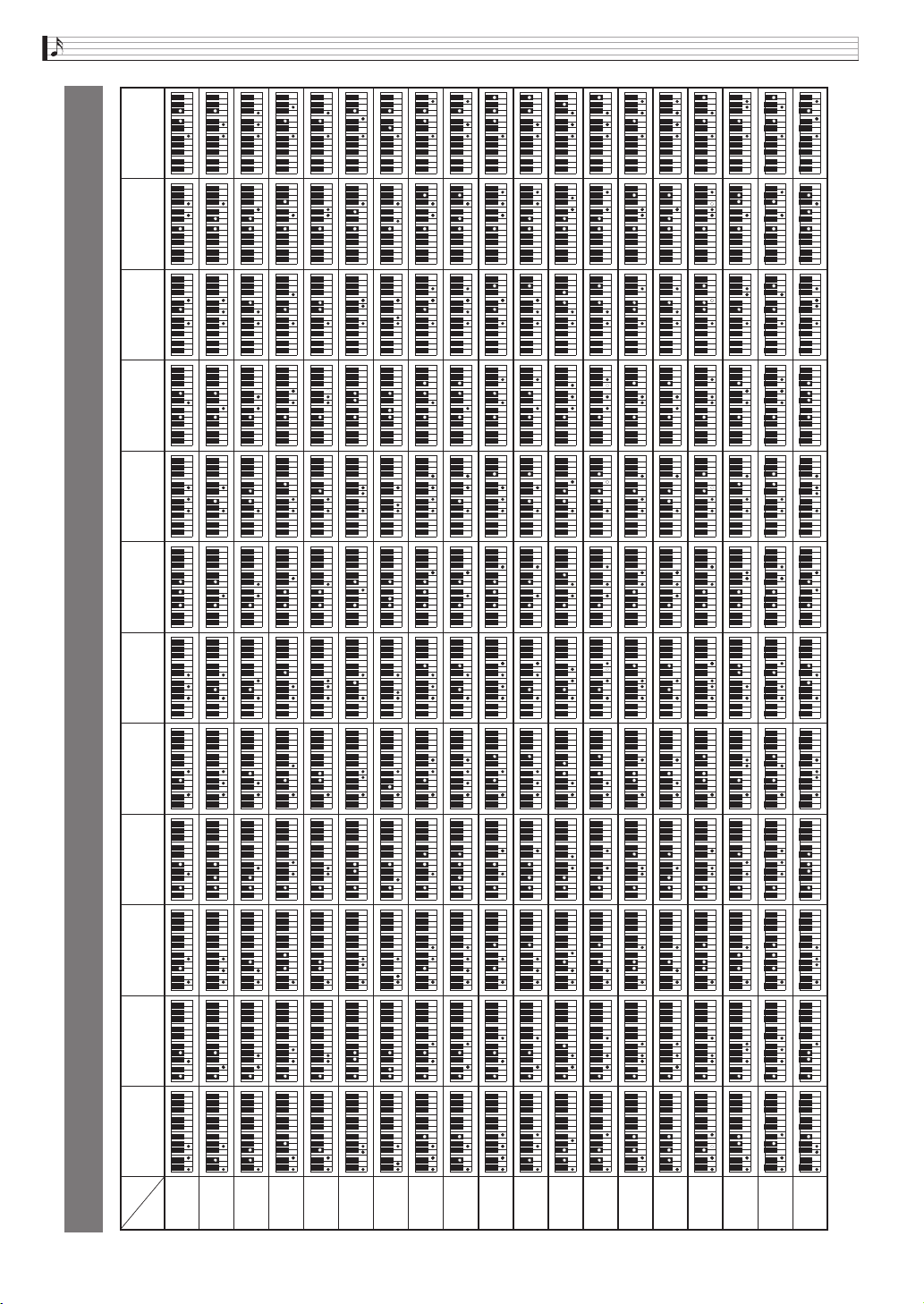
A-3
Information/Información
Chord Example List/Lista de ejemplos de acordes
(
A
)
/B
BF
/
(
G
)
G
(
G
)
/A
AFCC
/
(
D
)
D
(
D
)
/E
E
Root
Chord
Type
M
m
dim
aug
5
sus4
sus2
7
m7
M7
mM7
dim7
dimM7
7
5
m7
5
M7
5
aug7
augM7
7sus4
PX560-ES-1B.indd 196 2016/12/15 15:40:08
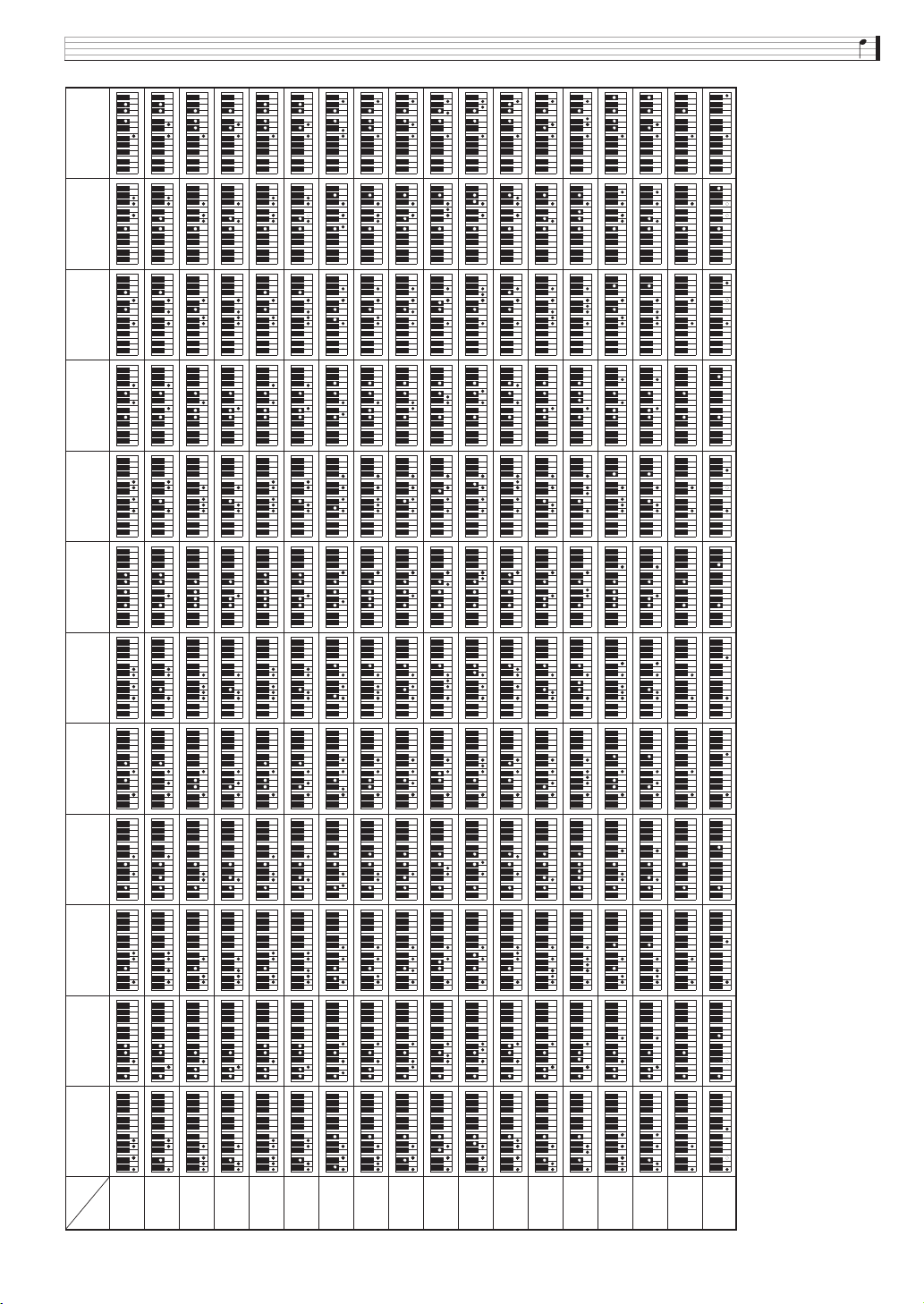
Information/Información
A-4
(
A
)
/B
BF
/
(
G
)
G
(
G
)
/A
AFCC
/
(
D
)
D
(
D
)
/E
E
Root
Chord
Type
6
m6
add9
madd9
69
m69
7
(
9
)
7
(9)
7
(
9
)
7
(
11
)
7
(
13)
7
(13)
m7
(9)
m7
(11)
M7
(9)
mM7
(9)
5
8
• Since the chord input range is limited, this model may not support some of the chords shown above.
• Debido a que el rango de entrada de acordes es limitado, es posible que este modelo no admita algunos de los acordes mostrados arriba.
PX560-ES-1B.indd 197 2016/12/15 15:40:11
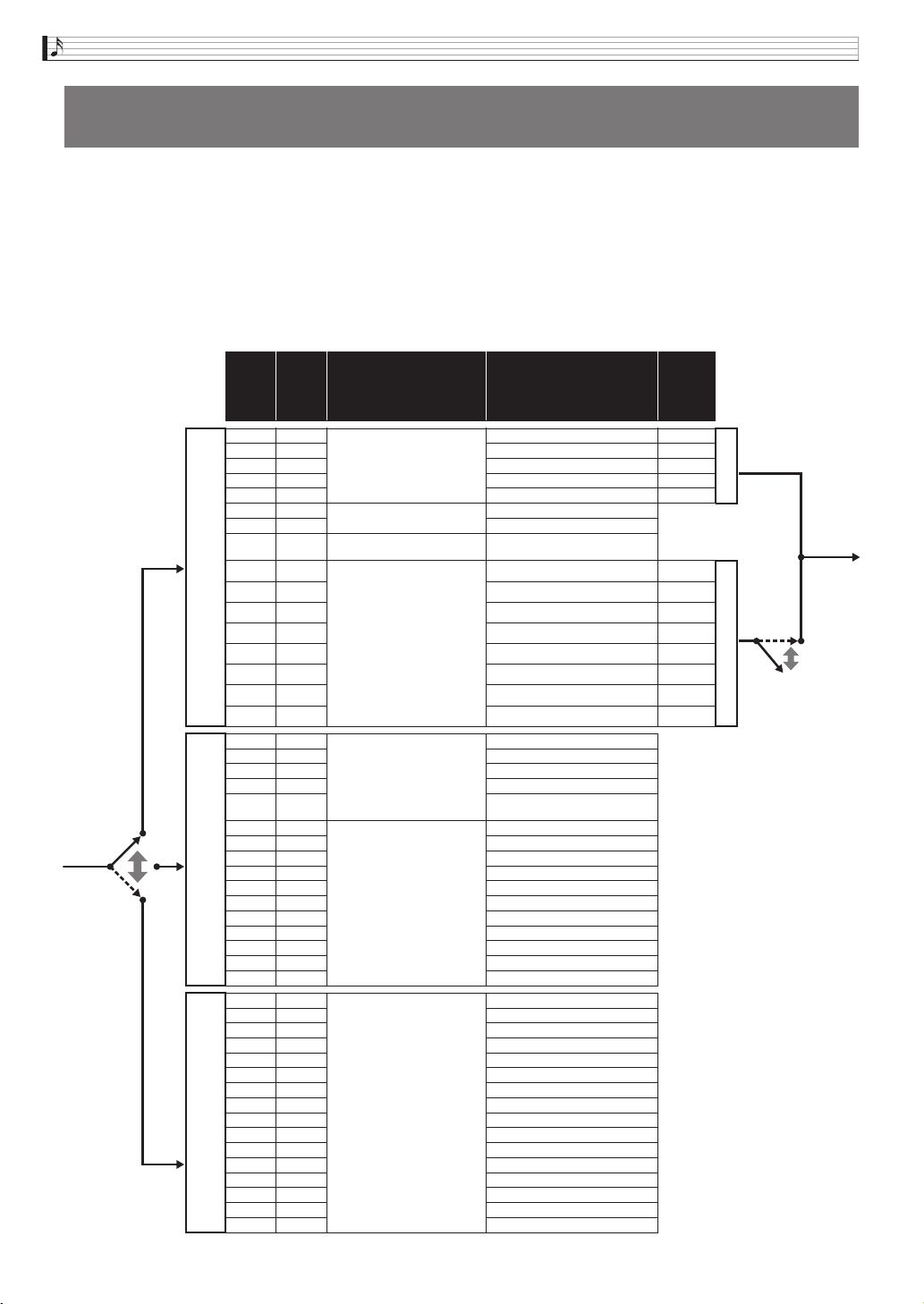
A-5
Information/Información
Though this Digital Piano has a sound source that supports simultaneous play of 48 parts, the MIDI standard supports handling
of information for up to a maximum of 16 parts. As a result, the 48 parts of the Digital piano are divided among three 16-part
ports, resulting in the equivalent of three built-in 16-part MIDI sound sources. The MIDI sound source to which MIDI data that is
input into the MIDI IN of the Digital Piano is sent is specified by the setting (Port A, B, or C) of the MIDI In Port setting.
Si bien este piano digital cuenta con una fuente de sonido que permite la ejecución simultánea de 48 partes, el estándar MIDI
admite el manejo de información de hasta un máximo de 16 partes. Como resultado, las 48 partes del piano digital se dividen
entre tres puertos de 16 partes, lo que resulta en el equivalente de tres fuentes de sonido MIDI incorporadas de 16 partes. La
fuente de sonido MIDI a la cual se envían los datos MIDI introducidos en MIDI IN del piano digital se determina mediante la
selección (puerto A, B, o C) del ajuste MIDI In Port.
■ Port and MIDI Channel Part Assignments/
Asignaciones de las puertos y de las partes de los canales MIDI
Part and MIDI Channel Assignments and Diagram/
Asignaciones de las partes y de los canales MIDI y diagrama
MIDI IN
Channel/
Canal
MIDI IN
Part/
Parte
Part Group/
Grupo de partes
Part Assignment/
Asignación de partes
MIDI
OUT
Channel/
Canal
MIDI
OUT
Port
A/
Puerto
A
11
Keyboard play/
Ejecución en el teclado
Keyboard Upper 1 1-16 *
2
2 2 Keyboard Upper 2 2
3 3 Keyboard Lower 1 3
4 4 Keyboard Lower 2 4
5 5 Auto Harmonize 5
66
Not used. *
4
/
No utilizado. *
4
unused
7 7 unused
88
Metronome Playback/
Reproducción del metrónomo
Metronome
99
Auto Accompaniment Playback
(Used for Auto Accompaniment
playback during both keyboard
play and MIDI Recorder
playback.)/
Reproducción del
acompañamiento automático
(se utiliza para la reproducción
del acompañamiento
automático durante la ejecución
del teclado y la reproducción
del grabador MIDI.)
Accomp Percussion 9
10 10 Accomp Drum 10
11 11 Accomp Bass 11
12 12 Accomp Chord 1 12
13 13 Accomp Chord 2 13
14 14 Accomp Chord 3 14
15 15 Accomp Chord 4 15
16 16 Accomp Chord 5 16
Port
B/
Puerto
B
11
MIDI Recorder playback
System track/
Reproducción del grabador
MIDI
Pista del sistema
MIDI Recorder System Track Upper1
22
MIDI Recorder System Track Upper2
33
MIDI Recorder System Track Lower1
44
MIDI Recorder System Track Lower2
55
MIDI Recorder System Track
Auto Harmonize
66
Not used. *
4
/
No utilizado. *
4
unused
7 7 unused
8 8 unused
9 9 unused
10 10 unused
11 11 unused
12 12 unused
13 13 unused
14 14 unused
15 15 unused
16 16 unused
Port
C/
Puerto
C
11
MIDI Recorder playback
Track/
Reproducción del grabador
MIDI
Pista
MIDI Recorder Track 1
2 2 MIDI Recorder Track 2
3 3 MIDI Recorder Track 3
4 4 MIDI Recorder Track 4
5 5 MIDI Recorder Track 5
6 6 MIDI Recorder Track 6
7 7 MIDI Recorder Track 7
8 8 MIDI Recorder Track 8
9 9 MIDI Recorder Track 9
10 10 MIDI Recorder Track 10
11 11 MIDI Recorder Track 11
12 12 MIDI Recorder Track 12
13 13 MIDI Recorder Track 13
14 14 MIDI Recorder Track 14
15 15 MIDI Recorder Track 15
16 16 MIDI Recorder Track 16
Port A
Port BMIDI IN
Port C
*
1
MIDI OUT
On
Off
*
3
PX560-ES-1B.indd 198 2016/12/15 15:40:12
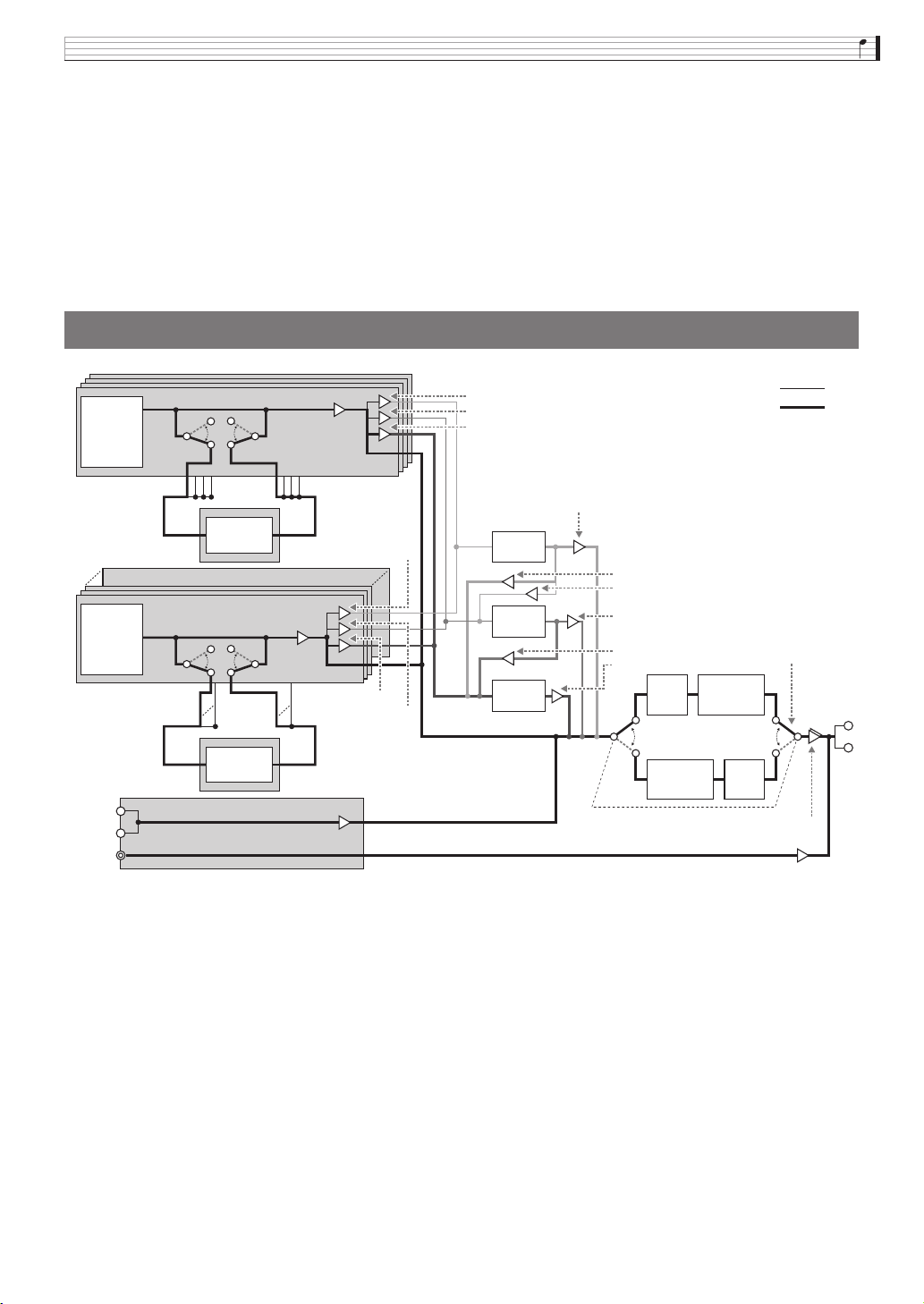
Information/Información
A-6
*1 The port that accepts MIDI In messages is specified by the “MIDI In Port” setting of the MIDI screen.
*2 The MIDI Out channel is specified by the “Keyboard Channel” setting of the MIDI screen.
*3 Auto Accompaniment MIDI data settings are configured by the “Accomp Out” setting of the MIDI screen.
*4 Use “Not used.” parts when inputting performance information from an external source via MIDI In.
*1 El puerto que acepta los mensajes MIDI In se determina mediante el ajuste “MIDI In Port” de la pantalla MIDI.
*2 El canal MIDI Out se determina mediante el ajuste “Keyboard Channel” de la pantalla MIDI.
*3 Los ajustes de los datos MIDI del acompañamiento automático se configuran mediante el ajuste “Accomp Out” de la pantalla
MIDI.
*4 Utilice las partes “Not used.” (No utlizado) cuando se introduce información sobre la ejecución desde una fuente externa a
través de MIDI In.
Block Diagram/Diagrama de bloques
Tone
Generator
LINE IN
AUDIO IN
Tone
Generator
LINE/
SPEAKER
OUT
Port A : Part1-5
Port A-C : Other Part
DSP
System
Chorus
System
Delay
System
Reverb
Master
EQ
Master
Compressor
Master
EQ
Master
Compressor
DSP
Chorus Send
Mono
Stereo
Chorus Return
Chorus Send
Delay Send
Reverb Send
Volume
Audio Volume
Volume
Comp position
Pre EQ / Post EQ
Chorus sent to Reverb
Delay sent to Reverb
Reverb Return
Chorus sent to Delay
Delay Return
Delay Send
Reverb Send
Volume
Master Volume
Note1:
Two DSPs, one for Port A Parts 1 through 5
for keyboard performance and one for other
parts, are used in combination.
Nota 1:
Dos DSP utilizados de manera combinada,
uno para el puerto A partes 1 a 5 para la
ejecución del teclado, y otro para otras
partes.
PX560-ES-1B.indd 199 2016/12/15 15:40:12
Function Transmitted Recognized Remarks
Basic
Channel
1 - 16
1 - 16
1 - 16
1 - 16
Default
Changed
Note
Number
0 - 127 0 - 127
0 - 127
*
1True voice
After
Touch
Control
Change
*2
X
X
X
O
Pitch Bender
OO
Key’s
Ch’s
Velocity
O
9nH v = 1 - 127
O
8nH v = 0 - 127
O
9nH v = 1 - 127
O
9nH v = 0, 8nH v =
0 - 127
Note ON
Note OFF
Mode
Mode 3
X
Mode 3
X
Default
Messages
Altered
0
1
5
6, 38
7
10
11
16
17
18
19
64
65
66
67
71
72
Bank select
Modulation
Portamento Time
Data entry LSB, MSB
Volume
Pan
Expression
DSP Parameter1
*3
DSP Parameter2
*3
DSP Parameter3
*3
DSP Parameter4
*3
Hold1
Portamento Switch
Sostenuto
Soft pedal
Filter resonance
Release time
O
O
O
O
O
O
O
O
O
O
O
O
O
O
O
O
O
O
O
X
O
O
O
X
X
X
X
X
O
X
O
O
X
X
*3 *3
Model PX-560M Version : 1.0
MIDI Implementation Chart
PX560-ES-1B.indd 202 2016/12/15 15:40:12
Function Transmitted Recognized Remarks
Basic
Channel
1 - 16
1 - 16
1 - 16
1 - 16
Default
Changed
Note
Number
0 - 127 0 - 127
0 - 127
*
1True voice
Program
Change
OO
0 - 127:True #
After
Touch
Control
Change
*2
X
X
X
O
Pitch Bender
OO
System Exclusive
OO
Key’s
Ch’s
Velocity
O
9nH v = 1 - 127
O
8nH v = 0 - 127
O
9nH v = 1 - 127
O
9nH v = 0, 8nH v =
0 - 127
Note ON
Note OFF
Mode
Mode 3
X
Mode 3
X
Default
Messages
Altered
System
Common
X
X
X
X
X
X
: Song Pos
: Song Sel
: Tune
Aux
Messages
Remarks
O
O
X
O
O
X
O
O
O
O
O
X
: All sound off
:
Reset all controller
: Local ON/OFF
: All notes OFF
: Active Sense
: Reset
System
Real Time
X
X
X
X
: Clock
: Commands
0
1
5
6, 38
7
10
11
16
17
18
19
64
65
66
67
71
72
73
74
76
77
78
80
81
82
83
84
88
91
93
94
98, 99
100, 101
Bank select
Modulation
Portamento Time
Data entry LSB, MSB
Volume
Pan
Expression
DSP Parameter1
*3
DSP Parameter2
*3
DSP Parameter3
*3
DSP Parameter4
*3
Hold1
Portamento Switch
Sostenuto
Soft pedal
Filter resonance
Release time
Attack time
Filter cutoff
Vibrato rate
Vibrato depth
Vibrato delay
DSP Parameter5
*3
DSP Parameter6
*3
DSP Parameter7
*3
DSP Parameter8
*3
Portamento Control
High resolution velocity prefix
Reverb send level
Chorus send level
Delay send level
NRPN LSB, MSB
RPN LSB, MSB
Mode 1 : OMNI ON, POLY
Mode 3 : OMNI OFF, POLY
Mode 2 : OMNI ON, MONO
Mode 4 : OMNI OFF, MONO
O : Yes
X : No
O
O
O
O
O
O
O
O
O
O
O
O
O
O
O
O
O
O
O
O
O
O
O
O
O
O
O
O
O
O
O
O
O
O
O
X
O
O
O
X
X
X
X
X
O
X
O
O
X
X
X
X
X
X
X
X
X
X
X
X
O
O
O
O
O
O
*3
*3
*3
*3
*3
*3
*3 *3
Model PX-560M Version : 1.0
*1 : Depends on tone
*2 : Any control change from 0 to 101 can be assigned to the controller and sent.
*3 : For details, see MIDI Implementation at http://world.casio.com/
.
*1 : Depende del tono
*2 : Es posible asignar y enviar cualquier cambio de control de 0 a 101.
*3 : Si desea más información, vea Implementación MIDI en http://world.casio.com/
.
PX560-ES-1B.indd 2 2016/12/15 15:39:23
PX560-ES-1B
EN/ES
Safety Precautions
Before trying to use the Digital Piano, be sure to
read the separate “Safety Precautions”.
Precauciones de seguridad
Antes de intentar usar el piano digital, asegúrese
de leer las “Precauciones de seguridad” separadas.
USER’S GUIDE
GUÍA DEL USUARIO
Please keep all information for future reference.
Guarde toda información para tener como referencia futura.
EnglishEspañol
PX
-
560M
This recycle mark indicates that the packaging conforms to
the environmental protection legislation in Germany.
Esta marca de reciclaje indica que el empaquetado se
ajusta a la legislación de protección ambiental en Alemania.
MA1612-B Printed in China
C
PX560-ES-1B.indd 1 2016/12/15 15:39:23
B