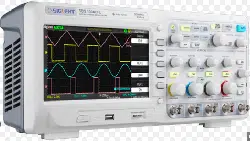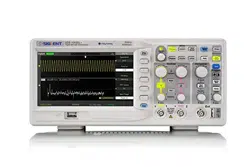

User Manual
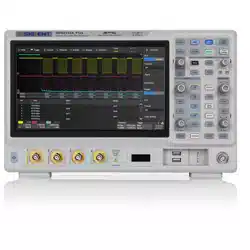
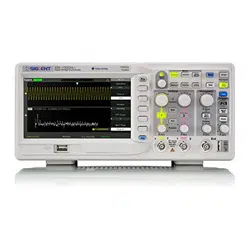
SDS1000CML+/SDS1000DL+
Digital Oscilloscope
UM0101A-E01B
July, 2020
SIGLENT TECHNOLOGIES CO,.LTD


SIGLENT
SDS1000CML+/SDS1000DL+ User Manual I
Declaration
Copyright © by SIGLENT TECHNOLOGIES CO,.LTD. All rights reserved.
Contents in this Manual are not allowed to copy, extract and translate
before being allowed by SIGLENT.

SIGLENT
II SDS1000CML+/SDS1000DL+ User Manual
Brief Introduction
Characteristic:
● Rated voltage/frequency: 100-240Vrms,50/60Hz
100-120Vrms,400Hz
● Rated input power: 30W MAX
● The volume of the oscilloscope is cabinet and it is portable
● 7” Color TFT LCD display
● 2 channels, Bandwidth: 40MHz-150 MHz
● Single real-time sampling rate is: 1Gsa/s;
Equivalent sampling rate is 50GSa/s.
● Trigger types: Edge, Pulse, Video, Slope and Alternative
● Unique Digital Filter function and Waveform recorder function
● Auto measure thirty two parameters and support all measurement
function.
●Two groups’ reference waveforms and twenty groups’ capture
waveforms and twenty groups’ setups internal save/recall function
and USB flash drive save/recall function.
● Cursor types: Manual mode, Track mode and Auto mode.
● Channel waveform and its FFT waveform display on split screen.
● Waveform Intensity and Grid Brightness can be adjusted.
● Menu display in the form of pop-up that in order to convenience users to
use it.
● Rich Screen display styles: Classical, Modern, Tradition, Succinct.
● Multiple Language User Interface.
● Support Multilingual online help system
●Standard interface: USB Host, USB Device, LAN port
Model:
Model
Analogy Bandwidth
Sampling Rate
SDS1152CML
150MHz
1GSa/s
SDS1102CML
100MHz
1GSa/s
SDS1072CML
70MHz
1GSa/s
SDS1062CML
60MHz
1GSa/s

SIGLENT
SDS1000CML+/SDS1000DL+ User Manual III
SDS1152CML+
150MHz
1GSa/s
SDS1102CML+
100MHz
1GSa/s
SDS1072CML+
70MHz
1GSa/s
SDS1202DL
200MHz
500MSa/s
SDS1152DL
150MHz
500MSa/s
SDS1102DL
100MHz
500MSa/s
SDS1062DL
60MHz
500MSa/s
SDS1052DL
50MHz
500MSa/s
SDS1022DL
20MHz
500MSa/s
SDS1202DL+
200MHz
500MSa/s
SDS1102DL+
100MHz
500MSa/s
SDS1052DL+
50MHz
500MSa/s
SDS1022DL+
20MHz
500MSa/s
SDS1202CNL
200MHz
1GSa/s
SDS1102CNL
100MHz
1GSa/s
SDS1072CNL
70MHz
1GSa/s
SDS1062CNL
60MHz
1GSa/s
SDS1202CNL+
200MHz
1GSa/s
SDS1102CNL+
100MHz
1GSa/s
SDS1072CNL+
70MHz
1GSa/s
SDS1202A
200MHz
500MSa/s
SDS1152A
150MHz
1GSa/s
SDS1102A
100MHz
1GSa/s
SDS1072A
70MHz
1GSa/s
SDS1062A
60MHz
1GSa/s
SDS1052A
50MHz
500MSa/s
SDS1022A
20MHz
500MSa/s
SDS1202B
200MHz
500MSa/s
SDS1152B
150MHz
1GSa/s
SDS1102B
100MHz
1GSa/s
SDS1072B
70MHz
1GSa/s
SDS1062B
60MHz
1GSa/s
SDS1052B
50MHz
500MSa/s
SDS1022B
20MHz
500MSa/s
SDS1152E+
150MHz
1GSa/s
SDS1122E+
120MHz
1GSa/s
SDS1102E+
100MHz
1GSa/s
SDS1072E+
70MHz
1GSa/s
SDS1202F+
200MHz
500MSa/s
SDS1152F+
150MHz
500MSa/s
SDS1102F+
100MHz
500MSa/s
SDS1052F+
50MHz
500MSa/s

SIGLENT
IV SDS1000CML+/SDS1000DL+ User Manual
Standard Accessories:
● 1:1/10:1 probe (2 PCS)
● Power Cable that fits the standard of destination country
● Qualified Certification.
● Quick Start
● USB Cable
General Safety Summary
Carefully read the following safety precautions to avoid person injury and prevent
damage to the instrument and any products connected to it. To avoid potential
hazards, please use the instrument as specified.
Only qualified technician should perform service procedures
To Avoid Fire or Personal Injure
Use Proper Power Line
Use only the special power line of the instrument which approved by local state.
Ground the Instrument
The instrument grounds through the protective terra conductor of the power line.
To avoid electric shock, the ground conductor must be connected to the earth.
Make sure the instrument is grounded correctly before connect its input or output
terminals.
Connect the Signal Wire Correctly
The potential of the signal wire is equal to the earth, so do not connect the signal
wire to a high voltage. Do not touch the exposed contacts or components.
Look Over All Terminals’ Ratings
To avoid fire or electric shock, please look over all ratings and sign instruction of
the instrument. Before connecting the instrument, please read the manual
carefully to gain more information about the ratings.
Not Operate with Suspected Failures
If you suspect that there is a damage of the instrument, please let a qualified
service personnel check it.
Avoid Circuit or Wire Exposed Components Exposed
Do not touch exposed contacts or components when the power is on.

SIGLENT
SDS1000CML+/SDS1000DL+ User Manual V
Do not operate in wet/damp conditions.
Do not operate in an explosive atmosphere.
Keep the surface of the instrument clean and dry.
If the equipment is used in a manner not specified by the manufacturer, the
protection provided by the equipment may be impaired.
This product has been tested to the requirements of CAN/CSA-C22.2 No.
61010-1, second edition, including Amendment 1, or a later version of the
same standard incorporating the same level of testing requirements.
Not to use the equipment for measurements on mains circuits, not to use
the equipment for measurements on voltage exceed the voltage range
describe in the manual.
Only probe assemblies which meet the manufacturer’s specifications shall
be used.
The Responsible body or operator should refer to the instruction manual to
preserve the protection afford by the equipment. If the equipment is used in
a manner not specified by the manufacturer, the protection provided by the
equipment may be impaired.
Any parts of the device and its accessories are not allowed to be changed or
replaced, other than authorized by the manufacturer of his agent.
SIGLENT
VI SDS1000CML+/SDS1000DL+ User Manual
Safety Terms and Symbols
Terms used on the instrument. Terms may appear on the instrument:
DANGER: Indicates an injury or hazard that may be immediately happen.
WARNING: Indicates an injury or hazard that may be not immediately
happen.
CAUTION: Indicates that a potential damage to the instrument or other
property might occur.
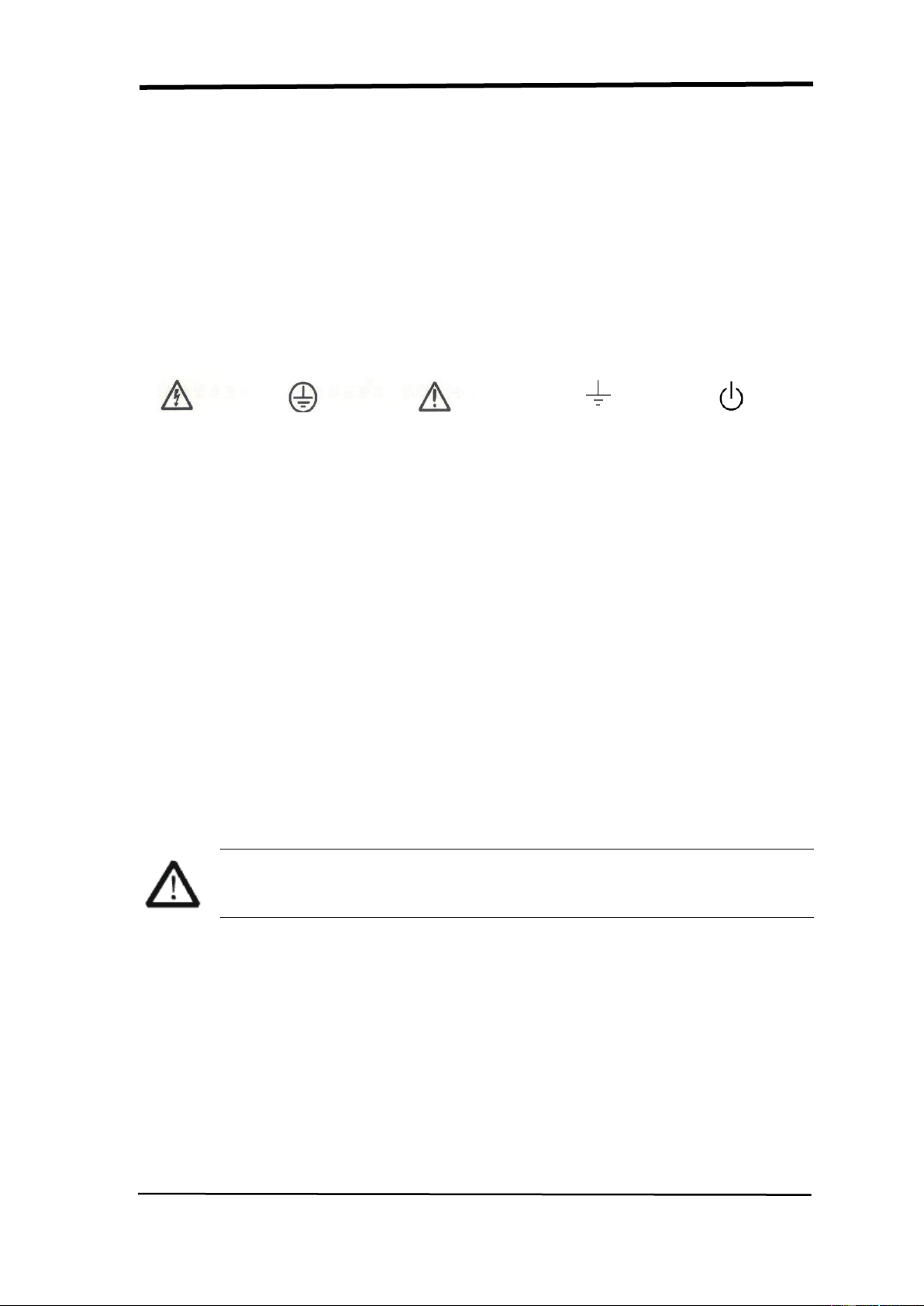
Symbols used on the instrument. Symbols may appear on the instrument:
Hazardous Protective Warning Earth Ground Power
Voltage Earth Ground Switch
Working Environment
Environment
For indoor use only
Temperature
Operating:10°C to +40°C
Non-operation: -20°C to +60°C
Humidity
Operating:5% to 85% RH,≤30°C
5% to 50% RH,40°C
Non-operating: 5% to 90% RH
WARNING
To avoid short circuit inside the instrument or electric shock,
please do not operate in humid environment.
Altitude
Operating: ≤3000m
Non-operating: ≤15,266m
Degree of protection
IP 20
Degree of pollution
This product can work in the environment with pollution degree of 2.
Installation (overvoltage) Category
This product is powered by mains conforming to installation (overvoltage)

SIGLENT
SDS1000CML+/SDS1000DL+ User Manual VII
Category II.
WARNING
Make sure that no overvoltage (such as that caused by thunderbolt) can
reach the product, or else the operator might expose to danger of
electric shock.
Installation (overvoltage) Category Definitions
Installation (overvoltage) category I refers to signal level which is applicable to
equipment measurement terminals connected to the source circuit. In these
terminals, precautions are done to limit the transient voltage to the corresponding
low level.
Installation (overvoltage) category II refers to the local power distribution level
which is applicable to equipment connected to the AC line (AC power).
Exigence de Sécurité
Lisez attentivement les précautions de sécurité suivantes pour éviter les
blessures corporelles et éviter d'endommager l'instrument et les produits qui y
sont connectés.
Seul un technicien qualifié doit effectuer les procédures d'entretien
Pour éviter un incendie ou des blessures corporelles
Utiliser une ligne électrique appropriée
Utilisez uniquement la ligne d'alimentation spéciale de l'instrument approuvée par
l'État local
Mettre l'instrument à la terre
L'instrument est mis à la terre à travers le conducteur terra protecteur de la ligne
électrique. Pour éviter les chocs électriques, le conducteur de terre doit être
connecté à la terre. Assurez-vous que l'instrument est correctement mis à la terre
avant de connecter ses bornes d'entrée ou de sortie.
Connectez le fil de signal correctement
Le potentiel du fil de signal est égal à la terre, donc ne connectez pas le fil de
signal à une tension élevée. Ne touchez pas les contacts ou composants
exposés.
Consultez les évaluations de tous les terminaux
Pour éviter un incendie ou un choc électrique, veuillez consulter toutes les valeurs
nominales et signer les instructions de l'instrument. Avant de connecter
l'instrument, veuillez lire attentivement le manuel pour obtenir plus d'informations
sur les valeurs nominales.

SIGLENT
VIII SDS1000CML+/SDS1000DL+ User Manual
Ne pas fonctionner avec des défaillances suspectées
Si vous pensez que l'instrument est endommagé, veuillez le faire vérifier par un
technicien qualifié.
Évitez les composants exposés au circuit ou au fil exposés
Ne touchez pas les contacts ou composants exposés lorsque l'appareil est sous
tension.
Ne pas utiliser dans des conditions humides / humides.
Ne pas opérer dans une atmosphère explosive.
Gardez la surface de l'instrument propre et sèche.
Si l'équipement est utilisé d'une manière non spécifiée par le fabricant, la
protection fournie par l'équipement peut être altérée.
Ce produit a été testé conformément aux exigences de la norme CAN /
CSA-C22.2 n ° 61010-1, deuxième édition, y compris l'amendement 1, ou une
version ultérieure de la même norme intégrant le même niveau d'exigences
de test.
Ne pas utiliser l'équipement pour des mesures sur des circuits de réseau, ne
pas utiliser l'équipement pour des mesures de tension dépassant la plage
de tension décrite dans le manuel.
Seuls des ensembles de sondes conformes aux spécifications du fabricant
doivent être utilisés.
L'organisme ou l'opérateur responsable doit se référer au manuel
d'instructions pour préserver la protection offerte par l'équipement. Si
l'équipement est utilisé d'une manière non spécifiée par le fabricant, la
protection fournie par l'équipement peut être altérée.
Aucune pièce de l'appareil et ses accessoires ne peuvent être modifiés ou
remplacés, autre que celle autorisée par le fabricant de son agent.
SIGLENT
SDS1000CML+/SDS1000DL+ User Manual IX
Termes et symboles de sécurité
Termes utilisés sur l'instrument. Des termes peuvent apparaître sur
l'instrument:
DANGER: Indique une blessure ou un danger pouvant survenir
immédiatement.
WARNING: Indique une blessure ou un danger qui pourrait ne pas se
produire immédiatement.
CAUTION: Indique qu'un dommage potentiel à l'instrument ou à d'autres
biens pourrait se produire.
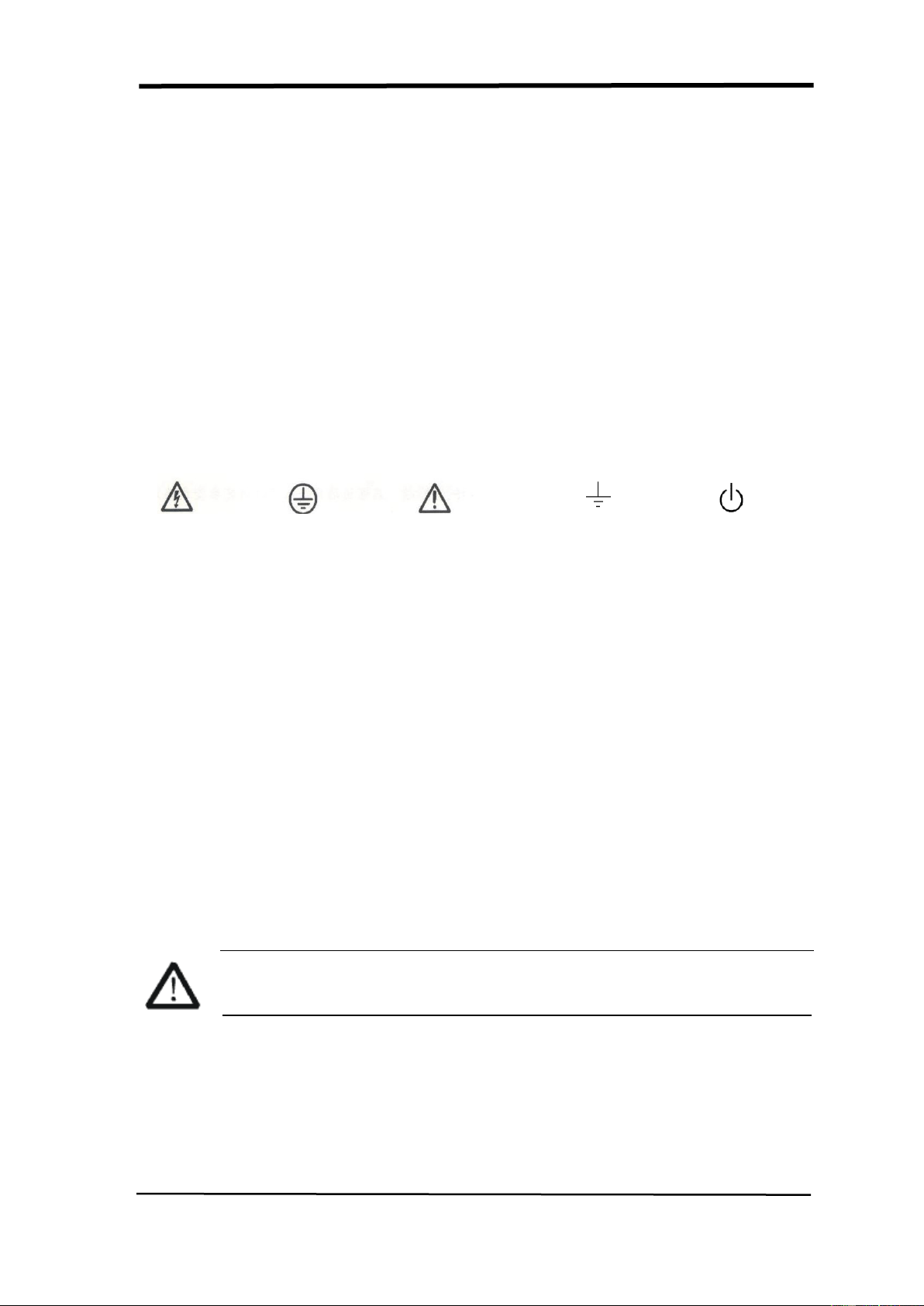
Symboles utilisés sur l'instrument. Des symboles peuvent apparaître sur
l'instrument:
Hasardeux Terre Attention Earth Ground Interrupteur
Tension de protection
Environnement de travail
Environnement
Pour une utilisation en intérieur uniquement
Température
En fonctionnement: 10°C à + 40°C
Hors fonctionnement: -20°C à + 60°C
Humidité
Fonctionnement: 5% à 85% HR, ≤30°C
5% à 50% HR, 40°C
Hors fonctionnement: 5% à 90% HR
ATTENTION
Pour éviter les courts-circuits à l'intérieur de l'instrument ou les chocs
électriques, veuillez ne pas utiliser dans un environnement humide.
Altitude
Fonctionnement: ≤3000m
Hors fonctionnement: ≤15,266m
Degré de protection
IP 20

SIGLENT
X SDS1000CML+/SDS1000DL+ User Manual
Degré de pollution
Ce produit peut fonctionner dans l'environnement avec un degré de pollution de 2.
Catégorie d'installation (surtension)
Ce produit est alimenté par un secteur conforme à l'installation (surtension) de
catégorie II.
ATTENTION
Assurez-vous qu'aucune surtension (telle que celle provoquée par un
coup de foudre) ne peut atteindre le produit, sinon l'opérateur pourrait
s'exposer à un risque de choc électrique.
Définitions des catégories d'installation (surtension)
La catégorie d'installation I (surtension) fait référence au niveau du signal qui est
applicable aux bornes de mesure de l'équipement connectées au circuit source.
Dans ces bornes, des précautions sont prises pour limiter la tension transitoire au
niveau bas correspondant.
La catégorie d'installation (surtension) II se réfère au niveau de distribution
électrique local qui est applicable aux équipements connectés à la ligne AC
(alimentation AC).

SIGLENT
SDS1000CML+/SDS1000DL+ User Manual XI
Content
Brief Introduction ................................................................................................ II
General Safety Summary ................................................................................... IV
Exigence de Sécurité .......................................................................................... VII
Chapter 1 Accidence ............................................................................................. 1
1.1 Accidence of Panel and Display Information ........................................................... 2
1.2 Function Checking ................................................................................................... 5
1.3 Probe .................................................................................................................. 7
1.3.1 Probe Safety ................................................................................................. 7
1.3.2 Probe Attenuation Setting .......................................................................... 7
1.3.3 Probe Compensation .................................................................................. 8
Chapter 2 Functions Instruction and Operation .................................................... 9
2.1 Menu and Control Button ....................................................................................... 10
2.2 Connector ............................................................................................................... 12
2.3 Auto Setup .............................................................................................................. 13
2.4 Default Setup .......................................................................................................... 14
2.5 Universal Knob ...................................................................................................... 15
2.6 Vertical System ....................................................................................................... 15
2.6.1 CH1, CH2 Channel .................................................................................... 16
2.6.2 Using Vertical “Position” Knob and “Volt/div” Knob .............................. 21
2.6.3 Math Functions .......................................................................................... 21
2.6.4 Using Ref .................................................................................................... 27
2.7 Horizontal System .................................................................................................. 29
2.7.1 Horizontal Control Knob ........................................................................... 30
2.7.2 Window Zone ............................................................................................. 30
2.8 Trigger System ....................................................................................................... 32
2.8.1 Signal Source ............................................................................................. 33
2.8.2 Trigger Type ................................................................................................ 34
2.8.3 Coupling ...................................................................................................... 47
2.8.4 Position ....................................................................................................... 47
2.8.5 Slope & Level ............................................................................................. 48
2.8.6 Trigger Holdoff ........................................................................................ 49
2.9 Acquiring Signals System ...................................................................................... 50
2.10 Display System .................................................................................................... 56
2.10.1 X-Y Format ............................................................................................... 59
2.11 Measure System ................................................................................................... 60
2.11.1 Scale Measurement ................................................................................ 60
2.11.2 Cursor Measurement .............................................................................. 60
2.11.3 Auto Measurement .................................................................................. 66
2.12 Storage System ..................................................................................................... 72
2.13 Utility System ...................................................................................................... 85
2.13.1 System Status .......................................................................................... 88
2.13.2 Language .................................................................................................. 88

SIGLENT
XII SDS1000CML+/SDS1000DL+ User Manual
2.13.3 Self Calibration ........................................................................................ 89
2.13.4 Self Test ....................................................................................................... 90
2.13.5 Updating the System Software .............................................................. 92
2.13.6 Pass/Fail ................................................................................................... 92
2.13.7 Waveform Record.................................................................................... 96
2.13.8 Recorder ................................................................................................... 99
2.13.9 Remote Control ...................................................................................... 102
2.14 Online Help Function ......................................................................................... 107
Chapter 3 Prompting Messages and Troubleshooting ...................................... 108
3.1 Prompting Messages: ........................................................................................... 108
3.2 Troubleshooting ................................................................................................... 110
Chapter 4 Service and Support .......................................................................... 112
4.1 Maintain Summary ............................................................................................... 112
4.2 Contact SIGLENT ................................................................................................ 113
Appendix A: Default Setup ................................................................................. 114
Appendix B: Daily Maintain and Cleaning .......................................................... 116

SIGLENT
SDS1000CML+/SDS1000DL+ User Manual 1
Chapter 1 Accidence
SDS1000CML+ /SDS1000DL+ Series Digital Oscilloscope is mini-type and
portable bench type instruments, which could be used for measuring as the GND
voltage.
This Chapter shows you how to operate following tasks:
◆ Accidence of panel and Display information
◆ Simple checking of functions
◆ Matching probes attenuation coefficient
◆ Probe compensation
SIGLENT
2 SDS1000CML+/SDS1000DL+ User Manual
1.1 Accidence of Panel and Display Information
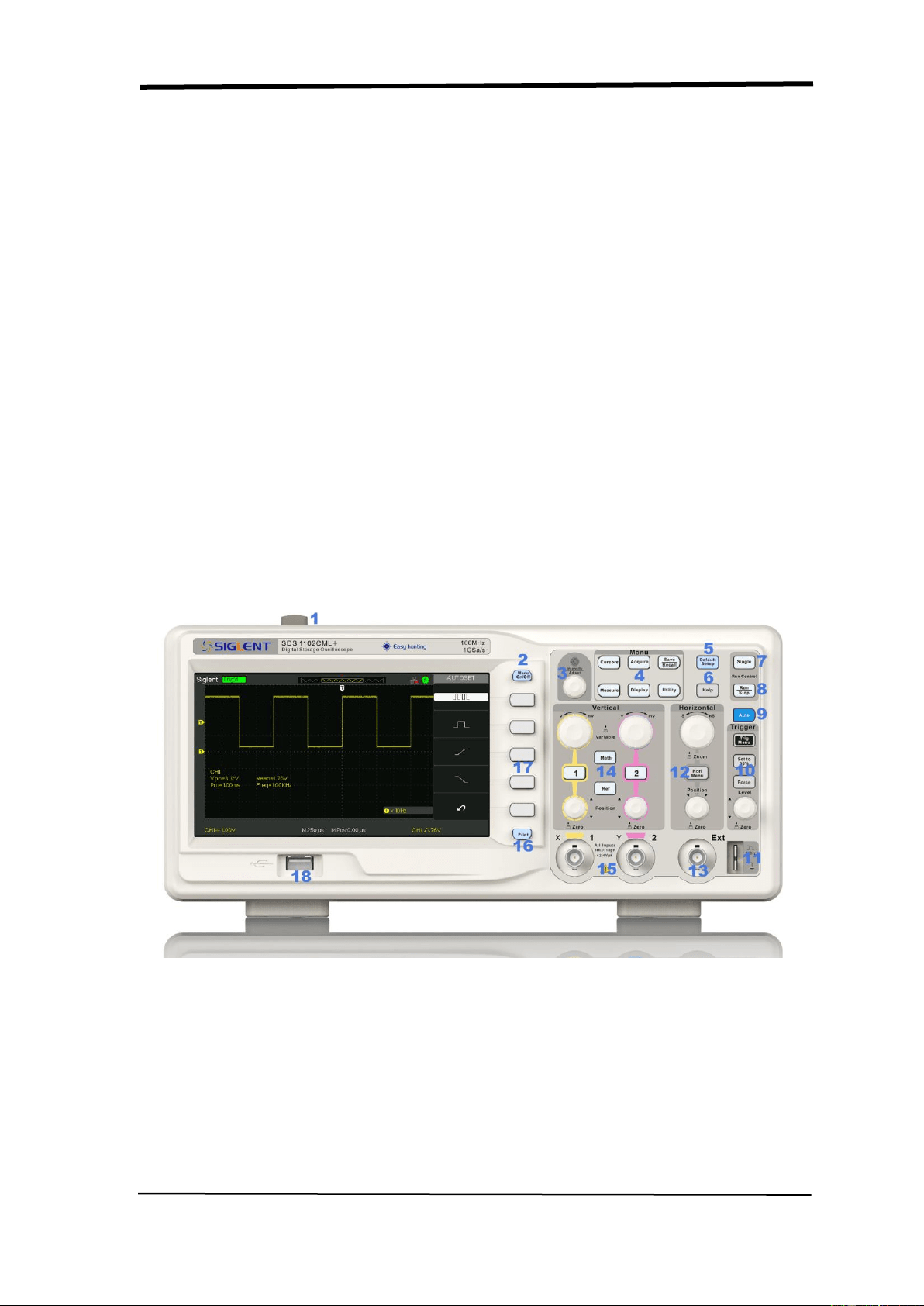
1.1.1 Front Panel
It is important for you to understand the DSO’s front panel before operating it. The
following contents are the brief introduction for the front panel function, which is
useful to be familiar with the operation of the SDS1000CML+/SDS1000DL+
Series Digital Storage Oscilloscope in short time.
The oscilloscopes provides an easy-to-use front panel to convenience users to
operate them, the panel contains knobs and buttons. There is a list of five ashen
buttons as menu operational buttons on the right of display screen. You can set
different options of the current menu in virtue of them. Other buttons are function
buttons; you can enter different function menus or obtain given function
application in virtue of them.
Picture 1.1-1 SDS1000CML+ Series Front Panel
SIGLENT
SDS1000CML+/SDS1000DL+ User Manual 3
No.
Description
No.
Description
1
Power button
10
Trigger Control Area
2
Menu On/Off
11
Probe Compensation
3
Universal Knob
12
Horizontal Control Area
4
Functions Menus
13
Ext Trigger Terminal
5
Default Setup
14
Vertical Control Area
6
Help button
15
Channel Input Terminal
7
Single Trigger
16
Print key
8
Run/Stop Control
17
Menu Softkey
9
Auto Setup
18
USB Host
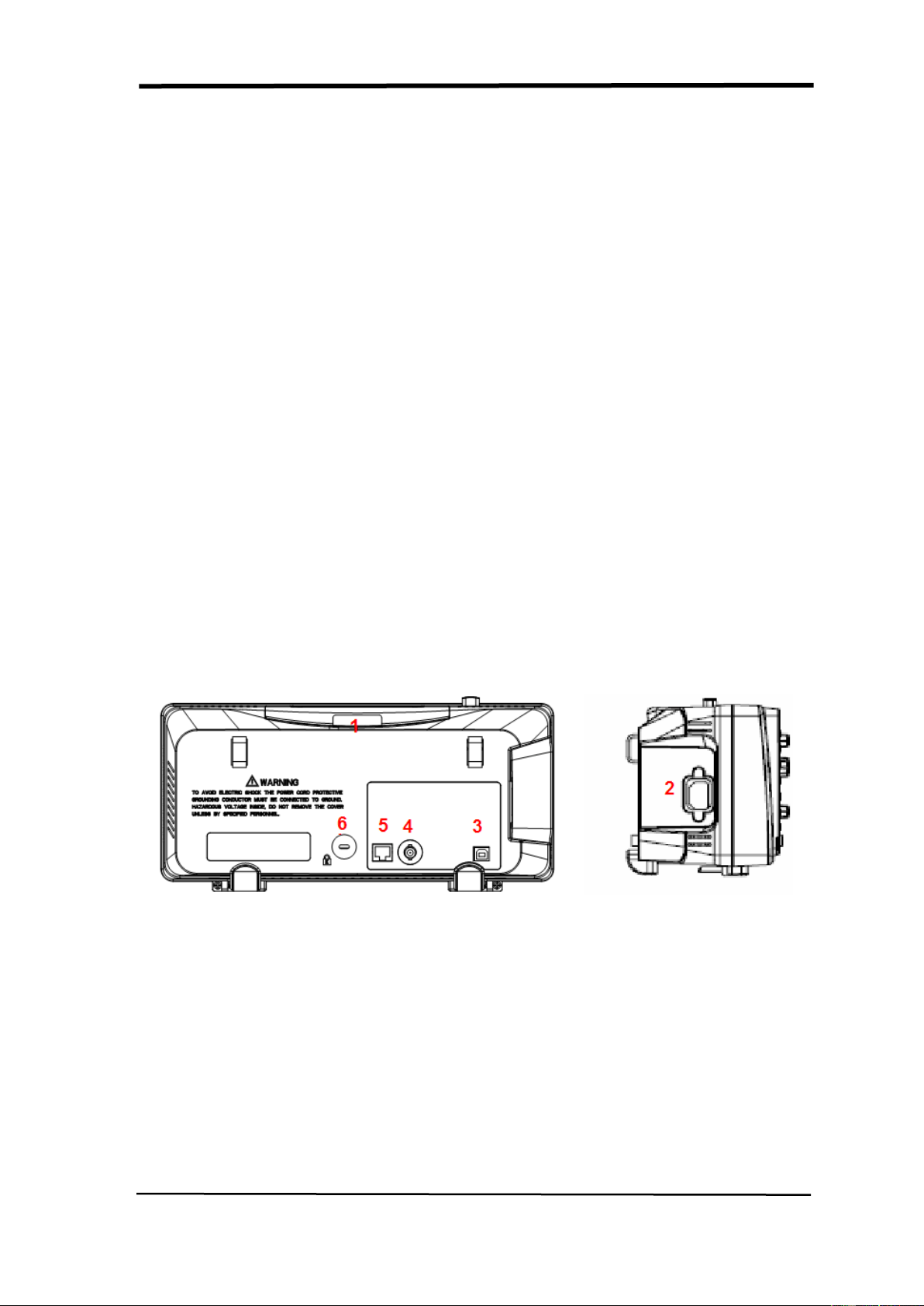
1.1.2 Back and Side Connections
The following images show back and side panel connection locations.
Picture 1.1-2 SDS1000CML+ Back and Side panel
1. Handle
2. AC Power Input Terminal
3. USB Device Connector
4. Pass/Fail Output Connector
5. LAN Port
6. Lock Hole
SIGLENT
4 SDS1000CML+/SDS1000DL+ User Manual
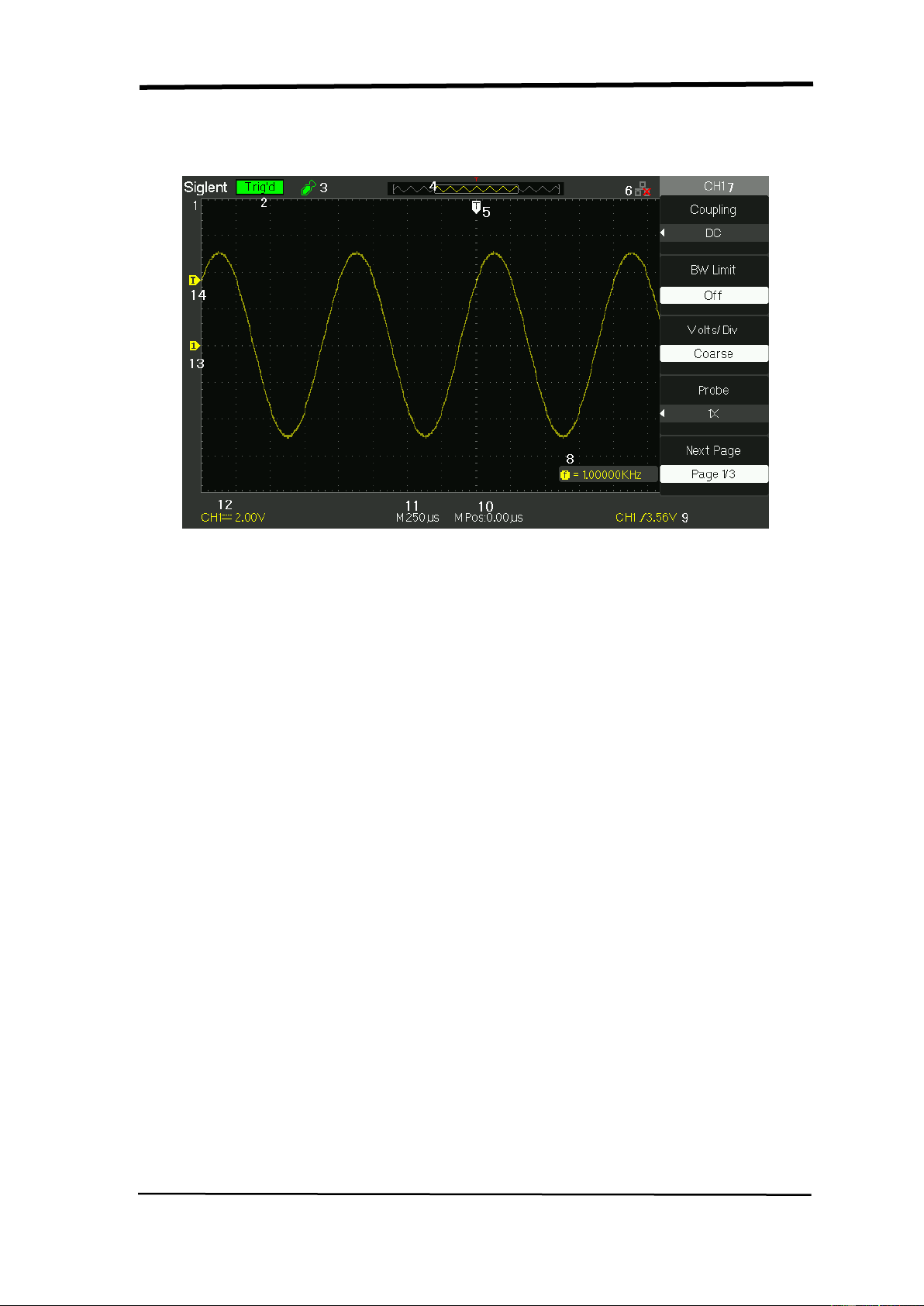
1.1.3 User display interface
Picture 1.1-3
1.Product Logo
Siglent is the registered trademark of our company.
2. Trigger status
Armed. The oscilloscope is acquiring pre-trigger data. All triggers are ignored
in this state.
Ready. All pre-trigger data has been acquired and the oscilloscope is ready to
accept a trigger.
Trig’d. The oscilloscope has seen a trigger and is acquiring the posttrigger data.
Stop. The oscilloscope has stopped acquiring waveform data.
Auto. The oscilloscope is in auto mode and is acquiring waveforms in the
absence of triggers.
Scan. The oscilloscope is acquiring and displaying waveform data continuously in
scan mode.
3. USB Host connected mark.
4. Waveform memory
Show the position of the current waveform in the memory of the
oscillsocpe.
5. Trigger position.
Turn the HORIZONTAL POSITION knob to adjust the trigger position of the
SIGLENT
SDS1000CML+/SDS1000DL+ User Manual 5
waveform.
6. Show the LAN port.
Indicates the LAN port is connected.
Indicates the LAN port is disconnected.
7. Show the Channel symbol.
8. Readout shows trigger signal frequency..
9. Readout shows the trigger level value and trigger type..
10.Readout shows the trigger delay of waveform.
11. Readout shows the main time base setting.
12. Icon shows the channel setting.
13. Icon shows the channel offset position.
14. Icon shows the trigger level position
1.2 Function Checking
When you check whether or not the oscilloscope could work smoothly, please
operate as following:
1. Power On the oscilloscope.
Press “DEFAULT SETUP” to show the result of the self check. The probe default
attenuation is 1X.
Picture 1.2- 1
2. Set the switch to 1X on the probe and connect the probe to channel 1 on the
oscilloscope. To do this, align the slot in the probe connector with the key on the
CH 1 BNC, push to connect, and twist to the right to lock the probe in place.
Connect the probe tip and reference lead to the PROBE COMP connectors
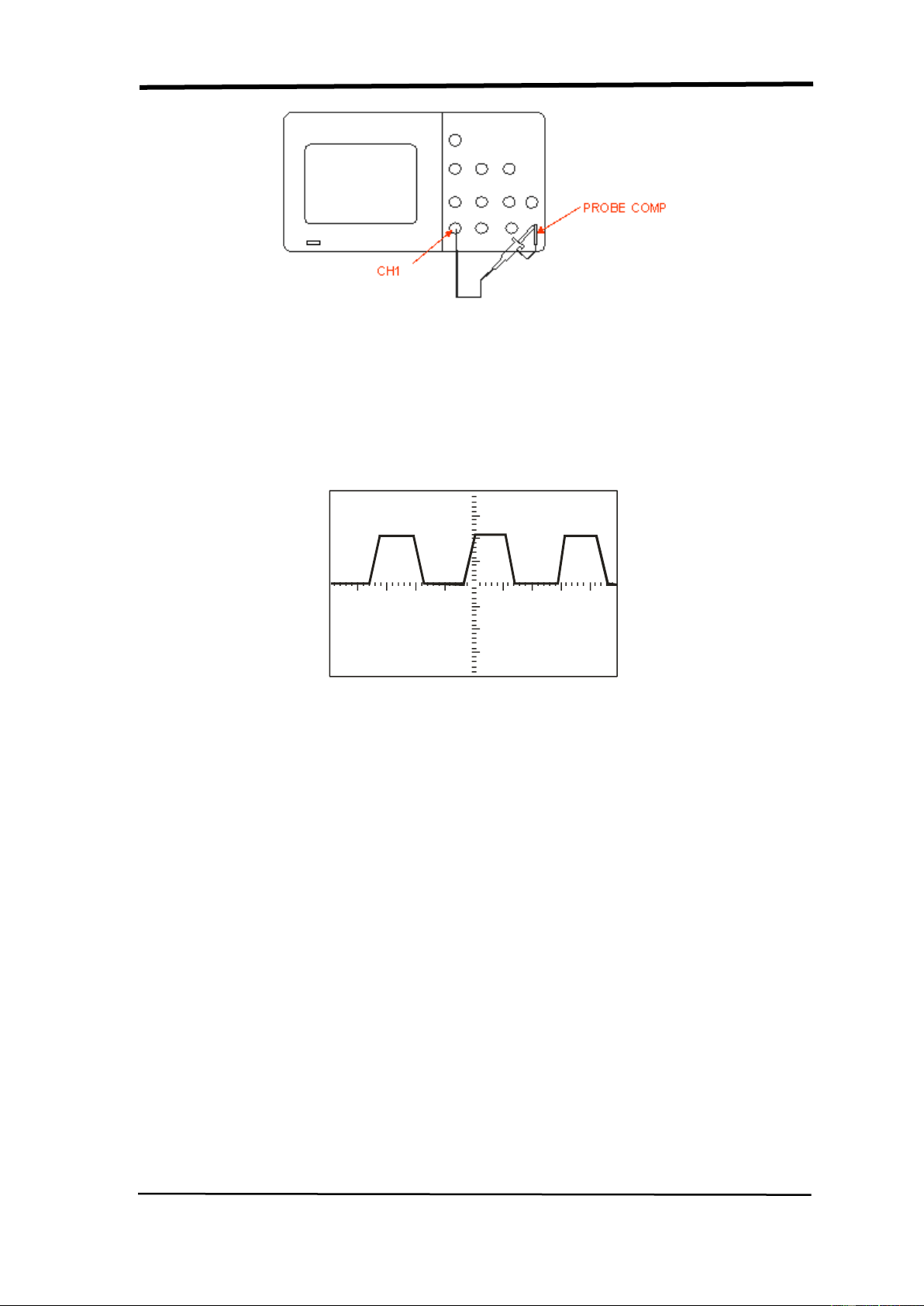
SIGLENT
6 SDS1000CML+/SDS1000DL+ User Manual
Picture 1.2-2
3.Press “AUTO” to show the 1 KHz frequency and about 3V peak-peak square
wave in couple seconds
Picture 1.2-3
4. Press “CH1” two times to cancel the channel 1, Press“CH2” to change screen
into channel 2, reset the channel 2 as step 2 and step 3.
SIGLENT
SDS1000CML+/SDS1000DL+ User Manual 7
1.3 Probe
1.3.1 Probe Safety
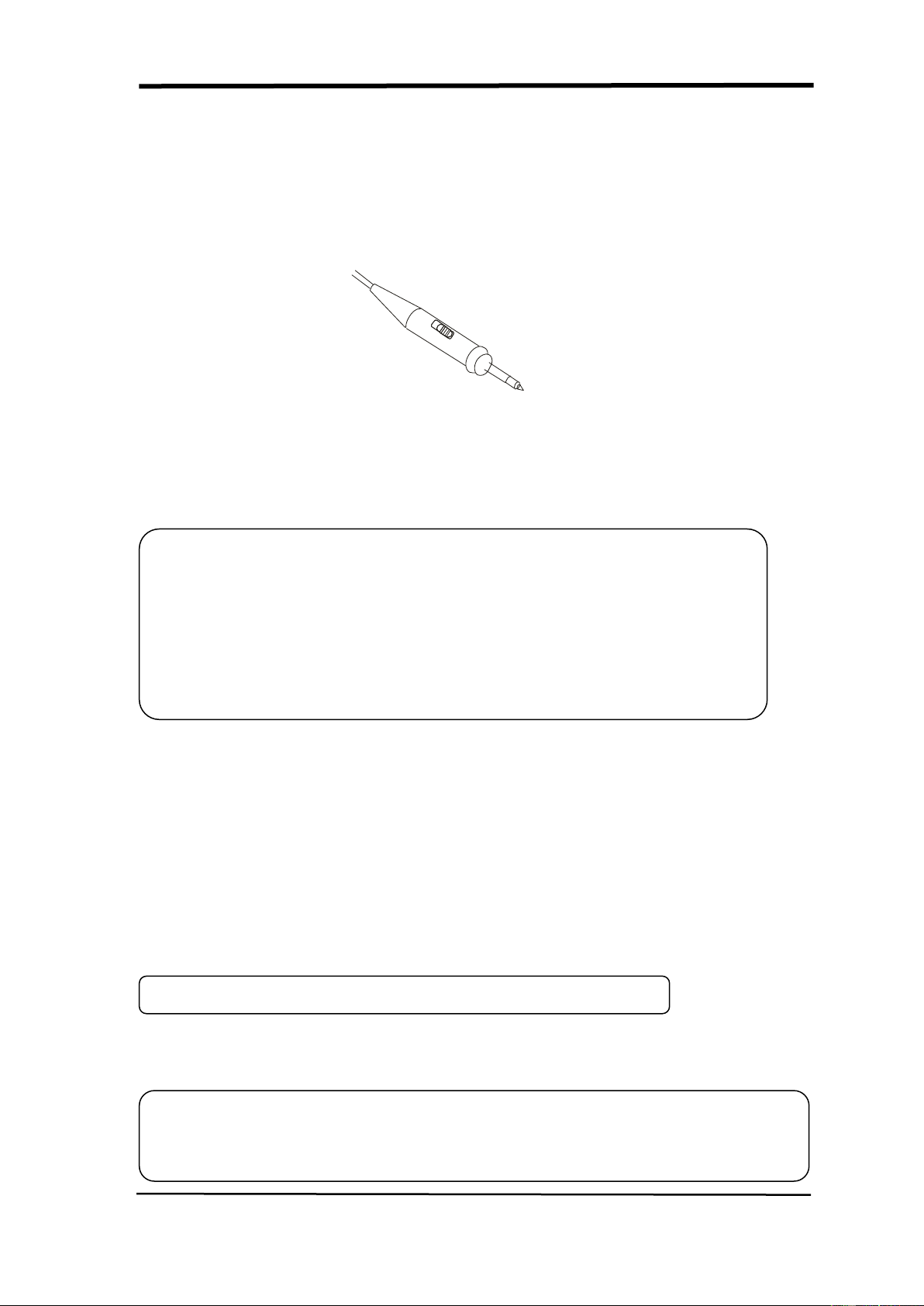
A guard around the probe body provides a finger barrier for protection from
electric shock.
Picture 1.3-1
Connect the probe to the oscilloscope and connect the ground terminal to ground
before you take any measurements.
1.3.2 Probe Attenuation Setting
Probes are available with various attenuation factors which affect the vertical
scale of the signal. The Probe Check function verifies that the Probe attenuation
option matches the attenuation of the probe.
You can push a vertical menu button (such as the CH 1 MENU button), and select
the Probe option that matches the attenuation factor of your probe.
Be sure that the attenuation switch on the probe matches the Probe option in the
oscilloscope. Switch settings are 1X and 10X.
Note: ● To avoid electric shock when using the probe, keep fingers behind the
guard on the probe body.
● To avoid electric shock while using the probe, do not touch metallic
portions of the probe head while it is connected to a voltage source.
Connect the probe to the oscilloscope and connect the ground terminal
to ground before you take any measurements.
Note: The default setting for the Probe option is 1X.
Note: When the attenuation switch is set to 1X, the probe limits the bandwidth of the
oscilloscope to 6MHz (according to Probe spec). To use the full bandwidth of the
oscilloscope, be sure to set the switch to 10X
SIGLENT
8 SDS1000CML+/SDS1000DL+ User Manual
1.3.3 Probe Compensation
As an alternative method to Probe Check, you can manually perform this
adjustment to match your probe to the input channel.
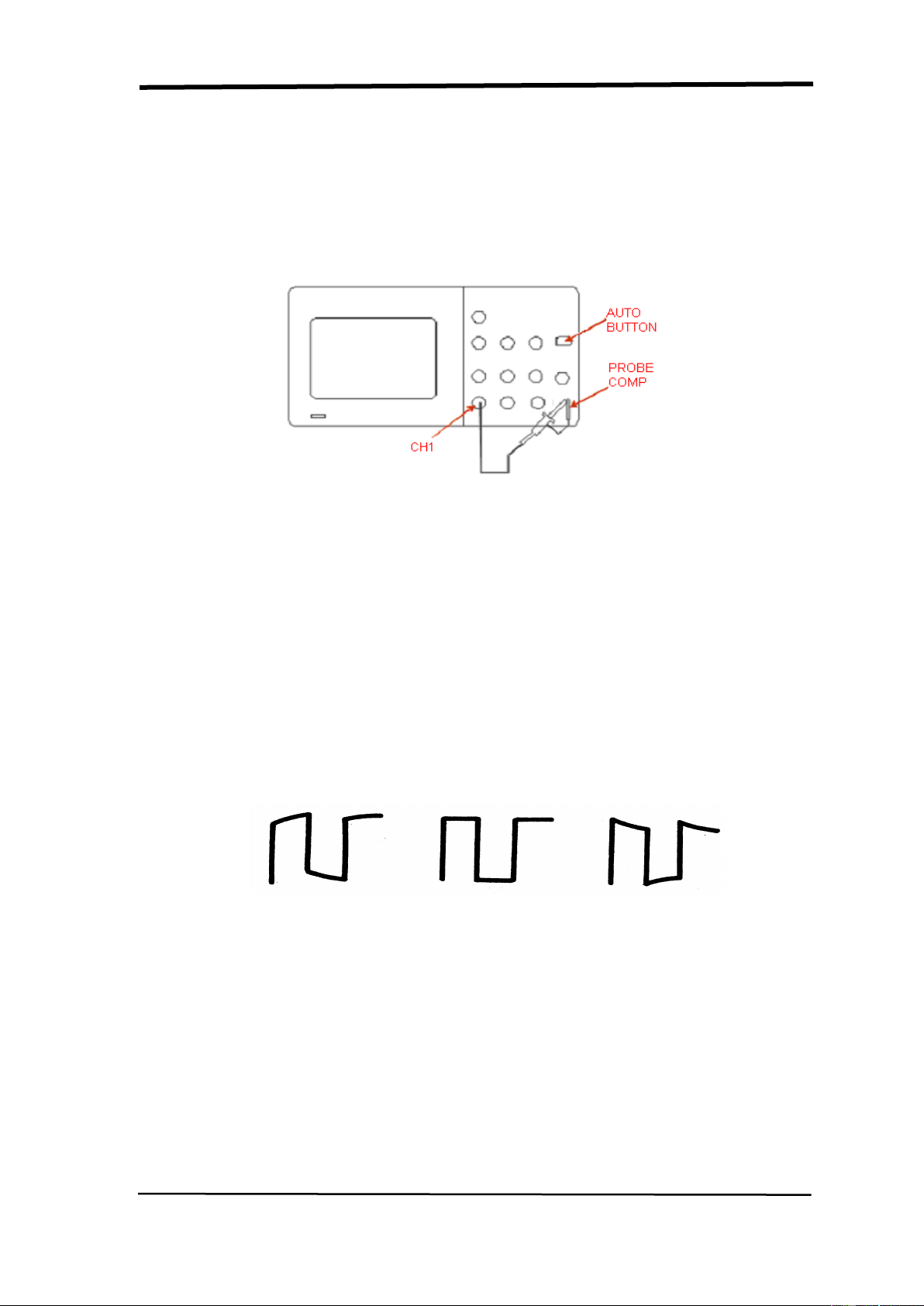
Picture1.3-2
1. Set the Probe option attenuation in the channel menu to 10X. Set the switch to
10X on the probe and connect the probe to channel 1 on the oscilloscope. If you
use the probe hook-tip, ensure a proper connection by firmly inserting the tip
onto the probe.
2. Attach the probe tip to the PROBE COMP~3V connector and the reference
lead to the PROBE COMP Ground connector. Display the channel and then
push the “AUTO” button.
3. Check the shape of the displayed waveform.
Over Compensated under
Compensated correctly compensated
Picture 1.3-3
4. If necessary, adjust your probe. Repeat as necessary.

SIGLENT
SDS1000CML+/SDS1000DL+ User Manual 9
Chapter 2 Functions Instruction and Operation
To use your oscilloscope effectively, you need to learn about the following
oscilloscope functions:
◆ Menu and control button
◆ Connector
◆ Auto Setup
◆ Default Setup
◆ Universal knob
◆ Vertical System
◆ Horizontal System
◆ Trigger System
◆ Acquiring signals System
◆ Display System
◆ Measuring waveforms System
◆ Utility System
◆ Storage System
◆ Online Help function
SIGLENT
10 SDS1000CML+/SDS1000DL+ User Manual
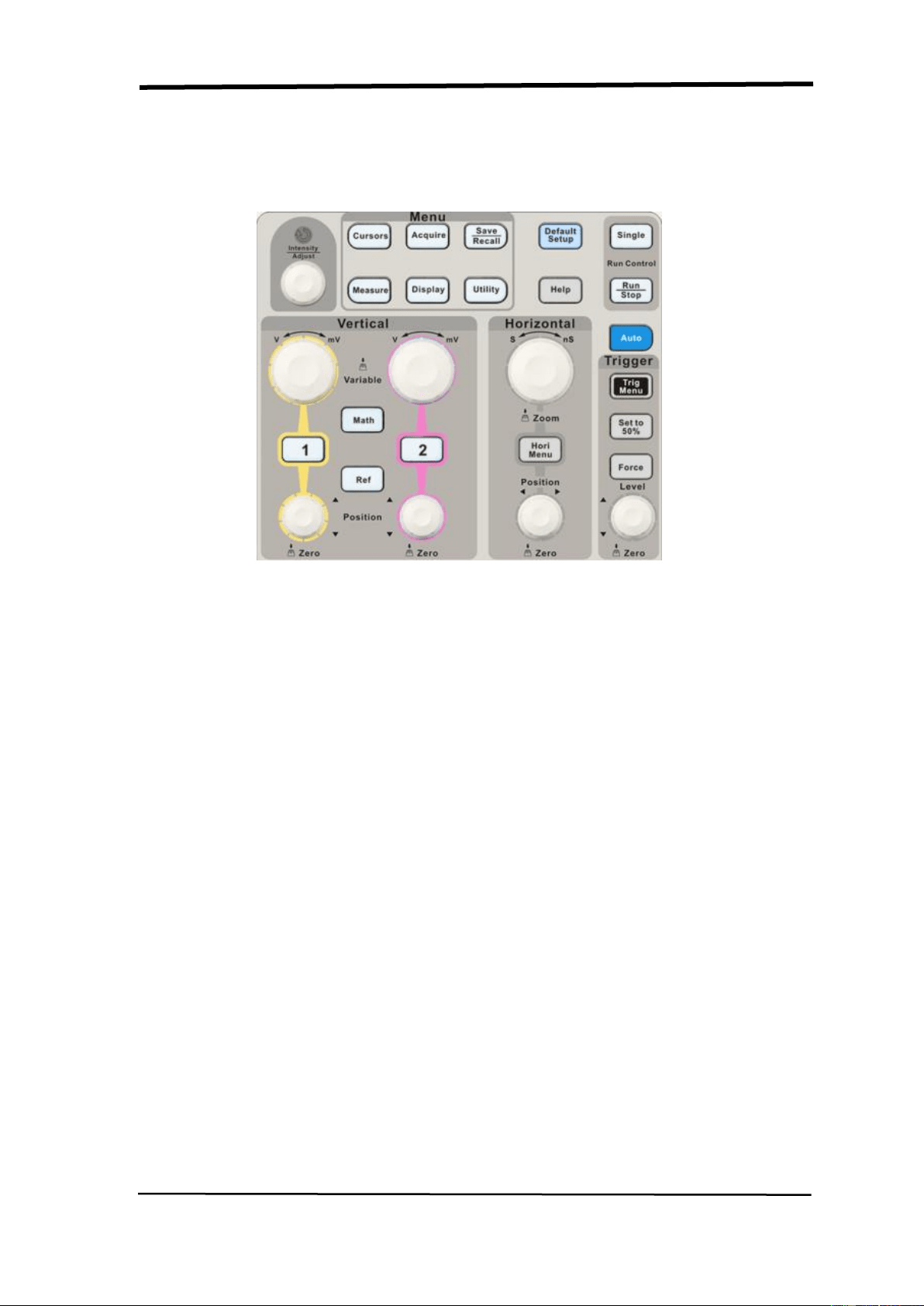
2.1 Menu and Control Button
Showing as the following picture:
Picture 2-1
■ Channel buttons (1, 2): Press a channel button to turn that channel ON or OFF
and open the channel menu for that channel. You can use the channel menu to
set up a channel. When the channel is on, the channel button is lit.
■ MATH: Press to display the Math menu. You can use the MAH menu to use the
oscilloscopes Math functions.
■ REF: Press to display the Ref Wave menu. You can use this menu to save and
recall four or two reference waveforms internal memory.
■ HORI MENU: Press to display the Horizontal menu. You can use the Horizontal
menu to display the waveform and zoom in a segment of a waveform.
■ TRIG MENU: Press to display the Trigger menu. You can use the Trigger menu
to set the trigger type (Edge. Pulse, Video, Slope, Alternative) and trigger
settings.
■ SET TO 50%: Press to stabilize a waveform quickly. The oscilloscope can
set the trigger level to be halfway between the minimum and maximum
voltage level automatically. This is useful when you connect a signal to the
EXT TRIG connector and set the trigger source to Ext or Ext/5.

SIGLENT
SDS1000CML+/SDS1000DL+ User Manual 11
■ FORCE: Use the FORCE button to complete the current waveform acquisition
whether the oscilloscope detects a trigger or not. This is useful for Single
acquisitions and Normal trigger mode.
■ SAVE/RECALL: Press to display the Save/Recall menu. You can use the
Save/Recall menu to save and recall up to 20 oscilloscope setups or waveforms
in internal memory (up to 20 waveforms) or on a USB memory device (limited by
memory capacity of USB device). You can also use it to recall the default factory
settings, to save waveform data as a comma-delimited file (.CSV), and to save
or print the displayed waveform image.
■ ACQUIRE: Press to display Acquire menu. You can use the Acquire menu to
set the acquisition Sampling Mode (Sampling, Peak Detect, Average).
■ MEASURE: Press to display a menu of measurement parameters.
■ CURSORS: Display the Cursor Menu. Vertical Position controls adjust cursor
position while displaying the Cursor Menu and the cursors are activated.
Cursors remain displayed (unless the “Type” option is set to “Off”) after leaving
the Cursor Menu but are not adjustable.
■ DISPLAY: Press to open the Display menu. You can use the Display menu to
set grid and waveform display styles, and persistence.
■ UTILITY: Press to open the Utlity menu. You can use the Utility menu to
configure oscilloscope features, such as sound, language, counter, etc. You can
also view system status and update software.
■ DEFAULT SETUP: Press to reset the oscilloscope’s settings to the default
factory configuration.
■ HELP: Enter the online help system.
■ AUTO: Automatically sets the oscilloscope controls to produce a usable display
of the input signals.
■ RUN/STOP: Continuously acquires waveforms or stops the acquisition.
Note:If waveform acquisition is stopped (using the RUN/STOP or SINGLE
button), the SEC/DIV control expands or compresses the waveform.
■ SINGLE: Acquire a single waveform and then stops.
SIGLENT
12 SDS1000CML+/SDS1000DL+ User Manual
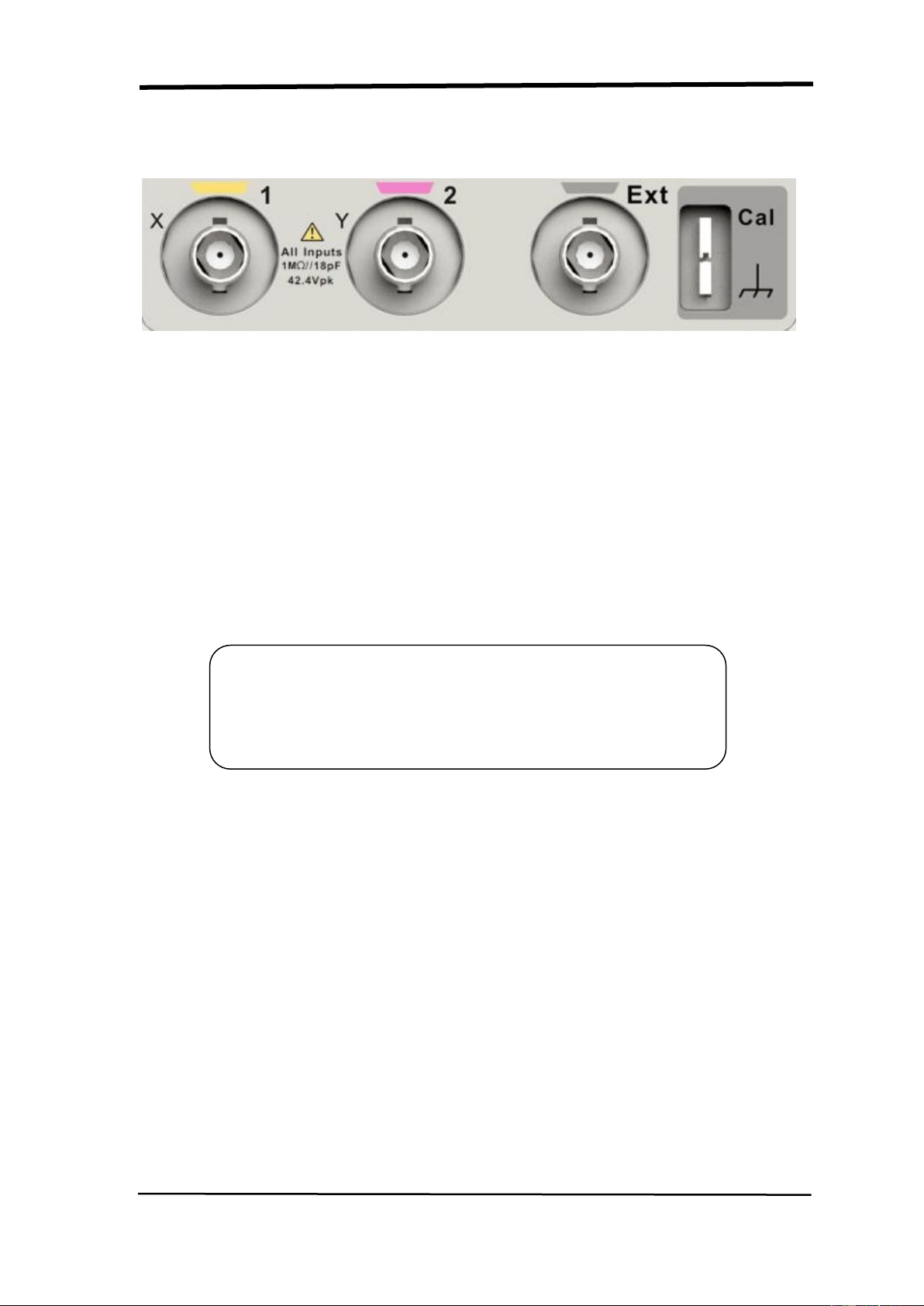
2.2 Connector
Picture 2-2
■ Channel Connector (CH1, CH2): Input connectors for waveforms display.
■ EXT TRIG: Input connector for an external trigger source. Use the Trigger
Menu to select the “Ext” or “Ext/5” trigger source.
■ Probe Component: Voltage probe compensation output and ground. Use
to electrically match the probe to the oscilloscope input circuit.
Note:If you connect a voltage source to a ground terminal, you
may damage the oscilloscope or the circuit under test. To avoid
this, do not connect a voltage source to any ground terminals.
SIGLENT
SDS1000CML+/SDS1000DL+ User Manual 13
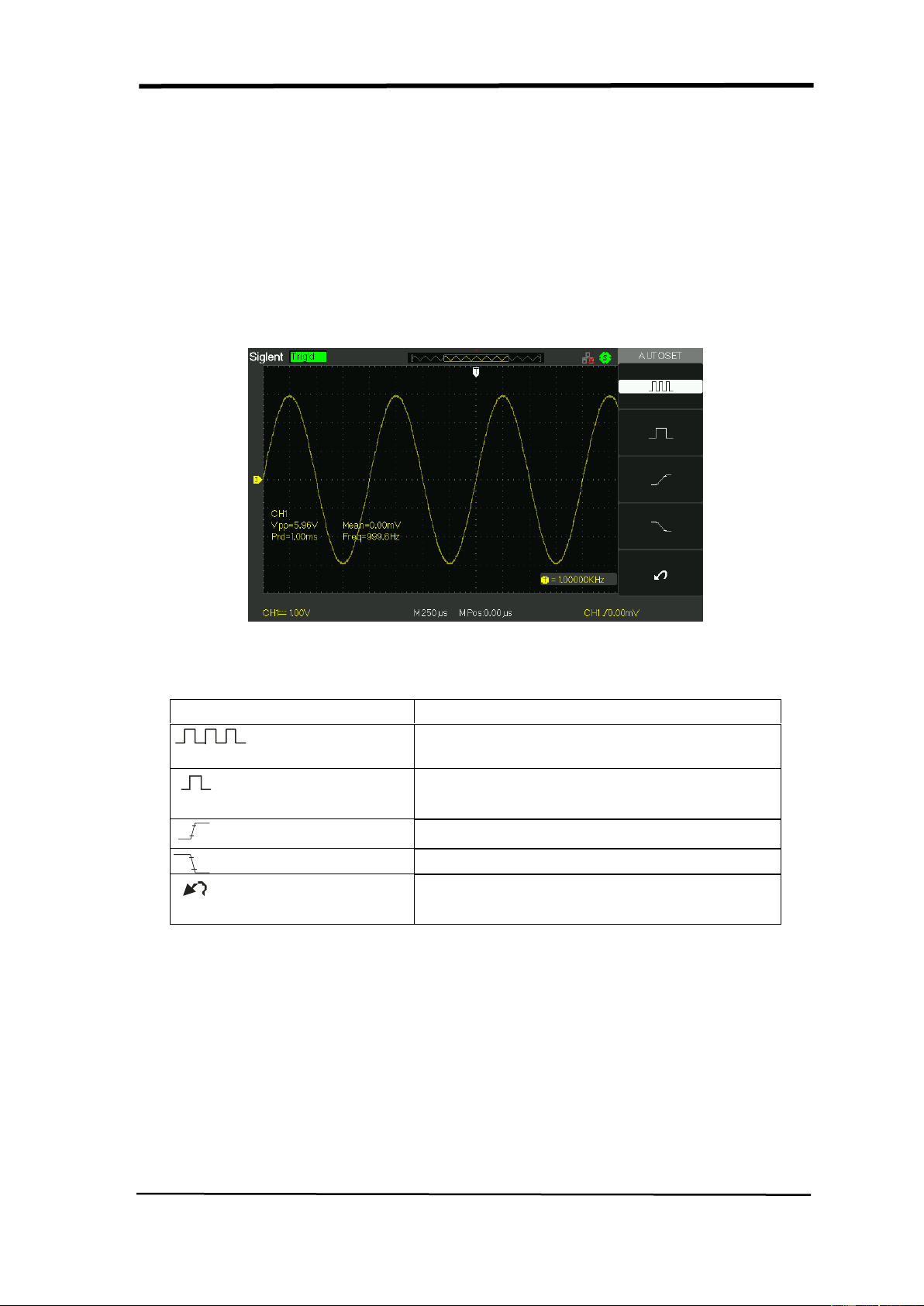
2.3 Auto Setup
The SDS1000CML+/SDS1000DL+ Series Digital Storage Oscilloscopes have a
Auto Setup function that identifies the waveform types and automatically adjusts
controls to produce a usable display of the input signal.
Press the AUTO button, and then press the menu option button adjacent to the
desired waveform as follows:
Picture 2-3
Table 2-1 Auto Set function Menu:
Option
Description
(Multi-cycle sine)
Auto set the screen and display several
cyc signal.
(Single-cycle sine)
Set the screen and auto display single cyc
signal.
(Rising edge)
Auto set and show the rising time.
(Falling edge)
Auto set and show the falling time.
(Undo Setup)
Causes the oscilloscope to recall the
previous setup.
Auto set determines the trigger source based on the following conditions:
● If multiple channels have signals, channel with the lowest frequency signal.
● No signals found, the lowest-numbered channel displayed when Auto set was
invoked
● No signals found and no channels displayed, oscilloscope displays and uses
channel 1.

SIGLENT
14 SDS1000CML+/SDS1000DL+ User Manual
Table 2-2 Auto set the function item
Function
Setting
Acquire Mode
Adjusted to Sampling
Display Format
Y-T
Display Type
Set to Dots for a video signal, set to Vectors
for an FFT spectrum; otherwise, unchanged
Vertical Coupling
Adjusted to DC or AC according to the input
signal
Bandwidth Limit
Off(full)
V/div
Adjusted
VOLTS/DIV adjustability
Coarse
Signal inverted
Off
Horizontal position
Center
S/div
Adjusted
Trigger type
Edge
Trigger source
Auto detect the channel which has the input
signal
Trigger slope
Rising
Trigger mode
Auto
Trigger coupling
DC
Trigger holdoff
Minimum
Trigger level
Set to 50%
2.4 Default Setup
The oscilloscope is set up for normal operation when it is shipped from the factory.
This is the default setup. To recall this setup, press the DEFAULT SETUP button.
The options, buttons and controls that change settings when you press the
DEFAULT SETUP button, refer to appendix B.
The DEFAULT SETUP button does not reset the following settings:
● Language option
● Saved reference waveform files
● Saved setup files
● Display contrast
● Calibration data
SIGLENT
SDS1000CML+/SDS1000DL+ User Manual 15
2.5 Universal Knob
Picture 2-5 Universal Knob
You can use the Universal knob with many functions, such as adjusting the
holdoff time, moving cursors, setting the pulse width, Setting the Video Linage,
adjusting the upper and lower frequency limit, adjust X and Y masks when
using the pass/fail function etc. You can also turn the “Universal” knob to
adjust the storage position of setups, waveforms, pictures when
saving/recalling and to select menu options.
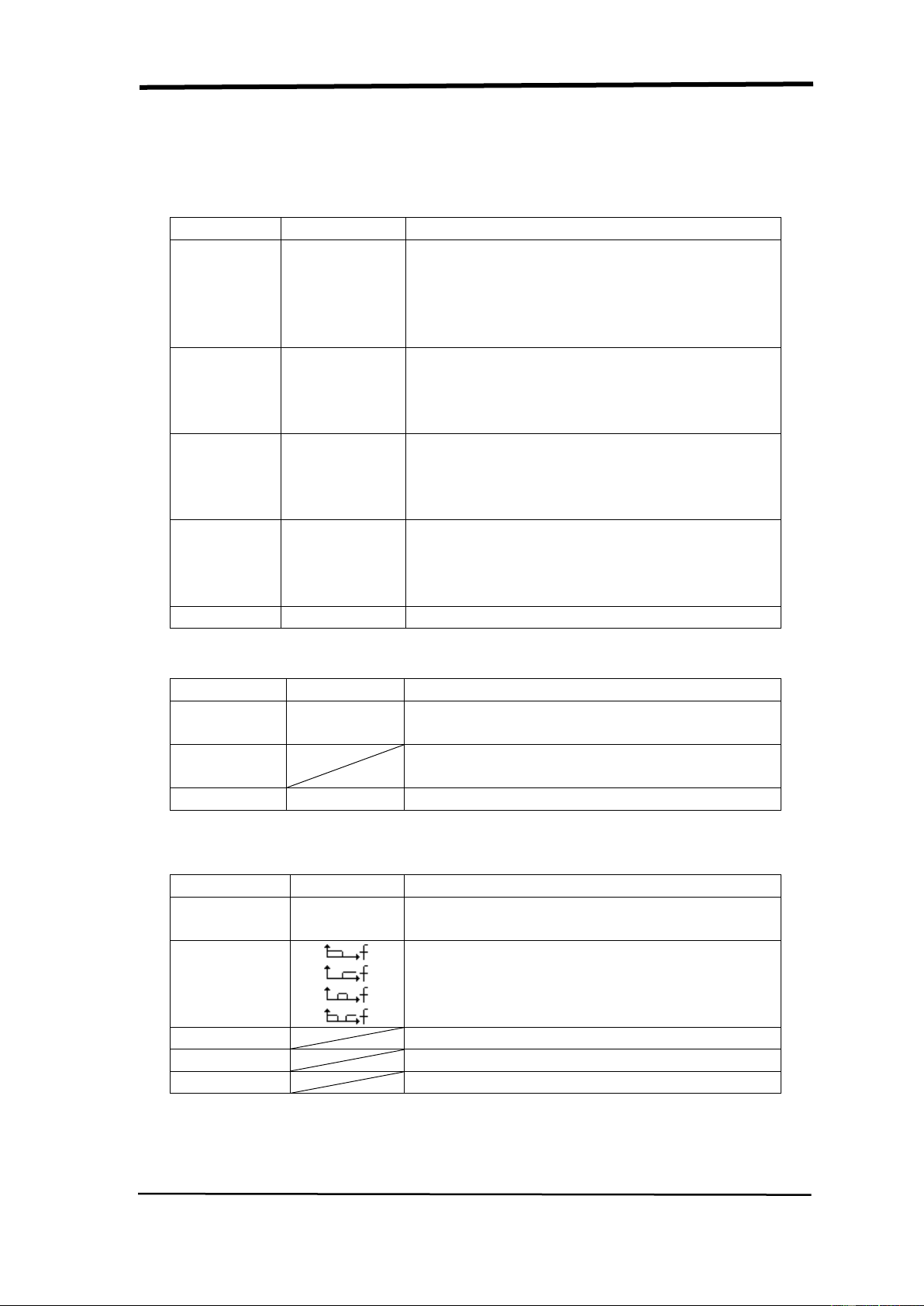
2.6 Vertical System
The vertical control could be used for displaying waveform, rectify scale and
position.
Picture 2.6-1
Volt/div Knob
Vertical Position
Knob
SIGLENT
16 SDS1000CML+/SDS1000DL+ User Manual
2.6.1 CH1, CH2 Channel
Table 2-1 CH1, CH2 function menu 1:
Option
Setting
Introduction
Coupling
DC
AC
GND
DC passes both AC and DC components of
the input signal.
AC blocks the DC component of the input
signal and attenuates signals below 10 Hz.
GND disconnects the input signal.
BW limit
On
Off
Limits the bandwidth to reduce display
noise; filters the signal to reduce noise and
other unwanted high frequency
components.
Volts/Div
Coarse
Fine
Selects the resolution of the Volts/Div knob
Coarse defines a 1-2-5 sequence.
Fine changes the resolution to small steps
between the coarse settings.
Probe
1X,5X
10X,50X
100X,
500X,1000X
Set to match the type of probe you are
using to ensure correct vertical readouts.
Next Page
Page 1/3
Enter the second page of the menu.
Table 2-4 CH1, CH2 function menu 2:
Option
Setting
Instruction
Invert
on
off
Turn on invert function.
Turn off invert function.
Digital Filter
Press this button to enter the “Digital Filter
menu”.(See table 2-5)
Next Page
Page 2/3
Enter the second page of the menu.
Table 2-5 Digital Filter function menu:
Option
Setting
Introduction
Digital Filter
On
Off
Turn on the digital filter.
Turn off the digital filter.
Type
Setup as LPF (Low Pass Filter).
Setup as HPF (High Pass Filter).
Setup as BPF (Band Pass Filter).
Setup as BRF (Band Reject Filter).
Upper_limit
Turn the “Universal” knob to set upper limit.
Lower_limit
Turn the “Universal” knob to set lower limit.
Return
Return the digital filter main menu.
SIGLENT
SDS1000CML+/SDS1000DL+ User Manual 17
Setting CH1, CH2 Channels
Each channel has its own separate Menu. The items are set up separately
according to each channel.
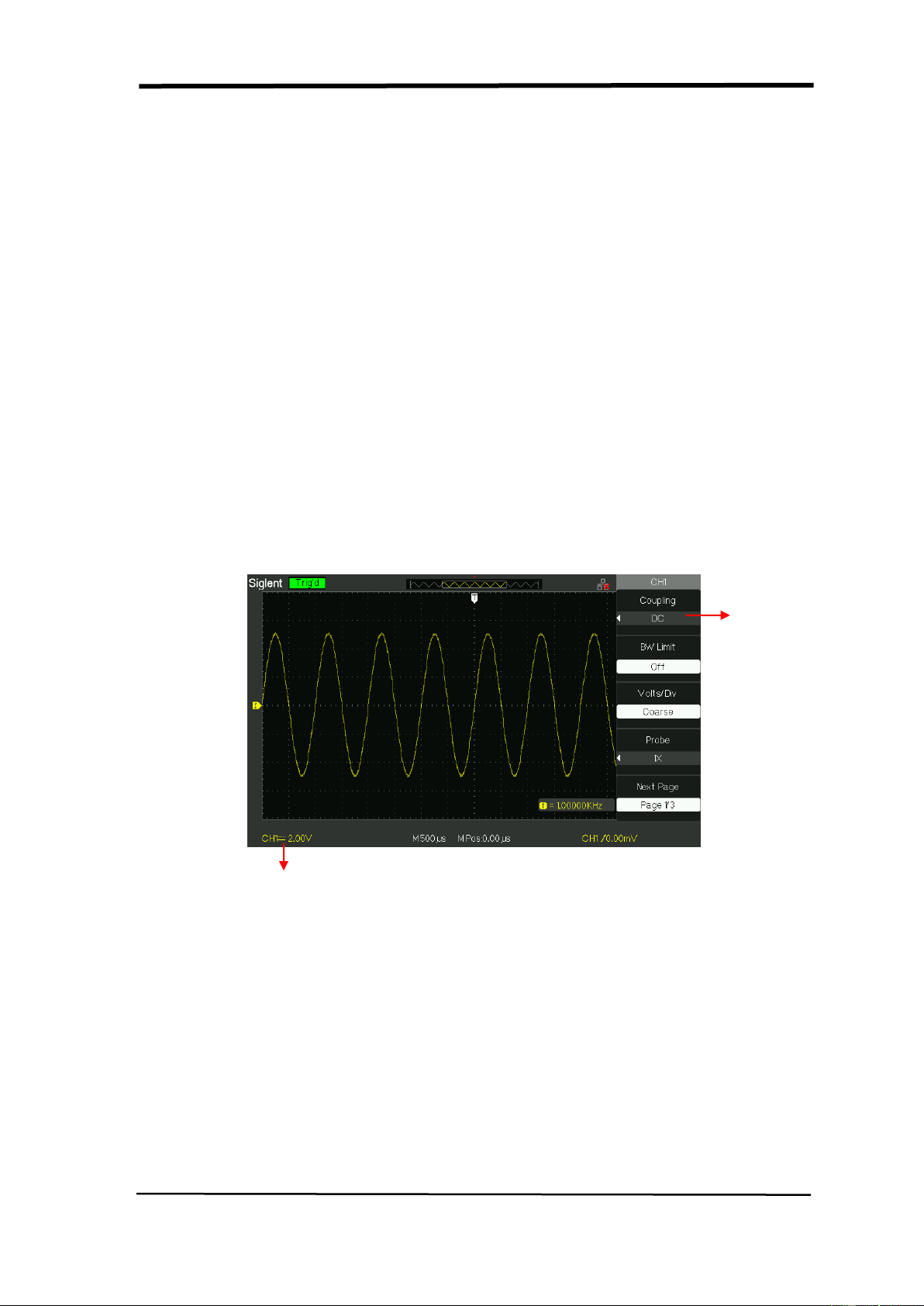
1. Choosing Coupling
Take the CH1 for example; the tested signal is a sine wave signal with DC
deflection:
● Press“CH1”→“Coupling”→“AC”, Set to AC couple mode. It blocks the DC
component of the input signal.
● Press“CH1”→“Coupling”→“DC”, Set to DC couple mode. Both DC and
AC component could be obstructed.
● Press“CH1”→“Coupling”→“GND”, Set to GROUND mode. It disconnects the
input signal.
Picture 2.6-2
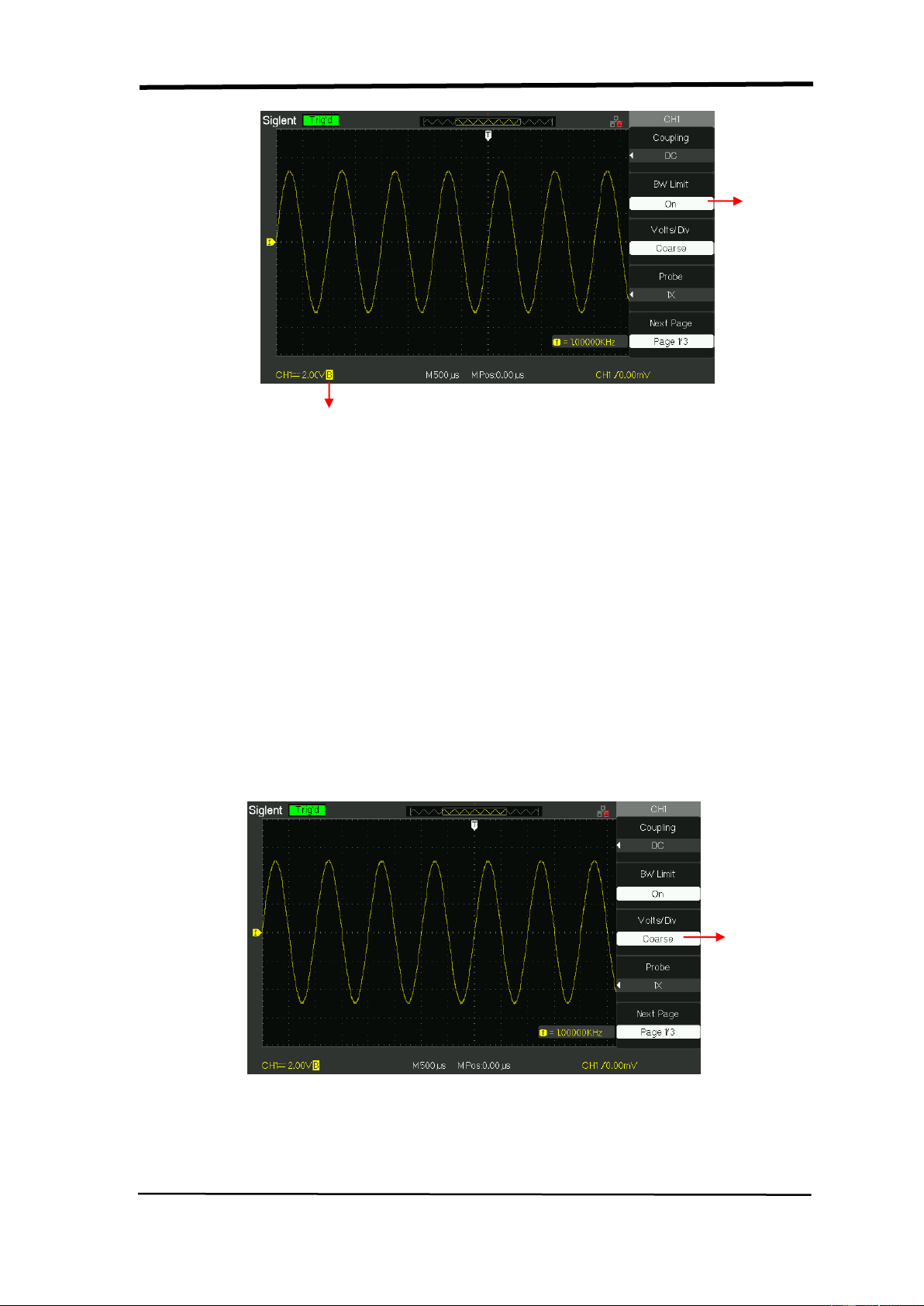
2. Bandwidth Limiting
Take the CH1 for example; the tested signal is a pulse signal with the high
frequency surge:
● Press “CH1”→“BW Limit”→ “On”,Set the band width Limited to open state. The
high frequency component which is higher than 20MHz obstructed.
● Press“CH1”→“BW Limit”→ “Off”, Set bandwidth Limited to close state, the High
Frequency component in the tested signal could pass.
Set to DC
Coupling
DC Status
SIGLENT
18 SDS1000CML+/SDS1000DL+ User Manual
Picture 2.6-3
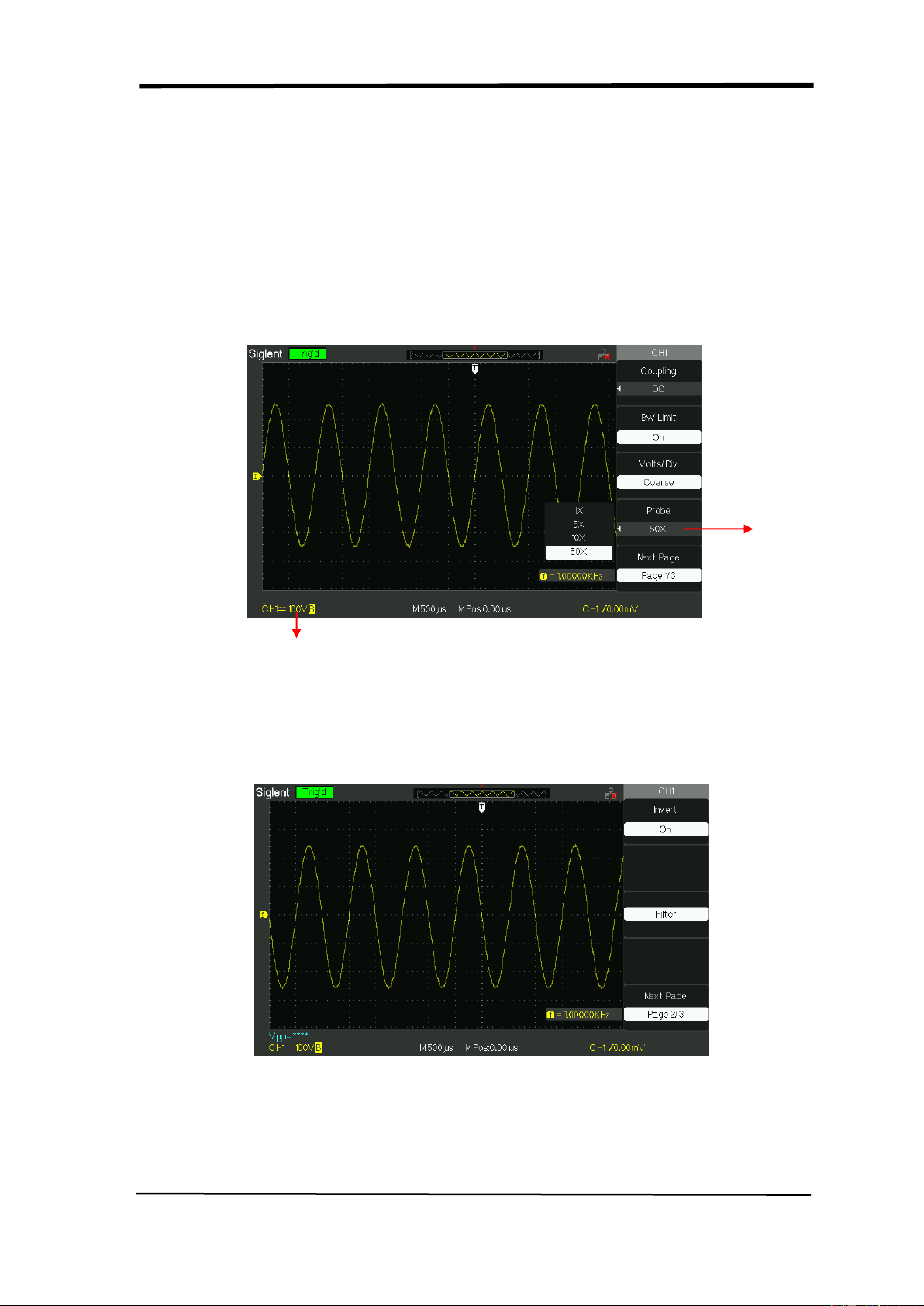
3. Adjust Sensitivity
Vertical scale adjusting has Coarse and Fine two modes, Vertical sensitivity range
is 2mV/div~10V/div scale.
Take the CH1 for example:
● Press “CH1”→“Volts/Div”→“Coarse”. It is the default setting of Volts/Div, and it
makes the vertical scaling in a 1-2-5-step sequence from 2mv/div, 5mv/div,
10mv/div to 10v/div.
● Press “CH1”→“Volts/Div”→“Fine”. This setting changes the vertical to small
steps between the coarse settings. It will be helpful when you need to adjust the
waveform vertical size in smooth steps.
Picture 2.6-4
Set BW
to 20MHz
BW Limit Symbol
Set to
Coarse
SIGLENT
SDS1000CML+/SDS1000DL+ User Manual 19
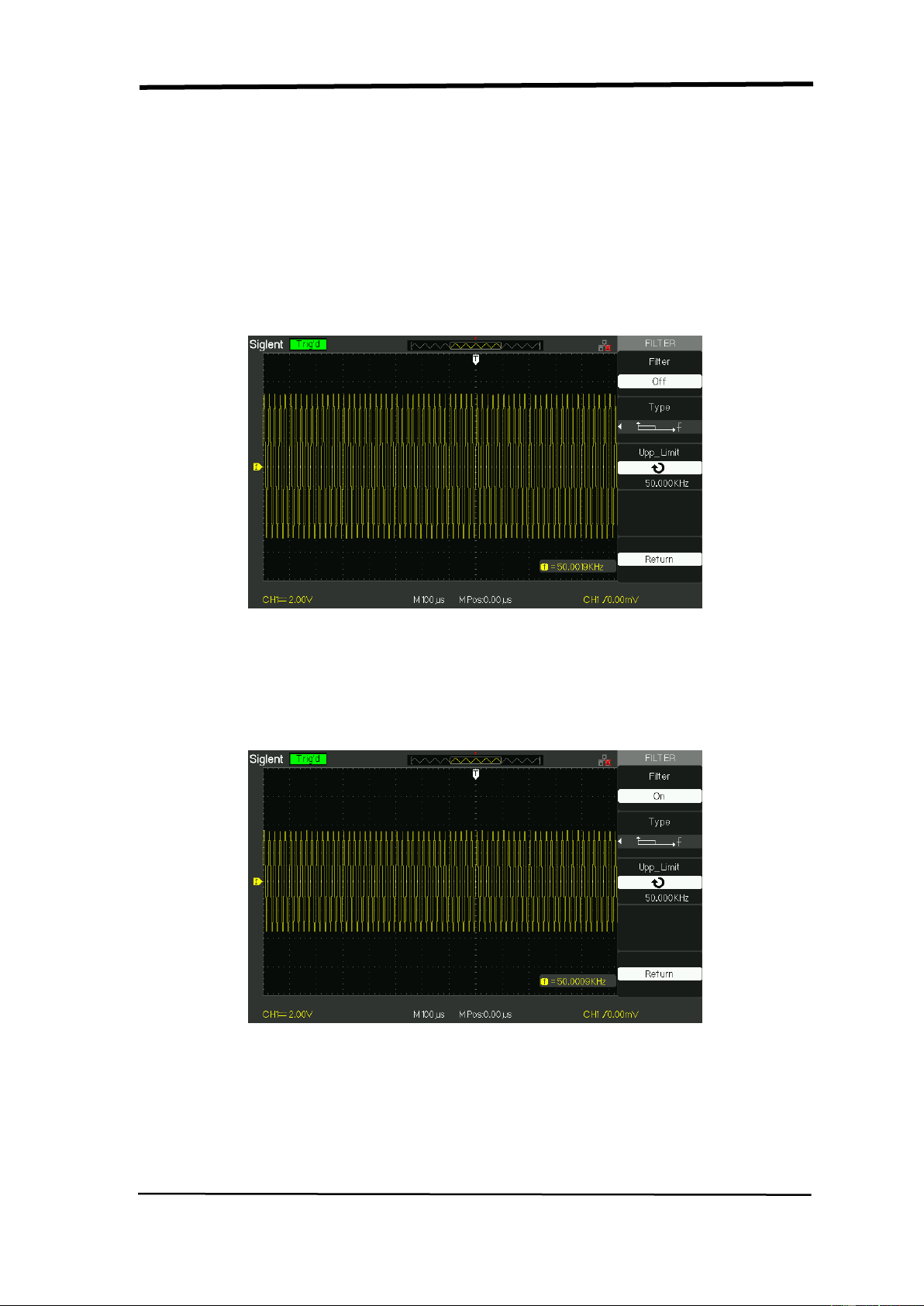
4. Setting Probe Attenuation
In order to assort the attenuation coefficient, you need to response in the channel
operation Menu. If the attenuation coefficient is 10:1, the input coefficient should
be set to 10X, so that the mistake of the Volts/div information and measure testing
should be forbidden.
Take the CH1 for example, when you use the 100:1 probe:
● Press“CH1”→“Probe” →“100”
Picture 2.6-5
5. Inverting waveforms
Take the CH1 for example:
● Press“CH1”→Next Page“ page1/3” →“Invert”→“On”:
Picture 2.6-6
Probe
Attenuation
Factor
Status of 50X
SIGLENT
20 SDS1000CML+/SDS1000DL+ User Manual
6. Using the Digital Filter
Press “CH1”→“Next Page page1/3”→ “Filter”, display the digital filter menu. Select
“Filter Type”, then select “Upper Limit” or “Lower Limit” and turn the “Universal”
knob to adjust them.
● Press “CH1”→“Next Page page1/3”→ “Filter” →“Off”. Turn off the Digital Filter
function.
Picture 2.6-7
● Press “CH1”→ “Next Page page1/3”→ “Filter” → “On”. Turn on the Digital
Filter function.
Picture 2.6-8

SIGLENT
SDS1000CML+/SDS1000DL+ User Manual 21
2.6.2 Using Vertical “Position” Knob and “Volt/div” Knob
■ Vertical “POSITION” Knob
1. Use the Vertical “POSITION” knobs to move the channel waveforms up or down
on the screen. This button’s resolution is variety as per the vertical scale.
2. When you adjust the vertical position of channels waveforms, the vertical
position information will display on the left bottom of screen. For example
“Volts Pos=24.6mV”.
3. Press the vertical “POSITION” knob to set the vertical position to zero.
■ “Volts/div” Knob
1. Use the “Volts/div” knobs to control how the oscilloscope amplifies or
attenuates the source signal of channel waveforms. When you turn the “volts/div”
knob, the oscilloscope increases or decreases the vertical size of the waveform on
the screen with respect to the ground level;
2. When you press the “Volt/div” Knob, you can switch “Volt/div” option between
“Coarse” and “Fine”. The vertical scale is made sure by the 1-2-5 step in the
Coarse. Increase in the clockwise, reduce in the anticlockwise. In the fine mode,
the knob changes the Volts/Div scale in small steps between the coarse settings.
Increase in the clockwise, reduce in the anticlockwise.
2.6.3 Math Functions
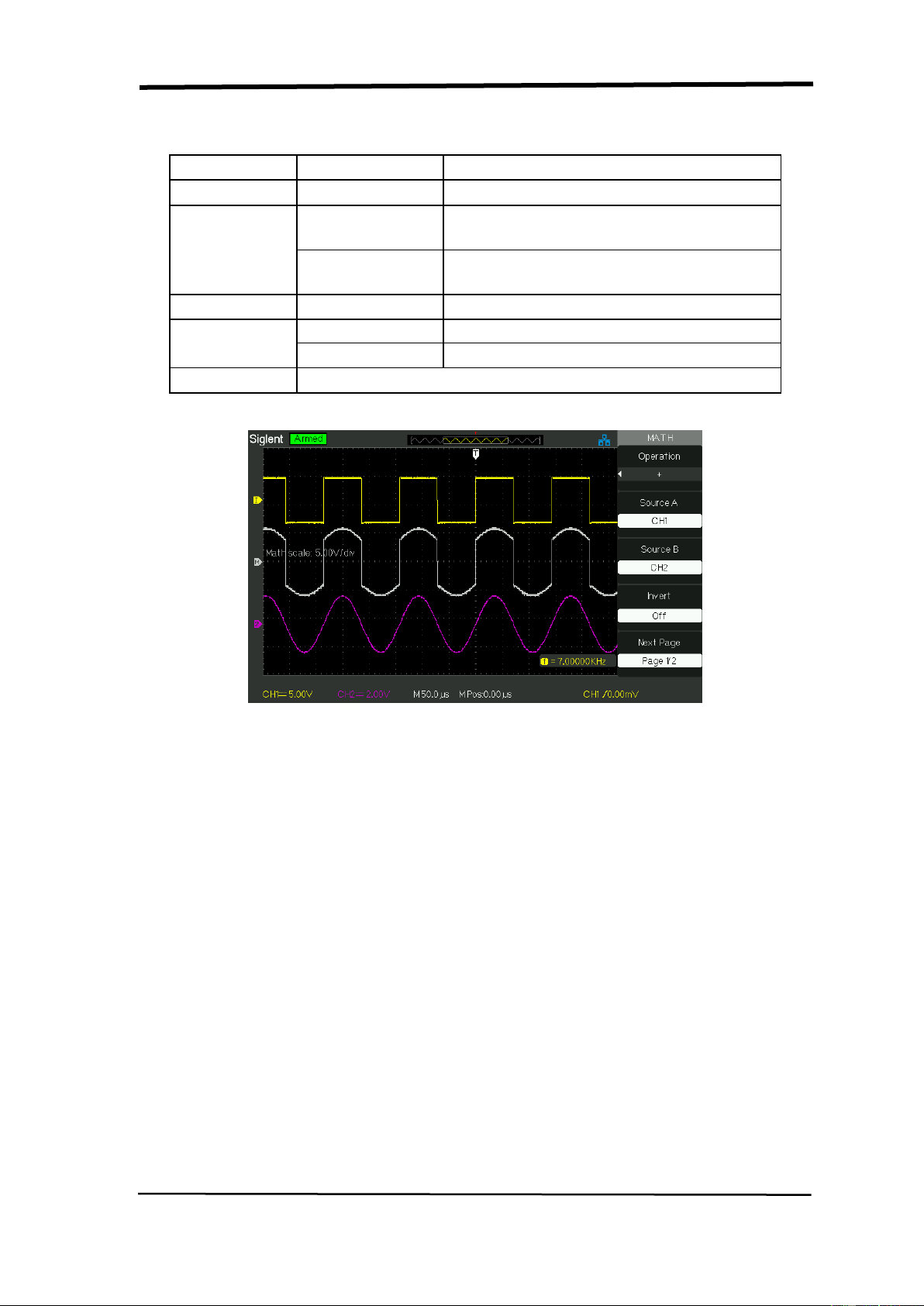
Math shows the results after +,-,*, / and FFT operations of the CH1 and CH2.
Press the MATH button to display the waveform math operations. Press the
MATH button again to remove the math waveform display.
Table 2-6 MATH function menu:
Function
Setting
Introduction
Operation
+、-、*、/、FFT
Math operates between signal source
CH1 and CH2.
Invert
on
off
Invert the MATH waveform.
Turn off MATH Invert function.
Adjust the vertical position of the math
waveform by using universal knob.
Adjust the range of the math
waveform by using universal knob.
SIGLENT
22 SDS1000CML+/SDS1000DL+ User Manual
Table 2-7 MATH function instruction
Operation
Setting
Introduction
+
CH1+CH1
CH1 waveform adds CH2 waveform.
-
CH1-CH2
The channel 2 waveform is subtracted
from the channel 1 waveform.
CH2-CH1
The channel 1 waveform is subtracted
from the channel 2 waveform.
*
CH1*CH2
Channel 1 multiply Channel 2.
/
CH1/CH2
Channel 1 divides Channel 2.
CH2/CH1
Channel 2 divides Channel 1.
FFT
Fast Fourier Transform.
Picture 2.6-9 Math Waveform
1. FFT Spectrum Analyzer
The FFT process mathematically converts a time-domain signal into its frequency
components. You can use the Math FFT mode to view the following types of
signals:
● Analyze the Humorous wave in the Power cable.
● Test the Humorous content and distortion in the system
● Show the Noise in the DC Power supply
● Test the filter and pulse response in the system
● Analyze vibration
SIGLENT
SDS1000CML+/SDS1000DL+ User Manual 23
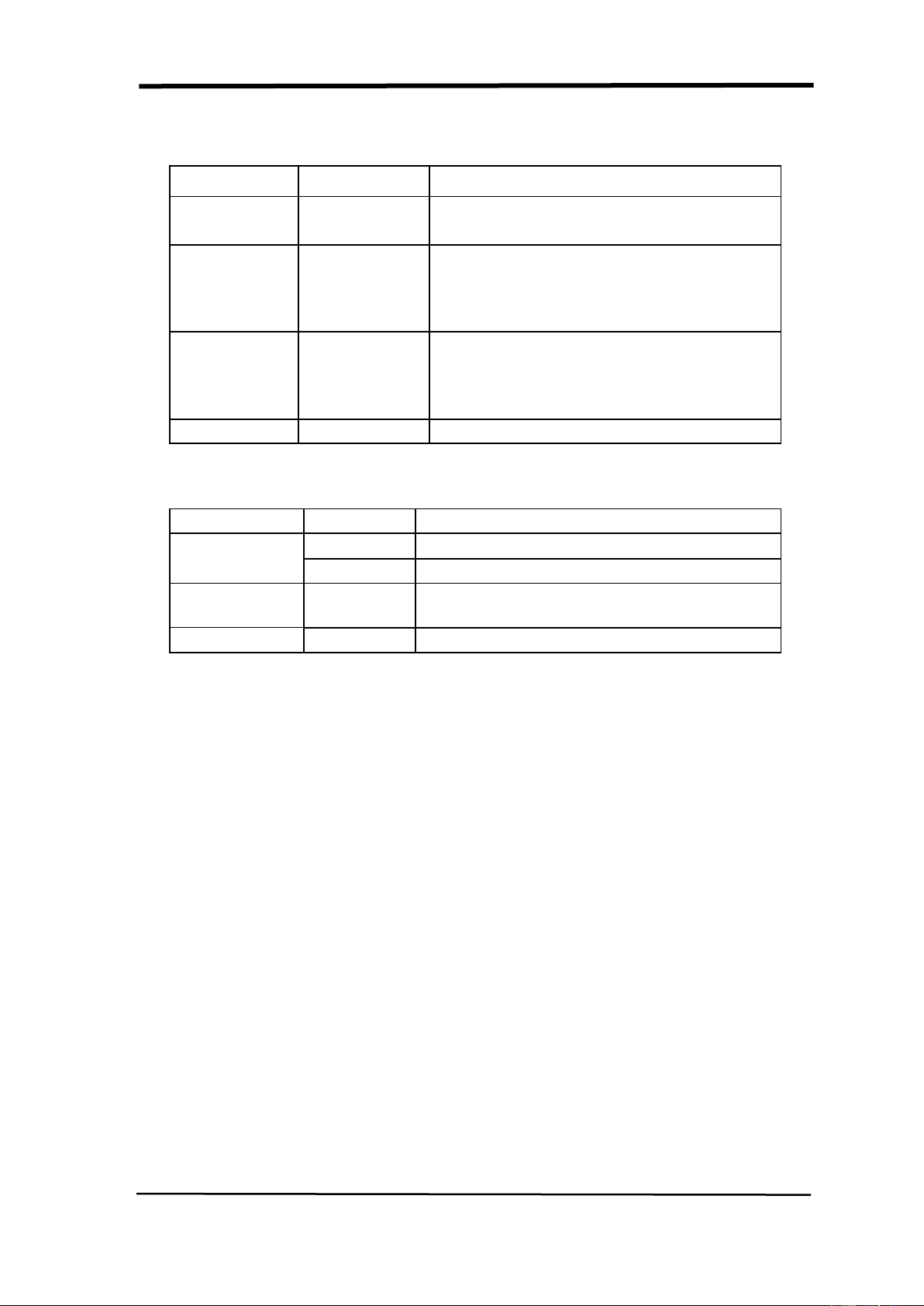
Table 2-8 FFT function menu 1:
FFT Option
Setting
Introduction
Source
CH1, CH2
Select this channel as the FFT source.
Window
Hanning
Hamming
Rectangular
Blackman
Select FFT window types.
FFT ZOOM
1X
2X
5X
10X
Changes the horizontal magnification of
the FFT display.
Next Page
Page 1/2
Enter the second page of FFT menu.
Table 2-9 FFT function menu 2:
FFT Option
Setting
Introduction
Scale
Vrms
Set Vrms to be the Vertical Scale unit.
dBVrms
Set dBVrms to be the vertical Scale unit.
Display
Split
Full screen
Display FFT waveform on half screen.
Display FFT waveform on full screen.
Next Page
Page 2/2
Return the first page of FFT menu.
To use the Math FFT mode, you need to perform the following tasks:
1. Set up the source (time-domain) waveform.
● Press the AUTO button to display a YT waveform.
● Turn the vertical “POSITION” knob to move the YT waveform to the center
vertically (zero divisions).
● Turn the horizontal “POSITION” knob to position the part of the YT waveform
that you want to analyze in the center eight divisions of the screen.
The oscilloscope calculates the FFT spectrum using the center 1024 points of
the time-domain waveform.
● Turn the “Volts/div” knob to ensure that the entire waveform remains on the
screen.
● Turn the “S/div” knob to provide the resolution you want in the FFT spectrum.
● If possible, set the oscilloscope to display many signal cycles.
To display FFT correctly, follow these steps:
1. Push the “MATH” button.
2. Set the “Operation” option to FFT.
SIGLENT
24 SDS1000CML+/SDS1000DL+ User Manual
3. Press “Source” button to select “CH1” or “CH2” according to input signal
channel.
4. According to Nyquist law, turn the “S/div” knob to adjust the sampling rate
(This parameter is displayed behind the time base parameter) is at least
double than input signal frequency.
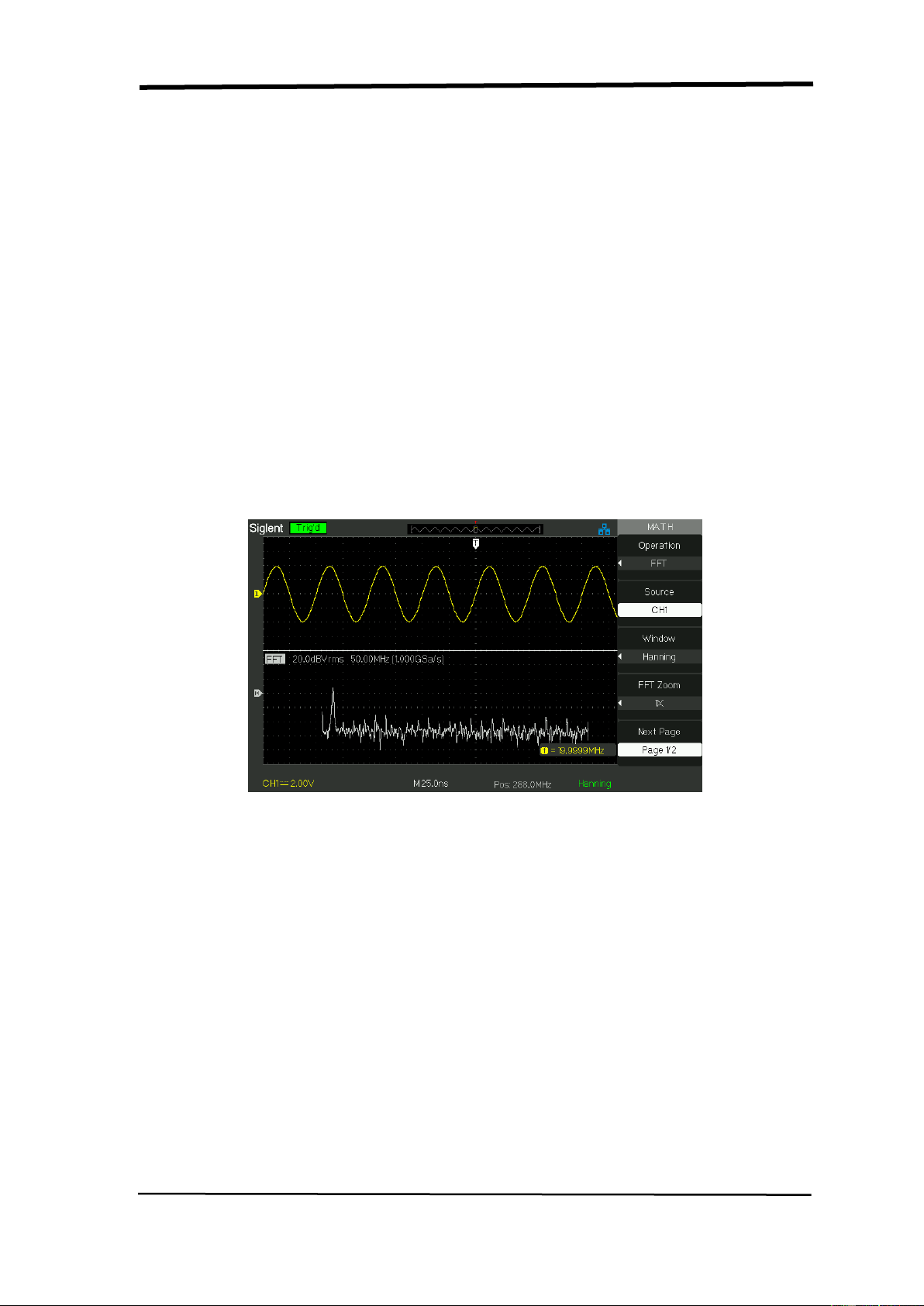
2. Displaying the FFT Spectrum
Press the MATH button to display the Math Menu. Use the options to select the
Source channel, Window algorithm, and FFT Zoom factor. You can display only
one FFT spectrum at a time. You can select “Full screen” or “Split” in “Display”
option to display FFT waveform on full screen or display channel waveform and its
FFT waveform on half screen at a time.
Picture2.6-10 FFT function
3. Select FFT window
Windows reduce spectral leakage in the FFT spectrum. The FFT assumes that
the YT waveform repeats forever. With an integral number of cycles, the YT
waveform starts and ends at the me amplitude and there are no discontinuities in
the signal shape A non-integral number of cycles in the YT waveform causes the
signal start and end points to be at different amplitudes. The transitions between
the start and end points cause discontinuities in the signal that introduce
high-frequency transients.
According to the tested options and source speciality, make sure the window
you need to use.

SIGLENT
SDS1000CML+/SDS1000DL+ User Manual 25
Table 2-10 FFT window instruction
Window
Speciality
Satisfied Test content
Rectangulr
Best frequency
resolution, worst
magnitude resolution.
This is essentially the
same as no window.
Symmetric transients or
bursts.
Equal-amplitude sine waves
with fixed frequencies.
Broadband random noise with
a relatively slowly varying
spectrum.
Hanning
Hamming
Better frequency, poorer
magnitude accuracy
than Rectangular.
Hamming has slightly
better frequency
resolution than Hanning.
Sine, periodic, and
narrow-band random noise.
Asymmetic transients or
bursts.
Blackman
Best magnitude, worst
frequency resolution.
Single frequency waveforms,
to find higher order harmonics.
4. Magnifying and Positioning an FFT Spectrum
You can magnify and use cursors to take measurements on the FFT spectrum.
The oscilloscope includes an “FFT Zoom” option to magnify horizontally, press
this option button to select “1X”, “2X”, “5X” or “10X”. Moreover, you also can turn
the “Universal” knob to magnify FFT waveform horizontally in a 1-2-5 step. To
magnify vertically; you can turn the “Volts/div” knob.
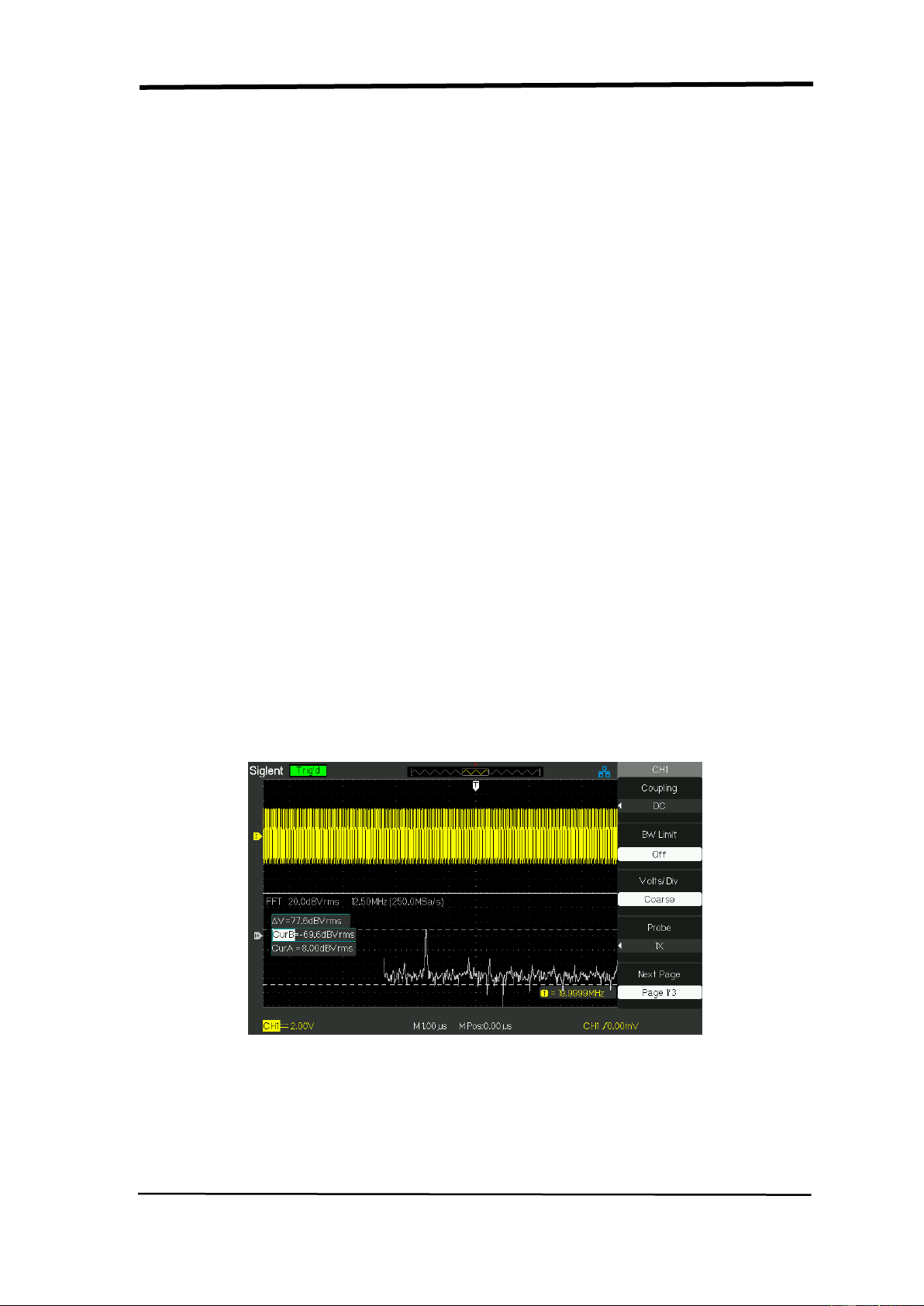
5. Measuring an FFT Spectrum Using Cursors
You can take two measurements on FFT spectrums: magnitude (in dB) and
frequency (in Hz). Magnitude is referenced to 0 dB, where 0 dB equals 1 VRMS.
You can use the cursors to take measurements at any zoom factor. (Refer to
cursor measure2.11.2)
Use horizontal cursors to measure amplitude and vertical cursors to measure
frequency.
SIGLENT
26 SDS1000CML+/SDS1000DL+ User Manual
If you input a sine signal to channel 1, follow these steps:
1. Measure FFT Amplitude
1) Input a sine signal to channel 1, and press the “AUTO” button.
2) Press the “MATH” button to enter the “MATH” menu.
3) Press the “Operation” option button to select “FFT”.
4) Press the “Source” option button to select “CH1”.
5) Press CH1 button to display CH1 menu.
6) Turn the “S/div” knob to adjust sampling rate (at least double bigger than
frequency of input signal).
7) If FFT display on full screen, press CH1 button again to remove channel
waveform display.
8) Press the “CURSOR” button to enter “Cursor” menu.
9) Press the “Cursor Mode” button to select “Manual”.
10) Press the “Type” option button to select “Voltage”.
11) Press the “Source” option button to select “MATH”.
12) Press the “CurA” option button; turn the “Universal” knob to move Cursor A to
the highest point of the FFT waveform.
13) Press the “CurB” option button, turn the “Universal” knob to move Cursor B to
the lowest point of the FFT waveform.
14) The amplitude (△ T) displays on the top of the left screen.
Picture 2.6-11
SIGLENT
SDS1000CML+/SDS1000DL+ User Manual 27
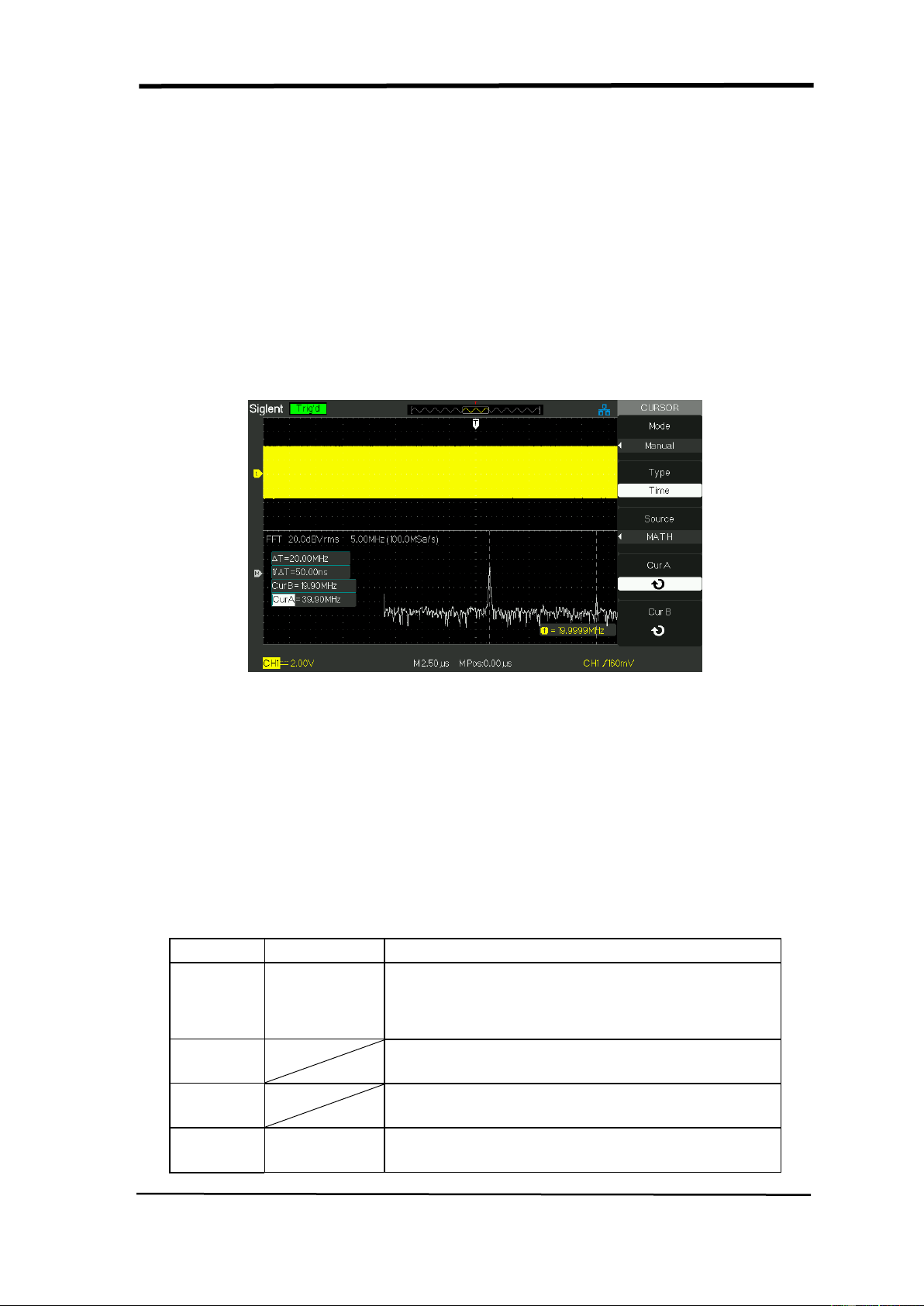
2. Measure FFT Frequency
1) Press the CURSOR button.
2) Press the “Cursor Mode” button to select “Manual”.
3) Press the “Type” option button to select “Time”.
4) Press the “Source” option button to select “MATH”.
5) Press the “CurA” option button, turn the “Universal” button to move Cursor A
to the highest position of the FFT waveform.
6) The value of CurA displaying on the top of the left screen is FFT highs
frequency. This frequency should be the same as input signal frequency.
Picture 2.6-12
2.6.4 Using Ref
The reference control saves waveforms to a nonvolatile waveform memory. The
reference function becomes available after a waveform has been saved.
Table 2-11 REF function menu:
Option
Setting
Introduction
Source
CH1,CH2,
CH1 off
CH2 off
Choose the waveform display to store.
REFA
REFB
Choose the reference location to store or
recall a waveform.
Save
Stores source waveform to the chosen
reference location.
REFA
REFB
on
off
Recall the reference waveform on the screen.
Turn off the reference waveform.
SIGLENT
28 SDS1000CML+/SDS1000DL+ User Manual
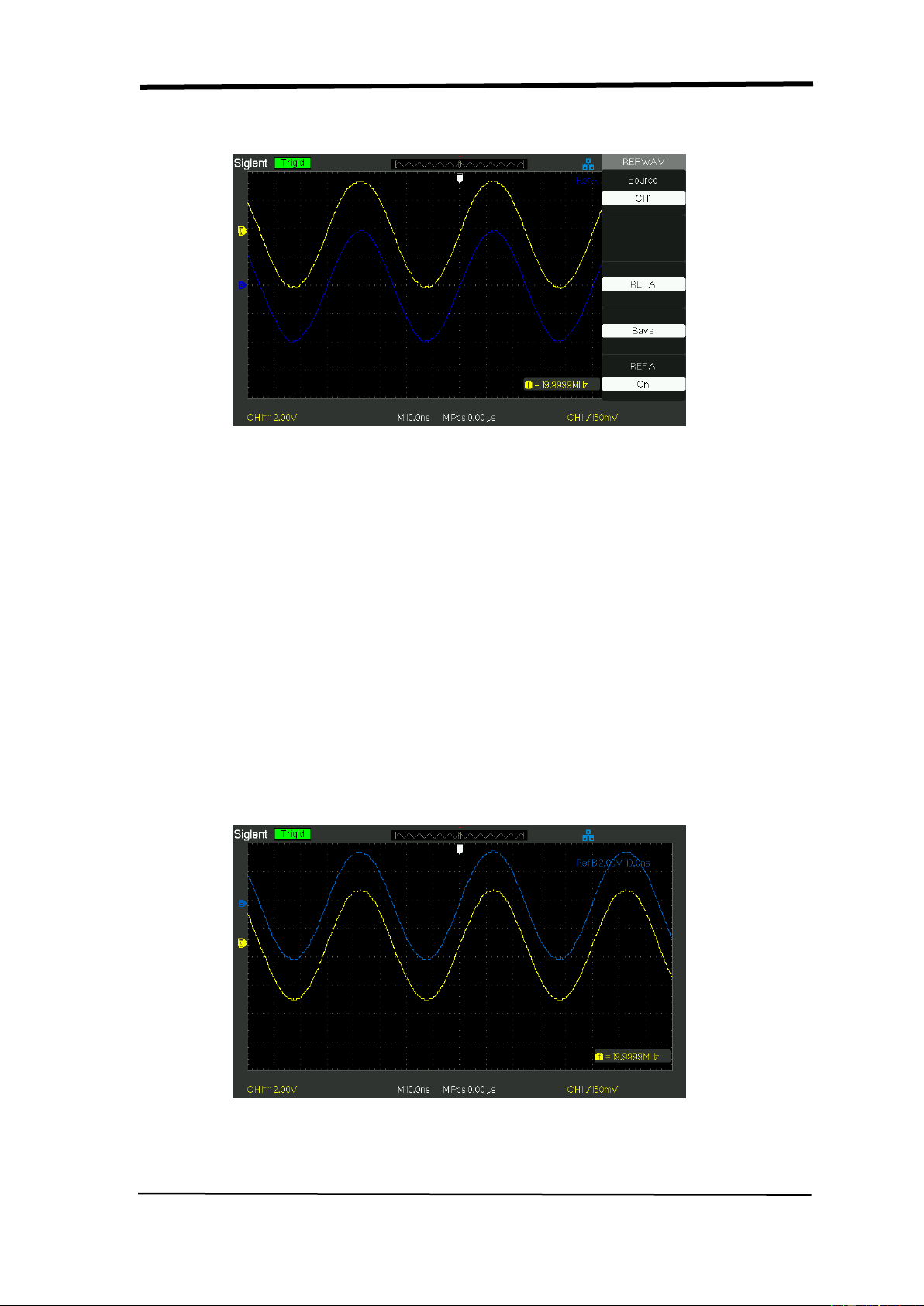
Press the Ref button to display the “Reference waveform menu”.
Picture 2.6-13
Operation step:
1. Press the “REF” menu button to display the “Reference waveform menu”.
2. Press the “Source” option button to select input signal channel.
3. Turn the vertical “POSITION” knob and “Volt/div” knob to adjust the
vertical position and scale to conformable positions.
4. Press the third option button to select “REFA” or “REFB” as storage position.
5. Press the “Save” option button.
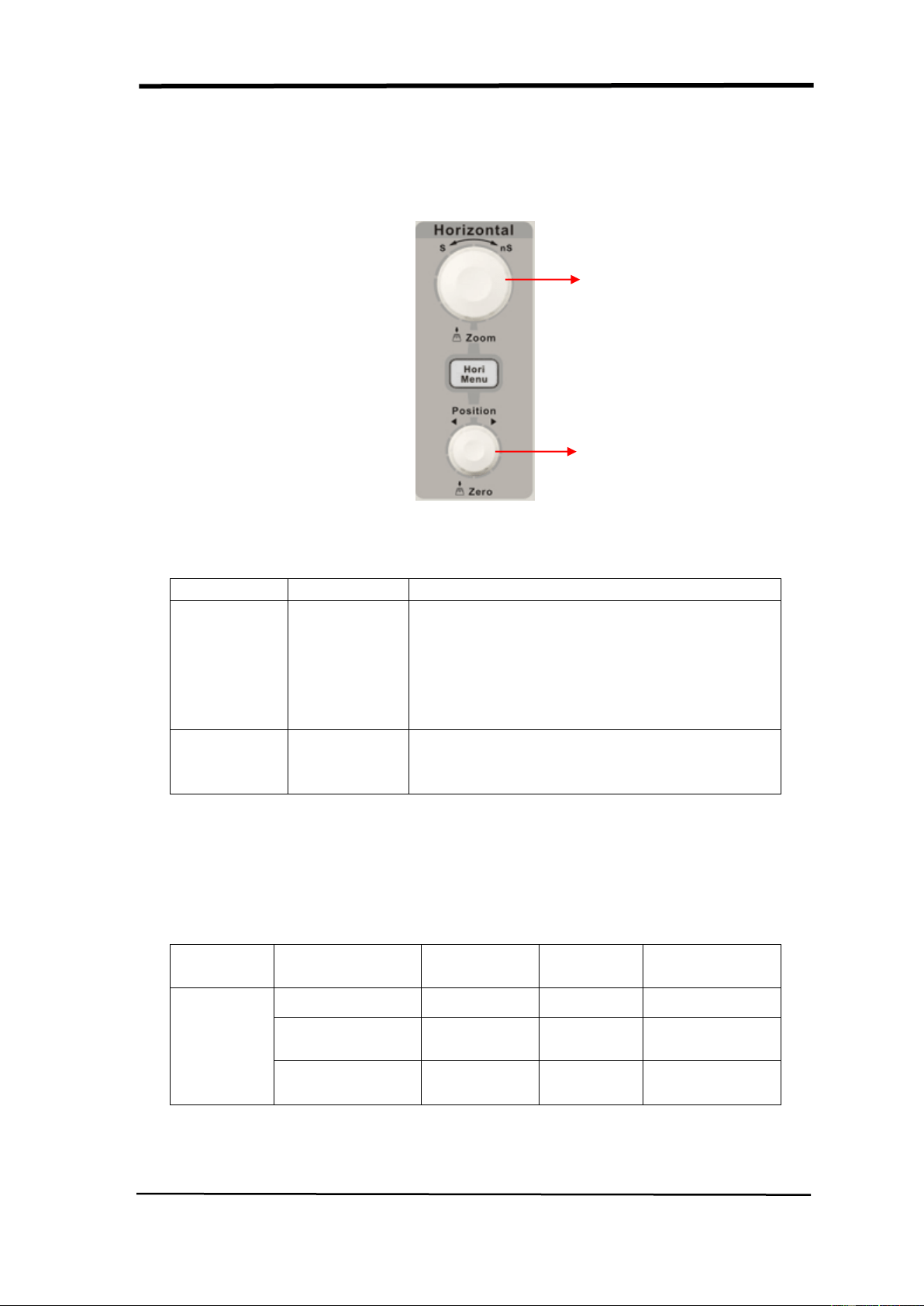
6. Press the bottom option button to select “REFA On” or “REFB On” to
recall the reference waveform.
Picture 2.6-14
SIGLENT
SDS1000CML+/SDS1000DL+ User Manual 29
2.7 Horizontal System
As follow Picture, there are one button and two knobs in the HORIZONTAL area.
Picture 2.7-1
Table 2- 12 SDS1000CML Horizontal system function menu:
Option
Setting
Description
Delayed
On
Off
Turn on this function that main timebase
waveform display on the top half screen
and window timebase waveform display on
the below half screen at the same time.
Turn off this function that only display main
timebase waveform on the screen.
MemDepth
Normal
Long Mem
Set memory depth to normal.
Set memory depth to long Memory depth in
order to get more waveform dots.
Note: If Set memory depth to normal mode, the memory depth is 40Kpts
If Set memory depth to Long Mem mode, the memory depth is 2Mpts
MemDepth Detailed Specification:
Memory
Depth
Channel Mode
Samping
Rate
Short
Memory
Long Memory
Single Channel
1Gsa/s
40kpts
No Support
Single Channel
500MSa/s
or lower
20kpts
2Mpts
Double
Channels
500MSa/s
or lower
20kpts
1Mpts
Horizontal
position knob
S/div knob

SIGLENT
30 SDS1000CML+/SDS1000DL+ User Manual
2.7.1 Horizontal Control Knob
You can use the horizontal controls to change the horizontal scale and position of
waveforms. The horizontal position readout shows the time represented by the
center of the screen, using the time of the trigger as zero. Changing the horizontal
scale causes the waveform to expand or contract around the screen center.
■ Horizontal “POSITION” Knob
1. Adjust the horizontal position of all channels and math waveforms (the position
of the trigger relative to the center of the screen). The resolution of this control
varies with the time base setting.
2. When you press the horizontal “POSITION” Knob, you can set the horizontal
position to zero.
■“S/div” Knob
1. Using to change the horizontal time scale to magnify or compress the waveform.
If waveform acquisition is stopped (using the RUN/STOP or SINGLE button), turn
the S/div knob to expand or compress the waveform.
2. Select the horizontal time/div (scale factor) for the main or the window time
base. When Window Zone is enabled, it changes the width of the window zone by
changing the window time base.
■ Display Scan Mode:
When the SEC/DIV control is set to100 ms/div or slower and the trigger mode is
set to Auto, the oscilloscope enters the scan acquisition mode. In this mode, the
waveform display updates from left to right. There is no trigger or horizontal
position control of waveforms during scan mode.
2.7.2 Window Zone
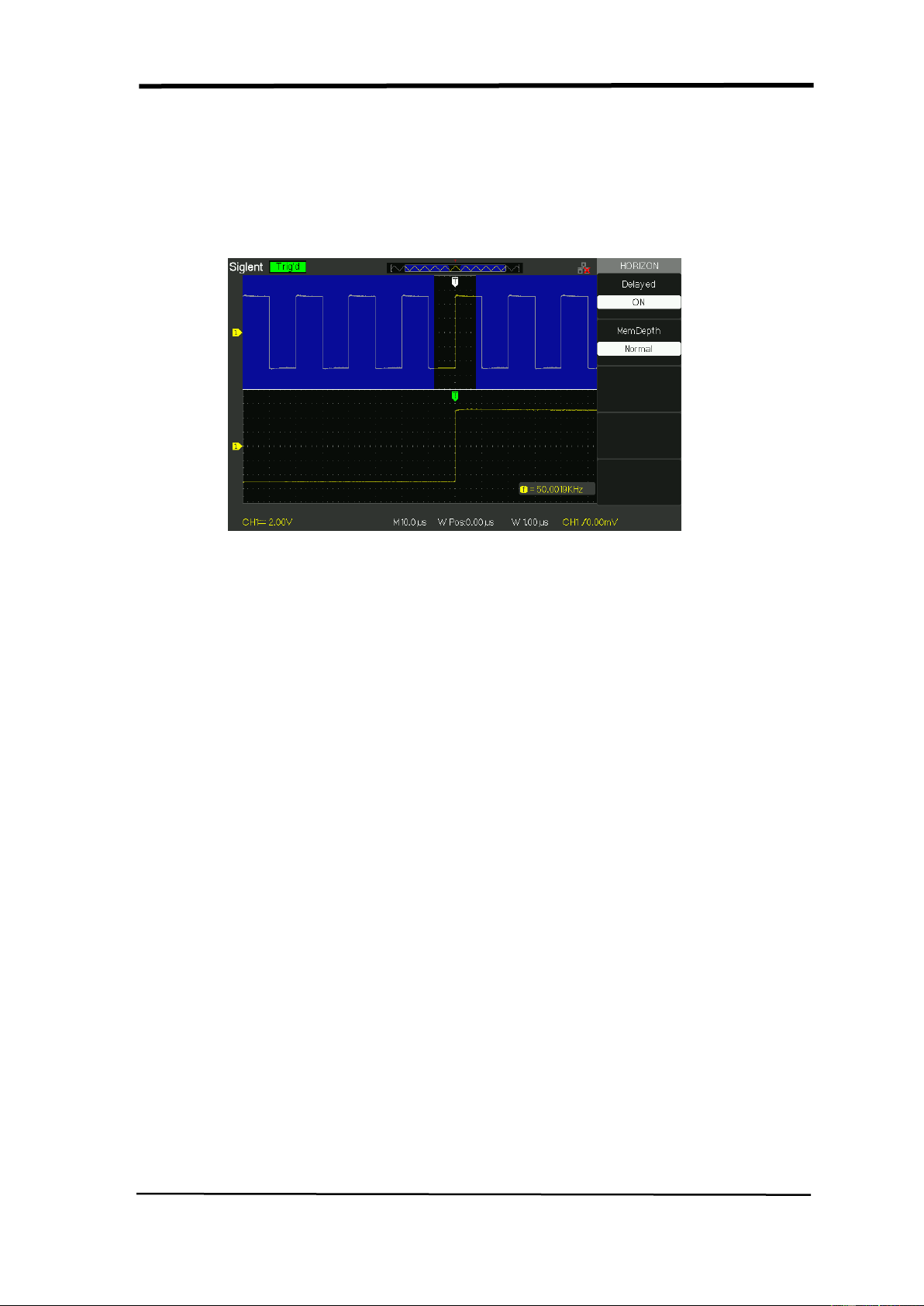
Use the Delayed option to define a segment of a waveform to see more detail. The
Window time base setting cannot be set slower than the Main time base setting.
You can turn the Horizontal Position and SEC/DIV controls to enlarge or minish
waveforms in the Window Zone.
“M” Mean main time base, “W” mean window time base.. It is also a arrow on the
scale top to show the vertical position.
SIGLENT
SDS1000CML+/SDS1000DL+ User Manual 31
If you want to see a section of the waveform in detail, follow these steps:
(1) Press the “HORI MENU” button to enter the “Horizontal menu”.
(2) Turn the “S/div” knob to change the main timebase scale.
(3) Press the “Delayed” option button to select “On”.
Picture2.7-2
(4) Turn the “Horizontal Position” knob (adjust window’s position) to select
the window that your need and expanded window waveform display on
the below half screen at the same time.
SIGLENT
32 SDS1000CML+/SDS1000DL+ User Manual
2.8 Trigger System
The trigger determines when the oscilloscope starts to acquire data and display a
waveform. When a trigger is set up properly, the oscilloscope converts unstable
displays or blank screens into meaningful waveforms.
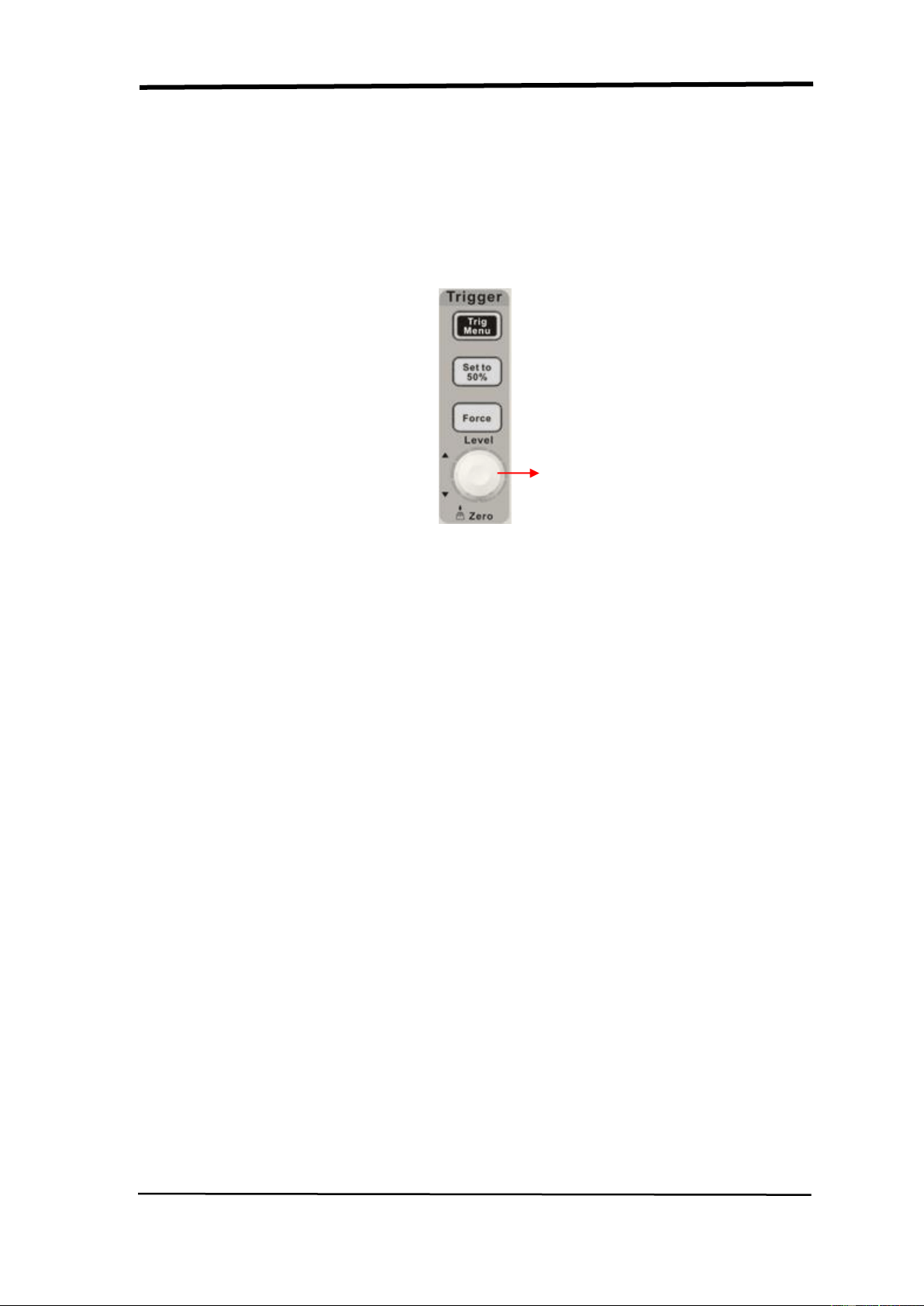
There are three buttons and one knob in the Trigger area. See picture.2-29:
Picture 2.8-1
■“TRIG MENU” Button: Press the “TRIG MENU” button to display “Trigger
Menu”.
■“LEVEL” Knob: The LEVEL knob is to set the corresponding signal voltage of
trigger point in order to sample. Press the “LEVEL” knob can set trigger level to
zero.
■“SET TO 50%” Button: Use the “SET TO 50%” button to stabilize a waveform
quickly. The oscilloscope can set the Trigger Level to be about halfway between
the minimum and maximum voltage levels automatically. This is useful when you
connect a signal to the EXT TRIG BNC and set the trigger source to Ext or Ext/5.
■“FORCE” Button: Use the FORCE button to complete the current waveform
acquisition whether the oscilloscope detects a trigger or not. This is useful for
SINGLE acquisitions and Normal trigger mode.
■ Pre-trigger/Delayed trigger: The data before and after trigger the trigger
position is typically set at the horizontal center of the screen, in the full-screen
display the 6div data of pre-trigger and delayed trigger can be surveyed. More
data of pre-trigger and 1s delayed trigger can be surveyed by adjusting the
horizontal position.
LEVEL knob

SIGLENT
SDS1000CML+/SDS1000DL+ User Manual 33
The feature is very useful because you can see the events that led up the trigger
point everything to the right of the trigger point is called posttrigger information the
amount of delay range (pre-trigger and posttrigger information) available is
dependent on the sweep speed selected.
2.8.1 Signal Source
You can use the Trigger Source options to select the signal that the oscilloscope
uses as a trigger. The source can be any signal connected to a channel BNC, to
the EXT TRIG BNC or the AC power line (available only with Edge triggers).
SIGLENT
34 SDS1000CML+/SDS1000DL+ User Manual
2.8.2 Trigger Type
The scopes have five trigger types: Edge, Video, Pulse, Slope, and
Alternative.
■ Edge Trigger
Use Edge triggering to trigger on the edge of the oscilloscope input signal at the
trigger threshold.
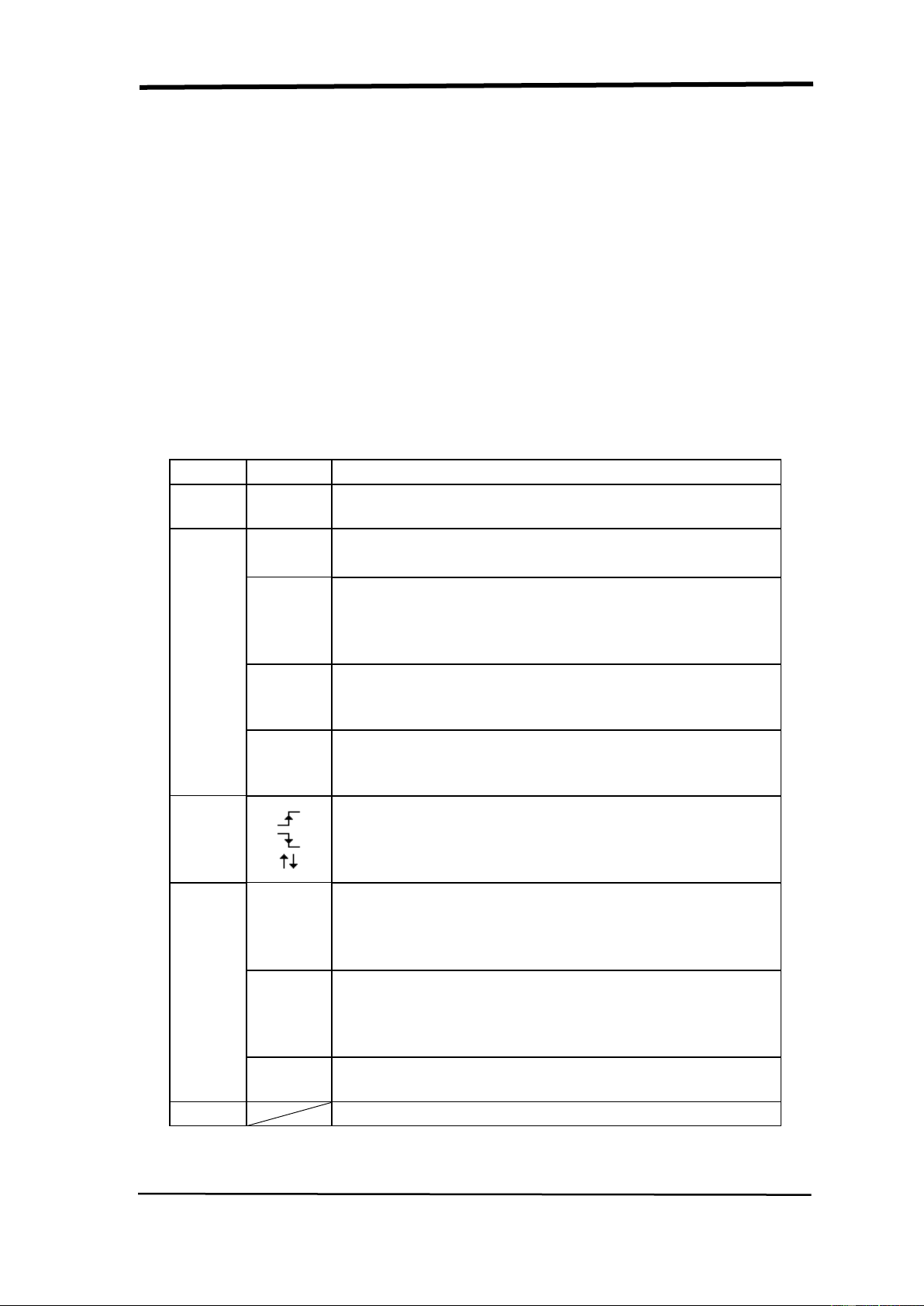
Table 2-13 Edge Trigger function Menu:
Option
Setting
Explain
Type
Edge
With Edge highlighted, the rising or falling edge of
the input signal is used for the trigger.
Source
CH1
CH2
Triggers on a channel whether or not the waveform
is displayed.
EXT
Does not display the trigger signal; the Ext option
uses the signal connected to the EXT TRIG
front-panel BNC and allows a trigger level range of
-1.2V to +1.2V.
EXT/5
Same as Ext option, but attenuates the signal by a
factor of five, and allows a trigger level range of +6V
to -6V.This extends the trigger level range.
AC Line
This selection uses a signal derived from the power
line as the trigger source; trigger coupling is set to
DC and the trigger level to 0 volts.
Slope
Trigger on Rising edge of the trigger signal.
Trigger on Falling edge of the trigger signal.
Trigger on Rising edge and Falling edge of the
trigger signal.
Mode
Auto
Use this mode to let the acquisition free-run in the
absence of a valid trigger; This mode allows an
untriggered, scanning waveform at 100 ms/div or
slower time base settings.
Normal
Use this mode when you want to see only valid
triggered waveforms; when you use this mode, the
oscilloscope does not display a waveform until after
the first trigger.
Single
When you want the oscilloscope to acquire a single
waveform, press the “SINGLE ”button.
Set up
Enter the “Trigger Setup Menu” (See table 2-14).

SIGLENT
SDS1000CML+/SDS1000DL+ User Manual 35
Table 2-14 Trigger Setup function menu
Option
Setting
Explain
Coupling
DC
Passes all components of the signal
AC
Blocks DC components ,attenuates signals
below 50 Hz.
HF Reject
Attenuates the high-frequency components
above 150 kHz.
LF Reject
Blocks the DC component , attenuates the
low-frequency components below 7 kHz.
Holdoff
Using the “universal” knob to adjust holdoff
time(sec),the holdoff value is displayed.
Holdoff
Reset
Reset holdoff time to 100ns.
Return
Return the first page of “Trigger main menu”.
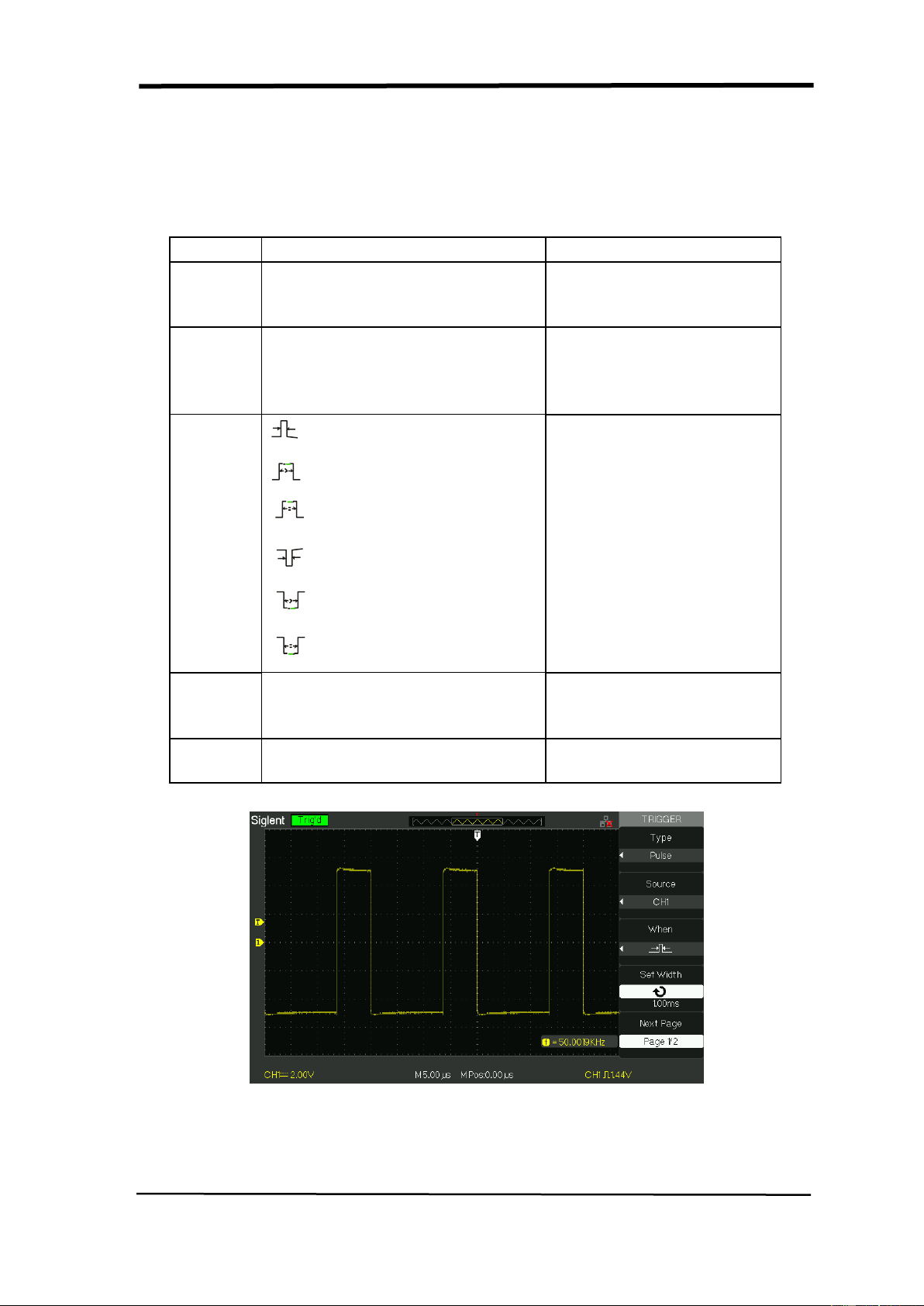
Picture2.8-2
Operate Instruction:
1. Set up Type
1) Press the “TRIG MENU” button to display “Trigger” menu.
2) Press the “Type” option button to select “Edge”.
2. Set up Source
According to input signal, press the “Source” option button to select
“CH1”, “CH2”,“EXT”, “EXT/5”or “AC Line”.
3. Set up Slope
Press the “Slope” option button to select “ ”, “ ” or “ ”.
4. Set up Trigger mode
Press the “Trigger mode” option button to select “Auto”, “Normal”,
“Single”.

SIGLENT
36 SDS1000CML+/SDS1000DL+ User Manual
Auto: The waveform refresh at a high speed whether the trigger
condition is satisfied or not.
Normal: The waveform refresh when the trigger condition is satisfied
and waits for next trigger event occurring when the trigger condition is
not satisfied.
Single: The oscilloscope acquire a waveform when the trigger
condition is satisfied and then stops.
5. Set up Trigger coupling
a. Press the “Set up” button to enter the “Trigger Setup Menu”.
b. Press the “Coupling” option button to select “DC”, “AC”, “HF
Reject” or “LF Reject”.
SIGLENT
SDS1000CML+/SDS1000DL+ User Manual 37
■ Pulse Trigger:Use Pulse Width triggering to trigger on aberrant
pulses.
Table 2-15 Pulse Trigger function Menu 1:
Option
Setting
Explain
Type
Pulse
Select the pulse to trigger
the pulse match the
trigger condition.
Source
CH1
CH2
EXT
EXT/5
Select input signal source.
When
(Positive pulse width less
than pulse width setting)
(Positive pulse width larger
than pulse width setting)
(Positive pulse width equal
to pulse width setting)
(Negative pulse width less
than pulse width setting)
(Negative pulse width
larger than pulse width setting)
(Negative pulse width
equal to pulse width setting)
Select how to compare
the trigger pulse relative to
the value selected in the
Set Pulse Width option.
Set
Width
20.0ns~10.0s
Selecting this option can
turn the universal to set up
the pulse width.
Next
Page
Page 1/2
Press this button to enter
the second page.
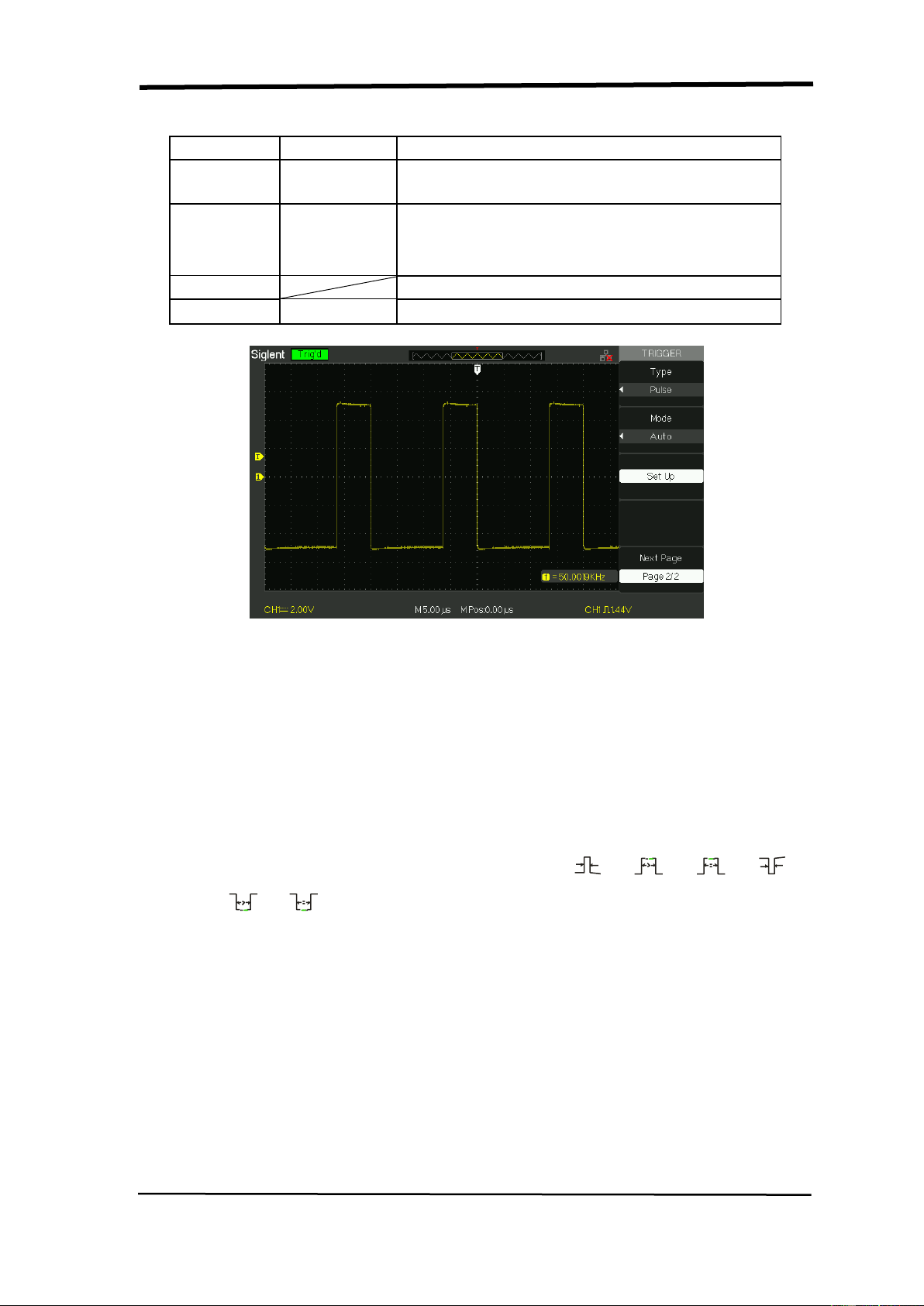
Picture 2.8-3
SIGLENT
38 SDS1000CML+/SDS1000DL+ User Manual
Table 2-16 Pulse Trigger function Menu 2:
Option
Setting
Explain
Type
Pulse
Select the pulse to trigger the pulse match
the trigger condition.
Mode
Auto
Normal
single
Select the type of triggering; Normal mode is
best for most Pulse Width trigger
applications.
Set up
Enter the “Trigger setup menu”.
Next Page
Page 2/2
Press this button to return the first page.
Picture 2.8-4
Operate Instruction:
1. Set up Type
1) Press the “TRIG MENU” button to display “Trigger menu”.
2) Press the “Type” option button to select “Pulse”.
2. Set up condition
Press the “When” option button to select “ ”、“ ”、“ ”、“ ”、
“ ”or“ ”。
3. Set up pulse width
Turn the “Universal” knob to set up width.
SIGLENT
SDS1000CML+/SDS1000DL+ User Manual 39
■ Video Trigger:Trigger on fields or lines of standard video signals.
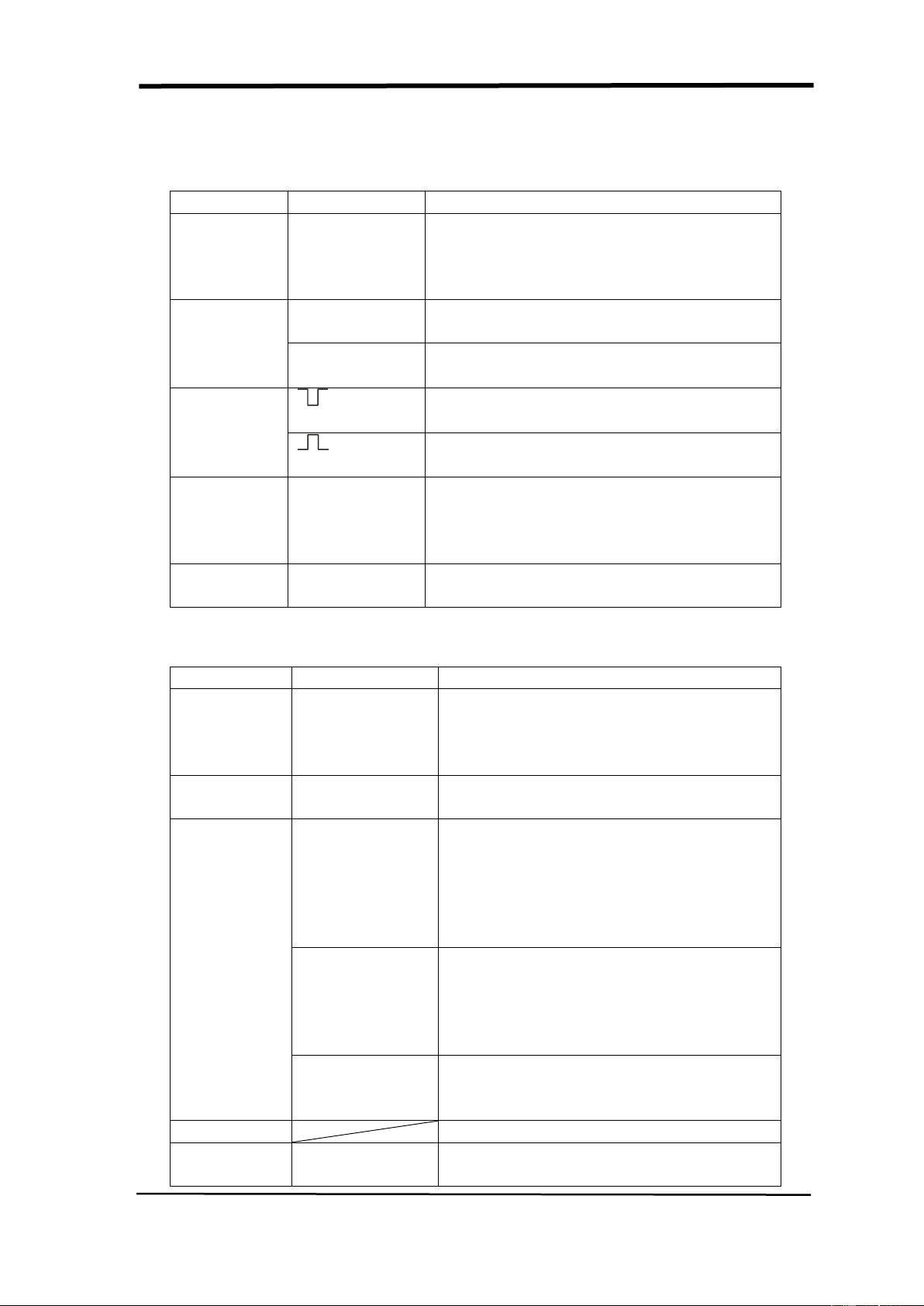
Table 2-17 Functional Manu of Video Trigger 1:
Option
Setting
Instruction
Type
Video
When you select the video type, put the
couple set to the AC, then you could
trigger the NTSC,PAL and SECAM video
signal.
Source
CH1
CH2
Select the input source to be the trigger
signal.
EXT
EXT/5
Ext and Ext/5 use the signal applied to
the EXT TRIG connector as the source.
Polarity
(Normal)
Normal triggers on the negative edge of
the sync pulse.
(Inverted)
Inverted triggers on the positive edge of
the sync pulse.
Sync
Line Num
All lines
Odd field
Even Field
Select appropriate video sync.
Next Page
Page 1/2
Enter the second page of “Video
trigger menu”.
Table 2-18 Functional Manu of Video Trigger 2:
Option
Setting
Instruction
Type
Video
When you select the video type, put
the couple set to the AC, then you
could trigger the NTSC,PAL and
SECAM video signal.
Standard
NTSC
Pal/Secam
Select the video standard for sync
and line number count.
Mode
Auto
Use this mode to let the acquisition
free-run in the absence of a valid
trigger; This mode allows an
untriggered, scanning waveform at
100 ms/div or slower time base
settings.
Normal
Use this mode when you want to see
only valid triggered waveforms; when
you use this mode, the oscilloscope
does not display a waveform until
after the first trigger.
Single
when you want the oscilloscope to
acquire a single waveform, press the
“SINGLE ”button.
Set up
Enter the “Trigger setup menu”.
Next Page
Page 2/2
Return the first page of “Video
Trigger menu”.
SIGLENT
40 SDS1000CML+/SDS1000DL+ User Manual
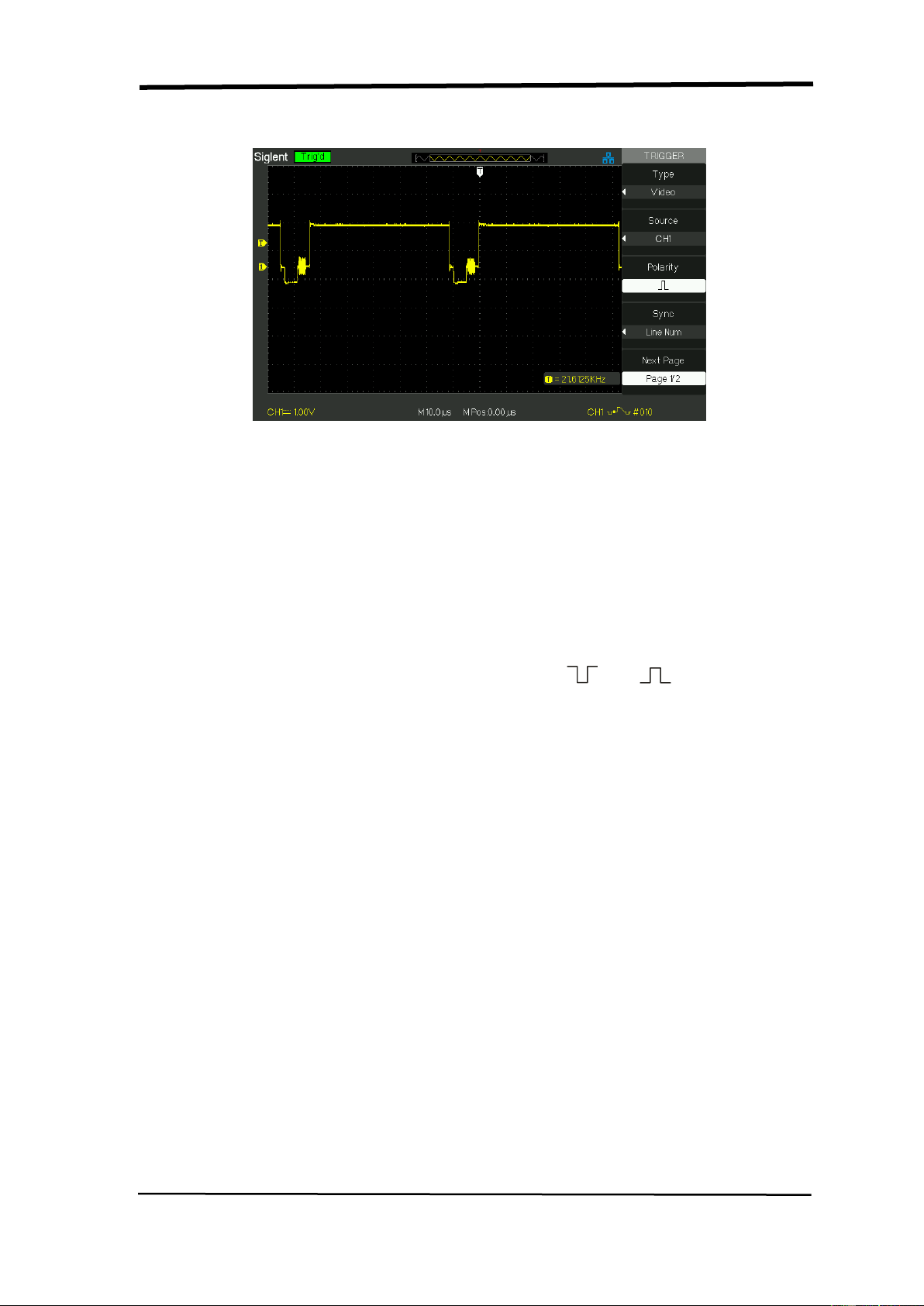
Picture 2.8-5
Operate Instruction
1. Set up Type
1) Press the “TRIG MENU” button to display “Trigger” menu.
2) Press the “Type” option button to select “Video”.
2. Set up Polarity
Press the “Polarity” option button to select “ ” or “ ”.
3. Set up synchronization
1) Press the “Sync” option button to select “All Lines”, “Line Num”, “Odd
Field”, and “Even Field”.
2) If you select “Line Num”, you can turn the “Universal” knob to set the
appointed line number.
4. Set up Standard
1) Press the “Next Page Page 2/2” option button.
2) Press the “Standard” option button to select “PAL/SECAM” or “NTSC”.
SIGLENT
SDS1000CML+/SDS1000DL+ User Manual 41
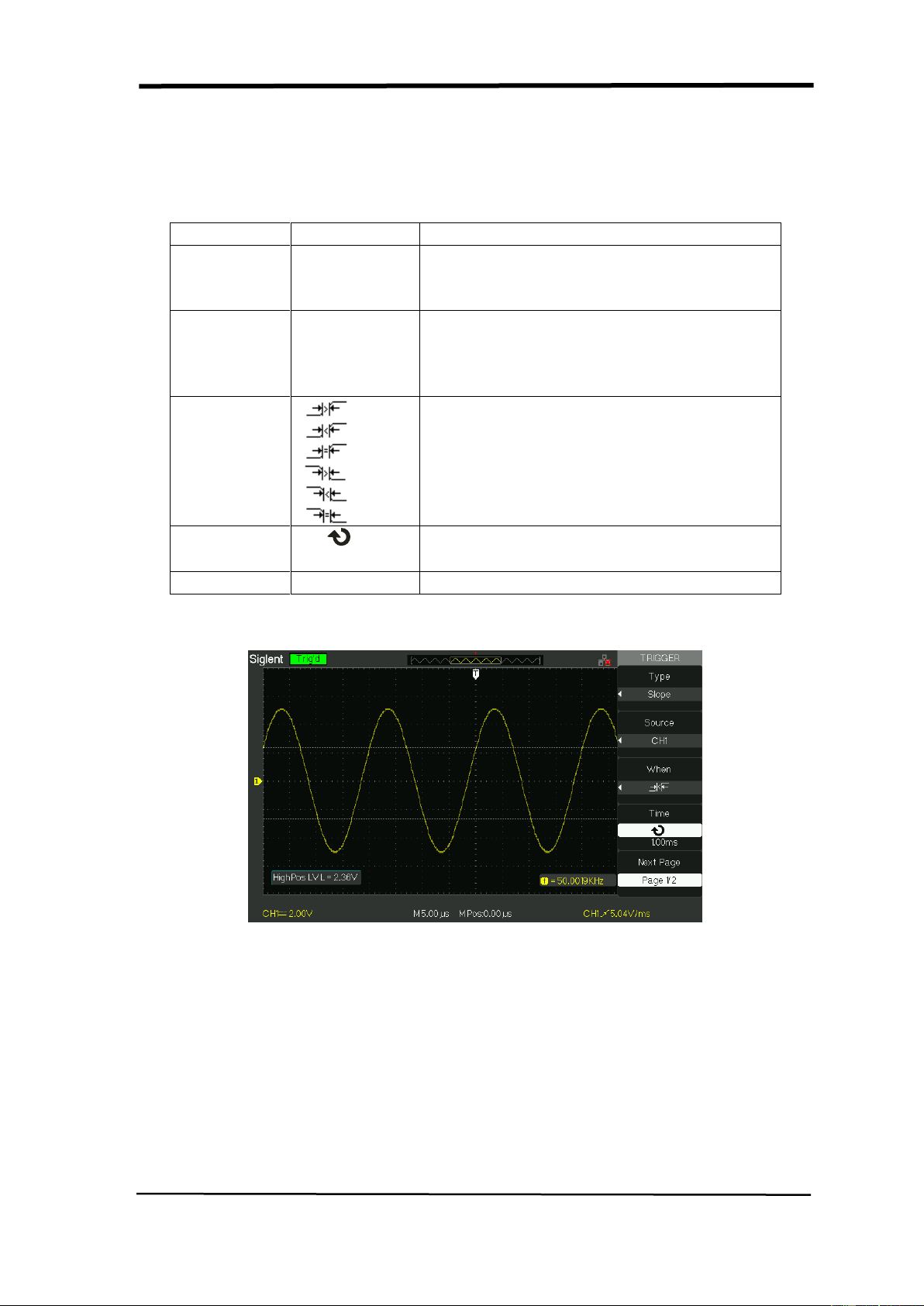
■ Slope Trigger:Trigger on positive slope of negative slope according
to setup time of the oscilloscope.
Table 2-19 Slope trigger function menu 1
Option
Setting
Instruction
Type
Slope
Trigger on positive slope of negative
slope according to setup time of the
oscilloscope.
Source
CH1
CH2
EXT
EXT/5
Select trigger source.
When
Select trigger condition.
Time
〈Set time〉
Turn the “Universal” knob to set slope
time. Time setup range is 20ns-10s.
Next Page
Page 1/2
Enter the second page of slope trigger.
Picture 2.8-6
SIGLENT
42 SDS1000CML+/SDS1000DL+ User Manual
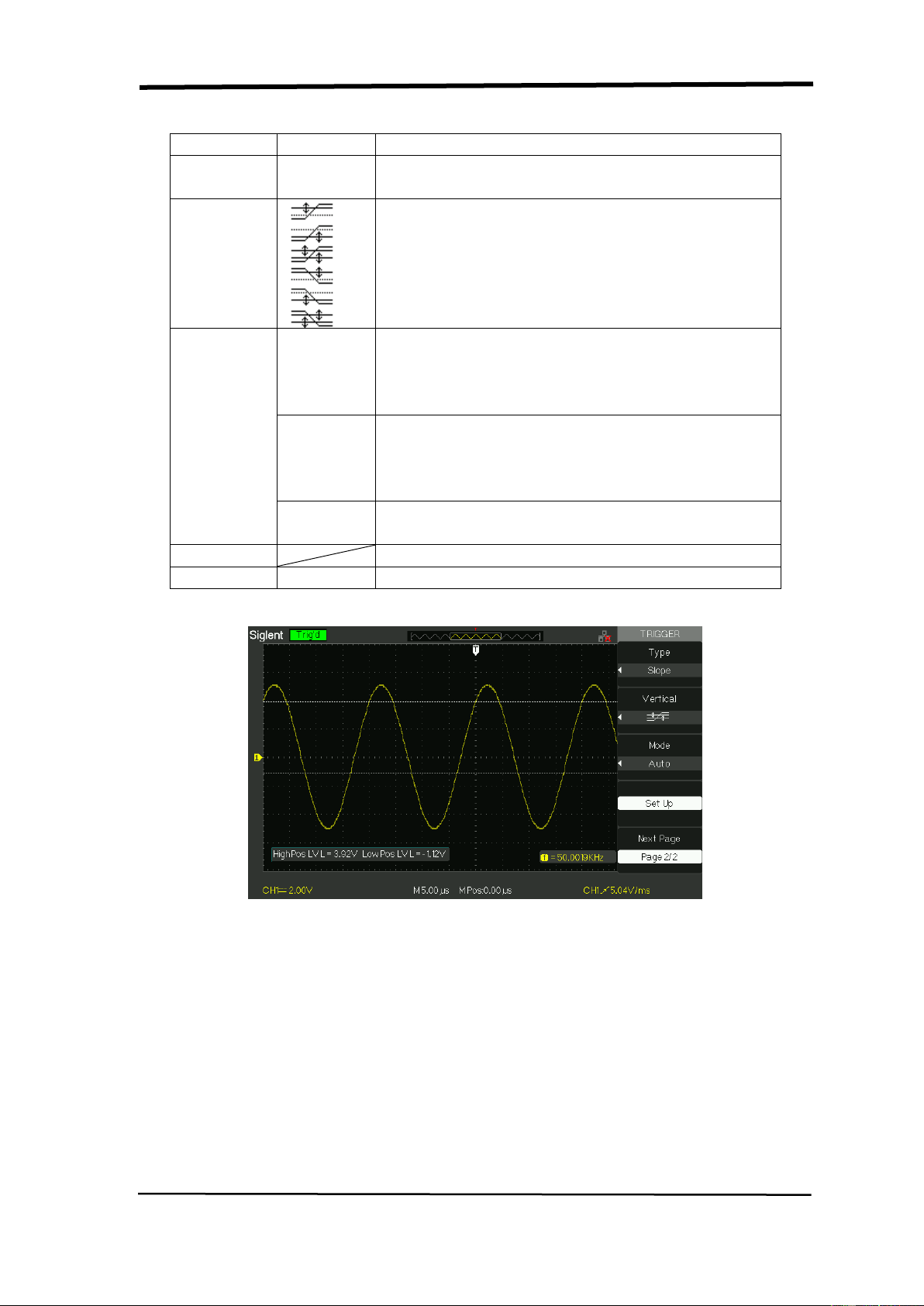
Table 2-20 Slope trigger function menu 2
Option
Setting
Instruction
Type
Slope
Trigger on positive slope of negative slope
according to setup time of the oscilloscope.
Vertical
Select the trigger level that can be adjusted by
“LEVEL” knob. You can adjust “LEVEL A”,
“LEVEL B” or adjust them at the same time.
Mode
Auto
Use this mode to let the acquisition free-run in
the absence of a valid trigger; This mode
allows an untriggered, scanning waveform at
100 ms/div or slower time base settings.
Normal
Use this mode when you want to see only valid
triggered waveforms; when you use this mode,
the oscilloscope does not display a waveform
until after the first trigger.
Single
When you want the oscilloscope to acquire a
single waveform, press the “SINGLE” button.
Set up
Enter “Trigger setup menu” (See table 2-14).
Next Page
Page 2/2
Return the first page of slope trigger.
Picture 2.8-7
Operate Instruction:
Follow the next steps if you select “Slope trigger”:
1. Input a signal to CH1 or CH2.
2. Press the “AUTO” button.
3. Press the “TRIG MENU” button to enter “Trigger menu”.
4. Press the “Type” option button to select “Slope”.
5. Press the “Source” option button to select “CH1” or “CH2”.

SIGLENT
SDS1000CML+/SDS1000DL+ User Manual 43
6. Press the “When” option button to select “ ”, “ ”, “ ”,
“ ”,“ ”或 “ ”.
7. Press the “Time” button, turn the “Universal” knob to adjust slope time.
8. Press the “Next Page Page 1/2” option button to enter the second page
of “Slope trigger menu”.
9. Press the “Vertical” option button to select trigger level that can be adjusted.
10. Turn the “LEVEL” knob.
SIGLENT
44 SDS1000CML+/SDS1000DL+ User Manual
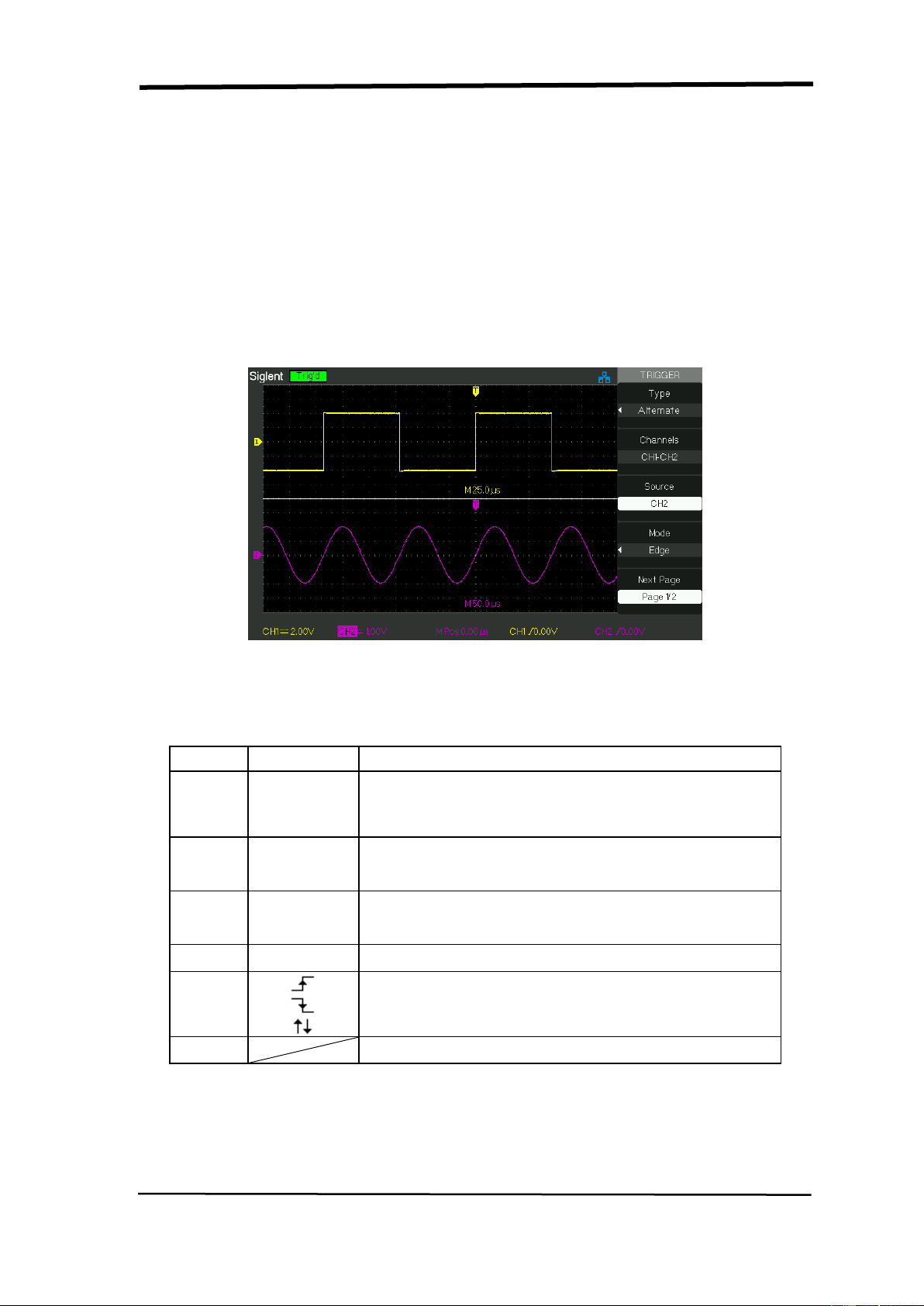
■ Alternative trigger
The trigger signal comes from two vertical channels when you use alternative
trigger. In this mode, you can observe two irrelative signals at the same time. You
can select different trigger types for two vertical signals, and selected types cover
edge, pulse, video and slope trigger. Trigger information of two channel signals
display on the bottom right of the screen.
Picture 2.8-8
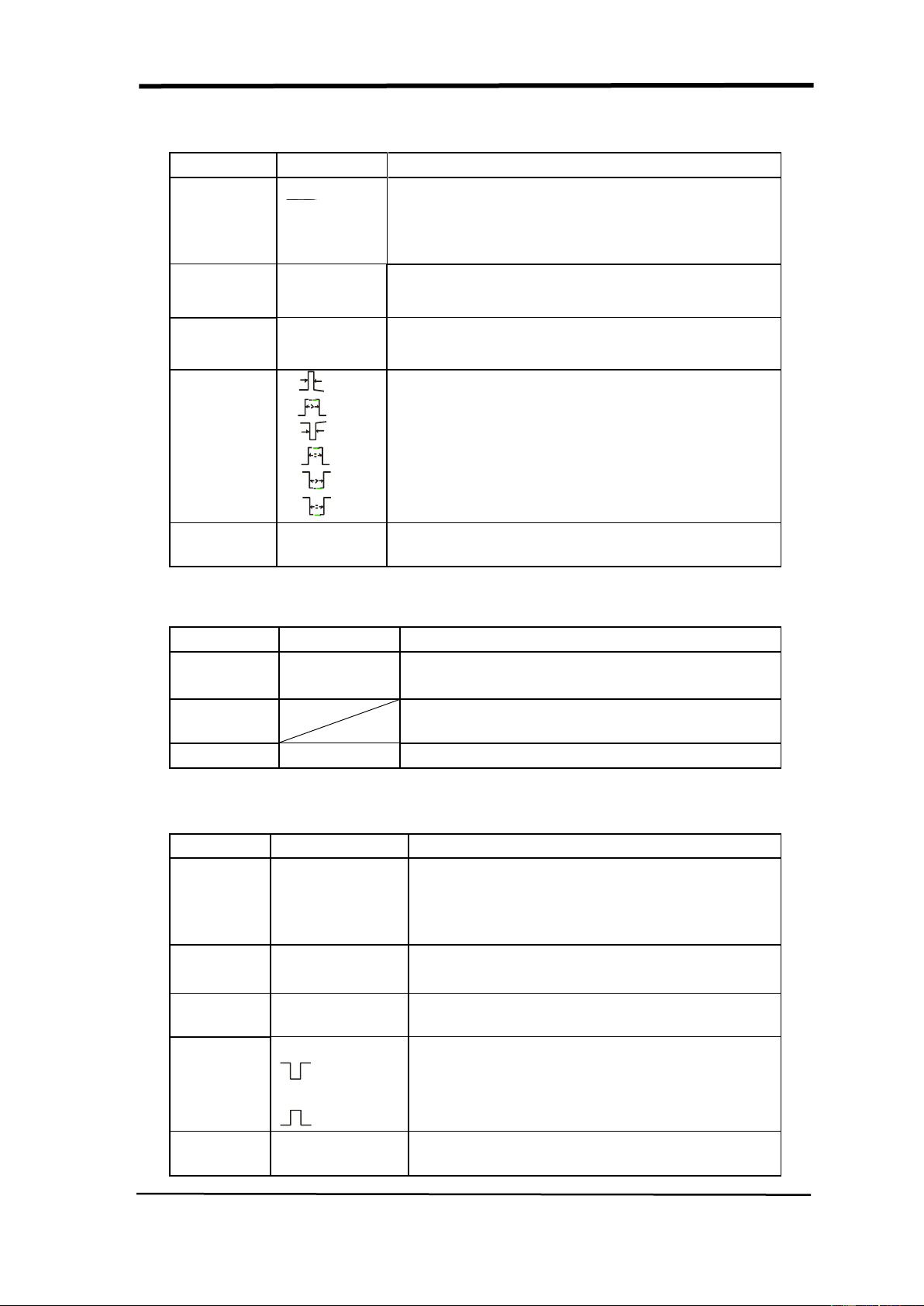
Table 2-21 Set trigger mode to edge trigger function menu 1:
Option
Setting
Instruction
Type
Alternative
When use alternative trigger, the trigger signal
comes from two vertical channels. In the mode,
you can observe two irrelative signals at a time.
Chann
els
CH1-CH2
Set the trigger channels
Source
CH1
CH2
Set trigger type information for CH1 signal
Set trigger type information for CH2 signal
Mode
Edge
Set trigger type of vertical channel signal to edge
Slope
Triggering on rising edge.
Triggering on falling edge.
Triggering on rising edge and falling edge.
Set up
Enter “Trigger setup menu” (See table 2-14).
SIGLENT
SDS1000CML+/SDS1000DL+ User Manual 45
Table 2-22 Set trigger mode to pulse trigger function menu 1:
Option
Setting
Instruction
Type
Alternative
The trigger signal comes from two vertical
channels when you use alternative trigger. In
this mode, you can observe two irrelative
signals at the same time.
Source
CH1
CH2
Set trigger type information for CH1 signal
Set trigger type information for CH2 signal
Mode
Pulse
Set trigger type of the vertical channel signal
to Pulse trigger.
When
Select how to compare the trigger pulse
relative to the value selected in the Set Pulse
Width option.
Next Page
Page 1/2
Enter the second page of Alternative trigger
menu.
Table 2-23 Set trigger mode to pulse trigger function menu 2:
Option
Setting
Explain
Set Width
20.0ns ~
10.0s
Selecting this option can turn the universal
to set up the pulse width.
Set up
Enter the “Trigger Setup Menu”(see table
2-14).
Next Page
Page 2/2
Press this button to return the first page.
Table 2-24 Set trigger mode to video trigger function menu1:
Option
Setting
Instruction
Type
Alternative
The trigger signal comes from two vertical
channels when you use alternative trigger.
In this mode, you can observe two irrelative
signals at the same time.
Source
CH1
CH2
Set trigger type information for CH1 signal
Set trigger type information for CH2 signal
Mode
Video
Set trigger type of the vertical channel
signal to Video trigger.
Polarity
(Normal)
(Inverted)
Normal triggers on the negative edge of the
sync pulse.
Inverted triggers on the positive edge of the
sync pulse.
Next
Page
Page 1/2
Enter the second page of Alternative
trigger menu.

SIGLENT
46 SDS1000CML+/SDS1000DL+ User Manual
Table 2-25 Set trigger mode to video trigger function menu 2:
Option
Setting
Instruction
Sync
Line Num
All lines
Odd field
Even Field
Select appropriate video sync.
Standard
NTSC
Pal/Secam
Select the video standard for sync and line
number count.
Next
Page
Page 1/2
Enter the second page of Alternative trigger
menu.
Table 2-26 Set trigger mode to slope trigger function menu 1
Option
Setting
Instruction
Type
Alternative
The trigger signal comes from two vertical
channels when you use alternative trigger. In
this mode, you can observe two irrelative
signals at the same time.
Source
CH1
CH2
Set trigger type informa
tion for CH1 signal
Set trigger type information for CH2signal
Mode
Slope
Set trigger type of the vertical channel signal
to slope trigger.
When
Select slope trigger condition.
Next Page
Page 1/2
Enter the second page of the alternative
trigger.
Table 2-27 Set trigger mode to slope trigger function menu 2
Option
Setting
Instruction
Time
〈 Set
time〉
Turn the “Universal” knob to set the slope
time. Time setup range is 20ns-10s.
Vertical
Select the trigger level that can be adjusted
by “LEVEL” knob. You can adjust “LEVEL
A”, “LEVEL B” or adjust them at the same
time.
Set up
Enter “Trigger setup menu”(see table 2-14).
Next Page
Page 2/2
Return to the first page of “Alternative trigger
menu”.

SIGLENT
SDS1000CML+/SDS1000DL+ User Manual 47
Operate Instruction:
Observe two irrelative channel signals, follow these steps:
1. Input two irrelative signals to channel 1and channel 2.
2. Press the AUTO button.
3. Press the TRIG MENU button to enter “trigger menu”.
4. Press the “Type” option button to select “Alternative”.
5. Press the “Channels” option button to select “CH1-CH2”
6. Press the “Source” option button to select “CH1”.
7. Press the CH1 button and turn the “S/div” knob to optimize waveform
display.
8. Press “Mode” option button to select “Edge”, “Pulse”, “Slope” or “Video”.
9. Set the trigger according to trigger edge.
10. Press the “Source” option button to select “CH2”.
11. Press the CH2 button and turn the “S/div” knob to optimize waveform
display.
12. Repeat steps 8 and 9.
2.8.3 Coupling
Use the “Coupling” to make sure the signal that passes the trigger circuit. It is
useful for us to gather a steady wave form.
If you use the trigger coupling, you should press the “TRIGGER” button and then
select “edge”, “Pulse”, “Video” or “Slope” trigger. Then select the “coupling” option
in “Set up menu”.
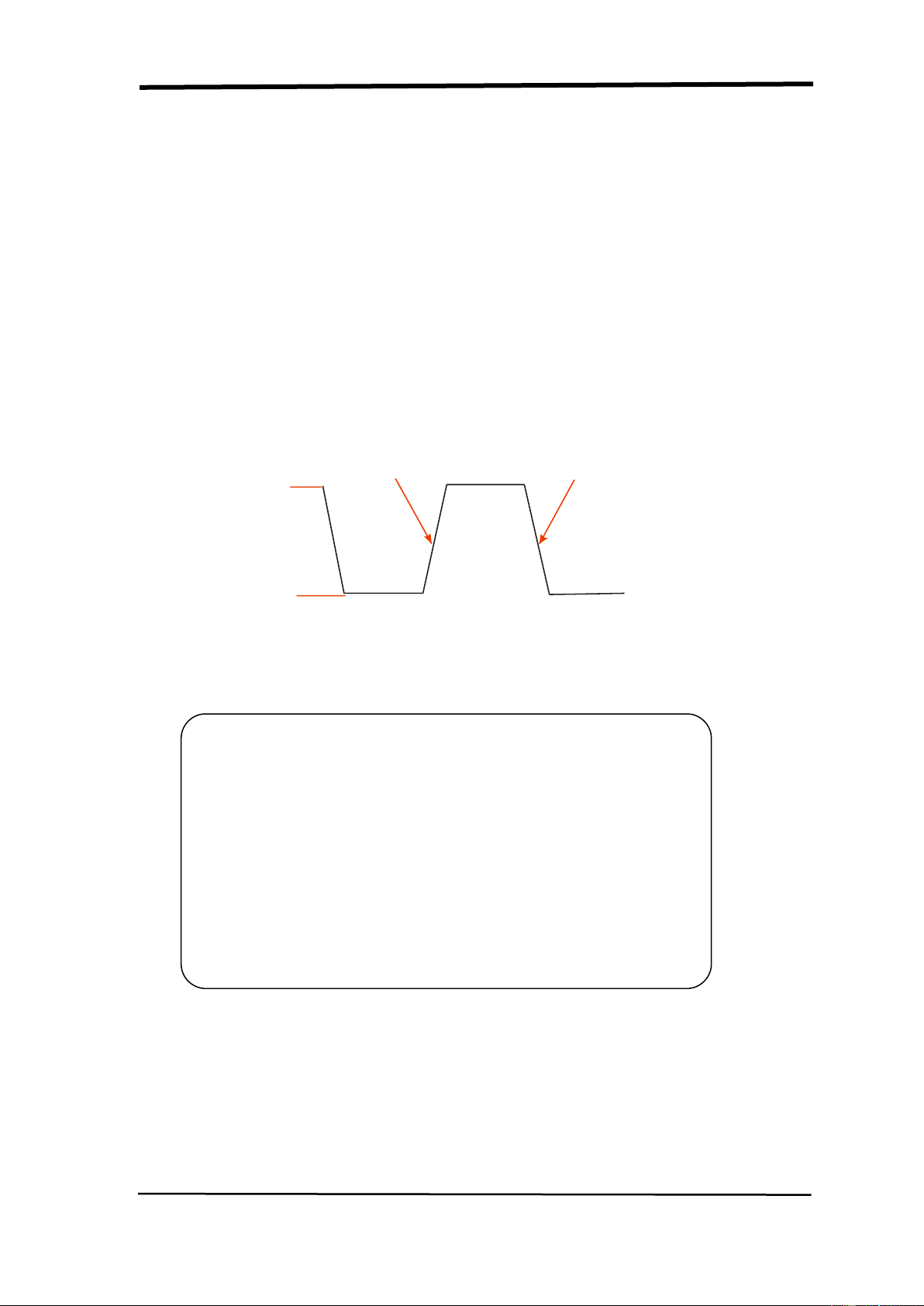
2.8.4 Position
The horizontal position control establishes the time between the trigger position
and the screen center. You can adjust the horizontal “POSITION” knob control to
view waveform data before the trigger, after the trigger, or some of each. When
you change the horizontal position of a waveform, you are changing the time
between the trigger and the center of the display actually. (This appears to move
the waveform to the right or left on the display.)
SIGLENT
48 SDS1000CML+/SDS1000DL+ User Manual
2.8.5 Slope & Level
The Slope and Level controls help to define the trigger. The Slope option (Edge
trigger type only) determines whether the oscilloscope finds the trigger point on
the rising or the falling edge of a signal.
The TRIGGER LEVEL knob controls where on the edge the trigger point occurs.
Falling edge
Rising edge
T
r
i
g
g
e
r
l
e
v
e
l
c
a
n
b
e
a
d
j
u
s
t
e
d
v
e
r
t
i
c
a
l
l
y
Picture 2.8-9
Note: ● Press the SINGLE button when you want the oscilloscope to
acquire a single waveform.
● Trigger coupling affects only the signal passed to the trigger
system. It does not affect the bandwidth or coupling of the
signal displayed on the screen.
● Normal Polarity Sync triggers always occur on
negative-going horizontal sync pulses. If the video
waveform has positive-going horizontal sync pulses, use
the Inverted Polarity selection.
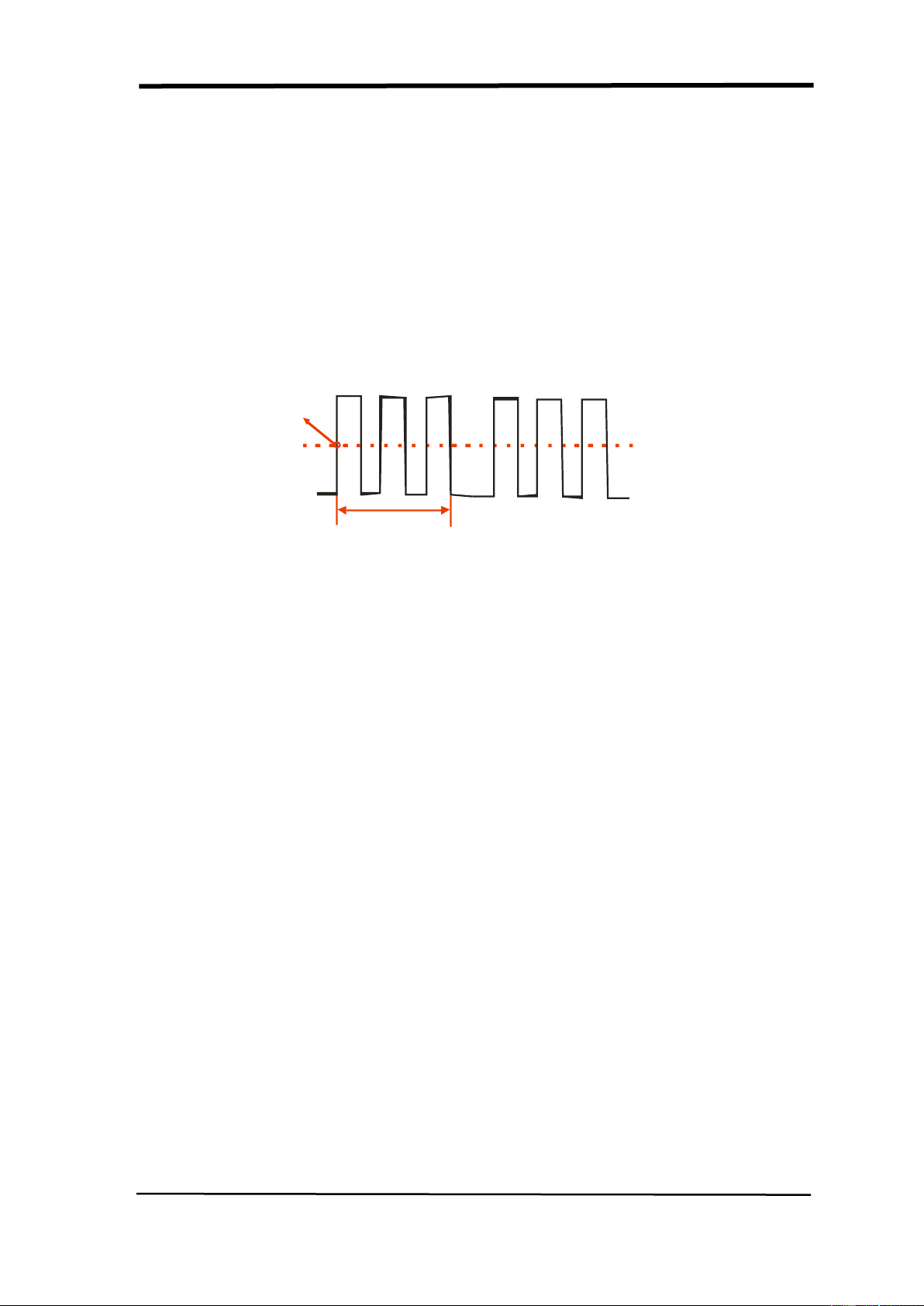
SIGLENT
SDS1000CML+/SDS1000DL+ User Manual 49
2.8.6 Trigger Holdoff
You can use the Trigger Holdoff function to produce a stable display of complex
waveforms. Holdoff is time between when the oscilloscope detects one trigger and
when it is ready to detect another. The oscilloscope will not trigger during the
holdoff time. For a pulse train, you can adjust the holdoff time so the oscilloscope
triggers only on the first pulse in the train.
Holdoff time
Trigger position
Trigger level
Picture 2.8-10
If you want to change holdoff time, please follow next operations:
1. Press the “TRIG MENU” button to show the “TRIG Menu”.
2. Press the “Type” option button to select trigger type.
3. Press the “Set up” option button to enter the “Trigger setup menu”.
4. Press the “Holdoff” option button,turn the “Universal” knob to change the
holdoff time until the waveform trigger steadily.
Note:Use trigger holdoff to help stabilize the display of aperiodic waveforms.
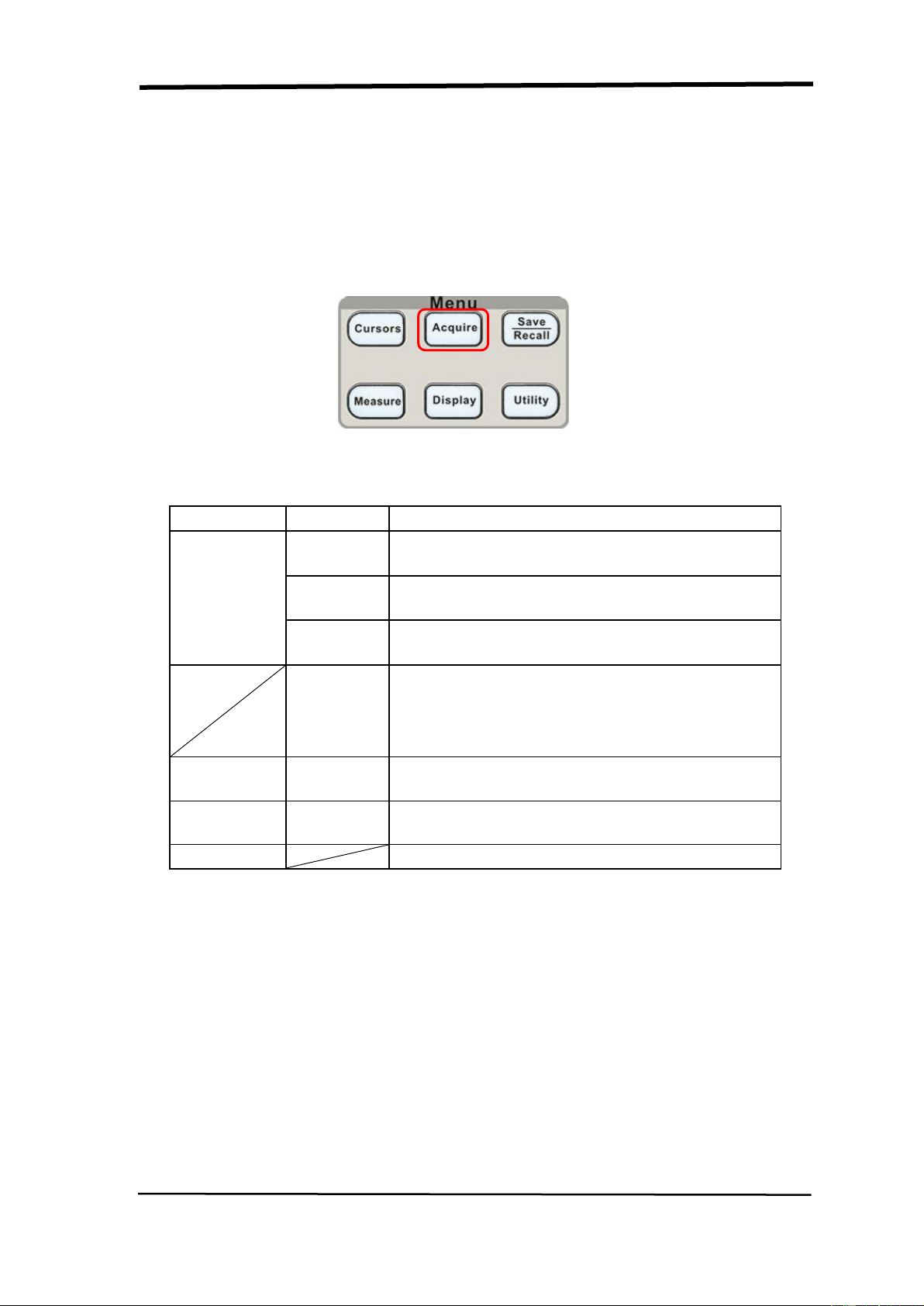
SIGLENT
50 SDS1000CML+/SDS1000DL+ User Manual
2.9 Acquiring Signals System
Showing as the follow picture,the “ACQUIRE” button for Acquiring Signals system
is at the menu.
Picture 2.9-1
Table 2-28 The Function manual of Acquiring Signals:
Option
Setting
Introduction
Acquisition
Sampling
Use for sampling and accurately display most
of the waveform.
Peak
Detect
Detect the noise and decrease the
possibility of aliasing.
Average
Use to reduce random or uncorrelated noise
in the signal display.
Averages
〔4, 16,32
,64,128,
256〕
Select number of averages.
Sinx/x
On
off
Use sin interpolation
Use linear interpolation
Mode
Equ time
Real time
Set the Sampling mode to Equ time.
Set the Sampling mode to Real time.
Sa Rate
Display system sampling rate.
When you acquire a signal, the oscilloscope converts it into a digital form and
displays a waveform. The acquisition mode defines how the signal is digitized and
the time base setting affects the time span and level of detail in the acquisition.
■ Sampling: In this acquisition mode, the oscilloscope samples the signal in
evenly spaced intervals to construct the waveform. This mode accurately
represents signals most of the time.
Advantage: You can use this mode to reduce random noise.
Disadvantage: This mode does not acquire rapid variations in the signal that may
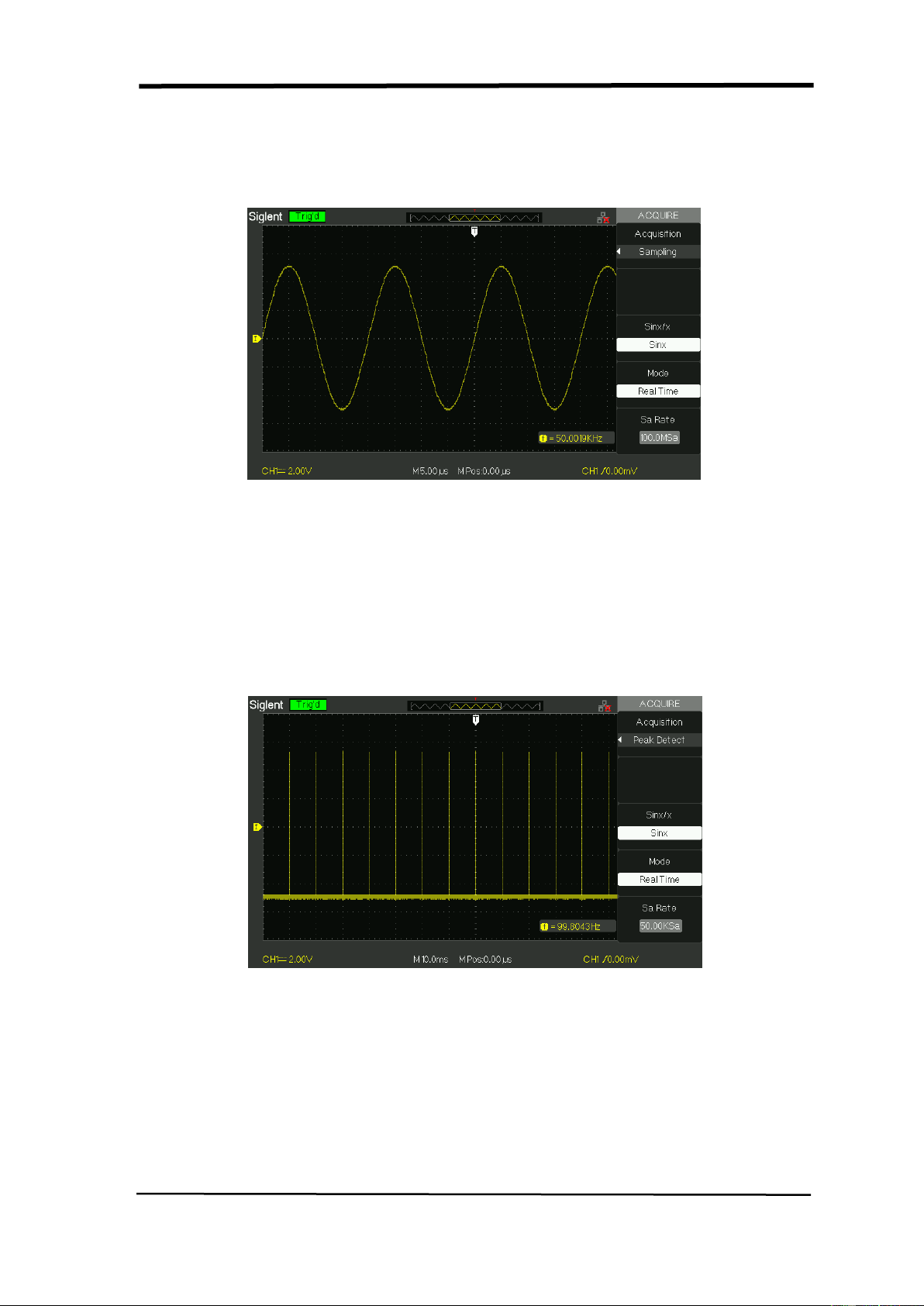
SIGLENT
SDS1000CML+/SDS1000DL+ User Manual 51
occur between samples. This can result in aliasing may cause narrow pulses to be
missed. In these cases, you should use the Peak Detect mode to acquire data.
Picture 2.9-2 Sampling modes
■ Peak Detect: Peak Detect mode capture the maximum and minimum values of
a signal Finds highest and lowest record points over many acquisitions.
Advantage: In this way, the oscilloscope can acquire and display narrow pulses,
which may have otherwise been missed in Sample mode.
Disadvantage: Noise will appear to be higher in this mode.
Picture 2.9-3 Peak Detect mode
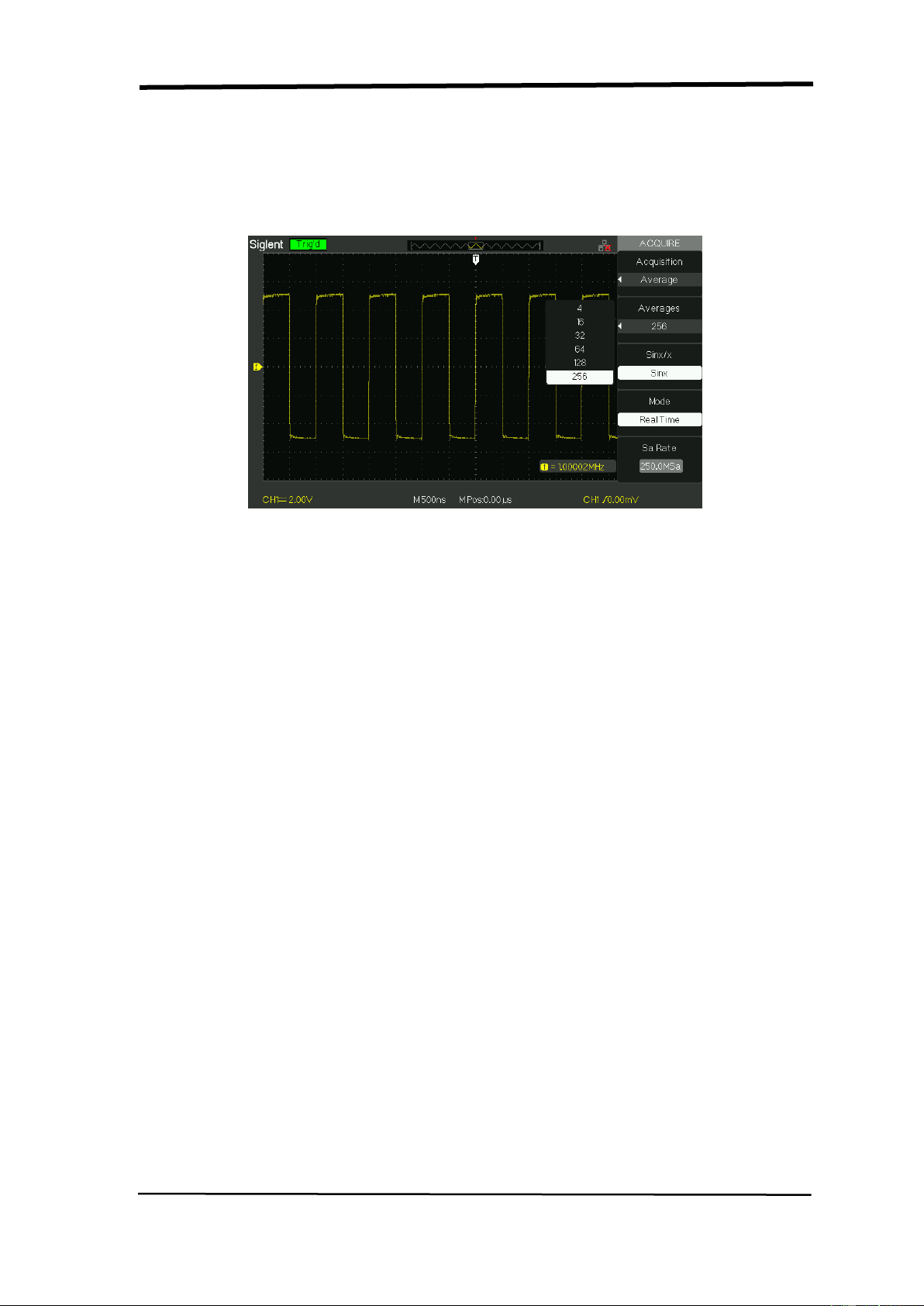
SIGLENT
52 SDS1000CML+/SDS1000DL+ User Manual
■ Average: The oscilloscope acquires several waveforms, averages them, and
displays the resulting waveform.
Advantage: You can use this mode to reduce random noise.
Picture 2.9-4 Average Mode
■ Equivalent Time Sampling:
The equivalent time sampling mode can achieve up to 20 ps of horizontal
resolution (equivalent to 50GSa/s). This mode is good for observing repetitive
waveforms.
■ Real Time Sampling: The scope has the highest Real-time sampling rate
up to 1GSa/s.
■ “RUN/STOP” Button: Press the RUN/STOP button when you want the
oscilloscope to acquire waveforms continuously. Press the button again to stop
the acquisition.
■ “SINGLE” Button: Press the SINGLE button to acquire a single waveform.
Each time you push the SINGLE button, the oscilloscope begins to acquire
another waveform. After the oscilloscope detects a trigger it completes the
acquisition and stops.
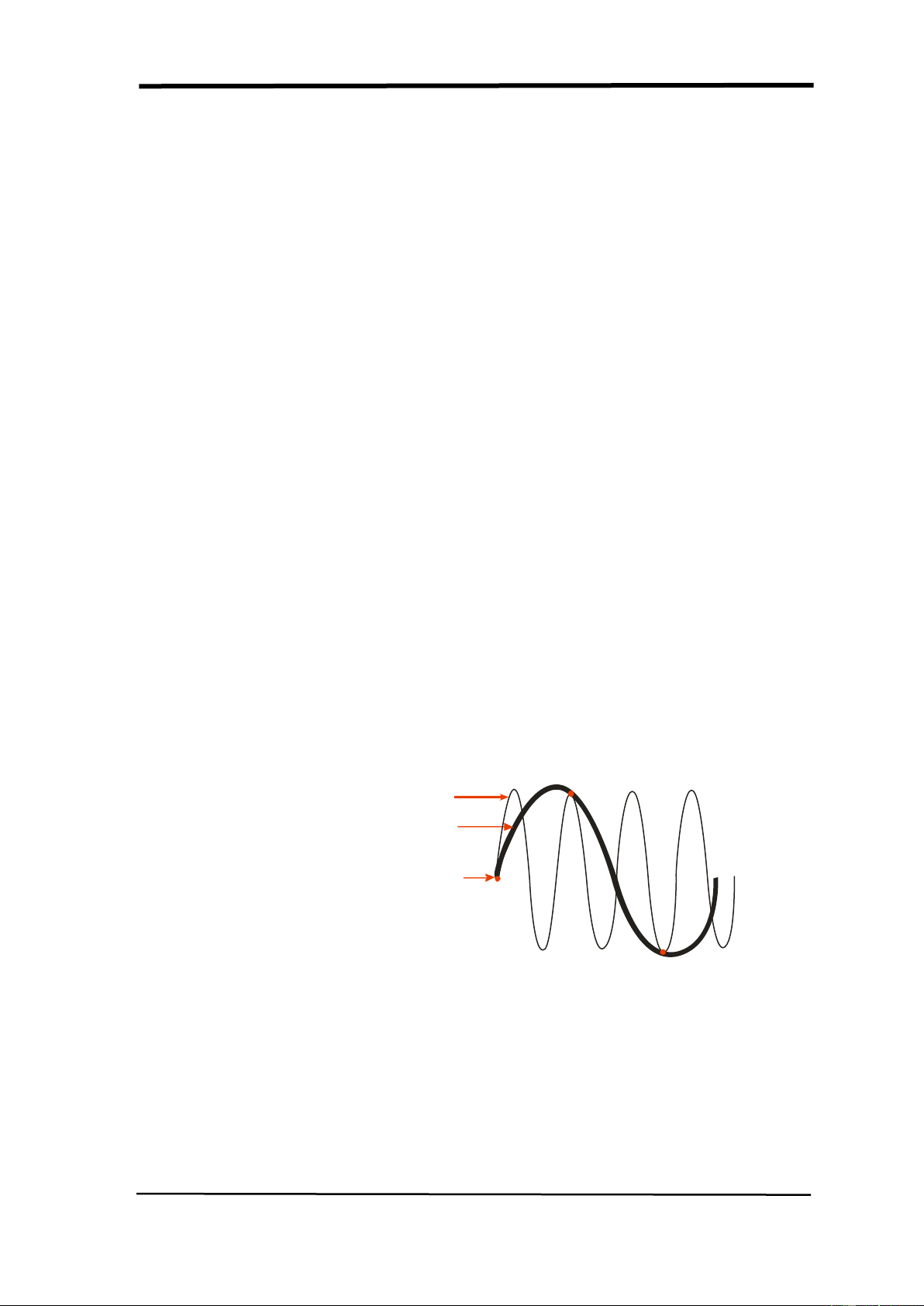
SIGLENT
SDS1000CML+/SDS1000DL+ User Manual 53
When you push the RUN/STOP or SINGLE buttons to start an acquisition, the
oscilloscope goes through the following steps:
1). Acquire enough data to fill the portion of the waveform record to the left of
the trigger point. This is also called the pre-trigger.
2). Continue to acquire data while waiting for the trigger condition to occur.
3). Detect the trigger condition.
4). Continue to acquire data until the waveform record is full.
5). Display the newly-acquired waveform.
■ Time Base: The oscilloscope digitizes waveforms by acquiring the value of an
input signal at discrete points. The time base allows you to control how often the
values are digitized.
Use S/div knob to adjust the time base to a horizontal scale suits your purpose,
■ Time Domain Aliasing:
Aliasing occurs when the oscilloscope does not sample the signal fast enough to
construct an accurate waveform record. When this happens, the oscilloscope
displays a waveform with a frequency lower than the actual input waveform, or
triggers and displays an unstable waveform.
Sampled points
Apparent low-frequency
waveform due to aliasing
Actual high-frequency waveform
Picture 2.9-5
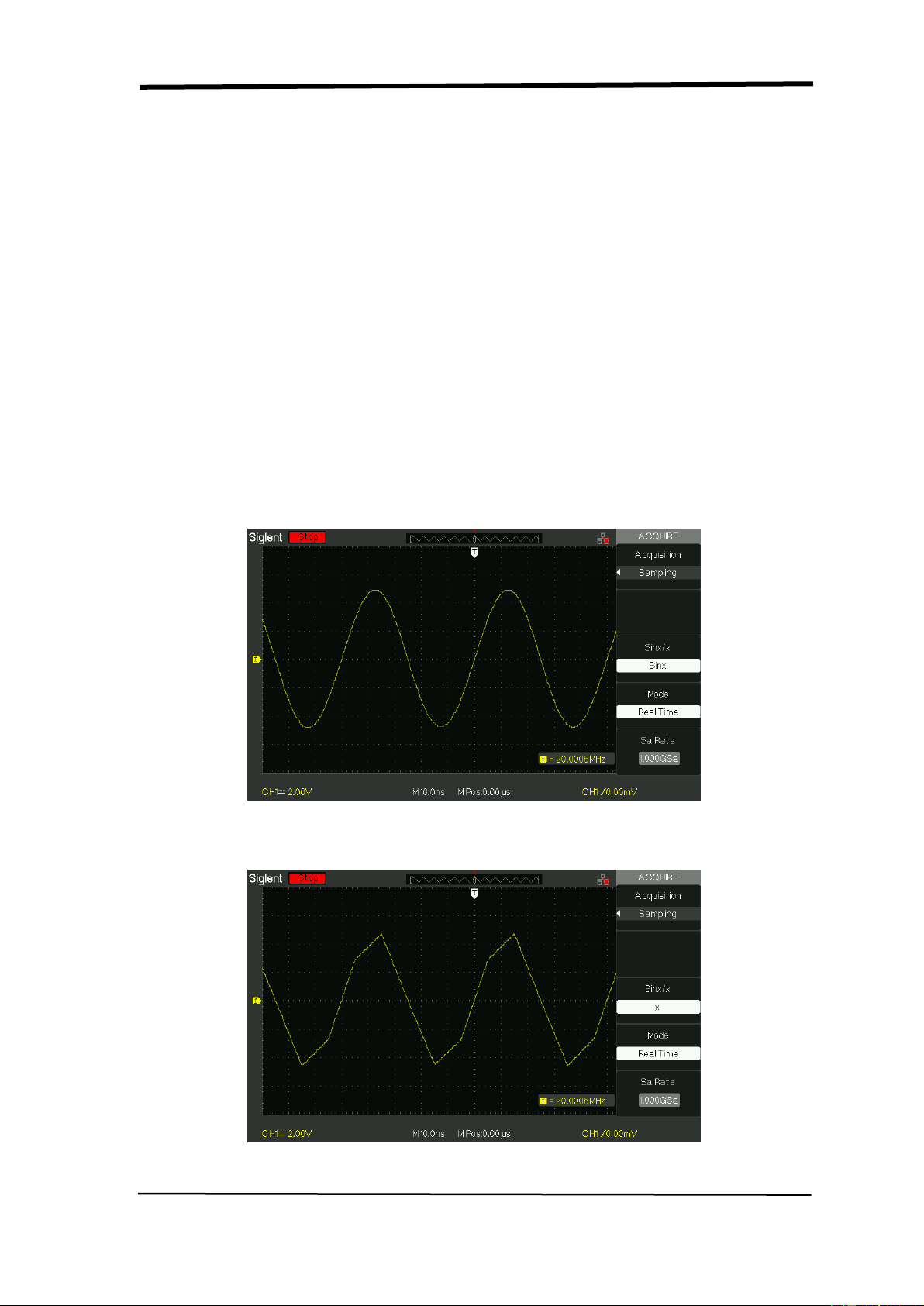
SIGLENT
54 SDS1000CML+/SDS1000DL+ User Manual
Operate Introduction:
Set up Sampling Format
You can press the “Acquisition” option button or turn the “Universal” knob to select
“Sampling” mode, “Peak Detect” mode or “Average” mode..
Set up Averages
When you select “Average” format, you can press the “Averages” option button to
select “4”, “16”, “32”, “64”, “128”or “256”.
Set up function interpolation
You can also turn Sins/x interpolation on or off. Press the corresponding option
button to turn Sins/s on or off.
“Sinx” is sine interpolation
Picture 2.9-6
“X” is linear interpolation.
Picture 2.9-7

SIGLENT
SDS1000CML+/SDS1000DL+ User Manual 55
Set up Sampling Mode
Press the “Mode” option button to select “Real Time” or “Equ Time”.
Set up Sampling Rate
Adjust the sampling rate by pressing the “Sa Rate” option button and turning the
Time/div front panel knob. The sampling rate is shown at the corresponding
timebase scale.
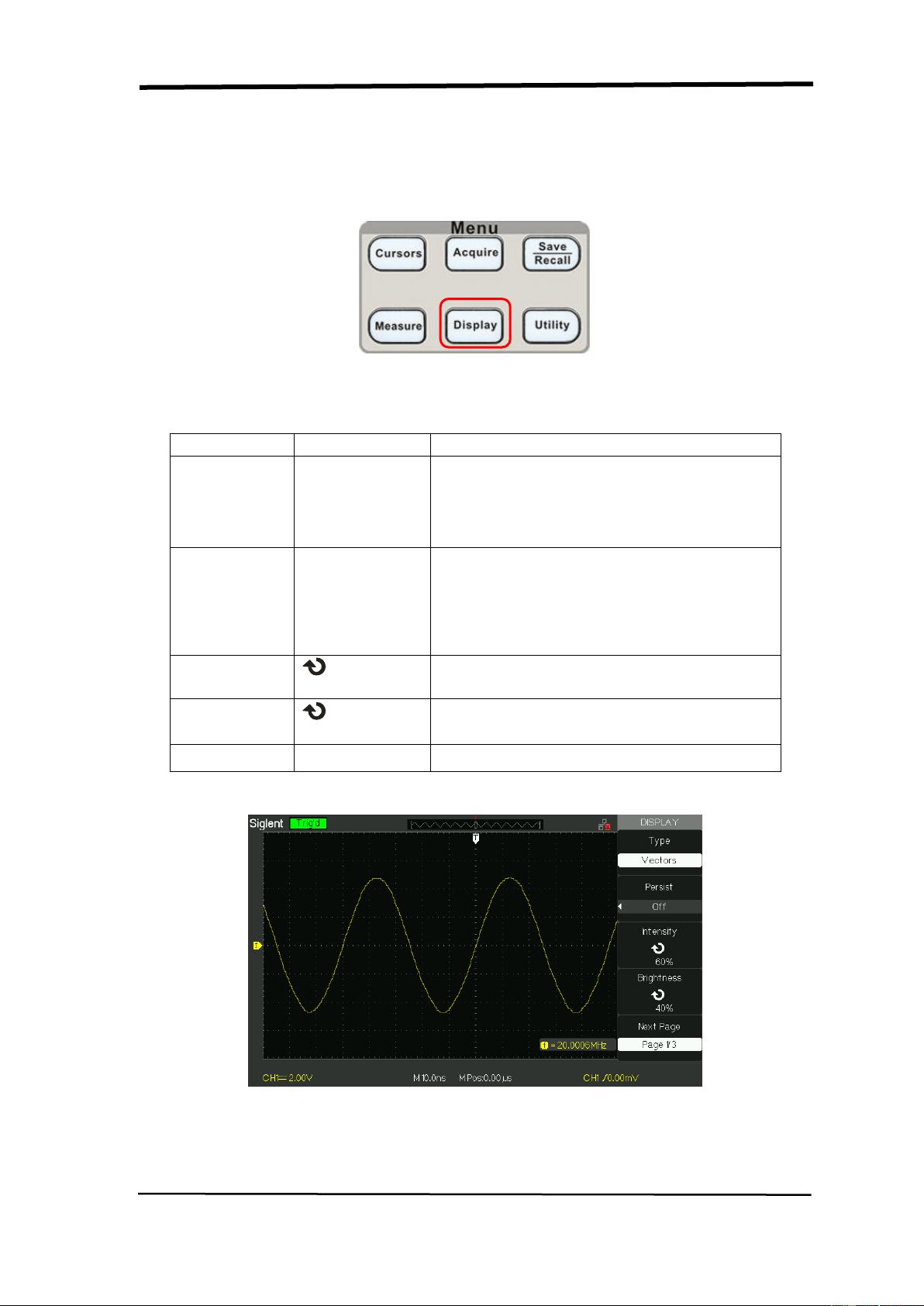
SIGLENT
56 SDS1000CML+/SDS1000DL+ User Manual
2.10 Display System
The display function could be expressed by the “DISPLAY” Button.
Picture 2.10-1
Table 2-29 Display system function menu 1:
Option
Setting
Introduction
Type
Vectors
Dots
Vectors fill the space between adjacent
sample points in the display.
There is no link between adjacent
sample points.
Persist
Off
1 sec
2 sec
5 sec
Infinite
Sets the length of time each displayed
sample point remains displayed.
Intensity
<Intensity>
Set waveforms’ intensity.
Brightness
<Brightness>
Set grid brightness.
Next Page
Page 1/3
Press this button to enter second page.
Picture 2.10-2
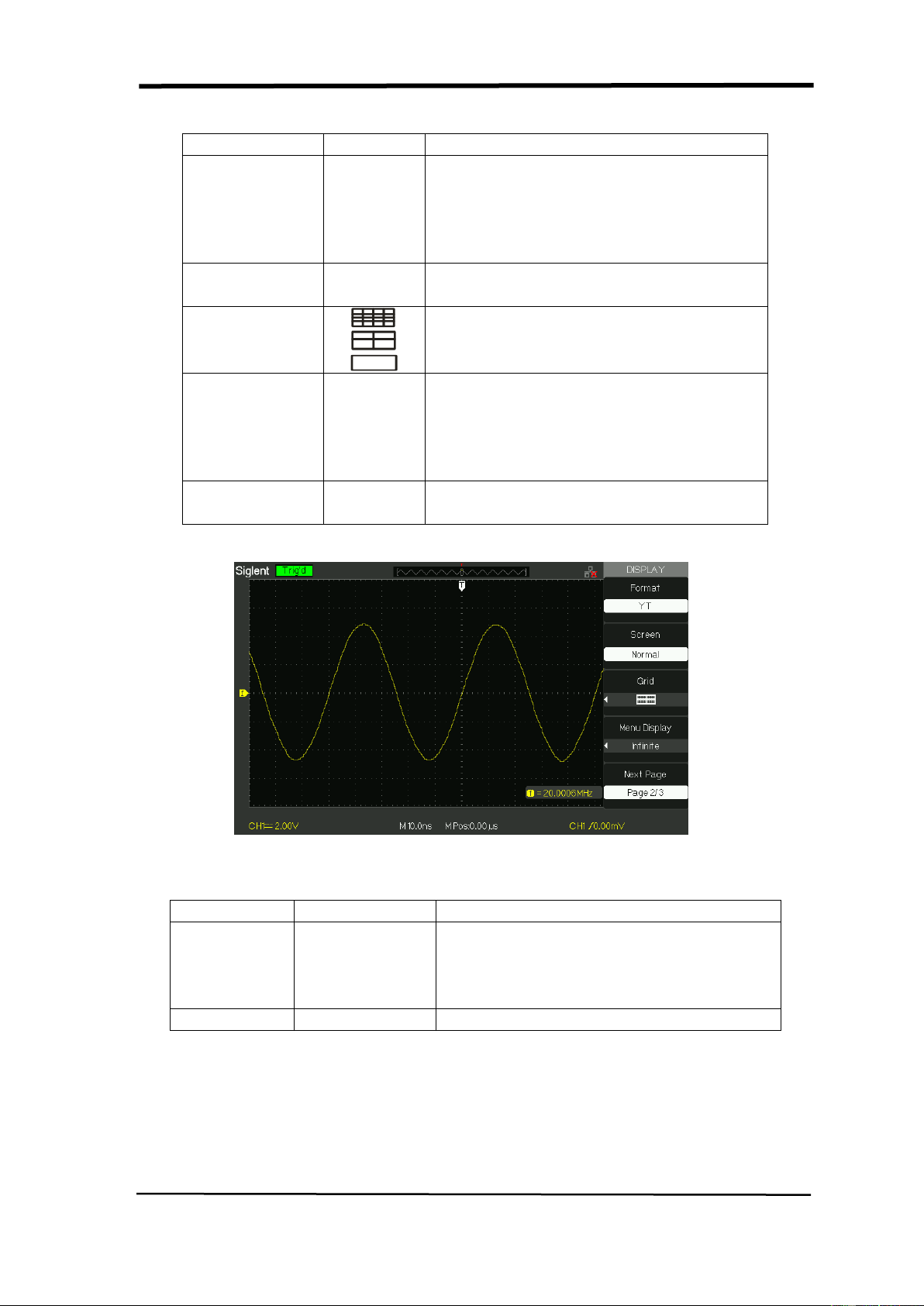
SIGLENT
SDS1000CML+/SDS1000DL+ User Manual 57
Table 2-30 Display system function menu 2:
Option
Setting
Introduction
Format
YT
XY
YT format displays the vertical voltage
in relation to time (horizontal scale). XY
format displays a dot each time a
sample is acquired on channel 1 and
channel 2
Screen
Normal
Inverted
Set to normal mode.
Set to invert color display mode.
Grid
Display grids and axes on the screen.
Turn off the grids.
Turn off the grids and axes.
Menu Display
2sec
5sec
10sec
20sec
Infinite
Set menu display time on screen.
Next Page
Page 2/3
Press this button to enter the second
page of “Display menu”.
Picture 2.10-3
Table 2-31 Display system function menu3:
Option
Setting
Introduction
Skin
Classical
Modern
Tradition
Succinct
Set up screen style.
Next Page
Page 3/3
Press this button to return the first page.
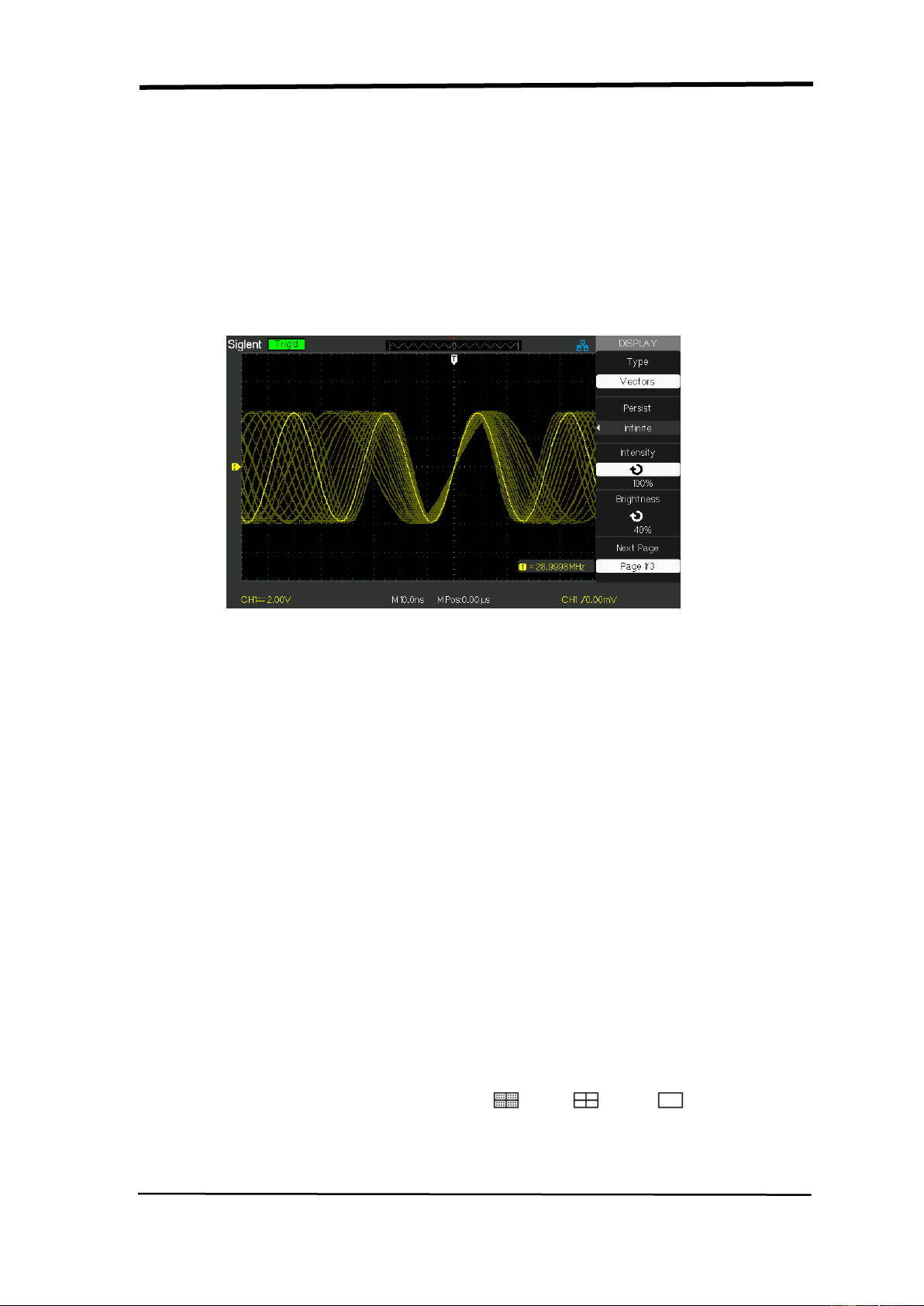
SIGLENT
58 SDS1000CML+/SDS1000DL+ User Manual
Operate Introduction:
1. Set up waveform display type
1) Press the “DISPLAY” button to enter the “Display” menu.
2) Press the “Type” option button to select “Vectors” or “Dots”.
2. Set up Persist
Press “Persist” option button to select “Off”, “1 Sec”, “2 Sec”, “5Sec” or
“Infinite”. You can use this option to observe some especial waveforms.
Picture 2.10-4
3. Set up Intensity
1) Press the “Intensity” option button and turn the “Universal” knob to adjust
waveforms’ intensity.
4. Set up Brightness
1) Press the “Brightness” option button and turn the “Universal” knob to
adjust grid brightness.
5. Set up display format
1) Press the “Next Page” option button to enter second display menu.
2) Press the “Format” option button to select “YT” or “XY”.
6. Set up Screen
Press the “Screen” option button to select “Normal” or “Inverted” to set the
screen display color.
7. Set up Grid
Press the “Grid” option button to select “ ”, “ ”or“ ”to set the
screen whether display grid or not.

SIGLENT
SDS1000CML+/SDS1000DL+ User Manual 59
8. Set up Menu Display
Press the “Menu Display” option button to select “2 sec”, “5sec”, “10sec”,
“20sec” or “Infinite” to set menu display time on screen.
9. Set Skin
Press the “skin” option button or turn the “Universal” knob to select “Classical”,
“Modern”, “Traditional” or “Succinct”.
2.10.1 X-Y Format
Use the XY format to analyze phase differences, such as those represented by
Lissajous patterns. The format plots the voltage on channel 1 against the voltage
on channel 2, where channel 1 is the horizontal axis and channel 2 is the vertical
axis. The oscilloscope uses the untriggered Sample acquisition mode and
displays data as dots.
XY mode has a breakthrough that traditional oscilloscopes restrict sampling rate
at 1MSa/s,
support 25KSa/s~250MSa/s (1-2.5-5 sequence) adjusted ;
Operation steps :
●Channel 1 “Volt/div” and vertical “POSITION” set up the horizontal scale and
position.
●Channel 2 “Volt/div” and vertical “POSITION” set up the horizontal scale and
position.
●Turn the “S/div” knob to adjust the sampling rate
●The following functions are forbidden at XY display form:
●Benchmark wave form and wave mathematic
●Cursor
●Auto(resets display format to YT)
●Trigger Control
●Horizontal Position Knob
●Vector Display Type
●Scan Display
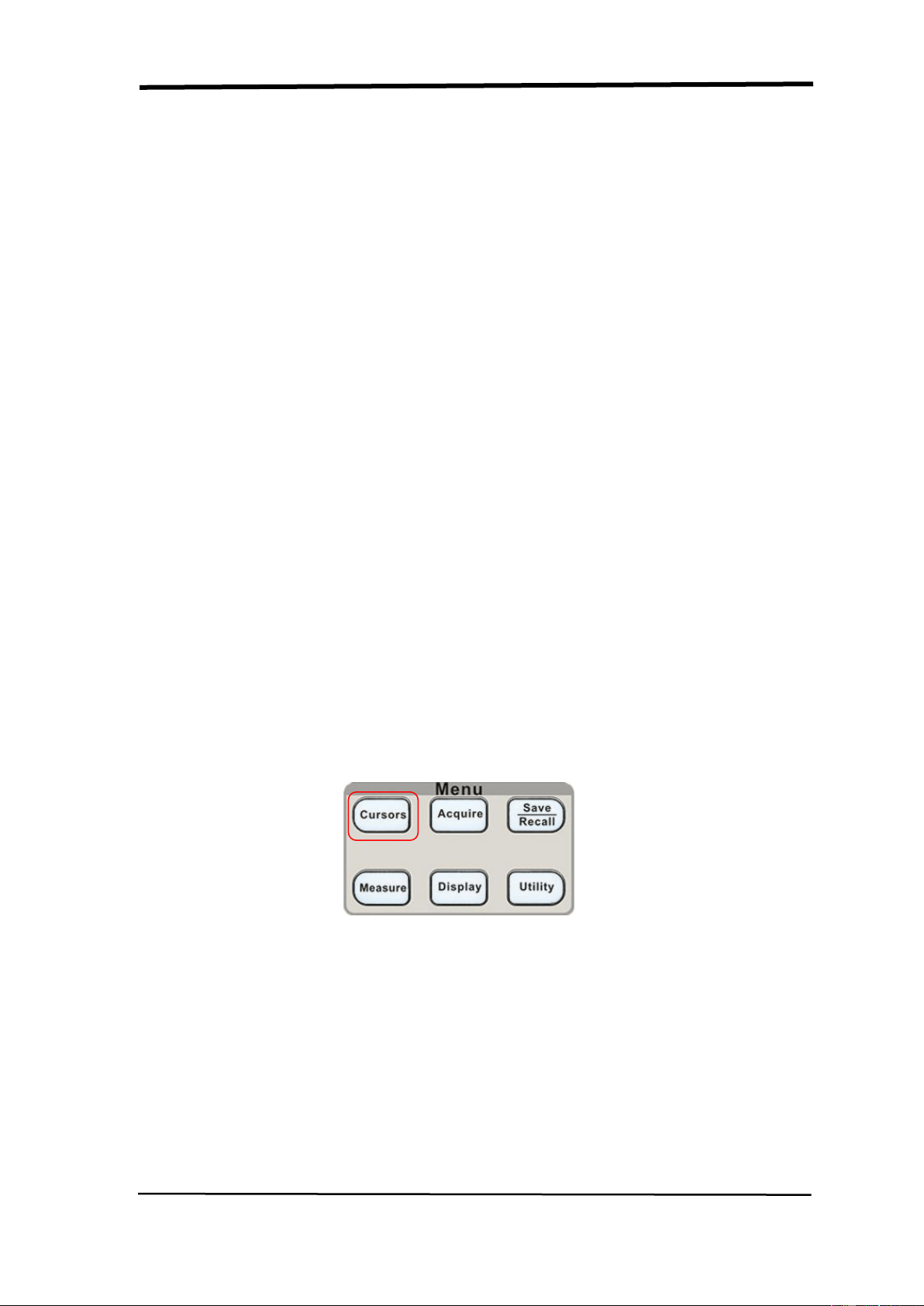
SIGLENT
60 SDS1000CML+/SDS1000DL+ User Manual
2.11 Measure System
The Oscilloscope displays the voltage in relation to time and test the wave form
displayed. There are scale, Cursor and auto measure modes.
2.11.1 Scale Measurement
This method allows you to make a quick, visual estimate. For example, you might
look at waveform amplitude and determine that it is a little more than 100 mV. You
can take simple measurements by counting the major and minor graticule
divisions involved and multiplying by the scale factor. For example, if you counted
five major vertical graticule divisions between the minimum and maximum values
of a waveform and knew you had a scale factor of 100mV/div, then you could
easily calculate your peak-to-peak voltage as follows:
5 divisions x 100 mV/division = 500 mV.
2.11.2 Cursor Measurement
Picture 2-50 displays the cursor button on the front-panel for this menu.
Picture 2.11-1
Press the “CURSORS” button to display the “Cursor” Menu.
The cursor measurement has three modes: Manual, Track and Auto Measure.
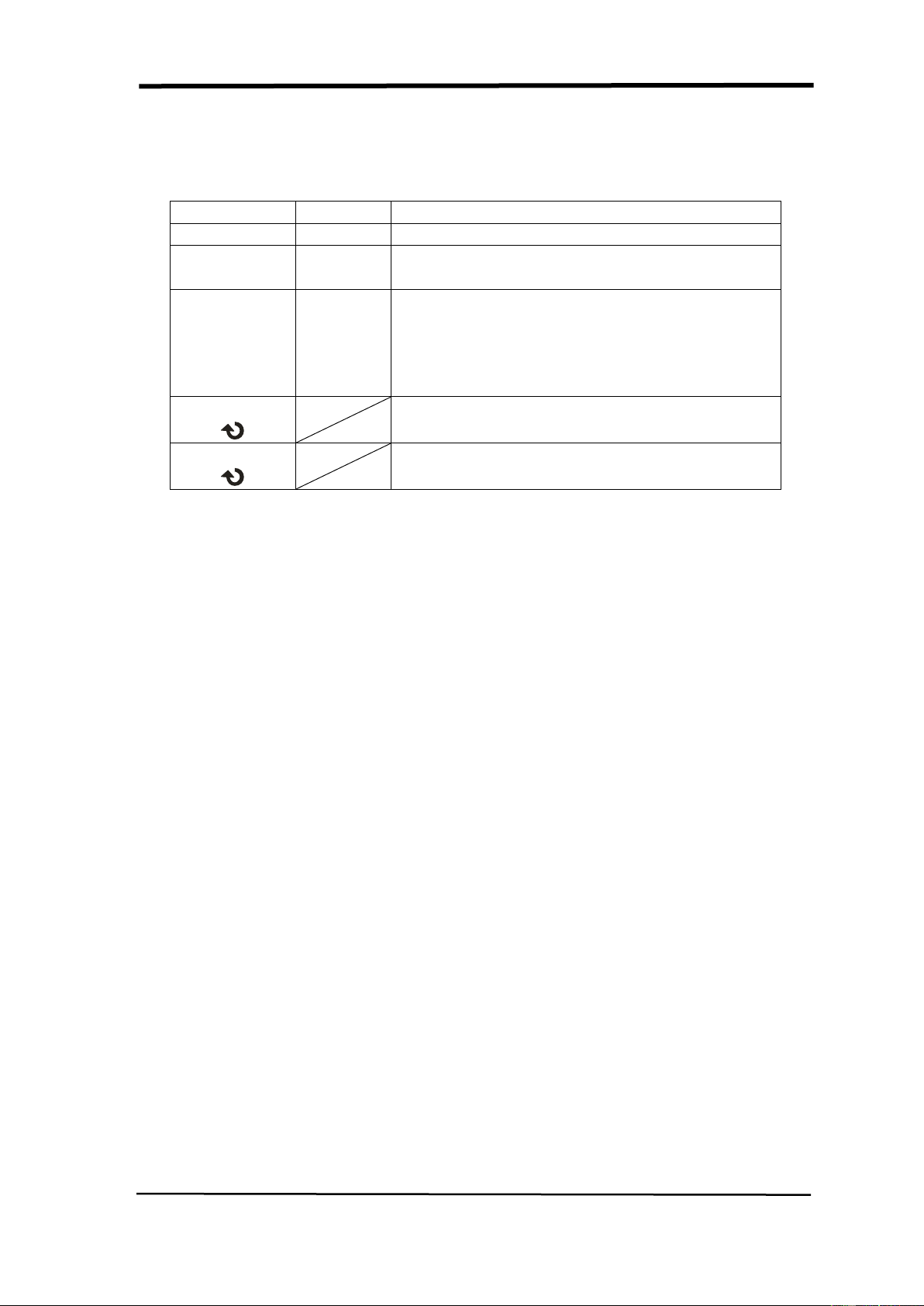
SIGLENT
SDS1000CML+/SDS1000DL+ User Manual 61
Manual Mode
Table 2-32 Manual cursor function menu:
Option
Setting
Instruction
Cursor Mode
Manual
In this menu, set the manual cursor measure.
Type
Voltage
Time
Use cursor to measure voltage parameters.
Use cursor to measure time parameters.
Source
CH1
CH2
MATH
REFA
REFB
Select input signal channel.
Cur A
Select this option,use “Universal” knob to
adjust cursor A.
Cur B
Select this option,use “Universal” knob to
adjust cursor B.
In this mode, the screen displays two horizontal parallel cursors or vertical parallel
cursors to measure voltage or time. You can move the cursor by turning the
“Universal” knob. Before using cursors, you should make sure that you have set
the signal source as the channel for measuring.
■ Voltage Cursor: Voltage cursors appear as horizontal lines on the display and
measure the vertical parameters.
■ Time Cursor: Time cursors appear as vertical lines on the display and measure
the horizontal parameters.
■ Cursor Moving: Use the “universal” knob to move cursor1 and cursor2 .They
could be moved when the corresponding cursor option are selected, and cursor
value will display on the bottom left and top left of the screen when you move the
cursor.
To do manual cursor measurements, follow these steps:
1. Press CURSOR button to enter the cursor function menu.
2. Press the “Cursor Mode” option button to select “Manual”.
3. Press the “Type” option button to select “Voltage” or “Time”.
4. Press the “Source” option button to select “CH1”, “CH2”, “MATH”,
“REFA” ,“REFB” according to input signal channel.
5. Select “Cur A”, turn the “Universal” knob to adjust Cursor A.
6. Select “Cur B”, turn the “Universal” knob to adjust Cursor B.

SIGLENT
62 SDS1000CML+/SDS1000DL+ User Manual
7. The measurement values are displayed on the top of the left corner:
If the measurement type is set to “Voltage”, the values are:
The value of Cur A: CurA
The value of Cur B: Cur B
The voltage increment between Cursor A and Cursor B: △ V
If the measurement type is set to “Time”, the values are:
The value of Cur A: CurA
The value of Cur B: Cur B
The time increment between Cursor A and Cursor B: △ T
The reciprocal of time increment between Cursor A and Cursor B:
1/△ T
Picture 2.11-2
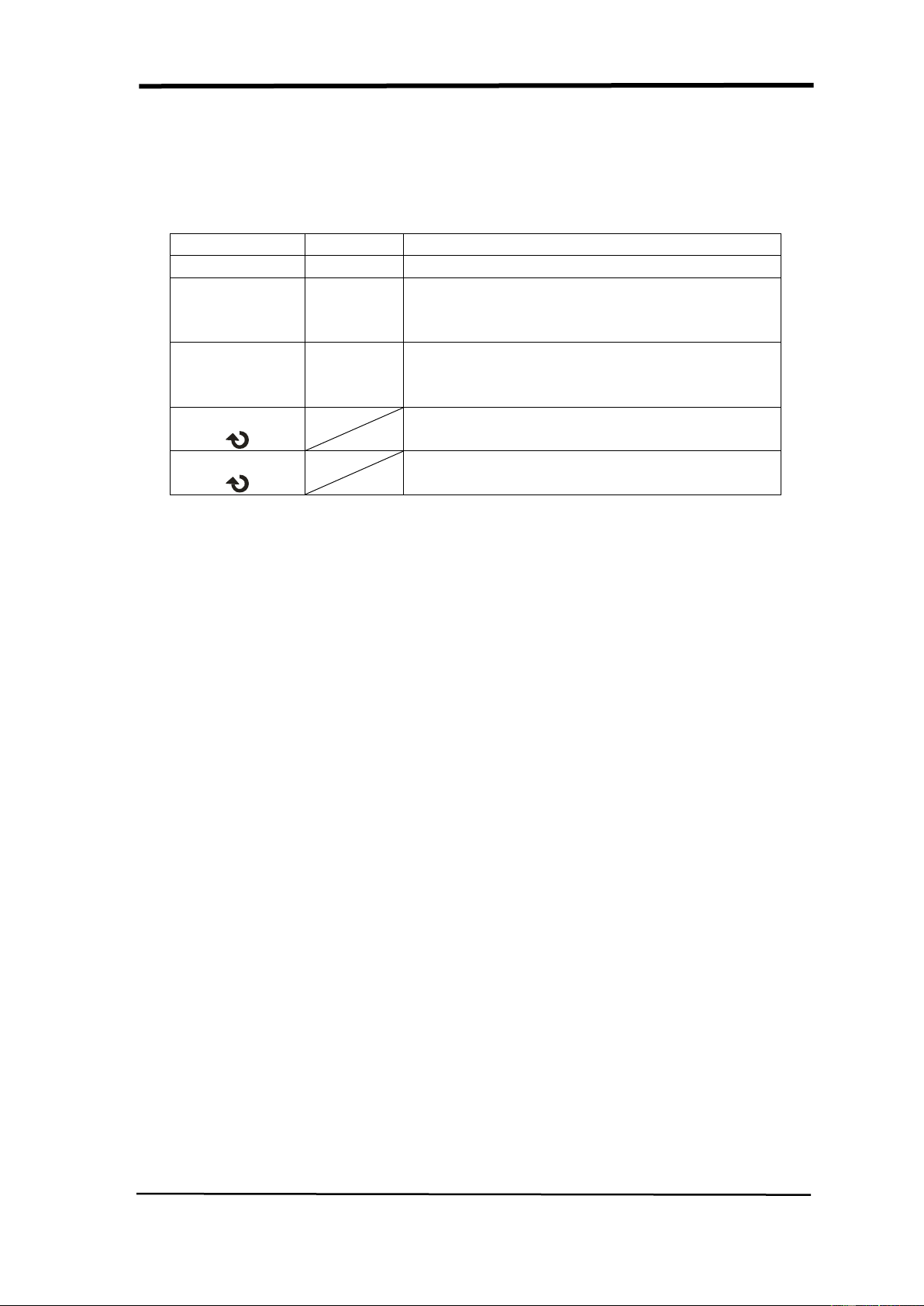
SIGLENT
SDS1000CML+/SDS1000DL+ User Manual 63
Track mode
Table 2-33 Track mode function menu:
Option
Setting
Instruction
Cursor Mode
Track
In this mode, set track cursor measure.
Cursor A
CH1
CH2
NONE
Set the input signal channel that the Cursor
A will measure.
Cursor B
CH1
CH2
NONE
Set the input signal channel that the Cursor
B will measure.
Cur A
Select this option, turn the “Universal” knob
to adjust horizontal coordinate of Cursor A.
Cur B
Select this option, turn the “Universal” knob
to adjust horizontal coordinate of Cursor B.
In this mode, the screen displays two cross cursors. The cross cursor sets the
position on the waveform automatically. You could adjust cursor’s horizontal
position on the waveform by turning the “Universal” knob. The oscilloscope
displays the values on the top of the right screen.
To do track cursor measurement, follow these steps:
1. Press CURSOR button to enter the cursor measure function menu.
2. Press the “Cursor Mode” option button to select “Track”.
3. Press the “Cursor A” option button to select the input signal channel.
4. Press the “Cursor B” option button to select the input signal channel.
5. Select “Cur A”, turn the “Universal” knob to move Cursor A
horizontally.
6. Select “Cur B”, turn the “Universal” knob to move Cursor B
horizontally.
7. The measurement values are displayed on the left of the top corner:
A→T: The horizontal position of Cursor A (Time cursor centered
around the midpoint of screen).
A→V: The Vertical position of Cursor A (Voltage cursor centered
around channel ground level).
B→T: The horizontal position of Cursor B (Time cursor centered
around the midpoint of screen).
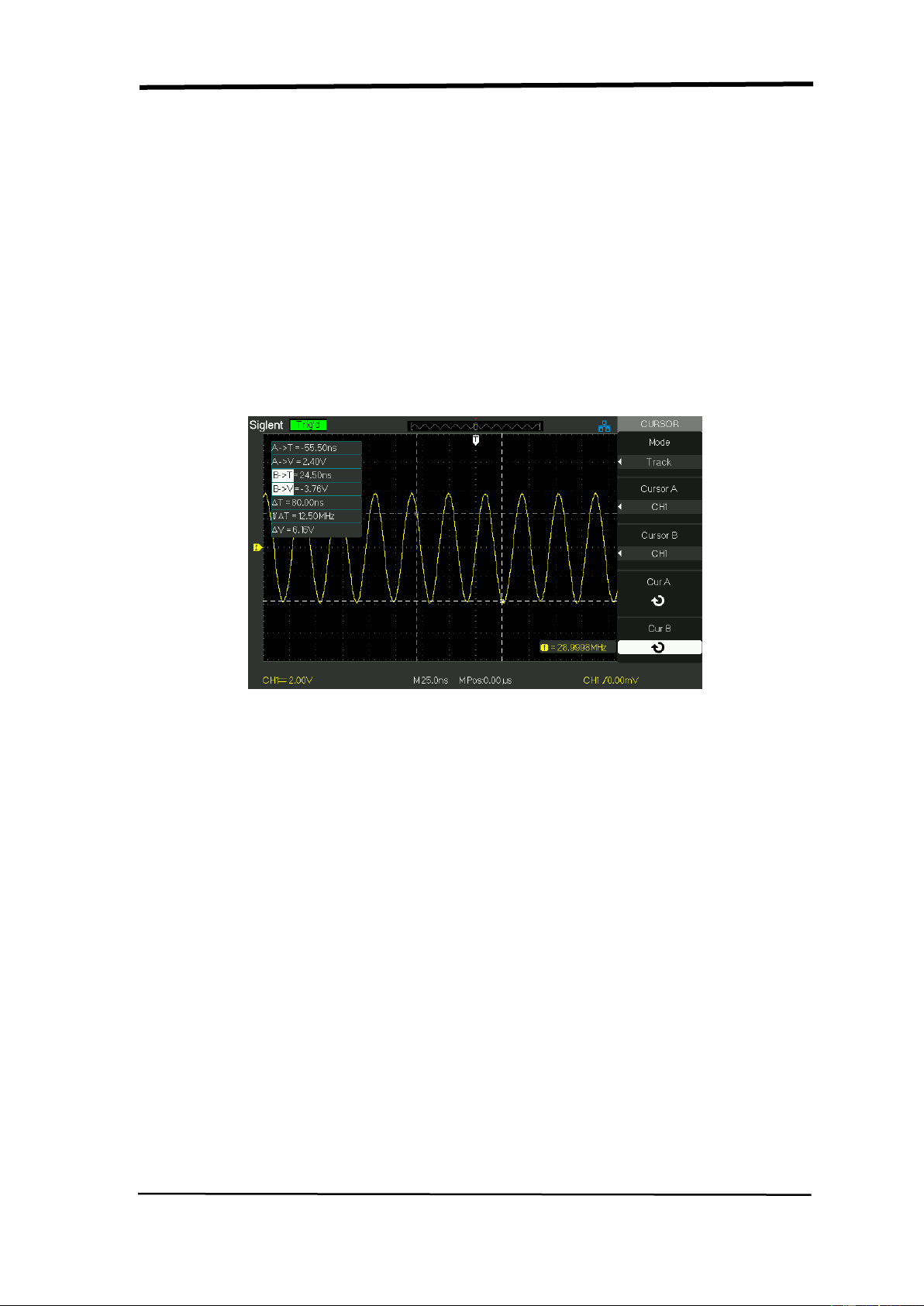
SIGLENT
64 SDS1000CML+/SDS1000DL+ User Manual
B→V: The Vertical position of Cursor B (Voltage cursor centered
around channel ground level).
△T: Horizontal space between Cursor A and Cursor B (Time value
between two cursors).
1/△T: The reciprocal of horizontal space between cursor A and cursor
B.
△V: Vertical space between Cursor A and Cursor B (Voltage value
between two cursors).
Picture 2.11-3
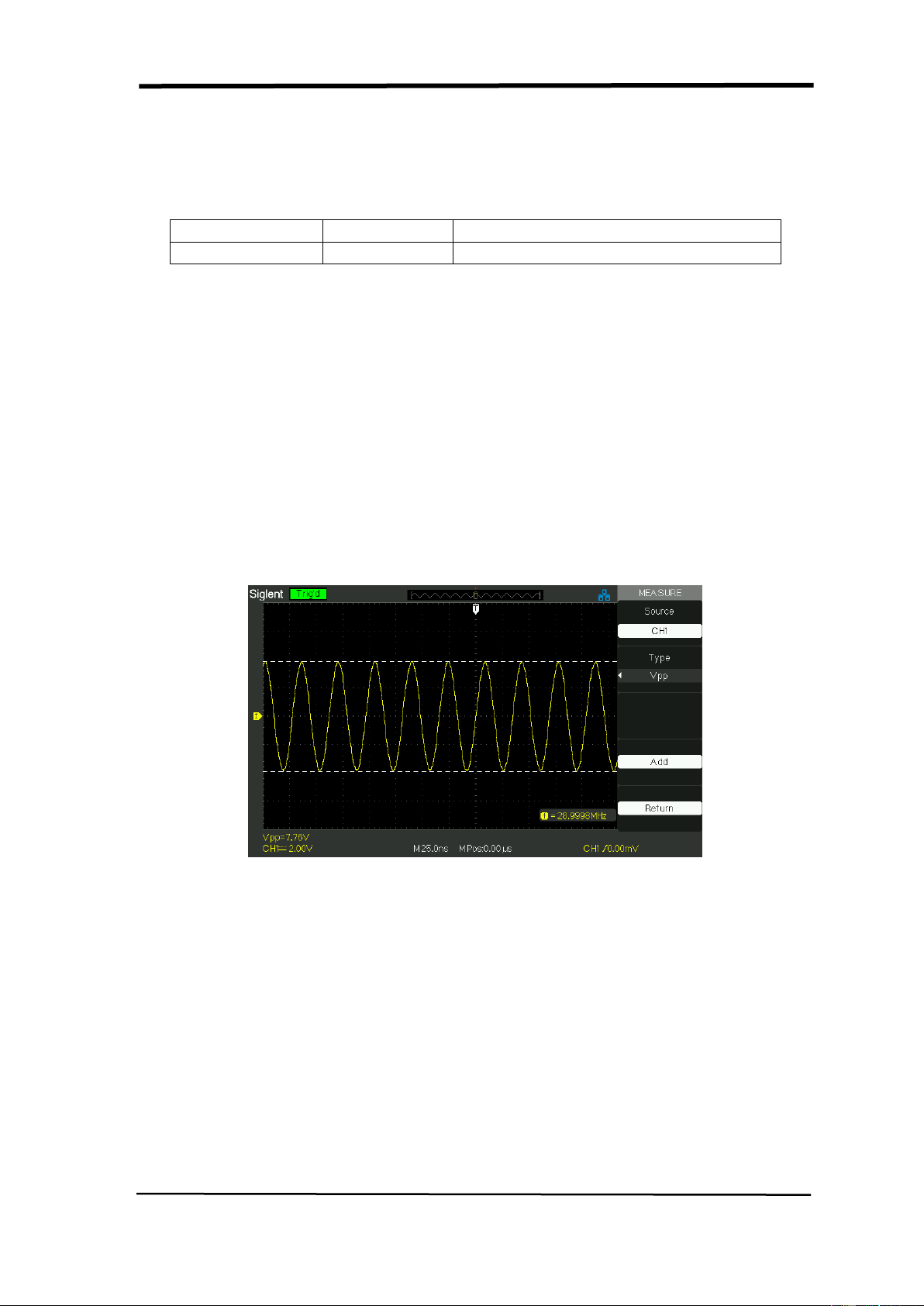
SIGLENT
SDS1000CML+/SDS1000DL+ User Manual 65
Auto mode
Table 2-34 Auto mode function menu:
Option
Setting
Instruction
Cursor Mode
Auto
Set to auto cursor measure mode.
This mode will take effect with automatic measurements. The instruments will
display cursors while measuring parameters automatically. These cursors
demonstrate the physical meanings of these measurements.
To do auto cursor measurements, follow these steps:
1. Press the CURSOR button to enter “Cursor measure menu”.
2. Press the “Cursor Mode” option button to select “Auto”.
3. Press the “MEASURE” button to enter “Auto cursor measure mode
menu” to select the parameter that you want to measure.
Picture 2.11-4
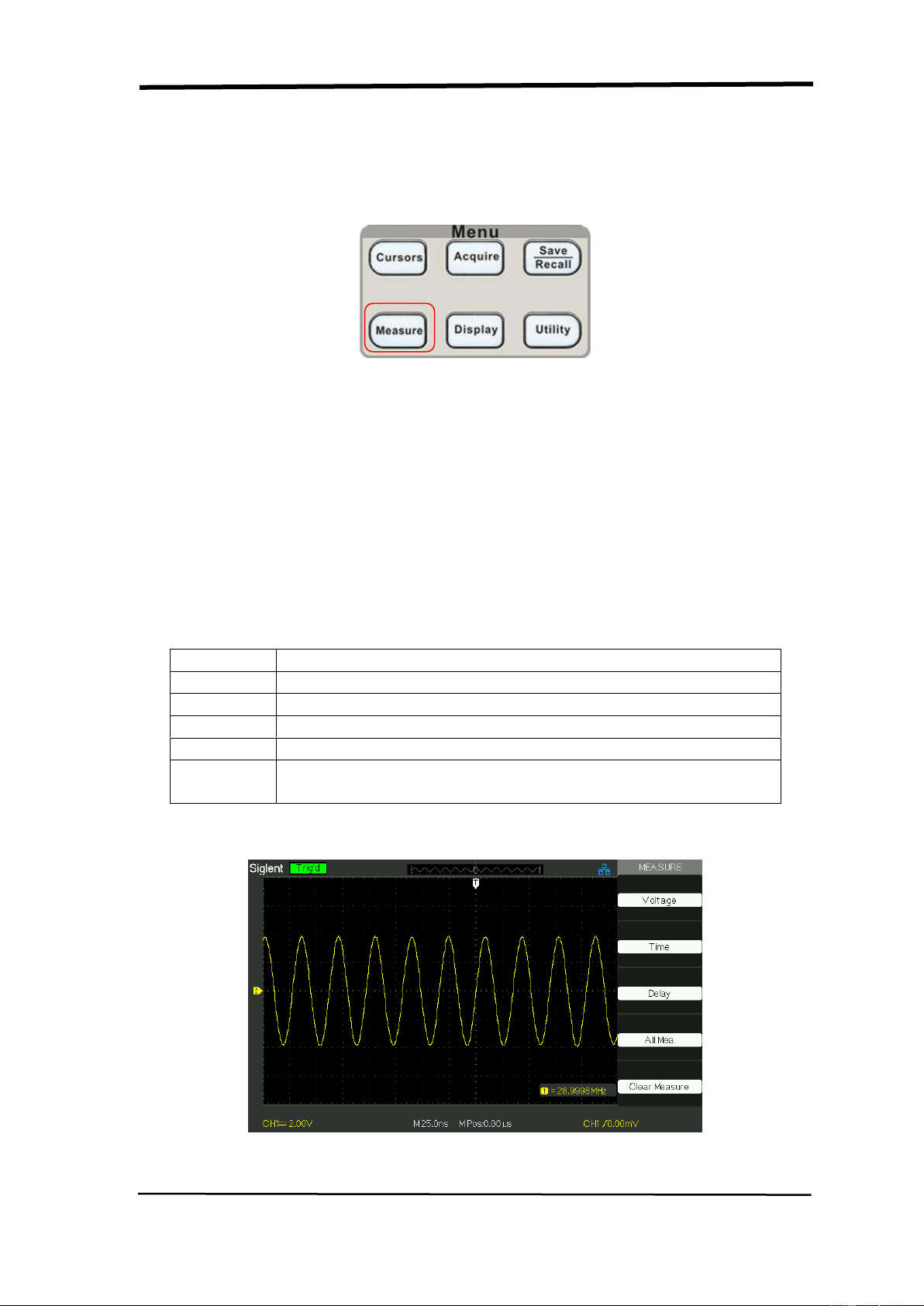
SIGLENT
66 SDS1000CML+/SDS1000DL+ User Manual
2.11.3 Auto Measurement
Picture 2.11-5
When you take automatic measurements, the oscilloscope does all the calculating
for you. Because the measurements use the waveform record points, they are
more accurate than the graticule or cursor measurements.
Press the ‘MEASURE’ for the Automatic Test.
There are three auto measurement types: Voltage Measure, Time Measure and
Delay Measure. There are thirty two measure parameters in all.
Table 2-35 Auto measure function menu 1:
Option
Instruction
Voltage
Press this button to enter the Voltage measure menu.
Time
Press this button to enter the Time measure menu.
Delay
Press this button to enter the Delay measure menu.
All Mea
Press this button to enter the All Measurement menu.
Clear
Measure
Press this button to clear all the measurement that you
chose.
Picture 2.11-6
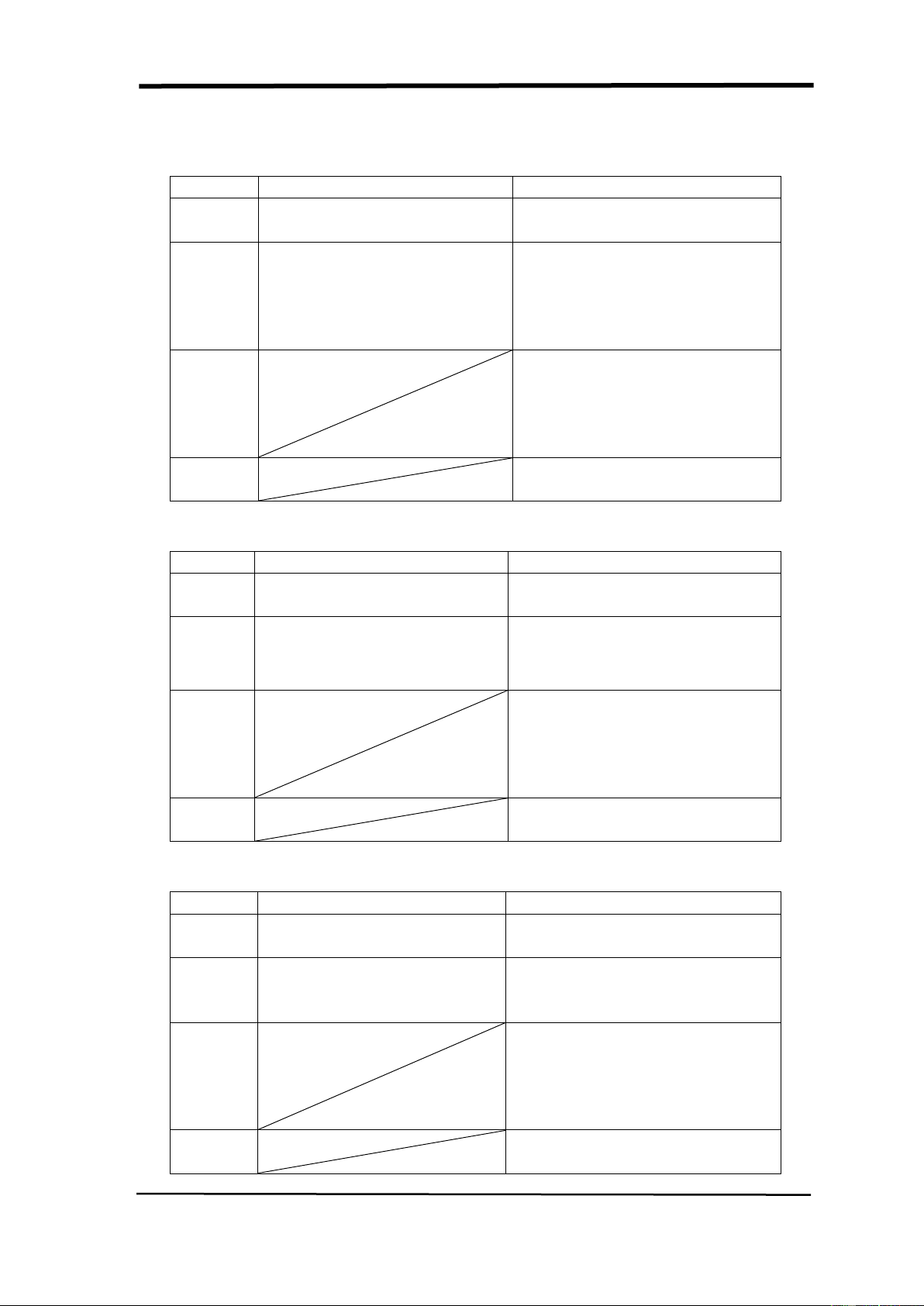
SIGLENT
SDS1000CML+/SDS1000DL+ User Manual 67
Table 2-36 Auto measure function 2-Voltage measure menu:
Option
Setting
Instruction
Source
CH1, CH2
Select input signal source for
Voltage measure.
Type
Vmax, Vmin, Vpp, Vamp,
Vtop, Vbase, Cycle Mean,
Mean, Cycle Vrms, Vrms,
ROVShoot, FOVShoot,
RPREShoot, FPREShoot
Press the “Type” button or
turn the “Universal” knob to
select Voltage measure
parameter.
Add
Choose the measurement,
after pressing the button, the
measurement value will be
shown in the lower
left of the screen
Return
Return to the first page of auto
measurement menu.
Table 2-37 Auto measure function3-Time measure menu:
Option
Setting
Instruction
Source
CH1, CH2
Select input signal source for
Time measure.
Type
Rise Time、Fall Time、Freq、
Period 、 BWidth 、 +Width
-Width、+Duty、-Duty
Press the “Type” button or turn
the “Universal” knob to select
Time measure parameter.
Add
Choose the measurement,
after pressing the button, the
measurement value will be
shown in the lower
left of the screen
Return
Return to the first page of auto
measurement menu.
Table 2-38 Auto measure function4-Delay measure menu:
Option
Setting
Instruction
Source
CH1-CH2
Select any two input signal
source for Delay measure.
Type
Phase、FRR、FRF、FFR、
FFF、LRR、LRF、LFR、LFF
Press the “Type” button or turn
the “Universal” knob to select
Delay measure parameter.
Add
Choose the measurement,
after pressing the button, the
measurement value will be
shown in the lower
left of the screen
Return
Return to the first page of auto
measurement menu.
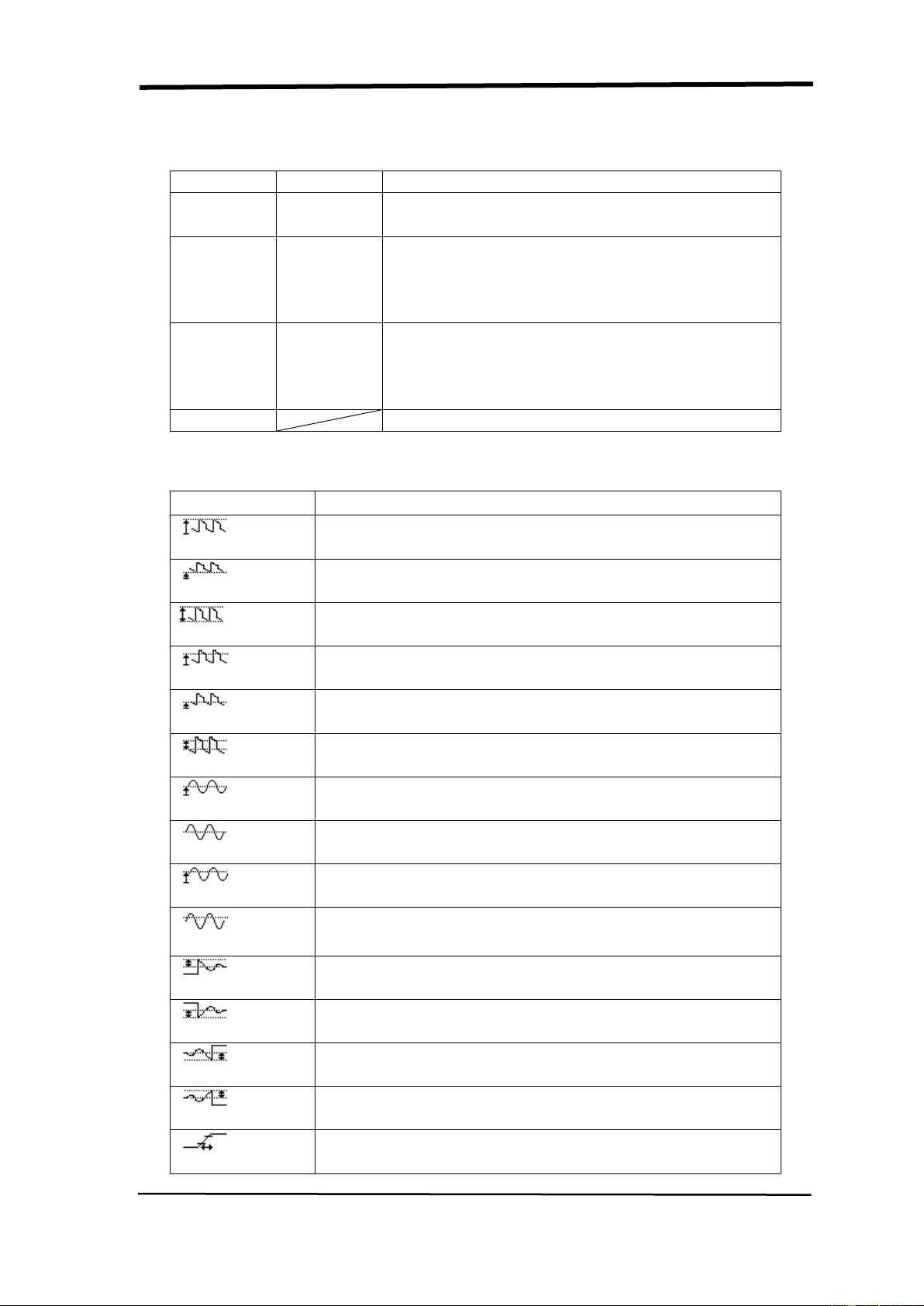
SIGLENT
68 SDS1000CML+/SDS1000DL+ User Manual
Table 2-39 All Measurement function menu:
Option
Setting
Instruction
Source
CH1
CH2
Select input signal channel.
Voltage
On
Off
Turn on the all measurement function to
measure voltage parameters.
Turn of the all measurement function to
measure voltage parameters.
Time
On
Off
Turn on the all measurement function to
measure Time parameters.
Turn of the all measurement function to
measure Time parameters.
Return
Return to the “All Measure main menu”.
Table 2-40 Introduction of the Measure Type:
Measure Type
Introduction
Vmax
The most positive peak voltage measured over the
entire waveform.
Vmin
The most negative peak voltage measured over the
entire waveform.
Vpp
Measures the absolute difference between the
maximum and minimum peaks of the entire waveform.
Vtop
Measures the highest voltage over the entire
waveform.
Vbase
Measures the lowest voltage over the entire waveform.
Vamp
Voltage between Vhig and Vlow of a waveform.
Vavg
The arithmetic mean over the first cycle in the
waveform.
Mean
The arithmetic mean over the entire waveform.
Crms
The true Root Mean Square voltage over the first cycle
in the waveform.
Vrms
The true Root Mean Square voltage over the entire
waveform.
ROVShoot
Defined as (Vmax-Vhig)/Vamp after the waveform
rising.
FOVShoot
Defined as (Vmin-Vlow)/Vamp after the waveform
falling.
RPREshoot
Defined as (Vmin-Vlow)/Vamp before the
waveform rising.
FPREshoot
Defined as (Vmax-Vhig)/Vamp before the
waveform falling.
Rise Time
Rise Time Measures the time between 10% and 90%
of the first rising edge of the waveform.
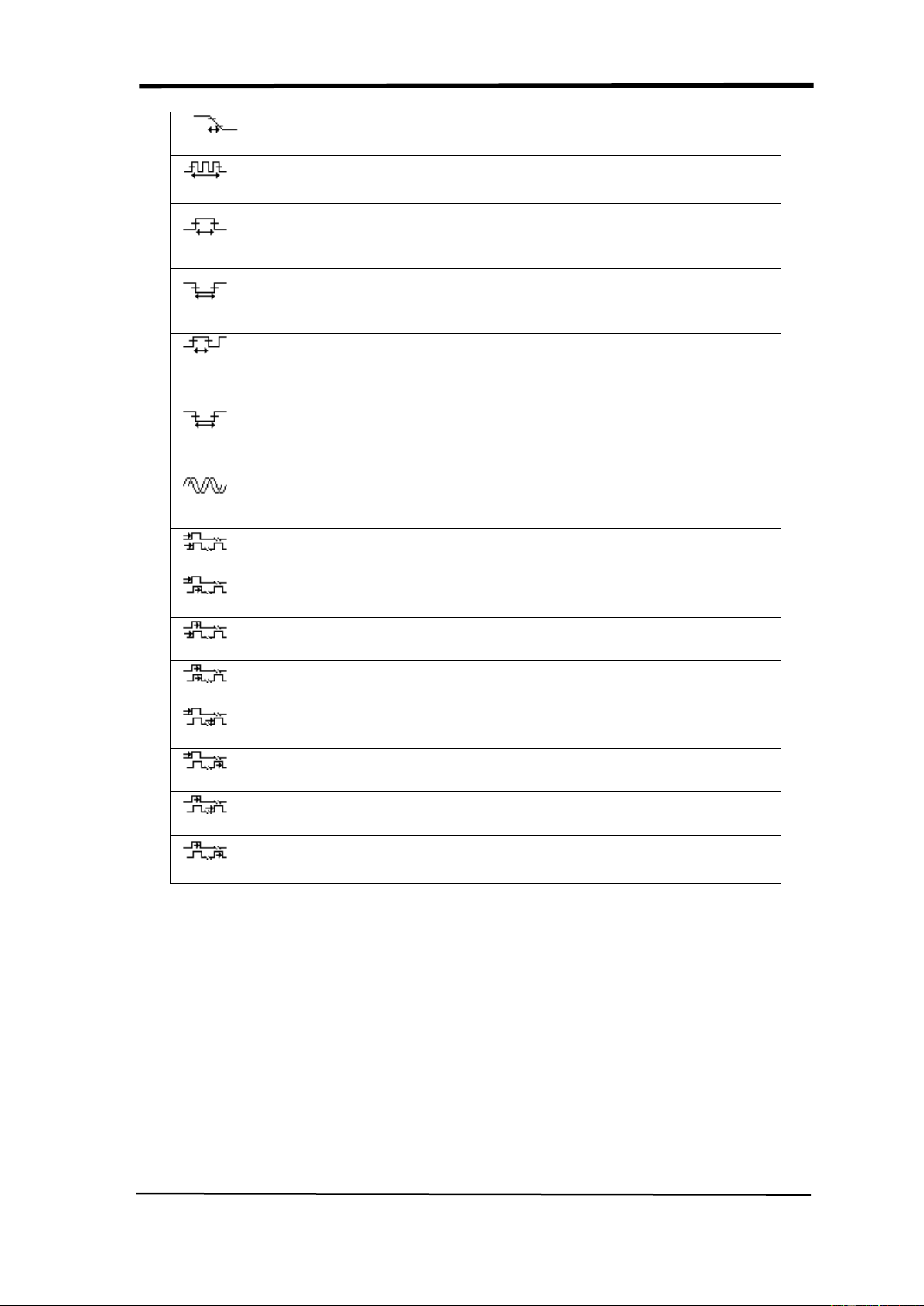
SIGLENT
SDS1000CML+/SDS1000DL+ User Manual 69
Fall Time
Fall Time Measures the time between 90% and 10% of
the first falling edge of the waveform.
BWid
The duration of a burst.
Measured over the entire waveform.
+ Wid
+ Width Measures the time between the first rising
edge and the next falling edge at the waveform 50%
level.
- Wid
-Width Measures the time between the first falling
edge and the next rising edge at the waveform 50%
level.
+ Duty
Measures the first cycle waveform.
Positive Duty Cycle is the ratio between positive pulse
width and period.
-Duty
Measures the first cycle waveform. Negative Duty
Cycle is the ratio between negative pulse width and
period.
Phase
The amount one waveform leads or lags another in
time. Expressed in degrees, where 360 degrees
comprise one waveform cycle.
FRR
The time between the first rising edge of source X and
the first rising edge of source Y.
FRF
The time between the first rising edge of source X and
the first falling edge of source Y.
FFR
The time between the first falling edge of source X and
the first rising edge of source Y.
FFF
The time between the first falling edge of source X and
the first falling edge of source Y.
LRR
The time between the first rising edge of source 1 and
the last rising edge of source 2.
LRF
The time between the first rising edge of source X and
the last falling edge of source Y.
LFR
The time between the first falling edge of source X and
the last rising edge of source Y.
LFF
The time between the first falling edge of source X and
the last falling edge of source Y.
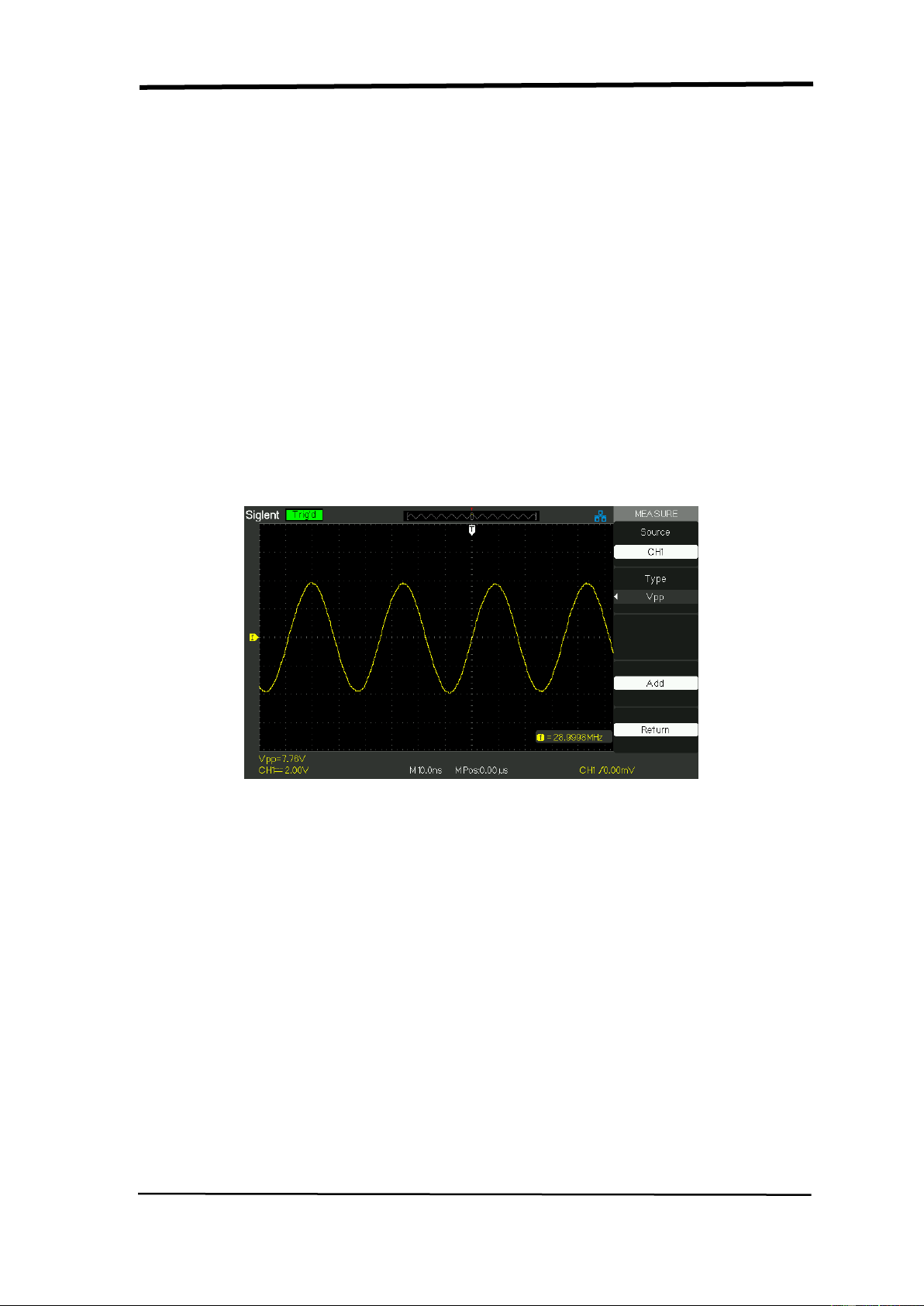
SIGLENT
70 SDS1000CML+/SDS1000DL+ User Manual
If you want to measure voltage parameters, please follow next steps:
1). Press the “MEASURE” button to enter the “Auto measurement” menu.
2). Press the top first option button to enter the “second measurement menu”.
3). Select measure type. If you press the “Voltage” option button, “Voltage
measurement” menu will display on the screen.
4). Press the “Source” option button to select “CH1”, “CH2” according to input
signal channel.
5). Press the “Type” option button to select the parameter type that you want
to measure, then press the “add” option button to add the measurement .
The corresponding icon and value will displayed in the lower left of the
screen.
Picture 2.11-7
6). Press the “Return” option button to return the home page of “Auto
Measurement” menu. The selected parameter and the corresponding value
will display on the top first position of the home page.
You can display the other parameters and its’ value on the corresponding
position using the same way, and the screen can display five parameters at
one time.
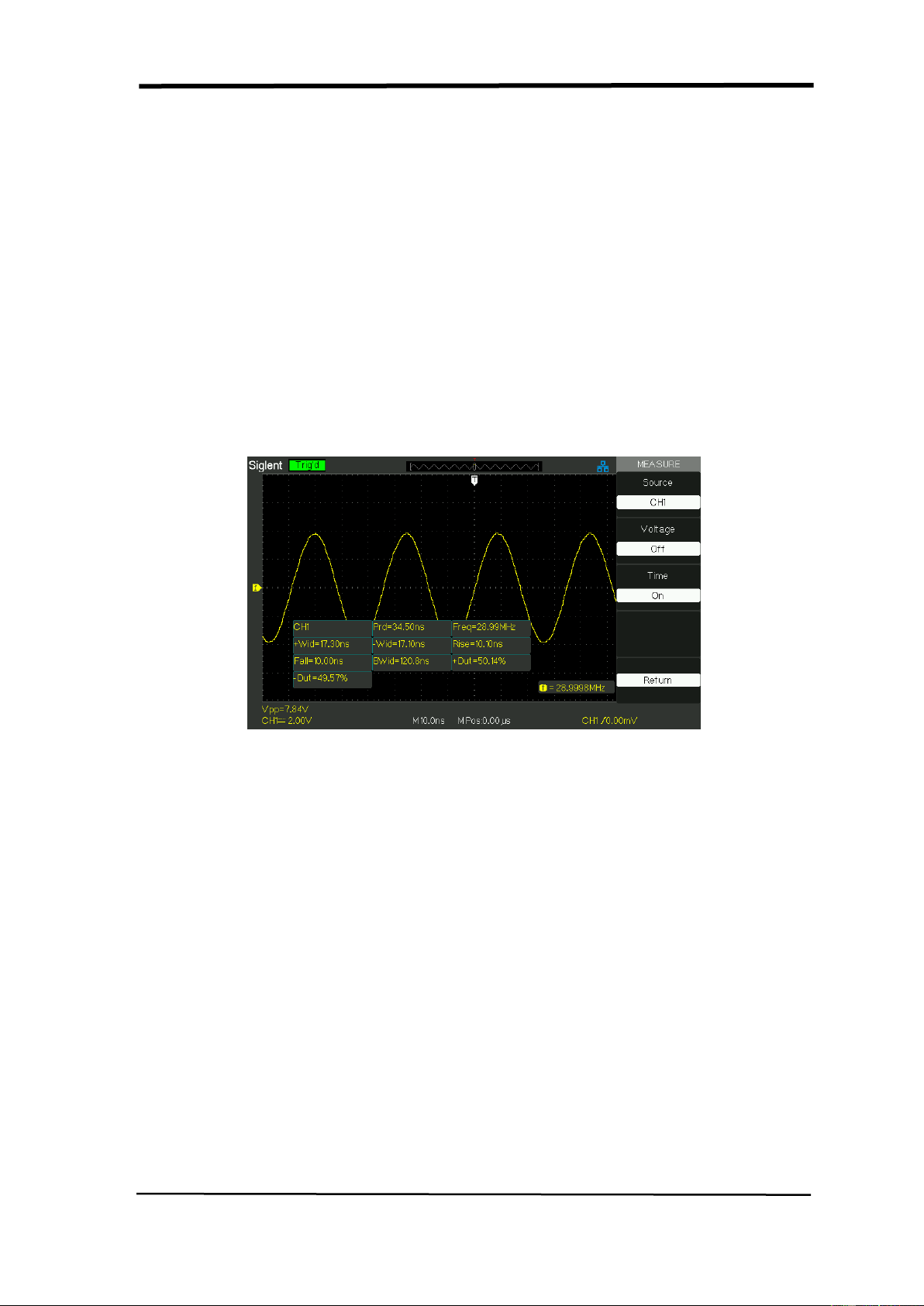
SIGLENT
SDS1000CML+/SDS1000DL+ User Manual 71
If you want to measure time parameters using all measure function,
please follow next steps:
1). Press the “MEASURE” button to enter the “Auto Measure menu”.
2).Press the top option button to enter the second page of “Auto Measure
menu”.
3). Press “All Mea” option button to enter the “All Measure menu”.
4). Press “Source” option button to select input signal channel.
5). Press the “Time” option button to select “On”. Now all of time parameters
value will display on the screen at the same time.(See Picture)
Picture 2.11-8
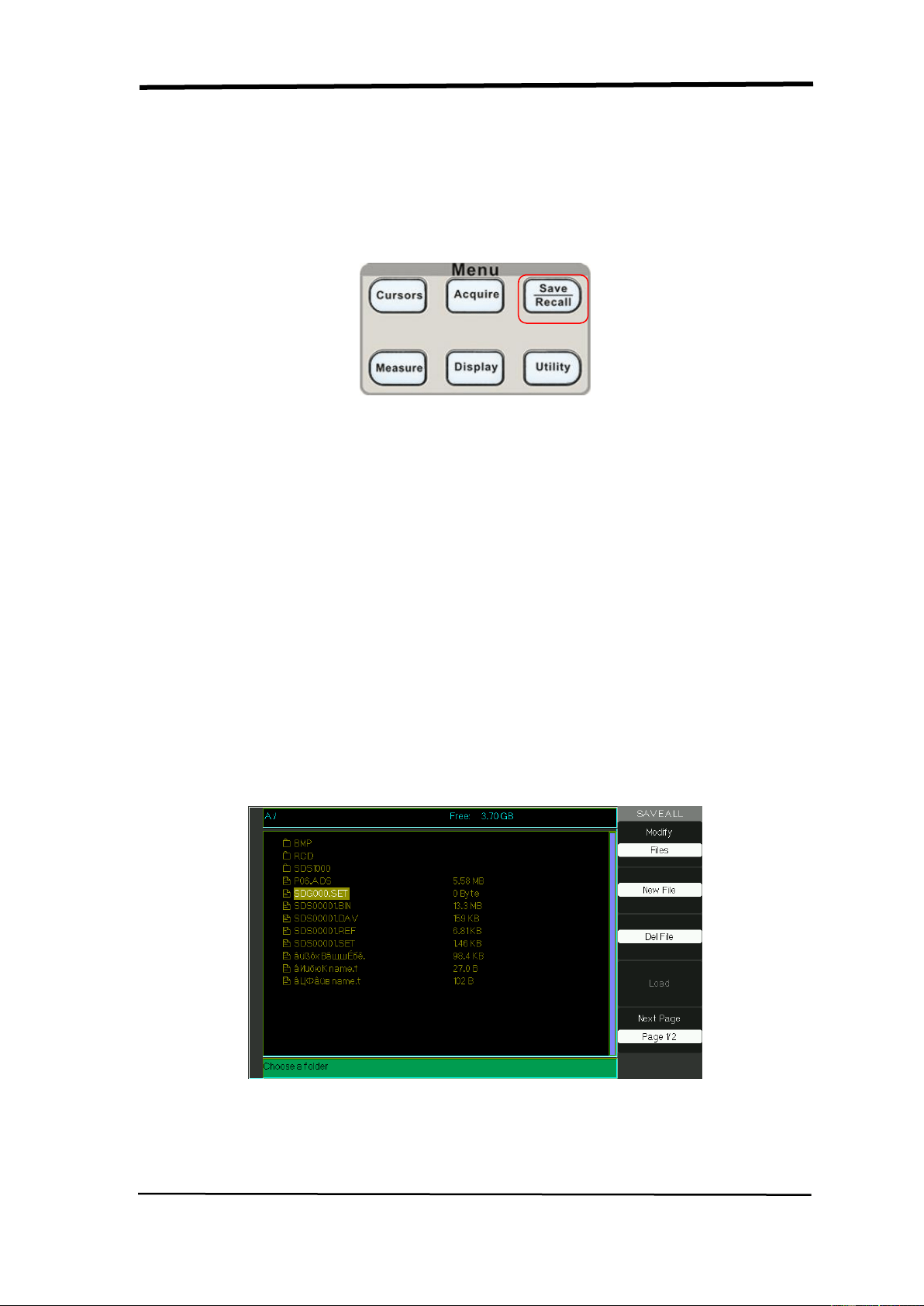
SIGLENT
72 SDS1000CML+/SDS1000DL+ User Manual
2.12 Storage System
Showing as following picture, The SAVE/RECALL is the Storage System Function
Button.
Picture 2.12-1
You can quickly save and recall up to 20 oscilloscope panel settings, 10 groups’
waveforms in internal memory. There is a USB Host interface in the front panel of
the oscilloscope and you can save setup data, waveform data, waveform interface
image, CSV file to a USB flash drive furthest at a time. Setup data and waveform
data can be recalled to the current oscilloscope or the other same model
oscilloscopes. Picture data and CSV file can’t be recalled to the oscilloscope, but it
can be opened on the correlative computer software.
■ Using SAVE /RECALL Screen
The SAVE ALL screen is divided into functions based on Files or Directory.
Files shows option button for New File, Del File and Load.
Picture 2.12-2
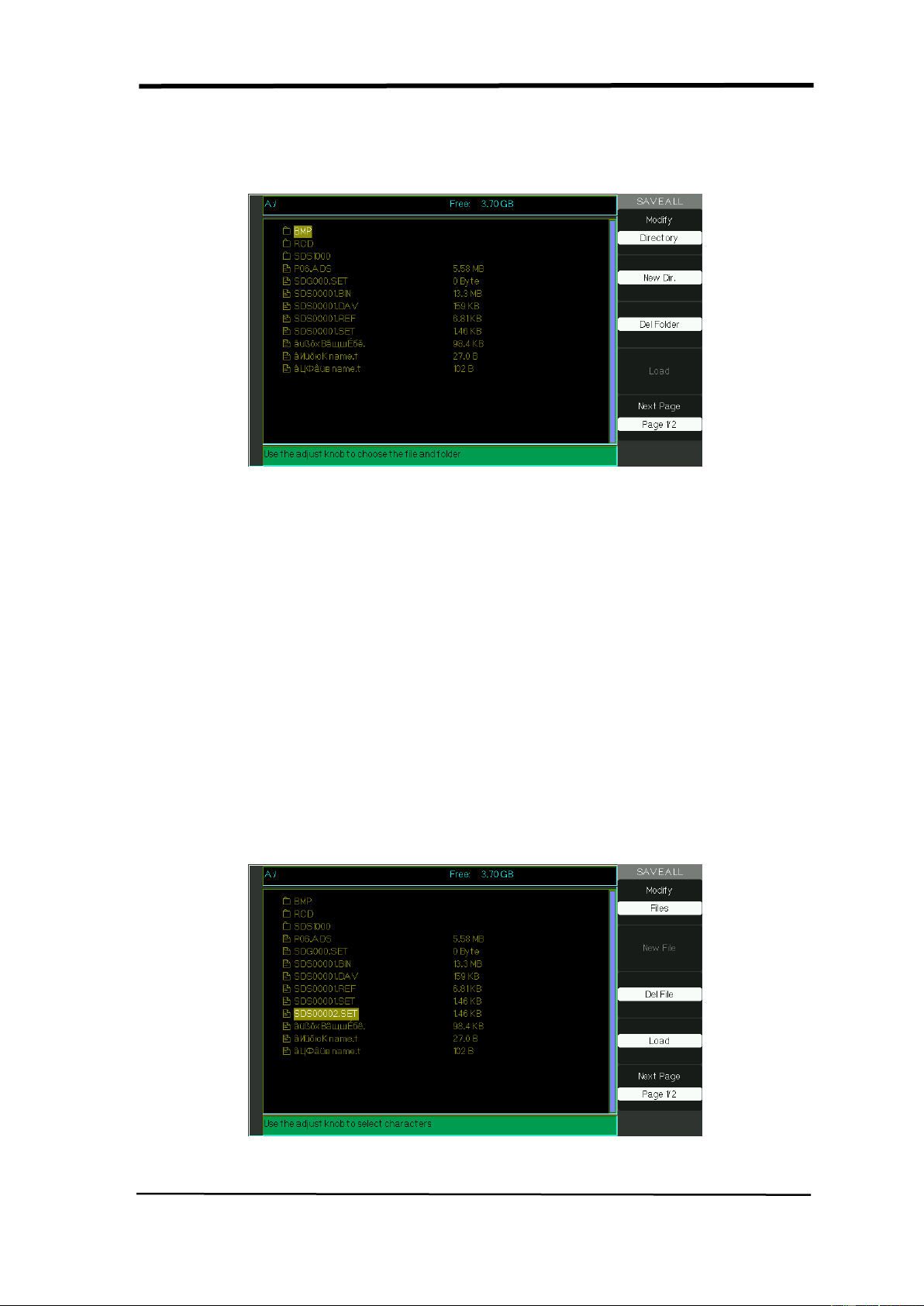
SIGLENT
SDS1000CML+/SDS1000DL+ User Manual 73
While Directory shows option buttons for New Dir., Del Folder.
Picture 2.12-3
Recalling Files
The Load button is used to recall your setup files. Once you’ve navigated to the
desired file and it’s highlighted in the main screen area, press the Load option
button and the setup is recalled from the USB flash drive.
Note: The Load button option is disabled when BMP or CSV file types are
selected.
Both Directory and Files have Rename and Return option buttons on Page2/2.
Use these buttons to give an existing folder of file a new name or to exit the
SAVE/REC ALL screen, respectively.
Picture 2.12-4
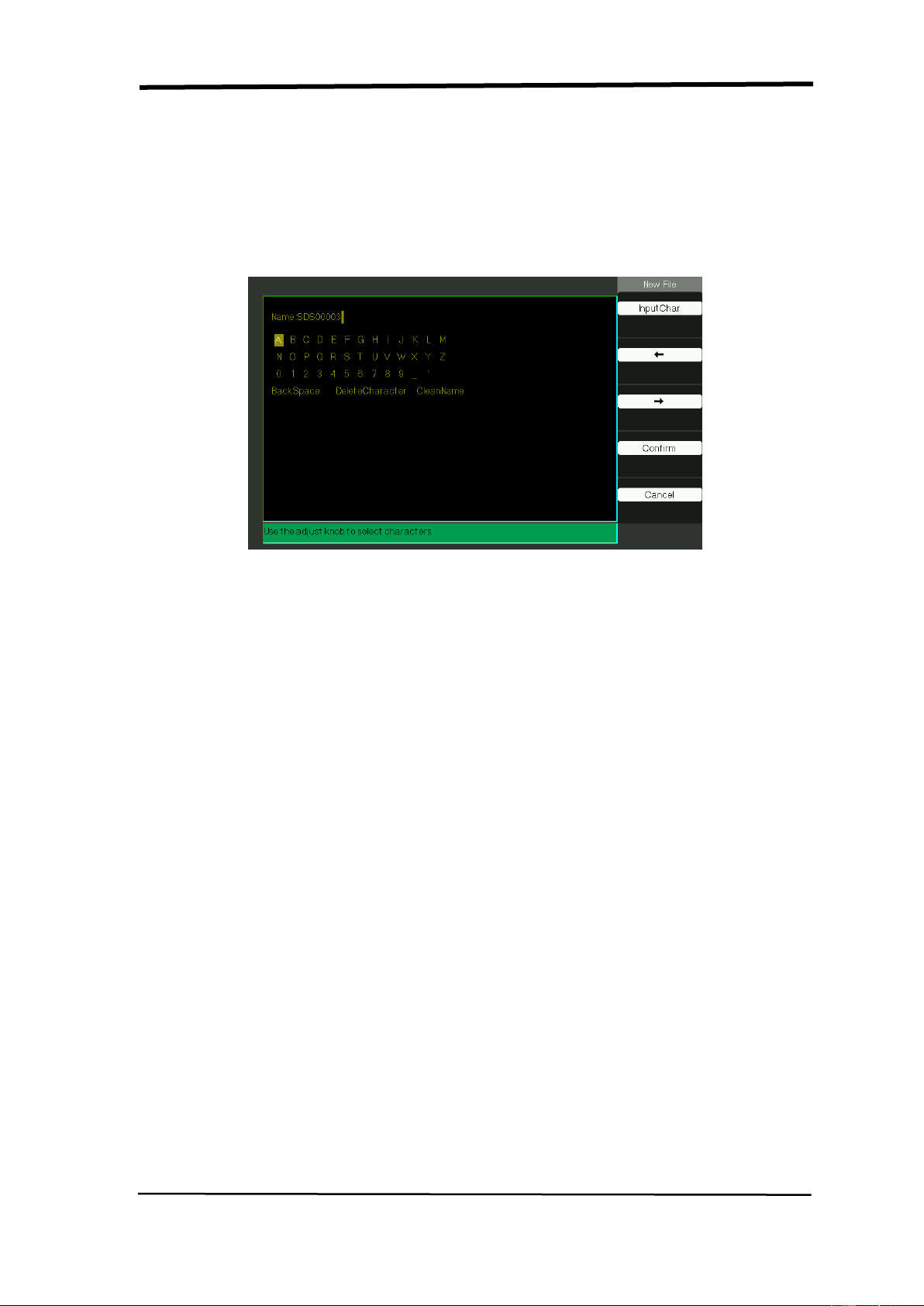
SIGLENT
74 SDS1000CML+/SDS1000DL+ User Manual
Creating Directory and File
Create new directory and file by pressing the New Dir or New File option button.
The following screen is shown.
Picture 2.12-5
● The New Filemenu choices and behavior is the same as the New Folder menu.
It just has a different heading. The InputChar option button adds the selected
character to the courser position in Name field.
● Move the cursor position in the name field using the “→”and “←” option buttons.
● Turn the Universal knob to move through character selections. When the
desired character is highlighted, press the Universal knob or press he
“InputChar” option button to add it to the specific position in the Name field.
● Additional selections for BackSpace, DeleteCharacter, and CleanName are
available for convenience and are also accessed using the “Universal” knob in
the same manner.
● Press the “Confirm” option button (when you have the Name field completed as
desired) to save the file onto the memory device. After the “Confirm” option
button is pressed, a “Data Store Success!” messages briefly shown and the new
folder or file is shown on your USB flash drive.
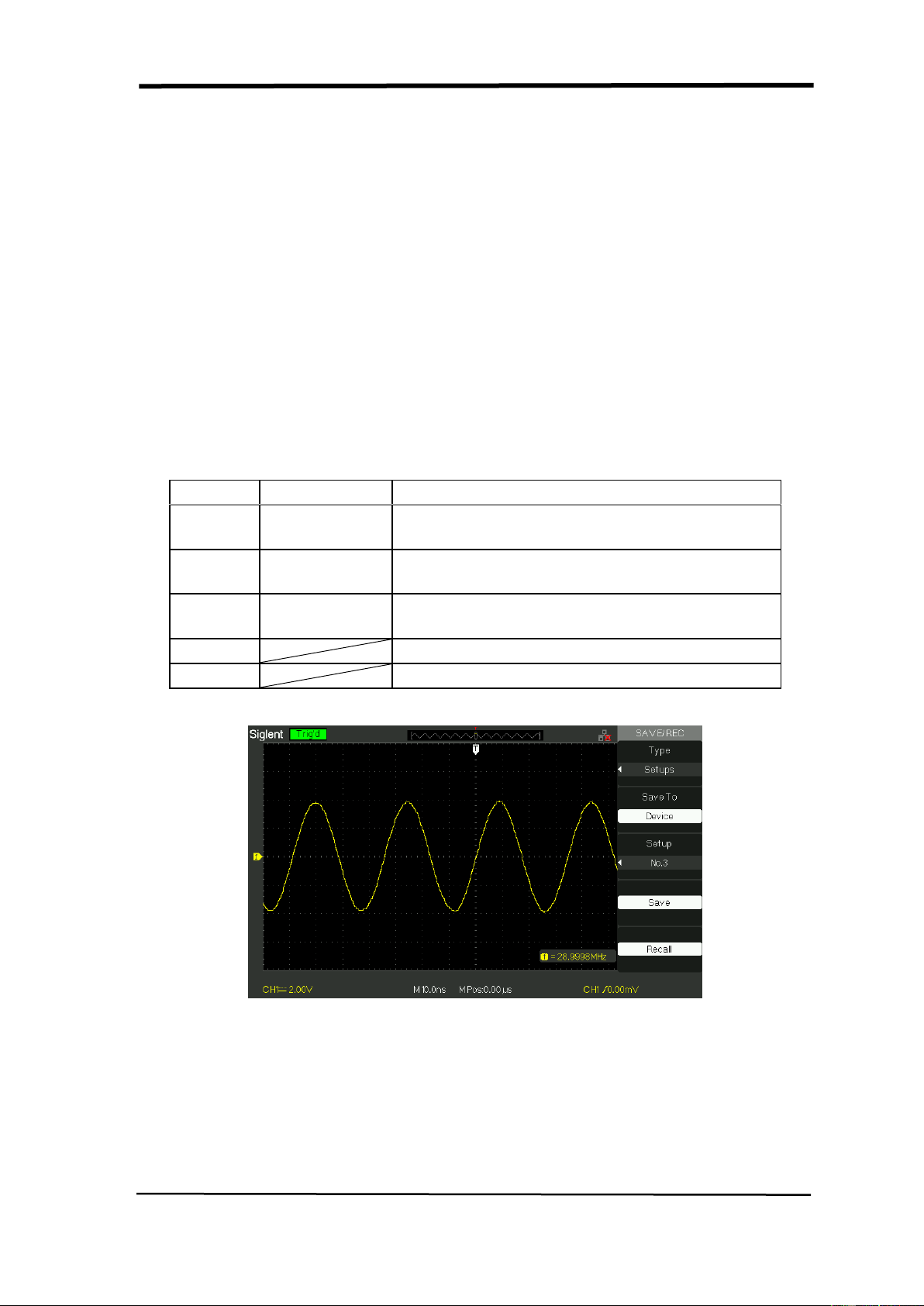
SIGLENT
SDS1000CML+/SDS1000DL+ User Manual 75
SAVE/RECALL SETUP
■ Save Setups to Device: The complete setup is stored in nonvolatile memory.
When you recall the setup, the oscilloscope will be in the mode from which the
setup was saved.
The oscilloscope saves the current setup if you wait three seconds after the last
change before you power off the oscilloscope. The oscilloscope recalls this setup
the next time you apply power.
Table 2-41 Save setup to device function menu:
Option
Setting
Introduction
Type
Setups
Menu for the Storage/Recall setting in the
oscilloscope
Save to
Device
Save setup to the oscilloscope’s internal
memorizer.
Setup
No.1 to No.20
Press the “Setup” option button or turn the
“universal” knob to select storage position.
Save
Accomplish the storage
Recall
Recall the storage in the “Setup” operation
Picture 2.12-6
Save setups to the oscilloscope’s internal memorizer, follow next steps:
For example: Save setup that set waveform display type to “Dots” to internal
memory.
1)Press the “SAVE/RECALL” button to enter the “SAVE/RECALL” menu.

SIGLENT
76 SDS1000CML+/SDS1000DL+ User Manual
2)Press the “Type” option button to select “setups”.
3)Press the “Save to” option button to select “Device”.
4)Press the “Setup” option button to select “No.1”.
5)Press the “DISPLAY” button to enter the “Display” menu.
6)Press the “Type” option button to select “Dots”.
7)Press the “SAVE/RECALL” button to enter the “SAVE/RECALL” menu.
8)Press the “Save” option button.
Recalling setup, follow next steps:
1)Press the “SAVE/RECALL” button to enter the “SAVE/RECALL” display menu.
2)Press the “Type” option button to select “Setups”.
3)Press the “Save to” option button to select “Device”.
4)Press the “Setup” option button or turn the “Universal” knob to select “No.1”.
5)Press the “Recall” option button.
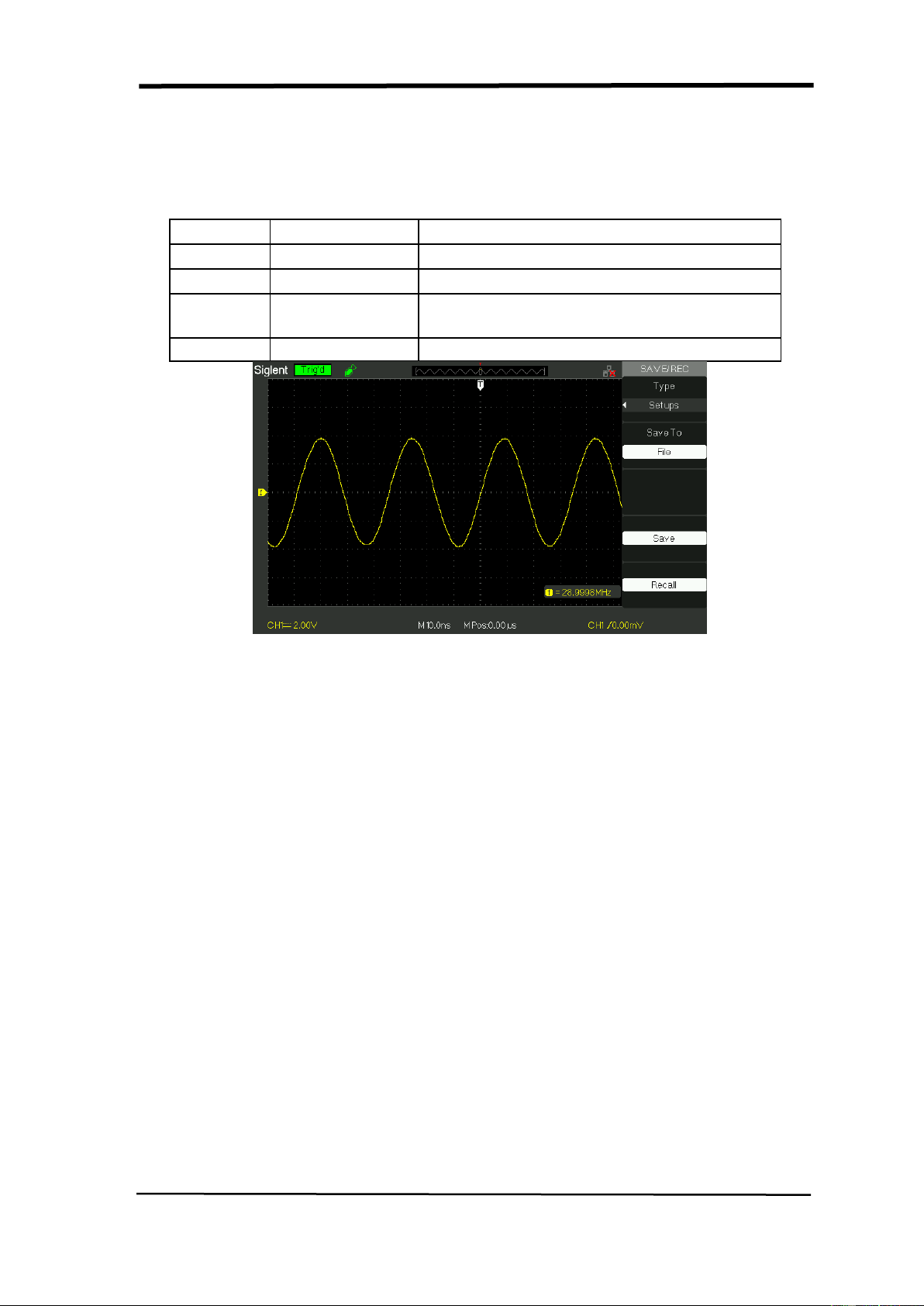
SIGLENT
SDS1000CML+/SDS1000DL+ User Manual 77
■Save Setup to USB flash drive
Table 2-42 Save setup to USB flash drive function menu:
Option
Setting
Introduction
Type
Setups
Menu for the Storage/Recall settings.
Save to
File
Save setup data to USB flash drive.
Save
Go to the Save/Recall interface and save
the set file
Recall
Recall the saved set file
Picture 2.12-7
Save setup to USB flash drive, follow these steps:
For example: Save setup that set waveform display type to “Dots” to USB flash
drive.
Press the “SAVE/RECALL” button to select “Setups”.
1) Insert USB flash drive to USB host port of the oscilloscope and wait that the
oscilloscope has initialized USB flash drive (about five second).
2) Press the “Save to” option button to select “file”.
3) Press the “Save” option button then you’ll go into the Save/Recall interface.
4) Press the “New folder” button to create a new folder
5) Press the “Del folder” option button to delete a folder
6) Press the “Modify” option button to modify a folder.
7) Press the “New file” option button to create a new file
8) Press the “Del file” option button to delete a file
9) Press “the next page” option button and press the “Rename” option button to
modify the name of the file or the folder.

SIGLENT
78 SDS1000CML+/SDS1000DL+ User Manual
10) Turn the “Universal” knob to select the folder and press the “Confirm” option
button and you save the set to the USB drive.
Recall setup data from USB flash drive, follow next steps:
1) Press the “SAVE/RECALL” button.
2) Press the “Type” button to select “Setups”.
3) Insert USB flash drive to USB host port of the oscilloscope and wait that the
oscilloscope has initialized USB flash drive (about five seconds).
4) Press the “Save to” option button to select “File”.
5) Press the “Save” option button then you’ll go into the Save/Recall interface .
6) Choose the file you want then press the “Load” option button (about five
seconds, there is a prompting message that “Read data success”), now setup
data have been recalled from USB flash drive.
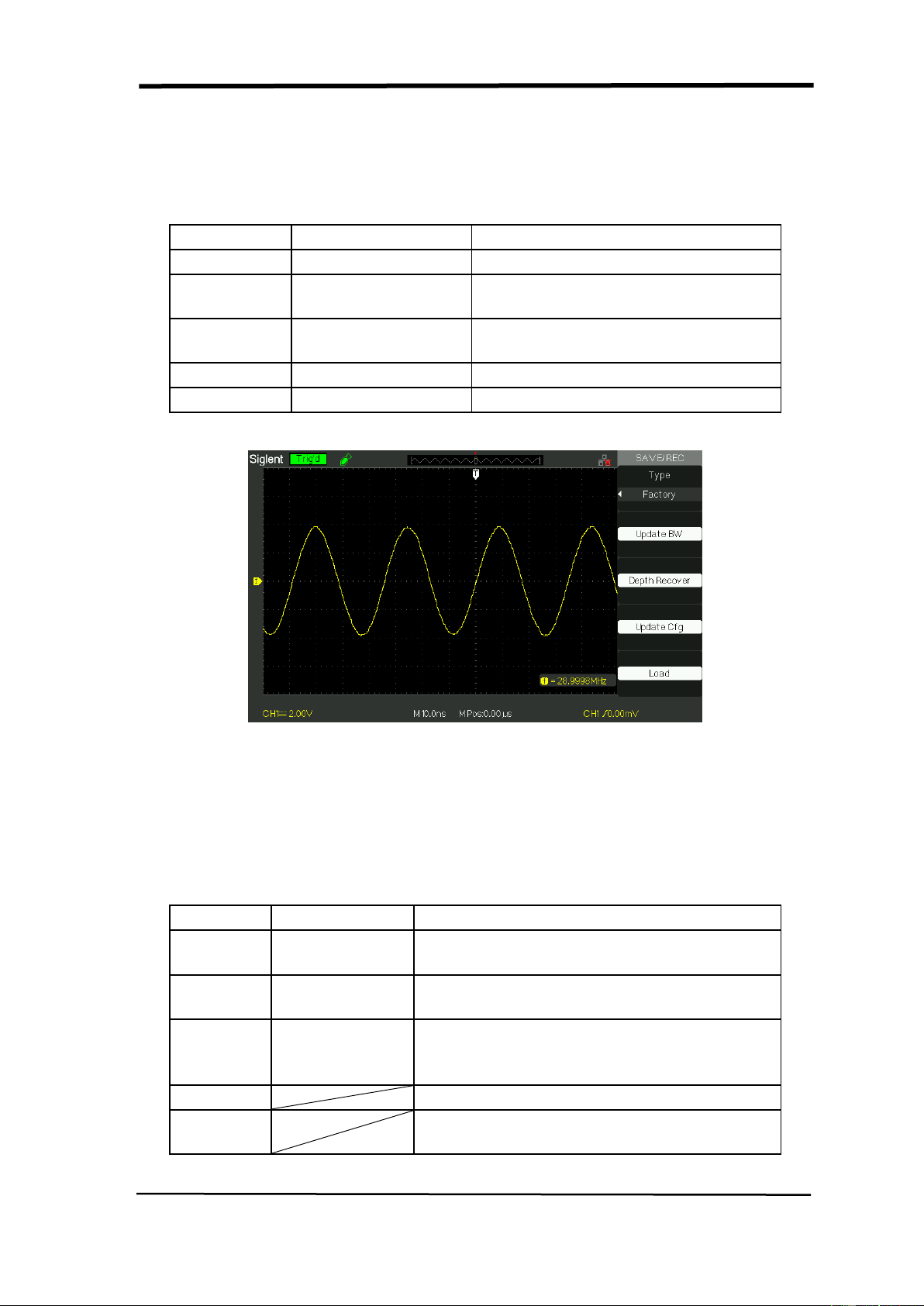
SIGLENT
SDS1000CML+/SDS1000DL+ User Manual 79
■ RECALL FACTORY
You can use this option to recall the factory setup.
Table 2-43 Factory function menu:
Option
Setting
Instruction
Type
Factory
To view the Factory setup.
Update BW
Change the bandwidth of the
oscilloscope.
Depth
Recover
Recover the memory
Update cfg
Update the config file
Load
Recall the Factory setup.
Picture 2.12-8
SAVE/RECALL WAVEFORM
■Save waveforms to Device
Table 2-44 Save waveform to device function menu:
Option
Setup
Introduction
Type
waveforms
Menu for the Storage/Recall waveforms in
the oscilloscope.
Save to
Device
Save waveforms to the oscilloscope’s
internal memorizer.
waveform
No.1 to No.10
Press the “waveform” option button or turn
the “Universal” knob to select storage
position.
Save
Accomplish the storage.
Recall
Recall the storage in the “waveform”
operation
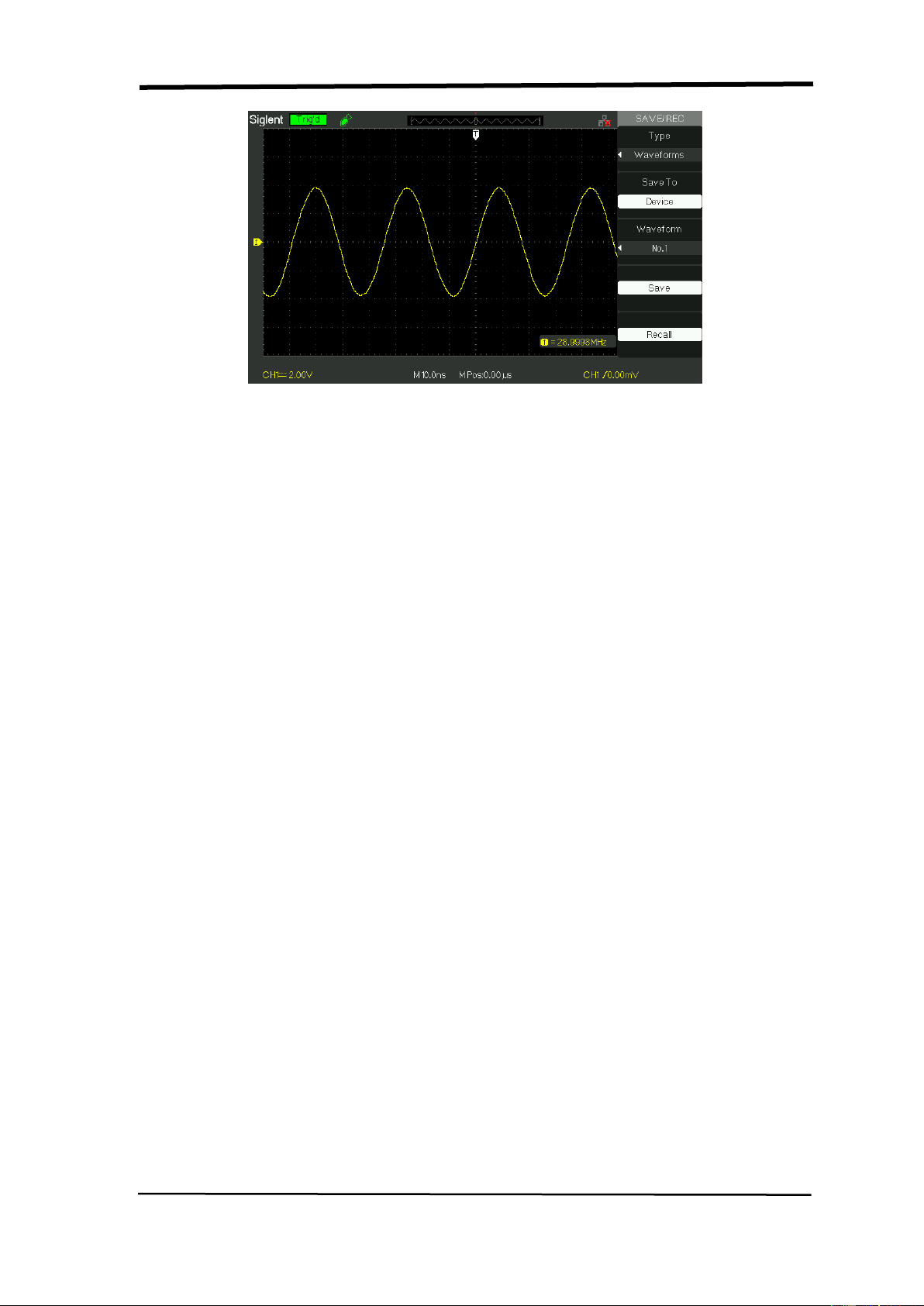
SIGLENT
80 SDS1000CML+/SDS1000DL+ User Manual
Picture 2.12-9
Save waveforms in internal memory, follow next steps:
1). Input a sine signal to channel 1 and press the “Auto” button.
2). Press the “SAVE/RECALL” button to enter “SAVE/RECALL” display menu.
3). Press the “Type” option button to select “waveforms”.
4). Press the “Save to” option button to select “Device”.
5). Press the “waveform” option button or turn the “Universal” knob to select
“No.1”.
6).Turn the “Volts/div” knob or “S/div” knob to adjust the waveform that you want
to need.
7). Press the “Save” option button.
Recall waveforms, follow next steps:
1). Press the “SAVE/RECALL” button to enter “SAVE/RECALL” display menu.
2). Press the “Type” option button to select “waveforms”.
3). Press the “Save to” option button to select “Device”.
4). Press the “waveform” option button or turn the “Universal” knob to select
“No.1”.
5). Press the “Recall” option button.
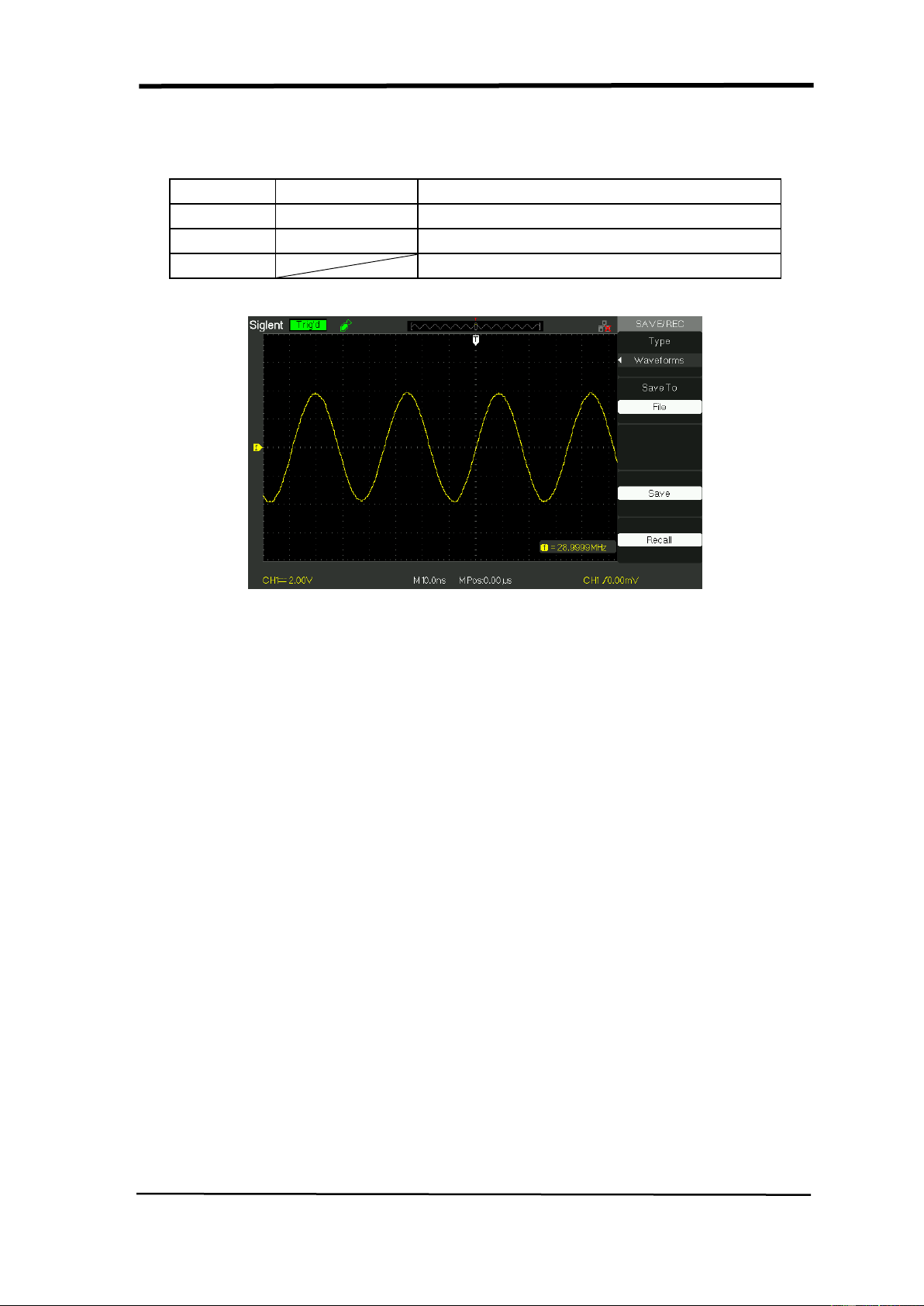
SIGLENT
SDS1000CML+/SDS1000DL+ User Manual 81
■ Save waveforms to USB flash drive
Table 2-45 Save waveforms to USB flash drive function menu:
Option
Setup
Introduction
Type
Waveforms
Menu for the Storage/Recall waveforms.
Save to
File
Save waveforms to USB flash drive.
Save
Accomplish the storage.
Picture 2.12-10
Save waveforms to USB flash drive, follow next steps:
1)Input a sine signal to channel 1, press the “AUTO” button.
2)Press the “SAVE/RECALL” button to enter the “SAVE/RECALL” display menu.
3)Press the “Type” option button to select “Waveforms”.
4)Insert USB flash drive to USB host port of the oscilloscope and wait that the
oscilloscope has initialized USB flash drive (about five seconds).
5)Press the “Save to” option button to select “File”.
6)Press the “Save” option button then you’ll go into the Save/Recall interface.
7)Create a file then press the “Confirm” button (about five seconds, there is a
prompting message that “Save data success” displaying on the screen), now
waveform data have been saved to USB flash drive
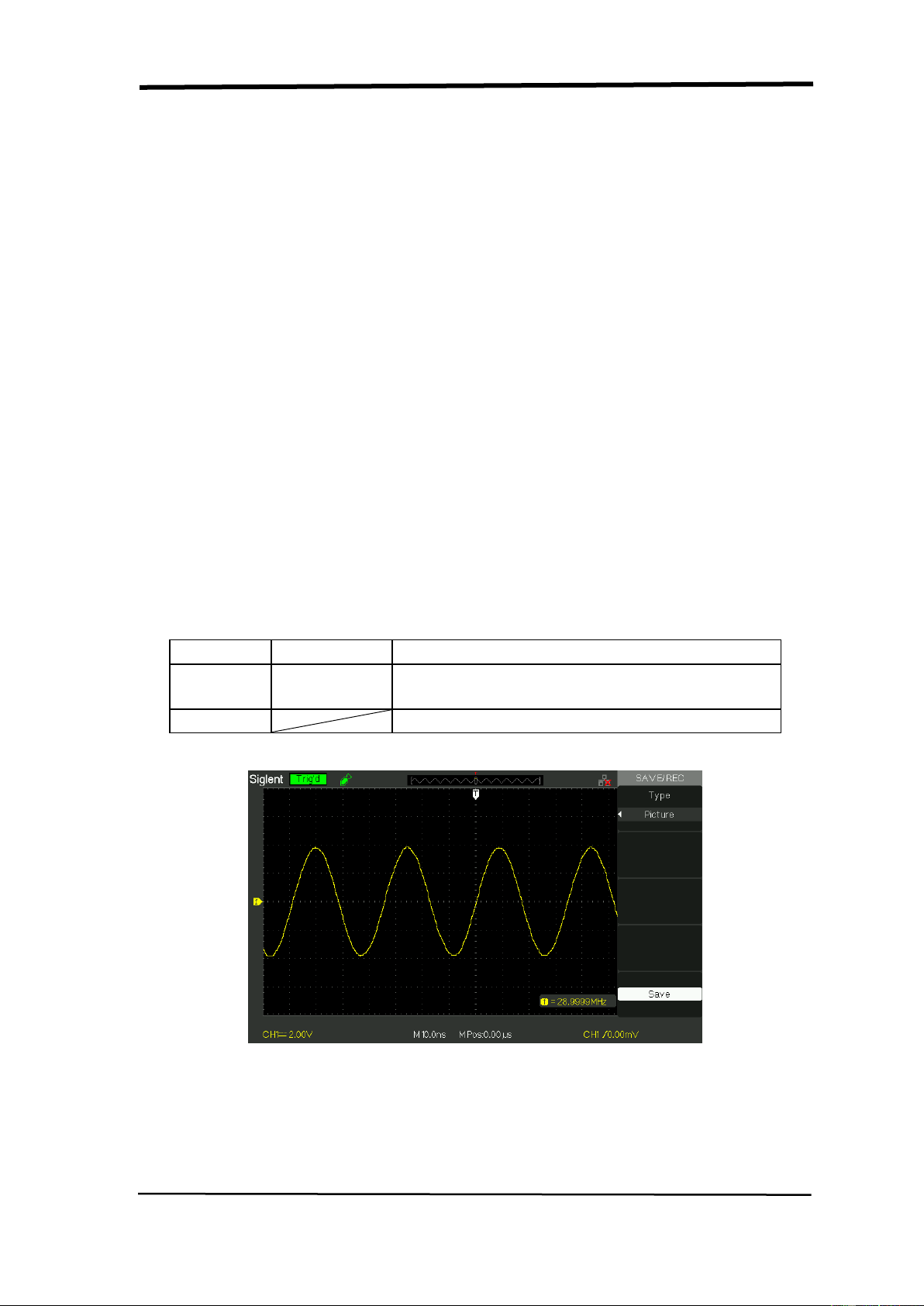
SIGLENT
82 SDS1000CML+/SDS1000DL+ User Manual
Recall waveforms form USB flash drive, follow next steps:
1). Press the “SAVE/RECALL” button.
2). Press the “Type” button to select “Waveforms”.
3). Insert USB flash drive to USB host port of the oscilloscope and wait that the
oscilloscope has initialized USB flash drive (about five seconds).
4). Press the “Save to” option button to select “File”.
5). Press the “Save” option button then go into the Save/Recall interface.
6). Choose the file you want then press the “Load” option button (about five
seconds, there is a prompting message that “Recall data success” displaying
on the screen), now waveform data have been recalled from USB flash drive.
■ Save Picture
Waveform interface image can be saved to USB flash drive, but they can’t be
recalled. You can open them on correlative computer software.
Table 2-46 Picture storage function menu:
Option
Setting
Introduction
Type
Pictures
Menu for the Storage/Recall waveform
interface image.
Save
Go to the Save/Recall interface.
Picture 2.12-11
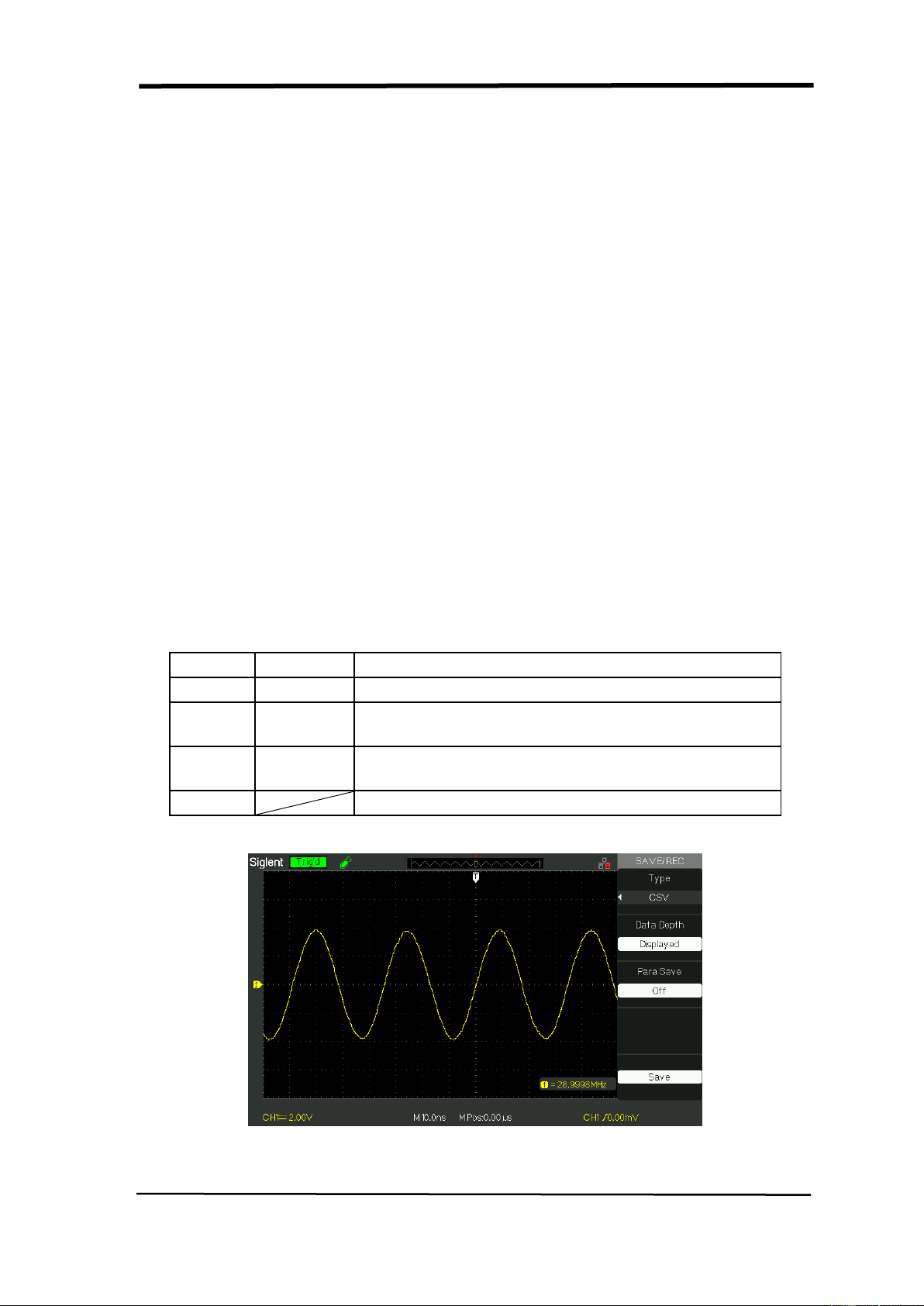
SIGLENT
SDS1000CML+/SDS1000DL+ User Manual 83
Save waveform image to USB flash drive, follow next steps:
1). Select the screen image that you want.
2). Press the “SAVE/RECALL” button to enter “SAVE/RECALL” menu.
3). Press the “Type” option button to select “Pictures”.
4). Insert USB flash drive to USB host port of the oscilloscope and wait that
the oscilloscope has initialized USB flash drive (about five seconds).
5). Press the “Print Key” option button to select “Save Picture”.
6). Press the “Save” option button then go into the Save/Recall interface”.
7). Press the “Save” button then you’ll go into the Save/Recall interface
8). Create the picture name then press the “Confirm” button (about five seconds,
there is a prompting message that “Save data success” displaying on the screen),
now picture data have been saved to USB flash drive.
Save/Recall CSV
Table 2-47 CSV storage function menu:
Option
Setting
Introduction
Type
CSV
Menu for the Storage CSV file to USB flash drive.
Data
Depth
Displayed
Maximum
Set to store displayed waveform data to CSV file.
Set to store maximum waveform data to CSV file.
Para
Save
On
Off
Set whether store parameters to CSV file or not.
Save
Go to the Save/Recall interface.
Picture 2.12-12

SIGLENT
84 SDS1000CML+/SDS1000DL+ User Manual
Save CSV file to USB flash drive, follow these steps:
1). Press the “SAVE/RECALL” button to enter “SAVE/RECALL” menu.
2). Press the “Type” option button to select “CSV”.
3). Insert USB flash drive to USB host port of the oscilloscope and wait that the
oscilloscope has initialized USB flash drive(about five seconds).
4). Press the “Data Depth” option button to select “Displayed” or “Maximum”.
5). Press the “Para Save” option button to select “On” or “Off”.
6). Press the “Save” option button then you’ll go into the Save/Recall
interface
7). Create a file name then press the “Confirm” button (About five seconds, there
is a prompting message that “Save data success” displaying on the screen),
now CSV file has been saved to USB flash drive.
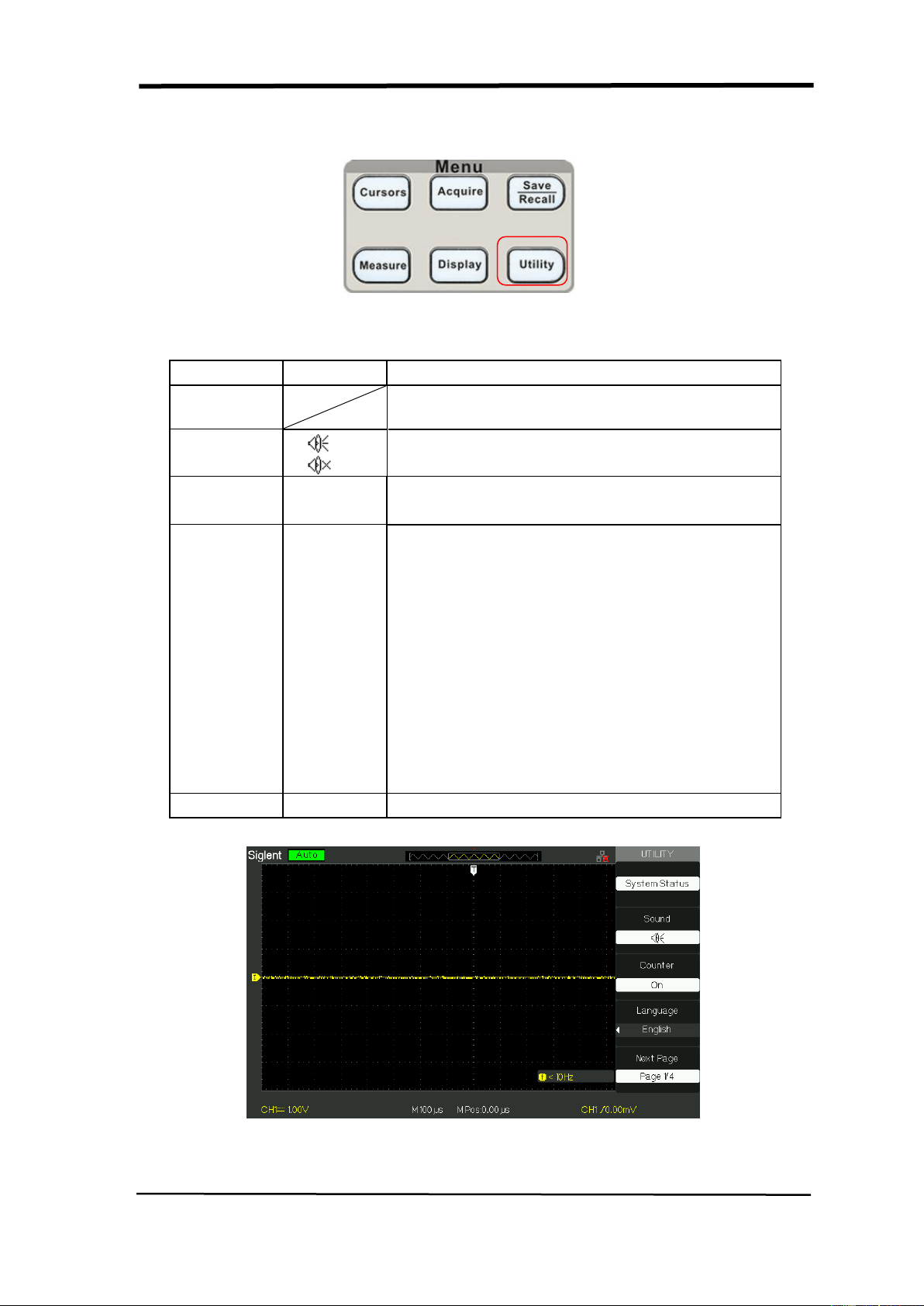
SIGLENT
SDS1000CML+/SDS1000DL+ User Manual 85
2.13 Utility System
Picture 2.13-1
Table 2-48 Utility System function menu 1:
Option
Setting
Introduction
System
Status
Displays summaries of the oscilloscope
settings.
Sound
Open the key-press voice.
Close the key-press voice.
Counter
On
Off
Turn on Frequency Counter
Turn off Frequency Counter.
Language
简体中文
繁體中文
English
ةيبرعلا
Français
Deutsch
Русский
Español
Português
日本語
한국어
Italian
Simplified Chinese
Traditional Chinese
English
Arabic
French
German
Russian
Spanish
Portuguese
Japanese
Korean
Italian
Next Page
Page 1/4
Press this button to enter second page.
Picture 2.13-2
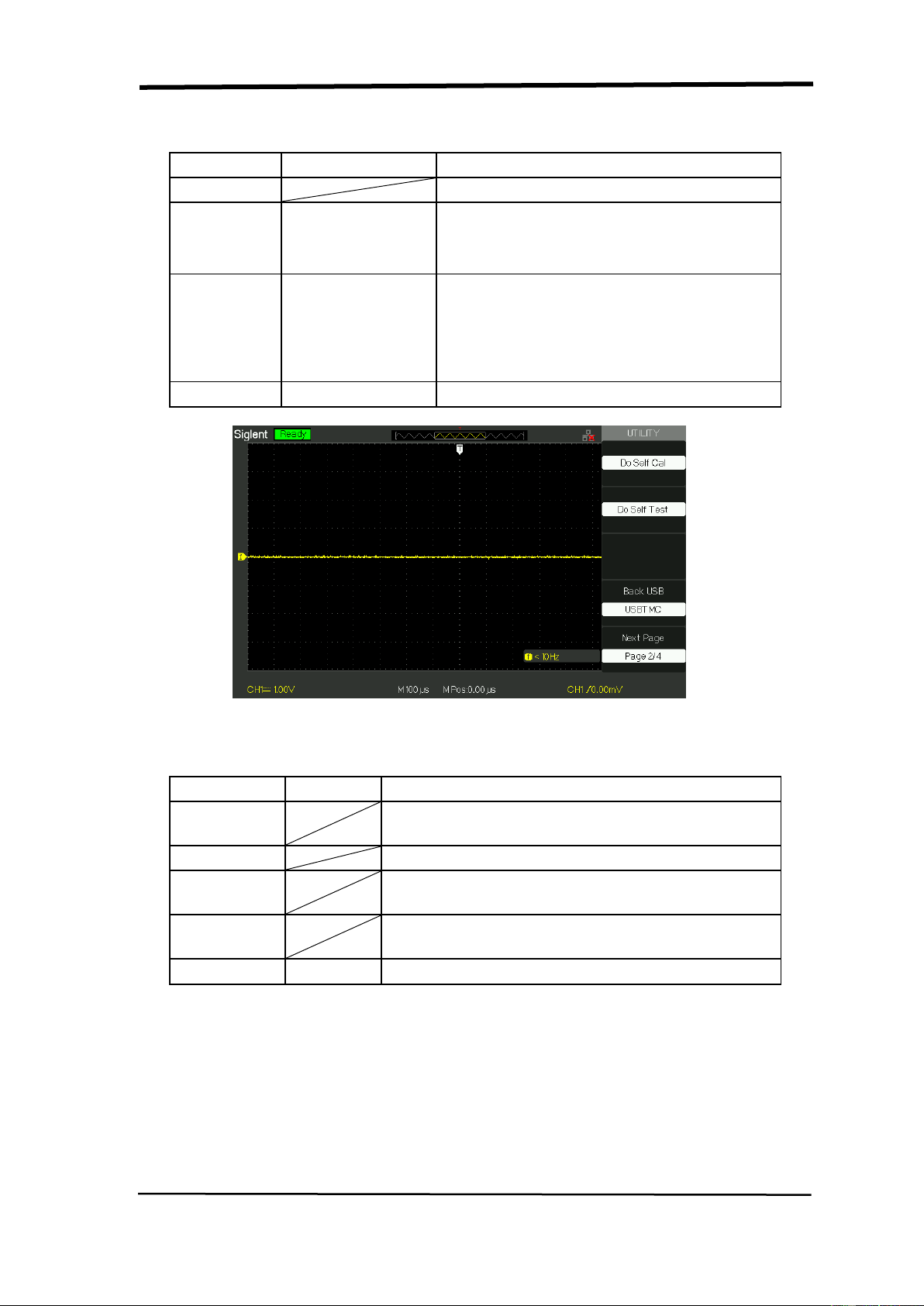
SIGLENT
86 SDS1000CML+/SDS1000DL+ User Manual
Table 2-49 Utility System function menu 2:
Option
Setting
Introduction
Do self cal
Auto self emendation.
Do Self
Test
Screen Test
Keyboard Test
LED Test
Run the screen detect program
Run the keyboard detect program
Run the dot lighten detect program.
Back USB
USBTMC
The oscilloscope connects to the
computer using USB cable. When you
execute EasyScopeX software, please
select “USBTMC”. Now the computer
icon displays on the screen.
Next Page
Page 2/4
Press this button to enter third page.
Picture 2.13-3
Table 2-50 Functional Menu of the Utility System 3:
Option
Setting
Introduction
Update
firmware
You can update the oscilloscope use USB
flash Driver (About need two minutes).
Pass/Fail
Pres this button to enter the “Pass/Fail menu”.
Record
Press this button to enter the waveform record
menu.
IO Setting
IP Setting
GPIB
Next Page
Page 3/4
Press this button to enter first page.
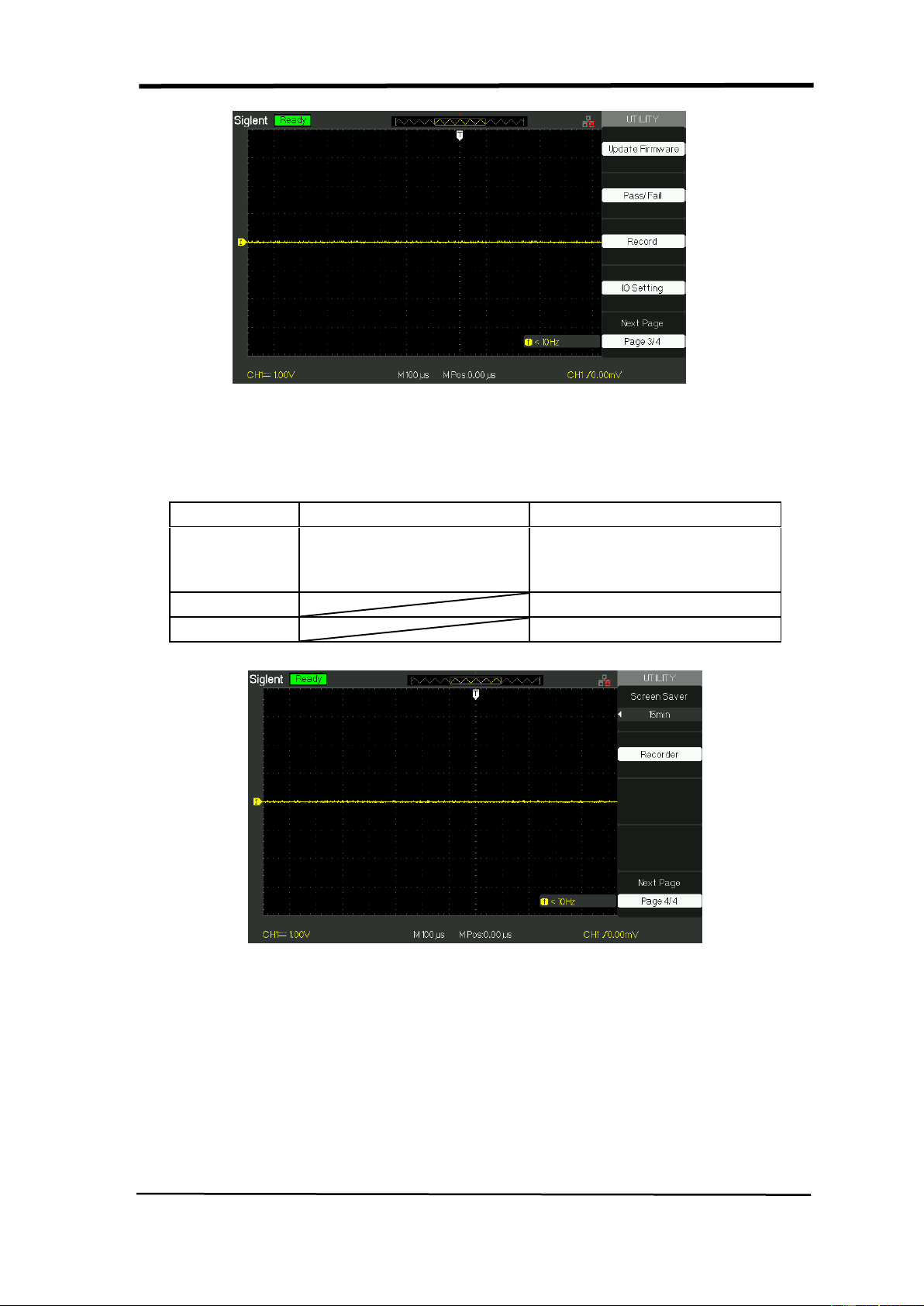
SIGLENT
SDS1000CML+/SDS1000DL+ User Manual 87
Picture 2.13-4
Table 2-52 Function Menu of the Utility System :
Option
Setting
Introduction
Screen-saver
1min, 2min, 5min, 10min
15min, 30min, 1hour,
2hour, 5hour ,Off
Set the time of Screen-saver
Recorder
Enter recorder function
Next Page
Picture 2.13-5
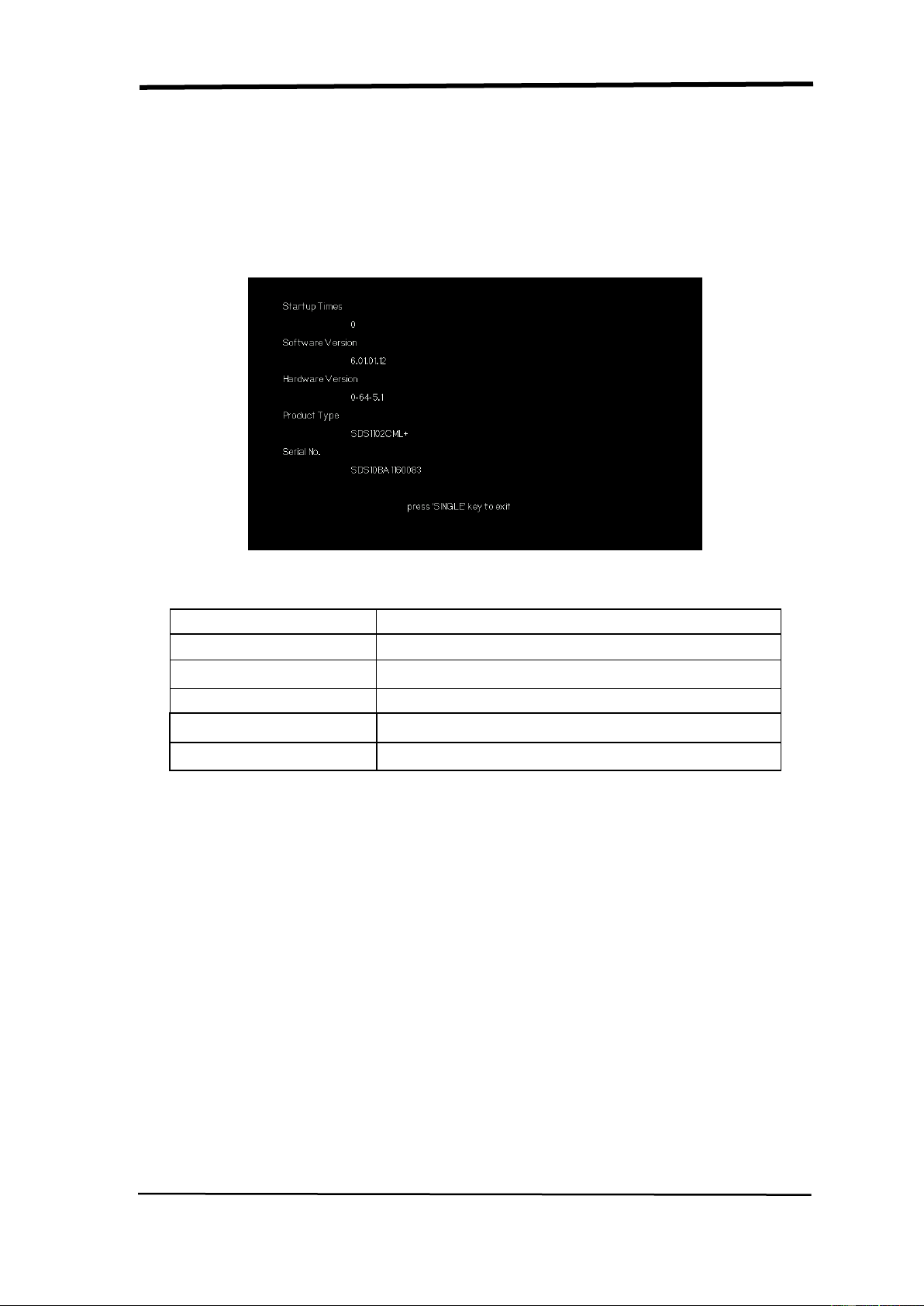
SIGLENT
88 SDS1000CML+/SDS1000DL+ User Manual
2.13.1 System Status
Press the “System Status” option button of the Utility Menu to view the
oscilloscope’s hardware and software configuration.
Picture2.13-6
Table 2-53 System status instruction:
Option
Introduction
Startup Times
List the boot-strap times.
Software version
List the software version.
Hardware Version
List the hardware version.
Product type
List the product type.
Serial No.
List the product serial number.
2.13.2 Language
The oscilloscopes have twelve languages’ user menu to be selected.
Press the “Utility” button →“language” to select language.
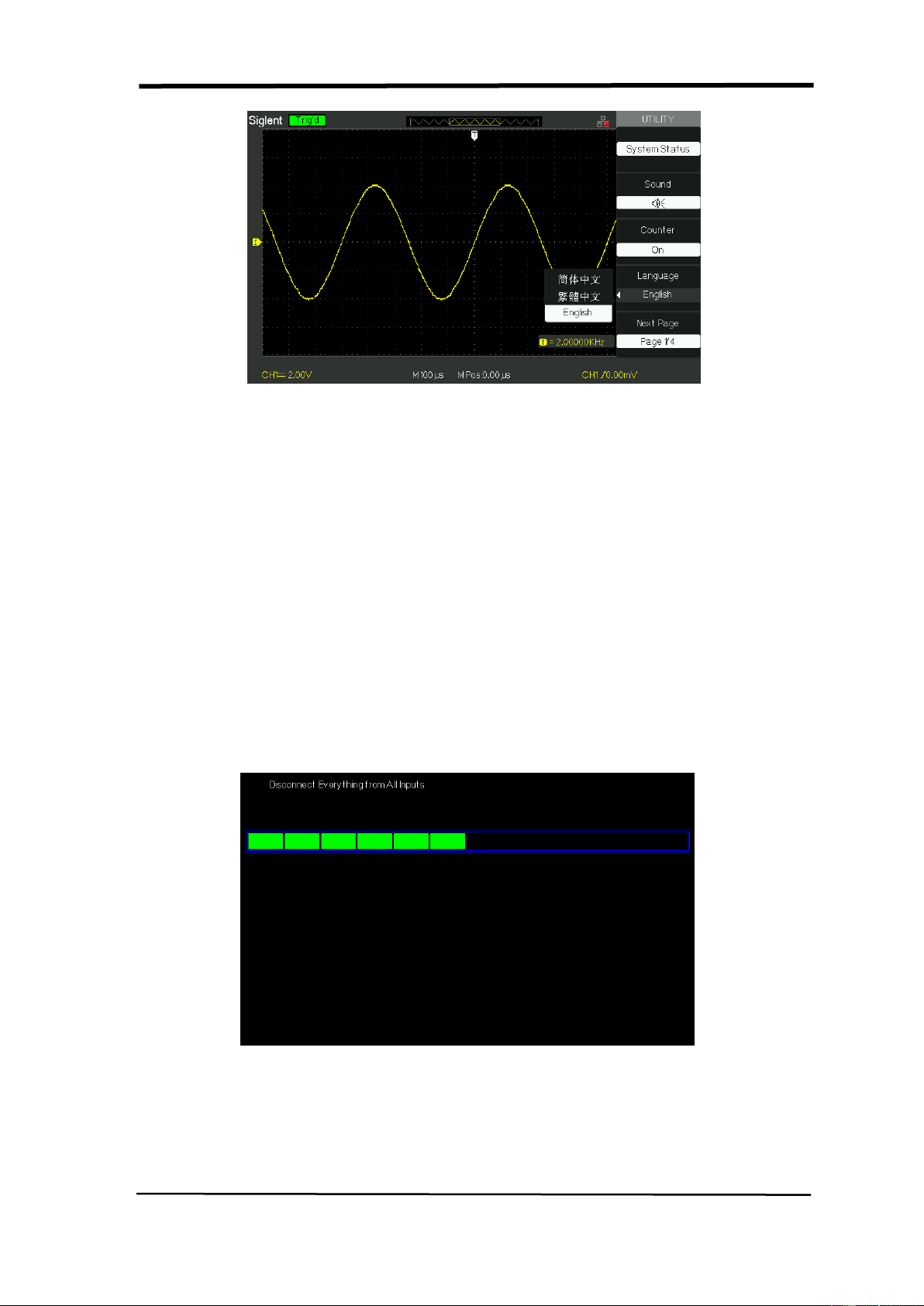
SIGLENT
SDS1000CML+/SDS1000DL+ User Manual 89
Picture 2.13-7
2.13.3 Self Calibration
Self Calibration procedure can optimize the signal path at the most measurement
precision. You can run this procedure at any time. If the operating temperature
changes by more than 5° C or the units run more than thirty minutes, you should
do the self calibration.
When you run the self Calibration, you should cut off all the probes and lead.
Then press the “Utility” button to choose the “Do self cal” to show the self
Calibration Menu, and execute self calibration program according to the
prompting on the screen.
Picture 2.13-8

SIGLENT
90 SDS1000CML+/SDS1000DL+ User Manual
2.13.4 Self Test
Press “UTILITY”→ “Do Self Test”
Table2-54
Option
Introduction
Screen Test
Run Screen Test Program.
Keyboard Test
Run Keyboard Test Program.
LED Test
Run LED Test Program.
Operation Steps:
1. Screen Test:
Select “Screen Test” to enter the screen test interface. The clew words “Press
‘SINGLE’ Key to continue,Press ‘RUN/STOP’ Key to exit” is displayed, you could
press the “Single” for test.
Picture 2.13-9
2. Keyboard Test
Select “keyboard Test” to enter the key test interface, the on-screen lathy
rectangle shapes represent the front panel keys. The shapes with two arrows
beside them represent the front panel knobs. The squares represent the knob
presses for scale knobs. Test all keys and knobs and you should also verify that
all the backlit buttons illuminate correctly.
Note:
●When you operate, the screen would display the white (Color LCD) and black
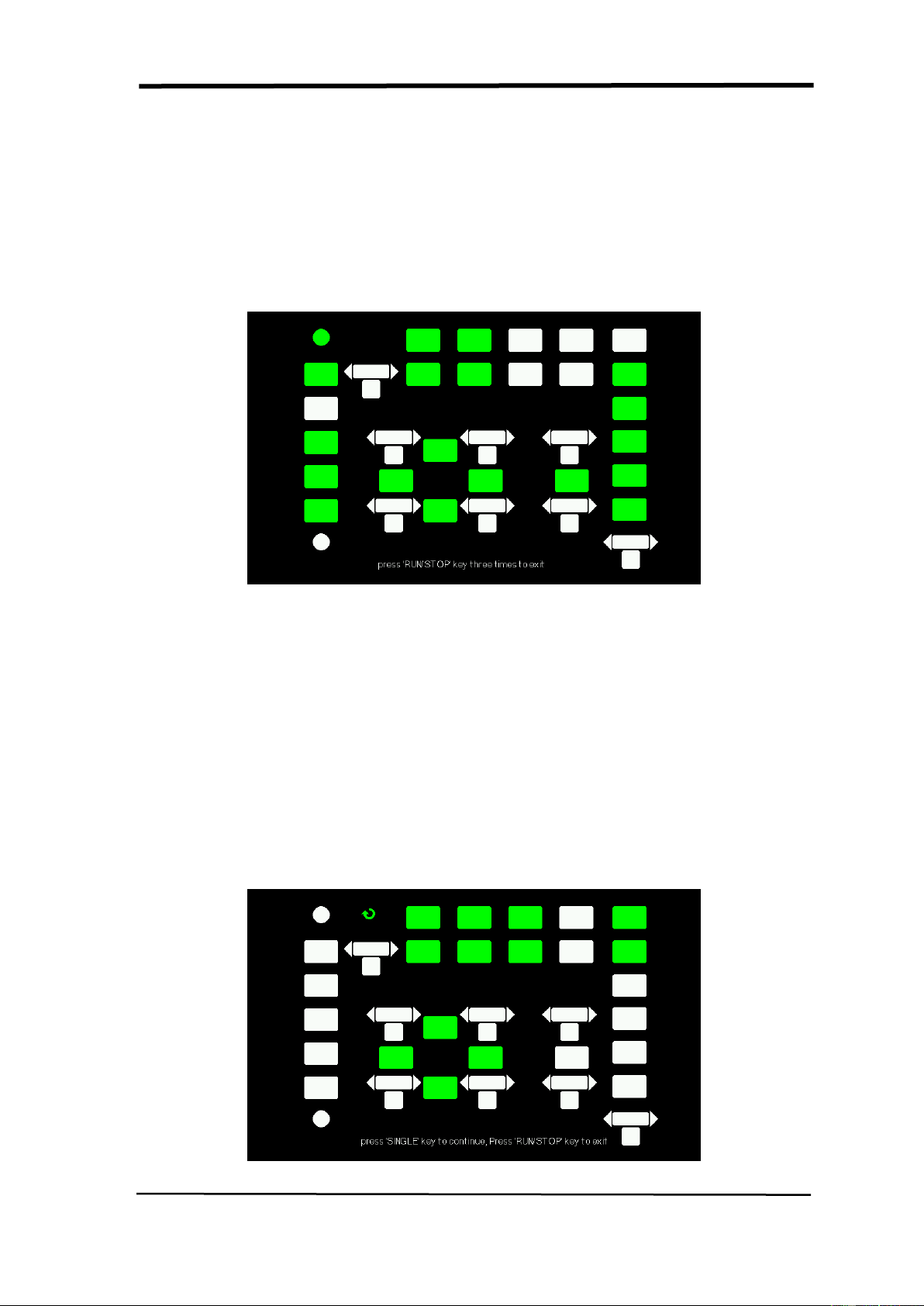
SIGLENT
SDS1000CML+/SDS1000DL+ User Manual 91
(single LCD) repose.
●The tested button or knobs corresponding area would display green (Color LCD)
or white (single LCD).
●At the bottom of the screen display “Press‘ RUN/STOP’ Key Three Times to
exit” information prompt to show that press “RUN/STOP” three times for quitting
the test .
Picture 2.13-10
3. LED test
Select “LED Test” to enter the lighten interface, the on-screen lathy rectangle
shapes represent the front panel keys; the lathy rectangle shapes represent the
front panel knobs. The squares represent the knob presses for scale knobs. The
clew words “Press ‘SINGLE’ Key to continue , Press ‘RUN/STOP’ Key to exit” is
displayed, you could press the “Single” button continuously for testing, when
buttons are lighted ,the corresponding area on the screen would display
green(Color LCD) or white(Single LCD ).
Picture 2.13-11
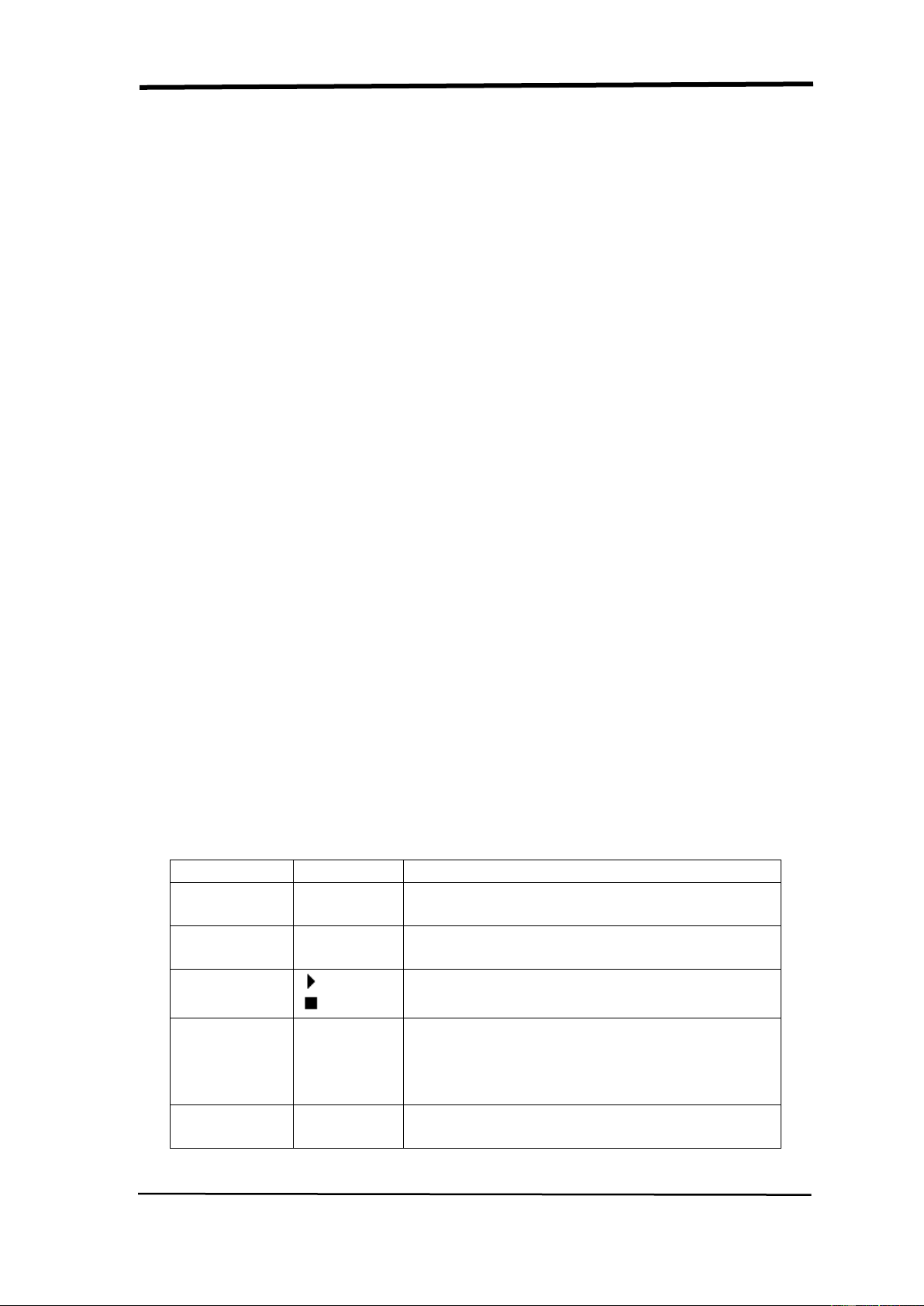
SIGLENT
92 SDS1000CML+/SDS1000DL+ User Manual
2.13.5 Updating the System Software
■ Using USB flash drive update firmware
The software of the oscilloscope can be updated directly via USB Flash drive, this
process needs about two minutes. Follow next steps:
1. Insert USB Flash Drive with firmware procedure to USB Host interface on
the front panel of the oscilloscope.
2. Press the “UTILITY” button to enter the “Utility menu”.
3. Press “Next Page” option button to enter the third page of “Utility menu”.
4. Press the “Update Firmware” option button.
5. Press the “SINGLE” button to start updating the software according to prompt
on the screen.
Turn off the oscilloscope and turn on it again, the software has been updated. The
oscilloscope needs to execute “Do Self Cal” after update.
Note: Don’t cut off the power while the oscilloscope is updating.
2.13.6 Pass/Fail
The Pass/Fail function can monitor changes of signals and output pass or fail
signals by judging the input signal is within the predefined mask or not.
Table 2-55 Pass/Fail function menu 1:
Option
Setting
Instruction
Enable
On
Off
Turn on Pass/Fail function.
Turn off Pass/Fail function.
Source
CH1
CH2
Select signal input channel.
Operate
Press to run the Pass/Fail test.
Press to stop the Pass/Fail test.
Msg Display
On
Off
Turn on times information display of the
waveform pass/fail.
Turn off times information display of the
waveform pass/fail.
Next Page
Page 1/2
Press this button to enter second page of
Pass/Fail menu.
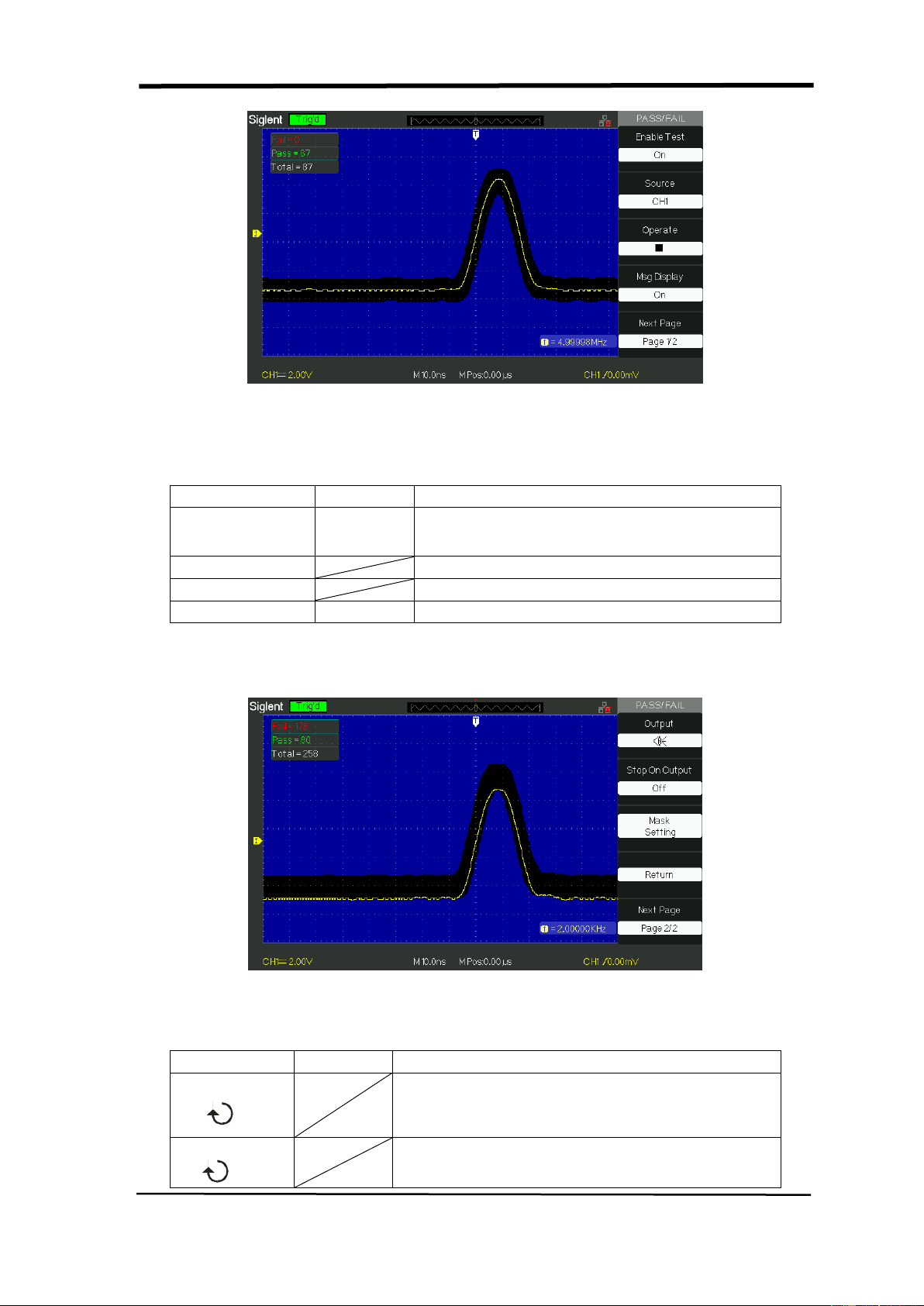
SIGLENT
SDS1000CML+/SDS1000DL+ User Manual 93
Picture 2.13-12
Table 2-56 Pass/Fail function menu 2:
Option
Setting
Instruction
Stop On Output
On
Off
Stop test when output occur.
Continue test when output occur.
Mask Setting
Enter the “Mask Setting menu”.
Return
Return to the Pass/Fail main menu.
Next Page
Page 2/2
Return to the first page of Pass/Fail menu.
Picture 2.13-13
Table 2-57 Mask Setting function menu 1:
Option
Setting
Instruction
X Mask
xdiv
Turn the “Universal” knob to set the range of
horizontal clearance to the waveform.
<0.04div-4.00div>
Y Mask
ydiv
Turn the “Universal” knob to set the range of
vertical clearance to the waveform.
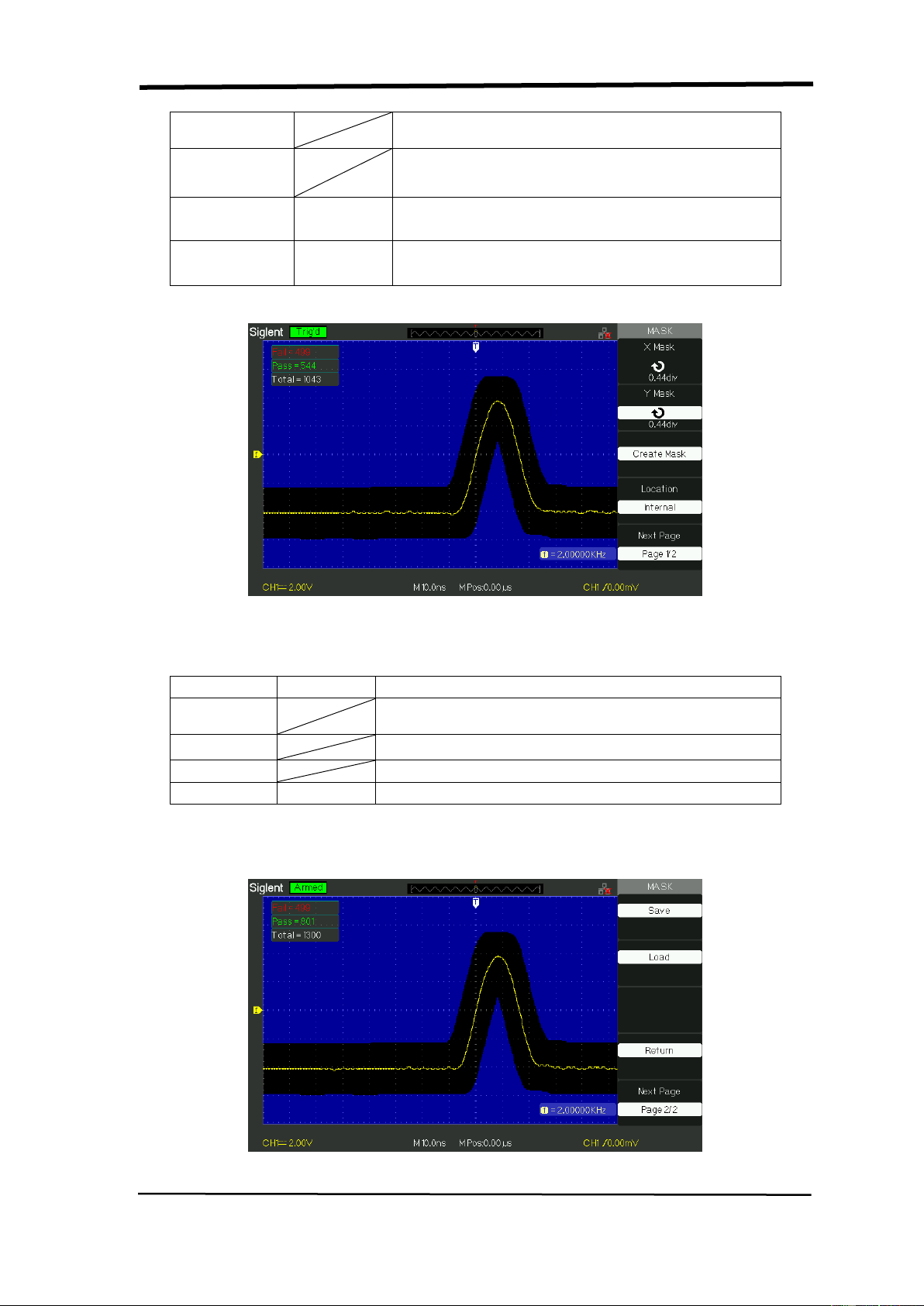
SIGLENT
94 SDS1000CML+/SDS1000DL+ User Manual
<0.04div-4.00div>
Create
Mask
Create a test mask according to the above
clearance.
Location
Internal
External
Select position to store created mask.
Next Page
Page 1/2
Enter the second page of “Mask Setting
menu”.
Picture2.13-14
Table 2-58 Mask Setting function menu 2:
Option
Setting
Instruction
Save
Store created mask setting.
Load
Recall stored mask setting.
Return
Return to the main menu of mask setting.
Last Page
Page 2/2
Return to the first page of “Mask Setting menu”.
Picture 2.13-15
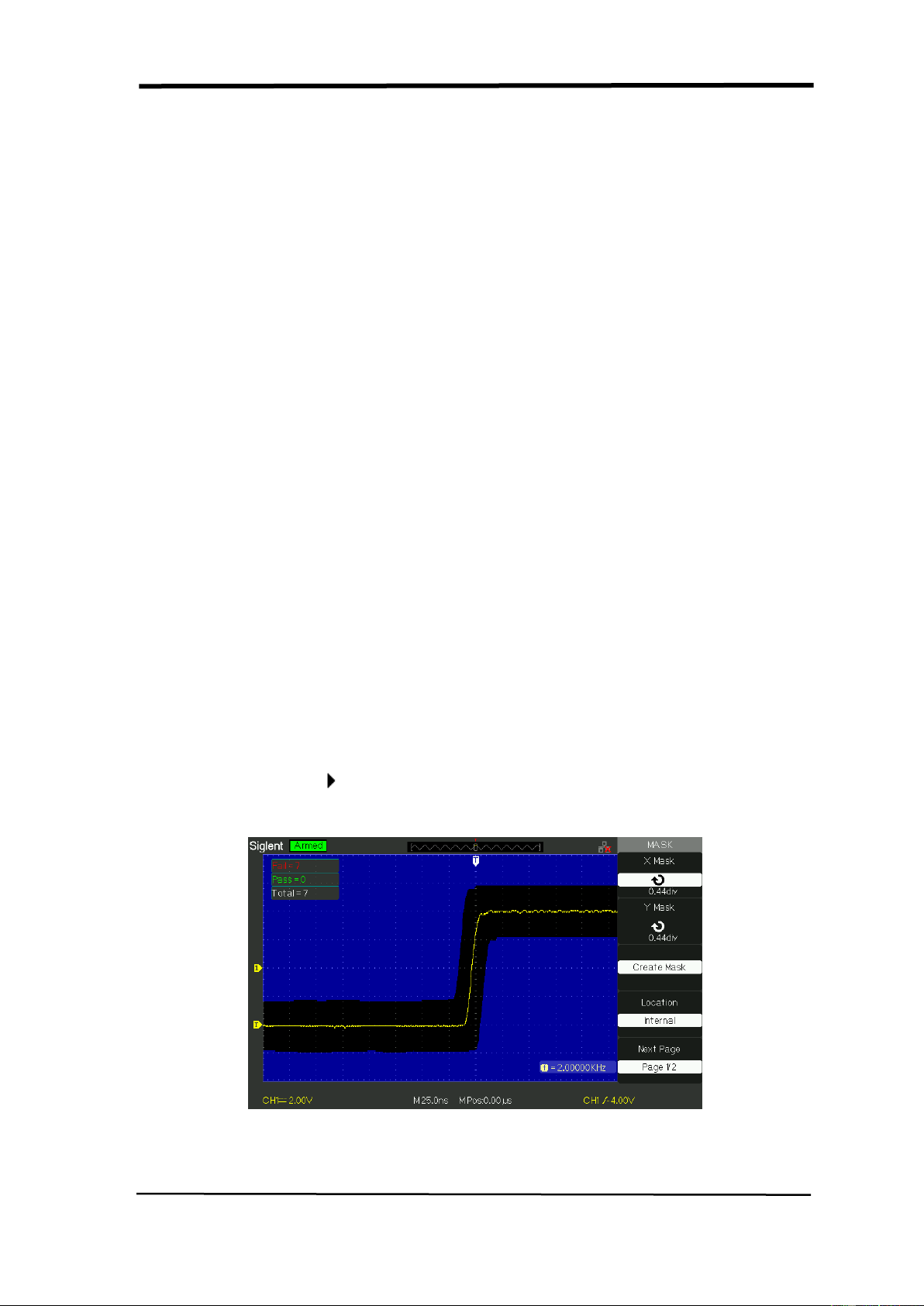
SIGLENT
SDS1000CML+/SDS1000DL+ User Manual 95
RUN Pass/Fail test, please follow next page:
1) Press UTILITY button to enter the “Utility menu”.
2) Press the “Next Page Page1/4” option button.
3) Press the “Next Page Page2/4” option button to enter the third page of “Utility
menu”
4) Press the “Pass/Fail” option button to enter the “Pass/Fail” function menu.
5) Press the “Enable Test” option button to select “On”.
6) Press the “Source” option button to select input signal channel.
7) Press the “Next Page Page1/2”option button to enter the second page of the
“Pass/Fail menu”.
8) Press the “Mask Setting” option button to enter the first page of “Mask menu”.
9) Press the “X Mask” button; turn the “Universal” knob to adjust the horizontal
clearance.
10) Press the “Y Mask” button; turn the “Universal” knob to adjust the vertical
clearance.
11) Press the “Create Mask” button to create mask and you also can enter the
next page of “Mask menu” to recall the stored mask.
12) Enter the second page of “Pass/Fail function menu”, press the “Output”
option button to set the output option.
13) Enter the first page of “Pass/Fail function menu”, press the “Operate” option
button to select “ ”to run the pass/fail test.
Picture 2.13-16
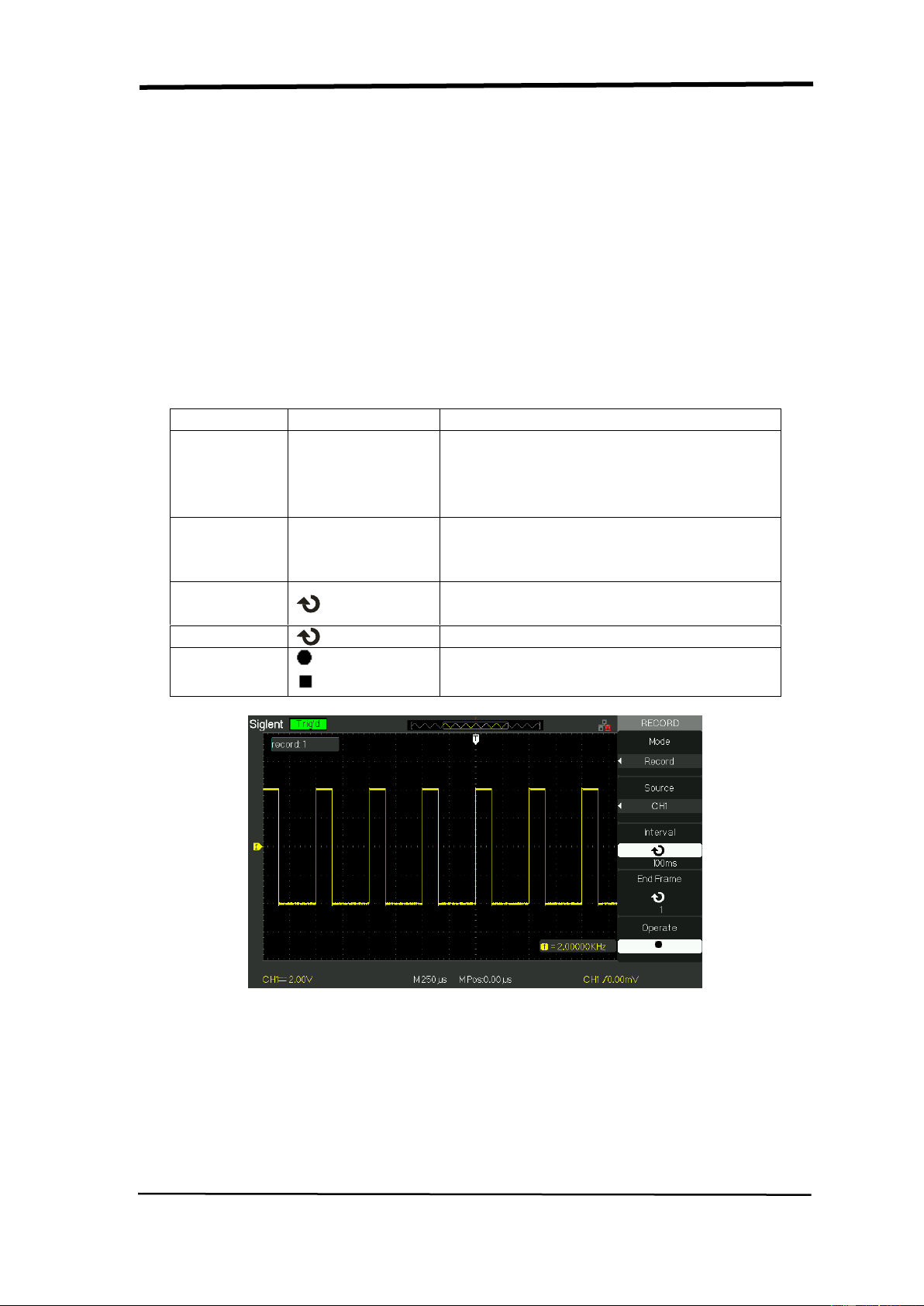
SIGLENT
96 SDS1000CML+/SDS1000DL+ User Manual
2.13.7 Waveform Record
Waveform record can record input waveform from CH1 and CH2 with a maximum
record length of 2500 frames. This record behavior can also be activated by the
pass/fail test output, which makes this function especially useful to capture
abnormal signals in long term without keeping an eye watching it.
Waveform recorder: Record the waveforms with specified interval.
Table 2-59 Waveform recorder function menu:
Option
Setting
Instruction
Mode
Record
Play Back
Storage
Off
Set Record function menu.
Set Play Back function menu.
Set Storage function menu.
Turn off waveform recorder menu.
Source
CH1
CH2
P/F-OUT
Select record source channel.
Interval
Set time interval between record
frames.
End Frame
Set max number of record frames.
Operate
(Record)
(Stop)
Press to start recording.
Press to stop recording.
Picture2.13-17
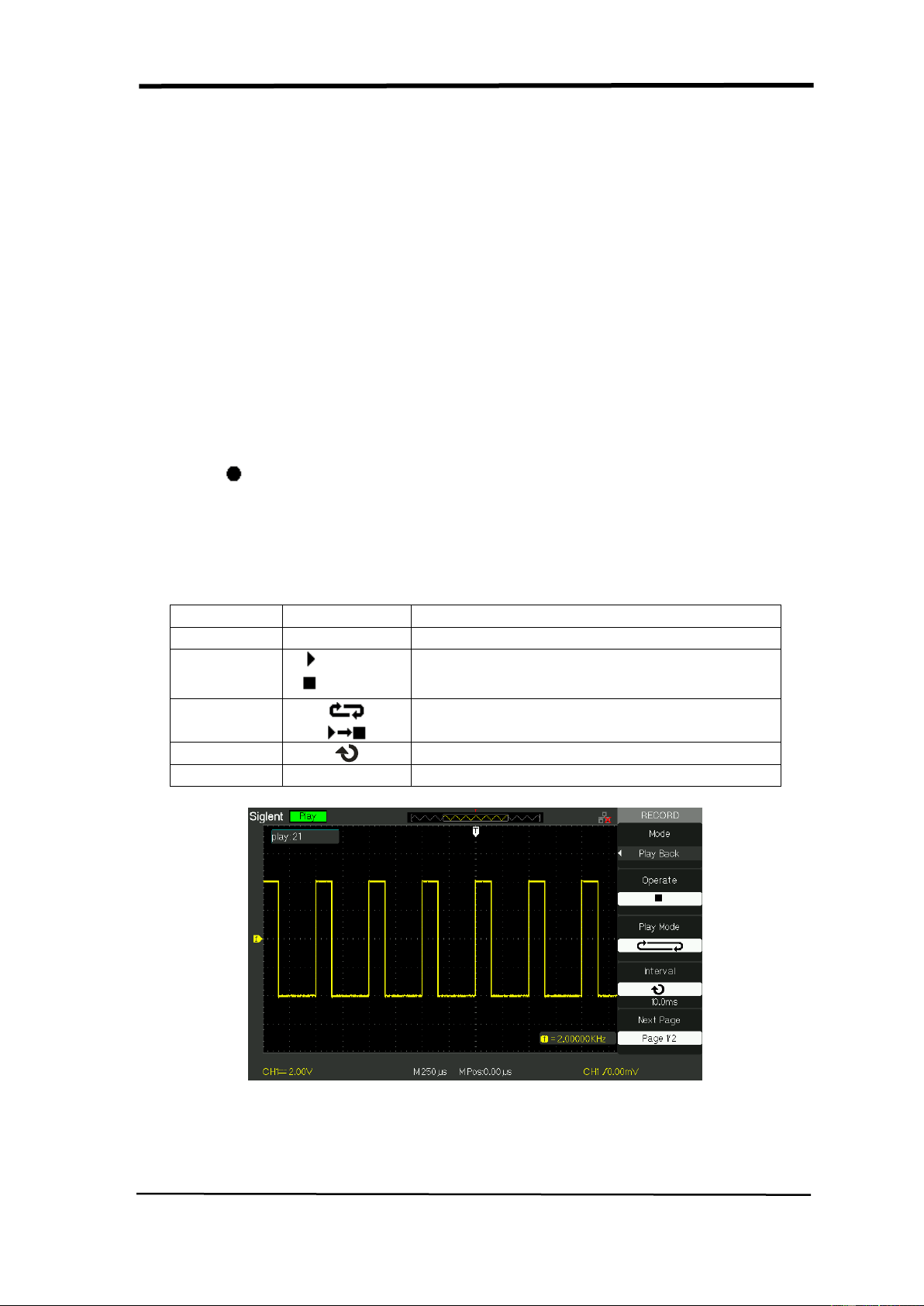
SIGLENT
SDS1000CML+/SDS1000DL+ User Manual 97
To record waveforms, follow these steps:
1. Press the UTILITY button to enter “Utility menu”.
2. Press the “Next Page” option button to enter the third page of “Utility menu”.
3. Press the “Record” button to enter “Waveform Record Menu”.
4. Press the “Mode” option button to select “Record”.
5. Press the “Source” option button to select the input signal channel.
6. Select “Interval” option, turn the “Univeral” knob to adjust time interval between
record frames.
7. Select “End Frame”, select the “Universal” knob to adjust the max record
frame.
8. Press “ ”in “Operate” option to record waveform.
Play Back: Play back current record waveforms or saved record waveforms.
Table 2-60 Waveform play back function menu 1
Option
Setting
Instruction
Mode
Play Back
Set the Play Back function menu.
Operate
(Run)
(Stop)
Press to start playback playing.
Press to stop playing.
Play Mode
Set circular play mode.
Set single time play mode.
Interval
Set time interval between frames.
Next Page
Page 1/2
Enter the second page of Play Back menu.
Picture 2.13-18
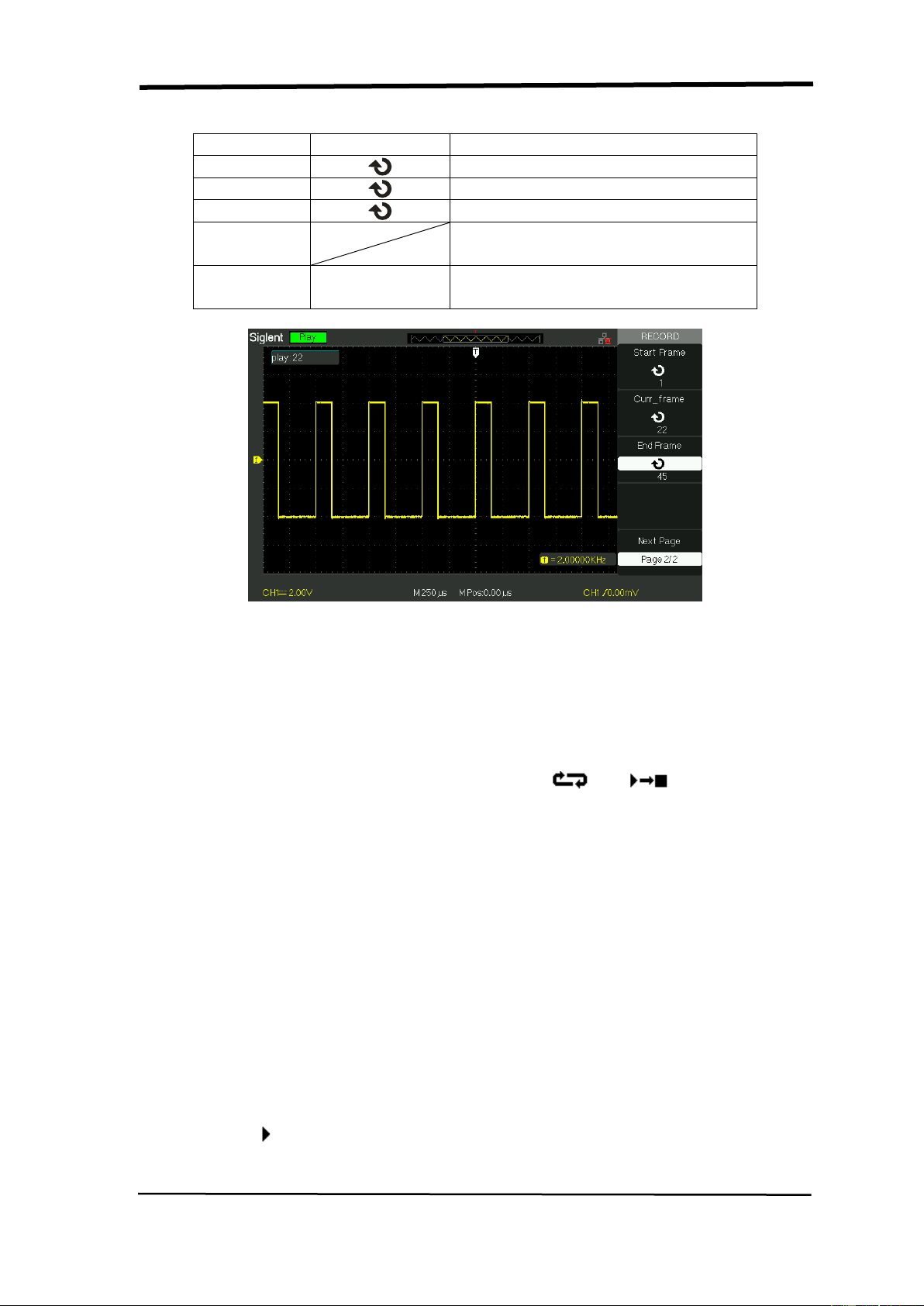
SIGLENT
98 SDS1000CML+/SDS1000DL+ User Manual
Table 2-61 Waveform play back function menu 2:
Option
Setting
Instruction
Start Frame
Set start frame.
Curr_Frame
Select current frame to be played.
End Frame
Set End frame.
Return
Press to return the waveform
recorder main menu.
Next Page
Page 2/2
Return to the first page of Play
Back function menu.
Picture 2.13-19
To play back current record waveforms, follow these steps:
1. Press UTILITY button to enter “Utility menu”.
2. Press the “Mode” option button to select “Play Back”.
3. Press the “Play Mode” option button to select “ ” or “ ”.
4. Press the “Interval” option button to select time interval between play back
frames.
5. Press the “Next Page 1/2” to enter the second page of “Play Back function
menu”.
6. Select the “Start Frame” option, turn the “Universal” knob to adjust the start
frame of play back waveform.
7. Select the “End Frame” option, turn the “Universal” knob to adjust the end
frame of play back waveform.
8. Press the “Next Page 2/2” option button to return the first page of “Play Back
menu”.
9. Press the “ ” option button in “Operate” option to play back waveforms.
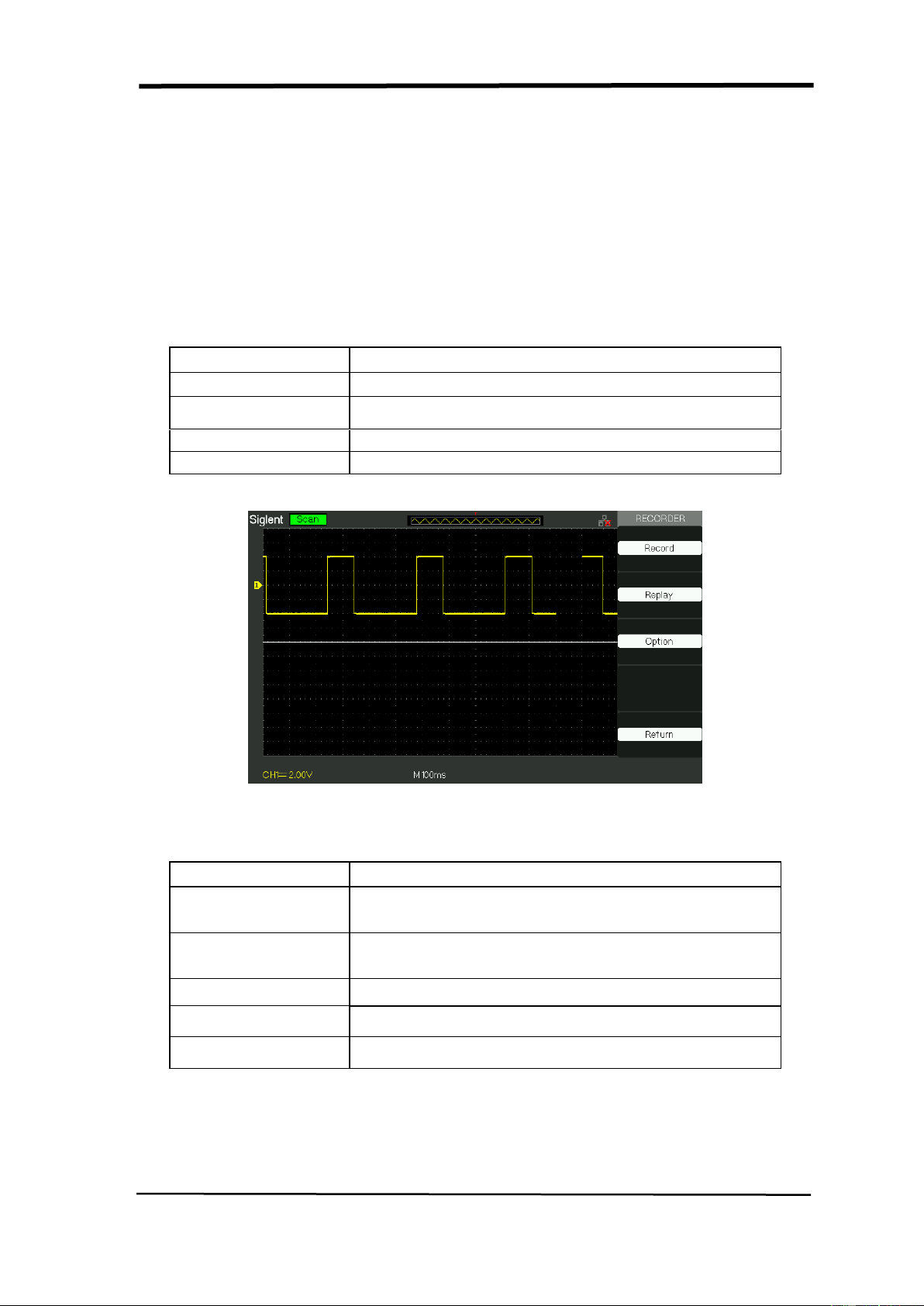
SIGLENT
SDS1000CML+/SDS1000DL+ User Manual 99
2.13.8 Recorder
The waveform recorder is a kind of seamless and no-gap real time recording of
waveform, means oscilloscope can save and replay waveform every time it
captured. It is similar to waveform recording instrument, and the biggest recording
size of its internal memory is 6M
Table 2-62 waveform recording function menu:
option
description
Record
record the waveform persistently
Replay
Replay recorded waveform, refer to table 2-64
Option
Set the recorder properly, refer to table 2-65
Return
Quit the recording function
Picture 2.13-20
Table 2-63 waveform replay function menu
Option
Description
Pause
Pause the replay function
Restart
Restart the replay function
Previous
Recall the waveform again
Next
Fast forward play the recalled waveform again
Return
Quit the recalling interface
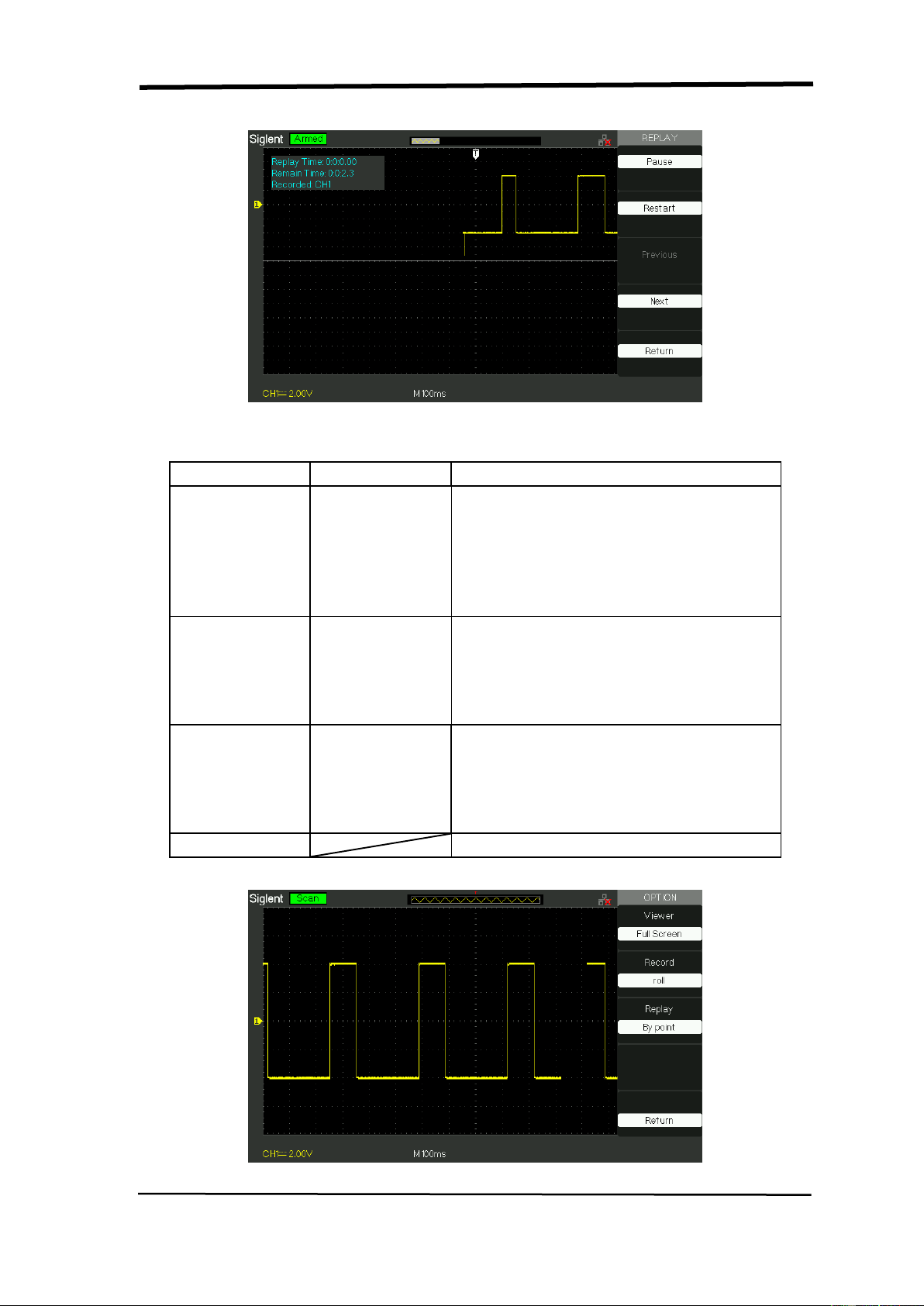
SIGLENT
100 SDS1000CML+/SDS1000DL+ User Manual
Picture 2.13-21
Table 2-64 recorder’s setting menu
Option
Setting
Description
Viewer
Full Screen
Split
Waveform of Full screen recording
and channel recalling
Waveform of recording on split screen
and channel recalling, CH1 is
displayed in upper half-screen, CH2 is
displayed in lower half-screen.
Record Mode
Continuous
Single
Recorder saves the channel
waveform persistently; the latter
waveform will cover the former.
Recorder will stop waveform saving
when its memory is up to 7M.
Replay Mode
By point
By frame
when recalling, the screen waveform
refresh from left to right
When recalling, screen waveform will
refresh completely according to the
capturing time of each frame
Return
quit the recording setting interface
Picture 2.13-22

SIGLENT
SDS1000CML+/SDS1000DL+ User Manual 101
Recorder Operation step:
1. Press the UTILITY button to enter “Utility menu”.
2. Press the “Next Page” option button to enter the four page of “Utility menu.
3. Press the “Recorder” button to enter the Recorder manual.
4. Press the “Option” button to select the parameter which you want by yourself
5. Press the “Recorder” button to enter the Record menu and then Press the
“Start” button to start record waveform
6. After finished record waveform, then Press the “Replay” button to view the
recorded waveform.

SIGLENT
102 SDS1000CML+/SDS1000DL+ User Manual
2.13.9 Remote Control
There are two means to remotely control the oscilloscope:
Use user-defined programming
User can control the oscilloscope by programming through standard SCPI
(Standard Commands for Programmable Instruments) commands. For more
details about commands and programming, Please refer to Programming Manual.
Use PC software offered by SIGLENT or other manufacturers
User can send command to remotely control the oscilloscope through PC software
EsayScope which offered by SIGLENT. Besides, “Measurement & Automation
Explorer” which provided by NI (National Instruments Corporation) also can be
used to control the oscilloscope. This oscilloscope can communicate with a PC by
a USB bus. This part will show how to use EsayScope to remotely control an
oscilloscope by USB interface.
Control by USB
Connect Instrument
Use a USB data wire to connect the oscilloscope (USB Device) to a PC.
Installing USB Device
Set oscilloscope Back USB to USBTMC. If you have installed EsayScope or NI
software, the PC will pop-up a hardware update guide dialogue box which shows
below when you connect the oscilloscope to the computer correctly for the first
time, and please install the “USB Test and Measurement Device” device program
follow the prompting messages. Below are the steps:
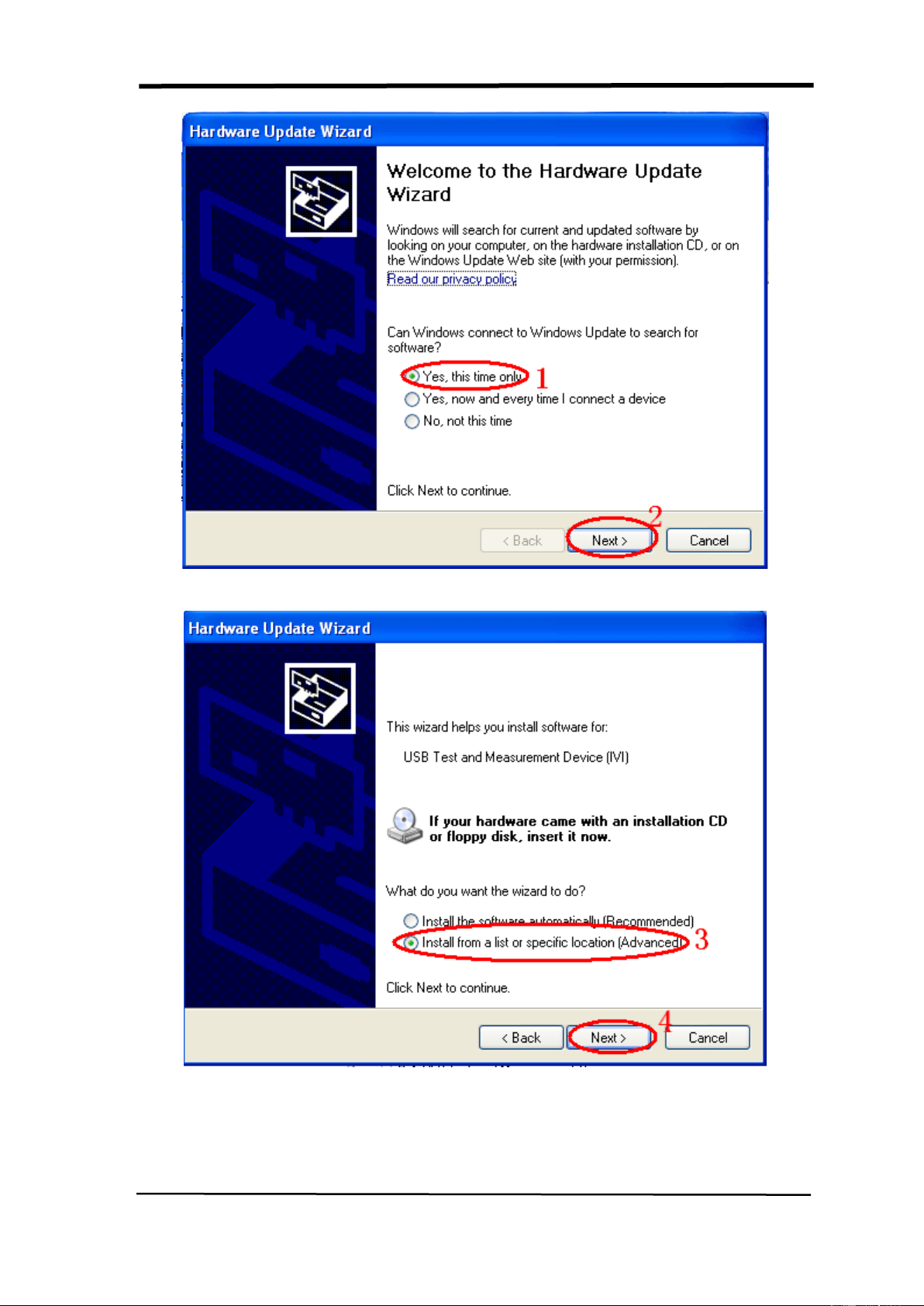
SIGLENT
SDS1000CML+/SDS1000DL+ User Manual 103

SIGLENT
104 SDS1000CML+/SDS1000DL+ User Manual
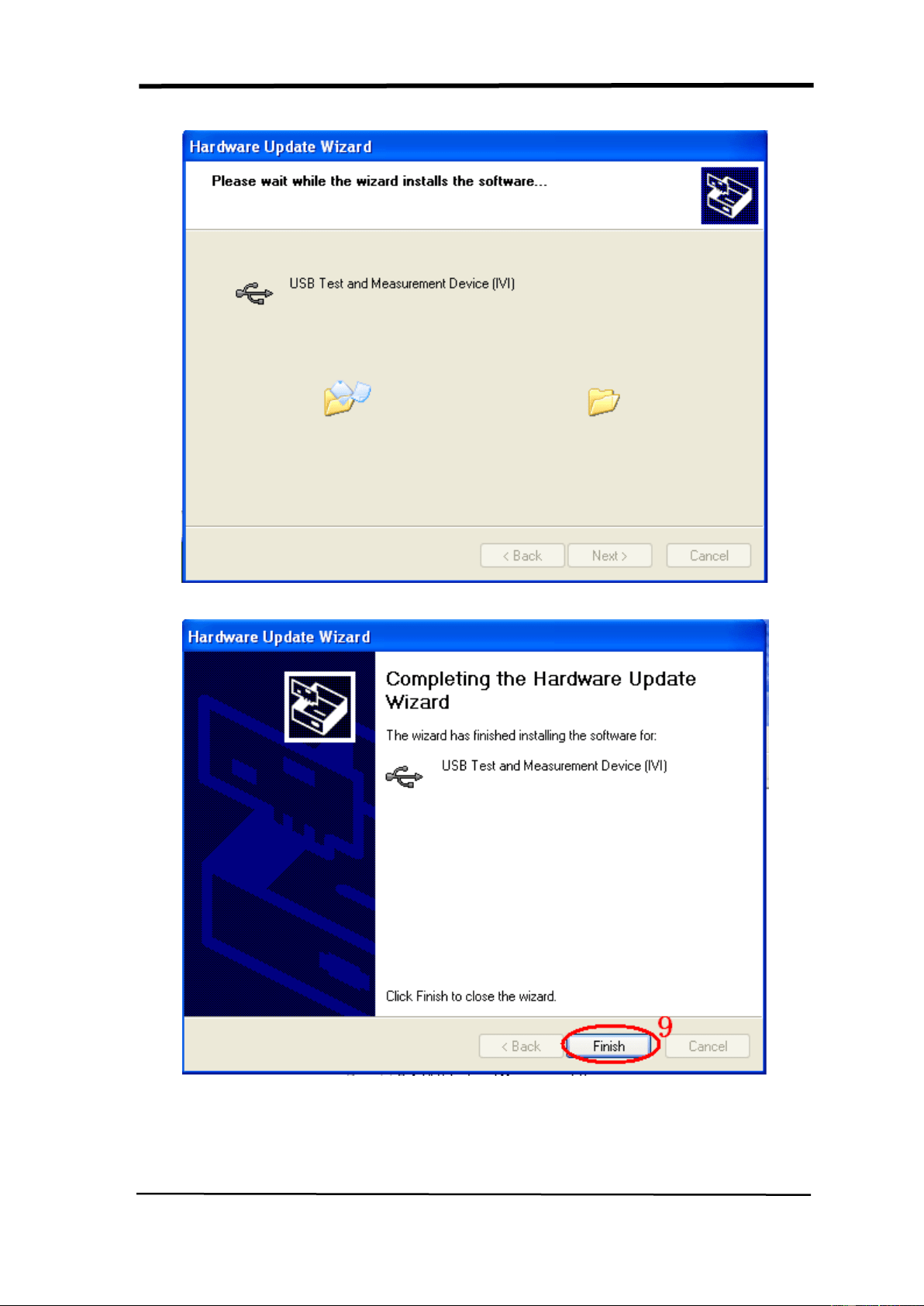
SIGLENT
SDS1000CML+/SDS1000DL+ User Manual 105
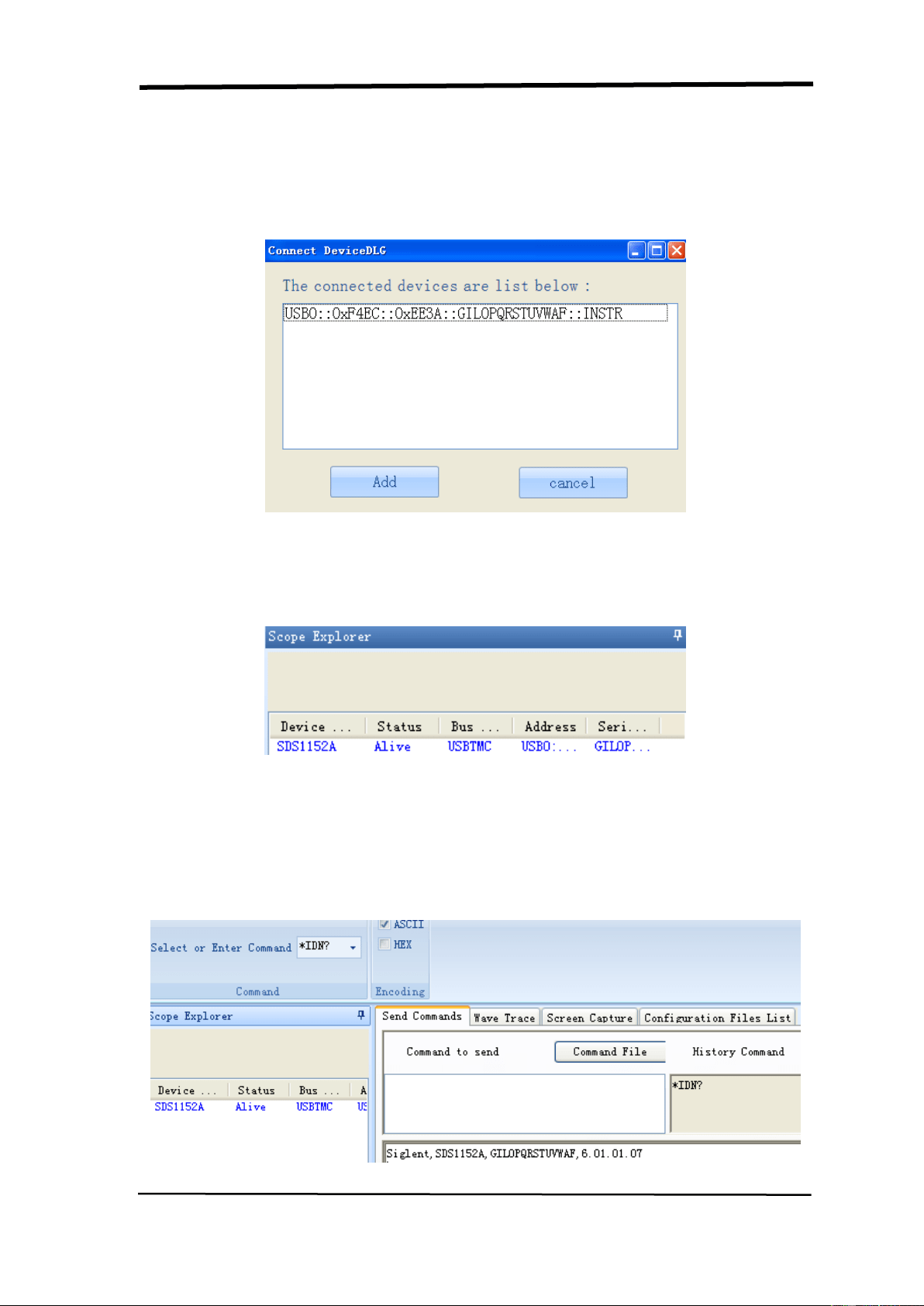
SIGLENT
106 SDS1000CML+/SDS1000DL+ User Manual
Research Device
Open EsayScope software; click “add device” to research, there will pop-up the
following dialogue box, then click Add.
Check Instrument Resource
The instrument information which has been researched is as the picture below. It
shows the instrument number and the USB interface information.
Communicate test
Click “SCPI control” and choose “common SCPI”: *IDN?, click Enter to send
command. The software will accept the data and display the instrument
information. See picture below.
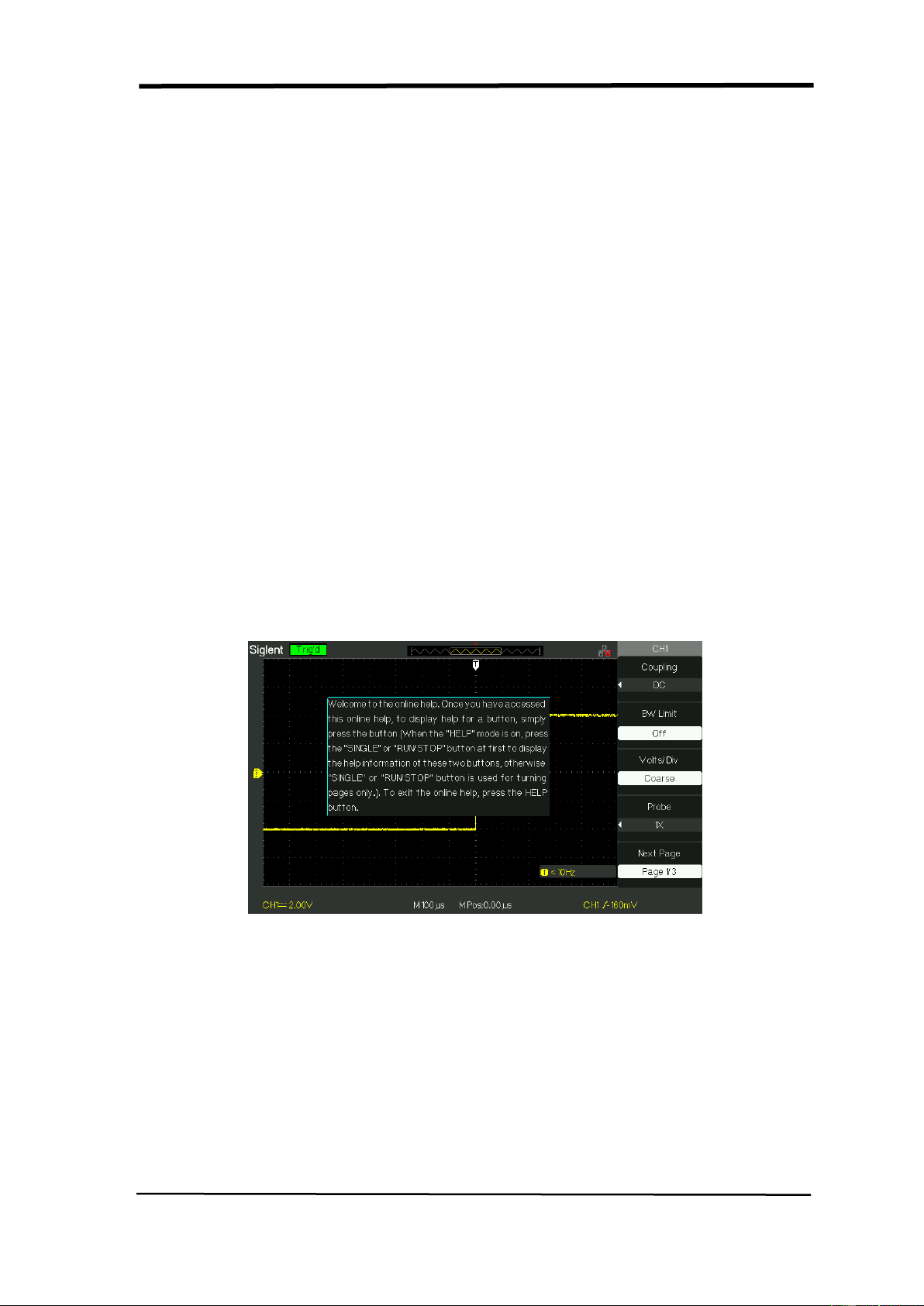
SIGLENT
SDS1000CML+/SDS1000DL+ User Manual 107
2.14 Online Help Function
The oscilloscope has an online help function that supplies multi-language help
information, and you can recall them to help you operate the oscilloscope when
you need.
Press the “HELP” button to enter the help status, then press every button to recall
the corresponding help information. Note:If you want to see help information of
SINGLE button and RUN/STOP button, you need to see them when you first enter
the help status because you press the SINGLE button can enter next page of help
information and Press the RUN/STOP button can return to the first page of help
information when other button’s help information exceed one page.
All submenus of every main menu have their help information. Note: If you want to
see help information of next page submenus, first you need to press the “HELP”
button to exit the help status and switch to next page menu then press the “HELP”
knob to enter the help status again and press the submenu option buttons to see
its help information.
Picture 2.14-1

SIGLENT
108 SDS1000CML+/SDS1000DL+ User Manual
Chapter 3 Prompting Messages and
Troubleshooting
3.1 Prompting Messages:
■ Trig level at limit! : Mention you that the trigger Level is at a limit when you turn
the Trig level knob.
■ Horizon position at limit! : Mention you that the horizontal position is at a limit
when you turn the horizon position knob.
■ Volts/Div at limit! : Mention you that the vertical voltage have already touched
the Min 2MV/div or the Max 10V/div.
■ Volts position at limit! : The system would display this information when the
vertical position is at a limit.
■ Sec/Div at limit! : Prompts that the Volts/Div is at full range while turning the
vertical scale knob.
■ Holdoff time at limit! : Turn the “Universal” knob when holdoff time has been to
max or min value, now the system will clew this information.
■ Functions isn’t useable! : Under several special modes, the some functions
could not be running.
■ No signal! : The system would clew this information when the signal could not
match the auto set condition. (Using in the auto set)
■ Adjust at limit! : You could adjust the pulse width by the universal knob till the
pulse width has reached min20.0ns or max 10.0s.
■ Location Empty! : If you have no stored waveforms or setups on some location,
the screen will display this information when you press the “Recall” button on
this location.
■ USB Flash Drive Plug In! : This information will appear when you invert the
USB Flash Drive to the USB Host port.
■ USB Flash Drive Pull Out! : This information will appear when you pull out the
USB Flash Drive.
■ Store Data Success! : Save setup data, waveform data or picture data to the
internal of the oscilloscope or USB flash successful.

SIGLENT
SDS1000CML+/SDS1000DL+ User Manual 109
■ Ready Data Success! : Read setup data or waveform data from the internal of
the oscilloscope or USB flash successful.
■ Please set Back USB to printer! : Press the “S/div” knob will appear this
information on the screen when the “Print Key” option is set to “Print Picture”
and the “Back USB” option is set to “USBTMC”.
■ USB Flash Drive isn’t connected! : When the “Save To” option is set to “File”
or the “Print Key” option is set to “Save Picture” in “Save/Recall” menu , Press
the “Save” option button or the “S/div” knob before inverting the USB Flash
Drive to the USB Host port will appear this information on the screen.
■ Record Wave Success! :This message will appear when you finish recording
waveforms.

SIGLENT
110 SDS1000CML+/SDS1000DL+ User Manual
3.2 Troubleshooting
1. After the oscilloscope is powered on,the screen remains dark ,please do
as following steps:
⑴ Check the power cable’s connection.
⑵ Ensure the power switch is turned on.
⑶ After the inspections above,restart the oscilloscope.
⑷ If the oscilloscope is still not used after the checking, please connect with
Siglent
2. If there is no signal wave in the screen after gathering the signal, please
do as following steps:
(1) Check the probe connecting with the signal cable or not
(2) Check the signal cable connecting with the BNC connector or not.
(3) Check the probe whether connect with the goods tested or not.
(4) Check the tested goods produce the signal or not.
(5) Gather the signal again.
3. The value of the tested voltage is 10 times higher/lower than the real one ,
please do as following steps:
Check the attenuation quotient whether match the probe attenuation proportion or
not.
4. Display the wave, but not steady, please do the following steps:
(1) Check the signal source on the trigger interface whether or not matches the
signal channel.
(2) Check the trigger mode: normal signal should use the “edge” trigger mode.
The video signal should use the “Video” Trigger mode. The signal would
display steady, only using the matching trigger mode.
(3) Attempt to change the “coupling” into “HF Reject” or “LF Reject” display, so that
the High/low frequency noise disturb the trigger should be filtrated
5. Press “RUN/STOP” button, but no display.
Check the trigger mode on the trigger interface whether or not in the “normal” or
“single”, and check the trigger level is whether or not over the wave range. If yes,
please put the trigger level to the middle position or set the trigger mode to the
“Auto” position. In another hand, you could choose the “Auto” button to set up

SIGLENT
SDS1000CML+/SDS1000DL+ User Manual 111
automatically.
6. After the Acquisition is set to Averages or Display Persistence time is set
too long, the waveform refreshes slowly.
It is normal in these settings
7. The signal is displayed as ladder like waveform
(1)This phenomenon is normal. The time base maybe is too slow .you should turn
the horizontal scale knob to increase horizontal resolution to improve the
display.
(2) Maybe the display Type is set to “Vectors”, You could set it to Dots mode to
improve the display.

SIGLENT
112 SDS1000CML+/SDS1000DL+ User Manual
Chapter 4 Service and Support
4.1 Maintain Summary
Siglent warrants that the products that it manufactures and sells will be free from
defects in materials and workmanship for a period of three (3) years (accessories
for a period of one year) from the date of shipment from an authorized Siglent’s
distributor. If a product or CRT proves defective within the respective period,
Siglent will provide repair or replacement as described in the complete warranty
statement.
To arrange for service or obtain a copy of the complete warranty statement,
please contact your nearest Siglent’s sales and service office.
Except as provided in this summary or the applicable warranty Statement, Siglent
makes no warranty of any kind, express or implied, including without limitation the
implied warranties of merchantability and fitness for a particular purpose. In no
Event shall Siglent be liable for indirect, special or Consequential damages

SIGLENT
SDS1000CML+/SDS1000DL+ User Manual 113
4.2 Contact SIGLENT
MTR Add:3//F, Bldg No.4, Antongda Industrial Zone, 3rd Liuxian Road, Bao’an
District, Shenzhen, 518101, P.R.China
Tel:0086-755-3661 5186
E-mail:[email protected]
http://www.siglent.com

114 SDS1000CML+/SDS1000DL+ User Manual
Appendix A: Default Setup
Menu or system
options 、 knobs or
buttons
Default setup
CH1,CH2
Coupling
DC
BW limit
Off
Volts/div
Coarse
Probe
1X
Invert
Off
Filter
Off
Volts/div
1.00V
MATH
Operation
CH1+CH2
CH1 Invert
Off
CH2 Invert
Off
FFT operation:
Source
CH1
Window
Hanning
FFT Zoom
1X
Scale
dBVrms
Display
Split
HORIZONTAL
Window
Main
Position
0.00μs
Sec/div
500μs
Window Zone
50.0μs
Trigger knob
level
CURSOR
Type
Off
Source
CH1
Horizontal (voltage)
+/-3.2divs
Vertical (time)
+/-5divs
ACQUIRE
three mode options
Sampling
Averages
16
Sampling mode
Real Time
DISPLAY
Type
Vectors
Persist
off
Gird
Intensity
60%
Brightness
40%
Format
YT

SDS1000CML+/SDS1000DL+ User Manual 115
Menu Display
infinite
SAVE/RECALL
Type
Setups
Save To
Device
Setup
No.1
REF
REFA/REFB
REFA
Source
CH1
REFA
off
REFB
off
UTILITY
Sound
on
Counter
On
Back USB
USBTMC
Pass/Fail
off
Record
off
TRIGGER (edge)
Type
edge
Source
CH1
Slope
Rising
Mode
Auto
Coupling
DC
LEVEL
0.00V
TRIGGER (pulse)
Type
pulse
Source
CH1
When
=
Set Pulse Width
1.00ms
Mode
Auto
Coupling
DC
TRIGGER (Video)
Type
Video
Source
CH1
Polarity
Normal
Sync
All Lines
Standard
NTSC
Mode
Auto
TRIGGER
(Slope)
Type
Slope
Source
CH1
Time
1.00ms
Mode
Auto
TRIGGER
(Alternative)
Type
Alternative
Source
CH1
Mode
Edge
Coupling
DC

116 SDS1000CML+/SDS1000DL+ User Manual
Appendix B: Daily Maintain and Cleaning
Daily Maintain
DO not store or leave the instrument in where the LCD display will be
exposed to direct sunlight for long periods of time.
CAUTION: To avoid damage to the instrument or probes, do not expose
them to sprays, liquids, or solvents
Cleaning
If this instrument requires cleaning, disconnect it from all power sources
and clean it with a mild detergent and water. Make sure the instrument is
completely dry before reconnecting it to a power source.
To clean the exterior surface, perform the following steps:
1). Remove loose dust on the outside of the instrument and probes with a
lint-free cloth. Use care to avoid scratching the clear plastic display
filter.
2). Use a soft cloth dampened with water to clean the instrument. Use an
aqueous solution of 75% isopropyl alcohol for more efficient cleaning.
Note:
To avoid damage to the surface of the instrument or probes, do not use
any abrasive or chemical cleaning agents.