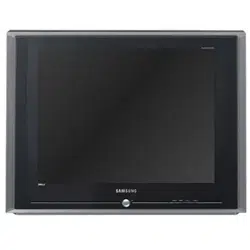
Owner’s
Instructions
COLOR TELEVISION
TX-R2028
TX-R2035
TX-R1635

2
CONTENTS
Chapter 1: Your New TV. . . . . . . . . . . . . . . . . 4
List of Features . . . . . . . . . . . . . . . . . . . . . . . . . . . . . . . . . . . . . . . . . . . 4
Accessories . . . . . . . . . . . . . . . . . . . . . . . . . . . . . . . . . . . . . . . . . . . . . . 4
Familiarizing Yourself with The TV . . . . . . . . . . . . . . . . . . . . . . . . . . . . 5
Front Panel Buttons. . . . . . . . . . . . . . . . . . . . . . . . . . . . . . . . . 5
Side Panel Jacks. . . . . . . . . . . . . . . . . . . . . . . . . . . . . . . . . . . . 6
Rear Panel Jacks . . . . . . . . . . . . . . . . . . . . . . . . . . . . . . . . . . . 7
Remote Control. . . . . . . . . . . . . . . . . . . . . . . . . . . . . . . . . . . . 8
Chapter 2: Installation. . . . . . . . . . . . . . . . . . 9
Connecting VHF and UHF Antennas. . . . . . . . . . . . . . . . . . . . . . . . . . . 9
Antennas with 300-ohm Flat Twin Leads. . . . . . . . . . . . . . . . . 9
Antennas with 75-ohm Round Leads . . . . . . . . . . . . . . . . . . 10
Separate VHF and UHF Antennas . . . . . . . . . . . . . . . . . . . . . 10
Connecting Cable TV . . . . . . . . . . . . . . . . . . . . . . . . . . . . . . . . . . . . . 10
Cable without a Cable Box . . . . . . . . . . . . . . . . . . . . . . . . . . 10
Connecting to a Cable Box that Descrambles
All Channels . . . . . . . . . . . . . . . . . . . . . . . . . . . . . . . . . . . . . 11
Connecting to a Cable Box that Descrambles
Some Channels . . . . . . . . . . . . . . . . . . . . . . . . . . . . . . . . . . . 11
Connecting a VCR. . . . . . . . . . . . . . . . . . . . . . . . . . . . . . . . . . . . . . . . 13
Connecting an S-VHS VCR . . . . . . . . . . . . . . . . . . . . . . . . . . 14
Connecting a Second VCR to Record from the TV. . . . . . . . . 15
Connecting a DVD Player . . . . . . . . . . . . . . . . . . . . . . . . . . . . . . . . . . 15
Connecting a Camcorder. . . . . . . . . . . . . . . . . . . . . . . . . . . . . . . . . . . 16
Installing Batteries in the Remote Control . . . . . . . . . . . . . . . . . . . . . . 17
Chapter 3: Operation . . . . . . . . . . . . . . . . . . 18
Turning the TV On and Off. . . . . . . . . . . . . . . . . . . . . . . . . . . . . . . . . 18
Viewing the Menus and On-Screen Displays . . . . . . . . . . . . . . . . . . . . 18
Viewing the Menus . . . . . . . . . . . . . . . . . . . . . . . . . . . . . . . . 18
Viewing the Display . . . . . . . . . . . . . . . . . . . . . . . . . . . . . . . 18
Selecting a Menu Language . . . . . . . . . . . . . . . . . . . . . . . . . . . . . . . . . 19
Memorizing the Channels . . . . . . . . . . . . . . . . . . . . . . . . . . . . . . . . . . 20
Selecting the Video Signal-source . . . . . . . . . . . . . . . . . . . . . 20
Storing Channels in Memory (Automatic Method) . . . . . . . . 21
Adding and Erasing Channels (Manual Method). . . . . . . . . . 22
Changing Channels. . . . . . . . . . . . . . . . . . . . . . . . . . . . . . . . . . . . . . . 23
Using the Channel Buttons . . . . . . . . . . . . . . . . . . . . . . . . . . 23
Directly Accessing Channels . . . . . . . . . . . . . . . . . . . . . . . . . 23
Using the PRE-CH Button to select the Previous Channel . . . 23
Channel Scan . . . . . . . . . . . . . . . . . . . . . . . . . . . . . . . . . . . . 23
Customizing the Picture . . . . . . . . . . . . . . . . . . . . . . . . . . . . . . . . . . . 24
Using Automatic Picture Settings. . . . . . . . . . . . . . . . . . . . . . . . . . . . . 25
Adjusting the Volume . . . . . . . . . . . . . . . . . . . . . . . . . . . . . . . . . . . . . 26
Using Mute . . . . . . . . . . . . . . . . . . . . . . . . . . . . . . . . . . . . . . 26
Customizing the Sound. . . . . . . . . . . . . . . . . . . . . . . . . . . . . . . . . . . . 26
Using Automatic Sound Settings . . . . . . . . . . . . . . . . . . . . . . . . . . . . . 27
Setting the Clock. . . . . . . . . . . . . . . . . . . . . . . . . . . . . . . . . . . . . . . . . 28
Viewing a VCR or Camcorder Tape . . . . . . . . . . . . . . . . . . . . . . . . . . . 29

3
CONTENTS
Chapter 4: Special Features. . . . . . . . . . . . . 30
Fine Tuning Channels . . . . . . . . . . . . . . . . . . . . . . . . . . . . . . . . . . . . . 30
Selecting the Color Tone . . . . . . . . . . . . . . . . . . . . . . . . . . . . . . . . . . . 31
Changing the Screen Size . . . . . . . . . . . . . . . . . . . . . . . . . . . . . . . . . . 32
Using the Surf Feature. . . . . . . . . . . . . . . . . . . . . . . . . . . . . . . . . . . . . 33
Choosing a Multi-Channel Sound (MTS) Soundtrack . . . . . . . . . . . . . 34
Extra Sound Settings . . . . . . . . . . . . . . . . . . . . . . . . . . . . . . . . . . . . . . 35
Setting the On/Off Timer. . . . . . . . . . . . . . . . . . . . . . . . . . . . . . . . . . . 36
Setting the Sleep Timer . . . . . . . . . . . . . . . . . . . . . . . . . . . . . . . . . . . . 37
Viewing Closed Captions. . . . . . . . . . . . . . . . . . . . . . . . . . . . . . . . . . . 38
Using the V-Chip. . . . . . . . . . . . . . . . . . . . . . . . . . . . . . . . . . . . . . . . . 39
Chapter 5: Troubleshooting. . . . . . . . . . . . . 44
Identifying Problems. . . . . . . . . . . . . . . . . . . . . . . . . . . . . . . . . . . . . . 44
Appendix . . . . . . . . . . . . . . . . . . . . . . . . . . . . 45
Cleaning and Maintaining Your TV . . . . . . . . . . . . . . . . . . . . . . . . . . . 45
Using Your TV in Another Country . . . . . . . . . . . . . . . . . . . . . . . . . . . 45
Specifications . . . . . . . . . . . . . . . . . . . . . . . . . . . . . . . . . . . . . . . . . . . 45
4
List of Features
Your TV was designed with the latest technology. This TV is a high-performance unit that
includes the following special features:
• Easy-to-use remote control
• Easy-to-use on-screen menu system
• Automatic timer to turn the TV on and off
• Adjustable picture and sound settings that can be stored in the TV’s memory
• Automatic channel tuning for up to 181 channels
• A special filter to reduce or eliminate reception problems
• Fine tuning control for the sharpest picture possible
• Built-in, dual channel speakers
• A special sleep timer
• Surround, Turbo sound, Auto Volume
• V-Chip function
Chapter One
YOUR NEW TV
Accessories
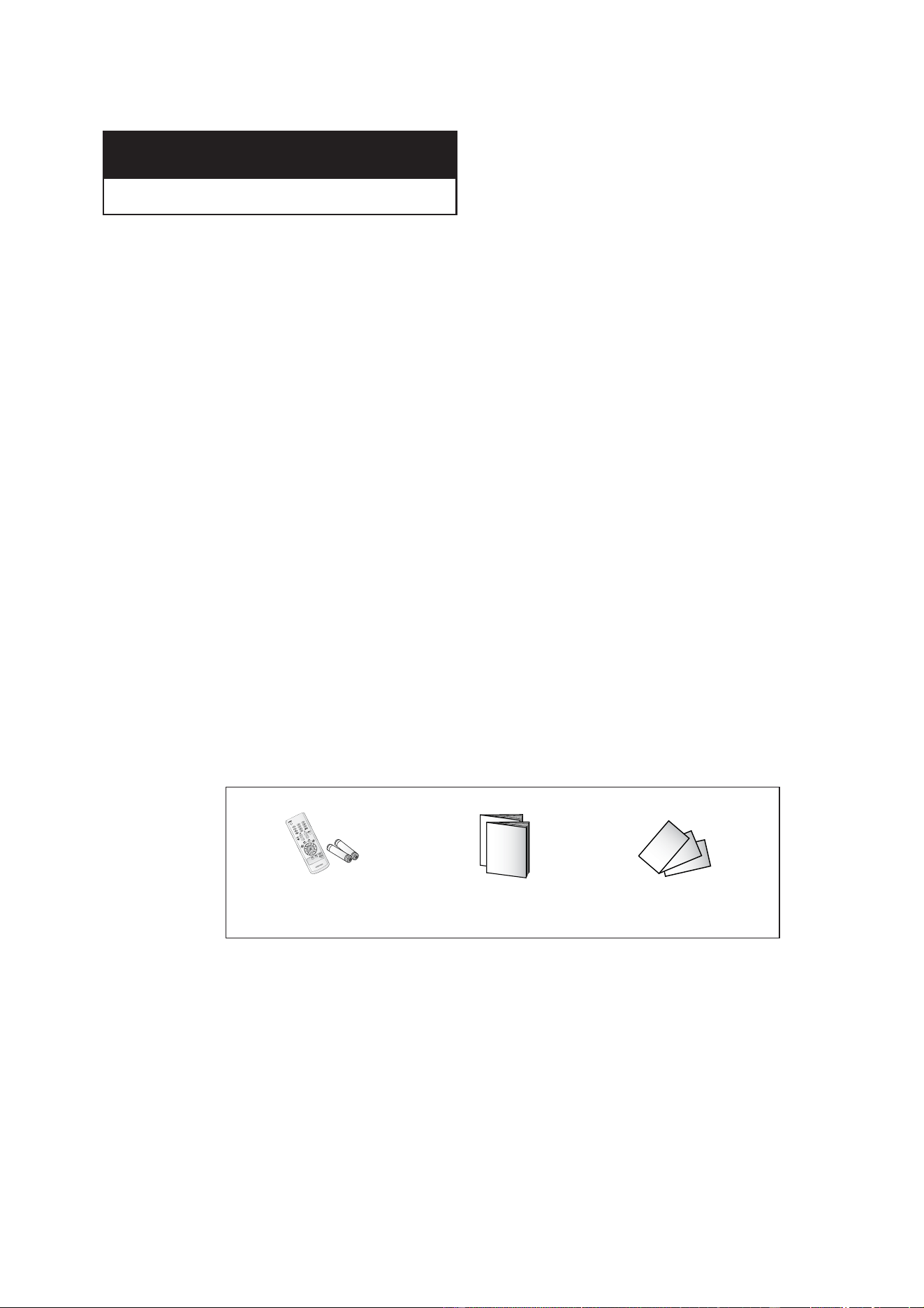
Once you have unpacked your TV, check to make sure that you have all the parts shown
here. If any piece is missing or broken, call your dealer.
Remote Control
AAA Batteries
Warranty Card; 2EA/
Registration Card
Owner’s Instructions
/
Safety Guide Manual
5
Familiarizing Yourself with The TV
Front Panel Buttons
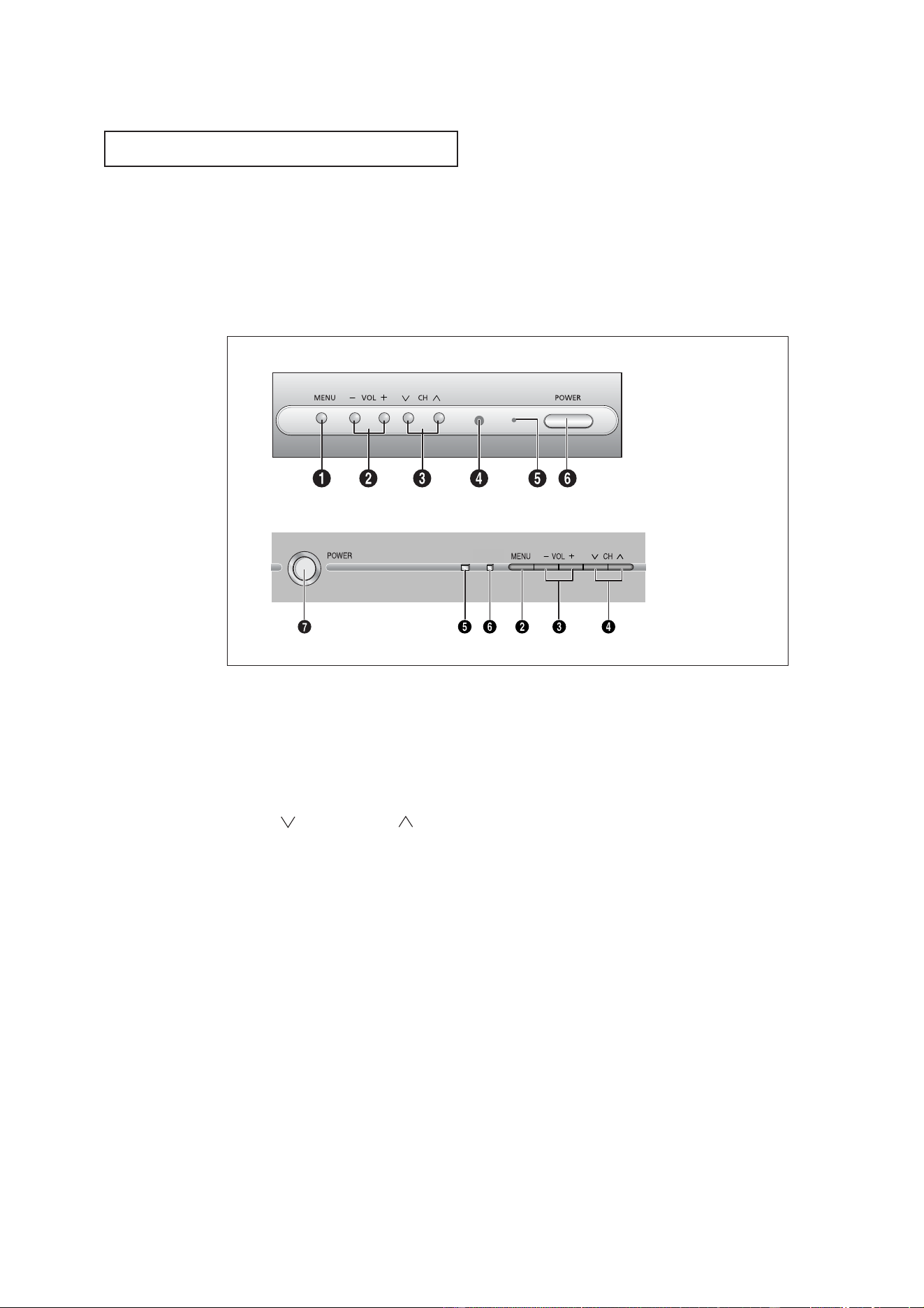
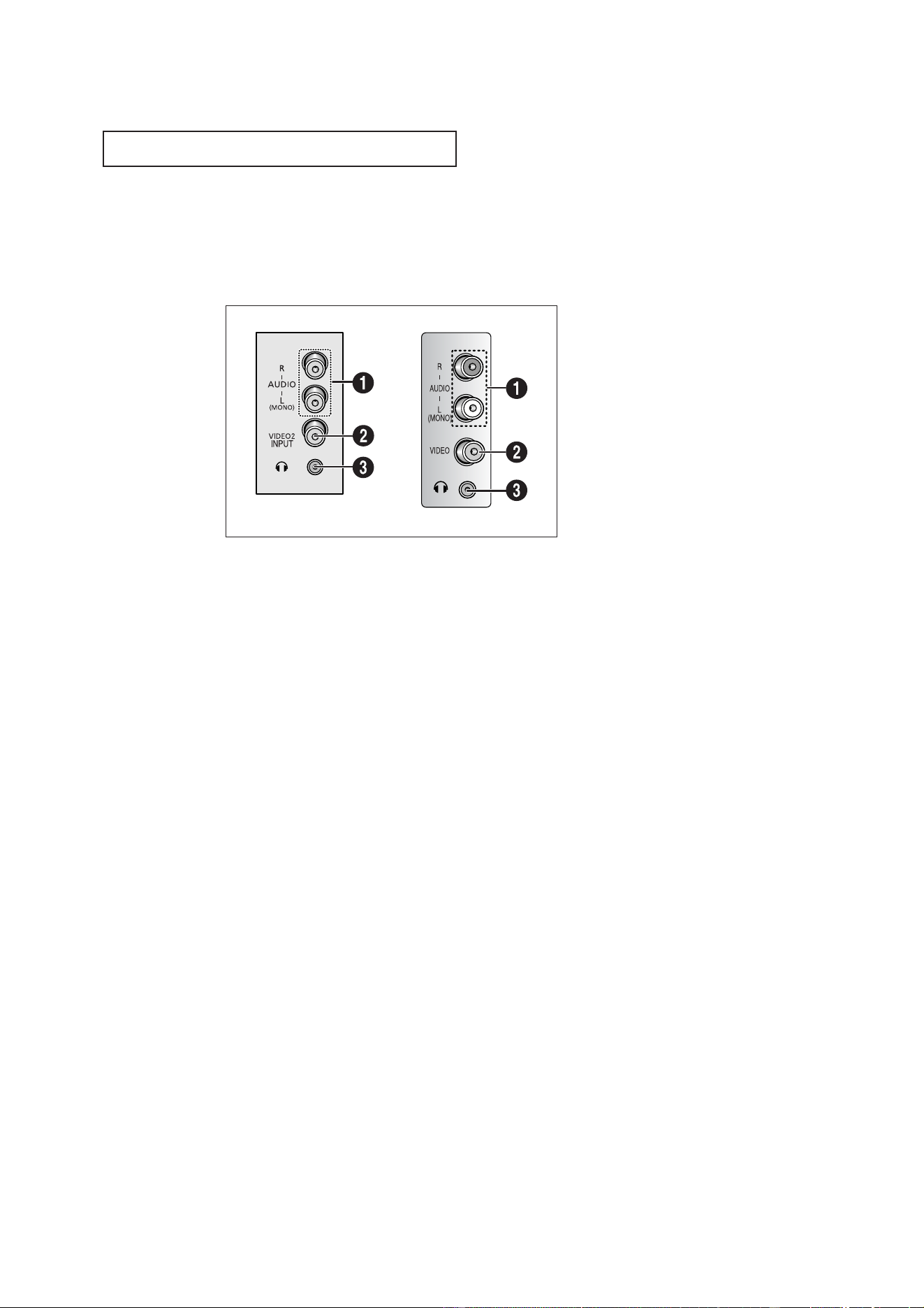
The buttons on the front panel control your TV’s basic features, including the on-screen
menu. To use the more advanced features, you must use the remote control.
YOUR NEW TV
˛
MENU
Press to see an on-screen menu of your TV's fea-
tures.
«
VOL – , +
Press to increase or decrease the volume.
Also used to select items on the on-screen menu.
CH (▼) and CH (▲)
Press to change channels. Also press to select
various items on the on-screen menu.
‹
Remote Control Sensor
Aim the remote control towards this spot on the
TV.
STAND BY indicator
Lights up when you turn the power off.
fl
POWER
Press to turn the TV on and off.
TX-R2028
TX-R2035 / TX-R1635
6
YOUR NEW TV
Side Panel Jacks
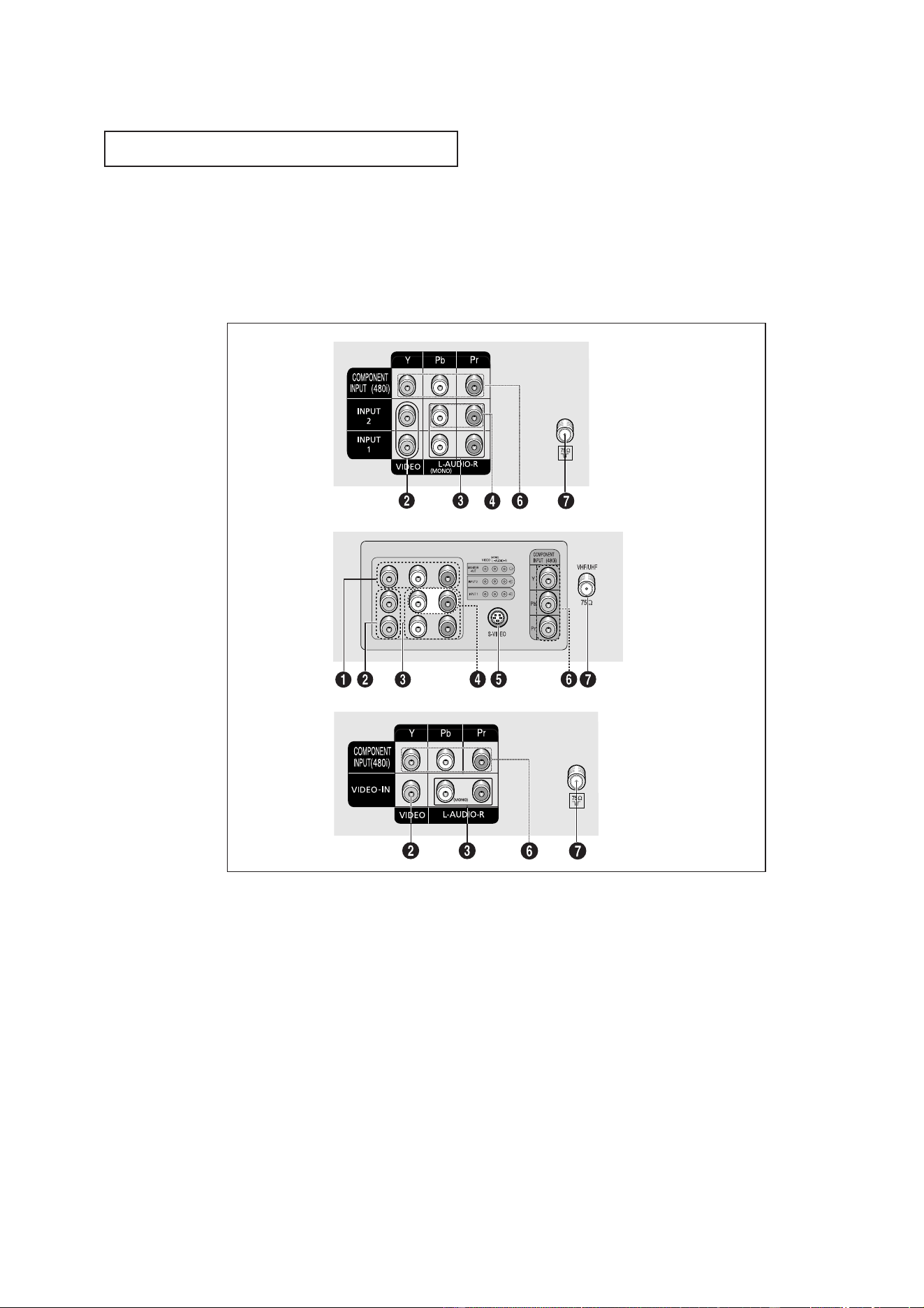
You can use the Side panel jacks to connect an A/V component that is used only occa-
sionally, such as a camcorder or video game. (For information on connecting equipment,
see page 16.)
˛
AUDIO INPUTS
Audio signals from VCRs, DVD players and similar
devices.
«
VIDEO INPUT
Video signals from VCRs, DVD players and similar
devices.
HEADPHONE
Connect a set of external headphones to this jack
for private listening.
TX-R2028 / TX-R2035
TX-R1635
7
YOUR NEW TV
Rear Panel Jacks
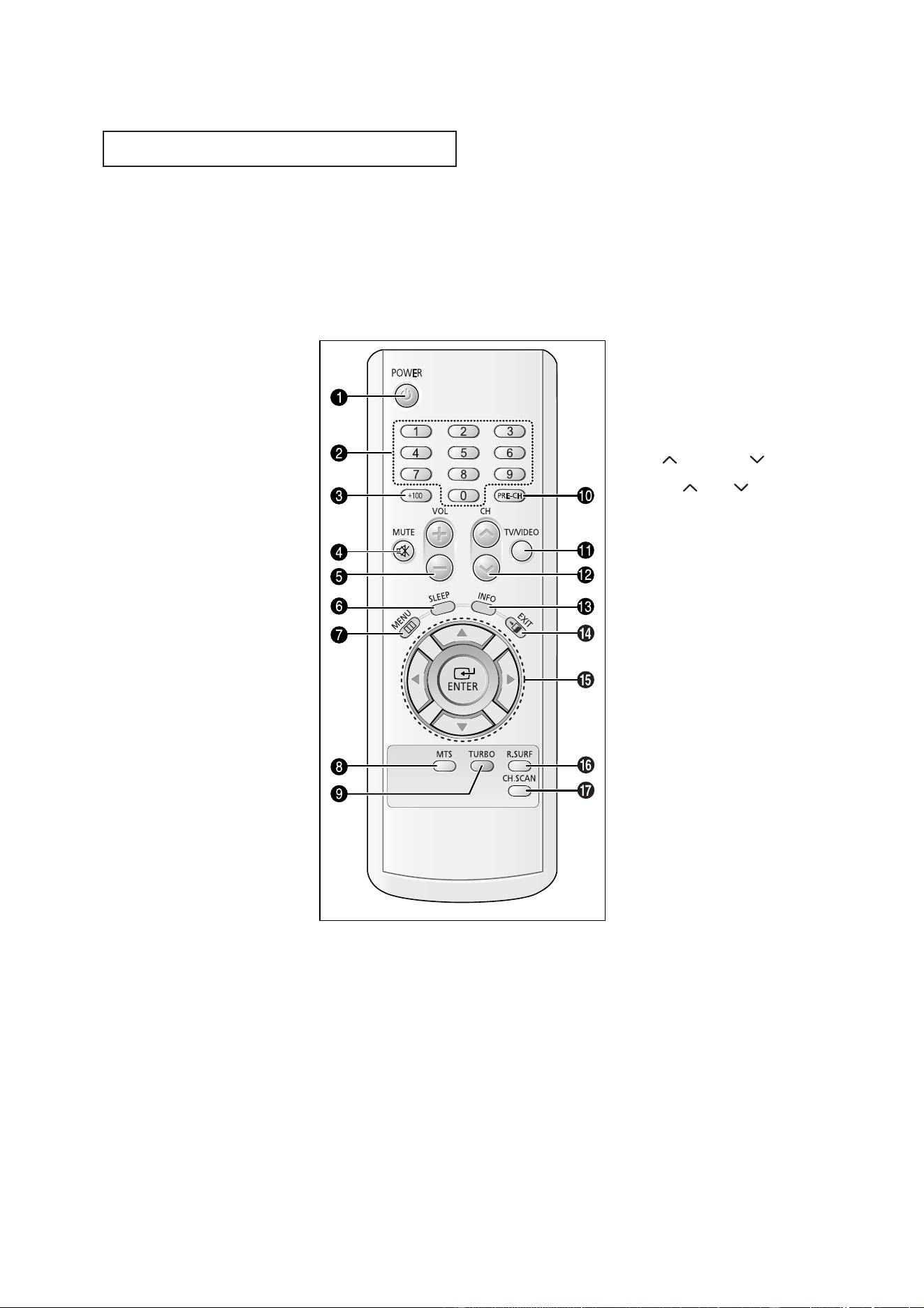
Use the rear panel jacks to connect an A/V component that will be connected
continuously, such as a VCR or a DVD player.
Because there are two sets of input jacks, you can connect two different A/V
components (i.e., a VCR and a DVD, 2 VCRs, etc.)
For more information on connecting equipment, see pages 9-15.
˛
AUDIO-VIDEO MONITOR
OUTPUTS
These audio-video signals are identical to A/V
signals being displayed on the big screen.
(Typically used as the input signals for a record-
ing VCR.)
«
VIDEO INPUT
Video signals from VCRs, DVD players and similar
devices.
AUDIO INPUTS
Audio signals from VCRs, DVD players and similar
devices.
‹
DVD AUDIO INPUTS (INPUT 2)
Use these jacks to connect the audio signals
from a DVD player when using the DVD video
input jacks. When not using the DVD jacks, these
audio jacks function as audio for Video 2 or S-
VIDEO.
S-VIDEO INPUT
Connect to an S-VHS VCR or DVD player.
fl
COMPONENT VIDEO INPUT
Connect video from a DVD player.
Note: Monitor Output doesn’t operate in the
COMPONENT mode.
‚
VHF/UHF
Connect to an antenna or to a cable TV system.
TX-R2028
TX-R2035
TX-R1635
8
YOUR NEW TV
Remote Control
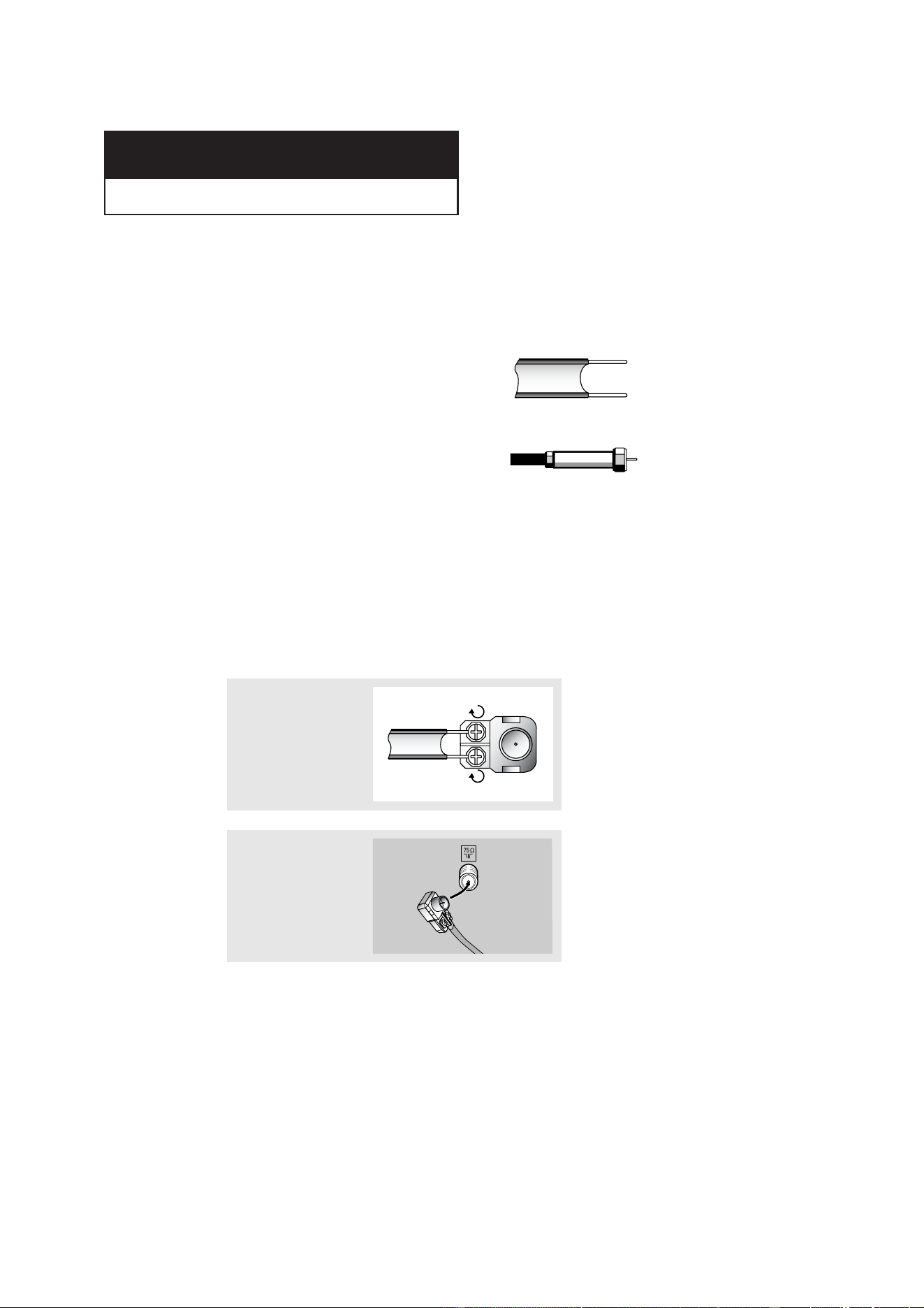
You can use the remote control up to about 23 feet from the TV. When using the remote,
always point it directly at the TV.
˛
POWER
Turns the TV on and off.
«
Number buttons
Press to select channels directly
on the TV.
+100
Press to select channels over 100.
For example, to select
channel 121, press “+100,” then
press “2” and “1.”
‹
MUTE
Press to temporarily cut off
the sound.
VOL -, VOL +
Press to increase or decrease the
volume.
fl
SLEEP
Press to select a preset time inter-
val for automatic shutoff.
‚
MENU
Displays the main on-screen
menu.
MTS (Multichannel
Television Stereo)
Press to choose stereo, mono or
Separate Audio Program (SAP
broadcast).
TURBO
Press to turn the TURBO sound On
or Off.
PRE-CH
Tunes to the previous channel.
TV/VIDEO
Press to display all of the available
video sources (i.e., Antenna/Cable,
VCR).
CH and CH
(Channel Up/Down)
Press CH or CH to change
channels.
æ
INFO
Press to see the time, channel,
etc., on-screen.
EXIT
Press to exit the menu.
fi
Up, Down, Left,
Right (▲, ▼, ˇ , ˆ )/
ENTER
Press to select highlight up, down,
left, or right. While using the on-
screen menus, press the ENTER
button to activate (or change) a
particular item.
ı
R.SURF
Press the SURF button to automati-
cally return to a preferred channel
after a user-preset time delay.
CH.SCAN
Press to have the TV automatically
scan all of the channels it has
memorized.
9
Connecting VHF and UHF Antennas
If your antenna has a set of leads that
look like this, see “Antennas with
300-ohm Flat Twin Leads” below.
If your antenna has one lead that looks
like this, see “Antennas with 75-ohm
Round Leads” on next page.
If you have two antennas, see “Separate
VHF and UHF Antennas” on next page.
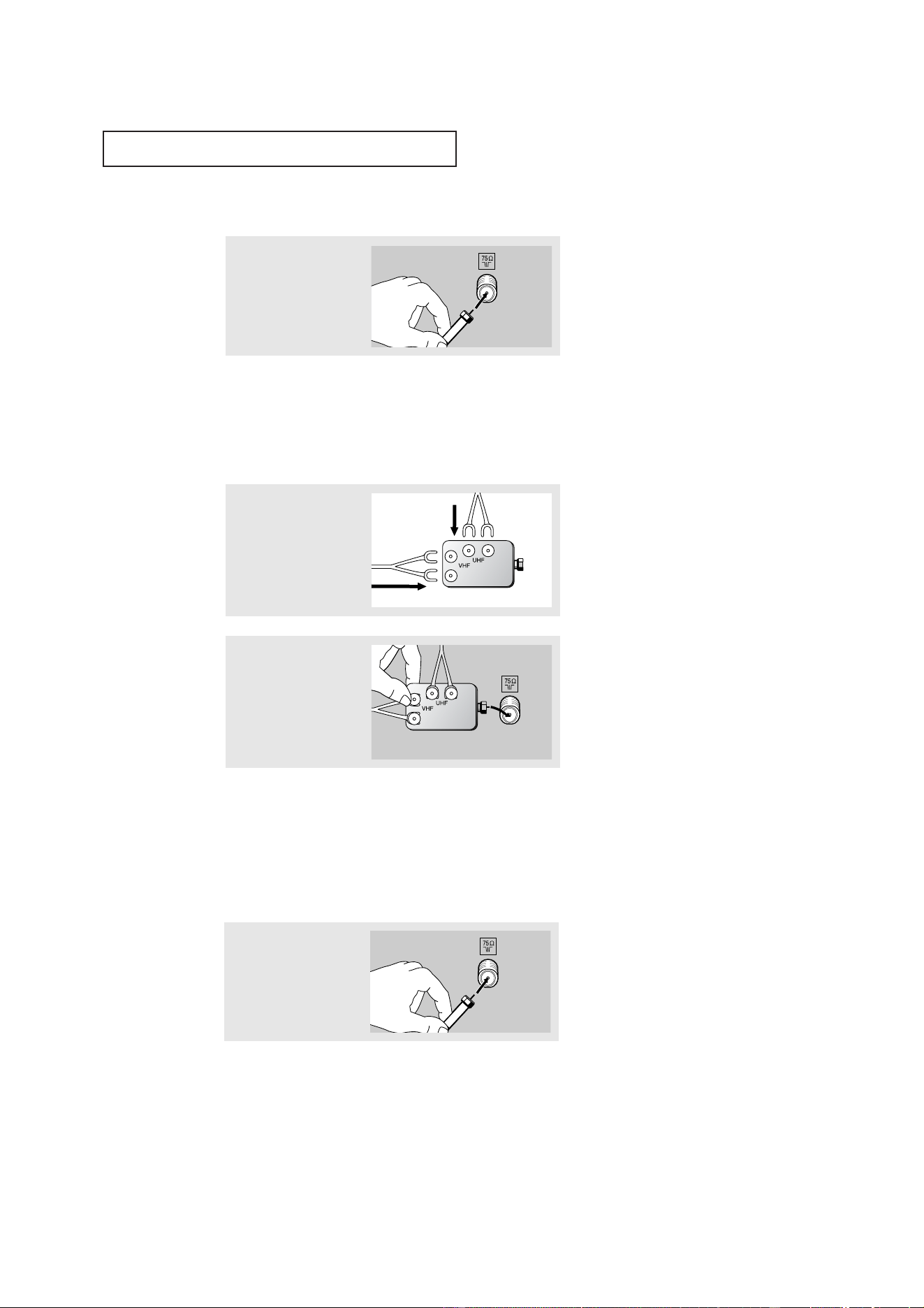
Antennas with 300-ohm Flat Twin Leads
If you are using an off-air antenna (such as a roof antenna or “rabbit ears”) that has
300-ohm twin flat leads, follow the directions below.
Chapter Two
INSTALLATION
1
Place the wires from the
twin leads under the
screws on the 300-75 ohm
adaptor (not supplied).
Use a screwdriver to
tighten the screws.
2
Plug the adaptor into the
VHF/UHF terminal on the
bottom of the back panel.
10
INSTALLATION
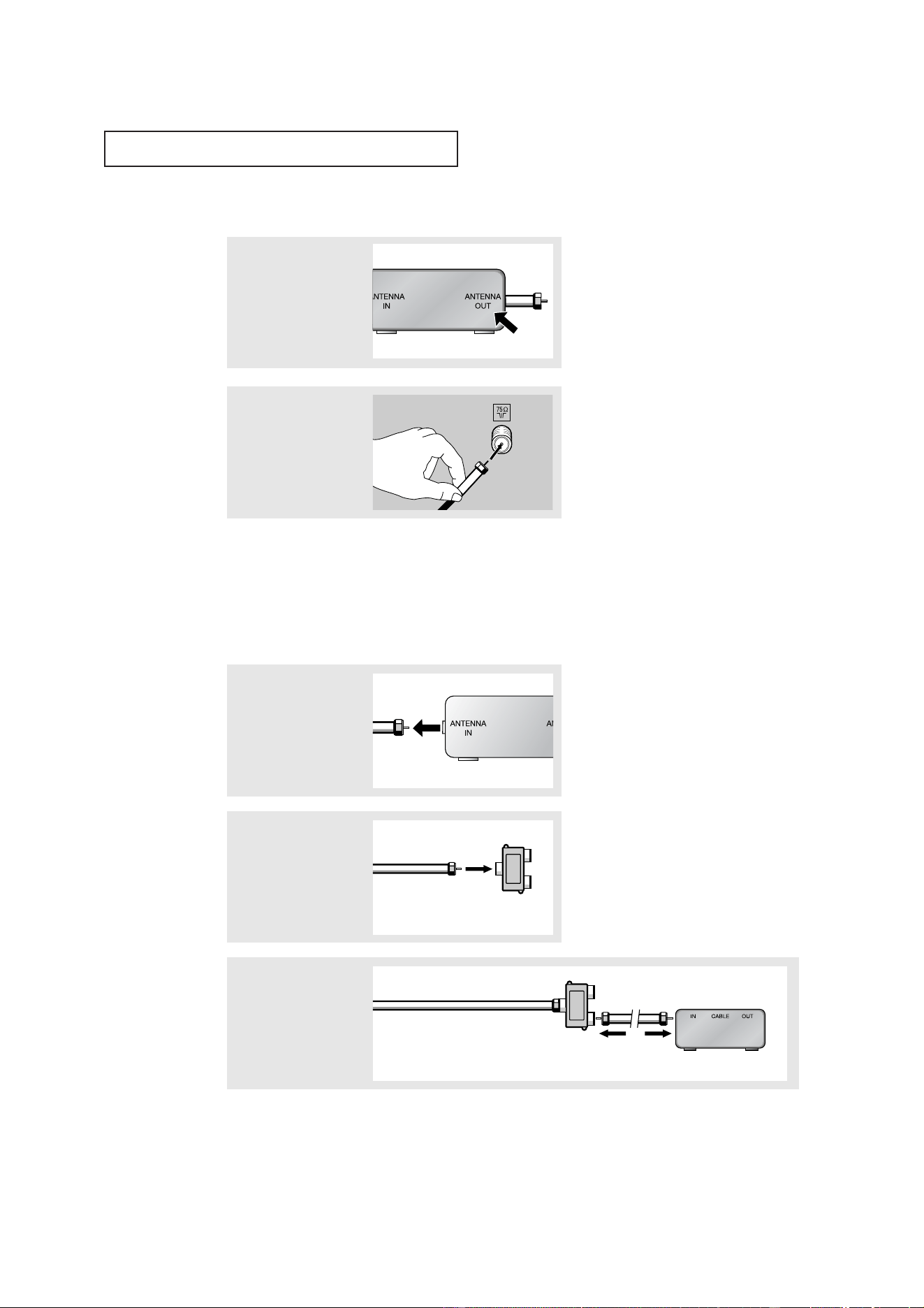
Connecting Cable TV
To connect to a cable TV system, follow the instructions below.
Cable without a Cable Box
▼
1
Plug the incoming cable
into the VHF/UHF antenna
terminal on back of the TV.
Because this TV is cable-ready,
you do not need a cable box to view
unscrambled cable channels.
2
Plug the combiner into the
VHF/UHF terminal on the
bottom of the rear panel.
Separate VHF and UHF Antennas
If you have two separate antennas for your TV (one VHF and one UHF), you must
combine the two antenna signals before connecting the antennas to the TV. This
procedure requires an optional combiner-adaptor (available at most electronics shops).
1
Connect both antenna
leads to the combiner.
Antennas with 75-ohm Round Leads
1
Plug the antenna lead into
the VHF/UHF
terminal on the bottom of
the back panel.
11
INSTALLATION
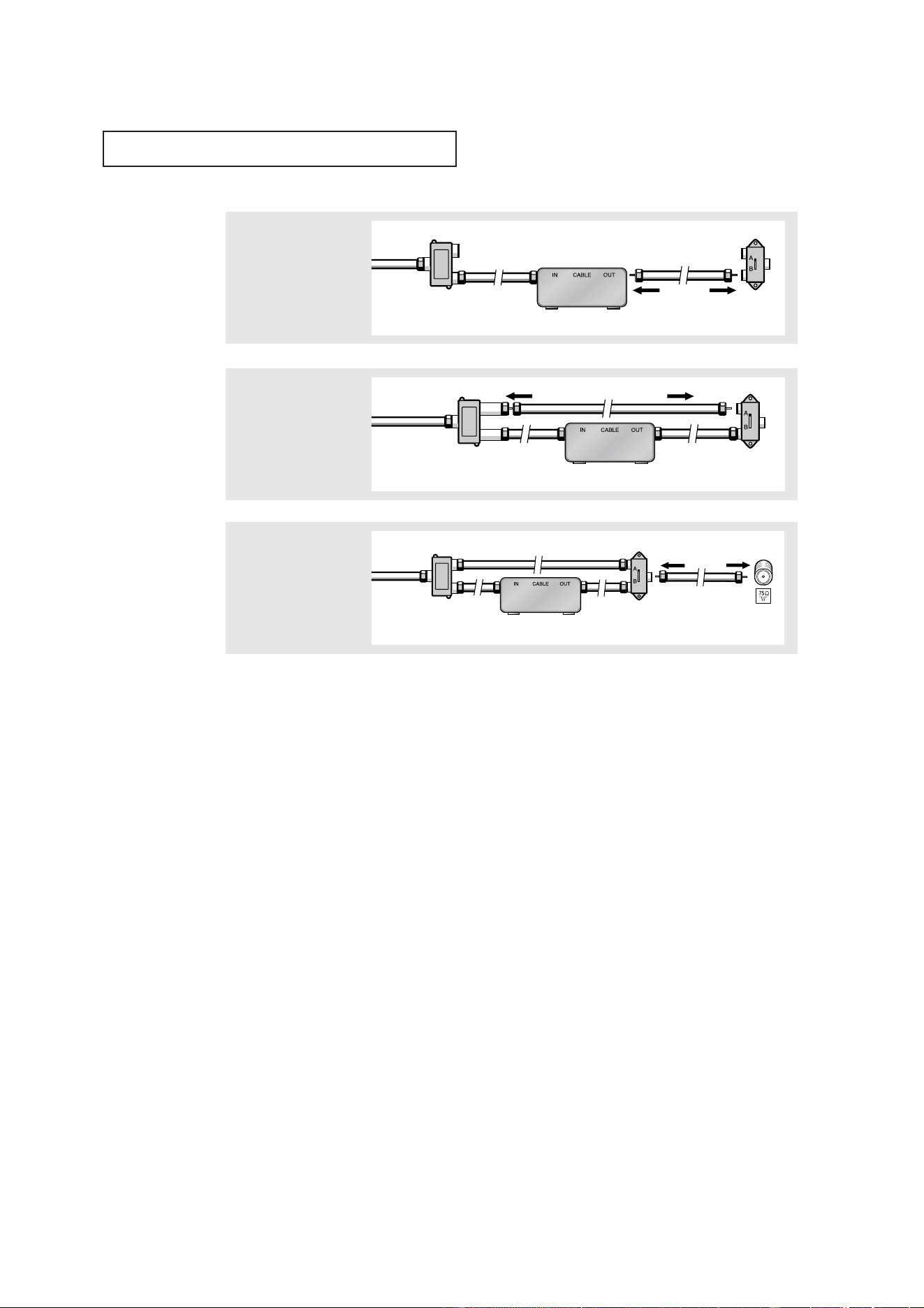
Connecting to a Cable Box that Descrambles All Channels
▼
1
Find the cable that is con-
nected to the ANTENNA
OUT terminal on your
cable box.
This terminal might be labeled
“ANT OUT”, “VHF OUT” or simply,
“OUT”.
2
Connect the other end of
this cable to the VHF/UHF
antenna terminal on the
back of the TV.
Connecting to a Cable Box that Descrambles Some Channels
If your cable box descrambles only some channels (such as premium channels), follow the
instructions below. You will need a two-way splitter, an RF (A/B) switch, and four lengths of
coaxial cable. (These items are available at most electronics stores.)
▼
1
Find and disconnect the
cable that is connected to
the ANTENNA IN
terminal on your cable
box.
This terminal might be labeled
“ANT IN”, “VHF IN” or simply,
“IN”.
2
Connect this cable to a
two-way splitter.
3
Connect a coaxial cable
between an OUTPUT ter-
minal on the splitter and
the IN terminal on the
cable box.
Incoming Cable
Splitter
Incoming Cable
Cable Box
Splitter
12
INSTALLATION
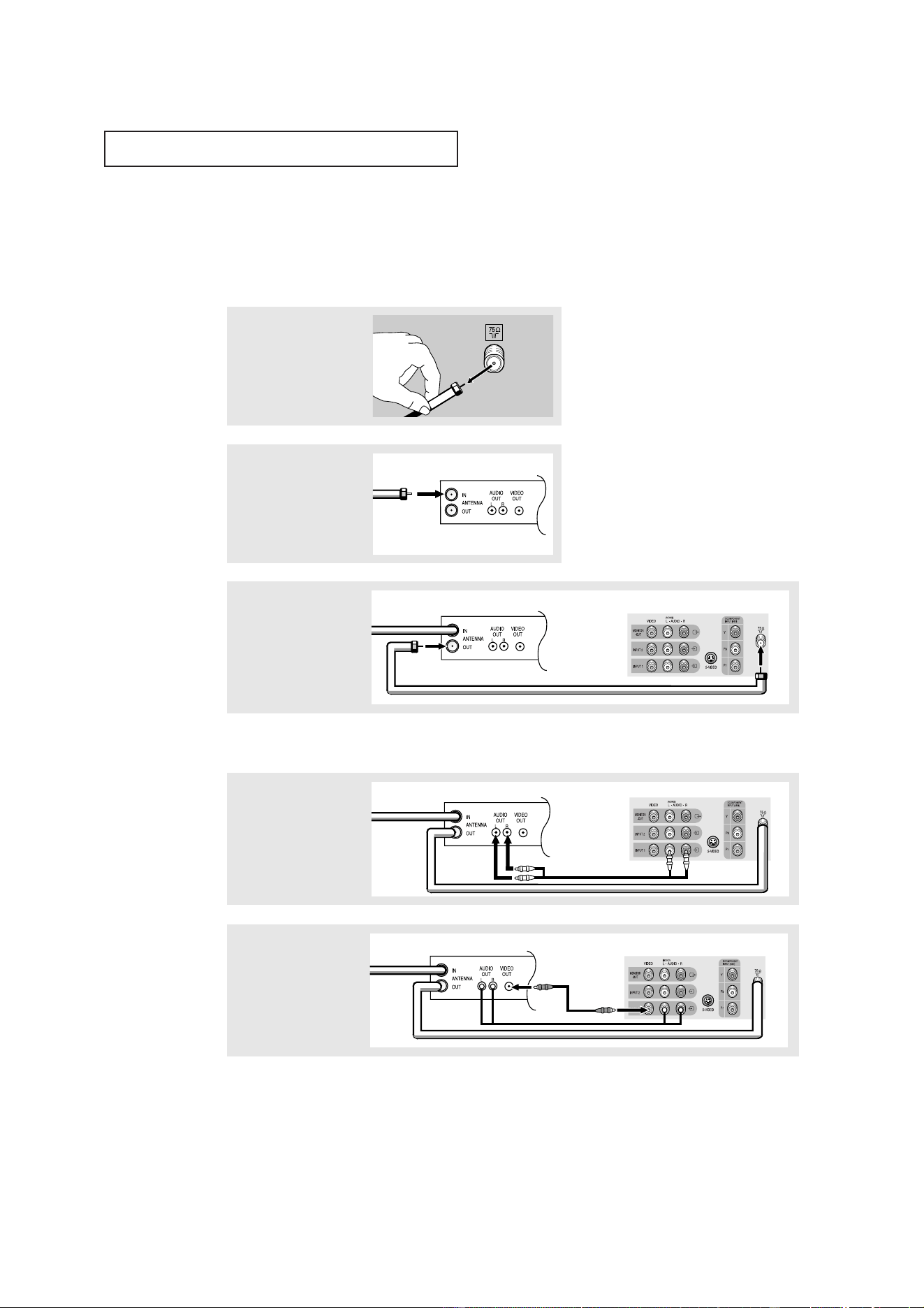
4
Connect a coaxial cable
between the ANTENNA
OUT terminal on the cable
box and the B–IN terminal
on the RF(A/B) switch.
5
Connect another cable
between the other OUT
terminal on the splitter
and the A–IN terminal on
the RF (A/B) switch.
6
Connect the last coaxial
cable between the OUT
terminal on the RF (A/B)
switch and the VHF/UHF
terminal on the rear of the
TV.
After you’ve made this connection, set the A/B switch to the “A” position for normal view-
ing. Set the A/B switch to the “B” position to view scrambled channels. (When you set the
A/B switch to “B”, you will need to tune your TV to the cable box’s output channel, which is
usually channel 3 or 4.)
Incoming
Cable
Cable Box
RF (A/B)
Switch
Splitter
Incoming
Cable
Cable Box
RF (A/B)
Switch
Splitter
Incoming
Cable
Cable Box
RF (A/B)
Switch
TV Rear
Splitter
13
INSTALLATION
Connecting a VCR
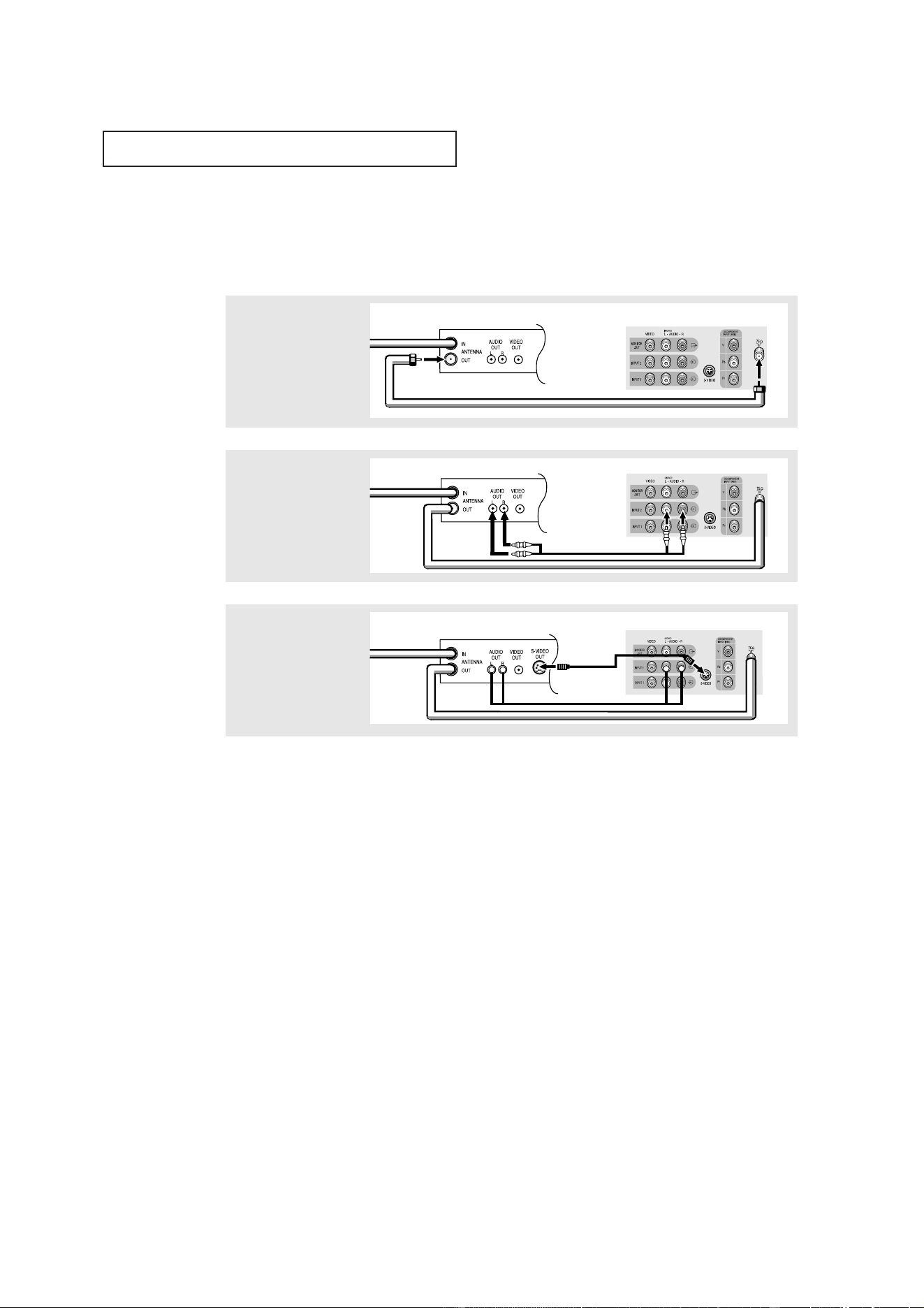
These instructions assume that you have already connected your TV to an antenna or a cable
TV system (according to the instructions on pages 9-12). Skip step 1 if you have not yet
connected to an antenna or a cable system.
1
Unplug the cable or
antenna from the back of
the TV.
2
Connect the cable or
antenna to the
ANTENNA IN terminal on
the back of the VCR.
3
Connect a coaxial cable
between the ANTENNA
OUT terminal on the VCR
and the antenna
terminal on the TV.
4
Connect a set of audio
cables between the
AUDIO OUT jacks on the
VCR and the AUDIO jacks
on the TV.
5
Connect a video cable
between the VIDEO OUT
jack on the VCR and the
VIDEO jack on the TV.
Follow the instructions in “Viewing a VCR or Camcorder Tape” to view your VCR tape.
Note: This figure shows the Standard connector-jack panel. The actual configuration for your
TV may be different.
A coaxial cable is usually included with a VCR. (If not, check your local electronics
store).
Incoming
Cable or
Antenna
VCR Rear Panel
VCR Rear Panel TV Rear Panel
Coaxial Cable
VCR Rear Panel
TV Rear Panel
Audio Cable
VCR Rear Panel
TV Rear Panel
Video Cable
14
INSTALLATION
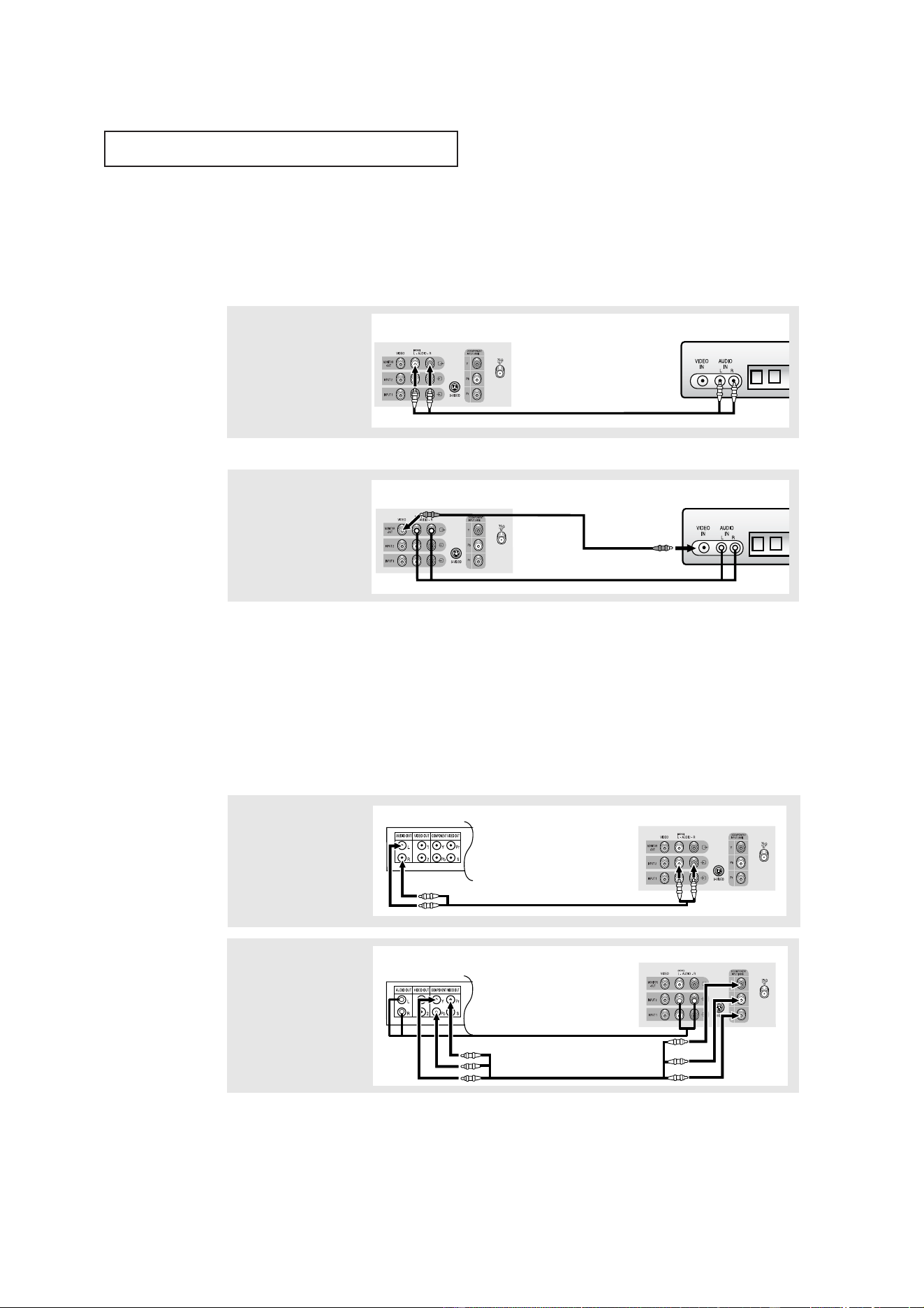
3
Connect an S-video cable
between the S-VIDEO OUT
jack on the VCR and the
S-VIDEO IN jack on the
TV.
An S-video cable is usually included with an S-VHS VCR. (If not, check your local
electronics store.)
Note: This figure shows the Standard connector-jack panel. The actual configuration for your TV
may be different.
2
Connect a set of audio
cables between the
AUDIO OUT jacks on the
VCR and the AUDIO
INPUT2 jacks on the TV.
1
To begin, follow steps
1–3 in the previous
section to connect the
antenna or cable to your
VCR and your TV.
Connecting an S-VHS VCR (Depends on the model)
Your Samsung TV can be connected to an S-Video signal from an S-VHS VCR.
(This connection delivers a better picture as compared to a standard VHS VCR.)
VCR Rear Panel TV Rear Panel
Coaxial Cable
VCR Rear Panel
TV Rear Panel
Audio Cable
VCR Rear Panel
TV Rear Panel
S-Video Cable
15
INSTALLATION
Connecting a DVD Player
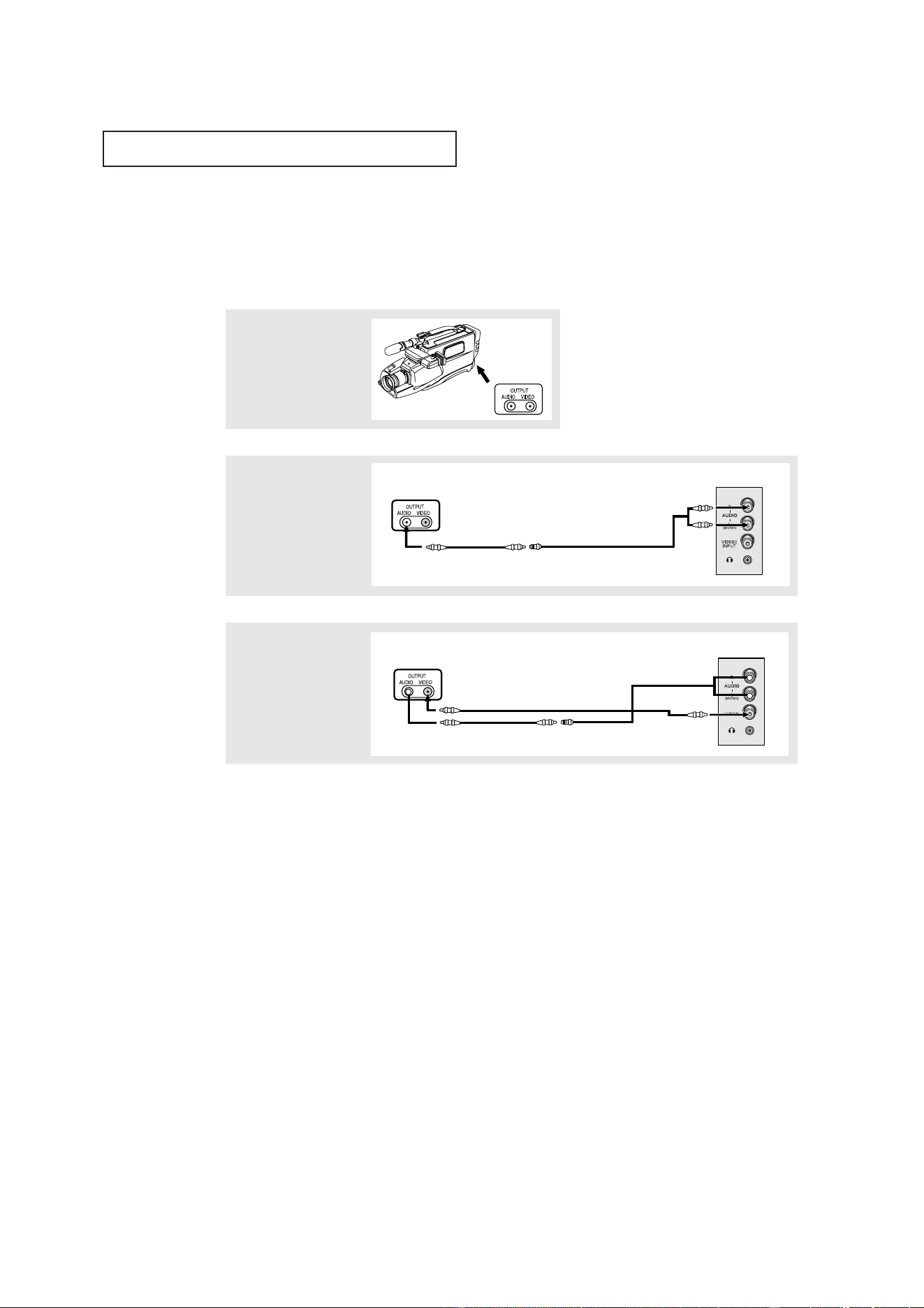
The rear panel jacks on your TV make it easy to connect a DVD player to your TV.
Note: Only 480i formats are supported.
Note: For an explanation of Component video, see your DVD player's owner's manual.
1
Connect a set of audio
cables between the
AUDIO INPUT 2 jacks on
the TV and the AUDIO
OUT jacks on the DVD
player.
2
Connect a video cable
between the COMPO-
NENT INPUT (Y, Pb, Pr)
jacks on the TV and the
DVD-OUT (Y, Pb, Pr) jacks
on the DVD player.
Connecting a Second VCR to Record from the TV
(Depends on the model)
Your TV can send out signals of its picture and sound to be recorded by a second VCR.
To do this, connect your second VCR as follows:
1
Connect a set of audio
cables between the
AUDIO OUT jacks on the
TV and the AUDIO IN
jacks on the VCR.
2
Connect a video cable
between the VIDEO OUT
jack on the TV and the
VIDEO IN jack on the VCR.
Refer to your VCR’s instructions for more information about how to record using this kind
of connection.
Note: This figure shows the Standard connector-jack panel. The actual configuration for your TV
may be different.
(The VCR input jacks might be either on the front or on back of the VCR.)
VCR Input Panel
TV Rear Panel
Audio Cable
VCR Input Panel
TV Rear Panel
Video Cable
DVD Player Rear Panel
TV Rear Panel
Video Cable
DVD Player Rear Panel
TV Rear Panel
Audio Cable
16
INSTALLATION
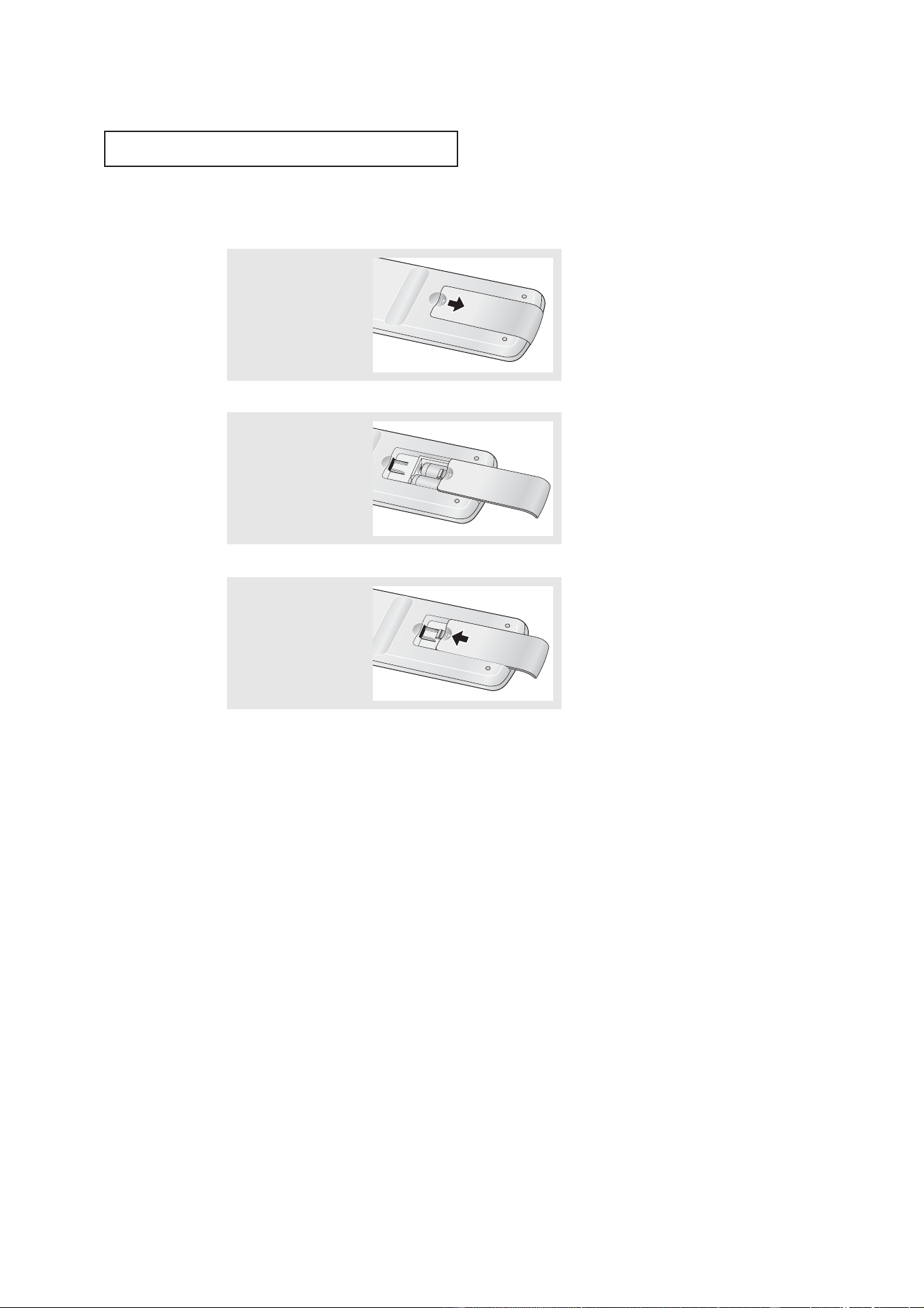
2
Connect an audio cable
between the AUDIO OUT-
PUT jack on the cam-
corder and the AUDIO
terminals on the side of
the TV.
3
Connect a video cable
between the VIDEO OUT-
PUT jack on the cam-
corder and the VIDEO ter-
minal on the side of the
TV.
1
Locate the A/V output
jacks on the camcorder.
They are usually found on
the side or back of the
camcorder.
Connecting a Camcorder
The side panel jacks on your TV make it easy to connect a camcorder to your TV. They allow
you to view the camcorder tapes without using a VCR. (Also see “Viewing a VCR or
Camcorder Tape” on page 29.)
The audio-video cables shown here are usually included with a Camcorder. (If not, check
your local electronics store.) If your camcorder is stereo, you need to connect a set of two
cables.
Note: This figure shows the Standard connector-jack panel. The actual configuration for your TV
may be different.
Camcorder
Output Jacks
Camcorder
Output Jacks
Audio Cable
Video Cable
Y-Connector
TV Side Panel
Camcorder
Output Jacks
TV Side Panel
17
INSTALLATION
▼
3
Replace the cover.
Remove the batteries and store
them in a cool, dry place if you won’t
be using the remote control for a
long time.
The remote control can be used up
to about 23 feet from the TV.
(Assuming typical TV usage, the bat-
teries last for about one year.)
▼
2
Install two AAA size
batteries.
Make sure to match the “+” and
“
–” ends of the batteries with the
diagram inside the compartment.
Installing Batteries in the Remote Control
1
Slide the cover out com-
pletely.
Note: This figure shows the Standard remote control. The actual configuration may be dif-
ferent.
18
OPERATION
Chapter Three
OPERATION
Turning the TV On and Off
Press the POWER button on the remote control.
You can also use the POWER button on the front panel.
Viewing the Menus and On-Screen Displays
Viewing the Menus
Viewing the Display
▼
The on-screen displays
disappear after about ten seconds.
When Closed Caption has been set,
the icon( ) will appear by press-
ing the
INFO button.
▼
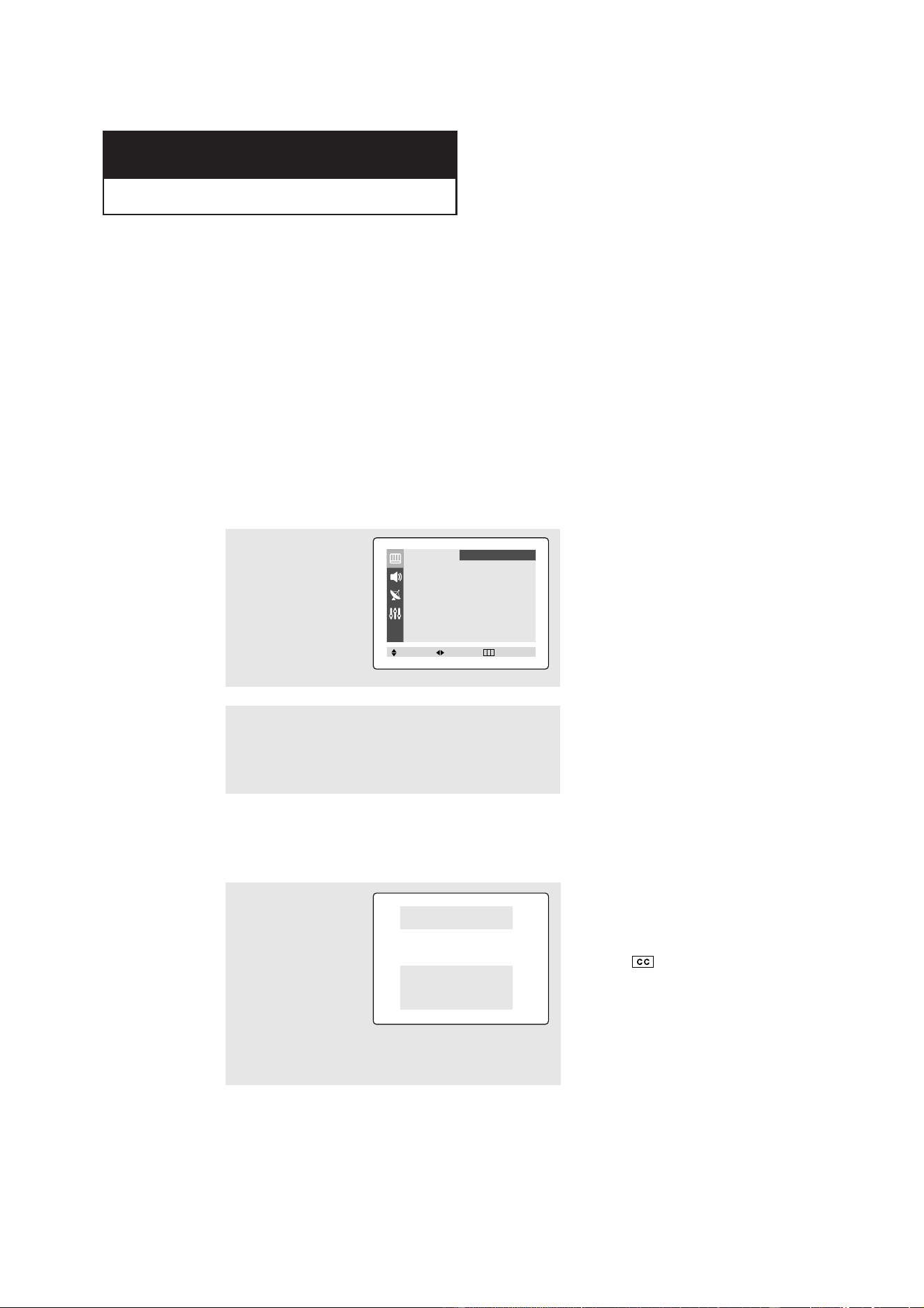
1
With the power on, press
the MENU button.
The main menu appears
on the screen. Its left side
has four icons: Picture,
Sound, Channel and
Function.
The on-screen menus disappear from
the screen after about two minutes.
▼
You can also use the MENU,
CHANNEL and VOLUME buttons
on the control panel of the TV to
make selections.
1
Press the INFO button.
on the remote control.
The on-screen display
shows any or all of the
following: Active channel,
picture mode, audio mode,
audio source and the time.
(“*” indicates a channel
has been manually fine
tuned.)
2
Use the ▲ and ▼ buttons to highlight one of the 4 icons.
Then press the
ˆ
button to access the icon’s sub-menu.
Press the EXIT button to exit.
ANT 11
*
Signal : Mono
Picture : Dynamic
Sound : Custom
MTS : Stereo
- - : - - am
Mode
ˇˇ
Dynamic
ˆˆ
Adjust
ˆˆ
Color Tone : Cool
Size : Normal
Picture
Move Select Exit
19
OPERATION
Selecting a Menu Language
2
Press the
ˇ
or
ˆ
button
to select the appropriate
language: English,
Spanish or French.
Press the EXIT button to
exit.
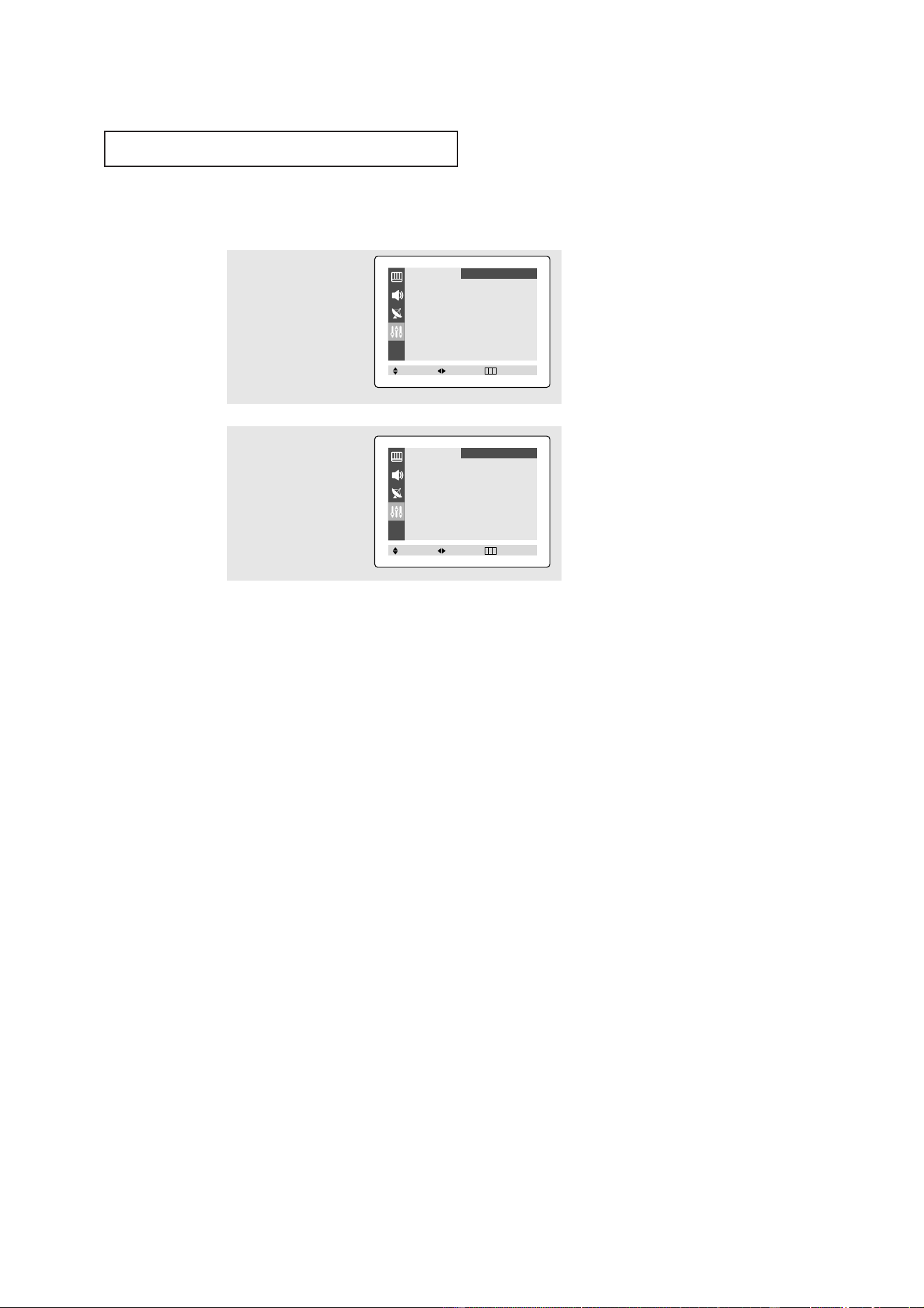
1
Press the MENU button to
display the menu.
Press the ▲ or ▼ button
to select “Function”, then
press the
ˇ
or
ˆ
button.
Language
ˇˇ
English
ˆˆ
Time
ˆˆ
Caption
ˆˆ
V-chip
ˆˆ
Function
Move Select Exit
Language
ˇˇ
English
ˆˆ
Time
ˆˆ
Caption
ˆˆ
V-chip
ˆˆ
Function
Move Select Exit
20
OPERATION
Memorizing the Channels
Your TV can memorize and store all of the available channels for both “off-air” (antenna)
and cable channels. After the available channels are memorized, use the CH and
CH buttons to scan through the channels. This eliminates the need to change
channels by entering the channel digits. There are three steps for memorizing channels:
selecting a broadcast source, memorizing the channels (automatic) and adding and delet-
ing channels (manual).
Selecting the Video Signal-source
Before your television can begin memorizing the available channels, you must specify the
type of signal source that is connected to the TV (i.e., an antenna or a cable system).
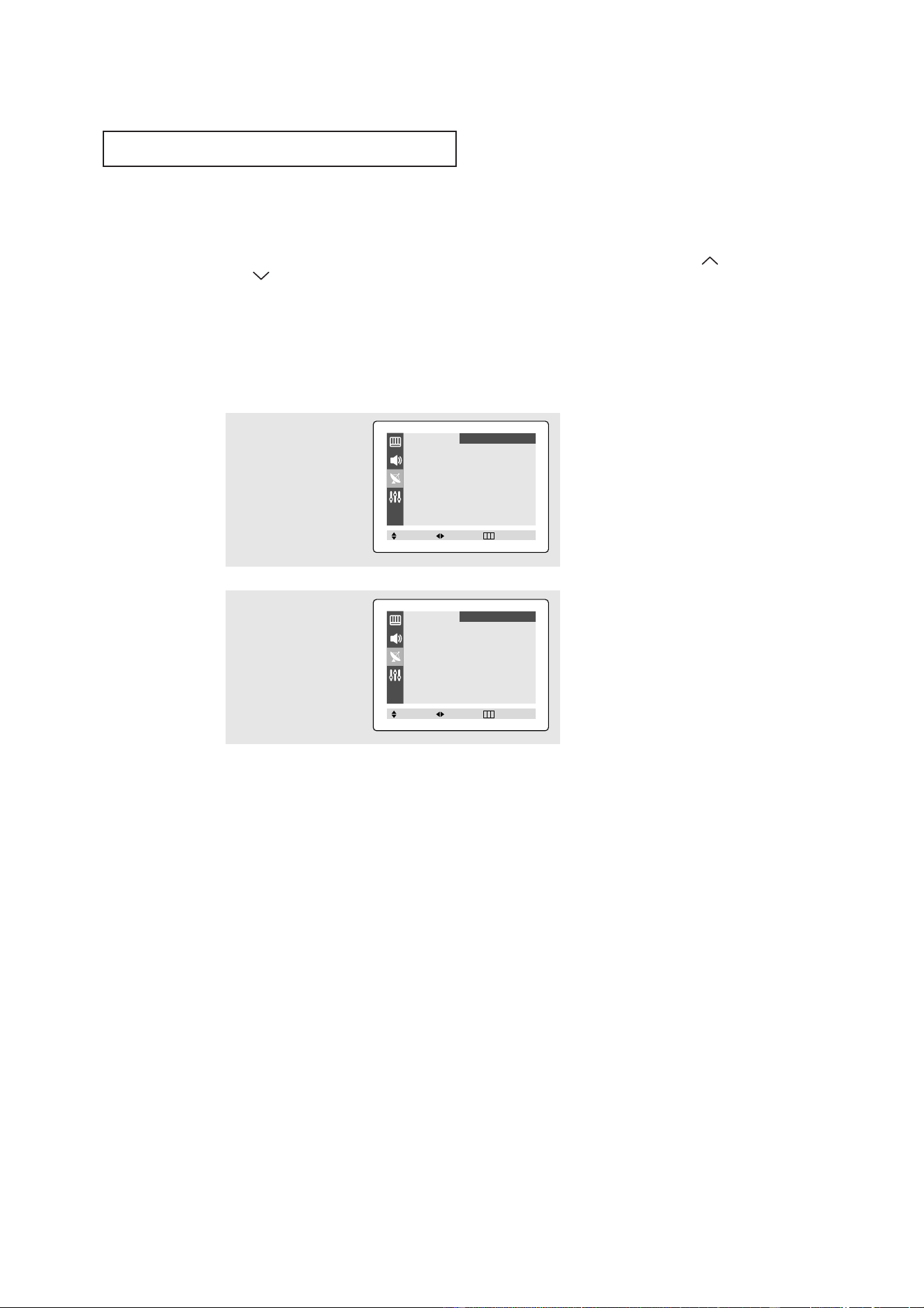
1
Press the MENU button to
display the menu.
Press the
▲ or ▼ button
to select “Channel”, then
press the
ˇ
or
ˆ
button.
2
Repeatedly press the
ˇ
or
ˆ
button to cycle through
these choices:
ANT (antenna), STD, HRC
or IRC (all cable TV).
Press the EXIT button to
exit.
Note: STD, HRC and IRC identify various types of cable TV systems. Contact your local cable com-
pany to identify the type of cable system that exists in your particular area.
At this point the signal source has been selected. Proceed to “Storing Channels in Memory” (next
page).
ANT/CATV
ˇˇ
ANT
ˆˆ
Auto Program
ˆˆ
TV/AV
ˇˇ
TV
ˆˆ
Fine Tune
ˆˆ
Add/Erase
ˆˆ
Channel
Move Select Exit
ANT/CATV
ˇˇ
ANT
ˆˆ
Auto Program
ˆˆ
TV/AV
ˇˇ
TV
ˆˆ
Fine Tune
ˆˆ
Add/Erase
ˆˆ
Channel
Move Select Exit
21
OPERATION
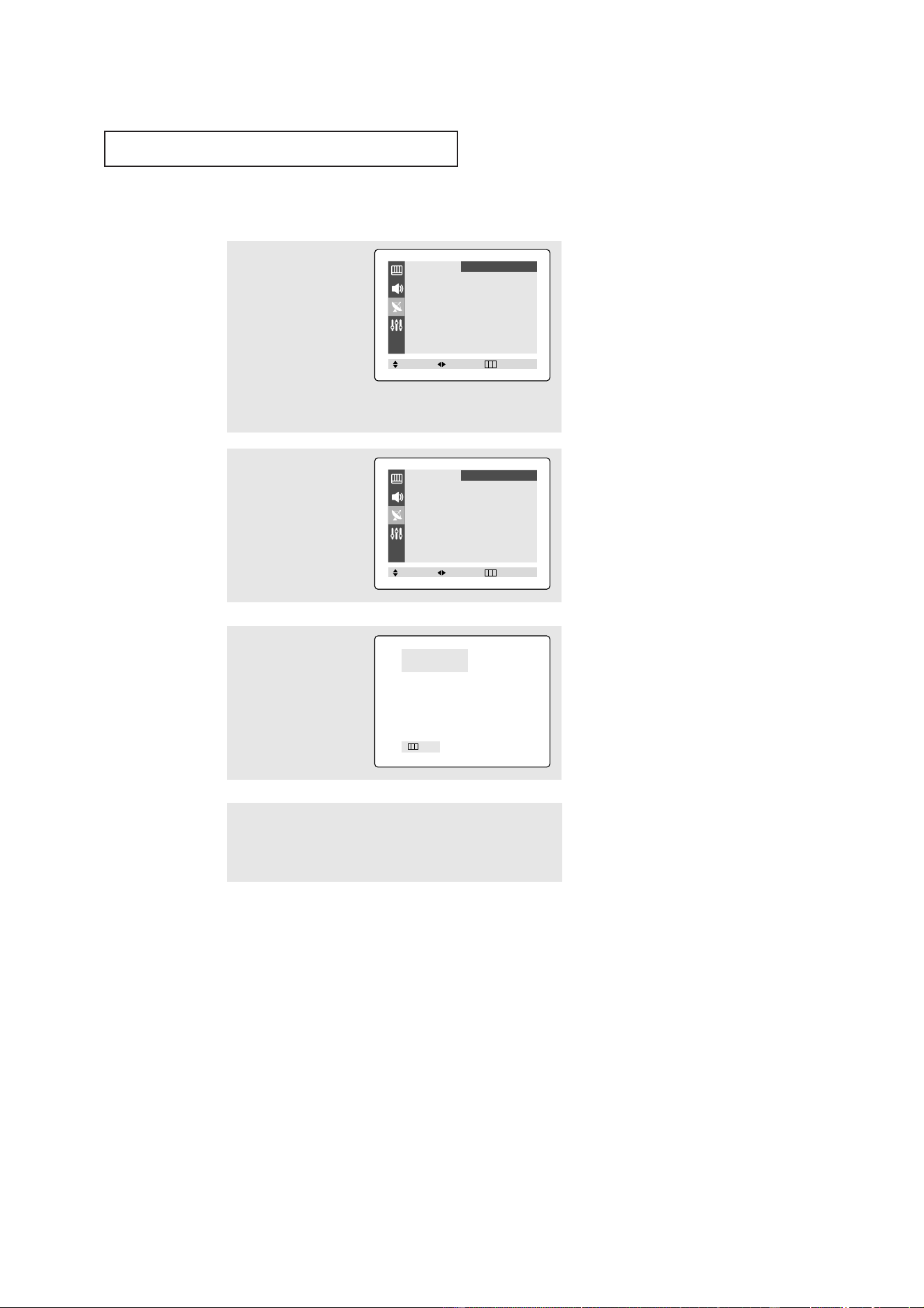
3
Press the
ˇ
or
ˆ
button.
The TV will begin
memorizing all of the
available channels.
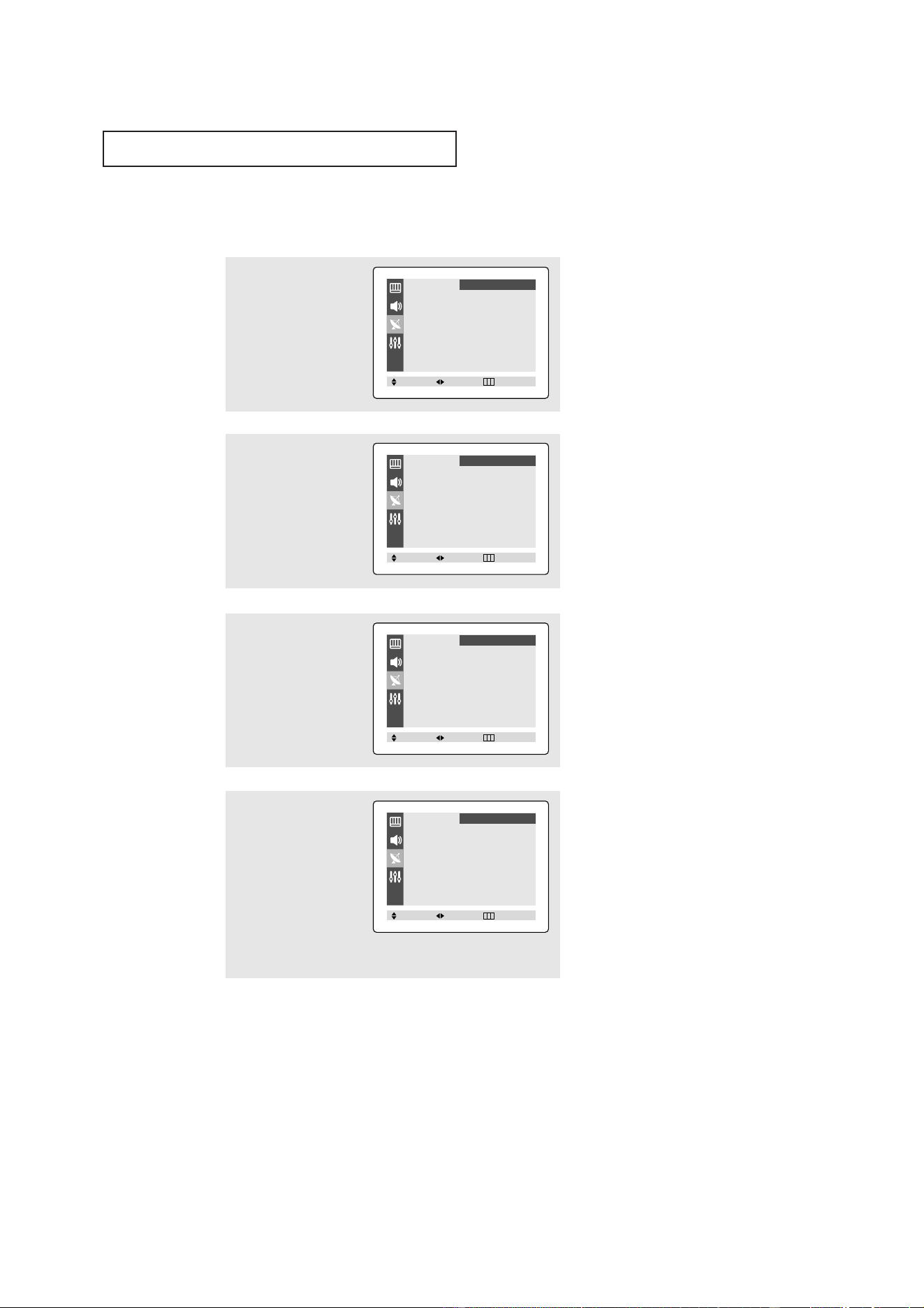
Storing Channels in Memory (Automatic Method)
▼
The TV automatically cycles
through all of the available channels
and stores them in memory. This
takes about one to two minutes.
Press the
MENU button at any time
to interrupt the memorization
process and return to the Channel
menu.
2
Press the ▲ or ▼ button
to select “Auto program”.
1
First, select the correct
signal source (ANT, STD,
HRC, IRC). See steps 1~2 on
previous page.
Press the MENU button,
then press the ▲ or ▼
button to select “Channel”
then press the
ˇ
or
ˆ
but-
ton.
4
After all the available channels are stored, the Channel menu
reappears. Press the EXIT button to exit.
Auto Program
ANT 30
Exit
ANT/CATV
ˇˇ
ANT
ˆˆ
Auto Program
ˆˆ
TV/AV
ˇˇ
TV
ˆˆ
Fine Tune
ˆˆ
Add/Erase
ˆˆ
Channel
Move Select Exit
ANT/CATV
ˇˇ
ANT
ˆˆ
Auto Program
ˆˆ
TV/AV
ˇˇ
TV
ˆˆ
Fine Tune
ˆˆ
Add/Erase
ˆˆ
Channel
Move Select Exit
22
OPERATION
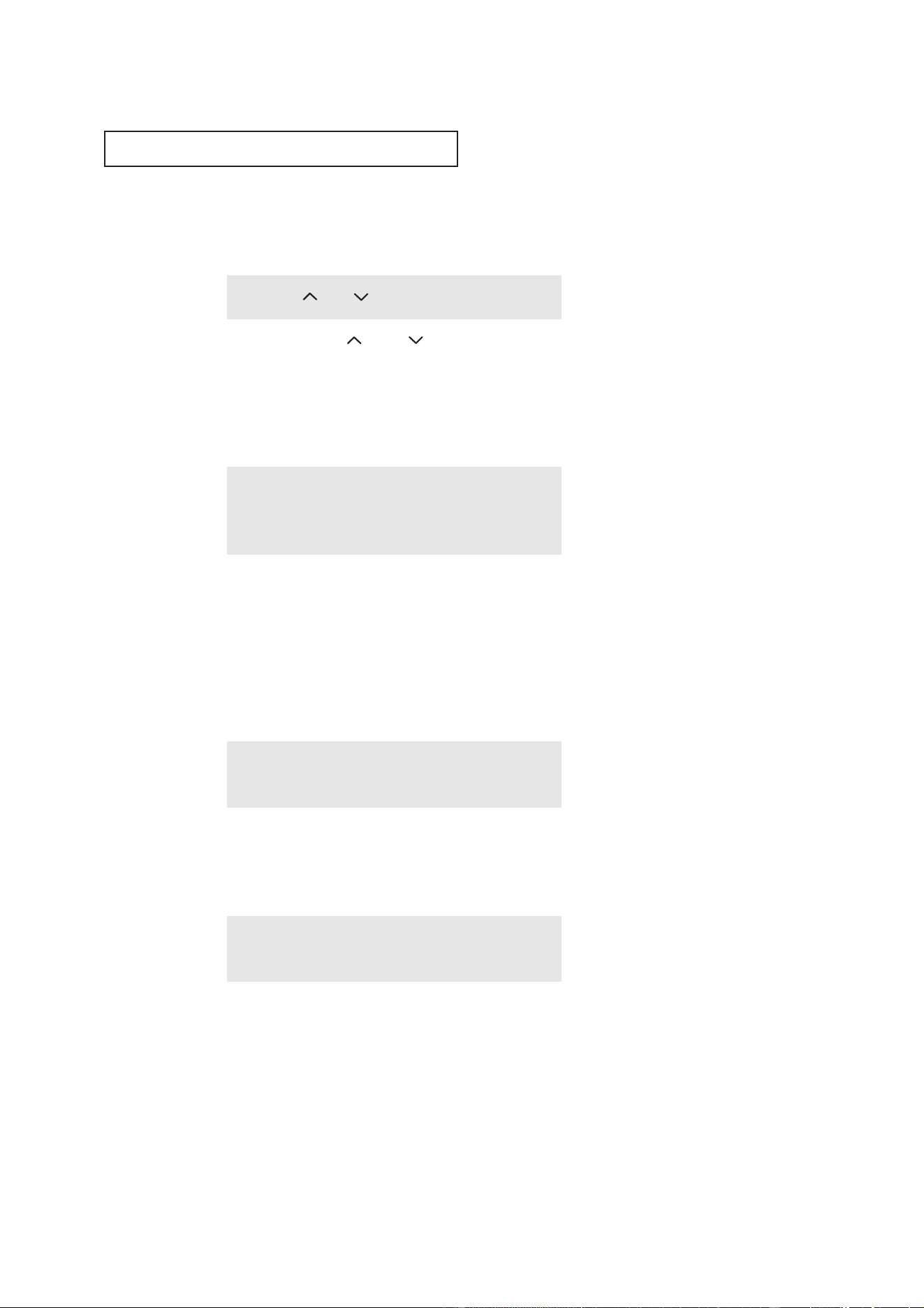
Adding and Erasing Channels (Manual Method)
1
Press the MENU button to
display the menu.
Press the ▲ or ▼ button
to select “Channel”, then
press the
ˇ
or
ˆ
button.
2
Press the ▲ or ▼ button
to select “Add/Erase”,
then press the
ˇ
or
ˆ
button.
3
Press the
ˇ
,
ˆ
or number
buttons to select the
channel you want added
or erased.
4
Press the ▲ or ▼ button
to select “Select”.
Press the
ˇ
or
ˆ
button
to select “Added” or
“Erased”.
Press the
EXIT button to
exit.
ANT/CATV
ˇˇ
ANT
ˆˆ
Auto Program
ˆˆ
TV/AV
ˇˇ
TV
ˆˆ
Fine Tune
ˆˆ
Add/Erase
ˆˆ
Channel
Move Select Exit
Channel : ANT 11
Select : Erased
Channel
Move Select Exit
Channel : ANT 12
Select : Erased
Channel
Move Select Exit
Channel : ANT 12
Select : Added
Channel
Move Select Exit
23
OPERATION
Changing Channels
Using the Channel Buttons
Press the CH or CH button to change channels.
When you press CH or CH , the TV changes channels in sequence. You will see all the
channels that the TV has memorized. (The TV must have memorized at least three channels.)
You will not see channels that were either erased or not memorized.
Directly Accessing Channels
Use the number buttons to quickly tune to any channel.
Press the number buttons to go directly to a channel.
For example, to select channel 27, press “2”, then “7”.
The TV will change channels when you press the
second number.
When you use the number buttons, you can directly select channels that were either erased or
not memorized.
To select a channel over 100, press the
+100 button. (For channel 122, press “+100”, then “2”,
then “2”.)
To change to single-digit channels (0–9) faster, press “0” before the
single digit. (For channel “4”, press “0”, then “4”.)
Using the PRE-CH Button to select the Previous Channel
Press the PRE-CH button.
The TV will switch to the last channel viewed.
▼
To quickly switch between two
channels that are far apart, tune to
one channel, then use the number
button to select the second channel.
Then, use the PRE-CH button to
quickly alternate between them.
Channel Scan (Depends on the model)
Press the CH.SCAN button.
The TV automatically scan all of the channels it has memorized.
24
OPERATION
1
Press the MENU button to
display menu.
Press the
ˇ
or
ˆ
button to
select “Picture”.
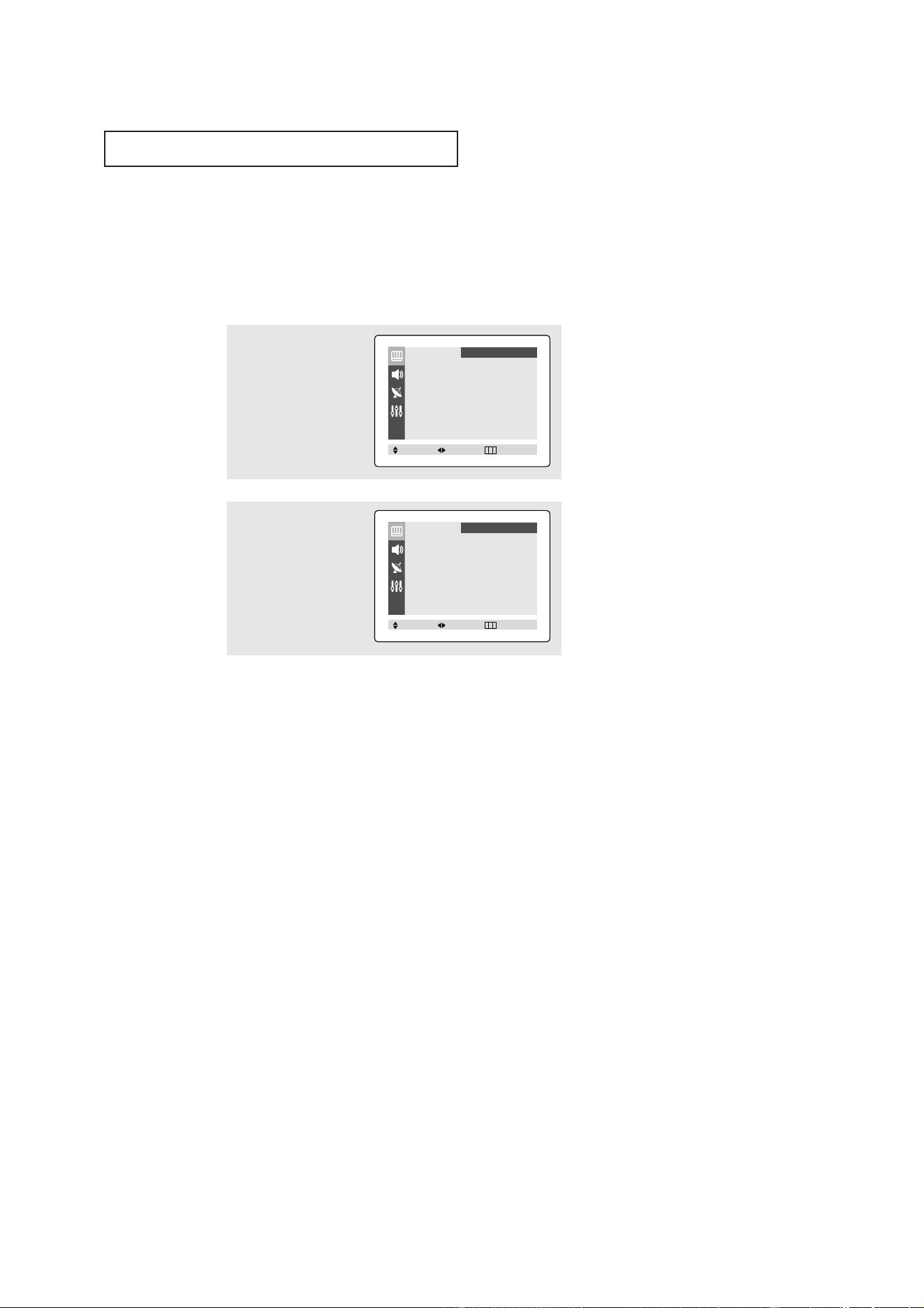
Customizing the Picture
You can use the on-screen menus to change the contrast, brightness, sharpness, color,
and tint according to personal preference. (Alternatively, you can use one of the
“automatic” settings. See next page.)
2
Press the ▲ or ▼ button
to select “Adjust”, then
press the
ˇ
or
ˆ
button.
(The words Contrast,
Brightness, Sharpness,
Color and Tint will appear
on the screen.)
▼
After adjusting an item, the gauge
will automatically disappear (after
about 5 seconds).
3
Press the ▲ or ▼ button to
select a particular item,
then press the
ˇ
or
ˆ
but-
ton to increase or
decrease the value of a
particular item.
Press the EXIT button to
exit.
Contrast 100
Mode
ˇˇ
Dynamic
ˆˆ
Adjust
ˆˆ
Color Tone : Cool
Size : Normal
Picture
Move Select Exit
Adjust
Contrast 100
Brightness 50
Sharpness 70
Color 50
Tint G 50 R 50
Picture
Move Select Exit
25
OPERATION
Using Automatic Picture Settings
Your TV has three automatic picture settings (“Dynamic”, “Standard” and “Movie”) that
are preset at the factory. You can activate either Dynamic, Standard or Movie by making
a selection from the menu. Or, you can select “Custom” which automatically recalls your
personalized picture settings.
• Choose Dynamic for viewing the TV during the day or when there is
brightlight in the room.
• Standard: Optimal indoor screen condition.
• Choose
Movie when viewing the TV in low light, or when
playing video games.
• Choose
Custom if you want to adjust the settings according to personal
preference (see “Customizing the Picture”, page 24).
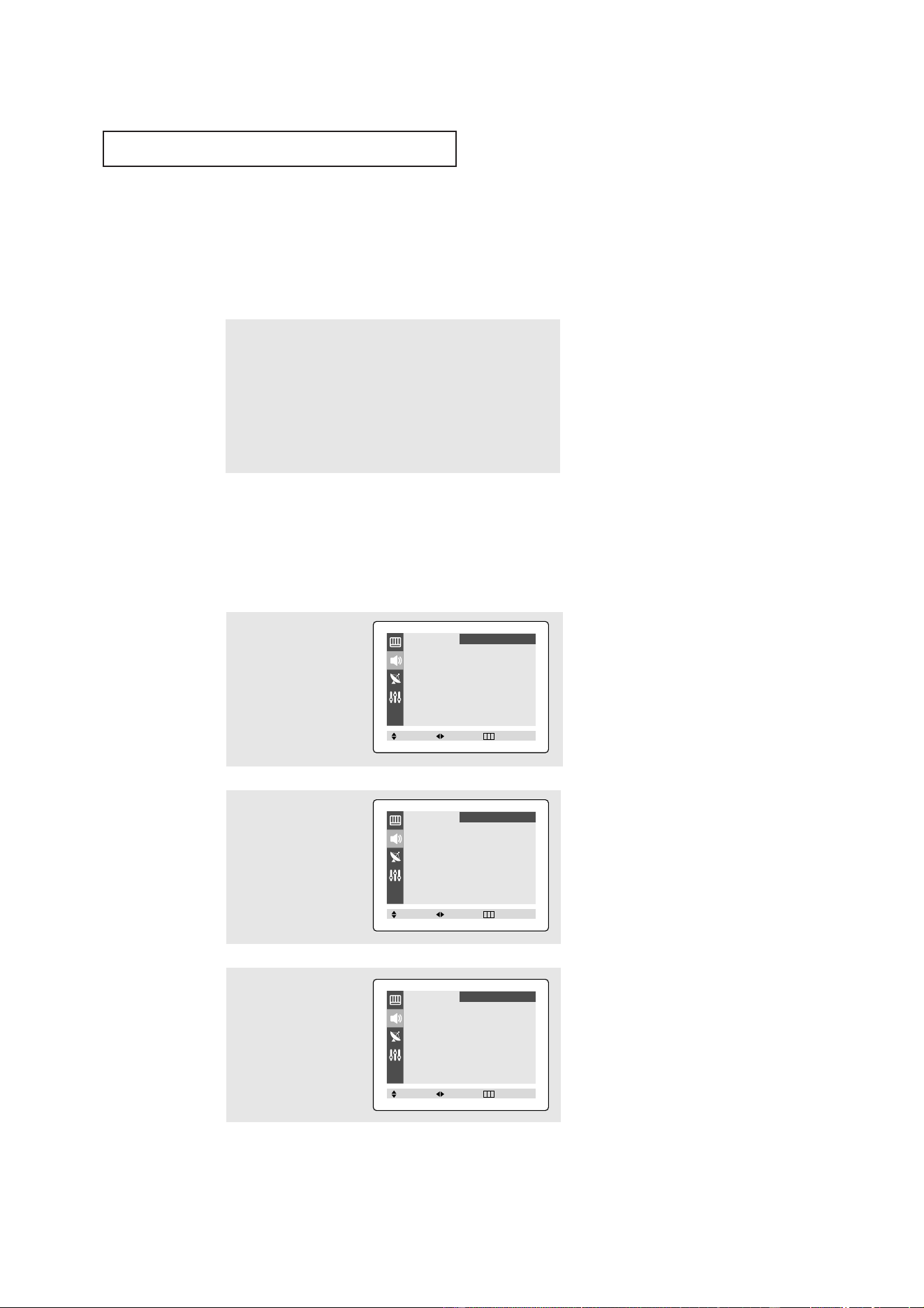
1
Press the MENU button to
display menu.
Press the
ˇ
or
ˆ
button to
select “Picture”.
2
Press
the
ˇ
or
ˆ
button
to select the “Dynamic”,
“Standard”, “Movie” or
“Custom” picture setting.
Press the EXIT button to
exit.
Mode
ˇˇ
Dynamic
ˆˆ
Adjust
ˆˆ
Color Tone : Cool
Size : Normal
Picture
Move Select Exit
Mode
ˇˇ
Dynamic
ˆˆ
Adjust
ˆˆ
Color Tone : Cool
Size : Normal
Picture
Move Select Exit
26
Adjusting the Volume
Press the VOL + or VOL– button to increase or decrease the volume.
Using Mute
At any time, you can temporarily cut off the sound using the Mute button.
1
Press the MUTE button and the sound cuts off.
The word “Mute” will appear in the lower-left corner of the
screen.
2
To turn mute off, press the MUTE button again, or simply press
either the VOL – or VOL + button.
OPERATION
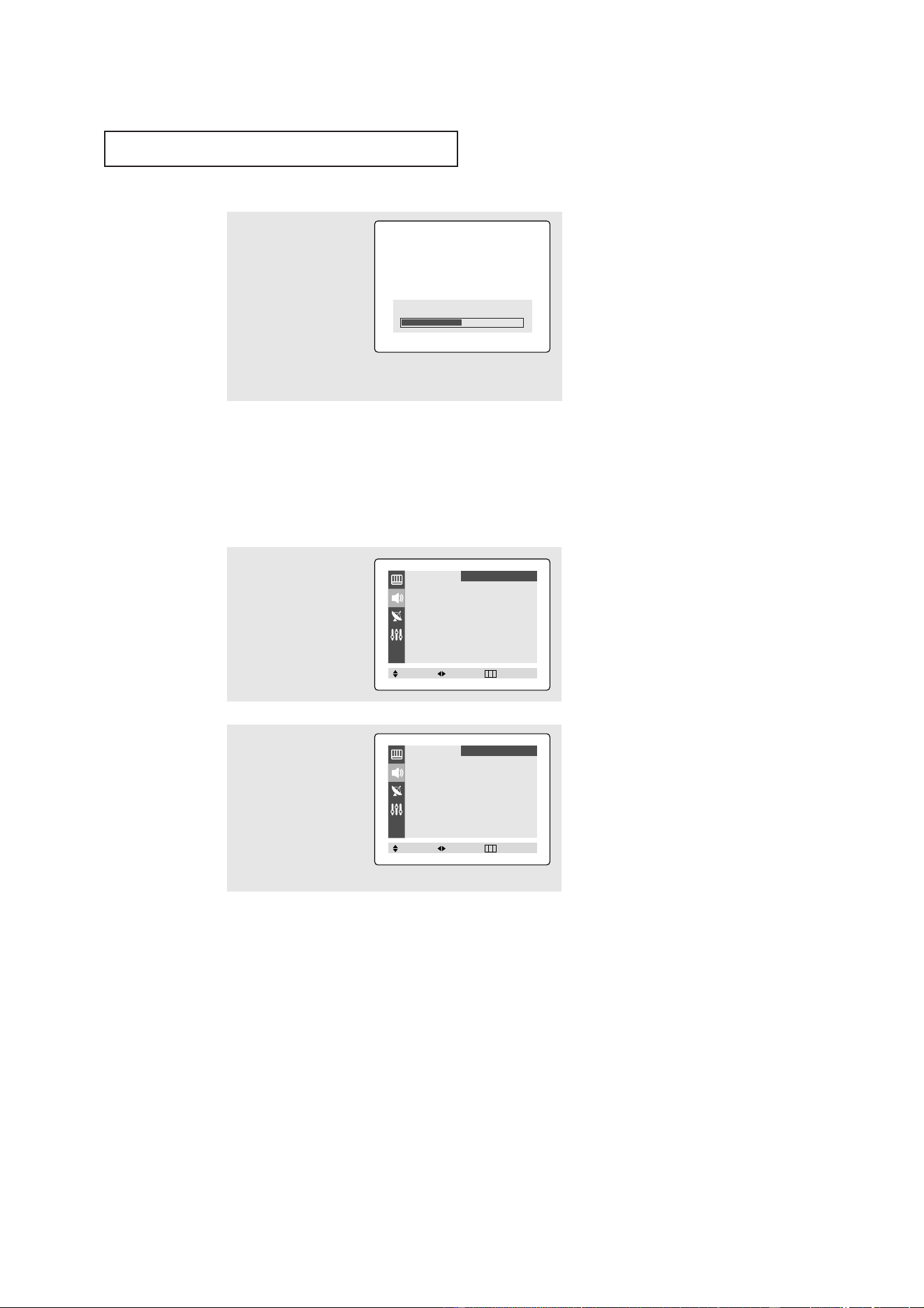
2
Press the
ˇ
or
ˆ
button
repeatedly, until the word
“Custom” is selected.
(When Custom is select-
ed, the word “Adjust” will
appear on the screen.)
3
Press the ▲ or ▼ button
to select “Adjust”, then
press the
ˇ
or
ˆ
button.
(The words Bass, Treble,
and Balance will appear
on the screen.)
1
Press the MENU button to
display the menu.
Press the ▲ or ▼ button
to select “Sound” menu,
then press the
ˇ
or
ˆ
button.
Customizing the Sound
You can use the on-screen menus to adjust the bass, treble, and balance according to
individual preference. (Alternatively, you can use one of the “automatic” settings. See
next page.)
Mode
ˇˇ
Custom
ˆˆ
Adjust
ˆˆ
Auto Volume : Off
Melody : On
Surround : Off
Turbo Sound : Off
MTS
ˇˇ
Stereo
ˆˆ
Sound
Move Select Exit
Mode
ˇˇ
Custom
ˆˆ
Adjust
ˆˆ
Auto Volume : Off
Melody : On
Surround : Off
Turbo Sound : Off
MTS
ˇˇ
Stereo
ˆˆ
Sound
Move Select Exit
Adjust
Bass 50
Treble 50
Balance L 50 R 50
Sound
Move Select Exit
27
OPERATION
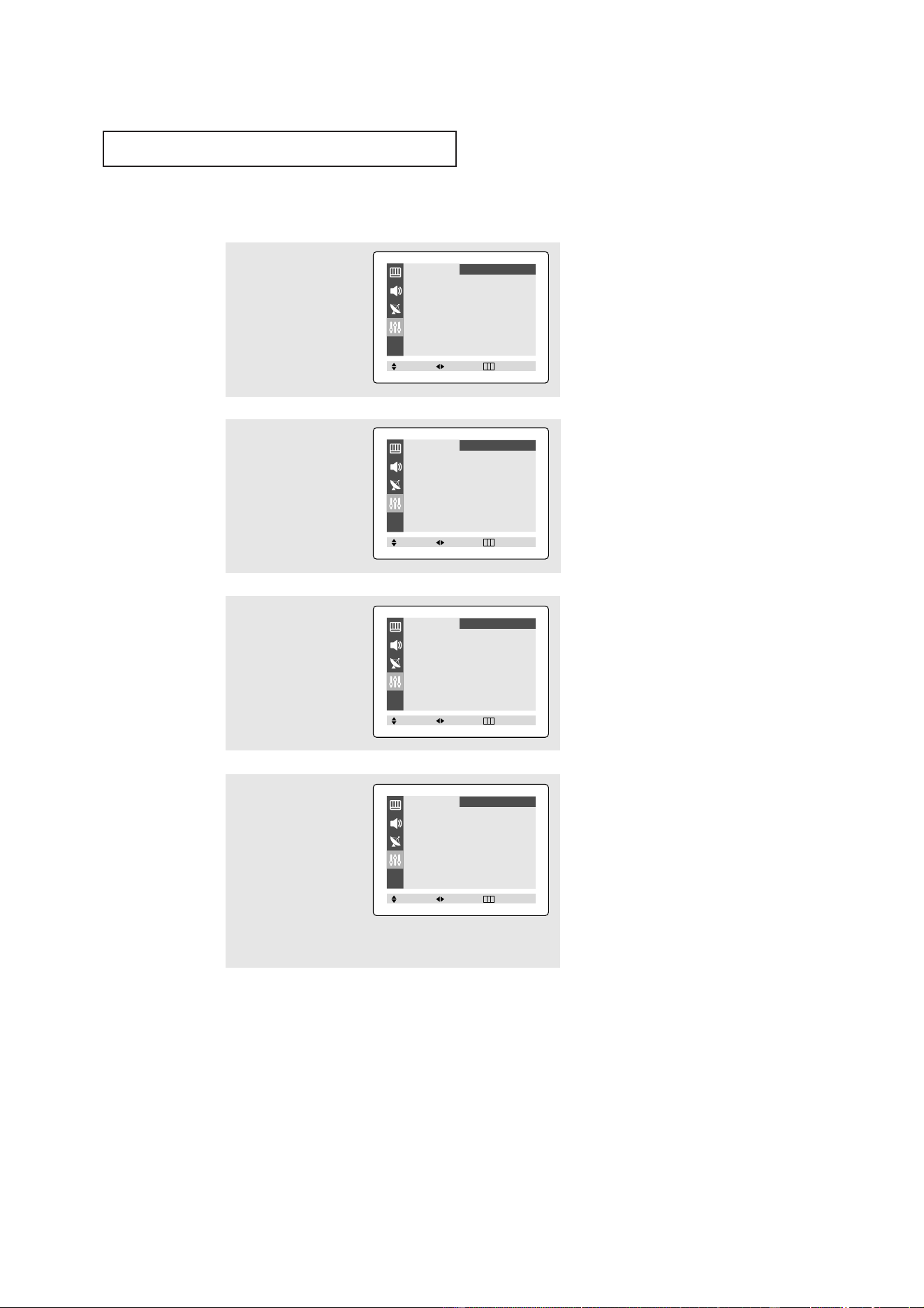
4
Press the ▲ or ▼ button
to select a particular item
to be changed.
Press the
ˇ
or
ˆ
button
to increase or decrease
the value of a particular
item.
Press the EXIT button to
exit.
Using Automatic Sound Settings
Your TV has four automatic sound settings (“Standard”, “Music”, “Movie” and “Speech”)
that are preset at the factory. You can activate any of them by making a selection from the
on-screen menu. Or, you can select “Custom”, which automatically recalls your personalized
sound settings.
• Choose Standard for the standard factory settings.
• Choose
Music when watching music videos or concerts.
• Choose
Movies when watching movies.
• Choose
Speech when watching a show that is mostly dialogue (i.e., news).
• Choose
Custom to recall your personalized settings.
2
Press the
ˇ
or
ˆ
button
repeatedly to select the
“Standard”, “Music”,
“Movie”, “Speech” or
“Custom” sound settings.
Press the EXIT button to
exit.
1
Press the MENU button to
display the menu.
Press the ▲ or ▼ button
to select “Sound” menu,
then press the
ˇ
or
ˆ
button.
▼
After adjusting an item, the gauge
will automatically disappear (after
about 5 seconds).
Bass 50
Mode
ˇˇ
Custom
ˆˆ
Adjust
ˆˆ
Auto Volume : Off
Melody : On
Surround : Off
Turbo Sound : Off
MTS
ˇˇ
Stereo
ˆˆ
Sound
Move Select Exit
Mode
ˇˇ
Standard
ˆˆ
Auto Volume : Off
Melody : On
Surround : Off
Turbo Sound : Off
MTS
ˇˇ
Stereo
ˆˆ
Sound
Move Select Exit
28
OPERATION
Setting the Clock
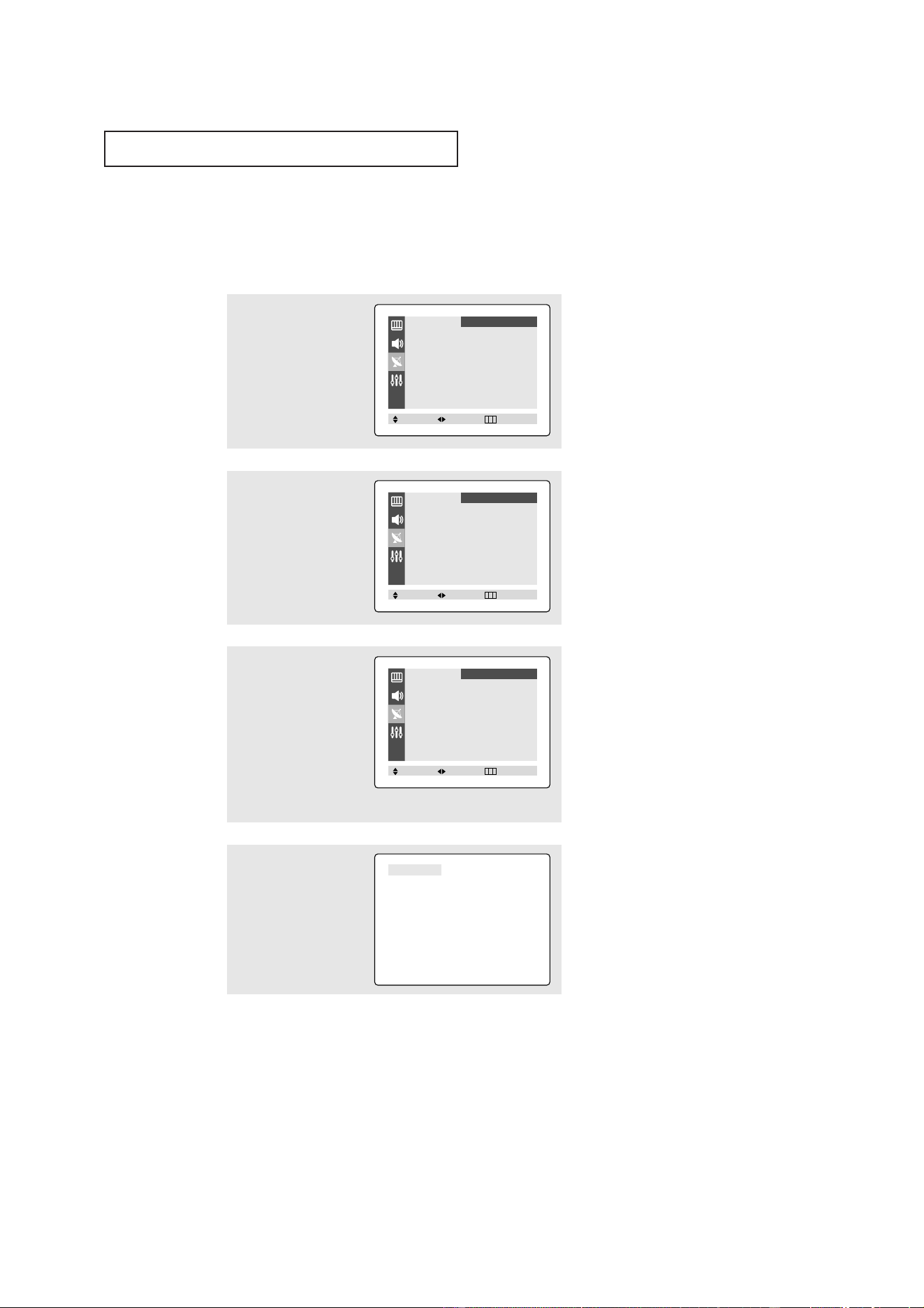
1
Press the MENU button to
display the on-screen
menu.
Press the
▲ or ▼ button
to select “Function”, then
press the
ˇ
or
ˆ
button.
2
Press the ▲ or ▼ button
to select “Time”, then
press the
ˇ
or
ˆ
button.
The Time menu will
appear on the screen, and
“Clock” will be selected.
3
Press the
ˇ
or
ˆ
button
again (the hours digits will
be selected).
Press the ▲ or ▼ button
repeatedly until the cor-
rect hour appears.
▼
When selecting the hours, be sure
to select the proper time of day (AM
or PM).
You can change the hours by pressing
▲ or ▼ repeatedly (or by holding
down either of these buttons).
4
After the hour is entered,
press the
ˆ
button. (at
this point the minutes dig-
its will be selected.)
Press the ▲ or ▼ button
to select the correct min-
utes.
Press the EXIT button to
exit.
▼
The time will appear every time
you press the INFO button.
Language
ˇˇ
English
ˆˆ
Time
ˆˆ
Caption
ˆˆ
V-chip
ˆˆ
Function
Move Select Exit
Time
Clock - - : - - am
On time - - : - - am Off
Off time - - : - - am Off
Function
Move Select Exit
Time
Clock 10 : 00 am
On time - - : - - am Off
Off time - - : - - am Off
Function
Move Select Exit
Time
Clock 10 : 30 am
On time - - : - - am Off
Off time - - : - - am Off
Function
Move Select Exit
29
OPERATION
Viewing a VCR or Camcorder Tape
You must select the appropriate mode in order to view the VCR or
Camcorder signal on the TV.
1
Press the MENU button to
display the menu.
Press the ▲ or ▼ button
to select “Channel”, then
press the
ˇ
or
ˆ
button.
2
Press the ▲ or ▼ button
to select the “TV/AV”.
3
Press the
ˇ
or
ˆ
button .
You will switch between
viewing the signals com-
ing from equipment con-
nected to the TV’s A/V
jacks, and the TV signal.
Press the EXIT button to
exit.
Alternate method:
Simply press the
TV/VIDEO button on
the remote control to
select an External
Signal Source.
AV1
ANT/CATV
ˇˇ
ANT
ˆˆ
Auto Program
ˆˆ
TV/AV
ˇˇ
TV
ˆˆ
Fine Tune
ˆˆ
Add/Erase
ˆˆ
Channel
Move Select Exit
ANT/CATV
ˇˇ
ANT
ˆˆ
Auto Program
ˆˆ
TV/AV
ˇˇ
TV
ˆˆ
Fine Tune
ˆˆ
Add/Erase
ˆˆ
Channel
Move Select Exit
ANT/CATV
ˇˇ
ANT
ˆˆ
Auto Program
ˆˆ
TV/AV
ˇˇ
AV1
ˆˆ
Fine Tune
ˆˆ
Add/Erase
ˆˆ
Channel
Move Select Exit
▼
AV1 and AV2 is available depend-
ing on the model.
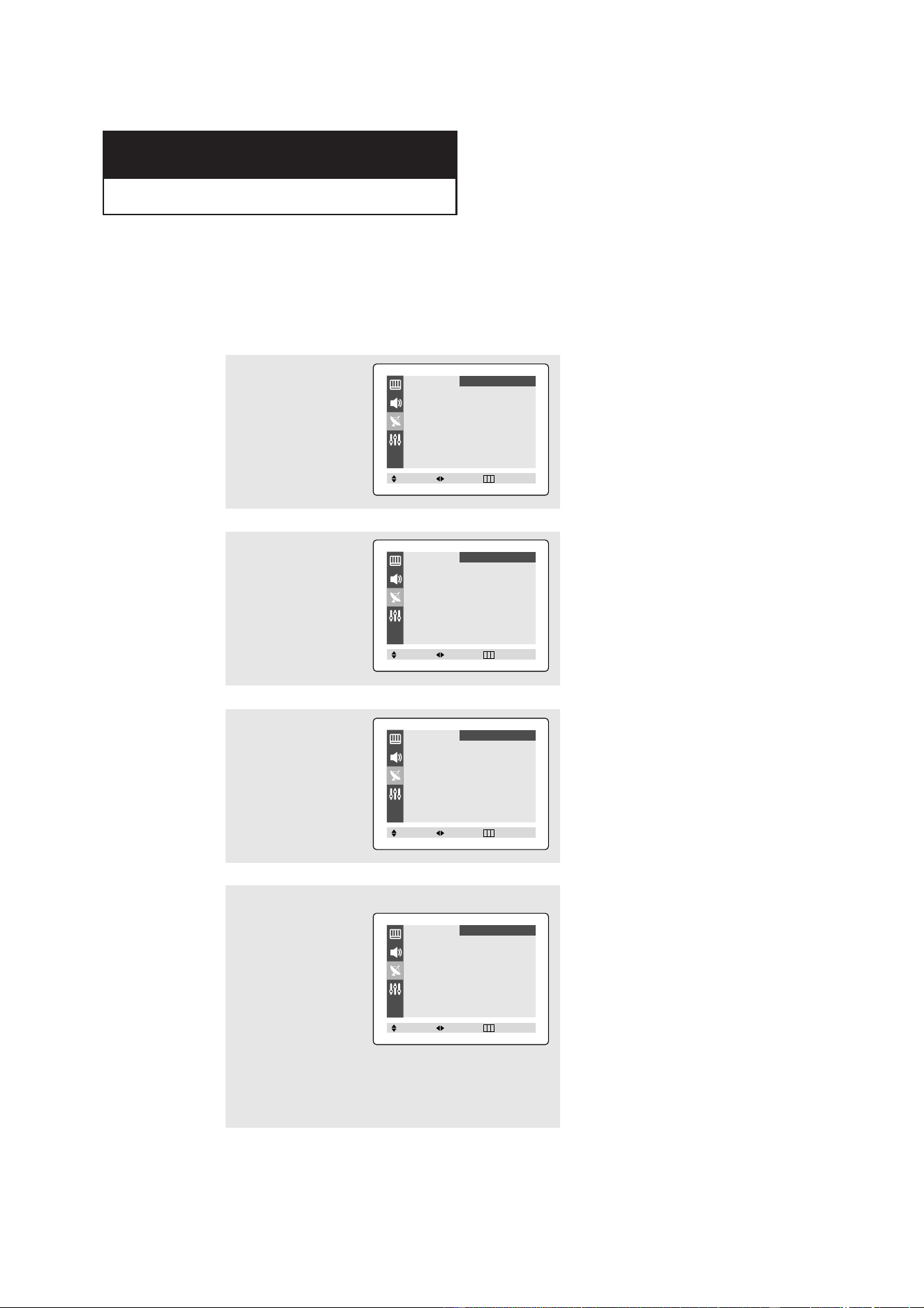
30
Chapter Four
SPECIAL FEATURES
Fine Tuning Channels
Use fine tuning to manually adjust a particular channel for optimal reception.
2
Press the ▲ or ▼ button
to select “Fine tune”, then
press the
ˇ
or
ˆ
button.
4
To store the fine tuning
setting in the TV’s memo-
ry, press the ▲ or ▼ but-
ton to select “Select”.
Press the
ˇ
or
ˆ
button
to select “Added”.
To reset the fine tuning to
“0”, press the
ˇ
or
ˆ
but-
ton to select “Erased”.
Press the EXIT button to
exit.
1
Press the MENU button to
display the menu.
Press the
▲ or ▼ button
to select “Channel”, then
press the
ˇ
or
ˆ
button.
3
Press the
ˇ
and
ˆ
but-
tons to adjust the fine tun-
ing.
ANT/CATV
ˇˇ
ANT
ˆˆ
Auto Program
ˆˆ
TV/AV
ˇˇ
TV
ˆˆ
Fine Tune
ˆˆ
Add/Erase
ˆˆ
Channel
Move Select Exit
Fine Tune : 0
Select : Erased
Channel
Move Select Exit
Fine Tune : + 3
Select : Erased
Channel
Move Adjust Exit
Fine Tune : + 3
Select : Added
Channel
Move Select Exit
▼
After you adjust the fine tuning,
“*” will appear when you press the
INFO button while watching this
channel.
31
SPECIAL FEATURES
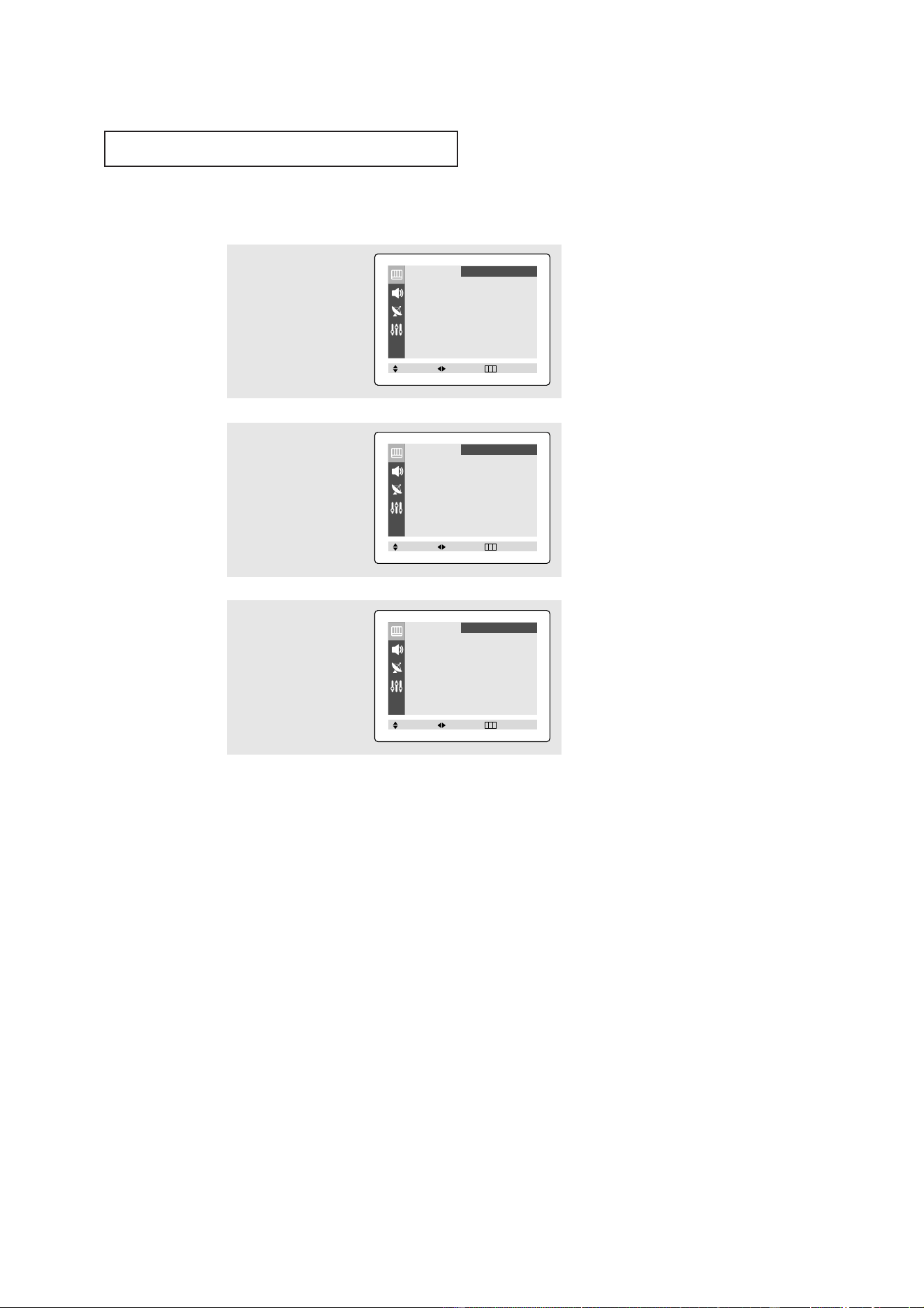
Selecting the Color Tone
2
Press the ▲ or ▼ button
to select "Color Tone".
3
Press the
ˇ
or
ˆ
button
repeatedly to select
“Cool”, “Normal” or “
Warm”.
Press the EXIT button to
exit.
1
Press the MENU button to
display menu.
Press the
ˇ
or
ˆ
button to
select “Picture”.
Mode
ˇˇ
Dynamic
ˆˆ
Adjust
ˆˆ
Color Tone : Cool
Size : Normal
Picture
Move Select Exit
Mode
ˇˇ
Dynamic
ˆˆ
Adjust
ˆˆ
Color Tone : Cool
Size : Normal
Picture
Move Select Exit
Mode
ˇˇ
Dynamic
ˆˆ
Adjust
ˆˆ
Color Tone : Normal
Size : Normal
Picture
Move Select Exit
32
SPECIAL FEATURES
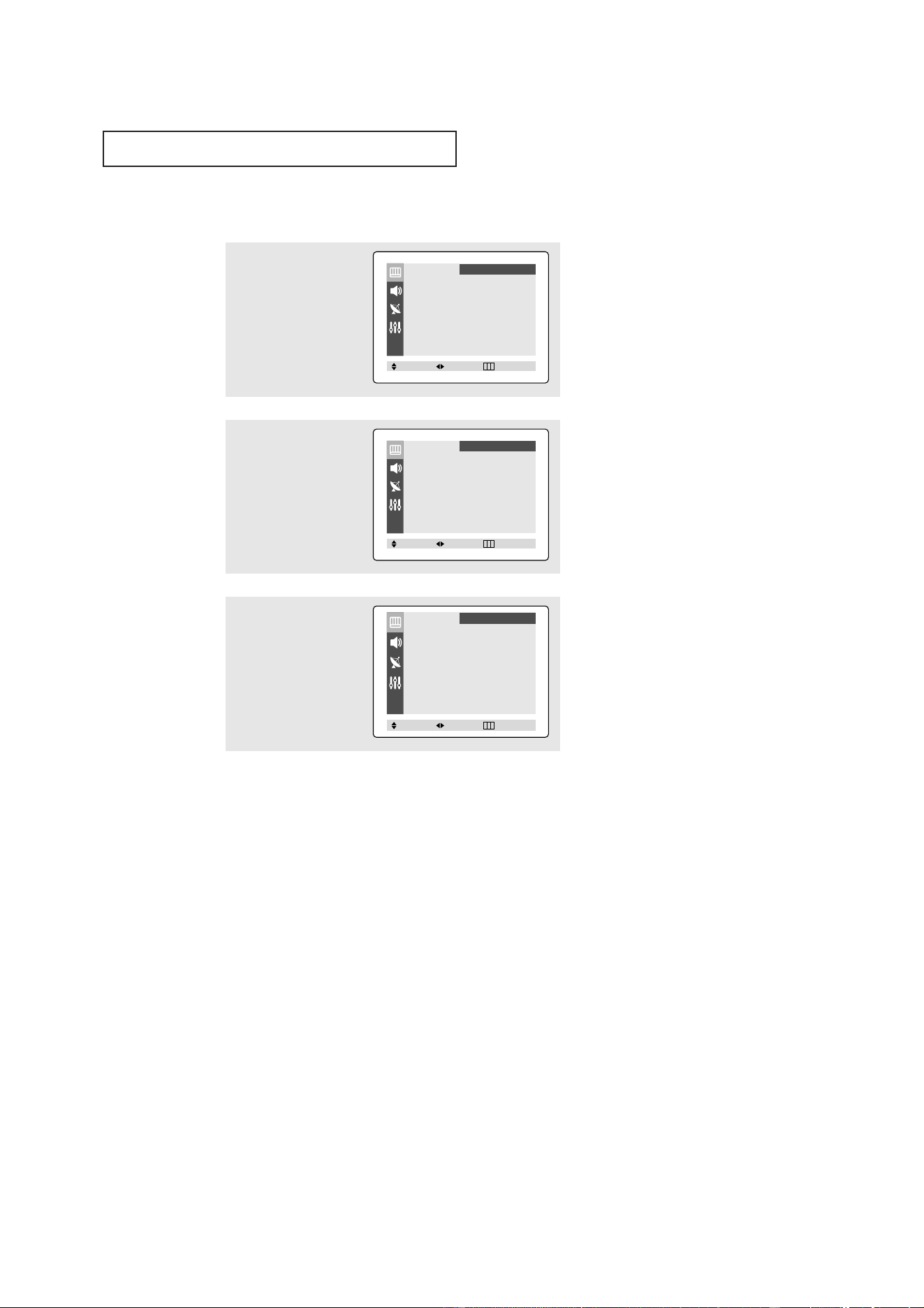
Changing the Screen Size
3
Press the
ˇ
or
ˆ
button
repeatedly to select
“Normal” or “Zoom”.
Press the EXIT button to
exit.
• Normal : Sets the picture to 4:3 normal mode. This is a standard TV screen size.
• Zoom : Magnifies the size of the picture on screen.
2
Press the ▲ or ▼ button
to select "Size".
1
Press the MENU button to
display menu.
Press the
ˇ
or
ˆ
button to
select “Picture”.
Mode
ˇˇ
Dynamic
ˆˆ
Adjust
ˆˆ
Color Tone : Cool
Size : Normal
Picture
Move Select Exit
Mode
ˇˇ
Dynamic
ˆˆ
Adjust
ˆˆ
Color Tone : Cool
Size : Normal
Picture
Move Select Exit
Mode
ˇˇ
Dynamic
ˆˆ
Adjust
ˆˆ
Color Tone : Cool
Size : Zoom
Picture
Move Select Exit
33
SPECIAL FEATURES
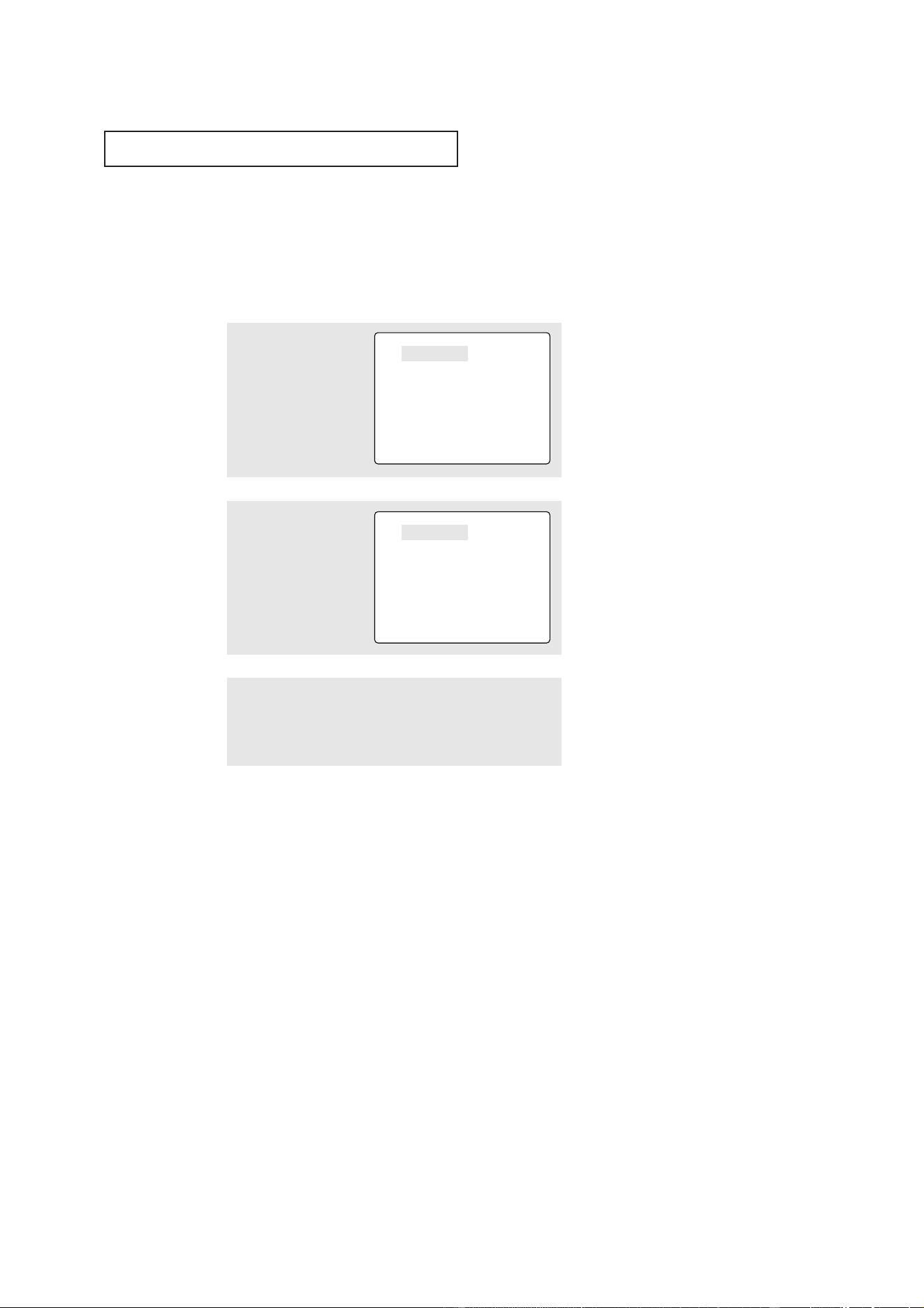
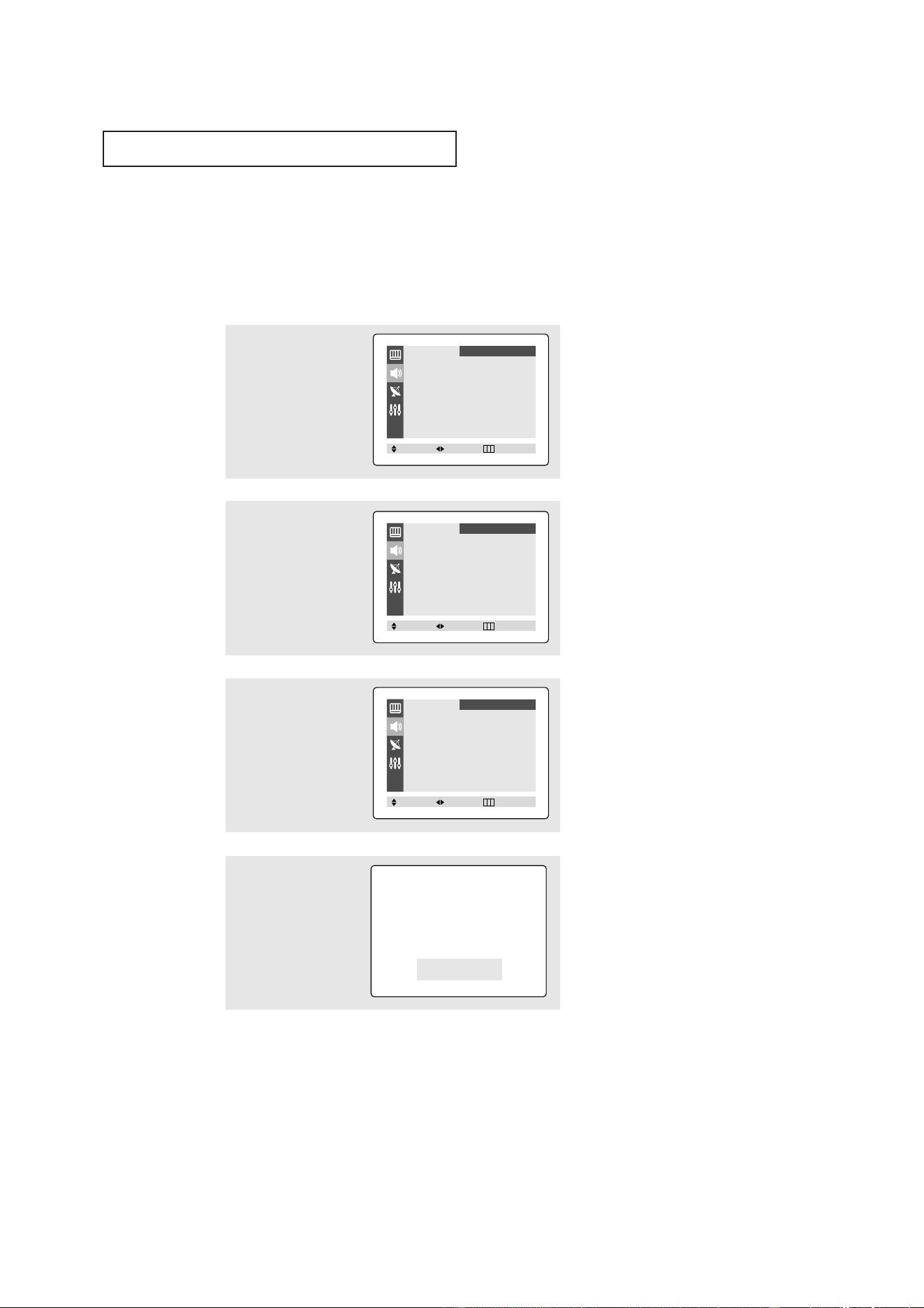
Using the Surf Feature
This feature allows you to set the TV to return to a particular channel after a certain
amount of time. For example, you may be watching a channel when commercials
start. You can set the Surf to “5 minutes”, then switch channels. After 5 minutes,
the TV will return to the original channel. To use the Surf:
1
While you are watching
the channel to which you
want to return, press the
R.SURF button. The on-
screen display will read
“Surf Off”.
2
Press the R.SURF button
again to set the timer in
thirty second intervals, up
to five minutes.
3
The time you set will begin counting down on the screen.
When the time runs out, the TV will return to the channel you
were watching when you set the timer.
Surf Off
Surf 1: 30
▼
The time will be decreasing while
you are setting up the timer. And you
will reset it when you pass five min-
utes or turn it off.
34
SPECIAL FEATURES
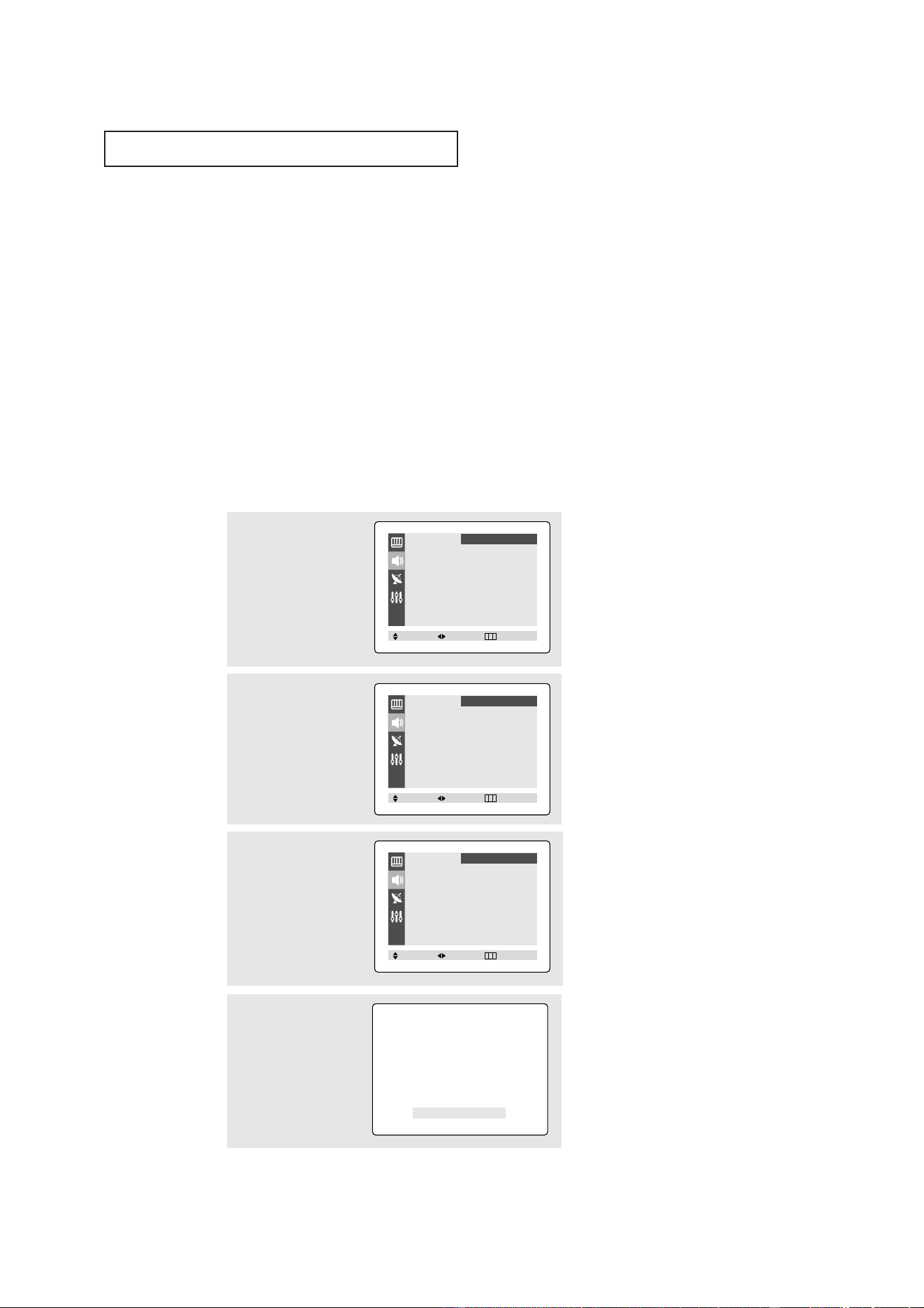
Choosing a Multi-Channel Sound (MTS)
Soundtrack
Depending on the particular program being broadcast, you can listen to stereo, mono or
a Separate Audio Program. (SAP audio is usually a foreign-language translation.
Sometimes SAP has unrelated information like news or weather.)
2
Press the ▲ or ▼ button
to select “MTS”.
3
Press the
ˇ
or
ˆ
button
to select “Mono”, “SAP”
or “Stereo”.
Press the EXIT button to
exit.
▼
The text at the bottom of the
menu tells you if the incoming
audio is Stereo, SAP or Mono.
• Choose Stereo for channels that are broadcasting in stereo.
• Choose
Mono for channels that are broadcasting in mono, or if you are
having difficulty receiving a stereo signal.
• Choose
SAP to listen to the Separate Audio Program, which is usually a
foreign-language translation.
1
Press the MENU button to
display the menu.
Press the ▲ or ▼ button
to select “Sound” menu,
then press the
ˇ
or
ˆ
button.
Alternate method:
Simply press the MTS but-
ton on the remote control
to change the MTS set-
ting.
MTS : Stereo
Signal : Stereo
Mode
ˇˇ
Custom
ˆˆ
Adjust
ˆˆ
Auto Volume : Off
Melody : On
Surround : Off
Turbo Sound : Off
MTS
ˇˇ
Stereo
ˆˆ
Sound
Move Select Exit
Mode
ˇˇ
Custom
ˆˆ
Adjust
ˆˆ
Auto Volume : Off
Melody : On
Surround : Off
Turbo Sound : Off
MTS
ˇˇ
Stereo
ˆˆ
Sound
Move Select Exit
Mode
ˇˇ
Custom
ˆˆ
Adjust
ˆˆ
Auto Volume : Off
Melody : On
Surround : Off
Turbo Sound : Off
MTS
ˇˇ
SAP
ˆˆ
Sound
Move Select Exit
35
SPECIAL FEATURES
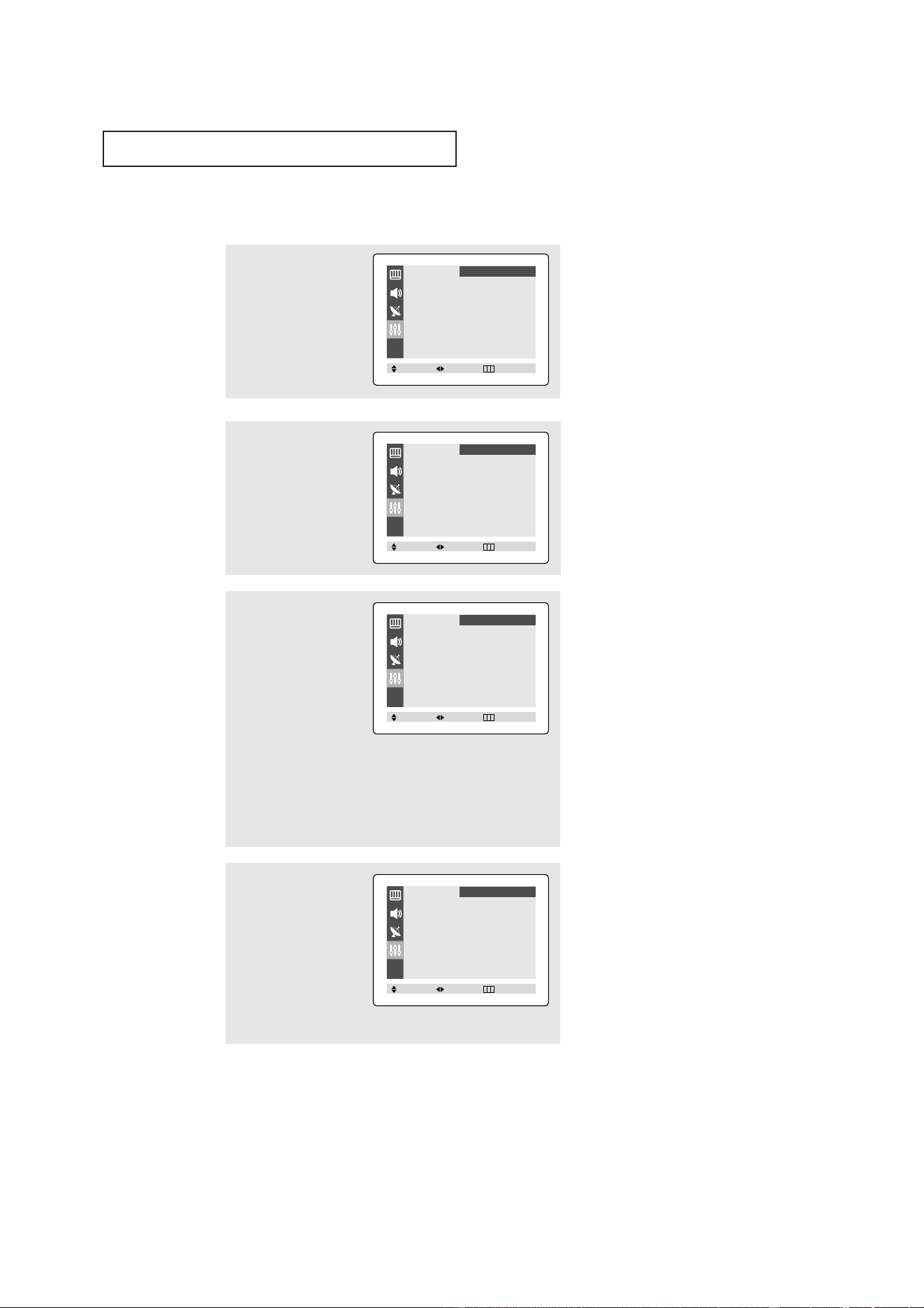
Extra Sound Settings
• Auto Volume
Each broadcasting station has its own signal conditions, and so it is not easy for you to
adjust the volume every time the channel is changed. “Auto Volume” lets you automat-
ically adjust the volume of the desired channel by lowering the sound output when
the modulation signal is high or by raising the sound output when the modulation sig-
nal is low.
• Melody
You can set a melody to sound when the TV is powered On or Off.
• Surround
“Surround” converts a mono or stereo signal into simulated surround sound.
Once the “Surround” is set to “On”, the setting applies to sound effects such as
Standard, Music, Movie and Speech.
• Turbo Sound
Turbo sound suitably emphasizes both higher and lower bands of sound (and includes
other effects).
2
Press the ▲ or ▼ button
to select required item
you want.
3
Press the
ˇ
or
ˆ
button
to select “On" or "Off".
Press the EXIT button to
exit.
Alternate method (Turbo
Sound):
Simply press the TURBO
button on the remote con-
trol to change the turbo
sound setting.
Turbo Sound : On
1
Press the MENU button to
display the menu.
Press the ▲ or ▼ button
to select “Sound” menu,
then press the
ˇ
or
ˆ
button.
Mode
ˇˇ
Custom
ˆˆ
Adjust
ˆˆ
Auto Volume : Off
Melody : On
Surround : Off
Turbo Sound : Off
MTS
ˇˇ
Stereo
ˆˆ
Sound
Move Select Exit
Mode
ˇˇ
Custom
ˆˆ
Adjust
ˆˆ
Auto Volume : Off
Melody : On
Surround : Off
Turbo Sound : Off
MTS
ˇˇ
Stereo
ˆˆ
Sound
Move Select Exit
Mode
ˇˇ
Custom
ˆˆ
Adjust
ˆˆ
Auto Volume : On
Melody : On
Surround : Off
Turbo Sound : Off
MTS
ˇˇ
Stereo
ˆˆ
Sound
Move Select Exit
36
SPECIAL FEATURES
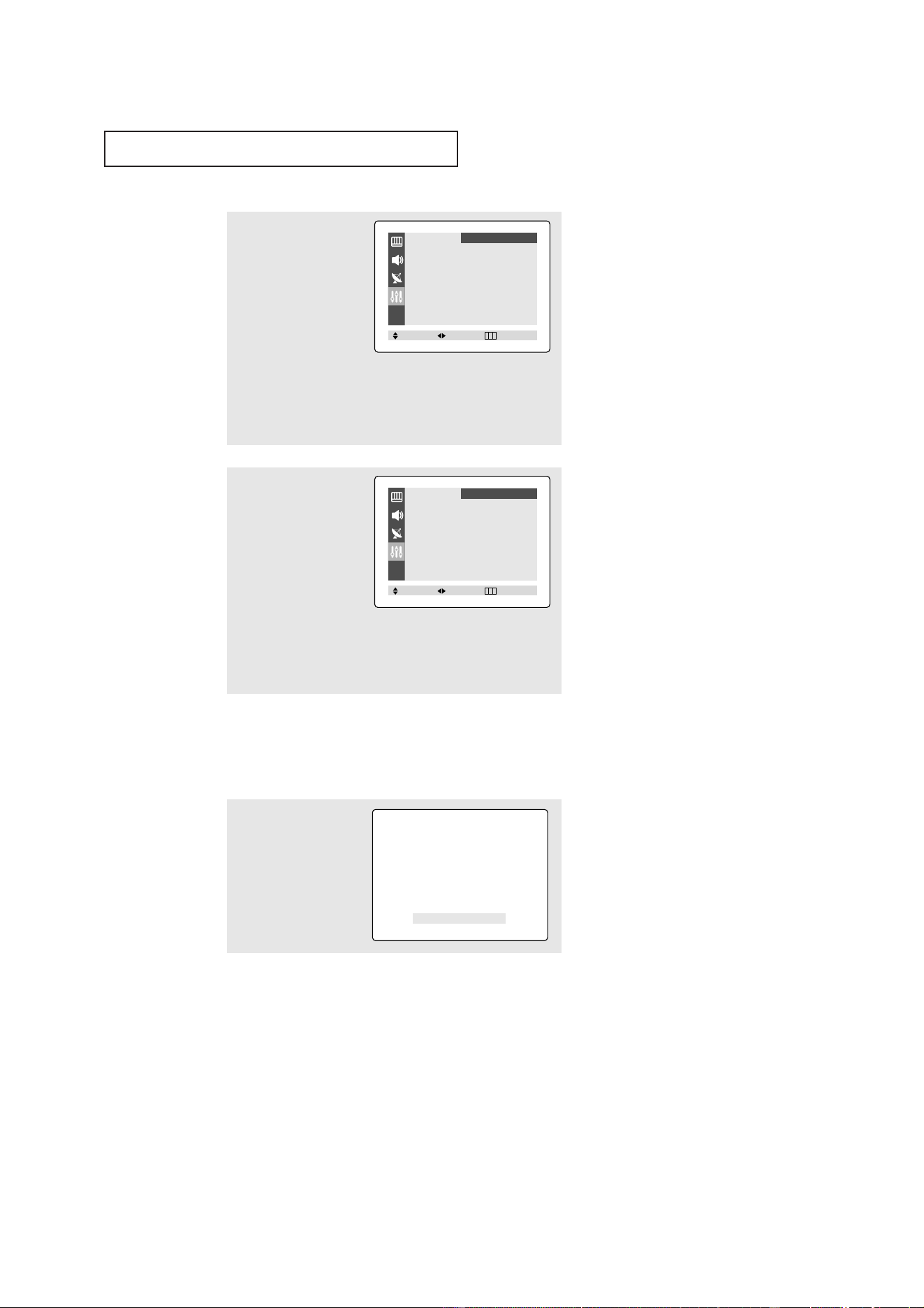
Setting the On/Off Timer
3
Press the ▲ or ▼ button
to select "On time".
Press the
ˇ
or
ˆ
button
to select the “On time”
hours.
(The hours digits will be
highlighted.)
Press the ▲ or ▼ button
repeatedly to select the
appropriate hours (i.e., the
hour when the TV will turn
on.)
4
Press the
ˆ
button to
select the “On time” min-
utes.
(The minutes digits will be
highlighted.)
Press the ▲ or ▼ button
to select the appropriate
minutes.
▼
Before using the timer, you must
set the TV’s clock. (See “Setting the
Clock” on page 28).
▼
When you set the hours, make
sure the correct time of day (AM or
PM) appears to the right of the hour.
1
Press the MENU button to
display the on-screen
menu.
Press the ▲ or ▼ button
to select “Function”, then
press the
ˇ
or
ˆ
button.
2
Press the ▲ or ▼ button
to select “Time” then
press the
ˇ
or
ˆ
button.
The Time menu will
appear on the screen.
Language
ˇˇ
English
ˆˆ
Time
ˆˆ
Caption
ˆˆ
V-chip
ˆˆ
Function
Move Select Exit
Time
Clock 10 : 30 am
On time - - : - - am Off
Off time - - : - - am Off
Function
Move Select Exit
Time
Clock 10 : 30 am
On time 06 : 00 am Off
Off time - - : - - am Off
Function
Move Select Exit
Time
Clock 10 : 30 am
On time 06 : 30 am Off
Off time - - : - - am Off
Function
Move Select Exit
37
SPECIAL FEATURES
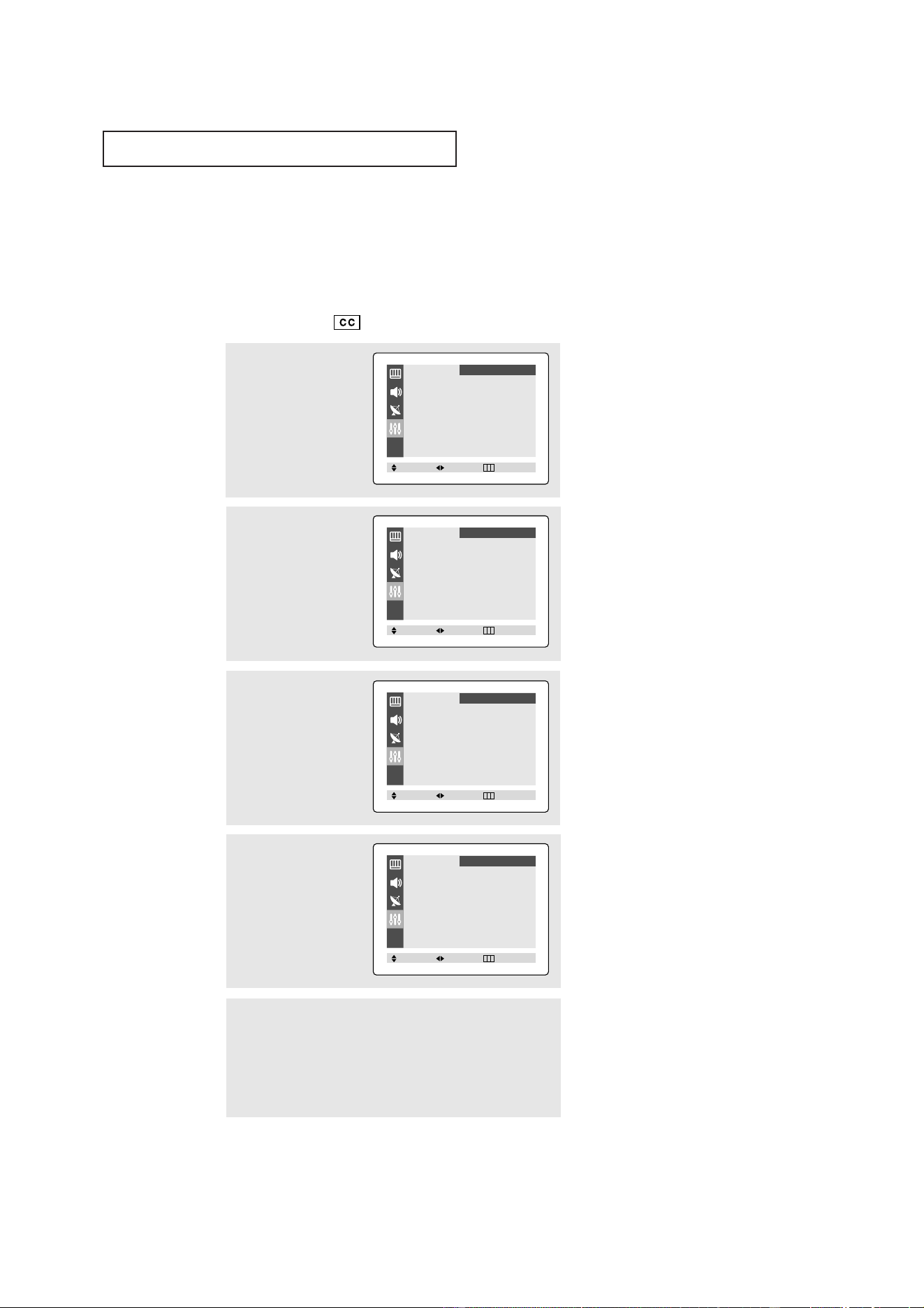
5
Press the
ˆ
button to
select “On/Off”.
Press the
▲ or ▼ button to
turn the On time “On”.
(Repeatedly pressing the ▲
or ▼ button will alternate
between on and off.)
6
When finished, press the
ˆ
button .
▼
To deactivate the “On time”,
select “Off” during this step.
7
To set the Off time, press
the ▲ or ▼ button to
select “Off time”.
Press the
ˆ
button and
set the hours and minutes.
(Follow the same proce-
dure as in steps 3-6
above.)
Press the EXIT button to
exit.
Press the SLEEP button
repeatedly until the appro-
priate time interval
appears (any of the preset
values from “Off” to
“180”).
▼
After about 5 seconds, the sleep
display will disappear from the
screen, and the time interval will be
set.
Setting the Sleep Timer
The sleep timer automatically shuts off the TV after a preset time
(from 10 to 180 minutes).
Sleep Timer : 30
Time
Clock 10 : 30 am
On time 06 : 30 am On
Off time - - : - - am Off
Function
Move Select Exit
Time
Clock 10 : 30 am
On time 06 : 30 am On
Off time - - : - - am Off
Function
Move Select Exit
38
SPECIAL FEATURES
▼
Misspellings and unusual
characters sometimes occur during
closed caption transmissions, especial-
ly those of live events. There may be a
small delay before captions appear
when you change channels. These are
not malfunctions of the TV.
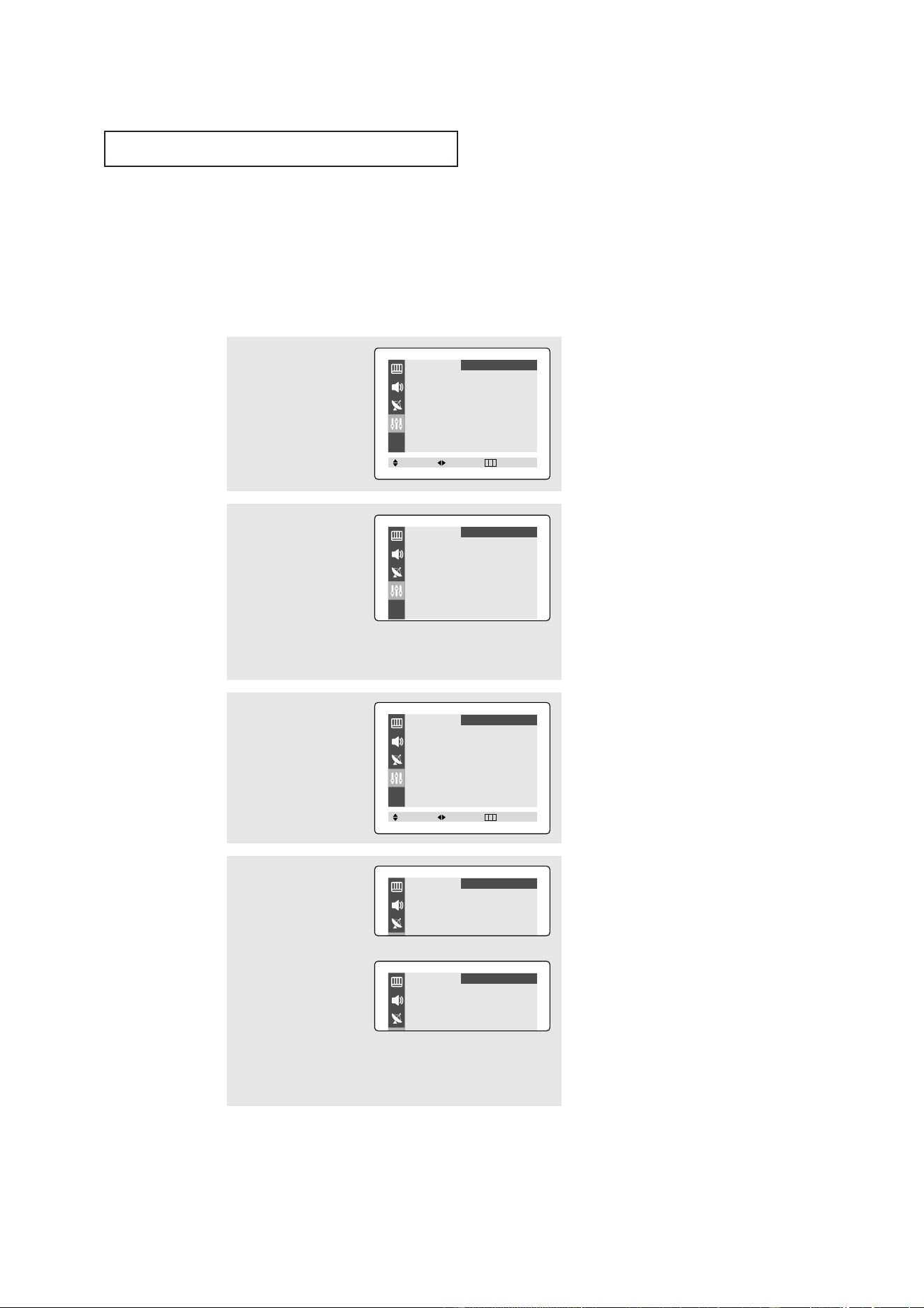
3
Press the
ˇ
or
ˆ
button
to turn closed captioning
On/Off.
▼
In caption mode, captions
appear at the bottom of the screen,
and they usually cover only a small
portion of the picture.
In text mode, information unrelated
to the program, such as news or
weather, is displayed. Text often
covers a large portion of the screen.
4
Press the ▲ or ▼ button
to select “Mode”.
Press the
ˇ
or
ˆ
button
to select “Caption” or
“Text”.
Viewing Closed Captions
Your TV decodes and displays the closed captions that are broadcast with certain TV shows.
These captions are usually subtitles for the hearing impaired or foreign-language translations.
All VCRs record the closed caption signal from television programs, so home-recorded video
tapes also provide closed captions. Most pre-recorded commercial video tapes provide closed
captions as well. Check for the closed caption symbol in your television schedule and on the
tape’s packaging: .
2
Press the ▲ or ▼ button
to select the “Caption”,
then press the
ˇ
or
ˆ
button.
▼
5
Depending on the particular broadcast, it might be necessary to
make changes to “Channels” and “Field”:
Use the ▲, ▼,
ˇ
and
ˆ
buttons to make the changes. (Follow
the same procedure as in steps 3~4 above.)
Press the EXIT button to exit.
Different channels and fields
display different information: Field 2
carries additional information that
supplements the information in
Field 1. (For example, Channel 1
may have subtitles in English, while
Channel 2 has subtitles in Spanish.)
1
Press the MENU button to
display the on-screen
menu.
Press the ▲ or ▼ button
to select “Function”, then
press the
ˇ
or
ˆ
button.
Language
ˇˇ
English
ˆˆ
Time
ˆˆ
Caption
ˆˆ
V-chip
ˆˆ
Function
Move Select Exit
Caption : Off
Mode : Caption
Channels : 1
Field : 1
Function
Move Select Exit
Caption : On
Mode : Caption
Channels : 1
Field : 1
Function
Move Select Exit
Caption : On
Mode : Caption
Channels : 1
Field : 1
Function
Move Select Exit
39
SPECIAL FEATURES
Using the V-Chip
The V-Chip feature automatically locks out programming that is deemed inappropriate for
children. The user must first enter a PIN (personal ID number) before any of the V-Chip
restrictions can be set up or changed.
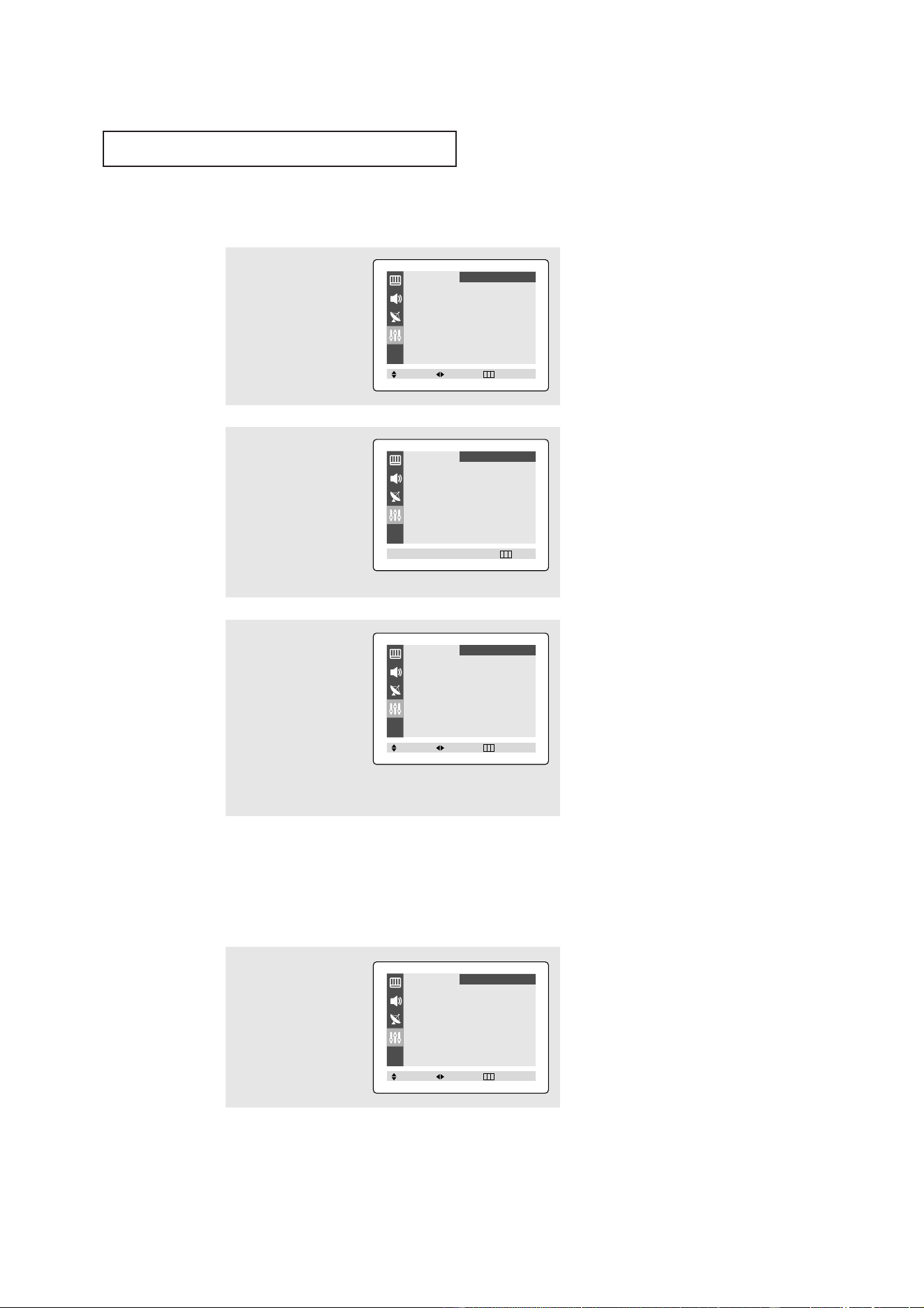
Setting Up Your Personal ID Number (PIN)
1
Press the MENU button to
display the menu.
Press the ▲ or ▼ button
to select the “Function”
menu, then press the
ˇ
or
ˆ
button.
2
Press the ▲ or ▼ button
to select the “V-chip”,
then press the
ˇ
or
ˆ
button.
3
After entering a valid PIN
number, the “V-chip”
screen will appear.
Press the ▲ or ▼ button
and highlight “Change
pin.”
4
While the “Change pin”
field is selected, press the
ˇ
or
ˆ
button.
The Change pin screen
will appear. Choose any 4-
digits for your PIN and
enter them.
As soon as the 4 digits are entered, the “Confirm new pin”
screen appears. Re-enter the same 4 digits. When the Confirm
screen disappears, your PIN has been memorized.
Press the
EXIT button to exit.
The “Enter Pin” screen will appear. Enter your 4-digit PIN
number. Note: The default PIN number for a new TV set is
“0-0-0-0.”
▼
Note: If you forget the PIN,
press the remote-control keys in the
following sequence, which resets the
pin to 0-0-0-0:
POWER OFF
➜ MUTE ➜ 8 ➜ 2 ➜
4 ➜ POWER ON.
➜
Language
ˇˇ
English
ˆˆ
Time
ˆˆ
Caption
ˆˆ
V-chip
ˆˆ
Function
Move Select Exit
V-chip Lock : Yes
TV guidelines
ˆˆ
MPAA rating
ˆˆ
Change pin
ˆˆ
Function
Move Select Exit
Enter Pin
Enter Pin : - - - -
Function
Change pin
Enter new pin : - - - -
Function
Confirm new pin
Confirm new pin : - - - -
Function
40
SPECIAL FEATURES
How to Set up Restrictions Using the “TV guidelines”
First, set up a personal identification number (PIN), and enable the V-chip. (See previous
section.) Parental restrictions can be set up using either of two methods: The TV guide-
lines or the MPAA rating.
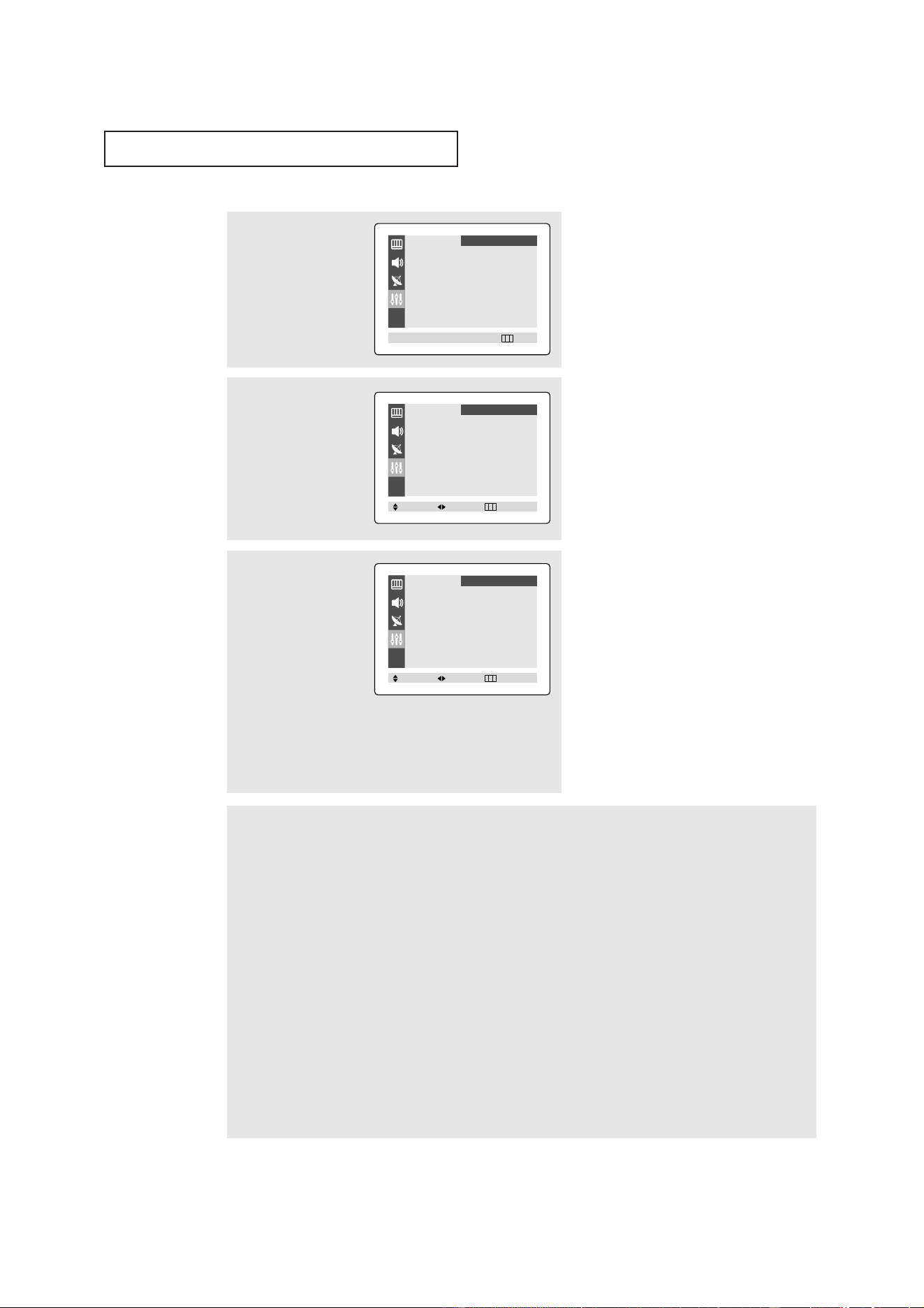
How to Enable/Disable the V-Chip
1
Press the MENU button to
display the menu.
Press the ▲ or ▼ button
to select the “Function”
menu, then press the
ˇ
or
ˆ
button.
2
Press the ▲ or ▼ button
to select the “V-chip”,
then press the
ˇ
or
ˆ
button.
The “Enter Pin” screen
will appear. Enter your 4-
digit PIN number.
3
The “V-chip” screen will
appear, and “V-chip Lock”
will be selected.
To enable the V-chip fea-
ture, press the
ˆ
button so
that the “V-chip Lock” field
is Yes. (Pressing
ˆ
will
alternate between Yes and
No.)
1
Press the MENU button to
display the menu.
Press the ▲ or ▼ button
to select the “Function”
menu, then press the
ˇ
or
ˆ
button.
Language
ˇˇ
English
ˆˆ
Time
ˆˆ
Caption
ˆˆ
V-chip
ˆˆ
Function
Move Select Exit
Language
ˇˇ
English
ˆˆ
Time
ˆˆ
Caption
ˆˆ
V-chip
ˆˆ
Function
Move Select Exit
Enter Pin
Enter Pin : - - - -
Function
0~9 Select Exit
V-chip Lock : Yes
TV guidelines
ˆˆ
MPAA rating
ˆˆ
Change pin
ˆˆ
Function
Move Select Exit
41
SPECIAL FEATURES
2
Press the ▲ or ▼ button
to select the “V-chip”,
then press the
ˇ
or
ˆ
button.
The “Enter Pin” screen
will appear. Enter your 4-
digit PIN number.
3
The “V-chip” screen will
appear. Press the ▲ or ▼
button, and highlight the
field for “TV guidelines”.
4
Press the
ˇ
or
ˆ
button.
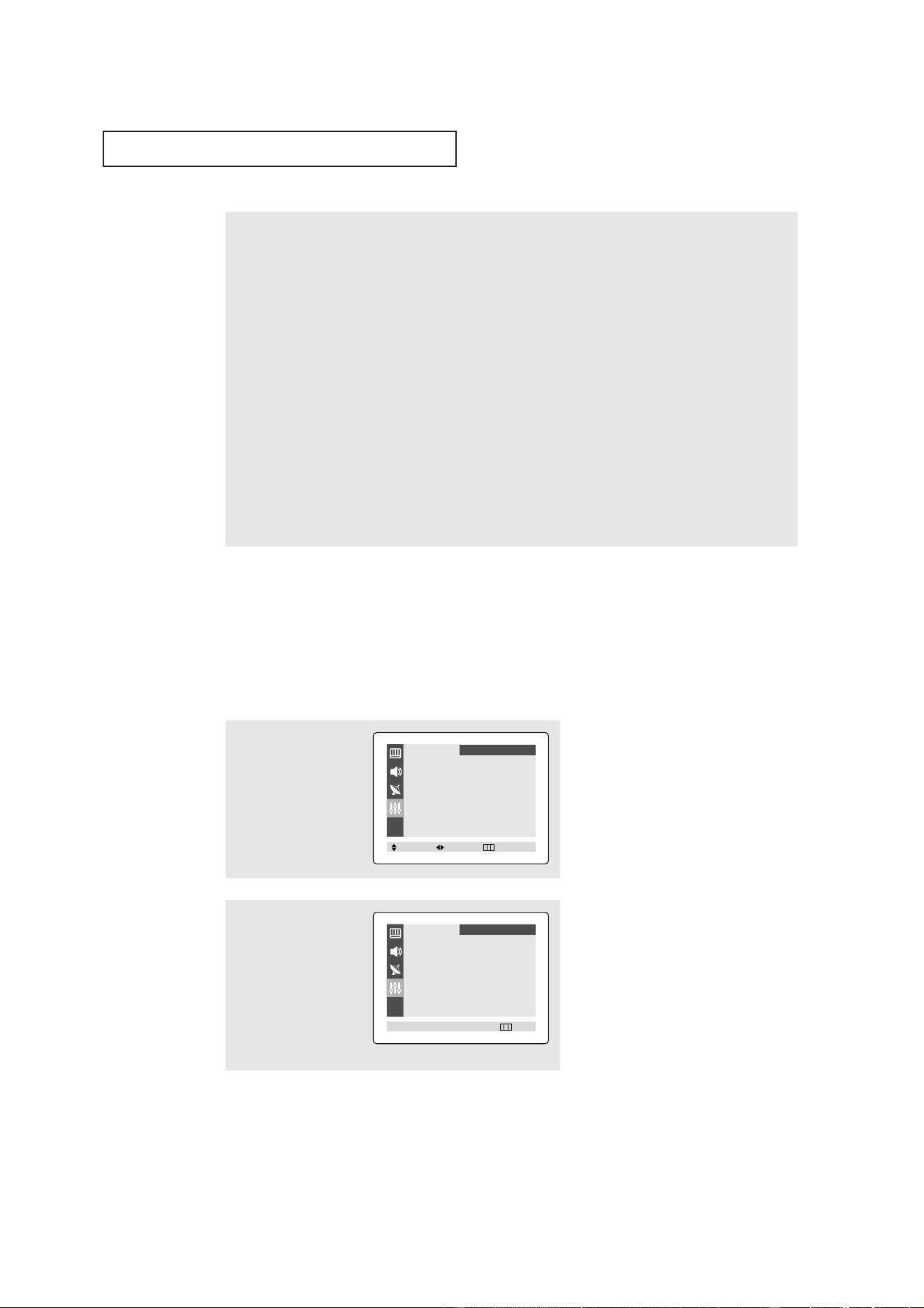
The “TV guidelines”
screen will appear. Press
the ▲ or ▼ button to
highlight one of the six
age-based categories:
TV-Y Young children
TV-Y7 Children 7 and over
--------------------------------------
TV-G General audience
TV-PG Parental guidance
TV-14 Viewers 14 and over
TV-MA Mature audience
5
At this point, one of the TV-Ratings is highlighted.
Press the
ˇ
or
ˆ
button: Depending on your existing setup, a letter “U” or “B” will be selected.
(U= Unblocked, B= Blocked)
While the “U” or ”B” is red, press the
▲ or ▼ button to block or unblock the category.
Press the MENU button once to save the TV guidelines. A TV-Rating will be highlighted, and no letters will be
selected. To exit this screen, press the
MENU button again. To select a different TV-Rating, press the ▲or ▼but-
ton and then repeat the process.
Note 1: The TV-Y7, TV-PG, TV-14 and TV-MA have additional options. See the next step to change any of the follow-
ing sub-ratings:
FV: Fantasy violence
D: Dialog
L: Offensive language
S: Sexual situation
V: Violence
Note 2: The V-Chip will automatically block certain categories that are “more restrictive.” For example, if you block
“TV-Y” category, then “TV-Y7” will automatically be blocked. Similarly, if you block the TV-G category, then all the
categories in the “young adult” group will be blocked (TV-G, TV-PG, TV-14 and TV-MA). The sub-ratings (D, L, S, V)
work together similarly. (See next section.)
Note: These categories consist of
two separate groups: TV-Y and TV-Y7
(young children through age 7), and
TV-G through TV-MA (everybody
else).
The restrictions for these two groups
work independently: If a household
includes very young children as well
as young adults, the TV guidelines
must be set up separately for each age
group. (See next step.)
▼
Enter Pin
Enter Pin : - - - -
Function
0~9 Select Exit
V-chip Lock : Yes
TV guidelines
ˆˆ
MPAA rating
ˆˆ
Change pin
ˆˆ
Function
Move Select Exit
ALL FV V S L D
TV-Y
ˆˆ
U
TV-Y7
ˆˆ
U U U: Unblocked
TV-G
ˆˆ
U B: Blocked
TV-PG
ˆˆ
UUUUU
TV-14
ˆˆ
UUUUU
TV-MA
ˆˆ
UUUU
Function
Move Select Exit
42
SPECIAL FEATURES
How to Set up Restrictions Using the MPAA Ratings: G, PG,
PG-13, R, NC-17, X, NR
The MPAA rating system uses the Motion Picture Association of America (MPAA) system,
and its main application is for movies. (Eventually, movie videocassettes will be encoded
with MPAA ratings.) When the V-chip Lock is on, the TV will automatically block any
programs that are coded with objectionable ratings (either MPAA or TV-Ratings).
6
How to set the FV, V, S, L and D sub-ratings:
First, highlight one of these TV-Ratings: TV-Y7, TV-PG, TV-14 or TV-MA (See Step 4, on previous page).
Next, while the TV-Rating is highlighted, repeatedly press the
ˆ
button. This will cycle through the avail-
able sub-ratings (FV,L, S, D or V).
A red letter (“U” or “B”) will be displayed for each sub-rating. While the “U” or “B” is red, press the
▲ or ▼
button to change the sub-rating.
Press the
MENU button once to save the TV guidelines. A TV-Rating will be highlighted, and no letters will
be selected. To exit this screen, press MENU again. To select a different TV-Rating, press the ▲or ▼button
and then repeat the process.
Note: The V-chip will automatically block certain categories that are “More restrictive”. For example, if you
block “L” sub-rating in TV-PG, then the “L” sub-ratings in TV-14 and TV-MA will automatically be blocked.
7
Press the EXIT button to clear all the screens (Or proceed to the next section, and set up additional restric-
tions based on the MPAA codes).
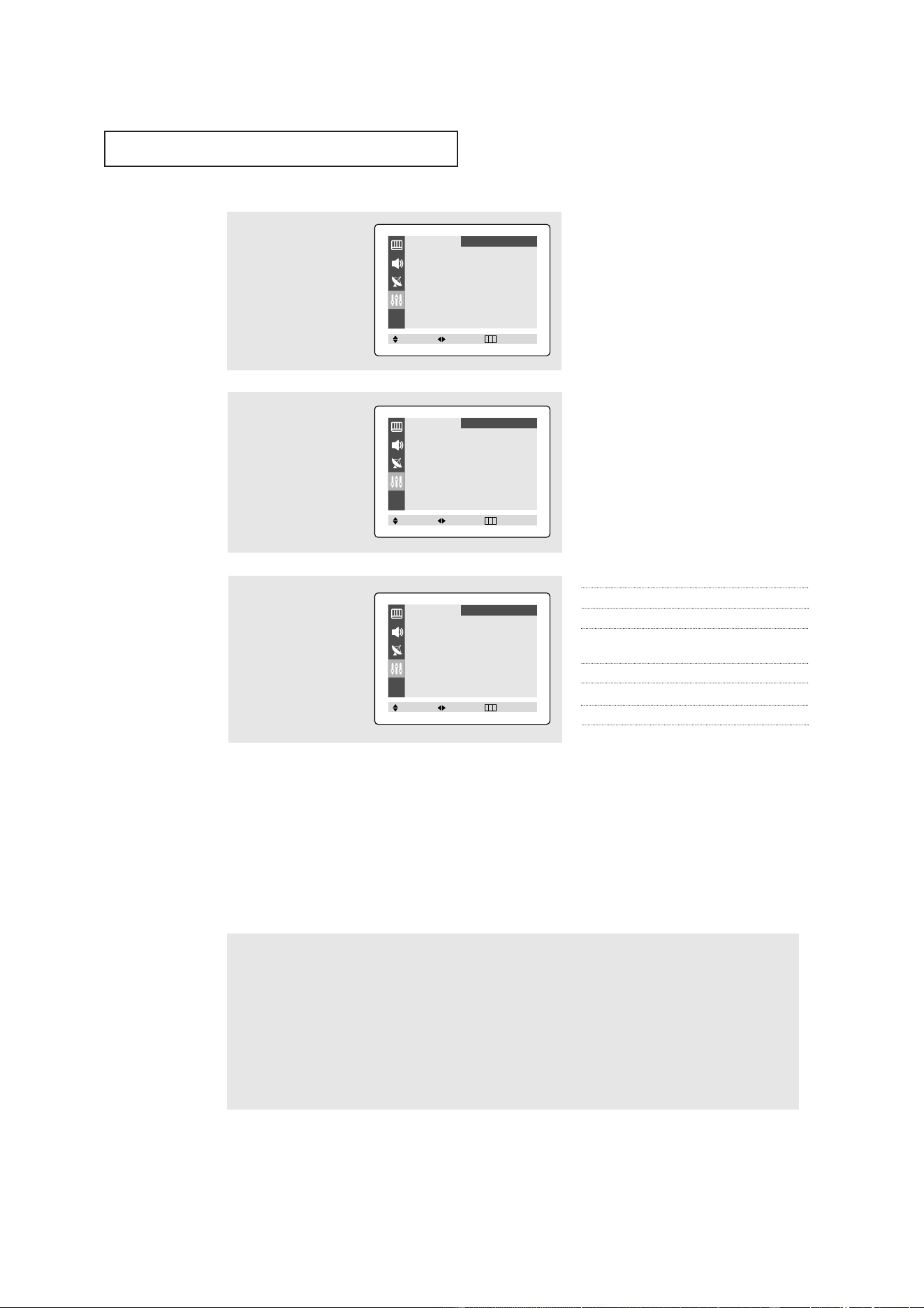
1
Press the MENU button to
display the menu.
Press the ▲ or ▼ button
to select the “Function”
menu, then press the
ˇ
or
ˆ
button.
2
Press the ▲ or ▼ button
to select the “V-chip”,
then press the
ˇ
or
ˆ
button.
The “Enter Pin” screen
will appear. Enter your 4-
digit PIN number.
Language
ˇˇ
English
ˆˆ
Time
ˆˆ
Caption
ˆˆ
V-chip
ˆˆ
Function
Move Select Exit
Enter Pin
Enter Pin : - - - -
Function
0~9 Select Exit
43
SPECIAL FEATURES
How to Reset the TV after the V-Chip
Blocks a Channel (“Emergency Escape”)
If the TV is tuned to a restricted channel, the V-Chip will block it. The screen will go black and the following
message will appear: “Excessive rating”.
To resume normal viewing, tune to a different channel using the number buttons. Under certain conditions
(depending on the rating of the local TV programs) the V-Chip might lock out all the channels. In this case,
use the V-Chip function for an “emergency escape”:
Press the
MENU button to display the menu. Press the ▲ or ▼ button three times to select the “Function”
menu and press the
ˇ
or
ˆ
button.
Press the ▲ or ▼ button to highlight the “V-chip” menu and press the
ˇ
or
ˆ
button.
Enter your PIN number, and press the
ˆ
button to temporarily disable the V-chip Lock.
5
Repeatedly press the ▲ or
▼ button to select a
particular MPAA category.
Pressing the ▲ or ▼ but-
ton will cycle through the
MPAA categories:
G General audience (no restrictions).
PG Parental guidance suggested.
PG-13 Parents strongly cautioned.
R Restricted. Children under 17 should
be accompanied by an adult.
NC-17 No children under age 17.
X Adults only.
NR Not rated.
3
The “V-chip” screen will
appear.
Press the ▲ or ▼ button,
and select “MPAA rat-
ing”.
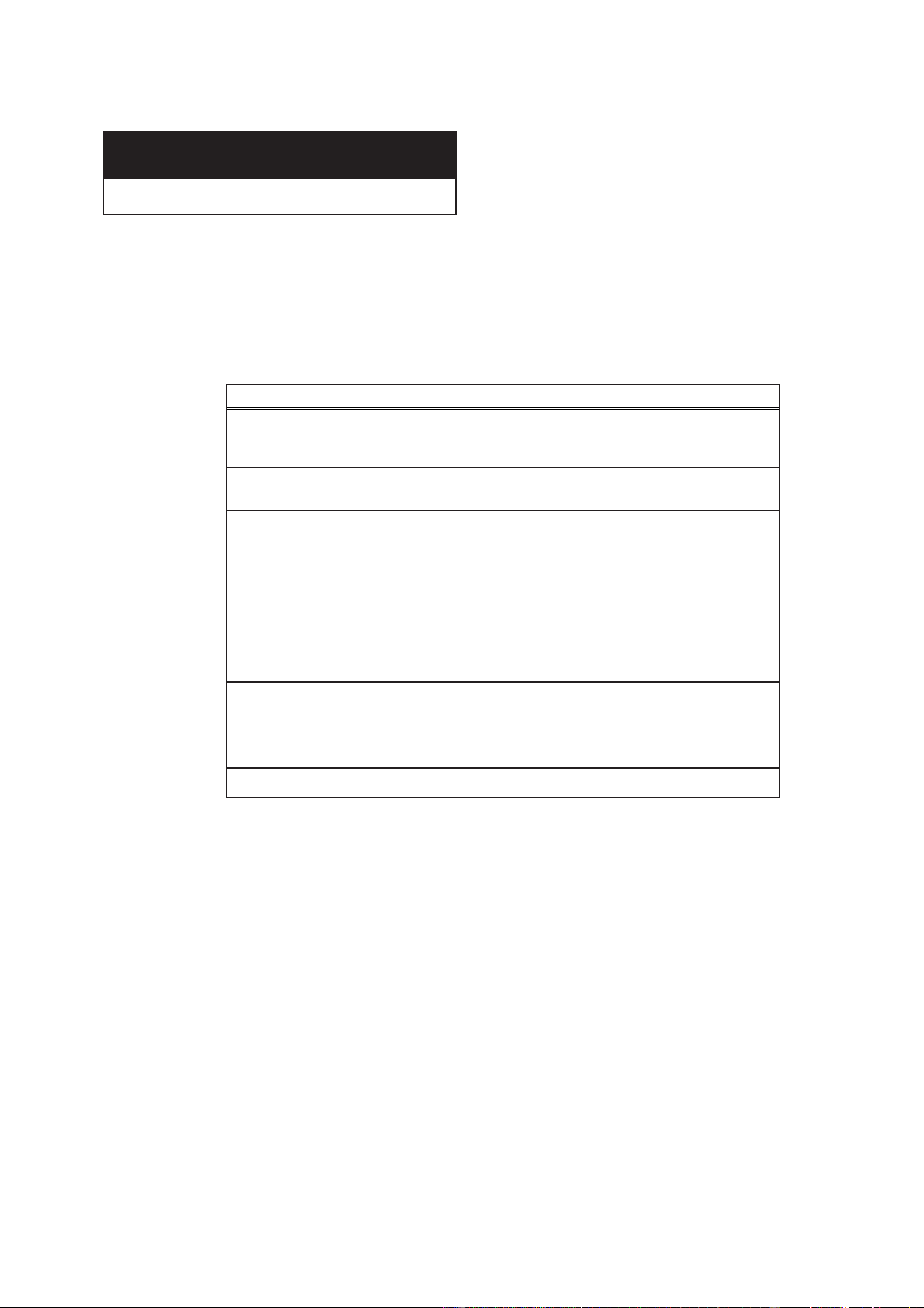
4
While “MPAA rating” is
selected, press the
ˇ
or
ˆ
button. The “MPAA
rating” screen will appear.
While a particular category is selected, press
ˆ
to activate it.
A letter (“U” or “B”) will be displayed. Press ▲ or ▼ to select “U” or”B”.
Press the EXIT button to save the settings and to clear all screens.
Note: The V-Chip will automatically block any category that is “more restrictive.” For example, if you
block the “PG-13” category, then “R,” “NC-17,” and “X” will automatically be blocked also.
V-chip Lock : Yes
TV guidelines
ˆˆ
MPAA rating
ˆˆ
Change pin
ˆˆ
Function
Move Select Exit
B/U
G
ˆˆ
U
PG
ˆˆ
U U: Unblocked
PG-13
ˆˆ
U B: Blocked
R
ˆˆ
U
NC-17
ˆˆ
U
X
ˆˆ
U
NR
ˆˆ
U
Function
Move Select Exit
B/U
G
ˆˆ
U
PG
ˆˆ
U U: Unblocked
PG-13
ˆˆ
U B: Blocked
R
ˆˆ
U
NC-17
ˆˆ
U
X
ˆˆ
U
NR
ˆˆ
U
Function
Move Select Exit
44
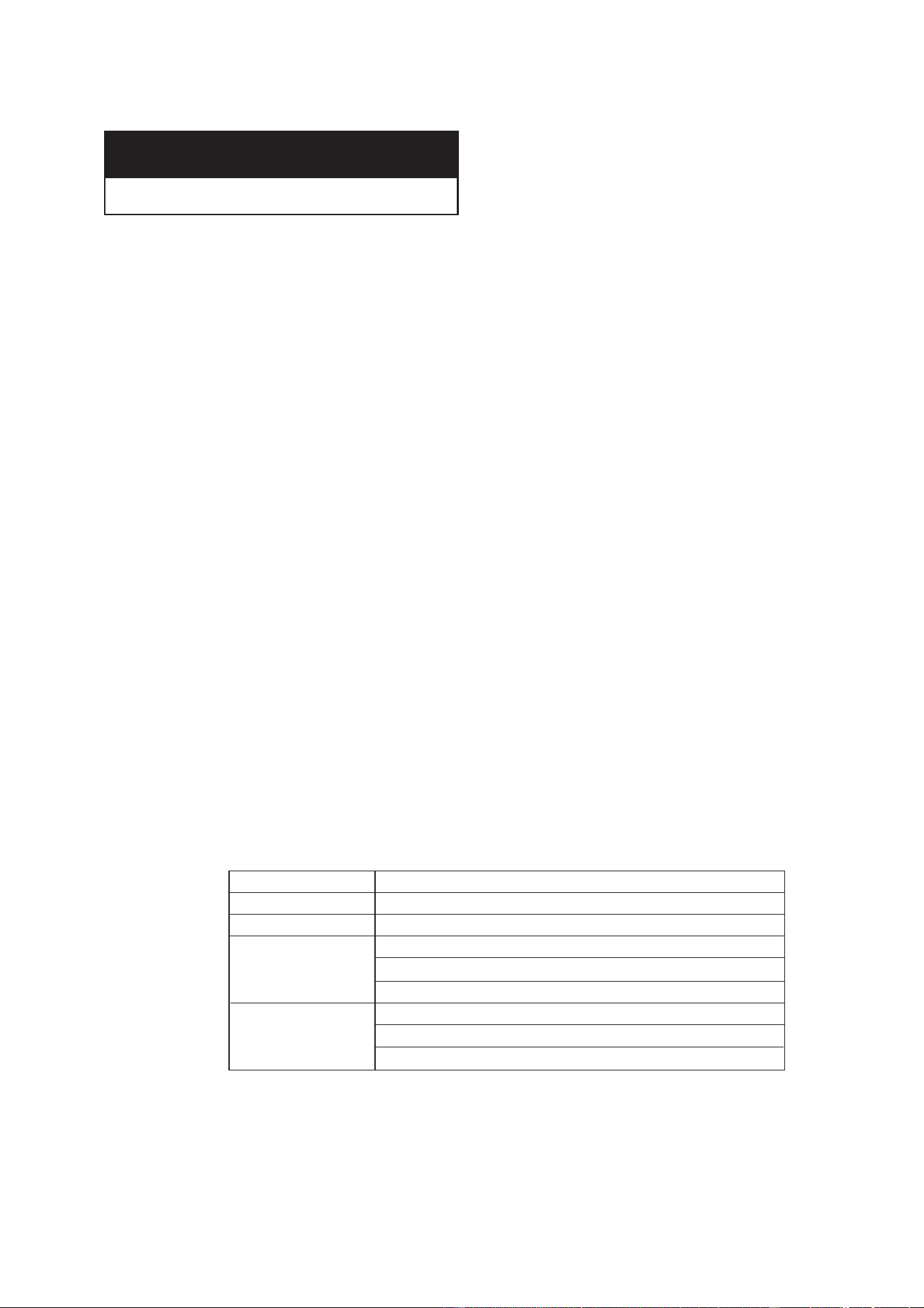
If the TV seems to have a problem, first try this list of possible problems and solutions.
If none of these troubleshooting tips apply, then call your nearest service center.
Identifying Problems
Chapter Five
TROUBLESHOOTING
Problem Possible Solution
Poor picture Try another channel.
Adjust the antenna.
Check all wire connections.
Poor sound quality. Try another channel.
Adjust the antenna.
No picture or sound. Try another channel.
Press the TV/VIDEO button.
Make sure the TV is plugged in.
Check the antenna connections.
No color, wrong colors or tints. Make sure the program is broadcast in color.
Adjust the picture settings.
If the set is moved or turned in a different
direction, the power should be OFF for
at least 30 minutes.
Picture rolls vertically. Adjust the antenna.
Check all wire connections.
The TV operates erratically Unplug the TV for 30 seconds, then try
operating it again.
The TV won’t turn on. Make sure the wall outlet is working.
45
Cleaning and Maintaining Your TV
With proper care, your TV unit will give you many years of service. Please follow these
guidelines to get the maximum performance from your TV.
Placement
• Do not place the TV near extremely hot, cold, humid or dusty places.
• Do not place the TV near appliances with electric motors that create magnetic fields,
such as vacuum cleaners.
• Keep the ventilation openings clear; do not place the TV on a soft surface, such as
cloth or paper.
• Place the TV in a vertical position only.
Liquids
• Do not handle liquids near or on the TV. Liquids that spill into it can cause serious
damage.
Cabinet
• Never open the cabinet or touch the parts inside.
• Wipe your TV with a clean, dry cloth. Never use water, cleaning fluids, wax, or
chemicals.
• Do not put heavy objects on top of the cabinet.
Temperature
• If your TV is suddenly moved from a cold to a warm place, unplug the power cord,
and allow at least two hours for moisture that may have formed inside the unit to dry
completely.
Using Your TV in Another Country
If you plan to take your TV with you to a foreign country, please be aware of the different
television systems that are in use around the world. A TV designed for one system may
not work properly with another system due to differences in the TV channel frequencies.
Specifications
APPENDIX
Model
Voltage
Frequency of Operation
Dimensions (mm/inches)
Weight (Kg/ lbs)
TX-R2028 / TX-R2035 / TX-R1635
AC 120V
60Hz
TX-R2028: 590 x 492 x 464 / 23.22 x 19.37 x 18.27
TX-R2035: 582 x 481 x 456 / 22.91 x 18.93 x 17.95
TX-R1635: 572 x 497 x 470 / 22.52 x 19.57 x 18.50
TX-R2028: 22.5 / 49.60
TX-R2035: 24.0 / 52.91
TX-R1635: 16.6 / 36.6

MEMO

MEMO

Printed in Mexico
AA68-03591A (ENG)
1-800-SAMSUNG (1-800-726-7864)
Samsung Electronics America
Service Division
400 Valley Road, Suite 201
Mount Arlington, NJ 07856
www.samsung.com
Samsung Electronics Canada Inc.
Samsung Customer Care
7037 Financial Drive
Mississauga, Ontario
L5N 6R3
www.samsung.ca