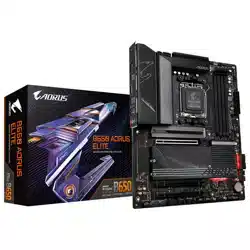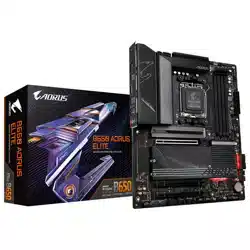

B650 AORUS ELITE AX
B650 AORUS ELITE
User's Manual
Rev. 1101
For more product details, please visit GIGABYTE's website.
https://www.gigabyte.com/Motherboard/B650-AORUS-ELITE-AX-rev-10?m=ma#kf
https://www.gigabyte.com/Motherboard/B650-AORUS-ELITE-rev-10?m=ma#kf
GIGABYTE will reduce paper use in order to fulll the responsibilities of a global citizen.
Also, to reduce the impacts on global warming, the packaging materials of this product
are recyclable and reusable. GIGABYTE works with you to protect the environment.
Copyright
© 2022 GIGA-BYTE TECHNOLOGY CO., LTD. All rights reserved.
The trademarks mentioned in this manual are legally registered to their respective owners.
Disclaimer
Information in this manual is protected by copyright laws and is the property of GIGABYTE.
Changes to the specications and features in this manual may be made by GIGABYTE without
prior notice. No part of this manual may be reproduced, copied, translated, transmitted, or
published in any form or by any means without GIGABYTE's prior written permission.
For detailed product information, carefully read the User's Manual.
For quick set-up of the product, refer to the Quick Installation Guide on GIGABYTE's
website.
https://download.gigabyte.com/FileList/Manual/mb_manual_quick-guide_am5.pdf?m=sw
For product-related information, check on our website at: https://www.gigabyte.com
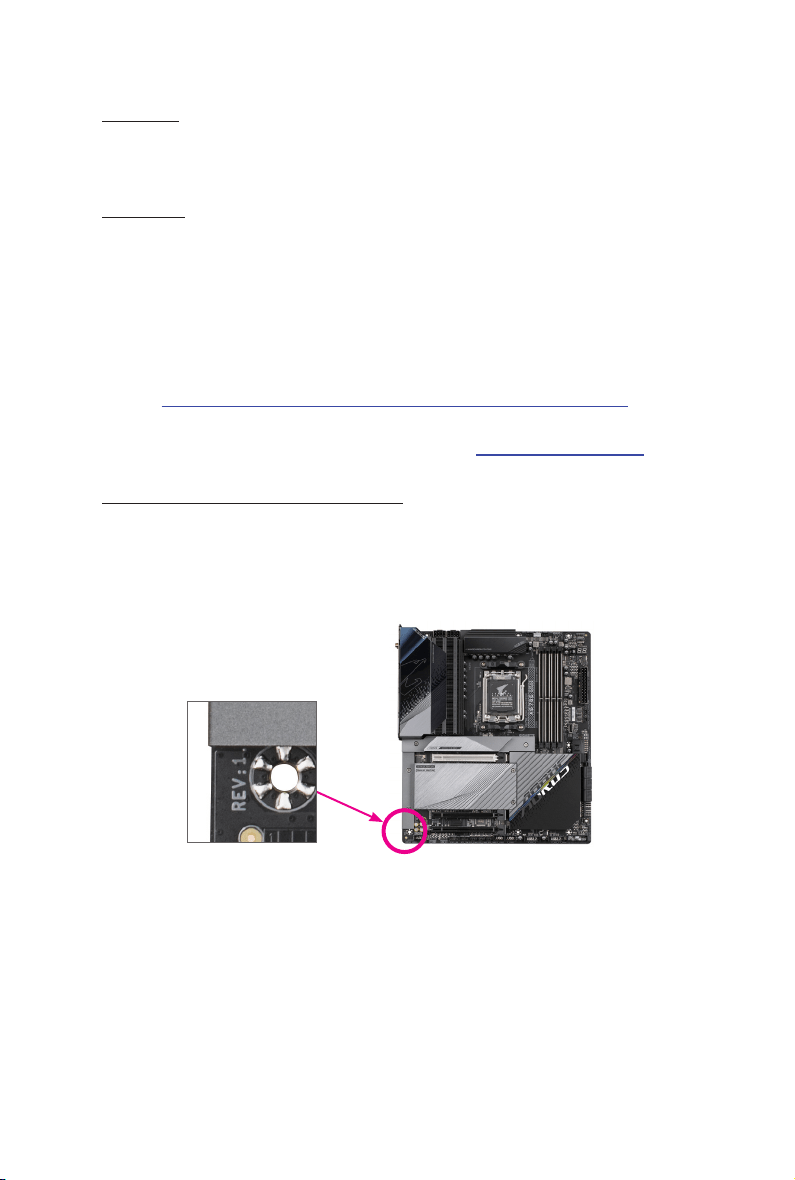
Identifying Your Motherboard Revision
The revision number on your motherboard looks like this: "REV: X.X." For example, "REV: 1.0"
means the revision of the motherboard is 1.0. Check your motherboard revision before
updating motherboard BIOS, drivers, or when looking for technical information.
Example:

- 3 -
Table of Contents
Chapter 1 Product Introduction .......................................................................................4
1-1 Motherboard Layout ......................................................................................... 4
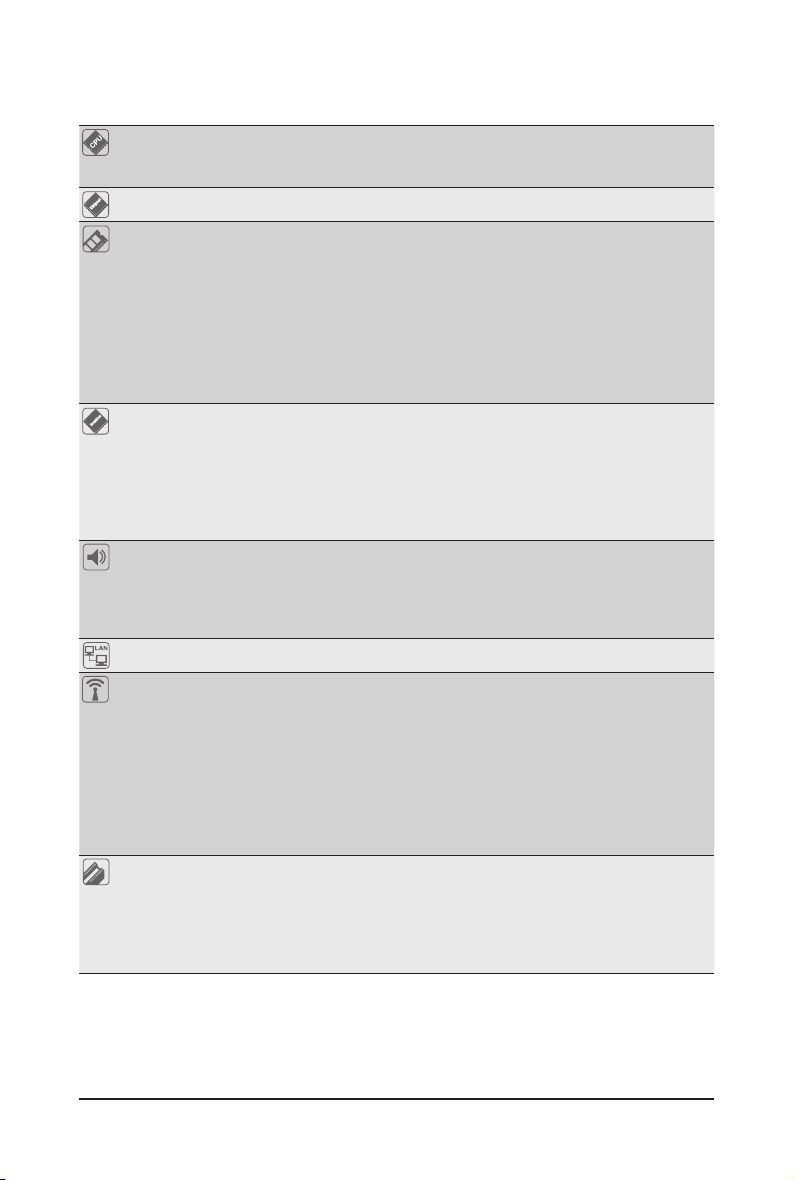
1-2 Motherboard Block Diagram ............................................................................ 5
Chapter 2 Hardware Installation .....................................................................................6
2-1 Installation Precautions .................................................................................... 6
2-2 Product Specications ...................................................................................... 7
2-3 Installing the CPU and CPU Cooler ............................................................... 10
2-4 Installing the Memory ..................................................................................... 13
2-5 Installing an Expansion Card ......................................................................... 14
2-6 Back Panel Connectors .................................................................................. 15
2-7 Onboard Buttons and LEDs ........................................................................... 17
2-8 Internal Connectors ........................................................................................ 18
Chapter 3 BIOS Setup ..................................................................................................30
Chapter 4 Installing the Operating System and Drivers ................................................ 32
4-1 Operating System Installation ........................................................................ 32
4-2 Drivers Installation .......................................................................................... 33
Chapter 5 Appendix ......................................................................................................34
5-1 Conguring a RAID Set .................................................................................. 34
Regulatory Notices .................................................................................................... 35
Contact Us ................................................................................................................ 38
- 4 -
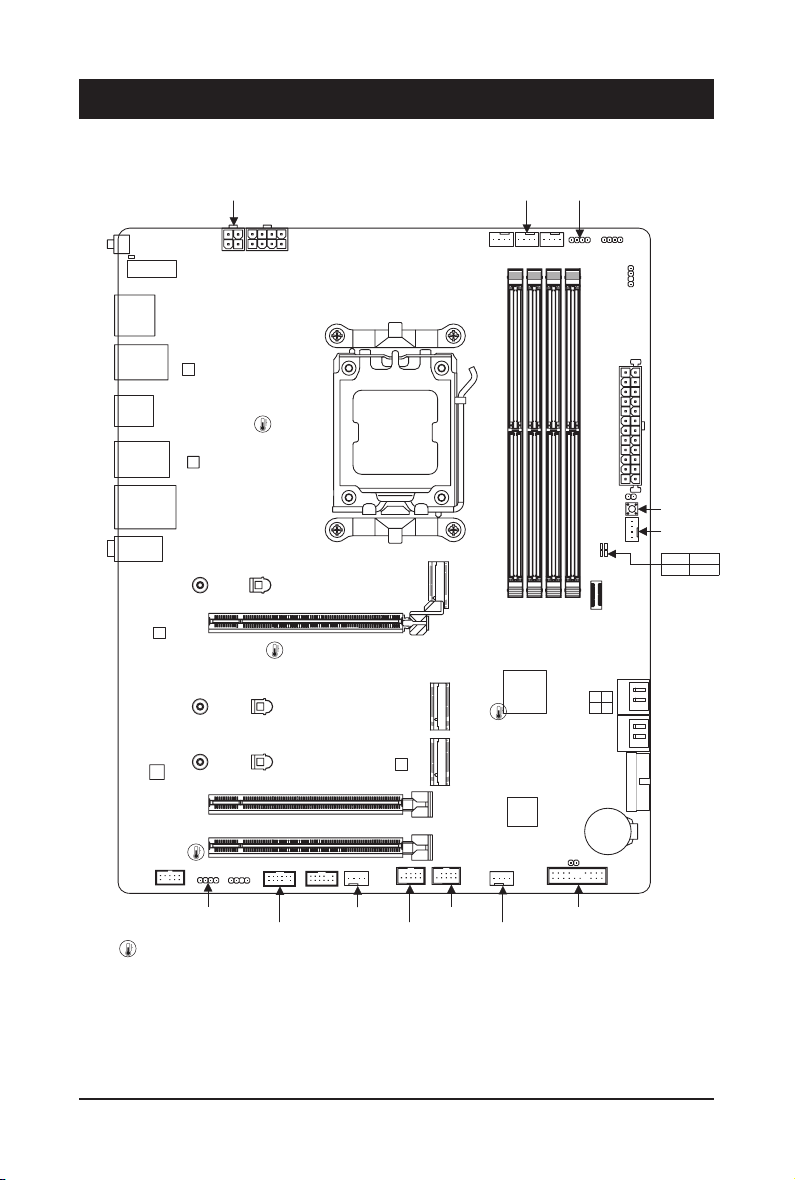
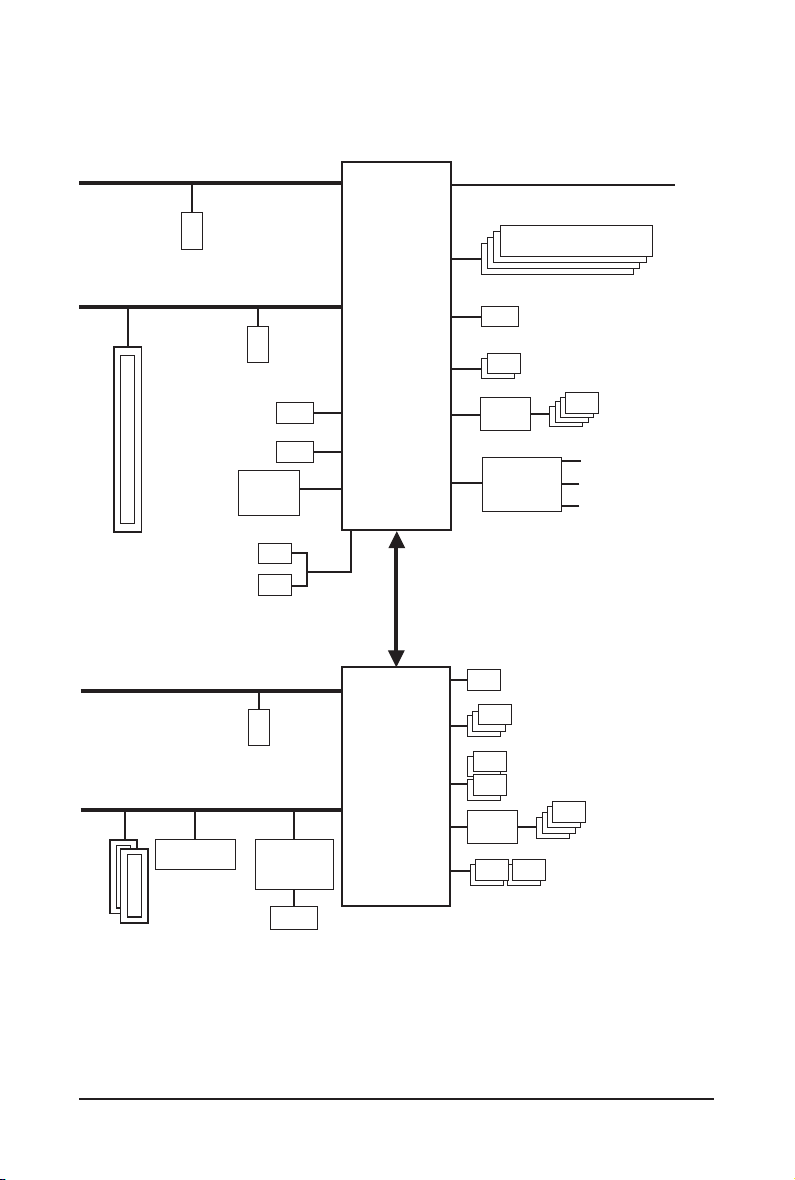
1-1 Motherboard Layout
Chapter 1 Product Introduction
QFLASH_PLUS
DP_HDMI20
USB20
U32G2_LAN
ATX
AUDIO
ATX_12V
CLR_CMOS
M_BIOS
PCIEX1_1
PCIEX16
M2A_CPU
CODEC
B650 AORUS ELITE AX
B650 AORUS ELITE
F_PANEL
SYS_FAN2
SPI_TPM
F_AUDIO
D_LED1
CPU_FAN
80
SATA3
0 1
2 3
BAT
Realtek
®
2.5GbE LAN
CPU DRAM
VGA BOOT
U32_2
M2C_SB
ATX_12V1
DDR5_B1
DDR5_B2
DDR5_A1
DDR5_A2
D_LED2
LED_C2
M2B_CPU
ESPI_DB
LED_C1
QFLED
F_U320G
80
F_USB2
Temperature sensor
USB 2.0 Hub
M2_WIFIj
RST_SW
RST
CPU_OPT
PCIEX1_2
80
Socket AM5
U32_1
U32G2C
SYS_FAN3
F_USB1
SYS_FAN1
CPU_LED
SYS_FAN4
_PUMP
AMD
Chipset
F_U32
iTE
®
Super I/O
j Only for B650 AORUS ELITE AX.
110
110
110
USB 3.2
Gen1 Hub
- 5 -
1-2 Motherboard Block Diagram
(Note) Actual support may vary by CPU.
j Only for B650 AORUS ELITE AX.
4 USB 3.2 Gen 1
USB 3.2
Gen 1 Hub
LAN
RJ45
x1
Realtek
®
2.5GbE LAN
CPU CLK+/- (100 MHz)
DDR5 5200/4800/4400 MT/s
4 SATA 6Gb/s
(SATA3 0~3)
eSPI
Bus
SPI
Bus
iTE
®
Super I/O
4 USB 2.0/1.1
1 USB Type-C
®
,
with USB 3.2 Gen 2x2 support
BIOS
TPM
PCI Express 5.0
(Note)
Bus
USB 2.0
Hub
PCI Express 3.0 Bus
1 USB Type-C
®
,
with USB 3.2 Gen 2 support
1 M.2 Socket 3
(M2A_CPU)
1 HDMI
2 USB 3.2 Gen 2 Type-A
4 USB 2.0/1.1
PCIe x4
AMD Chipset
x1
M.2 WIFIj
3 USB 3.2 Gen 1
x4
x16
1 PCI Express x16
AM5 CPU
CODEC
1 DisplayPort
PCI Express 4.0 Bus
1 M.2 Socket 3
(M2B_CPU)
x4
Line Out (Front Speaker Out)
MIC (Center/
Subwoofer Speaker Out)
Line In (Rear Speaker Out)
2 PCI Express x1
x1
PCI Express 4.0 Bus
1 M.2 Socket 3
(M2C_SB)
x4

- 6 -
2-1 Installation Precautions
The motherboard contains numerous delicate electronic circuits and components which can become
damaged as a result of electrostatic discharge (ESD). Prior to installation, carefully read the user's
manual and follow these procedures:
• Prior to installation, make sure the chassis is suitable for the motherboard.
• Prior to installation, do not remove or break motherboard S/N (Serial Number) sticker or
warranty sticker provided by your dealer. These stickers are required for warranty validation.
• Always remove the AC power by unplugging the power cord from the power outlet before
installing or removing the motherboard or other hardware components.
• When connecting hardware components to the internal connectors on the motherboard, make
sure they are connected tightly and securely.
• When handling the motherboard, avoid touching any metal leads or connectors.
• It is best to wear an electrostatic discharge (ESD) wrist strap when handling electronic
components such as a motherboard, CPU or memory. If you do not have an ESD wrist strap,
keep your hands dry and rst touch a metal object to eliminate static electricity.
• Prior to installing the motherboard, please have it on top of an antistatic pad or within an
electrostatic shielding container.
• Before connecting or unplugging the power supply cable from the motherboard, make sure
the power supply has been turned off.
• Before turning on the power, make sure the power supply voltage has been set according to
the local voltage standard.
• Before using the product, please verify that all cables and power connectors of your hardware
components are connected.
• To prevent damage to the motherboard, do not allow screws to come in contact with the
motherboard circuit or its components.
• Make sure there are no leftover screws or metal components placed on the motherboard or
within the computer casing.
• Do not place the computer system on an uneven surface.
• Do not place the computer system in a high-temperature or wet environment.
• Turning on the computer power during the installation process can lead to damage to system
components as well as physical harm to the user.
• If you are uncertain about any installation steps or have a problem related to the use of the
product, please consult a certied computer technician.
• If you use an adapter, extension power cable, or power strip, ensure to consult with its installation
and/or grounding instructions.
Chapter 2 Hardware Installation
- 7 -
2-2 ProductSpecications
CPU AMD Socket AM5, support for:
AMD Ryzen
™
7000 Series Processors
(Go to GIGABYTE's website for the latest CPU support list.)
Chipset AMD B650
Memory Support for DDR5 5200/4800/4400 MT/s memory modules
4 x DDR5 DIMM sockets supporting up to 192 GB (48 GB single DIMM capacity)
of system memory
Dual channel memory architecture
Support for non-ECC Un-buffered DIMM 1Rx8/2Rx8/1Rx16 memory modules
Support for AMD EXtended Proles for Overclocking (AMD EXPO
™
) and Extreme
Memory Prole (XMP) memory module
(Go to GIGABYTE's website for the latest supported memory speeds and memory
modules.)
Onboard
Graphics
Integrated Graphics Processor:
- 1 x DisplayPort, supporting a maximum resolution of 3840x2160@144 Hz
* Support for DisplayPort 1.4 version and HDR.
- 1 x HDMI port, supporting a maximum resolution of 4096x2160@60 Hz
* Support for HDMI 2.1 version and HDCP 2.3.
** Support native HDMI 2.1 TMDS compatible ports.
(Graphics specications may vary depending on CPU support.)
Audio Realtek
®
Audio CODEC
High Denition Audio
2/4/5.1/7.1-channel
* You can change the functionality of an audio jack using the audio software. To
congure 7.1-channel audio, access the audio software for audio settings.
LAN Realtek
®
2.5GbE LAN chip (2.5 Gbps/1 Gbps/100 Mbps)
Wireless
Communication
Modulej
AMD Wi-Fi 6E RZ616 (MT7922A22M) (For PCB rev. 1.0)
- WIFI a, b, g, n, ac, ax, supporting 2.4/5/6 GHz carrier frequency bands
- BLUETOOTH 5.2
- Support for 11ax 160MHz wireless standard and up to 2.4 Gbps data rate
Intel
®
Wi-Fi 6E AX210 (For PCB rev. 1.1)
- WIFI a, b, g, n, ac, ax, supporting 2.4/5/6 GHz carrier frequency bands
- BLUETOOTH 5.3
- Support for 11ax 160MHz wireless standard and up to 2.4 Gbps data rate
(Actual data rate may vary depending on environment and equipment.)
Expansion Slots CPU:
- 1 x PCI Express x16 slot, supporting PCIe 4.0 and running at x16 (PCIEX16)
* For optimum performance, if only one PCI Express graphics card is to be installed,
be sure to install it in the PCIEX16 slot.
Chipset:
-
2 x PCI Express x16 slots, supporting PCIe 3.0 and running at x1 (PCIEX1_1/2)
j Only for B650 AORUS ELITE AX.
- 8 -
Storage Interface CPU:
- 1 x M.2 connector (Socket 3, M key, type 25110/2280 PCIe 5.0
(Note)
x4/x2
SSD support) (M2A_CPU)
- 1 x M.2 connector (Socket 3, M key, type 25110/2280 PCIe 4.0 x4/x2 SSD
support) (M2B_CPU)
Chipset:
- 1 x M.2 connector (Socket 3, M key, type 25110/2280 PCIe 4.0 x4/x2 SSD
support) (M2C_SB)
- 4 x SATA 6Gb/s connectors
RAID 0, RAID 1, and RAID 10 support for NVMe SSD storage devices
RAID 0, RAID 1, and RAID 10 support for SATA storage devices
USB CPU:
- 1 x USB Type-C
®
port on the back panel, with USB 3.2 Gen 2 support
- 2 x USB 3.2 Gen 2 Type-A ports (red) on the back panel
CPU + USB 2.0 Hub:
- 4 x USB 2.0/1.1 ports on the back panel
Chipset:
- 1 x USB Type-C
®
port with USB 3.2 Gen 2x2 support, available through the
internal USB header
- 3 x USB 3.2 Gen 1 ports (1 port on the back panel, 2 ports available through
the internal USB header)
- 4 x USB 2.0/1.1 ports available through the internal USB headers
Chipset+USB 3.2 Gen 1 Hub:
- 4 x USB 3.2 Gen 1 ports on the back panel
Internal
Connectors
1 x 24-pin ATX main power connector
1 x 8-pin ATX 12V power connector
1 x 4-pin ATX 12V power connector
1 x CPU fan header
1 x water cooling CPU fan header
3 x system fan headers
1 x system fan/water cooling pump header
2 x addressable LED strip headers
2 x RGB LED strip headers
1 x CPU cooler LED strip/RGB LED strip header
3 x M.2 Socket 3 connectors
4 x SATA 6Gb/s connectors
1 x front panel header
1 x front panel audio header
1 x USB Type-C
®
header, with USB 3.2 Gen 2x2 support
1 x USB 3.2 Gen 1 header
2 x USB 2.0/1.1 headers
1 x Trusted Platform Module header (For the GC-TPM2.0 SPI/GC-TPM2.0 SPI
2.0 module only)
1 x reset button
1 x reset jumper
1 x Clear CMOS jumper
(Note) Actual support may vary by CPU.
- 9 -
Back Panel
Connectors
1 x Q-Flash Plus button
2 x SMA antenna connectors (2T2R)j
1 x DisplayPort
1 x HDMI port
1 x USB Type-C
®
port, with USB 3.2 Gen 2 support
2 x USB 3.2 Gen 2 Type-A ports (red)
5 x USB 3.2 Gen 1 ports
4 x USB 2.0/1.1 ports
1 x RJ-45 port
3 x audio jacks
I/O Controller iTE
®
I/O Controller Chip
Hardware
Monitor
Voltage detection
Temperature detection
Fan speed detection
Water cooling ow rate detection
Fan fail warning
Fan speed control
* Whether the fan (pump) speed control function is supported will depend on the fan
(pump) you install.
BIOS 1 x 256 Mbit ash
Use of licensed AMI UEFI BIOS
PnP 1.0a, DMI 2.7, WfM 2.0, SM BIOS 2.7, ACPI 5.0
Unique Features Support for GIGABYTE Control Center (GCC)
* Available applications in GCC may vary by motherboard model. Supported functions
of each application may also vary depending on motherboard specications.
Support for Q-Flash
Support for Q-Flash Plus
Bundled
Software
Norton
®
Internet Security (OEM version)
LAN bandwidth management software
Operating
System
Support for Windows 11 64-bit
Support for Windows 10 64-bit
Form Factor
ATX Form Factor; 30.5cm x 24.4cm
* GIGABYTE reserves the right to make any changes to the product specications and product-related information without
prior notice.
& Please visit GIGABYTE's website for support lists of CPU, memory modules, SSDs, and M.2 devices.
https://www.gigabyte.com/Motherboard/B650-AORUS-ELITE-AX-rev-10?m=dl#support-dl
https://www.gigabyte.com/Motherboard/B650-AORUS-ELITE-rev-10?m=dl#support-dl
& Please visit the SERVICE/SUPPORT\Utility page on GIGABYTE's website to download the latest
version of apps.
https://www.gigabyte.com/Support/Utility/Motherboard?m=ut
j Only for B650 AORUS ELITE AX.
- 10 -
2-3 Installing the CPU and CPU Cooler
Read the following guidelines before you begin to install the CPU:
• Make sure that the motherboard supports the CPU.
(Go to GIGABYTE's website for the latest CPU support list.)
• Always turn off the computer and unplug the power cord from the power outlet before installing the
CPU to prevent hardware damage.
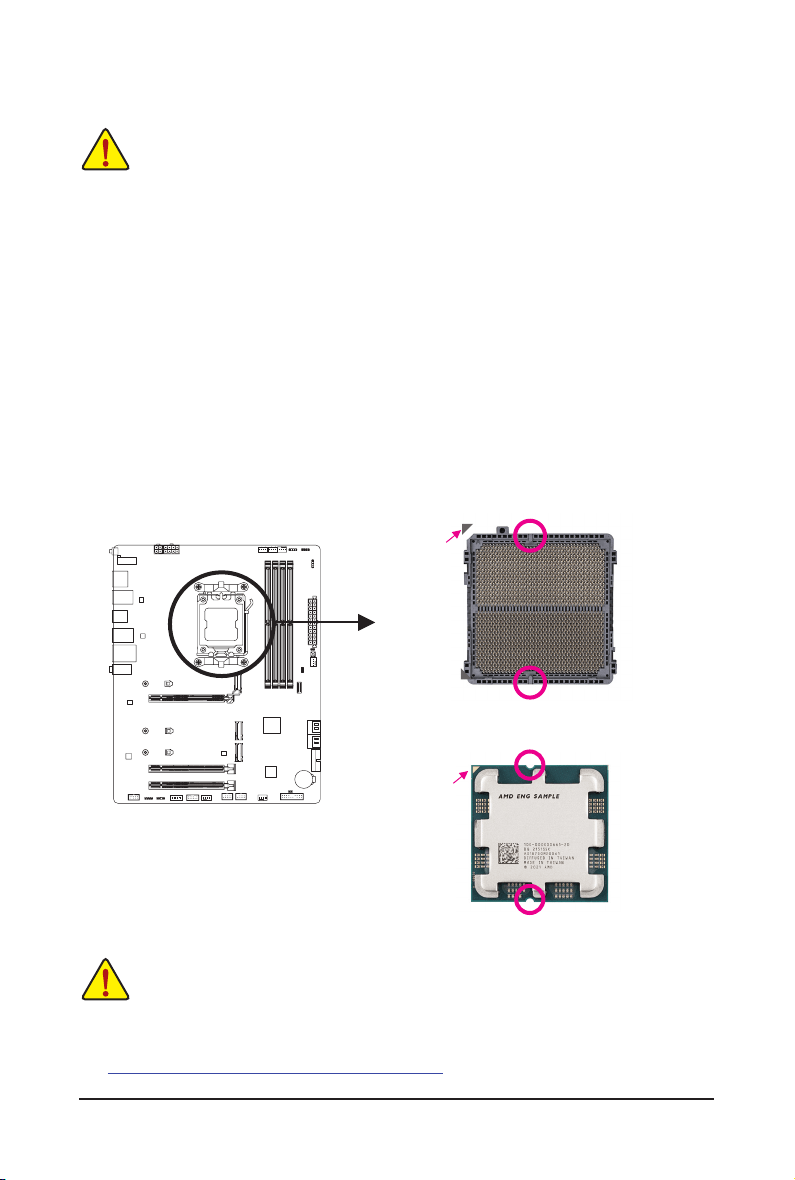
• Locate the pin one of the CPU. The CPU cannot be inserted if oriented incorrectly. (Or you may
locate the notches on both sides of the CPU and alignment keys on the CPU socket.)
• Apply an even and thin layer of thermal grease on the surface of the CPU.
• Do not turn on the computer if the CPU cooler is not installed, otherwise overheating and damage
of the CPU may occur.
• Set the CPU host frequency in accordance with the CPU specications. It is not recommended
that the system bus frequency be set beyond hardware specications since it does not meet the
standard requirements for the peripherals. If you wish to set the frequency beyond the standard
specications, please do so according to your hardware specications including the CPU, graphics
card, memory, hard drive, etc.
A. Note the CPU Orientation
Note the alignment keys on the motherboard CPU socket and the notches on the CPU.
Do not remove the CPU socket cover before inserting the CPU. It may pop off from the load
plate automatically after you insert the CPU and close the load plate.
Notch
Notch
Triangle Pin One
Marking on the
CPU
AM5 CPU
Alignment Key
Alignment Key
AM5 CPU Socket
Triangle Pin One
Marking of the
CPU Socket
& Please visit GIGABYTE's website for details on hardware installation.
http://www.gigabyte.com/WebPage/210/quick-guide.html?m=sw
- 11 -
B. Installing the CPU
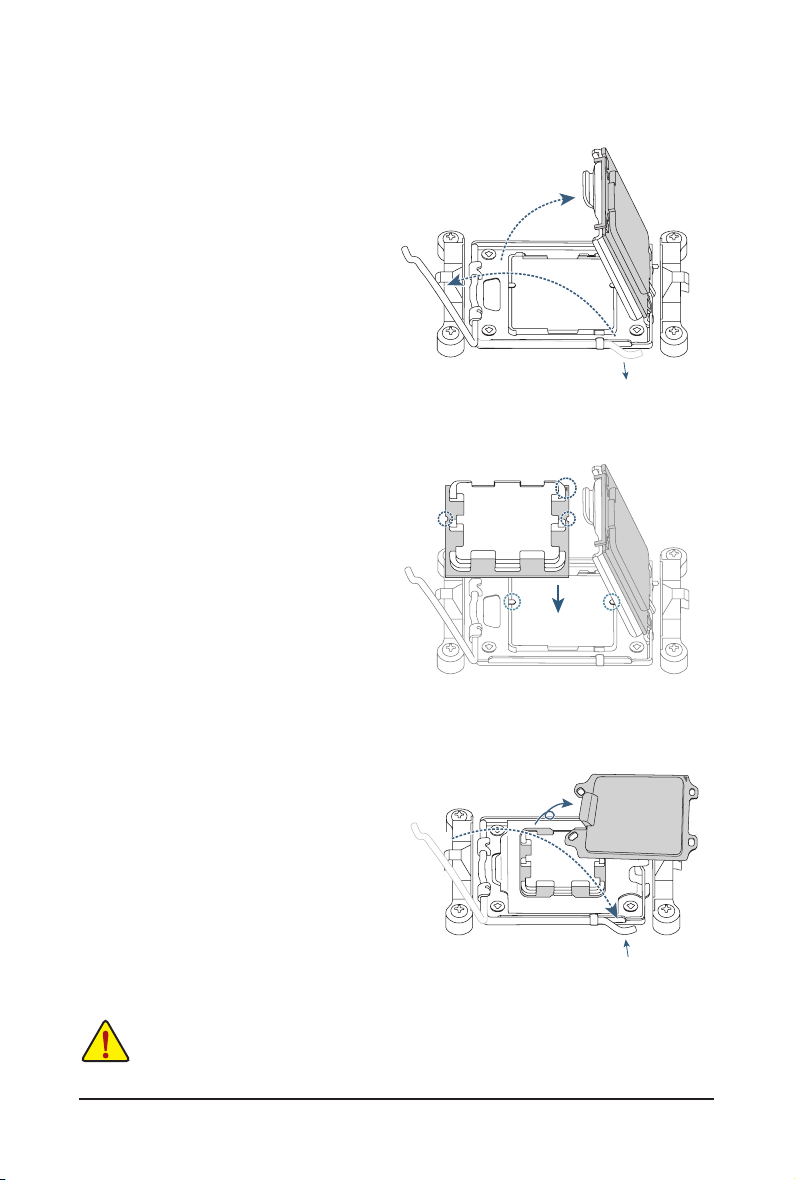
Follow the steps below to correctly install the CPU into the motherboard CPU socket.
Do not force to engage the CPU socket locking lever when the CPU is not installed correctly
as this would damage the CPU and CPU socket.
41
23
j
k
l
41
23
Pin One
w
u
v
jGently press the CPU socket lever handle
down and away from the socket.
kCompletely lift up the CPU socket lock-
ing lever.
lWith your ngers, hold the plastic protec-
tive cover attached to the metal load plate
to lift open the metal load plate.
Hold the CPU with your ngers by the edges.
Align the CPU pin one marking (triangle) with
the pin one corner of the CPU socket (or you
may align the CPU notches with the socket
alignment keys) and gently insert the CPU
into position.
Make sure the CPU is properly installed and
then close the load plate. Secure the socket
lever under its retention tab. The plastic
protective cover will pop off by itself and can
be removed.
* Always replace the plastic protective cover
when the CPU is not installed to protect the
CPU socket.
41
23
l
k
jj
- 12 -
C. Installing the CPU Cooler
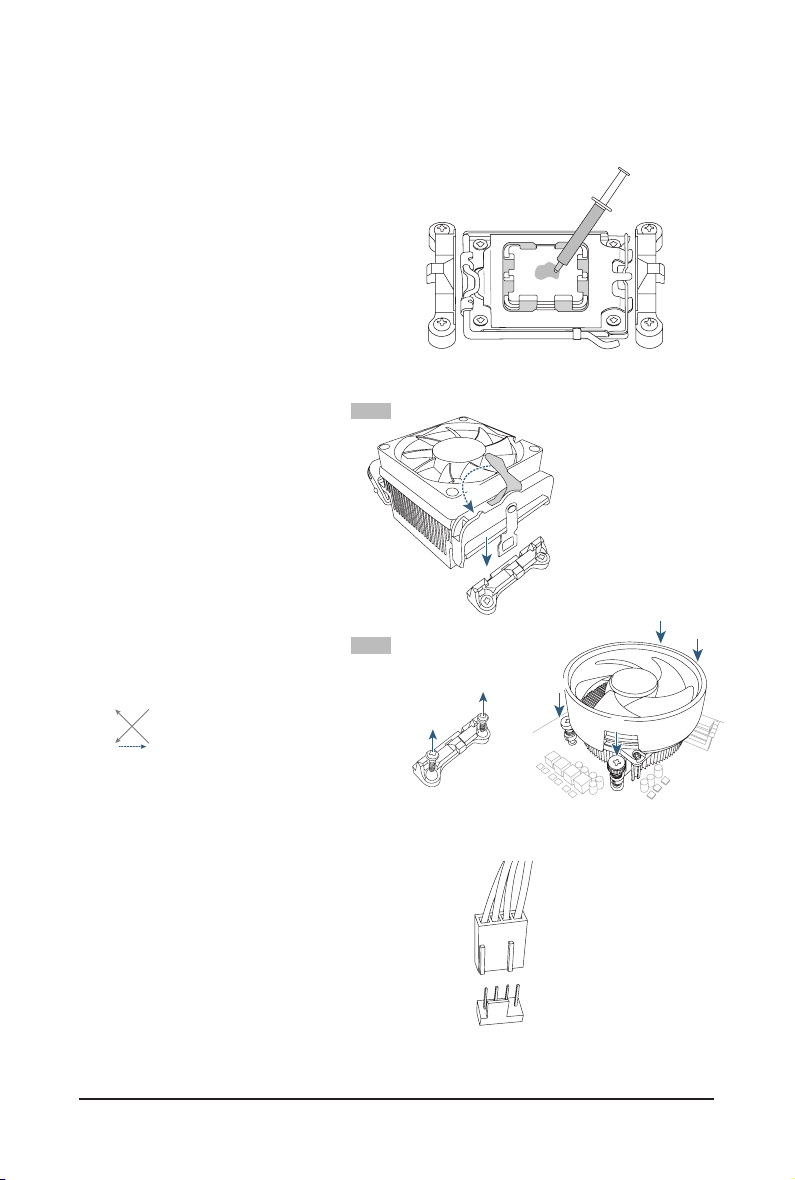
Be sure to install the CPU cooler after installing the CPU. (Actual installation process may differ depending the
CPU cooler to be used. Refer to the user's manual for your CPU cooler.)
u
v
Apply an even and thin layer of thermal
grease on the surface of the installed CPU.
w
Finally, attach the power connector of
the CPU cooler to the CPU fan header
(CPU_FAN) on the motherboard.
41
23
CPU_FAN
41
23
41
23
u
Type B
41
23
j
l
v
kk
mm
41
23
j
kk
* When using a Type B CPU cooler, it is not
recommended to fasten each screw down all the
way in one step. Follow order 1-2-3-4, fasten screw
clockwise 1 rotation per step. Repeat steps 1-2-3-4
till all screws are fastened.
41
23
Type A
Type A:
Hook the CPU cooler clip to the mounting
lug on one side of the retention frame. On
the other side, push straight down on the
CPU cooler clip to hook it to the mounting
lug on the retention frame. Turn the cam
handle from the left side to the right side to
lock into place.
Type B:
First remove the four screws from the CPU
retention frame and remove the CPU reten-
tion frame. Then align the four shoulder
screws on the CPU cooler with the standoffs
from the back plate. Fasten each shoulder
screw in a 1-2-3-4 (x) pattern as shown on
the right.
- 13 -
2-4 Installing the Memory
Read the following guidelines before you begin to install the memory:
• Make sure that the motherboard supports the memory. It is recommended that memory of the same
capacity, brand, speed, and chips be used. (Go to GIGABYTE's website for the latest supported
memory speeds and memory modules.)
• Always turn off the computer and unplug the power cord from the power outlet before installing the
memory to prevent hardware damage.
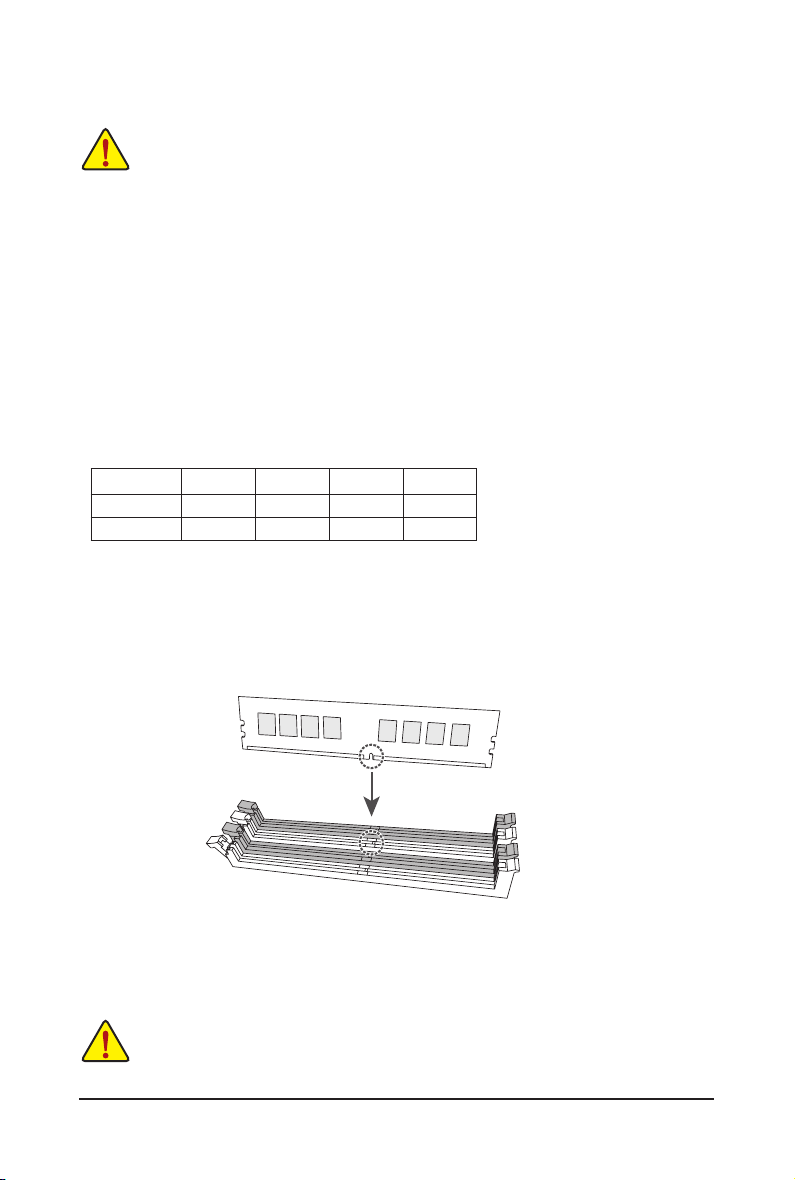
• Memory modules have a foolproof design. A memory module can be installed in only one direction.
If you are unable to insert the memory, switch the direction.
DualChannelMemoryConguration
This motherboard provides four memory sockets and supports Dual Channel Technology. After the memory
is installed, the BIOS will automatically detect the specications and capacity of the memory. Enabling Dual
Channel memory mode will double the original memory bandwidth.
The four memory sockets are divided into two channels and each channel has two memory sockets as following:
Channel A: DDR5_A1, DDR5_A2
Channel B: DDR5_B1, DDR5_B2
* Recommended Dual Channel Memory Conguration:
DDR5_A1 DDR5_A2 DDR5_B1 DDR5_B2
2 Modules - - DS/SS - - DS/SS
4 Modules DS/SS DS/SS DS/SS DS/SS
(SS=Single-Sided, DS=Double-Sided, "- -"=No Memory)
Due to CPU limitations, read the following guidelines before installing the memory in Dual Channel mode.
1. Dual Channel mode cannot be enabled if only one memory module is installed.
2. When enabling Dual Channel mode with two or four memory modules, it is recommended that memory of
the same capacity, brand, speed, and chips be used.
When installing a single memory module, we recommend that you install it in the DDR5_A2
or DDR5_B2 socket.
DDR5_A1
DDR5_A2
DDR5_B1
DDR5_B2
- 14 -
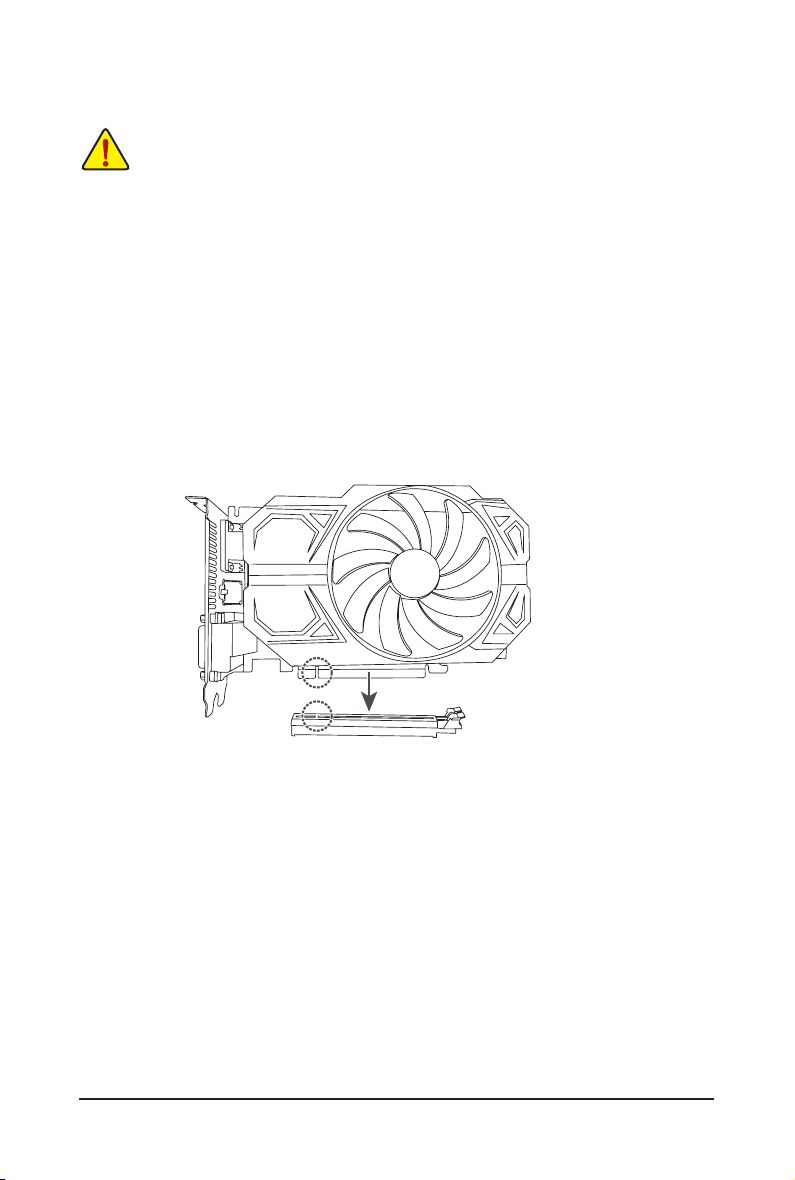
2-5 Installing an Expansion Card
Read the following guidelines before you begin to install an expansion card:
• Make sure the motherboard supports the expansion card. Carefully read the manual that came
with your expansion card.
• Always turn off the computer and unplug the power cord from the power outlet before installing an
expansion card to prevent hardware damage.
Follow the steps below to correctly install your expansion card in the expansion slot.
1. Locate an expansion slot that supports your card. Remove the metal slot cover from the chassis back panel.
2. Align the card with the slot, and press down on the card until it is fully seated in the slot.
3. Make sure that the expansion card is fully seated in its slot.
4. Secure the card's metal bracket to the chassis back panel with a screw.
5. After installing all expansion cards, replace the chassis cover(s).
6. Turn on your computer. If necessary, go to BIOS Setup to make any required BIOS changes for your
expansion card(s).
7. Install the driver provided with the expansion card in your operating system.
PCIEX16 Slot
- 15 -
2-6 Back Panel Connectors
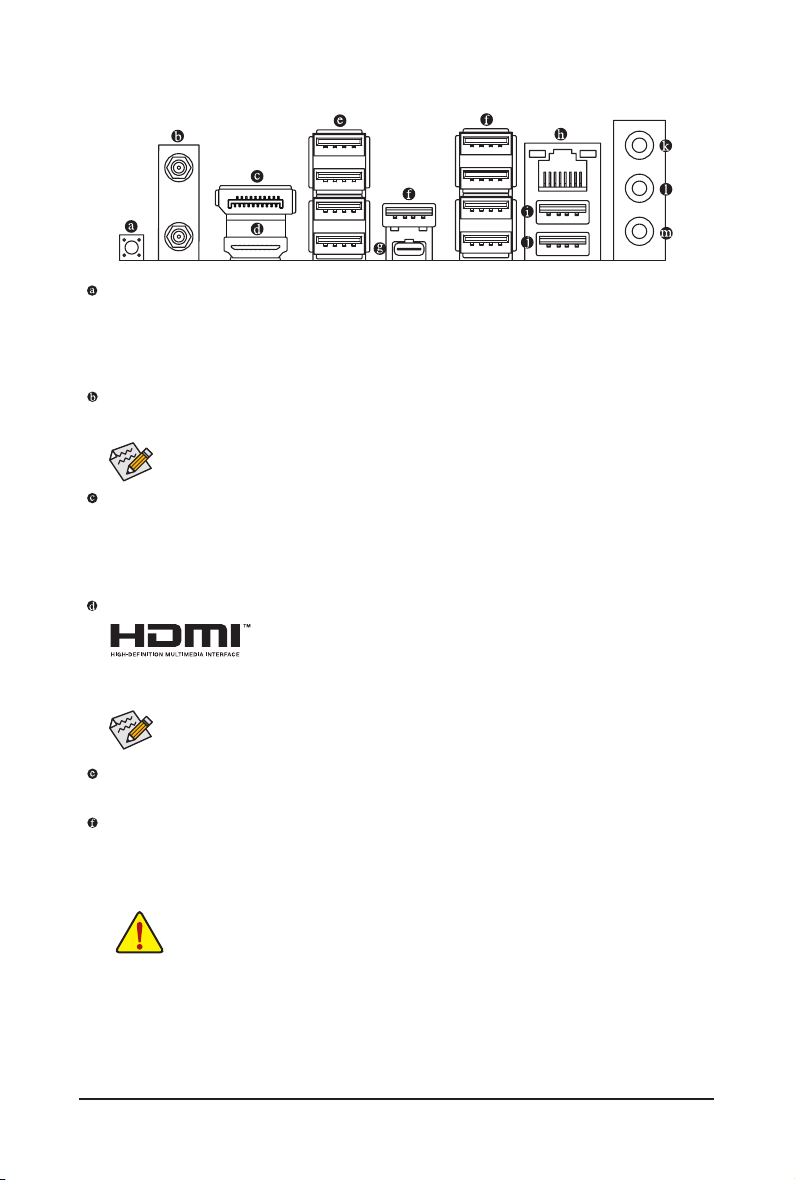
Q-Flash Plus Button
(Note)
Q-Flash Plus allows you to update the BIOS when your system is off (S5 shutdown state). Save the latest
BIOS on a USB thumb drive and plug it into the dedicated port, and then you can now ash the BIOS
automatically by simply pressing the Q-Flash Plus button. The QFLED will ash when the BIOS matching
and ashing activities start and will stop ashing when the main BIOS ashing is complete.
SMA Antenna Connectors (2T2R)j
Use this connector to connect an antenna.
DisplayPort
DisplayPort delivers high quality digital imaging and audio, supporting bi-directional audio transmission.
You can use this port to connect your DisplayPort-supported monitor. Note: The DisplayPort Technology
can support a maximum resolution of 3840x2160@144 Hz but the actual resolutions supported depend
on the monitor being used.
HDMI Port
The HDMI port is HDCP 2.3 compliant and supports Dolby TrueHD and DTS HD
Master Audio formats. It also supports up to 192KHz/24bit 7.1-channel LPCM audio
output. You can use this port to connect your HDMI-supported monitor. The maximum supported resolution
is 4096x2160@60 Hz, but the actual resolutions supported are dependent on the monitor being used.
Tighten the antennas to the antenna connectors and then aim the antennas correctly for better
signal reception.
After installing the DisplayPort/HDMI device, make sure to set the default sound playback device
to DisplayPort/HDMI. (The item name may differ depending on your operating system.)
• When removing the cable connected to a back panel connector, rst remove the cable from
your device and then remove it from the motherboard.
• When removing the cable, pull it straight out from the connector. Do not rock it side to side
to prevent an electrical short inside the cable connector.
USB 2.0/1.1 Port
The USB port supports the USB 2.0/1.1 specication. Use this port for USB devices.
USB 3.2 Gen 1 Port
The USB 3.2 Gen 1 port supports the USB 3.2 Gen 1 specication and is compatible to the USB 2.0
specication. Use this port for USB devices.
j Only for B650 AORUS ELITE AX.
- 16 -
USB Type-C
®
Port (with USB 3.2 Gen 2 Support)
The reversible USB port supports the USB 3.2 Gen 2 specication and is compatible to the USB 3.2 Gen 1
and USB 2.0 specication. Use this port for USB devices.
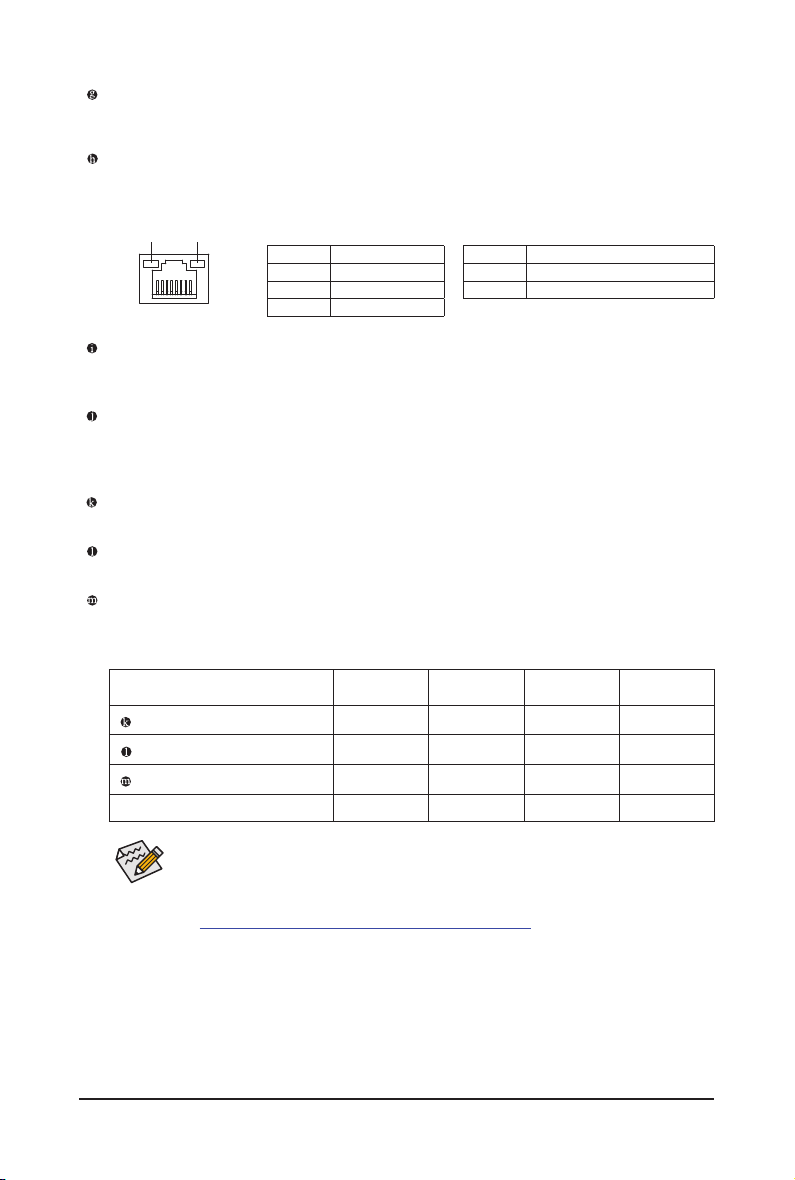
RJ-45 LAN Port
The Gigabit Ethernet LAN port provides Internet connection at up to 2.5 Gbps data rate. The following
describes the states of the LAN port LEDs.
Activity LED
Speed LED
LAN Port
Activity LED:Speed LED:
State Description
Orange 2.5 Gbps data rate
Green 1 Gbps data rate
Off 100 Mbps data rate
State Description
Blinking Data transmission or receiving is occurring
Off
No data transmission or receiving is occurring
Audio Jack Congurations:
Jack
Headphone/
2-channel
4-channel 5.1-channel 7.1-channel
Line In/Rear Speaker Out
a a a
Line Out/Front Speaker Out
a a a a
Mic In/Center/Subwoofer Speaker Out
a a
Front Panel Line Out/Side Speaker Out
a
You can change the functionality of an audio jack using the audio software. To congure
7.1-channel audio, access the audio software for audio settings.
USB 3.2 Gen 2 Type-A Port (Red)
The USB 3.2 Gen 2 port supports the USB 3.2 Gen 2 specication and is compatible to the USB 3.2 Gen 1
and USB 2.0 specication. Use this port for USB devices.
USB 3.2 Gen 2 Type-A Port (Red) (Q-Flash Plus Port)
The USB 3.2 Gen 2 port supports the USB 3.2 Gen 2 specication and is compatible to the USB 3.2 Gen 1
and USB 2.0 specication. Use this port for USB devices. Before using Q-Flash Plus
(Note)
, make sure to insert
the USB ash drive into this port rst.
Line In/Rear Speaker Out
The line in jack. Use this audio jack for line in devices such as an optical drive, walkman, etc.
Line Out/Front Speaker Out
The line out jack.
Mic In/Center/Subwoofer Speaker Out
The Mic in jack.
& Please visit GIGABYTE's website for details on conguring the audio software.
https://www.gigabyte.com/WebPage/697/realtek897-audio.html
(Note) To enable the Q-Flash Plus function, please navigate to the "Unique Features" page of GIGABYTE's
website for more information.
- 17 -
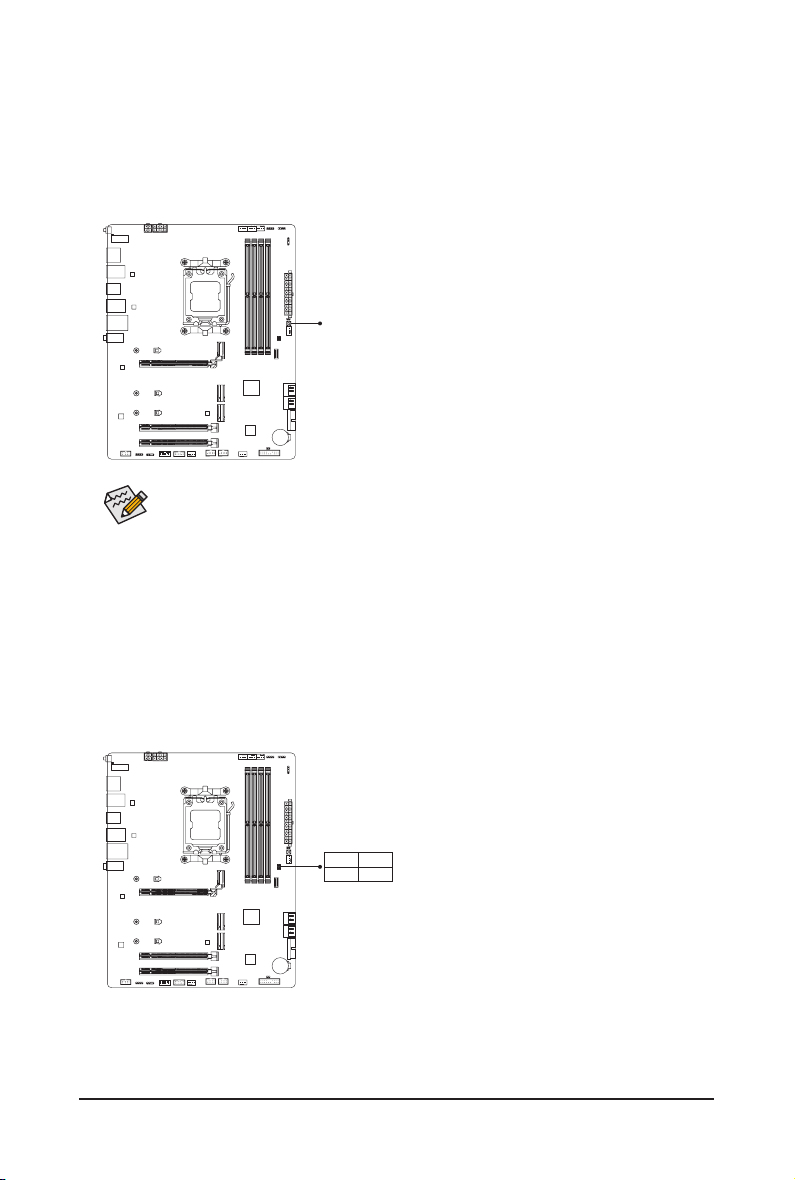
2-7 Onboard Buttons and LEDs
Status LEDs
The status LEDs show whether the CPU, memory, graphics card, and operating system are working properly
after system power-on. If the CPU/DRAM/VGA LED is on, that means the corresponding device is not working
normally; if the BOOT LED is on, that means you haven't entered the operating system yet.
CPU: CPU status LED
DRAM: Memory status LED
VGA: Graphics card status LED
BOOT: Operating system status LED
CPU DRAM
VGA BOOT
Quick Button
The reset button (RST_SW) allows users to quickly turn on/off the computer in an open-case environment when
they want to change hardware components or conduct hardware testing.
The reset button provides you with several functions to use. To remap the button to perform different
tasks, please navigate to the "BIOS Setup" page of GIGABYTE's website and search for "RST_SW
(MULTIKEY)" for more information.
RST_SW
- 18 -
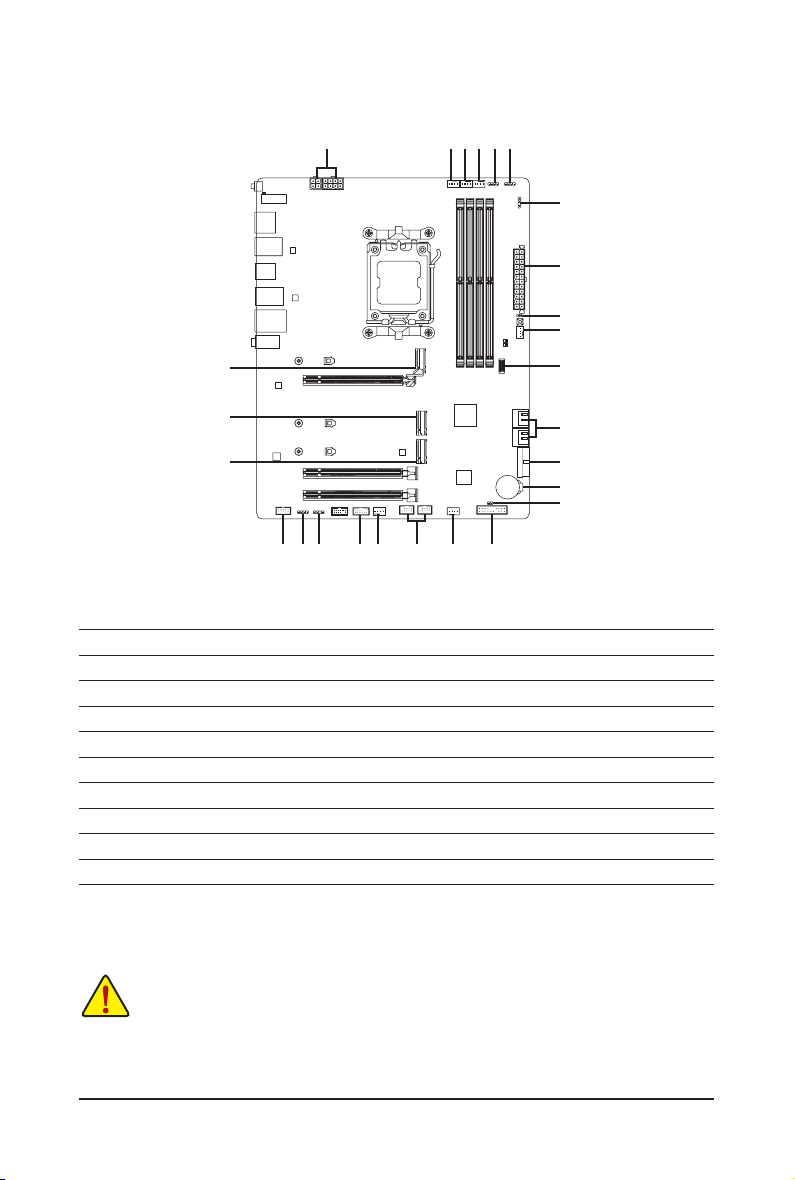
2-8 Internal Connectors
Read the following guidelines before connecting external devices:
• First make sure your devices are compliant with the connectors you wish to connect.
• Before installing the devices, be sure to turn off the devices and your computer. Unplug the power
cord from the power outlet to prevent damage to the devices.
• After installing the device and before turning on the computer, make sure the device cable has
been securely attached to the connector on the motherboard.
1) ATX_12V/ATX_12V1
2) ATX
3) CPU_FAN
4) SYS_FAN1/2/3
5) SYS_FAN4_PUMP
6) CPU_OPT
7) D_LED1/D_LED2
8) CPU_LED
9) LED_C1/LED_C2
10) SATA3 0/1/2/3
11) BAT
12) M2A_CPU/M2B_CPU/M2C_SB
13) F_PANEL
14) F_AUDIO
15) F_U320G
16) F_U32
17) F_USB1/F_USB2
18) SPI_TPM
19) CLR_CMOS
20) RST
7
10
2
14
1 6
7
3
12
4
12
12
13
4
18
5
8
9
9
15
16
17
19
11
4
20
- 19 -
DEBUG
PORT
G.QBOFM
131
2412
ATX
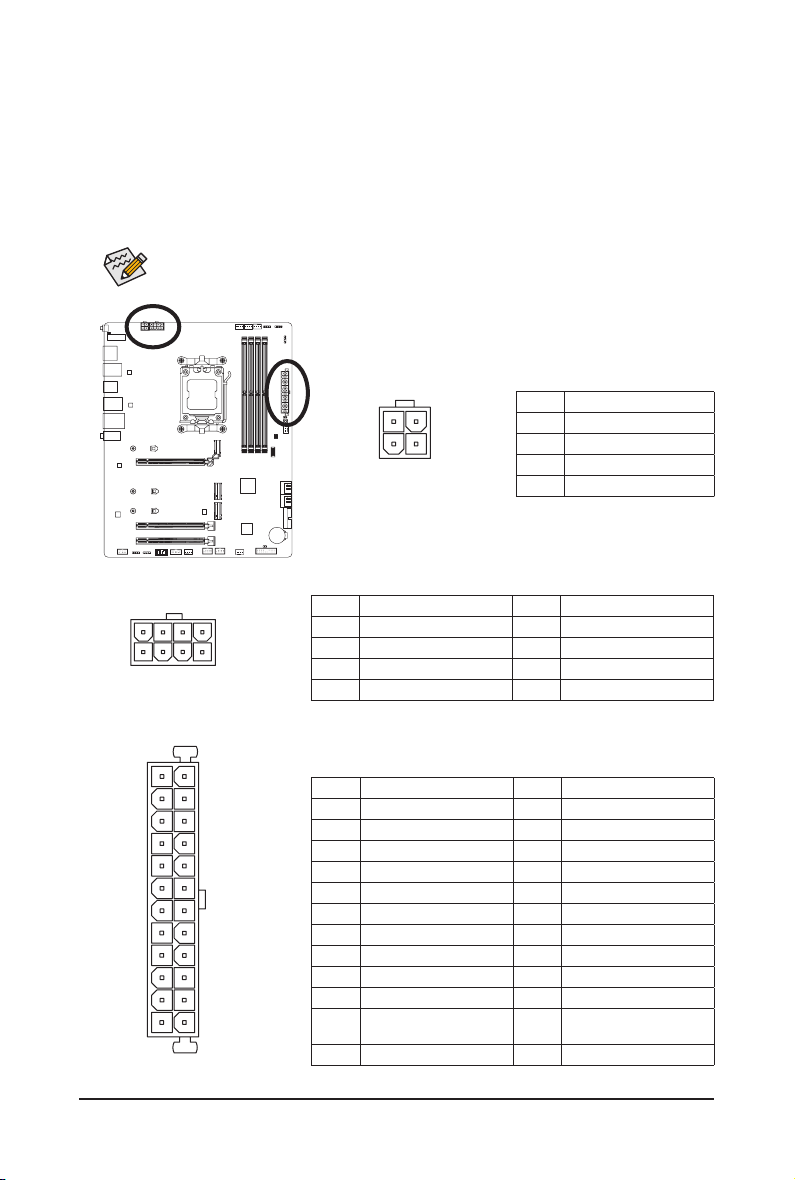
1/2) ATX_12V1/ATX_12V/ATX (2x2, 2x4, 12V Power Connectors and 2x12 Main Power
Connector)
With the use of the power connector, the power supply can supply enough stable power to all the components
on the motherboard. Before connecting the power connector, rst make sure the power supply is turned off and
all devices are properly installed. The power connector possesses a foolproof design. Connect the power
supply cable to the power connector in the correct orientation.
The 12V power connector mainly supplies power to the CPU. If the 12V power connector is not connected,
the computer will not start.
To meet expansion requirements, it is recommended that a power supply that can withstand high
power consumption be used (500W or greater). If a power supply is used that does not provide the
required power, the result can lead to an unstable or unbootable system.
ATX:
Pin No. Denition Pin No. Denition
1 3.3V 13 3.3V
2 3.3V 14 -12V
3 GND 15 GND
4 +5V 16 PS_ON (soft On/Off)
5 GND 17 GND
6 +5V 18 GND
7 GND 19 GND
8 Power Good 20 NC
9 5VSB (stand by +5V) 21 +5V
10 +12V 22 +5V
11 +12V (Only for 2x12-pin
ATX)
23 +5V (Only for 2x12-pin ATX)
12 3.3V (Only for 2x12-pin ATX) 24 GND (Only for 2x12-pin ATX)
ATX_12V:
Pin No. Denition Pin No. Denition
1 GND (Only for 2x4-pin 12V) 5 +12V (Only for 2x4-pin 12V)
2 GND (Only for 2x4-pin 12V) 6 +12V (Only for 2x4-pin 12V)
3 GND 7 +12V
4 GND 8 +12V
DEBUG
PORT
G.QBOFM
ATX_12V
41
85
ATX_12V1:
Pin No. Denition
1 GND
2 GND
3 +12V
4 +12V
ATX_12V1
3 4
21
- 20 -
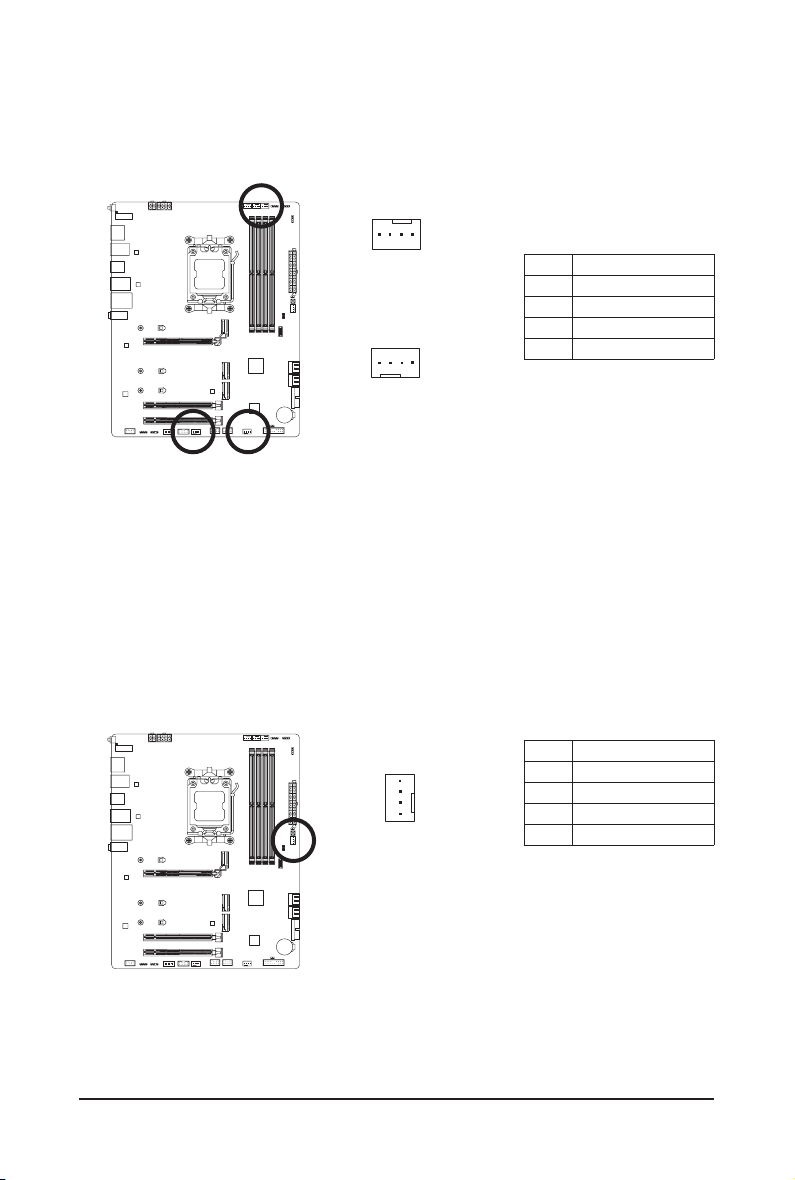
3/4) CPU_FAN/SYS_FAN1/2/3 (Fan Headers)
All fan headers on this motherboard are 4-pin. Most fan headers possess a foolproof insertion design.
When connecting a fan cable, be sure to connect it in the correct orientation (the black connector wire is
the ground wire). The speed control function requires the use of a fan with fan speed control design. For
optimum heat dissipation, it is recommended that a system fan be installed inside the chassis.
CPU_FAN/SYS_FAN1
DEBUG
PORT
G.QBOFM
1
DEBUG
PORT
G.QBOFM
1
SYS_FAN2/3
Pin No. Denition
1 GND
2 Voltage Speed Control
3 Sense
4 PWM Speed Control
5) SYS_FAN4_PUMP (System Fan/Water Cooling Pump Header)
The fan/pump header is 4-pin. Most fan headers possess a foolproof insertion design. When connecting a
fan cable, be sure to connect it in the correct orientation (the black connector wire is the ground wire). The
speed control function requires the use of a fan with fan speed control design. For optimum heat dissipation,
it is recommended that a system fan be installed inside the chassis. The header also provides speed control
for a water cooling pump. Please navigate to the "BIOS Setup" page of GIGABYTE's website and search
for "Smart Fan 6" for more information.
Pin No. Denition
1 GND
2 Voltage Speed Control
3 Sense
4 PWM Speed Control
DEBUG
PORT
G.QBOFM
1
- 21 -
• Be sure to connect fan cables to the fan headers to prevent your CPU and system from
overheating. Overheating may result in damage to the CPU or the system may hang.
• These fan headers are not conguration jumper blocks. Do not place a jumper cap on the headers.
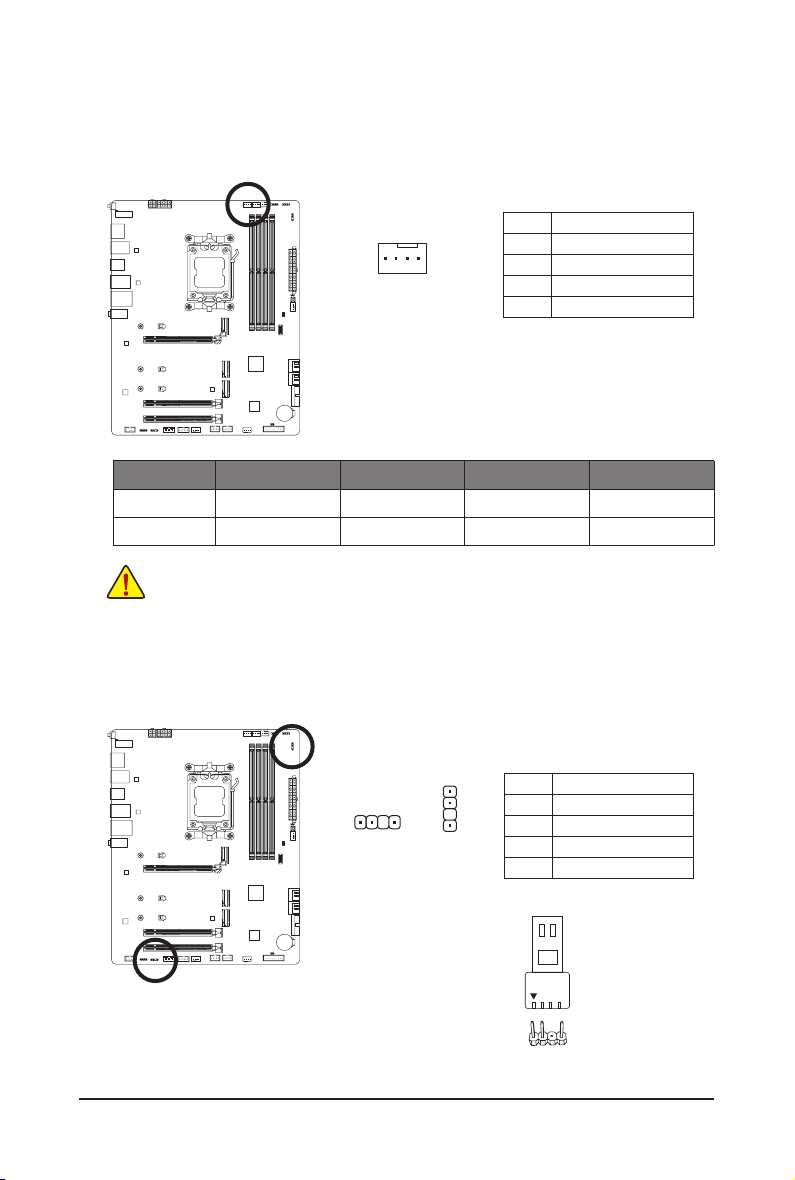
6) CPU_OPT (Water Cooling CPU Fan Header)
The fan header is 4-pin and possesses a foolproof insertion design. Most fan headers possess a foolproof
insertion design. When connecting a fan cable, be sure to connect it in the correct orientation (the black
connector wire is the ground wire). The speed control function requires the use of a fan with fan speed
control design.
Pin No. Denition
1 GND
2 Voltage Speed Control
3 Sense
4 PWM Speed Control
DEBUG
PORT
G.QBOFM
1
Connector CPU_FAN SYS_FAN1/2/3 SYS_FAN4_PUMP CPU_OPT
Maximum Current 2A 2A 2A 2A
Maximum Power 24W 24W 24W 24W
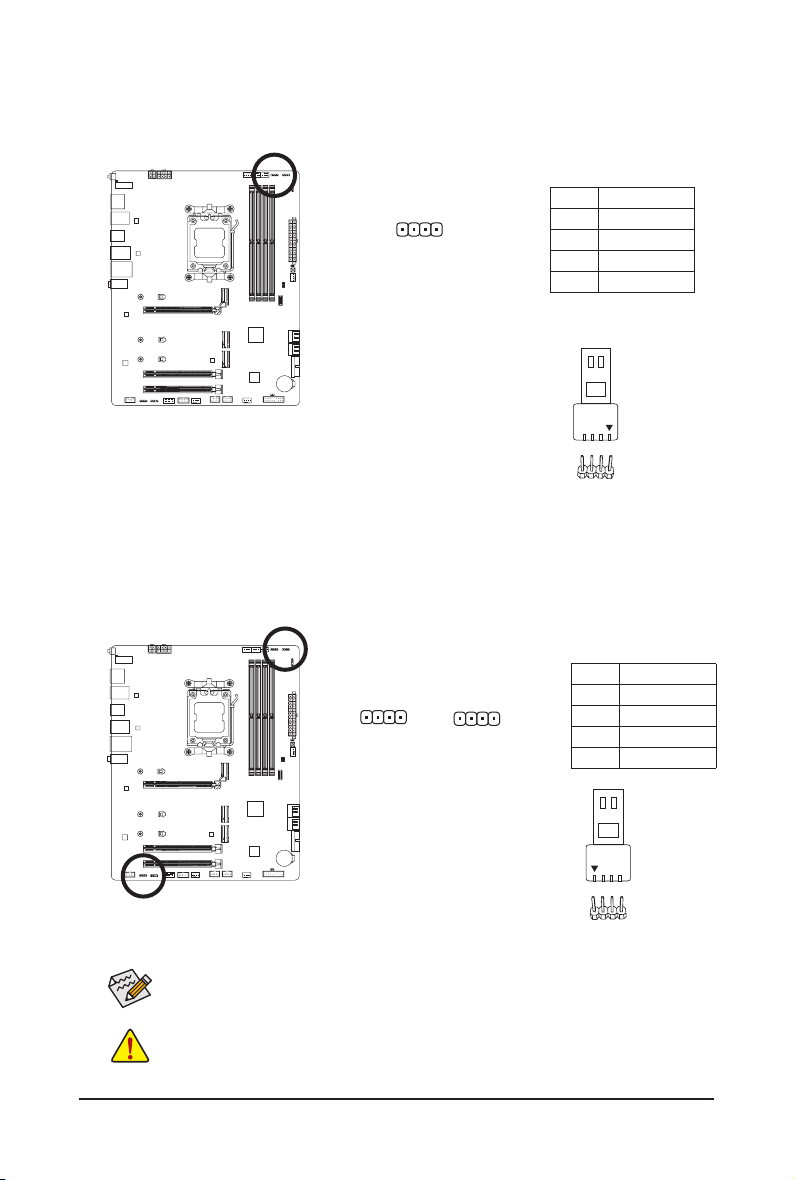
7) D_LED1/D_LED2 (Addressable LED Strip Headers)
The headers can be used to connect a standard 5050 addressable LED strip, with maximum power rating
of 5A (5V) and maximum number of 1000 LEDs.
Pin No. Denition
1 V (5V)
2 Data
3 No Pin
4 GND
1
F_USB30
F_U
B_
F_ F_
_
B
BS_
B
SB_
B
_S
S_
_
B
_U
_
B
S
123
123
123
123
1
1
1
1
BSS
S
_S
SSU
1 2 3
S3
BSSS
U
__ 3
F_USB3F
S _
S _
S _
SF
B_
B_
F
_0
S
S
_0F
_F
_
_
__B
U
S _S
_
SF_
B
USB0_B
B_
B_
F_USB3
F_USB303
_
_3U
S_
_S
SS_F
_
_
F
_SB
D_LED1
D_LED2
Connect your addressable LED strip to the header. The power
pin (marked with a triangle on the plug) of the LED strip must be
connected to Pin 1 of the addressable LED strip header. Incorrect
connection may lead to the damage of the LED strip.
1
F_USB30
F_U
B_
F_ F_
_
B
BS_
B
SB_
B
_S
S_
_
B
_U
_
B
S
123
123
123
123
1
1
1
1
BSS
S
_S
SSU
1 2 3
S3
BSSS
U
__ 3
F_USB3F
S _
S _
S _
SF
B_
B_
F
_0
S
S
_0F
_F
_
_
__B
U
S _S
_
SF_
B
USB0_B
B_
B_
F_USB3
F_USB303
_
_3U
S_
_S
SS_F
_
_
F
_SB
Addressable LED
Strip
1
- 22 -
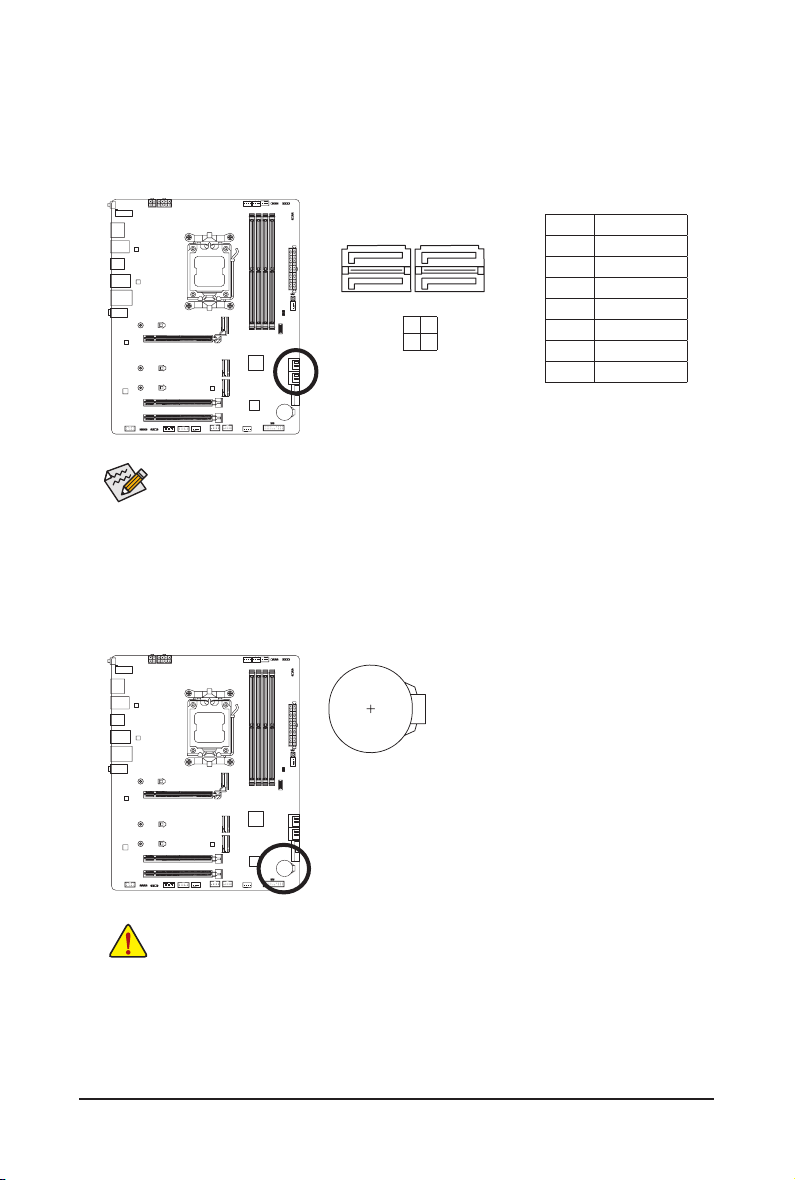
8) CPU_LED (CPU Cooler LED Strip/RGB LED Strip Header)
The header can be used to connect a CPU cooler LED strip or a standard 5050 RGB LED strip (12V/G/R/B),
with maximum power rating of 2A (12V) and maximum length of 2m.
Pin No. Denition
1 12V
2 G
3 R
4 B
Connect the CPU cooler LED strip/RGB LED strip to the header. The power
pin (marked with a triangle on the plug) of the LED strip must be connected
to Pin 1 (12V) of this header. Incorrect connection may lead to the damage
of the LED strip.
1
DEBUG
PORT
G.QBOFM
9) LED_C1/LED_C2 (RGB LED Strip Headers)
The headers can be used to connect a standard 5050 RGB LED strip (12V/G/R/B), with maximum power
rating of 2A (12V) and maximum length of 2m.
Pin No. Denition
1 12V
2 G
3 R
4 B
Before installing the devices, be sure to turn off the devices and your computer. Unplug the power
cord from the power outlet to prevent damage to the devices.
1
Connect your RGB LED strip to the header. The power pin (marked with a triangle
on the plug) of the LED strip must be connected to Pin 1 (12V) of this header.
Incorrect connection may lead to the damage of the LED strip.
For how to turn on/off the lights of the LED strip, please navigate to the "Unique Features" page
of GIGABYTE's website.
LED_C2
1
LED_C1
DEBUG
PORT
G.QBOFM
DEBUG
PORT
G.QBOFM
RGB LED Strip
1
12V
RGB LED Strip
1
12V
- 23 -
Pin No. Denition
1 GND
2 TXP
3 TXN
4 GND
5 RXN
6 RXP
7 GND
SATA3
2 0
3 1
To enable hot-plugging for the SATA ports, please navigate to the "BIOS Setup" page of GIGABYTE's
website and search for "SATA Conguration" for more information.
1
1
7
DEBUG
PORT
G.QBOFM
DEBUG
PORT
G.QBOFM
7
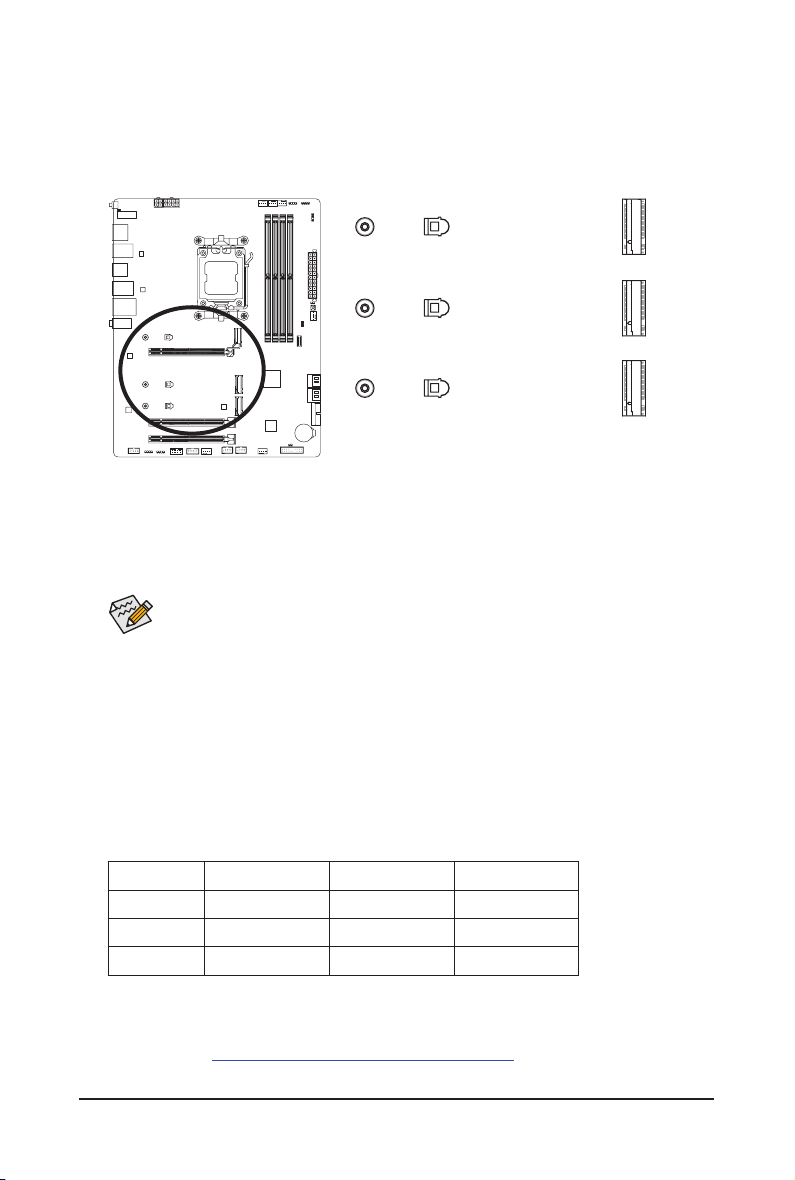
10) SATA3 0/1/2/3 (SATA 6Gb/s Connectors)
The SATA connectors conform to SATA 6Gb/s standard and are compatible with SATA 3Gb/s and SATA
1.5Gb/s standard. Each SATA connector supports a single SATA device. The SATA connectors support
RAID 0, RAID 1, and RAID 10. Please navigate to the "Conguring a RAID Set" page of GIGABYTE's
website for instructions on conguring a RAID array.
11) BAT (Battery)
The battery provides power to keep the values (such as BIOS congurations, date, and time information)
in the CMOS when the computer is turned off. Replace the battery when the battery voltage drops to a low
level, or the CMOS values may not be accurate or may be lost.
You may clear the CMOS values by removing the battery:
1. Turn off your computer and unplug the power cord.
2. Gently remove the battery from the battery holder and wait for one minute.
(Or use a metal object like a screwdriver to touch the positive and negative
terminals of the battery holder, making them short for 5 seconds.)
3. Replace the battery.
4. Plug in the power cord and restart your computer.
• Always turn off your computer and unplug the power cord before replacing the battery.
• Replace the battery with an equivalent one. Damage to your devices may occur if the battery is
replaced with an incorrect model.
• Contact the place of purchase or local dealer if you are not able to replace the battery by yourself
or uncertain about the battery model.
• When installing the battery, note the orientation of the positive side (+) and the negative side (-)
of the battery (the positive side should face up).
• Used batteries must be handled in accordance with local environmental regulations.
- 24 -
F_USB30
F_U
B_
F_ F_
_
B
BS_
B
SB_
B
_S
S_
_
B
_U
_
B
S
123
123
123
123
1
1
1
1
BSS
S
_S
SSU
1 2 3
S3
BSSS
U
__ 3
F_USB3F
S _
S _
S _
SF
B_
B_
F
_0
S
S
_0F
_F
_
_
__B
U
S _S
_
SF_
B
USB0_B
B_
B_
F_USB3
F_USB303
_
_3U
S_
_S
SS_F
_
_
F
_SB
F_USB30
F_U
B_
F_ F_
_
B
BS_
B
SB_
B
_S
S_
_
B
_U
_
B
S
123
123
123
123
1
1
1
1
BSS
S
_S
SSU
1 2 3
S3
BSSS
U
__ 3
F_USB3F
S _
S _
S _
SF
B_
B_
F
_0
S
S
_0F
_F
_
_
__B
U
S _S
_
SF_
B
USB0_B
B_
B_
F_USB3
F_USB303
_
_3U
S_
_S
SS_F
_
_
F
_SB
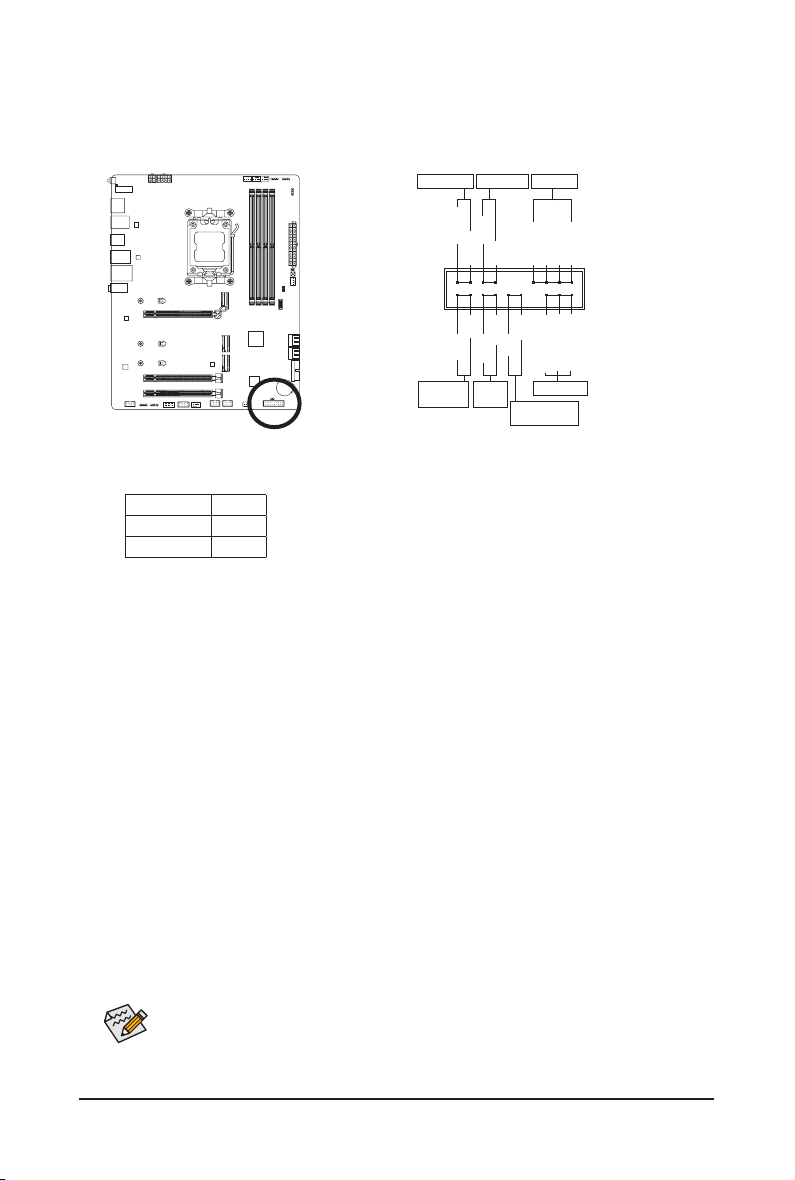
12) M2A_CPU/M2B_CPU/M2C_SB (M.2 Socket 3 Connectors)
There are two types of M.2 SSDs: M.2 SATA SSDs and M.2 PCIe SSDs. This motherboard only supports
M.2 PCIe SSDs. Please note that an M.2 PCIe SSD cannot be used to create a RAID set with a SATA
hard drive. Please navigate to the "Conguring a RAID Set" page of GIGABYTE's website for instructions
on conguring a RAID array.
* Types of M.2 SSDs supported by each M.2 connector:
M.2 PCIe x4 SSD M.2 PCIe x2 SSD M.2 SATA SSD
M2A_CPU
a a
r
M2B_CPU
a a
r
M2C_SB
a a
r
F_USB30
F_U
B_
F_ F_
_
B
BS_
B
SB_
B
_S
S_
_
B
_U
_
B
S
123
123
123
123
1
1
1
1
BSS
S
_S
SSU
1 2 3
S3
BSSS
U
__ 3
F_USB3F
S _
S _
S _
SF
B_
B_
F
_0
S
S
_0F
_F
_
_
__B
U
S _S
_
SF_
B
USB0_B
B_
B_
F_USB3
F_USB303
_
_3U
S_
_S
SS_F
_
_
F
_SB
80
M2A_CPU
80
M2B_CPU
80
60 42
M2C_SB
& Please visit GIGABYTE's website for details on using M.2 EZ-Latch.
Install the M.2 SSD:https://www.gigabyte.com/WebPage/919/M2-ezlatch.html
* Motherboard heatsink design may vary by model.
110
110
110
Follow the steps below to correctly install an M.2 SSD in the M.2 connector.
Step 1:
Unfasten the screws on the motherboard heatsink diagonally to remove the heatsink. Select the M.2 slot
you want to use and press down on the M.2 EZ-Latch clip to open it. Loosen the M.2 EZ-Latch clip with a
screwdriver, move it to mounting hole for your M.2 SSD and tighten it in the hole.
• If you want to install an M.2 SSD that came with its own heatsink, you have to remove the
EZ-Latch clip rst and use the provided screw and standoff to fasten the SSD.
• If you want install an M.2 SSD in the 110mm hole that already has a motherboard heatsink
standoff, be sure to remove the EZ-Latch clip rst and use the motherboard heatsink screw to
secure the heatsink and SSD.
Step 2:
Insert the M.2 SSD into the M.2 connector at an angle. Press down on the front end of the M.2 SSD and
close M.2 EZ-Latch clip to secure the M.2 SSD.
Step 3:
Remove the protective lm from the bottom of the motherboard heatsink and then replace the heatsink
and tighten the screws diagonally.
- 25 -
13) F_PANEL (Front Panel Header)
Connect the power switch, reset switch, speaker, chassis intrusion switch/sensor and system status indicator
on the chassis to this header according to the pin assignments below. Note the positive and negative pins
before connecting the cables.
The front panel design may differ by chassis. A front panel module mainly consists of power switch,
reset switch, power LED, hard drive activity LED, speaker and etc. When connecting your chassis
front panel module to this header, make sure the wire assignments and the pin assignments are
matched correctly.
• PW (Power Switch):
Connects to the power switch on the chassis front panel. You may congure the way to turn off your
system using the power switch (please navigate to the "BIOS Setup" page of GIGABYTE's website and
search for "Soft-Off by PWR-BTTN" for more information).
• SPEAK (Speaker):
Connects to the speaker on the chassis front panel. The system reports system startup status by issuing
a beep code. One single short beep will be heard if no problem is detected at system startup.
• HD (Hard Drive Activity LED):
Connects to the hard drive activity LED on the chassis front panel. The LED is on when the hard drive
is reading or writing data.
• RES (Reset Switch):
Connects to the reset switch on the chassis front panel. Press the reset switch to restart the computer
if the computer freezes and fails to perform a normal restart.
• CI (Chassis Intrusion Header):
Connects to the chassis intrusion switch/sensor on the chassis that can detect if the chassis cover has
been removed. This function requires a chassis with a chassis intrusion switch/sensor.
• NC: No connection.
• PLED/PWR_LED (Power LED):
Connects to the power status indicator on the chassis front panel. The LED
is on when the system is operating. The LED is off when the system is in S3/
S4 sleep state or powered off (S5).
System Status LED
S0 On
S3/S4/S5 Off
Power LED
DEBUG
PORT
G.QBOFM
1
2
19
20
CI-
CI+
PWR_LED-
PWR_LED+
PLED-
PW-
SPEAK+
SPEAK-
PLED+
PW+
Power LED
HD-
RES+
HD+
RES-
Hard Drive
Activity LED
Reset
Switch
Chassis Intrusion
Header
Power Switch
Speaker
PWR_LED-
NC
NC

- 26 -
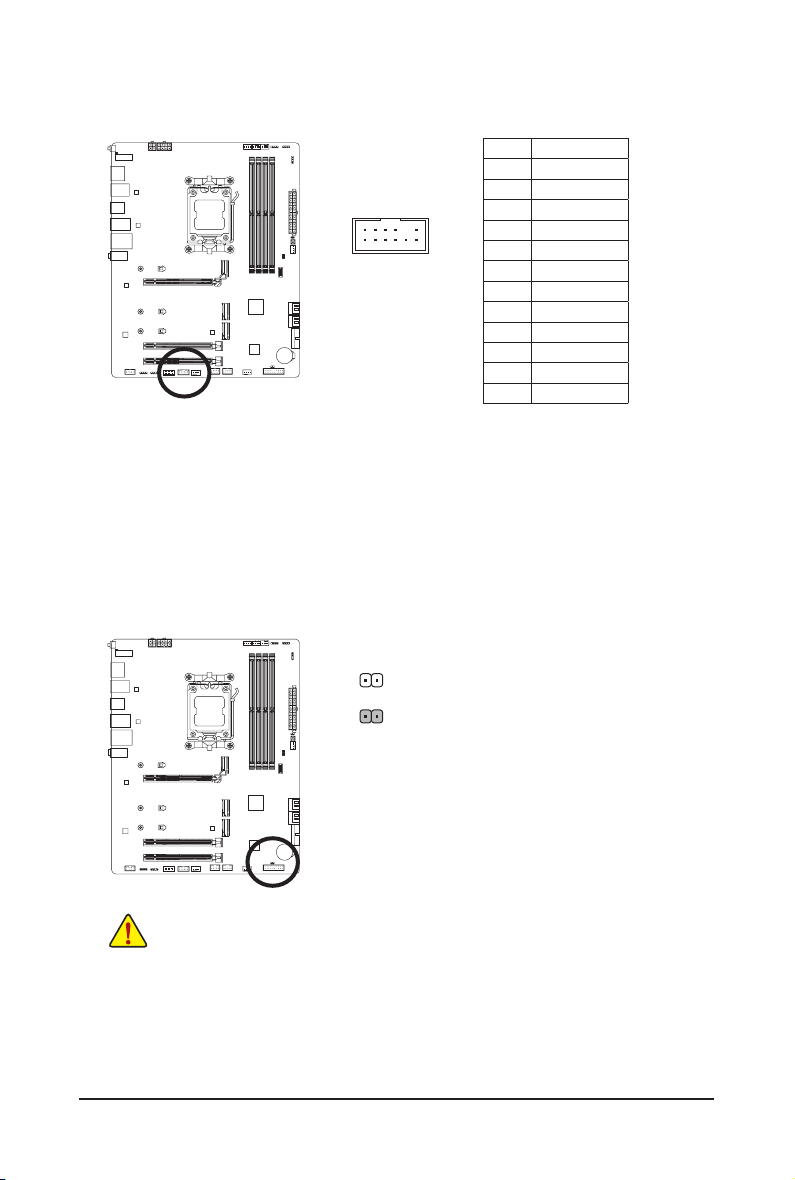
14) F_AUDIO (Front Panel Audio Header)
The front panel audio header supports High Denition audio (HD). You may connect your chassis front
panel audio module to this header. Make sure the wire assignments of the module connector match the
pin assignments of the motherboard header. Incorrect connection between the module connector and the
motherboard header will make the device unable to work or even damage it.
Some chassis provide a front panel audio module that has separated connectors on each wire
instead of a single plug. For information about connecting the front panel audio module that has
different wire assignments, please contact the chassis manufacturer.
F_USB30
F_U
B_
F_ F_
_
B
BS_
B
SB_
B
_S
S_
_
B
_U
_
B
S
123
123
123
123
1
1
1
1
BSS
S
_S
SSU
1 2 3
S3
BSSS
U
__ 3
F_USB3F
S _
S _
S _
SF
B_
B_
F
_0
S
S
_0F
_F
_
_
__B
U
S _S
_
SF_
B
USB0_B
B_
B_
F_USB3
F_USB303
_
_3U
S_
_S
SS_F
_
_
F
_SB
9
1
10 2
Pin No. Denition
1 MIC L
2 GND
3 MIC R
4 NC
5 Head Phone R
6 MIC Detection
7 SENSE_SEND
8 No Pin
9 Head Phone L
10 Head Phone Detection
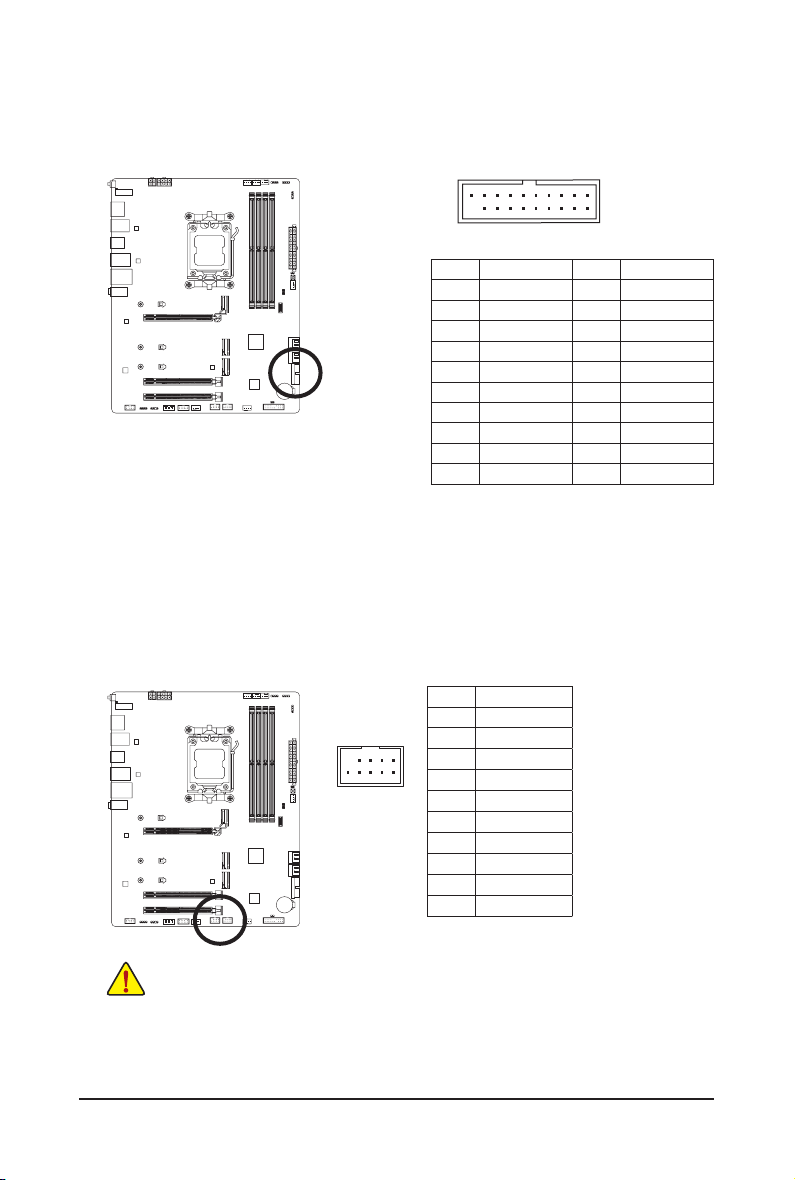
15) F_U320G (USB Type-C
®
Header with USB 3.2 Gen 2x2 Support)
The header conforms to USB 3.2 Gen 2x2 specication and can provide one USB port.
Pin No. Denition Pin No. Denition
1 VBUS 11 VBUS
2 TX1+ 12 TX2+
3 TX1- 13 TX2-
4 GND 14 GND
5 RX1+ 15 RX2+
6 RX1- 16 RX2-
7 VBUS 17 GND
8 CC1 18 D-
9 SBU1 19 D+
10 SBU2 20 CC2
F_USB30
F_U
B_
F_ F_
_
B
BS_
B
SB_
B
_S
S_
_
B
_U
_
B
S
123
123
123
123
1
1
1
1
BSS
S
_S
SSU
1 2 3
S3
BSSS
U
__ 3
F_USB3F
S _
S _
S _
SF
B_
B_
F
_0
S
S
_0F
_F
_
_
__B
U
S _S
_
SF_
B
USB0_B
B_
B_
F_USB3
F_USB303
_
_3U
S_
_S
SS_F
_
_
F
_SB
20
10 11
1
- 27 -
16) F_U32 (USB 3.2 Gen 1 Header)
The header conforms to USB 3.2 Gen 1 and USB 2.0 specication and can provide two USB ports. For
purchasing the optional 3.5" front panel that provides two USB 3.2 Gen 1 ports, please contact the local
dealer.
Pin No. Denition Pin No. Denition
1 VBUS 11 D2+
2 SSRX1- 12 D2-
3 SSRX1+ 13 GND
4 GND 14 SSTX2+
5 SSTX1- 15 SSTX2-
6 SSTX1+ 16 GND
7 GND 17 SSRX2+
8 D1- 18 SSRX2-
9 D1+ 19 VBUS
10 NC 20 No Pin
F_USB30
F_U
B_
F_ F_
_
B
BS_
B
SB_
B
_S
S_
_
B
_U
_
B
S
123
123
123
123
1
1
1
1
BSS
S
_S
SSU
1 2 3
S3
BSSS
U
__ 3
F_USB3F
S _
S _
S _
SF
B_
B_
F
_0
S
S
_0F
_F
_
_
__B
U
S _S
_
SF_
B
USB0_B
B_
B_
F_USB3
F_USB303
_
_3U
S_
_S
SS_F
_
_
F
_SB
1 10
1120
17) F_USB1/F_USB2 (USB 2.0/1.1 Headers)
The headers conform to USB 2.0/1.1 specication. Each USB header can provide two USB ports via an
optional USB bracket. For purchasing the optional USB bracket, please contact the local dealer.
Pin No. Denition
1 Power (5V)
2 Power (5V)
3 USB DX-
4 USB DY-
5 USB DX+
6 USB DY+
7 GND
8 GND
9 No Pin
10 NC
Prior to installing the USB bracket, be sure to turn off your computer and unplug the power cord
from the power outlet to prevent damage to the USB bracket.
DEBUG
PORT
G.QBOFM
10
9
2
1
- 28 -
12
11
2
1
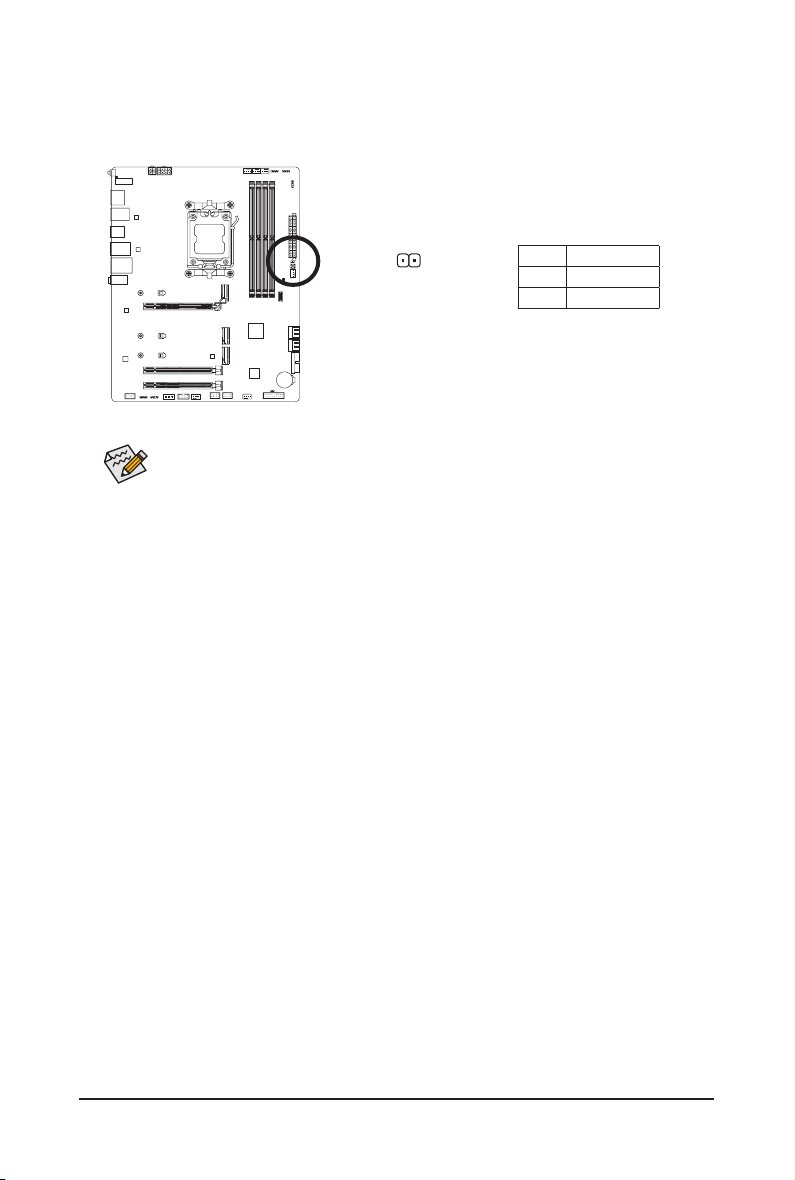
18) SPI_TPM (Trusted Platform Module Header)
You may connect an SPI TPM (Trusted Platform Module) to this header.
Pin No. Denition
1
Data Output
2
Power (3.3V)
3
No Pin
4
NC
5
Data Input
6
CLK
7
Chip Select
8
GND
9
IRQ
10
NC
11
NC
12
RST
F_USB30
F_U
B_
F_ F_
_
B
BS_
B
SB_
B
_S
S_
_
B
_U
_
B
S
123
123
123
123
1
1
1
1
BSS
S
_S
SSU
1 2 3
S3
BSSS
U
__ 3
F_USB3F
S _
S _
S _
SF
B_
B_
F
_0
S
S
_0F
_F
_
_
__B
U
S _S
_
SF_
B
USB0_B
B_
B_
F_USB3
F_USB303
_
_3U
S_
_S
SS_F
_
_
F
_SB
19) CLR_CMOS (Clear CMOS Jumper)
Use this jumper to clear the BIOS conguration and reset the CMOS values to factory defaults. To clear
the CMOS values, use a metal object like a screwdriver to touch the two pins for a few seconds.
• Always turn off your computer and unplug the power cord from the power outlet before clearing
the CMOS values.
• After system restart, go to BIOS Setup to load factory defaults (select Load Optimized Defaults) or
manually congure the BIOS settings (please navigate to the "BIOS Setup" page of GIGABYTE's
website for more information).
Open: Normal
Short: Clear CMOS Values
- 29 -
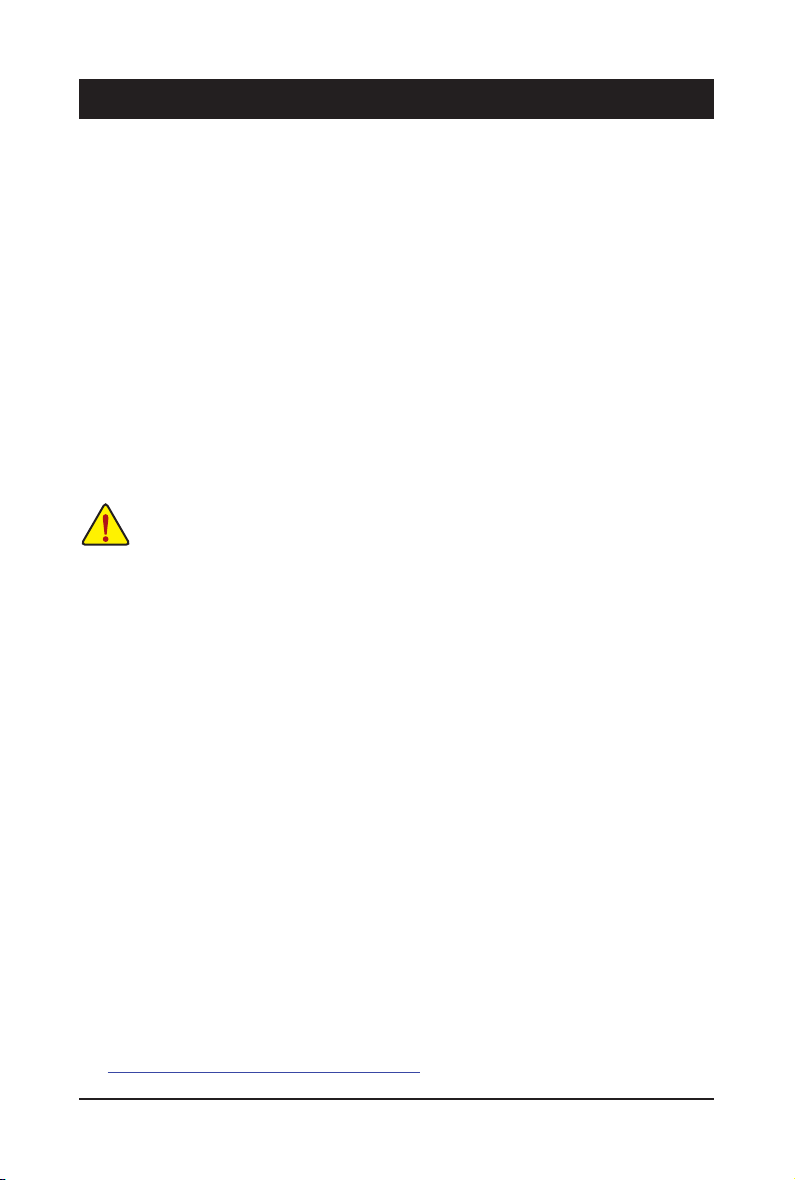
20) RST (Reset Jumper)
The reset jumper (RST) can connect to the reset switch on the chassis front panel. Press the reset switch
to restart the computer if the computer freezes and fails to perform a normal restart.
Pin No. Denition
1 Reset
2 GND
The reset jumper provides you with several functions to use. To remap the button to perform different
tasks, please navigate to the "BIOS Setup" page of GIGABYTE's website and search for "RST_SW
(MULTIKEY)" for more information.
1
- 30 -
Chapter 3 BIOS Setup
BIOS (Basic Input and Output System) records hardware parameters of the system in the CMOS on the
motherboard. Its major functions include conducting the Power-On Self-Test (POST) during system startup,
saving system parameters and loading operating system, etc. BIOS includes a BIOS Setup program that allows
the user to modify basic system conguration settings or to activate certain system features.
When the power is turned off, the battery on the motherboard supplies the necessary power to the CMOS to
keep the conguration values in the CMOS.
To access the BIOS Setup program, press the <Delete> key during the POST when the power is turned on.
To upgrade the BIOS, use either the GIGABYTE Q-Flash or Q-Flash Plus utility.
• Q-Flash allows the user to quickly and easily upgrade or back up BIOS without entering the operating system.
• Q-Flash Plus allows you to update the BIOS when your system is off (S5 shutdown state). Save the latest
BIOS on a USB thumb drive and plug it into the dedicated port, and then you can now ash the BIOS
automatically by simply pressing the Q-Flash Plus button.
For instructions on using the Q-Flash and Q-Flash Plus utilities, please navigate to the "Unique Features" page
of GIGABYTE's website and search for "BIOS Update Utilities."
• Because BIOS ashing is potentially risky, if you do not encounter problems using the current
version of BIOS, it is recommended that you not ash the BIOS. To ash the BIOS, do it with
caution. Inadequate BIOS ashing may result in system malfunction.
• It is recommended that you not alter the default settings (unless you need to) to prevent system
instability or other unexpected results. Inadequately altering the settings may result in system's
failure to boot. If this occurs, try to clear the CMOS values and reset the board to default values.
• Refer to the introductions of the battery/clear CMOS jumper in Chapter 2 or navigate to the "BIOS
Setup" page of GIGABYTE's website and search for "Load Optimized Defaults" for how to clear
the CMOS values.
& Please visit GIGABYTE's website for details on conguring BIOS Setup.
https://www.gigabyte.com/WebPage/917/amd600-bios.html
- 31 -
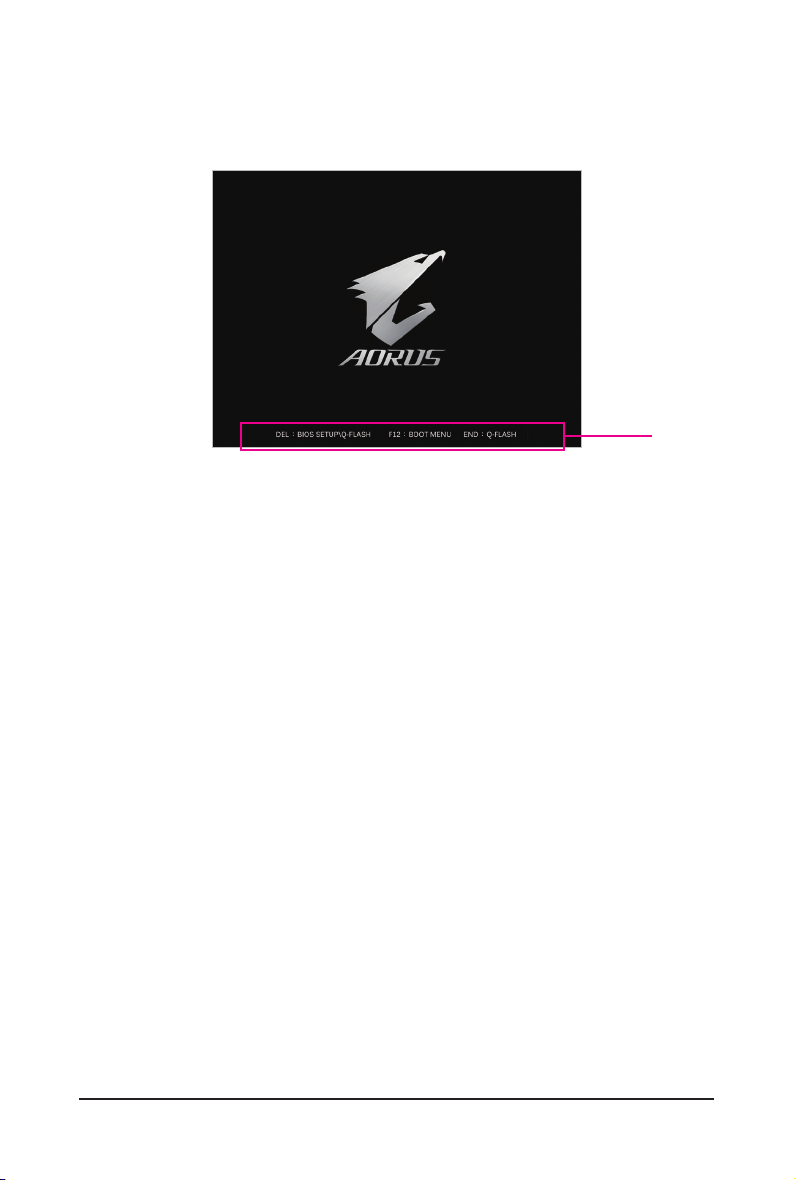
Startup Screen:
Function Keys:
<DEL>: BIOS SETUP\Q-FLASH
Press the <Delete> key to enter BIOS Setup or to access the Q-Flash utility in BIOS Setup.
<F12>: BOOT MENU
Boot Menu allows you to set the rst boot device without entering BIOS Setup. In Boot Menu, use the up
arrow key <h> or the down arrow key <i> to select the rst boot device, then press <Enter> to accept.
The system will boot from the device immediately.
Note: The setting in Boot Menu is effective for one time only. After system restart, the device boot order
will still be based on BIOS Setup settings.
<END>: Q-FLASH
Press the <End> key to access the Q-Flash utility directly without having to enter BIOS Setup rst.
The following startup Logo screen will appear when the computer boots.
Function Keys
- 32 -
Chapter 4 Installing the Operating System and Drivers
4-1 Operating System Installation
With the correct BIOS settings, you are ready to install the operating system.
As some operating systems already include RAID driver, you do not need to install separate RAID driver during
the Windows installation process. After the operating system is installed, we recommend that you install all
required drivers from the GIGABYTE Control Center to ensure system performance and compatibility. If the
operating system to be installed requires that you provide additional RAID driver during the OS installation
process, please refer to the steps below:
Step 1:
Go to GIGABYTE's website, browse to the motherboard model's web page, download the AMD RAID Preinstall
Driver le on the Support\Download\SATA RAID/AHCI page, unzip the le and copy the les to your USB
thumb drive.
Step 2:
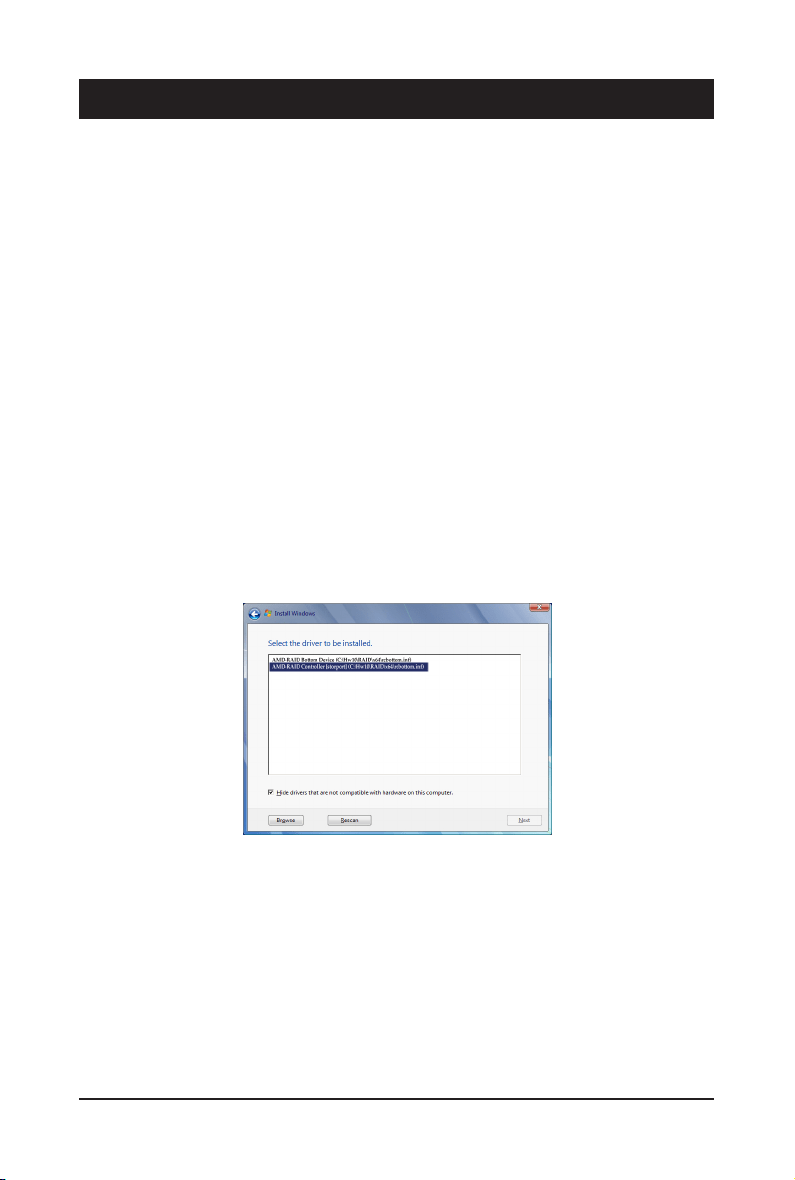
Boot from the Windows setup disc and perform standard OS installation steps. When the screen requesting you
to load the driver appears, select Browse.
Step 3:
Insert the USB thumb drive and then browse to the location of the driver. Select AMD-RAID Bottom Device rst
and click Next to load the driver. Then select AMD-RAID Controller and click Next to load the driver. Finally,
continue the OS installation.
- 33 -
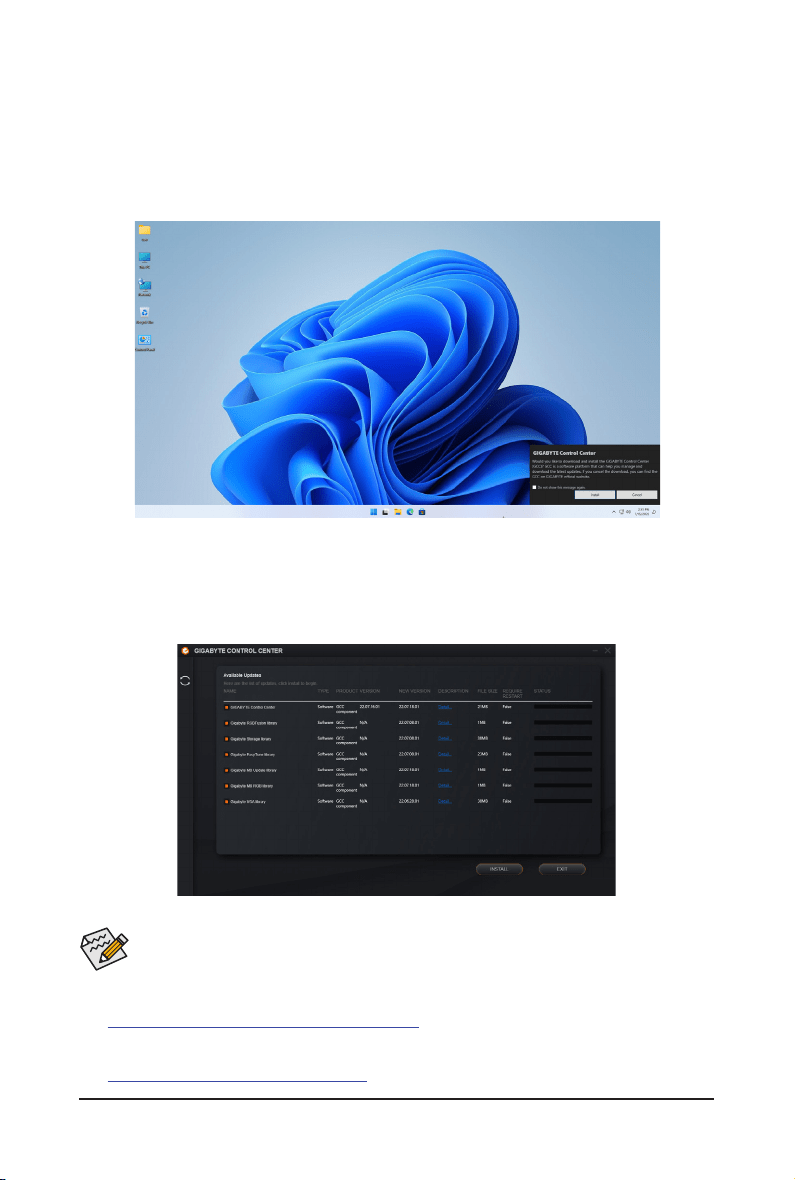
4-2 Drivers Installation
After you install the operating system, a dialog box will appear on the bottom-right corner of the desktop asking
if you want to download and install the drivers and GIGABYTE applications via GIGABYTE Control Center
(GCC). Click Install to proceed with the installation. (In BIOS Setup, make sure Settings\Gigabyte Utilities
DownloaderConguration\GigabyteUtilitiesDownloader is set to Enabled.)
Before the installation, make sure the system is connected to the Internet.
& Please visit GIGABYTE's website for more software information.
https://www.gigabyte.com/WebPage/916/amd600-app.html
& Please visit GIGABYTE's website for more troubleshooting information.
https://www.gigabyte.com/WebPage/351/faq.html
When the End User License Agreement dialog box appears, press <Accept> to install GIGABYTE Control Center (GCC).
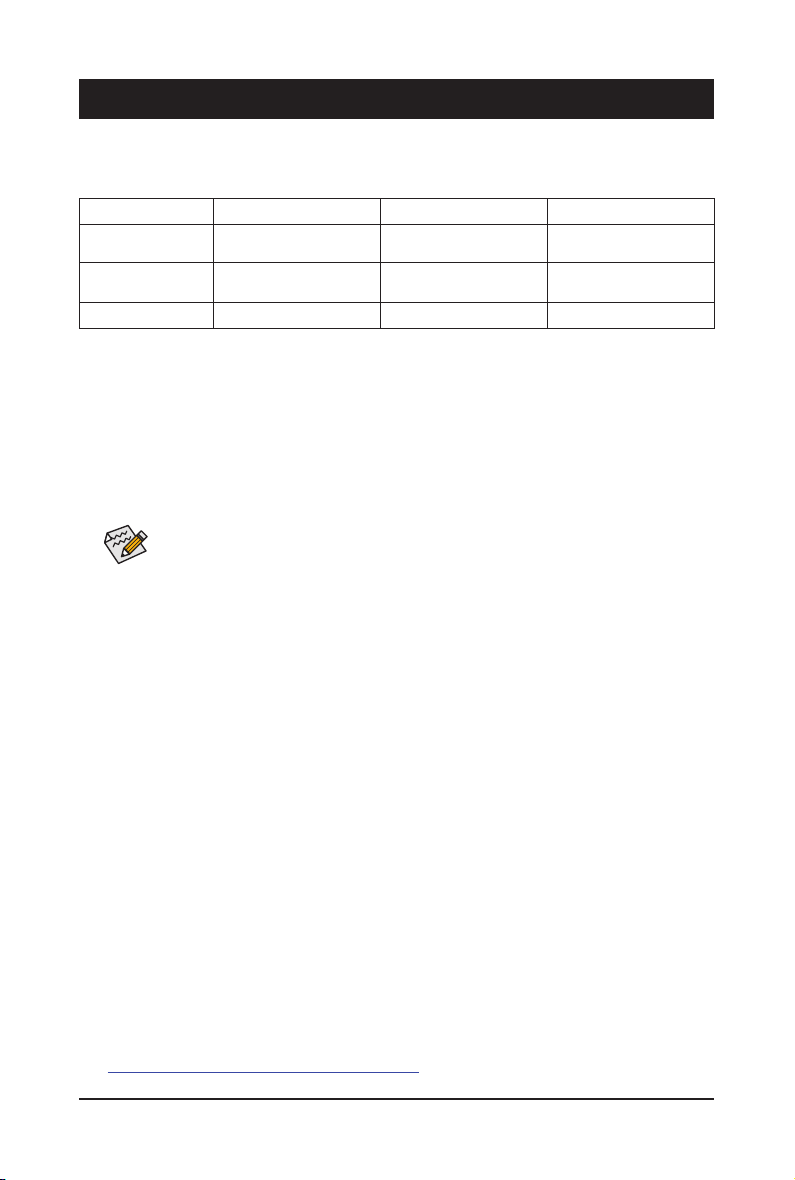
On the GIGABYTE CONTROL CENTER screen, select the drivers and applications you want to install and
click Install.
- 34 -
Chapter 5 Appendix
5-1 ConguringaRAIDSet
RAID Levels
RAID 0 RAID 1 RAID 10
Minimum Number of
Hard Drives
≥2 2 4
Array Capacity
Number of hard drives *
Size of the smallest drive
Size of the smallest drive
(Number of hard drives/2) *
Size of the smallest drive
Fault Tolerance No Yes Yes
Before you begin, please prepare the following items:
This motherboard supports RAID 0, RAID 1, and RAID 10. Prepare the correct number of hard drives as indicated
in the table above before conguring a RAID array.
• SATA hard drives or SSDs. To ensure optimal performance, it is recommended that you use two hard drives
with identical model and capacity.
• Windows setup disc.
• An Internet connected computer.
• A USB thumb drive.
& Please visit GIGABYTE's website for details on conguring a RAID array.
https://www.gigabyte.com/WebPage/918/amd600-raid.html
An M.2 PCIe SSD cannot be used to set up a RAID set either with a SATA hard drive.

- 35 -
Supplier's Declaration of Conformity
47 CFR § 2.1077 Compliance Information
Product Name: Motherboard
Trade Name: GIGABYTE
Model Number: B650 AORUS ELITE AX / B650 AORUS ELITE
Responsible Party – U.S. Contact Information: G.B.T. Inc.
Address: 17358 Railroad street, City Of Industry, CA91748
Tel.: 1-626-854-9338
Internet contact information: https://www.gigabyte.com
FCC Compliance Statement:
This device complies with Part 15 of the FCC Rules, Subpart B, Unintentional Radiators.
Operation is subject to the following two conditions: (1) This device may not cause harmful interference, and (2) this
device must accept any interference received, including interference that may cause undesired operation.
Regulatory Notices
United States of America, Federal Communications Commission Statement
The FCC with its action in ET Docket 96-8 has adopted a safety standard for human exposure to radio frequency (RF) electromagnetic energy emitted
by FCC certied equipment. The Intel PRO/Wireless 5000 LAN products meet the Human Exposure limits found in OET Bulletin 65, 2001, and ANSI/
IEEE C95.1, 1992. Proper operation of this radio according to the instructions found in this manual will result in exposure substantially below the FCC's
recommended limits.
The following safety precautions should be observed:
• Do not touch or move antenna while the unit is transmitting or receiving.
• Do not hold any component containing the radio such that the antenna is very close or touching any exposed parts of the body, especially the face
or eyes, while transmitting.
• Do not operate the radio or attempt to transmit data unless the antenna is connected; if not, the radio may be damaged.
• Use in specic environments:
- The use of wireless devices in hazardous locations is limited by the constraints posed by the safety directors of such environments.
- The use of wireless devices on airplanes is governed by the Federal Aviation Administration (FAA).
- The use of wireless devices in hospitals is restricted to the limits set forth by each hospital.
Antenna use:
In order to comply with FCC RF exposure limits, low gain integrated
antennas should be located at a minimum distance of 7.9 inches (20 cm)
or more from the body of all persons.
Explosive Device Proximity Warning
Warning: Do not operate a portable transmitter (such as a wireless network
device) near unshielded blasting caps or in an explosive environment
unless the device has been modied to be qualied for such use.
Antenna Warning
The wireless adapter is not designed for use with high-gain antennas.
Use On Aircraft Caution
Caution: Regulations of the FCC and FAA prohibit airborne operation of
radio-frequency wireless devices because their signals could interfere with
critical aircraft instruments.
Other Wireless Devices
Safety Notices for Other Devices in the Wireless Network: Refer to the
documentation supplied with wireless Ethernet adapters or other devices
in the wireless network.
Canada, Canada-Industry Notice:
This device complies with Industry Canada license-exempt RSS
standard(s). Operation is subject to the following two conditions:
(1) this device may not cause interference, and
(2) this device must accept any interference, including interference that
may cause undesired operation of the device.
Cet appareil est conforme aux normes Canada d'Industrie de RSS
permis-exempt. L'utilisation est assujetti aux deux conditions suivantes:
(1) le dispositif ne doit pas produire de brouillage préjudiciable, et
(2) ce dispositif doit accepter tout brouillage reçu, y compris un brouillage
susceptible de provoquer un fonctionnement indésirable.
Caution: When using IEEE 802.11a wireless LAN, this product is restricted
to indoor use due to its operation in the 5.15-to 5.25-GHz frequency
range. Industry Canada requires this product to be used indoors for the
frequency range of 5.15 GHz to 5.25 GHz to reduce the potential for
harmful interference to co-channel mobile satellite systems. High power
radar is allocated as the primary user of the 5.25-to 5.35-GHz and 5.65 to
5.85-GHz bands. These radar stations can cause interference with and/or
damage to this device. The maximum allowed antenna gain for use with
this device is 6dBi in order tocomply with the E.I.R.P limit for the 5.25-to
5.35 and 5.725 to 5.85 GHz frequency range in point-to-point operation. To
comply with RF exposure requirements all antennas should be located at a
minimum distance of 20cm, or the minimum separation distance allowed
by the module approval, from the body of all persons.
Attention: l'utilisation d'un réseau sans l IEEE802.11a est restreinte à
une utilisation en intérieur à cause du fonctionnement dansla bande de
fréquence 5.15-5.25 GHz. Industry Canada requiert que ce produit soit utilisé
à l'intérieur des bâtiments pour la bande de fréquence 5.15-5.25 GHz an de
réduire les possibilités d'interférences nuisibles aux canaux co-existants des
systèmes de transmission satellites. Les radars de puissances ont fait l'objet
d'une allocation primaire de fréquences dans les bandes 5.25-5.35 GHz et
5.65-5.85 GHz. Ces stations radar peuvent créer des interférences avec ce
produit et/ou lui être nuisible. Le gain d'antenne maximum permissible pour
une utilisation avec ce produit est de 6 dBi an d'être conforme aux limites
de puissance isotropique rayonnée équivalente (P.I.R.E.) applicable dans les
bandes 5.25-5.35 GHz et 5.725-5.85 GHz en fonctionnement point-à-point.
Pour se conformer aux conditions d'exposition de RF toutes les antennes
devraient être localisées à une distance minimum de 20 cm, ou la distance
de séparation minimum permise par l'approbation du module, du corps de
toutes les personnes.
Under Industry Canada regulations, this radio transmitter may only operate
using an antenna of a type and maximum (or lesser) gain approved for
the transmitter by Industry Canada. To reduce potential radio interference
to other users, the antenna type and its gain should be chosen so that
the equivalent isotropically radiated power (e.i.r.p.) is not more than that
necessary for successful communication.
Conformément à la réglementation d'Industrie Canada, le présent émetteur
radio peut fonctionner avec une antenne d'un type et d'un gain maximal
(ou inférieur) approuvé pour l'émetteur par Industrie Canada. Dans le
but de réduire les risques de brouillage radio électrique à l'intention des
autres utilisateurs, il faut choisir le type d'antenne et son gain de sorte
que la puissance isotrope rayonnée équivalente (p.i.r.e.) ne dépasse pas
l'intensité nécessaire à l'établissement d'une communication satisfaisante.
- 36 -
European Union (EU) CE Declaration of Conformity
This device complies with the following directives: Electromagnetic
Compatibility Directive 2014/30/EU, Low-voltage Directive 2014/35/EU,
Radio Equipment Directive 2014/53/EU, ErP Directive 2009/125/EC, RoHS
directive (recast) 2011/65/EU & the 2015/863 Statement.
This product has been tested and found to comply with all essential
requirements of the Directives.
The full Declaration of Conformity can be found at https://www.gigabyte.
com/Motherboard/B650-AORUS-ELITE-AX-rev-10-11/support#support-
manual
European Union (EU) RoHS (recast) Directive 2011/65/EU & the
European Commission Delegated Directive (EU) 2015/863 Statement
GIGABYTE products have not intended to add and safe from hazardous
substances (Cd, Pb, Hg, Cr+6, PBDE, PBB, DEHP, BBP, DBP and DIBP).
The parts and components have been carefully selected to meet RoHS
requirement. Moreover, we at GIGABYTE are continuing our efforts to
develop products that do not use internationally banned toxic chemicals.
European Union (EU) Community Waste Electrical & Electronic
Equipment (WEEE) Directive Statement
GIGABYTE will fulll the national laws as interpreted from the 2012/19/
EU WEEE (Waste Electrical and Electronic Equipment) (recast) directive.
The WEEE Directive species the treatment, collection, recycling and
disposal of electric and electronic devices and their components. Under
the Directive, used equipment must be marked, collected separately, and
disposed of properly.
WEEE Symbol Statement
The symbol shown below is on the product or on its
packaging, which indicates that this product must not be
disposed of with other waste. Instead, the device should be
taken to the waste collection centers for activation of the
treatment, collection, recycling and disposal procedure.
For more information about where you can drop off your waste equipment
for recycling, please contact your local government ofce, your household
waste disposal service or where you purchased the product for details of
environmentally safe recycling.
Battery Information
European Union—Disposal and recycling information
GIGABYTE Recycling Program (available in some regions)
This symbol indicates that this product and/or battery should not be
disposed of with household waste. You must use the public collection
system to return, recycle, or treat them in compliance with the local
regulations.
End of Life Directives-Recycling
The symbol shown below is on the product or on its packaging,
which indicates that this product must not be disposed of with
other waste. Instead, the device should be taken to the waste
collection centers for activation of the treatment, collection,
recycling and disposal procedure.
Déclaration de Conformité aux Directives de l'Union européenne (UE)
Cet appareil portant la marque CE est conforme aux directives de l'UE
suivantes: directive Compatibilité Electromagnétique 2014/30/UE, directive
Basse Tension 2014/35/UE, directive équipements radioélectriques
2014/53/UE, la directive RoHS II 2011/65/UE & la déclaration 2015/863.
La conformité à ces directives est évaluée sur la base des normes
européennes harmonisées applicables.
European Union (EU) CE-Konformitätserklärung
Dieses Produkte mit CE-Kennzeichnung erfüllen folgenden EU-Richtlinien:
EMV-Richtlinie 2014/30/EU, Niederspannungsrichtlinie 2014/35/EU,
Funkanlagen Richtlinie 2014/53/EU, RoHS-Richtlinie 2011/65/EU erfüllt
und die 2015/863 Erklärung.
Die Konformität mit diesen Richtlinien wird unter Verwendung der
entsprechenden Standards zurEuropäischen Normierung beurteilt.
CE declaração de conformidade
Este produto com a marcação CE estão em conformidade com das
seguintes Diretivas UE: Diretiva Baixa Tensão 2014/35/EU; Diretiva
CEM 2014/30/EU; Diretiva RSP 2011/65/UE e a declaração 2015/863.
A conformidade com estas diretivas é vericada utilizando as normas
europeias harmonizadas.
CE Declaración de conformidad
Este producto que llevan la marca CE cumplen con las siguientes
Directivas de la Unión Europea: Directiva EMC 2014/30/EU, Directiva de
bajo voltaje 2014/35/EU, Directiva de equipamentos de rádio 2014/53/EU,
Directiva RoHS 2011/65/EU y la Declaración 2015/863.
El cumplimiento de estas directivas se evalúa mediante las normas
europeas armonizadas.
CE Dichiarazione di conformità
I prodotti con il marchio CE sono conformi con una o più delle seguenti
Direttive UE, come applicabile: Direttiva EMC 2014/30/UE, Direttiva sulla
bassa tensione 2014/35/UE, Direttiva di apparecchiature radio 2014/53/
UE, Direttiva RoHS 2011/65/EU e Dichiarazione 2015/863.
La conformità con tali direttive viene valutata utilizzando gli Standard
europei armonizzati applicabili.
DeklaracjazgodnościUEUniiEuropejskiej
Urządzenie jest zgodne z następującymi dyrektywami: Dyrektywa
kompatybilności elektromagnetycznej 2014/30/UE, Dyrektywa
niskonapięciowej 2014/35/UE, Dyrektywa urządzeń radiowych 2014/53/
UE, Dyrektywa RoHS 2011/65/UE i dyrektywa2015/863.
Niniejsze urządzenie zostało poddane testom i stwierdzono jego zgodność
z wymaganiami dyrektywy.
ESProhlášeníoshodě
Toto zařízení splňuje požadavky Směrnice o Elektromagnetické
kompatibilitě 2014/30/EU, Směrnice o Nízkém napětí 2014/35/EU,
Směrnice o rádiových zařízeních 2014/53/EU, Směrnice RoHS 2011/65/
EU a 2015/863.
Tento produkt byl testován a bylo shledáno, že splňuje všechny základní
požadavky směrnic.
EKmegfelelőséginyilatkozata
A termék megfelelnek az alábbi irányelvek és szabványok
követelményeinek, azok a kiállításidőpontjában érvényes, aktuális
változatában: EMC irányelv 2014/30/EU, Kisfeszültségű villamos
berendezésekre vonatkozó irányelv 2014/35/EU, rádióberendezések
irányelv 2014/53/EU, RoHS irányelv 2011/65/EU és 2015/863.
ΔήλωσησυμμόρφωσηςΕΕ
Είναι σε συμμόρφωση με τις διατάξεις των παρακάτω Οδηγιών
της Ευρωπαϊκής Κοινότητας: Οδηγία 2014/30/ΕΕ σχετικά με την
ηλεκτρομαγνητική συμβατότητα, Οοδηγία χαμηλή τάση 2014/35/EU,
Οδηγία 2014/53/ΕΕ σε ραδιοεξοπλισμό, Οδηγία RoHS 2011/65/ΕΕ
και 2015/863.
Η συμμόρφωση με αυτές τις οδηγίες αξιολογείται χρησιμοποιώντας τα
ισχύοντα εναρμονισμένα ευρωπαϊκά πρότυπα.
D33006
RoHS
- 37 -
NCC Wireless Statements /
無線設備警告聲明:
低功率電波輻射性電機管理辦法
(1) 取得審驗證明之低功率射頻器材,非經核准,公司、商號或使用者均不得擅自變更頻率、加大功率或變更原設計之特
性及功能。低功率射頻器材之使用不得影響飛航安全及干擾合法通信;經發現有干擾現象時,應立即停用,並改善至
無干擾時方得繼續使用。前述合法通信,指依電信管理法規定作業之無線電通信。低功率射頻器材須忍受合法通信或
工業、科學及醫療用電波輻射性電機設備之干擾。
(2) 應避免影響附近雷達系統之操作。
Korea KCC NCC Wireless Statement:
5,25GHz - 5,35 GHz
대역을 사용하는 무선 장치는 실내에서만 사용하도록 제한됩니다 .
Japan Wireless Statement:
5.15 GHz
帯
~ 5.35 GHz
帯 : 屋内のみの使用。
European Community Radio Equipment Directive Compliance Statement:
This equipment complies with all the requirements and other relevant provisions of Radio Equipment Directive 2014/53/EU.
This equipment is suitable for home and ofce use in all the European Community Member States and EFTA Member States.
The low band 5.15 -5.35 GHz is for indoor use only.
AT BE BG CH CY CZ DE
DK EE EL ES FI FR HR
HU IE IS IT LI LT LU
LV MT NL PL PT RO SE
SI SK TR UK
Wireless module approvals:
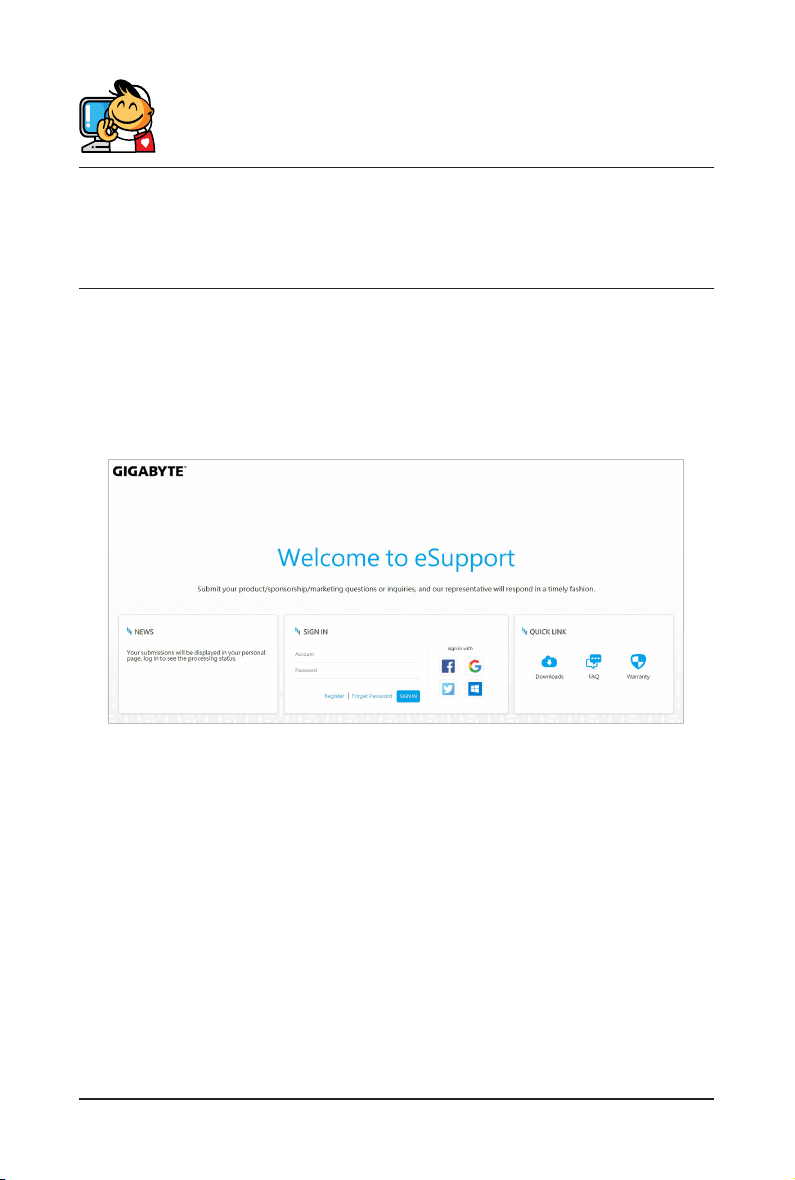
To identify your Motherboard version or revision number, look for “REV: X.X” printed on the PCB on the top left corner of the Motherboard. For
example, "REV:1.0" means the revision of the motherboard is 1.0.
Motherboard revision no.: Wireless module manufacturer, model name:
B650 AORUS ELITE AX rev. 1.0 AMD Corporation RZ616, MediaTek MT7922A22M
B650 AORUS ELITE AX rev. 1.1 Intel
®
Corporation AX210NGW
Approvals for wireless module RZ616, MT7922A22M:
Approvals for wireless module AX210NGW:
- 38 -
Contact Us
GIGA-BYTE TECHNOLOGY CO., LTD.
Address: No.6, Baoqiang Rd., Xindian Dist., New Taipei City 231
TEL: +886-2-8912-4000, FAX: +886-2-8912-4005
Tech. and Non-Tech. Support (Sales/Marketing) : https://esupport.gigabyte.com
WEB address (English): https://www.gigabyte.com
WEB address (Chinese): https://www.gigabyte.com/tw
• GIGABYTE eSupport
To submit a technical or non-technical (Sales/Marketing) question, please link to:
https://esupport.gigabyte.com