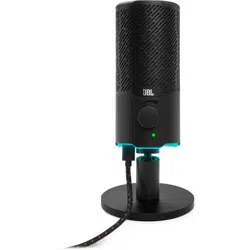
Stream
OWNER’S MANUAL

TABLE OF CONTENTS
INTRODUCTION ........................................................................................................... 1
WHAT’S IN THE BOX ..................................................................................................... 2
PRODUCT OVERVIEW ................................................................................................. 3
Controls ................................................................................................................................................................3
GETTING STARTED....................................................................................................... 4
System compatibility ...................................................................................................................................4
Connecting USB power cable ................................................................................................................4
Connecting a monitoring headphone .............................................................................................5
First-time setup (for PC only) ...................................................................................................................5
USING YOUR MICROPHONE ...................................................................................... 7
Selecting a polar pattern ...........................................................................................................................7
Positioning ........................................................................................................................................................8
MOUNTING OPTIONS ...............................................................................................10
Mic mount with 5/8" male screw ...................................................................................................... 10
Mic mount with 1/4" male screw ...................................................................................................... 11
Shock mount for 2.2" diameter microphones .......................................................................... 12
PRODUCT SPECIFICATIONS ..................................................................................... 13
TROUBLESHOOTING ................................................................................................. 14

- 1 -
Introduction
Congratulations on your purchase! This manual includes information on the JBL
Quantum Stream microphone. We encourage you to take a few minutes to read this
manual, which describes the product and includes step-by-step instructions to help
you to set up and get started. Read and understand all the safety instructions before
using your product.
If you have any questions about this product or its operation, please contact your
retailer or customer service, or visit us at www.JBLQuantum.com
- 2 -
What’s in the box
01
03
02
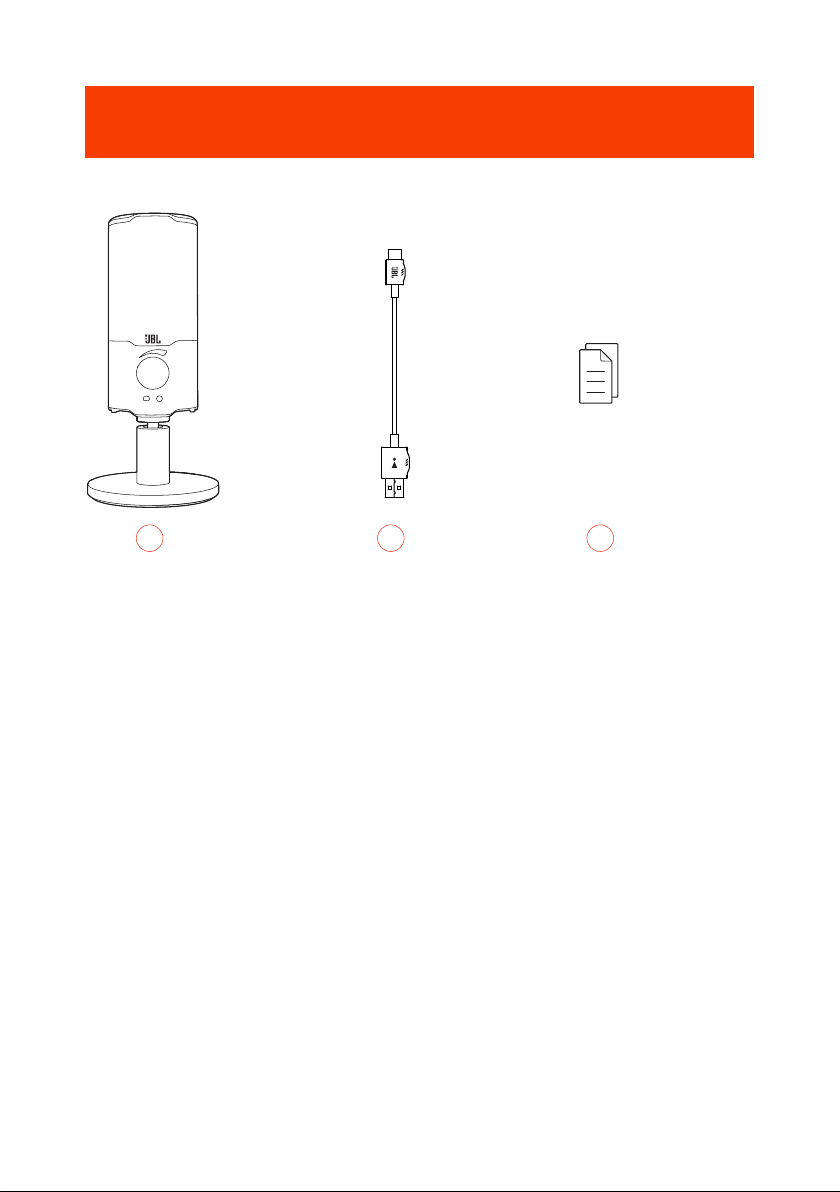
01 JBL Quantum Stream microphone
02 USB power cable (USB-A to USB-C)
03 QSG, warranty card and safety sheet
- 3 -
PRODUCT OVERVIEW
Controls
01
02
03
05
06
07
09
08
04
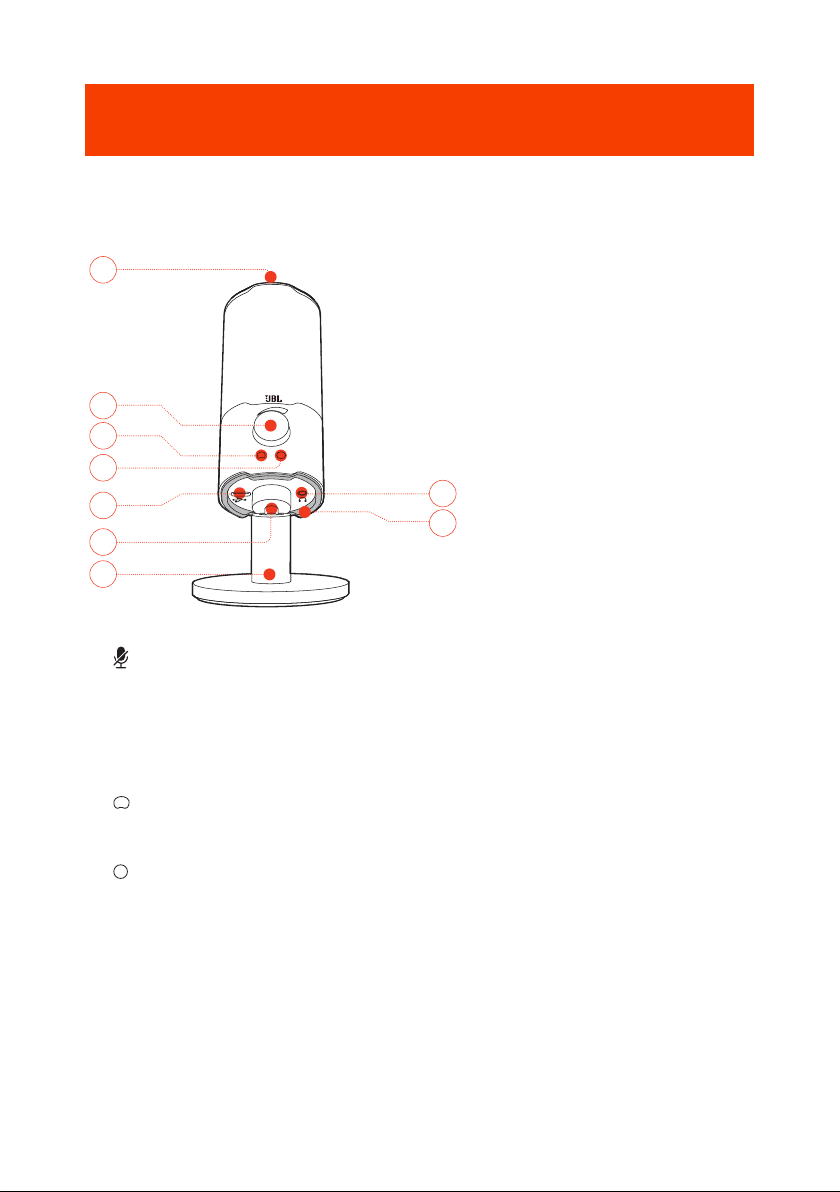
01
• Mutes or unmutes the microphone.
02 Volume knob
• Adjusts headphone volume.
03
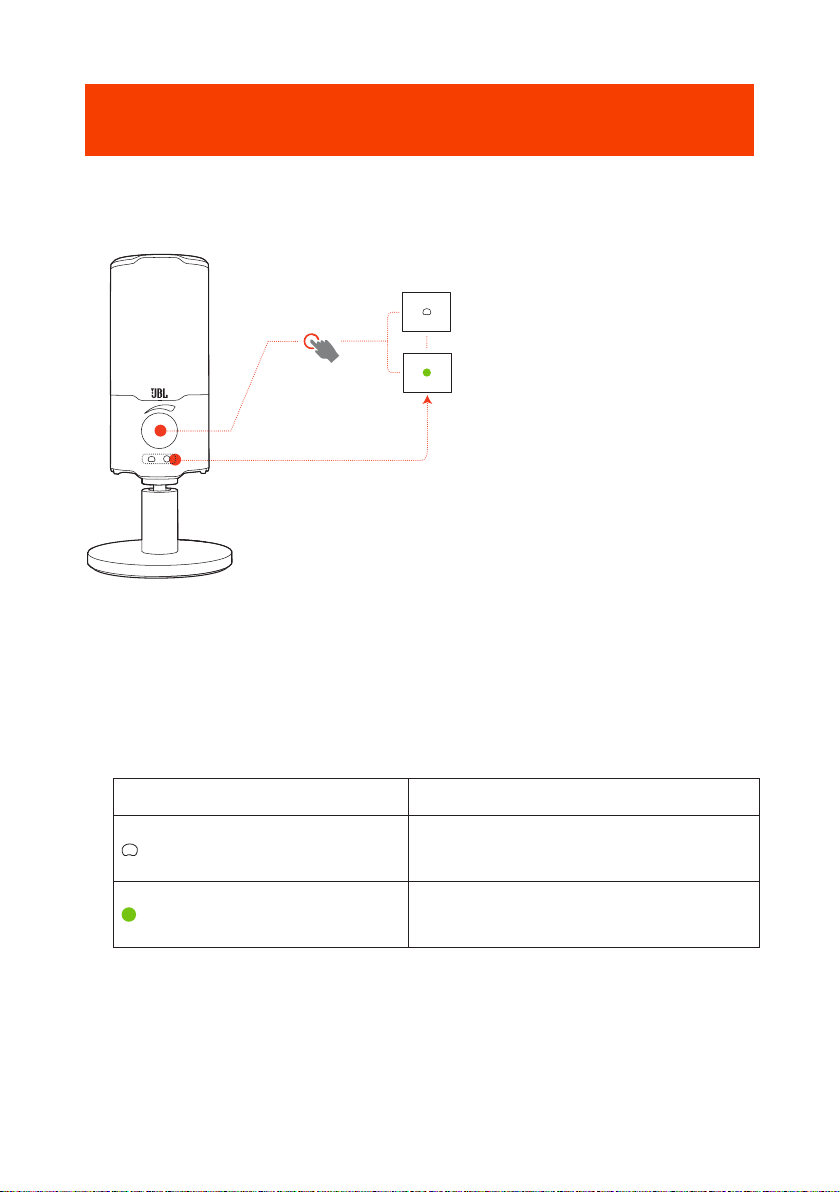
• Lights up white when the polar pattern is cardioid (default).
04
• Lights up green when the polar pattern is omnidirectional.
05 USB-C port
06 Rotary joint
07 Microphone stand
08 Ring LED (RGB lighting + mute/unmute indicator)
09 3.5 mm headphone port
- 4 -
Getting started
System compatibility
• PC and Mac (desktop or laptop) with USB-A or USB-C ports
• Mobile devices with USB-C ports
• PlayStation™: PS4/PS5 console with USB-A port
• Nintendo Switch™ with USB-C port and Nintendo Switch™ console with USB-A
port
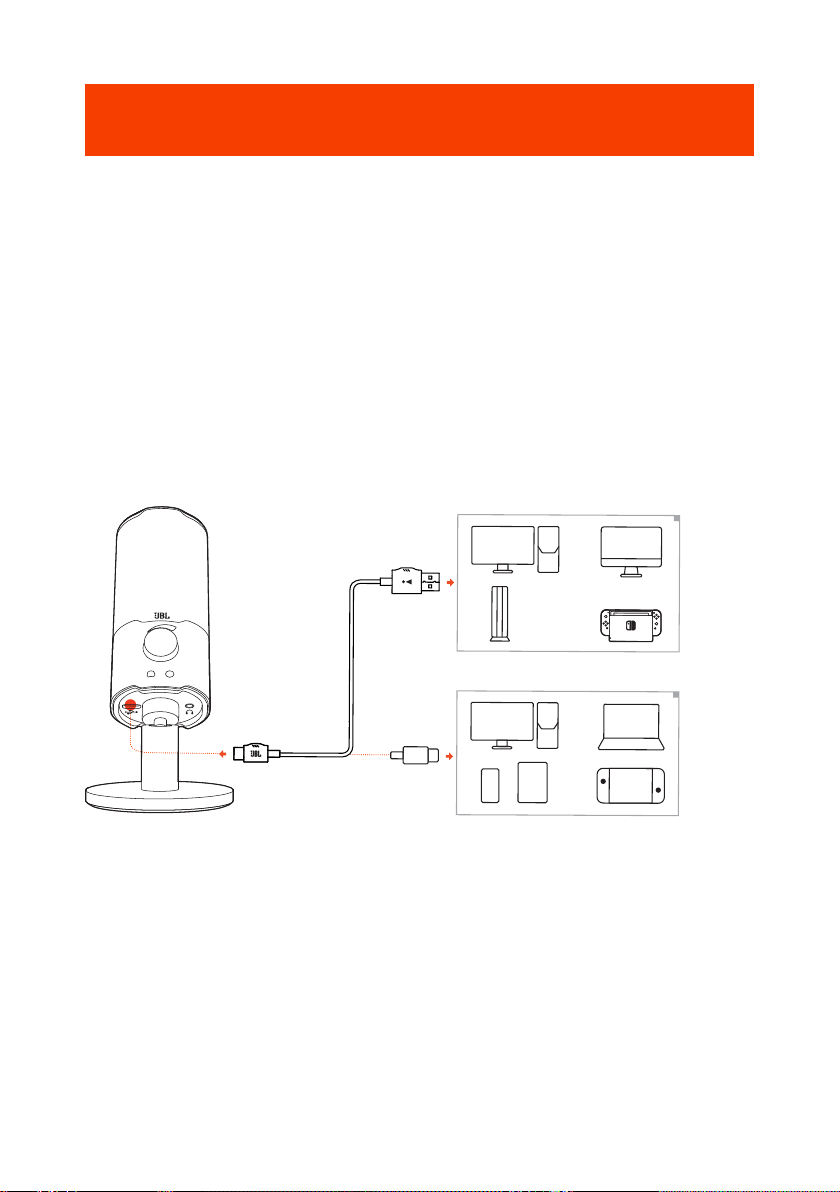
Connecting USB power cable
*
1. Connect the black connector (USB-C) to your microphone.
2. Connect the orange connector (USB-A) to your PC, Mac, PS4/PS5 console or
Nintendo Switch™ console.
• You can also use a USB-C to USB-C cable to connect the microphone to compatible
devices.
The microphone powers on.
- 5 -
NOTE:
• USB-C to USB-C cable is not included by-pack. Connectivity with USB-C may
not work with all models of said devices.
Connecting a monitoring headphone
3.5 mm
3.5 mm
2.5 mm
*
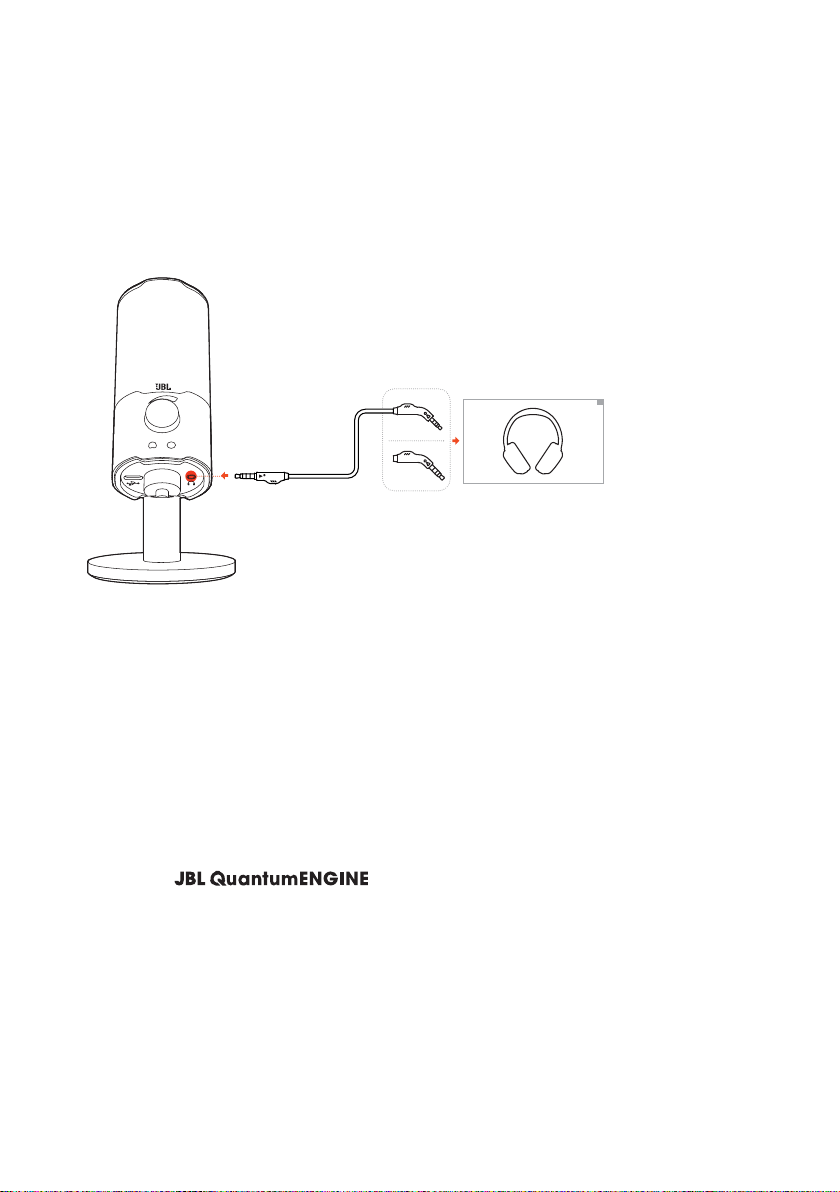
1. Connect a 3.5mm to 3.5mm cable or a 3.5mm to 2.5mm cable to the headphone
port on the microphone.
2. Connect the other end to a monitoring headphone.
You can hear sounds from the microphone.
First-time setup (for PC only)
Download from www.jblquantum.com/engine to gain full
access to features on your JBL Quantum Stream, such as EQ settings, polar pattern
selection and lighting customization.
- 6 -
Software requirements
Platform: Windows 10 (64 bit only) / Windows 11
500MB of free hard drive space for installation
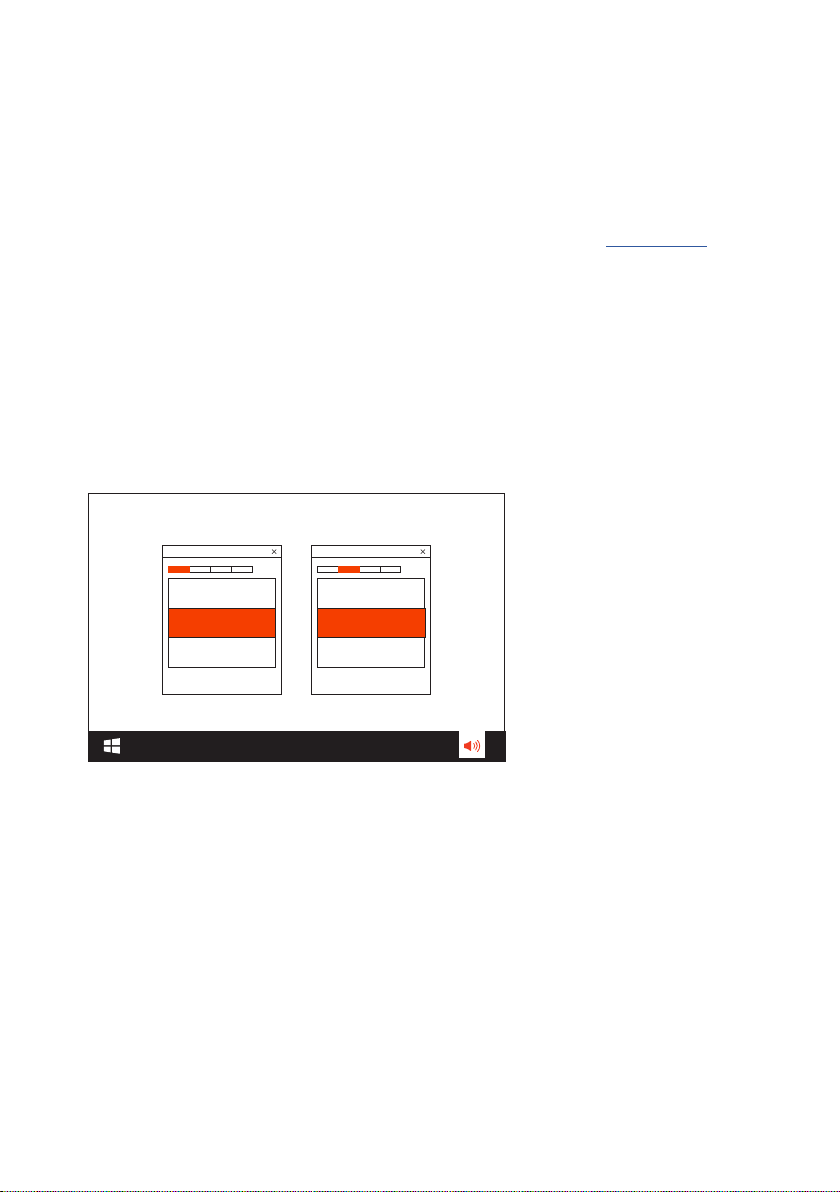
1. Connect the microphone to your PC via USB connection. (See “Positioning”).
2. Go to “Sound Settings” -> “Sound Control Panel”.
3. Under “Playback” highlight “JBL Quantum Stream” and select “Set Default” ->
“Default Device”.
4. Under “Recording” highlight “JBL Quantum Stream” and select “Set Default” ->
“Default Device”.
5. Follow the onscreen instructions to personalize your sound settings.
JBL Quantum Stream JBL Quantum Stream
NOTE:
• By default, all sounds will be played through the JBL Quantum Stream
microphone and heard through a headphone connected to it. To hear sound
from the PC directly, select the PC sound card as the default device.
- 7 -
Using your microphone
Selecting a polar pattern
>2S
The polar pattern defines a microphone’s sound pickup sensitivity related to its angle
and directions. Select an appropriate polar pattern according to your recording
needs.
• Hold the volume knob for 2 seconds to switch between cardioid (default) and
omnidirectional.
Polar pattern Applicable scenarios
Cardioid
Individual podcasts, gaming, streaming,
voiceovers, instruments etc.
Omnidirectional
Multi-person podcasts, conference calls,
streaming, voiceovers etc.
- 8 -
Positioning
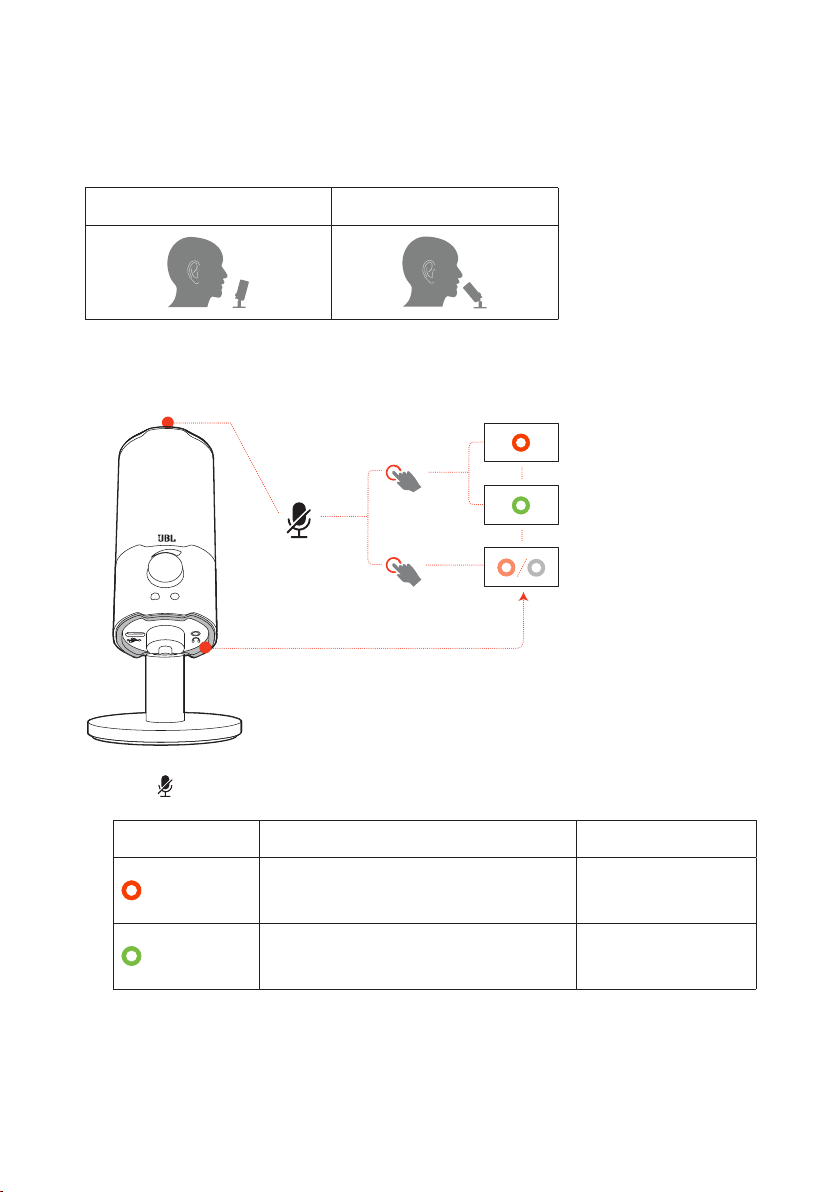
For optimal performance, speak towards the side instead of the top of the microphone.
Recommended Not recommended
Mute/unmute
>5S
× 1
• Press on the top to mute or unmute the microphone.
Ring LED color Meaning Microphone status
RGB lighting on, mute/unmute
indicator in red
Muted
RGB lighting on, mute/unmute
indicator in green
Unmuted
- 9 -
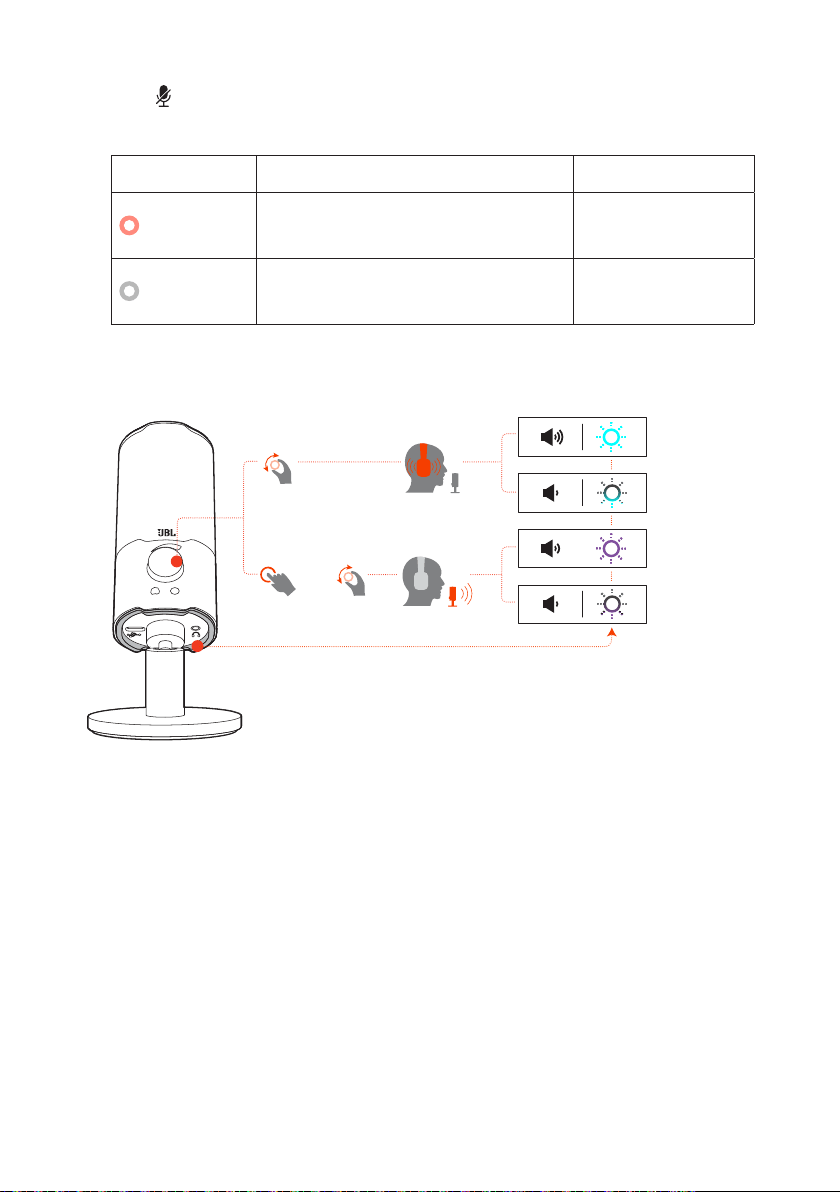
• Hold for 5 seconds to turn off RGB light on the ring LED. Hold the same button
for 5 seconds to turn it on again.
Ring LED color Meaning Microphone status
RGB lighting off, mute/unmute
indicator in red (30% brightness)
Muted
RGB lighting off, mute/unmute
indicator off
Unmuted
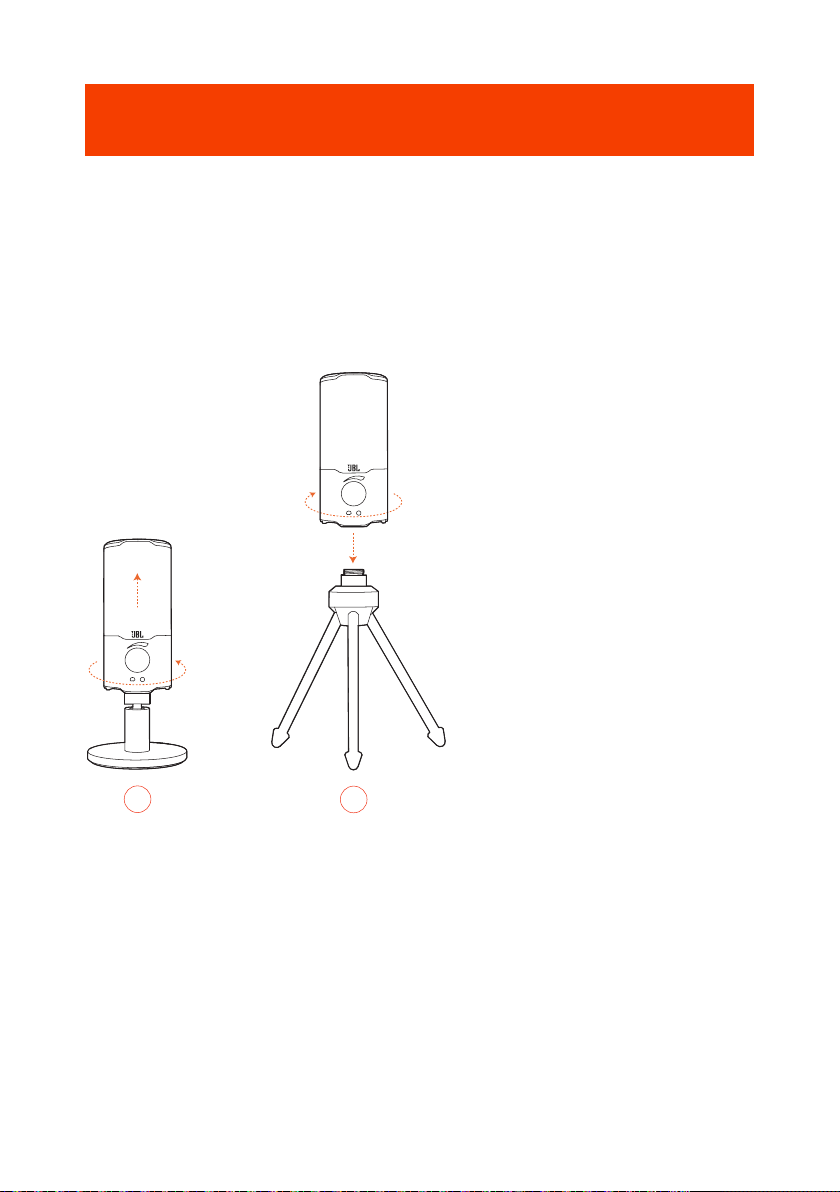
Volume/gain adjustment
× 1
+
To adjust the headphone and sidetone volume:
• Rotate the volume knob clockwise or counterclockwise.
The side tone is off by default. You can enable sidetone in QuantumEngine
and then rotate the volume knob to adjust sidetone volume.
The RGB light on the ring LED flashes in bright teal when the maximum volume
is reached. It flashes in dim teal when the minimum volume is reached.
To adjust the microphone gain:
• Press the volume knob, then rotate it clockwise or counterclockwise.
The RGB light on the ring LED flashes in bright purple when the maximum
gain is reached. It flashes in dim purple when the minimum gain is reached.
- 10 -
Mounting options
You can either place the microphone on an even surface directly or mount it with
compatible accessories (not included).
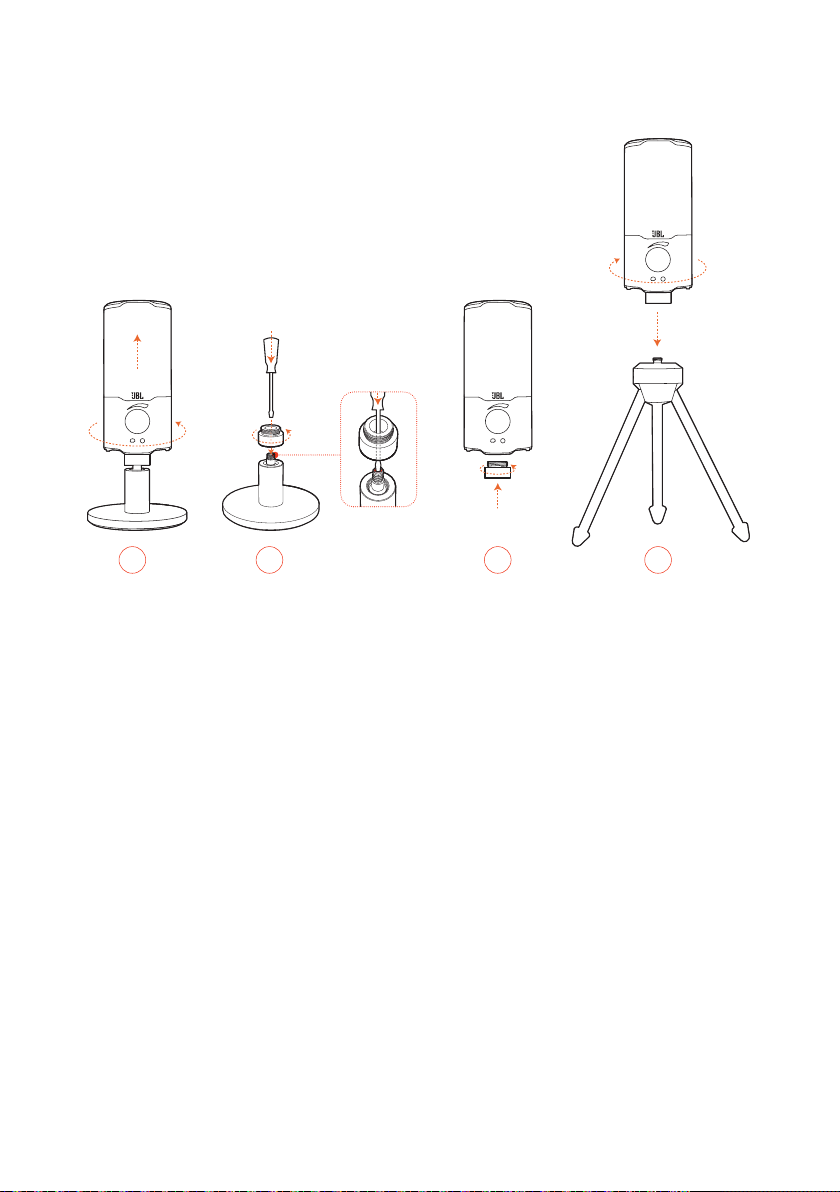
Mic mount with 5/8" male screw
01
02
1. Rotate counterclockwise to screw out the microphone from the stand.
2. Attach the microphone onto a mic mount (a tripod or boom arm etc.) with 5/8"
(15.88 mm) male screw securely.
- 11 -
Mic mount with 1/4" male screw
01 02 03 04
1. Rotate counterclockwise to screw out the microphone from the stand.
2. Use a 3/32" (2.5 mm) slotted screwdriver to keep the threaded nut on the top of
the stand in place. Then rotate counterclockwise to screw it out from the stand.
3. Screw the nut into the hole at the bottom of the microphone securely.
4. Attach the microphone onto a mic mount (a tripod or boom arm etc.) with 1/4"
(6.35 mm) male screw securely.
- 12 -
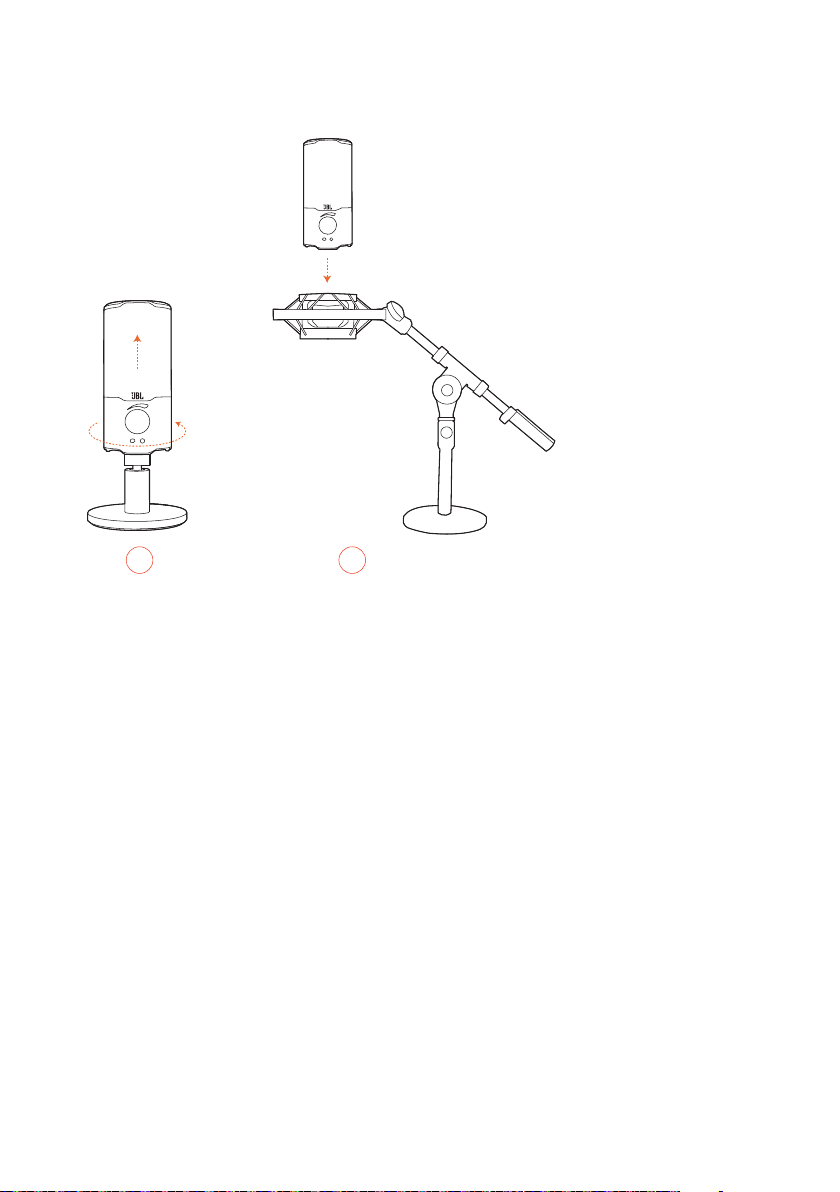
Shock mount for 2.2" diameter microphones
01 02
1. Rotate counterclockwise to screw out the microphone from the stand.
2. Attach the microphone onto a shock mount supporting 2.2" (55 mm) diameter
microphones securely.

- 13 -
Product Specifications
MICROPHONE
• Power required/consumption: 5 V 500 mA
• Sample rates: 44.1 kHz / 48 kHz / 96 kHz
• Bit rate: 16 / 24 bit
• Capsules: 14 mm Electret Condenser Microphone
• Polar patterns: Cardioid & Omni-directional
• Frequency response: 20 Hz - 20 kHz
• Sensitivity: -37 ± 3 dB (1 kHz@1 Pa, 0 dB = 1 v/Pa)
• Maximum SPL: 110 dB
HEADPHONE AMPLIFIER
• Impedance: >16 ohm
• Power output (RMS): 45 mWrms per channel (Load = 32 ohms)
• THD: <0.5% (Load = 32 ohms)
• Frequency response: 20 Hz - 20 kHz
• Signal to noise: 90 dB (A weighted)
DIMENSIONS - MIC WITH STAND
• Dimensions (L x W x H): 8 cm x 8 cm x 17.43 cm / 3.15" x 3.15" x 6.86"
• Weight: 248 g / 0.547 lbs
NOTE:
• Technical specifications are subject to change without prior notice.

- 14 -
Troubleshooting
If you have problems using this product, check the following points before you
request service.
No power
• Make sure that the microphone is properly connected and compatible with your
PC, Mac or gaming console device.
N
o sound from my headphone
• Make sure that the microphone is properly connected to your headphone and
PC, Mac or gaming console device.
• Make sure that you have chosen JBL Quantum Stream as the sound source of
your PC, Mac or gaming console device.
• Adjust volume on your headphone and make sure that your microphone is not
muted.
Speaker feedback
• This happens when the speaker sound is picked up by your microphone and
sent back to the speaker after being re-amplified. Try the following to eliminate
speaker feedback:
• Adjust the position so that the speaker is not too close to the microphone and
does not point at the microphone directly.
• Decrease the speaker volume and microphone gain to an appropriate level.
Distorted sound
• Decrease the microphone gain to an appropriate level.
• Adjust the microphone position so that it is not too close to the sound source.

- 15 -
Poor sound or Sound not l0ud enough
• Increase the microphone gain to an appropriate level.
• Move the microphone closer to the sound source.
• Select an appropriate polar pattern.
• Speak towards the side instead of the top of the microphone.
My voice cannot be heard by my teammates
• Make sure that you have chosen JBL Quantum Stream as the recording device
in the sound settings of your PC, Mac or gaming console device.
• Make sure that the microphone is not muted.
I can’t hear myself when I’m talking
• The sidetone is off by default. You can enable sidetone in QuantumEngine and
then rotate the volume knob to adjust sidetone volume.

HP_JBL_Quantum Stream_OM_SOP_EN_V3